2017.04
V1.0
User Manual
2
©
2017 DJI All Rights Reserved.
Using this Manual
Legend
Important Tips
Install the DJI GO App
Search for ‘DJI GO’ on the App Store or Google Play and install
the app on your mobile device.
DJI GO supports iOS 8.0 (or later) or Android 4.3 (or later).
Searching for Keywords
Search for keywords such as “battery” and “install” to nd a topic. If you are using Adobe
Acrobat Reader to read this document, press Ctrl+F on Windows or Command+F on Mac to
begin a search.
Navigating to a Topic
View a complete list of topics in the table of contents. Click on a topic to navigate to that
section.
Printing this Document
This document supports high resolution printing.

©
2017 DJI All Rights Reserved.
3
Contents
Using this Manual
2
Legend
2
InstalltheDJIGOApp
2
Introduction
4
Getting Started
5
IntelligentBattery
5
MountingyourMobileDevice
7
RemovingtheMobileDeviceHolder
8
OptionalAccessories
8
UnlockingtheGimbal
9
LockingtheGimbal
10
Using the Osmo+
10
ControlsandOperations
10
OperationModes
13
DJI GO App
15
Download
15
ConnectingtotheDJIGOApp
15
KeyPages
16
Upgrading the Firmware
21
UsingtheDJIGOApp
21
UsingaMicroSDCard
21
Maintenance
22
Specifications
22
Troubleshooting
25
4
©
2017 DJI All Rights Reserved.
Introduction
The OSMO
TM
+ is a professional handheld gimbal camera that combines mobility and stability
in one device. Its camera features an optical zoom lens providing 3.5x optical zoom and 2x
lossless digital zoom*. It shoots sharp 12MP still photos and stable video at up to 4K. A light
and ergonomic design places buttons at your fingertips, forming a powerful and personal
one-handed filmmaking device. The DJI GO app complements the Osmo+ with shooting
modes such as motion timelapse and 9-shot panorama.
Equipped with 3-axis stabilization and SmoothTrack technology, the Osmo+ compensates for
natural arm movements and smooths out transitions. Finer operations can be done with the
joystick, while instant positioning of the camera can be made directly with your other hand.
The camera tilts across a 170-degree range and has a pan rotation of 640 degrees. The DJI
Rosette Mount on the side of the handle allows your mobile device to be mounted as a live
HD view nder, and supports external devices including vehicle mounts and tripods for spe-
cialized lmmaking applications.
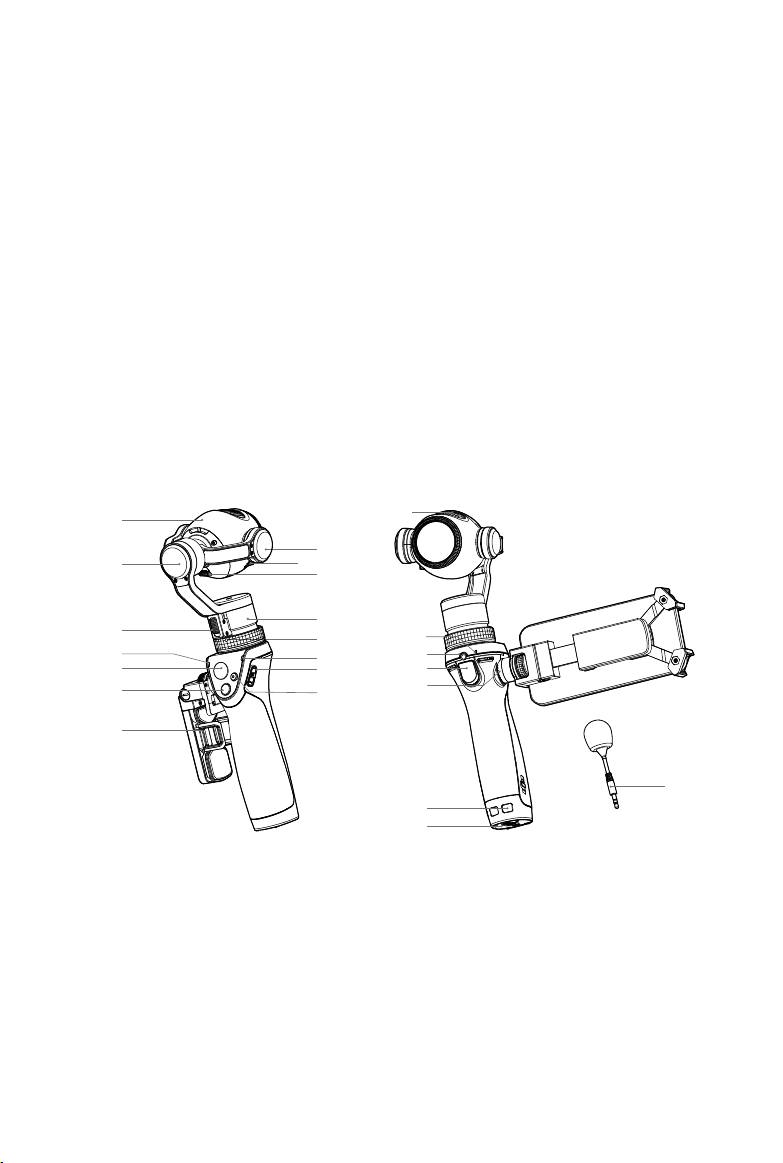
At a Glance:
17 Built-in Microphone
18 External Microphone Input
19 Trigger
20 DJI Rosette Mount
21 Lanyard Hole
22 Battery Cover
23 Flexi Microphone
1 Camera
2 Roll Motor
3 Pan Axis Lock
4 Camera Status LED
5 Joystick
6 Shutter Button
7 Mobile Device Holder
8 Record Button
9 Power Switch
10 System Status LED
11 Gimbal Securing Ring
12 Pan Motor
13 Camera Micro USB Port
14 Micro SD Card Slot
15 Tilt Motor
16 Air Vents
15
14
13
11
10
9
7
21
22
23
19
18
16
17
20
6
5
2
3
1
4
8
12
*Digitallosslesszoomonlyavailablewhenshootingat1080p.
©
2017 DJI All Rights Reserved.
5
Getting Started
Intelligent Battery
The 1225 mAh Intelligent Battery can power the Osmo+ for about 114 minutes.
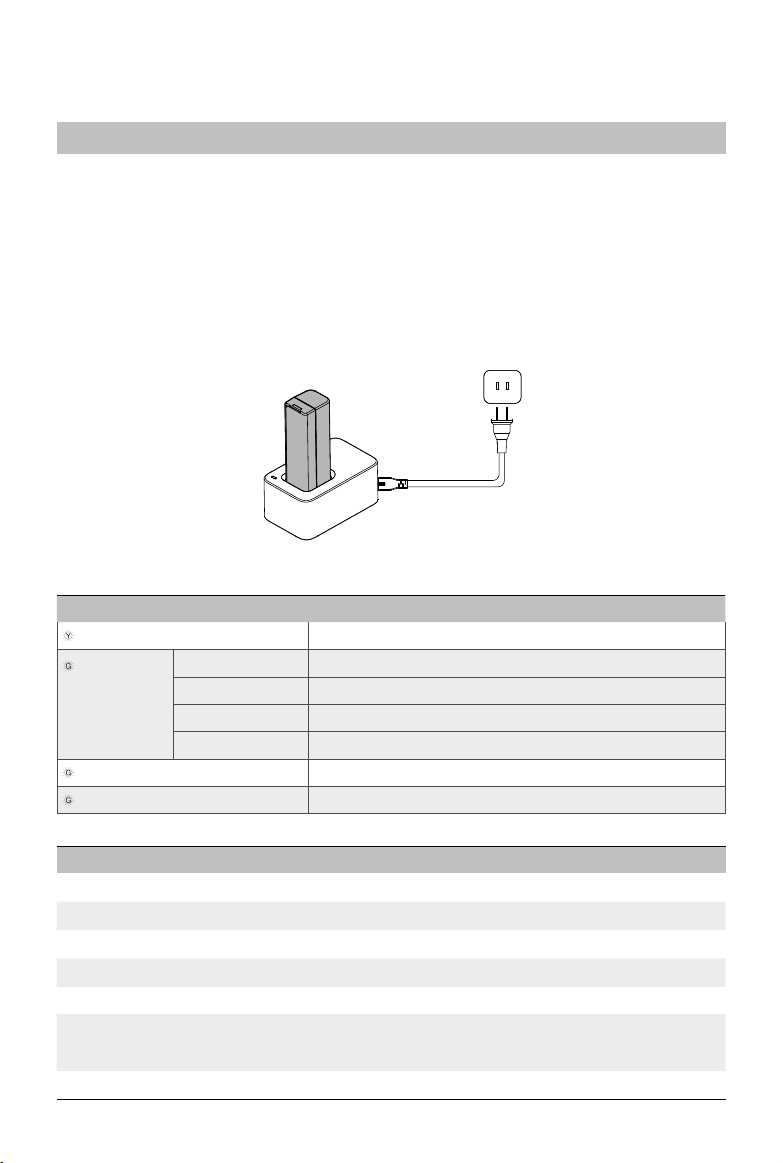
Charging the Battery
Connect the battery charger to a power outlet using the provided cable.
Place the battery into the battery charger. It will take approximately 110 minutes for the
battery to be fully charged, refer to the "Status LED Indicator Descriptions" section below for
more information about the Status LED Indicator's blinking patterns.
Status LED Indicator Descriptions
Status LED Indicator Descriptions
—
Solid Yellow No battery detected
......
Blinking Green
(within a
certain time)
Blinks once < 25%
Blinks twice 25% to 49%
Blinks three times 50% to 74%
Blinks four times 75% to 99%
—
Solid Green Fully charged
—
Solid Red Charger error, check the connection to the Battery Charger
Intelligent Battery Functions
Battery Balancing Balances the voltage of each cell during charging.
Overcurrent Protection Stops charging if the charging current is too large.
Overcharge Protection Stops charging if its voltage is too high.
Over-discharge Protection Stops discharging if its voltage is too low.
Short Circuit Protection Cuts the power supply if a short circuit is detected.
Temperature Control
Stops charging if the core temperature falls below 41°F (5°C)
or exceeds 104°F (40°C).
Battery Level Display The battery level is displayed in the DJI GO app.
6
©
2017 DJI All Rights Reserved.
OSMO+ User Manual
Inserting the Battery
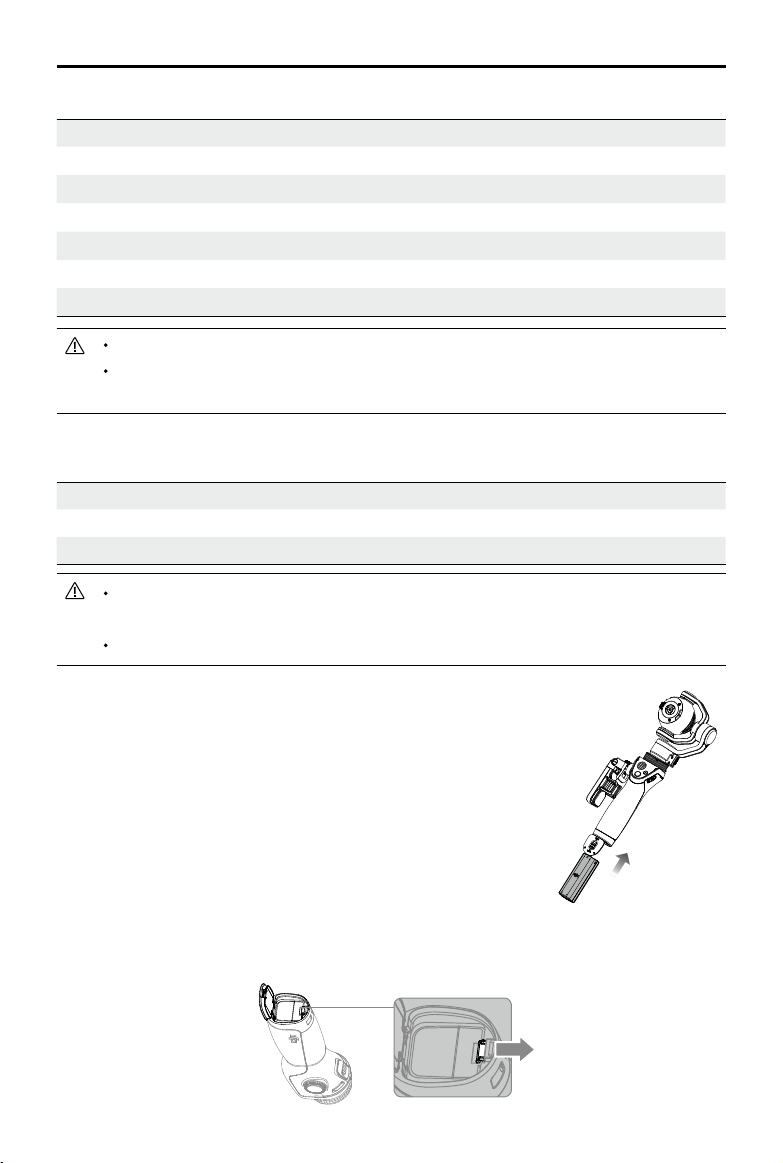
Slide the locking switch at the base of the Osmo+ to open the
battery cover. Insert the battery and lock the battery cover.
Battery Charger Specications
Model OS1C11
Input 100-240 V
,
50/60 Hz
Output 12.6 V
/13.2 V; 0.8 A
Only charge the battery with the provided battery charger. DJI takes no responsibility
for accidents caused by the use of non-DJI battery chargers.
Remove the battery from the charger unless it is charging to prevent battery discharging.
Removing the Battery
Slide the locking switch at the base of the Osmo+ to open the battery cover. Push the red
safety hook away from the battery to let it pop up, and then remove the battery.
Be sure to fully charge the Intelligent Battery for the rst time to activate it.
Read the user manual, Intelligent Battery Safety Guidelines before use. The user
takes full responsibility for all operations and usage.
Battery Specications
Model HB02-542465
Type LiPo
Capacity 1225 mAh
Energy 14.1 Wh
Voltage 11.1 V
Charging Temperature 41° to 104° F (5° to 40° C)
Operating Temperature 32° to 104° F (0° to 40° C)
©
2017 DJI All Rights Reserved.
7
OSMO+ User Manual
Mounting your Mobile Device
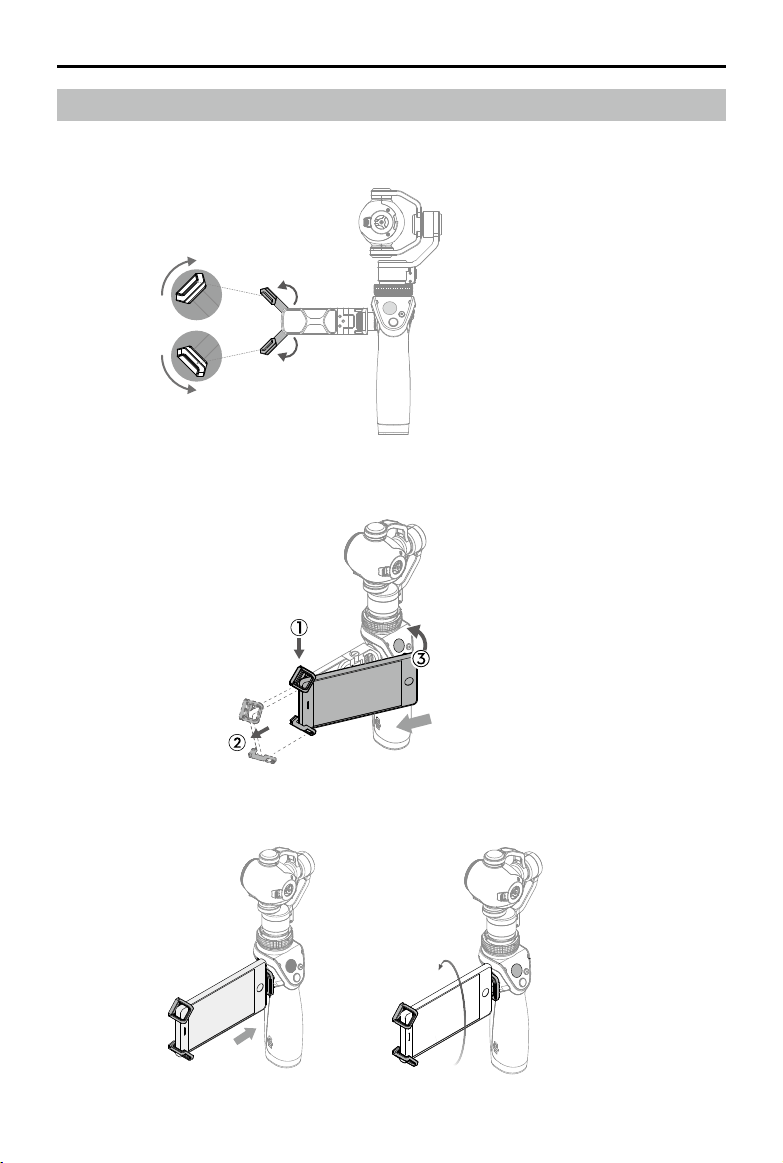
1. Unfold the two arms on the mobile device holder.
2. Adjust the pads to the desired position.
3. Place one end of your mobile device into the arms.
4. Extend the arms so that your entire mobile device is seated in the mobile device holder.
5. Rotate your mobile device to the desired position.
8
©
2017 DJI All Rights Reserved.
OSMO+ User Manual
Removing the Mobile Device Holder
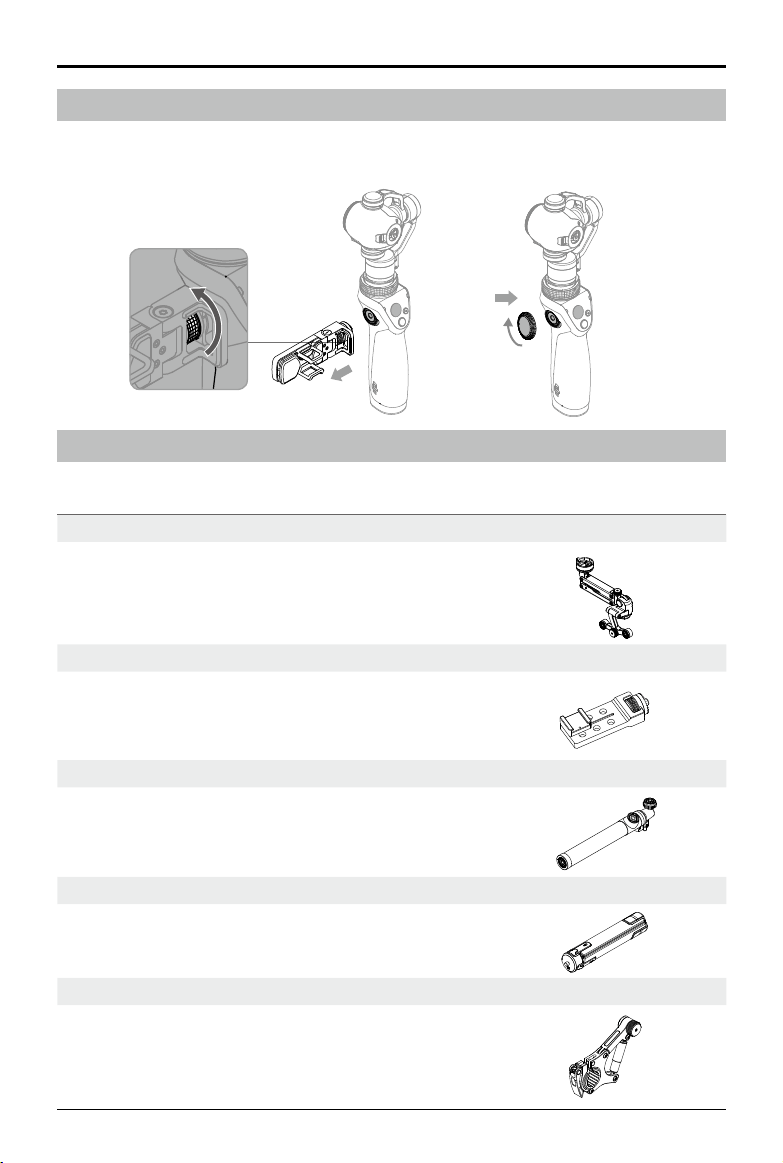
1. The mobile device holder can be removed by rotating the knob counterclockwise.
2. It is recommended to install the cap for the DJI Rosette Mount when it is not in use.
Optional Accessories
DJI provides various optional accessories for the Osmo+.
Z-Axis
The Osmo Z-Axis can signicantly reduce vertical shaking
from natural arm movements when walking and jogging.
Universal Mount
Used to mount external devices such as a microphone or
ashlight.
Extension Rod
Good for taking group seles, overhead shots or reaching
into small spaces.
Tripod
For stationary shots that require steady footage. It must
be used with the Extension Rod.
Bike Mount
Used to mount the Osmo+ on a bicycle.
©
2017 DJI All Rights Reserved.
9
OSMO+ User Manual
Visit the ofcial DJI Store (http://store.dji.com) to learn more.
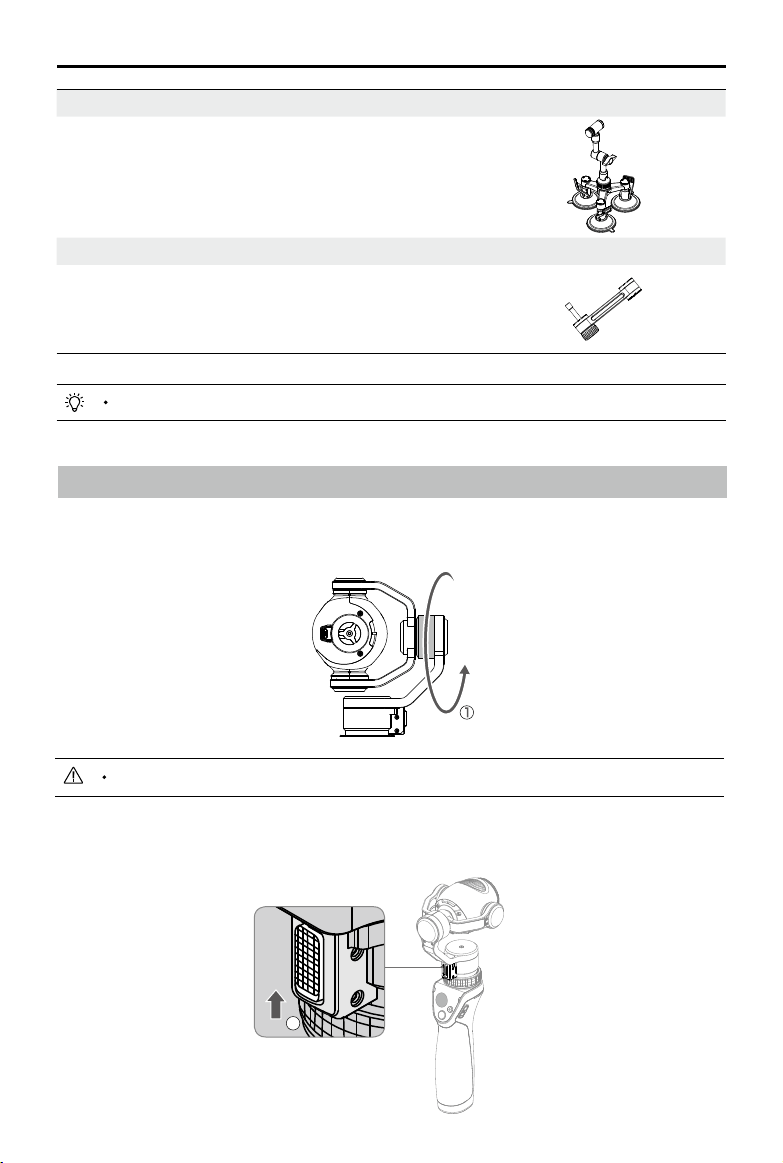
Vehicle Mount
Triple suction cup mount makes it ideal for mounting on
top of or on the rear window of moving vehicles.
Straight Extension Arm
Used to attach up to three other mounts at the same time.
Unlocking the Gimbal
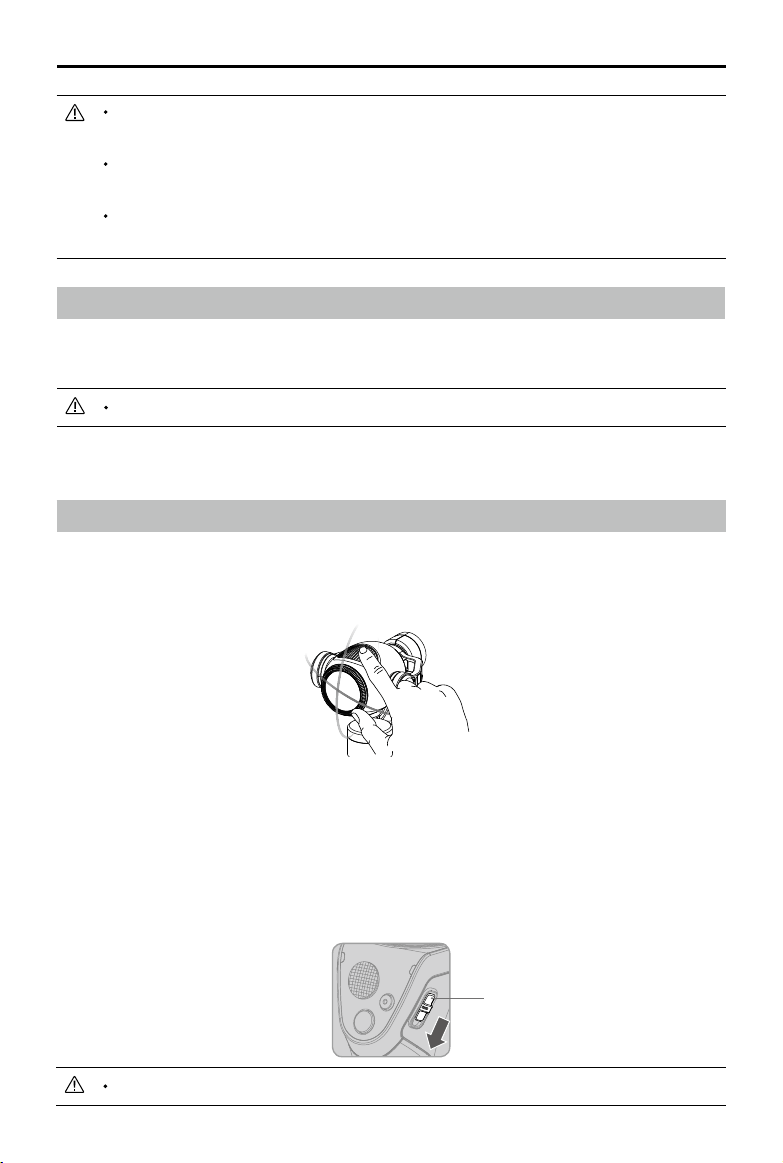
To protect the gimbal, the motor axes are locked in place. To unlock the gimbal:
1. Gently rotate the roll motor until it can rotate freely.
Rotate the motor just enough to allow free motion.
2. Slide the Pan Axis Lock upwards to unlock the pan axis.
Pan Axis Lock
2
10
©
2017 DJI All Rights Reserved.
OSMO+ User Manual
You can choose to unlock the gimbal before or after the Osmo+ is turned on. It is
recommended to unlock the gimbal before powering on the Osmo+.
The Osmo+ will beep slowly if the gimbal is locked after it is turned on. This means
the camera is working normally but the gimbal is shut off.
If you need to unlock the gimbal after it is turned on, you must rotate the pan motor
to reactivate the gimbal.
Using the Osmo+
Controls and Operations
The gimbal anticipates handle movement to smooth out pan and tilt transitions, and uses
SmoothTrack technology to reduce camera shakes from natural arm movements.
The camera can be position directly by hand.
Locking the Gimbal
Pull the pan axis lock down and rotate the pan axis to the locked position (until it cannot
rotate any further), and then adjust the roll motor in order to lock it in place.
Do not lock the gimbal during recording, otherwise the recording will stop.
Hold the Osmo+ steady and upright while it is starting up.
PowerSwitch
[1] Power Switch
To turn on the Osmo+, pull the power switch down and then release it.
Pulling the power switch again will cause the Osmo+ to go in or out of sleep mode.
To turn off the Osmo+, pull the power switch down and hold for 1.5 seconds.
Additionally, there are buttons on the front and back of the handle that allow for ner control
over the gimbal and camera. All of the buttons and controls are described below.
©
2017 DJI All Rights Reserved.
11
OSMO+ User Manual
RecordButton
ShutterButton
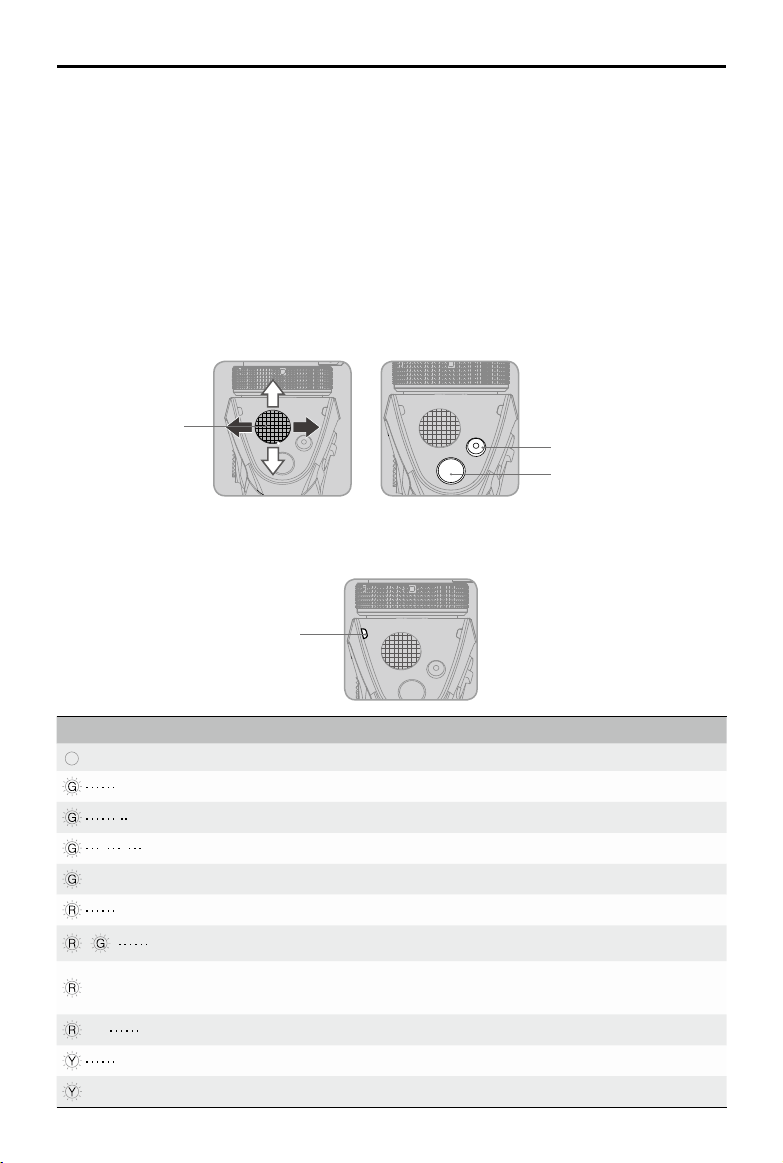
[2] Joystick
Vertical movement tilts the camera. Horizontal movement pans the camera. Joystick
Control Direction can be changed in the DJI GO app.
[3] Shutter Button
Press this button to take photos based on your settings in the DJI GO app. Hold down
shutter button to capture continuous photo.
[4] Record Button
Press this button once to start recording video, and again to stop recording.
[5] Camera Status Indicator
Indicates the camera’s system status. Refer to the table below for details.
Blinking Pattern Description
LED Off Camera is functioning normally.
Blinks Green Shooting photo.
Blinks Green slowly Self-timer.
Blinks Green for each shot Burst shooting.
—
Solid Green Firmware upgrade successful.
Blinks Red slowly
Recording video.
/ Blinks Red and Green alternately Upgrading rmware.
—
Solid Red
Camera is not mounted on the Osmo+ properly /
Firmware upgrade failed or system error.
×2 Blinks Red twice Camera error.
Blinks Yellow Micro SD card busy.
—
Solid Yellow Micro SD card error.
CameraStatusIndicator
Joystick
12
©
2017 DJI All Rights Reserved.
OSMO+ User Manual
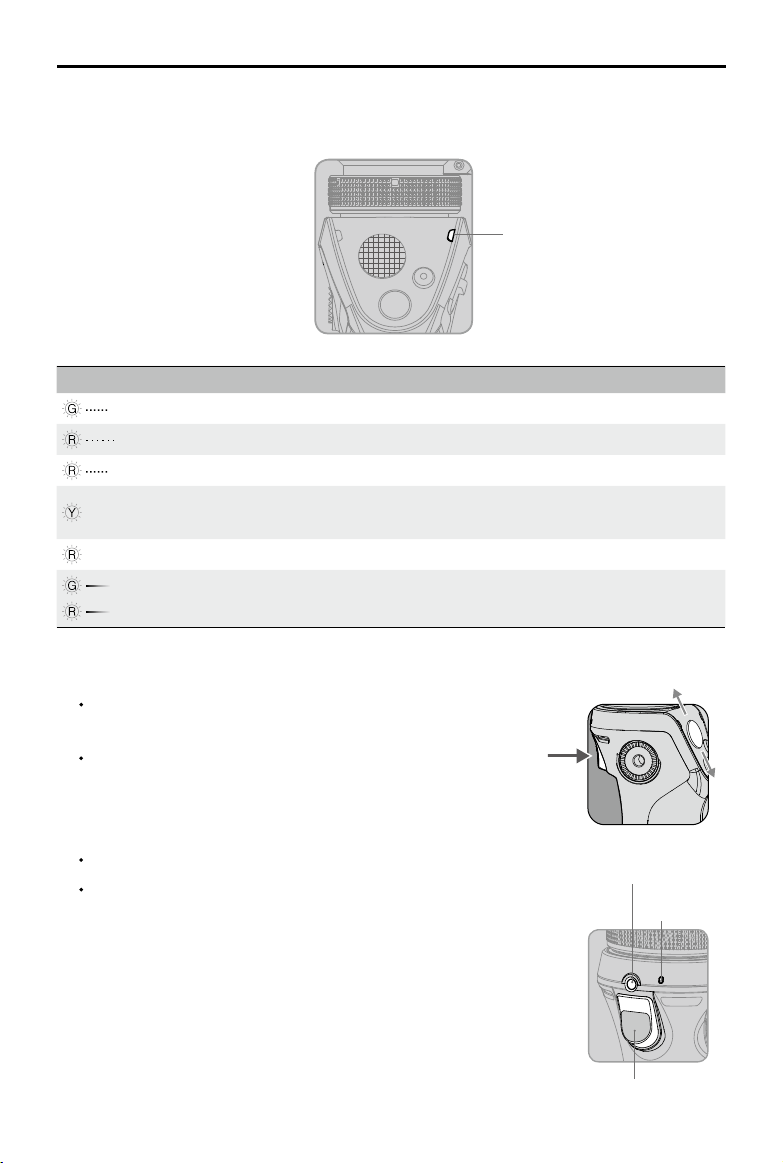
[6] System Status Indicator
Indicates the status of the Osmo+. Refer to the table below for details.
SystemStatusIndicator
System Status Indicator Description
Blinks Green quickly The Osmo+ is initializing / Exiting sleep mode.
Blinks Red slowly Low battery level warning.
Blinks Red quickly Critical low battery level warning.
—
Solid Yellow
The trigger is tapped and the gimbal is in lock
mode.
—
Solid Red Non-DJI battery detected.
Breathing Green (high battery level)
Breathing Red (low battery level)
The Osmo+ is in
sleep mode
.
[7] Trigger
Hold down the trigger and push the joystick up and down to
zoom.
Hold down the Trigger to enable Lock Mode. The camera will
stay in its current position regardless of handle movement.
The Osmo+ will return to SmoothTrack Mode once the
Trigger is released.
Quickly tap the Trigger twice to center the camera.
When the Osmo+ is in Upright Mode and Underslung Mode,
quickly tapping the Trigger three times will enter Sele
Mode.
[8] External Microphone Input
Connect the provided Flexi Microphone to record audio.
[9] Built-in Microphone
Records audio for general use. You can turn off the
microphone in the DJI GO app.
External
MicrophoneInput
Built-in
Microphone
Trigger
©
2017 DJI All Rights Reserved.
13
OSMO+ User Manual
The external microphone will override audio reception of the built-in microphone.
[10] Key Combination
Restore Default Wi-Fi Settings:
Hold down the Trigger and Shutter Button at the same
time. Then, pull the power switch down until the System Status Indicator blinks green.
Release the power button before releasing the Trigger. The default SSID, password and
frequency for the Wi-Fi connection will be restored.
Turn on/off the Osmo+'s Wi-Fi:
Press and hold the trigger, then pull down the power
switch, then release both power switch and trigger. Wi-Fi is off when the system status
LED blinks twice. Repeat to turn on Wi-Fi.
Operation Modes
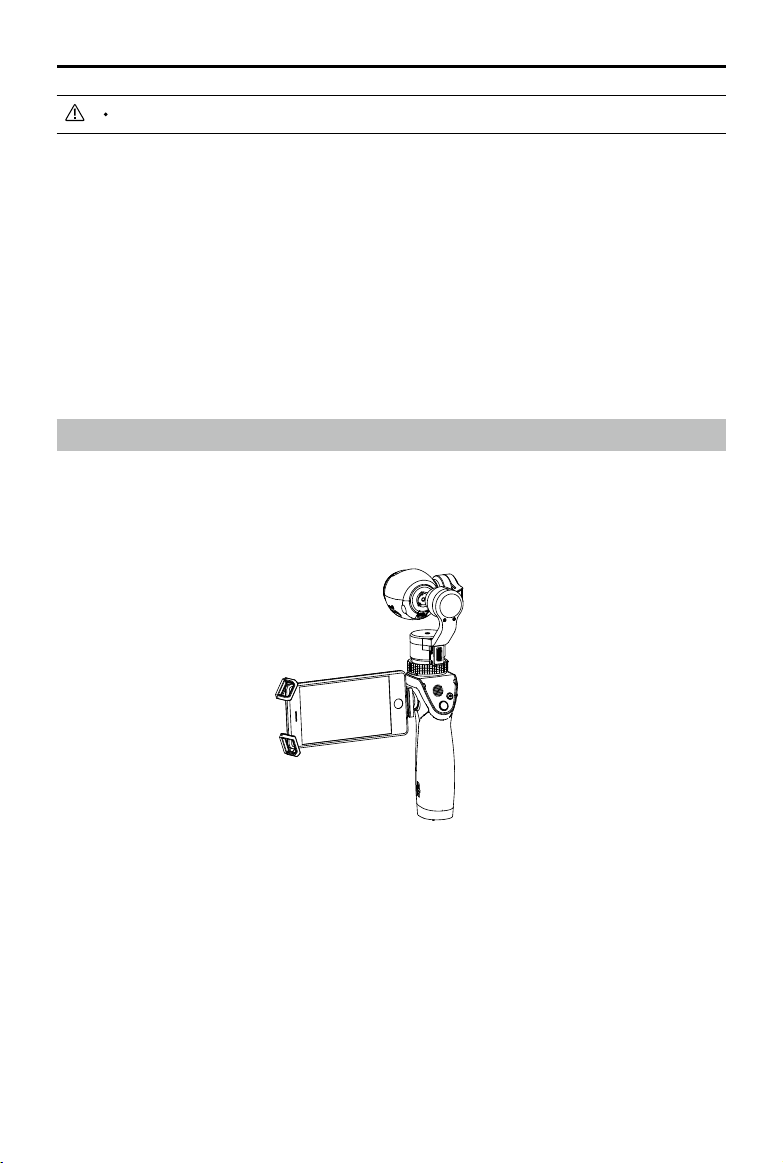
Upright Mode
Upright Mode can be used without any user input. In this mode, quickly tap the trigger twice
to center the camera.
14
©
2017 DJI All Rights Reserved.
OSMO+ User Manual
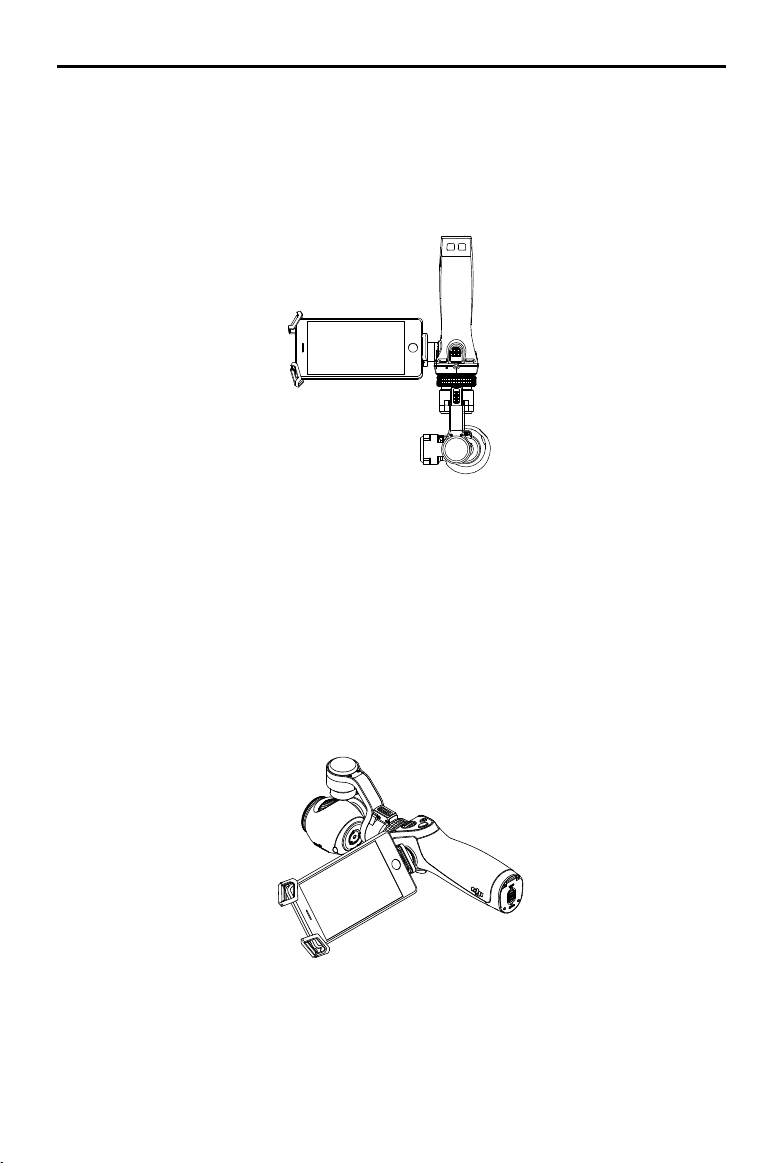
Underslung Mode
Holding the Osmo+ upside down will cause it to enter Underslung Mode, in which the camera
can easily capture images from a lower position. Quickly tapping the trigger twice will center
the camera.
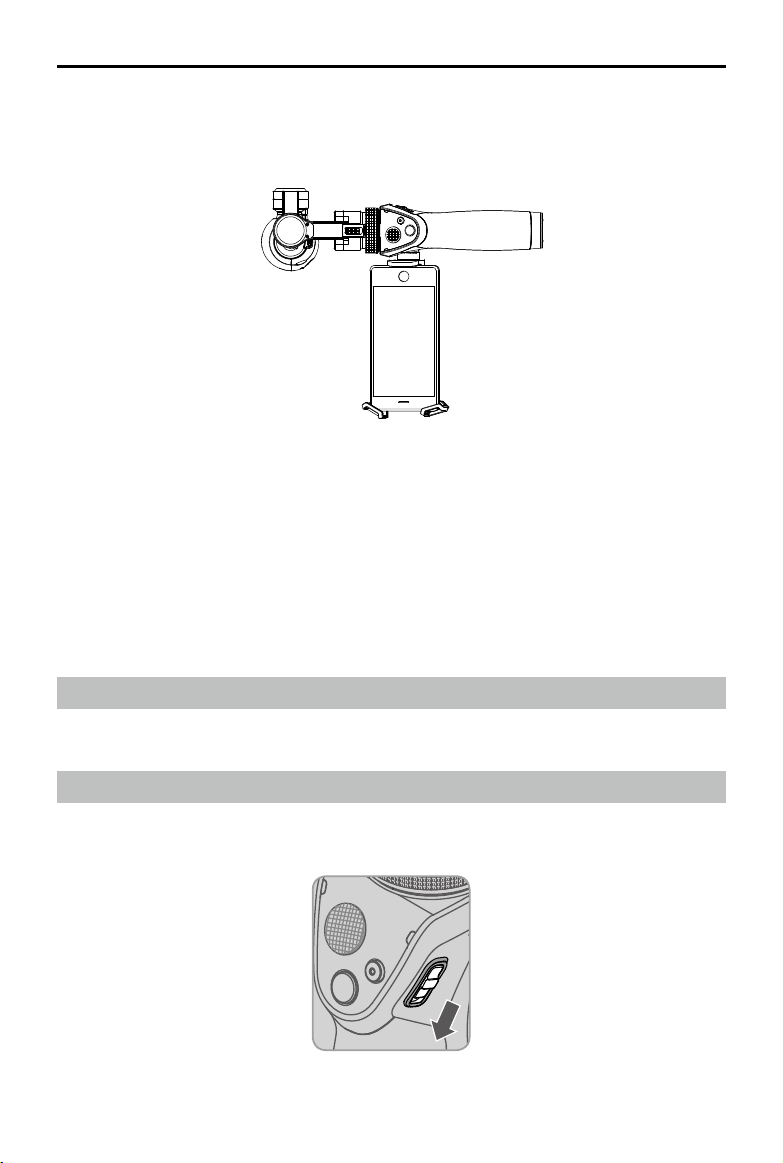
Flashlight Mode
Rotate the Osmo+ forward 90 degrees to go from Upright Mode to Flashlight Mode. In
Flashlight Mode, pushing the joystick up and down will tilt the camera, pushing the joystick
left and right will have no effect.
©
2017 DJI All Rights Reserved.
15
OSMO+ User Manual
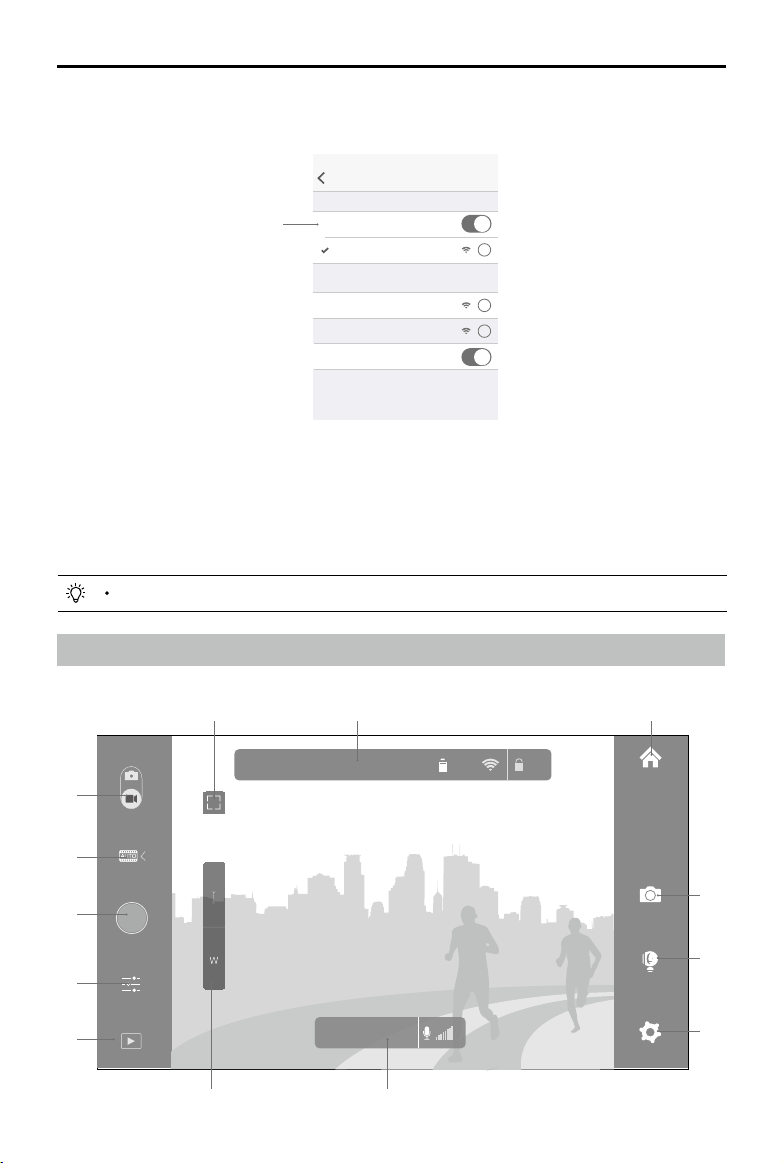
Portrait Mode
Rotate the Osmo+ 90 degrees to the left or right to go from Upright Mode to Portrait Mode.
DJI GO App
Watch a live HD video feed on your mobile screen through the DJI GO app. The Osmo+ is
complemented by the DJI GO app, which provides shooting modes such as motion timelapse
and 9-shot panorama.
The app also allows you to congure camera and gimbal settings in just a few taps.
Download
Search ‘DJI GO’ on the App Store or Google Play and download the app to your mobile device.
Connecting to the DJI GO App
1. Turn on the Osmo+. Hold the handle still and avoid touching the gimbal while the Osmo+
starts up.
16
©
2017 DJI All Rights Reserved.
OSMO+ User Manual
3. If you are using the Osmo+ for the rst time, follow the on-screen instructions to activate it.
You will need to log in to your DJI account through an Internet connection. Re-connect to
the Osmo+ Wi-Fi network after the activation is complete.
4. Enter Camera View. You will see what the camera captures in real time if it is connected
successfully.
2. On your mobile device, connect to the ‘OSMO_XXXXXX’ Wi-Fi network and enter the
default password 12341234. Then launch the DJI GO app.
Key Pages
1. Equipment
>
Camera
Wi-Fi
Settings
Wi-Fi
CHOOSE A NETWORK...
OSMO_XXXXXX
i
i
i
Other...
Ask to Join Networks...
Known networks will be joined automatically. If no
known networks are available, you will have to manually
select a network.
EnableWi-Fi
There will be a tutorial on how to use your Osmo+ after entering the camera view.
00
:
00
:
00 | 01
:
25
:
45
ISO:100 1/25
f:
2.8
EV:
0 JPEG 453 89%
AE
T
W
SAFE TO FLY GPS
61%
P-GPS
12
R
15:43
AE
22:02
LOG
60
1080P
ISO
F
EV
1600
2.8
2.0
1/50
MENU
[13]
[12]
[11]
[10]
[7]
[6]
[5]
[4]
[3]
[1][2]
[9][8]

©
2017 DJI All Rights Reserved.
17
OSMO+ User Manual
[1]
ISO:100 1/25
f:
2.8
EV:
0 JPEG 453 89%
AE
Information Bar
Displays the camera parameters, current battery level, and Wi-Fi signal strength.
[2] / :
Auto Focus / Metering Mode
Tap to switch between Auto Focus and Metering Mode.
[3]
/
:
Photo/Video Toggle
Slide to switch between photo and video mode.
[4]
Photo/Video Settings
:
Photo Modes
Single Shot
Normal, 5s or 10s delayed shot, HDR.
Multiple Shots
Burst shooting 3/5/7 frames, Auto Exposure Bracketing (AEB) 3/5 bracketed frames at
0.7EV Bias.
Panorama
Forward: The camera will rotate 180 degrees and render a panorama.
Auto: The camera will rotate 360 degrees and render a panorama.
Sele: The camera will point at you, pan 180 degrees and render a panorama.
Manual: The camera will pan a specied degree each time you tap the shutter button.
Up to 8 photos can be taken in manual mode to create a panorama. Always keep
objects in the right side of the shear.
9-Shot Panorama (Matrix): The camera will pan and tilt to capture a 9-shot grid, creating
a large multi-image photo.
Interval Timer
5s, 10s or 30s intervals.
Timelapse
There are Regular and Motion Timelapse Mode. In Motion Timelapse Mode, use up to 5
camera positions to create a moving timelapse.
1) Choosing to store timelapse in ‘JPEG
+
Video’ format limits the minimum interval to 2
seconds. Disabling this option reduces the minimum interval to 1 second.
2) If the timelapse interval is 2 seconds or more, the camera will apply digital stabilization
to the live HD video on your mobile device.
:
Video Modes
Auto: Normal video based on your camera settings.
Slow Motion: Recorded at 1080p and 100fps.

18
©
2017 DJI All Rights Reserved.
OSMO+ User Manual
[5] :
Shutter/Record Button
Shoots photos in photo mode and records video in video mode.
[6] :
Camera Parameters
Choose the shooting mode, ISO, shutter speed and exposure value.
[7] :
Playback
Tap to view photos and videos on the Micro SD card.
[8] :
Zoom Button
Tap T to zoom in and W to zoom out.
[9]
00:00:00 | 01:25:45
:
Recording Status Bar
Displays the current recording time, remaining recording time and microphone volume.
[10] :
Settings
Camera Settings
Here you can select the output formats for photos, video recording, and enable on-
screen displays such as histogram. Some of these options are explained below.
• Video Caption
If you enable this option, a .srt le containing on-screen information will be created with
the video le.
• Timelapse Format
Choosing ‘JPEG+Video’ will save the timelapse photos as well as the video.
• Anti-Flicker
Select the frequency that matches the current cycle in your country to prevent the
ickering of lights.
• File Index Mode
If you select ‘Reset’, the camera will write the photo and video les starting from the
smallest available index. If you select ‘Continuous’, the camera will continue the index
from the last written le.
Gimbal Settings
• Proles
Select the ‘Fast’, ‘Medium’ or ‘Slow’ profile depending on how responsive you want
the gimbal to be. Alternatively, create a custom profile by selecting C1 or C2 and
conguring the settings below.
• SmoothTrack Settings
The pan and tilt axes can be adjusted separately.
Speed: Determines how fast the gimbal will catch up with the translated pan/tilt handle
movement.

©
2017 DJI All Rights Reserved.
19
OSMO+ User Manual
Deadband: A larger deadband requires more pan/tilt handle movement to translate into
gimbal motion.
Acceleration: Determines how closely the camera will follow the translated pan/tilt
handle movement.
• Joystick Settings
Smoothing: Controls the deceleration of the gimbal. A small value will cause the gimbal
to stop abruptly.
Speed: Controls the movement speed of the tilt and pan axes when controlled by the
joystick.
Control Direction: The Osmo+'s tilt and pan axis can be controlled simultaneously by
setting joystick control direction to Free.
Invert Joystick Left/Right Operation: Inverts left and right joystick directions, so that
pushing right turns the camera left andvice versa.
Invert Joystick Up/Down Operation: Invert up and down joystick directions, so that
pushing the joystick up tilts the camera down.
• Horizontal Calibration
You may have to calibrate the roll axis if the camera’s horizon level is not perfectly level
by setting a positive or negative value.
• Auto Calibration
Reduces the drift caused by magnetic interference in the surroundings or human error.
Hold the Osmo+ still and upright during the calibration.
• Reset Gimbal
Tap to reset the gimbal to the default settings.
General Settings
Here you can change the Wi-Fi password, clear the video cache.
Livestream
Livestream to YouTube Live.
[11] :
Gimbal Functions
Scene Mode: SmoothTrack speed varies depending on the Scene Mode. In Sport Mode,
it moves faster, while in Walk Mode it is slower.
When using the Osmo's Wear Mode with the Osmo+, vertical movements created by
wearing the Osmo are minimized.
Tap to recenter the camera.
Tap enable Lock Mode.
Tap
to enter Sele Mode.
Tilt Axis Lock: Locks the tilt axis at the current angle when enabled.
Zoom Adjusted SmoothTrack: After enabling this function, SmoothTrack speed will auto

20
©
2017 DJI All Rights Reserved.
OSMO+ User Manual
2. Editor
View, edit and share your masterpieces all in one place. The Editor has a range of simple
but powerful tools that let you edit your videos and photos before sharing them online,
minutes after they are captured.
Once you login or register your DJI account, you will be able to conveniently upload
and share your creations. The saved photos and videos can be uploaded to Skypixel
(www.skypixel.com) and shared on social networks such as Facebook, Twitter, WeChat,
Moments and Sina Weibo.
Video
All of your recorded video footage will appear in ‘Original Footage’. You can trim footage
and save it to ‘Create Movie’. Then, select multiple clips to create a movie quickly with the
built-in editing tools and templates.
Photos
Edit your photos by adjusting the parameters, editing the photo size, adding watermarks
and applying lters.
3. Skypixel
View and share photos and videos to the Skypixel network.
4. Me
If you already have a DJI account, you will be able to participate in forum discussions.
adjust according to the level of zoom.
Focus when Gimbal stops: Enable this function to allow auto focus after the gimbal has
stopped moving.
Set Gimbal Attitude: Set gimbal tilt and pan angle manually.
[12] : Camera Quick Settings
A shortcut for changing the video resolution, photo format and photo color; select a
predefined or custom white balance; choose style settings for adjusting sharpness,
saturation and contrast. Adjust the microphone volume under Audio Volume Control.
[13] : Home
Tap to navigate to the home screen.
Drag Focus
In Camera View, touch the screen and hold until a blue circle appears. Then, drag the circle
to control the camera.

©
2017 DJI All Rights Reserved.
21
Upgrading the Firmware
Ensure that the battery has at least 50% power. It will take approximately 20 minutes to
complete the upgrade. It is recommended to lock the gimbal and place the handle on a at
surface during the upgrade process.
The camera status indicator will blink green and red alternately during the upgrade process,
and become solid green when the firmware upgrade is complete. If the Osmo+ upgrade
is successful, you will hear a beeping pattern consisting of 1 long beep followed by 2 short
beeps. If the upgrade is unsuccessful, the camera status indicator will become solid red and
the Osmo+ will emit a fast beeping sound, in which case you should reattempt the upgrade.
Using the DJI GO App
Connect the Osmo+ to your mobile device and then launch the DJI GO app. You will be
reminded if a new rmware upgrade is available. To start upgrading, connect your mobile
device to the internet and follow the on-screen instructions.
A Micro SD card must be inserted into the Osmo+ for the upgrade to start.
Restart the Osmo+ and ensure the Camera Status Indicator is off for normal use.
Using a Micro SD Card
1. Download the latest rmware update package from the product page on the ofcial DJI
website.
2. Copy the .bin file to the root directory of your Micro SD card (ensure there is enough
storage), and insert the card into the Micro SD card slot on the camera while the Osmo+ is
powered off.
3. Power on the Osmo+ to begin upgrading.
Read the .txt le on the root directory of the Micro SD card to conrm the upgrade result.
22
©
2017 DJI All Rights Reserved.
Maintenance
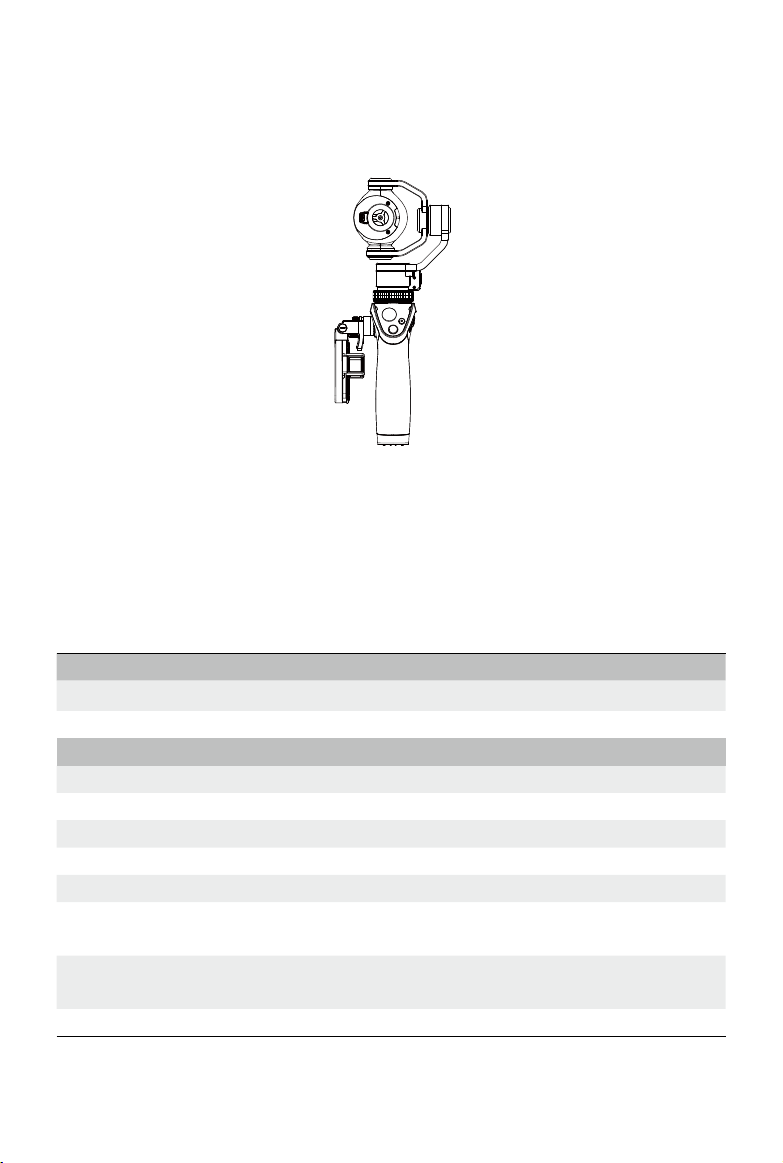
When transporting the Osmo+, keep it locked, in order to protect the gimbal, as shown below.
The Osmo+ is not water resistant. Keep it away from sand and dust during use. After use, it
is recommended to wipe the Osmo+ down with a soft dry cloth. Never spray any cleaning
liquids onto the Osmo+.
Specications
Handle
Dimensions 2.4×1.9×6.4 inches (61.8×48.2×161.5 mm)
Weight (including battery) 201 g
Gimbal
Model Zenmuse X3 Zoom
Weight 268 g
Output Power (with camera) 8 W
Angular Vibration Range ±0.02°
Mount Detachable
Controllable Range
Tilt: -35° to +135°
Pan: ±320°; Roll: ±30°
Mechanical Range
Tilt: -50° to +140°
Pan: ±330°; Roll: -50° to +90°
Max Controllable Speed 120°/s

OSMO+ User Manual
©
2017 DJI All Rights Reserved.
23
Camera
Model X3 ZOOM / FC350Z
Sensor
1/2.3” CMOS
Effective pixels:12.40 M
(Total pixels: 12.76 M)
Lens
3.5× Optical Zoom
22 - 77mm Equivalent
F2.8 (Wide) - F5.2 (Tele)
FOV 92° (Wide)- 35° (Tele)
Focus: 0.5 m to innity
ISO Range 100 - 3200 (video); 100 - 1600 (photo)
Electronic Shutter Speed 8 s - 1/8000 s (up to 30 s when camera is in M mode)
Max. Image Size 4000×3000 pixels
Still Photography Modes
Single Shot
Photo Burst Mode: 3
/
5
/
7 shots
Auto Exposure Bracketing
(
AEB
)
:
3/5 bracketed frames @ 0.7 EV bias
Interval
Auto Panorama
Sele Panorama
9-Shot Panorama
Motion Timelapse
Regular Timelapse
Video Resolution
C4K: 4096×2160
24
/
25p
4K: 3840×2160
24/25
/
30p
2.7K: 2704×1520
24/25
/
30p
FHD: 1920×1080 24/25/30/48/50/60/100p
Video Recording Modes
Auto
Slow Motion
Max. Video Bitrate 60 Mbps
Supported File Systems
FAT32
(
≤ 32 GB)
exFAT
(
> 32 GB)
Photo Formats JPEG, DNG
(
RAW)
Video Formats
MP4/MOV (MPEG-4 AVC/H.264)
Supported SD Cards
Micro SD
Max. Capacity: 64 GB
Class 10 or UHS-1
Operating Temperature 32° to 104° F (0° to 40° C
)

OSMO+ User Manual
24
©
2017 DJI All Rights Reserved.
Audio Output
48 kHz
AAC
Wi-Fi Video Link
Operating Frequency
2.412
–
2.462 GHz
5.180
–
5.805 GHz
Max Transmission Distance 82 feet
(
25 m
)
Transmitter Power (EIRP)
2.4 GHz: 8 dBm
5 GHz: 12 dBm
Intelligent Battery
Model HB02-542465
Type LiPo
Capacity 1225 mAh
Energy 14.1 Wh
Voltage 11.55 V
Charging Temperature
41° to 104° F (5° to 40° C)
Operating Temperature 32° to 104° F (0° to 40° C)
Battery Charger
Model OS1C11
Input 100
–
240 V, 50
/
60 Hz
Output 12.6/13.2 V, 0.8 A
Flexi Microphone
Sensitivity -32 ± 3 dB (0 dB =1 V/Pa)
Frequency Response 100 - 10000 Hz
Signal-to-Noise Ratio 60 dBA
Pin Diameter 3.5 mm
Length 88 mm
Weight 4 g

©
2017 DJI All Rights Reserved.
25
Troubleshooting
1. Why can’t I connect to the Osmo+?
•
Check your mobile device’s Wi-Fi settings to make sure it is connected to the Osmo+’s
Wi-Fi network.
•
If the Osmo+’s Wi-Fi network does not appear in your phone’s Wi-Fi settings, make sure
your mobile device is operating at either the 2.4GHz or 5.8GHz channel and try again.
•
If you still cannot connect to the Osmo+ even though your mobile device is connected
to the Osmo+’s Wi-Fi network, restart the Osmo+ and try again.
If the problem persists, reset the Osmo+’s Wi-Fi network to its default settings by using the
key combination and try again. (Key combination: Hold down the Trigger and Shutter Button
at the same time. Then, pull the power switch down until the System Status Indicator blinks
green. Release the power button before releasing the Trigger
.
)
Still can’t connect? You can contact our online support at www.dji.com/support to get
more help.
2. Why doesn’t the gimbal work out of the box?
Ensure you have activated the Osmo+ by linking it to your DJI account. Connect your
mobile device to the dedicated Osmo+ Wi-Fi network, launch the DJI GO app, and then
follow the on-screen instructions to activate the device.
3. Why does the Osmo+ keep beeping after I turn it on?
The gimbal is locked. Rotate the tilt and roll axes until they can move freely. If the pan axis
is locked, slide the Pan Axis Lock up to free the pan axis.
4. What should I do if the battery depletes while I am recording video?
Do not remove the Micro SD card from the camera. Recharge the battery or insert a new
one into the handle. The Osmo+ will automatically recover the video le when it starts up.
5. How do I shoot amazing long exposure shots?
Long exposures can be produced by setting a slow shutter speed. In the DJI GO app,
choose ‘S’ mode (Shutter Priority) or ‘M’ (Manual Mode) and adjust the shutter speed to the
desired value. Make sure you hold the camera still for the entire shutter duration.
6. Can I close the DJI GO app or disconnect my mobile device while the Osmo+ is
recording video?
Yes. The Osmo+ will continue recording video and still be able to capture photos, but you
will lose the ability to preview the shots on your mobile device.

OSMO is a trademark of DJI.
Copyright © 2017 DJI All Rights Reserved.
This content is subject to change.
Download the latest version from
http://www.dji.com/product/osmo-plus
If you have any questions about this document, please contact DJI by
sending a message to
.