

Information for users in the UK
(Not applicable outside the UK)
Positioning the TV
For the best results,choose a position where light does not fall directly on the screen,and at some
distance away from radiators or other sources of heat. Leave a space of at least 5 cm all around
the TV for ventilation,making sure that curtains,cupboards etc.cannot obstruct the air flow
through the ventilation apertures.
The TV is intended for use in a domestic environment only and should never be operated or
stored in excessively hot or humid atmospheres.
General Points
Please take note of the section 'Tips' at the end of this booklet.
Interference
The Department of Trade and Industry operates a Radio Interference Investigation Service to help
TV license holders improve reception of BBC and IBA programmes where they are being spoilt by
interference.
If your dealer cannot help, ask at a main Post Office for the booklet "How to improve Television
and Radio Reception".
Mains connection
Before connecting the TV to the mains,check that the mains supply voltage corresponds to the
voltage printed on the type plate on the rear panel of the TV. If the mains voltage is different,con-
sult your dealer.
Important
This apparatus is fitted with an approved moulded 13 Amp plug.
To change a fuse in this type of plug proceed as follows :
1. Remove fuse cover and fuse.
2. Fit new fuse which should be a BS1362 5A,A.S.T.A. or BSI approved type.
3. Refit the fuse cover.
In order to maintain conformity to the EMC directive, the mains plug on this product must not be
removed.
Connecting the aerial
The aerial should be connected to the socket marked x at the back of the set. An inferior aerial is
likely to result in a poor, perhaps unstable picture with ghost images and lack of contrast. Make-
shift or set-top aerials are unlikely to give adequate results.
Your dealer will know from experience the most suitable type for your locality.
Should you wish to use the set in conjunction with other equipment,which connects to the aerial
socket such as TV games,or a video camera,it is recommended that you consult your dealer on
the best method of connection.
Stand (if provided)
Use only the stand provided with the set,making sure that the fixings are properly tightened.A dia-
gram showing how to assemble the stand is packed with the stand. Never use a make-shift stand,or
legs fixed with woodscrews.

1
Contents
EasyLink features are based on the “one touch operation” approach.This
means that a sequence of actions are executed at the same time in both the
television and the recorder, provided both are fitted with the EasyLink function
and connected with the eurocable supplied with your recorder.
R End of life directives
Philips is paying a lot of attention to
producing environmentally-friendly in
green focal areas.Your new TV contains
materials which can be recycled and
reused. At the end of its life specialised
companies can dismantle the
discarded TV to concentrate the
reusable materials and to minimise
the amount of materials to be
disposed of.
Your TV contains a (tolerated) small
amount of mercury. Please ensure you
dispose of your old TV according to
local regulations.
Help?
If this instruction manual does
not give an answer or if ‘Tips’ do
not solve your TV problem, you
can call your Local Philips
Customer or Service Centre. See
the supplied World-wide
guarantee booklet.
Please, have the Model and
Product number which you can
find at the back of your
television set or on the
packaging, ready, before calling
the Philips helpline.
Model: 32PF9956
Product No: ...........................................
Care of the screen
See Tips, p. 25.
Due to continuous product
improvements this manual is subject
to change without notice.
Preparation. . . . . . . . . . . . . . . . . . . . . . . . . . . . . . . . . . . . . 2
Keys on the right side of the TV . . . . . . . . . . . . . . . . . . . . . 2
Use of the remote control RC4304 . . . . . . . . . . . . . . . . . . 3
To use the menus . . . . . . . . . . . . . . . . . . . . . . . . . . . . . . . . 5
TV setup . . . . . . . . . . . . . . . . . . . . . . . . . . . . . . . . . . . . . . . 5
Select the menu language and country . . . . . . . . . . . . . . . 5
Store TV channels. . . . . . . . . . . . . . . . . . . . . . . . . . . . . . . . 6
Automatic installation 6
Give name 6
Reshuffle the programme list 7
Select Favourite TV channels 7
Manual installation 7
General menu. . . . . . . . . . . . . . . . . . . . . . . . . . . . . . . . . . . 8
Source menu. . . . . . . . . . . . . . . . . . . . . . . . . . . . . . . . . . . 10
Decoder menu . . . . . . . . . . . . . . . . . . . . . . . . . . . . . . . . . 10
Demo . . . . . . . . . . . . . . . . . . . . . . . . . . . . . . . . . . . . . . . . 10
TV menu . . . . . . . . . . . . . . . . . . . . . . . . . . . . . . . . . . . . . . 11
Picture menu 11
Sound 12
Features menu 14
Teletext/Text guide . . . . . . . . . . . . . . . . . . . . . . . . . . . . . . 15
Switch Teletext on and off 15
Select a Teletext page 15
Previously selected teletext page 15
Select the index teletext page 15
Select subpages 15
Picture/Teletext 15
Enlarge a Teletext page 15
Hypertext 15
Textguide 16
Functions keys 16
Teletext menu 17
Digital Media Reader . . . . . . . . . . . . . . . . . . . . . . . . . . . . 18
Inserting a memory card / memory stick 18
Removing the memory card / memory stick 18
Content Browser menu . . . . . . . . . . . . . . . . . . . . . . . . . . 18
Connect Peripheral Equipment . . . . . . . . . . . . . . . . . . . . 20
Recorder (vcr-dvd+rw) 20
Other equipment (except digital sources) 20
Digital equipment (DVD, Digital set top box,…) 21
MultiChannel Surround receiver 21
HDMI (High Definition Multimedia Interface) connector 21
Connect extra subwoofer 22
Side connections 22
To select connected equipment 23
Recorder with EasyLink 23
Record with your recorder with EasyLink . . . . . . . . . . . . 23
Audio- and video equipment keys . . . . . . . . . . . . . . . . . . 24
Tips . . . . . . . . . . . . . . . . . . . . . . . . . . . . . . . . . . . . . . . . . . 25
2
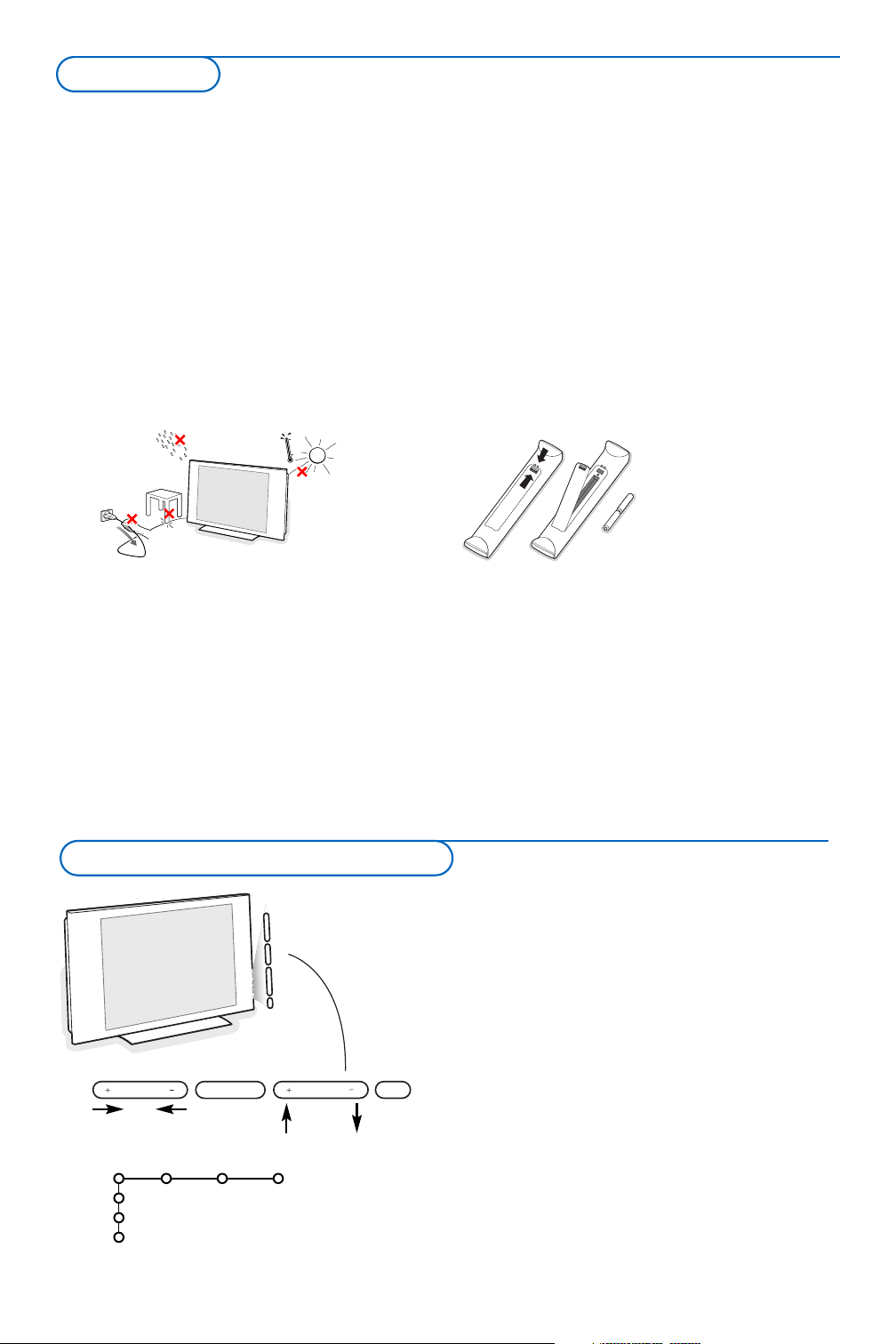
& Wall mounting instructions/Table stand
How to mount the supplied wall mount
bracket and table stand, see the supplied
separate leaflet. Make sure that the wall mount
is being fixed securely enough so that it meets
safety standards.
The weight of the TV (excl. packaging) is about
20 kg.
Note: Other (not supplied) stands are optional
accessories. Consult your dealer.
é Place or hang the TV wherever you want, but
make sure that air can circulate freely through
the ventilation slots. Do not install the TV in a
confined space such as a book case or a similar
unit.
To prevent any unsafe situations, no naked
flame sources, such as lighted candles, should
be placed on or in the vicinity. Avoid heat,
direct sunlight and exposure to rain or water.
The equipment shall not be exposed to
dripping or splashing.
“ Insert the aerial plug firmly into the aerial
socket x at the bottom of the TV.
‘ To connect other peripherals, see p. 20.
In order to obtain the best result, please use
only the supplied aerial cable between the TV
and recorder, and between recorder and aerial
connector.
( Insert the mains cord supplied into the mains
at the bottom of the TV and in the wall socket
having a mains voltage of 198-264V.
To prevent damaging the power (AC) cord
which could cause a fire or electric shock, do
not place the TV on the cord.
§ Remote control: Insert the 2 batteries
supplied (Type R6-1,5V).
The batteries supplied do
not contain the heavy
metals mercury and
cadmium. Please check on
how to dispose of
exhausted batteries
according to local
regulations.
è Switch the TV on : Press the power switch B
at the right side of the TV.
A blue indicator on the front of the TV lights
up and the screen comes on. If the TV is in
standby mode (red indicator), press the
-P+
keys or the B key on the remote control.
Should your remote be lost or broken you can still
change some of the basic settings with the keys on the
right side of your TV.
Press:
• the
+ V - key to adjust the volume;
• the
+ P/CH - key to select the TV channels or
sources.
Press the
MENU key to summon the main menu
without the remote control.
Use:
• the
+ V - key and the + P/CH - key to select menu
items in the directions as shown;
• the
MENU key to confirm your selection.
Note:
When activated via the
MENU key on the right side of the
TV, only
Exit lets you remove the menu.
Navigate to
Exit and press the MENU key.
MENU P/CHV
B
TV
Setup
Demo
Exit
Picture Sound Features
Keys on the right side of the TV
Preparation
33
®ºÒ‡π†
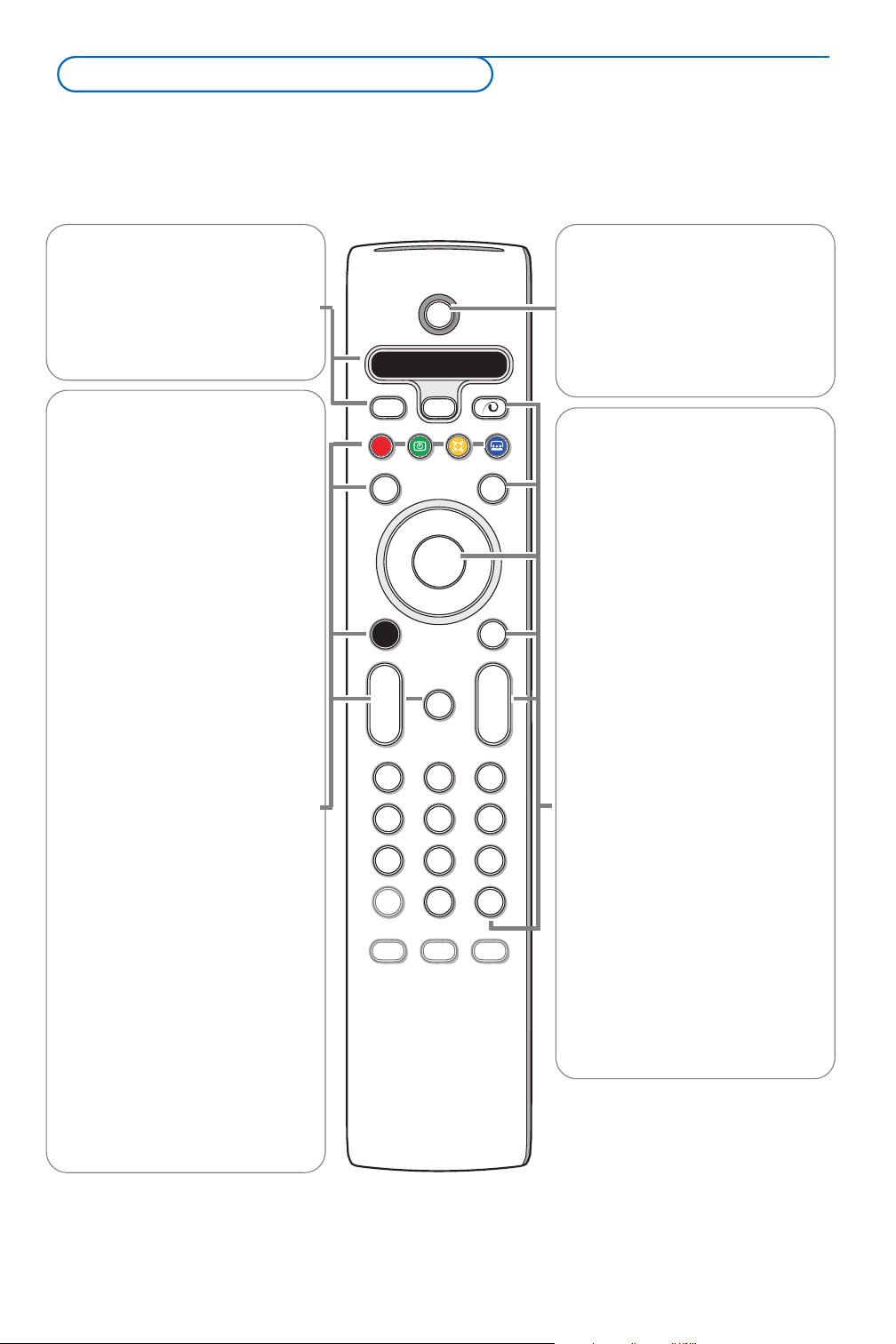
Audio and Video equipment keys,
see p. 24.
® Instant record
See Record with your recorder
with EasyLink, p. 23.
U Time display
The time is displayed on the
screen.
Q Surround mode
Virtual Dolby Surround
Optimal with Dolby Surround
signals. Enables you to
experience the effect of Dolby
Surround Pro Logic, reproducing
a rear sound effect. See Sound
menu, 3D effect, p. 12.
When you have connected a
DVD player or a Laser Disc
player (see Connect Peripheral
Equipment, p. 21), you can enjoy
Virtual Dolby Digital.
Note:You can make the same
selection in the Sound menu,
surround mode, p. 12.
Ì no function
æ Text guide On/Off see p. 16
= Browser menu On/Off
see p. 18.
V To adjust the volume.
¬ Interrupt the sound or restore
it.
AMP DVD/R TV SAT AUX
See ‘Audio- and Video equipment
keys’,p.24.
v Select connected
equipment
See p. 23.
x Pixel Plus demo on/off
Press to switch the Pixel Plus
demo on or off. In the right part
of the screen Pixel Plus is
switched on.
b Teletext On/Off see p. 15
OK Press this key
• to activate your choice, when in
the menus.
• to display the programme list.
MENU Main menu on/off see p. 5
P Programme selection
To browse through the TV
channels and sources stored in
the favourite list.
0/9 Digit keys
To select a TV channel.
For a two digit programme
number, enter the second digit
before the dash disappears.
0 Smart surf
With this key you can easily
switch between 2 up to 9
different TV channels or sources.
See General, Smart surf, p. 8.
Press the
OK key or wait for the
time out to dismiss the Smart
surf display.
Note: For most keys pressing a key once will activate the function. Pressing a second time will de-activate it.
When a key enables multiple options, a small list will be shown. Press repeatedly to select the next item in the list.
The list will be removed automatically after 6 seconds or press
OK to remove immediately.
B
bæ
¬
+
-
V
+
-
P
v
b
i
0
h
q
Select
AMP DVD/R TV SAT AUX
MENU
123
456
789
0
Ò
®
‡π
º
Ì
†
Active Control
®
®
®
®
Browser
OK
=
®
B Standby
Press to switch the TV on or off
from or to standby mode.
When switched to standby, a red
indicator on the TV lights up.
Note: the TV is never powered off
completely unless it is physically
unplugged.
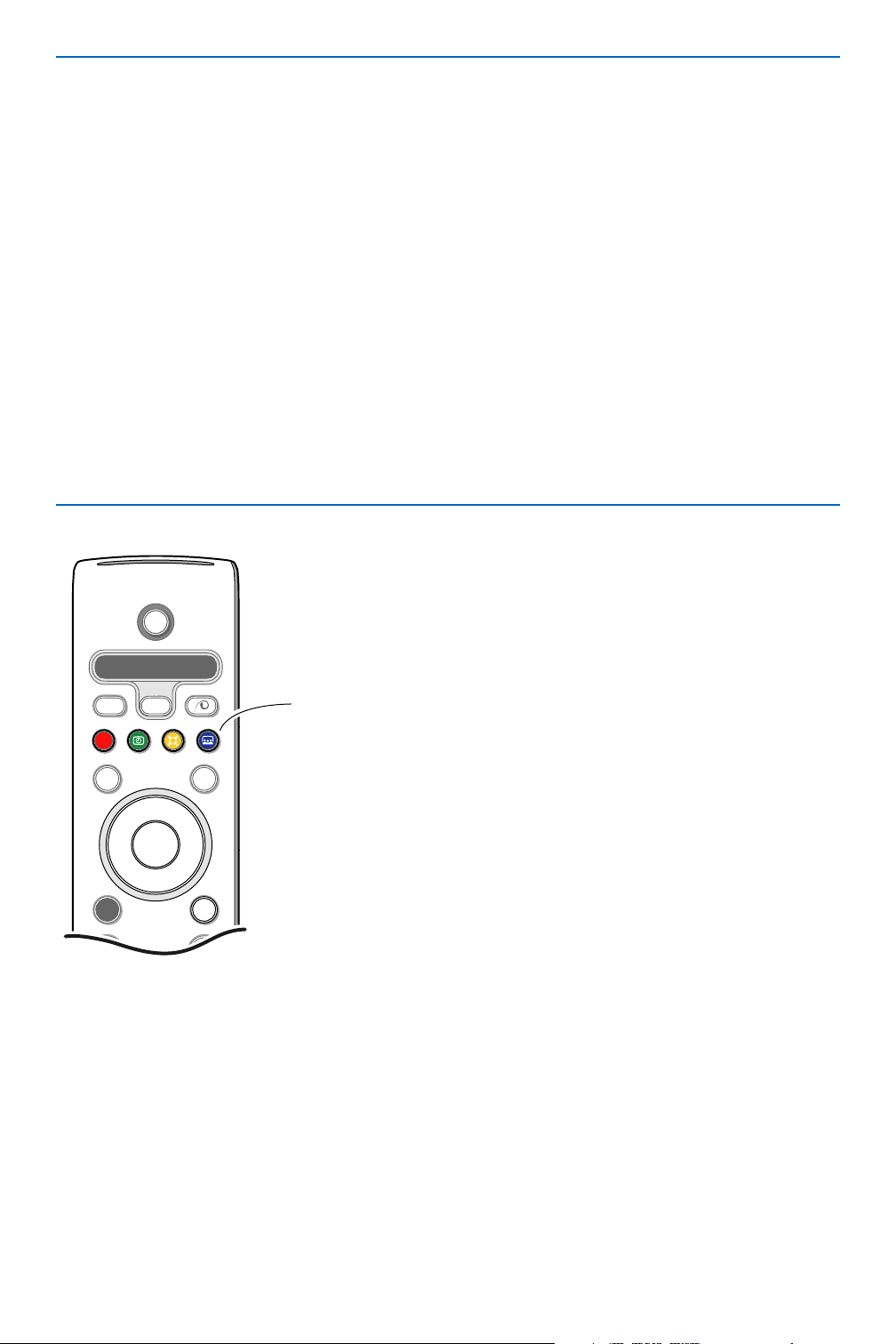
Use of the remote control RC4304
4
i On Screen information
Press to display information (when available) about the selected TV
channel and programme.
Menu info
When a menu is on screen, press i to display info on the selected menu
item.
b Dual screen
& Press the b key to show Teletext on the right half of the screen.
é Press the b key to switch off Dual screen.
Note: You can now enlarge a teletext page with the q key. See also p. 15.
h Active control
Press the h key to toggle between the Active Control values Off,
Minimum, Medium or Maximum as defined in the Picture menu, p. 11.
The picture settings are being optimised continuously and automatically
and can not be selected.
Press the
OK key to switch off the menu.
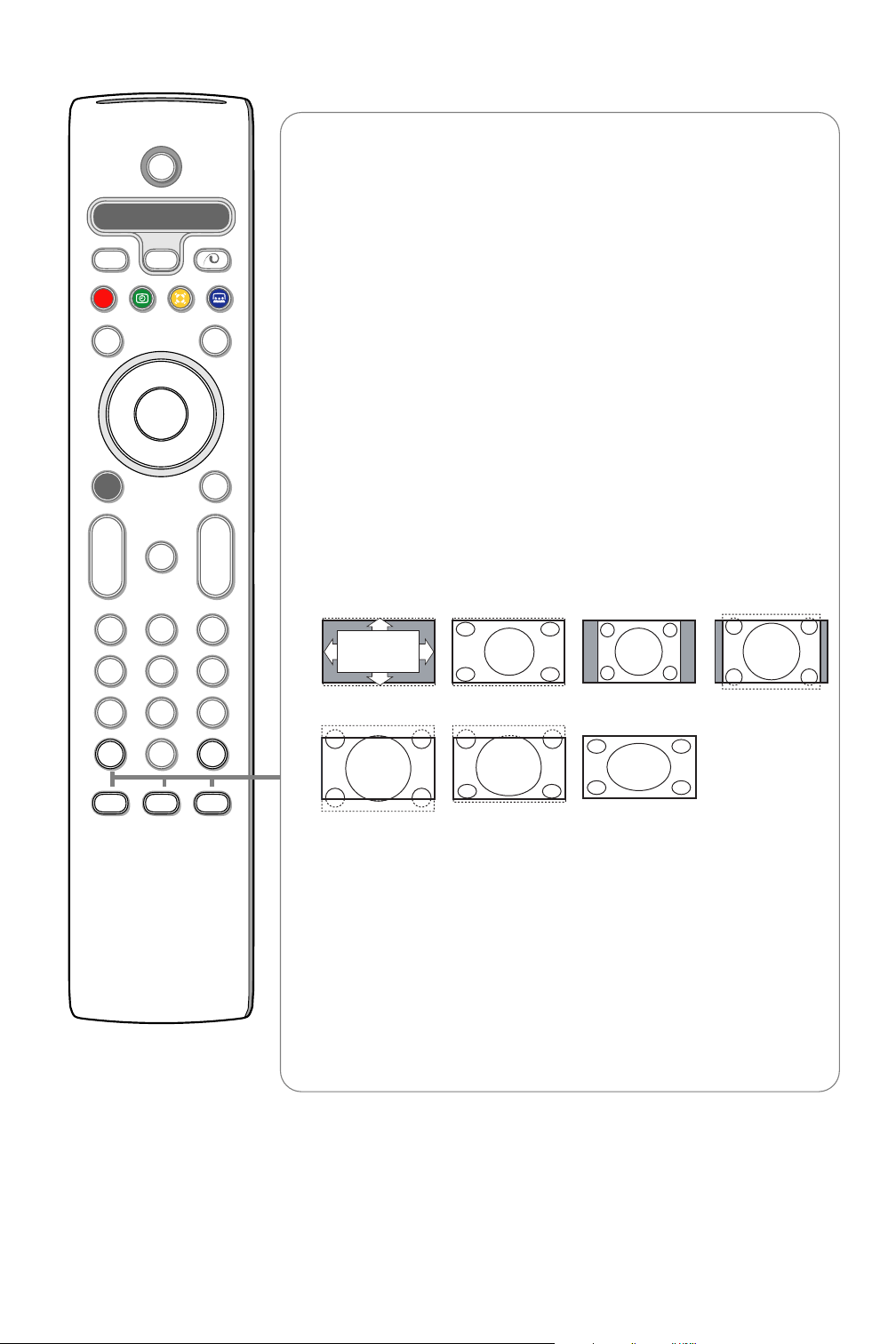
q Picture format
Press this key repeatedly or press the cursor up/down to select another
picture format: Auto format, Super zoom, 4:3, Movie Expand 14:9, Movie
Expand 16:9, Subtitle zoom or Wide screen.
Auto format makes the picture fill the screen as much as possible.
In case of subtitles in the bottom black bar, Auto format makes the
subtitles visible.
In case of a broadcaster logo in the corner of the top black bar, the logo
disappears from the screen.
Super zoom removes the black bars on the sides of 4:3 programs with
minimal distortion.
When in Movie Expand 14:9, Movie Expand 16:9, Super zoom or Subtitle
zoom picture format, you can make subtitles visible with the cursor
up/down.
Auto format Super zoom 4:3 Movie Expand 14:9
Movie Expand 16:9 Subtitle zoom Wide screen
Browser
b
¬
+
-
V
+
-
v
b
i
0
h
q
Select
123
456
789
0
Ò‡ π
†
Active Control
®
®
®
®
æ
P
®
º
MENU
Ì
AMP DVD/R TV SAT AUX
B
OK
=
®
5
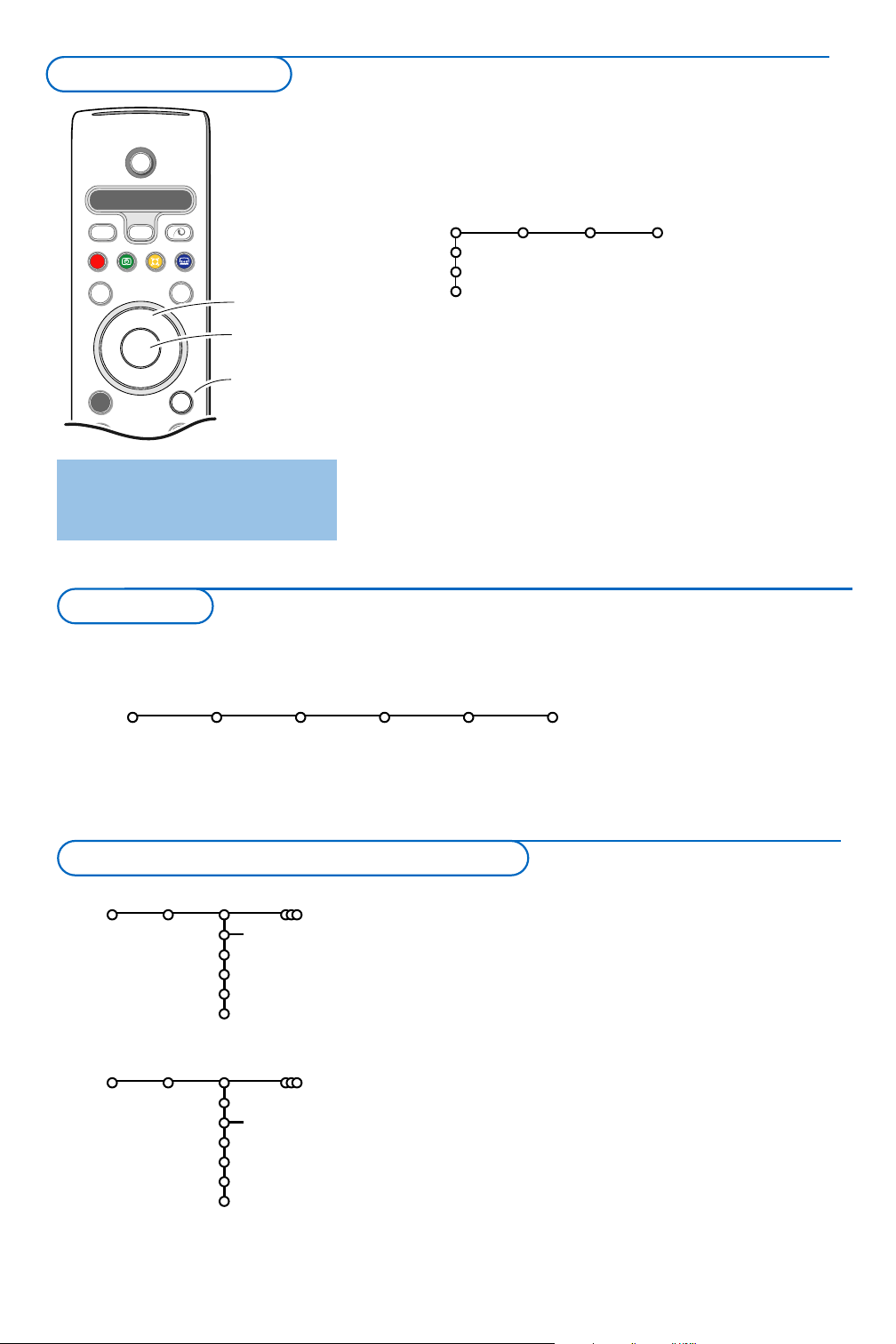
& Press the MENU key on the remote control to summon the
main menu.At any moment you can exit the menu by
pressing the
MENU key again or navigate to Exit and press
the
OK key.
Note: If you have connected equipment with EasyLink, more
menu items are present.
é Use the cursor left/right to select Picture, Sound or
Features. Use the cursor in the up/down direction to select
the
TV, Setup or Demo menu.
Note: Sometimes not all the menu items are visible on the screen
(indicated by a cluster of blue balls). Use the cursor down or right
to reveal all items.
“ Use the cursor in the left/right direction to select the menu
item.
‘ Use the cursor up/down again to select the control you
want to select or to adjust.
Note: Items temporary not available or not relevant are displayed in a
light grey colour and can not be adjusted.
b
++
v
Select
Ò
®
‡π
†
®
®
®
®
æ
B
AMP DVD/R TV SAT AUX
º
MENU
OK
Browser
=
®
cursor to select
adjustments
OK key to
activate
return or switch
main menu on/off
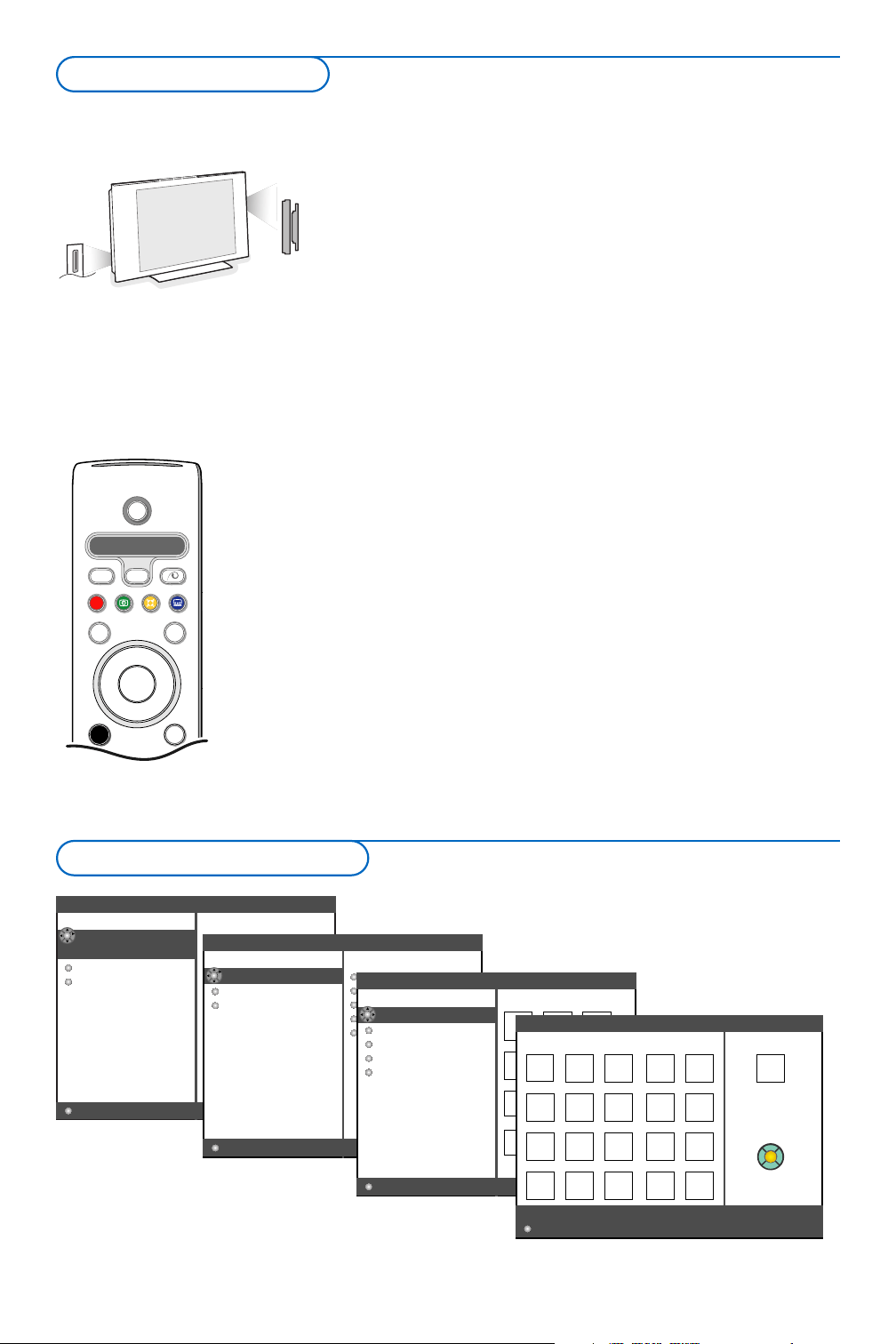
& Press the MENU key on the remote control.
é Use the cursor down to select Setup.
“ Use the cursor right to select Install.
‘ Use the cursor down to select Language and press the
cursor right to enter the list. Use the cursor up/down to
select your preferred language. Press
OK to activate.
( Use the cursor down to select Country and press the
cursor right to enter the list. Press OK to activate.
§ Select the country where you are now located.
Select
Other when none of the countries applies.
è Proceed with the Install menu.
TV
Setup
Demo
Exit
Picture Sound Features
Setup
General Install Manual Source Decoder
install
The Setup menu contains the following items:
EasyLink
If your video recorder has an EasyLink function, during installation, the language, country and available channels are
automatically transmitted to the video recorder.
Install
Language
Country
Automatic install
Give name
Reshuffle
Setup
Press the i key to get
information about the selected
menu item.
English
Deutsch
Français
Install
.....
Country
......
Setup
Austria
Belgium
Croatia
Select the menu language and country
TV setup
To use the menus
It is possible to change the name stored in the memory or to
assign a name to a TV channel for which a name has not yet
been entered.A name with up to 5 letters or numbers can be
given to the programme numbers 0 to 99.
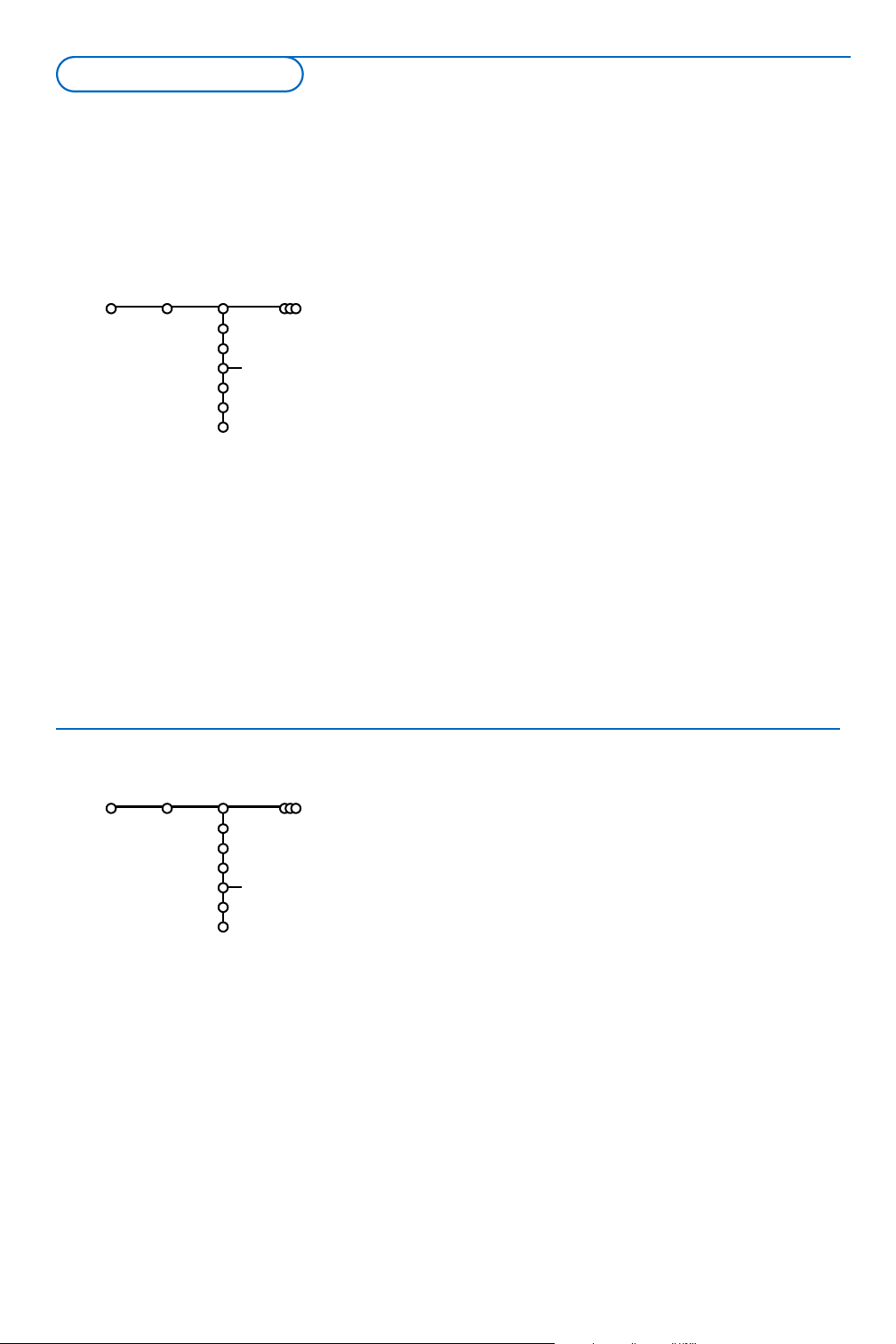
& Select Give Name in the Install menu and press the cursor
right.
é Select the programme number.
Note: keep the cursor up/down pressed to scroll through the
programme list quickly.
“ Press the cursor right.
‘ Select the character with the cursor up/down.
( Select the following position with the cursor right.
§ Select the following character.
è Press the OK key when finished.
! Press the cursor left repeatedly when you have finished the
name giving.
ç
Select another programme number and repeat steps “ to
è.
Space, numbers and other special characters are located
between Z and A.
6
& Select Automatic install in the Install menu.
Note: All channels must be unlocked in order to autoprogram. If
requested, enter your code to unlock all channels. (See TV,
Features menu, Childlock, p. 14.)
é Press the cursor right to start the installation.
“ The message Searching appears and the progress of
autoprogramming is displayed.
If a cable system or a TV channel which broadcasts ACI
(Automatic Channel Installation) is detected, a programme list
appears.Without ACI broadcast, the channels are numbered
according your language and country selection.You can use
Reshuffle to renumber them. See p. 7.
It is possible that the cable company or the TV channel displays a
broadcast selection menu. Layout and items are defined by the cable
company or the TV channel. Make your choice with the cursor and
press the
OK key.
After language and country are set correctly, you can now search for and store the TV channels in two
different ways: using Automatic Installation or Manual Installation (tuning-in channel by channel, see
further).
Install
.....
.....
Automatic install
Setup
Stop/Start
Install
.....
.....
.....
Give name
Setup
VCR1
.......
Give name
Automatic installation
Store TV channels

7
You can change the order of the stored TV channels.
& Select Reshuffle in the Install menu.
é Select the number you want to exchange.
Confirm with the
OK key.
“ Select the new number you want to exchange it with.
Confirm with the
OK key.
Install
.....
.....
.....
.....
Reshuffle
Setup
VCR1
BBC2
.........
Searching for and storing TV channels is done channel by channel.
You must go through every step of the Manual Installation menu.
& Select Manual install in the Setup menu.
é Press the cursor down.
Note: Search or direct selection of a TV channel.
If you know the frequency, the C- or S-channel number, enter the 3 or
2 digits of the frequency or the channel number directly with the digit
keys 0 to 9 (e.g. 048). Press the cursor down to proceed.
Repeat to search for another TV channel.
Manual install
Selection mode
System
Programme
Search
Fine tune
Store
Setup
Manual installation
Reshuffle the programme list

8
The Setup menu contains items that control the settings of the TV’s
functions, features, services and peripherals you may have connected.
The
General menu allows you to change settings that will typically
be accessed only occasionally.
The
Source menu allows you to select a source.
The
Decoder menu allows you to define one or more programme
numbers as decoder programme numbers.
Press the i key on the remote control to get information
about the selected menu item.
General
Smart surf
Favourite programmes
Factory settings
OSD
Programme title
Teletext 2.5
Set/Change code
Auto surround
Subwoofer external
Setup
Smart surf
& Select Smart surf.
é With the cursor left/right, select
•
2 programmes if you want the 0 key to toggle between the
current and the previously selected channel,
•
9 programmes if you want the 0 key to summon a list of up
to 9 channels which can be selected,
To add/remove a channel or source to the 9
programmes list:
Tune to the channel or source you wish to add or remove.
Press the 0 key and press the cursor right to add or remove.
Note: If there are already 9 channels/sources in the list, the one at
the bottom of the list will be removed.
Favourite programmes
& Select Favourite programmes.
é Press the cursor right to enter the programme list.
“ Select your programme number with the cursor up/down.
‘ Press the OK key to make a TV channel favourite or not
favourite.
( Repeat “ and ‘ for every TV channel or external you want
to make a favourite or a non-favourite.
Factory settings
This resets the picture and sound settings to their predefined
factory values, but maintains the channel installation settings.
OSD (On Screen Display)
& Select OSD.
é Press the cursor right to select Normal or Minimum.
Normal to activate the continuous display of the programme
number and extended display of TV channel and programme
information on screen.
Minimum to activate the display of
reduced channel information.
Note: When subtitles is switched on, see Features, p.14, display of the
programme number is not possible.
General menu

9
Programme title
Select
Programme title Yes or No.
When selected
Ye s, after the selection of a TV programme or
after pressing the i key on the remote control, a TV channel
which broadcasts teletext may transmit the name of the TV
channel or the programme title.
Teletext 2.5
Some broadcasters offer the opportunity to see more colours,
other background colours and nicer pictures in the teletext
pages.
& Select Teletext 2.5.
é Press the cursor right to select Teletext 2.5 On to take
advantage of this feature.
“ Press the cursor right again to select Teletext 2.5 Off if you
like the more neutral teletext layout.
The selection made is valid for all channels which broadcast
teletext 2.5.
Note: It may take a few seconds before teletext broadcast switches
over to Teletext 2.5.
Set/Change code
The Child lock feature (see TV, Features, p. 14) allows you to
lock channels to prevent others from watching certain
programmes.To watch locked channels, a 4-digit code must be
entered.The Set/Change code menu item allows you to create
or change a Personal Identification Number (PIN).
& Select Set/Change code.
é If no code exists yet, the menu item is set to Set code.
If a code has previously been entered, the menu item is set to
Change code. Follow the instructions on screen.
Important:You have forgotten your code !
& Select Change code in the General menu and press OK.
é Press the cursor right and enter the overriding code 8-8-8-8.
“ Press the cursor again and enter a new personal 4-digit
code.The previous code is erased and the new code is stored.
Auto Surround
Sometimes the broadcaster transmits special signals for
Surround Sound encoded programmes.
The TV automatically switches to the best surround sound
mode when
Auto Surround is switched On.
Note: When Auto Surround is switched On and the analogue or digital
input signal is Dolby Pro Logic encoded, the surround mode Virtual
Dolby Surround is automatically selected as surround mode.This
automatic selection can still be overruled.
Subwoofer external
Select
On if you installed an external subwoofer. See Connect
Peripheral Equipment, Connect extra subwoofer, p. 22.
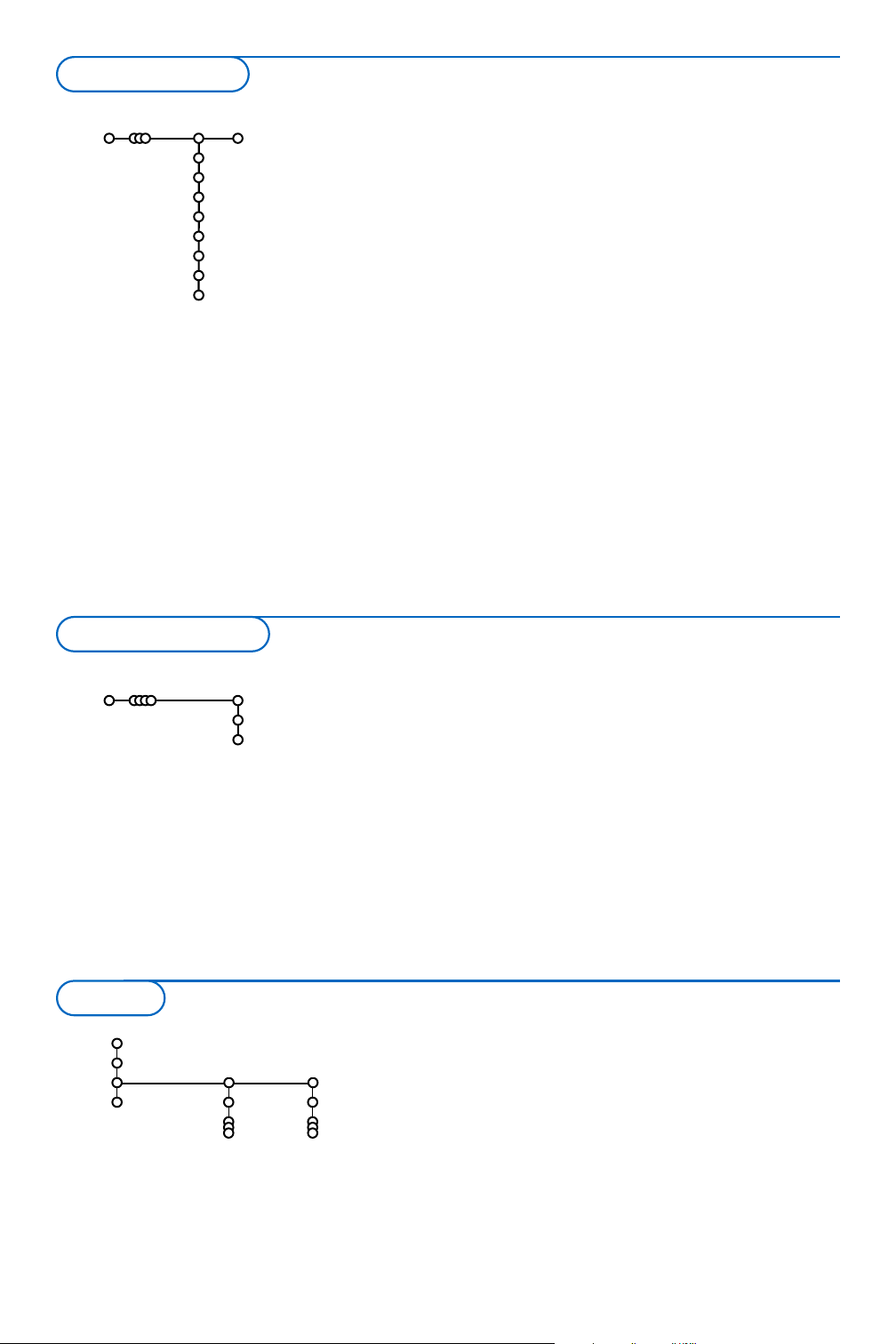
If a decoder or a descrambler is connected, see
p. 20, you can define one or more programme
numbers as decoder programme numbers.
& Select Decoder with the cursor right.
é Select Programme.
“ Select the programme number under which
you have stored the programme coming from
your decoder.
‘ Select Status.
• Select the input used to connect your
decoder:
None, EXT1 or EXT2.
• Select
None if you do not want the selected
programme number being activated as a
decoder programme number.
Note: Select
EXT2 when the decoder is connected to
your EasyLink recorder.
10
Decoder
Programme
Status
Setup
The Demo menu allows to demonstrate the TV
features separately or in a continuous loop.
If
Auto demo has been selected the demo will
automatically present the features sequentially in a
loop. Press one of the cursor keys to stop the Auto
demo.
If one of the features has been selected, this
particular feature demo will run only once.
Note:The Technical features demo is not part of the
automatic sequence and can only be activated
separately.
Auto demo
.....
Pixel Plus
.....
TV
Setup
Demo
Exit
Demo
Decoder menu
This menu allows you to indicate the peripheral
you connected to one of the external inputs.
& Press the cursor right to enter the list of types
of peripherals attached to the selected input.
é Select the peripheral device with the cursor
up/down.
Once you have selected the source type, e.g. DVD,
this source will automatically be selected when
your remote control is in DVD mode, see p. 3, and
when you press the v key on the remote
control.
Centre input - Centre in volume
When you have connected a surround receiver
to the TV, see p. 21, the loudspeakers of the TV
can act as centre speaker, making a separate
centre speaker unnecessary.
Select
Centre input On.
When having selected
On you can adjust the
Centre in volume with the cursor left/right to
correct volume level differences of the external
audio receiver and speakers.
Digital audio in 1
Select
Dig. audio in 1 when you connected
your digital device together with the additional
audio cable you connected to the
SPDIF IN
socket of your TV. See Connect peripheral
equipment, Digital equipment, p. 21.
Source
EXT1
EXT2
EXT3
HDMI 1
Side
Centre input
Centre in volume
Dig. audio in 1
Setup
Source menu
Features Technical
features

11
& Press the cursor right to select Picture.
é Select the menu items in the Picture menu with the cursor
up/down.
“ Adjust the settings with the cursor left/right or enter the list of
submenu items with the cursor right. Select a submenu item
with the cursor up/down.
Press the MENU key on the remote control to summon the main menu.
Note: Dependent on the input signal, one or more menu items may not be selectable.
Press the i key on the remote control to get information about the selected menu item.
Picture Sound Features
Smart picture
Contrast
Brightness
Colour
Sharpness
Tint
Digital options
Dynamic contrast
DNR
Colour enhancement
(Hue)
Picture format
Active Control
TV
Smart picture
Select
Smart picture to display a list of
predefined picture settings, each corresponding
with specific factory settings.
Personal refers to the personal preference
settings of picture in the picture menu.
Note:This Philips Flat TV has been set at the factory
to look best in bright store environments which use
fluorescent lighting. As your home will likely not be
as well lit as a store, we recommend you that you
cycle through the various Smart picture modes to
find the one that best suits your own viewing
conditions. Most consumers will find that
Natural is
the correct choice.
Digital options
Pixel Plus is the most ideal setting.
Dependent on your own preference, select
Standard.
Dynamic contrast
Sets the level at which the TV automatically
enhances the details in dark, middle and light
areas of the picture.
DNR
This sets the level at which noise is measured
and reduced in the picture.
Colour enhancement
This makes the colours more vivid and
improves the resolution of details in bright
colours.
Hue
This compensates for the colour variations in
NTSC encoded transmissions.
Picture format
This will adjust the size of the picture
dependent on the broadcast format and your
preferred setting. See also Use of the remote
control, Picture format, p. 4.
Active Control
The TV continuously measures and corrects all
incoming signals in order to provide the best
picture possible.
& Select Active Control.
é Press the cursor right to enter the list of
Active control values.
“ Press the cursor right repeatedly to select the
Active Control values
Off, Minimum, Medium
or Maximum.
The picture settings are being optimised
continuously and automatically which is
displayed by bars.The menu items can not be
selected.
‘ Press the OK key or wait for the time out to
dismiss the Active Control display.
Picture menu
TV menu

12
Sound
Smart sound
Equalizer
Volume
Balance
Headphone volume
Surround mode
(Dual I-II)
(Mono/Stereo)
(3D effect)
(AVL)
Delta volume
(Dolby Digital)
TV
& Press the cursor right to select Sound.
é Select the menu items in the Sound menu with the cursor
up/down and adjust the settings with the cursor
left/right.Remember, control settings are at normal mid-range
levels when the bar scale is centred.
Smart sound
Select Smart sound to display a list of predefined sound settings,
each corresponding with specific factory settings of Treble and
Bass.
Personal refers to the personal preference settings of
sound in the sound menu.
Notes:
- Dual X is only available with dual sound transmission.
- Mono/Stereo is only selectable in case of analogue stereo
transmission.
Equalizer
This gives you the possibility to select the preferred sound
frequencies which correspond with your personal sound
settings.
Volume
This will adjust the sound output level.
Balance
This will adjust the output of the right and left speakers to
obtain the best stereo reproduction for your listening position.
Headphone volume
This controls the level of sound through the headphones.
Surround mode
This selects the modes for more spatial or surround sound
reproduction.
Dual I/II
This will select, per channel,
Language I or Language II, when
dual sound transmission is available.
Mono/Stereo
This selects, per TV channel, mono or stereo sound when
analogue stereo broadcasts are available.
3D effect
Depending on the encoding of the signal, this will select the
level of spatial effect in Virtual (3D) Surround mode.
AVL (Automatic Volume Leveler)
This automatically reduces the volume differences between
channels and programmes, providing a more constant overall
level.This will also reduce the dynamics of the sound.
Delta volume
This allows you to correct for any permanent volume
differences between TV channels or external sources.
Sound

13
Manufactured under license from Dolby
Laboratories.
‘Dolby’ ‘Pro Logic’ and the double-D
symbol are trademarks of Dolby
Laboratories.
Dolby Digital
In case a Dolby Digital signal is detected, you may select the
sound level.
Select Dynamic to keep the original sound level, Standard for
a sound level with reduced loud and raised soft passages,
Compressed for a raised average sound level with reduced
loud/raised soft passages.
Digital sound reception info via the i key
Press the i key.
When Digital sound is reproduced, the sound info on screen
displays the number of signals which are encoded in the audio
signal.This is indicated by 2 numbers: the first one indicates the
number of front signals, the second one the number of rear
signals.
This gives an indication of the possible quality of the surround
reproduction.
Note:The Virtual Dolby Digital TV will only reproduce the audio signals
via the 2 integrated loudspeakers.

14
Off
On
On during mute
Features
Subtitle
Sleeptimer
Child lock
On timer
TV
& Press the cursor right to select Features.
é Select the menu items with the cursor
up/down and adjust the settings with the
cursor left/right.
Use the on-screen Menu-Info i for more
information about the menu items
Select subtitles
The subtitle page must be stored for each TV
channel:
Switch on teletext and select the proper
subtitle page from the index. Switch off
teletext.
Subtitle On will automatically display them on
the selected TV channels if subtitles are in the
transmission.A symbol will indicate that the
mode is on.
Select
On during mute when you want to
have the subtitles automatically displayed only
when the sound has been muted with the ¬
key on the remote control.
Sleeptimer
This sets a time period after which the TV
automatically switches to standby.
On timer
& Select On timer with the cursor down.
é Press the cursor right again to enter the
programme list.
“ Select the TV channel or external you want
your TV to switch to on a selected time and
day.
‘ Press the cursor right again to select a day of
the week or to select
Daily.
( Press the cursor right once again to enter the
time with the digit keys or with the cursor
up/down.
§ Select On and press the cursor right again.
è Press the MENU key to turn off the menu.
Note:To check your timer settings, press the i key.
Child lock
& Select Child lock.
é Press the cursor right to enter the Child lock
menu.You’re summoned to enter your code.
Note:You have to re-enter your code each time you
enter the child lock menu.
Important:You have forgotten your code !
See p. 9.
“ Select one of the menu items of the child lock
menu:
•
Lock if you want to lock all channels and
externals.
•
Custom lock and press the cursor right.
Select:
-
Lock after if you want to lock all
programmes from a certain time onwards.
Press the cursor right and enter the time
with the cursor up/down and right.
Select
On with the cursor right.
-
Programme lock if you want to lock a
certain TV channel or external;
• Select
Unlock to disable all locks you have set.
Child lock
Lock
Custom lock
Unlock
Lock after
Programme lock
Sunday
Monday
.......
Daily
15:45
On timer
Off
On
VCR1
BBC2
CNN
TVE
π.....
Features menu

15
Most TV channels broadcast information via teletext.This TV has a 1200 pages memory that will store
most broadcasted pages and subpages to reduce waiting time. After each programme change, the
memory is refreshed.
Switch Teletext on and off
Press b to switch the teletext on.
Select a Teletext page
- Enter the desired page number with the digit
keys, the cursor keys up/down, left/right or
with the
-P+ key.
- Select the options at the bottom of the screen
with the colour keys.
Previously selected teletext page
(Only possible in case there is no list of favourite
teletext pages available. See p. 17.)
Press the 0 key.
Select the index teletext page
Press the grey colour key † to display the
main index (usually p.100).
Only for T.O.P teletext broadcasts :
Press i. A T.O.P. overview of the teletext
subjects available is displayed.
Select with the cursor up/down, left/right the
desired subject and press the
OK key.
Not all TV channels broadcast T.O.P. teletext.
Select subpages
When a selected teletext page consists of
different subpages, a list of available subpages
appears on the screen.
Press the cursor left or right to select the next
or previous subpage.
Picture/Teletext
& Press the b key. Press the b key to show
Teletext on the right of the screen.
é Press the b key to switch off dual screen.
Enlarge a Teletext page
Press q repeatedly to display the upper
teletext part, the lower teletext part and then
to return to the normal teletext page size.
When the teletext page is enlarged, you can
scroll the text, line by line using the cursor
up/down.
Hypertext
With hypertext you can quickly jump to a
pagenumber or search for a specific word
shown on the current teletext page.
& Press the OK key to highlight the first word or
a number on the page.
é Use the cursor up/down, left/right to select any
other word or number you want to search for.
“ Press the OK key to confirm.The search starts.
A message appears at the bottom of the screen
to indicate the searching, or that the word or
page is not found.
‘ Use the cursor up to exit hypertext.
LIONS RECORD ANOTHER WIN 430
Index 100 News 300
BBC Info 110 Headlines 305
Children 120 Weather 400
Cookery 150 Sports 415
Education 200 Radio 500
Lottery 230 Travel 550
Finance 240 Subtitling 888
Music 280 TV Listings 600
Red Green Yellow Blue
102 «03 04 05 06 07 08 09 10 11 12»
BBC CEEFAX 102 Mon 05 Feb 16.35.22
BBC CEEFAX
Teletext/Text guide
16
The function items Record, Remind,Watch and Review,
corresponding with the red ®, green U, yellow Q and blue Ì
colour keys on the remote control, become highlighted at the
bottom of the screen.
Select a programme item and press one of the functions keys.
Record: to programme the recording of the video /DVD recorder (if it
has a
NEXTVIEWLink function and is connected to EXT. 2).
Remind: to automatically switch on the TV if it is in standby or by
displaying a message if the TV is on.
Notes:
- For the functions Record or Remind, a small menu pops up in which you
can choose the interval:
once, daily or weekly, or clear an earlier made
recording or reminder.The default setting is
Once.To confirm the
frequency, press the
OK key.
Use the cursor keys left/right to select the interval.
If the message
No channels has been found appears, please select
the channel and press
OK.
- Tags (a red bar for record, a green bar for remind, appear next to a
programme to indicate a recording or a reminder.
- Next to a selected programme you can set both a record and a
reminder.
Watch: to watch the selected and currently broadcast programme.
Review: this menu provides a list of programmes that are marked as
reminders and those that have to be recorded.This menu can be
used to change or remove marked programmes.
b
¬
+
-
V
+
-
P
v
Select
123
Ò
®
‡π
†
®
®
®
®
æ
B
AMP DVD/R TV SAT AUX
º
MENU
OK
Browser
=
®
U
Q
Ì
®
Functions keys
Textguide
TV channels which broadcast teletext also transmit a page with the programme guide of the day.
If the displayed teletext programme guide page, of the TV channel you have selected, satisfies the Video
Programming via Teletext (VPT) requirements, it will be possible to record, remind or watch
programmes.
& Select the TV channel on which you want to execute a Textguide function.
é Switch teletext On.
“ Select a programme guide page (e.g.TV guide page).
‘ Press the æ key.
( Press the OK key.
§ Select a programme with the cursor up/down and press one of the function keys on the remote
control.
Note: Sometimes selected programme guide pages contain a page number with a 3-digit subcode referring to a
page with more information about the programme. In this case you are back in normal teletext mode.To return
to the previous page, press the 0 key or the æ key on the remote control.
è Press the b key to switch the teletext off.

17
Teletext menu
& Switch teletext on and press the MENU key to
activate the menu.
é Press the cursor up/down to select the menu
items.
“ Press the cursor right to activate.
Reveal
Reveals/conceals hidden information on a page,
such as solutions to riddles and puzzles.
Press the cursor right to activate.
Favourite
You may create a list of eight favourite teletext
pages in total, selected from various TV
channels.
To add a favourite page to the list:
& Select a favourite teletext page.
é Select Favourite in the teletext menu and
press the cursor right to enter the list.
“ Press the cursor right again to add the page.
‘ Press the MENU key to watch the current
page.
To watch a favourite page from the list:
When in Teletext, use the 0 key to browse
through the favourite pages of the TV channel
actually selected.
Note: only the pages of the current channel can be
selected.
Search
You may search for random words in the
teletext pages.
& Press the cursor right.
é Select the character with the cursor up/down.
“ Select the following position with the cursor
right.
‘ Select the following character.
( Press the OK key when finished.
§ When the word is found, it is highlighted in a
teletext page.
Press the
OK key again for a next search of the
same word.
è To stop searching and to leave the teletext
page displayed, press the cursor up repeatedly
to leave the page and until the puck is on the
page number again.
Cycle subpages (if available)
Makes the subpages cycle automatically.
Press the cursor right to activate and to de-
activate again.
Language
If the displayed characters on screen do not
correspond with the characters used by the
teletext broadcaster, you can change the
language group here.
Select
Group 1 or Group 2 with the cursor
right.
Press the
MENU key to leave the Teletext
menu.
LIONS RECORD ANOTHER WIN 430
Index 100 News 300
BBC Info 110 Headlines 305
Children 120 Weather 400
CNN 150 Sports 415
BBC1 200 Radio 500
BBC2 230 Travel 550
ARTE 240 Subtitling 888
Red Green Yellow Blue
Mon 05 Feb 16.35.22
BBC CEEFAX
Reveal
Favourite
Search
Cycle subpages
Language
18
Sources
Cart slot
Portable memory
USB Slot
Camera
Content type
Pictures
Music
All files
USB
DIGITAL
MEDIA
READER
b
++
v
Select
Ò
®
‡π
†
®
®
®
®
æ
B
AMP DVD/R TV SAT AUX
º
MENU
OK
Browser
=
®
Content browser
......
......
Content type
Music
All files
Collection
All pictures
Last played
Cannes
Ski holiday
Top level folder
Portable memory
Pictures
Collection
Top level folder
Last played
Cannes
Ski holiday 2003
Pictures
Portable memory > Pictures
All pictures
Pictures Picture info
Pict0023.jpg
150x100
12.02.2003
Portable memory > Pictures > All pictures
Press OK to show
OK
Content Browser menu
Two memory card slots and a USB slot allow you to access data
stored in the devices inserted. Different types of memory card can
be read to have your JPEG images displayed on TV or to play MP3
and MP3 Pro audio files. (Compact Flash I & II, Memory stick, SD
Card/Mini SD Card, Smart Media, Micro Drive, MultiMedia Card).
Notes:
- Only FAT/DOS-formatted memory devices are supported;
- If your digital camera is not supported, try one of the following solutions:
• make sure your camera is switched on and verify if its configuration
settings are correct (see the manual of your camera);
• remove the memory card from your camera and insert it in the
memory card slot.
Refer to www.philips.com/support for more information.
- Philips cannot be responsible if your USB device or memory card is not
supported.
With the Content Browser menu you are able to browse through
the various files, directories, music and photo collections which are
stored on the inserted memory card or the connected USB device.
You can also setup a slide show or playback a playlist.
Inserting a memory card / memory stick
Insert a memory card in one of the card slots at the right side of
the TV.
In case of a memory stick or a digital camera connect it to the USB
connector at the left side of the TV.
When a memory card or a USB device are inserted, the Content
Browser menu is displayed automatically. See further.
Removing the memory card / memory stick
Recommended: do not remove when the content is being read
or while browsing
.
First switch off the Content Browser menu with the = key on
the remote control. Remove the card.
Digital Media Reader
19
& Press the = key on the remote control
after having inserted a memory card or USB
device and switched on the TV.
é On the left menu panel the highlight is set on
the content name of the inserted memory
device.
The right menu panel has a list of various
content type choices: pictures, music, all files.
“ Press the cursor right to enter the content
type list.
‘ Press the cursor up/down to select a content
type list and press the cursor right.
• If the highlight is on
Pictures, the right menu
panel will consist of all the pictures
collections, which can either be an album or a
directory, which contains JPEG images.
• If the highlight is on
Music, the right menu
panel will consist of all the music collections,
which can either be a playlist or a directory,
which contains MP3 or MP3 (Pro) audio files.
• If the highlight is on
All files, the right menu
panel will consist of all the files that are
present on the memory device at the first
level in the system hierarchy.
( Press the cursor right again to enter an album,
a playlist, a collection or a directory.
The right menu panel shows all the images
(thumbnails), songs, files that are contained in
the selected collection in the left panel.
In case a picture collection is selected, press
the
OK key to start a slide show.
In case a music collection is selected, press the
OK key to start a loop playback.
To stop a slide show, press the
OK key.
To stop a loop playback, press the green colour
key on the remote control.
Note:Your TV supports slide shows with background
music. See www.philips.com/support.
§ Use the cursor keys to select and press the
OK key to view or to play.
Press one of the colour keys on the remote
control to perform the corresponding function
mentioned at the bottom of the screen (to
rotate a picture, to shuffle, to select the slide
show interval,....).
If an audio file or a JPEG file is selected, the
right menu panel will give a description of the
audio file or a description and a preview of the
JPEG image (the artist name, the album name,
the duration, the title of the track and year for
a MP3 file, the file name, the resolution and the
date for a JPEG file).
If an item in
All files mode is selected, the right
menu panel will contain information about the
highlighted file.
Note: If a not supported file (in
All files mode) is
selected, the right panel will give the name and the
size of the file.
Function keys at the bottom of the screen
Rotate to rotate a picture;
Hide/Show to hide or to show the function keys at the bottom of the screen ;
Effect on/off to select a transition effect between the displayed pictures during a slide show;
Timing to select the duration a picture will be displayed in a slide show;
Pause/Resume to pause a slide show.Also the background music will stop. Not background
music will go on playing;
OK to start a slide show or a loop play back;
Shuffle to shuffle music collections in a random way;
Repeat to repeat the playback of a music file.
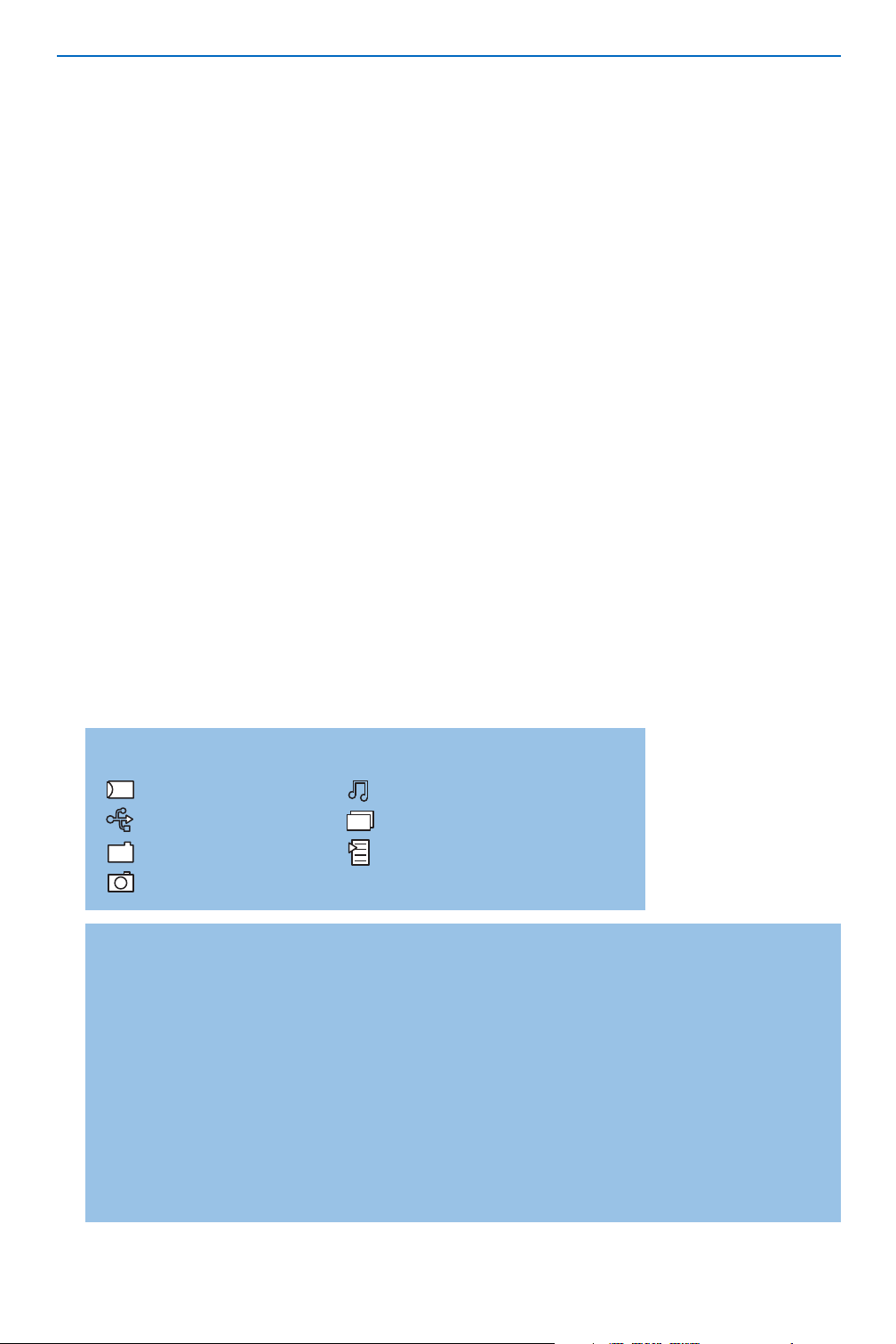
Following icons may appear:
memory card
USB device
folder
pictures
music
all files
self made playlist/album
20
There is a wide range of audio and video equipment that can be connected to your TV.
The following connection diagrams show you how to connect them.
Note:
EXT1 can handle CVBS and RGB; EXT2 CVBS, Y/C and RGB; EXT3 CVBS; HDMI can handle VGA (640x480
via a DVI or HDMI connector) and 480p, 576p, 480i and 576i.
It is preferable to connect peripherals with RGB output to
EXT1 or EXT2 as RGB provides a better picture quality.
Note: If your recorder is provided with the EasyLink function, it should be connected to
EXT2 to benefit from the
EasyLink functionality.
EXTERNAL
RECORDER DECODER
4
1
2
3
CABLE
1/2
EXTERNAL
CABLE
1
2
RECORDER
4
3
5
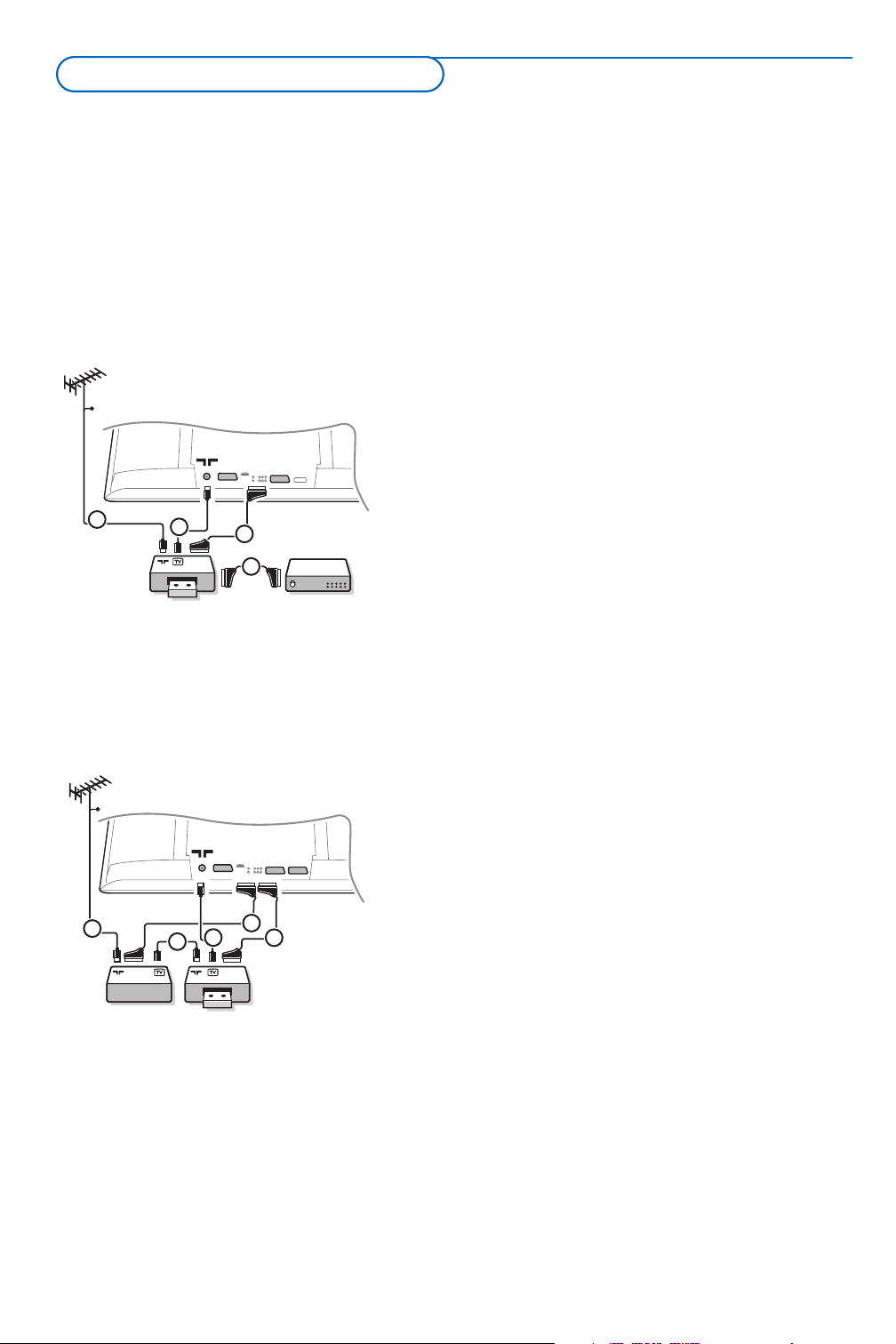
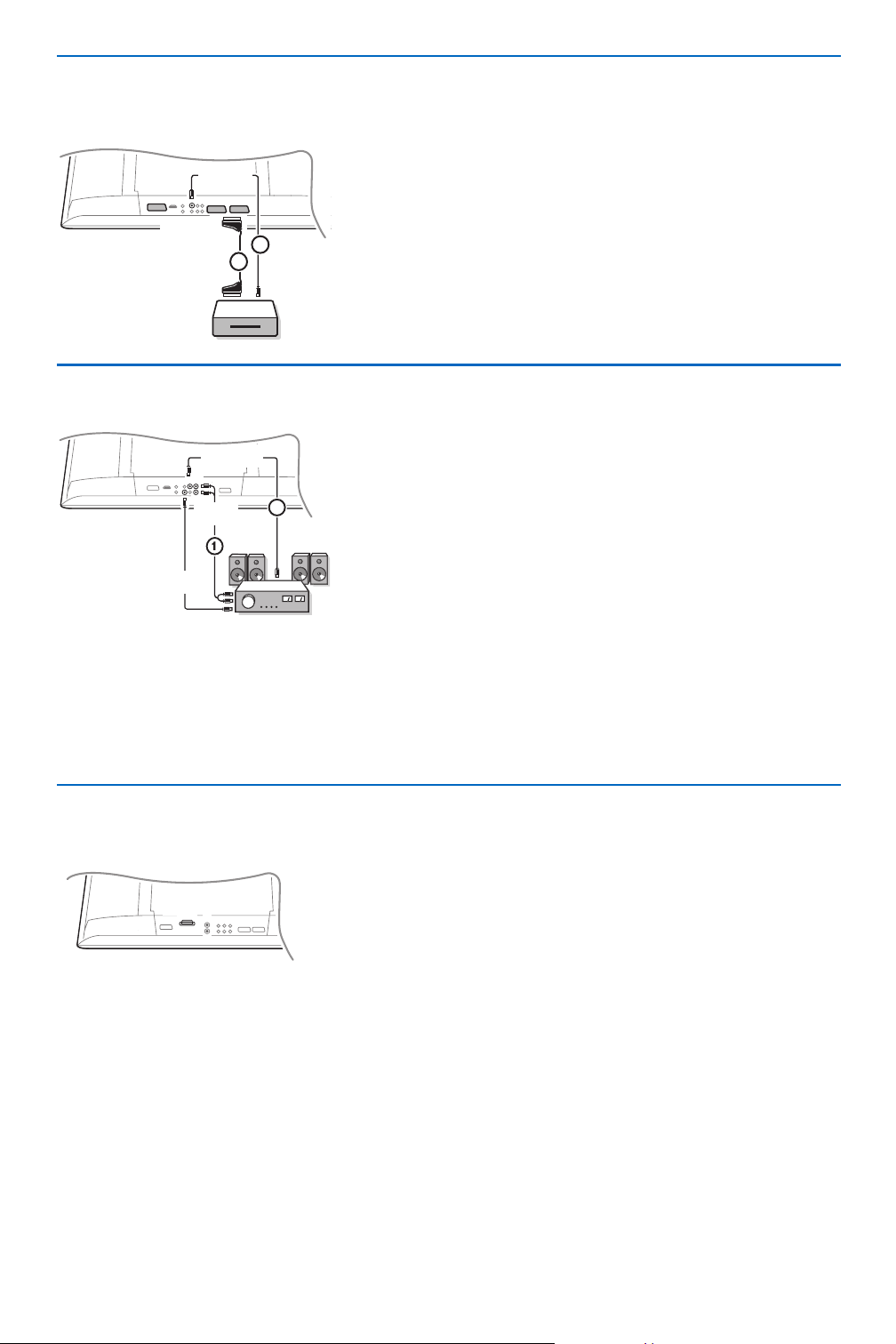
& Connect the aerial cables 1, 2 and 3 as shown
(only if your peripheral has TV aerial in-/output).
Connect your equipment with a eurocable 4 or 5 to
one of the euroconnectors
EXT1, 2 or 3 to obtain a
better picture quality.
é Look for the test signal of your peripheral in the same
way as you do for a recorder.
“ When a recorder is connected to EXT. 1 you can only
record a programme from your TV. Only when a
recorder is connected to
EXT. 2 it is possible to record
a programme from your TV as well as from other
connected equipment.
Other equipment
(except digital sources)
Connect the aerial cables 1, 2 and, to obtain the
optimum picture quality, eurocable 3 as shown.
If your recorder does not have a euroconnector, the
only possible connection is via the aerial cable.You will
therefore need to tune in your recorder’s test signal and
assign it programme number 0 or store the test signal
under a programme number between 90 and 99, see
Manual installation, p. 7.
See the handbook of your recorder.
Decoder and Recorder
Connect a eurocable 4 to your decoder and to the
special euroconnector of your recorder. See also the
recorder handbook. See Decoder, p. 10. You can also
connect your decoder directly to
EXT1 or 2 with a
eurocable.
Recorder (VCR-
DVD+RW)
Note: Do not place your recorder too close to the screen as some recorders may be susceptible to signals from the
display. Keep a minimum distance of 0,5 m from the screen.
Connect Peripheral Equipment
21
2
SPDIF IN
1
EXT 1/2/3
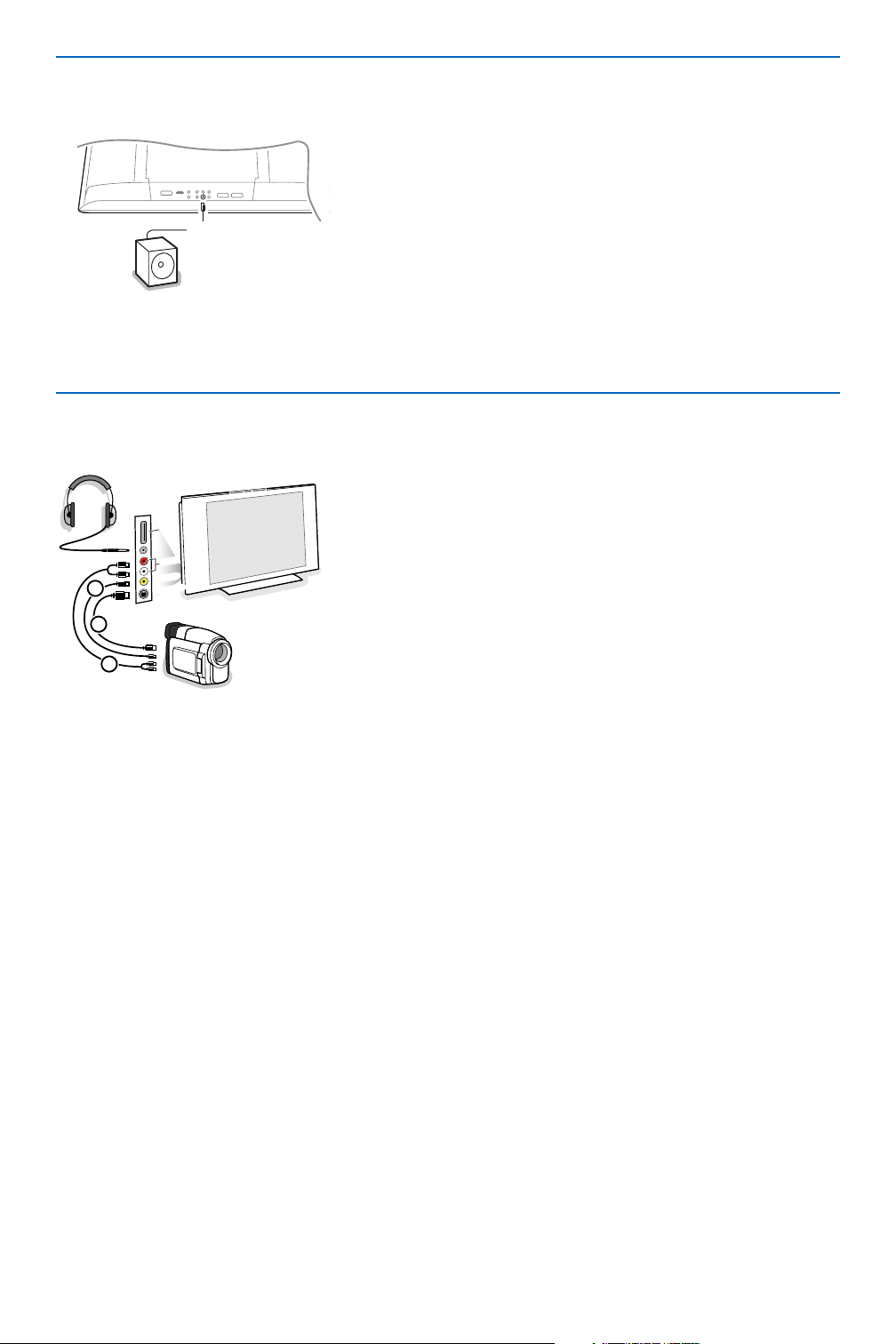
& Connect your digital equipment with a eurocable 1 to one of
the euroconnectors (
EXT 1, 2 or 3), or with a cinch cable or a
S-VHS cable to the video input at the left side of the TV.
é To enjoy Multichannel surround sound from digital sources with
a Digital audio output also connect an audio cable 2 to the
SPDIF IN socket of your TV. Select Dig. Audio in 1 in the
Setup, Source menu, p. 10.
“ According to the connected digital equipment, select REC, DVD,
DVD-R, SAT, Game or Digital STB in the Setup/Source menu.
See p. 10.
HDMI is the leading new standard for Digital video and audio
interconnection. Eg. with a Digital Set top box or compatible DVD-R,
AV receiver, with DVI-equipped devices like a PC (only 640x480
display mode), ...
Connect your HDMI device with the
HDMI connector.
Note: Due to legal requirements it is possible that with certain copy
protected PCM audio qualities from a device connected to the HDMI input,
the SPDIF output signal is muted.
(This is not the case with the analogue AUDIO OUT output signal.)
HDMI
L
R
HDMI (High Definition Multimedia Interface) connector
MultiChannel Surround receiver
& Connect a MultiChannel surround receiver (with or without
digital input connectors) to the
AUDIO OUT R and L
connectors at the bottom of your TV 1.
é If you want the loudspeakers of your TV to act as centre
speaker, also connect an audio cable 2 to the MultiChannel
surround receiver centre out connector and to the centre in
connector at the bottom of your TV.
“ Select Centre input On in the Setup, Source menu. See p. 10.
The loudspeakers of the TV will now only produce centre
sound.
‘ If necessary, adjust the volume level of the centre sound in the
Centre in volume menu item of the Source menu.The overall
volume has to be controlled via the MultiChannel surround
receiver.
( In case of a Digital MultiChannel surround receiver, also connect
the receiver to the
SPDIF OUT connector.
2
CENTRE IN
L
R
1
AUDIO
OUT
SPDIF
OUT
Digital equipment
(DVD, Digital set top box,…)
22
To enhance the sound reproduction of your TV you can connect an
externally powered subwoofer (between 20 and 250 Hz).
& Connect the audio cable of the external subwoofer to the
SUBWOOFER socket at the bottom of your TV.
é Select Subwoofer in the Setup, General menu, p. 9.
“ Adjust the frequency of the external subwoofer to 100-120 Hz
(according to your personal preference) if present on the
subwoofer.
‘ Adjust the volume level of the external subwoofer, presumed
this control is present on the subwoofer.
See also the instruction manual of the external subwoofer.
SUBWOOFER
VID
EO
A
U
D
IO
3
2
1
S•V
ID
EO
USB
Camera or Camcorder
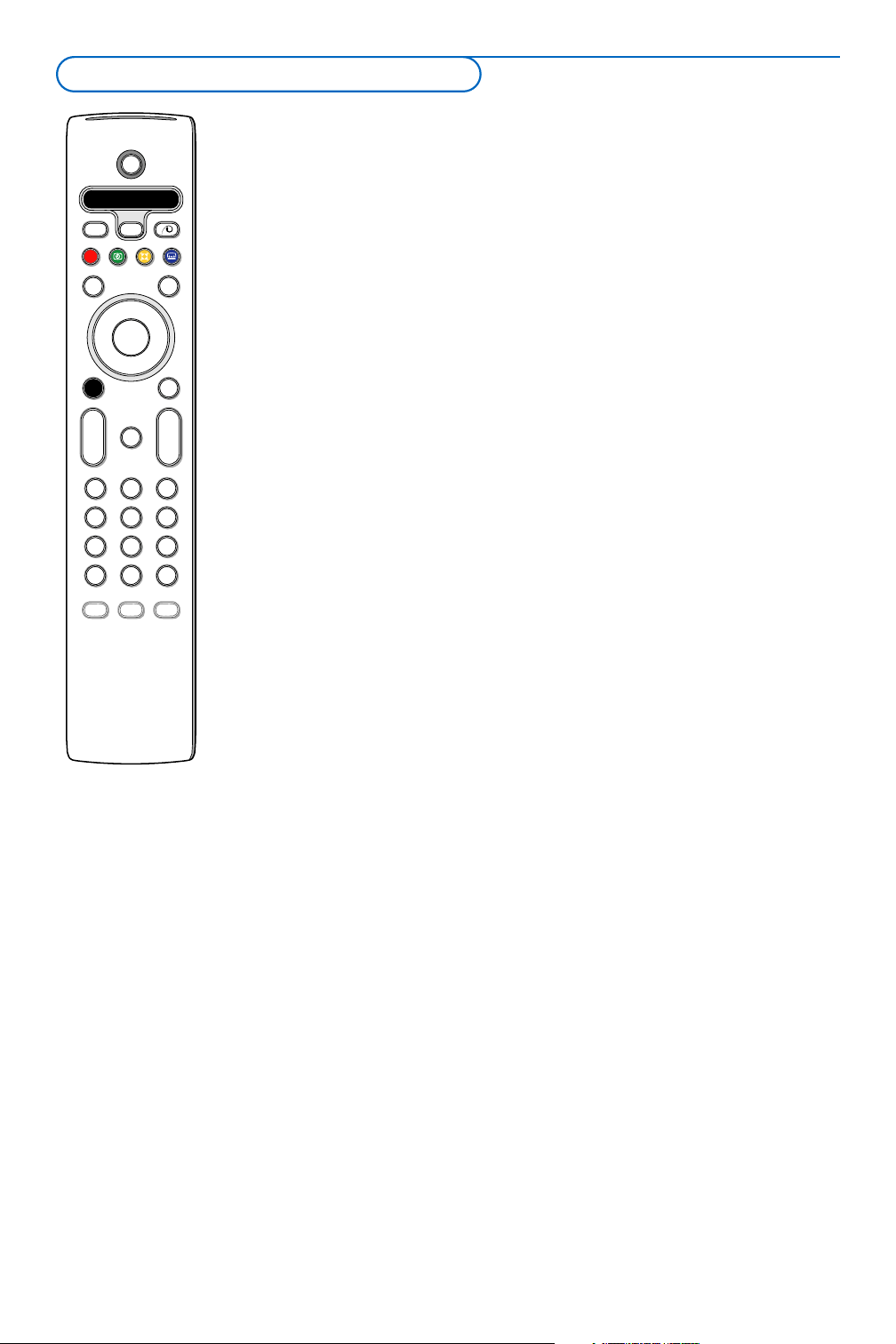
& Connect your camera or camcorder as shown.
é Connect to VIDEO 2 and AUDIO L 3 for mono
equipment. For stereo equipment also connect
AUDIO R 3.
S-VHS quality with an S-VHS camcorder is obtained by
connecting the S-VHS cables with the
S-VIDEO input 1 and
AUDIO inputs 3.
Do not connect cable 1 and 2 at the same time.This may cause
picture distortion !
Headphone
& Insert the plug into the headphone socket L as shown.
é Press ¬ on the remote control to switch off the internal
loudspeakers of the TV.
The headphone impedance must be between 8 and 4000 Ohm.The
headphone socket has a 3.5 mm jack.
In the Sound menu select
Headphone volume to adjust the
headphone volume.
USB connector
Connect your device with a USB output connector (e.g. a digital
camera, a USB memory stick) to the
USB connector.
Side connections
Connect extra subwoofer

23
In TV mode, it is possible to start a direct recording of the programme which is being displayed on the
TV screen. Continue to press the ® record key on the remote control for more than 2 seconds.
Note: Switching programme numbers on your TV does not disturb recording !
When recording a programme from a peripheral connected to
EXT 1, EXT 3 or Side, you can not select
another TV programme on the screen without disturbing the recording..
Press the v key on the remote control repeatedly, or select Source in the Setup menu (see p. 10) to
select
EXT1, EXT2, EXT3, Side or HDMI 1 according to where you connected your equipment.
Remark : Most equipment (decoder, recorder) carries out the switching itself, when it is switched on.
Record with your recorder with EasyLink
Recorder with EasyLink
The recorder can be operated with the remote control via the Recorder menu on screen.
& Press the MENU key on the remote control.
é Select the Recorder menu with the cursor up/down.
“ Press the cursor left/right, up/down to select one of the recorder functions.
The key ® for recording can be operated in the TV mode.
If your EasyLink recorder has the system standby function, when you press the B key for 3 seconds, both TV
and the recorder are switched to standby.
Rwd Play Stop Play Ffw Rec Eject
Ò p ‡ π † ® Ï
Recorder
To select connected equipment
24
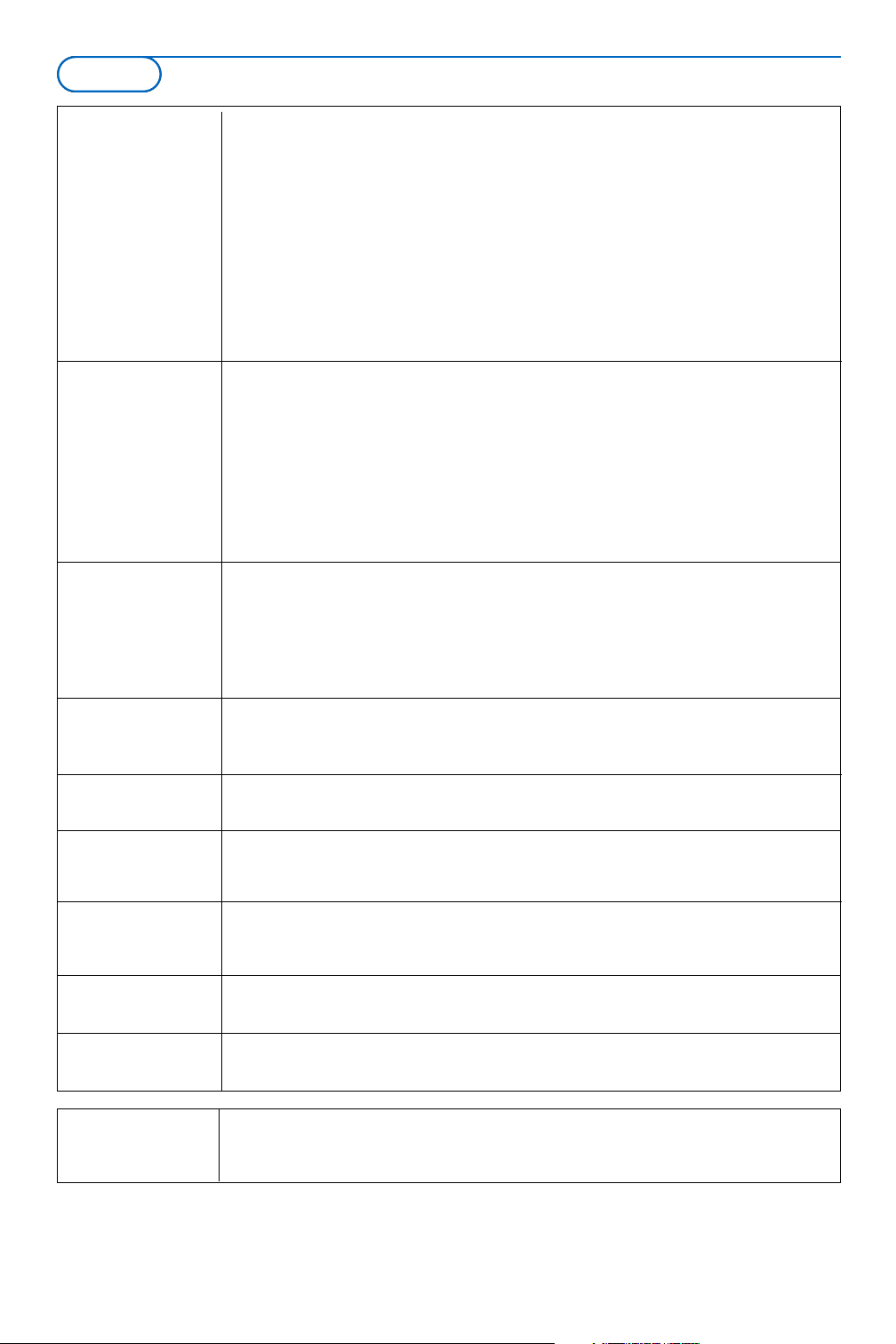
This system remote control operates the following Philips equipment:TV,VCR,
DVD, DVD/R, SAT (RC5/RC6), AMP (+TUNER), CD, CD/R.
Press the
Select key to operate any of the equipment indicated in the display
(
AUX = CD; DVD/R = DVD, SAT = SAT (RC5). Another device can be selected by
pressing
Select repeatedly within 2 seconds.The led will blink slowly to indicate
the device.
Press one of the keys on the remote control to operate the peripheral equipment.
To return to TV mode press
Select while the led is blinking.
When no action is taken within 60 seconds, the remote goes back to
TV mode.
When you do not want the remote to go back to TV mode, and to stay in the
mode selected, proceed as follows:
Select the desired mode with the
Select key.Wait until no LED is lit. Press the
Select key again simultaneously with the OK key for at least 2 seconds.The remote
will not go back to TV mode from now on and will remain in the mode selected.
To go back to the default setting of the remote (TV mode) repeat what is explained
above, selecting the TV mode.
Note: When the Select key is pressed and held for more than 2 seconds, the RC5/RC6
system select command is transmitted.
b
¬
+
-
V
+
-
v
b
i
0
h
q
Select
123
456
789
0
Ò
®
‡π
†
®
®
®
®
æ
B
P
AMP DVD/R TV SAT AUX
MENU
®
º
Active Control
OK
Browser
=
®
B to switch to standby
ºæ for pause (
VCR, DVD, CD)
RDS news/TA (AMP);
to shuffle play (
CD/R)
® for record
Ò for rewind (
VCR, CD);
search down (
DVD, AMP)
‡ for stop
π for play
† for fast forward (
VCR, CD);
search up (
DVD, AMP)
b RDS display (
AMP);
to select your choice of subtitle
language (
DVD);
i display information
MENU to switch the menu on or off
- P + for chapter, channel, track
selection
0 to 9 digit entry
0 tape index (
VCR),
select a DVD title/chapter,
select a frequency (
AMP)
U VCR timer
cursor up/down
to select the next or the
previous disc (
CD)
cursor left/right
to select the previous or
following track (
CD)
search up/down (
AMP)
Additionally the DVD/R, SAT and AUX indicator
can be programmed to operate the DVD-R, DVD +
receiver, DVD-R + receiver, SAT (RC6), CD-R and
VCR instead.
& Select TV with the Select key.
é To program
• DVD-R, press the OK key + digit 2;
•
SAT (RC6), press the OK key + digit 4;
•
CD-R, press the OK key + digit 6;
•
DVD + receiver, press the OK key + digit 7;
•
DVD-R + receiver, press the OK key + digit 8;
•
VCR, press the OK key + digit 9.
“ Select the corresponding DVD/R, SAT, AUX
indicator.The remote control will operate your
DVD-R, DVD or DVD-R in combination with a
receiver (
DVD/R), SAT (RC6) (SAT), CD-R or
VCR (
AUX).
Note:To return to the modes programmed in the
factory, either remove the batteries for a few
minutes, or press the
OK key + digit 1 (DVD
mode); or + digit 3 (SAT-RC5) or + digit 5 (CD
mode).
Audio- and video equipment keys
25
Tips
Care of the screen Do not touch, push or rub or strike the screen with anything hard as this may
scratch, mar or damage the screen permanently.
And please do not rub with dust clothes with chemical treatment.
Do not touch the surface with bare hands or greasy cloth (some cosmetics are
detrimental to the screen).
Unplug the TV before cleaning the screen.
When the surface becomes dusty, please wipe gently with absorbent cotton or
other soft materials like chamois soaks.
Do not use acetone, toluene and alcohol because they cause chemical damage.
Do not use liquid cleaners or aerosol cleaners.
Wipe off saliva or water drops as soon as possible.Their long time contact with
the screen causes deformations and colour fading.
Poor Picture • Have you selected the correct TV system in the manual installation menu?
• Is your TV or house aerial located too close to loudspeakers, non-earthed audio
equipment or neon lights, etc.?
• Mountains or high buildings can cause double pictures or ghost images.
Sometimes you can improve the picture quality by changing the direction of the
aerial.
• Is the picture or teletext unrecognisable? Check if you have entered the correct
frequency. See Installation, Manual installation, p. 7.
• Are brightness, sharpness and contrast out of adjustment? Select Factory
settings in the Setup, General menu, p. 8.
No Picture • Are the supplied cables connected properly ? (The aerial cable to the TV, the
other aerial to your recorder, the power cables.)
• Has the child lock been switched off ?
• Switch your HDMI-source to a correct display mode in case you have connected
a HDMI device.
• In case of weak or bad signal, consult your dealer.
Digital distortion The low quality of some digital picture material may be the cause of digital image
distortion. In this case select the Soft setting using the Picture menu, Smart Picture,
without changing the picture settings manually.
No sound • No sound on any channel? Check the volume isn’t at minimum.
• Is the sound interrupted with the mute key ¬?
No solution found Switch your TV off and then on again once. Never attempt to repair a defective
for your picture or TV yourself. Check with your dealer or call a TV technician.
sound problem ?
Remote control
• Check if the remote control is in the correct mode.
• If your TV no longer responds to the remote control, the batteries may be dead.
• You can still use the
MENU key and the -/+ keys on the right side of your TV.
Standby Your TV consumes energy in the standby mode. Energy consumption contributes
to air and water pollution. Power consumption: 1 W.
Miscellaneous See Extras, Specifications on this CD.
Blinking red LED Unplug your TV and then plug in again once.
No solution ? Check with your dealer or call a TV technician.
Tips

26
OK !
Operation Succesful !
Software Download Application V1.0
SW Version :TL31E-1.0_ 45678
HW Id : 32PF9956/12
Upgrade busy...........
usb0:\philips\hetv\TL31E-1.1—45678.upg
<1>
Loading ........ Done
Done
Done
Validating ........
Programming ........
Software updates for your TV
Philips offers software upgrade capability for your TV using portable memory or USB
storage compliant devices (e.g. USB memory stick).
The new firmware can be uploaded to the TV by yourself.
You can obtain the new software in two ways:
- download from the Philips website to your PC.Transfer it from your PC to the
memory device;
- or ask your dealer for a memory card containing the latest update.
Downloading:
& Go to the www.philips.com/support website on your computer.
é Download the new software archive after you filled in the typenumber of your TV.
See your TV manual or the typeplate on the TV.
Prepare portable memory device:
“ Decompress the downloaded zip archive.Transfer it to the root of your portable
memory device (including the directory structures).
Note: Only FAT/DOS-formatted memory devices are supported
Uploading:
‘ Power off your TV and remove all inserted memory cards or USB devices.
( Insert the portable memory that contains the updated software.
Switch on your TV again.
§ At startup the TV will scan the memory card or USB memory until it finds the
update content.The TV will go to the update mode (only English language
available) and, after a few seconds, displays the status of the upgrade procedure.
Note: if you try to upgrade a software equal or lower than the current version, a
confirmation will be asked during the procedure.
A message appears if the updating has been successful.
è Switch off your TV with the power switch and remove the portable memory.
! Power on the TV again. It will start up with the new software.
Example:
Table of TV frequencies.
Frequenztabelle der Fernsehsender.
Liste des fréquences des émetteurs.
Frequentietabel TV-Zenders.
Tabella delle frequenze delle trasmittenti.
Lista de las frecuencias de las emisoras.
Lista das frequências dos emissores.
Liste over TV senderne.
Tabell over TV-frekvenser.
Tabell över TV-frekvenser.
TV-taajuustaulukko.
Kατάλογος συχνοτήτων ποµπών.
Spisok hastot peredathikov.
A televizió−adóállomások frekvenciáinak a listája.
Lista częstotliwości stacji nadawczych.
Seznam frekvenčních pásem vysílačů.
Zoznam frekvenčných pásiem vysielačov.
GB
The frequencies used by a cable company may differ from the
frequencies on the table. Consult your cable company or your
dealer for detailed information.
D
In Kabelfernsehanlagen können Abweichungen von den in den
Frequenztabellen aufgeführten Frequenzen vorkommen. Bitte
wenden Sie sich an Ihren Fachhändler oder Ihre
Kabelfernsehgesellschaft, die Ihnen die zutreffenden Frequenzen
mitteilt.
F
Les fréquences utilisées par une société de télédistribution
peuvent être différentes de celles sur la liste des fréquences.
Consultez votre société de télédistribution ou votre revendeur
pour des informations plus détailées.
NL
De frequenties die gebruikt worden door een kabelmaatschappij
kunnen verschillen van deze op de tabel. Raadpleeg uw
kabelexploitant of uw handelaar voor meer informatie.
I
Le frequenze usate per una società di teledistribuzione possano
essere differenti di quelle nella tabella. Consultate la società di
teledistribuzione o il vostro rivenditore per informazione specifica.
E
Las frecuencias utilizadas por las empresas de distribución de
señal por cable, pueden ser diferentes de las que se encuentran
en esta tabla. Consulte con su compañia de distribución de
televisión por cable o con su distribuidor para que le proporcionen
una información más detallada.
P
As frequências utilizadas por uma sociedade de teledistribuição
podem ser diferentes das indicadas na lista de frequências.
Consultar a sociedade de teledistribuição ou o vendedor para
informações mais detalhadas.
DK
Frekvenser benyttet af kabel operatører kan være afvigende fra
disse, kantakt deres kabel operatør eller forhandler for næmere
informa-tion.
N
Frekvensene som benyttes pa et kabelnett kan avvike fra de som
er oppfört i tabellen. Kontakt ditt kabel-TV selskap eller din
forhandler for næmere opplysninger.
S
Frekvenserna som används i kabel-TV-näten kan avvika från
frekvenserna i tabellen. Kontakta ditt kabel-TV-bolag eller din
radiohandlare för vidare information.
SF
Kaapeliyhtiöden käyttämät taajuudet voivat poiketa taulukossa
olevista taajuuksista.Tarkat tiedot saat kaapeliyhtiösta tai myyjältä.
GR
Οι συχντητες που χρησιµοποιούνται απ µια εταιρεία τηλεµετάδοσης
είναι δυνατν να είναι διαφορετικές απ αυτές που περιέχει ο κατάλογος.
(Συµβουλευθείτε την εταιρεία τηλεµετάδοσης ή τον πωλητή για
λεπτοµερέστερες πληροφορίες).
CEI
Hastoty na kotoryx peredaòt telakampaniä mogut
otlihatæsä ot hastot na dannoj tablice. (Obratitæsä k
Vaπej telekampanii ili Vaπemu prodavcu za
dopolnitelænoj informaciej.
H
Egy televizió−adóállomás sugárzáshoz használt frekvenciatar−
tományai lehetnek a táblázatban közöltektől eltérőek is. (Abban
az esetben, ha bővebb információkra van szüksége, forduljon az
eladóhoz.)
PL
Operator sieci telewizyjnej może stosować inne częstotliwości,
niż te, które figurują na tablicy (bardziej szczegółowych infor−
macji na ten temat zasięgnąć u operatora lub sprzedawcy).
CZ
Frekvence používané některými televizními společnostmi se
mohou lišit od údajů uvedených v tomto seznamu. Informujte se
blíže u příslušné společnosti nebo v prodejně, kde jste televizor
koupili.
SK
Frekvencie používané niektorými spoločnos9ami televízneho
prenosu sa môžu liši9 od údajov uvedených v tomto zozname.
Informujte sa bližšie u príslušnej spoločnosti alebo v predajni,
kde ste televízor kúpili.
EUROPE
CH ..FREQ (MHz)
E2.............48.25
E3.............55.25
E4.............62.25
E5...........175.25
E6...........182.25
E7...........189.25
E8...........196.25
E9...........203.25
E10.........210.25
E11.........217.25
E12.........224.25
S1...........105.25
S2...........112.25
S3...........119.25
S4...........126.25
S5...........133.25
S6...........140.25
S7...........147.25
S8...........154.25
S9...........161.25
S10.........168.25
S11.........231.25
S12.........238.25
S13.........245.25
S14.........252.25
S15.........259.25
S16.........266.25
S17.........273.25
S18.........280.25
S19.........287.25
S20.........294.25
H1 ..........303.25
H2 ..........311.25
H3 ..........319.25
H4 ..........327.25
H5 ..........335.25
H6 ..........343.25
H7 ..........351.25
H8 ..........359.25
H9 ..........367.25
H10 ........375.25
H11 ........383.25
H12 ........391.25
H13 ........399.25
H14 ........407.25
H15 ........415.25
H16 ........423.25
H17 ........431.25
H18 ........439.25
H19 ........447.25
21...........471.25
22...........479.25
23...........487.25
24...........495.25
25...........503.25
26...........511.25
27...........519.25
28...........527.25
29...........535.25
30...........543.25
31...........551.25
32...........559.25
33...........567.25
34...........575.25
35...........583.25
36...........591.25
37...........599.25
38...........607.25
39...........615.25
40...........623.25
41...........631.25
42...........639.25
43...........647.25
44...........655.25
45...........663.25
46...........671.25
47...........679.25
48...........687.25
49...........695.25
50...........703.25
51...........711.25
52...........719.25
53...........727.25
54...........735.25
55...........743.25
56...........751.25
57...........759.25
58...........767.25
59...........775.25
60...........783.25
61...........791.25
62...........799.25
63...........807.25
64...........815.25
65...........823.25
66...........831.25
67...........839.25
68...........847.25
69...........855.25
E-EUROPE
CAN..FREQ (MHz)
R1 ..........49.75
R2 ..........59.25
R3 ..........77.25
R4 ..........85.25
R5 ..........93.25
R 6 .......175.25
R 7 .......183.25
R 8 .......191.25
R 9 .......199.25
R10 ......207.25
R11 ......215.25
R12 ......223.25
S1 ........105.25
S2 ........112.25
S3 ........119.25
S4 ........126.25
S5 ........133.25
S6 ........140.25
S7 ........147.25
S8 ........154.25
S9 ........161.25
S10 ......168.25
S11 ......231.25
S12 ......238.25
S13 ......245.25
S14 ......252.25
S15 ......259.25
S16 ......266.25
S17 ......273.25
S18 ......280.25
S19 ......287.25
S20 ......294.25
H1 ........303.25
H2 ........311.25
H3 ........319.25
H4 ........327.25
H5 ........335.25
H6 ........343.25
H7 ........351.25
H8 ........359.25
H9 ........367.25
H10 ......375.25
H11 ......383.25
H12 ......391.25
H13 ......399.25
H14 ......407.25
H15 ......415.25
H16 ......423.25
H17 ......431.25
H18 ......439.25
H19 ......447.25
21.........471.25
22.........479.25
23.........487.25
24.........495.25
25.........503.25
26.........511.25
27.........519.25
28.........527.25
29.........535.25
30.........543.25
31.........551.25
32.........559.25
33.........567.25
34.........575.25
35.........583.25
36.........591.25
37.........599.25
38.........607.25
39.........615.25
40.........623.25
41.........631.25
42.........639.25
43.........647.25
44.........655.25
45.........663.25
46.........671.25
47.........679.25
48.........687.25
49.........695.25
50.........703.25
51.........711.25
52.........719.25
53.........727.25
54.........735.25
55.........743.25
56.........751.25
57.........759.25
58.........767.25
59.........775.25
60.........783.25
61.........791.25
62.........799.25
63.........807.25
64.........815.25
65.........823.25
66.........831.25
67.........839.25
68.........847.25
69.........855.25
FRANCE
CAN..FREQ (MHz)
2..............55.75
3..............60.50
4..............63.75
5..............176.0
6..............184.0
7..............192.0
8..............200.0
9..............208.0
10............216.0
B............116.75
C............128.75
D............140.75
E............159.75
F............164.75
G ...........176.75
H............188.75
I.............200.75
J............212.75
K............224.75
L............236.75
M...........248.75
N ...........260.75
O ...........272.75
P............284.75
Q ...........296.75
H1..........303.25
H2..........311.25
H3..........319.25
H4..........327.25
H5..........335.25
H6..........343.25
H7..........351.25
H8..........359.25
H9..........367.25
H10........375.25
H11........383.25
H12........391.25
H13........399.25
H14........407.25
H15........415.25
H16........423.25
H17........431.25
H18........439.25
H19........447.25
21..........471.25
22..........479.25
23..........487.25
24..........495.25
25..........503.25
26..........511.25
27..........519.25
28..........527.25
29..........535.25
30..........543.25
31..........551.25
32..........559.25
33..........567.25
34..........575.25
35..........583.25
36..........591.25
37..........599.25
38..........607.25
39..........615.25
40..........623.25
41..........631.25
42..........639.25
43..........647.25
44..........655.25
45..........663.25
46..........671.25
47..........679.25
48..........687.25
49..........695.25
50..........703.25
51..........711.25
52..........719.25
53..........727.25
54..........735.25
55..........743.25
56..........751.25
57..........759.25
58..........767.25
59..........775.25
60..........783.25
61..........791.25
62..........799.25
63..........807.25
64..........815.25
65..........823.25
66..........831.25
67..........839.25
68..........847.25
69..........855.25
ITALY
CAN..FREQ (MHz)
A..............53.75
B..............62.25
C..............82.25
D............175.25
E ............183.75
F.............192.25
G............201.25
H............210.25
H1..........217.25
S1..........105.25
S2..........112.25
S3..........119.25
S4..........126.25
S5..........133.25
S6..........140.25
S7..........147.25
S8..........154.25
S9..........161.25
S10........168.25
S11........231.25
S12........238.25
S13........245.25
S14........252.25
S15........259.25
S16........266.25
S17........273.25
S18........280.25
S19........287.25
S20........294.25
H1..........303.25
H2..........311.25
H3..........319.25
H4..........327.25
H5..........335.25
H6..........343.25
H7..........351.25
H8..........359.25
H9..........367.25
H10........375.25
H11........383.25
H12........391.25
H13........399.25
H14........407.25
H15........415.25
H16........423.25
H17........431.25
H18........439.25
H19........447.25
21...........471.25
22...........479.25
23...........487.25
24...........495.25
25...........503.25
26...........511.25
27...........519.25
28...........527.25
29...........535.25
30...........543.25
31...........551.25
32...........559.25
33...........567.25
34...........575.25
35...........583.25
36...........591.25
37...........599.25
38...........607.25
39...........615.25
40...........623.25
41...........631.25
42...........639.25
43...........647.25
44...........655.25
45...........663.25
46...........671.25
47...........679.25
48...........687.25
49...........695.25
50...........703.25
51...........711.25
52...........719.25
53...........727.25
54...........735.25
55...........743.25
56...........751.25
57...........759.25
58...........767.25
59...........775.25
60...........783.25
61...........791.25
62...........799.25
63...........807.25
64...........815.25
65...........823.25
66...........831.25
67...........839.25
68...........847.25
69...........855.25


Annex : Philips Flat TV Slideshow Format
Notes:
- The latest version of this document can be found on the Philips support website (www.philips.com/support).
Use the type number of your TV (e.g. 32PF9956/12) to find this documentation and other related files.
- Philips can’t be held responsible for any problems that may occur as a result of the content in this document. Errors
reported to Philips will be adapted and published on the Philips support website as soon as possible.
• The slideshow will use plain ASCII XML syntax to allow the creation and editing of the slideshow
files using simple tools.
• All references to network content must be based on the global address of the content.
• Content on a Portable Memory (PM) doesn't have a global address; as a result content from a PM
can never be referenced from a slideshow not stored on the PM itself.
• To maintain portability, a slideshow stored on a PM should ONLY reference content on the same
PM. Referencing global addresses can result in inconsistencies if the PM is used on a non-networked
CE device. The latter is however not forbidden, it is only a recommendation.
• It is preferable that URL’s referencing PM content are based on a relative path starting from the
directory where the slideshow is stored. This path includes the device or drive name of the PM.
An absolute path to content will also be supported.
- relative path: pictures\test1.jpg, tamper.jpg, ..\new\bird.jpg, …
- absolute path: USB1:\pictures1\foo_bar.jpg, C:\f1.jpg, \organisation.jpg, …
General Rules
Introduction
This document explains how to make a Philips slideshow file with background audio.
Be aware that the content of this document is addressing technical or software skilled users.
To start the slideshow open the slideshow file in the Content Browser of your TV.
& Press the = key on the remote control after having inserted a memory card or USB device and
switched on the TV.
é Go to where you stored the slideshow file (.alb) on your portable memory.
“ Select the slideshow file and press the OK key to start the slide show.
‘ To stop a slide show, press the OK key.
1
The following table gives a description of the XML syntax.
Supported XML-tags
Tag Name
philips-slideshow
title
audio
slide-duration
slides
slide
Use
mandatory
optional
optional
optional
mandatory
optional
Description
Philips slideshow signature including the version.
The title of the playlist.
The audio-URL following this tag will define the music playing
in the background during the slideshow.
A single song or playlist (.m3u & .pls) are the only valid audio
references. Other reference will not result in any audio
playback. If a single song is referenced the song will be
repeated forever. If a playlist is referenced the playlist will be
played in sequence with a repeat at the end of the playlist.
The default display time (in 0,1 second) of a slide. The TV
application isn’t obliged to support this tag. The TV application
can force the use of one or multiple predefined display times.
(Not supported by the 32PF9956/12 TV set)
Identifies the slides to show.
Identifies the URL of the individual slide.
The format and syntax below will be used to create the slideshow file (simple ascii text) with the
extension .alb (.ALB)
Examples: slshow1.alb, summer_holiday_2004.ALB, test.alb, …
The following syntax should be used to create the text file:
General Format
<?xml version="1.0" encoding="ISO-885h9-1" ?>
<philips-slideshow version="1.0" >
<title>Title of the slideshow</title>
<audio>audio_url</audio>
<slide-duration>30</slide-duration>
<slides>
<slide>slide_1_url</slide>
<slide>slide_2_url</slide>
<slide>slide_3_url</slide>
<slide>slide_4_url</slide>
<slide>slide_5_url</slide>
<slide>slide_6_url</slide>
...
<slide>slide_N-1_url</slide>
<slide>slide_N_url</slide>
</slides>
</philips-slideshow>
2

3
Example
<?xml version="1.0" encoding="ISO-8859-1" ?>
<philips-slideshow version="1.0" >
<title>Select this to start slideshow</title>
<audio>USB1:\Philips_Digital_Image_Gallery\Nature_clip.mp3</audio>
<slide-duration>80</slide-duration>
<slides>
<slide>USB1:\Philips_Digital_Image_Gallery\Philips001.jpg</slide>
<slide>USB1:\Philips_Digital_Image_Gallery\Philips002.jpg</slide>
<slide>USB1:\Philips_Digital_Image_Gallery\Philips003.jpg</slide>
<slide>USB1:\Philips_Digital_Image_Gallery\Philips004.jpg</slide>
<slide>USB1:\Philips_Digital_Image_Gallery\Philips005.jpg</slide>
<slide>USB1:\Philips_Digital_Image_Gallery\Philips006.jpg</slide>
<slide>USB1:\Philips_Digital_Image_Gallery\Philips007.jpg</slide>
<slide>USB1:\Philips_Digital_Image_Gallery\Philips008.jpg</slide>
<slide>USB1:\Philips_Digital_Image_Gallery\Philips009.jpg</slide>
<slide>USB1:\Philips_Digital_Image_Gallery\Philips010.jpg</slide>
<slide>USB1:\Philips_Digital_Image_Gallery\Philips011.jpg</slide>
<slide>USB1:\Philips_Digital_Image_Gallery\Philips012.jpg</slide>
<slide>USB1:\Philips_Digital_Image_Gallery\Philips013.jpg</slide>
<slide>USB1:\Philips_Digital_Image_Gallery\Philips014.jpg</slide>
<slide>USB1:\Philips_Digital_Image_Gallery\Philips015.jpg</slide>
<slide>USB1:\Philips_Digital_Image_Gallery\Philips016.jpg</slide>
<slide>USB1:\Philips_Digital_Image_Gallery\Philips017.jpg</slide>
<slide>USB1:\Philips_Digital_Image_Gallery\Philips018.jpg</slide>
<slide>USB1:\Philips_Digital_Image_Gallery\Philips019.jpg</slide>
<slide>USB1:\Philips_Digital_Image_Gallery\Philips020.jpg</slide>
</slides>
</philips-slideshow>