©2003 Sony Corporation
Operating Instructions
Owner’s Record
The model and serial numbers are located on the rear of the unit. Record the serial
number in the space provided below. Refer to them whenever you call upon your Sony
dealer regarding this product.
Model No. Serial No.
4-246-924-11(1)
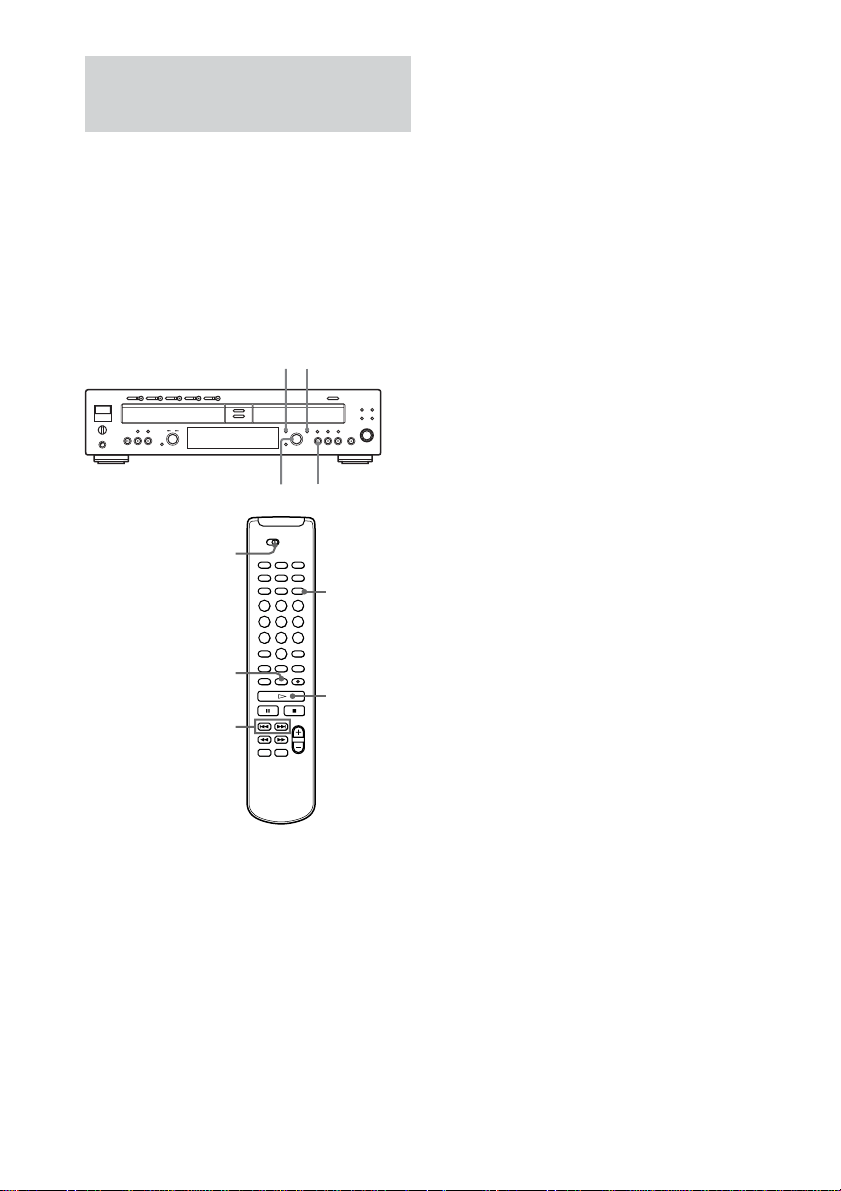
Compact Disc
Recorder
RCD-W2000ES
2
WARNING
To prevent fire or shock hazard, do not
expose the unit to rain or moisture.
This symbol is intended to alert the user
to the presence of uninsulated
“dangerous voltage” within the
product’s enclosure that may be of
sufficient magnitude to constitute a risk
of electric shock to persons.
This symbol is intended to alert the user
to the presence of important operating
and maintenance (servicing) instructions
in the literature accompanying the
appliance.
For the customers in the U.S.A.
Don’t throw away the battery with
general house waste, dispose of it
correctly as chemical waste.
WARNING
This equipment has been tested and found to comply
with the limits for a Class B digital device, pursuant
to Part 15 of the FCC Rules. These limits are
designed to provide reasonable protection against
harmful interference in a residential installation. This
equipment generates, uses, and can radiate radio
frequency energy and, if not installed and used in
accordance with the instructions, may cause harmful
interference to radio communications. However, there
is no guarantee that interference will not occur in a
particular installation. If this equipment does cause
harmful interference to radio or television reception,
which can be determined by turning the equipment
off and on, the user is encouraged to try to correct the
interference by one or more of the following
measures:
– Reorient or relocate the receiving antenna.
– Increase the separation between the equipment and
receiver.
– Connect the equipment into an outlet on a circuit
different from that to which the receiver is
connected.
– Consult the dealer or an experienced radio/TV
technician for help.
CAUTION
You are cautioned that any changes or modifications
not expressly approved in this manual could void
your authority to operate this equipment.

3
Table of Contents
Getting Started
Unpacking ............................................. 6
Hooking Up the System ........................ 6
This Unit Can Use
the Following Discs ........................ 7
Basic Operations
Playing a CD ......................................... 8
Playing a disc with MP3 files................ 9
Using the Display ................................ 13
Locating a Specific Track.................... 15
Locating a Particular Point
in a Track ...................................... 16
Playing Tracks/Discs Repeatedly
(Repeat Play) ................................. 17
Playing in Random Order
(Shuffle Play) ................................ 18
Creating Your Own Program
(Program Play) .............................. 19
Playing Both Deck Simultaneously
(Dual Play) .................................... 20
Recording/Editing
Before Recording ................................ 21
Synchro-Recording a CD to CD-R or
CD-RW ......................................... 23
Recording on a CD-R or CD-RW
Manually ....................................... 26
Adjusting the Recording Level............ 28
Marking Track Numbers While
Recording ...................................... 29
Fading In and Out recording
(Rec Fader)....................................30
Finalizing a CD-R or CD-RW............. 30
Unfinalizing a CD-RW........................ 31
Erasing Tracks of a CD-RW ............... 32
Labeling Tracks/Discs ......................... 33
Useful Tips for Recording ................... 34
Additional Information
Using the Menu ................................... 36
Messages ............................................. 37
Self-diagnosis Function ....................... 38
System Limitations.............................. 39
Troubleshooting................................... 39
Specifications ...................................... 41
4
On condensation in the unit
If the unit is brought directly from a cold to a warm
location, or is placed in a very damp room, moisture
may condense on the lenses inside the unit. Should
this occur, the unit may not operate properly. In this
case, remove the CD, CD-R, or CD-RW and leave the
unit turned on for about an hour until the moisture
evaporates.
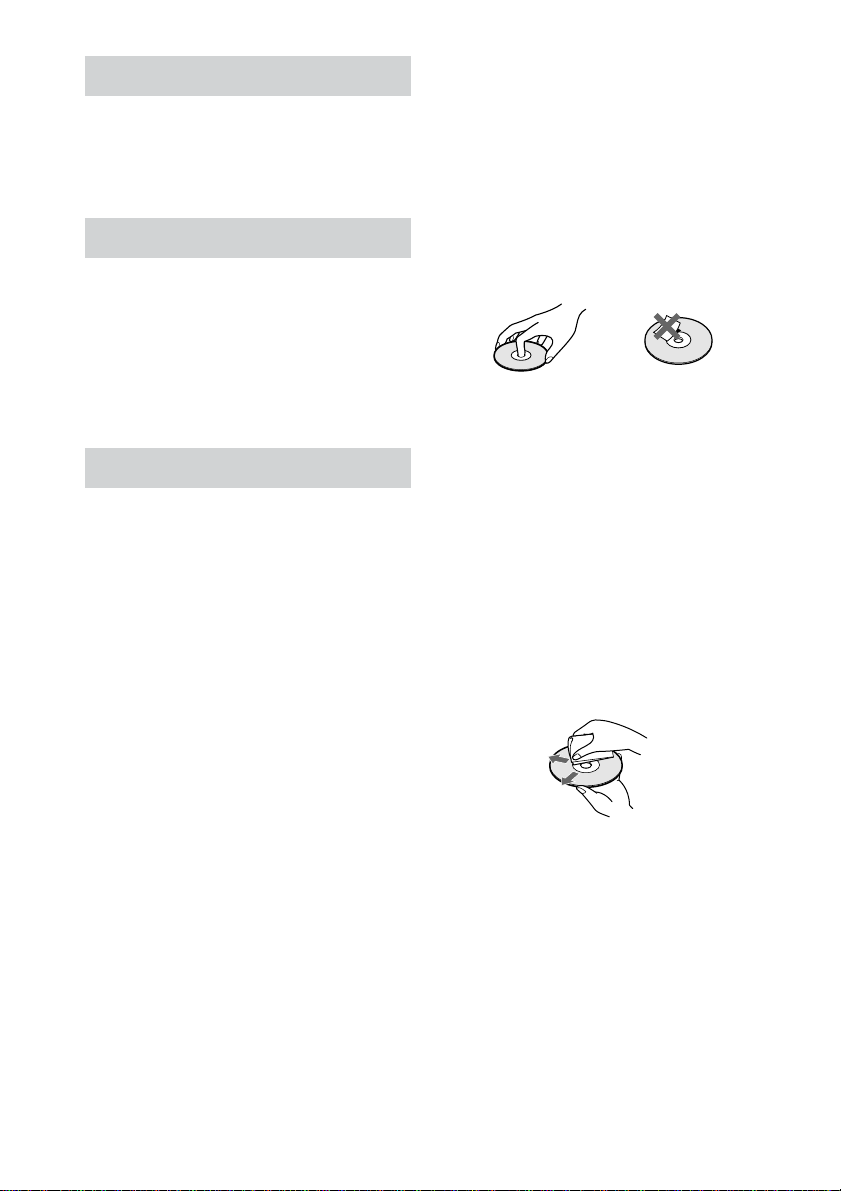
On handling discs
• To keep the disc clean, handle it by its edge. Do
not touch the surface.
• Do not stick adhesive papers or tapes onto the disc.
• If there is glue or a similar substance on the disc,
remove it completely before using the disc.
On storage
• Do not expose the disc to direct sunlight or heat
sources such as hot air ducts, nor leave it in a car
parked in direct sunlight as there can be a
considerable rise in temperature inside the car.
• Store discs in their cases. Do not store discs either
stacked horizontally or standing vertically without
their cases.
On cleaning
• Fingerprints or dust on the disc may cause poor
sound reproduction or sound dropout.
• Before playing a disc, clean it with a cleaning cloth.
Wipe the disc from the center out.
• If the disc is still dirty after being wiped with a
cleaning cloth, wipe it again with a slightly
moistened cloth. Then wipe off the residual
moisture with a dry cloth.
• Do not use solvents such as benzene, thinner,
commercially available cleaners, or antistatic spray
intended for vinyl LPs.
Welcome
Thank you for purchasing this Sony Compact
Disc Recorder. Before operating the unit,
please read this manual thoroughly and retain it
for future reference.
About This Manual
Conventions
• Instructions in this manual describe the controls on
the unit. You can also use the controls on the
remote if they have the same or similar names as
those on the unit.
• The following icon is used in this manual:
Z
Indicates that you can do the task using
the remote.
Precautions
On safety
• Should any solid object or liquid fall into the
cabinet, unplug the unit and have it checked by
qualified personnel before operating it any further.
• The use of optical instruments with this product will
increase eye hazard.
On power sources
• Before operating the unit, check that the operating
voltage of the unit is identical with your local power
supply. The operating voltage is indicated on the
nameplate at the rear of the unit.
• The unit is not disconnected from the AC power
source (mains) as long as it is connected to the wall
outlet, even if the unit itself has been turned off.
• If you are not going to use the unit for a long time,
be sure to disconnect the unit from the wall outlet.
To disconnect the AC power cord, grasp the plug
itself; never pull the cord.
• AC power cord must be changed only at the
qualified service shop.

5
Note on High-Speed
Synchro-Recording
When recording a CD, certain conditions
may cause the sound to dropout, noise in the
recording, or even unwanted tracks on the
CD-R or CD-RW. If this happens, clean the
CD as described in “On cleaning” above, and
record to the CD-R or CD-RW using normal
speed Synchro-Recording only.
Note on CD-R or CD-RW
playback
Playback of a CD-R or CD-RW recorded by
a CD-R or CD-RW recorder may not be
possible depending on the recording
conditions (e.g., dirty disc, etc.). Also,
please note that you need to finalize a CD-R
or CD-RW before playing it back on DECK
A of this unit or a system other than the one
used to make the recording. (Finalizing is a
process to complete the recording.)
After finalizing a CD-R, you can play it in
any conventional CD player. However,
depending on the state of the recording, the
sound may skip during playback.
After finalizing a CD-RW, you can play it in
a CD-RW compatible player only.
Music discs encoded with
copyright protection
technologies
This product is designed to playback discs
that conform to the Compact Disc (CD)
standard. Recently, various music discs
encoded with copyright protection
technologies are marketed by some record
companies. Please be aware that among those
discs, there are some that do not conform to
the CD standard and may not be playable by
this product.
Note on discs
With the following kinds of discs, you may
experience a reading failure or noise when recorded
to a CD-R or CD-RW.
– Discs with adhesive labels attached to them
– Irregularly shaped discs (for example, heart or star
shaped)
– Discs with heavy printing on only one section (may
effect the balance of the disc in the disc tray)
– Old discs
– Scratched discs
– Dirty discs
– Warped discs
6
Hooking Up the System
This section describes how to hook up the unit
to an amplifier. Be sure to turn off the power of
each component before making the
connections.
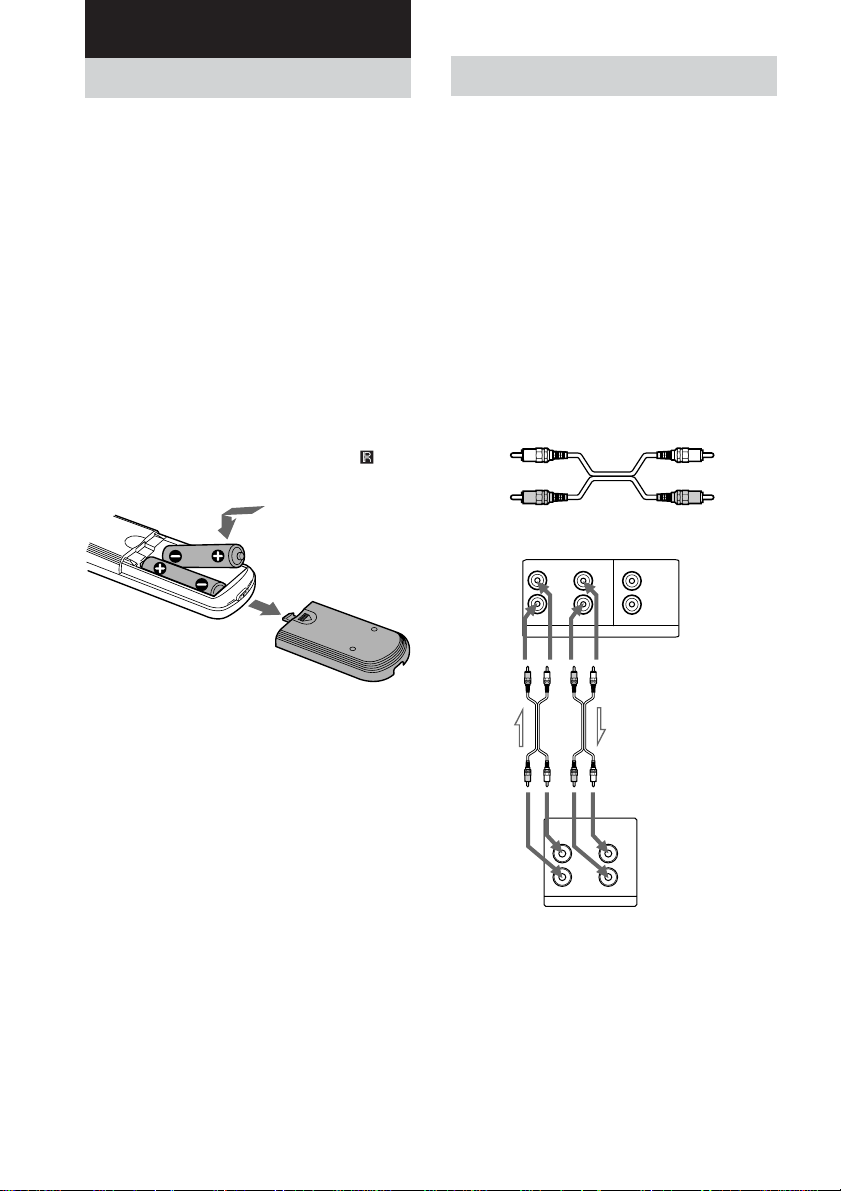
Connecting the unit to an
amplifier
Connect the amplifier to the ANALOG IN/
OUT jacks using the audio connecting cords
(supplied), making sure to match the color-
coded pins to the appropriate jacks on the
components: red (R) to red and white (L) to
white. Be sure to make connections firmly to
prevent hum and noise.
Unpacking
Check that the following items are included:
• Audio connecting cords
Phono plug × 2 (red/white) y Phono plug ×
2 (red/white) (2)
• Remote commander (remote) (1)
• R6 (size AA) batteries (2)
Inserting batteries into the
remote
You can control the unit using the supplied
remote.
Insert two R6 (size AA) batteries by matching
the 3 and # ends on the batteries to the
markings inside the compartment. When using
the remote, point it at the remote sensor
on
the unit.
Tip
With normal use, the batteries should last for about
six months. When the remote no longer operates the
unit, replace both batteries with new ones.
Notes
• Do not leave the remote near an extremely hot or
humid place.
• Do not drop any foreign object into the remote
casing, particularly when replacing the batteries.
• Do not expose the remote sensor to direct light from
the sun or lighting apparatus. Doing so may cause a
malfunction.
• If you don’t use the remote for an extended period
of time, remove the batteries to avoid possible
damage from battery leakage and corrosion.
Getting Started
RCD-W2000ES
TAPE/MD
L
R
INOUT
R
L
OUT 1
IN
ANALOG
OUT 2
R
L
R
L
White (L) White (L)
Red (R) Red (R)
Audio connecting cords (supplied) (2)
ll
ll
l: Signal flow
Amplifier
Notes
• Be sure to connect the amplifier to the OUT 2 jack.
• Be sure to set the DUAL MODE to off.
Connecting the unit to 2
amplifiers
You can output the sound of DECK A to OUT
1 and that of DECK B to OUT 2 at the same
time (DUAL PLAY. See page 20).
7
Getting Started
Connecting the AC power
cord
Connect the AC power cord to a wall outlet.
Notes
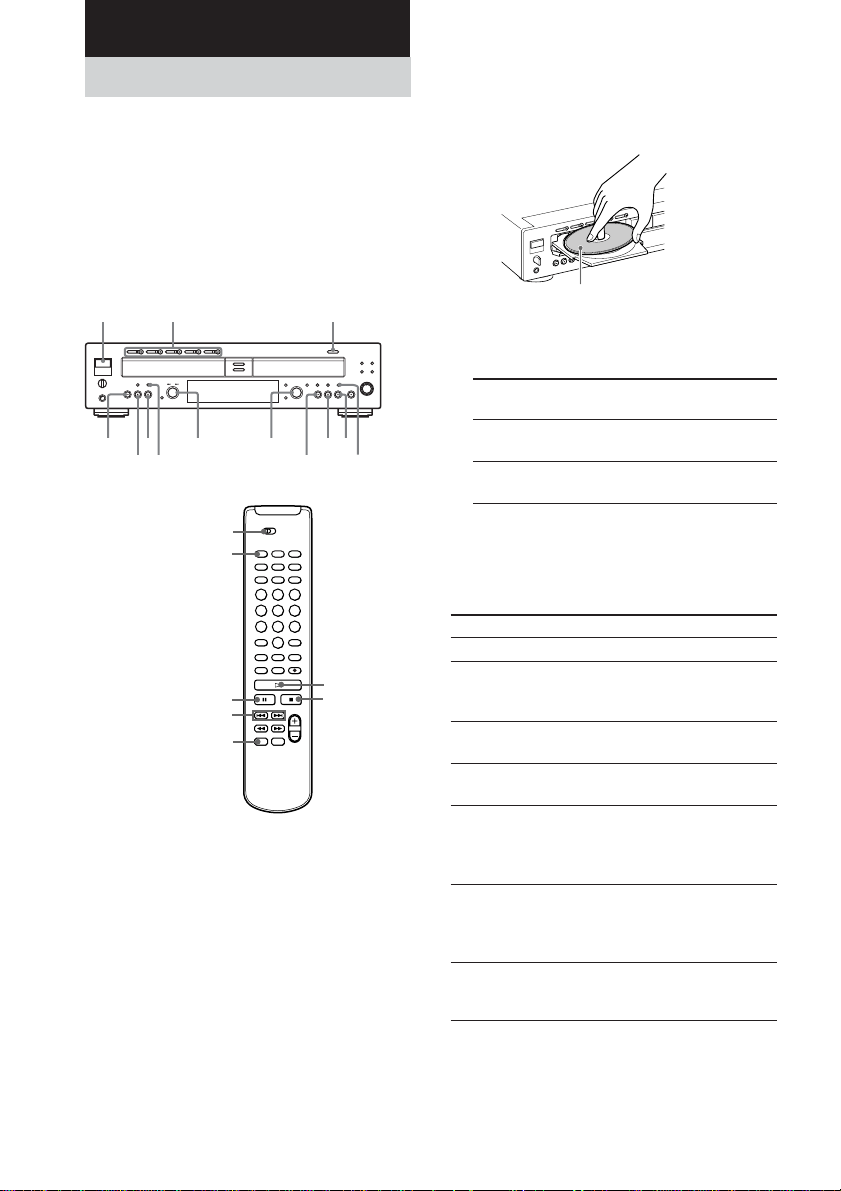
• Be sure to place the player on a flat, horizontal
place. If the player is left on a slanted position, it
may cause a malfunction or damage the player.
• If the following occurs during CD playback or
recording, a reading error may occur or noise may
be produced in the recorded results:
– The disc tray or other part of the system is
bumped.
– The system is placed on an uneven or soft
surface.
– The system is located near a speaker, door, or
other source of vibration.
This Unit Can Use the
Following Discs
The unit can use three types of discs as
follows:
Audio CDs
Discs with these logos can be played by
both DECK A (the CD player section)
and DECK B (the CD-R or CD-RW
recording section) of the unit.
Audio CD-R
Discs with this logo are recordable
only one time. When you finalize the
disc (page 30), you can play it in either
DECK A (the CD player section) or
DECK B (the CD-R or CD-RW
recording section), or any conventional CD player
(you may not be able to play it in some CD players),
including home, car, and portable models. (An
unfinalized disc can be played only in DECK B.)
When you buy a CD-R, please note that you must buy
an audio CD-R. A CD-R designed for computer use
will not work in this unit.
Audio CD-RW
Discs with this logo are recordable,
and also re-writable. When you
finalize the disc (page 30), you can play
it in either DECK A (the CD player
section) or DECK B (the CD-R or CD-
RW recording section), and CD-RW compatible
players. They will not play back in most current CD
players unless the player is CD-RW compatible. (An
unfinalized disc can be played only in DECK B.)
When you buy a CD-RW, please note that you must
buy an audio CD-RW. A CD-RW designed for
computer use will not work in this unit.
This logo means that an unit is
compatible with Audio CD-R and
Audio CD-RW (both Audio CD-R and
Audio CD-RW can be used).
Note
On this player, you can play MP3 files on DECK A
only. For details, see “Playing a disc with MP3 files”
on page 11.
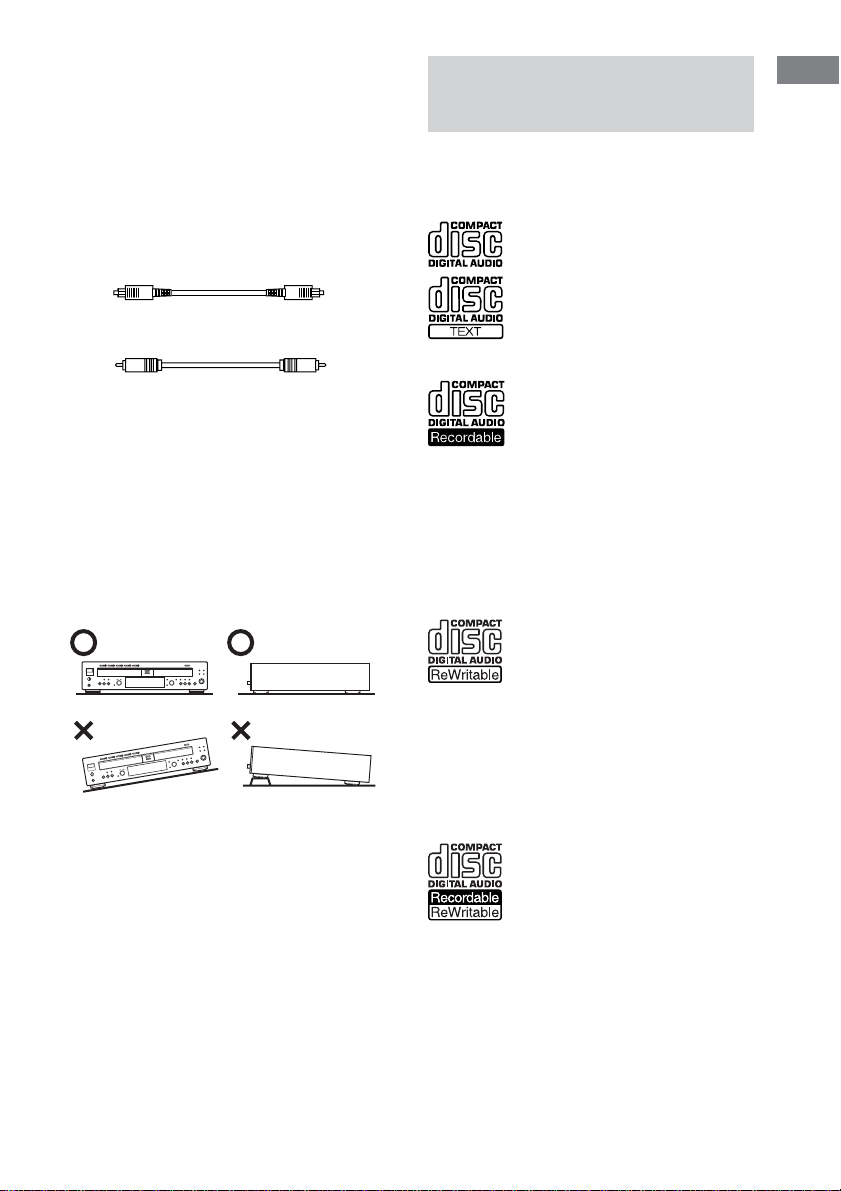
Connecting the unit to a
digital component
Connect a component such as digital amplifier,
CD player, DAT deck, or MD deck through
the DIGITAL OPTICAL IN/OUT jacks (S/
PDIF square type) or DIGITAL COAXIAL
IN/OUT jacks with a optical digital cord (not
supplied) or a coaxial digital cord (not
supplied). Plug in the cord.
Optical digital cord (not supplied)
Coaxial digital cord (not supplied)
8
Playing a CD
This unit has two decks.
In this manual, the CD player section is just
called DECK A, and the CD-R and CD-RW
recording section is called DECK B.
When using the remote, set DECK A/DECK B
to DECK A to operate DECK A (the CD player
section), or to DECK B to operate DECK B
(the CD-R or CD-RW recording section).
1 Turn on your amplifier and adjust the
volume to the minimum.
2 Set your amplifier’s input selector to
select this unit.
3 Press POWER.
Basic Operations
The unit plays
All discs in the unit consecutively
in the order of the disc number.
Only one disc you have selected.
4 Press OPEN/CLOSE (or one of the DISC
1-5 A buttons for DECK A) and place a
disc on the inner circle of DECK A (or
B). Press OPEN/CLOSE (or A) again to
close the disc tray.
5 For DECK A, press PLAY MODE
repeatedly to select the Continuous
play mode.
When you
select
ALL DISCS
1 DISC/
ALBUM
6 Press N (or H on the remote).
The unit starts playing. Adjust the volume on
the amplifier.
To
Stop playback
Pause playing
Select the disc
(for DECK A)
Go to the next disc
(for DECK A) Z
Go to the next
track
Go to the beginning
of the current track
or the preceding
track
Remove the disc
*AMS: Automatic Music Sensor
Do the following:
Press x.
Press X. Press the button again or
press
N (or H on the remote)
to resume playing.
Press one of the DISC 1-5 buttons.
Press DISC SKIP on the remote.
Turn AMS* clockwise while the
ALBUM SELECT indicator in the
display is turned off (or press >
on the remote ).
Turn AMS counterclockwise while
the ALBUM SELECT indicator in
the display is turned off (or press
. on the remote).
Press OPEN/CLOSE (or A),
whichever contains the disc you
want to remove after stopping play.
With the label side up
POWER
DISC 1-5 A
OPEN/CLOSE
AMS
N
AMS
N
PLAY MODE
xx
X
X
PLAY MODE
H
PLAY MODE
x
X
DECK A/DECK B
./>
DISC SKIP

9
Basic Operations
Playing a disc with MP3
files
About MP3 files
MP3 (MPEG 1 Audio Layer-3) is a standard
technology and format for compressing audio
data. The file is compressed to about 1/10 of its
original size. Sounds outside the range of
human hearing are compressed while the
sounds we can hear are not compressed.
Playback of some MP3 files may not be
possible, depending on the encoding.
The encoding method (i.e., the bit rate selected
for encoding) will affect the sound quality of
the MP3 files created. The bit rate typically
used for MP3 files is 128 kbps.
About ID3 tag
ID3 tag is the text information (track title, album
title, artist name, etc.) stored in the MP3 files.
Notes on discs
You can play MP3 files recorded on CD-ROMs, CD-
Rs (recordable CDs), and CD-RWs (rewritable CDs).
The disc must be in the ISO 9660*
1
level 1 or level 2
format, or Joliet or Romeo in the expansion format.
You can use a disc recorded in Multi Session*
2
.
*
1
ISO 9660 Format
The most common international standard for the logical
format of files and folders on a CD-ROM.
There are several specification levels. In Level 1, file
names must be in the 8.3 format (no more than eight
characters in the name, no more than three characters in
the extension “.MP3”) and in capital letters. Folder names
can be no longer than eight characters. There can be no
more than eight nested folder levels. Level 2
specifications allow file names up to 31 characters long.
For Joliet or Romeo in the expansion format, make sure
of the contents of the writing software, etc.
*
2
Multi Session
This is a recording method that enables adding of
data using the Track-At-Once method.
Conventional CDs begin at a CD control area called
the Lead-in and end at an area called Lead-out. A
Multi Session CD has multiple sessions, with each
Lead-in to Lead-out segment regarded as a single
session. CD-EXTRA: A format in which CD-DA
(audio) data are recorded in the tracks of session 1
and computer data in the tracks of session 2.
Mixed CD: A format in which computer data are
recorded in the first track and CD-DA (audio) data
in the following tracks within a session.
continued
Tips
• You can start playing from a specific track in step 6.
1 Turn AMS while the ALBUM SELECT indicator
in the display is turned off (or press ./> or
the number buttons on the remote) to select the
track you want to play (see “Using the Display”
on page 13 for details about the displayed
information).
2 Press N (or H on the remote).
• You can remove or load discs while playing the
other deck. Press OPEN/CLOSE (or A) of the deck
that is not currently playing to open that tray, and
remove or load a disc.
• The DISC 1-5 button indicator lights orange when
the disc is in the tray. The indicator lights to green
when the disc is selected.
• You can connect headphones to the PHONES jack
on the front panel. Turn the PHONE LEVEL
control to adjust the volume.
• You can replace any discs in the other disc trays
while playing a disc in DECK A. Press A of the
deck that is not currently playing to open that tray,
and remove or load a disc (Ex-Change function).
Notes
• You cannot play both decks simultaneously. If you
start playing a disc while playing a disc on another
deck, the playback of former deck stops.
• You can play unfinalized CD-Rs or CD-RWs only
in DECK B. For the detailed explanation about
finalizing, see “Finalizing a CD-R or CD-RW” on
page 30.
• Be sure to close the disc trays when the unit is not
in use to prevent dust and dirt from entering and
prevent damage to the disc tray.
• When you turn on the unit, you will hear some
mechanical noise from the unit. This is not a
malfunction.
• The play mode setting is canceled when you turn
the unit off.
10
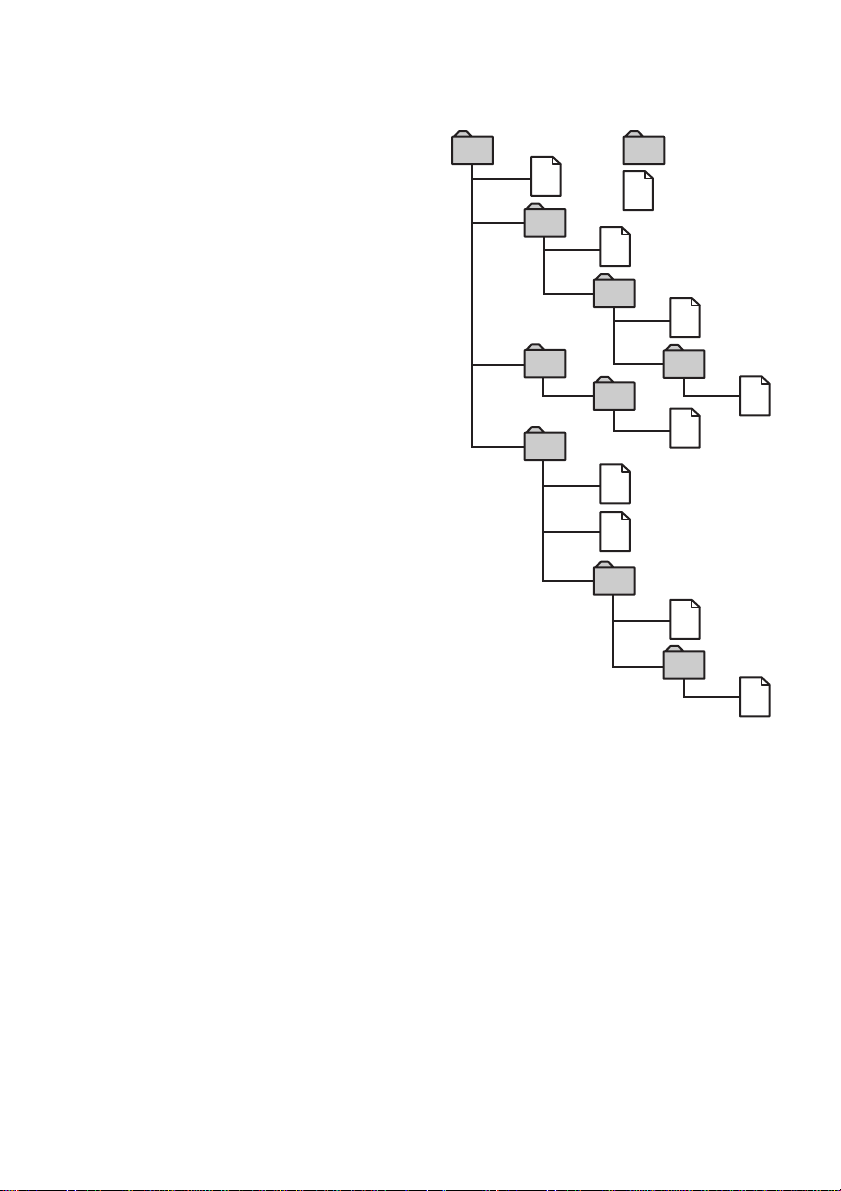
The playback order of the MP3 files
The playback order of the folders and files is as
follows:
Tree1 Tree2 Tree3 Tree4 Tree5
(root)
Notes
• This player cannot read the MP3 files if the file
name does not end with the extension “.MP3”.
• Folders that do not include MP3 files are skipped.
• When you insert a disc with many trees, it takes a
longer time to start playback. We recommend that
you make only one or two trees for each disc.
• Maximum total number of MP3 files and folders is
300, and maximum number of folders is 150
(including root folder and empty folders).
• If the maximum number of folders or MP3 files is
exceeded, the additional folders/MP3 files are not
recognized. For example, if you insert the disc with
151 folders, the player reads only 150 folders.
• This unit can play MP3 files in folders nested up to
8 layers deep in the folder tree.
1
2
6
3
5
7
1
2
6
7
4
8
3
5
8
4
9
Folder (album)
MP3 files (tracks)
Notes
• With formats other than ISO 9660 level 1, folder
names or file names may not be displayed correctly.
• When naming, be sure to add the file extension
“.MP3” to the file name.
• If you add the extension “.MP3” to a file other than
MP3, the unit cannot recognize the file properly and
will generate random noise that could damage your
speakers.
• The following discs take a longer time to start
playback.
–a disc recorded with a complicated tree structure.
–a disc recorded in Multi Session.
–a disc to which data can be added (non-finalized
disc).
Cautions when playing a disc that is
recorded in Multi Session
CD-DA (audio) data or MP3 files stored on a Multi
Session CD may be subject to some restrictions on
playback.
– If the disc begins with a CD-DA session, it is
recognized as a CD-DA (audio) disc, and MP3
playback is not possible.
– If the disc begins with an MP3 session, it is
recognized as an MP3 disc, and playback continues
until a CD-DA (audio) session is encountered.
When the unit recognizes CD-DA data, MP3
playback is not possible.
– The playback range of an MP3 disc is determined
by the tree structure of files produced by analyzing
of the disc.
–A disc with a mixed CD format will be recognized
as a CD-DA (audio) disc.
11
Basic Operations
Tip
To specify a desired playback order, before the folder
or file name, input the order by number (e.g., “01”,
“02”), then record contents onto a disc. (The order
differs depending on the writing software.)
Note on playback of MP3 files
Depending on the encoding/writing software,
recording device, or the recording media used at the
time an MP3 file is recorded, you may encounter such
problems as disabled playback, sound interruptions,
and noise.
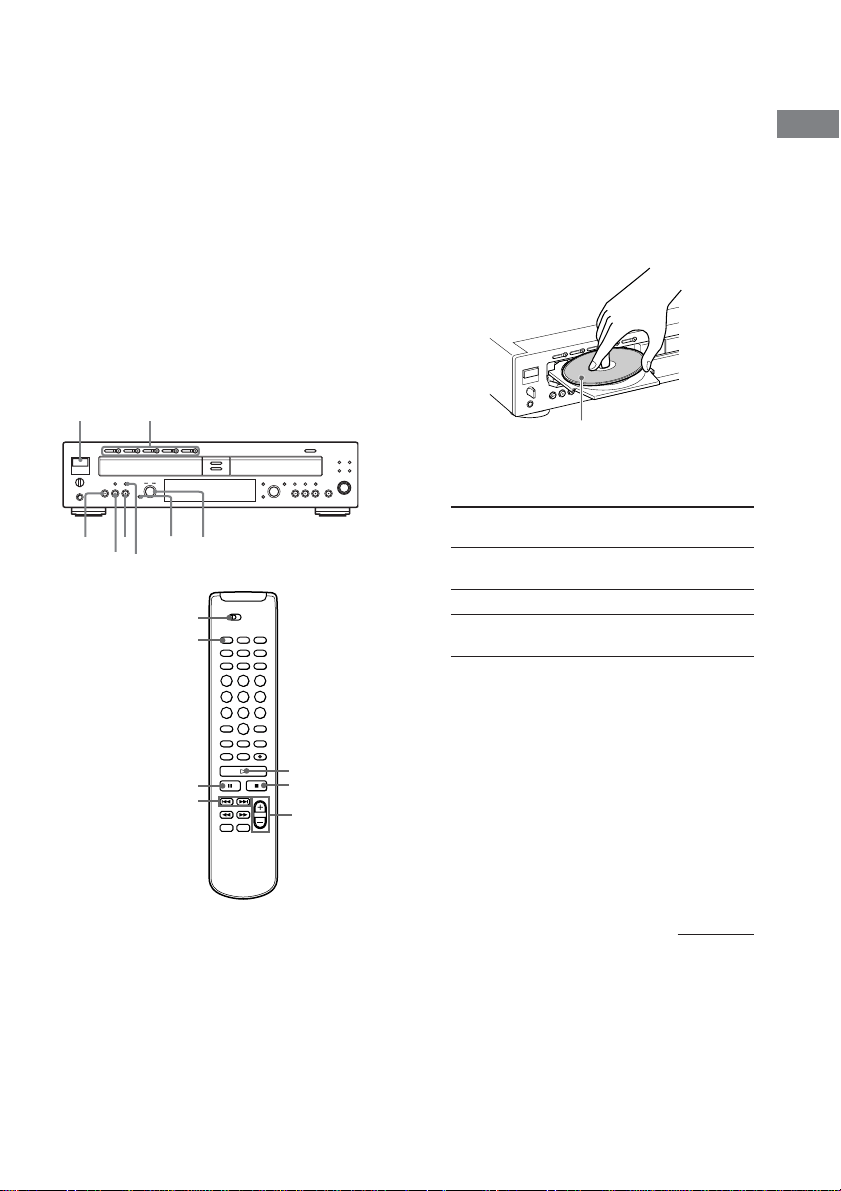
Playing a disc with MP3 files
(DECK A only)
This system lets you play discs with MP3 files.
When using the remote, set DECK A/DECK B
to DECK A.
With the label side up
1 Turn on your amplifier and adjust the
volume to the minimum.
2 Set your amplifier’s input selector to
select this unit.
3 Press POWER.
4 Press one of the DISC 1-5 A buttons
and place a disc with MP3 files. Press
A again to close the disc tray.
5 Press PLAY MODE repeatedly to select
the Continuous play mode.
When you
select
ALL DISCS
1 DISC
ALBUM*
* When a disc that contains no album is played
with “ALBUM” selected, the disc is played in
the same way as 1 DISC mode.
6 To select an album, press ALBUM until
the ALBUM SELECT indicator in the
display lights up, then turn AMS until
the album you want appears (or press
ALBUM +/– on the remote).
7 Press N (or H on the remote).
The unit starts playing. Adjust the volume on
the amplifier.
The unit plays
All discs in the unit consecutively
in the order of the disc number.
Only one disc you have selected.
All MP3 files in the selected album
on the selected disc.
continued
ALBUM +/–
DECK A/DECK B
H
PLAY MODE
./>
x
X
AMS
POWER
N
DISC 1-5 A
PLAY MODE
x
X
ALBUM

12
Tips
• The function of AMS control changes according to
the ALBUM SELECT indicator in the display. When
the indicator is off, the AMS control selects tracks.
When the indicator lights up, the AMS control
selects albums. Press ALBUM to turn the ALBUM
SELECT indicator on or off.
• You can start playing from a specific track in step 7.
1 Turn AMS while the ALBUM SELECT indicator
in the display is turned off (or press ./> or
the number buttons on the remote) to select the
track you want to play (see “Using the Display”
on page 13 for details about the displayed
information).
2 Press N (or H on the remote).
• You can remove or load discs while playing the
other deck. Press A of the deck that is not currently
playing to open that tray, and remove or load a disc.
• The DISC 1-5 button indicator lights orange when
the disc is in the tray. The indicator lights to green
when the disc is selected.
• You can connect a headphone to the PHONES jack
on the front panel. Turn the PHONE LEVEL
control to adjust the volume.
• You can replace any discs in the other disc trays
while playing a disc in DECK A. Press A of the
deck that is not currently playing to open that tray,
and remove or load a disc (Ex-Change function).
Notes
• You can play unfinalized CD-Rs or CD-RWs only
in DECK B. For the detailed explanation about
finalizing, see “Finalizing a CD-R or CD-RW” on
page 30.
• Be sure to close the disc trays when the unit is not
in use to prevent dust and dirt from entering and
prevent damage to the disc tray.
• When you turn on the unit, you will hear some
mechanical noise from the unit. This is not a
malfunction.
• You may not be able to play certain MP3 files.
• When the MP3 file contains ID3 ver.2 tag, it may
take some time to start playback depending on the
size of the ID3 ver.2 tag. “0:00” appears while the
unit is reading ID3 ver.2 tag.
To
Stop playback
Pause playing
Select the disc
(for DECK A)
Go to the next disc
(for DECK A) Z
Go to the next
track
Go to the beginning
of the current track
or the preceding
track
Go to the next album
Go back to the
preceding album
Remove the disc
* AMS: Automatic Music Sensor
Do the following:
Press x.
Press X. Press the button again or
press N (or H on the remote) to
resume playing.
Press one of the DISC 1-5 buttons.
Press DISC SKIP on the remote.
Turn AMS* clockwise while the
ALBUM SELECT indicator in the
display is turned off (or press >
on the remote ).
Turn AMS counterclockwise while
the ALBUM SELECT indicator in
the display is turned off (or press
. on the remote).
Turn AMS clockwise while the
ALBUM SELECT indicator in the
display is turned on (or press
ALBUM + on the remote).
Turn AMS counterclockwise while
the ALBUM SELECT indicator in
the display is turned on (or press
ALBUM – on the remote).
Press A whichever contains the
disc you want to remove after
stopping play.
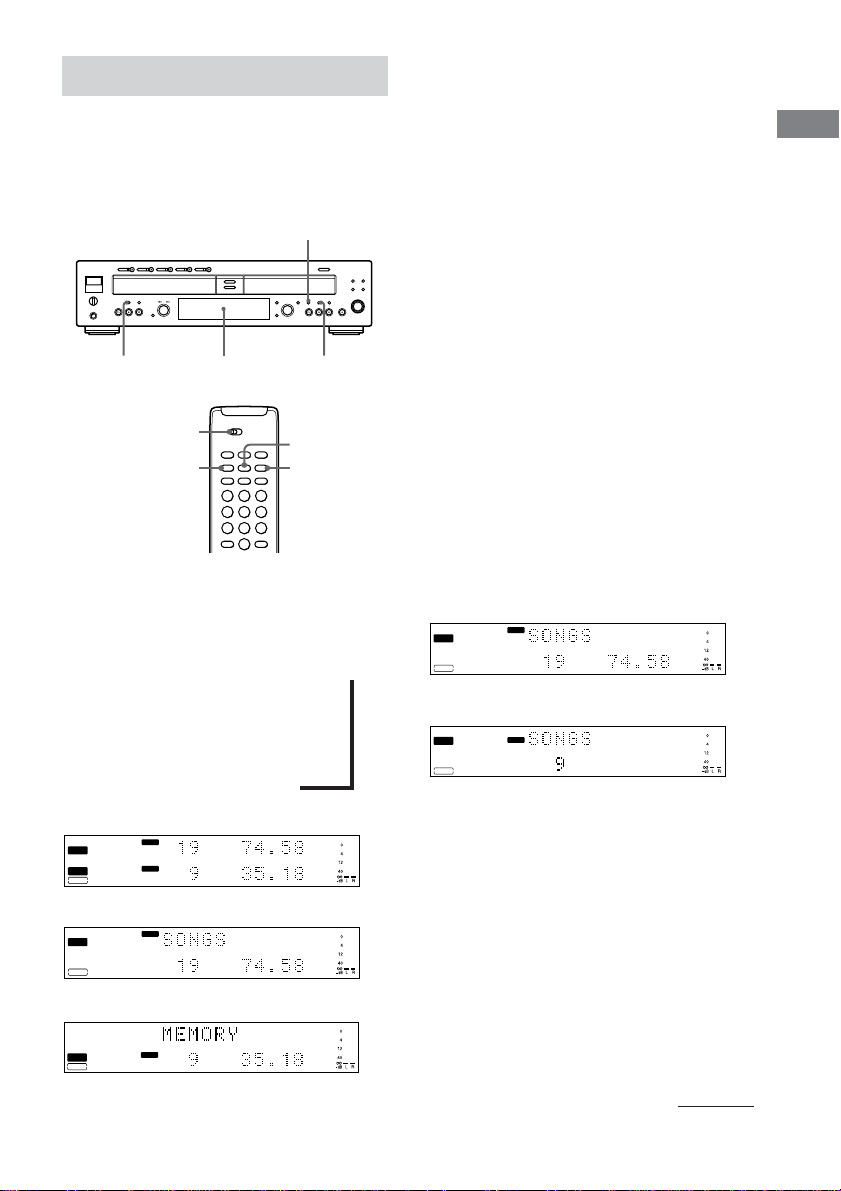
13
Basic Operations
Using the Display
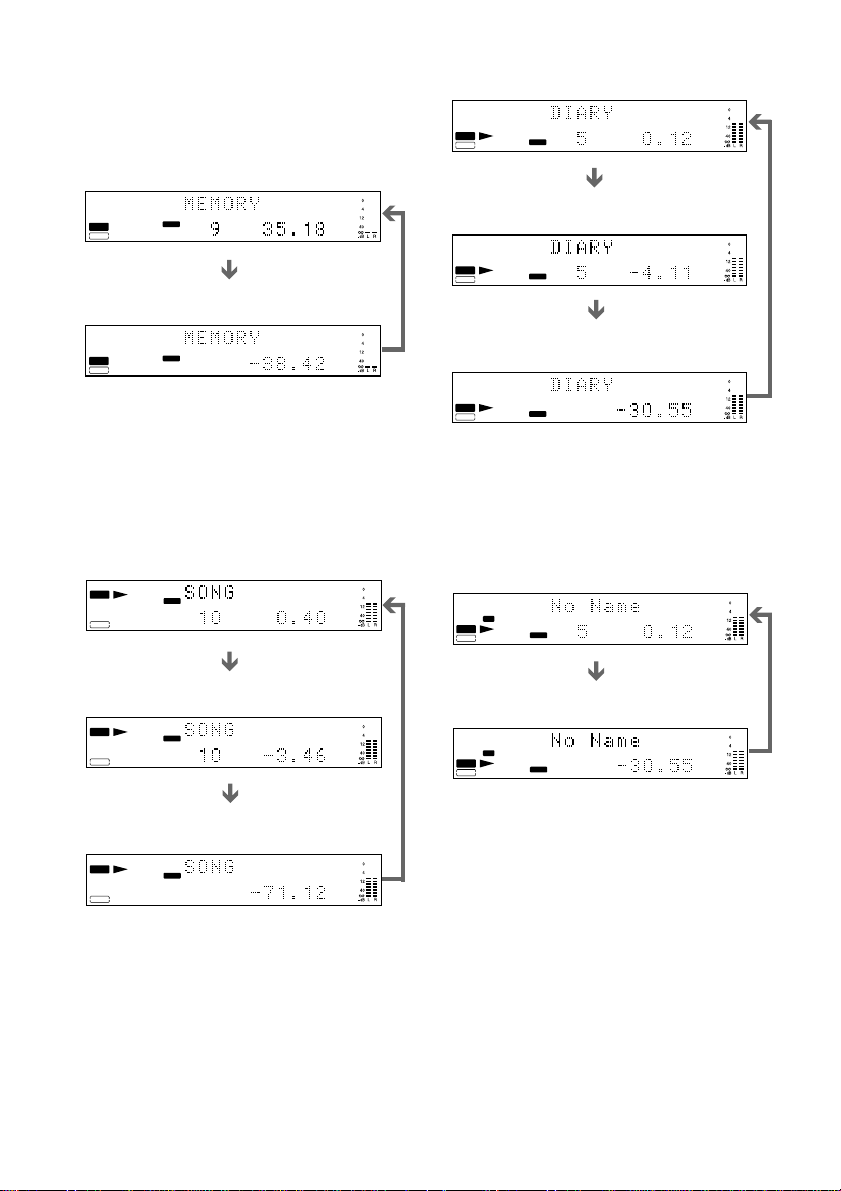
You can check information about the disc using
the front panel display.
When using the remote, set DECK A/DECK B
to DECK A to operate DECK A, or to DECK B
to operate DECK B.
Changing the display
Press DISPLAY while the unit is stopped or
playing. Each time you press the button, you
can change the display as follows:
DECK A/DECK B divided display <
m
Detailed display for DECK A
m
Detailed display for DECK B
Tips
• When either of the detailed displays are selected,
the disc, track, and album titles are displayed as
follows:
– The disc or album title appears whenever the unit
is stopped.
– The title of the current track appears when a track
is playing.
To label a disc and its tracks, see “Labeling Tracks/
Discs” on page 33.
• You can scroll disc or track titles that do not fit
entirely into the display. Z
Press SCROLL on the remote to see the rest of the
title. Press SCROLL again to pause scrolling, and
again to continue scrolling.
• When you put a CD containing a CD text in the disc
tray, “CD TEXT” lights up in the display.
Note
For MP3 files, some characters cannot be displayed.
These characters are displayed as a space or the
system’s original character.
Display while the unit is
stopped
The information appears as follows:
DECK A
When you place a CD/CD-R/CD-RW:
When you place a disc with MP3 files:
Tip
The disc title and total number of albums are
displayed just after the unit reads TOC information of
MP3 files.
Notes
• The total playing time is not displayed for MP3
files.
• The ID3 tag is not displayed for MP3 files.
• Maximum total number of MP3 files and folders is
300, and maximum number of folders is 150
(including root folders and empty folders). If the
maximum number of folders or MP3 files is
exceeded, the additional folders/MP3 files are not
recognized.
CD
TOC
TEXT
CD TEXT
CD
-
RW
DECK A
REC
DISC
ALBUM
TRACK
DECK B
DISC
TRACK
CD
TOC
TEXT
CD TEXT
CD
-
RW
DECK A
REC
DISC
ALBUM
TRACK
DECK B
DISC
TRACK
CD
TOC
TEXT
CD TEXT
CD
-
RW
DECK A
REC
DISC
ALBUM
TRACK
DECK B
DISC
TRACK
DECK A/DECK B divided display
Detailed display for DECK A
Detailed display for DECK B
CD
TOC
TEXT
CD TEXT
CD
-
RW
DECK A
REC
DISC
ALBUM
TRACK
DECK B
DISC
TRACK
The total track number and total playing time
DECK A/DECK B
DISPLAY
SCROLL
TIME
TOC
CD TEXT
CD
-
RW
MP3
DECK A
REC
DISC
ALBUM
TRACK
DECK B
DISC
TRACK
The total number of MP3 files in the album
continued
DISPLAY
TIME
TIME
Front Panel Display
14
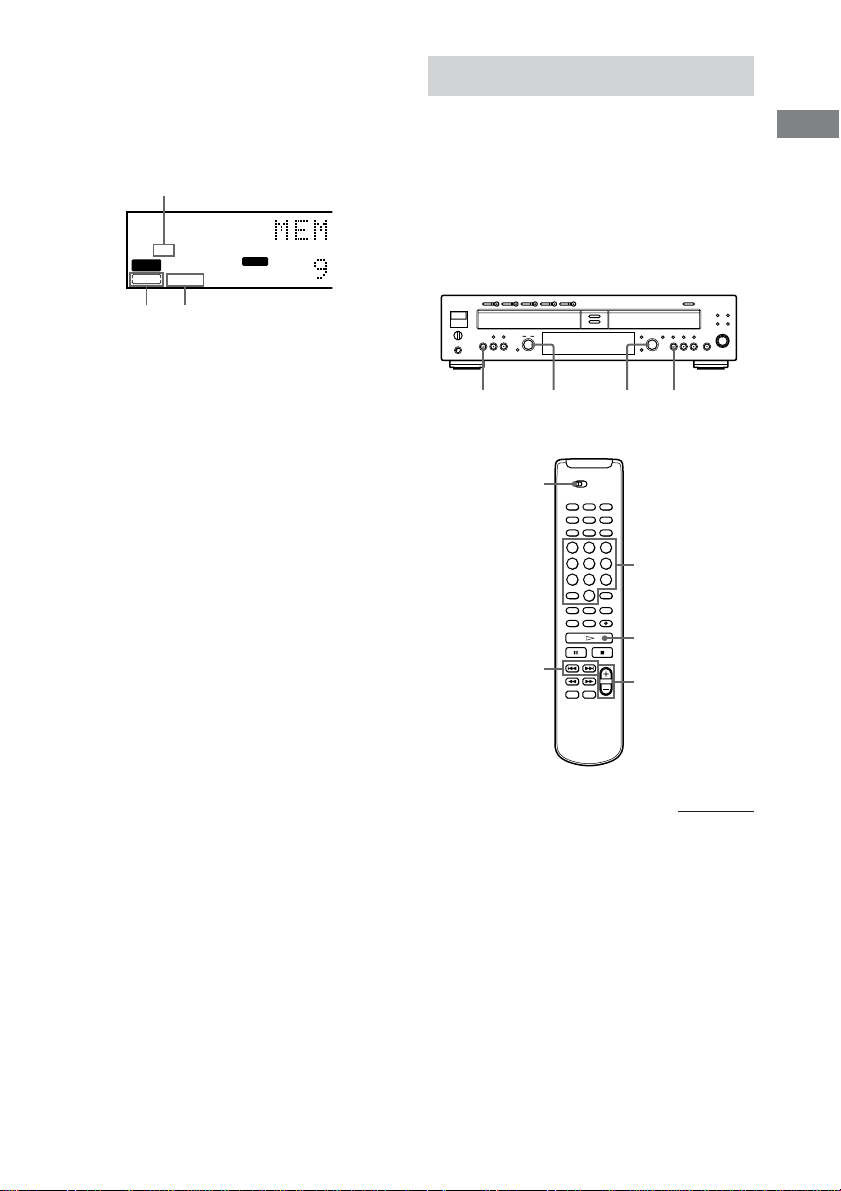
Display while recording
Press TIME repeatedly while recording. Each
time you press the button, the display for
DECK B changes as follows:
CD
TOC
TEXT
CD TEXT
CD
-
RW
DECK A
REC
DISC
ALBUM
TRACK
DECK B
DISC
TRACK
CD
TOC
TEXT
CD TEXT
CD
-
RW
DECK A
REC
DISC
TRACK
TRACK
DECK B
DISC
TRACK
The total remaining time of the CD-R or CD-RW
The track number and recording time of the
track currently being recorded
Display while playing
Press TIME repeatedly while the unit is
playing. Each time you press the button, the
display for any deck that has a disc inside
changes as follows:
DECK A
Tips
• When displaying track titles for MP3 files, this
player gives preference to file information in the
following order: ID3 ver.1 tag, ID3 ver.2 tag, MP3
file name. However, the information is not
displayed in this way depending on the disc.
• When the ID3 tag is displayed for MP3 files, “ID3”
lights up. The ID3 tag is consisted of the track title,
album title, and artist name.
Notes
•
The remaining time does not appear for MP3 files.
• The level meter does not appear when playing MP3 files.
CD
TOC
TEXT
CD TEXT
CD
-
RW
DECK A
REC
DISC
ALBUM
TRACK
DECK B
DISC
TRACK
CD
TOC
TEXT
CD TEXT
CD
-
RW
DECK A
REC
DECK B
DISC
TRACK
CD
TOC
TEXT
CD TEXT
CD
-
RW
DECK A
REC
DECK B
DISC
TRACK
DISC
ALBUM
TRACK
DISC
ALBUM
TRACK
The track number and playing time
The total remaining time of the disc (in Continuous
play mode)
The track number and remaining time of the
track currently being played
CD
TOC
TEXT
CD TEXT
CD
-
RW
DECK A
REC
DISC
ALBUM
TRACK
DECK B
DISC
TRACK
CD
TOC
TEXT
CD TEXT
CD
-
RW
DECK A
REC
DISC
ALBUM
TRACK
DECK B
DISC
TRACK
CD
TOC
TEXT
CD TEXT
CD
-
RW
DECK A
REC
DISC
ALBUM
TRACK
DECK B
DISC
TRACK
The track number and playing time
The track number and remaining time of the
track currently being played
The total remaining time of the disc (in Continuous
play mode)
DECK B
When you placed an unfinalized CD-R or CD-
RW in DECK B, you can also check the
remaining recordable time by pressing TIME.
The information appears as follows:
DECK B
CD
TOC
TEXT
CD TEXT
CD
-
RW
DECK A
REC
DISC
ALBUM
TRACK
DECK B
DISC
TRACK
CD
TOC
TEXT
CD TEXT
CD
-
RW
DECK A
REC
DISC
ALBUM
TRACK
DECK B
DISC
TRACK
The total track number and total playing time
The remaining recordable time of the disc (only
the unfinalized CD-R or CD-RW)
15
Basic Operations
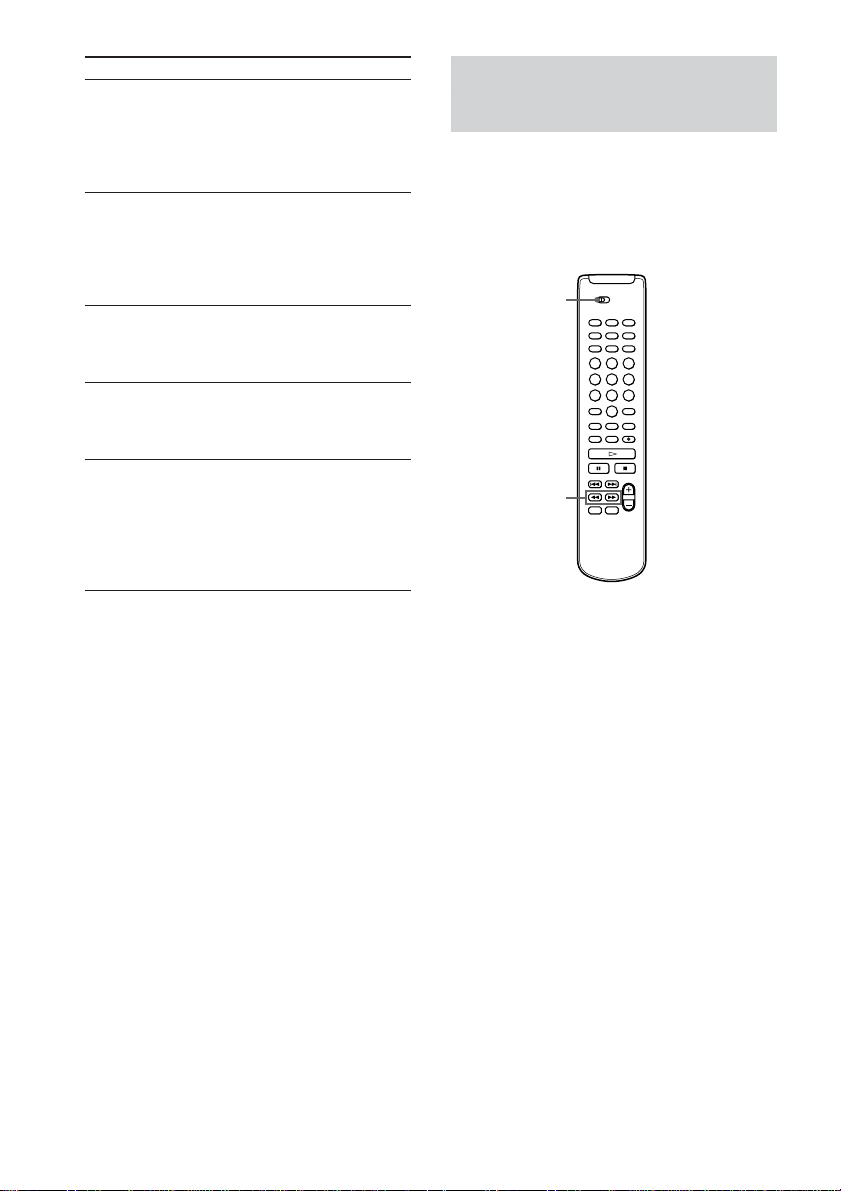
Display for disc information
of DECK B
The indicators show which type of recordable
disc is in the disc tray, and whether the
recordable disc has been already finalized.
The CD/CD-R/RW indicator
When you put a CD or finalized CD-R in the
disc tray, “CD” lights up.
When you put an unfinalized CD-R in the disc
tray, “CD-R” lights up.
When you put a CD-RW disc in the disc tray,
“CD-RW” lights up.
The TOC indicator
When you put an unfinalized CD-R or CD-RW
in the disc tray, “TOC” lights up.
For details on finalizing, refer to page 30, and
page 31 for unfinalizing.
The CD TEXT indicator
When you put a CD containing a CD text in the
disc tray, “CD TEXT” lights up.
When “CD TEXT” is framed in red in the
display of DECK B, CD TEXT information is
not recorded. In this case, finalize the disc to
record the information.
If you remove the disc or turn off the power
before finalizing, CD TEXT information is
erased.
If you try to open the disc tray before
finalizing, “TEXT Edited” appears. You can
open the disc tray if you press OPEN/CLOSE
while the message is displayed.
Locating a Specific Track
You can quickly locate any track while playing
a disc by using the AMS (Automatic Music
Sensor) dial on the deck, . and >
buttons on the remote, or number buttons on
the remote.
When using the remote, set DECK A/DECK B
to DECK A to operate DECK A, or to DECK B
to operate DECK B.
Number buttons/
>10
DECK A/DECK B
ALBUM +/–
./>
H
continued
CD
TOC
TEXT
CD TEXT
CD
-
RW
DECK A
REC
DISC
ALBUM
TRACK
DECK B
DISC
TRACK
TOC indicator
CD TEXT
indicator
CD/CD-R/RW
indicator
AMSAMS
NN
16
Locating a Particular
Point in a Track Z
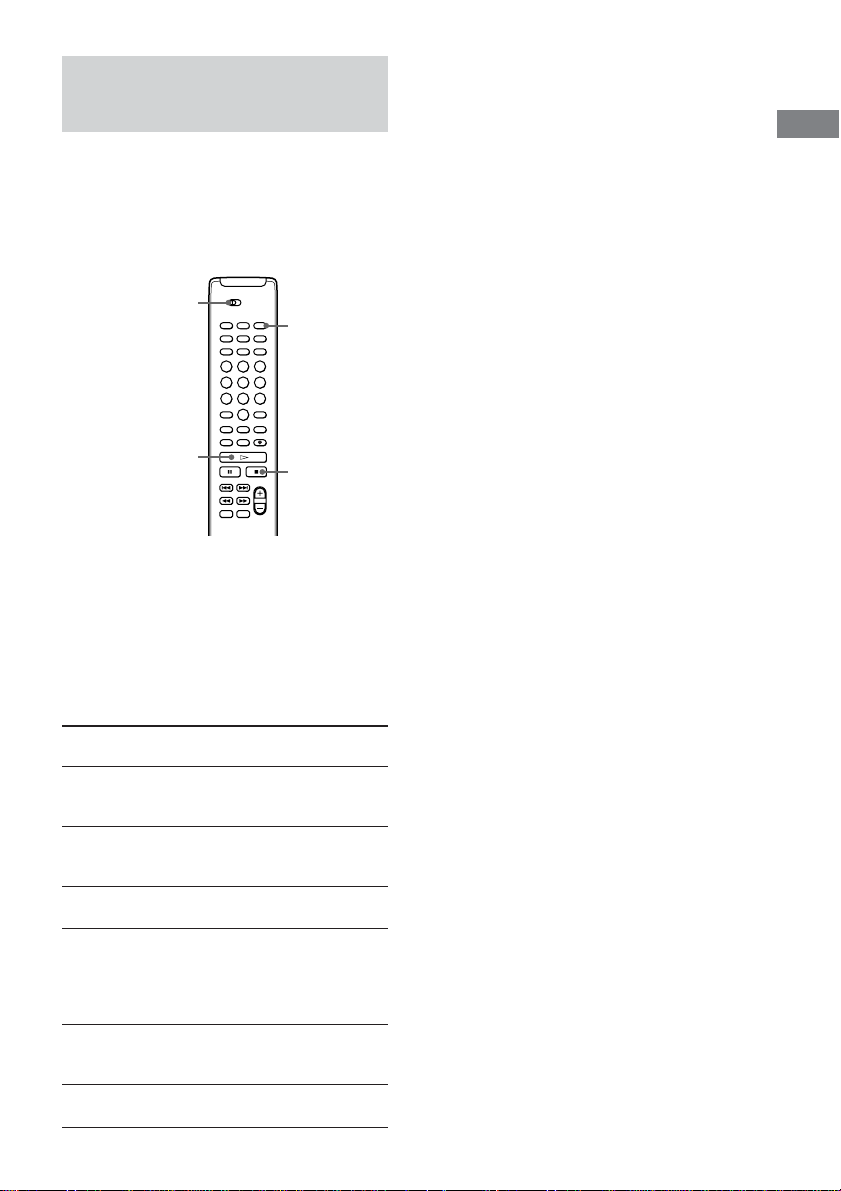
You can locate a particular point in a track
during playback or playback pause.
When using the remote, set DECK A/DECK B
to DECK A to operate DECK A, or to DECK B
to operate DECK B.
During playback or pause, press and hold m /
M on the remote.
The intermittent sound is heard. (No sound is
heard during pause.) Release the button when
you find the point you want to hear.
Tip
“-Over-” appears if the disc reaches the end. Turn
AMS counterclockwise (or press . or m on the
remote).
Note
Tracks that are only a few seconds long may be too
short to scan using the search function. For such
tracks, it is better to play the disc at normal speed.
m/M
DECK A/DECK B
To locate
The next or
succeeding
tracks
The beginning
of the current or
preceding tracks
The next or
succeeding
album
The beginning
of the preceding
album
A specific track
number or track
name directly
Tip
To pause playing at the beginning of a track, turn
AMS while the ALBUM SELECT indicator in the
display is turned off (or press ./> on the
remote) after pausing playback.
Playing directly using the
number buttons Z
You can playback a track directly by using the
number buttons. Press the track number you
want to play. When you select a track number
over 10, press >10 first, then the corresponding
number buttons.
Example:
To enter number 15, press >10, then 1 and 5.
Do the following:
During playback, turn AMS
clockwise while the ALBUM
SELECT indicator in the display is
turned off (or press > on the
remote repeatedly) until you find the
track.
During playback, turn AMS
counterclockwise while the
ALBUM SELECT indicator in the
display is turned off (or press .
on the remote repeatedly) until you
find the track.
Turn AMS clockwise while the
ALBUM SELECT indicator in the
display is turned on (or press ALBUM
+ on the remote).
Turn AMS counterclockwise while the
ALBUM SELECT indicator in the
display is turned on (or press ALBUM
– on the remote).
In stop mode, turn AMS while the
ALBUM SELECT indicator in the
display is turned off (or press ./
> on the remote repeatedly) until
you find the track number or track
name, and press N (or H on the
remote).
17
Basic Operations
Playing Tracks/Discs
Repeatedly (Repeat Play) Z
You can play tracks repeatedly in any play
mode.
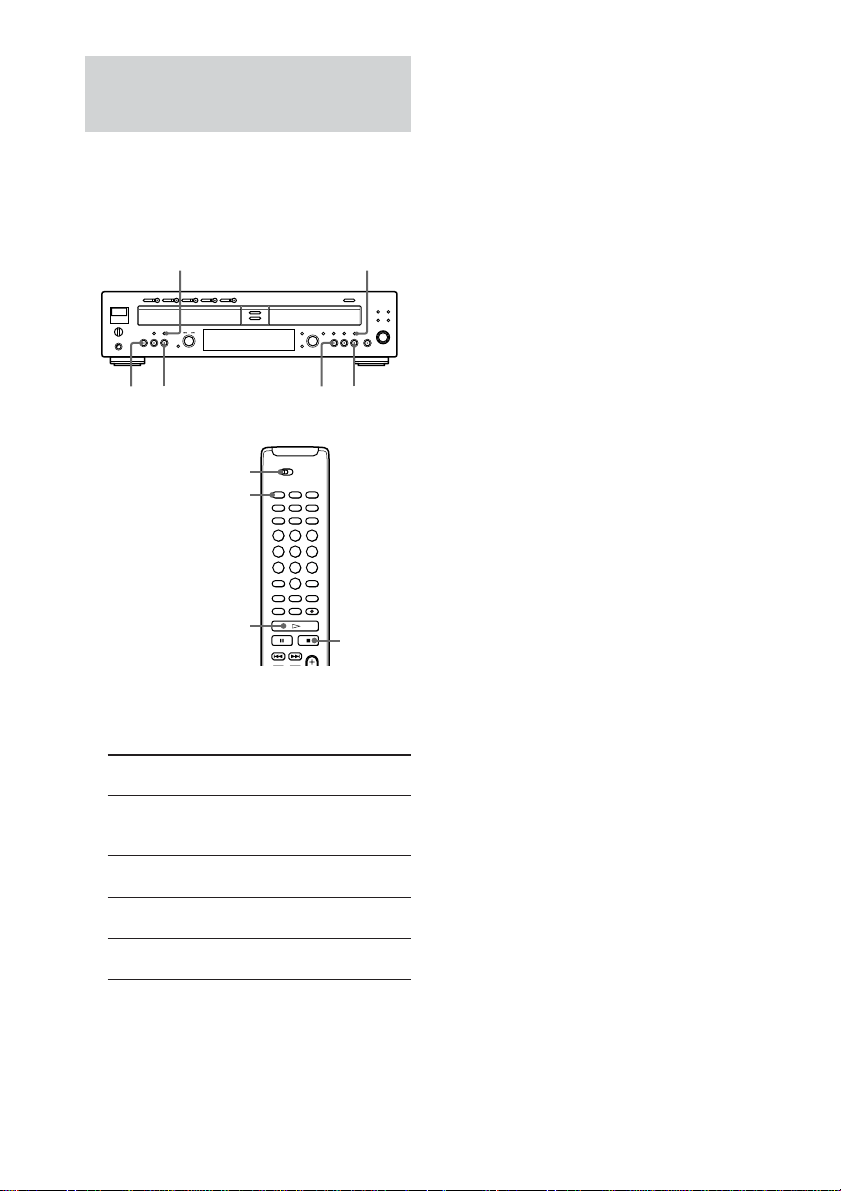
When using the remote, set DECK A/DECK B
to DECK A to operate DECK A, or to DECK B
to operate DECK B.
Repeating all tracks on the
disc
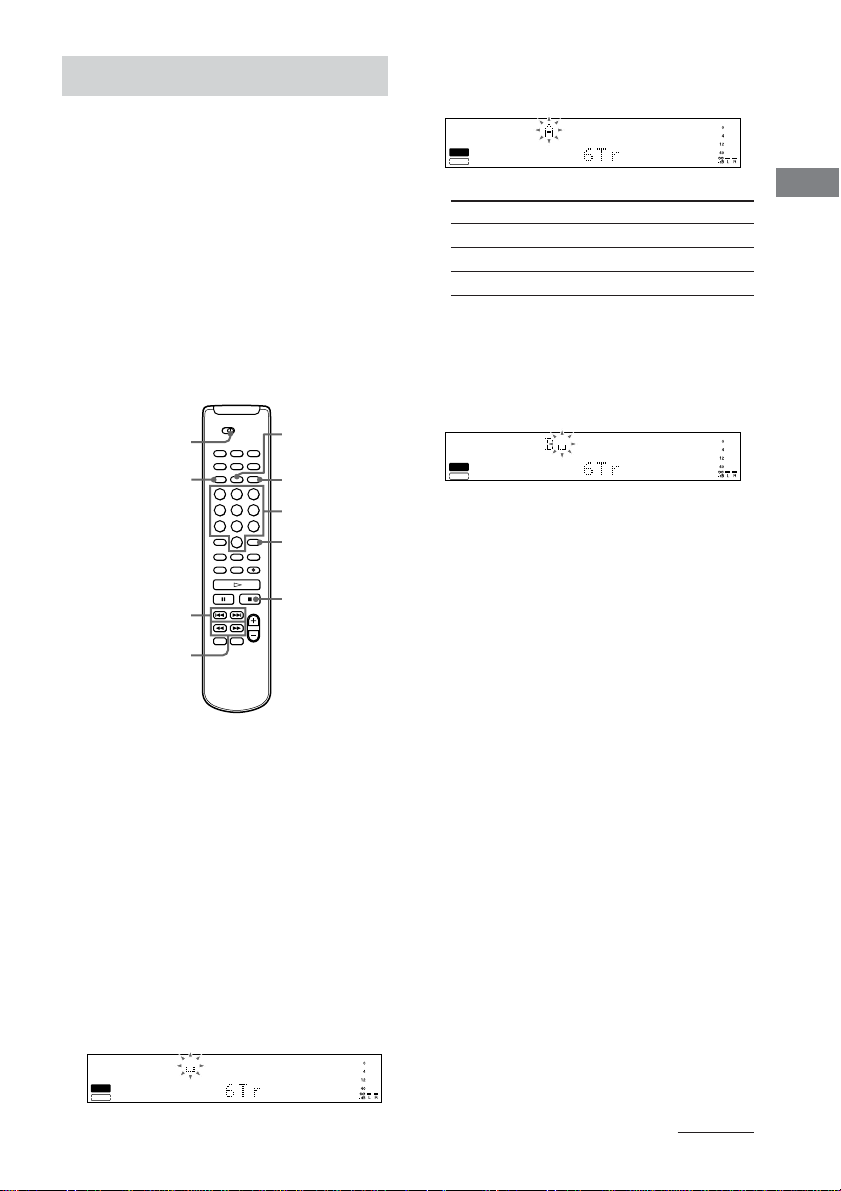
Press REPEAT repeatedly until “REP” lights
up in the display, and then press H.
The unit repeats the discs/tracks/MP3 files as
follows:
When the disc
is played in
ALL DISCS
Continuous play
(pages 8, 11)
1 DISC
Continuous play
(pages 8, 11)
ALBUM
(page 11)
1 DISC SHUF
(for DECK A)/
SHUF
(for DECK B)
(page 18)
ALBUM SHUF
(for DECK A)
(page 18)
Program Play
(page 19)
The deck repeats
All tracks on all discs.
All tracks on the current disc.
All MP3 files of the current album.
All tracks on the current disc in
random order.
All MP3 files of the current album in
random order.
All the same program.
Repeating only the current
track
While the track you want to repeat is being
played, press REPEAT repeatedly until
“REP1” lights up.
To stop Repeat Play
Press x.
To cancel Repeat Play
Press REPEAT repeatedly until “REP” and
“REP1” goes off.
Notes
• When the unit has repeated tracks in the same play
mode five times, playback stops.
• You cannot select “REP” when “ALL DISCS
SHUF” (page 18) is selected.
• The Repeat Play mode is canceled when you turn
the unit off.
DECK A/DECK B
H
x
REPEAT
18
Playing in Random Order
(Shuffle Play)
You can have the unit “shuffle” tracks and play
them in random order.
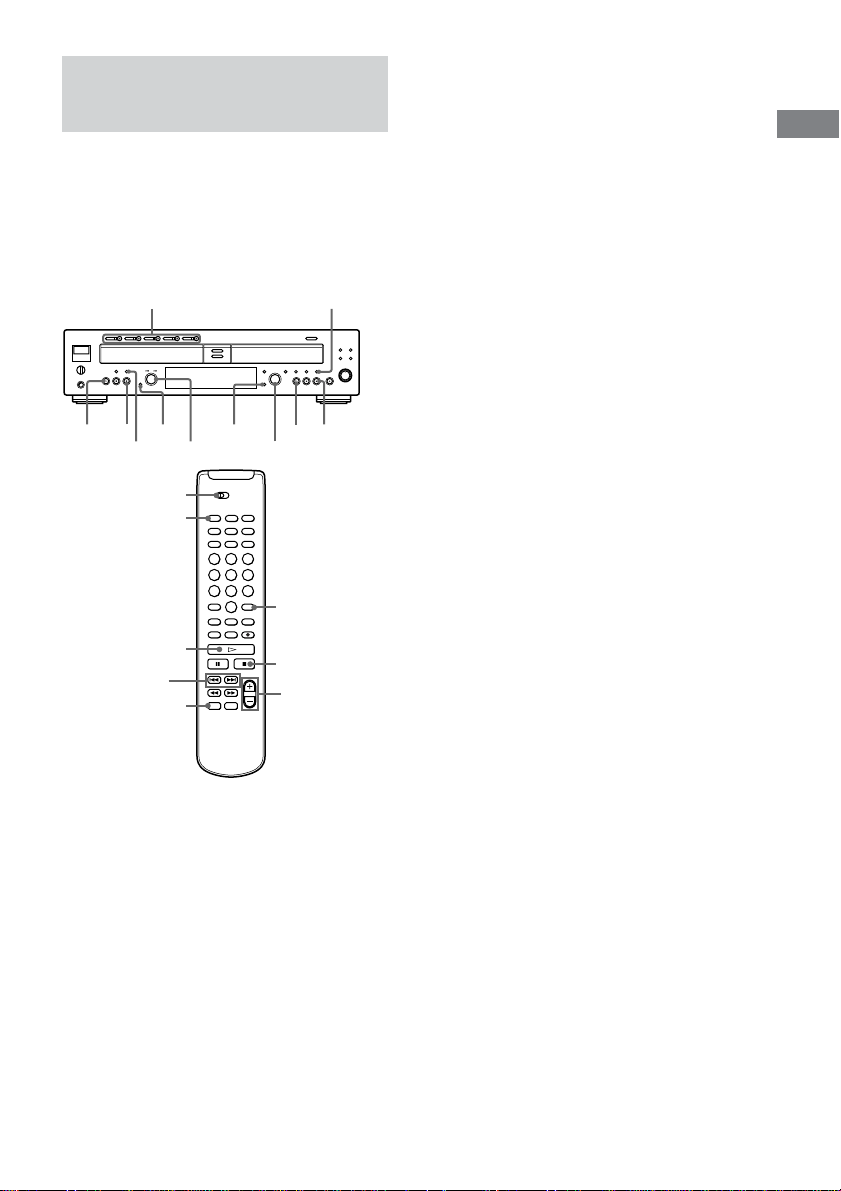
When using the remote, set DECK A/DECK B
to DECK A to operate DECK A, or to DECK B
to operate DECK B.
1 While the unit is stopped, press PLAY
MODE repeatedly to select the Shuffle
Play mode as follows:
When you
select
ALL DISCS
SHUF (for
DECK A)
1 DISC SHUF
(for DECK A)
SHUF (for
DECK B)
ALBUM SHUF
(for DECK A)
2 Press N (or H on the remote).
“;” appears in the display while the unit is
“shuffling” the tracks, and the track is
played.
To stop Shuffle Play
Press x.
To cancel Shuffle Play
While the unit is stopped, press PLAY MODE
until “SHUF” goes off.
Tip
To play from the beginning of the current track again,
turn AMS counterclockwise while the ALBUM
SELECT indicator is turned off (or press .on the
remote). You cannot go back to tracks that have
already been played.
Notes
• If “ALL DISCS SHUF” is selected in the “REP”
setting, “REP” is cancelled (for DECK A).
• You cannot change the PLAY MODE during
playback.
• You can use “ALBUM SHUF” only for discs with
MP3 files.
• The play mode setting is canceled when you turn
the unit off.
The unit plays
All tracks on all discs in random
order.
All tracks on the current disc in
random order.
All tracks on the disc in random
order.
All MP3 files of the current
album in random order.
DECK A/DECK B
PLAY MODE
H
x
PLAY MODE PLAY MODE
NN
xx
19
Basic Operations
Creating Your Own
Program (Program Play)
You can specify the playback order of the
tracks and MP3 files on a disc to create your
own programs containing up to 25 steps.
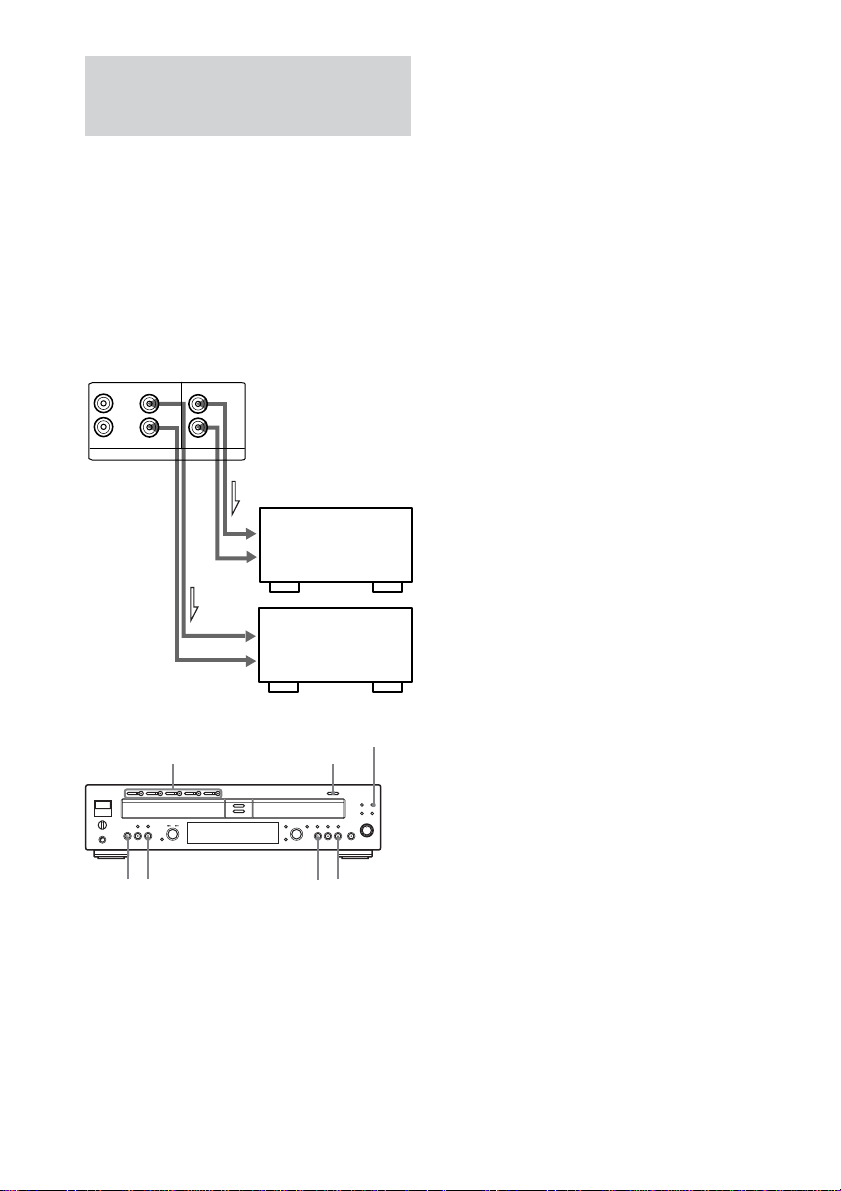
When using the remote, set DECK A/DECK B
to DECK A to operate DECK A, or to DECK B
to operate DECK B.
1 While the unit is stopped, press PLAY
MODE repeatedly until “PGM” lights up
in the display.
2 For DECK A, press one of the DISC 1-5
buttons (or DISC SKIP on the remote)
to select the desired disc number.
3 Turn AMS (or press ./> on the
remote) to select the desired track
number, then press AMS (or PLAY
MODE).
To program MP3 files, press ALBUM until
ALBUM SELECT indicator in the display
lights up, then turn AMS (or press ALBUM
+/– on the remote) to select the desired
album title.
Press ALBUM until ALBUM SELECT
indicator in the display turns off, turn AMS
(or press ./> on the remote) to select
the desired track number, then press AMS
(or PLAY MODE).
4 To program additional tracks, repeat
step 3 (steps 2 to 3 for DECK A).
5 Press N (or H on the remote) to start
Program Play.
The unit starts playing tracks in the
programmed order.
To program all tracks on the
selected disc or album (DECK A
only)
After displaying the first track number in step
3, turn AMS counterclockwise (or press .
on the remote) to select “AL” instead of a track
number. (You cannot program all tracks on the
disc for MP3 files.)
To stop Program Play
Press x.
To cancel Program Play
While the unit is stopped, press PLAY MODE
repeatedly until “PGM” goes off.
To erase the last programmed track
While the unit is stopped, press CLEAR. (Press
CLEAR on the remote for DECK A.) Each
time you press the button, the last programmed
track is erased.
Tips
• You can also select the track number using the
number buttons on the remote in step 3 above.
• The program remains even after Program Play ends.
When you press N (or H on the remote), you can
play the same program again.
• To check the total number of the programmed
tracks, press TIME while the unit is stopped.
Notes
• You cannot create a program containing tracks from
both DECK A and DECK B.
• “Step Full!” appears in the display when you
program over 25 steps. Erase the unnecessary tracks
to enter other tracks.
• The program is erased when you turn the unit off.
• If the total time of the program exceeds 99 minutes
59 seconds, “--.--” appears in the display.
• You cannot change the PLAY MODE during
playback.
• If you program an MP3 track, “--.--” appears in the
display. (The total playing time does not appear for
MP3 files.)
AMS
PLAY MODE
AMSPLAY MODE
xxN
N
CLEARALBUM
PLAY MODE
CLEAR
DISC SKIP
x
./>
H
DECK A/DECK B
ALBUM +/–
DISC 1-5 A
20
Playing Both Deck
Simultaneously (Dual Play)
If you have 2 amplifiers in different locations
in your house, you can connect the unit to each
amplifier and play two discs simultaneously on
both DECK A and DECK B.
The sound of DECK A is output from OUT 1
jacks and the sound of DECK B is output from
OUT 2 jacks.
When using the remote, set DECK A/DECK B
to DECK A to operate DECK A, or to DECK B
to operate DECK B.
1 Connect the unit to 2 amplifiers.
2 Press OPEN/CLOSE (or one of the DISC
1-5 A buttons for DECK A) and place
the discs you want to play on the inner
circle of DECK A and DECK B. Press
OPEN/CLOSE (or A) of the decks again
to close the disc trays.
ll
ll
l: Signal flow
RCD-W2000ES
R
L
OUT 1
IN
ANALOG
OUT 2
Amplifier
Amplifier
R
L
R
L
3 While the unit is stopped, press DUAL
MODE.
“DUAL” indicator lights up in the display.
4 Press N (or H on the remote).
The unit starts playing. Adjust the volume
on the amplifier.
To stop Dual Play
Press x.
Notes
• The front panel display will show you the sound
level of the deck (A or B) you operated last. If you
want to see the other deck’s sound level, press N
(or H on the remote) of the other deck during
playback. In this case, the headphones output will
be also changed to the deck you selected.
• When the DUAL MODE is set to off, the sound of
the deck (A or B) currently playing is output to both
OUT 1 and OUT 2 jacks.
Tip
As well as the analog connections illustrated in the
left column, you can also enjoy the Dual Play
function when you connect the unit to amplifiers
using the OPTICAL DIGITAL OUT or DIGITAL
COAXIAL OUT connections of the unit.
xxN
N
DISC 1-5 A
DUAL MODE
OPEN/CLOSE

Recording/Editing
21
Recording/Editing
Before Recording
About recordable discs
•A recordable disc is an audio CD-R or Audio CD-
RW with the following logo.
• Audio CD-Rs are recordable only one time. Audio
CD-RWs are recordable for multiple times. See
page 7 for details.
About finalization
• Finalization is a final editing process that allows
recorded CD-Rs and CD-RWs to be played in other
players.
• Once a CD-R has been finalized, the recorded
material cannot be changed. The recorded material
on a CD-RW can be altered even after finalizing it.
See page 30 for details.
• Unfinalized discs can only be played back on
DECK B of this unit. See page 7 for details.
About the Serial Copy Management
System
• The Serial Copy Management System allows you to
make only a single copy of a digitally recorded
source. This unit conforms to the Serial Copy
Management System.
• You cannot perform a digital recording from a
digitally recorded CD-R or CD-RW. In this case,
make analog recording.
About recording MP3 files
• MP3 files are converted to audio CD format before
being recorded to the disc. Thus the amount of data
may increase too much to record on a single disc.
• As this unit recognizes the copyright information
for MP3 files, there are following restrictions.
– You can perform only Normal speed Synchro-
Recording. You cannot make a manual recording.
– The digital data is converted to analog data, then
recorded. You cannot make direct digital
recordings.
– You cannot adjust the recording level.
• The minimum length of CD-DA is 4 seconds.
Therefore, the number of tracks made by the
Synchro-Recording may differ from the original
disc.
• When recording from DECK A to DECK B, the
play and record times shown in the display may be
different. This does not affect the recording.
• The maximum number of tracks is 99 due to the
system limitations of CD format.
Automatic conversion of digital
sampling rates
A built-in sampling rate converter automatically
converts the sampling frequency of various digital
sources to the 44.1 kHz sampling rate. This allows
you to monitor and record sources such as 32 kHz or
48 kHz DAT tape or satellite broadcasts.
continued
22
Types of Recording
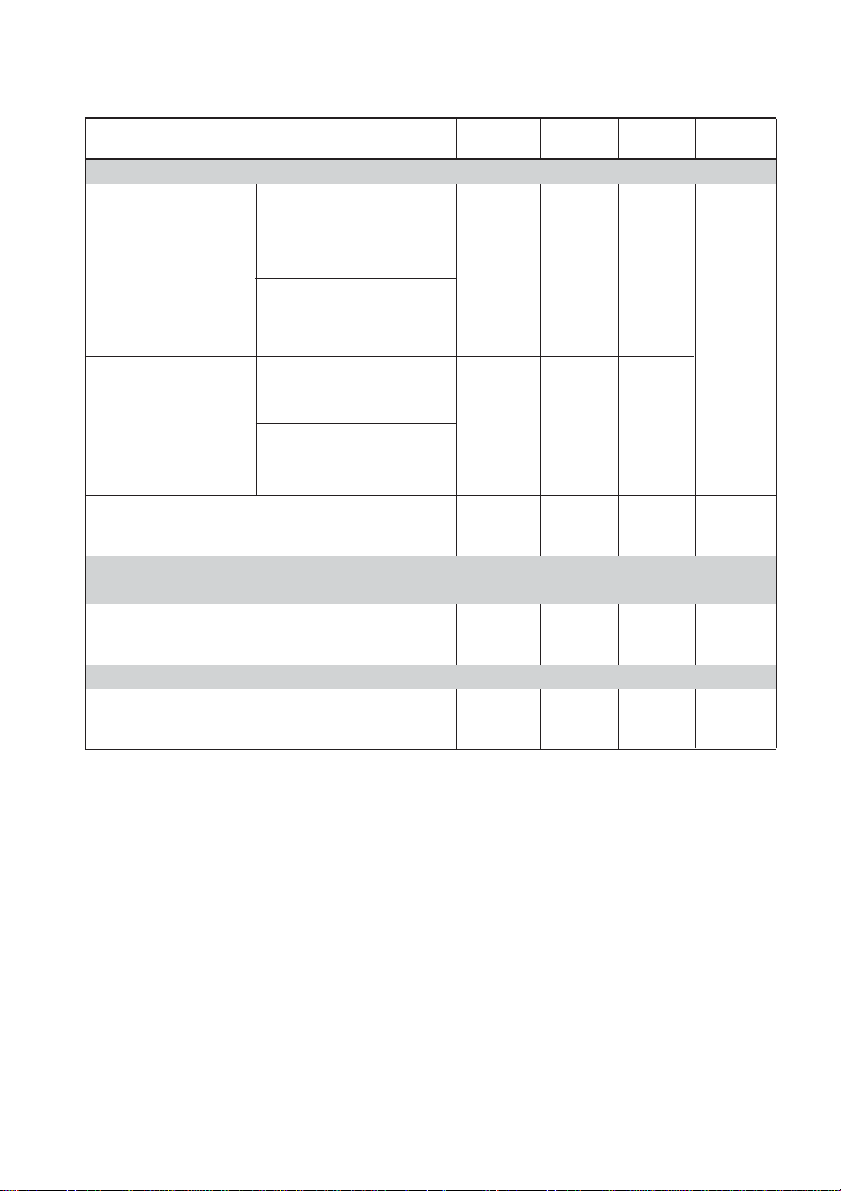
The following types of recordings are possible, depending on the audio source. For details on each operation, see
the reference pages.
a
×
a
×
×
∗3
a
Same as
original
Adjustable
with REC
LEVEL
*
1
Set “Make Disc” in the menu to “On” beforehand (page 36).
*
2
Even if you select High-Speed Synchro-Recording, the recording speed automatically changes to normal speed
in the following cases.
– When the disc contains Serial Copy Management System information.
– When the play mode of DECK A is “PGM”.
– When the disc in DECK A contains MP3 files.
*
3
Be sure to use a blank disc (that has not been recorded).
××a
Adjustable
with menu
operation
a
Adjustable
with menu
operation
a
Automatic Additional CD-TEXT Recording
Finalization Recording Copy Level
When recording from DECK A
Manual Recording (page 26)
Record by selecting or editing the tracks manually.
When recording from the component connected to the DIGITAL OPTICAL IN or
DIGITAL COAXIAL IN jack
Manual Recording (page 26)
When recording from the component connected to the ANALOG IN jack
Manual Recording (page 26)
Make-Disc Synchro-
Recording*
1
(Make Disc On)
Record all tracks on the
selected disc in the
original order.
Synchro-Recording
(Make Disc Off)
Record from one disc or
several discs in the order
you want. You can also
record in programmed
order.
High-Speed Synchro-
Recording*
2
(page 24)
Record in high-speed.
You cannot hear the sound
while recording.
Normal speed Synchro-
Recording (page 25)
Record in normal speed while
monitoring the sound.
High-Speed Synchro-
Recording*
2
Normal speed Synchro-
Recording
×
×
×
×

Recording/Editing
23
Tips
• To play the recorded CD on DECK A or another
CD player, perform finalization (page 30).
• To record your favorite tracks from the CDs in
DECK A, make a program (page 19).
• If the track marks are not marked properly while
making an analog recording from an external
component, see page 29.
• To record from several discs, see page 26.
Notes on recording
• You cannot record over existing material. The unit
automatically starts recording from the end of any
existing material.
• Make sure that the remaining recordable time on the
CD-R or CD-RW is longer than the playing time of
a source CD, especially if you want to record all the
tracks.
• If a message appears in the display, refer to
“Messages” on page 37.
• Recording automatically stops if recording is
paused for more than about 3 minutes.
Note on a copy protection
Some commercial CD may contain a copy
protection code that will prevent the disc from
being recorded. In this case, “Cannot Copy”
and either “C12” or “C41” will appear
alternately in the display.
Do not move the unit or disconnect
the unit from power source in the
following situation. Recording may
not complete successfully.
• When “Finalize,” “Unfinalize,” “Erase,” or “OPC”
appears in the display:
The unit is currently updating the table of contents
(TOC).
• When “PMA Writing” appears in the display:
The unit is currently updating the track information.
Synchro-Recording a CD
to CD-R or CD-RW
You can easily make digital recordings from a
CD to a CD-R or CD-RW. Before recording,
see page 21.
There are 2 types of Synchro-Recording.
Make-Disc Synchro-Recording
(Make Disc On)
Records a CD in the original order of its track
number regardless of the selected play mode,
and finalizes the disc. Be sure to use a disc that
has not been recorded. (“Blank Disc” should
appear in the display when you put the disc in
DECK B.)
To use Make-Disc Synchro-Recording, set
“Make Disc” in the Menu to “On” beforehand
(page 36).
• CD text (if contained in the disc) is recorded
automatically. You can label the disc name
or track name (up to 70 characters each, and
40 tracks per disc).
Note
When DECK A is in the Program mode, Make-Disc
Synchro-Recording is canceled regardless of the
menu setting.
Synchro-Recording
(Make Disc Off)
• After recording, you must finalize the disc.
Until the disc is properly finalized, it cannot
be played on any CD players. See
“Finalizing a CD-R or CD-RW” on page 30.
• CD text contained in the disc is not
automatically recorded on the disc. To label
tracks/discs, see “Labeling Tracks/Discs”
(page 33).
continued
24
Notes
• You cannot pause recording in Synchro-Recording.
• If Repeat Play is selected, it is automatically
canceled.
• If Shuffle Play is selected, it is automatically
canceled.
• The following functions do not work while
Synchro-Recording:
– Silent Pause function
– Level Sync function
– Manual Track Making function
– Fade-in, Fade-out recording
– Recording level adjustment (the recording level is
set to the same as original disc)
• During Synchro-Recording, the Direct Recording
function is turned on regardless of the menu setting.
• When copying a disc digitally recorded under
control of the Serial Copy Management System
(SCMS), the unit automatically select the analog
recording. High speed recording changes to normal
speed recording. For details on SCMS, see page 21.
• When copying a commercial music CD contains
copy protection code, the unit automatically select
the analog recording. High speed recording changes
to normal speed recording.
• SBM function is available only for analog
recordings (page 35).
• You cannot stop recording when finalizing in
Make-Disc Synchro-Recording.
x
H
DECK A/DECK B
CD SYNCHRO
HIGH
High-Speed Synchro-Recording
You can easily make digital recordings from a
CD to a CD-R or CD-RW, faster than normal
speed Synchro-Recording. You cannot monitor
the recorded signal while recording. To use
Make-Disc Synchro-Recording, set “Make
Disc” in the menu to “On” beforehand (page
36).
When using the remote, set DECK A/DECK B
to DECK B.
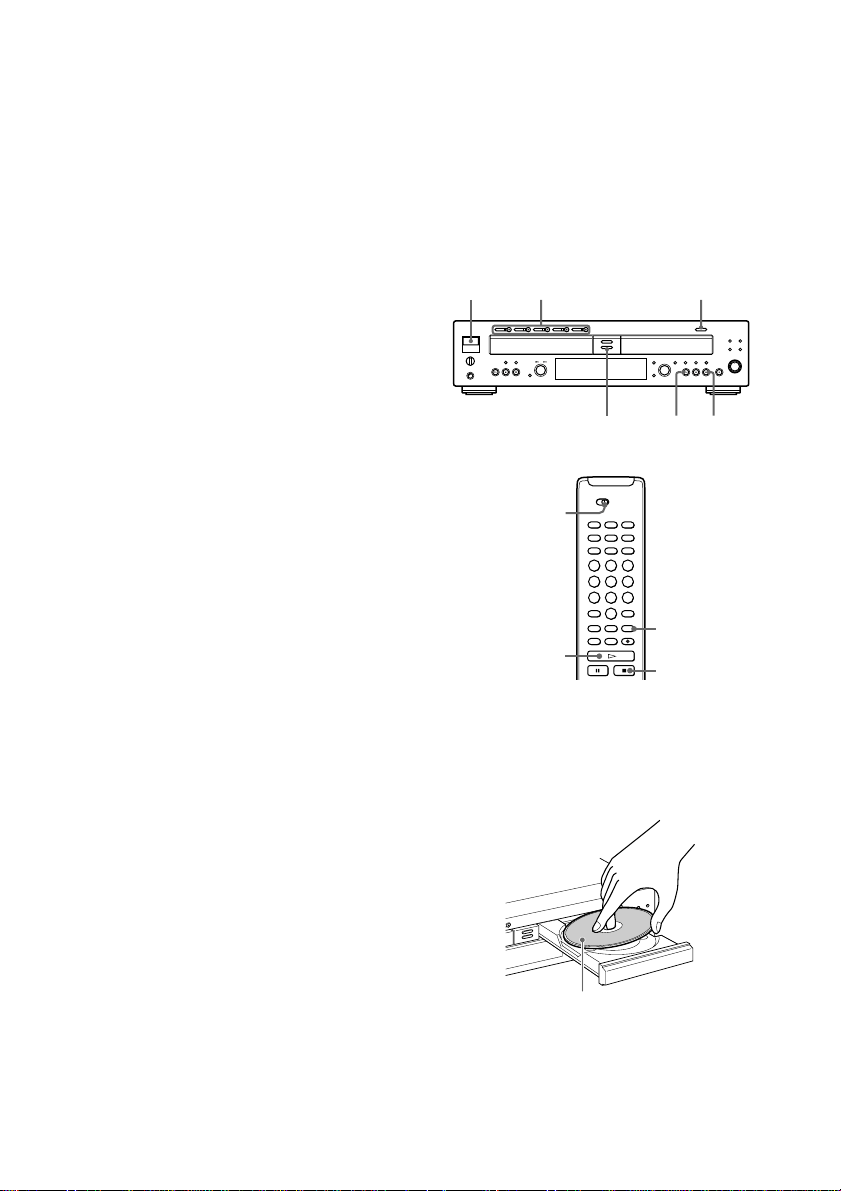
1 Press POWER.
2 Press OPEN/CLOSE of DECK B and
place a recordable CD-R or CD-RW on
the disc tray. Press OPEN/CLOSE of
DECK B again to close the disc tray.
“TOC Reading” appears. The unit starts to
read the TOC (Table of Contents) data and
shows the type of the disc on the deck in the
display.
With the label side up
CD SYNCHRO HIGH x
N
POWER DISC 1-5 A
OPEN/CLOSE
Recording/Editing
25
Normal speed Synchro-
Recording
The disc is recorded at the same speed as the
playing CD. You can hear the sound during
recording. To use Make-Disc Synchro-
Recording, set “Make Disc” in the menu to
“On” beforehand (page 36).
When using the remote, set DECK A/DECK B
to DECK B.
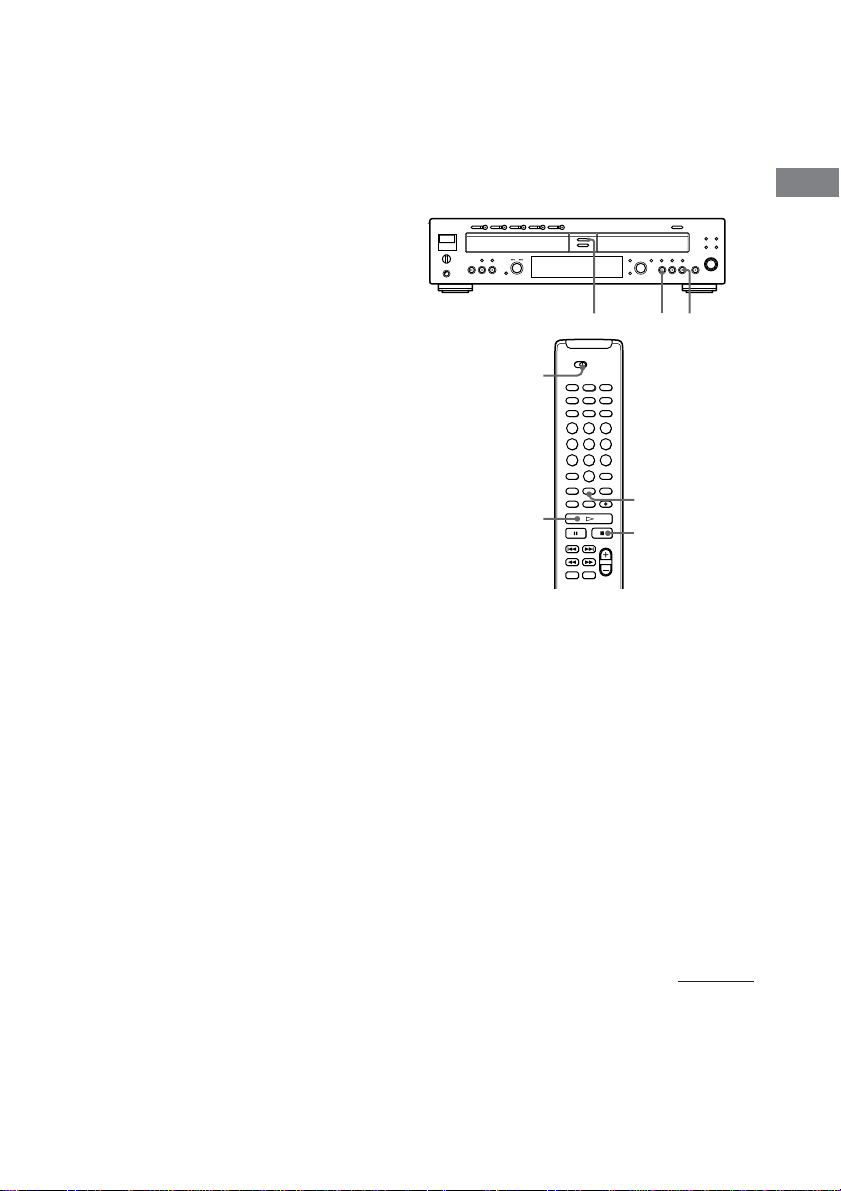
1 Do steps 1 to 3 of “High-Speed
Synchro-Recording” on page 24.
2 Press CD SYNCHRO NORMAL.
DECK B stands by for recording, and
DECK A stands by for playing.
3 After “New Track” appears in the
display, press N on DECK B (or H on
the remote) to start recording.
Synchro-Recording starts. DECK A and
DECK B will automatically stop after
recording.
DECK A/DECK B
H
x
CD SYNCHRO
NORMAL
3 Press one of the DISC 1-5 A buttons on
DECK A and place a CD on the disc
tray. PressA on DECK A again to close
the disc tray.
When you perform Make-Disc Synchro-
Recording, the current disc in DECK A is
used to record.
When you perform Synchro-Recording, you
can choose the disc which you want to
record, and the play mode.
If you select “ALL DISCS” even though
you want to record only one disc, discs you
did not intend to record may be recorded.
4 Press CD SYNCHRO HIGH.
DECK B stands by for recording, and
DECK A stands by for playing.
When you place a CD-R or CD-RW in the
deck, the unit optimizes itself for the best
possible recording and “OPC” appears
temporarily in the display.
If “Not Blank” appears, make sure that the
blank disc is placed correctly.
5 After “New Track” appears in the
display, press N on DECK B (or H on
the remote) to start recording.
High-Speed Synchro-Recording starts.
DECK A and DECK B automatically stop
after recording.
To stop recording
Press x.
Notes
• When you make Synchro-Recording in
programmed order, the recording speed
automatically changes to Normal speed. You can
perform only Normal speed Synchro-Recording.
• If you select “ALL DISCS” even though you want
to record only one disc, discs you did not intend to
record may be recorded.
CD SYNCHRO NORMAL
x
N
continued
26
X
H
x
DECK A/DECK B
INPUT
REC z
With the label side up
To stop recording
Press x.
To record only your favorite CD
tracks
You can record only your favorite CD tracks
using Program Play. Between steps 1 and 2,
perform steps 1 to 4 of “Creating Your own
Program (Program Play)” (page 19).
Note
When Program Play is selected, you cannot perform
Make-Disc Synchro-Recording.
To record from several discs
In step 1, set the play mode to “ALL DISCS”
or “PGM” and program the discs you want to
record, then proceed to step 2.
Notes
• When the play mode is set to “ALL DISCS”, the
recording starts from the disc whose indicator lights
in green. Then the following discs are recorded.
(After Disc 5, Disc 1 is selected).
• If you select “ALL DISCS” even though you want
to record only one disc, discs you did not intend to
record may be recorded.
Recording on a CD-R or
CD-RW Manually
You can start recording from the end of the
existing material. Before recording, see page
21.
When using the remote, set DECK A/DECK B
to DECK B.
• After recording, you must finalize the disc.
Until the disc is properly finalized, it cannot
be played on any CD players. See
“Finalizing a CD-R or CD-RW” on page 30.
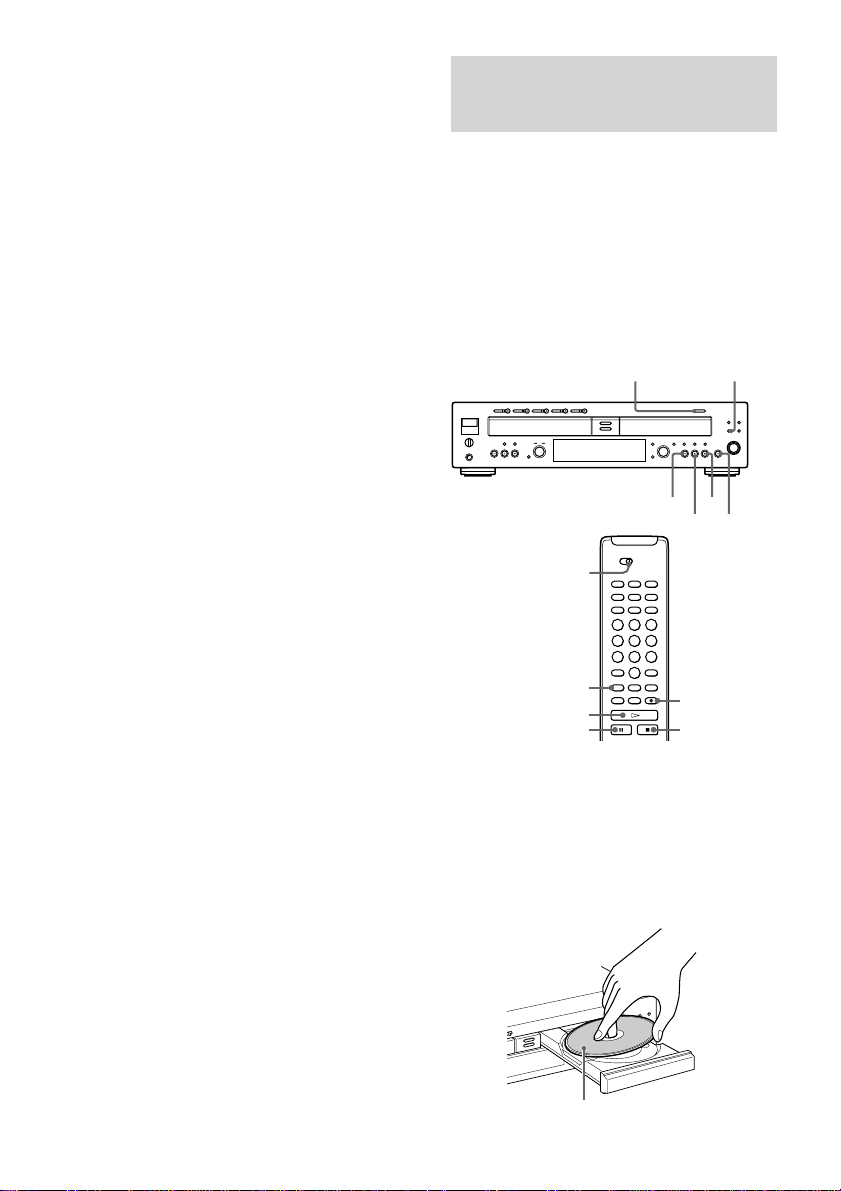
1 Turn on the amplifier and the sound
source, and then select the sound
source on the amplifier.
2 Press OPEN/CLOSE of DECK B and
place a recordable CD-R or CD-RW on
DECK B.
Press OPEN/CLOSE again to close the
disc tray.
REC z
INPUT
OPEN/CLOSE
xN
X

Recording/Editing
27
Turn on the indicator
OPT*
COAX*
ANALOG*
3 Press INPUT repeatedly to select the
input connector.
To record through
DIGITAL OPTICAL IN
DIGITAL COAXIAL IN
ANALOG IN
* If a disc is playing on DECK A, stop playback.
To record the disc in DECK A, turn off
“OPT”, “COAX”, and “ANALOG.”
4 Press REC z.
DECK B stands by for recording.
5 Adjust the recording level, if necessary.
For details, see “Adjusting the Recording
Level” on page 28.
6 Press N (or H on the remote).
7 Start playing the sound source you
want to record.
To pause recording
Press X. To resume recording, press the button
again or press N (or H on the remote).
Note
Whenever you pause recording, a new track number
is added. If you paused recording while recording, the
track number increases by one and recording
continues on the new track when recording is
resumed.
To stop recording
Press x.
“PMA Writing” appears while updating the
information of the disc before stopping the
recording.
To play from the beginning of the
disc after recording
1 Press x again while the unit is
stopped.
2 Press N (or H on the remote).
The unit starts playing from the first track.
Notes
• If you press REC z during recording, you can add
a track number (page 29). The track must be longer
than 4 seconds.
• When recording from more than one disc manually,
the silence between tracks may increase when
changing discs. To prevent this, use Synchro-
Recording.
• This unit uses the Serial Copy Management System,
which allows only first-generation digital copies to
be made of premastered software via the unit’s
digital input. Therefore you may not be able to
record a CD-R or CD-RW digitally through the
DIGITAL OPTICAL IN or DIGITAL COAXIAL
IN jack, depending on the content being recorded.
•Because of the restriction of the Serial Copy
Management System (SCMS), you may not be able
to make digital recordings. In this case, use analog
recording through the ANALOG IN jack when you
record from other units. Or use Synchro-Recording
when you record from DECK A. (The recording
mode is automatically changed to analog recording.)
•You cannot make manual recordings of MP3 files.
•While recording the source with “OPT”
, “COAX”,
or “ANALOG” selected, you cannot play a disc on
DECK A.
28
Display
DECK A Lvl
Optical Lvl
Coaxial Lv1
YES
MENU/NO
DECK A/DECK B
./>
OVER indication
OVER
TOC
CD TEXT
CD
-
RW
DIGITAL
DECK A
REC
DISC
ALBUM
TRACK
DECK B
DISC
TRACK
Adjusting the Recording
Level
Adjusting the recording level
for digital recording
You can adjust the recording level using the
menu. (For details, see “Using the Menu” on
page 36.)
When using the remote, set DECK A/DECK B
to DECK B.
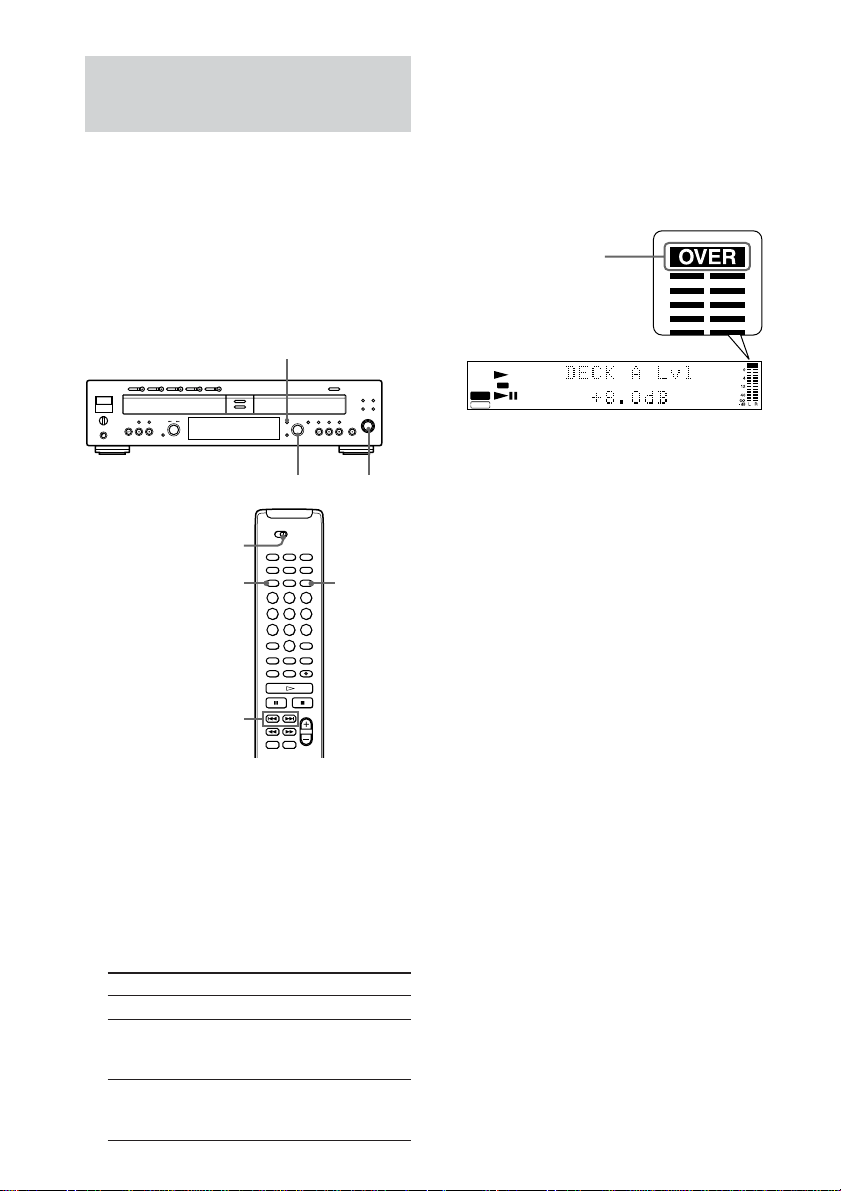
1 Do steps 1 to 4 of “Recording on a CD-
R or CD-RW Manually” on page 26.
2 Play the portion of the sound source
with the strongest signal level.
3 Press MENU/NO.
4 Turn AMS (or press ./> on the
remote) to select the program source.
To select
DECK A
a component connected to
the DIGITAL OPTICAL
IN jack
a component connected to
the DIGITAL COAXIAL
IN jack
5 Press AMS (or YES).
6 While monitoring the sound, turn AMS
(or press ./> on the remote) to
adjust the recording level, then press
AMS (or YES).
Adjust the recording level within a range of
– ∞ dB to +18 dB, so that the OVER
indication of the peak level meters does not
light red.
7 Press MENU/NO.
8 Stop playing the sound source.
9 To start recording, do steps 6 and 7 of
“Recording on a CD-R or CD-RW
Manually” on page 26.
Note
You cannot change the digital optical or coaxial
output level even if you adjust the recording level for
digital recording.
Adjusting the recording level
for analog recording
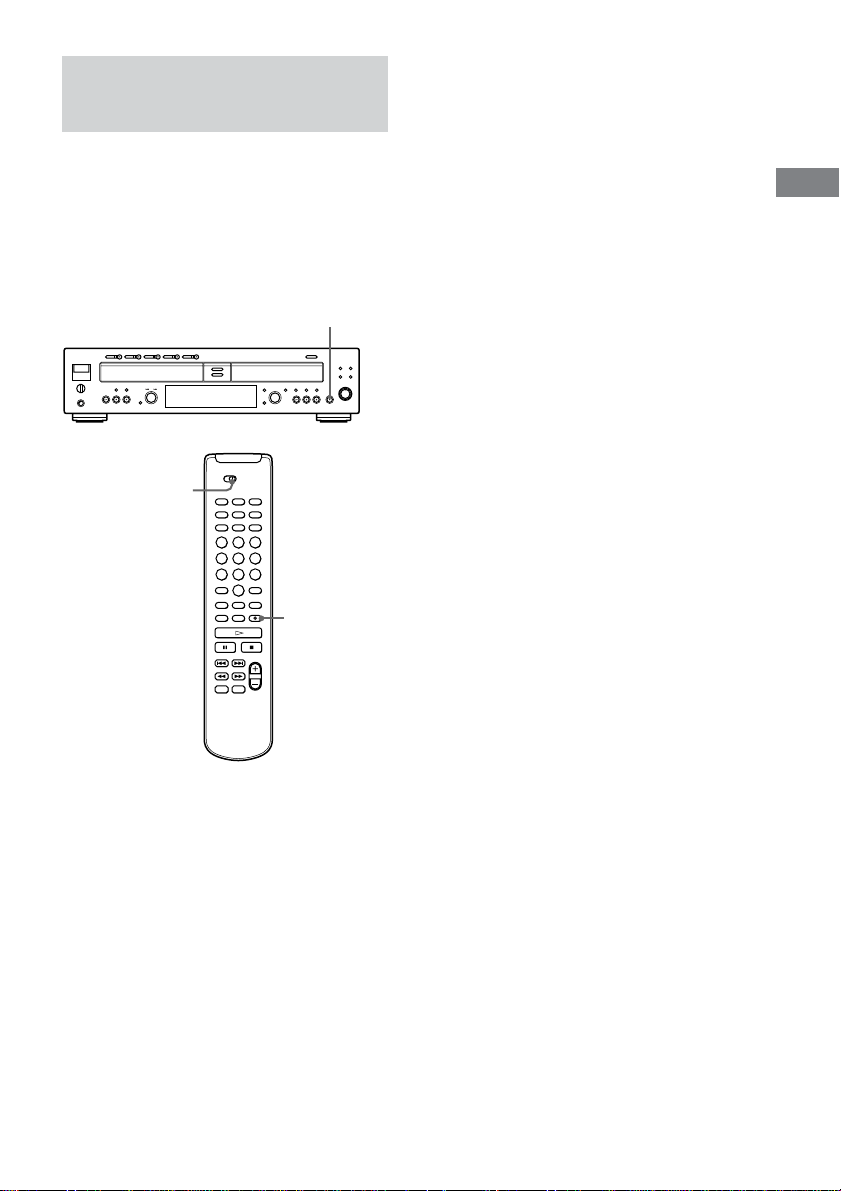
Turn the REC LEVEL control on the front
panel. Adjust the recording level so that the
OVER indication on the peak level meters does
not light up.
Note
You can adjust the recording level while recording,
not while playing a disc in DECK B.
AMS
MENU/NO
REC LEVEL
Recording/Editing
29
REC z
DECK A/DECK B
Marking Track Numbers
While Recording
You can mark track numbers either manually
or automatically. By marking track numbers at
specific points, you can quickly locate the
points later using the AMS Function or Editing
Functions.
When using the remote, set DECK A/DECK B
to DECK B.
Marking track numbers
manually
You can mark track numbers at any time while
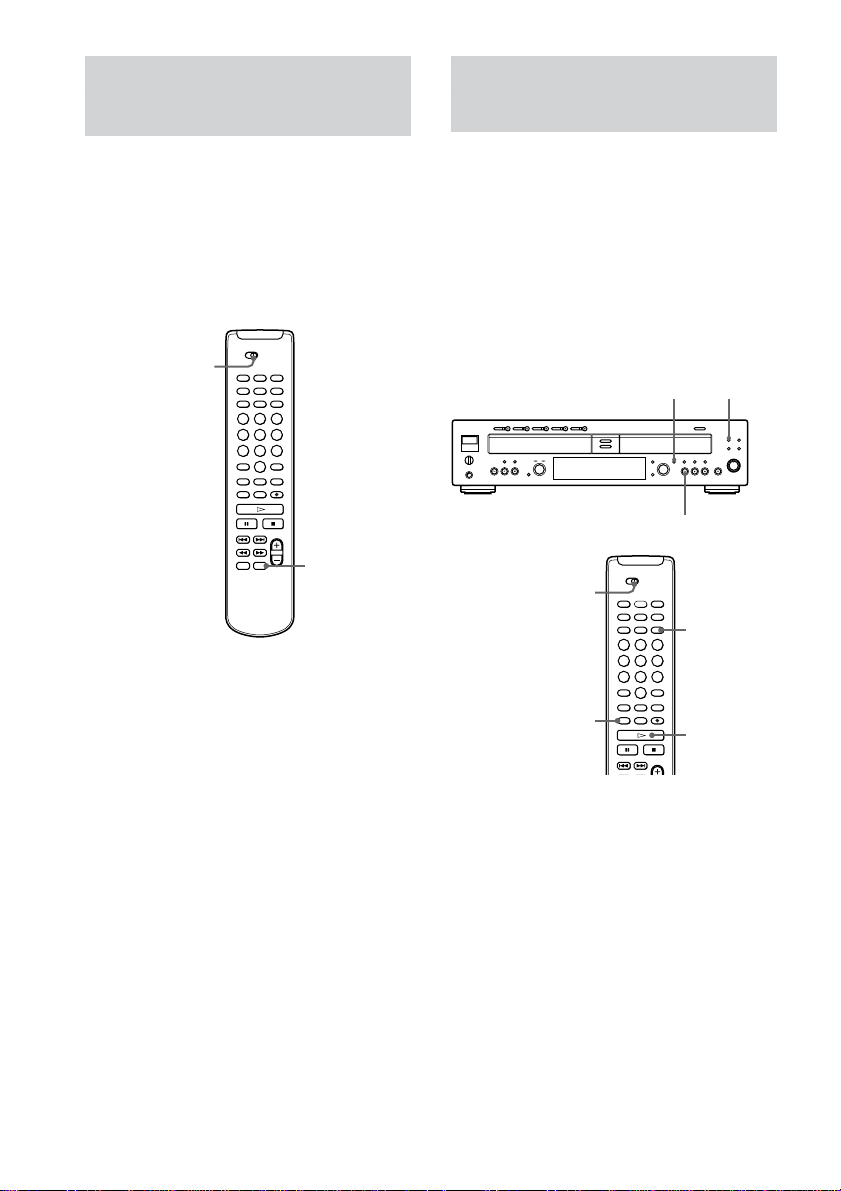
recording. Press REC z at the point you want
to add a track mark.
Notes
• You cannot mark track numbers manually during
Synchro-Recording.
• Track length must be at least 4 seconds to mark
track numbers manually.
Marking track numbers
automatically (Track Marking
Function)
The unit adds track marks differently in the
following cases:
• When you make a Synchro-Recording
(page 23)
The unit marks track numbers automatically under
the control of DECK A.
• When recording from DECK A, or from a
CD or MD connected through the
DIGITAL OPTICAL IN or DIGITAL
COAXIAL IN jack (with “OPT” or
“COAX” selected by the INPUT button)
The unit marks track numbers automatically
according to the information contained in the source
being recorded. However, the unit may not
automatically mark track numbers when recording
from some CD players and multi disc players.
• In all other cases
When “Track Mark” is set to “LSync” in menu, the
unit marks a new track number whenever the signal
drops to the specified level* or below for about 1.5
seconds or longer, then rises to a specified level.
* The initial setting is –50 dB.
To turn off the Track Mark Function
While the unit is stopped, set “Track Mark” in
menu to “Off.” For details, see “Using the Menu”
(page 36).
To change the trigger level for Track
Marking Function (Level Sync function)
While the unit is stopped, select “LSync Lvl” in the
menu and set the level between
–72 dB and –20 dB. For details, see “Using the
Menu” (page 36).
REC z
30
DECK A/DECK B
REC FADER
Fading In and Out
recording (Rec Fader) Z
You can gradually increase the recording level
at the beginning of a recording (fade-in
recording) or decrease the recording level at the
end of a recording (fade-out recording).
This function is convenient when you do not
want the track to start or end abruptly.
Before using the remote, set DECK A/DECK B
to DECK B.
Notes
• Fading lasts for 5 seconds.
• You cannot change the digital optical or coaxial
output level even if you make fade-in/fade-out
recording.
• You cannot make fade-in/fade-out recording while
Synchro-Recording.
Fade-in recording
During recording pause, press REC FADER at
the point where you want to start fade-in
recording.
“Fade In” flashes in the display, and recording
starts.
Fade-out recording
During recording, press REC FADER at the
point where you want to start fade-out
recording.
“ Fade Out” flashes in the display, and the unit
fades out and changes to recording pause.
Finalizing a CD-R or CD-
RW
Finalizing completes the recording of a disc. It
enables you to play the disc on DECK A of this
unit or other players. (The CD-RW compatible
player for CD-RW playback.) When a
recording is finished, a CD-R or CD-RW must
be finalized. Once that is done, a CD-R cannot
be added or erased to. CD-RWs are locked
once they are finalized, and must be unfinalized
to permit additional recording or erasure.
When using the remote, set DECK A/DECK B
to DECK B.
1 Place a CD-R or CD-RW that has not
been finalized in DECK B.
Make sure that “TOC” appears in the
display. If a finalized CD is loaded, “TOC”
does not appear.
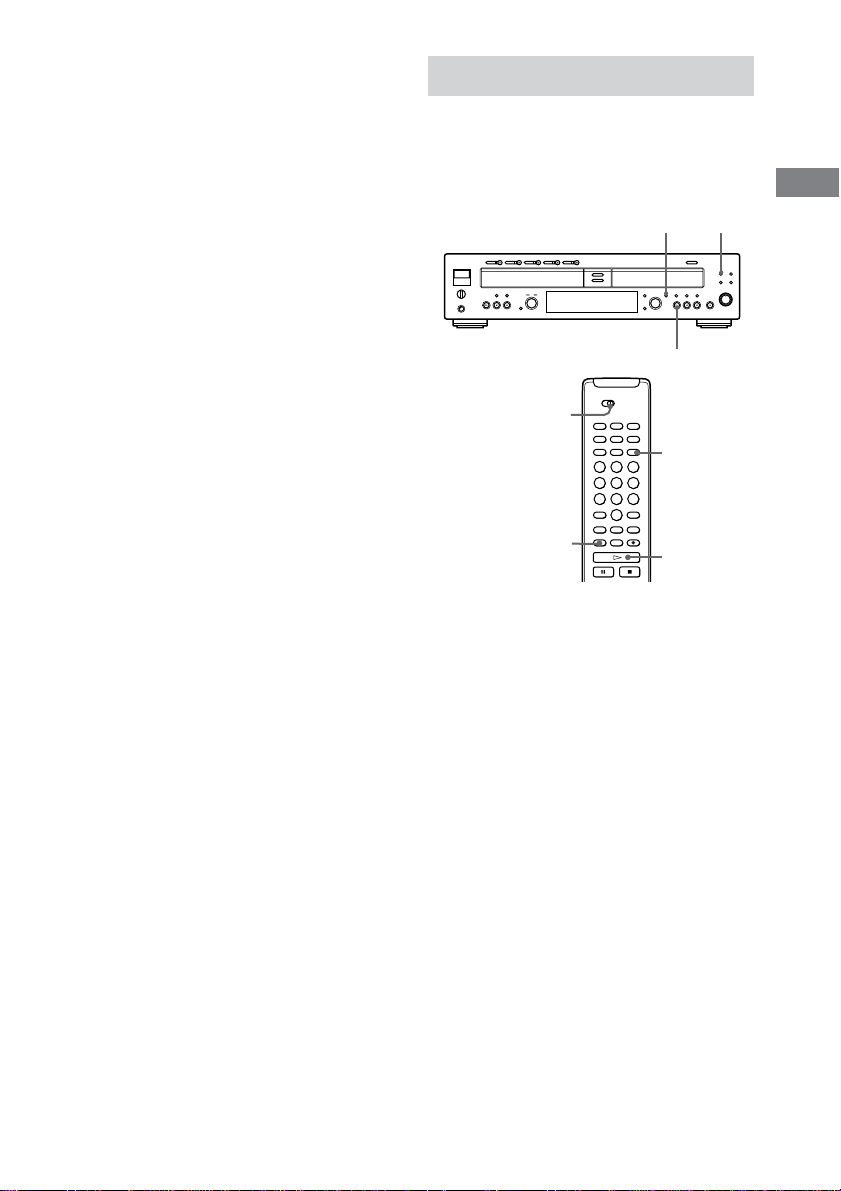
2 Press FINALIZE while the unit is
stopped.
Finalizing enters standby mode.
FINALIZE
N
H
DECK A/DECK B
FINALIZE
YES
YES
Recording/Editing
31
3 Press N (or H on the remote) or YES.
Finalizing starts. During finalizing,
“Finalize” appears in the display and the
remaining time for finalizing (may not be
accurate) appears. When the finalizing
process is finished, the total track number
and total playing time appears in the display
and the TOC (red) indicator goes off.
Notes
• Once the finalizing process starts, you cannot stop
in the middle of the process.
• Do not turn off the unit or disconnect the unit from
the power source in the middle of the finalizing
process. Recording will not been complete
successfully, and you will not be able to play back
the recorded tracks.
• An unfinalized disc can be played back only in
DECK B.
• You cannot finalize the disc while playing a disc on
DECK A.
Unfinalizing a CD-RW
A finalized CD-RW is neither recordable nor
rewritable. If you want to add new tracks or
erase tracks, you must first unfinalize the disc.
When using the remote, set DECK A/DECK B
to DECK B.
1 Place a finalized CD-RW in DECK B.
Make sure that “TOC” does not appear in
the display. If an unfinalized CD is loaded,
“TOC” appears.
2 Press FINALIZE while the unit is
stopped.
Unfinalizing enters standby mode.
3 Press N (or H on the remote) or
YES.
Unfinalizing starts. During unfinalizing,
“Unfinalize” appears in the display and the
remaining time for unfinalizing (may not be
accurate) appears. When the unfinalizing
process is finished, the total track number and
the total playing time appears in the display
and the TOC (red) indicator lights up.
Notes
• Once the unfinalizing process was started, you
cannot stop in the middle of the process.
• Do not turn off the unit or disconnect the unit from
the power source in the middle of the unfinalizing
process.
• If the disc contains CD-TEXT information stored
on the disc before unfinalizing, it will be erased
when the disc tray is opened or when the power is
turned off.
• You cannot unfinalize the disc while playing a disc
on DECK A.
FINALIZE
N
H
DECK A/DECK B
YES
FINALIZE
YES
32
H
./>
DECK A/DECK B
ERASE
YES
Erasing Tracks of a CD-
RW
You can erase tracks recorded on a CD-RW.
This process starts with the last track on the
disc.
Before erasing the track, make sure that the
disc is not finalized. If the disc is finalized,
follow the instructions for “Unfinalizing a CD-
RW” (page 31).
When using the remote, set DECK A/DECK B
to DECK B.
1 Place a CD-RW that has not been
finalized in DECK B.
Make sure that “TOC” appears in the
display. If a finalized CD is loaded, “TOC”
does not appear.
2 Press ERASE on the remote while the
unit is stopped.
“Tr Erase?” appears in the display.
3 Press YES.
The last track is selected.
To erase only the last track, go to step 5.
4 Turn AMS (or press ./> on the
remote) to select the first track you
want to erase.
5 Press N (or H on the remote) or YES.
Erasing starts from the last track. During
erasing, “Tr Erase” appears in the display
and the remaining time for erasing the last
track (may not be accurate) appears. When
this process is finished, the total track
number and the total playing time appears
in the display.
Tip
You can erase tracks using the menu.
1 Select “Tr Erase” from the menu (page 36).
To erase only the last track, go to step 3.
2 Turn AMS (or press ./> on the remote) to
select the first track you want to erase.
3 Press N (or H on the remote) or YES.
Erasing starts.
To erase all tracks
1 Place a CD-RW that has not been
finalized in DECK B.
2 Press ERASE on the remote repeatedly
until “DiscErase?” appears in the
display while the unit is stopped.
3 Press N (or H on the remote) or YES.
Erasing starts. During erasing, “DiscErase”
appears in the display and the remaining
time of erasing (may not be accurate)
appears. When the entire disc is erased,
“Blank Disc” appears.
Tip
You can erase all tracks using the menu.
1 Select “DiscErase?” from the menu, then press N
(or H on the remote) or YES.
2 “DiscErase??” appears.
3 Press N (or H on the remote) or YES again.
Erasing starts.
Notes
• Once the erasing process has started, you cannot
stop in the middle of the process.
• You can erase only from the last track.
• Do not turn off the unit or disconnect the unit from
the power source in the middle of the erasing
process.
• You cannot erase tracks while playing a disc on
DECK A.
N
AMS
YES
MENU/NO
Recording/Editing
33
MENU/NO
./>
x
m/M
CLEAR
YES
DECK A/DECK B
NAME EDIT/
SELECT
TOC
CD TEXT
CD
-
RW
DECK A
REC
DISC
ALBUM
TRACK
DECK B
DISC
TRACK
Display
Selected AB
Selected ab
Selected 12
TOC
CD TEXT
CD
-
RW
DECK A
DISC
ALBUM
TRACK
DECK B
DISC
TRACK
TOC
CD TEXT
CD
-
RW
DECK A
DISC
ALBUM
TRACK
DECK B
DISC
TRACK
Letter/number/
symbol buttons
Labeling Tracks/Discs Z
You can create titles for tracks/discs for a
recorded CD-R or CD-RW with capital and
small letters, numbers, and symbols. You can
enter a disc name of up to 70 characters, and a
track name of up to 70 characters per track, for
40 tracks per disc.
Label the track/disc before finalizing it. You
cannot label the track/disc on a finalized disc.
After labeling, you must finalize the disc before
you remove the disc or turn off the unit.
Otherwise, the titles will be cleared.
When using the remote, set DECK A/DECK B
to DECK B.
1 Place a CD-R or CD-RW disc that has
not been finalized in DECK B.
2 Press NAME EDIT/SELECT while the
unit is stopped.
“Name In?” appears in the display.
3 Press YES.
4 Press ./> to select the disc or
track you want to label.
When you label the disc name, select
“Disc,” and when you label the track name,
select the track number.
5 Press YES.
A flashing cursor appears.
6 Press NAME EDIT/SELECT repeatedly
to select the character type as follows:
To select
Capital letters and symbols*
Small letters and symbols*
Numbers
* You can use the following symbols in titles:
’ – / , . ( ) : ! ? & + < > _ = ” ; # $ % @ * `
To enter a space, press 10/0.
7 Press a letter/number/symbol button to
enter a character.
To enter a number, press the number button
you want.
To enter a letter or symbol,
1 Press the corresponding letter button
repeatedly until the letter or symbol you
want flashes. You can also enter a letter
or symbol by pressing ./>
repeatedly. To select the symbol, press
> repeatedly after flashing “
’
”.
2 Press M.
8 Repeat steps 6 and 7 until you have
entered the entire title.
If you enter an incorrect character, press
m or M until the incorrect character
starts flashing.
Press CLEAR to erase the incorrect
character, then enter the correct one.
9 Press YES.
“Complete !” appears in the display for a
few seconds and the track or disc is labeled.
Finalize the disc before you remove the disc
or turn off the unit. Otherwise, the titles will
be cleared.
To cancel labeling
Press MENU/NO or x.
continued
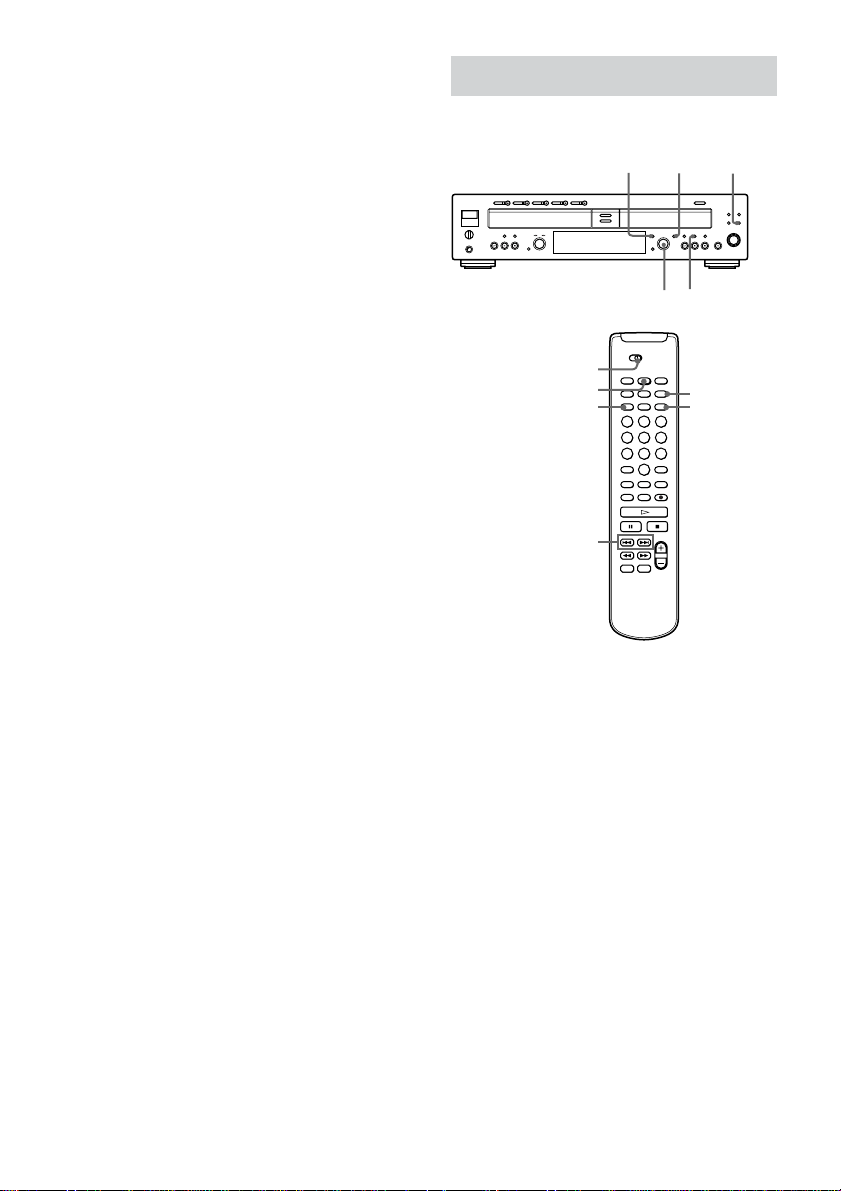
34
TIME
DECK A/DECK B
SBM
MENU/NO
YES
./>
Changing an existing title
1 Do steps 1 to 5 in “Labeling Tracks/
Discs” (page 33) to select the title you
want to change.
2 Press and hold CLEAR until the current
title is erased.
3 Do steps 6 to 8 of “Labeling Tracks/
Discs” (page 33) to enter the new title.
4 Press YES.
“Complete !” appears in the display for a
few seconds and the track or disc is labeled.
Useful Tips for Recording
When using the remote, set DECK A/DECK B
to DECK B.
Checking the remaining
recordable time on the CD-R
or CD-RW
Press TIME repeatedly.
• Each time you press the button while the unit
is stopped, the display alternates between
total disc playing time and remaining
recordable time on the CD-R or CD-RW
(page 13).
• Each time you press the button while
recording, the display alternates between the
recording time of the current track and the
remaining recordable time on the CD-R or
CD-RW (page 14).
SBM
TIME
YESMENU/NO
AMS

Recording/Editing
35
Using the Silent Pause
function
If there has been no sound input for about 30
seconds during recording, the unit pauses
recording.
If the unit continues pausing for about 3
minutes after the Silent Pause Function
activated, recording stops automatically.
Note that this function does not activate if the
unit is Synchro-Recording from a CD on
DECK A.
Tip
You can turn off the Silent Pause Function. For
details, see “Using the Menu” (page 36).
Using the Post Gap function
You can insert the silence of 2 seconds between
the songs, when recording more than two tracks
at once. The silence is inserted in the following
situations.
• When recording is stopped.
• When the disc of DECK A changes to the
next disc during Synchro-Recording.
To use the function of adding Post
Gap
Set “Post Gap” of the menu to “On” when the unit is
stopped. For details, see “Using the Menu” on page
36.
Using the SBM (Super Bit
Mapping) function
When performing analog recordings (recording
from ANALOG IN jack, or synchro-recording
MP3 files), the SBM function enables you to
record the equivalent of 24-bit high quality
sound by mapping the initial 24-bit A/D
conversion to 16-bit without reducing the
sound quality. This is made possible by
incorporating a noise-shaping filter in the 24-
bit A/D converter of this unit, which has a
frequency range designed to cover the range of
human hearing.
Press SBM. The indicator lights up.
When you press the button again, the function
is canceled and the indicator turns off.
Notes
• You cannot change the setting while recording.
• When performing digital recordings (recording
from DIGITAL OPTICAL IN jack, or recording
from DECK A), the SBM function is automatically
canceled.
Recording the original sound
from the program source
(Direct Recording)
You can record audio as it is when recording a
digital signals with 44.1 kHz sampling rates
without going through the devices internal
circuits. Set “Direct” in the menu to “On”. For
details, see “Using the Menu” on page 36.
Notes
• When recording digital signals with sampling rates
other than 44.1 kHz, the signal will automatically
pass through the device’s internal sampling rate
converter before recording, even when “Direct” is
set to “On”.
• The recording level is set to the setting adjusted in
the menu.
• During Synchro-Recording, the Direct Recording
function works regardless of the menu setting.
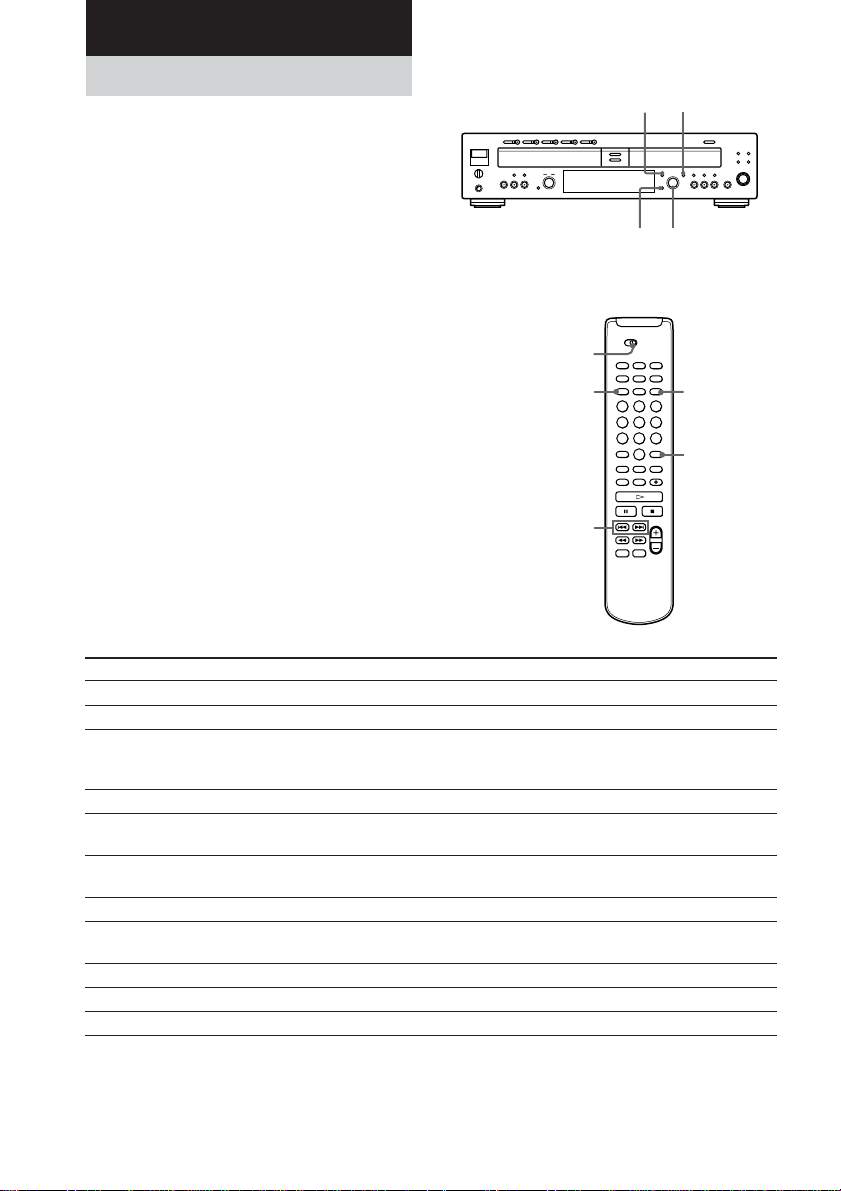
36
Additional Information
Using the Menu
You can make various settings on this unit by
using the menu.
When using the remote, set DECK A/DECK B
to DECK B.
1 Press MENU/NO.
2 Turn AMS (or press ./> on the
remote) to select the menu item, and
press AMS (or YES).
3 Turn AMS (or press ./> on the
remote) to set the item, and press AMS
(or YES).
4 Press MENU/NO.
To initialize an item’s parameter
Press CLEAR after step 2.
Notes
• The menus you can use while the unit is stopped,
playing, or recording differ.
• The setting is stored in memory even if you turn off
the unit or disconnect the power.
DECK A/DECK B
YES
CLEAR
MENU/NO
./>
Menu items
Menu item Function (reference page) Parameters (Initial setting)
Tr Erase?* Erase tracks from a disc (page 32). —
DiscErase?* Erase all tracks from on a disc (page 32). —
Make Disc Sets whether Make-Disc Synchro-Recording is performed On/Off (Off)
when using the CD SYNCHRO NORMAL or CD SYNCHRO
HIGH buttons (page 23).
DECK A Lvl Adjusts the input level from DECK A (page 28). – ∞ dB to +18 dB (0.0 dB)
Optical Lvl Adjusts the input level from the DIGITAL OPTICAL IN jack – ∞ dB to +18 dB (0.0 dB)
(page 28).
Coaxial Lvl Adjusts the input level from the DIGITAL COAXIAL IN jack – ∞ dB to +18 dB (0.0 dB)
(page 28).
Track Mark Sets the Track Marking Function (page 29). LSync/Off (LSync)
LSync Lvl Changes the trigger level for Track Marking Function (page 29). –72 dB to –20 dB in 2 dB
increments (–50 dB)
Silent Pause Sets the Silent Pause Function (page 35). On/Off (On)
Direct Sets the Direct Recording Function (page 35). On/Off (Off)
Post Gap Sets the function to add Post Gap (page 35). On/Off (Off)
* Appears only when an unfinalizes CD-RW is inserted in DECK B.
MENU/NO
AMS
CLEAR
YES
Additional Information
37
Message
Blank Disc
Check Disc
Complete!
Data Disc
Disc Full!
Erase
Ex-Change
Fade In
Fade Out
Finalize
Incomplete!
Initialize
Name Full!
-NO DISC-
No Name
Messages
The following table explains the messages that
appear in the display.
Explanation
A blank CD-R/CD-RW you have
just bought or a CD-RW you have
entirely erased is in the unit.
You are trying to record or edit a
finalized disc or CD. Or you are
trying to edit a CD-R.
Editing has been completed
successfully.
You are trying to record or edit a
non audio CD-R/CD-RW.
• Insert an audio CD-R/CD-RW.
There is not enough time left on the
CD-R/CD-RW or there are no
recordable tracks available to
complete a planned recording.
The ERASE function is operating.
During CD playback, you remove
and insert another CD.
The FADE IN REC function is
operating.
The FADE OUT REC function is
operating.
The FINALIZE function is
operating.
Editing has not completed
successfully due to vibration of the
unit or a dirty or scratched disc.
The unit does not memorize the
menu settings or the previous
playback state.
The number of characters used for
the track or disc names is beyond
the maximum.
There is no disc in the unit.
There is no title.
Message
Not Blank
OPC
OPC Over
-Over-
PMA Writing
Push STOP!
-Retry-
Step Full!
TEXT Edited
Unfinalize
Explanation
You have tried the Make-Disc
Synchro-Recording, with a disc
that is not blank.
• Use a blank disc for the Make-
Disc Synchro-Recording.
OPC: Optimum Power Control
The unit is optimizing itself for
best possible sound.
The number of times OPC
recording has been performed 90
times.
• Stop the recording and finalize
the disc.
The playback of the last track is
over.
• Turn AMS counterclockwise (or
press . or m on the remote).
PMA: Program Memory Area
A disc’s information is being
updated.
You operate the unit not in the
STOP mode.
• Stop the unit, and then operate the
unit again.
Recording or editing has been tried
again.
The number of programmed tracks
has reached the limit, and you
cannot program any more tracks.
• Before you program a new track,
erase the current program and
restart a new program procedure.
A disc whose text has been edited
but has not been finalized is
inserted, and OPEN/CLOSE has
been pressed.
• Finalize the disc, and then press
OPEN/CLOSE to remove the
disc. If you want to remove the
disc before finalizing it, press
OPEN/CLOSE again while
“TEXT Edited” is displayed.
The UNFINALIZE function is
operating.

38
Message
C12/
Cannot Copy
C13/
Rec Error
C14/
TOC Error
C41/
Cannot Copy
Explanation
You are trying to record a disc that
cannot be played back in DECK-A
or with an external device, such as
CD-ROM or VIDEO CD.
• Remove the disc, and then insert a
music CD for playback.
Recording has not been completed
successfully because of vibration.
• Relocate the unit in a place free of
vibration and restart the recording
again.
The disc you try to record is
excessively dirty (such as oil-
stained or finger marked) or
scratched. Or the disc is not
normal.
• Replace the disc with another one
and restart the recording again.
The unit did not read the TOC
information.
• Insert other discs.
The sound source you are trying to
record is a copy of a commercial
music software. Or you are trying
to record on a CD-R/CD-RW
digitally.
• Because of the restriction of the
Serial Copy Management System,
you cannot record copies of
commercial music software or
MP3 files on DECK A. Neither
can you digitally record from a
CD-R/CD-RW.
• Use analog recording through the
ANALOG IN jack when you
record from other units. Or use
Synchro-Recording when you
record from DECK A. (The
recording mode is automatically
changed to analog recording.)
Self-diagnosis Function
When the self-diagnosis function is activated to
prevent the player from malfunctioning, three
character service numbers in a combination
with a message appears in the display. In this
case, check the following table.
C71/
Din Unlock
If this message is displayed
momentarily, this is not an error. It
is caused by the digital signal
during recording.
During recording of a digital sound
source, the connecting cable has
been disconnected or the player of
the sound source has turned off.
• Connect the cable or turn on the
digital player.

Additional Information
39
Troubleshooting
If you experience any of the following
difficulties while using the unit, use this
troubleshooting guide to help you remedy the
problem.
DECK A (the CD player
section)
The player does not start playing.
• Insert a disc.
• Place the disc properly.
• Clean the disc (page 4).
• Place the disc with the label side up.
• Moisture condensation has formed inside the
unit. Take the disc out and leave the unit turned
on for about an hour until the moisture
evaporates (page 4).
• Press POWER to turn the unit on.
DECK A (MP3 playback)
MP3 files cannot be played back.
• Recording was not performed according to the
ISO 9660 level 1 or level 2 format, or the Joliet
or Romeo in the expansion format.
• The file extension “.MP3” is not added to the file
name.
• Files are not stored in MP3 format.
MP3 files take longer to play back than others.
• The following discs take a longer time to start
playback.
–a disc recorded with complicated tree structure.
–a disc recorded in Multi Session.
–a disc to which data can be added (non-
finalized disc).
System Limitations
“TOC Reading” appears in the
display for a long time
Regardless of the disc, “TOC Reading” appears in the
display of DECK B longer than in that of DECK A.
This is because, DECK B is a CD-R/RW writer and
reads various version information while setting
optimum recording condition.
Limitations when recording over an
existing track
• The correct remaining recording time may not be
displayed.
• The remaining recording time may be inaccurately
displayed relative to the total recorded time.
• You can record up to 99 tracks.
Note
When you turn on the unit, you will hear some
mechanical noise from the unit. This is not a
malfunction.
continued

40
Other
No sound is output.
• Make the connections properly (page 6).
• Operate the amplifier properly.
• When using the headphones, turn PHONE
LEVEL to turn up the output level.
• Check the DUAL MODE setting. When the
DUAL MODE is activated, the unit outputs the
sound of DECK A to OUT 1 jacks and that of
DECK B to OUT 2 jacks (page 20).
The remote does not operate the unit.
• Make sure that there are no obstacles between the
unit and the remote.
• Point the remote at the remote sensor on the unit.
• Replace the batteries in the remote.
When you turn on the unit, you will hear some
mechanical noise from the unit. This is not a
malfunction.
After you have attempted the
prescribed corrective actions
If the unit still does not operate properly, or if
other problems not described above occur, turn
off the unit, unplug it from the power outlet for
a few minutes, then reinsert the plug into the
power outlet.
Should any problem persist even after
reinserting the power plug, consult your nearest
Sony dealer.
DECK B (the CD-R and CD-RW
recording section)
The unit does not operate or operates poorly.
• The CD-R or CD-RW may be damaged. Replace
the disc.
The player does not start playing.
• Place the CD-R or CD-RW with the label side
up.
• Moisture has formed inside the unit. Take the
disc out and leave the unit in a warm place for
several hours until the moisture evaporates (page
4).
• Press POWER to turn the unit on.
• Replace the CD-R or CD-RW with one that has
been recorded.
The player does not start recording.
• The CD-R or CD-RW is finalized. Unfinalize
(for CD-RW only) the disc (page 31) and try
again.
• Make connections properly to the sound source
(page 6).
• The sound source is not connected to the selected
input connector. Select the correct input using
the INPUT button (page 27).
• The recording level is set too low. Adjust the
recording level properly (page 28).
• There has been a power failure or the AC power
cord has been disconnected during recording.
Data recorded to that point may be lost.
The sound has a lot of static.
Strong magnetism from a television or a similar
device is interfering with operations. Move the unit
away from any sources of strong magnetism.
MP3 files cannot be played back.
• You cannot play MP3 files on DECK B.

Additional Information
41
Specifications
DECK A (the CD player section)
System Compact disc digital audio
system
Laser Semiconductor laser
(λ = 780 nm)
Emission duration:
continuous
Playable discs CD, CD-R, CD-RW
Frequency response 20 Hz – 20,000 Hz
(±0.5 dB)
Signal to Noise Ratio Over 100 dB during play
Wow and flutter Below measurable limit
DECK B (the CD-R and CD-RW
recording section)
System Compact disc digital audio
system
Laser Semiconductor laser
(λ = 780 nm)
Emission duration:
continuous
Playable discs CD, CD-R, CD-RW
Recordable discs CD-R, CD-RW (for
Audio)
Frequency response 20 Hz - 20,000 Hz
(±0.5 dB)
Signal to Noise Ratio Over 100 dB during play
Wow and flutter Below measurable limit
Inputs
ANALOG IN Impedance: 47 kilohms
(Phono jacks) Rated input: 500 mVrms
Minimum input:
250 mVrms
DIGITAL OPTICAL IN
(Square optical connector jack)
Optical wavelength:
660 nm
DIGITAL COAXIAL IN
(Phono jack) Impedance: 75 ohms
Rated output: 0.5 Vp-p,
±20 %
Outputs
ANALOG OUT 1, OUT 2 Rated output: 2 Vrms
(Phono jacks) Load impedance: over
10 kilohms
DIGITAL OPTICAL OUT 1, OUT 2
(Square optical connector jack)
Wavelength: 660 nm
Rated output: –18 dBm
DIGITAL COAXIAL OUT 1, OUT 2
(Phono jacks) Rated output: 0.5 Vp-p,
±20 %
Load impedance: 75 ohms
PHONES Load impedance: 32 ohms
(Stereo phone jack) Rated output: 28mW
General
Power requirements 120 V AC, 60 Hz
Power consumption 28 W
Dimensions (approx.) (w/h/d) incl. projecting parts
and control 430 × 110 × 400 mm
(17 × 4
3
/
8
× 15
3
/
4
inch)
Mass (approx.) 7.9 kg
(17 lbs 7 oz)
Supplied accessories See page 6.
Design and specifications are subject to change
without notice.

42

Additional Information
43

44
Sony Corporation Printed in Malaysia