Operating Instructions
1999 by Sony Corporation
US
FM/AM
Compact Disc
Player
CDX-C7850
For installation and connections, see the supplied installation/connections
manual.
Owner’s Record
The model and serial numbers are located on the bottom of the unit.
Record the serial number in the space provided below.
Refer to these numbers whenever you call upon your Sony dealer regarding this
product.
Model No. CDX-C7850␣ ␣ Serial No.

2
Welcome !
Thank you for purchasing this Sony Compact
Disc Player. This unit lets you enjoy a variety
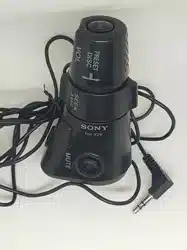
of features as well as either a supplied rotary
commander or a supplied wireless remote.
In addition to the CD playback and radio
operations, you can expand your system by
connecting an optional CD/MD unit*
1
.
When you operate this unit or connect an
optional CD unit with the CD TEXT function,
the CD TEXT information will appear in the
display when you play a CD TEXT disc*
2
.
*
1
You can connect a CD changer, an MD changer.
*
2
A CD TEXT disc is an audio CD that includes
information such as the disc name, artist name,
and track names.
These information is recorded on the disc.
Voice guide for safe driving
This unit has a voice guide function*. When
the voice guide function is on, the unit gives
vocalized comments on functions
corresponding to the relevant button pushed.
These comments can be vocalized in either
English or French.
* Some optional power amplifiers may cause a
break at the beginning of vocalized comments.
When you connect an optional MD changer, the
sound from the first MD may continue for a
short time even after the vocalized comments
about the second MD are announced.
Warning
This equipment has been tested and found to
comply with the limits for a Class B digital
device, pursuant to Part 15 of the FCC Rules.
These limits are designed to provide
reasonable protection against harmful
interference in a residential installation. This
equipment generates, uses, and can radiate
radio frequency energy and, if not installed
and used in accordance with the instructions,
may cause harmful interference to radio
communications. However, there is no
guarantee that interference will not occur in a
particular installation. If this equipment does
cause harmful interference to radio or
television reception, which can be determined
by turning the equipment off and on, the user
is encouraged to try to correct the interference
by one or more of the following measures:
— Reorient or relocate the receiving antenna.
— Increase the separation between the
equipment and receiver.
— Connect the equipment into an outlet on a
circuit different from that to which the
receiver is connected.
— Consult the dealer or an experienced radio/
TV technician for help.
You are cautioned that any changes or
modifications not expressly approved in this
manual could void your authority to operate
this equipment.
CAUTION
The use of optical instruments with this
product will increase eye hazard.
3
Table of Contents
This Unit Only
With Optional Equipment
Location of controls ................................................. 4
Getting Started
Resetting the unit ................................................ 6
Detaching the front panel .................................. 6
Setting the clock .................................................. 7
CD Player
Listening to a CD ................................................ 8
Playing a CD in various modes ........................ 9
Creating a program
— CD Program Memory ............................ 10
Radio
Memorizing stations automatically
— Best Tuning Memory (BTM) ................. 12
Memorizing only the desired stations ........... 12
Receiving the memorized stations.................. 13
Storing the station names
— Station Memo .......................................... 14
Locating a station by name
— List-up ...................................................... 14
Other Functions
Labelling the rotary commander .................... 15
Using the rotary commander .......................... 15
Adjusting the sound characteristics ............... 16
Attenuating the sound ..................................... 16
Changing the sound and display settings ..... 17
Adjusting the frequency of the subwoofer(s) 18
Adjusting the sound and frequency of the
equalizer ........................................................ 18
Changing the line output level ....................... 18
CD/MD Unit
Playing a CD or MD ......................................... 19
Playing tracks repeatedly
— Repeat Play .............................................. 20
Playing tracks in random order
— Shuffle Play .............................................. 20
Creating a program
— Program Memory ................................... 21
Labeling a CD
— Disc Memo ............................................... 23
Locating a disc by name
— List-up ...................................................... 25
Selecting specific tracks for playback
— Bank .......................................................... 25
TV/Video
Watching the TV ............................................... 26
Watching a video .............................................. 26
Memorizing TV channels automatically ....... 26
Memorizing only the desired TV channels ... 27
Storing the TV channel names ........................ 27
Displaying the information stored on discs .. 28
Watching the TV or video while listening to a
CD or MD
— Simultaneous Play .................................. 28
Additional Information
Precautions ......................................................... 29
Maintenance....................................................... 30
Dismounting the unit ....................................... 30
Specifications ..................................................... 31
Troubleshooting guide ..................................... 32
4
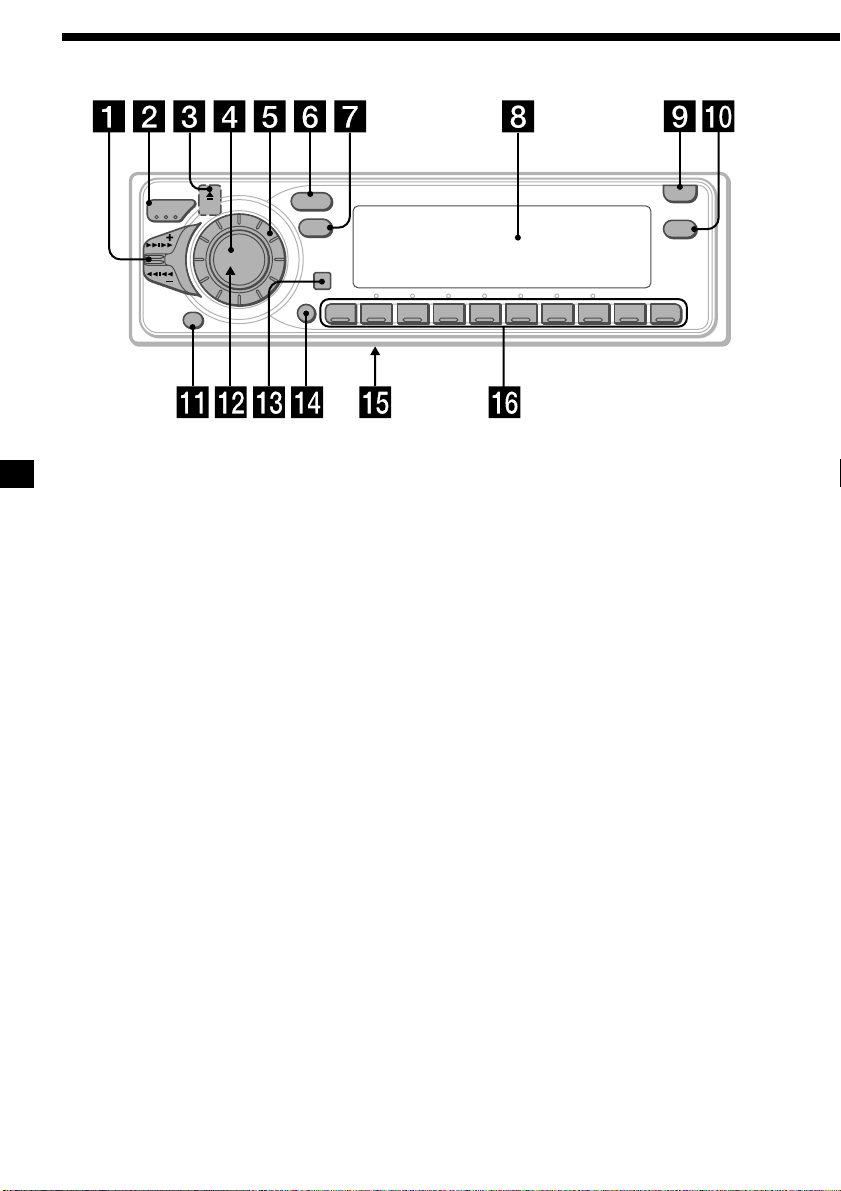
Location of controls
Refer to the listed pages for details.
1 SEEK/AMS (seek/Automatic Music
Sensor/manual search) control
9, 10, 11, 13, 20, 22, 25, 26, 27
2 MODE (band/unit select) button
12, 13, 19, 21, 24, 26
3 6 (eject) button (located on the front
side of the unit hidden the front panel)
8
4 SOURCE (TUNER/CD/MD/TV) button
8, 12, 13, 18, 19, 21, 24, 26, 27, 28
5 Dial (volume/equalizer curve/listening
position/subwoofer volume/cut-off
frequency/bass/treble/left-right/rear-
front control) 7, 14, 16, 23
6 SOUND button 16
7 DSPL (display mode change) button
8, 9, 13, 14, 19, 24, 25
8 Display window
9 OPEN button 6, 8, 30
!º LIST button
Station Memo 14, 27
Disc Memo 23, 24
List-up 14, 25, 28
!¡ OFF button 6, 8
!™ Reset button (located on the front side
of the unit behind the front panel) 6
!£ Receptor for the wireless remote
!¢ SHIFT button
PLAY MODE
10, 11, 12, 13, 21, 22, 23, 25, 26
REP 9, 20
SET UP 7, 9, 17, 18, 19, 20
SHUF 9, 20
!∞ POWER SELECT switch (located on the
bottom of the unit)
See “POWER SELECT switch” in the
Installation/Connections manual.
!§ During radio reception:
Number buttons 12, 13
During CD/MD playback:
Direct disc selection buttons 20
During TV reception:
Number buttons 27
S
E
E
K
/
A
M
S
MODE
OFF
SOUND
DSPL
LIST
OPEN
SOURCE
SHIFT
12345678910
CDX-C7850
5
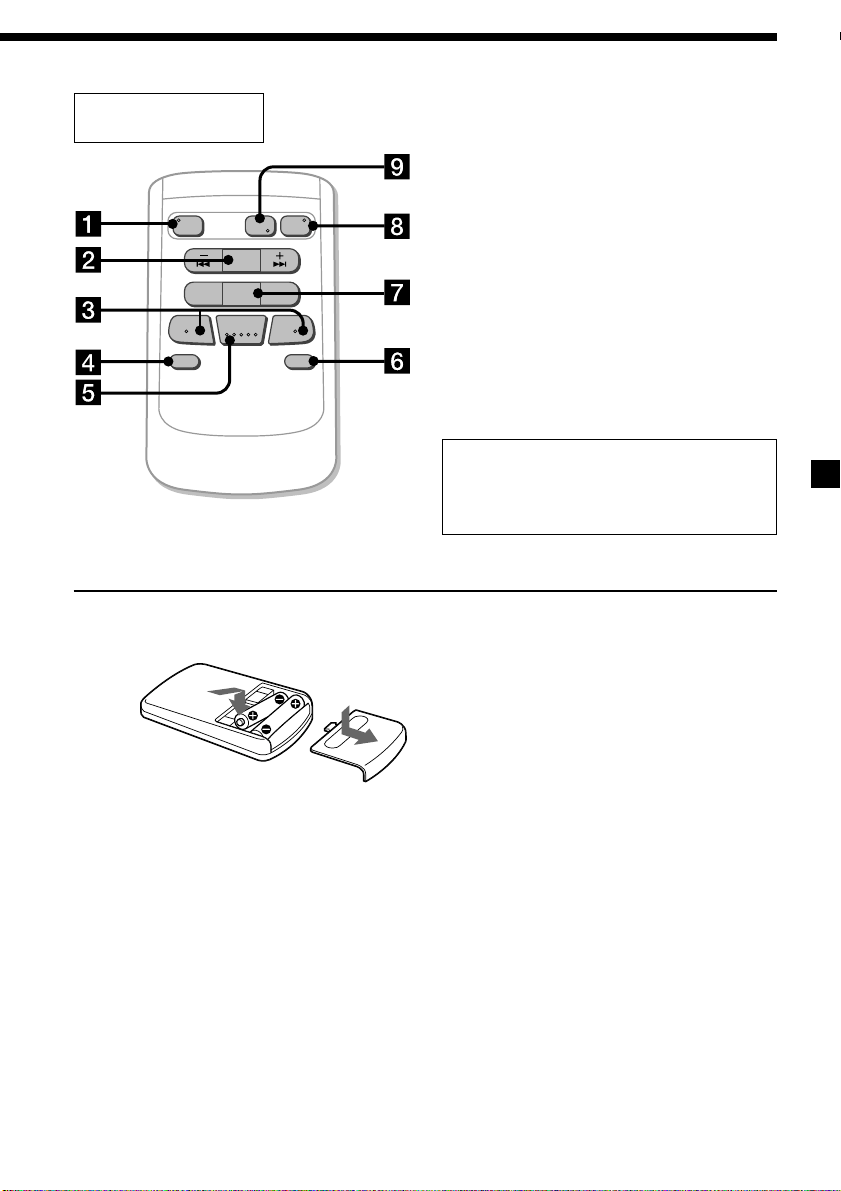
Wireless remote
(RM-X47)
The corresponding buttons of the
wireless remote control the same
functions as those on the unit.
1 OFF button
2 SEEK/AMS button
3 (–) (+) buttons
4 ATT button
5 SOUND/SEL button
6 DSPL button
7 PRESET/DISC button
You cannot perform manual search and
manual tuning with the remote.
8 SOURCE button
9 MODE/DIR button
When the POWER SELECT switch is set to
the B position, the unit cannot be operated
with the wireless remote unless (SOURCE)
on the unit is pressed or a CD is inserted to
activate the unit first.
OFF
SOURCE
DIR
SEL
+
FF
–
REW
SOUND
–
+
ATT DSPL
SEEK
AMS
PRESET
DISC
MODE
Installing the batteries (not
supplied)
Battery life is approx. six months although it
depending on use.
Notes on batteries
To avoid damage from battery leakage and
subsequent corrosion:
— insert the batteries by matching the “+” and
“–” on the batteries to the “+” and “–” in
the battery compartment.
— do not use an old battery with a new one,
or different types of batteries together.
— remove the batteries when you do not use
the unit for a long period of time.
— do not charge the batteries.
If any battery leakage occurs, replace the
batteries with new ones after cleaning the
battery compartment.
Two size AA (R6)
batteries (not supplied)
Notes on mounting
• Do not install or leave the wireless remote in a
location near any heat sources, or in a place
subject to direct sunlight (especially on the
dashboard in summer etc.).
• When you park your car in direct sunlight,
detach the wireless remote and place it in a
location such as the glove-box, where it will not
be subjected to direct sunlight.
• Before installing the wireless remote, be sure to
check whether you can remote-control the
system from the place where you intend to
install the wireless remote.
6
Reset button
Getting Started
Resetting the unit
Before operating the unit for the first time or
after replacing the car battery, you must reset
the unit.
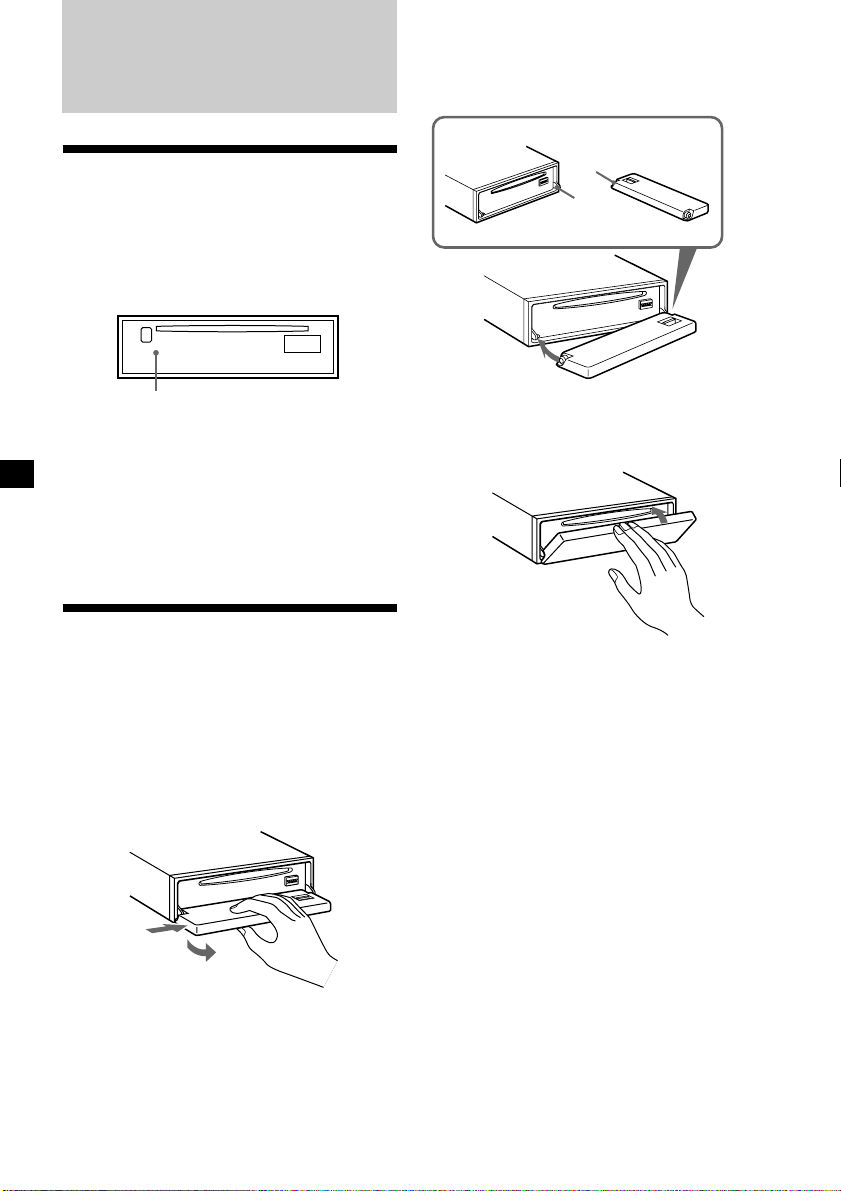
Remove the front panel and press the reset
button with a pointed object, such as a ball-
point pen.
Notes
• Pressing the reset button will erase the clock
setting and some memorized functions.
• When you connect the power supply cord to the
unit or reset the unit, wait for about 10 seconds
before you insert a disc. If you insert a disc within
these 10 seconds, the unit will not be reset, and
you will have to press the reset button again.
Detaching the front panel
You can detach the front panel of this unit to
protect the unit from being stolen.
1 Press (OFF).
2 Press (OPEN), then slide the front panel
to the right side, and pull out from the
left side.
Notes
• Be sure not to drop the panel when detaching it
from the unit.
• If you detach the panel while the unit is still
turned on, the power will turn off automatically
to prevent the speakers from being damaged.
• When you carry the front panel with you, use the
supplied front panel case.
Attaching the front panel
Place the hole a of the front panel onto the
spindle b on the unit as illustrated, then push
the left side in.
Notes
• Be sure not to attach the front panel upside
down.
• Do not press the front panel too hard against the
unit when attaching it.
• Do not press too hard or put excessive pressure
on the display window of the front panel.
• Do not expose the front panel to direct sunlight
or heat sources such as hot air ducts, and do not
leave it in a humid place. Never leave it on the
dashboard of a car parked in direct sunlight or
where there may be a considerable rise in
temperature.
Caution alarm
If you turn the ignition key switch to the OFF
position without removing the front panel, the
caution alarm will beep for a few seconds
(only when the POWER SELECT switch is set
to the A position).
1
2
µ
a
b
7
Setting the clock
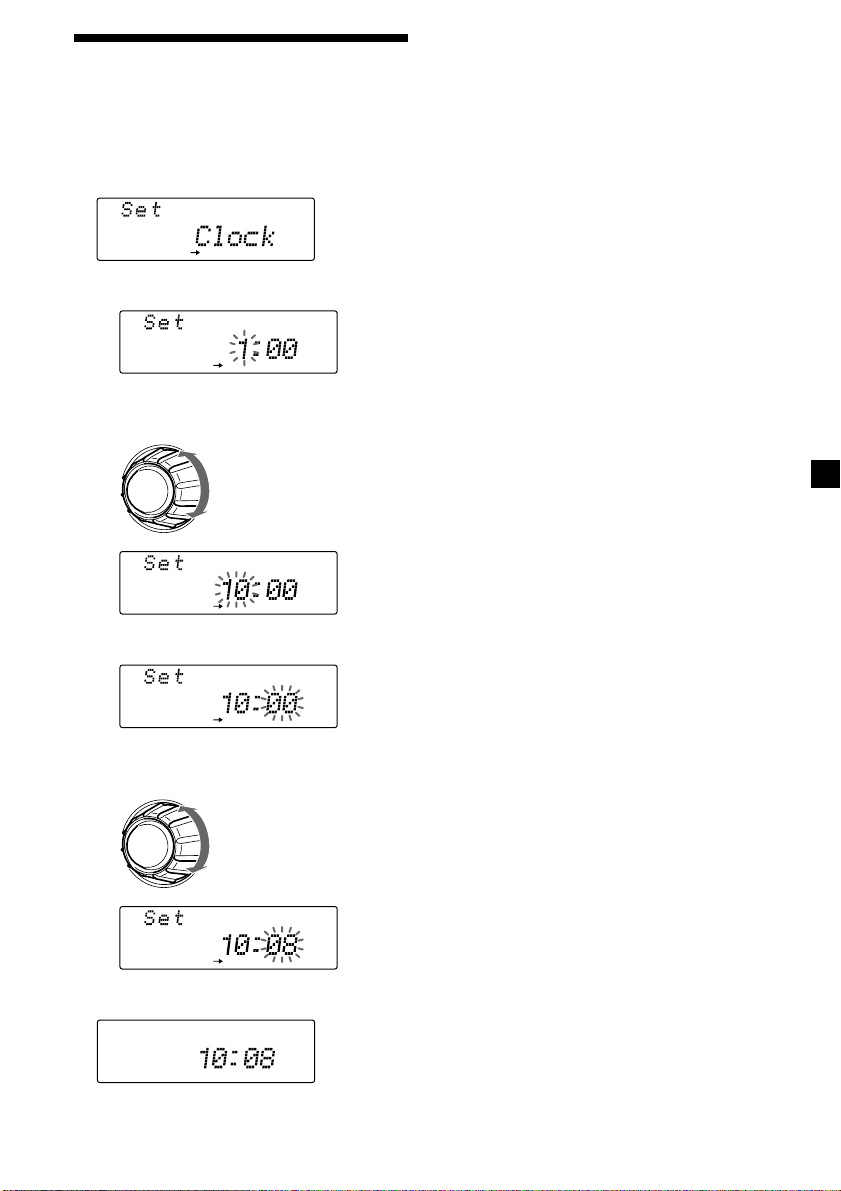
The clock uses a 12-hour digital indication.
Example: To set the clock to 10:08
1 Press (SHIFT), then press (3) (SET UP)
repeatedly until “Clock” appears.
1 Press (5) (n).
The hour indication flashes.
2 Set the hour.
3 Press (5) (n).
The minute indication flashs.
4 Set the minute.
2 Press (SHIFT).
The clock starts.
to go forward
to go backward
to go forward
to go backward
SET UP
SET UP
SET UP
SET UP
SET UP
3 Press (SHIFT).
After the clock setting is complete, the
display returns to normal playback mode.
Note
If the POWER SELECT switch on the bottom of the
unit is set to the B position, turn the power on
first, then set the clock.
8
Changing the display item
Each time you press (DSPL), the item changes
as follows:
$
Elapsed playback time
$
Disc name*
1
/Artist name*
2
$
Track name*
1
$
Clock
*
1
If you inserted a non-CD TEXT disc,
“NO D.Name” or “NO T.Name” appears in the
display.
*
2
If you play a CD TEXT disc, the artist name
appears in the display after the disc name. (Only
for CD TEXT discs with the artist name.)
After if you select the desired item, the display
will be automatically change to the Motion
Display mode after a few seconds.
In the Motion Display mode, all the above
items are scrolled in the display one by one in
order.
Tip
The Motion Display mode can be turned off. (See
“Changing the sound and display settings” on
page 17).
You can label CD and CD TEXT discs with a
personalized name using the disc memo
function, refer to “Labeling a CD” (page 23).
However, if you use personalized labels, they
will always take priority over the original CD
TEXT information when such information is
displayed.
Tips
• If the name of the CD TEXT disc is too long, you
can scroll it across the display by pressing
(SHIFT), then (2) (N).
• If you want to display the original CD TEXT
information after labelling the CD TEXT disc with
a personalized name, press (SHIFT) , then (5)
(n).
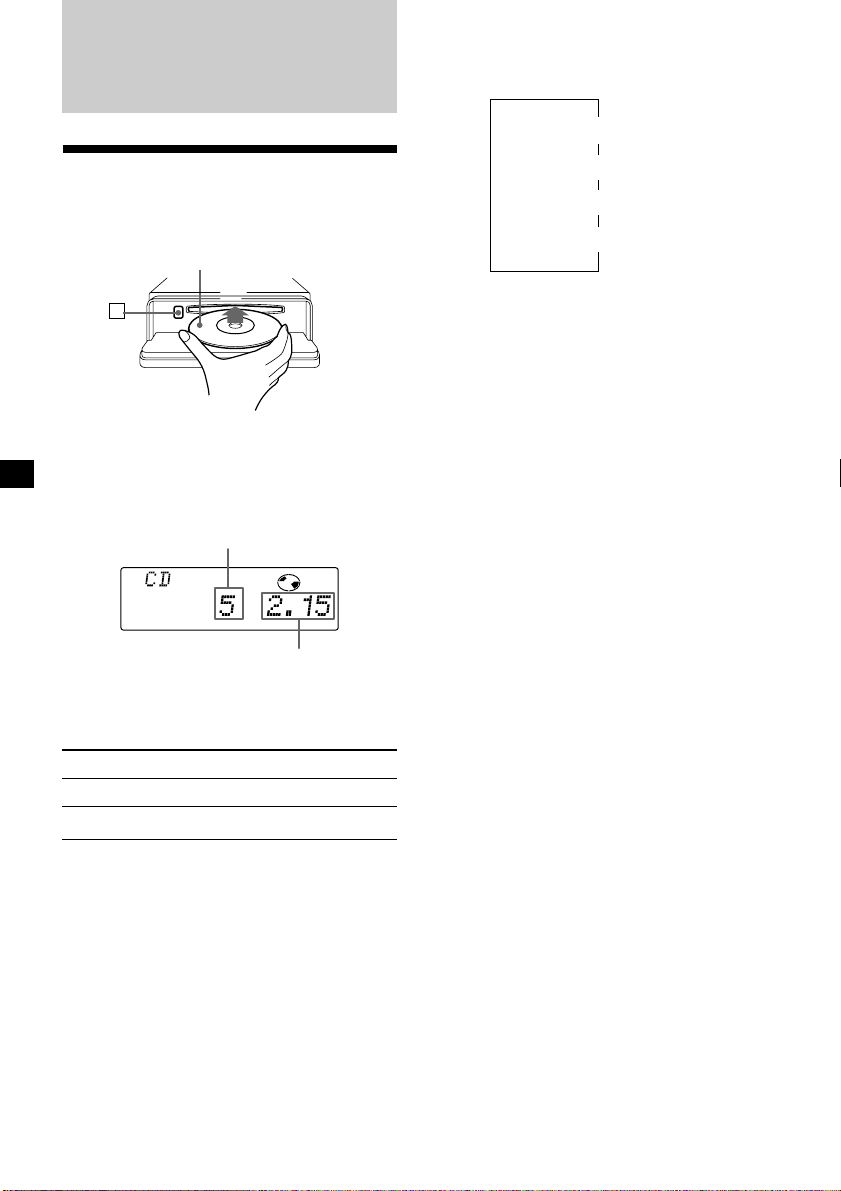
Track number
Elapsed playing time
Labelled side up
CD Player
Listening to a CD
1 Press (OPEN) and insert the CD.
Playback starts automatically.
2 Close the front panel.
If a CD is already inserted, to start playback
press (SOURCE) repeatedly until “CD”
appears.
Note
To play back an 8 cm (3 in.) CD, use the optional
Sony compact disc single adapter (CSA-8).
To Press
Stop playback (OFF)
Eject the CD (OPEN) then 6
6
TRACK
9
Automatically scrolling a disc name
— Auto Scroll
If the disc name, artist name, or track name on
a CD TEXT disc exceeds 10 characters and the
Auto Scroll function is on, the following
information will be automatically scrolled.
• The disc name appears when the disc has
changed (if the disc name is selected).
• The track name appears when the track has
changed (if the track name is selected).
If you press (DSPL) to change the display
item, the disc or track name of the CD TEXT
disc is scrolled automatically whether you set
the function on or off.
1 During playback, press (SHIFT).
2 Press (3) (SET UP) repeatedly until
“A.Scrl” appears.
3 Press (5) (n) to select “A.Scrl on.”
4 Press (SHIFT).
To cancel Auto Scroll, select “A.Scrl off” in
step 3 above.
Note
For some CD TEXT discs with extremely many
characters, the following cases may happen:
— Some of the characters are not displayed.
— Auto Scroll does not work.
Locating a specific track
— Automatic Music Sensor (AMS)
During playback, push the SEEK/AMS
control up or down and release, for each
track you want to skip.
Locating a specific point in a track
— Manual Search
During playback, push the SEEK/AMS
control up or down and hold. Release
when you have found the desired point.
To locate
preceding tracks
To locate succeeding
tracks
To search backward
To search forward
Note
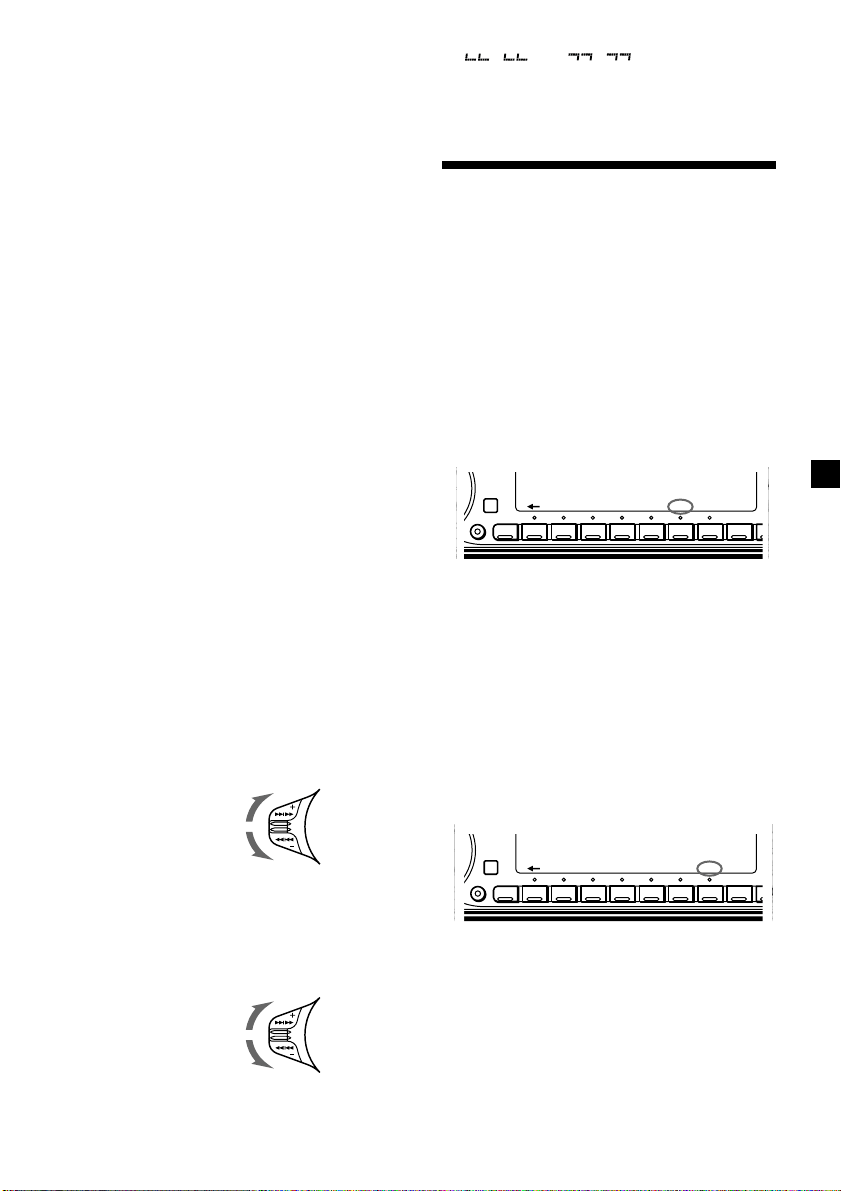
If “
” or “ ” appears in the
display, that means you have reached the
beginning or the end of the disc and you cannot
go any further.
Playing a CD in various
modes
You can play CDs in various modes:
•Repeat (Repeat Play) repeats the current
track.
•Shuf (Shuffle Play) plays all the tracks in
random order.
Playing tracks repeatedly
— Repeat Play
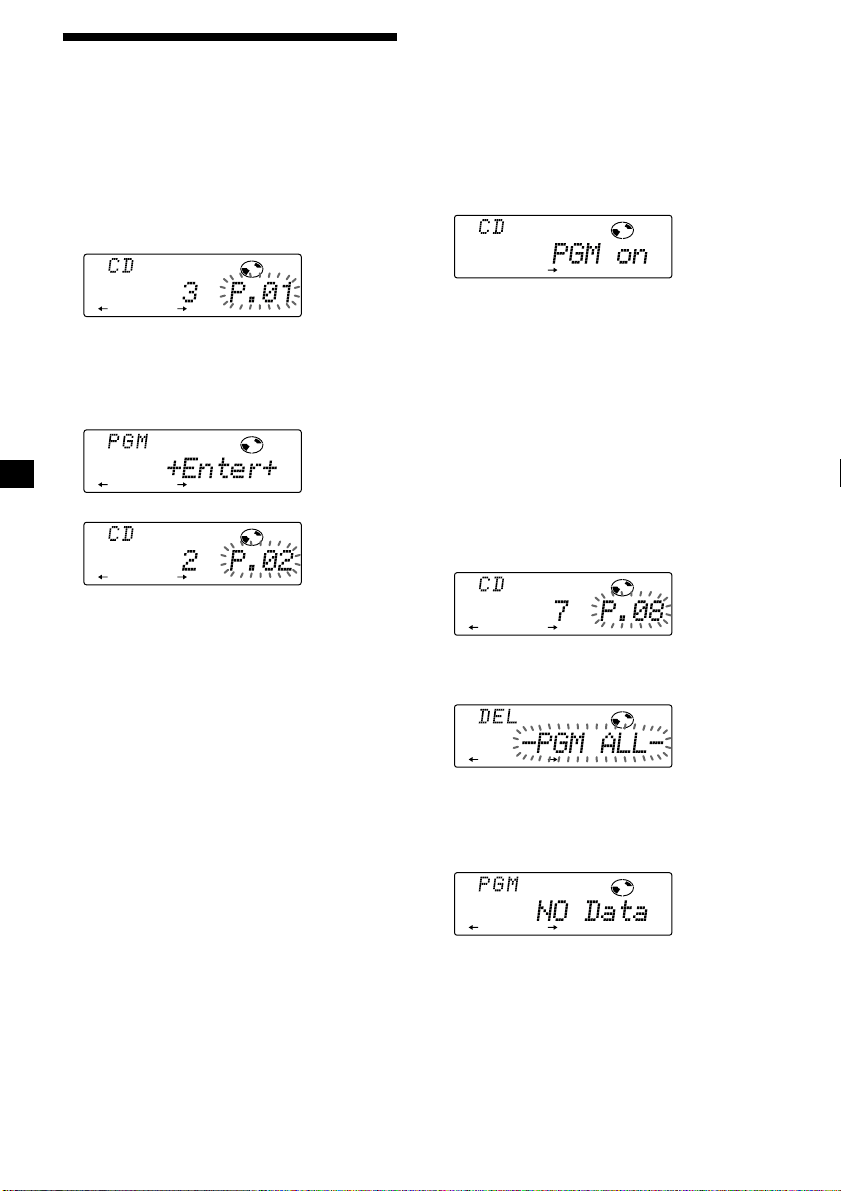
1 During playback, press (SHIFT).
Every time you press (SHIFT), only the
items you can select light up.
2 Press (7) (REP) repeatedly until ”Repeat
1“ appears.
Repeat Play starts.
3 Press (SHIFT).
To return to normal playback mode, select
“Repeat off” in step 2 above.
Playing tracks in random order
— Shuffle Play
1 During playback, press (SHIFT).
2 Press (8) (SHUF) repeatedly until ”Shuf
1“ appears.
Shuffle Play starts.
3 Press (SHIFT).
To return to normal playback mode, select
“Shuf off” in step 2 above.
A
SHIFT
1234567891
SET UP PLAY MODE
REP SHUF
DSPL
A
SHIFT
1234567891
0
SET UP PLAY MODE
REP SHUF
10
Playing the stored program
1 Press (SHIFT).
2 Press (4) (PLAY MODE) repeatedly until
“PGM” appears.
3 Press (5) (n) repeatedly until “PGM on”
appears.
Program Play starts.
4 Press (SHIFT).
To return to normal playback mode, select
“PGM off” in step 3 above.
Note
“Not ready” appears in the display if no track is
stored in the program.
Erasing an entire program
1 Press (SHIFT), then press (4) (PLAY
MODE) for two seconds.
2 Press (2) (N) repeatedly until “DEL”
appears.
To delete Program 2, press (5) (n)
repeatedly until “PGM 2” appears.
3 Press (6) (ENTER) for two seconds.
The entire program is erased.
4 When you finish erasing programs, press
(4) (PLAY MODE) for two seconds.
5 Press (SHIFT).
Creating a program
— CD Program Memory
You can play the tracks in the order you want
by making your own program. You can select
up to 24 tracks for a program. You can store
the programs in memory.
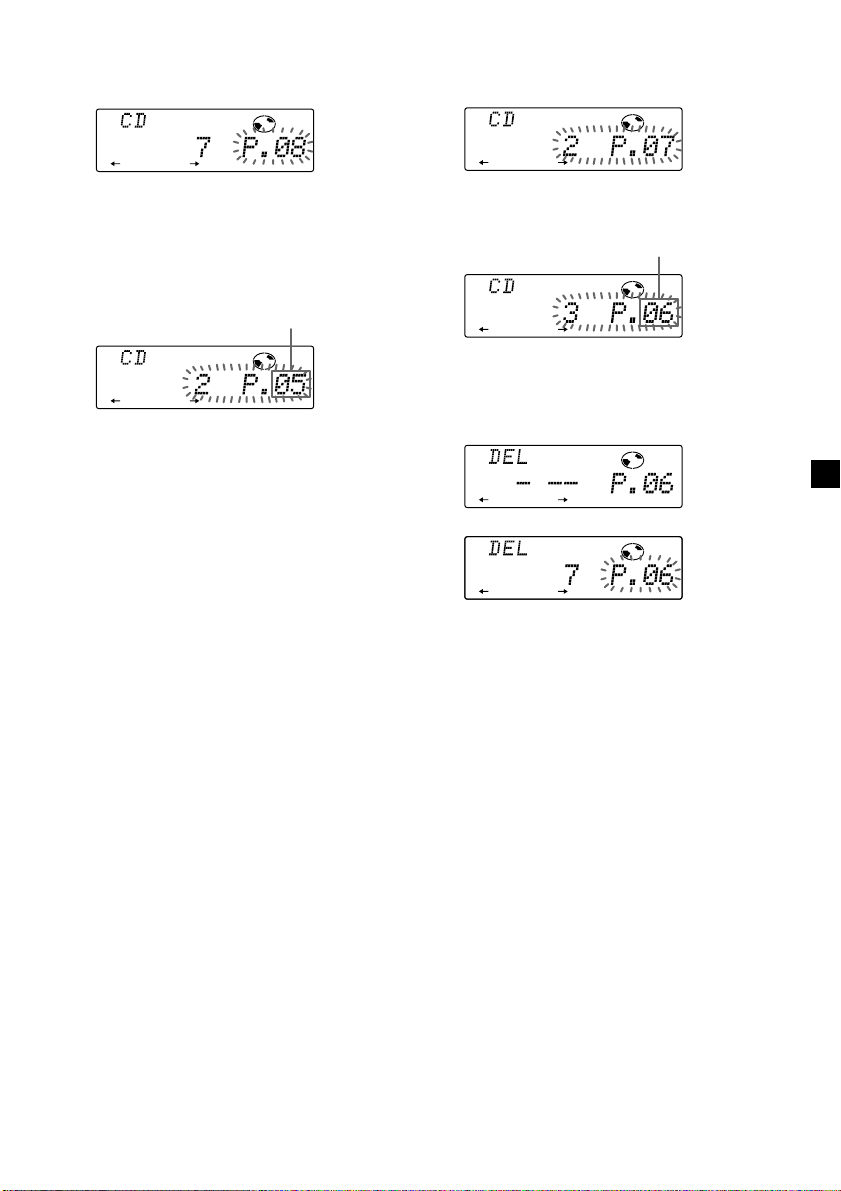
1 During CD playback, press (SHIFT), then
press (4) (PLAY MODE) for two seconds.
2 Push the SEEK/AMS control up or down
to select the track you want.
3 Press (6) (ENTER) momentarily.
4 To continue entering tracks, repeat steps
2 and 3.
5 When you finish selecting tracks, press
(4) (PLAY MODE) for two seconds.
6 Press (SHIFT).
Notes
• “*Wait*” appears in the display while the unit is
reading the data.
• “*Mem Full*” appears in the display when you
try to enter more than 24 tracks into a program.
µ
RLAY MODE ENTER
TRACK
RLAY MODE ENTER
RLAY MODE ENTER
TRACK
RLAY MODE
PGM
RLAY MODE ENTER
TRACK
RLAY MODE ENTER
RLAY MODE ENTER
11
Track slot number
Adding tracks to a program
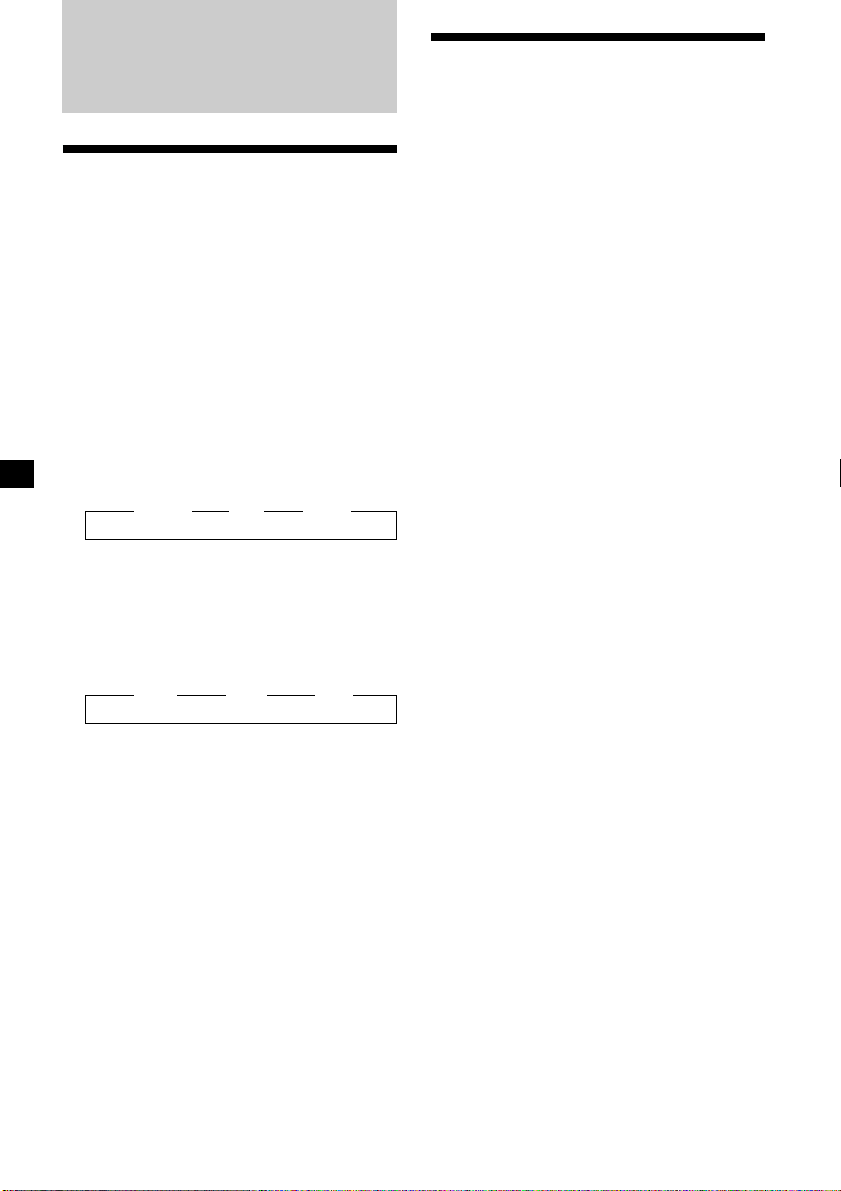
1 Press (SHIFT), then press (4) (PLAY
MODE) for two seconds.
To select Program 2, press (5) (n)
repeatedly until “P” appears.
2 Press (2) (N) or (5) (n) to select the
track slot number where you want to
insert a track.
3 Push the SEEK/AMS control up or down
to select the track you want to insert.
4 Press (6) (ENTER) momentarily to enter
the track.
The current track in that slot number and
the succeeding tracks shift down.
5 To continue inserting tracks, repeat steps
2 through 4.
Note
When a 24 slots have been filled, “*Mem Full*”
appears in the display, and you cannot insert
tracks.
6 When you finish inserting tracks, press
(4) (PLAY MODE) for two seconds.
7 Press (SHIFT).
RLAY MODE ENTER
TRACK
RLAY MODE ENTER
TRACK
Erasing tracks in a program
1 Press (SHIFT), then press (4) (PLAY
MODE) for two seconds.
2 Press (2) (N) or (5) (n) to select the
track you want to erase.
The track currently registered in slot 6.
3 Press (6) (ENTER) for two seconds.
When you erase a track from a slot number,
the succeeding tracks shift up to fill the gap.
4 To continue erasing tracks, repeat steps
2 and 3.
5 When you finish erasing tracks, press (4)
(PLAY MODE) for two seconds.
6 Press (SHIFT).
Track slot number
µ
RLAY MODE ENTER
TRACK
RLAY MODE ENTER
TRACK
RLAY MODE ENTER
DISC TRACK
RLAY MODE ENTER
TRACK
12
Memorizing only the
desired stations
You can preset up to 30 stations (10 each for
FM1, FM2, and AM) in the order of your
choice.
1 Press (SOURCE) repeatedly to select the
tuner.
2 Press (MODE) repeatedly to select the
band.
3 Push the SEEK/AMS control up or down
to tune in the station that you want to
store on the number button.
4 Press and hold the desired number
button ((1) to (10)) until “MEM”
appears.
The number button indication appears in
the display.
Note
If you store a new station on a number button
which already has a station registered, the
previously stored station will be replaced by the
new one.
Radio
Memorizing stations
automatically
— Best Tuning Memory (BTM)
The unit selects the stations with the strongest
signals and memorizes them in the order of
their frequencies. You can store up to 10
stations on each band (FM1, FM2, and AM).
Caution
When tuning in stations while driving, use
Best Tuning Memory to prevent accidents.
1 Press (SOURCE) repeatedly to select the
tuner.
Each time you press (SOURCE), the source
changes as follows:
z TUNER z CD z MD*
* If the corresponding optional equipment is
not connected, this item will not appears.
2 Press (MODE) repeatedly to select the
band.
Each time you press (MODE), the band
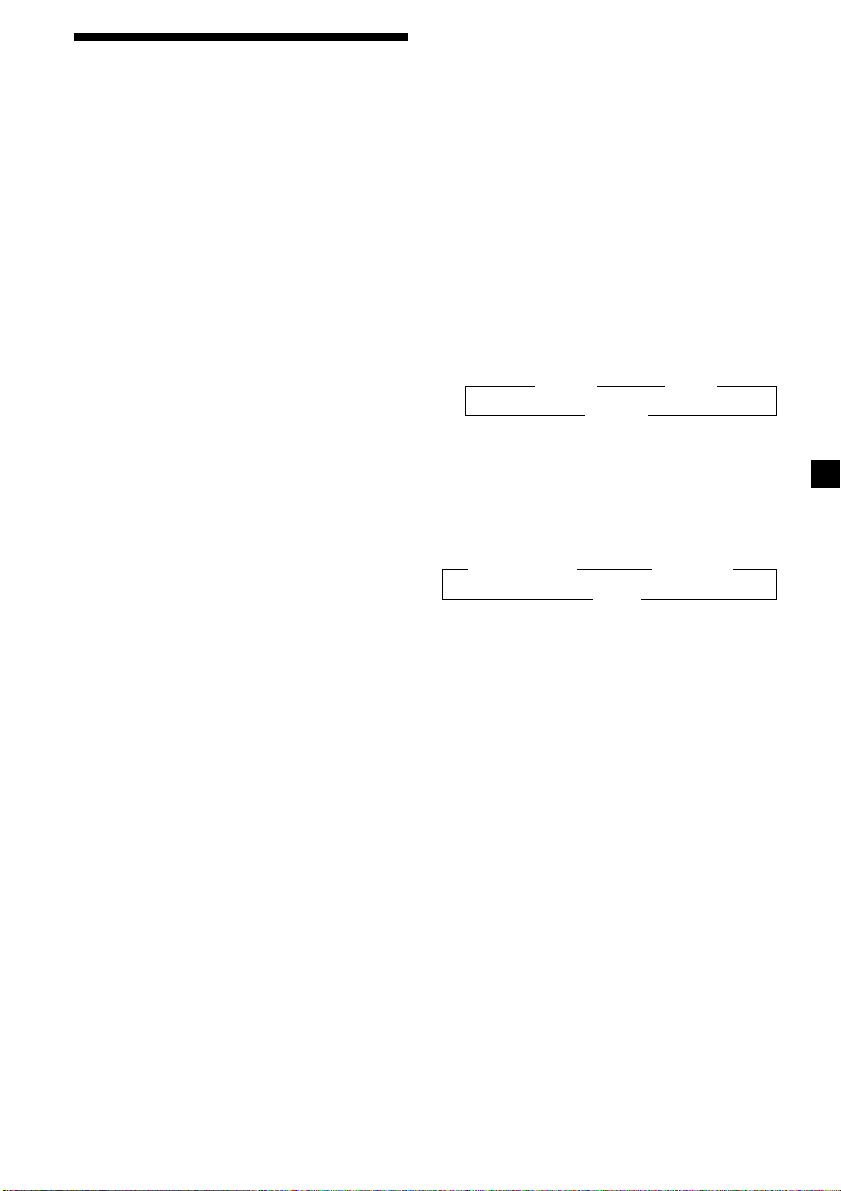
changes as follows:
z FM1 z FM2 z AM
3 Press (SHIFT), then press (4) (PLAY
MODE) repeatedly until “B.T.M” appears.
4 Press (5) (n).
The unit stores stations in the order of their
frequencies on the number buttons.
A beep sounds when the setting is stored.
5 Press (SHIFT).
Notes
• The unit does not store stations with weak
signals. If only a few stations are received, some
number buttons will retain their former setting.
• When a number is already indicated in the
display, the unit stores stations in order from the
one currently displayed.
13
Receiving the memorized
stations
1 Press (SOURCE) repeatedly to select the
tuner.
2 Press (MODE) repeatedly to select the
band.
3 Press the number button ((1) to (10))
where the desired station is stored.
If you cannot tune in a preset
station
Push and release the SEEK/AMS control
up or down to search for the station
(automatic tuning).
Scanning stops when the unit receives a
station. Push the SEEK/AMS control up or
down repeatedly until the desired station is
received.
Note
If the automatic tuning stops too frequently, press
(SHIFT), then press (4) (PLAY MODE) repeatedly
until “Local” (local seek mode) is displayed. Then
press (5) (n) to select “Local on.” Press (SHIFT).
Only the stations with relatively strong signals will
be tuned in.
Tip
If you know the frequency of the station you want
to listen to, push the SEEK/AMS control up or
down and hold until the desired frequency
appears (manual tuning).
If FM stereo reception is poor
— Monaural Mode
1 During radio reception, press (SHIFT),
then press (4) (PLAY MODE) repeatedly
until “Mono” appears.
2 Press (5) (n) repeatedly until “Mono
on“ appears.
The sound improves, but becomes
monaural (“ST” disappears).
3 Press (SHIFT).
To return to normal mode, select “Mono off”
in step 2 above.
If interference occurs during FM
reception
If there is interference from neighboring
stations, follow the steps below and select
“Narrow”. If interference is not a problem,
select “Wide” to maximize signal reception
and improve sound quality or “IF Auto ”to
switch between “Narrow” and “Wide”
automatically.
1 Press (SHIFT) during FM reception.
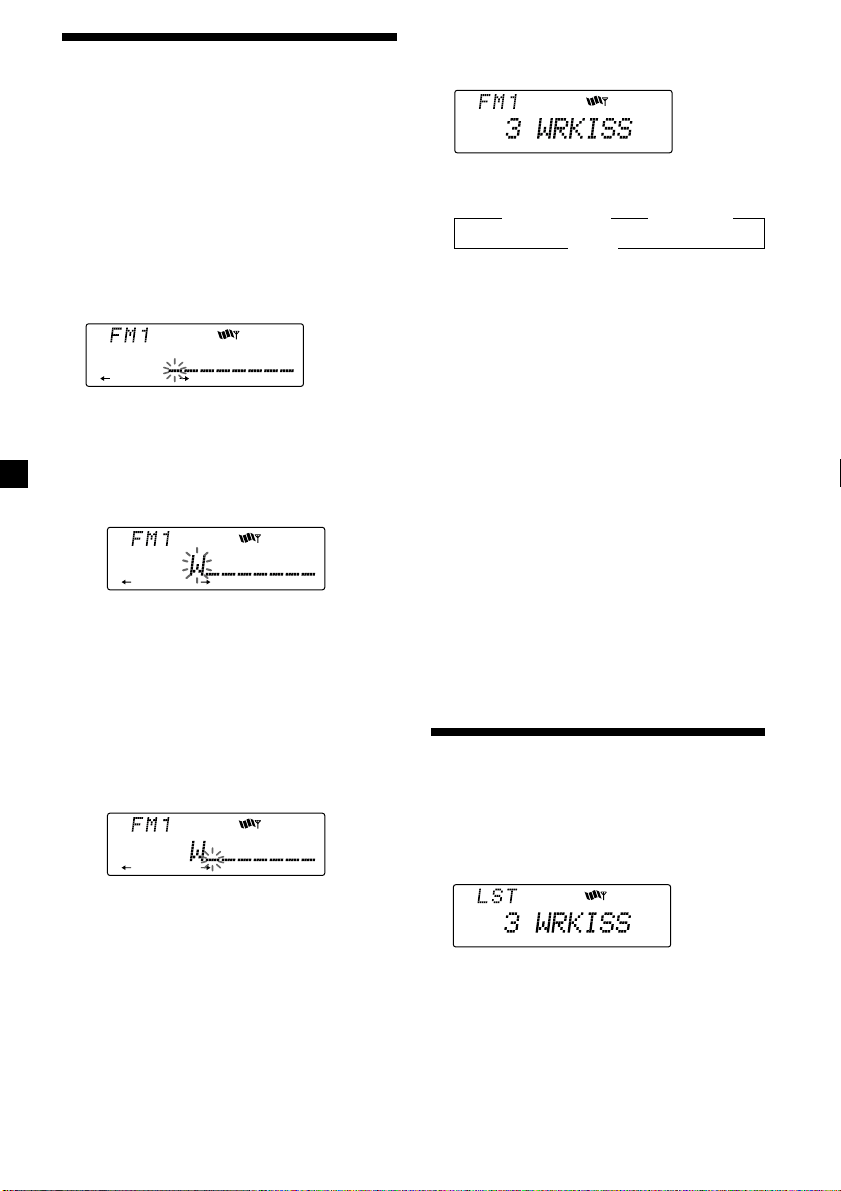
2 Press (4) (PLAY MODE) repeatedly until
“IF Auto“ appears.
3 Press (5) (n) repeatedly to select
desired setting.
z IF Auto z Wide
Narrow Z
4 Press (SHIFT).
Changing the display item
Each time you press (DSPL), the item changes
as follows:
z Station name* z Frequency
Clock Z
* If the station name is not stored, “NO Name”
appears in the display for one second.
After if you select the desired item, the display
will be automatically change to the Motion
Display mode after a few seconds.
In the Motion Display mode, all the above
items are scrolled in the display one by one in
order.
Tip
The Motion Display mode can be turned off. (See
“Changing the sound and display settings” on
page 17).
14
Displaying the station name
Press (DSPL) during radio reception.
Each time you press (DSPL), the item
changes as follows:
z Station name* z Frequency
Clock Z
* If the station name is not stored, “NO Name”
appears in the display for one second.
Erasing the station name
1 Tune in any station and press (LIST) for
two seconds.
2 Press (DSPL) for two seconds.
The station name appears in the display.
3 Rotate the dial to select the name you
want to erase.
4 Press (6) (ENTER) for two seconds.
The name is erased.
Repeat steps 3 and 4 if you want to erase
other names.
5 Press (LIST) for two seconds.
The unit returns to normal radio reception
mode.
Locating a station by
name — List-up
1 Press (LIST).
The name assigned to the current station
appears in the display.
2 Press (LIST) repeatedly until you find the
desired station.
3 Press (6) (ENTER) to tune in the desired
station.
Note
After the station name or frequency has been
displayed for five seconds, the display goes back to
normal mode. To turn off the display, press
(DSPL).
Storing the station names
— Station Memo
You can assign a name to each radio station
and store it in memory. The name of the
current station appears in the display. You can
store up to eight characters for each station.
Storing the station names
1 Tune in a station whose name you want
to store.
2 Press (LIST) for two seconds.
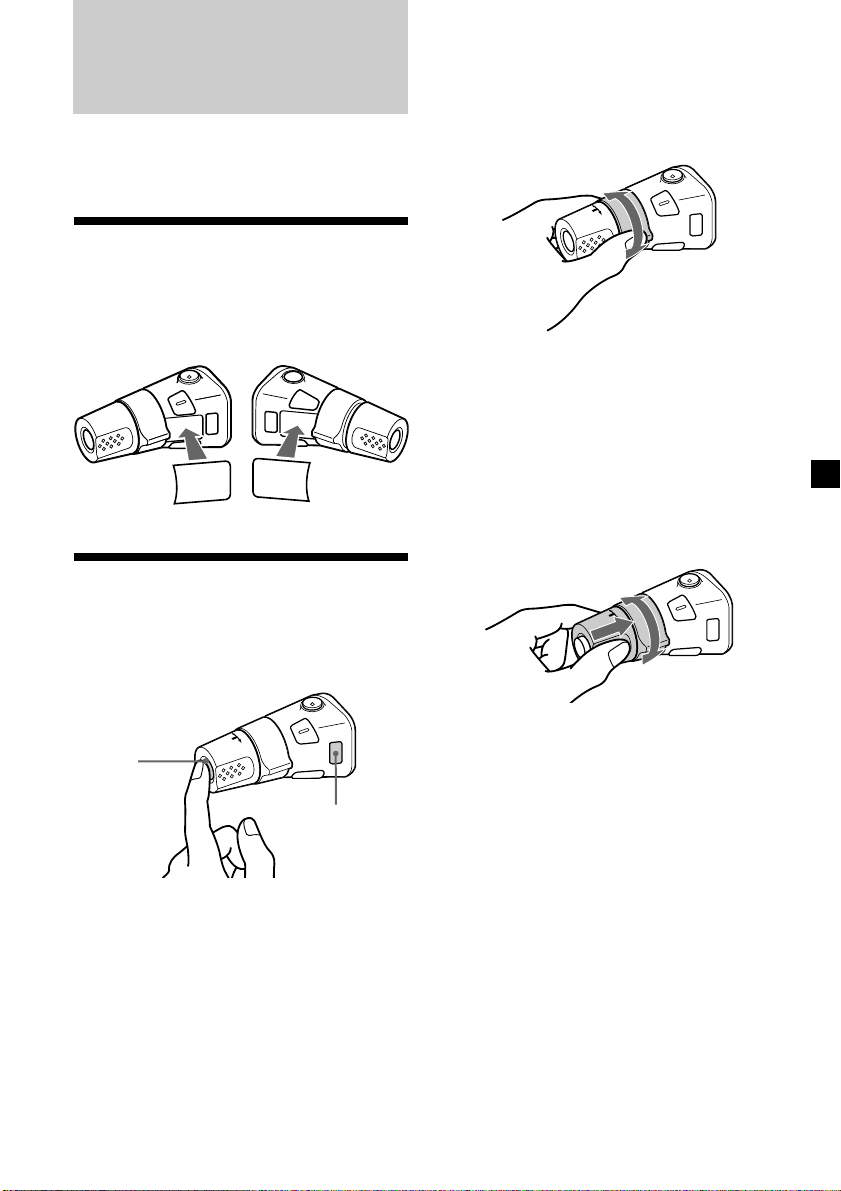
3 Enter the characters.
1 Rotate the dial clockwise to select the
desired characters.
(A n B n C n ··· Z n 0 n 1 n 2 n
··· 9 n + n – n * n / n \ n > n <
n . n _ )
If you rotate the dial counterclockwise,
the characters appear in the reverse
order.
If you want to put a blank space
between characters, select “_” (under-
bar).
2 Press (5) (n) after locating the
desired character.
The flashing cursor moves to the next
space.
If you press (2) (N), the flashing cursor
moves to the left.
3 Repeat steps 1 and 2 to enter the
entire name.
4 To return to normal radio reception,
press (LIST) for two seconds.
Tip
To erase/correct a name, enter “_” (under-bar) for
each character.
15
Tip
When the POWER SELECT switch is set to position
B, you can turn on this unit by pressing (SOURCE)
on the rotary commander.
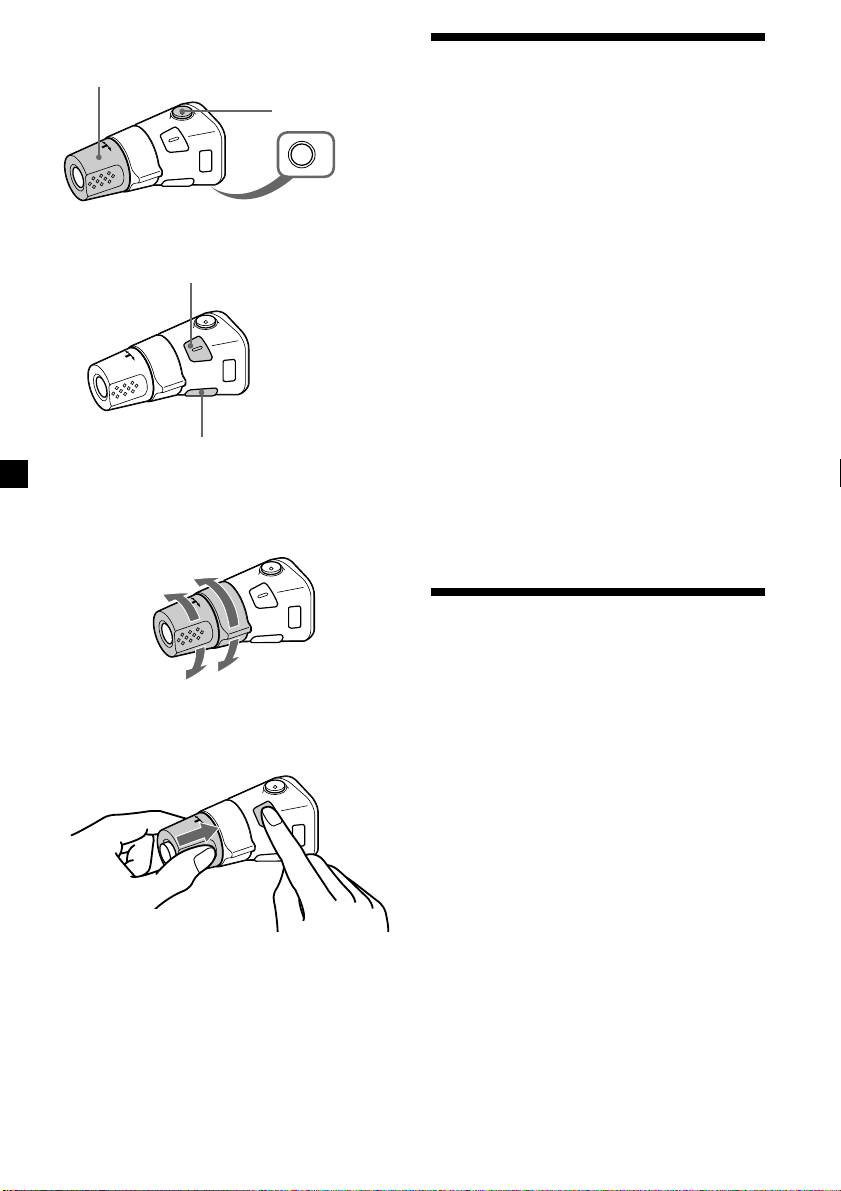
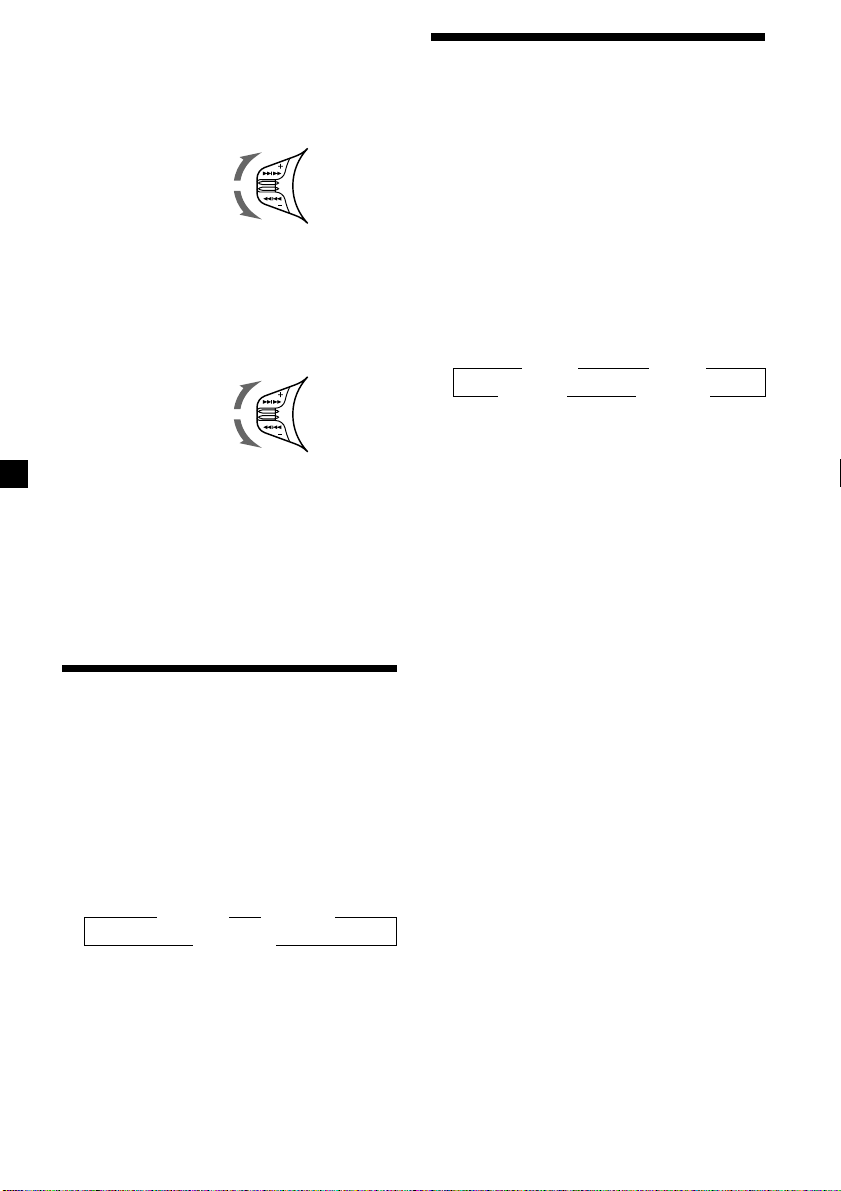
By rotating the control
(the SEEK/AMS control)
Rotate the control and release it to:
•Locate a specific track on a disc. Rotate
and hold the control until you locate the
specific point in a track, then release it to
start playback.
•Tune in stations automatically. Rotate and
hold the control to tune in a specific
station.
By pushing in and rotating the
control (the PRESET/DISC control)
Push in and rotate the control to:
•Receive the stations memorized on the
number buttons.
•Change the disc.
Other Functions
You can also control an optional CD or MD
unit, or equalizer preamplifier with the rotary
commander.
Labelling the rotary
commander
Depending on how you mount the rotary
commander, attach the appropriate label as
shown in the illustration below.
Using the rotary
commander
By pressing buttons
(the SOURCE and MODE buttons)
Each time you press (SOURCE), the
source changes as follows:
TUNER n CD n MD* n TV*
* If the corresponding optional equipment is
not connected, this item will not appears.
Pressing (MODE) changes the operation
in the following ways;
• Tuner: FM1 n FM2 n AM
• CD unit: CD1 n CD2 n …
• MD unit: MD1 n MD2 n …
• TV/Video: TV n Video1 n Video2 n …
SOUND
LIST
MODE
SOUND
LIST
MODE
(SOURCE)
(MODE)
16
Other operations
Changing the operative direction
The operative direction of controls is factory-
set as shown below.
If you need to mount the rotary commander on
the right-hand side of the steering column, you
can reverse the operative direction.
Press (SOUND) for two seconds while
pushing the VOL control.
Tip
You can also change the operative direction of
these controls with the unit (see “Changing the
sound and display settings” on page 17).
Press (SOUND) to adjust the
volume and sound menu.
To increase
To decrease
Press (LIST) to display the
memorized names.
Adjusting the sound
characteristics
You can adjust the equalizer curve, listening
position, cut-off frequency, bass, treble,
balance and fader.
You can store the bass and treble levels
independently for each source.
1 Select the item you want to adjust by
pressing (SOUND) repeatedly.
VOL (volume) n EQ* (equalizer curve)
n POS* (listening position) n CNW*
(crossover network) n SUB (subwoofer
volume) n BAS (bass) n TRE (treble)
n BAL (left-right) n FAD (rear-front)
* If the corresponding optional equipment is
not connected, this item will not appears.
2 Adjust the selected item by rotating the
dial.
Adjust within three seconds after selecting
the item. (After three seconds, the dial
function reverts the volume control.)
Attenuating the sound
Press (ATT) on the supplied rotary
commander or the supplied wireless
remote.
“ATT on” lights up for a second.
To restore the previous volume level, press
(ATT) again.
Tip
The unit decreases the volume automatically when
a telephone call comes in (Telephone ATT
function).
OFF
Rotate the VOL control to
adjust the volume.
Press (ATT) to
attenuate the
sound.
Press (OFF) to turn
off the unit.

17
1 Press (SHIFT).
2 Press (3) (SET UP) repeatedly until the
desired item appears.
Each time you press (3) (SET UP), the item
changes as follows:
Clock n D.Info*
1
n Amber/Green n Dimmer
n Contrast n Voice*
1
n Beep n RM n
L.out*
2
n Loud*
1
n LPF*
1
n M.dspl n
English/French*
1
n A.Scrl*
1
*
1
When the radio is off, or when no CD, or MD
is playing this item will not appear.
*
2
When the optional equalizer preamplifier is
not connected, this item will not appear.
3 Press (5) (n) to select the desired
setting (Example: on or off).
For the “Contrast” setting, pressing (5)
(n) makes the contrast higher, and
pressing (2) (N) makes the contrast lower.
4 Press (SHIFT).
After the mode setting is complete, the
display returns to normal playback mode.
Changing the sound and
display settings
The following items can be set:
•Clock (page 7).
•D.Info (Dual Information)*
1
– to display the
clock and the play mode simultaneously (on)
or to display the information alternately (off).
•Amber/Green – to change the illumination
color to amber or green.
•Dimmer to – change the brightness of the
display.
— Select “Auto” to dim the display only
when you turn the interior lights on.
— Select “on” to dim the display.
— Select “off” to deactivate Dimmer.
•Contrast – to adjust the contrast if the
indications in the display are not
recognizable because of the unit‘s installed
position.
•Voice guide*
1
function for vocalized
comments.
— Select “Voice 1” to minimize the volume
of the guide.
— Select “Voice 2” to be louder the volume
than “Voice 1.”
— Select “Voice 3” to maximize the volume
of the guide.
— Select “Voice off” to deactivate Voice
guide.
•Beep – to turn the beep sounds on or off.
•RM (Rotary Commander) – to change the
operative direction of the controls of the
rotary commander.
— Select “norm” to use the rotary
commander in the factory-set position.
— Select “rev” when you mount the rotary
commander on the right-hand side of the
steering column.
•L.out (Line output)*
2
(page 18).
•Loud (Loudness)*
1
– to enjoy bass and treble
even at low volumes. The bass and treble will
be reinforced.
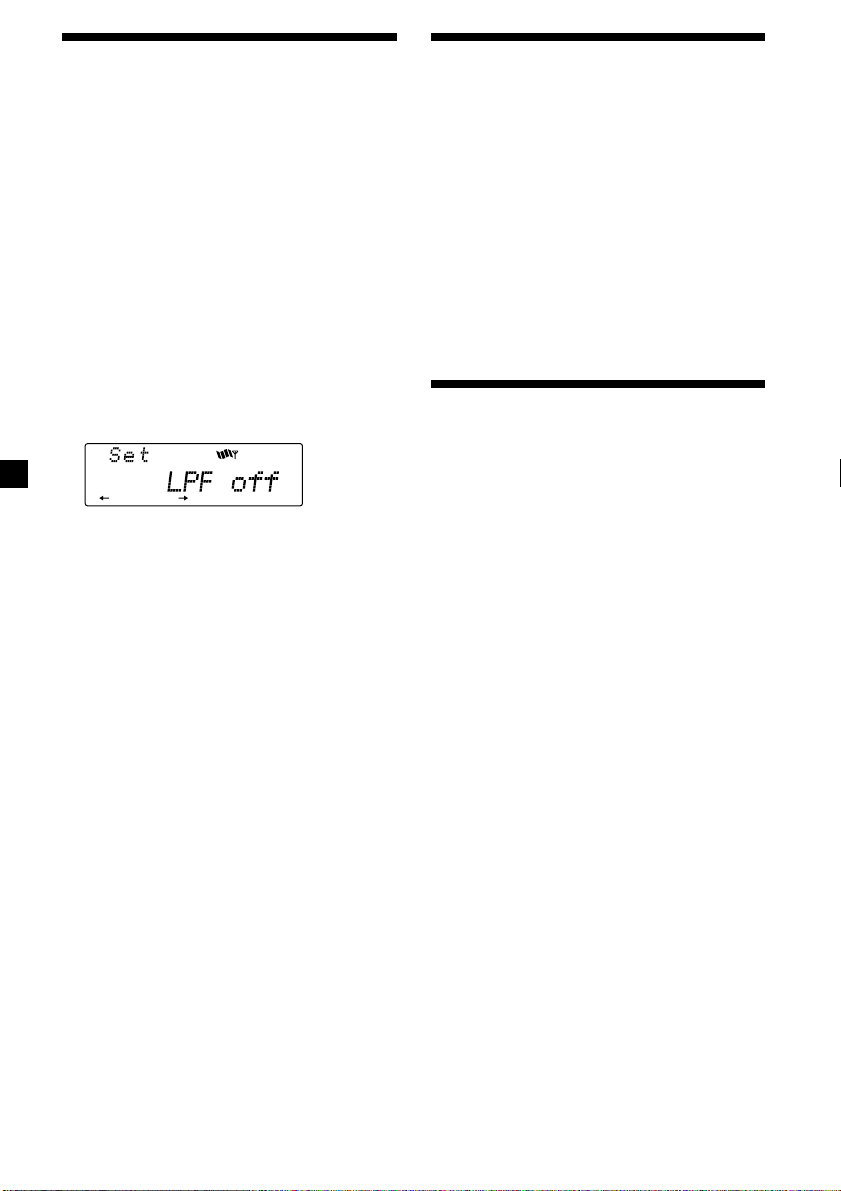
•LPF (Low Pass Filter)*
1
.
•M.dspl (Motion Display) – to turn the motion
display to 1, 2, or off.
•English/French*
1
– to change the vocalized
comments of the voice guide to English or
French.
•A.Scrl (Auto Scroll)*
1
(page 9, 19).
18
Adjusting the frequency of
the subwoofer(s)
To match the characteristics of the connected
subwoofer(s), you can cut out the unwanted
high and middle frequency signals entering
the subwoofer(s). By setting the cut-off
frequency, the subwoofer(s) will output only
low frequency signals so you can get a clearer
sound image.
1 Press (SOURCE) to select a source (radio,
CD or MD).
2 Press (SHIFT), then press (3) (SET UP)
repeatedly until “LPF” appears.
3 Press (5) (n) or (2) (N) repeatedly to
select desired setting.
Each time you press (5) (n) or (2) (N),
the cut-off frequency in the display changes
as follows:
LPF off ˜ LPF 80 Hz ˜ LPF 120 Hz
4 Press (SHIFT).
When the frequency setting is complete, the
display returns to the normal playback
mode.
SET UP
Adjusting the sound and
frequency of the equalizer
This unit can also control an optional equalizer
preamplifier.
This lets you add some effects to the sound
field of the currently selected source.
For details, refer to the instructions manual
supplied with the equalizer preamplifier.
Note
If you connect the optional digital preamplifier
XDP-210EQ, the voice guide function will not
work.
Changing the line output
level
You can change the line output level if you
hear distortion or other noise.
When the optional equalizer preamplifier is
connected, you can set this function.
1 Press (SHIFT), then press (3) (SET UP)
until “L.out” appears.
2 Press (5) (n) to select the desired
setting “L.out Hi” or “L.out Lo.”
3 Press (SHIFT).
19
With Optional Equipment
CD/MD Unit
This unit can control a maximum of seven
external CD/MD units in this configuration:
CD unit – maximum of five
MD unit – maximum of five
Any combination up to seven will work.
If you connect an optional CD unit with the
CD TEXT function, the CD TEXT information
will appear in the display when you play back
a CD TEXT disc.
Playing a CD or MD
1 Press (SOURCE) repeatedly to select the
CD or MD.
2 Press (MODE) until the desired unit
appears.
CD/MD playback starts.
When a CD/MD unit is connected, all the
tracks play from the beginning.
Changing the display item
Each time you press (DSPL) during CD,
CD TEXT, or MD playback, the item changes
as follows:
$
Elapsed playback time
$
Disc name*
1
/Artist name*
2
$
Track name*
3
$
Clock
*
1
If you have not labeled the disc or there is no
disc name prerecorded on the MD, “NO
D.Name” appears in the display.
*
2
If you play a CD TEXT disc, the artist name
appears in the display after the disc name. (Only
for CD TEXT discs with the artist name.)
*
3
If the track name of a CD TEXT disc or MD is not
prerecorded, “NO T.Name” appears in the
display.
After if you select the desired item, the display
will be automatically change to the Motion
Display mode after a few seconds.
In the Motion Display mode, all the above
items are scrolled in the display one by one in
order.
Tip
The Motion Display mode can be turned off. (See
“Changing the sound and display settings” on
page 17).
You can label CD and CD TEXT discs with a
personalized name using the disc memo
function, refer to “Labeling a CD” (page 23).
However, if you use personalized labels, they
will always take priority over the original CD
TEXT information when such information is
displayed.
Automatically scrolling a disc name
— Auto Scroll
If the disc name, artist name, or track name on
a CD TEXT disc or MD exceeds 10 characters
and the Auto Scroll function is on, the
following information will be automatically
scrolled.
• The disc name appears when the disc has
changed (if the disc name is selected).
• The track name appears when the track has
changed (if the track name is selected).
If you press (DSPL) to change the display
item, the disc or track name of the MD or
CD TEXT disc is scrolled automatically
whether you set the function on or off.
1 During playback, press (SHIFT).
2 Press (3) (SET UP) repeatedly until
“A.Scrl” appears.
3 Press (5) (n) to select “A.Scrl on.”
4 Press (SHIFT).
To cancel Auto Scroll, select “A.Scrl off” in
step 3 above.
Note
For some CD TEXT discs with very characters, the
following cases may happen:
— Some of the characters are not displayed.
— Auto Scroll does not work.
Tips
• To manually scroll the long name of an MD or CD
TEXT disc after activating the Auto Scroll
function, press (SHIFT), then (2) (N) (manual
scroll).
• If you want to display the original CD TEXT
information after labelling the CD TEXT disc with
a personalized name, press (SHIFT) , then (5)
(n).
20
Playing tracks in random
order — Shuffle Play
You can select:
•Shuf 1 – to play the tracks on the current disc
in random order.
•Shuf 2 – to play the tracks in the current unit
in random order.
•Shuf All – to play all the tracks in all the units
in random order.
1 During playback, press (SHIFT).
2 Press (8) (SHUF) repeatedly until the
desired setting appears.
z Shuf 1 z Shuf 2
Shuf off Z Shuf All* Z
Shuffle Play starts.
* “Shuf All” is available for CD changer(s) only.
3 Press (SHIFT).
To return to normal playback mode, select
“Shuf off” in step 2 above.
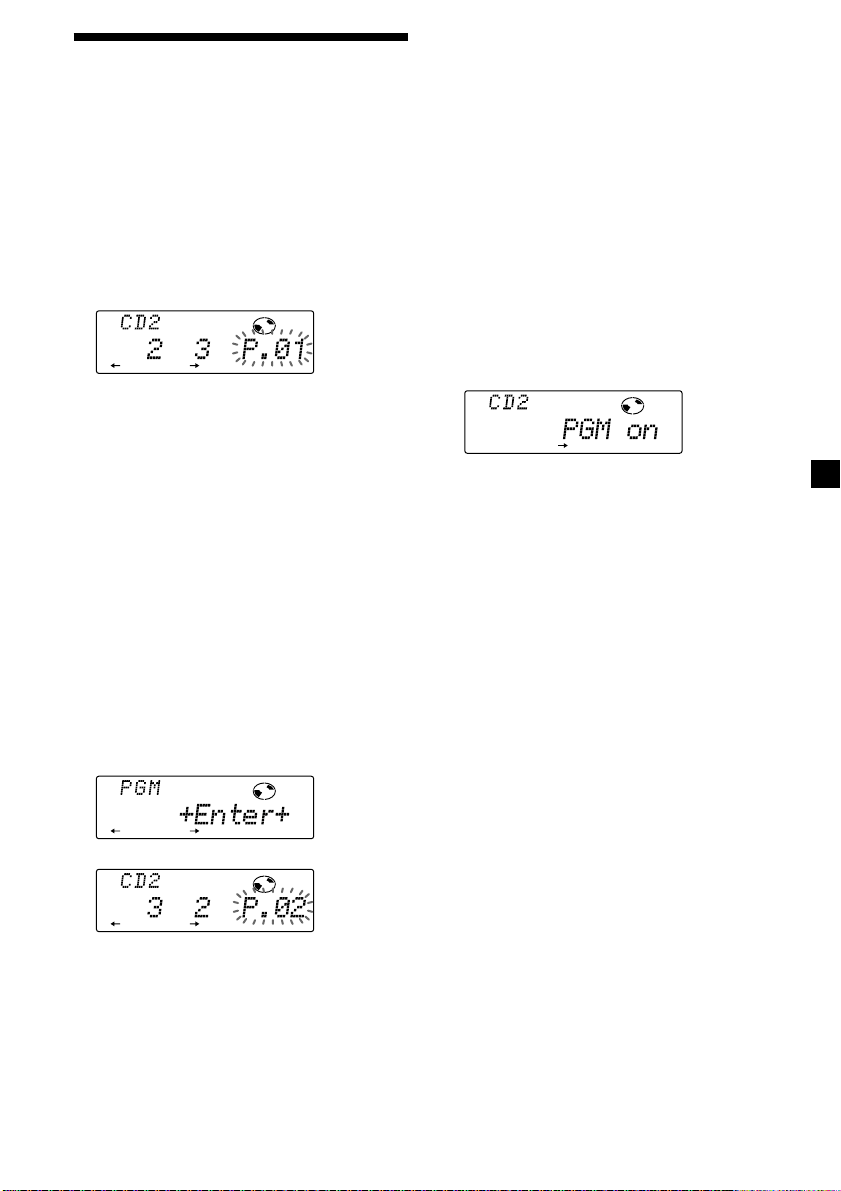
To locate succeeding
tracks
To locate preceding
tracks
To search forward
To search backward
Locating a specific track
— Automatic Music Sensor (AMS)
During playback, push the SEEK/AMS
control up or down and release for each
track you want to skip.
Locating a specific point in a track
— Manual Search
During playback, push the SEEK/AMS
control up or down and hold.
Release when you have found the
desired point.
Locating a disc by disc number
— Direct Disc Selection
Press the number button that
corresponds with the desired disc
number.
The desired disc in the current unit begins
playback.
Playing tracks repeatedly
— Repeat Play
You can select:
•Repeat 1 – to repeat a track.
•Repeat 2 – to repeat a disc.
1 During playback, press (SHIFT).
2 Press (7) (REP) repeatedly until the
desired setting appears.
z Repeat 1 z Repeat 2
Repeat off Z
Repeat Play starts.
3 Press (SHIFT).
To return to normal playback mode, select
“Repeat off” in step 2 above.
21
Creating a program
— Program Memory (For a CD/MD unit with
the program memory function)
You can play tracks in the order you want by
creating and storing programs in the unit‘s
memory. You can select up to 24 tracks for a
program. You can store the programs in
memory.
1 During CD playback, press (SHIFT), then
press (4) (PLAY MODE) for two seconds.
Program edit mode
If you have labelled the disc, the bank edit
mode appears. Press (4) (PLAY MODE) to
display “P” above.
2 Select the track you want.
1 Press (SOURCE) repeatedly to select
CD or MD.
2 Press (MODE) repeatedly to select the
unit.
3 Press (SHIFT), then press the number
button to select the disc.
4 Press (SHIFT).
5 Push the SEEK/AMS control up or
down to select the track.
3 Press (6) (ENTER).
4 To continue entering tracks, repeat steps
2 and 3.
5 When you finish entering tracks, press
(4) (PLAY MODE) for two seconds.
6 Press (SHIFT).
µ
RLAY MODE ENTER
DISC TRACK
RLAY MODE ENTER
RLAY MODE ENTER
DISC TRACK
Notes
• “*Wait*” appears in the display while the unit is
reading the data, or when a disc has not been
put into the unit.
• “*Mem Full*” appears in the display when you
try to enter more than 24 tracks into a program.
Playing the stored program
Changing the disc order in the unit will not
affect program memory play.
1 Press (SHIFT).
2 Press (4) (PLAY MODE) repeatedly until
“PGM” appears.
3 Press (5) (n) repeatedly until “PGM on”
appears.
Program Play starts.
4 Press (SHIFT).
To return to normal playback mode, select
“PGM off” in step 3 above.
Notes
• If you press a number button during program
memory play, program memory play is
interrupted, and playback of the selected disc
starts.
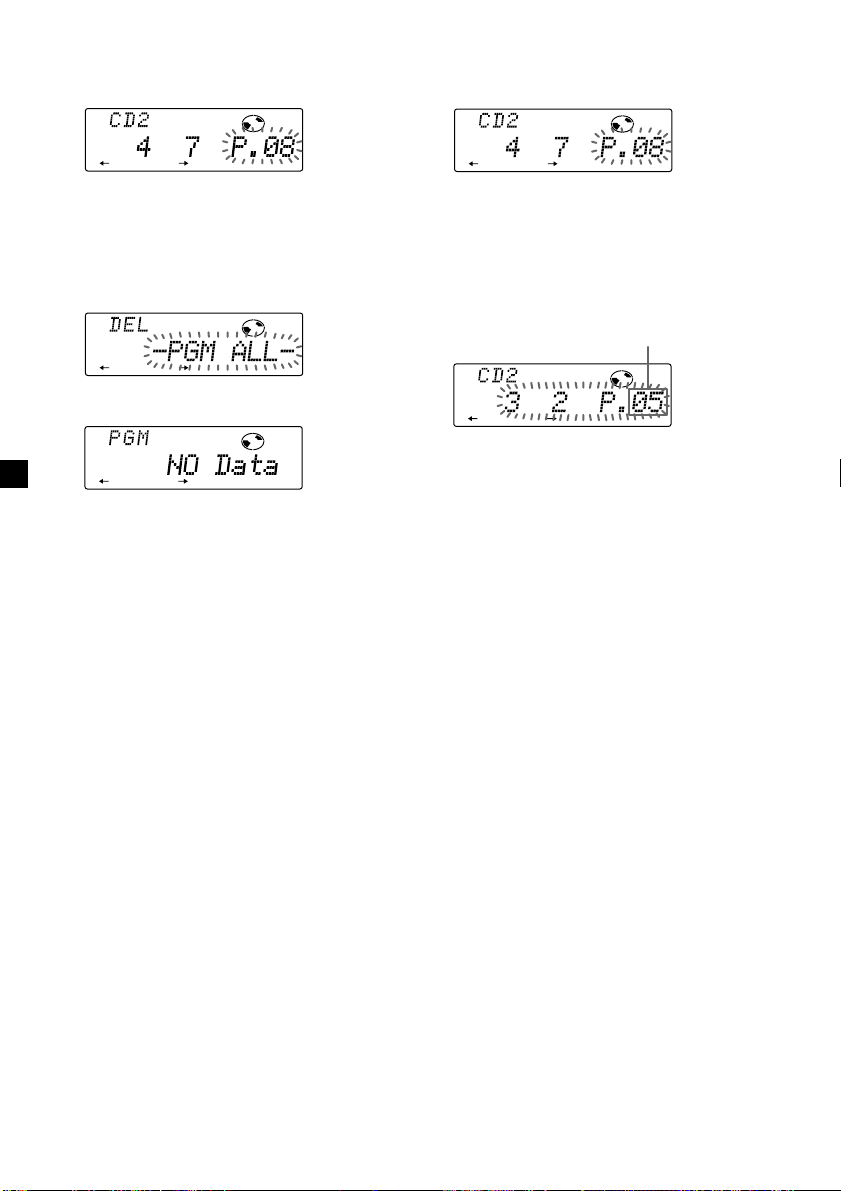
• “NO Data” appears in the display if no track is
stored in the program.
• If a track stored in the program memory is not in
the disc magazine, the track will be skipped.
• When the disc magazine contains no tracks
stored in the program memory, or when the
program information has not been loaded yet,
“Not ready” appears.
RLAY MODE
PGM
22
Adding tracks to a program
1 Press (SHIFT), then press (4) (PLAY
MODE) for two seconds.
If you have labelled the disc, the bank edit
mode appears. Press (4) (PLAY MODE) to
display “P” above.
2 Press (2) (N) or (5) (n) to select the
track slot number where you want to
insert a track.
3 Push the SEEK/AMS control up or down
to select the track you want to insert.
4 Press (6) (ENTER) to enter the track.
The current track is inserted in that slot
number and the succeeding tracks shift
down.
To continue inserting tracks, repeat steps 2
through 4.
Note
When a 24 slots have been filled, “*Mem Full*”
appears in the display, and you cannot insert
more tracks.
5 When you finish inserting tracks, press
(4) (PLAY MODE) for two seconds.
6 Press (SHIFT).
Track slot number
Erasing an entire program
1 Press (SHIFT), then press (4) (PLAY
MODE) for two seconds.
If you have labelled the disc, the bank edit
mode appears. Press (4) (PLAY MODE) to
display “P” above.
2 Press (2) (N) repeatedly until “DEL”
appears.
3 Press (6) (ENTER) for two seconds.
The entire program is erased.
4 When you finish erasing programs, press
(4) (PLAY MODE) for two seconds.
5 Press (SHIFT).
RLAY MODE ENTER
DISC TRACK
RLAY MODE ENTER
RLAY MODE ENTER
RLAY MODE ENTER
DISC TRACK
RLAY MODE ENTER
DISC TRACK
23
Erasing tracks in a program
1 Press (SHIFT), then press (4) (PLAY
MODE) for two seconds.
If you have labelled the disc, the bank edit
mode appears. Press (4) (PLAY MODE) to
display “P” above.
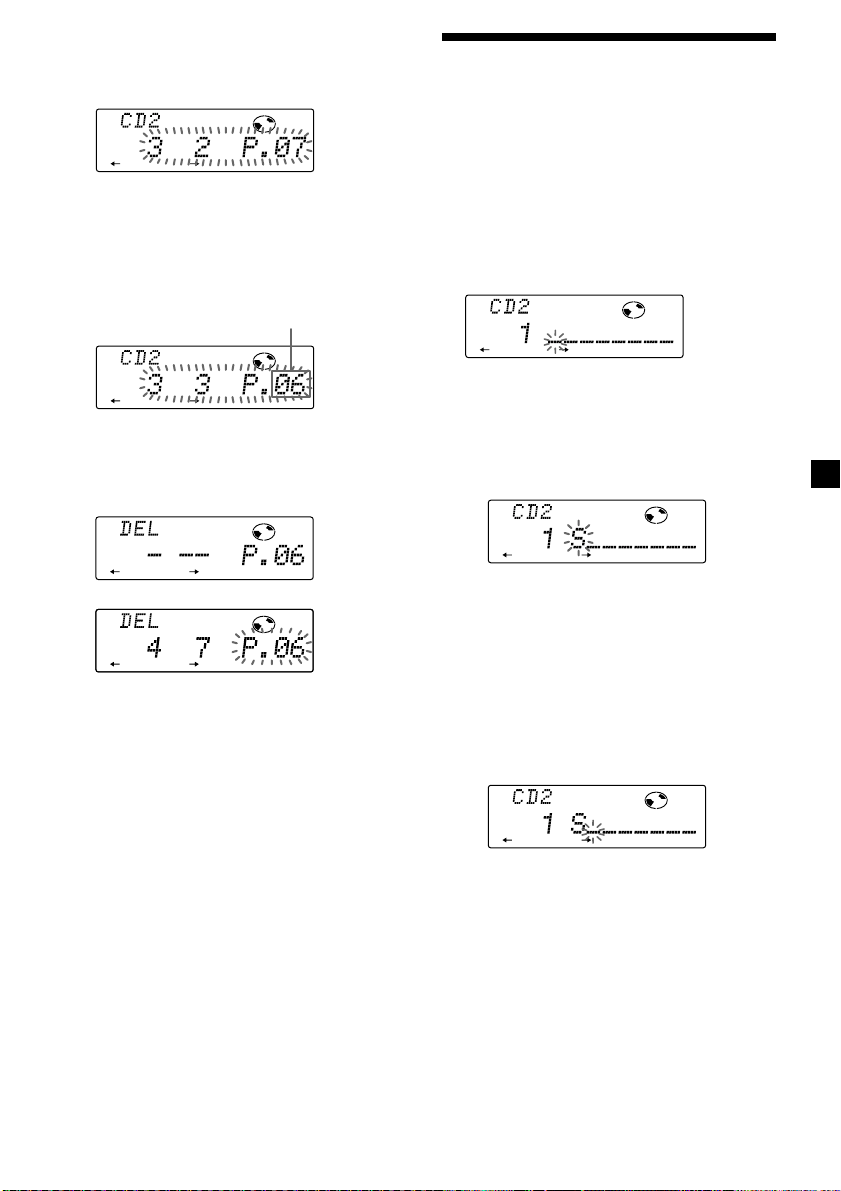
2 Press (2) (N) or (5) (n) to select the
track you want to erase.
The track currently registered in slot 6.
3 Press (6) (ENTER) for two seconds.
When you erase a track from a slot number,
the succeeding tracks shift up to fill the gap.
4 To continue erasing tracks, repeat steps
2 and 3.
5 When you finish erasing tracks, press (4)
(PLAY MODE) for two seconds.
6 Press (SHIFT).
Track slot number
µ
RLAY MODE ENTER
DISC TRACK
RLAY MODE ENTER
DISC TRACK
RLAY MODE ENTER
DISC TRACK
RLAY MODE ENTER
DISC TRACK
Labeling a CD
— Disc Memo (For a CD unit with the
custom file function)
You can label each disc with a personalized
name. You can enter up to eight characters for
a disc. If you label a CD, you can locate the
disc by name (page 25) and select specific
tracks for playback (page 25).
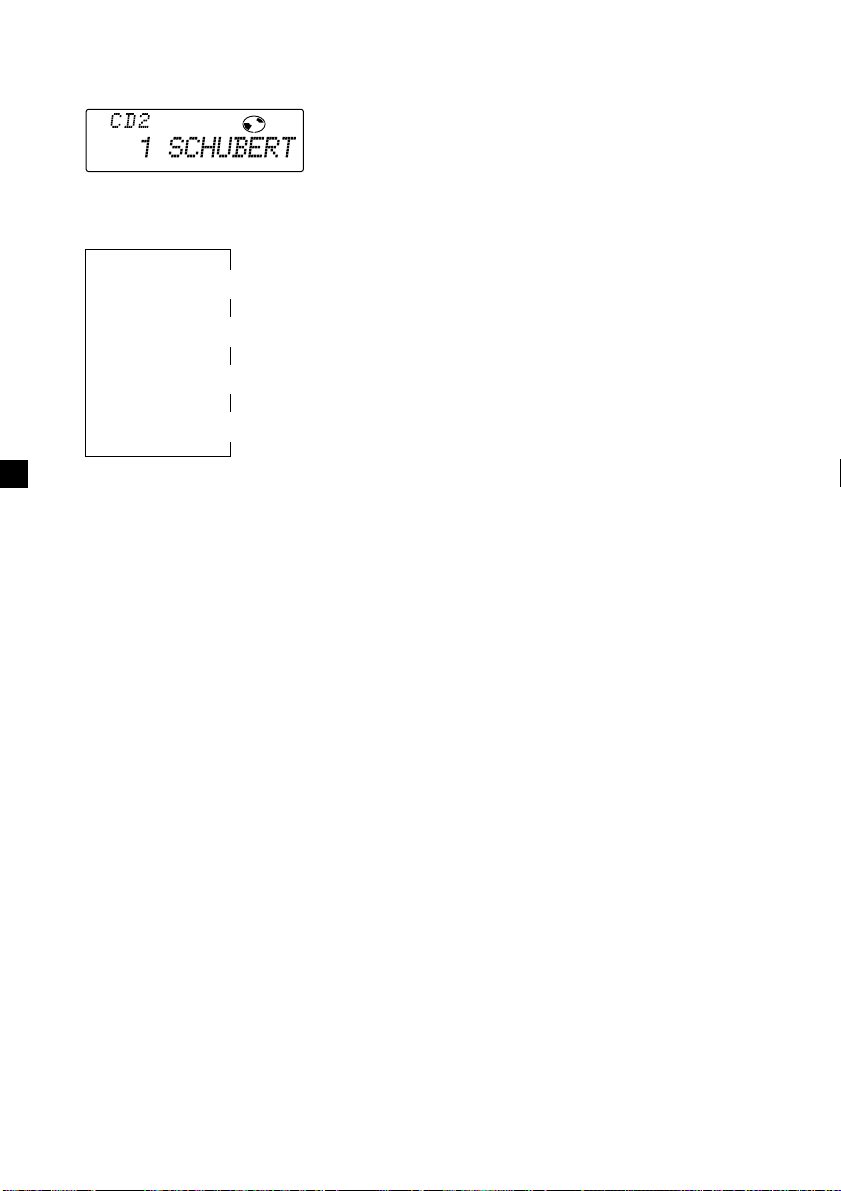
1 During CD playback press (LIST) for two
seconds.
2 Enter the characters.
1 Rotate the dial clockwise to select the
desired characters.
(A n B n C n ··· Z n 0 n 1 n 2 n
··· 9 n + n – n * n / n \ n > n <
n . n _ )
If you rotate the dial counterclockwise,
the characters appear in the reverse
order.
If you want to put a blank space
between characters, select “_” (under-
bar).
2 Press (5) (n) after locating the
desired character.
The flashing cursor moves to the next
space.
If you press (2) (N), the flashing cursor
moves to the left.
3 Repeat steps 1 and 2 to enter the
entire name.
3 To return to normal CD playback mode,
press (LIST) for two seconds.
Tip
To erase or correct a name enter “_” (under-bar)
for each character.
DISC
DISC
DISC
24
Erasing the disc memo
1 Press (SOURCE) repeatedly to select CD.
2 Press (MODE) repeatedly to select the CD
unit.
3 Press (LIST) for two seconds.
4 Press (DSPL) for two seconds.
5 Rotate the dial to select the name you
want to erase.
6 Press (6) (ENTER) for two seconds.
The name is erased.
Repeat steps 5 and 6 if you want to erase
other names.
7 Press (LIST) for two seconds.
The unit returns to normal CD playback
mode.
Note
When the personalized label is erased, the original
CD TEXT information will appear in the display.
Displaying the disc memo name
Press (DSPL) during CD or CD TEXT disc
playback.
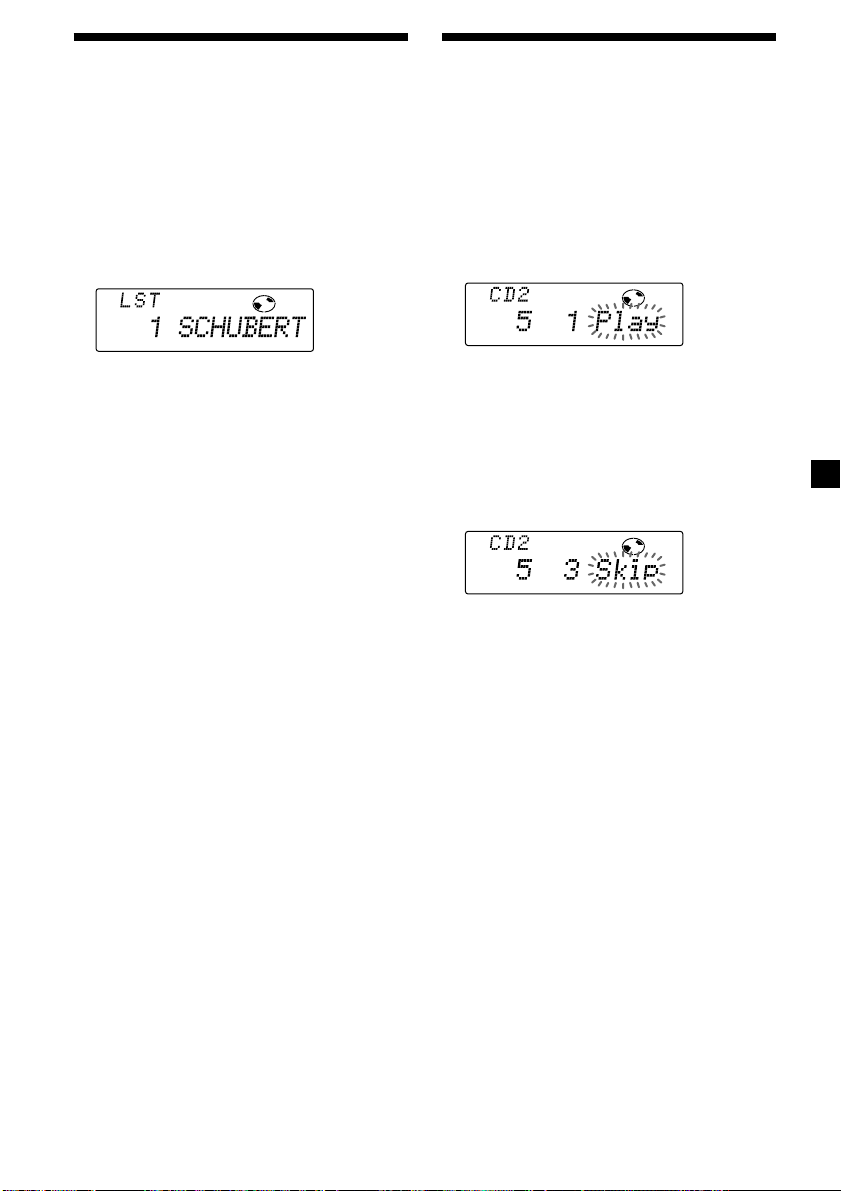
Each time you press (DSPL) during CD or
CD TEXT disc playback, the item changes
as follows:
$
Elapsed playback time
$
Disc memo name
$
Track name*
$
Clock
* If you connect an optional CD unit with the
CD TEXT function, the CD TEXT information
will appear in the display when you playback
a CD TEXT disc.
After if you select the desired item, the display
will be automatically change to the Motion
Display mode after a few seconds.
In the Motion Display mode, all the above
items are scrolled in the display one by one in
order.
Tip
The Motion Display mode can be turned off. (See
“Changing the sound and display settings” on
page 18).
DISC
25
Locating a disc by name
— List-up (For a CD unit with the custom
file function or MD unit)
You can use this function for discs that have
been assigned a custom name. For more
information on disc names, refer to “Labeling a
CD” (page 23).
1 During CD playback press (LIST).
The name assigned to the current disc
appears in the display.
When you assign a disc memo label to a
CD TEXT disc, it takes priority over the
original CD TEXT information.
2 Press (LIST) repeatedly until you find the
desired disc.
3 Press (6) (ENTER) to play back the disc.
Notes
• After a disc name has been displayed for five
seconds, the display returns to normal playback
mode. To turn off the display, press (DSPL).
• The track names are not displayed during MD or
CD TEXT disc playback.
• If there are no discs in the magazine, “NO Disc”
appears in the display.
• If a disc has not been assigned a custom file,
“********” appears in the display.
• If the disc information has not been read by the
unit, “?” appears in the display. To load the disc,
first press the number button, then choose the
disc that has not been loaded.
• The information appears only in upper case.
There are also some letters which cannot be
displayed (during MD or CD TEXT disc playback).
ENTER
DISC
Selecting specific tracks
for playback
— Bank (For a CD unit with the custom file
function)
If you label the disc, you can set the unit to
skip or play the tracks of your choice.
1 During CD playback press (SHIFT), then
press (4) (PLAY MODE) for two seconds.
Bank edit mode.
Note
If you have not labeled the disc, the bank edit
mode does not appear and the program edit
mode appears. To return to normal playback
mode, press (SHIFT).
2 Push the SEEK/AMS control up or down
to select the track number you want to
skip and press (6) (ENTER).
The indication changes from “Play” to
“Skip.” If you want to return to “Play,”
press (6) (ENTER) again.
3 Repeat step 2 to set the “Play” or “Skip”
for all the tracks.
4 Press (4) (PLAY MODE) for two seconds.
The unit returns to normal CD playback
mode.
5 Press (SHIFT).
Notes
• You can set “Play” or “Skip” for up to 24 tracks.
• You cannot set “Skip” for all the tracks on a CD.
RLAY MODE ENTER
DISC TRACK
RLAY MODE ENTER
DISC TRACK

26
Playing specific tracks only
You can select:
•Bank on – to play the tracks with the “Play”
setting.
•Bank inv (Inverse) – to play the tracks with
the “Skip” setting.
1 During CD playback, press (SHIFT), then
press (4) (PLAY MODE) repeatedly until
“Bank” appears.
2 Press (5) (n) to repeatedly until the
desired setting appears.
z Bank on z Bank inv z Bank off
Playback starts from the track following the
current one.
3 Press (SHIFT).
To return to normal playing mode, select
“Bank off“ in step 2 above.
RLAY MODE
BANK
TV/Video
You can connect an optional TV tuner and TV
monitor with this unit.
Watching the TV
1 Press (SOURCE) repeatedly until “TV”
appears.
2 Push the SEEK/AMS control up or down
to select the desired TV band.
Watching a video
1 Press (SOURCE) repeatedly until “TV”
appears.
2 Press (MODE) repeatedly to select
“Video 1.”
Play back the video.
Note
“Video 2” appears if the VIDEO 2 terminal of the
TV monitor is selected.
Memorizing TV channels
automatically
The unit selects the TV channels with the
strongest signals and memorizes them in the
order of their frequency.
Caution
When tuning in a station while driving, use
Best Tuning Memory to prevent accidents.
1 Press (SOURCE) repeatedly until “TV”
appears.
2 Press (SHIFT), then press (4) (PLAY
MODE) repeatedly until “Auto mem”
appears.
27
3 Press (5) (n).
The unit stores TV channels in the order of
their frequencies on the number buttons.
A beep sound when the setting is stored.
4 Press (SHIFT).
Notes
• The unit does not store TV channels with weak
signals. If only a few TV channels can be
received, some number buttons will remain
empty.
• When a preset number is indicated in the display,
the unit starts storing TV channels from the one
currently displayed.
Memorizing only the
desired TV channels
You can store up to 10 channels on the number
buttons in the order of your choice.
1 Press (SOURCE) repeatedly until “TV”
appears.
2 Push the SEEK/AMS control up or down
to tune in the TV program you want to
store on the number button.
3 Press and hold the desired number
button ((1) to (10)) until you hear a
beep tone.
The number button indication appears in
the display.
Note
If you try to store another program on the same
number button, the previously stored program will
be erased.
Storing the TV channel
names
Follow the steps in “Storing the station
names” (page 14).
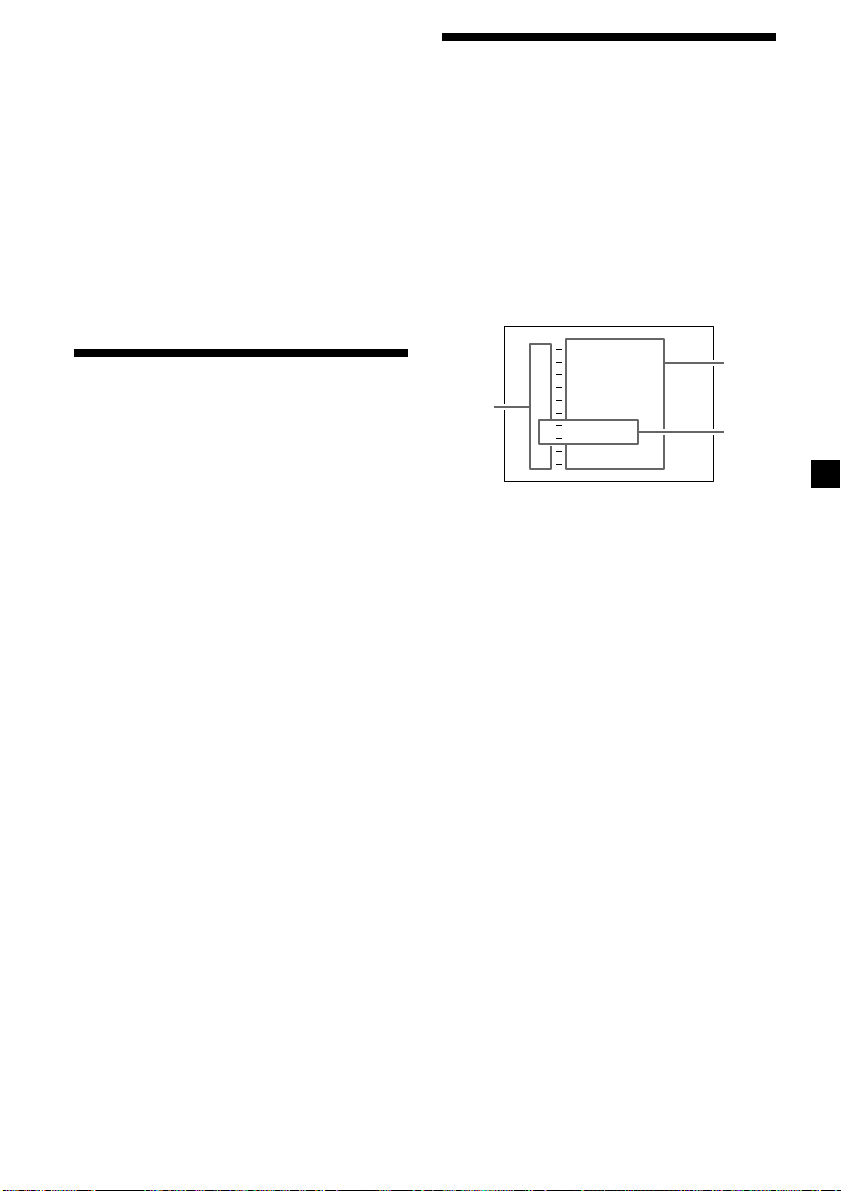
Displaying the TV or radio station
names
Press (LIST) momentarily during TV or
radio reception.
Example: When receiving the FM1 band
1 Preset number
2 Stored station names
3 Frequencies*
* If the name of a station is not stored, the
frequency of that station will be displayed
instead.
Notes
• It may take some time before all indications
appear in the display.
• The TV monitor does not appear during list
display.
• The contents of the preset memory cannot be
listed when the unit is in the simultaneous play
mode (page 28).
Turning off the display
During radio reception, press (LIST)
again.
During TV reception, the list display on the
TV monitor will automatically turn off after
a few seconds.
1
2
3
FM
1
2
3
4
5
6
7
9
1 0
8
W
W
W
W
W
C
B
K
E
R
B
T
V
F
S
U
M
S
WR K I
S
1
S
L
D
W
W
P
Y
L
NY
J
01 .9
02 .7
1
1
28
Displaying the
information stored on
discs
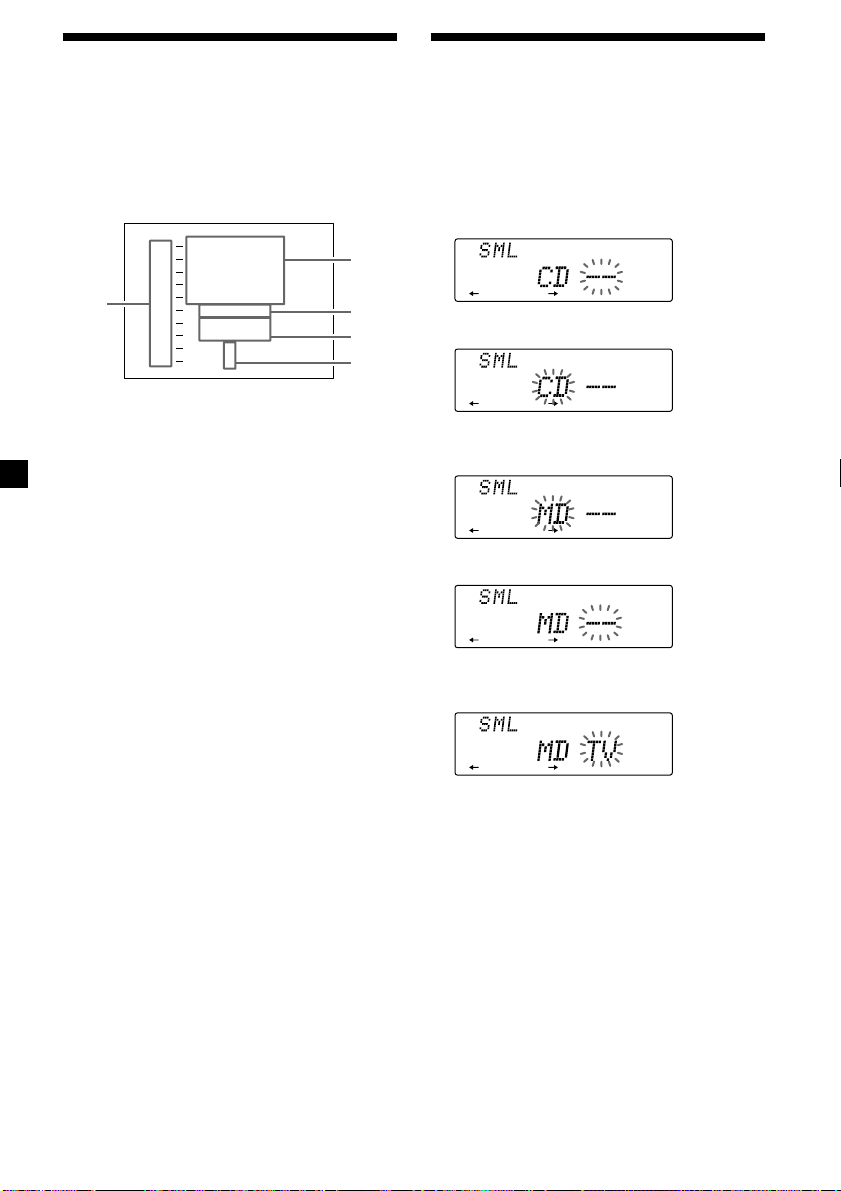
Press (LIST) during CD/MD playback.
Example: When CD unit 1 is selected.
1 Disc numbers
2 Titles stored as custom files
3 No disc is loaded*
1
4 No stored titles*
2
5 TOC information has not been identified
yet*
3
*
1
A blank space is displayed next to a disc
numbers representing empty slots in the disc
magazine.
*
2
If a title is not registered in the custom file,
“******” is displayed.
*
3
If the disc information has not been read yet,
“?” is displayed.
Notes
• It may take some time until all indications appear
in the display.
• The TV program does not appear during list
display.
• The contents of the preset memory cannot be
listed when the unit is in the simultaneous play
mode.
Turning off the display
Press (LIST) again.
Note
Press (LIST) twice when you connect the MD
unit(s).
5
4
3
2
1
Watching the TV or video
while listening to a CD or
MD
— Simultaneous Play
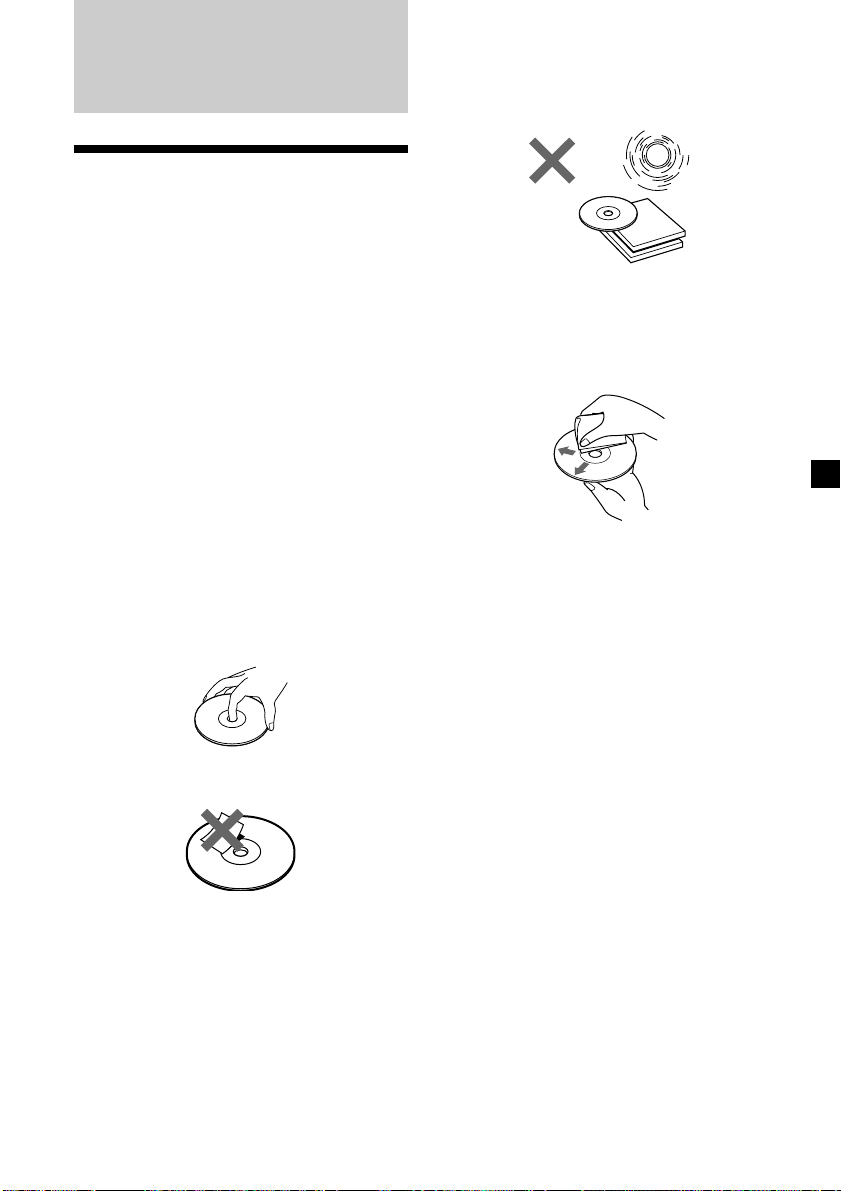
The simultaneous play function does not work
while you are listening to the radio.
1 Press (SOURCE) for two seconds.
2 Press (2) (N).
3 Press (SOURCE) repeatedly to select a CD
or MD.
4 Press (5) (n).
5 Press (SOURCE) repeatedly to select a TV
or video.
6 Press (SOURCE) for two seconds.
Simultaneous Play starts.
If you are already watching the TV or video
and want to begin listening to a CD or MD as
well follow the same above steps except press
(5) (n) in step 2 and press (2) (N) in step 4.
Returning to normal mode
To cancel the CD or MD, follow the steps
above and select “– –” in step 3.
To cancel the TV or video, follow the
steps above and select “– –” in step 5.
Note
If you press the EJECT button on a CD/MD unit
while the unit is in simultaneous play mode,
Simultaneous Play is canceled.
CD 1
1
2
3
4
5
6
7
9
1 0
8
S
M
B
L
C
C
O
A
I
H
H
Z
C
S
O
U
A
H
Z
P
B
R
T
I
E
T
N
RT
*
?
?
*****
******
29
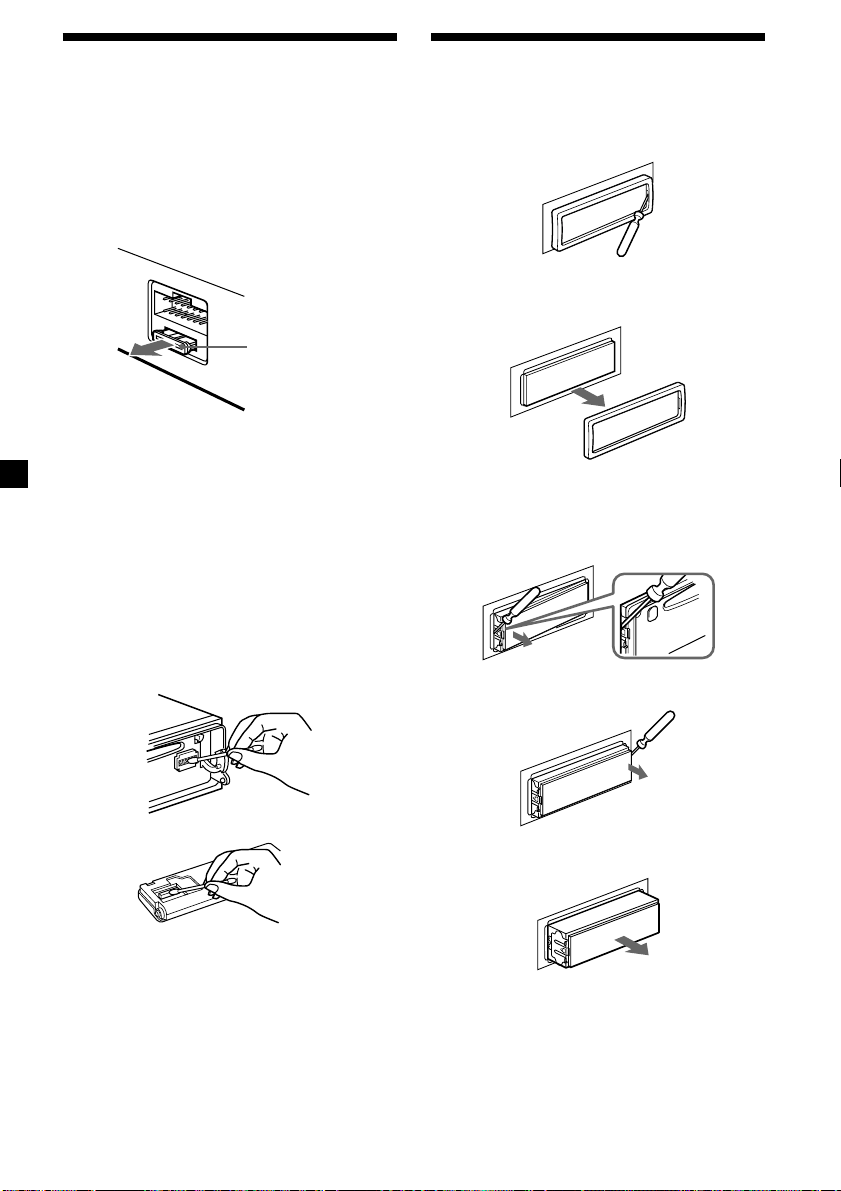
Do not expose the discs to direct sunlight or
heat sources such as hot air-ducts, or leave
them in a car parked in direct sunlight where
there can be a considerable rise in the
temperature inside the car.
Before playing, clean the discs with an optional
cleaning cloth. Wipe each disc from the center
out.
Do not use solvents such as benzine, thinner,
commercially available cleaners or antistatic
spray intended for analog discs.
Note on moisture condensation
On a rainy day or in a very damp area,
moisture may condense on the lenses inside
the CD player. Should this occur, the unit will
not operate properly. In this case, remove the
disc and wait for about an hour until the
moisture evaporates.
When you play 8 cm (3 in.) CDs
Use the optional Sony compact disc single
adapter (CSA-8) to protect the CD player from
being damaged.
Additional
Information
Precautions
• If your car was parked in direct sunlight
resulting in a considerable rise in
temperature inside the car, allow the unit to
cool off before operating it.
• If no power is being supplied to the unit,
check the connections first. If everything is in
order, check the fuse.
• If no sound comes from the speakers of
two-speaker systems, set the fader control to
the centre position.
•If your car is equipped with a power
antenna, it will extend automatically while
the unit is operating.
If you have any questions or problems
concerning your unit that are not covered in
this manual, please consult your nearest Sony
dealer.
Notes on handling CDs
A dirty or defective disc may cause sound
dropouts while playing. To enjoy optimum
sound, handle the disc as follows.
Handle the disc by its edge. To keep the disc
clean, do not touch the surface.
Do not stick paper or tape on the labelled
surface.
30
Maintenance
Fuse replacement
When replacing the fuse, be sure to use one
that matches the amperage described on the
fuse. If the fuse blows, check the power
connection and replace the fuse. If the fuse
blows again after replacement, there may be an
internal malfunction. In such a case, consult
your nearest Sony dealer.
Warning
Never use a fuse with an amperage rating
exceeding the one supplied with the unit as
this could damage the unit.
Cleaning the connectors
The unit may not function properly if the
connectors between the unit and the front
panel are not clean. To prevent this, open the
front panel by pressing (OPEN), then detach it
and clean the connectors with a cotton swab
dipped in alcohol. Do not apply too much
force. Otherwise, the connectors may be
damaged.
Main unit
Back of the front panel
Notes
• For safety, turn off the engine before cleaning
the connectors and remove the key from the
ignition switch.
• Never touch the connectors directly with your
fingers or any metal device.
Fuse (10 A)
Dismounting the unit
1 Press the clip inside the front cover with
a thin screwdriver, and lever the front
cover free.
2 Repeat step 1 on the left side.
The front cover is removed.
3 Use a thin screwdriver to push in the clip
on the left side of the unit, then pull out
the left side of the unit until the catch
clears the mounting.
4 Repeat step 3 on the right side.
5 Slide the unit out of the mounting.

31
Specifications
AUDIO POWER SPECIFICATIONS
POWER OUTPUT AND TOTAL HARMONIC DISTORTION
19 watts per channel minimum continuous average power into
4 ohms, 4 channels driven from 20 Hz to 20 kHz with no more
than 1 % total harmonic distortion.
General
Outputs Line outputs (3)
Power antenna relay
control lead
Power amplifier control
lead
Telephone ATT control
lead
Illumination control lead
Tone controls Bass ±8 dB at 100 Hz
Treble ±8 dB at 10 kHz
Power requirements 12 V DC car battery
(negative ground)
Dimensions Approx. 178 × 50 × 182 mm
(7
1
/8 × 2 × 7
1
/4 in.)
(w/h/d)
Mounting dimensions Approx. 182 × 53 × 163 mm
(7
1
/4 × 2
1
/8 × 6
1
/2 in.)
(w/h/d)
Mass Approx. 1.4 kg (3 lb. 1 oz.)
Supplied accessories Rotary commander (1)
Wireless remote (1)
Parts for installation and
connections (1 set)
Front panel case (1)
Optional accessories BUS cable (supplied with
an RCA pin cord)
RC-61 (1 m), RC-62 (2 m)
Compact disc single
adapter CSA-8
Optional equipment CD changer (10 discs)
CDX-828, CDX-727
MD changer (6 discs)
MDX-65
Other CD/MD changers
with the Sony-BUS
system
Digital equalizer
preamplifier XDP-210EQ
Source selector XA-C30
TV tuner XT-40V, etc.
Design and specifications are subject to change
without notice.
Other specifications
CD player section
System Compact disc digital audio
system
Signal-to-noise ratio 99 dB
Frequency response 10 – 20,000 Hz
Wow and flutter Below measurable limit
Laser Diode Properties
Material GaAlAs
Wavelength 780 nm
Emission Duration Continuous
Laser output power Less than 44.6 µW*
* This output is the value measured at a distance
of 200 mm from the objective lens surface on the
Optical Pick-up Block.
Tuner section
FM
Tuning range 87.5 – 107.9 MHz
Antenna terminal External antenna connector
Intermediate frequency 10.7 MHz
Usable sensitivity 8 dBf
Selectivity 75 dB at 400 kHz
50 dB at 200 kHz
Signal-to-noise ratio 65 dB (stereo),
68 dB (mono)
Harmonic distortion at 1 kHz
0.7 % (stereo),
0.4 % (mono)
Separation 35 dB at 1 kHz
Frequency response 30 – 15,000 Hz
AM
Tuning range 530 – 1,710 kHz
Antenna terminal External antenna connector
Intermediate frequency 10.71 MHz/450 kHz
Sensitivity 30 µV
Power amplifier section
Outputs Speaker outputs
(sure seal connectors)
Speaker impedance 4 – 8 ohms
Maximum power output 45 W × 4 (at 4 ohms)
32
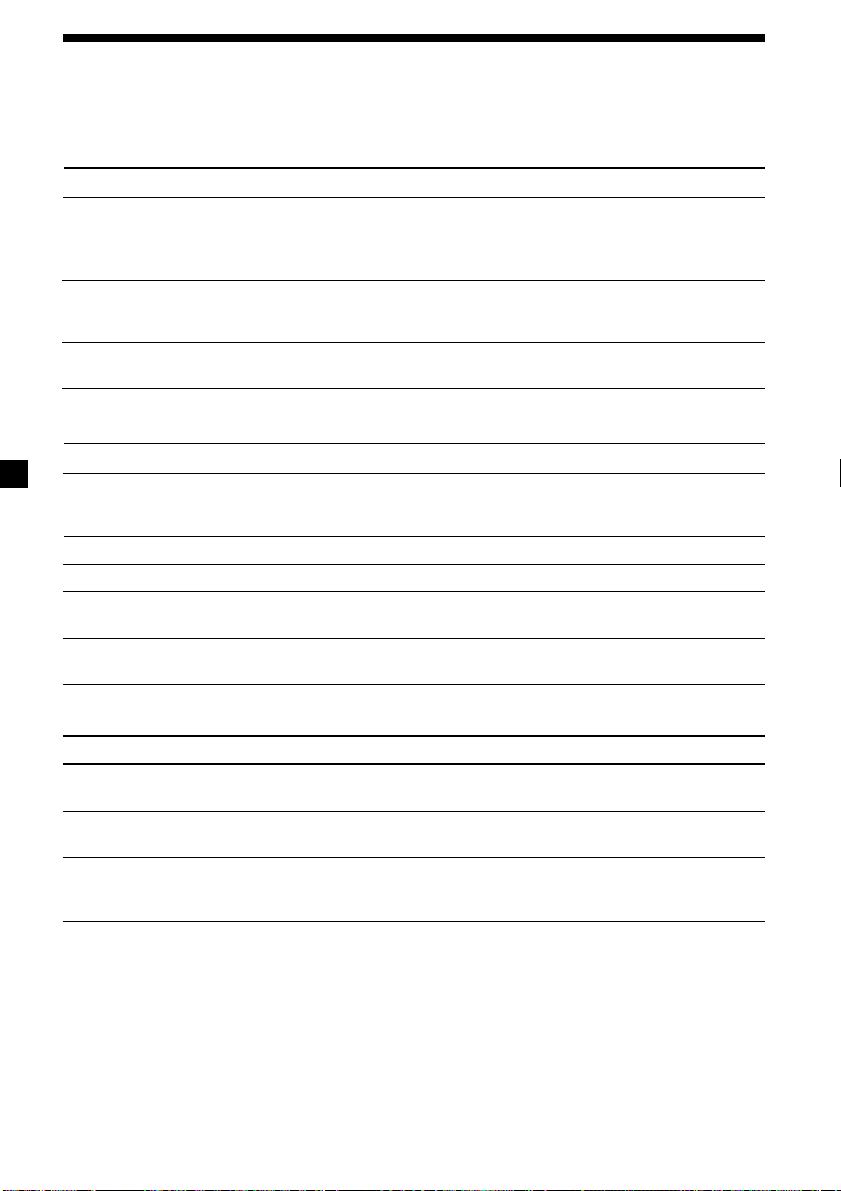
Troubleshooting guide
Problem
No sound.
The contents of the memory
have been erased.
Indications do not appear in the
display.
Cause/Solution
•Cancel the ATT function.
•Set the fader control to the center position for two-speaker
systems.
•Rotate the dial in a clockwise direction to adjust the volume.
• The power cord or battery has been disconnected.
• The reset button was pressed.
n Store again into the memory.
Remove the front panel and clean the connectors. See
“Cleaning the connectors” (page 30) for details.
CD/MD playback
Cause/Solution
•Another CD is already loaded.
•The CD is forcibly inserted upside down or in the wrong way
(MD).
Defective MD or dusty CD.
The ambient temperature exceeds 50°C (122°F).
Press the reset button.
• The unit is installed at an angle of more than 60°.
• The unit is not installed in a sturdy part of the car.
Problem
A disc cannot be loaded.
Playback does not begin.
A disc is automatically ejected.
The operation buttons do not
function.
The sound skips due to
vibration.
Radio reception
Problem
Preset tuning is not possible.
Automatic tuning is not
possible.
The “ST” indication flashes.
Cause/Solution
• Memorize the correct frequency.
• The broadcast signal is too weak.
The broadcast signal is too weak.
n Use manual tuning.
•Tune in the frequency accurately.
•The broadcast signal is too weak.
n Set to the MONO mode (page 13).
The following checklist will help you remedy the problems you may encounter with your unit.
Before going through the checklist below, check the connections and operating procedures.
General
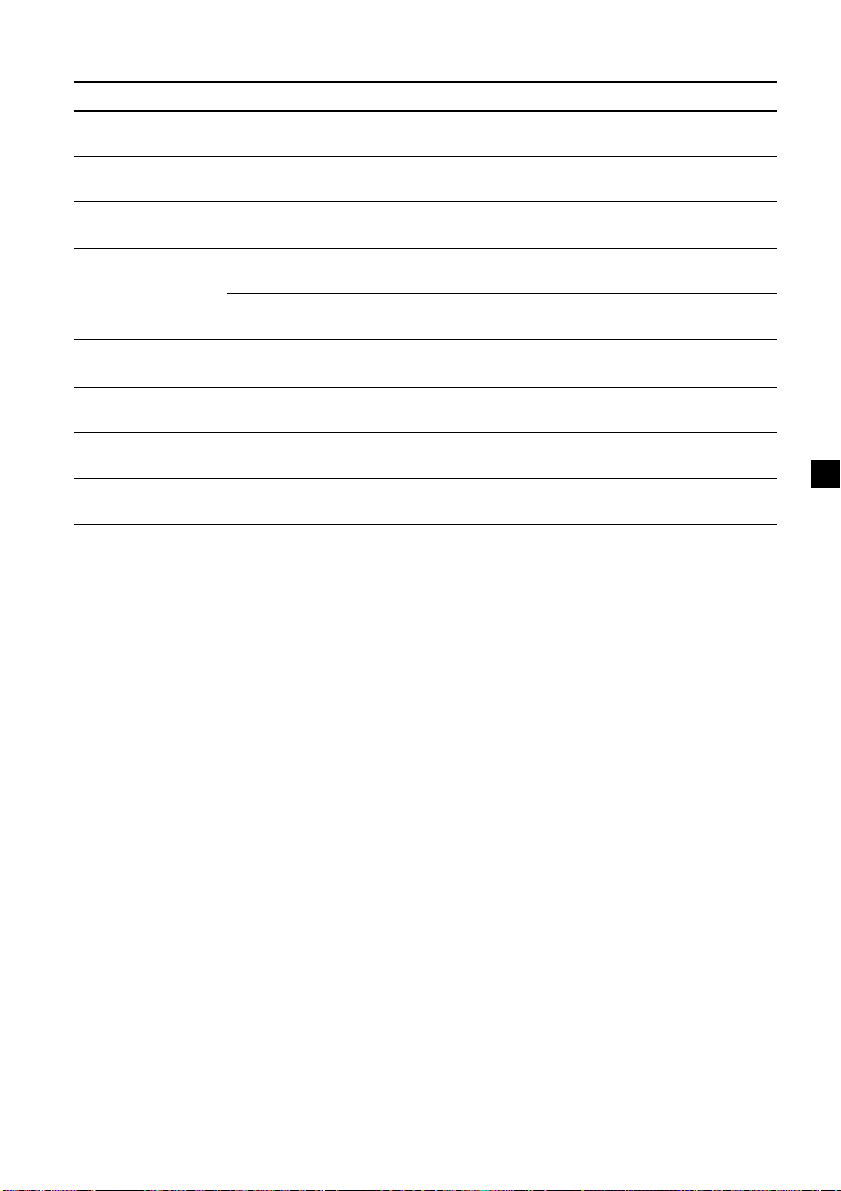
33
Solution
Insert the disc magazine in the CD/
MD unit.
Insert discs in the CD/MD unit.
Insert another CD/MD.
Clean or insert the CD correctly.
Insert another MD.
Play an MD with tracks recorded on
it.
Press the reset button of the unit.
Close the lid or insert the MDs
properly.
Wait until the temperature goes
down below 50°C (122°F).
Display
NO Mag
NO Disc
NG Discs
Error
Blank
PushReset
Not Ready
HighTemp
Cause
The disc magazine is not inserted in
the CD/MD unit.
No disc is inserted in the CD/MD unit.
A CD/MD cannot play because of
some problem.
A CD is dirty or inserted upside
down.*
2
An MD does not play because of some
problem.*
2
No tracks have been recorded on an
MD.*
2
The CD/MD unit cannot be operated
because of some problem.
The lid of the MD unit is open or MDs
are not inserted properly.
The ambient temperature is more than
50°C (122°F).
*
1
*
1
Error displays (when an optional CD/MD unit is connected)
The following indications will flash for about five seconds, and an alarm sound will be heard.
*
1
When an error occurs during playback of a CD or MD, the disc number of the CD or MD does not appear
in the display.
*
2
The disc number of the disc causing the error appears in the display.
If the above-mentioned solutions do not help improve the situation, consult your nearest Sony
dealer.



*I-3-866-229-11*(1)Sony Corporation Printed in Japan