
User Manual
1
Taking a First Look 2
The Batteries 3
The Appliance 4
The Touch Screen 5
Using ProntoNEO 6
Activating the ProntoNEO 6
Operating Devices 8
Working with Modes 10
Adjusting the Settings 11
Defining the Brands of Your Devices 15
Learning Commands 18
Recording Macros 21
NEOedit 25
Maintaining ProntoNEO 27
Important Notices 27
Cleaning ProntoNEO 27
FAQ 28
Troubleshooting 29
General Problems 29
Programming Problems 30
Specifications 31
Table of Brands 32
Index 38
Table of Contents
ProNeo 01-08-2001 14:40 Pagina 1

User Manual
2
Taking a First Look
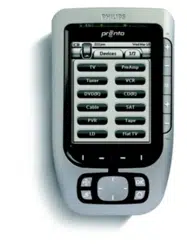
ProntoNEO is an Intelligent Remote Control that can be used for
virtually all audio and video devices that understand infrared (IR)
remote control signals. Its easy-to-use LCD touch screen and its
intuitive interface make it a perfect remote control for every user.
In the memory of ProntoNEO, IR codes are stored to activate
different brands for all kinds of video and audio devices.
ProntoNEO is set up by default to operate with Philips and
compatible devices. When you have other brands, you simply
define the brands of your devices when you use ProntoNEO for the
first time. See ‘Defining the Brands of Your Devices’ on p. 15 for
more details.
ProntoNEO can also learn IR codes from your existing remote
controls. ProntoNEO can receive and store the IR codes by means
of its learning eye. See ‘Learning Commands’ on p. 18 for more
details.
Recording macros is another feature of the ProntoNEO. If you wish
to assign a sequence of commands to a single button, you can
record a macro. See ‘Recording Macros’ on p. 20 for more details.
With the NEOedit software for PC you can create your own screens
and define a personal look. NEOedit’s on line help system will
guide you through the process. In the future NEOedit will also
allow you to upgrade your ProntoNEO. You can find NEOedit on
the included CD-ROM and on the Philips website
http://www.pronto.philips.com. See ‘NEOedit’ on p. 25 for more
details.
ProNeo 01-08-2001 14:40 Pagina 2
User Manual
3
Taking a First Look
The Batteries
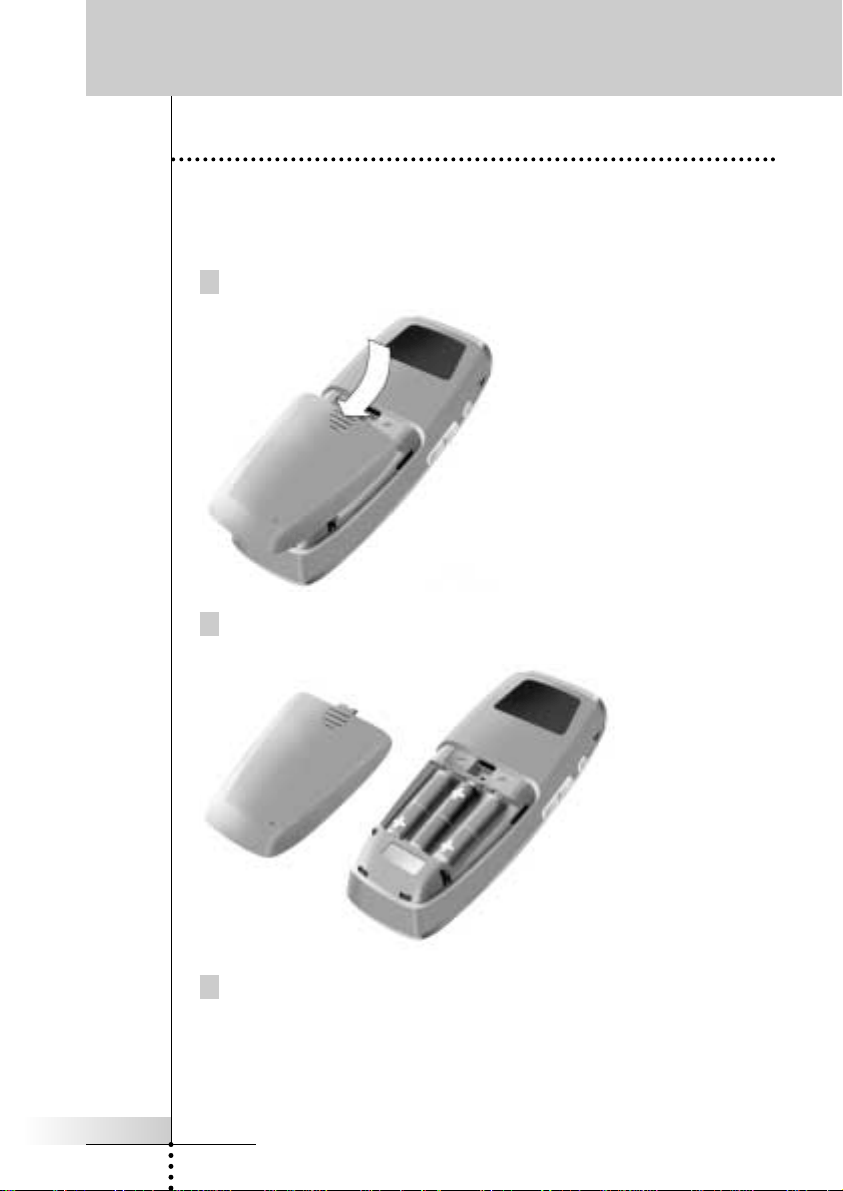
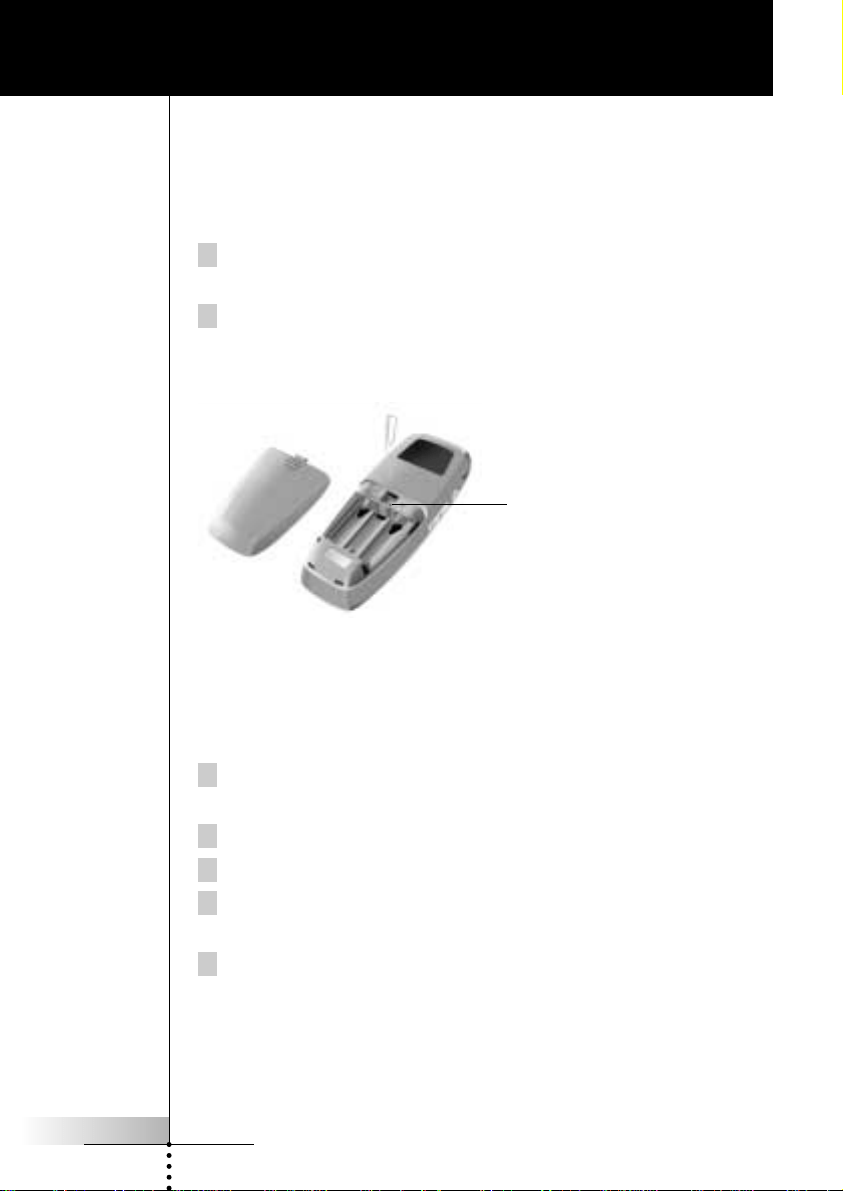
When you use ProntoNEO for the first time, you have to install the batteries.
The ProntoNEO requires 3 AA-batteries (3 x 1,5 V) to function. You can use either
primary or rechargeable batteries.
1 Remove the battery cover by pressing and sliding.
2 Place the batteries in the battery compartment.
3 Place the battery cover back on.
After a few seconds, ProntoNEO starts up automatically and an Introduction
screen appears. ProntoNEO beeps twice to indicate that it has started up
successfully.
ProNeo 01-08-2001 14:40 Pagina 3
User Manual
4
The Appliance
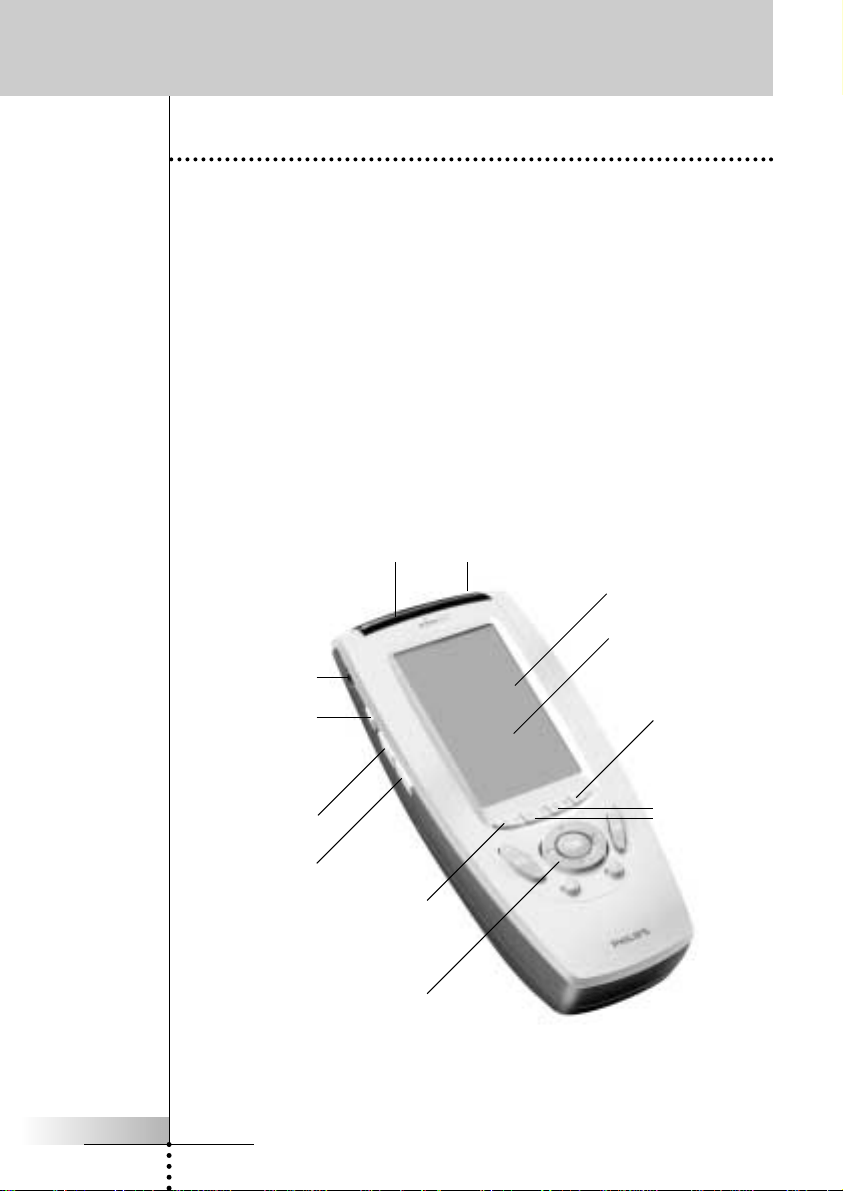
On the ProntoNEO you can perform numerous actions by means of soft and hard
buttons.
• Soft buttons are the buttons you can tap on the LCD touch screen.
• Hard buttons are the buttons located below and on the left side of the LCD
touch screen.
• The 4 hard buttons just below the touch screen are the Mode button, 2
context specific buttons and the Device button. Their label is displayed at
the bottom of the touch screen.
• The hard buttons located at the bottom of the ProntoNEO are Volume
Up/Down, Channel Up/Down, Menu, Mute and Function.
• The hard buttons located on the left side of the ProntoNEO are the
Backlight button and the Page Up/Down buttons.
Taking a First Look
Sending LED Learning eye
Serial port for
communicating
with a PC
Backlight button to
activate the display
Page Up button
Page Down button
LCD touch screen
Soft buttons
Device button
to go to the
Device Overview
Hard buttons
Mode button
to switch to another mode
2 context
specific buttons
ProNeo 01-08-2001 14:40 Pagina 4
User Manual
5
Taking a First Look
The Touch Screen
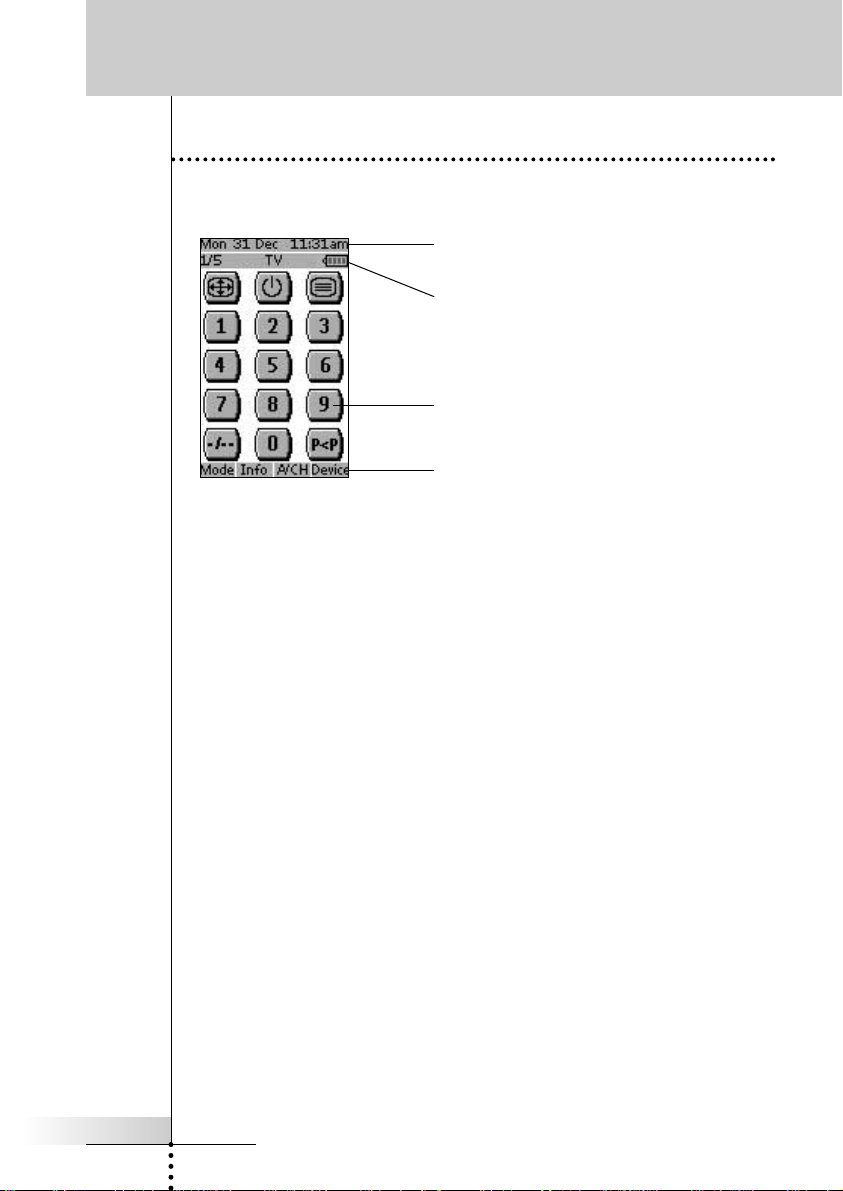
The LCD touch screen is divided into different sections:
Here the date and time are displayed when you
are operating your devices.
In this area you can see:
· the page number;
· the device you are operating;
· the battery level indicator.
With these soft buttons you operate your device.
These are the labels of the 4 hard buttons below
the touch screen.
ProNeo 01-08-2001 14:40 Pagina 5
User Manual
6
Using ProntoNEO
Activating the ProntoNEO
When the ProntoNEO is switched on for the first time or when it is reset, the
Introduction screen appears for a few seconds. The ProntoNEO then automatically
switches to the Device Overview that displays all available devices on your
ProntoNEO. You can return to this Device Overview from within other screens by
pressing the Device button. See ‘Activating the Device Overview’ on p. 8 for more
details.
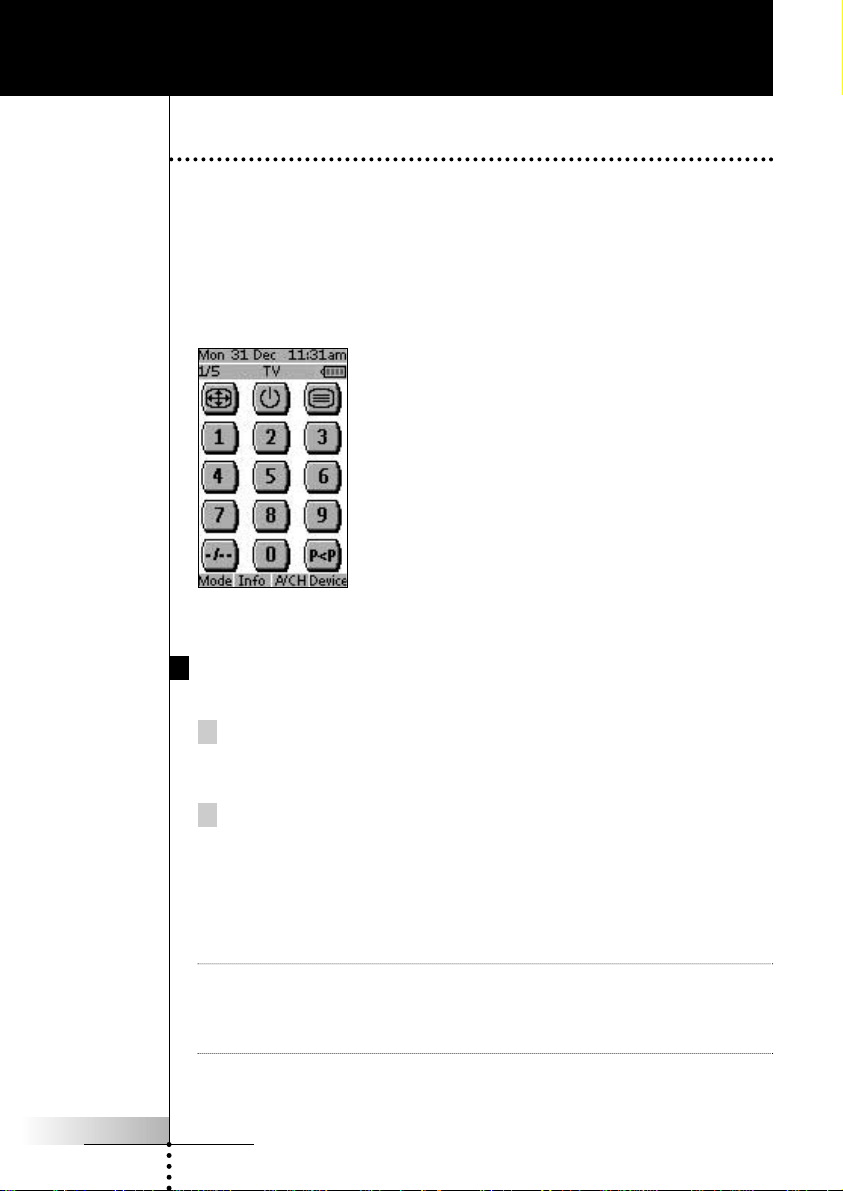
Fig 1: Device Overview
Turning on the Display and the Backlight
ProntoNEO’s display can be activated in two different ways:
Tap the touch screen gently with your finger or a blunt, soft object like
a pencil eraser.
The display is activated.
Press the Backlight button on the left side of the ProntoNEO.
The display and the backlight are activated.
If the LCD touch screen stays blank or becomes black when turning on the display,
read the next section ‘Changing the LCD Contrast’ to adjust the contrast of the LCD
touch screen.
Note ProntoNEO has a timeout feature: the LCD touch screen and the backlight
automatically turn off to save power.
See ‘Adjusting the Settings’ on p. 11 to adjust the timeout for the LCD and the
backlight.
ProNeo 01-08-2001 14:40 Pagina 6
User Manual
7
Using ProntoNEO
Changing the LCD Contrast
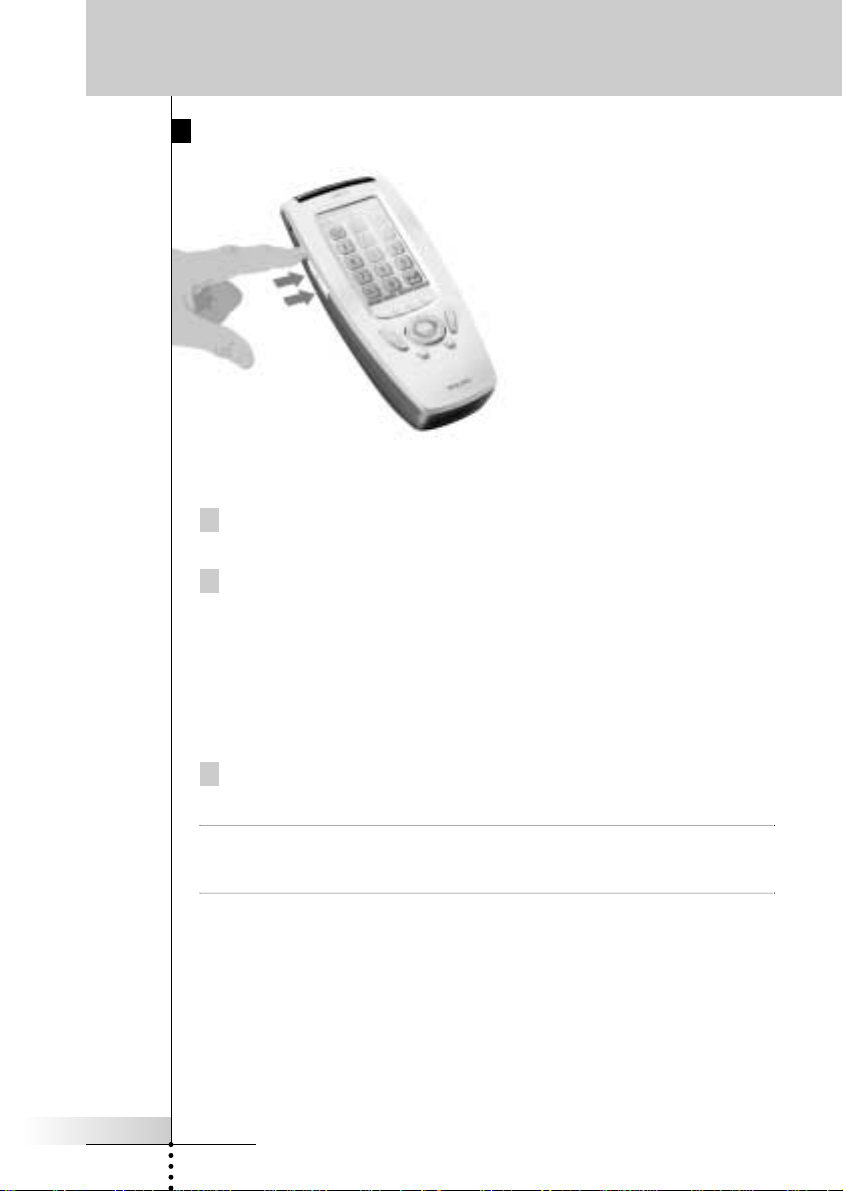
To adjust the LCD contrast on the touch screen:
1 Press and hold the Backlight button.
The screen lights up.
2 While still holding the Backlight button, press the Page Up button once
to increase the LCD contrast one level.
The LCD contrast is adjusted one level up.
–or–
Press the Page Down button once to decrease the LCD contrast one
level.
The LCD contrast is adjusted one level down.
3 Release the Backlight button when the contrast is satisfactory.
The LCD contrast can be adjusted 16 levels.
Note To adjust the contrast multiple levels, you have press the Page Up or Page Down
button multiple times. When you press and hold the Page Up or Page Down
button, the LCD contrast will only change one level.
ProNeo 01-08-2001 14:40 Pagina 7
User Manual
8
The Battery Status
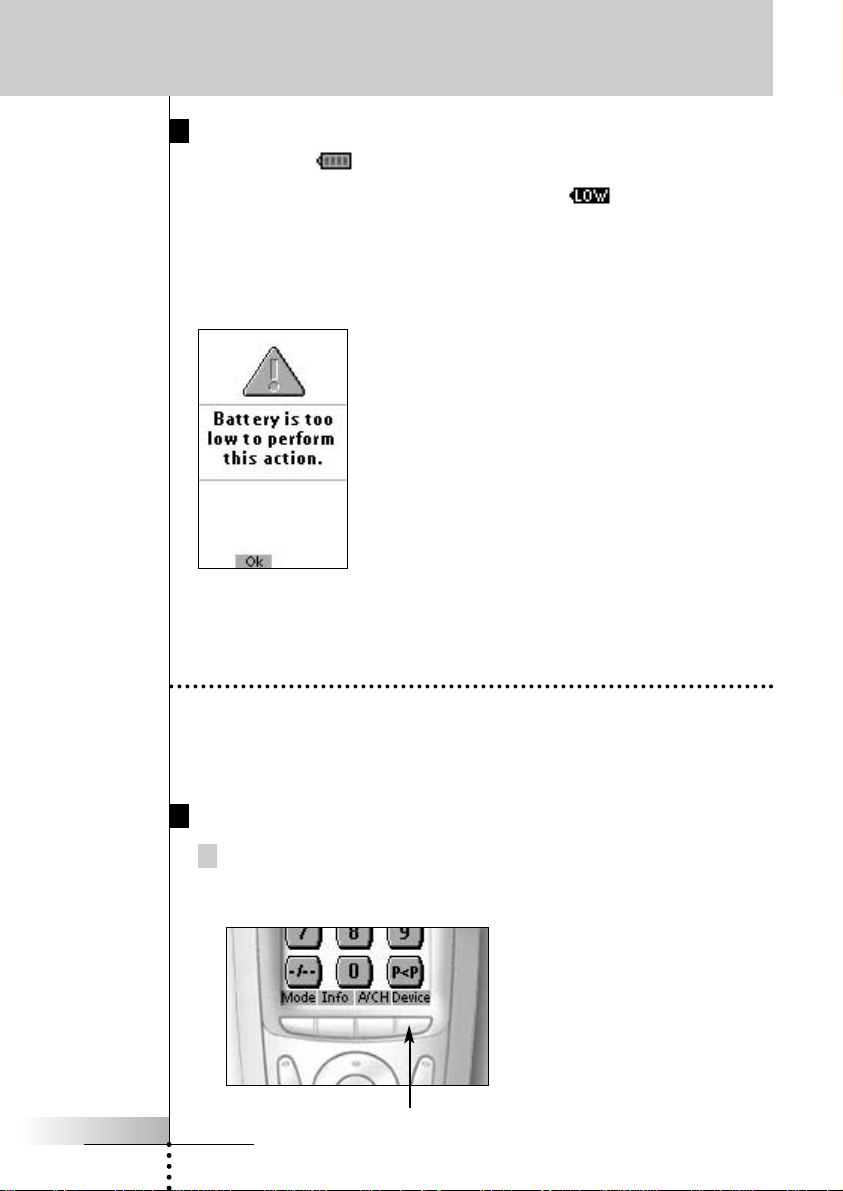
The battery icon indicates the status of your batteries.
When the battery status is low, the Low Battery icon appears at the top of
the touch screen.
You can still operate your devices, but you cannot adjust the settings, define
brands, learn commands or record macros anymore. When you try to perform these
actions, a message screen appears.
Replace the batteries to make the ProntoNEO fully
functional again. See ‘The Batteries’ on p. 3 to replace
the batteries.
Operating Devices
To operate devices on your ProntoNEO you have to switch to the Device
Overview. This screen displays the available devices like TV, VCR, DVD, PreAmp
and so on.
Activating the Device Overview
Press the Device button.
The Device Overview appears, showing the available devices in the
ProntoNEO.
Fig. 2: The Device button
Using ProntoNEO
ProNeo 01-08-2001 14:40 Pagina 8
User Manual
9
Selecting a Device on the Device Overview
Tap the soft button of the device you want to operate.
The first page of the selected device appears. See ‘Using the Page Up and
Page Down Buttons’ on p. 10 to go to another page of the device.
You operate devices using the buttons on your ProntoNEO:
• Soft buttons (touch screen buttons);
• Hard buttons.
Using the Soft Buttons
By tapping the soft buttons on the LCD touch screen you send IR commands to the
device you have selected.
The name of the active device is indicated at the top of the touch screen.
Note You can operate the soft buttons in the same way you operate hard buttons on a
conventional remote control. When you keep the soft button pressed instead of
tapping it, ProntoNEO keeps sending the IR command.
Using the Hard Buttons
Hard Buttons can be operated at any time, even without turning on the LCD touch
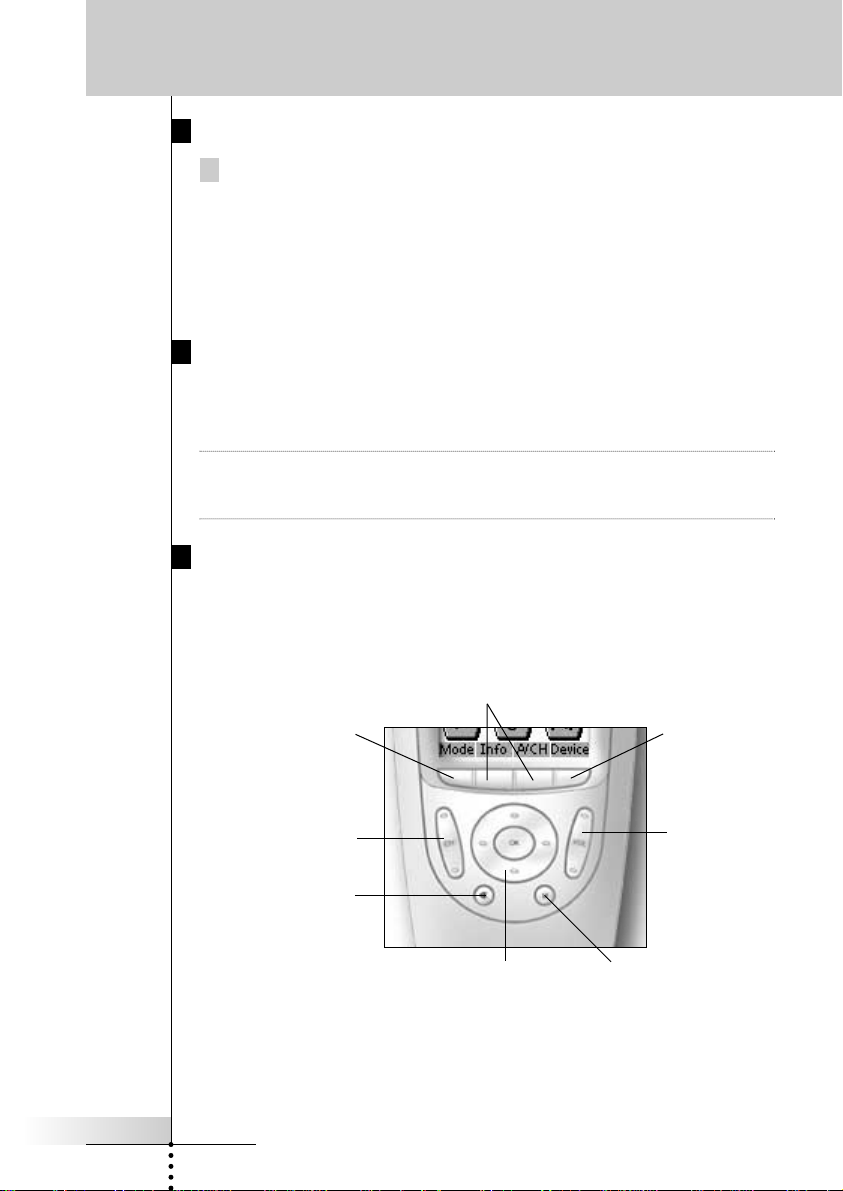
screen.
Using ProntoNEO
Device button:
To activate the
Device Overview.
Channel Up and
Channel Down
2 context specific buttons:
Change function depending on the
device you are operating.
Mode button:
Press and hold 3 seconds to
activate the Mode screen.
Function button:
Can be programmed at will.
By default, it activates the
Device Overview.
Mute
Menu buttons:
To perform actions in the menu of a device, like the on
screen display of a TV or a VCR display. Use the cursor
to move up, down, left or right in the menu and press
OK to select.
Volume Up and
Volume Down
ProNeo 01-08-2001 14:40 Pagina 9

User Manual
10
Using the Page Up and Page Down Buttons
The controls to operate your devices are mostly located on different pages. You
can scroll through these pages using the Page Up and Page Down buttons on the
left side of the touch screen. The page number on the left of the touch screen
indicates the active page number and the total number of screens, for example
1/6.
Using the Backlight Button
Use the Backlight button to activate ProntoNEO’s display and backlight. See also
‘Turning on the Display and the Backlight’ on p. 6.
Working with Modes
ProntoNEO starts up in Use mode. In this mode you operate your devices. For
customizing the ProntoNEO (adjusting the settings, defining brands, learning
buttons or recording macros) you have to switch to the appropriate mode.
Note When switching between modes you will always return to the last active screen.
The ProntoNEO can be put into 5 different modes. These modes are:
Use mode For operating your devices. See ‘Operating Devices’ on p. 8.
Setup mode For changing the ProntoNEO system settings.
See ‘Adjusting the Settings’ on p. 11 for more details.
Brand mode For defining the brands of your devices using ProntoNEO’s
database. See ‘Defining the Brands of Your Devices’ on p. 15 for
more details.
Learn mode For learning commands from other remote controls. See ‘Learning
Commands’ on p. 18 for more details.
Macro mode For recording macros. You can assign multiple commands to one
single button. See ‘Recording Macros’ on p. 21 for more details.
Note Learning commands, defining brands and recording macros is only possible per
device. This means that you first have to select a specific device to perform these
actions.
1 On the Device Overview tap the soft button of the device you want to
customize.
The first page of the selected device appears.
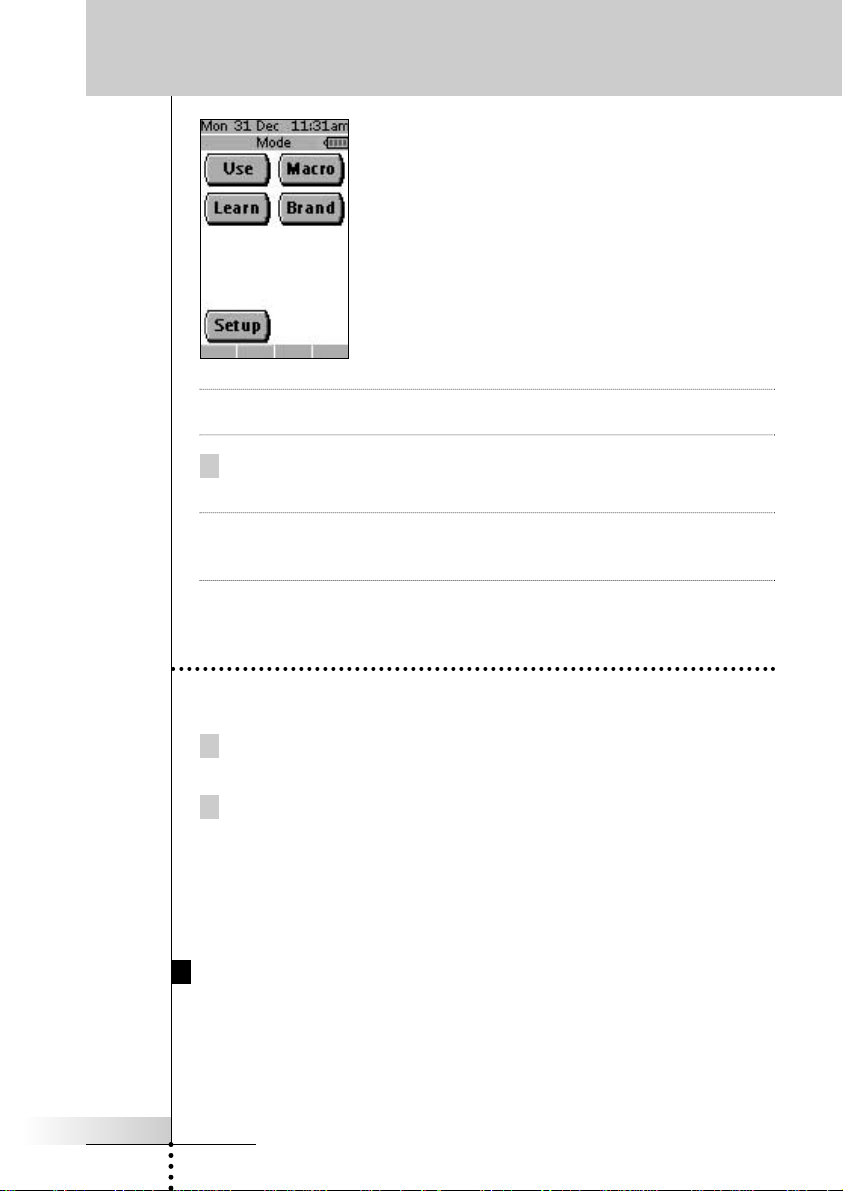
2 Press and hold the Mode button for 3 seconds.
The Mode screen appears.
Using ProntoNEO
ProNeo 01-08-2001 14:40 Pagina 10
User Manual
11
Note You have to press and hold the Mode button for 3 seconds to prevent accidental
changes.
3 Select the desired mode from the Mode screen.
Note When you switch to another mode from the Device Overview, you cannot choose
the Brand mode, Learn mode and Macro mode. To switch to these modes you
first have to go to the specific device you want to customize.
Adjusting the Settings
The ProntoNEO settings can be adjusted in the Setup mode.
1 Press and hold the Mode button for 3 seconds.
The Mode screen appears.
2 Tap Setup in the Mode screen.
The first Setup page appears.
The ProntoNEO settings consist of 3 setup pages with several settings per page.
Use the Page Up and Page Down buttons to navigate to the appropriate setup
page.
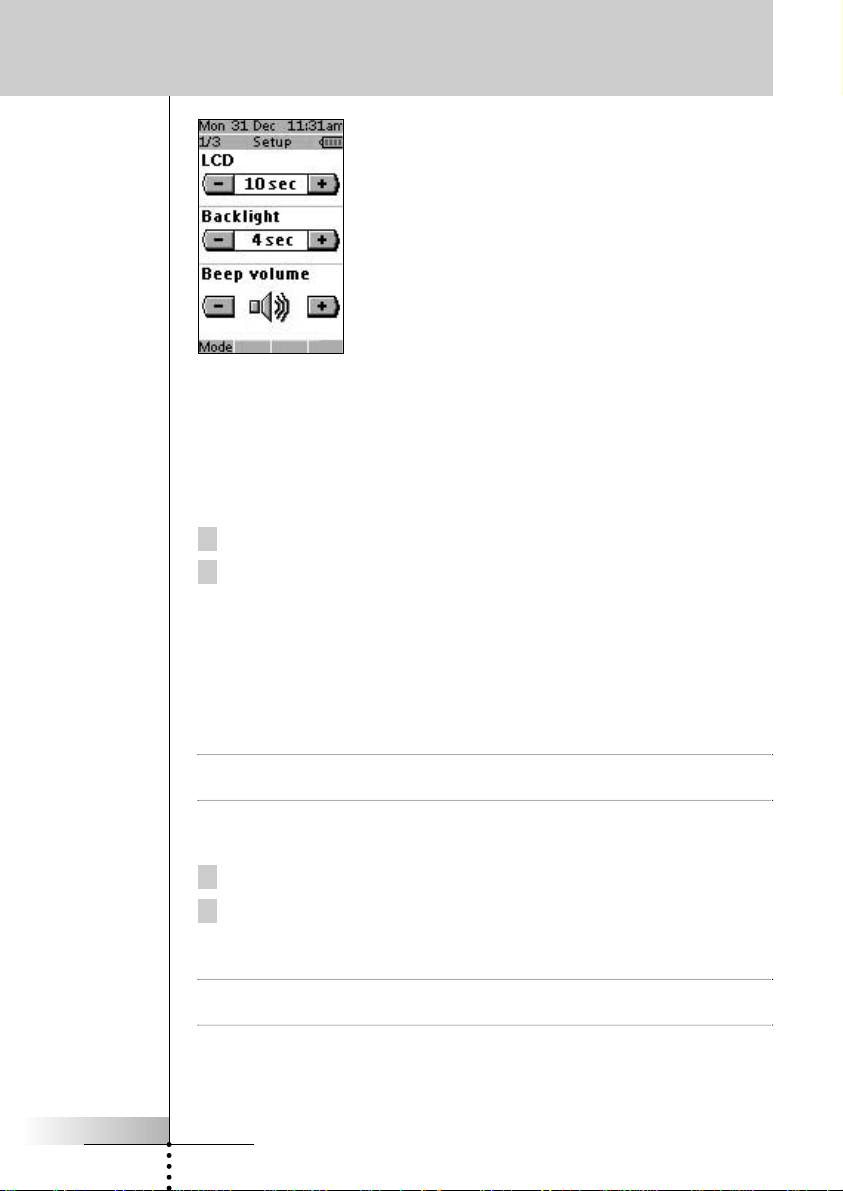
First Setup Page
On the first setup page you can adjust:
• the LCD timeout;
• the backlight timeout;
• the beep volume.
Using ProntoNEO
ProNeo 01-08-2001 14:40 Pagina 11
User Manual
12
Using ProntoNEO
Adjust the LCD Timeout
The LCD timeout indicates how long the LCD touch screen stays active before it
turns off. The LCD will only time out when you don’t touch any buttons. You can
set the timeout between 1 second and 120 seconds.
Press ‘+’ to increase or ‘-’ to decrease the time the LCD stays active.
Tap ‘+’ or ‘-’ once to adjust the timeout 1 second up or down.
Press and hold ‘+’ or ‘-’ to adjust the timeout per 10 seconds up or
down.
Adjust the Backlight Timeout
The backlight setting indicates how long the backlight of the LCD touch screen and
the buttons stays active. The backlight timeout can be set between 1 second and
120 seconds.
Note The backlight cannot stay active longer than the LCD. If you increase the backlight
timeout, the LCD timeout will automatically increase as well.
Press ‘+’ to increase or ‘-’ to decrease the time the backlight stays active.
Tap ‘+’ or ‘-’ once to adjust the timeout 1 second up or down.
Press and hold ‘+’ or ‘-’ to adjust the timeout per 10 seconds up or
down.
Note When the settings for the LCD timeout and the backlight timeout are high, the
battery lifetime may be reduced.
ProNeo 01-08-2001 14:40 Pagina 12
User Manual
13
Using ProntoNEO
Change the Beep volume
The beep volume setting adjusts or turns off the volume of all button and system
beeps on the ProntoNEO. The beep volume levels are mute, soft, medium and loud.
Press ‘+’ to increase or ‘-’ to decrease the beep volume.
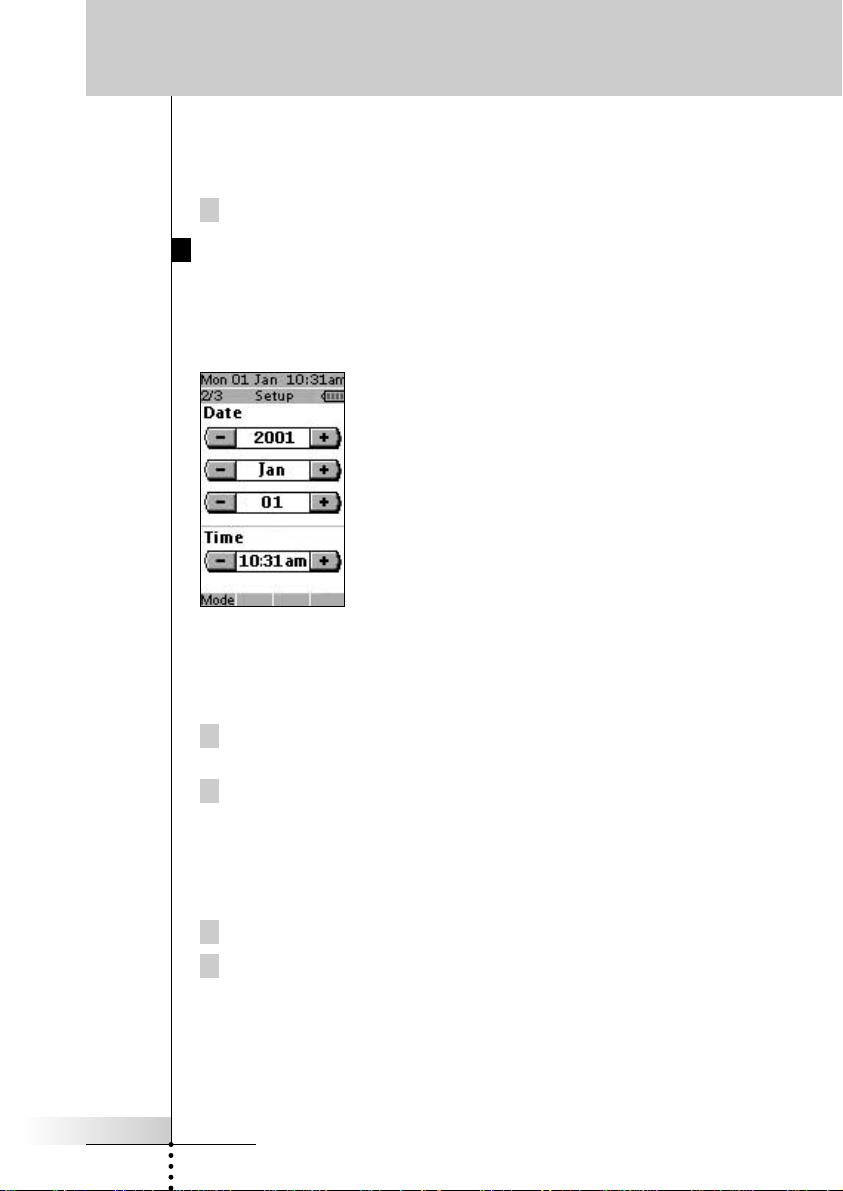
Second Setup Page
On the second setup page you can adjust:
• the date;
• the time.
Adjust the Date
You can set the year, the month and the day in the date settings.
Press ‘+’ to increase or ‘-’ to decrease the value for the year, month and day.
Tap ‘+’ or ‘-’ once to adjust the year, month and day one value up or
down.
Press and hold ‘+’ or ‘-’ to adjust the values for the year and the month
more rapidly. The value for the day settings will change per 5 days.
The ProntoNEO will immediately reflect the date change at the top of the screen.
Adjust the Time
Tap ‘+’ or ‘-’ once to adjust the time 1 minute up or down.
Press and hold ‘+’ or ‘-’ to adjust the time more rapidly. The time will
increase or decrease per 30 minutes.
The ProntoNEO will immediately reflect the time change at the top of the screen.
ProNeo 01-08-2001 14:40 Pagina 13
User Manual
14
Using ProntoNEO
Third Setup Page
ProntoNEO Information
This page contains information that may be important to the dealer in case of a
defect. The following information is displayed on this screen:
• Free memory (in percentage), which gives you an indication on how much
memory is left to (further) customize the ProntoNEO;
• Boot version;
• Application version;
• Configuration file.
Revert
Warning When you revert the ProntoNEO, all customization is lost permanently. You loose
all ProntoNEO settings, defined brands, learned codes and recorded macros.
By tapping the Revert button the ProntoNEO will be reverted to the default
configuration. Reverting to the original configuration restores the ProntoNEO to its
initial state. You might have to revert when you notice that scrolling through pages
is slowing down. This might be the case when you have added a lot of commands
to the ProntoNEO.
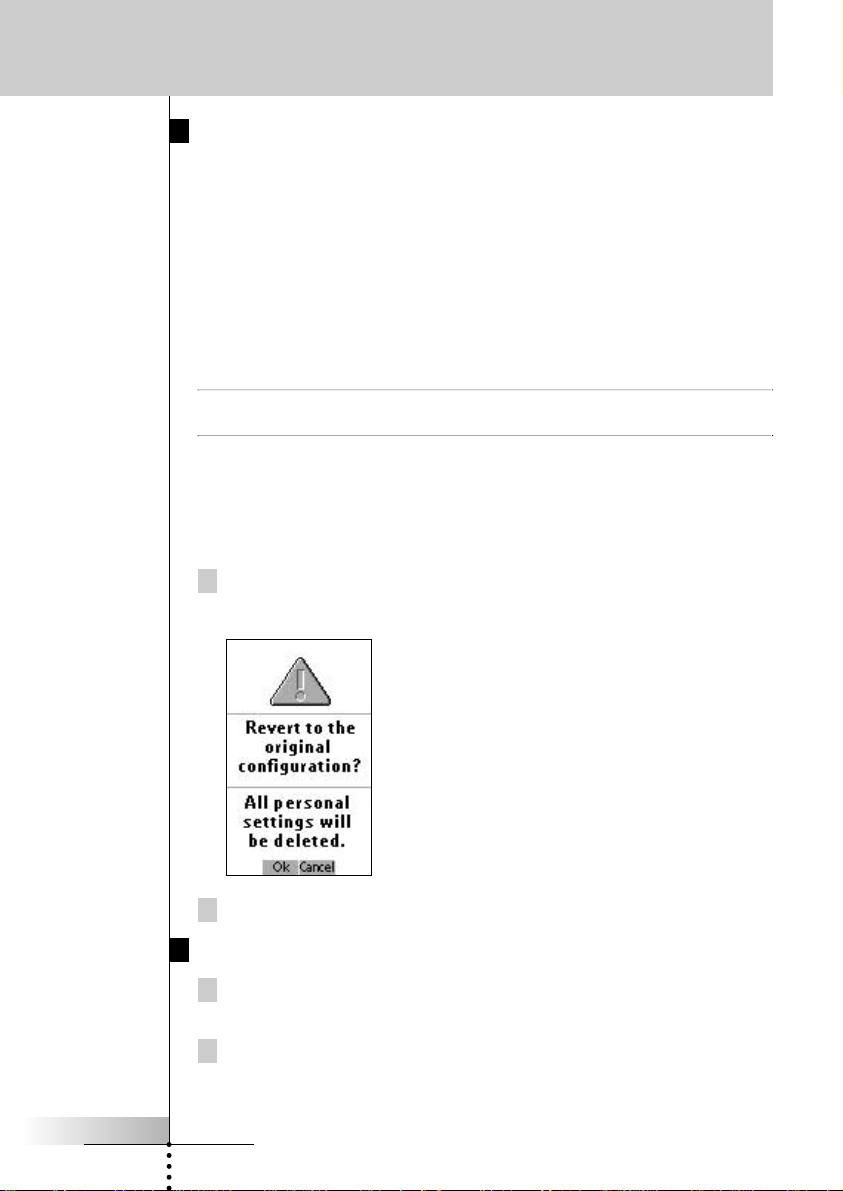
1 Tap the Revert button.
A message screen appears to confirm or cancel the revert process.
2 Press OK or Cancel.
To exit Setup Mode
1 Press the Mode button.
The Mode screen appears.
2 Tap the mode button you want to go to.
ProntoNEO switches to this mode. See also ‘Working with Modes’ on p. 10.
ProNeo 01-08-2001 14:40 Pagina 14
User Manual
15
Using ProntoNEO
Defining the Brands
of Your Devices
Like other remote controls ProntoNEO uses infrared (IR) codes to activate devices.
The ProntoNEO is set by default to operate Philips devices. If the brand of your
devices is Philips (or compatible with), you do not have to define the brands of
your devices.
Note Not every Philips device (TV, VCR, CD, …) uses the same IR codes. If you notice
that some devices or commands are not functioning properly, change the code set
as described in this chapter.
To define brands you have to set the ProntoNEO in Brand mode:
1 Set the ProntoNEO in Use Mode. See ‘Working with Modes’ on p. 10.
2 Select the device, e.g. TV, for which you want to define the brand.
The device screen appears.
3 Press and hold the Mode button for 3 seconds.
The Mode screen appears.
4 Tap Brand on the Mode screen.
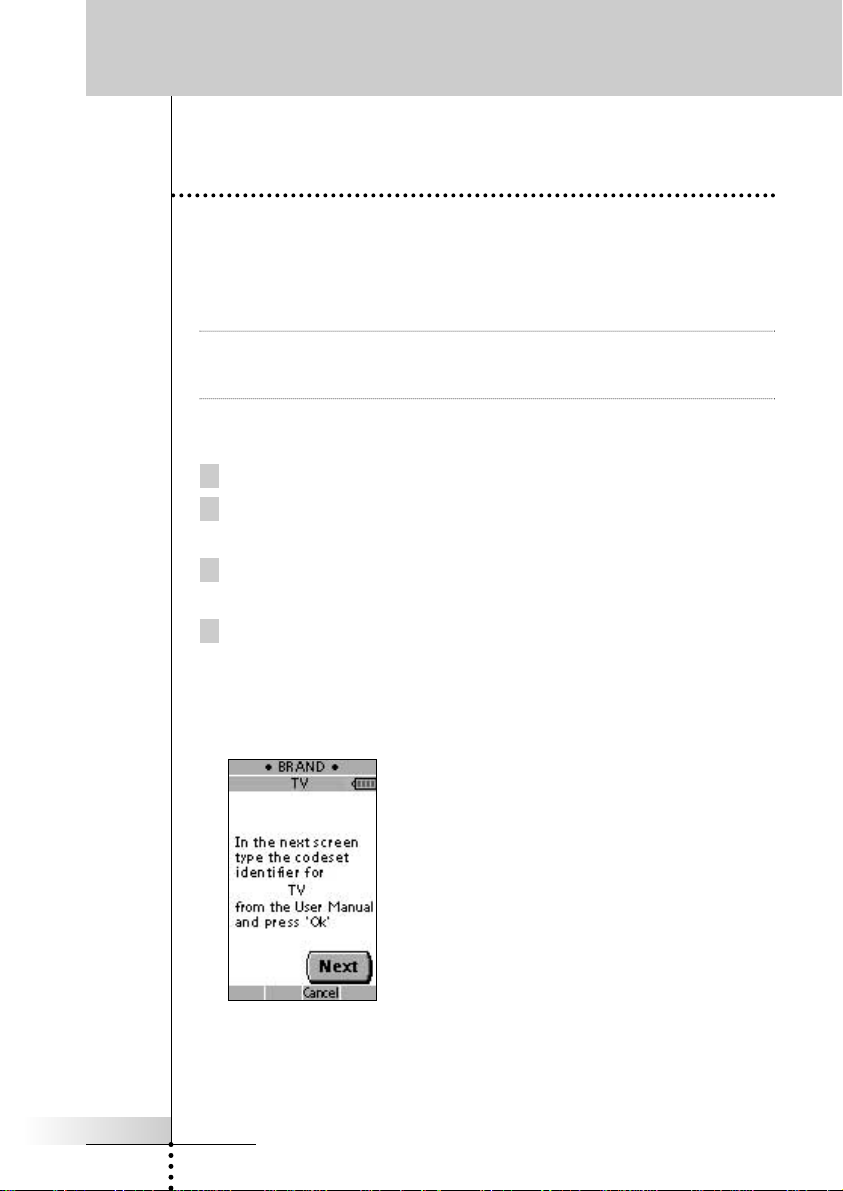
An instruction screen appears indicating you can set the brand for the selected
device.
ProntoNEO is now in Brand mode. ‘Brand’ and the label of the selected device
appear at the top of the LCD touch screen.
ProNeo 01-08-2001 14:40 Pagina 15
User Manual
16
Using ProntoNEO
5 Tap Next to define the code set of your device.
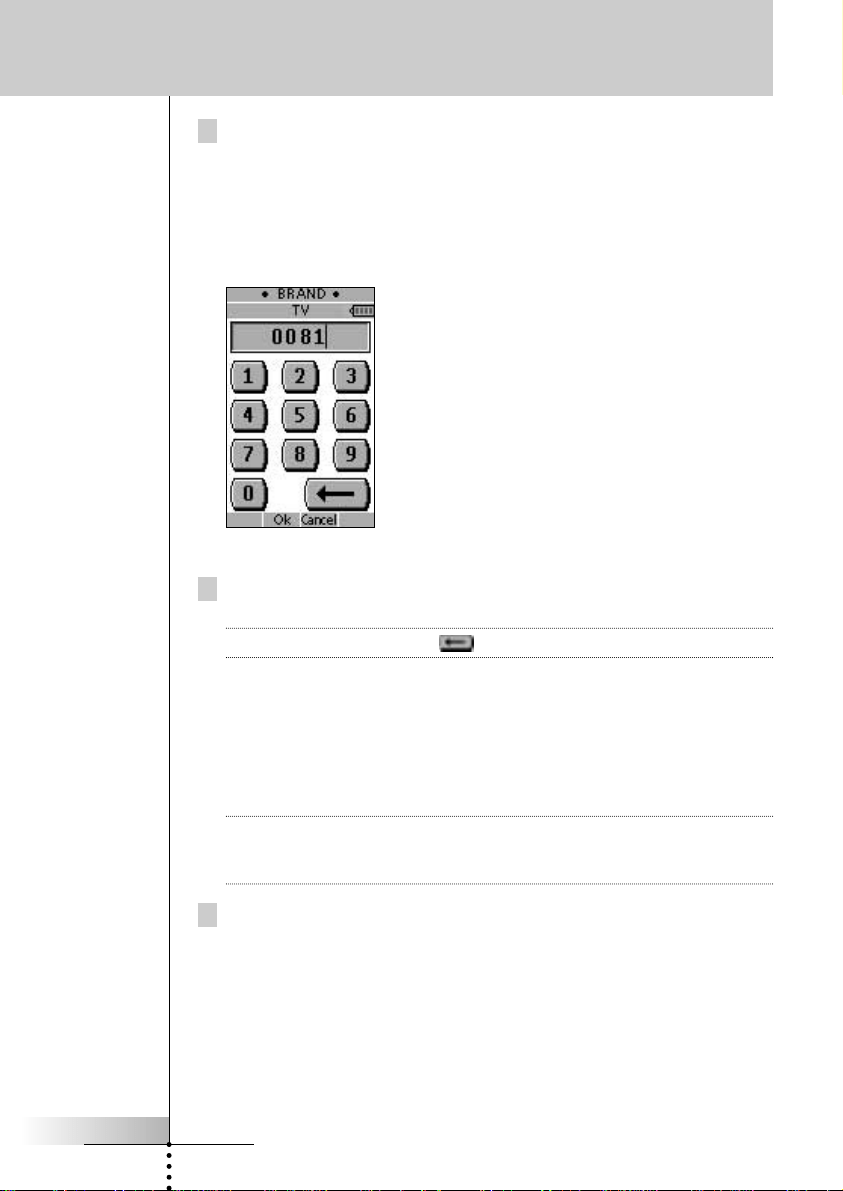
The code set screen appears. When the brand is already defined like in the
default configuration, the code set is displayed.
–or–
Press Cancel to exit Brand mode.
6 Enter the code set from the ‘Table of Brands’ from p. 32 onwards.
Note To delete a number, tap on the LCD touch screen.
In the Table of Brands the brands are ordered alphabetically per device. Some
brands use several code sets for the same device. The code sets in the table
of brands contain only the basic functions of the devices. It is advised to enter
the first code set and try it out. If your device is not responding properly, you
should try out the second code set of the brand. Try out all code sets of the
brand until you can operate the device to your satisfaction.
Note Defining the brand of your device will not erase the commands you have
previously learned to buttons of that device. See ‘Learning Commands’ on
p. 18 for more details.
7 Press OK to define the brand of your device.
When the code set is correct, you will hear a confirmation beep. The IR codes
of the selected device will be installed on the ProntoNEO.
ProNeo 01-08-2001 14:40 Pagina 16
User Manual
17
Using ProntoNEO
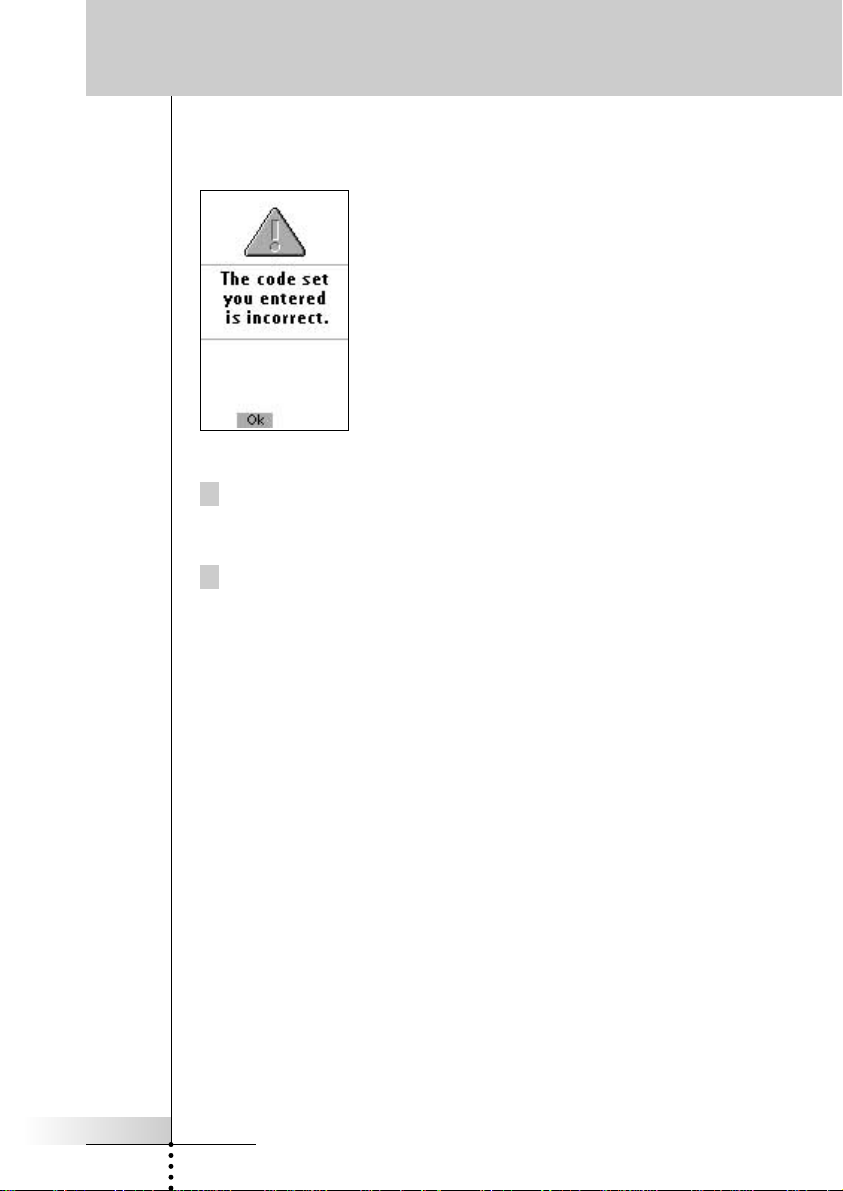
If you entered an incorrect code set, you hear an error beep. A message screen
appears.
1 Press OK.
ProntoNEO returns to the code set screen where the incorrect code set is
displayed.
2 Look up the correct code set and repeat instructions 6 and 7.
ProNeo 01-08-2001 14:40 Pagina 17
User Manual
18
Using ProntoNEO
Learning Commands
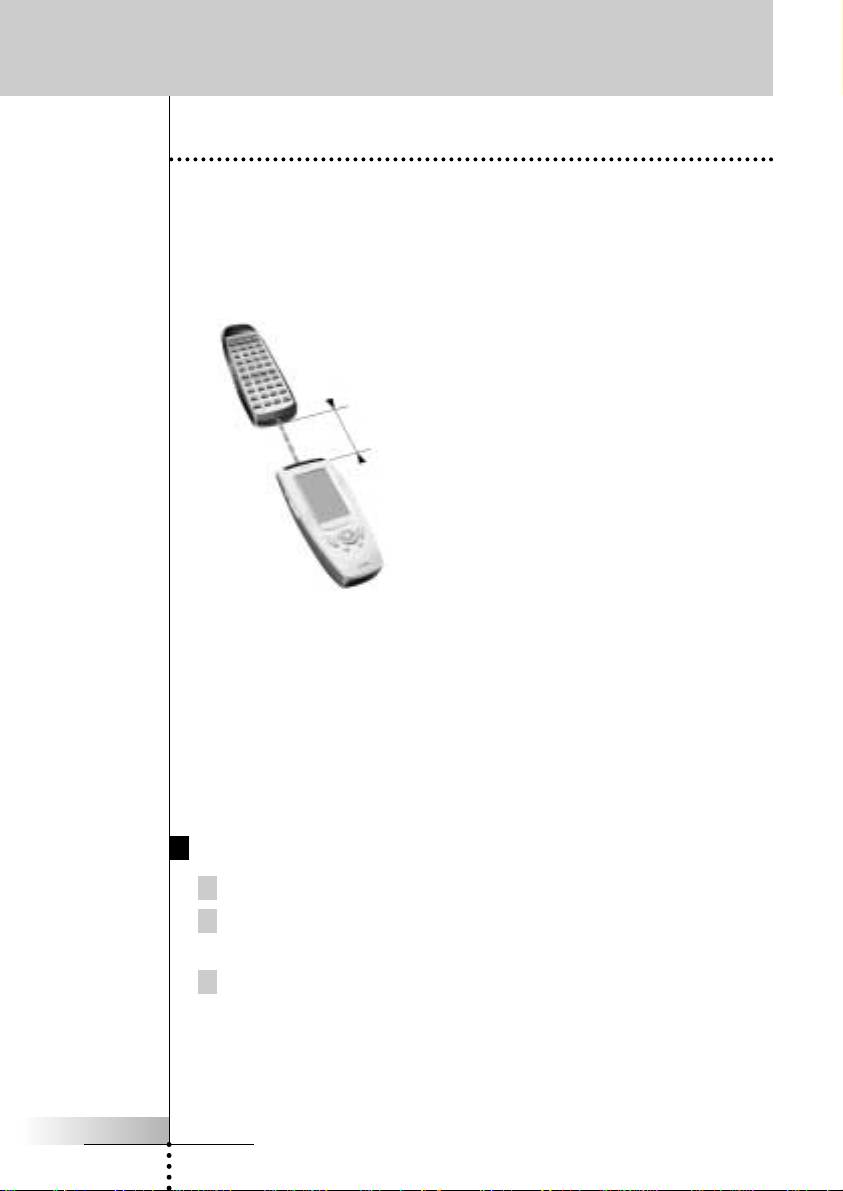
If an IR code or a brand is not in the database, you can program ProntoNEO
commands by transmitting IR signals from your existing remote controls to
ProntoNEO’s learning eye. To do this, place ProntoNEO and the device’s remote
control on a flat surface, 1 to 4 inches (2 to 10 cm) apart.
To learn commands from other remote controls, ProntoNEO has to be in Learn
mode. Switching to Learn mode is only possible from a specific device, not from
the Device Overview. See ‘Working with Modes’ on p. 10.
Per device you can learn all soft and hard buttons on the ProntoNEO, except for:
• the Backlight button;
• the Page Up and Page Down buttons;
• the Mode button;
• the Device button.
The Learn Sequence
1 Set the ProntoNEO in Use Mode. See ‘Working with Modes’ on p. 10.
2 Select the device, e.g. TV, with the buttons you want to learn.
The device screen appears.
3 Press and hold the Mode button for 3 seconds.
The Mode screen appears.
1 to 4 inches (2 to 10 cm)
ProNeo 01-08-2001 14:40 Pagina 18
User Manual
19
Using ProntoNEO
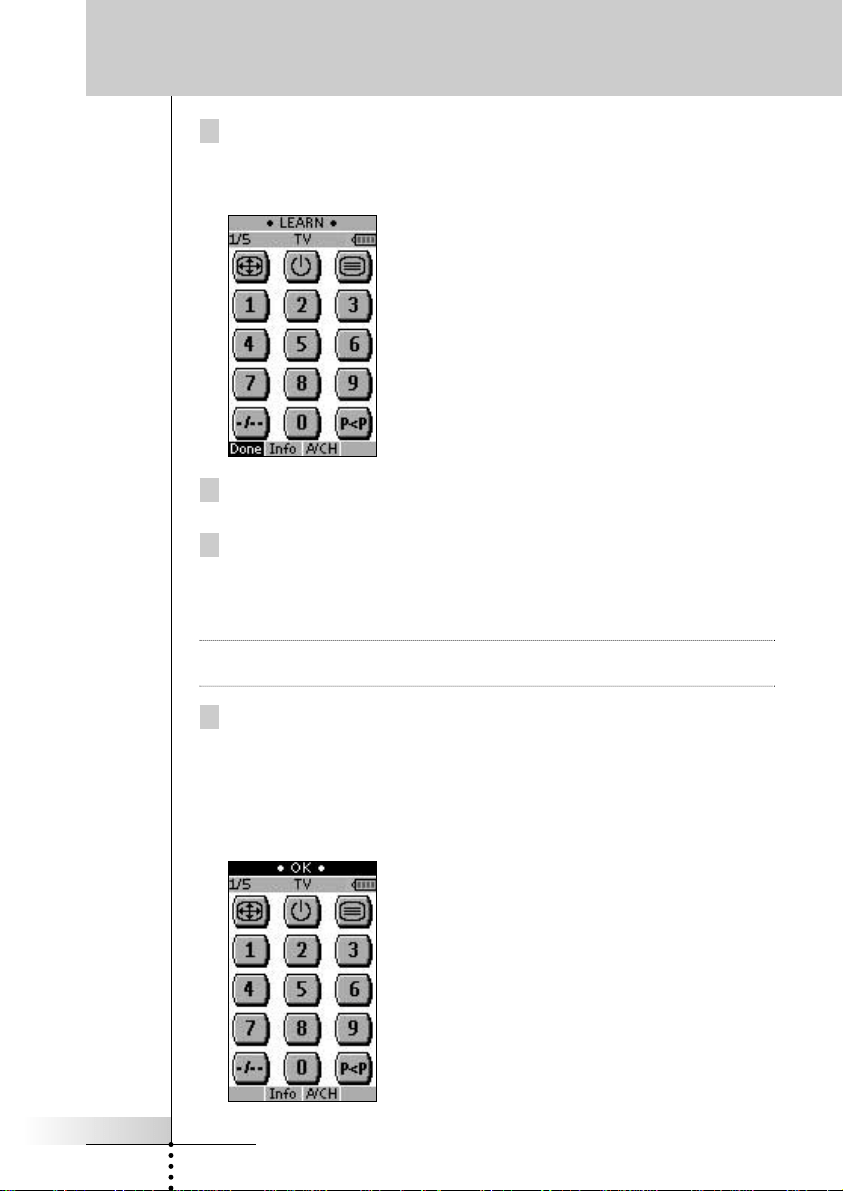
4 Tap Learn on the Mode screen.
ProntoNEO is now in Learn Mode. ‘Learn’ and the label of the selected device
appear at the top of the touch screen.
5 Use, if necessary, the Page Up or Page Down button to go to the next
button you want to learn.
6 Press the soft or hard button you want to learn on the ProntoNEO.
The Learn label changes to Learning, which means ProntoNEO is ready to
receive commands from an existing remote control. The ProntoNEO will wait
for 5 seconds to receive an IR code from another remote control.
Note When a hard button is pressed to learn, there is no on screen feedback to indicate
which button is pressed.
7 Press and hold the button on the existing remote control you want to
learn to the ProntoNEO.
When the ProntoNEO receives an IR code:
• You hear a confirmation beep;
• The label changes from Learning to OK. The Learn sequence has been
successful.
ProNeo 01-08-2001 14:40 Pagina 19
User Manual
20
Using ProntoNEO
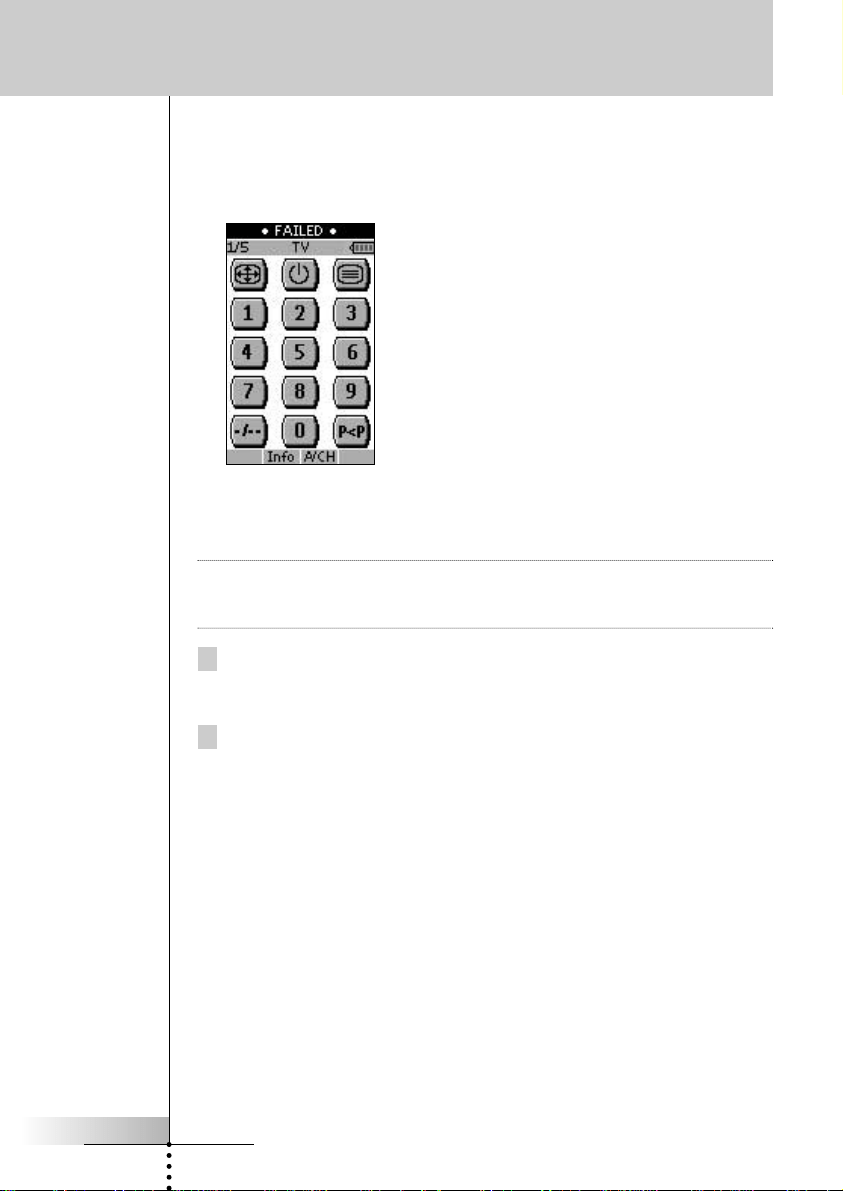
When the ProntoNEO does not receive an IR code in 5 seconds:
• You will hear an error beep;
• The label changes from Learning to Failed. The Learn sequence has failed.
• ProntoNEO will return to Learn mode. Return to step 5 of the Learn sequence
to relearn the button.
Tip You do not have to wait for the OK or Failed to disappear. If you press another
button (soft or hard button), the ProntoNEO Learn sequence immediately goes
back to step 5.
8 Go to other pages of the selected device with the Page Up and Page
Down buttons. Repeat steps 6 and 7 until you have copied all the
commands of the existing remote control.
9 Press Done when you have finished learning commands to the buttons
of your choice.
ProntoNEO returns to Use Mode. You can try out the new IR codes or select
another device to learn.
ProNeo 01-08-2001 14:40 Pagina 20

User Manual
21
Using ProntoNEO
Recording Macros
A macro allows you to send a sequence of commands using one single button. You
can for instance, switch on your TV, turn to a movie channel and prepare your VCR
for recording by rewinding the videotape. All this can be done be pressing a single
button on your ProntoNEO.
To record macros, ProntoNEO has to be in Macro mode.
1 Set the ProntoNEO in Use Mode. See ‘Working with Modes’ on p. 10.
2 Select the device, e.g. TV, with the buttons you want to program as a
macro.
The device screen appears.
Note Basically, you can assign any button as a macro button. However, it is
recommended to assign only the reserved macro buttons on the last page of every
device. Use the Page Up and Page Down buttons to go to the last page of the
device.
3 Press and hold the Mode button for 3 seconds.
The Mode screen appears.
4 Tap Macro on the Mode screen.
A message screen appears. ProntoNEO is now in
Macro Mode.
5 Tap Next.
The device screen with the Macro label appears.
With the Page Up and Page Down buttons you can
go to other screens of the selected device.
ProNeo 01-08-2001 14:40 Pagina 21
User Manual
22
6 Tap the soft or hard button you want to select as a macro.
A message screen appears.
7 Tap Start.
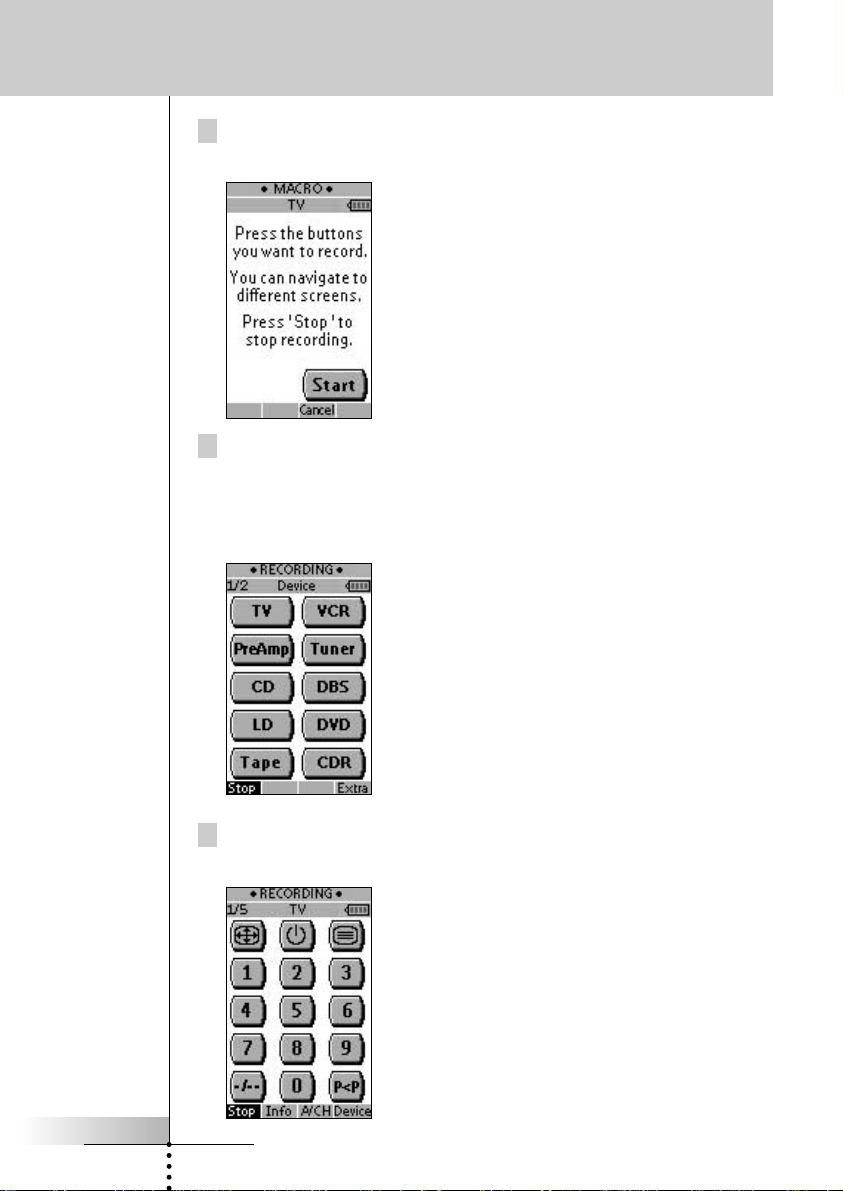
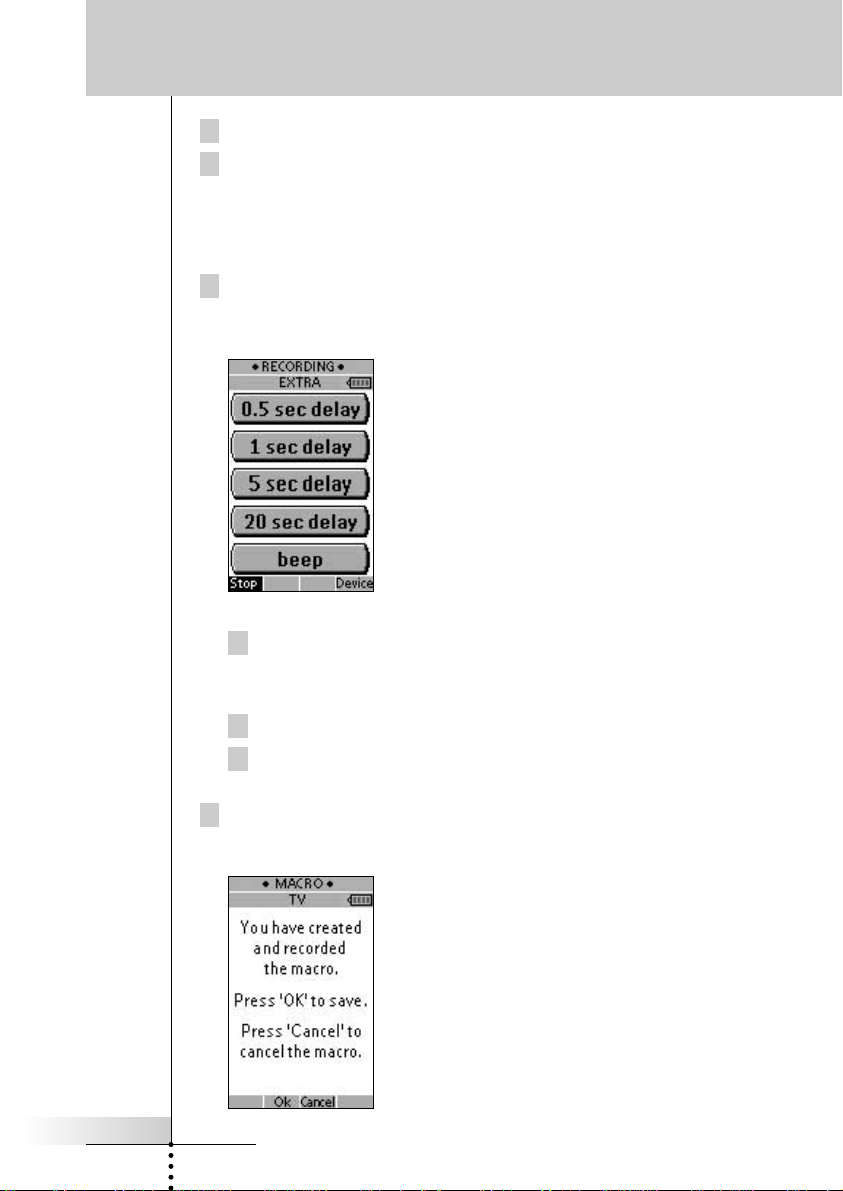
The Device Overview appears with the ‘Recording’ label at the top of the
screen. The buttons you tap on this screen will not be recorded. From the
Device Overview you can go to the different devices or you can press the Extra
hard button to go to the Extra screen with delays and beeps.
8 Tap the button of the device you want to go to.
The device screen appears.
Using ProntoNEO
ProNeo 01-08-2001 14:40 Pagina 22
User Manual
23
9 Tap the soft or hard buttons with the commands you want to record.
10 Press the Page Up and Page Down buttons to go to different screens of
the same device.
–or–
Press the Device button to go to the Device Overview again.
11 To add delays and beeps to the macro, press the Extra hard button on
the Device Overview.
The Extra screen appears.
1 To add a delay, tap one of the Delay buttons.
By tapping several Delay buttons, the duration of the delay will be
increased.
2 To add a beep, tap the Beep button.
3 Press the Device button to go to the Device Overview again.
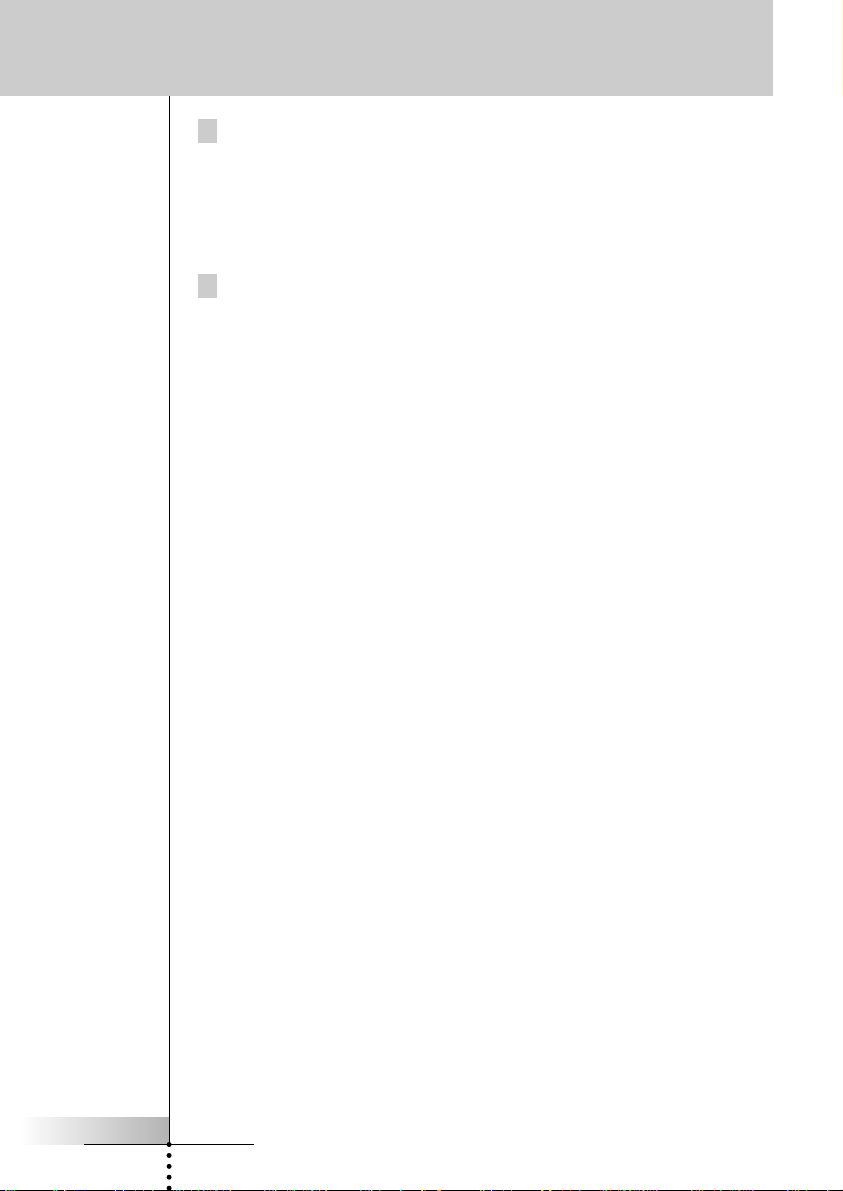
12 Press Stop to stop recording.
A message screen appears.
Using ProntoNEO
ProNeo 01-08-2001 14:40 Pagina 23
User Manual
24
13 Press OK to save the macro and return to the Mode screen.
The existing command of the selected button is replaced by the macro.
–or–
Press Cancel to return to the Mode screen without saving the macro.
The button retains its previous command.
14 Set the ProntoNEO in Use mode to test the recorded macro.
N
Using ProntoNEO
ProNeo 01-08-2001 14:40 Pagina 24
User Manual
25
If you want to personalize your ProntoNEO even more beyond its standard
programming features, NEOedit is the tool for you to use. NEOedit is the
ProntoNEO’s companion software that you find on the included CD-ROM. You can
find more information and updates of the software on
http://www.pronto.philips.com.
NEOedit is the visual editor for creating and configuring ProntoNEO Configuration
Files (NCF) on your computer. An NCF is a file that is used to define the ProntoNEO
behaviour and look for the LCD touch screen.
Note It is advised to make backup copies of your own configurations. This can be done
with NEOedit.
With NEOedit you can:
• define the types and brands of your devices;
• generate the Device Overview;
• design the page layout and the appearance of buttons;
• configure the behavior of the hard buttons and soft buttons;
• access NEOedit’s extended help system by pressing F1.
• save, duplicate and share NCFs, devices, buttons, bitmaps or codes with
another ProntoNEO;
• preview the NCF on the NEOemulator;
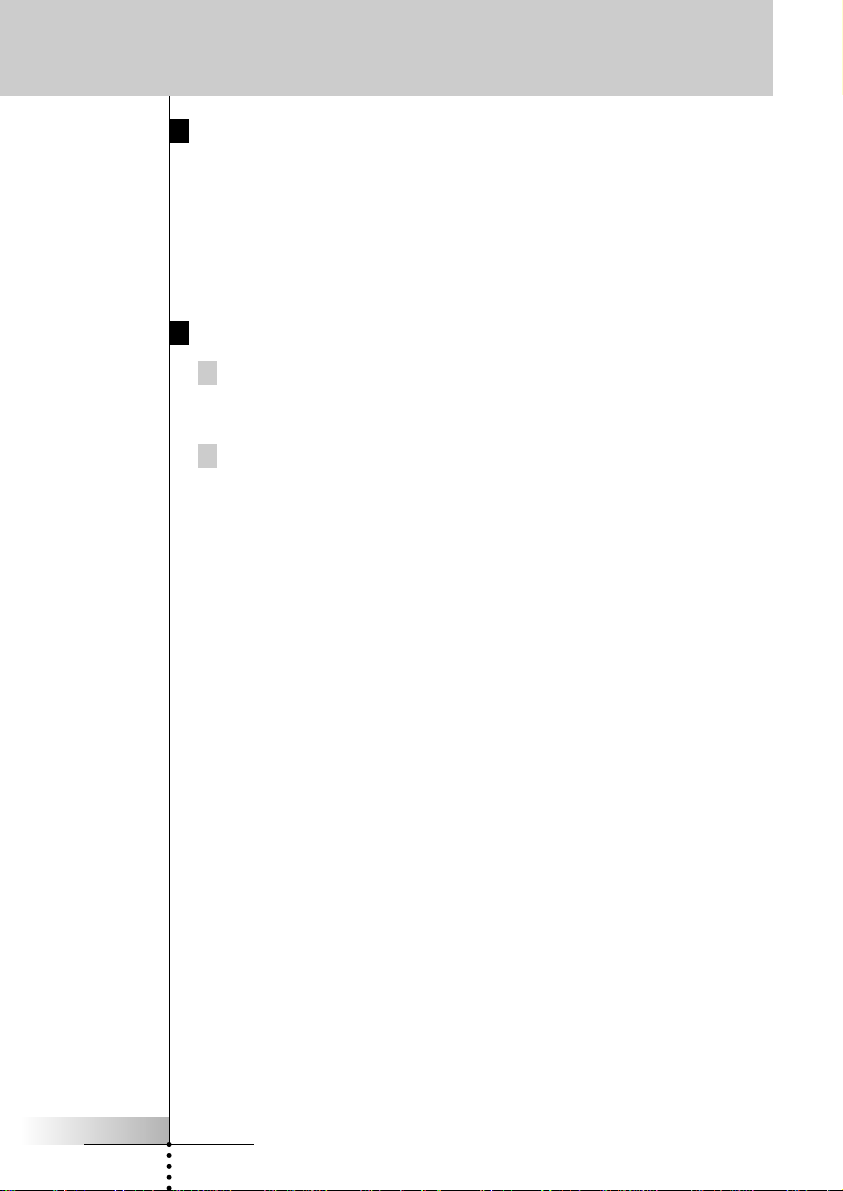
• download the new configurations to your ProntoNEO by means of the included
serial cable;
1 Plug one end of the serial cable in the serial port on your computer.
2 Plug the other end of the serial cable in the serial port on the
ProntoNEO.
Note When the ProntoNEO is connected to the PC, the battery lifetime may be reduced.
NEOedit
ProNeo 01-08-2001 14:40 Pagina 25
User Manual
26
Minimum System Requirements
• PC with a Pentium 166 MHz or higher
• Windows 95/98/ME/XP or NT 4.0/2000
• 32 MB of RAM
• 16 MB of free hard disk space
• Free serial port
• CD-ROM player
Installing NEOedit from the CD-ROM
1 Place the NEOedit CD-ROM in your computer.
NEOedit setup will start up automatically. If not, you can install NEOedit by
double-clicking the NEOeditSetup.exe file on the CD-ROM.
2 Follow the instructions on screen that will guide you through the
installation procedure.
The first time you run NEOedit, you have to accept the license agreement.
Otherwise NEOedit will not run.
NEOedit
ProNeo 01-08-2001 14:40 Pagina 26

User Manual
27
Important Notices
Take care not to scratch the touch screen
Use your finger to tap the LCD touch screen or use plastic-tipped pens intended for
use with touch screens.
Never use an actual pen, pencil or other sharp object on the LCD touch screen.
Protect ProntoNEO from extreme temperatures
Keep ProntoNEO away from heaters and other heat sources.
ProntoNEO is not waterproof
ProntoNEO should not be exposed to rain or moisture.
Do not store or use ProntoNEO in any location that is extremely damp or wet.
When you have spilled water on ProntoNEO, you have to take out the batteries and
let ProntoNEO dry for 48 hours before you place the batteries back.
When you have spilled other liquids like coffee on the ProntoNEO, you can clean it
with distilled water. Make sure no water gets into the housing.
The touch screen of ProntoNEO contains a glass element
Do not drop ProntoNEO or subject it to any strong impact.
Cleaning ProntoNEO
Use a soft, damp cloth to clean ProntoNEO.
If the LCD touch screen of ProntoNEO is spoiled, clean it with a soft cloth
moistened with a diluted window-cleaning solution.
Do not use a corrosive detergent or an abrasive sponge.
Avoid the use of abundant water.
Maintaining ProntoNEO
ProNeo 01-08-2001 14:40 Pagina 27
User Manual
28
FAQ
How do I reset the ProntoNEO?
Under normal circumstances, you will never have to reset the ProntoNEO.
However, on rare occasions, if the ProntoNEO’s touch screen freezes or if you
notice unusual behavior, you need to perform a reset to get the ProntoNEO running
again. All customized commands and devices are retained.
1 Slide the battery cover off the back of the ProntoNEO.
You will see the Reset button in the battery compartment.
2 Use an unfolded paperclip or a sharp pencil to carefully press the
Reset button.
The ProntoNEO restarts and an Introduction screen appears. The ProntoNEO
beeps twice to indicate it is ready for use.
How do I revert to the original configuration?
Reverting to the original configuration restores the ProntoNEO’s devices and
commands to its state when you purchased it. This means that all programming is
lost permanently. Normally, you never have to revert the ProntoNEO. See ‘Revert’
on p. 14.
1 Press and hold the Mode button for 3 seconds.
The mode screen appears.
2 Tap the Setup button.
3 Scroll to the third setup page.
4 Tap the Revert button.
A message screen appears to confirm or cancel the revert process.
5 Press OK or Cancel.
Do I have to calibrate the touch screen?
The ProntoNEO’s touch screen is calibrated when it leaves the factory. You only
have to calibrate the LCD touch screen when you upgrade ProntoNEO’s software in
the future.
Reset button
ProNeo 01-08-2001 14:40 Pagina 28

User Manual
29
Troubleshooting
General Problems
The display stays blank or becomes black
• Make sure the batteries are properly installed.
See “The Batteries” on page 3.
• Press the Backlight button to make sure ProntoNEO and the backlight are
turned on.
See ‘Turning on the Display and the Backlight’ on p. 6.
• Adjust the contrast using the Backlight button and the Page Up or Page Down
buttons on the left side of ProntoNEO.
See ‘Changing the LCD Contrast’ on p. 7.
The display is too light or too dark
• Adjust the contrast using the Backlight button and the Page Up or Page Down
buttons on the left side of ProntoNEO.
See ‘Changing the LCD Contrast’ on p. 7.
ProntoNEO shuts off automatically
• This is a timeout feature of the ProntoNEO to save power. You can change
the time ProntoNEO stays on in the Settings.
See ‘Adjust the LCD Timeout’ on p. 12.
Devices do not respond to commands from ProntoNEO
• Make sure ProntoNEO is in Use mode. See ‘Working with Modes’ on p. 10.
• Make sure ProntoNEO’s sending LED is pointed towards the device you’re
operating.
• Check if the battery level is low. If so, replace the batteries.
See ‘The Batteries’ on page 3.
• Check if you have defined the correct brands for your devices.
See ‘Defining the Brands of Your Devices’ on p.15.
• Check if the button you are trying to use is assigned properly via Brand mode,
Learn mode or Macro mode. See ‘Defining the Brands of Your Devices’ on
p. 15, ‘Learning Commands’ on p. 18 and ‘Recording Macros’ on p. 21.
ProntoNEO does not learn commands from an existing remote control
• Press and hold the buttons on the existing remote control for a longer or
shorter period of time.
• Make sure the distance between the ProntoNEO and the existing remote
control is between 1 and 4 inches (2 to 10 cm).
See ‘Learning Commands’ on p. 18.
• Do not learn commands directly under fluorescent lights.
• Do not learn commands on a reflecting table surface.
• Check if the battery level is low. If so, replace the batteries.
See ‘The Batteries’ on page 3.
• Check if there is sufficient memory to learn commands. If not, revert the
ProntoNEO. See ‘ProntoNEO Information’ and ‘Revert’ on p. 14.
ProNeo 01-08-2001 14:40 Pagina 29

User Manual
30
Troubleshooting
ProntoNEO is not recognized by the NEOedit software
• Make sure the serial cable is properly connected. See ‘NEOedit’ on p. 25.
• Disconnect other equipment connected to the serial ports, e.g. PDA’s.
• Plug the serial cable in another serial port.
• Try to connect multiple times.
Programming Problems
Buttons are not sending the correct commands
• Check if you have defined the correct brands for your devices.
See ‘Defining the Brands of Your Devices’ on p. 15.
• Check whether the button of the device is learned properly.
See ‘Learning Commands’ on p. 18.
• Check whether the macro is recorded properly.
See ‘Recording Macros’ on p. 21.
ProntoNEO will not switch modes
• Replace the batteries. When the batteries are low ProntoNEO prevents you
from switching to customizing modes so that no customization can get lost.
ProntoNEO is low on memory
• Revert the ProntoNEO. See ‘Revert’ on p. 14.
The configuration file is corrupted
• When this unlikely event occurs, you have to revert to the original
configuration or use NEOedit to download a new configuration file. All your
customized commands and devices will be lost and you will have to reprogram
your ProntoNEO. If you use NEOedit, it is advised to make backup copies of
your customized configurations. See ‘Revert’ on p. 14 and ‘NEOedit’ on p. 25.
ProntoNEO error message
If the error message ‘Invalid CF version or corrupt Flash!’ occurs:
• Use the Reset button on the back of the ProntoNEO.
See ‘How do I reset the ProntoNEO?’ on p. 28.
• Try to recover the ProntoNEO Configuration File (NCF) by downloading a
backup copy or the default file from NEOedit.
See ‘NEOedit’ on p. 25.
• Go to the Philips website http://www.pronto.philips.be for more information.
ProNeo 01-08-2001 14:40 Pagina 30
User Manual
31
Specifications
The specifications and design of this product are subject to change without notice.
Display Monochrome touch screen LCD with 4 gray levels and
digital contrast control.
Resolution: 160 x 100 pixels
Blue EL backlighting for LCD and hard buttons
Interface 3-wire (RS232) serial port connector
Software Database with IR codes to operate different brands
Built-in Philips RC codes
Total number of devices limited only by memory
Infrared (IR) Infrared sending LED and learning eye
Operating distance of 33 feet (10 meters)
Learning frequency up to 56 kHz and 455 kHz
Learning distance 1 inch (2 cm) up to 4 inch (10 cm)
Memory 1 MB non-volatile flash memory
Batteries 3 AA-batteries (3 x 1,5V): primary or rechargeable
Power management Power on by tapping the LCD touch screen or by pressing
the Backlight button
Power off automatically
Dimensions 7.8 inch x 3 inch x 1.3 inch (177mm x 74mm x 33mm)
Operating temperature 41°F to 113°F (5°C to 45°C)
Accessories RS232 cable for PC connection
CD-ROM with NEOedit software
3 AA-batteries
Database information:
Designed
by UEI Technology
Licensed under U.S. Patent 5,689,353
Portions © UEI 1999
ProNeo 01-08-2001 14:40 Pagina 31

User Manual
32
Table of Brands
PreAmp
Carver 0296
Curtis Mathes 0327
GE 0105
JVC 0358
Linn 0296
Magnavox 0296
Marantz 0296
Optimus 0422, 0327
Philips 0296
Pioneer 0327
Polk Audio 0296
RCA 0327
Realistic 0422
Sony 0716, 0247
Soundesign 0105
Victor 0358
Wards 0105
Yamaha 0381
Cable
ABC 0030, 0034, 0035
Allegro 0180, 0342
Americast 0926
Archer 0180, 0824
Bell South 0926
Century 0180
Citizen 0180, 0342
Comtronics 0067
Contec 0046
Emerson 0824
Everquest 0042, 0067
Focus 0427
Garrard 0180
Gemini 0042, 0824
General Instrument 0503, 0837
GoldStar 0067, 0171
Goodmind 0824
Hamlin 0047, 0036, 0286, 0061
Hytex 0034
Jasco 0042, 0180, 0342
Jerrold 0030, 0039, 0503, 0042, 0837
Memorex 0027
Motorola 1133
Movie Time 0090
NSC 0090
Oak 0046, 0034
Optimus 0048
Panasonic 0048, 0134, 0027
Paragon 0027
Philips 0180, 0332, 0344
Pioneer 0171, 0560, 0904
Popular Mechanics 0427
Pulsar 0027
Quasar 0027
RCA 0048
Radio Shack 0042, 0910, 0342, 0824
Recoton 0427
Regal 0047, 0286
Runco 0027
SL Marx 0067
Samsung 0067, 0171
Scientific Atlanta 0035, 0504, 0904
Signal 0042, 0067
Sprucer 0048
Starcom 0030, 0042
Stargate 0067, 0042, 0824
Starquest 0042
TV86 0090
Teleview 0067
Tocom 0039
Toshiba 0027
Tusa 0042
Unika 0180
United Artists 0034
Universal 0180, 0218
Viewstar 0090
Zenith 0027, 0552, 0926
Zentek 0427
CD/CDR
Aiwa 0151, 0184
Burmester 0447
California Audio Labs 0056, 0330
Carver 0184, 0206, 0464
DKK 0027
Denon 0030, 0900
Emerson 0332
Fisher 0201, 0206
Garrard 0420, 0447
Genexxa 0059, 0332
Harman/Kardon 0184, 0200
Hitachi 0059
JVC 0099
Kenwood 0055, 0217, 0853, 0064, 0653,
0708
Krell 0184
LXI 0332
ProNeo 01-08-2001 14:40 Pagina 32

User Manual
33
Table of Brands
Linn 0184
MCS 0056
MTC 0447
Magnavox 0184, 0332
Marantz 0184, 0653, 0056, 0207
Mission 0184
NSM 0184
Nikko 0201
Onkyo 0128, 0895
Optimus 0059, 0495, 0447, 0206, 0464,
0332, 1090, 0027, 0064, 0172
Panasonic 0056, 0330
Parasound 0447
Philips 0184, 0653
Pioneer 0059, 0495, 0271, 0332,
1089, 1090
Polk Audio 0184
Proton 0184
QED 0184
Quasar 0056
RCA 0080, 0059, 0495, 0332, 1089,
0206, 0791
Realistic 0206, 0207, 0447
Rotel 0184, 0447
SAE 0184
Sansui 0184, 0332
Sanyo 0206
Scott 0332
Sears 0332
Sharp 0064, 0207, 0888
Sherwood 1094, 0207
Sonic Frontiers 0184
Sony 0027, 0212, 0517
Soundesign 0172
Tascam 0447
Teac 0420, 0447, 0201, 0207
Technics 0330, 0056
Victor 0099
Wards 0080, 0184
Yamaha 0214, 0063, 0915
Yorx 0488
Tape
Aiwa 0224, 0056
Carver 0056
Denon 0103
Harman/Kardon 0209, 0056
JVC 0271
Magnavox 0056
Marantz 0056
Optimus 0054, 0247
Philips 0056
Pioneer 0054, 0247
Polk Audio 0056
RCA 0054, 0247
Sansui 0056
Sony 0270, 0197, 0318
Wards 0054
Yamaha 0124
LD (Laser Disc)
Carver 0221
Denon 0086
Harman/Kardon 0221
Magnavox 0221
Marantz 0221
Mitsubishi 0086
NAD 0086
Optimus 0086
Philips 0221
Pioneer 0086
Polk Audio 0221
Sony 0228
Theta Digital 0221
Tuner
ADC 0558
Aiwa 0148, 1432, 1116
Capetronic 0558
Carver 0069, 1116, 1216
Casio 0222
Clarinette 0222
Denon 1187, 1131
Fisher 0069
Garrard 0490
Harman/Kardon 0137
JBL 0137
JVC 0101
Kenwood 1054, 0069, 0213, 1340,
1596, 1597
Lloyd’s 0222
MCS 0066
Magnavox 0418, 1116, 0558, 1216, 0222
Marantz 1116, 1216, 0066
Modulaire 0222
Nakamichi 0124
Onkyo 0162
Optimus 1050, 0213, 0558, 0069
ProNeo 01-08-2001 14:40 Pagina 33

User Manual
34
Table of Brands
Panasonic 0066, 1545
Penney 0222
Philips 1116, 1216, 1296, 0418
Pioneer 0177, 0558, 1050
Proscan 1281
Quasar 0066
RCA 1281, 0558, 1050
Realistic 0222
Sansui 1116
Sharp 0213
Sherwood 0529
Sony 1185, 1085, 1285
Sunfire 1340
Teac 0490
Technics 0066, 1335, 1545, 1336
Thorens 1216
Victor 0101
Yamaha 0203, 0213, 1203
Yorx 0222
DBS (Sattelite)
AlphaStar 0799
Echostar 1032, 0802
Expressvu 0802
GE 0593
General Instrument 0388, 0896, 0654
HTS 0802
Hitachi 0846
Hughes Network Systems 0776
JVC 0802
Jerrold 0388, 0654
Magnavox 0749, 0751
Memorex 0751
Next Level 0896
Panasonic 0728
Philips 1103, 0749, 0751
Primestar 0654, 0388
RCA 0593, 0170, 0419, 0882
Radio Shack 0896
Samsung 1136
Sony 0666
Star Choice 0896
Toshiba 0776, 0817
Uniden 0751, 0749
Zenith 0883
TV
AOC 0046, 0057
Admiral 0120, 0490
Aiko 0119
Akai 0057
Alaron 0206
America Action 0207
Anam 0207
Audiovox 0119, 0207, 0478, 0650
Baysonic 0207
Belcor 0046
Bell & Howell 0043, 0181
Bradford 0207
Brockwood 0046
Broksonic 0263, 0490
CXC 0207
Candle 0057, 0083
Carnivale 0057
Carver 0081
Celebrity 0027
Cineral 0478, 0119
Citizen 0083, 0057, 0087, 0119
Concerto 0083
Contec 0207
Craig 0207
Crosley 0081
Crown 0207
Curtis Mathes 0087, 0057, 0043, 0074, 0078,
0081, 0083, 0120, 0172, 0181,
0193, 0478, 0774, 1174, 1374
Daewoo 0119, 0650, 0046, 0651, 0478
Daytron 0046
Denon 0172
Dumont 0044, 0046
Electroband 0027
Emerson 0263, 0207, 0205, 0206, 0490,
0651, 0650, 0046, 0181
Envision 0057
Fisher 0181
Fujitsu 0206, 0710
Funai 0207, 0198, 0206
Futuretech 0207
GE 0048, 0074, 1374, 0078, 0205,
0478, 1174, 0120, 0774
Gibralter 0044, 0046, 0057
GoldStar 0205, 0046, 0057, 0083
Gradiente 0083, 0080
Grunpy 0206, 0207
ProNeo 01-08-2001 14:40 Pagina 34

User Manual
35
Table of Brands
Hallmark 0205
Harley Davidson 0206
Harman/Kardon 0081
Harvard 0207
Hitachi 0172, 0083, 0043
Infinity 0081
Inteq 0044
JBL 0081
JCB 0027
JVC 0080
KEC 0207
KTV 0207, 0057
Kenwood 0057, 0046
Konka 0734, 0659, 0655, 0665, 0730
LG 0083
LXI 0181, 0074, 0081, 0183, 0205, 0774
Logik 0043
Luxman 0083
MGA 0177, 0046, 0057, 0205
MTC 0087, 0057, 0046, 0083
Magnavox 0081, 0057, 0206, 1281
Majestic 0043
Marantz 0081, 0057
Matsushita 0277
Megatron 0172, 0205
Memorex 0206, 0490, 0205, 0043, 0083,
0177, 0181, 0277
Midland 0044, 0074, 0078, 0774
Minutz 0048
Mitsubishi 0177, 0205, 0046, 0120
Motorola 0120
Multitech 0207
NAD 0183, 0193, 0205
NEC 0057, 0046, 0083
NTC 0119
Nikko 0205, 0057, 0119
Onwa 0207
Optimus 0277, 0193, 0181
Optonica 0120
Orion 0490, 0206, 0263
Panasonic 0078, 0277
Penney 0074, 1374, 0087, 0057, 0048,
0205, 0078, 0046, 0083, 0183, 0774
Philco 0172, 0046, 0057, 0081, 0490
Philips 0081
Pilot 0046, 0057
Pioneer 0193, 0706
Portland 0046, 0119
Princeton 0744
Prism 0078
Proscan 0074, 0774
Proton 0205
Pulsar 0044, 0046
Quasar 0078, 0277
RCA 0074, 1374, 1174, 1274, 0706, 0046,
0078, 0120, 0774, 1074, 1474
Radio Shack 0207, 0057, 0205, 0181,
0046, 0074, 0083, 0774
Realistic 0207, 0181, 0057, 0205,
0046, 0083
Runco 0044, 0057
SSS 0046, 0207
Sampo 0057
Samsung 0087, 0046, 0205, 0057, 0083
Sansei 0478
Sansui 0490
Sanyo 0181
Scimitsu 0046
Scotch 0205
Scott 0263, 0046, 0205, 0206, 0207
Sears 0181, 0083, 0183, 0074, 0081,
0198, 0205, 0206, 0774
Semivox 0207
Semp 0183
Sharp 0120, 0715
Shogun 0046
Signature 0043
Sony 0027
Soundesign 0205, 0206, 0207
Squareview 0198
Starlite 0207
Supreme 0027
Sylvania 0081, 0057
Symphonic 0198
TMK 0083, 0205
TNCi 0044
Tandy 0120
Technics 0078, 0277
Technol Ace 0206
Techwood 0078, 0083
Teknika 0043, 0081, 0206, 0207, 0046,
0119, 0083, 0087, 0177
Telefunken 0083
Toshiba 0183, 0087, 0181, 1283
Vector Research 0057
Victor 0080
Vidikron 0081
Vidtech 0046, 0205
ProNeo 01-08-2001 14:40 Pagina 35

User Manual
36
Table of Brands
Wards 0081, 0205, 0043, 0046, 0048,
0057, 0083, 0206
White Westinghouse 0651, 0650, 0490
Yamaha 0046, 0057
Zenith 0044, 0651, 0043, 0119, 0490
VCR
Admiral 0075, 0236
Adventura 0027
Aiko 0305
Aiwa 0027, 0064
Akai 0068
America Action 0305
American High 0062
Asha 0267
Audiovox 0064
Beaumark 0267
Bell & Howell 0131
Broksonic 0148, 0211, 0029, 0236, 0506
CCE 0099, 0305
Calix 0064
Canon 0062
Carver 0108
Cineral 0305
Citizen 0305, 0064
Colt 0099
Craig 0064, 0099, 0074, 0267, 0298
Curtis Mathes 0062, 0068, 0087,
0189, 0787
Cybernex 0267
Daewoo 0305, 0072
Denon 0069
Dynatech 0027
Electrohome 0064
Electrophonic 0064
Emerex 0059
Emerson 0211, 0029, 0236, 0305, 0148,
0506, 0027, 0064, 0070
Fisher 0074, 0131
Fuji 0062
Funai 0027
GE 0062, 0087, 0075, 0267, 0787
Garrard 0027
Go Video 0459, 0553
GoldStar 0064, 0065
Gradiente 0027
HI-Q 0074
Harley Davidson 0027
Harman/Kardon 0065, 0108
Harwood 0099
Hitachi 0069, 0027, 0068
Hughes Network Systems 0069
JVC 0094, 0068
Jensen 0068
KEC 0064, 0305
KLH 0099
Kenwood 0068, 0094, 0065
Kodak 0062, 0064
LXI 0064
Lloyd’s 0027
Logik 0099
MEI 0062
MGA 0070, 0267
MGN Technology 0267
MTC 0027, 0267
Magnasonic 0305
Magnavox 0062, 0108, 0027, 0066, 0176
Magnin 0267
Marantz 0108, 0062
Marta 0064
Matsushita 0062, 0189
Memorex 0131, 0074, 0506, 0027, 0064,
0075, 0062, 0267, 0066, 0189,
0236, 1189
Minolta 0069
Mitsubishi 0070, 0075, 0094
Motorola 0062, 0075
Multitech 0027, 0099
NEC 0065, 0068, 0094, 0131
Nikko 0064
Noblex 0267
Olympus 0062
Optimus 0189, 1189, 0075, 0064,
0131, 0459
Orion 0506, 0029, 0211, 0236
Panasonic 0062, 0189, 1189, 0643
Penney 0062, 0267, 0064, 0069, 0065
Pentax 0069
Philco 0062, 0236, 0506
Philips 0108, 0062, 0645
Pilot 0064
Pioneer 0094
Polk Audio 0108
Profitronic 0267
Proscan 0087, 0787
Protec 0099
Pulsar 0066
Quasar 0062, 0189, 1189
ProNeo 01-08-2001 14:40 Pagina 36

User Manual
37
Table of Brands
RCA 0087, 0176, 0069, 0062, 0075,
0267, 0787
Radio Shack 0027
Radix 0064
Randex 0064
Realistic 0027, 0131, 0074, 0075,
0064, 0062
ReplayTV 0641, 0643
Runco 0066
STS 0069
Samsung 0072, 0267
Sanky 0066, 0075
Sansui 0068, 0506, 0027, 0094,
0236, 0298
Sanyo 0074, 0131, 0267
Scott 0211, 0148, 0070, 0072
Sears 0064, 0069, 0027, 0062,
0074, 0131
Semp 0072
Sharp 0075
Shintom 0099
Shogun 0267
Singer 0099
Sony 0059, 0027, 0062, 0663
Sylvania 0062, 0108, 0027, 0070
Symphonic 0027
TMK 0267
Tatung 0068
Teac 0027, 0068
Technics 0062, 0189
Teknika 0027, 0062, 0064
Thomas 0027
Tivo 0645, 0663
Toshiba 0072, 0070
Totevision 0064, 0267
Unitech 0267
Vector 0072
Vector Research 0065
Video Concepts 0072
Videosonic 0267
Wards 0062, 0087, 0027, 0074,
0267, 0069, 0075, 0099,
0108, 0176, 0787
White Westinghouse 0099, 0305, 0236
XR-1000 0099, 0027, 0062
Yamaha 0065
Zenith 0066, 0027, 0236, 0506
DVD
Apex 0699
Denon 0517
Fisher 0697
GE 0549
Hitachi 0691
Hiteker 0699
JVC 0650, 0585
Kenwood 0709, 0561
Konka 0746, 0738, 0747, 0748
Magnavox 0530, 0702
Marantz 0566
Mitsubishi 0548
Onkyo 0530
Optimus 0598
Oritron 0678
Panasonic 0517, 0659
Philips 0566, 0530
Pioneer 0598, 0552, 0659
Proscan 0549
RCA 0549, 0598
Samsung 0600
Sharp 0657
Sony 0560
Technics 0517
Theta Digital 0598
Toshiba 0530
Yamaha 0517, 0572
Zenith 0618, 0530
ProNeo 01-08-2001 14:40 Pagina 37
User Manual
38
Index
A
activating
a device, 8
Device Overview, 8
ProntoNEO, 6
adjusting
backlight timeout, 12
beep volume, 13
date, 13
LCD contrast, 7
LCD timeout, 12
settings, 11
time, 13
B
backlight
switching off, 6
timeout, 12
turning on, 6
Backlight button, 4, 6, 10
batteries, 3
installing, 3
status, 8
battery cover, 3
beep
confirmation beep, 16, 19
error beep, 17, 20
two beeps, 3
volume, 13
Brand mode, 15
brands
defining, 15
table, 32
buttons
backlight, 4, 6, 10
beep, 23
delay, 23
device, 4
hard, 4, 9
mode, 4, 10
page up and page down, 4, 10
reset, 28
revert, 14
soft, 4, 9
touch screen, 9
C
CD-ROM, 25
cleaning ProntoNEO, 27
connecting to PC, 4, 25
customizing
adjusting settings, 11
defining brands, 15
learning commands, 18
NEOedit, 25
recording macros, 21
D
database, 32
date, 13
defining brands, 15
Delay button, 23
Device button, 4
Device Overview, 6, 8
display
cleaning, 27
switching off, 6
timeout, 12
turning on, 6
E
editing. See customizing
eye for learning commands, 4, 18
F
first time usage
activating, 6
adjusting settings, 11
defining brands, 15
H
hard buttons, 4, 9
I
installing
NEOedit, 26
the batteries, 3
K
keys. See buttons
ProNeo 01-08-2001 14:40 Pagina 38

User Manual
39
Index
L
LCD
contrast, 7
timeout, 12
Learn mode, 18
learning
commands from existing remote
controls, 18
distance, 18
eye, 4, 18
M
Macro mode, 21
maintaining ProntoNEO, 27
mode, 10
Brand mode, 15
Learn mode, 18
Macro mode, 21
Setup mode, 11
Use mode, 10
Mode button, 4, 10
N
NCF. See ProntoNEO Configuration File
NEOedit, 25
NEOemulator, 25
O
overview of devices, 6, 8
P
page number, 10
Page Up/Page Down buttons, 4, 10
Philips website, 2
powering
battery status, 8
installing the batteries, 3
programming. See customizing
ProntoNEO
cleaning, 27
information, 14
reverting, 14, 28
ProntoNEO Configuration File, 25
R
recording macros, 21
Reset button, 28
resetting the ProntoNEO, 28
Revert button, 14
reverting the ProntoNEO, 14, 28
S
selecting
devices, 9
modes, 10
sending LED, 4
serial cable, 25
serial port, 4, 25
settings
adjusting, 11
reverting, 28
Setup mode, 11
setup page
first, 11
second, 13
third, 14
soft buttons, 4, 9
software, 25
switching modes, 10
switching off display, 6
system requirements, 26
T
table of brands, 32
time, 13
timeout
backlight, 6, 12
LCD, 6, 12
touch screen, 4, 5, 9
turning on
backlight, 6
display, 6
ProntoNEO, 6
U
Use mode, 10
W
website, 2
ProNeo 01-08-2001 14:40 Pagina 39

© Royal Philips Electronics NV
All rights are reserved. Reproduction in whole or in part is prohibited without the prior written consent of
the copyright owner.
ProNeo 01-08-2001 14:40 Pagina 40