
SPF3410/G7
Digital PhotoFrame
User Manual
www.philips.com/welcome
GN104F00_GN-A18-G7_UM_en.book Page i Monday, September 14, 2009 10:57 PM

Disclaimer EN - i
Philips Digital Photo Frame
Copyright
©2009 Koninklijke Philips N.V. All rights reserved. No part of this
publication may be reproduced, transmitted, transcribed, stored
in a retrieval system or translated into any language or computer
language, in any form or by any means, electronic, mechanical,
magnetic, optical, chemical, manual or otherwise, without the
prior written permission of Philips.
Disclaimer
Philips makes no representations or warranties, either expressed
or implied, with respect to the contents hereof and specifically
disclaims any warranties, merchantability or fitness for any
particular purpose. Further, Philips reserves the right to revise
this publication and to make changes from time to time in the
contents hereof without obligation to notify any person of such
revision or changes.
Safety instructions
Before operating the PhotoFrame, carefully read and follow the
instructions below.
■ Retain this User Manual for future reference.
■ Read the safety and operating instructions carefully before
using the product. All warnings on the product and in the
operating instructions should be observed.
■ Do not place this product under direct sunlight or near heat
sources, such as in a closed car under sunlight or near a
stove. The outer casing of this product may become deformed
and the sophisticated sensors inside may become damaged
due to excessive heat.
■ Do not use this product near water, in the rain or allow any
liquid to get inside this product. Water and moisture may
cause short-circuit to the electronic components and lead to
malfunctions.
■ Do not use this product near strong electromagnetic sources,
such as a microwave oven. The electromagnetic interference
may cause this product to malfunction.
GN104F00_GN-A18-G7_UM_en.book Page i Monday, September 14, 2009 10:57 PM

Philips Digital Photo Frame
Safety instructions
EN - ii
■
Do not drop or apply shock/vibration to this product. Strong
impacts may damage the components inside.
■ Do not insert objects other than compatible memory cards into
the memory card slots of this product. The metal contacts
inside the slots can easily become damaged by foreign
objects.
■ Do not use an unknown power adapter other than the one
supplied with the PhotoFrame. Connecting this product to an
unknown power adapter is very dangerous and may lead to
fire or explosion.
■ Do not cut, bend, modify, place heavy objects, or step on the
power adapter cord. Otherwise the external insulation may be
damaged and result in short-circuit or fire.
■ If there are strange odors or heat emitting from this product or
any signs of malfunction, disconnect the PhotoFrame from the
power immediately and contact your dealer for inspection or
service.
■ Use a smooth, soft cloth to clean the surface of the screen. Do
not use liquid cleaners or glass cleaners.
■ If a foreign substance or water gets in this product, turn the
power off immediately and disconnect the power adapter.
Next, remove the foreign substance or water, and then send
the product to your nearest service center.
■ Do not attempt to disassemble or modify this product. There
are no user serviceable parts inside this product, and any
unauthorized modifications will void the warranty.
■ Although the LCD panel is made with high-precision
technology and has effective pixels of 99.99% or more, black
dots or bright points of light (red, blue or green) may appear
constantly on the LCD panel. This is a structural property of
the LCD panel and is not a malfunction.
GN104F00_GN-A18-G7_UM_en.book Page ii Monday, September 14, 2009 10:57 PM

Table of contents EN - iii
Philips Digital Photo Frame
Table of contents
Key features . . . . . . . . . . . . . . . . . . . . . . . . . . . . . . . . . . . . . . . 1
What’s in the box . . . . . . . . . . . . . . . . . . . . . . . . . . . . . . . . . . . 2
Identifying the parts . . . . . . . . . . . . . . . . . . . . . . . . . . . . . . . . . 3
Left view . . . . . . . . . . . . . . . . . . . . . . . . . . . . . . . . . . . . . . . . . 3
Rear view . . . . . . . . . . . . . . . . . . . . . . . . . . . . . . . . . . . . . . . . 5
Using the control buttons . . . . . . . . . . . . . . . . . . . . . . . . . . . . 6
Using the remote control . . . . . . . . . . . . . . . . . . . . . . . . . . . . 7
Replacing the remote control battery. . . . . . . . . . . . . . . . 10
Getting started . . . . . . . . . . . . . . . . . . . . . . . . . . . . . . . . . . . . 11
Using the adjustable foot stand . . . . . . . . . . . . . . . . . . . . . . 11
Connecting to power . . . . . . . . . . . . . . . . . . . . . . . . . . . . . . 12
Inserting a memory card. . . . . . . . . . . . . . . . . . . . . . . . . . . . 13
Compatible memory card formats . . . . . . . . . . . . . . . . . . 14
Copying files to internal memory . . . . . . . . . . . . . . . . . . . 15
Operating the PhotoFrame . . . . . . . . . . . . . . . . . . . . . . . . . . 16
Basic operations. . . . . . . . . . . . . . . . . . . . . . . . . . . . . . . . . . 17
Setting date and time. . . . . . . . . . . . . . . . . . . . . . . . . . . . 17
Selecting a mode . . . . . . . . . . . . . . . . . . . . . . . . . . . . . . . 18
Displaying the clock . . . . . . . . . . . . . . . . . . . . . . . . . . . . . 18
Photo mode . . . . . . . . . . . . . . . . . . . . . . . . . . . . . . . . . . . . . . 19
Selecting a picture . . . . . . . . . . . . . . . . . . . . . . . . . . . . . . . . 20
Zooming the picture . . . . . . . . . . . . . . . . . . . . . . . . . . . . . . . 20
Playing a slideshow . . . . . . . . . . . . . . . . . . . . . . . . . . . . . . . 21
Rotating a picture automatically . . . . . . . . . . . . . . . . . . . . . . 21
Collage mode . . . . . . . . . . . . . . . . . . . . . . . . . . . . . . . . . . . . . 22
Switching between Collage view and Clock view. . . . . . . . . 22
Calendar mode . . . . . . . . . . . . . . . . . . . . . . . . . . . . . . . . . . . . 23
Source mode . . . . . . . . . . . . . . . . . . . . . . . . . . . . . . . . . . . . . 23
File mode . . . . . . . . . . . . . . . . . . . . . . . . . . . . . . . . . . . . . . . . 25
Copying/Deleting the files. . . . . . . . . . . . . . . . . . . . . . . . . . . 26
GN104F00_GN-A18-G7_UM_en.book Page iii Monday, September 14, 2009 10:57 PM

Philips Digital Photo Frame
Table of contents
EN - iv
Setup mode . . . . . . . . . . . . . . . . . . . . . . . . . . . . . . . . . . . . . . . 27
Options in the Setup mode . . . . . . . . . . . . . . . . . . . . . . . . . . 28
Frequently asked questions. . . . . . . . . . . . . . . . . . . . . . . . . . 30
Service and Warranty . . . . . . . . . . . . . . . . . . . . . . . . . . . . . . . 30
Regulation and compliance . . . . . . . . . . . . . . . . . . . . . . . . . . 31
Recycling . . . . . . . . . . . . . . . . . . . . . . . . . . . . . . . . . . . . . . . . . 31
Appendix . . . . . . . . . . . . . . . . . . . . . . . . . . . . . . . . . . . . . . . . . 32
Specifications . . . . . . . . . . . . . . . . . . . . . . . . . . . . . . . . . . . . 32
List of compatible memory cards and USB drives . . . . . . . . 34
GN104F00_GN-A18-G7_UM_en.book Page iv Monday, September 14, 2009 10:57 PM

Key features EN - 1
Philips Digital Photo Frame
Dear Customer:
Thank you for bringing our Philips Digital PhotoFrame into your
home. Now you will be able to view your growing digital picture
library in stunning clarity and share great memories with friends
and family.
To get the most out of your new Philips product, please read
through this entire User Manual before use.
Key features
This PhotoFrame is mainly equipped with the following features:
■ Clear and bright photos
■ Enables you to play back photos that are stored in a memory
card or in a USB flash drive.
■ Allows you to select a power-saving mode for your
PhotoFrame using the Smart Energy Saver feature.
■ Allows you to play back photos in slideshow with various
themes of Collage effects.
■ Allows you to set auto on/off timer.
■ Multi-language On-Screen Display (OSD) menus
GN104F00_GN-A18-G7_UM_en.book Page 1 Monday, September 14, 2009 10:57 PM
Philips Digital Photo Frame
What’s in the box
EN - 2
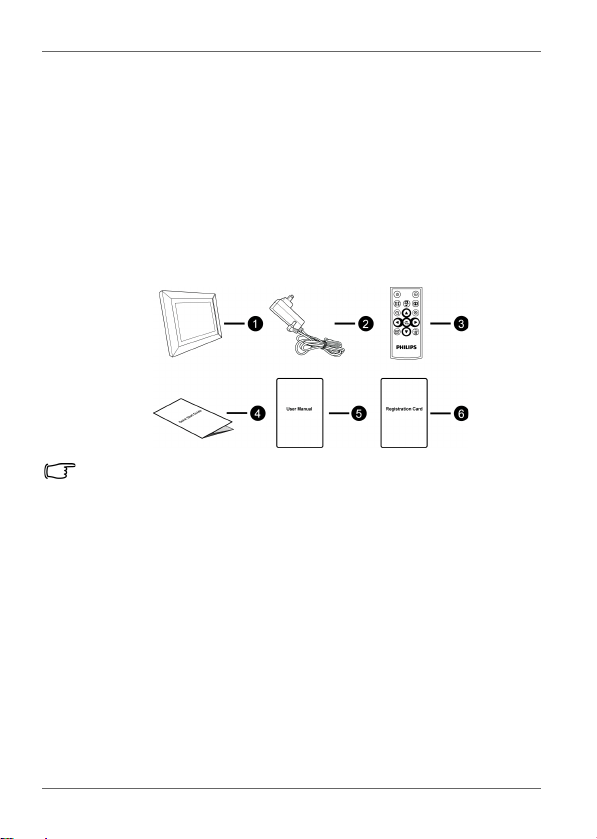
What’s in the box
Carefully open the packing box and ensure that you have the
following items.
1. Digital PhotoFrame x 1
2. AC power adapter x 1
3. Magnetic remote control (with CR2025 lithium battery) x 1
4. Quick Start Guide x 1
5. User Manual x 1
6. Registration Card x 1
• Actual product appearance may vary from the illustrations shown in
this User Manual.
• Available accessories may vary depending on the area where you
purchased the PhotoFrame.
GN104F00_GN-A18-G7_UM_en.book Page 2 Monday, September 14, 2009 10:57 PM
Identifying the parts EN - 3
Philips Digital Photo Frame
Identifying the parts
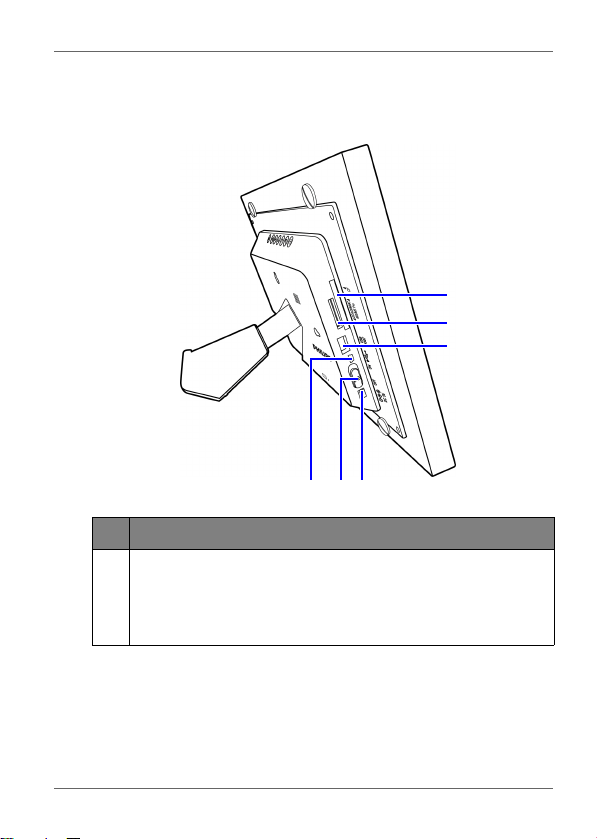
Left view
No. Description
1
CF memory card slot
Allows for a CompactFlash (CF) card. You can play back
photos stored in the inserted card, or copy photos from or
to the inserted card. See "Inserting a memory card" on
page 13 for details.
1
2
3
456
GN104F00_GN-A18-G7_UM_en.book Page 3 Monday, September 14, 2009 10:57 PM
Philips Digital Photo Frame
Identifying the parts
EN - 4
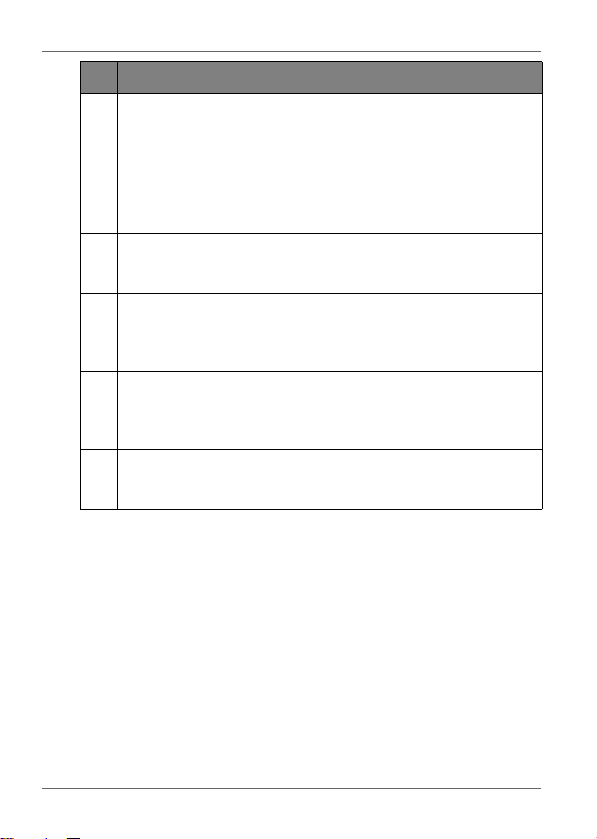
2
5-in-1 memory card slot
Allows for an SD
™
/ SDHC
™
, MultiMediaCard
™
(MMC),
Memory Stick
™
(MS), Memory Stick PRO
™
(MS PRO) and
xD-Picture Card
™
(xD) memory card. You can play back
photos stored in the inserted card, or copy photos from or
to the inserted card. See "Inserting a memory card" on
page 13 for details.
3
USB port
Allows for a USB flash drive. You can play back photos
stored in the inserted drive.
4
Mini USB port
Allows you to connect the PhotoFrame to a computer so
the files can be transferred from your computer to the
PhotoFrame.
5
Power switch
Slide the power switch to turn on or turn off the
PhotoFrame. See "Inserting a memory card" on page 13
for details.
6
Power jack
Connect one end of the AC power adapter into the power
jack and the other end into a power outlet.
No. Description
GN104F00_GN-A18-G7_UM_en.book Page 4 Monday, September 14, 2009 10:57 PM
Identifying the parts EN - 5
Philips Digital Photo Frame
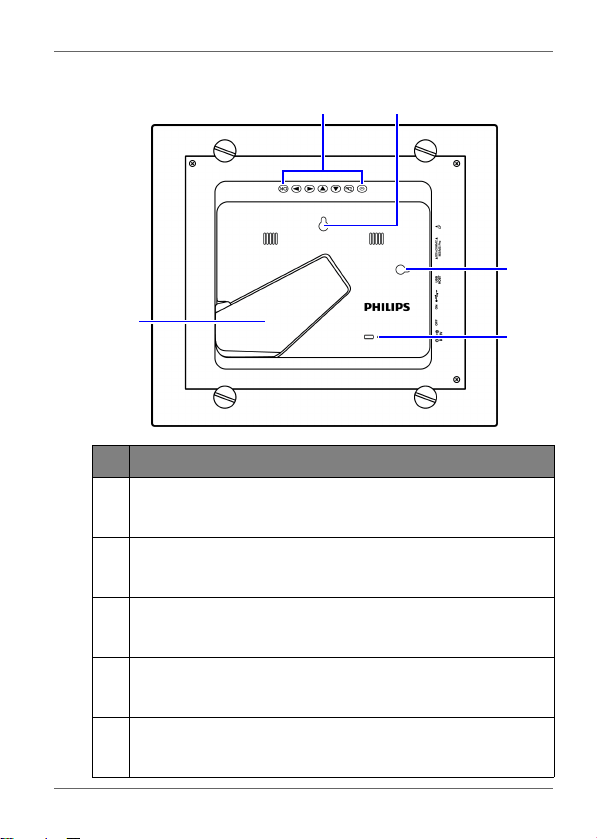
Rear view
No. Description
1
Control buttons
Use the control buttons to operate the PhotoFrame. See
"Using the control buttons" on page 6 for details.
2
Hanging slot (for landscape wall mounting)
Allows you to hang the PhotoFrame horizontally on a wall
without extending the adjustable foot stand.
3
Hanging slot (for portrait wall mounting)
Allows you to hang the PhotoFrame vertically on a wall
without extending the adjustable foot stand.
4
Adjustable foot stand
See "Using the adjustable foot stand" on page 11 for
details.
5
Kensington security slot
You can attach an anti-theft Kensington lock and cable to
this slot to help prevent possible theft.
12
3
5
4
GN104F00_GN-A18-G7_UM_en.book Page 5 Monday, September 14, 2009 10:57 PM
Philips Digital Photo Frame
Identifying the parts
EN - 6
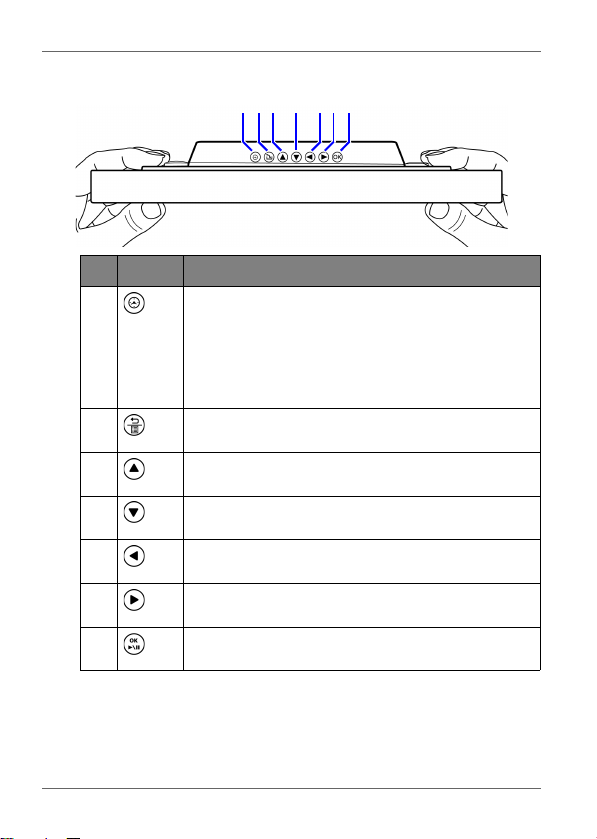
Using the control buttons
123 4 56 7
No. Button Description
1
Clock button
■ Press this button to switch between
Slideshow view and Clock view.
■ Press this button to switch between Collage
view and Clock view, when a Collage effect
has been selected.
2
Return button
Returns to the previous page.
3
Up button
Moves up.
4
Down button
Moves down.
5
Left/Previous button
Moves left/selects the previous item.
6
Right/Next button
Moves right/selects the next item.
7
OK button
Confirms the selection.
GN104F00_GN-A18-G7_UM_en.book Page 6 Monday, September 14, 2009 10:57 PM
Identifying the parts EN - 7
Philips Digital Photo Frame
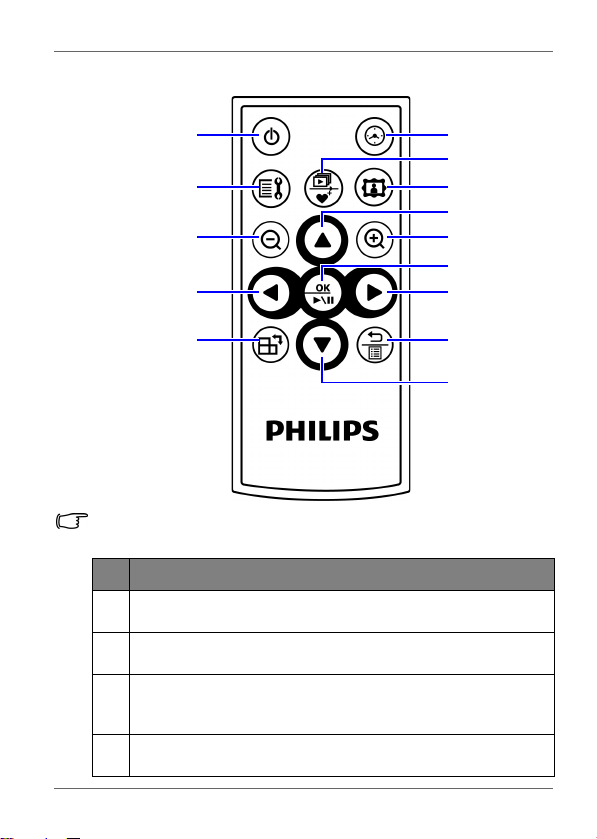
Using the remote control
Please remove the plastic film under the battery before using the
remote control for the first time.
No. Description
1
ON/OFF
Press this button to turn on/off the screen backlight.
2
SETUP
Press this button to access the Setup mode.
3
ZOOM OUT
Press this button to zoom out the selected picture in Single
view.
4
LEFT/PREVIOUS
Moves left/moves to the previous item.
1
2
3
4
5
6
7
8
9
10
11
12
13
14
GN104F00_GN-A18-G7_UM_en.book Page 7 Monday, September 14, 2009 10:57 PM
Philips Digital Photo Frame
Identifying the parts
EN - 8
5
ROTATE
Press this button repeatedly to rotate the selected picture
clockwise each time by 90 degrees.
6
CLOCK
■ Press this button to switch between Slideshow view and
Clock view.
■ Press this button to switch between Collage view and
Clock view, when a Collage effect has been selected.
7
SLIDESHOW/FAVORITE
■ Press this button to run a slideshow.
■ When the slideshow starts, press this button again to
copy the picture you like to the Favorite disk area in the
internal memory. For details, refer to "Source mode" on
page 23 and "File mode" on page 25.
8
COLLAGE
■ During slideshow, press this button to enter Collage
view (slideshow with the Collage effect).
■ When in Collage view, press this button repeatedly to
toggle through different Collage effects.
See "Switching between Collage view and Clock view" on
page 22 for details.
9
UP
Moves up.
10
ZOOM IN
Press this button to zoom in the selected picture in Single
view.
11
OK/PLAY BACK or PAUSE
Press this button to confirm a selection, start or pause
slideshow playback.
12
RIGHT/NEXT
Moves right or moves to the next item.
No. Description
GN104F00_GN-A18-G7_UM_en.book Page 8 Monday, September 14, 2009 10:57 PM
Identifying the parts EN - 9
Philips Digital Photo Frame
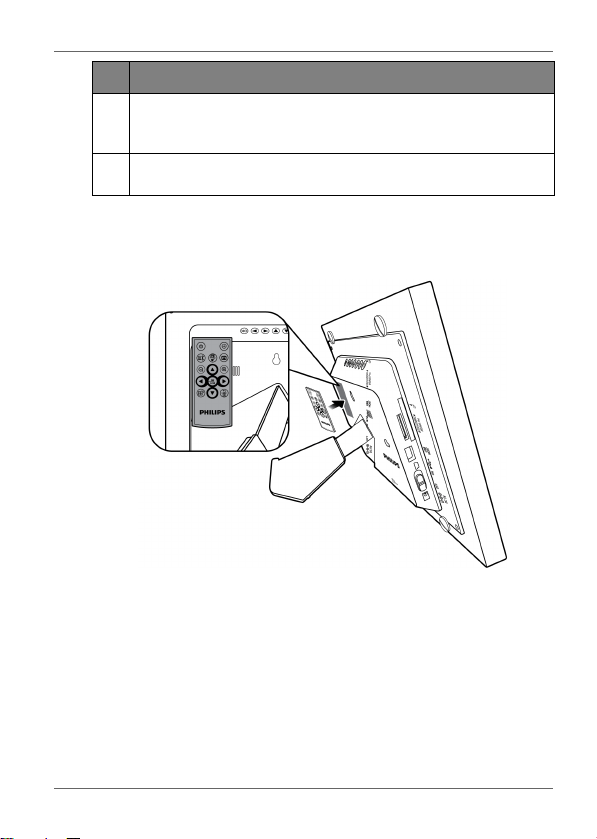
The supplied remote control is magnetic. With its magnetic
backing, you can attach it to the top left area on the back of the
PhotoFrame as illustrated below.
13
RETURN
Press this button to cancel current action and/or to go back
to the last page.
14
DOWN
Moves down.
No. Description
GN104F00_GN-A18-G7_UM_en.book Page 9 Monday, September 14, 2009 10:57 PM
Philips Digital Photo Frame
Identifying the parts
EN - 10
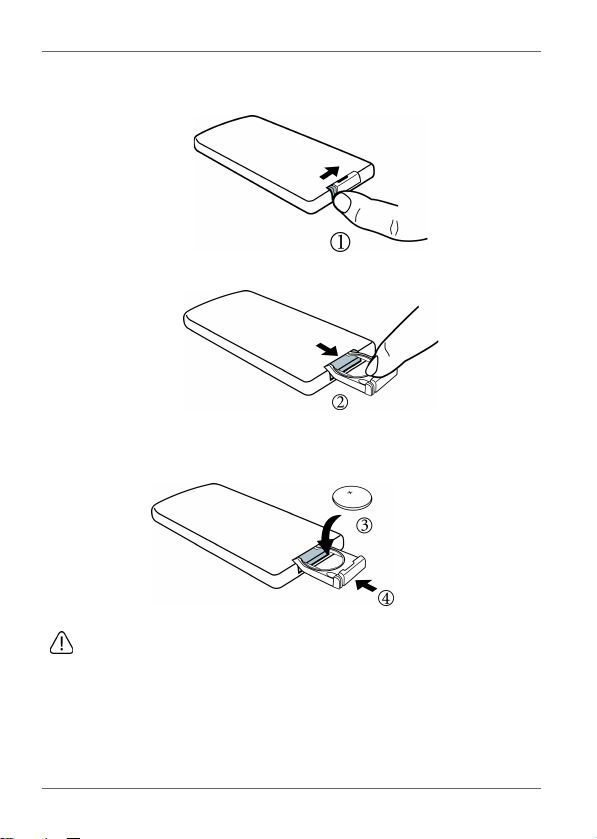
Replacing the remote control battery
1. Press the locking tab to the right.
2. Pull out the battery holder.
3. Insert the new battery into the battery holder. The battery must
be placed with the positive pole facing upwards, as shown in
the illustration below.
4. Slide the battery holder into the remote control.
• Protect the battery from overheating or excessive moisture.
• Failure to replace the battery in the correct manner may result in
damage to the battery.
• Use only the approved specified batteries.
• Properly recycle or dispose of used batteries according to local
guidelines and regulations.
• Do not throw batteries into fire. This may result in an explosion.
• If the battery is completely drained or the remote control is not in
use for a long time, remove the battery to prevent leakage.
Positive
faces
upwards
GN104F00_GN-A18-G7_UM_en.book Page 10 Monday, September 14, 2009 10:57 PM
Getting started EN - 11
Philips Digital Photo Frame
Getting started
Using the adjustable foot stand
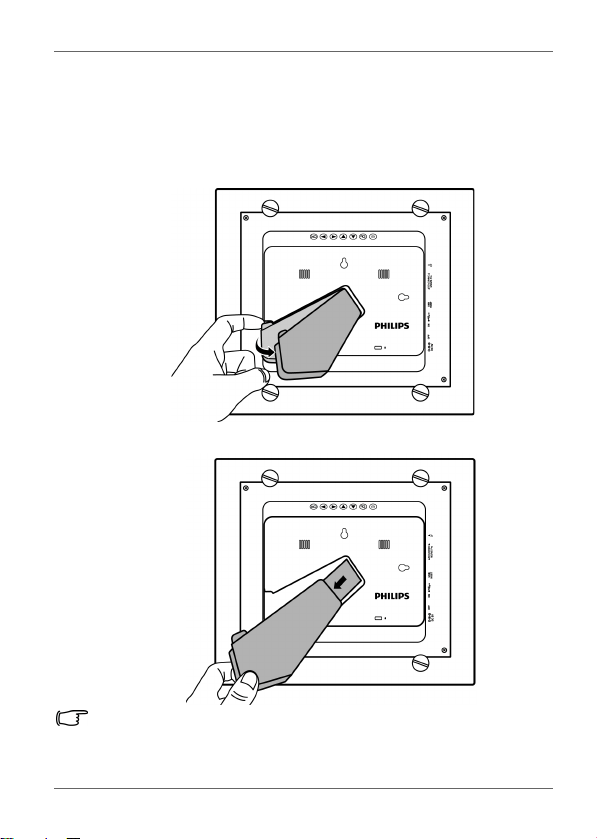
Pop out the back stand as shown and adjust the length of the
back stand so the PhotoFrame can stand up right.
• It is recommended to place the PhotoFrame horizontally, because
this direction provides the best viewing and operating experience.
GN104F00_GN-A18-G7_UM_en.book Page 11 Monday, September 14, 2009 10:57 PM
Philips Digital Photo Frame
Getting started
EN - 12
• By using the hanging slots, you can hang the PhotoFrame
horizontally or vertically on a wall without extending the adjustable
foot stand.
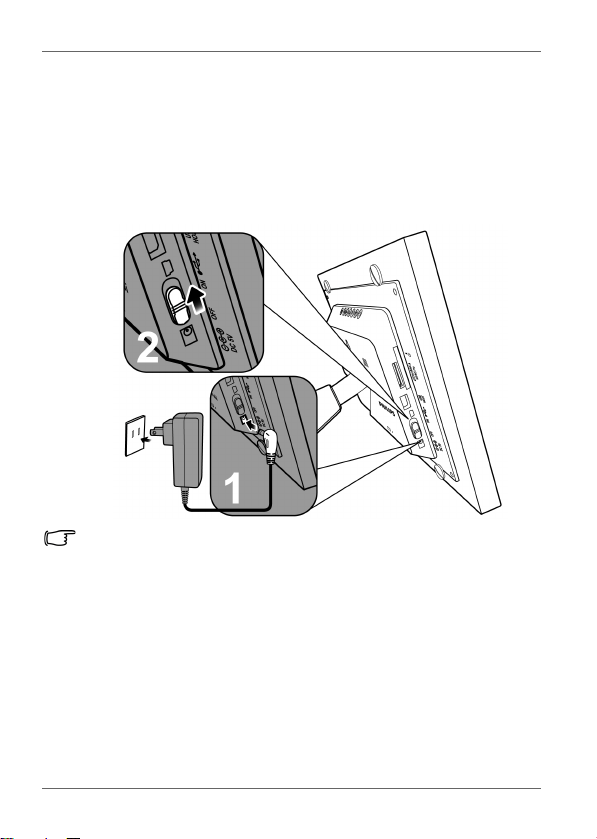
Connecting to power
1. Place your PhotoFrame on a flat surface.
2. Connect the power adapter as below (1) and slide the power
switch to the “ON” position (2).
• Power systems and plug types may vary depending on your
country/region.
• To turn off the PhotoFrame, slide the power switch to the “OFF”
position.
GN104F00_GN-A18-G7_UM_en.book Page 12 Monday, September 14, 2009 10:57 PM
Getting started EN - 13
Philips Digital Photo Frame
Inserting a memory card
Your Philips Digital PhotoFrame comes with a pre-installed World
Heritage Library Volume1 that has 12 pictures. You can turn on
the PhotoFrame and play back the preloaded photos with no
memory card inserted.
To play back your own photos, insert a picture-loaded memory
card or USB flash drive into the corresponding slot on the left side
of the PhotoFrame.
To insert the memory card:
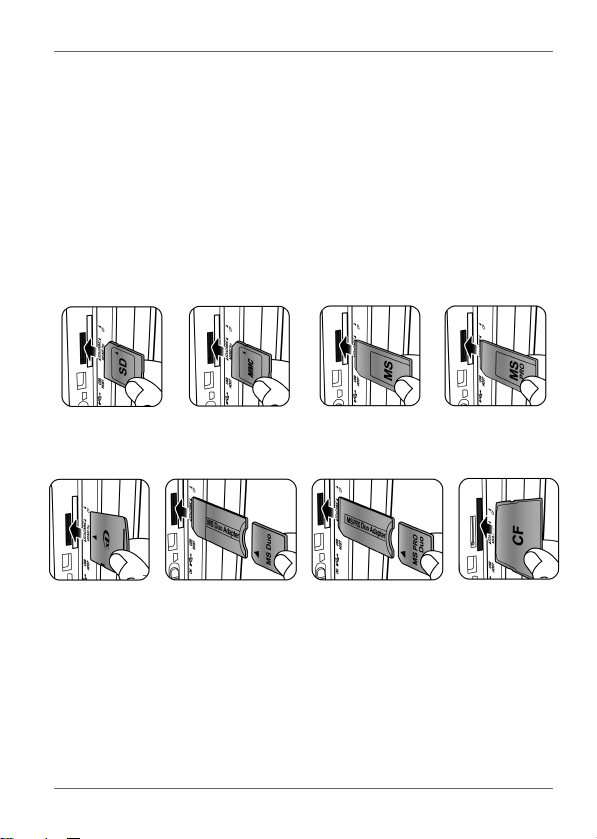
Insert the memory card into the memory card slot as illustrated
below.
SD / SDHC MultiMediaCard Memory Stick Memory Stick
PRO
xD-Picture
Card
Memory Stick
Duo
Memory Stick
PRO Duo
CompactFlash
Card
GN104F00_GN-A18-G7_UM_en.book Page 13 Monday, September 14, 2009 10:57 PM
Philips Digital Photo Frame
Getting started
EN - 14
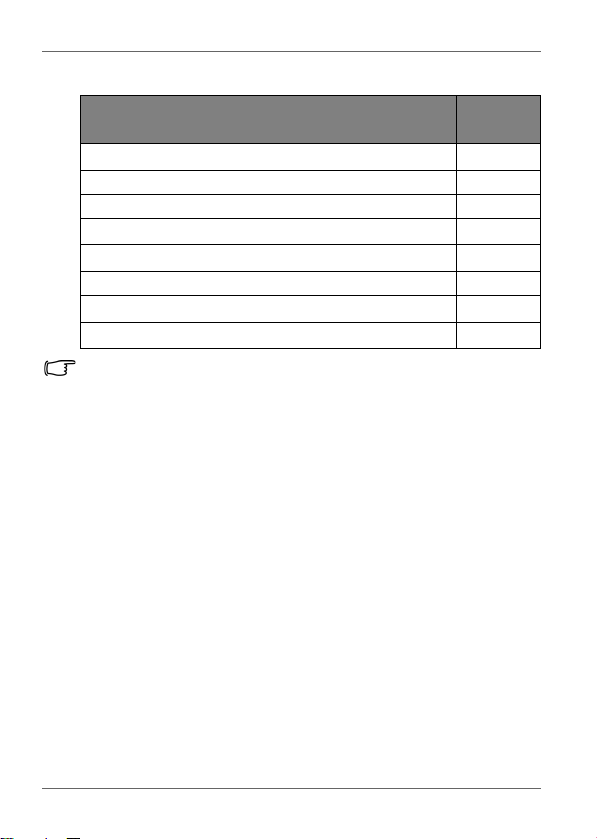
Compatible memory card formats
• Maximum capacity specifications listed above are subject to
change without prior notice.
• Both 5-in-1 and CF memory card slots support hot-swap function. In
other words, you can change or remove the memory card when the
power of the PhotoFrame is either turned on or turned off.
• The PhotoFrame supports both Windows and MAC operating
systems. However, when formatting your memory cards, use FAT16
and FAT32 file systems in Windows only. Formatting memory cards
with NTFS or MAC is not supported.
Memory card formats
Maximum
capacity
Secure Digital (SD
™
/ SDHC
™
)
32GB
microSD/microSDHC (A card adapter is required.) 8GB
miniSD/miniSDHC (A card adapter is required.) 2GB
MultiMediaCard
™
(MMC)
1GB
Memory Stick
™
(MS)
256MB
MS PRO Duo (A card adapter is required.) 16GB
xD-Picture Card
™
(xD)
2GB
CompactFlash
®
Card (CF)
16GB
GN104F00_GN-A18-G7_UM_en.book Page 14 Monday, September 14, 2009 10:57 PM
Getting started EN - 15
Philips Digital Photo Frame
Copying files to internal memory
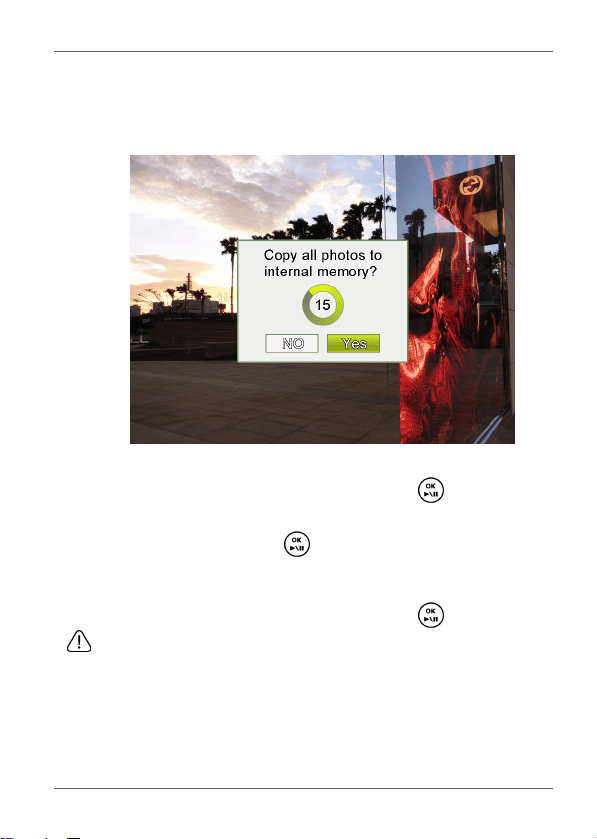
When the PhotoFrame is turned on and a memory card (or USB
flash drive) has been inserted, the following screen appears
automatically.
■ To copy all the photos contained in the inserted memory card
(or USB flash drive), select Yes and press to proceed.
■ To view your photos without copying them to the PhotoFrame,
highlight NO and press . The photos will start to play
automatically off your memory card or USB flash drive.
■ To copy all the photos contained in the inserted memory card
(or USB flash drive), select Yes and press to proceed.
Do not remove the memory card (or USB flash drive) before the copy
process is completed.
GN104F00_GN-A18-G7_UM_en.book Page 15 Monday, September 14, 2009 10:57 PM
Philips Digital Photo Frame
Operating the PhotoFrame
EN - 16
Operating the PhotoFrame
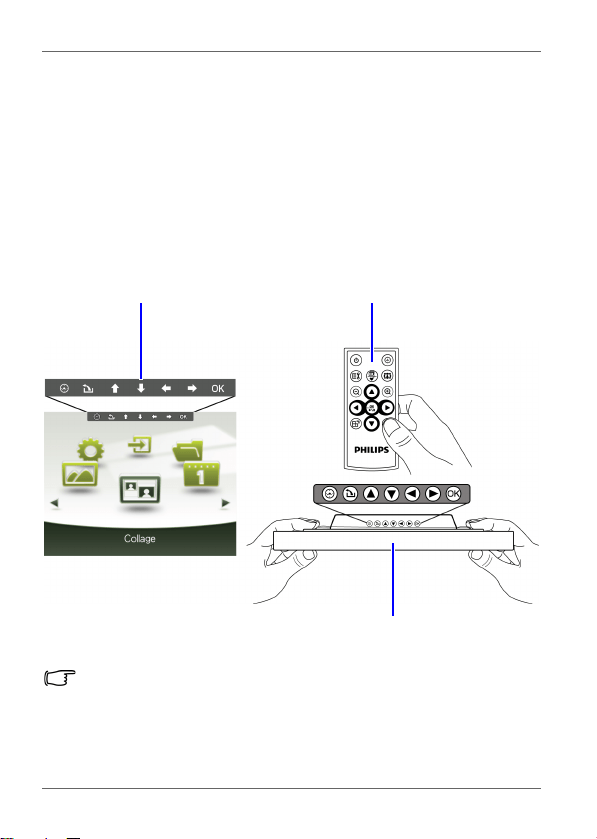
After turning on the PhotoFrame, you can use the supplied
remote control or use the control buttons to operate the
PhotoFrame.
■ Press any button on the remote control to bring up the On-
Screen Display (OSD) toolbar. Proceed with the function you
want to operate by pressing the corresponding button.
■ Press any control button to bring up the OSD toolbar. When
using the control buttons, press the button corresponding to
the icon shown on the screen as by its function or in its order.
• The OSD toolbar hides automatically when the PhotoFrame is idle.
You can press any button to bring up the toolbar.
• In this User Manual, instructions or examples provided are based
upon operation with the remote control. To know how to use the
control buttons, refer to "Using the control buttons" on page 6 for
details.
Mapping OSD toolbar Buttons on the remote control
Control buttons on the
back of the
GN104F00_GN-A18-G7_UM_en.book Page 16 Monday, September 14, 2009 10:57 PM
Operating the PhotoFrame EN - 17
Philips Digital Photo Frame
Basic operations
Setting date and time
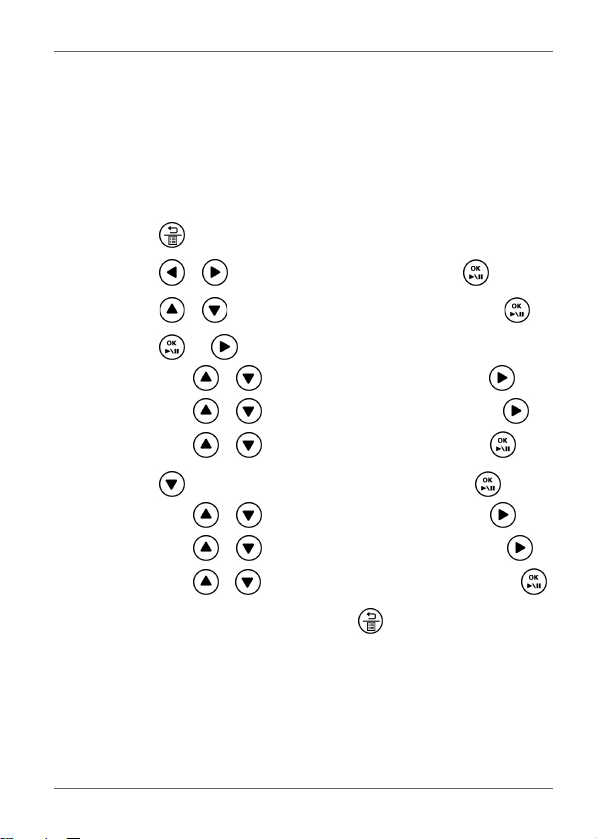
1. When the PhotoFrame is turned on, the preloaded photos in
Pre-installed Library start a slideshow automatically (if no
memory card has been inserted).
2. Press any button to bring up the OSD toolbar.
3. Press repeatedly until you return to the main menu.
4. Press / to select Setup, and then press .
5. Press / to select Time Setup, and then press .
6. Press or to go to Current Date.
a. Press / to set the year, and then press .
b. Press / to set the month, and then press .
c. Press / to set the date, and then press .
7. Press to select Current Time, and then press .
a. Press / to set the hour, and then press .
b. Press / to set the minute, and then press .
c. Press / to select AM or PM, and then press .
8. To return to the main menu, press repeatedly.
GN104F00_GN-A18-G7_UM_en.book Page 17 Monday, September 14, 2009 10:57 PM
Philips Digital Photo Frame
Operating the PhotoFrame
EN - 18
Selecting a mode
In the main menu, press / to toggle among the following
modes: Photo, Collage, Calendar, File, Source and Setup.
Displaying the clock
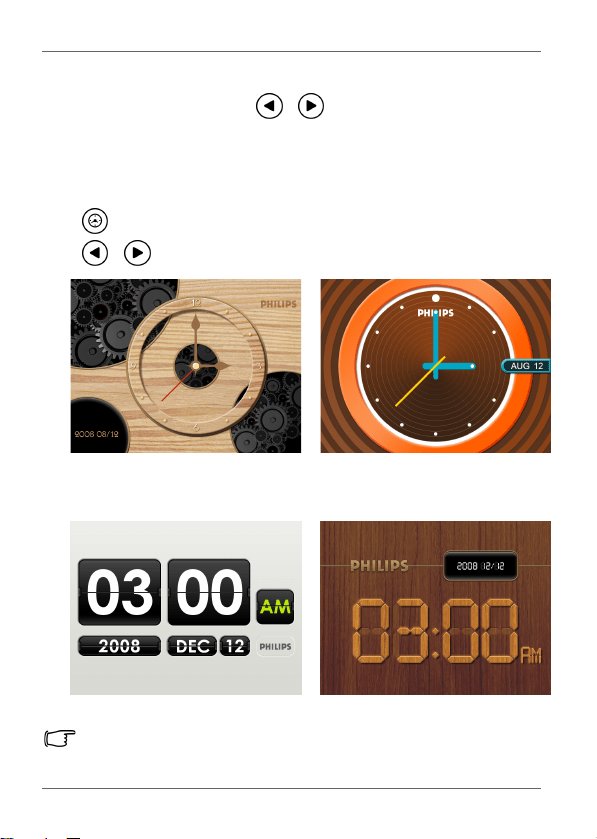
The Clock view provides four skin types of clock display. Press
twice to display the Clock view. When in Clock view, press
/ to select a desired type.
Please go to “Time Setup” under the “Setup” mode to set the Time.
Analog view - A
Digital view - A Digital view - B
Analog view - B
GN104F00_GN-A18-G7_UM_en.book Page 18 Monday, September 14, 2009 10:57 PM
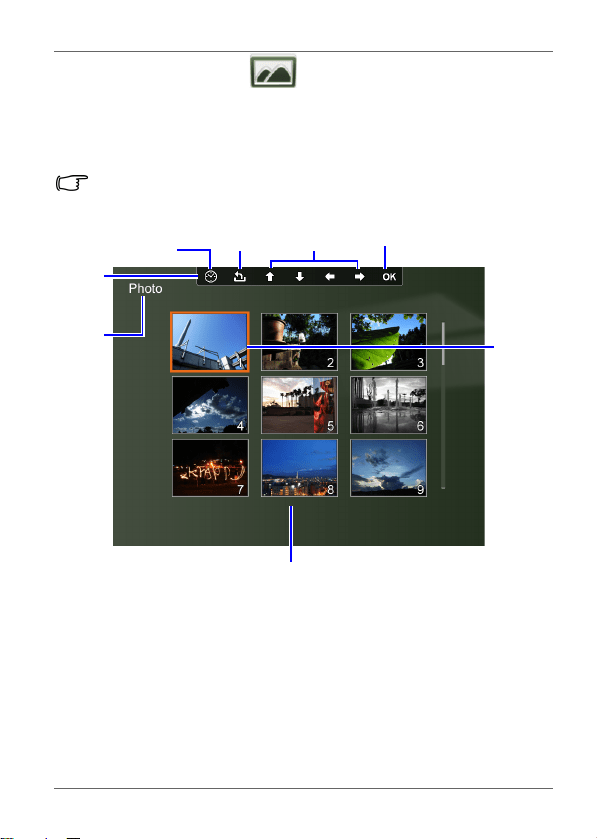
Photo mode EN - 19
Philips Digital Photo Frame
Photo mode
The Photo mode allows you to view photos that are stored in the
PhotoFrame (including Internal Memory, Favorite and Pre-
installed Library), in a memory card or in the inserted USB flash
drive.
The PhotoFrame supports the JPEG (*.jpg) and BMP (*.bmp) file
formats.
Move up, down,
left and right
Return
Confirm selection
OSD
toolbar
Collage view/
Clock view
Current
mode
Currently
selected
picture
Picture thumbnail list
GN104F00_GN-A18-G7_UM_en.book Page 19 Monday, September 14, 2009 10:57 PM
Philips Digital Photo Frame
Photo mode
EN - 20
Selecting a picture
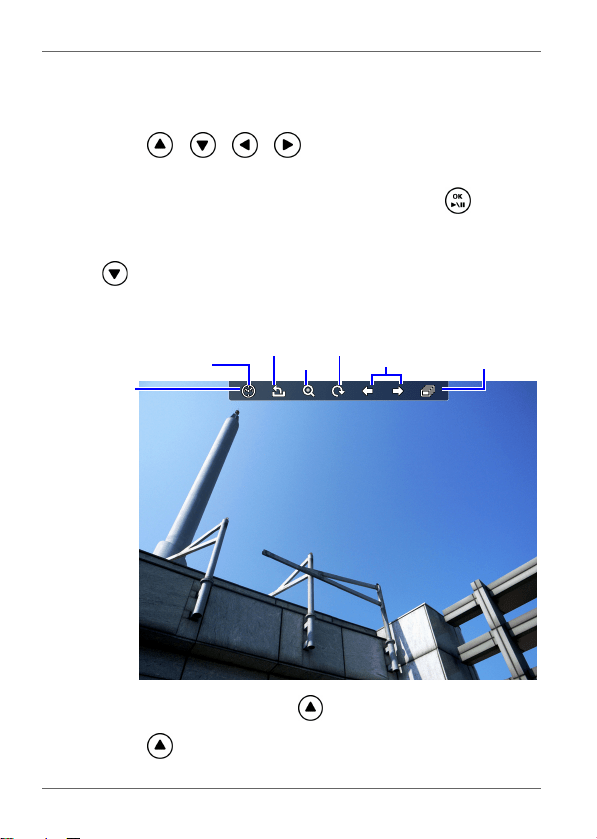
1. After you enter the Photo mode, you will enter Thumbnail view
with your stored photos displayed in 9 thumbnails per page.
Press / / / to select a picture you want to
see.
2. To view the selected picture in full screen, press to enter
Single view.
3. To rotate the picture clockwise each time by 90 degrees, press
.
Zooming the picture
1. When in Single view, press to enter Zoom view.
2. Press repeatedly to zoom in the selected picture.
Previous/
next file
OSD
toolbar
Collage view/
Clock view
Return
Zoom
in
Rotate Slideshow
view
GN104F00_GN-A18-G7_UM_en.book Page 20 Monday, September 14, 2009 10:57 PM
Photo mode EN - 21
Philips Digital Photo Frame
3. When the OSD toolbar disappears, press / / /
to move to a particular area you want to see.
Playing a slideshow
1. When in Single view, press to enter slideshow view.
2. Slideshow of photos automatically starts.
3. During the slideshow, you can press to copy the picture
shown currently to the Favorite disk area in the internal
memory.
4. To pause the slideshow and enter Single view, press . To
re-start the slideshow, press again.
Rotating a picture automatically
The PhotoFrame has a built-in tilt sensor that allows auto rotation
of photos. Follow the instructions below to enable auto rotation.
1. When the PhotoFrame is placed in horizontal position, rotate
the PhotoFrame 90 degrees clockwise to enable auto rotation.
2. When the PhotoFrame is placed in vertical position, rotate the
PhotoFrame 90 degrees counterclockwise to enable auto
rotation.
The auto rotation feature displays photos in a landscape or portrait
view. It does not re-orient photos that were taken sideways.
GN104F00_GN-A18-G7_UM_en.book Page 21 Monday, September 14, 2009 10:57 PM
Philips Digital Photo Frame
Collage mode
EN - 22
Collage mode
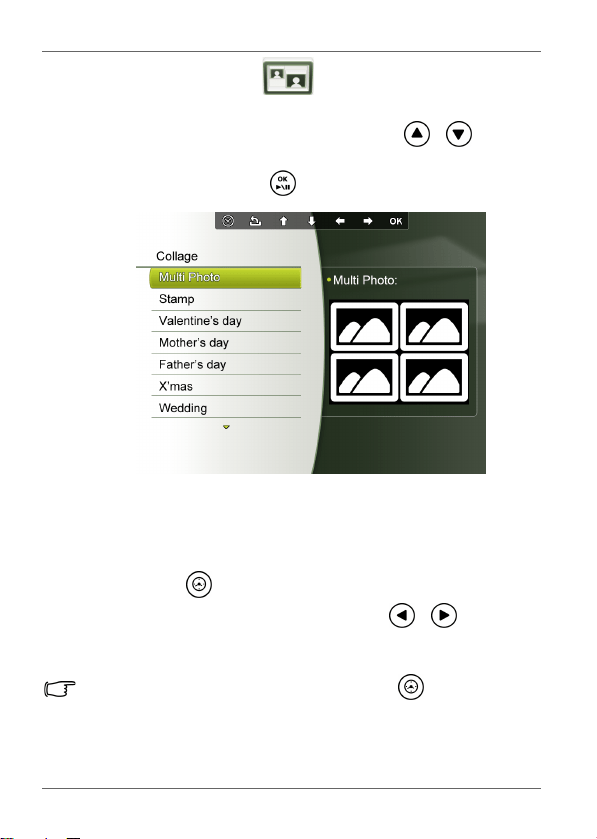
The Collage mode allows you to play back photos in slideshow
with various themes of Collage effects. Press / to select
a theme and its Collage effect will be displayed in the preview
window to the right. Press to confirm selection.
Switching between Collage view and
Clock view
If you have set a Collage effect in the Collage or Setup mode,
you can press repeatedly to switch between Collage view
and Clock view. When in Clock view, press / to select a
desired clock type. See "Displaying the clock" on page 18 for
more details.
If you have not set any Collage effect, pressing repeatedly will
allow you to switch between normal Slideshow view (without any
Collage effect) and Clock view.
GN104F00_GN-A18-G7_UM_en.book Page 22 Monday, September 14, 2009 10:57 PM
Calendar mode EN - 23
Philips Digital Photo Frame
Calendar mode
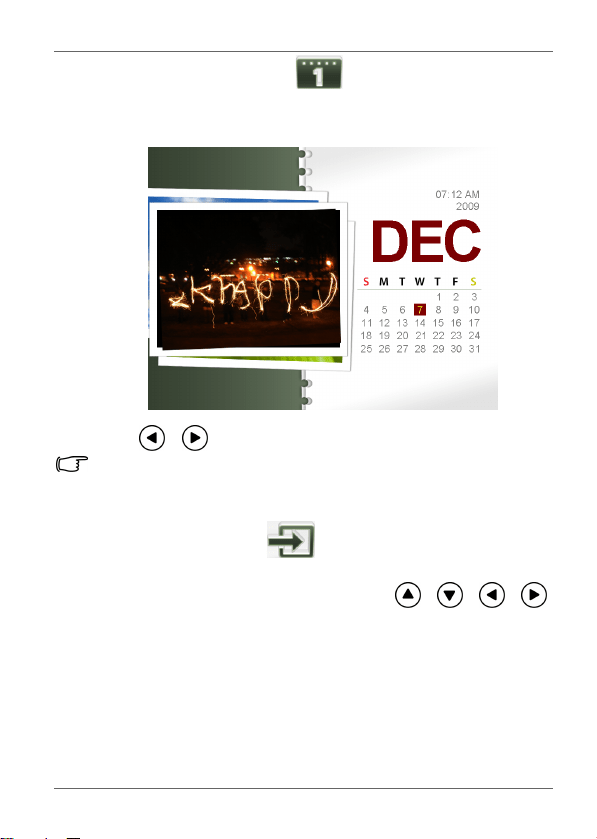
After you enter the Calendar mode, current time and date will be
shown on the screen.
Press / to view the previous/next month.
Please go to “Time Setup” under the “Setup” mode to set the
Calendar.
Source mode
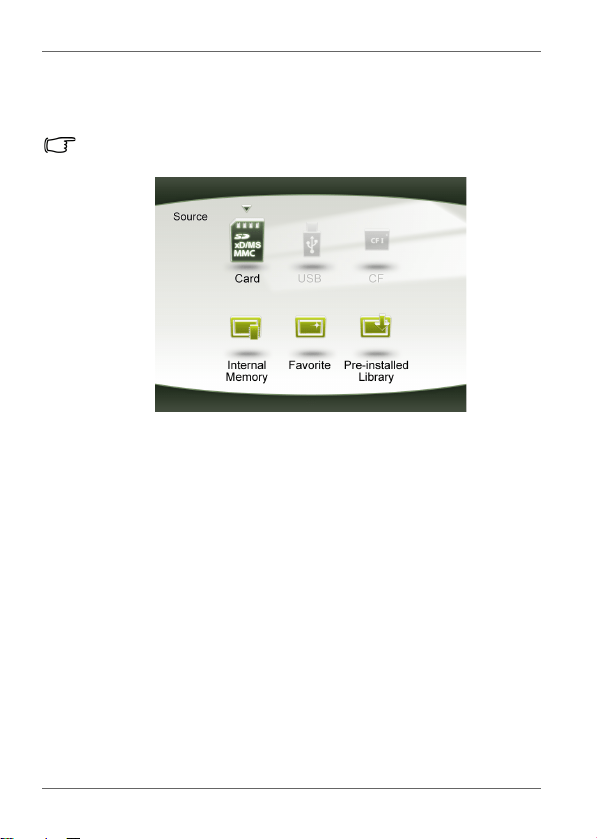
The Source mode allows you to select the source of the photos
to be displayed on the PhotoFrame. Press / / /
to select from the following source options:
■ Card: displays the photos stored in the inserted SD/SDHC,
MMC, MS, MS PRO or xD memory card.
■ USB: displays the photos in the inserted USB flash drive.
■ CF: displays the photos in the inserted CF card.
■ Internal Memory: displays the photos copied to the internal
memory.
GN104F00_GN-A18-G7_UM_en.book Page 23 Monday, September 14, 2009 10:57 PM
Philips Digital Photo Frame
Source mode
EN - 24
■
Favorite: displays the photos copied to the Favorite disk
area in the internal memory.
■ Pre-installed Library: displays the preloaded photos in
Pre-installed Library.
• You cannot copy photos to or from Pre-installed Library.
• You cannot delete photos in Pre-installed Library.
GN104F00_GN-A18-G7_UM_en.book Page 24 Monday, September 14, 2009 10:57 PM
File mode EN - 25
Philips Digital Photo Frame
File mode
Before using the File mode, select the source of files from the Source
mode first. Refer to "Source mode" on page 23 for details.
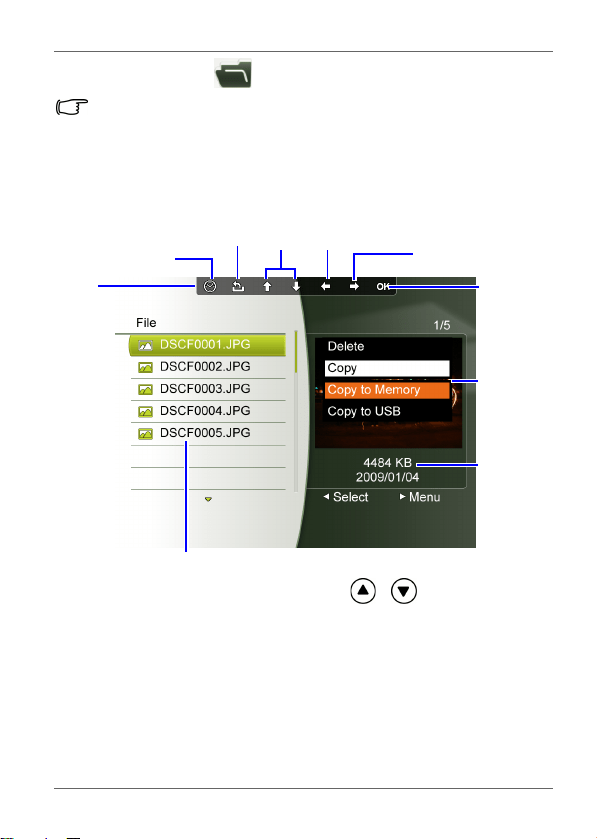
The File mode allows you to view the information of the files
stored in the PhotoFrame (including Internal Memory, Favorite
and Pre-installed Library), in the inserted memory card or in the
inserted USB flash drive, such as the file size.
After you enter the File mode, press / to select a file and
its thumbnail or detailed information will be seen in the preview
window to the right.
File list
Move up/
down
Return
Confirm
selection
OSD
toolbar
Collage view/
Clock view
Select/deselect
a file
Open a file
edit menu
File
information
File edit
menu
GN104F00_GN-A18-G7_UM_en.book Page 25 Monday, September 14, 2009 10:57 PM
Philips Digital Photo Frame
File mode
EN - 26
Copying/Deleting the files
1. Select a file to edit and press to mark the selected file.
Repeat this step to select more files.
2. Press to open the file edit menu.
■ Select Delete to delete the selected file(s). Press to
confirm or cancel the action.
■ Select Copy and then press to choose to copy the
selected file(s) to the internal memory (Copy to Memory),
to the inserted memory card (Copy to Card) or to the
inserted USB flash drive (Copy to USB).
GN104F00_GN-A18-G7_UM_en.book Page 26 Monday, September 14, 2009 10:57 PM
File mode EN - 27
Philips Digital Photo Frame
Setup mode
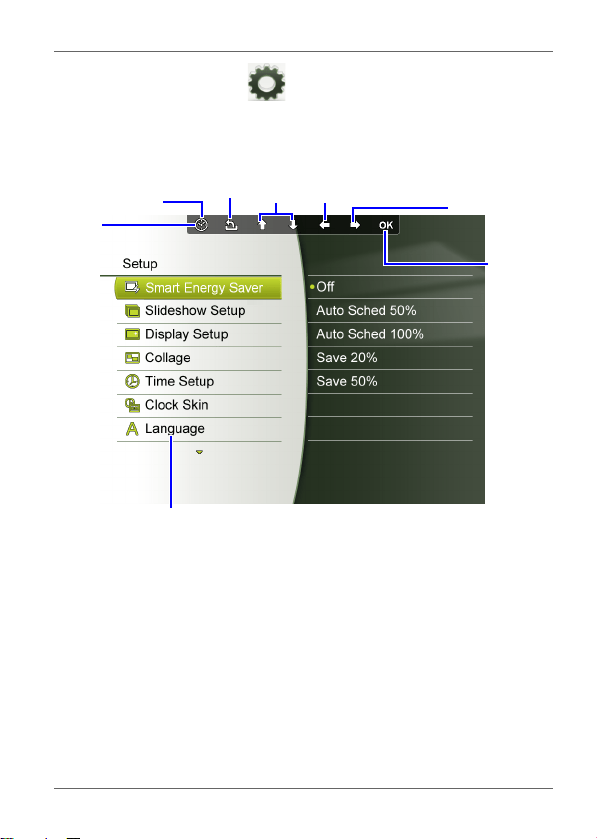
The Setup mode allows you to adjust settings on slideshow,
display, time, OSD languages, startup and factory default
settings.
Setup options menu
Move up,
down
Return
Confirm
selection
OSD
toolbar
Collage view/
Clock view
return to the last
submenu
Open the
submenu
GN104F00_GN-A18-G7_UM_en.book Page 27 Monday, September 14, 2009 10:57 PM

Philips Digital Photo Frame
File mode
EN - 28
Options in the Setup mode
Smart Energy Saver
Selects a power-saving mode for your PhotoFrame:
■ Off: disables the Smart Energy Saver feature.
■ Auto Sched 50%: enables the Smart Energy Saver feature.
When enabled, the PhotoFrame reduces 50% screen
backlight level automatically during 9:00 p.m and 7:00 a.m.
■ Auto Sched 100%: enables the Smart Energy Saver
feature. When enabled, the PhotoFrame turns off 100%
screen backlight automatically during 9:00 p.m and 7:00
a.m.
■ Save 20%: reduces 20% backlight level.
■ Save 50%: reduces 50% backlight level.
Picture quality is not affected by using the Smart Energy Saver
feature.
Slideshow Setup
■ Interval Time: selects the slideshow interval between
photos.
■ Effect: selects the transition effect.
■ Smart Cropping: selects to display photos in original size
or full screen.
Display Setup
■ Saturation: selects the level of saturation.
■ Brightness: selects the level of screen brightness.
■ Contrast: selects the level of contrast.
Collage
Selects the preferred Collage effect for slideshow playback from
a list of preset Collage themes.
GN104F00_GN-A18-G7_UM_en.book Page 28 Monday, September 14, 2009 10:57 PM

File mode EN - 29
Philips Digital Photo Frame
Time Setup
Sets up current date, time, on/off schedule for “on/off timer”, and
selects to enable or disable “on/off timer”.
If you enable “on/off timer” when the PhotoFrame is powered on, the
PhotoFrame will power off automatically according to the “off”
schedule, and then restart according to the “on” schedule.
You can also set Birthdays, Wedding date and Holidays to
automatically enable Collage effects on these particular days.
Clock skin
Sets up clock skin to be applied in Clock view.
Language
Sets up the On-Screen Display (OSD) language.
Set to Default
Returns all the settings back to system default.
Startup Setup
Sets up the first mode to enter upon turning on the PhotoFrame.
Property
Views the remaining/total capacity in the internal memory, the
model name and the current software version.
GN104F00_GN-A18-G7_UM_en.book Page 29 Monday, September 14, 2009 10:57 PM
Philips Digital Photo Frame
Frequently asked questions
EN - 30
Frequently asked questions
Service and Warranty
One Year Limited Warranty (for US and Canada only)
Philips warrants that this product shall be free from defects in
material, workmanship and assembly, under normal use, in
accordance with the specifications and warnings, for a period of
one year from the date of purchase. This warranty extends only
to the original purchaser of the product, and is not transferable.
To exercise your rights under this warranty, you must provide
proof of purchase in the form of an original sales receipt that
shows the product name and the date of purchase. For customer
support or to obtain warranty service, please call toll free
1-877-784-0999 or visit our website www.philips.com/support
What memory card formats are compatible with the
PhotoFrame?
SD/SDHC, MMC, MS, MS PRO, xD and CF memory
card formats are compatible with the PhotoFrame. For
details, refer to "Compatible memory card formats" on
page 14.
Why do some photos load faster than others?
Higher resolution photos load slower. Using a lower
resolution when taking photos will speed up loading
time.
GN104F00_GN-A18-G7_UM_en.book Page 30 Monday, September 14, 2009 10:57 PM

Recycling EN - 31
Philips Digital Photo Frame
Regulation and compliance
Federal Communications Commission (FCC) Notice
This equipment has been tested and found to comply with the
limits for a Class B digital device, pursuant to Part 15 of the FCC
Rules. These limits are designed to provide reasonable
protection against interference in a residential installation. This
equipment can radiate radio frequency energy and, if not installed
and used in accordance with the instructions, may cause
interference to radio communications.
However, there is no guarantee that interference will not occur in
a particular installation. If this equipment does cause interference
to radio or television reception, which can be determined by
turning the equipment off and on, the user is encouraged to try to
correct the interference by one of the following measures:
■ Reorient or relocate the receiving antenna.
■ Increase the separation between the equipment and receiver.
■ Connect the equipment into an outlet on a circuit different from
that to which the receiver is connected.
■ Consult the dealer or an experienced radio/TV technician for
help.
Recycling
■ To minimize harm to the environment, the batteries supplied
with the PhotoFrame do not contain mercury or nickel
cadmium. If possible, when disposing of batteries, use
recycling means available in your area.
■ The PhotoFrame uses materials that can be recycled. To
minimize the amount of waste in the environment, check your
area for companies that will recover used televisions for
dismantling and collection of reusable materials, or contact
your dealer for recycling tips.
■ Please dispose of the carton and packing material through the
proper waste disposal management in your area.
GN104F00_GN-A18-G7_UM_en.book Page 31 Monday, September 14, 2009 10:57 PM
Philips Digital Photo Frame
Appendix
EN - 32
Appendix
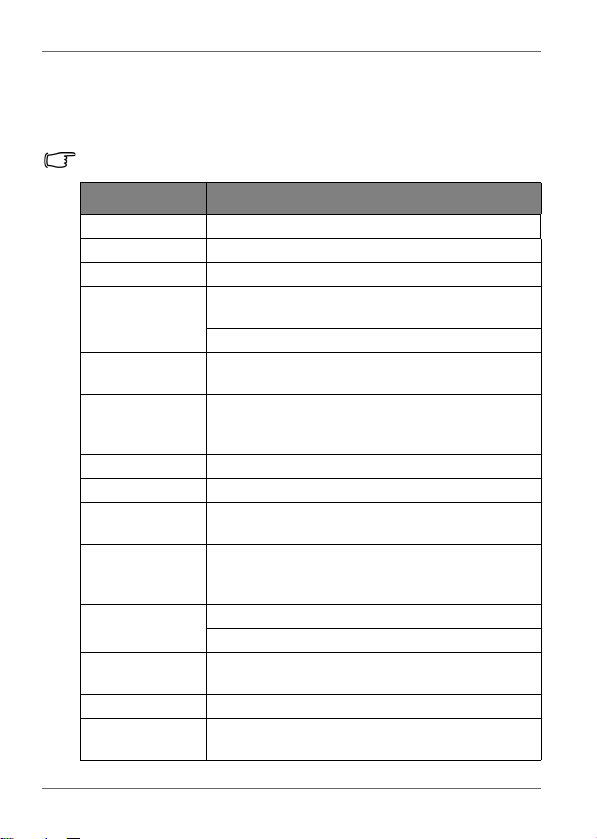
Specifications
Specifications are subject to change without prior notice.
Item Description
Screen Size 10.4” TFT
Aspect Ratio 4:3
Panel Interface Digital
Supported
Memory Card
Formats
SD/SDHC, MMC, MS, MS PRO and xD (using
the 5-in-1 memory card slot)
CF (using the CF memory card slot)
Supported
Flash Drive
USB flash drive (using the USB port)
Supported
Image File
Format
JPEG and BMP (up to 20 M pixel)
USB Port USB Host (Type-A)
Mini USB Port
USB Device (Mini-B)
USB 1.1/2.0
Compliant
Yes
Built-in Internal
Memory (for
data storage)
128MB
Memory Card
Slots
5-in-1 card slot
CF card slot
Photo Collage
Feature
Yes
Clock Feature Yes
Calendar
Feature
Yes
GN104F00_GN-A18-G7_UM_en.book Page 32 Monday, September 14, 2009 10:57 PM
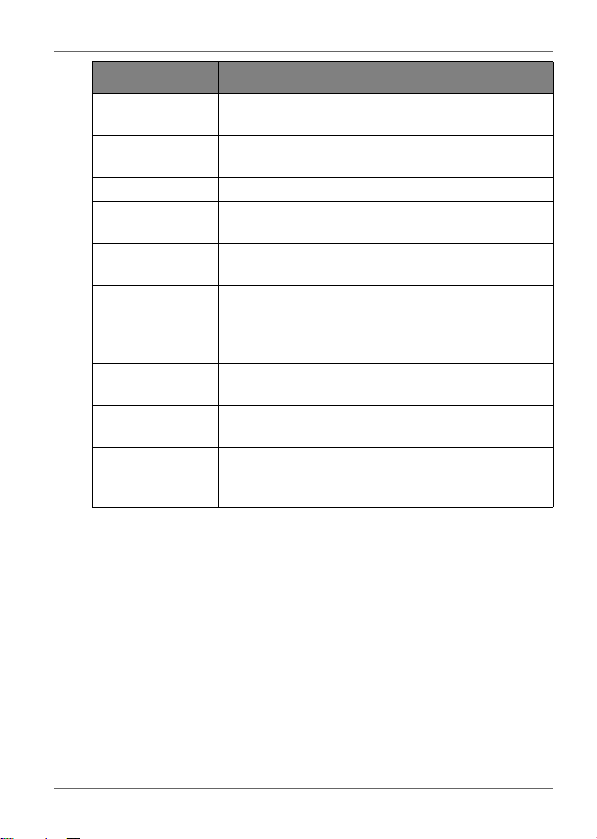
Appendix EN - 33
Philips Digital Photo Frame
Philips Clock
Feature
Yes
Smart Energy
Saver Feature
Yes
Foot Stand Adjustable
Playback Mode Full Screen browse, Slideshow view,
Thumbnail view, and Zoom-in/Zoom-out
Language
Support
English, French, Spanish, Portuguese,
German, Dutch and Italian.
Color
Adjustment
(Gamma/Color
Correction)
Yes
Brightness
Adjustment
Yes
Contrast
Adjustment
Yes
Auto Rotation
(with built-in tilt
sensor)
Yes
Item Description
GN104F00_GN-A18-G7_UM_en.book Page 33 Monday, September 14, 2009 10:57 PM
Philips Digital Photo Frame
Appendix
EN - 34
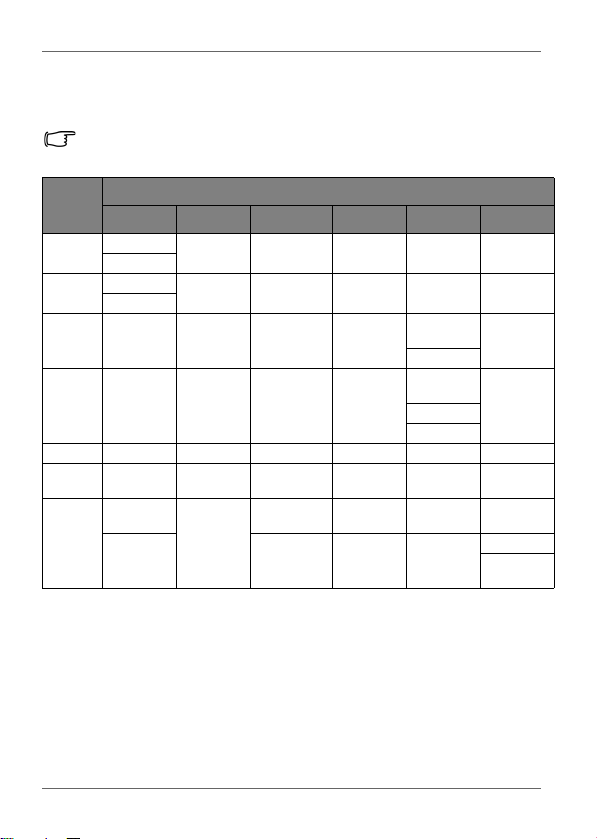
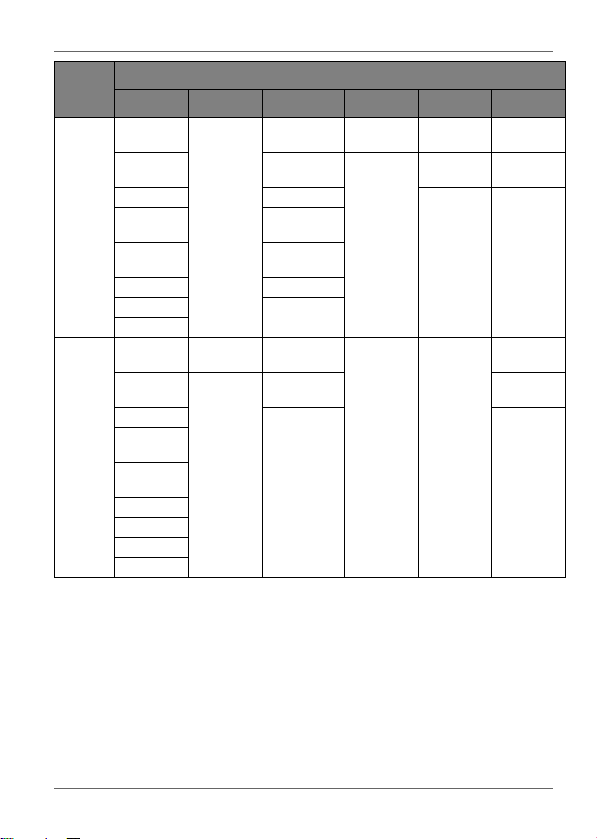
List of compatible memory cards and
USB drives
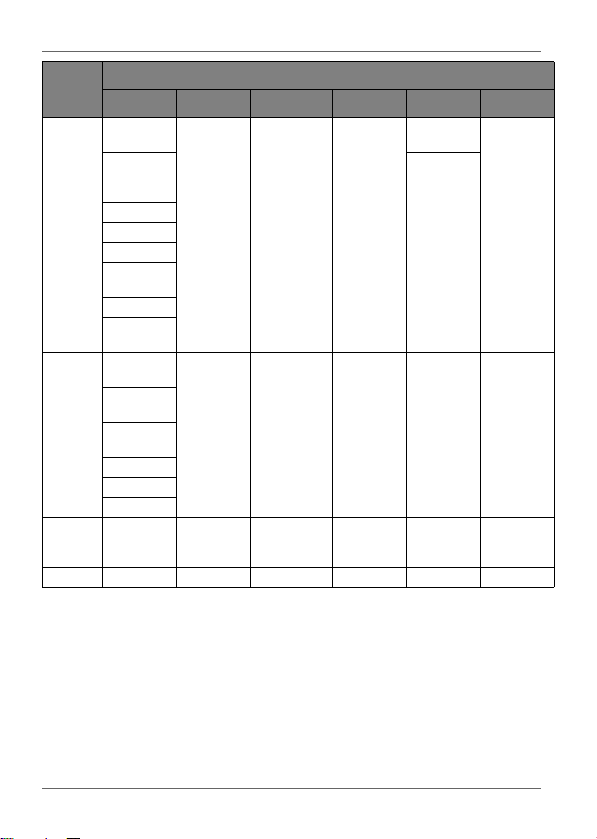
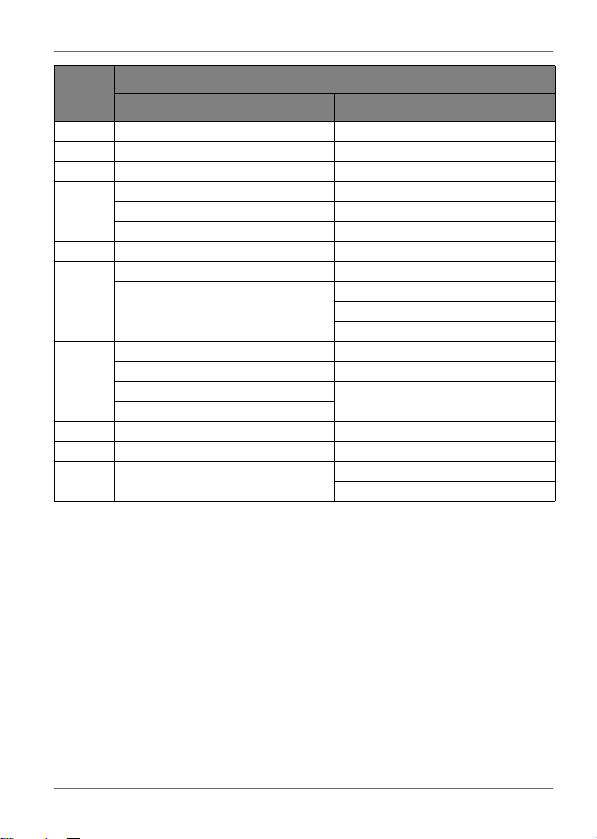
Not all supported memory cards are included in the table below. For
technical support, contact your nearest service center for assistance.
Capacity
Memory card formats
SD miniSD microSD MMC MS xD
8MB
Panasonic
Toshiba
16MB
Panasonic
SanDisk Sony (MS) Olympus
Pretec
32MB
Sony
(MS Duo)
Sony (MS)
64MB Dick Smith
SanDisk
(MS Duo)
Sony (MS)
Lexar (MS)
128MB Olympus
256MB Toshiba SanDisk Sony (MS)
Olympus
(M type)
512MB
Transcend
80X
SanDisk
PQI MMC
Plus
SanDisk
(MS PRO)
Fujifilm (M
type)
Transcend Transcend Transcend
Kodak
Olympus
(M type)
GN104F00_GN-A18-G7_UM_en.book Page 34 Monday, September 14, 2009 10:57 PM
Appendix EN - 35
Philips Digital Photo Frame
1GB
Transcend
Panasonic
SanDisk
Ultra II
Transcend
SanDisk
(MS Duo)
Olympus
(M type)
SanDisk Kingston
Transcend
RS MMC
SanDisk
(M2)
Fujifilm
(H type)
Apacer 60X A-DATA
SanDisk
Ultra II
(MS Duo)
Fujifilm
(M type)
PhotoFast
Ultra
Apacer
Panasonic
class 4
Transcend
Kingston SanDisk
RiDATA
RiTEK
Panasonic
2GB
A-DATA Panasonic PQI
Fujifilm
(H type)
SanDisk
Stargem
Transcend
Olympus
(M type)
Toshiba
Kingston
Olympus
(M+ type)
Silicon
Power 80X
Panasonic
class 2
Transcend
Apacer 60X
FDC
RiDATA
Capacity
Memory card formats
SD miniSD microSD MMC MS xD
GN104F00_GN-A18-G7_UM_en.book Page 35 Monday, September 14, 2009 10:57 PM
Philips Digital Photo Frame
Appendix
EN - 36
4GB
A-DATA
(SDHC)
SanDisk
(microSDHC)
Sony
(MS Duo)
Silicon
Power
class 6
SanDisk
(MS Duo)
Kingston
RiDATA
SanDisk
Tos h ib a
(SDHC)
Transcend
Transcend
(SDHC)
8GB
Tos h ib a
(SDHC)
SanDisk
SanDisk
(M2)
Transcend
(SDHC)
A-DATA
(SDHC)
SanDisk
Apacer
Kingston
16GB
Transcend
class 6
SanDisk
(MS PRO
Duo)
32GB PNY
Capacity
Memory card formats
SD miniSD microSD MMC MS xD
GN104F00_GN-A18-G7_UM_en.book Page 36 Monday, September 14, 2009 10:57 PM
Appendix EN - 37
Philips Digital Photo Frame
Capacity
CF memory card/USB flash drive
CF USB
16MB Nikon
32MB Kodak
64MB Kodak
128MB
PQI Hi-Speed
Kodak
Transcend
256MB Transcend
1GB
FDC Transcend JF110
A-DATA 80X
A-DATA MY FLASH
Transcend JF130
A-DATA
2GB
Transcend 133X A-DATA MY FLASH
SanDisk Ultra II Transcend JF V30
Kingston Elite Pro High Speed
aigo L8202
FDC
4GB RiDATA 233X Kingston Data Traveler
8GB TOPRAM TDK
16GB Transcend 133X
Apacer AH321
Transcend JFV10
GN104F00_GN-A18-G7_UM_en.book Page 37 Monday, September 14, 2009 10:57 PM

Philips Digital Photo Frame
Appendix
EN - 38
<Memo>
GN104F00_GN-A18-G7_UM_en.book Page 38 Monday, September 14, 2009 10:57 PM

©2009 Koninklijke Philips N.V.
All rights reserved.
P/N: 4J.0SW09.002
GN104F00_GN-A18-G7_UM_en.book Page 39 Monday, September 14, 2009 10:57 PM