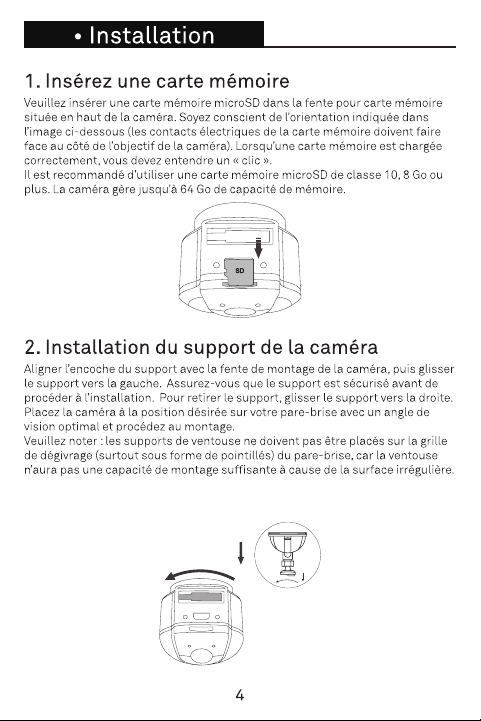
LED Activity Status
Power
LED
(Red)
Solid Red Power ON. Recording
Flashing Red
1. Power ON. Not recording
2. Firmware update in progress
Wi-Fi
LED
(Green)
Solid Green Wi-Fi connected
Flashing Green Awaiting for Wi-Fi connection
Retrieving using a PC/Mac:
Connect the camera to a computer using the supplied Mini USB cable. The
camera will automatically turn on.
The computer will detect a “removable disk”, similar to connecting a USB Flash
Drive on your computer.
Navigate to the corresponding folder to access video recordings;
Recording Type Folder Location
Normal Recording \MOVIE
Emergency Protected \MOVIE-RO
Video Snapshot \PHOTO
Retrieving using Mobile App:
Connect your smartphone to the camera’s Wi-Fi SSID. After a successful
connection, tap the icon located at the bottom left of the screen. A list of
available video les will be shown on the App.
LED Activité État
LED
(Rouge)
Rouge continu
Mise sous tension.
Enregistrement
Rouge
clignotant
1. Mise sous tension. Pas d’enregis-
trement
2. Mise à niveau de micrologiciel en
cours
LED
Wi-Fi
(Vert)
Vert continu Wi-Fi connecté
Vert clignotant En attente de connexion Wi-Fi
Récupérer avec un PC/Mac :
Connectez la caméra à un ordinateur à l’aide du câble Mini USB fourni. La
caméra s’allume automatiquement.
L’ordinateur détectera un « disque amovible », similaire à la connexion d’une clé
USB sur votre ordinateur.
Accédez au dossier correspondant pour accéder aux enregistrements vidéo;
Type d’enregistrement Emplacement du dossier
Enregistrement normal \MOVIE
Protection d’urgence \MOVIE-RO
Capture instantanée \PHOTO
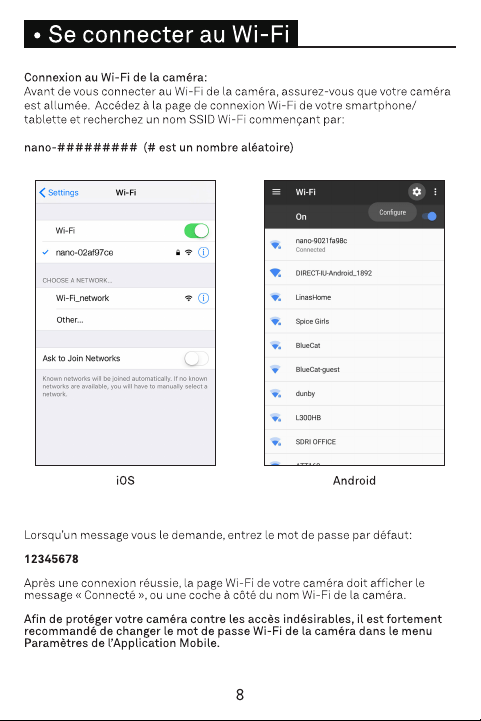
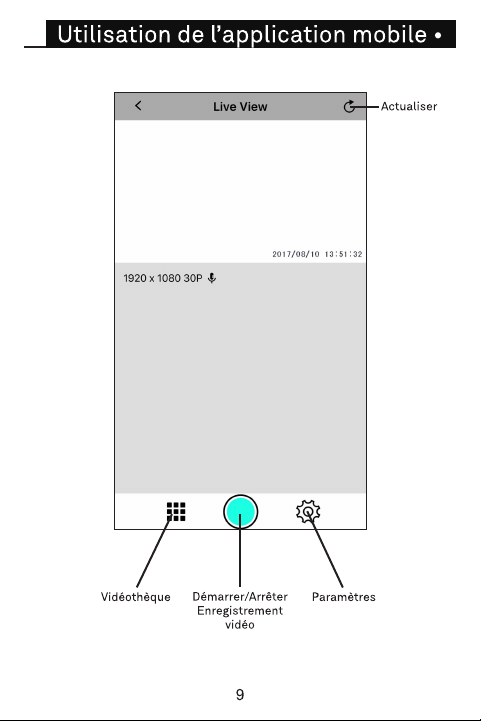
Récupération avec l’Application Mobile:
Connectez votre smartphone au SSID Wi-Fi de la caméra. Après une connexion
réussie, appuyez sur l’icône située en bas à gauche de l’écran. Une liste des
chiers vidéo disponibles est visible sur l’Application.