Getting Started
Getting Started
MC-i200
MC-i200
General information
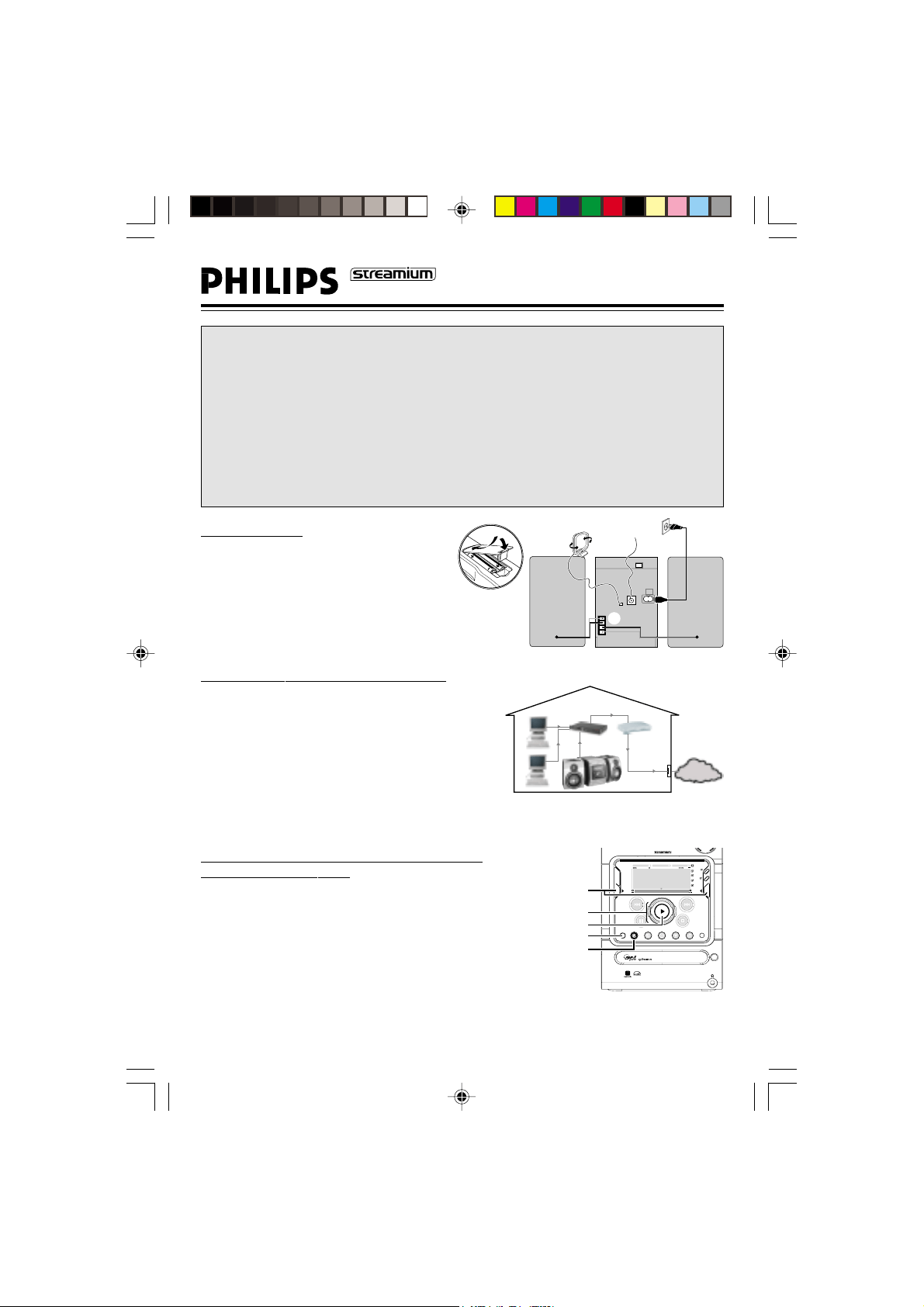
This quick installation guide gives a rough overview and helps to quickly start with basic steps. Please read the
supplied instruction manual for detailed information.
Power
1 Check whether the power voltage as shown on the type plate corresponds to your local power voltage.
If it does not, consult your dealer or service organisation.
2 After all connections have been made, connect the power cord to AC MAINS~ and to the wall outlet.
This switches on the AC power supply.
To disconnect the set from the power completely, remove the power plug from the wall outlet.
AM
FM
A
B
C
D
Basic audio setup
Connect :
1 Power cord A
2 FM wire antenna B
3 AM loop antenna C
4 Speakers D
5 Insert batteries into remote control.
You can now already listen to music from the sources TUNER
and CD!
Prerequisites for the home network setup
1 Connect your PC, gateway router and broadband modem
(cable/DSL) according to the router’s setup instructions.
2 Configure your gateway router following the directions
specified in your router’s manual and make sure that the PC’s
Internet connection is installed properly and working. If you
have problems with the setup of the Internet connection,
contact your networking equipment manufacturer.
IMPORTANT!
Do not connect the streamium MC-i200 to the gateway router before the
internet connection of the connected PC through the router is working.
Connecting Streamium MC-i200 to the Internet
through a gateway router
3 After the Internet connection has proven to be working,
connect the MC-i200 to the gateway router with the
supplied cable.
4 Press CONNECT.
Depending on your network setup, you might have to enter network
configuration data. Please follow the instructions on the system’s display, using
the Navigation Jog, the OK/PLAY (É) and the numerical/alphabetical keypad on
the remote control to enter the requested connection information.
INTERNET
gateway
router
DSL or
cable modem
data
port
from RJ45
SLEEPINCR. S URR. ALLREPEATSHUFFLEDIM 123 AM FMMWLW
REC
NEWS
1 2 3
NAVIGATE PLAY FA VOR ITES
CD
CONNECT
OPTIONS
CANCELRESUME
OK
ENTERBACK
AUX
TUNER
PC-LINK
OPEN/
CLOSE
VIEW
FAVORITE S
E
C
O
POWER
iR
•
•
•
•
CONNECT
OPTIONS
OK/PLAY
softkeys
Navigation Jog
speaker
(right)
speaker
(left)
Modem
Gateway
Router
01-i200 QS-Eng 31/05/2002, 04:01 PM1
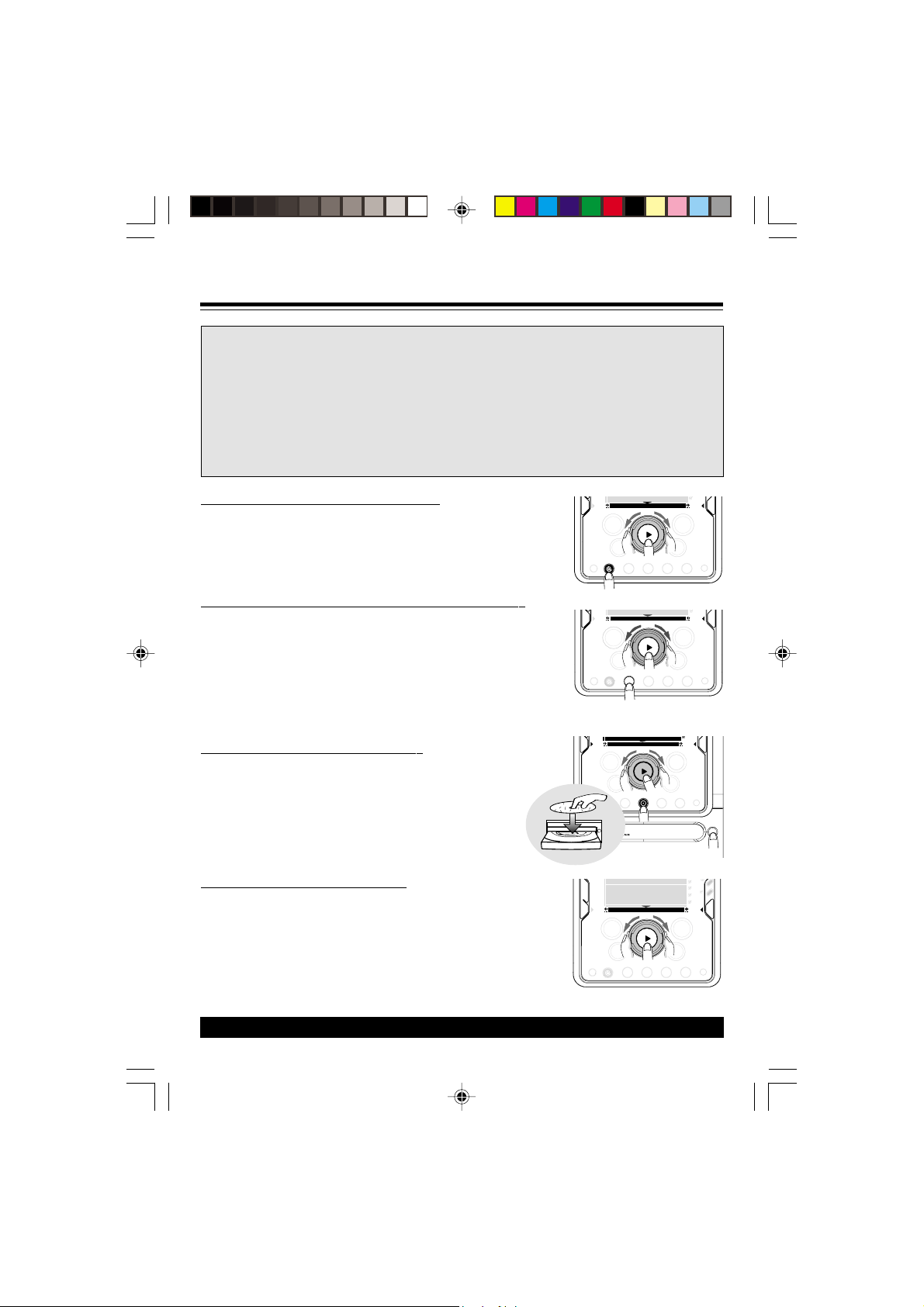
Upon completion of the setup, limited music services are already available. For full
functionality of your Streamium MC-i200 please register your set.
Streamium registration
1 For registration enter your E-Mail address with numerical/alphabetical keypad on the remote control by
following the instructions shown on the display. Within a short period you will receive an E-Mail with your
registration confirmation details.
2 To complete registration, follow the link displayed in the E-Mail.
continue...
continue...
CD AUX
TUNER
PC-LINK
CANCELRESUME
OK
ENTER
BACK
iR
• •
OPTIONS
OK
CONNECT
2
1
3
For more information, read the user manual or go to: http://My.Philips.com
Playing music from online music services
1 Press CONNECT.
2 Browse through music services with Navigation Jog.
3 Press OK/PLAY (É) to select and start choices.
Playing MP3-music-files from the computer’s hard drive
1 Press PC-LINK.
2 Browse and select PC’s, folders and tracks with Navigation Jog.
3 Press OK/PLAY (É).
Note: Before you can use this music source,
1) you have to switch on your PC and connect it to the network.
2) you have to download and install the PC-LINK PC application from
http://My.Philips.com.
Playing a CD/MP3-CD in the CD drive
1 Press CD.
2 Press OPEN/CLOSE and insert a CD or MP3-CD into the tray.
Close the drawer by pressing OPEN/CLOSE again.
3 Select track with Navigation Jog.
4 Press OK/PLAY (É) to start playback.
Playing FM/MW/LW radio stations
1 In standby mode, press and hold OK/PLAY (É) on the system until
“
PRESS PLAY TO INSTALL TUNERPRESS PLAY TO INSTALL TUNER
PRESS PLAY TO INSTALL TUNERPRESS PLAY TO INSTALL TUNER
PRESS PLAY TO INSTALL TUNER” is displayed. Press
OK/PLAY (É) again to install all available radio stations.
2 Use the Navigation Jog to scroll through the list of radio stations.
3 Press OK/PLAY (É) to select the radio station.
CD AUX
TUNER
PC-LINK
CANCELRESUME
OK
ENTERBACK
iR
• •
OPTIONS
OK
CONNECT
2
3
1
CD
CONNECT
OPTIONS AUX
TUNER
PC-LINK
iR
••
CANCELRESUME
OK
ENTERBACK
OK
OPEN/
CLOSE
3
1
4
2
CD AUX
TUNER
PC-LINK
VIEW
CANCELRESUME
OK
ENTER
BACK
iR
•
•
•
•
OPTIONS
OK
CONNECT
2
1, 3
DISC 3
POWER
ON/OFF
OPEN/
CLOSE
12NC : 3139 115 21691
01-i200 QS-Eng 31/05/2002, 04:02 PM2
1
3139 115 21551
MC-
i200
MC-
i200
Streamium Micro Hi-Fi System
2
3139 115 21551
DK
Advarsel: Usynlig laserstråling ved
åbning når sikkerhedsafbrydere er ude
af funktion. Undgå utsættelse for
stråling.
Bemærk: Netafbryderen er sekundært
indkoblet og ofbryder ikke strømmen
fra nettet. Den indbyggede netdel er
derfor tilsluttet til lysnettet så længe
netstikket sidder i stikkontakten.
S
Klass 1 laseraparat
Varning! Om apparaten används på
annat sätt än i denna bruksanvisning
specificerats, kan användaren utsättas
för osynlig laserstrålning, som
överskrider gränsen för laserklass 1.
Observera! Stömbrytaren är sekundärt
kopplad och bryter inte strömmen från
nätet. Den inbyggda nätdelen är därför
ansluten till elnätet så länge
stickproppen sitter i vägguttaget.
SF
Luokan 1 laserlaite
Varoitus! Laitteen käyttäminen
muulla kuin tässä käyttöohjeessa
mainitulla tavalla saattaa altistaa
käyttäjän turvallisuusluokan 1 ylittävälle
näkymättömälle lasersäteilylle.
Oikeus muutoksiin varataan. Laite
ei saa olla alttiina tippu-ja roiskevedelle.
Huom. Toiminnanvalitsin on kytketty
toisiopuolelle, eikä se kytke laitetta irti
sähköverkosta. Sisäänrakennettu verkko-
osa on kytkettynä sähköverkkoon aina
silloin, kun pistoke on pistorasiassa.
UPGRADEABLE
As new services and features are
continuously added to this product
through our online upgrades, the
documentation included may not be
up-to-date. Please refer to
My.Philips.com for the most recent
information.
MISES À NIVEAU
De nouveaux services et de nouvelles
fonctions sont ajoutés régulièrement à ce
produit par nos mises à niveau en ligne;
par conséquence, il se peut que la
documentation fournie ne soit pas mise à
jour. Reportez-vous à My.Philips.com pour
les informations les plus récentes.
ACTUALIZABLE
Como se añaden continuamente
nuevos servicios y funciones a este
producto a través de nuestras
actualizaciones en línea, es posible que
la documentación adjunta no esté al
día. Para obtener la información más
reciente, consulte My.Philips.com.
AUSBAUFÄHIG
Da neue Dienste und Leistungsmerkmale
durch unsere Online-Upgrades laufend zu
diesem Produkt hinzugefügt werden, ist
die beigefügte Dokumentation u.U. nicht
auf dem neuesten Stand. Aktuellste
Informationen finden Sie unter My.Philips.
MOGELIJKHEID TOT
UPGRADEN
Aangezien voortdurend nieuwe diensten
en functies toegevoegd worden aan dit
product via onze on-line-upgrades kan
het zijn dat de bijgesloten documentatie
niet up-to-date is. Zie My.Philips.com
voor de meest recente informatie.
POTENZIAMENTI
Siccome nuovi servizi e funzioni vengono
continuamente aggiunti a questo
prodotto mediante i nostri
potenziamenti online, l’acclusa
documentazione potrebbe non essere
aggiornata. Preghiamo far riferimento a
My.Philips per le più recenti informazioni.
3
3139 115 21551
SLEEPINCR. SURR. ALLREPEATSHUFFLEDIM 123 AM FMMW LW
REC
NEWS
1 2 3
NAVIGATE PLAY FAVORITES
CD
CONNECT
OPTIONS
CANCELRESUME
OK
ENTERBACK
AUX
TUNER
PC-LINK
OPEN/
CLOSE
VIEW
FAVORITES
W
OO
X TREBLE BASS
SOUND JOG
0
@
#
$
%
^
&
5
4
(
)
¡
™
1
3
4
5
6
7
8
9
2
!
*
STANDBY•ON
ECO POWER
MICRO HIFI SYSTEM
iR
•
•
•
•
3
4
3139 115 21551
Important notes for users in
the U.K.
Mains plug
This apparatus is fitted with an approved 13
Amp plug. To change a fuse in this type of
plug proceed as follows:
1 Remove fuse cover and fuse.
2 Fix new fuse which should be a BS1362 5
Amp, A.S.T.A. or BSI approved type.
3 Refit the fuse cover.
If the fitted plug is not suitable for your
socket outlets, it should be cut off and an
appropriate plug fitted in its place.
If the mains plug contains a fuse, this should
have a value of 5 Amp. If a plug without a
fuse is used, the fuse at the distribution board
should not be greater than 5 Amp.
Note: The severed plug must be disposed of to
avoid a possible shock hazard should it be
inserted into a 13 Amp socket elsewhere.
How to connect a plug
The wires in the mains lead are coloured
with the following code: blue = neutral (N),
brown = live (L).
¶ As these colours may not correspond with
the colour markings identifying the terminals
in your plug, proceed as follows:
– Connect the blue wire to the terminal
marked N or coloured black.
– Connect the brown wire to the terminal
marked L or coloured red.
– Do not connect either wire to the earth
terminal in the plug, marked E (or e) or
coloured green (or green and yellow).
Before replacing the plug cover, make certain
that the cord grip is clamped over the sheath
of the lead - not simply over the two wires.
Copyright in the U.K.
Recording and playback of material may
require consent. See Copyright Act 1956 and
The Performer’s Protection Acts 1958 to
1972.
Norge
Typeskilt finnes på apparatens underside.
Observer: Nettbryteren er sekundert
innkoplet. Den innebygde netdelen er
derfor ikke frakoplet nettet så lenge
apparatet er tilsluttet nettkontakten.
For å redusere faren for brann eller
elektrisk støt, skal apparatet ikke utsettes
for regn eller fuktighet.
CAUTION
Use of controls or adjustments or
performance of procedures other
than herein may result in
hazardous radiation exposure or
other unsafe operation.
Italia
DICHIARAZIONE DI
CONFORMITA’
Si dichiara che l’apparecchio MC-i200
Philips risponde alle prescrizioni dell’art. 2
comma 1 del D.M. 28 Agosto 1995 n. 548.
Fatto a Eindhoven
Philips Consumer Electronics
Philips, Glaslaan 2
5616 JB Eindhoven, The Netherlands

5
3139 115 21551
English
Français
Español
Deutsch
Nederlands
Italiano
Index
English ----------------------------------------- 6
Français-------------------------------------- 36
Español -------------------------------------- 66
Deutsch -------------------------------------- 96
Nederlands -------------------------------- 126
Italiano -------------------------------------- 156

6
English
3139 115 21551
Contents
General Information
Environmental information ................................ 7
Supplied accessories ............................................ 7
Safety information ................................................ 7
About MP3 disc .................................................... 7
Preparations
Rear connections .............................................8–9
Power
Antennas connection
Speakers connection
Home Network.................................................... 9
Connecting Streamium MC-i200...................... 9
Optional connections........................................ 10
Analogue audio connections
Subwoofer out connection
Inserting batteries into the remote control. 10
Controls
Controls on the system and remote
control ........................................................... 11–12
Basic Functions
Plug and Play................................................. 13–14
Switching the system on ................................... 14
Switching the system to standby mode ........ 14
Switching the system to Eco Power
standby mode...................................................... 14
Power saving automatic standby..................... 14
Dim mode ............................................................ 14
Volume control ................................................... 14
Sound control ..................................................... 15
wOOx
Bass/Treble
Incredible Surround
Screen display...................................................... 16
Navigation view
Play view
Switching between Navigation view and Play view
Using the soft keys ............................................. 16
Scrolling ................................................................ 17
Internet Audio
Connecting to your PC (PC Link).................. 18
Connecting to online music services............. 18
Set options.................................................... 19–20
Set Registration
Select User
Network Configuration
Proxy Configuration
Network Information
Product Information
Disable Internet
Software Upgrade
Restore Defaults
About “My.Philips.com” .................................... 20
CD/MP3-CD Operations
Discs for playback .............................................. 21
Loading disc ......................................................... 21
Basic operations ................................................. 22
Selecting a desired track/passage.................... 22
Repeat and Shuffle.............................................. 22
Repeat play
Random play
Playing a MP3-CD........................................ 22–23
Marking favorite tracks ..................................... 23
Activating/deactivating the favourites list
Playing a favourites list
Cancelling a favourite track
Deleting all favourite tracks
Artist and title information.............................. 24
Requesting on-line audio CD information
Radio Reception
Tuning to radio stations .................................... 25
Storing favourite radio stations................ 25–26
Automatic Preset Programming
Manual Preset Programming
Selecting a favourite radio station .................. 26
Erasing a favourite radio station ..................... 26
Deleting all the favourite radio stations........ 26
RDS ................................................................ 26–27
Setting the RDS clock
Personalised and interactive
features
Multiple users...................................................... 28
Creating your user account
Selecting a user account
Favourites............................................................. 28
Creating your favourites list
Accessing your favourites list
Returning to normal list (exit from favourites list)
Getting extra information ................................ 28
External Sources
Connecting an external device ....................... 29
Listening to external source............................ 29
Clock/Timer
View clock............................................................ 30
Clock setting ....................................................... 30
Timer setting ....................................................... 31
Checking the timer
Activate/deactivate the timer
Sleep timer setting ............................................. 32
Maintenance.............................................. 32
Specifications ........................................... 33
Troubleshooting ............................. 34–35

7
English
3139 115 21551
General Information
This product complies with the radio
interference requirements of the European
Community.
Environmental information
All unnecessary packaging has been omitted. We
have tried to make the packaging easy to
separate into three materials: cardboard (box),
polystyrene foam (buffer) and polyethylene (bags,
protective foam sheet).
Your system consists of materials which can be
recycled and reused if disassembled by a
specialised company. Please observe the local
regulations regarding the disposal of packaging
materials, exhausted batteries and old equipment.
Supplied accessories
– 2 speaker boxes
– Remote control
– Batteries (two AA size) for remote control
– AM loop antenna
– FM wire antenna
– AC power cord
– Category 5 Ethernet cable
Safety information
● Before operating the system, check that the
operating voltage indicated on the typeplate (or
the voltage indication beside the voltage selector)
of your system is identical with the voltage of
your local power supply. If not, please consult
your dealer.
● Place the system on a flat, hard and stable
surface.
● Place the system in a location with adequate
ventilation to prevent internal heat build-up in
your system. Allow at least 10 cm (4 inches)
clearance from the rear and the top of the unit
and 5 cm (2 inches) from each side.
● Do not expose the system, batteries or discs to
excessive moisture, rain, sand or heat sources
caused by heating equipment or direct sunlight.
● If the system is brought directly from a cold to a
warm location, or is placed in a very damp room,
moisture may condense on the lens of the disc
unit inside the system. Should this occur, the CD
player will not operate normally. Leave the
power on for about one hour with no disc in the
system until normal playback is possible.
● When the system is switched to Standby
mode, it is still consuming some power.
To disconnect the system from the
power supply completely, remove the AC
power plug from the wall socket.
About MP3 disc
Supported formats
– MP3PRO, MP3
– ISO9660, Joliet, Multisession
– Supported sampling frequencies : 16, 22.05,
24, 32, 44.1, 48 (kHz)
– Supported Bit-rates of MP3 disc are:
32-256 (kbps) and variable bit-rate
Making your own MP3-CD
1 Copy the music from your own Digital Audio
CDs or download legal MP3 music from the
Internet.
2 Record (“burn”) the music on a CD-R(W) disc
with your home PC. Make sure to use a
recording speed not faster than indicated on the
CD-R(W) and avoid running other programmes
simultaneously on your PC during the recording
process.
Sound Quality
Take note that MP3-CD compilations should
best contain only MP3 tracks (.mp3).
To achieve a good MP3 quality, a bit rate
of 128 kbps or higher is recommended.
8
English
3139 115 21551
Preparations
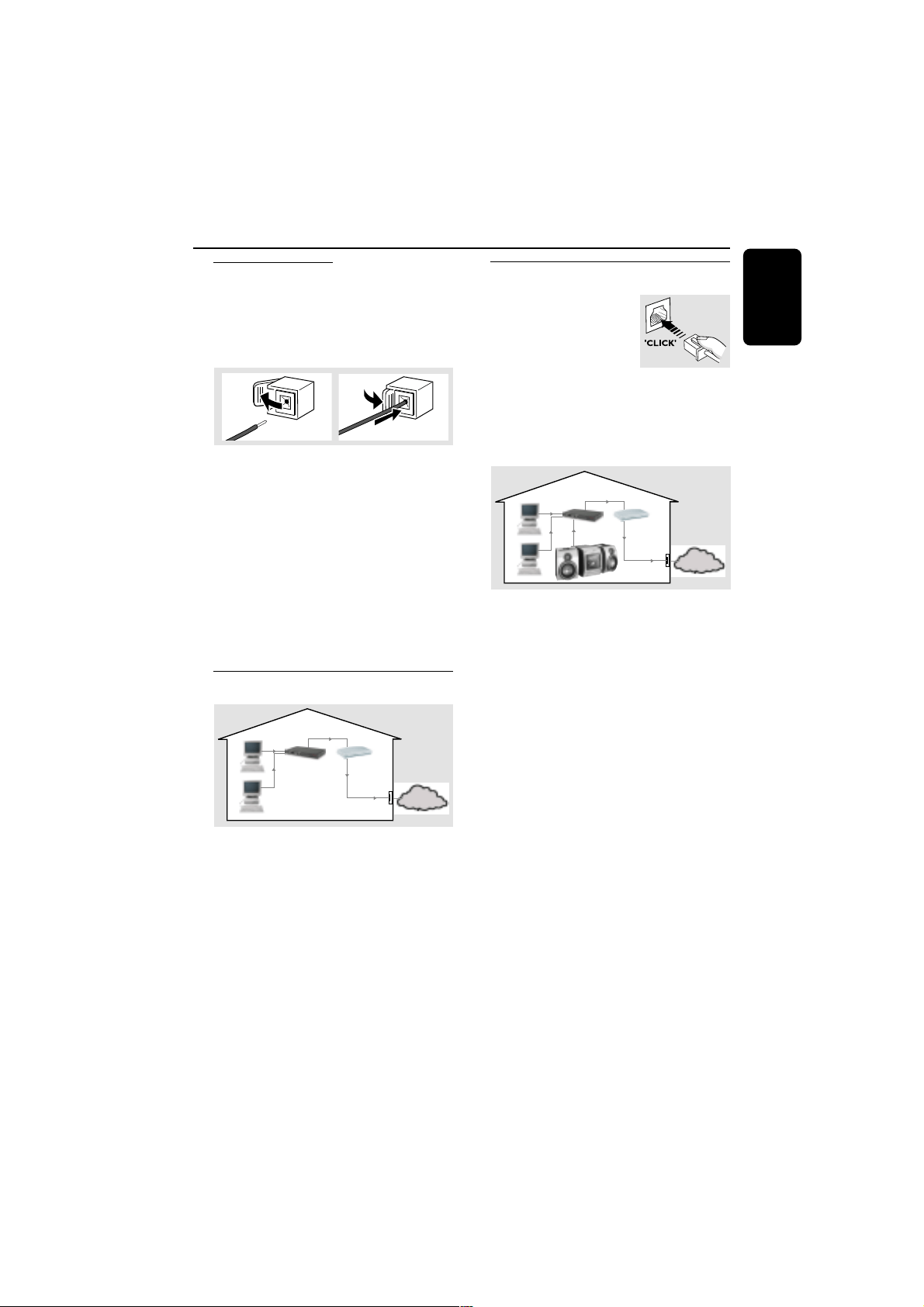
Rear connections
The type plate is located at the rear of the
system.
For users in the U.K.: please follow the
instructions on page 2.
A Power
Before connecting the AC power cord to the
wall outlet, ensure that all other connections
have been made.
WARNING!
– For optimal performance, use only the
original power cable.
– Never make or change any
connections with the power switched on.
To avoid overheating of the system, a safety
circuit has been built in. Therefore, your
system may switch to Standby mode
automatically under extreme conditions. If
this happens, let the system cool down
before reusing it (not available for some
versions).
B Antennas connection
Connect the supplied AM loop antenna and FM
antenna to the respective terminals. Adjust the
position of the antenna for optimal reception.
AM Antenna
● Position the antenna as far as possible from a TV,
VCR or other radiation source.
FM Antenna
● For better FM stereo
reception, connect an
outdoor FM antenna to the
FM ANTENNA
terminal.
speaker
(right)
speaker
(left)
SPEAKERS 6Ω
_
L
+
_
R
+
DIGITAL
IN OUT
AC
MAINS
~
VOLTAGE
SELECTOR
NOT FOR ALL
COUNTRIES
110V-
127V
220V-
240V
SUB
WOOFER OUT
AUX/
CDR IN
R
L
LINE OUT
R L
DIGITAL
OUT
AM ANTENNA
FM ANTENNA
AM loop
antenna
AC power cord
A
FM wire antenna
B
C
9
English
3139 115 21551
Preparations
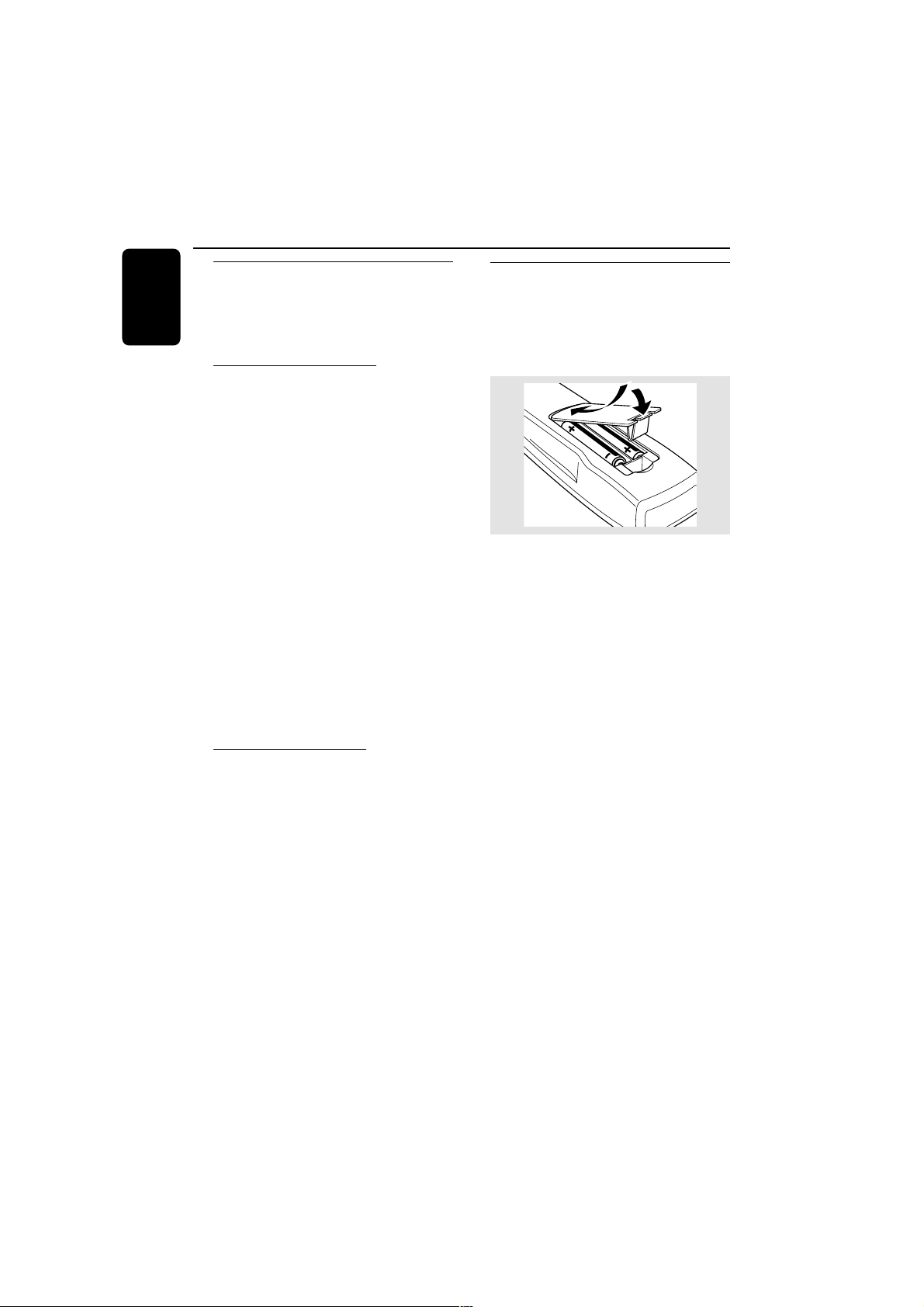
C Speakers connection
Front Speakers
Connect the speaker wires to the SPEAKERS
terminals, right speaker to "R" and left speaker to
"L", coloured (marked) wire to "+" and black
(unmarked) wire to "-".
1
2
● Fully insert the stripped portion of the speaker
wire into the terminal as shown.
Notes:
– To avoid magnetic interference, do not position
the front speakers too close to the PC monitor/TV.
– For optimal sound performance, use the
supplied speakers.
– Do not connect more than one speaker to any
one pair of +/- speaker terminals.
– Do not connect speakers with impedance lower
than the speakers supplied. Please refer to the
SPECIFICATIONS section of this manual.
Home Network
INTERNET
gateway
router
DSL or
cable modem
data
port
1 Connect your PC, gateway router and
broadband modem (cable/DSL) according to the
router’s setup instructions.
2 Configure your gateway router following the
directions specified in your router’s manual and
make sure that the PC’s internet connection is
installed properly and working. If you have
problems with the setup of the internet
connection, contact your networking equipment
manufacturer.
Connecting Streamium MC-i200
1 After the internet connection
has proven to be working,
connect the system to the
gateway router with the
supplied cable.
IMPORTANT!
Do not connect the Streamium MC-i200
to the gateway router before the
internet connection of the connected PC
through the router is working.
INTERNET
gateway
router
DSL or
cable modem
data
port
from RJ45
2 Press CONNECT. You will now be guided
through the installation process of the system.
Depending on your network setup, you might
have to enter network configuration data. Please
follow the instructions on the system’s display,
using the navigation jog, the OK/PLAY (
22
22
2) and
the numerical/alphabetical keypad on the remote
control to enter the requested connection
information.
Notes:
– You will be asked to enter your E-Mail address.
Within a short period you will receive an E-Mail-
confirmation with your registration details. Follow the
link displayed in the E-Mail to http://My.Philips.com,
where you can customise your settings and
download the PC-Link PC application.
– For later modification of the connection settings,
press CONNECT and OPTIONS followed by the
soft key (! ) on the system to select “SET” options.
10
English
3139 115 21551
Optional connections
The optional equipment and connecting cords
are not supplied. Refer to the operating
instructions of the connected equipment for
details.
Analogue audio connections
AUX/CDR IN (R/L)
Use a cinch cable to connect these terminals to
the analogue audio out terminals of an external
equipment (TV, VCR, Laser Disc player, DVD
player or CD Recorder).
LINE OUT (R/L)
Use a cinch cable to connect these terminals to
the analogue audio inputs of any analog audio
equipment (amplifier/receiver or tape recorder,
for example).
Notes:
– Do not connect equipment to both the
LINE OUT and AUX/CDR IN terminals at the
same time. Otherwise, noise will be generated and
malfunction might occur.
– If you are connecting equipment with a
monaural output (a single audio out terminal),
connect it to the AUX/CDR IN left terminal.
Alternatively, you can use a “single to double” cinch
cable (the output sound will still remain mono).
Subwoofer out connection
Connect the subwoofer to the SUBWOOFER
OUT terminal. The subwoofer reproduces just
the low bass sound effects (explosions or the
rumble of spaceships, for example).
Preparations
Inserting batteries into the
remote control
Insert two batteries (type R06 or AA) into the
remote control with the correct polarity as
indicated by the “+” and ”-” symbols inside
the battery compartment.
CAUTION!
– Remove batteries if they are exhausted
or will not be used for a long time.
– Do not use old and new or different
types of batteries in combination.
– Batteries contain chemical substances,
so dispose of them properly.
11
English
3139 115 21551
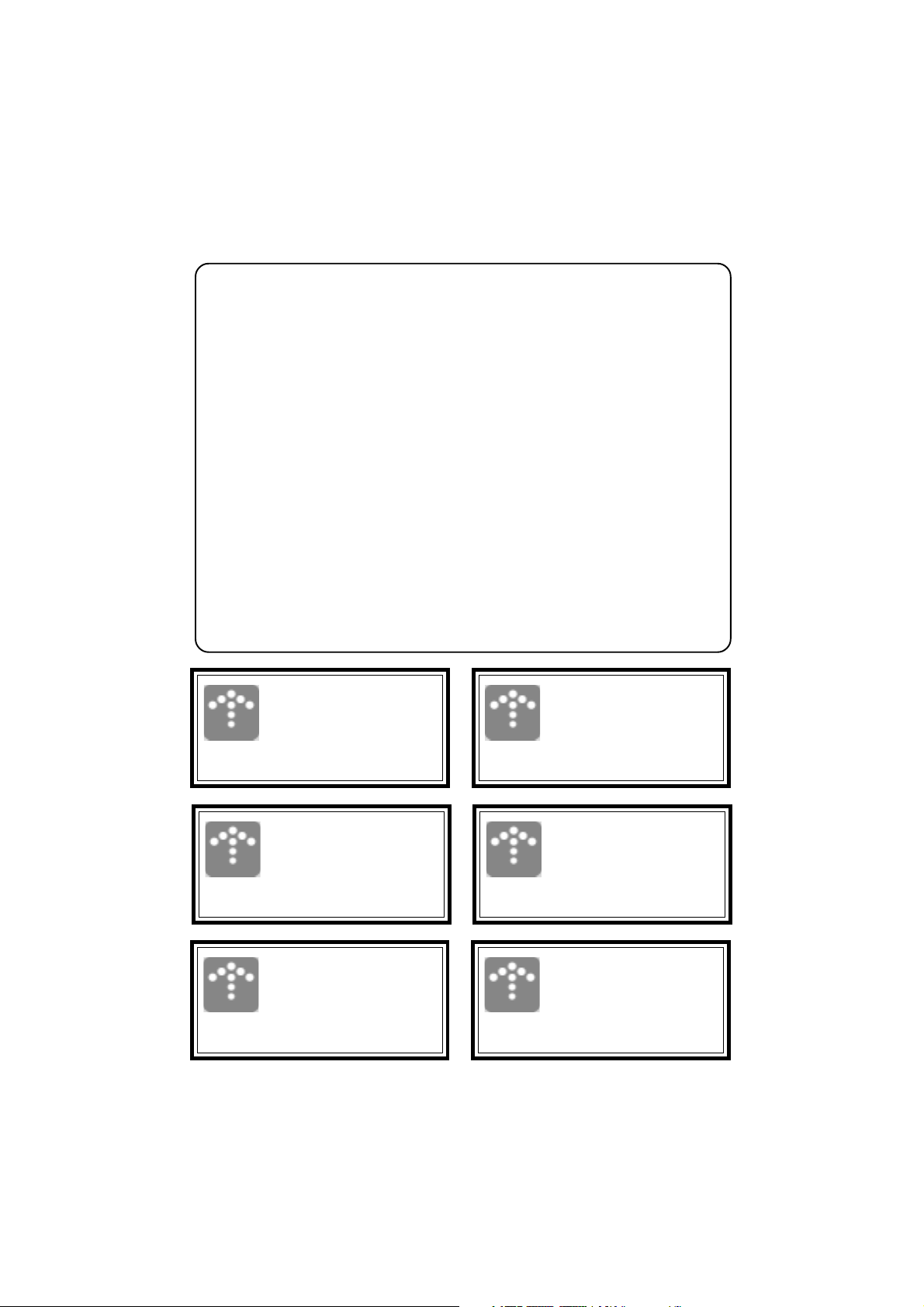
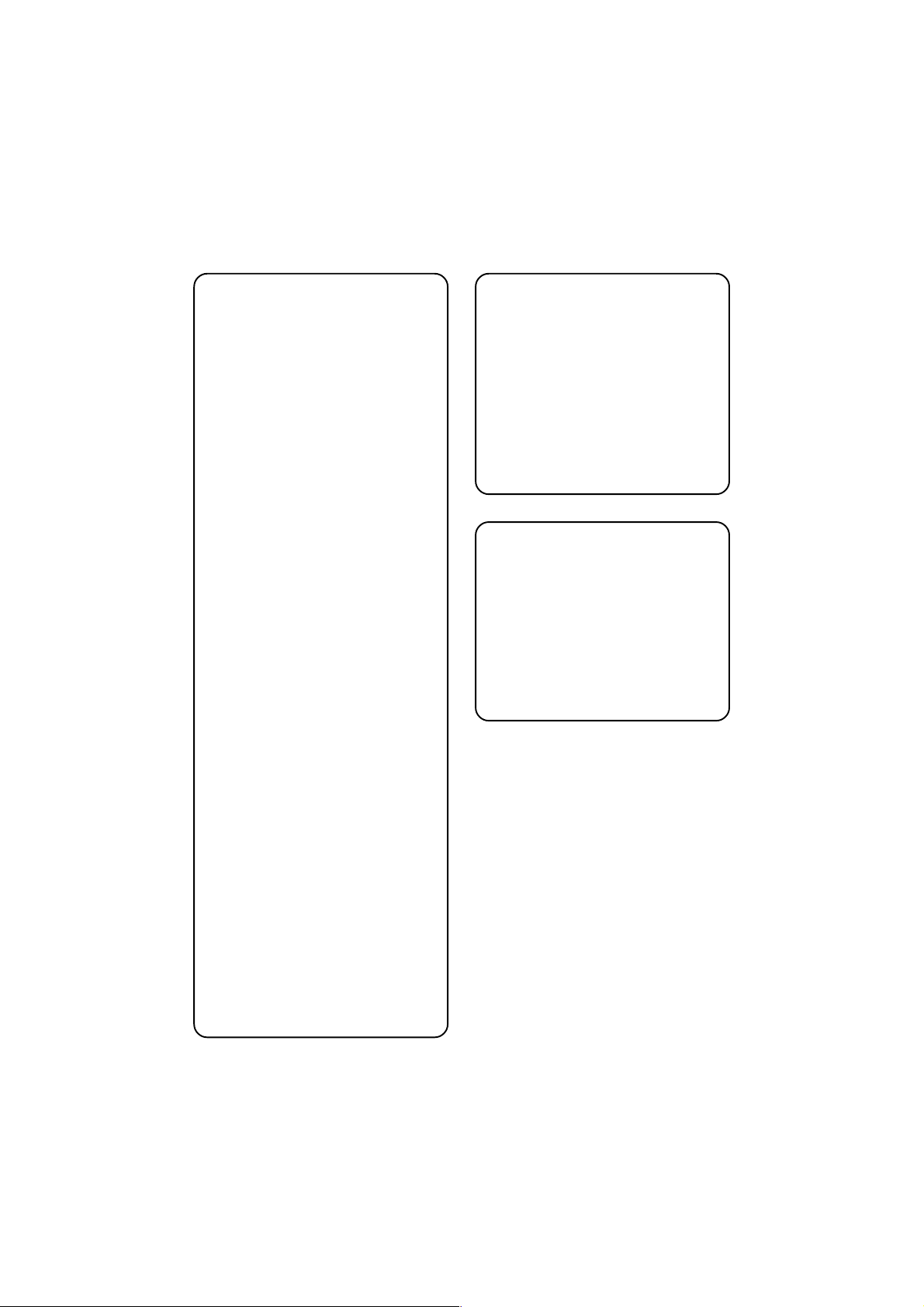
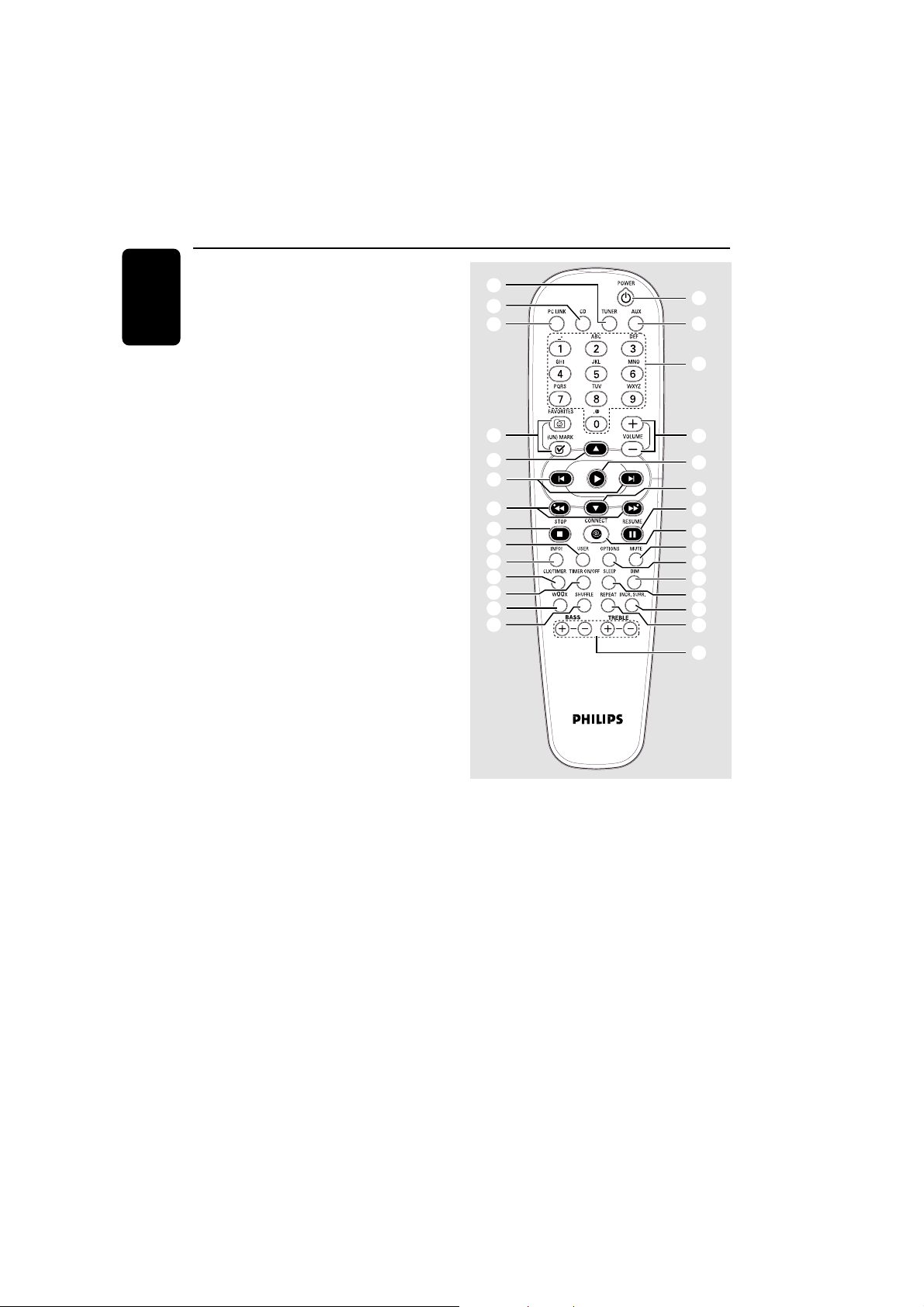
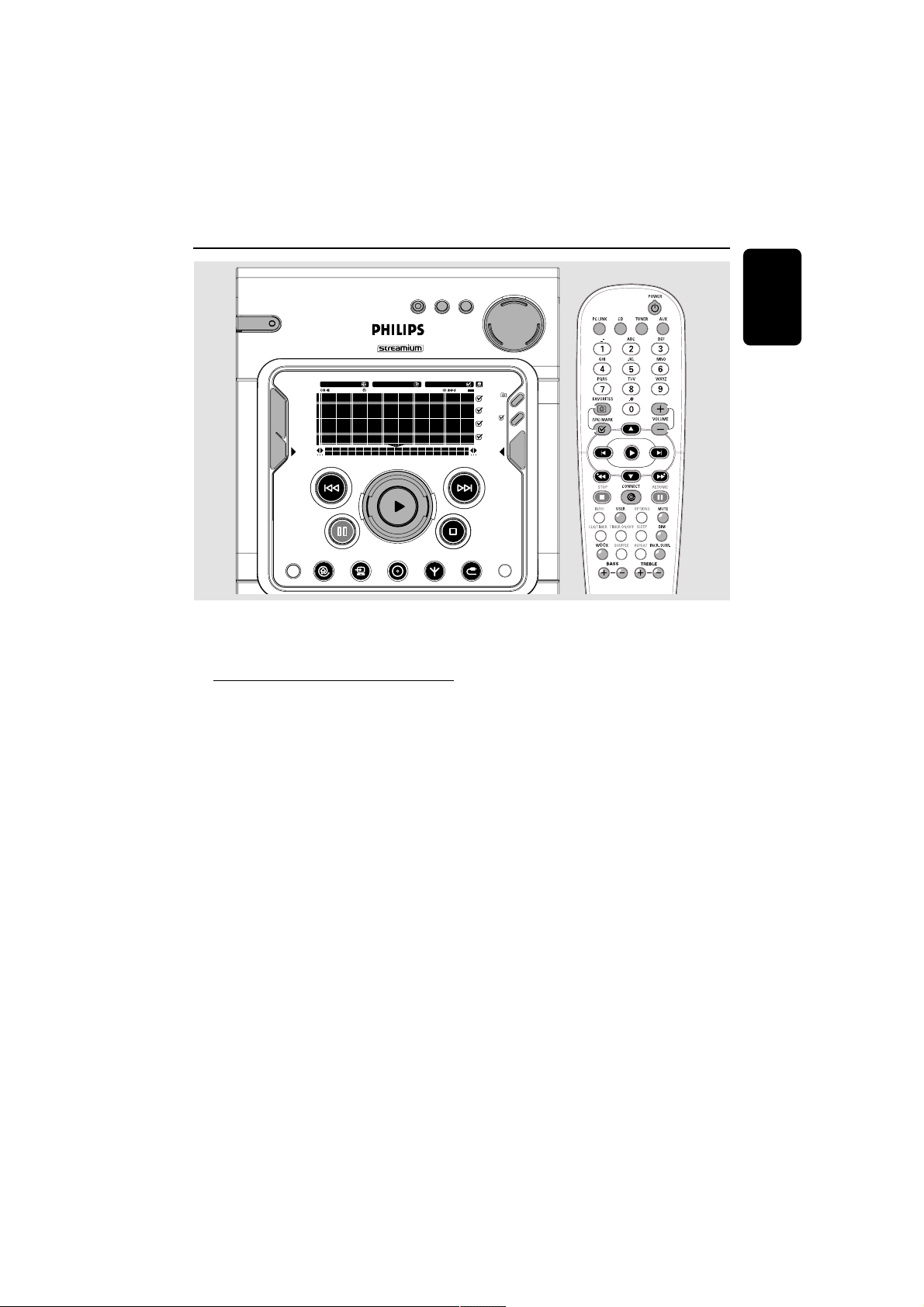
Controls (main system’s illustration on page 3)
Controls on the system and
remote control
1 STANDBY ON / ECO POWER
– to switch the system on or to standby mode.
– hold down to switch the system to Eco Power
standby mode.
2 Display screen
– to view the current status of the system.
3 VIEW
– to switch to navigation or play view.
4 @ ! (soft keys)
– to select from the available choices on the
bottom line of the screen.
–(!) to select RDS information.
5 BACK S / ENTER T
for CD, CONNECT, PC-LINK
(play view) ......... to skip to the beginning of the
current, previous, or next track.
................................. hold down to search backward/
forward.
for Tuner (play view)…to tune to a lower or
higher radio frequency.
for Clock ............ to change between hour and
minutes field.
6 Å (RESUME)
– to interrupt or resume playback.
7 OPTIONS
– to modify source/service settings.
8 CONNECT
– to connect to an internet audio service.
9 PC-LINK
– to access MP3 files stored on home network’s
PC.
0 n
– to connect headphones.
! Disc tray
@ OPEN/CLOSE
– to open or close the disc tray.
# CD
– to enter CD mode.
$ TUNER
– to enter tuner mode or select waveband
(FM, MW or LW).
% AUX
– to select the input for an additional appliance.
^ Ç (CANCEL)
for CD ................. to stop playback.
for Tuner ............. to stop programming
for Clock ............ to exit clock setting or cancel
timer.
for Plug & Play…to exit plug & play mode.
&
22
22
2 (OK)
– to start playback.
– to confirm the selection.
– to initiate and start plug & play mode.
* Navigation jog (3
/
4)
for CD, CONNECT, PC-LINK…to scroll through
a list.
for Tuner ............. to select a favourite radio station.
for Clock ............ to set the hours and minutes.
( FAVORITES ( )
for CD, PC-LINK, CONNECT ... to switch to the
favourites list of the selected mode.
for Tuner ............. hold down to auto programme
radio stations.
(UN)MARK ( )
– to select and add an item to a favourite list.
– to delete an item from a favourite list.
– hold down to delete the complete favourites.
) SOUND JOG (VOLUME +/-)
– to increase or decrease volume.
– (on the system only) to increase or decrease the
low or high tone level for the respective BASS or
TREBLE sound feature selected.
¡ BASS / TREBLE
– to select BASS or TREBLE sound feature.
BASS / TREBLE +/- (on the remote control)
– to increase or decrease bass or treble level.
™ wOOx
– to select the next wOOx level or switch off
wOOx sound effect.
£ ¡ / ™
for CD, CONNECT, PC-LINK
(play view) ......... to skip to the beginning of the
current, previous, or next track.
for Tuner (play view)…to select a favourite radio
station.
for Clock ............ to change between hour and
minutes field.
12
English
3139 115 21551
≤ à / á
for CD (play view)…to search backward/
forward.
for Tuner ............. to tune to a lower or higher
radio frequency.
– used as a soft keys, to select from the available
choices on the bottom line of the screen.
∞ USER
– to select an active user.
§ INFO!
– to request on-line information about currently
playing item through e-mail (if available).
≥ CLK/TIMER
– to display or set the clock/timer.
• TIMER ON/OFF
– to activate or deactivate the timer function.
ª SHUFFLE
– to playback all tracks/favourites in random order.
º REPEAT
– to playback track/disc/favourites repeatedly.
⁄ INCR. SURR.
– to activate or deactivate the surround sound
effect.
¤ SLEEP
– to activate, deactivate or set the sleep timer
function.
‹ DIM
– to select different brightness for the display
screen : DIM 1, DIM 2, DIM 3 or DIM OFF.
› MUTE
– to interrupt or resume sound reproduction.
fi DIGITS 0 – 9
(numbers consisting more than two figures must be
keyed in within 2 seconds.)
for CD, CONNECT, PC-LINK ... to select a
track.
for OPTIONS…for text/number editing.
for Tuner ............. to select a favourite radio station.
Controls
#
9
$
ª
™
•
≥
§
∞
^
‹
¤
⁄
º
¡
7
›
8
6
*
&
)
≤
£
*
(
fi
%
1
Notes for remote control:
– First, select the source you wish to
control by pressing one of the source select
keys on the remote control (CD or TUNER,
for example).
– Then select the desired function (É,
í,
ë for example).
13
English
3139 115 21551
Basic Functions
SLEEPINCR. SURR. ALLREPEATSHUFFLEDIM 123 AM FMMW LW
REC
NEWS
1 2 3
NAVIGATE PLAY FAVORITES
CD
CONNECT
OPTIONS AUX
TUNER
PC-LINK
VIEW
WOOX TREBLE BASS
SOUND JOG
FAVORITES
STANDBY•ON
ECO POWER
MICRO HIFI SYSTEM
CANCELRESUME
OK
ENTERBACK
iR
•
•
•
•
IMPORTANT!
Before you operate the system, complete
the preparation procedures.
Plug and Play
Plug and Play allows you to store all available
RDS stations and radio stations automatically.
First time setup/power up
1 When you turn on the power supply,
"
PRESS PLAY TO INSTALL TUNERPRESS PLAY TO INSTALL TUNER
PRESS PLAY TO INSTALL TUNERPRESS PLAY TO INSTALL TUNER
PRESS PLAY TO INSTALL TUNER" is
displayed.
2 Press
22
22
2 to start installation.
➜ "
INSTALLING TUNERINSTALLING TUNER
INSTALLING TUNERINSTALLING TUNER
INSTALLING TUNER" is displayed, followed
by "
AUTO PROGRAM IN PROGRESS...AUTO PROGRAM IN PROGRESS...
AUTO PROGRAM IN PROGRESS...AUTO PROGRAM IN PROGRESS...
AUTO PROGRAM IN PROGRESS...".
➜ The system will automatically store the radio
stations with sufficient signal strength, starting
from all RDS stations and followed by FM, MW
and LW bands respectively. Weak RDS stations
may be stored in later presets.
➜ When all the available radio stations are
stored or the memory for 40 presets is used, the
last preset radio station (or the first available
RDS station) will be played.
3 The system will proceed to set the RDS clock if
the first preset is an RDS station.
➜ "
INSTALLINSTALL
INSTALLINSTALL
INSTALL" is displayed, followed by "
TIMETIME
TIMETIME
TIME"
and "
SEARCH RDS TIMESEARCH RDS TIME
SEARCH RDS TIMESEARCH RDS TIME
SEARCH RDS TIME".
➜ When RDS time is read, "
RDS TIMERDS TIME
RDS TIMERDS TIME
RDS TIME
FOUNDFOUND
FOUNDFOUND
FOUND" is displayed and the current time will be
stored.
➜ If RDS station does not transmit RDS time
within 90 seconds, the programme will exit
automatically and the display will show
“
NO RDS TIMENO RDS TIME
NO RDS TIMENO RDS TIME
NO RDS TIME”.
● If the first preset is non-RDS station;
➜ The programme will exit automatically.
To reinstall Plug and Play
1 In standby mode, press and hold
22
22
2 until "
PRESSPRESS
PRESSPRESS
PRESS
PLAY TO INSTALL TUNERPLAY TO INSTALL TUNER
PLAY TO INSTALL TUNERPLAY TO INSTALL TUNER
PLAY TO INSTALL TUNER" is displayed.
2 Press
22
22
2 again to start installation.
➜ All previously stored radio stations will be
replaced.
14
English
3139 115 21551
To exit without storing the Plug and Play
● Press Ç.
➜ If you do not complete the Plug and Play
installation, the function will be restarted when
you next turn on the power supply again.
Notes:
– When the power is turned on, the disc tray may
open and close to initialise the system.
– If no stereo frequency is detected during
Plug and Play, "
PLEASE CHECK ANTENNAPLEASE CHECK ANTENNA
PLEASE CHECK ANTENNAPLEASE CHECK ANTENNA
PLEASE CHECK ANTENNA
" is
displayed.
Switching the system on
In standby mode
● Press STANDBY ON to switch on the last
selected source.
● Press PC-LINK, CONNECT, CD, TUNER,
or AUX to select the desired source.
In Eco Power Standby mode
● Press STANDBY ON on the system.
● Press PC-LINK, CD, TUNER, CONNECT
or AUX on the remote control.
Switching the system to
standby mode
● Press STANDBY ON (or B on the remote
control).
➜ The clock will appear on the display when the
system is in standby mode.
Switching the system to Eco
Power standby mode (< 0.5W)
● Press and hold STANDBY ON (or B on the
remote control) for more than three seconds.
➜ "
ECO POWER MODEECO POWER MODE
ECO POWER MODEECO POWER MODE
ECO POWER MODE" is displayed, then the
display screen will go blank.
➜ The low power LED will be lighted.
Power saving automatic standby
As a power-saving feature, the system will
automatically switch to Standby mode if you do
not press any buttons within 30 minutes after a
disc has stopped playing.
Dim mode
You can select the desired brightness for the
display.
● Press DIM on the remote control repeatedly to
select DIM 1, DIM 2, DIM 3 or DIM OFF display
mode.
➜ DIM and the corresponding dim level will
appear on the display, except for DIM OFF
mode.
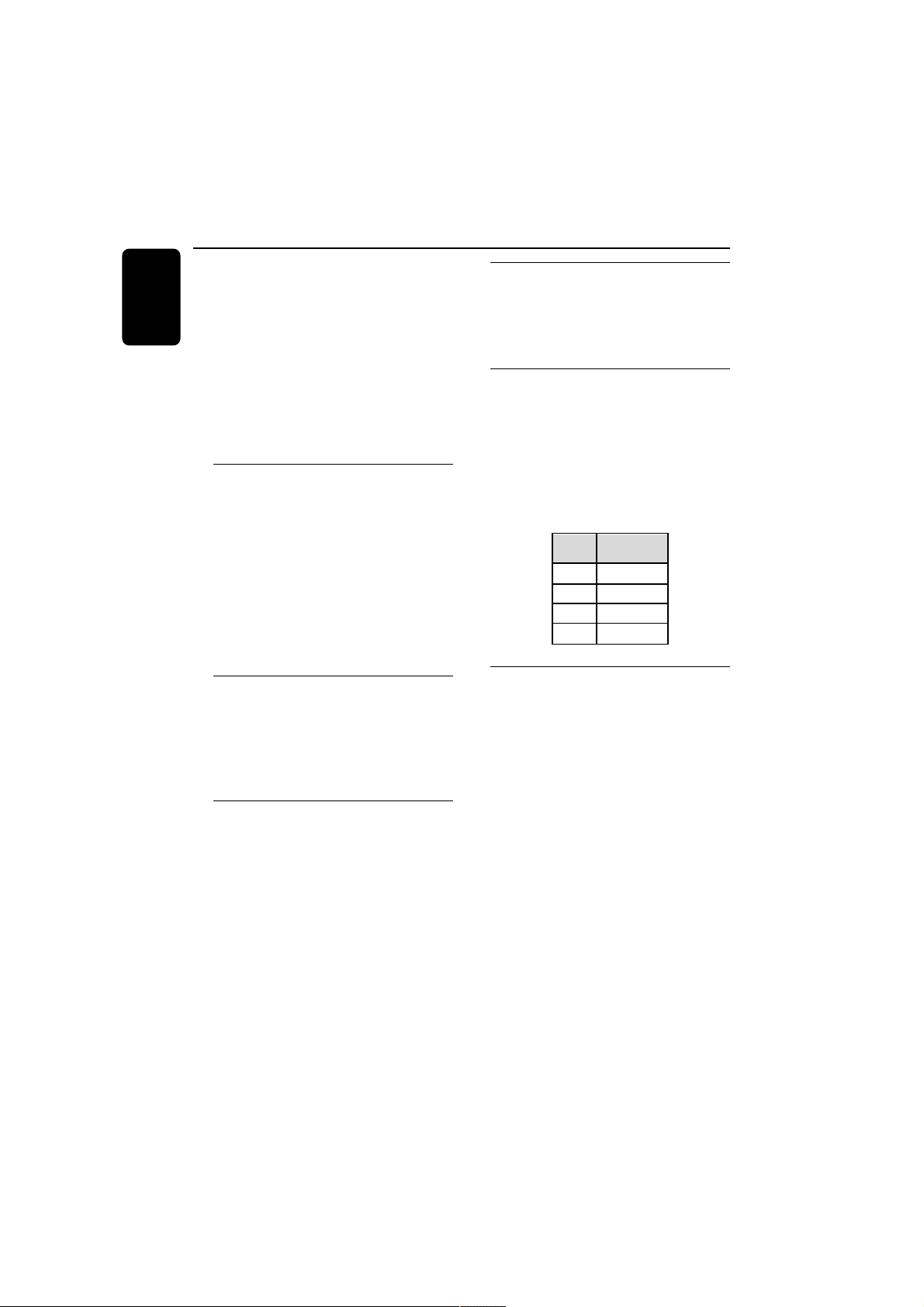
DIM
mode
1
2
3
OFF
LEDs
off
on
off
on
Volume control
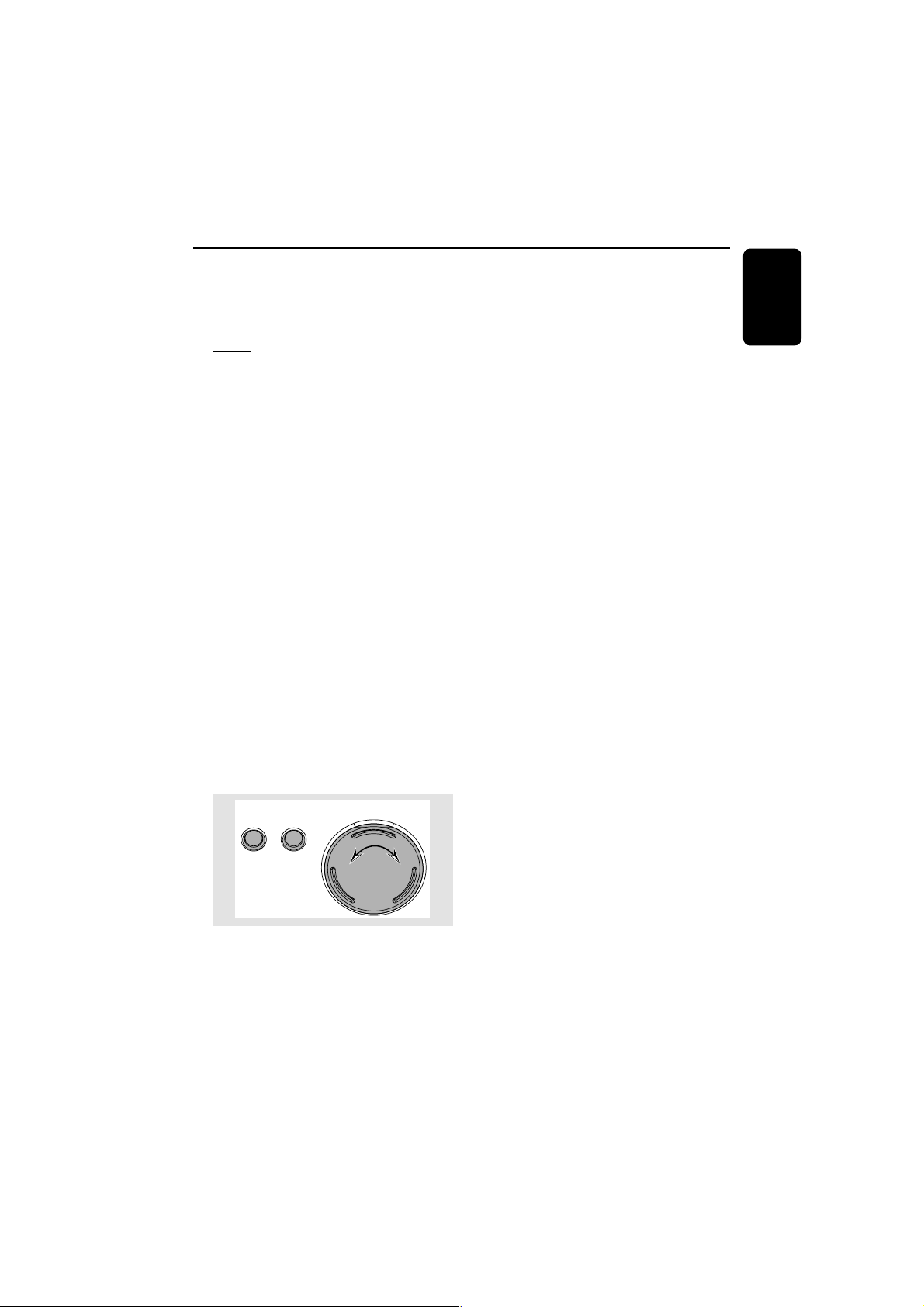
Adjust SOUND JOG (or press VOLUME
+/- on the remote control) to increase or
decrease the volume level.
➜ "
-XX dB-XX dB
-XX dB-XX dB
-XX dB" is displayed. "
XXXX
XXXX
XX" denotes the
volume level.
To listen through the headphones
● Connect the headphones plug to the n socket
at the front of the system.
➜ The speakers will be muted.
To switch off the volume temporarily
● Press MUTE on the remote control.
➜ Playback will continue without sound and
"
MUTE ONMUTE ON
MUTE ONMUTE ON
MUTE ON" is displayed.
● To restore the volume, press MUTE again or
increase the volume level.
Basic Functions
15
English
3139 115 21551
Sound control
For optimal sound listening, you are only
able to select BASS/TREBLE or wOOx at a
time.
wOOx
There are three wOOx settings to enhance the
bass response.
● Press wOOx repeatedly to select the next
wOOx level or switch the wOOx effect off :
wOOx 3, wOOx 2, wOOx 1 or wOOx OFF.
➜ WOOX and the corresponding wOOx level
will appear on the display, except for wOOx
OFF mode.
Notes:
– When switched off the wOOx effect, the last
Bass/Treble will resume automatically.
– Some discs might be recorded in high
modulation, which causes a distortion at high
volume. If this occurs, deactivate wOOx or reduce
the volume.
Bass/Treble
The BASS (low tone) and TREBLE (high tone)
feature enables you to define the sound-
processor settings.
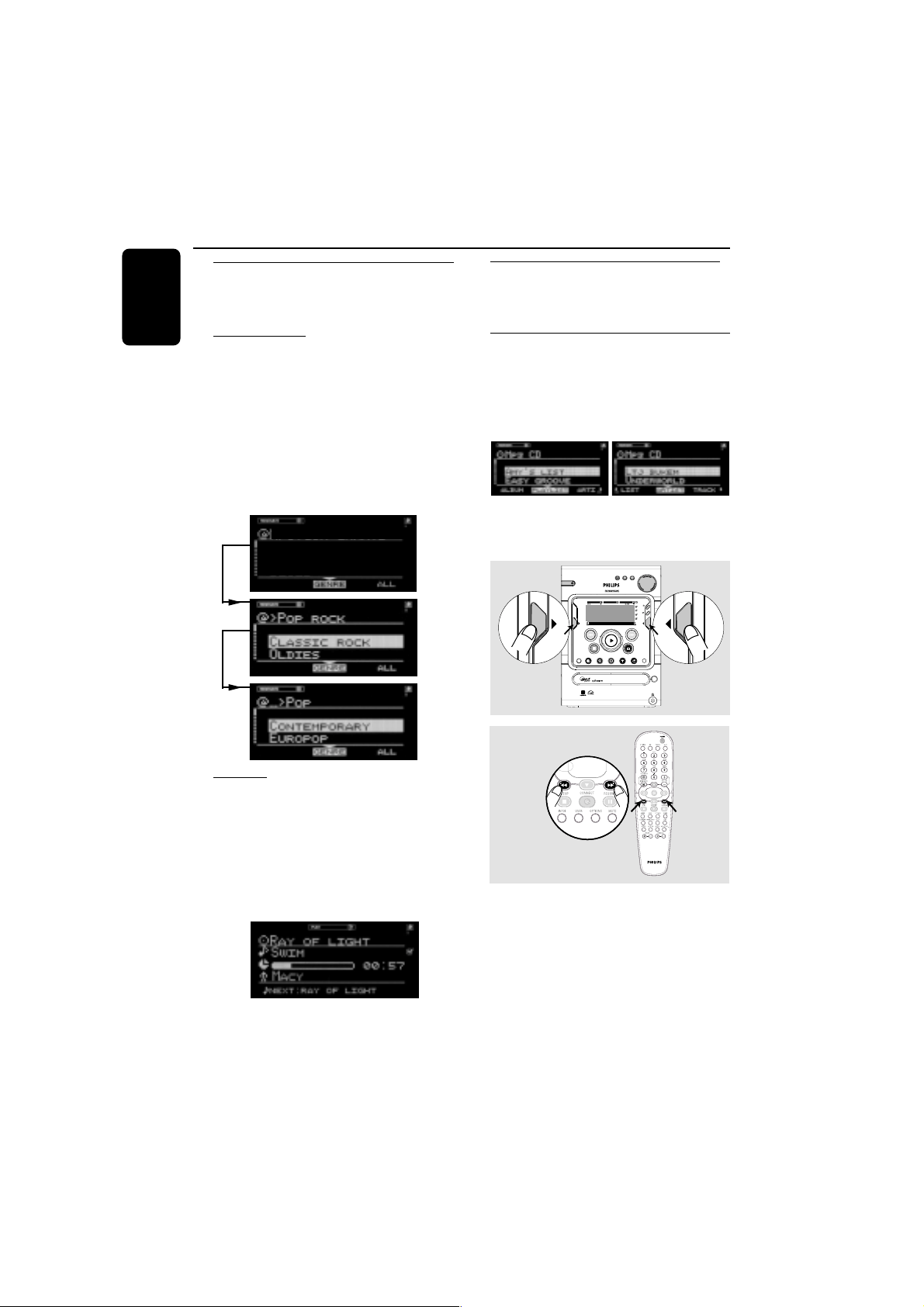
● Press BASS +/- or TREBLE +/- on the
remote control repeatedly to select the next
Bass or Treble level.
OR
TREBLE BASS
SOUND JOG
1
=
=
2
Basic Functions
1 Press BASS or TREBLE on the system to
select Bass or Treble sound feature.
2 Adjust SOUND JOG on the system to select
the desired Bass or Treble level.
➜ "
BASS LEVEL XXBASS LEVEL XX
BASS LEVEL XXBASS LEVEL XX
BASS LEVEL XX" or "
TREBLE LEVEL XXTREBLE LEVEL XX
TREBLE LEVEL XXTREBLE LEVEL XX
TREBLE LEVEL XX"
is displayed. "
XXXX
XXXX
XX" denotes the level as follows :
MINMIN
MINMIN
MIN ™
-2-2
-2-2
-2 …™
00
00
0… ™
+2+2
+2+2
+2 ™
MAXMAX
MAXMAX
MAX…
Notes:
– The sound jog can be used to adjust Bass/Treble
level immediately after you have selected the
respective Bass/Treble sound feature. If the sound
jog is not used within five seconds, it will become
normal volume control function.
– The Bass/Treble mode will exit automatically if
wOOx feature selected.
Incredible Surround
The Incredible Surround magnifies the virtual
distance between the front speakers for an
incredibly wide, enveloping, stereo effect.
● Press INCR. SURR. on the remote control
repeatedly.
➜ If activated, INCR. SURR. is shown.
➜ If deactivated, “
INCR. SURR. OFFINCR. SURR. OFF
INCR. SURR. OFFINCR. SURR. OFF
INCR. SURR. OFF” is
displayed.
16
English
3139 115 21551
Screen display
The system has two main screen display views –
NAVIGATION and PLAY.
Navigation view
Allows you to navigate through the contents of
the currently selected source/service.
In some cases, there may exist more than one
level of navigation. For example, selecting an item
in the existing list may further generate a sub-list
of the selected item.
“
>>
>>
>” – indicates level 2 sub-list
“...
>>
>>
>” – indicates any level lower than level 2
ALTERNATIVE
BLUES
COOL CHARTS
Play view
When OK (É) is pressed on a highlighted item
within navigation view, the device switches to
Play view and will start playing the item. The
display content in Play view varies for each
source/service.
You may switch back to Navigation view while
music is playing to make your next selection.
Switching between Navigation view and
Play view
● Press VIEW on the system.
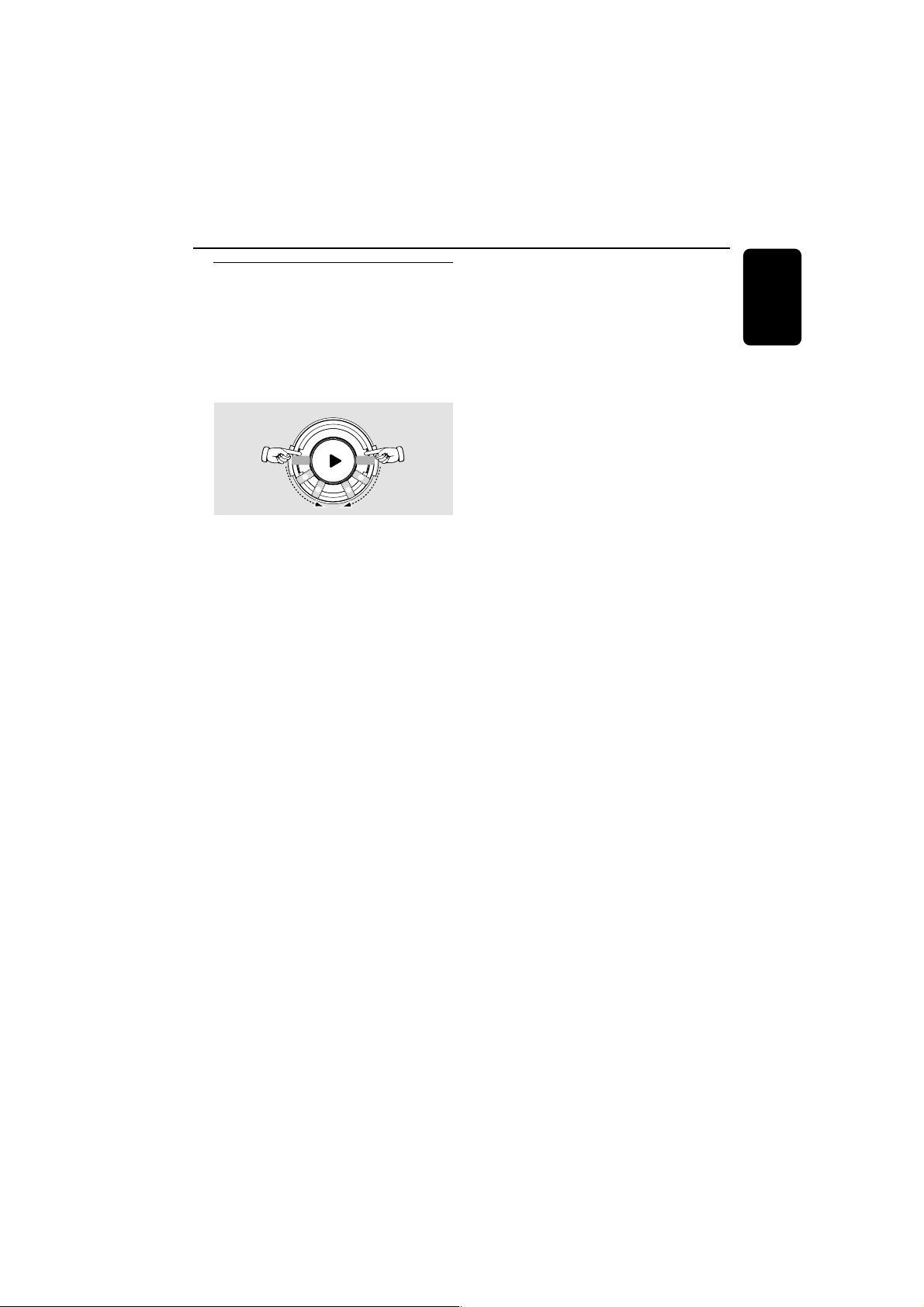
Using the soft keys
Each source/service has different sort modes.
For example, the sort modes when playing back
an MP3CD are ALBUM, PLAYLIST, ARTIST and
TRACK. (only some of the modes may be
available, depending on the disc)
The “( “ or “)“ at the bottom right or left hand
corner of the screen indicates that there is more
information to be viewed.
SLEEPINCR. SURR. ALLREPEATSHU FFLEDIM 123 AM FMMWLW
REC
NEWS
1 2 3
NAVIGATE PLAY FAVO RITES
CD
CONNECT
OPTIONS AUX
TUNER
PC-LINK
OPEN/
CLOSE
VIEW
W
OO
X TREBLE BASS
SOUND JOG
FAVORITES
STANDBY•ON
ECO POWER
MICRO HIFI SYSTEM
CANCELRESUME
OK
ENTER
BACK
iR
•
•
•
•
••
••
•
•
••
••
•
•
To select from choices on the bottom
line of the display
● Use the left hand soft key (@ ) or right hand soft
key (!) on your system (à / á on the remote
control).
Basic Functions
17
English
3139 115 21551
Scrolling
All lists in navigation view are sorted in
alphabetical or numerical order.
To scroll through a list
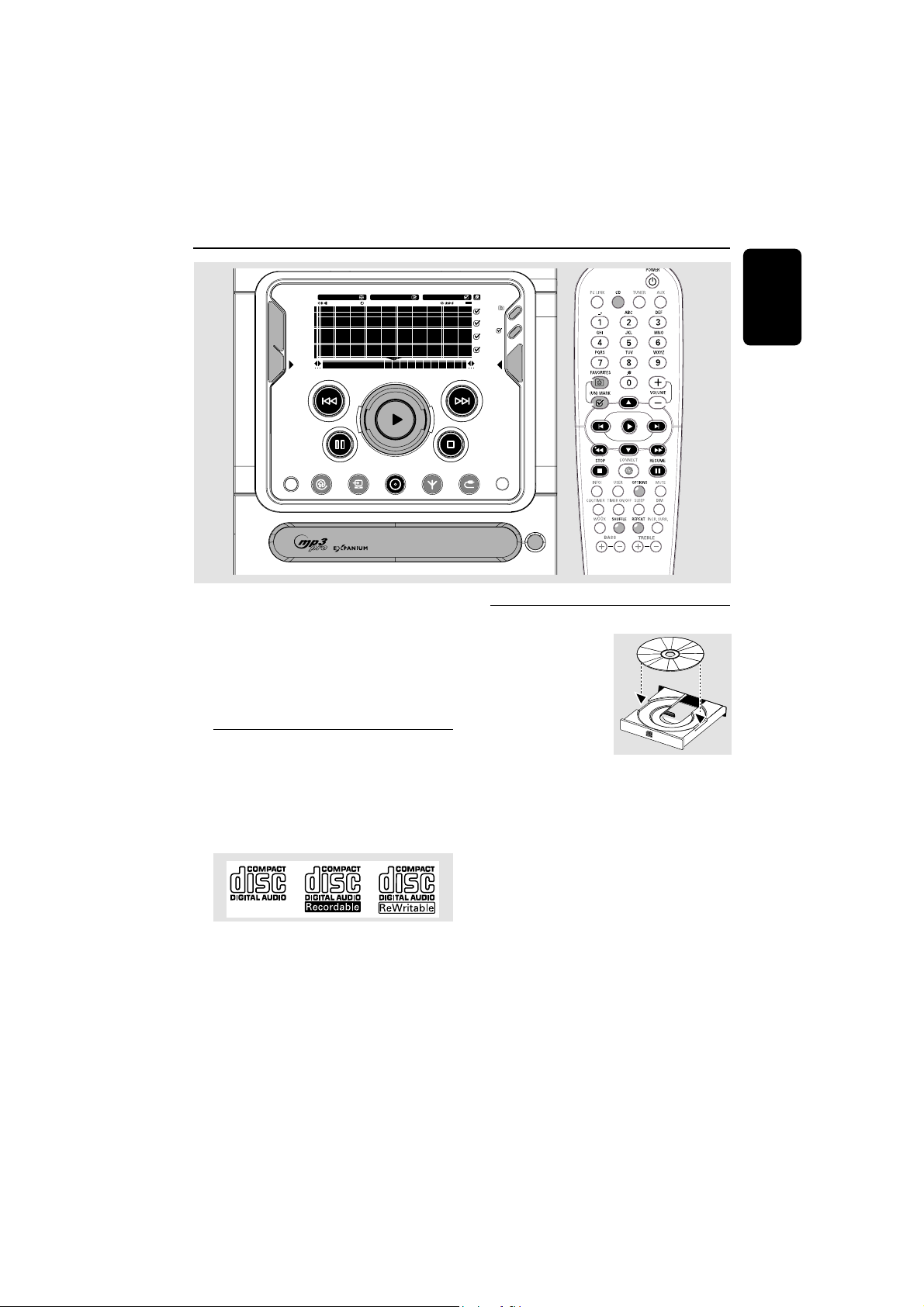
● Adjust the navigation jog clockwise to scroll
down or anti-clockwise to scroll up. There are
two scrolling speeds : 1slow and 2fast.
OK
s
c
r
o
l
l
u
p
s
c
r
o
l
l
d
o
w
n
1
1
2
2
1 Enables you to skip forward/backward to an item
on the list.
2 Enables you to skip forward/backward by several
items on the list.
Basic Functions

18
English
3139 115 21551
Internet Audio
Connecting to your PC (PC-LINK)
This feature allows you to stream your favorite
MP3 music from your PC via the home PC’s
network. In order to enjoy the PC-Link, you
have to install the PC-Link PC application. This
application can be downloaded from
“http://My.Philips.com”.
1 Press PC-LINK.
➜ “
SS
SS
S
CANNING FOR PC’SCANNING FOR PC’S
CANNING FOR PC’SCANNING FOR PC’S
CANNING FOR PC’S” is displayed.
➜ If no PC is found within 30 seconds, an error
message “
NO PC’S FOUNDNO PC’S FOUND
NO PC’S FOUNDNO PC’S FOUND
NO PC’S FOUND” is displayed. Check
your network setup.
➜ If more than one PC is found, the names of
the servers are displayed. Select the preferred
server by pressing
2 2
2 2
2 .
➜ If only one PC is found, the system switches
to sort mode in navigation view.
2 Press the soft key (! or @) to select the following
options from the navigation view : ARTIST,
ALBUM, GENRE, PLAYLIST or TRACK.
➜ If favourites mode is active, only favourites of
current list are displayed.
3 Use the navigation jog (or press 3 / 4 on the
remote control) until the desired item is
highlighted.
● To mark or unmark into the favourites list, press
(UN)MARK ( ).
4 Press OK (É) to confirm the selection and start
playback.
● To play from the favourites list, press
FAVORITES ( ) and followed by
2 2
2 2
2 .
Note:
– PC-Link favourites are not user specific. The
same PC-Link server will always have the same
favourites.
Connecting to online music
services
The CONNECT feature is not a source/service
by itself. It works with on-line services such as
Internet radio stations to get access to music.
The services offer different types of Internet
audio content, that can be categorised by
GENRE, REGION, LANGUAGE, PERSONAL,
STATION, etc..
1 Press CONNECT.
➜ A list of on-line services is displayed.
MY RADIO
STREAMIUM RADIO
➜ If unsuccessful, “
DID NOT CONNECT.DID NOT CONNECT.
DID NOT CONNECT.DID NOT CONNECT.
DID NOT CONNECT.
PLEASE TRY AGAIN LATERPLEASE TRY AGAIN LATER
PLEASE TRY AGAIN LATERPLEASE TRY AGAIN LATER
PLEASE TRY AGAIN LATER “ is displayed.
2 Use the navigation jog (or press 3 / 4 on the
remote control) to select a music service
provider and then press OK (É) or
ENTER (T) to enter the service.
➜ The system will start connecting to the
service and “
LOADING...LOADING...
LOADING...LOADING...
LOADING...” is displayed
➜ When connection is established, the system
will show a list of available internet music
services or subcategories.
3 To enter a subcategories, press OK (É) or
ENTER (T). To start playing a certain music
service, press OK (É). To go back to a higher
level or leave a music service, go to navigation
view by pressing VIEW or using navigation jog
and press BACK (S).
➜ If there are sort modes for the music services
available, they will be shown on the bottom line
of the display. You can change the sort mode by
pressing the soft keys (@ ) or (!).
Notes:
– Only Stations can be marked as a favourite.
– Each user can have its own favourites.

19
English
3139 115 21551
Set options
An option menu exists for each source/service
except for TUNER and AUX. The available
option menus are detailed within the respective
source/service sections in this manual.
1 Press CONNECT followed by OPTIONS.
2 Press the soft key (!) on the system to select
“
SETSET
SETSET
SET”.
➜ Below are some possible options :
– SET REGISTRATION
– SELECT USER
– NETWORK CONFIG
– PROXY CONFIG
– NETWORK INFO
– PRODUCT INFO
– DISABLE INTERNET
– SOFTWARE UPGRADE
– RESTORE DEFAULTS
Note:
– This option list may be extended or changed if
new services become available.
3 Use the navigation jog (or press 3 / 4 on the
remote control) to select the desired set options
and press OK (2) to confirm.
Set Registration
Set Registration is necessary to utilise various
system functions.
1 Use the numerical/alphabetical keypad on the
remote control to enter your e-mail address.
To delete a character
● Press S to move the cursor backward.
To exit the registration mode without
storing
● Press Ç.
2 Press OK (2) to confirm your entry.
➜ Your registration confirmation details will be
e-mailed to you.
Note:
– Registration is only available for the default user.
Select User
The user menu displays the available account(s)
for easy selection. Select a user account to
retrieve user specific favourites within a source/
service.
Network Configuration
Depending on the type of Internet connection
you have, “DHCP” or “STATIC” must be selected
to enable your system to connect to the
Internet. Check with your service provider to
obtain the correct IP mode.
For users whose systems are set to “STATIC”
mode, the following additional input fields have
to be completed :
– SET IP
– SET NETMASK
– SET GATEWAY
– SET DNS 1
– SET DNS 2
Check with your service provider and enter the
necessary connection settings for these options.
Note:
– The change of network configuration is only
necessary if your system does not work with the
default configuration.
Proxy Configuration
Check with your service provider to obtain the
correct proxy name and proxy port.
Network Information
This feature reports the details of your network
connection.
Product Information
Check the current system information.
Disable Internet
Selecting this feature will disable the internet
connection.
Internet Audio

20
English
3139 115 21551
Internet Audio
Software Upgrade
This feature allows you to check for new
software updates. If you are already a registered
user, “My.Philips.com” will automatically notify you
of any software updates by e-mail.
Restore Defaults
Selecting this feature will revert the system to
the default setting.
WARNING!
Restoring the default settings erases all
the information stored in the set options.
You will remain registered at
My.Philips.com.
Note:
– To terminate internet access when switching the
source mode to CD or AUX, press OPTIONS and
select accordingly.
About “My.Philips.com”
“My.Philips.com” provides a personal online
tool for managing your entertainment choices. It
is an exclusive service to owners of Philips’
premium internet-connected products. Once
you have registered with “My.Philips.com”, you
will be able to :
– create and personalise your music selections.
– update on latest music releases or favourite
artists.
– keep up with developments in technology
and software.
– contact the music service providers.
– review and obtain information on artists and
music tracks by pressing INFO! button.
21
English
3139 115 21551
CD/MP3-CD Operations
SLEEPINCR. SURR. ALLREPEATSHUFFLEDIM 123 AM FMMW LW
REC
NEWS
1 2 3
NAVIGATE PLAY FAVORITES
CD
CONNECT
OPTIONS AUX
TUNER
PC-LINK
OPEN/
CLOSE
VIEW
FAVORITES
CANCELRESUME
OK
ENTERBACK
iR
•
•
•
•
IMPORTANT!
– This system is designed for regular
discs. Therefore, do not use any
accessories such as disc stabiliser rings or
disc treatment sheets.
– Do not load more than one disc into
the tray.
Discs for playback
This system is able to play :
– All pre-recorded audio CDs
– All finalised audio CDR and audio
CDRW discs
– CD’s with MP3 and/or MP3PRO files (files
end with .mp3)
Loading disc
1 Press OPEN/CLOSE
to open the disc tray.
2 Load in a disc with the
label side facing up.
3 Press OPEN/CLOSE
again to close the disc
tray.
➜ The system detects the type of disc being
loaded, “
CDCD
CDCD
CD” or “
MP3 CDMP3 CD
MP3 CDMP3 CD
MP3 CD” is displayed.
➜ The system then starts to retrieve text
information for the disc.
Notes:
– To ensure good system performance, wait until
the disc tray completely reads the disc before
proceeding.
– For MP3 discs, the disc reading time may exceed
10 seconds due to the large number of songs
compiled onto one disc.
P
O
W
E
R
O
N
/
O
F
F

22
English
3139 115 21551
CD/MP3-CD Operations
Basic operations
Playing a disc
● Press 2
.
To interrupt playback
● Press Å.
➜ The current track time flashes.
● To resume playback, press Å again.
To stop playback
● Press Ç.
Selecting a desired track/passage
To select a desired track
– While playing
● Press S or T (or ¡ / ™ on the remote
control) repeatedly until the desired track is
displayed.
– in stop mode
● Use the navigation jog (or press 3 / 4 on the
remote control) until the desired track is
highlighted.
● PressÉ to start playback.
To search for a particular passage during
playback
● Press and hold S or T (or à / á on
the remote control) until the desired passage is
located.
➜ During searching, the volume will be reduced.
To skip to the beginning of the current
track during playback
● Press S ( ¡) once.
Repeat and Shuffle
You can select and change the various play
modes before or during playback.
Repeat play
1 Press REPEAT on the remote control
repeatedly to select the following :
➜ REPEAT TRACK – repeat the current track.
➜ REPEAT ALL – repeat the entire disc.
2 To resume normal playback, press REPEAT
until "
REPEAT OFFREPEAT OFF
REPEAT OFFREPEAT OFF
REPEAT OFF" is displayed.
Random play
1 Press SHUFFLE on the remote control.
➜ SHUFFLE is shown and "
SHUFFLINGSHUFFLING
SHUFFLINGSHUFFLING
SHUFFLING" is
displayed.
➜ All the tracks or favourite tracks (if favourite
mode is active) will be played in random order.
2 To resume normal playback, press SHUFFLE
again.
➜ SHUFFLE disappears.
Playing a MP3-CD
1 Load in a MP3-CD.
➜ “
ANALYZING DISCANALYZING DISC
ANALYZING DISCANALYZING DISC
ANALYZING DISC” is shown.
2 Press the soft key (! or @) to select the following
options from the navigation view : ALBUM
(directory name on disc), PLAYLIST or TRACK
(file name).
3 Use the navigation jog (or press 3 / 4 on the
remote control) until the desired item is
highlighted.
4 PressÉ to start playback.
● Pressing the REPEAT or SHUFFLE button
will repeat or shuffle the last selected option.
➜ REPEAT – repeat the current album/playlist/
artist/track.
➜ REPEAT ALL – repeat all albums/playlists/
artists/tracks.
➜ SHUFFLE – shuffle all albums/playlists/artists/
tracks.
23
English
3139 115 21551
CD/MP3-CD Operations
display screen
2
1
3
5
4
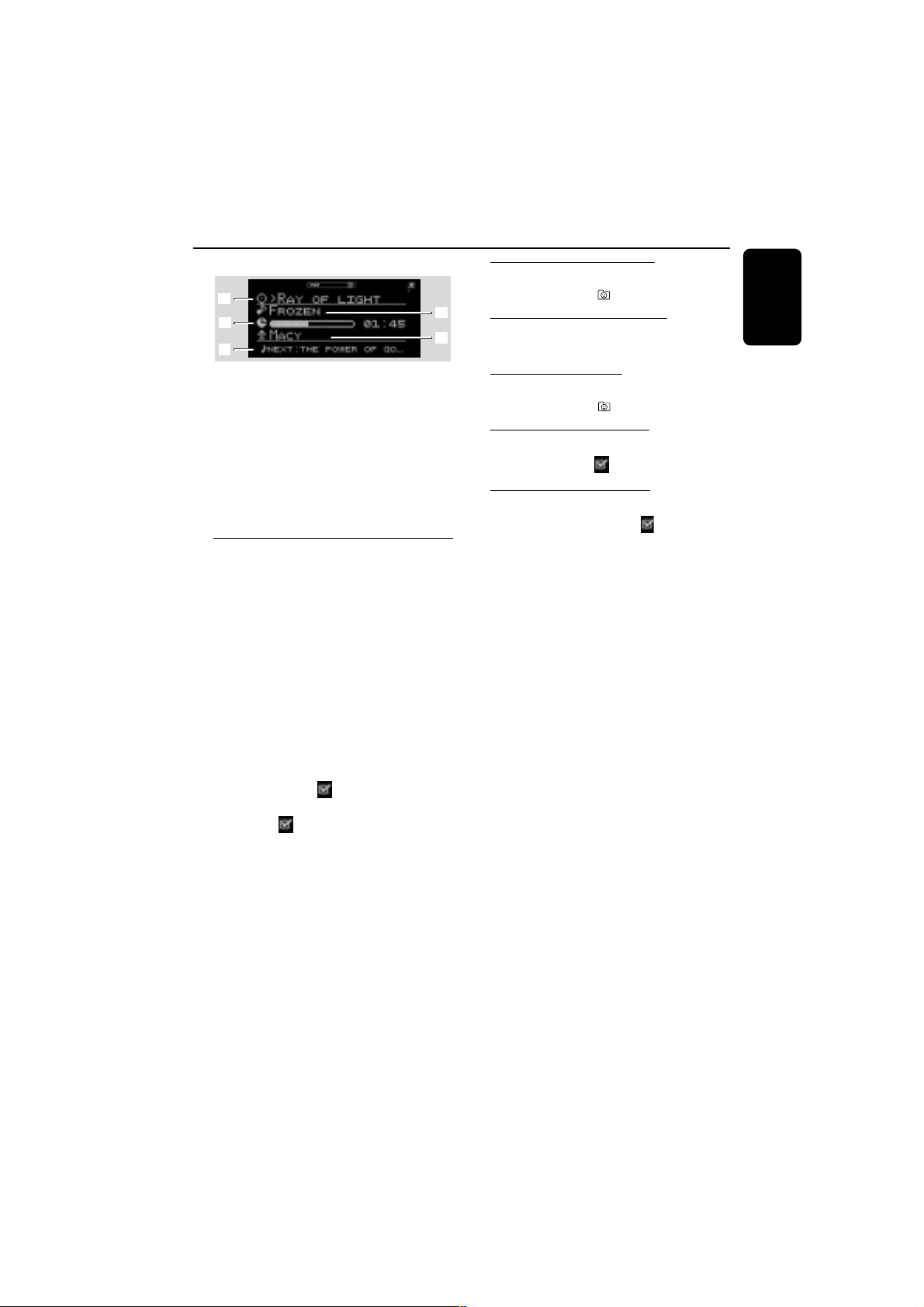
1 The selected item is shown (album name, playlist
name, artist name or MP3-CD name)
2 Track name.
3 Elapsed play time.
4 Artist name is shown. If 1 shows the artist
name, then album name is shown here.
5 Next track name.
Marking favourite tracks
This feature allows you to mark your favourite
tracks for easy playback the next time you load
in the CD/MP3 CD again. It can store up to a
maximum of 50 tracks for a normal CD and 128
tracks for MP3-CD. Different users can store
different favourites for the same CD/MP3CD
using their individual user ID.
You can manage your CD/MP3-CD favourites in
My.Philips.com (refer to “My.Philips.com” for
more information).
1 Use the navigation jog (or press 3 / 4 on the
remote control) to scroll through the tracks.
2 Press (UN)MARK ( ) to add into the
favourite list.
➜ The icon “ ” appears next to the selected
track.
● Repeat this step to select additional tracks to
your favourite list.
➜ The next selected track will appear at the
end of the list.
➜ If you attempt to programme more than
50 (CD) / 128 (MP3-CD) tracks, ”
NO MORENO MORE
NO MORENO MORE
NO MORE
FAVORITES CAN BE ADDEDFAVORITES CAN BE ADDED
FAVORITES CAN BE ADDEDFAVORITES CAN BE ADDED
FAVORITES CAN BE ADDED” is displayed.
Activating the favourites list
● Press FAVORITES ( ).
Deactivating the favourites list
● Press CD.
Playing a favourites list
● Press FAVORITES ( ) followed by
22
22
2.
Cancelling a favourite track
● Press (UN)MARK ( ) on the marked track.
Deleting all favourite tracks
1 Press and hold (UN)MARK ( ) for more than
three seconds.
➜”
DO YOU WANT TO DELETE CDDO YOU WANT TO DELETE CD
DO YOU WANT TO DELETE CDDO YOU WANT TO DELETE CD
DO YOU WANT TO DELETE CD
FAVORITES?FAVORITES?
FAVORITES?FAVORITES?
FAVORITES?” is displayed, followed by “
YESYES
YESYES
YES”
and “
NONO
NONO
NO” options.
2 Press the soft key (@) on the system to select
“
YESYES
YESYES
YES”.
Note:
– When FAVOURITES is on, no additional tracks
can be marked.
24
English
3139 115 21551
CD/MP3-CD Operations
Artist and title information
The system is able to display artist and title
information such as CD title, artist’s name,
musical genre, track titles and so forth
(metadata).
CD
The tracks on the disc are displayed in numerical
order when no CD information is available. If
artist and title information is detected, the song
titles will be displayed instead.
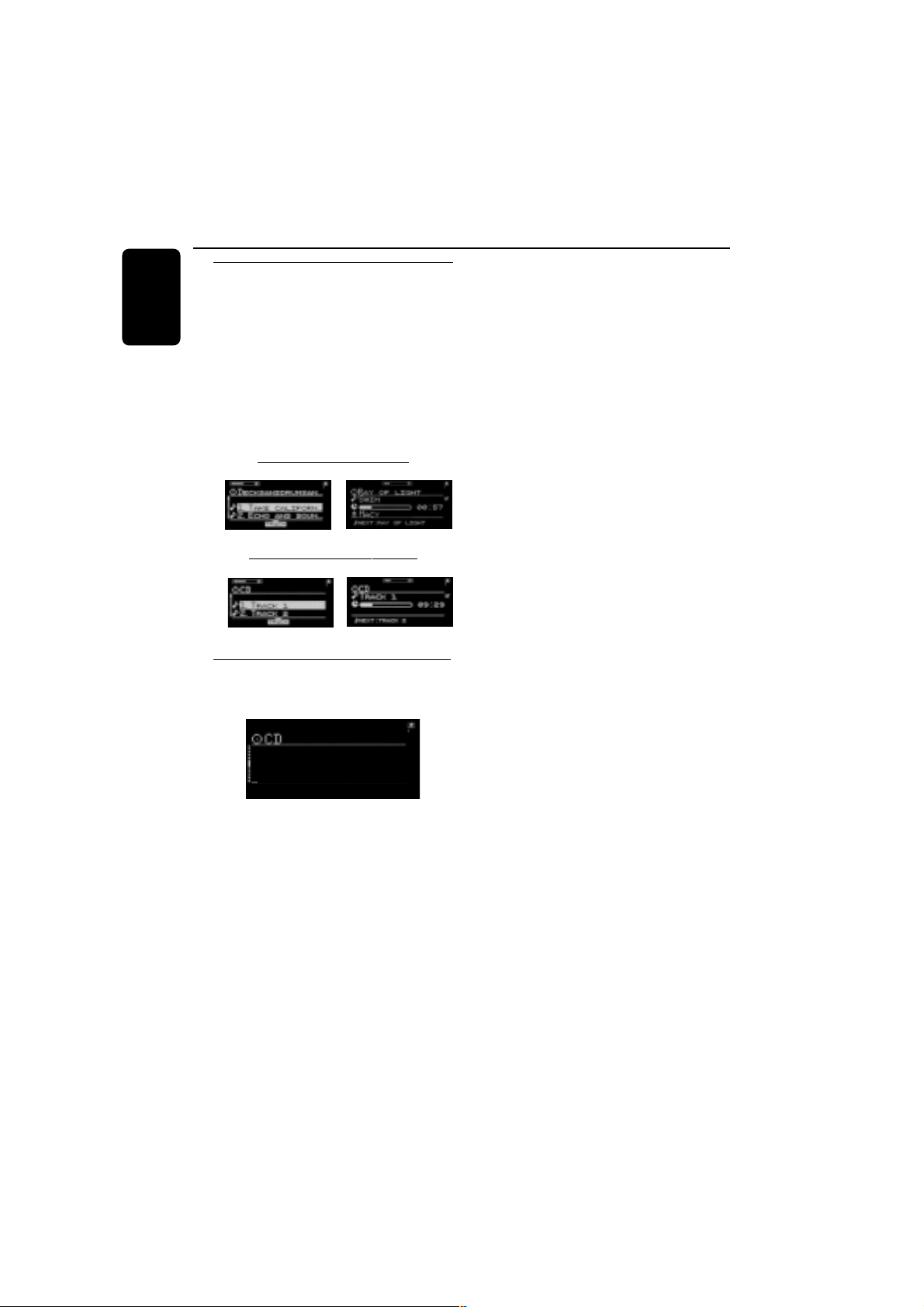
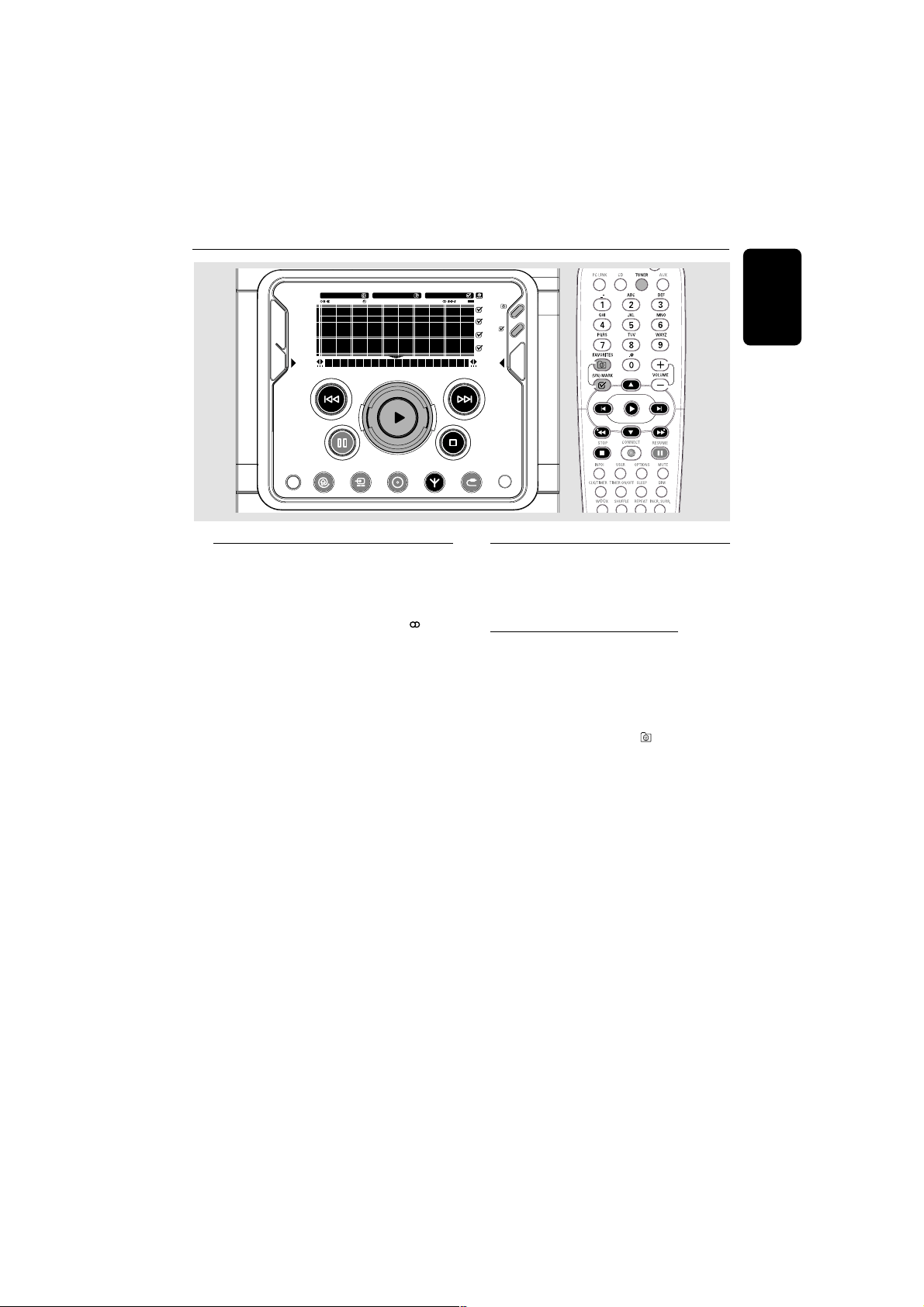
with artist and title information
navigation view play view
without artist and title information
navigation view play view
Requesting on-line audio CD information
1 While in CD mode, press OPTIONS.
➜ A list of options is displayed on screen.
GET CD INFO
RESET CD INFO
NEXT CD INFO
2 Use the navigation jog (or press 3 / 4 on the
remote control) to select “
GET CD INFOGET CD INFO
GET CD INFOGET CD INFO
GET CD INFO” and
press OK (2) to confirm.
➜ The retrieved information will replace the
default track numbers on your screen.
If more information is available, the screen will
display “
MULTIPLE MATCHESMULTIPLE MATCHES
MULTIPLE MATCHESMULTIPLE MATCHES
MULTIPLE MATCHES”.
● Press OPTIONS and use the navigation jog to
select “
NEXT CD INFONEXT CD INFO
NEXT CD INFONEXT CD INFO
NEXT CD INFO” and press OK (2) to
confirm to access alternative CD information.
To return to default CD information
(numerical order)
● Press OPTIONS and use the navigation jog to
select “
RESET CD INFORESET CD INFO
RESET CD INFORESET CD INFO
RESET CD INFO”.
➜ The tracks will be displayed numerically (for
example, TRACK 1, TRACK 2, ...)
MP3-CD
If you want to replace the file names and
directory names on your display by artist, album
and track name, press OPTIONS. Use the
navigation jog (or press 3 / 4 on the remote
control) to select “
READ MP3CD INFOREAD MP3CD INFO
READ MP3CD INFOREAD MP3CD INFO
READ MP3CD INFO” and
press OK (2) to confirm. To start reading this
information, use the soft key to select “
YESYES
YESYES
YES”.
This will take up to several minutes, but it only
has to be done once for each MP3CD. You will
now be able to access additional sort modes like
artist name, album name or title information by
pressing the soft keys (@ ) or (!).
25
English
3139 115 21551
Tuning to radio stations
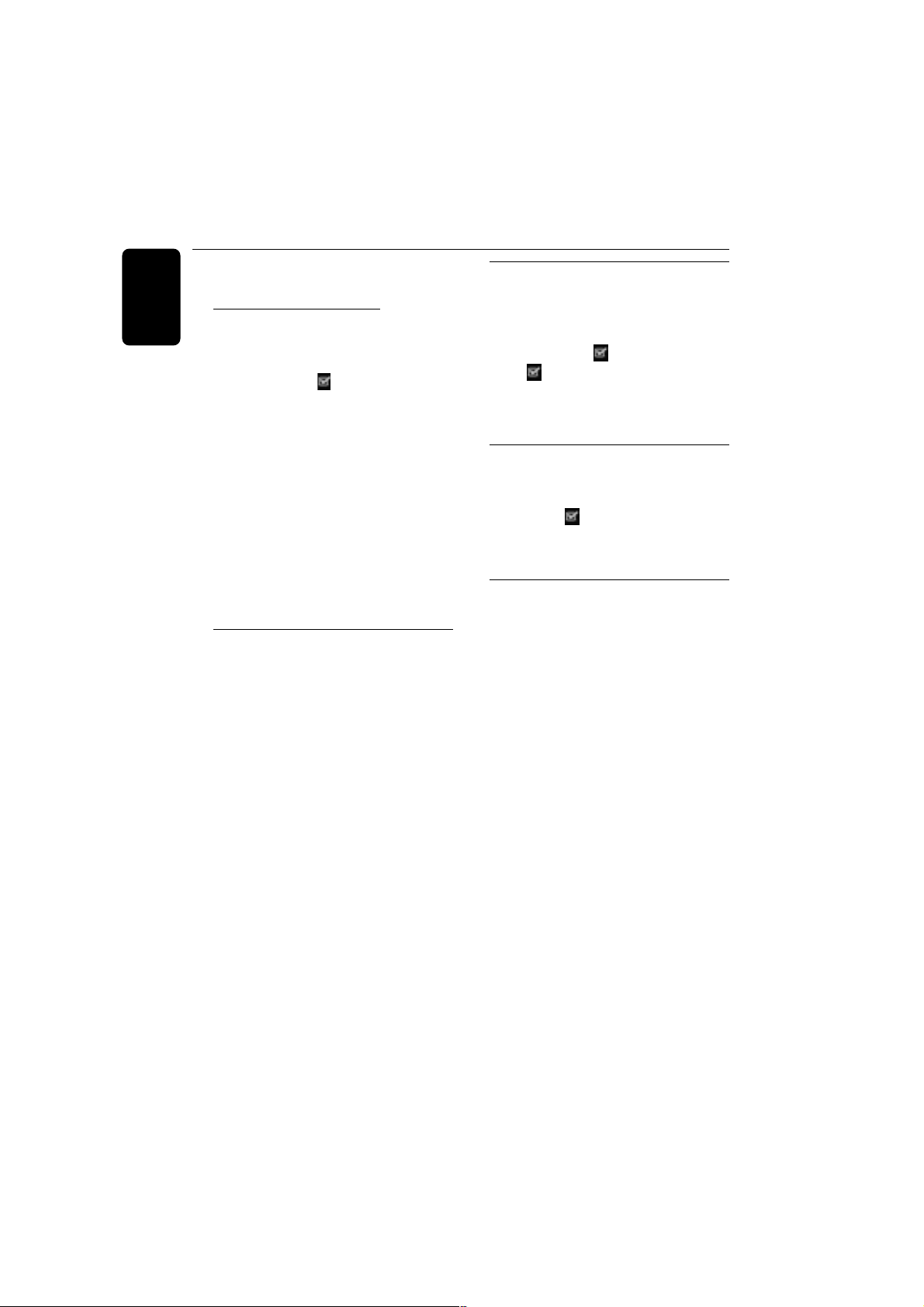
1 Press TUNER to select TUNER mode.
➜ "
TUNERTUNER
TUNERTUNER
TUNER" is displayed. The current radio
frequency will appear on the display.
➜ If an FM station is received in stereo, is
displayed.
2 Press TUNER again to select the desired
waveband : FM, MW or LW.
3 Press and hold S or T (or à / á on
the remote control) until the frequency
indication starts to change, then release.
➜ The display will show "
SEARCHING...SEARCHING...
SEARCHING...SEARCHING...
SEARCHING..." until
a radio station with sufficient signal strength is
found.
4 Repeat step 3 if necessary until you find the
desired radio station.
● To tune to a weak station, press S or T
(à / á) briefly and repeatedly until optimal
reception found.
Storing favourite radio stations
You can store up to 40 favourite radio stations in
the memory. Favourites is always on in Tuner
mode.
Automatic Preset Programming
● Plug and Play setting (refer to “Basic Functions -
Plug and Play”).
OR
1 Press TUNER to select TUNER mode.
2 Press and hold FAVORITES until
““
““
“
AUTOAUTO
AUTOAUTO
AUTO
PROGRAM FAVORITE STATIONSPROGRAM FAVORITE STATIONS
PROGRAM FAVORITE STATIONSPROGRAM FAVORITE STATIONS
PROGRAM FAVORITE STATIONS
??
??
?” is
displayed, followed by “
YESYES
YESYES
YES” and “
NONO
NONO
NO” options.
3 Press the soft key (@) on the system to select
“
YESYES
YESYES
YES”.
➜ “
AUTO PROGRAM IN PROGRESS...AUTO PROGRAM IN PROGRESS...
AUTO PROGRAM IN PROGRESS...AUTO PROGRAM IN PROGRESS...
AUTO PROGRAM IN PROGRESS...” is
displayed.
➜ The system will automatically store the radio
stations with sufficient signal strength, starting
from all RDS stations and followed by FM, MW
and LW bands respectively. Weak RDS stations
may be stored in later presets.
➜ When all the available radio stations are
stored or the memory for 40 presets is used, the
last preset radio station (or the first available
RDS station) will be played.
SLEEPINCR. SURR. ALLREPEATSHUFFLEDIM 123 AM FMMW LW
REC
NEWS
1 2 3
NAVIGATE PLAY FAVORITES
CD
CONNECT
OPTIONS AUX
TUNER
PC-LINK
VIEW
FAVORITES
CANCELRESUME
OK
ENTERBACK
iR
•
•
•
•
Radio Reception
26
English
3139 115 21551
To stop storing the automatic preset
● Press Ç.
Manual Preset Programming
1 Tune to your desired radio station (refer to
“Tuning to radio stations”).
2 Press (UN)MARK ( ).
➜ The current station will be stored in the next
available preset number.
● Repeat steps 1–2 to store other radio stations.
Notes:
– If a radio station has been stored in one of the
presets, it will not be stored again under another
preset number.
– The favourites function for this source is not
user dependent. The same favourites list applies
for all users.
– If you attempt to store more than 40 preset
radio stations, "
NO MORE FAVORITES CAN BENO MORE FAVORITES CAN BE
NO MORE FAVORITES CAN BENO MORE FAVORITES CAN BE
NO MORE FAVORITES CAN BE
ADDEDADDED
ADDEDADDED
ADDED
" is displayed.
Selecting a favourite radio
station
1 Use the navigation jog (or press 3 / 4 on the
remote control) to select the desired preset
radio station from the favourite list.
2 Press OK (
22
22
2) to confirm.
➜ The preset number, radio frequency, and
waveband are displayed.
OR
● Press ¡ / ™ on the remote control.
Radio Reception
Erasing a favourite radio station
1 Use the navigation jog (or press 3 / 4 on the
remote control) to select a preset radio station
from the favourite list.
2 Press (UN)MARK ( ).
➜ The icon will disappear.
➜ The preset numbers of all other preset
stations in the waveband with a higher number
are decreased by one.
Deleting all the favourite radio
stations
1 In Tuner mode, press and hold
(UN)MARK ( ) for more than 3 seconds.
2 Press the soft key (@) on the system to select
“
YESYES
YESYES
YES”.
RDS
RDS (Radio Data System) is a broadcasting
service that allows FM stations to send additional
information along with the regular FM radio
signal. This additional information can contain:
STATION NAME: The radio station name is
displayed.
PROGRAMME TYPE: The following
programme types exist and can be received by
your tuner: News, Affairs, Info, Sport, Educate,
Drama, Culture, Science, Varied, Pop M, Rock M,
M.O.R. (middle of the road music), Light M,
Classics, Other M, No type.
RADIO TEXT (RT): text messages appear on
the display.
Receiving RDS Radio Station
● Tuned to a radio station from FM band.
➜ If the radio station is transmitting RDS signal,
the RDS logo and the radio station name/text
will appear on the display.

27
English
3139 115 21551
Setting the RDS clock
Some RDS radio station may be transmitting a
real clock time at an interval of every minute. It
is possible to set the clock by using a time signal
which is broadcast together with the RDS signal.
1 Press CLK/TIMER twice.
➜ "
00:0000:00
00:0000:00
00:00" or current time starts flashing.
2 Press the soft key (!) on the system.
➜ "
SEARCHING FOR RDS TIME...SEARCHING FOR RDS TIME...
SEARCHING FOR RDS TIME...SEARCHING FOR RDS TIME...
SEARCHING FOR RDS TIME..." is
displayed.
➜ When RDS time is read, "
RDS TIMERDS TIME
RDS TIMERDS TIME
RDS TIME
FOUNDFOUND
FOUNDFOUND
FOUND" is displayed and the current time will be
stored.
➜ If the RDS station does not transmit RDS
time within 90 seconds, "
NO RDS TIMENO RDS TIME
NO RDS TIMENO RDS TIME
NO RDS TIME" is
displayed.
Note:
– Some RDS station may be transmitting a real
time clock at a minute interval. The accuracy of
the transmitted time depends on the transmitting
RDS station.
Radio Reception
28
English
3139 115 21551
Personalised and interactive features
Multiple users
This system allows personalisation for multiple
users. Your personal selections are bound to a
user account. This feature is available for
PC-LINK, CONNECT and CD only.
Creating your user account
1 Enter your e-mail address in the set options
menu “SET REGISTRATION”. Within a short
period you will receive an e-mail with your
registration confirmation details.
2 To complete registration, follow the link displayed
in the e-mail.
Selecting a user account
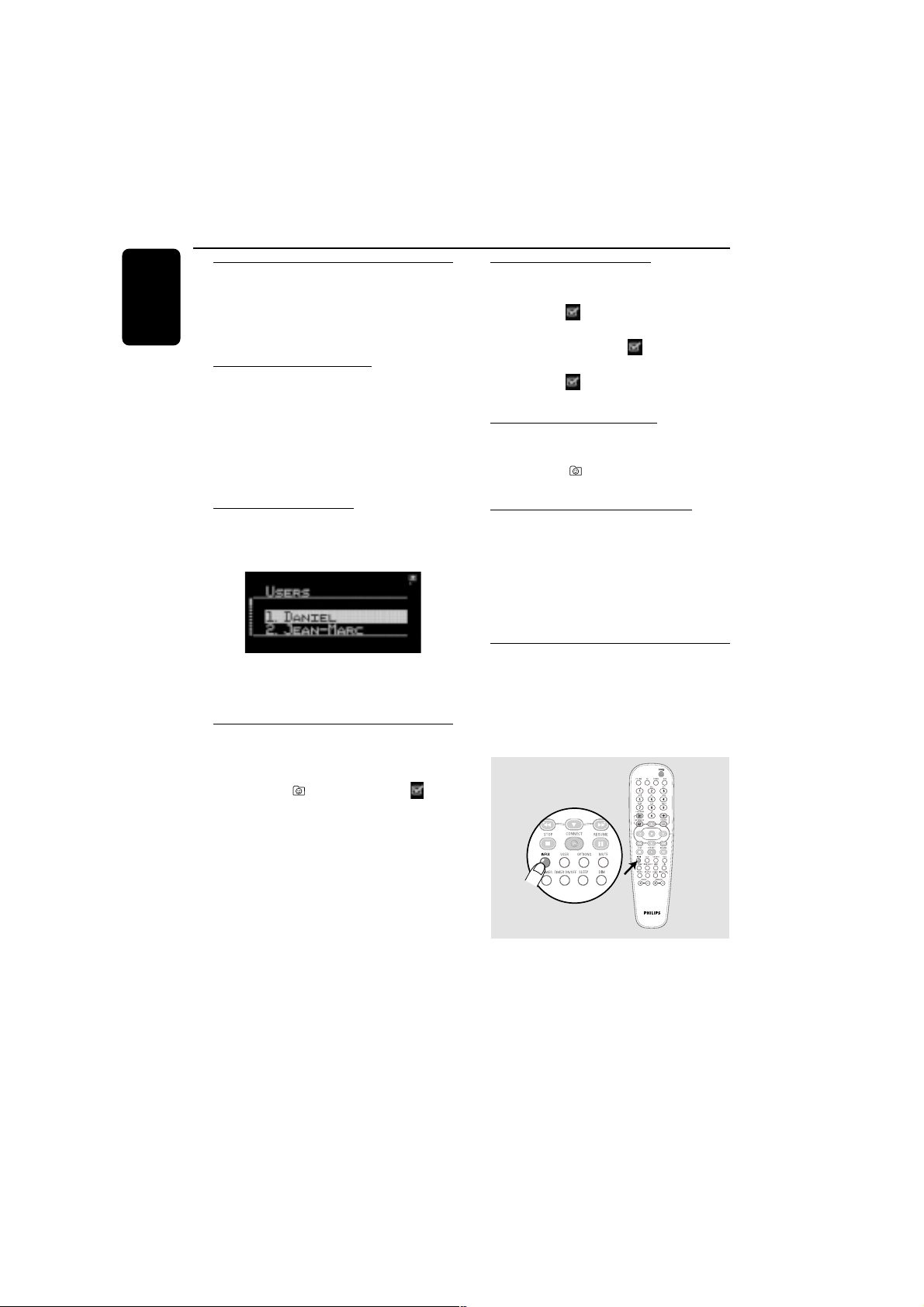
1 Press USER on the remote control.
➜ The available user accounts will be displayed.
2 Use the navigation jog (or press 3 / 4 on the
remote control) to select and then press OK
(É) to confirm.
Favourites
In any modes, you can easily manage your
favourite tracks and stations by using the
FAVORITES ( ) and (UN)MARK ( )
buttons.
Creating your favourites list
When in CD/PC-LINK/CONNECT-mode, press
(UN)MARK ( ) to add/remove tracks or
stations to/from your favourites lists. In TUNER-
mode, press (UN)MARK ( ) to save and
delete radio stations and hold down
(UN)MARK ( ) to auto programme radio
stations.
Accessing your favourites list
To play from the favourites list, press
FAVORITES ( ), select a track or station,
followed by
2 2
2 2
2 .
Returning to normal list (exit from
favourites list)
Press the relevant source key (CD, PC-LINK or
CONNECT). For example, if you are currently
in CD favourites list, pressing CD button will
deactivate the favourites list and return to the
normal list.
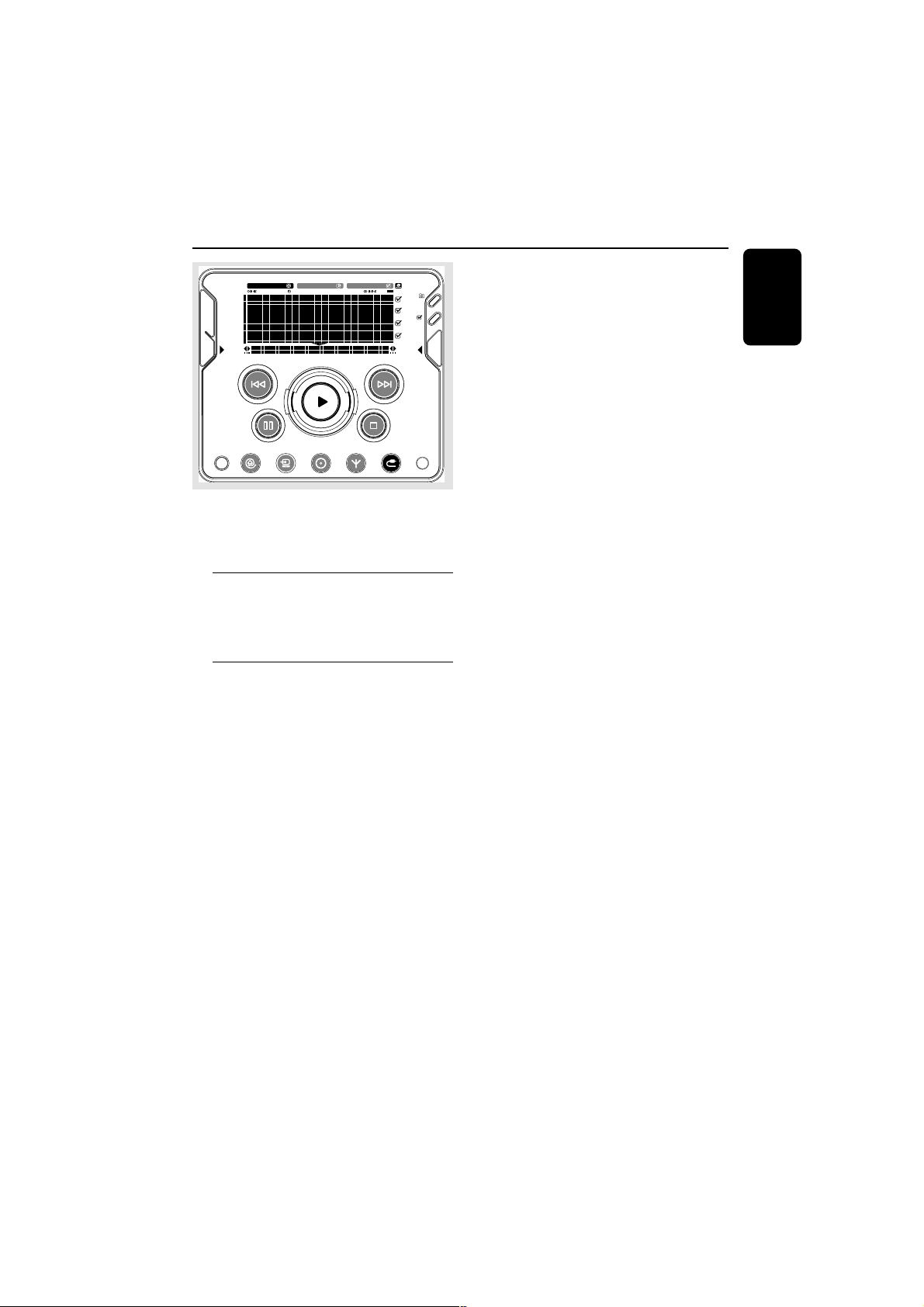
Getting extra information
Pressing the INFO! button sends extra
information about the currently playing item to
your email address. The INFO! function works
within all source modes except TUNER and
AUX.
29
English
3139 115 21551
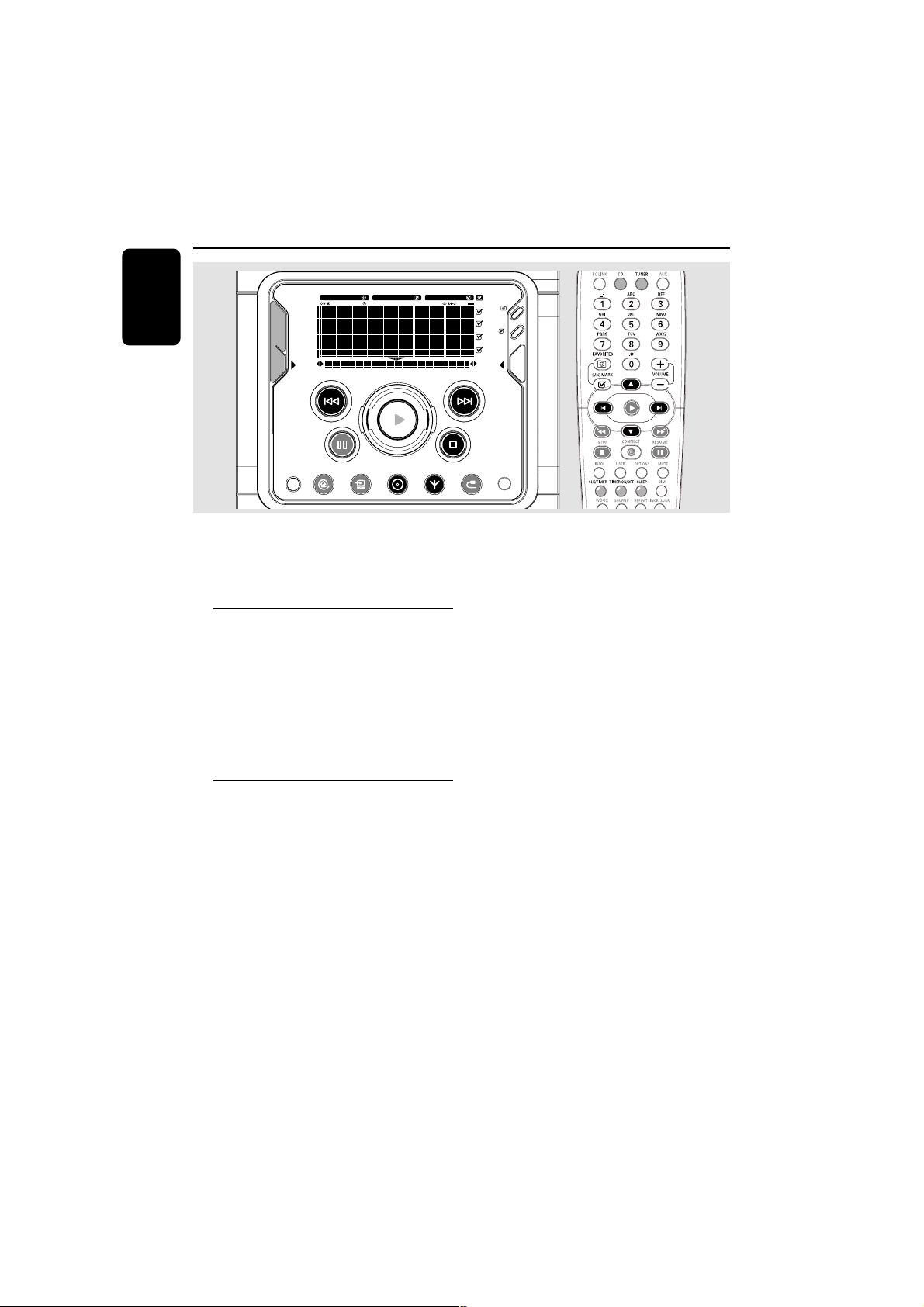
This source enables you to connect external
sound devices and play the sound through your
system’s built-in speakers.
Connecting an external device
● Connect the audio out terminals of the external
device to the AUX/CDR IN terminals of your
system.
Listening to an external source
1 Press AUX to select “
AUXAUX
AUXAUX
AUX” when connected to
a TV, VCR or Laser Disc player.
OR
● Press AUX again to select “
CDR/DVDCDR/DVD
CDR/DVDCDR/DVD
CDR/DVD” when
connected to a CD recorder or DVD player.
2 Play the external device.
● When CDR/DVD mode is selected, any audio
equipment connected to the LINE OUT
terminals of this micro system will be muted. You
will not be able to record or listen to the sound
on equipment connected to the LINE OUT
terminal.
External Sources
SLEEPINCR. SURR. ALLREPEATSHUFFLEDIM 123 AM FMMW LW
REC
NEWS
1 2 3
NAVIGATE PLAY FAVORITES
CD
CONNECT
OPTIONS AUX
TUNER
PC-LINK
VIEW
FAVORITES
CANCELRESUME
OK
ENTERBACK
iR
•
•
•
•
Notes:
– You are advised not to listen to and record from
the same source simultaneously.
– All the sound control features (INCR. SURR.,
BASS/TREBLE, for example) are available for
selection.
– Refer to the operating instructions for the
connected equipment for details.
30
English
3139 115 21551
Clock/Timer
IMPORTANT!
When in Eco Power standby mode, it is
not possible to operate the clock or
timer function.
View clock
The clock (if it is set) will be shown in standby
mode.
To view the clock in any source mode
(CD or TUNER for example)
● Press CLK/TIMER on the remote control.
➜ The clock is displayed for a few seconds.
➜ If the clock has not been set, "
--:----:--
--:----:--
--:--" is
displayed.
Clock setting
The clock can be set in either 12-hour or
24-hour mode ("
12:00 AM12:00 AM
12:00 AM12:00 AM
12:00 AM" or "
00:0000:00
00:0000:00
00:00", for
example).
1 In standby or view clock mode, press
CLK/TIMER once. In any other source
modes, press CLK/TIMER twice.
➜ "
12:00 AM12:00 AM
12:00 AM12:00 AM
12:00 AM" or "
00:0000:00
00:0000:00
00:00" starts flashing.
2 Press the left hand soft key (@) to select 12- or
24- hour clock mode.
3 Press S or T (or ¡ / ™
on the remote
control) to switch between hour or minutes
setting.
➜ The hour or minutes digits flash.
4 Use the navigation jog (or press 3
/
4
on the
remote control) to set the hour and minutes.
5 Press CLK/TIMER again to store the setting.
➜ The clock starts working.
To exit without storing the setting
● Press Ç.
Notes:
– The clock setting will be cancelled when the
power cord is disconnected or if a power failure
occurs.
– During clock setting, if no button is pressed
within 90 seconds, the system will exit clock setting
mode automatically.
– To set the clock automatically through the time
information in the RDS signal, refer to "Radio
Reception - Setting the RDS clock".
SLEEPINCR. SURR. ALLREPEATSHUFFLEDIM 123 AM FMMW LW
REC
NEWS
1 2 3
NAVIGATE PLAY FAVORITES
CD
CONNECT
OPTIONS AUX
TUNER
PC-LINK
VIEW
FAVORITES
CANCELRESUME
OK
ENTERBACK
iR
•
•
•
•

31
English
3139 115 21551
Timer setting
The system can switch on to CD, TUNER,
CONNECT or PC-LINK mode automatically at
a preset time, serving as an alarm to wake you
up.
IMPORTANT!
– Before setting the timer, ensure that
the clock is set correctly.
– The timer will always be switched on
after it has been set.
– The volume of the timer will increase
gradually from the minimum level to the
last tuned volume level.
– The system will switch to standby
mode if no button is pressed within 30
minutes after timer wake up.
1 Press and hold CLK/TIMER for more than
two seconds to select timer mode.
➜ "
12:00 AM12:00 AM
12:00 AM12:00 AM
12:00 AM" or "
00:0000:00
00:0000:00
00:00" or the last timer
setting starts flashing.
➜ starts flashing.
➜ The selected source will be lighted while
other available sources are flashing.
2 Press CD, TUNER, CONNECT or PC-LINK
to select the desired source.
➜ For CD mode, the timer will wake up by
playing the first track of the disc or favourite list.
If the disc tray is empty, it will switch to Tuner
mode.
➜ For Tuner mode, the timer will wake up by
playing the last tuned radio station.
➜ For CONNECT or PC-LINK mode, the timer
will wake up by playing the last streamed music.
If the connection fails, it will switch to Tuner
mode.
3 Press S or T (or ¡ / ™
on the remote
control) to switch between hour or minutes
setting.
➜ The hour or minutes digits flash.
4 Use the navigation jog (or press 3
/
4
on the
remote control) to set the hour and minutes.
5 Press CLK/TIMER to store the timer.
➜ "
TIMERTIMER
TIMERTIMER
TIMER", the set timer "
XX:XXXX:XX
XX:XXXX:XX
XX:XX" and the
selected source will be displayed.
➜ remains on the display.
● At the preset time, the selected sound source
will play.
To exit without storing the setting
● Press Ç.
Note:
– During timer setting, if no button is pressed
within 90 seconds, the system will exit timer setting
mode automatically.
Checking the timer
● Press CLK/TIMER once on the remote
control.
➜ If the timer has been activated, the set timer
information is displayed.
Activate/deactivate the timer
● Press TIMER ON/OFF repeatedly on the
remote control.
➜ If activated, the last set timer information is
displayed for a few seconds.
➜ If deactivated, “
TIMER OFFTIMER OFF
TIMER OFFTIMER OFF
TIMER OFF” is displayed.
Clock/Timer
32
English
3139 115 21551
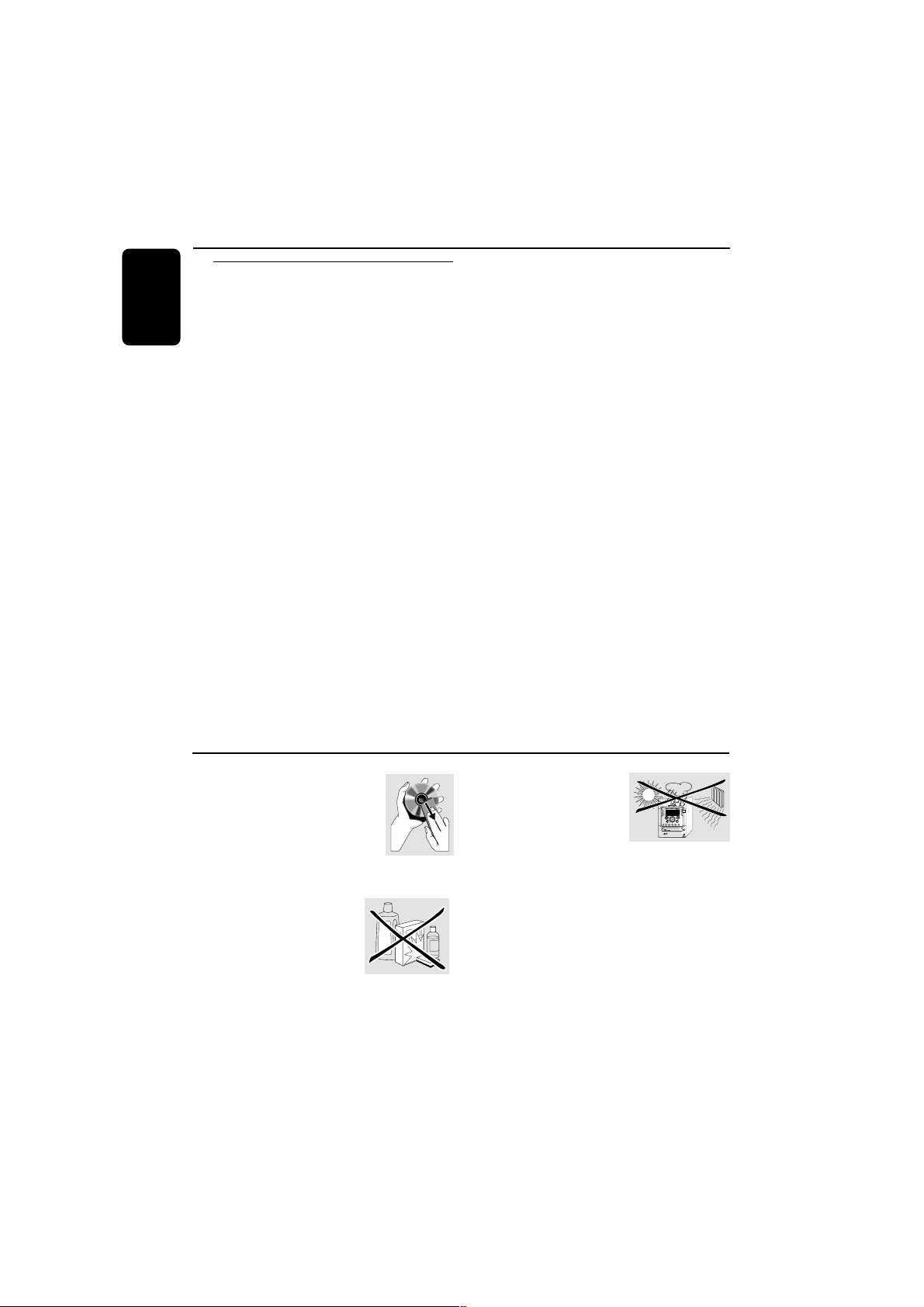
Sleep timer setting
The sleep timer enables the system to switch to
standby mode automatically at a preset time.
1 Press SLEEP on the remote control repeatedly
to select a preset time.
➜ The selections are as follows (time in
minutes):
1515
1515
15 ™
3030
3030
30 ™
4545
4545
45 ™
6060
6060
60 ™
9090
9090
90 ™
120120
120120
120 ™
OFFOFF
OFFOFF
OFF ™
1515
1515
15 …
➜ "
XX MINUTESXX MINUTES
XX MINUTESXX MINUTES
XX MINUTES" or "
OFFOFF
OFFOFF
OFF" is displayed. "
XXXX
XXXX
XX" is
the time in minutes.
2 When you reach the desired length of time, stop
pressing the SLEEP button.
➜ SLEEP is shown, except for "
OFFOFF
OFFOFF
OFF" mode.
➜ The sleep timer is now set. Before the system
switches to standby mode, a countdown of 10
seconds is displayed.
"
10 SECONDS10 SECONDS
10 SECONDS10 SECONDS
10 SECONDS" ™ "
9 SECONDS9 SECONDS
9 SECONDS9 SECONDS
9 SECONDS"....
™ "
1 SECOND1 SECOND
1 SECOND1 SECOND
1 SECOND" ™ "
SLEEPSLEEP
SLEEPSLEEP
SLEEP"
Clock/Timer
To clean a CD, wipe it in a straight
line from the centre toward the
edge using a soft, lint-free cloth. A
cleaning agent may damage the
disc! Write only on the printed
side of a disc and only with a soft
felt-tipped pen.
Clean the system with a soft,
slightly dampened, lint-free
cloth. Do not use any
cleaning agents as they may
have a corrosive effect.
Maintenance
SLEEPINCR. SURR. ALLREPEATSHUFFLEDIM 123 AMFMMW LW
REC
NEWS
1 2 3
NAVIGATE PLAY FAVORITES
STANDBY•ON
ECO POWER
CD
CONNECT
OPTIONS
STOPPAUSE
OK
ENTERBACK
AUX
TUNER
PC-LINK
OPEN/
CLOSE
VIEW
FAVORITES
WOOX TREBLE BASS
SOUND JOG
Do not expose the system
batteries or discs to
humidity, rain, sand or
excessive heat (caused by
heating equipment or direct
sunlight). Always keep the disc tray closed to
avoid dust on the lens.
To check the remaining length of time
after sleep timer is activated
● Press SLEEP once.
To change the preset sleep timer
● Press SLEEP again while the remaining sleep
timer is shown.
➜ The display will show the next sleep timer
options.
To deactivate the sleep timer
● Press SLEEP repeatedly until "
OFFOFF
OFFOFF
OFF" is displayed,
or press the STANDBY ON button.

33
English
3139 115 21551
Specifications
AMPLIFIER
Output power .............................................. 2 x 100 W MPO
2 x 50 W RMS
(1)
Signal-to-noise ratio .......................... ≥ 70 dBA (IEC)
Frequency response ......... 50 – 16000 Hz, ± 3 dB
Input sensitivity
AUX In / CDR/DVD In .................... 500 mV / 1V
Output
Speakers .................................................................... ≥ 6 Ω
Headphones ...................................... 32 Ω – 1000 Ω
Subwoofer Out .............. 1.3 V ±2dB, > 22000 Ω
Line Out ...................... 500 mV ±2dB, > 22000 Ω
(1) (6 Ω, 1 kHz, 10% THD)
CONNECT / PC-LINK / MP3-CD
Input
RJ45 jack .......................................................... IEEE 802.3
MP3 specifications
Frequency response (256 kbps) 63 – 14000 Hz
Signal-to-noise ratio ................................... ≥ 67 dBA
Channel separation ...................... ≥ 40 dB (1 kHz)
Total harmonic distortion (256 kbps) ... < 0.05%
Bit rate ..................................................... 32 – 256 kbps
Sampling frequencies
.................................... 16, 22.05, 24, 32, 44.1, 48 kHz
DISC PLAYER
Number of favourite tracks .......................... CD - 50
........................................................................ MP3-CD - 128
Frequency response .......................... 20 – 20000 Hz
Signal-to-noise ratio ....................................... ≥ 76 dBA
Channel separation .......................... ≥ 79 dB (1 kHz)
Total harmonic distortion ............ < 0.02% (1 kHz)
TUNER
FM wave range ................................... 87.5 – 108 MHz
MW wave range ................................ 531 – 1602 kHz
LW wave range ..................................... 153 – 279 kHz
Number of presets ........................................................ 40
Antenna
FM ..................................................................... 75 Ω wire
AM .............................................................. Loop antenna
SPEAKERS
Front left/right
System ..................... 3-way; Bass reflex system with
top firing wOOx
Impedance ........................................................................ 6 Ω
wOOx ................... 1 x 6.5" top firing wOOx driver
Woofer ................................................ 1 x 6.5" full range
Tweeter ............................................... 1 x 2.5" Ferrofluid
Polydome Tweeter ................................................... 1 x 1"
Dimensions (w x h x d) . 180 x 244 x 227 (mm)
Weight .................................................................... 3 kg each
GENERAL
Material/finish ................................... Polystyrene/Metal
AC Power ..................................... 220 – 230 V / 50 Hz
Power Consumption
Active ......................................................................... 80 W
Standby ................................................................. < 15 W
Eco Power Standby ....................................... < 0.5 W
Dimensions (w x h x d) .. 175 x 244 x 366 (mm)
Weight (without speakers) .................................. 5.0 kg
Specifications and external appearance are
subject to change without notice.
34
English
3139 115 21551
WARNING
Under no circumstances should you try to repair the system yourself, as this will invalidate the
warranty. Do not open the system as there is a risk of electric shock.
If a fault occurs, first check the points listed below before taking the system for repair. If you
are unable to remedy a problem by following these hints, consult your dealer or service centre.
Problem Solution
CD/MP3-CD OPERATIONS
“
NO CD AVAILABLE! PLEASENO CD AVAILABLE! PLEASE
NO CD AVAILABLE! PLEASENO CD AVAILABLE! PLEASE
NO CD AVAILABLE! PLEASE – Insert a disc.
INSERT CDINSERT CD
INSERT CDINSERT CD
INSERT CD” is displayed. – Check if the disc is inserted upside down.
– Wait until the moisture condensation at the lens
has cleared.
– Replace or clean the disc (see “Maintenance”).
“
UNRECOGNIZED DISC FORMATUNRECOGNIZED DISC FORMAT
UNRECOGNIZED DISC FORMATUNRECOGNIZED DISC FORMAT
UNRECOGNIZED DISC FORMAT” – Check for any scratches or smudges on the disc.
is displayed. – Replace or clean the disc (see “Maintenance”).
CONNECTION TO INTERNET
The set does not connect to the – Press CONNECT again.
internet. – Make sure you have configured your home
network correctly (try connecting to the internet
from a PC on the same network).
Do not get audio from the product – Check your network settings in the product.
even though the connection to the
internet from PC is working.
On some music services, the music – Try to change the Audio Buffer settings in the
has “hickups”. set options.
RADIO RECEPTION
Radio reception is poor. – If the signal is too weak, adjust the antenna or
connect an external antenna for better reception.
– Increase the distance between the Micro System
and your TV or VCR.
Troubleshooting

35
English
3139 115 21551
GENERAL
The system does not react when – Remove the AC power plug for one minute.
buttons are pressed. Then reconnect and switch on the system again.
Sound cannot be heard or is of poor – Adjust the volume.
quality. – Disconnect the headphones.
– Check that the speakers are connected correctly.
– Check if the stripped speaker wire is clamped
into the speaker terminal.
– Make sure the MP3-CD was recorded within
32-256 kbps bit rate with sampling frequencies
at 16 kHz, 22,05 kHz, 24 kHz, 32 kHz, 44,1 kHz
or 48 kHz.
The left and right sound outputs are – Check the speaker connections and location.
reversed.
The remote control does not function – Select the source (CD or TUNER, for example)
properly. before pressing the function button (É,í,ë).
– Reduce the distance between the remote
control and the system.
– Insert the batteries with their polarities
(+/– signs) aligned as indicated.
– Replace the batteries.
– Point the remote control directly toward the
IR sensor on the front of the system.
The timer is not working. – Set the clock correctly.
– Press TIMER ON/OFF to switch on the timer.
Not all buttons are lit. – Press DIM to select DIM OFF display mode.
The Clock/Timer setting is erased. – Power has been interrupted or the power cord
has been disconnected. Reset the clock/timer.
Troubleshooting