Help Guide
Future Lab Program N
FL-N01
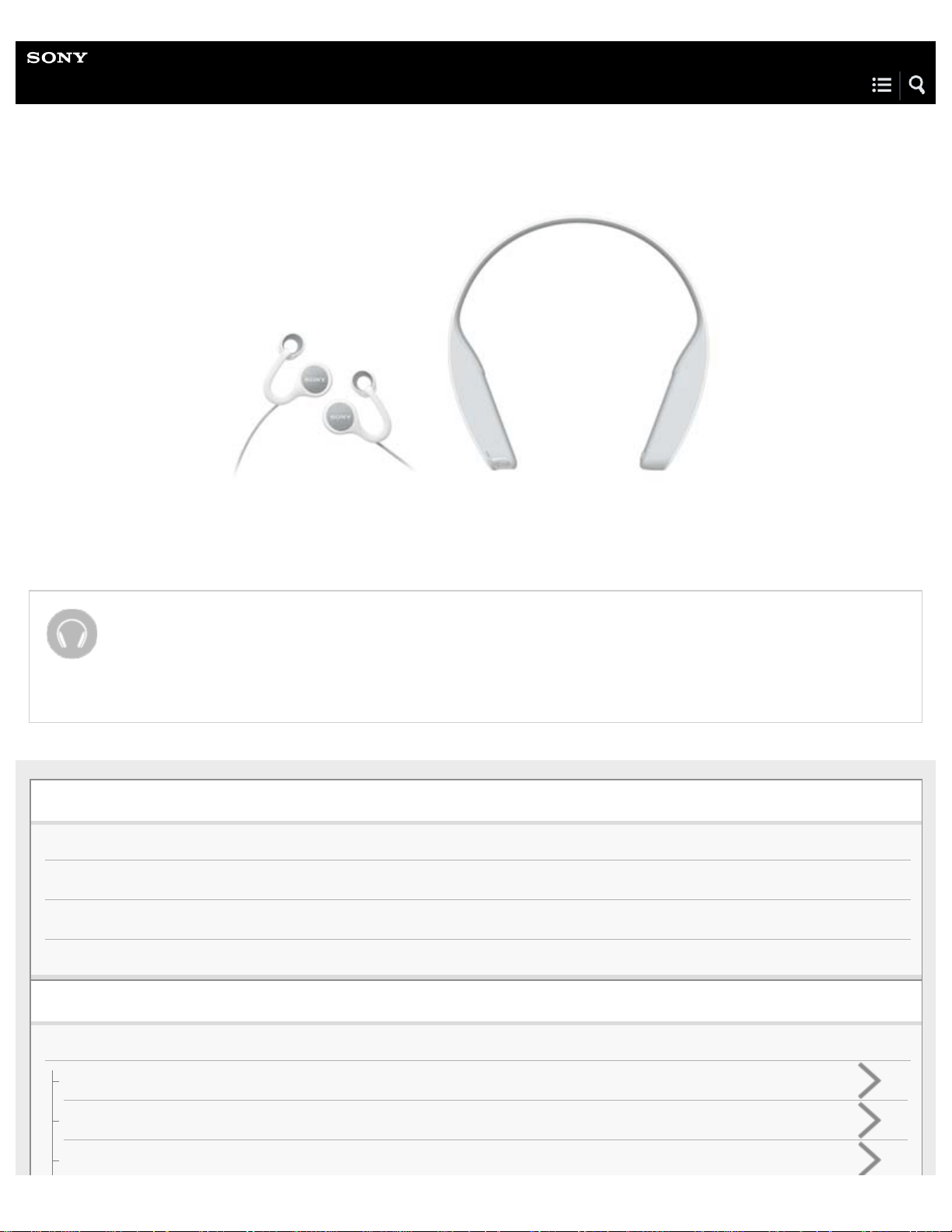
The following explains how to use FL-N01. Select a topic from the navigation pane.
About the Future Lab Program N application
Use the app to setup FL-N01.
Click here for more information about installing the app on your smartphone.
What is FL-N01?
Concept
Flow of operations to begin FL-N01
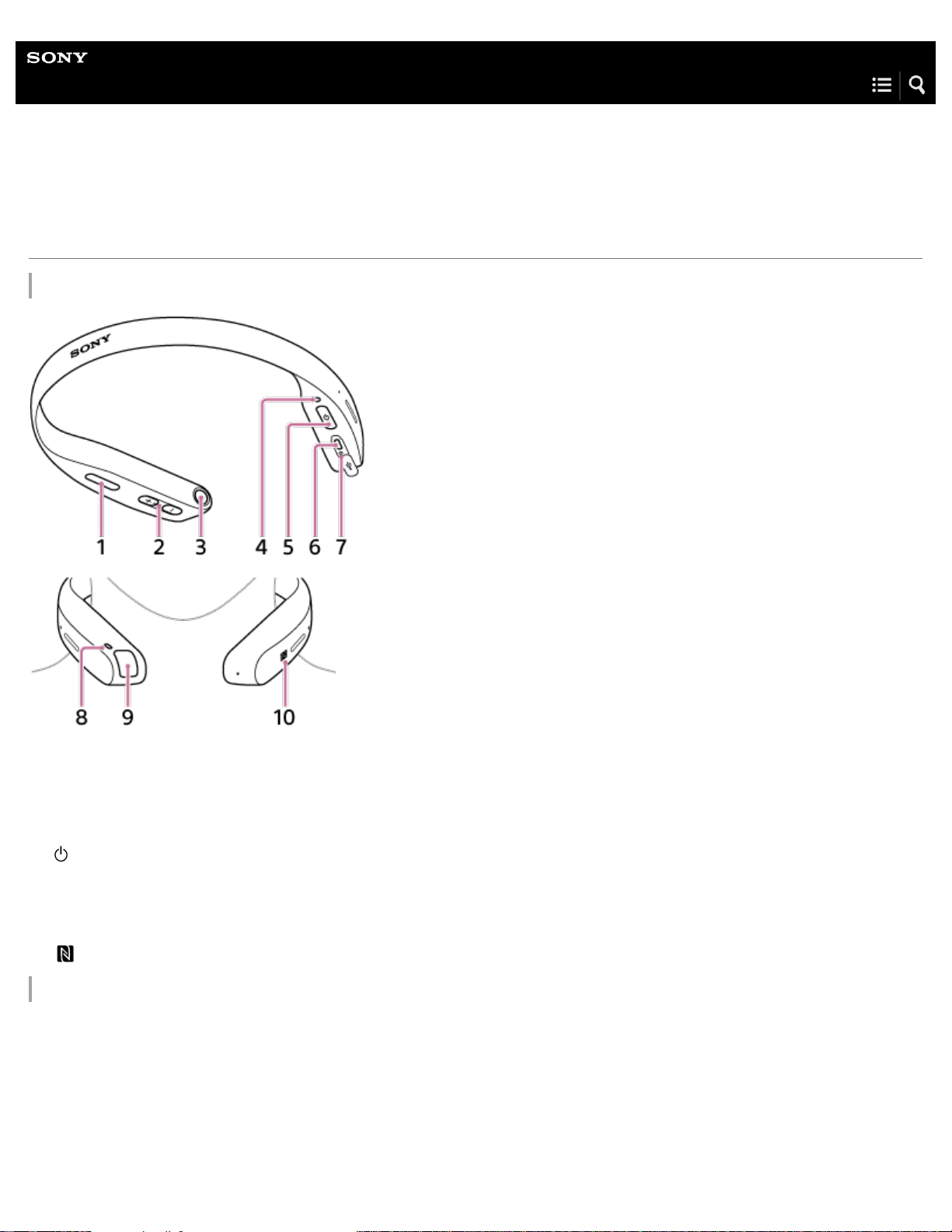
Parts and Controls
Packaged contents
Getting Started
Charge
Charging
Checking the battery level
Power on/Power off
Initial Setup
Installing the “Future Lab Program N” app
Items of Initial Setup (Android)
Items of Initial Setup (iPhone)
How to wear
Wearing FL-N01
Using Open-ear earphones
Voice Control
What is voice control?
How to control FL-N01
Music
Listening to music
What you can do with device mode and streaming mode
Personalized Radio service
What is Personalized Radio service?
Receiving Personalized Radio service automatically
Acquiring Personalized Radio service
About segments on Personalized Radio service
Camera
Taking a still image
Taking photos at intervals
Taking continuous photos
Taking a video
Taking photos at intervals automatically (Life Snap)
Phone Calls
Receiving a call
Making a call
Notice for Phone Call
Working with apps
We Run
Settings
Using the dedicated smartphone app “Future Lab Program N”
Changing the settings of FL-N01 on the “Future Lab Program N” app
PC connection
Connecting to a computer
Connecting to a computer
Transferring music using a computer
Transferring music using Explorer/Finder
Deleting music using Explorer/Finder
Checking photos stored on the built-in memory
Checking photos/videos/activity logs stored on the built-in memory of FL-N01
Information
Specifications
About the indicators
Specifications
Folder hierarchy recognized by FL-N01
Voice command/Natural speech list
General voice command
Voice command on music
Voice command on camera
Voice command/Natural speech on Personalized Radio service
Voice command on working with apps
Disclaimer regarding services offered by third parties
Notes on recognition technologies
Notes on recognition technologies
Precautions

Precautions
Updating FL-N01
Updating FL-N01
Copyrights and trademarks
Copyrights and trademarks
Troubleshooting
What you can do to solve a problem
What you can do to solve a problem
Power
FL-N01 is not turned on.
It takes time to power on FL-N01.
FL-N01 cannot be operated even though it is turned on.
FL-N01 turned off unexpectedly.
Charging
Charging cannot be done.
FL-N01 cannot be recognized by a computer.
The rechargeable battery life is short.
Sound
No sound
Low sound level
Distorted sound from FL-N01
Sound skips frequently during playback.
Volume changes on its own.
Bluetooth
Pairing cannot be done.
How can I delete the pairing information?
Unable to connect FL-N01 to a smartphone with one-touch connection (NFC)
Voice control
The wake-up phrase "Listen up Nigel" cannot be recognized by FL-N01.
The voice command function does not work well.
FL-N01 does not react correctly even though you have sent a voice command.
Music
You cannot play the music files transferred to FL-N01.
Music files on your smartphone cannot be played back.
Personalized Radio Service
FL-N01 does not deliver information / FL-N01 does not respond to the voice command.
FL-N01 delivers inappropriate information.
The route on the activity log is not correct.
FL-N01 does not deliver information based on the current location.
FL-N01 does not read out the latest SMS even though telling FL-N01 “Start SMS.”
When using Activity Log, Live Segments does not start.
Information that FL-N01 announces is inaccurate when using Activity Logs with Live Segments.
FL-N01 announces/the “Future Lab Program N” app shows that there is no space left on the internal storage of FL-N01.
Camera
Photos and videos taken by FL-N01 cannot be played back on a smartphone.
Video shooting stopped in the middle.
How can I disable the shutter sound of FL-N01?
FL-N01 is unable to take a photo/video.
How can I adjust the camera angle?
Phone call
The other party’s voice cannot be heard / Phone call cannot be made.
Computer
The computer does not recognize FL-N01.
The music files cannot be transferred to FL-N01 from a computer.
The latest system software cannot be installed on FL-N01.
Others
A drink (water, coffee, etc.) was spilled on FL-N01 / FL-N01 was washed in the washing machine.

Table Of Contents
Help Guide FL-N01 i..........................................................................................................................
About the “Future Lab Program N” app 1.........................................................................................
What is FL-N01? i..............................................................................................................................
Concept 2..........................................................................................................................................
Flow of operations to begin FL-N01 3...............................................................................................
Parts and Controls 4..........................................................................................................................
Packaged contents 6.........................................................................................................................
Getting Started i.................................................................................................................................
Charge i.............................................................................................................................................
Charging 7...................................................................................................................................
Checking the battery level 9........................................................................................................
Power on/Power off 12................................................................................................................
Initial Setup ii.....................................................................................................................................
Installing the “Future Lab Program N” app 1..............................................................................
Items of Initial Setup (Android) 13...............................................................................................
Items of Initial Setup (iPhone) 17................................................................................................
How to wear ii....................................................................................................................................
Wearing FL-N01 20.....................................................................................................................
Using Open-ear earphones 21....................................................................................................
Voice Control ii..................................................................................................................................
What is voice control? 24..................................................................................................................
How to control FL-N01 25..................................................................................................................
Music ii...............................................................................................................................................
Listening to music 29.........................................................................................................................
What you can do with device mode and streaming mode 32............................................................
Personalized Radio service ii............................................................................................................
What is Personalized Radio service? 35...........................................................................................
Receiving Personalized Radio service automatically 37...................................................................
Acquiring Personalized Radio service 40..........................................................................................
About segments on Personalized Radio service 44..........................................................................
Camera ii...........................................................................................................................................
Taking a still image 47.......................................................................................................................
Taking photos at intervals 50.............................................................................................................
Taking continuous photos 53.............................................................................................................
Taking a video 56..............................................................................................................................
Taking photos at intervals automatically (Life Snap) 59....................................................................
Phone Calls ii.....................................................................................................................................
Receiving a call 61............................................................................................................................
TOC-1

Making a call 63.................................................................................................................................
Notice for Phone Call 65....................................................................................................................
Working with apps iii..........................................................................................................................
We Run 66.........................................................................................................................................
Settings iii..........................................................................................................................................
Using the dedicated smartphone app “Future Lab Program N” 69...................................................
Changing the settings of FL-N01 on the “Future Lab Program N” app 72........................................
PC connection iii................................................................................................................................
Connecting to a computer iii..............................................................................................................
Connecting to a computer 78......................................................................................................
Transferring music using a computer iii.............................................................................................
Transferring music using Explorer/Finder 80...............................................................................
Deleting music using Explorer/Finder 82.....................................................................................
Checking photos stored on the built-in memory iii.............................................................................
Checking photos/videos/activity logs stored on the built-in memory of FL-N01 83.....................
Information iii.....................................................................................................................................
Specifications iii.................................................................................................................................
About the indicators 84................................................................................................................
Specifications 87.........................................................................................................................
Folder hierarchy recognized by FL-N01 90.................................................................................
Voice command/Natural speech list iii...............................................................................................
General voice command 91.........................................................................................................
Voice command on music 93......................................................................................................
Voice command on camera 94....................................................................................................
Voice command/Natural speech on Personalized Radio service 95...........................................
Voice command on working with apps 99...................................................................................
Disclaimer regarding services offered by third parties 100..........................................................
Notes on recognition technologies iii.................................................................................................
Notes on recognition technologies 101.......................................................................................
Precautions 102.................................................................................................................................
Updating FL-N01 106........................................................................................................................
Copyrights and trademarks 108........................................................................................................
Troubleshooting iv.............................................................................................................................
What you can do to solve a problem iv..............................................................................................
What you can do to solve a problem 109....................................................................................
Power iv.............................................................................................................................................
FL-N01 is not turned on. 110.......................................................................................................
It takes time to power on FL-N01. 111........................................................................................
FL-N01 cannot be operated even though it is turned on. 112.....................................................
FL-N01 turned off unexpectedly. 113..........................................................................................
TOC-2

Charging iv........................................................................................................................................
Charging cannot be done. 114....................................................................................................
FL-N01 cannot be recognized by a computer. 115.....................................................................
The rechargeable battery life is short. 116..................................................................................
Sound iv.............................................................................................................................................
No sound 117..............................................................................................................................
Low sound level 118....................................................................................................................
Distorted sound from FL-N01 119...............................................................................................
Sound skips frequently during playback. 120..............................................................................
Volume changes on its own. 121.................................................................................................
Bluetooth iv........................................................................................................................................
Pairing cannot be done. 122........................................................................................................
How can I delete the pairing information? 123............................................................................
Unable to connect FL-N01 to a smartphone with one-touch connection (NFC) 124...................
Voice control iv..................................................................................................................................
The wake-up phrase "Listen up Nigel" cannot be recognized by FL-N01. 125...........................
The voice command function does not work well. 126................................................................
FL-N01 does not react correctly even though you have sent a voice
command. 127.............................................................................................................................
Music v..............................................................................................................................................
You cannot play the music files transferred to FL-N01. 128........................................................
Music files on your smartphone cannot be played back. 129......................................................
Personalized Radio Service v............................................................................................................
FL-N01 does not deliver information / FL-N01 does not respond to the voice
command. 130.............................................................................................................................
FL-N01 delivers inappropriate information. 131..........................................................................
The route on the activity log is not correct. 132...........................................................................
FL-N01 does not deliver information based on the current location. 133....................................
FL-N01 does not read out the latest SMS even though telling FL-N01 “Start
SMS.” 134...................................................................................................................................
When using Activity Log, Live Segments does not start. 135......................................................
Information that FL-N01 announces is inaccurate when using Activity Logs
with Live Segments. 136.............................................................................................................
FL-N01 announces/the “Future Lab Program N” app shows that there is no
space left on the internal storage of FL-N01. 137.......................................................................
Camera v...........................................................................................................................................
Photos and videos taken by FL-N01 cannot be played back on a smartphone. 138..................
Video shooting stopped in the middle. 139..................................................................................
How can I disable the shutter sound of FL-N01? 140.................................................................
FL-N01 is unable to take a photo/video. 141...............................................................................
TOC-3

How can I adjust the camera angle? 142....................................................................................
Phone call v.......................................................................................................................................
The other party’s voice cannot be heard / Phone call cannot be made. 143..............................
Computer v........................................................................................................................................
The computer does not recognize FL-N01. 144..........................................................................
The music files cannot be transferred to FL-N01 from a computer. 145.....................................
The latest system software cannot be installed on FL-N01. 146.................................................
Others v.............................................................................................................................................
A drink (water, coffee, etc.) was spilled on FL-N01 / FL-N01 was washed in
the washing machine. 147...........................................................................................................
FL-N01 becomes hot. 148...........................................................................................................
I lost FL-N01. 149........................................................................................................................
I lost both FL-N01 and the smartphone. 150...............................................................................
TOC-4
Help Guide
Future Lab Program N
FL-N01
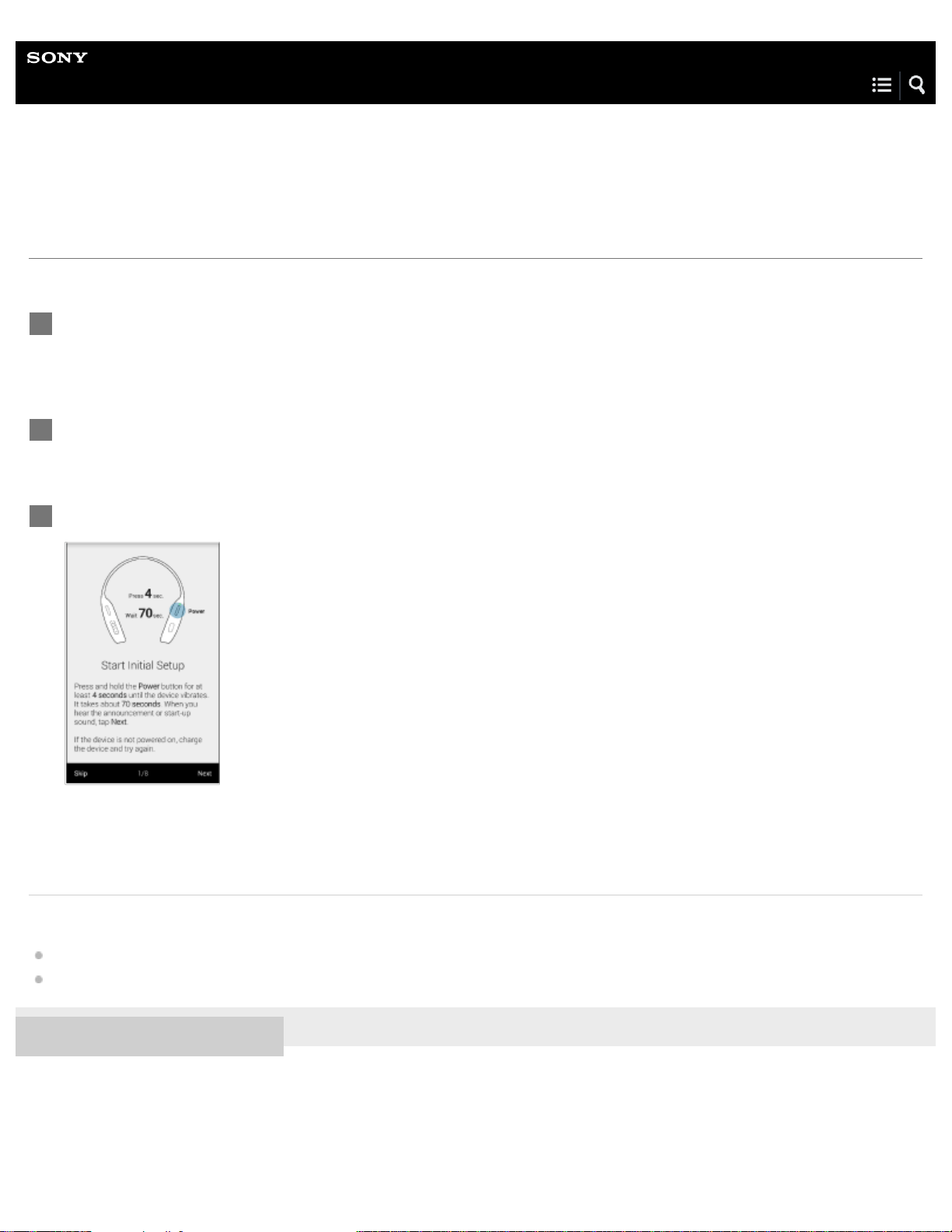
Installing the “Future Lab Program N” app
Settings of FL-N01 can be made on the "Future Lab Program N" app.
Related Topic
Items of Initial Setup (Android)
Items of Initial Setup (iPhone)
4-593-988-11(5) Copyright 2016 Sony Corporation
Access Google Play™ or App Store to download and install the “Future Lab Program N” app on your
smartphone.
1
Launch the app.
2
Follow the on-screen instructions for initial setup.
3
1
Help Guide
Future Lab Program N
FL-N01
Concept
N is a Concept Prototype featuring a voice interaction system.
With ears open, hands free, and eyes no longer distracted by mobile displays, you can enjoy music and get up-to-the-minute
information on demand, promoting a more agreeable active lifestyle.
4-593-988-11(5) Copyright 2016 Sony Corporation
2
Help Guide
Future Lab Program N
FL-N01
Flow of operations to begin FL-N01
This is a simple explanation of the steps between purchasing and using FL-N01.
Related Topic
Charging
Power on/Power off
Installing the “Future Lab Program N” app
Items of Initial Setup (Android)
Items of Initial Setup (iPhone)
Wearing FL-N01
4-593-988-11(5) Copyright 2016 Sony Corporation
Charge FL-N01.
1
Power on FL-N01.
2
Install the “Future Lab Program N” app.
Download the “Future Lab Program N” app, a dedicated app for FL-N01, from App Store or Google Play onto your
smartphone, and then install.
3
Start and setup the “Future Lab Program N” app.
Follow the on-screen instructions for initial setup.
4
Wear FL-N01.
5
3
4-593-988-11(5) Copyright 2016 Sony Corporation
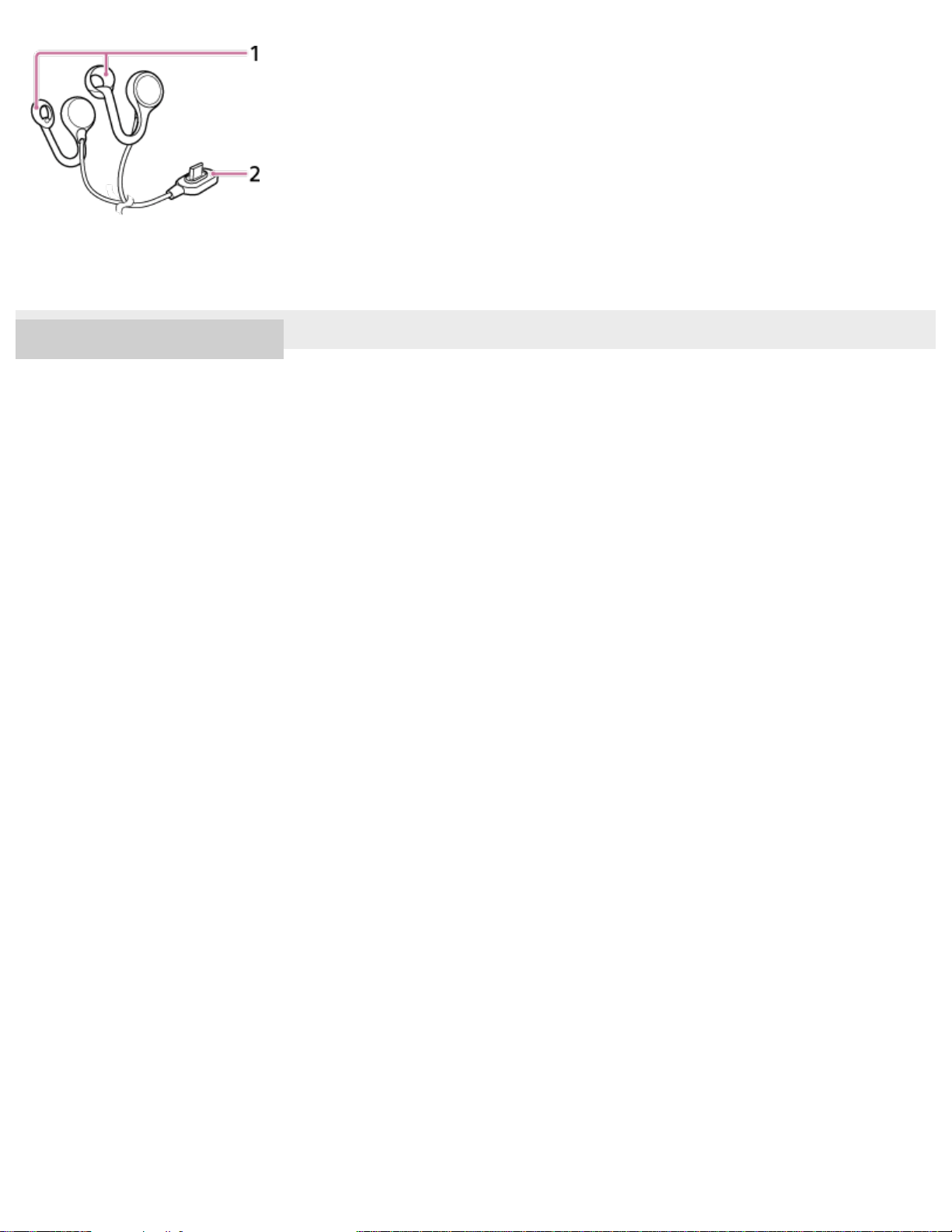
Guide rings
1.
Micro-USB connector
2.
5
Help Guide
Future Lab Program N
FL-N01
Packaged contents
After opening the package, check that all items in the list are included. If any items are missing, consult Sony Customer
Experience Center. Numbers in ( ) indicate the item amount.
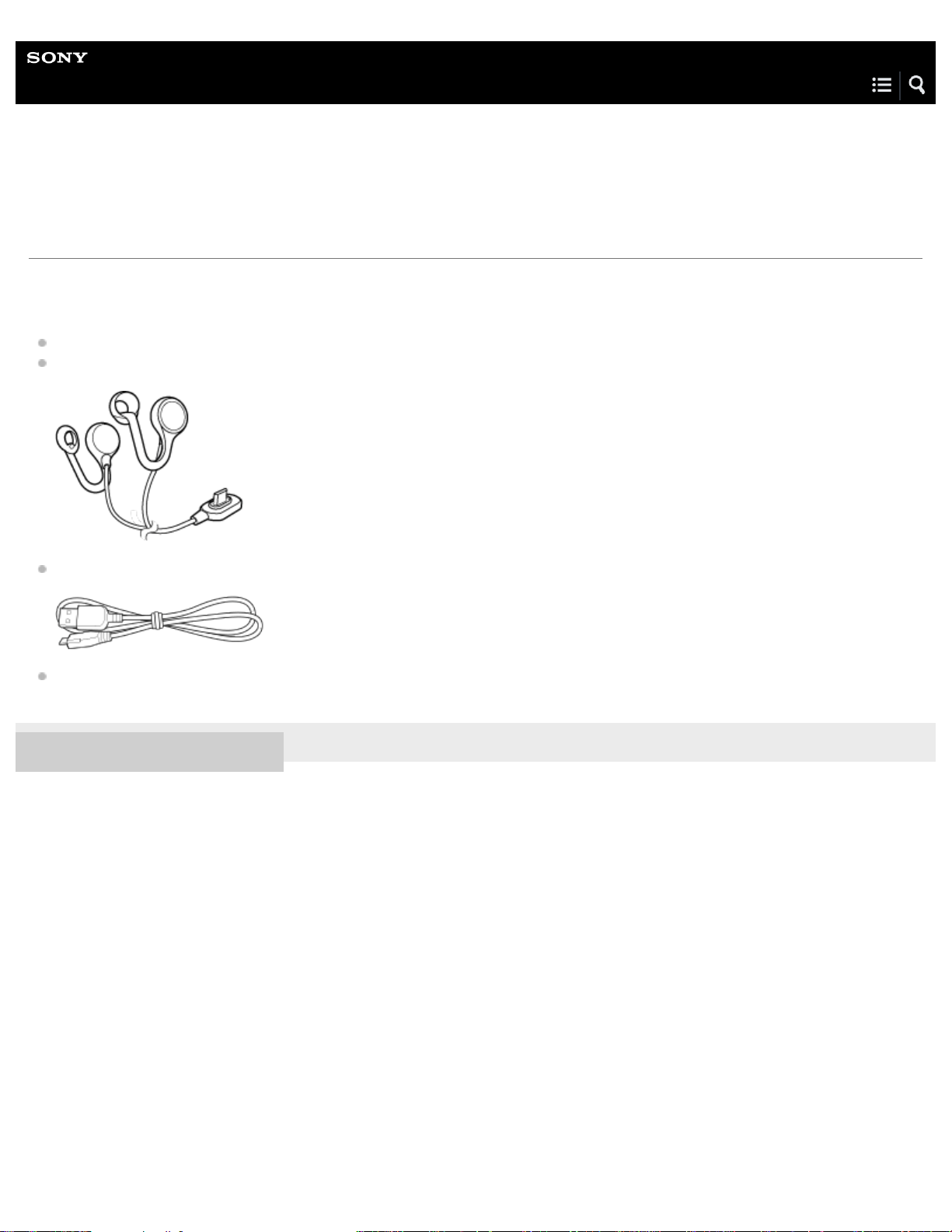
FL-N01 (1)
Open-ear earphones (1)
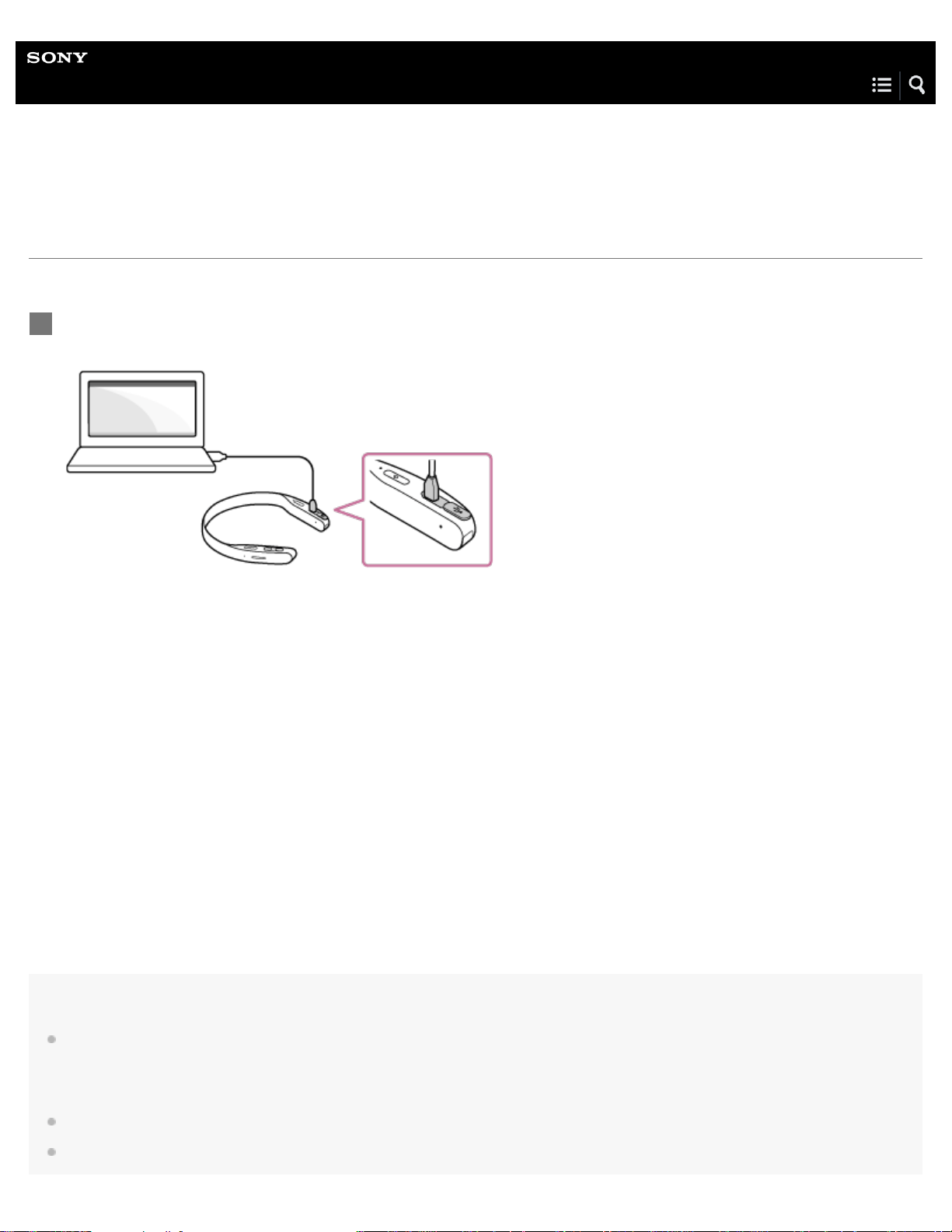
Micro-USB cable (approx. 50 cm (19 3/4 in.)) (1)
Printed documents
4-593-988-11(5) Copyright 2016 Sony Corporation
6
Help Guide
Future Lab Program N
FL-N01
Charging
FL-N01 contains a lithium ion rechargeable battery. Charge FL-N01 using the supplied micro-USB cable.
Battery life (when using the Bluetooth connection)
About 3.0 to 5.5 hours when playing back music files with the speakers on FL-N01
About 6.5 hours when playing back music files with the supplied Open-ear earphones
Recommended computer environment
*2*3
Windows® 10, Windows® 8.1, Windows® 7 SP1, Mac OS® X v10.11, Mac OS® X v10.10, Mac OS® X v10.9
Note
To protect the battery from high/low-temperature environments, charging may stop. Charging may also stop if it takes a long time. In this case, FL-
N01 tells you that the internal temperature of FL-N01 becomes hot, the indicator light flashes twice quickly, then FL-N01 will turn off. This is not a
malfunction. Change locations to where the ambient temperature is between 5 °C and 35 °C (41 °F and 95 °F). Then disconnect and reconnect
the supplied micro-USB cable, and charge FL-N01 again.
Even if you do not intend to use FL-N01 for a long time, charge the battery to its full capacity once every six months to maintain its performance.
Never use a device other than a computer to charge FL-N01, including commercially available AC adaptors, etc.
Connect the supplied micro-USB cable to FL-N01, and then connect the other end to a booted
computer.
Make sure that the charge light lights up.
Charging is completed in about 2.5 hours
*1
and the charge light goes off automatically.
1
Time required for charging the empty battery to its full capacity.
*1
There is no guarantee that all computers with the environment above work with FL-N01.
*2
A home-built computer is not supported.
*3
7
Help Guide
Future Lab Program N
FL-N01
Checking the battery level
You can check the battery level by talking to FL-N01.
Set FL-N01 to ready for operation.
Select one of the following methods to set FL-N01 to ready for operation.
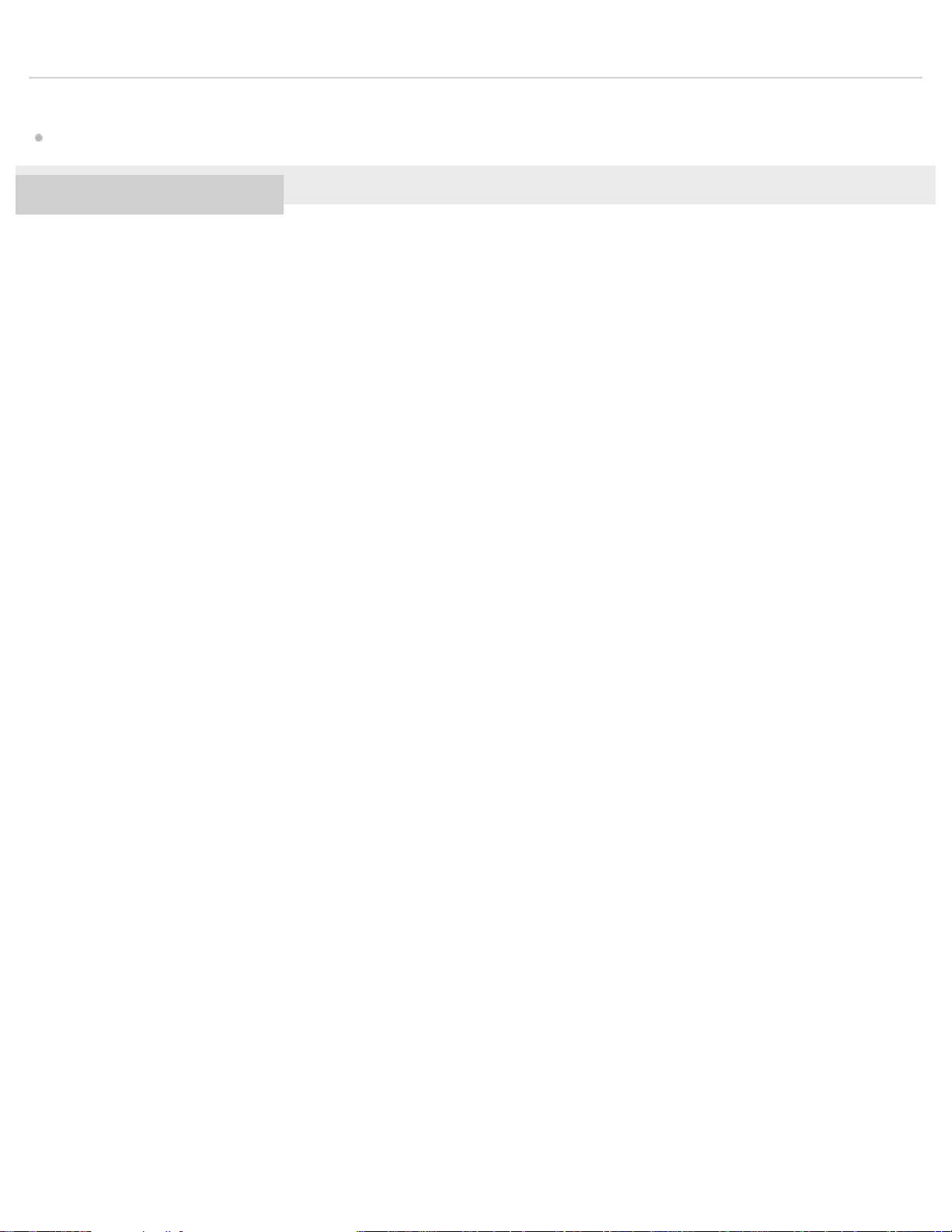
Tell FL-N01 “Listen up Nigel
*1
.”
*1
Hear the sound (Playback may require the latest browser.)
Press the voice input button on FL-N01.
1
9
To cancel inputting voice command
After step , press the voice input button on FL-N01.
You will hear a sound
*2
from FL-N01 which reminds you that FL-N01 is ready for operation.
*2
Hear the sound (Playback may require the latest browser.)
Within a few seconds after hearing the sound, tell FL-N01 "Check battery."
You will hear a sound
*3
from FL-N01 which reminds you that FL-N01 has received your voice input.
When you hear the error sound
*4
and "Failed to recognize. Try one more time." from FL-N01
Check for the sound
*2
that indicates FL-N01 is ready for operation.
Tell FL-N01 "Check battery" again.
You do not need to go back to step
.
When you hear the error sound
*4
and "Failed to recognize." from FL-N01
Go back to step
and try the procedures again.
*2
Hear the sound (Playback may require the latest browser.)
*3
Hear the sound (Playback may require the latest browser.)
*4
Hear the error sound (Playback may require the latest browser.)
2
FL-N01 tells you the battery level.
3
10
If you cannnot control FL-N01 well
See "How to control FL-N01" for details.
Hint
You can also check the battery level on the status screen of the “Future Lab Program N” app.
Related Topic
Installing the “Future Lab Program N” app
Using the dedicated smartphone app “Future Lab Program N”
How to control FL-N01
4-593-988-11(5) Copyright 2016 Sony Corporation
11
Help Guide
Future Lab Program N
FL-N01
Power on/Power off
To activate sleep mode
Press the (power) button.
To release from sleep mode, press the
(power) button again.
To power off
Press and hold the (power) button for more than 4 seconds.
Note
It takes about one and a half minutes longer to boot-up FL-N01 than usual when 2,000 music files are stored on the built-in memory of FL-N01.
Related Topic
About the indicators
4-593-988-11(5) Copyright 2016 Sony Corporation
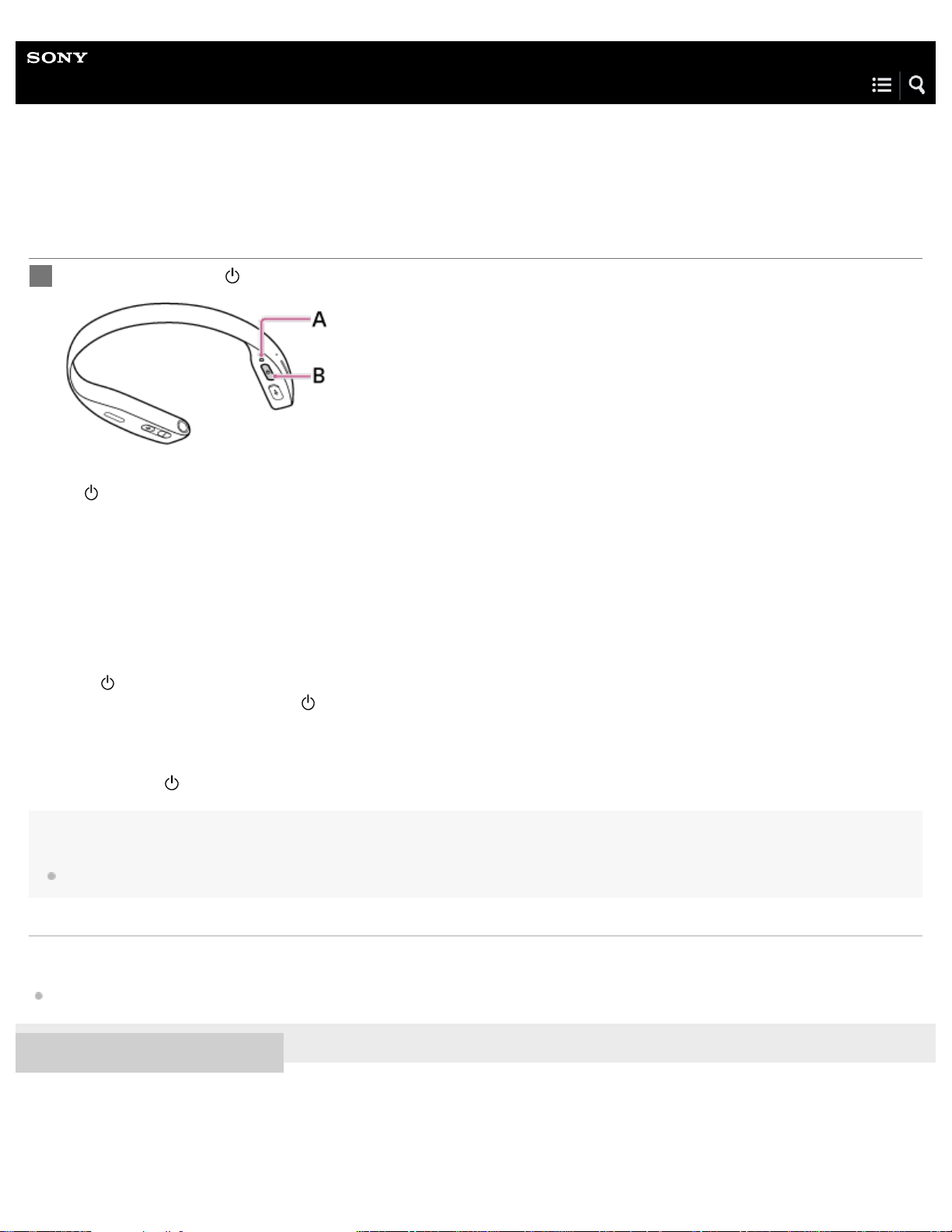
Press and hold the (power) button for 4 seconds until FL-N01 vibrates.
A: Indicator light
B:
(power) button
After about 70 seconds, FL-N01 will power on and you will hear the announcement that FL-N01 is ready for operation.
1
12
Help Guide
Future Lab Program N
FL-N01
Items of Initial Setup (Android)
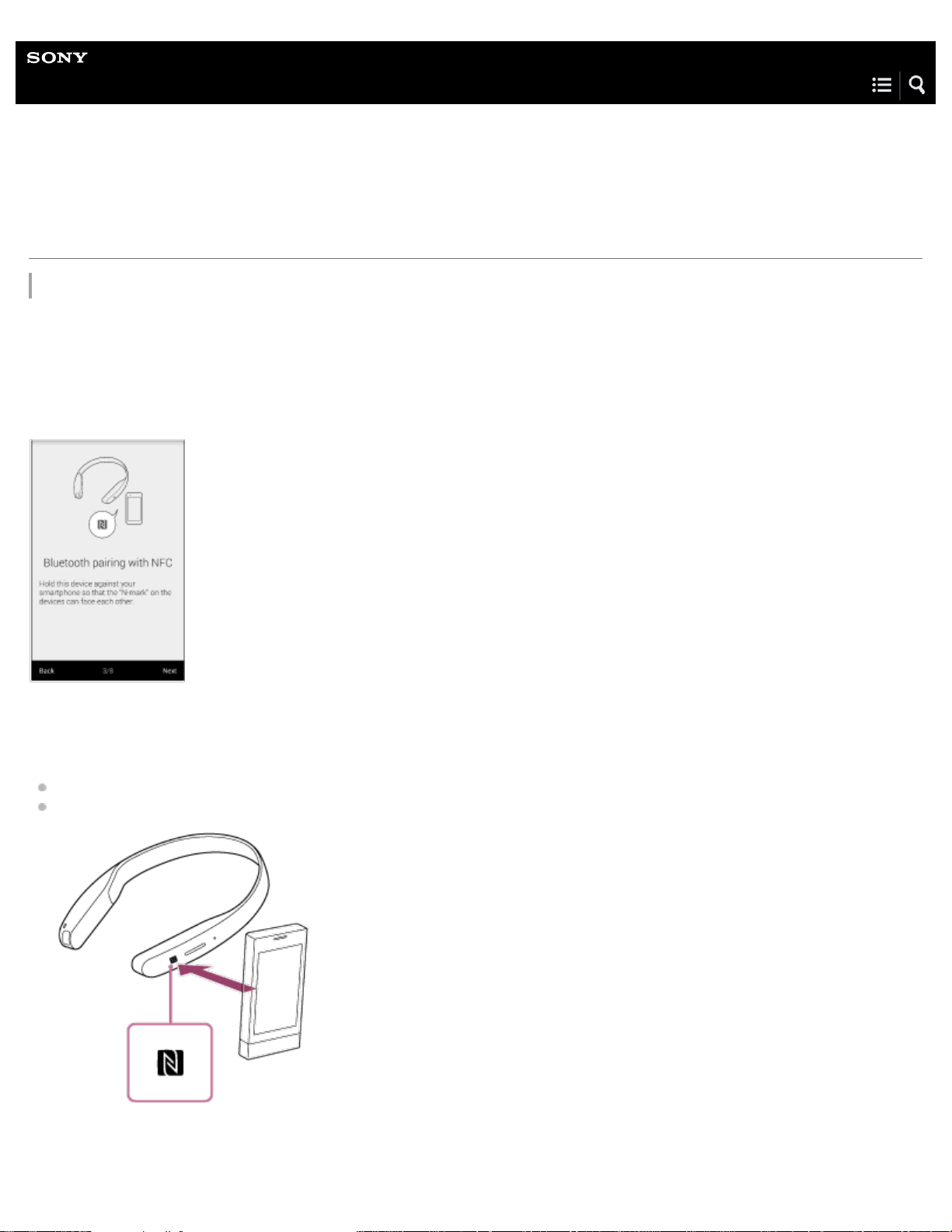
Bluetooth connection by One-Touch (NFC)
NFC
NFC (Near Field Communication) is a technology enabling short-range wireless communication between various devices, such as
smartphones and IC tags. Thanks to the NFC function, data communication - for example, Bluetooth pairing - can be achieved
easily by simply touching NFC-compatible devices together (i.e., at the N-Mark symbol or location designated on each device).
1. Unlock the screen of the smartphone if it is locked.
2. Set the NFC function of the smartphone to on.
3. Touch FL-N01 with the smartphone.
Touch the smartphone on the N-Mark of FL-N01. Keep touching FL-N01 with the smartphone until the smartphone vibrates.
Refer to the operating instructions supplied with the smartphone for the designated location to be touched on the smartphone.
Follow the on-screen instructions to complete pairing and connection.
13
If you do not setup Bluetooth settings
You can enjoy the limited functions of FL-N01 such as:
Some of the functions in device mode (when playing back music files)
Some of the functions for taking photos
Hint
If you cannot connect FL-N01, try the following.
Unlock the screen of the smartphone if it is locked and move the smartphone slowly over the N-Mark of FL-N01.
If the smartphone is in a case, remove the case.
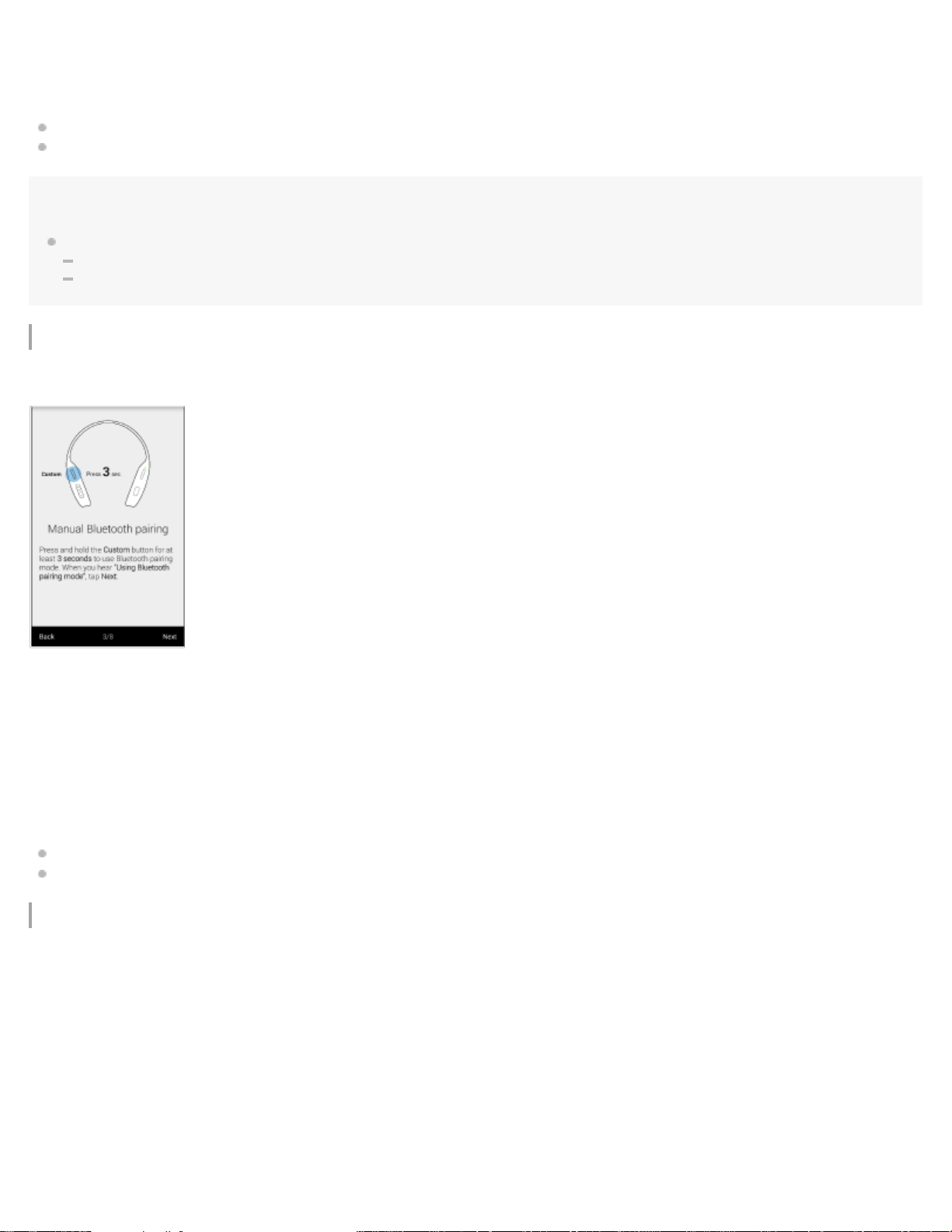
Manual Bluetooth pairing
Follow the on-screen instructions of the app to pair and connect with a smartphone.
1. Press and hold the custom button of FL-N01 for at least 3 seconds.
2. Open the Bluetooth setting screen of the smartphone.
3. Set the Bluetooth function of the smartphone to on.
4. Select [FL-N01] from the detected devices.
If you do not setup Bluetooth settings
You can enjoy the limited functions of FL-N01 such as:
Some of the functions in device mode (when playing back music files)
Some of the functions for taking photos
Bluetooth tethering
14

To enjoy the full-functions of FL-N01, perform a Bluetooth tethering setting on your smartphone. An initial contract with a mobile
provider may be required to use this function. For details about a Bluetooth tethering contract, contact your mobile provider.
1. Follow the on-screen instructions for initial setup, then connect FL-N01 and your smartphone via
Bluetooth.
2. Open the Bluetooth tethering setting on your smartphone.
3. Set your smartphone's Bluetooth tethering setting to on.
If you do not setup Bluetooth tethering settings
You can enjoy the limited functions of FL-N01 such as:
Some of the functions in Personalized Radio service
Some of the voice commands
Signing in to Personalized Radio service
15
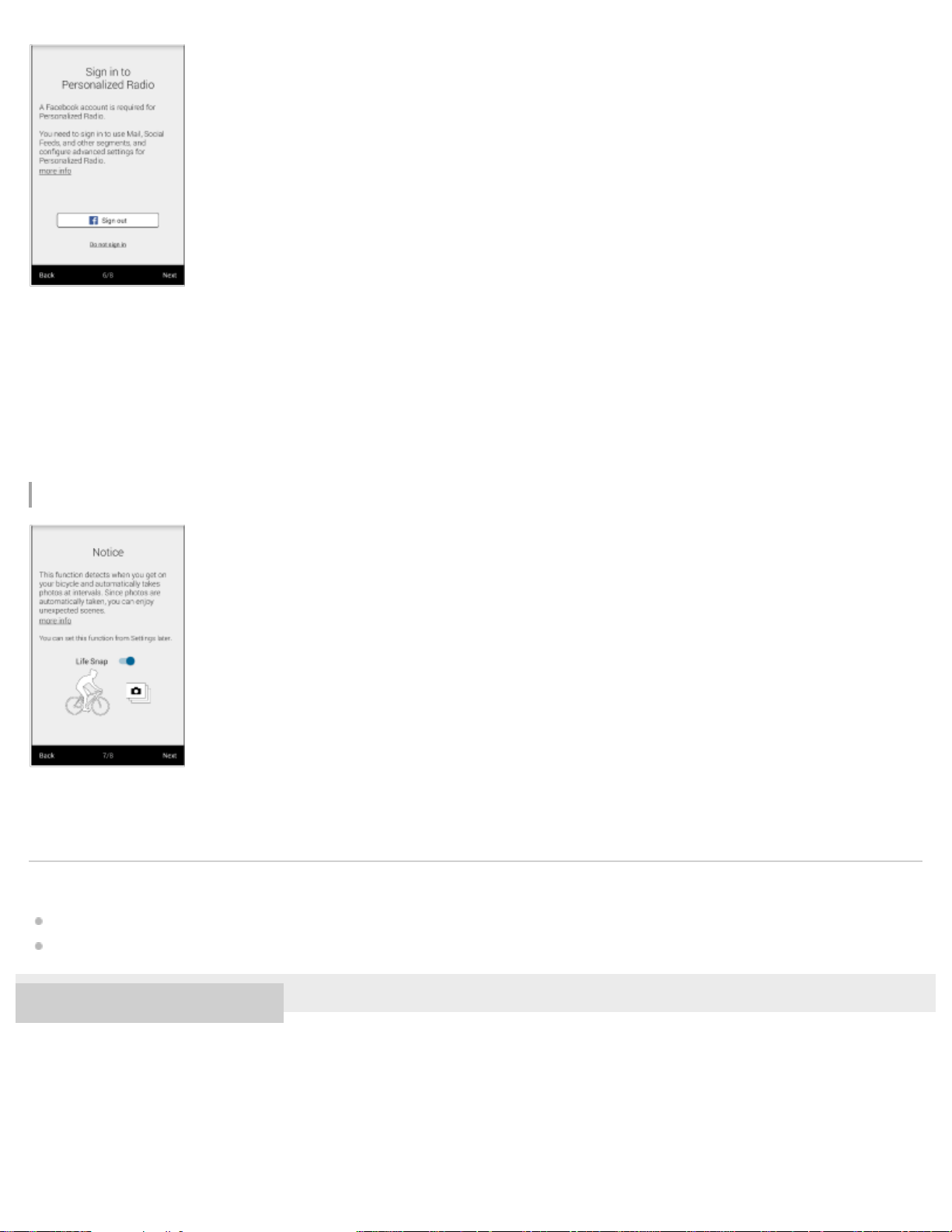
A Facebook account is required to use the Personalized Radio service.
If you do not have a Facebook account, create a new one on the Facebook site.
By signing in to a Facebook account, you can enjoy the Personalized Radio service such as Mail, Social Feeds, and other
segments.
If you do not sign with Facebook
You can only enjoy the limited Personalized Radio service.
Life Snap
FL-N01 detects when you are in activity (cycling, running or walking), which you have selected on the “Future Lab Program N”
app, and automatically takes photos at intervals. Since photos are automatically taken, you can enjoy unexpected scenes.
Related Topic
Installing the “Future Lab Program N” app
Taking photos at intervals automatically (Life Snap)
4-593-988-11(5) Copyright 2016 Sony Corporation
16

Help Guide
Future Lab Program N
FL-N01
Items of Initial Setup (iPhone)
Bluetooth pairing
Follow the on-screen instructions of the app to pair and connect with an iPhone.
1. Press and hold the custom button of FL-N01 for at least 3 seconds.
2. Open the Bluetooth setting screen of the iPhone.
3. Set the Bluetooth function of the iPhone to on.
4. Select [FL-N01] from the detected devices.
5. When Bluetooth pairing is complete, return to this app and tap [Next].
6. Tap [Connect].
7. If the dialog box appears, tap [Pair].
Hint
A Bluetooth connection has been completed when [FL-N01] and [FL-N01_BLE] appear on the Bluetooth connection screen of your iPhone. Do not
delete these model names from the Bluetooth connection screen of your iPhone.
17
If you do not setup Bluetooth settings
You can enjoy the limited functions of FL-N01 such as:
Some of the functions in device mode (when playing back music files)
Some of the functions for taking photos
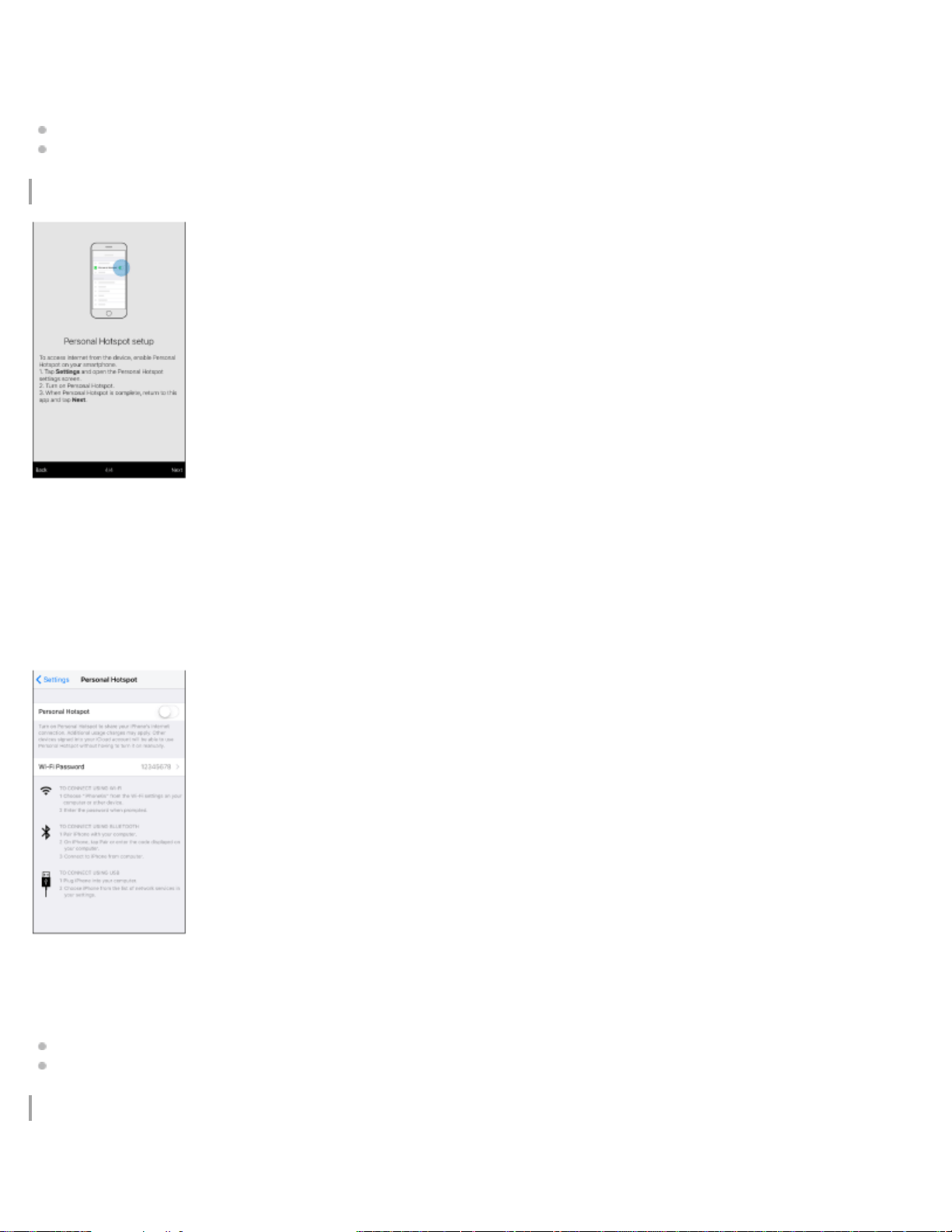
Personal Hotspot
To enjoy the full-functions of FL-N01, perform a Personal Hotspot setting on your iPhone. An initial contract with a mobile
provider may be required to use this function. For details about a Personal Hotspot contract, contact your mobile provider.
1. Follow the on-screen instructions for initial setup, then connect FL-N01 and your iPhone via Bluetooth.
2. Open the Personal Hotspot setting on your iPhone.
3. Set the Personal Hotspot setting of your iPhone to on.
If you do not setup Personal Hotspot settings
You can enjoy the limited functions of FL-N01 such as:
Some of the functions in Personalized Radio service
Some of the voice commands
Signing in to Personalized Radio service
18
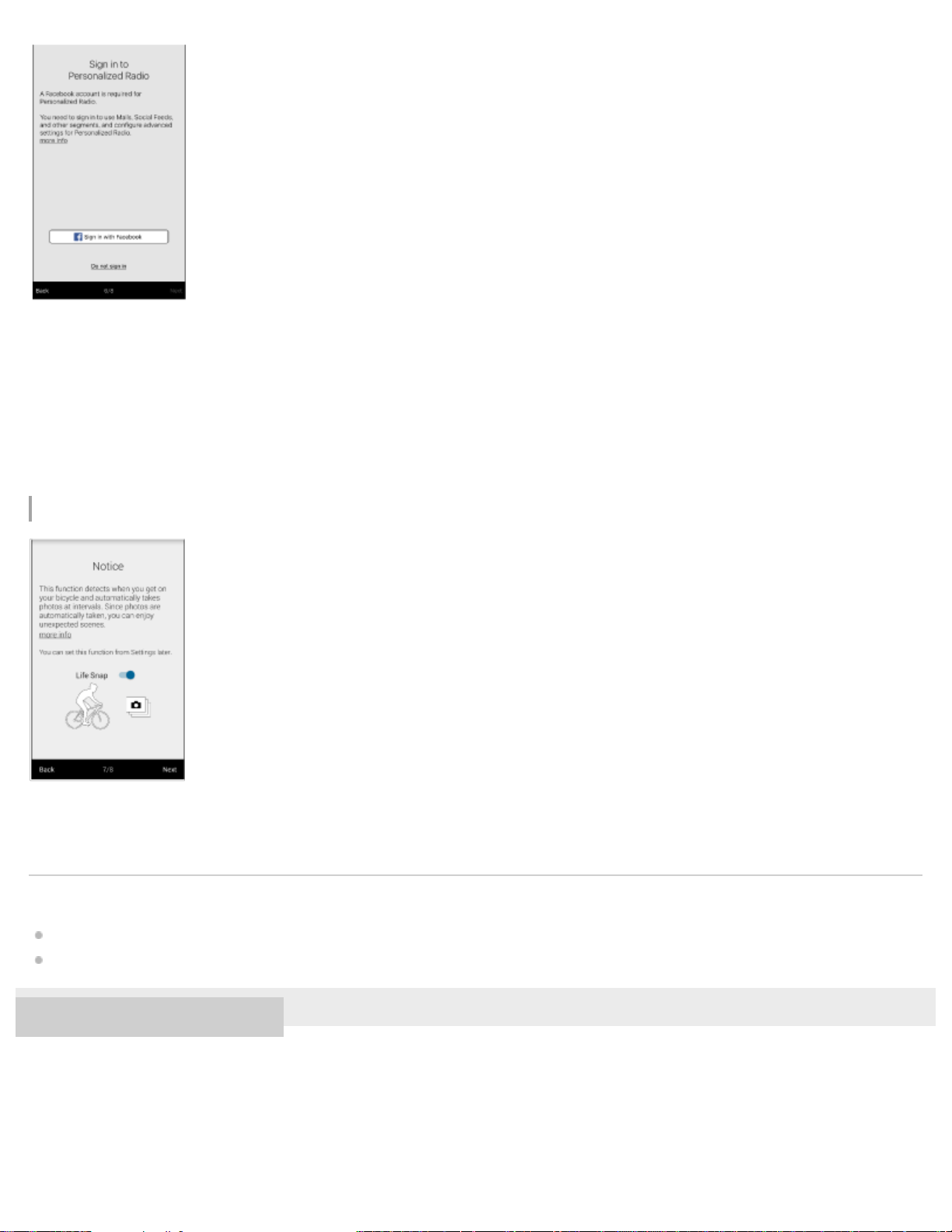
A Facebook account is required to use the Personalized Radio service.
If you do not have a Facebook account, create a new one on the Facebook site.
By signing in to a Facebook account, you can enjoy the Personalized Radio service such as Mail, Social Feeds, and other
segments.
If you do not sign with Facebook
You can only enjoy the limited Personalized Radio service.
Life Snap
FL-N01 detects when you are in activity (cycling, running or walking), which you have selected on the “Future Lab Program N”
app, and automatically takes photos at intervals. Since photos are automatically taken, you can enjoy unexpected scenes.
Related Topic
Installing the “Future Lab Program N” app
Taking photos at intervals automatically (Life Snap)
4-593-988-11(5) Copyright 2016 Sony Corporation
19

Help Guide
Future Lab Program N
FL-N01
Using Open-ear earphones
Use the supplied Open-ear earphones when you are aware of sound leakage.
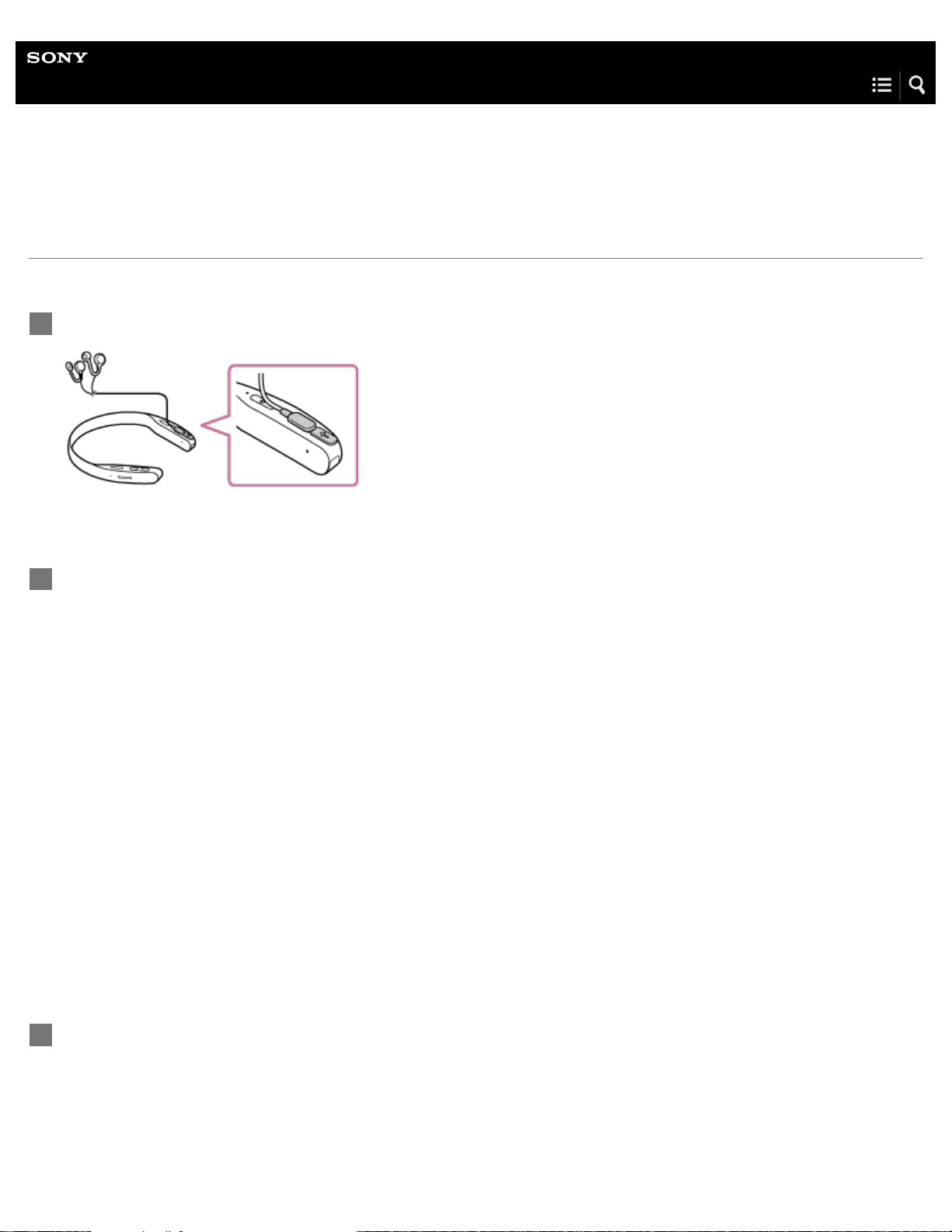
Connect FL-N01 and the Open-ear earphones.
1
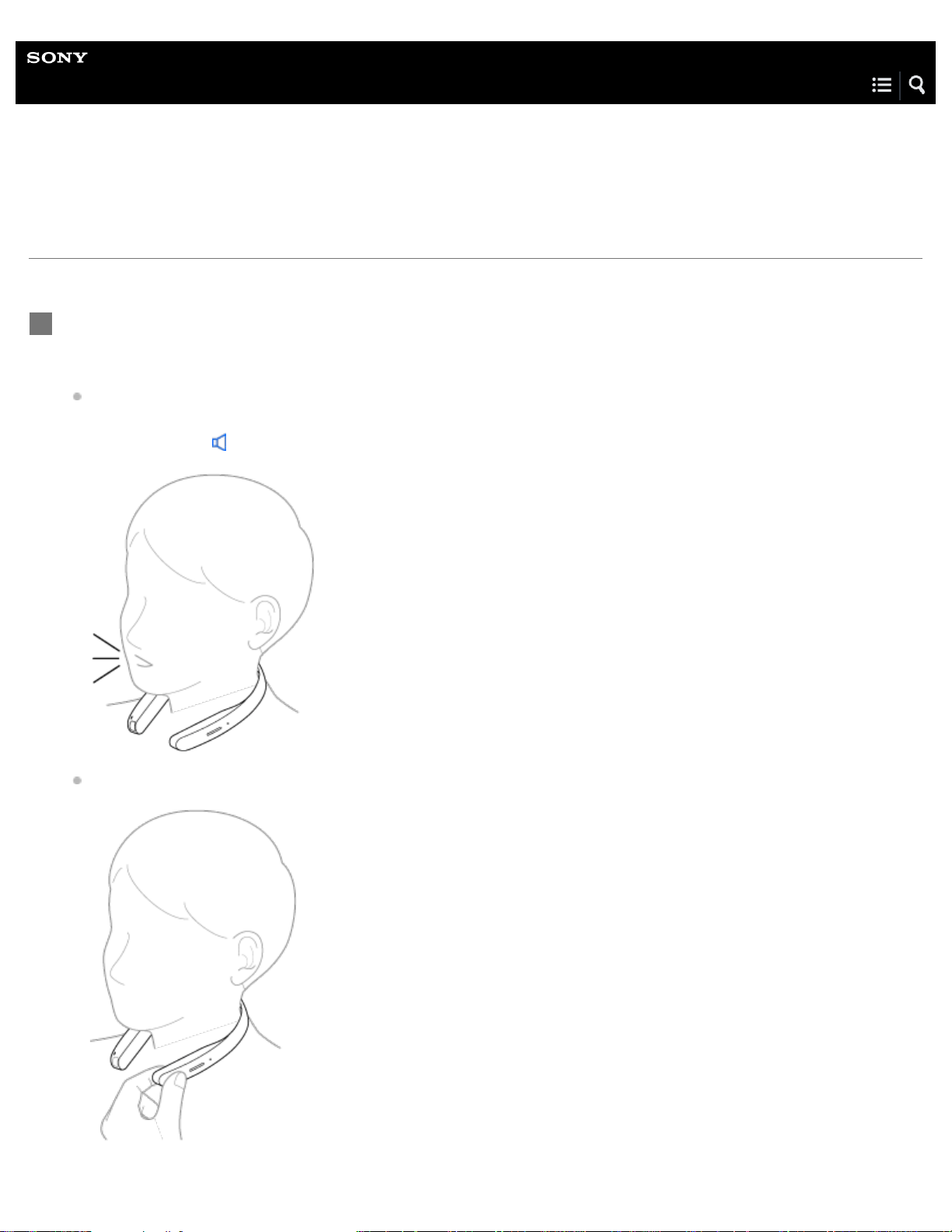
Wear FL-N01 on your neck so that the camera is on your right-hand side.
2
Place the cable of the left earphone behind your neck.
3
21

To disconnect the Open-ear earphones from FL-N01
Pull out the connector of the Open-ear earphones, not the cable.
Fit the earphone into your ear.
4
Slide up the earphone from under your ear along your jaw then place it into your ear.
1.
Pull the earphone down then fit it into your ear.
2.
22

Note
The supplied Open-ear earphones are exclusively designed for FL-N01. Do not connect the supplied Open-ear earphones to a device other than
FL-N01.
4-593-988-11(5) Copyright 2016 Sony Corporation
23

Help Guide
Future Lab Program N
FL-N01
What is voice control?
FL-N01 can be operated by voice commands and natural speech. For details, see “Voice command/Natural speech list.”
Voice command
FL-N01 is operated by fixed phrases such as;
Start --- (e.g. Start Weather)
Next
Previous
Bookmark
More detail
Stop
Natural speech
FL-N01 can take your utterances as commands if FL-N01 is connected to a network.
Example: What is the weather like in San Francisco?
Related Topic
General voice command
Voice command on music
Voice command on camera
Voice command/Natural speech on Personalized Radio service
Using the dedicated smartphone app “Future Lab Program N”
Changing the settings of FL-N01 on the “Future Lab Program N” app
The voice command function does not work well.
4-593-988-11(5) Copyright 2016 Sony Corporation
24
Help Guide
Future Lab Program N
FL-N01
How to control FL-N01
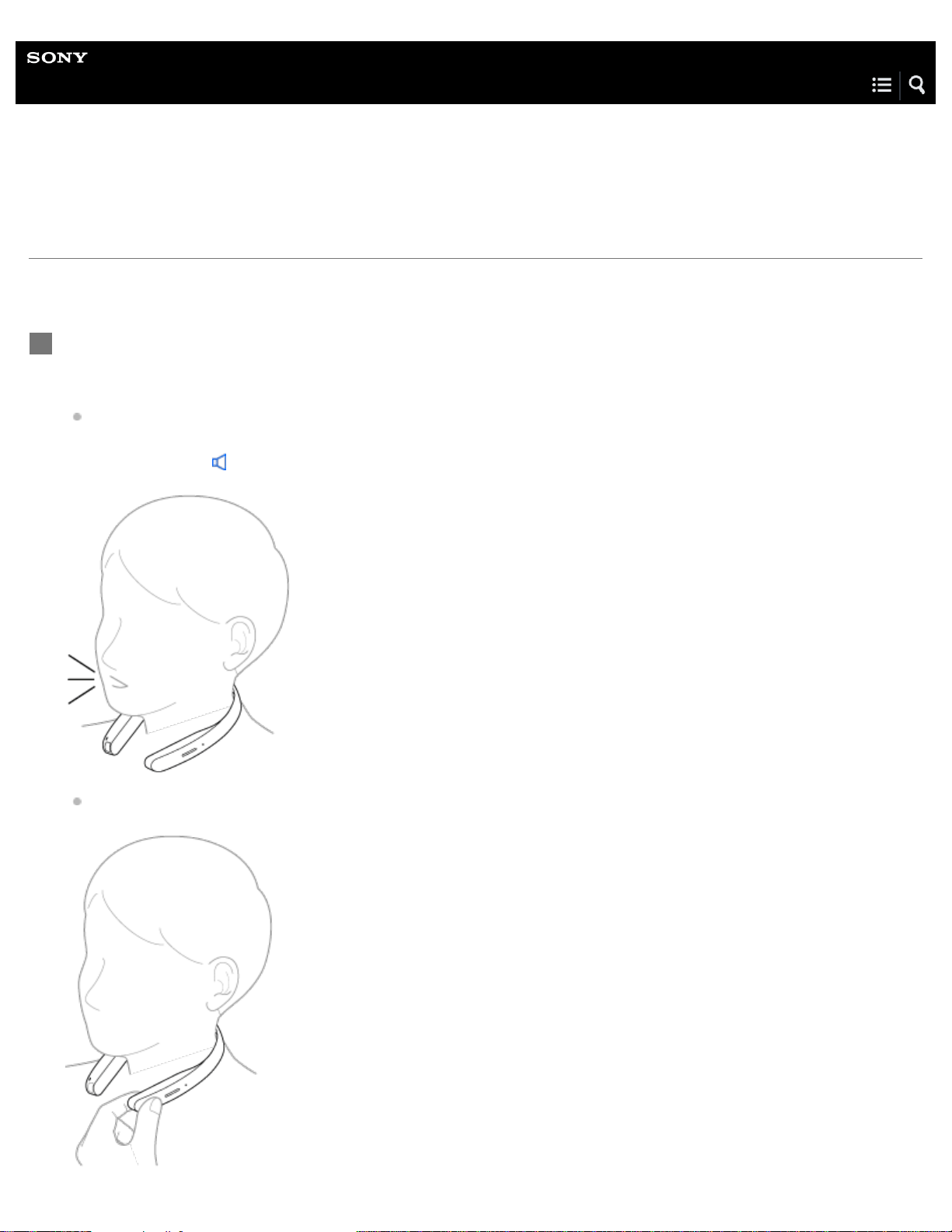
You can operate FL-N01 with your voice.
This section shows you how to use FL-N01 following an example to check the time.
Set FL-N01 to ready for operation.
Select one of the following methods to set FL-N01 to ready for operation.
Tell FL-N01 “Listen up Nigel
*1
.”
*1
Hear the sound (Playback may require the latest browser.)
Press the voice input button on FL-N01.
1
25

You will hear a sound
*2
from FL-N01 which reminds you that FL-N01 is ready for operation.
*2
Hear the sound (Playback may require the latest browser.)
Within a few seconds after hearing the sound, tell FL-N01 "What time is it?."
You will hear a sound
*3
from FL-N01 which reminds you that FL-N01 has received your voice input.
When you hear the error sound
*4
and "Failed to recognize. Try one more time." from FL-N01
Check for the sound
*2
that indicates FL-N01 is ready for operation.
Tell FL-N01 "What time is it?" again.
You do not need to go back to step
.
When you hear the error sound
*4
and "Failed to recognize." from FL-N01
Go back to step
and try the procedures again.
*2
Hear the sound (Playback may require the latest browser.)
*3
Hear the sound (Playback may require the latest browser.)
*4
Hear the error sound (Playback may require the latest browser.)
2
FL-N01 tells you the time.
3
26
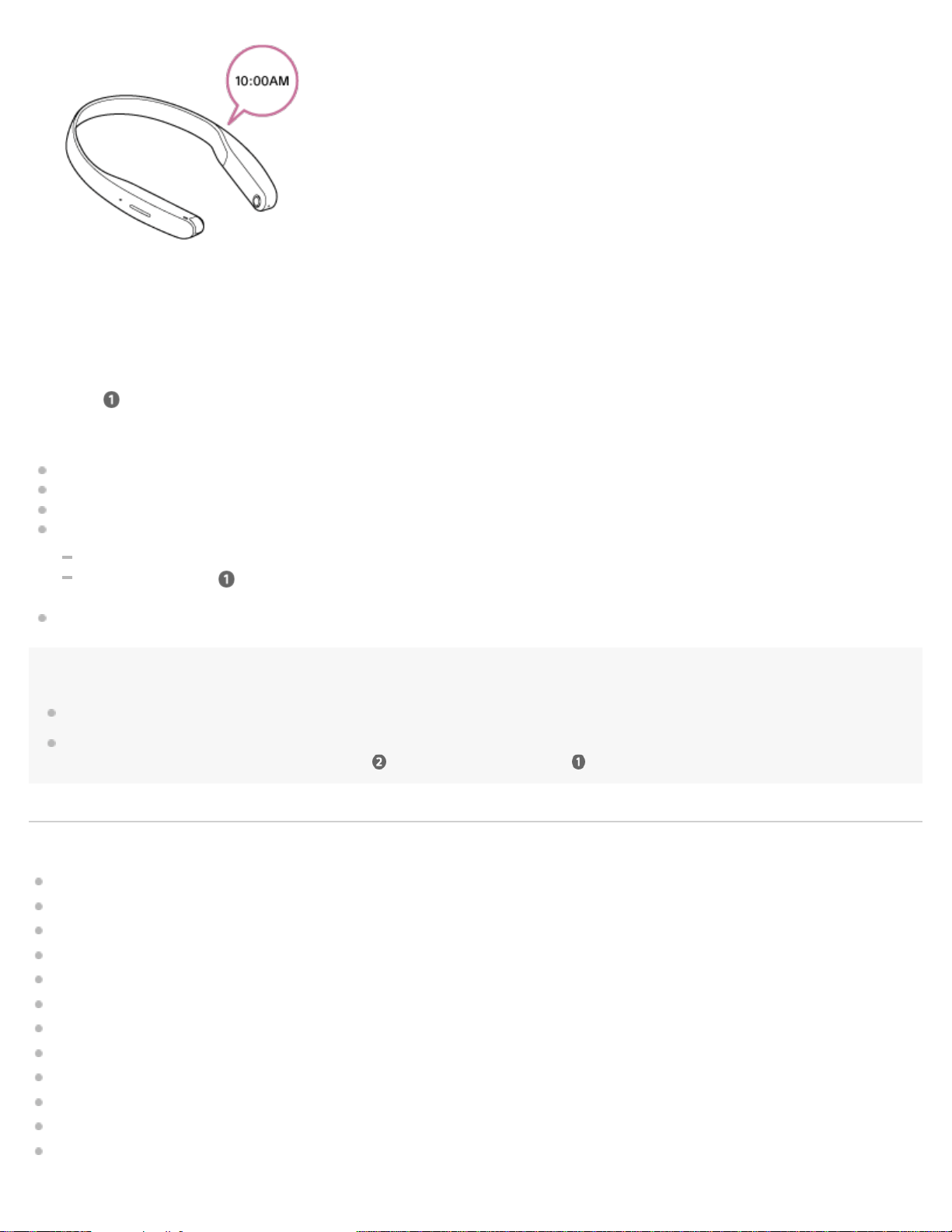
To cancel inputting voice command
After step , press the voice input button on FL-N01.
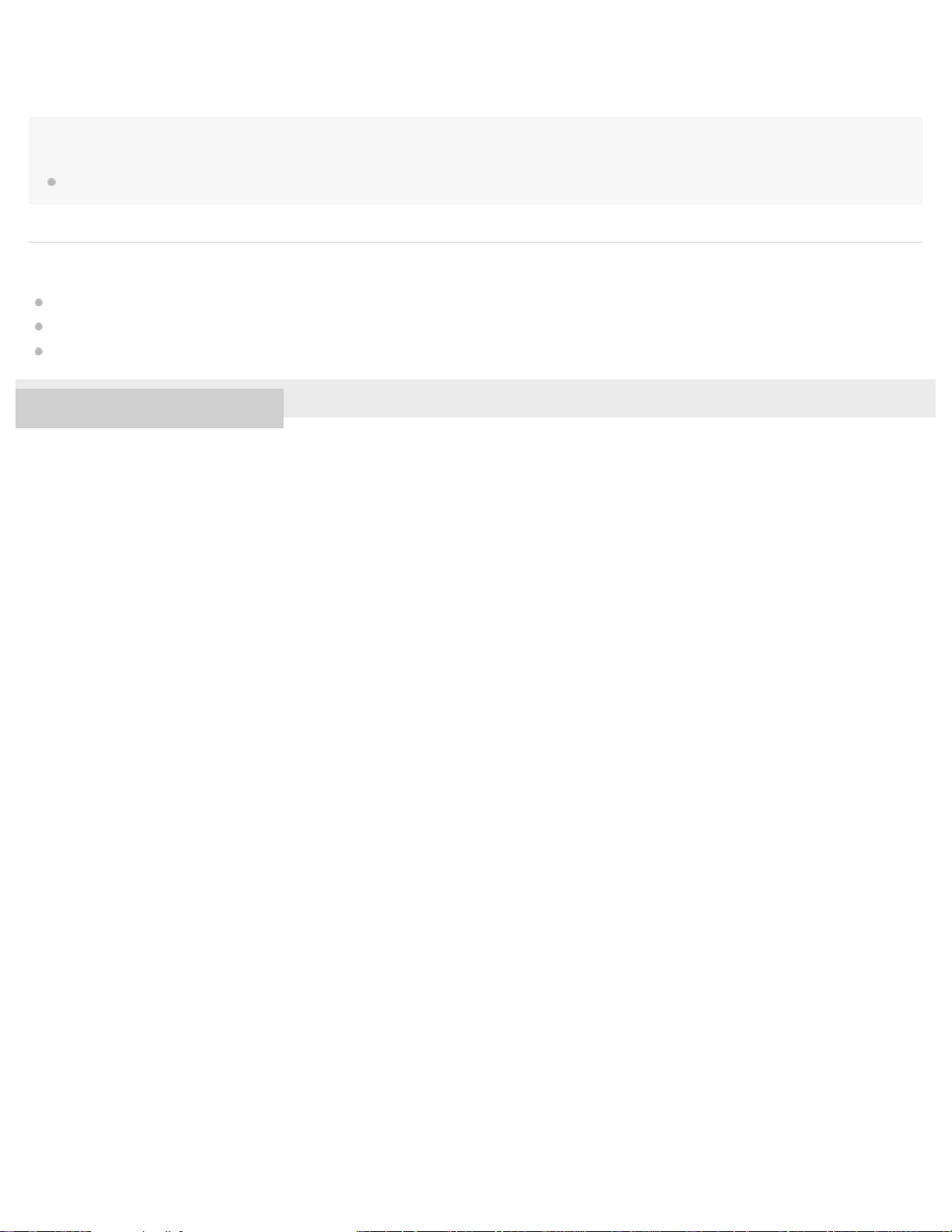
If you cannot control FL-N01 well
FL-N01 may not work correctly depending on the ambient noise.
Make sure that FL-N01 is not covered with cloth such as a collar, etc.
Depending on the voice commands, a network connection is required. For details, see "Voice command/Natural speech list."
If FL-N01 hardly accepts your voice command, try the following.
Avoid places where loud noise, strong wind, or the echo effect occurs.
Try again from step
.
Try saying another phrase if you intend to control FL-N01 with your speech.
Note
It may take as long as 10 seconds for FL-N01 to tell you information after it has received your voice input.
FL-N01 is released from the ready for operation status when no voice input is sent within 4 seconds after you hear a sound from FL-N01 which
reminds you that FL-N01 is ready for operation (step
). In this case, go back to step .
Related Topic
Items of Initial Setup (Android)
Items of Initial Setup (iPhone)
Listening to music
Taking a still image
Taking photos at intervals
Taking continuous photos
Taking a video
Taking photos at intervals automatically (Life Snap)
Receiving Personalized Radio service automatically
Acquiring Personalized Radio service
Notes on recognition technologies
General voice command
27


Help Guide
Future Lab Program N
FL-N01
Listening to music
FL-N01 plays back music files in two different modes: device mode and streaming mode.
Device mode
Playing back music stored on FL-N01. Sample music files are stored on FL-N01 as a default.
You can also transfer desired music files to FL-N01 by connecting to a computer.
Streaming mode
Playing back music stored on a smartphone that is connected to FL-N01 via Bluetooth.
Set FL-N01 to ready for operation.
Select one of the following methods to set FL-N01 to ready for operation.
Tell FL-N01 “Listen up Nigel
*1
.”
*1
Hear the sound (Playback may require the latest browser.)
Press the voice input button on FL-N01.
1
29
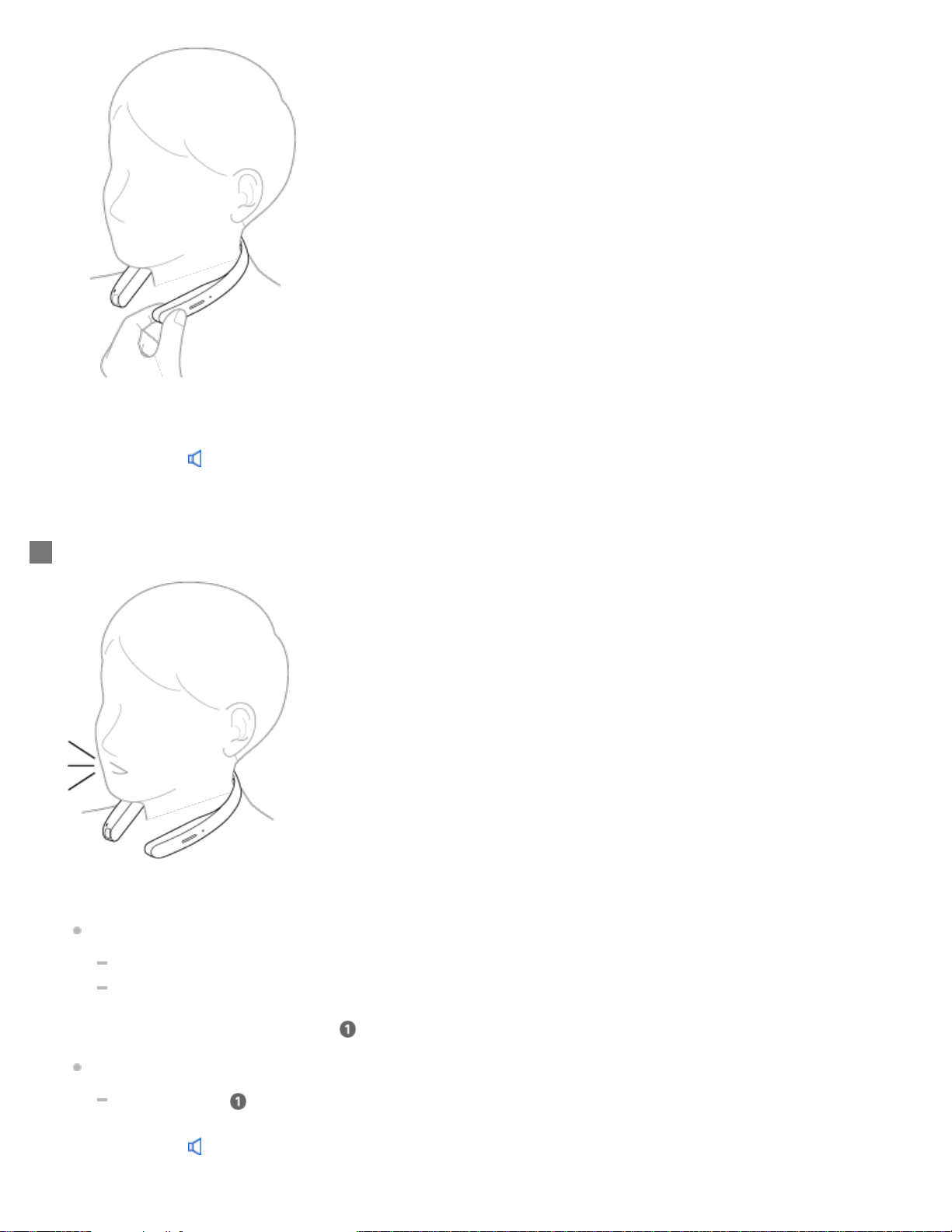
You will hear a sound
*2
from FL-N01 which reminds you that FL-N01 is ready for operation.
*2
Hear the sound (Playback may require the latest browser.)
Within a few seconds after hearing the sound, tell FL-N01 "Start Music."
You will hear a sound
*3
from FL-N01 which reminds you that FL-N01 has received your voice input.
When you hear the error sound
*4
and "Failed to recognize. Try one more time." from FL-N01
Check for the sound
*2
that indicates FL-N01 is ready for operation.
Tell FL-N01 "Start Music" again.
You do not need to go back to step
.
When you hear the error sound
*4
and "Failed to recognize." from FL-N01
Go back to step
and try the procedures again.
*2
Hear the sound (Playback may require the latest browser.)
2
30

To cancel inputting voice command
After step , press the voice input button on FL-N01.
If you cannot control FL-N01 well
See "How to control FL-N01" for details.
How to switch between device mode and streaming mode
See "How to switch the modes" in "What you can do with device mode and streaming mode" for details.
To stop playback
Talk to FL-N01. (See “Voice command/Natural speech list”.)
You can also stop playback by pressing and holding the voice input button on FL-N01.
Related Topic
What you can do with device mode and streaming mode
How to control FL-N01
General voice command
Voice command on music
4-593-988-11(5) Copyright 2016 Sony Corporation
*3
Hear the sound (Playback may require the latest browser.)
*4
Hear the error sound (Playback may require the latest browser.)
FL-N01 starts to playback music.
Once a whole playlist has been played back, FL-N01 will go back to the first music file on the playlist (repeat all).
3
31
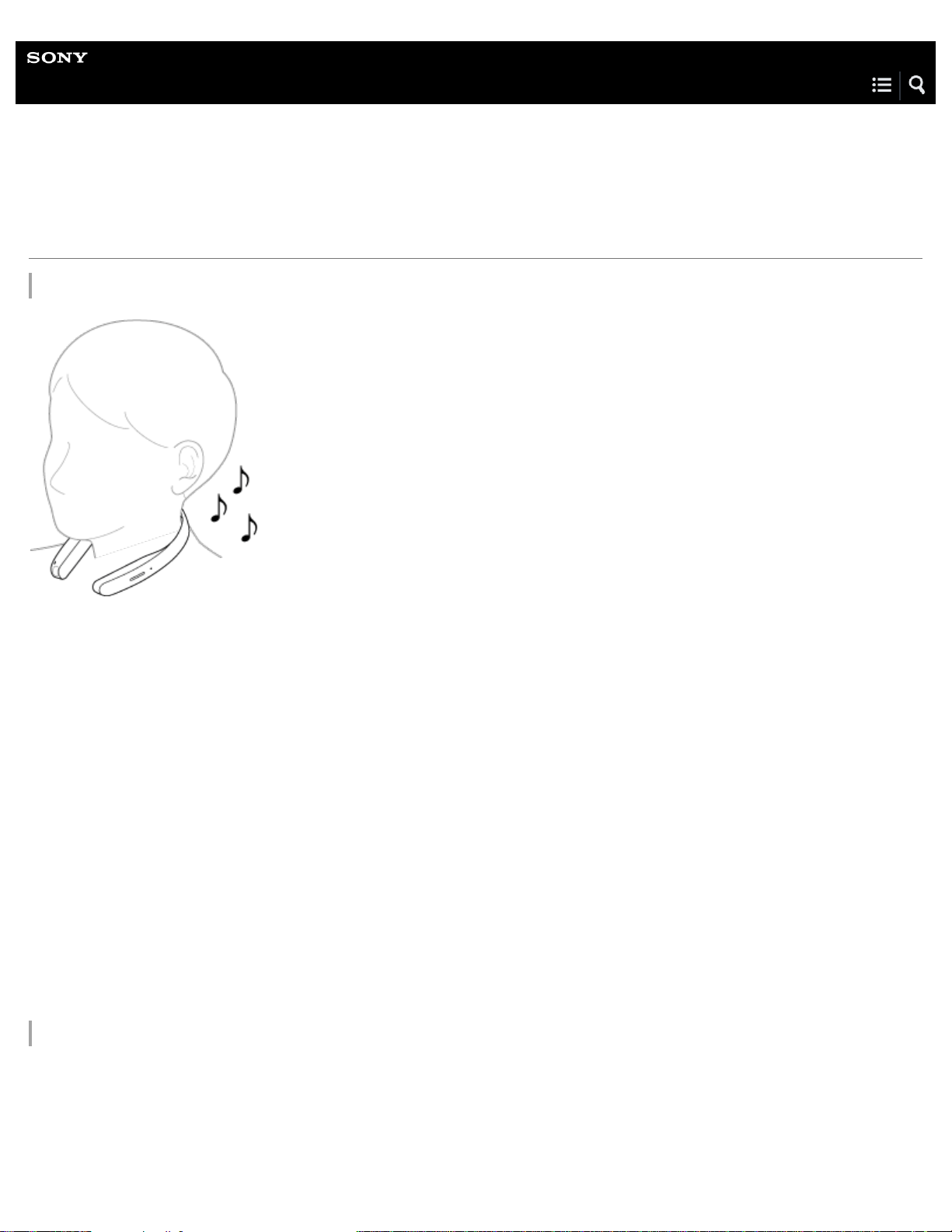
Help Guide
Future Lab Program N
FL-N01
What you can do with device mode and streaming mode
What is device mode?
Preconfigure
Connect FL-N01 to a computer, then transfer the desired music files to FL-N01 from the computer.
Playable music files
Music files stored in FL-N01
Sample music files are stored on FL-N01 as a default.
You can also transfer desired music files to FL-N01 by connecting to a computer.
Selectable playback modes
Normal play (default), Shuffle play
Once a whole playlist has been played back, FL-N01 will go back to the first music file on the playlist (repeat all) even though
either playback mode is selected.
Available functions
See "Voice command/Natural speech list."
What is streaming mode?
32

Preconfigure
Connect FL-N01 and a smartphone via Bluetooth.
Playable music files
Music files stored in a smartphone that is connected to FL-N01 via Bluetooth.
Selectable playback mode
You cannot select a playback mode with voice commands.
Available functions
See "Voice command/Natural speech list."
How to switch the modes
There are 3 ways of switching the modes.
Press the custom button on FL-N01 repeatedly.
Use voice commands.
Tell FL-N01 “Listen up Nigel” to make it ready for operation, then tell FL-N01 “Change music source.”
Change the setting on the “Future Lab Program N” app.
Tap - [Music source] to display the screen.
Hint
The custom button on FL-N01 is assigned to switch between device mode and streaming mode as a default. The function of the custom button
33

Help Guide
Future Lab Program N
FL-N01
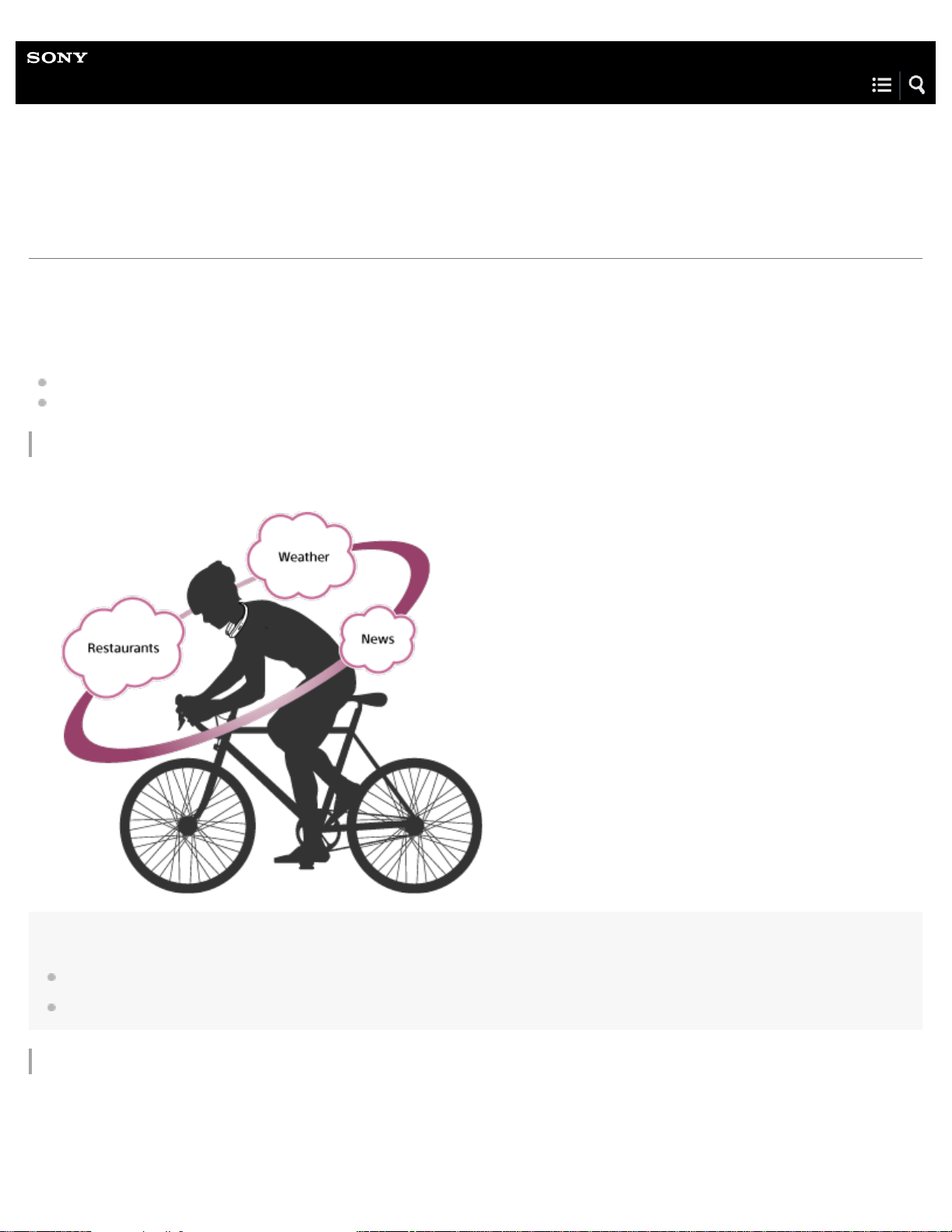
What is Personalized Radio service?
Personalized Radio service is a new feature that FL-N01 offers.
FL-N01 reads out and lets you know information such as weather, restaurants, news, events, calendar, mails, social feeds, activity
logs, SMS, smartphone notifications, etc.
You can select both when and how you receive information.
Receiving information automatically according to where you are, what time it is, or what you are doing.
Acquiring information when you want by using the voice control function.
Receiving Personalized Radio service automatically
FL-N01 analyzes where you are, what time it is, and what you are doing, then delivers you useful information automatically.
Note
"Audio AR Games" does not support this function.
While playing "Audio AR Games," FL-N01 does not deliver you any information automatically via segments on Personalized Radio service.
Acquiring Personalized Radio service
FL-N01 delivers you information whenever you want by using the voice commands.
35

Hint
The Bluetooth tethering/Personal Hotspot setting is required to use the Personalized Radio service.
Information (segments) that Personalized Radio service can provide may be updated automatically (except for "Audio AR Games").
4-593-988-11(5) Copyright 2016 Sony Corporation
36
Help Guide
Future Lab Program N
FL-N01
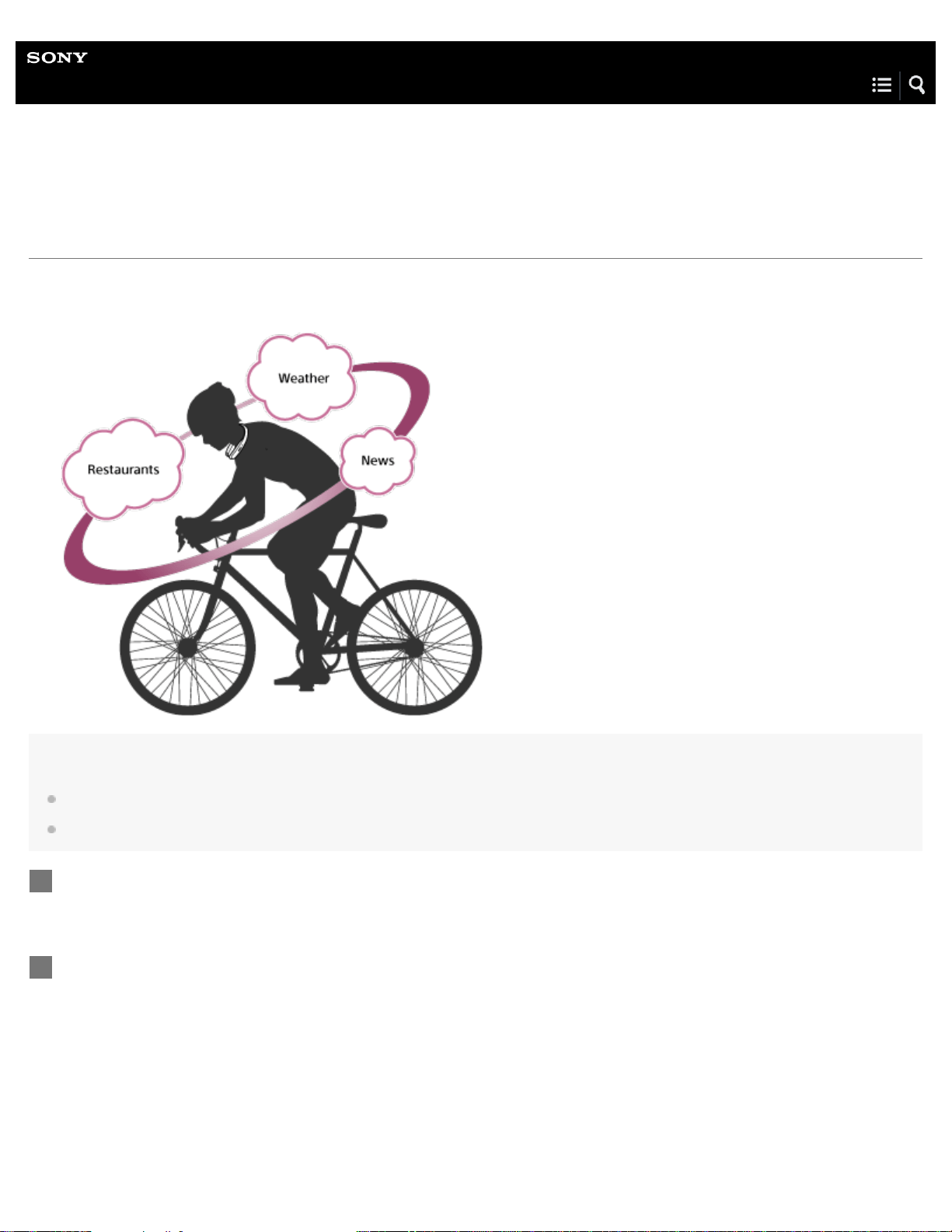
Receiving Personalized Radio service automatically
FL-N01 analyzes where you are, what time it is, and what you are doing, then delivers you useful information automatically.
The screen images used in this topic are those used in Android™ smartphones.
Note
"Audio AR Games" does not support this function.
While playing "Audio AR Games," FL-N01 does not deliver you any information automatically via segments on Personalized Radio service.
Perform initial setup on the “Future Lab Program N” app.
1
Select the segments you want to receive information from via the Personalized Radio service on the
“Future Lab Program N” app.
2
37
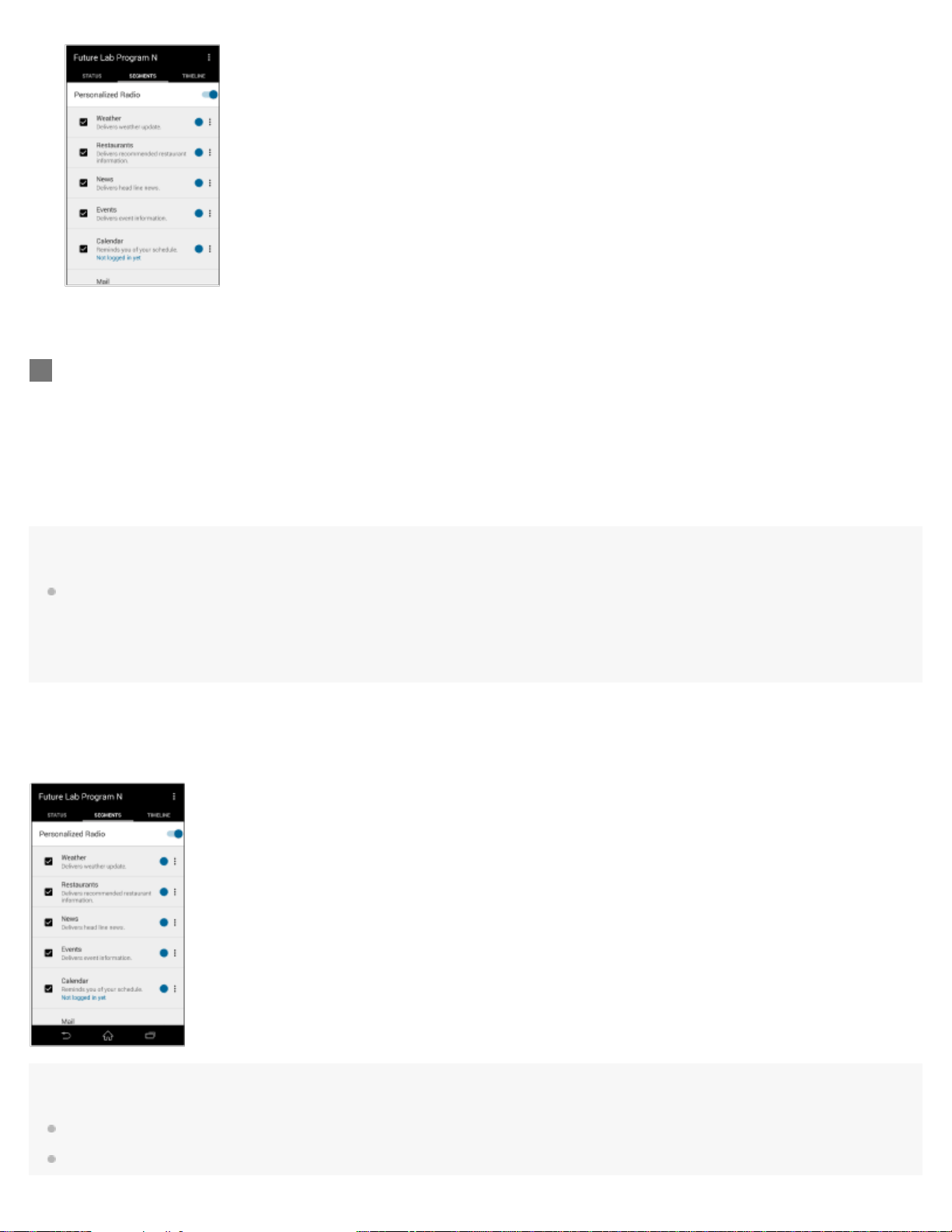
Hint
You can control/assort information you are receiving by using the voice commands.
1. Press the voice input button or tell FL-N01 “Listen up Nigel” to set FL-N01 ready for operation.
2. Within a few seconds after hearing the sound from FL-N01 which reminds you that FL-N01 is ready for operation,
tell FL-N01 "Next," "Previous," "Bookmark," "More detail," "Repeat item," or "Stop."
To stop receiving Personalized Radio service automatically
Set [Personalized Radio] to off on the segment screen of the “Future Lab Program N” app.
Hint
The Bluetooth tethering/Personal Hotspot setting is required to use the Personalized Radio service.
Personalized Radio service can be used without a network connection depending on services.
Wear FL-N01 and enjoy the Personalized Radio service.
FL-N01 reads out information automatically.
3
38
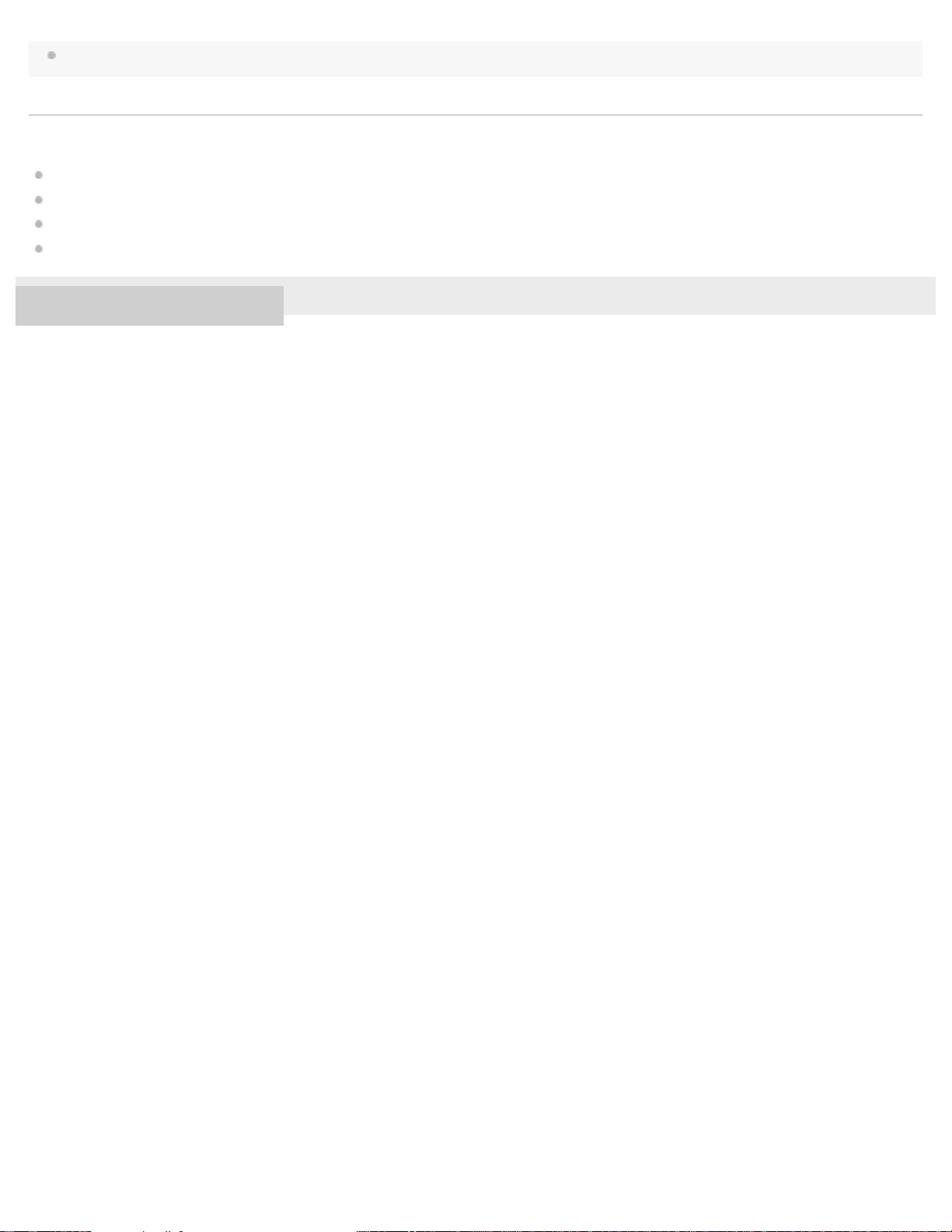
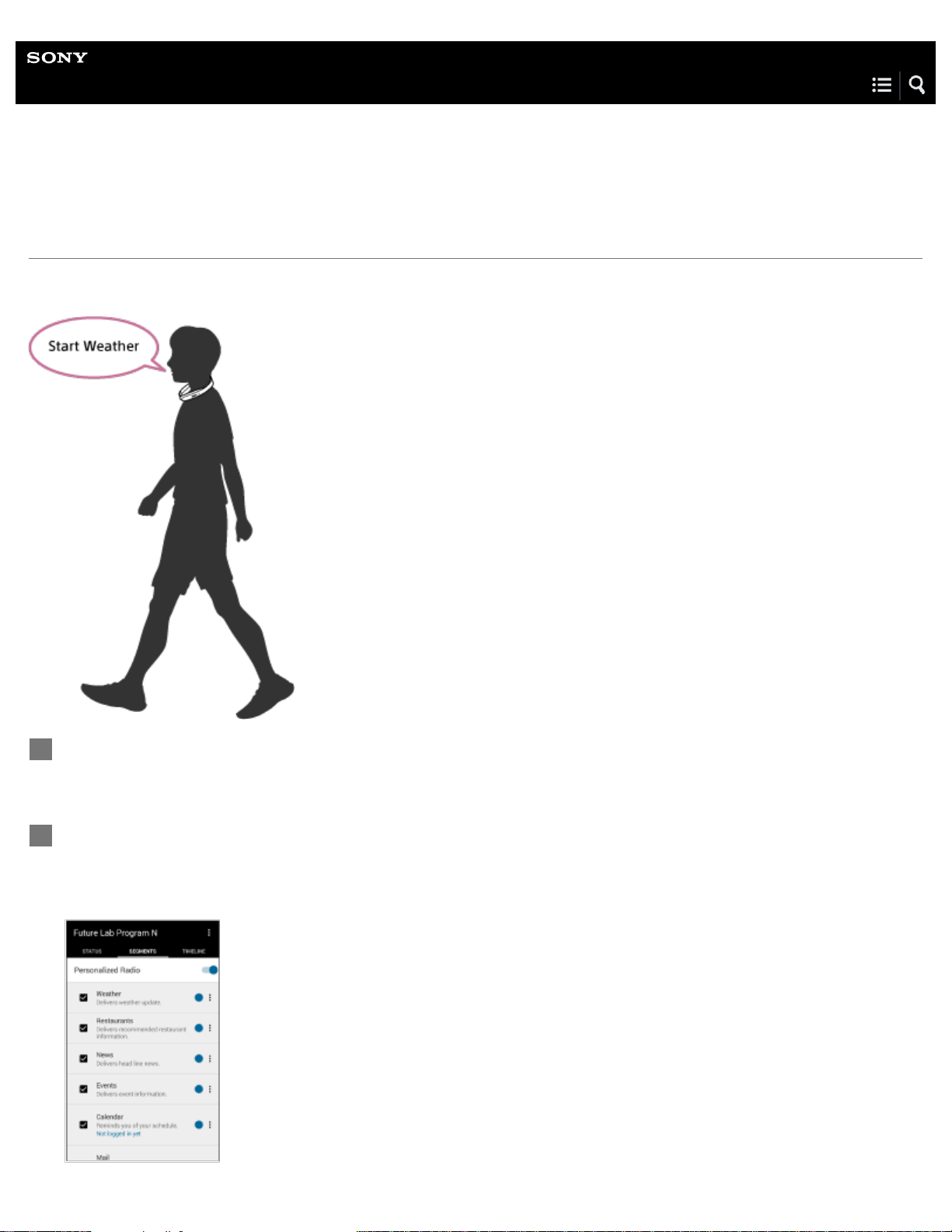
You can also stop receiving Personalized Radio service automatically by pressing and holding the voice input button on FL-N01.
Related Topic
What is voice control?
Using the dedicated smartphone app “Future Lab Program N”
General voice command
Voice command/Natural speech on Personalized Radio service
4-593-988-11(5) Copyright 2016 Sony Corporation
39
Help Guide
Future Lab Program N
FL-N01
Acquiring Personalized Radio service
FL-N01 delivers you information whenever you want by using the voice commands.
Perform initial setup on the “Future Lab Program N” app.
1
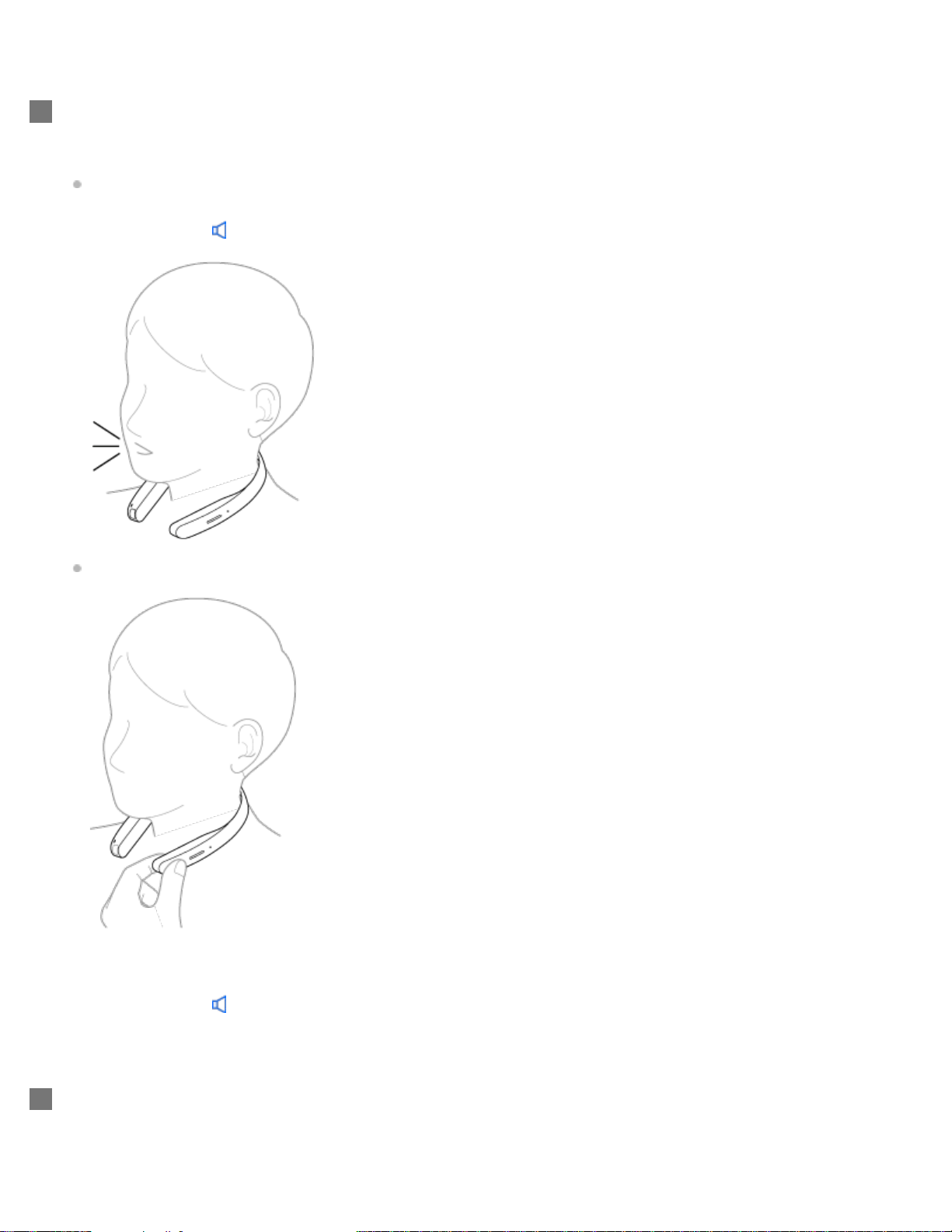
Select the segments you want to receive information from via the Personalized Radio service on the
“Future Lab Program N” app.
The image below is the screen of Android devices.
2
40
Set FL-N01 to ready for operation.
Select one of the following methods to set FL-N01 to ready for operation.
Tell FL-N01 “Listen up Nigel
*1
.”
*1
Hear the sound (Playback may require the latest browser.)
Press the voice input button on FL-N01.
You will hear a sound
*2
from FL-N01 which reminds you that FL-N01 is ready for operation.
*2
Hear the sound (Playback may require the latest browser.)
3
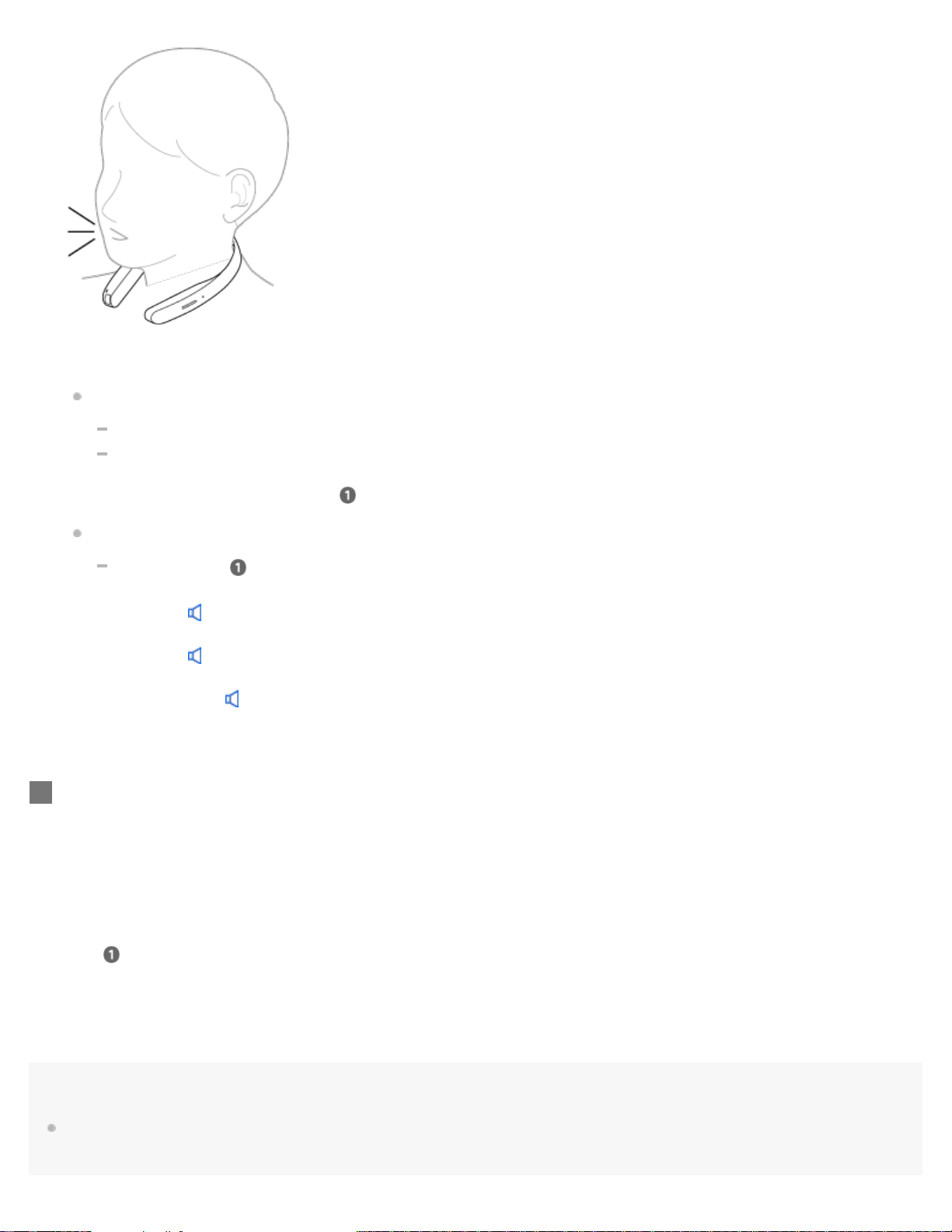
Within a few seconds after hearing the sound, tell FL-N01 "Start Weather."
4
41
To cancel inputting voice command
After step , press the voice input button on FL-N01.
If you cannot control FL-N01 well
See "How to control FL-N01" for details.
Hint
You can control/assort information you are receiving by using the voice commands.
1. Press the voice input button or tell FL-N01 “Listen up Nigel” to set FL-N01 ready for operation.
You will hear a sound
*3
from FL-N01 which reminds you that FL-N01 has received your voice input.
When you hear the error sound
*4
and "Failed to recognize. Try one more time." from FL-N01
Check for the sound
*2
that indicates FL-N01 is ready for operation.
Tell FL-N01 "Start Weather" again.
You do not need to go back to step
.
When you hear the error sound
*4
and "Failed to recognize." from FL-N01
Go back to step
and try the procedures again.
*2
Hear the sound (Playback may require the latest browser.)
*3
Hear the sound (Playback may require the latest browser.)
*4
Hear the error sound (Playback may require the latest browser.)
FL-N01 reads out weather information.
5
42

2. Within a few seconds after hearing the sound from FL-N01 which reminds you that FL-N01 is ready for operation,
tell FL-N01 "Next," "Previous," "Bookmark," "More detail," "Repeat item," or "Stop."
You can stop FL-N01 from reading out information by pressing and holding the voice input button on FL-N01.
Related Topic
What is voice control?
How to control FL-N01
General voice command
Voice command/Natural speech on Personalized Radio service
4-593-988-11(5) Copyright 2016 Sony Corporation
43
Help Guide
Future Lab Program N
FL-N01
About segments on Personalized Radio service
Select the segments you want to receive information via Personalized Radio service on the “Future Lab Program N” app.
The available voice commands vary depending on the segments.
Weather
FL-N01 delivers weather updates according to your routine behavior. You can specify the time and place, and select categories
such as weather, temperature, chance-of -rain, weekly forecast, etc. FL-N01 can also let you know when it starts or stops raining.
Restaurants
FL-N01 delivers recommended restaurant information nearby.
The history of received restaurant information can be checked on the timeline screen of the "Future Lab Program N" app.
News
FL-N01 delivers news headlines. FL-N01 learns your preference and will deliver more suitable news for you. By selecting a
category on the “Future Lab Program N” app, you can specify what types of news you will receive.
The history of received news can be checked on the timeline screen of the "Future Lab Program N" app.
Events
FL-N01 delivers event information within a 100 miles radius from the center of the San Francisco bay area. You can specify what
kind of event information you will receive by selecting a category on the “Future Lab Program N” app. You can also specify event
information within a half mile radius from where you are by the time and place.
The history of received event information can be checked on the timeline screen of the "Future Lab Program N" app.
Calendar
FL-N01 reminds you of your schedule. An account for Google Calendar™ is required. In the morning, FL-N01 lets you know the
day’s schedule. In the afternoon, FL-N01 lets you know the rest of the day and tomorrow’s schedule. You can also check the
schedule on a specific day and time. The time for reminders can be adjusted as you like.
Mail
FL-N01 notifies you of received mail. An account for Gmail™ is required. FL-N01 reads out the sender and title of the mail. You
can select when to check emails, what items to be read out, etc. on the “Future Lab Program N” app.
Social Feeds
FL-N01 delivers the latest social feeds by reading out a timeline of tweets. Logging in to Twitter is required. When you made a list
of “N” by using the list function of Twitter, FL-N01 only reads out tweets from users in the “N” list. Direct messages and mentions
which are sent to you are also read out.
The history of the received social feeds can be checked on the timeline screen of the "Future Lab Program N" app.
Navigation
44
FL-N01 provides turn-by-turn voice guided directions for biking and walking, allowing you to get to your destination safely and
efficiently.
You need to connect FL-N01 to your smartphone via Bluetooth and launch the "Future Lab Program N" app on your smartphone
to use this function.
Navigation has the following functions:
Start Navigation to home:
Before using Navigation, set your home location in your "Future Lab Program N" app.
To start Navigation to home, tell FL-N01 "Start navigation to home." or "Take me home."
Start Navigation to your destination:
To start Navigation to your destination, tell FL-N01 "Start Navigation."
When FL-N01 asks for your destination, tell FL-N01 your destination.
Stop Navigation:
To stop navigation, tell FL-N01 "Stop Navigation."
Audio AR Games
FL-N01 offers you gaming entertainment that you can play only with audio.
"Lost Dog" is a pre-installed content. To start playing, tell FL-N01 "Start Lost Dog." To quit the content, tell FL-N01 "Stop Lost
Dog."
You need to play "Audio AR Games" outside since the contents use GPS on FL-N01. While playing "Audio AR Games," FL-N01
does not deliver you any information automatically via segments on Personalized Radio service.
Activity Log
You need to connect FL-N01 to your smartphone via Bluetooth and launch the "Future Lab Program N" app on your smartphone
to use this function.
Activity log has the following 2 logging modes:
Auto logging:Automatically logs your activity such as cycling and/or running based on your activity status.
Voice command logging:Logs your activity such as cycling or running which you set on the "Future Lab Program N." Logs are
started by voice command.
All the settings such as when to start taking logs, your weight, when to announce your lap time, or what to announce (distance,
time record, average speed, burned up calories) are made on the "Future Lab Program N" app. Logs are stored in FL-N01. You
can update logs by logging in to Strava.
If you are a premium member of Strava and have set the Personal Hotspot/Bluetooth tethering setting of your smartphone to on,
activity logs can be linked up with Live Segments.
For details on recognition technologies, see "Notes on recognition technologies."
SMS
FL-N01 notifies you of SMS which you receive on your smartphone while FL-N01 and the smartphone are connected via
Bluetooth, and FL-N01 will read out the sender and message. (If there is no Bluetooth connection between FL-N01 and your
smartphone, FL-N01 will not read out SMS even though you receive SMS on your smartphone.) You can change the setting on
the “Future Lab Program N” app to not have them read out. You can also recheck SMS that have been read out so far by telling
FL-N01 "Start SMS." The Personal Hotspot/Bluetooth tethering setting is not required.
Smartphone Notification
FL-N01 reads out notifications of the selected apps on your smartphone automatically. The Personal Hotspot/Bluetooth tethering
setting is not required. You cannot use a voice command to receive a smartphone notification.
45
Note
The services that the third parties provide may be revised, stopped, and discontinued without a notice. Sony bears no responsibility for this.
Related Topic
Notes on recognition technologies
FL-N01 announces/the “Future Lab Program N” app shows that there is no space left on the internal storage of FL-N01.
4-593-988-11(5) Copyright 2016 Sony Corporation
46

Help Guide
Future Lab Program N
FL-N01
Taking a still image
You can take a still image with FL-N01 by using the built-in camera.
Perform initial setup and camera settings on the “Future Lab Program N” app.
1
Set FL-N01 to ready for operation.
Select one of the following methods to set FL-N01 to ready for operation.
Tell FL-N01 “Listen up Nigel
*1
.”
*1
Hear the sound (Playback may require the latest browser.)
Press the voice input button on FL-N01.
2
47
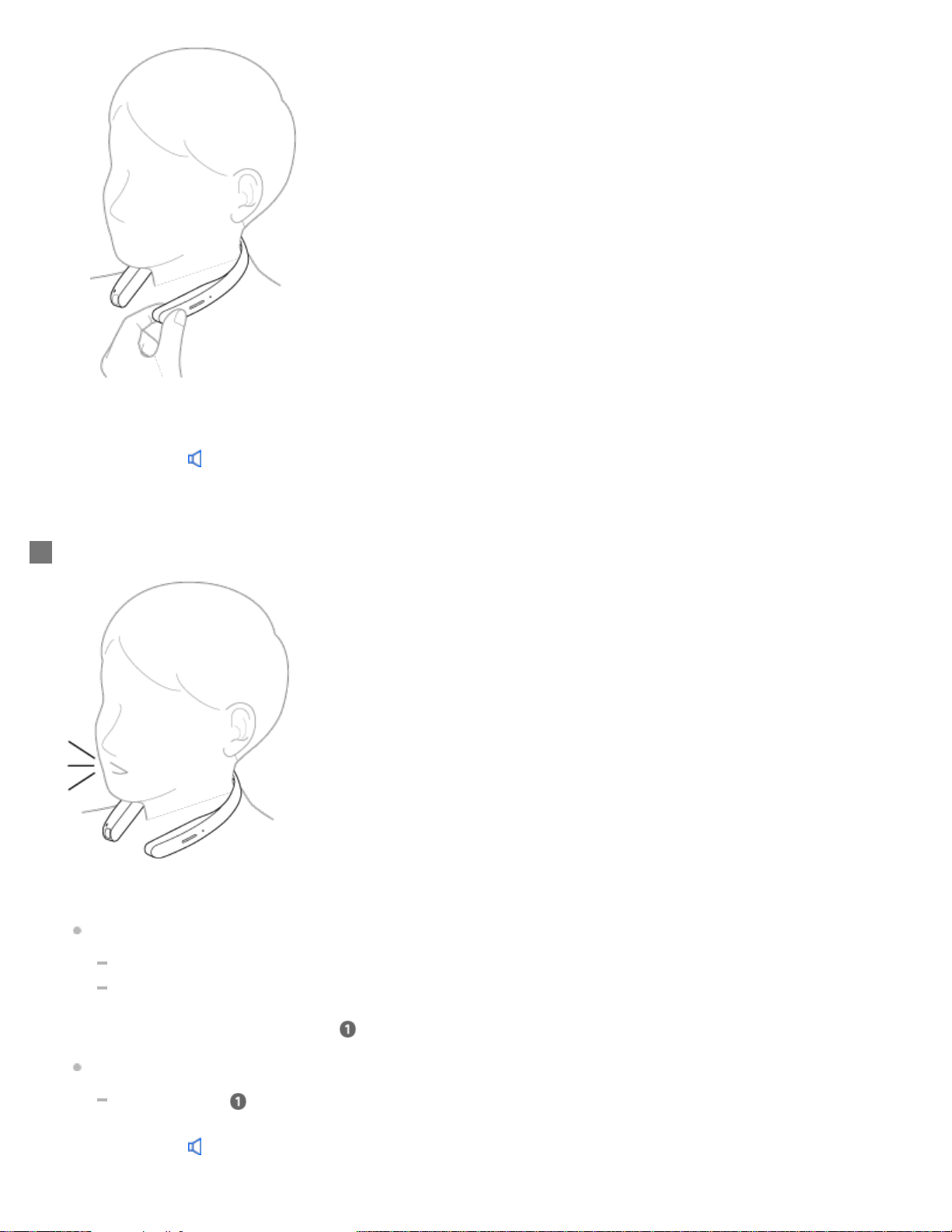
You hear a sound
*2
from FL-N01 which reminds you that FL-N01 is ready for operation.
*2
Hear the sound (Playback may require the latest browser.)
Within a few seconds after hearing the sound, tell FL-N01 "Take a picture."
You will hear a sound
*3
from FL-N01 which reminds you that FL-N01 has received your voice input.
When you hear the error sound
*4
and "Failed to recognize. Try one more time." from FL-N01
Check for the sound
*2
that indicates FL-N01 is ready for operation.
Tell FL-N01 "Take a picture" again.
You do not need to go back to step
.
When you hear the error sound
*4
and "Failed to recognize." from FL-N01
Go back to step
and try the procedures again.
*2
Hear the sound (Playback may require the latest browser.)
3
48

To cancel inputting voice command
After step , press the voice input button on FL-N01.
If you cannot control FL-N01 well
See "How to control FL-N01" for details.
Hint
The camera will be adjusted automatically to maintain the horizontal position while you are walking or cycling.
Related Topic
Items of Initial Setup (Android)
Items of Initial Setup (iPhone)
How to control FL-N01
General voice command
Voice command on camera
Connecting to a computer
Checking photos/videos/activity logs stored on the built-in memory of FL-N01
Using the dedicated smartphone app “Future Lab Program N”
Changing the settings of FL-N01 on the “Future Lab Program N” app
4-593-988-11(5) Copyright 2016 Sony Corporation
*3
Hear the sound (Playback may require the latest browser.)
*4
Hear the error sound (Playback may require the latest browser.)
FL-N01 takes a picture.
Picture data will be stored in FL-N01. You can see them by connecting FL-N01 to a computer.
4
49
Help Guide
Future Lab Program N
FL-N01
Taking photos at intervals
You can take photos at intervals with FL-N01 by using the built-in camera.
Perform initial setup and camera settings on the “Future Lab Program N” app.
1
Set FL-N01 to ready for operation.
Select one of the following methods to set FL-N01 to ready for operation.
Tell FL-N01 “Listen up Nigel
*1
.”
*1
Hear the sound (Playback may require the latest browser.)
Press the voice input button on FL-N01.
2
50
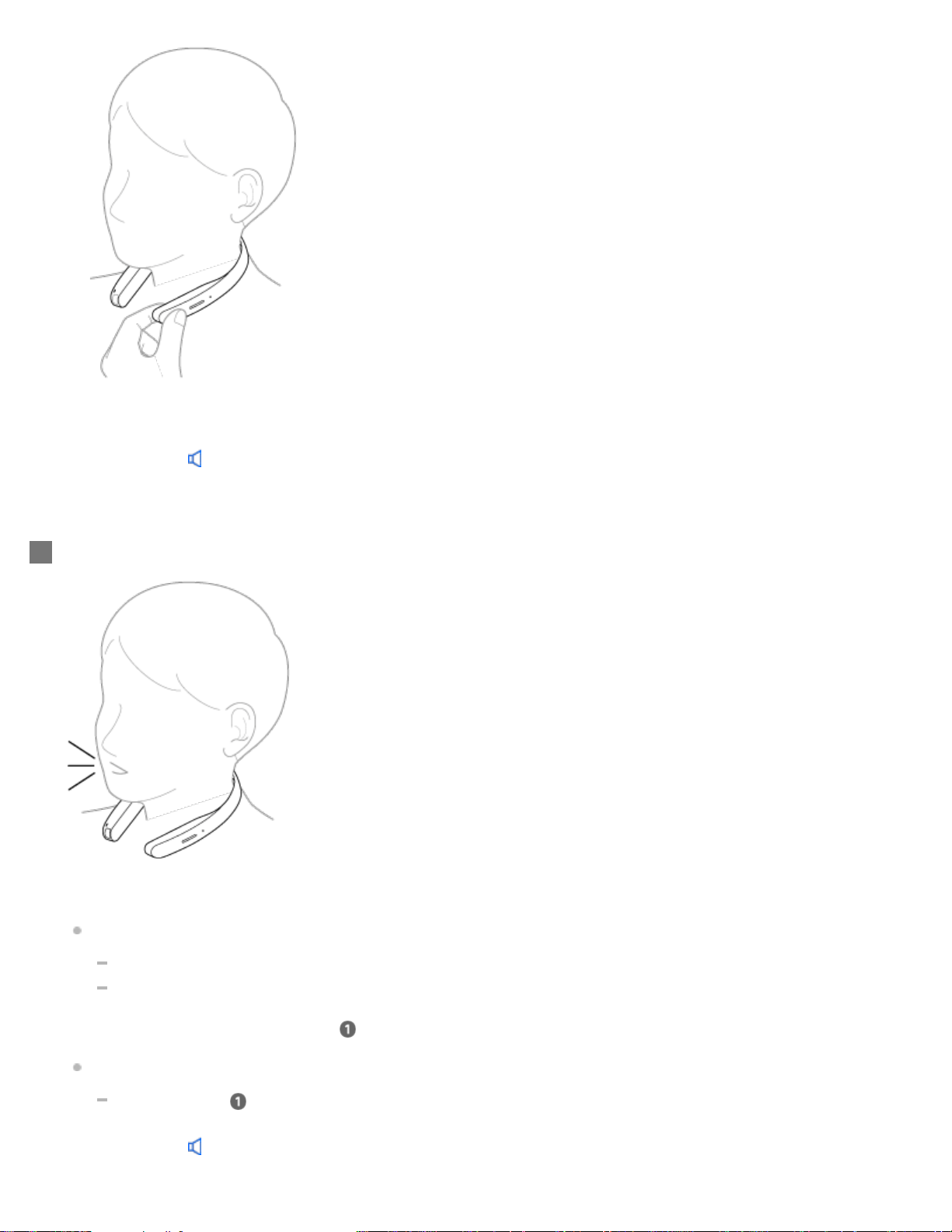
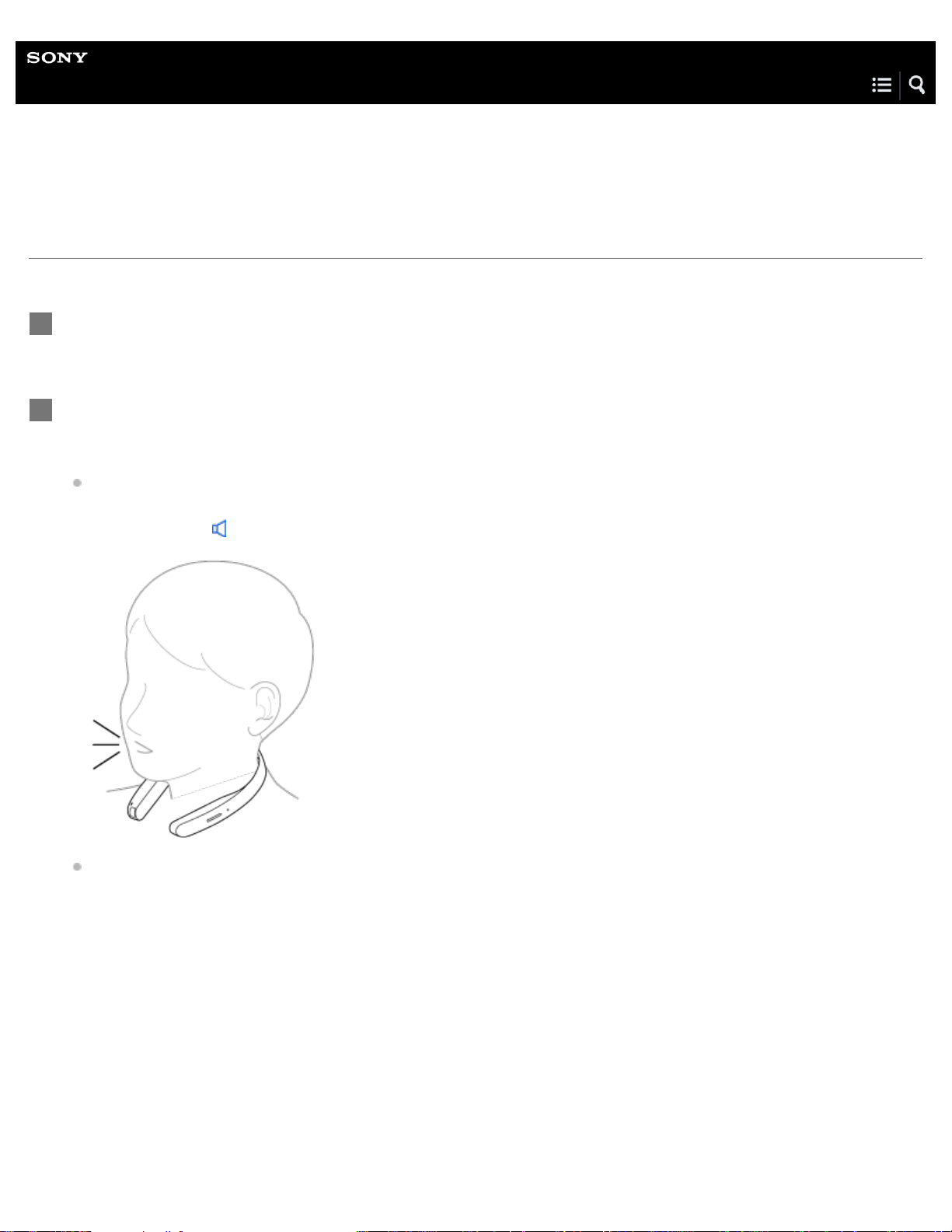
You hear a sound
*2
from FL-N01 which reminds you that FL-N01 is ready for operation.
*2
Hear the sound (Playback may require the latest browser.)
Within a few seconds after hearing the sound, tell FL-N01 "Start interval photo shooting."
You will hear a sound
*3
from FL-N01 which reminds you that FL-N01 has received your voice input.
When you hear the error sound
*4
and "Failed to recognize. Try one more time." from FL-N01
Check for the sound
*2
that indicates FL-N01 is ready for operation.
Tell FL-N01 "Start interval photo shooting" again.
You do not need to go back to step
.
When you hear the error sound
*4
and "Failed to recognize." from FL-N01
Go back to step
and try the procedures again.
*2
Hear the sound (Playback may require the latest browser.)
3
51
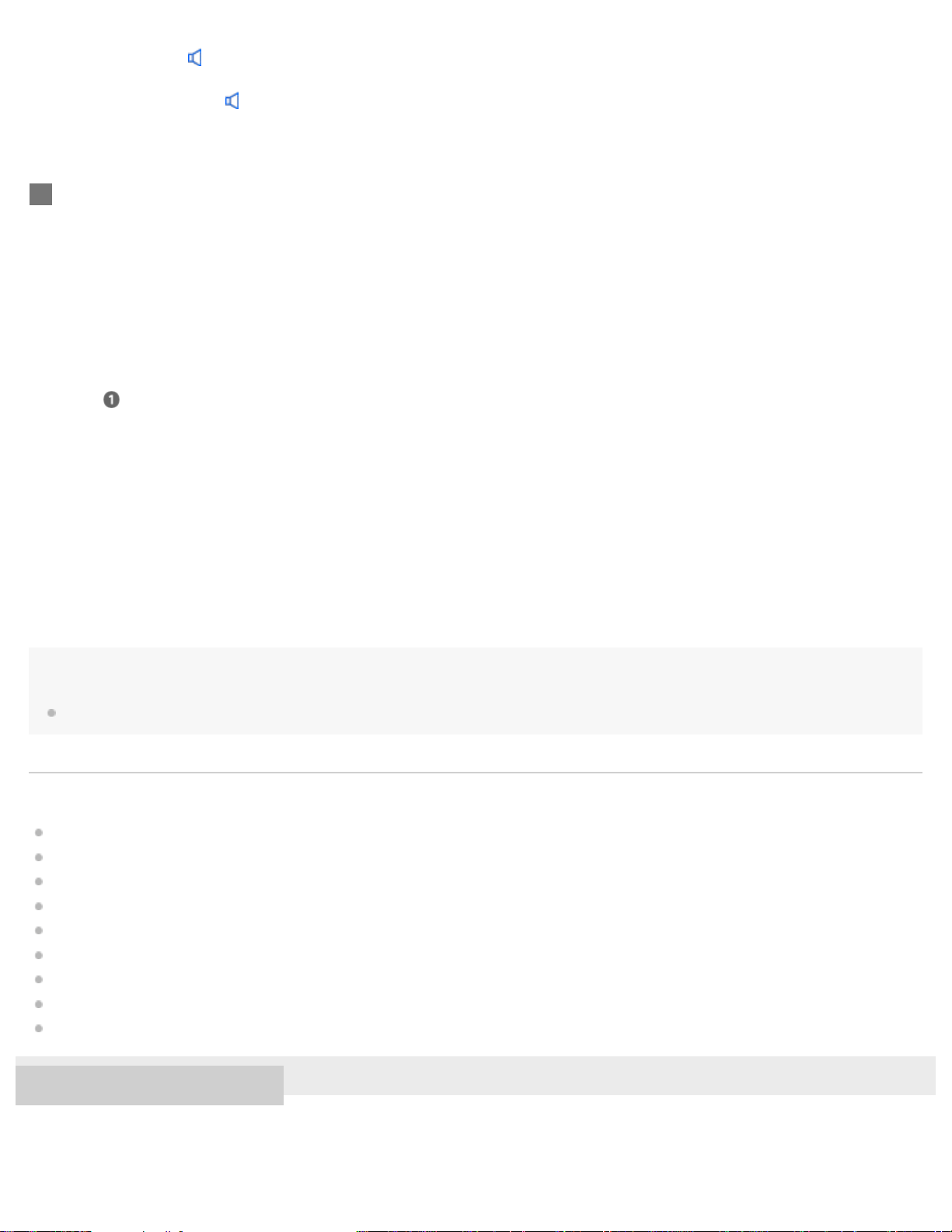
To cancel inputting voice command
After step , press the voice input button on FL-N01.
If you cannot control FL-N01 well
See "How to control FL-N01" for details.
To stop taking photos at intervals
1. Set FL-N01 ready for operation by telling FL-N01 “Listen up Nigel” or pressing the voice input button on
FL-N01.
2. Within a few seconds after hearing the sound from FL-N01 which reminds you that FL-N01 is ready for
operation, tell FL-N01 "Stop interval photo."
Hint
The camera will be adjusted automatically to maintain the horizontal position while you are walking or cycling.
Related Topic
Items of Initial Setup (Android)
Items of Initial Setup (iPhone)
How to control FL-N01
General voice command
Voice command on camera
Connecting to a computer
Checking photos/videos/activity logs stored on the built-in memory of FL-N01
Using the dedicated smartphone app “Future Lab Program N”
Changing the settings of FL-N01 on the “Future Lab Program N” app
4-593-988-11(5) Copyright 2016 Sony Corporation
*3
Hear the sound (Playback may require the latest browser.)
*4
Hear the error sound (Playback may require the latest browser.)
FL-N01 takes photos at intervals.
Photo data will be stored in FL-N01. You can see them by connecting FL-N01 to a computer.
4
52

Help Guide
Future Lab Program N
FL-N01
Taking continuous photos
You can take continuous photos with FL-N01 by using the built-in camera.
Perform initial setup and camera settings on the “Future Lab Program N” app.
1
Set FL-N01 to ready for operation.
Select one of the following methods to set FL-N01 to ready for operation.
Tell FL-N01 “Listen up Nigel
*1
.”
*1
Hear the sound (Playback may require the latest browser.)
Press the voice input button on FL-N01.
2
53

You will hear a sound
*2
from FL-N01 which reminds you that FL-N01 is ready for operation.
*2
Hear the sound (Playback may require the latest browser.)
Within a few seconds after hearing the sound, tell FL-N01 "Start continuous photo shooting."
You will hear a sound
*3
from FL-N01 which reminds you that FL-N01 has received your voice input.
When you hear the error sound
*4
and "Failed to recognize. Try one more time." from FL-N01
Check for the sound
*2
that indicates FL-N01 is ready for operation.
Tell FL-N01 "Start continuous photo shooting" again.
You do not need to go back to step
.
When you hear the error sound
*4
and "Failed to recognize." from FL-N01
Go back to step
and try the procedures again.
*2
Hear the sound (Playback may require the latest browser.)
3
54
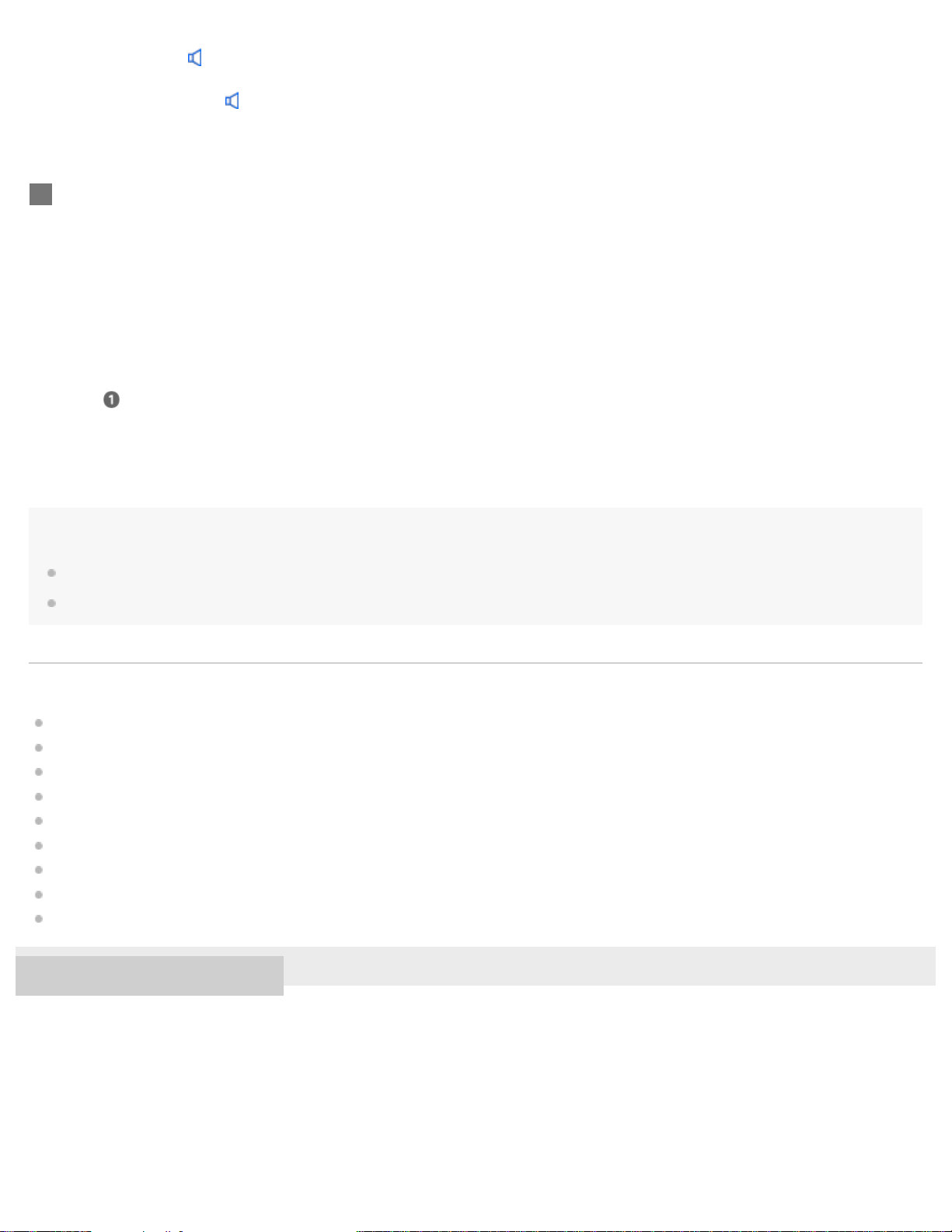
To cancel inputting voice command
After step , press the voice input button on FL-N01.
If you cannot control FL-N01 well
See "How to control FL-N01" for details.
Hint
The camera will be adjusted automatically to maintain the horizontal position while you are walking or cycling.
The angle of the camera is fixed to when the continuous photo shooting starts.
Related Topic
Items of Initial Setup (Android)
Items of Initial Setup (iPhone)
How to control FL-N01
General voice command
Voice command on camera
Connecting to a computer
Checking photos/videos/activity logs stored on the built-in memory of FL-N01
Using the dedicated smartphone app “Future Lab Program N”
Changing the settings of FL-N01 on the “Future Lab Program N” app
4-593-988-11(5) Copyright 2016 Sony Corporation
*3
Hear the sound (Playback may require the latest browser.)
*4
Hear the error sound (Playback may require the latest browser.)
FL-N01 takes continuous photos.
Photo data will be stored in FL-N01. You can see them by connecting FL-N01 to a computer.
4
55

Help Guide
Future Lab Program N
FL-N01
Taking a video
You can take a video (maximum to 1 minute long) with FL-N01 by using the built-in camera.
Perform initial setup and camera settings on the “Future Lab Program N” app.
1
Set FL-N01 to ready for operation.
Select one of the following methods to set FL-N01 to ready for operation.
Tell FL-N01 “Listen up Nigel
*1
.”
*1
Hear the sound (Playback may require the latest browser.)
Press the voice input button on FL-N01.
2
56
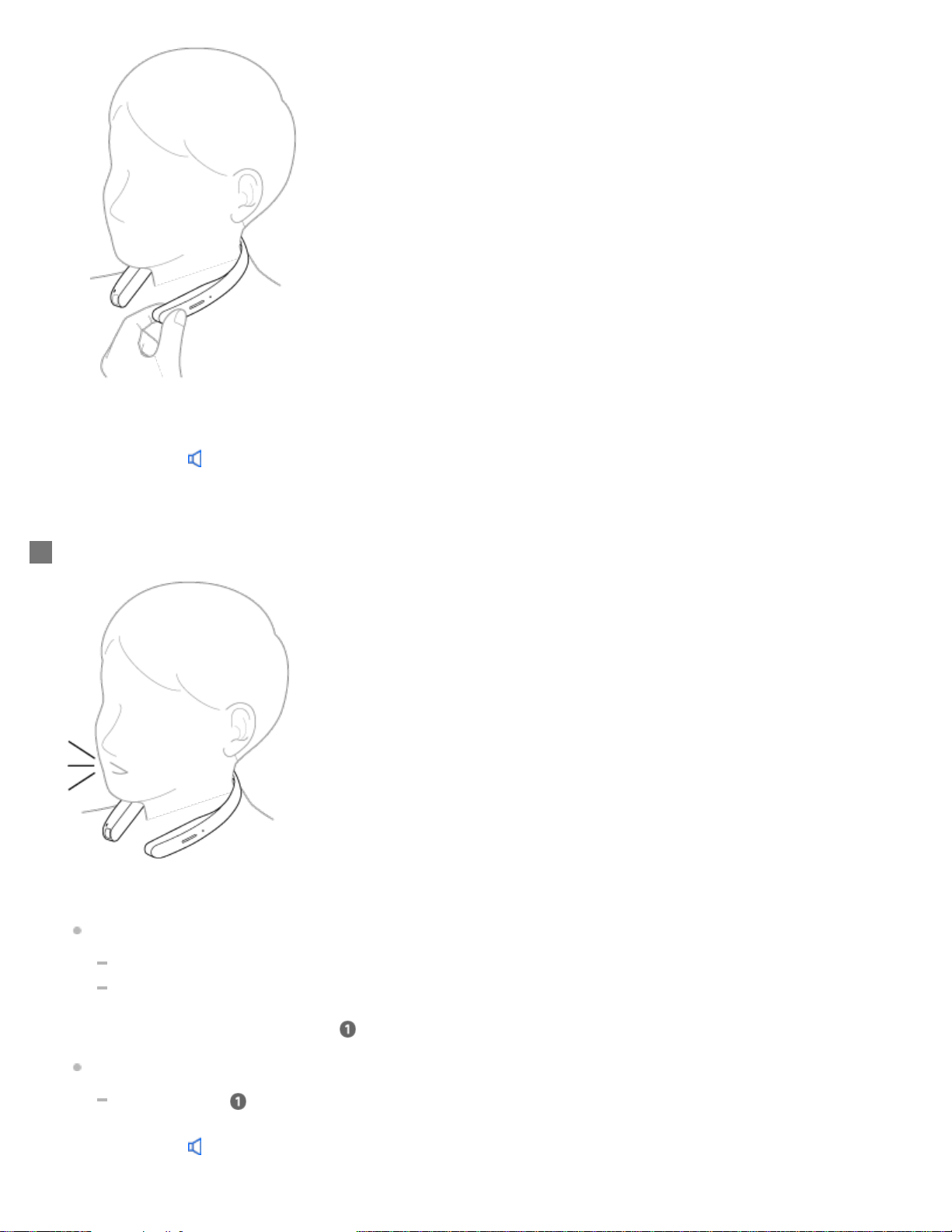
You will hear a sound
*2
from FL-N01 which reminds you that FL-N01 is ready for operation.
*2
Hear the sound (Playback may require the latest browser.)
Within a few seconds after hearing the sound, tell FL-N01 "Start video shooting."
You will hear a sound
*3
from FL-N01 which reminds you that FL-N01 has received your voice input.
When you hear the error sound
*4
and "Failed to recognize. Try one more time." from FL-N01
Check for the sound
*2
that indicates FL-N01 is ready for operation.
Tell FL-N01 "Start video shooting" again.
You do not need to go back to step
.
When you hear the error sound
*4
and "Failed to recognize." from FL-N01
Go back to step
and try the procedures again.
*2
Hear the sound (Playback may require the latest browser.)
3
57
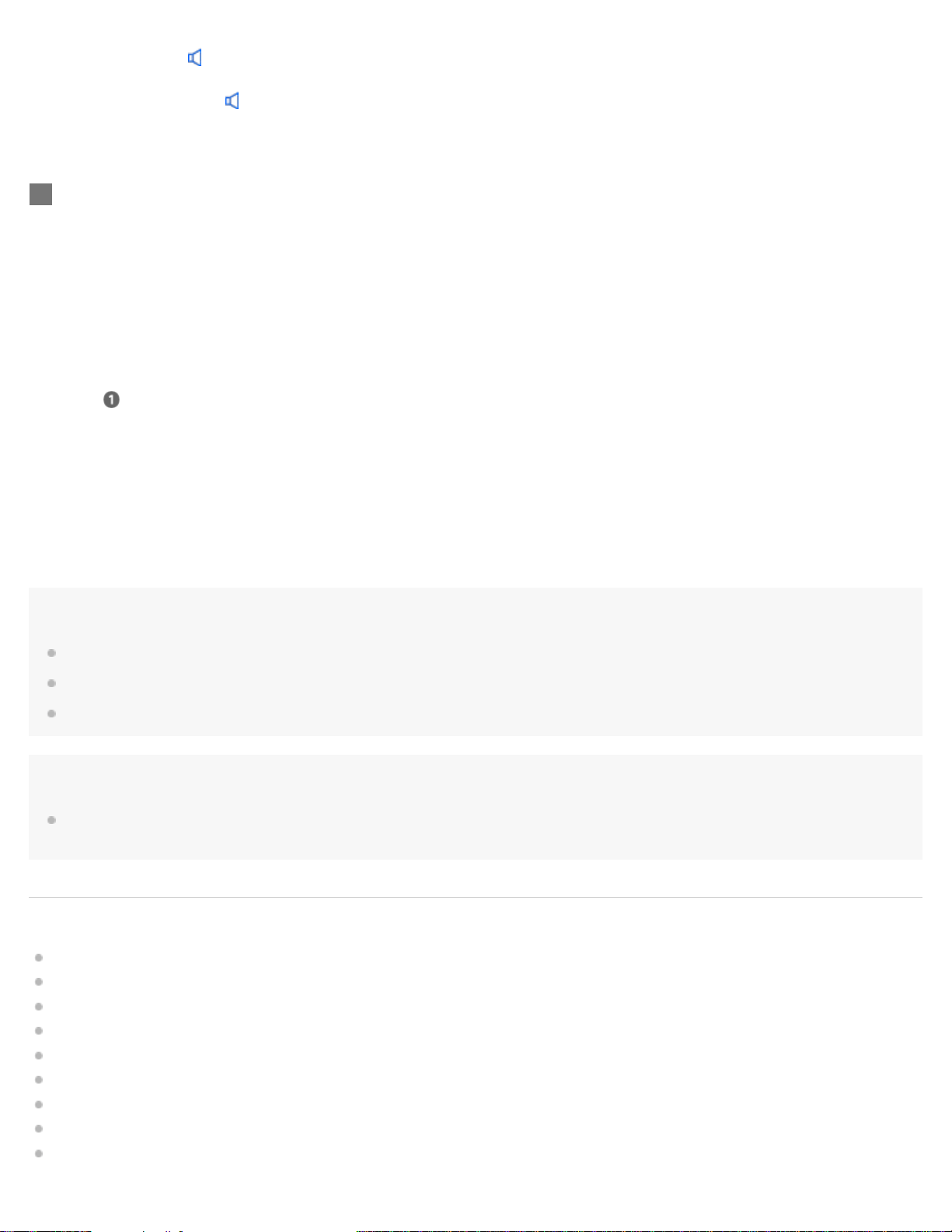
To cancel inputting voice command
After step , press the voice input button on FL-N01.
If you cannot control FL-N01 well
See "How to control FL-N01" for details.
To stop taking a video
1. Press the voice input button on FL-N01.
Hint
The camera will be adjusted automatically to maintain the horizontal position while you are walking or cycling.
The angle of the camera is fixed to when the video shooting starts.
The function of the custom button on FL-N01 can be changed to take a video with the “Future Lab Program N” app.
Note
The recording time may be shorter depending on the recording conditions. When FL-N01 overheats, it may be automatically turned off or recording
may malfunction. To use the camera again, leave it in a cool place for a while to cool down.
Related Topic
Items of Initial Setup (Android)
Items of Initial Setup (iPhone)
How to control FL-N01
General voice command
Voice command on camera
Connecting to a computer
Checking photos/videos/activity logs stored on the built-in memory of FL-N01
Using the dedicated smartphone app “Future Lab Program N”
Changing the settings of FL-N01 on the “Future Lab Program N” app
*3
Hear the sound (Playback may require the latest browser.)
*4
Hear the error sound (Playback may require the latest browser.)
FL-N1 starts recording video.
Recorded data will be stored in FL-N01. You can see them by connecting FL-N01 to a computer.
4
58

Help Guide
Future Lab Program N
FL-N01
Taking photos at intervals automatically (Life Snap)
FL-N01 detects when you are in activity (cycling, running, or walking), which you have selected on the “Future Lab Program N”
app, and automatically takes photos at intervals with its built-in camera. Since photos are automatically taken, you can enjoy
unexpected scenes.
Hint
The camera will be adjusted automatically to maintain the horizontal position while you are walking or cycling.
Perform initial setup on the "Future Lab Program N" app.
1
Select an activity of the Life Snap function (cycling, running, or walking) on the "Future Lab Program
N" app.
2
Wear FL-N01, then perform the activity you set on the app.
FL-N01 starts taking photos at intervals automatically.
Photo data will be stored in FL-N01. You can see them by connecting FL-N01 to a computer.
3
59
You can adjust the maximum number of photos that are stored on FL-N01 on the "Future Lab Program N" app. (The default setting is 1,000.) Tap
- [Settings] - [Applications] - [Camera] - [Life Snap] - [Number of Photos in a loop]. When the amount of photos stored on FL-N01 reaches the
limit, the oldest photo will be deleted.
Related Topic
Items of Initial Setup (Android)
Items of Initial Setup (iPhone)
Connecting to a computer
Checking photos/videos/activity logs stored on the built-in memory of FL-N01
Using the dedicated smartphone app “Future Lab Program N”
Changing the settings of FL-N01 on the “Future Lab Program N” app
Notes on recognition technologies
4-593-988-11(5) Copyright 2016 Sony Corporation
60

Help Guide
Future Lab Program N
FL-N01
Receiving a call
To adjust the volume of the other party
Press the volume +/- button on FL-N01.
To end a call
Press the voice input button on FL-N01.
To reject an incoming call
Perform initial setup and phone call settings on the "Future Lab Program N" app.
Make sure that [Use call function] is set to on.
When you changed the [Use call function] setting from off to on, you need to restart FL-N01.
1
When you hear the name of the caller, press the voice input button once on FL-N01.
2
Talk over the phone via FL-N01.
3
61
Press and hold the voice input button on FL-N01 when you hear the name of the caller.
If you do not hear the name of the caller
Change the setting on the “Future Lab Program N” app.
When you do not hear the sound from FL-N01
After you start talking over the phone via FL-N01 on step , change the setting of the speaker output on your smartphone or
mobile phone.
Note
Operations may vary depending on the smartphone or mobile phone. Refer to the operating instructions supplied with your smartphone or mobile
phone.
Hint
The volume during a call and volume during music playback can be adjusted independently. Changing the call volume does not change the
volume of music playback and vice versa.
Related Topic
Items of Initial Setup (Android)
Items of Initial Setup (iPhone)
Changing the settings of FL-N01 on the “Future Lab Program N” app
4-593-988-11(5) Copyright 2016 Sony Corporation
62

Help Guide
Future Lab Program N
FL-N01
Making a call
To adjust the volume of the other party
Press the volume +/- button on FL-N01.
To end a call
Press the voice input button on FL-N01.
When you do not hear sound from FL-N01
After you start talking over the phone via FL-N01 on step , change the setting of the speaker output on your smartphone or
mobile phone.
Note
Operations may vary depending on the smartphone or mobile phone. Refer to the operating instructions supplied with your smartphone or mobile
phone.
Hint
The volume during a call and volume during music playback can be adjusted independently. Changing the call volume does not change the
volume of music playback and vice versa.
Perform initial setup and phone call settings on the "Future Lab Program N" app.
Make sure that [Use call function] is set to on.
When you changed the [Use call function] setting from off to on, you need to restart FL-N01.
1
Make a call by using your smartphone or mobile phone.
You will hear the sound from FL-N01.
2
Talk over the phone via FL-N01.
3
63
Help Guide
Future Lab Program N
FL-N01
Notice for Phone Call
Android
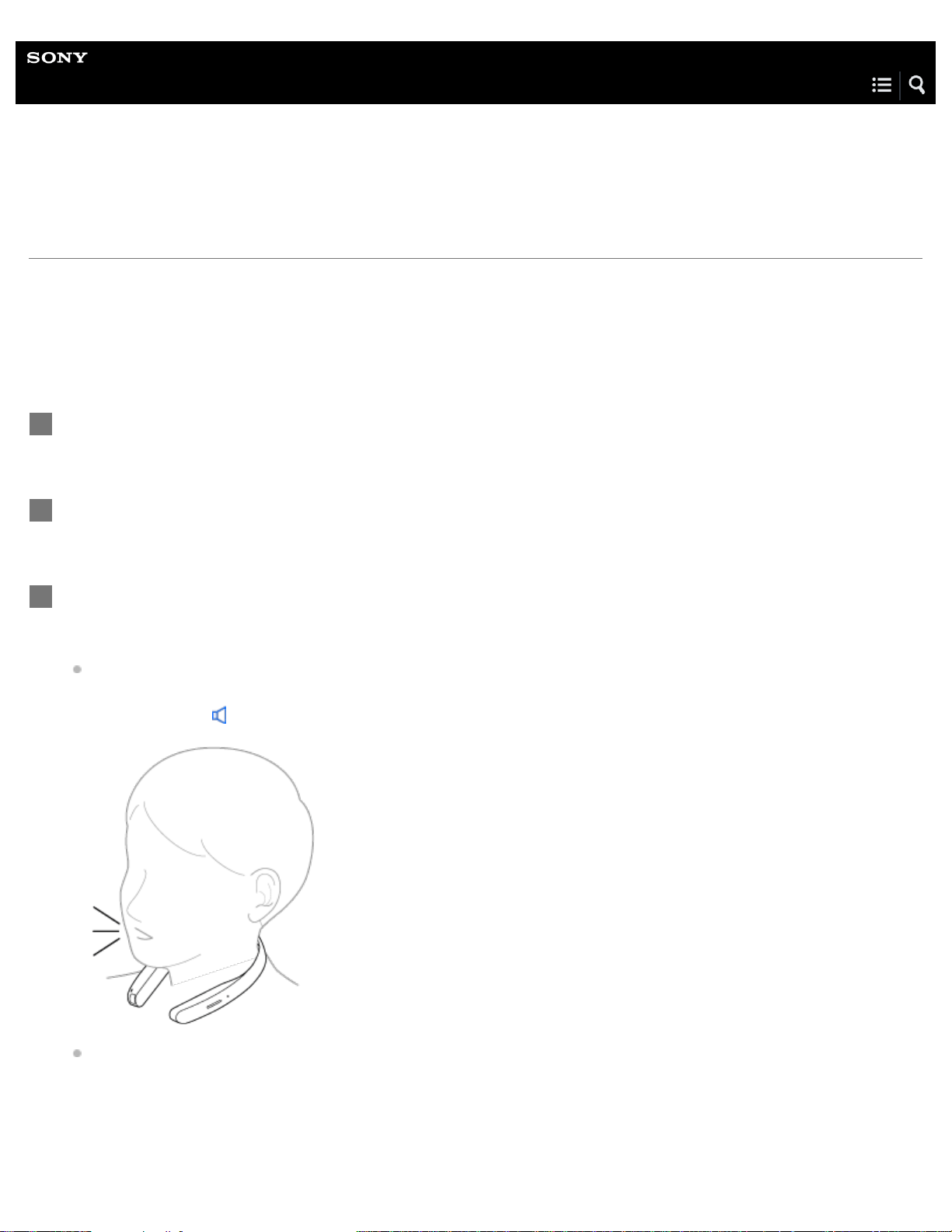
We are releasing this Phone Call function in response to our Future Lab Participants feedback. During the term of this program,
we cannot fully develop the solution. If you choose to use the Phone Function, please know that it is not perfect and you may
experience some issues.
Issues and Workaround
Issue 1. When receiving a call, you may not be able to hear the voice of the caller loudly but the caller can
hear your voice.
Workaround for issue 1
1.If you cannot hear, hang up the phone and then make a call again.
When you put your phone in silent mode, we recommend having vibrate turned on so you can notice when a call is being
received.
iPhone
We are releasing this Phone Call function in response to our Future Lab Participants feedback. During the term of this program,
we cannot fully develop the solution. If you choose to use the Phone Function, please know that it is not perfect and you may
experience some issues.
Issues and Workaround
Issue 1. When listening to music from iPhone with iOS10 via Bluetooth, If you make a call using an iPhone,
the Bluetooth connection between N and the iPhone may disconnect if your ringer is not set to silent.
Workaround for issue 1
1. Stop the music on your iPhone.
2. Turn your ringer to silent mode.
3. Make a call from your iPhone.
Issue 2. When receiving a call, you may not be able to hear the voice of the caller loudly but the caller can hear your voice.
Workaround for issue 2
1. If you cannot hear, hang up the phone and then make a call again.
When you put your phone in silent mode, we recommend having vibrate turned on so you are still able to know when a call is
being received.
4-593-988-11(5) Copyright 2016 Sony Corporation
65
Help Guide
Future Lab Program N
FL-N01
We Run
You can enjoy the We Run application with FL-N01.
What is We Run?
Visit the following website about We Run and download it onto your smartphone, and then install.:
http://werun.sony.eu/
Perform initial setup on the "Future Lab Program N" app.
1
Connect FL-N01 to your smartphone via Bluetooth and launch the “We Run” app on your smartphone.
2
Set FL-N01 to ready for operation.
Select one of the following methods to set FL-N01 to ready for operation.
Tell FL-N01 “Listen up Nigel
*1
.”
*1
Hear the sound (Playback may require the latest browser.)
Press the voice input button on FL-N01.
3
66
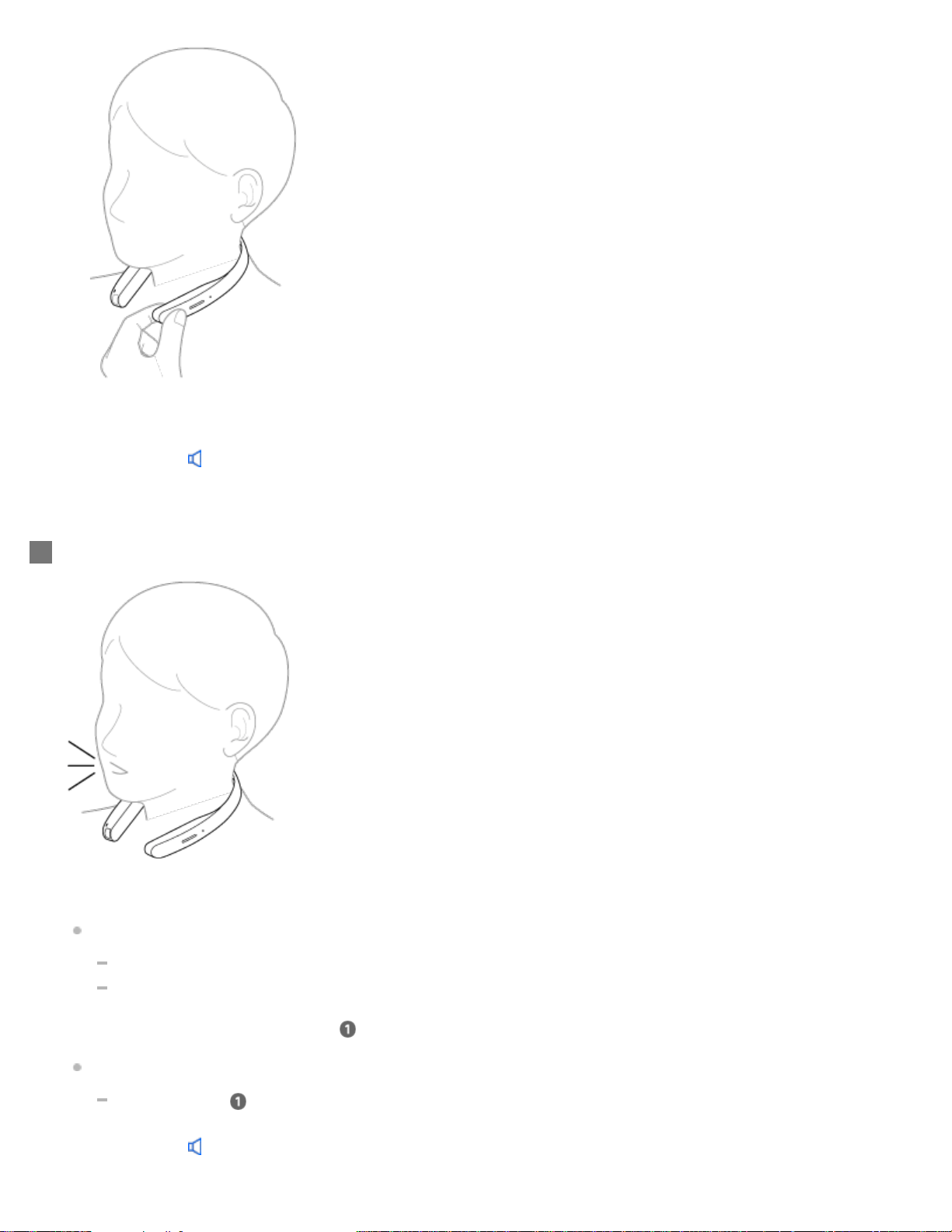
You will hear a sound
*2
from FL-N01 which reminds you that FL-N01 is ready for operation.
*2
Hear the sound (Playback may require the latest browser.)
Within a few seconds after hearing the sound, tell FL-N01 "Start We Run."
You will hear a sound
*3
from FL-N01 which reminds you that FL-N01 has received your voice input.
When you hear the error sound
*4
and "Failed to recognize. Try one more time." from FL-N01
Check for the sound
*2
that indicates FL-N01 is ready for operation.
Tell FL-N01 "Start We Run" again.
You do not need to go back to step
.
When you hear the error sound
*4
and "Failed to recognize." from FL-N01
Go back to step
and try the procedures again.
*2
Hear the sound (Playback may require the latest browser.)
4
67
To cancel inputting voice command
After step , press the voice input button on FL-N01.
If you cannnot control FL-N01 well
See "How to control FL-N01" for details.
To stop We Run
1. Set FL-N01 ready for operation by telling FL-N01 "Listen up Nigel" or pressing the voice input button on FL-N01.
2. Within a few seconds after hearing the sound from FL-N01 which reminds you that FL-N01 is ready for operation, tell FL-N01
"Stop We Run."
4-593-988-11(5) Copyright 2016 Sony Corporation
*3
Hear the sound (Playback may require the latest browser.)
*4
Hear the error sound (Playback may require the latest browser.)
Enjoy the We Run app with FL-N01.
5
68
Help Guide
Future Lab Program N
FL-N01
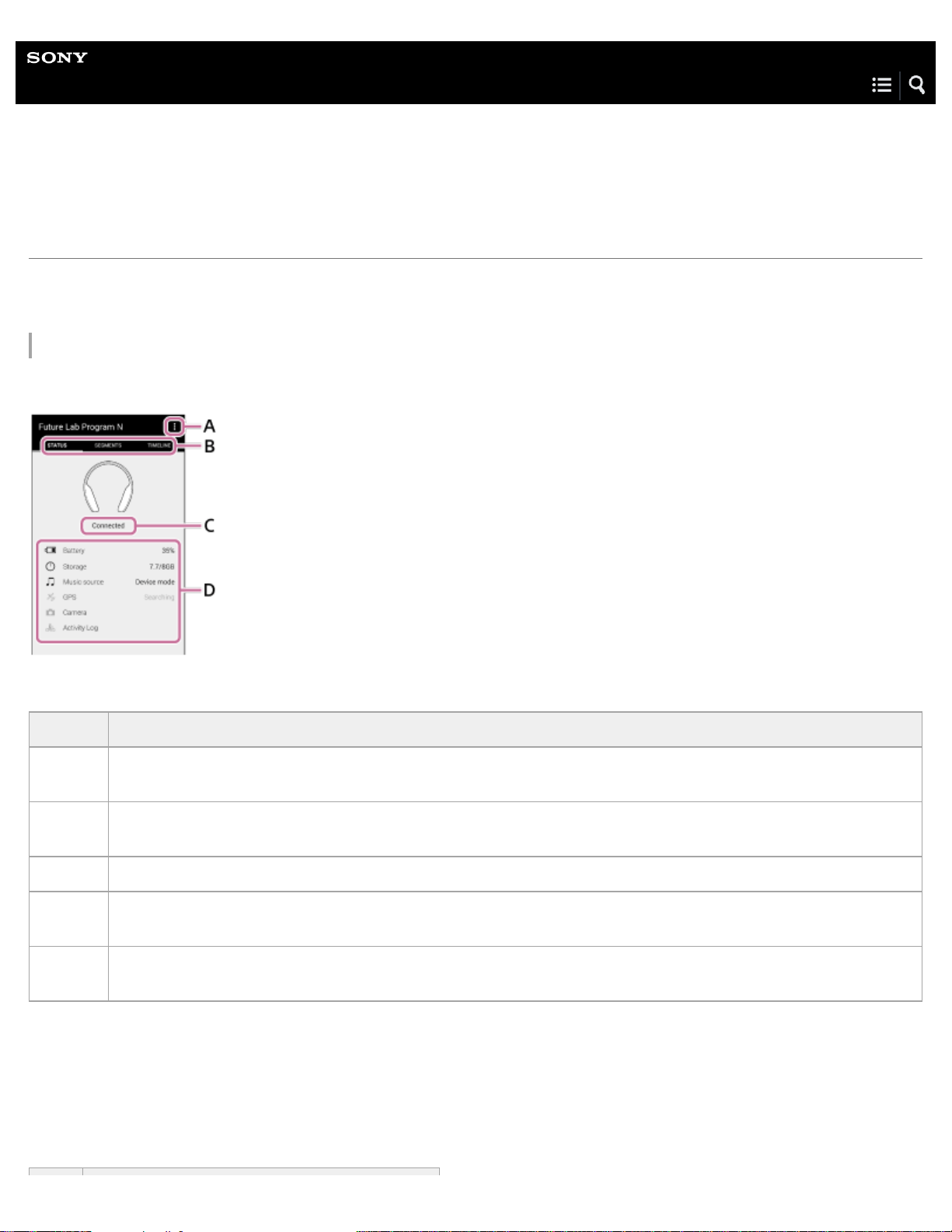
Using the dedicated smartphone app “Future Lab Program N”
Launch the “Future Lab Program N” app on your smartphone and follow the on-screen instructions for initial setup, then make a
Bluetooth connection or a Personal Hotspot (Bluetooth tethering) setting between FL-N01 and the smartphone.
Status screen
You can see the current condition of FL-N01.
A: Tap to show the following menus.
B: Tap one of these tabs to switch the screen.
C: Shows the conditions of FL-N01’s connections and settings.
D: Shows the current status of FL-N01.
Item Description
[Settings]
The application settings for camera function and the sound setting are available. You can also check information
about the latest software update, the versions of FL-N01, and the “Future Lab Program N” app.
[Music
Source]
Device mode and streaming mode can be switched.
[Tutorial] The basic operation of FL-N01 is shown.
[Initial
Setup]
The initial setup is restarted from the beginning.
[Help
Guide]
You can access the Help Guide (web manual).
69
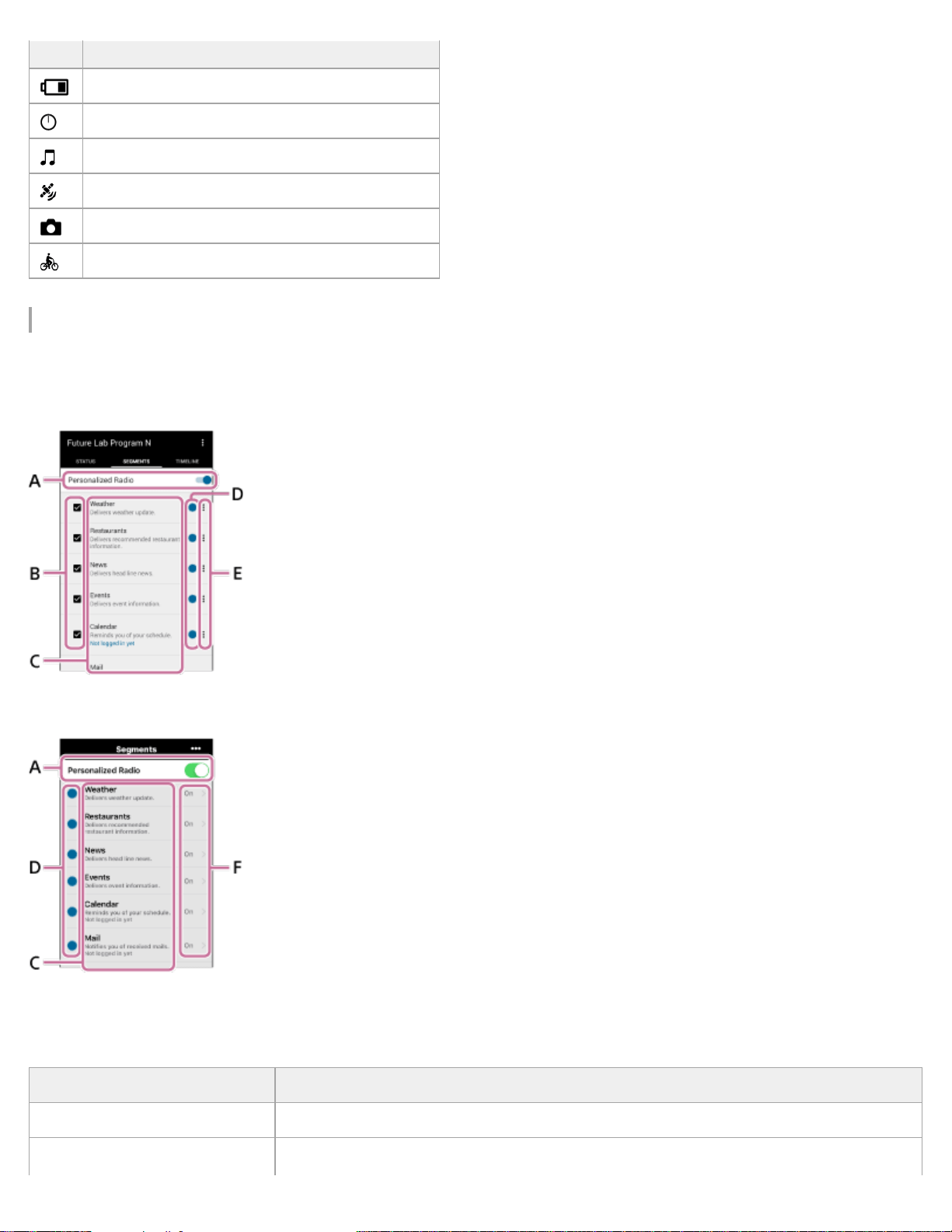
Segment screen
You can see the list of segments on the Personalized Radio service.
Android
iPhone
A: The setting whether you receive the Personalized Radio service automatically can be made (on/off).
B: Select the segments that you want to receive.
C: Shows the segment name and explains briefly what you can enjoy with the segment. Also shows the following messages:
Item Description
The remaining battery level of FL-N01
The remaining space of FL-N01’s built-in memory
The selected music source
The status of FL-N01’s GPS signal
The status of FL-N01’s camera function
The status of activity logs
Item Description
Logged in already You have already logged in to the segment correctly.
Not logged in yet
You have not logged in to the segment yet. Tap the message area to move to the next
70
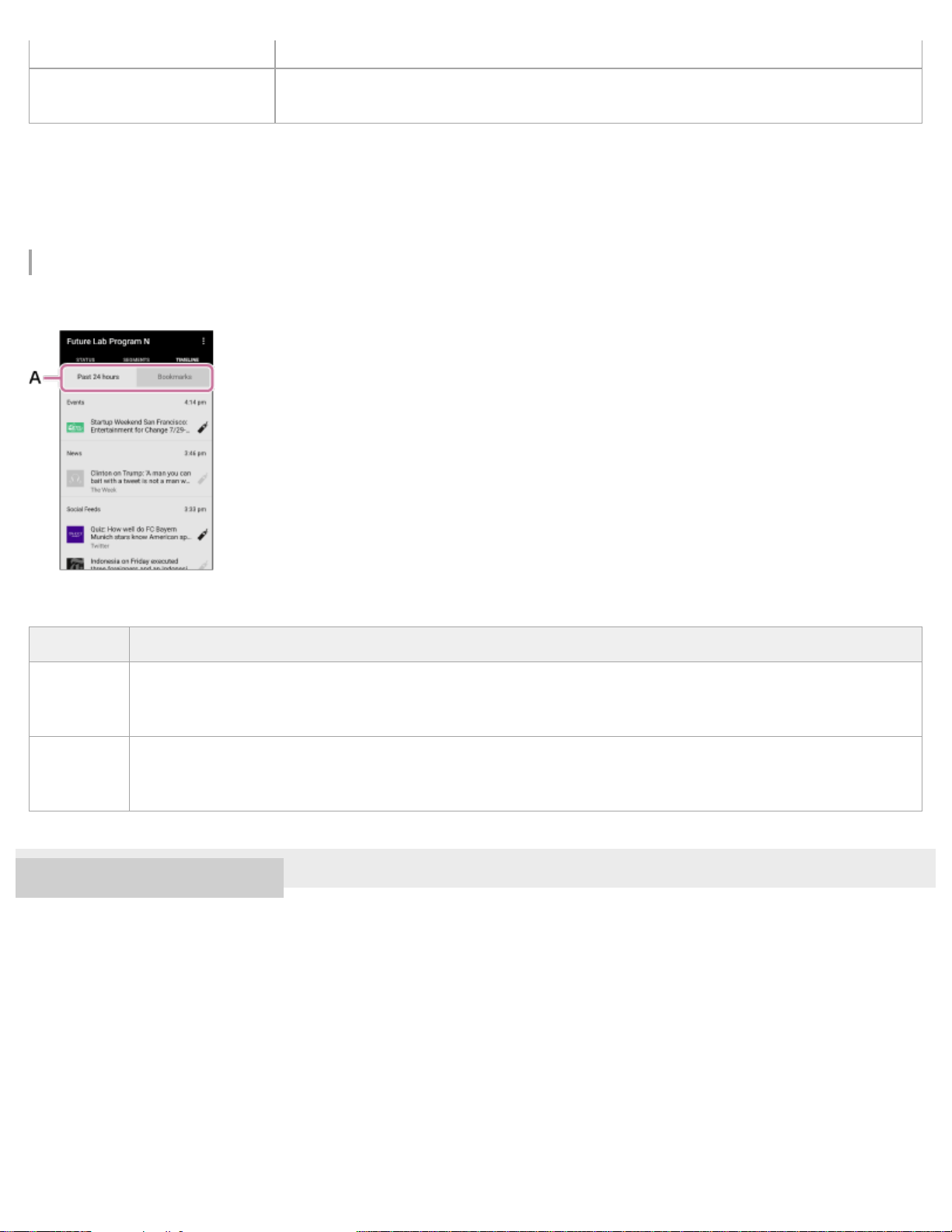
D: Indicates the new segment.
E: Indicates that you can make advanced settings. Depending on the segment, an account setting can also be made.
F: You can select the segments that you want to receive. Depending on the segment, advanced settings or account setting is also
available.
Timeline screen
You can check information that you have received so far via the Personalized Radio service.
A: Tap one of these tabs to switch the screen.
4-593-988-11(5) Copyright 2016 Sony Corporation
screen and log in to the segment.
Segment terminated on
"Month""Day", "Year"
The segment will be terminated on the shown date.
Item Description
[Past 24
hours]
Shows segments that you have received in the last 24 hours via the Personalized Radio service. Tap the
information to open the website where the information came from. Tap the bookmark icon to bookmark the
segment. The segments will disappear from the list after 24 hours.
[Bookmarks]
Shows the bookmarked segment. You can bookmark a segment by tapping the bookmark icon on the [Past 24
hours] screen or by using a voice command while receiving the Personalized Radio service. Bookmarked
segments will not be deleted even after 24 hours.
71
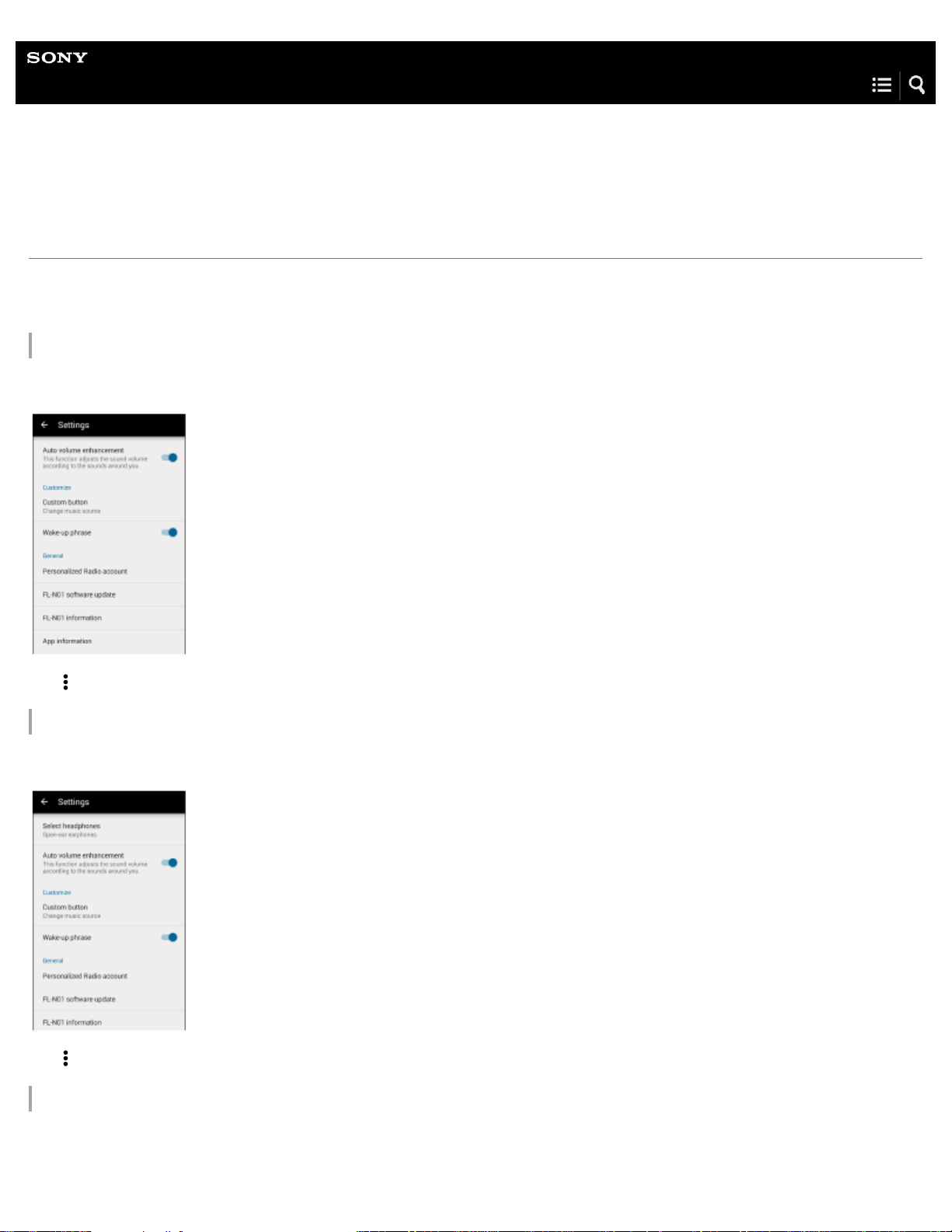
Help Guide
Future Lab Program N
FL-N01
Changing the settings of FL-N01 on the “Future Lab Program N” app
Launch the “Future Lab Program N” app on your smartphone and follow the on-screen instructions for initial setup, then make a
Bluetooth connection or a Personal Hotspot (Bluetooth tethering) setting between FL-N01 and the smartphone.
Setting for the voice control function
You can select whether FL-N01 is activated by the wake-up phrase.
Tap - [Settings] - [Customize] - [Wake-up phrase].
Setting for the custom button on FL-N01
You can change the function of the custom button on FL-N01.
Tap - [Settings] - [Customize] - [Custom button].
Settings for Notification
You can select how FL-N01 reminds you of notifications.
72
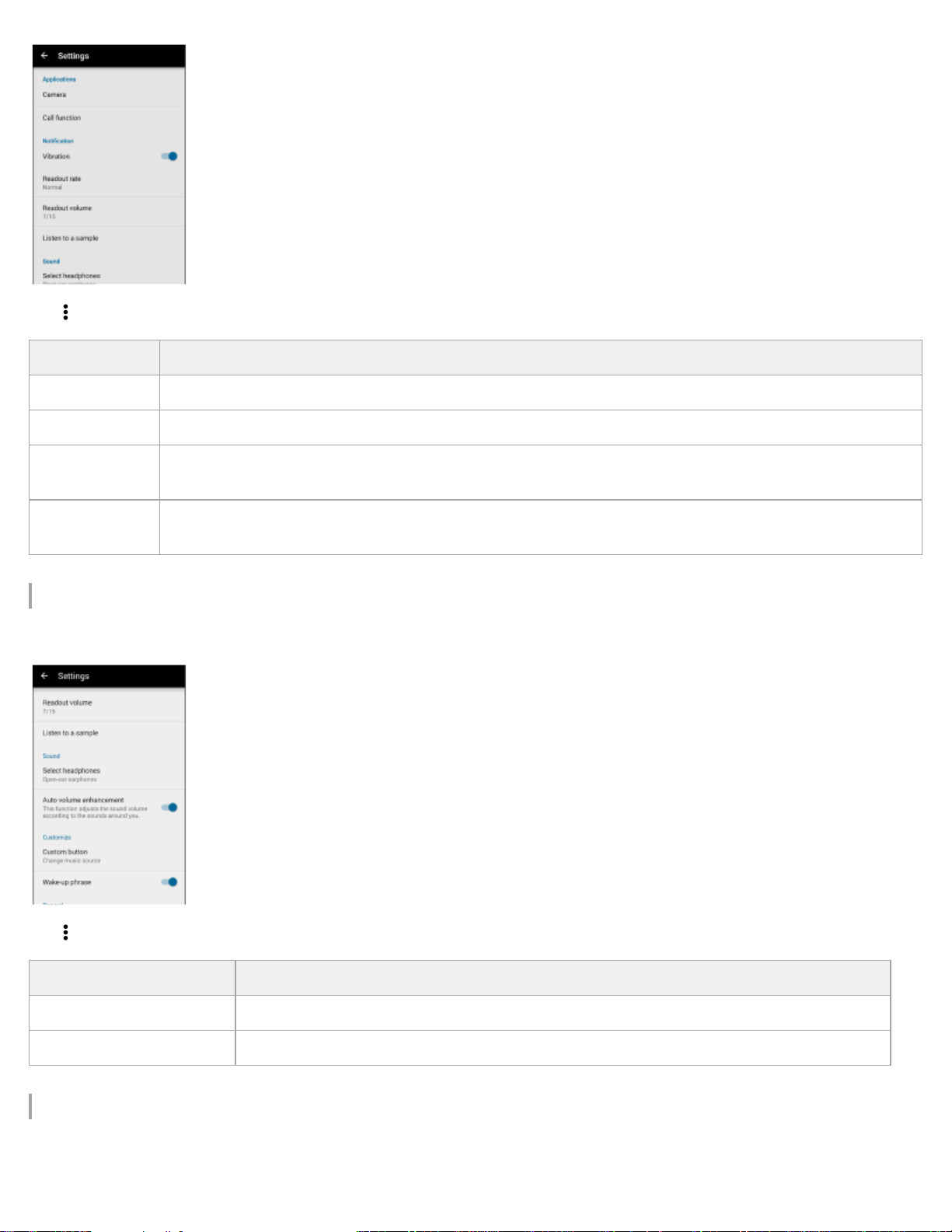
Tap - [Settings] - [Notification].
Settings for the sound adjustment
You can change the sound setting of FL-N01.
Tap - [Settings] - [Sound].
Setting for the music source
You can switch the music source between device mode and streaming mode.
Item Description
[Vibration] Selects whether FL-N01 vibrates when you receive notifications.
[Readout rate] Adjusts the speed that FL-N01 reads out information.
[Readout
volume]
Adjusts the volume that FL-N01 reads out information.
[Listen to a
sample]
FL-N01 plays back the sound and you can check if the speed and volume that FL-N01 reads out information
are appropriate.
Item Description
[Select headphones] Selects the type of headphones connected to FL-N01.
[Auto volume enhancement] Selects on to adjust the volume level of FL-N01 automatically according to the ambient noise.
73
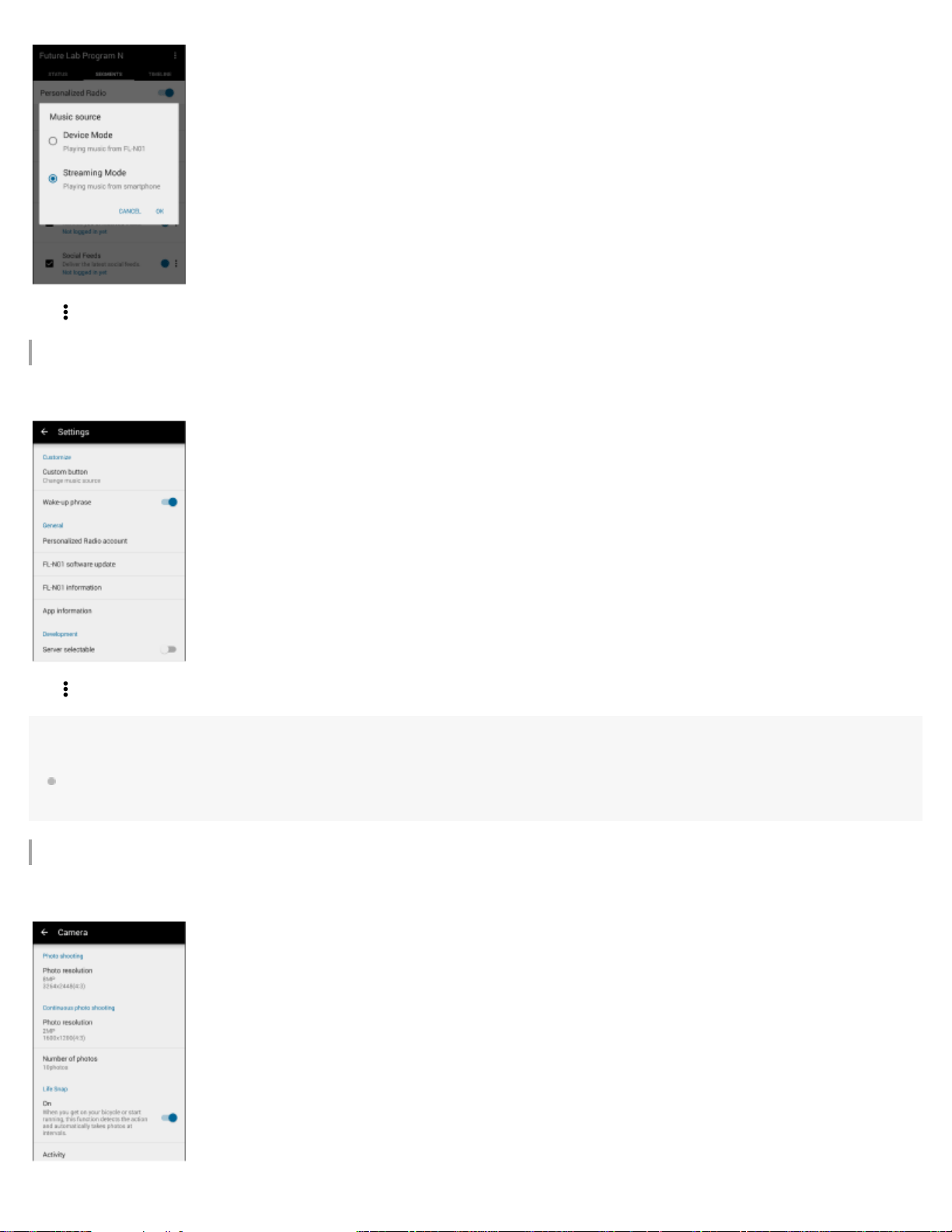
Tap - [Music source].
Setting for the Personalized Radio service
You can check/delete or sign in/out from the accounts that you are using for the Personalized Radio service.
Tap - [Settings] - [General] - [Personalized Radio account].
Hint
For details on how to select segments on the Personalized Radio service, see “Segment screen” of “Using the dedicated smartphone app “Future
Lab Program N”.”
Settings for the camera function
You can make various settings for the camera function.
74

Tap - [Settings] - [Applications] - [Camera].
Settings for the phone call
You can change the phone call settings of FL-N01.
Item Description
[Photo
shooting]
[Photo
resolution]
Selects definition for a still image.
[Continuous
photo
shooting]
[Photo
resolution]
Selects definition for continuous pictures.
[Number of
photos]
Selects how many pictures are taken at one continuous photo shooting.
[Life Snap]
[Use Life Snap]
Selects whether FL-N01 starts taking photos at intervals automatically when you are in a
specific activity.
[Activity] Selects the activity that FL-N01 starts taking photos at intervals automatically.
[Photo
resolution]
Selects definition for pictures.
[Shooting
interval]
Selects the interval of taking photos.
[Number of
photos in a
loop]
Selects the maximum number of pictures that are stored on FL-N01. When the amount of
pictures stored on FL-N01 reaches the limit, the oldest picture will be deleted.
[Interval photo
shooting]
[Photo
resolution]
Selects definition for pictures.
[Shooting
interval]
Selects the interval of taking photos.
[Number of
maximum
photos]
Selects the maximum number of pictures that FL-N01 takes. When the amount of pictures
that FL-N01 took reaches the limit, FL-N01 stops taking photos at intervals.
[Video
shooting]
[SteadyShot] Selects whether to use the SteadyShot function.
[General]
[Geotagging] Selects whether to add Geotag on a picture that FL-N01 takes.
[Shut the
camera in]
Selects when to close the FL-N01’s lens after taking photos.
75
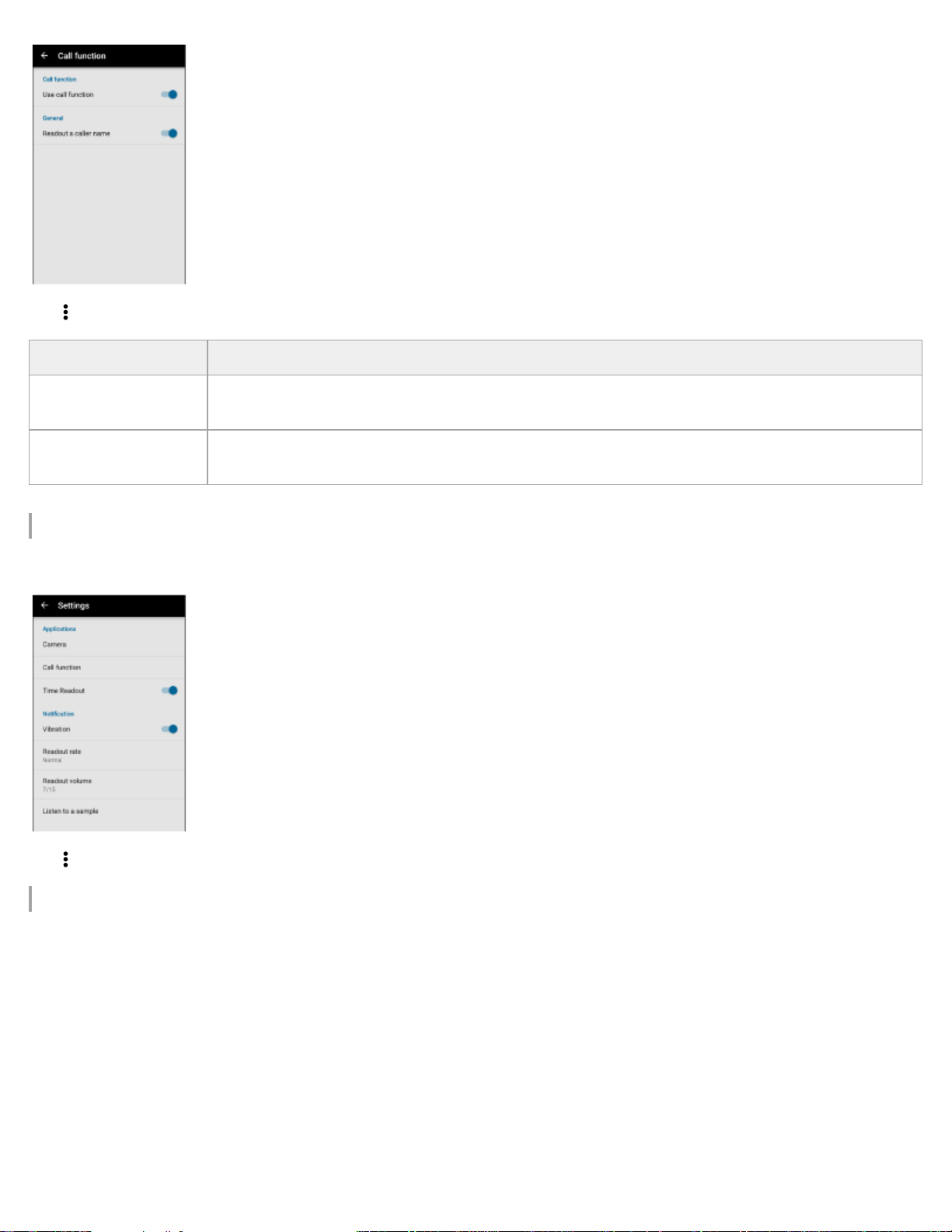
Tap - [Settings] - [Call function].
Setting for time readout
You can select whether FL-N01 reads time announcement while playing music.
Tap - [Settings] - [Time Readout].
Software information
You can check information on FL-N01’s software.
Item Description
[Use call function]
Selects whether to use the phone call function. After changing this setting, you need to restart FL-
N01.
[Readout a caller
name]
Selects whether FL-N01 reads out a name of the caller when you receive a phone call.
76
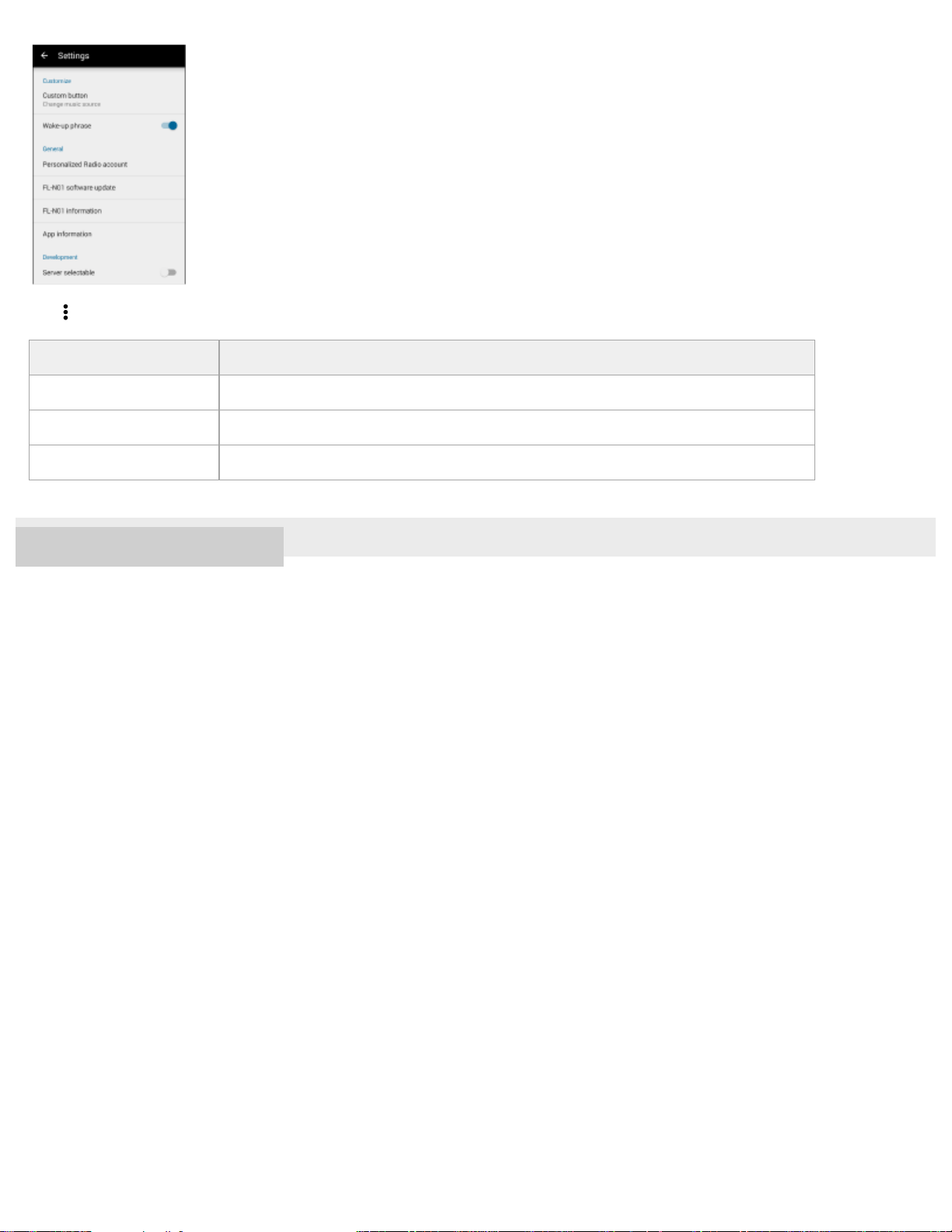
Tap - [Settings] - [General].
4-593-988-11(5) Copyright 2016 Sony Corporation
Item Description
[FL-N01 software update] Shows whether there is software update.
[FL-N01 information] Shows the software version or license information on FL-N01.
[App information] Show the software version or license information of the “Future Lab Program N” app.
77

Help Guide
Future Lab Program N
FL-N01
Connecting to a computer
Connect FL-N01 to a computer to charge or transfer data.
Hint
If you are prompted to make a Windows operation, click [Cancel] or [x].
When disconnecting FL-N01 from a computer, do it correctly according to the instruction manual supplied with the computer.
Note
FL-N01 cannot be operated when it is connected to a computer.
Do not disconnect FL-N01 from your computer when transferring data between them. Doing so may result in loss of the data being transferred and
data on FL-N01.
Do not turn on, restart, wake up from sleep mode, or shut down the computer while FL-N01 is still connected to the computer. Otherwise, FL-N01
may malfunction. Disconnect FL-N01 from the computer before doing these operations.
Related Topic
Press and hold the (power) button on FL-N01 for 4 seconds until FL-N01 vibrates to power on.
1
Connect the supplied micro-USB cable to FL-N01, and then connect the other end to a booted
computer.
2
78

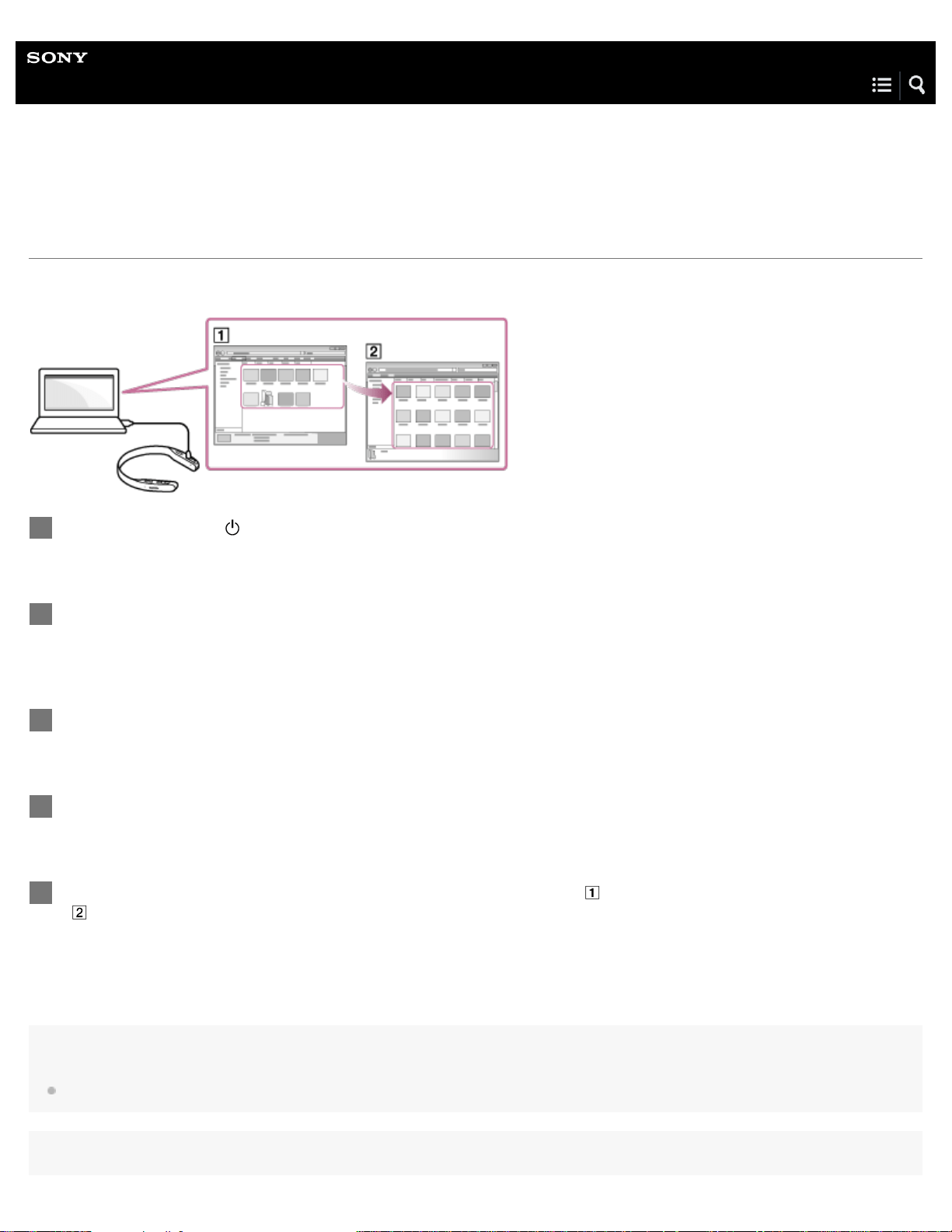
Help Guide
Future Lab Program N
FL-N01
Transferring music using Explorer/Finder
Music files/folders can be directly transferred to FL-N01 by drag-and-drop using Explorer/Finder.
Hint
The music files can be played back even if they are placed in a location other than the [MUSIC] folder.
Press and hold the (power) button on FL-N01 for 4 seconds until FL-N01 vibrates to power on.
1
Connect the supplied micro-USB cable to FL-N01, and then connect the other end to a booted
computer.
2
Open the [FL-N01] folder.
3
Open the [MUSIC] folder.
4
Drag-and-drop the music files or folders you want to transfer (
) to the corresponding [MUSIC] folder
(
) under the [FL-N01] folder.
5
80
Note
Some songs may not be played back due to copyright protection.
Do not remove the micro-USB cable while transferring music files/folders.
It may take time if you transfer large amount of data to a folder at a time.
Playing back music files with device mode will not be available for as long as 5 minutes
*
when you transfer/delete music files on FL-N01.
Up to 2,000 music files can be transferred at a time. The number of files that can be transferred to FL-N01 at a time vary depending on the size of
files and number of tracks that each file contains. 2,000 is a rough standard when there is no other data files stored on the built-in memory of FL-
N01.
Related Topic
Connecting to a computer
Listening to music
Folder hierarchy recognized by FL-N01
4-593-988-11(5) Copyright 2016 Sony Corporation
When 2,000 music files are stored on FL-N01. Inoperable time of FL-N01 varies depending on how many music files are stored on FL-N01.
*
81
Help Guide
Future Lab Program N
FL-N01
Deleting music using Explorer/Finder
Use Explorer/Finder to delete music files/folders stored on FL-N01.
Related Topic
Connecting to a computer
4-593-988-11(5) Copyright 2016 Sony Corporation
Connect the supplied micro-USB cable to FL-N01, and then connect the other end to a booted
computer.
1
Open the [FL-N01] folder.
2
Open the [MUSIC] folder.
3
Select the music files or folders, and delete.
4
82
Help Guide
Future Lab Program N
FL-N01
Checking photos/videos/activity logs stored on the built-in memory of FL-N01
Hint
There are no [DCIM] and [LOG] folders when you purchase FL-N01. The [DCIM] folder will be created automatically when you take photos/videos
with FL-N01. The [LOG] folder will be created automatically when you use the Personalized Radio service and the activity logs are recorded.
Related Topic
Connecting to a computer
Folder hierarchy recognized by FL-N01
4-593-988-11(5) Copyright 2016 Sony Corporation
Connect the supplied micro-USB cable to FL-N01, and then connect the other end to a booted
computer.
1
Open the [FL-N01] folder.
2
Open the [DCIM] or [LOG] folder.
3
83
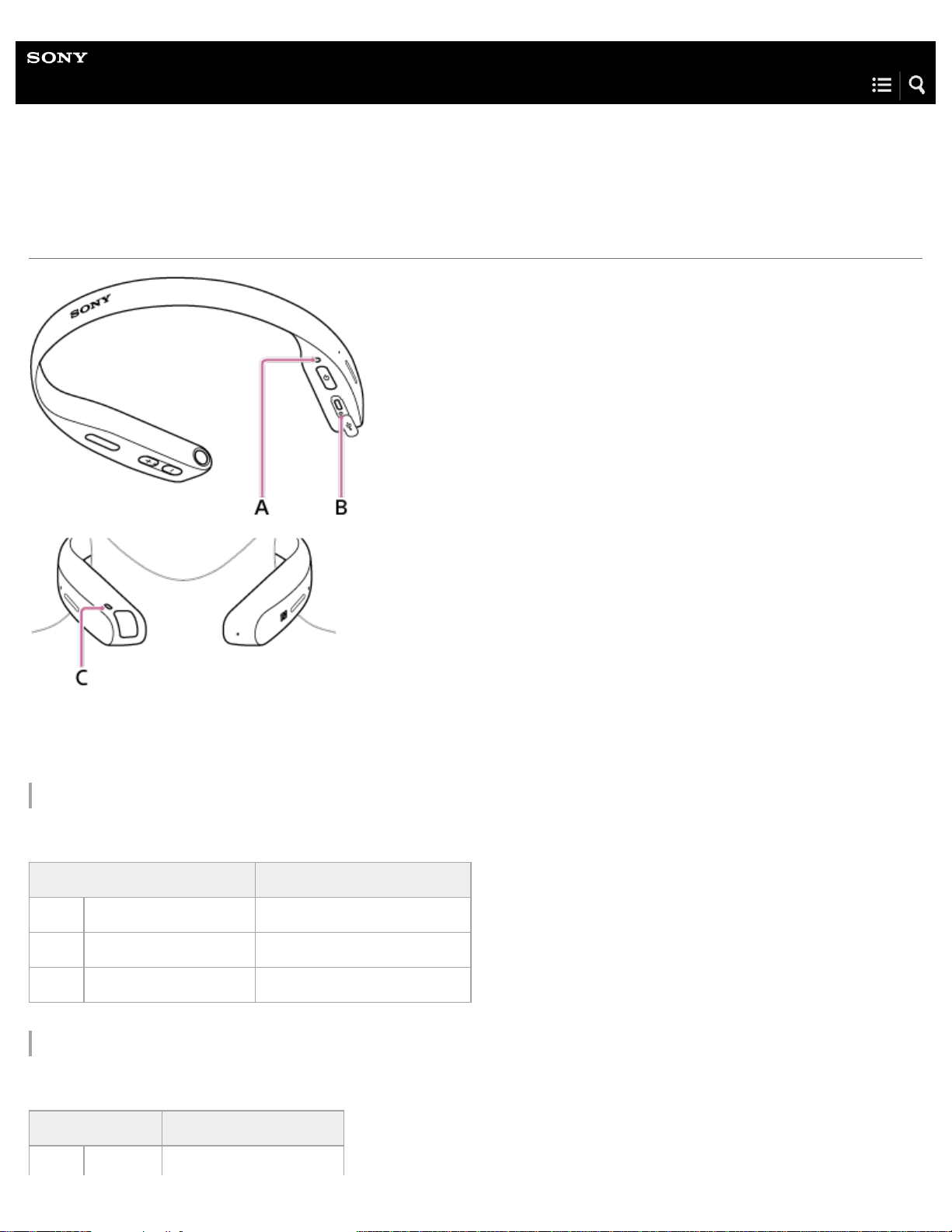
Help Guide
Future Lab Program N
FL-N01
About the indicators
A: Indicator light
B: Charge light
C: Tally light (Camera indicator)
Power on
The indicator light (A) shows the status of FL-N01.
Power off
The indicator light (A) shows the status of FL-N01.
Indicator light Status of FL-N01
White Flashes FL-N01 is in power-up.
White Flashes twice quickly FL-N01 is turned on.
Red Flashes 4 times slowly FL-N01 cannot be turned on.
Indicator light Status of FL-N01
White Flashes FL-N01 is in shut-down.
84
Charging
The charge light (B) shows the status of FL-N01.
Bluetooth connection
The indicator light (A) shows the status of FL-N01.
Computer connection
The indicator light (A) shows the status of FL-N01.
Sleep mode
The indicator light (A) shows the status of FL-N01.
Camera
The tally light (camera indicator) (C) shows the status of FL-N01.
- Turns off FL-N01 is turned off.
Charge light Status of FL-N01
Amber Lights up FL-N01 is being charged.
- Turns off FL-N01 is fully charged.
Amber Flashes on an irregular base FL-N01 has malfunctions.
Indicator light Status of FL-N01
Blue Flashes twice quickly repeatedly FL-N01 is in the pairing mode.
Blue Flashes 3 times FL-N01 failed in pairing.
Blue Turns off gradually FL-N01 is connected to a smartphone.
Blue Flashes continuously FL-N01 is processing a Bluetooth connection.
Blue Flashes slowly FL-N01 has no Bluetooth connection with any smartphones.
Indicator light Status of FL-N01
Amber Lights up FL-N01 is processing a computer connection.
Indicator light Status of FL-N01
Dark white Flashes slowly FL-N01 is in sleep mode.
White Flashes twice quickly FL-N01 is released from sleep mode.
Tally light Status of FL-N01
85

Software Update
The indicator light (A) shows the status of FL-N01.
Factory reset
The indicator light (A) shows the status of FL-N01.
Error
The indicator light (A) shows the status of FL-N01.
4-593-988-11(5) Copyright 2016 Sony Corporation
Red Lights up FL-N01 is taking a movie.
Red Flashes FL-N01 is about to take a still image, photos at intervals, or continuous pictures.
Indicator light Status of FL-N01
White
Flashes
twice
FL-N01 starts updating its software.
Red
Blue
Green
Flashes
FL-N01 is processing software update. The interval of flashing indicates its
progress.
Indicator light Status of FL-N01
White Flashes twice FL-N01 starts initializing.
White Flashes slowly FL-N01 is erasing the settings.
White Flashes 3 times FL-N01 is back to the initial settings.
Indicator light Status of FL-N01
Amber
Flashes twice
quickly
FL-N01 is in one of the following situations;
The Bluetooth connection has failed.
Software update has failed.
FL-N01 becomes extremely hot.
An unexpected error occurs.
Shortage of the built-in memory occurs.
FL-N01 cannot receive a GPS signal.
FL-N01 failed to update activity logs.
Red
Flashes 3 times
quickly
FL-N01 is about to shut-down due to a spent battery, increasing internal temperature of FL-N01,
or malfunction of hardware.
86
Help Guide
Future Lab Program N
FL-N01
Specifications
Unit
Audio DSP & Sensor Hub:
“Low Power Wearable SoC” made by Sony
Storage:
8 GB of user area
Sensor:
Accelerometer/Gyro/GNSS (GPS + GLONASS)
Communication System:
Bluetooth 4.1
NFC Tag
*1
Notifications:
Indicator light, charge light, tally light (camera indicator), vibration
Interface
*2
:
Micro-USB Type B used for a PC connection (USB 2.0), charging, and the supplied Open-ear earphones connection
Power Source:
Built-in lithium-ion rechargeable battery (760 mAh)
Power Consumption:
Playback at A2DP: 1.7 W
Camera shooting: 2.4 W
Charging: 2.5 W
Power Charge:
Micro-USB port
Speaker:
Stereo speaker
87

600 mW × 2 (maximum output)
Microphone:
Mic × 4
Supported Audio File
*3
:
MP3, AAC
Camera:
Still image: 8 megapixels
Movie image size: 720p30
Recording Video File:
MP4 (MPEG-4 AVC/H.264)
Recording Still Image File:
JPEG
Battery Charging Time:
About 2.5 hours
Battery Life:
Standby time (when FL-N01 is connected to a smartphone, and Personalized Radio setting is off.): About 20 hours
Playback (when using the speakers on FL-N01): About 3.0 hours to 5.5 hours (depending on the volume of playback)
Playback (when using the supplied Open-ear earphones): About 6.5 hours (depending on the volume of playback)
Recommended Computer Environment:
Windows 10, Windows 8.1, Windows 7 SP1, Mac OS X v10.11, Mac OS X v10.10, Mac OS X v10.9
Smartphone Models Tested to Work with FL-N01
*4
:
Sony:
Xperia Z5 (Android 6.0.1, Android 5.1.1)
Samsung:
Galaxy S6 edge (Android 6.0.1, Android 5.1.1)
Galaxy S6 (Android 6.0.1)
LG:
G5 (Android 6.0.1)
Apple:
iPhone SE, iPhone 6s, iPhone 6s Plus, iPhone 6, iPhone 5s (iOS 9.3.5)
Operating temperature
*5
:
5 °C to 35 °C (41 °F to 95 °F)
Dimensions (w/h/d):
S: Approx. 140 mm × 150 mm × 18 mm (5 5/8 in × 6 in × 23/32 in)
88
M: Approx. 155 mm × 160 mm × 18 mm (6 1/8 in × 6 3/8 in × 23/32 in)
L: Approx. 170 mm × 165 mm × 18 mm (6 3/4 in × 6 1/2 in × 23/32 in)
Mass:
S: Approx. 77 g (2.8 oz)
M: Approx. 79 g (2.8 oz)
L: Approx. 81 g (2.9 oz)
Open-ear earphones
Type:
Open-ear
*6
, dynamic
Cable:
Approx. 0.6 m (23.62 in)
Connector:
Micro-USB type B
*7
Mass:
Approx. 12 g (0.423 oz) with cable
Design and specifications are subject to change without notice.
4-593-988-11(5) Copyright 2016 Sony Corporation
NFC tag is used by the Bluetooth pairing function for Android devices.
*1
Battery charging except charging with a PC cannot be used with FL-N01.
*2
Audio files transferred by Media Go ver.3.0 and iTunes ver.12.4.2 are guaranteed for playback.
*3
Smartphone with Android 5.0 or higher, or iPhone 5s or higher with iOS 9 or higher are required. Also, the Bluetooth Tethering/Personal Hotspot
function needs to be equipped with your device. Refer to the Sony eSupport site for more information about the smartphone models that were tested
using the newest system software of FL-N01.
http://www.sony.com/support/futurelab
*4
If FL-N01 is outside of the operating temperature, FL-N01 cannot be charged and the charging light of FL-N01 does not light up.
*5
This is a unique mechanism using a sound duct, developed by Sony.
*6
This micro-USB cable can be used only for FL-N01S/FL-N01M/FL-N01L.
*7
89

Help Guide
Future Lab Program N
FL-N01
Folder hierarchy recognized by FL-N01
You can check data stored on FL-N01 such as music files, photos, and activity logs with a computer.
The folder hierarchy below can be recognized by FL-N01. Please transfer content properly.
Music: Stored in the [MUSIC] folder. Plays through “Level 8” in the following illustration.
Photo: Stored in the [DCIM] folder.
Activity log: Stored in the [LOG] folder.
Hint
The music files can be played back even if they are placed in a location other than the [MUSIC] folder.
There are no [DCIM] and [LOG] folders when you purchase FL-N01. The [DCIM] folder will be created automatically when you take photos with
FL-N01. The [LOG] folder will be created automatically when you use the Personalized Radio service and the activity logs are recorded.
Note
Some songs may not be played back due to copyright protection.
4-593-988-11(5) Copyright 2016 Sony Corporation
90
Help Guide
Future Lab Program N
FL-N01
General voice command
A network connection is required for some of the voice commands.
Common
System
To Say Network connection
Launch an app or access a segment Start <app or segment name> -
Stop playing back an app or a segment
Stop -
Stop <app or segment name> -
Move to the next item
Next -
Next item -
Move to the previous item
Previous -
Previous item -
Create a bookmark Bookmark -
Access detailed information More detail -
Listen again from the beginning
Repeat item -
Once again -
To Say Network connection
Check the time
What’s the time? -
What time is it? -
Check the remaining battery level Check battery -
Check free space on the built-in memory of FL-N01 Check storage -
Cancel the voice recognition function after saying “Listen up Nigel”
Cancel -
Never mind -
Switch between device mode and streaming mode
Change music source -
Change Bluetooth mode -
91

Help Guide
Future Lab Program N
FL-N01
Voice command on music
A network connection is required for some of the voice commands.
Related Topic
How to control FL-N01
Listening to music
What you can do with device mode and streaming mode
To Say
Device
mode
Streaming
mode
Network connection
Start playback
Start Music
-
Play music -
Stop playback
Stop Music
-
Pause music -
Play back the next music file
Next song
-
Next music -
Play back the previous music file
Previous song
-
-
Previous music -
Play back a music file from the beginning
Replay song
- -
Previous song
-
-
Previous music -
Play back music files in the next folder Next folder
- -
Play back music files in the previous
folder
Previous folder
- -
Start repeating a track Repeat play - -
Stop repeating track (back to repeat all) Stop repeat play
- -
Use the shuffle play mode Shuffle play
- -
Cancel the shuffle play mode
Stop shuffle
play
- -
93

Help Guide
Future Lab Program N
FL-N01
Voice command on camera
A network connection is required for some of the voice commands.
Related Topic
How to control FL-N01
Taking a still image
Taking photos at intervals
Taking continuous photos
Taking a video
To Say
Network
connection
Take a still image
Take a picture -
Take a photo -
Take continuous photos (stop automatically)
Start continuous photo
shooting
-
Continuous shooting -
Burst shooting -
Take a video (stop automatically in one minute. Press the voice input button
to stop earlier.)
Start video shooting -
Start video recording -
Take video -
Take photos at intervals
Start interval photo
shooting
-
Take interval photo -
Interval photo -
Stop taking photos at intervals
Stop interval photo -
Stop photo -
Close the camera
Stop camera -
Close camera -
94
Help Guide
Future Lab Program N
FL-N01
Voice command/Natural speech on Personalized Radio service
A network connection is required for some of the voice commands/natural speech.
Weather
Restaurants
News
To Say Network connection
Check weather
Start Weather -
Check weather -
Stop reading out weather information Stop Weather -
Check specific location’s weather by a place-name What is the weather like in San Francisco? Needed
Check specific location’s weather (your office) How is the weather near my office? Needed
Check weather on a specific day (tomorrow) What will the weather be like tomorrow? Needed
Check the chance of rain on a specific day (weekend) What is the chance of rain this weekend? Needed
Check the temperature on a specific day and time What is the temperature tomorrow night? Needed
To Say Network connection
Search restaurants nearby
Start Restaurants -
Find restaurants -
Stop reading out restaurant information Stop Restaurants -
Check next restaurant information Next restaurant -
Check previous restaurant information Previous restaurant -
To Say Network connection
Check latest news
Start News -
Check news -
Stop reading out news Stop News -
95

Events
Calendar
Mail
Check the next news Next news -
Check the previous news Previous news -
Check news specified by a category What’s the news on business? Needed
Check news specified by a category (entertainment) Anything new in entertainment news? Needed
Check the latest news on the specific news site What is the latest news on SFGate? Needed
To Say Network connection
Find out events happening nearby
Start Events -
Check events -
Stop reading out events information Stop Events -
Check the next event information Next event -
Check the previous event information Previous event -
Find out events specified by day and time
What local events are happening this
Saturday?
Needed
Find out events specified by a location Are there any local events in Oakland? Needed
Find out events specified by day, time, and
location
Are there any events in Berkeley this
weekend?
Needed
To Say Network connection
Check schedule
Start Calendar -
Start schedule -
Check calendar -
Check schedule -
Stop reading out the schedule
Stop Calendar -
Stop schedule -
Check the next schedule Next event -
Check the previous schedule Previous event -
Check the schedule on a specific day What’s on my schedule next Monday? Needed
Check the schedule on the weekend What is my schedule for this weekend? Needed
Check the schedule on a specific time Will I have any time tomorrow night? Needed
96
Social Feeds
Navigation
Audio AR Games
To Say Network connection
Check unread mails
Start Mail -
Check mail -
Stop reading out the mail Stop Mail -
Check the next mail Next mail -
Check the previous mail Previous mail -
To Say Network connection
Check social feeds
Start Social Feeds -
Check social feeds -
Start Twitter -
Check Twitter -
Stop reading out social feeds
Stop Social Feeds -
Stop Twitter -
Check the next social feed Next tweet -
Check the previous social feed Previous tweet -
To Say Network connection
Start Navigation to home
Start Navigation to home -
Take me home -
Start Navigation to your destination Start Navigation -
Stop Navigation Stop Navigation -
Check the next instruction Check direction -
Change your destination while using Navigation Change destination Needed
To Say Network connection
Launch game Start <game name> Needed
Quit game Stop <game name> -
97

Hint
For <game name>, refer to the Audio AR Games segment of the “Future Lab Program N” app.
Activity Log
SMS
Related Topic
How to control FL-N01
Receiving Personalized Radio service automatically
Acquiring Personalized Radio service
About segments on Personalized Radio service
4-593-988-11(5) Copyright 2016 Sony Corporation
To Say Network connection
Start taking activity logs
Start Activity Log -
Start Strava -
Start workout -
Stop taking activity logs
Stop Activity Log -
Stop Strava -
Stop workout -
Pause taking activity logs
Pause Activity Log -
Pause workout -
Resume taking activity logs
Resume Activity Log -
Resume workout -
Check the activity logs
Check activity status -
Activity status -
To Say Network connection
Check unread SMS messages
Start SMS -
Check SMS -
Stop reading out the messages Stop SMS -
Check the next message Next message -
Check the previous message Previous message -
98

Help Guide
Future Lab Program N
FL-N01
Disclaimer regarding services offered by third parties
Services offered by third parties may be changed, suspended, or terminated without prior notice. Sony does not bear any
responsibility in these sort of situations.
4-593-988-11(5) Copyright 2016 Sony Corporation
100

Help Guide
Future Lab Program N
FL-N01
Notes on recognition technologies
FL-N01 is equipped with recognition technologies though there is a possibility that these technologies may not work properly. You
may experience the following issues, but they are not malfunctions.
Voice recognition technology
Voice recognition may not work properly depending on how you speak such as your volume, speed, articulateness or accent,
etc., or depending on other elements such as ambient noise or echoing, etc.
Activity recognition technology
Your activity may not be recognized correctly while you are cycling, running, walking, or standing still.
Positioning and place recognition technology
The positioning technology may not work properly when you are in an urban canyon or indoor space. If this happens, you
cannot get event or restaurant information via Personalized Radio service.
“Home” and “work place” are recognized by the place recognition technology only when you commute from your home to your
place of work. It takes a few days to recognize “home” or “work place”.
4-593-988-11(5) Copyright 2016 Sony Corporation
101
Help Guide
Future Lab Program N
FL-N01
Precautions
On sound volume
Keep the sound volume appropriate so you can hear ambient sounds such as at rail crossings, train station platforms, and
construction sites.
Listening with FL-N01 at high volume may affect your hearing.
On charging FL-N01
FL-N01 can be charged using USB only. A personal computer with a USB port is required for charging.
If you store FL-N01 for a long time, charge the battery once every half year to prevent over-discharge.
If the length of time you can use FL-N01 has become extremely short, the rechargeable battery should be replaced with a new
one. Please contact your nearest Sony Customer Experience Center for a battery replacement.
On wearing FL-N01
Do not charge FL-N01 while wearing it.
FL-N01 cannot be used on kids and animals.
Do not cover FL-N01 with a scarf, clothes, etc.
Do not fall asleep while wearing FL-N01.
Do not wear magnetic accessories, such as necklaces, while using FL-N01.
If you experience discomfort such as itchiness, heat, or compression while wearing, take FL-N01 off immediately.
Do not touch the moderately heated surface of FL-N01 for a long time, especially if you have sensitive skin. It may cause
swelling or blistering, the symptoms of moderate temperature burn.
On operating FL-N01
FL-N01 does not prevent dust, splashes of liquid, or water from entering.
Do not get FL-N01 wet. If splashes of liquid enter FL-N01, it does not only cause malfunctions, but it may also damage FL-
N01 beyond repair.
If water or sweat splashes on FL-N01, wipe FL-N01 carefully with a dry cloth.
There may be a difference between the image shot with the camera of FL-N01 and the actual subject, or there may be a
difference in the uniformity of the brightness in images.
FL-N01’s camera comes with a fixed focus system and it may be difficult to focus on close subjects.
Do not use FL-N01 in a location subject to water, smoke, steam, or excessive dust. Use in a location that may cause burn
injury or electric shock.
Do not use FL-N01 during extreme exercise.
Do not handle FL-N01 with your hands covered in chemicals such as sunscreen.
On using the Navigation function
Please make sure that FL-N01 accurately confirms your requested destination and estimated arrival time before you begin your
commute.
Traffic conditions and road closures may impede your route.
Please use your common sense while using FL-N01.
102

Remember to follow all traffic signs and to be aware of your surroundings.
On playing Audio AR Games
Follow all traffic rules and regulations while playing Audio AR Games and pay attention to traffic and your surroundings. Please
use common sense to keep yourself safe while playing Audio AR Games.
Do not trespass on private property or enter public places with prohibited entry. Please use common sense in protecting the
property of others while playing Audio AR Games.
On Bluetooth communications
Bluetooth wireless technology operates within a range of about 10 m (30 feet).
Maximum communication range may vary depending on obstacles (people, metal objects, walls, etc.) or the communications
environment.
The antenna is built into FL-N01 as illustrated in the dotted line. The sensitivity of the Bluetooth communications will improve
by turning the direction of the built-in antenna to the connected smartphone. When obstacles are between the antenna of the
connected device and the built-in antenna of FL-N01, noise or audio dropout may occur, or communications may be disabled.
Bluetooth communications may be disabled, or noise or audio dropout may occur under the following conditions.
There is a person between FL-N01 and the smartphone.
This situation may be improved by placing the smartphone facing the antenna of FL-N01.
There is an obstacle, such as a metal object or wall, between FL-N01 and the smartphone.
A device using 2.4 GHz frequency, such as a Wi-Fi device, cordless telephone, or microwave oven, is in use near FL-N01.
Because smartphones and Wi-Fi (IEEE802.11b/g/n) use the same frequency (2.4 GHz), microwave interference may occur
resulting in noise or audio dropout, or communications may be disabled if FL-N01 is used near a Wi-Fi device. In such a
case, perform the following.
Use FL-N01 at least 10 m (30 feet) away from the Wi-Fi device.
If FL-N01 is used within 10 m (30 feet) of a Wi-Fi device, turn off the Wi-Fi device.
Install FL-N01 and the smartphone close to each other as much as possible.
Microwaves emitted from a smartphone may affect the operation of electronic medical devices. Turn off FL-N01 and other
Bluetooth devices in the following locations, as it may cause an accident:
where inflammable gas is present, in a hospital, or a gasoline station
near automatic doors or a fire alarm
Do not use FL-N01 on an airplane. Radio waves may affect instruments, causing an accident due to malfunction.
Due to the characteristic of Bluetooth wireless technology, the sound played on FL-N01 is slightly delayed from the sound
played on the smartphone when talking on the telephone or listening to music.
FL-N01 supports security capabilities that comply with the Bluetooth standard to provide a secure connection when the
Bluetooth wireless technology is used, but security may not be enough depending on the setting. Be careful when
communicating using Bluetooth wireless technology.
We do not take any responsibility for the leakage of information during Bluetooth communications.
Connection with all Bluetooth devices cannot be guaranteed.
A device featuring the Bluetooth function is required to conform to the Bluetooth standard specified by Bluetooth SIG, Inc.
and be authenticated.
Even if the connected device conforms to the above mentioned Bluetooth standard, some devices may not be connected or
103
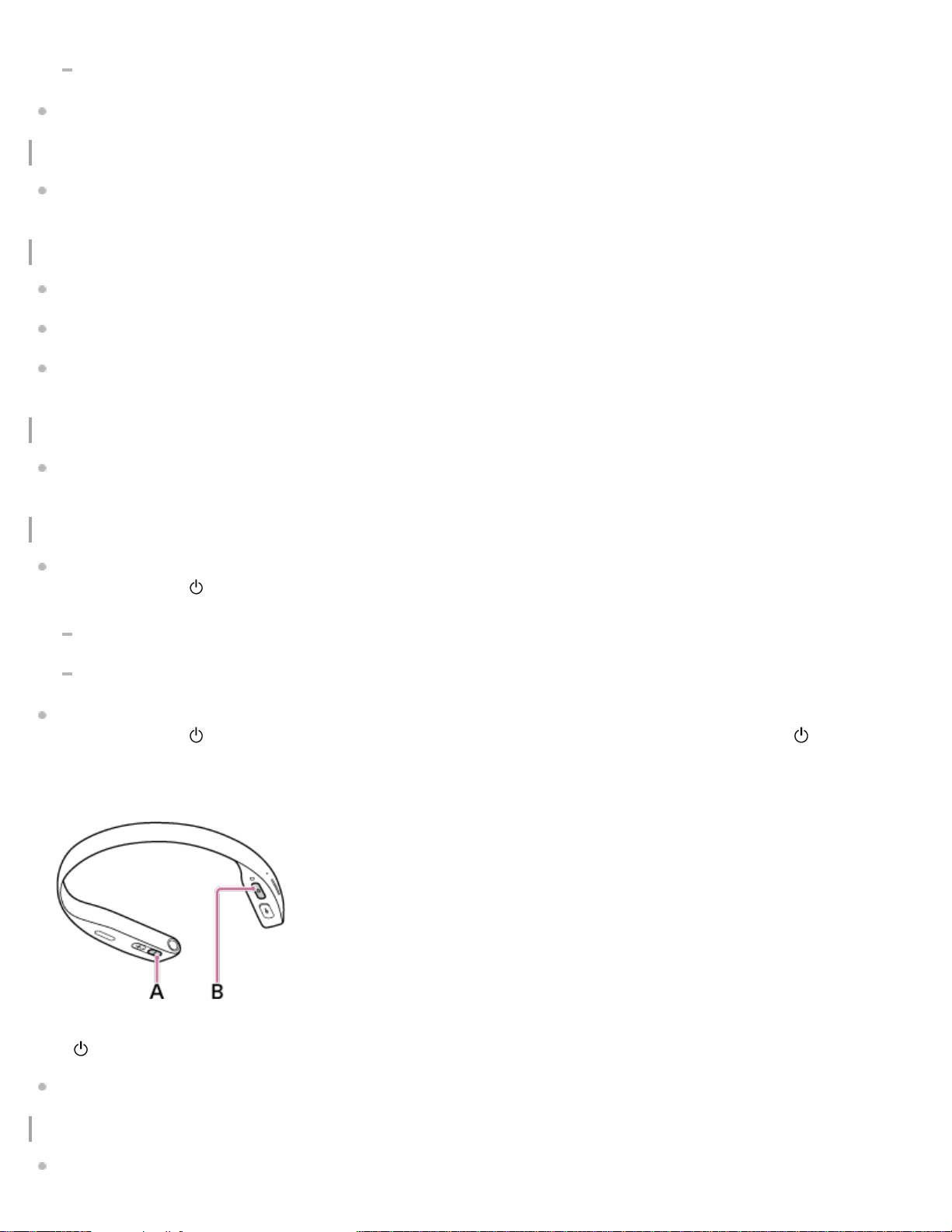
work correctly depending on the features or specifications of the device.
While talking on the phone hands free, noise may occur depending on the device or communication environment.
Depending on the device to be connected, it may require some time to start communications.
Note on static electricity
Static electricity accumulated in the body may cause mild tingling. To minimize the effect, wear clothes made from natural
materials.
On photos and copyright
You should only take photos in environments where you are permitted to do so.
You should always get permission from your subject before taking photos.
Various countries have laws regulating taking photos of people or things. It is your responsibility to make sure you comply with
the applicable laws when using FL-N01.
Television programs, films, videotapes, and other materials may be copyrighted.
Unauthorized recording of such materials may be contrary to the provisions of the copyright laws.
No compensation for damaged content or recording failure
Sony cannot compensate for failure to record or loss or damage of recorded content due to a malfunction of the camera,
recording media, etc.
If FL-N01 does not operate properly
Reset FL-N01 as follows.
Press and hold the
(power) button for 16 seconds to force shutdown of FL-N01 and turn it on again. Then check the
following to synchronize the time setting of FL-N01 with the “Future Lab Program N” app.
Open the status screen of the “Future Lab Program N” app and check if FL-N01 and your smartphone are connected via
Bluetooth.
If there is no Bluetooth connection established between FL-N01 and your smartphone, connect them via Bluetooth again.
If the problem persists even after the resetting operation above, initialize FL-N01 as follows.
Press and hold the
(power) button for 16 seconds to force shutdown of FL-N01, then press and hold the (power) and
volume - buttons simultaneously for more than 10 seconds until FL-N01 vibrates. The indicator light flashes for about 10
minutes then FL-N01 turns off. All data such as music files and photos are deleted, and FL-N01 is reset to the factory
settings.
A: Volume - button
B:
(power) button
After FL-N01 is initialized, follow all the procedures of Initial Setup of the “Future Lab Program N” app.
Note on wireless network function
We assume no responsibility whatsoever for any damage caused by unauthorized access to, or unauthorized use of,
104
destinations loaded on FL-N01, resulting from loss or theft.
Note on FL-N01 disposal
The built-in rechargeable battery of FL-N01 is recyclable. Do not remove the battery yourself. Consult Sony Customer
Experience Center.
Others
Do not place FL-N01 in a place exposed to humidity, dust, soot, steam, or direct sunlight. Do not leave FL-N01 in a car for a
long time. It may cause a malfunction.
The Bluetooth device may not function on mobile phones depending on radio wave conditions and locations where the
equipment is being used.
For traffic safety, do not use FL-N01 with the supplied Open-ear earphones while driving or cycling.
Do not put weight or pressure on FL-N01 as it may cause FL-N01 to deform during long storage.
Do not subject FL-N01 to excessive shock.
Do not place magnetic objects such as a credit card near FL-N01 while carrying it.
Clean FL-N01 using a soft dry cloth with a small amount of neutral detergent. Do not use thinner, benzin, or alcohol since
these chemicals damage the finish of FL-N01.
For details on operating your mobile phone or wireless device, refer to the operating instructions supplied with the mobile
phone or wireless device.
4-593-988-11(5) Copyright 2016 Sony Corporation
105
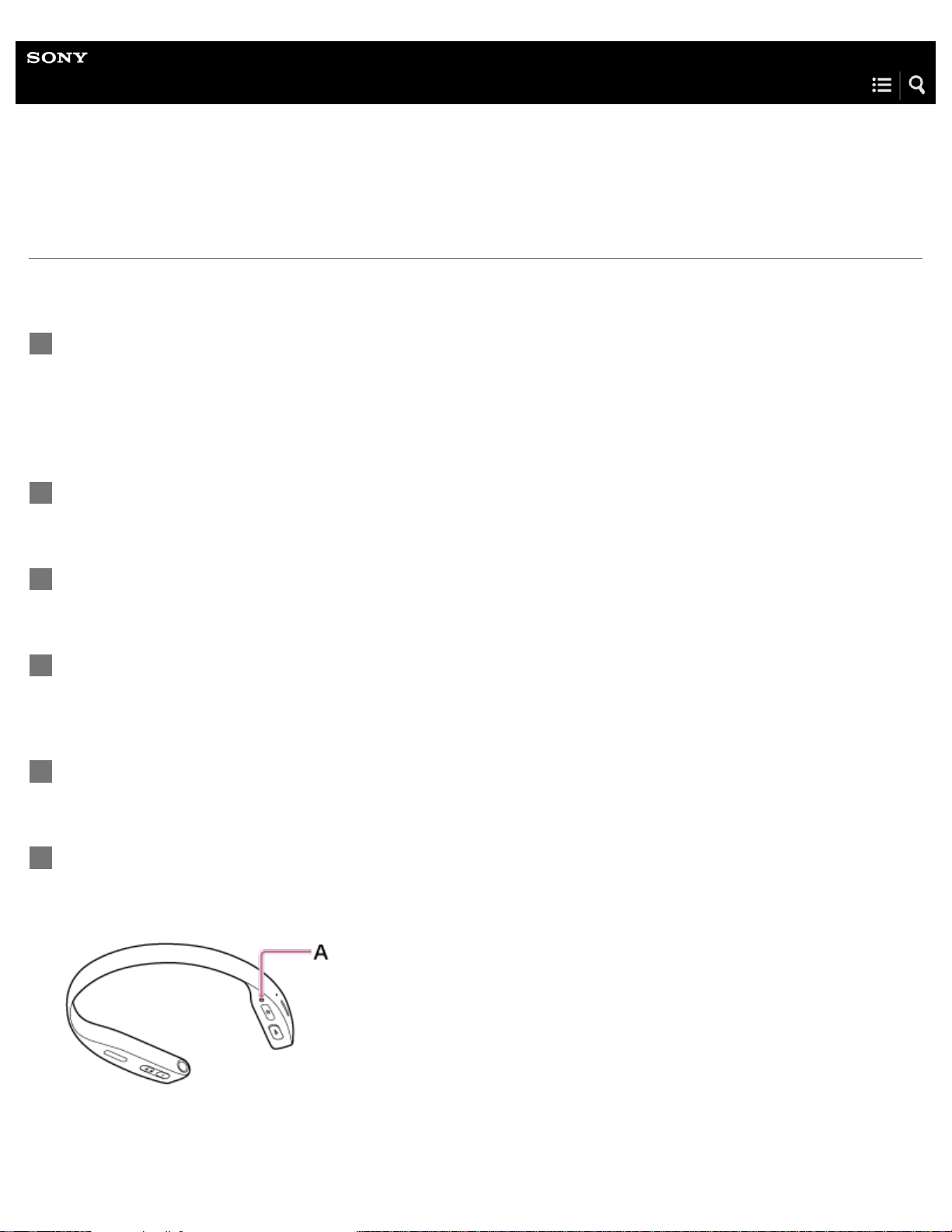
Help Guide
Future Lab Program N
FL-N01
Updating FL-N01
You can add new features to FL-N01 by installing the latest system software.
Check the customer support site for details on the latest FL-N01 software and how to update.
Download the update software file to your computer from the Sony eSupport site.
http://www.sony.com/support/futurelab
Do not unzip the "updates.zip" file.
1
Power on FL-N01.
2
Connect the supplied micro-USB cable to FL-N01, and then connect the other end to the computer.
3
Drag-and-drop the update file "updates.zip" to the root folder of FL-N01. It takes up to 1 minute to
transfer.
4
Disconnect FL-N01 from the computer.
5
Press and hold the voice input button and custom button simultaneously for 10 seconds until FL-N01
vibrates and the indicator light lights up in white.
System update on FL-N01 starts.
A: Indicator light
6
106

Hint
You can check the system software version of FL-N01 at FL-N01 information on the "Future Lab Program N" app.
Related Topic
Parts and Controls
Connecting to a computer
4-593-988-11(5) Copyright 2016 Sony Corporation
The indicator light will blink: initially red...then blue...then green. After 5 to 10 minutes, FL-N01 will
automatically restart and then announce "Update successful."
7
107
Help Guide
Future Lab Program N
FL-N01
Copyrights and trademarks
The BLUETOOTH® word mark and logos are owned by the Bluetooth SIG, Inc. and any use of such marks by Sony
Corporation is under license.
The N-Mark is a trademark or registered trademark of NFC Forum, Inc. in the United States and in other countries.
The Apple logo, iPhone, Mac and OS X are trademarks of Apple Inc., registered in the U.S. and other countries. App Store is
a service mark of Apple Inc.
© 2015 Google Inc, used with permission.
Android, Google, Google Calendar, Google Play, and Gmail are registered trademarks of Google Inc.
MPEG Layer-3 audio coding technology and patents licensed from Fraunhofer IIS and Thomson.
Windows is an either registered trademarks or trademarks of Microsoft Corporation in the United States and/or other countries.
This product is protected by certain intellectual property rights of Microsoft Corporation. Use or distribution of such technology
outside of this product is prohibited without a license from Microsoft or an authorized Microsoft subsidiary.
Future Lab Program is a trademark of Sony Corporation.
THIS PRODUCT IS LICENSED UNDER THE AVC PATENT PORTFOLIO LICENSE FOR THE PERSONAL USE OF A
CONSUMER OR OTHER USES IN WHICH IT DOES NOT RECEIVE REMUNERATION TO
(i)ENCODE VIDEO IN COMPLIANCE WITH THE AVC STANDARD (“AVC VIDEO”) AND/OR (ii)DECODE AVC VIDEO THAT WAS
ENCODED BY A CONSUMER ENGAGED IN A PERSONAL ACTIVITY AND/OR WAS OBTAINED FROM A VIDEO PROVIDER
LICENSED TO PROVIDE AVC VIDEO.
NO LICENSE IS GRANTED OR SHALL BE IMPLIED FOR ANY OTHER USE. ADDITIONAL INFORMATION MAY BE OBTAINED
FROM MPEG LA, L.L.C. SEE HTTP://WWW.MPEGLA.COM
All other trademarks are trademarks of their respective owners.
4-593-988-11(5) Copyright 2016 Sony Corporation
108


Help Guide
Future Lab Program N
FL-N01
FL-N01 is not turned on.
Charge the battery of FL-N01. FL-N01 will not be turned on for 10 seconds after starting to charge the battery. Wait for 10
seconds to turn FL-N01 on.
Press and hold the
(power) button for 16 seconds to force shutdown of FL-N01 and turn it on again. Then check the
following to synchronize the time setting of FL-N01 with the “Future Lab Program N” app.
Open the status screen of the “Future Lab Program N” app and check if FL-N01 and your smartphone are connected via
Bluetooth.
If there is no Bluetooth connection established between FL-N01 and your smartphone, connect them via Bluetooth again.
See “If FL-N01 does not operate properly” on “Precautions,” then initialize FL-N01 as follows.
Press and hold the
(power) button for 16 seconds to force shutdown of FL-N01, then press and hold the (power) and
volume - buttons simultaneously for more than 10 seconds until FL-N01 vibrates. The indicator light flashes for about 10
minutes then FL-N01 turns off.
If the same problem occurs repeatedly, there may be a malfunction.
After FL-N01 is initialized, follow all the procedures of Initial Setup of the “Future Lab Program N” app.
If the device contains condensation, wait a few hours to let the device dry out.
Related Topic
Precautions
4-593-988-11(5) Copyright 2016 Sony Corporation
110
Help Guide
Future Lab Program N
FL-N01
It takes time to power on FL-N01.
FL-N01 will not be turned on for 10 seconds after starting to charge the battery. Wait for 10 seconds to turn FL-N01 on.
It takes about one and a half minutes longer to boot-up FL-N01 than usual when 2,000 music files are stored on the built-in
memory of FL-N01.
4-593-988-11(5) Copyright 2016 Sony Corporation
111
Help Guide
Future Lab Program N
FL-N01
FL-N01 cannot be operated even though it is turned on.
Charge the battery until it is full. FL-N01 will not be turned on for 10 seconds after starting to charge the battery. Wait for 10
seconds to turn FL-N01 on.
It takes about one and a half minutes longer to boot-up FL-N01 than usual when 2,000 music files are stored on the built-in
memory of FL-N01.
Press and hold the
(power) button for 16 seconds to force shutdown of FL-N01 and turn it on again. Then check the
following to synchronize the time setting of FL-N01 with the “Future Lab Program N” app.
Open the status screen of the “Future Lab Program N” app and check if FL-N01 and your smartphone are connected via
Bluetooth.
If there is no Bluetooth connection established between FL-N01 and your smartphone, connect them via Bluetooth again.
See “If FL-N01 does not operate properly” on “Precautions,” then initialize FL-N01 as follows.
Press and hold the
(power) button for 16 seconds to force shutdown of FL-N01, then press and hold the (power) and
volume - buttons simultaneously for more than 10 seconds until FL-N01 vibrates. The indicator light flashes for about 10
minutes then FL-N01 turns off. All data such as music files and photos are deleted, and FL-N01 is reset to the factory
settings.If the same problem occurs repeatedly, there may be a malfunction.
After FL-N01 is initialized, follow all the procedures of Initial Setup of the “Future Lab Program N” app.
Related Topic
Precautions
4-593-988-11(5) Copyright 2016 Sony Corporation
112

Help Guide
Future Lab Program N
FL-N01
FL-N01 turned off unexpectedly.
Internal temperature of FL-N01 becomes hot depending on the usage environment. When this happens, FL-N01 turns off or
force-quits the application for your safety. In this case, wait for a while then turn FL-N01 on again.
4-593-988-11(5) Copyright 2016 Sony Corporation
113
Help Guide
Future Lab Program N
FL-N01
Charging cannot be done.
Check that you are using the supplied micro-USB cable.
Check that the micro-USB cable is connected to FL-N01 and the computer firmly.
Check that the computer is turned on.
Check that the computer is not in the standby time, sleep, or hibernation mode.
4-593-988-11(5) Copyright 2016 Sony Corporation
114
Help Guide
Future Lab Program N
FL-N01
FL-N01 cannot be recognized by a computer.
The micro-USB cable is not connected properly to the USB port of the computer. Connect the micro-USB cable again.
Check that FL-N01 and the computer are directly connected, and not via a USB hub.
A problem may have occurred with the connected USB port of the computer. Connect to another USB port if it is available.
Check that you are using the supplied micro-USB cable.
4-593-988-11(5) Copyright 2016 Sony Corporation
115

Help Guide
Future Lab Program N
FL-N01
The rechargeable battery life is short.
When FL-N01 is used in a low temperature environment, the battery life becomes short depending on the battery’s
specification.
Charge the battery until it is full.
Depending on the environment in which FL-N01 is used, the battery may deteriorate if it is not used for over a year. Contact
your nearest Sony Customer Experience Center.
The battery life varies depending on the volume of playback.
4-593-988-11(5) Copyright 2016 Sony Corporation
116
Help Guide
Future Lab Program N
FL-N01
No sound
Check that both FL-N01 and the smartphone are turned on.
Turn up the volume on both FL-N01 and the smartphone.
When you want to listen to music with streaming mode:
Check whether [No device connected] appears on the status screen of the “Future Lab Program N” app. If it appears, perform
initial setup and reconnect FL-N01 and your smartphone via Bluetooth again.
When you want to listen to the sound from your smartphone or Personalized Radio service:
Check that the volume of your smartphone is not set to muting.
The music source may be selected as device mode. Change the setting to streaming mode by pressing the custom button
on FL-N01 if you have not changed the function assigned to this button from the default setting. You can also change the
setting by using the “Future Lab Program N” app or the voice command.
When you want to listen to the music files stored on the built-in memory of FL-N01:
Change the music source to device mode by pressing the custom button on FL-N01 if you have not changed the function
assigned to this button from the default setting. You can also change the setting by using the “Future Lab Program N” app
or the voice command.
Related Topic
Items of Initial Setup (Android)
Items of Initial Setup (iPhone)
What you can do with device mode and streaming mode
Using the dedicated smartphone app “Future Lab Program N”
4-593-988-11(5) Copyright 2016 Sony Corporation
117
Help Guide
Future Lab Program N
FL-N01
Low sound level
Check whether the speaker holes on FL-N01 are not covered with cloth, etc.
Turn up the volume on both FL-N01 and your smartphone.
Adjust [Readout Volume] on the "Future Lab Program N" app.
Related Topic
Using the dedicated smartphone app “Future Lab Program N”
Changing the settings of FL-N01 on the “Future Lab Program N” app
4-593-988-11(5) Copyright 2016 Sony Corporation
118
Help Guide
Future Lab Program N
FL-N01
Distorted sound from FL-N01
Turn down the volume of your smartphone.
FL-N01 is designed to allow sound distortion at the maximum volume to produce loud sound in terms of ensuring the usage of
FL-N01 under a noisy condition.
Adjust the volume of FL-N01 by the volume buttons on FL-N01 or [Readout Volume] on the “Future Lab Program N” app.
Related Topic
Using the dedicated smartphone app “Future Lab Program N”
Changing the settings of FL-N01 on the “Future Lab Program N” app
4-593-988-11(5) Copyright 2016 Sony Corporation
119

Help Guide
Future Lab Program N
FL-N01
Sound skips frequently during playback.
Remove any obstacles between the antenna of the smartphone to be connected and the built-in antenna of FL-N01. The
antenna of FL-N01 is built into the part shown in the dotted line below.
Bluetooth communications may be disabled, or noise or audio dropout may occur under the following conditions.
There is a human body between FL-N01 and the smartphone. This situation may be improved by placing the smartphone
facing the antenna of FL-N01.
The smartphone is in the back pocket of your pants, etc.
There is an obstacle, such as metal or wall, between FL-N01 and the smartphone.
A device using 2.4 GHz frequency, such as a Wi-Fi device, cordless telephone, or microwave oven, is in use near FL-N01.
4-593-988-11(5) Copyright 2016 Sony Corporation
120
Help Guide
Future Lab Program N
FL-N01
Volume changes on its own.
FL-N01 is equipped with the auto volume enhancement function which adjusts the volume of FL-N01 automatically according
to the ambient noise.
To fix the volume level of FL-N01, set [Auto volume enhancement] to off on the “Future Lab Program N” app.
Related Topic
Using the dedicated smartphone app “Future Lab Program N”
Changing the settings of FL-N01 on the “Future Lab Program N” app
4-593-988-11(5) Copyright 2016 Sony Corporation
121

Help Guide
Future Lab Program N
FL-N01
Pairing cannot be done.
Press and hold the custom button on FL-N01 for more than 3 seconds to check if FL-N01 is in the pairing mode.
Bring FL-N01 and the smartphone within 1 m (3 feet) from each other.
Pairing may not be available when you try it after repairing or initializing FL-N01. In this case, delete the pairing information on
your smartphone then perform initial setup by following the on-screen instructions of the “Future Lab Program N” app to pair
FL-N01 and your smartphone.
Related Topic
Items of Initial Setup (Android)
Items of Initial Setup (iPhone)
4-593-988-11(5) Copyright 2016 Sony Corporation
122
Help Guide
Future Lab Program N
FL-N01
How can I delete the pairing information?
Pairing information on your smartphone can be deleted with the Bluetooth setting on the smartphone. To delete pairing
information on FL-N01, factory reset needs to be done. Before performing factory reset, backup all data you need since
factory reset erases all data stored on FL-N01. To perform factory reset, follow the procedure below.
Press and hold the
(power) button for 16 seconds to force shutdown of FL-N01, then press and hold the (power) and
volume - buttons simultaneously for more than 10 seconds until FL-N01 vibrates. The indicator light flashes for about 10
minutes then FL-N01 turns off. All data such as music files and photos are deleted, and FL-N01 is reset to the factory
settings.
After FL-N01 is initialized, follow all the procedures of Initial Setup of the “Future Lab Program N” app.
Related Topic
Items of Initial Setup (Android)
Items of Initial Setup (iPhone)
4-593-988-11(5) Copyright 2016 Sony Corporation
123

Help Guide
Future Lab Program N
FL-N01
Unable to connect FL-N01 to a smartphone with one-touch connection (NFC)
Perform initial setup of the “Future Lab Program N” app then try one-touch connection (NFC).
Keep the smartphone close to FL-N01 until the smartphone reacts. If you fail to connect, move the smartphone slowly over the
N-Mark of FL-N01.
Check that the NFC function of the smartphone is set to on.
If the smartphone is in a case, remove it.
NFC reception sensitivity varies depending on the device. If you repeatedly fail to connect FL-N01 with a smartphone by one-
touch, connect it to FL-N01 by on-screen operation on the smartphone.
Related Topic
Items of Initial Setup (Android)
Items of Initial Setup (iPhone)
4-593-988-11(5) Copyright 2016 Sony Corporation
124
Help Guide
Future Lab Program N
FL-N01
The wake-up phrase "Listen up Nigel" cannot be recognized by FL-N01.
Depending on the ambient noise, the wake-up phrase “Listen up Nigel” may not be recognized by FL-N01. Avoid places
where loud noise, strong wind, or the echo effect occurs.
Check whether the speaker holes on FL-N01 are not covered with cloth, etc.
Press the voice input button on FL-N01 instead.
You can imitate the sound “Listen up Nigel” on “How to control FL-N01.”
You can practice pronunciation of “Listen up Nigel” in the Tutorial on the “Future Lab Program N” app.
Related Topic
How to control FL-N01
Notes on recognition technologies
General voice command
4-593-988-11(5) Copyright 2016 Sony Corporation
125
Help Guide
Future Lab Program N
FL-N01
The voice command function does not work well.
Depending on the ambient noise, utterances may not be recognized by FL-N01. Avoid places where loud noise, strong wind,
or the echo effect occurs.
Check whether the speaker holes on FL-N01 are not covered with cloth, etc.
You may have talked to FL-N01 too early. Talk to FL-N01 after you hear the sound which reminds you that FL-N01 is ready
for operation.
When you hear the announcement that FL-N01 fails to recognize your voice command, say the voice command again.
When you hear the error sound from FL-N01, try again from the wake-up phrase “Listen up Nigel.”
The voice commands are fixed phrases. Say exactly the same phrase as on the voice command list.
Depending on voice commands, FL-N01 needs to have a network connection. For details, see “Voice command/Natural
speech list.”
Try saying another phrase if you intend to control FL-N01 with your speech.
Related Topic
How to control FL-N01
Notes on recognition technologies
General voice command
4-593-988-11(5) Copyright 2016 Sony Corporation
126

Help Guide
Future Lab Program N
FL-N01
FL-N01 does not react correctly even though you have sent a voice command.
FL-N01 may react to ambient noise. When FL-N01 is in the ready for operation state, leave it as it is. FL-N01 times out from
the ready for operation state. If FL-N01 starts playing back music files or reading out information of Personalized Radio
service, you need to talk to FL-N01 with the wake-up phrase “Listen up Nigel” and then the voice command “Stop.”
When you set to receive Personalized Radio service automatically, change this setting to off on the “Future Lab Program N”
app.
Uncheck [Smartphone Notification] on the segment screen of the “Future Lab Program N” app to cancel reading out the
smartphone notifications.
The notification sound, which reminds you that there are messages related to system information can be muted by pressing
the
(power) button (sleep mode).
Related Topic
How to control FL-N01
Notes on recognition technologies
Using the dedicated smartphone app “Future Lab Program N”
Changing the settings of FL-N01 on the “Future Lab Program N” app
4-593-988-11(5) Copyright 2016 Sony Corporation
127
Help Guide
Future Lab Program N
FL-N01
You cannot play the music files transferred to FL-N01.
Supported Audio File Formats are MP3 or AAC that transferred by Media Go ver.3.0 and iTunes ver.12.4.2.
The transferred content may be damaged. When you transfer content, make sure that no other tasks are running on your
computer until transferring is completed. Otherwise, the contents may be damaged. Delete the unplayable contents from FL-
N01 and transfer them again.
Playing back music files with device mode will not be available for as long as 5 minutes
*
when you transfer/delete music files
on FL-N01.
Charge the battery until it is full. FL-N01 will not be turned on for 10 seconds after starting to charge the battery. Wait for 10
seconds to turn FL-N01 on.
Press and hold the
(power) button for 16 seconds to force shutdown of FL-N01 and turn it on again. Then check the
following to synchronize the time setting of FL-N01 with the “Future Lab Program N” app.
Open the status screen of the “Future Lab Program N” app and check if FL-N01 and your smartphone are connected via
Bluetooth.
If there is no Bluetooth connection established between FL-N01 and your smartphone, connect them via Bluetooth again.
See “If FL-N01 does not operate properly” on “Precautions,” then initialize FL-N01 as follows.
Press and hold the
(power) button for 16 seconds to force shutdown of FL-N01, then press and hold the (power) and
volume - buttons simultaneously for more than 10 seconds until FL-N01 vibrates. The indicator light flashes for about 10
minutes then FL-N01 turns off. All data such as music files and photos are deleted, and FL-N01 is reset to the factory
settings. If the same problem occurs repeatedly, there may be a malfunction.
Related Topic
Precautions
Folder hierarchy recognized by FL-N01
4-593-988-11(5) Copyright 2016 Sony Corporation
128
Help Guide
Future Lab Program N
FL-N01
Music files on your smartphone cannot be played back.
Check if [No device connected] appears on the status screen of the “Future Lab Program N” app. If it appears, perform initial
setup and reconnect FL-N01 and your smartphone via Bluetooth again.
The music source may be selected as device mode. Change the setting to streaming mode by pressing the custom button on
FL-N01 if you have not changed the function assigned to this button from the default setting. You can also change the setting
by using the “Future Lab Program N” app or the voice command.
Related Topic
Items of Initial Setup (Android)
Items of Initial Setup (iPhone)
What you can do with device mode and streaming mode
Using the dedicated smartphone app “Future Lab Program N”
4-593-988-11(5) Copyright 2016 Sony Corporation
129
Help Guide
Future Lab Program N
FL-N01
FL-N01 does not deliver information / FL-N01 does not respond to the voice
command.
Check that FL-N01 and the smartphone are connected correctly.
Check that the smartphone has a network connection.
Check that you have signed in to Personalized Radio service.
Check that Personalized Radio service is activated on the segment screen of the “Future Lab Program N” app.
Check that the segments which you want to receive information are selected on the “Future Lab Program N” app.
Check that you have logged into the accounts of third parties (Google Calendar, Gmail, Social Feed, etc.).
Related Topic
What is Personalized Radio service?
Notes on recognition technologies
4-593-988-11(5) Copyright 2016 Sony Corporation
130
Help Guide
Future Lab Program N
FL-N01
FL-N01 delivers inappropriate information.
Do not cover FL-N01 with wet cloth.
A GPS signal may not be detected correctly. Check the status screen of the “Future Lab Program N” app and make sure that
FL-N01 receives a GPS signal. If [Searching] appears on the status screen, move to the place where you can see the sky and
stand still until you receive a signal.
Related Topic
What is Personalized Radio service?
Notes on recognition technologies
4-593-988-11(5) Copyright 2016 Sony Corporation
131
Help Guide
Future Lab Program N
FL-N01
The route on the activity log is not correct.
The accuracy of the activity log decrease temporarily depending on the weather condition or buildings around the area.
Related Topic
What is Personalized Radio service?
Notes on recognition technologies
4-593-988-11(5) Copyright 2016 Sony Corporation
132

Help Guide
Future Lab Program N
FL-N01
FL-N01 does not deliver information based on the current location.
Do not cover FL-N01 with wet cloth.
FL-N01 may need time to recognize the current location in an urban canyon or crowded place. Wait for a while and try it
again.
Related Topic
What is Personalized Radio service?
Notes on recognition technologies
4-593-988-11(5) Copyright 2016 Sony Corporation
133
Help Guide
Future Lab Program N
FL-N01
FL-N01 does not read out the latest SMS even though telling FL-N01 “Start SMS.”
Make sure that FL-N01 and your smartphone are connected via Bluetooth.
If they are not connected via Bluetooth, make a Bluetooth connection by following the instructions of the “Future Lab Program
N” app.
FL-N01 notifies you of SMS which you receive on your smartphone while FL-N01 and the smartphone are connected via
Bluetooth, and FL-N01 will read out the sender and message. If there is no Bluetooth connection between FL-N01 and your
smartphone, FL-N01 will not read out SMS even though you receive SMS on your smartphone.
4-593-988-11(5) Copyright 2016 Sony Corporation
134
Help Guide
Future Lab Program N
FL-N01
When using Activity Log, Live Segments does not start.
Check if your smartphone has a network connection.
If you are a premium member of Strava, set [Live Segment] settings to ON on the segment screen of the “Future Lab
Program” app.
If you are not a premium member of Strava or you are not a member yet, do the following to be a premium member. For
details, refer to the Strava web page.
Open [Activity Log] on the segment screen of the “Future Lab Program” app.
Click [Account] on the [Strava] settings to move to the Strava web page.
You need to log in or create a new account on Strava.
Register as a premium member of Strava.
4-593-988-11(5) Copyright 2016 Sony Corporation
135

Help Guide
Future Lab Program N
FL-N01
Information that FL-N01 announces is inaccurate when using Activity Logs with
Live Segments.
Information that FL-N01 tells you, such as start/goal positions, the running course or time may be inaccurate since FL-N01
uses a different algorithm from the one that Strava uses when recognizing segments. In this case, information that is uploaded
to Strava is accurate.
4-593-988-11(5) Copyright 2016 Sony Corporation
136

Help Guide
Future Lab Program N
FL-N01
FL-N01 announces/the “Future Lab Program N” app shows that there is no space
left on the internal storage of FL-N01.
The internal storage of FL-N01 is full.
On the “Future Lab Program N” app, turn off the segments that you have not been using or delete the apps in “Audio AR
Games.”
4-593-988-11(5) Copyright 2016 Sony Corporation
137
Help Guide
Future Lab Program N
FL-N01
Photos and videos taken by FL-N01 cannot be played back on a smartphone.
Photos and videos taken by FL-N01 can only be played back on a computer. Connect FL-N01 to a computer.
Related Topic
Connecting to a computer
Checking photos/videos/activity logs stored on the built-in memory of FL-N01
4-593-988-11(5) Copyright 2016 Sony Corporation
138

Help Guide
Future Lab Program N
FL-N01
Video shooting stopped in the middle.
FL-N01 cannot take a video longer than 1 minute for safety reasons.
FL-N01 also stops video shooting automatically depending on the ambient temperature. Wait for a while to let FL-N01 cool
down then try to take a video again.
Related Topic
Taking a video
4-593-988-11(5) Copyright 2016 Sony Corporation
139


Help Guide
Future Lab Program N
FL-N01
The other party’s voice cannot be heard / Phone call cannot be made.
Check that FL-N01 is turned on.
Check that FL-N01 and the smartphone are connected via Bluetooth.
If they are not connected via Bluetooth, perform initial setup.
Check whether [Use call function] is set to on on the "Future Lab Program N" app.
Turn up the volume of FL-N01 and the smartphone.
Check that the setting of the sound output device on your smartphone is set to FL-N01.
Related Topic
Receiving a call
Making a call
Notice for Phone Call
4-593-988-11(5) Copyright 2016 Sony Corporation
143
Help Guide
Future Lab Program N
FL-N01
The computer does not recognize FL-N01.
Check that FL-N01 is turned on.
Check that the operating system of your computer is supported by FL-N01.
If the remaining battery level of FL-N01 is low, charge the battery. FL-N01 will not be turned on for 10 seconds after starting
to charge the battery. Wait for 10 seconds to turn FL-N01 on.
Check that the micro-USB cable is connected to FL-N01 and the computer firmly.
Check that FL-N01 and the computer are directly connected, not via a USB hub.
Press and hold the
(power) button for 16 seconds to force shutdown of FL-N01 and turn it on again. Then check the
following to synchronize the time setting of FL-N01 with the “Future Lab Program N” app.
Open the status screen of the “Future Lab Program N” app and check if FL-N01 and your smartphone are connected via
Bluetooth.
If there is no Bluetooth connection established between FL-N01 and your smartphone, connect them via Bluetooth again.
See “If FL-N01 does not operate properly” on “Precautions,” then initialize FL-N01 as follows.
Press and hold the
(power) button for 16 seconds to force shutdown of FL-N01, then press and hold the (power) and
volume - buttons simultaneously for more than 10 seconds until FL-N01 vibrates. The indicator light flashes for about 10
minutes then FL-N01 turns off. All data such as music files and photos are deleted, and FL-N01 is reset to the factory
settings.
If the same problem occurs repeatedly, there may be a malfunction.
After FL-N01 is initialized, follow all the procedures of Initial Setup of the “Future Lab Program N” app.
4-593-988-11(5) Copyright 2016 Sony Corporation
144
Help Guide
Future Lab Program N
FL-N01
The music files cannot be transferred to FL-N01 from a computer.
There is not enough space on the built-in memory of FL-N01 or you tried to transfer over the maximum amount of files that
FL-N01 can receive. Delete unnecessary data and create free space on the built-in memory.
Press and hold the
(power) button for 16 seconds to force shutdown of FL-N01 and turn it on again. Then check the
following to synchronize the time setting of FL-N01 with the “Future Lab Program N” app.
Open the status screen of the “Future Lab Program N” app and check if FL-N01 and your smartphone are connected via
Bluetooth.
If there is no Bluetooth connection established between FL-N01 and your smartphone, connect them via Bluetooth again.
The transferred content may be damaged. When you transfer content, make sure that no other tasks are running on your
computer until transferring is completed. Otherwise, the content may be damaged. Delete unplayable content from FL-N01 and
transfer them again. If the content still does not play, factory reset needs to be performed.
Before performing factory reset, backup data you need since factory reset erases all data, such as music files and photos,
stored on FL-N01. To perform factory reset, follow the procedure below.
Press and hold the
(power) button for 16 seconds to force shutdown of FL-N01, then press and hold the (power) and
volume - buttons simultaneously for more than 10 seconds until FL-N01 vibrates. The indicator light flashes for about 10
minutes then FL-N01 turns off.
After FL-N01 is initialized, follow all the procedures of Initial Setup of the “Future Lab Program N” app.
4-593-988-11(5) Copyright 2016 Sony Corporation
145
Help Guide
Future Lab Program N
FL-N01
The latest system software cannot be installed on FL-N01.
Check the remaining battery level of FL-N01 then charge the battery fully.
The latest software has already been installed on FL-N01. You can check the software version on the "Future Lab Program N"
app.
"updates.zip" which you have downloaded from the server may be broken. Download it again.
If software update is terminated in the middle for any reason, it will be restarted from the beginning when FL-N01 is turned on
next time.
4-593-988-11(5) Copyright 2016 Sony Corporation
146

Help Guide
Future Lab Program N
FL-N01
A drink (water, coffee, etc.) was spilled on FL-N01 / FL-N01 was washed in the
washing machine.
FL-N01 does not prevent dust, splashes of liquid, or water from entering.
If splashes of liquid enter FL-N01, not only does it cause malfunctions, but it may also damage FL-N01 beyond repair.
If water or sweat splashes on FL-N01, wipe FL-N01 carefully with a dry cloth.
4-593-988-11(5) Copyright 2016 Sony Corporation
147
Help Guide
Future Lab Program N
FL-N01
FL-N01 becomes hot.
FL-N01 becomes hot if it plays back music files over a long time at maximum volume or takes movies continuously, even it is
designed securely.
Do not touch the moderately heated surface of FL-N01 for a long time, especially if you have sensitive skin. It may cause
swelling or blistering, the symptoms of moderate temperature burn.
When overheating occurs, the functions of FL-N01 which you enjoy may stop automatically, or FL-N01 may power off
automatically.
4-593-988-11(5) Copyright 2016 Sony Corporation
148
Help Guide
Future Lab Program N
FL-N01
I lost FL-N01.
Sign out from [Account Setting] on the “Future Lab Program N” app. There may be a risk of your personal information from
leaking.
Related Topic
Using the dedicated smartphone app “Future Lab Program N”
Changing the settings of FL-N01 on the “Future Lab Program N” app
4-593-988-11(5) Copyright 2016 Sony Corporation
149

Help Guide
Future Lab Program N
FL-N01
I lost both FL-N01 and the smartphone.
Access the service sites (Gmail, Google Calendar, Social Feeds, etc.), which are registered to Personalized Radio service, via
a computer then cancel linkage between them and FL-N01. There may be a risk of your personal information from leaking.
4-593-988-11(5) Copyright 2016 Sony Corporation
150