© 2004 Sony Corporation
2-188-141-12 (1)
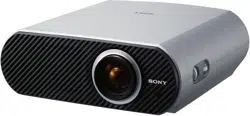
Video Projector
Operating Instructions
VPL-HS50
VPL-HS51
2
WARNING
To prevent fire or shock hazard, do
not expose the unit to rain or
moisture.
To avoid electrical shock, do not
open the cabinet. Refer servicing to
qualified personnel only.
For the customers in the USA
If you have any questions about this product,
you may call:
Sony Customer Information Service Center
1-800-222-7669 or http://www.sony.com/
The number below is for FCC related
matters only.
Declaration of Conformity
Trade Name: SONY
Model No.: VPL-HS50/HS51
Responsible Party: Sony Electronics Inc.
Address: 16450 W. Bernardo Dr, San Diego,
CA 92127 U.S.A.
Telephone Number: 858-942-2230
This device complies with Part 15 of the
FCC Rules. Operation is subject to the
following two conditions: (1) This device
may not cause harmful interference, and (2)
this device must accept any interference
received, including interference that may
cause undesired operation.
This equipment has been tested and found to
comply with the limits for a Class B digital
device, pursuant to Part 15 of the FCC
Rules. These limits are designed to provide
reasonable protection against harmful
interference in a residential installation.
This equipment generates, uses, and can
radiate radio frequency energy and, if not
installed and used in accordance with the
instructions, may cause harmful interference
to radio communications. However, there is
no guarantee that interference will not occur
in a particular installation. If this equipment
does cause harmful interference to radio or
television reception, which can be
determined by turning the equipment off and
on, the user is encouraged to try to correct
the interference by one or more of the
following measures:
- Reorient or relocate the receiving antenna.
- Increase the separation between the
equipment and receiver.
- Connect the equipment into an outlet on a
circuit different from that to which the
receiver is connected.
- Consult the dealer or an experienced radio/
TV technician for help.
You are cautioned that any changes or
modifications not expressly approved in this
manual could void your authority to operate
this equipment.
This product contains mercury.Disposal of
this product may be regulated if sold in the
United States. For disposal or recycling
information, please contact your local
authorities or Electronics Industries Alliance
(www.eiae.org http://www.eiae.org).
This symbol is intended to
alert the user to the presence
of uninsulated “dangerous
voltage” within the
product’s enclosure that may
be of sufficient magnitude to
constitute a risk of electric
shock to persons.
This symbol is intended to
alert the user to the presence
of important operating and
maintenance (servicing)
instructions in the literature
accompanying the
appliance.
3
For the customers in Canada
(VPL-HS50 only)
This Class B digital apparatus complies with
Canadian ICES-003.
Voor de klanten in Nederland
Gooi de batterij niet weg
maar lever deze in als klein
chemisch afval (KCA).
The socket-outlet should be installed near
the equipment and be easily accessible.
CAUTION
RISK OF EXPLOSION IF BATTERY IS
REPLACED BY AN INCORRECT
TYPE.
DISPOSED OF USED BATTERIES
ACCORDING TO THE LOCAL RULES.

4

5
Table of Contents
Precautions .........................................6
Connections and
Preparations
Unpacking ..........................................7
Step 1: Installing the Projector ...........8
Before Setting Up the Projector ...9
Installing the Projector and
a Screen ...........................10
Step 2: Connecting the Projector .....13
Connecting to a DVD Player/
Recorder or Digital
Tuner ...............................13
Connecting to Video Equipment 15
Connecting to a Computer ..........16
Step 3: Adjusting the Picture Size and
Position .............................................17
Step 4: Selecting the Menu
Language ..........................................21
Projecting
Projecting the Picture on the Screen 23
Turning Off the Power ...............25
Selecting the Wide Screen Mode .....26
Selecting the Picture Viewing Mode 29
Adjusting the Picture Quality ...........30
Adjusting the Picture Using Real Color
Processing ........................................32
Using the Menus
Operation through the Menus ..........34
Picture Menu ....................................37
Signal Menu ..................................... 40
Function menu ................................. 41
Installation Menu ............................. 42
Setup Menu ...................................... 43
Information Menu ............................ 44
About the Preset Memory No. ... 44
Adjusting Picture Quality of a Signal
from the Computer .......................... 45
Others
Troubleshooting ............................... 46
Warning Indicators .................... 47
Message Lists ............................. 48
Replacing the Lamp ......................... 49
Replacing the Air Filter ................... 50
Specifications .................................. 52
Input Signals and Adjustable/setting
Items ............................... 54
Preset Signals ............................. 56
Ceiling Installation .......................... 58
Location of Controls ........................ 61
Front ......................................... 61
Rear ......................................... 62
Bottom ....................................... 63
Remote Control .......................... 64
Index ............................................... 65

6 Precautions
Precautions
On safety
• Check that the operating voltage of your
unit is identical with the voltage of your
local power supply.
• Should any liquid or solid object fall into
the cabinet, unplug the unit and have it
checked by qualified personnel before
operating it further.
• Unplug the unit from the wall outlet if it is
not to be used for several days.
• To disconnect the cord, pull it out by the
plug. Never pull the cord itself.
• The wall outlet should be near the unit and
easily accessible.
• The unit is not disconnected to the AC
power source (mains) as long as it is
connected to the wall outlet, even if the
unit itself has been turned off.
• Do not look into the lens while the lamp is
on.
• Do not place your hand or objects near the
ventilation holes. The air coming out is
hot.
On preventing internal heat build-
up
After you turn off the power with the I/1
(on/standby) switch, do not disconnect the
unit from the wall outlet while the cooling
fan is still running.
Caution
The projector is equipped with ventilation
holes (intake) and ventilation holes
(exhaust). Do not block or place anything
near these holes, or internal heat build-up
may occur, causing picture degradation or
damage to the projector.
On repacking
Save the original shipping carton and
packing material; they will come in handy if
you ever have to ship your unit. For
maximum protection, repack your unit as it
was originally packed at the factory.
This manual covers models VPL-HS50
and VPL-HS51.
The illustrations of the projector used in
this manual are those of the VPL-HS50
unless the model name is specifically
mentioned.
7Unpacking
Connections and Preparations
This section describes how to install the projector and screen, how to connect
the equipment from which you want to project the picture, etc.
Unpacking
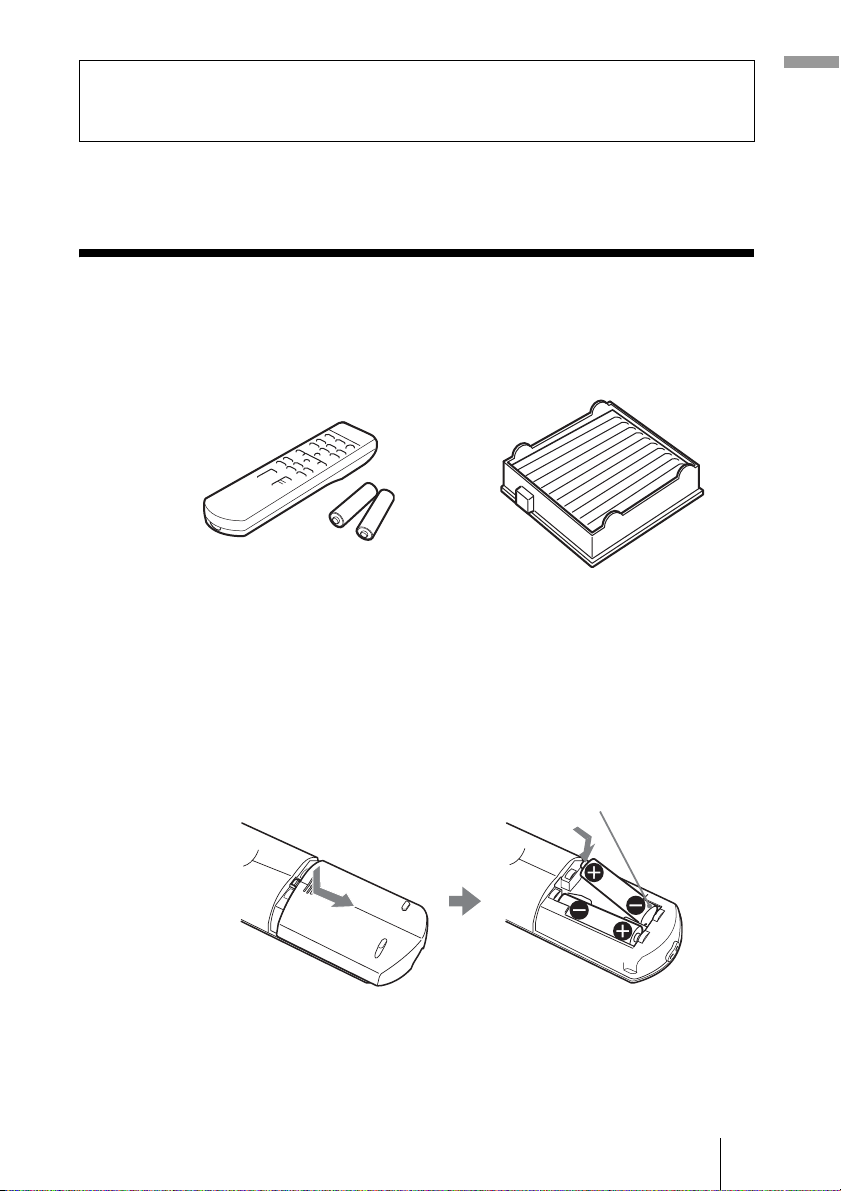
Check the carton to make sure it contains the following items:
Inserting the batteries into the remote control
Connections and Preparations
• Remote control (1)
• Size AA (R6) batteries (2)
• Air filter (for replacement) (1)
• AC power cord (1)
• CD-ROM (Application software and
Operating Instructions) (VPL-HS51
only)
• Operating Instructions (this manual) (1)
Insert the batteries E side first as shown in the illustration.
Inserting them forcibly or with the polarities reversed may cause
a short circuit and may generate heat.
8 Step 1: Installing the Projector
Step 1: Installing the Projector
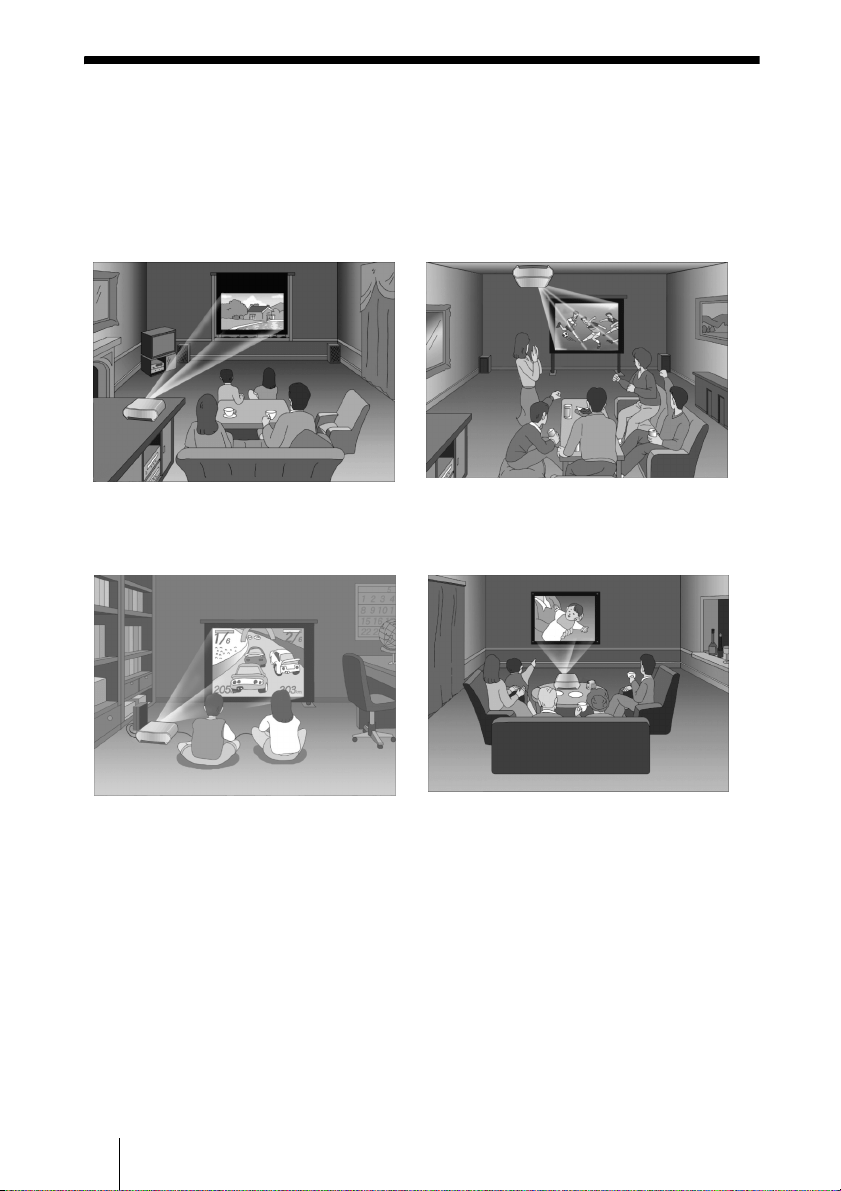
The projector’s lens shift feature allows you to choose a variety of installation
locations for your projector. You can enjoy home entertainment with this
projector in the following situations.
Enjoying home theater
Watching sports, etc. with your
company
Enjoying video games on a large
screen
Viewing images shot by a digital video
camera on a large screen
9Step 1: Installing the Projector
Connections and Preparations
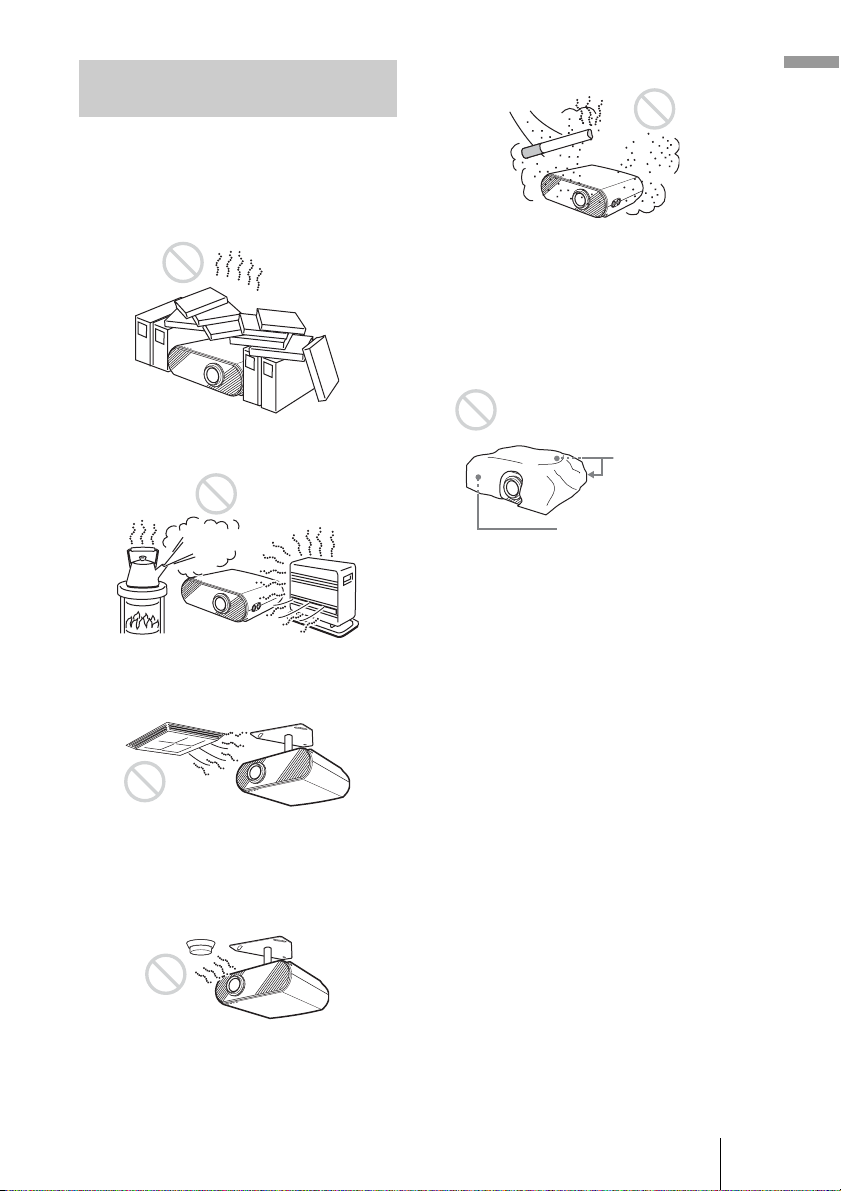
Do not place the projector in the following
situations, which may cause malfunction
or damage to the projector.
Poorly ventilated
Highly heated and humid
Subject to direct cool or warm air
from an air-conditioner
Installing in such a location may cause
malfunction of the unit due to moisture
condensation or rise in temperature.
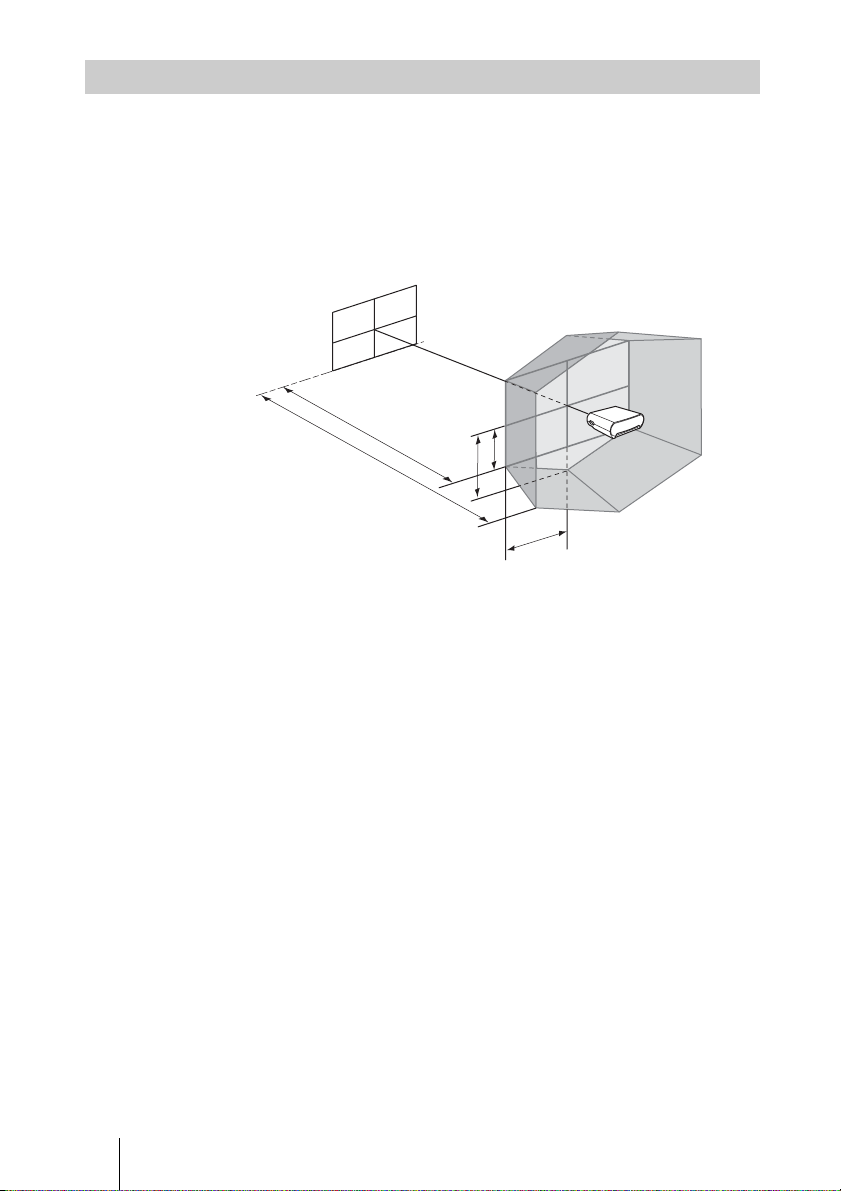
Near a heat or smoke sensor
Malfunction of the sensor may be caused.
Very dusty and extremely smoky
Make a special attention to the following
while using the projector.
Do not block the ventilation holes.
Tip
For details on the location of the ventilation
holes (intake or exhaust), see “Location of
Controls” on pages 61 to 63.
When installing the unit at altitudes
When using the projector at an altitude of 1,500
m or higher, set “High Altitude Mode” in the
Installation menu to “On.” (1 page 42)
Failing to set this mode when using the
projector at high altitudes could have adverse
effects, such as reducing the reliability of
certain components.
Before Setting Up the
Projector
Ventilation holes
(intake)
Ventilation holes
(exhaust)
10 Step 1: Installing the Projector
The installation distance between the projector and a screen varies depending
on the size of the screen.
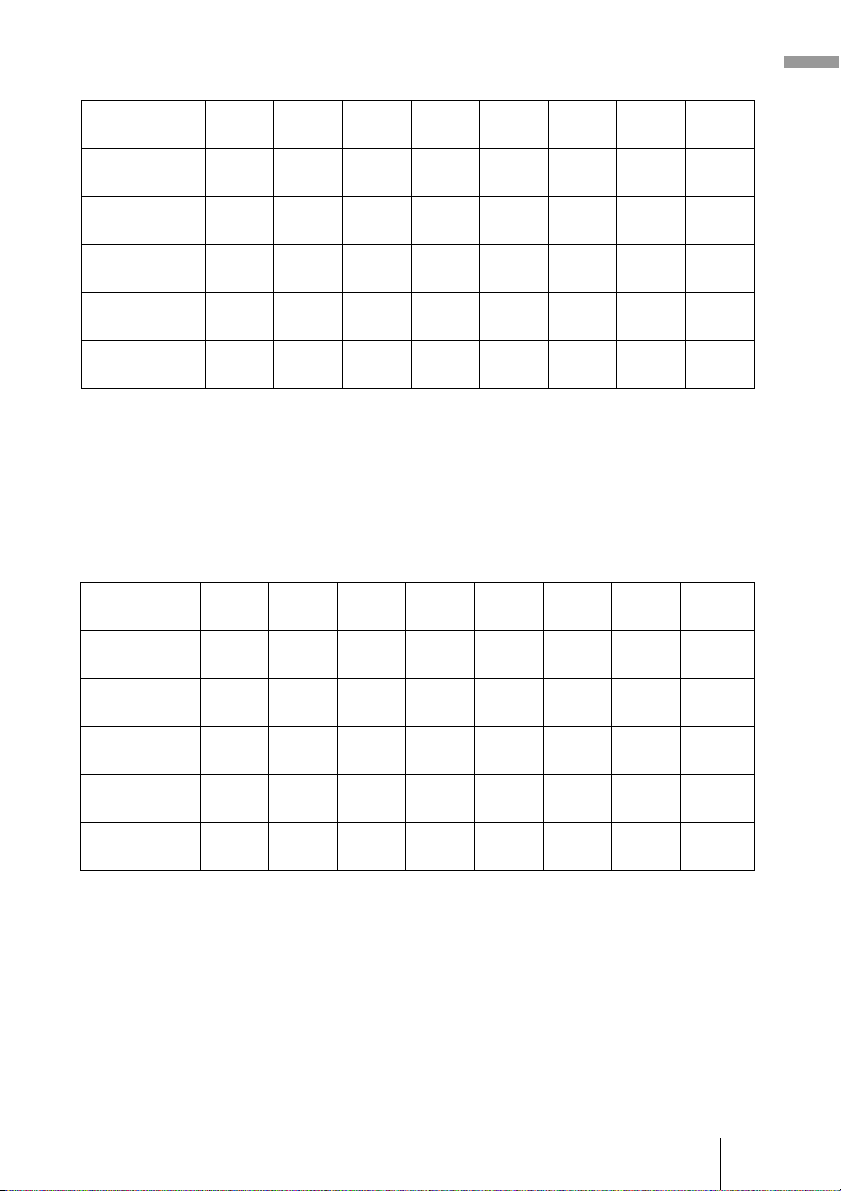
1 Determine the installation position of the projector and screen.
You can obtain a good quality picture if you position the projector with the
center of the lens within the areas indicated in the gray areas in the
illustration. Use the values a, b, c, d and e in the table on page 11 as a guide.
a: Minimum projection distance between the screen and the center of the
projector’s lens
b: Maximum projection distance between the screen and the center of the
projector’s lens
c: Vertical distance between the center of the screen and the center of the
projector’s lens when using the maximum vertical lens shift feature*
d: Horizontal distance between the center of the screen and the center of
the projector’s lens when using the maximum horizontal lens shift
feature*
e: Maximum vertical distance between the center of the screen and the
center of the projector’s lens when using both the vertical and
horizontal lens shift features with the horizontal lens shift set to the
maximum value*
* The distances c, d and e indicated in the illustration show those in the lower
or left direction. The same distances in the upper or right direction are
appropriate for installation.
For details on the lens shift feature, see “Step 3: Adjusting the Picture Size
and Position.” (1 page 17)
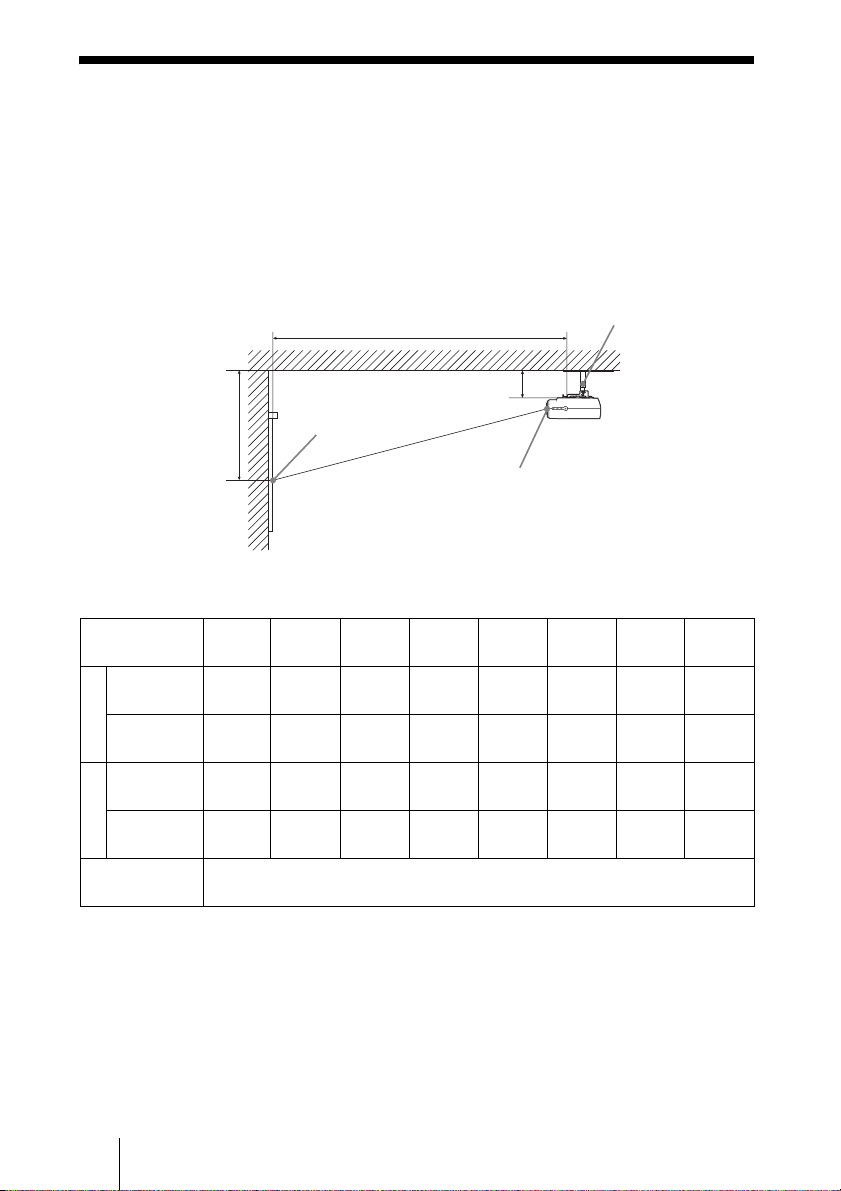
Installing the Projector and a Screen
a
b
e
c
d
Screen
11Step 1: Installing the Projector
Connections and Preparations
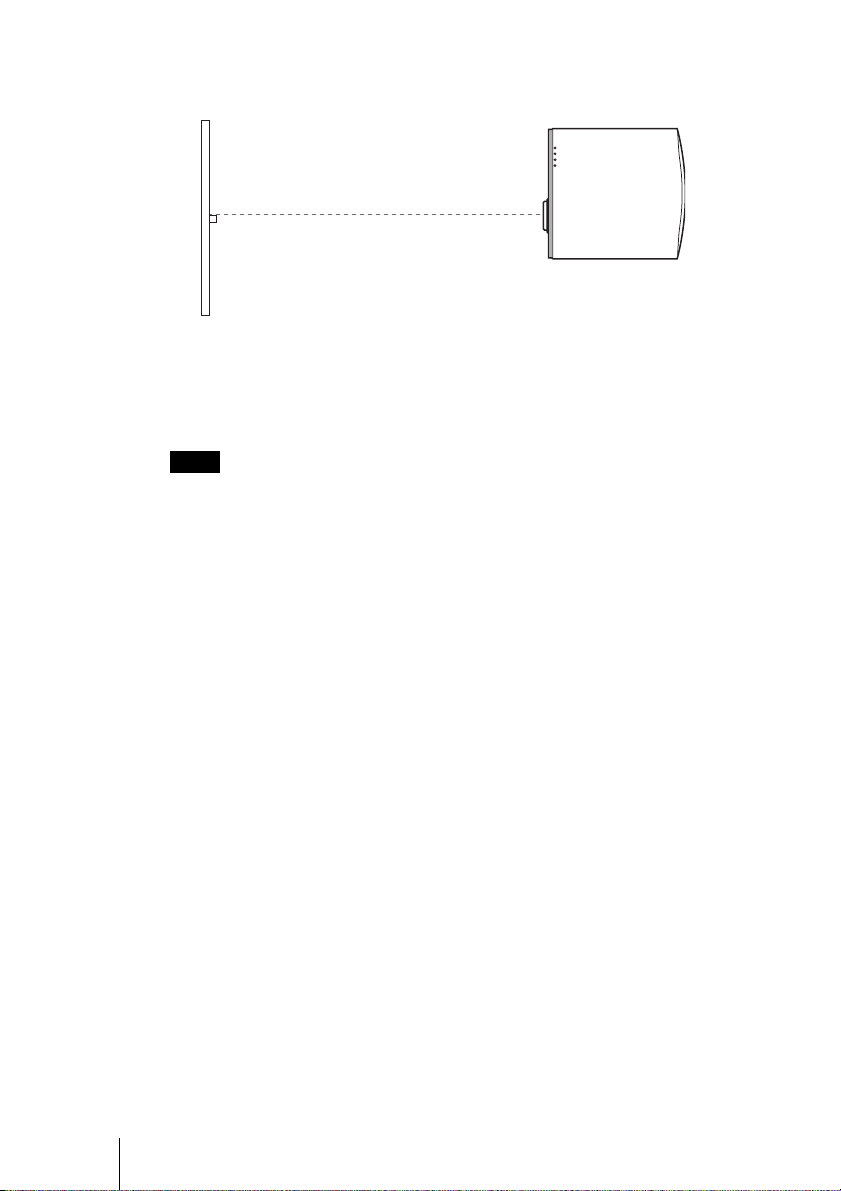
When using the 16:9 aspect ratio screen
Unit: mm (inches)
To calculate the installation measurements (SS: Screen Size)
a (minimum) = {(SS × 21.27/0.7227) – 35.160899} × 1.025
b (maximum) = {(SS × 33.9409273/0.7227) – 37.678872} × 0.975
c = (SS/0.7227 × 9)
d = (SS/0.7227 × 8)
e = (SS/0.7227 × 4.5)
When using the 4:3 aspect ratio screen
Unit: mm (inches)
To calculate the installation measurements (SS: Screen Size)
a (minimum) = {(SS × 21.27/0.5906) – 35.160899} × 1.025
b (maximum) = {(SS × 33.9409273/0.5906) – 37.678872} × 0.975
c = (SS/0.5906 × 9)
d = (SS/0.5906 × 8)
e = (SS/0.5906 × 4.5)
Screen size
(inches)
40 60 80 100 120 150 180 200
a (minimum) 1170
(46
1
/8)
1770
(69
3
/4)
2380
(93
3
/4)
2980
(117
3
/8)
3580
(141)
4490
(176
7
/8)
5390
(212
1
/4)
6000
(236
1
/4)
b (maximum) 1790
(70
1
/2)
2710
(106
3
/4)
3630
(143)
4540
(178
7
/8)
5460
(215)
6830
(269)
8210
(323
3
/8)
9120
(359
1
/8)
c 498
(19
5
/8)
747
(29
1
/2)
996
(39
1
/4)
1245
(49
1
/8)
1494
(58
7
/8)
1868
(73
5
/8)
2241
(88
1
/4)
2491
(98
1
/8)
d 443
(17
1
/2)
664
(26
1
/4)
886
(35)
1107
(43
5
/8)
1328
(52
3
/8)
1660
(65
3
/8)
1992
(78
1
/2)
2214
(87
1
/4)
e 249
(9
7
/8)
374
(14
3
/4)
498
(19
5
/8)
623
(24
5
/8)
747
(29
1
/2)
934
(36
7
/8)
1121
(44
1
/4)
1245
(49
1
/8)
Screen size
(inches)
40 60 80 100 120 150 180 200
a (minimum) 1440
(56
3
/4)
2180
(85
7
/8)
2920
(115)
3660
(114
1
/8)
4390
(172
7
/8)
5500
(216
5
/8)
6610
(260
3
/8)
7350
(289
1
/2)
b (maximum) 2200
(86
5
/8)
3330
(131
1
/8)
4450
(175
1
/4)
5570
(219
3
/8)
6690
(263
1
/2)
8370
(329
5
/8)
10050
(395
3
/4)
11170
(439
7
/8)
c610
(24
1
/8)
914
(36)
1219
(48)
1524
(60)
1829
(72
1
/8)
2286
(90
1
/8)
2743
(108
1
/8)
3048
(120
1
/
16
)
d542
(21
3
/8)
813
(32
1
/8)
1084
(42
3
/4)
1355
(53
3
/8)
1626
(64
1
/8)
2032
(80
1
/16)
2438
(96)
2709
(106
3
/4)
e305
(12
1
/8)
457
(18)
610
(24
1
/8)
762
(30)
914
(36)
1143
(45)
1372
(54
1
/8)
1524
(60)
12 Step 1: Installing the Projector
2 Position the projector so that the lens is parallel to the screen.
3 Project an image on the screen and adjust the picture so that it
fits the screen. (1 page 17)
To project an image, connect video equipment to the projector. (1 page
13)
When using a screen with an uneven surface, stripes pattern may rarely appear on the
screen depending on the distance between the screen and the projector or the zooming
magnifications. This is not a malfunction of the projector.
For installation of the projector on a ceiling, see “Ceiling Installation.” (1
page 58)
Note
Screen
Top view
13Step 2: Connecting the Projector
Connections and Preparations
Step 2: Connecting the Projector
When making connections, be sure to do the following:
• Turn off all equipment before making any connections.
• Use the proper cables for each connection.
• Insert the cable plugs properly; plugs that are not fully inserted often
generate noise. When pulling out a cable, be sure to pull it out from the plug,
not the cable itself.
• Refer to the operating instructions of the connected equipment.
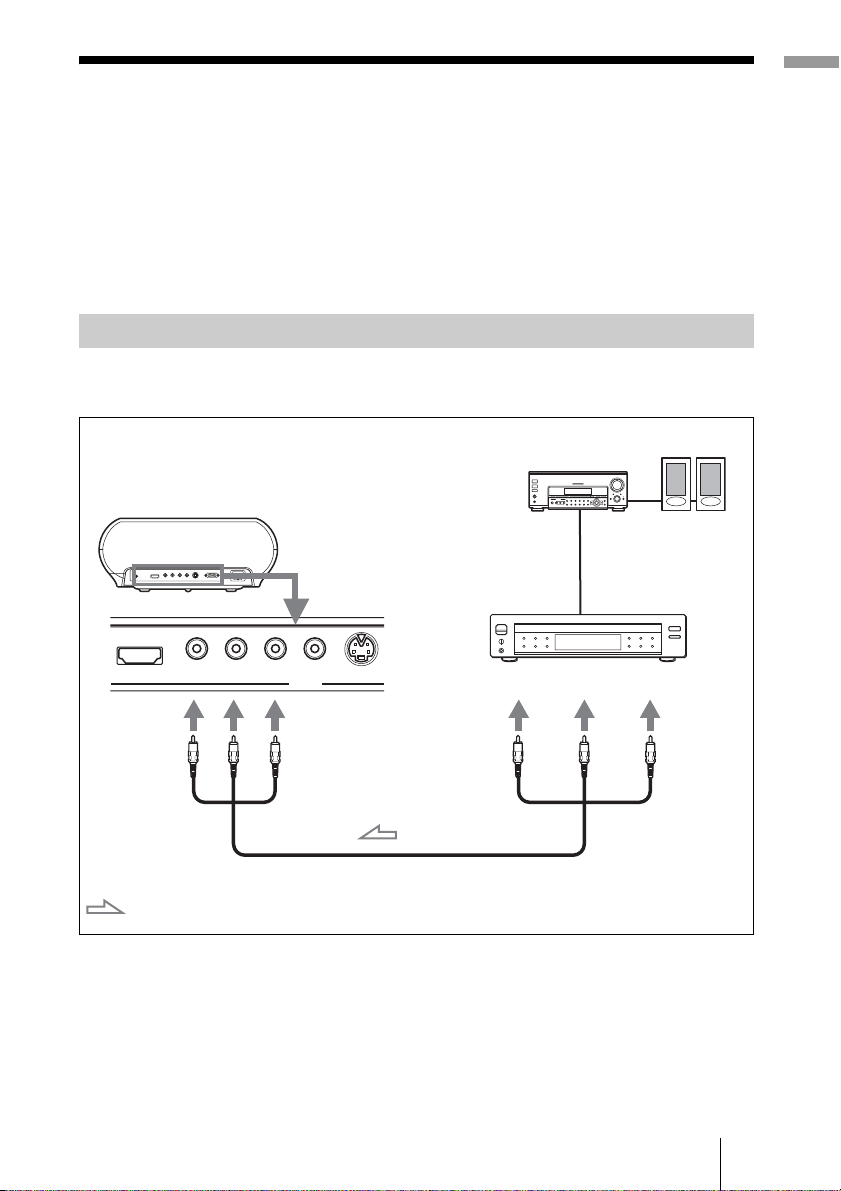
To connect to a DVD player/recorder or digital tuner equipped with
component video connectors
Tip
To connect the projector to a DVD player/recorder, digital tuner, etc. which is not
equipped with component video connectors, use the S video cable to connect to the S-
video output of the DVD player/recorder, digital tuner, etc. If the connected equipment
is not equipped with the S-video output connector, use the video cable to connect to the
video output jack on the equipment.
Connecting to a DVD Player/Recorder or Digital Tuner
S VIDEO
Y
PB/CB PR/CR VIDEOHDMI
INPUT
P
B
/
C
B
P
R
/C
R
Y
P
B
/
C
B
P
R
/C
R
Y
Component video cable (not supplied)
: Video signal flow
DVD player/recorder,
digital tuner, etc., with
component video
connectors
Rear of the projector
AV amplifier
Speakers
14 Step 2: Connecting the Projector
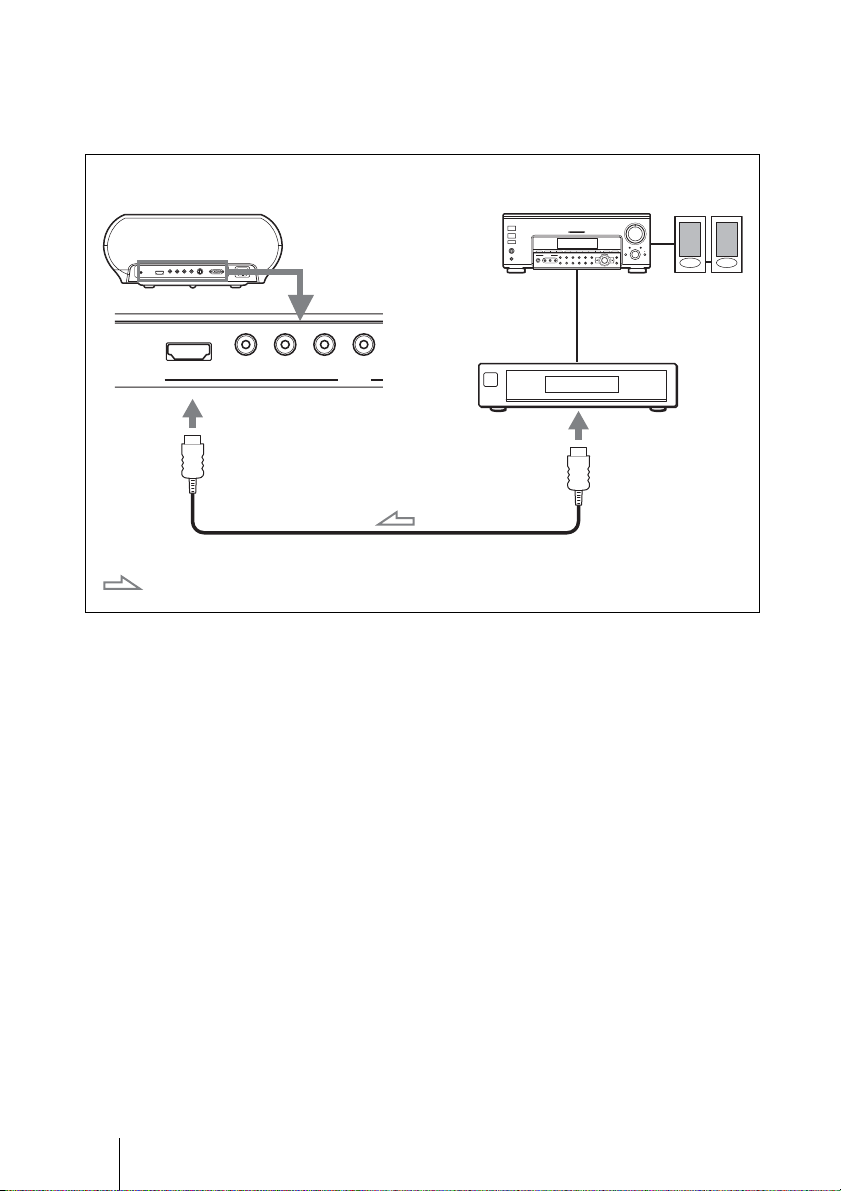
To connect to a DVD player/recorder equipped with HDMI
output
You can enjoy better picture quality by connecting a DVD player/recorder
equipped with HDMI output to the HDMI input of the projector.
Y PB/CB PR/CR VIDEOHDMI
INPUT
HDMI cable (not supplied)
: Video signal flow
Rear of the projector
DVD player/recorder,
etc., with the HDMI
output
to HDMI output
AV amplifier
Speakers
............................................................................................................................................................
HDMI, HDMI logo and High-Definition Multimedia Interface are trademarks or registered
trademarks of HDMI Licensing LLC.
15Step 2: Connecting the Projector
Connections and Preparations
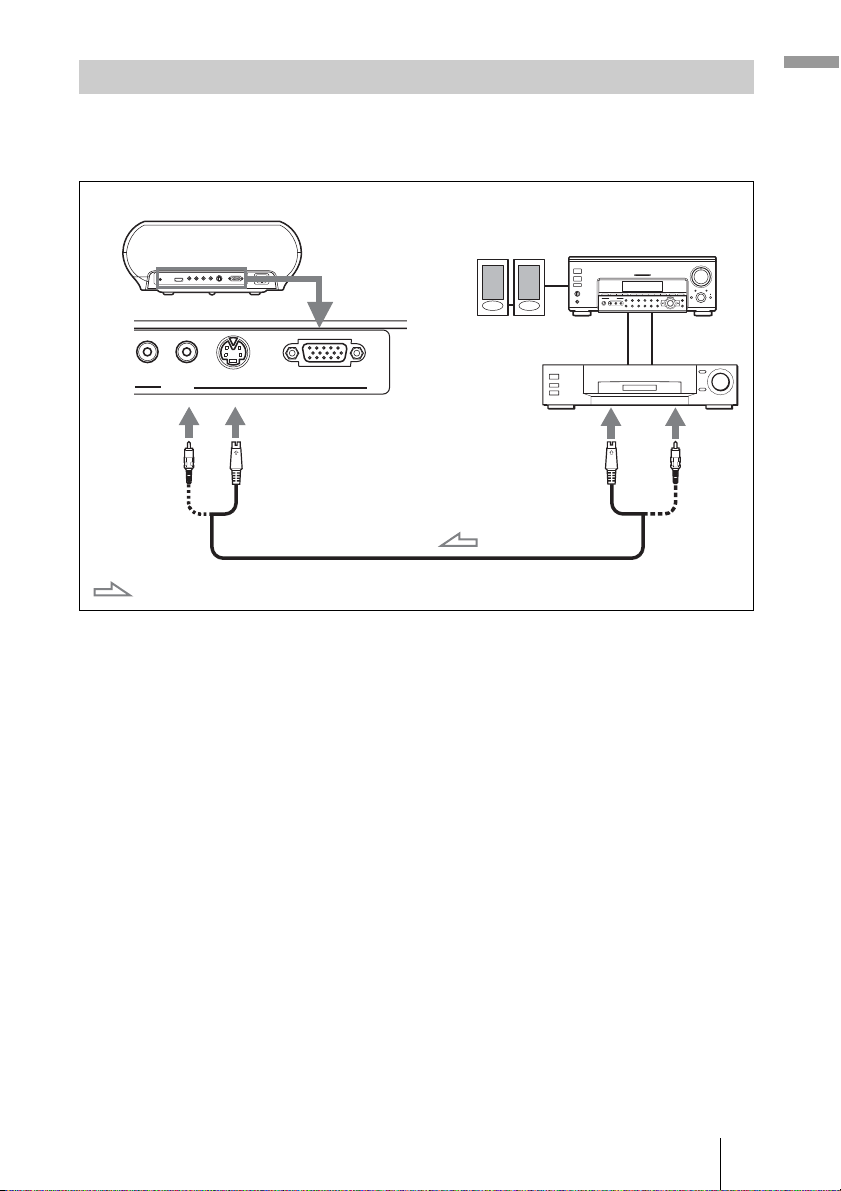
You can connect a DVD player/recorder which is not equipped with
component video connectors, hard disk video recorder, VCR or laser disk
player. See also the instruction manual of each equipment.
Tip
If you do not know to which connector you should connect the cable, S VIDEO (S video
connector) or VIDEO (video connector), connect it to S VIDEO to enjoy better picture
quality.
If the equipment to be connected has no S video connector, connect the cable to the
video output.
Connecting to Video Equipment
S VIDEO
INPUT A
PR/CR VIDEO
INPUT
S video or video cable (not supplied)
: Video signal flow
Rear of the projector
to S video or
video output
Video equipment
AV amplifier
Speakers
16 Step 2: Connecting the Projector
Tip
Set “Input A Signal Sel.” in the Setup menu to “Auto” or “Computer.” If the input
signal does not appear properly, set it to “Computer.”
If you set your computer, such as a notebook type, to output the signal to both your
computer’s display and an external monitor, the picture of the external monitor may not
appear properly. Set your computer to output the signal to only the external monitor.
For details, refer to the computer’s operating instructions supplied with your computer.
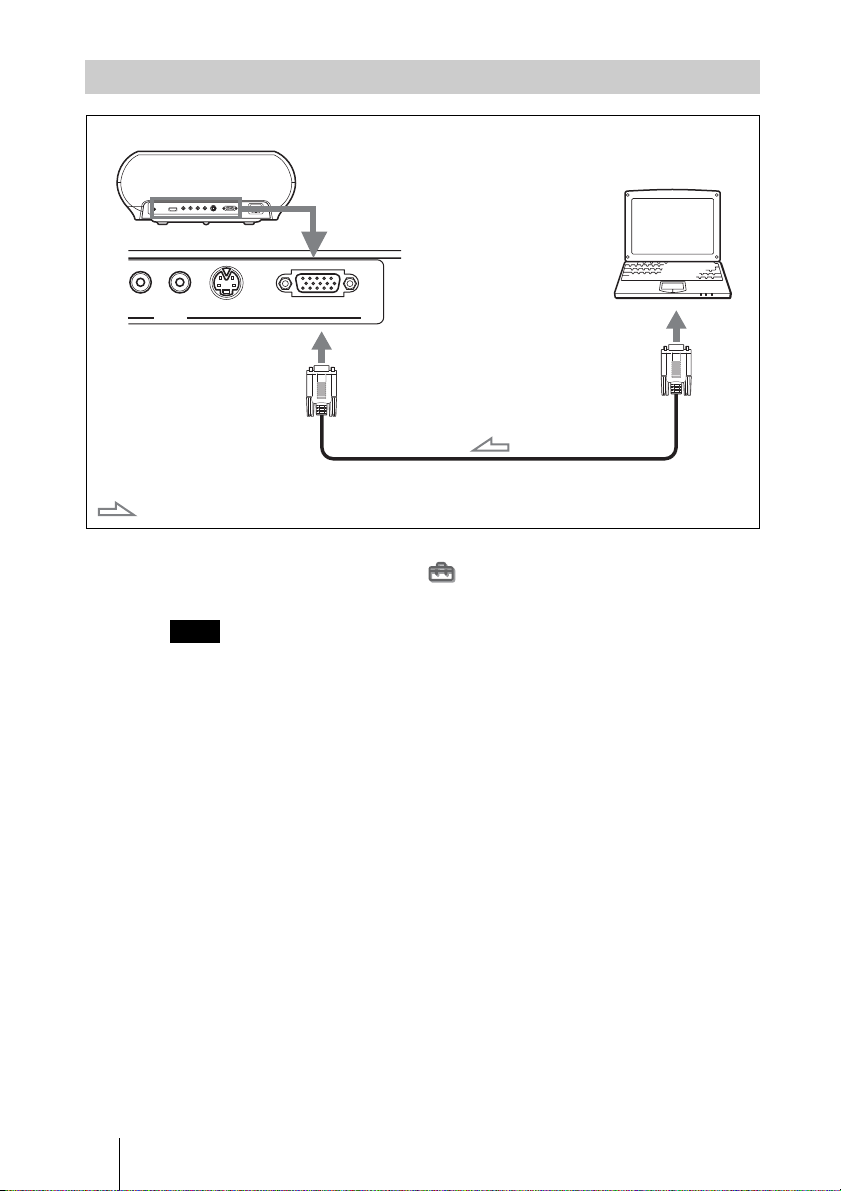
Connecting to a Computer
Note
S VIDEO
INPUT A
PR/CR VIDEO
INPUT
HD D-sub 15-pin cable (not supplied)
: Video signal flow
Rear of the projector
to monitor output
Computer
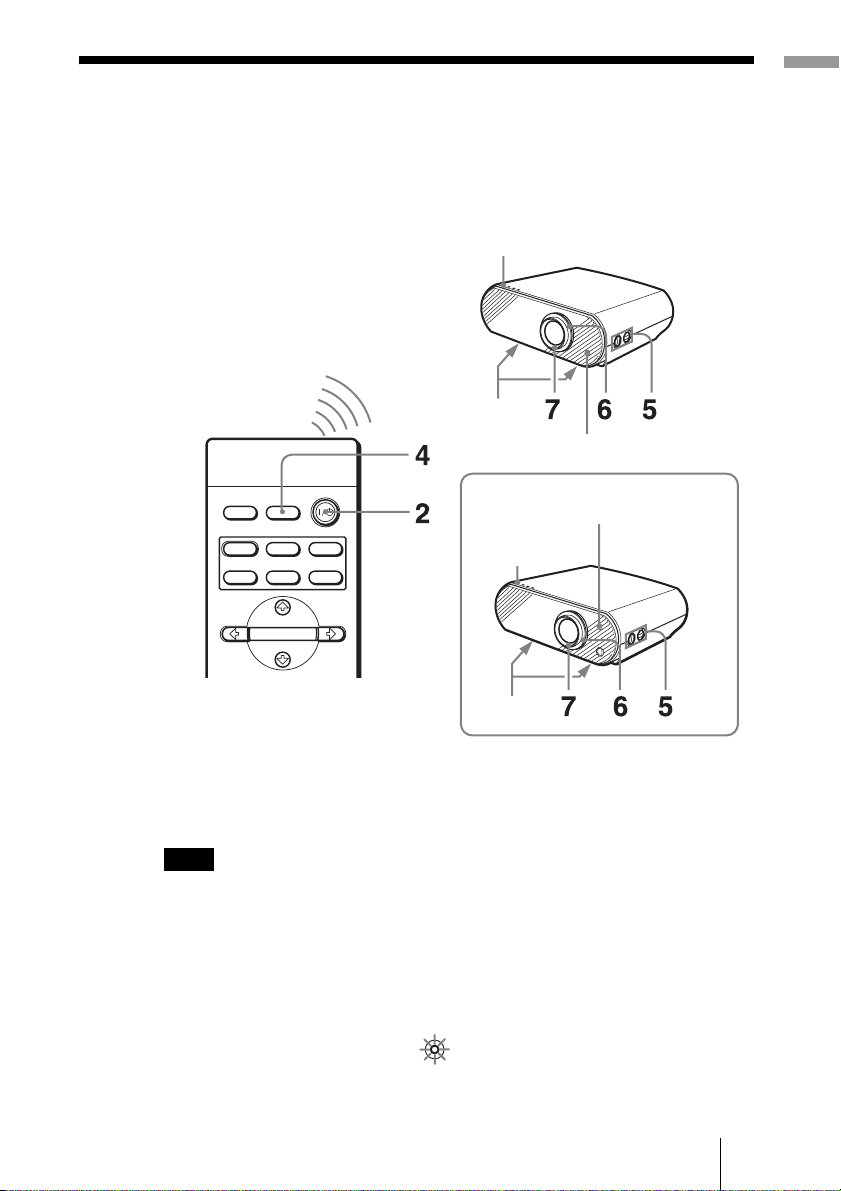
17Step 3: Adjusting the Picture Size and Position
Connections and Preparations
Step 3: Adjusting the Picture Size and
Position
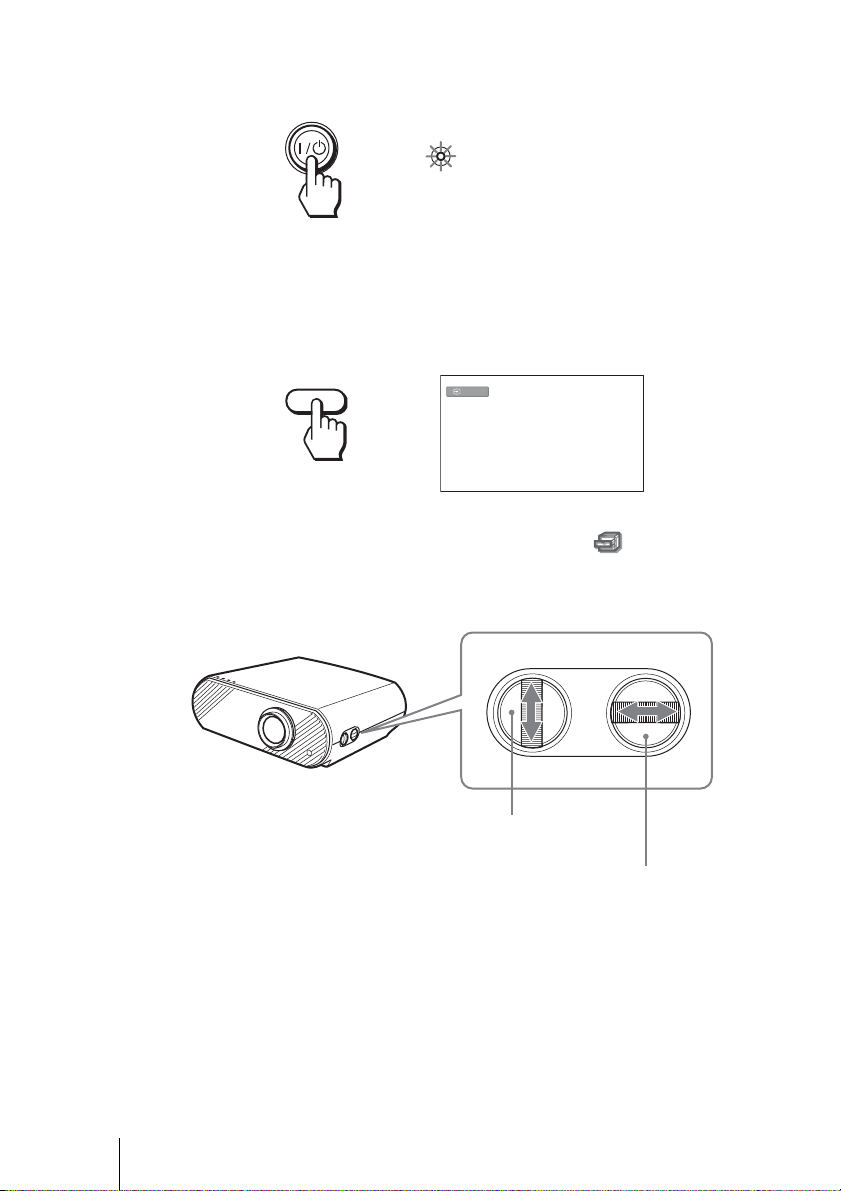
Project an image on the screen and then adjust the picture position.
Tip
The I/1 (on/standby), INPUT, MENU, and M/m/</,/ENTER (joystick) buttons on
the side panel of the projector function the same as those on the remote control.
Depending on the installation location of the projector, you may not control it with the
remote control. In this case, point the remote control to the screen instead of the
projector.
1 Plug the AC power cord into a wall outlet.
The ON/STANDBY indicator lights in red and the projector goes into
standby mode.
Note
INPUTLIGHT
STANDARD
CINEMA
DYNAMIC
USER 2
PICTURE MODE
USER 3USER 1
ENTER
ON/STANDBY indicator
Adjusters
Remote control detector
Adjusters
Remote control detector
ON/STANDBY
indicator
VPL-HS50
VPL-HS51
ON/
STANDB
Y
Lights in red.
18 Step 3: Adjusting the Picture Size and Position
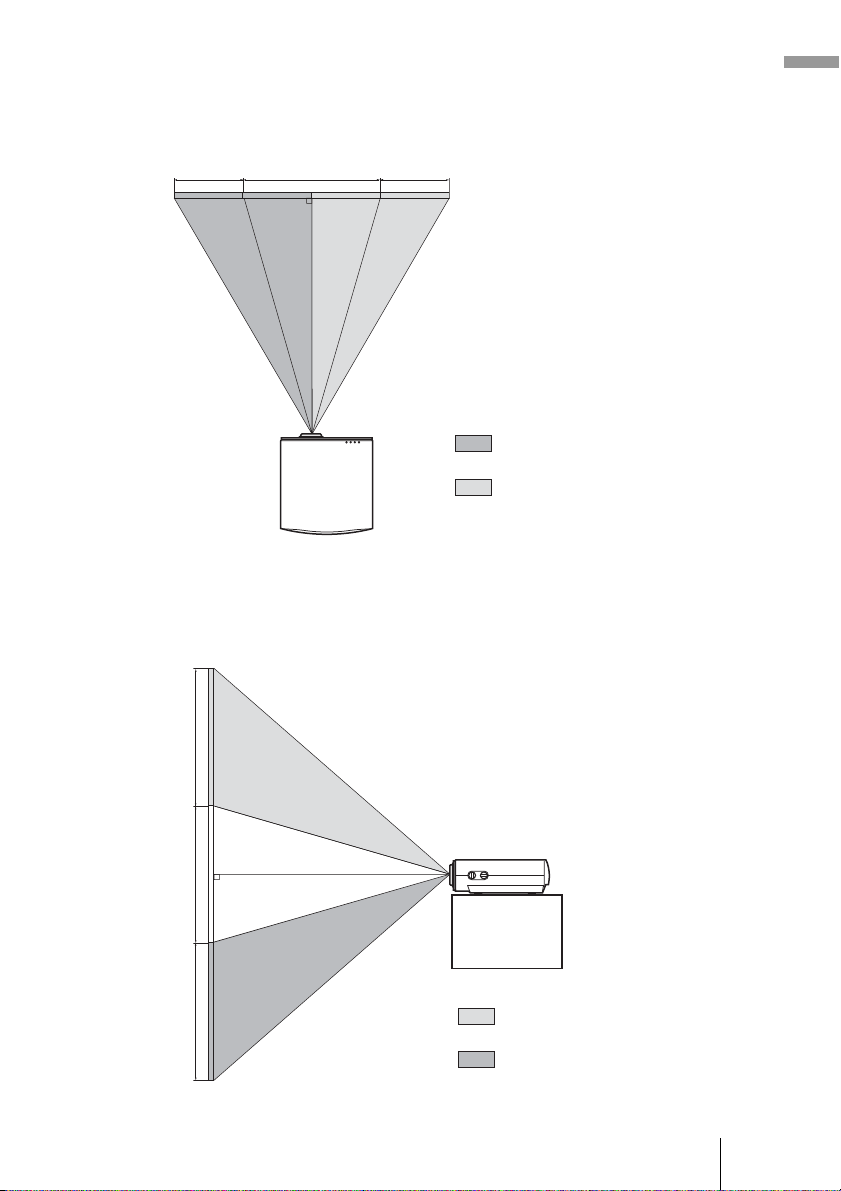
2 Press the I/1 (on/standby) switch to turn on the projector.
The ON/STANDBY indicator lights in green.
3 Turn on the equipment connected to the projector.
Refer to the operating instructions of the connected equipment.
4 Press INPUT to project the picture on the screen.
Each time you press the button, the input indication changes. (1 page 24)
Tip
When “Auto Input Search” is set to “On” in the Function menu, the channel
of the signal input is automatically displayed.
5 Move both LENS SHIFT dials to adjust the picture position.
ON/
STANDB
Y
Lights in green.
Video
INPUT
LENS SHIFT
To adjust the vertical
position
To adjust the horizontal position
19Step 3: Adjusting the Picture Size and Position
Connections and Preparations
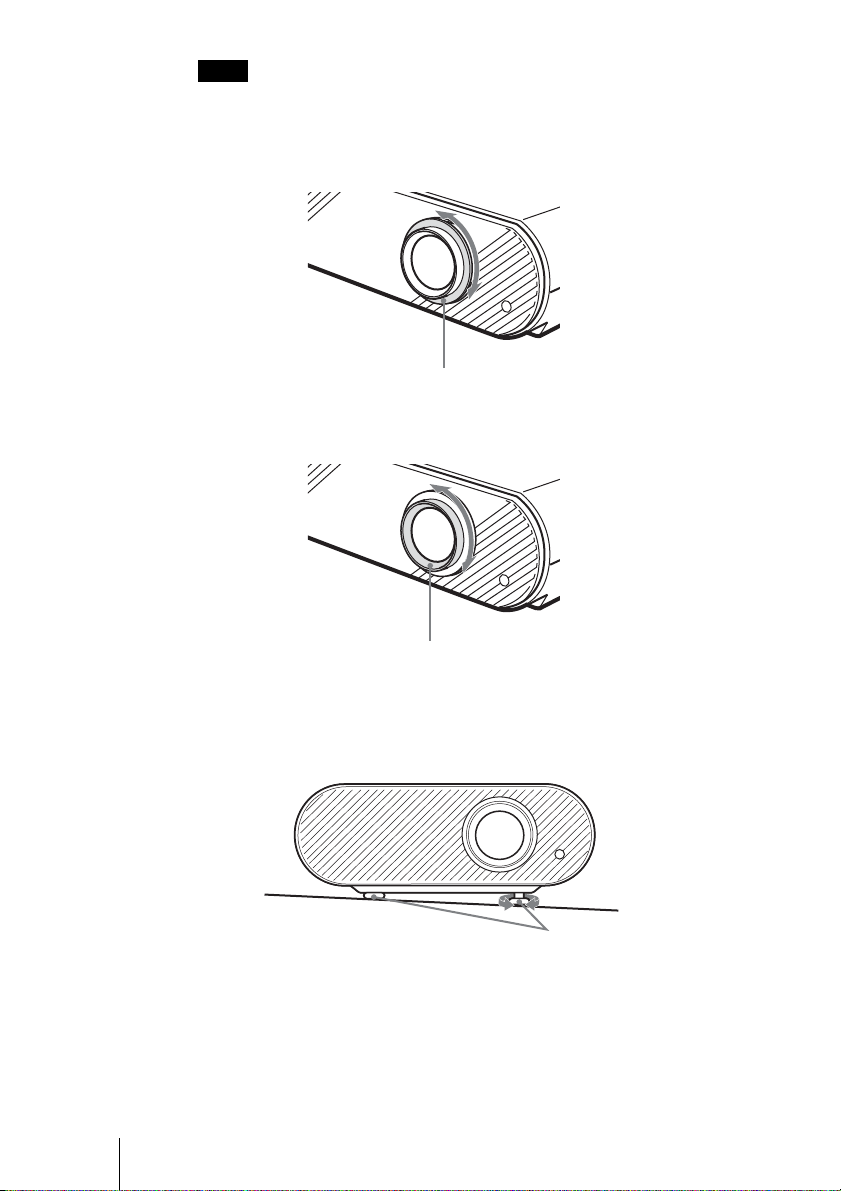
To adjust the horizontal position
Turn the LENS SHIFT dial right or left.
The picture moves right or left by a maximum of half of the screen size from
the center of the lens.
To adjust the vertical position
Turn the LENS SHIFT dial up or down.
The picture moves up or down by a maximum of the screen size from the
center of the lens.
Top view
: Picture position when moving the
picture to the left at maximum
: Picture position when moving the
picture to the right at maximum
1
/2H
1H
1
/2H
Side view
: Picture position when moving the
picture upward at maximum
: Picture position when moving the
picture downward at maximum
1V
1V
1V
20 Step 3: Adjusting the Picture Size and Position
When you use the horizontal and vertical lens shift features at the same time, you
can move the picture vertically by a maximum of half of the screen size.
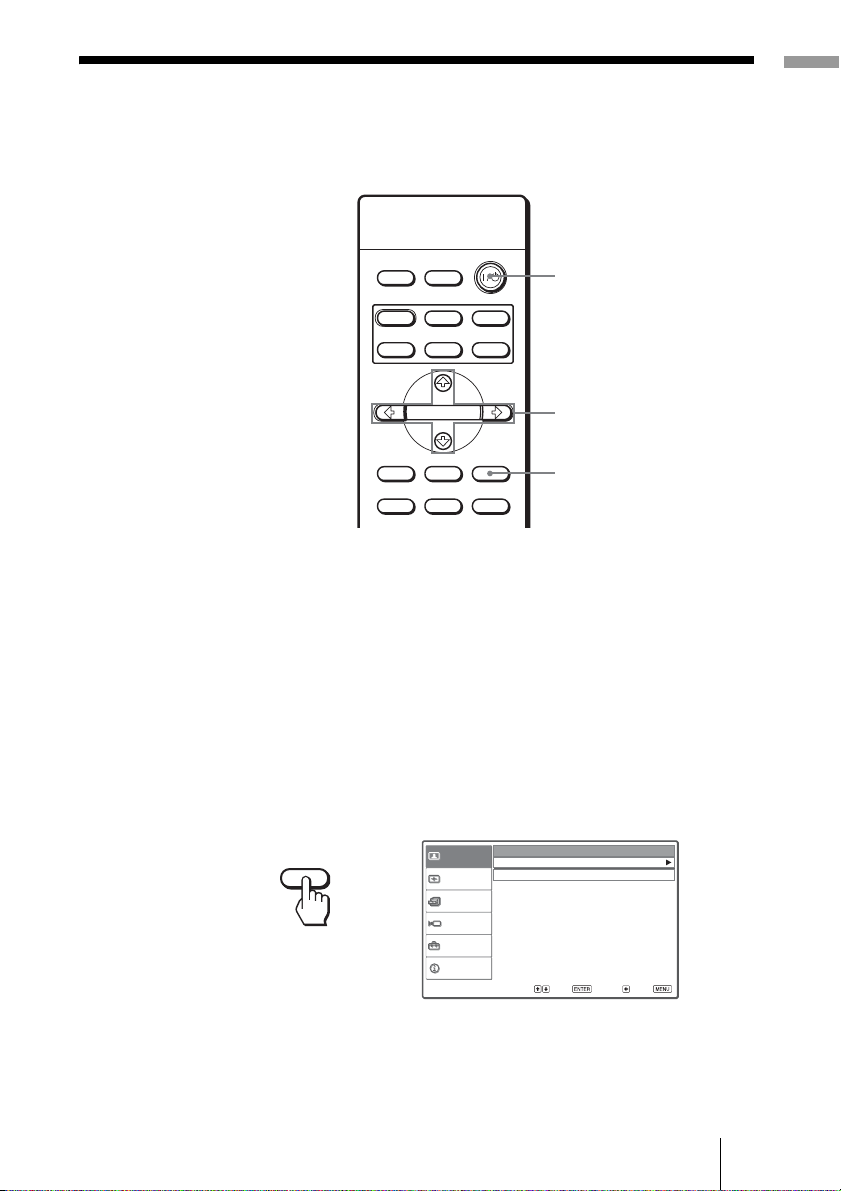
6 Adjust the picture size using the zoom ring.
7 Adjust the focus using the focus ring.
To adjust the tilt of the installation surface
If the projector is installed on an uneven surface, use the adjusters to keep the
projector level.
Note
Zoom ring
Focus ring
Adjusters
Turn to adjust.
21Step 4: Selecting the Menu Language
Connections and Preparations
Step 4: Selecting the Menu Language
You can select one of fifteen languages for displaying the menu and other on-
screen displays. The factory default setting is English.
Tip
You can operate the menu using the M/m /</, (arrow) buttons on the side panel of
the projector instead of the M/m/</, /ENTER buttons on the remote control.
1 Plug the AC power cord into a wall outlet.
The ON/STANDBY indicator lights in red and the projector goes into
standby mode.
2 Press the I/1 (on/standby) switch to turn on the projector.
The ON/STANDBY indicator lights in green.
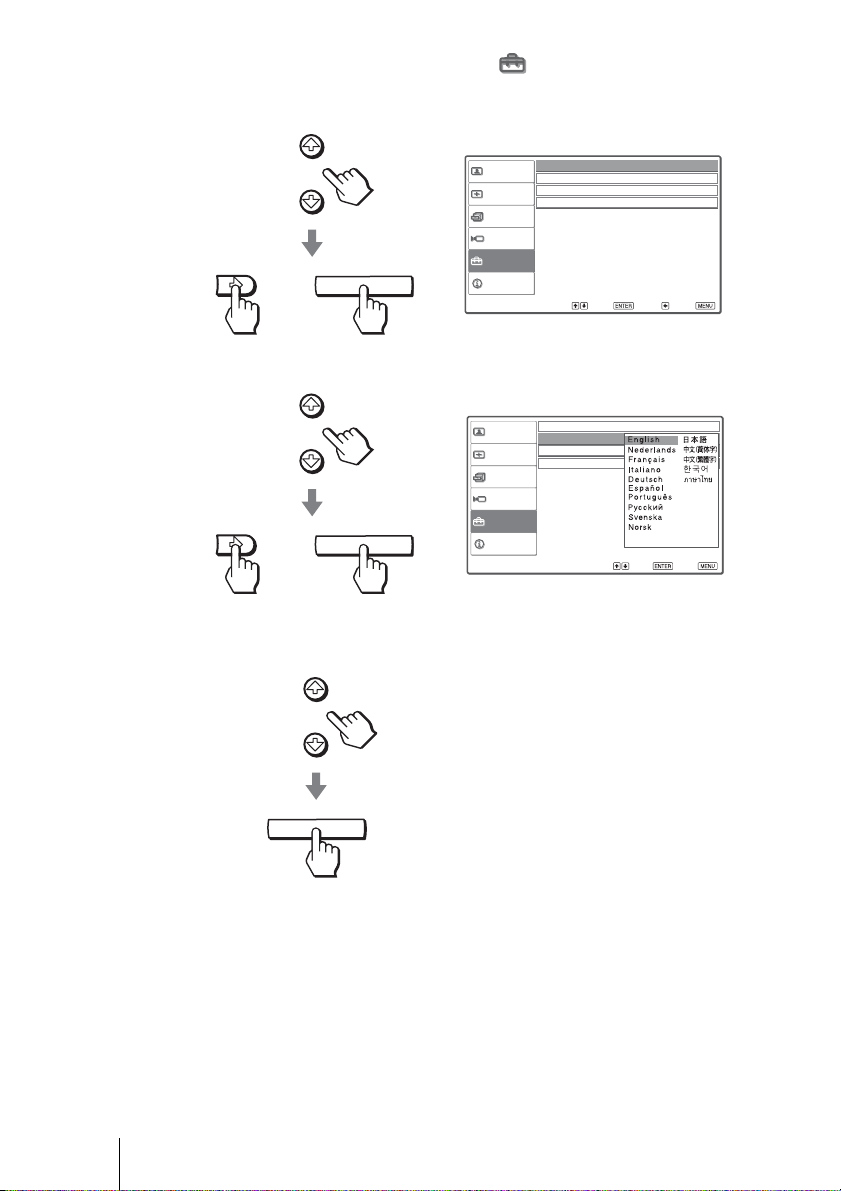
3 Press MENU.
The menu appears.
INPUTLIGHT
STANDARD
CINEMA
DYNAMIC
USER 2
PICTURE MODE
USER 3USER 1
ADJ PIC
MENUAPA
RCP
RESET
WIDE MODE
ENTER
REAL COLOR PROCESSING
2
4-6
3
MENU
Picture
Signal
Function
Setup
Installation
Information
Picture Mode :
Cinema
Adjust Picture
RCP :
Off
Sel : Set : Back : Exit :
22 Step 4: Selecting the Menu Language
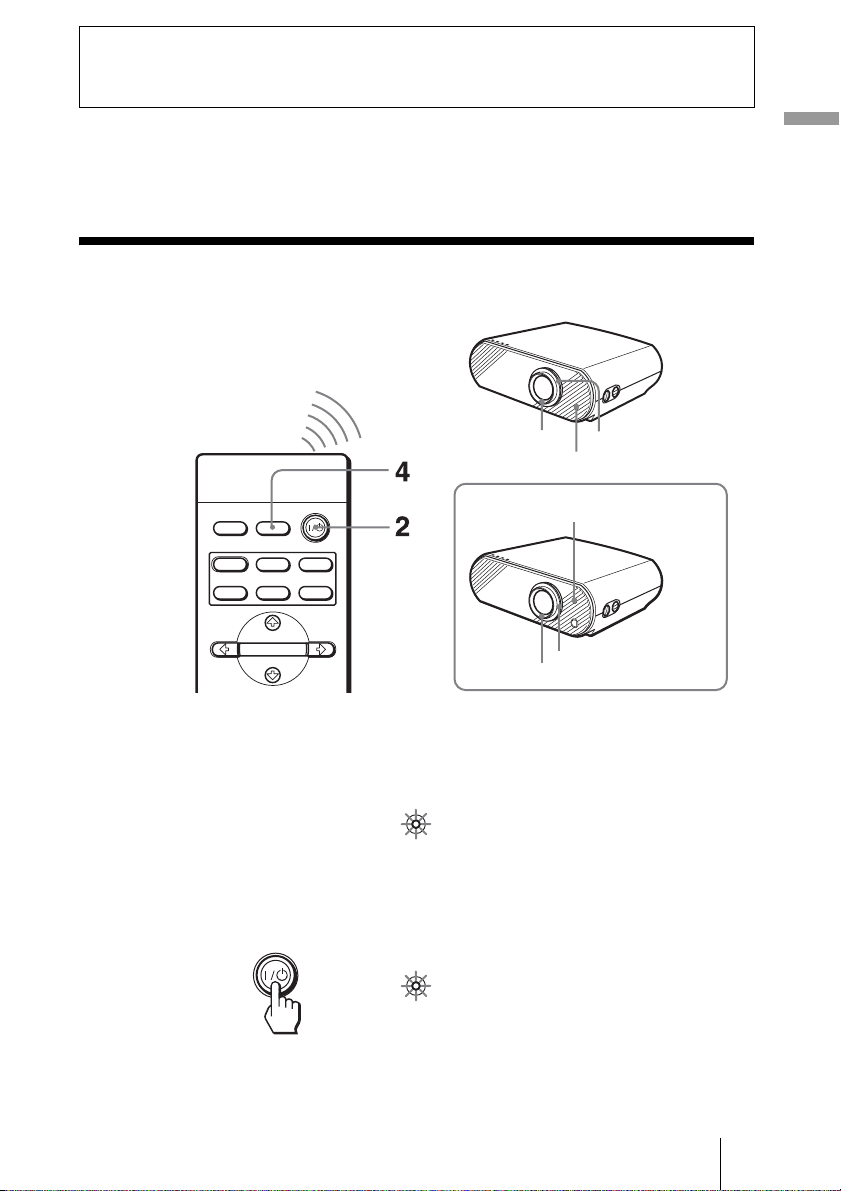
4 Press M or m to select the Setup menu, and press , or
ENTER.
The setting items of the selected menu appears.
5 Press M or m to select “Language,” and press , or ENTER.
6 Press M or m to select a language, and press ENTER.
The menu changes to the selected language.
To clear the menu
Press MENU.
ENTER
Sel: Set: Back: Exit:
Picture
Signal
Function
Setup
Installation
Information
Status : On
Language : English
Input-A Signal Sel. : Computer
Color System : Auto
or
ENTER
Sel : Set : Exit :
Picture
Signal
Function
Setup
Installation
Information
Status : On
Language : English
Input-A Signal Sel. Center
Color System :
White
or
ENTER
23Projecting the Picture on the Screen
Projecting
This section describes how to operate the projector to view the picture from the
equipment connected to the projector. It also describes how to adjust the
quality of the picture to suit your taste.
Projecting the Picture on the Screen
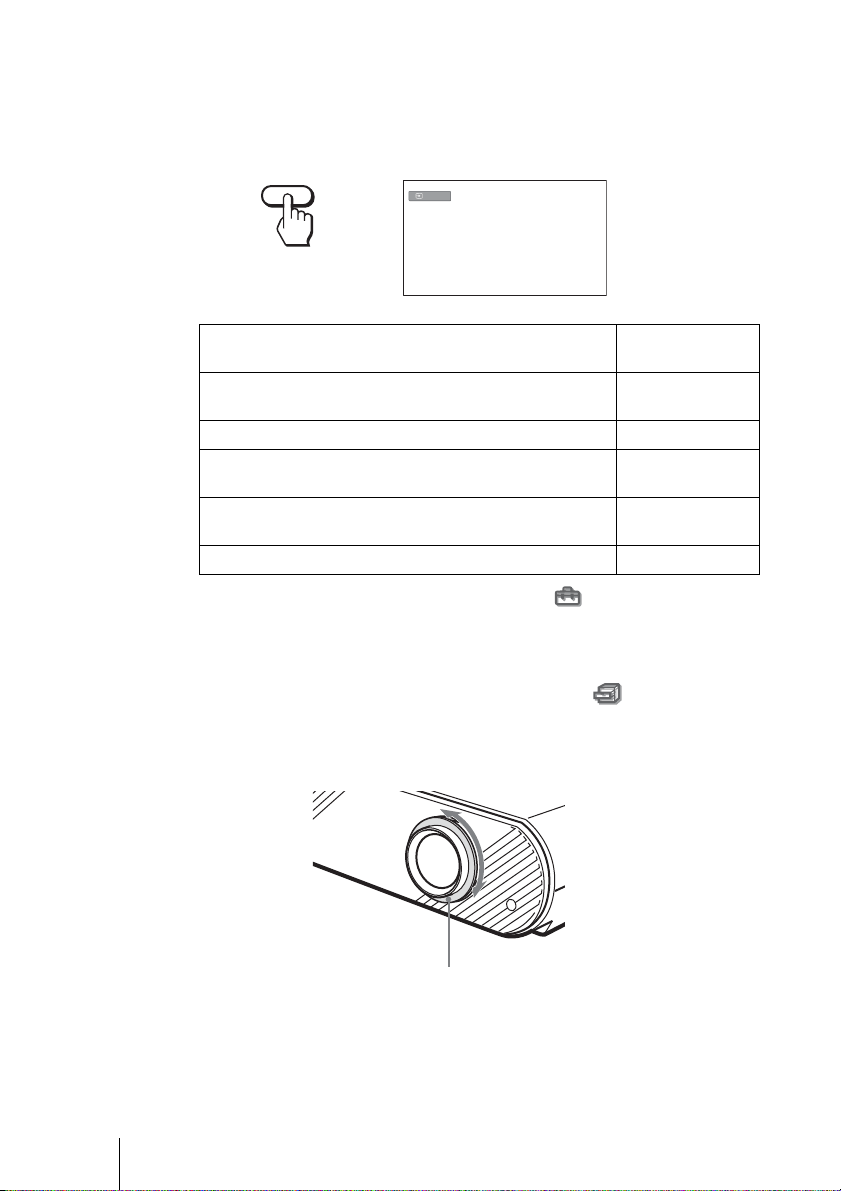
1 Plug the AC power cord into a wall outlet.
The ON/STANDBY indicator lights in red and the projector goes into
standby mode.
2 Press the I/1 (on/standby) switch to turn on the projector.
The ON/STANDBY indicator lights in green.
3 Turn on the equipment connected to the projector.
Refer to the operating instructions of the connected equipment.
Projecting
INPUTLIGHT
STANDARD
CINEMA
DYNAMIC
USER 2
PICTURE MODE
USER 3USER 1
ENTER
Remote control detector
Zoom ring
Focus ring
VPL-HS51
VPL-HS50
Remote control detector
Zoom ring
Focus ring
ON/
STANDB
Y
Lights in red.
ON/
STANDB
Y
Lights in green.
24 Projecting the Picture on the Screen
4 Press INPUT repeatedly to select the input you want to project
on the screen.
Display the indication of the input you want.
Example: To view the picture from the video equipment connected to the
VIDEO INPUT jack.
* Set the “Input-A Signal Sel.” setting in the Setup menu according to the
signal input. When you set it to “Auto,” and cannot display the picture properly,
select an appropriate signal with “Input-A Signal Sel.” (1 page 43)
Tip
When “Auto Input Search” is set to “On” in the Function menu, the channel
of the input signal is automatically displayed.
5 Turn the zoom ring to adjust the size of the picture.
Video
INPUT
To view the picture from Press INPUT to
display
Video equipment connected to the VIDEO INPUT
connector
Video
Video equipment connected to S VIDEO INPUT connector S-Video
Component equipment connected to Y / P
B/CB / PR/CR on
the projector
Component
RGB/component equipment connected to the INPUT A
connector
Input-A*
Equipment connected to the HDMI connector HDMI
Zoom ring
25Projecting the Picture on the Screen
Projecting
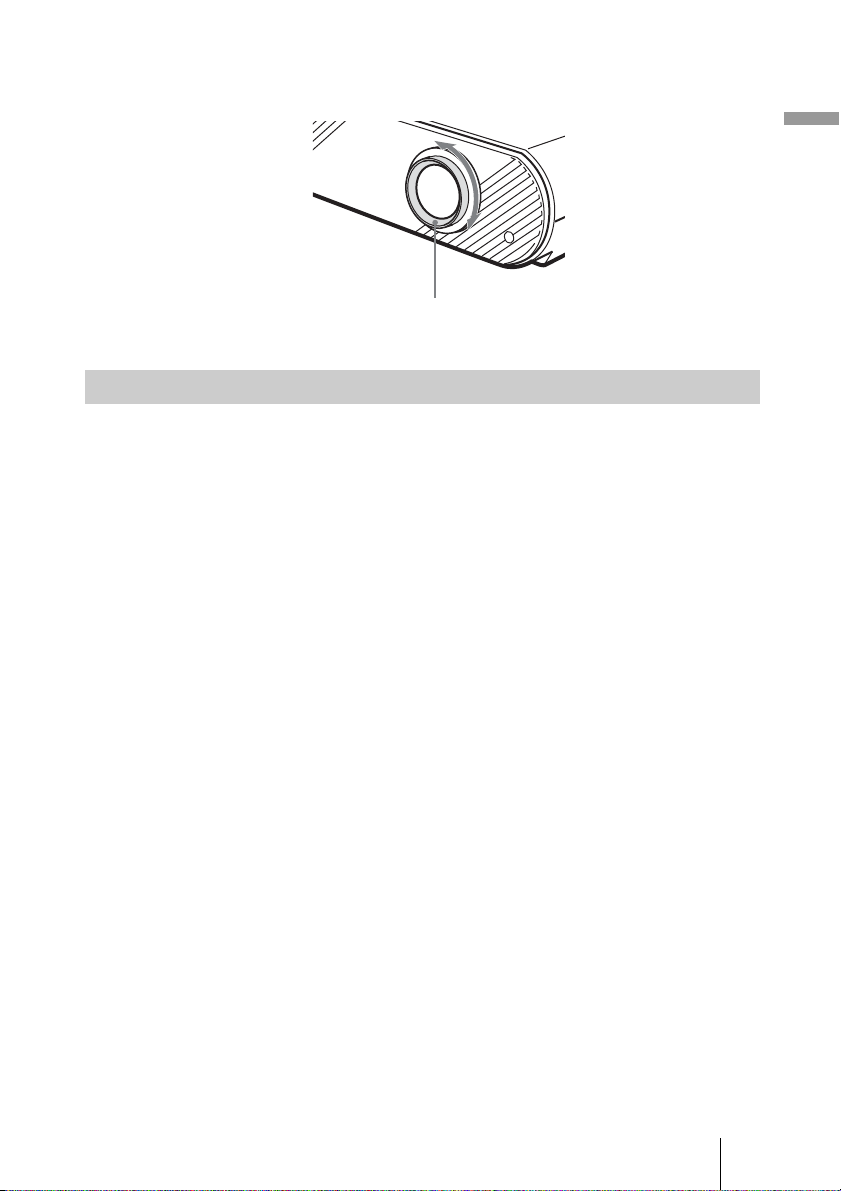
6 Turn the focus ring to adjust the focus.
Adjust to obtain sharp focus.
1 Press the I/1 (on/standby) switch.
A message “POWER OFF?” appears on the screen.
2 Press the I/1 switch again.
The ON/STANDBY indicator flashes in green and the fan continues to run
to reduce the internal heat. First, the ON/STANDBY indicator flashes
quickly, during which you will not be able to light up the ON/STANDBY
indicator with the I/1 switch.
3 Unplug the AC power cord from the wall outlet after the fan
stops running and the ON/STANDBY indicator lights in red.
You can turn off the projector by holding the I/1 (on/standby) switch for about
one second, instead of performing the above steps.
Turning Off the Power
Focus ring
26 Selecting the Wide Screen Mode
Selecting the Wide Screen Mode
You can enjoy various wide screen mode according to the video signal
received. You can also select it using the menu. (1 page 40)
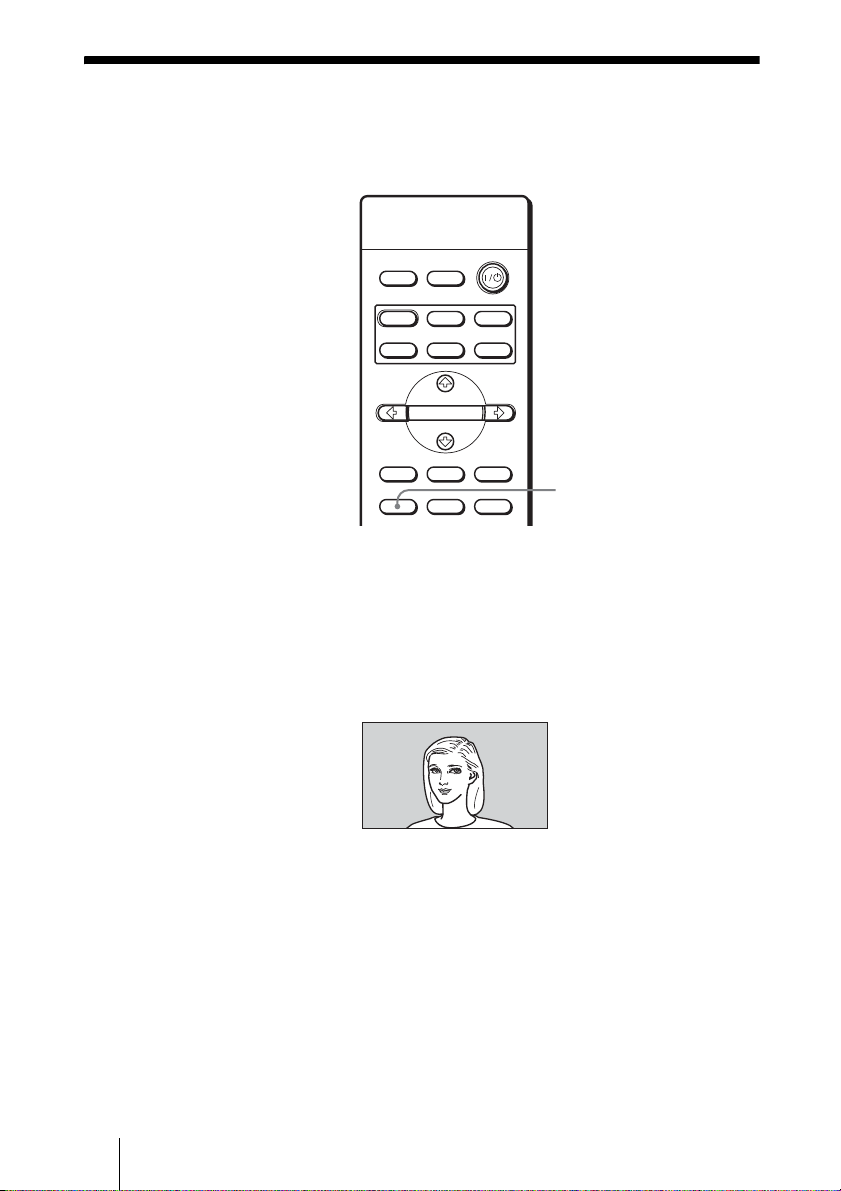
Press WIDE MODE.
Each time you press the button, you can select the “Wide Mode” setting.
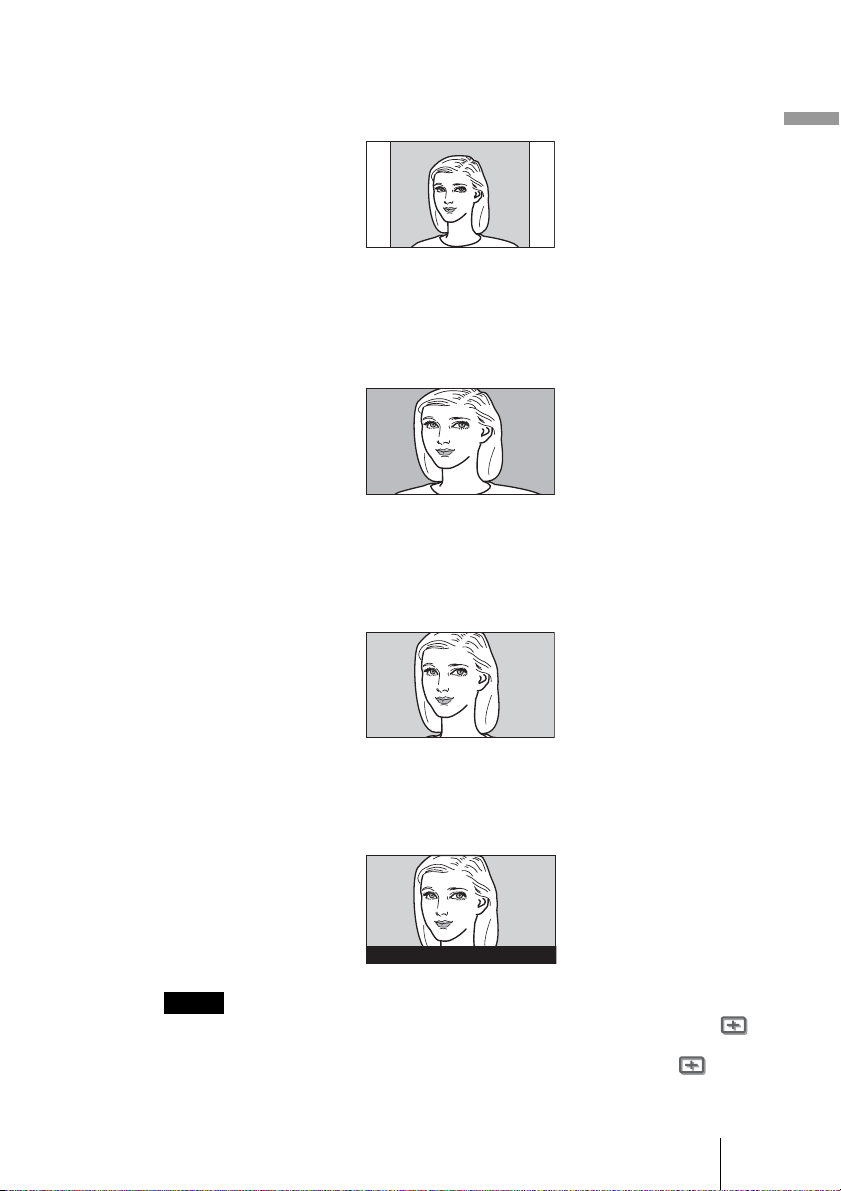
Full
A picture squeezed to 4:3 is displayed with the correct aspect ratio. A 4:3
picture is enlarged horizontally to fit the 16:9 screen.
Tip
Squeezed: An original 16:9 aspect ratio picture is recorded horizontally compressed to
a 4:3 picture.
INPUTLIGHT
STANDARD
CINEMA
DYNAMIC
USER 2
PICTURE MODE
USER 3USER 1
ADJ PIC
MENUAPA
RCP
RESET
WIDE MODE
ENTER
REAL COLOR PROCESSING
WIDE MODE button
27Selecting the Wide Screen Mode
Projecting
Normal
A picture with normal 4:3 aspect ratio is displayed in the center of the screen
to fill the vertical screen size.
Wide Zoom
A 4:3 aspect ratio picture is enlarged and the upper and lower portions of the
picture are compressed to fit the 16:9 screen. Use this mode to view news,
variety shows, etc.
Zoom
A normal 4:3 aspect ratio picture is enlarged vertically and horizontally in the
same ratio to fill the 16:9 screen. This mode is ideal for viewing a wide-format
movie.
Subtitle
The subtitle area is compressed and displayed in the lower part of the screen.
Use this mode to view a movie with subtitles.
• You can adjust the vertical position of the picture with “V Position” in the Signal
menu only when “Zoom” or “Subtitle” is selected.
• You can adjust the position of the subtitles with “Title Area” in the Signal menu
only when “Subtitle” is selected.
Notes
Good-bye

28 Selecting the Wide Screen Mode
Notes on selecting the wide screen mode
• Select the wide screen mode taking into account that changing the aspect
ratio of the original picture will provide a different look from that of the
original image.
• Note that if the projector is used for profit or for public viewing, modifying
the original picture by switching to the wide mode may constitute an
infringement of the rights of authors or producers, which are legally
protected.
29Selecting the Picture Viewing Mode
Projecting
Selecting the Picture Viewing Mode
You can select the picture viewing mode that best suits the type of program or
room condition.
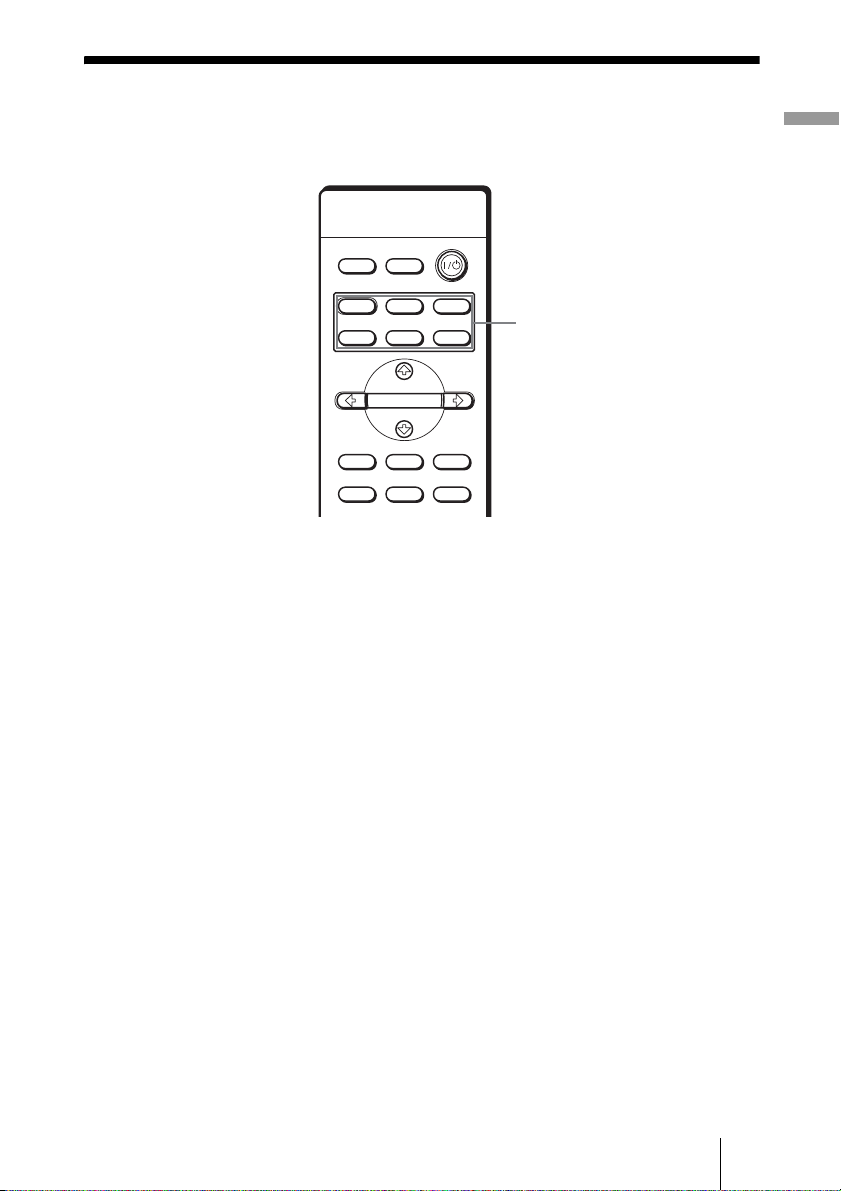
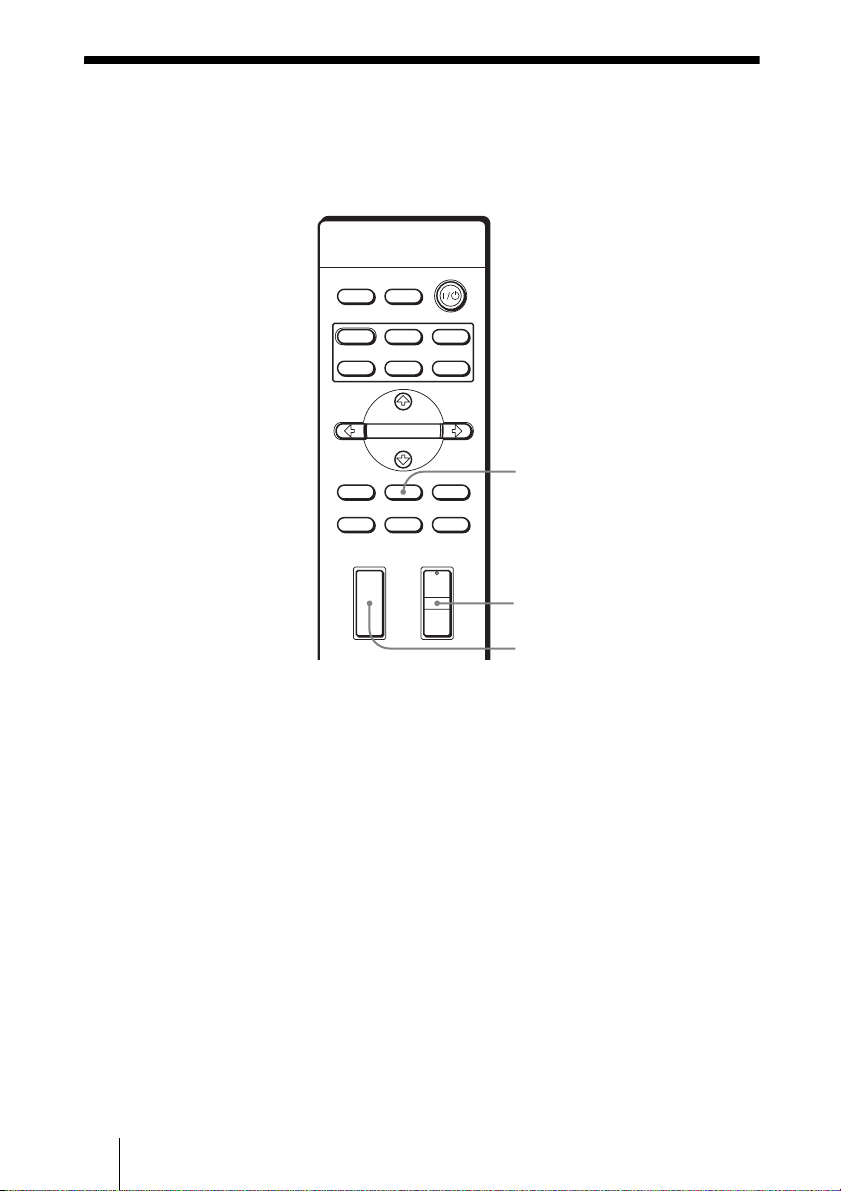
Press one of the PICTURE MODE buttons (DYNAMIC,
STANDARD, CINEMA and USER 1, 2 and 3).
DYNAMIC
Select for enhanced picture sharpness in bright environment.
STANDARD
Recommended for normal viewing condition in your home.
CINEMA
Select for soft, film-like picture in dark environment.
USER 1, 2 and 3
You can adjust the quality of the picture to suit your taste and store the settings
into the selected memory of the projector. Press one of the USER 1, 2 and 3
buttons, then adjust the picture by using the buttons on the remote control or
the menus. (1 pages 30 and 37) The settings are stored, and you can view the
picture with the adjusted picture quality by pressing the button.
INPUTLIGHT
STANDARD
CINEMA
DYNAMIC
USER 2
PICTURE MODE
USER 3USER 1
ADJ PIC
MENUAPA
RCP
RESET
WIDE MODE
ENTER
REAL COLOR PROCESSING
PICTURE MODE buttons
DYNAMIC
STANDARD
CINEMA
USER 1, 2 and 3
30 Adjusting the Picture Quality
Adjusting the Picture Quality
You can adjust the picture quality that suits your taste by selecting the
adjustment items with the remote control. The adjusted data can be stored in
each picture mode.
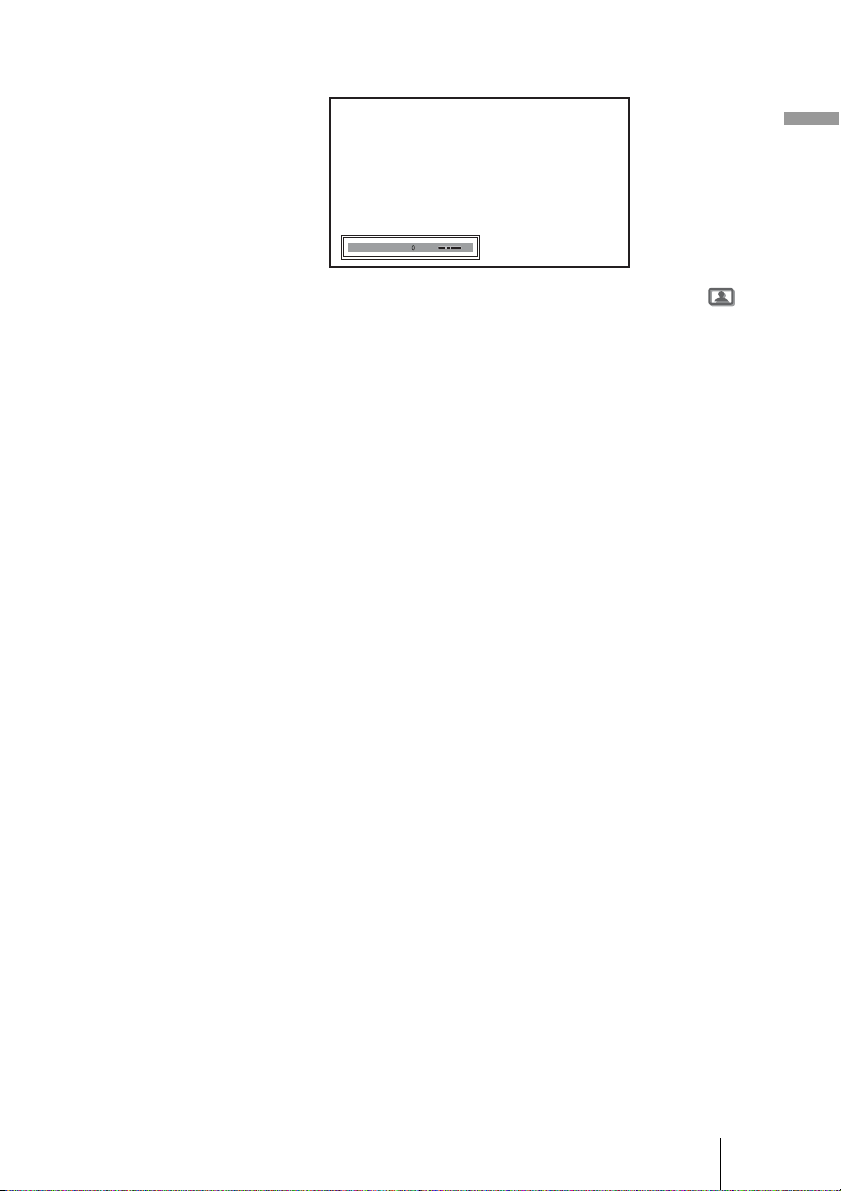
1 Press ADJ PIC.
Each time you press the button, the following adjustment windows* are
displayed in sequence.
* Some of the above adjustment windows will not be displayed depending on the
input signal. For details, see “Input Signals and Adjustable/setting Items.” (1
page 54)
+
–
+
–
INPUTLIGHT
STANDARD
CINEMA
DYNAMIC
USER 2
PICTURE MODE
USER 3USER 1
ADJ PIC
MENUAPA
RCP
RESET
WIDE MODE
ENTER
CONTRAST
BRIGHT
REAL COLOR PROCESSING
ADJ PIC button
CONTRAST +/– button
BRIGHT +/– button
Contrast t Brightness t Color t Hue t Sharpness
R r
Lamp Control Black Level Adj.
R r
Advanced Iris T DDE T Color Temp. T Gamma Correction
31Adjusting the Picture Quality
Projecting
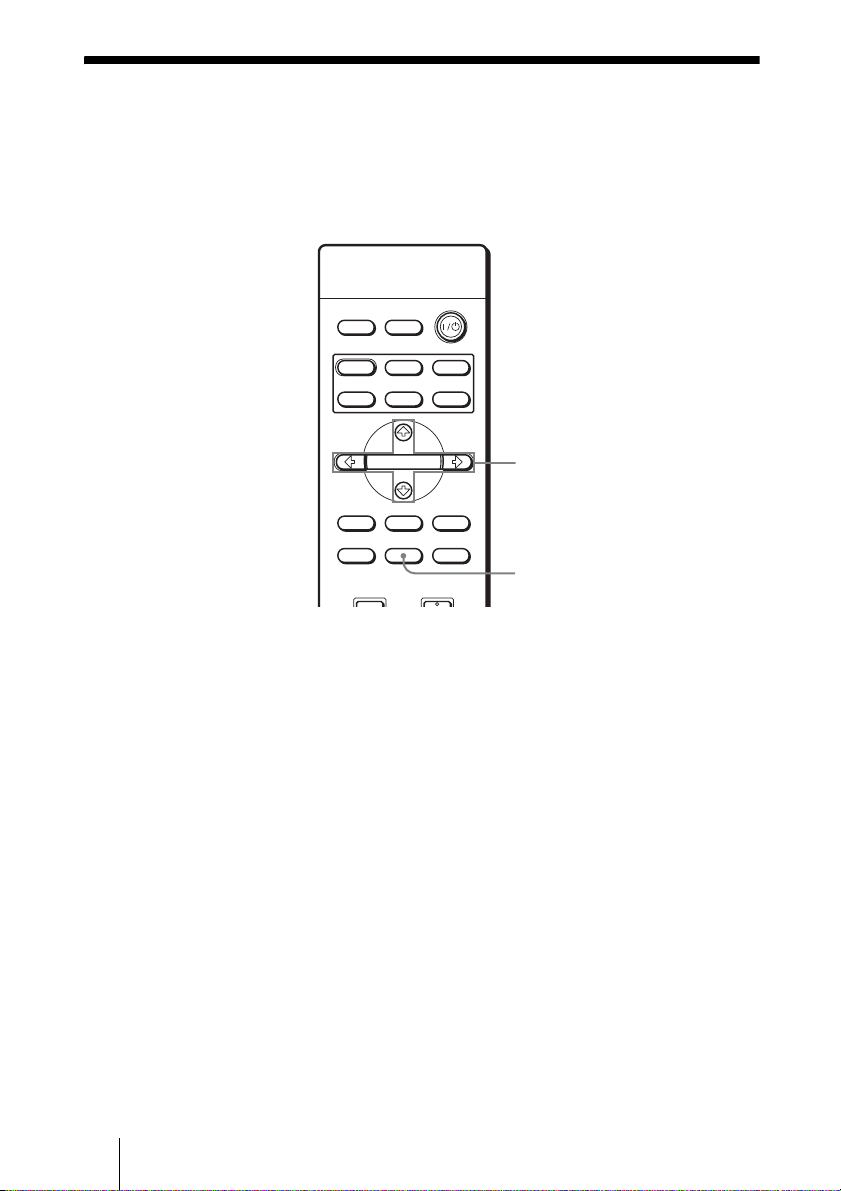
Example: To adjust the contrast
For details on each adjustment, see “Adjust Picture” in the Picture
menu. (1 page 37)
2 Make the setting or adjustment on an item.
When changing the adjustment level
To increase the value, press M or ,.
To decrease the value, press m or <.
When changing the setting
Press M or m to change the setting.
To adjust contrast and brightness
Press CONTRAST +/– on the remote control to adjust the contrast.
Press BRIGHT +/– on the remote control to adjust the brightness.
Contrast
32 Adjusting the Picture Using Real Color Processing
Adjusting the Picture Using Real Color
Processing
The Real Color Processing (RCP) feature allows you to adjust the color and
hue of each target of the projected picture you specify independently. You can
thus obtain a picture more suitable to your taste.
Tip
Freeze the scene of the video source when you are adjusting the picture using Real Color
Processing.
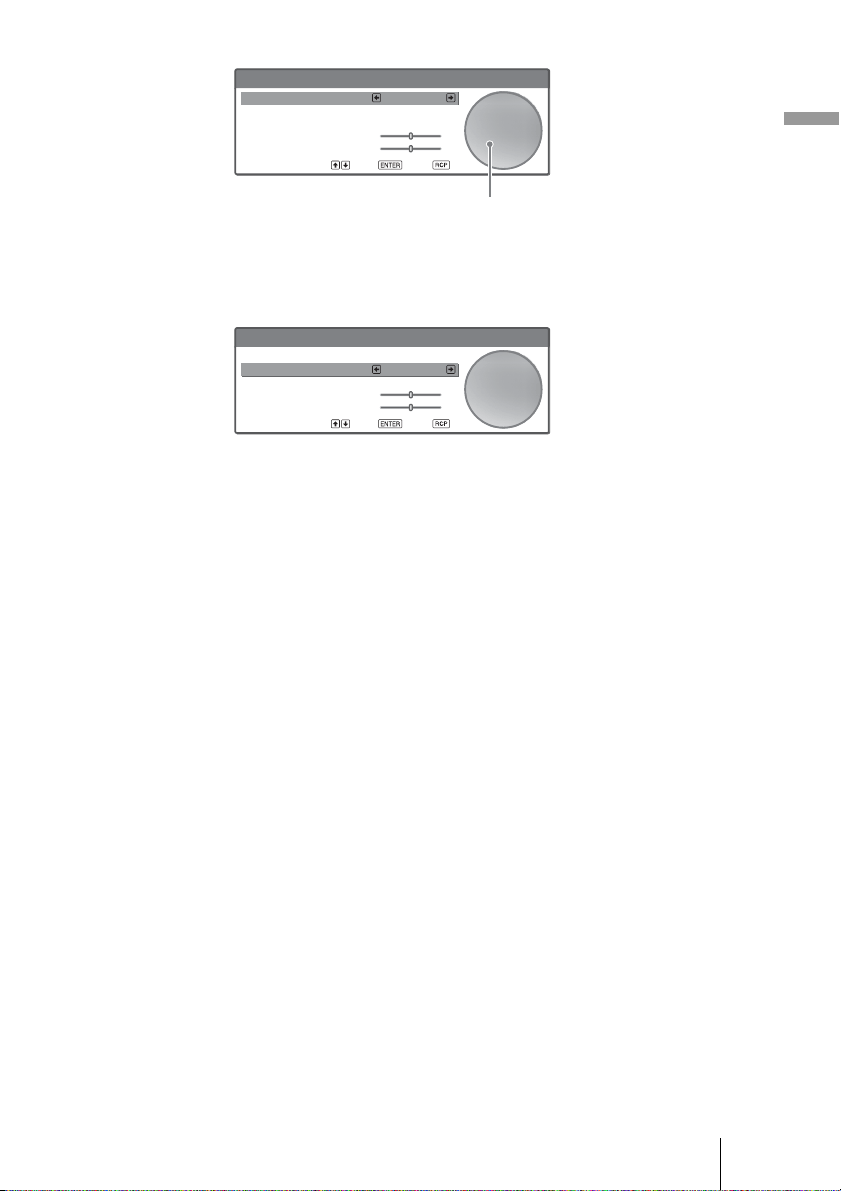
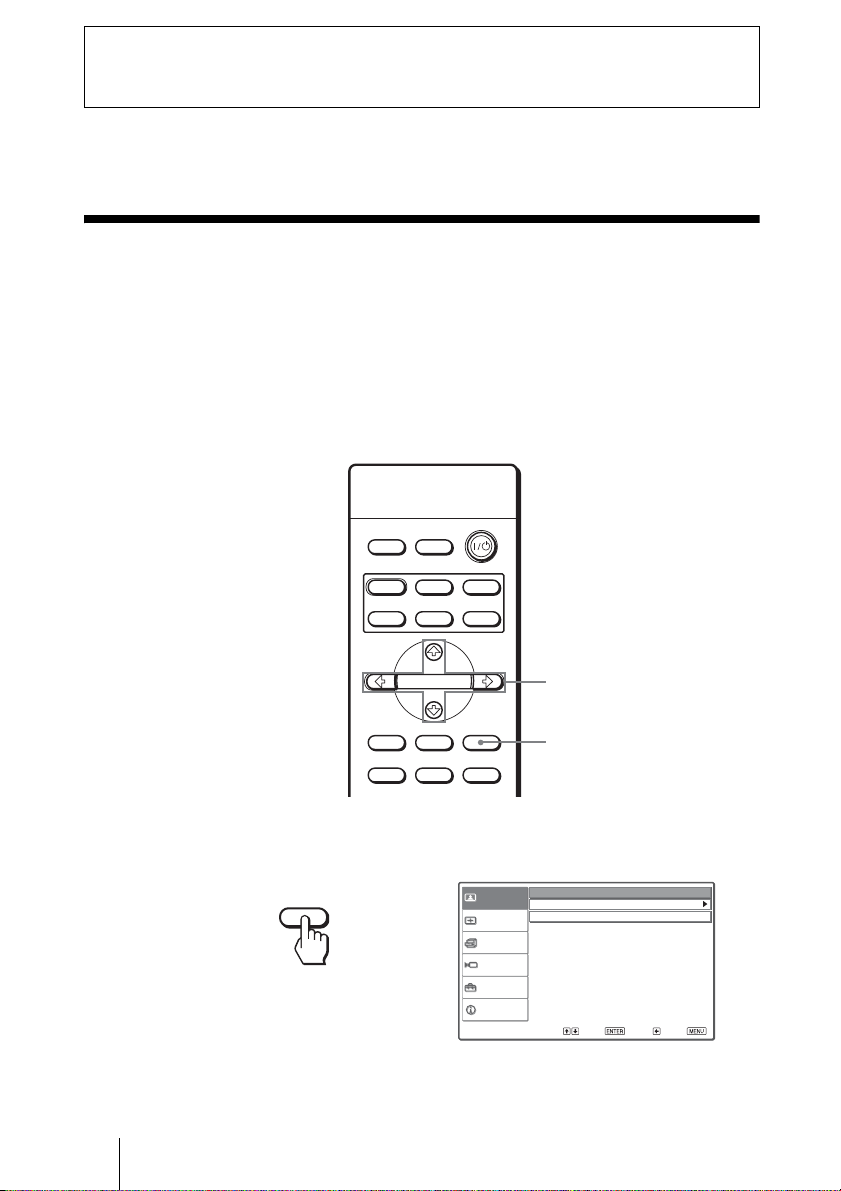
1 Press RCP on the remote control.
2 Press M or m to select “User 1,” “User 2” or “User 3,” then
press
,.
The RCP (Real Color Processing) window appears.
3 Select the target color you want to adjust.
Repeat steps 1 and 2 described below to specify the target color.
1 Press M or m to select “Color Select,” then press < or , to select the
color you want to adjust among “Red,” “Magenta,” “Blue,” “Cyan,”
“Green” and “Yellow.”
Only the portions that correspond to the specified color will be colored
and the other portions will be displayed in black and white. The
reference palette in the RCP window also shows the adjustable colors.
Decide the target while you are watching the projected picture, and
watching the reference palette as a guide.
INPUTLIGHT
STANDARD
CINEMA
DYNAMIC
USER 2
PICTURE MODE
USER 3USER 1
ADJ PIC
MENUAPA
RCP
RESET
WIDE MODE
ENTER
BRIGHT CONTRAST
REAL COLOR PROCESSING
2 – 4
1
33Adjusting the Picture Using Real Color Processing
Projecting
2 Press M or m to select “Position” or “Range,” and specify it more
delicate color and color range you want to adjust using
< or ,.
4 Adjust the color of the specified portions.
Press
M or m to select “RCP Color” or “RCP Hue,” then adjust the color or
hue of the portions selected in step 3 to suit your taste using
< or , while
watching the projected picture. The picture is returned to normal color
during adjustment.
5 After the adjustment is complete, press RCP.
The RCP window disappears and the normal picture is restored.
The adjusted data will be stored in a memory selected in step 2 and will be
recalled later.
Tip
There are some limitations on selection of position and range.
Sel : Set : Exit :
RCP (Real Color Processing)
Color Select : Red
Adjust
Adjust
Position :
Range :
RCP Color : 0
RCP Hue : 0
Reference palette
Sel : Set : Exit :
RCP (Real Color Processing)
Color Select : Red
Adjust
Range :
RCP Color : 0
RCP Hue : 0
Adjust
Position :
34 Operation through the Menus
This section describes how to make various adjustments and settings using the
menus.
Operation through the Menus
The projector is equipped with an on-screen menu for making various
adjustments and settings. Some of the adjustable/setting items are displayed in
a pop-up menu, in a setting menu or adjustment menu with no main menu, or
in the next menu window. If you select an item name followed by an arrow
(
B), the next menu window with setting items appears.
To change the on-screen menu language, see “Selecting the Menu Language.”
(1 page 21)
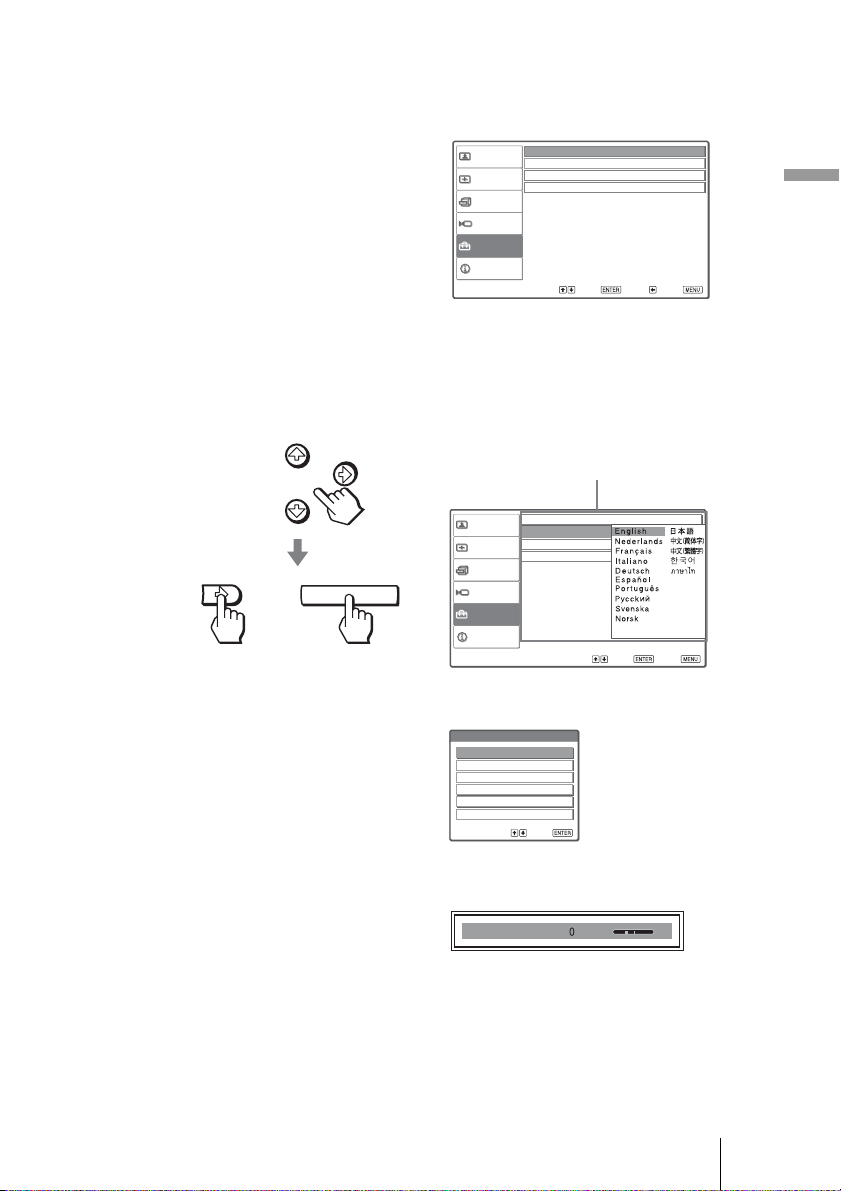
1 Press MENU.
The menu window appears.
Using the Menus
INPUTLIGHT
STANDARD
CINEMA
DYNAMIC
USER 2
PICTURE MODE
USER 3USER 1
ADJ PIC
MENUAPA
RCP
RESET
WIDE MODE
ENTER
REAL COLOR PROCESSING
2 – 4
1
MENU
Picture
Signal
Function
Setup
Installation
Information
Picture Mode : Cinema
Adjust Picture
RCP : Of f
Sel: Set: Back: Exit:
35Operation through the Menus
Using the Menus
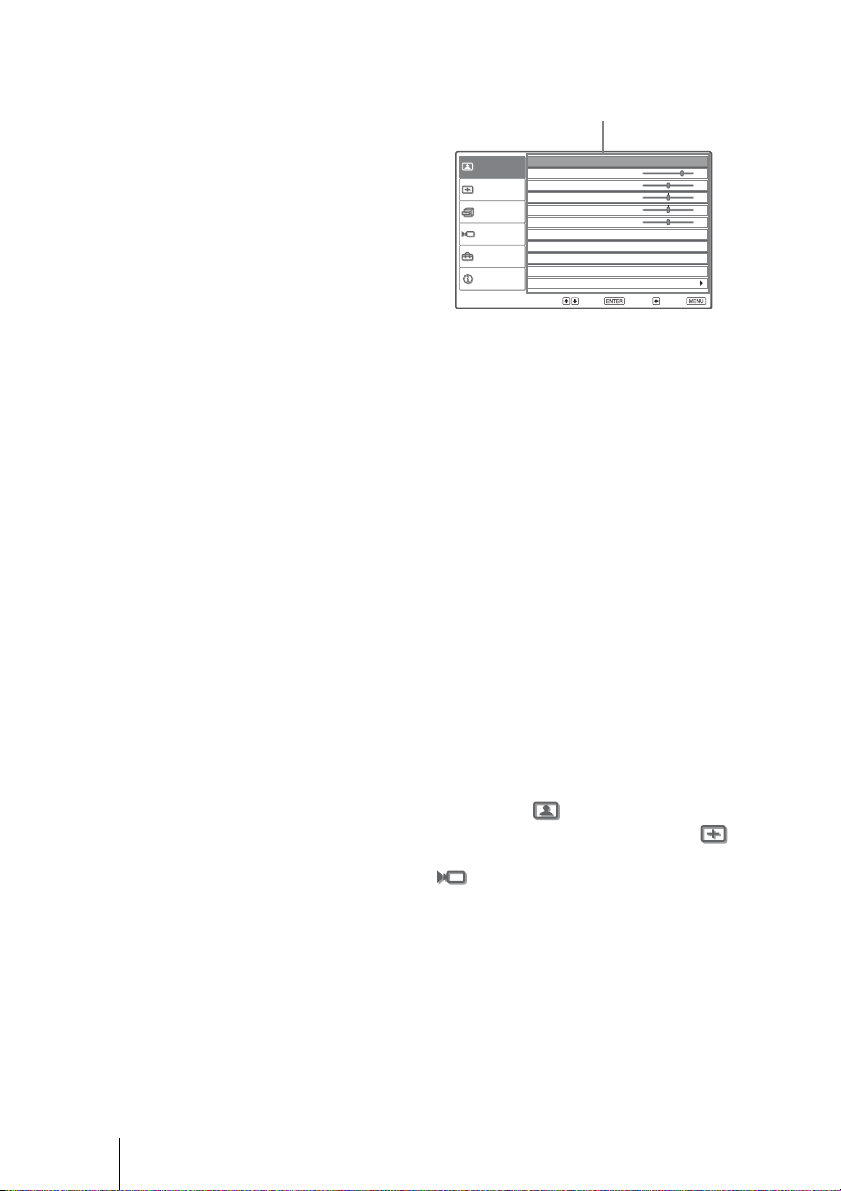
2 Press M or m to select a menu item, and press , or ENTER.
The items that can be set or adjusted with the selected menu appear. The
item presently selected is shown as a yellow button.
3 Press M or m to select an item you want to set or adjust and
press , or ENTER.
The setting items are displayed in a pop-up menu, in a setting menu, in an
adjustment menu or in the next menu window.
Picture
Signal
Function
Setup
Installation
Information
Status
:
Language :
Input-A Signal Sel. : Component
Color System : Auto
English
On
Sel: Set: Back: Exit:
ENTER
Sel: Set: Exit:
Picture
Signal
Function
Setup
Installation
Information
Status : On
Language : English
Input-A Signal Sel. Center
Color System : White
or
Pop-up menu
Setting items
Sel : Set :
Dynamic
Standard
Cinema
User1
User2
User3
Picture Mode
Setting menu
Contrast
Adjustment menu
36 Operation through the Menus
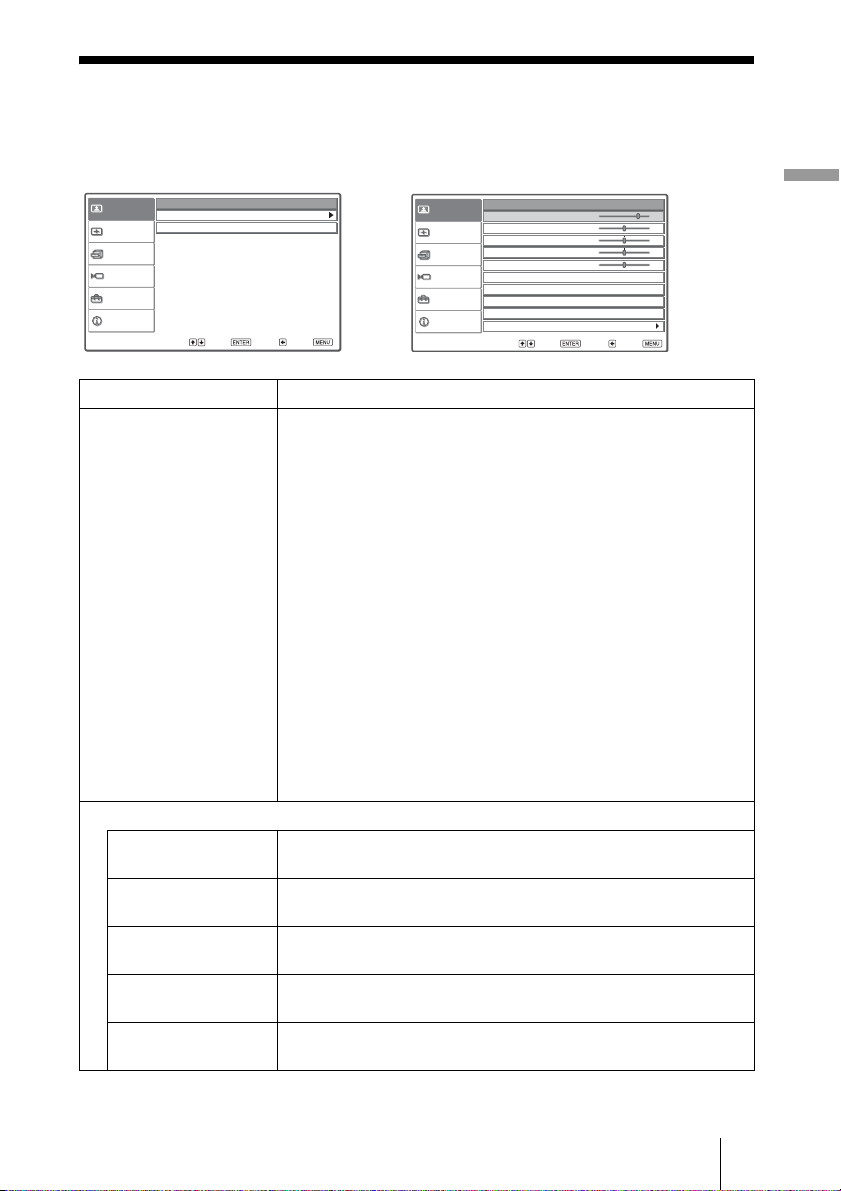
4 Make the setting or adjustment on an item.
When changing the adjustment level
To increase the value, press M or ,.
To decrease the value, press m or <.
Press ENTER to restore the original screen.
When changing the setting
Press M or m to change the setting.
Press ENTER to restore the original screen.
You can restore the original screen using < depending on the selected
item.
To clear the menu
Press MENU.
To reset the items that have been adjusted
Select the item you want to reset, then press RESET.
“Complete! ” appears on the screen and the setting is reset to its factory preset
value.
Items that can be reset are:
• “Contrast,” “Brightness,” “Color,” “Hue,” “Sharpness” and “Color Temp.”
in “Adjust Picture” and “RCP” of the Picture menu
• “Dot Phase,” “H Size” and “Shift” in “Adjust Signal” of the Signal
menu
• “V Keystone” of the Installation menu
Items that cannot be adjusted
Adjustable items are limited depending on the input signals. The items that
cannot be adjusted or set do not appear in the menu. (1 page 54)
Sel: Set: Back: Exit:
Picture
Signal
Function
Setup
Installation
Information
Adjust Picture Cinema
Contrast : 80
Brightness : 50
Color : 50
Hue : 50
Sharpness : 50
Black Level Adj. : Off
Gamma Correction : Off
Color Temp : Low
DDE : Film
Cinema Black Pro
Next menu window
Setting items
37Picture Menu
Using the Menus
Picture Menu
The Picture menu is used for adjusting the picture.
Item Description
Picture Mode You can select picture viewing mode that best suits the type of
picture or the environment.
Dynamic: Select for enhanced picture contrast and sharpness.
Standard: Recommended for normal viewing condition. Also select
to reduce roughness when viewing the picture with Dynamic.
Cinema: Select for soft, film-like picture.
User 1, 2 and 3: You can adjust the quality of the picture to suit your
taste and store the settings. Once the settings are stored, you can
view the picture with the adjusted picture quality by pressing the
PICTURE MODE button on the remote control.
To store the settings
1 Select User 1, User 2 or User 3.
2 Adjust the items you want in the menus.
Items that can be stored are: “Adjust Picture” items and “Wide
Mode” setting.
Tip
You can also adjust the picture quality in “Dynamic,” “Standard” or
“Cinema,” and store the settings. To reset to the factory setting, press
RESET.
Adjust Picture
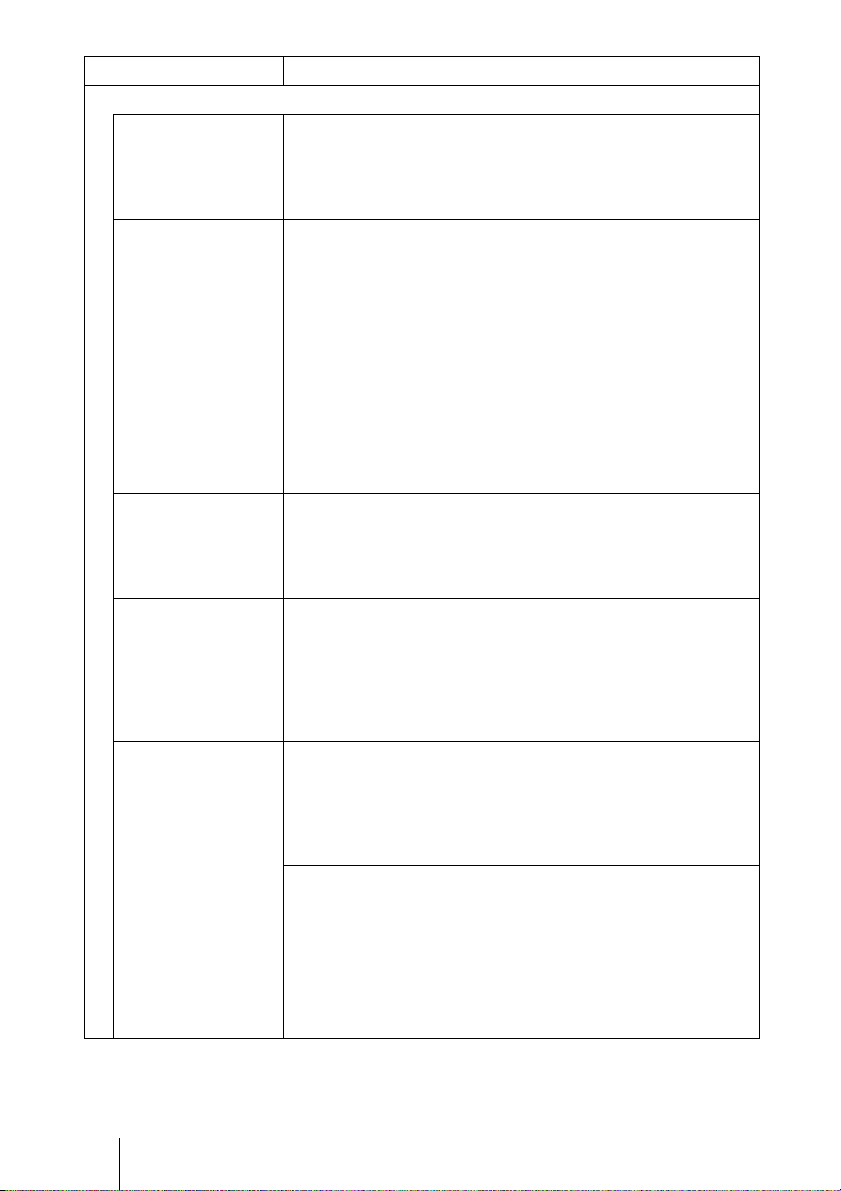
Contrast The higher the setting, the greater the contrast. The lower the setting,
the lower the contrast.
Brightness The higher the setting, the brighter the picture. The lower the setting,
the darker the picture.
Color The higher the setting, the greater the intensity. The lower the
setting, the lower the intensity.
Hue The higher the setting, the more greenish the picture becomes. The
lower the setting, the more purplish the picture becomes.
Sharpness The higher the setting, the sharper the picture. The lower the setting,
the softer the picture.
Picture
Signal
Function
Setup
Installation
Information
Picture Mode : Cinema
Adjust Picture
RCP : Of f
Sel: Set: Back: Exit:
Picture
Signal
Function
Setup
Installation
Information
Adjust Picture Cinema
Contrast : 80
Brightness : 50
Color : 50
Hue : 50
Sharpness : 50
Black Level Adj. : Off
Gamma Correction : Off
Color Temp : Low
DDE : Film
Cinema Black Pro
Sel: Set: Back: Exit:
Adjust Picture menu
38 Picture Menu
Adjust Picture
Black Level Adj
(Adjust)
Emphasizes black color to produce a bolder “dynamic” picture. Set
according to the input signal source.
High: Gives higher emphasis to the black color.
Low: Gives lower emphasis to the black color.
Off: Cancels this feature.
Gamma Correction Selects a favorite tone from three options.
Off: The feature does not function.
Gamma1: Makes the dark portion of a scene a little brighter.
Gamma2: Makes the dark portion of a scene brighter than that in
Gamma1.
Gamma3: Makes the whole scene brighter.
For the VPL-HS51 only
Using the specified controller, “ImageDirector*” supplied as a CD-
ROM allows you to adjust, set and store a favorite tone. Adjustable
range is limited.
* For detailed operations of “ImageDirector,” refer to the Operating
Instructions stored in the supplied CD-ROM. “ImageDirector”
cannot be used with Macintosh.
Color Temp. High: Gives the white colors a blue tint.
Middle: Gives the white colors a neutral tint.
Low: Gives the white colors a red tint.
Custom1, Custom2, Custom3: Enables you to adjust, set and store
the favorite color temperature.
DDE (Dynamic Detail
Enhancer)
Off: Plays a video signal in an interlace format without converting.
Progressive: Converts an interlace format video signal to a
progressive format.
Film: Normally, select this option. Reproduces the 2-3 Pull-Down
film sources with smooth picture movement. When the video
signal with a format other than the 2-3 Pull-Down is input,
“Progressive” is automatically selected.
Cinema Black Pro Advanced Iris
Switches the iris function during projection.
Off: Normal contrast.
On: Enhances the black by emphasizing the contrast.
Auto: Automatically switches to an optimum iris according to a
projected scene. The contrast of the scene is emphasized most.
Lamp Control
Switches the lamp wattage during projection.
High: Normal wattage.
Low: Enhances the black by reducing the lamp wattage.
Tip
If “Lamp Control” is set to “Low,” the next time the power is turned
on, the lamp will use the “High” setting initially, and then go to
“Low.”
Item Description
39Picture Menu
Using the Menus
RCP (Real Color
Processing)
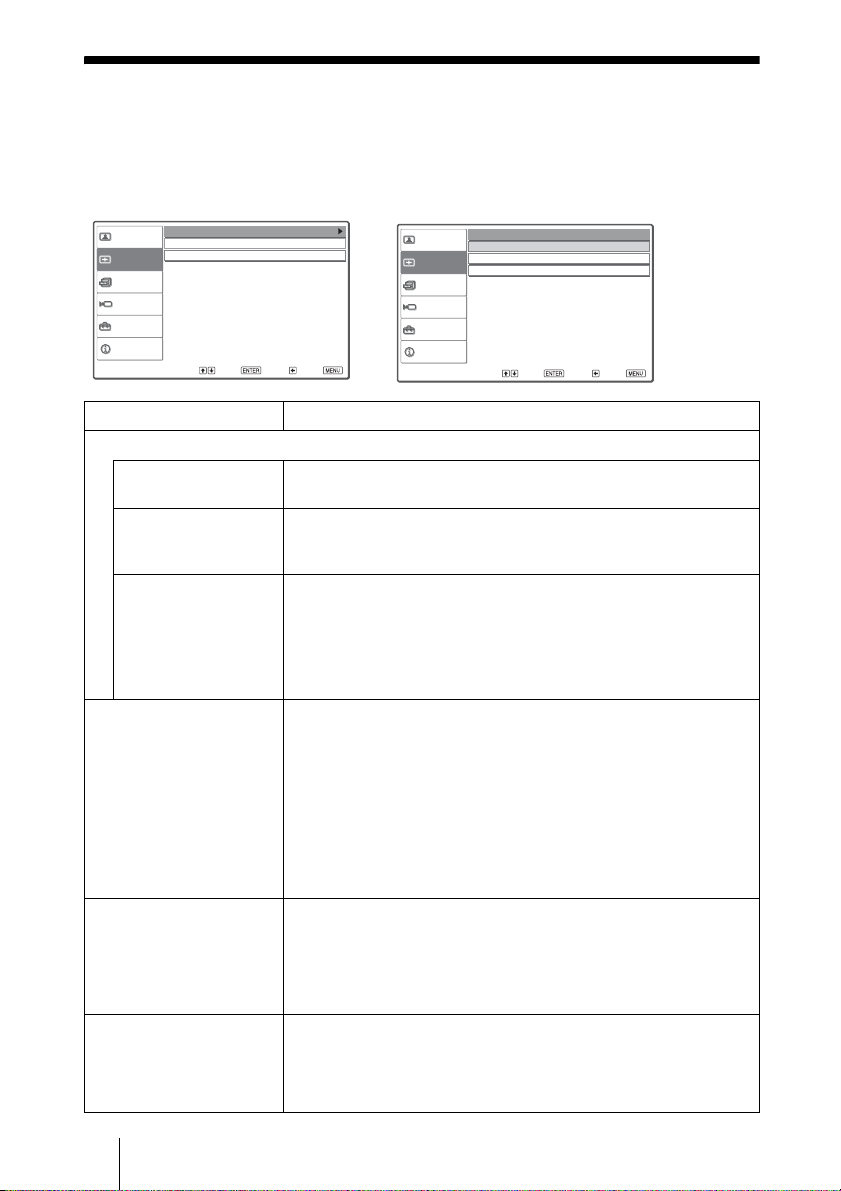
You can adjust the color and hue of each selected portion of the
picture independently.
Off: Cancels this feature.
User 1, 2 and 3: You can adjust the picture using Real Color
Processing and store the settings. Once the settings are stored, you
can view the picture with the adjusted picture quality.
For details, see “Adjusting the Picture Using Real Color
Processing.” (1 page 32)
Item Description
40 Signal Menu
Signal Menu
The Signal menu is used to adjust the input signal. You can adjust the size of
the picture, and select wide screen mode, etc
.
Item Description
Adjust Signal
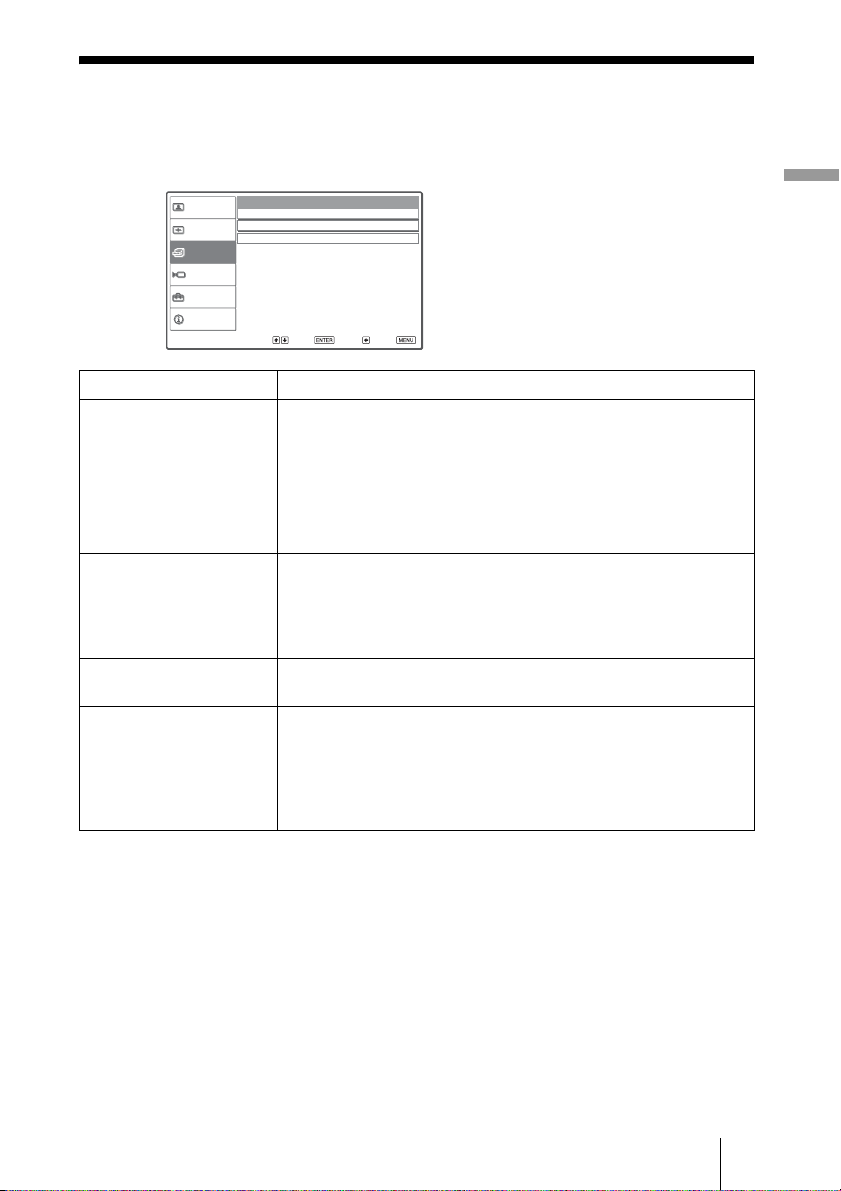
Dot Phase Adjusts the picture from a computer for clearer picture after it is
adjusted by pressing the APA button.
H Size Adjusts the horizontal size of the picture from a computer. The
higher the setting, the wider the picture. The lower the setting, the
narrower the picture.
Shift As the setting for H (horizontal) increases, the picture moves to the
right, and as the setting decreases, the picture moves to the left. Use
< or , to adjust the horizontal position.
As the setting for V (vertical) increases, the picture moves up, and as
the setting decreases, the picture moves down. Use M or m to adjust
the vertical position.
Wide Mode You can select the wide screen mode.
Full: A picture squeezed to 4:3 is diplayed with the correct aspect.
Normal: The 4:3 aspect ratio picture is displayed to fill the vertical
screen size.
Wide Zoom: The 4:3 aspect ratio picture is enlarged and the upper
and lower portions are compressed to fit the 16:9 screen.
Zoom: The 4:3 aspect ratio picture is enlarged vertically and
horizontally at the equal ratio to fill the 16:9 screen.
Subtitle: The subtitle area is compressed and displayed at the lower
part of the screen.
V Position Adjusts the vertical position of the picture in wide screen mode. As
the setting increases, the picture moves up. As the setting decreases,
the picture moves down.
Note
This item is adjustable only when “Zoom” or “Subtitle” is selected.
Title Area Adjusts the subtitle area. As the setting increases, the subtitle area
moves up. As the setting decreases, the subtitle area moves down.
Note
This item is adjustable only when “Subtitle” is selected.
Picture
Signal
Function
Setup
Installation
Information
Adjust Signal
Wide Mode :
V Position : 0
Zoom
Sel: Set: Back: Exit:
Picture
Signal
Function
Setup
Installation
Information
Adjust Signal
Dot Phase :
H Size : 1344
Shift : H:204 V:34
24
Sel: Set: Back: Exit:
Adjust Signal menu
41Function menu
Using the Menus
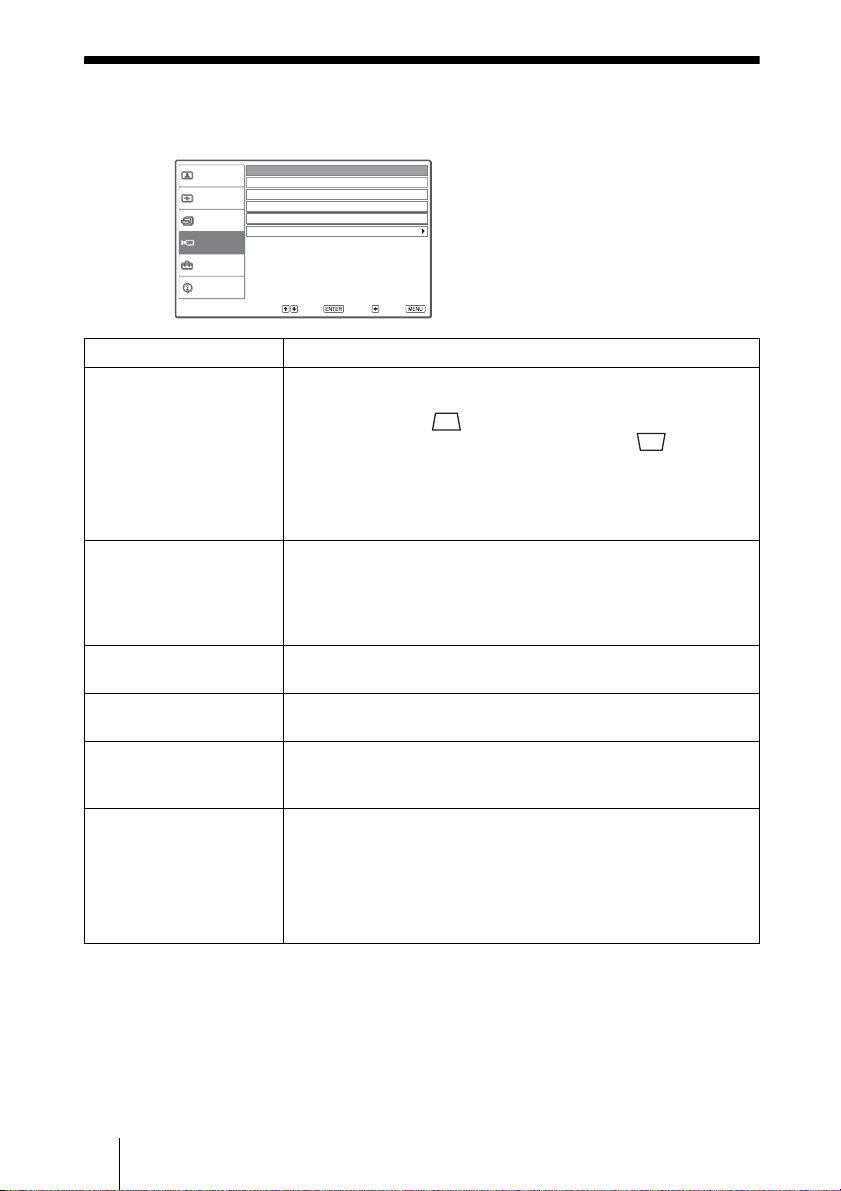
Function menu
The Function menu is used for changing the settings of the function of the
projector.
Item Description
Smart APA With this item set to On, the APA function works automatically for a
signal input from a computer so that the picture can be seen clearly.
You can also activate the APA function by pressing the APA button
on the remote control.
Tip
The APA (Auto Pixel Alignment) automatically adjusts the input
signal from a computer so that the picture can be seen clearly.
Auto Input Search When set to On, the projector detects whether Component, HDMI,
Video, S Video or Input-A signal is input when the INPUT button is
pressed. Then the detected input channel is automatically displayed.
Set to Off when you want to select the channel with no input signal,
or you want to switch the channel manually.
Standby Mode When set to Low, the power consumption in standby mode is
lowered.
Power Saving When set to On, the POWER SAVING indicator lights. The
projector goes into power saving mode if no signal is input for 10
minutes, and the lamp goes out and the cooling fan keeps running. In
power saving mode, no button functions for the first 60 seconds,
then it is cancelled when a signal is input or any button is pressed. If
you do not set the projector to power saving mode, select Off.
Picture
Signal
Function
Setup
Installation
Information
Smart APA : On
Auto Input Search : Off
Standby Mode : Standard
Power Saving: Off
Sel: Set: Back: Exit:
42 Installation Menu
Installation Menu
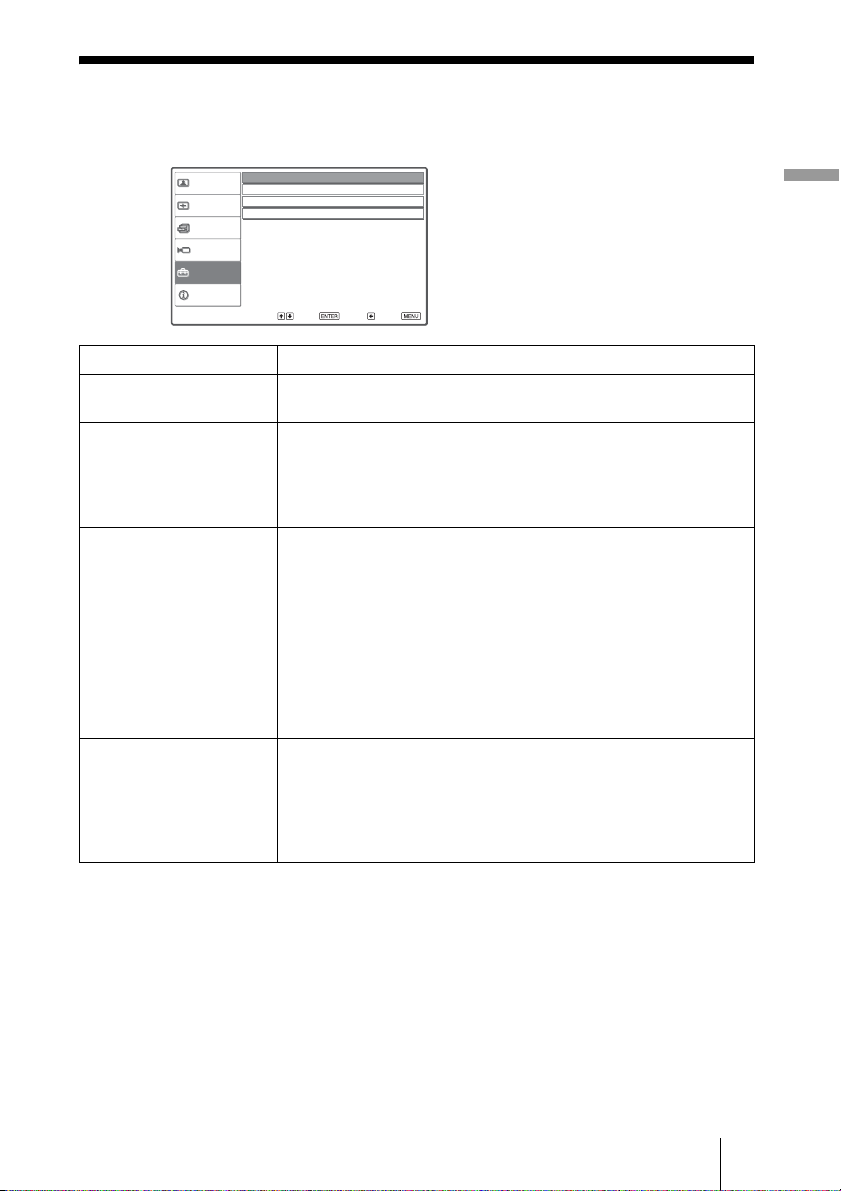
The Installation menu is used for changing the installation settings.
Item Description
V Keystone Corrects the vertical trapezoidal distortion of the picture.
Sets a lower value (– direction) when the bottom of the trapezoid is
longer than the top ( ). Sets a higher value (+ direction) when
the top of the trapezoid is longer than the bottom ( ).
Note
Depending on the picture position adjusted with the lens shift
feature, the aspect ratio of the picture may change from the original
or picture distortion may occur with V Keystone adjustment.
Image Flip Flips the picture on the screen horizontally and/or vertically.
Off: The picture does not flip.
HV: Flips the picture horizontally and vertically.
H: Flips the picture horizontally.
V: Flips the picture vertically.
Background Selects the background color of the screen when no signal is input.
You can select “Black” or “Blue.”
Illumination Turns on the illumination on the top panel of the projector when set
to On. It turns off when set to Off.
High Altitude Mode Off: Use this setting when using the projector at normal altitudes.
On: Use this setting when using the projector at an altitude of 1,500
m or higher.
Network Setting (VPL-
HS51 only)
Displays settings in the network configuration of this projector.
Notes
• You cannot change the network settings with this projector. For
information on networking, consult with qualified Sony personnel.
• Be sure to set “Standby Mode” in the Function menu to “Standard”
when you use the network function. (1 page 41)
Picture
Signal
Function
Setup
Installation
Information
V Keystone :
Image Flip : Off
0
Background : Blue
Illumination : On
High Altitude Mode : Off
Network Setting
Sel: Set: Back: Exit:
43Setup Menu
Using the Menus
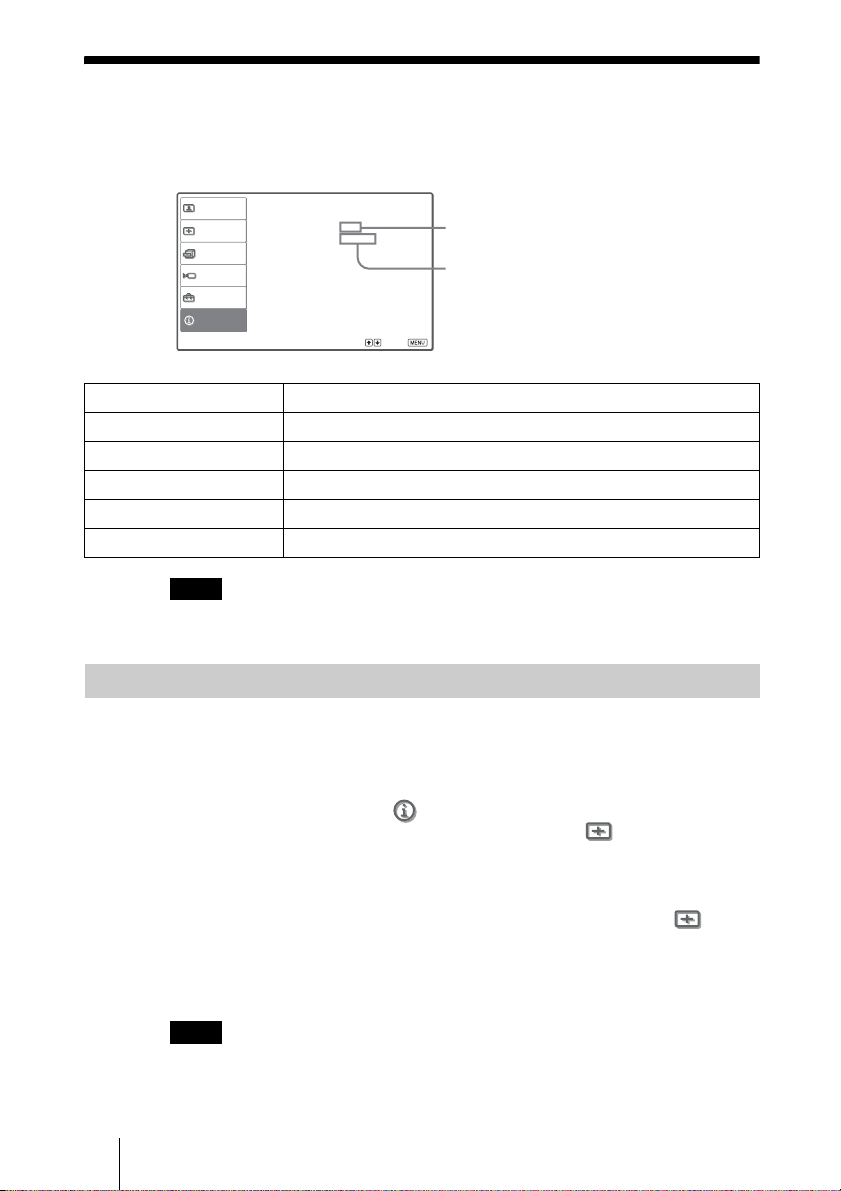
Setup Menu
The Setup menu is used to change the factory preset settings.
Items Description
Status Set to Off to turn off the on-screen displays except for the menus,
message when turning off the power, and warning messages.
Language Selects the language used in the menu and on-screen displays.
Available languages are: English, Dutch, French, Italian, German,
Spanish, Portuguese, Russian, Swedish, Norwegian, Japanese,
Chinese (Simplified Chinese), Chinese (Traditional Chinese),
Korean and Thai.
Input-A Signal Sel. Selects the type of signal input from the equipment by selecting
“Input-A” with the INPUT button.
Auto: Selects the input signal type automatically.
Computer: Inputs the signal from a computer.
Component: Inputs the component signal from a DVD player/
recorder, digital tuner, etc.
Video GBR: Inputs the signal from a TV game or HDTV broadcast.
Note
When the input signal is not displayed correctly with this item set to
Auto, select the item according to the input signal.
Color System Select the color system of the input signal.
Auto: Selects the color system of the input signal automatically
from among NTSC
3.58, PAL, SECAM, NTSC4.43, PAL-M, PAL-N
or PAL60.
“NTSC
3.58”–“PAL-N”: Sets the color system to the selected system
manually.
Picture
Signal
Function
Setup
Installation
Information
Status
:
Language :
Input-A Signal Sel. : Component
Color System : Auto
English
On
Sel: Set: Back: Exit:
44 Information Menu
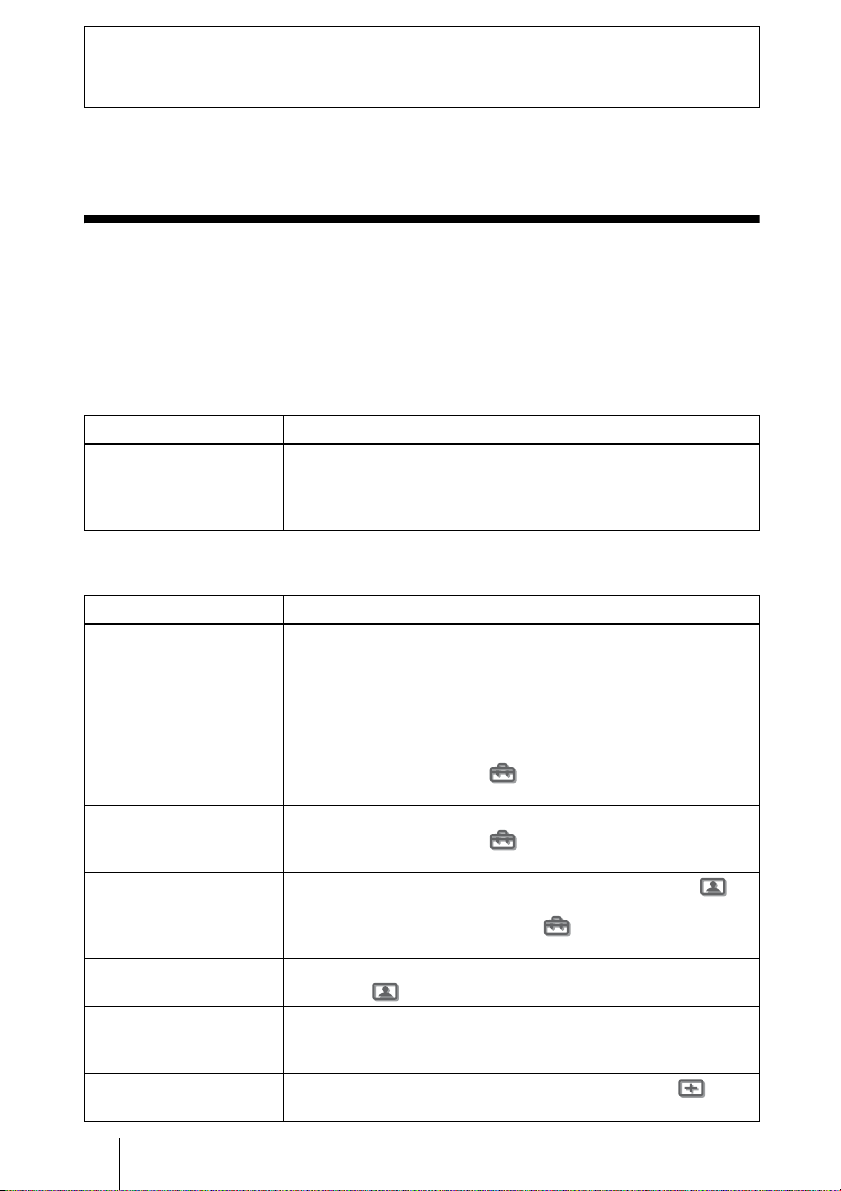
Information Menu
The Information menu is used to display the horizontal and vertical
frequencies of the input signal, used time of the lamp, etc.
You cannot change the displays above.
This projector has 32 types of preset data for input signals (the preset memory).
When the preset signal is input, the projector automatically detects the signal
type and recalls the data for the signal from the preset memory to adjust it to
an optimum picture. The memory number and signal type of that signal are
displayed in the Information menu.
You can also adjust the preset data through the Signal menu.
This projector also has 20 types of user memories for Input-A into which you
can save the setting of the adjusted data for an unpreset input signal.
When an unpreset signal is input for the first time, a memory number is
displayed as 0. When you adjust the data of the signal in the Signal menu,
it will be registered to the projector. If more than 20 user memories are
registered, the newest memory always overwrites the oldest one.
See the chart on page 56 to find if the signal is registered to the preset memory.
When the aspect ratio of input signal does not match the screen size, a part of the screen
is displayed in black.
Item Description
fH Displays the horizontal frequency of the input signal.
fV Displays the vertical frequency of the input signal.
(Memory No.) Displays the preset memory number of the input signal.
(Signal type) Displays the type of the input signal.
Lamp Timer Indicates how long the lamp has been turned on.
Note
About the Preset Memory No.
Note
Exit:
Picture
Signal
Function
Setup
Installation
Information
fH :
fV : 60.00Hz
33.75kHz
No.7
1080/60i
Lamp Timer : 10H
Sel:
Memory No.
Signal type

45Adjusting Picture Quality of a Signal from the Computer
Using the Menus
Adjusting Picture Quality of a Signal from the
Computer
You can automatically adjust to obtain the clearest picture when projecting a
signal from the computer.
1 Project a still picture from the computer.
2 Press the APA (Auto Pixel Alignment) button.
When the picture is adjusted properly, “complete!” appears on the screen.
• When “Smart APA” is set to “On,” the APA function is automatically activated.
• Press the APA button when the image appears on the whole display area of the
computer. If there are black edges around the image, the APA function will not
function properly and the image may extend beyond the screen.
• If you switch the input signal or re-connect a computer, press the APA button again
to get the suitable picture.
• To restore the original screen, press the APA button again during the adjustment.
• When a signal of which the timing is the same as the “Memory No.37” or the
“Memory No.55” signal (refer to the “Preset Signals” chart) is input, if the polarity of
the synchronized signal is different, the input signal may be misjudged and the image
may not appear properly (incorrect aspect ratio or lack of a part of the image). In this
case, press the APA button to adjust the image. This APA processing time may be
longer than the APA processing time of signal in another case. If the image does not
still appear properly, input the signal as described in the following example, then
press the APA button again.
Example:
Display of multiple icons or Windows bar in the lower part on a whitish wallpaper
• The picture may not be adjusted properly depending on the types of input signals.
• Adjust the items in the Signal menu when you adjust the picture manually. (1
page 40)
Notes
46 Troubleshooting
This section describes how to solve the problems, how to replace a lamp and
air filter, etc.
Troubleshooting
If the projector appears to be operating erratically, try to diagnose and correct
the problem using the following instructions. If the problem persists, consult
with qualified Sony personnel.
Power
Picture
Others
Symptom Cause and Remedy
The power is not turned on. c Wait for about one minute before turning on the power. (1 page
25)
c Close the lamp cover securely. (1 page 49)
c Close the air filter cover securely. (1 page 50)
Symptom Cause and Remedy
No picture. c Check that the proper connections have been made. (1 page
13)
c Select the input source correctly using the INPUT button. (1
page 24)
c Set the computer signal to output from an external monitor.
c Set the computer signal to output only to an external monitor.
c Select “Computer,” “Component” or “Video GBR” for “Input-A
Signal Sel.” in the Setup menu according to the input
signal. (1 page 43)
The picture from the
INPUT A connector is
colored strange.
c Select “Computer,” “Component” or “Video GBR” for “Input-A
Signal Sel.” in the Setup menu according to the input
signal. (1 page 43)
The picture from the
VIDEO or S VIDEO
INPUT connector is
colored strange.
c Adjust the picture in the “Adjust Picture” of the Picture
menu (1 page 37)
c Set “Color System” in the Setup menu to match the color
system being input. (1 page 43)
The picture is too dark. c Adjust the contrast or brightness in the “Adjust Picture” of the
Picture menu properly. (1 page 37)
The picture is not clear. c Adjust the focus with the focus ring. (1 page 25)
c Condensation has occurred on the lens. Leave the projector for
about two hours with the power on.
The picture flickers. c Adjust “Dot Phase” for “Adjust Signal” in the signal menu
properly. (1 page 40)
47Troubleshooting
Others
On-screen display
Remote control
The LAMP/COVER or TEMP/FAN indicator on the control panel lights up or
flashes if there is any trouble with your projector.
Symptom Cause and Remedy
On-screen display does not
appear.
c Set “Status” in the Setup menu to “On.” (1 page 43)
Symptom Cause and Remedy
The remote control does
not work.
c Batteries could be weak. Replace with new batteries. (1 page
7)
c Insert the batteries with correct polarities. (1 page 7)
Warning Indicators
Symptom Cause and Remedy
LAMP/COVER flashes. c Attach the lamp cover or the air filter cover securely. (1
pages 49 and 50)
LAMP/COVER lights up. c The lamp has reached the end of its life. Replace the lamp. (1
page 49)
c The lamp becomes a high temperature. Wait until the lamp
cools, and then turn on the power again. (1 page 25)
TEMP/FAN flashes. c The fan is broken. Consult with qualified Sony personnel.
TEMP/FAN lights up. c The internal temperature is unusually high. Check to see if
nothing is blocking the ventilation holes or whether or not the
projector is being used at high altitudes.
LAMP/COVER and
TEMP/FAN light up.
c Disconnect the AC power cord, connect it, then turn on the
power again. If the indicators still light up, the electrical system
breaks down. Consult with qualified Sony personnel.
LAMP/
COVER
TEMP/
FAN
POWER
SAVING
ON/
STANDB
Y
LAMP/COVER indicator
TEMP/FAN indicator
48 Troubleshooting
Warning messages
Caution messages
Message Lists
Message Cause and Remedy
High temp.! Lamp off in 1
min.
c Turn off the power.
c Check to see if nothing is blocking the ventilation holes.
Frequency is out of range! c Input a signal that is within the acceptable range of the
frequency.
c Set the output signal on an external monitor of the connected
computer to SVGA.
c Set “Input-A Signal Sel.” in the Setup menu to
“Computer”. (1 page 43)
Please check Input-A
Signal Sel.
c Set “Input-A Signal Sel.” in the Setup menu to
“Computer” when RGB signal is input from the computer. (1
page 43)
Please replace the LAMP. c It is time to replace the lamp. Replace the lamp. (1 page 49)
Please replace the filter. c It is time to replace the air filter. Replace the air filter. (1 page
50)
High temp.!
Probably use in high
altitude. Switch to high
altitude mode on? Yes: O/
No: o
c When using the projector at an altitude of 1,500 m or higher:
select “Yes” to set to “High Altitude Mode”. (1 page 42)
c If this message is displayed when using the projector at an
altitude of less than 1,500 m: check to see if nothing is blocking
the ventilation holes.
Message Cause and Remedy
c No signal is input in the selected input. Check connections. (1
page 13)
Not applicable! c Press the appropriate button.
x
49Replacing the Lamp
Others
Replacing the Lamp
The lamp used for the light source has a
certain life. When the lamp dims, the color
balance of the picture becomes strange, or
“Please replace the LAMP.” appears on the
screen, the lamp may be exhausted. Replace
the lamp with a new one (not supplied).
Use LMP-H130 Projector Lamp as the
replacement lamp.
When replacing the lamp after using
the projector
Turn off the projector, then unplug the
power cord. Wait for at least an hour for the
lamp to cool.
The lamp becomes a high temperature after
turning off the projector with the I/1 (on/
standby) switch. If you touch the lamp, you
may scald your finger. When you replace the
lamp, wait for at least an hour for the lamp to
cool. When removing the lamp unit, make sure
it remains horizontal, then pull straight up. Do
not tilt the lamp unit. If you pull out the lamp
unit while tilted and if the lamp breaks, the
pieces may scatter, causing injury.
1 Turn off the projector and unplug
the AC power cord.
2 Place a protective sheet (cloth)
beneath the projector. Turn the
projector over so you can see its
underside.
Be sure that the projector is stable after
turning it over.
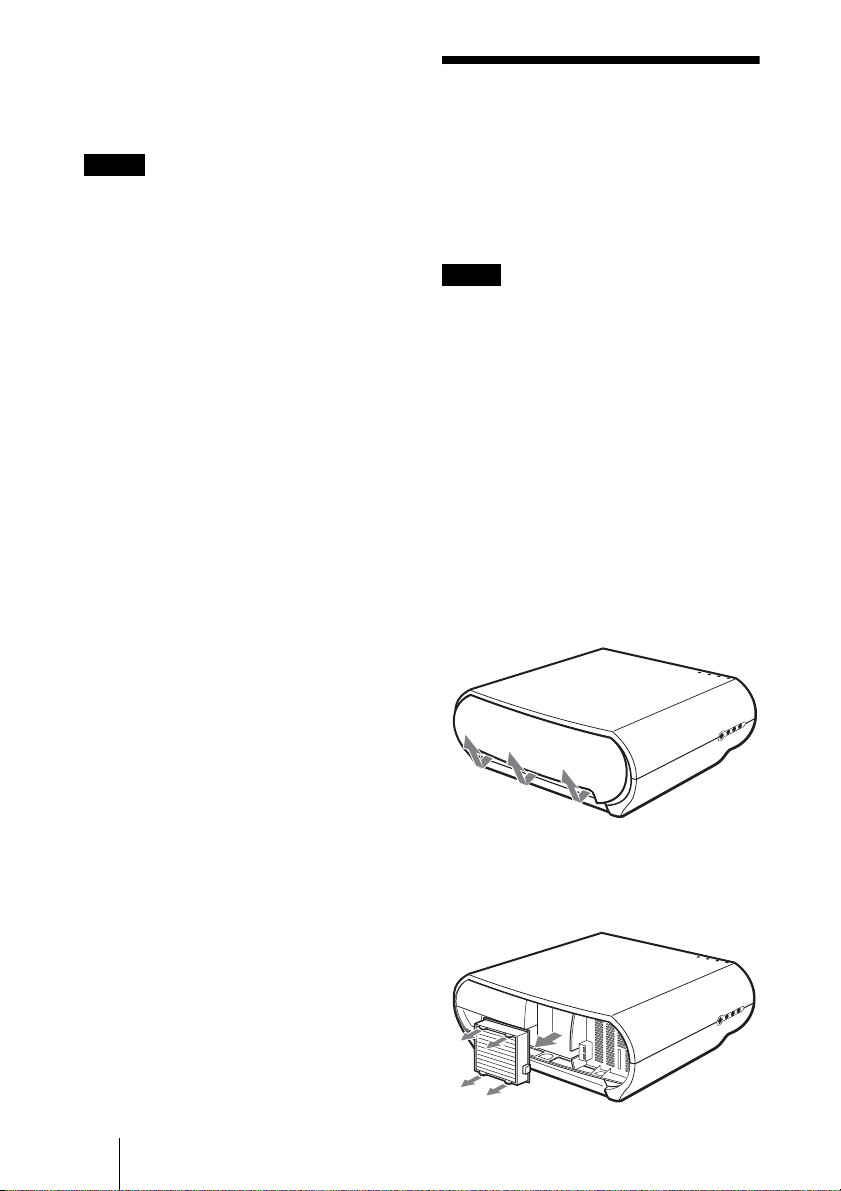
3 Loosen a screw with the Philips
screwdriver
1, then open the
lamp cover 2.
4 Loosen the three screws on the
lamp unit with the Philips
screwdriver
1. Pull out the lamp
unit by the handle
2.
5 Insert the new lamp all the way in
until it is securely in place
1.
Tighten the three screws 2. Fold
down the handle.
6 Close the lamp cover and tighten
the screw.
7 Turn the projector back over.
8 Connect the power cord and set
the projector to standby mode.
Caution
Note
50 Replacing the Air Filter
9 Press the following buttons on the
remote control in the following
order for less than five seconds
each: RESET, <, ,, ENTER.
• Do not put your hands into the lamp
replacement spot, or not fall any liquid or
object into it to avoid electrical shock or fire.
• Be sure to use the LMP-H130 Projector
Lamp for replacement. If you use lamps
other than LMP-H130, the projector may
cause a malfunction.
• Be sure to turn off the projector and unplug
the power cord before replacing the lamp.
• The projector will not turn on unless the lamp
is securely installed in place.
• The projector will not turn on unless the lamp
cover is securely closed.
Disposal of the used lamp
For the customers in the USA
This product contains mercury. Disposal of
this product may be regulated if sold in the
United States. For disposal or recycling
information, please contact your local
authorities or Electronics Industries Alliance
(http://www.eiae.org).
Replacing the Air
Filter
The air filter should be replaced
periodically. When “Please replace the
filter.” appears on the screen, replace the air
filter immediately.
• Replacing the air filter is very important to
maintain the high efficiency of the projector
and to prevent a malfunction. When the
replacement message appears on the screen,
replace the air filter without delay. It is
recommended to replace the air filter
approximately every 1000 hours of use.
• When removing the air filter from the
projector, be careful that no dust or object
gets into the inside of the projector.
1 Turn off the projector, then
unplug the AC power cord.
2 Open the filter cover toward you,
while pushing the three filter lock
knobs upward.
3 Remove the air filter from the
projector by holding the tab on the
filter.
Notes
Notes

51Replacing the Air Filter
Others
4 Insert the new air filter into the
projector.
5 Replace the filter cover.
The projector will not turn on unless the filter
cover is securely closed.
Note

52 Specifications
Specifications
System
Projection system
3 LCD panels, 1 lens, projection
system
LCD panel 0.73-inch TFT LCD panel with
micro-lens array, 2,764,800
pixels (921,600 pixels × 3)
Lens 1.6 times zoom lens (manual)
f21.3 – 34.1 mm/F2.4 – 3.16
Lamp 135 W UHP type
Projection picture size
40 to 200 inches (measured
diagonally)
Color system NTSC
3.58/PAL/SECAM/NTSC4.43/
PAL-M/PAL-N/PAL60 system,
switched automatically/
manually (PAL60 system not
switched manually)
Acceptable video signals
15 kHz RGB/component 50/60
Hz, Progressive component 50/
60 Hz, DTV (480/60i, 575/50i,
480/60p, 575/50p, 720/60p,
720/50p, 1080/60i, 1080/50i),
1080/24PsF, Composite video,
Y/C video
Acceptable computer signals
fH: 19 to 72 kHz
fV: 48 to 92 Hz
Maximum resolution WXGA
1280 × 768, fV: 60 Hz
Input
Video input VIDEO: phono type
Composite video: 1 Vp-p±2 dB
sync negative (75 ohms
terminated)
S VIDEO: Y/C mini DIN 4-pin
type
Y (luminance): 1 Vp-p±2 dB
sync negative (75 ohms
terminated)
C (chrominance): burst 0.286
Vp-p ±2 dB (NTSC)
(75 ohms terminated)
burst 0.3 Vp-p±2 dB (PAL)
(75 ohms terminated)
Y/P
B/CB/PR/CR
Component: phono type
G with Sync/Y: 1 Vp-p±2dB
sync negative (75 ohms
terminated)
B/C
B/PB: 0.7 Vp-p±2dB
positive (75 ohms terminated)
R/C
R/PR: 0.7 Vp-p±2 dB
positive (75 ohms terminated)
HDMI Digital RGB/Y/C
B(PB)CR(PR)
INPUT A HD D-sub 15-pins
Analog RGB/component:
R/C
R (PR): 0.7 Vp-p±2 dB
(75 ohms terminated)
G: 0.7 Vp-p±2 dB
(75 ohms terminated)
G with sync/Y: 1 Vp-p±2 dB
sync negative (75 ohms
terminated)
B/C
B (PB): 0.7 Vp-p±2 dB
(75 ohms terminated)
SYNC/HD: Composite sync
input: TTL level, positive/
negative
Horizontal sync input: TTL
level, positive/negative
VD: Vertical sync input: TTL
level, positive/ negative
Ethernet (VPL-HS51 only)
RJ-45
10BASE-T/100BASE-TX
TRIGGER Minijack
Power on: DC 12 V, output
impedance: 4.7 kilohms
Power off: 0 V
General
Dimensions 348 × 135 × 360 mm
(13
5
/8 × 5
7
/8 × 14
5
/8 inches) (w/
h/d)
Mass VPL-HS50:
Approx. 5.6 kg (12 lb 6 oz)
VPL-HS51:
Approx. 5.7 kg (12 lb 6 oz)
Power requirements
AC 100 to 240 V, 0.8–1.95 A,
50/60 Hz
Power consumption
VPL-HS50:
Max. 195 W
Standby mode: 3 W
ECO mode: 0.5 W
VPL-HS51:
Max. 195 W
Standby mode: 4.5 W
ECO mode: 0.5 W
Operating temperature
0°C to 35°C (32°F to 95°F)

53Specifications
Others
Operating humidity
35% to 85% (no condensation)
Storage temperature
–20°C to 60°C (–4°F to 140°F)
Storage humidity
10% to 90%
Supplied accessories
Remote control RM-PJHS50 (1)
Size AA (R6) batteries (2)
AC power cord (1)
Air filter (for replacement) (1)
Operating Instructions (1)
CD-ROM (Application software
and Operating Instructions)
(VPL-HS51 only)
Design and specifications are subject to change
without notice.
Safe regulations
VPL-HS50:
UL60950, CSA No. 950, FCC class B, IC class B,
EN60950 (NEMKO), CE, C-Tick
VPL-HS51:
UL60950, FCC class B
Optional accessories
Projector Lamp LMP-H130 (for replacement)
Air filter PK-HS10FL (for replacement)
Projector Suspension Support PSS-610
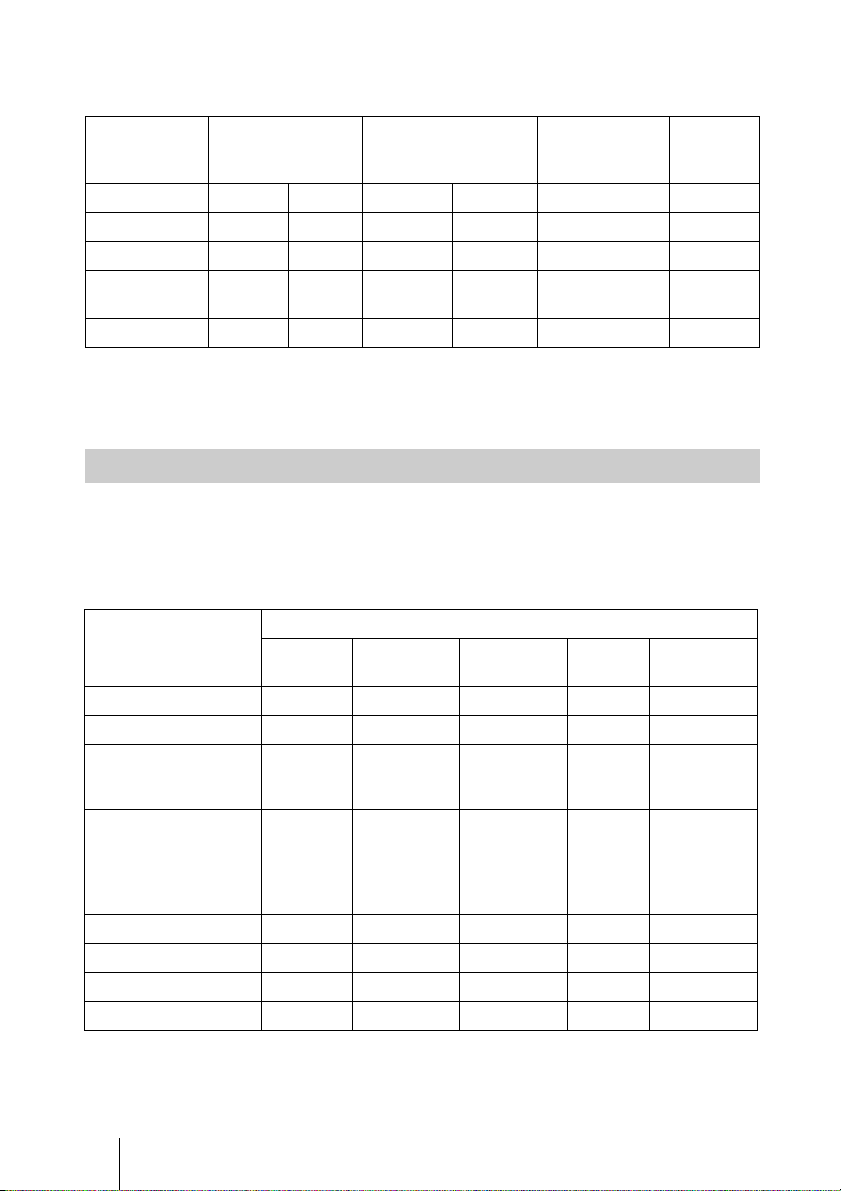
54 Specifications
Warning on power connection
Use a proper power cord for your local power supply.
* Use a rated plug that complies with the regulation of each country and the
specifications.
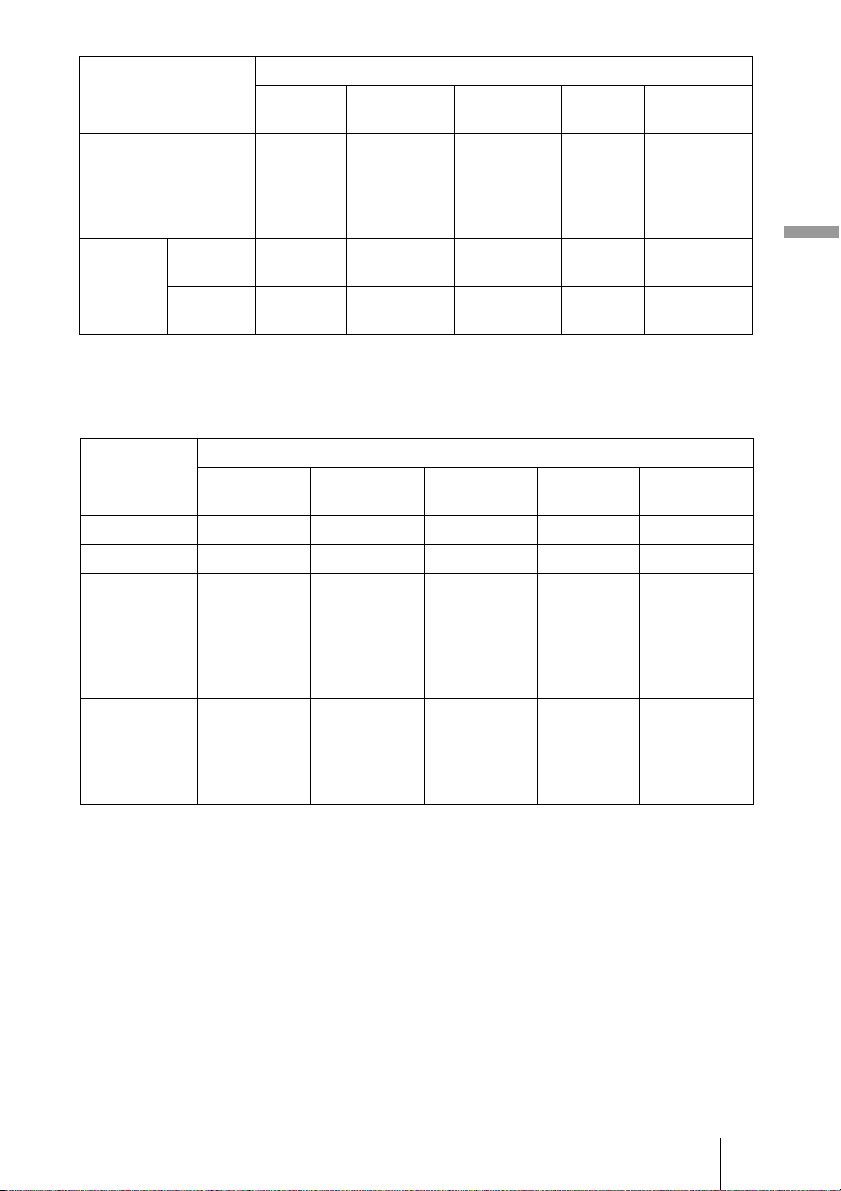
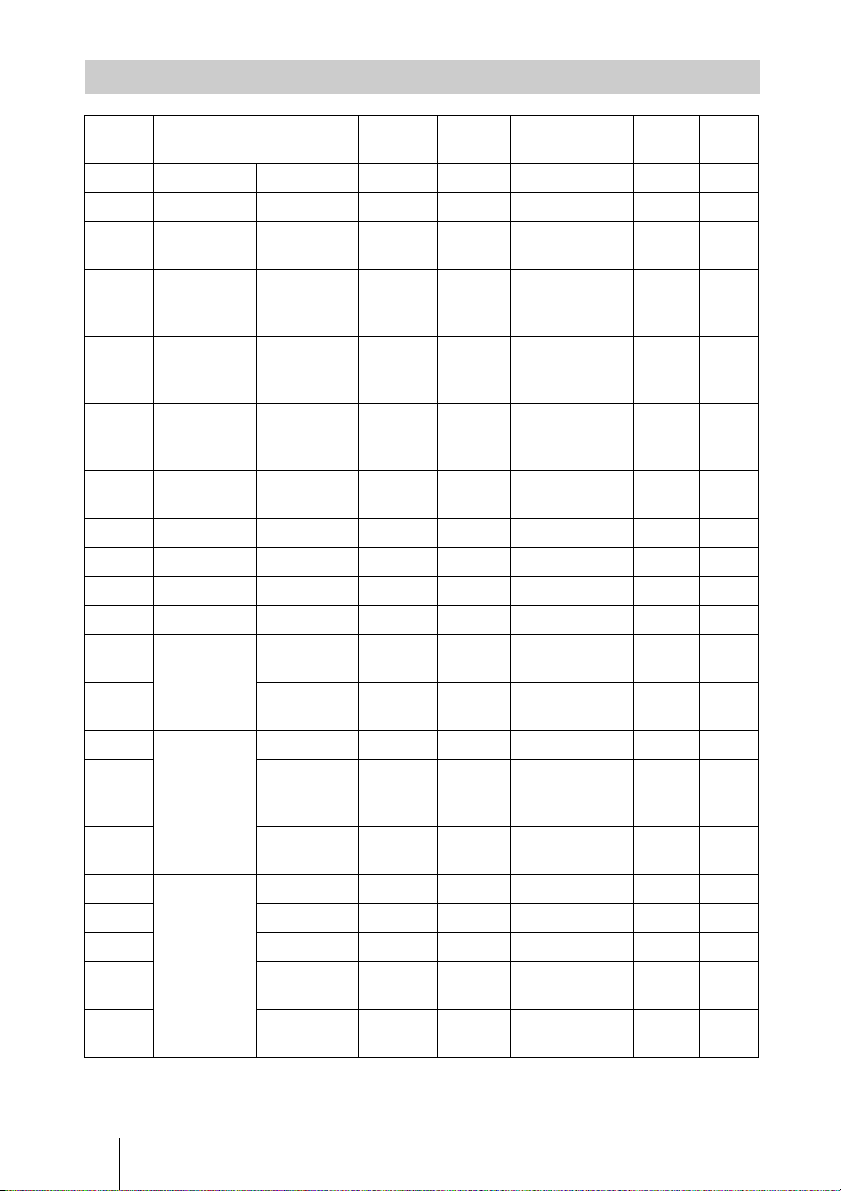
Some of the items in the menus cannot be adjusted depending on the input
signal. The following tables indicate them.
The items that cannot be adjusted are not displayed in the menu.
Adjust Picture menu
The United States,
Canada
Continental Europe UK, Ireland,
Australia, New
Zealand
Japan
Plug type VM0233 290B YP-12A COX-07 * YP332
Female end VM0089 386A YC-13B COX-02 VM0310B YC-13
Cord type SJT SJT H05VV-F H05VV-F N13237/CO-228 VCTF
Rated Voltage
& Current
10A/
125V
10A/
125V
10A/250V 10A/250V 10A/250V 7A/125V
Safety approval UL/CSA UL/CSA VDE VDE VDE
DENANHO
Input Signals and Adjustable/setting Items
Item Input signal
Video or S
video (Y/C)
Component Video GBR Computer HDMI
Contrast z z zzz
Brightness z z zzz
Color z
(except for
B & W)
zz– z
Hue z
(NTSC
3.58
/
NTSC
4.43
only, except
for B & W)
zz– z
Sharpness zz z– z
Black Level Adj zz z– z
Gamma Correction z z zzz
Color Temp. z z zzz
55Specifications
Others
z : Adjustable/can be set
– : Not adjustable/cannot be set
Signal menu
z : Adjustable/can be set
– : Not adjustable/cannot be set
DDE zz
(preset
memory
numbers
3,4,7,8,9 only)
z
(preset
memory
numbers
3,4,7,8,9 only)
– z
(preset
memory
numbers
3,4,7,8,9 only)
Cinema
Black Pro
Advanced
Iris
zz zzz
Lamp
Control
zz zzz
Item Input signal
Video or S
video (Y/C)
Component Video GBR Computer HDMI
Dot Phase – – – z –
H size – – – z –
Shift –
z
(preset
memory
numbers 5, 6,
7, 8, 9, 10, 11
only)
z
(preset
memory
numbers 5, 6,
7, 8, 9, 10, 11
only)
zz
Wide Mode
zz
(preset
memory
numbers 3, 4,
5, 6 only)
z
(preset
memory
numbers 3, 4,
5, 6 only)
– z
(preset
memory
numbers 3, 4,
5, 6 only)
Item Input signal
Video or S
video (Y/C)
Component Video GBR Computer HDMI
56 Specifications
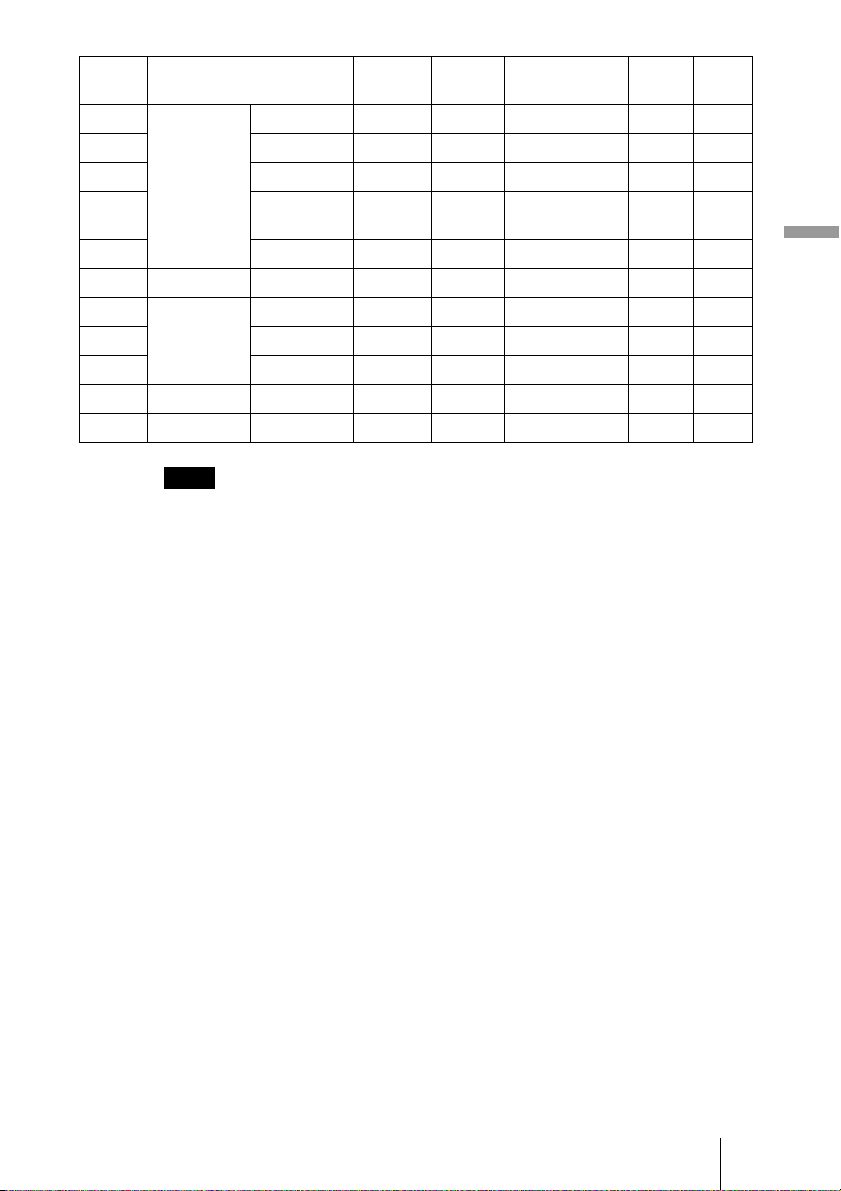
Preset Signals
Memory
No.
Preset signal fH (kHz) fV (Hz) Sync H Size HDMI
input
1 VIDEO/60 60 Hz 15.734 59.940 – – –
2 VIDEO/50 50 Hz 15.625 50.000 – – –
3 480/60i 480/60i 15.734 59.940 SonG/Y or
composite sync
– z
4 575/50i 575/50i 15.625 50.000 SonG/Y or
composite sync/
composite video
– z
5 480/60p 480/60p
(Progressive
NTSC)
31.470 60.000 SonG/Y – z
6 575/50p 575/50p
(Progressive
PAL)
31.250 50.000 SonG/Y – z
7 1080/60i 1035/60i,
1080/60i
33.750 60.000 SonG/Y – z
8 1080/50i 1080/50i 28.130 50.000 SonG/Y – z
9 1080/24PsF 1080/48i 27.000 48.000 SonG/Y – z
10 720/60p 720/60p 45.000 60.000 SonG/Y – z
11 720/50p 720/50p 37.500 50.000 SonG/Y – z
21 640 × 350 VGA-1
(VGA350)
31.469 70.086 H-pos, V-neg 800 –
22 VESA 85
(VGA350)
37.861 85.080 H-pos, V-neg 832 –
23 640 × 400 NEC PC98 24.823 56.416 H-neg V-neg 848 –
24 VGA-2
(TEXT)/
VESA70
31.469 70.086 H-neg V-pos 800 –
25 VESA 85
(VGA400)
37.861 85.080 H-neg, V-pos 832 –
26 640 × 480 VESA 60 31.469 59.940 H-neg, V-neg 800 z
27 Mac 13 35.000 66.667 H-neg, V-neg 864 –
28 VESA 72 37.861 72.809 H-neg, V-neg 832 –
29 VESA 75
(IBM M3)
37.500 75.000 H-neg, V-neg 840 –
30 VESA 85
(IBM M4)
43.269 85.008 H-neg, V-neg 832 –
57Specifications
Others
When a signal other than the preset signals shown above is input, the picture may not
appear properly.
31 800 × 600 VESA 56 35.156 56.250 H-pos, V-pos 1024 –
32 VESA 60 37.879 60.317 H-pos, V-pos 1056 –
33 VESA 72 48.077 72.188 H-pos, V-pos 1040 –
34 VESA 75
(IBM M5)
46.875 75.000 H-pos, V-pos 1056 –
35 VESA 85 53.674 85.061 H-pos, V-pos 1048 –
36 832 × 624 Mac 16 49.724 74.550 H-neg, V-neg 1152 –
37 1024 × 768 VESA 60 48.363 60.004 H-neg, V-neg 1344 –
38 VESA 70 56.476 70.069 H-neg, V-neg 1328 –
39 VESA 75 60.023 75.029 H-pos, V-pos 1312 –
55 1280 × 768 WXGA 60 47.776 59.870 H-neg, V-pos 1664 –
56 1280 × 720 WXGA 60 44.772 59.855 H-neg, V-pos 1664 –
Note
Memory
No.
Preset signal fH (kHz) fV (Hz) Sync H Size HDMI
input
58 Ceiling Installation
Ceiling Installation
Use the PSS-610 Projector Suspension Support when you install the projector
on a ceiling. The projection distances for ceiling installation are shown below.
When using the 16:9 aspect ratio screen
Unit: mm (inches)
To calculate the installation measurements (SS: Screen Size)
a (minimum) = {(SS × 21.27/0.7227) – 35.160899} × 1.025 + 123.5
a (maximum) = {(SS × 33.9409273/0.7227) – 37.678872} × 0.975 + 123.5
x (minimum) = (SS/0.7227 × 4.5) – 75
x (maximum) = b + (SS/0.7227 × 9) – 75
Screen Size
(inches)
40 60 80 100 120 150 180 200
a Minimum
Distance
1290
(50
7
/8
)
1890
(74
1
/2)
2500
(98
1
/2)
3100
(122
1
/8)
3700
(145
3
/4)
4610
(181
5
/8)
5510
(217)
6120
(241)
Maximum
Distance
1910
(75
1
/4)
2830
(111
1
/2)
3750
(147
3
/4)
4660
(183
1
/2)
5580
(219
3
/4)
6950
(273
3
/4)
8330
(328)
9240
(363
7
/8)
x Minimum
Distance
174
(6
7
/8)
299
(11
7
/8)
423
(16
3
/4)
548
(21
5
/8)
672
(26
1
/2)
859
(33
7
/8)
1046
(41
1
/4)
1170
(46
1
/8)
Maximum
Distance
b+423
(b+16
3
/
4
)
b+672
(b+26
1
/
2
)
b+921
(b+36
3
/
8
)
b+1170
(b+46
1
/
8
)
b+1419
(b+55
7
/
8
)
b+1793
(b+70
5
/
8
)
b+2166
(b+85
3
/
8
)
b+2416
(b+95
1
/
4
)
b 150, 175, 200, 250, 300 mm (6, 7, 7
7
/8, 9
7
/8, 10
7
/8, 11
7
/8 inches) adjustable
when using PSS-610
a
x
b
a: Distance between the screen and the front hole for the mount
bracket on the bottom surface of the unit
b: Distance from the ceiling to the bottom surface of the unit
x: Distance between the ceiling and the center of the screen
PSS-610 Projector Suspension
Support (not supplied)
Ceiling
Center of the
screen
Center of the lens
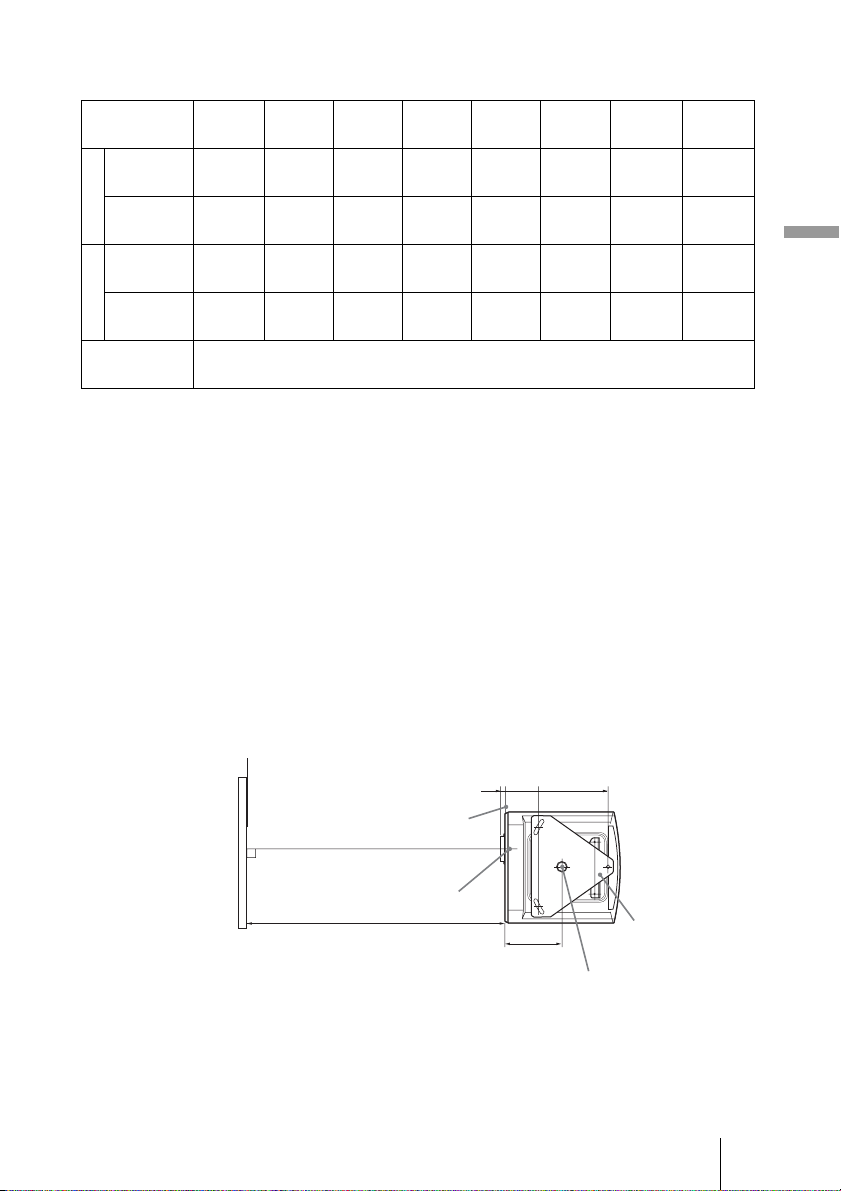
59Ceiling Installation
Others
When using the 4:3 aspect ratio screen
Unit: mm (inches)
To calculate the installation measurements (SS: Screen Size)
a (minimum) = {(SS × 21.27/0.5906) – 35.160899} × 1.025 + 123.5
a (maximum) = {(SS × 33.9409273/0.5906) – 37.678872} × 0.975 + 123.5
x (minimum) = (SS/0.5906 × 4.5) – 75
x (maximum) = b + (SS/0.5906 × 9) – 75
Attaching the PSS-610 projector suspension support
For details on installation on a ceiling, refer to the Installation manual for
Dealers of the PSS-610. Make sure to consult with a qualified Sony personnel
for installation.
The installation measurements are shown below when installing the projector
on a ceiling.
Top view
Install the projector so that the center of the lens is parallel to the center of the
screen.
Screen Size
(inches)
40 60 80 100 120 150 180 200
a Minimum
Distance
1560
(61
1
/2)
2300
(90
5
/8)
3040
(119
3
/4)
3780
(148
7
/8)
4510
(177
5
/8)
5620
(221
3
/8)
6730
(265)
7470
(294
1
/4)
Maximum
Distance
2320
(91
3
/8)
3450
(135
7
/8)
4570
(180)
5690
(224
1
/8)
6810
(268
1
/4)
8490
(334
3
/8)
10170
(400
1
/2)
11290
(444
5
/8)
x Minimum
Distance
230
(9
1
/8)
382
(15
1
/8)
535
(21
1
/8)
687
(27
1
/8)
839
(33
1
/8)
1068
(42
1
/8)
1297
(51
1
/8)
1449
(57
1
/8)
Maximum
Distance
b+535
(b+21
1
/
8
)
b+839
(b+33
1
/
8
)
b+1144
(b+45
1
/
8
)
b+1449
(b+57
1
/
8
)
b+1754
(b+69
1
/
8
)
b+2211
(b+87
1
/
8
)
b+2668
(b+105
1
/
8
)
b+2973
(b+117
1
/
8
)
b 150, 175, 200, 250, 300 mm (6, 7, 7
7
/8, 9
7
/8, 10
7
/8, 11
7
/8 inches) adjustable
when using PSS-610
216.5
(8
5
/
8
)
152.5
(6
1
/
8
)
13
(
17
/
32
)
224.5
(8
7
/
8
)
Front of the cabinet
Center of the lens
Upper ceiling
mount bracket
Center of the supporting pole
(The center of the supporting pole
is different from that of the unit.)
Distance between the screen
and the center of the lens
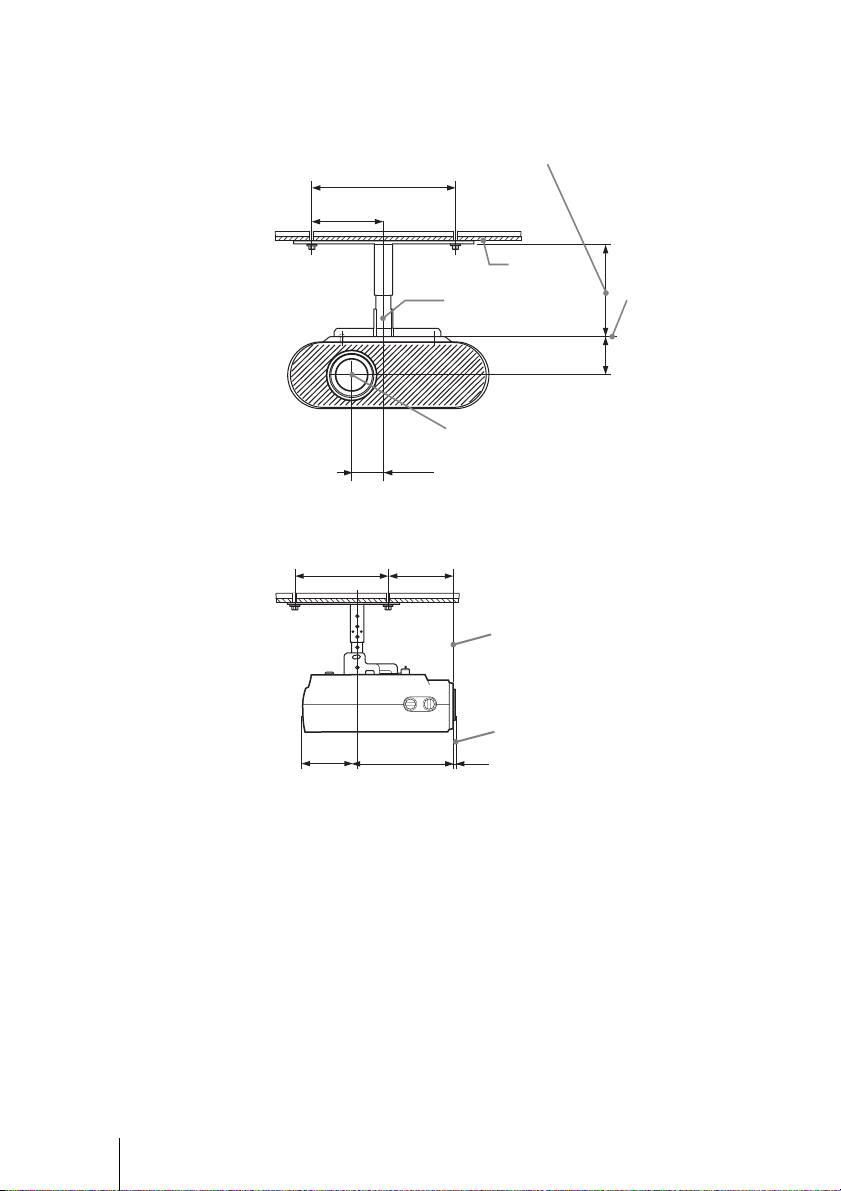
60 Ceiling Installation
Front view
Side view
125 (5)
250 (9
7
/
8
)
66 (2
5
/
8
)
75 (3)
Ceiling
The bottom
surface of the
mount bracket
Center of the
supporting pole
Center of the lens
Distance between the ceiling and the surface of the mount bracket
Using adjustment pipe (b): 150/175/200 mm (6 / 7 / 7
7
/8 inches)
Using adjustment pipe (c): 250/275/300 mm (9
7
/8 / 10
7
/8 / 11
7
/8 inches)
224.5
(8
7
/
8
)
216.5
(8
5
/
8
)
152.5
(6
1
/
8
)
135.5
(5
3
/
8
)
13
(
17
/
32
)
Center of the lens
Front of the cabinet
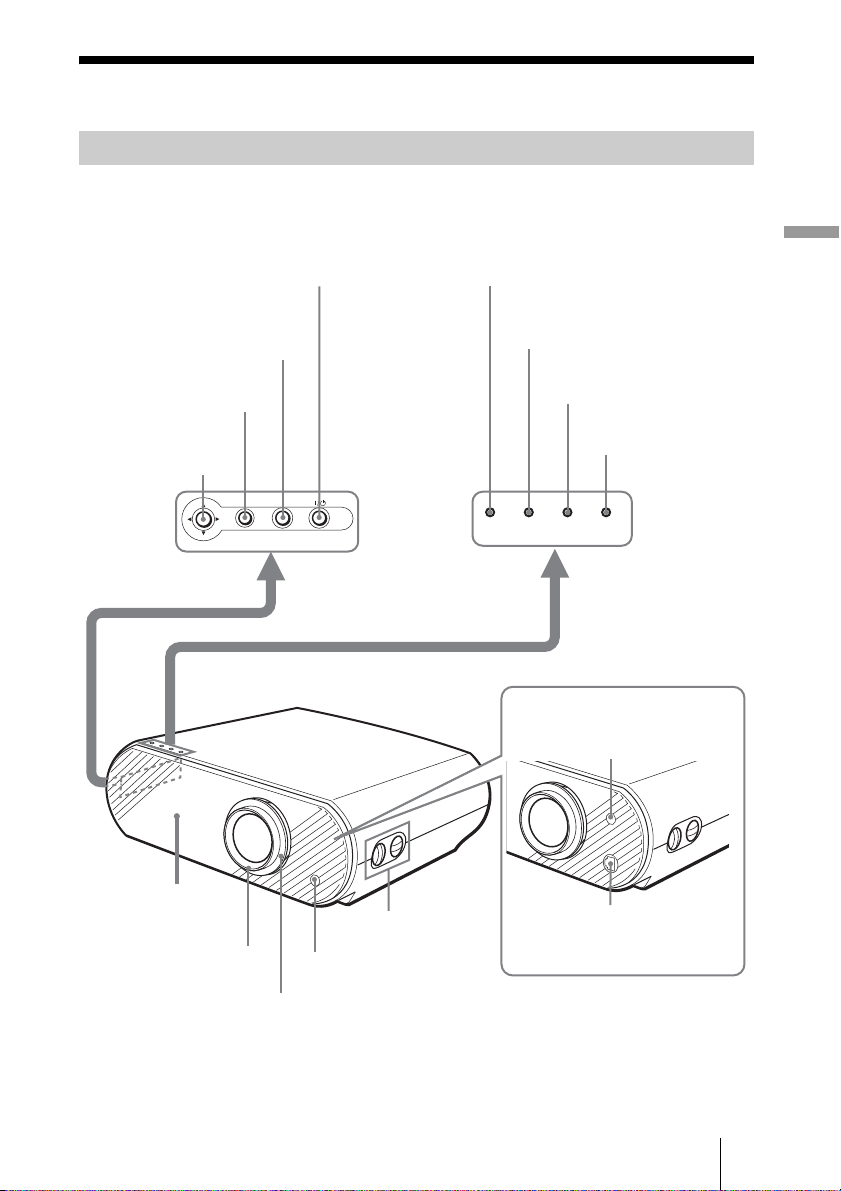
61Location of Controls
Others
Location of Controls
You can use the buttons on the control panel with the same names as those on
the remote control to operate the projector.
Front
INPUT
LAMP/
COVER
TEMP/
FAN
POWER
SAVING
ON/
STANDBY
MENU
I/1 (on/standby) switch (1 page 18)
INPUT button (1 page 24)
MENU button (1 page 21)
M/m/</, (arrow)
button (1 page 22)
LAMP/COVER indicator
(1 page 47)
TEMP/FAN Indicator
(1 page 47)
POWER SAVING
indicator (1 page 41)
ON/STANDBY
indicator (1 page 17)
Zoom ring (1 page 20)
Focus ring (1 page 20)
Ventilation holes
(exhaust) (1 page 9)
LENS SHIFT dials
(1 page 18)
Remote control
detector (1 page 17)
VPL-HS51
Remote control
detector (1 page 17)
Ethernet connector
Connects to a computer
with the LAN cable.
VPL-HS50
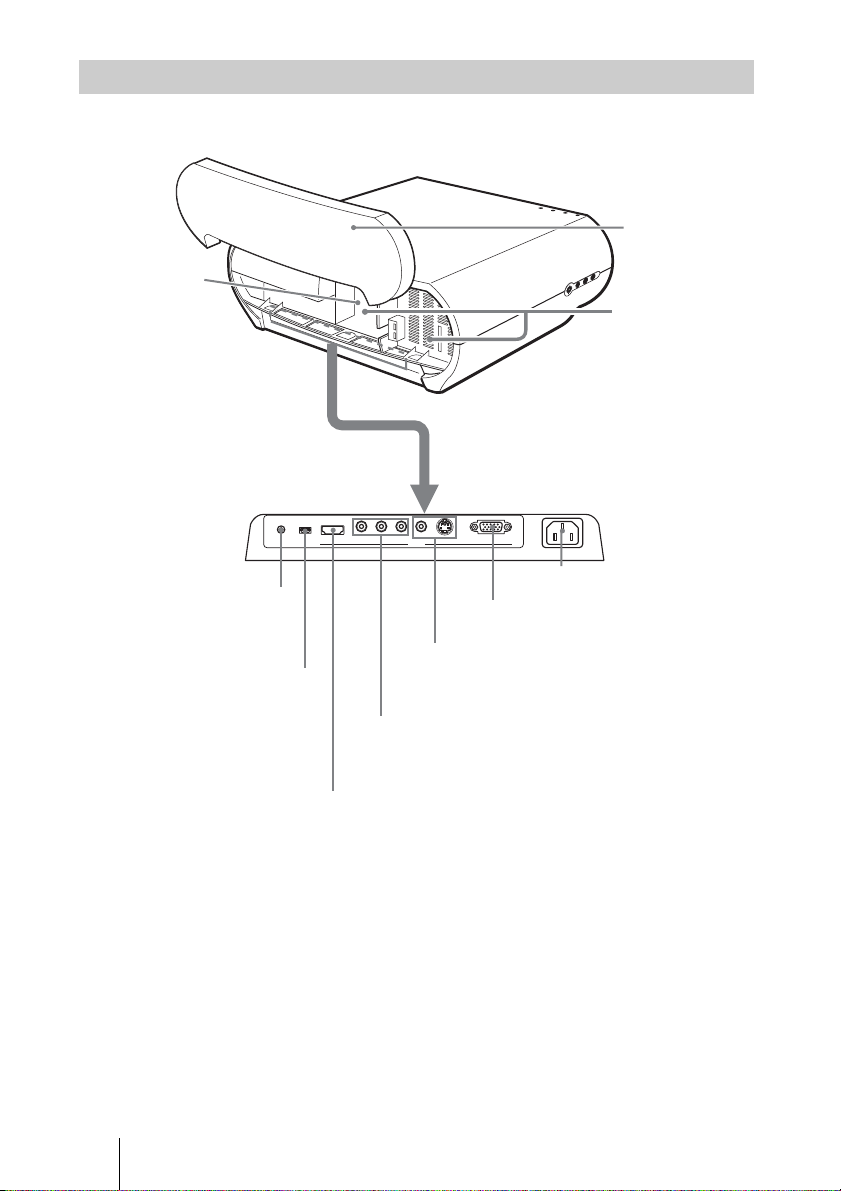
62 Location of Controls
Rear
S VIDEO INPUT A
AC IN
Y
PB/CB PR/CR VIDEO
HDMI
TRIGGER
USB
INPUT
Air filter
(1 page 50)
Air fliter cover
(1 page 50)
Ventilation
holes (intake)
(1 page 9)
TRIGGER jack (minijack)
Outputs a 12 V signal
when the power is on.
~ AC IN socket
HDMI connector (1 page 14)
Y/P
B/CB/PR/CR (phono type) (1 page 13)
INPUT A connector (1 page 16)
S VIDEO INPUT connector (mini DIN 4-pin)/
VIDEO INPUT jack (phono type) (1 page 15)
USB connector (VPL-HS51 only)
Connects to a computer with the
USB cable (A y mini-B: not
supplied) when performing
“Gamma Correction” using the
specified controller,
“ImageDirector.” (1 page 38)
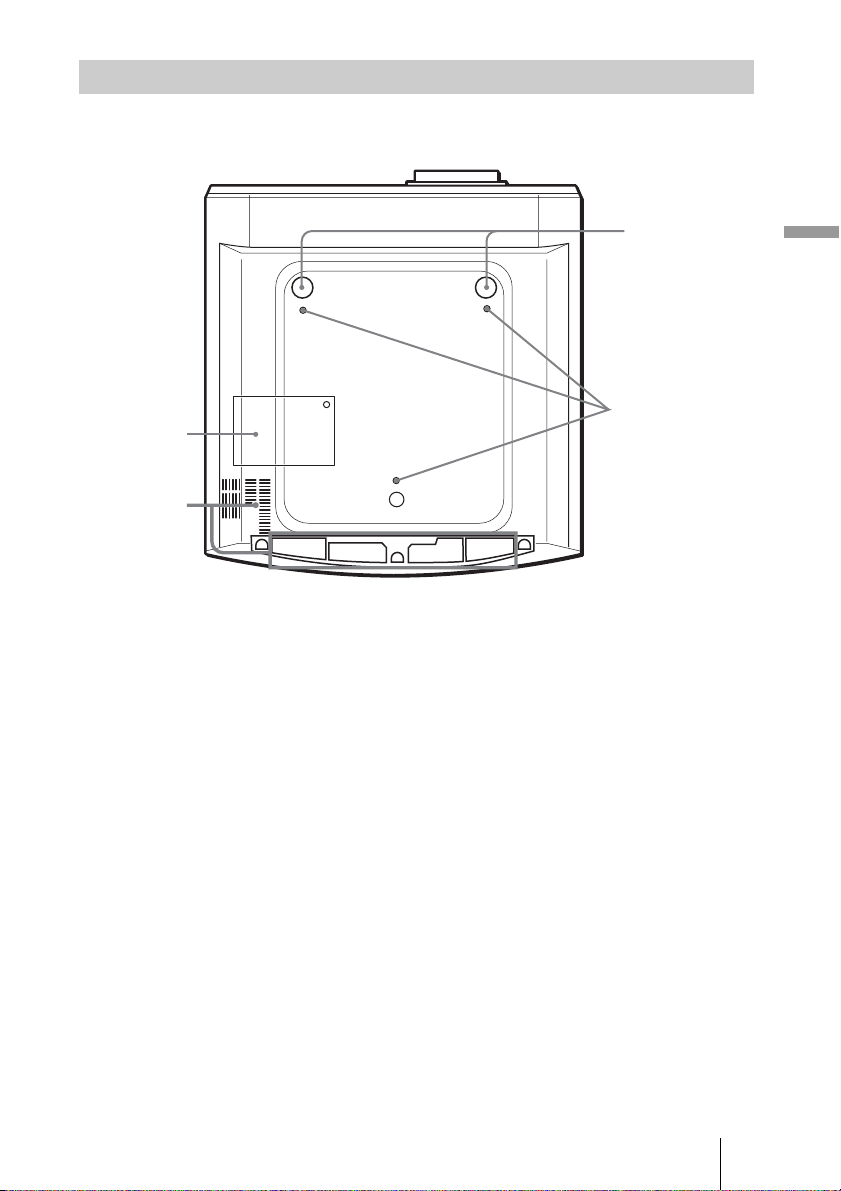
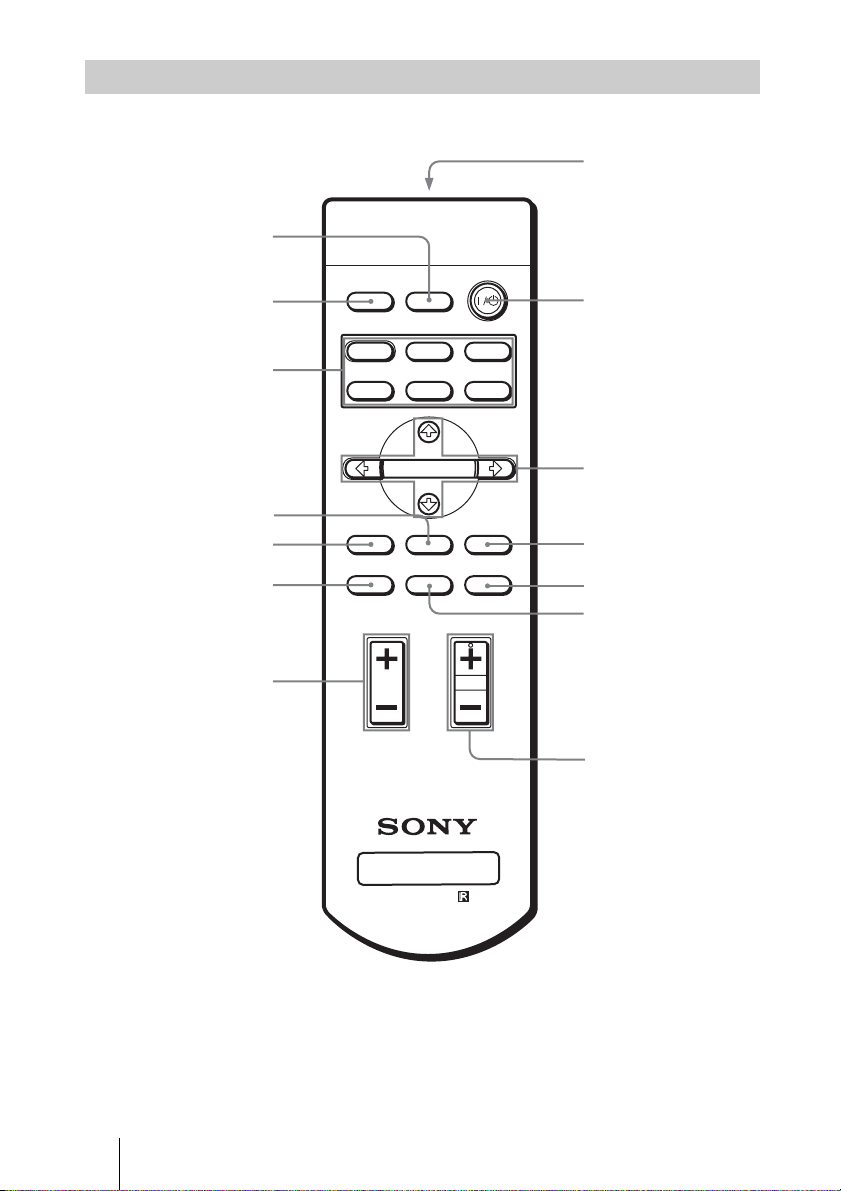
64 Location of Controls
Remote Control
INPUTLIGHT
STANDARD
CINEMA
DYNAMIC
USER 2
PICTURE MODE
REAL COLOR PROCESSING
USER 3USER 1
ADJ PIC
MENUAPA
RCP
BRIGHT CONTRAST
RESET
WIDE MODE
ENTER
RM-PJHS50
PROJECTOR
Infrared transmitter
I/1 (on/standby) switch
(1 page 18)
MENU button
(1 page 21)
M/m/</,(arrow)/
ENTER buttons (1
page 22)
RESET button
(1 page 36)
RCP button
(1 page 32)
CONTRAST +/–
button (1 page 31)
BRIGHT +/– button
(1 page 31)
INPUT button
(1 page 24)
LIGHT button
Illuminates the buttons
on the remote control.
PICTURE
MODE buttons
(1 page 29)
ADJ PIC button
(1 page 30)
APA button
(1 page 45)
WIDE MODE button
(1 page 26)

65Index
Other
Index
A
Adjust Picture ..........................................37
Adjust Signal ...........................................40
Adjuster ...................................................20
Adjusting
picture quality ......................................30
Picture Quality of a Signal from the
Computer .....................................45
picture size and position ......................17
picture size/position .............................17
picture size/shift ...................................40
picture using Real Color Processing ....32
zoom ....................................................24
Air Filter ..................................................50
Auto Input Search ....................................41
B
Background .............................................42
Black Level Adj ......................................38
Brightness ................................................37
C
Ceiling Installation ..................................58
Cinema Black Pro ....................................38
Color ........................................................37
Color System ...........................................43
Color Temp. ............................................38
Connecting
Computer .............................................16
DVD Player/Recorder or Digital
Tuner ............................................13
Video Equipment .................................15
Contrast ...................................................37
D
DDE .........................................................38
Dot Phase .................................................40
F
fH ..........................................................44
Function menu .........................................41
fV ..........................................................44
G
Gamma Correction ..................................38
H
H Size ...................................................... 40
HDMI output .......................................... 14
High Altitude Mode ................................ 42
Hue .......................................................... 37
I
Illumination ............................................. 42
Image Flip ............................................... 42
Information menu ................................... 44
Input-A Signal Sel. ................................. 43
Installation menu .................................... 42
Installing the Projector and
a Screen ..................................... 10, 58
L
Lamp Timer ............................................ 44
Language ................................................. 43
Lens shift feature .................................... 18
Location of Controls
Bottom ................................................. 63
Front .................................................... 61
Rear ..................................................... 62
M
Menu
clearing ................................................ 36
Function menu .................................... 41
Information menu ................................ 44
Installation menu ................................. 42
picture ................................................. 37
Setup menu .......................................... 43
Signal menu ........................................ 40
Using the menu ................................... 34
Messages
Caution ................................................ 48
Warning ............................................... 48
P
Picture menu ........................................... 37
Picture Mode
CINEMA ............................................. 29
DYNAMIC ......................................... 29
STANDARD ....................................... 29
USER 1, 2 and 3 .................................. 29
Power Saving .......................................... 41
Precautions ................................................ 6
Preset Signals .......................................... 56
Projection ................................................ 23

66 Index
R
Real Color Processing ....................... 32, 39
Remote control
inserting the batteries ............................ 7
location of controls .............................. 64
Replacing the Lamp ................................49
Reset
resettable items ....................................36
resetting the items ............................... 36
S
Selecting the menu language .................. 21
Setup menu .............................................. 43
Sharpness ................................................ 37
Shift ......................................................... 40
Signal menu ............................................40
Smart APA .............................................. 41
Standby Mode ......................................... 41
Status ....................................................... 43
Supplied accessories ................................. 7
T
Title Area ................................................ 40
Troubleshooting ......................................46
V
V Keystone .............................................. 42
V Position ................................................ 40
Ventilation holes ....................................... 9
W
Warning Indicators ..................................47
WIDE MODE ......................................... 26
Wide Mode ........................................ 26, 40


S
ony Corporation
Printed in Japan
Printed on 100% recycled paper.
Power consumption in standby is 0.5 W.
Lead-free solder is used for soldering.
Halogenated flame retardants are not used in cabinets and printed wiring boards.
Polystyrene foam for the packaging cushions is not used in packaging.
100% recycled paper is used for the carton.