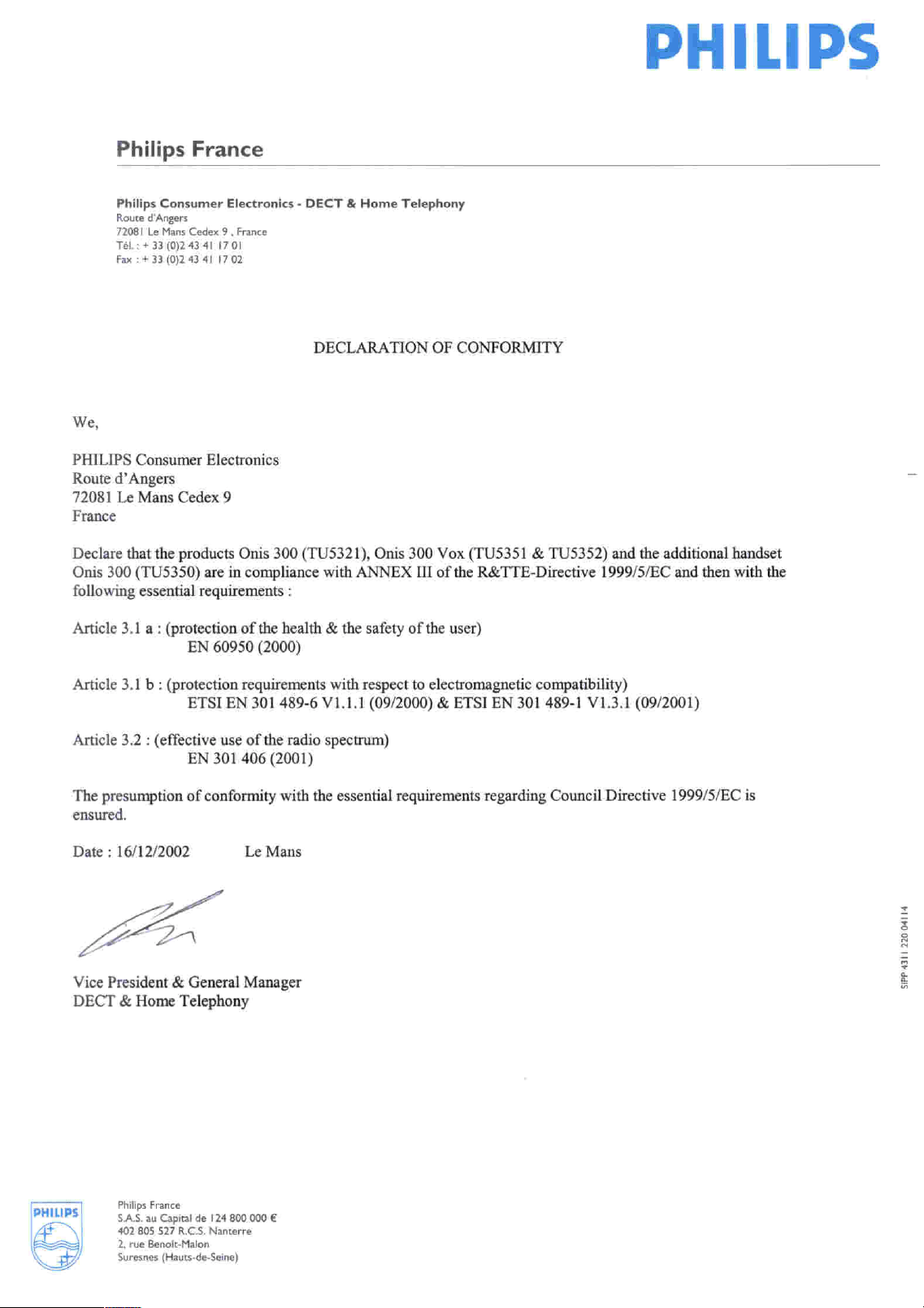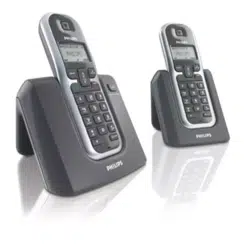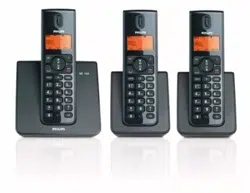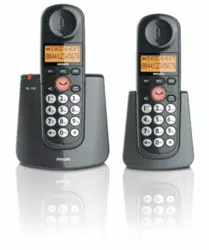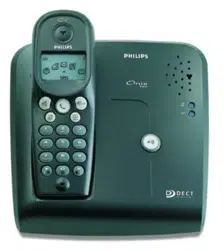

Onis 300
Onis 300 Vox
Onis 300 Duo Vox
Charge handset(s)
for 24 hours before use.
This equipment is not designed for making
emergency telephone calls when the power fails.
!
Intercom
Call all p.19
Handset list p.19
Base
Sounds
Ringer type p.27
Record a personal melody p.27
Ringer volume p.27
Music on hold p.27
Registration p.27
Line settings
Dial mode* p.28
Network p.28
Recall type* p.28
Operator type* p.28
First ring p.28
Service codes settings p.28
Phonebook
View p.21
Add new p.20
Network
Cheapest rates fct p.23
Operator Services p.24
SMS
Send SMS p.9
SMS list p.10
SMS settings
SMS mode p. 10
SMS boxes p.10
SMS center p.11
Validity period* p.11
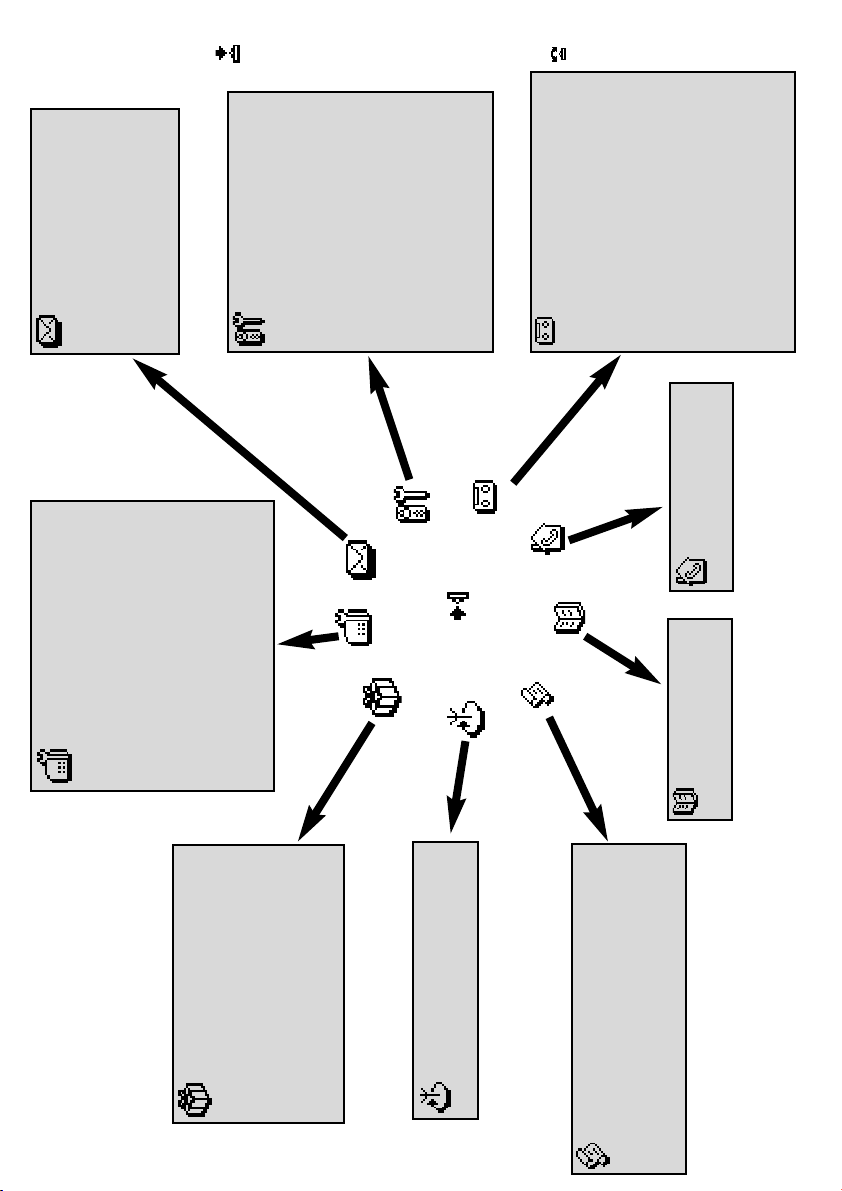
Menu overview
By using the Pilot key on the side of the handset you can scroll through the menus.
Handset
Sounds
Ringer type p.11
Ringer volume p.12
Earpiece tone p.12
Key & feedback tones p.12
Notification beep p.12
Babysit mode p.12
Registration
Register handset p.12
Un-register handset p.13
Rename handset p.13
Change languages* p.13
Date & time p.14
Display contrast p.14
Call log
View P.22
Delete all p.23
Settings
Incoming calls p.23
Outgoing calls p.23
Extra
VIP melody function p 25
Call cost & duration*
View total p.25
Unit cost p.25
Alarm clock
Activation p.25
Settings p.26
Do Not Disturb mode p.26
Answer machine (Onis 300 Vox)
Saved messages
Listening to messages p.15
Deleting messages p.15
Record memo p.18
Outgoing messages
Answer mode p.16
Record personal message p.16
Settings
Answer mode (ON/OFF) p.15
Rings before answer p.16
Voice prompts p.16
Call screening p.17
Recording quality p.17
Remote control p.17
* Country dependent
Menu
Onis 300 manual_Retail_UK_Indice2.qxd 07/01/03 14:08 Page 2
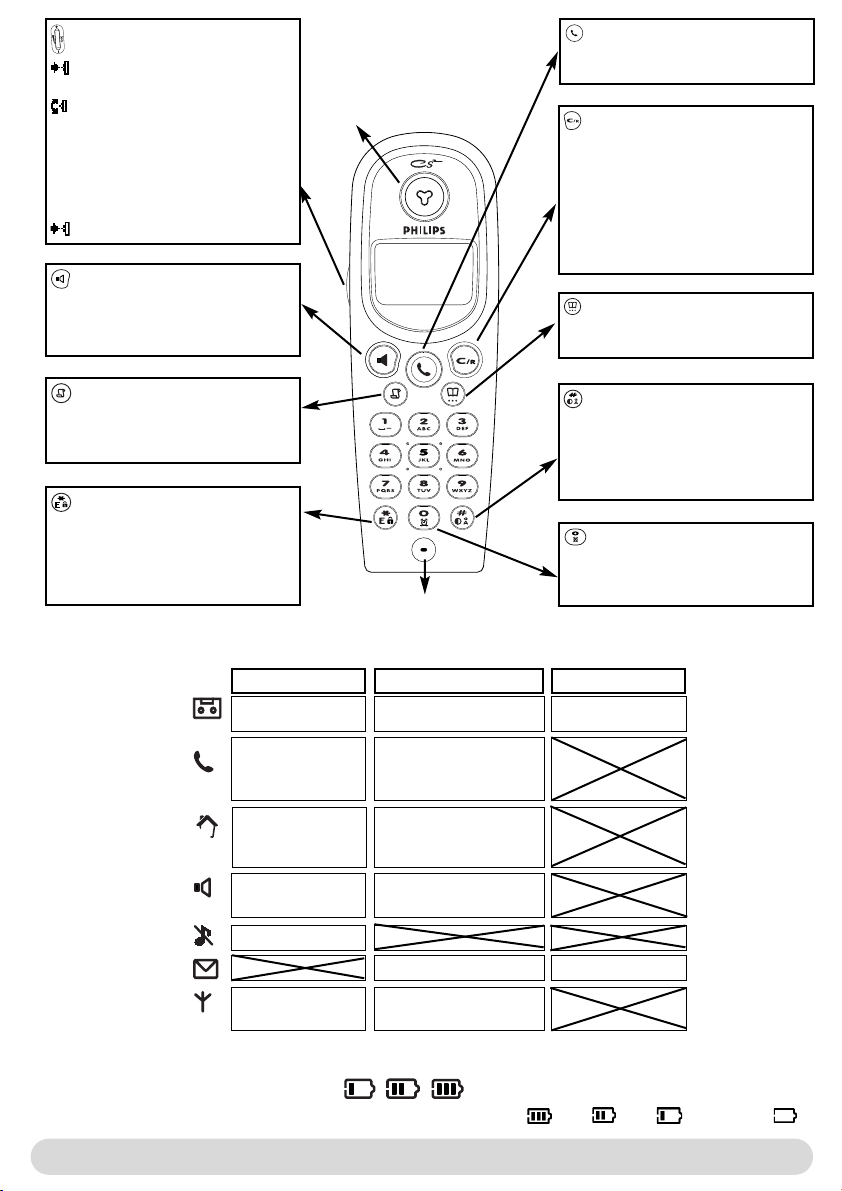
Onis 300 handset
1
Icons
Answer machine ON
(Onis 300 Vox)
Line key
Press to take the line, answer a call or
hang up
Correct key
- To correct a digit when predialling or a
character when editing
- A short press to go back one menu when
navigating
- A long press to return to idle mode
when navigating
- To insert R for operator services when
on line
Phonebook
- A short press to access the phonebook
- A long press to add a new entry
Call log
- A short press to access the call log
- A long press to directly access the vocal
messages list (Onis 300 Vox)
Keypad lock & Editing
- A short press to insert *
- A long press to lock/unlock the keypad in
idle mode
- A long press to enter multitap or Eatoni
®
editor when entering text
Alarm clock
- A short press to dial 0
- A long press to activate/deactivate the
alarm clock
Do Not Disturb & case mode
- A short press to insert # (pause) when
dialling
- A long press to activate/deactivate the
Do Not Disturb mode
- Press to switch case mode when editing
Pilot key
Press to enter the carousel or validate
a menu or an option
- Scroll to navigate in the menus &
options
- Move the cursor left/right
- Scroll up to reach Intercom from
idle mode
- Scroll down to reach Cheapest
rates prefix from idle mode
A long press to unlock the keypad
External call in
progress
Internal call in
progress
Handset loudspeaker
ON
Ringer deactivated
Registered & in range
of the base
Answer machine full
New message on answering
machine or voice mailbox
- Incoming external call in
progress
- Line is already busy
Internal incoming call
Base loudspeaker ON
(Onis 300 Vox)
New SMS
Not registered
Blinking
SMS memory full
Fast blinkingSteady ON
The battery symbol
When charging, the battery bars scroll :
When the handset discharges, the battery shows the status : Full , 2/3 , 1/3 and empty .
Loudspeaker
- A short press to take the line or activate
the handset loudspeaker during a call
- A long press to activate the base
loudspeaker during a call (Onis 300 Vox)
Microphone
Earpiece
Onis 300
Handset
Onis 300 manual_Retail_UK_Indice2.qxd 07/01/03 14:08 Page 1
Base stations
2
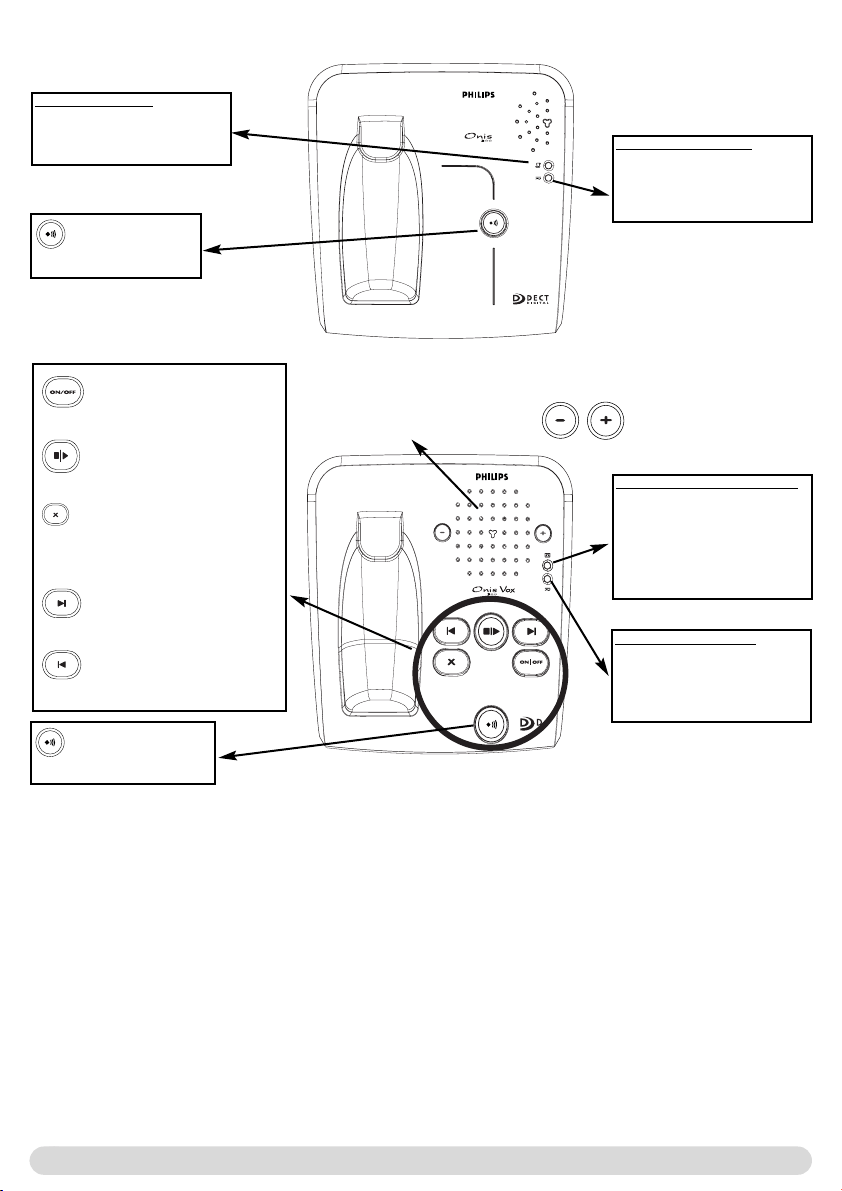
Onis 300 Base station
Event indicator (red)
Blinking : New events
(new SMS, missed calls etc...)
Fast blinking : SMS Memory full
Answer machine indicator (red)
ON : Answer machine activated
OFF : Answer machine
deactivated
Blinking : New messages
Fast blinking : Answer machine
memory full
Using GAP standard compliance
The GAP standard guarantees that all DECT
TM
GAP handsets and base stations comply with a minimum
operating standard irrespective of their make.Your Onis 300 handset and base station are GAP
compliant, which means the minimum guaranteed functions are : register a handset, take the line, receive a
call and dial.The advanced features may not be available if you use another handset than an Onis 300 with
your base station.
To register and use your Onis 300 handset with a GAP standard base station of a different make, first
follow the procedure described in the manufacturers instructions, then follow the procedure page 12.
To register a handset from another make to the Onis 300 base station, place the base station into
registration mode (page 12), then follow the procedure in the manufacturers instructions.
Register a DECT
TM
peripheral without keypad
Some DECT
TM
peripherals, such as repeaters, do not have a keypad. A special menu-operated procedure is
used to register such peripherals with the base station without the need to disconnect the base station.
See page 27 and use the peripheral instructions to register it to the base station.
Paging key
Press to locate all handsets
Paging key
Press to locate all handsets
Loudspeaker
Delete key
Press to delete current message
Long press to delete all the messages
(except unread ones)
Onis 300 Vox Base station
Power indicator (green)
ON : System correctly
connected to the mains
OFF : System not powered
Blinking : the line is busy
ON/OFF key
Press to switch answer machine ON/OFF
Power indicator (Green)
ON : System correctly
connected to the mains
OFF : System not powered
Blinking : the line is busy
Play/Stop key
Press to listen to the new messages
Next key
Press to listen to the next messages
Previous key
Press to listen to the previous messages
Base loudspeaker volume keys
Answer machine control keys
Onis 300 manual_Retail_UK_Indice2.qxd 07/01/03 14:09 Page 2

Table of contents
3
Onis 300 handset 1
Icons 1
Base stations Onis 300 & Onis 300 Vox 2
GAP Standard 2
Table of contents 3
Conformity, Environment and Safety 4
Installing the base station 4
Installing and replacing the batteries 4
Battery life and range 4
Introduction
Screen in idle mode 5
Understanding the menu system 5
How to navigate in the menus 5
Calling/answering a call/other principles 6
In-call features 7
Editing systems 8
Sending SMS
Sending SMS 9
Reading the private SMS 10
SMS settings 10-11
Handset
Setting the standard ringer type 11
Setting the ringer volume 12
Setting the earpiece tone 12
Setting the key & feedback tones 12
Setting the notification beep 12
Babysit mode 12
Registering/unregistering an additional handset 12-13
Using Onis 300 handset with several base stations 13
Renaming the handset 13
Changing the language 13
Setting the date and time 14
Setting the display contrast 14
Using the answer machine (Onis 300 Vox)
Setting the answer machine ON/OFF 14-15
Listening to your messages 15
Deleting messages 15
Selecting the answer mode and the outgoing message type 15-16
Recording your personal outgoing message 16
Setting the number of rings before answer 16
Setting the voice prompts 16
Setting the call screening 17
Setting the recording quality 17
Activating the remote control 17
Using the remote control 17-18
Changing remote control code 18
Recording a local message (memo) 18
Using the intercom
Making internal calls/activating babysit mode 19
Transfering a call 19
Using conference call 19
Using the phonebook
VIP settings 20
Adding a name 20
Calling from phonebook 20
Viewing the phonebook 20-21
Using the call log
Viewing the call log 22
Deleting the call log 23
Setting the call log 23
Network
Using the cheapest rates function 23
Using the operator services 24
Using the extra features
Setting the VIP ringer type 25
Setting the call cost & duration 25
Setting the alarm clock 25
Setting the Do Not Disturb mode 26
Base
Setting the standard ringer type 27
Record a personal melody 27
Setting the ringer volume 27
Setting music on hold 27
Registration 27
Setting the line 28
Setting the service codes 28
Troubleshooting
Index
Table of contents
Philips has marked the battery and packaging with standard symbols designed to promote the recycling and appropriate
disposal of your eventual waste.
A financial contribution has been paid to the associated national recovery & recycling system.
The labelled packaging material is recyclable.
DECT
TM
is a Trade Mark of ETSI registered for the benefit of the implementers of the DECT technology.
Onis 300 manual_Retail_UK_Indice2.qxd 07/01/03 14:09 Page 3
!
The battery life is about 250 hours in stand by time (when the handset is in idle mode & ready to receive
a call) and around 16 hours in communication. A battery low alert will inform you that the handset has
to be recharged, if this is during a call, the call will end shortly after the alert.
Optimal battery life is reached after 3 cycles of full charge/discharge.
Under ideal conditions the range is a maximum of 50 metres indoors and 300 metres outdoors.When
reaching the range limit, the conversation will become crackly, move closer to the base station otherwise
the call will be cut off.To reach optimal range place the base station away from electrical appliances.
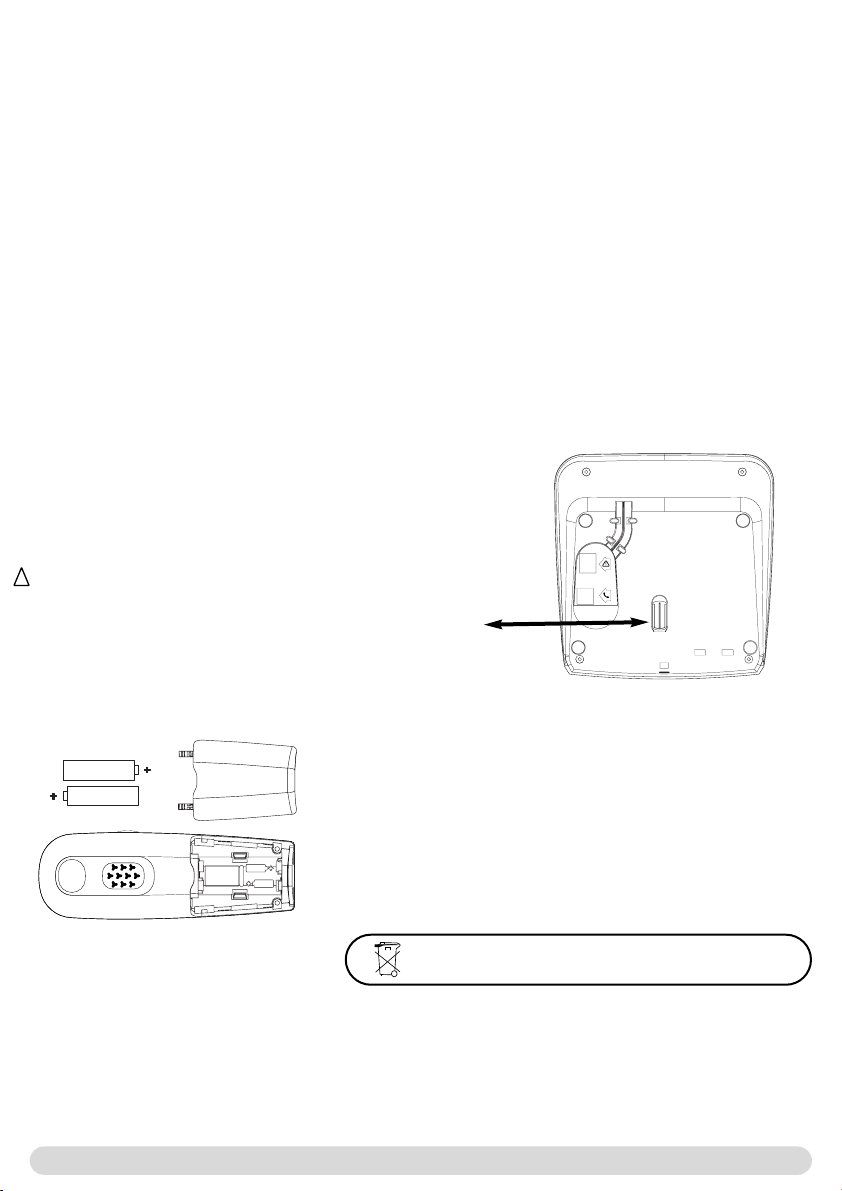
To insert the batteries, open the battery cover, place the
batteries as indicated and put the battery cover back.When
the handset is placed on the base station the 3 battery bars
scroll (if charge is needed).Allow the handset to charge for 24
hours to reach full charge. On first use it may be necessary to
wait for a few minutes before seeing symbols on the display.
In case you need to change the batteries, the following type is
mandatory R03/AAA NiMh 600/650 mAh.
Warning :The base station must always be plugged into the mains
when charging. Always use rechargeable batteries.
Conformity, Environment & Safety
4
Installing the base station
To properly install the base station, plug the line cord and the
power cable into the base station. Plug the cord and the cable
into the wall.The green indicator on the base station and a beep
indicate that the phone is properly installed.
Warning : Always use the cables provided with the product.
Installing and replacing the batteries
Conformity, Environment and Safety
Safety information :This equipment is not designed to make emergency calls when the power fails.An
alternative has to be made available to allow emergency calls.
Conformity : See back cover page. In case you need a copy of the original certificate please contact the
customer service centre.This product can only be connected to the analogue telephone network in the
area which is indicated on the label placed on the packaging.
Power requirements : This product requires an electrical supply of 220-240 volts, alternating
monophased power, excluding IT installations defined in standard EN 60-950.
Warning ! The electrical network is classified as dangerous according to criteria in the standard EN 60-
950.The only way to power down this product is to unplug the power supply from the electrical outlet.
Ensure the electrical outlet is located close to the apparatus and is always easily accessible.
Telephone connection : The voltage on the network is classified as TNV-3 (Telecommunication
Network Voltages, as defined in the standard EN 60-950).
Safety precautions : Do not allow the handset to come into contact with water. Do not open the
handset or the base station.You could be exposed to high voltages. Do not allow the charging contacts or
the battery to come into contact with conductive materials. (1).
Environmental care : Please remember to observe the local regulations regarding the disposal of your
packaging materials, exhausted batteries and old phone and where possible promote their recycling.
(1) Do not insert anything in this opening.
Battery life and range
Batteries should not be disposed of with general household waste.
Onis 300 manual_Retail_UK_Indice2.qxd 07/01/03 14:09 Page 4
Introduction
5
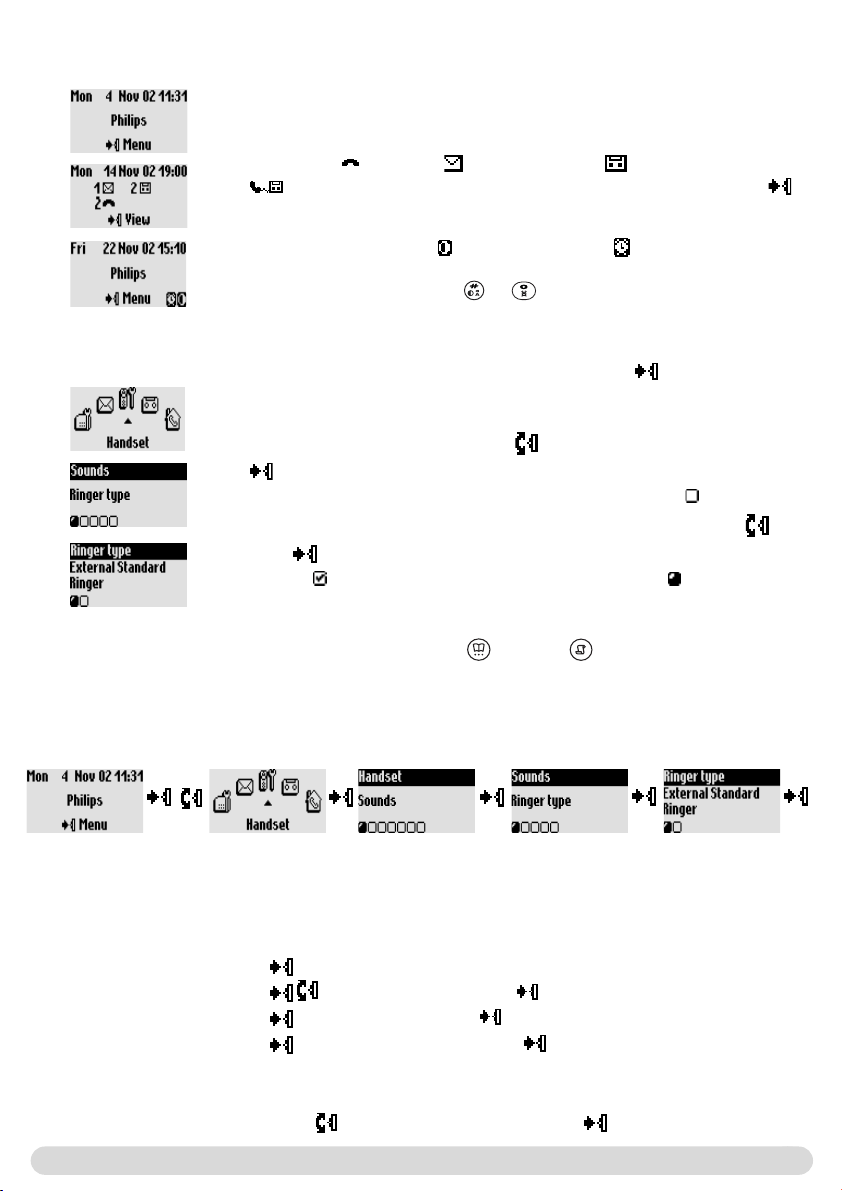
Understanding the menu system
To access the carousel menu from idle screen press on the side of the
handset.
The carousel represents a loop of icons that gives access to the different
first level menus. Scroll up or down to reach the desired menu. Press
to validate.
The sub menus are listed and represented by little squares at the bottom
of the display.To reach one particular sub-menu use the pilot key and
press to validate your choice.
A tick shows the selected sub-menu or option.The shows the
option you are browsing.
Note : Certain menus are also directly accessible via a dedicated key on the
keypad (example Phonebook , Call log ).
The screen in idle mode
In idle mode, the Onis 300 display shows different information :
In normal idle mode the display shows the date & time, the name of the
handset and the instruction to access the menu.
Example of navigation in the menus
To reach the ringer type menu
These steps are described as follows in this manual :
To change the ringer type
1- (Press) to enter the carousel menu
2- (Go to) Handset, press (validate)
3- (Select) Sounds, press (validate)
4- (Select) Ringer type, press (validate)
5- The first option of the ringer type sub-menu is displayed External
Standard ringer
6- Scroll to change sub-menu or validate to see the list of melodies
Press to see
the list of
melodies
& listen
Scroll
up or down
Press to
select
Press to
select
Press
to select
Press to
select
Do Not Disturb mode , and the alarm clock , if activated, are also
displayed on the idle screen.
To modify these settings use & on the keypad.
Missed calls , new SMS or new messages (answer machine) or
(voice mailbox), if any, are displayed in idle mode.The pilot key
on the side of the handset gives access to the corresponding menu.
Onis 300 manual_Retail_UK_Indice2.qxd 07/01/03 14:09 Page 5
Calling/answering a call/other principles
6
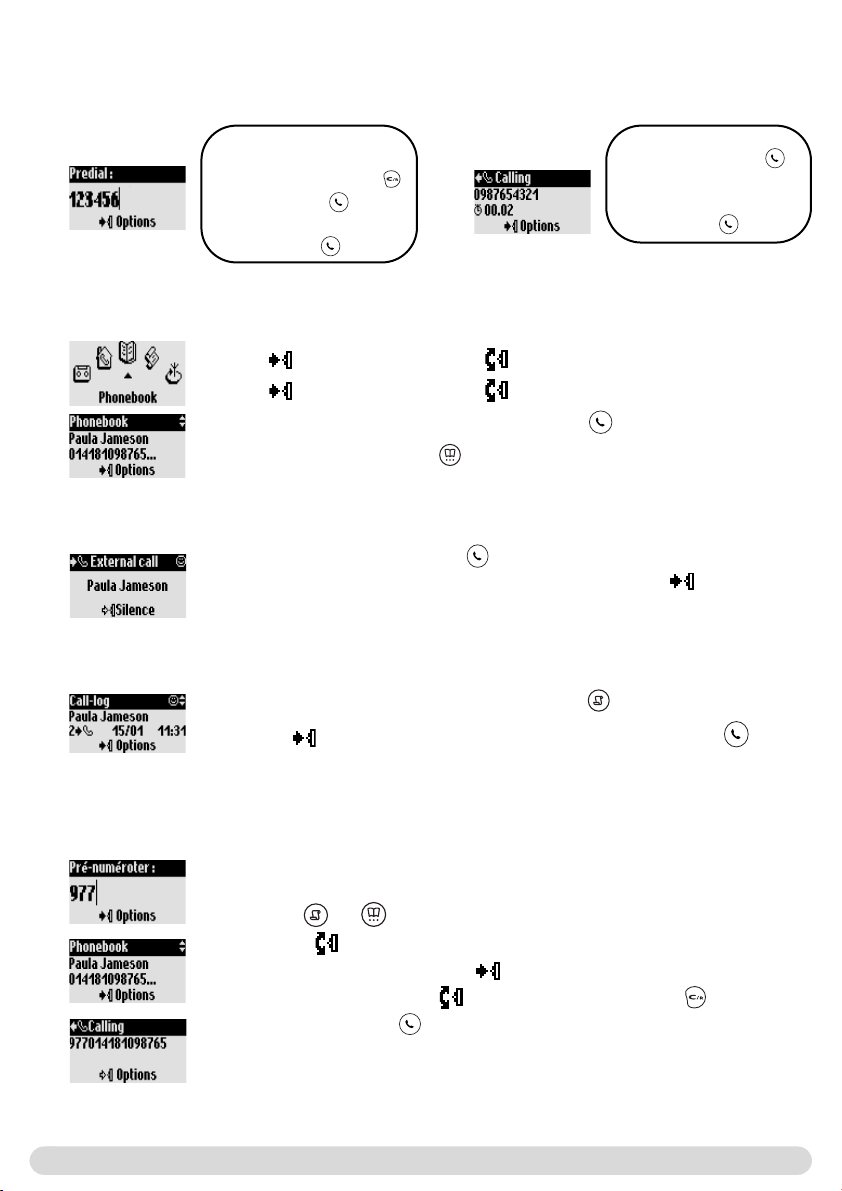
Basic principles
To redial a number through the call log, press and select from the list.
Press to enter the options and select Call or directly press
Pre-dialling
1- Dial from keypad
To correct a digit use
2- Make the call
Talk to the other party
3- Hang up
Direct dialling
1- Connect the line
2- Dial from the keypad
Talk to the other party
3- Hang up
Making a call
When the phone rings, press to answer the call.
To stop the phone from ringing without answering, press to select
Silence
You can chain dial 2 numbers. (One predialled and the other one from the
phonebook or the call log, or both from the phonebook).
1- Predial the number (for example, operator prefix)
2- Use or to open the call log or the phonebook
3- Scroll through the list
4- Select an entry and validate
You can move the cursor , erase or change a digit with
5- Connect the line
Note : It is possible to chain dial in direct dialling mode.You can also
retrieve numbers from the SMS list or the Cheapest Rates menu.
1- to enter carousel 2- to reach the phonebook menu
3- to select the menu, 4- to reach the name
5- Select Call in the options or make the call
Note :You can also press to directly reach the phonebook
To chain dial (predial mode)
Calling from the call log (Redial or call back last caller)
Answering/ending a call
Calling from phonebook
Onis 300 manual_Retail_UK_Indice2.qxd 07/01/03 14:09 Page 6
In-call features
7
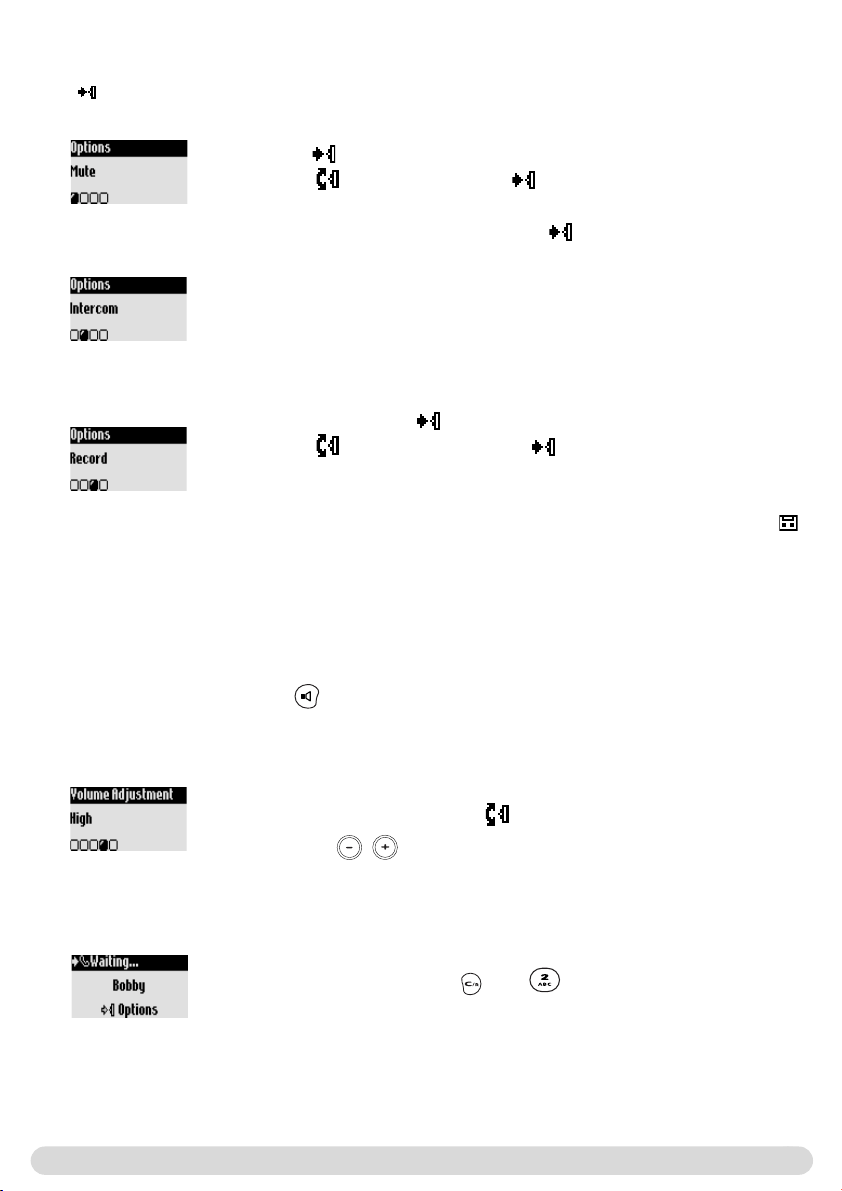
To switch the loudspeaker ON/OFF
Press to activate/deactivate the louspeaker on the handset.
A long press activates the base loudspeaker (Onis 300 Vox).
In-call features
During an external call you can access additional features available in the in-call options.
Press to enter the Options.
Intercom (if there are several Onis 300 handsets)
During a call, you can put a call on hold, transfer an external call or share
the conversation on conference call : 1 external caller + 2 internal callers
(See page 19).
To record a conversation (Onis 300 Vox)
1- While on line press
2- Scroll to Record and validate
The call is recorded for a maximum of 6 minutes on the answer machine.
To continue recording resume from step 1 above.
To listen to the conversation use the Call log menu or the messages list ( ).
Warning : Recording a conversation may be illegal.We advise you to inform the
person you are calling.
To mute the handset microphone
1- Press
2- Scroll to Mute and validate
The caller can no longer hear you.
To resume the conversation press again to Unmute.
To increase/decrease the handset earpiece or loudspeaker volume
during a call
Scroll the pilot key up or down on the side of the handset.
Or use the keys on the base station.
During an internal call other in-call features are available, such as Switch and End intercom.
If you subscribe to that service, a beep in the earpiece informs you of a
second incoming call.The name or the number of the second caller may be
displayed if you also subscribe to the Caller Line Identification service.To
answer that second call, use then (according to your network, the
code may be different). Please contact your network provider for more
details.
CLI/Call waiting
Onis 300 manual_Retail_UK_Indice2.qxd 07/01/03 14:09 Page 7
Editing systems
Editing systems
8
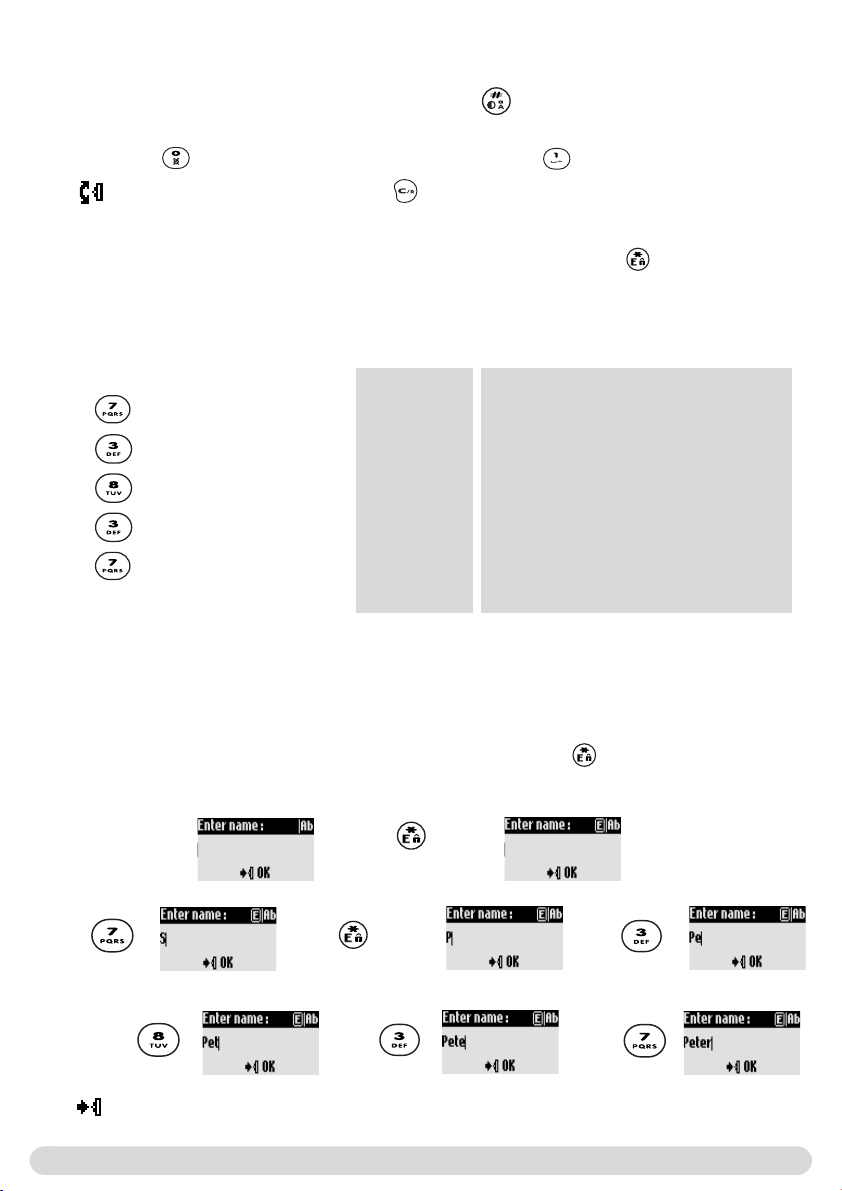
Multi-tap Sequence
[space] 1 @ _ # = < > ( ) & ¤ £ $ ¥
a b c 2 à ä ç æ å
d e f 3 è é ) N
g h i 4 ì G
j k l 5 7
m n o 6 ñ ò ö
p q r s 7 ß A 2 E
t u v 8 ù ü
w x y z 9 f S X Q
. 0 , / : ; " ' ! ¡ ? ¿ * + - %
The Eatoni
®
system is a new predictive editing system designed to help you write an SMS.
A little E in the header helps you know the mode you are using.
Eatoni
®
is a word editor that chooses the most probable letter.
The operation of the Eatoni
®
system is the following :
Press the key that displays the character you want to edit.The character that is most likely to be correct
is displayed on the screen. If it does not match the expected letter, press to display the next most
probable character available on the key.
Keypad Keys
1
2
3
4
5
6
7
8
9
0
To write Peter with multi-tap
Press once : P
Press twice : Pe
Press once : Pet
Press twice : Pete
Press three times : Peter
To write Peter
with Eatoni
®
Capitalisation
By default, the first letter of a sentence is in upper case. Use to change the case mode : all
characters in upper case (AB) or all letters in lower case (ab). Punctuation and mathematical marks are
available through while other special characters are available on .
Scroll to move the cursor left or right. Press to delete a character ; a long press deletes the
whole text.
Press to
change character
Press to
activate Eatoni
®
Press to validate the name.
The standard multi-tap system allows you to enter the text character by character, pressing the
corresponding key as many times as necessary to reach the desired character.
Press
Press
Press
Press
Press
Onis 300 uses two editing systems : Multi-tap and Eatoni
®
. Make a long press on to switch between
both systems. Lets compare both systems to write Peter.
Eatoni
®
& LetterWise are trademarks of Eatoni Ergonimics, Inc. and
used by Philips under license.
Onis 300 manual_Retail_UK_Indice2.qxd 07/01/03 14:09 Page 8
SMS (Text messages)
Sending SMS
Private List
SMS settings
SMS stands for Short Message Service. SMS are short text messages sent/received via the network.
To benefit from this service you must subscribe to the Caller Line Identification Service (CLI) together
with the SMS service from your network provider.
SMS can be exchanged with a phone (mobile or compatible fixed lines), a fax or an E-mail (country
dependent), provided the receiver has also subscribed to the CLI & SMS services.
Your Onis 300 factory settings correspond to the main national operator. If
you wish to send or receive SMS through another operator you must set the
corresponding numbers (See page 11).
You have the possibility of opening 3 SMS boxes. One shared & two private for confidentiality for
example.
A password can protect your SMS box, but it is not compulsory.
To send SMS to the receivers own SMS box, you must know his destination box.
The delivery report may be charged. It is deactivated by default, activate it when you send an SMS.
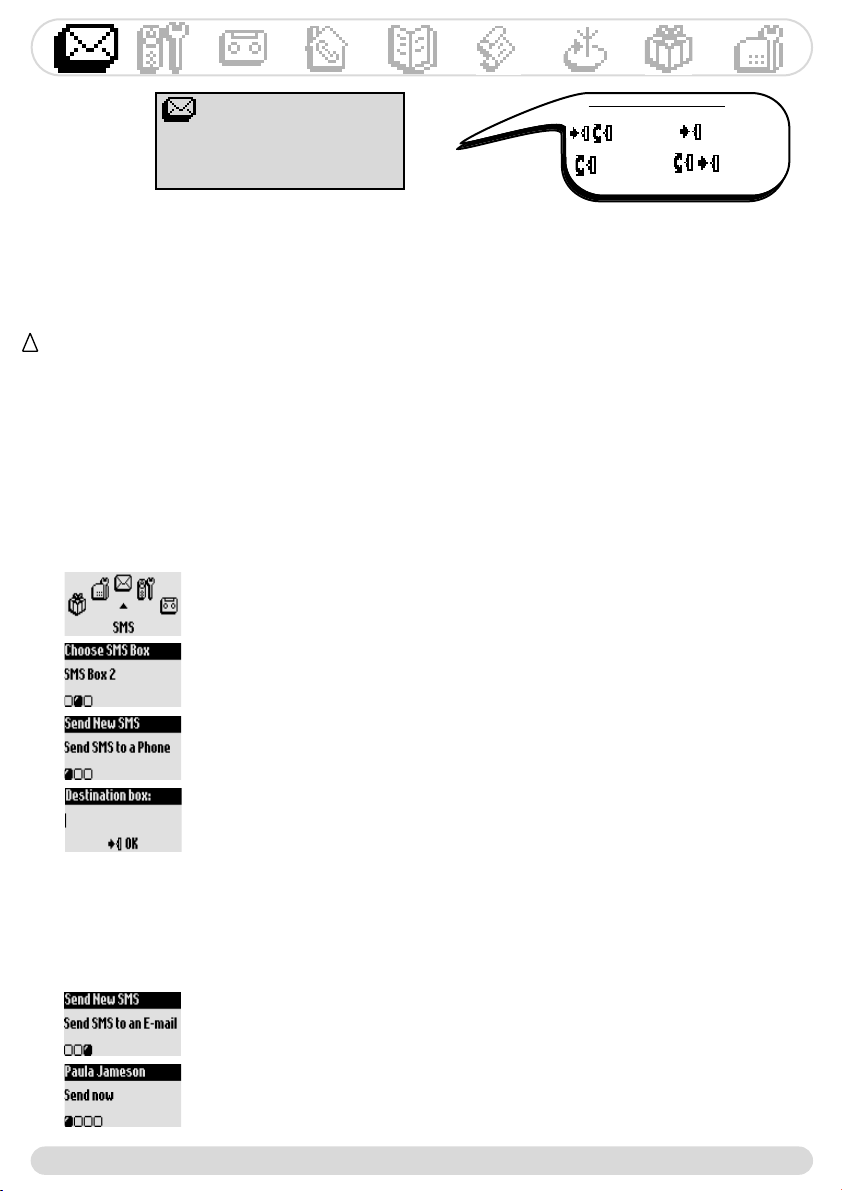
Sending new SMS
To send an SMS to a phone
1- Go to SMS, validate
2- Select Send new SMS, validate
3- Choose your SMS box & enter the password (if you created several SMS
boxes), validate
4- Select Send SMS to a phone, validate
5- Dial the number (you can use the call log or the phonebook), validate
6- Enter the destination box (of the receiver, if prompted to), validate
7- Input the text (see page 8)
8- Scroll to Delivery report to activate it if necessary, validate
9- Select Send Now, validate
An SMS can be sent or stored.
Navigation reminder :
(Go to) (Validate)
(Scroll to) (Select)
SMS
9
The sent SMS can be up to a maximum of 160 characters long (E-mail address included).
The special character
¤ counts for 2.
Onis 300 can store up to 50 SMS (depending on the length of the text), for the 3 boxes.
!
To send an SMS to an e-mail address (Country dependent)
Resume from step 1-3 above
4- Scroll to Send SMS to an E-Mail, validate
5- Enter the e-mail address, validate
6- Input the text (see page 8)
7- Select Send Now, validate
Note :The Delivery report option is country dependent.
Onis 300 manual_Retail_UK_Indice2.qxd 07/01/03 14:09 Page 9
SMS
10
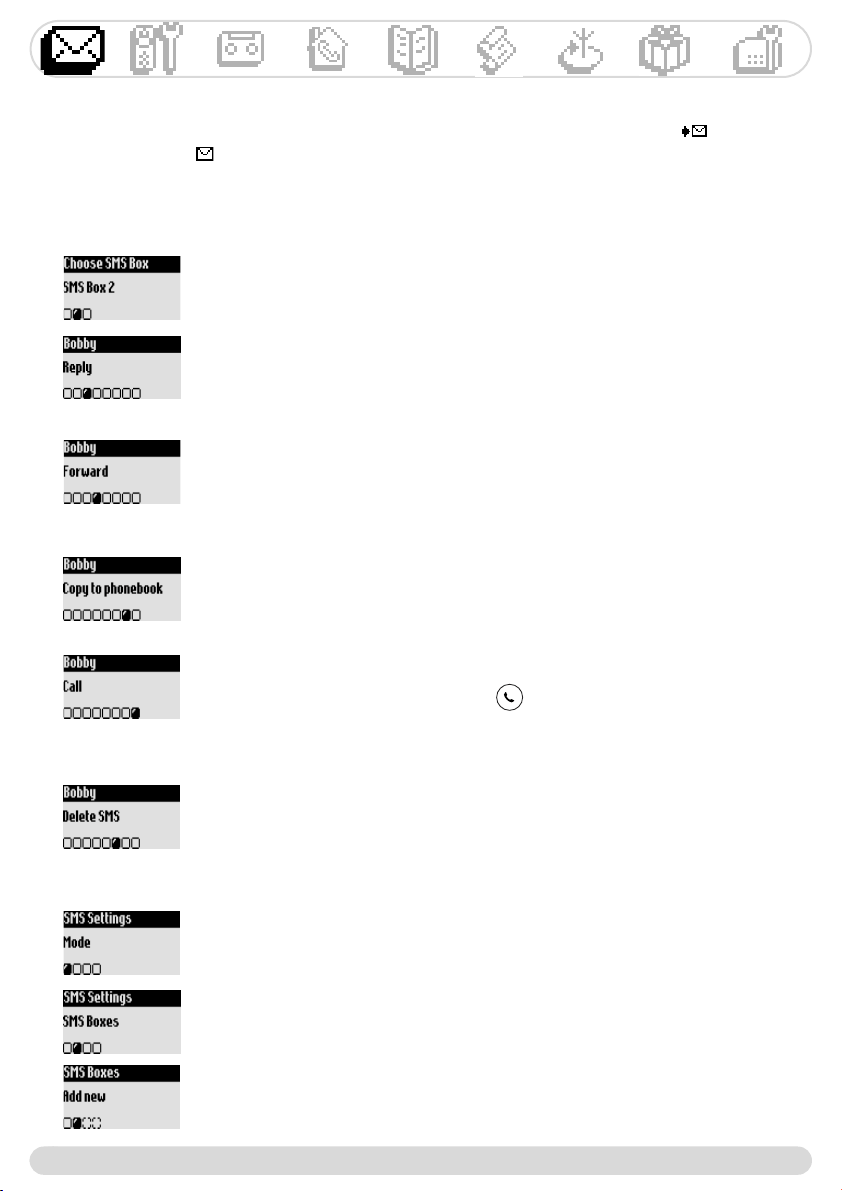
To forward an SMS
Resume from step 1-4 above
5- Scroll to Forward, validate
6- Dial the number, validate
Follow instructions from step 6 page 9 (Send SMS to a phone)
To reach these options
Resume from steps 1- 4 above
5- Select the appropriate option and validate
Follow the instructions on the screen.
To call from the private SMS list
Resume from step 1-4 above
5- Scroll to Call or connect the line
SMS settings
To copy the phone number to the phonebook
Resume from step 1-4 above
5- Scroll to Copy to phonebook, validate
6- Enter the name, validate
7- The number is automatically stored
Reading the SMS
The SMS list contains the sent, saved and received SMS.The received SMS are shown by and the
saved SMS are shown .
To set the SMS mode
We advise you to deactivate the SMS mode if there is a second telephone
device on your telephone line.
When reading the list of received SMS, some options are only available for SMS sent from a phone.
Those options are Reply, Forward, Copy to phonebook and Call and they use the senders own
sub-address.
Options are commonly available for both SMS sent from a phone and an E-mail.
The options are View SMS, View number, Send again and Delete SMS.
To set your personal SMS box
1- Go to SMS, validate
2- Scroll to SMS Settings, validate
3- Select SMS box, validate
4- Scroll to Add new, validate
5- Enter the SMS box number (between 1 & 9), validate
6- Enter the password twice, validate (password not compulsory)
To reply to a new SMS
1- Go to SMS, validate
2- Scroll to Read SMS, validate
3- Choose your SMS box & enter the password (if you created several SMS
boxes), validate
4- Select the SMS from the list
5- Scroll to Reply, validate
Follow instructions from step 7 page 21 (Send SMS from the phonebook)
Onis 300 manual_Retail_UK_Indice2.qxd 07/01/03 14:09 Page 10
Handset
11
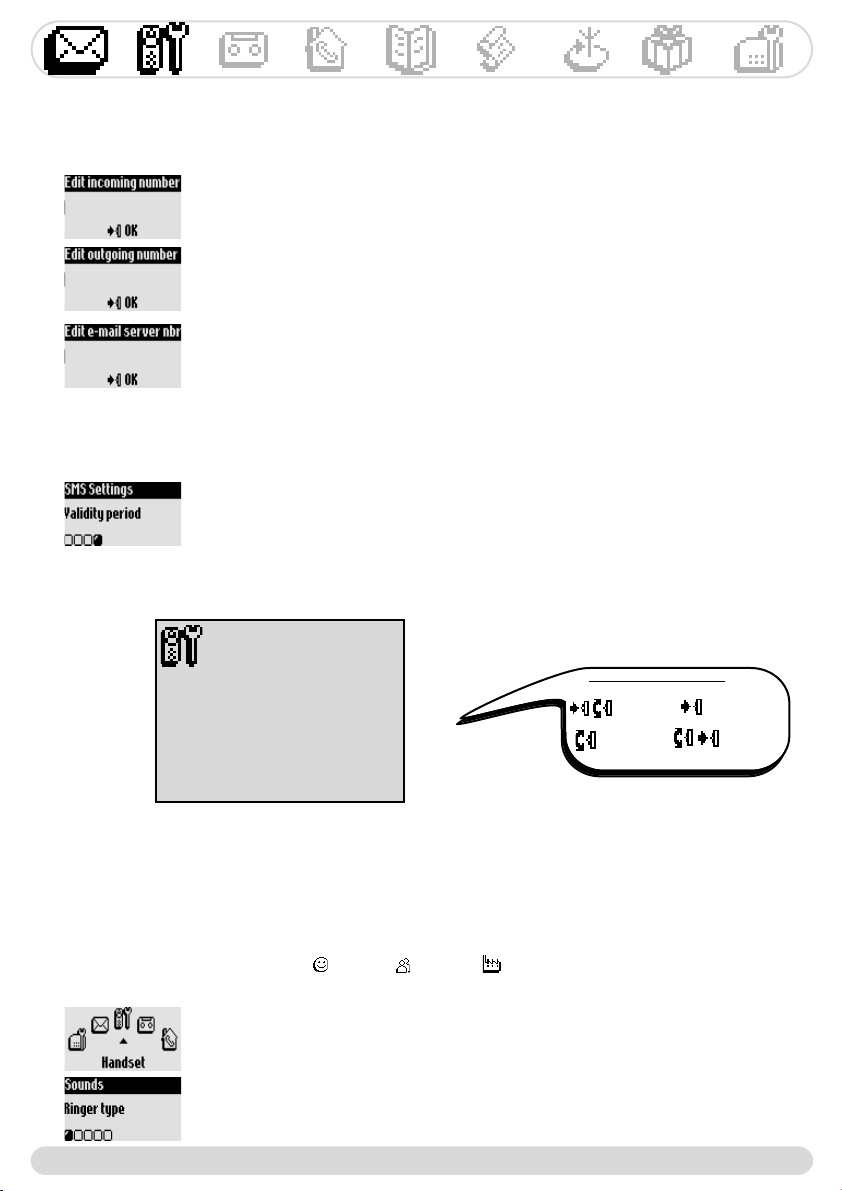
To set the SMS centre number(s)
The SMS are sent through a center.To receive SMS from another operator, you
must set the corresponding numbers.
1- Enter incoming number, validate
2- Enter outgoing number, validate
3- Enter the E-mail server number and E-mail separator(country
dependant)
4- Enter the protocol type (country dependent), validate
Setting the handset sounds
You can set the ringers for :
- The external standard ringer for callers whose number is not stored in the phonebook or stored with
no VIP settings (see page 21).
- The internal ringer for intercom (if there are at least 2 handsets).
To set the 3 VIP ringer types (Friends , Family & Work ) see page 25. Caller Line Identification
service needed. Please, contact your network operator.
To set the ringer on the handset
1- Go to Handset, validate
2- Select Sounds, validate
3- Select Ringer type, validate
4- Choose External Standard ringer/Internal ringer, validate
5- Select the ringer from the list and validate
Handset
Sounds
Babysit mode
Registration
Rename handset
Languages
Date & time
Display contrast
Navigation reminder :
(Go to) (Validate)
(Scroll to) (Select)
The E-mail server number is also called Vanity number.The E-mail separator is
a character that separates the E-mail address from the rest of the SMS text.
The protocol type is network dependent. Contact your network operator for
more details.
To change the password, select an SMS box and choose Change password
If you forgot your password delete the corresponding box. Choose Delete,
confirm your choice and validate
Warning : When an SMS box is deleted, so are the attached SMS.
To set the validity period (country dependent)
You can set the SMS to be valid for a certain period of time
1- Go to SMS, validate
2- Scroll to SMS settings, validate
3- Scroll to Validity period, validate
4- Select the appropriate period and validate
Onis 300 manual_Retail_UK_Indice2.qxd 07/01/03 14:09 Page 11
Handset
12
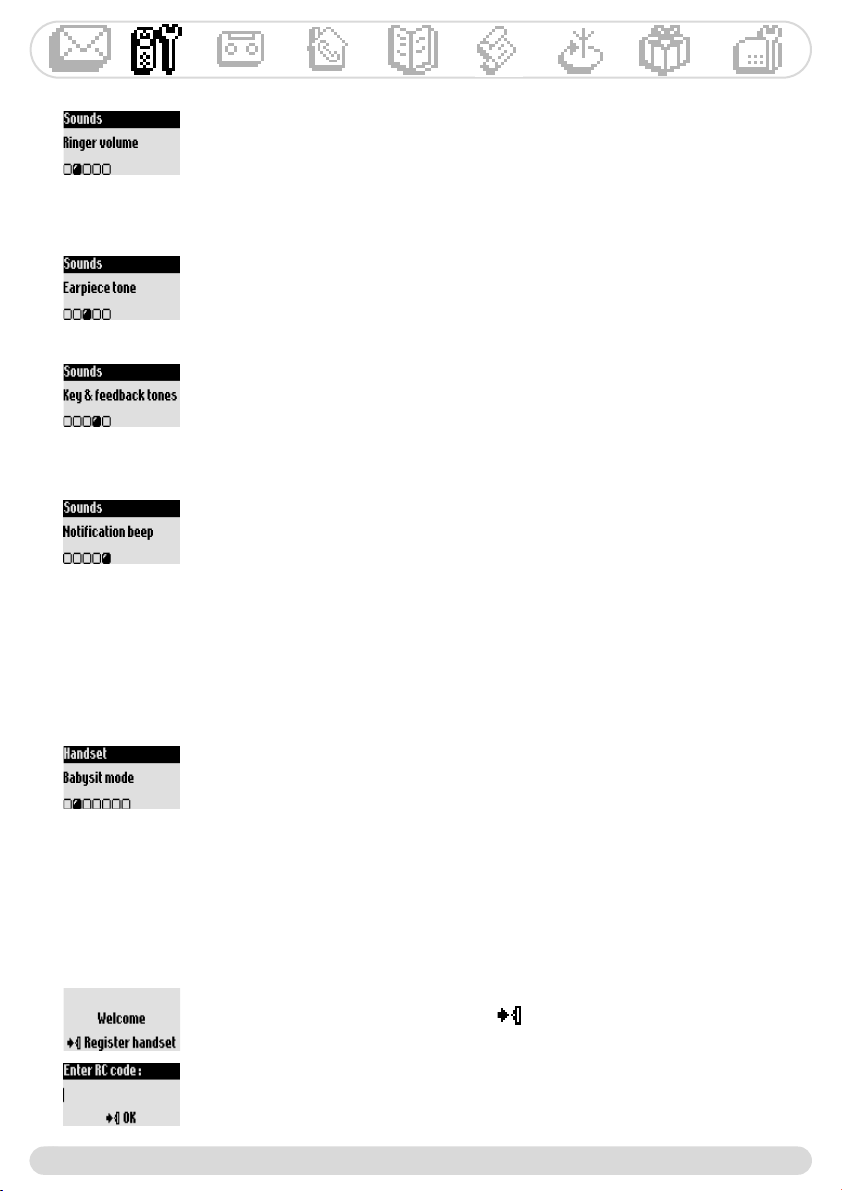
The babysit mode
This feature allows you to monitor the babys room. Place the handset in the room to be monitored and
you will hear the noise on the additional handset.
Registration
Up to 8 handsets can be registered to the base station. One handset can be associated to 4 base stations.
Warning : If you wish to associate non Philips handsets to the Onis 300 base station, make sure that this handset
is GAP compliant otherwise it will not operate properly (See page 2).
To set the notification beep
The notification beeps are audio indicators heard when there is a new SMS or a
message on the voice mailbox.
Resume from step 1-2 above
3- Scroll to Notification beep, validate
4- Select ON/OFF, validate
To activate/deactivate the babysit mode
1- Go to Handset, validate
2- Scroll to Babysit mode, validate
3- Select ON/OFF, validate
An intercom is necessary to monitor the room (See page l9).
Note :You can still answer a call or make a call with the handset.
To set the ringer volume level
There are 5 handset ringer volume levels.
1- Go to Handset, validate
2- Select Sounds, validate
3- Scroll to Ringer volume, validate (the current level is heard)
4- Choose the appropriate volume and validate
To set the earpiece tone
1- Resume from step 1-2 above
3- Scroll to Earpiece tone, validate
4- Choose Standard,Treble or Bass and validate
To set the key & feedback tones
Tones are audio feedbacks heard when pressing the keys, validating a setting.
Resume from step 1-2 above
3- Scroll to Key & feedback tones, validate
4- Select ON/OFF, validate
1- Unplug and plug back in the mains lead to put the base in registration mode
2- With the additional handset, press to start the registration
3- Enter the 4-digit RC code written on the sticker placed under the base
station.
If successful the additional handset will be named & numbered (Philips2).
The attached digit is linked to the registration order.
Onis 300 manual_Retail_UK_Indice2.qxd 07/01/03 14:09 Page 12
Handset
13
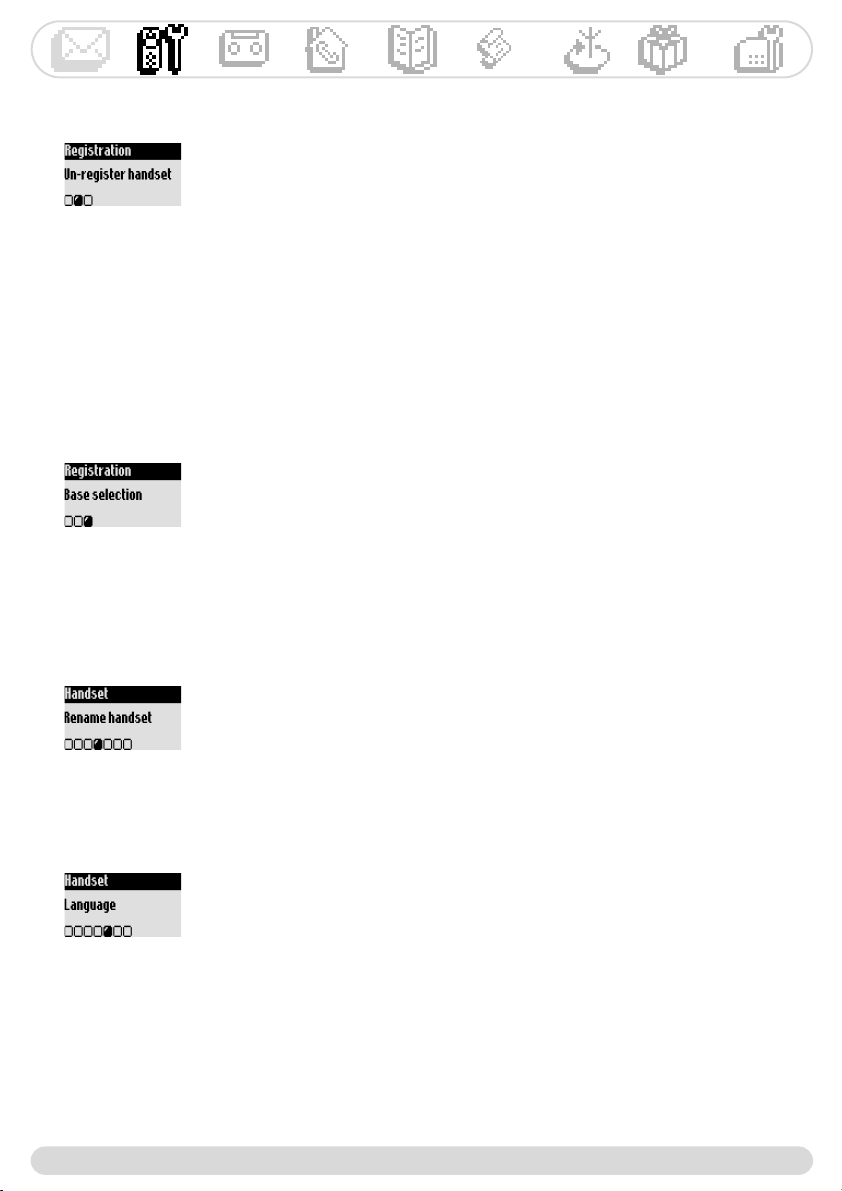
To un-register the handset
1- Go to Handset, validate
2- Scroll to Registration, validate
3- Select Un-register handset, validate
4- Choose in the list the handset to un-register, validate
5- Enter the RC code (4 digit-code) and validate
Note : If you can, un-register a defective handset before returning the product
to the repair centre.
Renaming the handset
To rename a handset
1- Go to Handset, validate
2- Scroll to Rename handset, validate
3- Change the name and validate.
Changing the language
To change the language
1- Go to Handset, validate
2- Scroll to Language, validate
3- Select the language and validate
Note:This feature is country dependent.You may not be able to change the
language.
Warning : Changing the language will not change the voice prompts of the answer
machine.
Using the Onis 300 handset with several base stations (Philips or
non-Philips)
Each Onis 300 handset can be used with up to 4 base stations. To use a handset with another base
station, the handset must first be registered to that base station (see page 12).
When you want to call through that base station
1- Go to Handset, validate
2- Scroll to Registration, validate
3- Select Base selection, validate
4- Choose the base from the list and validate.
Warning :The handset will automatically operate with the last base station to which
it was registered.
If the handset is out of range, it will automatically search for another base station
from the list.
Onis 300 manual_Retail_UK_Indice2.qxd 07/01/03 14:09 Page 13
Answer machine
14
Using the answer machine (Onis 300 Vox)
Setting the answer machine
Set the answer machine to allow callers to leave messages.
You can access the answer machine either from the base station or the handset.
By default the answer machine is activated. It can store up to 30 messages within the maximum recording
time of 20 mins. A message can be up to 3 mins long.
Answer machine
Saved messages
Record a memo
Outgoing messages
TAM Settings
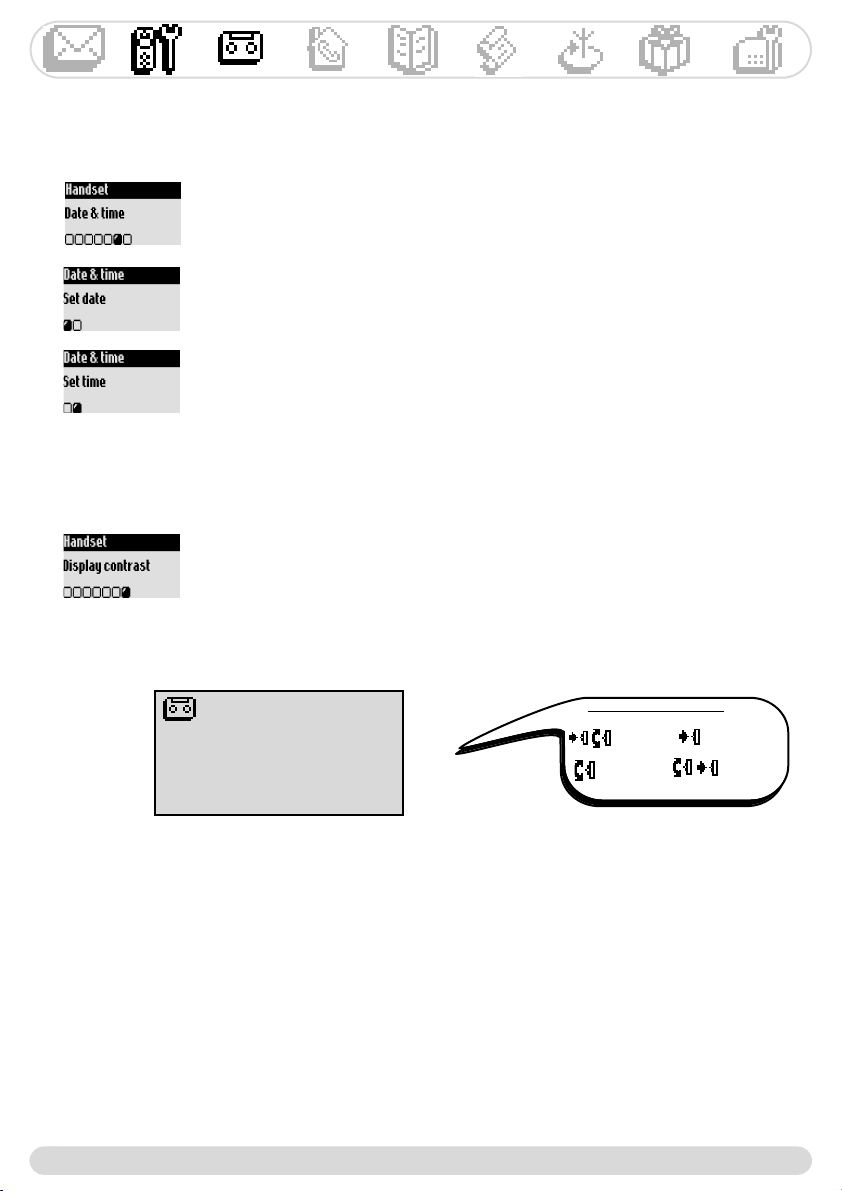
To set the time
Resume from step 1-2 above
3- Choose Set time, validate
4- Enter the current time and validate
Warning : If your phone is connected to an ISDN line through an adaptor the date &
time may change after each call. Please check the date & time settings in your ISDN
system. Please contact your network provider.
Setting the display contrast
To set the contrast
1- Go to Handset, validate
2- Scroll to Display contrast, validate
3- Select the appropriate level and validate
Navigation reminder :
(Go to) (Validate)
(Scroll to) (Select)
To set the date
1- Go to Handset, validate
2- Scroll to Date & time, validate
3- Choose Set date, validate
4- Enter the current date and validate
Setting the date and time
This feature allows to set the system to the right date & time.
It is also used to date the messages and all events in the call log.
Onis 300 manual_Retail_UK_Indice2.qxd 07/01/03 14:09 Page 14
Answer machine
15
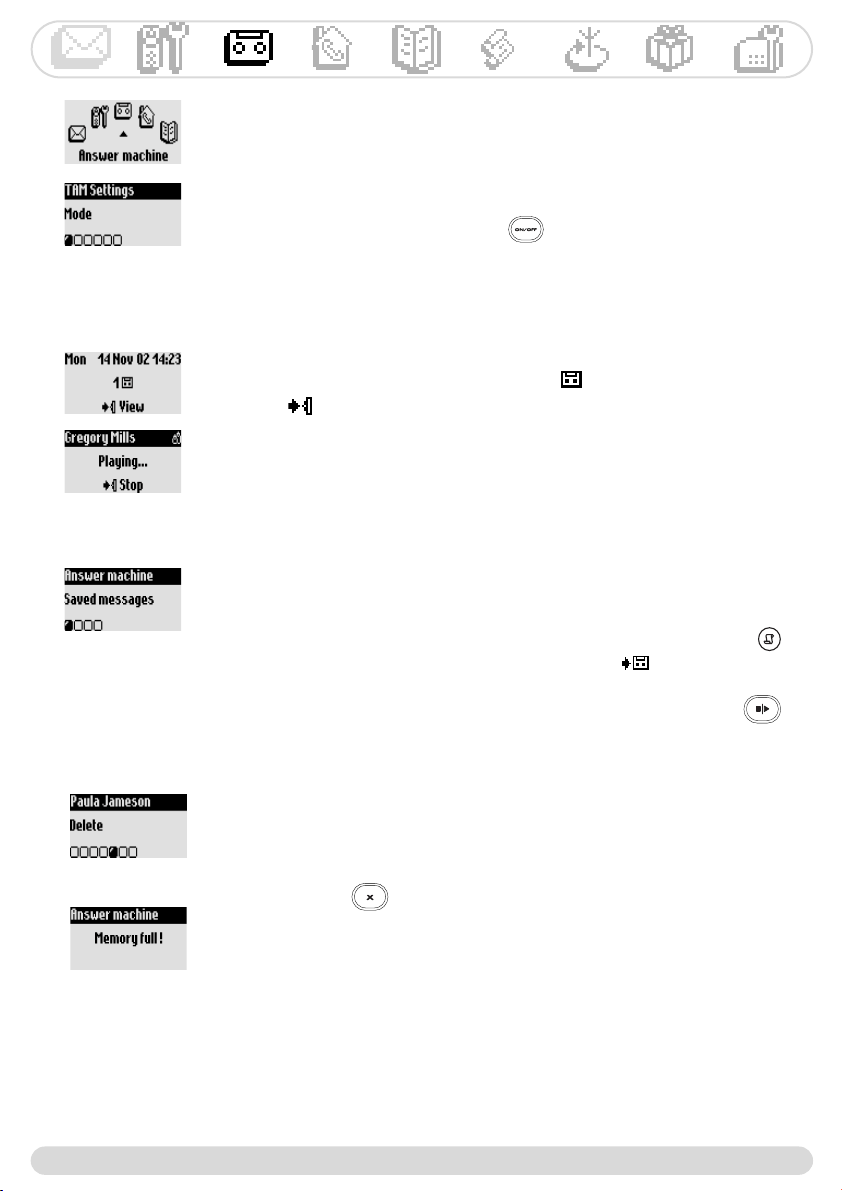
To switch the Telephone Answer Machine ON/OFF
From the handset
1- Go to Answer machine, validate
2- Scroll to TAM Settings, validate
3- Select Mode, validate
4- Select ON/OFF, validate
From the base station a long press on activates or deactivates the
answer machine. Once activated the red indicator is lit.
To listen to saved messages via the handset
1- Go to Answer machine, validate
2- Select Saved messages, validate
3- Select the message to listen, validate
4- Choose Play in the options and validate
Note :You can listen to the message(s) via the Call log. A long press on
allows to reach the messages list, the entry is marked (See page 22).
To listen to new & saved message(s) on the base station Press
Listening to your messages
You can listen to new or saved messages via the handset or the base station.
To listen to the new message(s) via the handset
The display shows there is 1 new message (1 ).
1- Press to View
2- The message is automatically played
Note :The entry shows the number of times the caller tried to reach you. If
you have subscribed to the Caller Identification Service (CLI), the display shows
the name of the caller and its VIP group if activated (See page 20).
To delete messages
Once you have listened to the message you can delete it.
Resume from step 1-3 above
4- Scroll to Delete, validate
Deleting messages
You can also use on the base station.
A short press on the key deletes the message while played.
A long press on the same key deletes all the messages(except the unread).
Warning : If Memory full ! message appears there is no more space for
messages. Delete messages so that new ones can be left.
Selecting the answer mode and the outgoing message type
You can select among 2 answer modes :Answer only (when no messages can be left) and Answer &
record (when messages can be left). For each mode, 2 outgoing message types are available : predefined
or personal message. By default the answer machine is set to Predefined Answer & record mode.
Onis 300 manual_Retail_UK_Indice2.qxd 07/01/03 14:09 Page 15
Answer machine
16
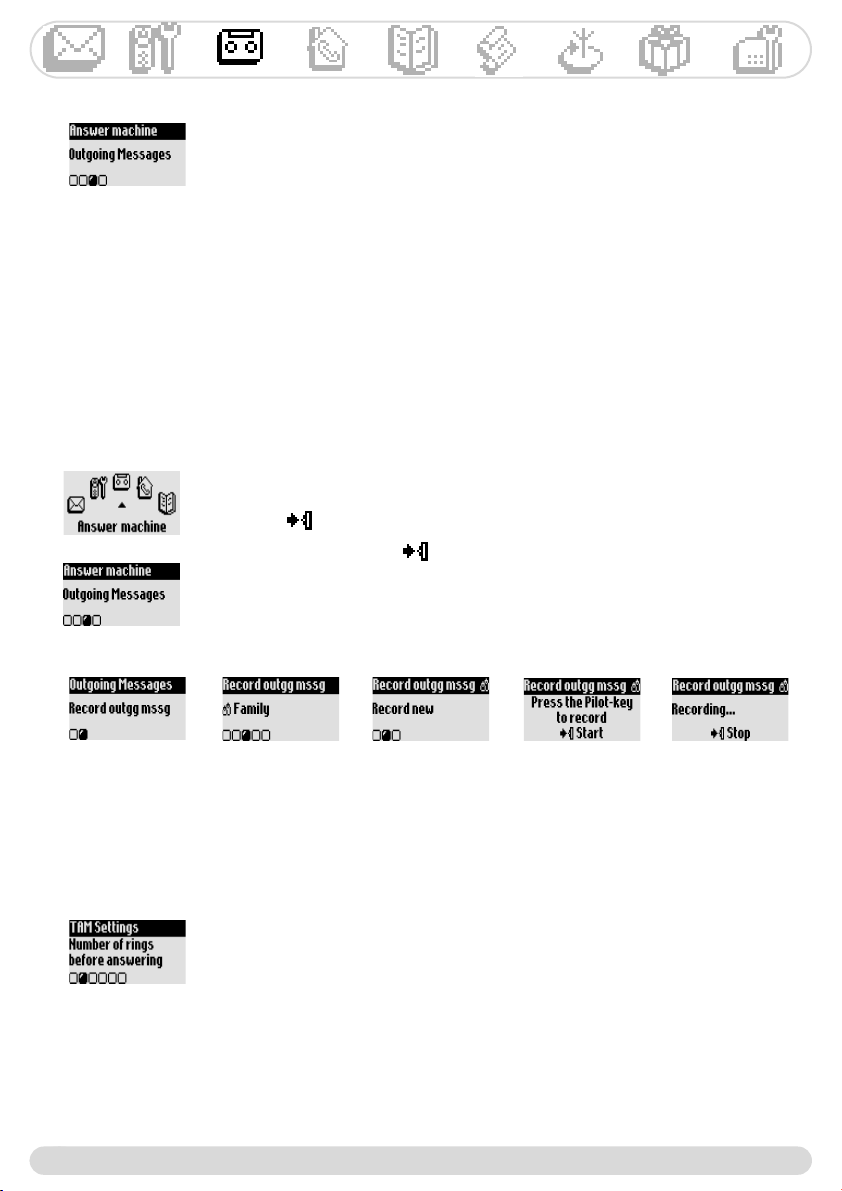
Setting the number of rings before answer
You can set the answer machine to start playing the outgoing message after a given number of rings (3, 5,
7 and Toll saver). The toll saver option (activated by default) is useful when using the remote access.The
answer machine will start playing the outgoing message after 3 rings if there are new messages. If there is
no new message the outgoing message will be played after 5 rings. Hang up after the 4th ring if you want
to check if you have any messages at no cost.
To set the number of rings before answer
1- Go to Answer machine, validate
2- Scroll to TAM Settings, validate
3- Scroll to Number of rings before answering, validate
4- Select the appropriate setting and validate
To select the answer mode
1- Go to Answer machine, validate
2- Scroll to Outgoing Messages, validate
3- Select Answ. machine mode, validate
4- Choose the appropriate mode (among the 4 options above) and validate
Note : A pre-defined message cannot be deleted.
To record an outgoing message
Resume from step 1-2 above
3 -Scroll to Record Outgg mssg, validate
4- Select a group (standard or 1 of the 3 VIP groups), validate
5- Select Record New and validate
6- Press to start recording
To stop recording press again.
The message is automatically played back. You can delete and/or record it
again.The personal message can be up to 3 mn long
Note : Select Standard OGM for answer only mode or Standard
OGM for Answ. & Record mode if you have no CLI subscription.
Setting the voice prompts
Voice prompts are vocal indications played when consulting the answer machine. By default they are
activated.You can set them to indicate the number & date of the messages or the number of messages
only.You can also deactivate them.
Recording your personal outgoing message (OGM)
You can record 5 different personal OGM : a specific personal OGM for Answer & record mode for each
of the VIP phonebooks (Family, Friends or Work), the standard OGM for Answer & record mode for non
VIP callers and the standard OGM for Answer only mode for all callers. It is possible to record specific
messages for specific VIP groups only if you subscribe to the Caller Line Identification service (CLI) and if
you have set the VIP groups in the phonebook (see page 21).
Onis 300 manual_Retail_UK_Indice2.qxd 07/01/03 14:09 Page 16
Answer machine
17
Call screening call by call on the handset is also possible.
While the caller is leaving a message, press to listen and press again to stop listening.
Adjust the volume with .
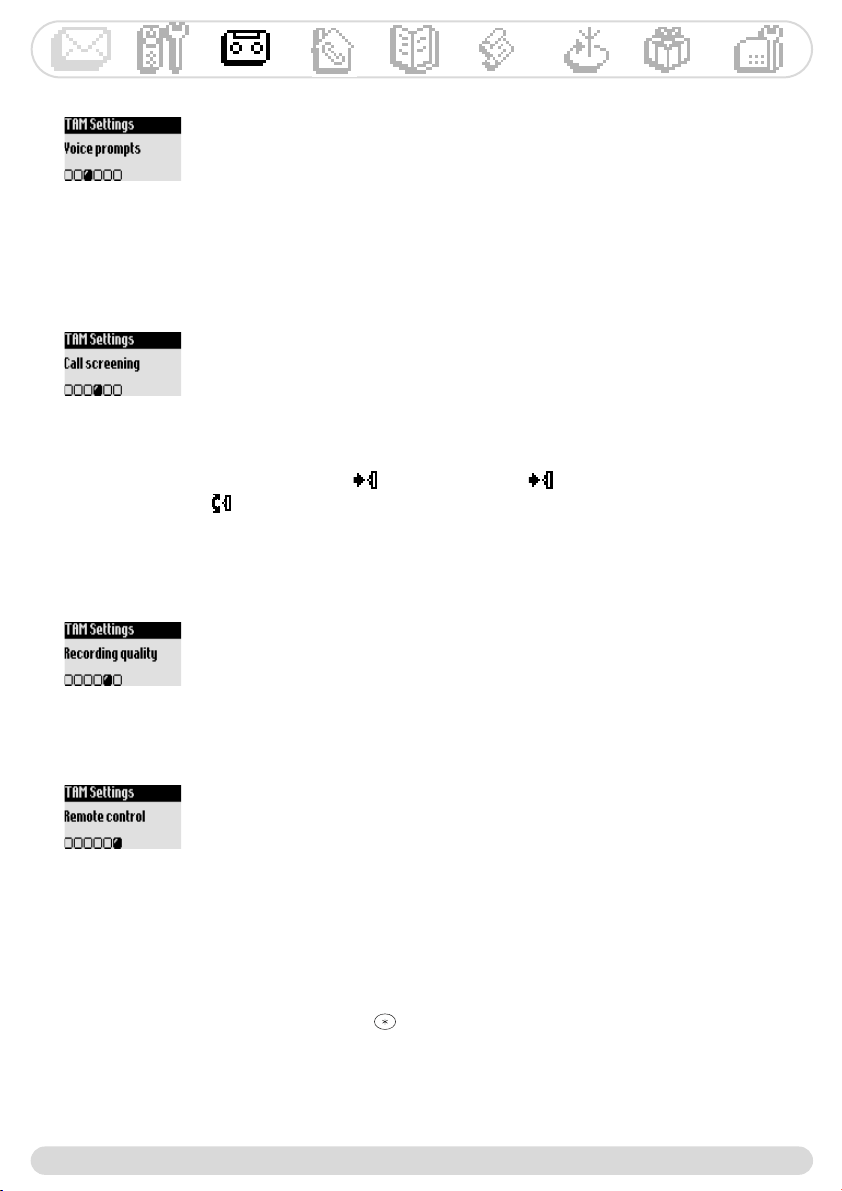
To set the voice prompts
1- Go to Answer machine, validate
2- Scroll to TAM Settings, validate
3- Scroll to Voice prompts, validate
4- Select Messages & date/Message only/OFF and validate
Setting the call screening
This feature allows you to set the volume of the base station loudspeaker so that you can choose
whether or not to hear the callers leaving a message.
You can set permanent call screening on the base station
To activate/deactivate the call screening
Resume from step 1-2 above
3- Scroll to Call screening, validate
4- Select ON/OFF, validate
Setting the recording quality
There are 2 recording qualities : standard and high. In standard quality the total capacity is 20 mins.
To set the recording quality
Resume from step 1-2 above
3- Scroll to Recording quality, validate
4- Select the appropriate settings and validate
To activate/deactivate the remote control feature
Resume from step 1-2 above
3- Scroll to Remote control, validate
4- Scroll to Mode, validate
5- Select ON/OFF and validate
Note :The default setting is OFF.Activate this feature if you want to be able to
remotely use the answer machine (see page 18).
Activating the remote control
Remotely control your answer machine
To remotely access your answer machine :
1- From another phone dial home
2- During or after the message press the star key on the handset
3- Dial your remote control code
4- If you have new messages they will be automatically played.
Onis 300 manual_Retail_UK_Indice2.qxd 07/01/03 14:09 Page 17
Answer machine
18
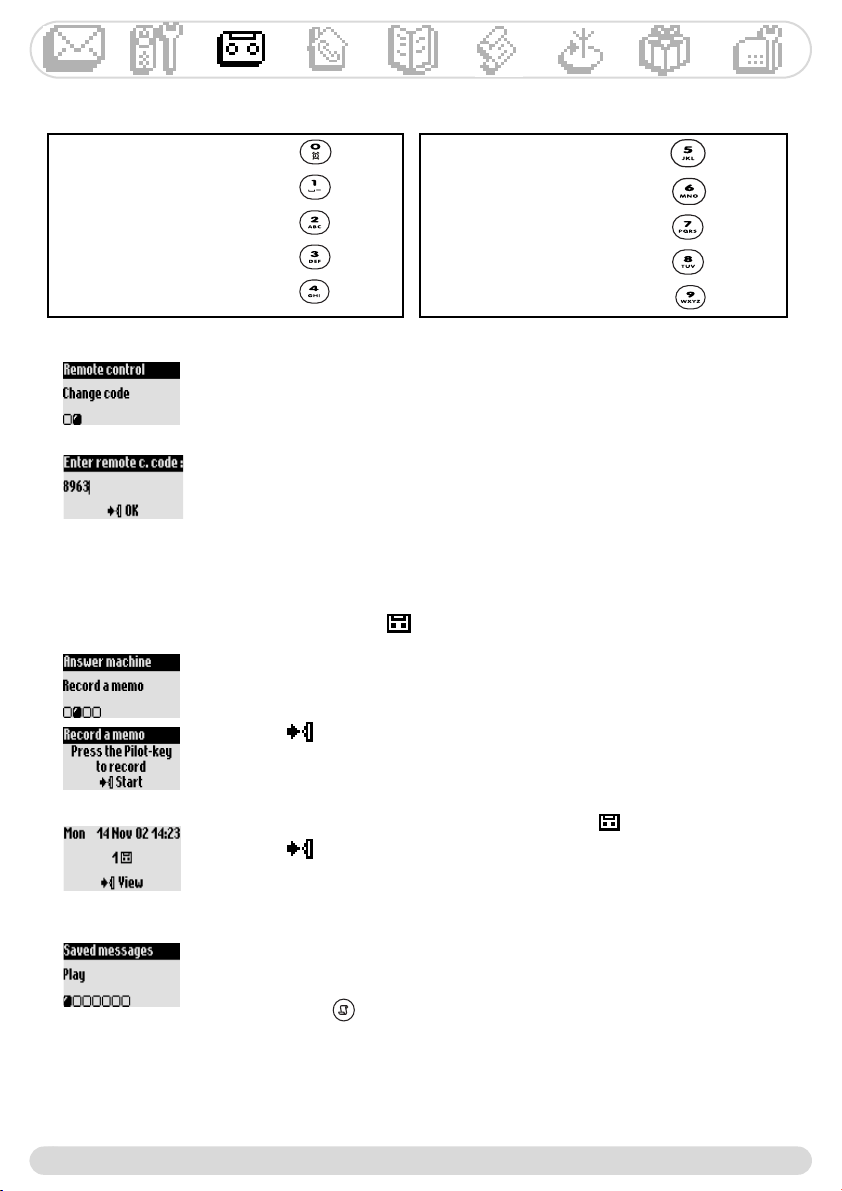
To change the remote control code
The default code is 0000.We advise you to personalise it.
1- Go to Answer machine, validate
2- Scroll to TAM Settings, validate
3- Scroll to Remote control, validate
4- Scroll to Change code, validate
5- Enter the new remote c. code and validate
Warning :The Remote Control code is not the Registration Code (RC).
Recording/listening to a local message (Onis 300 Vox)
This feature allows you to leave local messages for your family on the answer machine.A memo is
recorded from the handset, it is represented by in the call log and can last up to 3 mins.
To record a memo on the handset
1- Go to Answer machine, validate
2- Scroll to Record a memo validate
3- Press to start recording
4- Press again to stop
To listen to a new memo on the handset
The display shows there is 1 new local message (1 )
1- Press to View
2- The message is automatically played
Delete is also available in the options
To listen to a saved memo on the handset
You can use the Answer machine sub menu Saved messages.
Select Play.
Long press on to reach directly the messages list.
The following table indicates the features available when remotely accessing the answer machine.
Listen again to the message : dial
Delete : dial
Activate answer machine : dial
Stop : dial
Deactivate answer machine : dial
Record memo : dial
Read previous message : dial
Play message : dial
Read next message : dial
Record new OGM : dial
Onis 300 manual_Retail_UK_Indice2.qxd 07/01/03 14:09 Page 18
Intercom
19
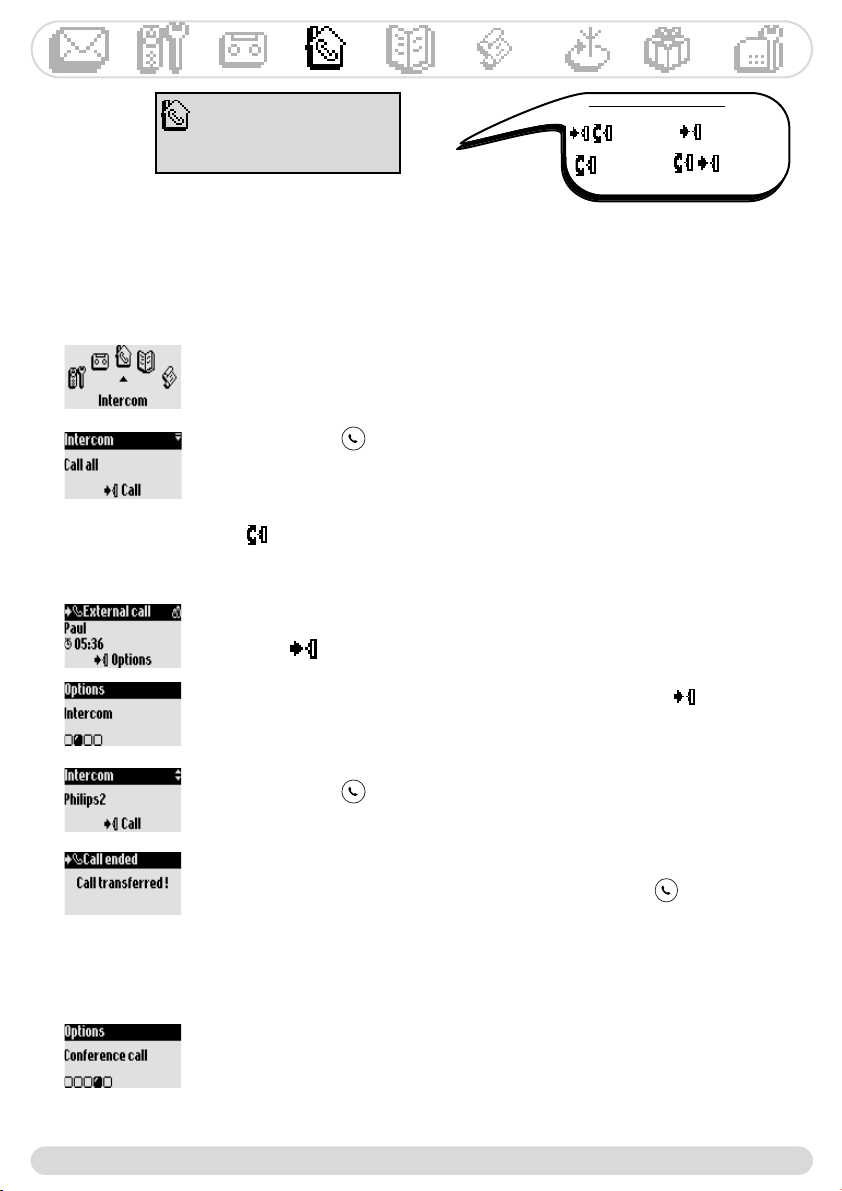
Intercom
Call all
Handset list
Using the intercom (if there are at least 2 handsets)
This feature allows you to make internal calls, use the babysit (room monitoring), transfer external calls
from one handset to the other or use the conference call option.The intercom is possible with handsets
registered to the same base station.
Internal call or room monitoring activation
1- Go to Intercom, validate
2- Select from the list the handset/base you want to call, validate
3- The called handset/base rings
4- Take the line on the called handset/base.
The intercom conversation/room monitoring can start.
Mute is also available.
Note :You can also access the Intercom with the pilot key. In idle mode scroll
up .
Call transfer
During an external call you can transfer the call to another handset via the
Intercom option available in the in-call options.
1- press
2- Scroll to Intercom, validate
3- Select from the list the handset/base you want to call and Call
The called handset/base rings.The external call is put on hold.
If there is no answer from the second handset you can resume the call on the
first handset, use the End Intercom option
4- Take the call on the other handset
Both internal callers can talk.
5- Use the Transfer option in the menu.
The call is ended on the first handset.The display gives the feedback.
Note :You can also stop the call on the first handset with .
When the call is put on hold the caller hears music (if music on hold is
activated) or beeps (See page 27).
Conference call
Conference call allows one external call to be shared with 2 handsets (in
Intercom).The 3 people can share the conversation. No operator subsciption is
needed.
Resume from step 1-4 above
5- Use the Conference Call option, validate
Navigation reminder :
(Go to) (Validate)
(Scroll to) (Select)
Onis 300 manual_Retail_UK_Indice2.qxd 07/01/03 14:09 Page 19
Phonebook
20
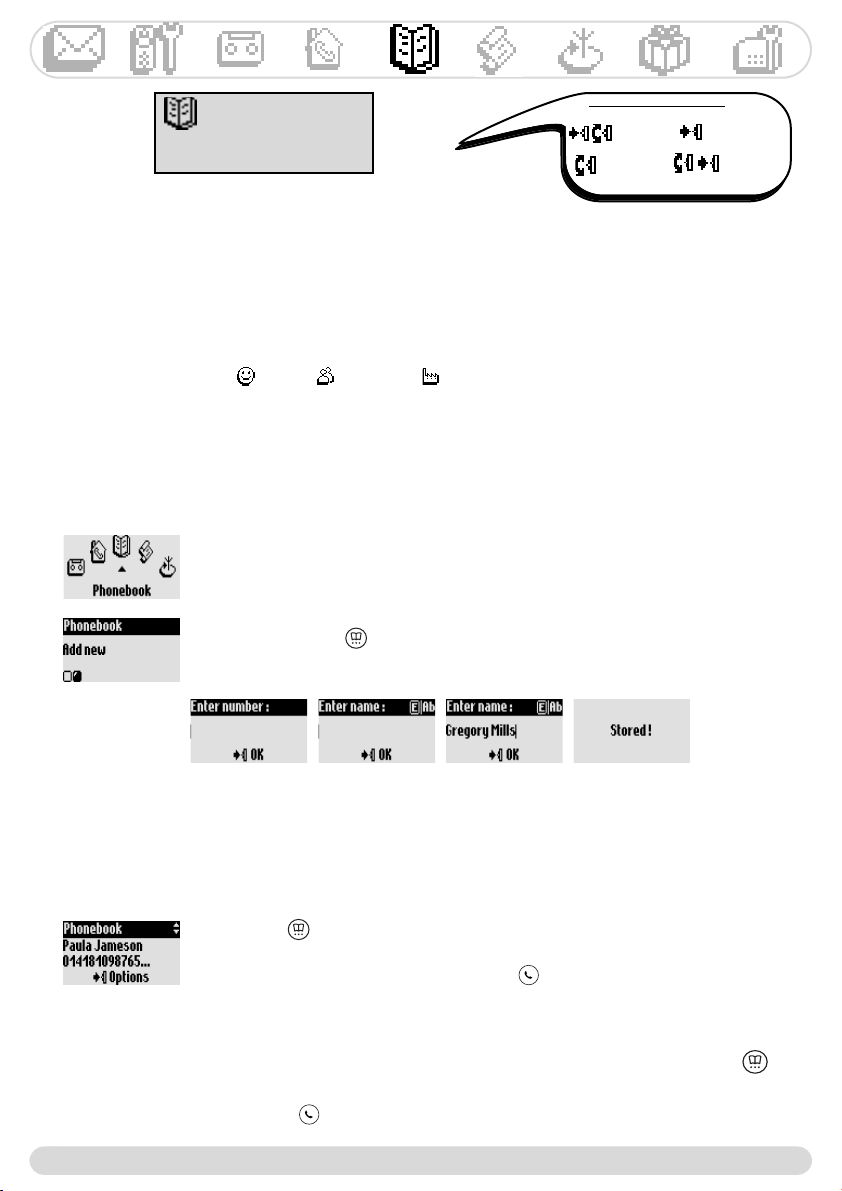
Phonebook
View
Add new
Using the phonebook
100 names and numbers can be stored in the phonebook.
The phonebook contains all the information related to the callers, especially the VIP settings.The names
and numbers are shared with all the handsets registered to your base.
Adding a name to the phonebook
The names are stored in alphabetical order.
To store a name
1- Go to Phonebook , validate
2- Scroll to Add new, validate
3- Dial the number, validate
4- Enter the name, validate (See page 8)
A long press on gives direct access to Enter number.
Viewing the phonebook
You can browse the phonebook and make some changes.To quickly reach the phonebook press .
To quickly reach a name in the list, enter the first character (choose from the list if several names start
with the same letter). Make the call .
VIP settings
The VIP groups are Friends , Family and Work .When ringing, the VIP ringer helps you identify
the callers group (See page 25) and the screen shows the callers name.A specific welcome message can
be associated to a VIP group (See page 16). Subscription to the Caller Line Identification (CLI) sevice needed.
Calling from the phonebook
To call from the phonebook
1- Press
3- Choose a name from the list
4- Choose Call in the options or press
Navigation reminder :
(Go to) (Validate)
(Scroll to) (Select)
To store a name from predial
Once the number is dialled select Store in the options
Onis 300 manual_Retail_UK_Indice2.qxd 07/01/03 14:10 Page 20
Phonebook
21
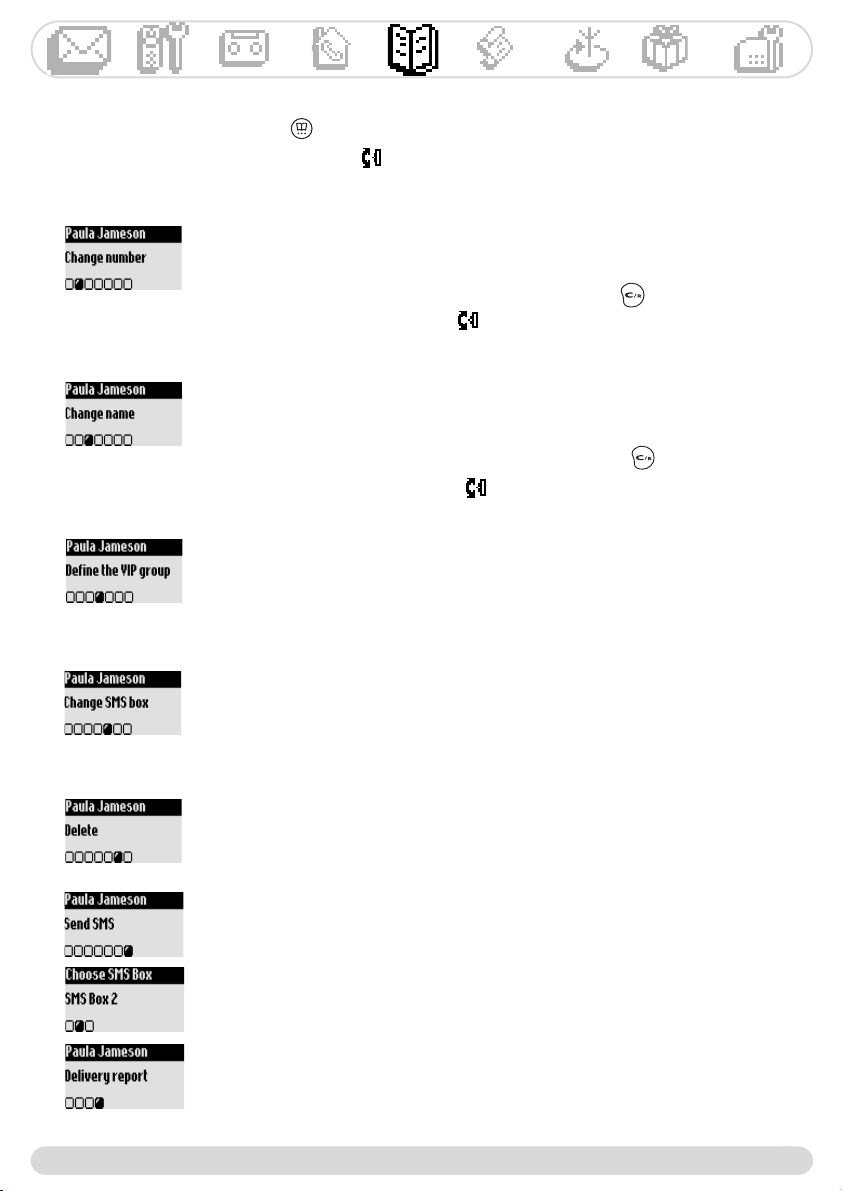
To view the phonebook
1- Press
2- Browse the list and select a name, validate
To change a number
Resume from step 1& 2 above
3- Select Change number, validate
4- Enter the new number and validate
Note: It is possible to erase the current number with .You can simply
change a digit, move the cursor to reach a place.
To change a name
Resume from step 1& 2 above
3- Select Change name, validate
4- Enter the new name and validate
Note : It is possible to erase the current number with .You can simply
change a letter, move the cursor to reach a place.
To define VIP group
To benefit from the VIP feature, you must store the entry in a VIP group.
Start from step 1& 2 above
3- Select Define the VIP group, validate
4- Select the VIP group and validate
To set an SMS box number to a name (country dependent)
If you know the receivers personnal SMS box, associate the destination box to
his name, you will not need to enter it when sending him an SMS.
Resume from step 1& 2 above
3- Select Change SMS box, validate
4- Enter the destination box number, validate
To delete a name
Resume from step 1& 2 above
3- Choose Delete and validate
To send an SMS from the phonebook
Resume from step 1& 2 above
3- Scroll to Send SMS, validate
4- Choose your SMS box & enter the password (if you created several SMS
boxes), validate
5- Select New SMS/SMS list, validate
6- Enter the destination box (if prompted to), validate
7- Input the text (see page 8) or browse through the list, validate
8- Scroll to Delivery report to activate it if necessary, validate
9- Select Send Now, validate
Onis 300 manual_Retail_UK_Indice2.qxd 07/01/03 14:10 Page 21
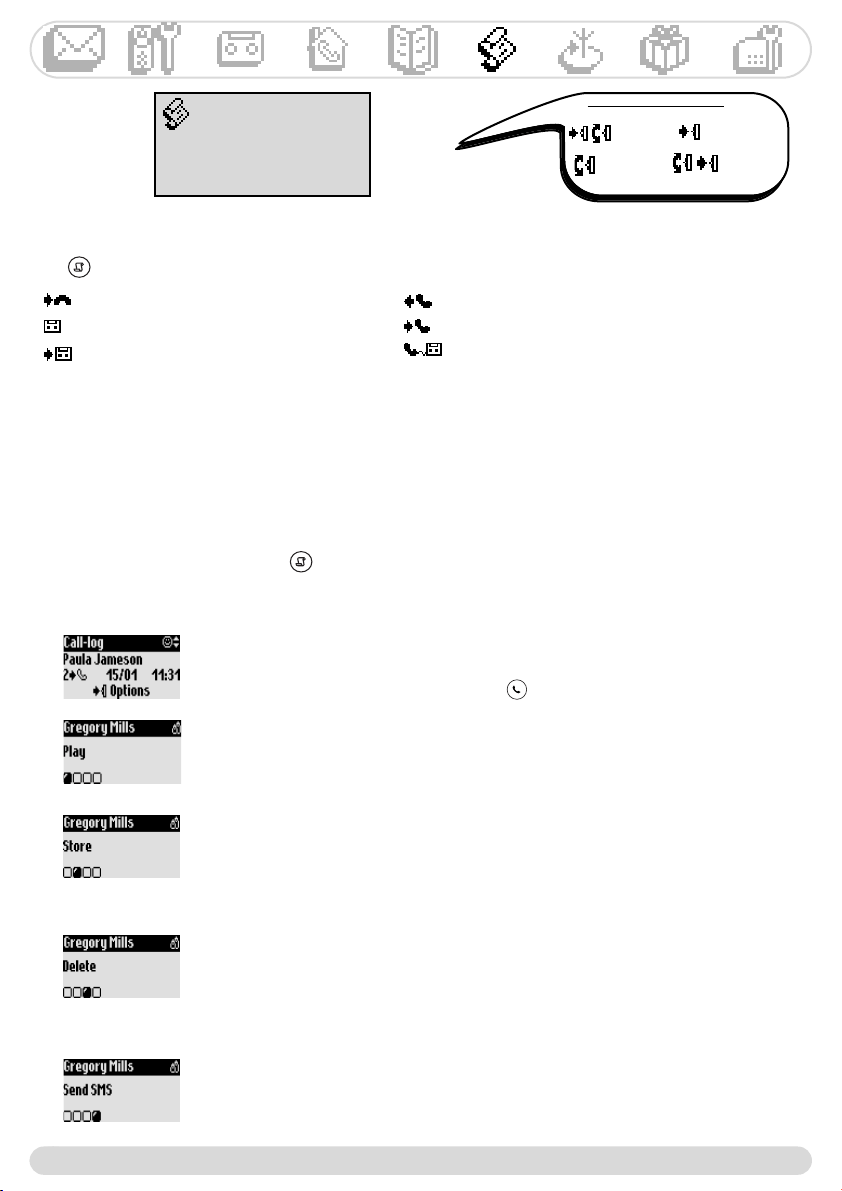
- : unanswered calls - : outgoing calls
- : memo or recorded conversation - : answered calls
- : messages (Onis 300 Vox) - : messages (Voice mailbox)
Call log
View
Delete all
Call log Settings
Viewing the call log
To delete an entry from the call log
Resume from step 1 & 2 above
3- Scroll to Delete, validate
4- Confirm your choice and validate
Warning : If a message is associated to the entry it is also erased from the answer
machine.
To store the callers name and phone number from the call log
Resume from step 1 & 2 above
3- Scroll to Store, validate
4- Enter the name, validate
To call/call back or redial from the call log
Resume from step 1 & 2 above
3- Select Call in the options or press
To listen to a message from the call log (Onis 300 Vox)
Resume from step 1 & 2 above
3- Select Play and validate
To view the call log from the handset
1- Press
2- The list is displayed, scroll through the list to reach the desired information,
validate
To send an SMS from the call log
Resume from step 1 & 2 above
3- Scroll to Send SMS, validate
Follow instructions from step 4 page 21 (Send an SMS from phonebook)
Navigation reminder :
(Go to) (Validate)
(Scroll to) (Select)
If you have subscribed to the Caller Line Identification Service (CLI), the call log shows, for incoming &
outgoing calls, the name (or number) of the callers, the VIP group icon if any, the date & time of the call as
well as the number of times they have tried to reach you (up to 9).
To update the call log, the system automatically erases the oldest entry (unless there is a message linked to
it).Then the unread entries.
Using the call log
Use to enter the call log.The call log stores up to 30 entries.
Call log
22
Onis 300 manual_Retail_UK_Indice2.qxd 07/01/03 14:10 Page 22

Network
23
To delete all the call log
You can choose to delete all the call log at once.
1- Go to Call log, validate
2- Scroll to Delete all, validate
3- Confirm your choice and validate
Note :Entries with unread messages will not be deleted(Onis 300 Vox).
Network
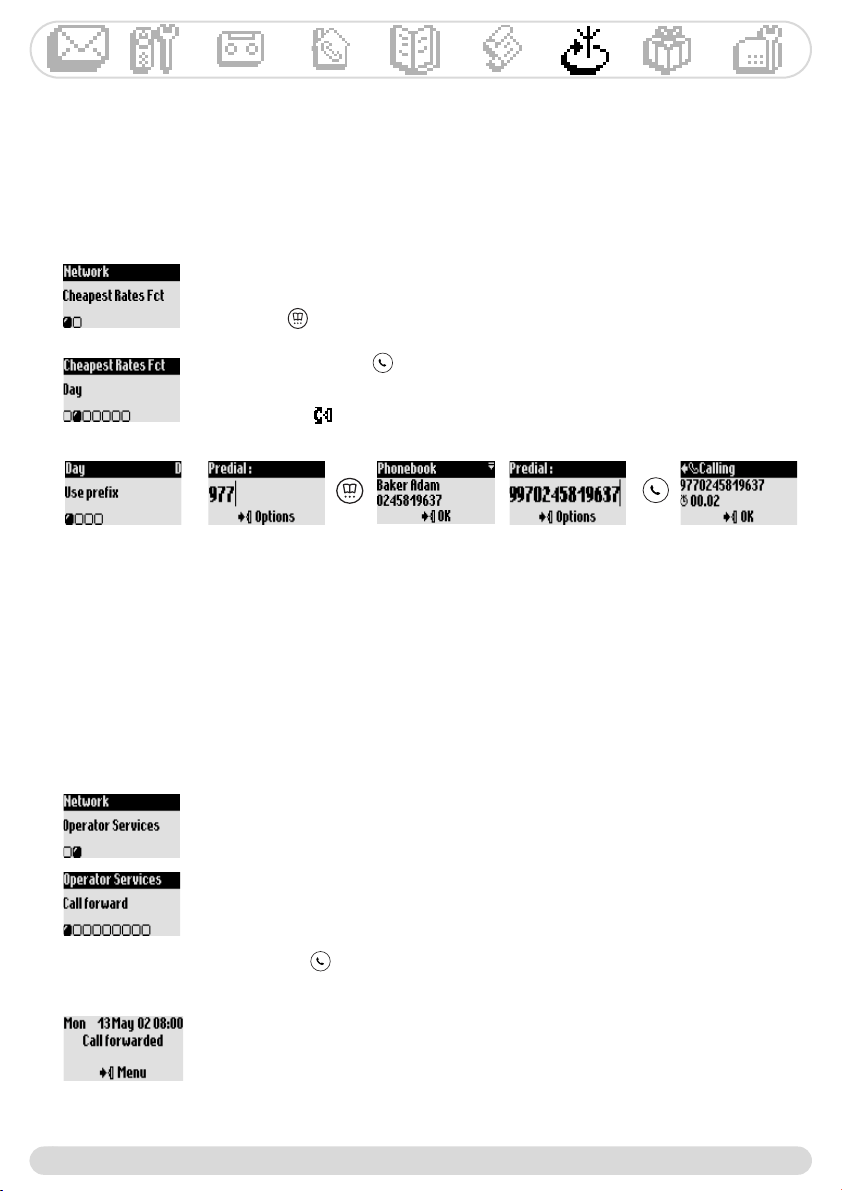
Cheapest rates Fct
Operator Services
Using the cheapest rates function
This feature allows you to set the phone to use the cheapest operator prefix (if you are subscribed to
several).You must set the operator prefix, the period of time, the countries or the other partys phone
type (mobile or landline). Several additional steps are needed to call with this feature.
To set the cheapest rates prefix
1- Go to Network, validate
2- Select Cheapest rates fct, validate
3- Scroll to the appropriate item (night, day, weekend, mobile or country),
validate
4- Select Change name and enter the operators name, validate
5- Scoll to Change number and enter the operator prefix according to the
previously selected item, validate
Note : If you select night or day you will be prompted to set the start time
Navigation reminder :
(Go to) (Validate)
(Scroll to) (Select)
Setting the call log
Deleting all the call log
You can set the call log to store information about incoming calls and/or outgoing calls.
To set the call log
1- Go to Call log, validate
2- Scroll to Call-log Settings, validate
3- Select Incoming calls/Outgoing calls, validate
4- Select the appropriate setting and validate.
Onis 300 manual_Retail_UK_Indice2.qxd 07/01/03 14:10 Page 23
Network
24
To call with the cheapest rates
1- Go to Network, validate
2- Select Cheapest rates Fct, validate
3- The cheapest operator prefix is displayed according to the Timer. If you want
to use the cheapest operator to call a mobile, scroll to the corresponding item.
Validate twice.You are then in predial mode.
4- Press , scroll through the list to reach the name in the phonebook and
validate to chain dial (or dial, see page 6)
5- Connect the line
Note :You can also access the cheapest rates with the pilot key. In idle mode
scroll down , resume from step 3 above.
Using the network services (Subscription dependent)
This feature allows to activate or deactivate operator services.
Codes need to be set up (See page 28).
Contact your network operator for more details. You can usually subscribe to Call forward, operator
Voice mail box etc...
Example of service : Call forward
Calls can be redirected to another phone number.
Set the code (see page 28) and activate it when necessary.
To activate/deactivate call forward
1- Go to to Network, validate
2- Scroll to Operator Services, validate
3- Select Call forward, validate
4- Enter (or choose from phonebook) the number to which the calls are to be
forwarded and validate
5- The number is automatically chained to the call forward prefix and the
system dials the number
6- Hang up
From now on the calls will be redirected to the assigned phone number.
The display shows the information.
To stop call forward, deactivate it via the Cancel call forward option.
To call with the cheapest operator rates
The cheapest rate feature is used call by call.The information stored previously allows the appropriate
prefix to be suggested when calling with the cheapest rates feature.
Onis 300 manual_Retail_UK_Indice2.qxd 07/01/03 14:10 Page 24
Extra
25
Using Extra features
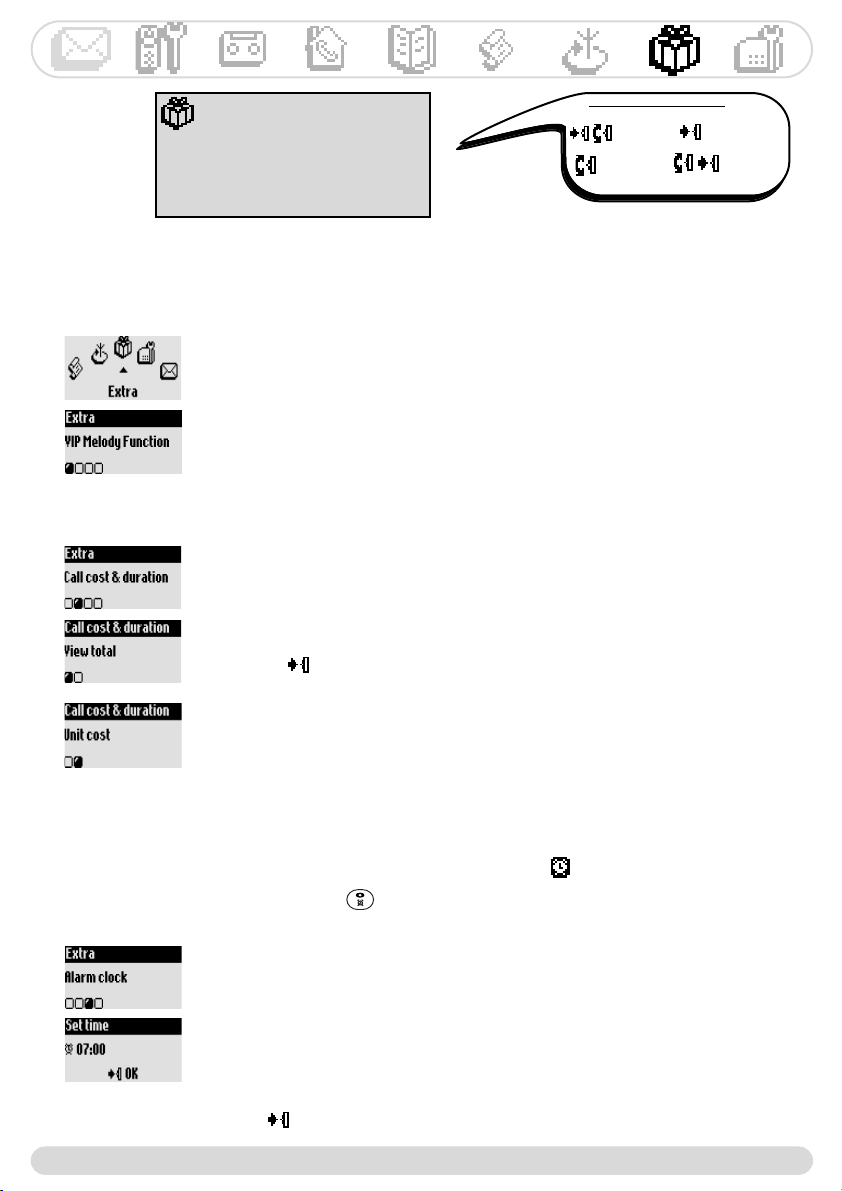
Extra
VIP melody function
Call cost & duration
Alarm clock
Do Not Disturb mode
To view the cost & time
1- Go to Extra, validate
2- Scroll to Call cost & duration, validate
3- Select View total, validate
The total cost & time of communications is displayed
4- Press to Reset the counter
The alarm clock
Call cost and duration (Country and subscription dependent)
VIP melodies
To activate/deactivate the alarm clock
A long press on activates/deactivates the alarm clock with your own
settings.
Navigation reminder :
(Go to) (Validate)
(Scroll to) (Select)
To set the VIP ringers
1- Go to Extra, validate
2- Select VIP melody function, validate
3- Select a group, validate
4- Choose a melody, validate
Note :The VIP ringer is heard on both the base & the handset.
When the alarm rings, press any key to stop it.
The snooze is then activated (will ring again every 5 mn).To definitely stop it
press .
To allow the phone to calculate the cost of a call, you must enter the price per
unit
Resume from step 1-2 above
3- Select Unit cost, validate
4- Enter the cost and validate
To set the alarm clock
1- Go to Extra, validate
2- Scroll to Alarm clock, validate
3- Select Set the day and select a day, validate
4- Scroll to Set time and enter the time, validate
Onis 300 manual_Retail_UK_Indice2.qxd 07/01/03 14:10 Page 25

Extra
26
To activate/deactivate Do Not Disturb mode
A long press on activates/deactivates this mode with your own settings.
Do Not Disturb mode
This feature allows you to screen calls after a certain time in the evening or when you do not wish to be
disturbed. Enter the time and select the VIP group(s) allowed to call you.
If the caller does not belong to an allowed group the handset & base station will remain silent, while he
will hear ringing.The green light informs you of an incoming call.The answer machine (if activated) or the
operator voice mailbox will answer the call.
To set the alarm ringer type
1- Go to Extra, validate
2- Scroll to Alarm clock, validate
3- Select Alarm Clock Settings, validate
4- Scroll to Ringer type, validate
5- Choose among the available ringers and validate
To set the alarm ringer volume
Resume from step 1-3 above
4- Scroll to Ringer volume, validate
5- Choose among the available volume levels and validate
To set the Do Not Disturb mode
1- Go to Extra, validate
2- Scroll to Do Not Disturb mode, validate
3- Select Set day and select a day, validate
4- Scroll to Start time and enter the time, validate
5- Scroll to Stop time and enter the time, validate
6- Scroll to Allowed caller choice, activate the callers group(s) allowed to
call you and validate
Note :You can select up to 4 groups. If no group is selected but the feature is
activated, then nobody will be able to reach you.
Onis 300 manual_Retail_UK_Indice2.qxd 07/01/03 14:10 Page 26
Base station
27
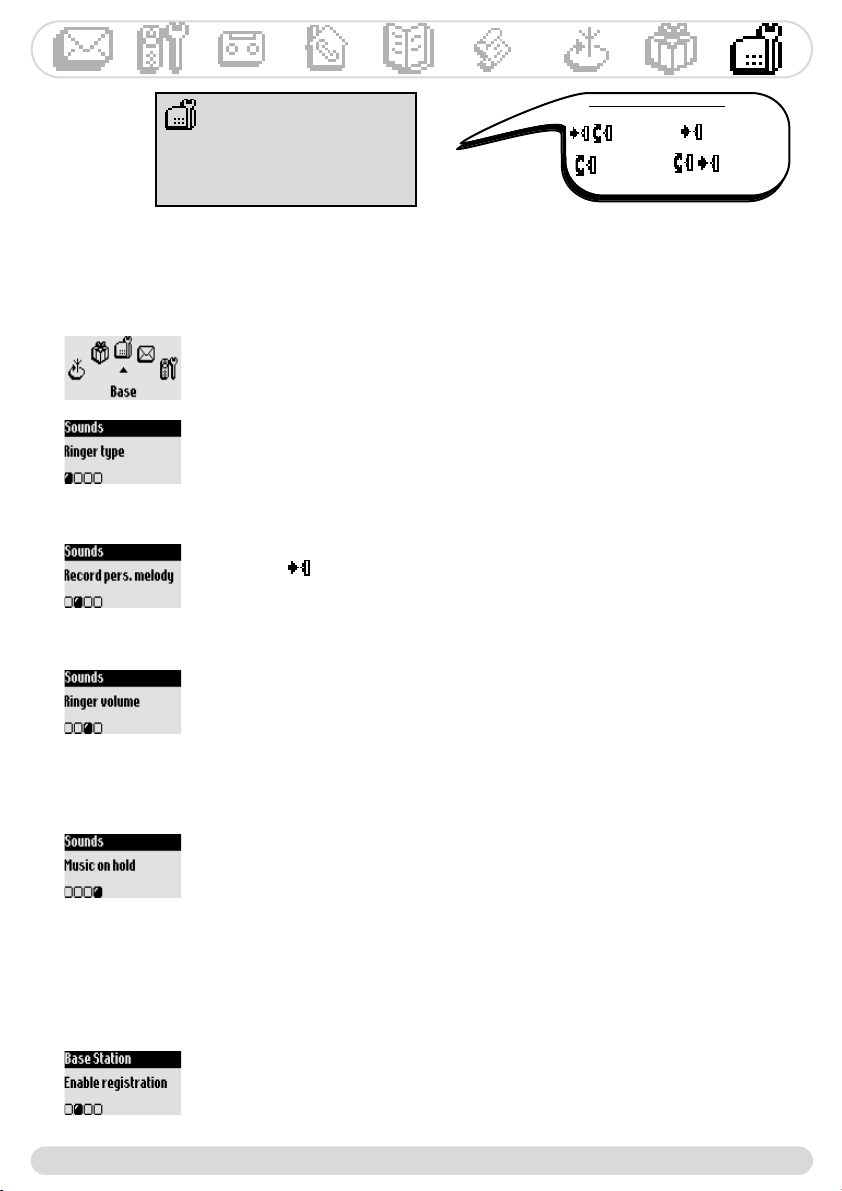
Base station
Sounds
Registration
Line settings
Service code settings
Setting the base station
Setting the base station sounds
To set the base ringer type
1- Go to Base station, validate
2- Scroll to Sounds, validate
3- Select Ringer type, validate
4- Choose the ringer in the list and validate
To set the ringer volume level
There are 5 ringer volume levels.
Resume from step 1-2 above
3- Scroll to Ringer volume, validate
4- Select the appropriate level and validate
To record your personnal melody (Onis 300 Vox)
Resume from step 1-2 above
3- Scroll to Record pers. melody, validate
4- Scroll to Record new melody, validate
5- Press to start recording
6- Press again to stop recording
7- Activate this ringer in the above menu
To activate/deactivate the music on hold
This feature allows the caller to hear music when the call is put on hold when
transfering a call from one handset to another (See page 19).
Resume from step 1-2 above
3- Select Music on hold, validate
4- Select ON/OFF, validate
Note : If the feature is deactivated the caller will hear beeps.
Navigation reminder :
(Go to) (Validate)
(Scroll to) (Select)
Registration
This feature allows you to register a DECT peripheral without keypad
To register a DECT peripheral
1- Go to Base station, validate
2- Scroll to Enable registration, validate
3- Enter the peripheral code, validate
4- Follow instructions in the peripheral manual (See page 2)
Onis 300 manual_Retail_UK_Indice2.qxd 07/01/03 14:10 Page 27
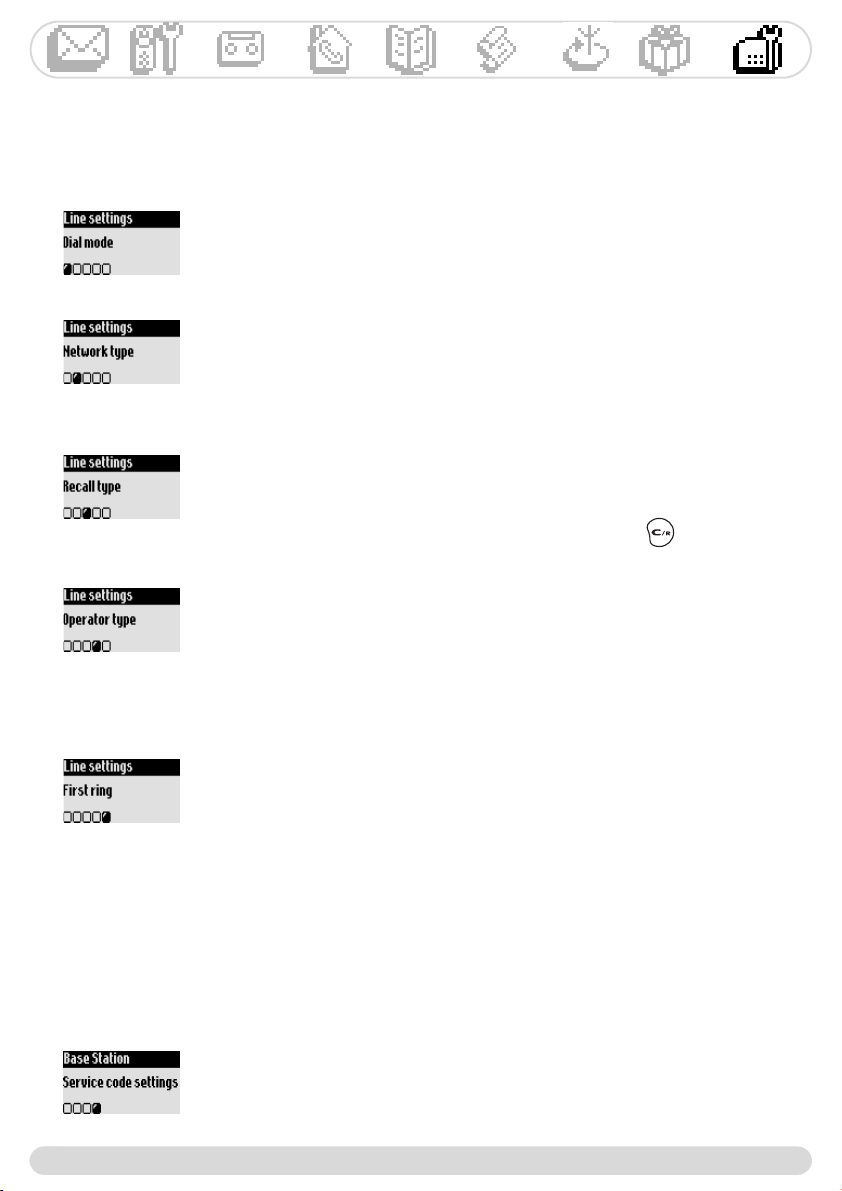
It can be useful to change the line settings if your network operator is not the main national operator set
by default in the phone, especially for the Caller Line Identification Service (CLI).
To change the dial mode (country dependent)
1- Go to Base station, validate
2- Scroll to Line settings, validate
3- Select Dial mode, validate
4- Select Tone/Pulse and validate
To change the network type
Resume from step 1-2 above
3- Scroll to Network type, validate
4- Select PSTN/PABX and validate
To change the recall type (country dependent)
Resume from step 1-2 above
3- Scroll to Recall type, validate
4- Select Short flash/Long flash, validate
Note : Useful when using operator services, for example .
To change the operator type (country dependent)
Resume from step 1-2 above
3- Scroll to Operator type, validate
4- Select among the suggested types and validate
Note : Useful if the Caller Line Identification service does not work whereas
you subscribed to that service.
To activate/deactivate the first ringer
To prevent the phone from ringing when receiving an SMS, the first ringer is
deactivated.You can activate it.
Resume from step 1-2 above
3- Scroll to First ring, validate
4- Select ON/OFF, validate
Service code settings
When you subscribe to extra services with your operator you may need to set some codes in your
phone.
The default codes are the codes used by the main national network operator.
If you subscribed to another operator you may need to change the codes.
Contact your network operator for more information on the services (See page 24).
To change a service code
1- Go to Base station, validate
2- Scroll to Service code settings, validate
3- Select the appropriate service, validate
4- Select Change and enter the new code and validate
The line settings
Base station
28
Philips has designed this product to work on PSTN line and cannot guarantee the complete application on ISDN network.
Onis 300 manual_Retail_UK_Indice2.qxd 07/01/03 14:10 Page 28
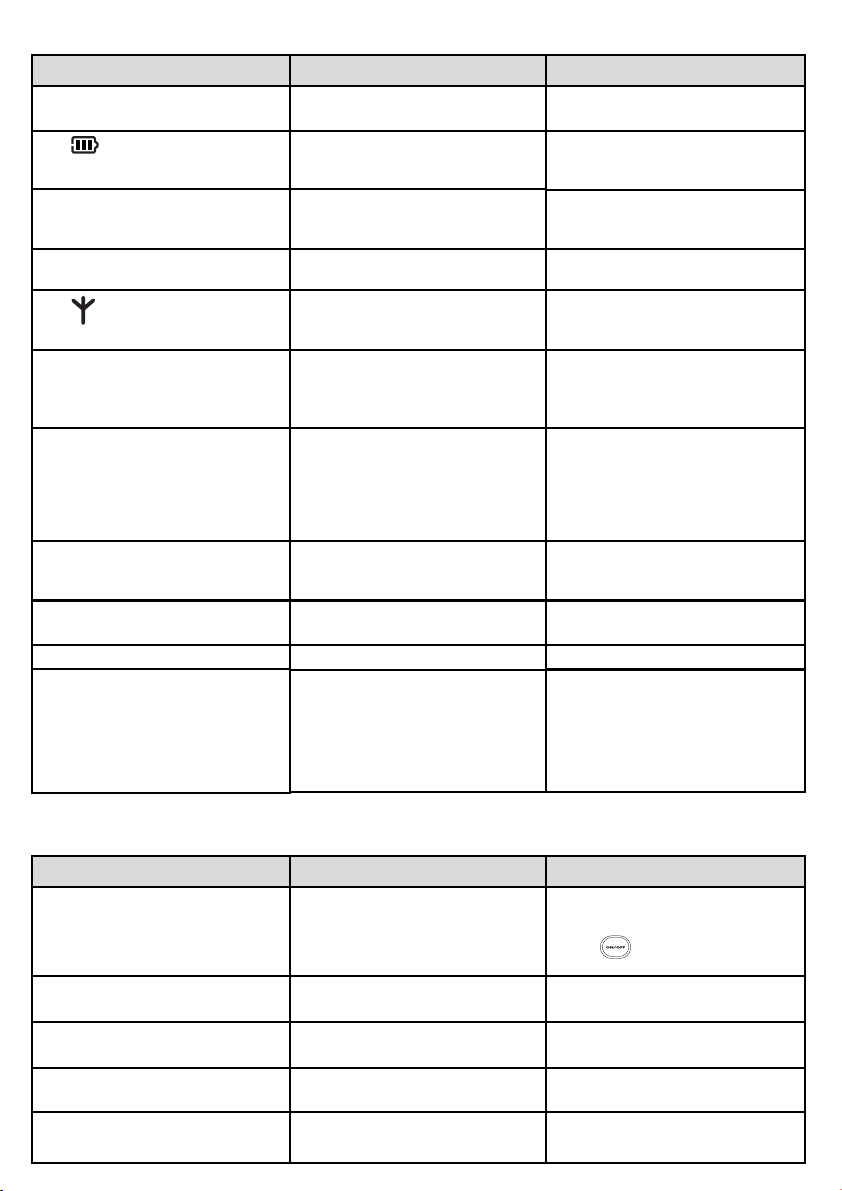
Telephone troubleshooting...
PROBLEMS
The green indicator does not light
up
The base station is not properly
connected
Check mains power and
connections
The does not scroll when
the handset is placed on the base
- Bad contact
- Dirty contacts
No ringer
- The ringer is deactivated
- The Do not Disturb mode is ON
- Set the ringer (page 12,27)
- Deactivate it
The does not appear
- No mains power
- The handset is too far from the
base station
- Check connections
- Move closer to the base station
Crackling on the line - You are too far from the base station
- The base station is too close to
electrical appliances, reinforced
concrete walls or metal doorframes
- Move closer to the base station
and check the range
- Move the base station to find a
better place (the higher the better)
The handset displays failed
- when attempting to add another
handset to the base station
- When using a handset
- The procedure to add a handset
has failed, try again
- Maximum number of handsets
has been reached
- Base station is already busy with
another handset (ie : Phonebook)
- Disconnect and connect the
base station power supply. Follow
the procedure to register a
handset ( See page 12)
- Un-register a handset (page 13)
- Wait until it is available
Noise interference on your radio
or television
The Onis 300 base station or
mains power pack are too close
to electrical appliances
Move the base station or power
pack as far as possible
Caller Line Identification service
(CLI) does not work
No new SMS are received
SMS memory is full
- Service not activated
- Wrong operator type
- Check your subscription with network
- Change operator type (See page 28)
Delete old SMS
No SMS can be sent/received
- The outgoing/Incoming SMSC
number is not set or is wrong
- The SMS box or destnation box
is wrong
- SMS mode is OFF
- The protocole type is wrong
- Contact your operator to get
the correct SMSCs numbers
- Check the information stored
(page 9, 10, 21)
- Change SMS mode (page 10)
- Change protocole type (page 11)
The answer machine does not
record messages
The remote control access does
not work properly
It is not possible to record an
outgoing message
The Onis 300 hangs up during
remote access
The answer machine stops
automatically
- The memory is full
- The answer only mode is activated
- The Answer & record is not
activated
The remote control access is not
activated
The memory is full
- 3 failed attempts to send a code
- duration is too long
- The memory is full
- Message exceeds 3 mn
- Delete messages
- Select the Answer & record mode
- Press
Activate the remote control
access (See page 17)
Delete messages
- Enter the correct code
- Manage the remote control quicker
- Play & delete messages
- Messages must not exceed 3 mn
No dialling tone
CAUSES
SOLUTIONS
PROBLEMS CAUSES
SOLUTIONS
- No power
- You are too far from the base
station
- Check connections
- Move closer to the base station
- Move the handset slightly
- Clean the contacts with a cloth
moistened with alcohol
Answer machine troubleshooting...
Onis 300 manual_Retail_UK_Indice2.qxd 07/01/03 14:10 Page 29

A
Adding handset 12
Adding a name 20
Alarm clock 25, 26
Answering calls 6
Answer machine settings 16
B
Babysit mode 12, 19
Base ringer 27
Base stations & indicators 2
Batteries & battery life 4
C
Call forward 24
Call log 22, 23
Call transfer/conference call 7, 19
Call waiting 6
Caller Identification (CLI) 7, 9, 20, 25,
Calling from call log 6, 22
Chain dialling 6
Changing entry (name & number) 21
Changing VIP group 21
Cheapest Rates (Changing operator) 23, 24
Contrast 14
Call cost & duration 25
D
Date & time (Set and change) 14
Deactivating ringer 12, 26, 27
Deleting entry 21
Deleting messages (answer machine) 15
Deleting messages (SMS) 10
Destination box 9
Dial mode 28
Direct calling 6
Do Not Disturb mode 26
E
Earpiece tone 12
Earpiece volume 7
Ending call 6
Entry type (VIP/Standard) 20, 21
External standard ringer 11
F
First ring 28
G
GAP 2
H
Handset keys 1
Handset ringer 11
I
Icons 1
In-call features 7
Indicators (LEDs) 2
Installation 4
Internal ringer type 11
Intercom 19
K
Key & feedback tones 12
Keypad lock/unlock 1
L
Language 13
Line settings 28
Listening to messages (Answer machine) 15
Listening to pre-recorded outgoing messages 16
Local message (Memo) 18
Loudspeaker volume 7
M
Making calls 6
Menu overview (Inside cover page)
Message service (Operator voice mail) 1, 26
Music on hold 27
Mute 7, 19
N
Name (Add, delete, change) 20, 21
Network services 24, 28
Notification beeps 12
Number (Change) 21
O
Operator type 28
Outgoing message 16
P
Pause 1
PABX/PSTN 28
Phonebook 20, 21
Predial 6
Protocol type 11
Pulse 28
R
Range 4
Recall type 28
Record quality 17
Recording conversation 7
Recording local memo 18
Recording personal melody 27
Recording personal outgoing message 16
Redial 6
Registration mode 27
Remote programming (Answer machine) 17
Remote accessing answer machine 18
Remote control code 18
Rename handset 13
Ringers 11, 25, 27
Rings before answer (Answer machine) 16
S
Screening calls 17
Service codes settings 28
Silence 6
SMS box 9, 10
SMS centre 9,11
SMS mode 10
SMS (Reading) 10
SMS (Sending) 9, 21, 22
SMS settings 10, 11
Sounds 11, 12, 27
Subscription 27
T
Toll saver (Answer machine) 16
Tone 28
U
Unregistering handset 13
V
VIP settings 20, 21, 25
Voice prompts 16
Volume (Ringers) 12, 27
Index
UK 3111 285 20132
©2002 Philips Consumer Electronics. DECT & Home telephony.
All rights reserved. Printed in France.
We Declare that the products Onis 300 (TU 5321), Onis 300 Vox (TU 5351 & TU 5352) and the additional
Philips Consumer Electronics handset (TU 5350) are in compliance with the Annex III of the R&TTE-Directive 1999/5/EC and then
DECT & Home Telephony with the following essential requirements :
Route dAngers Article 3.1.a (protection of the health & the safety of the user) : EN 60950 (2000)
72081 Le Mans Cedex 9 Article 3.1.b (protection requirements with respect to electromagnetic compatibility : ETSI EN 301 489
France -6 V1.1.1 (09/2000) & ETSI EN 301 489-1 V1.3.1 (09/2001)
The presumption of conformity with essential requirements regarding Council Directive 1999/5/EC is ensured.
Date : 16/12/2002 Vice President & General Manager, DECT & Home Telephony
Onis 300 manual_Retail_UK_Indice2.qxd 07/01/03 14:10 Page 30