
1
OWNER’S MANUAL
DIGITAL SIGNAGE MEDIA PLAYER
DIGITAL SIGNAGE MEDIA PLAYER
NC1000
NC2000
www.lg.com
Please read this manual carefully before operating
your set and retain it for future reference.
ENGLISH

2
CONTENTS
NC1000
Specications............................................4
General.Specifications................................... 4
Multi.I/O.port................................................... 4
Operational.Specifications............................. 4
Included.in.the.Box....................................5
Basic.Components......................................... 5
Optional.items................................................ 5
Connections..............................................6
Back.Panel..................................................... 6
Installing....................................................7
In/Out.Cable.Connection...........................9
Connecting.a.Monitor.with.D-SUB.Cable....... 9
Connecting.a.Monitor.with.an.HDMI.Cable.. 12
Connecting/Disconnecting.HDMI.in.Windows
... 14
NC1000.Installation.Confirmation................ 15
Connection.to.Multiple.Monitors................... 15
NC2000
Specications..........................................16
General.Specifications................................. 16
Multi.I/O.port................................................. 16
Operational.Specifications........................... 16
Included.in.the.Box..................................17
Basic.Components....................................... 17
Connections............................................18
Back.Panel................................................... 18
Installing..................................................19
SuperSign.Solution
What.is.SuperSign?................................20
Display......................................................... 20
Media.Player................................................ 20
Software....................................................... 20
How.to.Install.SuperSign.Solution...........21
Via.LAN/Internet.Network............................. 21
Via.RS-232C.Cable(NC1000.Only)..........21
SuperSign.Player
What.is.SuperSign.Player?.....................22
Start.SuperSign.Player............................22
Turning.NC1000.On..................................... 22
SuperSign.Player.Settings......................23
Log-in.to.the.Setting.Menu........................... 23
Network.Settings.......................................... 24
Screen.Setting.............................................. 29
Password..................................................... 30
EWF............................................................. 31
Initialize.S/W................................................ 32
Language.Options.and.Regional.Settings
...33
Language.Options.and.Regional.Settings.... 33
SuperSign.Player.Functions....................34
Signage.Mode.(Video.Playback.Mode)........ 34
Tray.Icon.Description................................... 35
Tray.Icon.Menu............................................ 36
Viewing.SuperSign.Player.Summary.
Information................................................... 36
SuperSign.Manager
What.is.SuperSign.Manager.?................37
Product.Information...................................... 37
How.to.Install.SuperSign.Manager..........38
System.Requirements.................................. 38
Installing.the.Program.................................. 39
Installing.SuperSign.Manager...................... 40
Uninstalling.the.program.............................. 43
Starting.SuperSign.Manager...................45
Starting.SuperSign.Manager........................ 45
Logging.In.................................................... 45
Selecting.Players......................................... 46
Setting.Canvas............................................. 47
Selecting.Templates.or.Layouts................... 48
SuperSign.Manager.Overview..................... 49
Contents.Edit...........................................50
Overview...................................................... 50
Checking.details........................................... 51
Changing.Layouts........................................ 53

3
Changing.Templates..................................... 54
Using.Library................................................ 55
Creating.Contents........................................ 58
Setting.Timeline............................................ 67
Distributing.Completed.Content................... 69
Content.Properties/Tool................................ 71
Schedule.................................................76
Overview...................................................... 76
Properties.and.Tool.Windows....................... 77
Setting.schedules......................................... 78
Copying.Schedules...................................... 79
Deleting.Schedules...................................... 80
Distributing.Schedules................................. 80
Management...........................................81
Overview...................................................... 81
Manage.Functions........................................ 82
Creating.Tile.Mode....................................... 85
Other.Features............................................. 88
Appendix
Frequently.Asked.Questions.(FAQs).......91
SuperSign.Network.Connecting.
Instructions..............................................93
Connect.Network.via.LAN............................ 93
Connect.Network.via.Internet....................... 94
Wireless.Network.Connection...................... 95
Monitor.Models.Supported.
by.SuperSign...........................................96
SuperSign.Manager.Menu.List................98
File.Menu..................................................... 98
Edit.Menu..................................................... 98
View.Menu.................................................... 98
Option.Menu................................................. 99
Setting.Menu................................................ 99
Help.Menu.................................................... 99
Required.Software.and.Codec.
Package.Installation..............................100
Required.Software..................................... 100
Codec.Package.Installation........................ 101
Files.Supported.by.SuperSign................... 101
Limitations.of.Microsoft.Windows.
Embedded.Standard.............................102
Swapping.Displays................................103
SMTP.E-mail.Settings...........................104
4
Dimensions
250 mm (W) x 220 mm (H) x 45 mm (D) (only Set)
Weight
1.321 kg (only Set)
CPU
Intel ATOM Processor 330 1.6 GHz(Dual Core), FSB 533 MHz
Chip Set
Nvidia MCP7A-I ON
Main Memory
DDR3 1066 SODIMM type 1 GB, 2 GB
Secondary Storage Device
SATA SSD 8 GB, 16 GB, 32 GB
O/S
Windows Embedded Standard
General Specifications
Resolution
Maximum Resolution 1920 x 1080 @ 60 Hz
Recommended Resolution 1920 x 1080 @ 60 Hz
Power
Rated Voltage AC 100-240 V~, 50 / 60 Hz, 1.2 A
Sound Output Wattage
RMS Audio Output 10 W + 10 W (R + L) : When connected to the monitor (model name : M4224C)
Operating Condition
Sync (H/V) Video LED
Normal Mode On/On Active On
Deep Sleep Mode
(Set = Off)
Off/Off Off Off
Operating Conditions
Operating Conditions Temperature
5 ℃ to 35 ℃
Humidity 10 % to 80 %
Storage Conditions Temperature
-20 ℃ to 60 ℃
Humidity 5 % to 95 %
Operational Specifications
Multi I/O port
Serial Port One external RS-232 Serial port
USB Port Hi-Speed USB 2.0 port 480 Mbps rate (x5)
LAN Port Realtek RTL8103E 10/100 Mbps Ethernet controller
VGA / HDMI Nvidia MCP7A-ION integrated Graphic chipset
4-in-1 Card Secure Digital (SD) / MultiMedia Card (MMC/MMC4.0) /
Memory Stick (MS/MS-Pro) / xD Memory Card
PCI Express Card Slot Supported
LINE OUT Supported
SPDIF
(Digital Audio Out)
5.1 Channel Supported (depend on source signal)
Attention
● Product specifications may change without prior notice to improve
performance.
NC1000
Specifi cations
NC1000
SSD
8G 16G 32G
DDR
1GB
NC1000-BAAB NC1000-CAAB NC1000-DAAB
2GB
NC1000-BABB NC1000-CABB NC1000-DABB

5
Basic.Components
Optional.items
M3,.L12.x.4.
(for.attachment.of.Box.Guide.on.the.monitor)
NC1000
Included.in.the.Box
The.NC1000.consists.of.the.following.components..Please.check.that.these.components.have.been.
included.prior.to.installation.
The.following.items.are.supported.by.the.NC1000,.but.are.not.provided.with.the.product.
Please.purchase.optional.items.as.needed.
●.HDMI.cable,.D-SUB.cable,.LINE-OUT.cable,..ber.optic.cable,.LAN.cable,.mouse,.keyboard.
NC1000
Power.Cable
Handle.x.2
Setup.Program/User.Manual
RS-232C.Cable
M3,.L8.x.8.
(for.attachment.of.handle)
Box.Guide
Rail.x.2
Attention
●.These.illustrations.may.differ.from.your.product..Some.of.these.are.subject.to.change.
NC1000
6
NC1000
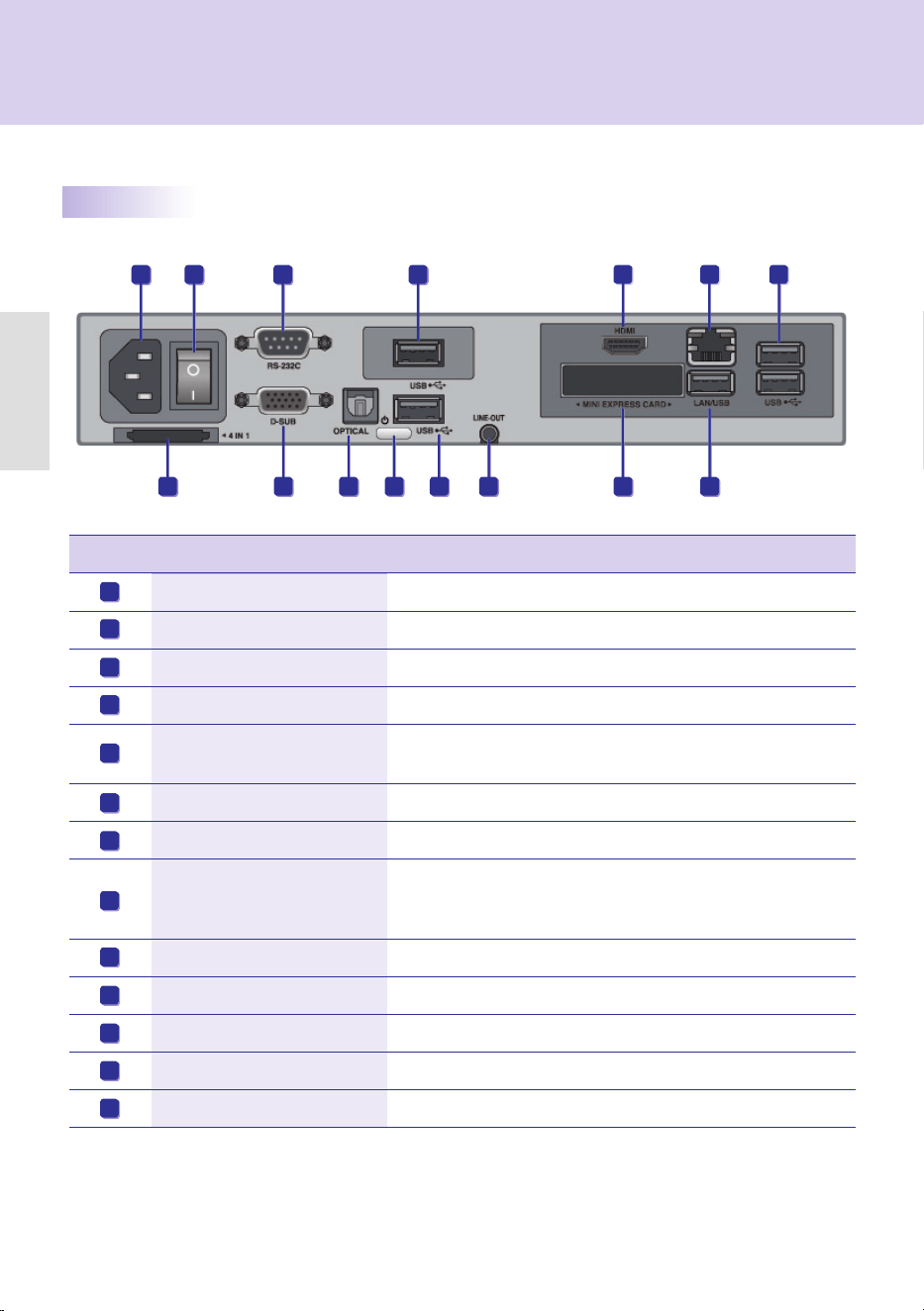
Back.Panel
A B
C
Number Connection Description
Power.Cable.In For.the.power.cable.
Power.Switch Provides.power.to.the.NC1000
RS-232C.Out For.the.RS-232C.cable.
USB.Wireless.Modem.In For.a.USB-type.wireless.modem.
USB.In
For.USB-type.devices,.including.memory,.hard.disk,.CD-ROM,.key-
board,.and.mouse.
HDMI.Out For.an.HDMI-compatible.monitor.
LAN.Connector For.a.LAN.cable.
4.IN.1.Multi-Card.Slot
Accommodates.memory.cards.for.storing.video.or.reading.images..
Supported. cards. include. Secure. Digital. (SD),. MultiMedia. (MMC/
MMC4.0),.Memory.Stick.(MS/MS-Pro),.and.xD.Memory.Cards.
D-SUB.Out For.the.monitor's.RGB.video.in.
OPTICAL.Out For.an.optical.cable.for.digital.audio.transfer.
NC1000.Power.Button Turns.NC1000.on.
LINE-OUT.Connector For.a.LINE-OUT.cable.for.analog.audio.transfer.
PCI.MINI.EXPRESS.Card.Slot Provided.for.PCI.Mini.Express.Cards.
A
B
C
D
E
F
G
H
I
J
K
L
M
D
E
EE
F
G
H
I
J K
L
M
Connections
NC1000

7
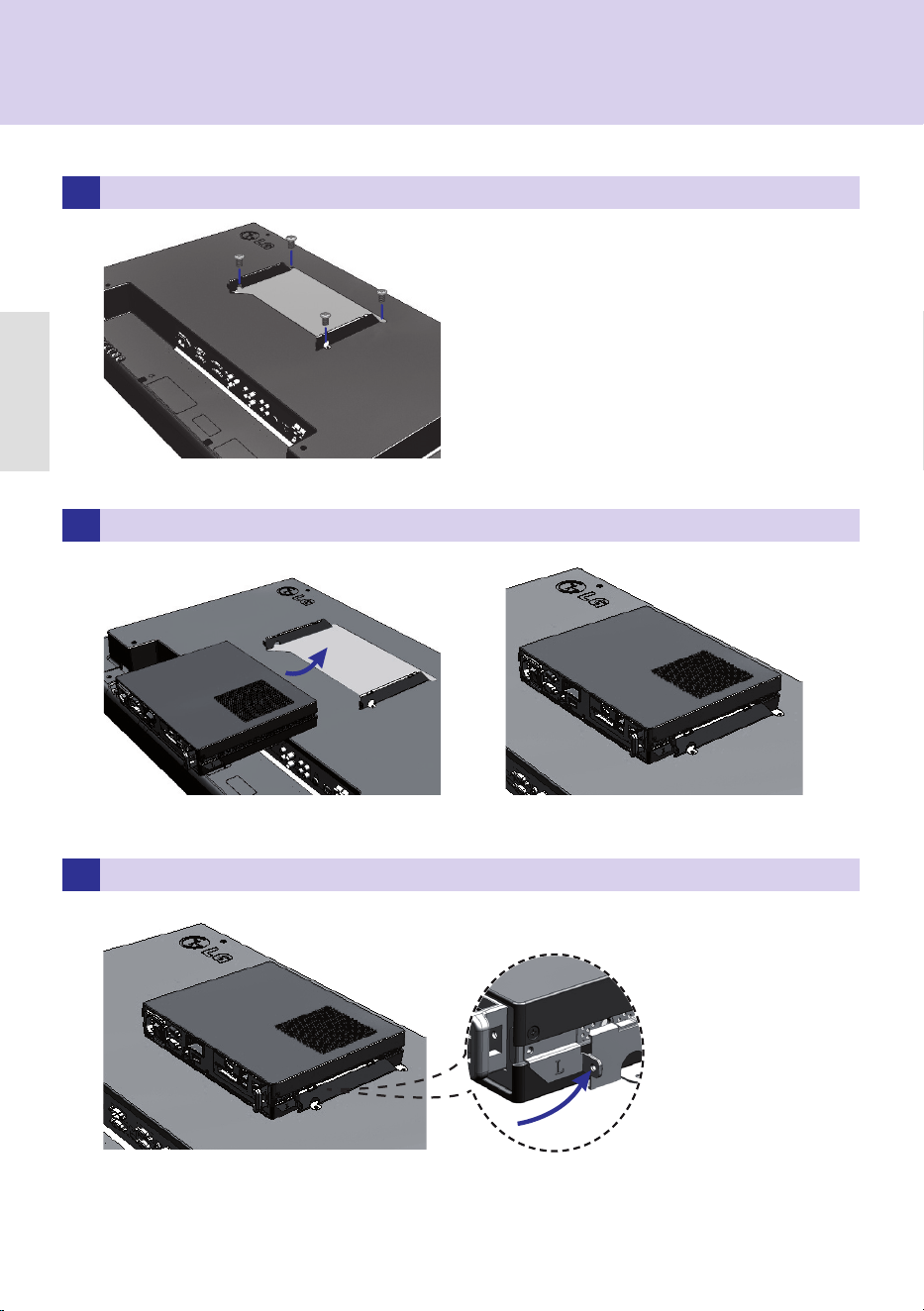
1 Place.the.handle.into.the.slots.on.the.side.of.the.product.
2 Use.screws.to.secure.the.handle.
3 Place.the.rail.in.the.slots.on.the.side.of.the.product.
Installing
We.recommend.you.to.use.the.items.provided.with.your.NC1000.and.follow.our.instructions.for.integrating.
the.product.with.your.monitor.in.order.to.ensure.the.correct.results.
Attention
●.The.monitor.illustrations.shown.are.to.guide.your.integration.they.may.differ.from.your.product.
Warning
●.Be.careful.of.sharp.edges.on.the.rail.and.the.handle.
NC1000
NC1000
8
4 As.shown.below,.use.screws.to.secure.the.Box.Guide.in.the.four.slots.at.the.back.of.the.monitor.
5 Attach.the.Box.Guide.to.the.rail.slots,.and.press.it.upward.
6 Use.screws.to.secure.the.player.and.the.Box.Guide.as.shown.below.
NC1000
NC1000

9
1
Connect.the.appropriate.power.cables.to.a.monitor.and.NC1000.respectively..(See.Turning NC1000 On)
NC1000
Connecting.a.Monitor.with.D-SUB.Cable
In/Out.Cable.Connection
In.order.to.watch.video.through.a.monitor,.you.need.to.use.a.D-SUB.cable.or.HDMI.cable.to.connect.NC1000.
to.a.monitor.
Attention
●..D-SUB,.HDMI,.LINE-OUT,.OPTICAL,.and.LAN.cables.are.not.included.with.the.NC1000..If.the.cables.were.
not.provided.with.your.monitor,.you.may.need.to.purchase.them.separately.
●..After. all. required. cables. are. connected,. configure. SET. ID. to. 1. for. the. first. monitor. connected. to. the.
NC1000..The.SET.ID.for.one.of.the.connected.monitors.should.be.configured.to.1.
●.To.configure.the.SET.ID,.please.refer.to.the.owner’s.manual.for.your.monitor.
●..Monitors.used.with.NC1000.should.support.LG.RS-232C.protocols..The.brightness,.resolution,.sound,.and.
other.features.of.an.LG.RS-232C.protocol-enabled.monitor.can.be.controlled.by.SuperSign.Manager.soft-
ware.
Attention
●..A.D-SUB.cable.connection.does.not.include.an.audio.signal..For.audio,.you.need.to.connect.a.LINE-OUT.
or.OPTICAL.cable.
●..A.SET.ID.is.a.reference.number.for.the.monitor.that.can.be.set.to.the.user's.preference..The.monitor.
SET.ID.is.used.by.the.SuperSign.Manager.software.to.identify.monitors.
Note
●.D-SUB.cables.are.also.known.as.RGB.cables.
Note
NC1000
10
In/Out.Cable.Connection
NC1000
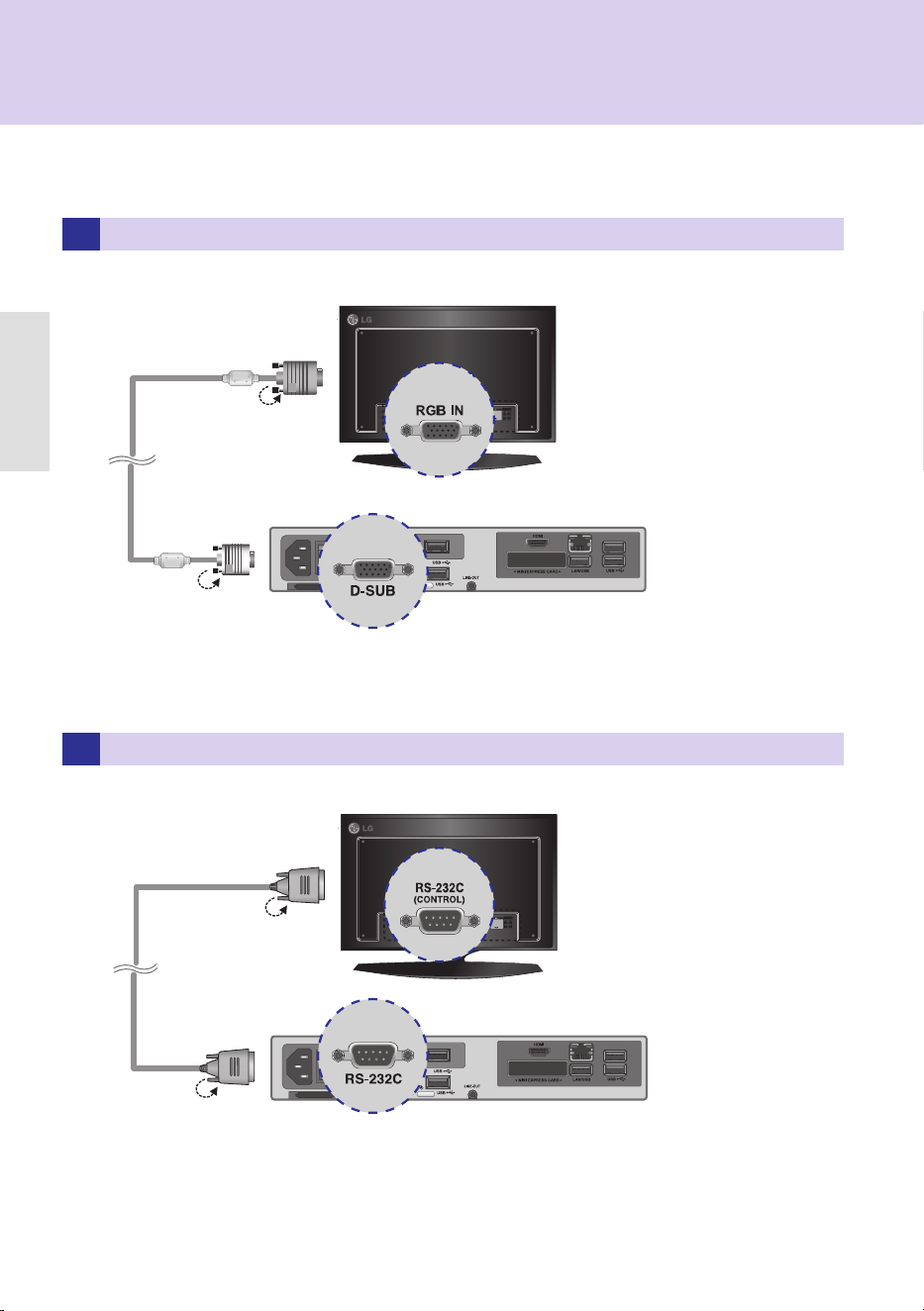
2 Connect.the.D-SUB.port.of.NC1000.and.RGB-IN.port.of.the.monitor.with.a.D-SUB.cable.
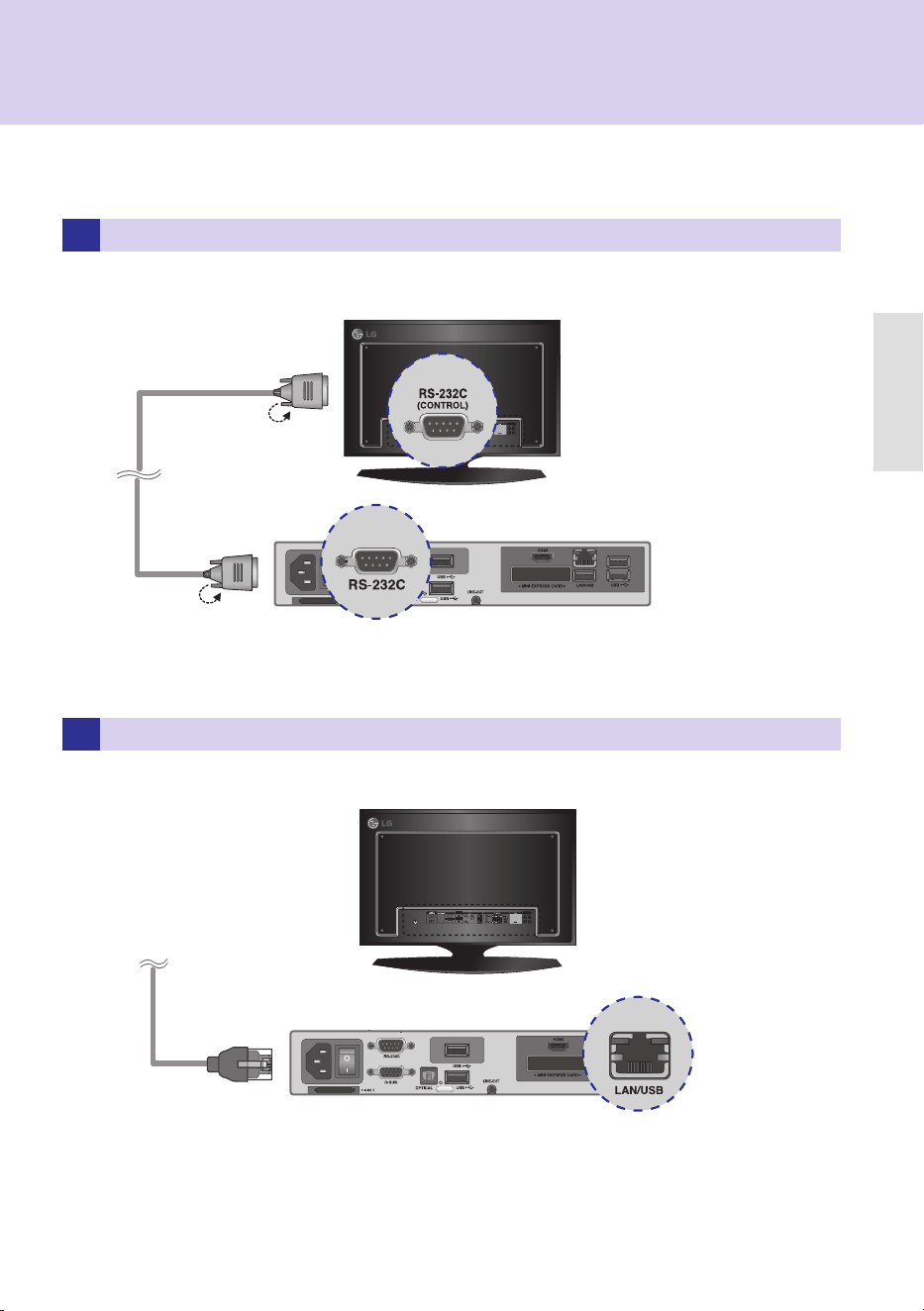
3 Connect.NC1000.(OUT).to.the.monitor.(IN).with.an.RS-232C.cable.
NC1000

11
In/Out.Cable.Connection
5 Connect.a.LAN.cable.to.the.NC1000
NC1000
4 Connect.the.NC1000.to.the.monitor.with.a.LINE-OUT.cable.
NC1000

12
In/Out.Cable.Connection
2 Connect.NC1000.to.a.monitor.with.an.HDMI.cable.
1
Connect.the.appropriate.power.cables.to.a.monitor.and.NC1000.respectively..(See.Turning NC1000 On)
NC1000
.
Connecting.a.Monitor.with.an.HDMI.Cable
● The.monitor.to.connect.with.NC1000.should.have.the.HDMI.in.for.the.HDMI.connection.
● To. use. the. HDMI. device,. you. need. to. activate. the. HDMI. device. in.Microsoft. Windows. Embedded. Standard,. the.
operating.system.of.the.NC1000..The.procedures.for.activating.and.deactivating.HDMI.devices.are.described.below.
●.In.and.Out.signals.are.not.differentiated.when.using.HDMI.cables.
HDMI.connections.allow.digital.video.and.audio.signals.to.be.transferred.with.one.cable.
HDMI.cable.connections.do.not.require.an.additional.audio.in.cable.
Note
Attention
NC1000
13
In/Out.Cable.Connection
4 Connect.a.LAN.cable.to.NC1000.
3 Connect.NC1000.(OUT).to.the.monitor.(IN).with.an.RS-232C.cable.
NC1000
NC1000
14
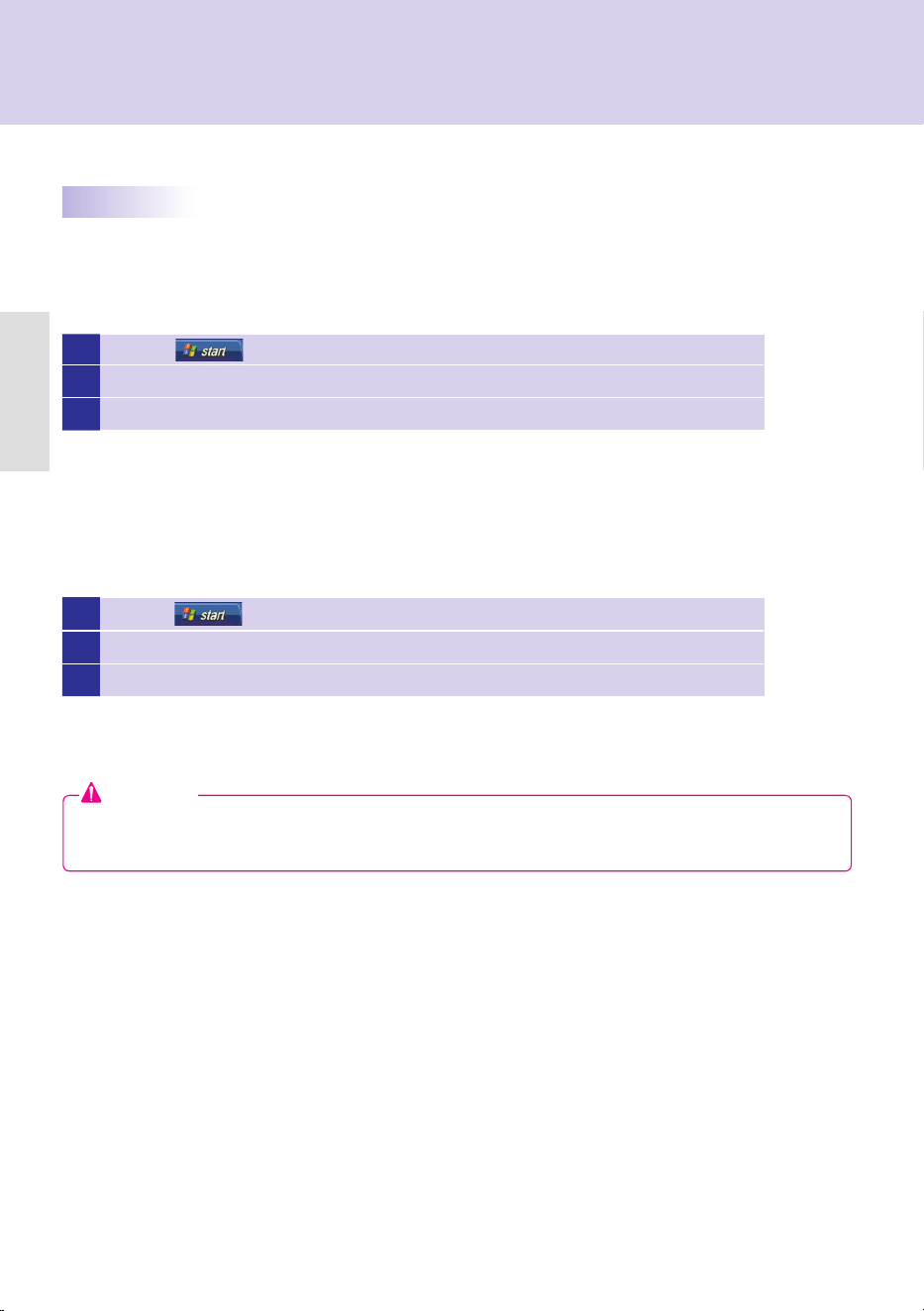
1 Click.the..................button.in.the.lower.left.of.the.screen.
2 Select Start > Control Panel > Sounds and Audio Devices > Audio.
3 Select.Play Sounds > NVIDIA High Defi nition Audio from the list.and.click.OK.
1 Click.the..................button.in.the.lower.left.of.the.screen.
2 Select Start > Control Panel > Sounds and Audio Devices > Audio.
3 Select.Play Sounds > Realtek HD Audio output from the list.and.click.OK.
Connecting/Disconnecting.HDMI.in.Windows
Connecting HDMI
Disconnecting HDMI
Move.to.the.desktop.of.the.monitor.connected.to.the.NC1000.
Move.to.the.desktop.of.the.monitor.connected.to.the.NC1000.
Attention
●.If.you.do.not.reset.after.disconnecting.the.HDMI.cable.from.the.NC1000,.the.sound.will.not.work.
●..In.order.for.the.sound.to.work.properly,.stop.playing.the.content.and.restart.the.NC1000.
NC1000
NC1000
15
3
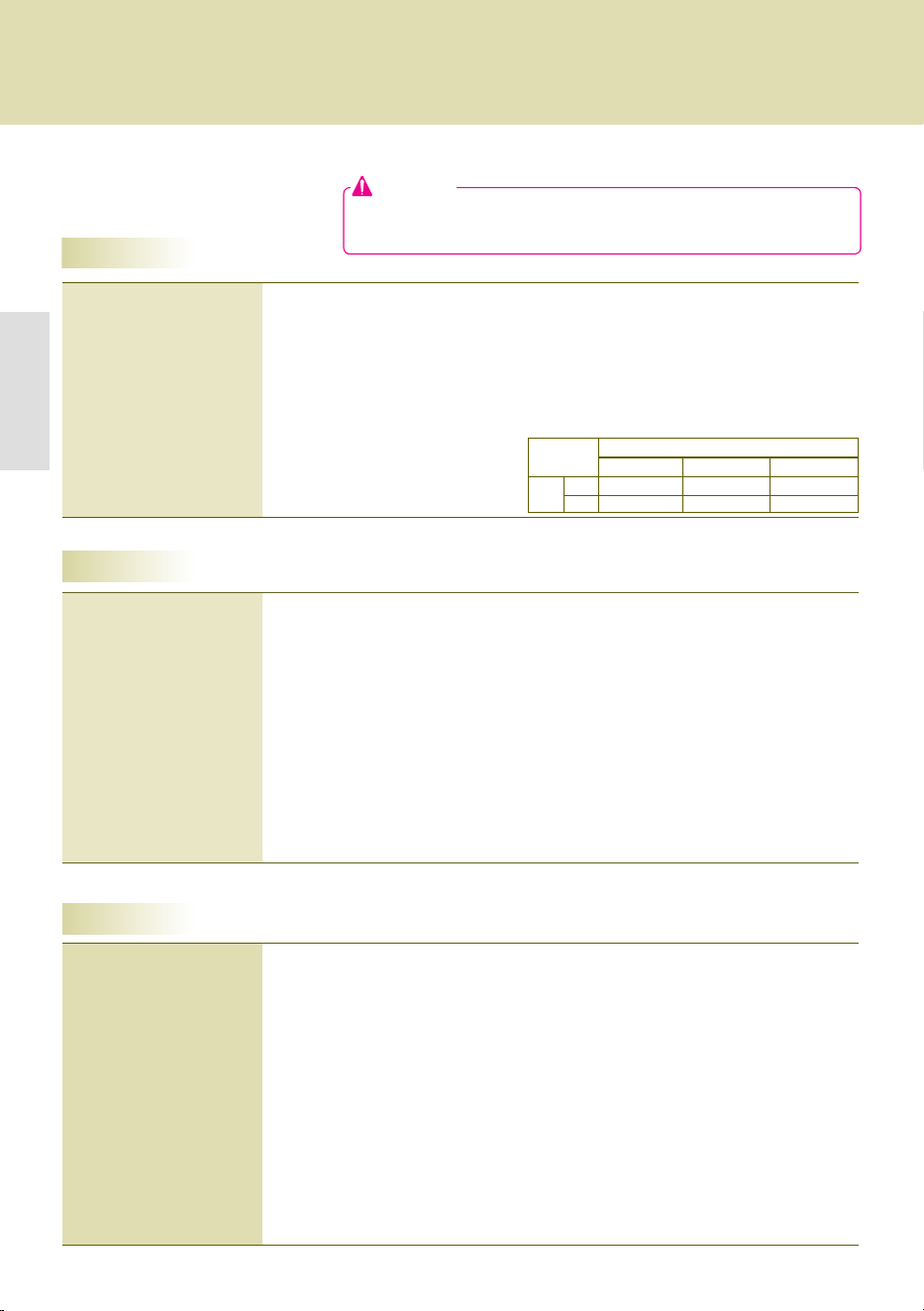
Connect.the.NC1000's.RS-232C OUT.to.the.RS-232C IN.of.the..rst.monitor,.which.has.SET ID = 1.
4
Connect.other.monitors.with.RS-232C.cables.as.shown.below.(IN/OUT.separated).
1 Connect.the.NC1000's.D-SUB OUT.to.the.D-SUB IN.of.the..rst.monitor,.which.has.SET ID = 1
2 Connect.other.monitors.with.D-SUB.cables.as.shown.below.(IN/OUT.separated).
NC1000
NC1000.Installation.Confirmation
Connection.to.Multiple.Monitors
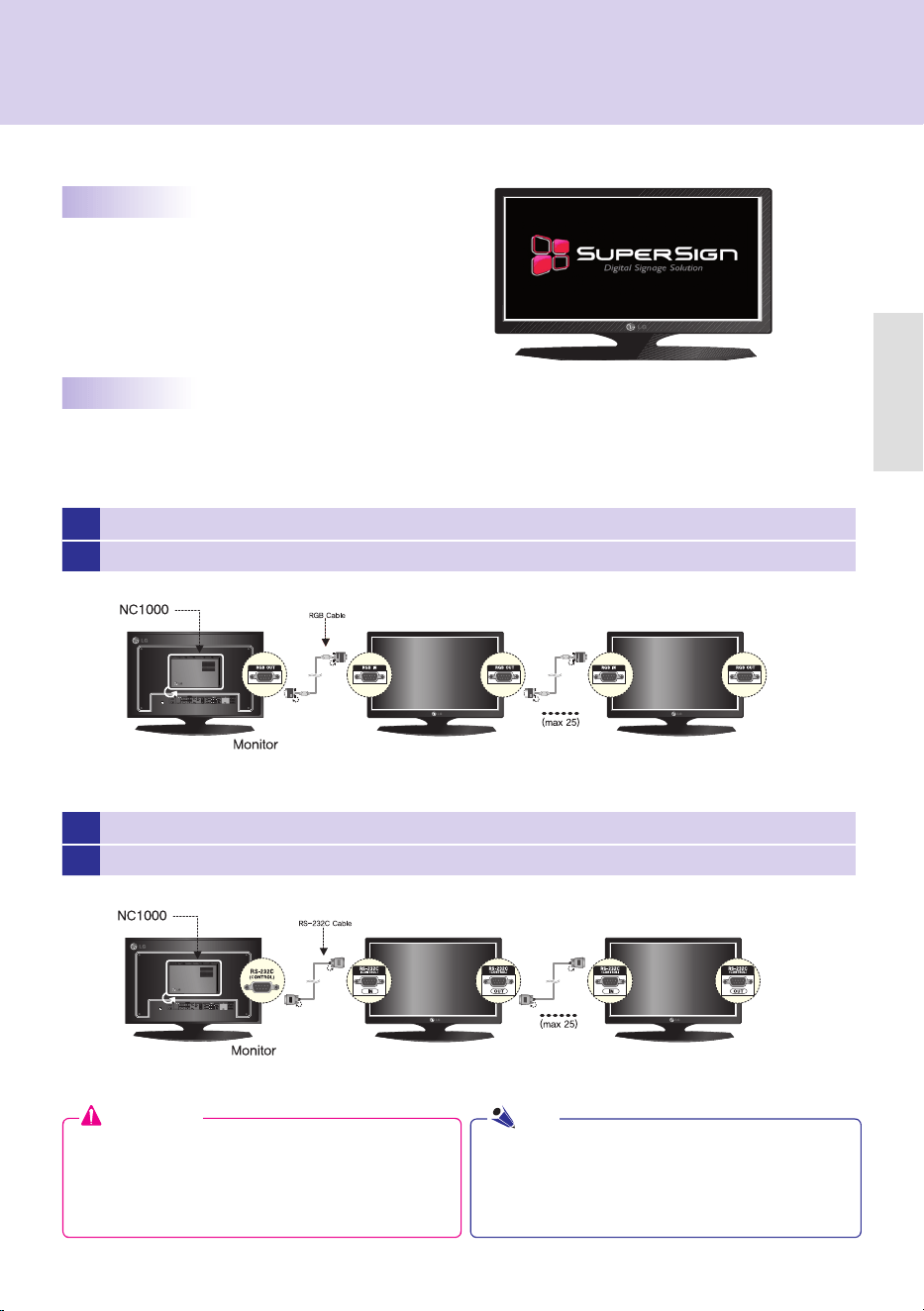
Connect.the.NC1000.to.the.monitor.as.described.
on.the.previous.pages.and.turn.the.monitor.and.the.
NC1000.on..When.the.monitor.is.on,.the.SuperSign.
Player.home.screen.will.appear.as.shown.here.
Each.NC1000.can.accommodate.up.to.25.monitors.for.video.playback..
You.can.connect.it.to.several.monitors.in.Tile.Mode.
Attention
●..You.may.want.to.purchase.additional.RS-232C.
cables.to.use.several.monitors.together.
●..You.cannot.use.multiple.monitors.with.the.HDMI.
cable.
●..To.play.video.in.Tile.Mode,.go.to.Creating Tile
Mode > Create Tile.in.this.manual.
Note
NC1000
16
Specifi cations
NC2000
Dimensions
99.8 mm (W) x 183.3 mm (H) x 28.4 mm (D) (only Set)
Weight
0.215 kg (only Set)
CPU
Intel ATOM Processor 330 1.6 GHz(Dual Core), FSB 533 MHz
Chip Set
Nvidia MCP7A-I ON
Main Memory DDR3 1066 SODIMM type 1 GB, 2 GB
Secondary Storage
Device
SATA SSD 8 GB, 16 GB, 32 GB
O/S
Windows Embedded Standard
General Specifications
Resolution
Maximum Resolution 1920 x 1080 @ 60 Hz
Recommended Resolution 1920 x 1080 @ 60 Hz
Power
Rated Voltage DC 12 V / 3.5 A
Sound Output Wattage
N/A
Operating Condition
Sync (H/V) Video LED
Normal Mode On/On Active On
Deep Sleep Mode
(Set = Off)
Off/Off Off Off
Operating Conditions
Operating Conditions Temperature
5 ℃ to 35 ℃
Humidity 10 % to 80 %
Storage Conditions Temperature
-20 ℃ to 60 ℃
Humidity 5 % to 95 %
Operational Specifications
Multi I/O port
Serial Port
N/A
USB Port
Hi-Speed USB 2.0 port 480 Mbps rate (x3)
LAN Port
Realtek RTL8103E 10/100 Mbps Ethernet controller
VGA / HDMI
Nvidia MCP7A-ION integrated Graphic chipset
4-in-1 Card
N/A
PCI Express Card Slot
Supported
LINE OUT
N/A
SPDIF
(Digital Audio Out)
N/A
Attention
● Product specifications may change without prior notice to improve
performance.
NC2000
SSD
8G 16G 32G
DDR
1GB
NC2000-BAAB NC2000-CAAB NC2000-DAAB
2GB
NC2000-BABB NC2000-CABB NC2000-DABB
17
NC2000
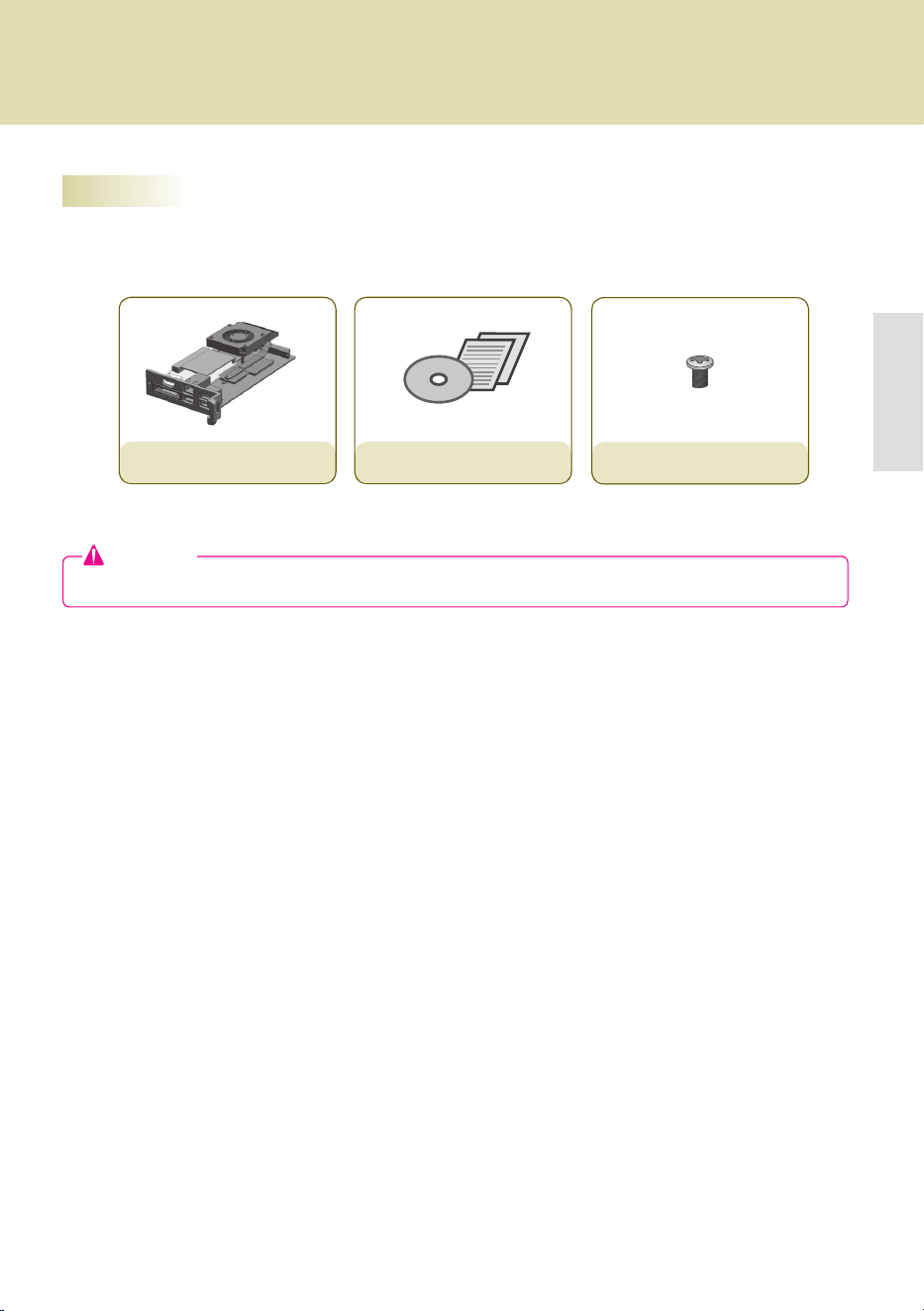
Basic.Components
The.NC2000.consists.of.the.following.components..Please.check.that.these.components.have.been.
included.prior.to.installation.
Attention
●..These.illustrations.may.differ.from.your.product..Some.of.these.are.subject.to.change.
NC2000
Setup.Program/User.Manual
screw x 2
NC2000
Included.in.the.Box

18
Back.Panel
Connections
Number Connection Description
HDMI.Out For.an.HDMI-compatible.monitor.
LAN.Connector For.a.LAN.cable.
USB.In
For.USB-type.devices,.including.memory,.hard.disk,.CD-ROM,.key-
board,.and.mouse.
PCI.MINI.EXPRESS.Card.Slot Provided.for.PCI.Mini.Express.Cards.
A B C
CD
A
B
C
D
NC2000
NC2000
19
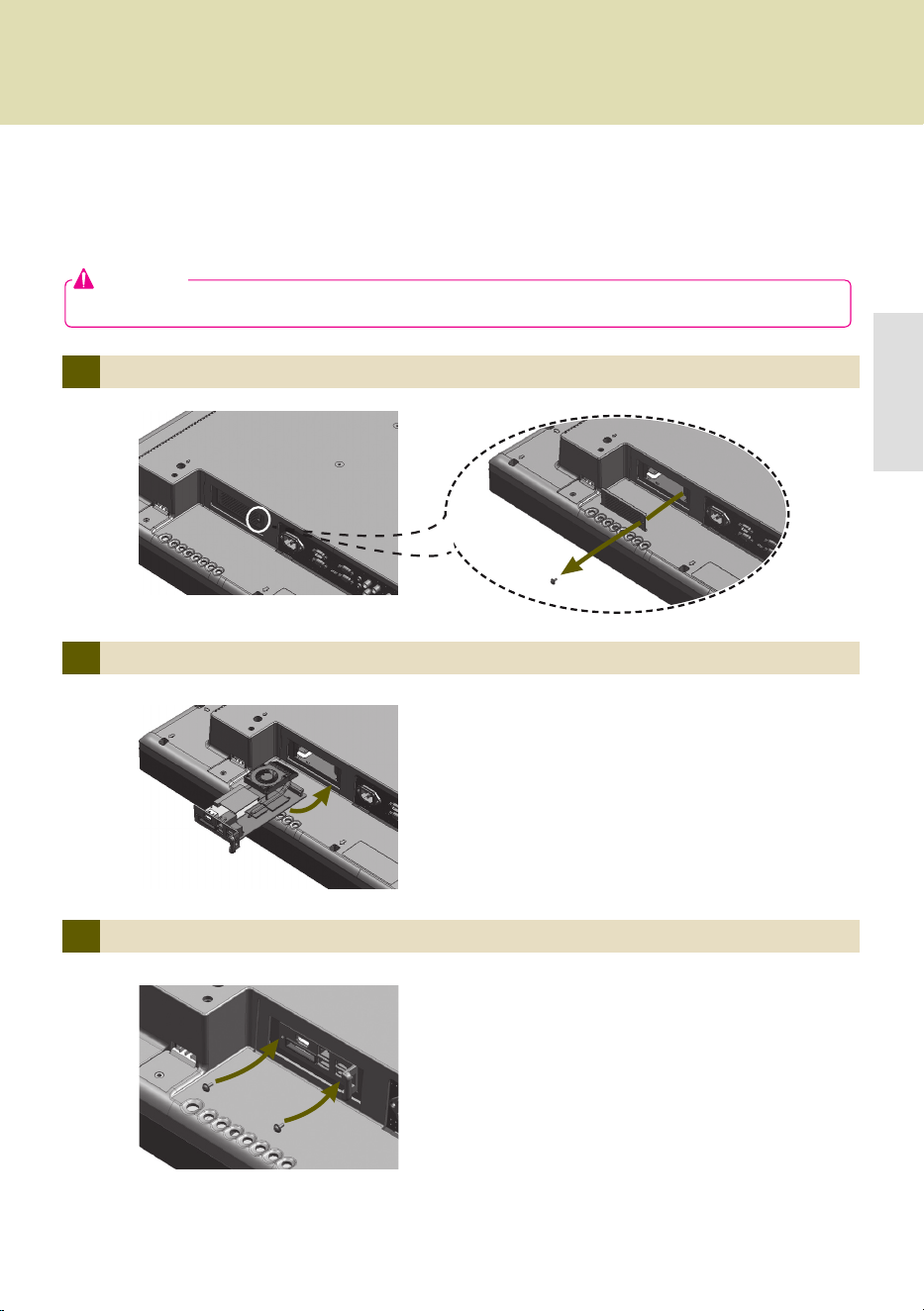
Installing
1 Remove.the.screw.and.Metal.cover.
2 Attach.the.Box.Guide.to.the.rail.slots,.and.press.it.upward.
3 Use.screws.to.secure.the.player.and.the.Box.Guide.as.shown.below.
We.recommend.you.to.use.the.items.provided.with.your.NC2000.and.follow.our.instructions.for.integrating.
the.product.with.your.monitor.in.order.to.ensure.the.correct.results.
Attention
●.The.monitor.illustrations.shown.are.to.guide.your.integration.they.may.differ.from.your.product.
NC2000.
NC2000

20
Display
Software
Component
LG SuperSign Solution
Display
Media.Player
Software
LG
SuperSign.is.a.digital.signage.solution.developed.exclusively.by.LG.Electronics..The.comprehensive.LG.
SuperSign.solution.offers.displays,.media.player.(hardware.and.software),.and.management.programs.
A.monitor.(or.monitors).is.connected.to.the.media.player.and.used.to.display.advertising.content..LG’s.SuperSign.
Solution.supports.most.LCD.monitors.supporting.LG.RS-232C.protocols..The.brightness,.resolution,.sound,.and.
other.features.of.an.LG.RS-232C.protocols-enabled.monitor.can.be.controlled.by.SuperSign.Manager.software.
Media.Player
SuperSign.Solution's.Media.Player.includes.the.NC1000/NC2000.hardware.as.well.as.its.software.
The.SuperSign.Solution.provides.SuperSign.Manager.software,.an.all-in-one.management.program.that.is.
used.to.control.the.display.and.the.media.player,.as.well.as.the.means.to.create.and.distribute.media.
What.is.SuperSign?
SuperSign.Solution
●..More.information.on.SuperSign.Manager.is.available.in.the.SuperSign Manager section.of.this.manual.
●..Digital.Signage.Solution.is.a.network-based.digital.signage.communication.program..These.new.advertising.
media.can.be.used.in.various.places.such.as.commercial.and.public.facilities,.airports,.and.schools,.
depending.on.the.ad.content.and.location’s.conditions.
Note
●.Display.types.and.their.controllable.range.are.listed.in.the.Appendix.of.this.manual.
Note
Note

21
SuperSign.Solution
Via.LAN/Internet.Network
Via.RS-232C.Cable(NC1000.Only)
NC1000/NC2000-integrated.monitors.can.be.connected.via.LAN.or.the.Internet.
One.NC1000-integrated.monitor.(with.SET ID = 1).can.accommodate.multiple.monitors.
●.Because.only.one.SuperSign.Player.is.attached,.the.connected.monitors.can.play.the.same.video.only.
●.NC2000.does.not.support.RS-232C.connection.
●.There.is.no.limit.to.the.number.of.SuperSign.Players.(NC1000/NC2000).that.can.be.connected.
●.With.SuperSign.Player,.each.display.can.play.different.content.at.the.same.time.
Note
Note
SuperSign.Solution
How.to.Install.SuperSign.Solution
22
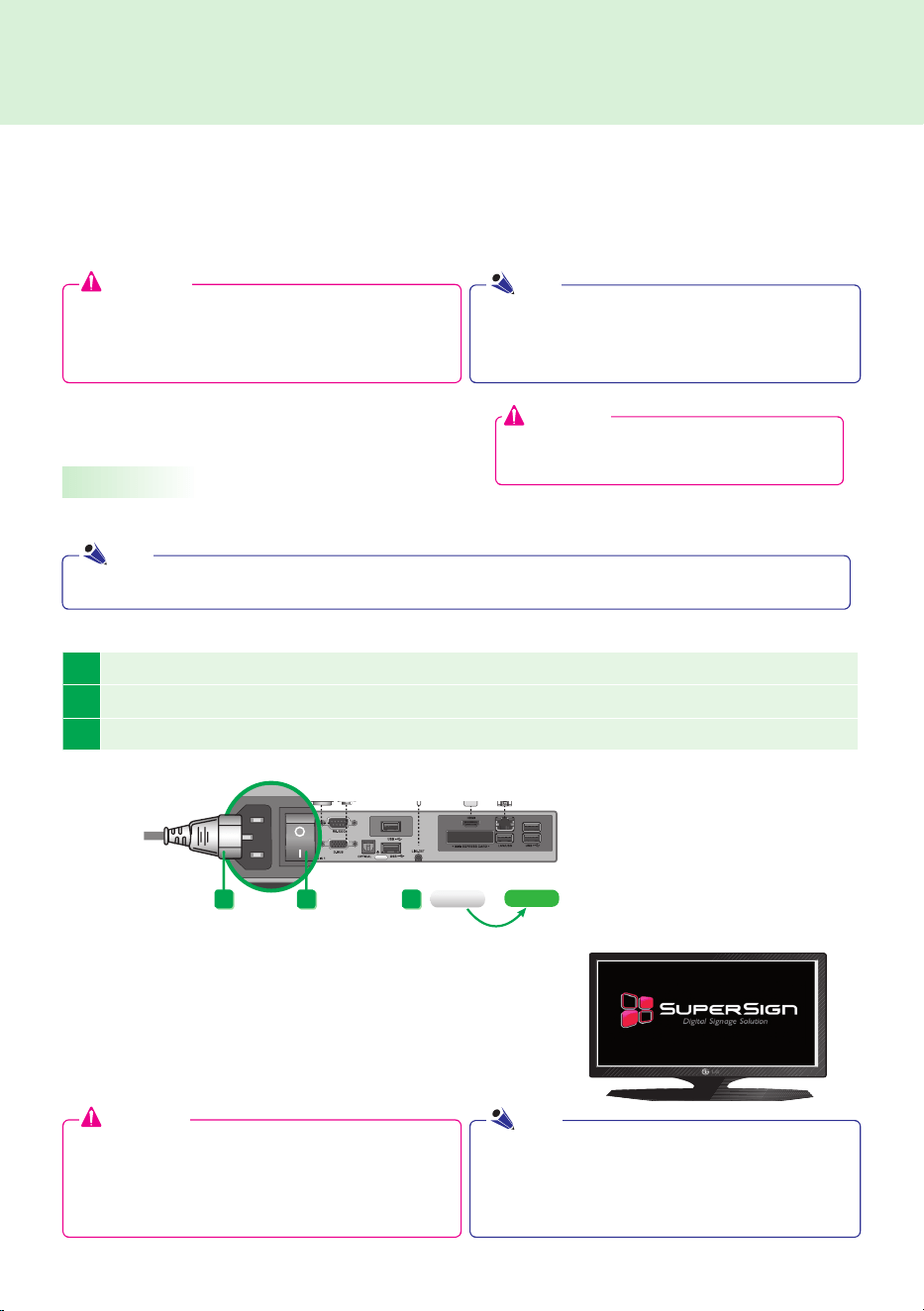
1 Check.that.the.power.cable.is.properly.inserted.into.the.NC1000.power.in.
2 Flip.the.power.switch.to.supply.power.to.the.NC1000.
3 Push.the.NC1000's.power.button..The.green.lights.will.come.on.to.indicate.that.the.power.is.on.
What.is.SuperSign.Player?
Start.SuperSign.Player
SuperSign.Player.is.the.software.portion.of.NC1000/NC2000,.the.LG.Digital.Signage.Media.Player,.designed.to.
play.digital.signage.content...SuperSign.Player.can.play.media.files.such.as.video,.images,.audio,.Flash.files,.
and.documents.transferred.from.the.SuperSign.Manager.
When.you.are.finished.connecting.the.cables,.turn.NC1000.on.by.pushing.the.power.switch.at.the.back.panel..
After.the.NC1000.is.turned.on,.SuperSign.Player.automatically.runs.
and.its.home.screen.appears.
Turn.NC1000.on.in.the.following.order:
SuperSign.Player
Turning.NC1000.On
Attention
Attention
●..The.SuperSign.Player.is.pre-installed.on.the.
NC1000/NC2000..Start.the.NC1000.and.check.that.
SuperSign.Player.is.installed.
●..If.the.home.screen.is.not.displayed,.check.whether.the.
monitor.is.on.
●..If. the. monitor. power. is. on,. check. that. NC1000. is.
connected.to.the.monitor.with.the.correct.cables..
●..The.media.file.types.that.can.be.played.by.SuperSign.
Player.are.listed.in.Files Supported by SuperSign.
section.of.the.appendix.
●..Press.the.ESC.key.on.the.SuperSign.Player.home.
screen.to.display.the.desktop.
●.For.details.on.the.NC1000's.back.panel,.go.to.Name and Functions of Each Part.
1 2 3
Note
Note
Note
● Power is automatically supplied to
NC2000 when the monitor is turned on.
Attention

23
SuperSign.Player
2
Click.Setup.to.display.the.password.entry.screen.
The.SuperSign.Player's.default.password.is.set.to."0000".
1
To.use.SuperSign.Player.setting.menu,.right.click.on.the.SuperSign.Player.(........).icon.located.on.the.
Windows.taskbar..Its.pop-up.menu.will.appear.as.shown.below.
The.SuperSign.Player.can.be.customized.for.multiple.users..
Log-in.to.the.Setting.Menu
3 Type.in.your.password.and.click.OK.to.view.<SuperSign.Player.Menu>.as.shown.below.
●.You.can.change.the.password.by.yourself..For.details.on.password.setting,.refer.to.the.Password.section.of.this.manual..
Note
SuperSign.Player
SuperSign.Player.Settings

24
SuperSign.Player
Network.Settings
You.can.set.the.player.IP.(the.IP.of.the.NC1000/NC2000.in.which.SuperSign.Player.software.is.installed).and.the.
server.IP.(the.IP.of.the.PC.on.which.SuperSign.Manager.software.is.installed).in.Network.Settings.
NIC Setting
With.NIC.Setting.option,.you.can.select.a.network.interface.card.from.the.list..This.option.is.used.when.there.are.
more.than.one.network.card.installed.on.your.player.
●..The.SuperSign.Player.will.automatically.detect.a.
network.interface.card.available.when.the.player.is.
started.
Player IP Setting
The.Player IP setting.is.for.the.NC1000/NC2000.IP.settings..It.is.set.to.Dynamic IP.by.default.
●..With.Dynamic IP.enabled,.the.IP.will.be.automatically.
generated.
●..With.Static IP.option,.you.can.assign.a.speci.c.IP.for.
NC1000/NC2000.by.yourself.
●..The.Player name.is.set.to.the.MAC.address.of.the.
NC1000/NC2000.network.device.by.default..The.user.can.
change.it.later..
●.Click.Save.to.save.settings.
Note

25
SuperSign.Player
Server IP setting
In.the.Server IP.settings,.you.can.set.the.IP.of.the.PC.(server).on.which.SuperSign.Manager.is.installed..
It.is.set.to.Auto Setting.by.default..
Wizard Setting
The.SuperSign.solution.now.provides.SuperSign Wizard setting.that.guides.you.through.the.necessary.steps.to.
configure.the.network.settings.on.your.SuperSign.Player.and.SuperSign.Manager.
●..With.Auto Setting.selected,.the.IP.of.the.server.using.the.
same.network.as.the.player.will.be.automatically.assigned.
●..With.Manual Setting.selected,.you.can.choose.a.speci.c.
server.IP.
●.Click.Save.to.save.the.settings.
Attention
●..Before.continuing.with.the.Wizard setting,.please.make.sure.that.you.already.have.a.SuperSign.Manager.
installed.on.your.server..If.not,.the.wizard.may.not.setup.network.connections.correctly.
●.Only.IPv4.is.supported.in.the.player.and.the.server.IP.settings.
●.If.you.entered.the.IP.manually,.and.the.network.is.disconnected,.check.the.IP.address.and.try.again..
Note
26
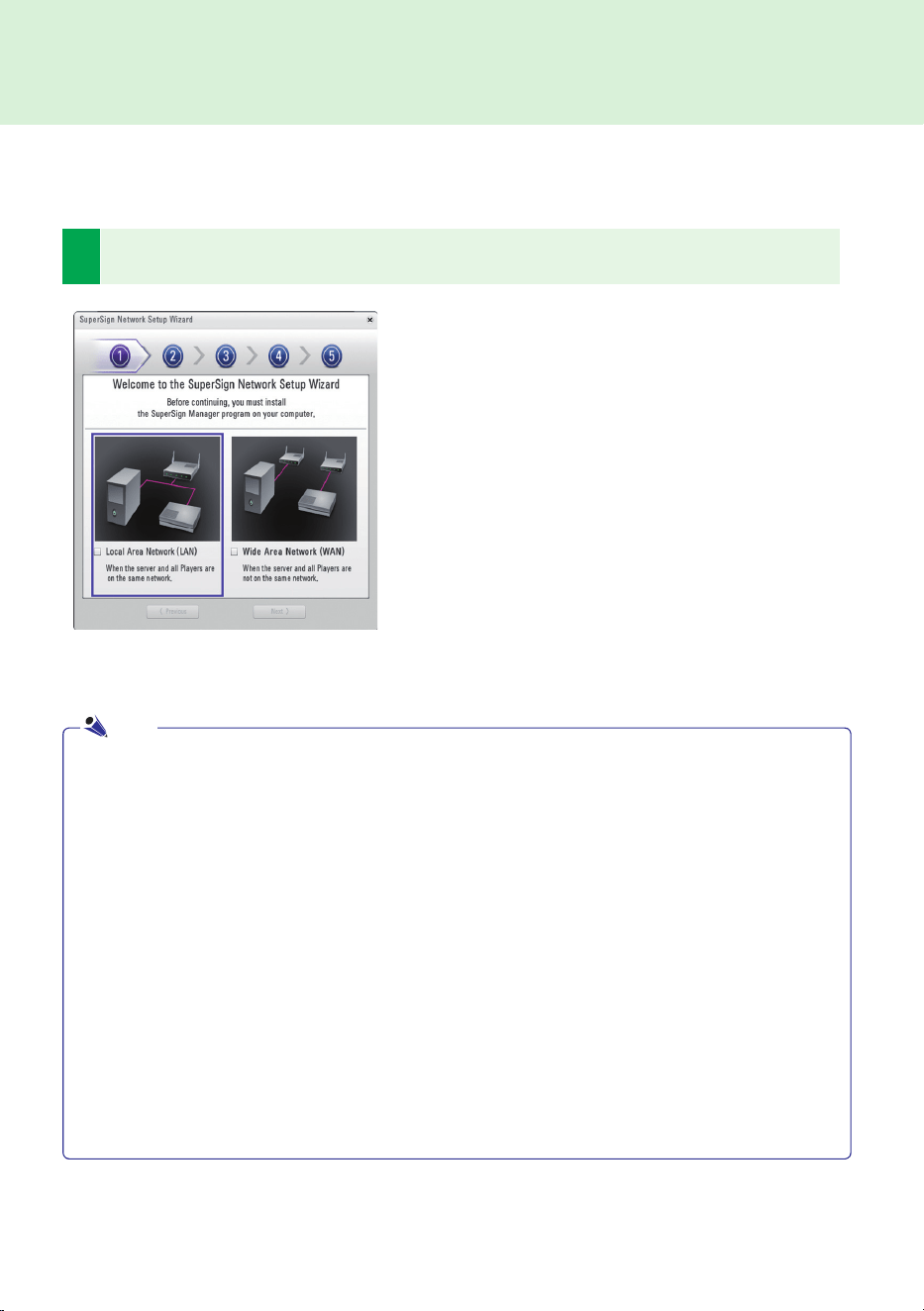
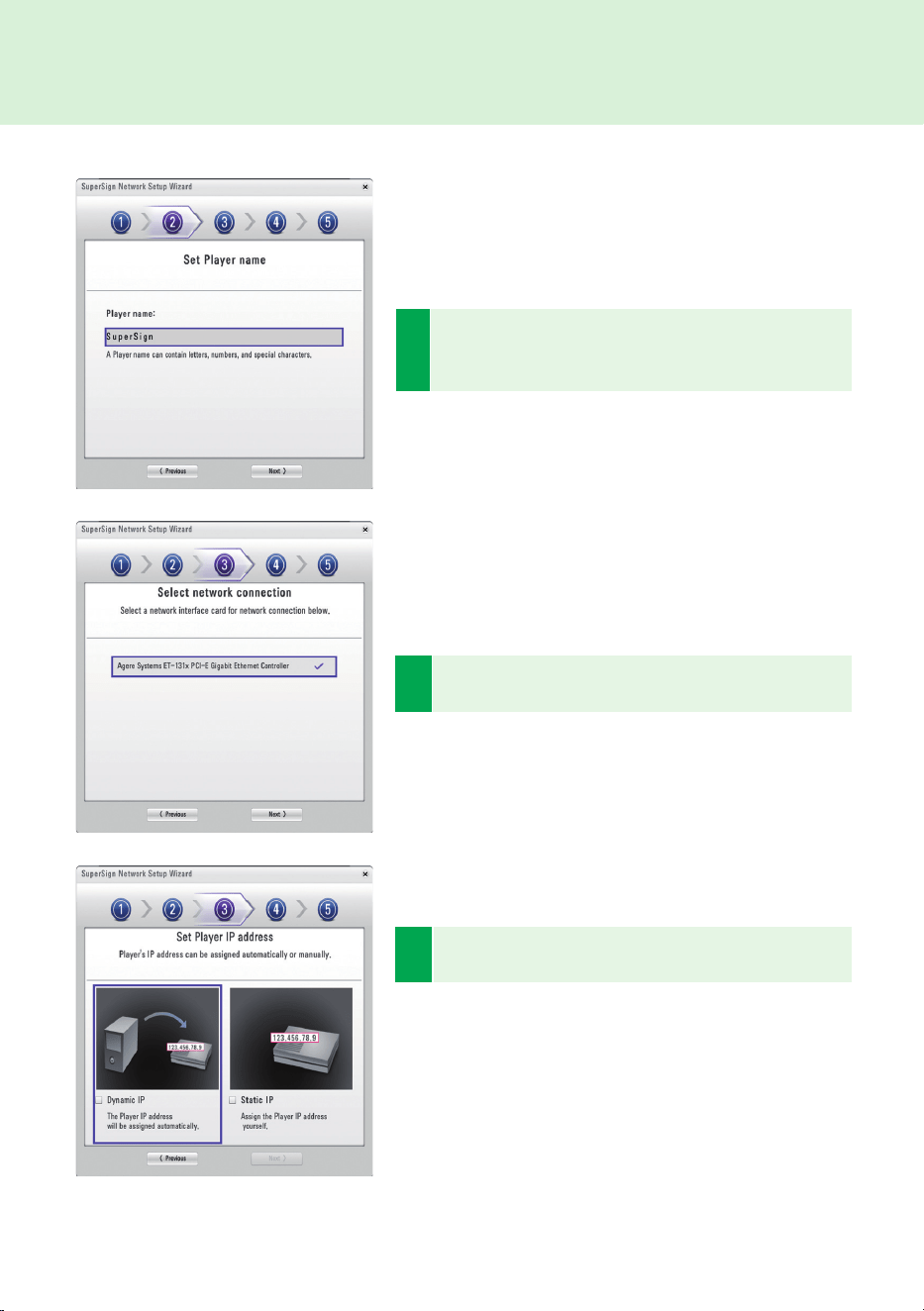
1
Select.the.network.environment.that.you.want.to.use.to.connect.to.SuperSign.Manager.and.SuperSign.
Player.
SuperSign.Player
Follow.the.steps.below.to.setup.network.connections.by.using.the.Wizard.
●..If. the. default. gateway. address. and. the. subnet. mask. set. to. the. SuperSign. Manager. are. same. as. the.
SuperSign.Player,.they.are.connected.to.the.same.network..
●.Here.is.how.to.find.the.default.gateway.address.and.subnet.mask.set.to.your.SuperSign.Manager.
...Go.to.the.desktop.of.the.server.on.which.the.SuperSign.Manager.is.installed.
1..Click.Start > Control Panel..
2..On.the.control.panel,.double-click.Network Connections..
3..Right-click.Local Area Connection..
4..Click.Properties..
5..Select.Internet Protocol (TCP/IP),.and.then.click.Properties..
6..The.Internet.Protocol.(TCP/IP).Registration.Information.dialog.box.appears.
7..Check.the.default.gateway.address.and.the.subnet.mask.
●..For. SuperSign. Player. network. settings,. see. SuperSign Player Settings > Network Settings. in. this.
manual.
●..Choose. the. LAN. when. the. SuperSign. Manger. and. the......
SuperSign.player.are.connected.to.the.same.network.
●..Choose. the. WAN. when. the. SuperSign. Manger. and. the........
SuperSign.player.are.connected.to.the.different.networks.
Note
27
3
Select.a.network.interface.card.that.will.be.used.for.
network.connections.
2
Enter.a.name.for.SuperSign.Player..The.SuperSign.Man-
ager.will.use.these.names.to.identify.the.connected.play-
ers.
SuperSign.Player
4
Set.SuperSign.Player.IP.address..The.Player's.IP.address.
can.be.assigned.automatically.or.manually.
●..Choose.the.Dynamic IP.when.you.want.the.Wizard.to.
automatically.set.the.IP.settings.
●..Choose.Static IP.when.you.want.to.assign.the.IP.address.
yourself.
28
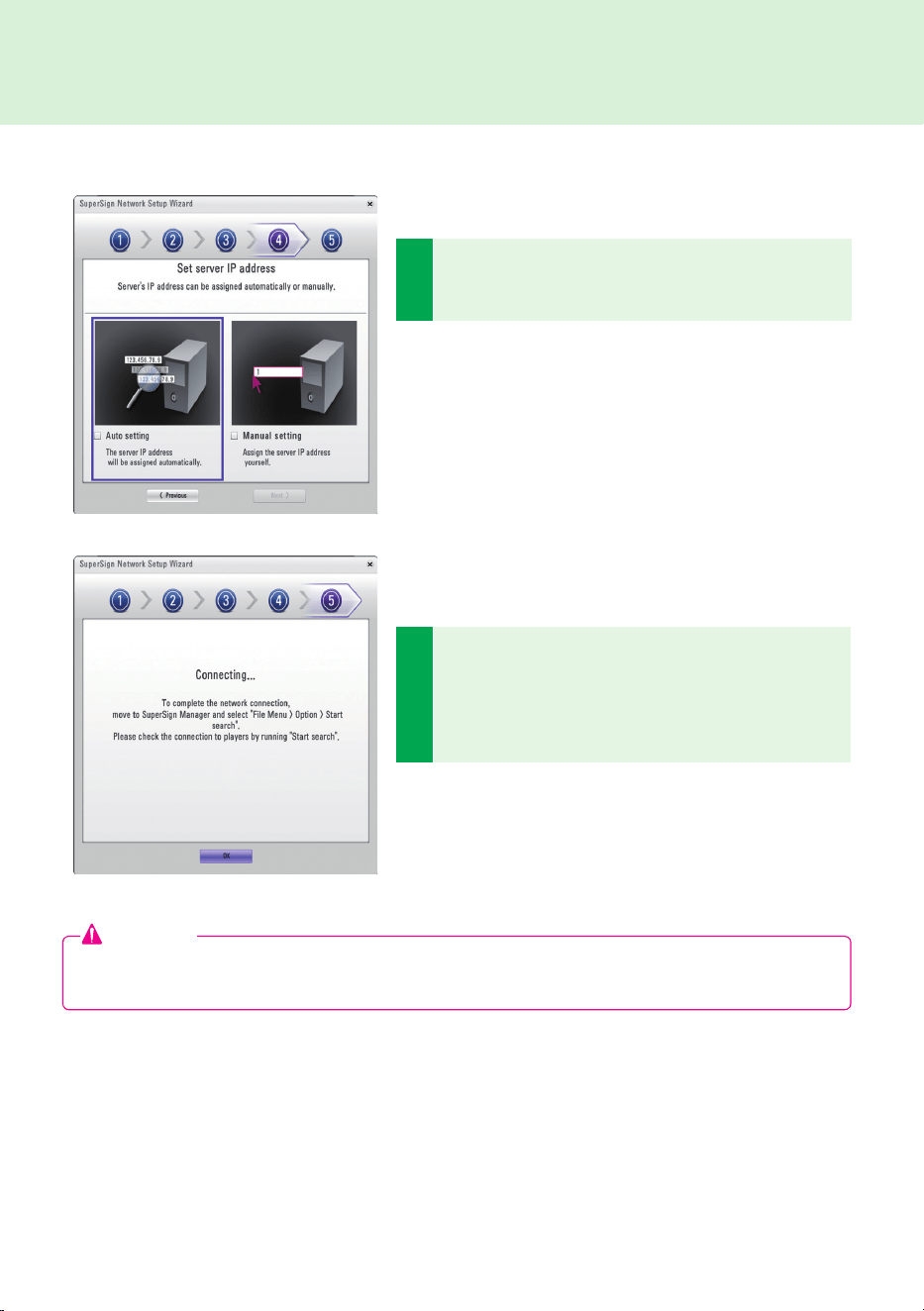
SuperSign.Player
6
A.connection.will.be.made.if.the.player.is.connected.
with.a.network.cable.properly..To.complete.the.network.
connection,.move.to.SuperSign.Manager.and.select.Op-
tion > Start.search.in.the.File.menu..Please.check.the.
connection.to.players.by.running."Start search".
5
Set.the.IP.address.for.the.server.on.which.SuperSign.
Manager.is.installed..The.server's.IP.address.can.be.as-
signed.automatically.or.manually.
●..Choose.the.Auto Setting.when.you.want.the.Wizard.to.
automatically.assign.the.IP.address.to.the.server.
●..Choose.the.Manual Setting.when.you.want.to.assign.the.
IP.address.yourself.
Attention
●..If.you.receive.an.error.message,.make.sure.that.the.server.and.player.are.connected.to.the.network.and.
try.again.
SuperSign.Player
29
SuperSign.Player
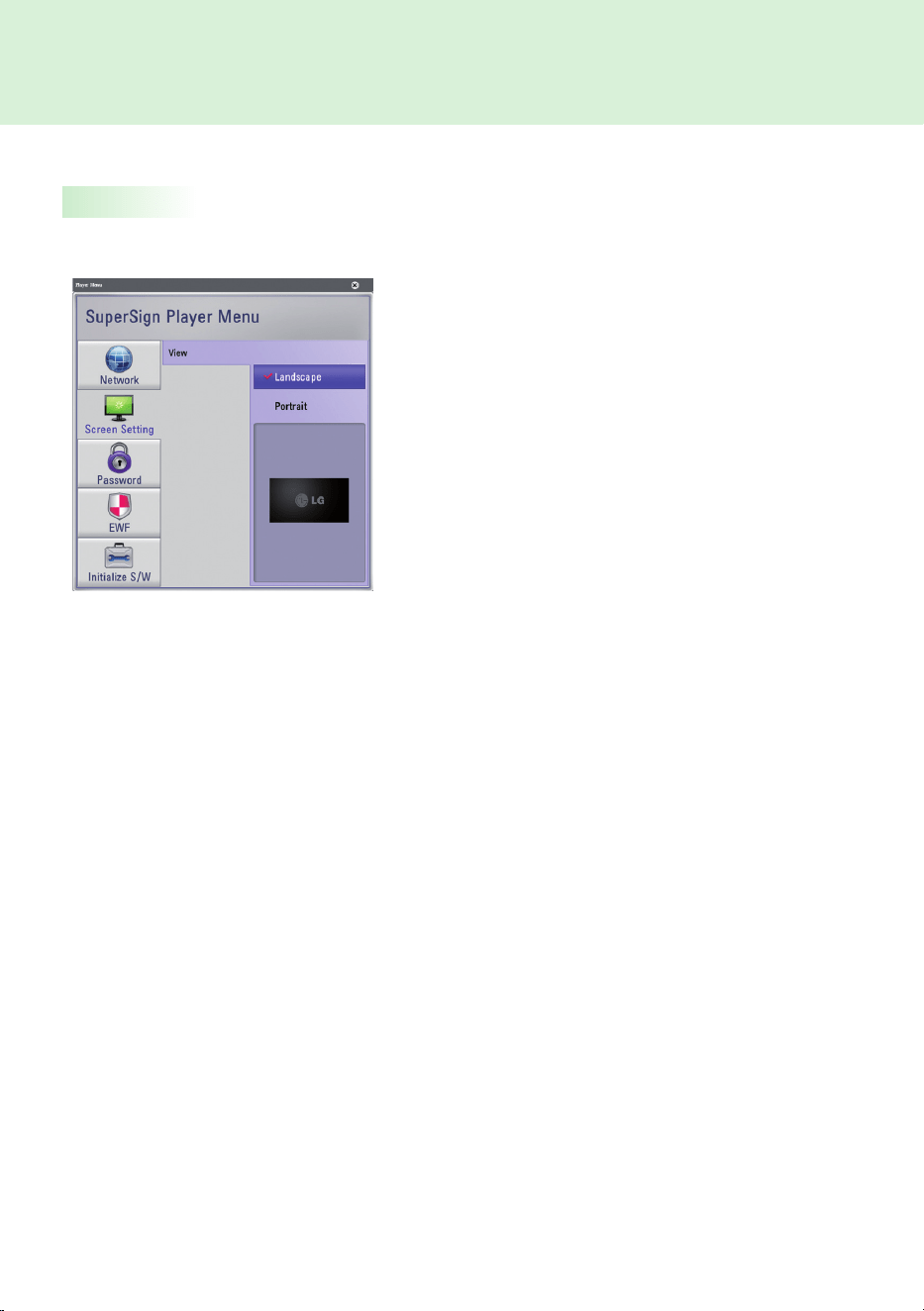
Screen.Setting
In.the.Screen.Setting.menu,.you.can.choose.the.screen.view.type..The.type.is.set.to.Landscape.by.default.
●.Select.Landscape.when.you.position.the.monitor.horizontally.
●.Select.Portrait.when.you.position.the.monitor.vertically.
SuperSign.Player

30
SuperSign.Player
Password
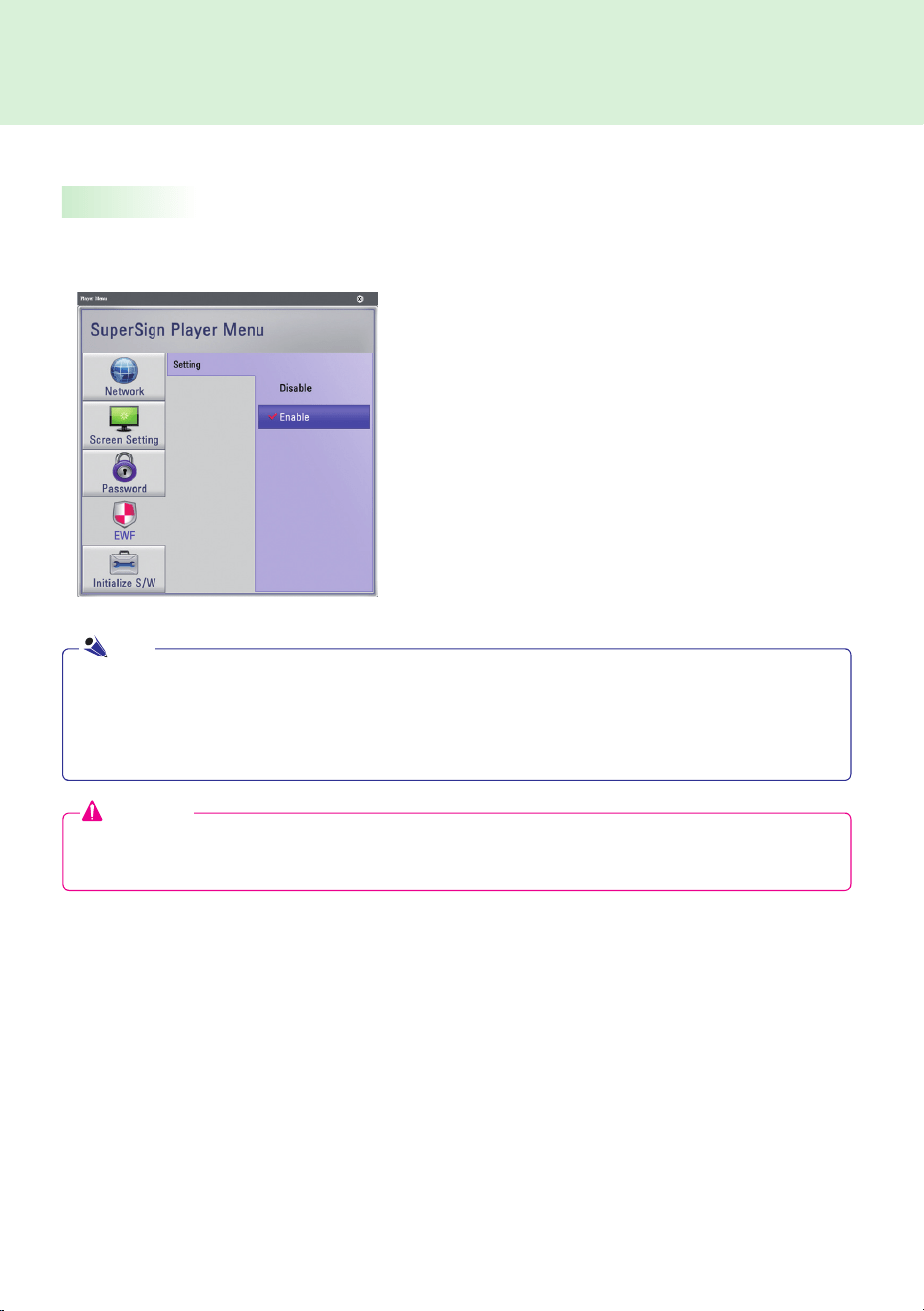
In.Password.menu,.you.can.set.a.password.to.access.the.SuperSign Player Menus.
Settings
You.can.choose.whether.you.want.to.use.a.password.when.entering.the.SuperSign Player Menu.
Change
You.can.change.the.password.required.for.the.SuperSign Player Menu..The.password.should.be.a.four-digit.
number..You.will.then.have.to.use.your.new.password.to.launch.the.SuperSign Player Menu.
●..If.you.select.Enable,.you.must.type.in.your.password.
to.use.the.SuperSign Player Menu.
●..If.you.select.Disable,.you.can.use.the.SuperSign
Player Menu.without.entering.your.password.
1
Enter.a.new.password.in.Change.menu. and.click.the.
OK.button.
The.Verify.menu.will.be.activated..
2
In. the. Verify. menu,. re-enter. the. same. password. you.
used.in.the.Change.menu..Save.the.change.by.click-
ing.the.OK.
3
This.will.display.the.message:
"Your password has been changed."
31
EWF
SuperSign.Player
In.the.EWF.menu,.you.can.select.whether.you.want.to.use.the.Enhanced Write Filter.feature.of.Microsoft.
Windows.Embedded.Standard.
●..EWF. protects. against. viruses. that. can. destroy. the.
product..le.system.
●..With.EWF.enabled,.you.cannot.add,.delete,.or.modify.
data.saved.on.the.C.drive.of.the.NC1000/NC2000.
●..When.you.need.to.add.a.new.program.to.the.NC1000/
NC2000,.disable.EWF.
●..With. Enable. selected,. the. new. program. cannot. be.
installed.
●.To.apply.the.change.to.EWF, restart.your.system..
Attention
●..When.EWF.was.enabled,.the.data.will.be.deleted.if.you.reboot.the.machine.even.though.you.saved.data.in.
the.C.drive..If.you.want.to.keep.the.data,.save.it.in.the.D.drive.
●.For.more.information.on.EWF,.visit.the.Microsoft.website.
●..Settings.of.the.<SuperSign Player Menu>.such.as.network.and.screen.settings.and.the.EWF.password.
are.not.deleted,.because.they.are.not.controlled.by.EWF.functions.
●.It.takes.about.five.seconds.to.two.minutes.for.the.IP.and.EWF.setting.changes.to.be.applied.
Note
32
SuperSign.Player
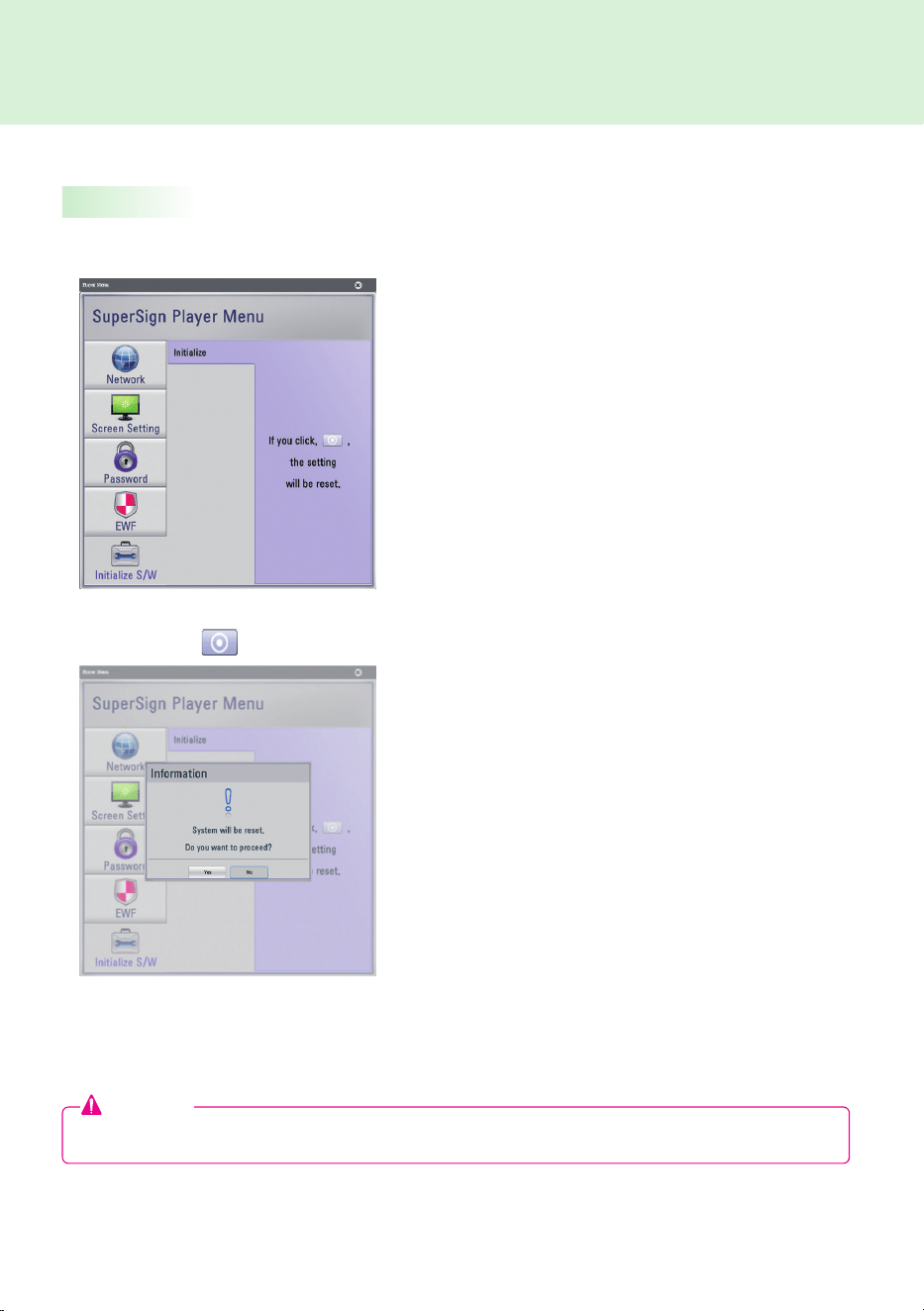
Initialize.S/W
When.you.click.Yes,.the.SuperSign.Player.settings.will.return.to.the.same.conditions.that.existed.at.the.time.of.
your.purchase.
When.you.click.the..........on.the.menu,.an.alert.window.will.be.displayed.as.shown.below.
The.Initialize S/W.menu.allows.you.to.initialize.the.SuperSign.Player.settings.
Attention
●.Even.after.you.initialize.the.software,.the.network.settings.will.not.be.reset.
33
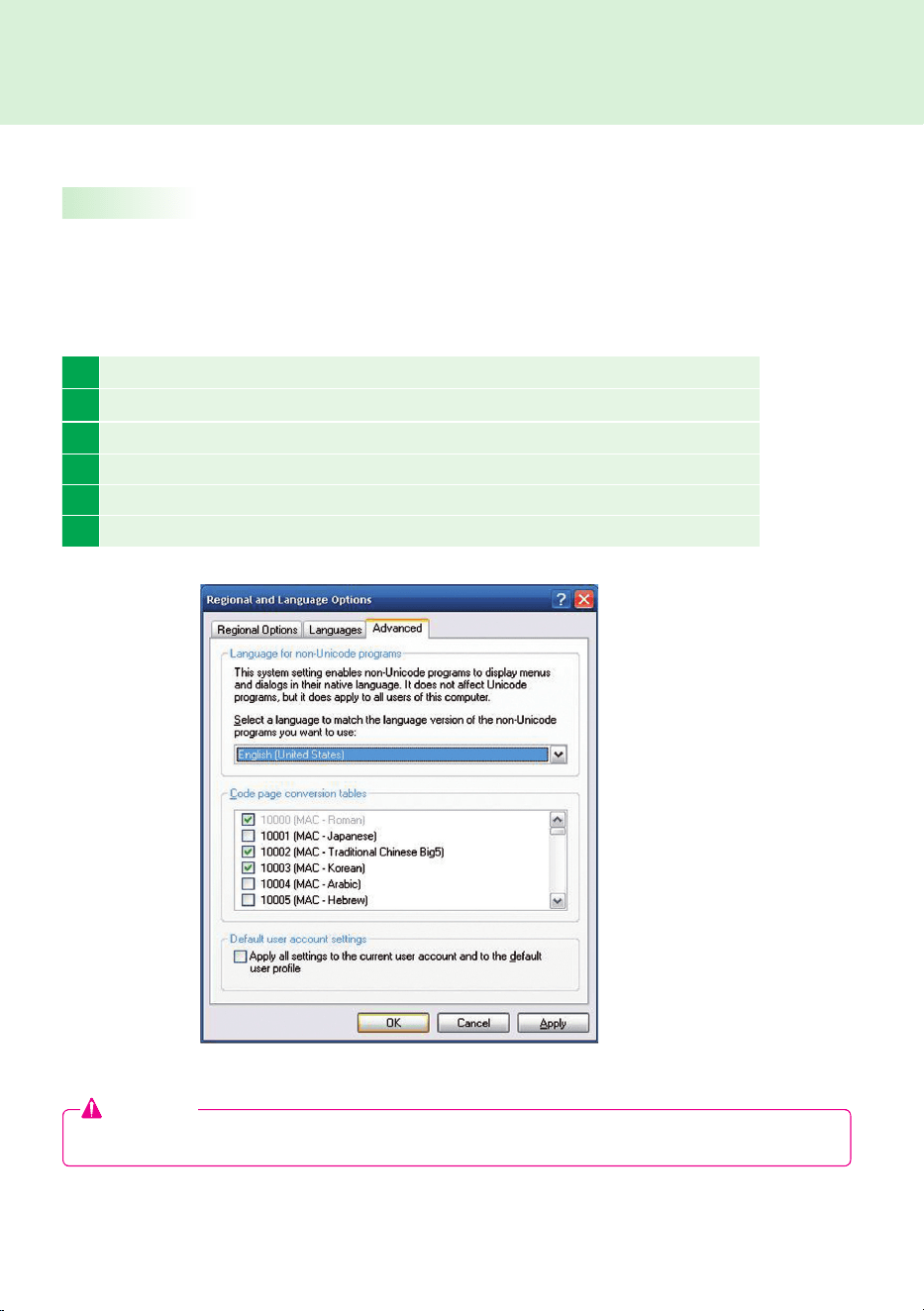
1 Disable.EWF.in.SuperSign.Player.Menu.
2 In.Windows,.select.Start > Setting > Control Panel > Regional and Language Options.
3 Choose.the.language.you.want.to.use.as.shown.in.the.illustration.
4 Re-install.SuperSign.Player.with.the.new.language.
5 Enable.EWF.in.SuperSign.Player.Menu.
6 Reboot.the.system.
SuperSign.Player
Language.Options.and.Regional.Settings
Language.Options.and.Regional.Settings
If. you. want. to. change. the. language,. you. can. use. Regional and Language Options. of. Microsoft. Windows.
Embedded.Standard,.the.NC1000/NC2000's.operating.system.
To Change the Language:
Attention
●.SuperSign.Manager.and.SuperSign.Player.should.use.the.same.language.
34
SuperSign.Player
Signage.Mode.(Video.Playback.Mode)
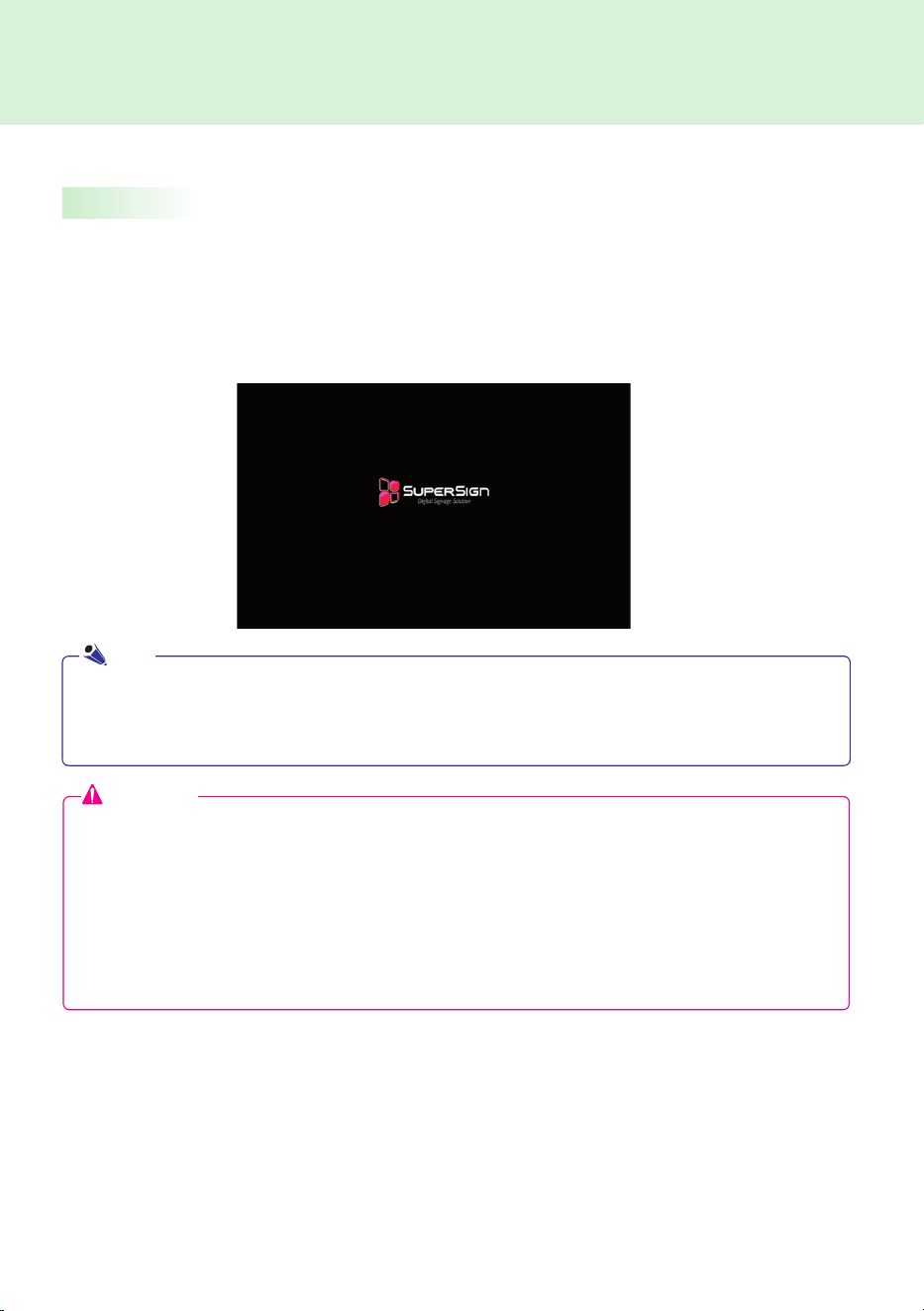
Set.up.the.SuperSign.Player.runs.automatically..Then.SuperSign.Player.automatically.executes.the.Play
Schedule feature..Signage mode.is.for.playing.pre-distributed.videos.based.on.the.assigned.schedule.
The.Signage.mode.screen.is.shown.below.
SuperSign.Player.Functions
Attention
●..The.Playback.may.be.slow.when.more.than.two.full.HD.videos.(H.264,.MPEG-2,.WMV).or.other.types.of.
media.are.played.simultaneously.
●.When.text.is.overlapped.with.more.than.two.videos,.this.may.cause.blinking.
●..The.PowerDVD SE.is.included.in.SuperSign.Player..If.you.remove.the.PowerDVD.from.SuperSign.Player,.
quick.video.play.will.not.be.available.
●.If.you.use.Transition effects.onto.full-HD.pictures.or.more.than.two.pictures,.playback.may.become.slow.
●.A.change.to.the.Windows.Standard.Timeline.will.be.applied.after.SuperSign.Player.is.restarted.
●..When.SuperSign.Player.is.restarted,.ad.content.is.automatically.played.according.to.the.last.transferred.
schedule..However,.content.distributed.from.the.Edit Contents.or.Management.menu.of.SuperSign.Manager.
will.not.play.automatically.even.if.SuperSign.Player.is.restarted..See.SuperSign.Manager.Schedule.for.details.
Note
35
SuperSign.Player
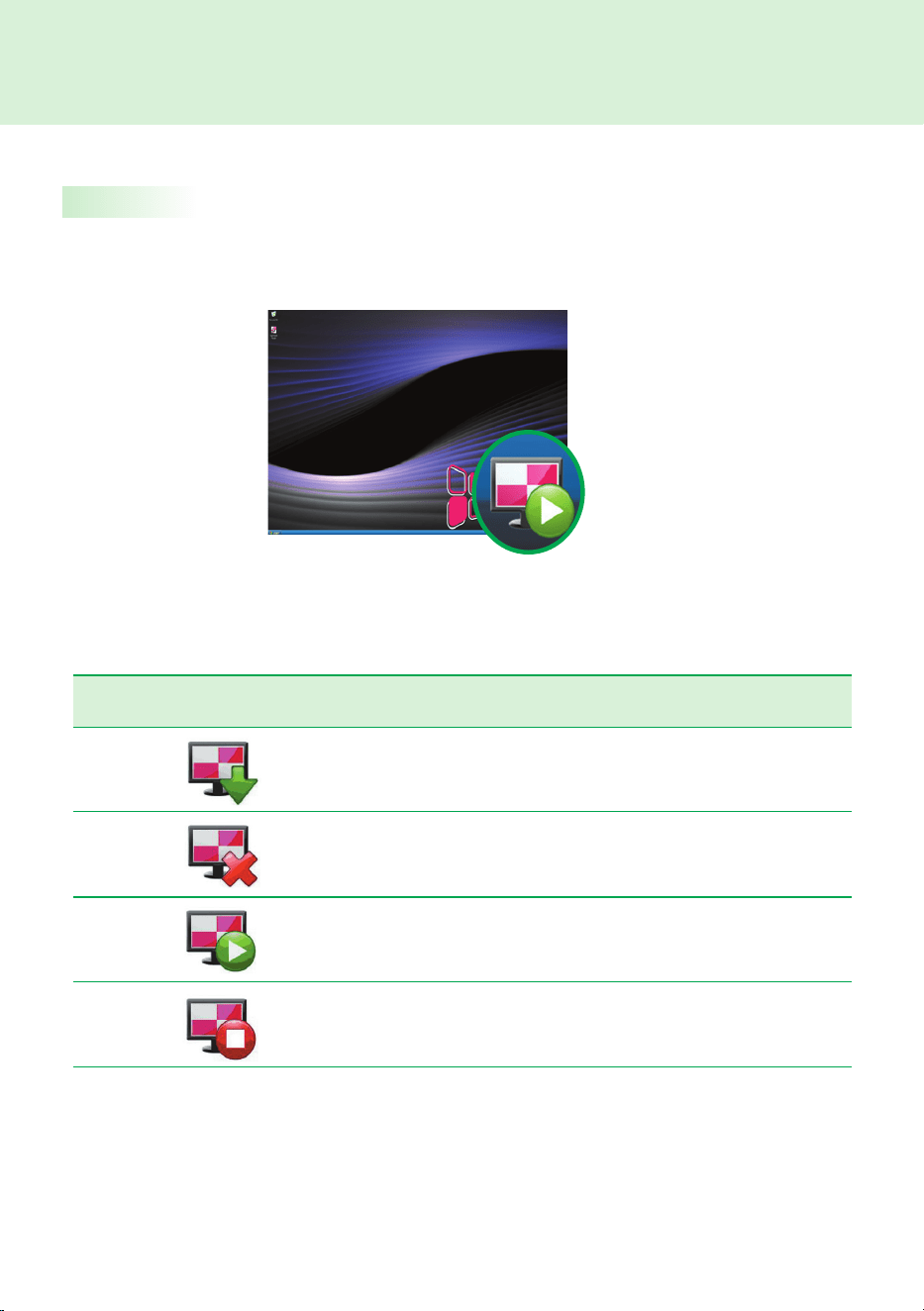
SuperSign.Player.Tray.Icon Description
SuperSign.Player.is.being.installed.
SuperSign.Player.is.being.uninstalled.
SuperSign. Player. is. connected. to. the. server. in. which. SuperSign.
Manager.is.installed.
SuperSign.Player.is.not.connected.to.the.server.in.which.SuperSign.
Manager.is.installed.
Tray.Icon.Description
If.you.click.the.ESC.key.in.signage.mode.while.videos.are.playing,.the.video.will.pause.and.move.to.the.desktop.
The.SuperSign.Player.tray.icon.shows.the.server.connectivity.status.as.shown.below.

36
Information.Type Message Description
Software.Information SuperSign.1.0.1.1
The.SuperSign.Player.version.
Server.Connection.
Information
Disconnected
Disconnected.from.SuperSign.Manager.
Connected.to.SuperSign.Manager
IP.Address
The.IP.address.of.the.connected/disconnected.SuperSign.
Manager
Schedule.Information
Ready
There.is.no.schedule.registered.
Scheduled
There.are.one.or.more.schedules.registered.
Menu Description
Open
Exported
File
This.shows.the.content.list.transferred.by.SuperSign.
Manager..You.can.select.the.content.you.want.to.play.
from.the.folder.in.which.it.was.saved.
Play.schedule
You.can.play.the.content.based.on.the.SuperSign.
Player's.schedule.
Delete.Schedule Delete.the.schedule.stored.on.the.SuperSign.Player.
Setting Go.to.the.SuperSign.Player.Menu.
About.the
Program
The.program.information.including.SuperSign.Player.
software.version.is.shown.here.
Exit Exit.SuperSign.Player.
Tray.Icon.Menu
Viewing.SuperSign.Player.Summary.Information
Right-click.the.SuperSign.Player.tray.icon.in.the.lower.right.of.the.desktop.to.display.the.tray.menu..
When.you.move.mouse.over.the.SuperSign.Player.tray.icon,.the.program.summary.information.will.be.
shown.for.about..ve.seconds.
SuperSign.Player

37
Contents Edit
You.can.create.content.for.the.SuperSign.Player.with.a.variety.of.media..les..It.supports.numerous.media.
.les,.including.video,.audio,.documents,.and.Flash..les,.and.applies.an.easy.drag.and.drop.feature.to.
facilitate.content.creation.
Schedule Management
You.can.manage.the.schedules.of.your.content.to.be.played.in.the.SuperSign.Player..Schedules.can.be.
assigned.by.period.as.well.as.time.
SuperSign Player Management
You.can.register.and.manage.more.than.one.SuperSign.Player.on.the.same.network..You.can.manage.the.
registered.SuperSign.Players.by.controlling.their.power.on/off,.multiple.monitor.connection,.and.updates.
SuperSign.Manager
Product.Information
What.is.SuperSign.Manager.?
SuperSign.Manager.is.a.network-based.comprehensive.management.program.that.creates.and.manages.digital.
media,.distributes.content,.and.supports.video.playback.and.remote.control.

38
Accessories Requirements
CPU 2.0.GHz.L2.Cache.512.KB.or.higher
RAM 1.GB.or.higher
HDD 40.GB.or.higher
Network 10.Mbps.or.higher
OS Windows.XP.sp2.or.higher
Graphics.Card.Memory 512.MB.or.higher
Accessories Requirements
CPU 2.5.GHz.Core.2.Duo.L2.Cache.2.MB.or.higher
RAM 2.GB.or.higher
HDD 250.GB.or.higher
Network 100.Mbps.or.higher
OS Windows.XP.sp3.or.Window.2003.Server
Graphics.Card.Memory 512.MB.or.higher
System.Requirements
The.SuperSign.Manager.is.supplied.with.the.NC1000/NC2000..Insert.the.CD.included.with.the.NC1000/NC2000.
into.your.PC.and.install.SuperSign.Manager.
SuperSign Manager PC Recommended Specifications
SuperSign Manager PC Minimum Requirements
●..SuperSign. Manager.supports. Windows. XP. (32-bit),.Windows. 2003. Server. (32-bit),. and.Windows. VISTA.
(32-bit).only..The.program.cannot.be.run.on.operating.systems.other.than.those.listed.above.
How.to.Install.SuperSign.Manager
Note
SuperSign.Manager
39
Installing.the.Program
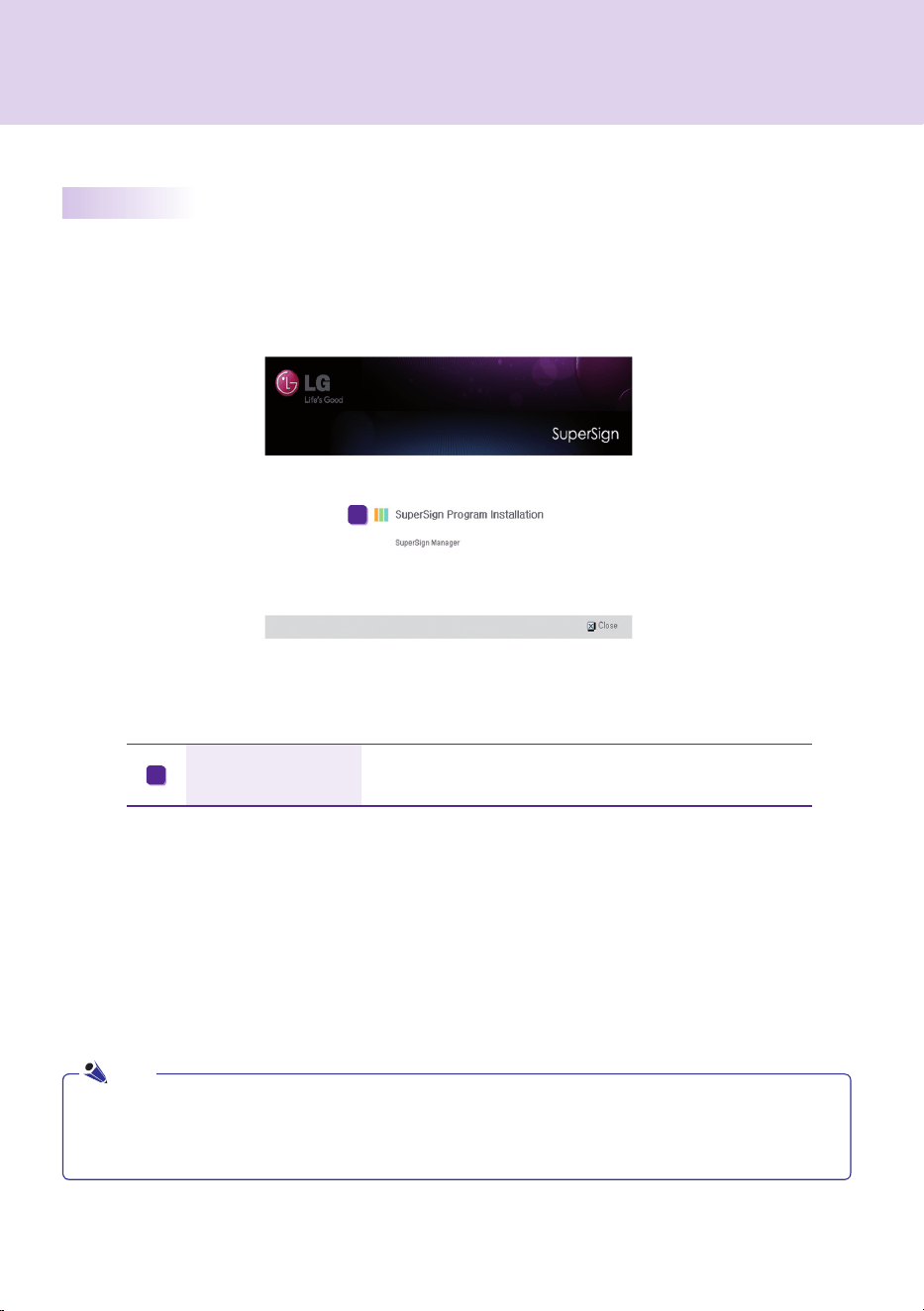
When.the.CD.provided.with.the.NC1000/NC2000.is.inserted.into.a.PC,.the.installation.program.will.run.
automatically.as.shown.below.
SuperSign.Program.
Installation
Installation.is.initiated.by.clicking.SuperSign Manager.
A
●..If.the.installation.program.does.not.run.automatically,.open.the.window.manually.by.double.clicking.the.
file.SupersignMgr_setup.exe.in.the.CD-ROM.drive:.₩SuperSign₩SuperSign_
Software₩Application₩SuperSign_Manager₩directory.of.the.CD.
Note
SuperSign.Manager
A
40
4
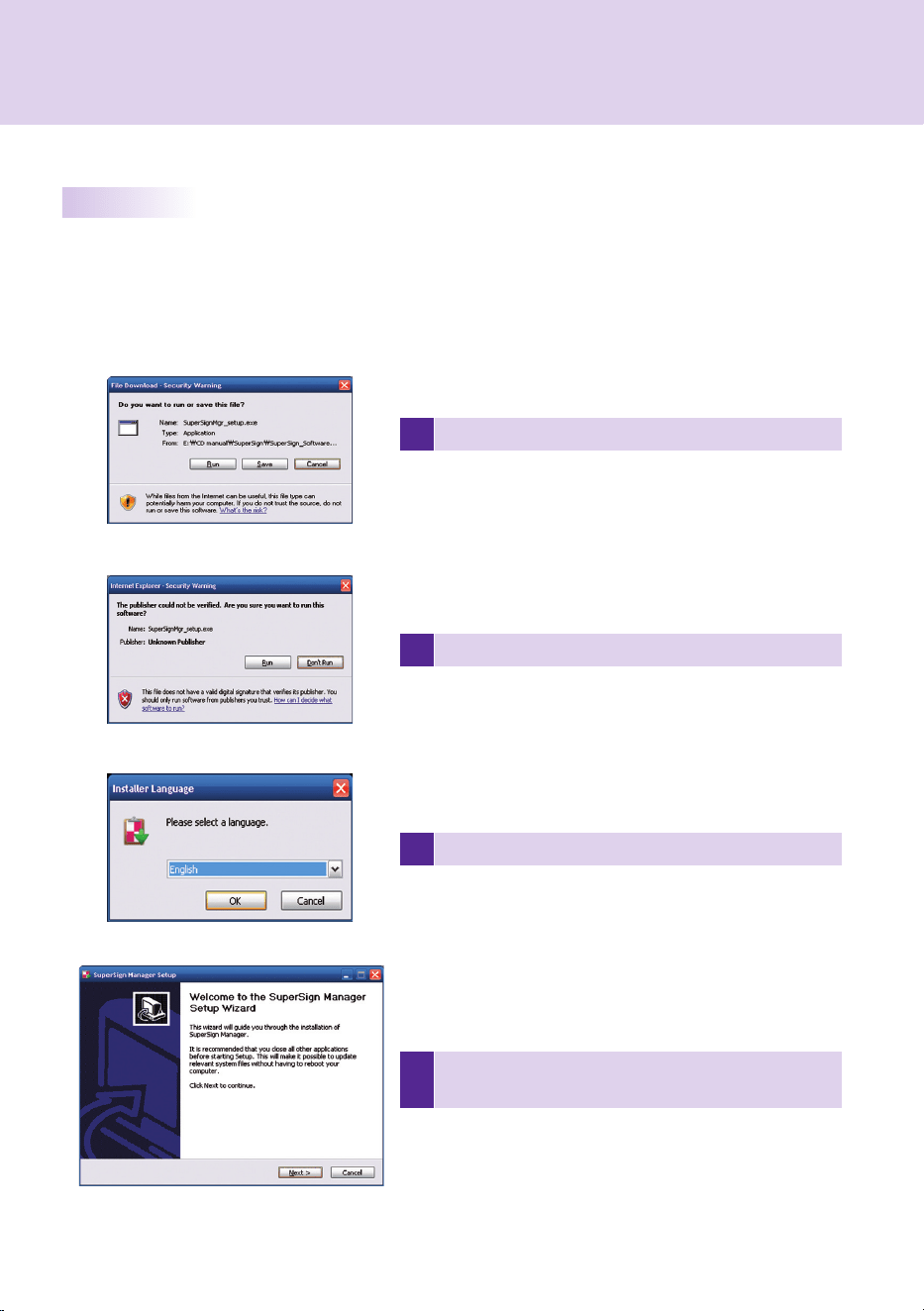
After.reviewing.the.installation.instruction,.click.Next.to.
continue.
1 .Click.Run.in.the.Download..le.pop-up.window.
2 Click.Run.in.the.Security.Warning.pop-up.window.
3 Select.the.language.and.then.click.OK.to.continue.
Installing.SuperSign.Manager
When.the.CD.provided.with.the.set.is.inserted.into.a.PC,.the.installation.program.will.run.automatically.
Follow.the.steps.below.to.install.the.SuperSign.Manager.
SuperSign.Manager
41
5
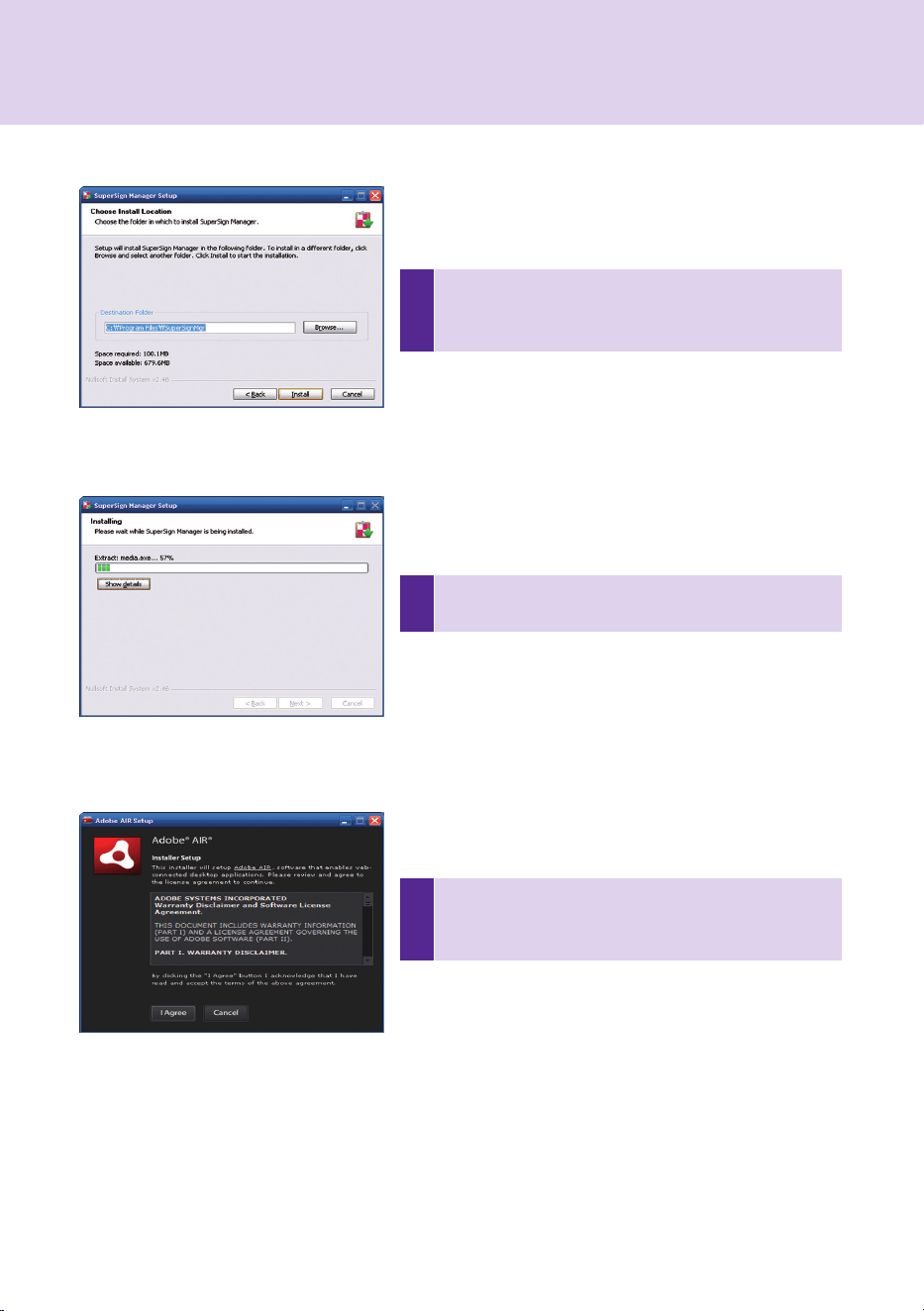
If.necessary,.change.the.installation.path.to.the.direc-
tory.where.you.want.to.install.SuperSign.Manager..
Click.Next.to.continue.
6
Installation.is.initiated..Click.Details.to.see.the.detailed.
installation.process.information.during.installation.
7
During. the. installation. process,.Adobe.AIR. installer. will.
run.to.install.it..Click.Agree.to.install.Adobe.AIR..You.must.
install.Adobe.AIR.to.use.SuperSign.Manager.properly.
SuperSign.Manager
42
9
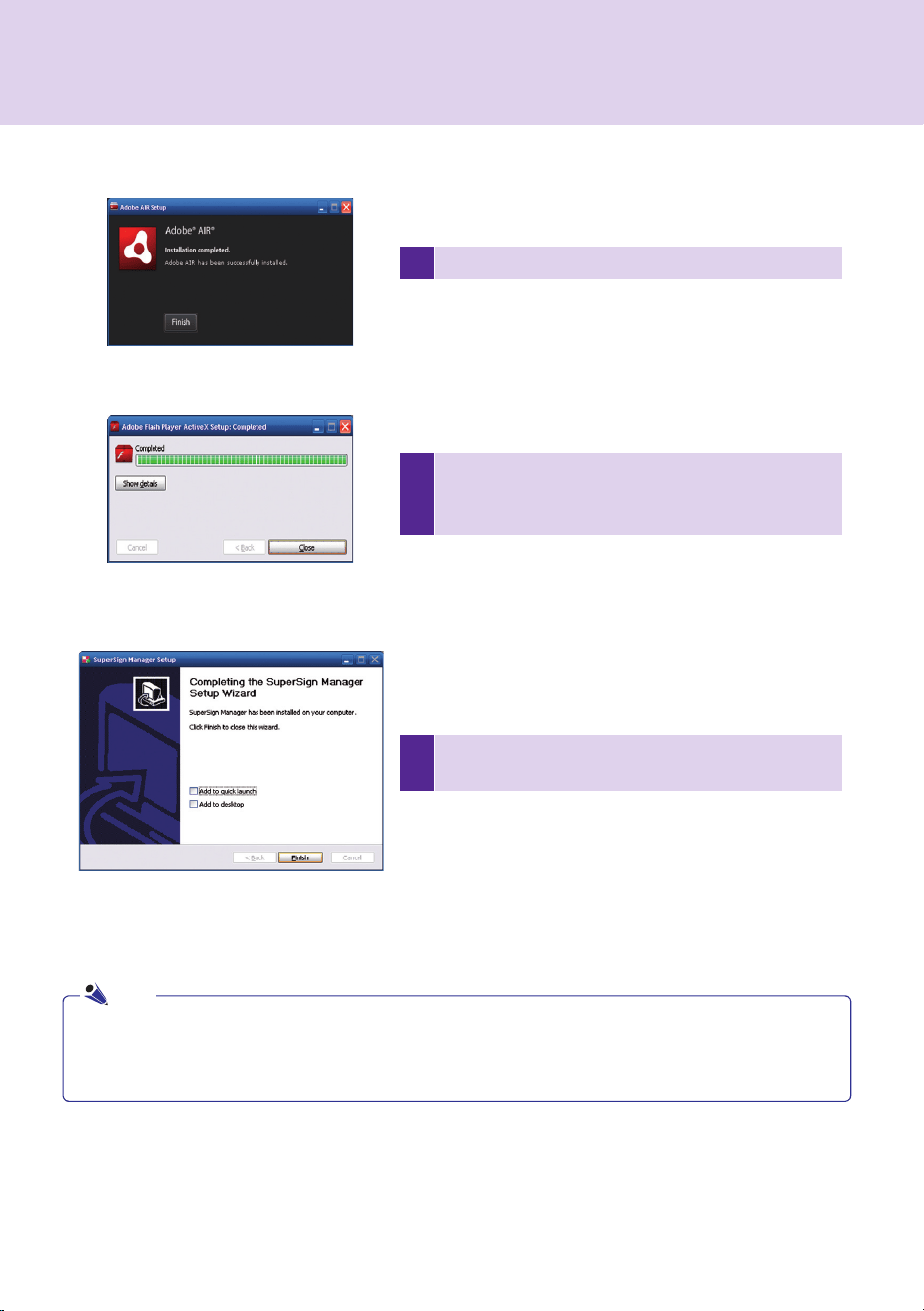
Adobe.Flash.Player.Active.X.installation.is.initiated..Click.
Close.when.the.installation.of.Adobe.Flash.Player.Active.
X.ends.
10
After.SuperSign.Manager.installation.is.complete,.click.
Finish.to.exit.the.installation.
8 Click.Complete.to..nish.the.installation.of.Adobe.AIR.
●.When.you.re-install.the.program.without.uninstalling.it,.you.can.preserve.the.data.or.initialize.the.system.
●..If. you. use. Windows. Vista,. you. should. log. on. as. an. administrator.. Otherwise,. you. cannot. install. the.
program.
Note
SuperSign.Manager

43
Uninstalling.the.program
To.uninstall.SuperSign.Manager,.Click.Start > Program > SuperSign Manager > Remove SuperSign Manager.
Follow.these.steps.to.uninstall.SuperSign.Manager.
1
Click.Remove. to.start. the. un-installation.of. SuperSign.
Manager.
2
Click.Details.to.see.the.detailed.un-installation.process.
information.during.un-installation..
SuperSign.Manager

44
3
After. SuperSign. Manager. uninstallation. is. complete,.
Click.Finish.to.exit.the.un-installation.
●.SuperSign.Manager.can.be.uninstalled.by.using.Add.or.Remove Programs.in.Control.Panel.
1..Windows.XP,..Windows.2003.Server
....Select. SuperSign. Manager. in. Start > Settings > Control Panel > Add or Remove Programs,. click.
Remove.
2..Windows.VISTA
....Select.SuperSign.Manager.in.Start > Settings > Control Panel > Programs and Features > Uninstall or
change a program,.click.Remove.
Attention
●.All.data.created.by.the.user.will.be.deleted.when.the.program.is.uninstalled..
Note
SuperSign.Manager
45
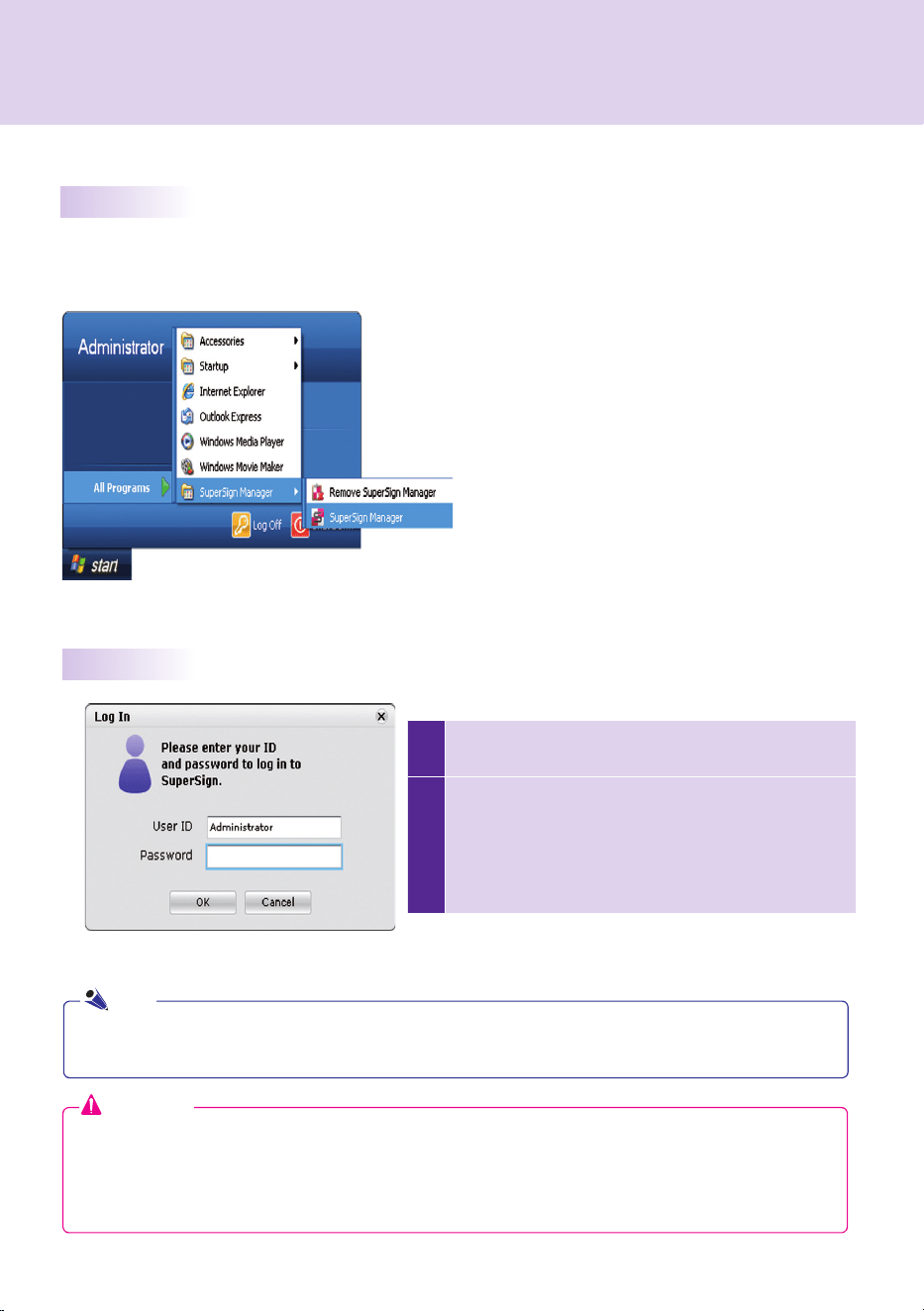
1
When.SuperSign.Manager.starts,.a.log-in.window.appears.
as.shown.below.
2
If.you.are.running.SuperSign.Manager.for.the..rst.time,.
you. should. create. an. ID. and. password. you. want. to.
use.. Log. in. to. SuperSign. Manager. by. clicking. the. OK..........
button..When.you.click.the.Cancel.button,.your.login.will.
be.canceled,.closing.the.program.
Starting.SuperSign.Manager
Open.the.program.by.clicking.Start > Programs > SuperSign Manager > SuperSign Manager.
Starting.SuperSign.Manager
Logging.In
●..When.SuperSign.Manager.is.initially.run,.the.default.user.ID.is.set.as."no quotes",.which.you.can.
change.later.
●.You.must.remember.the.new.ID.and.password.you.set.because.they.will.be.needed.for.the.next.login.
●.If.you.lose.your.password,.it.cannot.be.restored..You.will.need.to.initialize.the.administrator.account.
●.To.do.this,.enter."1234567890init" in.the.password.field.
●.Your.ID.and.password.can.be.up.to.20.characters.each.
Attention
Note
SuperSign.Manager
46
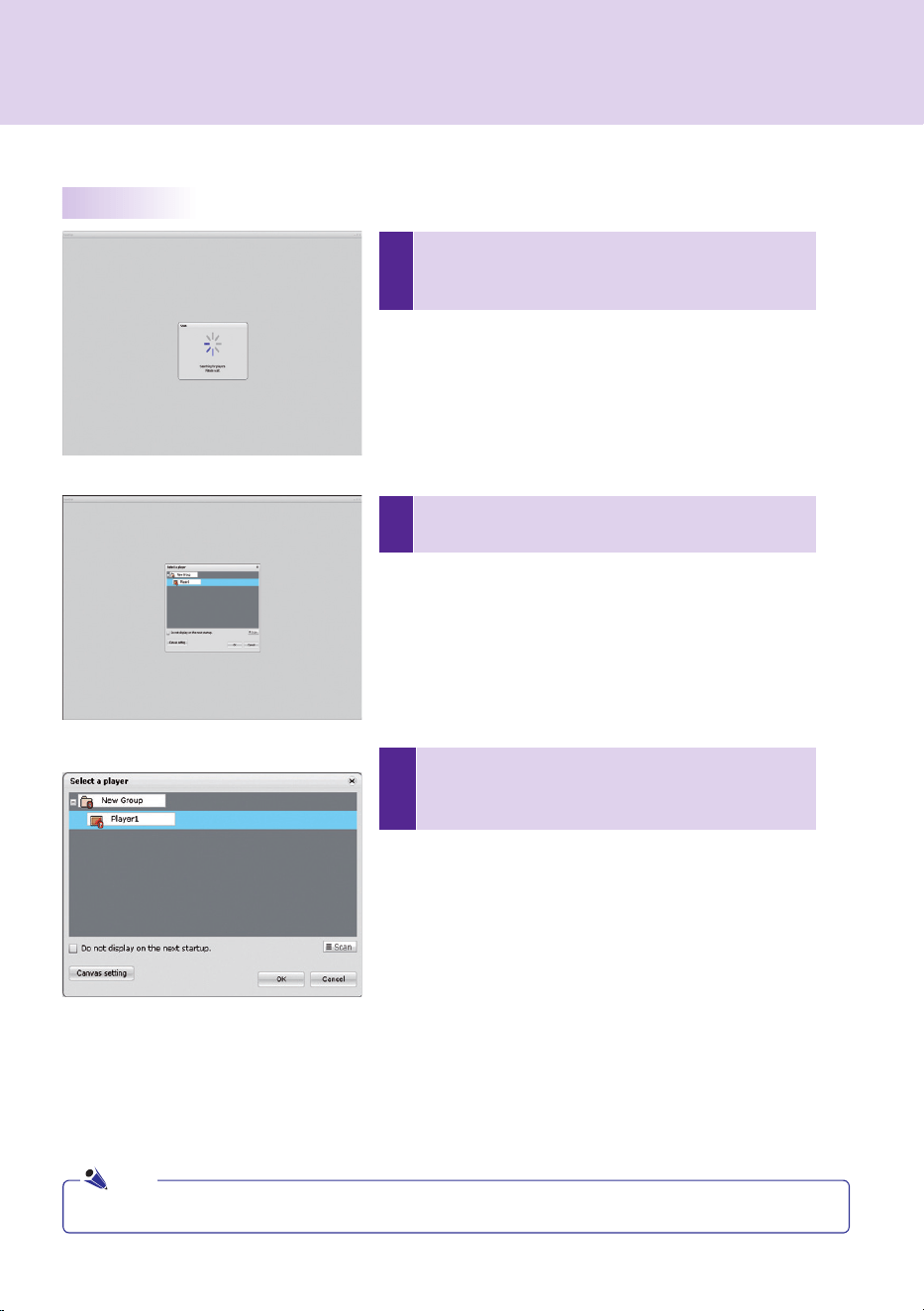
1
When.you.are.signed.in,.SuperSign.Manager.
automatically.searches.for.SuperSign.Players.on.the.
same.network.
2
When.scanning.is..nished,.the.available.SuperSign.
Players.are.listed.
Selecting.Players
●.Time.for.searching.players.may.vary.depending.on.the.number.of.players.
3
Select.the.SuperSign.Player.to.which.you.want.to.
connect.and.then.click.OK.or.the.Canvas.Setting.
button.
●.Scan
...Repeat.the.search.for.connected.SuperSign.Players.
●.Canvas Setting
...You.can.set.the.desired.resolution.
●.OK
....The.OK.button.brings.up.a.window.from.which.you.can.choose.
templates.and.layouts.
●.Cancel
...Cancel.the.selected.SuperSign.Player.
●.Do not display on the next startup.
...The.Select.a.Player.window.will.not.appear.again.
Note
SuperSign.Manager
47
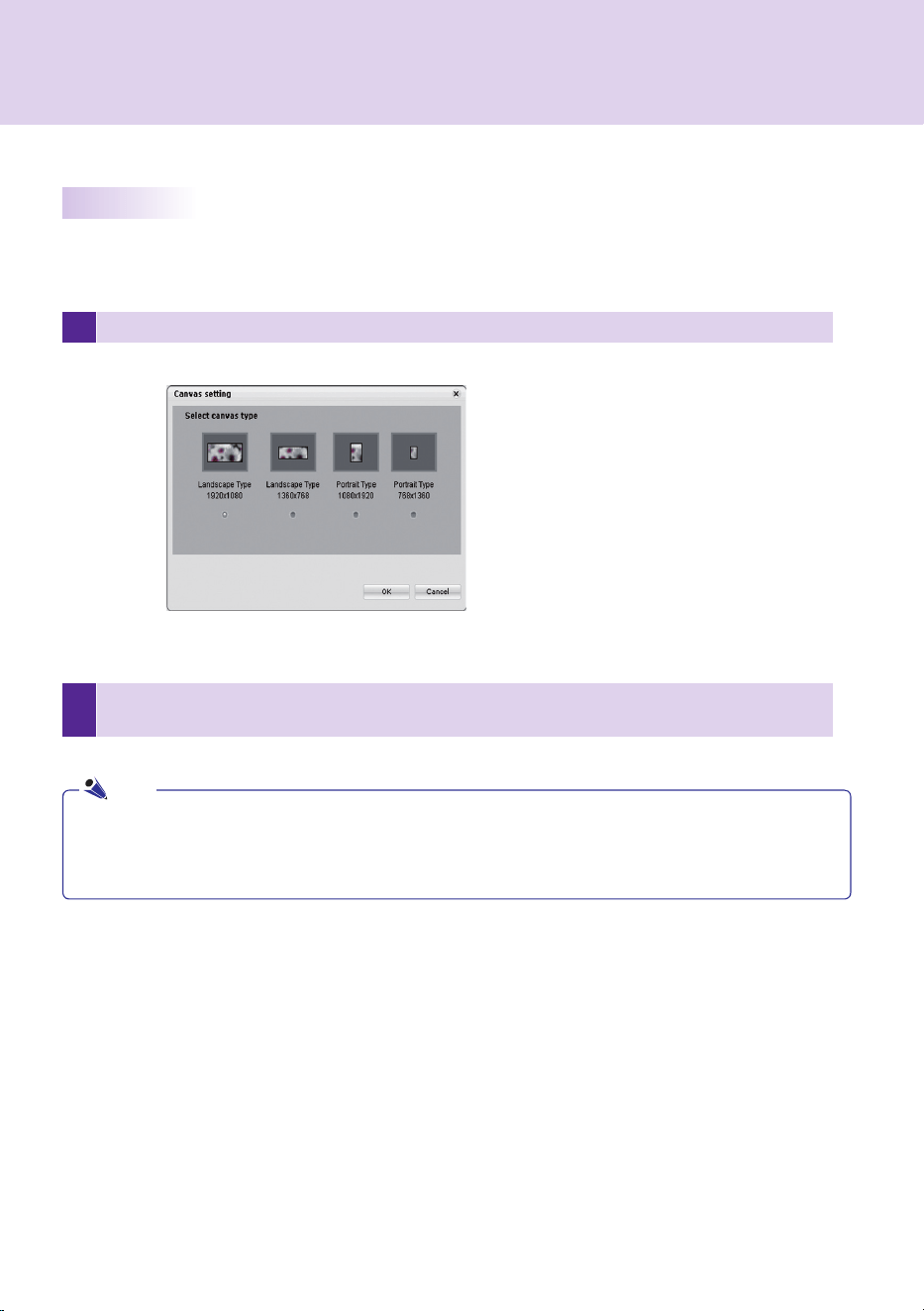
2
You.can.select.the.resolution.you.want.in.the.Canvas.Setting.window..Choose.the.resolution.and.click.
the.OK.button.
1 Click.Canvas Setting.in.the.Select.a.player.window.to.display.it.
Setting.Canvas
The.canvas.is.a.space.where.you.can.import.and.edit.photos,.videos,.and.text.
●..If.you.click.the.OK.button.on.the.Select.a.Player.screen,.the.Canvas.Setting.is.skipped.and.you.go.directly.
to.the.Select.Template.or.Layout.screen.
●..SuperSign.basically.supports.1920.x.1080,.1360.x.768,.1080.x.1920,.and.768.x.1360.monitor.resolutions.
Note
SuperSign.Manager
48
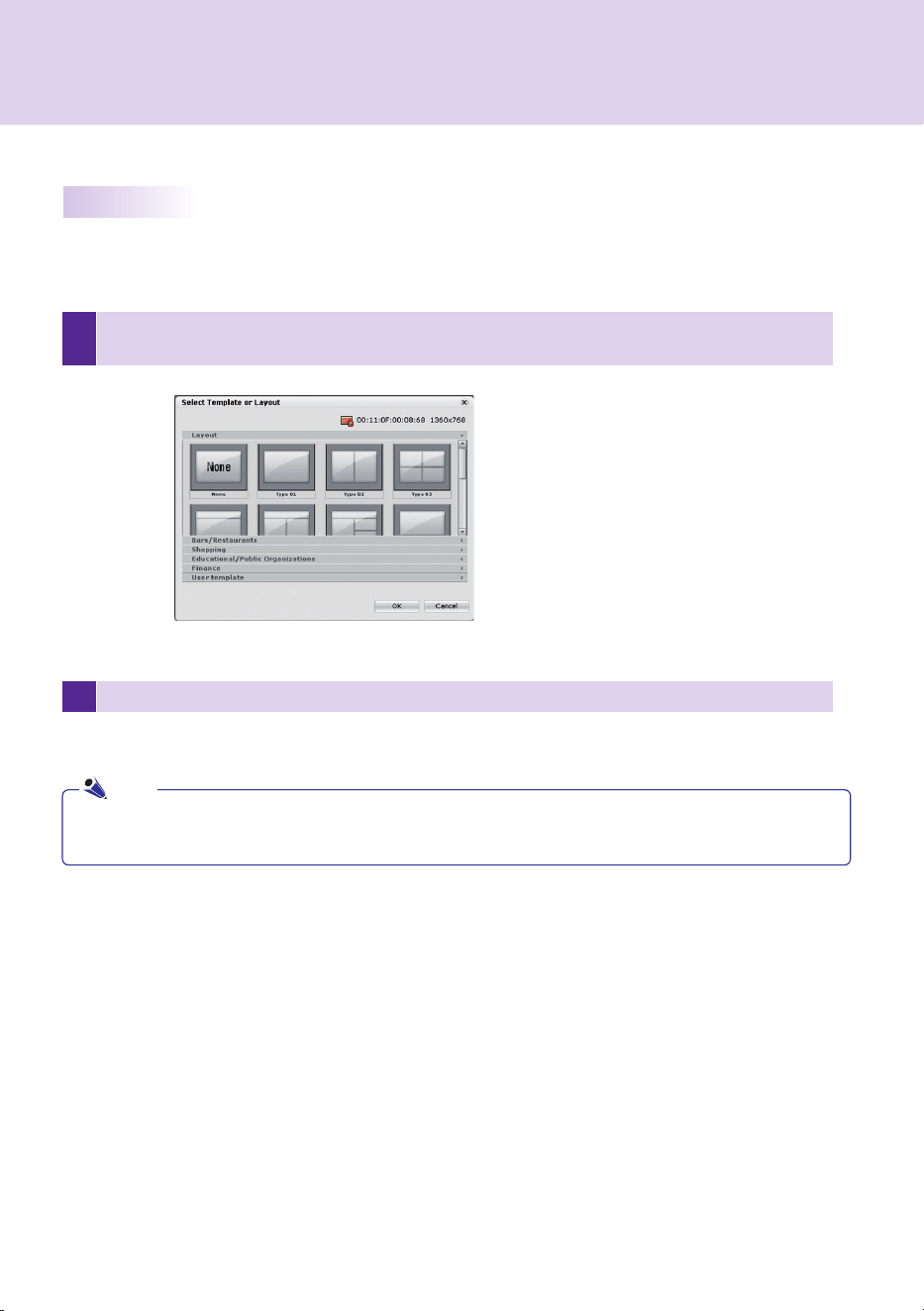
1
When.you.click.the.OK.button.on.the.Select.a.Player.window.or.the.Canvas.Setting.window,.the.Select.
Template.or.Layout.screen.will.appear.
2 Select.a.template.or.layout.and.then.click.the.OK.button.
Selecting.Templates.or.Layouts
SuperSign.Manager.provides.popular.layouts.or.templates.to.help.users.create.content.easily.and.quickly.
●..SuperSign.provides.templates.and.layouts.if.the.resolution.is.1920.x.1080,.1360.x.768,.1080.x.1920,.or.
768.x.1360.
Note
SuperSign.Manager
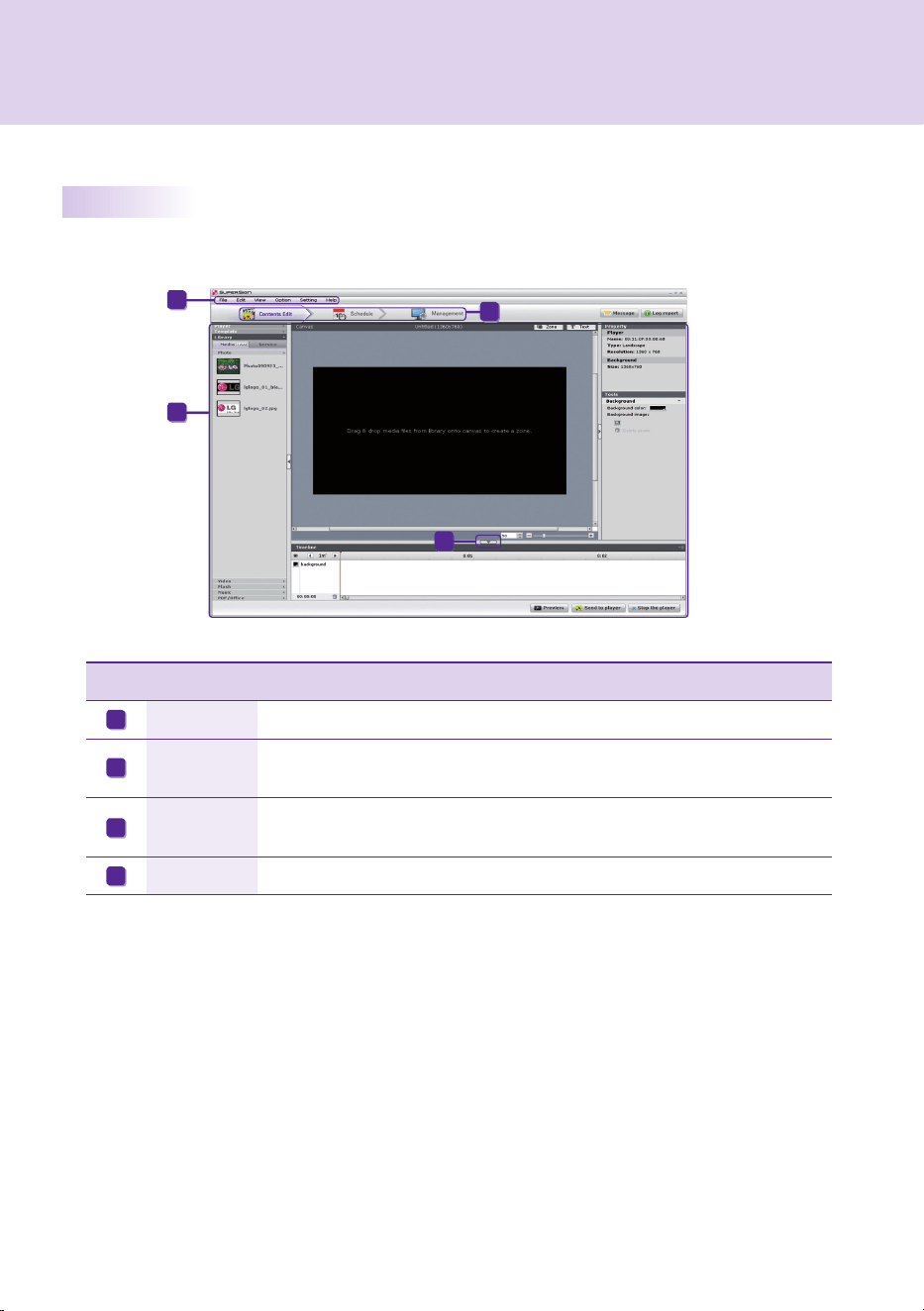
49
Index Item Description
File.Menu The.major.features.of.SuperSign.Manager.are.listed.here.
Top.Menu
With.tab.menus,.content.editing,.content.play.schedule.setting,.system.
management.are.done.here.
Workspace
Content.editing,.playback.schedule.setting,.and.player.management.are.done.
here.
Hide.Button If.you.click.the.Hide.button,.the.window.not.in.use.will.be.displayed.or.hidden.
SuperSign.Manager.Overview
A
B
C
D
C
B
D
A
SuperSign.Manager
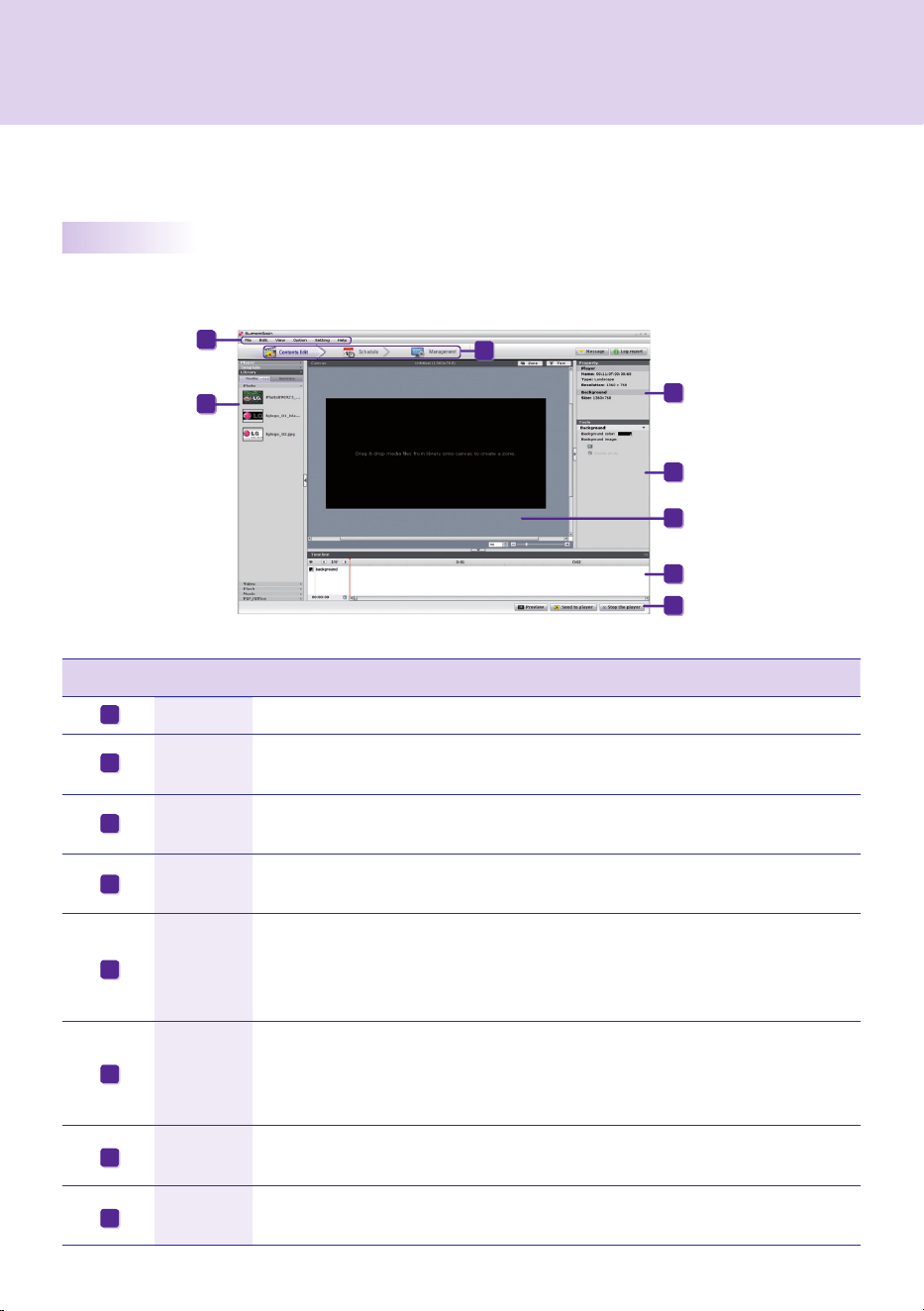
50
Index Item Description
File.Menu The.major.features.of.SuperSign.Manager.are.listed.here.
Top.Menu
With.tab. menus,. content. editing,. content. play. schedule.setting,. system. management.
are.done.here.
Media.
Window
You.can.view.items.registered.in.the.templates.and.the.media.library..The.SuperSign.
Player's.registered.information.is.available.here.
Quick.
Menu
Popular.content.editing.features.are.displayed.for.easy.access.
Timeline
An.intuitive.timeline.is.provided.to.allow.for.time.editing.and.arrangement.by.zone.
The.timeline.allows.you.to.specify.the.duration.for.each.content.clip.so.that.your.media.
will.play.at.the.designated.time..Start.time,.duration.and.end.time.of.the.zone.can.be.set.
Canvas
The.canvas.is.a.space.where.you.can.import.and.edit.photos,.videos,.and.text..
You.can.divide.the.canvas.zone.and.apply.a.different.layout.in.each.section..By.
overlapping.many. images.in. the.divided. sections. in.different.timelines,. you.can.
create.multiple.image.layers.
Tool.Win-
dow
You. can. change. the. properties. of. the. selected. zone. or. media.. Use. this. to. change.
background.color.or.image.properties.
Properties
Displays.the.properties.of.the.selected.zone.or.media..Information.about.the.connected.
SuperSign.Player.and.the.resolution.of.the.zone.is.displayed.
A
B
C
D
E
F
G
H
Overview
Contents.Edit
Content.editing.and.various.other.features.are.available.under.Contents Edit.in.the.top.menu.
SuperSign.Manager.provides.a.media.content.editor..
You.can.create.content.and.play.it.in.SuperSign.Player.with.this.content.editor.
A
C
D
E
G
H
F
B
SuperSign.Manager
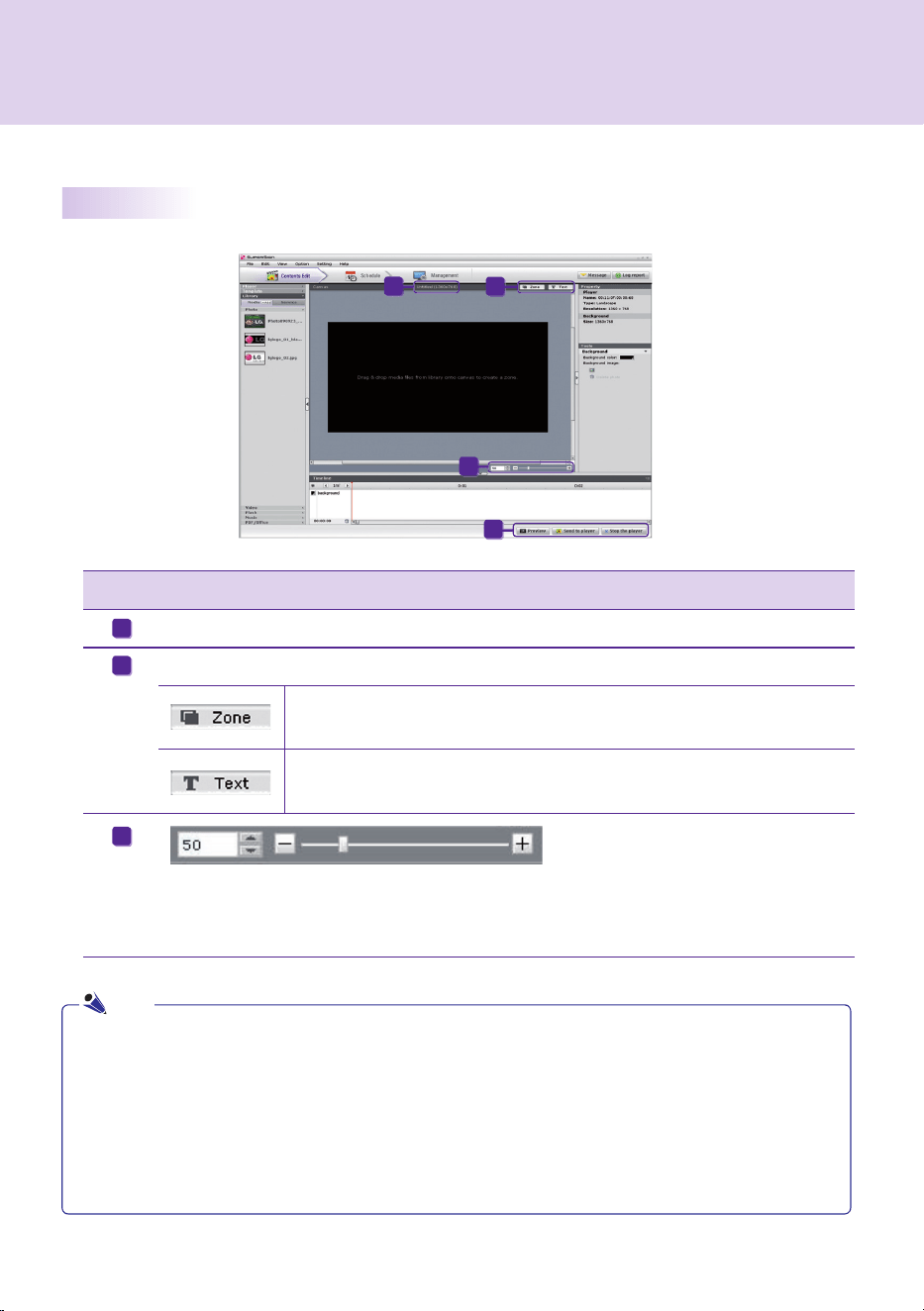
51
Checking.details
●.What.is.a.Zone?
....A.SuperSign.Manager.Zone.is.an.area.on.the.canvas.in.which.media.or.a.layer.is.placed.while.the.content.is.
being. edited..You. can. create. a. zone. by. combining. different. types. of. media. items. and. creating. an. ad. by.
including.another.zone.or.zones.(a.zone.can.accommodate.only.one.type.of.media)..The.zone.can.include.
photos,.documents,.web.pages,.videos,.Flash.files,.music,.and.more..Because.each.zone.is.a.separate.area,.
it.has.its.own.properties.and.can.be.easily.deleted.or.inserted..Also,.ad.content.is.easily.created.by.dragging.
and.dropping.onto.the.canvas.
A
C
D
B
Index Description
Canvas..le.name.and.resolution.
Buttons.for.creating.zones.and.text.boxes.
Create.a.zone.on.the.canvas..Click.the.Zone.button.and.then.click.on.the.
canvas.to.create.a.zone.
Create.a.text.box.on.the.canvas..Click.the.Text.button.and.then.click.on.the.
canvas.to.create.a.text.box.
The.scroll.bar.used.to.zoom.in.or.out.on.the.canvas.screen..
The.screen.size.is.controlled.by.moving.the.bar.or.entering.a.number.in.the..eld..
The.unit.for.the.screen.size.adjustment.is.10.
A
B
C
Note
SuperSign.Manager
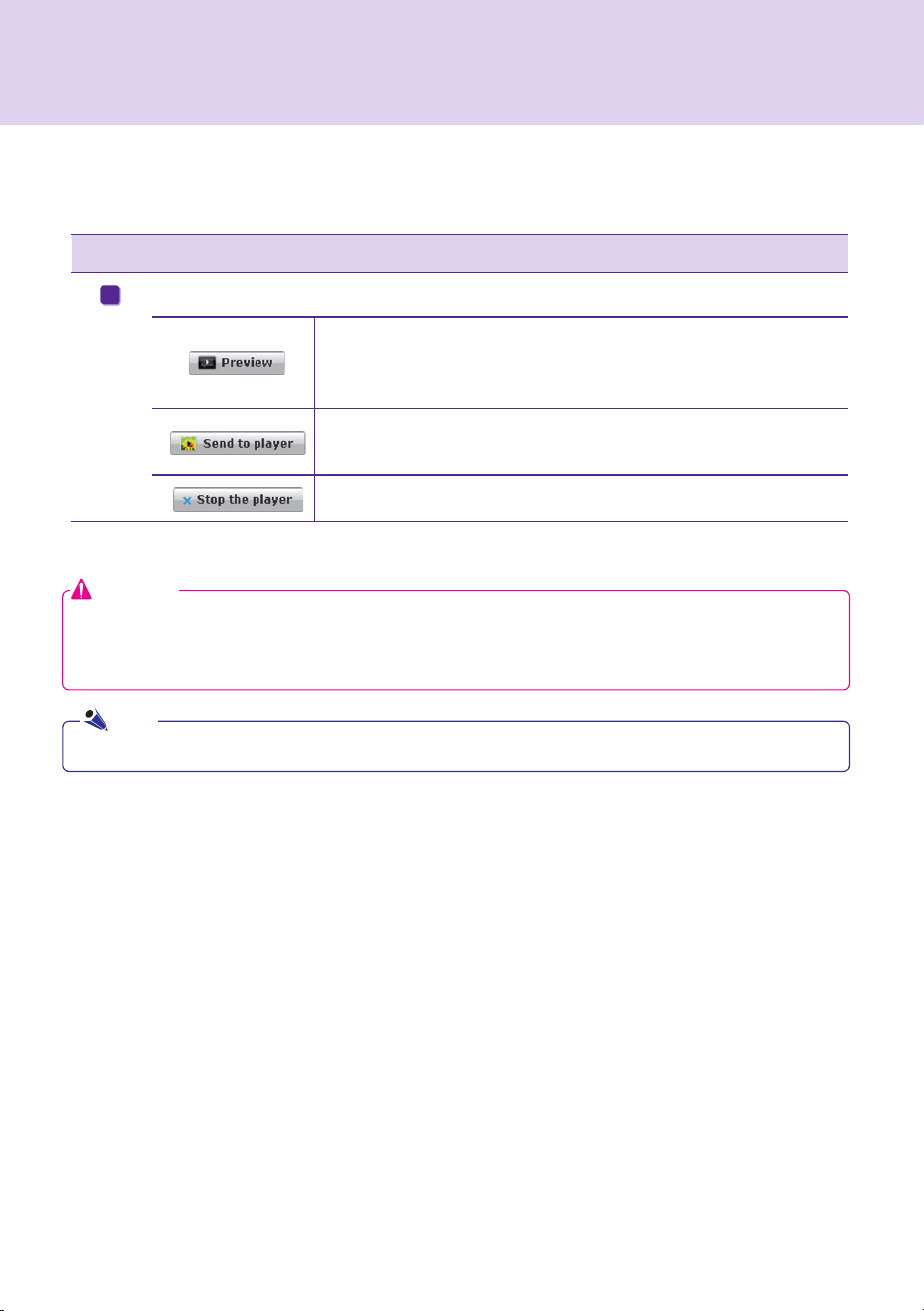
52
●.Content.file.names.can.include.letters,.numbers,.and.special.characters.such.as.@,.#,.$,.%,.[,.],.{.and.}.
Index Description
Quick.menus.that.allows.using.popular.content-editing.features.
You. can. preview. your. content. before. playing. it. with. SuperSign. Player..
This.allows.users.to.preview.the.content.being.edited.within.the.canvas.
prior.to.exporting.it.to.SuperSign.Player.
You. can. transfer. your. content.to.SuperSign.Player.that.is.on.the.same.
network.as.SuperSign.Manager..
Stop.playing.the.content.currently.playing.on.the.player.
D
●.Make.sure.that.the.MS.Office.programs.are.closed.before.previewing.MS.Office.files.
●.Office.or.web.files.may.not.be.displayed.in.the.edited.order.(Z-order).
●.To.loop.Flash.files,.set.them.to.play.repeatedly.
Attention
Note
SuperSign.Manager
53
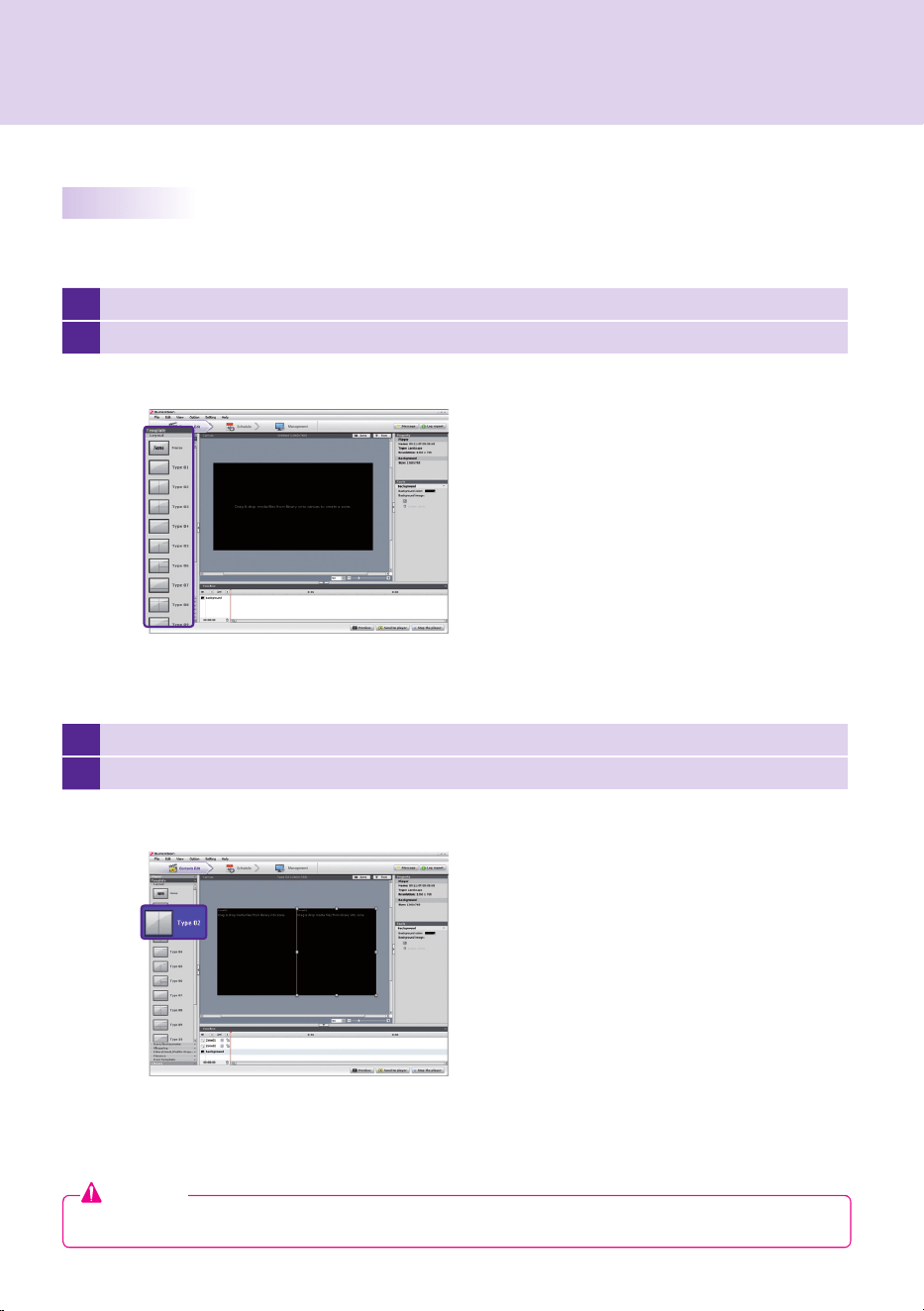
1 Click.Template > Layout.in.the.left.part.of.the.SuperSign.Manager.screen.
2 This.will.display.the.layouts.registered.in.the.media.library.
3 Double-click.on.a.new.layout.
4 It.will.be.shown.on.the.canvas.
Changing.Layouts
You.can.change.layouts.to.suit.your.needs.
Attention
●..If.you.change.the.layout,.the.content.you.are.editing.will.be.lost..Save.it.before.changing.the.layout.
SuperSign.Manager
54
Changing.Templates
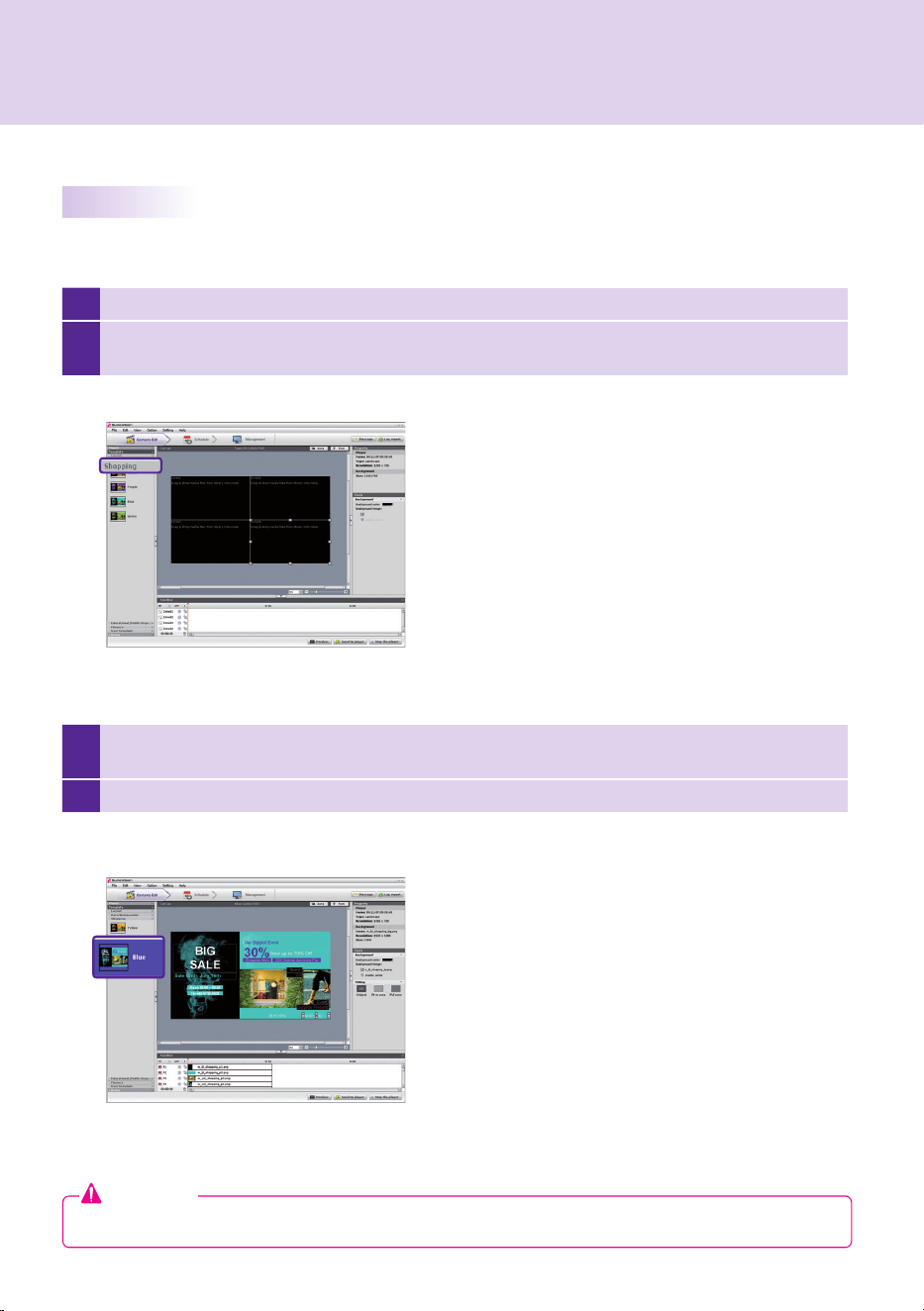
1 Click.on.Template.in.the.left.part.of.the.SuperSign.Manager.screen.
2
This.will.display.the.templates.registered.in.the.media.library.under.different.categories..The.categories.
include.bar/restaurant,.shopping,.and.public.organizations.
3
Double-click.on.a.new.template..This.example.explains.how.to.change.an.existing.template.to.a.
shopping.mall.template..(double-click.the.shopping.)
4 The.selected.template.will.appear.on.the.canvas.
As.with.layouts,.you.can.change.templates.to.suit.your.needs.
Attention
●..If.you.change.the.template,.the.content.you.are.editing.will.be.lost..Save.it.before.changing.the.template.
SuperSign.Manager

55
Using.Library
The.media.library.is.used.to.enroll.media.files.needed.for.media.content.production,.and.to.use.services,.
including.websites,.RSS,.and.Widget..To.register.media.files.in.the.media.library,.click.the.Library.tab.on.the.
media.window.in.the.left.part.of.the.SuperSign.Manager.screen.
●.A.video.thumbnail.is.picked.randomly.from.the.middle.frames.of.the.file.
●..If.a.video.cannot.be.uploaded,.check.the.required.codecs.from.the.Codec Package Installation.in.the.
appendix.
Note
SuperSign.Manager
56
Add a Media File
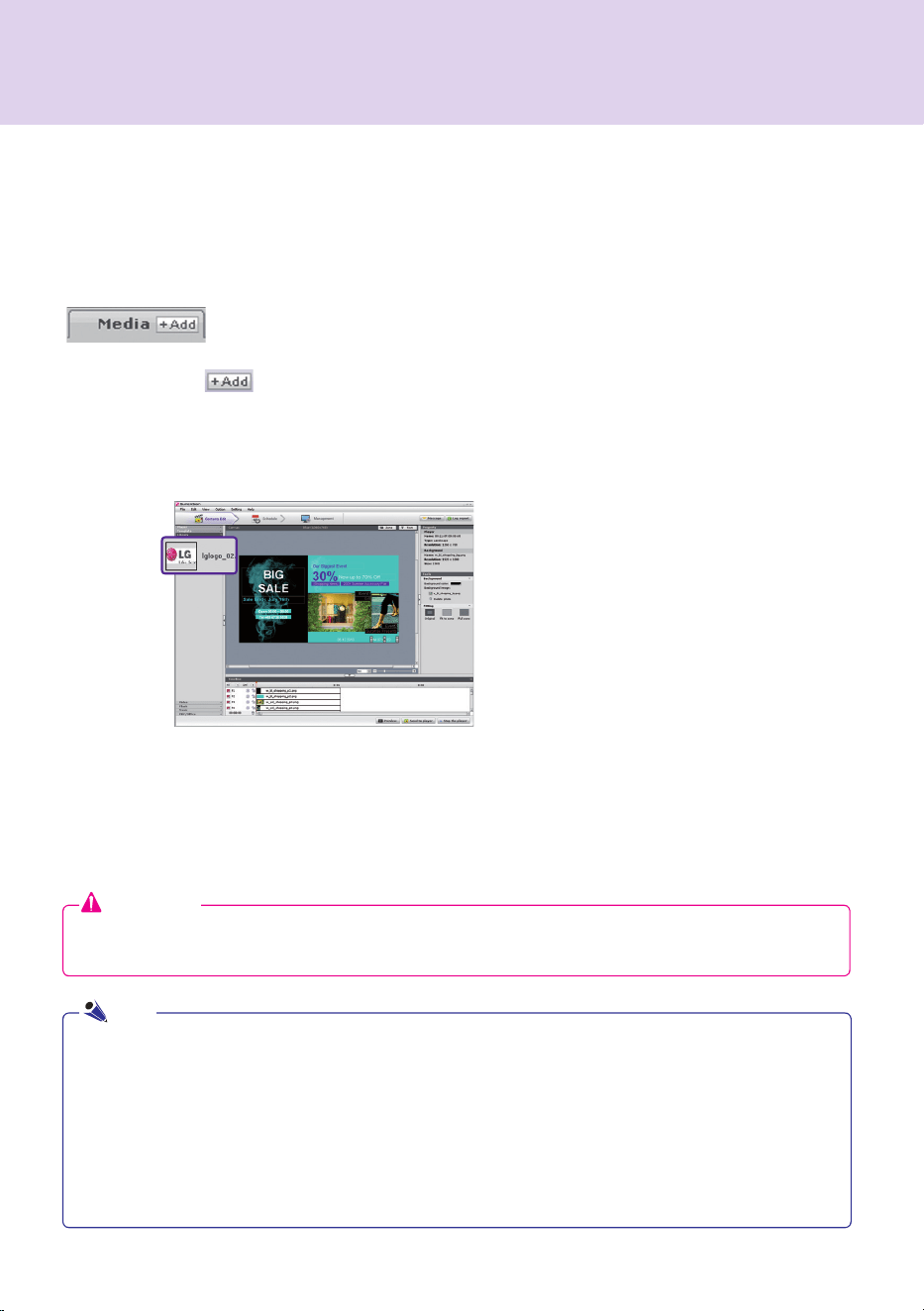
You.can.add.photos,.videos,.Flash.files,.music,.PDF,.and.MS.Office.files.on.the.media.tab.
To.add.media,.click..............on.the.media.tab............
After.you.select.the.file.from.the.Select Files.window.and.click.the.Open.button,.the.media.file.will.be.
registered.in.the.library.as.shown.below.
In.addition.to.photos,.the.same.process.can.be.used.to.register.videos,.Flash.files,.music,.PDFs,.and.MS.Office.
files.
●..Registered. media. files. are. automatically. saved. in. the.AutoUpload. folder. in. the. folder. containing. SuperSign.
Manager..For.example,.C:\Program.Files\SupersignMgr\AutoUpload.
●.Once.registered,.a.media.file.will.be.automatically.logged.in.the.library.whenever.SuperSign.Manager.is.run.
●..To.change.the.library.folder,.click.Options > Contents Edit.in.the.file.menu.and.select.the.Local media library
folder information.field.
●..By.setting.the.Sync.(Auto-upload).cycle.in.the.Options > Contents Edit.under.the.file.menu,.your.library's.media.
files.will.be.automatically.uploaded.at.every.designated.time..To.start.the.Auto-upload.process,.click.Start Sync.
Attention
●..Please.note.that.when.a.media.file.is.deleted.from.the.AutoUpload.folder,.it.will.also.be.removed.from.
the.library.
The.library.is.divided.into.media.and.service.as.shown.below.
Note
SuperSign.Manager

57
Click.Library > Service.on.the.media.window.to.launch.the.menu.for.adding.content.as.shown.below.
●.Service.contents.cannot.be.saved.together.with.media.files.in.the.library.
●.For.details.on.adding.content,.refer.to.the.Create.Content.section.of.this.manual.
Note
Add Service Contents
You.can.use.SuperSign.Manager.to.add.online.content.such.as.websites,.RSS.feeds,.and.widgets,.as.well.as.
their.date.and.time.
SuperSign.Manager
58
1
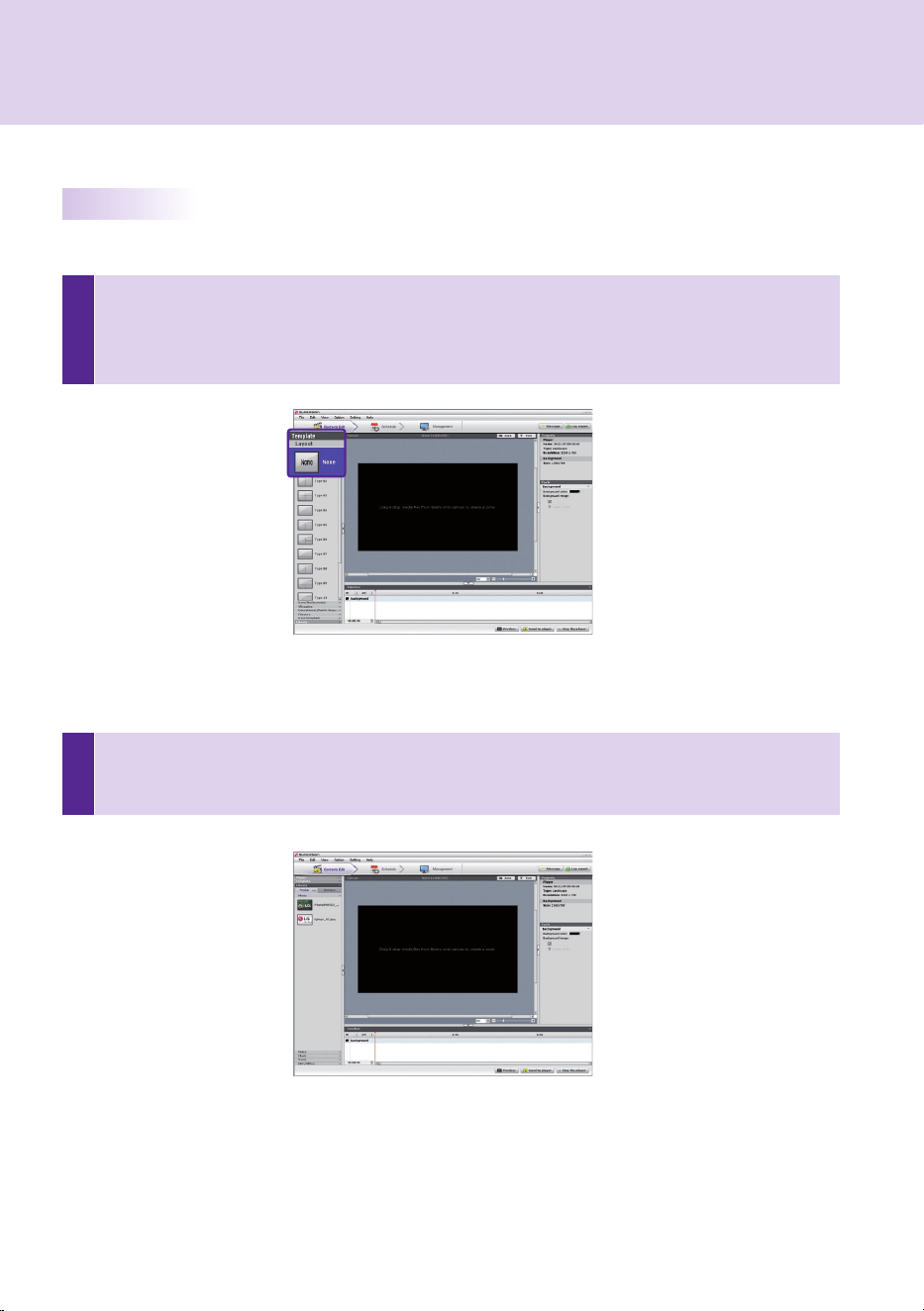
Select Template or Layout
Select.a.layout.or.template.to.display.various.media.on.the.screen..The.example.shows.the.layout.set.
to.None.. For. specific. information. on. how. to. change. layout,. refer. to. Changing layouts. or. Changing
Templates.section.of.this.manual.
2
Register Media in Library
To.use.a.media.file,.you.first.need.to.register.it.in.the.library..Register.a.media.file.as.described.in.the.
Using Library.section.of.this.manual.
Creating.Contents
Follow.these.steps.to.create.contents:
SuperSign.Manager
59
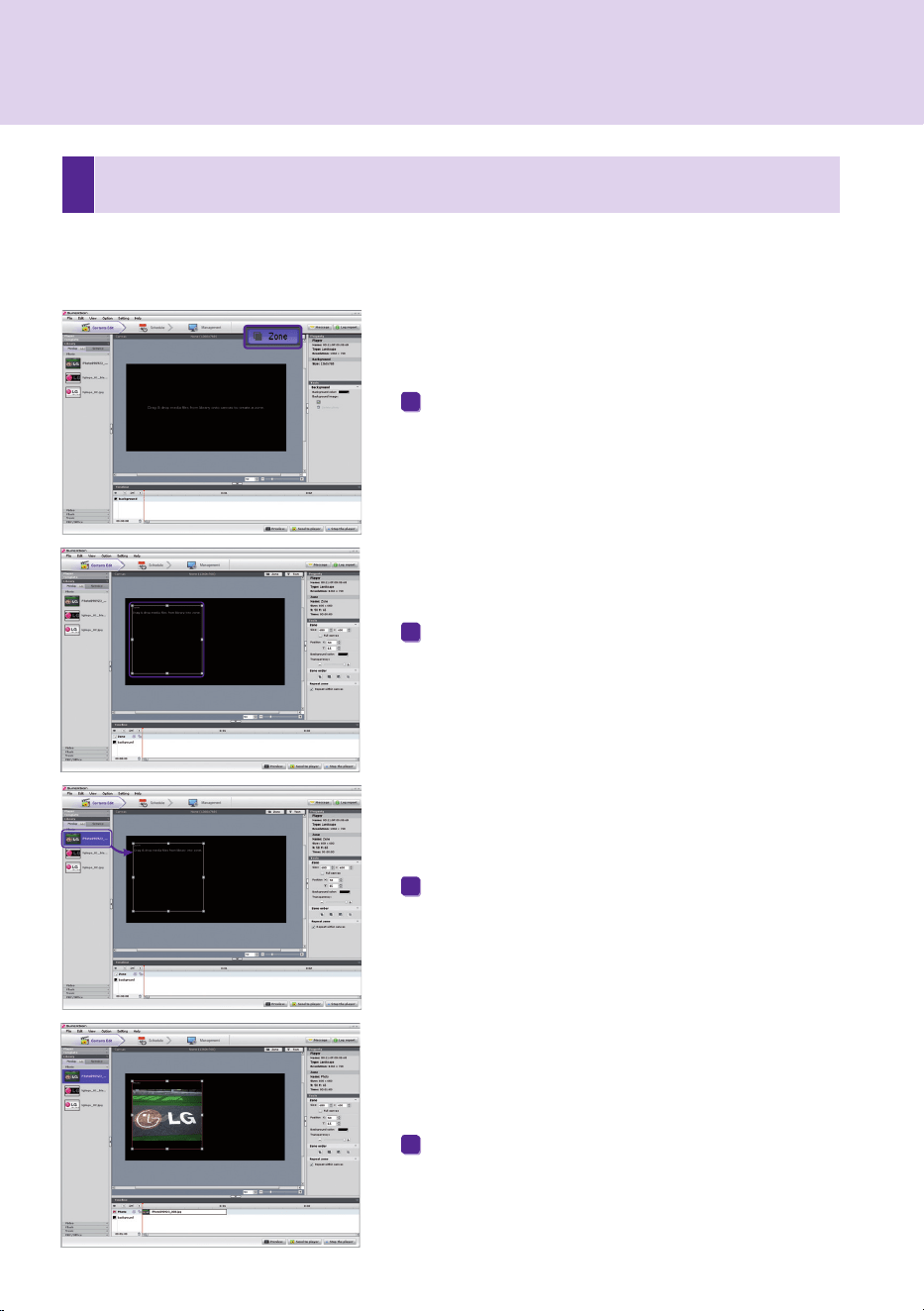
Move. the. mouse. onto. the. desired. location. within. the.
canvas.and.click.
The.zone.is.created.as.shown.here.
Drag.and.drop.a.media.file.already.registered.in.the.
library.
The.media.will.be.added.to.the.zone.
There.are.two.ways.to.display.media.on.the.canvas.
Add Media to Zone
Click.the.Zone.button.in.the.upper.right.of.the.screen..
Keep.the.Zone.button.on.
1
2
3
4
3
Display Media
You.can.exhibit.media.such.as.photos,.videos,.music,.PDF,.and.MS.Office.files.registered.in.the.library.
SuperSign.Manager
60
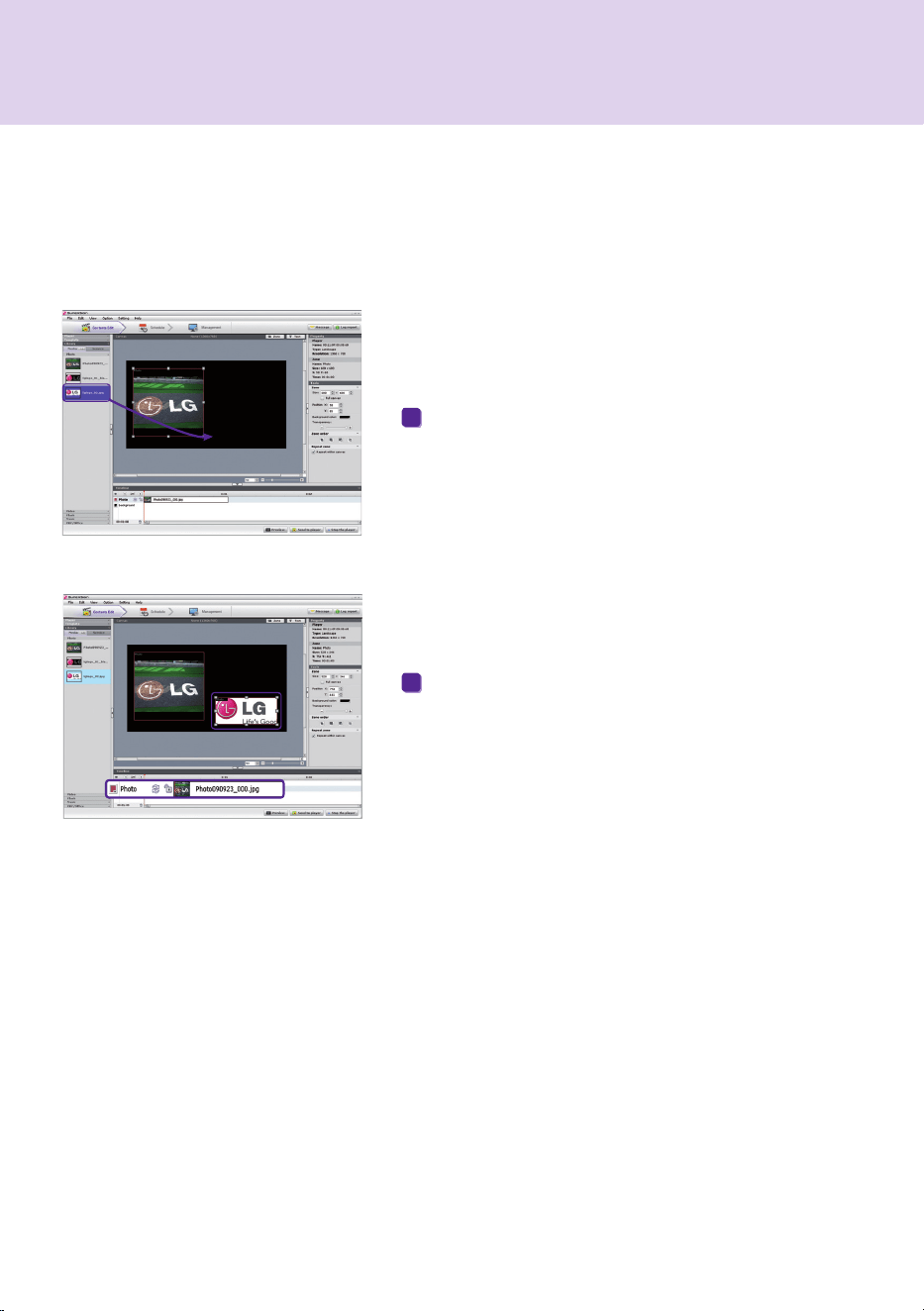
To.do.this,.drag.and.drop.a.registered.media.file.
The.file.will.be.displayed.on.the.canvas.as.shown.here..A.
new. zone. is. also. automatically. created.. The. size. and.
location.of.the.new.zone.can.be.adjusted.
Drag Media
You.can.directly.display.media.files.
1
2
SuperSign.Manager
61
4
Display Service Content
You.can.use.SuperSign.Manager.to.add.online.content.such.as.websites,.RSS.feeds,.and.widgets,.as.
well.as.their.date.and.time.
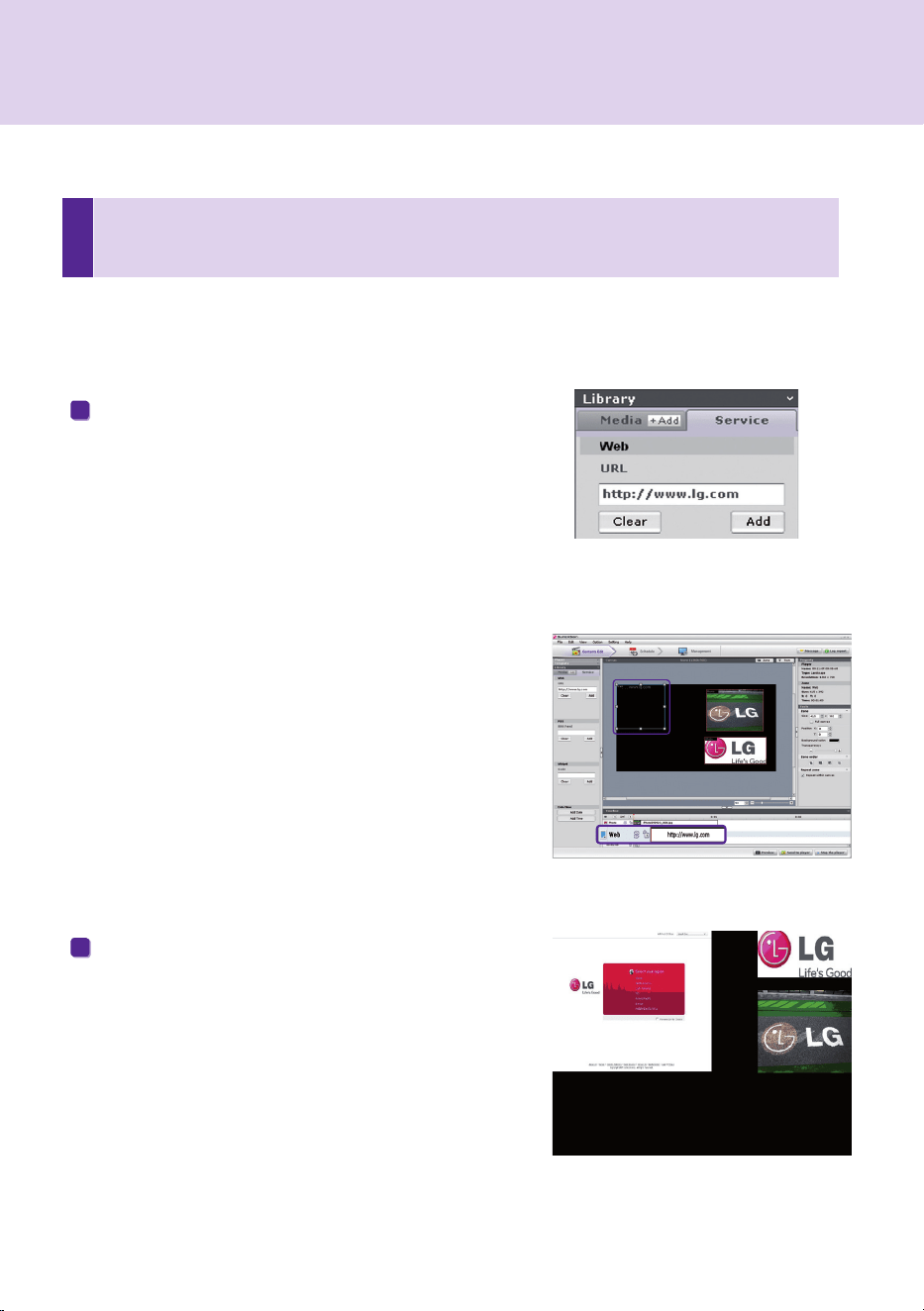
To.add.service.content,.click.Library > Service.on.the.media.window.
Add Websites
The.website.zone.will.be.added.on.the.canvas.
To.add.a.website,.enter.the.URL.you.want.to.add.and.click.
Add.
1
Move.the.new.website.zone.to.the.desired.location..Click.
Preview. in. the. quick. menus.. You. will. see. the. website.
added.as.shown.here.
2
SuperSign.Manager
62
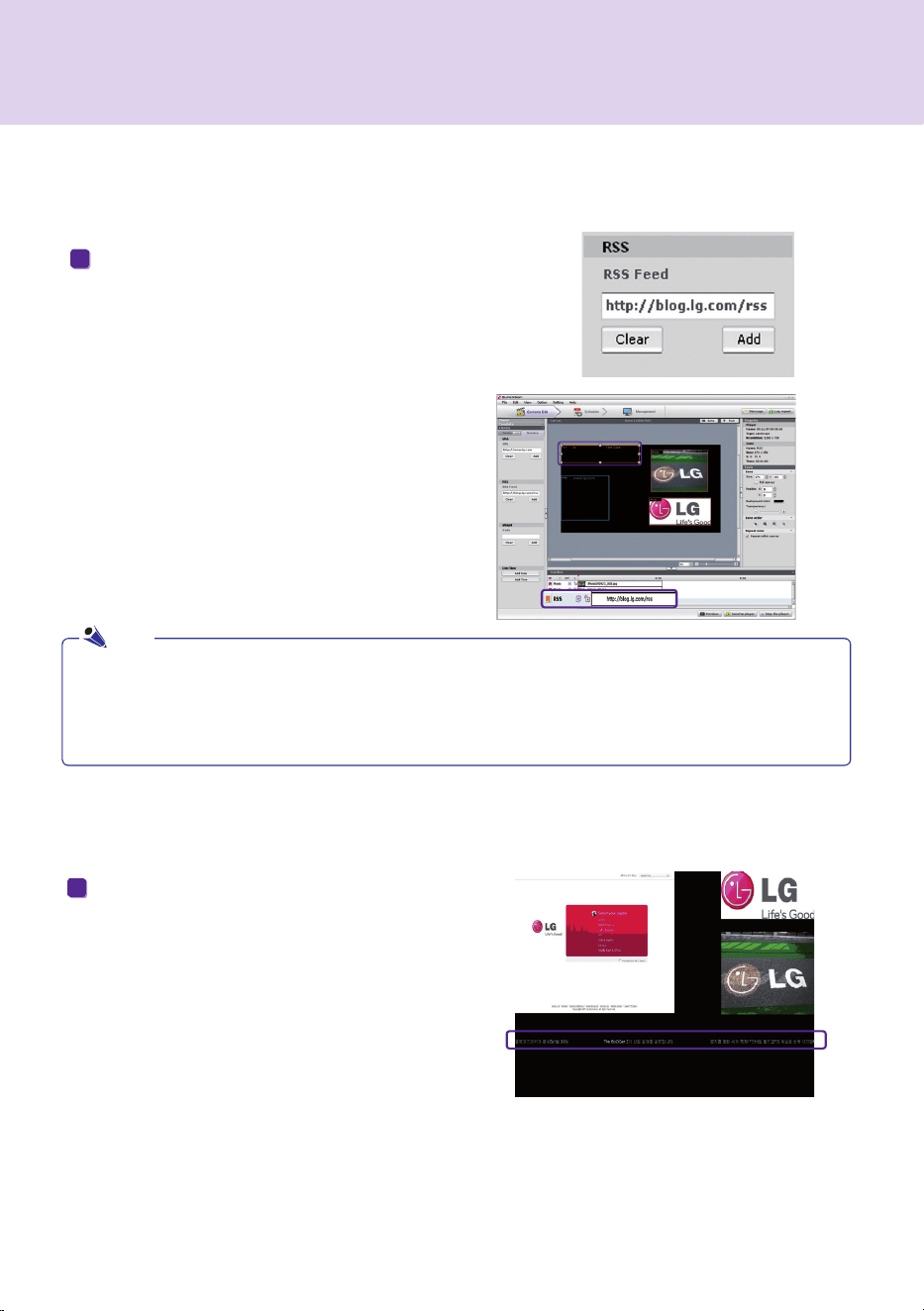
Add RSS Feeds
The.RSS.feed.zone.will.be.added.on.the.
canvas.
●.The.service.and.text.zones.can.include.one.item.each.
●..RSS.(Really.Simple.Syndication).is.used.to.publish.frequently.updated.works..Using.RSS.reader.software,.
users. can. subscribe. to. receive. regularly. updated. content. provided. by. their. favorite. sites. in. an. RSS-
compatible.format.
To.add.an.RSS.feed,.enter.the.URL.you.want.and.click.
Add.
1
Display. the. RSS. feed. zone.on. the. desired. location.
on.the.canvas..Click.Preview.from.the.quick.menus.
to.see.the.screen.with.RSS.content.added.
2
Note
SuperSign.Manager
63
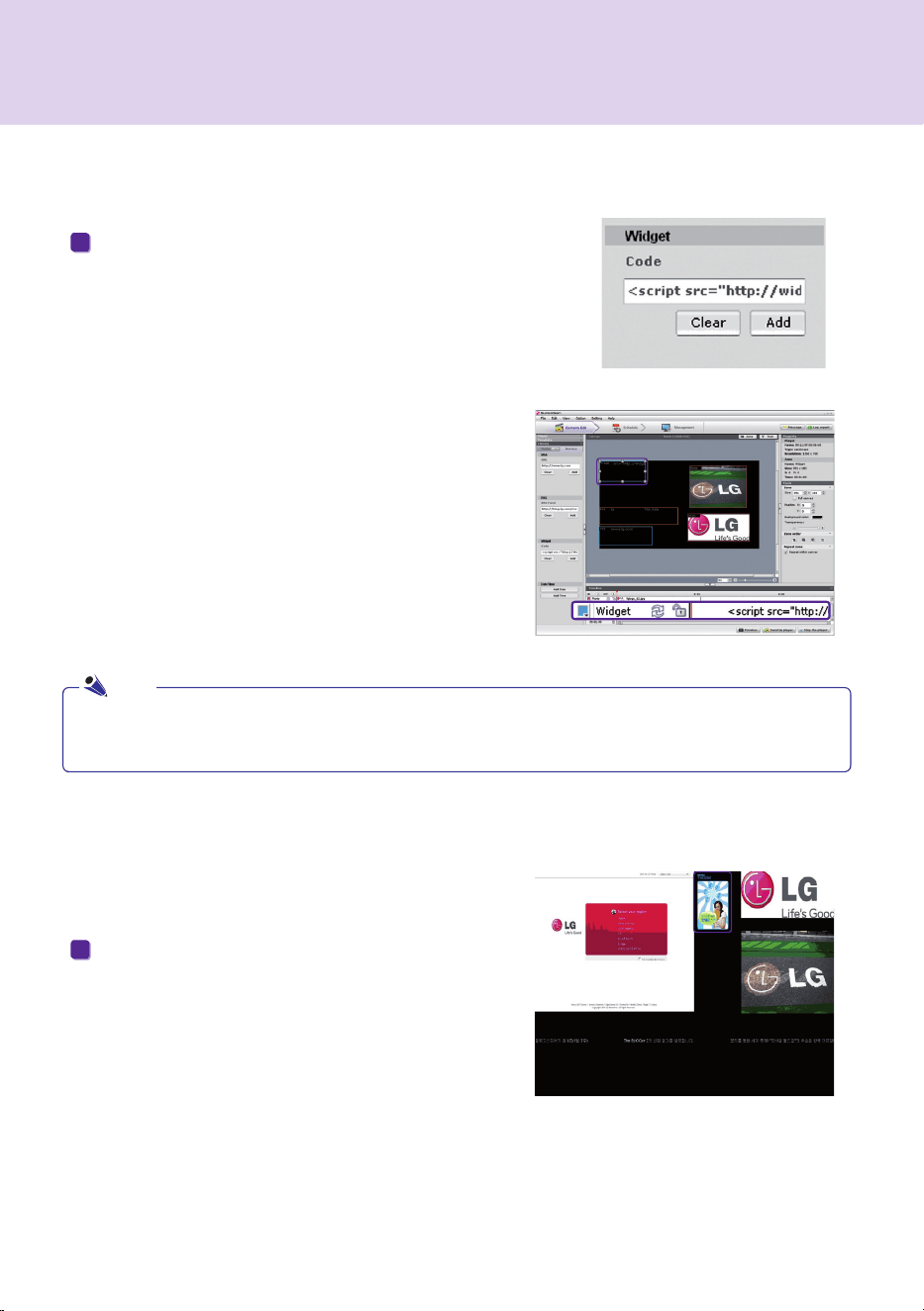
Add Widgets
The.widget.zone.will.be.added.on.the.canvas.
●..Widgets. are. small. icons. linked. to. frequently. used. services. that. users. can. run. without. opening. a. web.
browser.
To.add.widgets,.enter.a.widget.code.and.then.click.Add.
1
Display.the.RSS.feed.zone.on.the.desired.location.on.the.
canvas.. Click. Preview. from. the. quick. menus. to. see. the.
screen.with.RSS.content.added.
2
Note
SuperSign.Manager

64
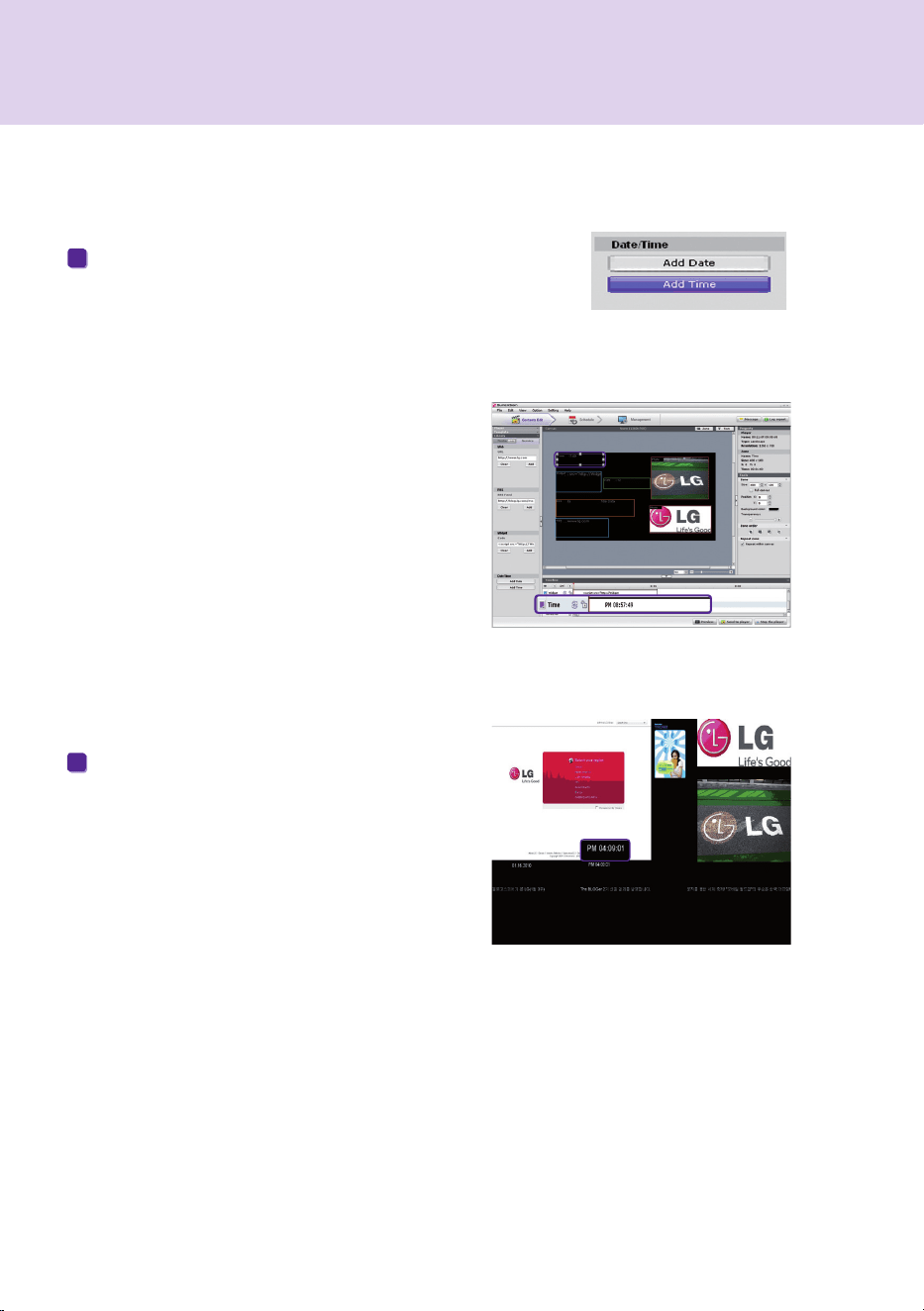
Add Dates
The.date.zone.will.be.added.
To.add.dates,.click.Add.Date.in.the.Date/
Time zone.
1
Display. the. RSS. feed. zone. on. the. desired.
location. on. the. canvas.. Click. Preview. in. the.
quick.menus. to.see. the.screen. with.the. added.
time.information.
2
SuperSign.Manager
65
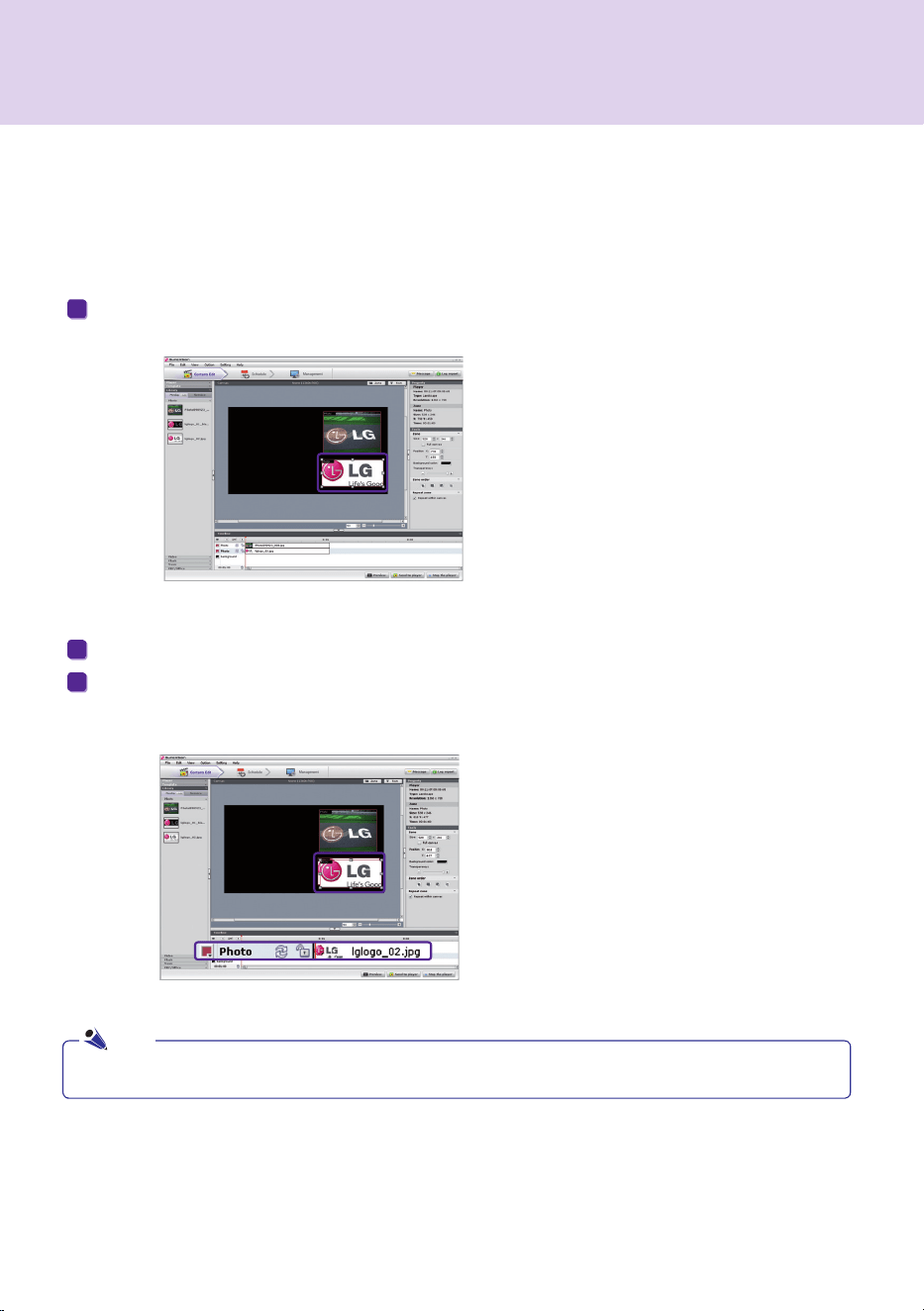
Add Times
A.time.zone.will.be.added.
To.add.times,.click.Add Time.in.the.Date/
Time zone.
1
Move. the. new. time. zone. to. your. desired.
location.. Click. Preview. in. the. quick. menus. to.
see.the.screen.with.the.added.time.information.
2
SuperSign.Manager
66
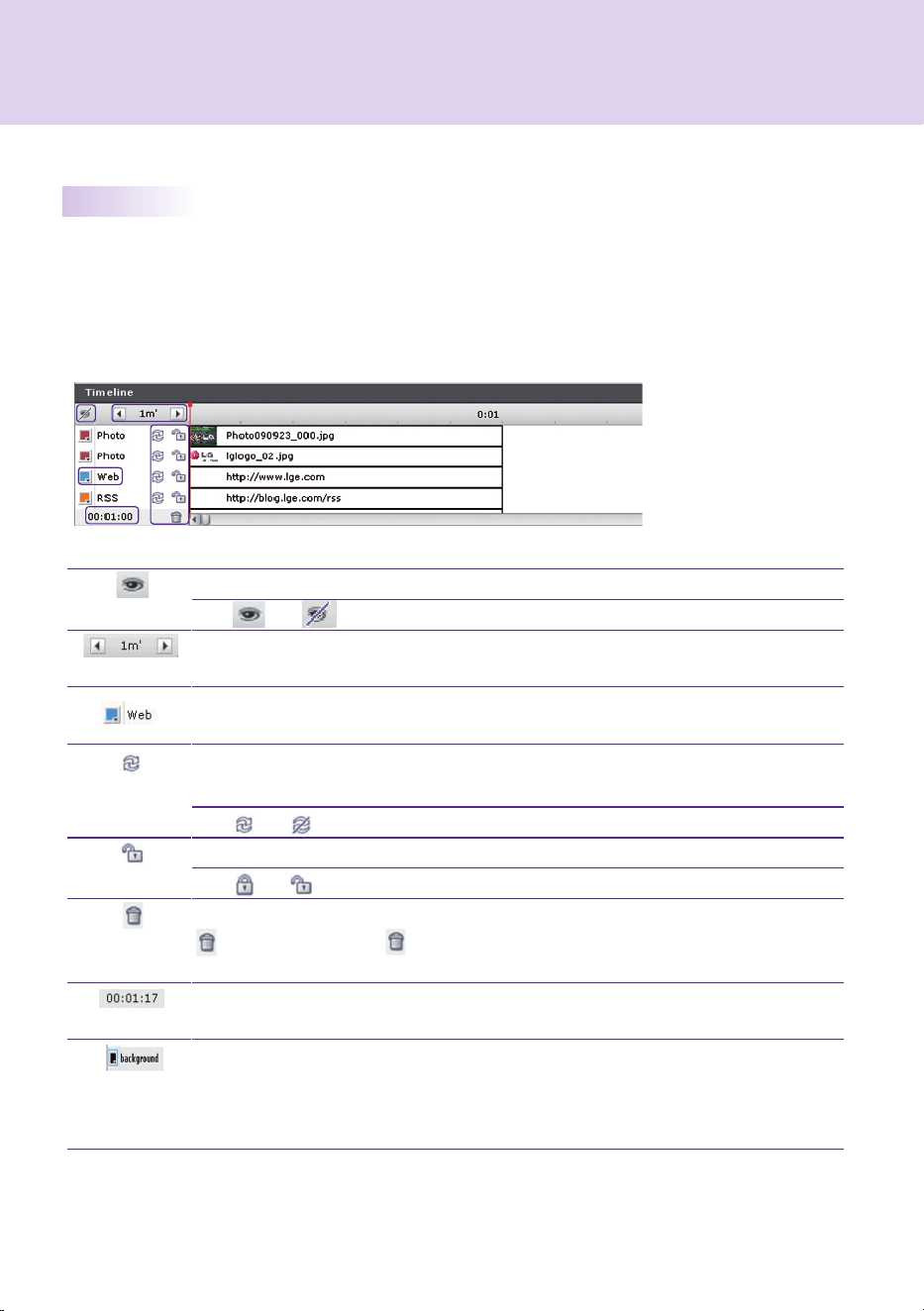
A.zone.on.the.canvas.can.be.copied.and.pasted.to.other.spaces.
●.If.you.copy.a.zone,.its.properties.and.the.media.in.it.will.be.copied.as.well.
Copy Zones
To.do.this,.first.select.the.zone.you.want.to.copy.
Click.Edit > Copy.in.the.file.menu,.or.press.Ctrl + C.to.copy.the.selected.zone.
Click.Edit > Paste.in.the.file.menu,.or.press.Ctrl + V.to.paste.the.selected.zone.onto.the.canvas.
1
2
3
Note
SuperSign.Manager
67
You.can.display.or.hide.the.boundary.color.and.file.name.of.the.zone.on.the.canvas.
(On:........,.Off:........)
Set.the.basic.time.unit.of.the.timeline..Time.units.that.can.be.selected.are.1.minute,.10.
minutes,.or.30.minutes.
Double-click.on.the.zone.name.to.change.it..Click.on.the.square.in.front.of.the.zone.name.
to.change.the.zone's.boundary.color.
You.can.enable.or.disable.the.repeat.function..A.zone.with.this.feature.on.will.be.played.
repeatedly.until.the.registered.end.time.
(On:.....,.Off:.....)
Lock.the.zone..Locked.zones.cannot.be.selected.or.edited.
(On:.....,.Off:......)
Delete.the.selected.zone..To.do.this,.select.the.zone.you.want.to.remove.and.click...
....or.move.the.zone.to.the.....icon..You.can.delete.the.media.within.the.zone.using.the.
same.methods.
This.shows.the.total.duration.of.the.content..This.time.indicates.the.longest.duration.time.
of.the.zones.
Change.the.canvas.background.color.or.image..Click.the.square.in.front.of.the.canvas.name.
to.change. its.background. color...To. change.the. background.image,. drag. a. photo. from. the.
library.and. drop.it. into. the. canvas. timeline..Only. one.background. image.can. be.used. at.a.
time.
Setting.Timeline
The.timeline.allows.you.to.set.the.duration.for.each.content.clip.so.that.your.media.can.be.played.at.the.
designated.time..On.the.timeline,.you.can.set.the.start.time,.duration,.and.end.time.of.the.content.in.the.zone..
You.can.set.content.to.play.for.up.to.12.hours.
Overview Timeline Setting
SuperSign.Manager
68
SuperSign.Manager
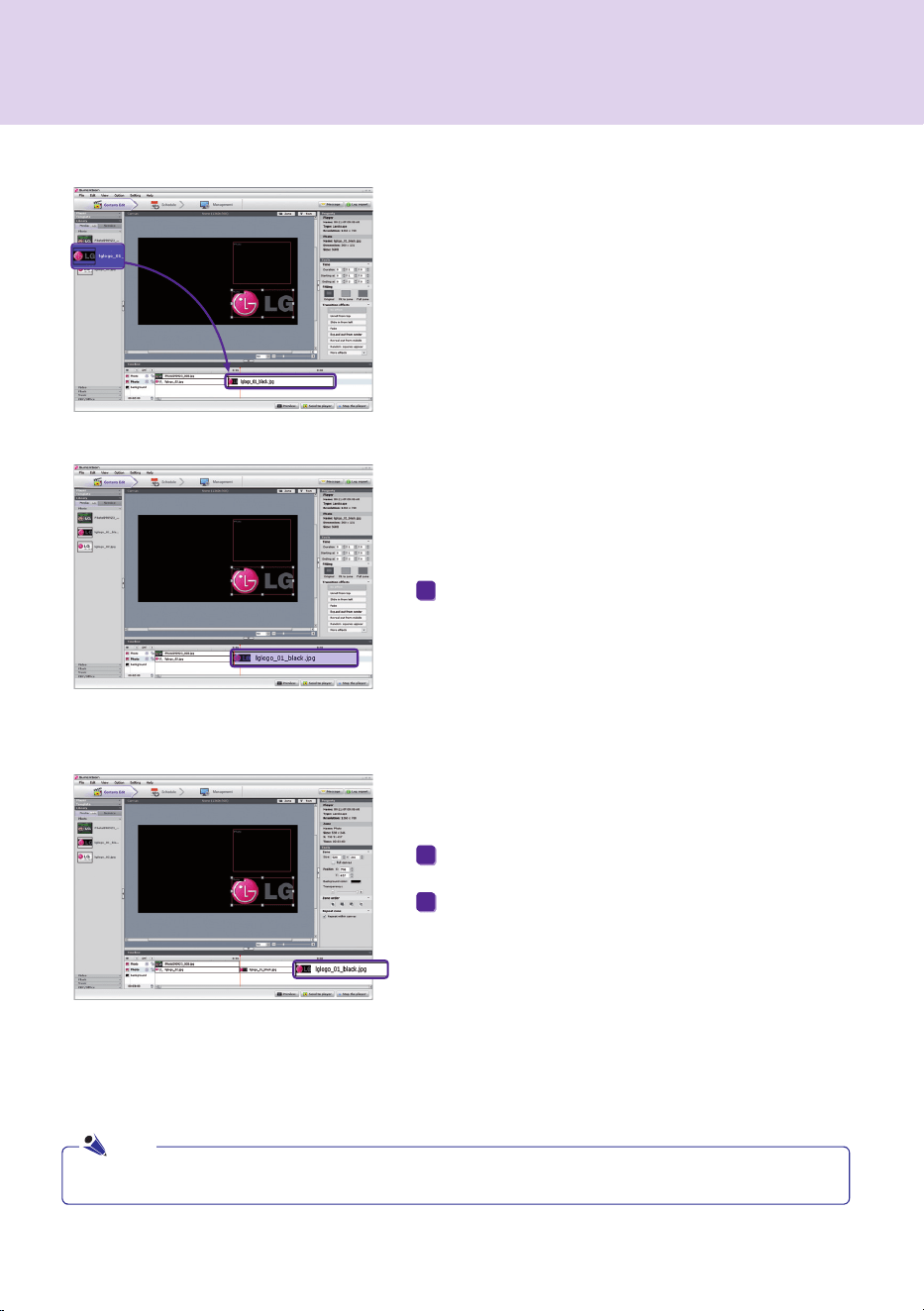
Add Media to Timeline
To.add.media.to.the.timeline,.drag.a.file.to.the.timeline.
of.the.zone.you.want.to.add.
Copy Media to Timeline
●.You.cannot.copy.text.or.services,.including.RSS,.websites,.and.widgets.
Select.a.media.file.from.the.timeline.
1
With.the.desired.media.file.selected,.press.Ctrl + C.
Press.Ctrl + V.to.paste.the.file.
2
3
Note
69
1
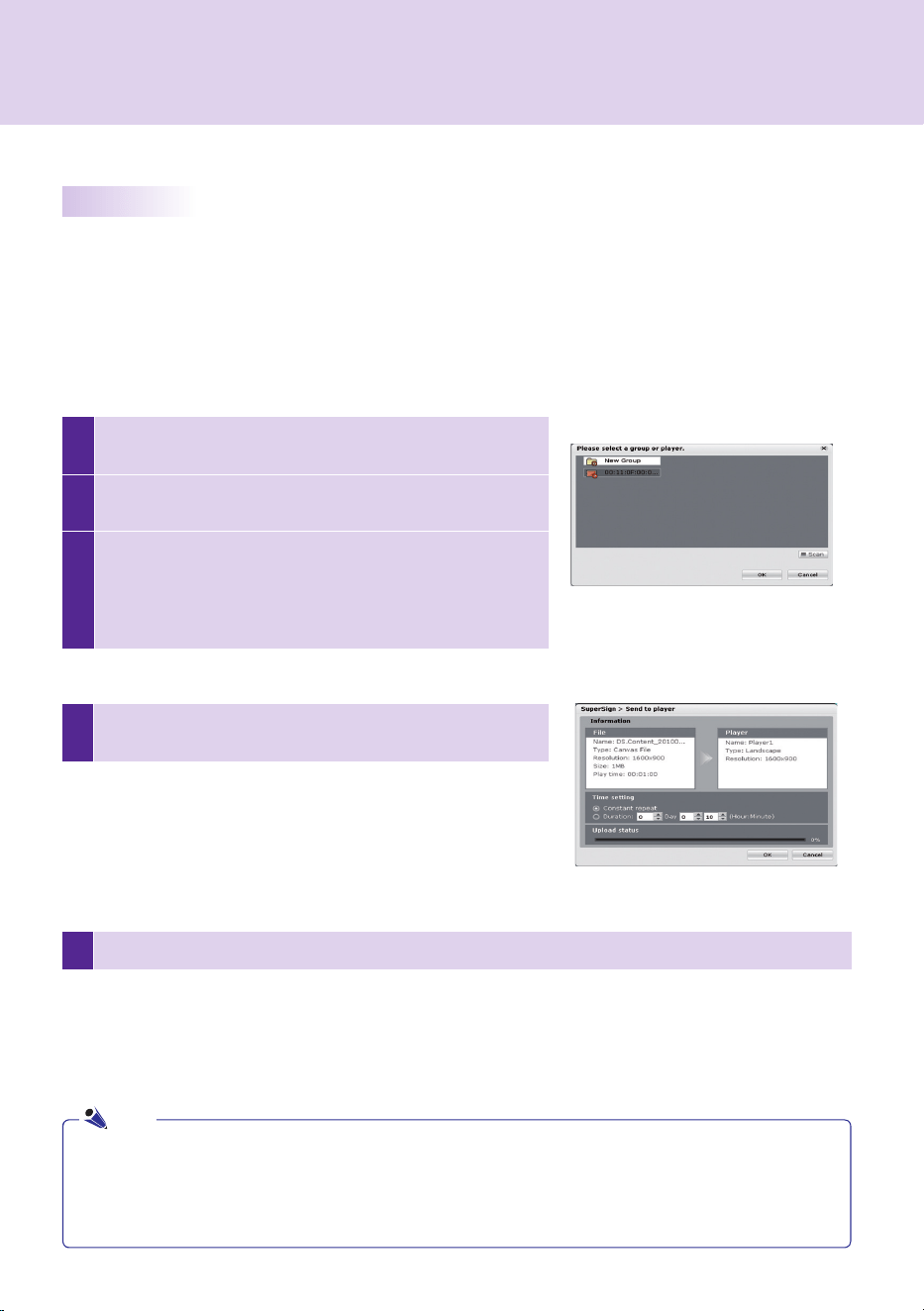
Select. Player. in. the. media. window..The. SuperSign. Players.
currently.connected.will.be.listed.
2
Select. the. SuperSign. Player. to. which. you. want. to. transfer.
your.content.
3
Click. Send to Player. in. the. quick. menus.. The. SuperSign.
Send.to.Player.window.will.appear.
If.there.is.no.connected.player,.the.Please.Select.a.Group.or.
Player.window.will.be.shown.for.the.player.search.
SuperSign.Manager
5 Once.the.content.is.sent.to.SuperSign.Player,.it.will.be.played.on.the.connected.screen.
4
Enter.the.duration.in.the.SuperSign.Send.to.Player.window.and.
click.OK.
Distributing.Completed.Content
You.can.distribute.content.by.sending.it.from.SuperSign.Manager.to.SuperSign.Player.in.order.to.play.it.there.
There.are.three.ways.to.distribute.your.content:
Immediate Distribution
Instantly.send.created.content.to.SuperSign.Player.and.play.it.immediately.
●.Constant.Repeat.:..Playing.continuously.until.a.new.schedule.is.
added.
●.Duration.:.Continue.to.play.at.this.time.for.the.duration.
●.When.you.transfer.content.via.Send to Player,.the.schedules.previously.sent.will.be.overwritten.
●.With.Send to Player,.the.content.will.be.sent.to.player.groups,.not.to.an.individual.player.
●..If. the. "The. storage. capacity. is. full.". message. appears,. please. check. the. free. space. available. in. the.
management.menu.of.SuperSign.Manager.
Note
70
SuperSign.Manager
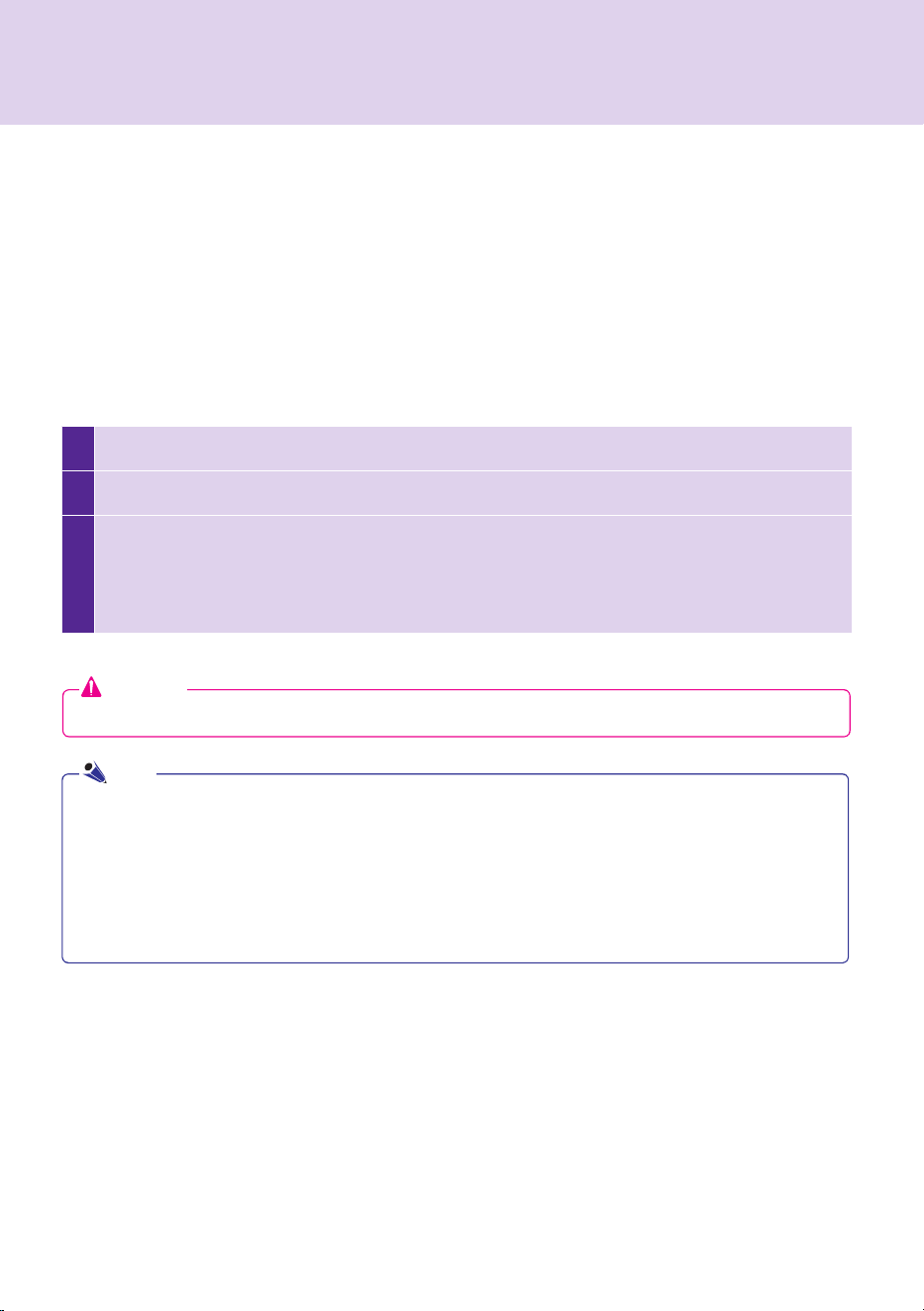
1 Complete.the.content.and.click.Export contents.
2 Specify.the.folder.in.which.the.content.will.be.saved.
3
Click.Export Contents.to.create.a.new.folder.in.which.to.save.the.content.
●.The.content's.media.and.information.files.will.be.stored.in.the.folder.
●.Use.a.USB.storage.device.to.play.the.content.file.sent.as.Export Contents.
●.Export Contents.can.be.automatically.or.manually.played.in.SuperSign.Player.
Export Contents
You.can.save.content.as.a.file.format.playable.with.SuperSign.Player..The.saved.content.can.be.moved.via.a.
removable.disk.to.be.played.on.SuperSign.Player..
The.steps.for.exporting.content.are.described.below:
Scheduled Distribution
You.can.send.content.to.SuperSign.Player.at.the.scheduled.time..The.content.will.be.sent.and.played.at.the.
designated.time..For.details.on.the.scheduled.distribution,.go.to.the.Schedule.section.of.this.document.
Attention
●.Export Contents.is.not.available.for.images.provided.with.the.templates.
●..Content.that.is.saved.in.a.USB.storage.device.through.Export Contents.can.automatically.be.played.in.
SuperSign.Player.as.follows,.depending.on.how.the.content.was.saved.
...1..Create.a.folder.named."AutoPlay".in.the.USB.device.
...2..Copy.the.cts.and.media.files.created.by.the.Export Contents.function.to.that."AutoPlay".folder.
...3..When.the.USB.device.is.inserted.into.the.NC1000/NC2000.USB.port,.the.content.will.play.automatically.
...4..When.you.remove.the.USB.device.from.the.port,.the.playback.will.be.closed.
Note
71
SuperSign.Manager
Content.Properties/Tool
In.SuperSign.Manager,.users.can.check.and.modify.the.properties.of.the.selected.content.
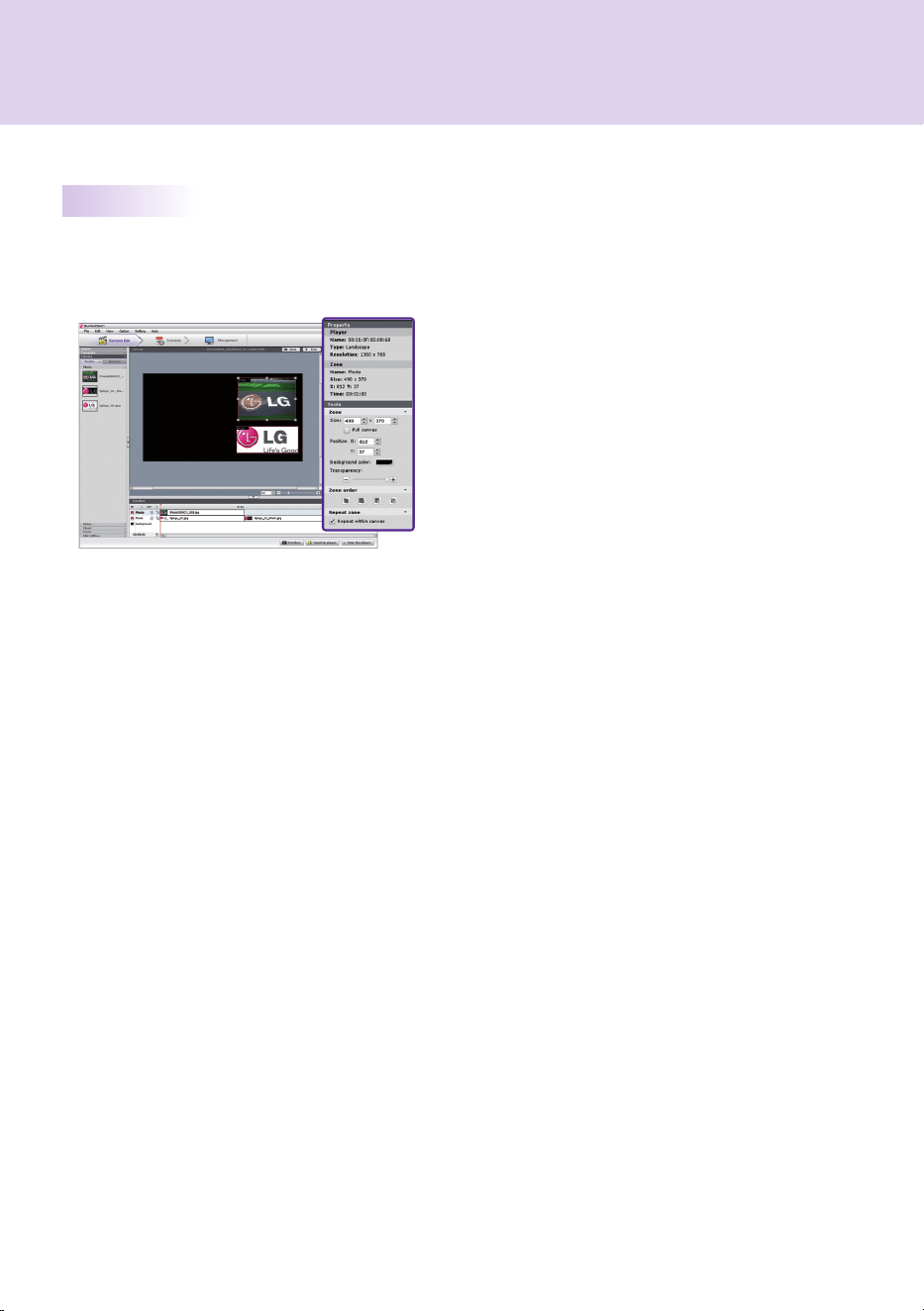
Selecting.a.Canvas zone.displays.the.zone.properties.in.the.upper.right.of.the.Properties.window..You.also.can.
change.the.time,.image.size,.play.repeat,.and.volume.of.the.zone.in.the.Tool.window.below.the.properties.window.
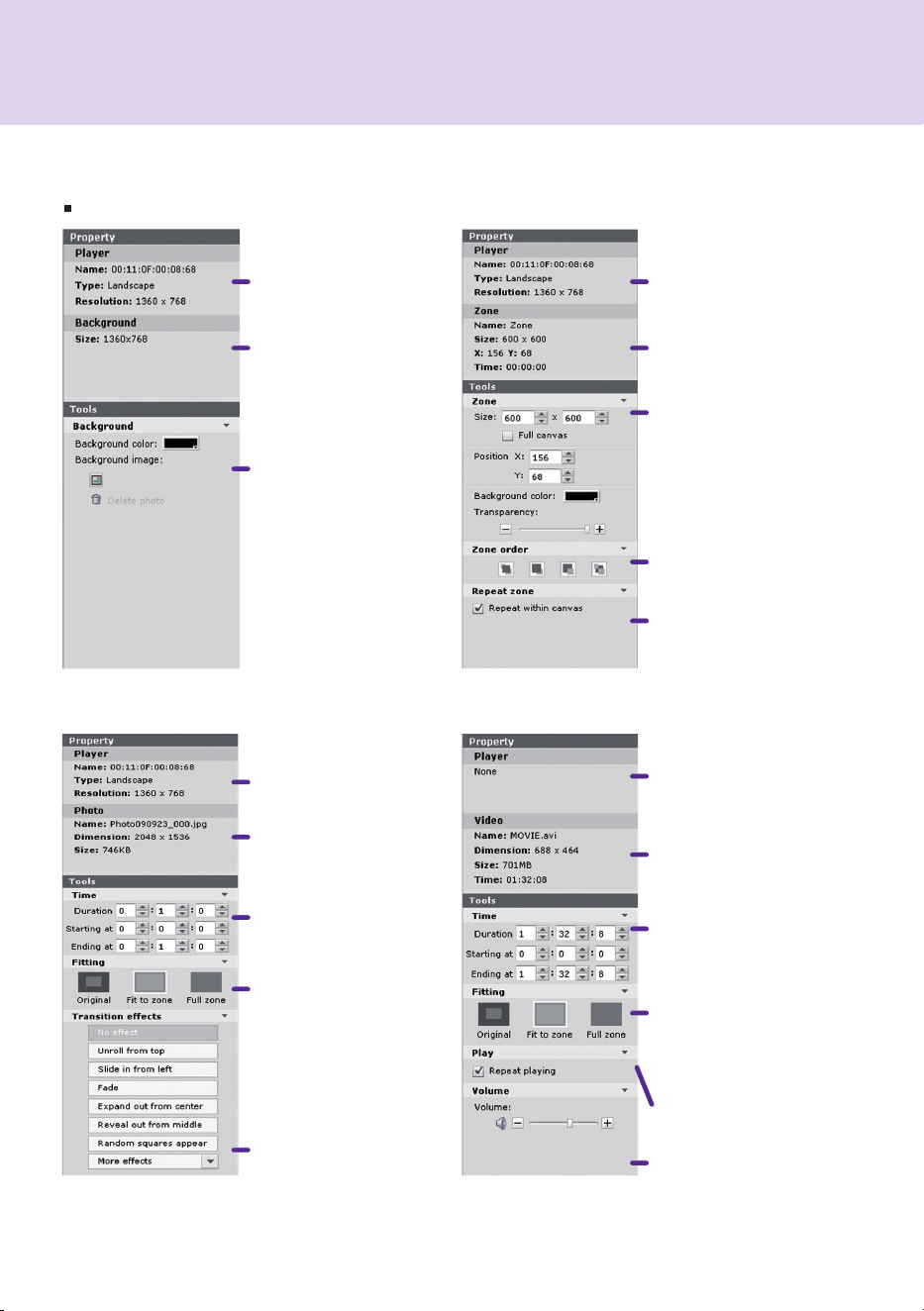
72
SuperSign.Manager
<Photo.>
Shows.information.about.
the.selected.picture.
Sets.a.playback.time.for.
the.selected.picture.
Adds.special.effects.to.
the.picture.
Fit.to.zone.as.original.
Fit.to.zone,.keeping.ratio.
Fit.to.zone.as.full.screen.
Fit.to.zone.as.original.
Fit.to.zone,.keeping.ratio.
Fit.to.zone.as.full.screen.
<Video>
Shows.information.about.
the.selected.video.
Sets.the.playback.time.
Speci.es.whether.to.repeat.
the.playback.of.the.selected.
video.within.the.set.media.
playback.time.
Volume.control.
Content Properties / Tools
<Background> <Zone>
Shows.information.on.
the.connected.players.
and.groups.
Shows.information.on.
the.connected.players.
and.groups.
Background.resolution.
Background.customization
Pictures.only.in.the.media.
library.can.be.used.as.
background.
Zone.customization.
Changes.zone.order
(bring.to.front,.bring.
forward,.send.backward,.
send.to.back).
Repeat.setting.within.
canvas.
.Media.File
Zone.infomation.
Shows.information.on.
the.connected.players.
and.groups.
Shows.information.on.
the.connected.players.
and.groups.

73
SuperSign.Manager
<PDF/Of.ce>
Shows.information.about.
the.selected.document.
Sets.an.PDF.playback.time.
<Music> <Flash>
Shows.information.about
the.selected.Flash..le.
Sets.Flash..le.playback.
time.
Speci.es.whether.to.repeat.
the.playback.of.the.Flash.
.le..
Shows.information.about.
the.selected.audio.
Sets.an.audio.
playback.time.
Speci.es.whether.to.
repeat.the.playback.of.
the.selected.audio.
Volume.control.
Shows.information.on.
the.connected.players.
and.groups.
Shows.information.on.
the.connected.players.
and.groups.
Shows.information.on.
the.connected.players.
and.groups.
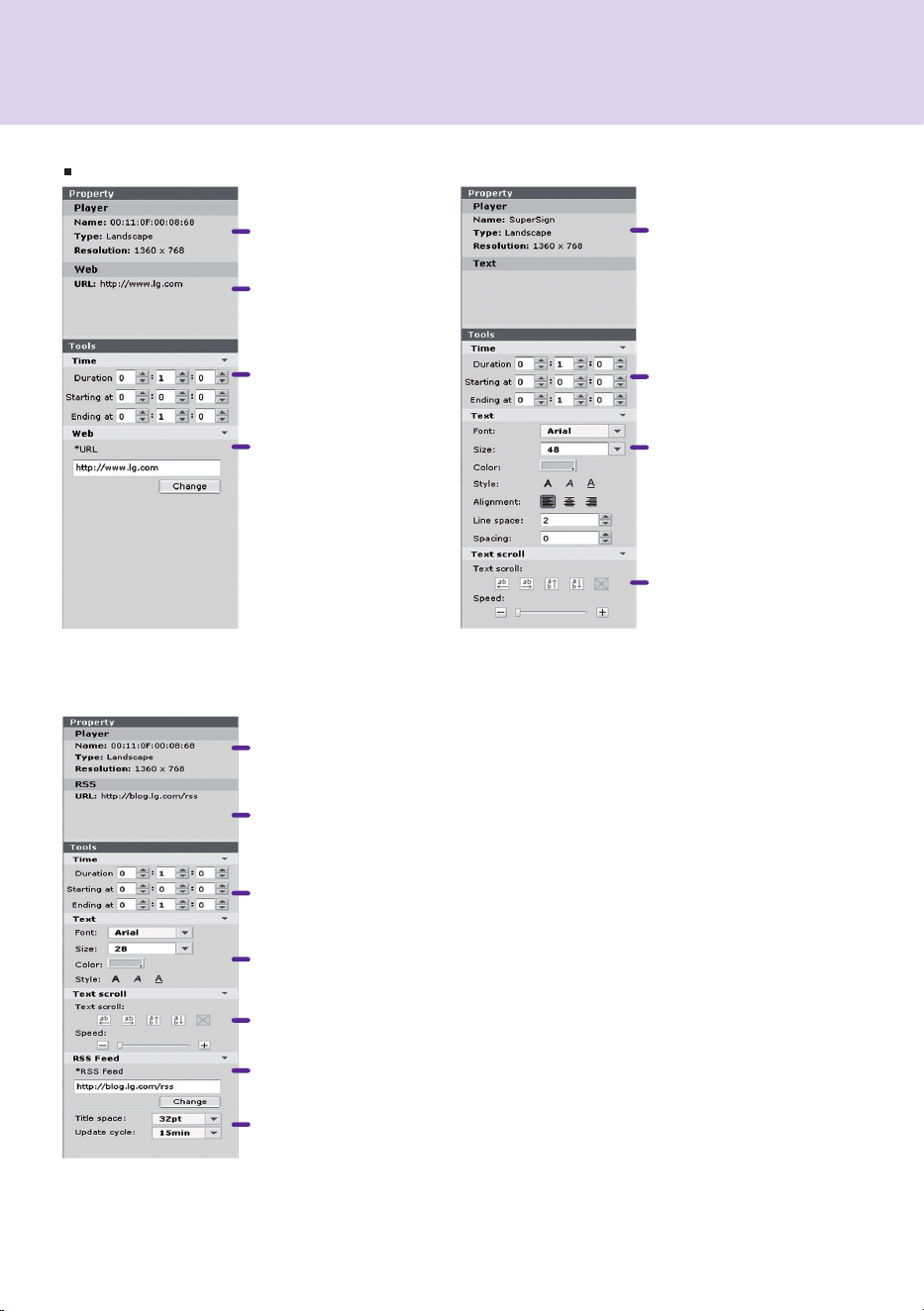
74
SuperSign.Manager
<Web.site>
Sets.a.text.playback.time.
Sets.the.playback.time.for.
the.selected.web.site..
Sets.the.text.format.to.the.
selected.style.
Sets.the.text.format.to.
the.selected.style.
Sets.the.direction.and.
speed.of.the.text.movement.
Sets.the.direction.and.speed.of.the.
text.movement.
Web.site.to.be.linked.
Changes.the.web.site.to.
be.linked.
.Service
<Text>
<RSS>
RSS.(Really.Simple.Syndication).
feeds.to.be.linked.
Sets.the.playback.time.for.the.
selected.RSS.feed.
Changes.the.RSS.feed.to.be.linked..
Sets.space.between.RSS.titles.
Sets.RSS.update.period.
Shows.information.on.
the.connected.players.
and.groups.
Shows.information.on.the.connected.
players.and.groups.
Shows.information.on.
the.connected.players.
and.groups.
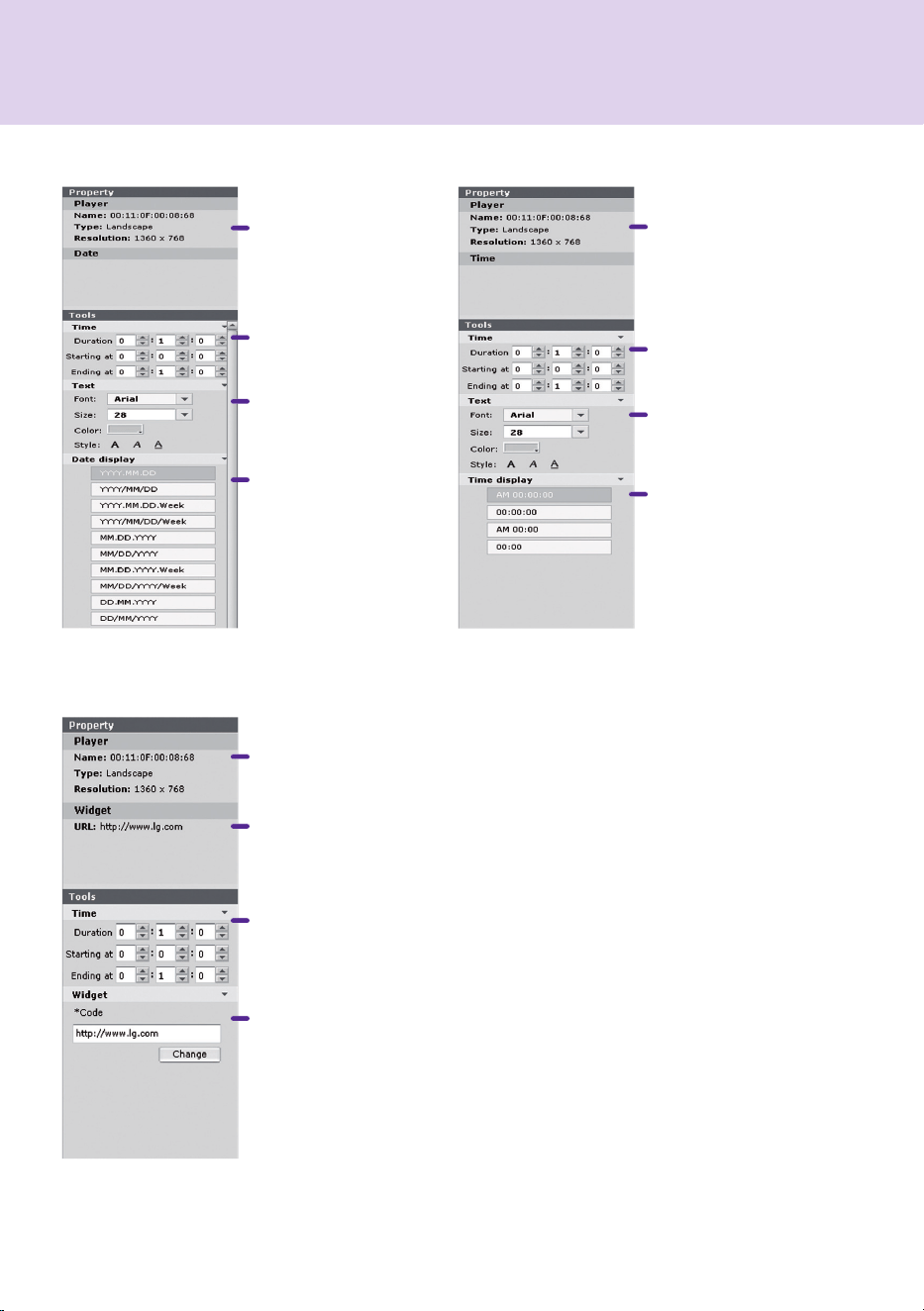
75
SuperSign.Manager
<Widget>
<Date>
Sets.a.date.playback.time.
Sets.the.text.format.to.
the.selected.style.
Date.format.
Information.about.the.connected.
widget.
Sets.a.widget.playback.time.
Changes.the.URL.of.a.widget.to.
be.connected.
<Time>
Sets.a.playback.time.for.the.
time.content.
Sets.the.text.format.to.the.
selected.style.
Time.format.
Shows.information.on.
the.connected.players.
and.groups.
Shows.information.on.the.connected.
players.and.groups.
Shows.information.on.
the.connected.players.
and.groups.
76
SuperSign.Manager
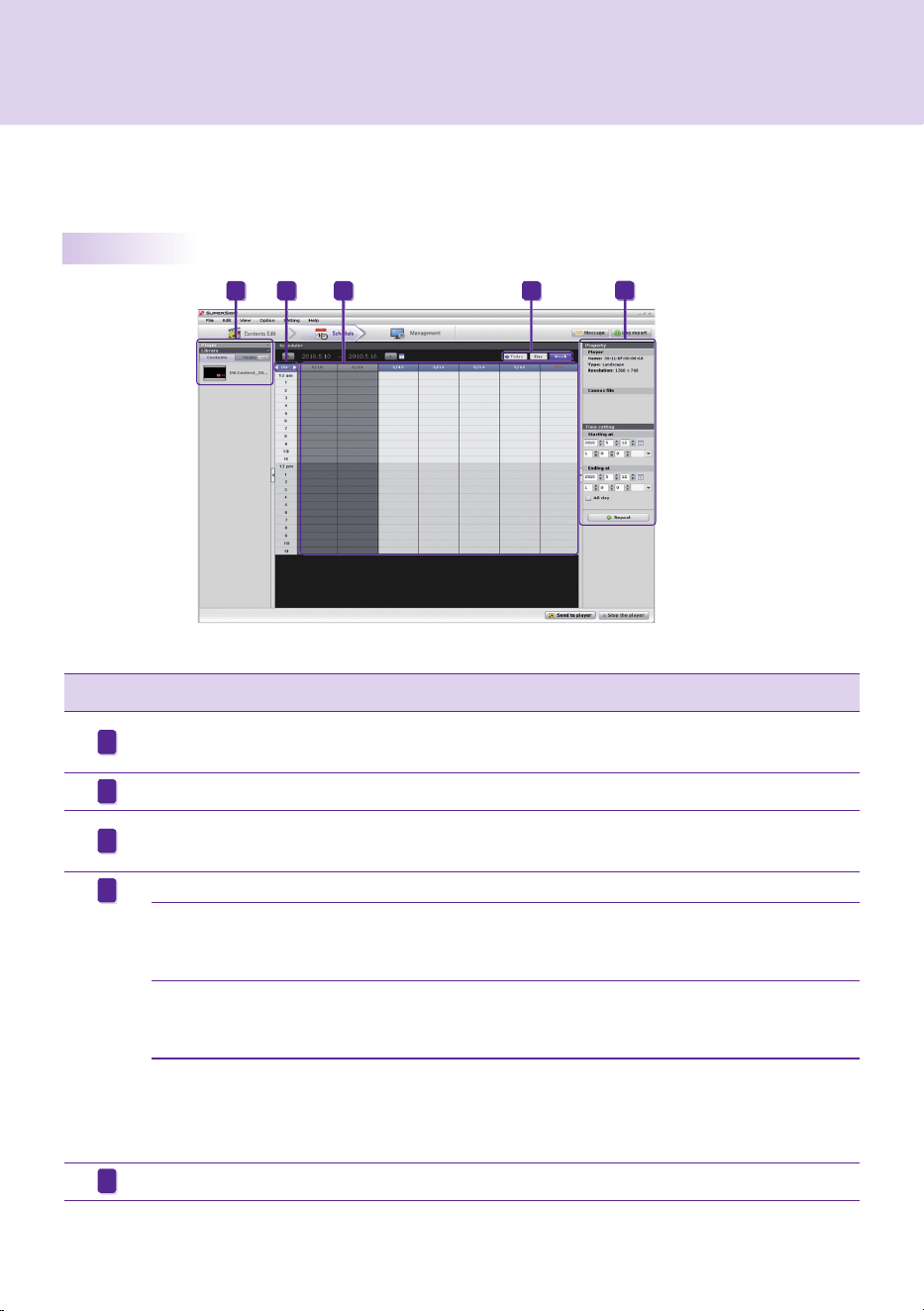
Overview
Schedule
A.schedule.is.the.time.table.for.playing.content.in.SuperSign.Player..
Schedules.are.set.as.daily,.weekly,.or.repeating.
Index Description
Information.about.the.player.connected.to.SuperSign.Manager.is.displayed..The.content.and.media.
.les.created.in.the.content.editor.are.listed.
Display.times.are.set.by.10.minutes,.30.minutes,.or.one.hour.
Assign.content.and.media..les.to.the.desired.times..You.cannot.set.them.to.a.date.already.past..
The.schedule.should.be.within.180.days.after.the.present.date.
Schedules.are.shown.in.three.different.modes.
●.
Today
The.daily.schedule.(24-hour.unit).is.displayed...
Click.the.Today.button.of.the.daily.mode.to.move.to.today's.date.
Click.the.Today.button.of.the.weekly.mode.to.display.the.present.week.
●.Daily
The.daily.schedule.(24-hour.unit).is.displayed...
Click.the.Today.button.of.the.daily.mode.to.move.to.today's.date.
Click.the.Weekly.button.of.the.daily.mode.to.move.to.the.selected.dates.
●.Weekly
The.weekly.schedule.(7-day.unit).is.displayed.
Click.the.Today.button.of.the.weekly.mode.to.display.the.present.week.
Click.the.Daily.button.of.the.weekly.mode.to.go.to.the.selected.date..
If.no.date.is.selected,.it.will.go.to.the..rst.day.of.the.selected.week.
Schedule.properties.are.displayed.
A
B
C
D
E
A D
E
B C

77
SuperSign.Manager
1 Enter.the.end.time.for.the.repeat.
2
Set.the.days.for.scheduling.the.repeat.before.the.
end.date.
3
Check.the.Every day.box.to.repeat.the.play.every.
day.
4
Click.the.OK.button.to.update.the.schedule.with.
this.change.
Properties.and.Tool.Windows
The.name,.type,.and.resolution.of.the.selected.player.
Preview.the.selected.content.
The.properties.of.content.or.media..les.for.which.schedules.are.
registered.
Enter.the.duration.directly.to.display.content.
Set.a.repeat.cycle.
A
B
C
D
E
To.set.repeat.cycles:
A
B
C
D
E
78
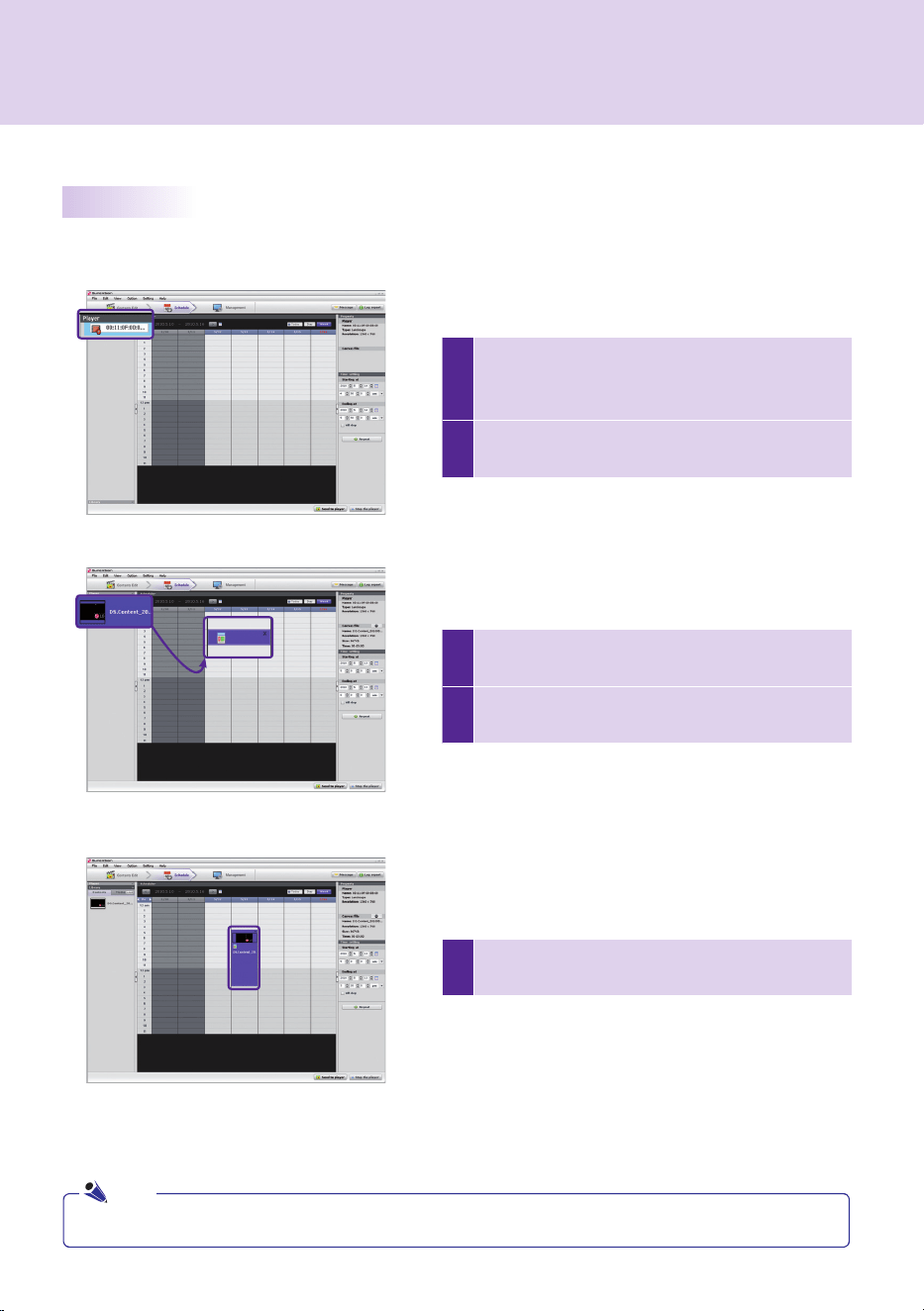
1
Click.the.Player.menu.in.the.media.window.and.
select.SuperSign.Player.on.which.to.change.
schedules.
2
The.current.schedules.of.SuperSign.Player.will.be.
displayed.
SuperSign.Manager
5
You.can.adjust.the.time.by.dragging.a.cell.down,.or.
by.entering.its.time.directly.in.the.properties.
Setting.schedules
Follow.these.steps.to.make.a.schedule:
●.The.schedule.blocks.can.be.adjusted.up.to.24.hours.in.increments.of.10.minutes.
3
To.change.the.schedule,.select.content.or.a.media.
.le.from.the.Library.on.the.media.window.
4
Create. the. basic. schedule. by. dragging. and.
dropping.the.selected.content.or.media..les.
Note
79
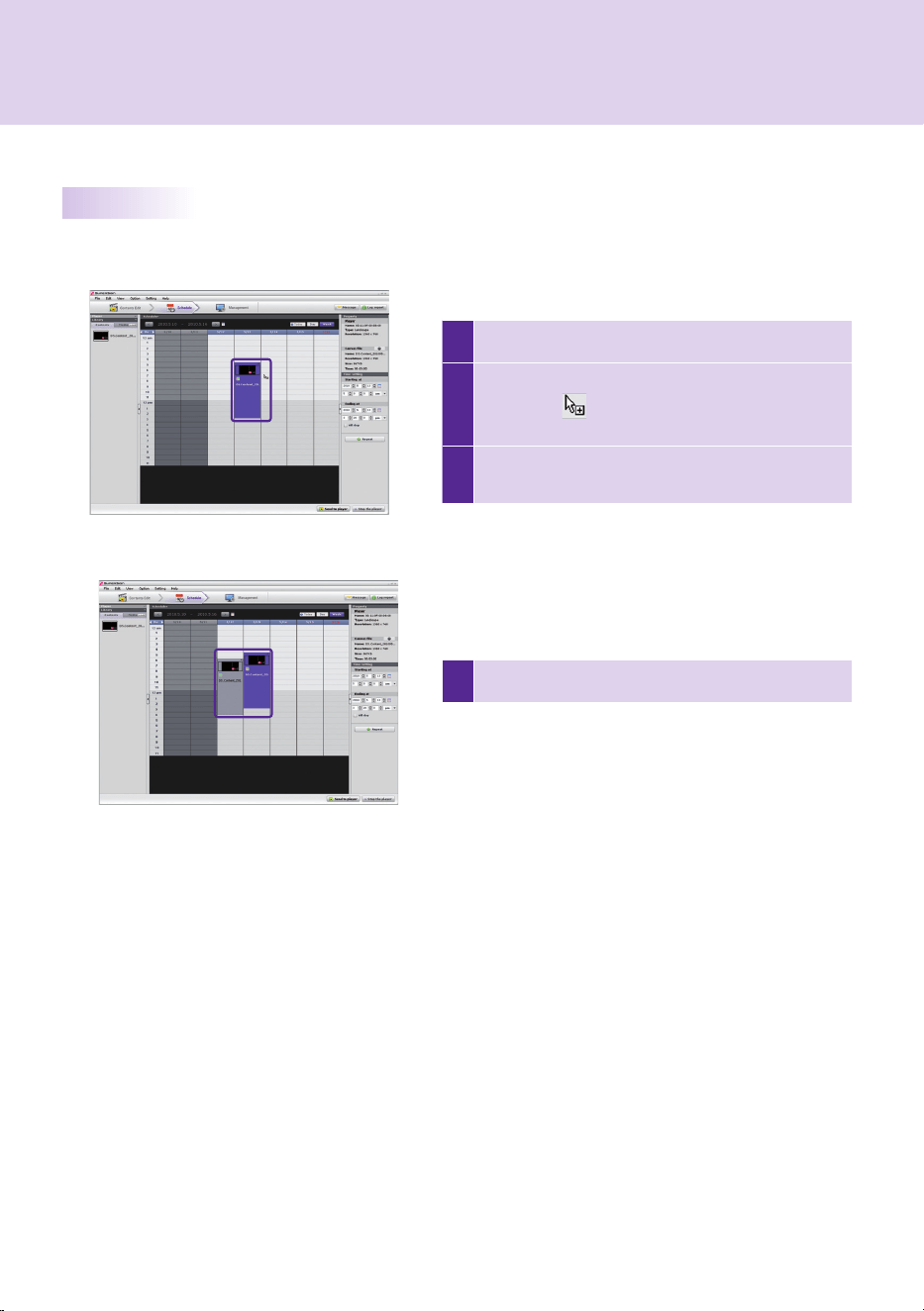
4 Click.Save.to.apply.the.change.
1 Select.the.schedule.blocks.you.want.to.copy.
2
Press. Ctrl + C. to. change. the. mouse. pointer. to. the.
copy.icon.(......)..Press.the.Esc.key.to.turn.the.icon.
back.to.the.mouse.pointer.
3
Click.the.point.on.the.schedule.table.where.you.
want.to.paste.the.copied.schedule.
SuperSign.Manager
Copying.Schedules
Schedules.can.be.copied.in.order.to.re-use.them.

80
SuperSign.Manager
Delete Schedules via File Menu
Select.the.schedule.block.you.want.to.delete.and.then.select.Edit > Delete.in.the..le.menu.
Delete Schedules via X Button
Select.the.schedule.block.you.want.to.delete.and.then.click.Delete.
Delete Schedules via Delete Key
Select.the.schedule.block.you.want.to.delete.and.then.press.Delete.on.your.keyboard.
Immediate Distribution
Send.the.schedule.to.a.selected.player.by.clicking.Send to Player.
Scheduled Distribution
You.can.set.scheduled.distribution.times.in.Option > Distribution.under.the..le.menu..
The.schedule.distribution.time.is.disabled.by.default.
Deleting.Schedules
Distributing.Schedules
●..You.can.stop.the.transfer.while.schedules.or.content.is.being.sent..Once.suspended,.you.should.resume.
the.transfer.process.from.the.start..If.the.transfer.is.not.100%.completed,.the.content.will.not.be.played.
Note
81
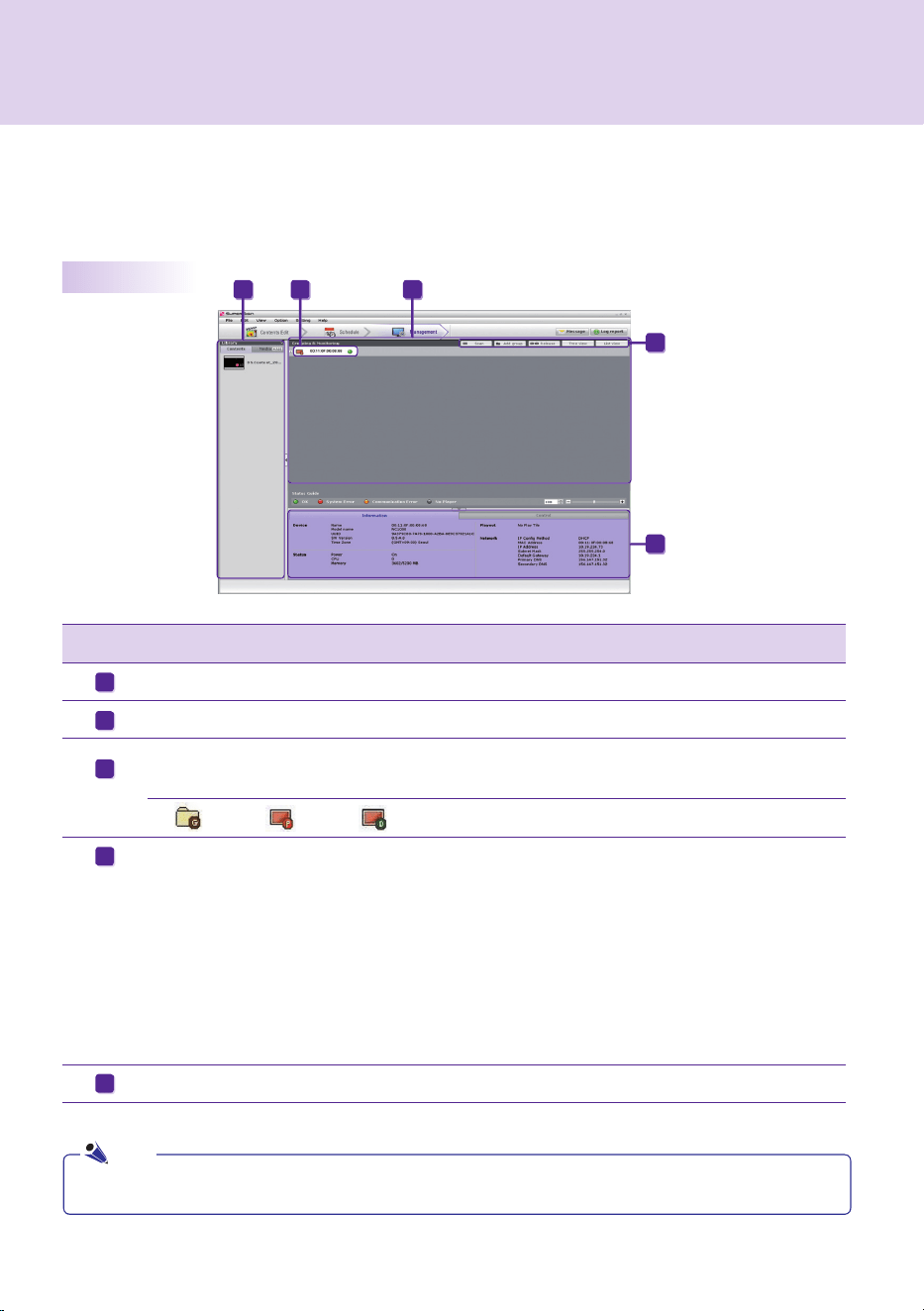
Index Description
The.SuperSign.Players.connected.to.SuperSign.Manager.are.listed.
Content.and.media..les.created.from.the.content.editor.will.be.listed.
There.is.an.information.tab.containing.the.selected.SuperSign.Player,.and.a.control.tab.with.
control.settings..The.player.and.control.information.will.not.be.shown.if.you.select.a.group.
...*.......:.Group,........:.Player,........:..Display.Device
SuperSign.Manager.software.items
Scan Research.players.
Add Add.a.new.group.
Delete Delete.the.selected.group.
Tree.view Tree.view.mode
List.view List.view.mode
Double-click.the.group.or.player.to.rename.it.
SuperSign.Manager
A
B
C
D
E
Overview
Management
The.SuperSign.Players.connected.to.SuperSign.Manager.and.the.monitors.connected.to.each.player.can.be.
managed.by.group.in.the.management.menu..By.grouping.distribution.destinations,.duration,.and.places.to.
be.displayed,.you.can.control.player.and.monitor.information.
●.Group,.player,.and.display.names.can.be.up.to.20.characters.each.
B C A
D
E
C
Note

82
SuperSign.Manager
5
Once.the.content.is.sent.to.SuperSign.Player,.it.will.be.played.on.the.screen.connected.to.SuperSign.Player.
1
Select. the. content. or. media. .les.to. send. to. SuperSign.
Player.in.the.library.
2 Drag.the..le.to.the.desired.SuperSign.Player.
3 The.SuperSign.Send.to.Player.window.will.appear.
4
Enter.the.duration.in.the.SuperSign.Send.to.Player.win-
dow.and.then.click.the.OK.button.
●..When.more.than.one.SuperSign.Managers.are.used,.you.cannot.use.them.to.control.the.same.player.at.
the.same.time..You.should.use.the.Manual Setting.to.connect.the.player.to.be.controlled.
●..When. players. are. searched. from. more. than. one. SuperSign. Manager,. the. first. player. found. will. be.
connected..The.same.player.cannot.be.used.by.different.managers.
●.If.a.player.is.disconnected,.it.will.automatically.attempt.to.reconnect.the.SuperSign.Manager.
●..If.SuperSign.Manager.becomes.disconnected.while.in.use,.an.alert.message.appear.and.status.lights.will.
blink.
●..When. you. distribute. media. by. drag-and-drop,. it. will. be. applied. to. the. player. group,. not. to. an. individual.
player.
Manage.Functions
Distribute Content Immediately
Drag.content.or.media..les.onto.the.management.screen.to.distribute.them.immediately.to.the.connected.
SuperSign.Player.
●.Constant.Repeat:.Keep.playing.until.a.new.schedule.is.added.
●.Duration:.Continue.to.play.at.this.time.for.the.duration.
Note
Note
Note
83
SuperSign.Manager
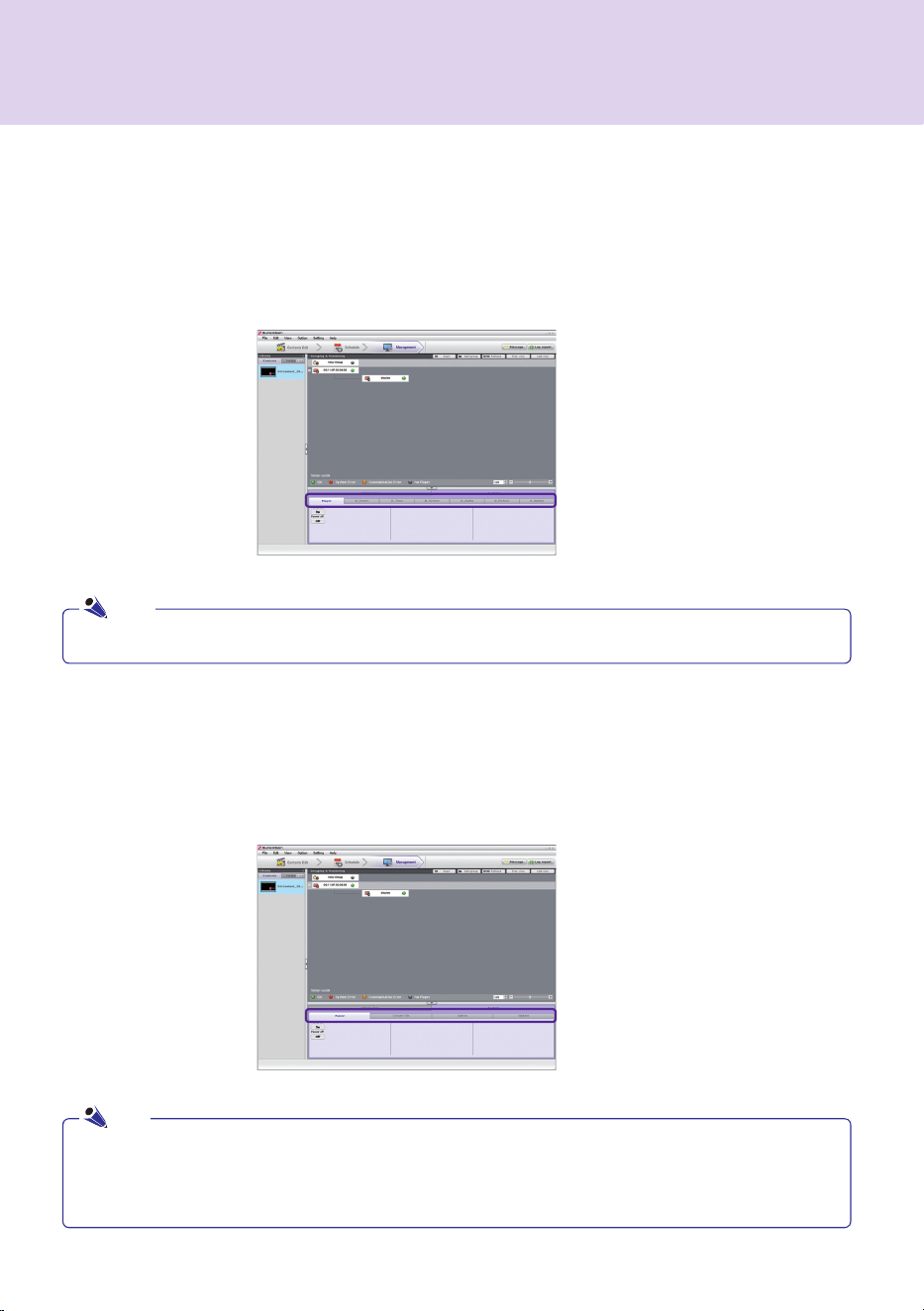
Control Players
You.can.control.players.that.are.in.a.group.or.are.individually.connected..
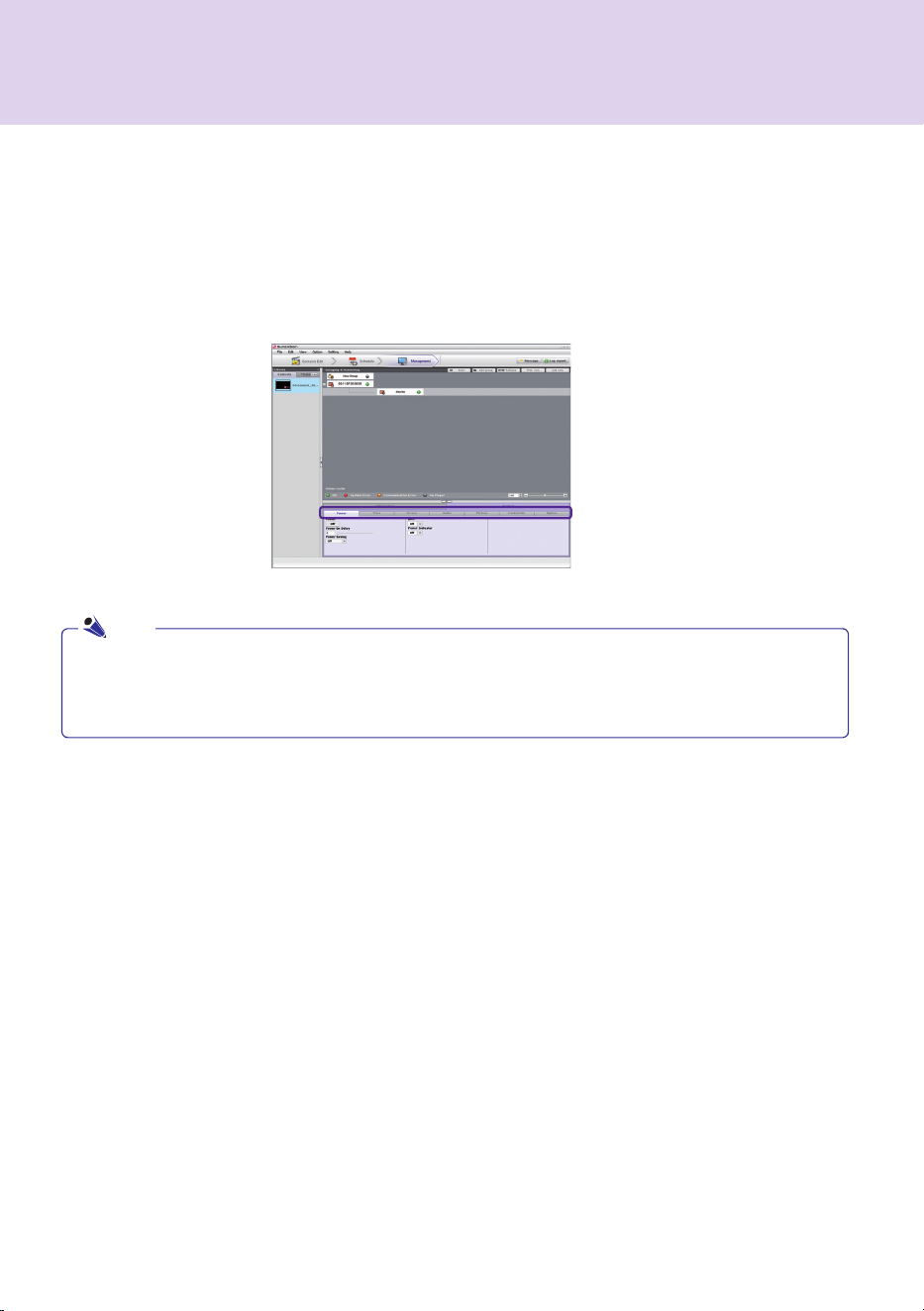
When.you.select.a.player,.the.appropriate.items.will.be.shown.on.tabs.for.each.player..
The.player's.power,.tile.production,.general.features,.and.updates.can.be.controlled.here.
●.Scan.allows.searching.players.that.share.the.same.network.with.SuperSign.Manager.
●.The.information.of.the.searched.player.includes.the.player.and.the.display.
●.The.SuperSign.Player's.power.(On/Off).can.be.controlled.in.the.same.network.
Note
●.The.status.information.is.not.available.in.the.group.control.
Manage Groups
You.can.manage.the.players.in.a.group.and.their.displays.here..When.you.select.a.group,.the.group-based.tabs.
will.be.activated..With.the.group-based.tabs,.you.can.control.the.player.power,.display.power,.time,.screen,.
audio,.video,.and.other.general.features.
Note
84
SuperSign.Manager
Control Displays
You.can.control.the.display.connected.to.the.player..When.you.select.the.display,.the.settings.with.tabs.will.be.
activated..
The.display.power,.time,.screen,.audio,.video,.tile.adjustment,.and.other.general.features.are.available.
here..Each.tab.will.list.the.settings.of.the.current.display.
●.The.display.control.will.be.activated.according.to.its.entries.or.options.
●.The.display.control.shows.the.status.information.of.the.connected.display.
●.RS-232C.commands.through.hyper.terminals.are.not.executed.while.SuperSign.Player.is.in.use.
Note

85
SuperSign.Manager
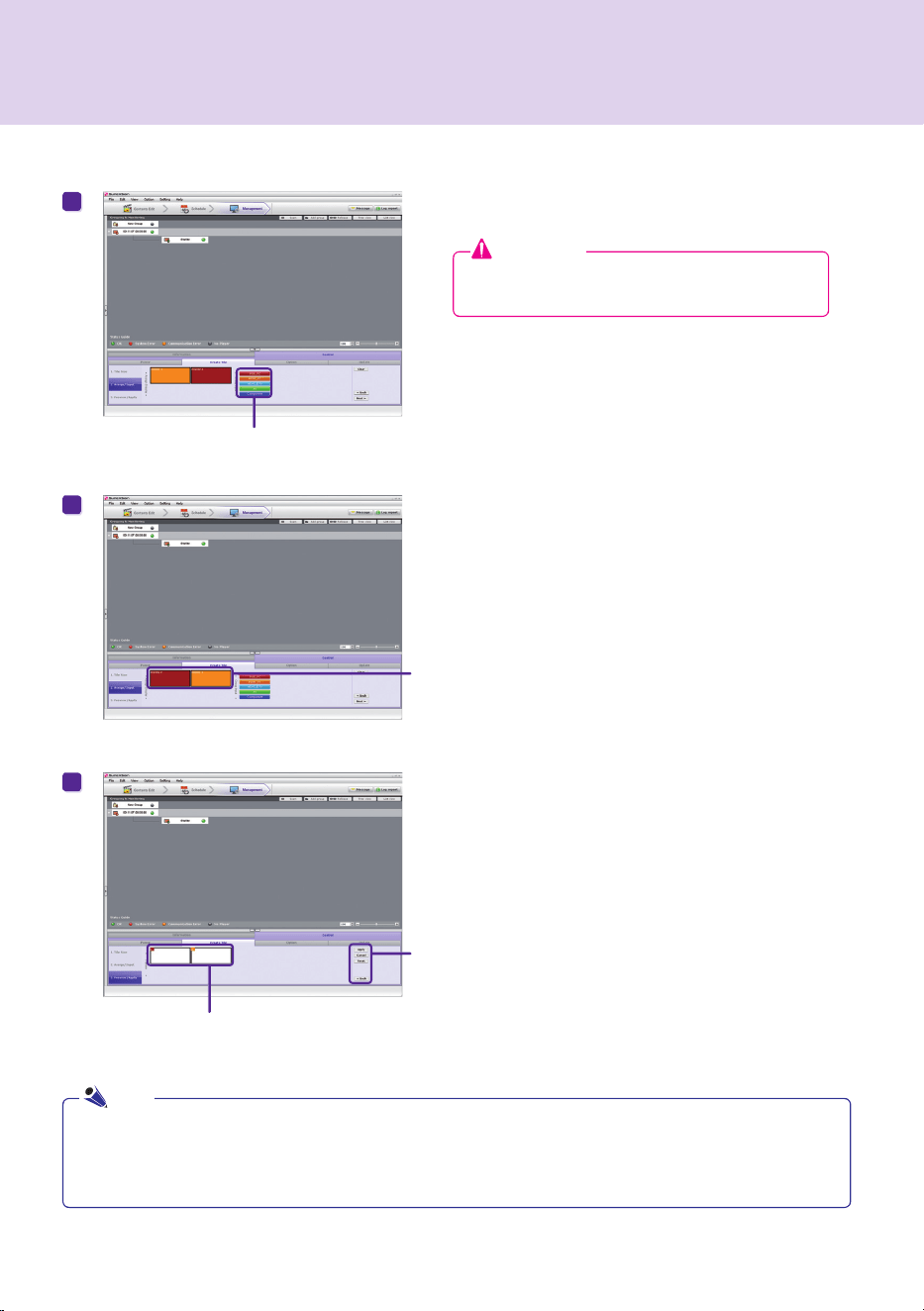
Click.Next.
Layout.for.the.display.wall.will.
be.organized.automatically.
according.to.the.tile.size.you.
set.above.
You.can.select.a.display.to.be.used.in.organizing.the.Tile.Mode..
The.displays.you.select.will.be.highlighted.as.shown.above.
You.can.con.gure.each.display’s.input.
Click.the.button.to.move.to.the.next.step.
You.can.specify.the.number.of.rows.and.columns.in.
the.Tile.Mode.with.mouse.clicks.or.drag.and.drop..The.
size.of.tile.cannot.exceed.the.maximum.number.of.
displays.connected.
Execute.the.Display Search for Daisy Chain.before.con.guring.Tile Mode.
Creating.Tile.Mode
1
2
3
86
SuperSign.Manager
Specify.the.input.source.of.the.selected.displays.
You.can.choose.the.order.of.the.displays.using.drag.
and.drop.
Apply. :.Complete.the.settings.for.a.tile.mode.
Cancel. :.Cancel.the.settings.you.made..
Reset. :.Reset.the.settings.to.the.default.con.guration.
In.the.Preview/Apply.tab,.the.tiled.image.can.be.previewed.
●.The.number.of.tiles.cannot.exceed.the.number.of.connected.monitors.
●.To.connect.multiple.monitors.for.tile.mode,.see.the.How.to.Install.section.of.this.manual.
●.The.control.shows.the.status.information.of.the.connected.display.
4
5
6
Attention
●..If.select.input.source.after.selecting.one.display,.
the.display.sets.its.tile.size.as.1x1.
Note
87
1
If.you.want.to.manually.search.for.a.display.after.
connecting.the.monitor.with.an.RS-232C.cable,.select.
the.Player.and.select.Control > Options > Display
search for Daisy Chain.
2
Click.Search.to..nd.and.add.the.display.connected.
with.a.Daisy.Chain.
SuperSign.Manager
Option
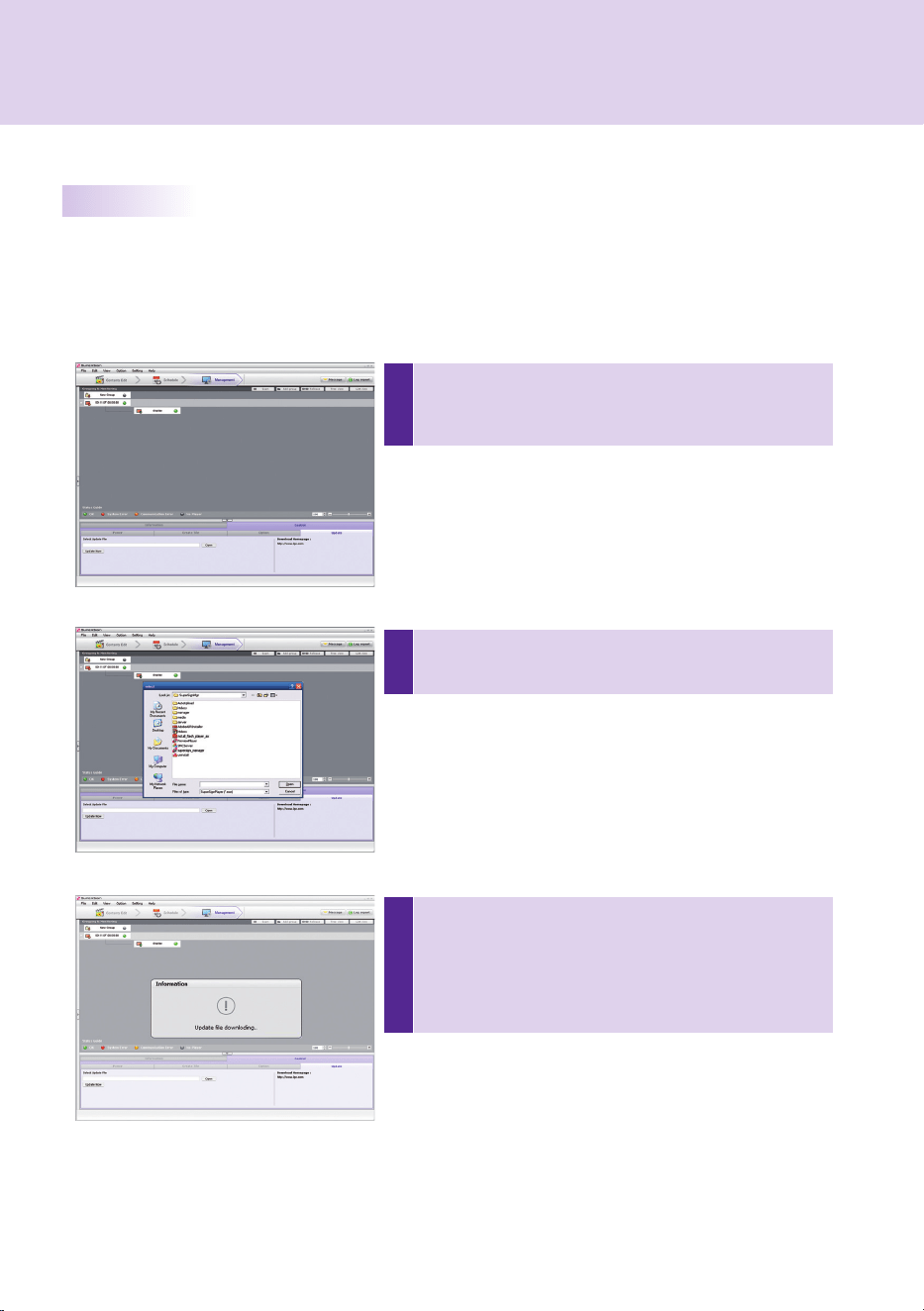
88
3
Press.Update Now.to.update.the.software.of.the.selected.
player.. The. player. in. a. remote. location. will. be. restarted.
automatically.after.the.updating.is.completed..
At.this.time,.the.player.will.be.disconnected.from.the.manager.
and.then.reconnected.when.the.reboot.is..nished.
1
Click.a.connected.player.on.the.Grouping & Monitoring.
window.and.select.the.update.tab.menu.under.the.Control
menu.
SuperSign.Manager
2
Press.Open. to. select. the. SuperSign. Player. update. .les.
downloaded.from.the.SuperSign.homepage,.www.lg.com.
Update Now
You.can.remotely.update.the.SuperSign.Player.software..
The.player.settings.which.the.user.entered.will.not.change.
Other.Features

89
SuperSign.Manager
A Set.the.text.properties.such.as.font,.size,.and.color.
B Enter.the.message.to.send.
C Adjust.the.location.of.the.text.to.send.
D Set.the.playback.time.of.the.message..The.default.duration.is.10.seconds.
E Complete.the.message.and.click.Send.to.instantly.deliver.it.to.the.player.
Send Messages
You.can.load.messages.on.the.connected.player.screen.for.urgent.announcements,.notices,.or.emergencies.
●.Message.entry.is.available.only.in.landscape.mode.
●.The.message.will.not.be.saved.
●..However,.the.message.format.such.as.font,.size,.and.color.can.be.saved..The.format.will.be.saved.only.if.
you.send.the.message,.and.will.not.be.saved.if.you.close.the.window.without.sending.it.
Note
A
B
C
D
E
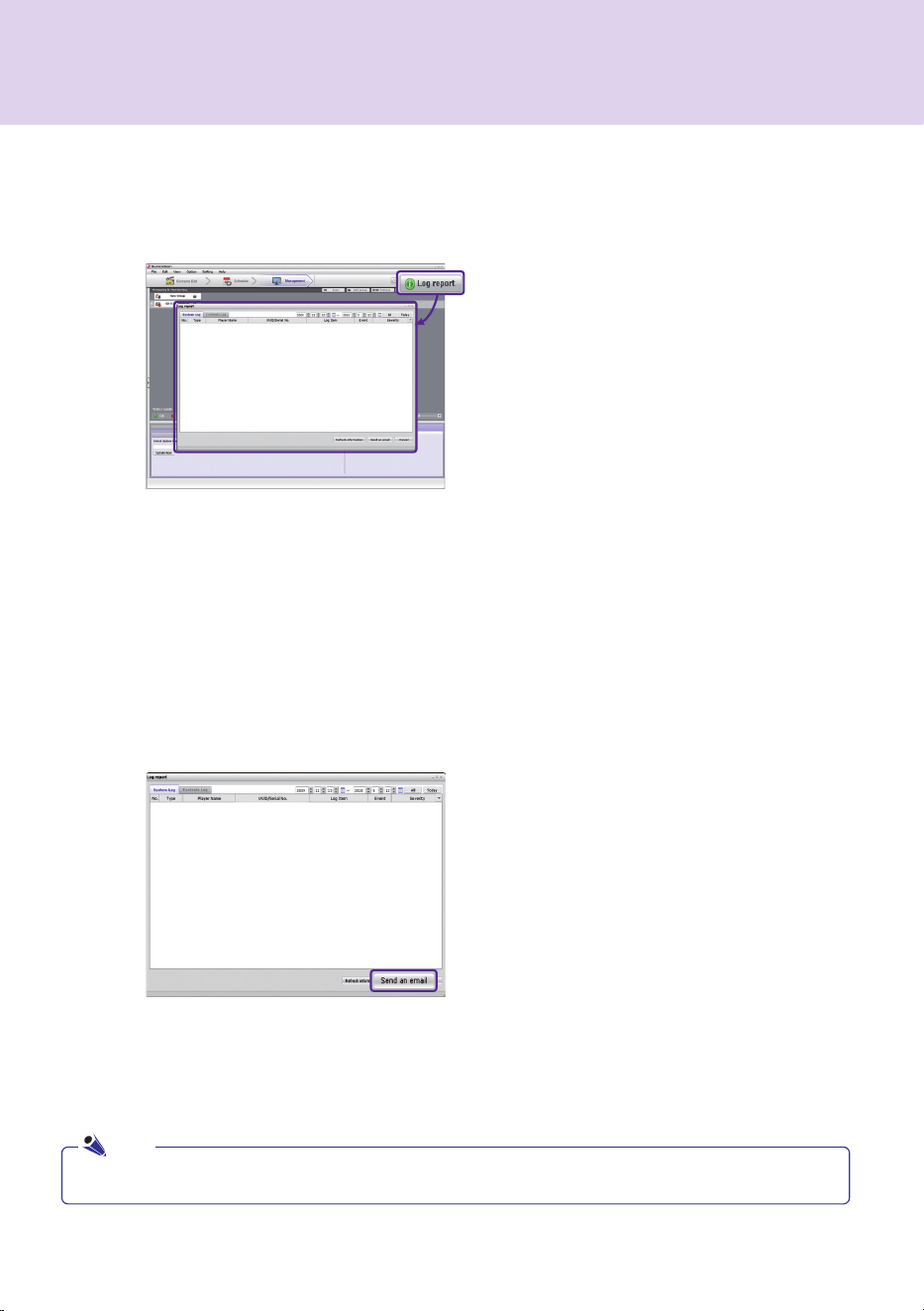
90
SuperSign.Manager
Create Log Report
You.can.see.the.log.information.of.system.and.contents.
●.Details.on.the.SMTP.email.setting.are.provided.in.the.Appendix.section.of.this.document.
●.Log.information.refl.ects.up.to.the.previous.180.days.
●.The.report.will.be.updated.with.the.latest.information.
●.Using.Send Email,.you.can.send.the.log.report..les.(.csv).to.an.assigned.e-mail.address.
●.Change.the.email.settings.in.Option > Management.
●..Use.Send an email.in.the.lower.part.of.the.log.report.window.to.transfer.the.log..le.to.the.administrator.
Note

91
Question Answer
The.transfer.stopped.during.
"Send to player".task.
●..Check.whether.the.media..le.is.an.of.cially.supported.type.and.try.again..
The.of.cially.supported.media.types.are.available.in.the.Files.Supported
by SuperSign list.
The."Scan".shows.no.available.
players.
●.Check.whether.the.SuperSign.Player.is.on.
●.Check.whether.the.SuperSign.Player.is.working.properly.
●.Check.the.SuperSign.Player's.network.cable.connection.status.
●.Check.the.SuperSign.Player's.network.IP.address.status.
●.Set.the.SuperSign.Player's.network.IP.manually.
There.are.no.templates.visible.
in.SuperSign.Manager.
●..When.selecting.a.player,.if.you.select.a.player's.resolution.not.supported.by.
the.template,.the.template.will.not.be.shown.
●..The.supported.resolutions.are.1360.x.768,.1920.x.1080,.768.x.1360,.and.
1080.x.1920.
The.data.saved.in.the.SuperSign.
Player's.C.drive.were.lost.
●..SuperSign. Player. uses. the. Enhanced Write Filter (EWF). function. for.
data.protection..With.EWF.on,.data.saved.by.users.in.the.C.drive.are.only.
temporarily. saved.. These. temporarily. saved. data. will. be. deleted. when.
SuperSign.Player.is.rebooted..If.you.do.not.want.to.use.the.EWF.function,.
go.to.the.Player.menu.and.disable.EWF.
MS.Of.ce..les.do.not.open.in.
SuperSign.Player.
●..Check.whether.MS.Of.ce.program.is.properly.installed..With.EWF.enabled,.
MS. Of.ce. will. not. be. correctly. installed.. Disable. EWF. and. re-install. MS.
Of.ce..We.advise.you.to.enable.EWF.after.the.installation.is.completed.
Content.is.not.playable.even.
though.the.content.I.sent.to.the.
player.was.registered.in.the.
media.library.
●..The.player.will.not.play.the.new.content.received.if.another..le.is.playing.
on.the.same.player..Stop.the.content.currently.playing.and.then.repeat.the.
"Send to Player".process.
Letters.of.RSS,.text,.or.messages.
are.not.correctly.displayed.
●..Change.the.MS.Windows.language.setting.using.Regional and Language
Options.
Appendix
Frequently.Asked.Questions.(FAQs)

92
Appendix
Question Answer
I.cannot.see.photos.or.PDFs.
●..Check. the. current. settings. of. Regional and Language Options. in. MS.
Windows.and.change.the..le.name.to.be.consistent.with.the.language,.then.
reregister.the..le.in.the.library..For.example,.photos.with.a.name.in.Korean.
may.not.be.seen.when.the.language.is.set.to.English..
After.changing.the.time.on.
the.Windows-based.machine.
on.which.SuperSign.Player.is.
installed,.I.found.that.it.changed.
back.
●.First.check.whether.EWF.was.disabled.when.you.changed.the.time.setting.
●.If.it.was.enabled,.disable.it.and.then.try.again.
●..Also.check.for.the.time.sync.option.by.right-clicking.the.Windows.taskbar.
and.opening.the.Date/Time.dialog.menu..With.this.option.checked,.the.time.
will. regularly. reset. according. to. the. timeline. selected. by. the. user.. If. you.
do.not.want.to.use.this.function,.select.the.Internet.Time.tab.on.the.menu.
screen.and.uncheck. the."Automatically.synchronize. with.an.Internet. time.
server".item.
After.I.sent.content.while.
SuperSign.Player.was.playing.a.
video,.the.video.was.disrupted.
●..This.could.be.caused.by.the.network.status..Please.retry.the.transfer.
when.no.content.is.playing.in.the.player.
I.lost.the.administrator.password.
of.SuperSign.Manager.
●..Once.lost,.the.password.cannot.be.restored..In.that.case,.you.will.need.
to.initialize.the.administrator.account..
●..To.initialize.the.administrator.account,.type."1234567890init".in.the.
password..eld.
Where.can.I.get.SuperSign.Player.
programs.or.their.driver..les?
●..You. can. .nd. SuperSign\SuperSign_Software\Application\SuperSign
Player.or.SuperSign\SuperSign_Software\System\SuperSign Driver.on.
the.CD.included.with.the.NC1000/.NC2000.
A.message.reading."as the web
server is not operational, the
program will be terminated".
appeared.
●..This. means. the. web. server. was. not. properly. installed. when. SuperSign.
Manager.was.set.up..Even.if. another.web.server.is.available,. SuperSign.
Manager.may.not.work.properly..If.you.have.another.web.server.already.in.
use,.delete.it,.or.check.whether.the.6080.port.is.being.used.
Frequently.Asked.Questions.(FAQs)
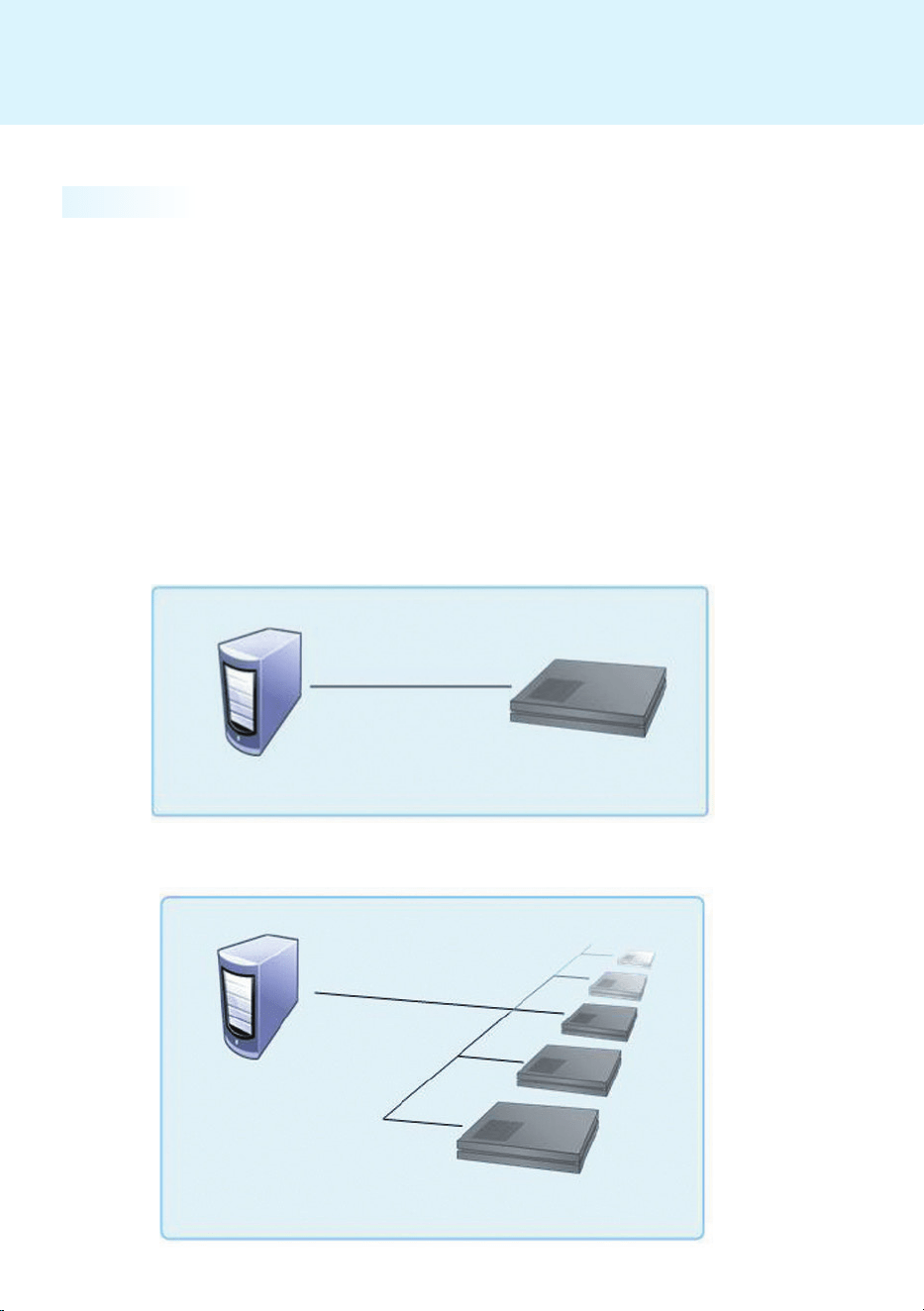
93
Appendix
Connect.Network.via.LAN
SuperSign.Network.Connecting.Instructions
Single Connection
SuperSign.Player
SuperSign.Manager
Multiple Connections
SuperSign.Player
SuperSign.Manager
This.is.used.when.SuperSign.Manager.and.SuperSign.Player.are.on.the.same.network.
●.The.same.network.means.that.they.use.the.same.gateway.and.subnet.address.in.the.IP.communication.settings.
●.The.SuperSign.Manager's.search.feature.can.be.used.to.find.SuperSign.Players.on.the.same.network.
●..For.a.single.connection,.use.a.crossover.cable.so.that.communication.is.possible.without.the.use.of.network.
devices.
●.Web.pages,.widgets,.and.RSS.are.not.available.on.a.closed.network.not.connected.to.the.Internet.
●..With.no.DHCP.server.on.the.network,.you.need.to.select.the.IP.addresses.of.SuperSign.Manager.and.
SuperSign.Player.manually.
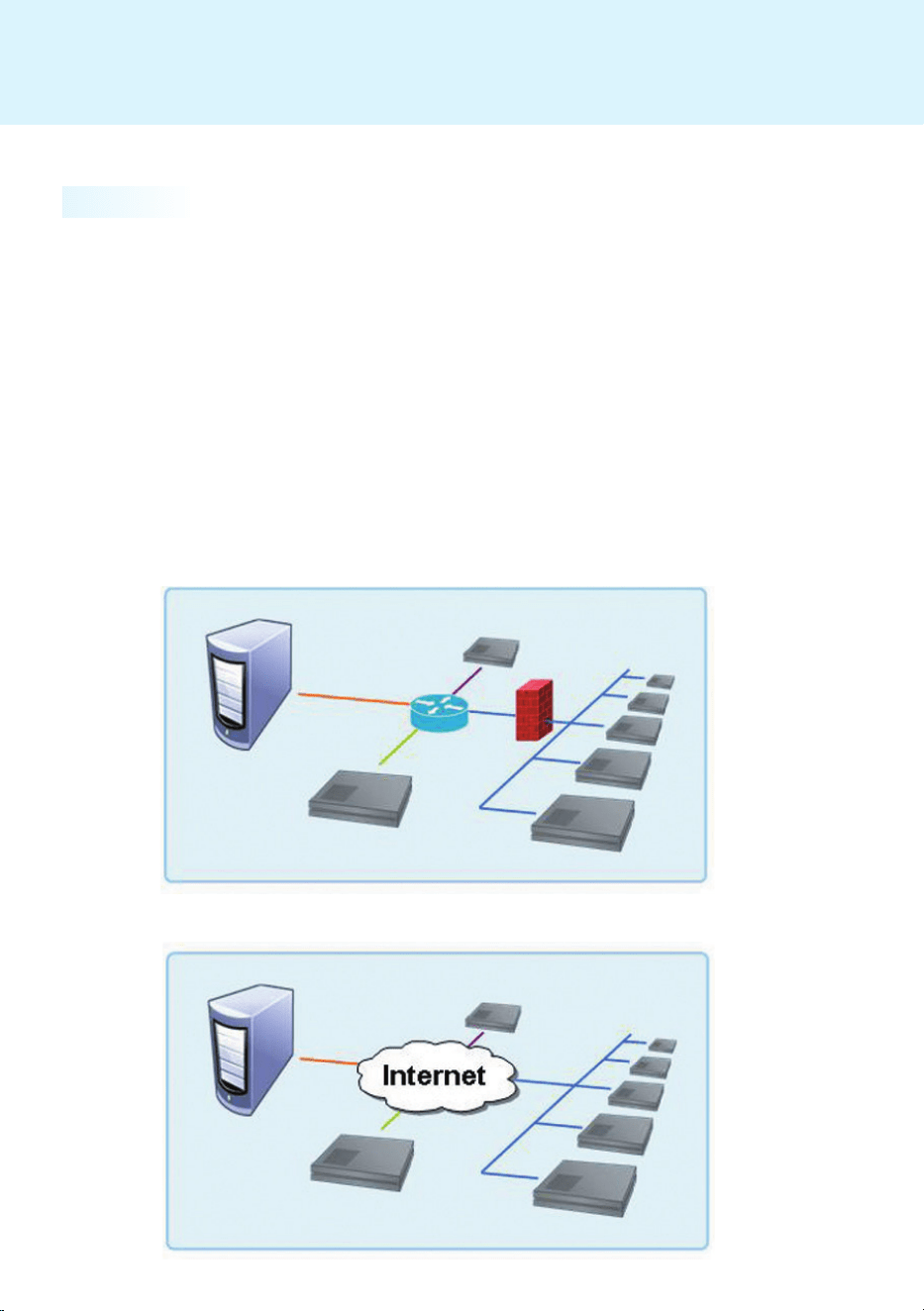
94
Appendix
Connect.Network.via.Internet
Use.this.method.when.the.manager.and.player.are.not.on.the.same.network.
●.SuperSign.Manager.cannot.search.for.different.SuperSign.Players.that.do.not.share.the.same.network.
●..SuperSign.Player.can.be.connected.to.SuperSign.Manager.on.a.different.network.through.the.Manual.
discovery.mode.
●.If.SuperSign.Manager.is.on.a.private.network,.the.SuperSign.Player.will.not.be.correctly.connected.
●.If.the.network.is.equipped.with.a.firewall,.the.transfer.function.may.not.work.properly.
●.Web.pages,.widgets,.and.RSS.are.not.available.on.a.closed.network.not.connected.to.the.Internet.
●..With.no.DHCP.server.on.the.network,.you.need.to.select.the.IP.addresses.of.SuperSign.Manager.and.
SuperSign.Player.manually.
Internet Connection
SuperSign.Player
SuperSign.Manager
Private Network Connection
SuperSign.Player
SuperSign.Manager
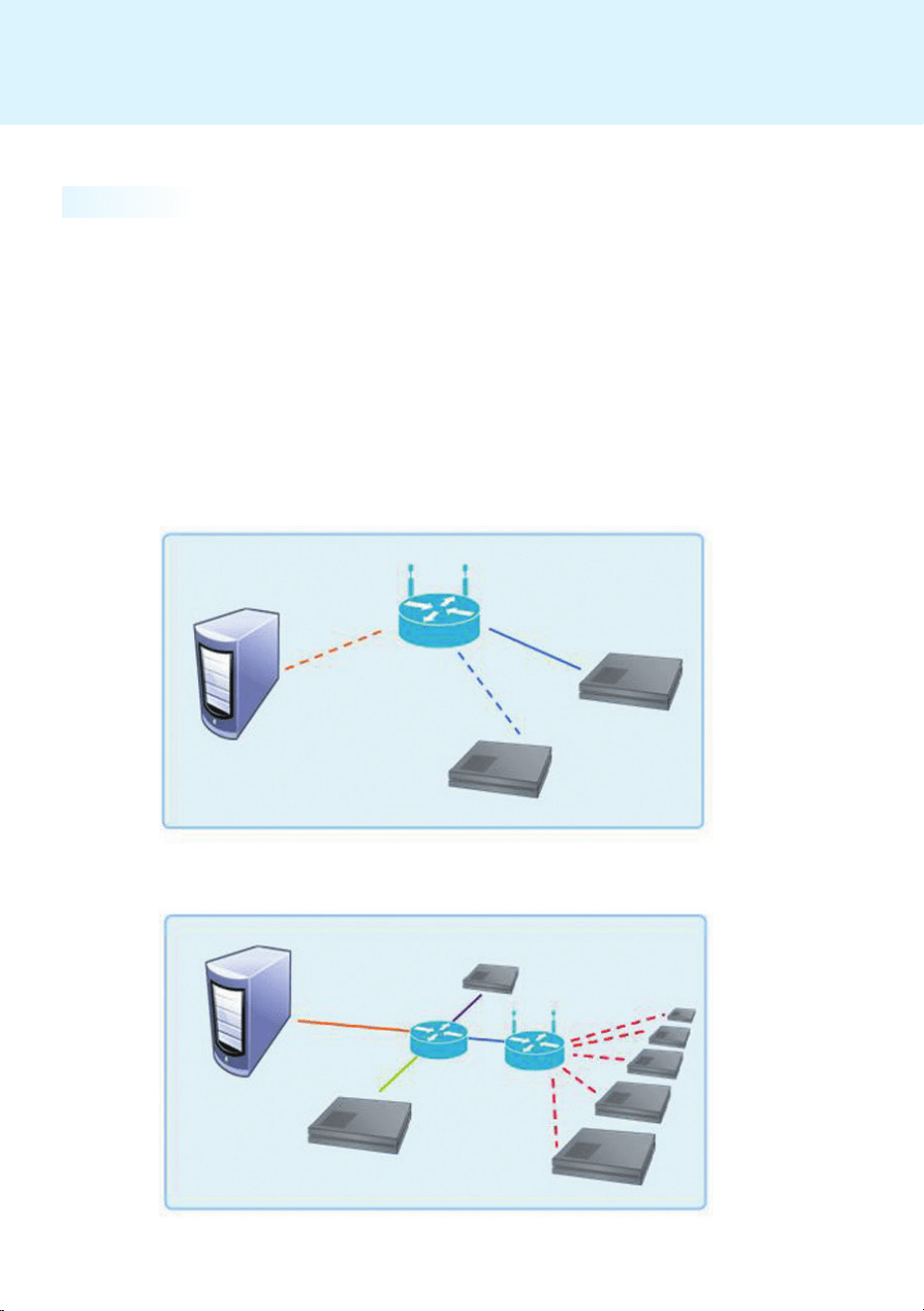
95
Appendix
Wireless.Network.Connection
This.is.used.when.SuperSign.Manager.and.SuperSign.Player.are.connected.via.a.wireless.router.
●.SuperSign.Manager.and.SuperSign.Player.support.both.wired.and.wireless.network.connectivity.
●..When.both.wired. and.wireless.network.types.are. used.at.the.same.time,. SuperSign.Player.may.not.work.
properly.
●.Unplug.the.LAN.cable.if.you.want.to.connect.the.player.to.SuperSign.Manager.wirelessly.
...Do.not.use.wireless.network.devices.when.you.connect.to.SuperSign.Manager.with.the.wired.network.
●..Check.whether.SuperSign.Manager.and.SuperSign.Player.are.on.the.same.network.when.you.use.a.wired.or.
wireless.router..If.they.use.different.networks,.the.player.search.will.not.be.available..If.SuperSign.Manager.is.
located.behind.the.router.or.the.firewall,.the.connection.may.not.work.properly.
Wired/Wireless Complex Network
Wired/Wireless Router
SuperSign.Player
SuperSign.Player
SuperSign.Manager
SuperSign.Manager
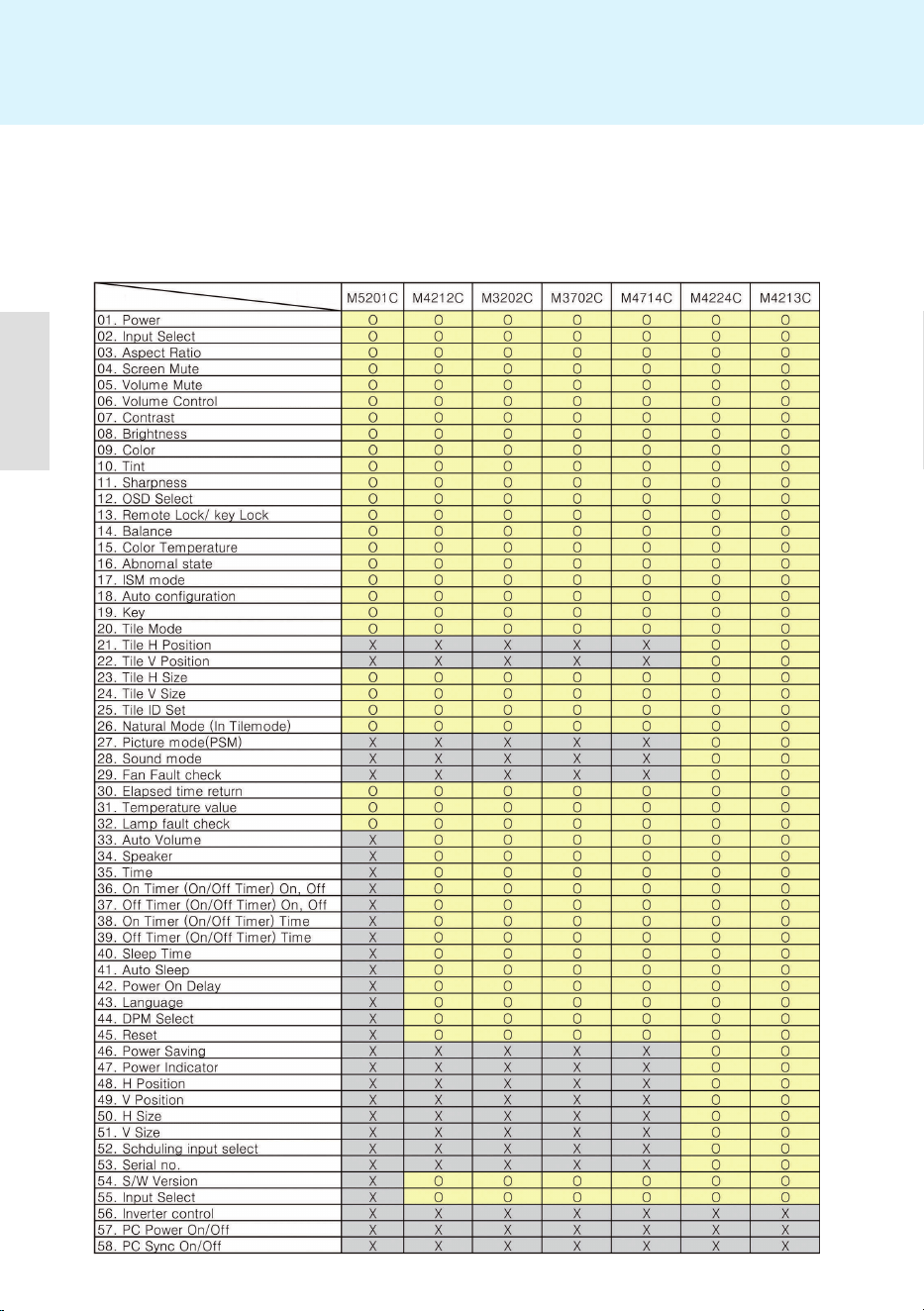
96
Appendix
The.range.of.features.controlled.by.SuperSign.Manager.may.vary.depending.on.the.monitors.used.with.it..The.
list.below.includes.monitors.that.can.be.controlled.by.SuperSign.Manager..Models.not.controlled.by.SuperSign.
Manager.are.marked.with.an.X.
Monitor.Models.Supported.by.SuperSign
NC1000
Model
fonction

97
Appendix
Monitor.Models.Supported.by.SuperSign
NC1000
Model
fonction
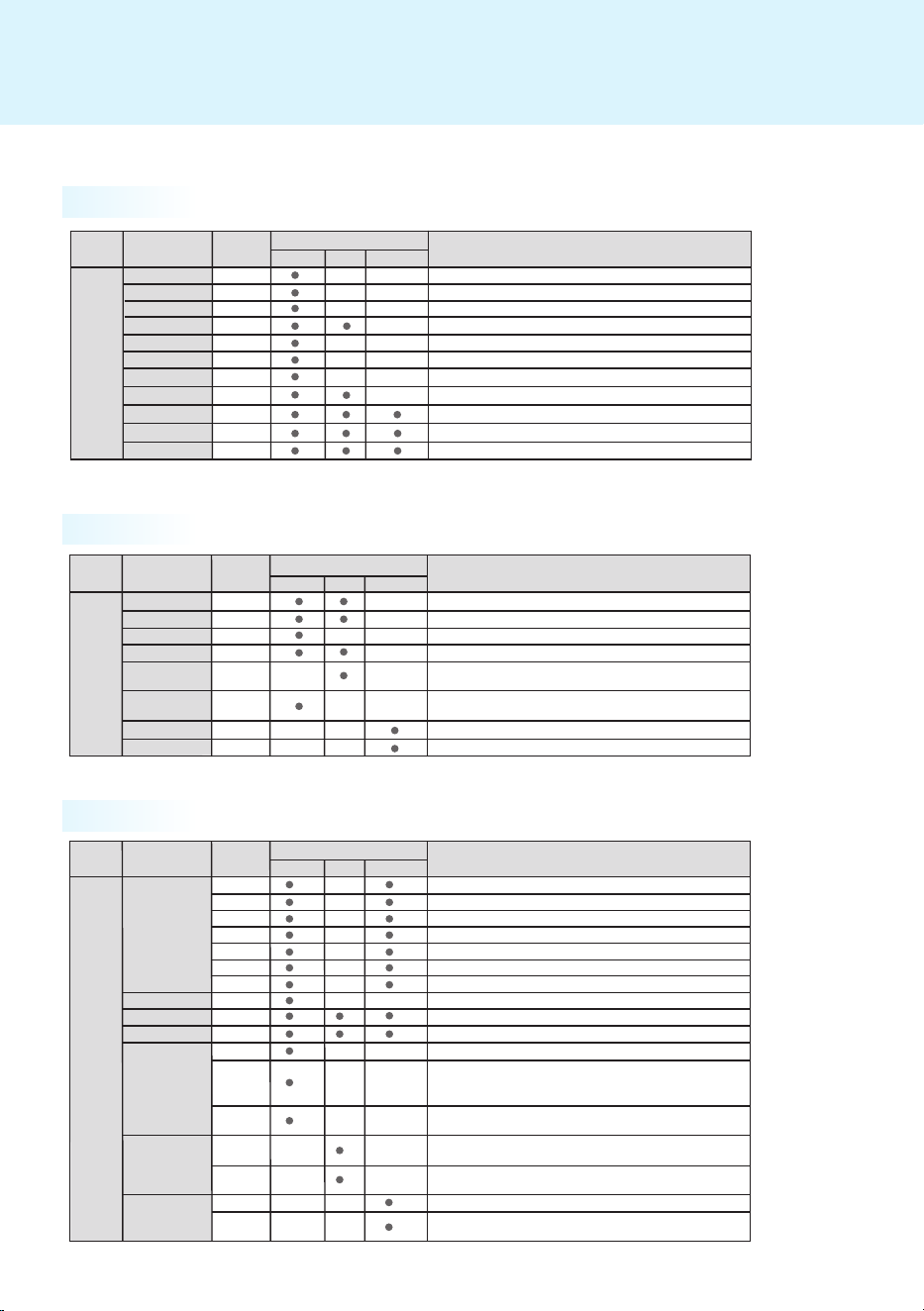
98
Appendix
File.Menu
Edit.Menu
View.Menu
SuperSign.Manager.Menu.List
File
Write a new canvas
Open
Close
Write a new canvas
Open exisiting contents file
Close currently editing canvas
Save
Save as
Save for Template
Export contents
Send to player
Log out
Password Change
Exit
Save currently editing contents
Save contents to new name
Save contents as a template
Export currently editing contents to the file
Send currently editing contents to the player
User log out
Change user password
Exit the program
Main menu
Sub menu
Option
Description
Menu Enabled
Contents Edit
Plan
Management
Edit
Cut
Copy
Paste
Delete
Cut
Copy
Paste
Delete
Move to Contents
Edit window
Move to Plan
window
Add group
Release group
Move to Contents Editing window
Move to Plan window
Create a new group
Remove selected group
View
Preview
Show Wizard
Hide Wizard
Contents Edit
Window
Zoom
150%
120%
100%
80%
60%
50%
30%
150% (Zoom in)
120% (Zoom in)
100% (Original)
80% (Zoom out)
60% (Zoom out)
50% (Zoom out)
30% (Zoom out)
Timeline
Player
Template
Library
Property
Tool
Player
Library
Property
TimeSetting
Library
Information
Control
Preview currently editing contents
Show Start Wizard when startup the program or write a new canvas
Do not show Start Wizard when startup the program or write a new canvas
Show/Hide Timeline
Show/Hide player/Template/Library
Show/Hide Property/Tool
Show/Hide player/Library
Plan Window
Show/Hide Property TimeSetting/Library
Show/Hide Library
Management
Window
Show/Hide Information/Control
Setting
Server
Reset
Show server information
Initialize the SuperSign Manager settings
Help
Manual
Technical Support
Show SuperSign manual
Show LG Electronics technical support information
About
Show SuperSign Manager software information
Option
Management
Distribution
Start search
Contents Edit
Start Player Scanning
Set options related to Contents Edit mode
Set the E-mail of the administrator to send the Logreport
Set contents distribution time schedule
Main menu
Sub menu
Option
Description
Menu Enabled
Contents Edit
Plan
Management
Main menu
Sub menu
Option
Description
Menu Enabled
Contents Edit
Plan
Management
Main menu
Sub menu
Option
Description
Menu Enabled
Contents Edit
Plan
Management
Main menu
Sub menu
Option
Description
Menu Enabled
Contents Edit
Plan
Management
Main menu
Sub menu
Option
Description
Menu Enabled
Contents Edit
Plan
Management
File
Write a new canvas
Open
Close
Write a new canvas
Open exisiting contents file
Close currently editing canvas
Save
Save as
Save for Template
Export contents
Send to player
Log out
Password Change
Exit
Save currently editing contents
Save contents to new name
Save contents as a template
Export currently editing contents to the file
Send currently editing contents to the player
User log out
Change user password
Exit the program
Main menu
Sub menu
Option
Description
Menu Enabled
Contents Edit
Plan
Management
Edit
Cut
Copy
Paste
Delete
Cut
Copy
Paste
Delete
Move to Contents
Edit window
Move to Plan
window
Add group
Release group
Move to Contents Editing window
Move to Plan window
Create a new group
Remove selected group
View
Preview
Show Wizard
Hide Wizard
Contents Edit
Window
Zoom
150%
120%
100%
80%
60%
50%
30%
150% (Zoom in)
120% (Zoom in)
100% (Original)
80% (Zoom out)
60% (Zoom out)
50% (Zoom out)
30% (Zoom out)
Timeline
Player
Template
Library
Property
Tool
Player
Library
Property
TimeSetting
Library
Information
Control
Preview currently editing contents
Show Start Wizard when startup the program or write a new canvas
Do not show Start Wizard when startup the program or write a new canvas
Show/Hide Timeline
Show/Hide player/Template/Library
Show/Hide Property/Tool
Show/Hide player/Library
Plan Window
Show/Hide Property TimeSetting/Library
Show/Hide Library
Management
Window
Show/Hide Information/Control
Setting
Server
Reset
Show server information
Initialize the SuperSign Manager settings
Help
Manual
Technical Support
Show SuperSign manual
Show LG Electronics technical support information
About
Show SuperSign Manager software information
Option
Management
Distribution
Start search
Contents Edit
Start Player Scanning
Set options related to Contents Edit mode
Set the E-mail of the administrator to send the Logreport
Set contents distribution time schedule
Main menu
Sub menu
Option
Description
Menu Enabled
Contents Edit
Plan
Management
Main menu
Sub menu
Option
Description
Menu Enabled
Contents Edit
Plan
Management
Main menu
Sub menu
Option
Description
Menu Enabled
Contents Edit
Plan
Management
Main menu
Sub menu
Option
Description
Menu Enabled
Contents Edit
Plan
Management
Main menu
Sub menu
Option
Description
Menu Enabled
Contents Edit
Plan
Management
File
Write a new canvas
Open
Close
Write a new canvas
Open exisiting contents file
Close currently editing canvas
Save
Save as
Save for Template
Export contents
Send to player
Log out
Password Change
Exit
Save currently editing contents
Save contents to new name
Save contents as a template
Export currently editing contents to the file
Send currently editing contents to the player
User log out
Change user password
Exit the program
Main menu
Sub menu
Option
Description
Menu Enabled
Contents Edit
Plan
Management
Edit
Cut
Copy
Paste
Delete
Cut
Copy
Paste
Delete
Move to Contents
Edit window
Move to Plan
window
Add group
Release group
Move to Contents Editing window
Move to Plan window
Create a new group
Remove selected group
View
Preview
Show Wizard
Hide Wizard
Contents Edit
Window
Zoom
150%
120%
100%
80%
60%
50%
30%
150% (Zoom in)
120% (Zoom in)
100% (Original)
80% (Zoom out)
60% (Zoom out)
50% (Zoom out)
30% (Zoom out)
Timeline
Player
Template
Library
Property
Tool
Player
Library
Property
TimeSetting
Library
Information
Control
Preview currently editing contents
Show Start Wizard when startup the program or write a new canvas
Do not show Start Wizard when startup the program or write a new canvas
Show/Hide Timeline
Show/Hide player/Template/Library
Show/Hide Property/Tool
Show/Hide player/Library
Plan Window
Show/Hide Property TimeSetting/Library
Show/Hide Library
Management
Window
Show/Hide Information/Control
Setting
Server
Reset
Show server information
Initialize the SuperSign Manager settings
Help
Manual
Technical Support
Show SuperSign manual
Show LG Electronics technical support information
About
Show SuperSign Manager software information
Option
Management
Distribution
Start search
Contents Edit
Start Player Scanning
Set options related to Contents Edit mode
Set the E-mail of the administrator to send the Logreport
Set contents distribution time schedule
Main menu
Sub menu
Option
Description
Menu Enabled
Contents Edit
Plan
Management
Main menu
Sub menu
Option
Description
Menu Enabled
Contents Edit
Plan
Management
Main menu
Sub menu
Option
Description
Menu Enabled
Contents Edit
Plan
Management
Main menu
Sub menu
Option
Description
Menu Enabled
Contents Edit
Plan
Management
Main menu
Sub menu
Option
Description
Menu Enabled
Contents Edit
Plan
Management
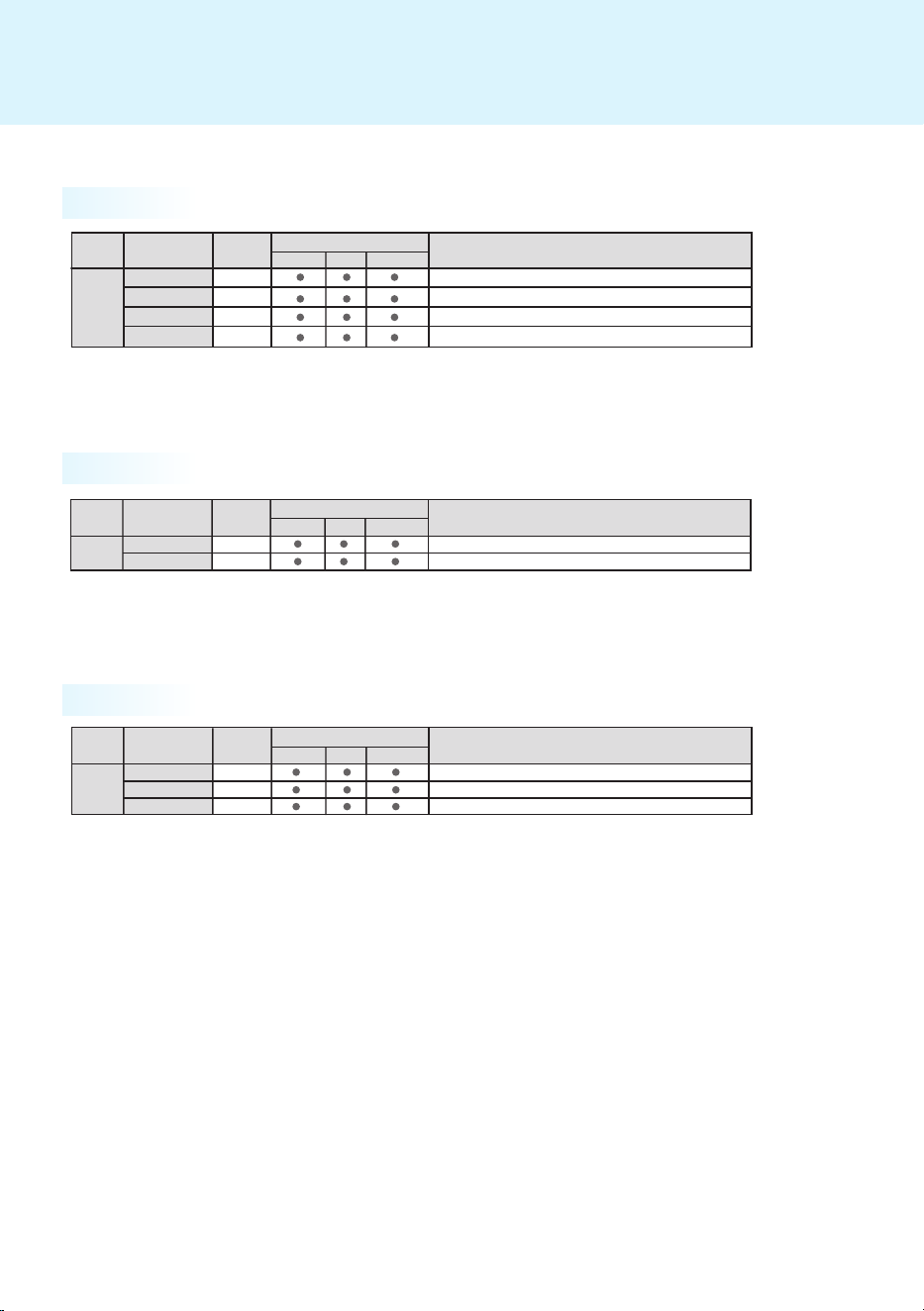
99
Appendix
Option.Menu
Setting.Menu
Help.Menu
File
Write a new canvas
Open
Close
Write a new canvas
Open exisiting contents file
Close currently editing canvas
Save
Save as
Save for Template
Export contents
Send to player
Log out
Password Change
Exit
Save currently editing contents
Save contents to new name
Save contents as a template
Export currently editing contents to the file
Send currently editing contents to the player
User log out
Change user password
Exit the program
Main menu
Sub menu
Option
Description
Menu Enabled
Contents Edit
Plan
Management
Edit
Cut
Copy
Paste
Delete
Cut
Copy
Paste
Delete
Move to Contents
Edit window
Move to Plan
window
Add group
Release group
Move to Contents Editing window
Move to Plan window
Create a new group
Remove selected group
View
Preview
Show Wizard
Hide Wizard
Contents Edit
Window
Zoom
150%
120%
100%
80%
60%
50%
30%
150% (Zoom in)
120% (Zoom in)
100% (Original)
80% (Zoom out)
60% (Zoom out)
50% (Zoom out)
30% (Zoom out)
Timeline
Player
Template
Library
Property
Tool
Player
Library
Property
TimeSetting
Library
Information
Control
Preview currently editing contents
Show Start Wizard when startup the program or write a new canvas
Do not show Start Wizard when startup the program or write a new canvas
Show/Hide Timeline
Show/Hide player/Template/Library
Show/Hide Property/Tool
Show/Hide player/Library
Plan Window
Show/Hide Property TimeSetting/Library
Show/Hide Library
Management
Window
Show/Hide Information/Control
Setting
Server
Reset
Show server information
Initialize the SuperSign Manager settings
Help
Manual
Technical Support
Show SuperSign manual
Show LG Electronics technical support information
About
Show SuperSign Manager software information
Option
Management
Distribution
Start search
Contents Edit
Start Player Scanning
Set options related to Contents Edit mode
Set the E-mail of the administrator to send the Logreport
Set contents distribution time schedule
Main menu
Sub menu
Option
Description
Menu Enabled
Contents Edit
Plan
Management
Main menu
Sub menu
Option
Description
Menu Enabled
Contents Edit
Plan
Management
Main menu
Sub menu
Option
Description
Menu Enabled
Contents Edit
Plan
Management
Main menu
Sub menu
Option
Description
Menu Enabled
Contents Edit
Plan
Management
Main menu
Sub menu
Option
Description
Menu Enabled
Contents Edit
Plan
Management
File
Write a new canvas
Open
Close
Write a new canvas
Open exisiting contents file
Close currently editing canvas
Save
Save as
Save for Template
Export contents
Send to player
Log out
Password Change
Exit
Save currently editing contents
Save contents to new name
Save contents as a template
Export currently editing contents to the file
Send currently editing contents to the player
User log out
Change user password
Exit the program
Main menu
Sub menu
Option
Description
Menu Enabled
Contents Edit
Plan
Management
Edit
Cut
Copy
Paste
Delete
Cut
Copy
Paste
Delete
Move to Contents
Edit window
Move to Plan
window
Add group
Release group
Move to Contents Editing window
Move to Plan window
Create a new group
Remove selected group
View
Preview
Show Wizard
Hide Wizard
Contents Edit
Window
Zoom
150%
120%
100%
80%
60%
50%
30%
150% (Zoom in)
120% (Zoom in)
100% (Original)
80% (Zoom out)
60% (Zoom out)
50% (Zoom out)
30% (Zoom out)
Timeline
Player
Template
Library
Property
Tool
Player
Library
Property
TimeSetting
Library
Information
Control
Preview currently editing contents
Show Start Wizard when startup the program or write a new canvas
Do not show Start Wizard when startup the program or write a new canvas
Show/Hide Timeline
Show/Hide player/Template/Library
Show/Hide Property/Tool
Show/Hide player/Library
Plan Window
Show/Hide Property TimeSetting/Library
Show/Hide Library
Management
Window
Show/Hide Information/Control
Setting
Server
Reset
Show server information
Initialize the SuperSign Manager settings
Help
Manual
Technical Support
Show SuperSign manual
Show LG Electronics technical support information
About
Show SuperSign Manager software information
Option
Management
Distribution
Start search
Contents Edit
Start Player Scanning
Set options related to Contents Edit mode
Set the E-mail of the administrator to send the Logreport
Set contents distribution time schedule
Main menu
Sub menu
Option
Description
Menu Enabled
Contents Edit
Plan
Management
Main menu
Sub menu
Option
Description
Menu Enabled
Contents Edit
Plan
Management
Main menu
Sub menu
Option
Description
Menu Enabled
Contents Edit
Plan
Management
Main menu
Sub menu
Option
Description
Menu Enabled
Contents Edit
Plan
Management
Main menu
Sub menu
Option
Description
Menu Enabled
Contents Edit
Plan
Management
File
Write a new canvas
Open
Close
Write a new canvas
Open exisiting contents file
Close currently editing canvas
Save
Save as
Save for Template
Export contents
Send to player
Log out
Password Change
Exit
Save currently editing contents
Save contents to new name
Save contents as a template
Export currently editing contents to the file
Send currently editing contents to the player
User log out
Change user password
Exit the program
Main menu
Sub menu
Option
Description
Menu Enabled
Contents Edit
Plan
Management
Edit
Cut
Copy
Paste
Delete
Cut
Copy
Paste
Delete
Move to Contents
Edit window
Move to Plan
window
Add group
Release group
Move to Contents Editing window
Move to Plan window
Create a new group
Remove selected group
View
Preview
Show Wizard
Hide Wizard
Contents Edit
Window
Zoom
150%
120%
100%
80%
60%
50%
30%
150% (Zoom in)
120% (Zoom in)
100% (Original)
80% (Zoom out)
60% (Zoom out)
50% (Zoom out)
30% (Zoom out)
Timeline
Player
Template
Library
Property
Tool
Player
Library
Property
TimeSetting
Library
Information
Control
Preview currently editing contents
Show Start Wizard when startup the program or write a new canvas
Do not show Start Wizard when startup the program or write a new canvas
Show/Hide Timeline
Show/Hide player/Template/Library
Show/Hide Property/Tool
Show/Hide player/Library
Plan Window
Show/Hide Property TimeSetting/Library
Show/Hide Library
Management
Window
Show/Hide Information/Control
Setting
Server
Reset
Show server information
Initialize the SuperSign Manager settings
Help
Manual
Technical Support
Show SuperSign manual
Show LG Electronics technical support information
About
Show SuperSign Manager software information
Option
Management
Distribution
Start search
Contents Edit
Start Player Scanning
Set options related to Contents Edit mode
Set the E-mail of the administrator to send the Logreport
Set contents distribution time schedule
Main menu
Sub menu
Option
Description
Menu Enabled
Contents Edit
Plan
Management
Main menu
Sub menu
Option
Description
Menu Enabled
Contents Edit
Plan
Management
Main menu
Sub menu
Option
Description
Menu Enabled
Contents Edit
Plan
Management
Main menu
Sub menu
Option
Description
Menu Enabled
Contents Edit
Plan
Management
Main menu
Sub menu
Option
Description
Menu Enabled
Contents Edit
Plan
Management

100
Appendix
Required.Software.and.Codec.Package.Installation
You.should.install.all.software.below.in.order.to.take.advantage.of.all.Edit.functions.in.the.SuperSign.solution.
Microsoft Offi ce
To.create.content.with. Microsoft.Of.ce.Word,.PowerPoint,.and.Excel. documents,. both.SuperSign.Manager.and.
SuperSign.Player.should.have.the.same.version.of.MS.Of.ce.installed.(e.g..2000,.XP,.2003,.or.2007).
Adobe Acrobat Reader (8.1 or later)
To.see.Help.and.to.use.PDF..les.as.media,.Adobe.Acrobat.Reader.version.8.1.or.later.(excluding.the.Lite.version).
is.required..Adobe.Acrobat.Reader.should.be.installed.on.both.SuperSign.Manager.and.SuperSign.Player.
●..You.can.download.Adobe.Acrobat.Reader.from.the.installation.CD,.or.from.the.Adobe.website.at.
www.adobe.com.for.free.
●.You.should.purchase.and.install.Microsoft.Of.ce.
Required.Software
Attention
Note

101
Appendix
Files.Supported.by.SuperSign
Supported Video File Formats: .avi,..wmv,..mp4,..mov,..mkv,..ts,..tp,..mpg,..mpeg,..flv
Supported Image File Formats: .jpg,..bmp,..png.
Supported Audio File Formats:..mp3,..wma,..wav
Supported Flash File Formats:..swf
Supported Document File Formats:..ppt,..xls,..doc,..pdf.
Attention
●..The.maximum.image.size.is.8,192.pixels.(width.or.height)..The.total.number.of.pixels.should.not.exceed.
16,777,216.
Attention
●..To.register.and.play.videos,.the.SuperSign.Manager.and.SuperSign.Player.should.have.the.required.codec.
pack.
Codec.Package.Installation
You.need.to.install.codecs.if.you.want.to.upload.or.play.videos.
If.SuperSign.Manager.and.SuperSign.Player.have.different.codecs.installed,.the.player.may.not.be.able.to.play.
content..Use.the.same.type.and.same.version.of.codecs.on.SuperSign.Manager.and.SuperSign.Player..
You.may.need.different.codecs.depending.on.the.video..les..
You.can.download.codec.packages.from.the.links.below.
●.http://www.codecguide.com
●.http://shark007.net
●.http://www.free-codecs.com.
Attention
●.Check.if.the.package.you.downloaded.has.the.required.codec.and.install.it.
●.Install.the.same.codec.package.in.SuperSign.Manager.and.SuperSign.Player.
●.Do.not.re-install.the.package.if.it.is.already.installed.
●.If.you.want.to.install.another.codec.package,.make.sure.that.the.one.previously.installed.has.been.removed..
Attention
●..Please. check. the. site's. instructions. concerning. the.
codec.license.details.
●..LG.Electronics.takes.no.responsibility.for.managing.
the. above. sites.. Each. site's. content. may. change.
without.prior.notice.
Note

102
Appendix
Limitations.of.Microsoft.Windows.Embedded.Standard
The.following.are.potential.errors.that.may.occur.due.to.internal.limitations.of.Microsoft.Windows.Embedded.
Standard,.which.is.the.OS.of.SuperSign.Player.
●.If.you.press.Alt + Enter.on.the.DOS.window,.text.other.than.English.may.be.shown.corrupted.
●.If.you.use.Save As.function.in.the.Print.window,.the.menu.window.name.will.be.displayed.in.English.
●..When.you.move.to.sub-menu.items.such.as.Control.Panel,.some.of.the.items,.such.as.hyper.terminal,.country.
and.language.setting,.will.be.written.in.English.
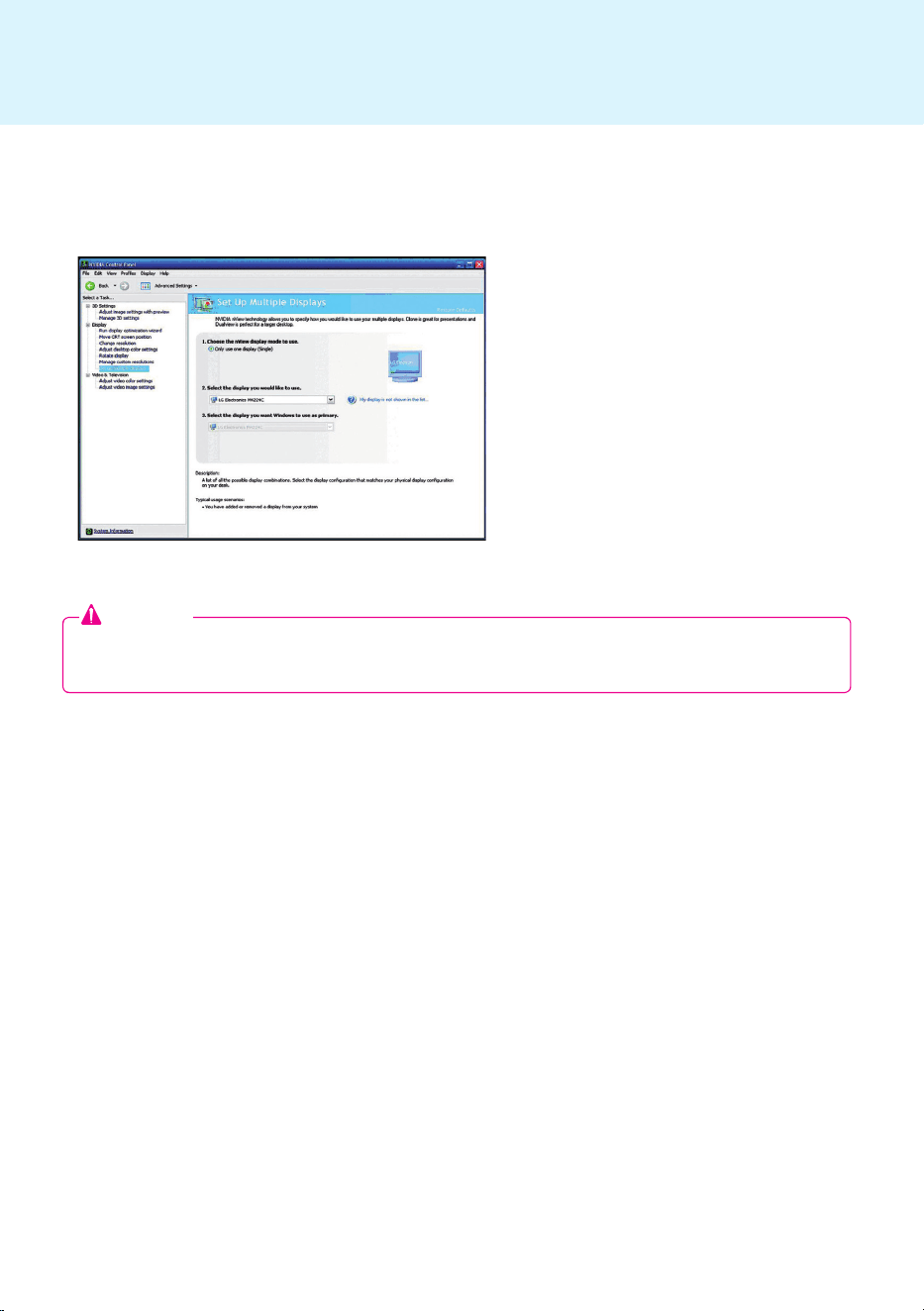
103
Appendix
Swapping.Displays
You.can.change.the.primary.and.secondary.monitors.in.the.Control Panel > Nvidia Control Panel.
Attention
●..Nvidia.Graphic.Chipset.which.is.the.graphic.card.equipped.in.SuperSign.Player.(NC1000/NC2000).does.not.
support.display.swap.in.the.Windows.Display.Registry.Information.
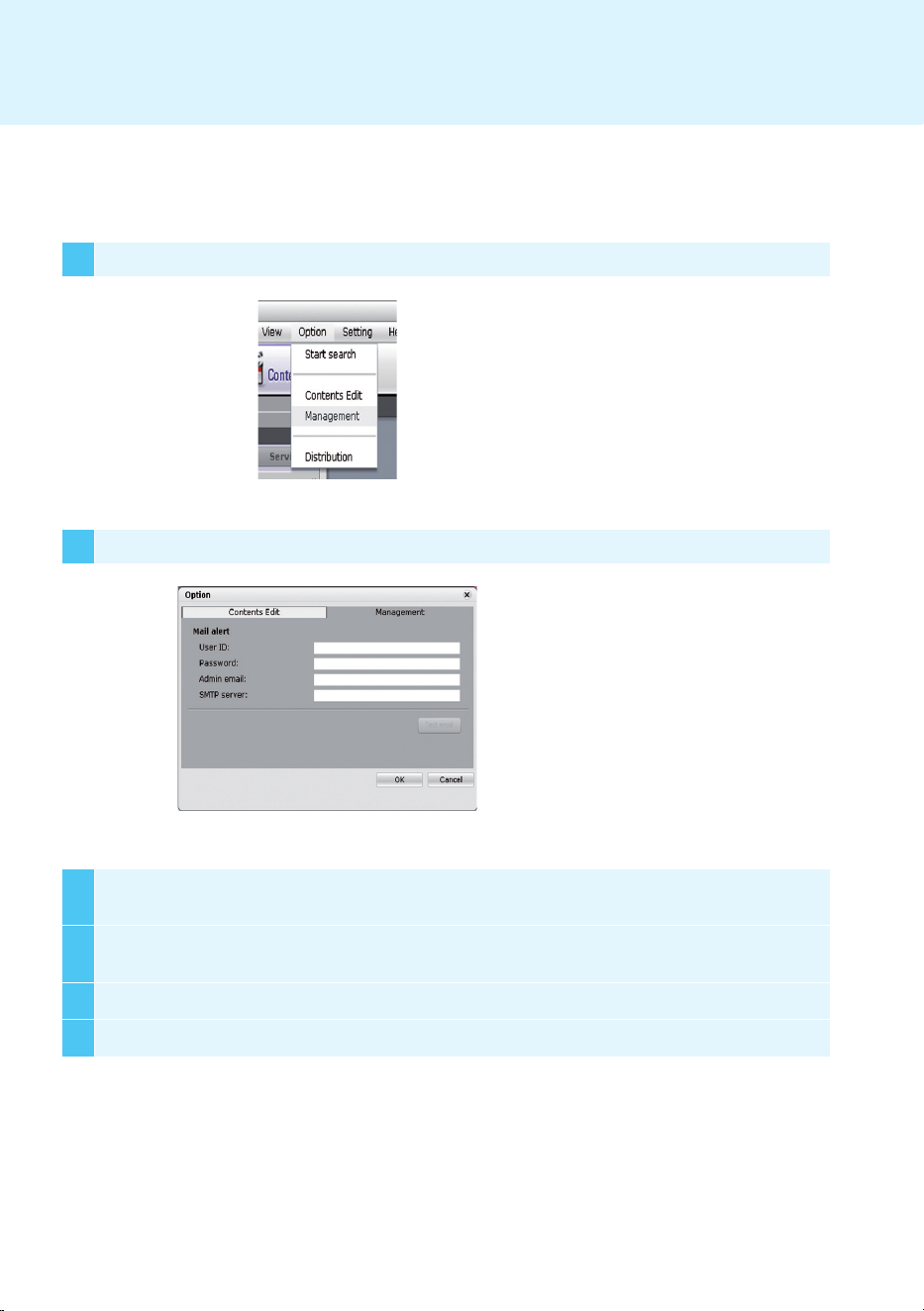
104
Appendix
3
Type.an.e-mail.address.in.the.Administrator E-mail.field.to.receive.the.report..Type.the.e-mail.server.
address.in.the.SMTP Server.field.
4
If.the.SMTP.server.requires.user.identification,.provide.the.user.ID.and.password.and.then.click.OK..
(Encryption.such.as.SPA.and.SSL.are.not.supported.)
5 When.you.have.filled.in.the.required.fields,.click.Test E-mail.
6 Check.whether.the.test.e-mail.has.arrived.at.the.designated.address.
1 Select.File.menu.Options > Management.to.use.the.e-mail.setting.menu.
2 The.Options.window.will.appear.
SMTP.E-mail.Settings
Follow.the.steps.below.to.set.the.SMTP.e-mail..Log.reports.can.be.sent.to.the.e-mail.address.you.designate.

105
Make sure to read the Important Precautions
before using the product.
Keep the User’s Guide(CD) in an accessible
place for furture reference.
The model and serial number of the SET is
located on the back and one side of the SET.
Record it below should you ever need service.
WARNING - This is a class A product. In
a domestic environment this product may
cause radio interference in which case the
user may be required to take adequate
measures.
MODEL
SERIAL
Temporary noise is normal when powering
ON or OFF this device.



