Register your product and get support at
www.philips.com/welcome
EN User manual
=+7: Ԛʹ˫
MS-MY Manual pengguna
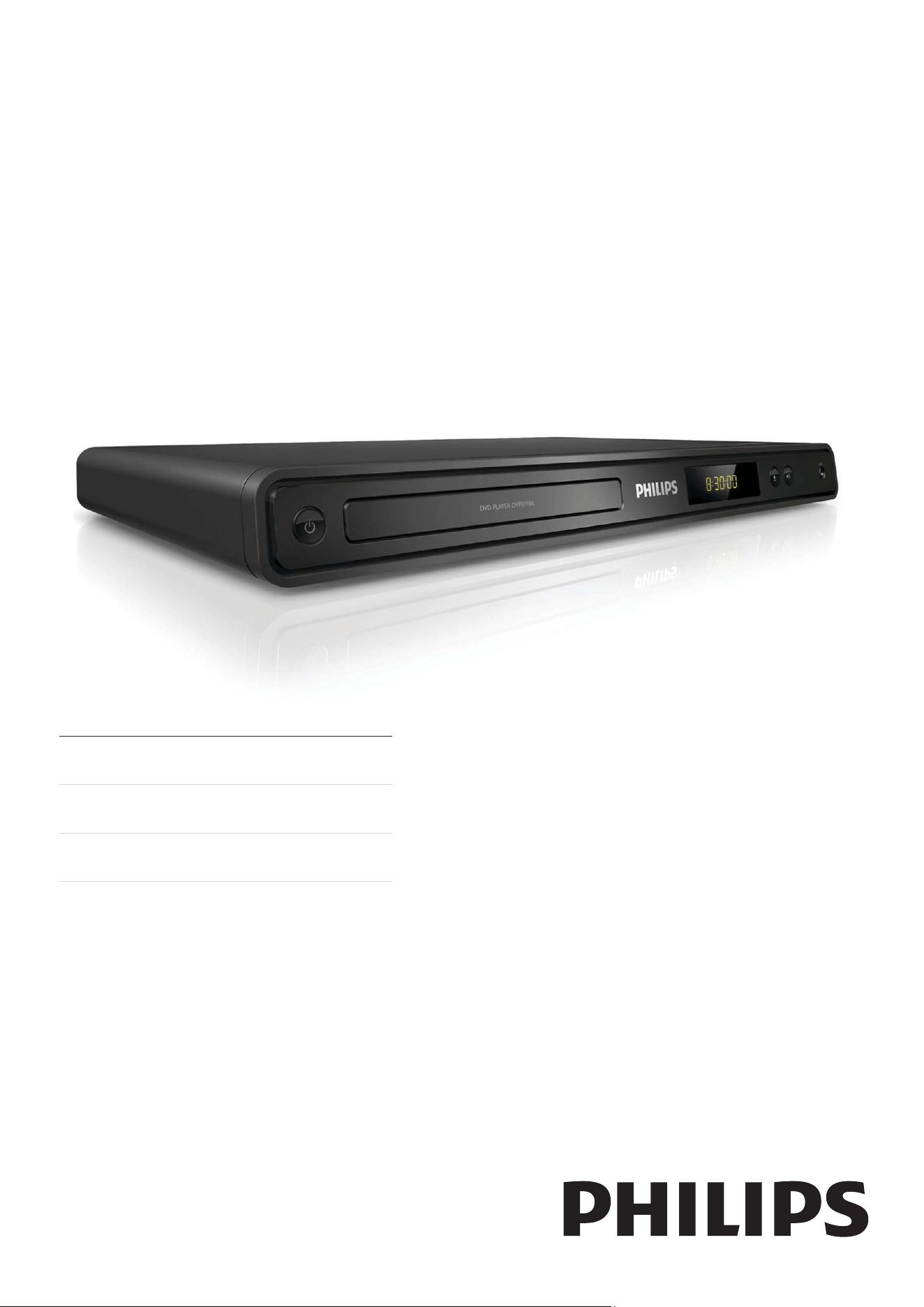
DVP3310K


3
9 Speci cation 27
10 Troubleshooting
29
11 Glossary
30
Contents
1 Important 4
Safety and important notice 4
Trademark notice 5
2 Your DVD player 6
Feature highlights 6
Product overview 7
3 Connect 9
Connect video cables 9
Connect audio cables 10
Route audio to other devices 10
Connect to power outlet 11
4 Get started 12
Prepare the remote control 12
Find the correct viewing channel 13
Select menu display language 13
Turn on Progressive Scan 14
5 Play 15
Play from disc 15
Play video 16
Play music 18
Play photo 19
6 Adjust sound 21
Karaoke settings 21
Turn off vocal (cancel voice) 21
7 Adjust settings 22
General setup 22
Audio setup 22
Video setup 23
Preferences 24
8 Additional information 26
Update software 26
Care 26
Contents
English
EN
4
Recycle notice
This electronic equipment contains a large
number of materials that can be recycled
or reused if disassembled by a specialized
company. If you are disposing of an old
machine, please take it to a recycling center.
Please observe the local regulations regarding
disposal of packaging materials, exhausted
batteries and old equipment.
Copyright notice
This product incorporates copyright
protection technology that is protected
by method claims of certain U.S. patents
and other intellectual property rights
owned by Macrovision Corporation and
other rights owners. Use of this copyright
protection technology must be authorised
by Macrovision Corporation, and is intended
for home and other limited viewing uses only
unless otherwise authorised by Macrovision
Corporation. Reverse engineering or
disassembly is prohibited.
1 Important
Safety and important notice
Warning
Risk of overheating! Never install the DVD player in •
a con ned space. Always leave a space of at least 4
inches around the DVD player for ventilation. Ensure
curtains or other objects never cover the ventilation
slots on the DVD player.
Never place the DVD player, remote control or
•
batteries near naked ames or other heat sources,
including direct sunlight.
Only use this DVD player indoors. Keep this DVD
•
player away from water, moisture and liquid- lled
objects.
Never place this DVD player on other electrical
•
equipment.
Keep away from this DVD player during lightning
•
storms.
Where the mains plug or an appliance coupler is
•
used as the disconnect device, the disconnect device
shall remain readily operable.
Visible and invisible laser radiation when open. Avoid
•
exposure to beam.
About Progressive Scan
Consumers should note that not all high
de nition television sets are fully compatible
with this product and may cause artifacts to
be displayed in the picture. In case of 525
or 625 progressive scan picture problems,
it is recommended that the user switch the
connection to the ‘standard de nition’ output.
If there are questions regarding our TV set
compatibility with this model 525p and 625p
DVD player, please contact our customer
service center.
EN
5
Trademark notice
Manufactured under license from Dolby
Laboratories. Dolby and the double-D symbol
are trademarks of Dolby Laboratories.
Windows Media and the Windows logo are
trademarks, or registered trademarks of
Microsoft Corporation in the United States
and/or other countries.
Important
English
EN
6
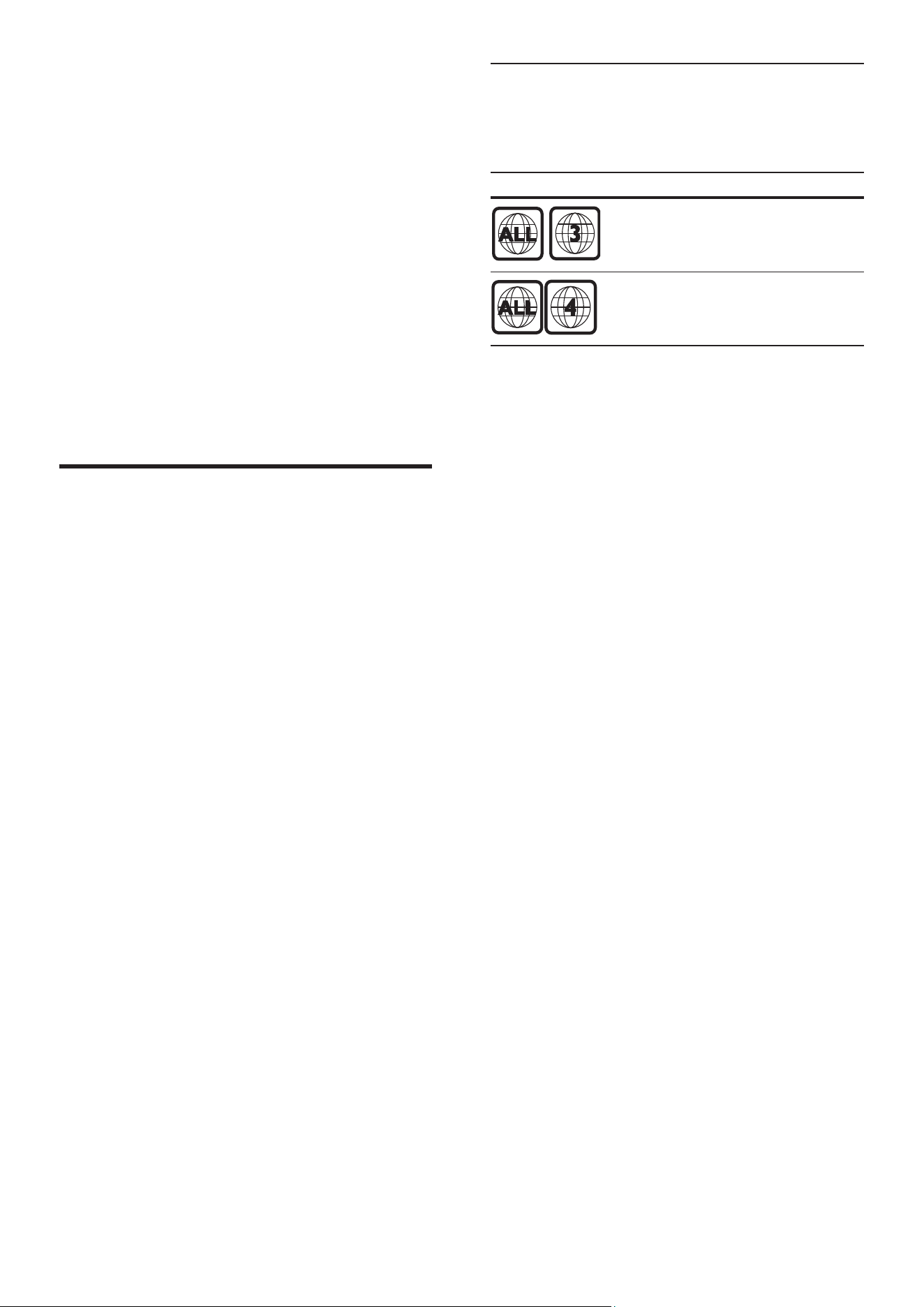
Region codes
You can play discs with the following region
codes.
DVD region code Countries
Asia Paci c, Taiwan, Korea
Australia, New Zealand
2 Your DVD
player
Congratulations on your purchase, and
welcome to Philips! To fully bene t from the
support that Philips offers, register your product
at www.philips.com/welcome.
This DVD player brings audio and video
to life. Just plays practically any disc format,
including the digital photos with absolutely no
compromise to picture quality.
Feature highlights
Screen Fit
View the movie in full screen display on any
TV.
Progressive scan component video
Pushes the limits of standard resolution and
provides a more lm-like image display that
is more pleasing for viewing DVDs on a TV
display.
Karaoke scoring function
Karaoke scoring gives a score for each
performance. Have your singing performance
scored for even more karaoke fun at home!
EN
7
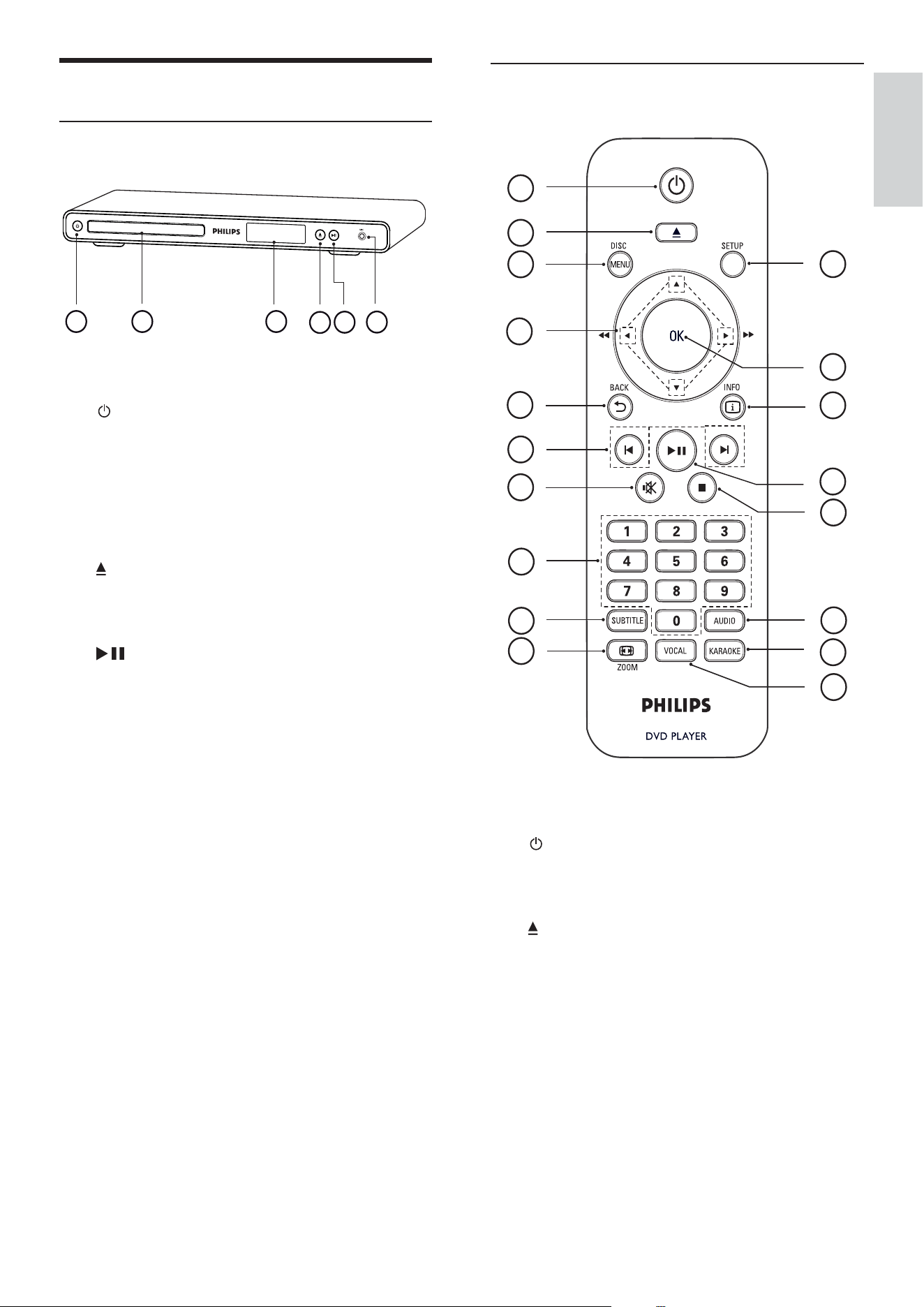
Remote control
a ( Standby-On )
Turns on the DVD player or switches •
to standby mode.
b
( Open/Close )
Opens or closes the disc •
compartment.
c DISC MENU
Accesses or exits the disc menu. •
For VCD and SVCD, turns PBC •
(playback control) on or off in PBC
mode.
4
3
6
7
9
8
1
5
2
16
17
12
15
13
14
10
11
18
Product overview
Main unit
a ( Standby-On )
Turns on the DVD player or switches •
to standby mode.
b Disc compartment
c Display panel
d
( Open/Close )
Opens or closes the disc •
compartment.
e
( Play/Pause )
Starts, pauses or resumes disc play.•
f MIC
Audio input from a microphone.•
4
31 2
6
5
Your DVD player
English
EN

8
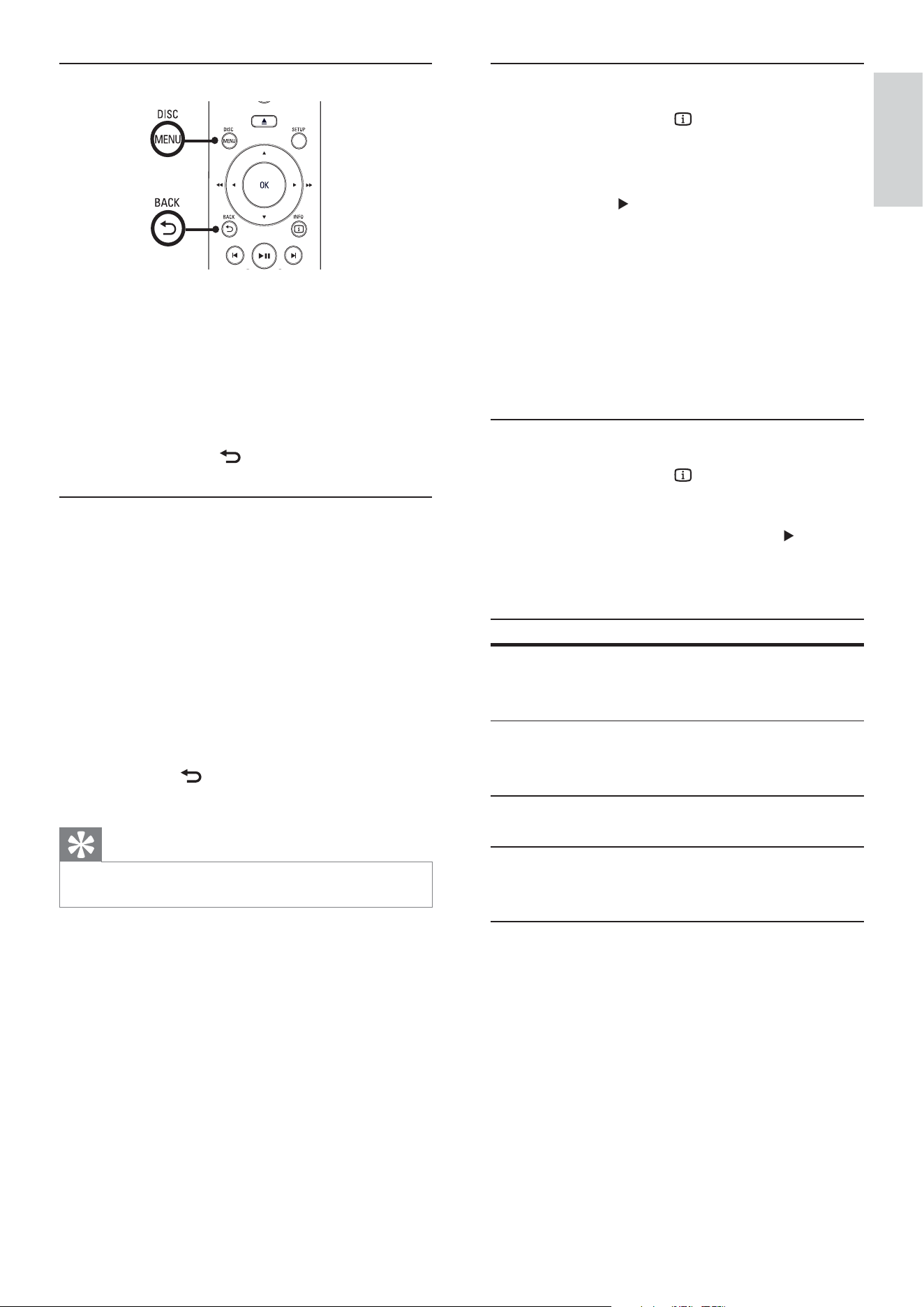
n ( Stop )
Stops disc play.•
o
( Play/Pause )
Starts, pauses or resumes disc play.•
p
INFO
For discs, displays information about •
the current status or the disc.
For slideshows, displays a thumbnail •
view of photo les.
q OK
Con rms an entry or selection.•
r SETUP
Accesses or exits the setup menu.•
d
( Navigation buttons )
Navigates through the menus.•
Searches fast-forward (right) or fast-•
backward (left). Press repeatedly to
change the search speed.
Searches slow-forward (up) or slow-•
backward (down). Press repeatedly
to change the search speed.
e
BACK
Returns to the previous menu.•
For DVD, navigates to title menu.•
For VCD version 2.0 or SVCD with •
PBC turned on, returns to the menu.
f
/ ( Previous/Next )
Skips to the previous or next title, •
chapter, or track.
Press and hold for fast-backward or •
fast-forward search.
g
( Mute )
Mutes or restores audio output.•
h Numeric buttons
Selects an item to play.•
i SUBTITLE
Enables or disables subtitles.•
j
ZOOM
Fits the picture format to the TV •
screen.
Zooms in or out of the picture.•
k VOCAL
Changes the audio channel of a •
karaoke disc.
l KARAOKE
Accesses or exits the karaoke menu.•
m AUDIO
Selects an audio language or channel •
on a disc.
EN
9
Connect video cables
Connect this DVD player to TV to view disc
play. Select the best video connection that the
TV can support.
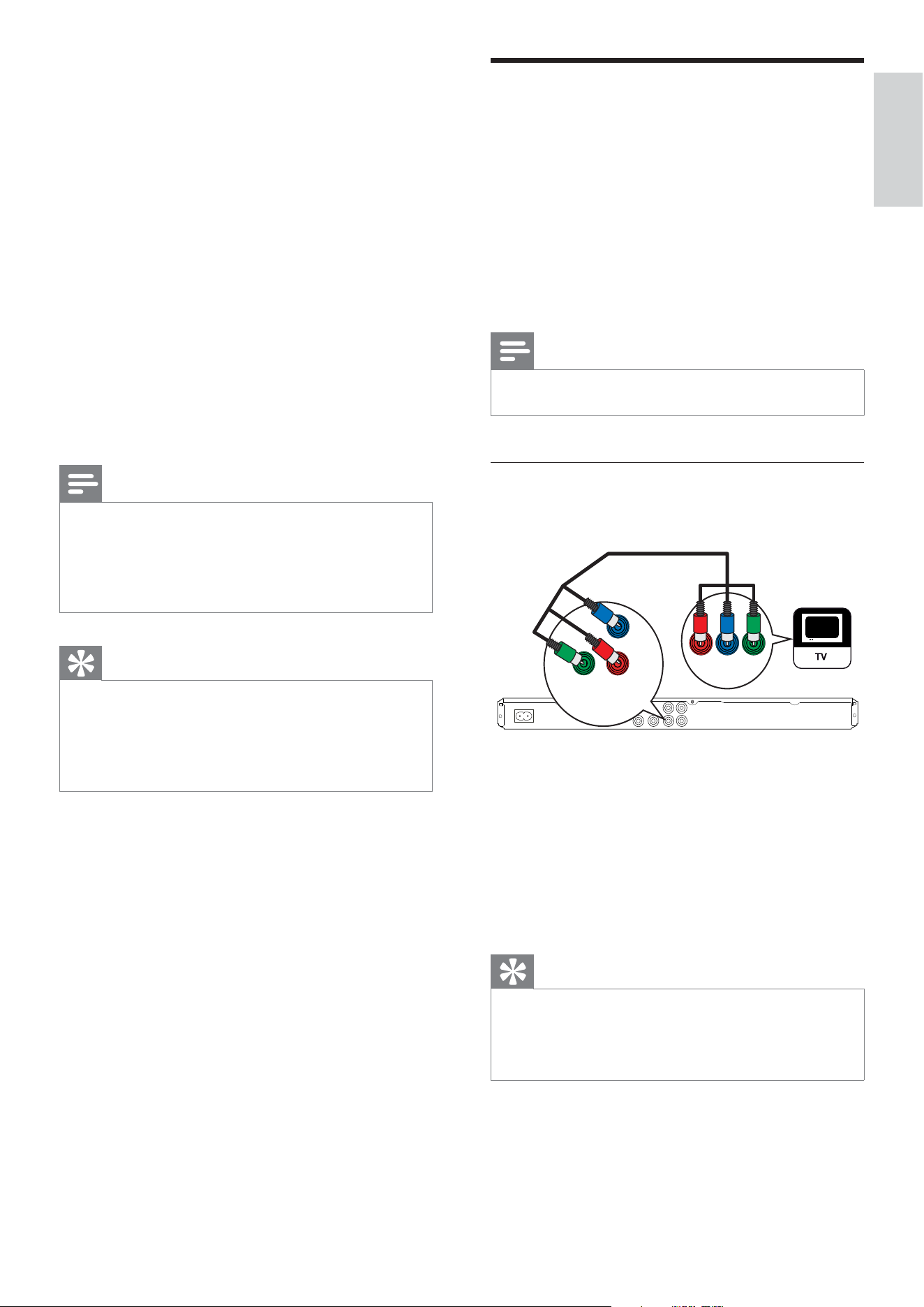
Option 1: Connect to component video •
jacks (for a standard TV or Progressive
Scan TV).
Option 2: Connect to video (CVBS) jack •
(for a standard TV).
Note
You must connect this DVD player directly to a TV. •
Option 1: Connect to component
video jacks
1 Connect the component video cables
(not supplied) to the Y Pb Pr jacks on this
DVD player and the component video
input jacks on the TV.
If a progressive scan TV is used, you •
may turn on the progressive scan
mode.
Tip
The component video input jacks on the TV may be •
labeled as Y Pb/Cb Pr/Cr or YUV.
This type of connection provides good picture
•
quality.
Pb
COMPONENT
VIDEO IN
Y
Pr
Pb
COMPONENT VIDEO OUT
Y
Pr
3 Connect
Make the following connections to use your
DVD player.
Basic connections:
Video•
Audio•
Optional connections:
Route audio to other devices:•
Digital ampli er/receiver•
Analog stereo system•
Note
Refer to the type plate at the back or bottom of the •
product for identi cation and supply ratings.
Before you make or change any connections, ensure
•
that all the devices are disconnected from the power
outlet.
Tip
Different types of connectors may be used to •
connect this product to your TV, depending on
availability and your needs. A comprehensive
interactive guide to help you connect your product is
available at www.connectivityguide.philips.com.
Connect
English
EN
10
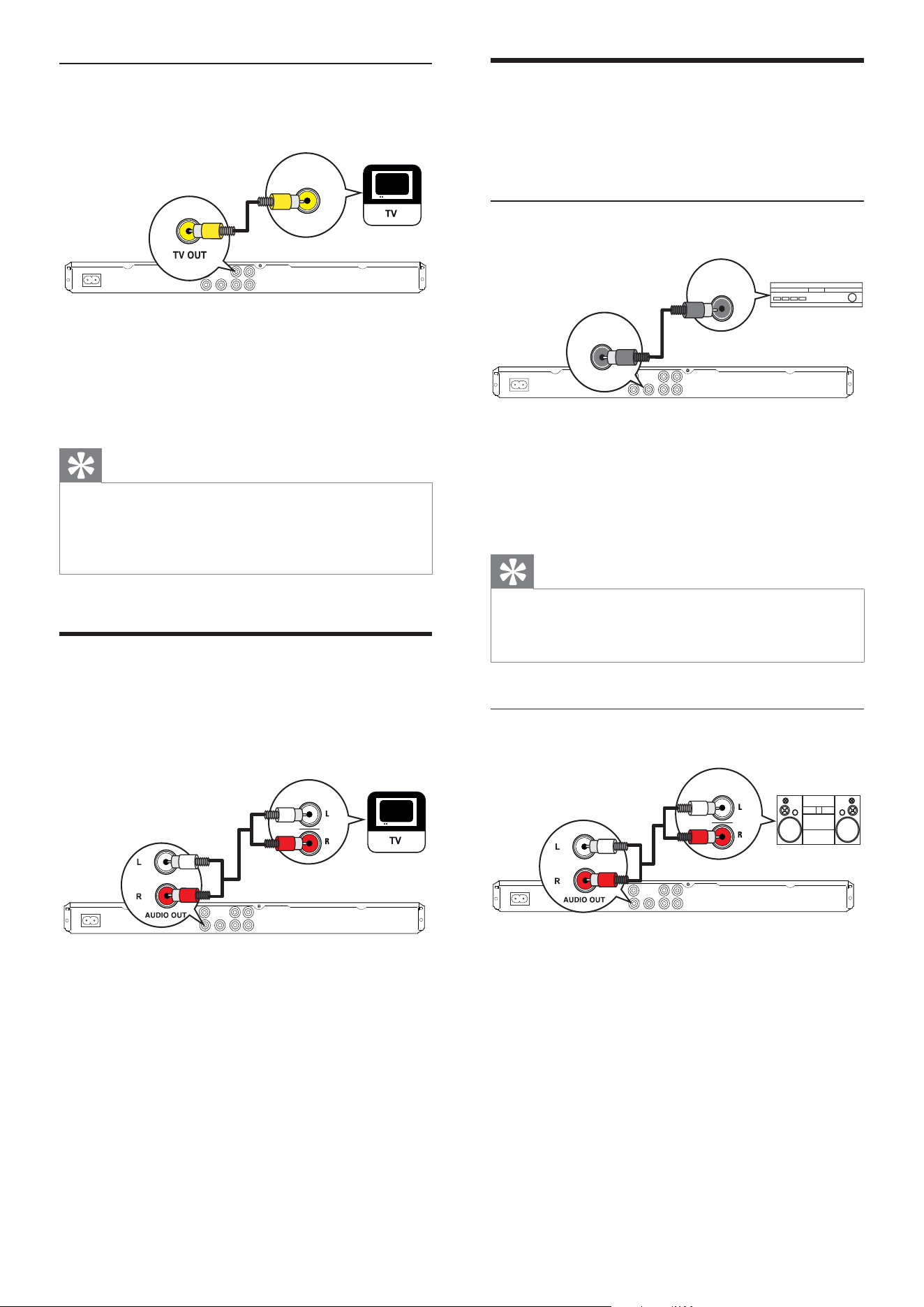
Route audio to other devices
Route the audio from this DVD player to other
devices to enhance audio play.
Connect to digital ampli er/receiver
1 Connect a coaxial cable (not supplied)
to the COAXIAL/DIGITAL OUT jack
on this DVD player and the COAXIAL/
DIGITAL input jack on the device.
Tip
You can optimize the audio output (see chapter •
‘Adjust settings’ - [Audio Setup] > [Digital Output] )
for details.
Connect to analog stereo system
1 Connect the audio cables (supplied) to
the AUDIO OUT L/R jacks on this DVD
player and the audio input jacks on the
device.
DIGITAL IN
COAXIAL
DIGITAL
OUT
AUDIO IN
Option 2 : Connect to video (CVBS)
jack
1 Connect a composite video cable
(supplied) to the TV OUT jack on this
DVD player and the video input jack on
the TV.
Tip
The video input jack on the TV may be labeled as •
A/V IN, VIDEO IN, COMPOSITE or BASEBAND.
This type of connection provides standard picture
•
quality.
Connect audio cables
Connect the audio from this DVD player to
the TV to allow sound output through the TV.
1 Connect the audio cables (supplied) to
the AUDIO OUT L/R jacks on this DVD
player and the audio input jacks on the
TV.
VIDEO IN
AUDIO IN
EN
11
Connect to power outlet
Warning
Risk of product damage! Ensure that the power •
supply voltage corresponds to the voltage printed on
the back or the underside of the DVD player.
1 Connect the power cord to the power
outlet.
The DVD player is ready to be set up »
for use.
Connect
English
EN
12
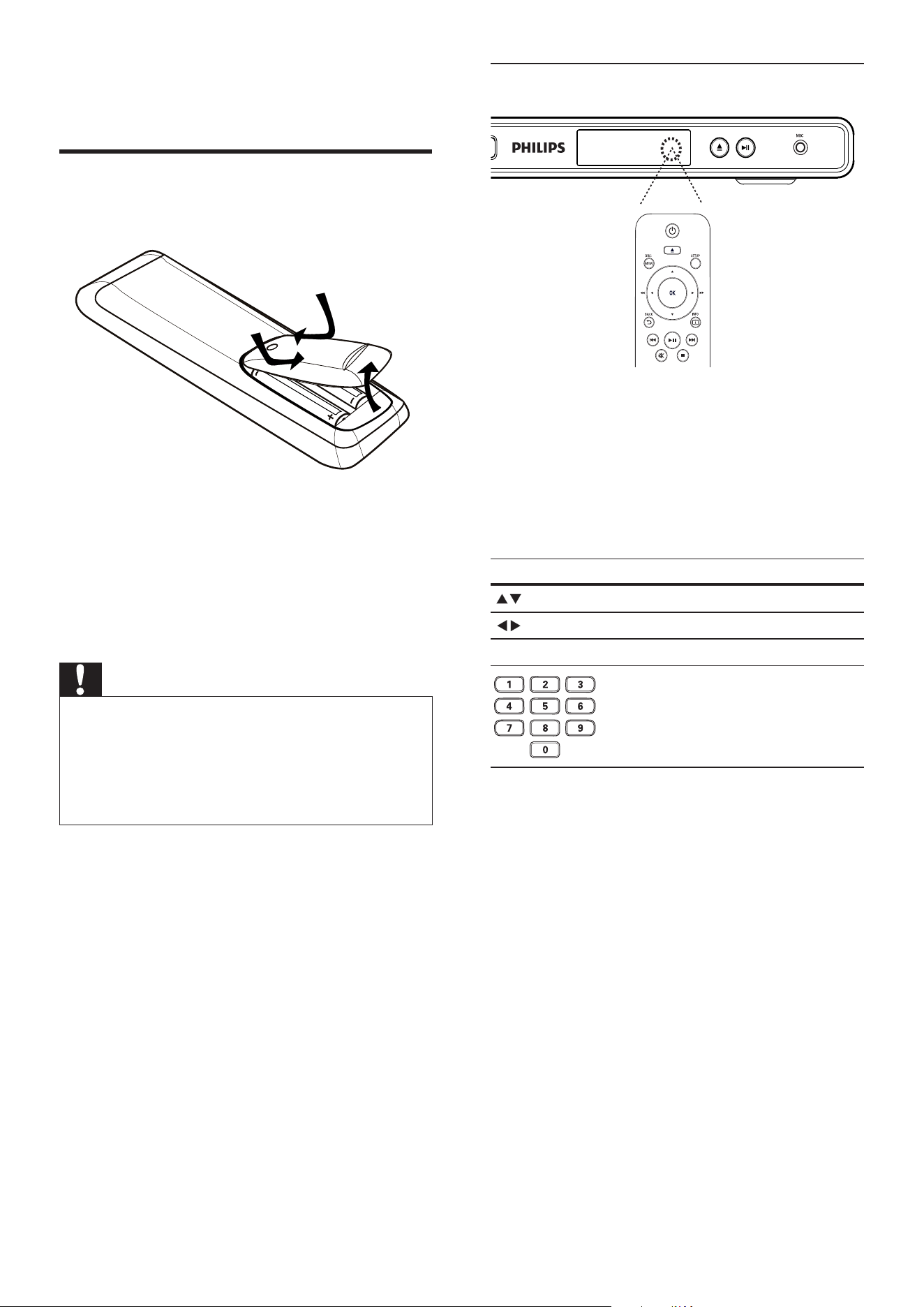
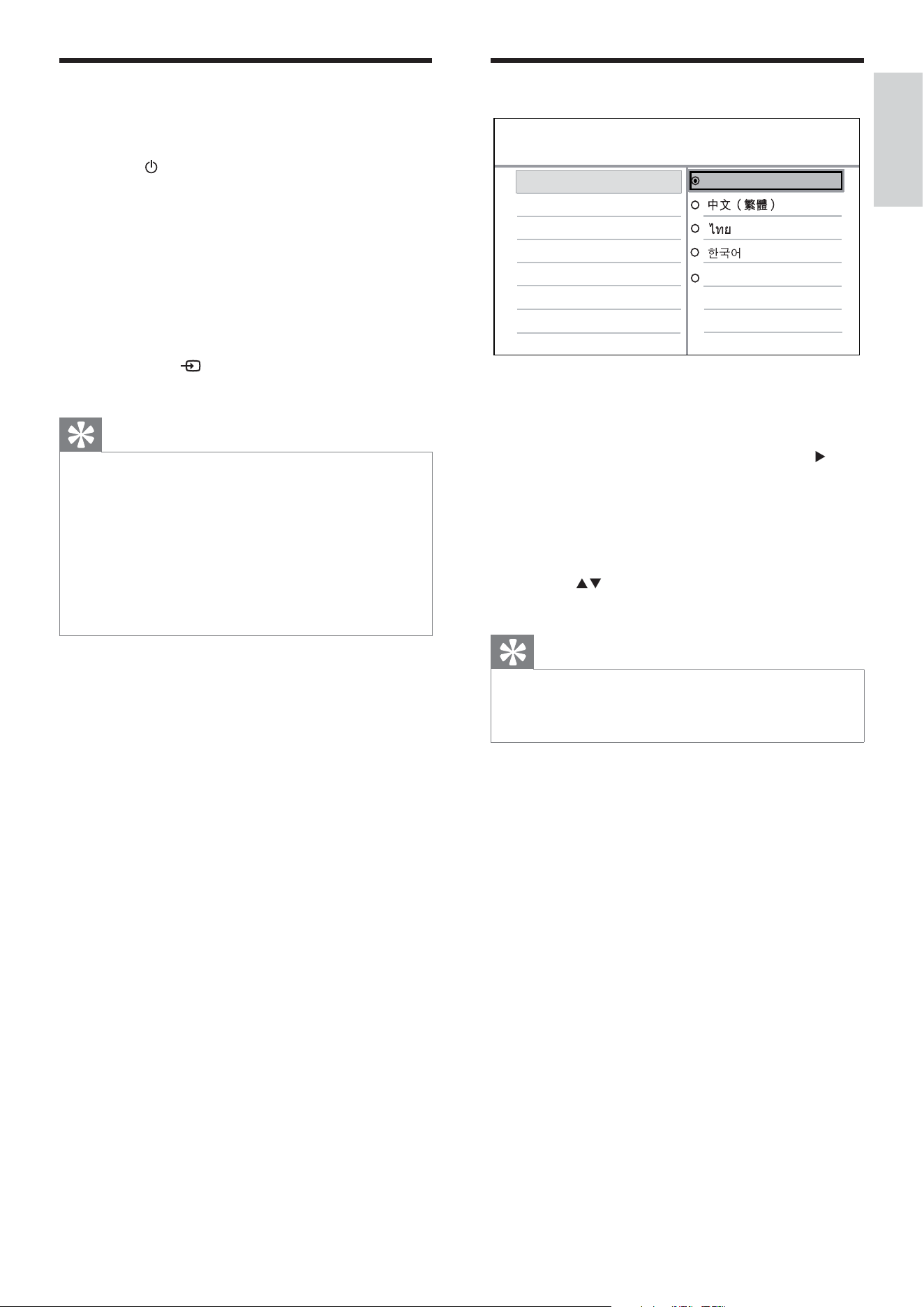
Navigate the menu
1 Point the remote control directly at the
remote sensor on this DVD player and
select the desired function.
2 Use the following buttons on the remote
control to navigate through the on-screen
menus.
Button Action
Moves up or down.
Moves left or right.
OK Con rms a selection.
Enters numbers
4 Get started
Prepare the remote control
1 Push to open the battery compartment
cover.
2 Insert 2 AAA batteries with correct
polarity (+/-) as indicated.
3 Close the cover.
Caution
Remove batteries if they are exhausted or if the •
remote control is not to be used for a long time.
Do not mix batteries (old and new or carbon and
•
alkaline, etc.).
Batteries contain chemical substances, they should
•
be disposed off properly.
EN
13
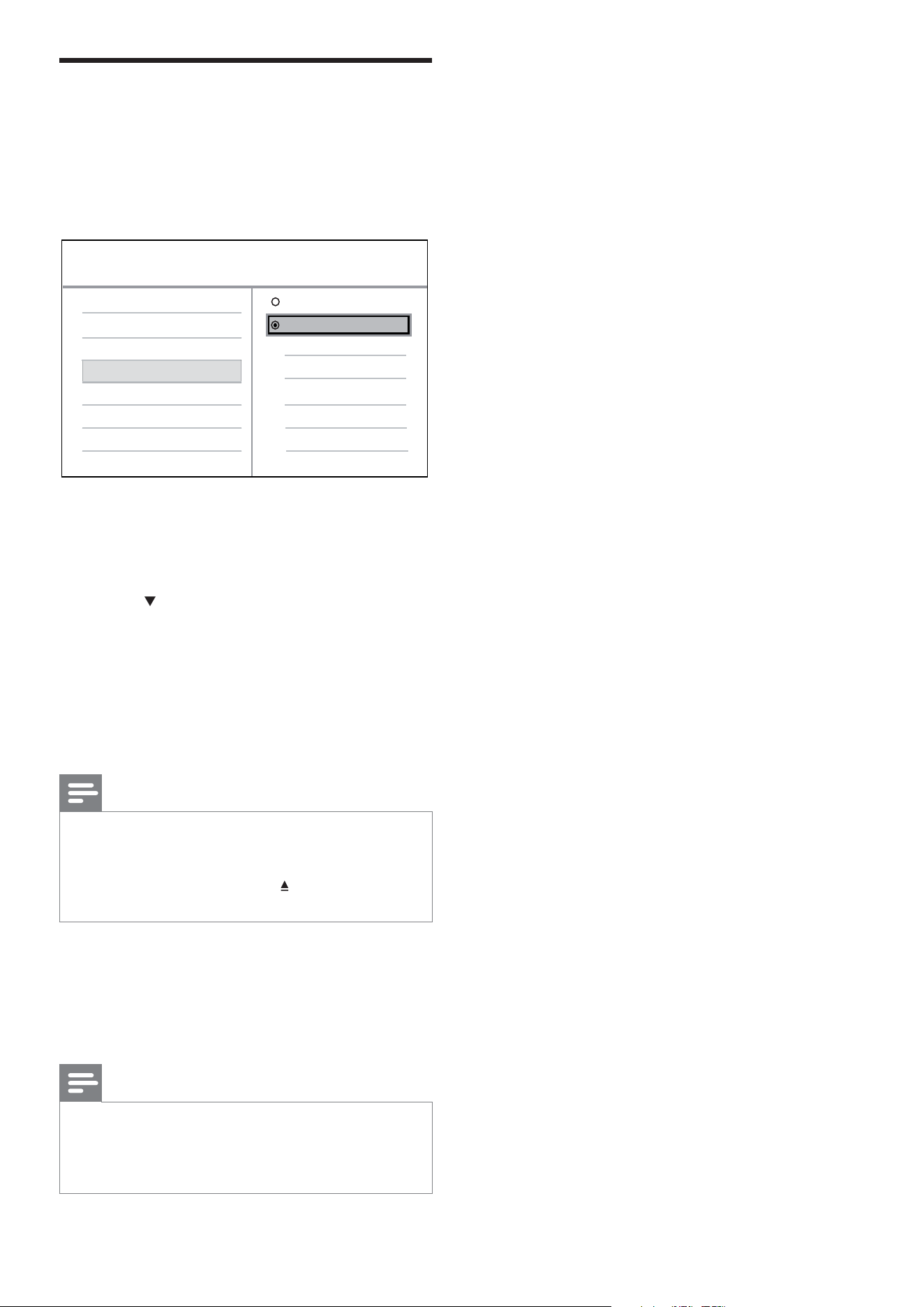
Select menu display language
1 Press SETUP .
» [General Setup] menu is displayed.
2 Select [OSD Language] , then press .
The language options are different •
depending on your country or
region. It may not correspond to the
illustration shown here.
3 Press to select a language, then press
OK .
Tip
You can set the default language for DVD audio •
and disc menu, see chapter ‘Adjust settings’ -
[Preferences] for details.
Auto Standby
OSD Language
General Setup
English
Melayu
Find the correct viewing
channel
1 Press to turn on the DVD player.
2 Turn on the TV and switch to the correct
video-in channel in one of the following
ways:
Go to the lowest channel on your •
TV, then press the Channel Down
button until you see the Philips
screen.
Press •
SOURCE button repeatedly
on the remote control of your TV.
Tip
The video-in channel is between the lowest and •
highest channels and may be called FRONT, A/V IN,
VIDEO, HDMI etc.. See the TV user manual on how
to select the correct input on your TV.
If the audio output of this DVD player is routed
•
to other audio device (such as audio system
or receiver), turn on the audio device to the
appropriate audio input channel. Refer to the device
user manual for details.
Get started
English
EN
14
Turn on Progressive Scan
Connect a progressive scan TV with component
video jacks (see chapter ‘Connect video cables
- Option 1: Connect to component video jacks’
for details).
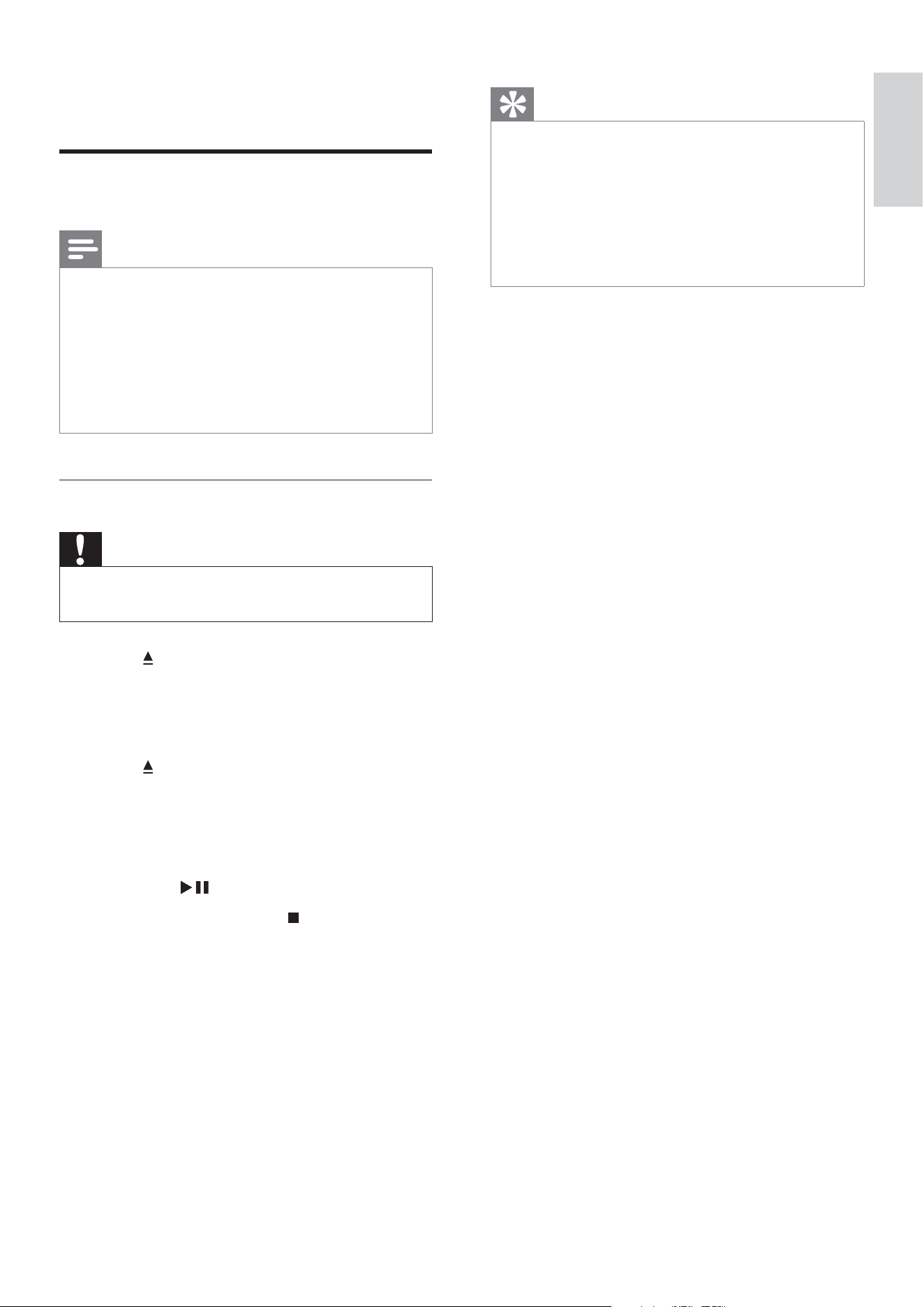
1 Turn on the TV to the correct viewing
channel for this DVD player.
2 Press SETUP .
3 Press to select [Video Setup] .
4 Select [Component Video] > [P-Scan] ,
then press OK .
A warning message is displayed. »
5 To proceed, select [Yes] and press OK .
The progressive setup is complete. »
Note
If a blank/distorted screen is displayed, wait for 15 •
seconds for the auto recover.
If no picture displayed, turn off the progressive
•
scan mode as follows: 1) Press to open the disc
compartment. 2) Press the Numeric button ‘1’ .
6 Press SETUP to exit the menu.
7 You can now turn on the progressive
scan mode on the TV (see the TV user
manual).
Note
During play, when progressive scan mode is on for •
both this DVD player and the TV, distorted picture
may display. Turn off the progressive scan feature on
both this DVD player and the TV.
Video Setup
Component Video
TV Display
TV System
Picture Setting
Interlaced
P-Scan
EN
15
Tip
If the password entry menu is displayed, you have to •
enter the password before it can be played.
If you pause or stop a disc for about 5 minutes, the
•
screen saver activates. To deactivate the screen
saver, press DISC MENU .
After you pause or stop a disc and no buttons
•
are pressed within 15 minutes, this DVD player
automatically switches to standby mode.
5 Play
Play from disc
Note
DVDs and DVD players are designed with regional •
restrictions. Ensure that the DVD video you play is
for the same region zone as your player (indicated
on its back).
The DVD player can support play of the following le
•
formats: MP3/WMA/JPEG.
To play DVD-R, DVD+R or DVD-RW, the disc must
•
be nalized.
Play a disc
Caution
Never place any objects other than discs into the disc •
compartment.
1 Press to open the disc compartment.
2 Insert a disc with its label facing up.
For double-sided discs, load the •
playing side facing up.
3 Press to close the disc compartment.
To view disc play, turn on the TV to •
the correct viewing channel for this
DVD player.
If play does not start automatically, •
press
.
4 To stop disc play, press .
Play
English
EN
16
Change video play
1 Play a title.
2 Use the remote control to change the
video play.
Button Action
AUDIO Changes audio language.
Only applicable to discs with
multiple audio language or
channel.
SUBTITLE Changes subtitle language.
Only applicable to discs with
multiple subtitle language.
ZOOM
(Screen
Fit)
Fits the picture format to the TV
screen.
Press repeatedly until the image is
scaled to t to the TV screen.
ZOOM
Toggles between screen aspect
ratio and different zoom factor.
To pan through the zoomed
image, press the Navigation
buttons .
INFO Displays the current status or disc
information.
You can change the video play
options here without interrupting
disc play.
Note
Some operations may not work with some discs. See •
the information accompanying the disc for details.
Play video
Note
For video disc, play always resumes from the point •
where it was last stopped. To start play from the
beginning, press
while the message is displayed.
Control a title
1 Play a title.
2 Use the remote control to control the
title.
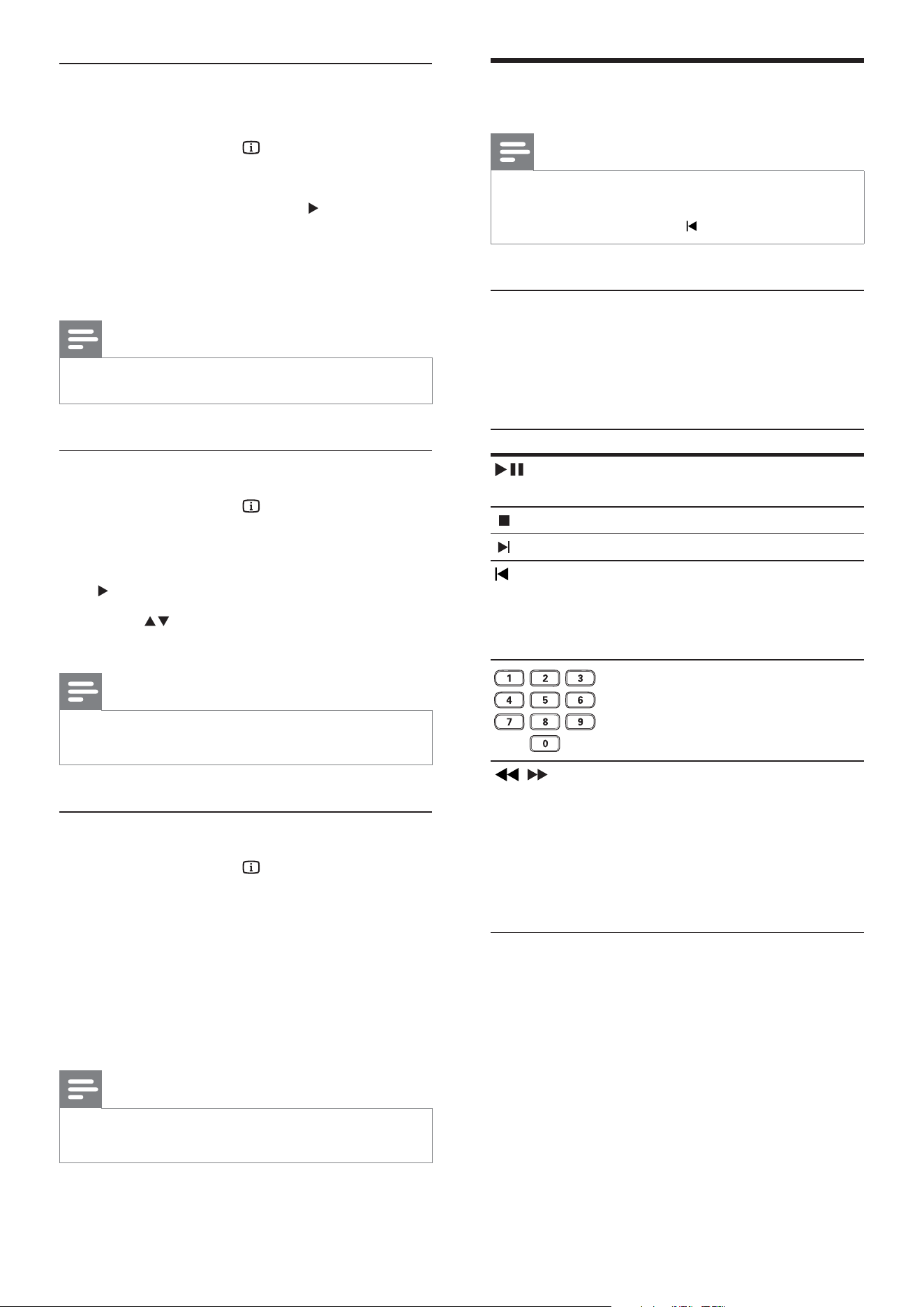
Button Action
Starts, pauses or resumes disc
play.
Stops disc play.
Skips to the next title or chapter.
Skips to the beginning of the
current title or chapter. Press
twice to jump to the previous
title or chapter.
, Searches fast-forward (right)
or fast-backward (left). Press
repeatedly to change the search
speed.
, Searches slow-forward (up) or
slow-backward (down). Press
repeatedly to change the search
speed.
For VCD/SVCD, slow-backward
search is not available.
EN
17
Quick skip play to a speci c time
1 During play, press INFO .
The disc status menu is displayed. »
2 Select the current elapsed playing time,
then press
.
• [TT Time] (title time)
• [Ch Time] (chapter time)
• [Disc Time] (disc time)
• [Track Time] (track time)
3 Press the Numeric buttons to enter the
time where you want to skip to, then
press OK
Display play time
1 During play, press INFO .
The disc status menu is displayed. »
2 Select [Time Disp.] , then press .
The display options are different »
depending on the disc type.
Option Action
[Title Elapsed]
/ [Chapter
Elapsed]
Displays DVD title or
chapter elasped play time.
[Title Remain]
/ [Chapter
Remain]
Displays DVD title or
chapter remaining play
time.
[Total Elapsed] /
[Single Elapsed]
Displays VCD/SVCD disc
or track elasped play time.
[Total Remain] /
[Single Remain]
Displays VCD/SVCD disc
or track remaining play
time.
3 Select an option, then press OK .
Access DVD menu
1 Press DISC MENU to access disc main
menu.
2 Select a play option, then press OK .
In some menus, press the • Numeric
buttons to input your selection.
To return to the title menu during •
play, press
BACK .
Access VCD menu
The PBC (Playback Control) for VCD/SVCD
is turned on by default in the factory. When
you load in a VCD/SVCD, the contents menu
is displayed.
1 Press Numeric buttons to select a play
option, then press OK to start play.
If PBC is off, it skips the menu and •
starts play from the rst track.
To return to the menu during play, •
press
BACK (only possible if the
PBC mode is on).
Tip
Press • DISC MENU to turn on or off the PBC mode.
Play
English
EN
18
Play music
Note
For some commercial audio disc, play may resume •
from the point where it was last stopped. To start
play from rst track, press
.
Control a track
1 Play a track.
2 Use the remote control to control the
track.
Button Action
Starts, pauses or resumes
disc play.
Stops disc play.
Skips to the next track.
Skips to the beginning of
the current track. Press
twice to jump to the
previous track.
Selects an item to play.
, Searches fast-forward
(right) or fast-backward
(left). Press repeatedly to
change the search speed.
To change search
speed, press this button
repeatedly.
View video play from different camera
angles
1 During play, press INFO .
The disc status menu is displayed. »
2 Select [Angle] , then press .
3 Press the Numeric buttons to change the
angle.
Play changes to the selected angle. »
Note
Applicable only to discs contain multi-angle scenes. •
Repeat play - video
1 During play, press INFO .
The disc status menu is displayed. »
2 Select [Repeat] in the menu, then press
.
3 Press to select a repeat option, then
press OK .
Note
For VCD/SVCD, repeat play is only possible if the •
PBC mode is turned off.
Repeat play a speci c section
1 During play, press INFO .
The disc status menu is displayed. »
2 Select [Repeat AB] in the menu and
press OK at the start point.
3 Press OK again to set the end point.
Repeat play starts. »
4 To cancel repeat play, press OK again.
Note
The marked section for repeat play is only possible •
within a track/title.
EN
19
Play photo
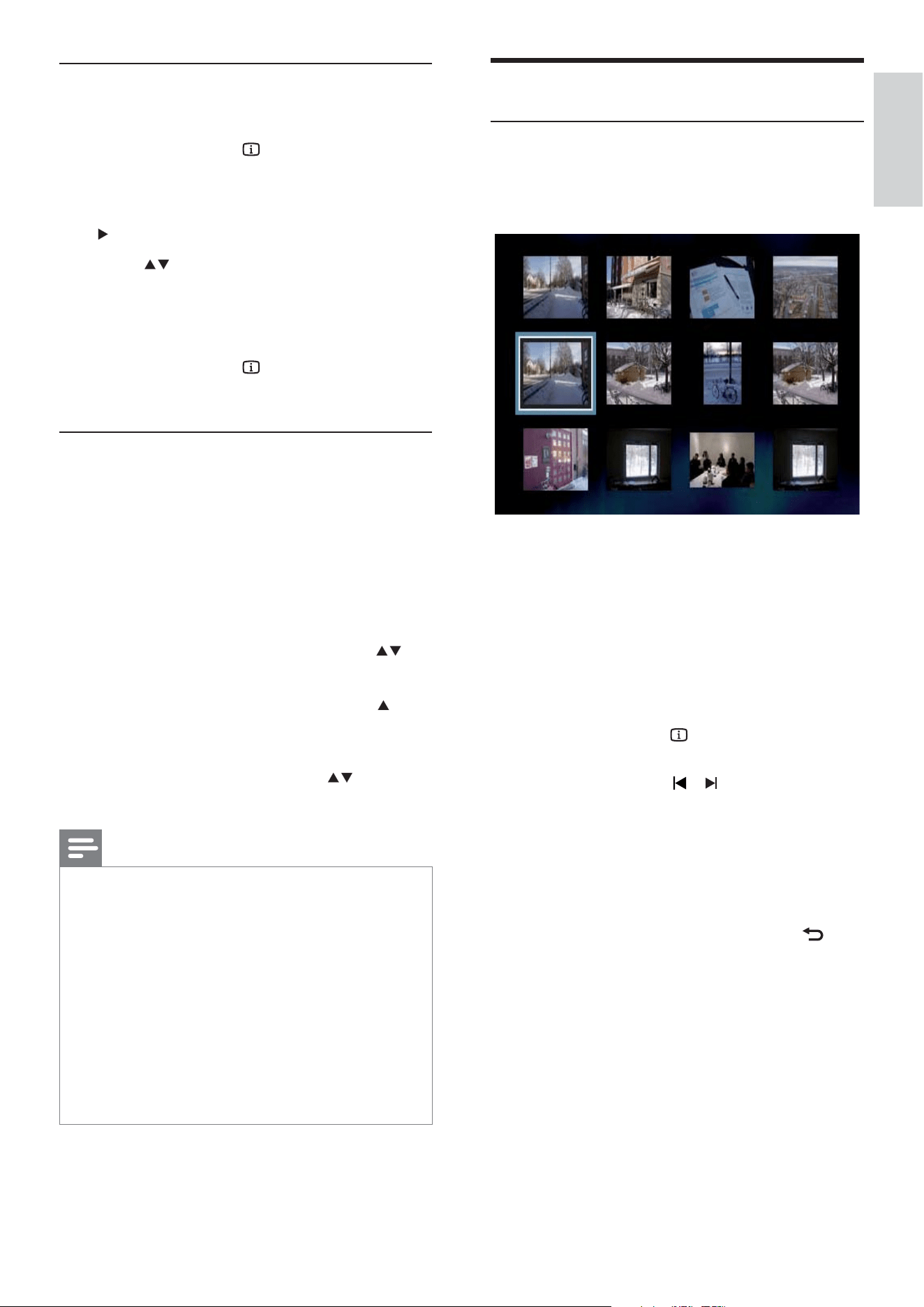
Play photo as slideshow
This DVD player can play JPEG photos ( les
with .jpeg or .jpg extensions).
1 Insert a disc that contains the JPEG
photos.
Slideshow begins (for Kodak disc) or »
a contents menu (for JPEG disc) is
displayed.
2 Select the folder/album you want to play.
To preview the photos in the folder/•
album, press
INFO .
To go to previous or next screen •
display, press
/ .
To select a photo, press the •
Navigation buttons .
To display the selected photo only, •
press OK .
3 Press OK to start slideshow play.
To return to the menu, press •
BACK .
Repeat play - audio
For audio CD
1 During play, press INFO .
The disc status menu is displayed. »
2 Select [Repeat] in the menu, then press
.
3 Press to select a repeat option, then
press OK .
For MP3/WMA les
1 During play, press INFO to select a
repeat option.
Play MP3/WMA music
MP3/WMA is a type of highly compressed
audio le ( les with .mp3, .wma extensions).
1 Insert a disc that contains the MP3/WMA
music.
A contents menu is displayed. »
2 Play starts.
To select another track, press •
,
then press OK .
3 To return to the main menu, press until
the root menu is selected, then press
OK .
To select a folder, press •
, then
press OK .
Note
For CDs recorded in multiple sessions, only the rst •
session is played.
This DVD player does not support MP3PRO audio
•
format.
If any special characters are present in the MP3
•
track name (ID3) or album name, it may not display
correctly on the screen because these characters are
not supported.
Some WMA is protected by Digital Rights
•
Management (DRM), it cannot be played on this
DVD player.
Folders/ les exceed the supported limit of this DVD
•
player are not displayed or played.
Play
English
EN
20
Play musical slideshow
Play MP3 music les and JPEG photo les
simultaneously to create musical slideshow.
The MP3 and JPEG les must be stored on the
same disc.
1 Play MP3 music.
2 Navigate to the photo folder/album and
press OK to start slideshow play.
Slideshow begins and continues till the »
end of the photo folder or album.
Audio continues to play till the end of »
the disc.
To return to the menu, press •
BACK .
To stop slideshow play, press •
.
To stop music play, press •
again.
Note
You may require longer time to display the disc •
content on the TV due to the large number of songs/
photos compiled onto one disc.
If the JPEG photo is not recorded with an ‘exif’ type
•
le, the actual thumbnail picture is not be shown
on the display. It is replaced by a ‘blue mountain’
thumbnail picture.
This DVD player can only display digital camera
•
pictures according to the JPEG-EXIF format, typically
used by almost all digital cameras. It cannot display
Motion JPEG and pictures in formats other than
JPEG, or sound clips associated with pictures.
Folders/ les that exceed the supported limit of this
•
DVD player are not displayed or played.
Control photo play
1 Play photo slideshow.
2 Use the remote control to control the
photo.
Button Action
Rotates the photo anti-
clockwise.
Rotates the photo clockwise.
Rotates the picture 180°.
Rotates the picture 180°.
ZOOM Zooms in or out of the
picture.
Play pause in zoom mode.
Stops play.
EN
21
5 To exit the menu, press KARAOKE .
Note
A karaoke score is displayed at the end of the song. •
Press OK to exit and resume karaoke session.
Karaoke score function is only available for DVD and
•
VCD discs.
Set the microphone volume to the minimum level
•
before connecting the microphone to prevent
howling.
Turn off vocal (cancel voice)
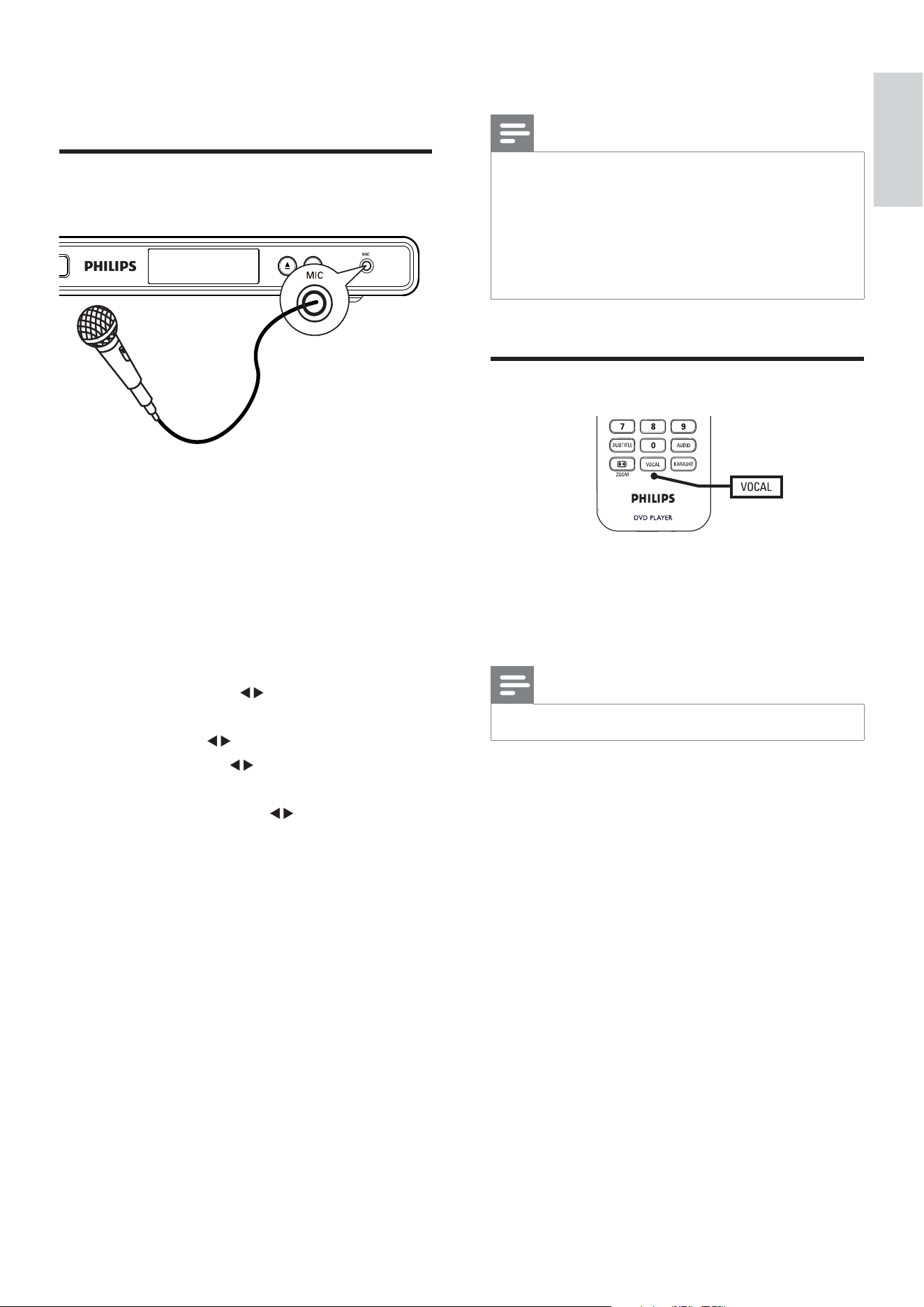
1 Press VOCAL repeatedly to toggle
through various audio modes or turn off
the vocal.
Note
You cannot cancel the voice output from MP3 discs. •
6 Adjust sound
Karaoke settings
1 Turn on the TV to the correct viewing
channel for this DVD player.
2 Connect a microphone (not supplied) to
MIC jack on this DVD player.
3 Press KARAOKE .
4 Press OK to select [On] to access various
setting options.
[Key Shift] : Press
to set the pitch
level that match your voice.
[Echo] : Press
to set the echo level.
[Volume] : Press
to set the
microphone volume level.
[Voice cancel] : Press
to set the voice
cancel on or off.
[Karaoke Scoring]: Select a karaoke
rating:
• [Off] - no score rating display.
• [Basic] - basic rating.
• [Intermediate] - intermediate rating.
• [Advance] - advance rating.
Adjust sound
English
EN
22
4 Select a setting, then press OK .
To return to the previous menu, •
press
.
To exit the menu, press • SETUP .
[OSD Language]
Selects the default on-screen menu language.
[Auto Standby]
Turns off or on automatic standby switching
mode. It is an energy saving feature.
• [On] – Switches to standby after 15
minutes of inactivity (for example, in
pause or stop mode).
• [Off] – Disables auto standby mode.
Audio setup
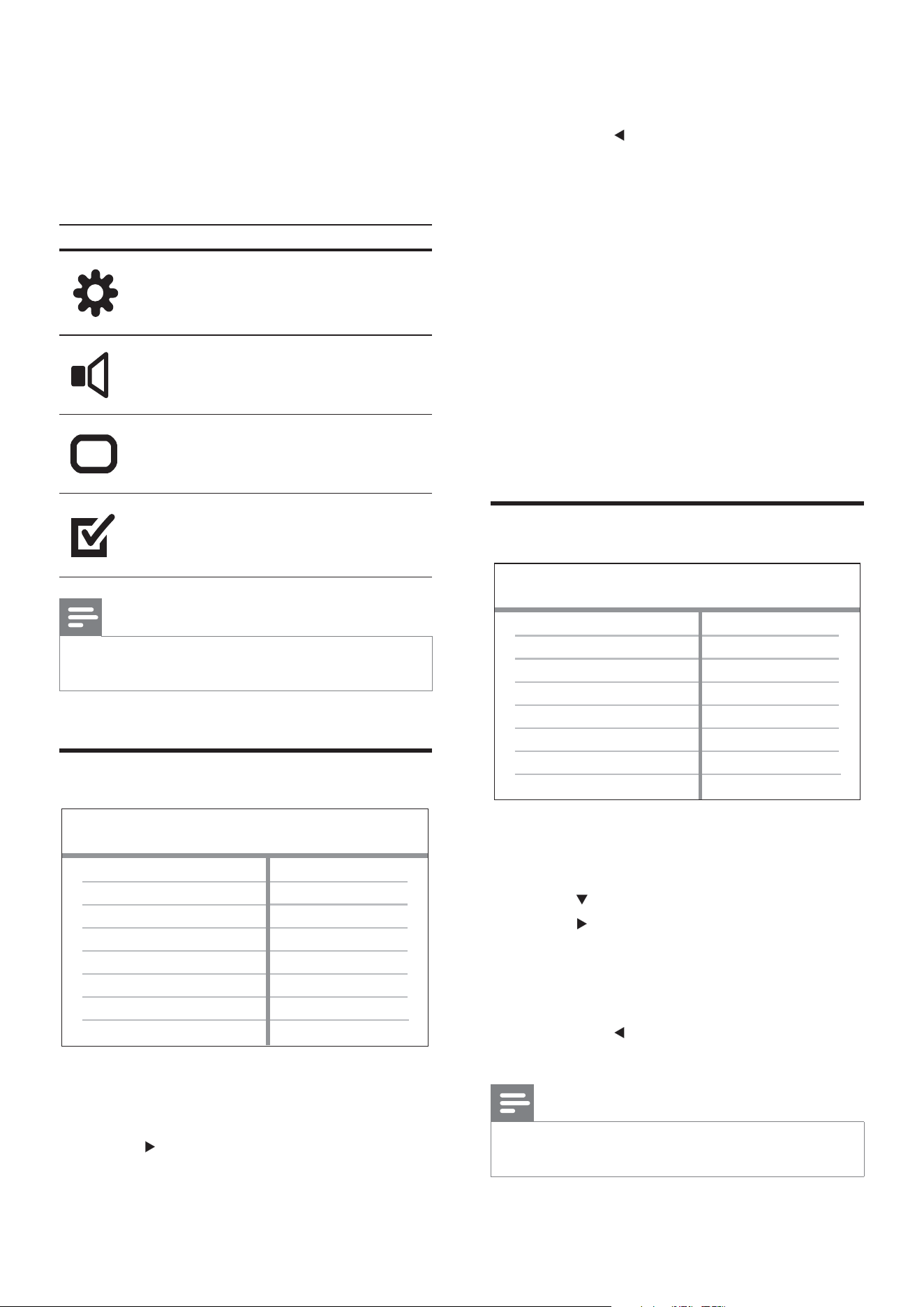
1 Press SETUP .
» [General Setup] menu is displayed.
2 Press to select [Audio Setup] , then
press
.
3 Select an option, then press OK .
4 Select a setting, then press OK .
To return to the previous menu, •
press
.
To exit the menu, press • SETUP .
Note
See the explanations of the above options in the •
following pages.
Night Mode
Volume
Digital Output
Down Sampling
Audio Setup
7 Adjust settings
This section describes the various setting
options of this DVD player.
Symbol Option
[General Setup]
[Audio Setup]
[Video Setup]
[Preferences]
Note
If the setup option is grayed out, it means the setting •
cannot be changed at the current state.
General setup
1 Press SETUP .
» [General Setup] menu is displayed.
2 Press .
3 Select an option, then press OK .
Auto Standby
OSD Language
General Setup
EN
23
Video setup
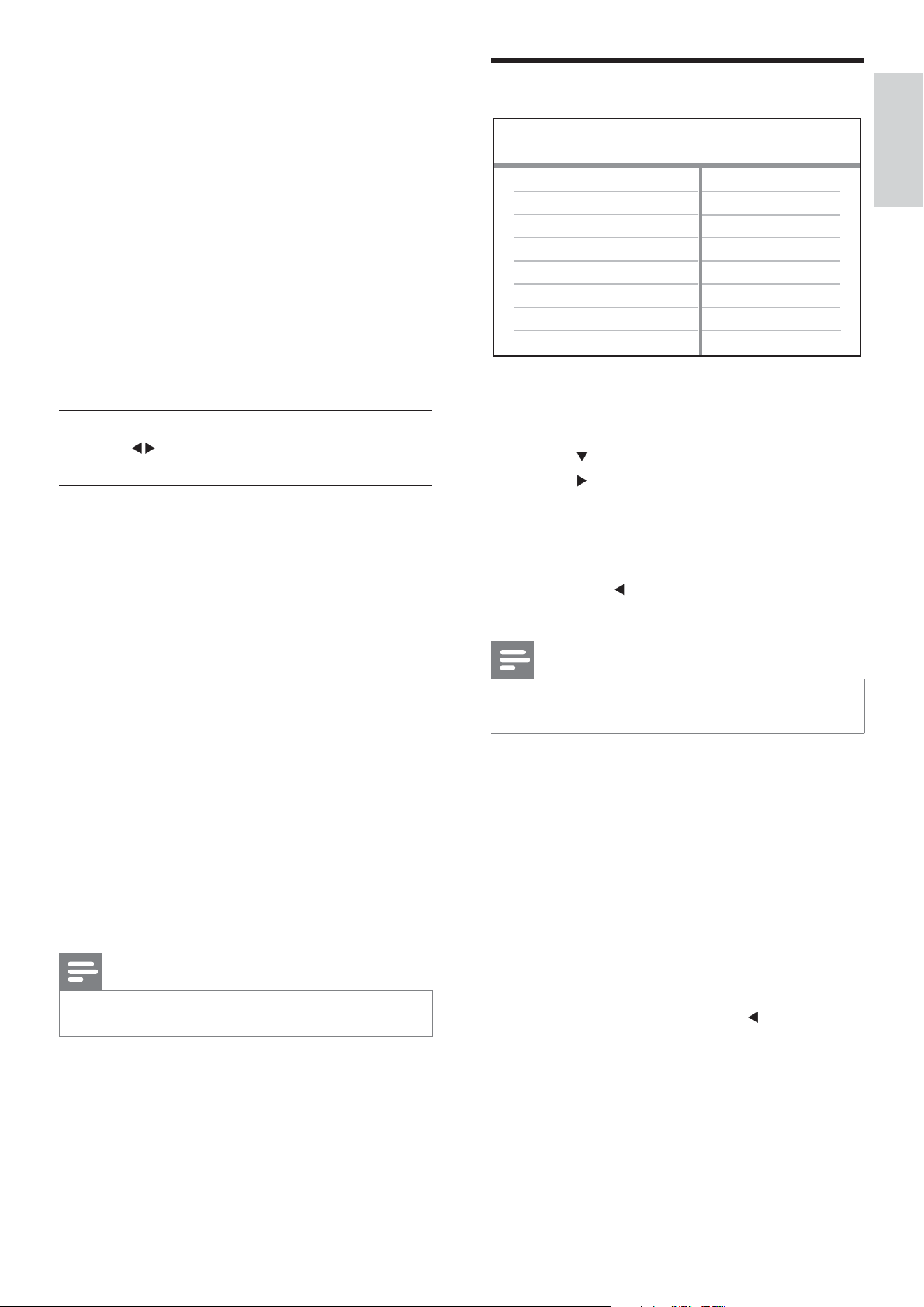
1 Press SETUP .
» [General Setup] menu is displayed.
2 Press to select [Video Setup] , then
press
.
3 Select an option, then press OK .
4 Select a setting, then press OK .
To return to the previous menu, •
press
.
To exit the menu, press • SETUP .
Note
See the explanations of the above options in the •
following pages.
[TV System]
Change this setting if the video does not
appear correctly. By default, this setting
matches the most common setting for TVs in
your country.
• [NTSC] – For NTSC-system TV.
• [PAL] – For PAL-system TV.
• [Multi] – For TV that is compatible with
both PAL and NTSC.
Con rm the setting by pressing
to select
[Yes] , then press OK .
Video Setup
Component Video
TV Display
TV System
Picture Setting
[Digital Output]
Selects the setting based on the digital
ampli er/receiver that is connected through
the digital jack.
• [Off] - Disables digital output.
• [PCM] - Downmixs to PCM format (2
channel).
• [All] - Supports multi-channel audio
formats.
[Volume]
Sets the default volume level when you play
a disc.
1. Press OK .
2. Press
to set the volume.
3. Press OK to con rm and exit.
[Down Sampling]
Selects the output sampling rate for better
sound quality.
• [On] - for discs recorded at sampling rate
of 48 kHz.
• [Off] - for discs recorded at sampling rate
of 96 kHz.
[Night Mode]
Makes loud sound level softer and soft sound
level louder so that you can watch the DVD
movies at a low volume, without disturbing
others.
• [On] – Enjoys quiet viewing at night.
• [Off] – Enjoys surround sound with a full
dynamic range.
Note
Applicable only to Dolby Digital encoded DVD. •
Adjust settings
English
EN
24
Preferences
Note
Stop disc play before you can access to •
[Preferences] .
1 Press SETUP .
» [General Setup] menu is displayed.
2 Press to select [Preferences] , then
press
.
3 Select an option, then press OK .
4 Select a setting, then press OK .
To return to the previous menu, •
press
.
To exit the menu, press • SETUP .
Note
See the explanations of the above options in the •
following pages.
Preferences
Parental Control
Version Info
Password
Subtitle
Audio
Disc Menu
Default
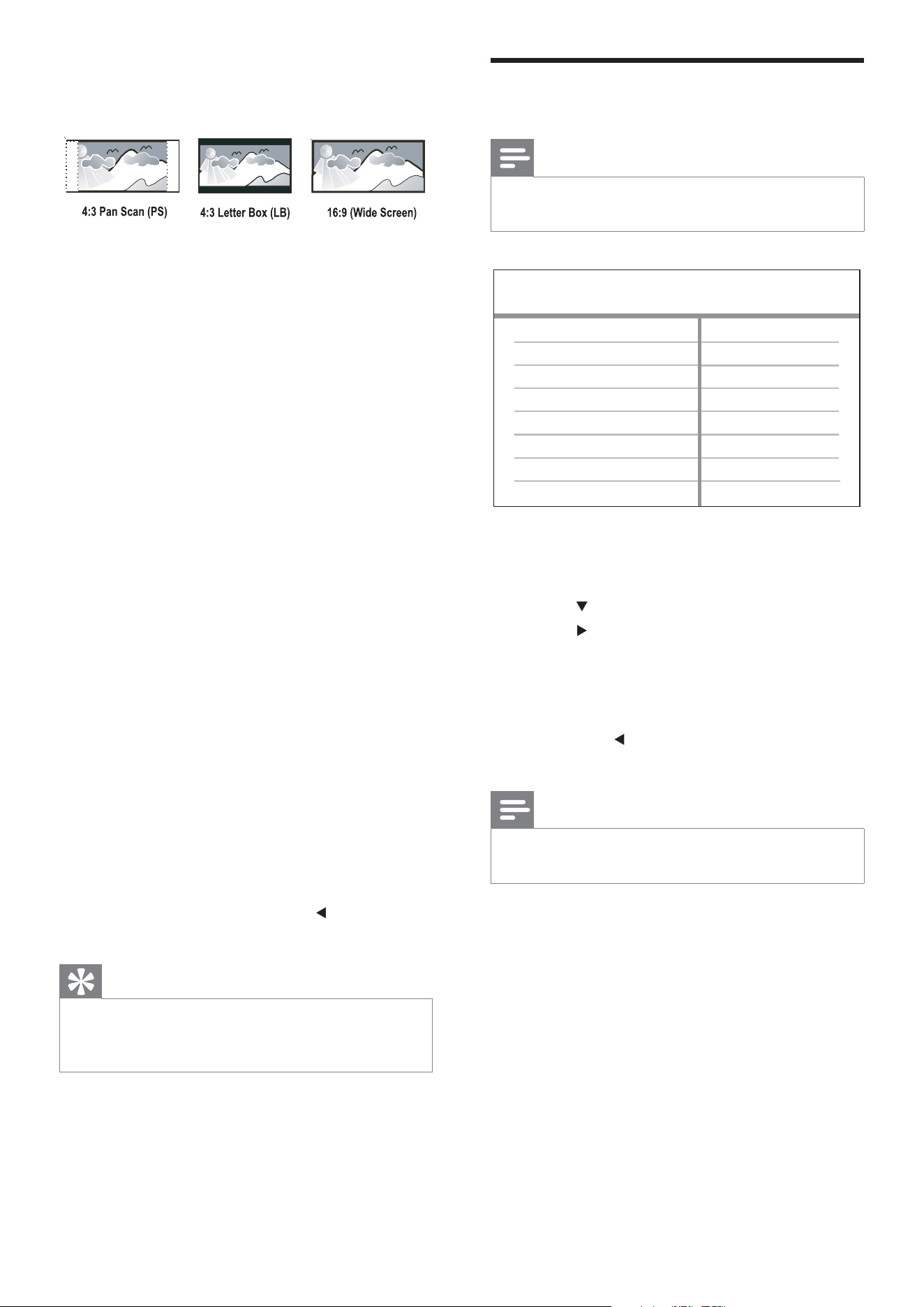
[TV Display]
Selects one of the following display formats:
• [4:3 Pan Scan] – For 4:3 screen TV: full-
height display with the trimmed sides.
• [4:3 Letter Box] – For 4:3 screen TV:
wide-screen display with black bars on
the top and bottom of the screen.
• [16:9] – For wide-screen TV: display ratio
16:9.
[Picture Setting]
Selects a prede ned set of picture color
settings or customize the personal setting.
• [Standard] – Original color setting.
• [Bright] – Vibrant color setting.
• [Soft] – Warm color setting.
• [Personal] – Customizes the color setting.
Set the level of brightness, contrast, tint
and color saturation, then press OK .
[Component Video]
Selects the video output that matches the
video connection between this DVD player
and the TV.
• [Interlaced] – for component video ( Y
Pb Pr ) connection.
• [P-Scan] - for component video ( Y Pb Pr )
connection with progressive scan mode.
Con rm the setting by pressing
to select
[Yes] , then press OK .
Tip
There is more detailed description available. See •
chapter ‘Get started - Turn on Progressive Scan’ for
details.
EN
25
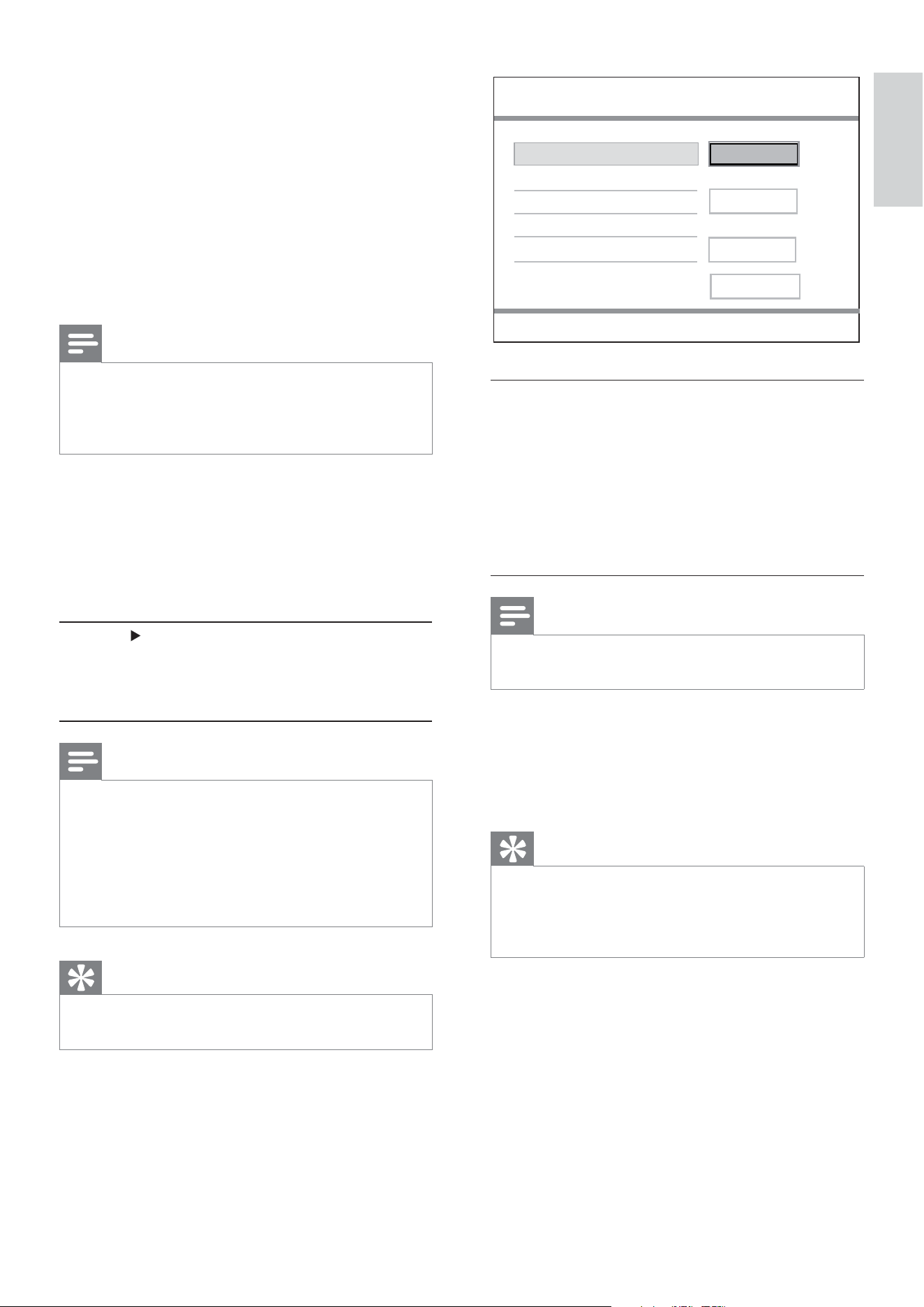
1) Press the Numeric buttons to enter
‘0000’ or the last set password at [Old
Password] eld.
2) Enter the new password at [New
Password] eld.
3) Enter the new password again at [Con rm
new password] eld.
4) Press OK to exit the menu.
Note
If you forget the password, enter ‘0000’ before you •
set a new password.
[Version Info]
Displays the software version of this DVD
player.
Tip
This information is required when you want to nd •
out if a newest software version is available at the
Philips website that you may download and install on
this DVD player.
[Default]
Resets all the settings of this DVD player to
factory default, except for [Parental Control]
and [Password] settings.
New Password
Confirm new password
Old Password
Preferences
Change password
OK
[Audio]
Selects the default audio language for disc play.
[Subtitle]
Selects the default subtitle language for disc
play.
[Disc Menu]
Selects the disc menu language.
Note
If the language you have set is not available on the •
disc, the disc uses its own default language.
For some DVDs, the subtitle/audio language can only
•
change from the disc menu.
[Parental Control]
Restricts access to discs that are unsuitable
for children. These types of discs must be
recorded with ratings.
1. Press .
2. Select a rating level, then press OK .
3. Press the Numeric buttons to enter the
password.
Note
Rated DVDs above the level you set in • [Parental
control] require a password to be played.
The ratings are country-dependent. To allow all discs
•
to play, select ‘ 8 ’.
Some discs have ratings printed on them but are not
•
recorded with ratings. This function has no effect on
such discs.
Tip
You can set or change the password, go to •
[Preferences] > [Password] .
[Password]
Sets or changes the password for locked discs
and play restricted DVDs.
Adjust settings
English
EN
26
Care
Caution
Never use solvents such as benzene, thinner, •
cleaners available commercially, or anti-static sprays
intended for discs.
Clean discs
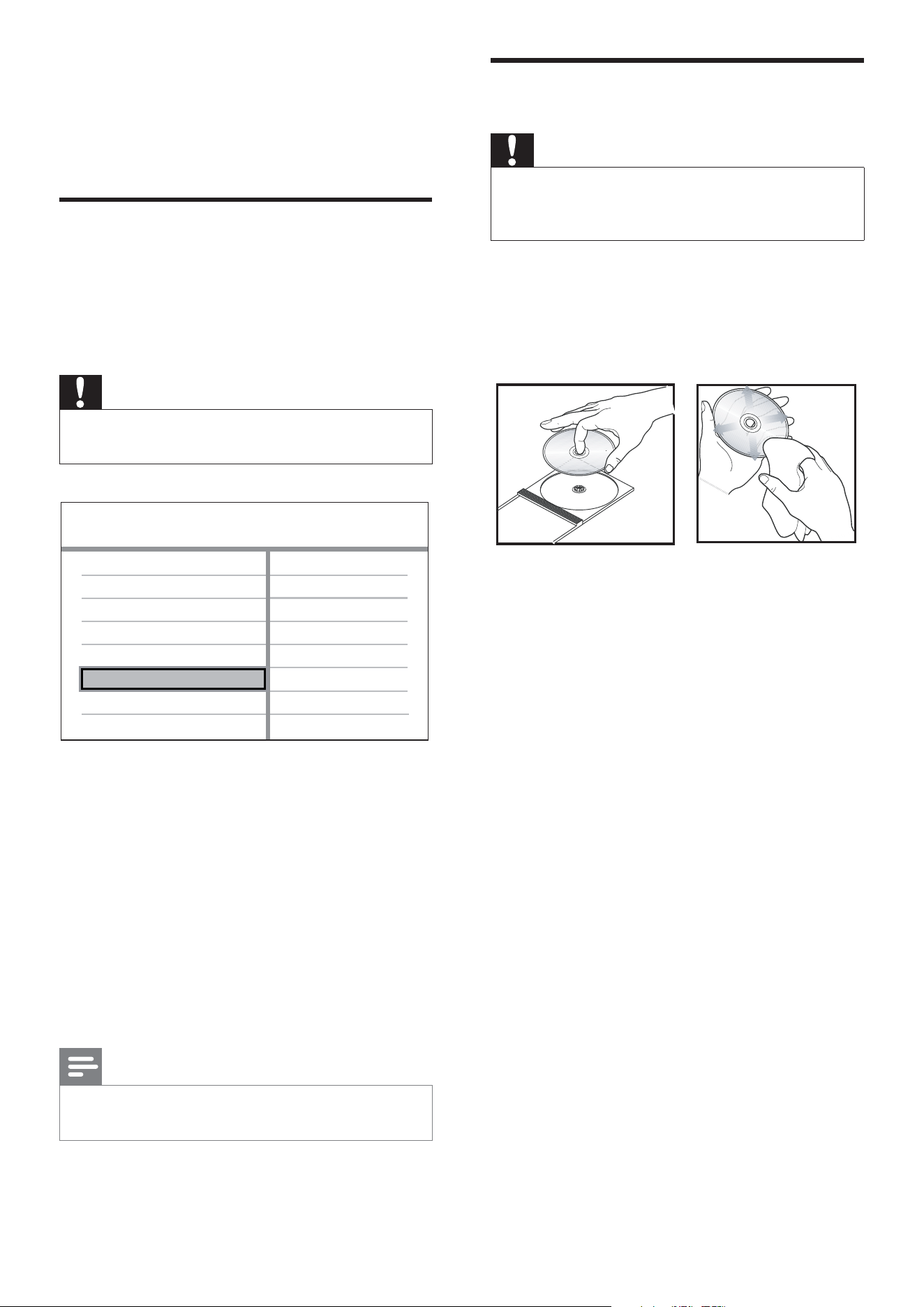
Wipe the disc with a micro bre cleaning cloth
from the center to the edge in a straight line
movement.
8 Additional
information
Update software
To check for updates, compare the current
software version of this DVD player with the
latest software version (if available) at the
Philips website.
Caution
Power supply must not be interrupted during •
software upgrade.
1 Press SETUP .
2 Select [Preferences] > [Version Info] ,
then press OK .
3 Write down the le name, then press
SETUP to exit the menu.
4 Visit www.philips.com/support to check
for the latest software version, using the
le name for this DVD player.
5 Refer to the upgrade instructions for
more information.
Note
Disconnect the power cord for a few seconds and •
connect again to reboot the system.
Preferences
Parental Control
Password
Subtitle
Audio
Disc Menu
Default
Version Info
EN

27
Audio performance
DA converter: 24 bits, 192 kHz•
Frequency response: •
DVD: 4 Hz - 22 kHz (48 kHz); •
4 Hz - 44 kHz (96 kHz)
SVCD: 4 Hz - 20 kHz (44.1 kHz); •
4 Hz - 22 kHz (48 kHz)
CD/VCD: 4 Hz - 20 kHz (44.1 kHz) •
Signal-Noise (1 kHz): > 90 dB •
(A-weighted)
Dynamic range (1 kHz): > 80 dB (A-•
weighted)
Crosstalk (1 kHz): > 90 dB•
Distortion/noise (1 kHz): > 65 dB•
MPEG MP3: MPEG Audio L3•
Audio format
Digital: •
MPEG/AC-3/PCM: Compressed •
digital (16, 20, 24 bits fs, 44.1, 48, 96
kHz)
MP3 (ISO 9660): 96, 112, 128, 256 •
kbps & variable bit rate fs, 32, 44.1,
48 kHz
Analog sound stereo•
Dolby surround compatible downmix •
from Dolby Digital multi-channel sound
Connections
Y Pb Pr output: Cinch 3x•
Video output: Cinch (yellow)•
Audio output (L+R): Cinch (white/red)•
Digital output: •
1 coaxial: IEC60958 for CDDA/•
LPCM; IEC61937 for MPEG 1/2,
Dolby Digital
Main unit
Dimensions (w x h x d): 360 x 37 x 209 •
(mm)
Net Weight: approximately 1.3 kg•
9 Specification
Note
Speci cation and design are subject to change •
without notice.
Accessories supplied
Quick Start Guide•
Remote control and batteries•
Audio/video cables•
Power cable•
Playback media
DVD-Video, Video CD/SVCD, Audio CD, •
CD-R/CD-RW, DVD+R/+RW, DVD-R/-
RW, Picture CD, MP3-CD, WMA-CD
TV standard
Number of lines:•
625 (PAL/50Hz); 525 (NTSC/60Hz)•
Playback: Multi-standard (PAL/NTSC)•
Video performance
Video DAC: 14 bits, 108 MHz•
Y Pb Pr: 0.7 Vpp ~ 75 ohm•
Video output: 1 Vpp ~ 75 ohm•
Video format
Digital compression:•
MPEG 2: DVD/SVCD•
MPEG 1: VCD•
Horizontal resolution:•
DVD: 720 pixels (50 Hz); 720 pixels •
(60 Hz)
VCD: 352 pixels (50 Hz); 352 pixels •
(60 Hz)
Vertical resolution:•
DVD: 576 pixels (50 Hz); 480 pixels •
(60 Hz)
VCD: 288 lines (50 Hz); 240 lines •
(60 Hz)
Speci cation
English
EN

28
Power
Power supply rating: 110 V - 240 V; 50/60 •
Hz
Power consumption: < 10 W•
Power consumption in standby mode: < •
1 W
Laser speci cation
Type: Semiconductor laser InGaAIP •
(DVD), AIGaAs (CD)
Wave length: 655 nm (DVD), 790 nm •
(CD)
Output Power: 10 mW (DVD), 5 mW •
(VCD/CD)
Beam divergence: 60 degrees•
EN
29
Sound
No sound.
Ensure that the audio cables are •
connected and the connected device is
turned on to the correct input source.
Play
The aspect ratio of the screen is not aligned
with the TV display setting.
The aspect ratio is xed on the disc.•
10 Troubleshooting
Warning
Risk of electric shock. Never remove the casing of •
the DVD player.
To keep the warranty valid, never try to repair
the system yourself.
If you encounter problems when using the
DVD player, check the following points before
requesting service. If the problem remains
unsolved, register your DVD player and get
support at www.philips.com/welcome.
If you contact Philips, you will be asked for the
model and serial number of your DVD player.
The model number and serial number are on
the back or bottom of your DVD player. Write
the numbers here:
Model No. __________________________
Serial No. ___________________________
Main unit
The buttons on this unit do not work.
Disconnect this DVD player from the •
power outlet for a few minutes, then
connect again.
Picture
No picture.
See the TVs user manual on how to •
select the correct input on the TV.
Change the TV channel until you see the
Philips screen.
If you have turned on the progressive scan
setting or change the TV system setting,
switch back to default mode: 1) Press
to
open the disc compartment. 2) Press the
Numeric button ‘1’ (for progressive scan) or
the Numeric button ’3’ (for TV system).
Troubleshooting
English
EN

30
P
PBC
Playback Control. A system where you
navigate through a Video CD/Super VCD with
on-screen menus that are recorded onto the
disc. You can enjoy interactive playback and
search.
Progressive scan
The progressive scan displays twice the
number of frames per second than in an
ordinary TV system. It offers higher picture
resolution and quality.
W
WMA
Windows Media™ Audio. Refers to an
audio compression technology developed by
Microsoft Corporation. WMA data can be
encoded with Windows Media player version
9 or Windows Media player for Windows XP.
Files are recognized by their le extension
‘.wma.’
11 Glossary
A
Aspect ratio
Aspect ratio refers to the length to height
ratio of TV screens. The ratio of a standard
TV is 4:3, while the ratio of a high-de nition
or wide TV is 16:9. The letter box allows you
to enjoy a picture with a wider perspective on
a standard 4:3 screen.
J
JPEG
A very common digital still picture format.
A still-picture data compression system
proposed by the Joint Photographic Expert
Group, which features small decrease in image
quality in spite of its high compression ratio.
Files are recognized by their le extension
‘.jpg’ or ‘.jpeg.’
M
MP3
A le format with a sound data compression
system. MP3 is the abbreviation of Motion
Picture Experts Group 1 (or MPEG-1) Audio
Layer 3. With the MP3 format, one CD-R or
CD-RW can contain about 10 times more
data than a regular CD.
EN

30
Version 1.2: 1
st
October 2007
PHILIPS CONSUMER ELECTRONICS
WARRANTY POLICY FOR AUSTRALIA
Effecve 1st October 2007
Philips provides the following Consumer Electronics products with a 1 Year Manufacturers Warranty:-
Colour Televisions, Projecon TV, Plasma & LCD TV, DVD Players, DVD Recorders, DVD Recorders with
Hard Disk, Personal Video Recorders, Audio Systems, Wireless Audio Systems, Home Theatre systems,
Digital Set Top Box, Digital Photo Display, MP3 players & Portable Audio products.
Addionally, all Philips LCD televisions with a built-in digital tuner sold aer 1
st
October 2007, are
supported by a 3 Year Manufacturers Warranty.
The benefits given to the purchaser by this warranty are in addion to all other rights and remedies,
which the purchaser has in respect of the product under the Trade Pracces Act or other
Commonwealth or State Law.
The condions contained in this warranty replace and override the provision of the Philips World-Wide
Guarantee for products purchased in Australia and used in Australia.
Please record the following informaon for your records and keep in a safe place.
It is essenal that you retain your original purchase receipt to make a warranty claim.
Model number : ………………………………………………………..
Serial number : ………………………………………………………..
Date of purchase : ………………………………………………………..
Retailer : ………………………………………………………..
If you require assistance with the operaon of the product, its features or specificaons, you may call
the Philips Technology Care Centre on 1300 363 391 where support is provided by our trained call
centre staff.
If the product fails within the warranty period then the following will apply.
Free Repair Service – at an Authorised Service Centre
For the products listed below, please contact one of our Authorised Service Centres on 1300 361 392.
Colour Television, Plasma or LCD Television, LCD Television, Projecon Television, DVDR/VCR Combo,
DVD Recorder with Hard Drive, Personal Video Recorder, LCD Projector, Wireless Audio System, Audio
System, Home Theatre System, Digital Set-Top-Box or a Portable DVD player with an LCD screen for
which you paid more than $250.

31
Version 1.2: 1
st
October 2007
Free Replacement – at your Retailer
For Digital Photo Frames or any product with a purchase price of less than $250, please return the
faulty product to the place of purchase. The retailer will arrange a replacement product for you.
If your Philips product develops a fault outside of the warranty period, please contact a Philips
Authorised Service Centre on 1300 361 392 to discuss your repair opons.
Condions of Repair Warranty
a. All claims for warranty service should be made to your nearest Philips Authorised Service Centre or
the Philips Technology Care Centre. Proof of the original date of purchase must be provided.
b. This warranty extends only to defects in material or workmanship occurring under normal use of
the product when operated in accordance with the instrucons.
c. Philips may, at its discreon choose to replace rather than repair any product covered by this
Warranty.
d. If a replacement product is supplied under the repair policy, it is warranted for the remainder of
the warranty period, from the original date of purchase.
e. Home service is provided only within the normal service area of the nearest Philips Authorised
Service Centre. Home Service will be provided for television only with a screen size of 29 inch or
above (product includes CRT, LCD TV, Projecon TV, and Plasma TV). For televisions with screen
sizes of less than 29 inch and all other products with a repair warranty, please take these products
to the nearest Authorised Service Centre.
f. This Manufacturers Warranty is limited to 3 months for products used in commercial applicaons.
g. Product accessories are covered by the same warranty period. If an accessory is faulty, please
contact the Philips Technology Care Centre for a replacement.
h. This Manufacturers Warranty is neither transferable nor valid in countries other than Australia.
i. The warranty period is valid from the original date of purchase of the product.
This Warranty does not cover:-
a. Mileage or travel is not covered outside the Philips Authorised Service Centres’ normal service
area.
b. Service costs arising from failure to correctly adjust the controls of the product or to observe the
instrucons, or inspecons that reveal that the product is in normal working order.
c. Product failures caused by misuse, neglect, accidental breakage, transit damage, amateur repairs
or modificaon by un-authorised persons, external fires, lightning strikes, floods, vermin
infestaon or liquid spillage.
d. Cleaning of video or audio heads.
e. Recepon problems.
f. Replacement of worn or used baeries or other consumables.
g. Second hand products.
h. Refurbished products which are covered by a 6 month manufacturers warranty.
32

© 2009 Koninklijke Philips Electronics N.V.
All rights reserved.
sgptt_0910/98-3