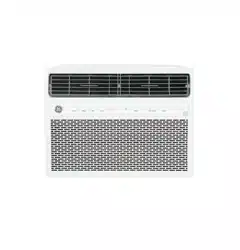
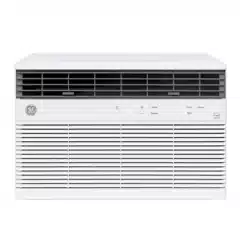
Owner Manual Air Conditioner
OPERATING INSTRUCTIONS
Controls
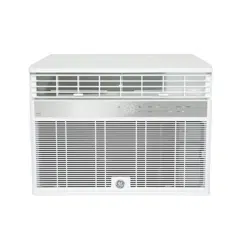
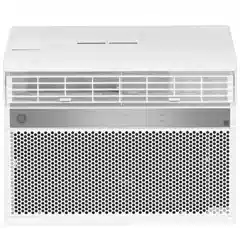
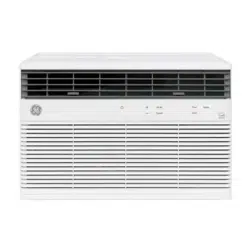
Features and appearance will vary.
Lights beside the touch pads on the air conditioner control panel indicate the selected settings.
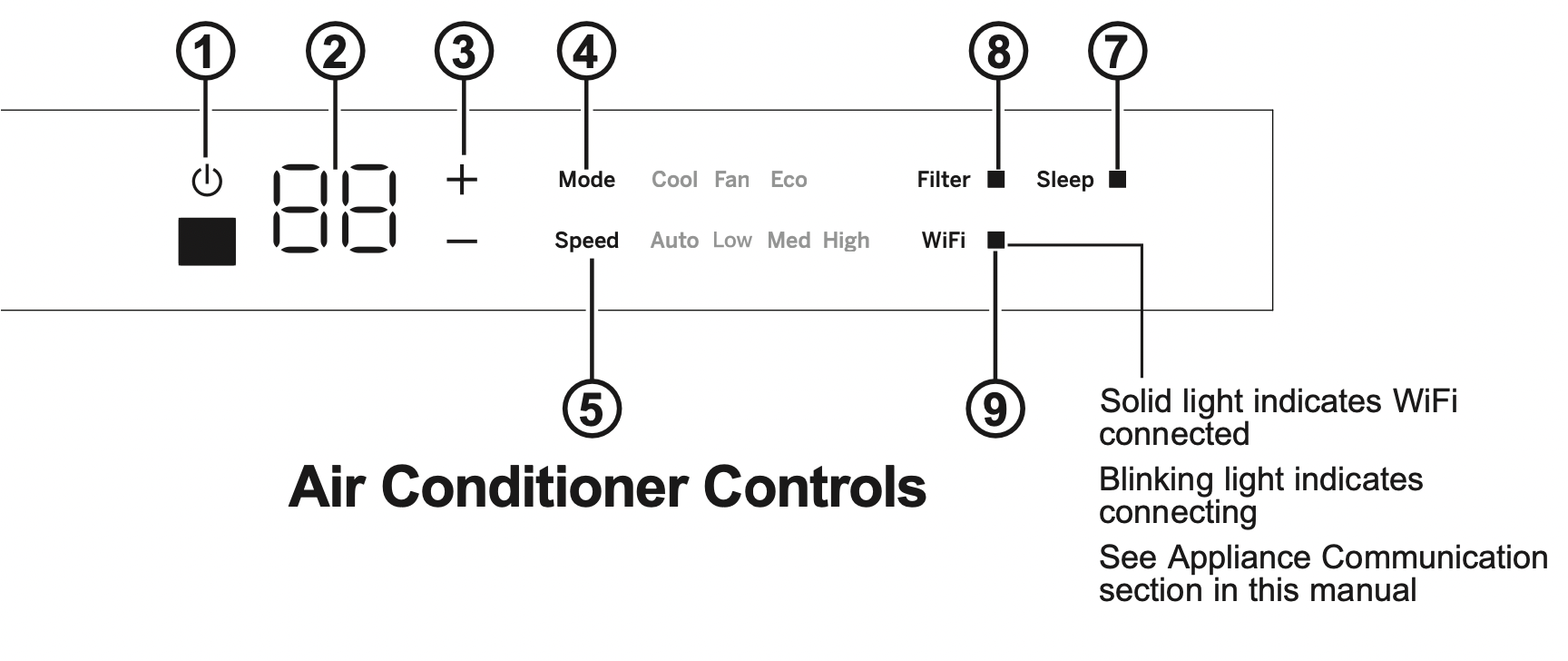
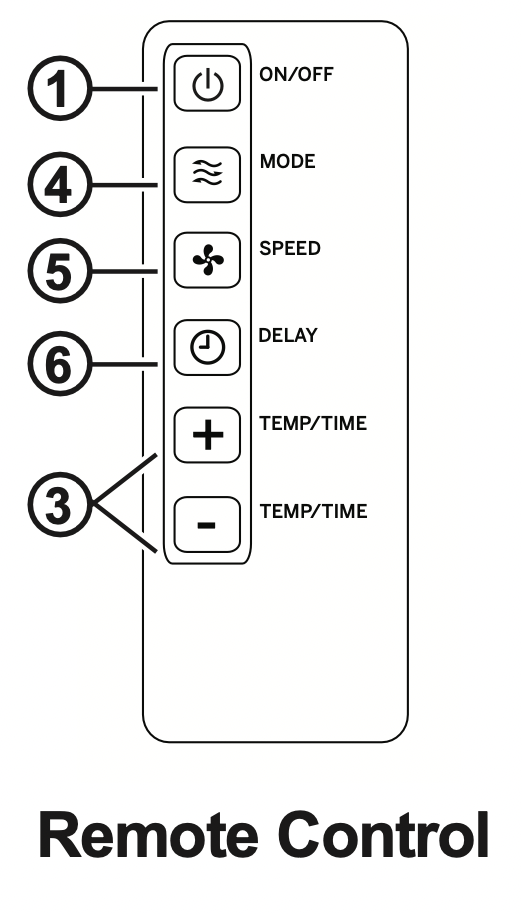
- Power Pad
Turns air conditioner on and off. When turned on, the display will show the room temperature.
- Display
Shows the room temperature or time remaining on the Delay timer. Shows the Set temperature while setting the temperature in Cool or Eco modes.
- Temp and Delay Increase + /Decrease - Pads
Use to set temperature or delay time. Temperature can be set in Cool and Eco mode.
- Mode Pad
Use to set the air conditioner to Fan only, Cool, or Eco mode.
- Fan Speed Pad
In Cool or Eco mode:Use to set the fan speed to Auto, High, Med or Low on the unit.
In Fan Only mode: Use to set the fan speed to High, Med, or Low on the unit.
- Delay Pad (set by remote control only)
Delay ON - When the air conditioner is off, it can beset to automatically come on in 1 to 24 hours at its previous mode and fan settings.
Delay OFF - When the air conditioner is on, it can beset to automatically tum off in 1 to 24 hours.
How to set:
Press the Delay pad on the remote control. Each touch of the Increase + / Decrease - pads on the remote control will set the timer in 1-hour intervals.
To review the remaining time on the Delay timer, press the Delay pad on the remote control. Use the Increase +/Decrease - pads on the remote control to set anew time if desired.
To cancel the timer, press Decrease V pad on the remote control until the set time is zero.
- Sleep Pad (set by air conditioner controls only)
The SLEEP mode sets the unit to gradually change settings over an 8 hour period to allow for some increased energy efficiency during sleep hours.
The SLEEP mode is available only in COOL and FAN only settings.
Press the SLEEP mode pad and its light will illuminate. The fan indicator will stay at the same setting but the air conditioner will automatically change the FAN speed to low in either COOL or FAN only mode.
In FAN only mode, the fan will stay in the LOW speed setting for 8 hours. After 8 hours, the air conditioner will resume the settings that were in place before the SLEEP mode pad was pressed. In COOL mode, the fan will stay in the LOW speed setting for 8 hours from the time the SLEEP mode pad was pressed. The air conditioner will also raise the set point 2°F in 30 minutes and 2°F more in another 30 minutes where it will remain for the next 7 hours. After 8 hours, the air conditioner will resume the settings that were in place before theSLEEP mode pad was pressed.
While the unit is in SLEEP mode, pressing any pad will return it to the settings that were in place before the SLEEP mode pad was pressed.
- Filter Reset Pad
This feature automatically notifies you that the air filter must be cleaned. The indicator light will come on after 250 hours of operation. Clean the air filter (refer to page 6), place it back in the front panel, and press theFilter Reset pad. The light will go off.
- WiFi Connect Pad
Using the Air Conditioner
Do Not Operate in Freezing Outdoor Conditions
This cool-only air conditioner was not designed for freezing outdoor conditions.
It must not be used when the outdoor temperature is below freezing (32°F).
Control Panel Lights On/Off Feature
This air conditioner has a control panel lights on/off feature where its lights will turn off when there is no activity with the controls for over one minute. To wake up the controls, press any pad on the controls and the lights will come on to show the previous settings.
To turn this feature off, press and hold the SLEEP pad, on the unit, for 5 seconds. The unit will beep to signal the successful toggle of the feature on and off.
Remote Control
- To ensure proper operation, aim the remote control at the signal receiver on the air conditioner.
- The remote control signal has a range of up to 20 feet.
- Make sure nothing is between the air conditioner and the remote control that could block the signal.
- Make sure batteries are fresh and installed correctly as indicated on the remote control.
Cool Mode
Use the Cool mode at Low, Med, High or Speed for cooling. Use the temperature Increase +/ Decrease - pads to set the desired temperature between 64°F and 86°F in 1°F increments.
An electronic thermostat is used to maintain the room temperature. The compressor will cycle on and off to keep the room at the set level of comfort. Set the thermostat at a lower number and the indoor air will become cooler. Set the thermostat at a higher number and the indoor air will become warmer.
NOTE: If the air conditioner is off and is then turned on while set to a Cool setting or if turned from a fan setting to a Cool setting, it may take approximately 3 minutes for the compressor to start and cooling to begin.
Cooling Descriptions
For Normal Cooling—Select the Cool mode and High or Med fan with a middle set temperature.
For Maximum Cooling—Select the Cool mode and High fan with a lower set temperature.
For Quieter and Nighttime Cooling—Select the Cool mode and Low fan with a middle set temperature.
Eco Mode
Controls the fan.
ON—The fan will cycle on and off with the compressor. This may result in wider variations of room temperature and humidity.
NOTE: the fan may continue to run for a short time or may pulse intermittently after the compressor cycles off to sample the room air.
OFF—The fan runs all the time, while the compressor cycles on and off.
Fan Only Mode
Use the Fan Only Mode at Low, Med or High fan speed to provide air circulation and filtering without cooling. Since fan-only settings do not provide cooling, a Set temperature cannot be entered. The room temperature will appear in the display.
Auto Fan Mode
Set to Auto for the fan speed to automatically set to the speed needed to provide optimum comfort settings with the set temperature.
If the room needs more cooling, the fan speed will automatically increase. If the room needs less cooling, the fan speed will automatically decrease.
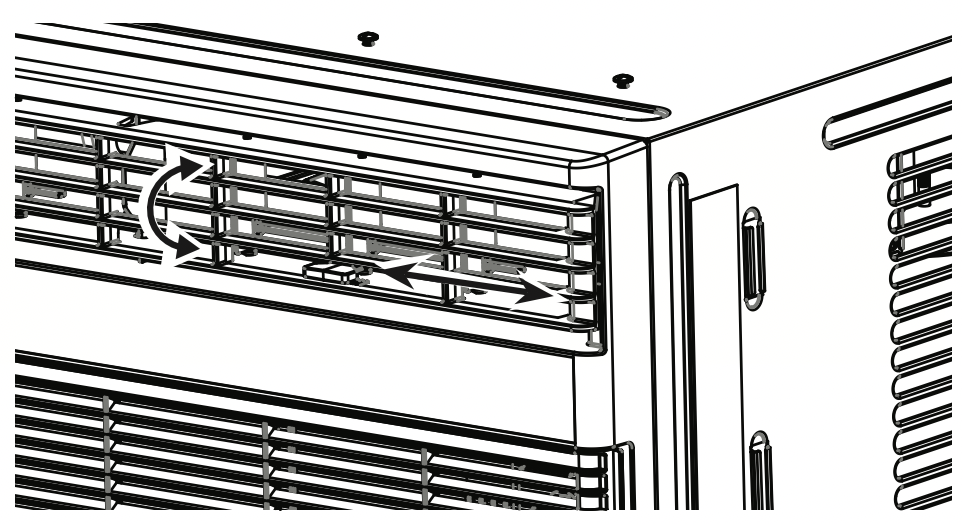
Air Direction
Use the levers to adjust the air direction left or right. Tilt the louver bank to adjust up and down.
CARE AND CLEANING
Grille and Case
Turn the air conditioner off and remove the plug from the wall outlet before cleaning.
To clean, use water and a mild detergent. Do not use bleach or abrasives.
Air Filter
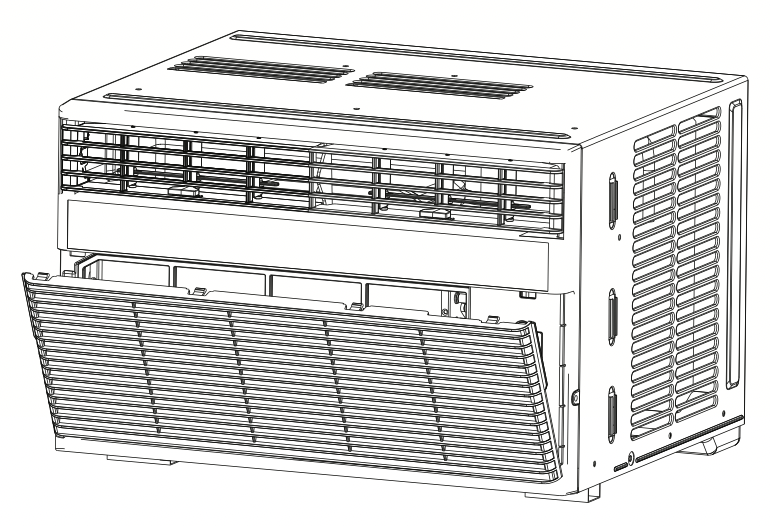
The air filter behind the front grille should be checked and cleaned at least every 30 days or more often if necessary.
To remove:
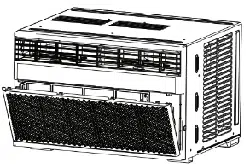
Open the inlet grille by pulling downward on the tabs at the top upper corners of the inlet grille until the grille is in a 45º position. Remove the filter.
Clean the filter with warm, soapy water. Rinse and let the filter dry before replacing it. Do not clean the filter in a dishwasher.
CAUTION: DO NOT operate the air conditioner without a filter because dirt and lint will clog it and reduce performance.
Outdoor Coils
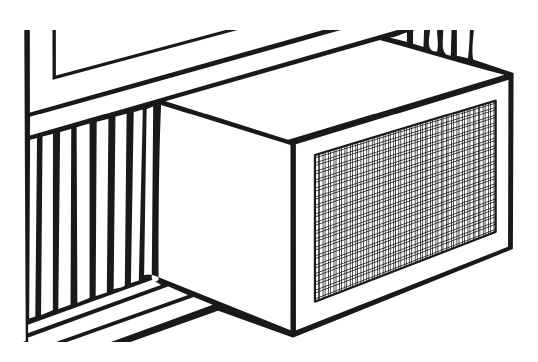
The coils on the outdoor side of the air conditioner should be checked regularly. If they are clogged with dirt or soot, they may be professionally cleaned.
How to Insert the Battery in the Remote Control
- Remove the screw on the back of the battery cover.
- Pinch the slide lock and pull the battery tray out at the same time.
- Insert new battery, making sure that the (+) and (–) of battery are installed correctly.
- Reinsert the battery tray and reinstall the screw.
NOTES:
- Use one CR 2025 (3V0 Lithium battery
- Remove the battery from the remote control if the system is not going to be used for a long time.
TROUBLESHOOTING
|
Problem
|
Possible Cause
|
What To Do
|
|
Air conditioner does not start.
|
The unit is unplugged.
|
Make sure the air conditioner plug is pushed completely into the outlet.
|
|
The fuse is blown/circuit breaker is tripped.
|
Check the house fuse/circuit breaker box and replace the fuse or reset the breaker.
|
|
Power Failure.
|
The unit will automatically restart in the setting last used after the power is restored.
There is a protective time delay (approximately 3 minutes) to prevent tripping of the compressor overload. For this reason, the unit may not start normal cooling for 3 minutesafter it is turned back on.
|
|
The current interrupter device is tripped.
|
Press RESET button located on the power cord plug.
If the RESET button will not stay engaged, discontinue use of the air conditioner and contact a qualified service technician.
|
|
Air conditioner does not cool as it should.
|
Indoor airflow is restricted.
|
Make sure there are not curtains, blinds or furniture blocking the front of the air conditioner.
|
|
The temp control may not be set properly.
|
Turn the temperature control to a higher number.
|
|
The air filter is dirty.
|
Clean the filter at least every 30 days. See Care and Cleaning section.
|
|
The room may have been hot.
|
When the air conditioner is first turned on, you need to allow time for the room to cool down.
|
|
Cold air is escaping.
|
Check for open furnace registers and cold air returns.
|
|
Cooling coils have iced up.
|
See "Air Conditioner freezing up" below.
|
|
Air conditioner freezing up
|
Ice blocks the air flow and stops the air conditioner from cooling the room.
|
Set the mode control to High Fan or High Cool with the temperature setting as high as it can be set.
|
|
Water drips outside
|
Hot, humid weather.
|
This is normal.
|
|
Water drips inside
|
The air conditioner is not tilted to the outside.
|
For proper disposal, make sure the air conditioner slants slightly from the case front to the rear.
|
|
Water collects in base pan
|
Moisture removed from air and drain into base pan.
|
This is normal for a short period in areas with little humidity; normal for a longer period in very humid areas.
|