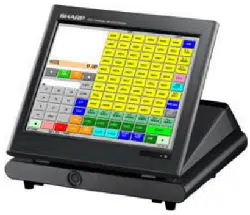

POS TERMINAL
INSTRUCTION MANUAL
UP-3500
MODEL
Second Edition
FCC Regulations state that any unauthorized changes or modifications to
this equipment not expressly approved by the manufacturer could void
the user s authority to operate this equipment.
Note: This equipment has been tested and found to comply with the
limits for a Class A digital device, pursuant to Part 15 of the FCC Rules.
These limits are designed to provide reasonable protection against harm-
ful interference when the equipment is operated in a commercial environ-
ment.
This equipment generates, uses, and can radiate radio frequency energy
and, if not installed and used in accordance with the instruction manual,
may cause harmful interference to radio communications. Operation of
this equipment in a residential area is likely to cause harmful interference,
in which case the user will be required to correct the interference at
their own expense.
WARNING
CAUTION
The AC power socket-outlet should be installed near the equipment
and should be easily accessible.
Please record below the model number and serial number for easy
reference in case of loss or theft. These numbers are located on the
bottom of the unit. Space is provided for further pertinent data.
Model Number
Serial Number
Date of Purchase
Place of Purchase
FOR YOUR RECORDS
1
INTRODUCTION
Thank you very much for your purchase of the SHARP POS Terminal Model UP-3500. Please read this
Manual carefully before operating your machine in order to gain full understanding of functions and
features.
Please keep this manual for future reference. It will help you if you encounter operational problems.
IMPORTANT
• Install this terminal in a location that is not subject to direct radiation, unusual temperature
changes, and high humidity or exposure to water or other liquids.
Installation in such locations could cause damage to the cabinet and the electronic components.
• Do not drop this terminal nor subject it to any strong shock.
This may cause damage to the terminal.
• Do not apply excessive pressure to the display. Do not use a sharp-pointed object on the
display.
This may cause damage to the LCD display.
• When cleaning this terminal, use a dry, soft cloth. Never use solvents, such as benzine or
thinner.
The use of such chemicals will lead to discoloration or deterioration of the cabinet.
• The terminal plugs into any standard wall outlet (120V ± 10% AC) with a dedicated earth-ground.
Other electrical devices on the same electrical circuit could cause the terminal to malfunction.
• If the terminal malfunctions, call your local authorized dealer for service. Do not try to repair the
terminal yourself.
• Be sure to use the supplied AC adaptor.
• For a complete electrical disconnection, remove the AC power cord from the wall outlet.
PRECAUTION
This POS terminal has a built-in memory protection circuit which is operated by a rechargeable battery
pack.
Please note that all batteries will, in time, dissipate their charge even if not used. Therefore to insure an
adequate initial charge in the protection circuit and to prevent any possible loss of memory upon
installation, it is recommended that each unit be allowed to be recharged for a period of 24 to 48 hours prior
to use by the customer.
After installation, the battery pack is charged when the machine is plugged in. This recharging precaution
can prevent unnecessary initial service calls.
BATTERY DISPOSAL
Contains Nickel Metal Hydride Battery. Must be Disposed of Properly.
Contact Local Environmental Officials for Disposal Instructions.
This product utilizes tin-lead solder, and fluorescent lamp containing a
small amount of mercury.
Disposal of these materials may be regulated due to environmental
considerations.
For disposal or recycling information, please contact your local
authorities, the Electronics Industries Alliance: www.eiae.org, the lamp
recycling organization: www. lamprecycle. org or Sharp at
1-800-BE-SHARP
(For U.S.A only)

2
CONTENTS
INTRODUCTION ··········································································································································· 1
IMPORTANT ················································································································································· 1
PRECAUTION ·············································································································································· 1
1. Part Names and Functions··················································································································· 7
External View ······································································································································· 7
Front view ···································································································································· 7
Rear view ····································································································································· 7
Displays ··············································································································································· 9
Operator display (touch panel) ···································································································· 9
Customer display ······················································································································· 12
Screen save mode ····················································································································· 12
2. Before Operating the POS Terminal ·································································································· 13
Display Angle ····································································································································· 13
Connecting the Printer and Installing the Paper Rolls ······································································· 13
3. Prior to Making Entries ······················································································································· 14
Preparations for Entries ····················································································································· 14
Error Warning ···································································································································· 14
Selecting an Operating Mode ············································································································ 15
Operating modes ······················································································································· 15
Mode selection ··························································································································· 16
Entering a Secret Code ····················································································································· 17
4. Entries ·················································································································································· 18
Function Key Description ··················································································································· 18
Screen transactions ··················································································································· 18
Function keys list (using default key labels) ·············································································· 19
Item key list (using default key labels) ······················································································· 22
PLU menu keys list (using default key labels) ··········································································· 22
How to Use the Touch Panel ············································································································· 23
Cursor control by touching option(s) or item(s) in the window··················································· 23
Cashier Entries (Sign-on/Sign-off) ····································································································· 24
Starting Cash Memory Entry ·············································································································· 25
Item Entries ········································································································································ 26
Registration screen ···················································································································· 26
Single item entries ····················································································································· 26
Repeat entries···························································································································· 27
Multiplication entries ·················································································································· 28
Scale entries ······························································································································ 30
PLU menu keys (categories) ····································································································· 31
Non-turnover sales ···················································································································· 31
Link PLU/UPC entries ················································································································ 31
PLU level shift (for direct PLUs) ································································································· 32
Mix-and-match function ·············································································································· 33
Set PLU entries ·························································································································· 34
Combo meal entries ··················································································································· 35
Modifier PLU entries ·················································································································· 35
With/without entries ··················································································································· 36
Condiment entries ······················································································································ 37
Price inquiry (view) function ······································································································· 40
UPC learning function ················································································································ 41
Price change function ················································································································ 42
Recipe text display/print ············································································································· 43
Subtotal Display ································································································································· 44
Merchandise subtotal ················································································································· 44
Taxable subtotal ························································································································· 44
Including-tax-subtotal (full subtotal) ··························································································· 44

3
Tray subtotal ······························································································································ 44
Eat-in subtotal ···························································································································· 44
Finalization of Transaction ················································································································· 45
Tax Calculations ································································································································· 46
Automatic tax ····························································································································· 46
Manual tax·································································································································· 46
Tax deletion ································································································································ 46
Tax status in Canada ················································································································· 46
Guest Check (GLU) ··························································································································· 47
GLU system ······························································································································· 47
Drive-thru function······················································································································ 49
Deposit entries ··························································································································· 50
Bill totalizing ······························································································································· 51
Wait (Parking) a drive-thru order ·······························································································52
Drive-thru order check recall ······································································································ 53
Auxiliary Entries ································································································································· 54
Percent calculations (% premium or % discount) ······································································ 54
Discount entries ( - ) ·················································································································· 54
Group discount entries ··············································································································· 55
Refund entries···························································································································· 56
Refund sales mode ···················································································································· 56
Return entries ···························································································································· 56
Printing of non-add code numbers ···························································································· 56
Printing of free text ····················································································································· 57
Payment Handling ····························································································································· 58
Tip-in entries ······························································································································ 58
Tip editing··································································································································· 58
Tip paid entries ·························································································································· 59
Currency conversion ·················································································································· 59
Received-on-account entries ·····································································································60
Paid-out entries ·························································································································· 61
No-sale ······································································································································· 62
Adress and name entries ··········································································································· 62
Transferring cash ······················································································································· 62
VIP sales ···································································································································· 62
Bill separating paymemt ············································································································ 63
Employee Function ···························································································································· 64
Cahier/manager sign-on ············································································································ 64
Employee’s working time recording ··························································································· 65
Supervisor Cashier ···························································································································· 66
Overlapped Cashier Entry ················································································································· 67
TRAINING Mode ································································································································ 68
Open/Close the Shift Status ·············································································································· 69
Authority Level/ Secret Code ············································································································· 70
Authority level ···························································································································· 70
Secret code ································································································································ 70
MACRO Key Entries ·························································································································· 71
5. Corrections ·········································································································································· 72
Correction of Entries ·························································································································· 72
Subtotal Void ······································································································································ 74
Correction after Finalizing a Transaction (Void mode) ······································································ 75
Override Entries ································································································································· 75
6. Printing Function ································································································································76
Receipt ON/OFF ································································································································ 76
Copy Receipt Printing ························································································································ 76
Bill Printing ········································································································································· 77
Guest Check Copy ····························································································································· 77
Bill Recording/Bill Void ······················································································································· 77
Type of Receipt ·································································································································· 78
Addition receipt type ·················································································································· 78

4
Single/double receipt type ········································································································· 78
Addition + single receipt type ····································································································· 79
Double addition receipt type ······································································································ 79
Double (addition + single) receipt type ······················································································ 79
Sorted Receipt Function ···················································································································· 80
Kitchen Printer Send Function ··········································································································· 82
Electronic Journal ······························································································································ 83
Electronic Mail ··································································································································· 83
7. Universal Product Code (UPC) or European Article Number (EAN) ·············································· 84
UPC or EAN code ······················································································································ 84
Customer code··························································································································· 85
Bar-code of the bill ····················································································································· 85
Bar-code of the key ···················································································································· 85
8. Reading (X) and Resetting (Z) of Sales Totals ················································································· 86
How to take a reading (X1, X2, X3, X4 or OPX) or resetting (Z1, Z2, Z3, Z4 or OPZ) report ············ 86
Report list ··········································································································································· 87
Daily Report Samples ························································································································ 90
Periodic Report Samples ················································································································· 133
Compulsory Cash/Check Declaration ······························································································ 143
9. Programming ····································································································································· 145
Programming Menu Processing ······································································································ 145
OPXZ mode ····························································································································· 145
PGM1 mode ····························································································································· 145
PGM2 mode ····························································································································· 146
How to Program Alphanumeric Characters ····················································································· 152
Alphanumeric Characters ················································································································ 153
Basic Instructions ····························································································································· 154
Programming example ············································································································· 154
Programming function key ······································································································· 156
POS Setting Data····························································································································· 157
Department ······························································································································ 157
Department group revenue center ··························································································· 158
PLU/UPC ································································································································· 158
Dynamic UPC ·························································································································· 159
Coupon PLU ···························································································································· 161
Range PLU programming ········································································································ 162
Preparation assignment ··········································································································· 165
Range preparation assignment ······························································································· 165
CVM routing ····························································································································· 166
Range CVM routing ················································································································· 166
Modifier PLU table ··················································································································· 167
Recipe table ····························································································································· 168
UPC Non-PLU code format ····································································································· 169
UPC delete ······························································································································· 170
Condiment tables ····················································································································· 170
Combo meal tables ·················································································································· 172
Link PLU/UPC tables ··············································································································· 174
Set PLU tables ························································································································· 174
Mix & match tables ··················································································································· 175
Scale tables ····························································································································· 176
Cashier ····································································································································· 177
Employee ID ···························································································································· 179
Job location tables ··················································································································· 180
Labor cost ································································································································ 180
Authority level ·························································································································· 181
PLU menu keys ························································································································ 182
Function menu keys ················································································································· 182
Direct keys ······························································································································· 183
Macro keys ······························································································································· 184

5
Capture keys ···························································································································· 185
Capture job ······························································································································ 185
Function keys ··························································································································· 187
Tax rate ···································································································································· 188
Doughnut tax exempt ··············································································································· 189
Baked food exempt ·················································································································· 189
Manual tax································································································································ 190
Tax delete ································································································································· 190
Cash keys ································································································································ 191
Check keys ······························································································································ 191
Charge keys ····························································································································· 191
Eat-in keys ······························································································································· 194
Service key ······························································································································ 195
Final key ··································································································································· 197
Check change ·························································································································· 198
Conversion rates ······················································································································ 199
Money type······························································································································· 200
( - ) keys ··································································································································· 201
% keys ····································································································································· 202
Group discount························································································································· 203
Vender coupon UPC ················································································································ 204
Tip ············································································································································ 204
RA functions ····························································································································· 205
PO functions ···························································································································· 206
No sale ····································································································································· 207
Direct void ································································································································ 207
Indirect void ······························································································································ 207
Printed void ······························································································································ 208
Subtotal void ···························································································································· 208
Check void ······························································································································· 208
Refund ····································································································································· 209
Return ······································································································································ 209
Non add code··························································································································· 210
Free text ··································································································································· 210
Negative code ·························································································································· 211
Positive code···························································································································· 211
Report zero skip ······················································································································· 212
Report print options ················································································································· 213
Department group projection ··································································································· 214
Hourly report ···························································································································· 214
Stacked report·························································································································· 215
TEFRA rate ······························································································································ 216
Maintenance data create/modify/delete ··················································································· 216
Maintenance data down-loading ······························································································ 217
Dynamic UPC data down-loading ···························································································· 217
System backup data ················································································································ 217
System restore data ················································································································· 218
Machine number ······················································································································ 218
Consecutive number ················································································································ 218
Till timer and drawer alarm ······································································································ 219
Screen set up ··························································································································· 219
Bill number ······························································································································· 219
Condiment ignore ···················································································································· 220
Date and time··························································································································· 220
GLU start/end code ·················································································································· 220
Drive-thru by terminal··············································································································· 221
Revenue center number by terminal························································································ 221
Report by terminal···················································································································· 221
Function selections ·················································································································· 222
Printing options ························································································································ 223
Expand function ······················································································································· 224

6
Z1 mode secret codes ············································································································· 225
PGM2 mode secret codes ······································································································· 226
System Z1 mode secret codes ································································································ 227
System PGM2 mode secret codes ·························································································· 228
Initial down-loading secret codes ···························································································· 229
Maintenance down-loading secret codes ················································································ 230
E-payment secret codes ·········································································································· 231
GLU code range······················································································································· 231
Drive-thru code range ·············································································································· 232
GLU code assignment by cashier ···························································································· 232
Revenue center text ················································································································· 233
Function text ···························································································································· 233
Header logo text ······················································································································· 240
Footer logo text ························································································································ 240
Bill header logo text ················································································································· 240
Bill footer logo text ··················································································································· 241
Eat-in logo text ························································································································· 241
Sort group text ························································································································· 241
Receipt printer·························································································································· 242
Journal printer ·························································································································· 243
Bill printer ································································································································· 244
Report printer ··························································································································· 245
Kitchen printer ·························································································································· 246
Chit format ······························································································································· 247
Bar code scanner ····················································································································· 248
Coin dispenser ························································································································· 248
Scale ········································································································································ 249
E-pay device type2 (DATA TRAN) ··························································································· 249
E-pay device PIN pad ·············································································································· 250
E-pay device IC card················································································································ 250
E-pay device account balance I/F···························································································· 251
E-pay device card reader ········································································································· 251
E-pay device PROX card reader······························································································ 252
CVM preset ······························································································································ 252
OCB preset ······························································································································ 253
CCTV preset ···························································································································· 253
On-line preset ·························································································································· 254
MWS preset ····························································································································· 255
Data Clear ········································································································································ 256
Automatic Sequencing Key Programming ······················································································· 257
Reading Stored Programs ··············································································································· 258
10. Unit Price Mode Programming ········································································································ 260
11. Data Saving or Loading (SD Card) ·································································································· 261
Inserting and Removing an SD Memory Card ················································································· 261
SD memory card formatting ····································································································· 261
Folder code programming ········································································································ 261
Folder creating ························································································································· 262
Data saving ······························································································································ 262
Data loading ····························································································································· 262
12. Operator Maintenance ····················································································································· 263
In Case of Power Failure ················································································································· 263
Before Calling for Service ················································································································ 263
13. Options ·············································································································································· 264
List of Options ·································································································································· 264
14. Specifications ···································································································································· 265
7
1
Part Names and Functions
This chapter describes the part names and functions of this POS terminal.
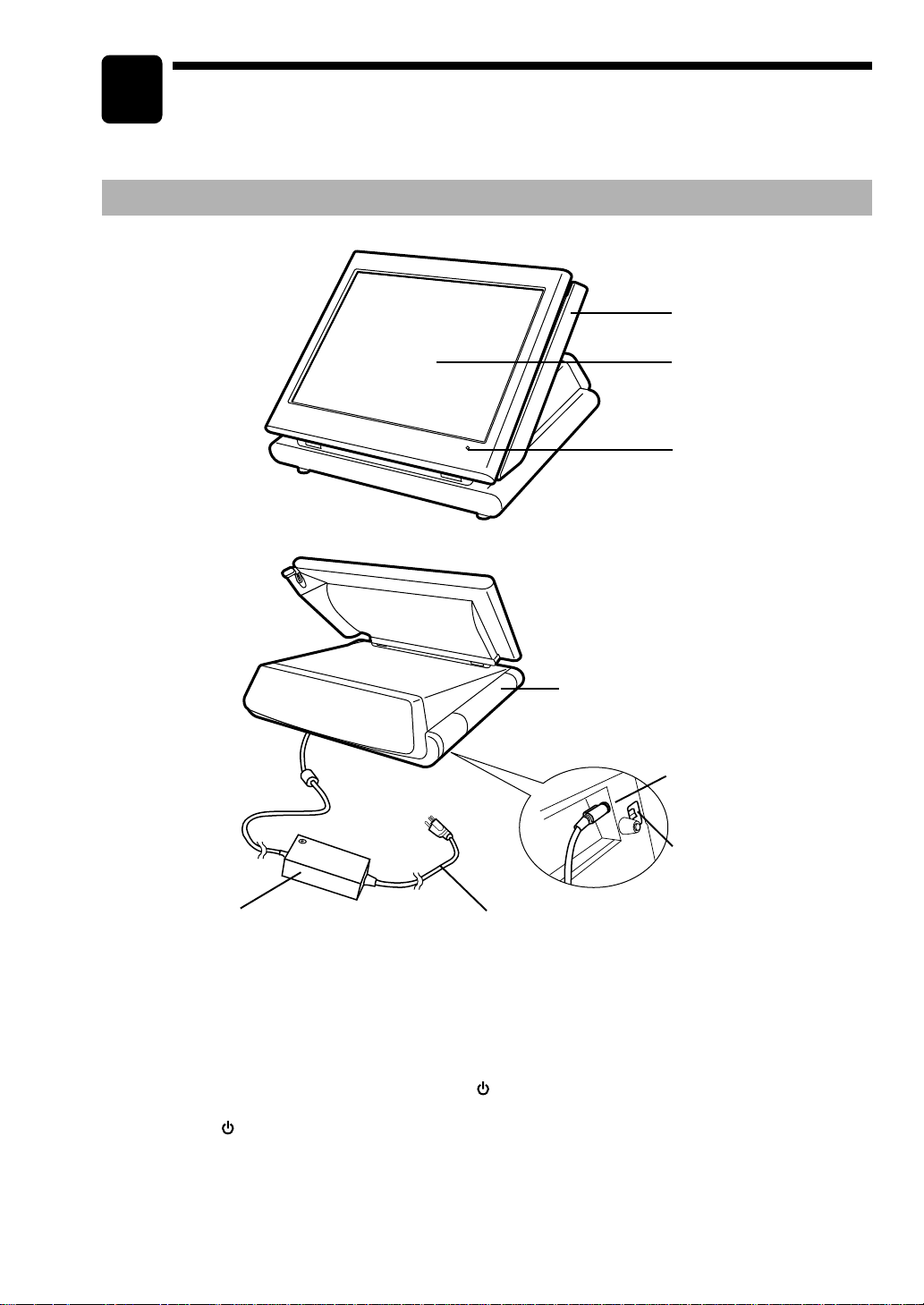
External View
■■
■■
■ Front view
■■
■■
■ Rear view
Magnetic card reader
Operator display (touch panel)
Power indicator
Mode switch
(located at the bottom cabinet)
Side cover
AC adapter
AC power cord
AC adapter jack
AC power cord
Plug the AC adapter connector into the AC adapter jack, then plug the AC power cord into the wall outlet
that has a dedicated earth ground.
Mode switch
The switch has the position ON ( I ) and STANDBY ( ).
Set the mode switch to the ON ( I ) position after the terminal has been plugged into the wall outlet.
The STANDBY (
) position locks all operations of the POS terminal. When you select this position, the
screen will disappear.
Power indicator
When the POS terminal is plugged in, the power indicator at the lower right corner of the LCD panel will
light up. The power indicator will remain on while the display’s backlight is off.
8
RS-232C
CH5
RESET
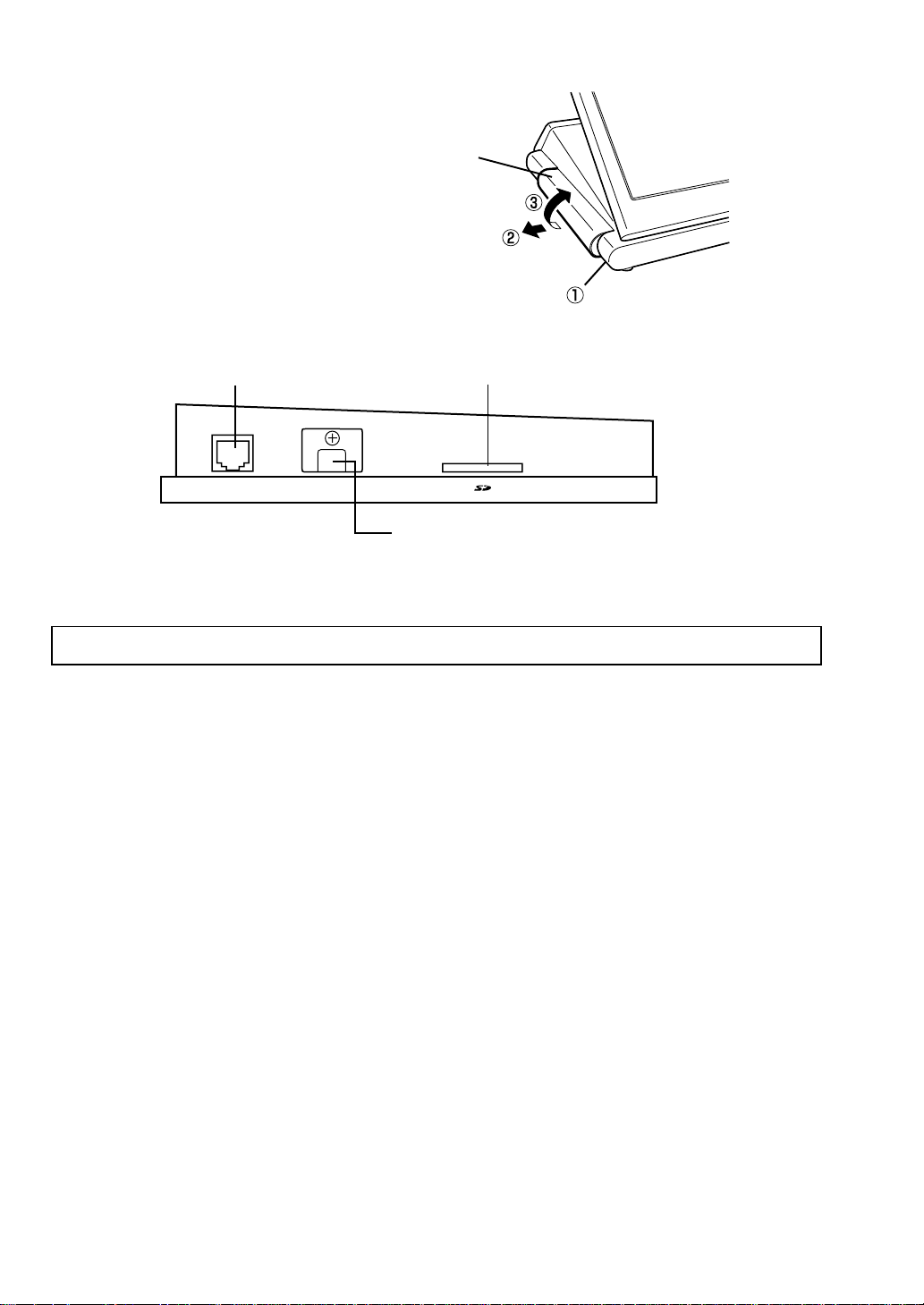
Opening the side cover
While moving the release lever towards you, pull
the side cover and rotate the cover upward
as shown in the illustration at the right.
Side cover
Release lever
(located at the bottom cabinet)
Terminal Connection/slot inside the side cover
Note: The application software will determine the usage and availability of the external port.
RS232 port
RESET Switch
DO NOT move the reset switch unless
instructed to do.
Doing so may damage or delete the data.
SD card slot
9
Displays
This POS terminal is equipped with a color LCD operator display.
The operator display is a touch panel.
Operations can be performed by touching the screen (that shows keys or items in the window) of the
operator display.
■■
■■
■ Operator display (touch panel)
••
••
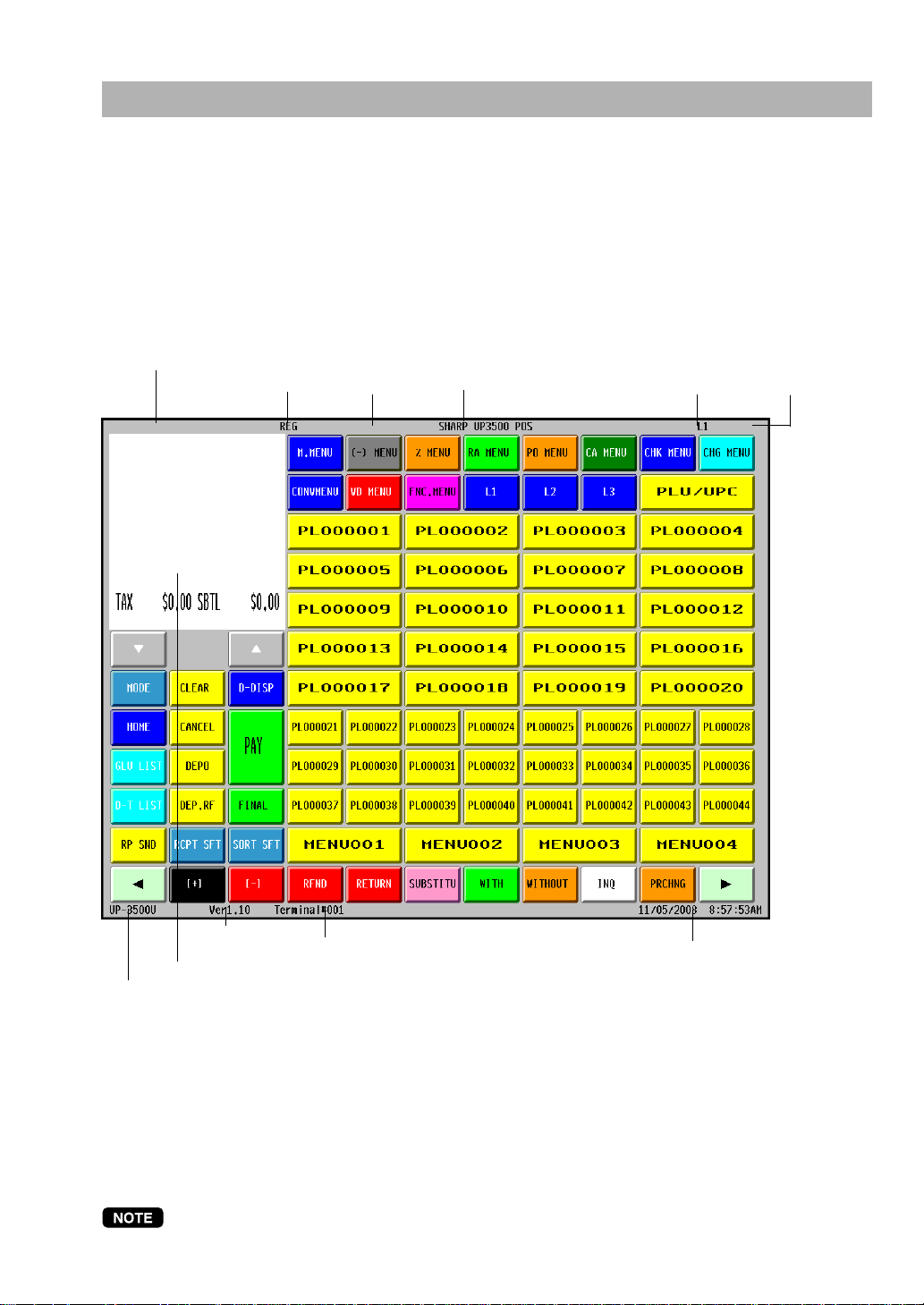
• Initial screen
Screen example (REG mode):
Information/Status
Mode
Cashier
code/name
Screen name
Level shift no.
Terminal no.
Receipt window
Product name
Date/Time
Information/Status:
M: Received the electronic mail
L1 – L10: Level shift no.
E1 – E9: Eat in shift symbol
R: Receipt switch off
r: Receipt shift symbol
E: Electronic journal memory is full. (Green ➝ Yellow ➝ Red)
T: T-Log memory is full. (Green ➝ Yellow ➝ Red)
The size of a display area depends on the layout of a touch-panel keyboard (ex. key size) or the
function mode (ex. drive-thru function).
Version no. of
the POS terminal
Information/
Status
10
••
••
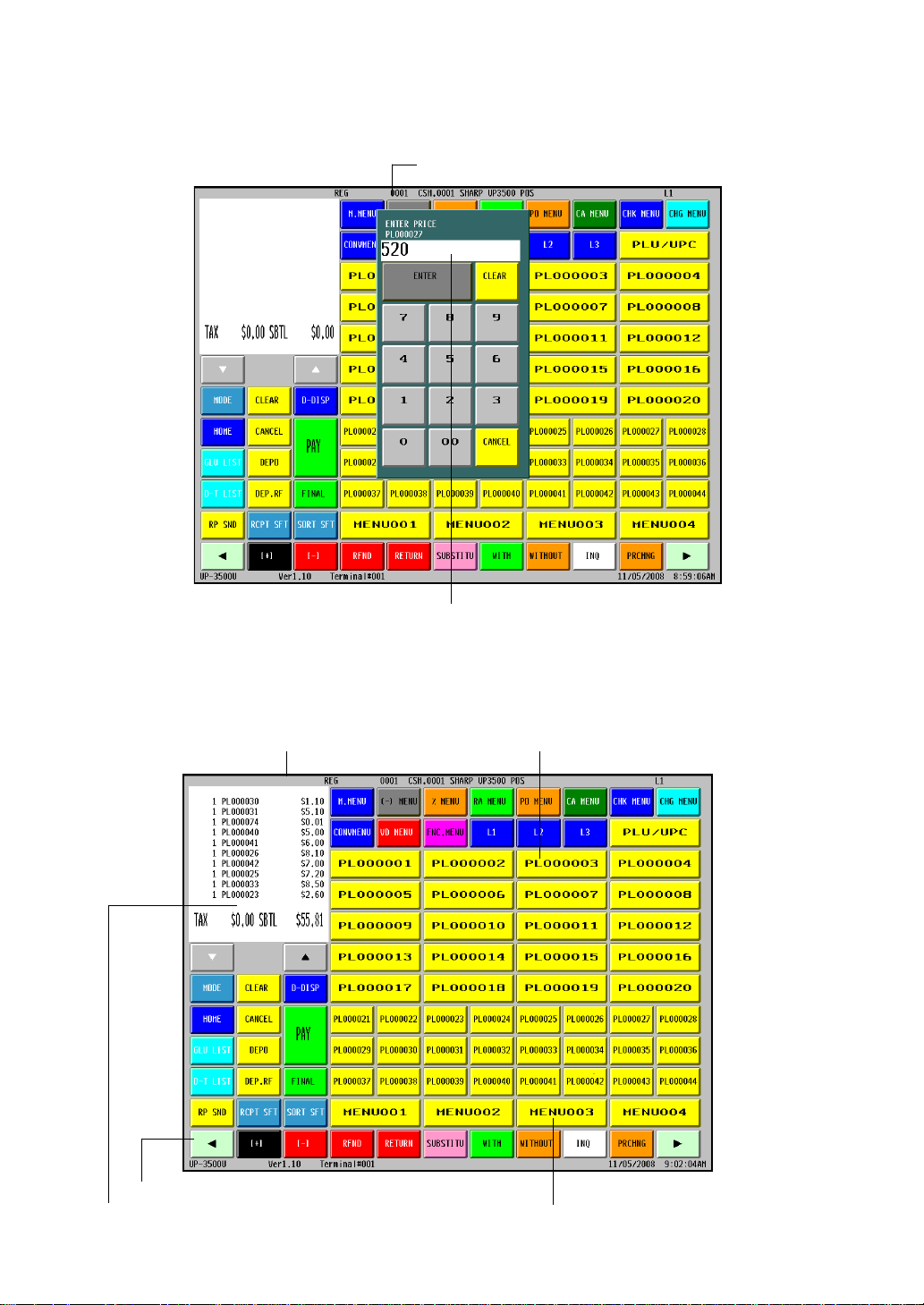
• Registration screen
The registration screen consists of several sub-windows (Receipt/Menu/Category/Function/Ten key pad).
When the cashier is signed-on, a registration screen is displayed automatically.
Screen example:
Ten key pad window:
The Ten key pad is used to enter various numerical data (e.g. cashier code, amounts, quantities).
When numeric entries are necessary (e.g. secret code is forced), the ten key pad pops up automatically.
Information/Status Item key
Function bar window
Menu keyReceipt window
Cashier code/cashier name
Numeric entry: The entry displays here.
11
••
••
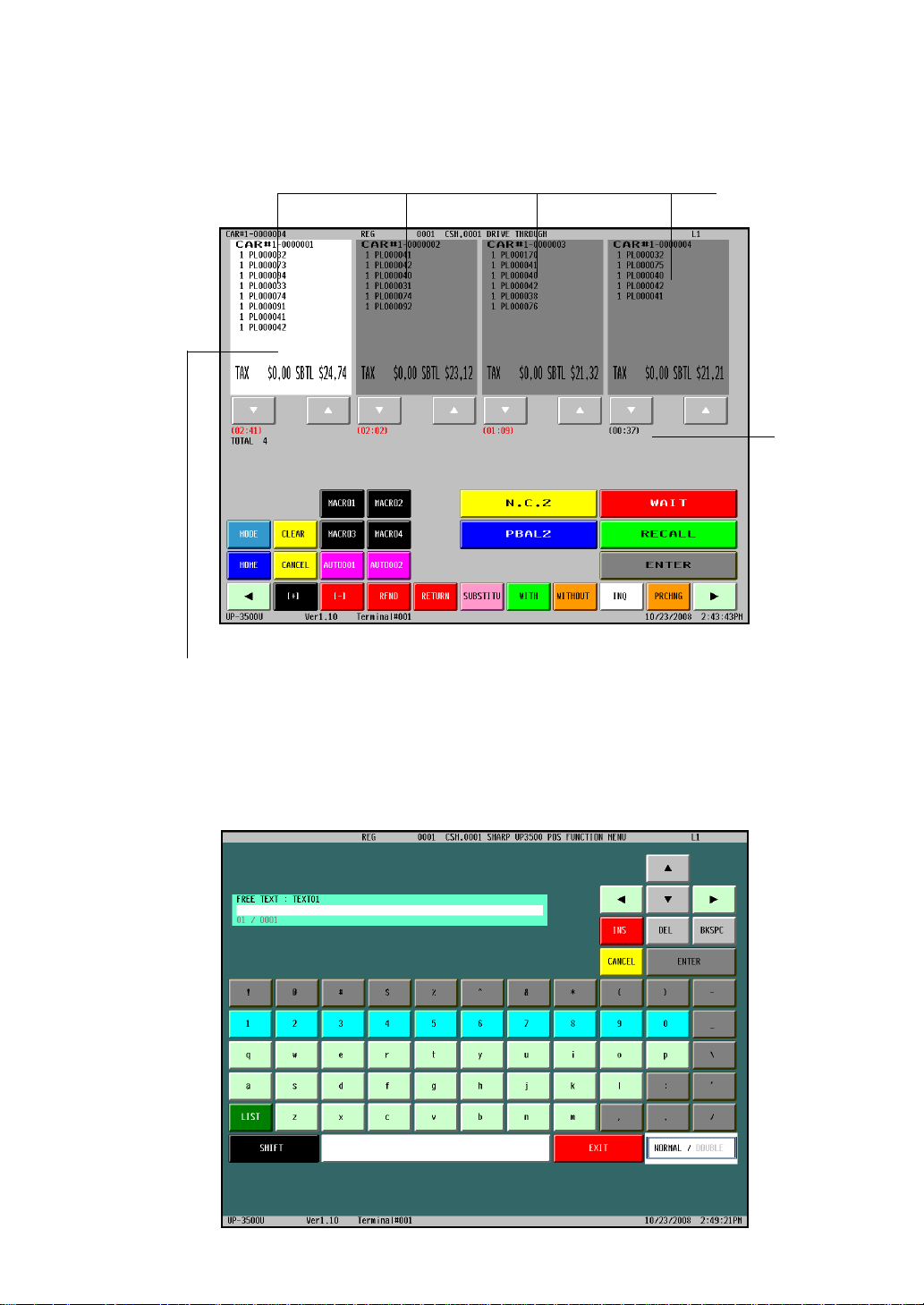
• Drive-thru screen
The drive-thru screen is used for the drive-thru function (after the drive-thru transaction or by touching the
[D-DISP] key).
Screen example:
••
••
• Character entry screen
The character entry screen is used when you need to enter text data.
Screen example:
Receipt window
Waiting time
Touch the receipt window to select it, and touch again to release it.

12
■■
■■
■ Customer display
There are two customer display options available for the UP-3500.
The pole type customer display or an integrated type rear display can be installed.
■■
■■
■ Screen save mode
The screen save function starts when the POS terminal is left idle for an extended period of time. You can
program the time for which your POS terminal should keep the normal status before it goes into the screen
saver mode. If the time has not been preset, the screen saver will be started after 100 minutes.
To exit the screen saver mode, touch anywhere on the touch panel (a secret code may be required at this
time).
13
2
Before Operating the POS
Terminal
This chapter describes those steps required prior to using the POS terminal for the first time.
Display Angle
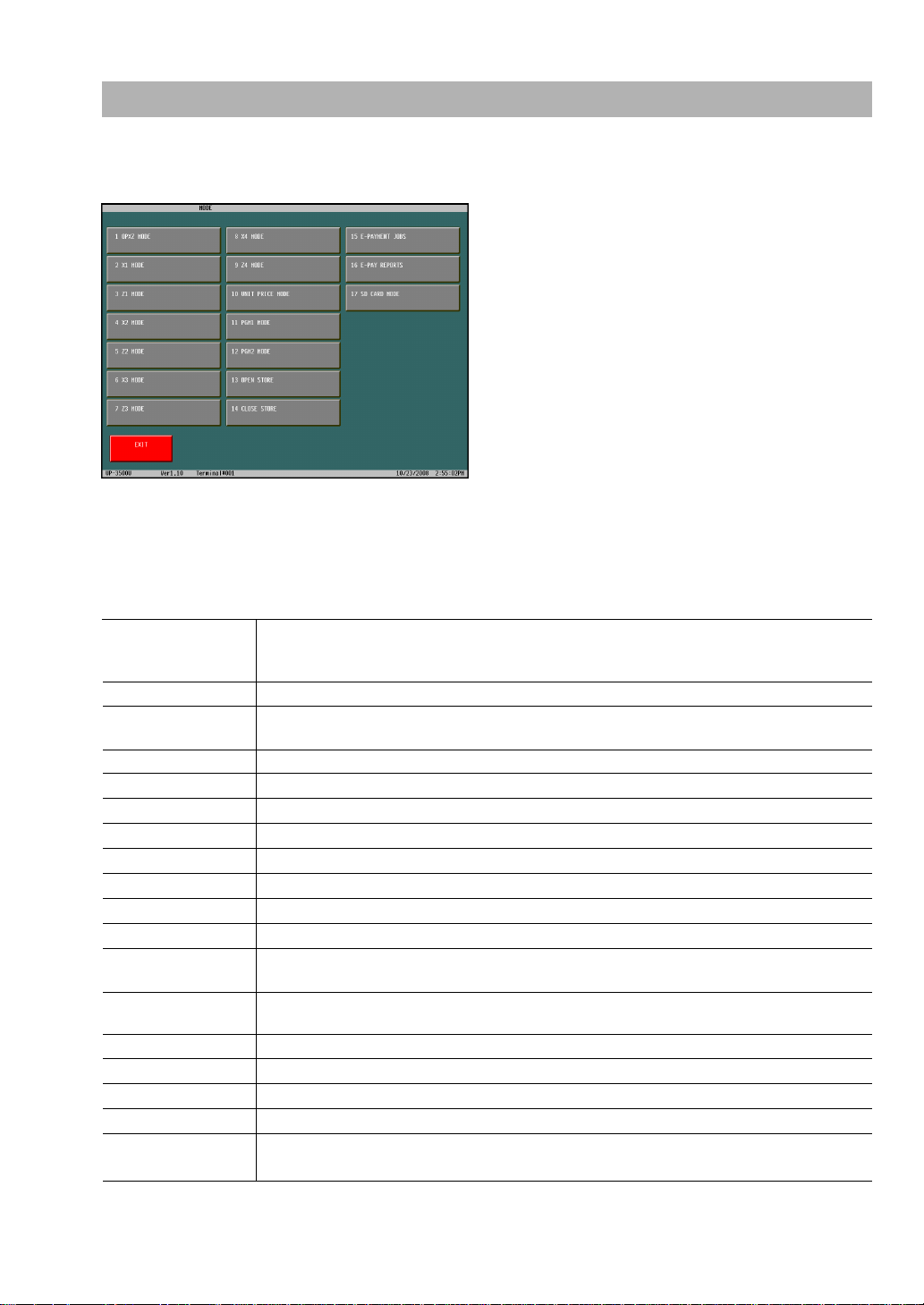
The display may be positioned for the best viewing angle.
The allowable tilt angle of the display is within 56 degrees as
shown in the illustration at the right.
CAUTION:
Do not pull the display beyond the maximum tilt angle nor apply
excessive pressure to the display.
When adjusting the display, hold the body of the terminal when
pulling the display of the terminal to minimize terminal
movement.
Connecting the Printer and Installing the Paper Rolls
This POS terminal can be configured with multiple types of printers. For specific instructions related to the
handling and care of the printer, please refer to the applicable printer’s instruction manual.
56°

14
3
Prior to Making Entries
Preparations for Entries
Ensure that all printers in your system have adequate paper rolls prior to beginning entries. For more
information, please refer to the applicable printer’s manual.
Error Warning
In the following examples, your POS terminal will go into an error state accompanied with a warning beep
and the error message on the display. Clear the error state by touching the [CLEAR] key and then take the
proper action to remedy the problem.
• When you make an error in key operation:
Clear the error and try the entry again.
• When you make an entry beyond a programmed amount entry limit:
Check to see if the entered amount is correct. If it is correct, contact your manager.
• When an including-tax subtotal exceeds eight digits:
Clear the error message by touching the [CLEAR] key and then touch a media key to finalize the
transaction.
15
Selecting an Operating Mode
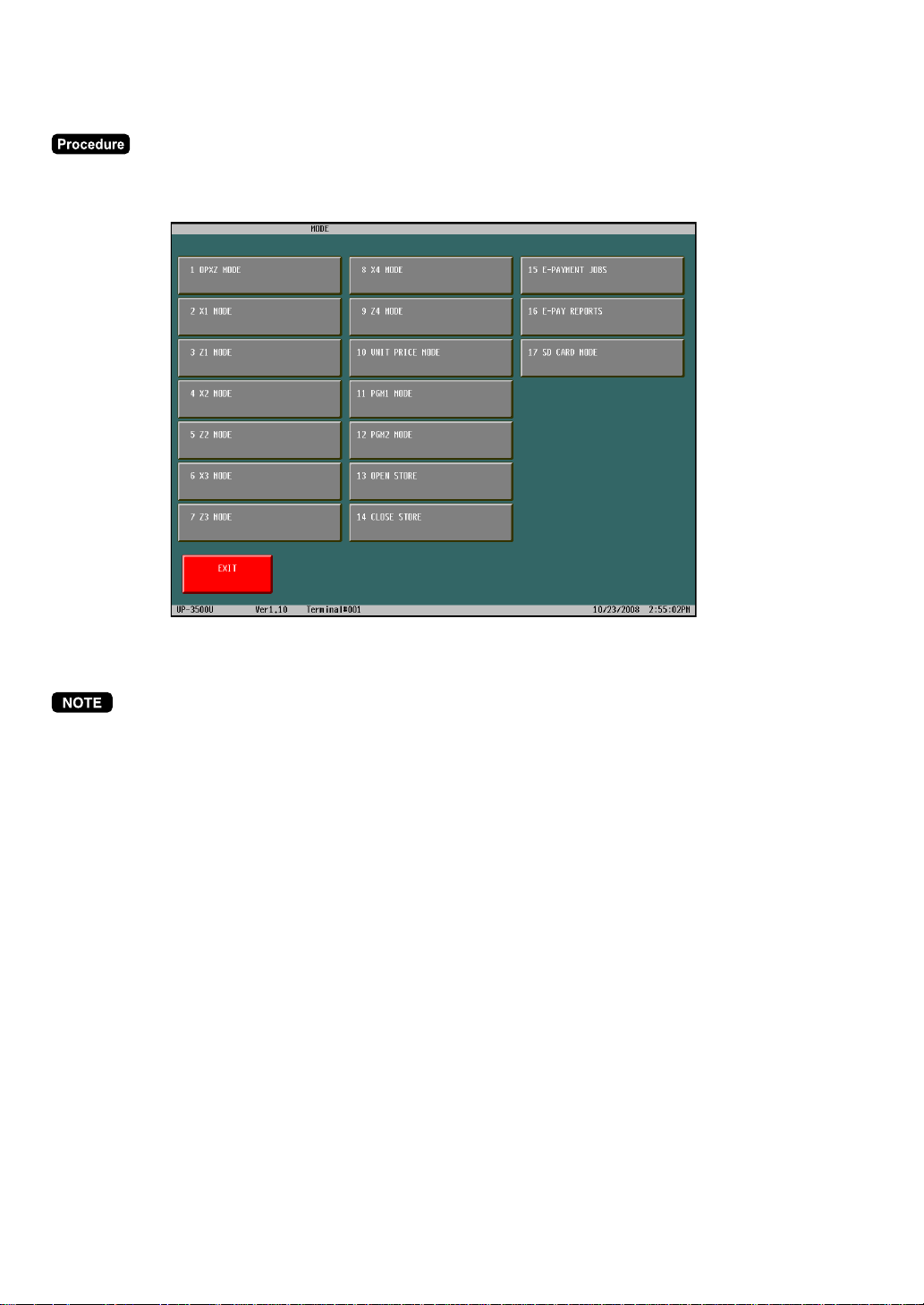
The POS terminal will display the following listing by touching the [MODE] key.
Mode selection window:
■■
■■
■ Operating modes
You can select any mode other than REG from the list in the mode selection window. Your POS terminal
supports the following operating modes:
REG mode
This mode allows you to enter various sales information. The mode selection window
does not list this mode. To select this mode from the mode selection window, touch the
[EXIT] key.
Unit PRICE mode This mode allows you to program unit price of PLUs.
OP X/Z mode
This mode allows cashiers to take X or Z reports on their sales information. It can also
be used for employee time function.
X1 mode This mode is used to take various daily reading reports (X1 reports).
Z1 mode This mode is used to take various daily resetting reports (Z1 reports).
X2 mode This mode is used to take various weekly or monthly reading reports (X2 reports).
Z2 mode This mode is used to take various weekly or monthly resetting reports (Z2 reports).
X3 mode This mode is used to take various weekly or monthly reading reports (X3 reports).
Z3 mode This mode is used to take various weekly or monthly resetting reports (Z3 reports).
X4 mode This mode is used to take various weekly or monthly reading reports (X4 reports).
Z4 mode This mode is used to take various weekly or monthly resetting reports (Z4 reports).
PGM1 mode
This mode allows you to program those items which need to be changed often such as
unit prices and discount percentages.
PGM2 mode
This mode allows you to program those items which can be programmed in the PGM1
mode and do not require frequent changes such as date, time, and terminal functions.
OPEN STORE Open store operation
CLOSE STORE Close store operation
E-PAYMENT JOBS E-PAYMENT jobs
E-PAY REPORTS E-PAYMENT reports
SD CARD mode
This mode provides data communications between the POS terminal and your personal
computer using a SD memory card
16
■■
■■
■ Mode selection
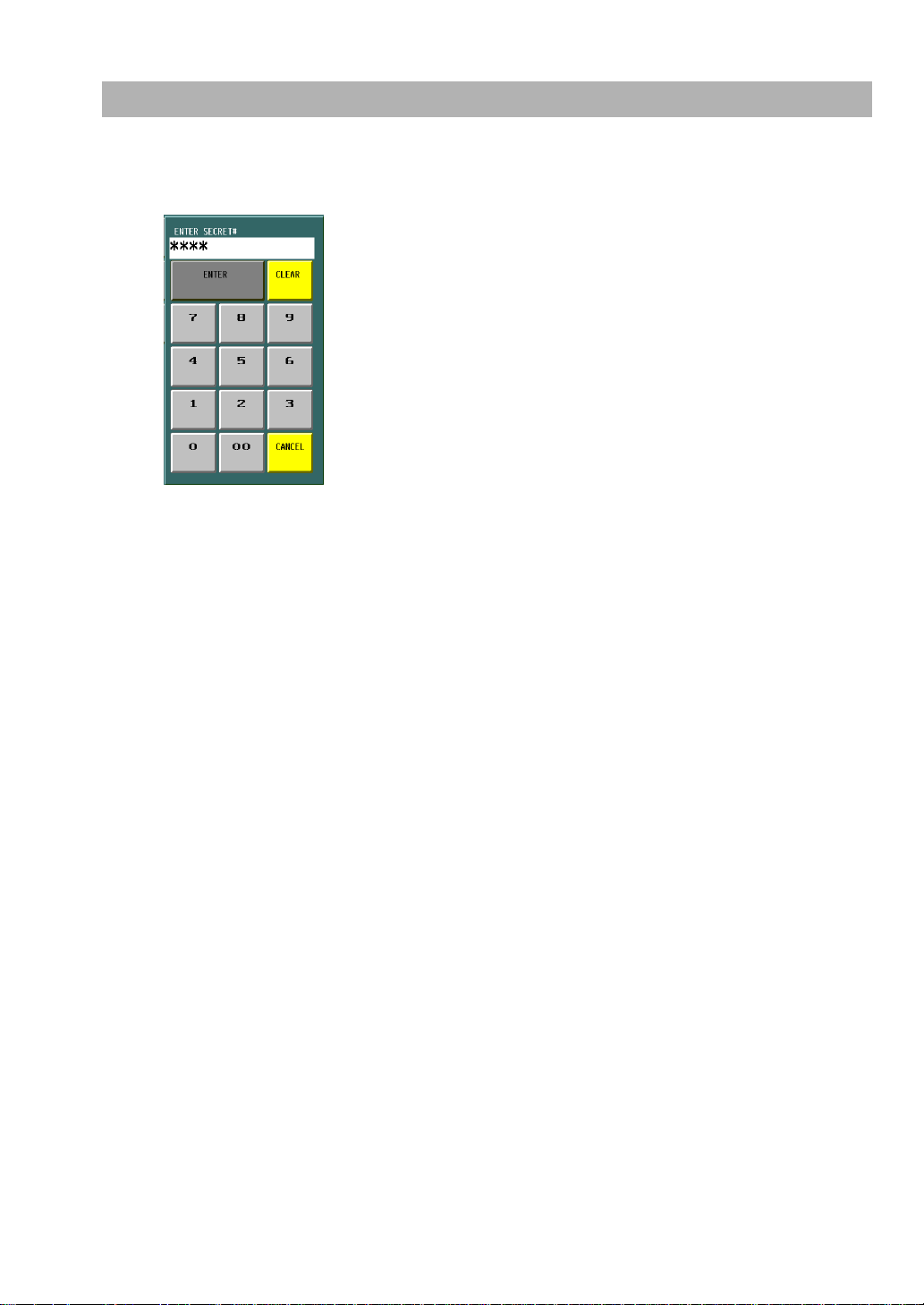
Touch the [MODE] key. The following mode screen is displayed.
Select the mode and touch it in the window to operate the desired function.
When you want to enter the REG mode, simply touch the [EXIT] key.
17
Entering a Secret Code
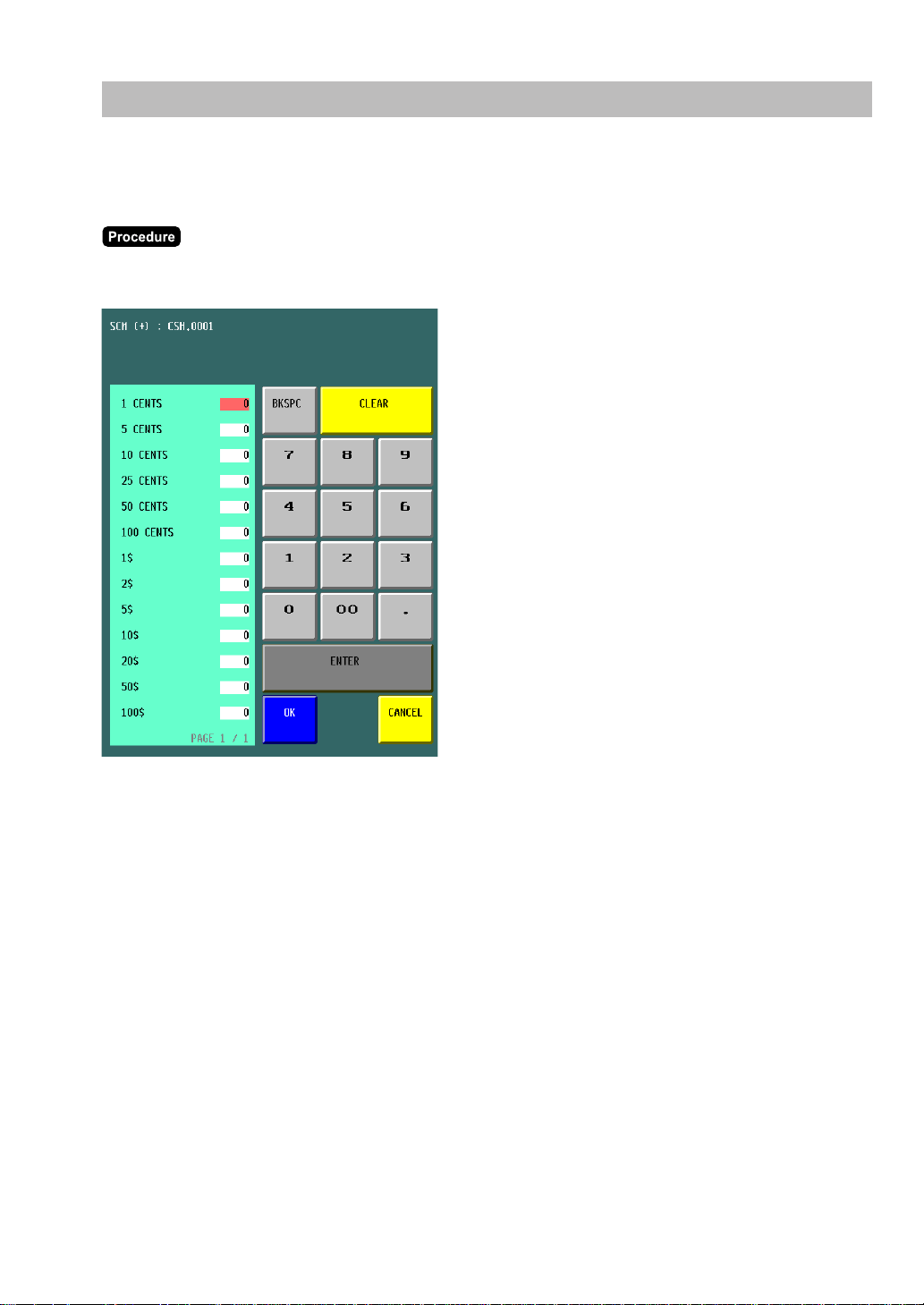
When a secret code has been set for the selected mode or assigned cashier, you must enter the secret
code and touch the [ENTER] key.
18
Entries
Function Key Description
■■
■■
■ Screen transitions
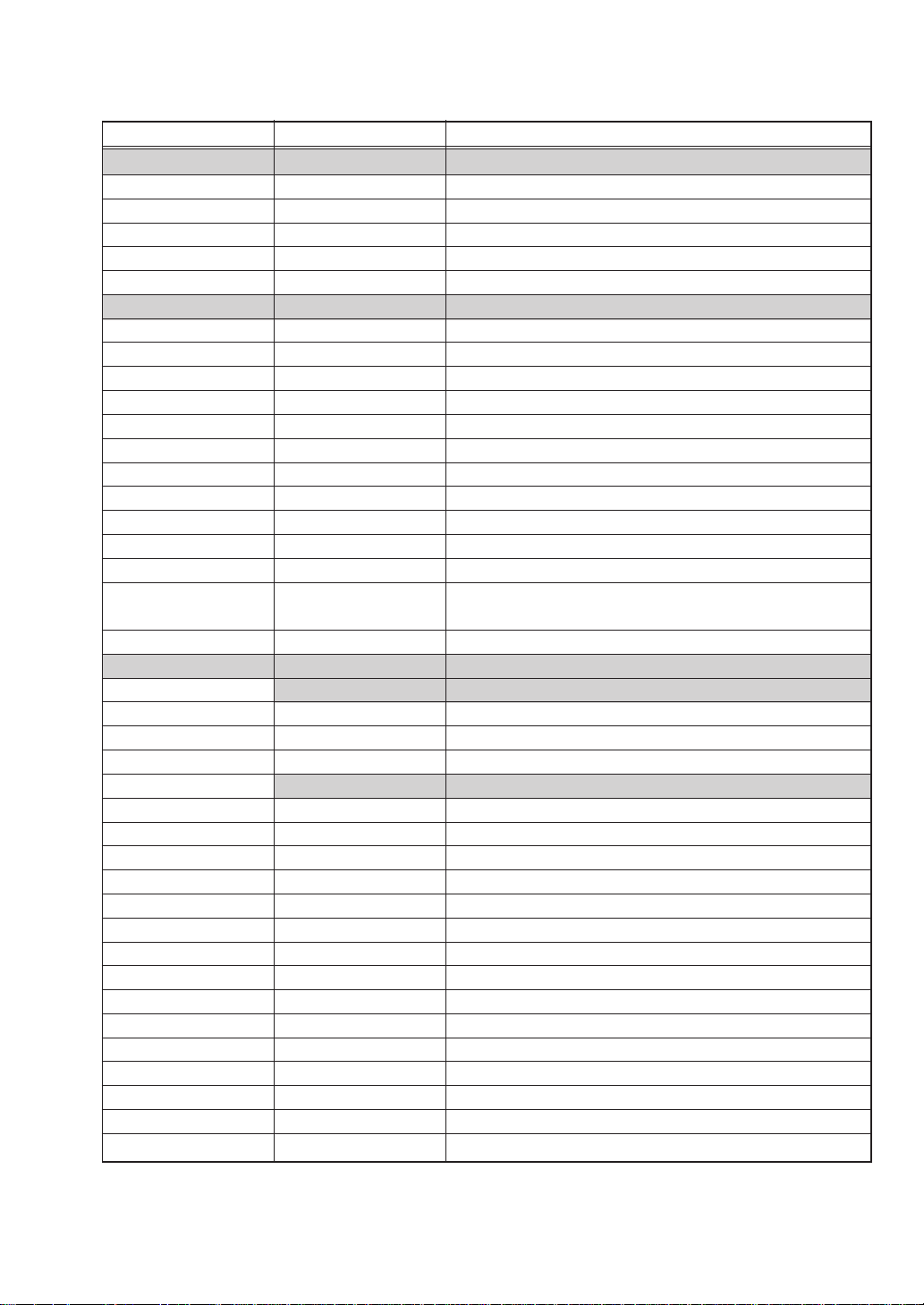
This POS terminal provides several types of basic screens for various functions or modes.
For example:
· REG mode screen (HOME screen)
· Mode screen
· Payment screen
· Drive-thru screen
etc.
If you want to change the layout, consult your authorized SHARP dealer.
Screen transitions (example)
4
▲
▲
Screen (n)
Payment
screen
▲
▲
REG mode screen
(Home)
[EXIT]
[MODE]
Mode screen
▲
▲
Drive-thru screen
[D-DISP]
[HOME]
or
[CANCEL]
[HOME]
or
[CANCEL]
[SCREEN n]
or
{
screen no. entry
}
▲
▲
[HOME]
or
[CANCEL]
[PAY]
19
Classification Description Function
(Continued)
■■
■■
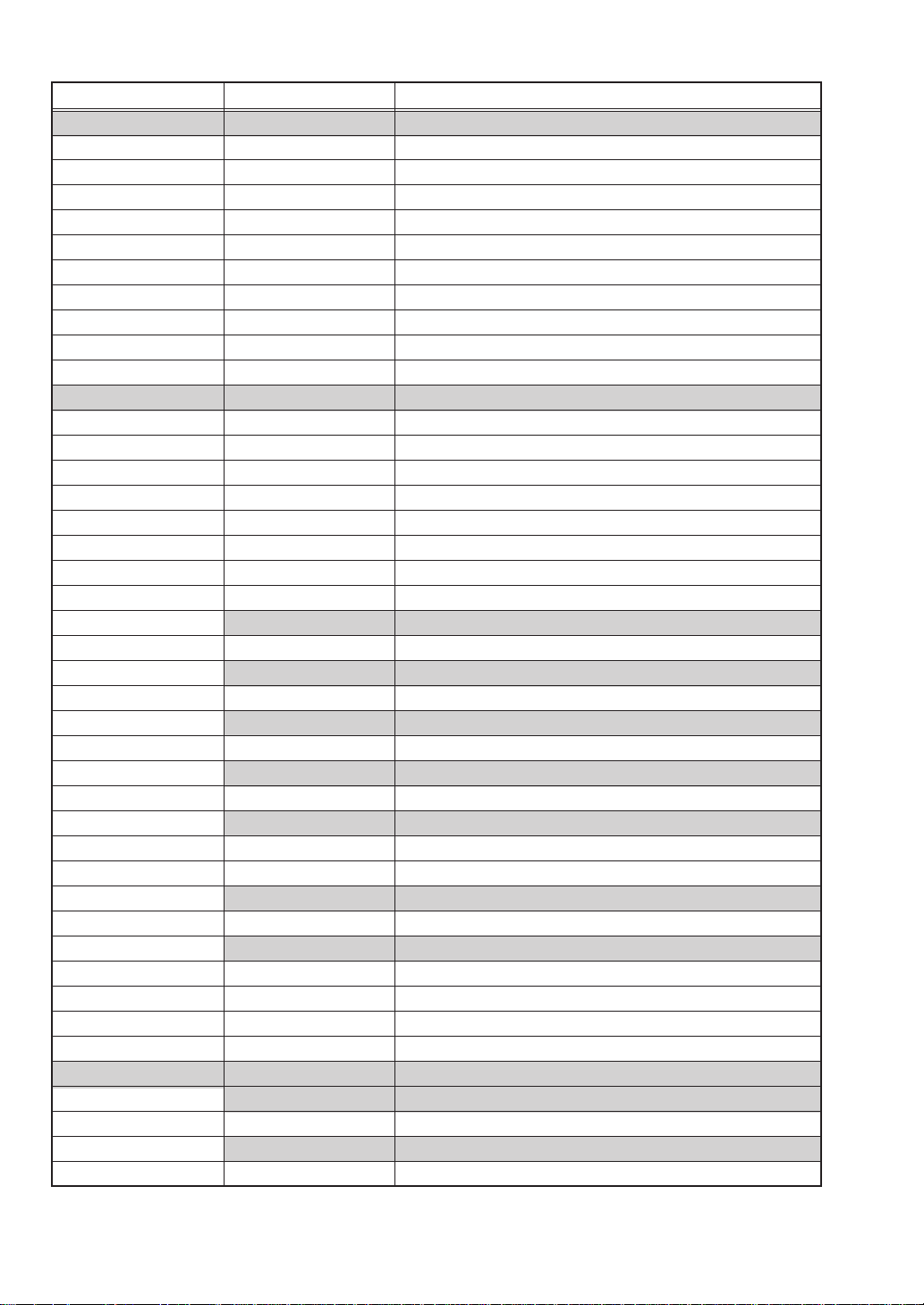
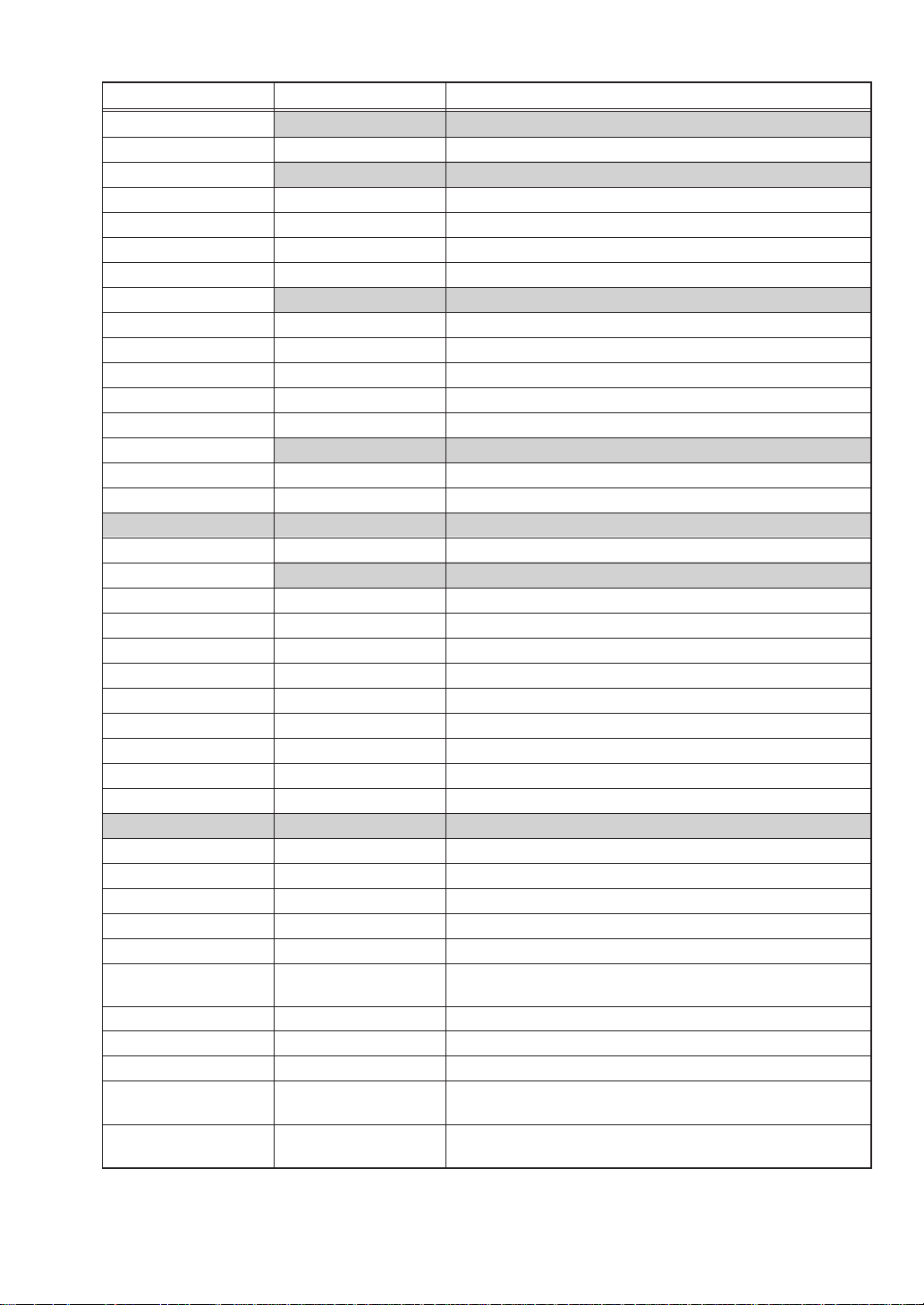
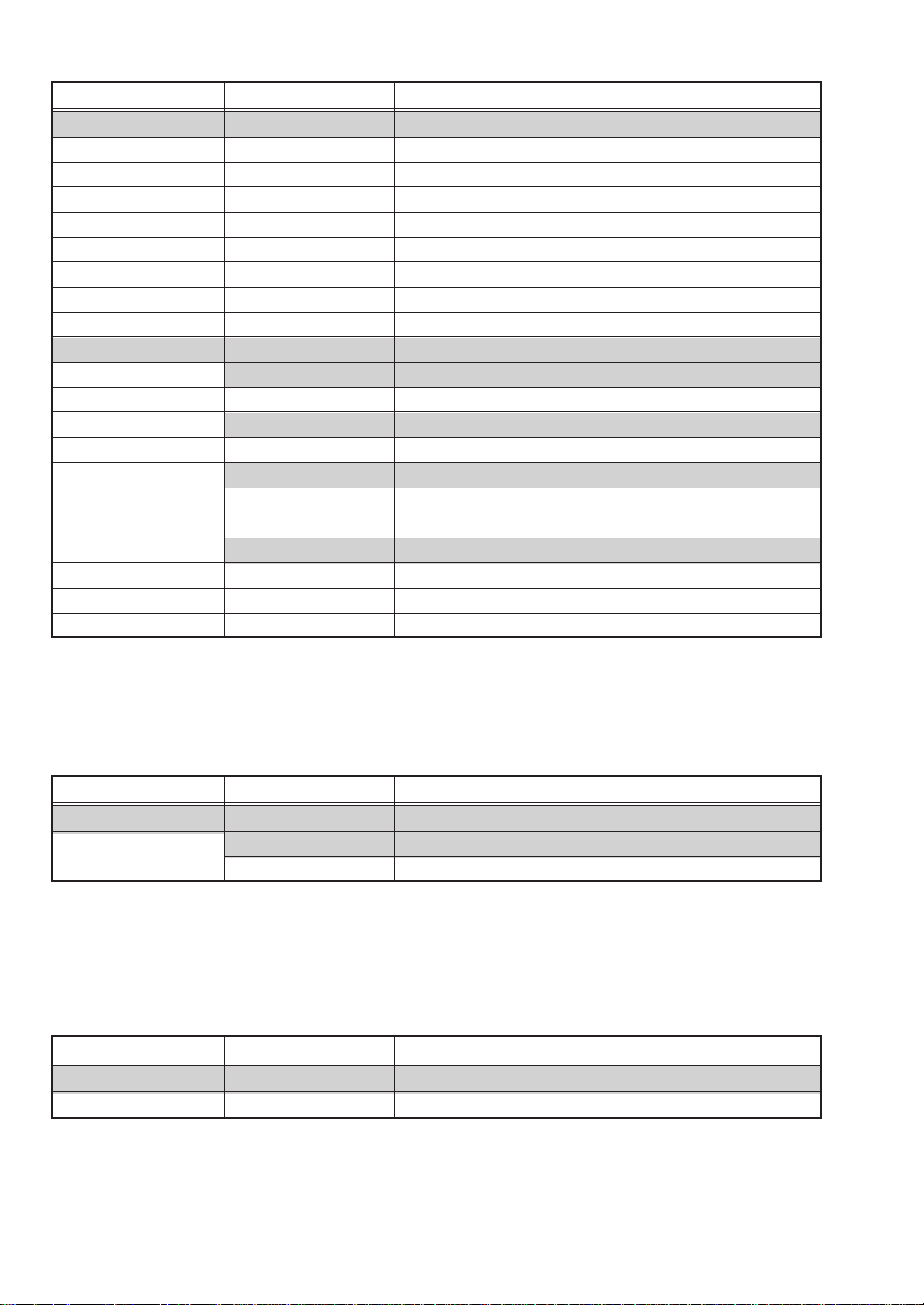
■ Function keys list (using default key labels)
TEN KEY
0 thru 9 Used to enter numeric data (0 thru 9).
00 Used to enter numeric data (00).
000 Used to enter numeric data (000).
• Decimal point key
X/TIMES Multiplication key
SYSTEM
HOME Used to return to HOME keyboard screen.
CANCEL Used to cancel your current operation.
CLEAR Used to clear the entered data and the error messages.
MODE Used to go to MODE selection window.
Used to control the cursor (up arrow).
Used to control the cursor (down arrow).
(Left) Used to change the keyboard.
(Right) Used to change the keyboard.
ENTER Used to accept entered data.
P UP Used to scroll page up.
P DOWN Used to scroll page down.
BKSPC
Used to backs up the cursor for deleting the character or
figure at the left of the cursor.
DEL
Used to delete a character or figure in the cursor position.
SCREEN
LEVEL
L1 thru L10 Used to shift the direct PLU key level (level 1 thru 10).
GLU LIST Go to GLU list screen.
D-T LIST Go to drive-thru list screen.
SCREEN
SCREEN(n) (n: 1 - 99)
Go to SCREEN(n). (n: 1 - 99)
SCREEN# Used to enter the screen number.
M. MENU Used to display the miscellaneous function menu.
(-) MENU Used to display the (-) function menu.
% MENU Used to display the % function menu.
RA MENU Used to display the RA function menu.
PO MENU Used to display the PO function menu.
CA MENU Used to display the cash function menu.
CHK MENU Used to display the check function menu.
CHG MENU Used to display the charge function menu.
CONVMENU Used to display the conversion function menu.
VD MENU Used to display the void function menu.
FNC. MENU Used to display the function menu.
PAY Used to display the payment function menu.
D-DISP Used to display the drive-thru function menu.
▲
▲
▲
▲
20
Classification Description Function
(Continued)
ITEM
PLU/UPC Specified item(PLU) number
SCALE Scale entry
OPN TR Scale entry, tare weight entry
SUBSTITU Used to enter the item substitution (modifier PLU).
WITH Add tied PLU for combo/set PLU.
WITHOUT Delete tied PLU from combo/set PLU.
C NEXT Used to skip the next table of condiments.
INQ PLU price inquiry
PRCHNG Change the price of PLU
RECIPETX Display recipe text associated to a PLU item
FUNCTION
[+] Item correction (add) or repeat item
[-] Item correction (delete)
P. VOID Past void
CHK VOID Subtotal void
VOIDMODE Void mode
RFND Refund item
RETURN Return item
RF MODE Refund mode
%
% n Discount or markdown by fixed rate (n: 1 - 99)
(-)
(-) n Discount or markdown by amount (n: 1 - 99)
GDISC%
GDSC% n Group discount (n: 1 - 99)
GD SHIFT
GD SFT n Group discount shift (n: 1 - 99)
FREE TEXT
F-TEXT n Free text (fixed number) (n: 1 - 99)
F-TEXT # Free text (specified number)
RA
RA n Received on account (n: 1 - 9)
PO
PO n Paid out (n: 1 - 9)
NS No sale
# Non-add code
G.C.COPY Guest check copy
PAYMENT
CASH
CASH n Cash (n: 1 - 9)
CHECK
CHK n Check (n: 1 - 9)
21
CHARGE
CH n Charge (n: 1 - 9)
CONV
CONV n Used to creates a subtotal in foreign currency (n: 1 - 4).
TIP Used to enter the tip.
TIP PAID Used to execute the tip paid function.
EDIT TIP Used to enter the tip after finalization.
TAX SHIFT
TAX SFT n Used to shift the taxability (n: 1 - 4).
SBTL Used to display subtotals.
MDS ST Used to display the merchandise subtotal.
TRY ST Used to display the tray subtotal.
TAX Used to enter the manual tax.
EAT IN
EATIN n Used to display the eat-in subtotal (n: 1 - 9).
GC BAL Gift Card Balance
EMPLOYEE
SHIFT Used to specify shift status for each employee.
CASHIER
CSH n Cashier (n: 1 - 99)
CSH# Casier number entering
EMPL# Employee number entering
SIGN OUT Used to enter sign out operation.
TIME-IN Used to enter time-in operation.
TIME-OUT Used to enter time-out operation.
BREAK Used to enter break-in/out operation.
BREAK PD Used to enter break-in/paid operation.
TIMEEDIT Used to enter time edit operation.
GLU/DRIVE THRU
PBAL Used to lookup the guest check.
N. C. Used to open a new guest check.
PBAL2 Used to lookup the guest check (for drive-thru function).
N. C. 2 Used to open a new guest check (for drive-thru function).
SRVC Used to finalize the guest check temporarily.
FINAL Used to finalize the guest check temporarily (with the tax
calculation).
DEPO Used to enter the deposit.
DEP. RF Used to refund the deposit.
CV CNT Used to enter the cover count.
WAIT Used to shift the corresponding guest check to the wait
mode (for drive-thru).
RECALL Used to re-call the corresponding guest check to the
registration mode (for drive-thru).
Classification Description Function
(Continued)
22
Classification Description Function
PRINTING
RCPT Used to print the receipt after transaction.
RCP.SW Used to switch the receipt printing state (ON/OFF).
BILL Used to print the bill.
GC RCPT Bill on receipt
RP SND Used to send a partial order to the remote printer.
RCPT SFT Receipt shift, change print type
SORT SFT Temporary change sort group
ADD/NAME Change address/name information
OTHER
MACRO
MACRO n Macro key (n: 1 - 99)
CAPTURE
CAP. n Used to capture the operation data (n: 1 - 10)
SCM
SCM+ Starting cash memory (+)
SCM- Starting cash memory (-)
VIP
VIPSALE n VIP sales (n: 1 - 9)
E-MAIL E-mail key
BACK BACK key return to last screen (only 1 screen back).
PLU
DEPT n (Associated dept.)
PL nnnnnn Fixed item(PLU) number
Classification Description Function
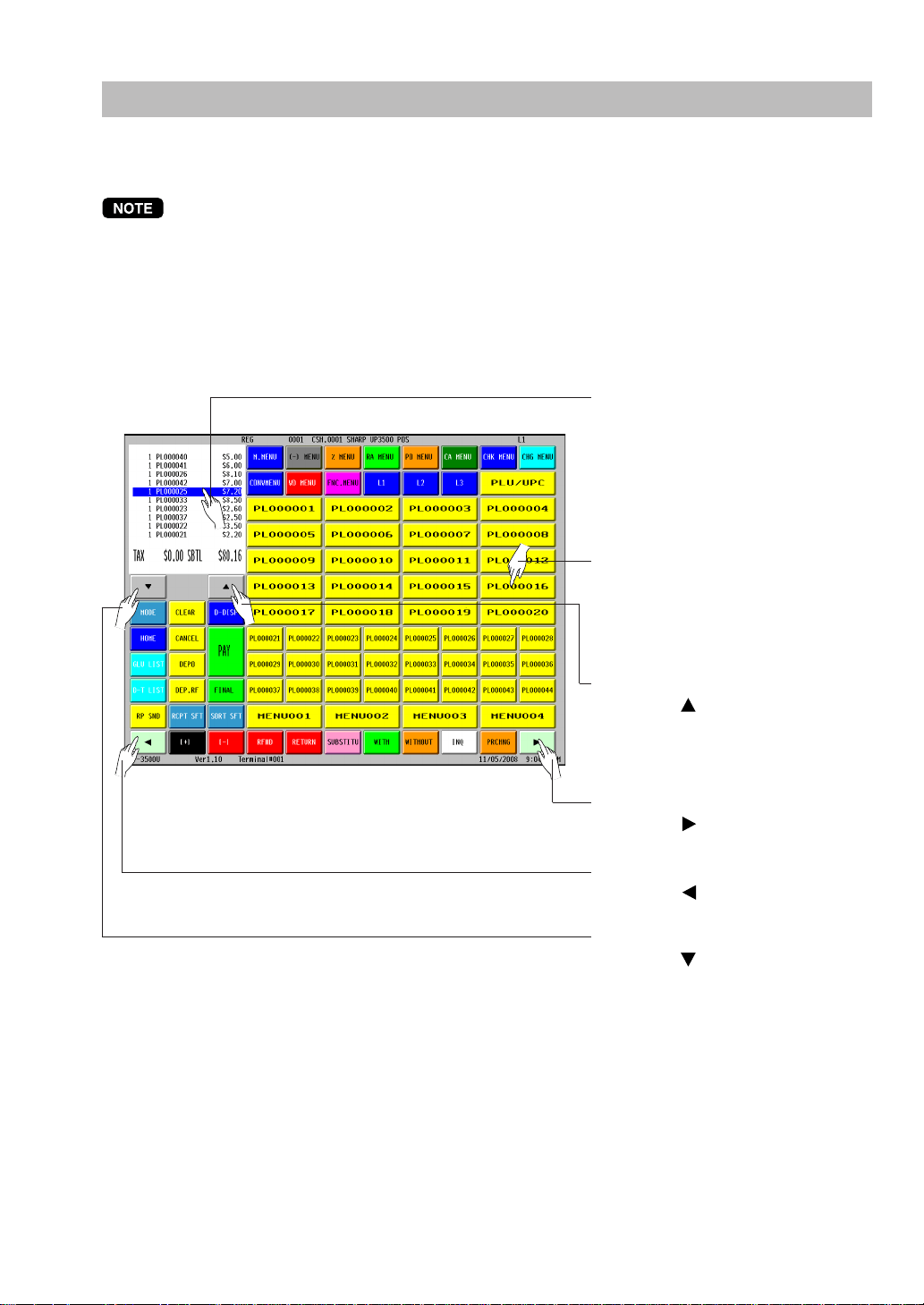
■■
■■
■ Item key list (default key labels)
PLU Menu
MENU nnn PLU menu
Classification Description Function
■■
■■
■ PLU menu keys list (default key labels)
23
How to Use the Touch Panel
Operations can be performed by touching corresponding key(s) and/or selecting option(s) or Item(s) in the
window.
Do not use extreme force when touching the display.
Do not use any sharp or pointed objects, and avoid using your fingernails to touch the display.
■■
■■
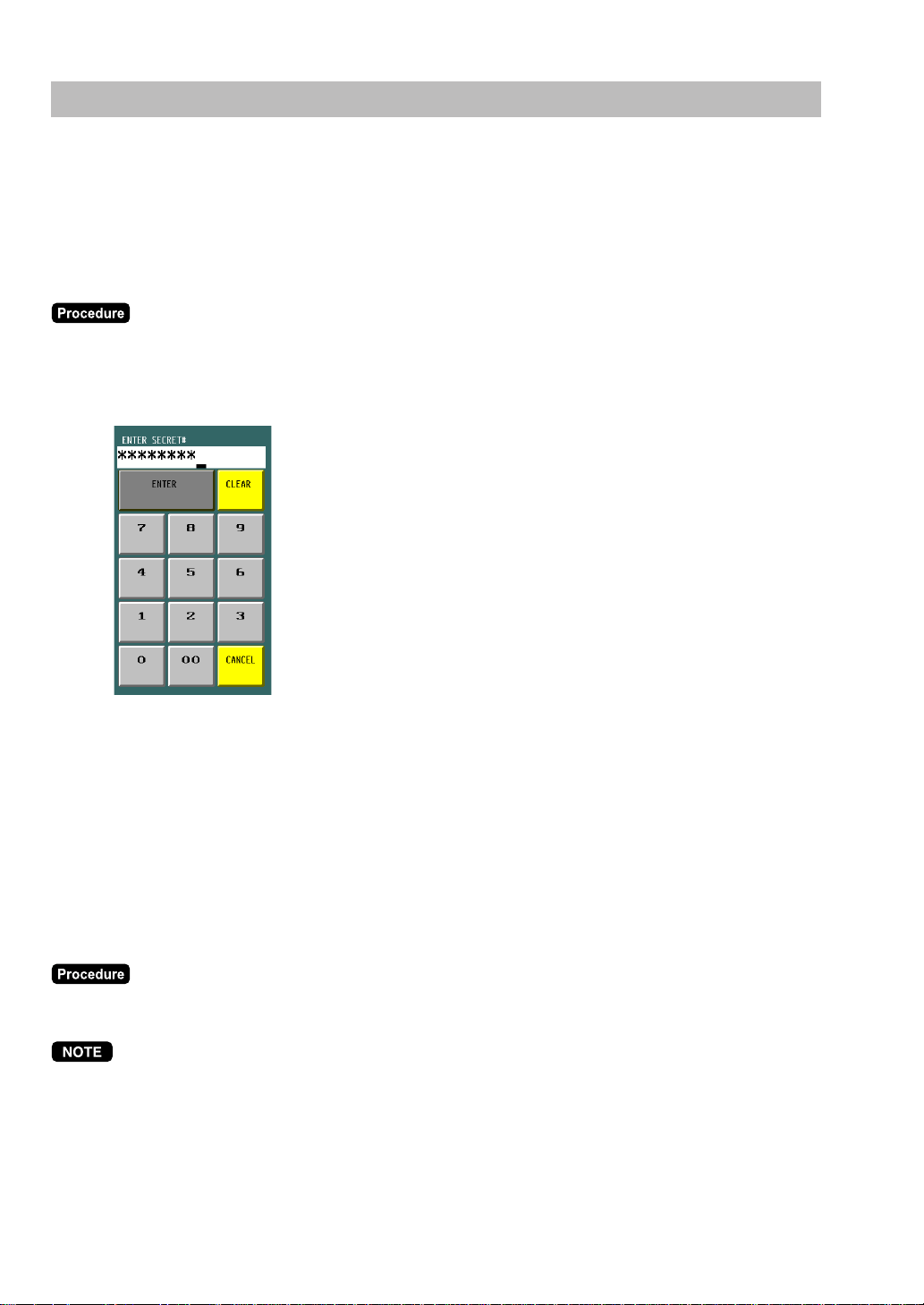
■ Cursor control by touching option(s) or item(s) in the window
You can select option(s) or item(s) by touching corresponding line(s) in the window as follows.
••
••
• Example (registration screen)
To change the screen:
Touch the [
] key.
To scroll up:
Touch the [
] key.
(The selected item will remain
unchanged.)
To scroll down:
Touch the [
] key.
(The selected item will remain
unchanged.)
To select item(s) or option(s):
Touch the desired line(s). (If you touch
the selected item again, it will be
deselected.)
To change the screen:
Touch the [
] key.
To enter the item or function key:
Touch the desired item or function
key.
24
Cashier Entries (Sign-on/Sign-off)
Prior to item entries, the cashier will be compelled to enter his or her assigned cashier code.
Note: This may not be necessary when the POS terminal has been programmed for the cashier code entry
as “cashier stay-down mode.”
••
••
• Sign-on
The cashier is signed on by entering the cashier code or touching the [CSH n] key.
1) Cashier code (max. 4 digits) ➝ [CSH#] (Sign On) / or touching the [CSH n] key
2) Entering the secret code (if required)
3) Entering the drawer number (if required)
••
••
• Sign-off
After each transaction, the cashier will be signed-off automatically if the terminal has been programmed for
the cashier code entry as “automatic cashier sign-off mode”.
If the terminal is not programmed to require a cashier code to be entered for each transaction operation
(“cashier stay-down mode”), transaction operations are continued with the same cashier code, the cashier
code does not need to be reentered. In this case, touch either the [CSH#] (Sign On),
[CSH n] (same as signed on) to sign-off.
➝ [CSH#] (Sign On) / or touching the [CSH n] key
•
When the cashier entry system is programmed for “cashier stay-down mode,” no other cashier can sign
on unless the cashier who has signed on is signed off.
•
When the cashier entry system is programmed for “automatic cashier sign-off mode,” any other cashier is
able to sign on even when another cashier has signed on without making entries. At this time the current
cashier is automatically signed off.
•
When the “overlapped cashier” is enabled, any other cashier can sign on even when another cashier is
making entries, the original cashier entries will be stored and recalled when the first cashier signs on
again.
25
Starting Cash Memory Entry
If you enter the amount of currency for the starting amount in the drawer before entry operations, you can
separate that amount from the sales amount when reports are generated.
Your POS terminal can be programmed to enforce the entry of starting cash into memory.
Touch the [SCM+] or [SCM–] key.
Enter the amount for each currency and touch the [ENTER] key.

26
Item Entries
■■
■■
■ Registration screen
The registration screen can be changed to another registration screen by using the [SCREEN n] key or
screen# entries (
➝
Screen no.
➝
[SCREEN#]).
When the item (direct PLU) key is held in the PLU menu key, touch the corresponding PLU menu key (main
PLU menu key), then select the item (or sub-PLU menu key). (Ex.:
➝
[DRINK]
➝
[WINE]
➝
[WHITE]
➝
[NICE WINE])
■■
■■
■ Single item entries
••
••
• Direct PLU entries
For “preset only type”:
➝
[Direct PLU key]
For “open only type”:
➝
Unit price
➝
[Direct PLU key]
For “open and preset type”:
➝
[Direct PLU key]
➝
Unit price
➝
[ENTER] (open price entry)
For “open and preset type”:
➝
[Direct PLU key]
➝
[ENTER] (preset price entry)
• Open unit price: Within the programmed HALO/LALO
•
After touching a [Direct PLU key] for “open only type” or “open and preset type”, the ten key pad window
is displayed. Then enter the unit price and touch the [ENTER] key (open price), or touch just the
[ENTER] key (preset price).
Item (direct PLU) key
Receipt window
27
••
••
• PLU code entries
For “preset only type”:
➝
PLU code
➝
[PLU/UPC]
For “open only type”:
➝
PLU code
➝
[PLU/UPC]
➝
Unit price
➝
[ENTER]
For “open and preset type”:
➝
PLU code
➝
[PLU/UPC]
➝
Unit price
➝
[ENTER] (open price entry)
For “open and preset type”:
➝
PLU code
➝
[PLU/UPC]
➝
[ENTER] (preset price entry)
• PLU code: max. 6 digits
• Open unit price: Within the programmed HALO/LALO
•
After entering the PLU code for an “open only type” or “open and preset type”, the ten key pad window is
displayed. Then enter the unit price followed by the [ENTER] key (open price), or touch the [ENTER] key
(preset price).
••
••
• UPC entries
By scanning UPC code:
➝
(Scan UPC code)
By UPC code entry:
➝
UPC code
➝
[PLU/UPC]
• UPC code: max. 13 digits
•
When you enter or scan an undefined code, (if the terminal is programmed for the learning function as
“yes”,) you are required to enter its unit price and the associated department.
(Undefined UPC entry)
➝
Unit price
➝
[ENTER]
➝
Dept. code
➝
[ENTER]
➝
(Delete/no delete
selection)
➝
[ENTER]
■■
■■
■ Repeat entries
You can use this function for repetitive entries (PLU/UPC) of the same items.
Multiple items can also be repeated by using the [ + ] key.
Touch the desired item(s) on the receipt window, then touch the [ + ] key.
28
■■
■■
■ Multiplication entries
Use this feature when you need to enter two or more of the same items.
This feature helps you when you sell multiples of items or need to enter quantities that contain decimals.
When the kitchen printer is used under “Issuing S/D receipts by the number of times of multiplication: Yes”
programming, the number of multiplier may be limited by “Maximum number of ticket issuing” programming.
••
••
• Direct PLU entries
For “preset only type”:
➝
Q’ty
➝
[Direct PLU key]
For “open only type”:
➝
Q’ty
➝
[
X/TIMES
]
➝
Unit price
➝
[Direct PLU key]
For “open and preset type” (open price entry):
➝
Q’ty
➝
[Direct PLU key]
➝
Unit price
➝
[ENTER]
For “open and preset type” (preset price entry):
➝
Q’ty
➝
[Direct PLU key]
➝
[ENTER]
• Q’ty: Up to 4 digits integer
• Open unit price: Within the programmed HALO/LALO
• Q’ty x unit price: Up to 8 digits
•
After touching a [Direct PLU key] for “open only types” or “open and preset types”, the ten key pad
window is displayed. Then enter the unit price and touch the [ENTER] key (open price), or touch the
[ENTER] key (preset price).
••
••
• PLU code entries
For “preset only type”:
➝
Q’ty
➝
[X/TIMES]
➝
PLU code
➝
[PLU/UPC]
For “open only type”:
➝
Q’ty
➝
[X/TIMES]
➝
PLU code
➝
[PLU/UPC]
➝
Unit price
➝
[ENTER]
For “open and preset type” (open price entry):
➝
Q’ty
➝
[X/TIMES]
➝
PLU code
➝
[PLU/UPC]
➝
Unit price
➝
[ENTER]
For “open and preset type” (preset price entry):
➝
Q’ty
➝
[X/TIMES]
➝
PLU code
➝
[PLU/UPC]
➝
[ENTER]
• PLU code: max. 6 digits
• Q’ty: Up to 4 digits integer
• Open unit price: Within the programmed HALO/LALO
• Q’ty x unit price: Up to 8 digits
•
After entering the PLU code for “open only types” or “open and preset types”, the ten key pad window is
displayed. Then enter the unit price and touch the [ENTER] key (open price), or touch the [ENTER] key
(preset price).

29
••
••
• UPC entries
By scanning UPC code:
➝
Q’ty
➝
[X/TIMES]
➝
(Scan UPC code)
By UPC code entry:
➝
Q’ty
➝
[X/TIMES]
➝
UPC code
➝
[PLU/UPC]
• UPC code: max. 13 digits
• Q’ty: Up to 4 digits integer
• Open unit price: Within the programmed HALO/LALO
• Q’ty x unit price: Up to 8 digits
•
When you enter or scan an undefined code, (if the terminal is programmed for the learning function as
“yes”,) you are required to enter its unit price and the associated department.
(Undefined UPC entry)
➝
Unit price
➝
[ENTER]
➝
Dept. code
➝
[ENTER]
➝
(Delete/no delete
selection)
➝
[ENTER]

30
■■
■■
■ Scale entries
This function is used to sell items by weight. There are two types of weight entry systems available; auto
scale entries and manual scale entries. Auto scale entry is used when the weight is read automatically from
the connected scale (option).
In the case of manual scale entry (used to refund/return), the weight is entered by using the ten key pad
function.
••
••
• Auto scale entries
Open tare weight entry:
➝
[OPN TR]
➝
Tare weight
➝
[SCALE]
➝
Base weight
➝
[X/TIMES]
➝
(Single item entry)
Tare table number entry:
➝
Tare table number
➝
[SCALE]
➝
Base weight
➝
[X/TIMES]
➝
(Single item entry)
• Open tare weight: Up to 5 digits (integer + decimal)
• Net weight: Up to 5 digits (integer + decimal)
• Base weight: Up to 2 digits (integer)
•
When you use the programmed base weight, skip the base weight entry (
➝
Base weight
➝
[X/TIMES]).
•
When you use a programmed tare table number, skip the tare table no. entry (
➝
Tare table number ).
•
When the PLU is programmed for “compulsory scale entry”, it is not necessary to touch the [SCALE] key.
•
To issue a receipt which shows only a tare weight (Issuing the Tare receipt):
➝
[OPN TR]
➝
Tare weight
➝
[SCALE]
➝
[CASH]
••
••
• Manual/Refund scale item entry
➝
Net weight
➝
[RFND]
➝
[SCALE]
➝
Base weight
➝
[X/TIMES]
➝
(Single item entry)
• Net weight: Up to 5 digits (integer + decimal) which is from the customer’s receipt.
• Base weight: Up to 2 digits (integer)

31
■■
■■
■ PLU menu keys (categories)
Items can be categorized into PLU menu keys for ease of registration.
A PLU menu key can contain both PLU items and other PLU menu keys. This can make a PLU menu tree
of choices.
When the item (direct PLU) key is programmed within the PLU menu key, touch the corresponding PLU
menu key (main PLU menu key), then select the item (or sub-PLU menu key).
(Example:
➝
[DRINK]
➝
[WINE]
➝
[WHITE]
➝
[NICE WINE] )
(Example:
➝
[DRINK]
➝
[WINE]
➝
[ROSE]
➝
[GREAT WINE] )
(Example:
➝
[DRINK]
➝
[BEER]
➝
[LIGHT]
➝
[NICE BEER] )
■■
■■
■ Non-turnover sales
This function is used to perform transaction other than ordinary sales (turnover) in a restaurant. In this
case, the cashier will receive payment for items that are not “sales” for reporting purposes.
The item is programmed as non-turnover.
Example: Sales of government run raffle tickets where the money must be collected and recorded but the
business is not receiving “sales” revenu.
■■
■■
■ Link PLU/UPC entries
It is possible to link PLUs (linked PLUs) with a PLU or UPC (link PLU/UPC) so that several PLUs/UPCs can
be combined for a single key touch. You can program a maximum of 99 link PLUs/UPCs. A link PLU can be
tied to a maximum of 5 PLUs.
The operation is the same as that for normal PLU’s/UPC’s. When this PLU/UPC is entered, the linked
PLU’s amount is included and the linked PLU’s label is printed automatically. Only the 1st-ranking PLU is
affected by the tax status shift keys. The percent calculation is in effect for the amount of the 1st-ranking
PLU.
Main PLU
menu key
Sub-PLU
menu key
Item
32
■■
■■
■ PLU level shift (for direct PLUs)
This shift can double or triple the number of direct PLUs on your POS terminal without adding additional
direct PLU keys. You can use direct PLUs in ten levels by utilizing the PLU level shift keys [L1] thru [L10].
Level key shifts the PLU level from the other nine to the required level. (The normal level is the level 1.) You
must program your machine in the PGM mode to select one of the two PLU level shift modes —
automatic
return mode* and lock shift mode** — and decide whether to allow PLU level shift in both the REG and
MGR modes or in the MGR mode alone.
* The automatic return mode automatically shifts the PLU level back to level 1 after touching a direct PLU
key or finalizing each transaction.
** The lock shift mode holds the current PLU level until a PLU level shift key is touched.
Automatic return mode (for PLU levels)
If your terminal has been programmed for PLU level in the automatic return mode, touch a desired PLU
level shift key before a numeric entry.
(Returning every item entry)
➝
[L2] thru [L10]
➝
{ Q’ty
➝
[X/TIMES] }
➝
[Direct PLU key]
➝
Return to level 1
(Returning every transaction)
➝
[L1] thru [L10]
➝
{ Q’ty
➝
[X/TIMES] }
➝
[Direct PLU key]
➝
......
➝
(Finalization)
➝
Return to level 1
When you use the FF method, you need not touch the [X/TIMES] key for multiplication entries.
Lock shift mode (for PLU levels)
If your terminal has been programmed for PLU level in the lock shift mode, touch a desired PLU level shift
key before a numeric entry.
➝
[L1] thru [L10]
➝
{ Q’ty
➝
[X/TIMES] }
➝
[Direct PLU key]
➝
Stay in the current level
•
If you select the automatic return mode (Retuning every item entry), it is not necessary to use the [L1]
key.
•
When you use the FF method, you need not touch the [X/TIMES] key for multiplication entries.

33
■■
■■
■ Mix-and-match function
This function is convenient for matching several PLU/UPC items and selling them as a form of discount.
The mix-and-match table consists of the discount type (item type/ subtotal type), trip level for discount
(satisfying count of entered item), and discount value. One table can be assigned a max. of twenty kinds of
items.
If the transaction that the mix-and-match item is registered is finalized, the sales amount may be
discounted as follows:
The item type
Mix-and-match items of table no. 1: Item-A (*2.30), Item-B (*3.10), Item-C (*2.50)
Trip level for each item: Item-A (1), Item-B (1), Item-C (1)
Discount price: Item-A (*2.00), Item-B (*3.00), Item-C (*2.00)
<Sale 1> <Sale 2: mix-and-match>
Item-A $2.30 Item-A $2.00
Item-B $3.10 Item-B $3.00
Subtotal $5.40 Item-C $2.00
Subtotal $7.00
The subtotal type
Mix-and-match items of table no. 1: Item-A (*2.30), Item-B (*3.10), Item-C (*2.50)
Trip level for each item: Item-A (1), Item-B (1), Item-C (1)
Selling amount: *6.50
<Sale 1> <Sale 2: mix-and-match>
Item-A $2.30 Item-A $2.30
Item-B $3.10 Item-B $3.10
Subtotal $5.40 Item-C $2.50
(Discount) (–1.40)
Subtotal $6.50
34
■■
■■
■ Set PLU entries
The operations are the same as normal PLU’s. When a set PLU is entered, an entered or preset amount is
printed as the unit price and then those PLUs linked to the set PLU can be printed automatically.
You can program a maximum of 99 set PLUs. A set PLU can be tied to a maximum of 20 PLUs.
(Example:)
Set PLU table
SET PLU # Tied PLU #
1 11
12
13
PLU
PLU # Name Menu type SET PLU # Price
1 HAMB SET SET PLU 1 *3.49
11 HAMB NORMAL *2.00
12 FRIES NORMAL *1.00
13 COKE NORMAL *1.00
Operation
Key entry Printing
[PLU 1] HAMB SET *3.49
HAMB
FRIES
COKE

35
■■
■■
■ Combo meal entries
The operation is the same as that for normal PLU entries.
When a combo meal is entered with the Combo key, the labels of those PLUs linked to the Combo key are
printed automatically. The sum of all adjusted prices (of those PLUs linked to the Combo key) becomes the
“combo meal” price setting.
•
When combo meal is registered, q’ty totalizer of the combo key and amount totalizer of each PLU are
updated.
•
Auto combo entry
If the item programmed “auto combo object” is entered, the combo tables (assigned “auto combo no.”)
are checked automatically for the combo menu at the finalization of the entry.
If no “auto combo no.” is programmed for the auto combo object, all combo tables are checked for the
combo menu.
■■
■■
■ Modifier PLU entries
When the item is entered by using the [SUBSTITU] key, the substitution group (modifier PLUs) is
displayed.
At this time, select the item to modify the original PLU. This function is used in pubs and restaurants for
quick and easy registration.
Each PLU can be associated with a modifier table number. The modifier table can be linked to a maximum
of 9 modifier PLUs.
• Pre-entry type
➝
[SUBSTITU]
➝
(Item/Combo entry)
➝
(The substitution group is displayed, touch the item to modify.)
• Post-entry type
➝
(Item/Combo entry)
➝
(Touch the item on receipt window)
➝
[SUBSTITU]
➝
(The substitution group is
displayed, touch the item to modify)

36
■■
■■
■ With/without entries
This function is used to add/delete tied PLU(s) to/from a Combo/set PLU entered.
The with/without function is used to change the tied PLUs of the combo/set PLU in compliance with a
special request made by a guest or to meet other situations.
For example, the function is needed when receiving a request to remove tomato from a certain dish in a
restaurant.
The following two types are available:
With: This entry adds one of the tied PLUs to combo/set PLU.
Without: This entry deletes one of the tied PLUs from combo/set PLU.
••
••
• With
1) Enter the combo or set PLU.
2) Touch the combo or set PLU in the receipt window. (The item will be highlighted.)
3) Touch the [WITH] key. The PLU category for “with” will be shown.
(Select the item from the assigned category of the relevant combo or set PLU.)
4) Enter PLU to add.
••
••
• Without
1) Enter the combo or set PLU.
2) Touch the tied PLU to be removed in the receipt window. (The item will be highlighted.)
3) Touch the [WITHOUT] key.
37
■■
■■
■ Condiment entries
The terminal may be programmed for prompting condiment and instructions for a menu-item PLU.
Example:
When you enter a menu-item PLU, a message such as “HOWCOOK?” is prompted and a list of the
“Condiment PLUs” will appear. You must specify one of the “Condiment PLUs” such as “WELLDONE” to
meet a special order of the guest. In an example of the condiment table shown below, it is assumed that
condiment table no.1 is assigned to PLU number 21 (programmed text “STEAK”) and table no. 4 is
assigned to table no. 1 as the next table no. When you enter the PLU number 21, the message
“HOWCOOK?” will appear to prompt you to specify one of “RARE,” “MED.RARE,” and “WELLDONE.” If the
guest chooses “RARE,” select it from the list. Then the next message “POTATO?” will appear to prompt you
to specify one of “P.CHIPS,” “MASHED.P,” and “BAKED.P.” If the guest chooses mashed potato, select it.
Here is an example of how to perform a condiment entry when your condiment table is as shown below.
(Example:)
The terminal will continue to operate for the condiment entry until you finish the entire condiment entry
programmed for the PLU. During the condiment entry, if you enter a normal PLU, which is not in the
condiment table, an error message will appear.
When the compulsory number is programmed for the condiment table (e.g. 2 thru 9), its table shows
repeatedly until accomplishment of a programmed times, then the next table will show.
When the [C NEXT] key is touched, the entry skips to the next table which is programmed.
When the [CANCEL] key is touched, its condiment entry is canceled.
When you enter a PLU priced at “0.00,” only the text will be printed on the receipt.
The multiplication entry may be possible for condiment entries (by programming condiment table entry
method: Single entry method/multiplication entry method) as the following example.
Entry Printing
[STEAK] STEAK $20.00
[RARE] RARE
[MASHED.P] MASHED.P $0.60
PLU Name Price Condiment Table #
PLU00021 STEAK $20.00 1
Condiment
Linking
Condiment PLU
Table #
Contents Condiment
Table #
PLU Name Price
PLU00023 RARE $0.00
1 HOWCOOK? 4 PLU00025 MED.RARE $0.00
PLU00027 WELLDONE $0.00
PLU00033 P.CHIPS $0.60
4 POTATO? End (nothing) PLU00037 MASHED.P $0.60
PLU00038 BAKED.P $0.50
PLU:
Condiment table:
Operation:
38
••
••
• Single entry method
The items of the condiment table must be entered for each menu-item by one-set individually.
(Example:) 3 steaks process:
••
••
• Multiplication entry method
The items of the condiment table can be entered by multiplication entry.
(Example:) 3 steaks process:
Operation Display Receipt window Note
3 [Steak]
How cook? for 1’st steak
[Rare]
Vegetable?
[Peas] 1x Steak
Rare
Peas
How cook? for 2’nd steak
[Rare]
Vegetable?
[Carrot] 1x Steak
Rare
Carrot
How cook? for 3’rd steak
[Medium]
Vegetable?
[Peas] 1x Steak
Medium
Peas
Operation Display Receipt window Note
3 [Steak] 1x Steak
1x Steak
1x Steak
How cook? 1x Steak
2 [Rare] Rare 1’st condiment is
[Medium] 1x Steak automatically processed.
Rare
1x Steak
Medium
Vegetable? 1x Steak
2 [Peas] Rare After 2’nd condiment, it is
Select item 1x Steak necessary to select items.
Select items Rare
1x Steak
Medium
1x Steak
Rare
Peas
1x Steak
Rare
1x Steak
Medium
Peas
Vegetable? 1x Steak
[Carrot] Rare Last item. (Not necessary
Peas to select items.)
1x Steak
Rare
Carrot
1x Steak
Medium
Peas
39
••
••
• Price roll-up for condiment entries
The price of each condiment PLU may be rolled-up in the price of menu-item PLU (parent PLU) entry.
(Example:)
PLU Name Price Condiment Table #
PLU00001 Condiment 1 $25.00 2
PLU
Condiment
Linking
Condiment PLU
Table #
Contents Pricing Condiment
Table #
PLU Name Price
Rolled-up in the
PLU00011 Onion Soup $4.00
2 Onion/Corn Soup
parent PLU
3
PLU00012 Corn Soup $4.50
End
PLU00051 Meat $20.00
3 Meat/Fish Individual pricing
(nothing)
PLU00052 Fish $22.00
Condiment table
Entry Printing Note
[Condiment 1] 1 Condiment 1 $25.00
[Corn soup] 1 Corn Soup ← The price is rolled-up in the parent PLU.
[Meat] 1 Meat $20.00 ← The price is printed individually.
Operation
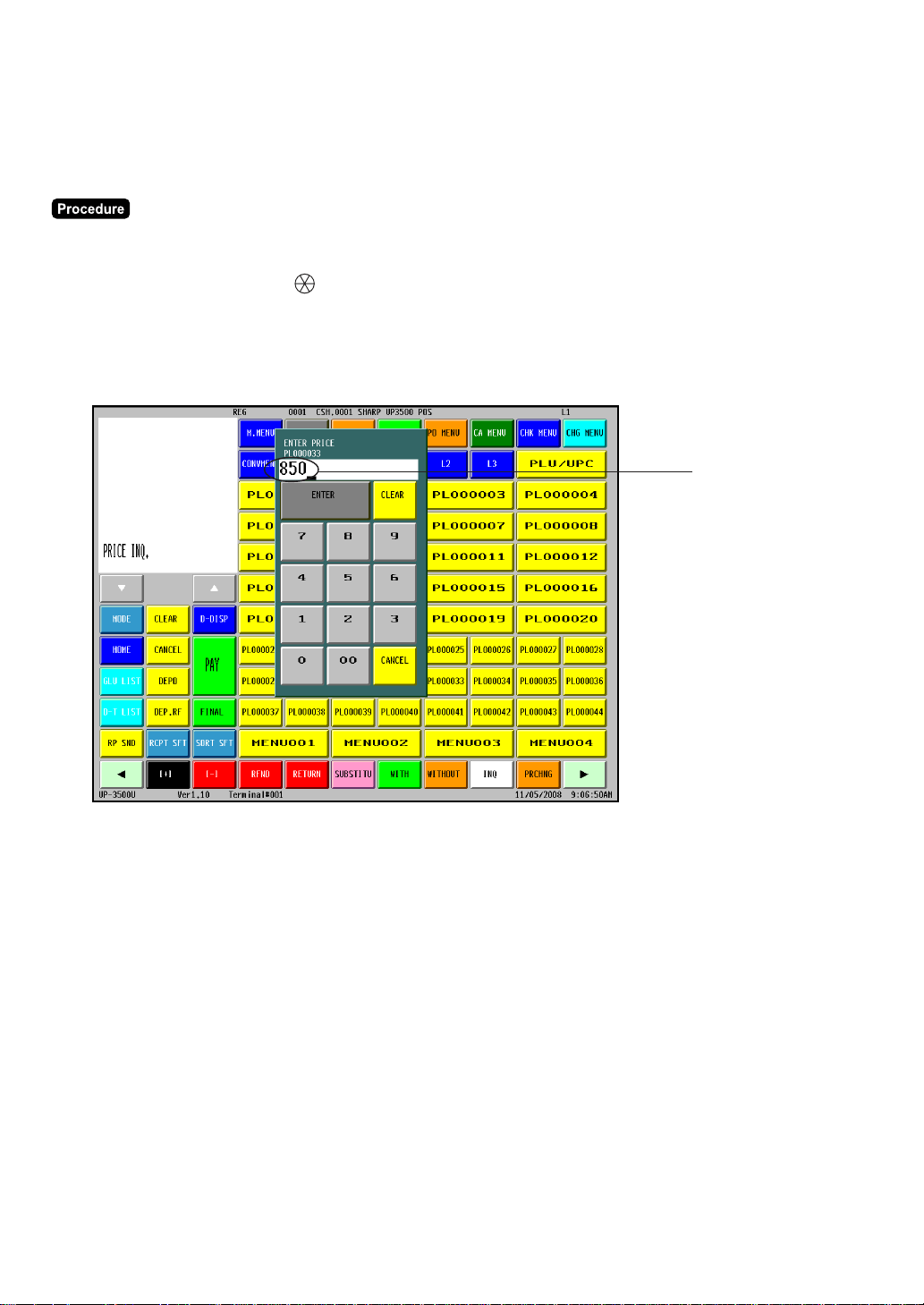
40
■■
■■
■ Price inquiry (view) function
You can use this function when you want to know the unit price of the PLU/UPC item during transaction.
The PLU/UPC can be registered in VIEW mode. The unit price of a PLU/UPC can be temporarily changed.
The programmed unit price is not changed.
(1) Touch the [INQ] key.
(2) Enter the PLU/UPC.
Scanning UPC code:
➝ (Scan UPC code)
PLU/UPC code entry:
➝ PLU or UPC code ➝ [PLU/UPC]
Direct PLU entry:
➝ [Direct PLU key]
The following window is displayed.
(3) Select one of the following operations.
Confirmation only:
➝ [CANCEL]
Entering the PLU/UPC (by programmed price):
➝ [ENTER]
Entering the PLU/UPC (by override price):
➝ Override price ➝ [ENTER]
Original Price

41
■■
■■
■ UPC learning function
When you enter or scan an undefined code, you are required to enter the unit price and the associated
department. The PLU/UPC code, unit price and the department entered are stored in the PLU/UPC file and
are used for future sales entries.
If you want to exempt the PLU/UPC code entered from the non-accessed PLU/UPC delete function, you
can select the “No delete” mode for each PLU/UPC.
(1) Enter PLU/UPC (by undefined PLU/UPC code)
The following window will be displayed.
If the PLU/UPC code is entered by mistake, touch the [CANCEL] key and enter the correct PLU/UPC
code.
(2) Enter the price and the associated department number, then select the delete method.
•
When there is no capacity remaining in the file, the data is not stored in the file.
•
The text of the entered department is applied to the entered PLU/UPC code.
•
You can use the learning function in the training mode. This may be convenient to practice when
installing the scanning system.
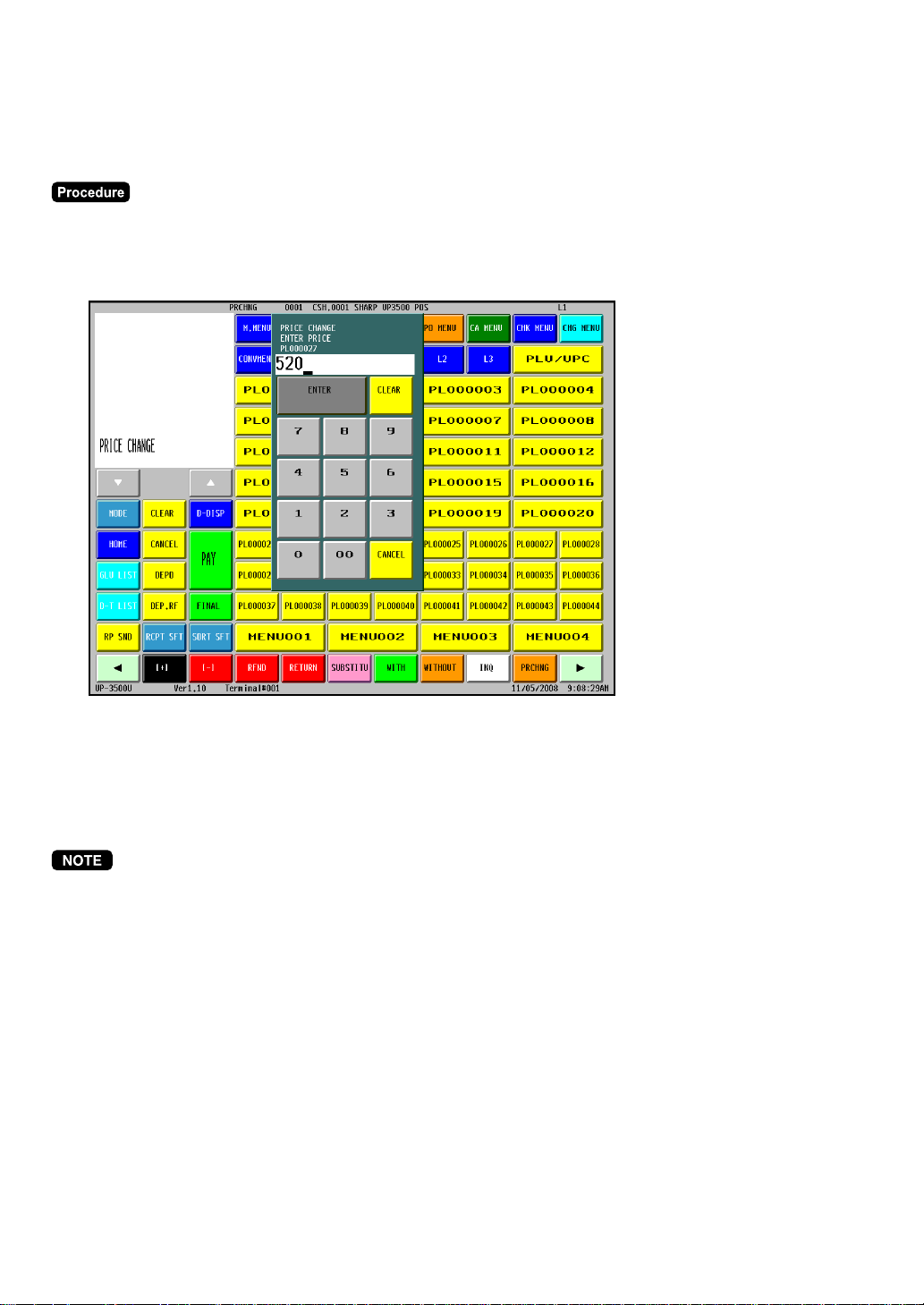
42
■■
■■
■ Price change function
You can use this function when you need to change the preset price and/or associated department of a
PLU/UPC. The programmed price and/or associated department is changed to the new ones.
(1) Touch the [PRCHNG] key, then enter the PLU/UPC item.
(1a) Enter the PLU/UPC item then touch the [PRCHNG] key.
The following window is displayed.
If you need to cancel the price change function, touch the [CANCEL] key.
(2) Enter the price and associated department number, then touch the [ENTER] key.
(To keep the current price and department number, touch the [ENTER] key. )
•
When an undefined code is entered for the price change mode, the entry will result in an error
message.
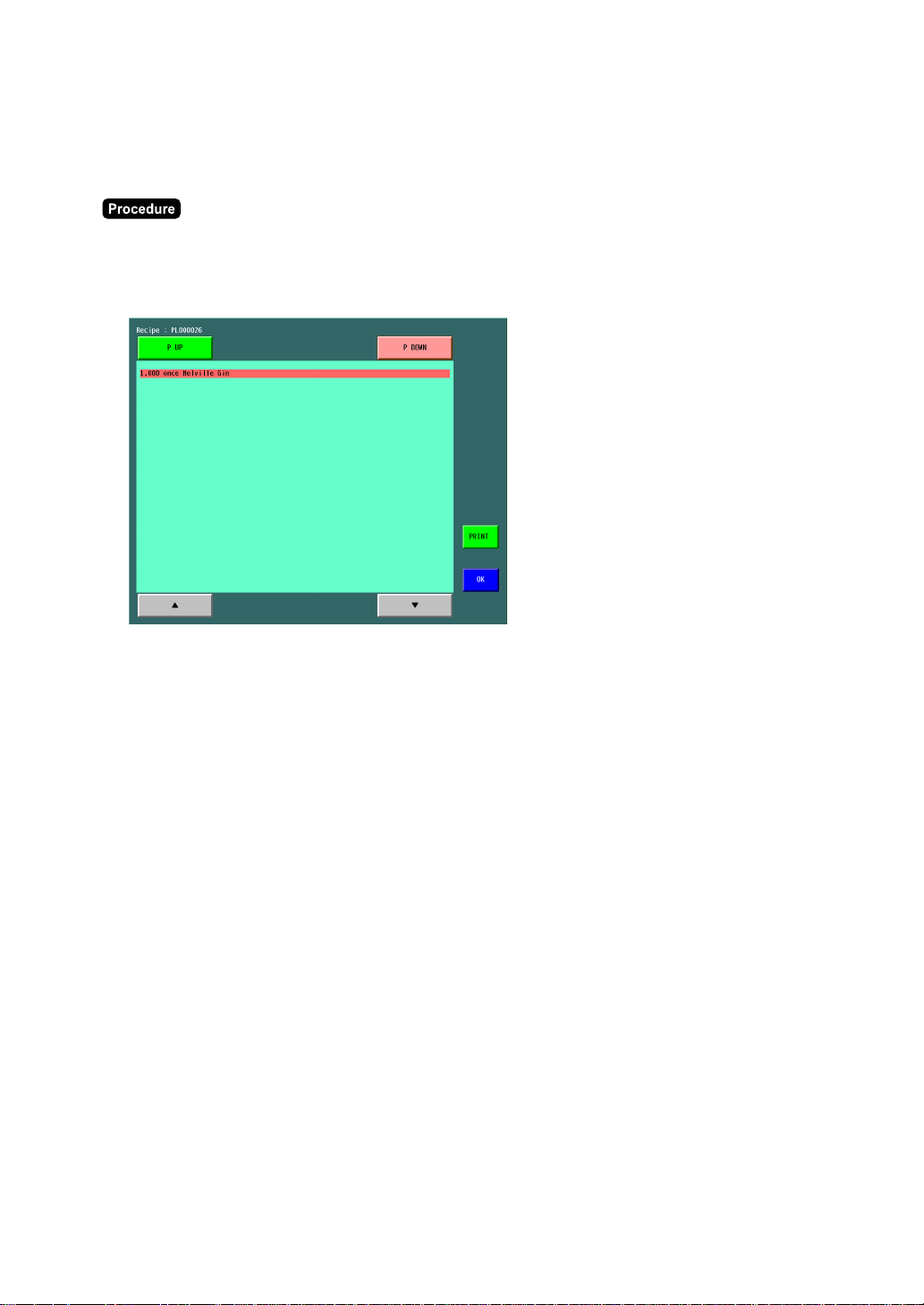
43
■■
■■
■ Recipe text display/print
This function enables you to confirm the recipe instructions for preparing select items. The displayed
guidance text can be printed. If this function is required, the guidance text of the recipe can be programmed
for the recipe table, and the recipe table no. must be assigned for PLU items.
(1) Select the entered PLU in the receipt window. (The selected item will be highlighted.)
(2) Touch the [RECIPETX] key.
The following window is displayed.
(3) Touch the [PRINT] key, if the printout is required.
Touch the [OK] key to close the guidance for the recipe.

44
Subtotal Display
Your POS terminal provides these five types of subtotals:
■■
■■
■ Merchandise subtotal
Touch the [MDS ST] key at any point during a transaction.
The net sales subtotal (not including tax) will appear in the window.
■■
■■
■ Taxable subtotal
Taxable n (n: 1 - 4) subtotal
Touch the [TAX SFT n] and [SBTL] keys in this order at any point during a transaction. The sales subtotal
of taxable (n) items will appear in the window. Touch the [OK] key to exit the subtotal display mode.
■■
■■
■ Including-tax subtotal (full subtotal)
Touch the [SBTL] key at any point during a transaction. The sales subtotal including tax will appear in the
window.
■■
■■
■ Tray subtotal
Touch the [TRY ST] key during a transaction in the REG mode.
The contents of the tray total itemizer which include tax are printed and displayed.
■■
■■
■ Eat-in subtotal
Touch the [EAT IN n] (n: 1 - 9) key prior to entering a payment. Your POS terminal will calculate a subtotal
according to the programmed tax exemption status and display the subtotal.
For the transaction with the eat-in subtotal, you must finalize the transaction by making a payment entry.
Just after touching the [EAT IN n] (n: 1 - 9) key, however, you can cancel the entry of that key by touching
the [CLEAR] key or another [EAT IN n] (n: 1 - 9) key.

45
Finalization of Transaction
The following types of media can be used for the finalization of transactions.
• Cash
• Check
• Charge (Credit)
The direct finalization or amount tendering can be performed to finalize the transaction.
••
••
• Amount tendering
Cash (n):
➝
Tendered amount
➝
[CASH n] (n: 1 - 9)
Check (n):
➝
Tendered amount
➝
[CHK n] (n: 1 - 9)
Charge (n):
➝
Tendered amount
➝
[CH n] (n: 1 - 9)
•
The charge tendering is allowed when its media is programmed for compulsive tendering.
•
The amount tendering is disallowed when the sales subtotal (full subtotal) is zero or negative.
•
The amount tendering for the partial payment (short tendering) can be allowed.
••
••
• Direct finalization
Cash (n):
➝
[CASH n] (n: 1 - 9)
Check (n):
➝
[CHK n] (n: 1 - 9)
Charge (n):
➝
[CH n] (n: 1 - 9)
The direct charge function is allowed when its media is programmed for prohibited tendering.

46
Tax Calculations
■■
■■
■ Automatic tax
When your POS terminal is programmed with a tax table (or tax rate) and the tax status of an individual
department or PLU is set for taxable, it computes the tax automatically on any item that is entered into the
department directly or indirectly via a related PLU.
■■
■■
■ Manual tax
Your POS terminal allows you to enter tax manually after item entries.
After items entry, enter tax amount and touch the [TAX] key.
■■
■■
■ Tax deletion
You can delete the automatic tax on the taxable 1, taxable 2, taxable 3, or taxable 4 subtotal of each
transaction by touching the corresponding TAX SHIFT key followed by the [SBTL] key, then the [TAX] key
after the subtotal is displayed.
If any of the media keys (i.e. cash, check, or charge) are programmed for tax delete in the PGM2 mode, the
tax can be deleted without using the procedures above. In this case touching a corresponding media key
that has been programmed will always cause the selected tax to be deleted.
■■
■■
■ Tax status in Canada
The following prohibitions of tax status must be cared in Canada.
The entry of a multi-taxable item for PST or GST will be prohibited as follows (for Canada):
In case of; Tax 1: PST, Tax 2: PST, In case of; Tax 1: PST, Tax 2: PST,
Tax 3: PST, Tax 4: GST Tax 3: GST, TAX 4: GST
Taxable 1 and 2 item ......... prohibited Taxable 1 and 2 item ........ prohibited
Taxable 1 and 3 item ......... prohibited Taxable 1 and 3 item ............ allowed
Taxable 2 and 3 item ......... prohibited Taxable 2 and 3 item ............ allowed
Taxable 1 and 4 item ............. allowed Taxable 1 and 4 item ............ allowed
Taxable 2 and 4 item ............. allowed Taxable 2 and 4 item ............ allowed
Taxable 3 and 4 item ............. allowed Taxable 3 and 4 item ........ prohibited
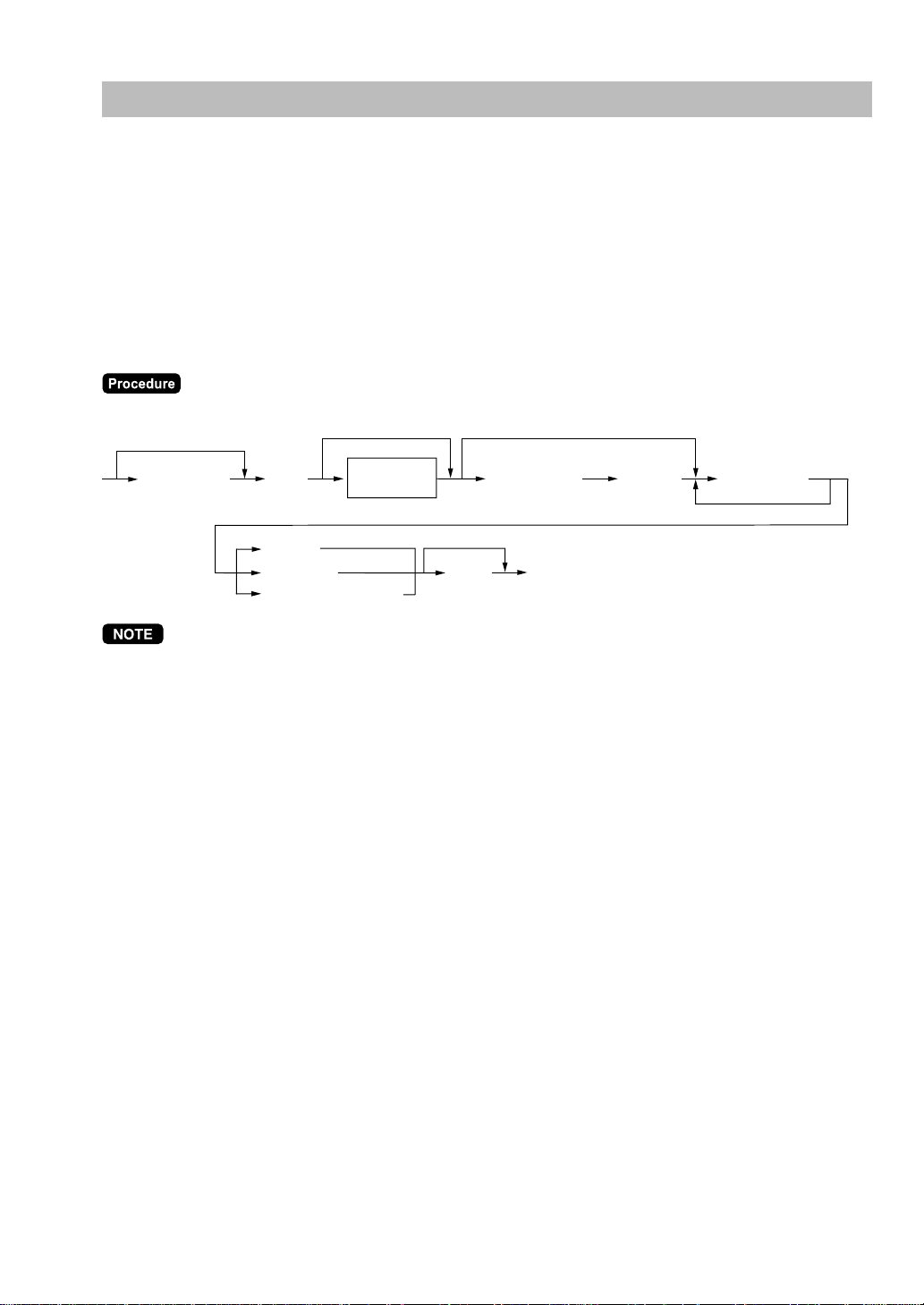
47
Guest Check
Your POS terminal is provided the guest lookup (GLU) system.
GLU system: The balance due and the details of the order are placed in the guest check file. The
information can be automatically recalled by entering a guest check code (= a GLU code)
when additional ordering occurs.
■■
■■
■ GLU system
New guest
For a new guest;
For automatic GLU
code generation
[N.C.]
GLU code
(max. 8 digits)
Cover count
entry
*
2
*
3
*
1
Table number
(max. 4 digits)
[ENTER]
[Item entries]
[SRVC]
[FINAL]
[Payment operations]
[BILL]
To issue the bill
•
The GLU code refers to a code that will be used whenever the guest check must be accessed for re-
ordering or final payment.
•
Your POS terminal can be programmed to generate GLU codes in a sequential fashion. If your POS
terminal has not been programmed to do so, each GLU code can be entered manually.
*1 The cover count refers to the number of people in the party. When the cover count entry is
compulsory, enter the cover count (max. 2 digits) and touch the [ENTER] key. When it is non-
compulsory, enter the cover count and touch the [CV CNT] key.
*2 The table number indicates a table where the guest will be seated.
*3 This is the optional function (Temporary finalization).
You can temporarily finalize a guest check by touching the [SRVC] or [FINAL] key. It is recommended
to use the [SRVC] key to temporarily finalize a guest check when printing is not desired and to use the
[FINAL] key when printing the current balance including tax is desired. The guest check, however, is
still “open.” This means you can still make additional orders to it.
•
After a payment operation is completed, a bill number is created for the closed GLU. It is printed on the
receipt or journal and printed on the bill when issued. The bill number should be used to refer to the
closed GLU on a sales report.
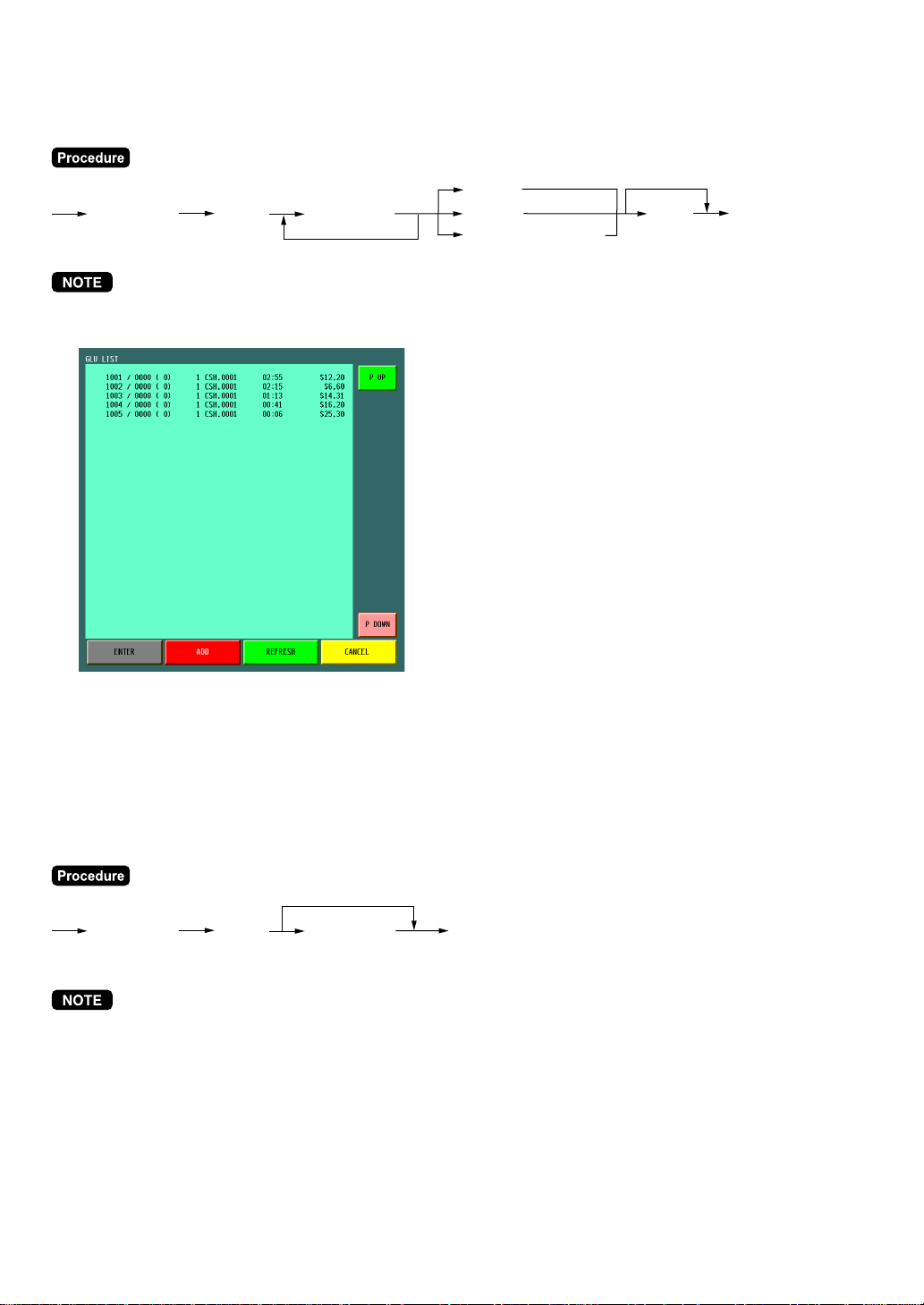
48
Reorder entries
For making additional guest check entries;
[PBAL]
GLU code
(max. 8 digits)
[Item entries]
[SRVC]
[FINAL]
[Payment operations]
[BILL]
To issue the bill
The open table can be displayed by touching the [GLU LIST] key.
To operate the reorder entries, touch a corresponding line of the GLU list and touch the [ENTER] key.
To exit from the GLU list screen, touch the [CANCEL] key.
To refresh the service time data, touch the [REFRESH] key.
Settlement
Use the following procedure;
[PBAL]
GLU code
(max. 8 digits)
[Item entries]
[Payment operations]
•
You can make a tip-in entry before a tender entry. If a tip-in entry is made, the tip amount must be
tendered by using the associated media key e.g. CH1 thru CH9 for the charge tip and CASH1 thru
CASH9 for the cash tip.
•
The open table can be displayed by touching the [GLU LIST] key.
To operate the reorder or payment entries, touch a corresponding line of the GLU list and touch the
[ENTER] key.
To exit from the GLU list screen, touch the [CANCEL] key.
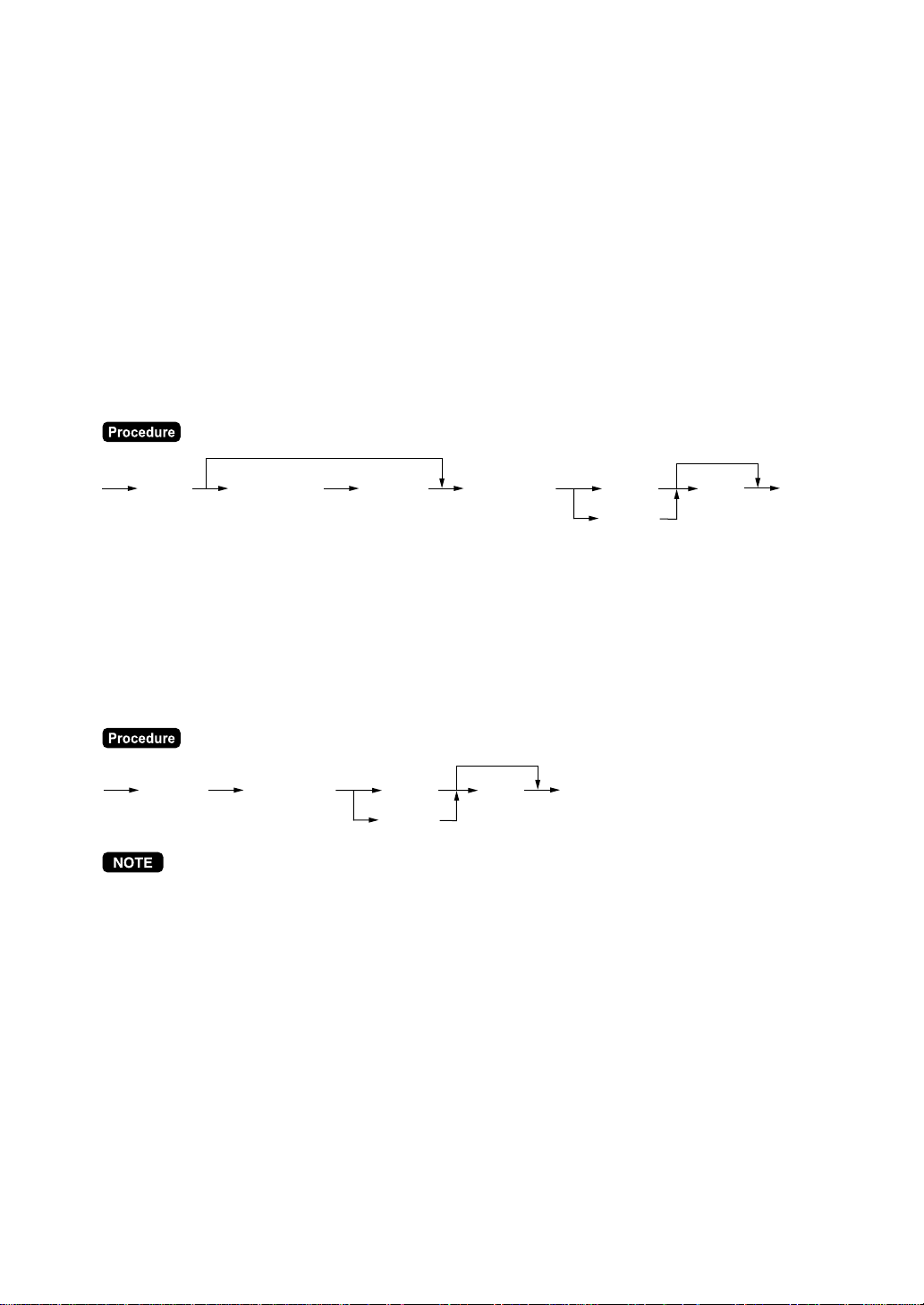
49
■■
■■
■ Drive-thru function
A second GLU function can be used as the drive-thru function. This system looks up drive-thru codes
automatically (First In/First Out).
This drive-thru system provides two types of POS terminal functions (Order taker, cashier station).
Drive-thru screen
The drive-thru screen can be displayed by touching the [D-DISP] key or by finalizing the drive-thru
registration (refer to PGM: FUNC.SELECTING).
When the [HOME] or [CANCEL] key is touched, the screen is changed to the ordinary screen from
the drive-thru screen. The screen can also be changed to the ordinary screen by beginning the drive-thru
registration with touching the [N.C. 2] key.
New car
For a new car, open a new drive-thru balance (the code is automatically generated).
[N.C. 2]
Cover count
(max. 2 digits)
[CV CNT]
[Item entries]
[SRVC]
[FINAL]
[BILL]
To issue the bill
The [FINAL] key is used for the optional function (temporary finalization).
You can temporarily finalize a guest check by touching the [FINAL] key. Depending upon your terminal’s
programming this prints out a guest check to show the current balance, including tax. The guest check,
however, is still “open.” This means you can still make additional orders to it.
Reorder entries
For making additional drive-thru entries, use the following procedure:
[PBAL 2] [Item entries]
[SRVC]
[FINAL]
[BILL]
To issue the bill
The drive-thru list table can be displayed by touching the [D-T LIST] key.
To operate the reorder entries, touch a corresponding line of the drive-thru list and touch the [ENTER]
key.
To exit from the drive-thru list screen, touch the [CANCEL] key.
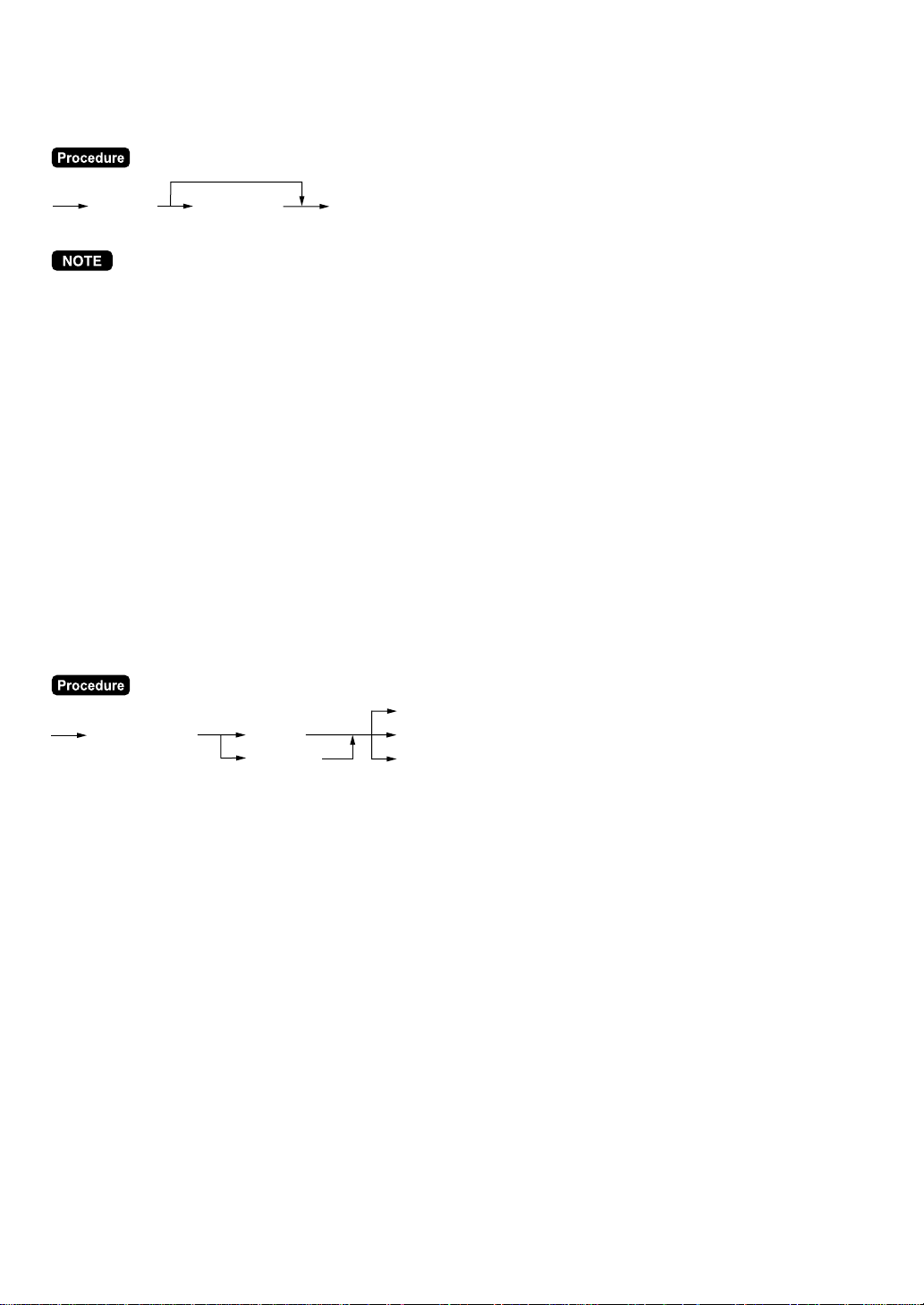
50
Settlement
Use the following procedure:
[PBAL 2] [Item entries]
[Payment operations]
•
After a payment operation is completed, a bill number is created for the closed drive-thru. It is printed on
the receipt or journal and printed on the bill when issued. The bill number should be used to refer to the
closed drive-thru on a sales report.
•
The drive-thru list table can be displayed by touching the [D-T LIST] key.
To operate the reorder or payment entries, touch a corresponding line of the drive-thru list and touch the
[ENTER] key.
To exit from the drive-thru list screen, touch the [CANCEL] key.
■■
■■
■ Deposit entries
Deposit refers to a prepayment on a guest check. It can be received in cash or by check or charge 1 thru
charge 9.
You can make a deposit entry only when entering a guest check. It cannot be done during handling of a
tendered amount.
A received deposit can be refunded by touching the [DEP. RF] key. You cannot attempt to refund an
amount larger than the deposit balance.
Deposit amount
(max. 7 digits)
[CHK n]
[CASH n]
[DEPO]
(n: 1-9)
[DEP. RF]
[CH n]
(n: 1-9)
(n: 1-9)
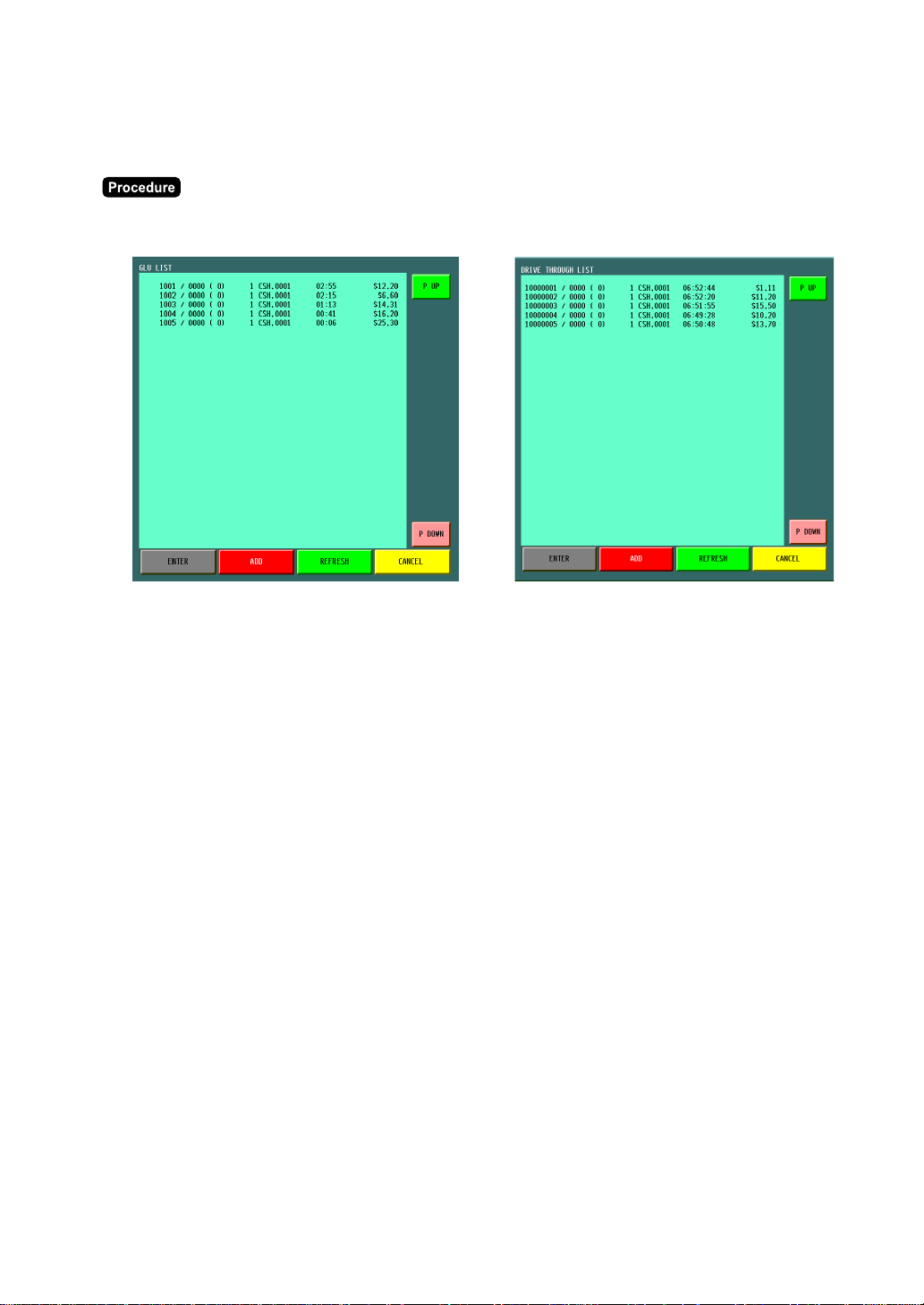
51
■■
■■
■ Bill totalizing
The bill totalizing function is used to combine multiple bills when, for example, a particular guest pays not
only his or her bill, but also the bills of other guests.
(1) To display the open table list or drive-thru list, touch the [GLU LIST] or [D-T LIST] key.
(2) Touch the corresponding lines to select, and touch the [ADD] button. (Max. 10 GLUs can be combined.)
If the selected line must be released, touch the line again before touching the [ADD] button.
The selected GLUs are combined to the smallest number of selected GLU.
(3) Touch the [CANCEL] button to exit this screen.
(Open table list) (Drive-thru list)
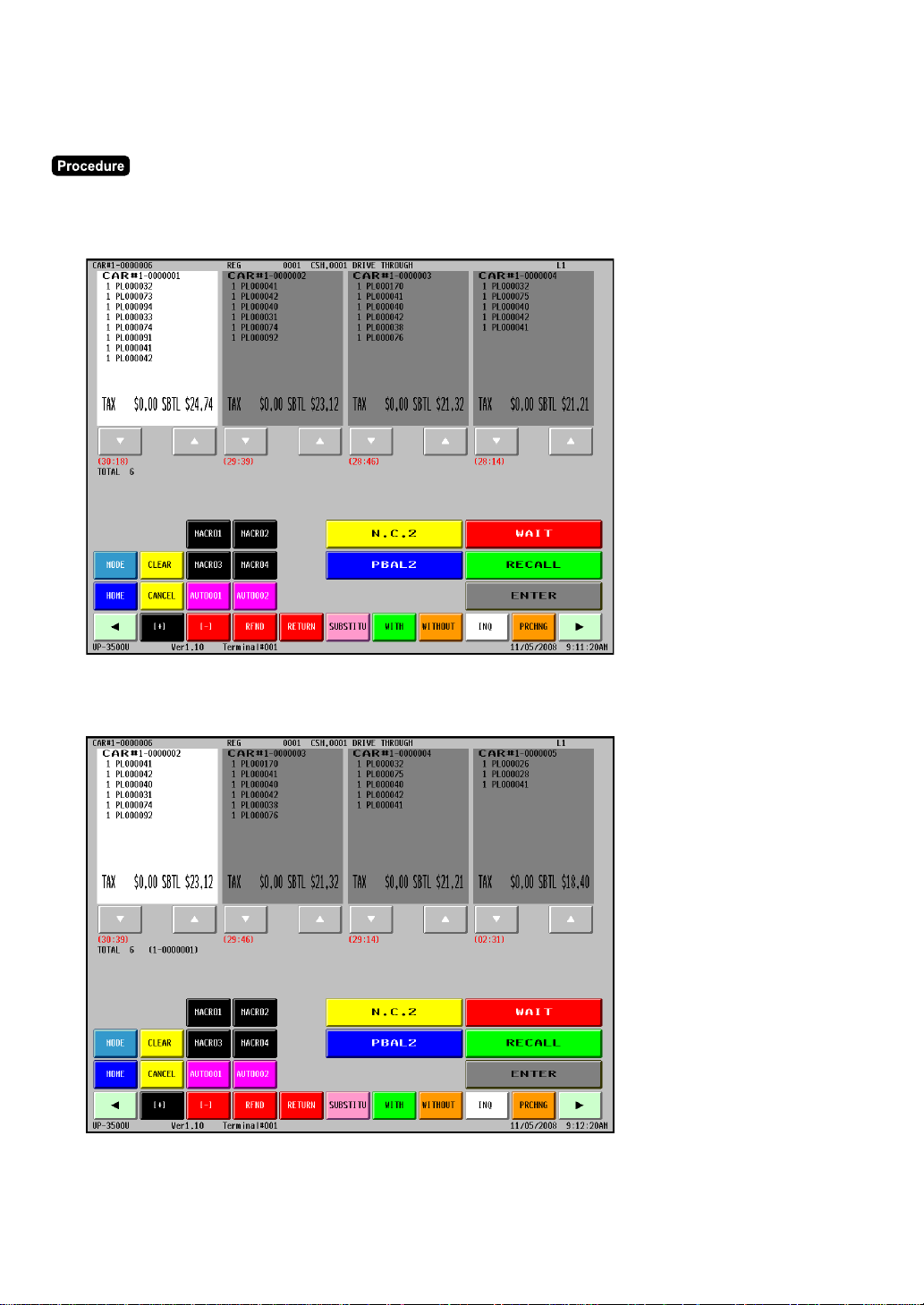
52
■■
■■
■ Wait (Parking) a drive-thru order
The guest checks can be changed to waiting mode from the registration mode for the drive-thru function.
(1) Touch the [D-DISP] key to display the drive-thru window.
(2) Touch the required guest check.
(3) Touch the [WAIT] key.
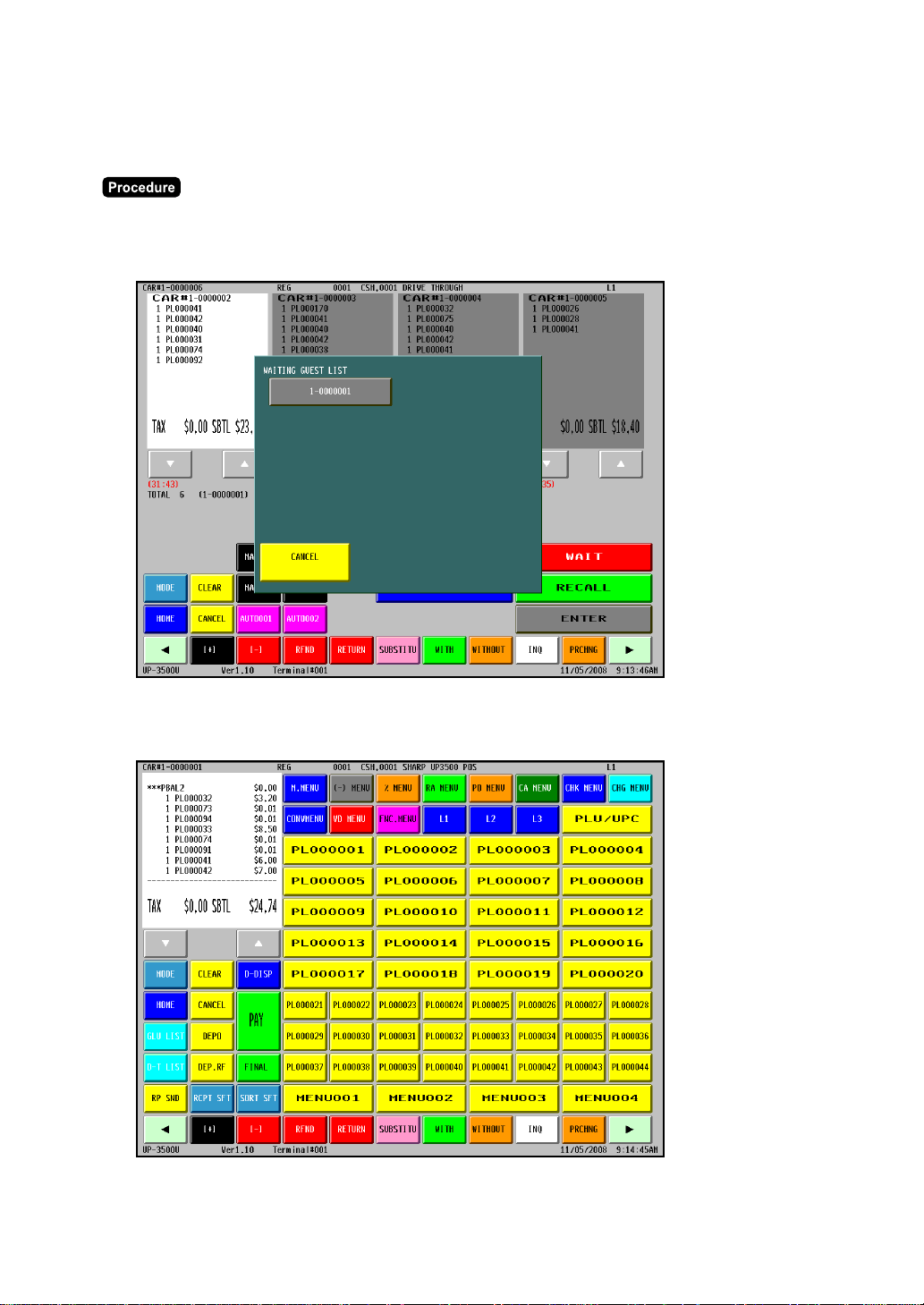
53
■■
■■
■ Drive-thru order check recall
Each cashier is able to recall the guest checks of waiting mode for reorder entries, item corrections or
settlement again by using the [RECALL] key.
(1) Touch the [D-DISP] key to display the drive-thru window.
(2) Touch the [RECALL] key, the waiting guest list will be shown.
(3) Touch the required guest check number to return to the registration mode.
(4) Perform corresponding entry operations.

54
Auxiliary Entries
■■
■■
■ Percent calculations (% premium or % discount)
Your POS terminal provides percent calculations for a merchandise subtotal or each item entry. You need
to program, in advance, for which merchandise subtotal or which item entry your POS terminal should
perform a percent calculation.
For percent calculations (premium, discount, merchandise subtotal or individual), you may use the [%
n
]
key.
Percentage: 0.01 to 100.00%
For item entries: (Selecting the item in the receipt window)
➝
Percent rate
➝
[%
n
]
When the programmed percent rate is used, touch the [%
n
] key without entering the
percent rate.
For the subtotal:
➝
[MDS ST]
➝
Percent rate
➝
[%
n
]
When the programmed percent rate is used, touch the [%
n
] key without entering the
percent rate.
•
For the ST % (merchandise subtotal) entry:
The % entry will be allowed only when all PLUs/UPCs which are associated to the % key have been
entered.
•
For the Item % entry:
The % entry will be allowed only for a PLU/UPC which is associated to the % key.
■■
■■
■ Discount entries (-)
For item discount or subtotal discount, you can use the [( - )
n
] key when it is allowed by the programming.
For item entries: (Selecting the item in the receipt window)
➝
Discount amount
➝
[( - )
n
]
When the programmed discount amount is used, touch the [( - )
n
] key without entering
the discount amount.
For the subtotal:
➝
Discount amount
➝
[( - )
n
]
When the programmed discount amount is used, touch the [( - )
n
] key without entering
the discount amount.
•
For the subtotal discount entry:
The subtotal discount entry will be allowed only when all PLUs/UPCs which are associated to the (-) key
have been entered.
•
For the item discount entry:
The item discount entry will be allowed only for a PLU/UPC which is associated to the (-) key.
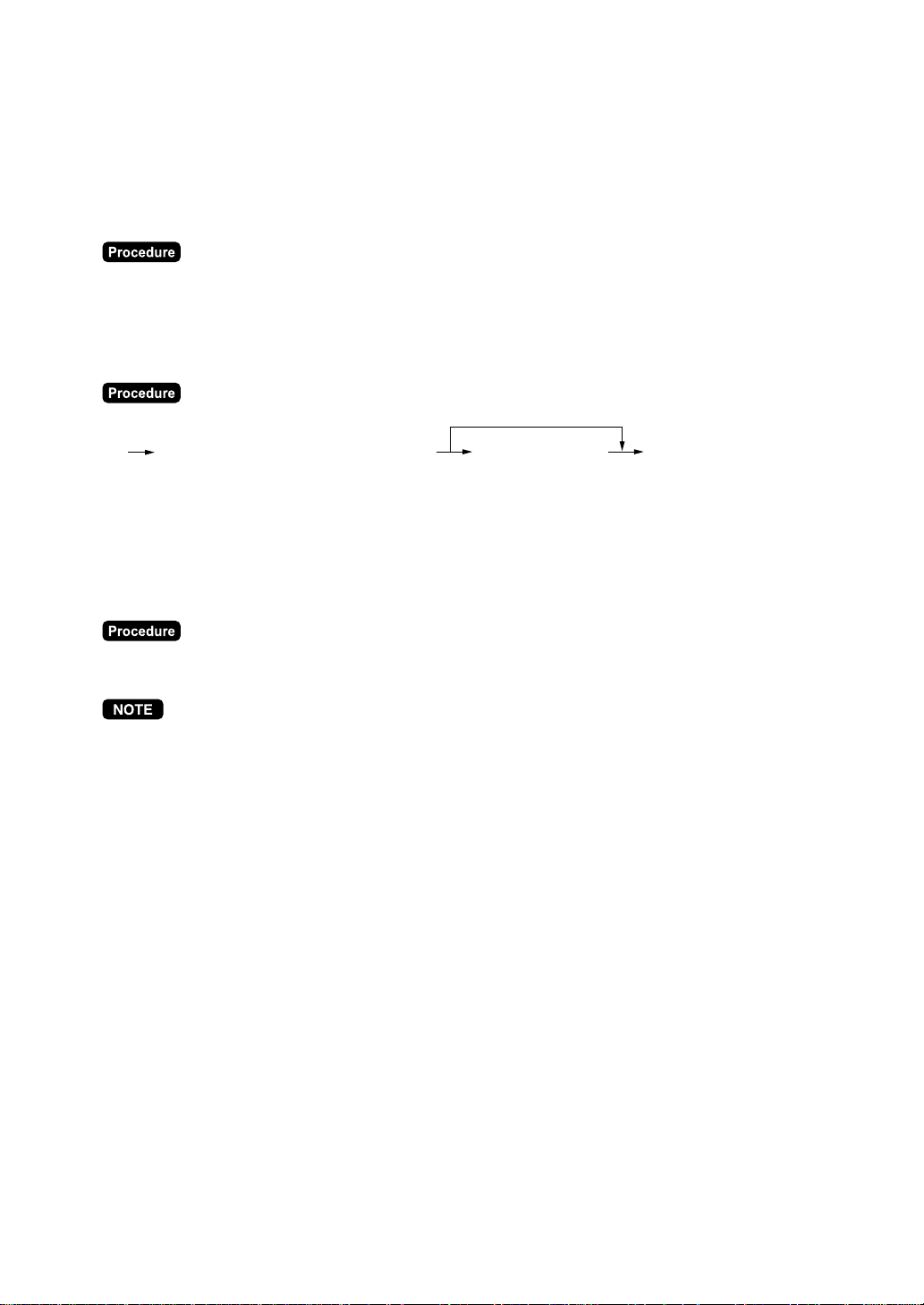
55
■■
■■
■ Group discount entries
The terminal provides the percent calculation (discount/premium) for associated group.
Percentage: 0.01 to 100.00% (programmed rate)
••
••
• Display of the group discountable subtotal
➝
[GD SFT n]
➝
[SBTL]
••
••
• Group discount entry
[GDSC% n](Display of the group discountable subtotal) Group discount rate
When you use a programmed rate
••
••
• Group discount status shift
The terminal allows you to shift the programmed group discount status of each PLU/UPC by touching the
[GD SFT n] key before (or after) item entries. After each entry is completed, the programmed group
discount status of each item is resumed.
➝
[GD SFT n]
➝
(Item entry), or
➝
(Entered item selection by cursor)
➝
[GD SFT n]
•
It is possible to perform the group discount automatically at finalization (by programmed media).

56
■■
■■
■ Refund entries
When you perform the refund item entry, touch the [RFND] key and perform the item entry operation.
The terminal also allows you to perform a refund entry for selected item by cursor.
➝
[RFND]
➝
(Item entry), or
➝
(Entered item selection by cursor)
➝
[RFND]
■■
■■
■ Refund sales mode
This function is used for those item refund entries relating to departments, PLUs/UPCs.
Touching the [RF MODE] key at the beginning of a transaction causes the register to enter the REFUND
SALES mode.
All of the REFUND SALES mode entries are automatically handled as refund entries. This mode cannot be
finalized by check payment entry.
■■
■■
■ Return entries
When you perform the return item entry, touch the [RETURN] key and perform the item entry operation.
The terminal also allows you to perform a return entry for selected item by cursor.
➝
[RETURN]
➝
(Item entry), or
➝
(Entered item selection by cursor)
➝
[RETURN]
■■
■■
■ Printing of non-add code numbers
Enter a non-add code number such as a customer reference number and credit card number within a
maximum of 16 digits and touch the [ # ] key at any point during the entry of a sale.

57
■■
■■
■ Printing of free text
You can perform the free text entry after PLUs/UPCs item entry.
Programmed free text can be printed out by entering the corresponding text code and touching the [TEXT
#] key or by touching the corresponding direct text key ([TEXT
n
]).
• Direct key entry:
➝
Q’ty
➝
[TEXT
n
]
When the q’ty is “1”, it is unnecessary to enter the q’ty (“
➝
Q’ty
➝
”).
• Text code entry:
➝
Q’ty
➝
[x/TIMES]
➝
Text code
➝
[TEXT #]
When the q’ty is “1”, it is unnecessary to enter the q’ty (“
➝
Q’ty
➝
[x/TIMES]
➝
”).
• Text entry by the list:
➝
Q’ty
➝
[x/TIMES]
➝
[TEXT #]
➝
Selecting the text
When the q’ty is “1”, it is unnecessary to enter the q’ty (“
➝
Q’ty
➝
[x/TIMES]
➝
”).
•
The following window is displayed for text entry. Then key in the text, and touch the [EXIT] button.
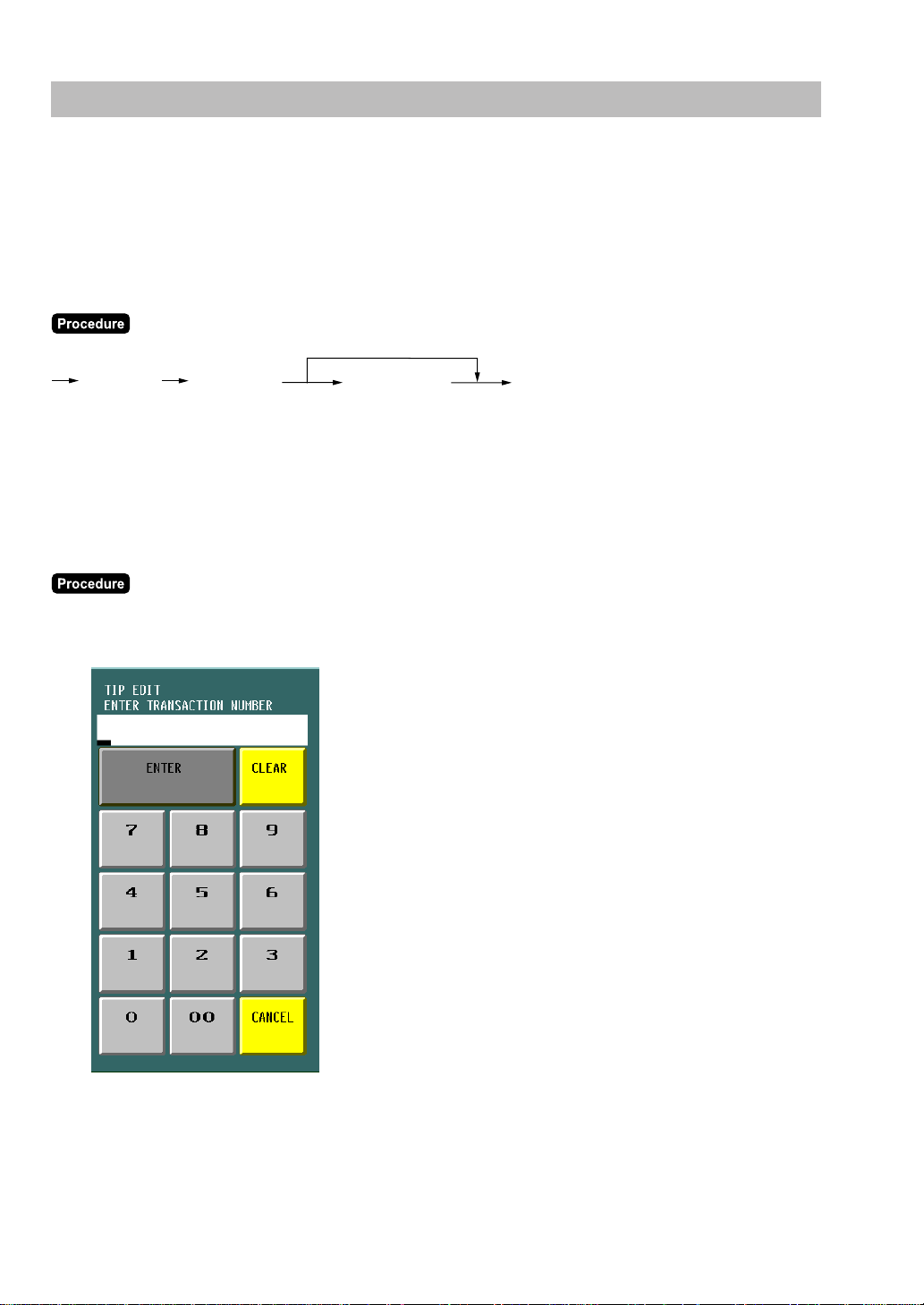
58
Payment Handling
■■
■■
■ Tip-in entries
Your POS terminal allows the entry of tips that your guests give to cashiers in cash or by credit card.
The tip entry must be done before a payment entry.
You cannot make any previous or credit balance entry after making a tip-in entry.
Two different tip-in entry systems are available: the tip amount entry system and the tip percent rate entry
system. It depends on how your POS terminal has been programmed which of these systems is used.
[TIP], orTip amount
Tip percent rate
When you use a programmed percent rate
[TIP]
■■
■■
■ Tip editing
This function is used for entering tip amounts after finalizing a guest check transaction.
The bill number or the transaction number (selection by programming) which is issued when the finalization
is performed in guest check entry must be used in order to identify the guest to edit for add tip amount.
(1) Touch the [EDIT TIP] key. The window is displayed for entering the bill number (or transaction number)
and the tip amount.
(2) Enter the bill number (or the transaction number) and the tip amount.
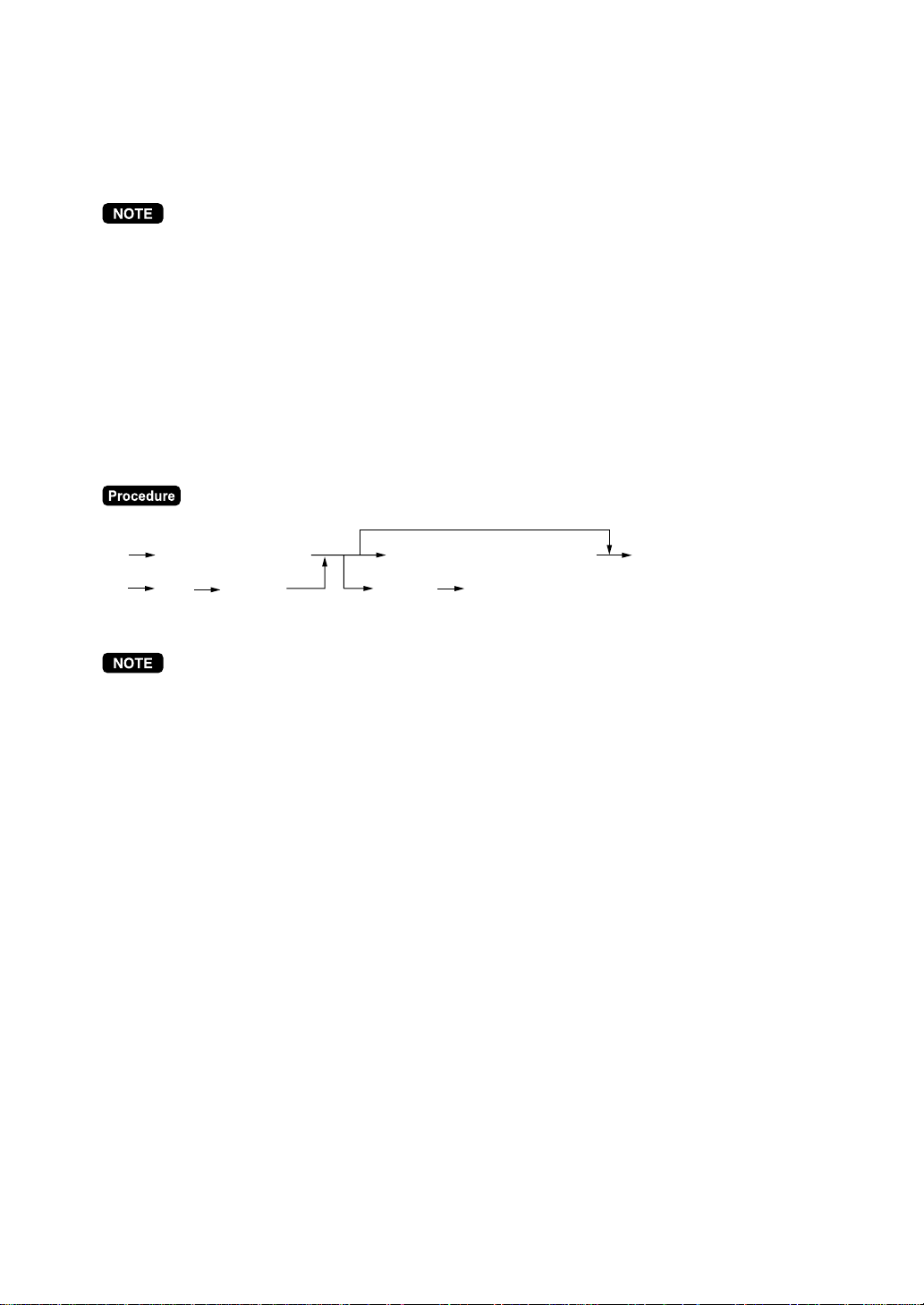
59
■■
■■
■ Tip paid entries
This operation is used when tips that guests have paid by using credit card are paid to respective cashiers
in cash. To perform the tip paid entry, enter the cashier code (assigning the cashier), then touch the [TIP
PAID] key.
When the tip amount remains unchanged in Individual Cashier Resetting, the tip paid function is
automatically executed and a tip receipt is issued to the report printer prior to server report printing.
■■
■■
■ Currency conversion
Your POS terminal allows payment entries in foreign currency after sales entry or during amount tendered
entry.
Touching the [CONV1] thru [CONV4] keys creates a subtotal in foreign currency. Cash alone can be
handled after currency conversion.
When you use a programmed rate
[CONV1] thru [CONV3]
(Rate: 0.0 to 9999.9999)
Amount tendered (max. 8 digits)
[CLEAR]
For direct finalization
Rate
[CONV4]
[CASH1] or [CASH2]
For re-entry of currency conversion, next registration, or
payment in domestic currency
•
The terminal also allows you to enter currency conversion from the conversion menu, touch the
[CONVMENU] key and select conversion items, then touch the [ENTER] key.
•
When the amount tendered is short, its equivalent in deficit is shown in domestic currency.
•
Change amount will be displayed in domestic currency.
Case of opening foreign currency drawer:
•
At the time of issuing receipt after tendering exchange amount.
•
At the time of issuing X/Z report (included CCD)
•
The Exchange drawer open function is executed.
When the [CONV n] key is touched the foreign currency drawer will be opened.
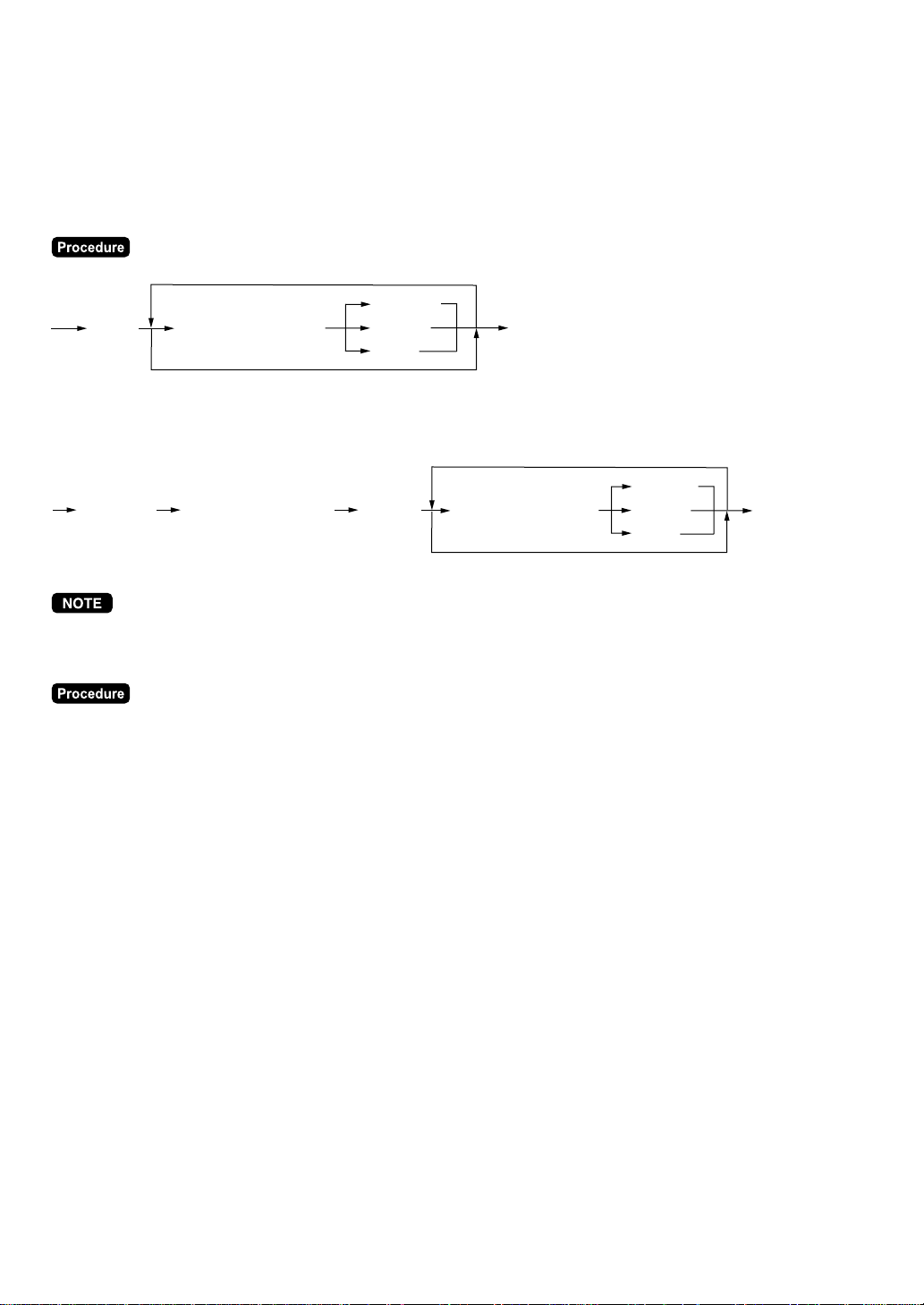
60
■■
■■
■ Received-on-account entries
The terminal is programmed either “mixed media type” or “cash only type” for the received-on-account
function.
••
••
• Mixed media type
[RA n]
[CASH n]
[CHK n]
[CH n]
[RA n]
To cancel
Amount (max. 8 digits)
For the next RA
••
••
• Menu-based entries
[CASH n]
[CHK n]
[CH n]
[M. MENU]
To cancel
Amount (max. 8 digits)
For the next RA
[RA MENU] [RA n from the window] [ENTER]
You may also choose the RA procedure instead of the above procedure only for cash payment.
Contact your authorized SHARP dealer to change the procedure.
• Direct key entries
➝
Amount (max. 8 digits)
➝
[RA n]
➝
• Menu-based entries
➝
[RA MENU]
➝
[RA n from the window]
➝
[ENTER]
➝
Amount (max. 8 digits)
➝
[ENTER]
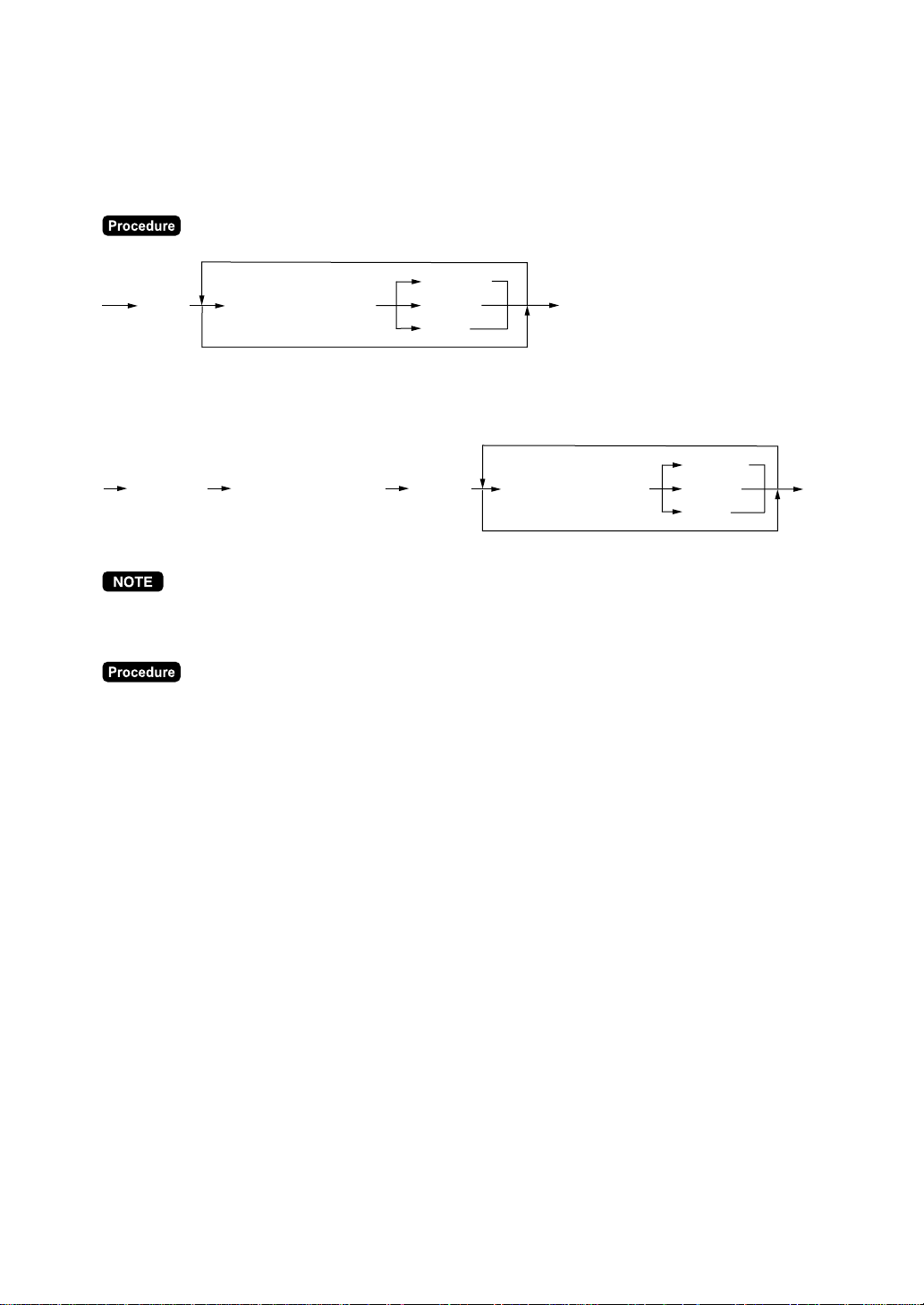
61
■■
■■
■ Paid-out entries
The terminal is programmed either “mixed media type” or “cash only type” for the paid-out function.
••
••
• Mixed media type
[PO n]
[CASH n]
[CHK n]
[CH n]
[PO n]
To cancel
Amount (max. 8 digits)
For the next PO
••
••
• Menu-based entries
[CASH n]
[CHK n]
[CH n]
[M. MENU]
To cancel
Amount (max. 8 digits)
For the next PO
[PO MENU] [PO n from the window] [ENTER]
You may also choose the PO procedure instead of the above procedure only for cash payment.
Contact your authorized SHARP dealer to change the procedure.
• Direct key entries
➝
Amount (max. 8 digits)
➝
[PO n]
➝
• Menu-based entries
➝
[PO MENU]
➝
[PO n from the window]
➝
[ENTER]
➝
Amount (max. 8 digits)
➝
[ENTER]

62
■■
■■
■ No-sale
Simply press the [NS] key without any entry. The drawer will be opened and the text of no-sale will be
printed. When the no-sale function is programmed to “complex key type”, press the [CASH] key instead of
the [NS] key.
■■
■■
■ Adress and name entries
It is possible to enter the address and name of guests in a transaction by using the [ADD/NAME] key.
The entered address and name will be printed on bill.
(1) Press the [ADD/NAME] key. The window will be popped up for entering the address and name.
To cancel the operation, press the [CANCEL] key.
(2) Enter the address and name.
(3) Press the [OK] key to exit the operation.
■■
■■
■ Transferring cash
This function is used to change cash sales amount for credit or check sales amount. For example, you can
use this function when your guest asks you to credit the payment or to receive payment with check after
entering the payment as cash.
➝
Amount
➝
[CH
n
]
➝
[CHK
n
]
■■
■■
■ VIP sales
This function is used for transactions for the important guest who is free of charge. In this mode, the unit
price is not counted and quantity and price report totalizers are not increased.
➝
[VIPSALE
n
]
➝
(Item entries)
➝

63
■■
■■
■ Bill separating payment
The function is used when two guests will each pay a portion of the order. With this function, you can select
some Items (touching required items) on the receipt window and make an entry for the payment (cash,
check or charge).
➝
{Item entries or displaying the guest check}
➝
[Item selection (touching items)]
➝
[Payment
operation]
➝
After one bill separation operation, the next operation must be a payment for the remaining balance.

64
Employee code
(max. 10 digits)
Drawer no.
[EMPL#]
Secret code
(max. 8 digits)
[ENTER]
[ENTER]
(1 or 2: When the drawer no. entry is compulsory.)
When the drawer no. has been preset
Scanning an employee card
Employee Function
You can use the following functions by using employee codes:
■■
■■
■ Cashier/manager sign-on
Cashiers can be signed on by entering employee codes, or they can be signed on by using employee cards.
To use an employee card, you need a magnetic card reader (MCR). Contact your authorized SHARP dealer.
Use the following procedures:
••
••
• Cashier sign-on
••
••
• Manager sign-on
Employee code
(max. 10 digits)
[EMPL#]
Secret code
(max. 8 digits)
[ENTER]
Scanning an employee card
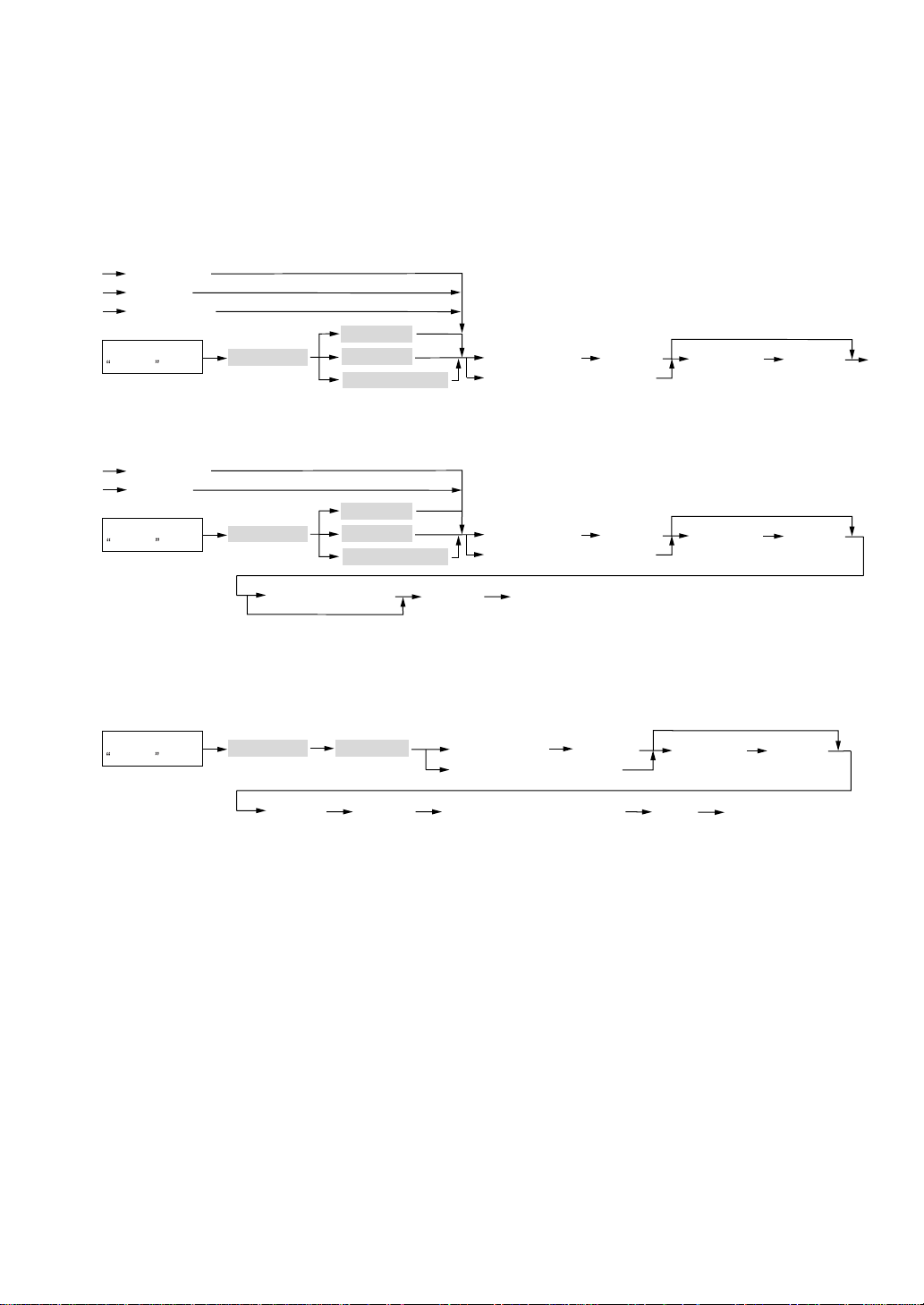
65
■■
■■
■ Employee’s working time recording
You can manage the number of hours for which employees work.
The working time can be recorded by the following operations:
Time-in/out, break-in/out and break-in/paid operations
••
••
• Time-out, break-in or break-paid
[TIME-OUT]
Secret code
[ENTER]
Scanning an employee card
[BREAK]
[BREAK PD]
EMPLOYEE
TIME-OUT
BREAK-IN
BREAK-IN/PAID
Employee code
[ENTER]
Select the
OP X/Z mode
••
••
• Time-in or break-out
[TIME-OUT]
Secret code
[ENTER]
Scanning an employee card
[BREAK]
EMPLOYEE
TIME-OUT
BREAK-IN
BREAK-IN/PAID
Employee code
[ENTER]
Select a job location
[ENTER]
When the default location is selected
Select the
OP X/Z mode
Time-edit operation
A manager can edit employee’s time-in/out data to record his or her time correctly.
Secret code
[ENTER]
Scanning an employee card
EMPLOYEE
TIME EDIT
Employee code
[ENTER]
Edit date
[ENTER]
Time-edit operations (Modify)
[EXIT]
Select the
OP X/Z mode

66
Supervisor Cashier
This function is used to allow a supervisor cashier to open the GLU records of a normal cashier. The
supervisor cashier cannot begin transactions under their own number. When the supervisor cashier begins
a transaction an ordinary cashier number will be requested and must be entered before the transaction
begins. That ordinary cashier will then control the GLU.
This function is unavailable when the “overlapped cashier entry function” is enabled.
(1) Sign on the supervisor cashier. (The operation is same as a cashier code entry.)
(2) Enter the password (if it is required).
(3) Enter the transaction.

67
Overlapped Cashier Entry
This function allows you to switch from one cashier to another cashier and to interrupt the first cashier’s
entry, so the second cashier can do his or her entry in this mode. Interrupt handling is possible only in the
overlapped cashier entry.
(1) Sign on the cashier.
(2) Enter the password (if it is required).
(3) Make item registrations.
(4) Sign on another cashier.
(5) Enter the password (if it is required).
(6) Enter items and perform the finalization.
(7) Sign on the original cashier.
(8) Enter the password (if it is required).
(9) Continue entering transaction.
The overlapped cashier entry is not allowed after partial payment.

68
TRAINING Mode
The training mode is used when the operator or the manager practices POS terminal operations.
When a cashier set as in training is selected, the POS terminal automatically enters the training mode.
When a cashier not set as in training is selected, the POS terminal automatically enters the ordinary
registration mode.
Training operations are valid in all modes.
A mark which identifies a training receipt is printed on receipts issued in training mode.
The journal report completely stops in the training mode. The consecutive number is not updated. The
preceding number is repeated in printing.
The totalizer in cashier is updated in the training mode. Other totalizers are not updated.
The reading and resetting of training cashiers is printed on the cashier reports. However, the sales total
of training cashiers is not included in the cashier total on the full cashier report.
When in training mode the word “TRAINING” is displayed in the information/status row.
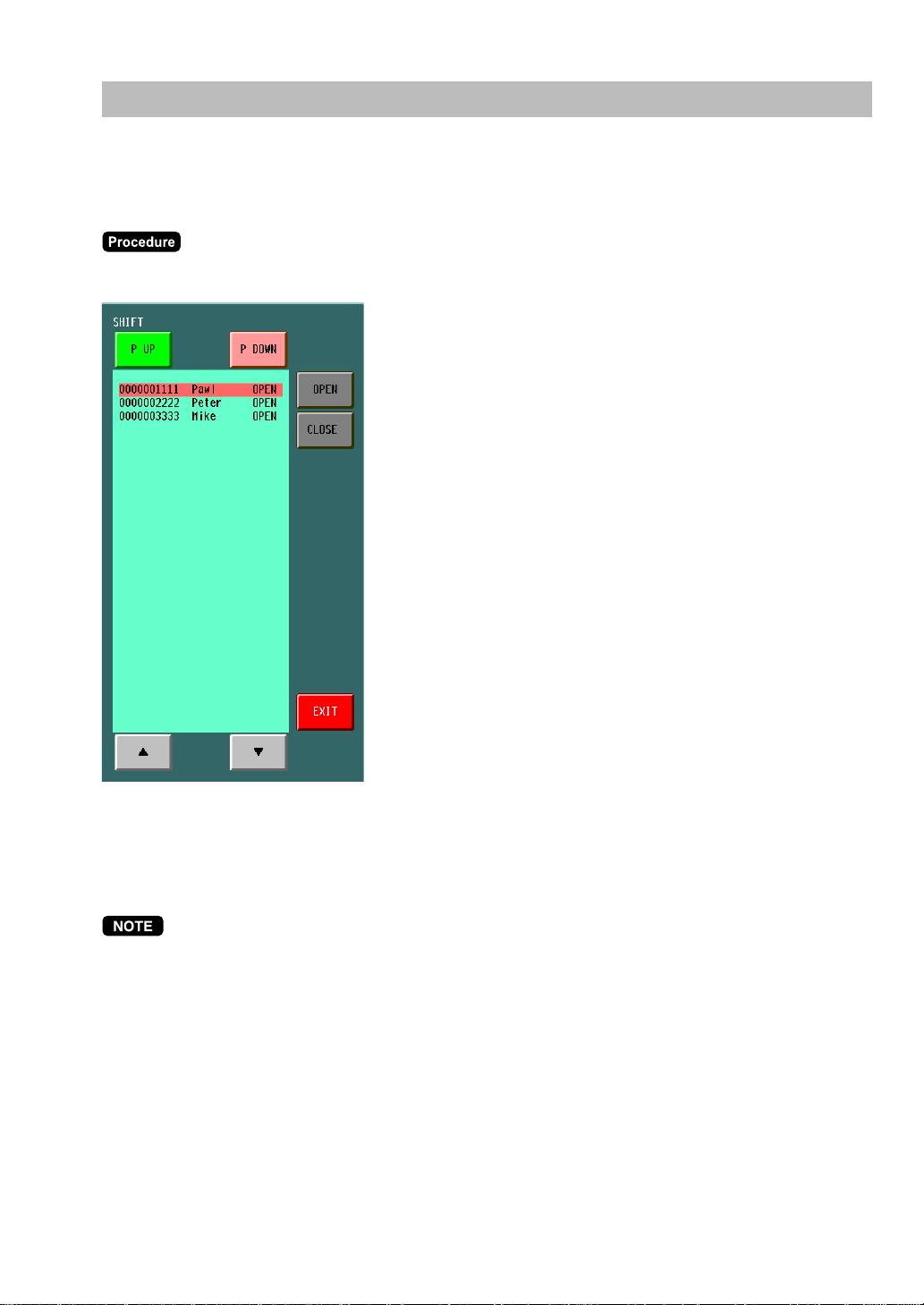
69
Open/Close the Shift Status
The shift status can be specified for each employee. Each employee is only allowed to work during the
shift.
When you open/close the shift status, perform the following procedure.
(1) Touch the [SHIFT] key, the following window is displayed.
(2) Touch the required employee.
(3) To change the shift status, touch the [OPEN]/[CLOSE] button.
(4) To finish the operation, touch the [EXIT] button.
If “auto shift open/close” is programmed, the shift status is automatically opened/closed at the programmed
time.
When the shift status is closed at cashier sign on/employee time in, the cashier sign off/employee time out
is automatically executed. If the shift status is closed during any operations, the cashier sign off/employee
time out is executed after finishing the operations. (Auto shift open/close)
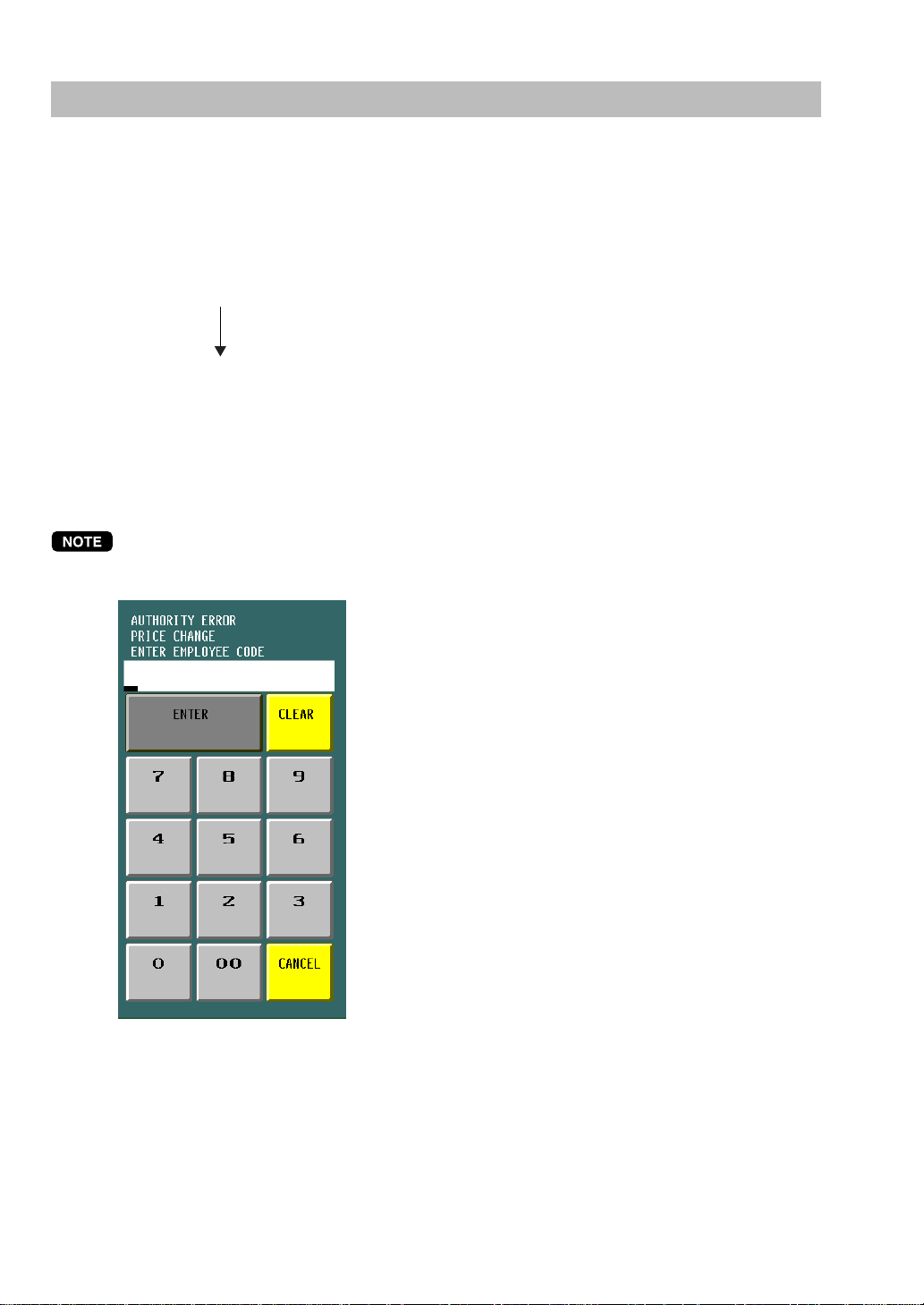
70
Authority Level / Secret Code
■■
■■
■ Authority level
It is possible to specify an authority level to each job function. Each employee can be assigned an authority
level. The authority level can be set to any function. The employee will not be allowed to operate higher-
level functions.
<Authority level>
Level code #1 (Low -level)
Level code #2
Level code #3
Level code #4
Level code #5 (High-level)
■■
■■
■ Secret code
When a secret code is programmed, the employee will be required to enter it to successfully sign on to the
system.
If cashier’s authority level is lower than the function’s authority level, the following window is displayed.
Enter the employee code and touch the [ENTER] key.

71
MACRO Key Entries
The MACRO key can call one or more Auto-key sets and change the register mode if needed. You can run
these key sequences simply by entering the corresponding MACRO keys during key operations.
By the direct MACRO key entries:
➝
[MACRO n] (n: 1 - 99)
When the [CLEAR] key is programmed in the key sequence for the MACRO key, the operation will stop at
the [CLEAR] key position (pause function), and manual key operations can be performed. The MACRO
key sequence is continued by entering same MACRO key again.
72
Corrections
Correction of Entries
If you make an incorrect entry (relating to item entries, percent entries, amount discount entries, refund
entries, return entries, manual amount tax entries, and tip entries), you can void or correct entries as
follows.
••
••
• Voiding the entry
(1) Select the line of designated item in the receipt window. (The selected line will be highlighted.)
(2) Press the [ - ] key.
••
••
• Voiding the serviced entry
(1) Select the line of designated item in the receipt window. (The selected line will be highlighted.)
(2) Press the [ - ] key.
••
••
• Repeat the item entry
(1) Select the line of designated item in the receipt window. (The selected line will be highlighted.)
(2) Press the [ + ] key.
5
1 PLU0001 1.00
1 PLU0002 2.00
1 PLU0003 3.00
1 PLU0001 1.00
1 PLU0002 2.00
1 PLU0001 1.00
1 PLU0002 2.00
1 PLU0003 3.00
------------------
1 PLU0004 4.00
1 PLU0001 1.00
1 PLU0002 2.00
1 PLU0003 3.00
------------------
1 PLU0004 4.00
1 PLU0002 V - 2.00
-
1 PLU0001 1.00
1 PLU0002 2.00
1 PLU0003 3.00
1 PLU0001 1.00
1 PLU0002 2.00
2 PLU0003 6.00
73
••
••
• Repeat the serviced item entry
(1) Select the line of designated item in the receipt window. (The selected line will be highlighted.)
(2) Press the [ + ] key.
1 PLU0001 1.00
1 PLU0002 2.00
1 PLU0003 3.00
------------------
1 PLU0004 4.00
1 PLU0001 1.00
1 PLU0002 2.00
1 PLU0003 3.00
------------------
1 PLU0004 4.00
1 PLU0002 2.00

74
Subtotal Void
You can void an entire transaction. Once the subtotal void is executed, the transaction is aborted and the
POS terminal issues a receipt. The terminal provides two types of void functions (subtotal void for new
order or additional orders, and subtotal void for the whole of guest check).
••
••
• Subtotal void for new order or additional order:
(1) Make item registrations
(2) Select the subtotal line (SBTL X.XX) in the receipt window.
(3) Touch the [ - ] key.
••
••
• Subtotal void for the whole of guest check:
(1) Open the guest check (and enter items).
(2) Select the subtotal line (SBTL X.XX) in the receipt window.
(3) Touch the [CHK VOID] key.
(4) The message “Cancel the current transaction/check?” is displayed.
Touch the [Yes] button to perform the subtotal void.
Touch the [No] button to cancel the subtotal void.

75
Correction after Finalizing a Transaction (Void mode)
When you need to void incorrect entries that cashiers cannot correct (incorrect entries that are found after
finalizing a transaction or cannot be corrected by subtotal void), the following procedure can be performed
by an employee with the proper authority level.
(1) Sign-on the employee with the proper authority level, then enter a password if it is required.
(2) Touch the [VOIDMODE] key to put your POS terminal in the VOID mode. (Note the mode indication on
the display.)
(3) Repeat the entries that are recorded on the incorrect receipt. (All data on the incorrect receipt is
removed from POS terminal memory; the voided amounts are added to the void mode totalizer.)
Your POS terminal leaves the VOID mode whenever a transaction is cancelled (i.e. finalized in the VOID
mode). To void additional transactions, repeat steps (2) and (3) above.
Items do not show as negative amounts but they are subtracted from all totalizers.
Override Entries
When the function cannot be entered by programmed limits (such as maximum amounts) for functions, the
function can be overridden by an employee having the proper authority level.

76
Printing Function
Receipt ON/OFF
The receipt ON(printing receipt)/ OFF(no receipting) status can be toggled by touching the [RCP.SW] key.
➝
(Receipt ON)
➝
[RCP.SW]
➝
(Receipt OFF)
➝
[RCP.SW]
➝
(Receipt ON)
Copy Receipt Printing
If your customer wants a receipt after you have finalized a transaction with the receipt ON/OFF function in
the “OFF” state (no receipt print), touch the [RCPT] key. Your POS terminal will also print a copy receipt
when the receipt ON/OFF function is in the “ON” state.
6

77
Bill Printing
The guest check sales data can be printed at a bill printer or receipt printer.
A bar-code of the bill number (or transaction number) can be printed on the bill.
••
••
• Bill printing on bill printer:
➝
[BILL]
➝➝
➝➝
➝
([BILL] : to copy bill)
➝
••
••
• Bill printing on receipt printer:
➝
[GC RCPT]
➝
([GC RCPT] : to copy bill)
➝
Guest Check Copy
You can use this function when you want to make a copy of a guest check.
Touch the [G.C.COPY] key and make the desired entry.
➝
[G.C.COPY]
➝
(Item entries)
➝
(Finalization)
➝
([BILL] / [GC RCPT])
The operation is the same as normal entry. But no quantity or amount entries are totalized, validation
printing is disabled and the drawer does not open.
Bill Recording / Bill Void
The bill information is recorded to the Closed Transaction File (Bill recording). Each record contains “bill
consecutive number”, “cashier number”, “issued date”, and “amount”.
The bill record can be voided from the Closed Transaction File (Bill void). The voided bill number will be
used on a newly issued bill to fill the bill report completely.
➝
Bill number
➝
[ - ]
➝
([BILL] / [GC RCPT])
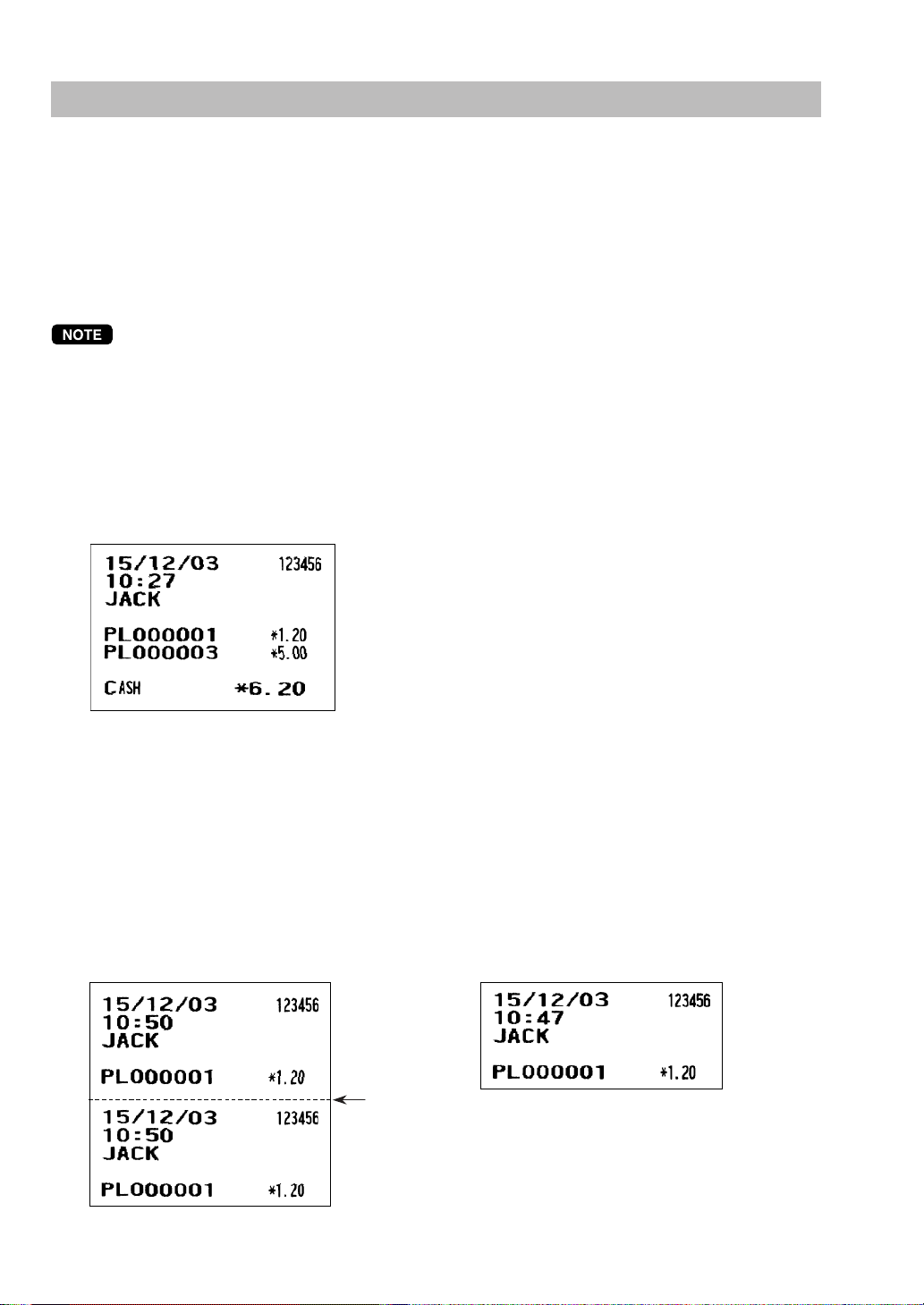
78
Type of Receipt
You can select one of the following five types of receipts. These types of receipts are available for the
transaction receipt. By default, the addition receipt type is selected.
• Addition receipt type
• Single/double receipt type
• Addition + single receipt type
• Double addition receipt type
• Double (addition + single) receipt type
You can shift the printing mode of items for the receipt by touching the [RCPT SFT] key before item entry
(Receipt Shift function).
➝
[RCPT SFT] (shift to addition)
➝
Item entries
➝
[RCPT SFT] (shift to single/double)
➝
Item entries
➝
■■
■■
■ Addition receipt type
The addition receipt is a standard type. Several items can be printed on one receipt.
Addition receipt
■■
■■
■ Single/double receipt type
When this type is selected:
• One receipt is issued and the transaction is finalized each time you enter an item.
• A single receipt or a double receipt is issued depending on the programming.
• Each sales transaction is automatically handled as a cash deal.
• Items specified as SICS or SIF are treated as a single type.
• Guest check entry is allowed.
• Only the top logo is printed on the first part of the double receipt and the single receipt.
No logo is printed on the second part of the double receipt.
Double receipt Single receipt
Perforation
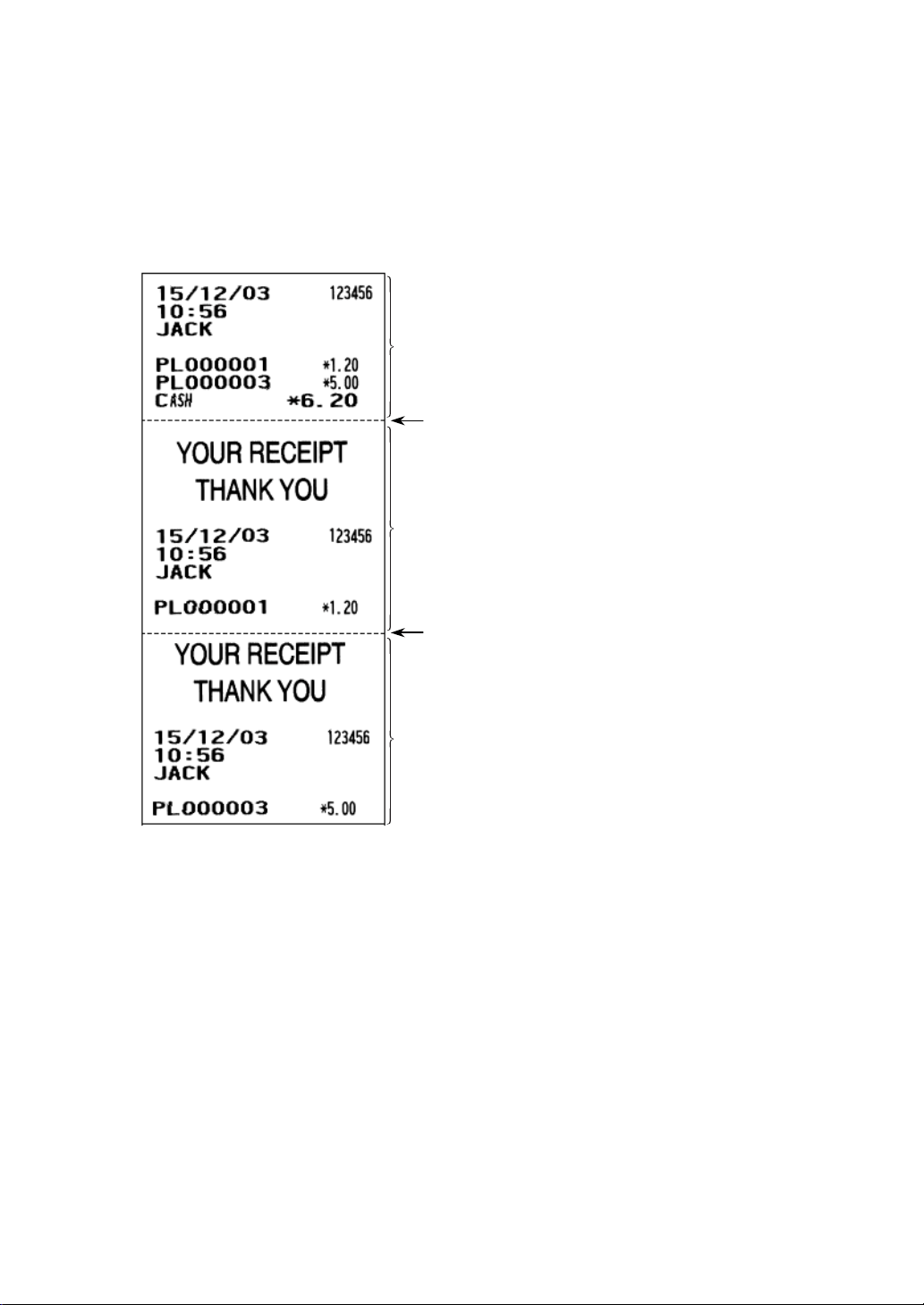
79
■■
■■
■ Addition + single receipt type
When this type is selected:
• An addition receipt and each single receipt are issued in series after you finalize the transaction.
• Footer logo message is printed at the end of the addition receipt part.
• The guest check receipts and a total part of receipt are not issued in a guest check entry.
• The information on multiplication entry will be printed on a single receipt.
• Only the top logo is printed on each single receipt.
■■
■■
■ Double addition receipt type
The contents of this type of receipt are the same as the addition receipt type.
However, the same receipt will be issued two times.
■■
■■
■ Double (addition + single) receipt type
The contents of this type of receipt are the same as the (addition + single) receipt type.
However, the same receipt will be issued two times.
Single receipt
Single receipt
Perforation
Perforation
Addition receipt
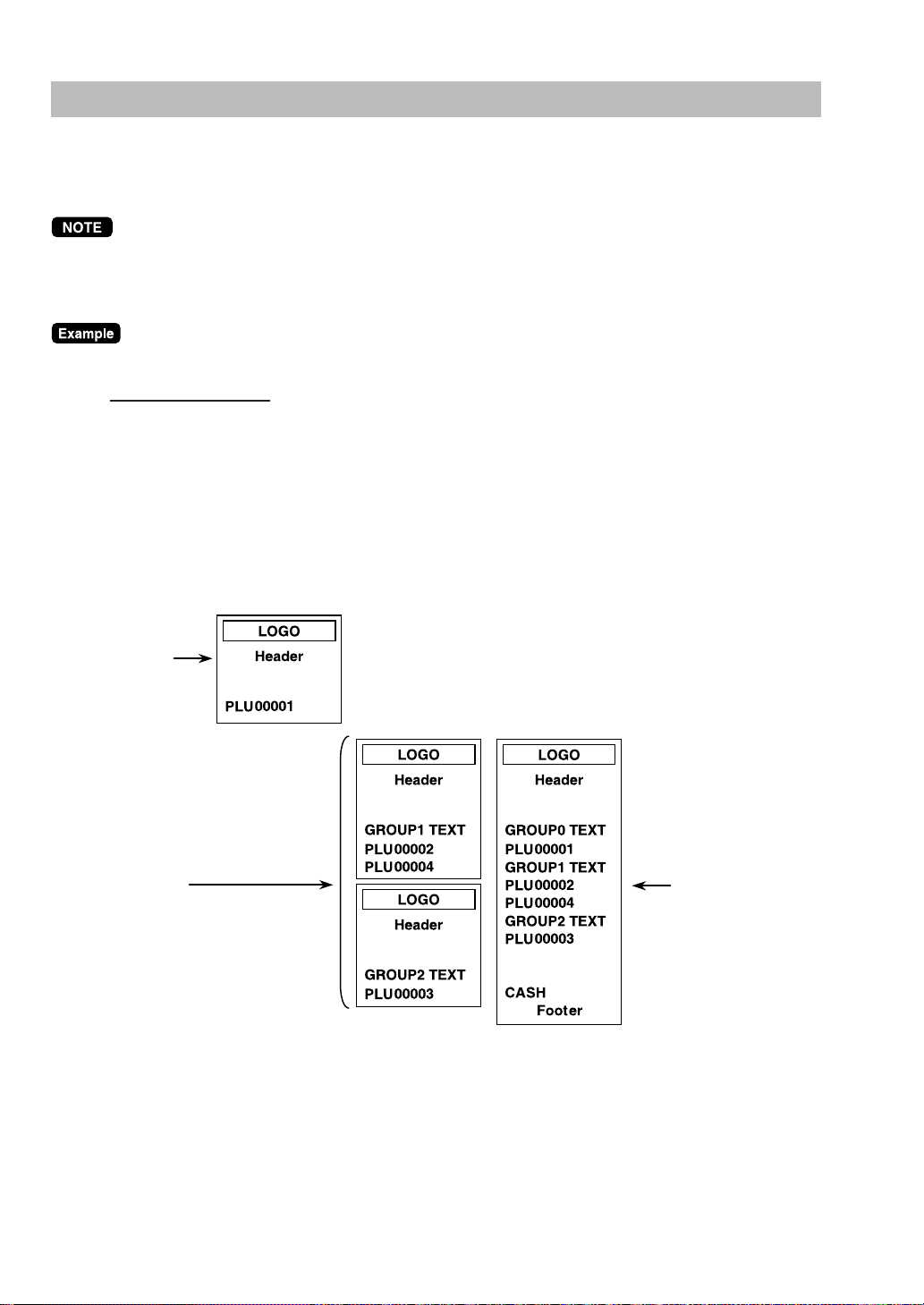
80
Sorted Receipt Function
When the sorted receipt function is programmed for your POS terminal, PLUs are printed in sorted form by
PLU group regardless of the order that you enter items.
The sort group number is temporarily changed by using the [SORT SFT] key (Sort Shift function).
➝
Group number
➝
[SORT SFT]
➝
Item entry
It is assumed that you enter the items in the following order:
Operation
PLU00001 : Group 0
PLU00002 : Group 1
PLU00003 : Group 2
PLU00004 : Group 1
The print format differs depending on the programmed receipt type as follows:
••
••
• Addition receipt type
This is printed
immediately
after entering
the PLU of
group “0”.
This is printed
when you touch
the [GC RCPT]
key after the
transaction.
(After transaction
receipt)
They are printed
when the
transaction is
finalized.
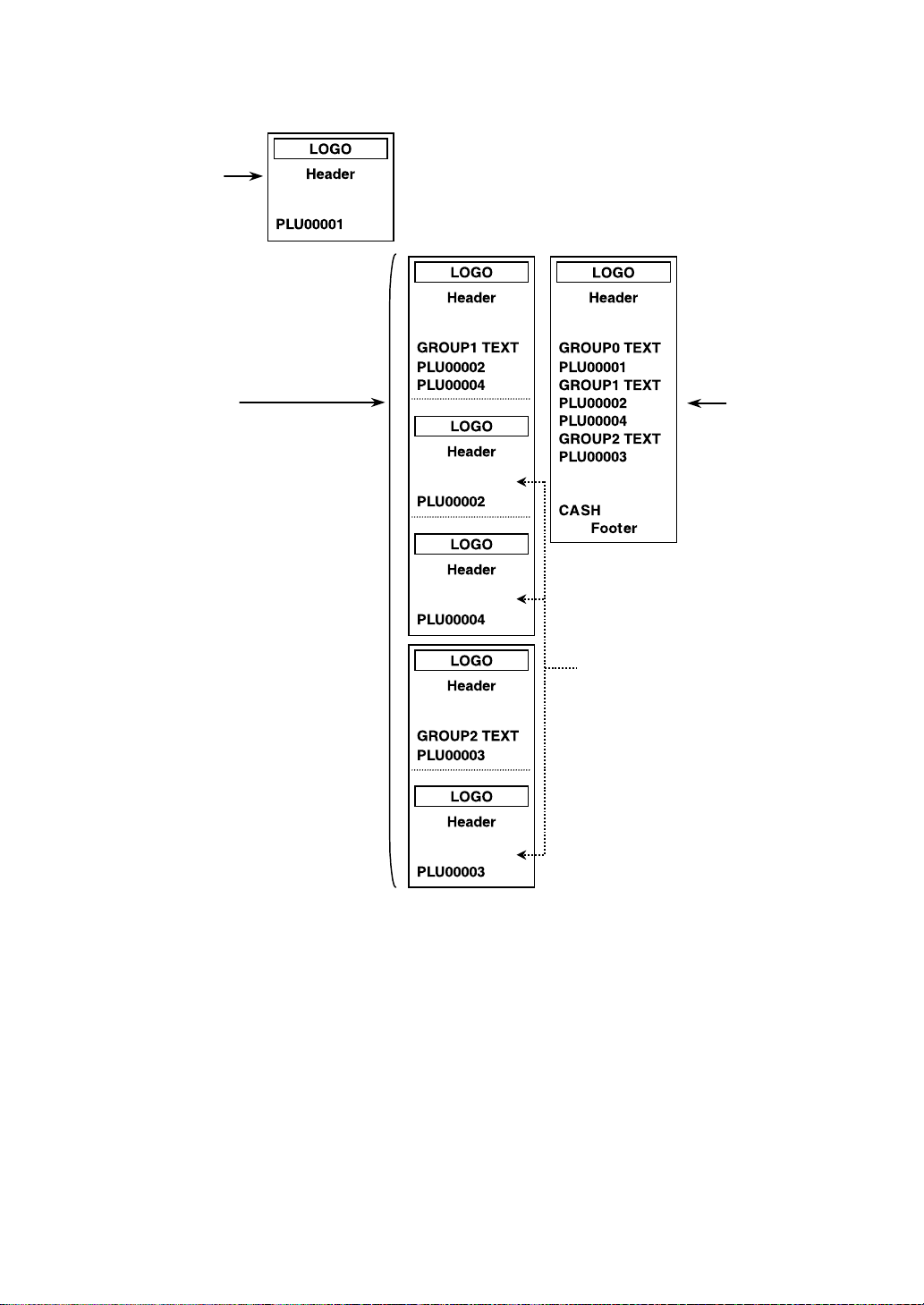
81
••
••
• Addition + single receipt type
This is printed
immediately
after entering
the PLU of
group “0”.
This is printed
when you touch
the [GC RCPT]
key after the
transaction.
(After transaction
receipt)
Single receipt
They are printed
when the
transaction is
finalized.

82
Kitchen Printer Send Function
This function enables a partial order to be sent to the kitchen for preparation while the remaining order is
still being placed.
(Item entry) Kitchen printer no. (1 - 9) [RP SND]
When the programmed kitchen printer no. is used.
Remaining items will be sent to the remote printer when the transaction is finalized.
When this function is used, the subtotal void operation is not allowed.

83
Electronic Journal
This function is intended to record the journal data in electronic memory instead of journal paper. Also, this
data is used instead of Transaction Log data. All transaction data and the operation log is kept in the
Electronic Journal File.
Electronic Mail
When the information/status “M” is displayed, the electronic mail is received.
To display the main contents, touch the [E-MAIL] key.
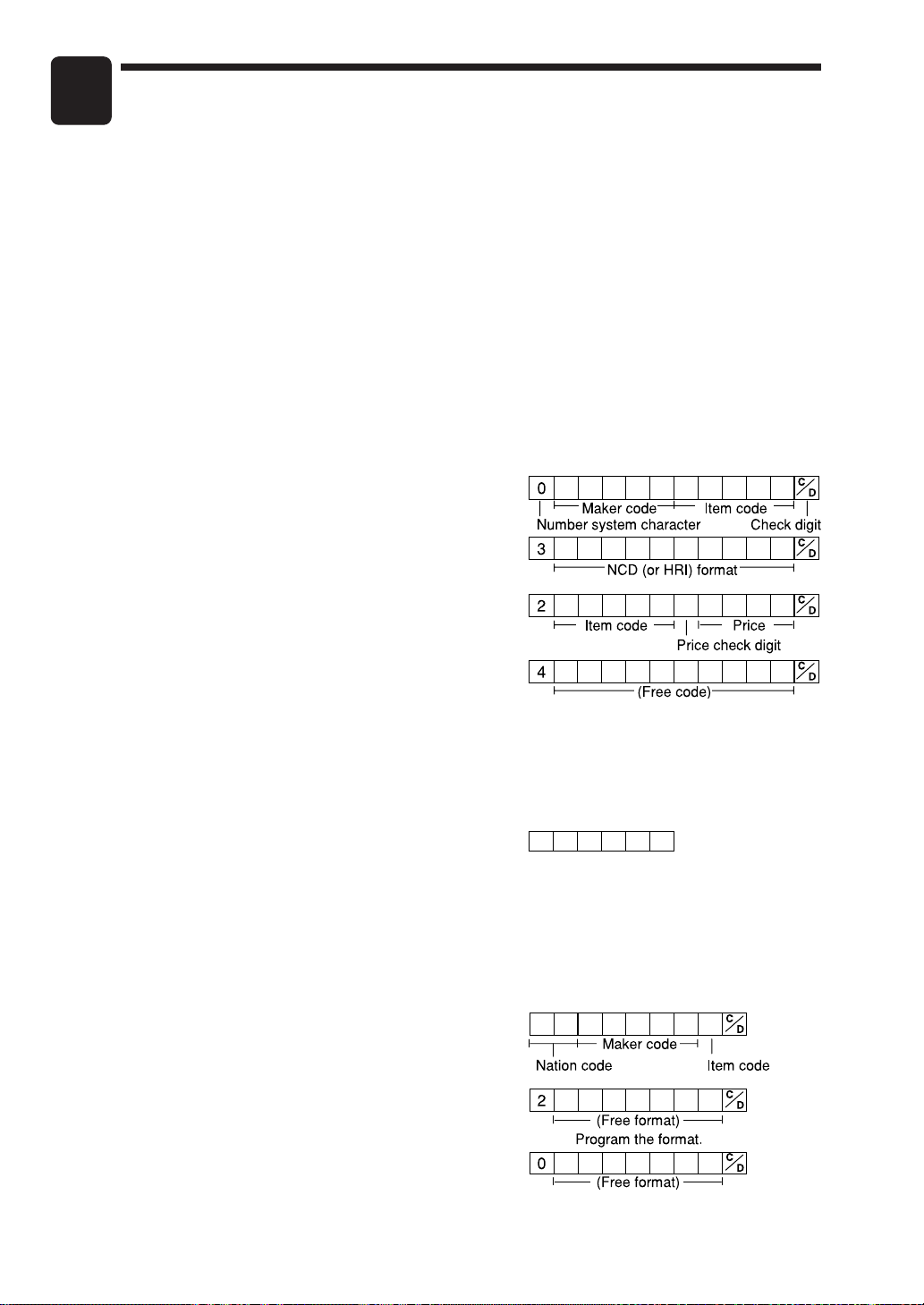
84
Universal Product Code (UPC) or
European Article Number (EAN)
■■
■■
■ UPC or EAN code
The following codes can be supported:
• UPC-A (Number system character: 0, 2, 3, 4) • UPC-E
• EAN-8 • EAN-13 • Internal code EAN-8/EAN-13
For the codes used in-store marking, there are two kinds of PLU type (treated as a code like PLU no.) and
Non-PLU type (price/quantity information is included in the code).
When a code is non-PLU type, the price/quantity in the code is read for sales entries (in case of quantity,
“quantity multiplies preset unit price” is processed to obtain price.)
UPC-A
• Number system character: 0 <used in the source marking>
• Number system character: 3 <used as NDC or HRI>
For entry, a full 12-digit number or 11-digit number (omitting
the check digits) must be entered.
• Number system character: 2 <In-store marking Non-PLU type>
• Number system character: 4 <In-store marking PLU type>
For entry, a full 12-digit number, 11-digit number (omitting the
check digit), or a leading zero plus 12-digit number must be entered. (Any numbers are allowed for the
digits marked with *, and on the receipt/journal, non-PLU type code is printed like 2020008
✱
✱
✱
✱
(
✱
✱
✱
✱
: price information).)
UPC-E
• UPC-E is a zero-suppressed version of UPC-A that conforms
to the UPC-E Standards. This code is used for marking small
packages.
For entry, a 6-digit number or a leading zero plus 6-digit number must be entered.
EAN 8
• Ordinary EAN-8 code (flag: neither 0 nor 2) <used in the source marking>
For entry, a full 8-digit number must be entered.
• Internal code (flag 2) <in-store marking Non-PLU short type>
• Internal code (flag 0) <in-store marking PLU short type>
For entry, a full 8-digit number must be entered. On the
receipt/journal, non-PLU type code is printed like 208
✱
✱
✱
✱
(
✱
✱
✱
✱
: price/quantity information)
7
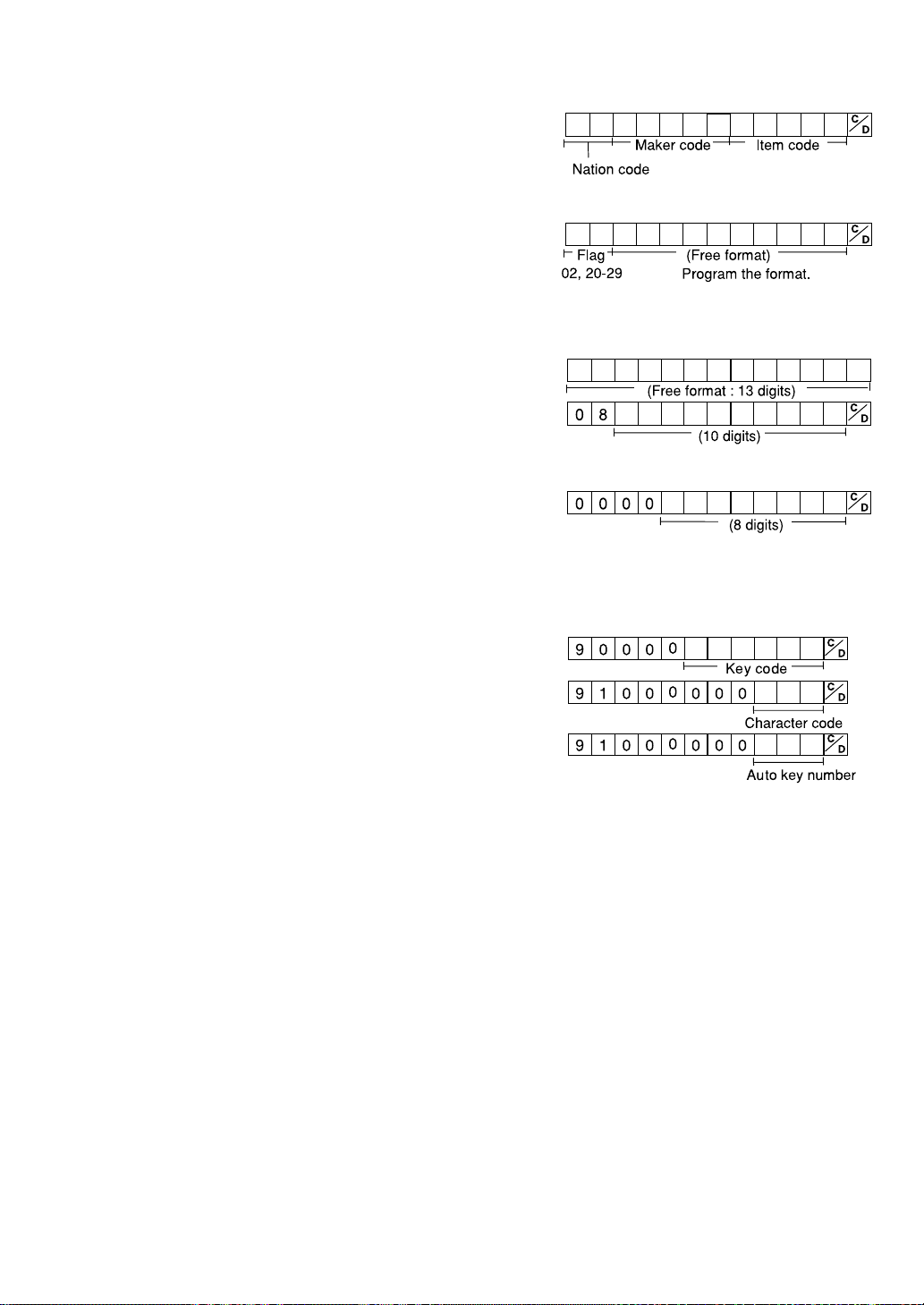
85
EAN-13
• Ordinary EAN-13 code (used in the source marking)
• Specific EAN-13 code (flag 977, 978, 979) (used in the
source marking: ISBM, ISSN)
For entry, you must enter the full 13-digit number.
• Internal code (used in the in-store marking, the flag
character number: 20 thru 29 and 02)
■■
■■
■ Customer code
EAN-13 code (free format or established format) is used for
the customer code.
■■
■■
■ Bar-code of the bill
EAN-13 code is used for the bill number.
■■
■■
■ Bar-code of the key
UPC-A (number system character = 9) code is used for the key.
For the function key:
For the character key:
For the auto key:

86
Reading (X) and Resetting (Z)
of Sales Totals
• Use the reading function (X) when you need to take a reading of sales information entered
after the last reset. You can take this reading any number of times. It does not affect the POS
terminal’s stored transactions.
• Use the reset function (Z) when you need to clear the POS terminal’s stored transactions.
Resetting prints all sales information and clears the entire memory except for the GT1 thru
GT3, reset count, and consecutive number.
■■
■■
■ How to take a reading (X1, X2, X3, X4 or OPX) or resetting (Z1, Z2, Z3, Z4
or OPZ) report
[To take a reading (X1, X2, X3, or X4) report]
1. Select “X1”, “X2”, “X3”, or “X4” MODE in the mode menu window to display the report list.
2. Select a report from the table shown on the next page.
3. If needed, enter corresponding values described in the “Data to be entered” column on the table
shown later.
4. Select a device (“DISPLAY” or “REPORT PRINTER”) to receive the output.
[To take a resetting (Z1, Z2, Z3, or Z4) report]
1. Select “Z1”, “Z2”, “Z3”, or “Z4” MODE in the mode menu window to display the report list.
2. Select a report from the table shown on the next page.
3. If needed, enter corresponding values described in the “Data to be entered” column on the table
shown later.
4. Select a device (“DISPLAY” or “REPORT PRINTER”) to receive the output.
The message “ARE YOU SURE ?” will appear. Take one of the following actions:
• Select “YES” to take a resetting (Z1, Z2, Z3, or Z4) report.
• Select “NO” to cancel the generation of a resetting (Z1, Z2, Z3, or Z4) report.
[To take a reading (OPX) report]
1. Select “OPXZ” MODE in the mode selection window to operate the report.
2. Enter the corresponding cashier code.
3. Select a report from the table shown on the next page.
4. If needed, enter corresponding values described in the “Data to be entered” column on the table
shown later.
5. Select a device (“DISPLAY” or “REPORT PRINTER”) to receive the output.
[To take a resetting (OPZ) report]
1. Select “OPXZ” MODE in the mode selection window to operate the report.
2. Enter the corresponding cashier code.
3. Select a report from the table shown on the next page.
4. If needed, enter corresponding values described in the “Data to be entered” column on the table
shown later.
5. Select a device (“DISPLAY” or “REPORT PRINTER”) to receive the output.
The message “ARE YOU SURE ?” will appear. Take one of the following actions:
• Select “YES” to take a resetting (OPZ) report.
• Select “NO” to cancel the generation of a resetting (OPZ) report.
When a secret code has been set for the corresponding report, enter the secret code and touch the
[ENTER] key.
8
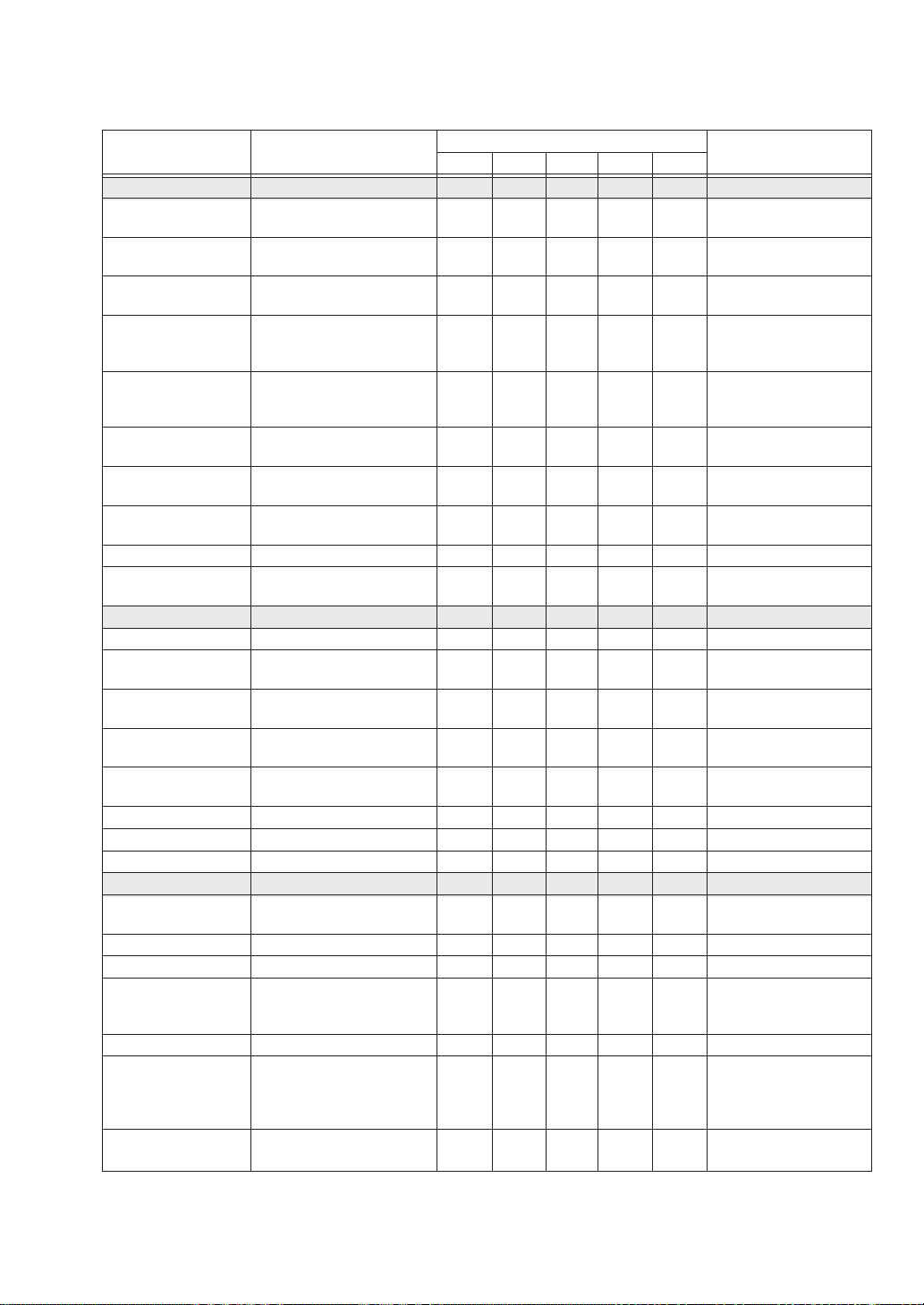
87
■■
■■
■ Report list
[Revenue Center] [REVENUE CENTER]
Department Group
REVENUE DEPARTMENT
X1/Z1 X2/Z2 X3/Z3 X4/Z4
GROUP
GT + Transaction
REVENUE TRANSACTION
X1/Z1 X2/Z2 X3/Z3 X4/Z4
(Revenue center by
terminal)
GT + TAX REVENUE TRANSACTION X1/Z1 X2/Z2 X3/Z3 X4/Z4
(Revenue center by
dept. group)
Sales comparison
(% share) report SALES COMPARISON X1 X2 X3 X4
(Net 1, Net 2, Net 3)
Department Group
comparison by
DEPARTMENT GROUP
X1 X2 X3 X4
Revenue Center
COMPARISON
Discounts by
Revenue Center
DISCOUNT BY REVENUE X1 X2 X3 X4
Media Type by MEDIA TYPE BY (Revenue center by
Revenue Center REVENUE
X1 X2 X3 X4
terminal)
Taxes by Revenue
Center
TAX BY REVENUE X1 X2 X3 X4
Hourly reports HOURLY BY REVENUE X1/Z1
Daily summary
DAILY SUMMARY BY
REVENUE
X2/Z2
[Shift (CASHIER)] [SHIFT (CASHIER)]
All Cashier reports ALL CASHIER X1/Z1 X2/Z2 X3/Z3 X4/Z4
Individual Cashier
reports
INDIVIDUAL CASHIER X/Z X1/Z1 X2/Z2 X3/Z3 X4/Z4 Cashier code
All Daily Deposit
report (Total)
ALL DAILY DEPOSIT X1/Z1
Individual Deposit
report
INDIVIDUAL DEPOSIT X X1/Z1 Cashier code
Cashier Summary
report (Net, Tax)
CASHIER SUMMARY X X1/Z1 Cashier code
CID CID X X1/Z1
TAX TAX X X1/Z1
SCM SCM X X1/Z1
[Sales] [SALES]
Department Group
report
DEPARTMENT GROUP X1/Z1 X2/Z2 X3/Z3 X4/Z4
Department report DEPARTMENT X1/Z1 X2/Z2 X3/Z3 X4/Z4
PLU report PLU/UPC X1/Z1 X2/Z2 X3/Z3 X4/Z4 PLU code range
PLU by Dept
(Includes % of
PLU/UPC BY
X1/Z1 X2/Z2 X3/Z3 X4/Z4 Dept. code
Dept. Total Sales)
DEPARTMENT
PLU Watch List PLU/UPC WATCH LIST X1/Z1 X2/Z2 X3/Z3 X4/Z4 Pick up
Theoretical Food
Cost% (Based on THEORETICAL FOOD
PLU item cost COST%
X1 X2 X3 X4 PLU code range
setting vs Sales)
DEPT Group DEPARTMENT GROUP
Projection PROJECTION
X2/Z2
Available report type in each mode
Data to be entered/
(Remarks)
Item Description
OPX/Z X1/Z1 X2/Z2 X3/Z3 X4/Z4
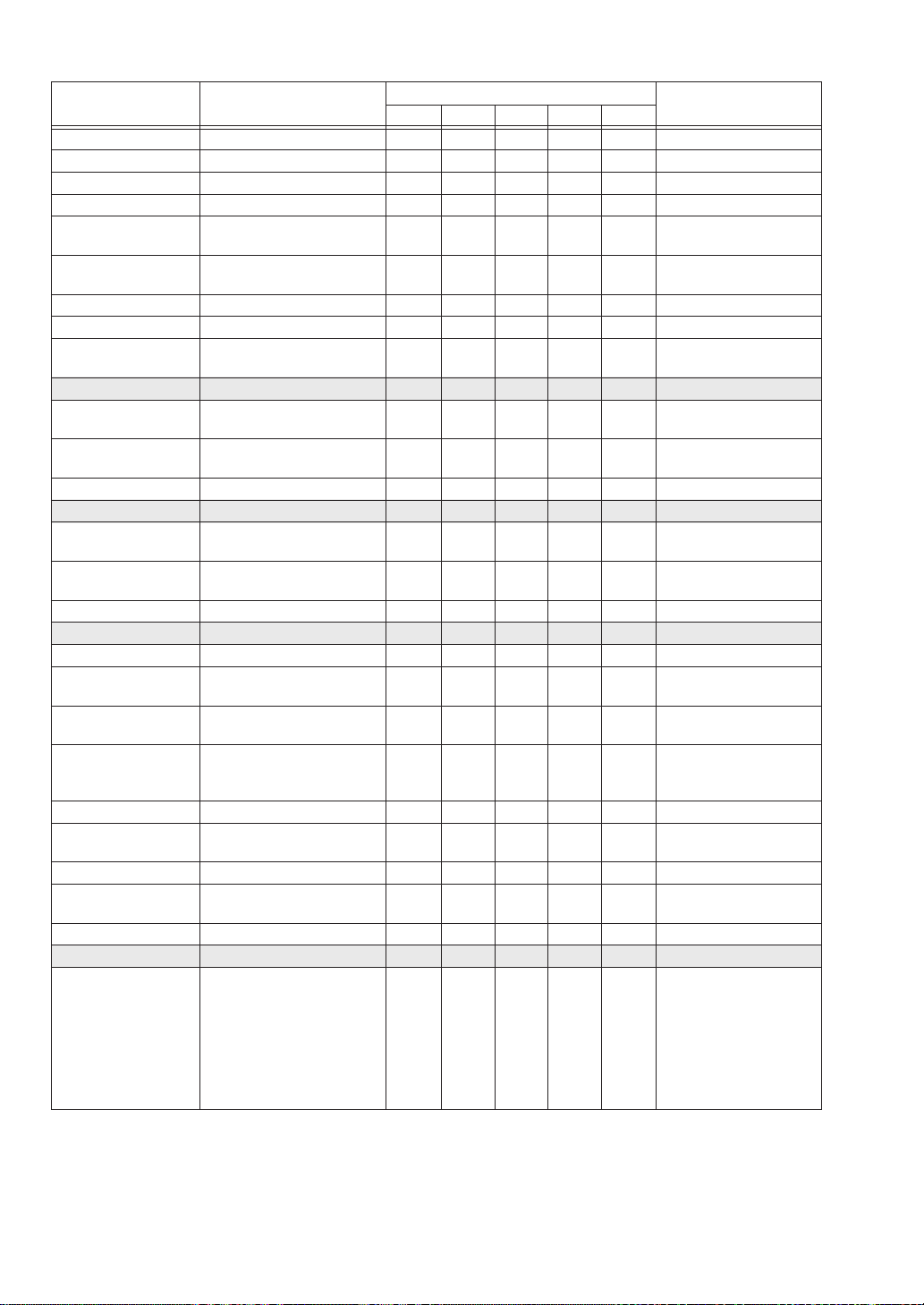
88
Piece count report PIECE COUNT X1/Z1 X2/Z2 X3/Z3 X4/Z4 PLU code range
Transaction report TRANSACTION X1/Z1 X2/Z2 X3/Z3 X4/Z4
Daily summary DAILY SUMMARY X2/Z2
Dynamic UPC report DYNAMIC UPC X1/Z1 X2/Z2 X3/Z3 X4/Z4 Code range
Dynamic UPC by DYNAMIC UPC BY
Dept DEPARTMENT
X1/Z1 X2/Z2 X3/Z3 X4/Z4 Dept. code
Dynamic UPC DYNAMIC UPC WATCH
Watch List LIST
X1/Z1 X2/Z2 X3/Z3 X4/Z4 Pick up
Non accessed UPC NON ACCESSED UPC X1/Z1
Dynamic UPC Clear DYNAMIC UPC CLEAR Z1 Code range
Dynamic UPC Clear DYNAMIC UPC CLEAR
by Dept BY DEPT.
Z1 Dept. code
[Hourly] [HOURLY]
Hourly (Sales)
reports
HOURLY X1/Z1 All/Range (X only)
DEPT Gr. Hourly
DEPARTMENT GROUP
HOURLY
X1/Z1
Car # hourly report CAR # HOURLY X1/Z1
[Coupon/Discounts] [COUPON/DISCOUNTS]
Coupon/Discount COUPON/DISCOUNT
TOTAL TOTAL
X X1 X2 X3 X4 Cashier code
Coupon/Discount by COUPON/DISCOUNT BY
Department DEPARTMENT
X1 X2 X3 X4 Dept. code
Coupon Report COUPON X1/Z1 X2/Z2 X3/Z3 X4/Z4 Coupon code range
[GLU/Drive Thru] [GLU/DRIVE THRU]
Open GLU report OPEN GLU X1/Z1 GLU range
Open GLU by
Cashier
OPEN GLU BY CASHIER X/Z X1/Z1 Cashier code
Closed CHECK
(GLU, Normal)
CLOSED CHECK X1/Z1 Closed GLU
Closed CHECK
(GLU, Normal) by
CLOSED CHECK BY
X/Z X1/Z1 Cashier code
Cashier
CASHIER
Drive Thru DRIVE THRU X1/Z1 Drive-thru range
Drive Thru by DRIVE THRU BY
Cashier CASHIER
X/Z X1/Z1 Cashier code
Closed Drive Thru CLOSED DRIVE THRU X1/Z1 Closed drive-thru range
Closed Drive Thru CLOSED DRIVE THRU
by Cashier BY CASHIER
X/Z X1/Z1 Cashier code
Service Time Report SERVICE TIME X1/Z1
[EJ report viewer] [EJ REPORT VIEWER]
Date/consecutive no./
cashier/void threshold/
refund threshold/return
threshold/media
EJ Report ELECTRONIC JOURNAL X1/Z1
threshold/tender
amount/coupon/
no-sale/$0.00 sale/
drawer open/SD select
Available report type in each mode
Data to be entered/
(Remarks)
Item Description
OPX/Z X1/Z1 X2/Z2 X3/Z3 X4/Z4
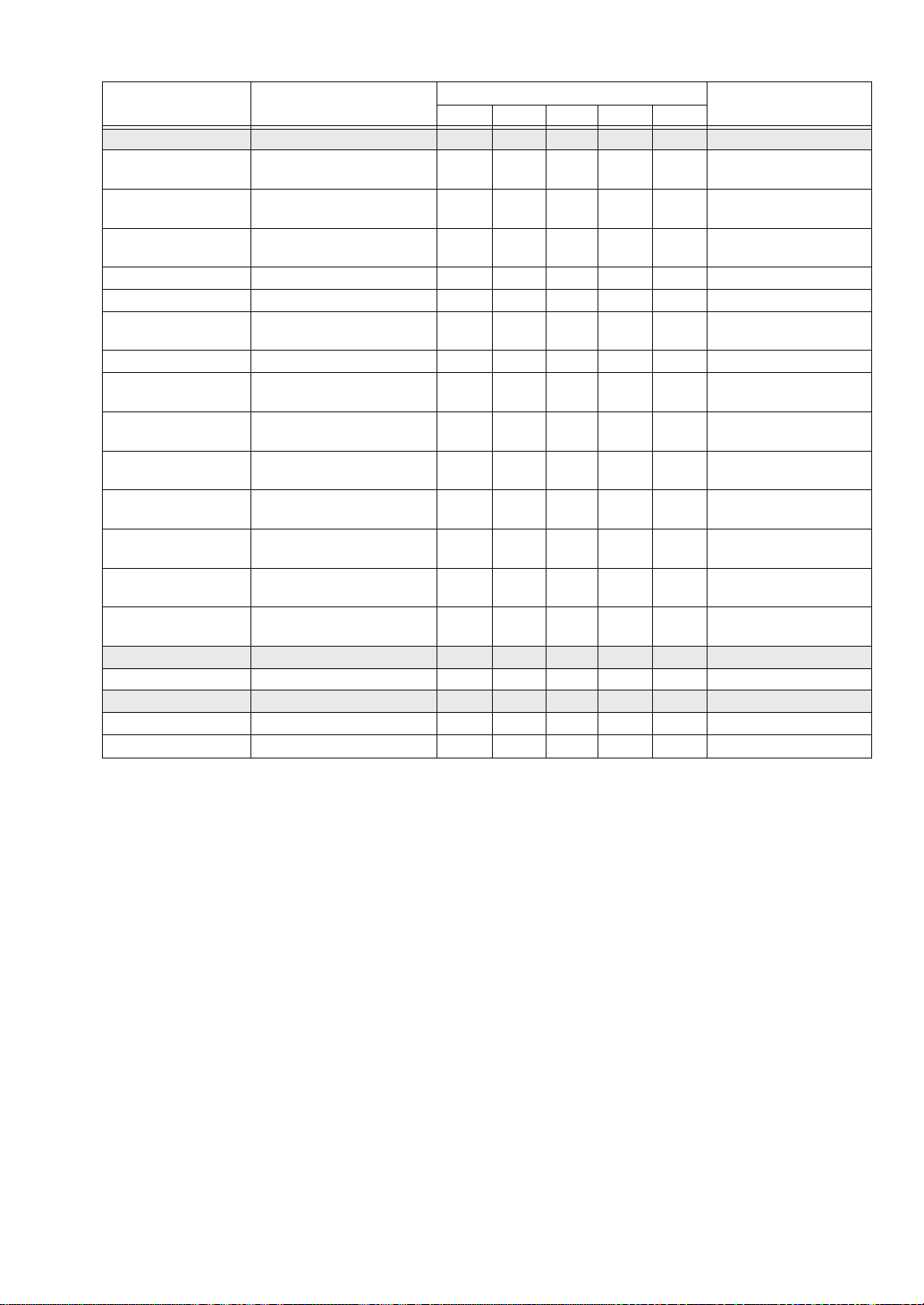
89
[Employee] [EMPLOYEE]
ALL Employee
TEFRA report
ALL EMPLOYEE TEFRA X1 X2 X3 X4 Employee range
Ind. Employee INDIVIDUAL EMPLOYEE
TEFRA report TEFRA
X
Tefra by Employee TEFRA BY EMPLOYEE
LIST report LIST
X1 X2 X3 X4 Employee list
TEFRA summary TEFRA SUMMARY X1 X2 X3 X4 Employee range
Employee report EMPLOYEE X1 X2/Z2 Employee range
Employee Summary
report
EMPLOYEE SUMMARY X2/Z2 Employee range
Pay Period report PAY PERIOD X2/Z2 Employee range
Pay Period
Summary report
PAY PERIOD SUMMARY X2/Z2 Employee range
Employee Over
Time report
EMPLOYEE OVER TIME X1 X2/Z2 Employee range
Labor Cost %
Report
LABOR COST% X1
Daily Labor Cost%
report
DAILY LABOR COST% X2
Employee Time EMPLOYEE TIME
Calculation report CALCULATION
X2 Employee range
Employee Time EMPLOYEE TIME
Adjustment report ADJUSTMENT
X2 Employee range
Employee Active EMPLOYEE ACTIVE
Status report STATUS
X1 Employee range
[Others] [OTHERS]
Key Capture Data KEY CAPTURE DATA X1
[Stacked report] [STACKED REPORT]
Stacked report 1 STACKED REPORT 1 X1/Z1 X2/Z2 X3/Z3 X4/Z4
Stacked report 2 STACKED REPORT 2 X1/Z1 X2/Z2 X3/Z3 X4/Z4
Available report type in each mode
Data to be entered/
(Remarks)
Item Description
OPX/Z X1/Z1 X2/Z2 X3/Z3 X4/Z4

90
Daily Report Samples
■■
■■
■ Transaction report
••
••
• Sample X report
• •
• •
• Sample Z report
Read symbol
Report title
(-)1 counter and
total (Subtotal(-))
%1 counter and
total (Subtotal %)
Net sales total
Net taxable 1 total
Net tax 1 total
Gross tax 1 total
Refund tax 1 total
Grand total of
training-mode
registrations
Taxable 1 exempt
total
Gross manual tax
total
Tax total
Sales total without
tax
Sales total
Combo 1 counter
and total
Refund manual tax
total
Net manual tax total
Tax 1
Tax 4
Manual tax
Exempt total from
GST
PST total
GST total
(When the Canadian tax system
is selected)
To be continued on the next page
Total for subtotal(-)
Total for subtotal %
Group discount 1
Total for group
discount
Mix & match
discount
Reset counter
Net grand total
(GT2-GT3)
Grand total of
minus registration
Grand total of
training-mode
registrations
The subsequent printout occurs
in the same format as in the
sample X report.
Grand total of
plus registration
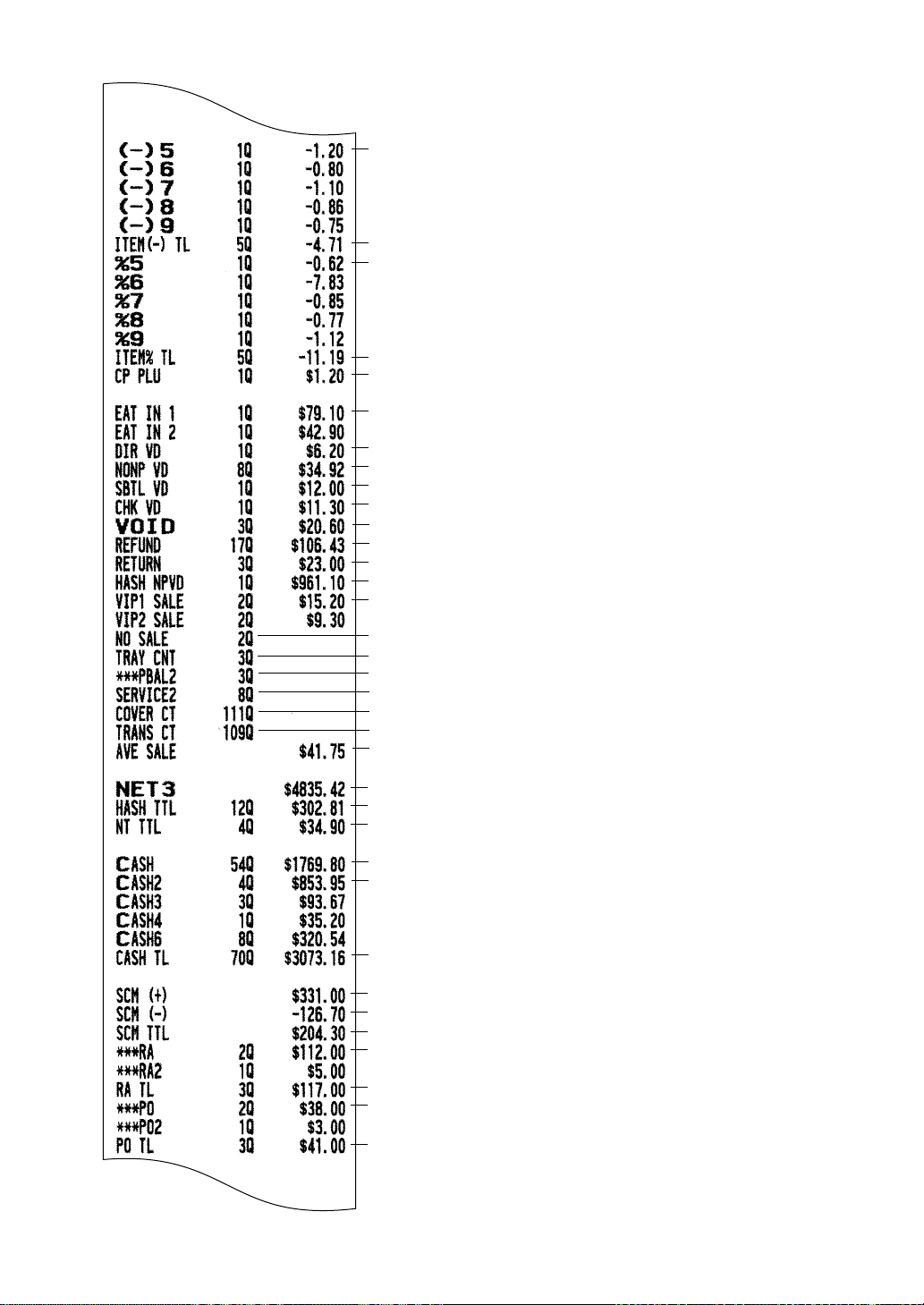
91
Coupon-like PLU counter and total
Eat-in 1 counter and total
Direct void counter and total
Indirect void counter and total
Subtotal void counter and total
Non-turn net total
Void-mode transaction counter and total
Refund counter and total
Return counter and total
Hash item void counter and total
Vip sale 1 counter and total
Average sales amount
Cash counter and total
No-sale (exchange) counter
Cash 2 counter and total
Starting cash memory (+)
Starting cash memory (-)
Received-on-account counter and total
Paid-out counter and total
Transaction counter
Tray subtotal print counter
Drive-thru counter
Service counter (for drive-thru)
Cover counter
%5 counter and total (Item %)
To be continued on the next page
(-)5 counter and total (Item(-))
Total for item(-)
Total for item %
Total for cash
Total for paid-out
Total for received-on-account
Starting cash memory total
Net sales total
Hash total
Check void counter and total
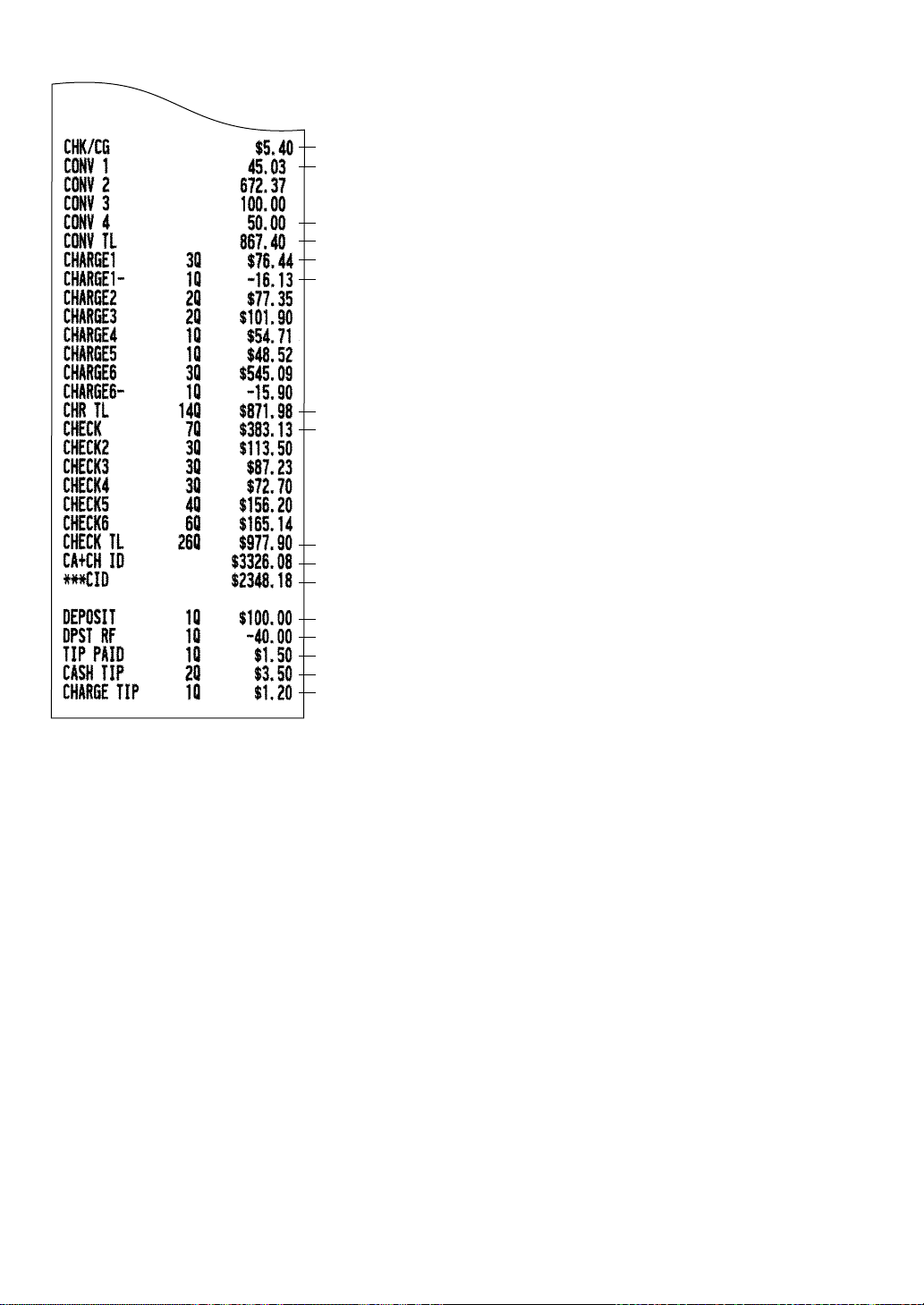
92
Check 1 sale counter and tendering counter
Cash+check in drawer
Cash in drawer
Deposit counter and total
Deposit refund counter and total
Tip-paid counter and total
Cash tip-in counter and total
Charge tip-in counter and total
Cash change total for check and charge tendering
Currency conversion 1 total (by programmed rate)
Currency conversion 4 total (by manual rate)
Gross charge 1 counter and total
Refund charge 1 counter and total
Total for conversion
Total for charge
Total for check
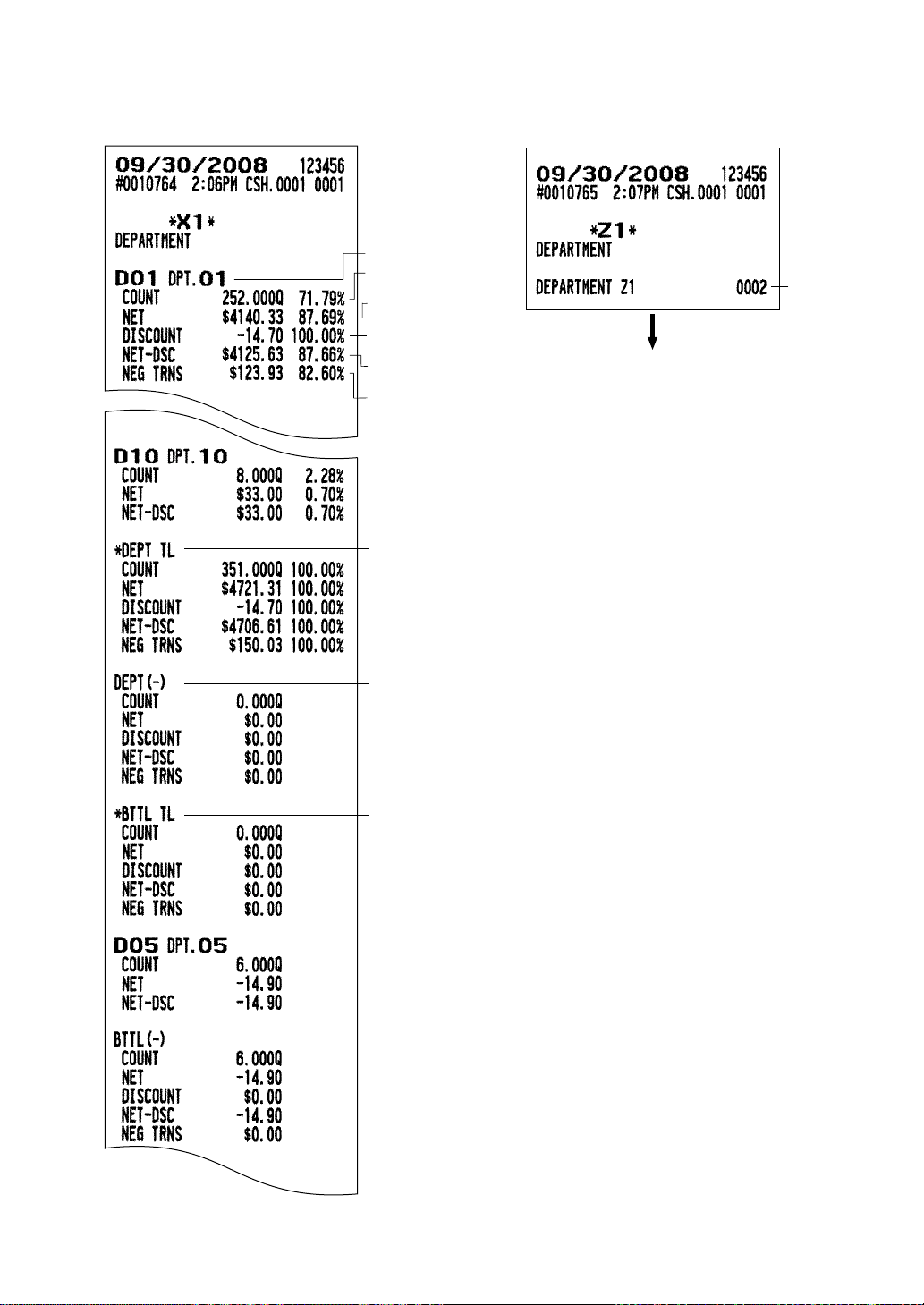
93
■■
■■
■ Department report
••
••
• Sample X report
• •
• •
• Sample Z report
Dollar amount minus
REFUND & VOID MODE
Total item coupon/
discounts (-)/(%)
Quantity sold minus
NEG TRNS
Dept. no./Dept. label
Net sales minus
coupon/discounts (-)/(%)
Total negative transac-
tions REFUND/
RETURN/VOID MODE
To be continued on the next page
Total for bottle return (-) dept.
Total for bottle return (+) dept.
Total for "-" real dept.
Total for "+" real dept.
Reset counter
The subsequent printout occurs
in the same format as in the
sample X report.
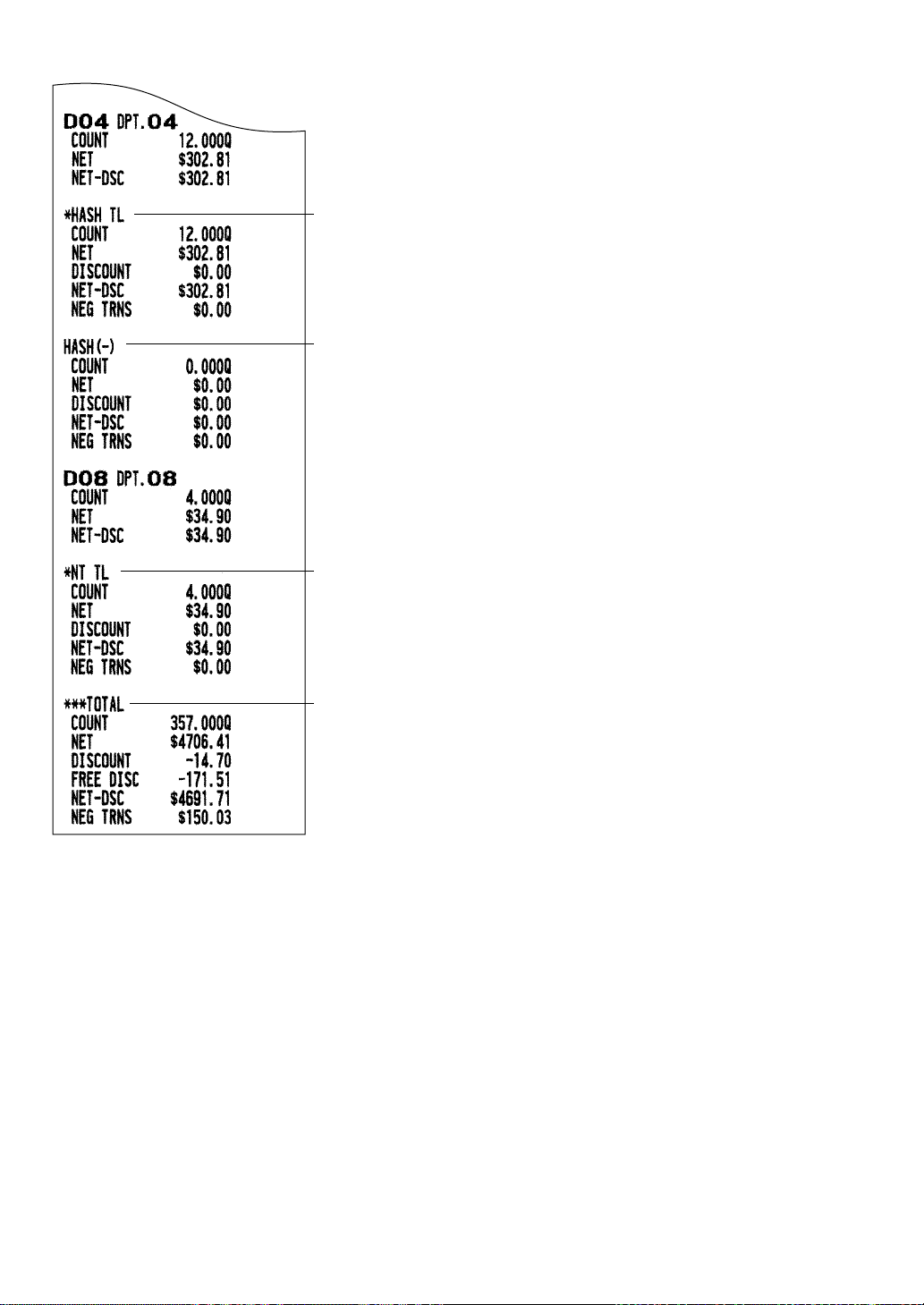
94
Total for hash (+) dept.
Total for hash (-) dept.
Total for non-turn dept.
Total for dept.
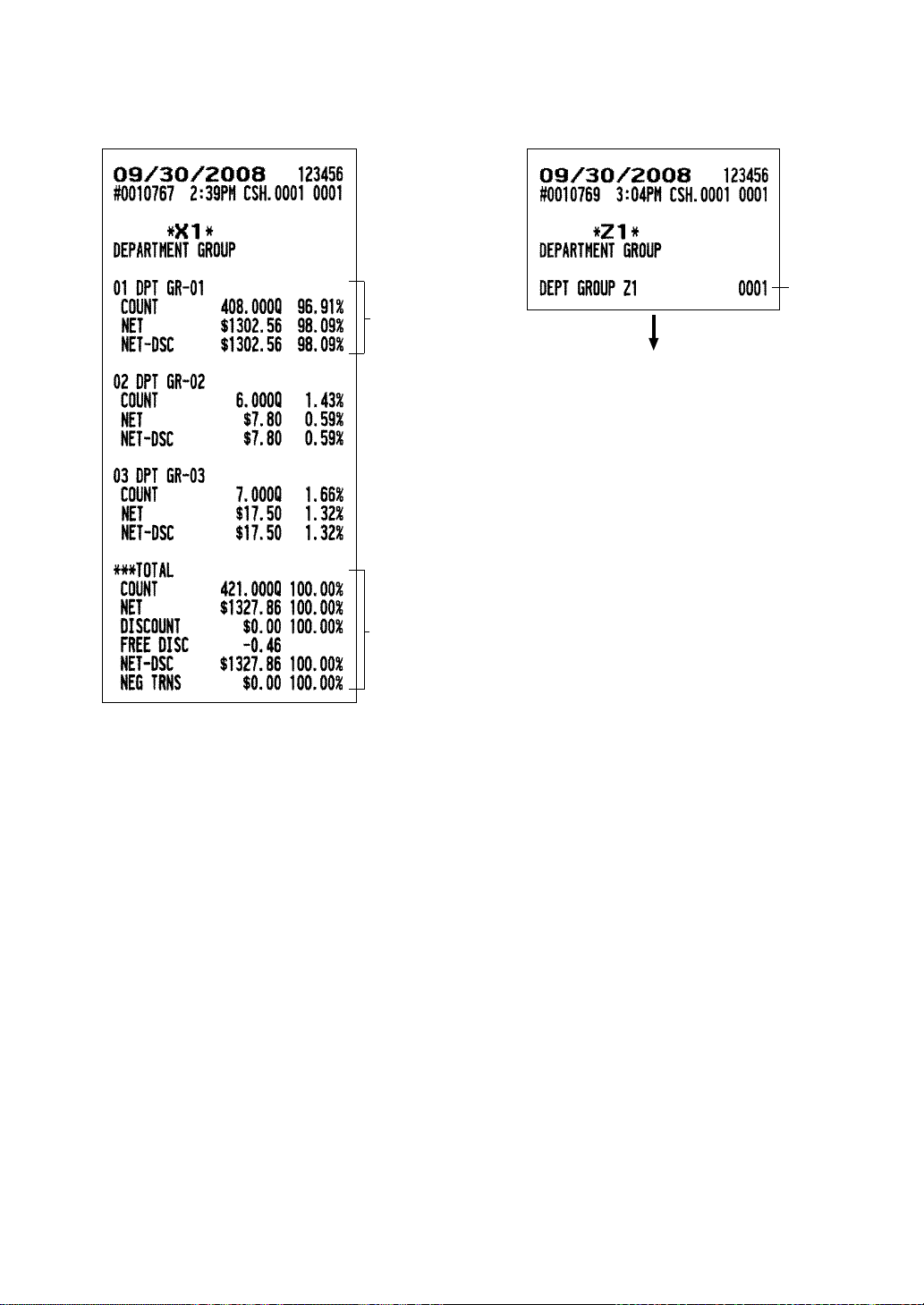
95
■■
■■
■ Department group report
••
••
• Sample X report
• •
• •
• Sample Z report
Dept. group 1
Total for group
Reset counter
The subsequent printout occurs
in the same format as in the
sample X report.
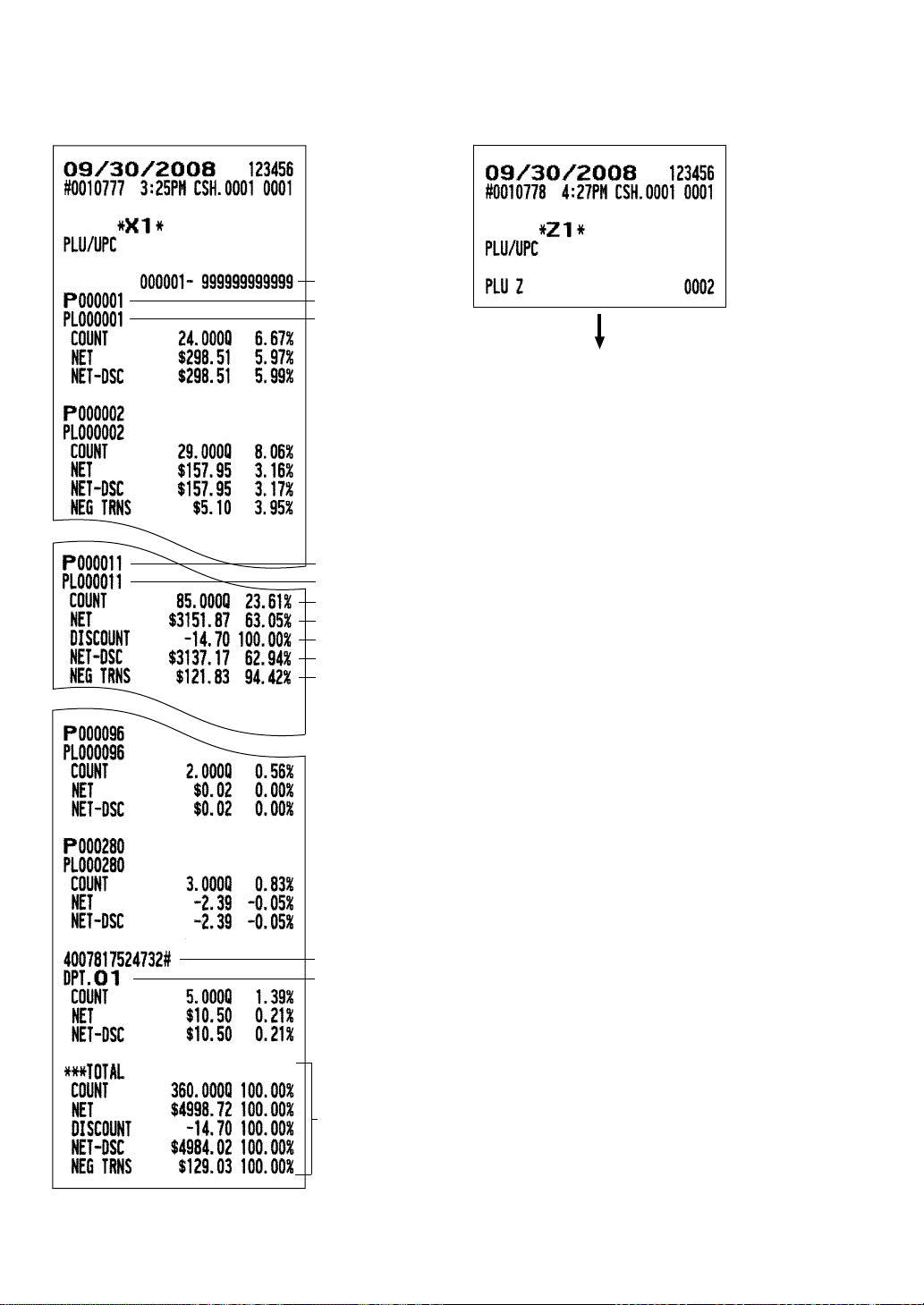
96
■■
■■
■ PLU/UPC report by designated range
••
••
• Sample X report
• •
• •
• Sample Z report
PLU/UPC range
PLU code
Item label
Quantity sold minus NEG TRNS
PLU code
Item label
Dollar amount minus REFUND & VOID MODE
Total item coupon/discounts (-)/(%)
Net sales minus coupon/discounts (-)/(%)
Total negative transactions REFUND/RETURN/VOID MODE
UPC code
Item label
Total for PLU/UPC
The subsequent printout occurs
in the same format as in the
sample X report.
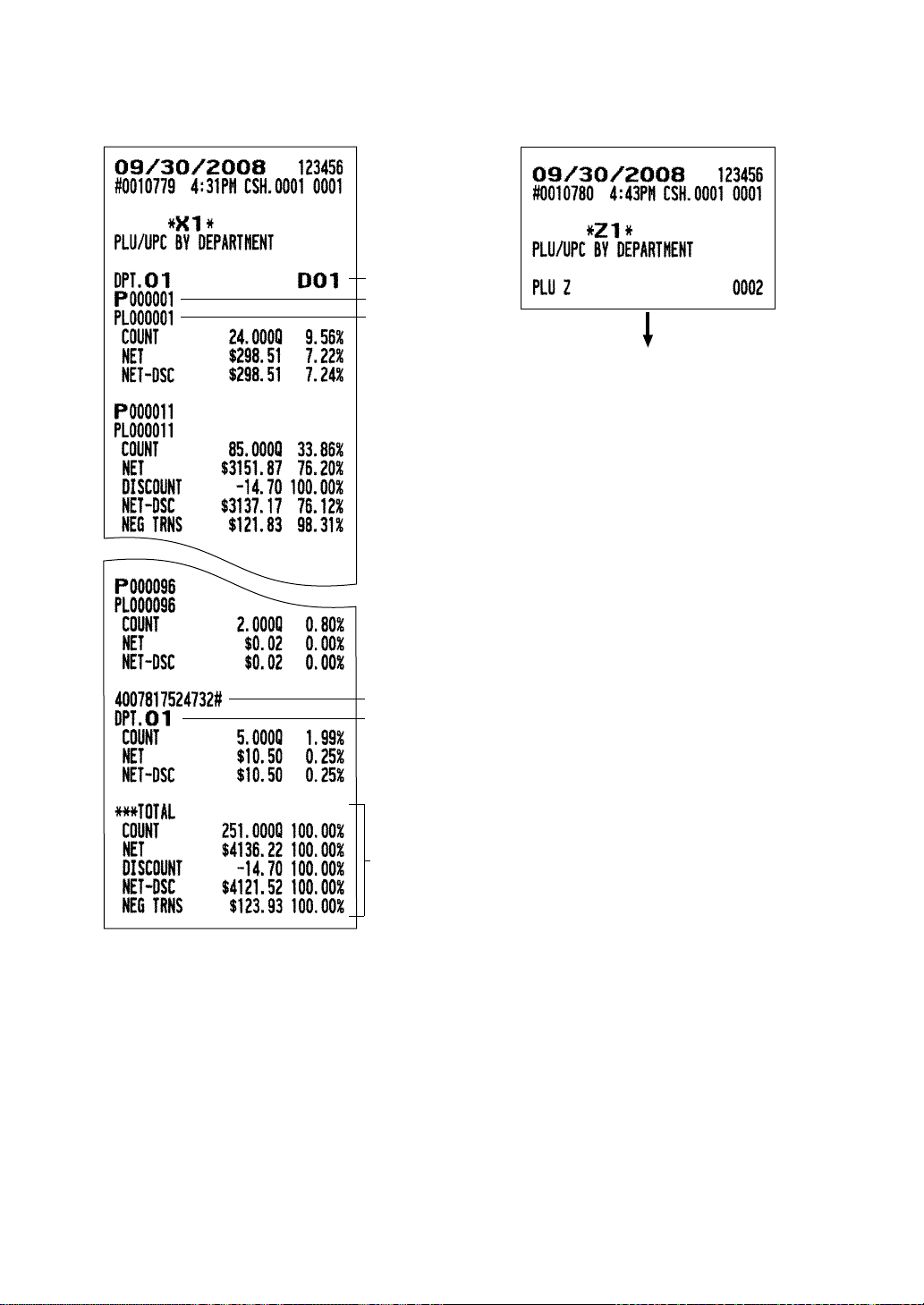
97
■■
■■
■ PLU/UPC report by associated department
••
••
• Sample X report
••
••
• Sample Z report
Associated dept. no.
PLU code
Item label
UPC code
Item label
Total for PLU/UPC
The subsequent printout occurs
in the same format as in the
sample X report.
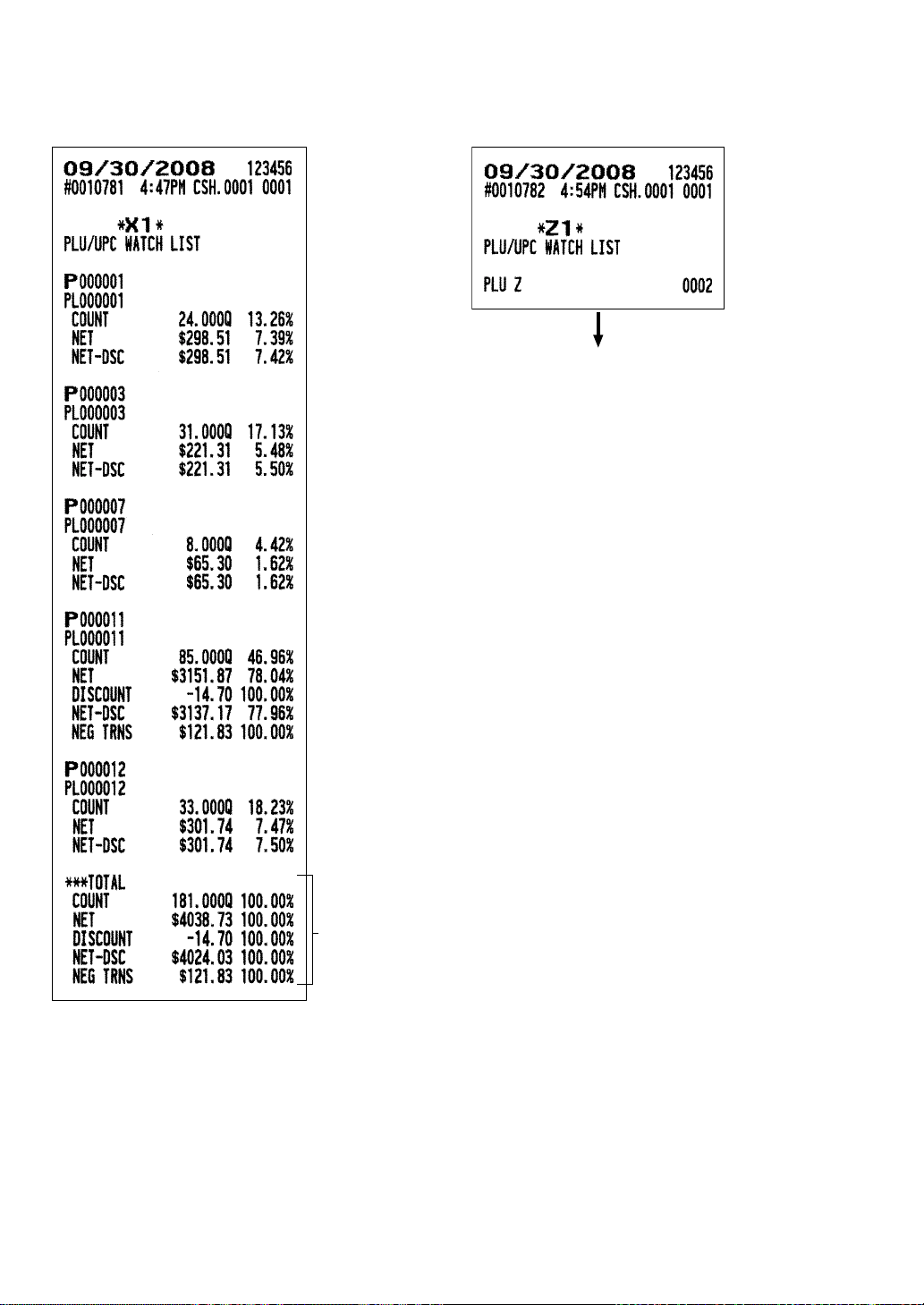
98
■■
■■
■ PLU/UPC report by watch list (pick up)
••
••
• Sample X report
• •
• •
• Sample Z report
Total for watch list
The subsequent printout occurs
in the same format as in the
sample X report.
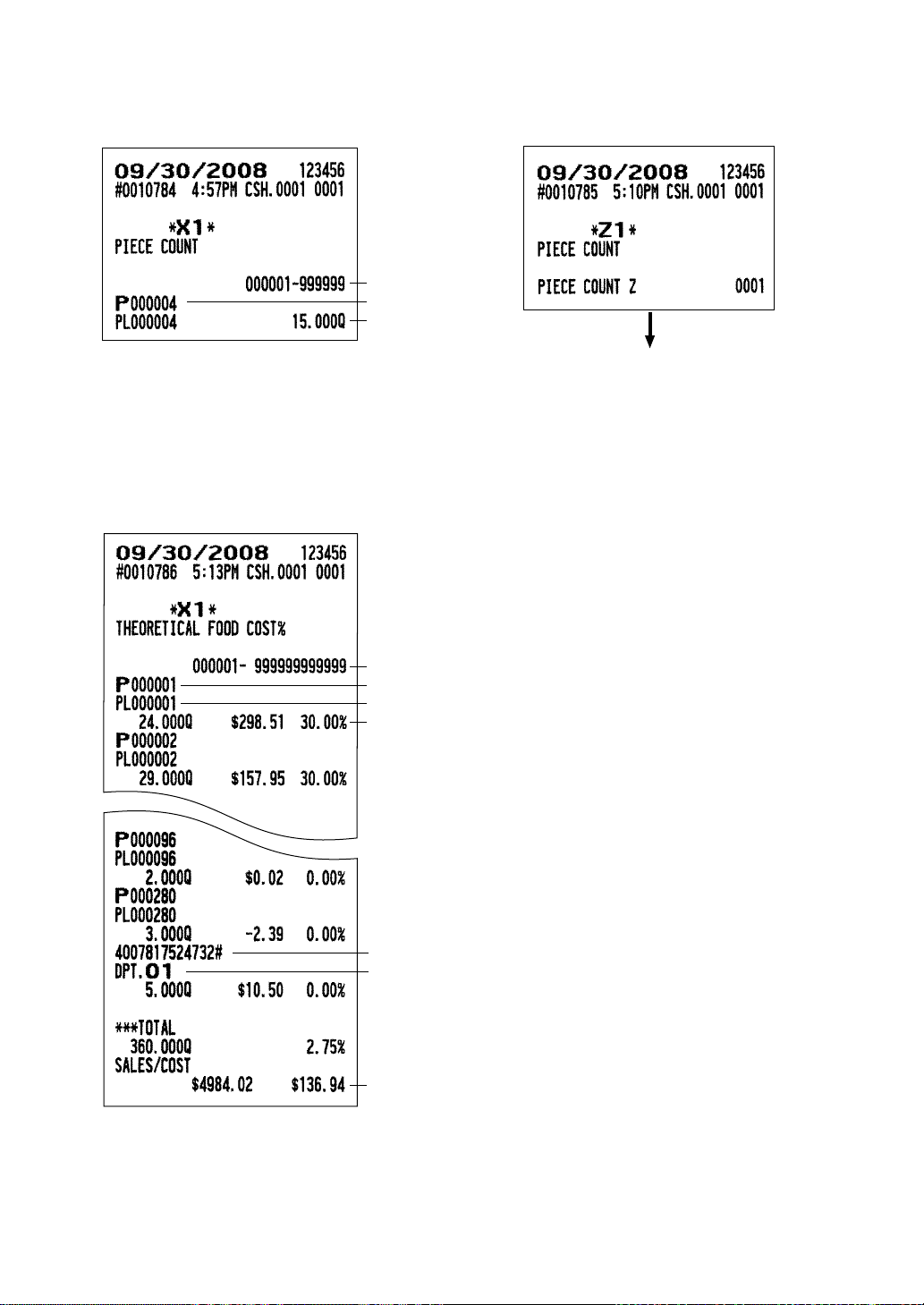
99
■■
■■
■ Piece count report for PLU
••
••
• Sample X report
• •
• •
• Sample Z report
■■
■■
■ Theoretical food cost% report for PLU/UPC
PLU range
PLU code
Item label/count
The subsequent printout occurs
in the same format as in the
sample X report.
PLU/UPC range
PLU code
Item label
Sales q’ty and amount/Food cost %
UPC code
Item label
Sales amount/Cost
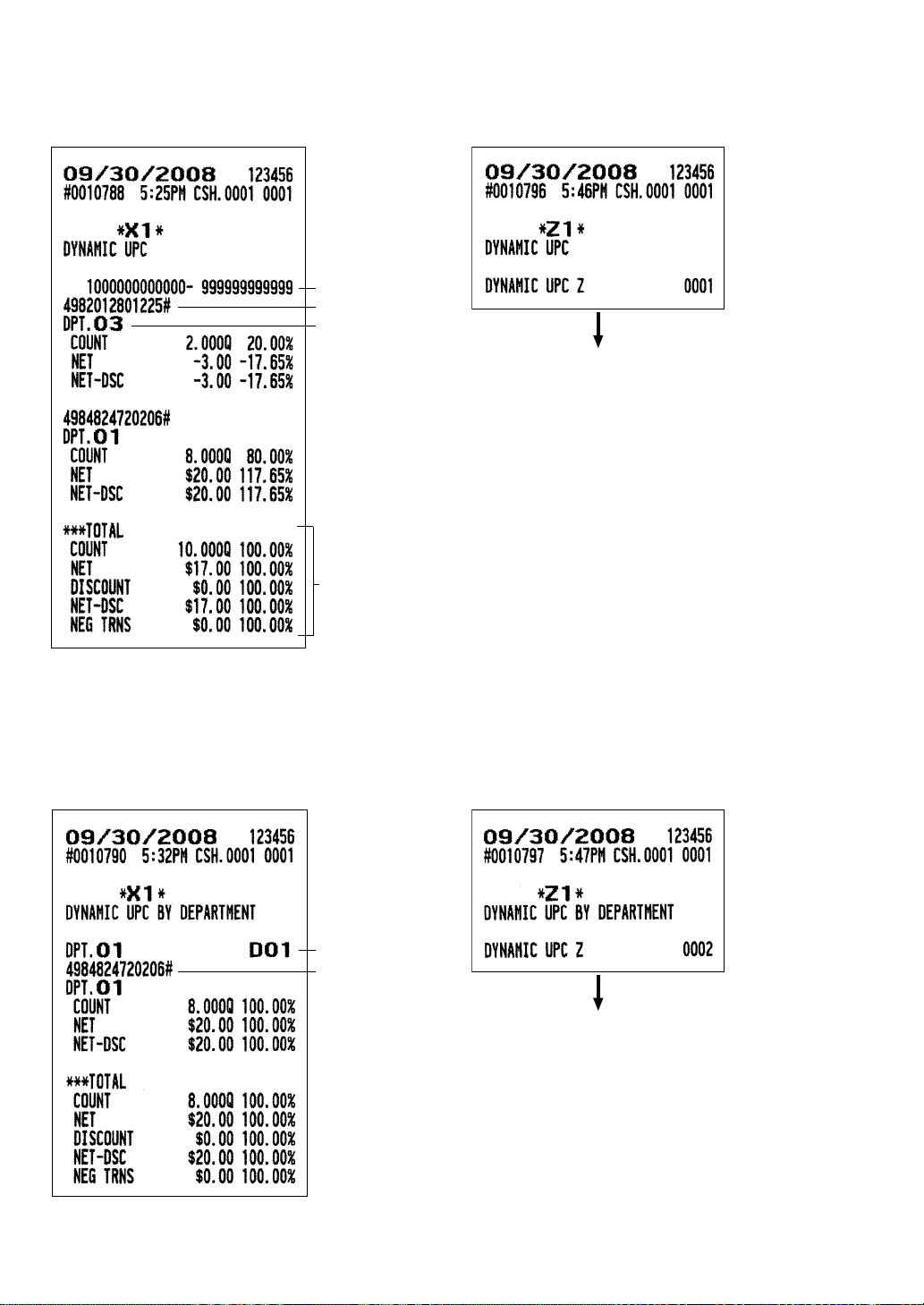
100
■■
■■
■ Dynamic UPC report
••
••
• Sample X report
• •
• •
• Sample Z report
■■
■■
■ Dynamic UPC report by associated department
••
••
• Sample X report
• •
• •
• Sample Z report
Total for dynamic UPC
UPC range
UPC code
Item label
The subsequent printout occurs
in the same format as in the
sample X report.
Associated dept. no.
UPC code
The subsequent printout occurs
in the same format as in the
sample X report.
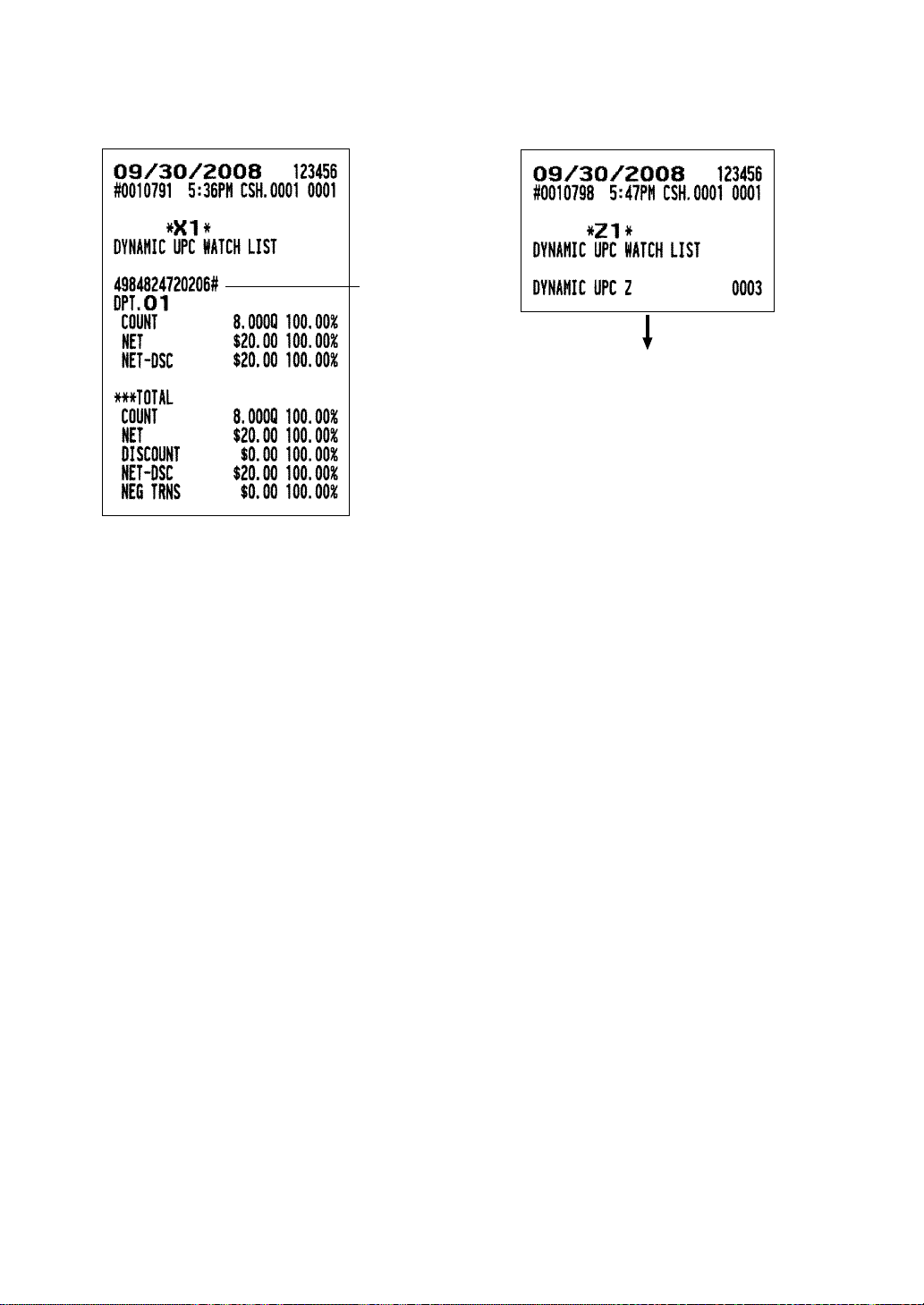
101
■■
■■
■ Dynamic UPC report by watch list (pick up)
••
••
• Sample X report
• •
• •
• Sample Z report
UPC code
The subsequent printout occurs
in the same format as in the
sample X report.
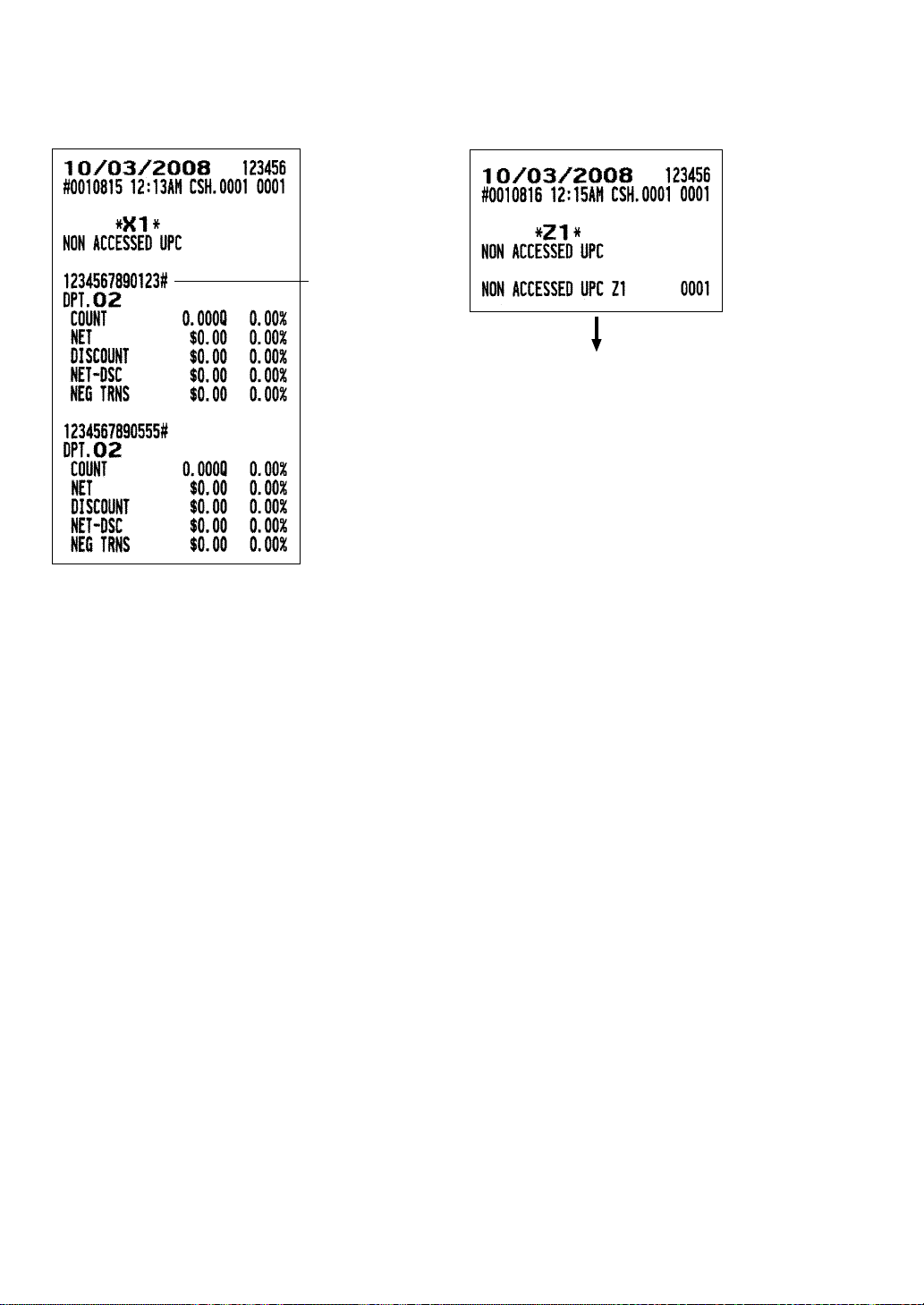
102
■■
■■
■ Non accessed UPC report
••
••
• Sample X report
• •
• •
• Sample Z report
UPC code
The subsequent printout occurs
in the same format as in the
sample X report.
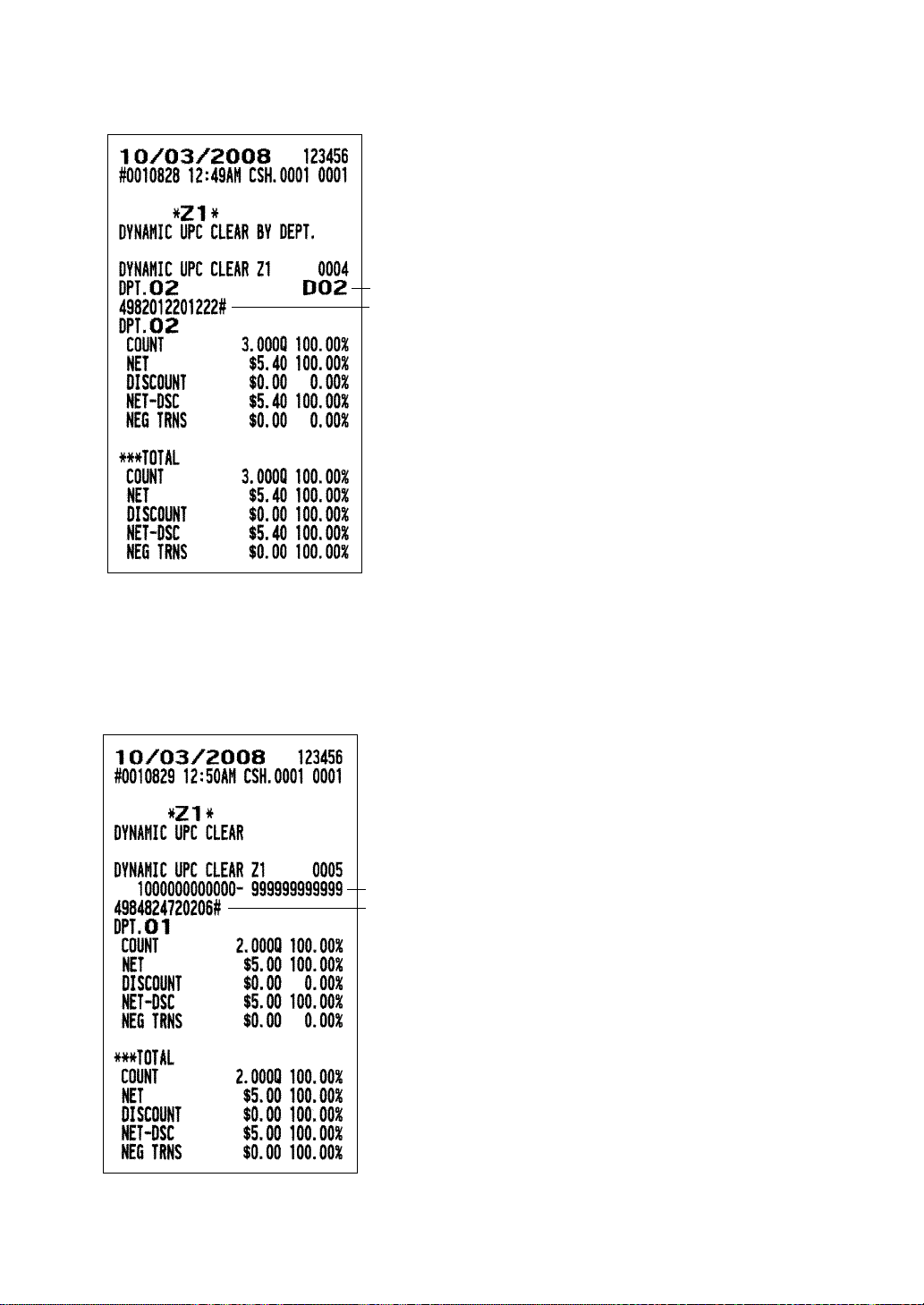
103
■■
■■
■ Dynamic UPC clear by associated department
■■
■■
■ Dynamic UPC clear (by designated range)
UPC code
Associated dept. no.
UPC code
UPC range
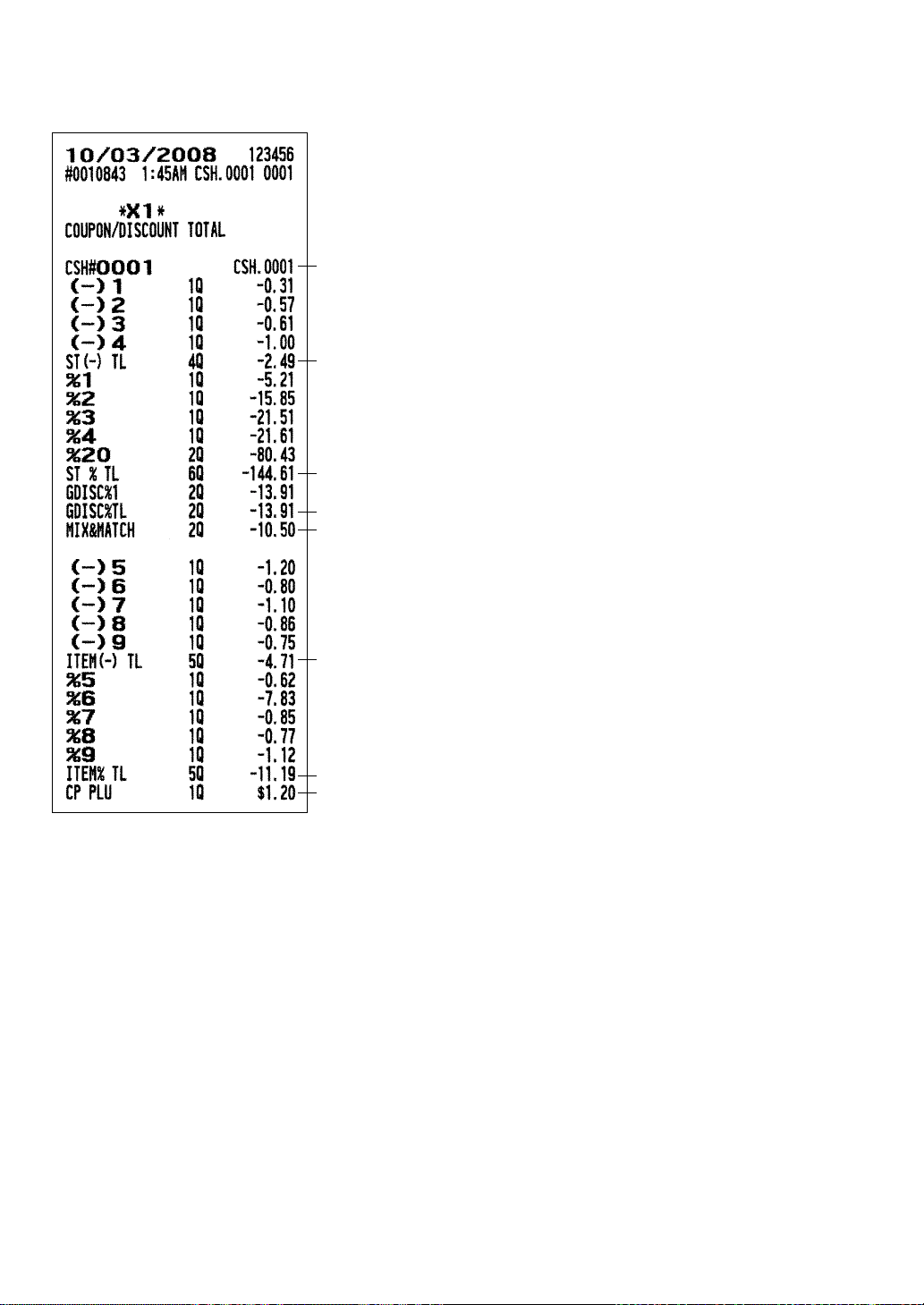
104
■■
■■
■ Coupon/discount total report
Cashier no./cashier name
Total for subtotal (-)
Total for subtotal % discount
Total for group discount
Mix & match discount
Total for item (-)
Total for item % discount
Coupon PLU amount
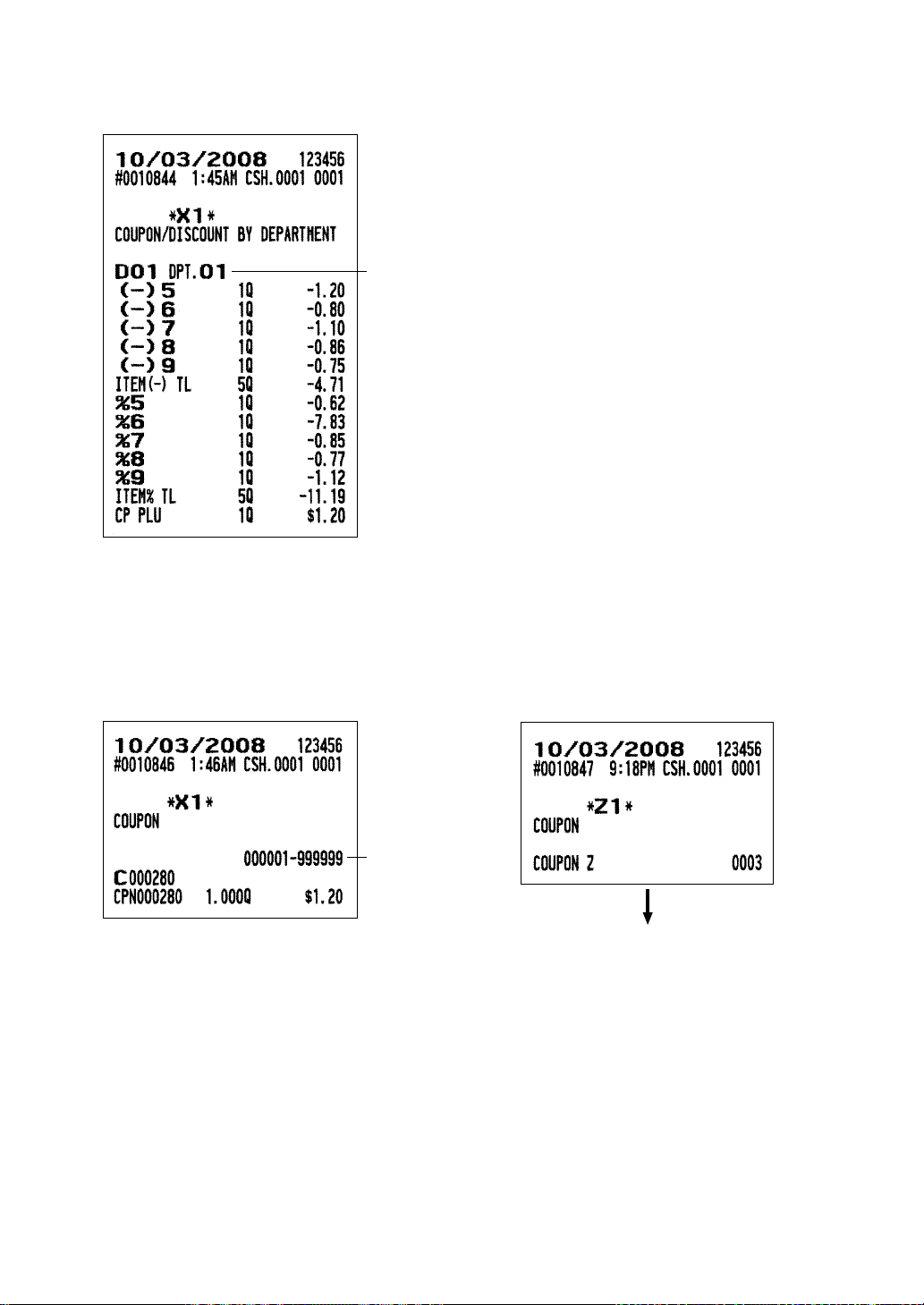
105
■■
■■
■ Coupon/discount report by department
■■
■■
■ Coupon PLU report
••
••
• Sample X report
• •
• •
• Sample Z report
Department no.
PLU range
The subsequent printout occurs
in the same format as in the
sample X report.
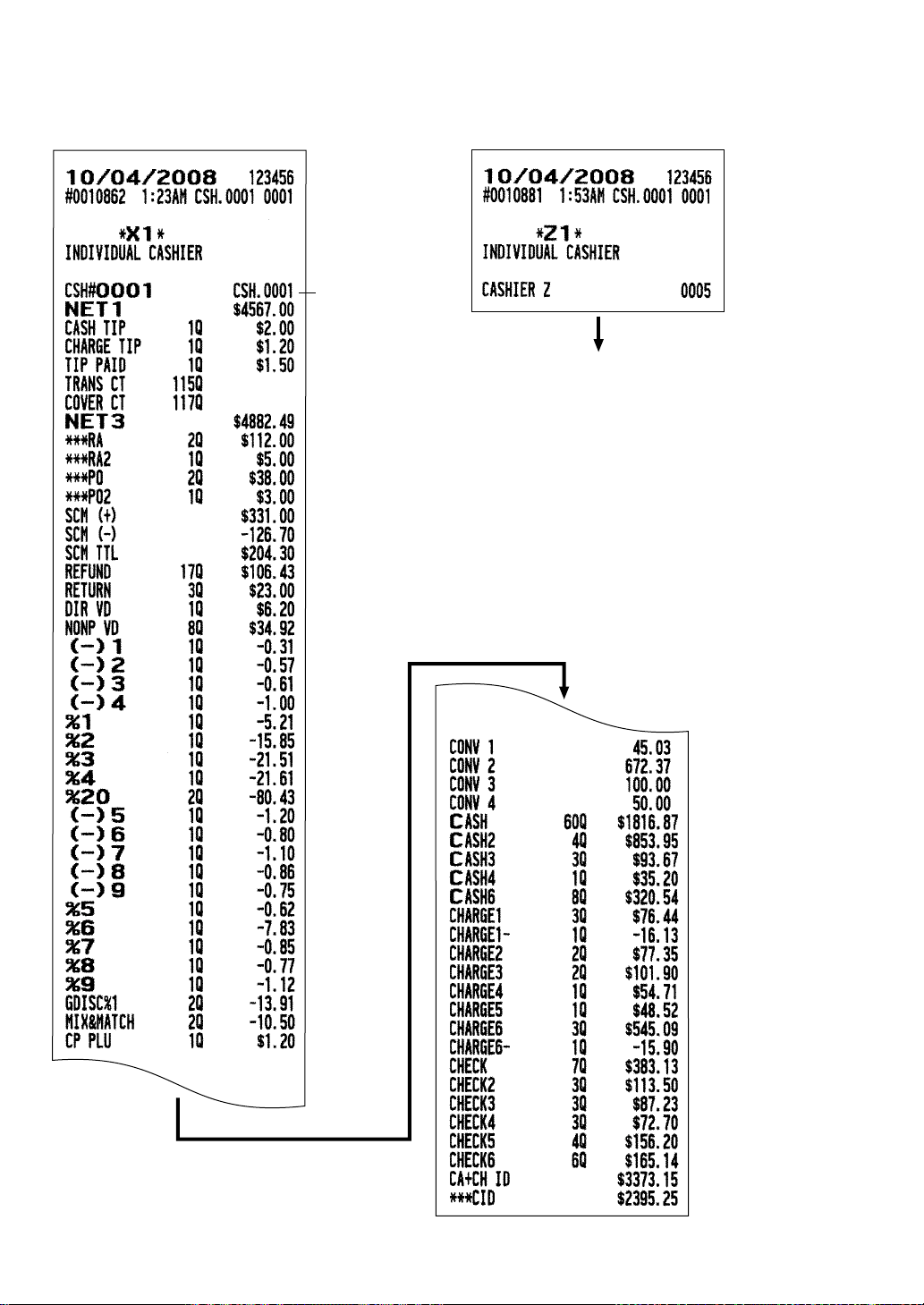
106
■■
■■
■ Individual cashier report
••
••
• Sample X report
• •
• •
• Sample Z report
Cashier no./name
The subsequent printout occurs
in the same format as in the
sample X report.
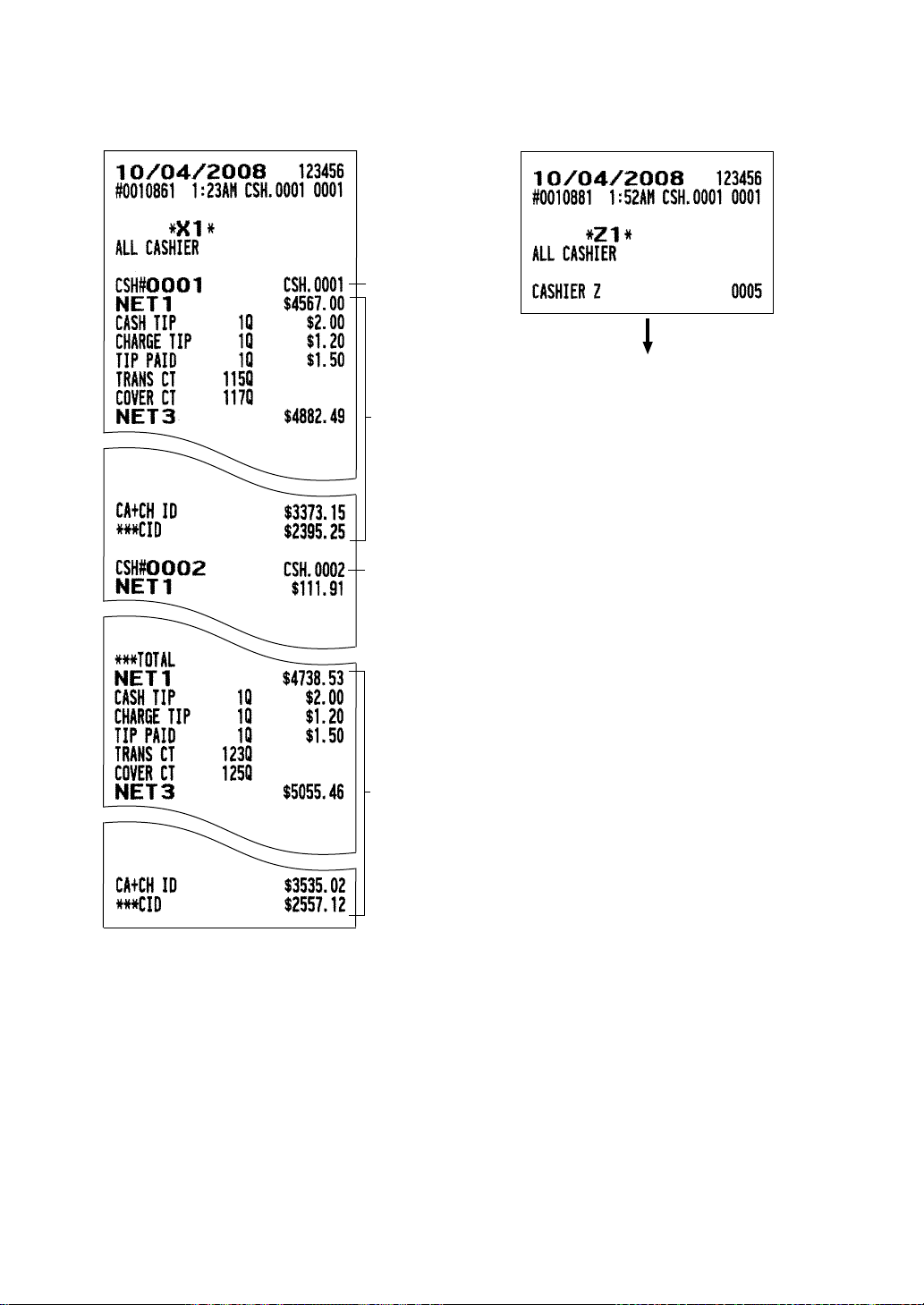
107
■■
■■
■ All cashier report
••
••
• Sample X report
• •
• •
• Sample Z report
Cashier no./name
Transaction for
each cashier
Cashier no./name
Total for transaction
The subsequent printout occurs
in the same format as in the
sample X report.
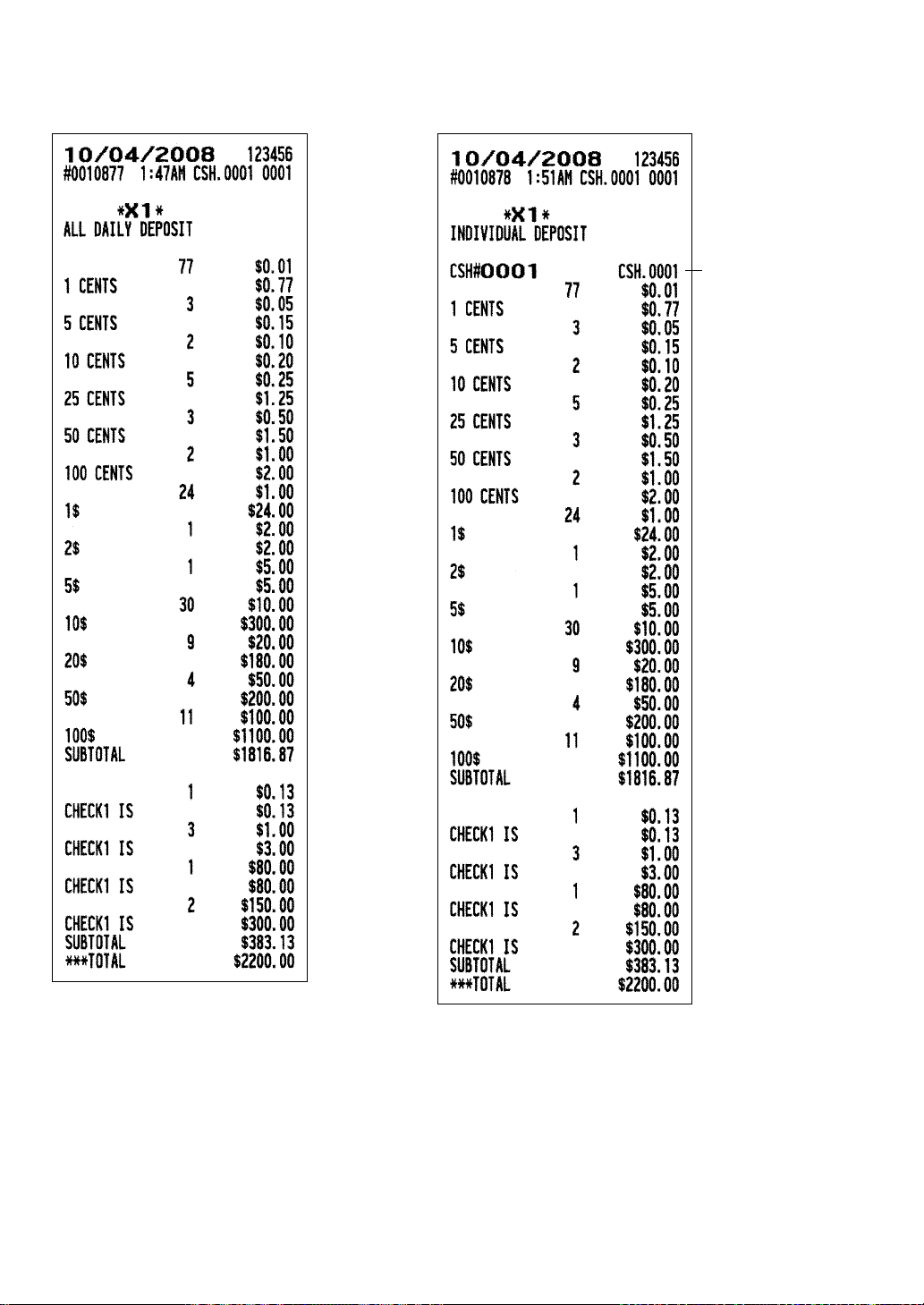
108
■■
■■
■ All daily deposit report
■■
■■
■ Individual deposit report
Cashier no./name
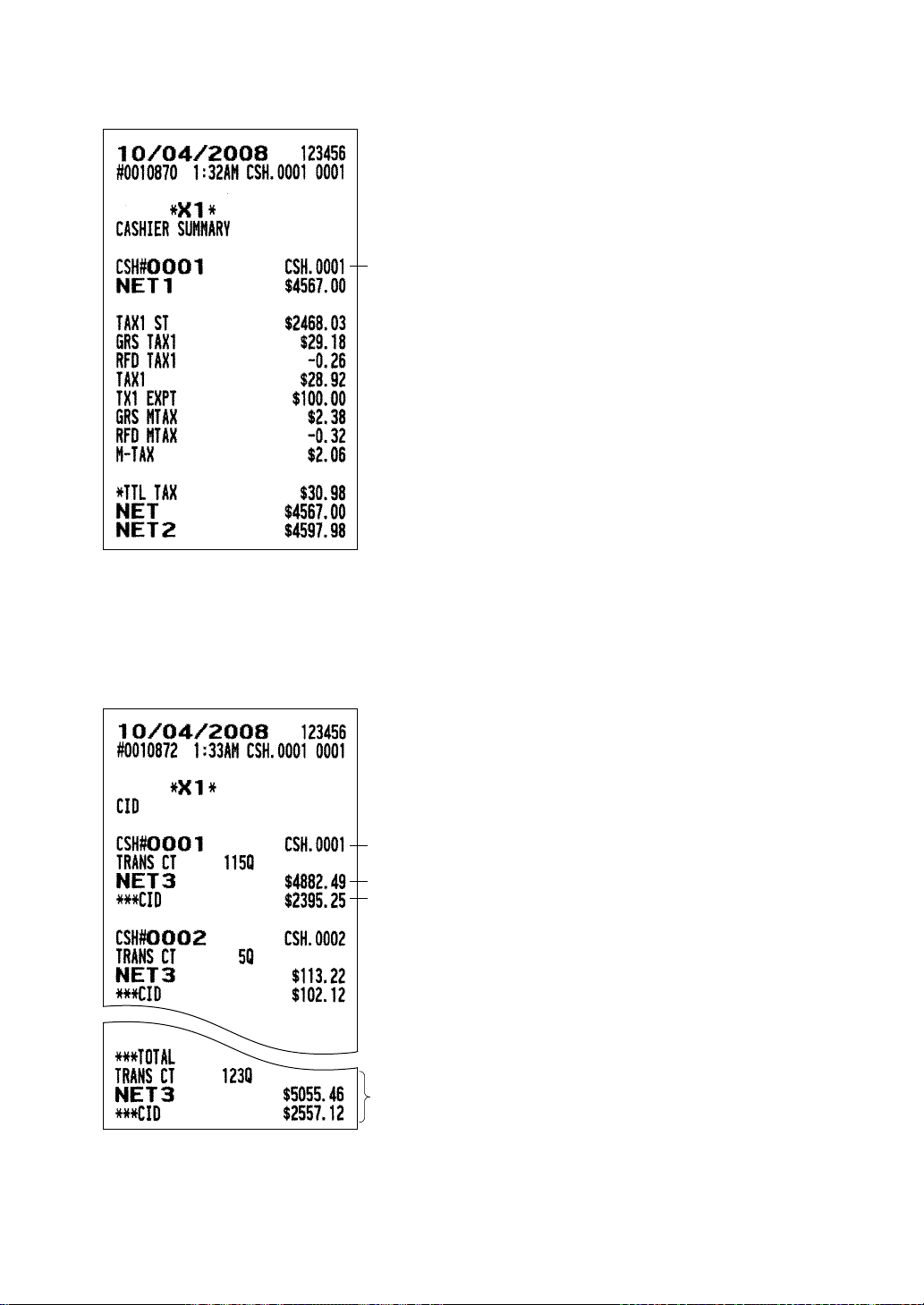
109
■■
■■
■ Cashier summary report
■■
■■
■ Cash in drawer report
Cashier no./name
Cashier no./name
Sales total
Cash in drawer
Total

110
■■
■■
■ Tax report
Cashier no./name
For manual tax
Total
For tax1
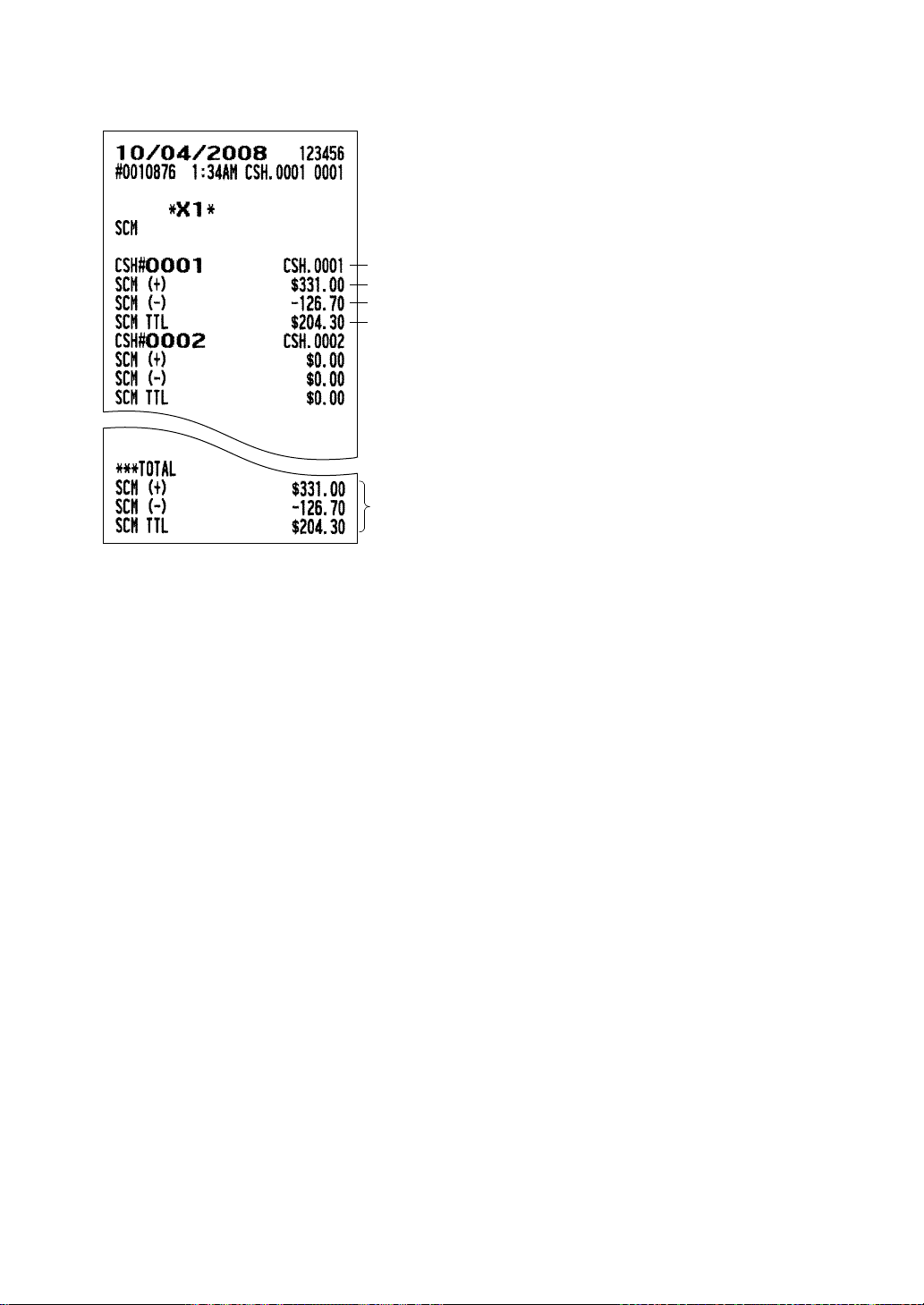
111
■■
■■
■ Starting cash memory report
Cashier no./name
Total
Starting cash memory (+)
Starting cash memory (-)
Starting cash memory total
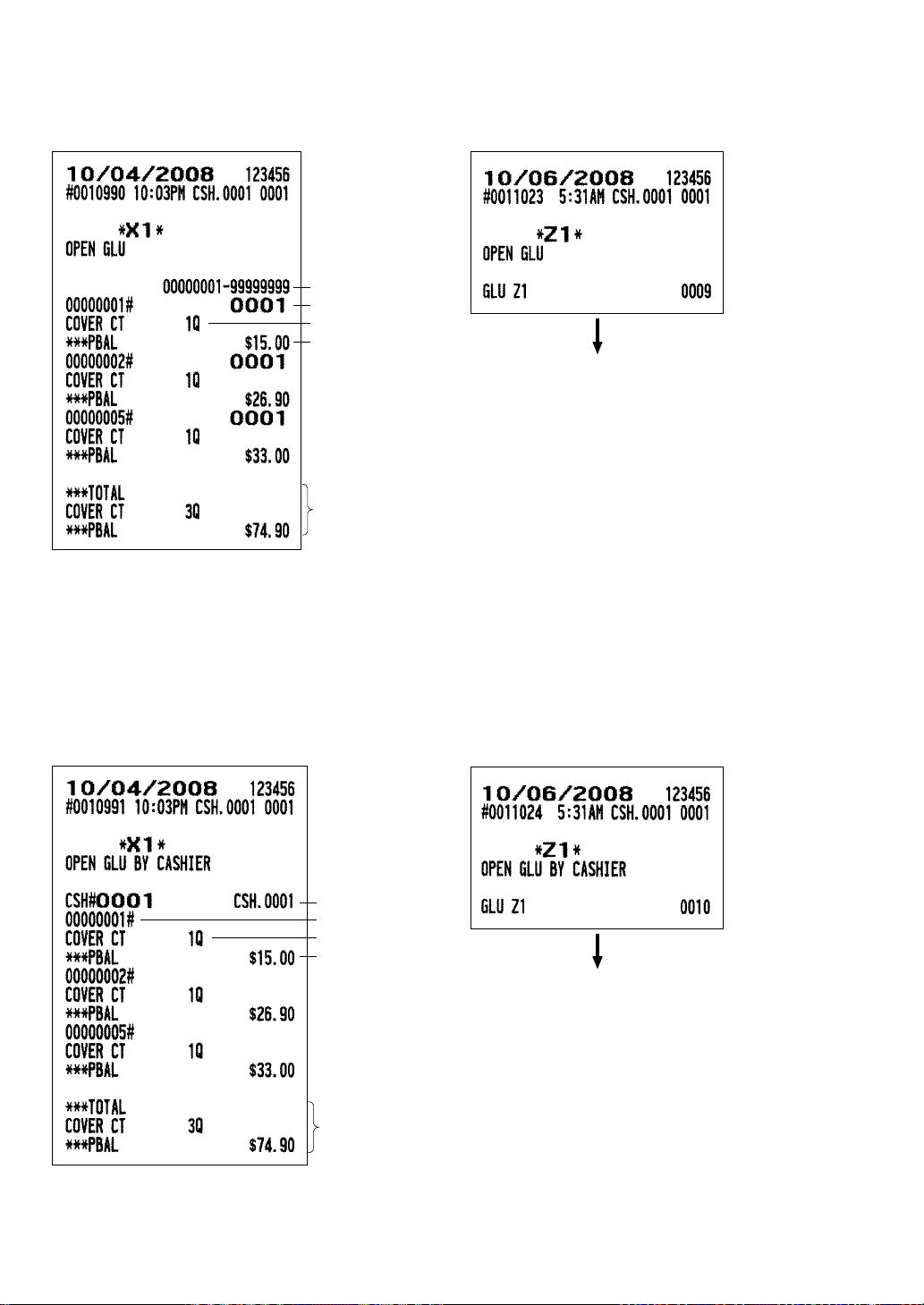
112
■■
■■
■ Open GLU report
••
••
• Sample X report
• •
• •
• Sample Z report
■■
■■
■ Open GLU by cashier report
••
••
• Sample X report
• •
• •
• Sample Z report
GLU range
GLU code/cashier no.
Cover counter
Balance amount
Total
The subsequent printout occurs
in the same format as in the
sample X report.
Cashier no./name
GLU code
Cover counter
Balance amount
Total
The subsequent printout occurs
in the same format as in the
sample X report.
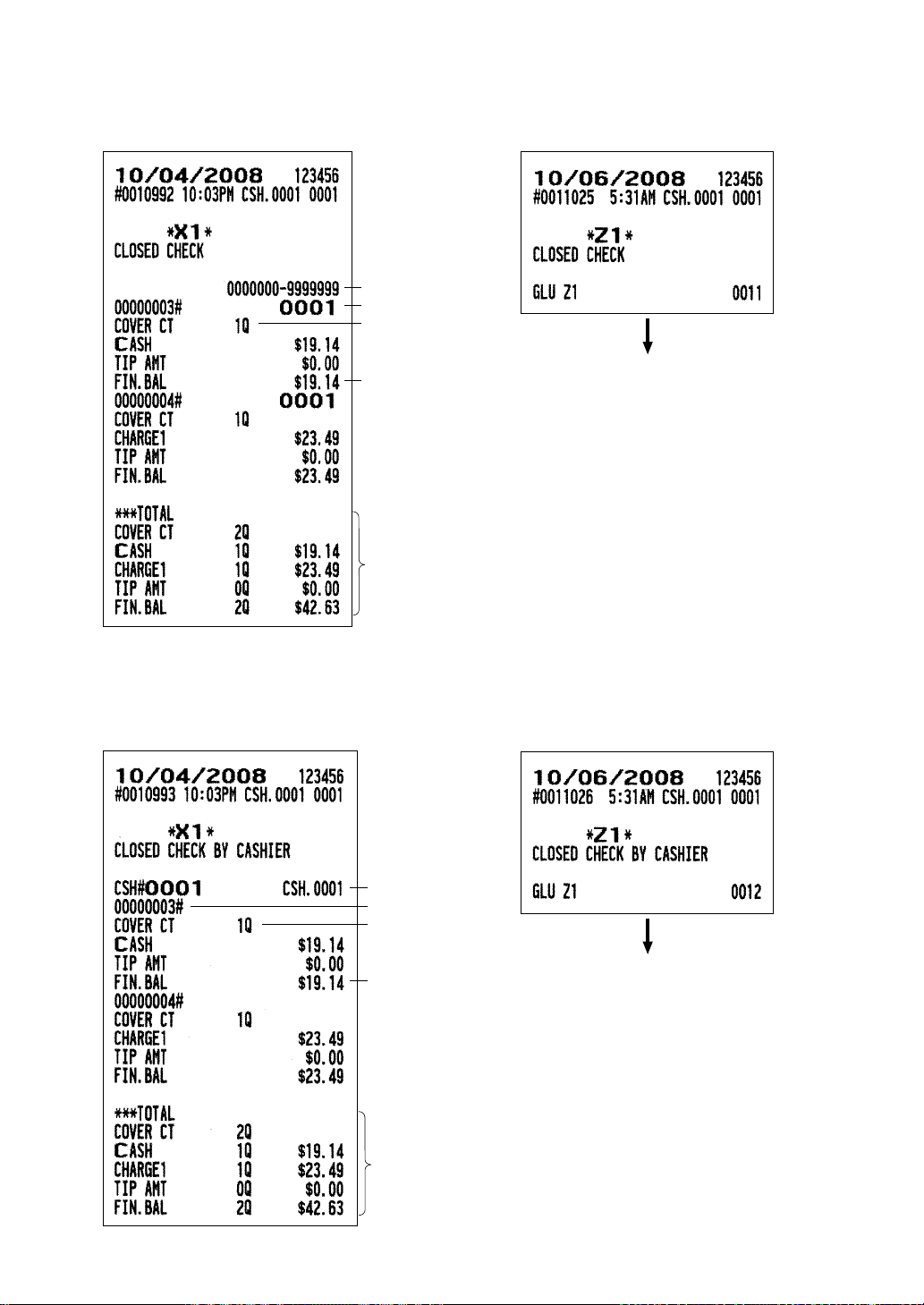
113
■■
■■
■ Closed check report
••
••
• Sample X report
• •
• •
• Sample Z report
■■
■■
■ Closed check by cashier report
••
••
• Sample X report
• •
• •
• Sample Z report
GLU range
GLU code/cashier no.
Cover counter
Final balance
amount
Total
The subsequent printout occurs
in the same format as in the
sample X report.
Cashier no./name
GLU code
Cover counter
Final balance
amount
Total
The subsequent printout occurs
in the same format as in the
sample X report.
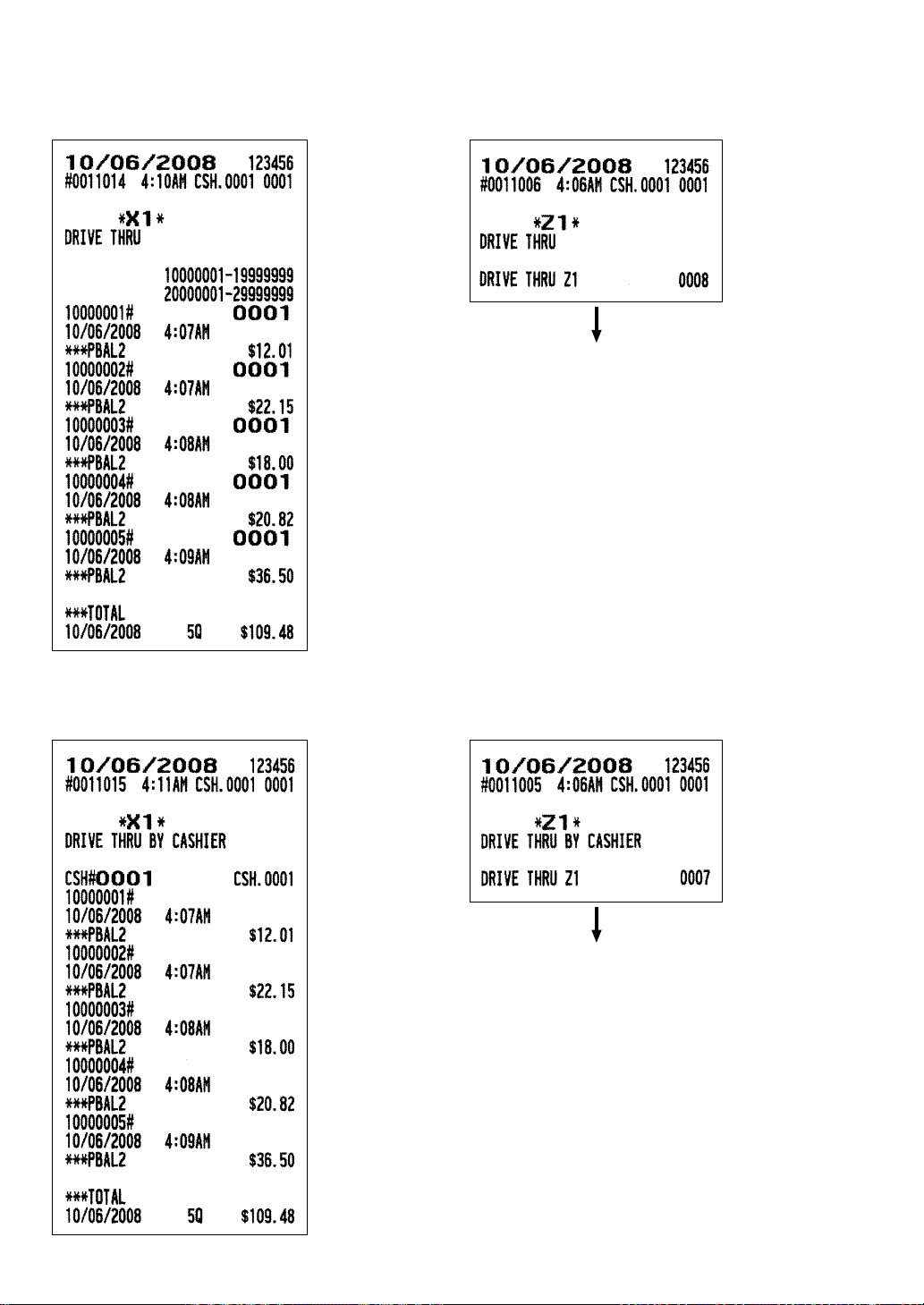
114
■■
■■
■ Drive-thru report
••
••
• Sample X report
• •
• •
• Sample Z report
■■
■■
■ Drive-thru by cashier report
••
••
• Sample X report
• •
• •
• Sample Z report
The subsequent printout occurs
in the same format as in the
sample X report.
The subsequent printout occurs
in the same format as in the
sample X report.
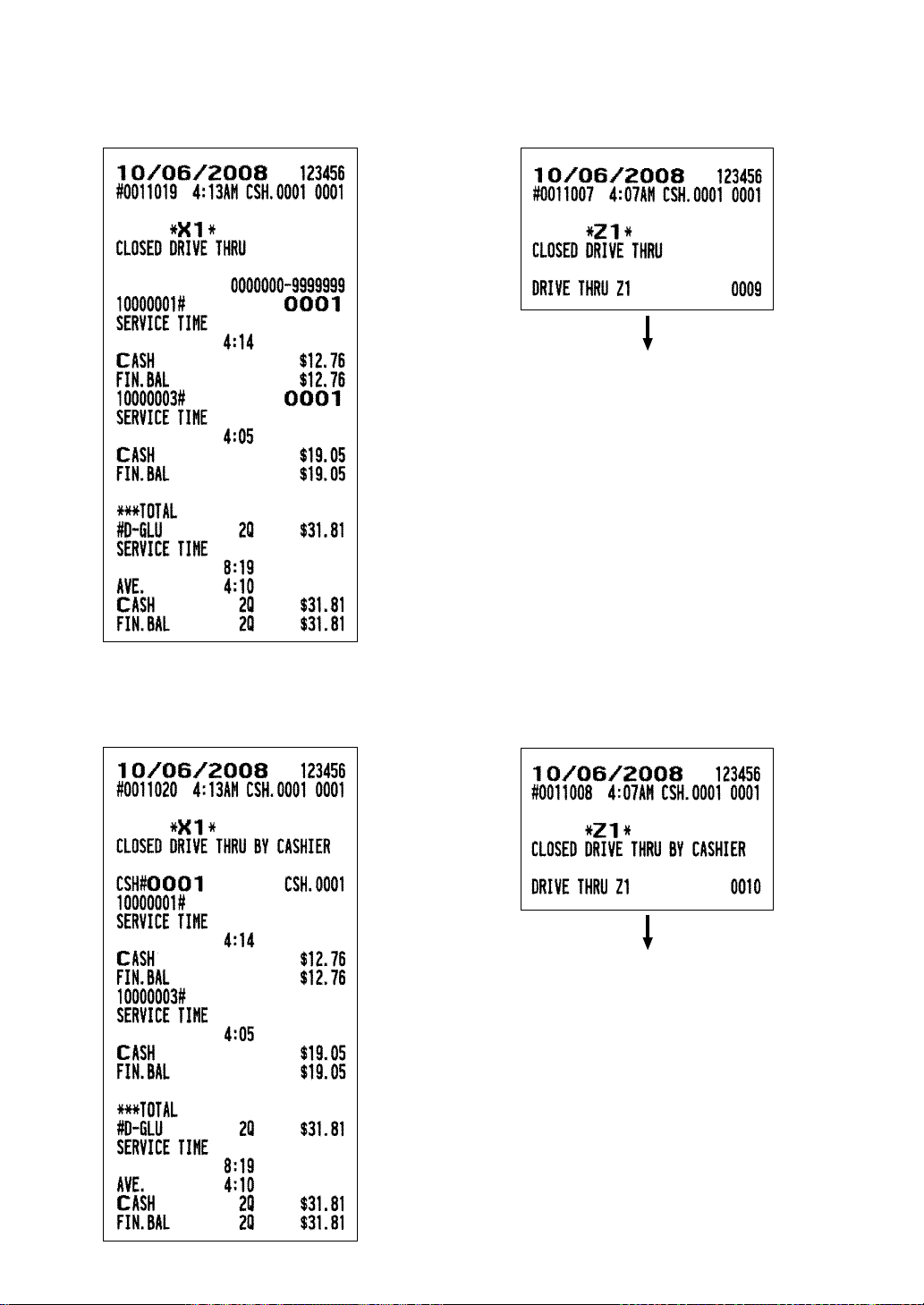
115
■■
■■
■ Closed drive-thru report
••
••
• Sample X report
• •
• •
• Sample Z report
■■
■■
■ Closed drive-thru by cashier report
••
••
• Sample X report
• •
• •
• Sample Z report
The subsequent printout occurs
in the same format as in the
sample X report.
The subsequent printout occurs
in the same format as in the
sample X report.
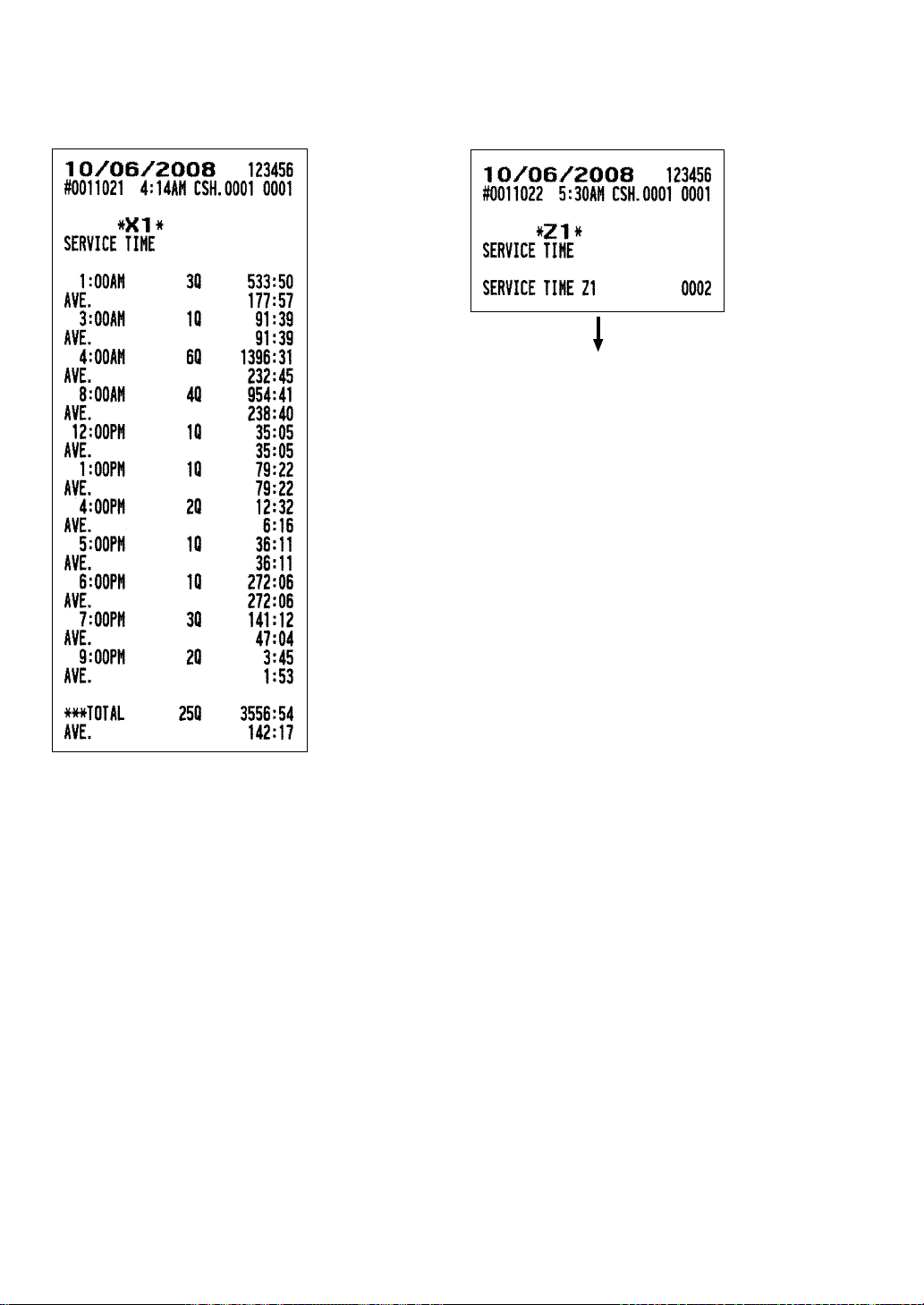
116
■■
■■
■ Service time report
••
••
• Sample X report
• •
• •
• Sample Z report
The subsequent printout occurs
in the same format as in the
sample X report.

117
■■
■■
■ All employee TEFRA report
Employee code range
Employee code/name
Credit card sales/charge tip
Other sales/cash tip
Total non-TEFRA/total TEFRA
Difference
Total tip/tip minimum declaration
■■
■■
■ Individual employee TEFRA report
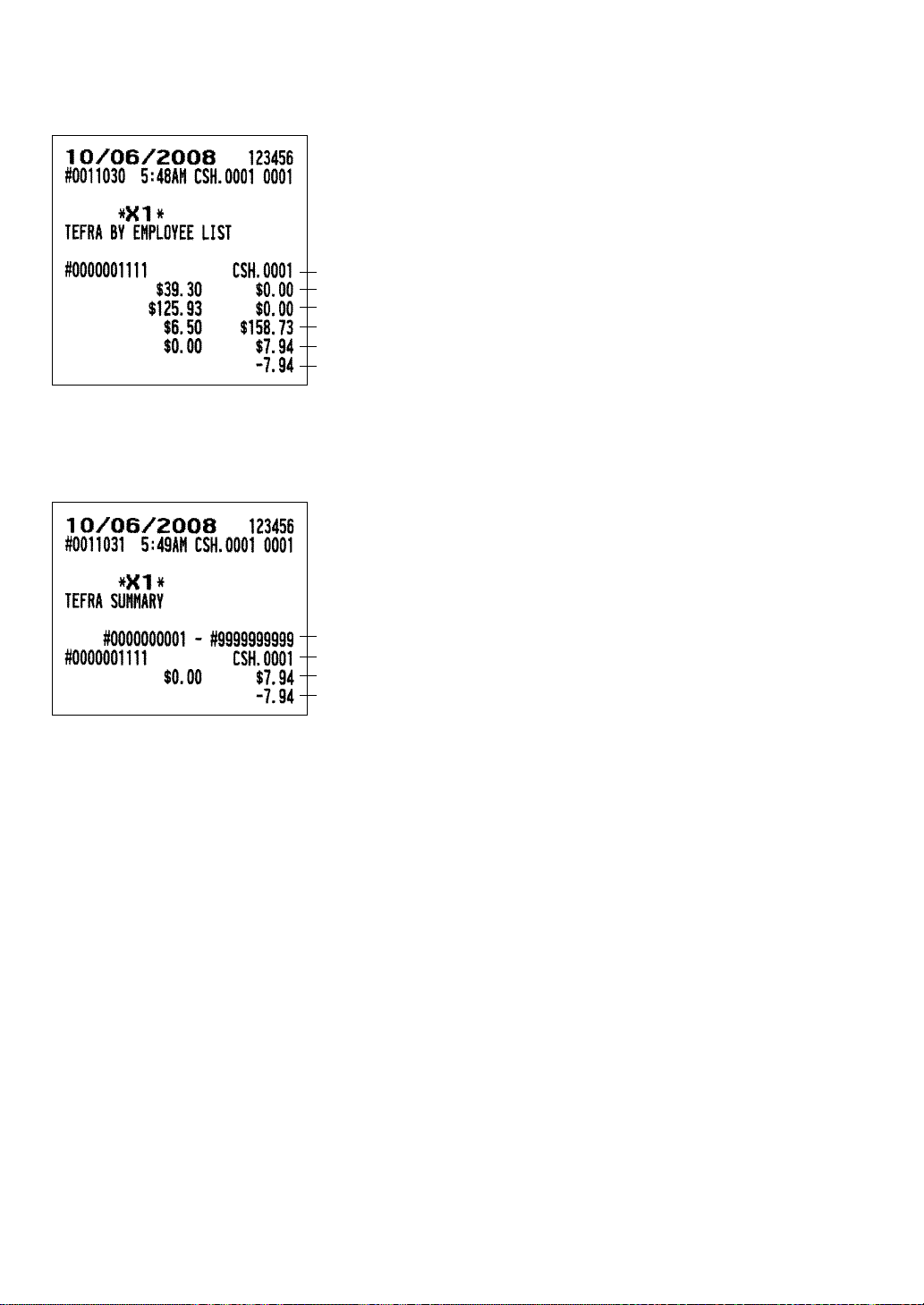
118
Employee code/name
Credit card sales/charge tip
Other sales/cash tip
Total non-TEFRA/total TEFRA
Total tip/tip minimum declaration
Difference
Employee code range
Employee code/name
Total tip/tip minimum declaration
Difference
■■
■■
■ TEFRA report by employee
■■
■■
■ TEFRA summary report
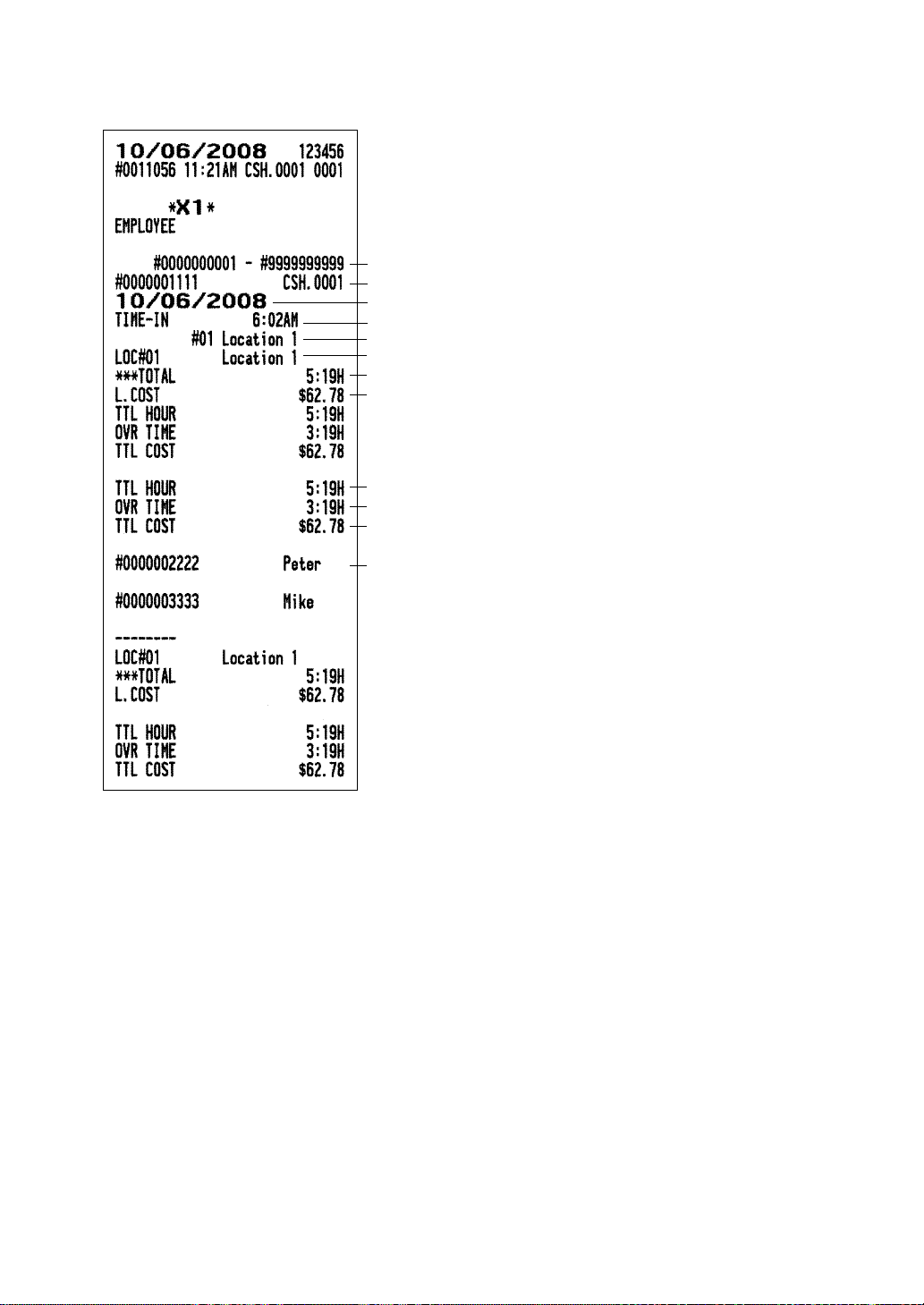
119
■■
■■
■ Employee report
Employee code range
Employee code/name
Date
Time-in
Location no./name
Location no./name
Total working time per location
Total cost per location
Total working time
Over time
Total labor cost
Employee code/name
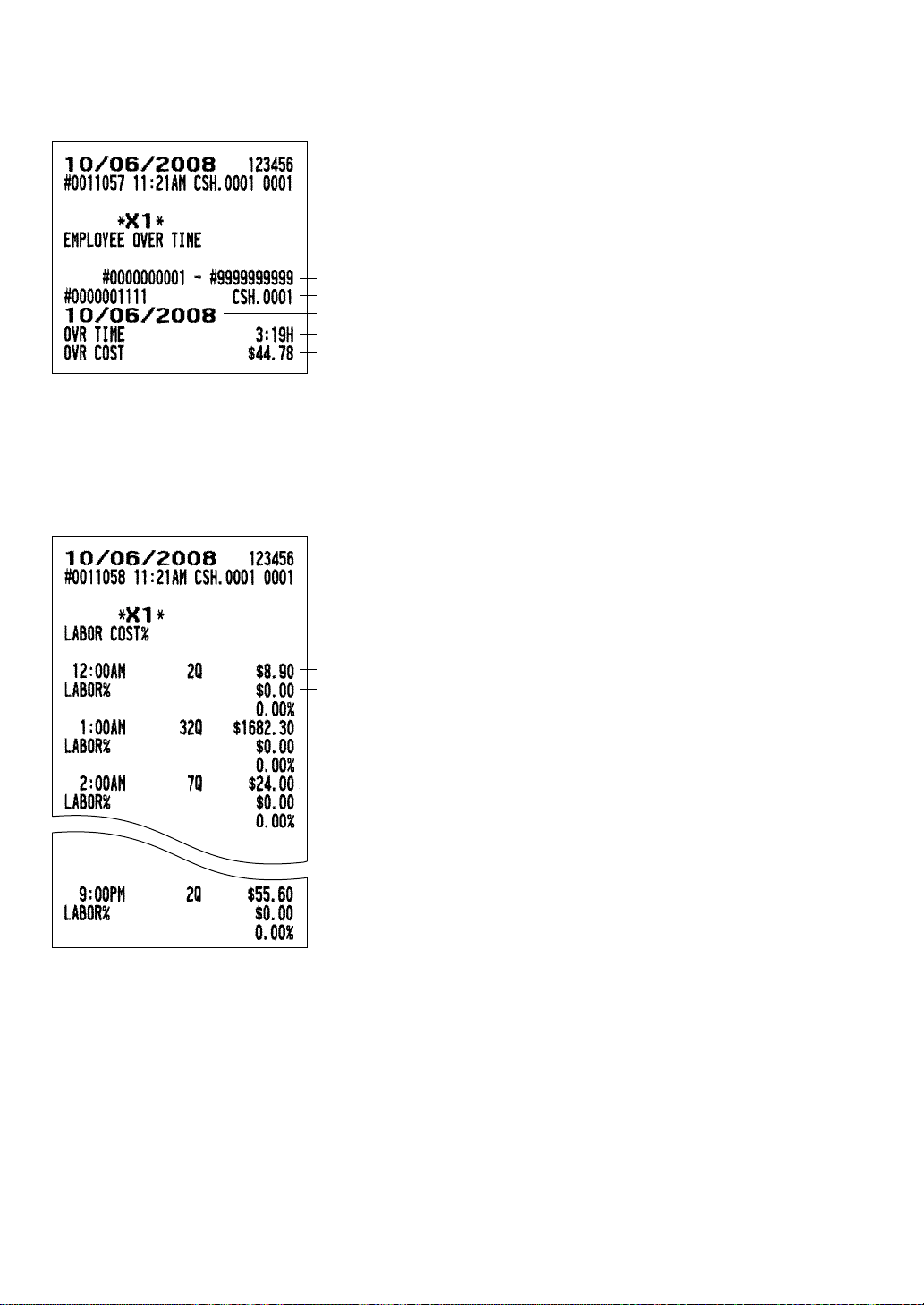
120
■■
■■
■ Employee over time report
■■
■■
■ Labor cost% report
Employee code range
Employee code/name
Date
Over time
Over time cost
Time/transaction counter/sales amount
Employee cost
Labor cost%
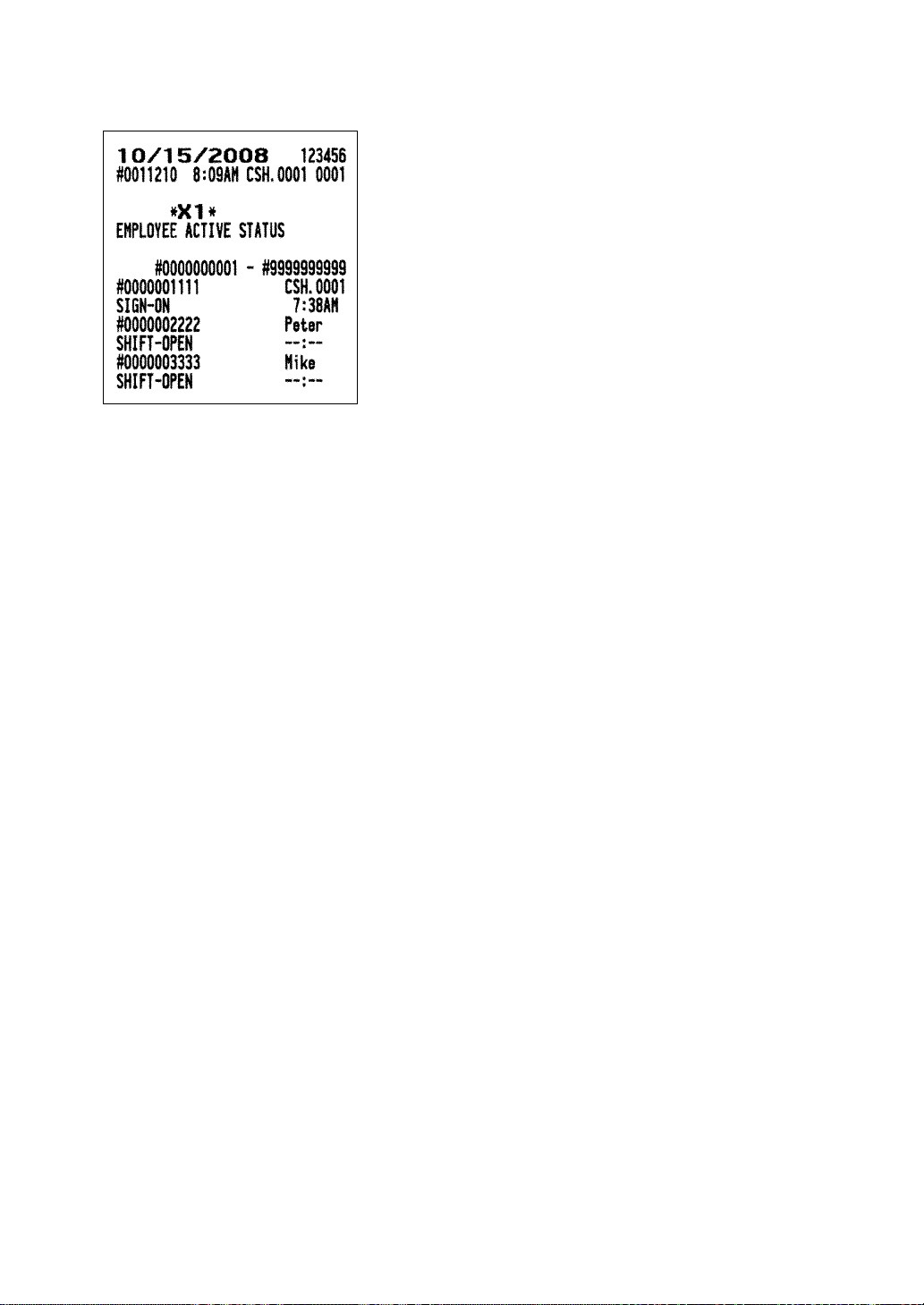
121
■■
■■
■ Employee active status report
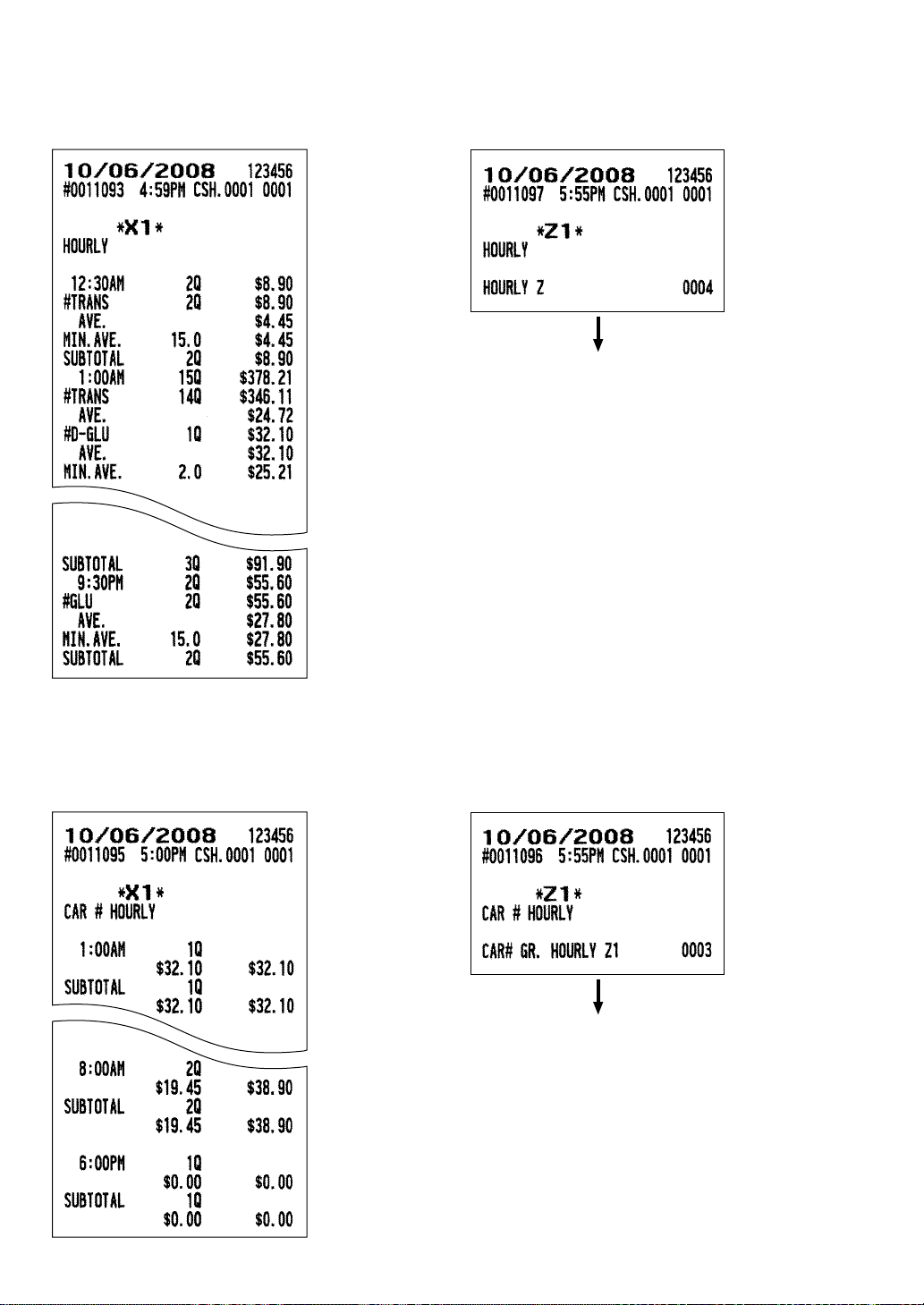
122
■■
■■
■ Hourly report
••
••
• Sample X report
• •
• •
• Sample Z report
■■
■■
■ Car # hourly report
••
••
• Sample X report
• •
• •
• Sample Z report
The subsequent printout occurs
in the same format as in the
sample X report.
The subsequent printout occurs
in the same format as in the
sample X report.
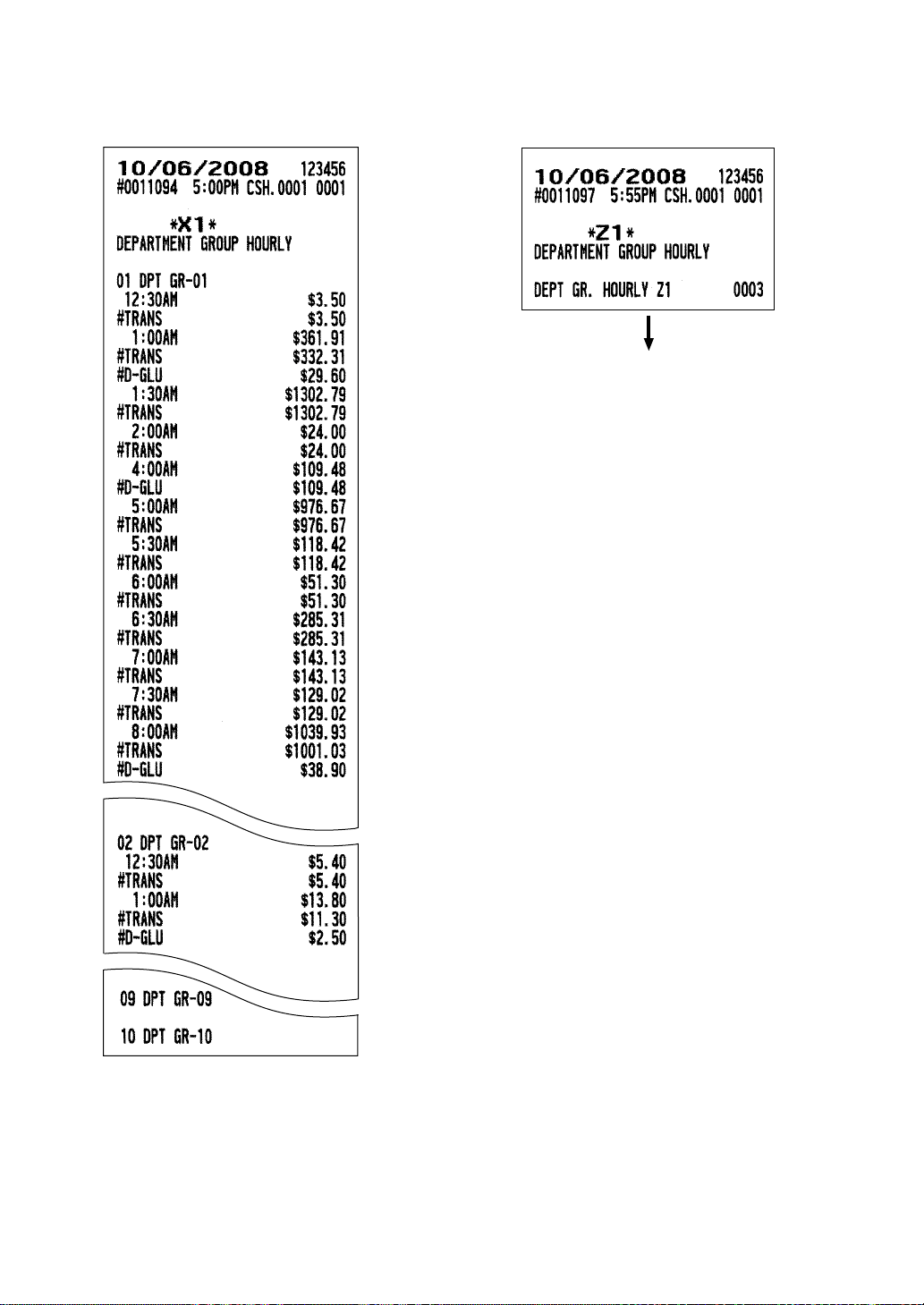
123
■■
■■
■ Department group hourly
••
••
• Sample X report
• •
• •
• Sample Z report
The subsequent printout occurs
in the same format as in the
sample X report.
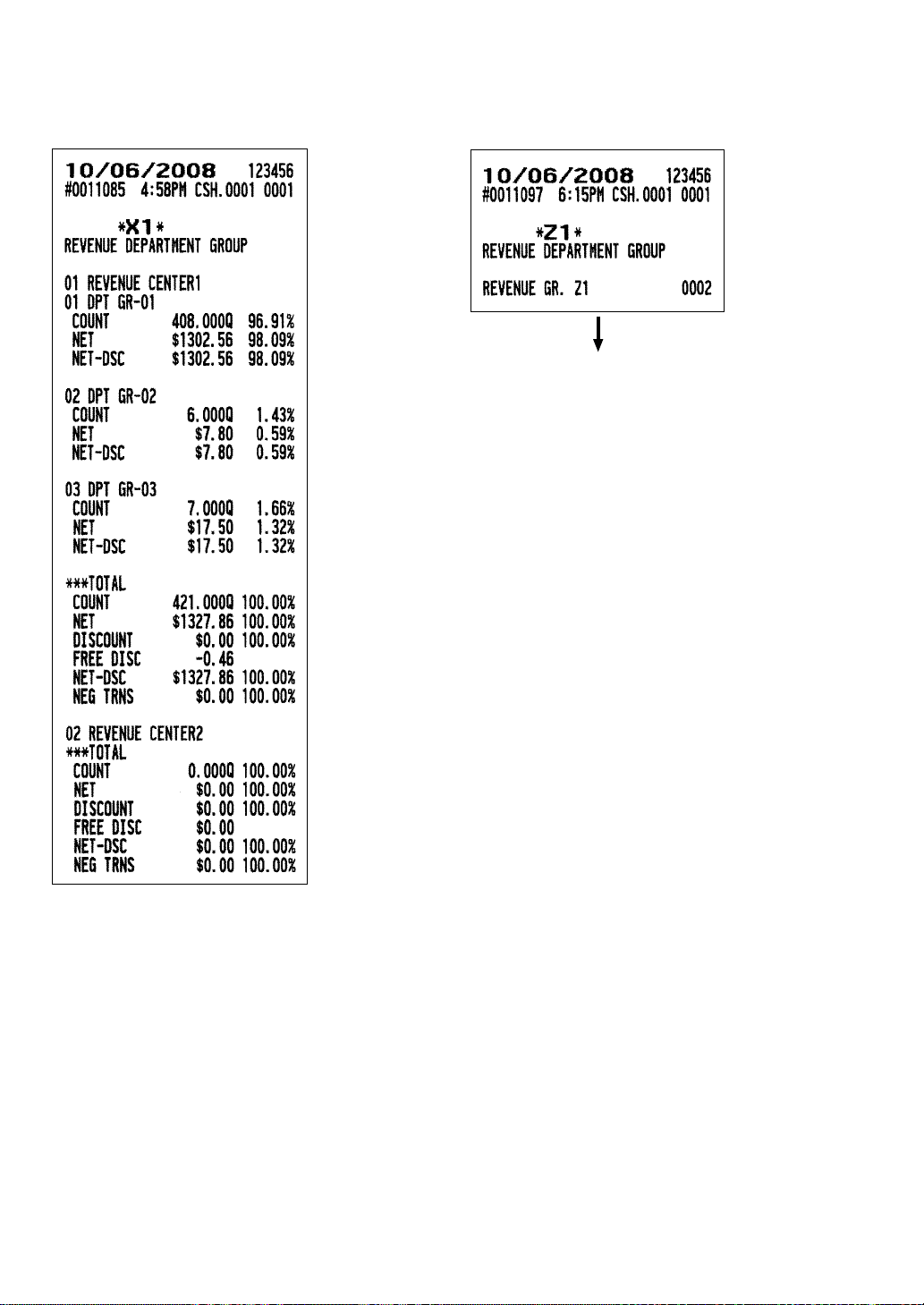
124
■■
■■
■ Revenue department group report
••
••
• Sample X report
• •
• •
• Sample Z report
The subsequent printout occurs
in the same format as in the
sample X report.
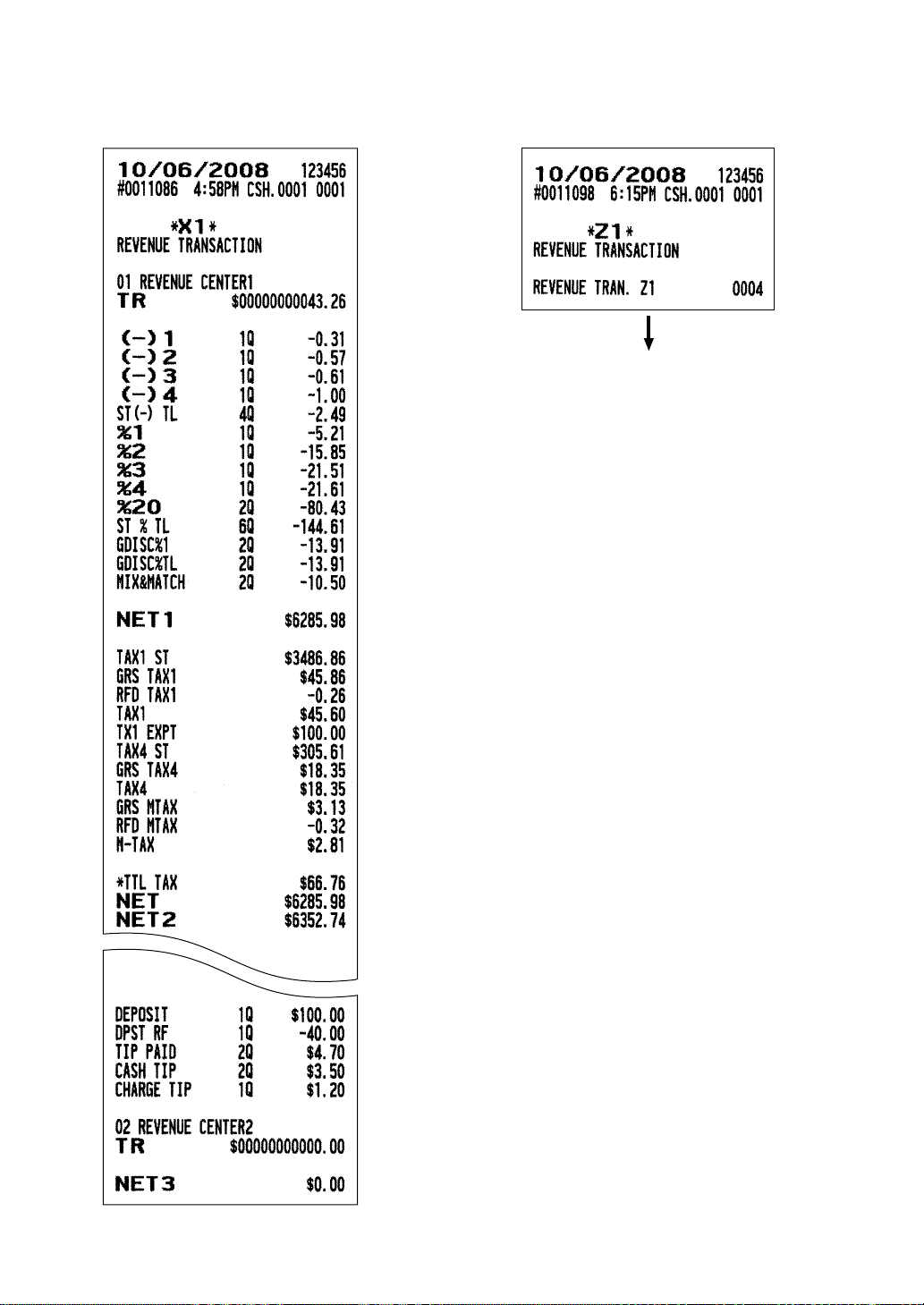
125
■■
■■
■ Revenue transaction report
••
••
• Sample X report
• •
• •
• Sample Z report
The subsequent printout occurs
in the same format as in the
sample X report.
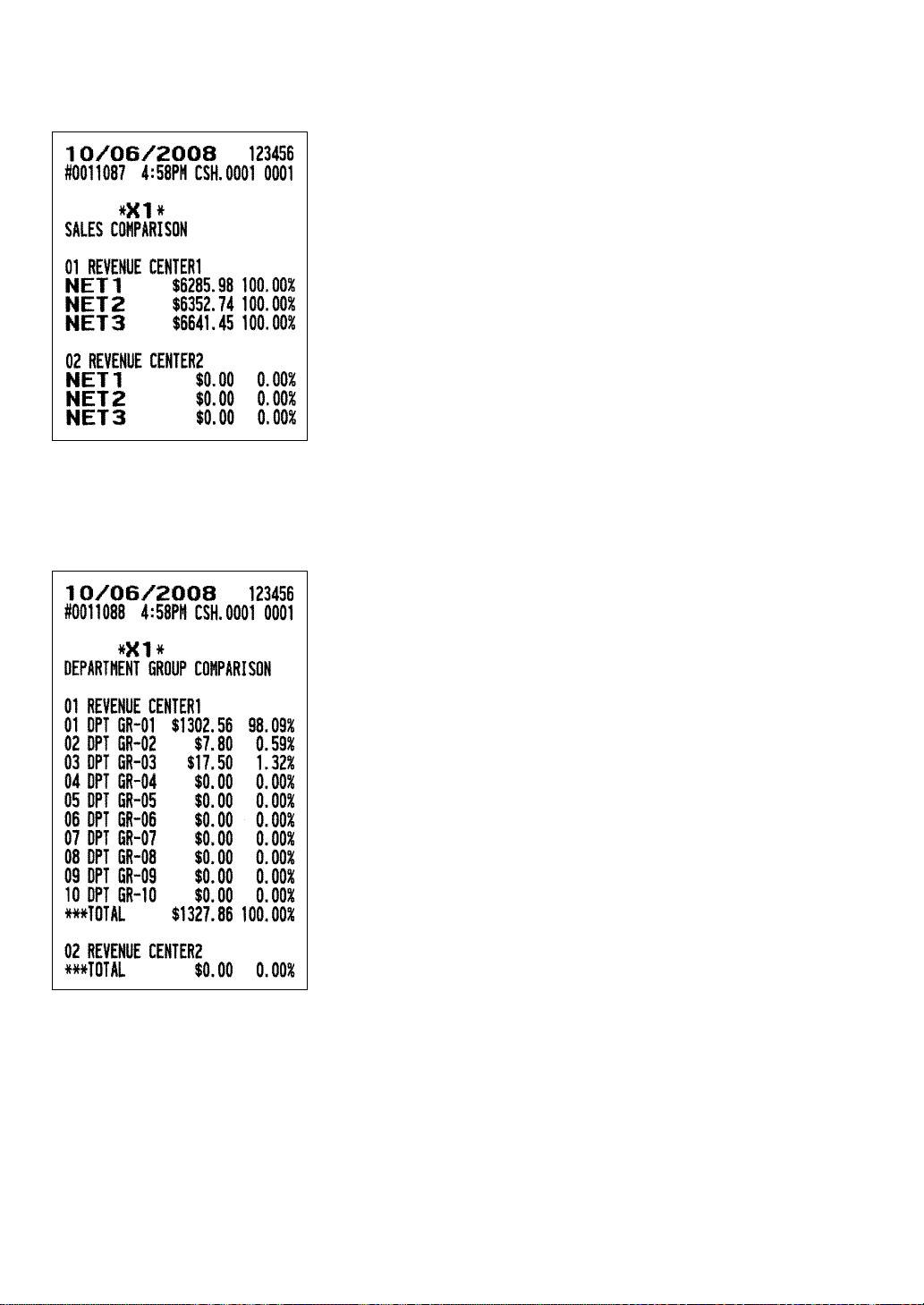
126
■■
■■
■ Sales comparison report
■■
■■
■ Department group comparison report
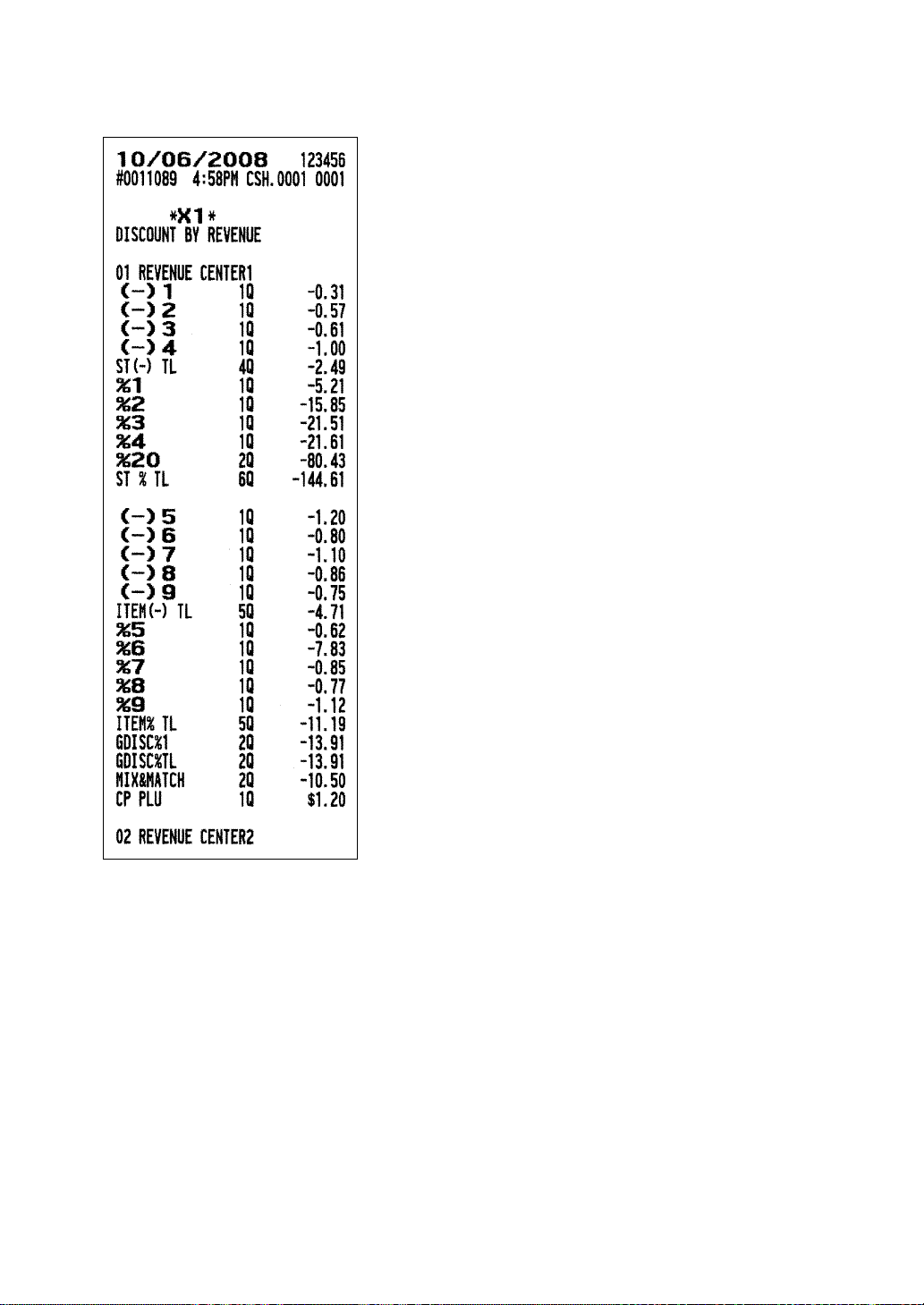
127
■■
■■
■ Discount by revenue report
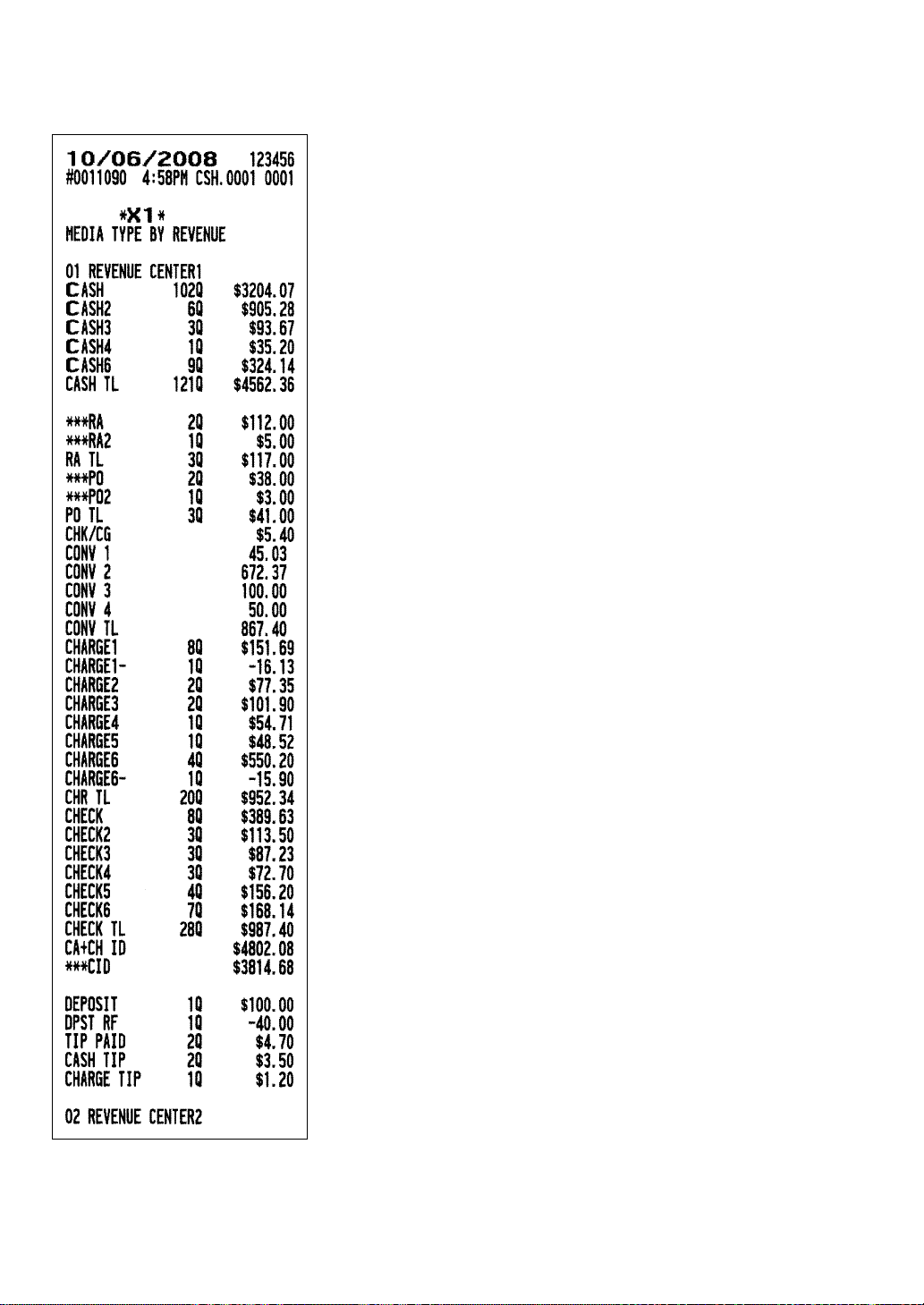
128
■■
■■
■ Media type by revenue report
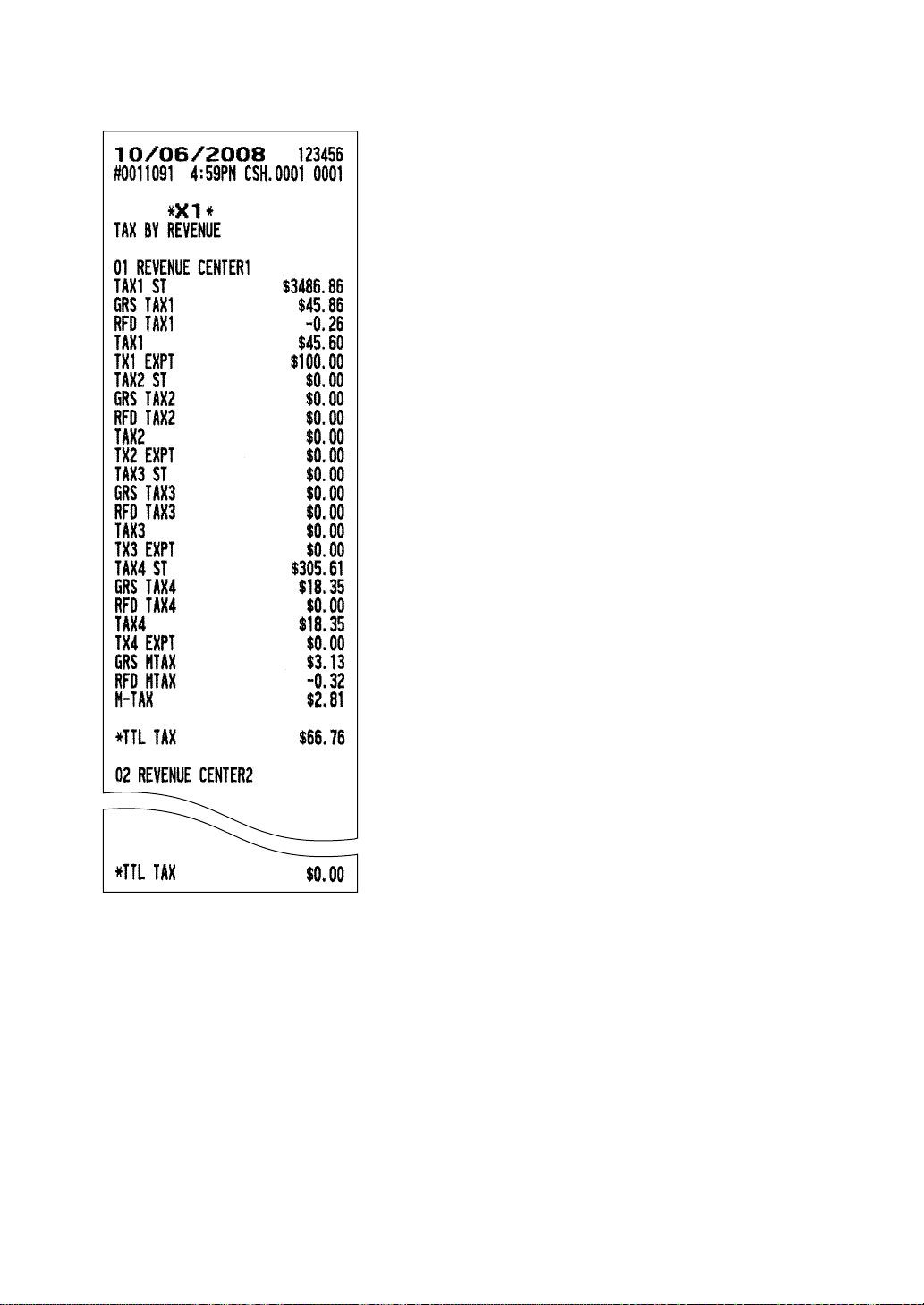
129
■■
■■
■ Tax by revenue report
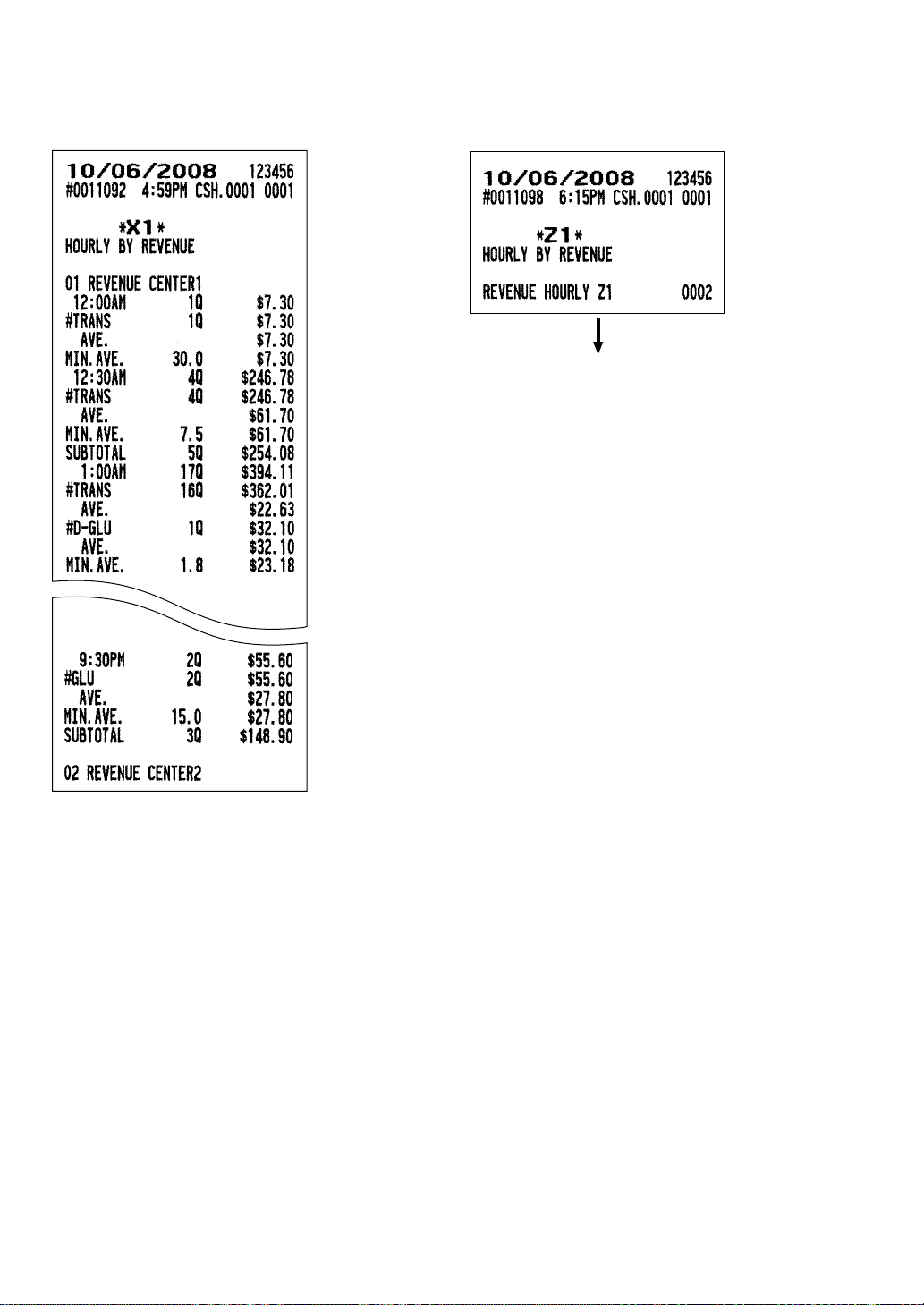
130
■■
■■
■ Hourly by revenue report
••
••
• Sample X report
• •
• •
• Sample Z report
The subsequent printout occurs
in the same format as in the
sample X report.
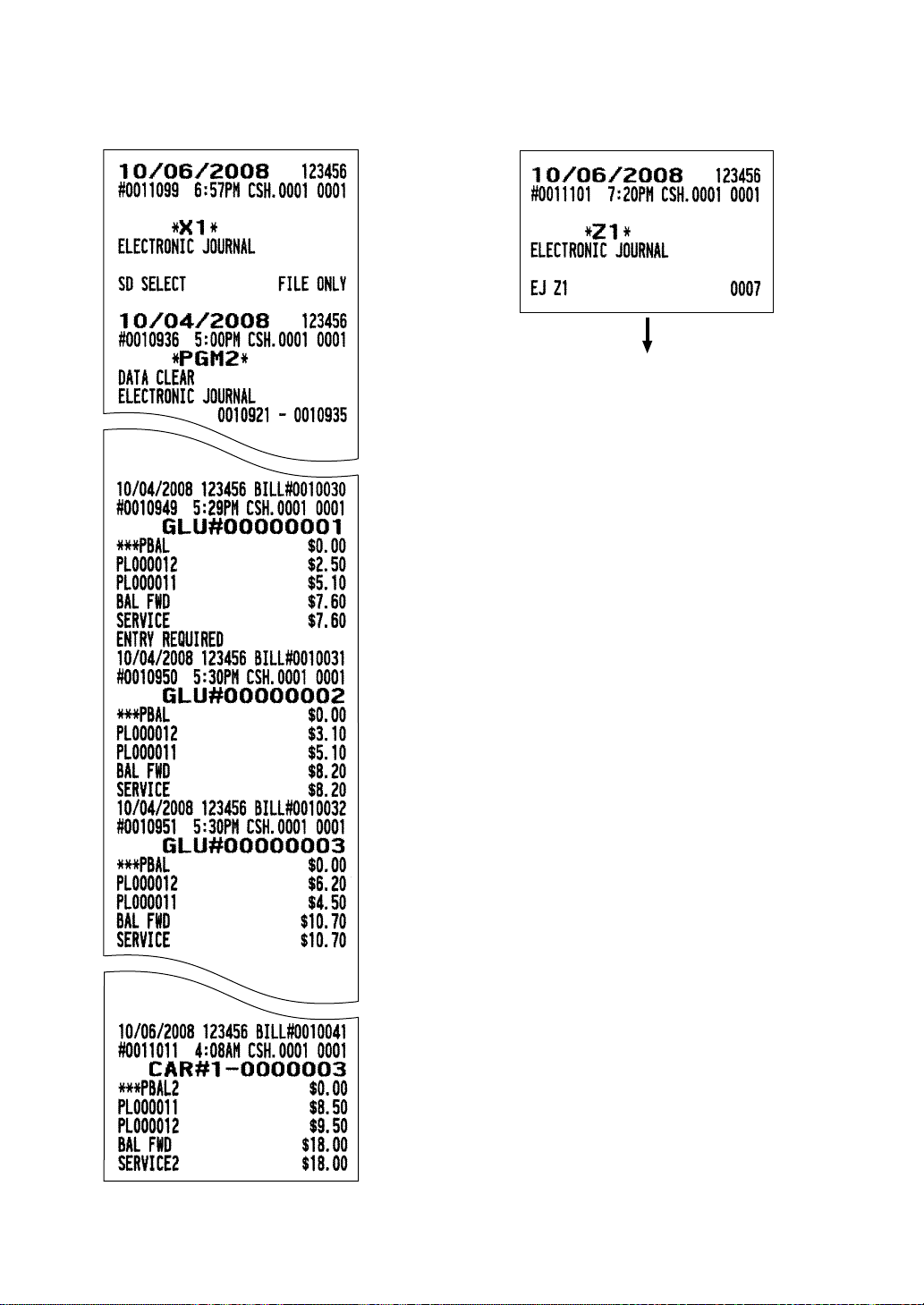
131
■■
■■
■ Electronic journal report
••
••
• Sample X report
• •
• •
• Sample Z report
The subsequent printout occurs
in the same format as in the
sample X report.
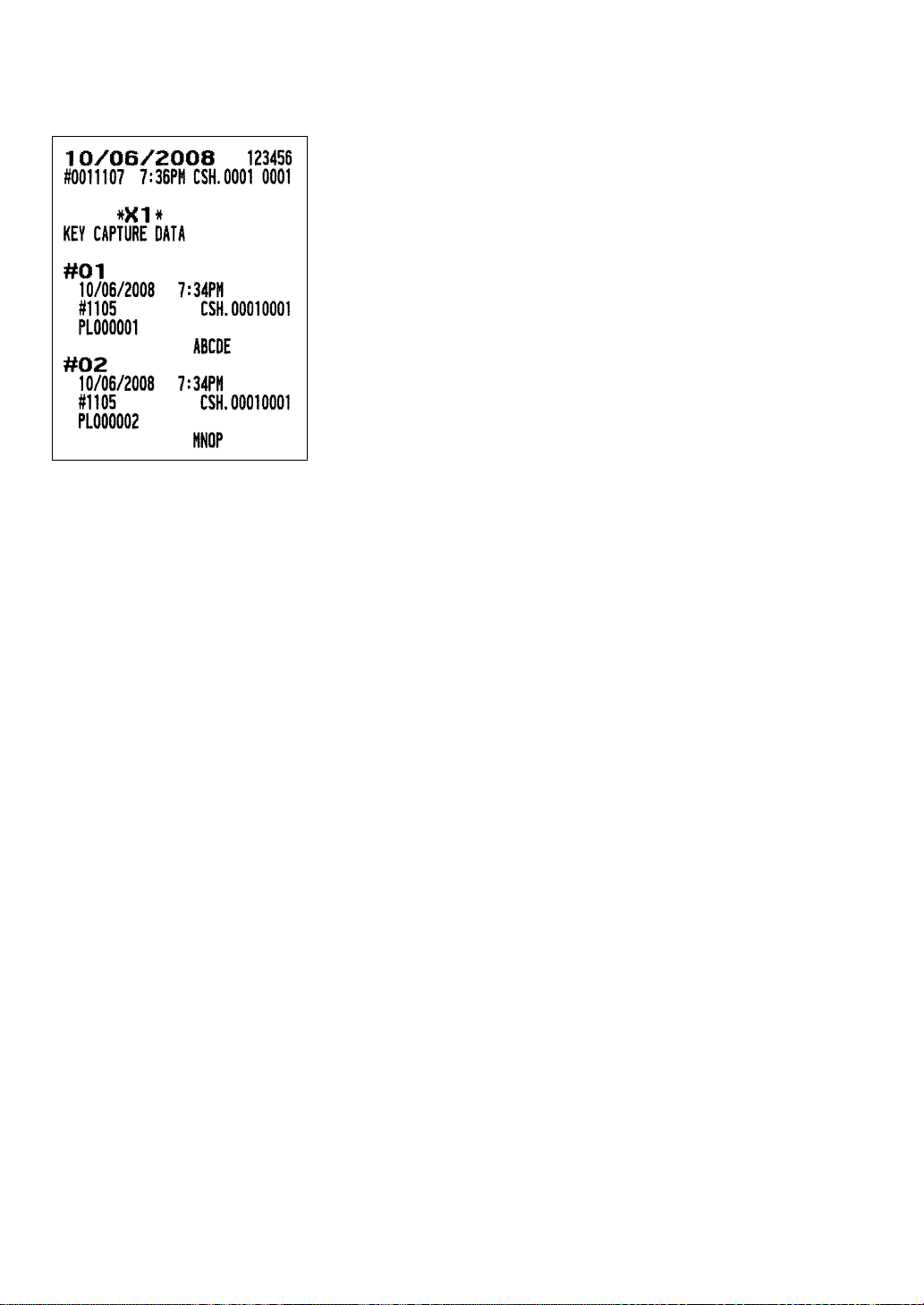
132
■■
■■
■ Key capture data report
■■
■■
■ X/Z stacked reports
You can print multiple X/Z reports in sequence by selecting the stacked report option from the menu. In this
case, you need to program in advance which X/Z reports should be printed. Refer to “Stacked report” under
the programming section.
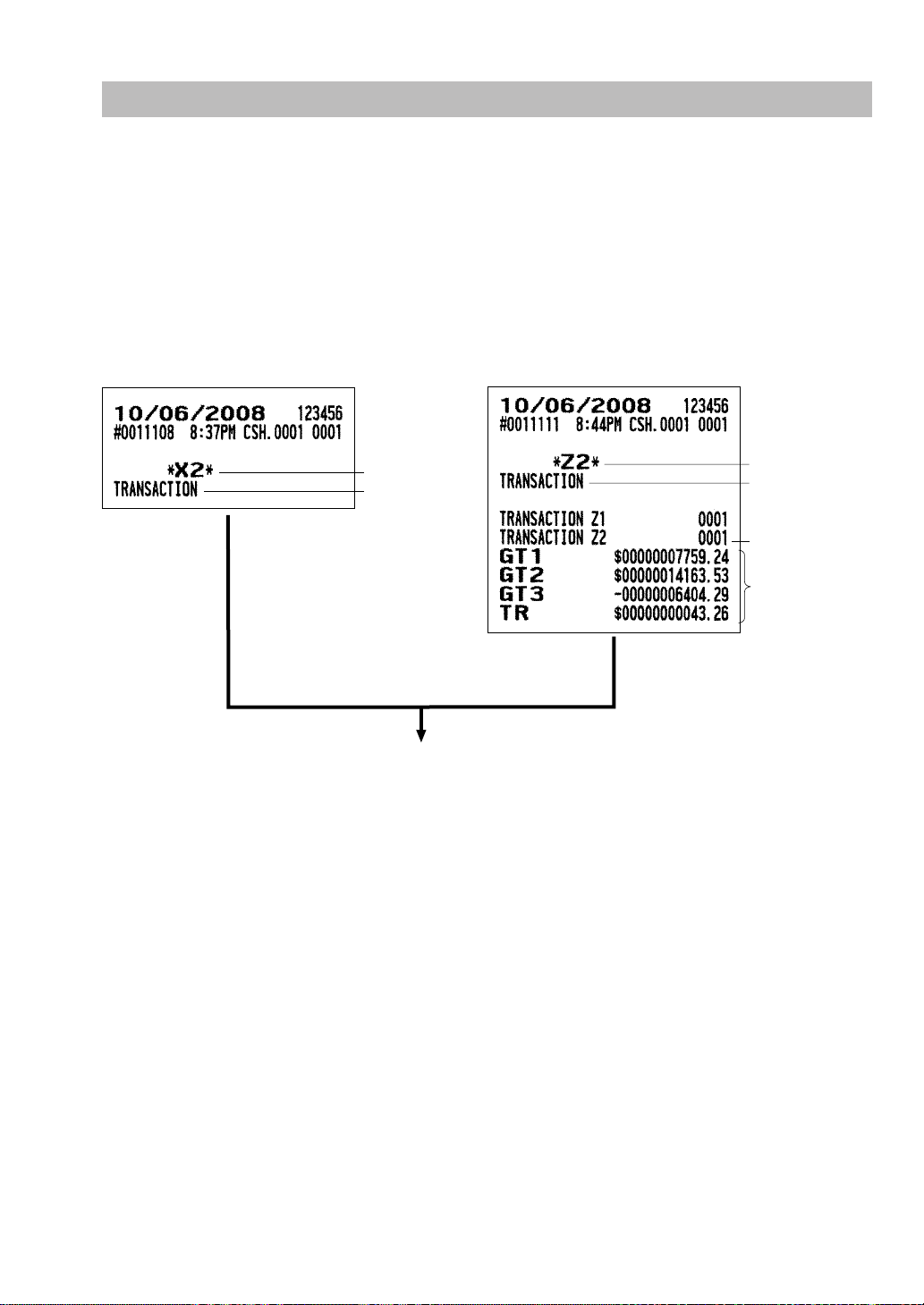
133
Periodic Report Samples
Your POS terminal allows you to take consolidation X and Z reports of a chosen period (the period is
usually one week or month).
••
••
• General overview
The periodic reading or resetting reports are the same in format as those in the X1/Z1 report for daily sales
information except mode indication (“X2”, “X3”, “X4” or “Z2”, “Z3”, “Z4”).
■■
■■
■ Transaction report
••
••
• Sample X report
• •
• •
• Sample Z report
Reset counter of
periodic consolidation
Grand totals
Read symbol
Report title
Reset symbol
Report title
The subsequent printouts are the same in format
as those in the X/Z report on daily totals.
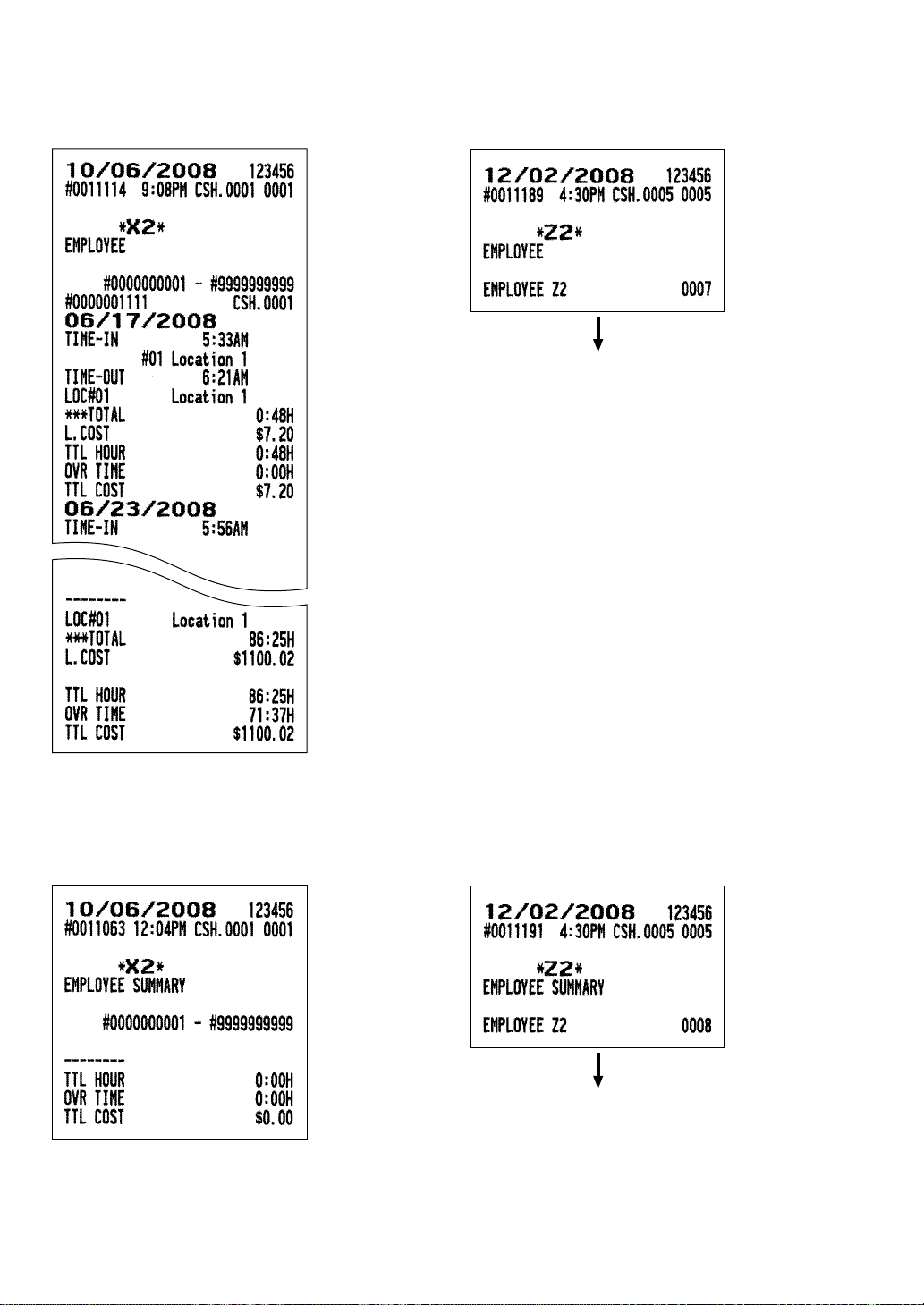
134
■■
■■
■ Employee report
••
••
• Sample X report
• •
• •
• Sample Z report
■■
■■
■ Employee summary report
••
••
• Sample X report
• •
• •
• Sample Z report
The subsequent printout occurs
in the same format as in the
sample X report.
The subsequent printout occurs
in the same format as in the
sample X report.
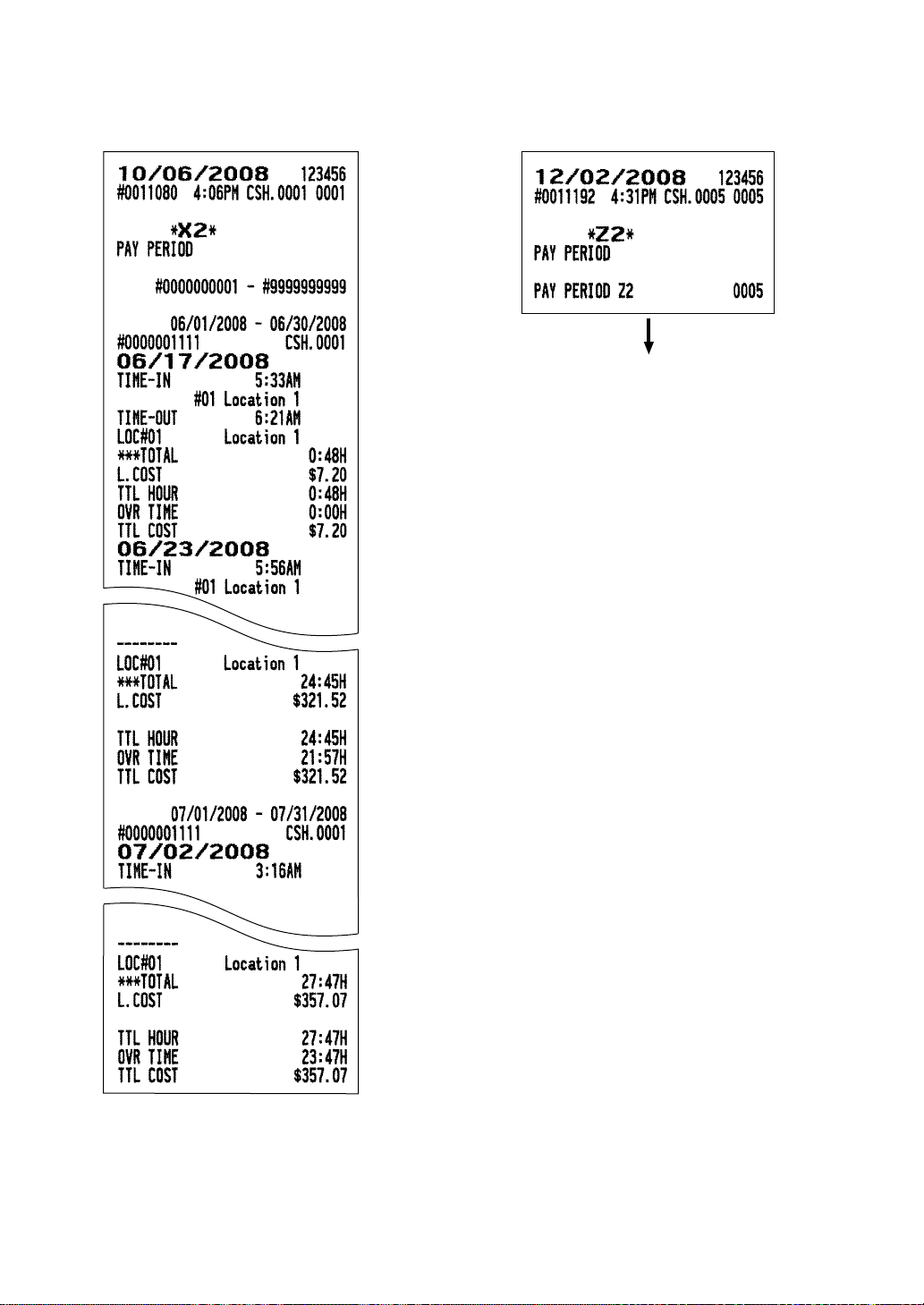
135
■■
■■
■ Pay period report
••
••
• Sample X report
• •
• •
• Sample Z report
The subsequent printout occurs
in the same format as in the
sample X report.

136
■■
■■
■ Pay period summary report
••
••
• Sample X report
• •
• •
• Sample Z report
The subsequent printout occurs
in the same format as in the
sample X report.
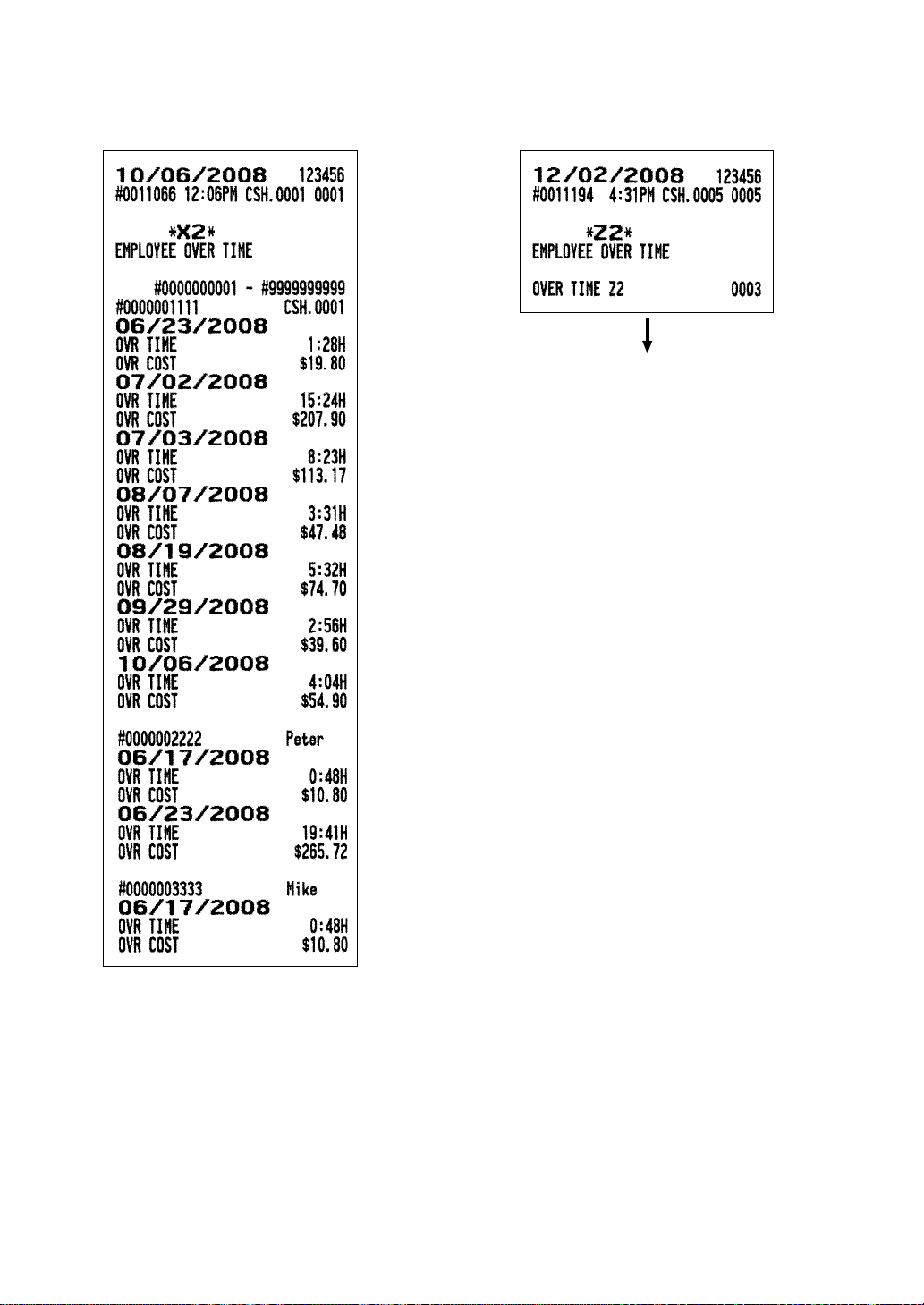
137
■■
■■
■ Employee over time report
••
••
• Sample X report
• •
• •
• Sample Z report
The subsequent printout occurs
in the same format as in the
sample X report.
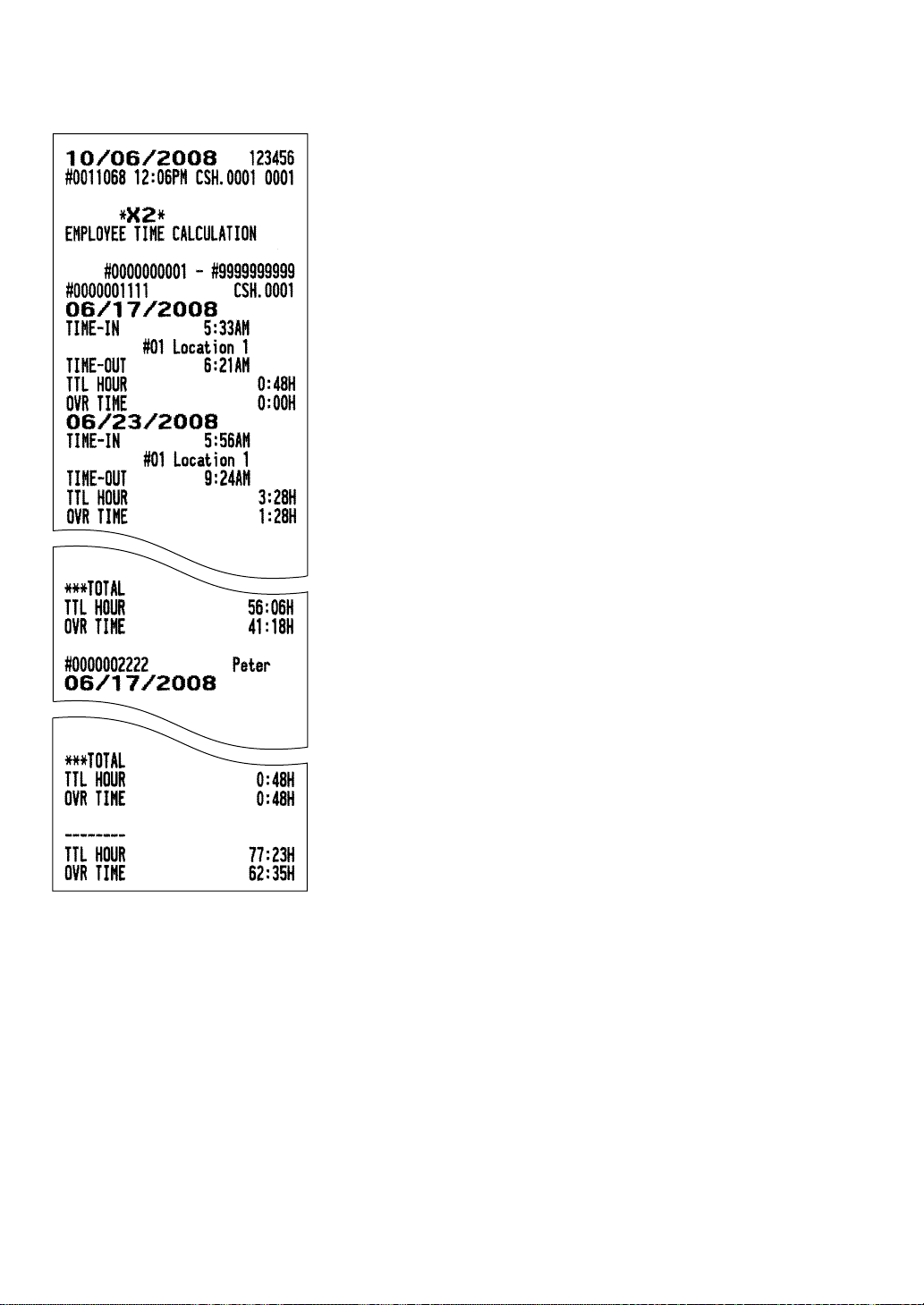
138
■■
■■
■ Employee time calculation report
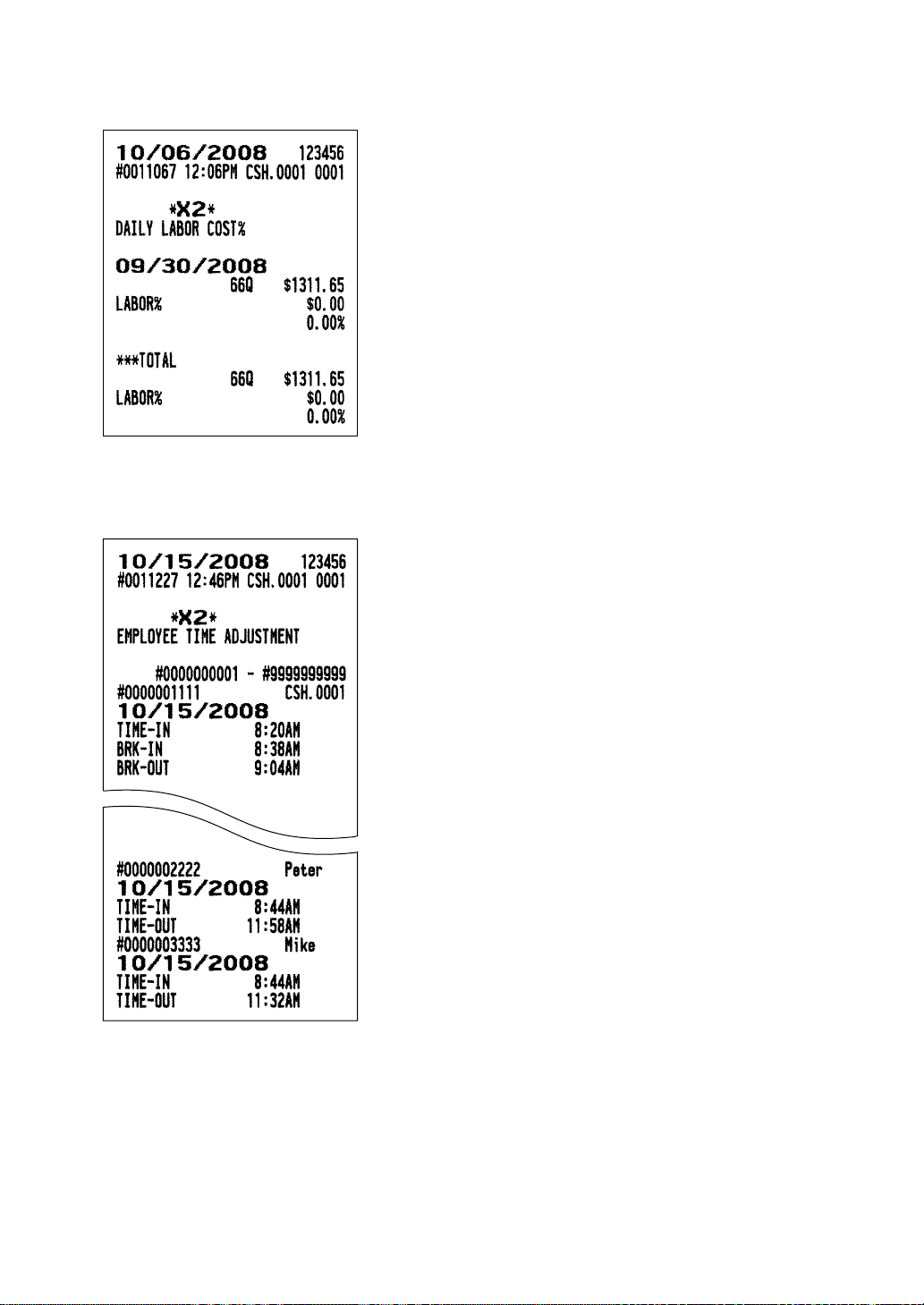
139
■■
■■
■ Daily labor cost% report
■■
■■
■ Emloyee time adjustment report
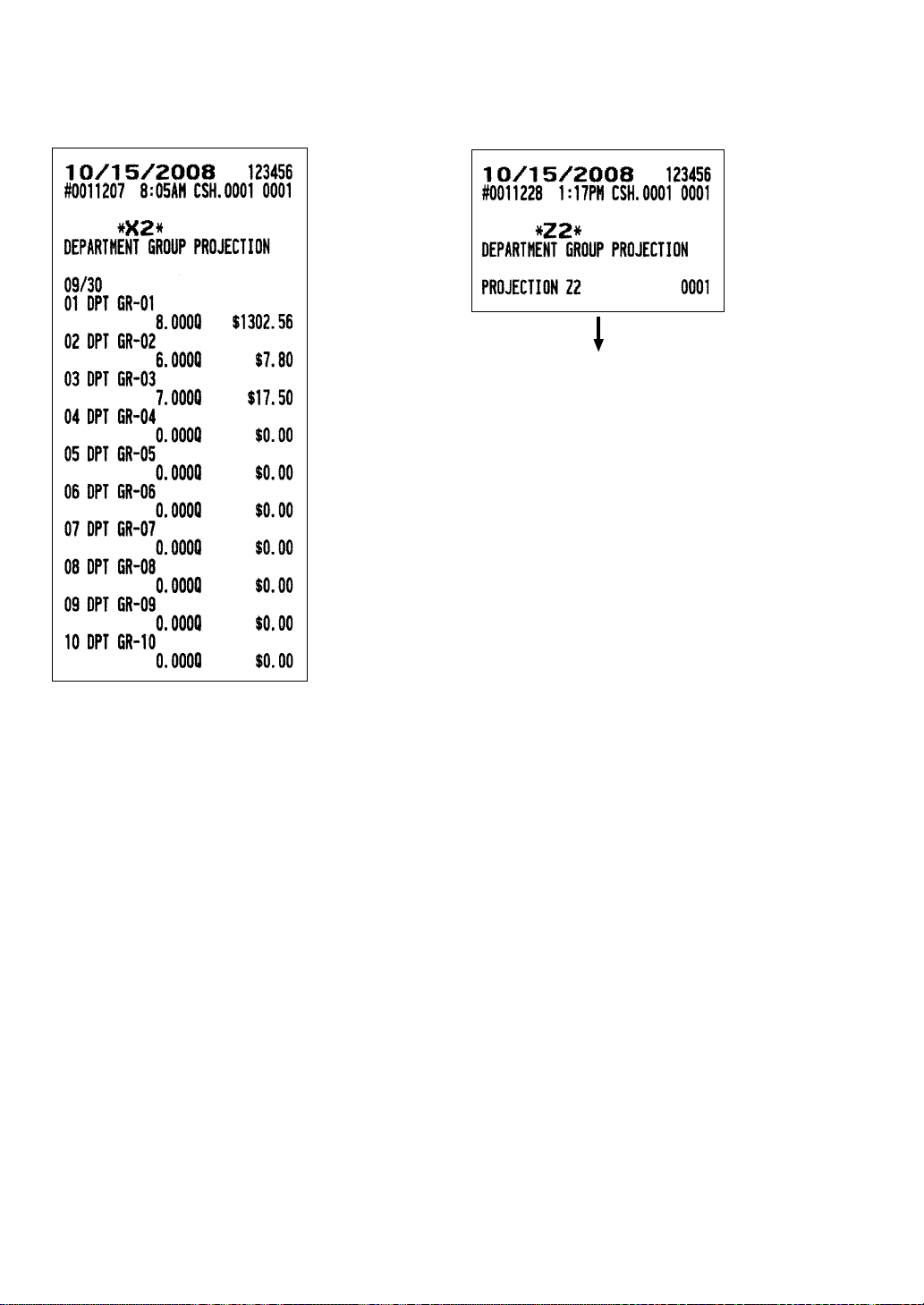
140
■■
■■
■ Department group projection report
••
••
• Sample X report
• •
• •
• Sample Z report
The subsequent printout occurs
in the same format as in the
sample X report.
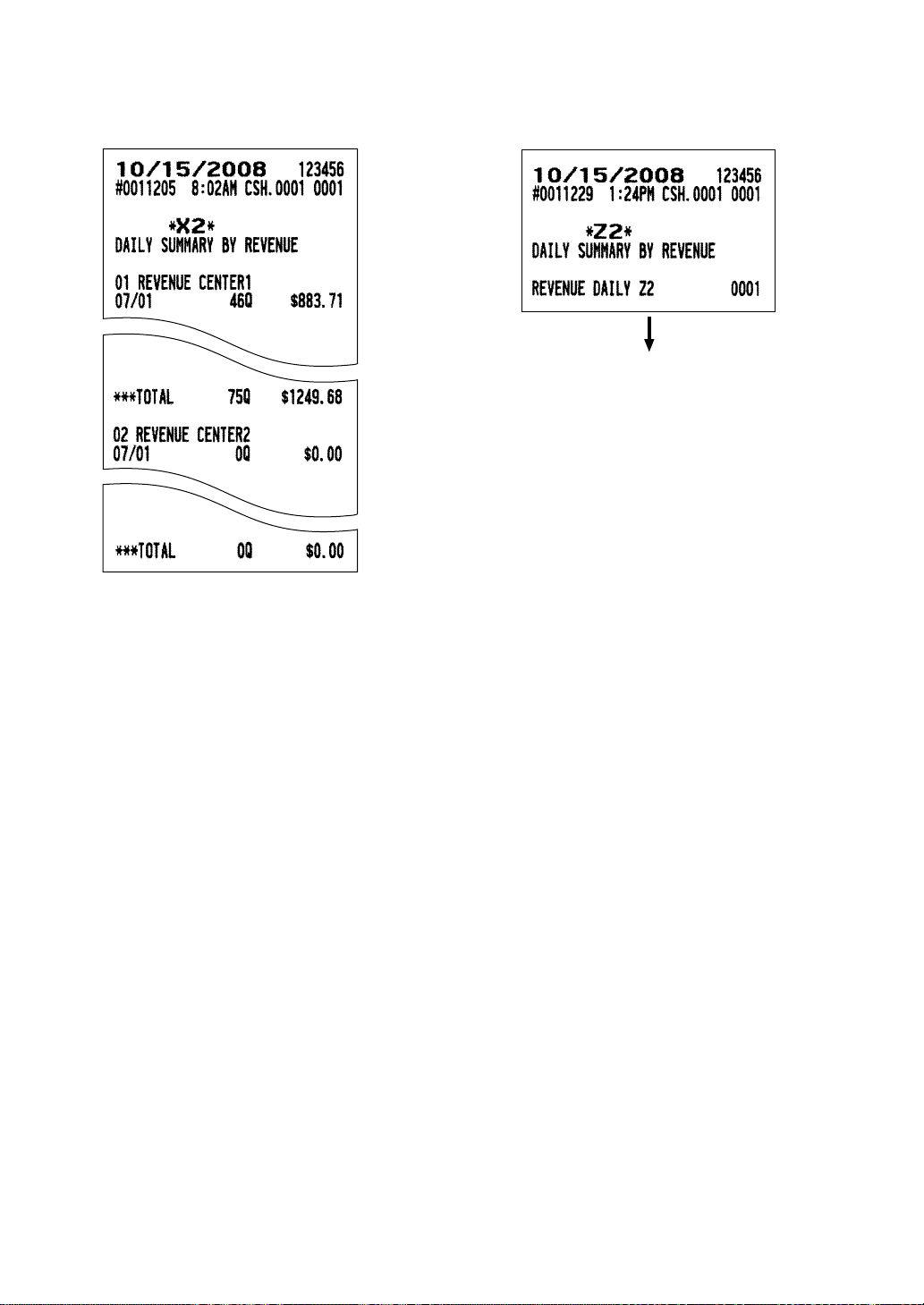
141
■■
■■
■ Daily summary by revenue report
••
••
• Sample X report
• •
• •
• Sample Z report
The subsequent printout occurs
in the same format as in the
sample X report.
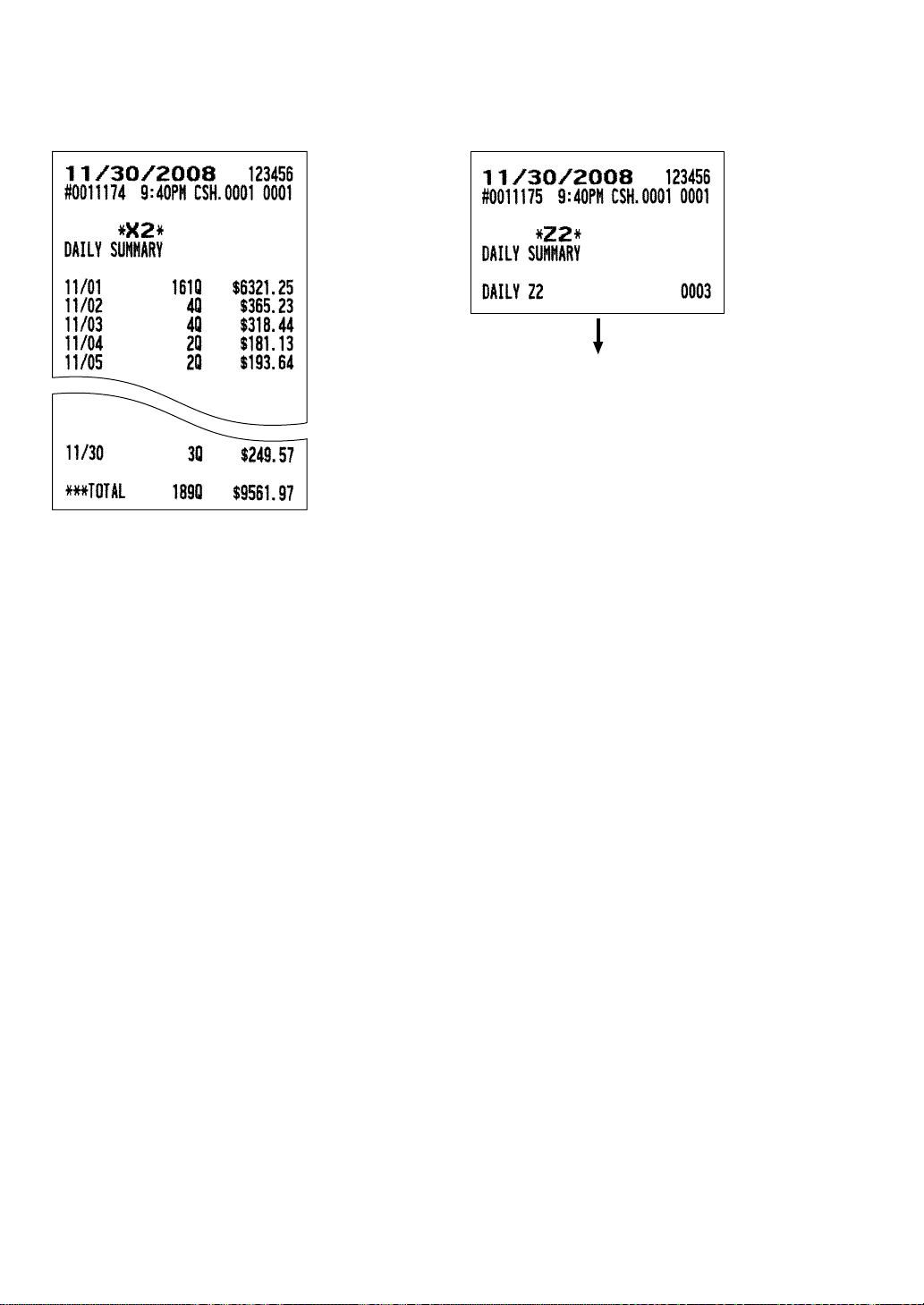
142
■■
■■
■ Daily summary report
••
••
• Sample X report
• •
• •
• Sample Z report
■■
■■
■ X/Z stacked reports
You can print multiple X/Z reports in sequence by selecting the stacked report option from the menu. In this
case, you need to program in advance which X/Z reports should be printed. Refer to “Stacked report” under
the programming section.
The subsequent printout occurs
in the same format as in the
sample X report.
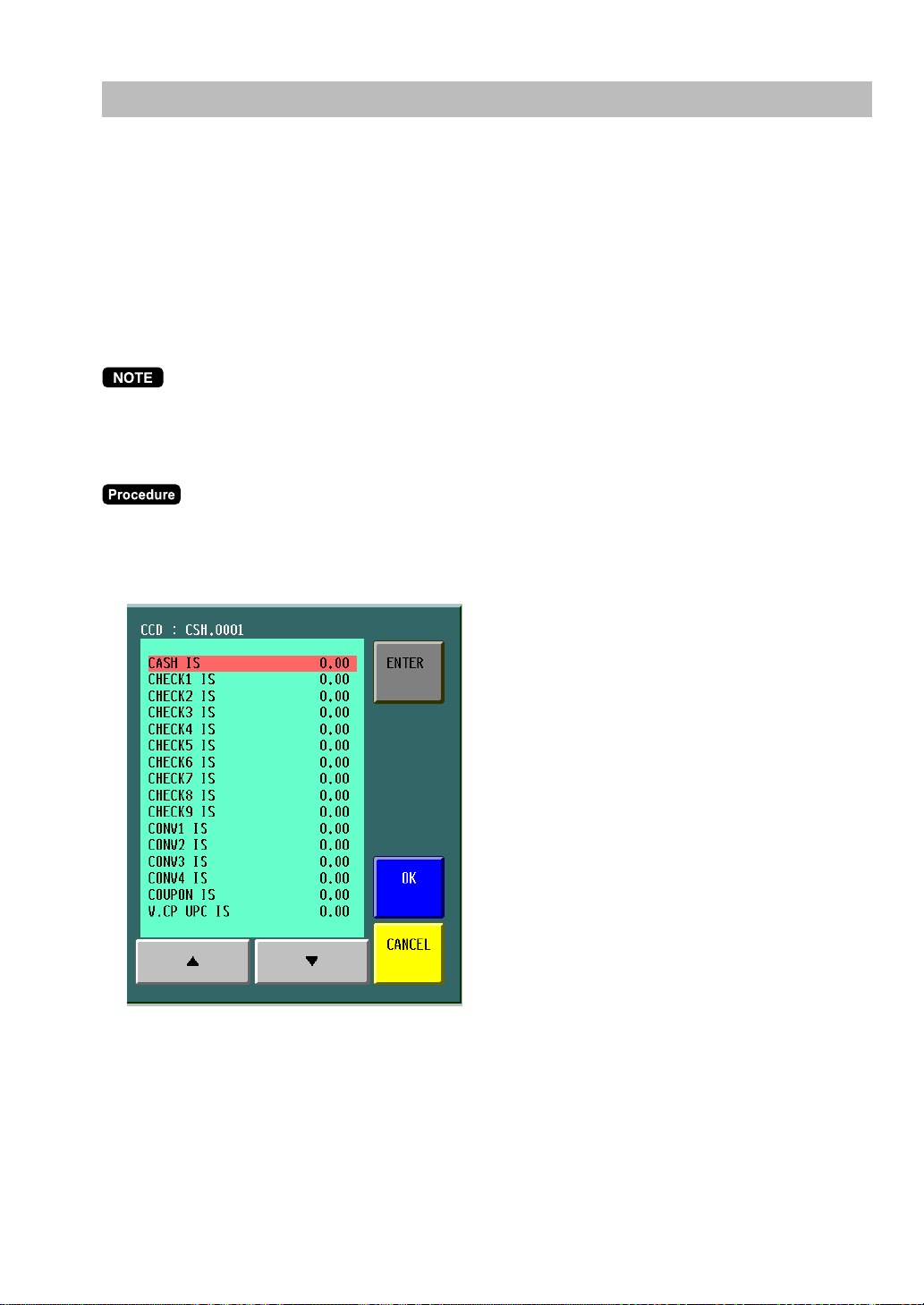
143
Compulsory Cash/Check Declaration
If your POS terminal has been programmed for compulsory cash/check declaration, you must
declare the cash/check value in the drawer in advance according to the type of declaration specified
for when you take cashier Z reports.
Use the following procedure for this declaration.
Types of compulsory cash/check declaration
• Compulsive when individual cashier resetting is taken
• Compulsive when full cashier resetting is taken
Compulsory cash/check declaration is available in the above two types. You can choose either of these.
This function is typically combined with Starting Cash Memory operations.
(1) When CCD entry is compulsory, the following window is displayed for declaring the cash/check value in
the drawer.
Select an item from the CCD media list to perform CCD entry.
(2) Enter the cash/check value in the drawer.
When an incorrect entry is made, select the designated cell and make a correct entry or void operation
with the [ - ] key.
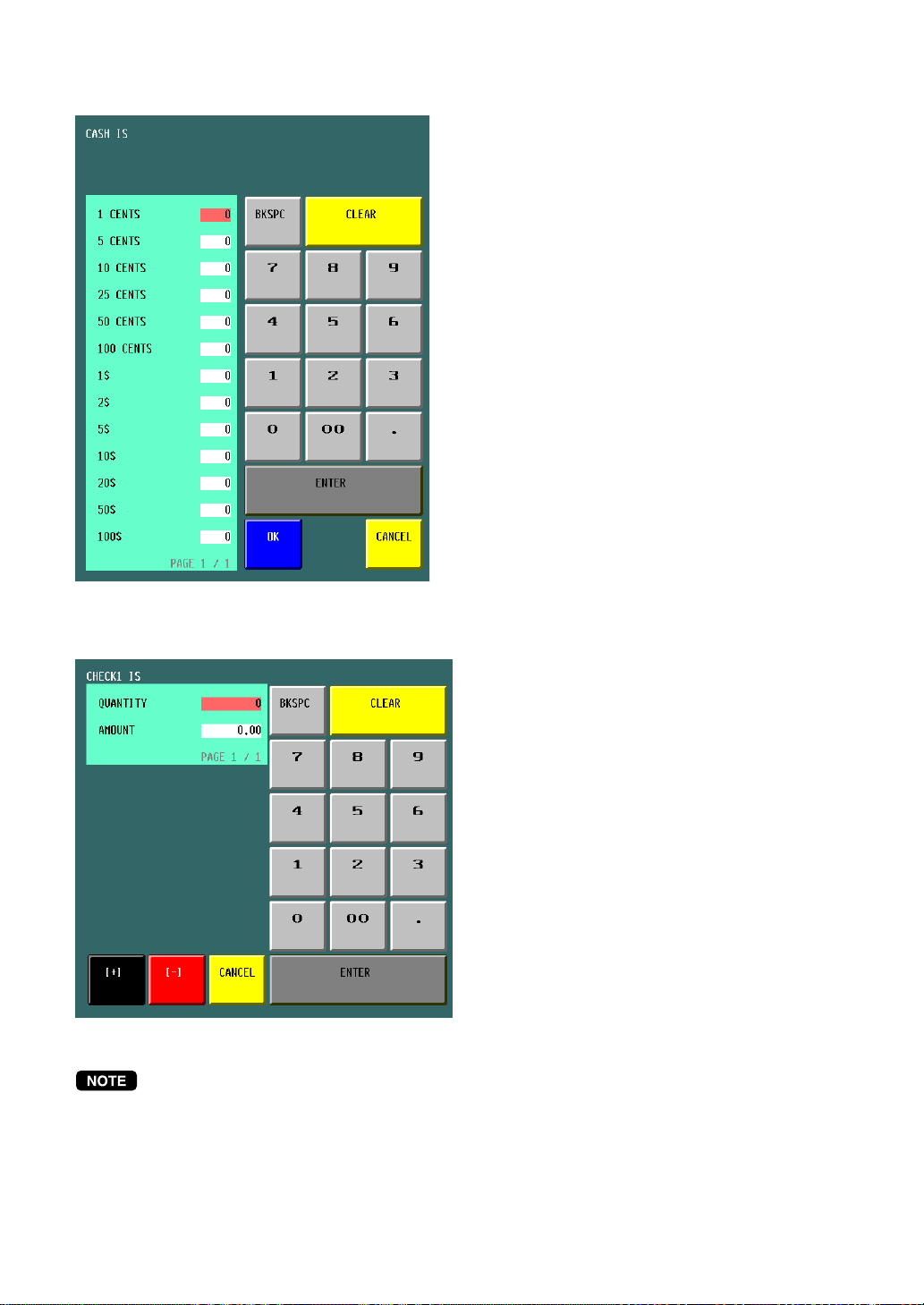
144
For cash:
For check:
• Select the money type by touching item or
using the [ENTER] key.
• Enter quantities of money and touch the
[ENTER] key.
• To terminate the entry, touch the [OK]
key.
• To void an incorrect entry, select the
money type and enter correct quantities
and touch the [ENTER] key.
• Enter quantities of check and touch the
[ENTER] key.
• Enter amount of check and touch the
[ENTER] key.
• To void an incorrect entry, enter
quantities and amount and touch the [ - ]
key.
For the currency conversion type, coupon type or vender coupon UPC type are the same as
the check type.
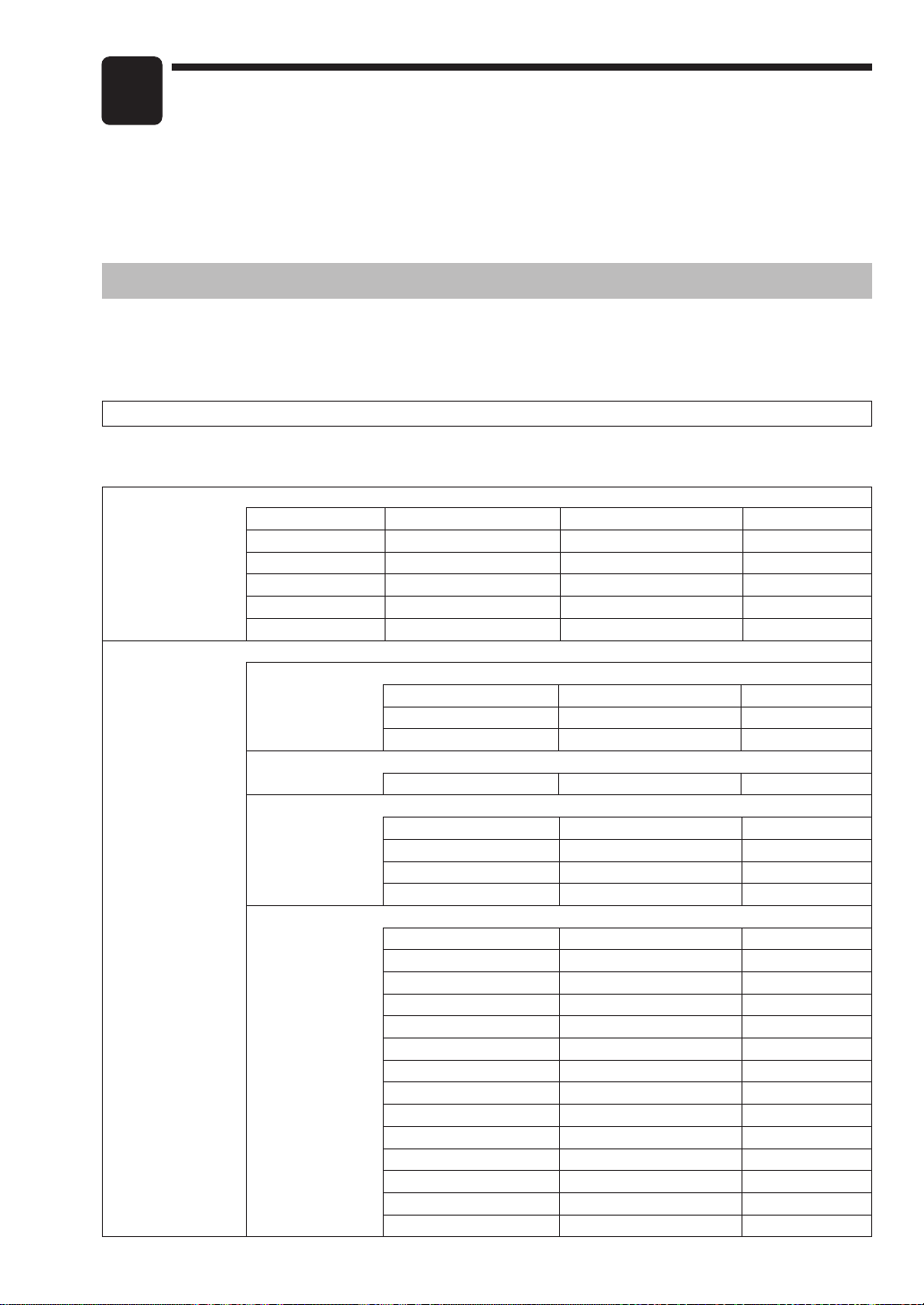
145
Programming
This chapter explains how to program various items. Before you start programming, select the
PGM1 or PGM2 mode from the mode selection window depending on the item you are going to
program.
9
Programming Menu Processing
The programming menu processing is shown below tables.
■■
■■
■ OPXZ mode
1 POS READING
1 PLU/UPC
2 DYNAMIC UPC
3 COUPON PLU
4 CASHIER
5 FUNCTION
6 PRINTERS
2 POS SETTING
1 SALES ITEMS
1 PLU/UPC
2 COUPON PLU
3 DYNAMIC UPC
2 WORK FORCE
1 CASHIER
3 POS FUNCTIONS
1 SALE/ITEM COUPONS
2 SALE/ITEM DISCOUNTS
3 GROUP DISCOUNTS
4 TIP
4 PRINTERS
1 RECEIPT PRINTER
2 JOURNAL PRINTER
3 BILL PRINTER
4 REPORT PRINTER
5 KP#1
6 KP#2
7 KP#3
8 KP#4
9 KP#5
10 KP#6
11 KP#7
12 KP#8
13 KP#9
14 CHIT FORMAT
■■
■■
■ PGM1 mode
3 GLU# ASSIGN
146
1 POS READING
1 DEPARTMENT
1 DEPARTMENT
2 DEPT GR. REVENUE
2 ITEM SETUP
1 PLU/UPC
2 MODIFIER PLU
3 COUPON PLU
4 RECIPE TEXT
5 DYNAMIC UPC
6 UPC OTHER
3 TABLES
1 CONDIMENT TABLES
2 COMBO MEAL TABLES
3 LINK PLU/UPC TABLES
4 SET PLU TABLES
5 MIX&MATCH TABLES
6 SCALE TABLES
4 WORK FORCE
1 CASHIER
2 EMPLOYEE
3 JOB LOCATIONS
4 LABOR COST
5 AUTHORITY
5 KEYBOARD
FUNCTIONS
1 PLU MENU KEYS
2 FUNCTION MENU KEYS
3 DIRECT KEYS
4 MACRO KEYS
5 CAPTURE KEYS
6 CAPTURE JOB#
7 FUNCTION KEYS
6 POS FUNCTIONS
1 TAX
2 MEDIA
3 CONVERSION RATES
4 FUNCTIONS
5 NEGATIVE#
6 POSITIVE#
■■
■■
■ PGM2 mode
147
(1 POS READING) 7 TERMINAL
1 REPORTS
2 MAINTENANCE
3 TERMINAL
4 OPTIONAL SETTINGS
5 GLU/D-THRU CODE
8 TEXT EDITOR
1
REVENUE CENTER TEXT
2 FUNCTION TEXT
3 LOGO TEXT
4 SORT GROUP TEXT
9 SYSTEM
1 PRINTERS
2 DEVICE
CONFIGURATIONS
3 EPAY DEVICE PRESET
4 CVM PRESET
5 OCB PRESET
6 CCTV PRESET
7 ONLINE PRESET
8 MWS PRESET
10 AUTO KEYS
2 POS SETTING
1 DEPARTMENT
1 DEPARTMENT
2 DEPT GR. REVENUE
2 ITEM SETUP
1 PLU/UPC
1 INDIVIDUAL PLU/UPC
2 RANGE PLU
3 PREP ASSIGNMENT
4
RANGE PREP ASSIGNMENT
5 CVM ROUTING
6 RANGE CVM ROUTING
2 MODIFIER PLU
3 COUPON PLU
4 RECIPE TEXT
5 DYNAMIC UPC
6 UPC NON-PLU
7 UPC DELETE

148
(2 POS SETTING) 3 TABLES
1 CONDIMENT TABLES
2 COMBO MEAL TABLES
3 LINK PLU/UPC TABLES
4 SET PLU TABLES
5 MIX&MATCH TABLES
6 SCALE TABLES
4 WORK FORCE
1 CASHIER
2 EMPLOYEE
1 EMPLOYEE ID
2 JOB LOCATION TABLES
3 LABOR COST
4 (Reserve)
5 AUTHORITY
5 KEYBOARD
FUNCTIONS
1 PLU MENU KEYS
2 FUNCTION MENU KEYS
3 DIRECT KEYS
4 MACRO KEYS
5 CAPTURE KEYS
6 CAPTURE JOB#
7 FUNCTION KEYS
6 POS FUNCTIONS
1 TAX
1 TAX1 RATE
2 TAX2 RATE
3 TAX3 RATE
4 TAX4 RATE
5 TAX5 RATE
6 TAX6 RATE
7 TAX7 RATE
8 TAX8 RATE
9 TAX9 RATE
10 TAX10 RATE
11 TAX11 RATE
12 TAX12 RATE
13 TAX13 RATE
14 TAX14 RATE
15 TAX15 RATE
16 TAX16 RATE
149
(2 POS SETTING) 17 TAX17 RATE
18 TAX18 RATE
19 TAX19 RATE
20 TAX20 RATE
21 DOUGHNUT EXEMPT
22 BAKED FOOD EXEMPT
23 MANUAL TAX
24 TAX DELETE
2 MEDIA
1 CASH KEYS
2 CHECK KEYS
3 CHARGE KEYS
4 EAT-IN KEYS
5 SERVICE KEY
6 FINAL KEY
7 CHANGE POLICY
3 CONVERSION RATES
1 CONVERSION RATES
2 MONEY
4 FUNCTIONS
1 SALE/ITEM COUPONS
2 SALE/ITEM DISCOUNTS
3 GROUP DISCOUNTS
4 VENDER COUPON UPC
5 TIP
6 RA FUNCTIONS
7 PO FUNCTIONS
8 NO SALE
9 VOIDS
1 DIRECT VOID
2 INDIRECT VOID
3 PRINTED VOID
4 SUBTOTAL VOID
5 CHECK VOID
10 REFUND
1 REFUND
2 RETURN
11 NON ADD CODE
12 FREE TEXT
5 NEGATIVE#
6 POSITIVE#
7 TERMINAL
1 REPORTS
1 ZERO SKIP
2 REPORT PRINT OPTIONS
3 DEPT GR. PROJECTION
150
(2 POS SETTING) 4 HOURLY REPORT
5 STACKED REPORT
6 TEFRA RATE
2 MAINTENANCE
1
MAINTENANCE DATA CREATE
2 MAINTENANCE DATA D/L
3 D-UPC DOWNLOAD
4 SYSTEM BACKUP
5 SYSTEM RESTORE
3 TERMINAL
1 MACHINE#
2 CONSECUTIVE#
3 TILL TIMER
4 SCREEN SETUP
5 BILL NUMBER
6 CONDIMENT IGNORE
7 DATE AND TIME
8 GLU CODE BY TERMINAL
9 DRIVE THRU BY TERMINAL
10 REVENUE BY TERMINAL
11 REPORT BY TERMINAL
4 OPTIONAL SETTINGS
1 FUNCTION SELECTIONS
2 PRINTING OPTIONS
3 EXPAND FUNCTION
5 AUTHORITY SETUP
1 Z1 MODE
2 PGM2 MODE
3 SYS Z1 MODE
4 SYS PGM2 MODE
5 INITIAL D/L
6 MAINTENANCE D/L
7 E-PAYMENT
6 GLU/D-THRU SETTINGS
1 GLU RANGE
2 D-THRU RANGE
8 TEXT EDITOR
1 REVENUE CTR TEXT
2 FUNCTION TEXT
3 LOGO TEXT
1 HEADER LOGO
2 FOOTER LOGO
151
(2 POS SETTING) 3 BILL LOGO
1 BILL HEADER
2 BILL FOOTER
4 EAT IN LOGO
4 SORT GROUP TEXT
9 SYSTEM
1 PRINTERS
1 RECEIPT PRINTER
2 JOURNAL PRINTER
3 BILL PRINTER
4 REPORT PRINTER
5 KP#1
6 KP#2
7 KP#3
8 KP#4
9 KP#5
10 KP#6
11 KP#7
12 KP#8
13 KP#9
14 CHIT FORMAT
2 DEVICE
CONFIGURATIONS
1 BAR CODE SCANNER
2 COIN DISPENSER
3 SCALE
3 EPAY DEVICE PRESET
1 TYPE#2
2 PIN PAD
3 IC CARD
4 ACCOUNT BALANCE I/F
5 CARD READER
6 PROX CARD READER
4 CVM PRESET
5 OCB PRESET
6 CCTV PRESET
7 ONLINE PRESET
8 MWS PRESET
10 DATA CLEAR
1 CAPTURE DATA
2 OFFLINE ACCT
3 T-LOG
4 ELECTRONIC JOURNAL
3 AUTO KEY
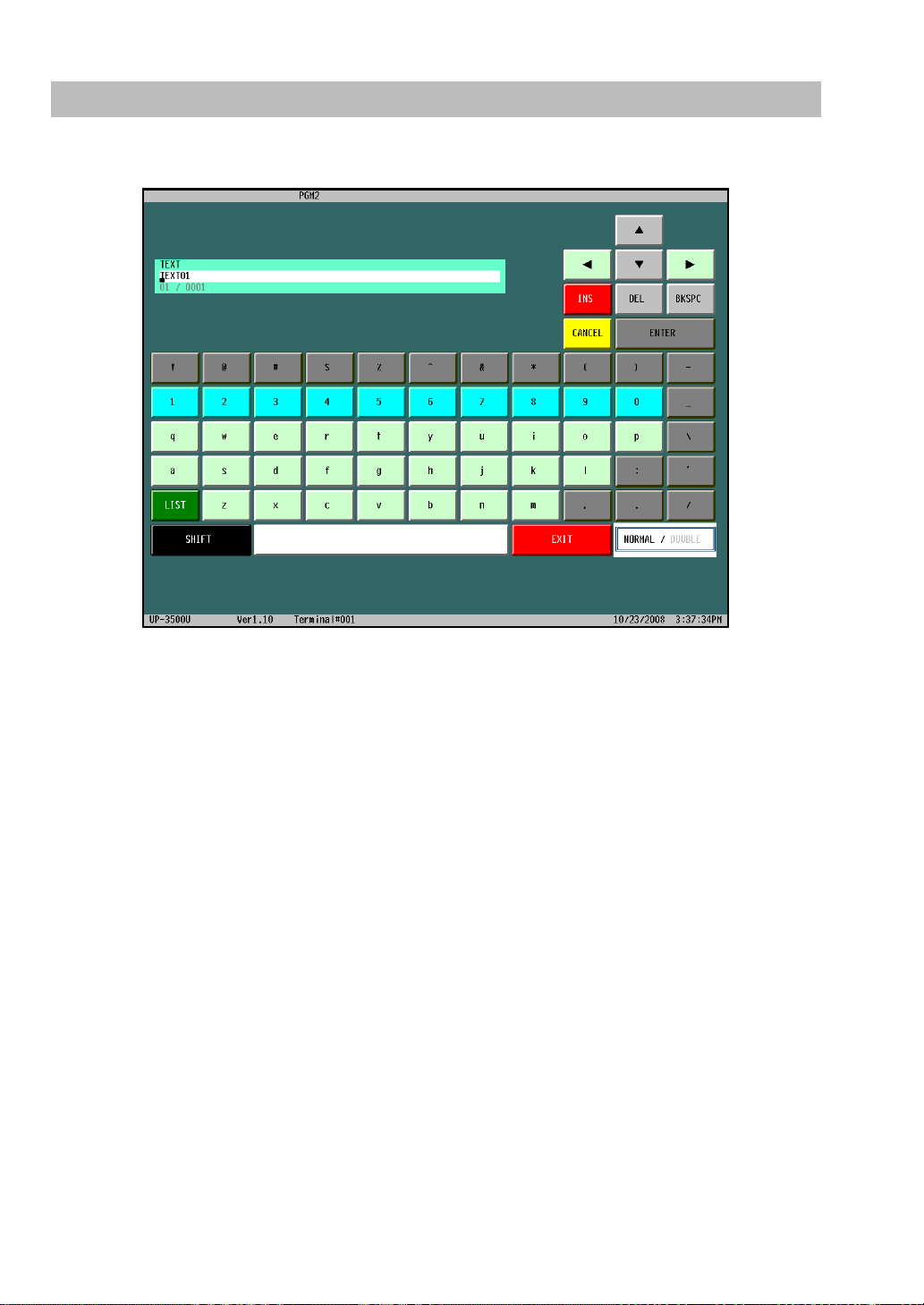
152
How to Program Alphanumeric Characters
When you program alphanumeric characters, the character keyboard will be displayed as shown below.
[BKSPC] : Backs up the cursor for deleting the character or figure at the left of the cursor.
[SHIFT] : You can enter an upper-case letter by using this key. Touch this key just before you
enter the upper-case letter. You should touch this key each time you enter an
upper-case letter.
[LIST] : Used to change the page of characters.
[CANCEL] : Used to cancel programming and to get back to the previous screen.
[EXIT] : Used to finalize programming.
[NORMAL/DOUBLE] : Used to change the normal size or double size.
[INS] : Used to switch the insert/over-write mode.
[DEL] : Used to delete the character or figure at the cursor position.
[ ] : Used to control the cursor (left)
[ ] : Used to control the cursor (right)
[ ] : Used to control the cursor (down)
[ ] : Used to control the cursor (up)
▲
▲
▲
▲
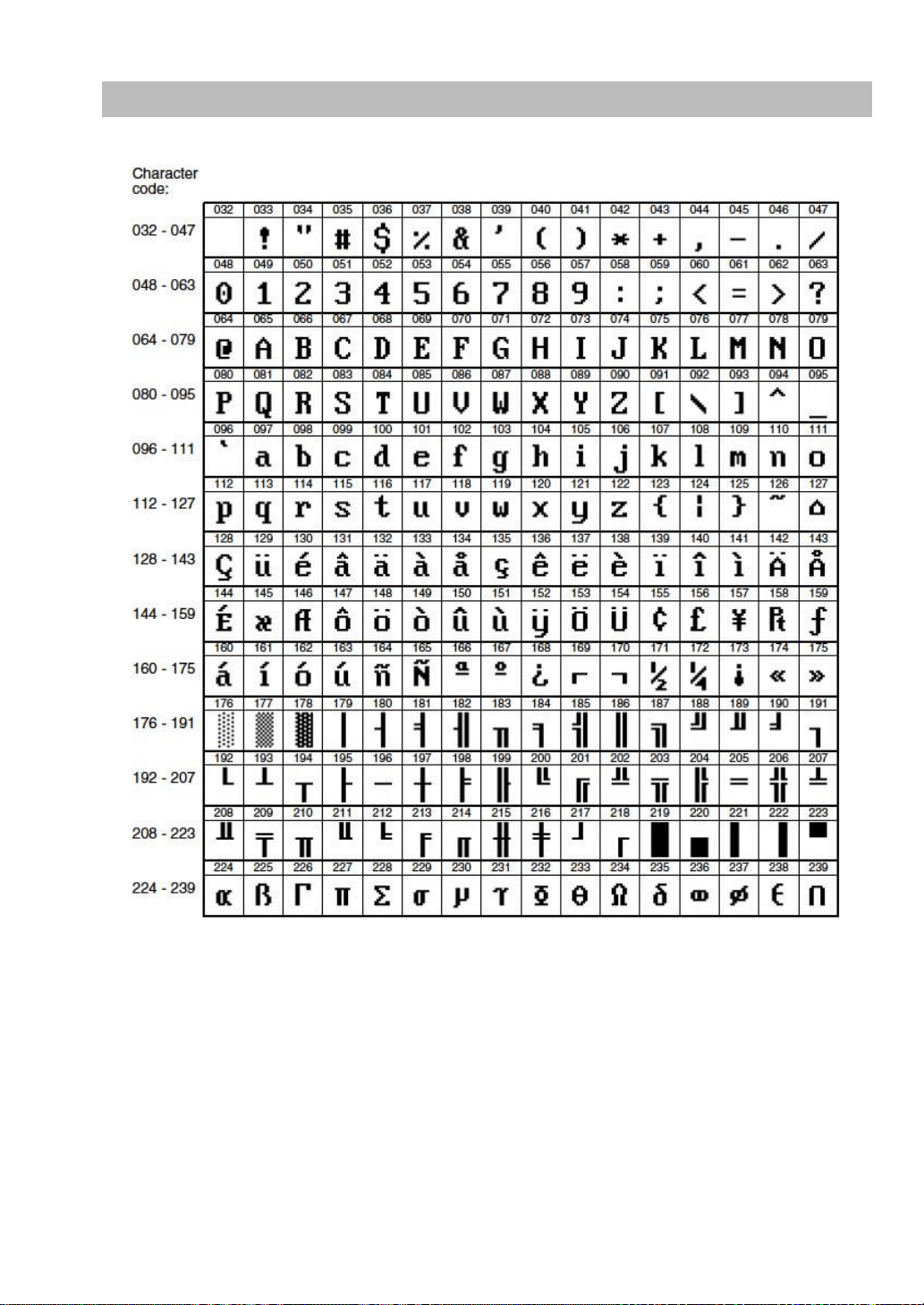
153
Alphanumeric Characters
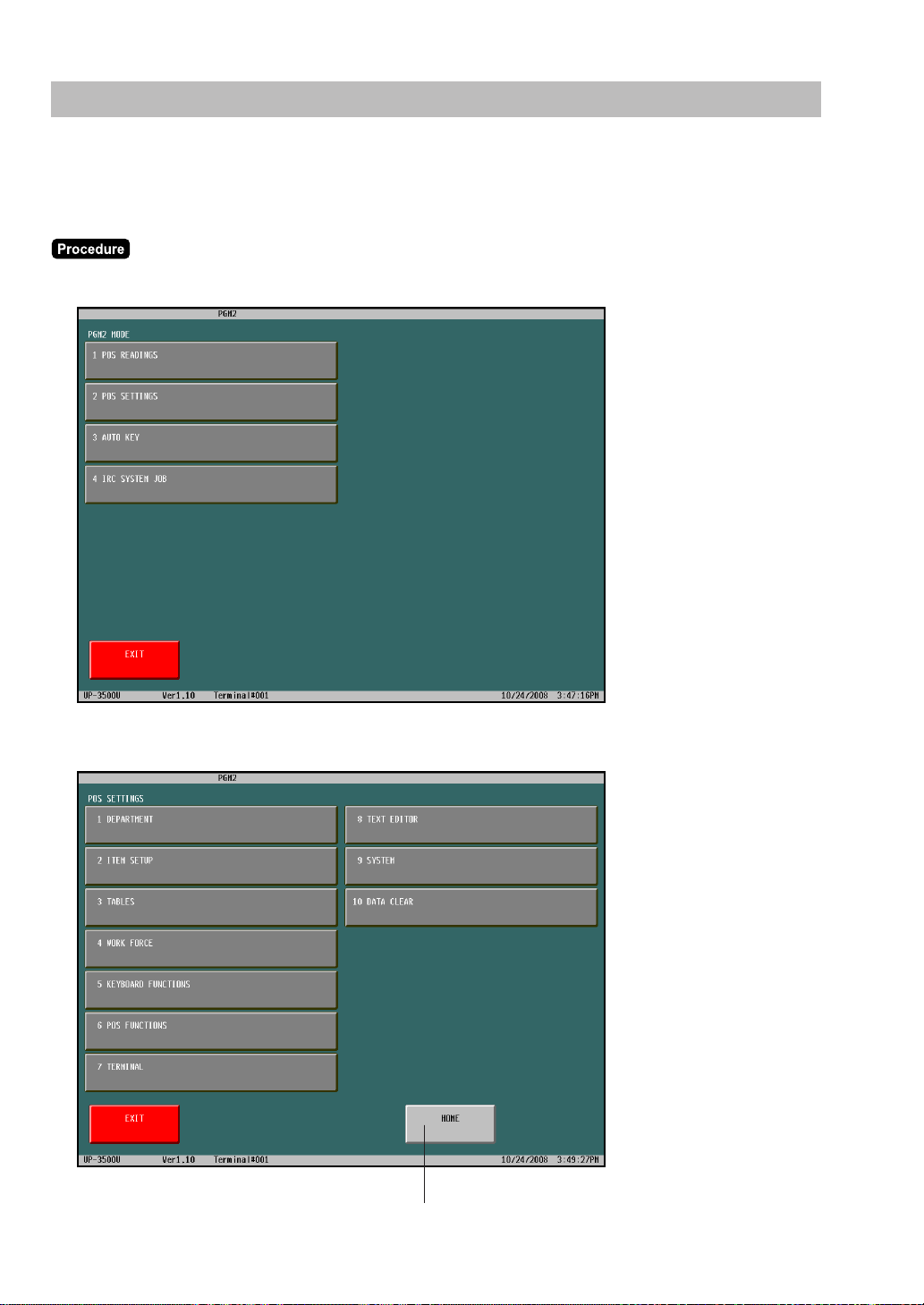
154
Basic Instructions
This section illustrates the basic programming by using an example of programming for departments.
(■ Department (1 DEPARTMENT
➝
1 DEPARTMENT ....... PGM2))
■■
■■
■ Programming example
(1) Select the PGM2 mode in the mode window. The following window is displayed.
(2) Touch the [2 POS SETTING] button to perform the programming. The following window is displayed.
To return to the home screen of programming
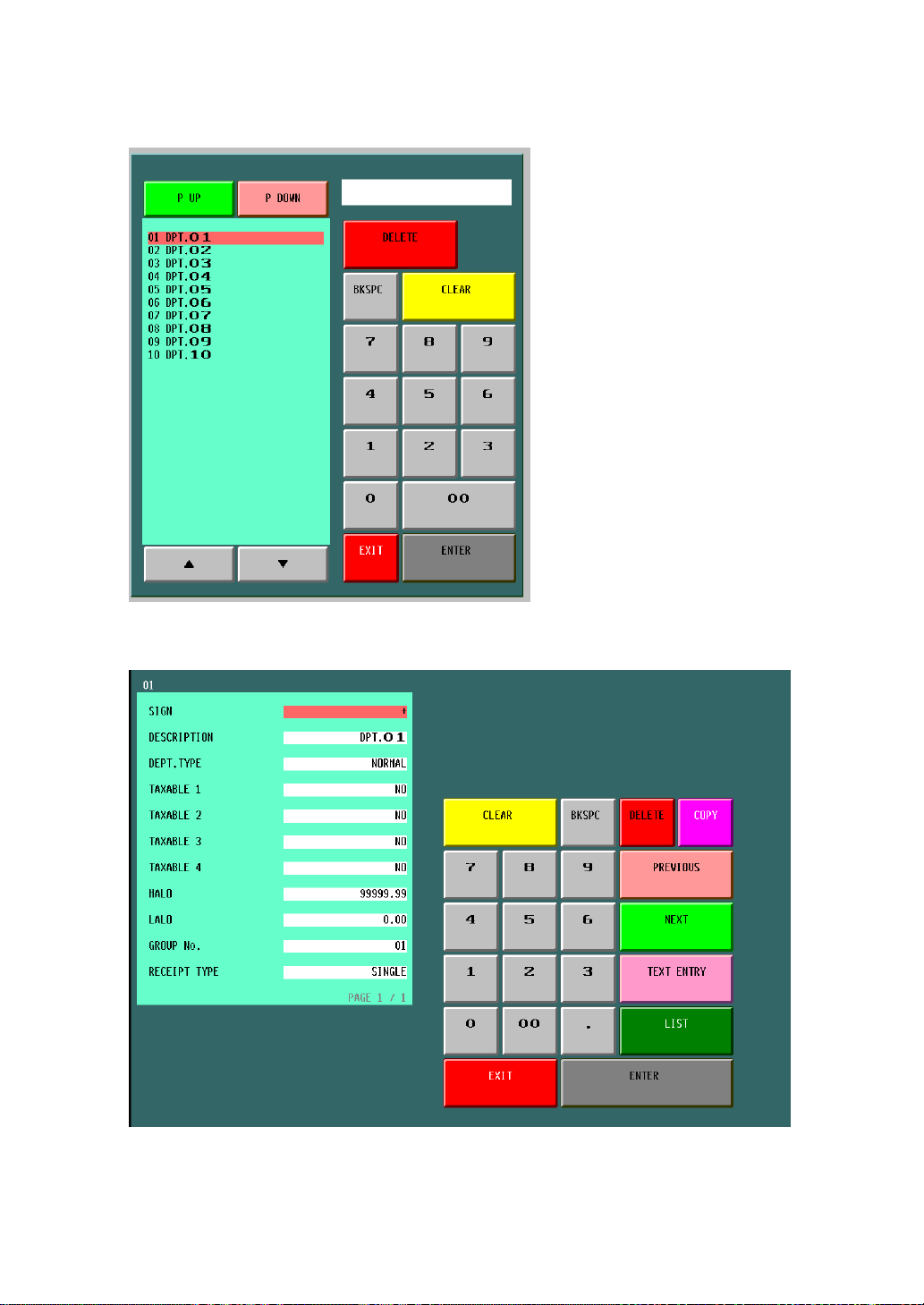
155
(3) Touch the [1 DEPARTMENT] button to program the department, and select the desired department and
touch the [ENTER] key.
(4) Select the programming items, and set the proper data.
(5) To terminate the programming, touch the [EXIT] key.

156
■■
■■
■ Programming function key
[DELETE] : Used to delete the data or item.
[BKSPC] : Backs up the cursor for deleting the character or figure at the left of the cursor.
[COPY] : Used to copy the data from the designated item. Touch this key and select
designated item.
[PAGE 1] : Used to change the page of the data or items.
[PAGE 2] : Used to change the page of the data or items.
[PAGE 3] : Used to change the page of the data or items.
[ENTER] : Used to enter the data.
[EXIT] : Used to terminate the programming.
[CLEAR] : Used to clear entered data.
[LIST] : Used to display the variation of parameter.
[NEXT] : Used to skip to next item.
[PREVIOUS] : Used to back to previous item.
[TEXT ENTRY] : Used to enter the text data.
[LIST MENU] : Used to display item list.
[REG MENU] : Used to display registration screen.
[SELECT SCREEN] : Used to select the screen.
[MOV.WINDW] : Used to change the display position of sub-window.
[P UP] : Used to page up the window.
[P DOWN] : Used to page down the window.
157
POS Setting Data
The POS setting data can be confirmed with the following tables.
The default programming data of parameters is emphasized in bold character.
■■
■■
■ Department (1 DEPARTMENT
➝
1 DEPARTMENT ....... PGM2)
(1) Select the PGM2 mode in the mode selection window, and touch the [2 POS SETTING] to perform the
programming.
(2) Touch the [1 DEPARTMENT] button to display the detail menu.
(3) Touch the [1 DEPARTMENT] button to program the each department.
(4) Enter or select the department number and touch the [ENTER] key.
(5) Touch the required programming item, and enter or select each parameter and touch the [ENTER] key.
Repeat this step (5) satisfactorily.
(6) To terminate the programming, touch the [EXIT] key.
Text Parameter
SIGN
+: Assigns a plus sign to departments for normal sales transactions.
–: Assigns a minus sign for minus transactions.
DESCRIPTION Description for a department. Up to 20 characters can be entered. (DPT.nn)
Department type selection
NORMAL: Normal department
HASH: Hash department
DEPT. TYPE GIFT: Gift department
GIFT RELOAD: Gift reload department
BR: Bottle return department
NON TURNOVER: Non turnover department
TAXABLE 1
YES: Tax 1 taxable
NO: Tax 1 non-taxable
TAXABLE 2
YES: Tax 2 taxable
NO: Tax 2 non-taxable
TAXABLE 3
YES: Tax 3 taxable
NO: Tax 3 non-taxable
TAXABLE 4
YES: Tax 4 taxable
NO: Tax 4 non-taxable
HALO You can set an upper limit amount (HALO) for each department. 7 digits (0 to 9999999)
LALO
You can set a lower limit amount (LALO).
7 digits (0 to 9999999)
GROUP No. You can assign departments to a maximum of 99 groups. 2 digit (1 to 99)
RECEIPT TYPE
DOUBLE: Double receipt type
SINGLE: Single receipt type
158
■■
■■
■
Department group revenue center
(1 DEPARTMENT
➝
2 DEPT GR. REVENUE ....... PGM2)
Department group no.: 1 to 99
(1) Select the PGM2 mode in the mode selection window, and touch the [2 POS SETTING] to perform the
programming.
(2) Touch the [1 DEPARTMENT] button to display the detail menu.
(3) Touch the [2 DEPT GR. REVENUE] button to program the each department group.
(4) Enter or select the group number.
(5) Touch the required programming item, and enter or select each parameter and touch the [ENTER] key.
Repeat this step (5) satisfactorily.
(6) To terminate the programming, touch the [EXIT] key.
Text Parameter
TEXT 16 characters (DPT GR-n)
REVENUE NO. 1 digit (1 to 9)
■■
■■
■ PLU/UPC (2 SALES ITEMS
➝
1 PLU/UPC ....... PGM1)
(2 ITEM SETUP
➝
1 PLU/UPC
➝
1 INDIVIDUAL PLU/UPC ....... PGM2)
PLU code: max. 6 digits (1 to 999999)
UPC/EAN code: max. 13 digits (EAN13, EAN8, UPC-A)
(1) Select the PGM1 or PGM2 mode and touch the [2 POS SETTING] to perform the programming.
(2) In the PGM1 mode, touch the [1 SALES ITEMS] button to display the menu, and touch the [1 PLU/
UPC] button to display the each PLU/UPC.
(2)’ In the PGM2 mode, touch the [2 ITEM SETUP] button to display the menu, and touch the [1 PLU/UPC]
button to display the detail menu. Then touch the [1 INDIVIDUAL PLU/UPC] button to display the each
PLU/UPC.
(3) Touch the direct PLU key, or enter the PLU/UPC number and touch the [ENTER] key in the PLU list
window by touching the [LIST MENU] key to program the each PLU/UPC.
(4) Touch the required programming item, and enter or select each parameter and touch the [ENTER] key.
Repeat this step (4) satisfactorily. For the programming items, refer to the following tables (same as
Dynamic UPC).
(5) To terminate the programming, touch the [EXIT] key.
The data table for PLU is same as dynamic UPC.
159
■■
■■
■ Dynamic UPC (2 SALES ITEMS
➝
3 DYNAMIC UPC ....... PGM1)
(2 ITEM SETUP
➝
5 DYNAMIC UPC ....... PGM2)
UPC/EAN code: max. 13 digits (EAN13, EAN8, UPC-A)
(1) Select the PGM1 or PGM2 mode and touch the [2 POS SETTING] to perform the programming.
(2) In the PGM1 mode, touch the [1 SALES ITEMS] button to display the menu, and touch the [3
DYNAMIC UPC] button to display the each dynamic UPC.
(2)’ In the PGM2 mode, touch the [2 ITEM SETUP] button to display the menu, and touch the [5 DYNAMIC
UPC] button to display the dynamic UPC list.
(3) Touch or enter the dynamic UPC number and touch the [ENTER] key to program the each dynamic
UPC.
(4) Touch the required programming item, and enter or select each parameter and touch the [ENTER] key.
Repeat this step (4) satisfactorily.
(5) To terminate the programming, touch the [EXIT] key.
Text Parameter
ASSOCIATED DEPT. Department number to be associated with the entered PLU/UPC. 2 digits (1 to 99)
SIGN
+: Plus PLU/UPC
–: Minus PLU/UPC
PRICE Unit price (max. 6 digits: 0 to 999999).
NAME
Name for each item max. 20 characters
(PLU: PLnnnnnn) (UPC/EAN: “space”)
KEY NAME
Description of the key label for each item max. 8 characters
(PLU: PLnnnnnn) (UPC/EAN: “space”)
KP TEXT
KP Text for price max. 12 characters
(PLU: PLnnnnnn) (UPC/EAN: “space”)
KEY COLOR
Select a key color from the colors list 224 Colors
(Fore Color/Back Color) BLACK/YELLOW
OPEN & PRESET: PLU/subdepartment mode
PRESET: PLU mode
AMT. ENTRY TYPE OPEN: Subdepartment mode
INHIBIT: Inhibit mode
(The UPC(EAN) is fixed at “PRESET”.)
BASE Q’TY
Base quantity for each PLU/subdepartment which is counted each time the item is entered.
(max. 2 digits (0 to 99))
ZERO PRICE
ALLOWED: Allows a zero-price entry.
DISALLOWED: Disallows a zero-price entry.
LINK: Link PLU
MENU TYPE
SET: Set PLU
NORMAL: Normal PLU
(The UPC(EAN) is setting at “LINK/NORMAL”.)
LINK/SET TBL#
Table number for link/set PLUs
max. 2 digits (1 to 99/0)
YES: Piece count type
PIECE COUNT TYPE NO: Non piece count type
(The UPC(EAN) is fixed at “NO”.)
MIX&MATCH TBL#
Table number for mix and match
max. 2 digits (1 to 99/0)
(Continued to the next page.)

160
Text Parameter
Table number for condiment entry
CONDIMENT TBL# max. 3 digits (1 to 999/0)
(The UPC(EAN) is fixed at “0”.)
YES: Condiment type
CONDIMENT TYPE NO: Non-condiment type
(The UPC(EAN) is fixed at “NO”.)
COMPULSORY: Makes a condiment entry compulsory.
CONDIMENT ENTRY NON-COMPULSORY: Makes a condiment entry non-compulsory.
(The UPC(EAN) is fixed at “NON-COMPUL”.)
MODIFIER TBL#
Modifier table no. max. 3 digits (1 to 999/0)
(The UPC(EAN) is fixed at “0”.)
YES: Auto combo object
AUTO COMBO OBJECT NO: Non-auto combo object
(The UPC(EAN) is fixed at “NO”.)
AUTO COMBO No. Auto combo no. max. 3 digits (1 to 999/0) (The UPC(EAN) is fixed at “0”.)
AUTO COMBO No. Auto combo no. max. 3 digits (1 to 999/0) (The UPC(EAN) is fixed at “0”.)
AUTO COMBO No. Auto combo no. max. 3 digits (1 to 999/0) (The UPC(EAN) is fixed at “0”.)
AUTO COMBO No. Auto combo no. max. 3 digits (1 to 999/0) (The UPC(EAN) is fixed at “0”.)
AUTO COMBO No. Auto combo no. max. 3 digits (1 to 999/0) (The UPC(EAN) is fixed at “0”.)
TARE TBL# Tare table number associated with scale entry (1 to 9/0)
COMPULSORY: Makes a scale entry compulsory.
SCALE ENABLE: Enables a scale entry.
INHIBIT: Inhibits a scale entry.
TAXABLE1
YES: Tax 1 taxable
NO: Tax 1 non-taxable
TAXABLE2
YES: Tax 2 taxable
NO: Tax 2 non-taxable
TAXABLE3
YES: Tax 3 taxable
NO: Tax 3 non-taxable
TAXABLE4
YES: Tax 4 taxable
NO: Tax 4 non-taxable
SORT GROUP PLU SORT grouping max. 2 digits (1 to 99/0)
GR.DISC. Group discount grouping max. 2 digits (1 to 99/0)
GR.DISC. Group discount grouping max. 2 digits (1 to 99/0)
GR.DISC. Group discount grouping max. 2 digits (1 to 99/0)
RECIPE TEXT# Recipe text no. max. 3 digits (0 to 999)
PRIORITY KP No.
PLU group which is to be given the highest priority to in printing on the remote printer
(1 thru 9)/0)
MODIFIED OUTPUT
NO: Will not follow previous PLUs which has the remote printer assignment.
YES: Will follow previous PLUs which has the remote printer assignment.
OUTPUT KP No.1
ID number of the network remote printer 1 (1 thru 9)
If the number “0” is entered, no remote printer will operate.
OUTPUT KP No.2
ID number of the network remote printer 2 (1 thru 9)
If the number “0” is entered, no remote printer will operate.
OUTPUT KP No.3
ID number of the network remote printer 3 (1 thru 9)
If the number “0” is entered, no remote printer will operate.
(Continued to the next page.)
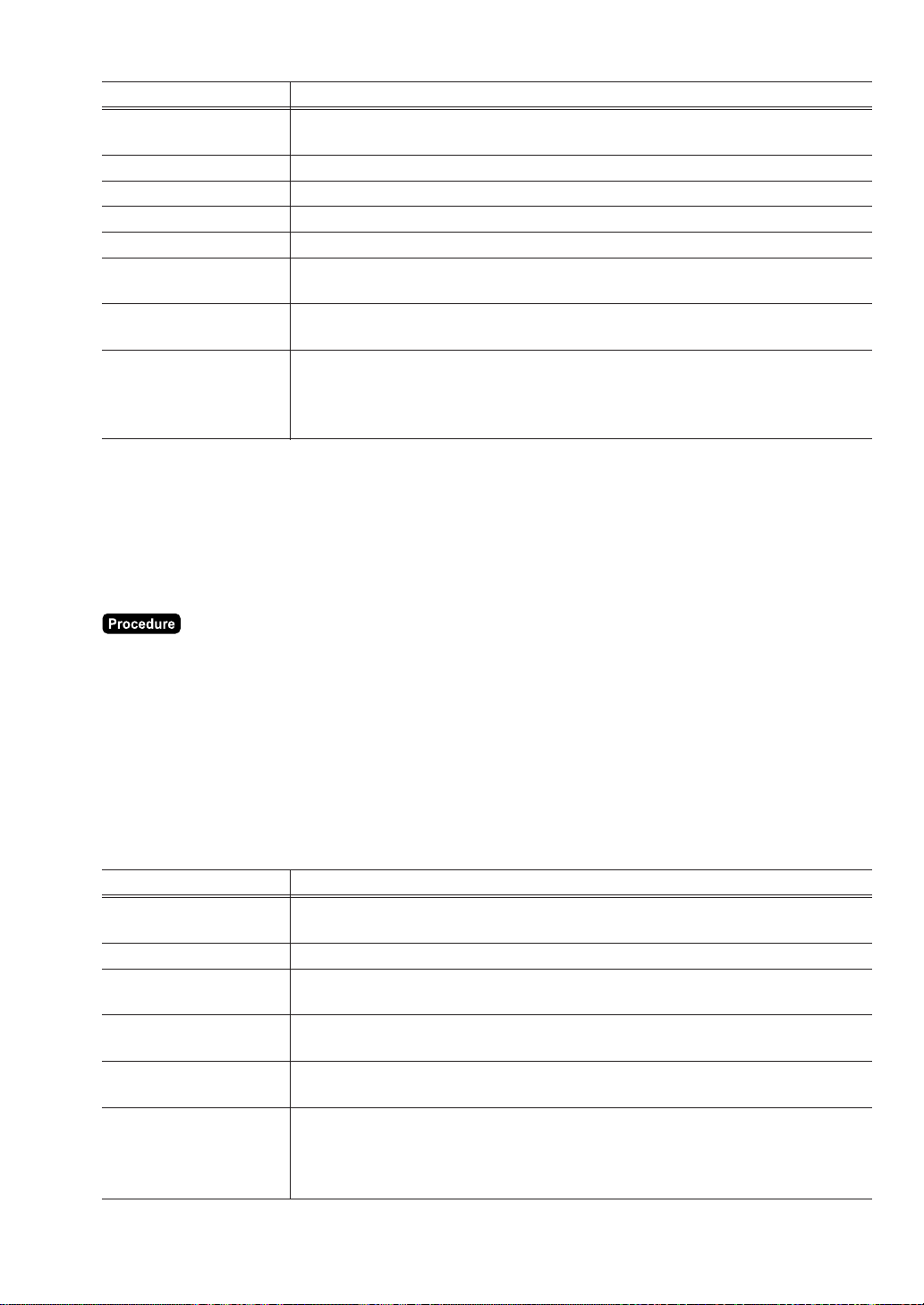
161
Text Parameter
CHIT RECEIPT
YES: Prints the PLU sales information on the chit receipt in the remote printer format.
NO: Prints nothing on the chit receipt.
KP PRINT Printing color selection (BLACK or RED)
CVM1 CTRL CHAR. CVM (Color Video Monitor) 1 control character (0 thru 255)
CVM2 CTRL CHAR. CVM (Color Video Monitor) 2 control character (0 thru 255)
FOOD COST % 5 digits (0.00 to 100.00)
BAKED FOOD
YES: Baked food object
NO: Non-baked food object
DATA ENT.JOB#
Key data entry no. max. 2 digits (1 to 99/0)
(1 thru 99 : Data entry compulsory)/(0 : Data entry inhibit)
Non-accessed record delete function
NON-ACCESS
NON DEL.: Non-delete
DEL. BY Z: Delete by the Z report
(The PLU is fixed at “NON DEL.”.)
■■
■■
■ Coupon PLU (2 SALES ITEMS
➝
2 COUPON PLU ....... PGM1)
(2 ITEM SETUP
➝
3 COUPON PLU ....... PGM2)
PLU code: max. 6 digits (1 to 999999)
(1) Select the PGM1 or PGM2 mode and touch the [2 POS SETTING] to perform the programming.
(2) In the PGM1 mode, touch the [1 SALES ITEMS] button to display the menu, and touch the [2 COUPON
PLU] button to display the coupon PLU list.
(2)’ In the PGM2 mode, touch the [2 ITEM SETUP] button to display the menu, and touch the [3 COUPON
PLU] button to display the coupon PLU list.
(3) Touch or enter the coupon PLU number and touch the [ENTER] key to program the each coupon PLU.
(4) Touch the required programming item, and enter or select each parameter and touch the [ENTER] key.
Repeat this step (4) satisfactorily.
(5) To terminate the programming, touch the [EXIT] key.
Text Parameter
SIGN
+: Plus amount
–: Minus amount
PRICE Unit price max. 6 digits (0 to 999999)
NAME
Name for each item max. 20 characters
(CPNnnnnnn)
KEY NAME
Description of the key label for each item max. 8 characters
(CPnnnnnn)
KEY COLOR
Select a key color from the colors list 224 Colors
(Fore Color/Back Color) BLACK/199
OPEN & PRESET: Open or preset amount type
AMT. ENTRY TYPE
PRESET: Preset amount type
OPEN: Open amount type
INHIBIT: Entry inhibit
(Continued to the next page.)
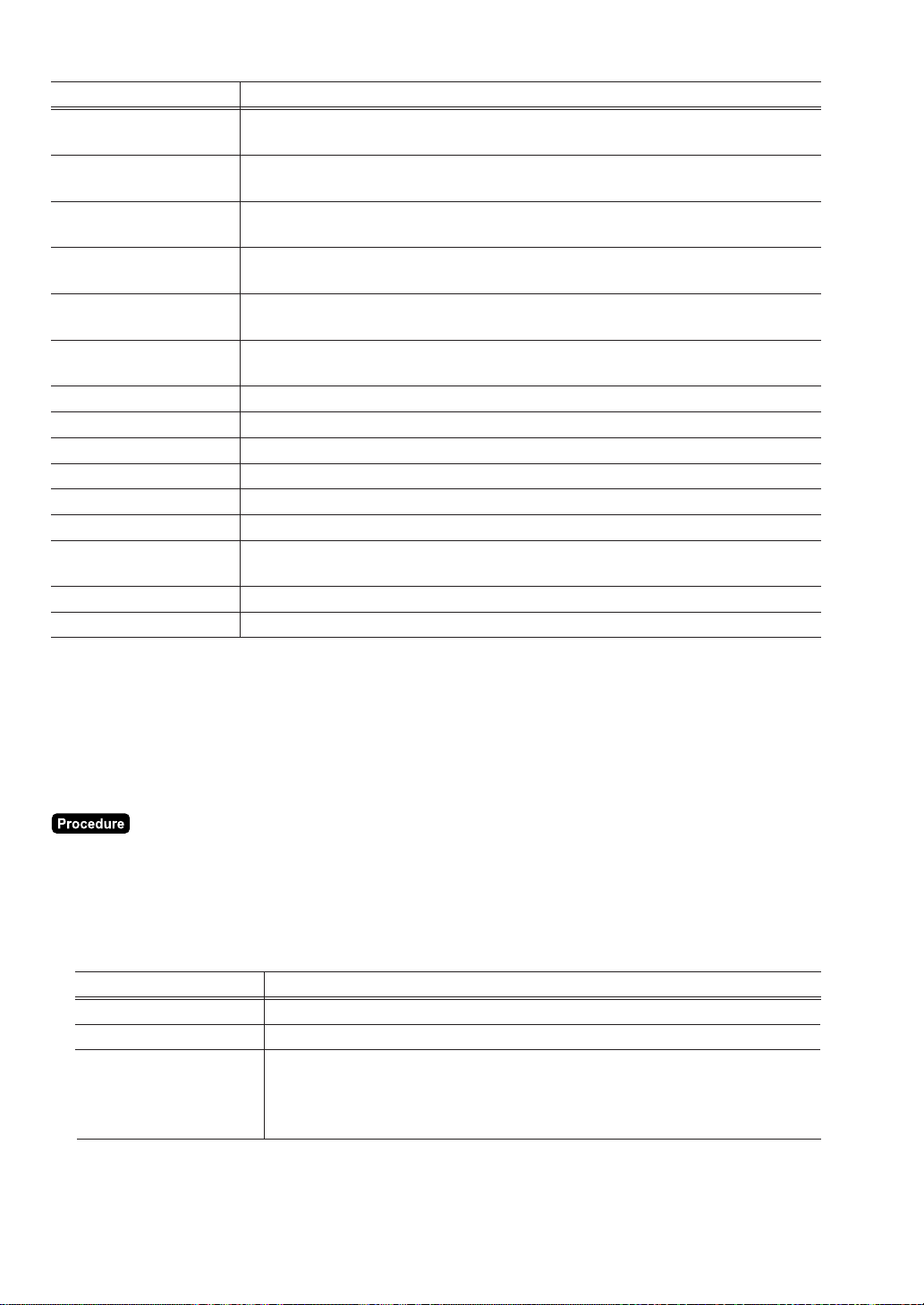
162
Text Parameter
ZERO PRICE
ALLOWED: Allows a zero-price entry.
DISALLOWED: Disallows a zero-price entry.
TEFRA
YES: TEFRA report
NO: Non-TEFRA report
TAXABLE1
YES: Tax 1 taxable
NO: Tax 1 non-taxable
TAXABLE2
YES: Tax 2 taxable
NO: Tax 2 non-taxable
TAXABLE3
YES: Tax 3 taxable
NO: Tax 3 non-taxable
TAXABLE4
YES: Tax 4 taxable
NO: Tax 4 non-taxable
GR.DISC. Group discount grouping max. 2 digits (1 to 99/0)
GR.DISC. Group discount grouping max. 2 digits (1 to 99/0)
GR.DISC. Group discount grouping max. 2 digits (1 to 99/0)
CVM1 CTRL CHAR. CVM (Color Video Monitor) 1 control character (0 thru 255)
CVM2 CTRL CHAR. CVM (Color Video Monitor) 2 control character (0 thru 255)
ASSOCIATED DEPT. Department number to be associated with the entered PLU. 2 digits ((1 to 99)/0)
DATA ENT.JOB#
Key data entry no. max. 2 digits (1 to 99/0)
(1 thru 99 : Data entry compulsory)/(0 : Data entry inhibit)
EXPIRY DATE Expiry date max. 6 digits (000000: 00/00/2000)
REVENUE NO. Revenue center no. (1 thru 9)
■■
■■
■ Range PLU programming (2 ITEM SETUP
➝
1 PLU/UPC
➝
2 RANGE PLU ....... PGM2)
The following parameters of PLU can be programmed by a range.
The range data of PLUs is required at the beginning.
PLU code: max. 6 digits (1 to 999999)
(1) Select the PGM2 mode and touch the [2 POS SETTING] to perform the programming.
(2) Touch the [2 ITEM SETUP] button to display the menu, and touch the [1 PLU/UPC] button to display
the detail menu.
(3) Touch the [2 RANGE PLU] button to program PLUs with assigning PLU range, and enter the following
range data and touch the [ENTER] key.
(4) Touch the required programming item, and enter or select each parameter and touch the [ENTER] key.
Repeat this step (4) satisfactorily.
(5) To terminate the programming, touch the [EXIT] key.
Text Parameter
START CODE Start code of the range max. 6 digits (000000-999999)
END CODE End code of the range max. 6 digits (000000-999999)
Type for the operation
OPERATION
DEL: Delete
MAINTENANCE: Maintenance
NEW&MAINTENANCE: New create and maintenance
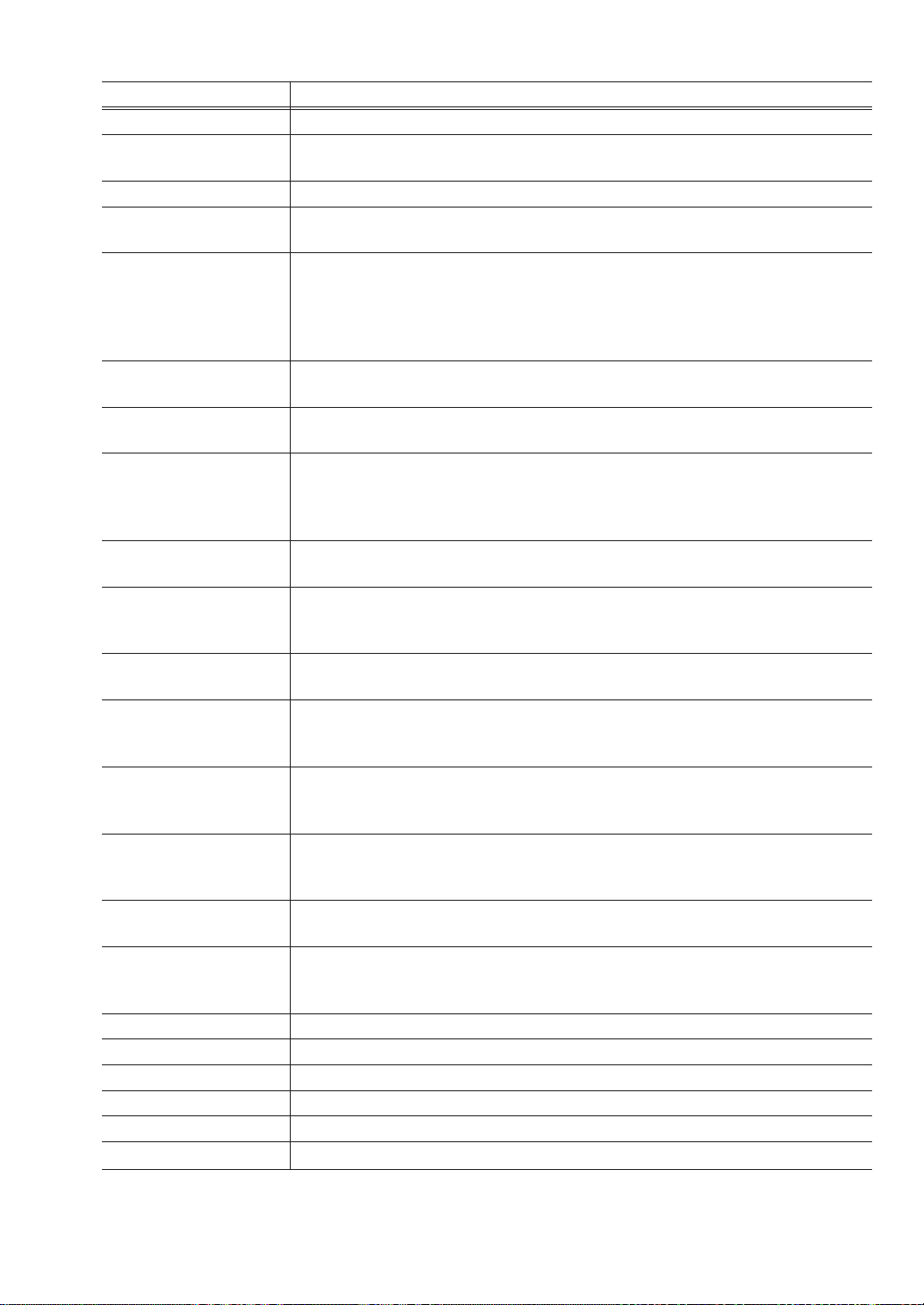
163
Text Parameter
ASSOCIATED DEPT. Department number to be associated with the entered PLU/UPC. 2 digits (1 to 99)
SIGN
+: Plus PLU/UPC
–: Minus PLU/UPC
PRICE Unit price (max. 6 digits: 0 to 999999).
KEY COLOR
Select a key color from the colors list 224 Colors
(Fore Color/Back Color) BLACK/YELLOW
OPEN & PRESET: PLU/subdepartment mode
PRESET: PLU mode
AMT. ENTRY TYPE OPEN: Subdepartment mode
INHIBIT: Inhibit mode
(The UPC(EAN) is fixed at “PRESET”.)
BASE Q’TY
Base quantity for each PLU/subdepartment which is counted each time the item is entered.
(max. 2 digits (0 to 99))
ZERO PRICE
ALLOWED: Allows a zero-price entry.
DISALLOWED: Disallows a zero-price entry.
LINK: Link PLU
MENU TYPE
SET: Set PLU
NORMAL: Normal PLU
(The UPC(EAN) is setting at “LINK/NORMAL”.)
LINK/SET TBL#
Table number for link/set PLUs
max. 2 digits (1 to 99/0)
YES: Piece count type
PIECE COUNT TYPE NO: Non piece count type
(The UPC(EAN) is fixed at “NO”.)
MIX&MATCH TBL#
Table number for mix and match
max. 2 digits (1 to 99/0)
Table number for condiment entry
CONDIMENT TBL# max. 3 digits (1 to 999/0)
(The UPC(EAN) is fixed at “0”.)
YES: Condiment type
CONDIMENT TYPE NO: Non-condiment type
(The UPC(EAN) is fixed at “NO”.)
COMPULSORY: Makes a condiment entry compulsory.
CONDIMENT ENTRY NON-COMPULSORY: Makes a condiment entry non-compulsory.
(The UPC(EAN) is fixed at “NON-COMPUL”.)
MODIFIER TBL#
Modifier table no. max. 3 digits (1 to 999/0)
(The UPC(EAN) is fixed at “0”.)
YES: Auto combo object
AUTO COMBO OBJECT NO: Non-auto combo object
(The UPC(EAN) is fixed at “NO”.)
AUTO COMBO No. Auto combo no. max. 3 digits (1 to 999/0) (The UPC(EAN) is fixed at “0”.)
AUTO COMBO No. Auto combo no. max. 3 digits (1 to 999/0) (The UPC(EAN) is fixed at “0”.)
AUTO COMBO No. Auto combo no. max. 3 digits (1 to 999/0) (The UPC(EAN) is fixed at “0”.)
AUTO COMBO No. Auto combo no. max. 3 digits (1 to 999/0) (The UPC(EAN) is fixed at “0”.)
AUTO COMBO No. Auto combo no. max. 3 digits (1 to 999/0) (The UPC(EAN) is fixed at “0”.)
TARE TBL# Tare table number associated with scale entry (1 to 9/0)
(Continued to the next page.)
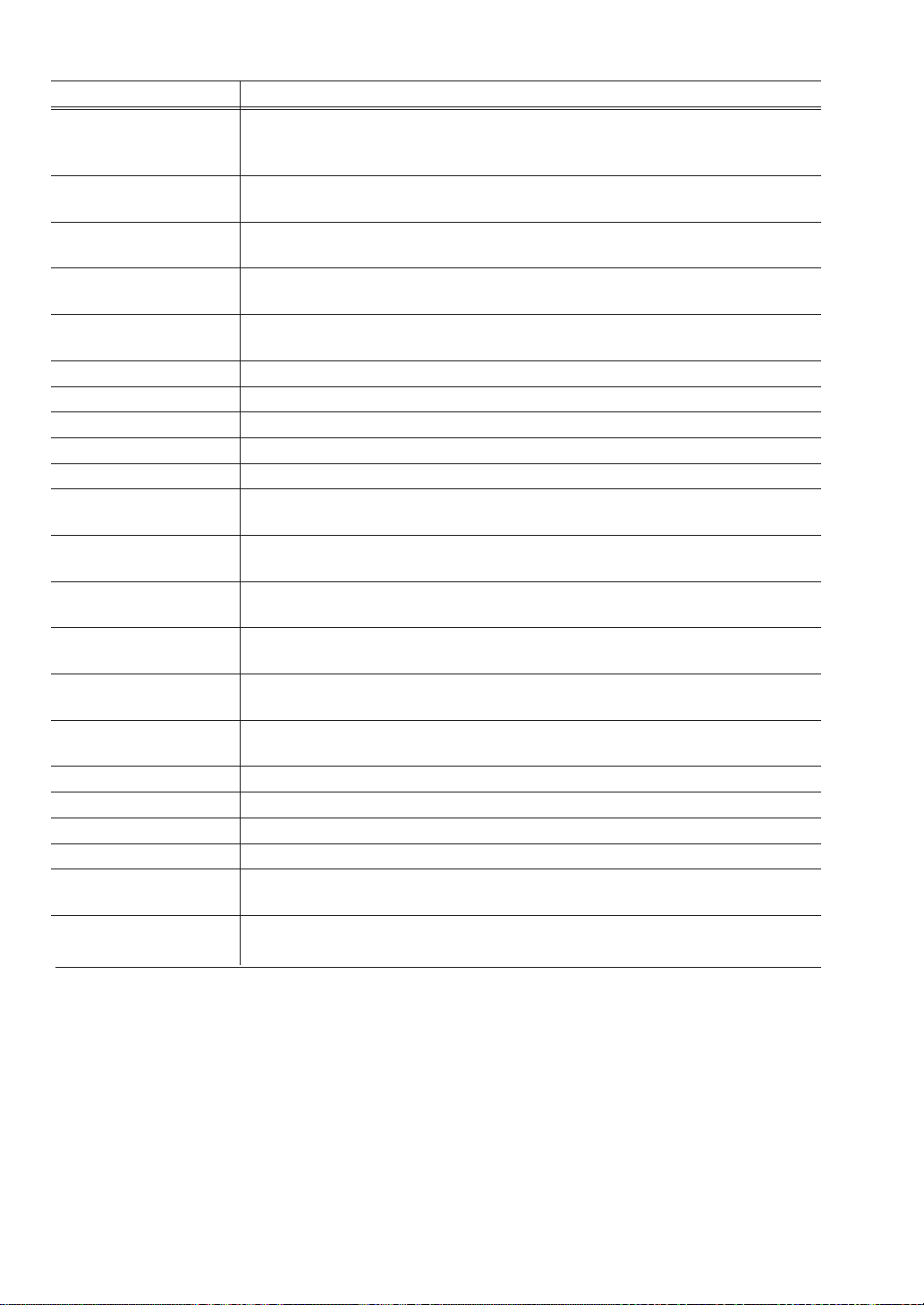
164
Text Parameter
COMPULSORY: Makes a scale entry compulsory.
SCALE ENABLE: Enables a scale entry.
INHIBIT: Inhibits a scale entry.
TAXABLE1
YES: Tax 1 taxable
NO: Tax 1 non-taxable
TAXABLE2
YES: Tax 2 taxable
NO: Tax 2 non-taxable
TAXABLE3
YES: Tax 3 taxable
NO: Tax 3 non-taxable
TAXABLE4
YES: Tax 4 taxable
NO: Tax 4 non-taxable
SORT GROUP PLU SORT grouping max. 2 digits (1 to 99/0)
GR.DISC. Group discount grouping max. 2 digits (1 to 99/0)
GR.DISC. Group discount grouping max. 2 digits (1 to 99/0)
GR.DISC. Group discount grouping max. 2 digits (1 to 99/0)
RECIPE TEXT# Recipe text no. max. 3 digits (0 to 999)
PRIORITY KP No.
PLU group which is to be given the highest priority to in printing on the remote printer
(1 thru 9)/0)
MODIFIED OUTPUT
NO: Will not follow previous PLUs which has the remote printer assignment.
YES: Will follow previous PLUs which has the remote printer assignment.
OUTPUT KP No.1
ID number of the network remote printer 1 (1 thru 9)
If the number “0” is entered, no remote printer will operate.
OUTPUT KP No.2
ID number of the network remote printer 2 (1 thru 9)
If the number “0” is entered, no remote printer will operate.
OUTPUT KP No.3
ID number of the network remote printer 3 (1 thru 9)
If the number “0” is entered, no remote printer will operate.
CHIT RECEIPT
YES: Prints the PLU sales information on the chit receipt in the remote printer format.
NO: Prints nothing on the chit receipt.
KP PRINT Printing color selection (BLACK or RED)
CVM1 CTRL CHAR. CVM (Color Video Monitor) 1 control character (0 thru 255)
CVM2 CTRL CHAR. CVM (Color Video Monitor) 2 control character (0 thru 255)
FOOD COST % 5 digits (0.00 to 100.00)
BAKED FOOD
YES: Baked food object
NO: Non-baked food object
DATA ENT.JOB#
Key data entry no. max. 2 digits (1 to 99/0)
(1 thru 99 : Data entry compulsory)/(0 : Data entry inhibit)
165
■■
■■
■ Preparation assignment
(2 ITEM SETUP
➝
1 PLU/UPC
➝
3 PREP ASSIGNMENT ....... PGM2)
The POS terminal allows you to program the department assignment of the PLU/UPC.
PLU code: max. 6 digits (1 to 999999)
UPC/EAN code: max. 13 digits (EAN13, EAN8, UPC-A)
(1) Select the PGM2 mode and touch the [2 POS SETTING] to perform the programming.
(2) Touch the [2 ITEM SETUP] button to display the menu, and touch the [1 PLU/UPC] button to display
the detail menu. Then touch the [3 PREP ASSIGNMENT] button to display the each PLU/UPC.
(3) Touch the direct PLU key, or enter the PLU/UPC number and touch the [ENTER] key in the PLU list
window by touching the [LIST MENU] key to program the each PLU/UPC.
(4) Enter the associated department number and touch the [ENTER] key.
(5) To terminate the programming, touch the [EXIT] key.
Text Parameter
ASSOCIATED DEPT. Associate dept. no. max. 2 digits (1 to 99)
■■
■■
■ Range preparation assignment
(2 ITEM SETUP
➝
1 PLU/UPC
➝
4 RANGE PREP ASSIGNMENT ....... PGM2)
The following parameters of PLU can be programmed by a range.
The range data of PLUs is required at the beginning.
PLU code: max. 6 digits (1 to 999999)
(1) Select the PGM2 mode and touch the [2 POS SETTING] to perform the programming.
(2) Touch the [2 ITEM SETUP] button to display the menu, and touch the [1 PLU/UPC] button to display
the detail menu.
(3) Touch the [4 RANGE PREP ASSIGNMENT] button to program PLUs with assigning PLU range, and
enter the following range data and touch the [ENTER] key.
(4) Enter the associated department number and touch the [ENTER] key.
(5) To terminate the programming, touch the [EXIT] key.
Text Parameter
ASSOCIATED DEPT. Associate dept. no. max. 2 digits (1 to 99)
Text Parameter
START CODE Start code of the range max. 6 digits (000000-999999)
END CODE End code of the range max. 6 digits (000000-999999)
Type for the operation
OPERATION
DEL: Delete
MAINTENANCE: Maintenance
NEW&MAINTENANCE: New create and maintenance
166
■■
■■
■ CVM routing (2 ITEM SETUP
➝
1 PLU/UPC
➝
5 CVM ROUTING ....... PGM2)
PLU code: max. 6 digits (1 to 999999)
UPC/EAN code: max. 13 digits (EAN13, EAN8, UPC-A)
(1) Select the PGM2 mode and touch the [2 POS SETTING] to perform the programming.
(2) Touch the [2 ITEM SETUP] button to display the menu, and touch the [1 PLU/UPC] button to display
the detail menu. Then touch the [5 CVM ROUTING] button to display the each PLU/UPC.
(3) Touch the direct PLU key, or enter the PLU/UPC number and touch the [ENTER] key in the PLU list
window by touching the [LIST MENU] key to program the each PLU/UPC.
(4) Enter the CVM control character data and touch the [ENTER] key.
(5) To terminate the programming, touch the [EXIT] key.
■■
■■
■ Range CVM routing (2 ITEM SETUP
➝
1 PLU/UPC
➝
6 RANGE CVM ROUTING ....... PGM2)
The following parameters of PLU can be programmed by a range.
The range data of PLUs is required at the beginning.
PLU code: max. 6 digits (1 to 999999)
(1) Select the PGM2 mode and touch the [2 POS SETTING] to perform the programming.
(2) Touch the [2 ITEM SETUP] button to display the menu, and touch the [1 PLU/UPC] button to display
the detail menu.
(3) Touch the [6 RANGE CVM ROUTING] button to program PLUs with assigning PLU range, and enter
the following range data and touch the [ENTER] key.
(4) Enter the CVM control character data and touch the [ENTER] key.
(5) To terminate the programming, touch the [EXIT] key.
Text Parameter
CVM1 CTRL CHAR. CVM (Color Video Monitor) 1 control character (0 thru 255)
CVM2 CTRL CHAR. CVM (Color Video Monitor) 2 control character (0 thru 255)
Text Parameter
CVM1 CTRL CHAR. CVM (Color Video Monitor) 1 control character (0 thru 255)
CVM2 CTRL CHAR. CVM (Color Video Monitor) 2 control character (0 thru 255)
Text Parameter
START CODE Start code of the range max. 6 digits (000000-999999)
END CODE End code of the range max. 6 digits (000000-999999)
Type for the operation
OPERATION
DEL: Delete
MAINTENANCE: Maintenance
NEW&MAINTENANCE: New create and maintenance
167
Text Parameter
PLU OR COMBO #1
PLU: PLU type
COMBO: Combo type
CODE
PLU code max. 6 digits (0 to 999999)
Combo table no. max. 3 digits (0 to 999)
PLU OR COMBO #2
PLU: PLU type
COMBO: Combo type
CODE
PLU code max. 6 digits (0 to 999999)
Combo table no. max. 3 digits (0 to 999)
PLU OR COMBO #3
PLU: PLU type
COMBO: Combo type
CODE
PLU code max. 6 digits (0 to 999999)
Combo table no. max. 3 digits (0 to 999)
PLU OR COMBO #4
PLU: PLU type
COMBO: Combo type
CODE
PLU code max. 6 digits (0 to 999999)
Combo table no. max. 3 digits (0 to 999)
PLU OR COMBO #5
PLU: PLU type
COMBO: Combo type
CODE
PLU code max. 6 digits (0 to 999999)
Combo table no. max. 3 digits (0 to 999)
PLU OR COMBO #6
PLU: PLU type
COMBO: Combo type
CODE
PLU code max. 6 digits (0 to 999999)
Combo table no. max. 3 digits (0 to 999)
PLU OR COMBO #7
PLU: PLU type
COMBO: Combo type
CODE
PLU code max. 6 digits (0 to 999999)
Combo table no. max. 3 digits (0 to 999)
PLU OR COMBO #8
PLU: PLU type
COMBO: Combo type
CODE
PLU code max. 6 digits (0 to 999999)
Combo table no. max. 3 digits (0 to 999)
PLU OR COMBO #9
PLU: PLU type
COMBO: Combo type
CODE
PLU code max. 6 digits (0 to 999999)
Combo table no. max. 3 digits (0 to 999)
■■
■■
■ Modifier PLU table (2 ITEM SETUP
➝
2 MODIFIER PLU ....... PGM2)
The POS terminal allows you to program the compulsory condiment or combo meal item.
Modifier table no.: max. 3 digits (1 to 999)
(1) Select the PGM2 mode and touch the [2 POS SETTING] to perform the programming.
(2) Touch the [2 ITEM SETUP] button to display the menu, and touch the [2 MODIFIER PLU] button to
display the modifier table list.
(3) Touch or enter the modifier table number and touch the [ENTER] key to program the modifier table.
(4) Touch the required programming item, and enter or select each parameter and touch the [ENTER] key.
Repeat this step (4) satisfactorily.
(5) To terminate the programming, touch the [EXIT] key.
168
■■
■■
■ Recipe table (2 ITEM SETUP
➝
4 RECIPE TEXT ....... PGM2)
The POS terminal allows you to create the text message to describe ingredients or preparation instructions.
Recipe number: max. 3 digits (1 to 999)
(1) Select the PGM2 mode and touch the [2 POS SETTING] to perform the programming.
(2) Touch the [2 ITEM SETUP] button to display the menu, and touch the [4 RECIPE TEXT] button to
display the recipe text list.
(3) Touch or enter the recipe text number and touch the [ENTER] key to program the modifier table.
(4) Enter the recipe text and touch the [ENTER] key.
(5) To terminate the programming, touch the [EXIT] key.
The underscore ( _ ) character is used to create the line break <CR> in recipe text file.
Text Parameter
RECIPE MESSAGE Max. 1024 characters
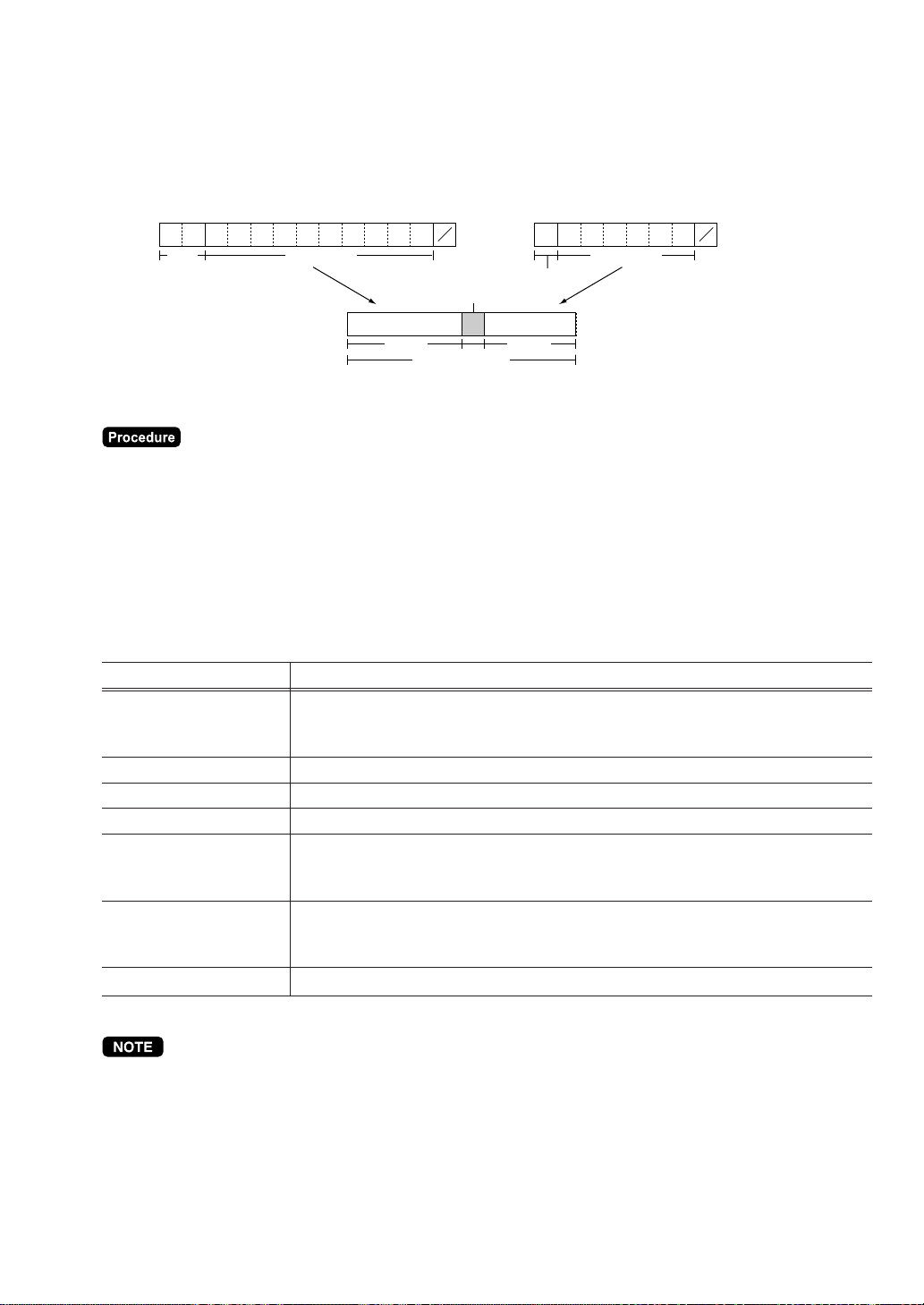
169
■■
■■
■ UPC Non-PLU code format (2 ITEM SETUP
➝
6 UPC NON-PLU ....... PGM2)
The register allows you to specify the Non-PLU code format (System sign(Flag code): 2, 02, 20 -29).
These formats control scanned barcodes accepted and how the scanned information is treated by the
system.
The format data is as follows:
C
D
Free formatFlag
(02 or 20-29)
Field 2Field 1
Free format area
Price check digit
2
C
D
Free format
Flag
Format table no.: max. 2 digits (1 to 12)
(1) Select the PGM2 mode and touch the [2 POS SETTING] to perform the programming.
(2) Touch the [2 ITEM SETUP] button to display the menu, and touch the [6 UPC NON-PLU] button to
display the code format list.
(3) Touch the code format number button to program the non PLU code format.
(The [INHIBIT] button is not assigned the code format yet.)
(4) Touch the required programming item, and enter or select each parameter and touch the [ENTER] key.
Repeat this step (4) satisfactorily.
(5) To terminate the programming, touch the [EXIT] key.
Text Parameter
EAN8: EAN-8 format code
TYPE OF CODE EAN13: EAN-13 format code
(UPC-A is “0n”of EAN13)
SYSTEM CODE n:EAN8, nn:EAN13(UPC-A)
LENGTH FLD#1 Length of field 1 (0 to 9)
LENGTH FLD#2 Length of field 2 (0 to 9)
Meaning of field 2
FIELD#2 DATA QUANTITY: quantity
PRICE: Price
Price Check digit
PRICE C/D YES: Use the price check digit
NO: Not use the price check digit
TAB TAB or decimal point of field 2 : 3/2/1/0
•
When the “DEL” key is touched on table number selection menu, the table is deleted.
•
When the field 2 is programmed as “QUANTITY”, the sales amount is calculated as (quantity x
programmed unit price).
•
The initial programming data is showed by following tables.
170
Classification
Table 1 Table 2 Table 3 - Table 12
Kind of Code EAN13 EAN8 undefined
System sign 02 2 undefined
Length of field 1 5 2 undefined
Length of field 2 4 4 undefined
Meaning of field 2 PRICE PRICE undefined
Price Check digit YES NO undefined
TAB or Decimal point of field 2 2 2 undefined
■■
■■
■ UPC delete
(2 ITEM SETUP
➝
7 UPC DELETE ....... PGM2)
You can delete the UPC codes which have not been accessed during the period you set in this program
when you execute the delete job in the Z1 mode.
(1) Select the PGM2 mode and touch the [2 POS SETTING] to perform the programming.
(2) Touch the [2 ITEM SETUP] button to display the menu, and touch the [7 UPC DELETE] button to
program the delete period.
(3) Enter the delete period and touch the [ENTER] key.
(4) To terminate the programming, touch the [EXIT] key.
Text Parameter
Delete period
PERIOD(DAY) Day : 2 digits
(01 to 99/00) (00 = No deleting)
■■
■■
■ Condiment tables (3 TABLES
➝
1 CONDIMENT TABLES ....... PGM2)
Condiment table no.: max. 3 digits (1 to 999)
Example:
When you enter a menu-item PLU, a message such as “HOWCOOK?” is prompted and a list of the
“Condiment PLUs” will appear. You must specify one of the “Condiment PLUs” such as “WELLDONE” to
meet a special order of the guest. In an example of the condiment table shown below, it is assumed that
condiment table no.1 is assigned to PLU number 21 (programmed text “STEAK”) and table no. 4 is
assigned to table no. 1 as the next table no. When you enter the PLU number 21, the message
“HOWCOOK?” will appear to prompt you to specify one of “RARE,” “MED.RARE,” and “WELLDONE.” If the
guest chooses “RARE,” select it from the list. Then the next message “POTATO?” will appear to prompt you
to specify one of “P.CHIPS,” “MASHED.P,” and “BAKED.P.” If the guest chooses mashed potato, select it.
If the guest chooses baked potato, the flavor list will appear to prompt you to specify one of “BUTTER” and
“SOUR CREAM”.
Here is an example of how to perform a condiment entry when your condiment table is as shown below.
PLU:
PLU Name Price Condiment Table #
PLU00021 STEAK $20.00 1
PLU00038 BAKED.P $0.50 5
171
Text Parameter
MESSAGE TEXT Message text max.16 characters
Repeat times ((1 thru 9)/0)
REPEAT TIMES When REPEAT TIMES is programmed either of 2 thru 9, its table shows repeatedly until
accomplishment of a programmed times, then next table will be shows.
PRICE ROLL-UP
YES: Price roll-up type
NO: Non price roll-up type
2x2: 2x2 size key
KEY SIZE
VERTICAL DOUBLE: Vertical double size key
HORIZONTAL DOUBLE: Horizontal double size key
SINGLE: Single size key
SCREEN NO. Screen no. max. 2 digits (1 to 99/0)
NEXT LINK TBL# Next link condiment table# max. 3 digits (1 to 999/0)
PLU#01 CONDIMENT PLU 1: 6 digits (PLU CODE)
PLU#02 : CONDIMENT PLU 2: 6 digits (PLU CODE) :
: :
: :
PLU#49 CONDIMENT PLU49: 6 digits (PLU CODE)
PLU#50 CONDIMENT PLU50: 6 digits (PLU CODE)
(Max.50 PLUs)
When the “DEL” key is touched on table number selection menu, the table is deleted.
Condiment table:
(1) Select the PGM2 mode and touch the [2 POS SETTING] to perform the programming.
(2) Touch the [3 TABLES] button to display the menu, and touch the [1 CONDIMENT TABLES] button to
program the condiment table.
(3) Touch or enter the condiment table number and touch the [ENTER] key to program the condiment
table.
(4) Touch the required programming item, and enter or select each parameter and touch the [ENTER] key.
Repeat this step (4) satisfactorily.
(5) To terminate the programming, touch the [EXIT] key.
Condiment Linking Condiment
Condiment PLU
Table #
Contents
Table #
PLU Name Price
PLU00023 RARE $0.00
1 HOWCOOK? 4 PLU00025 MED.RARE $0.00
PLU00027 WELLDONE $0.00
PLU00033 P.CHIPS $0.60
4 POTATO? End (nothing) PLU00037 MASHED.P $0.60
PLU00038 BAKED.P $0.50
5 FLAVOR End (nothing)
PLU00040 BUTTER $0.00
PLU00041 SOUR CREAM $0.00
172
■■
■■
■ Combo meal tables (3 TABLES
➝
2 COMBO MEAL TABLES ....... PGM2)
Combo meal table no.: max. 3 digits (1 to 999)
(1) Select the PGM2 mode and touch the [2 POS SETTING] to perform the programming.
(2) Touch the [3 TABLES] button to display the menu, and touch the [2 COMBO MEAL TABLES] button to
program the combo meal table.
(3) Touch or enter the combo meal table number and touch the [ENTER] key to program the combo meal
table.
(4) Touch the required programming item, and enter or select each parameter and touch the [ENTER] key.
Repeat this step (4) satisfactorily.
(5) To terminate the programming, touch the [EXIT] key.
Text Parameter
COMBO TITLE Combo meal title max. 20 digits text
KEY DESCRIPTION
Description of the key label for a combo key.
Up to 8 characters can be entered. (COMBnnn) :
KP TEXT KP Text for price max. 12 characters
KEY COLOR
Select a key color from the colors list 224 Colors
(Fore Color/Back Color) BLACK/YELLOW
CONDIMENT TBL# Condiment table no. max. 3 digits (1 to 999/0)
Condiment entry to menu item
CONDIMENT ENTRY COMPULSORY: Makes a condiment entry compulsory.
NON-COMPULSORY: Makes a condiment entry noncompulsory.
MODIFIER TBL# Modifier table no. max. 3 digits (1 to 999/0)
SORT GROUP PLU SORT grouping max. 2 digits (1 to 99/0)
PRIORITY KP No.
PLU group which is to be given the highest priority to in printing on the remote printer
(1 thru 9)/0)
MODIFIED OUTPUT
NO: Will not follow previous PLUs which has the remote printer assignment.
YES: Will follow previous PLUs which has the remote printer assignment.
OUTPUT KP No.1
ID number of the network remote printer 1 (1 thru 9)
If the number “0” is entered, no remote printer will operate.
OUTPUT KP No.2
ID number of the network remote printer 2 (1 thru 9)
If the number “0” is entered, no remote printer will operate.
OUTPUT KP No.3
ID number of the network remote printer 3 (1 thru 9)
If the number “0” is entered, no remote printer will operate.
CHIT RECEIPT
YES: Prints the PLU sales information on the chit receipt in the remote printer format.
NO: Prints nothing on the chit receipt.
CVM1 CTRL CHAR. CVM (Color Video Monitor) 1 control character (0 thru 255)
CVM2 CTRL CHAR. CVM (Color Video Monitor) 2 control character (0 thru 255)
DATA ENT.JOB#
Key data entry no. max. 2 digits (1 to 99/0)
(1 thru 99 : Data entry compulsory)/(0 : Data entry inhibit)
COMBO PLU#1 Associated PLU #1 : 6 digits (PLU code)
PRICE Unit price of code 1 (0 to 999999)
COMBO PLU#2 Associated PLU #2 : 6 digits (PLU code)
PRICE Unit price of code 2 (0 to 999999)
COMBO PLU#3 Associated PLU #3 : 6 digits (PLU code)
(Continued to the next page.)
173
Text Parameter
PRICE Unit price of code 3 (0 to 999999)
COMBO PLU#4 Associated PLU #4 : 6 digits (PLU code)
PRICE Unit price of code 4 (0 to 999999)
COMBO PLU#5 Associated PLU #5 : 6 digits (PLU code)
PRICE Unit price of code 5 (0 to 999999)
COMBO PLU#6 Associated PLU #6 : 6 digits (PLU code)
PRICE Unit price of code 6 (0 to 999999)
COMBO PLU#7 Associated PLU #7 : 6 digits (PLU code)
PRICE Unit price of code 7 (0 to 999999)
COMBO PLU#8 Associated PLU #8 : 6 digits (PLU code)
PRICE Unit price of code 8 (0 to 999999)
COMBO PLU#9 Associated PLU #9 : 6 digits (PLU code)
PRICE Unit price of code 9 (0 to 999999)
WITH COMBO PLU#1 With PLU #1 : 6 digits (PLU code)
PRICE Unit price of “With PLU #1” (0 to 999999)
WITH COMBO PLU#2 With PLU #2 : 6 digits (PLU code)
PRICE Unit price of “With PLU #2” (0 to 999999)
WITH COMBO PLU#3 With PLU #3 : 6 digits (PLU code)
PRICE Unit price of “With PLU #3” (0 to 999999)
WITH COMBO PLU#4 With PLU #4 : 6 digits (PLU code)
PRICE Unit price of “With PLU #4” (0 to 999999)
WITH COMBO PLU#5 With PLU #5 : 6 digits (PLU code)
PRICE Unit price of “With PLU #5” (0 to 999999)
WITH COMBO PLU#6 With PLU #6 : 6 digits (PLU code)
PRICE Unit price of “With PLU #6” (0 to 999999)
WITH COMBO PLU#7 With PLU #7 : 6 digits (PLU code)
PRICE Unit price of “With PLU #7” (0 to 999999)
WITH COMBO PLU#8 With PLU #8 : 6 digits (PLU code)
PRICE Unit price of “With PLU #8” (0 to 999999)
WITH COMBO PLU#9 With PLU #9 : 6 digits (PLU code)
PRICE Unit price of “With PLU #9” (0 to 999999)
When the “DEL” key is touched on table number selection menu, the table is deleted.
174
■■
■■
■ Link PLU/UPC tables (3 TABLES
➝
3 LINK PLU/UPC TABLES ....... PGM2)
Each link PLU is listed as if the PLU was entered individually for price calculation.
Link PLU/UPC table no.: max. 2 digits (1 to 99)
(1) Select the PGM2 mode and touch the [2 POS SETTING] to perform the programming.
(2) Touch the [3 TABLES] button to display the menu, and touch the [3 LINK PLU/UPC TABLES] button to
program the link PLU/UPC table.
(3) Touch or enter the link PLU/UPC table number and touch the [ENTER] key to program the link PLU/
UPC table.
(4) Enter the link PLU/UPC number and touch the [ENTER] key.
Repeat this step (4) satisfactorily.
(5) To terminate the programming, touch the [EXIT] key.
Text Parameter
LINKED PLU/UPC#1 Linked PLU/UPC : 6 digits (PLU code) or 8-13 digits (UPC code)
LINKED PLU/UPC#2 Linked PLU/UPC : 6 digits (PLU code) or 8-13 digits (UPC code)
LINKED PLU/UPC#3 Linked PLU/UPC : 6 digits (PLU code) or 8-13 digits (UPC code)
LINKED PLU/UPC#4 Linked PLU/UPC : 6 digits (PLU code) or 8-13 digits (UPC code)
LINKED PLU/UPC#5 Linked PLU/UPC : 6 digits (PLU code) or 8-13 digits (UPC code)
When the “DEL” key is touched on table number selection menu, the table is deleted.
■■
■■
■ Set PLU tables (3 TABLES
➝
4 SET PLU TABLES ....... PGM2)
Prices of all set PLU members are rolled up to main item price.
Set PLU table no.: max. 2 digits (1 to 99)
(1) Select the PGM2 mode and touch the [2 POS SETTING] to perform the programming.
(2) Touch the [3 TABLES] button to display the menu, and touch the [4 SET PLU TABLES] button to
program the set PLU table.
(3) Touch or enter the set PLU table number and touch the [ENTER] key to program the set PLU table.
(4) Enter the tied PLU number and touch the [ENTER] key.
Repeat this step (4) satisfactorily.
(5) To terminate the programming, touch the [EXIT] key.
Text Parameter
SET PLU1 Tied PLU 1 (PLU code)
SET PLU2 Tied PLU 2 (PLU code)
: :
: :
: :
SET PLU20 Tied PLU 20 (PLU code)
When the “DEL” key is touched on table number selection menu, the table is deleted.
175
■■
■■
■ Mix & match tables (3 TABLES
➝
5 MIX&MATCH TABLES ....... PGM2)
Mix & Match table no.: max. 2 digits (1 to 99)
(1) Select the PGM2 mode and touch the [2 POS SETTING] to perform the programming.
(2) Touch the [3 TABLES] button to display the menu, and touch the [5 MIX&MATCH TABLES] button to
program the mix&match table.
(3) Touch or enter the mix&match table number and touch the [ENTER] key to program the mix&match
table.
(4) Select the mix&match type (“subtotal type” or “item type”) and touch the [ENTER] key.
(5) Touch the required programming item, and enter or select each parameter and touch the [ENTER] key.
Repeat this step (5) satisfactorily.
(6) To terminate the programming, touch the [EXIT] key.
ITEM TYPE
Text Parameter
PRICE1 Adjust amount 1 : 6 digits
TRIP LEVEL1 Trip level 1 : 2 digits (0 to 99)
PLU/UPC#1 Mix & match PLU/UPC #1 : 6 digits (PLU) or 8-13 digits (UPC)
PRICE2 Adjust amount 2 : 6 digits
TRIP LEVEL2 Trip level 2 : 2 digits (0 to 99)
PLU/UPC#2 Mix & match PLU/UPC #2 : 6 digits (PLU) or 8-13 digits (UPC)
: :
: :
PRICE19 Adjust amount 19 : 6 digits
TRIP LEVEL19 Trip level 19 : 2 digits (0 to 99)
PLU/UPC#19 Mix & match PLU/UPC #19 : 6 digits (PLU) or 8-13 digits (UPC)
PRICE20 Adjust amount 20 : 6 digits
TRIP LEVEL20 Trip level 20 : 2 digits (0 to 99)
PLU/UPC#20 Mix & match PLU/UPC #20 : 6 digits (PLU) or 8-13 digits (UPC)
Text Parameter
Mix&match type
M&M SELECT SBTL TYPE: Subtotal type
ITEM TYPE: Item type
176
■■
■■
■ Scale tables (3 TABLES
➝
6 SCALE TABLES ....... PGM2)
Scale table no.: 1 digit (1 to 9)
(1) Select the PGM2 mode and touch the [2 POS SETTING] to perform the programming.
(2) Touch the [3 TABLES] button to display the menu, and touch the [6 SCALE TABLES] button to display
the scale table list.
(3) Touch the scale table number button to program the tare weight.
(4) Enter the tare weight and touch the [ENTER] key.
(5) To terminate the programming, touch the [EXIT] key.
Text Parameter
WEIGHT Tare weight : max. 4 digits (0 to 99.99) lb
When the “DEL” key is touched on table number selection menu, the table is deleted.
When the “DEL” key is touched on table number selection menu, the table is deleted.
Text Parameter
DISCOUNT AMT Discount amount : 6 digits
TAXABLE1
YES: Tax 1 taxable
NO: Tax 1 non-taxable
TAXABLE2
YES: Tax 2 taxable
NO: Tax 2 non-taxable
TAXABLE3
YES: Tax 3 taxable
NO: Tax 3 non-taxable
TAXABLE4
YES: Tax 4 taxable
NO: Tax 4 non-taxable
REVENUE NO. Revenue center no. 1 digit (1 to 9)
TRIP LEVEL1 Trip level 1 : 2 digits (0 to 99)
PLU/UPC#1 Mix & match PLU/UPC #1 : 6 digits (PLU) or 8-13 digits (UPC)
TRIP LEVEL2 Trip level 2 : 2 digits (0 to 99)
PLU/UPC#2 Mix & match PLU/UPC #2 : 6 digits (PLU) or 8-13 digits (UPC)
: :
: :
TRIP LEVEL19 Trip level 19 : 2 digits (0 to 99)
PLU/UPC#19 Mix & match PLU/UPC #19 : 6 digits (PLU) or 8-13 digits (UPC)
TRIP LEVEL20 Trip level 20 : 2 digits (0 to 99)
PLU/UPC#20 Mix & match PLU/UPC #20 : 6 digits (PLU) or 8-13 digits (UPC)
SBTL TYPE
177
■■
■■
■ Cashier (2 WORK FORCE
➝
1 CASHIER ....... PGM1)
(4 WORK FORCE
➝
1 CASHIER ....... PGM2)
Cashier code: 4 digits (1 to 9999)
(1) Select the PGM1 or PGM2 mode and touch the [2 POS SETTING] to perform the programming.
(2) In the PGM1 mode, touch the [2 WORK FORCE] button to display the menu, and touch the [1
CASHIER] button to display the cashier list.
(2)’ In the PGM2 mode, touch the [4 WORK FORCE] button to display the menu, and touch the [1
CASHIER] button to display the cashier list.
(3) Touch or enter the cashier number and touch the [ENTER] key to program each cashier.
(4) Touch the required programming item, and enter or select each parameter and touch the [ENTER] key.
Repeat this step (4) satisfactorily.
(5) To terminate the programming, touch the [EXIT] key.
Text Parameter
SECRET CODE Cashier secret code: max. 8 digits (00000001 to 99999999/00000000)
NAME Cashier name: max. 8 characters (CSH.000n)
DEFAULT SCREEN Default screen no.: max. 2 digits (1 to 99)
Training function:
TRAINING FUNC. NO:
YES:
Supervisor function:
SUPERVISOR FUNC. NO:
YES:
Cashier entry compulsory:
ENTRY COMPULSORY
GLU: GLU entry compulsory
DRIVE THRU: Drive-thru entry compulsory
NON-COMPULSORY: Non-compulsory
DRAWER# Drawer number assignment: 1 to 2 (0: no drawer)
COMPULSORY: Guest entry compulsory
GUEST COMPULSORY ALLOWED: Guest entry allowed
INHIBITED: Guest entry inhibited
B.S. OPERATION
DISABLE: Bill separate operation disabled
ENABLE: Bill separate operation enabled
Finalization in REG mode when SBTL is zero.
REG ST ZERO DISABLE: Disabled
ENABLE: Enabled
NET SALES% Net sales% rate (0 to 100.00)
NO SALE
DISALLOWED: “No sale” disallowed
ALLOWED: “No sale” allowed
EX NO SALE
DISALLOWED: “Exchange no-sale” disallowed
ALLOWED: “Exchange no-sale” allowed
CASH TRANSFER
DISALLOWED: “Cash transfer” disallowed
ALLOWED: “Cash transfer” allowed
MANY BILL PRINT
DISALLOWED: “Many bill printing” disallowed
ALLOWED: “Many bill printing” allowed
(Continued to the next page.)

178
When the “DEL” key is touched on table number selection menu, the table is deleted.
Text Parameter
COPY RECEIPT
DISALLOWED: “Copy receipt function” disallowed
ALLOWED: “Copy receipt function” allowed
DAILY DEPOSIT
DISALLOWED: “Daily deposit entry” disallowed
ALLOWED: “Daily deposit entry” allowed
179
■■
■■
■ Employee ID (4 WORK FORCE
➝
2 EMPLOYEE
➝
1 EMPLOYEE ID ... ....... PGM2)
Employee code: 10 digits (0 to 9999999999)
(1) Select the PGM2 mode and touch the [2 POS SETTING] to perform the programming.
(2) Touch the [4 WORK FORCE] button to display the menu, and touch the [2 EMPLOYEE] button to
display the detail menu.
(3) Touch the [1 EMPLOYEE ID] button to display the employee list.
(4) Touch or enter the employee number and touch the [ENTER] key to program the employee data.
(5) Touch the required programming item, and enter or select each parameter and touch the [ENTER] key.
Repeat this step (5) satisfactorily.
(6) To terminate the programming, touch the [EXIT] key.
Text Parameter
SECRET CODE Employee secret code: max. 8 digits (00000001 to 99999999/00000000)
NAME Employee name: max. 8 characters
CASHIER CODE Cashier code link: max. 4 digits (0001 to 9999)
AUTHORITY LEVEL Authority level: 1 digit (1 to 5) (Low 1 ➝ 5 High)
DAILY STD.HOURS Daily standard hours: max. 3 digits (0 to 999)
DAILY OT HOURS Daily over-time hours: max. 3 digits (0 to 999)
WEEKLY STD.HOURS Weekly standard hours: max. 3 digits (0 to 999)
WEEKLY OT HOURS Weekly over-time hours: max. 3 digits (0 to 999)
LOCATION#1 Job location 1: max. 2 digits (1 to 99/0)
LOCATION#2 Job location 2: max. 2 digits (1 to 99/0)
LOCATION#3 Job location 3: max. 2 digits (1 to 99/0)
LOCATION#4 Job location 4: max. 2 digits (1 to 99/0)
LOCATION#5 Job location 5: max. 2 digits (1 to 99/0)
LOCATION#6 Job location 6: max. 2 digits (1 to 99/0)
LOCATION#7 Job location 7: max. 2 digits (1 to 99/0)
AUTO SHIFT FUNC.
ENABLE: AUTO shift function enabled
DISABLE: AUTO shift function disabled
OPEN TIME
AUTO shift open time:
4 digits: Hour 2 digits (01 to 12)/Minute 2 digits (00 to 59)
OPEN TIME AM/PM AUTO shift open time AM/PM selection (AM or PM)
CLOSE TIME
AUTO shift close time:
4 digits: Hour 2 digits (01 to 12)/Minute 2 digits (00 to 59)
CLOSE TIME AM/PM AUTO shift close time AM/PM selection (AM or PM)
When the “DEL” key is touched on table number selection menu, the table is deleted.
180
■■
■■
■ Job location tables
(4 WORK FORCE
➝
2 EMPLOYEE
➝
2 JOB LOCATION TABLES .......... PGM2)
Job location table no.: 2 digits (0 to 99)
(1) Select the PGM2 mode and touch the [2 POS SETTING] to perform the programming.
(2) Touch the [4 WORK FORCE] button to display the menu, and touch the [2 EMPLOYEE] button to
display the detail menu.
(3) Touch the [2 JOB LOCATION TABLE] button to display the job location list.
(4) Touch or enter the job location number and touch the [ENTER] key to program the job location data.
(5) Touch the required programming item, and enter or select each parameter and touch the [ENTER] key.
Repeat this step (5) satisfactorily.
(6) To terminate the programming, touch the [EXIT] key.
Text Parameter
TEXT Job location text: max. 16 characters
SALARY AMOUNT Salary pay amount: max. 4 digits (0 to 9999)
OVER-TIME RATE1 Over-time pay rate1: max. 3 digits (0.00 to 9.99)
OVER-TIME RATE2 Over-time pay rate2: max. 3 digits (0.00 to 9.99)
When the “DEL” key is touched on table number selection menu, the table is deleted.
■■
■■
■ Labor cost (4 WORK FORCE
➝
3 LABOR COST .......... PGM2)
(1) Select the PGM2 mode and touch the [2 POS SETTING] to perform the programming.
(2) Touch the [4 WORK FORCE] button to display the menu, and touch the [3 LABOR COST] button to
program the labor cost data.
(3) Touch the required programming item, and enter or select each parameter and touch the [ENTER] key.
Repeat this step (3) satisfactorily.
(4) To terminate the programming, touch the [EXIT] key.
Text Parameter
Pay period function:
NOT USED:
PAY PERIOD
MONTHLY:
SEMI-MONTHLY:
PERIOD1 START Period 1 start: 2 digits (01-99)
PERIOD2 START Period 2 start: 2 digits (01-99)
PAY FOR BREAK
NO: Break is excluded in work time
YES: Break is included in work time
181
■■
■■
■ Authority level (4 WORK FORCE
➝
5 AUTHORITY .......... PGM2)
(1) Select the PGM2 mode and touch the [2 POS SETTING] to perform the programming.
(2) Touch the [4 WORK FORCE] button to display the menu, and touch the [5 AUTHORITY] button to
program the authority level for functions.
(3) Touch the required programming item, and enter the authority level and touch the [ENTER] key.
Repeat this step (3) satisfactorily.
(4) To terminate the programming, touch the [EXIT] key.
Text Parameter Function
OPXZ MODE Authority level (Low: 1
➝
High: 5) OP X/Z mode
VOID MODE Authority level (Low: 1
➝
High: 5) Void mode
REFUND MODE Authority level (Low: 1
➝
High: 5) Refund mode
SHIFT ENTRY Authority level (Low: 1
➝
High: 5) SHIFT entry
1ST LAST ITEM VD Authority level (Low: 1
➝
High: 5) 1st last void
INDIR. VD IN GLU Authority level (Low: 1
➝
High: 5) Indirect void entry at GLU re-order
LEVEL SFT IN Authority level (Low: 1
➝
High: 5) PLU level shift
COMP.COND.CANCEL Authority level (Low: 1
➝
High: 5) Cancel for condiment compulsory by CANCEL key
PRICE CHANGE Authority level (Low: 1
➝
High: 5) Price change function
EAN LEARNING Authority level (Low: 1
➝
High: 5) Learning function of EAN entry
PAY WHEN ST=0 Authority level (Low: 1
➝
High: 5) Zero final.
VIP SALE Authority level (Low: 1
➝
High: 5) VIP sale
COPY RECEIPT Authority level (Low: 1
➝
High: 5) Copy receipt
BILL PRINTING Authority level (Low: 1
➝
High: 5) Bill printing
MANY BILL PRINT Authority level (Low: 1
➝
High: 5) Many bill printing
G.C.COPY Authority level (Low: 1
➝
High: 5) G.C. copy
TIP PAID Authority level (Low: 1
➝
High: 5) Tip paid
EDIT TIP Authority level (Low: 1
➝
High: 5) Edit tip entry
SUBTOTAL Authority level (Low: 1
➝
High: 5) Subtotal
MDSE SBTL Authority level (Low: 1
➝
High: 5) MDSE subtotal
TAXABLE SBTL Authority level (Low: 1
➝
High: 5) Taxable subtotal
TRAY SBTL Authority level (Low: 1
➝
High: 5) Tray subtotal
CASH TRANSFER Authority level (Low: 1
➝
High: 5) Cash transfer
LIMIT. OVERRIDE Authority level (Low: 1
➝
High: 5) Limitation (HALO/LALO) override
COMP. OVERRIDE Authority level (Low: 1
➝
High: 5) Compulsory (BILL, etc) override
CCD OVERRIDE Authority level (Low: 1
➝
High: 5) CCD override
TIME EDIT Authority level (Low: 1
➝
High: 5) Time edit
182
■■
■■
■ PLU menu keys (5 KEYBOARD FUNCTIONS
➝
1 PLU MENU KEYS .......... PGM2)
(1) Select the PGM2 mode and touch the [2 POS SETTING] to perform the programming.
(2) Touch the [5 KEYBOARD FUNCTIONS] button to display the menu, and touch the [1 PLU MENU
KEYS] button to display the PLU menu key list.
(3) Select the PLU menu key or enter the PLU menu key number, the operation list (“KEY STYLE
PRESET”/ “KEY CONTENT PRESET”/ “DELETE THIS KEY”) window is displayed. Select the operation.
(4) When the “KEY STYLE PRESET” operation is selected, the following data can be programmed.
Touch the corresponding item, and select or enter programming data.
(4)’ When the “KEY CONTENT PRESET” operation is selected, the content list window is displayed.
Select the content to program, the content programming window is displayed.
Select the item type “PLU/PLU MENU/COMBO MEAL/COUPON PLU/INHIBIT”, then touch the
[CONTINUE] button and enter the item number.
(4)’’ When the “DELETE THIS KEY” operation is selected, the confirmation window of deletion is displayed.
If the “YES” is selected, the deletion is performed.
If the “NO” is selected, the deletion is cancelled.
(5) To finish the programming touch the [EXIT] key.
■■
■■
■ Function menu keys
(5 KEYBOARD FUNCTIONS
➝
2 FUNCTION MENU KEYS .......... PGM2)
Max. 15 function keys can be programmed.
(1) Select the PGM2 mode and touch the [2 POS SETTING] to perform the programming.
(2) Touch the [5 KEYBOARD FUNCTIONS] button to display the menu, and touch the [2 FUNCTION
MENU KEYS] button to display the function menu key list.
(3) Select the function menu key number, the function key list is displayed.
(4) Select the function key or enter the key number.
Select the “INHIBIT” to delete the function key.
(5) To finish the programming touch the [EXIT] key.
Text Parameter
MENU TITLE max. 20 digits characters (MENUnnn)
KEY COLOR
Select a key color from the colors list 224 Colors
(Fore Color/Back Color) BLACK/YELLOW
2x2: 2x2 size key
KEY SIZE
VERTICAL DOUBLE: Vertical double size key
HORIZONTAL DOUBLE: Horizontal double size key
SINGLE: Single size key
SCREEN NO. Screen no. : max. 2 digits (1 to 99/0)
After menu entry operation:
AFTER MENU ENTRY STAY: Stay the current screen
RETURN: Return to the HOME
183
■■
■■
■ Direct keys (5 KEYBOARD FUNCTIONS
➝
3 DIRECT KEYS .......... PGM2)
(1) Select the PGM2 mode and touch the [2 POS SETTING] to perform the programming.
(2) Touch the [5 KEYBOARD FUNCTIONS] button to display the menu, and touch the [3 DIRECT KEYS]
button to display the screen list.
(3) Select the corresponding screen, the “SETTING/COPY” selection window is displayed.
To program the key, select the “SETTING”. When the “SETTING” is selected, the keyboard screen is
displayed.
(If you want to copy another keyboard screen, select “COPY” and select the proper screen.)
(4) Touch the desired key position to program.
The “CREATE NEW DIRECT KEY/EDIT KEY CONTENT/COPY ANOTHER KEY/DELETE THIS KEY”
menu is displayed. Select the proper operation from the menu.
• When the “CREATE NEW DIRECT KEY” is selected, the key type window is displayed. Select the key
type (PLU MENU#/PLU CODE/COMBO MEAL TBL#/AUTO KEY#/COUPON PLU) and program the
key contents.
• When the “EDIT KEY CONTENT “ is selected, the key contents window is displayed, program the key
contents.
• When the “DELETE THIS KEY” is selected, the required key is deleted.
• If you want to copy another key, select the “COPY ANOTHER KEY” and touch the proper key.
(5) To finish the programming touch the [EXIT] key.
<Key contents>
Text Parameter
PLU MENU# PLU menu no.: max. 3 digits (1- 999)
PLU menu no.
Text Parameter
LEVEL1 PLU code: max. 6 digits (1- 999999)
LEVEL2 PLU code: max. 6 digits (1- 999999)
: :
: :
LEVEL10 PLU code: max. 6 digits (1- 999999)
PLU code
Text Parameter
LEVEL1 Combo meal table no.: max. 3 digits (1- 999)
LEVEL2 Combo meal table no.: max. 3 digits (1- 999)
: :
: :
LEVEL10 Combo meal table no.: max. 3 digits (1- 999)
Combo meal table no.
Text Parameter
AUTO KEY# Auto key no.: max. 3 digits (1- 999)
Auto key no.
Text Parameter
COUPON PLU Coupon PLU no.: max. 6 digits (1- 999999)
Coupon PLU no.
184
■■
■■
■ Macro keys (5 KEYBOARD FUNCTIONS
➝
4 MACRO KEYS .......... PGM2)
(1) Select the PGM2 mode and touch the [2 POS SETTING] to perform the programming.
(2) Touch the [5 KEYBOARD FUNCTIONS] button to display the menu, and touch the [4 MACRO KEYS]
button to display the macro key list.
(3) Select the macro key number and program the parameters.
(4) To finish the programming touch the [EXIT] key.
Text Parameter
MODE#1 Mode for key 1: INHIBIT/PGM2/PGM1/OPXZ/REG/X1/Z1/ X2/Z2/X3/Z3/X4/Z4
AUTO KEY#1 AUTO key number for key 1: max. 3 digits (1 to 999/0: INHIBIT)
MODE#2 Mode for key 2: INHIBIT/PGM2/PGM1/OPXZ/REG/X1/Z1/ X2/Z2/X3/Z3/X4/Z4
AUTO KEY#2 AUTO key number for key 2: max. 3 digits (1 to 999/0: INHIBIT)
: :
: :
: :
MODE#15 Mode for key 15: INHIBIT/PGM2/PGM1/OPXZ/REG/X1/Z1/ X2/Z2/X3/Z3/X4/Z4
AUTO KEY#15 AUTO key number for key 15: max. 3 digits (1 to 999/0: INHIBIT)
185
■■
■■
■ Capture keys (5 KEYBOARD FUNCTIONS
➝
5 CAPTURE KEYS .......... PGM2)
The capture keys can be used to obtain additional information during the transaction.
This can be done by capture key or item or function key set to request capture data.
Data capture key no.: 2 digits (1 to 10)
(1) Select the PGM2 mode and touch the [2 POS SETTING] to perform the programming.
(2) Touch the [5 KEYBOARD FUNCTIONS] button to display the menu, and touch the [5 CAPTURE
KEYS] button to display the capture key list.
(3) Touch the capture key to program.
(4) Touch the required programming item, and enter or select each parameter and touch the [ENTER] key.
Repeat this step (4) satisfactorily.
(5) To terminate the programming, touch the [EXIT] key.
Text Parameter
TEXT Capture key text: 12 Characters (CAPTUREnn)
TEXT PRINT
NO: Non-print text of the data capture key on R/J, BILL
YES: Print text of the data capture key on R/J, BILL
Enforcing data capture key;
ENTRY COMPUL
BEGIN: Enforced at the beginning of transaction
END: Enforced at the end of transaction
NO: Not enforced
LINK JOB# Data entry job no.: 2 digits (1-99/0:nothing)
■■
■■
■ Capture job (5 KEYBOARD FUNCTIONS
➝
6 CAPTURE JOB# .......... PGM2)
Data capture job no.: 2 digits (1 to 99)
(1) Select the PGM2 mode and touch the [2 POS SETTING] to perform the programming.
(2) Touch the [5 KEYBOARD FUNCTIONS] button to display the menu, and touch the [6 CAPTURE JOB#]
button to display the capture job list.
(3) Touch or enter the capture job number and touch the [ENTER] key to program the capturer job data.
(4) Touch the required programming item, and enter or select each parameter and touch the [ENTER] key.
Repeat this step (4) satisfactorily.
(5) To terminate the programming, touch the [EXIT] key.
Text Parameter
MESSAGE#1 Job description (Display message) : max. 12 Characters (space)
Data entry type :
ENTRY#1
NUMERIC
CHARACTER
INHIBIT
MAX.LENGTH#1 Maximum length of data entry : 0 to 13 (“0” means same as “ENTRY#1: INHIBIT”)
MIN.LENGTH#1 Minimum length of data entry : 0 to 13
TEXT PRINT#1
NO: Non print entry data on R/J, BILL
YES: Print entry data on R/J, BILL
(Continued to the next page.)
186
Text Parameter
MESSAGE#2 Job description (Display message) : max. 12 Characters (space)
Data entry type :
ENTRY#2
NUMERIC
CHARACTER
INHIBIT
MAX.LENGTH#2 Maximum length of data entry : 0 to 13 (“0” means same as “ENTRY#1: INHIBIT”)
MIN.LENGTH#2 Minimum length of data entry : 0 to 13
TEXT PRINT#2
NO: Non print entry data on R/J, BILL
YES: Print entry data on R/J, BILL
MESSAGE#3 Job description (Display message) : max. 12 Characters (space)
Data entry type :
ENTRY#3
NUMERIC
CHARACTER
INHIBIT
MAX.LENGTH#3 Maximum length of data entry : 0 to 13 (“0” means same as “ENTRY#1: INHIBIT”)
MIN.LENGTH#3 Minimum length of data entry : 0 to 13
TEXT PRINT#3
NO: Non print entry data on R/J, BILL
YES: Print entry data on R/J, BILL
MESSAGE#4 Job description (Display message) : max. 12 Characters (space)
Data entry type :
ENTRY#4
NUMERIC
CHARACTER
INHIBIT
MAX.LENGTH#4 Maximum length of data entry : 0 to 13 (“0” means same as “ENTRY#1: INHIBIT”)
MIN.LENGTH#4 Minimum length of data entry : 0 to 13
TEXT PRINT#4
NO: Non print entry data on R/J, BILL
YES: Print entry data on R/J, BILL
When the “DEL” key is touched on table number selection menu, the table is deleted.
187
■■
■■
■ Function keys (5 KEYBOARD FUNCTIONS
➝
7 FUNCTION KEYS .......... PGM2)
The POS terminal allows you to program the key text/color of the function keys.
(1) Select the PGM2 mode and touch the [2 POS SETTING] to perform the programming.
(2) Touch the [5 KEYBOARD FUNCTIONS] button to display the menu, and touch the [7 FUNCTION
KEYS] button to display the key group list. Select the key group of a required key.
Key group:
01 TEN KEY
02 SYSTEM
03 SCREEN
04 ITEM
05 FUNCTION
06 PAYMENT
07 EMPLOYEE
08 GLU/DRIVE THRU
09 PRINTING
10 OTHER
(3) Select the required key and program the parameters.
(4) To finish the programming touch the [EXIT] key.
Text Parameter
KEY TEXT Key text: max. 16 characters
KEY COLOR
Select a key color from the colors list 224 Colors
(Fore Color/Back Color)
188
■■
■■
■ Tax rate (6 POS FUNCTIONS
➝
1 TAX
➝
1 TAX1 RATE to 20 TAX20 RATE .......... PGM2)
Up to 20 tax rates (tax tables or % rates) can be programmed.
(1) Select the PGM2 mode and touch the [2 POS SETTING] to perform the programming.
(2) Touch the [6 POS FUNCTIONS] button to display the menu, and touch the [1 TAX] button to display the
detail menu.
(3) Select the menu “TAXn RATE”, the tax rate programming window is displayed.
(4) Select the tax system “TABLE TAX/ % TAX”.
When the “TABLE TAX” is selected, the interval selection (“INTERVAL BELOW 0.99/ INTERVAL
ABOVE 1.00”) window is displayed. Select the proper interval.
(5) Program the parameters of a tax rate.
(6) To finish the programming touch the [EXIT] key.
Text Parameter
REVENUE CENTER Revenue center no.: 1 digit (1 to 9)
REVENUE TAX NO. Tax no. : 1 digit (1 to 4)
TAXABLE ST TEXT Taxable subtotal text: max.16 characters (TAXn ST)
GROSS TAX TEXT Gross tax text: max. 16 characters (GRS TAXn)
REFUND TAX TEXT Refund tax text: max. 16 characters (RFD TAXn)
NET TAX TEXT Net tax text: max. 16 characters (TAXn)
EXEMPT TAX TEXT Exempt tax text: max. 16 characters (TXn EXPT)
TAX RATE Tax rate: max. 7 digits (3 integer + 4 decimal) (0.0000 to 999.9999)
LOWER TAX LIMIT Lower tax limit: max. 5 digits (00000 to 99999)
For % tax:
Text Parameter
REVENUE CENTER Revenue center no.: 1 digit (1 to 9)
REVENUE TAX NO. Tax no. : 1 digit (1 to 4)
TAXABLE ST TEXT Taxable subtotal text : max. 16 characters (TAXn ST)
GROSS TAX TEXT Gross tax text : max. 16 characters (GRS TAXn)
REFUND TAX TEXT Refund tax text : max. 16 characters (RFD TAXn)
NET TAX TEXT Net tax text : max. 16 characters (TAXn)
EXEMPT TAX TEXT Exempt tax text : max. 16 characters (TXn EXPT)
TAX RATE Tax rate : max. 7 digits (0.0000 to 999.9999)
CYCLE Tax table cycle : max. 4 digits (0001 to 9999)
INITIAL TAX Initial tax : max. 3 digits (001to 999)
LOWER TAX LIMIT Lower tax limit : max. 5 digits (00000 to 99999)
BREAK POINT1 Break point : max. 15 digits (00000 to 99999)
: :
: :
BREAK POINT72 Break point: max. 5 digits (00000 to 99999)
For table tax:
189
■■
■■
■ Doughnut tax exempt
(6 POS FUNCTIONS
➝
1 TAX
➝
21 DOUGHNUT EXEMPT .......... PGM2)
The quantity for the doughnut tax exempt function can be programmed.
(1) Select the PGM2 mode and touch the [2 POS SETTING] to perform the programming.
(2) Touch the [6 POS FUNCTIONS] button to display the menu, and touch the [1 TAX] button to display the
detail menu.
(3) Touch the “DOUGHNUT EXEMPT” button to program.
(4) Enter the quantity data and touch the [ENTER] key.
(5) To terminate the programming, touch the [EXIT] key.
Text Parameter
QUANTITY Quantity: max. 2 digits (1 to 99/0)
■■
■■
■ Baked food exempt
(6 POS FUNCTIONS
➝
1 TAX
➝
22 BAKED FOOD EXEMPT .......... PGM2)
The quantity for the doughnut tax exempt function can be programmed.
This function is effective for the PLU (“Item of baked food : Yes”).
(1) Select the PGM2 mode and touch the [2 POS SETTING] to perform the programming.
(2) Touch the [6 POS FUNCTIONS] button to display the menu, and touch the [1 TAX] button to display the
detail menu.
(3) Touch the “BAKED FOOD EXEMPT” button to program.
(4) Enter the quantity data and touch the [ENTER] key.
(5) To terminate the programming, touch the [EXIT] key.
Text Parameter
QUANTITY Quantity: max. 2 digits (1 to 99/0)
190
■■
■■
■ Manual tax (6 POS FUNCTIONS
➝
1 TAX
➝
23 MANUAL TAX .......... PGM2)
(1) Select the PGM2 mode and touch the [2 POS SETTING] to perform the programming.
(2) Touch the [6 POS FUNCTIONS] button to display the menu, and touch the [1 TAX] button to display the
detail menu.
(3) Touch the “MANUAL TAX” button to program.
(4) Touch the required programming item, and enter or select each parameter and touch the [ENTER] key.
Repeat this step (4) satisfactorily.
(5) To terminate the programming, touch the [EXIT] key.
Text Parameter
HALO High Amount Lockout: max. 8 digits (0 to 999999.99)
TEXT Text : max. 16 characters (M-TAX)
DATA ENT.JOB#
Key data entry number : max. 2 digits (1 to 99/0)
(1 to 99 : Data entry compulsory)/(0 : Data entry inhibit)
AUTHORITY LEVEL Authority level : 1 digit (Lowest: 1 to 5: Highest)
REVENUE NO.
Revenue center no. : 1 digit (1 to 9)
■■
■■
■ Tax delete (6 POS FUNCTIONS
➝
1 TAX
➝
24 TAX DELETE .......... PGM2)
(1) Select the PGM2 mode and touch the [2 POS SETTING] to perform the programming.
(2) Touch the [6 POS FUNCTIONS] button to display the menu, and touch the [1 TAX] button to display the
detail menu.
(3) Touch the “TAX DELETE” button to program.
(4) Touch the required programming item, and enter or select each parameter and touch the [ENTER] key.
Repeat this step (4) satisfactorily.
(5) To terminate the programming, touch the [EXIT] key.
Text Parameter
TEXT Text (for using PGM mode only): max. 16 characters (TAX DEL.)
DATA ENT.JOB# Key data entry number : max. 2 digits (1 to 99/0)
(1 to 99 : Data Entry Compulsory)/(0 : Data Entry Inhibit)
AUTHORITY LEVEL Authority level : 1 digit (Lowest: 1 to 5: Highest)
191
■■
■■
■ Cash keys (6 POS FUNCTIONS
➝
2 MEDIA
➝
1 CASH KEYS .......... PGM2)
UP to 9 cash keys
(1) Select the PGM2 mode and touch the [2 POS SETTING] to perform the programming.
(2) Touch the [6 POS FUNCTIONS] button to display the menu, and touch the [2 MEDIA] button to display
the detail menu. Then touch the [1 CASH KEYS] button to display the cash key list.
(3) Touch the cash key to program the each cash key.
(4) Touch the required programming item, and enter or select each parameter and touch the [ENTER] key.
Repeat this step (4) satisfactorily. For the programming items, refer to the following tables (same as
charge keys).
(5) To terminate the programming, touch the [EXIT] key.
The data table for cash keys is same as charge keys.
■■
■■
■ Check keys
(6 POS FUNCTIONS
➝
2 MEDIA
➝
2 CHECK KEYS .......... PGM2)
UP to 9 check keys
(1) Select the PGM2 mode and touch the [2 POS SETTING] to perform the programming.
(2) Touch the [6 POS FUNCTIONS] button to display the menu, and touch the [2 MEDIA] button to display
the detail menu. Then touch the [2 CHECK KEYS] button to display the check key list.
(3) Touch the check key to program the each check key.
(4) Touch the required programming item, and enter or select each parameter and touch the [ENTER] key.
Repeat this step (4) satisfactorily. For the programming items, refer to the following tables (same as
charge keys).
(5) To terminate the programming, touch the [EXIT] key.
The data table for check keys is same as charge keys.
■■
■■
■ Charge keys (6 POS FUNCTIONS
➝
2 MEDIA
➝
3 CHARGE KEYS .......... PGM2)
UP to 9 charge keys
(1) Select the PGM2 mode and touch the [2 POS SETTING] to perform the programming.
(2) Touch the [6 POS FUNCTIONS] button to display the menu, and touch the [2 MEDIA] button to display
the detail menu. Then touch the [3 CHARGE KEYS] button to display the charge key list.
(3) Touch the charge key to program the each charge key.
(4) Touch the required programming item, and enter or select each parameter and touch the [ENTER] key.
Repeat this step (4) satisfactorily.
(5) To terminate the programming, touch the [EXIT] key.
Text Parameter
TEXT Text : max. 16 characters (confirm the function list)
TEXT(REFUND) Text (refund) only charge: max. 16 characters (confirm the function list)
HALO High Amount Lockout: max. 8 digits (0 -999999.99)
(Continued to the next page.)

192
Text Parameter
COMPULSORY: GLU/drive-thru entry compulsory
GLU/DRIVE THRU INHIBIT: GLU/drive-thru entry inhibited
ENABLE: GLU/drive-thru entry enabled
SHORT TENDER
DISABLE: Short amount tender disabled
ENABLE: Short amount tender enabled
HEADER ON BILL
YES: Header printing on bill
NO: No header printing on bill
FOOTER ON BILL
YES: Footer printing on bill
NO: No footer printing on bill
CLOSED GC FILE
RETAINED: Retains the closed guest check data.
NO RETAINED: Does not retain the closed guest check data.
BILL PRINT
COMPULSORY: Compulsory bill printing
NON-COMPULSORY: Non-compulsory bill printing
FOOTER ON RCPT
YES: Enables footer printing on the receipt.
NO: Disables footer printing on the receipt.
RECEIPT ISSUE
YES: Enables receipt issuing.
NO: Disables receipt issuing.
BILL PRINTING
YES: Enables bill printing.
NO: Disables bill printing.
BILL ON RCPT PRT.
YES: Enables bill printing on receipt.
NO: Disables bill printing on receipt.
CHANGE DUE
DISABLE: Disables change calculation.
ENABLE: Enables change calculation.
NON-ADD# ENTRY
COMPULSORY: Compulsory non-add code entry
NON-COMPULSORY: Non-compulsory non-add code entry
TAXABLE1 DELETE
YES: Deletes tax 1.
NO: Calculates tax 1.
TAXABLE2 DELETE
YES: Deletes tax 2.
NO: Calculates tax 2.
TAXABLE3 DELETE
YES: Deletes tax 3.
NO: Calculates tax 3.
TAXABLE4 DELETE
YES: Deletes tax 4.
NO: Calculates tax 4.
DRAWER OPENING
NO: Disables drawer opening.
YES: Opens the drawer.
DRAWER OPEN ST= 0
NO: Disables drawer opening (when ST = 0).
YES: Opens the drawer (when ST = 0).
COMPULSORY: Compulsory amount tendered entry
AMOUNT ENTRY NON-COMPULSORY: Non-compulsory amount tendered entry
INHIBIT: Inhibits amount tendered entry
PAY ST<=0
INHIBIT: Inhibits the finalization by media (when ST ≤ 0)
ALWAYS: Enables the finalization by media
EAT IN ENTRY
COMPULSORY: Compulsory eat-in entry
NON-COMPULSORY: Non-compulsory eat-in entry
OUTPUT KP NO.1
KP number of the network remote printer 1 (1 digit: (1 to 9)/0)
If the number “0” is entered, no remote printer will operate.
(Continued to the next page.)

193
Text Parameter
OUTPUT KP NO.2
KP number of the network remote printer 2 (1 digit: (1 to 9)/0)
If the number “0” is entered, no remote printer will operate.
OUTPUT KP NO.3
KP number of the network remote printer 3 (1 digit: (1 to 9)/0)
If the number “0” is entered, no remote printer will operate.
CHIT RECEIPT
YES: Prints a chit receipt in a remote printer format.
NO: Prints nothing on the chit receipt.
DATA ENT.JOB#
Key data entry number : max. 2 digits (1 to 99/0)
(1 to 99 : Data entry compulsory)/(0 : Data entry inhibit)
AUTO GR.DISC.#
Automatic group discount no. : max. 2 digits (1 to 99/0)
(1 to 99 : Automatic group discount compulsory)/(0 : Inhibit)
AUTHORITY LEVEL Authority level : 1 digit (Lowest: 1 to 5: Highest)
Operation type programming:
TYPE OPERATION
TYPE2 COMPULSORY: Type 2 compulsory
ACCT COMPULSORY: ACCT compulsory
NON-COMPULSORY: Non-compulsory
Type2 setting
TYPE2 ACTION CODE
AUTH-ONLY:
DIAL:
POST-AUTH:
Type2 type setting
CHECK:
TYPE2 TYPE DEBIT:
CREDIT:
GIFT CARD:
CARD# PRT.
YES: Prints the card number.
NO: Not prints the card number.
FULL: Prints the entire card number.
CARD# FORMAT PARTIAL-1: Prints only part of the card number.
PARTIAL-2: Prints only part of the card number.
CARD# HIDE DIGIT Card number hide digits : max. 2 digits (0-99/04)
TIP LINE PRT.
YES: Enables tip line printing
NO: Disables tip line printing
SIGN.LINE PRT.
YES: Enables signature line printing
NO: Disables signature line printing
CARD HOLDER PRT.
YES: Enables name of card holder printing
NO: Disables name of card holder printing
EXPIRATION PRT.
YES: Enables expiration printing
NO: Disables expiration printing
Account balance kind setting
ACCT. BAL. KIND
CARD READER COMPULSORY:
OFFLINE COMPULSORY:
ONLINE COMPULSORY:
NEGATIVE#
YES: Enables negative# checking
NO: Disables negative# checking
POSITIVE#
YES: Enables positive# checking
NO: Disables positive# checking
(Continued to the next page.)
194
Text Parameter
NUMBER OF RCPT
Number of authorization receipt to be issued: 1 digit (1 to 9/0)
If the number “0” is entered, no authorization receipt is issued.
RCPT PRINT LALO
Low Amount Lockout (LALO) for Gift card authorization receipt print : max. 4 digits
(0 to 9999)
IC CARD
YES: Enables IC card
NO: Disables IC card
■■
■■
■ Eat-in keys (6 POS FUNCTIONS
➝
2 MEDIA
➝
4 EAT-IN KEYS .......... PGM2)
UP to 9 eat-in keys
(1) Select the PGM2 mode and touch the [2 POS SETTING] to perform the programming.
(2) Touch the [6 POS FUNCTIONS] button to display the menu, and touch the [2 MEDIA] button to display
the detail menu. Then touch the [4 EAT-IN KEYS] button to display the eat-in key list.
(3) Touch the eat-in key to program the each eat-in key.
(4) Touch the required programming item, and enter or select each parameter and touch the [ENTER] key.
Repeat this step (4) satisfactorily.
(5) To terminate the programming, touch the [EXIT] key.
Text Parameter
TEXT Text : max. 16 characters (EAT IN n)
TAXABLE1 DELETE
YES: Deletes tax 1.
NO: Calculates tax 1.
TAXABLE2 DELETE
YES: Deletes tax 2.
NO: Calculates tax 2.
TAXABLE3 DELETE
YES: Deletes tax 3.
NO: Calculates tax 3.
TAXABLE4 DELETE
YES: Deletes tax 4.
NO: Calculates tax 4.
OUTPUT KP No.1
KP number of the network remote printer 1 (1 digit: (1 to 9)/0)
If the number “0” is entered, no remote printer will operate.
OUTPUT KP No.2
KP number of the network remote printer 2 (1 digit: (1 to 9)/0)
If the number “0” is entered, no remote printer will operate.
OUTPUT KP No.3
KP number of the network remote printer 3 (1 digit: (1 to 9)/0)
If the number “0” is entered, no remote printer will operate.
CHIT RECEIPT
YES: Prints a chit receipt in a remote printer format.
NO: Prints nothing on the chit receipt.
CVM1 CTRL CHAR. CVM (Color Video Monitor) 1 control character (0 thru 255)
CVM2 CTRL CHAR. CVM (Color Video Monitor) 2 control character (0 thru 255)
AUTHORITY LEVEL Authority level : 1 digit (Lowest: 1 to 5: Highest)
195
■■
■■
■ Service key (6 POS FUNCTIONS
➝
2 MEDIA
➝
5 SERVICE KEY .......... PGM2)
(1) Select the PGM2 mode and touch the [2 POS SETTING] to perform the programming.
(2) Touch the [6 POS FUNCTIONS] button to display the menu, and touch the [2 MEDIA] button to display
the detail menu. Then touch the [5 SERVICE KEY] button to program the service key.
(3) Touch the required programming item, and enter or select each parameter and touch the [ENTER] key.
Repeat this step (3) satisfactorily.
(4) To terminate the programming, touch the [EXIT] key.
Text Parameter
TEXT Text : max. 16 characters (SERVICE)
TEXT(DRIVE THRU) Text (drive-thru): max. 16 characters (SERVICE2)
HEADER ON BILL
YES: Header printing on bill
NO: No header printing on bill
FOOTER ON BILL
YES: Footer printing on bill
NO: No footer printing on bill
BILL PRINT
COMPULSORY: Compulsory bill printing
NON-COMPULSORY: Non-compulsory bill printing
RECEIPT ISSUE
YES: Enables receipt issuing.
NO: Disables receipt issuing.
BILL PRINTING
YES: Enables bill printing.
NO: Disables bill printing.
BILL ON RCPT PRT.
YES: Enables bill printing on receipt.
NO: Disables bill printing on receipt.
OUTPUT KP NO.1
KP number of the network remote printer 1 (1 digit: (1 to 9)/0)
If the number “0” is entered, no remote printer will operate.
OUTPUT KP NO.2
KP number of the network remote printer 2 (1 digit: (1 to 9)/0)
If the number “0” is entered, no remote printer will operate.
OUTPUT KP NO.3
KP number of the network remote printer 3 (1 digit: (1 to 9)/0)
If the number “0” is entered, no remote printer will operate.
CHIT RECEIPT
YES: Prints a chit receipt in a remote printer format.
NO: Prints nothing on the chit receipt.
DATA ENT.JOB#
Key data entry number : max. 2 digits (1 to 99/0)
(1 to 99 : Data entry compulsory)/(0 : Data entry inhibit)
Operation type programming:
TYPE OPERATION
TYPE2 COMPULSORY: Type 2 compulsory
ACCT COMPULSORY: ACCT compulsory
NON-COMPULSORY: Non-compulsory
Type2 setting
TYPE2 ACTION CODE
AUTH-ONLY:
DIAL:
POST-AUTH:
Type2 type setting
CHECK:
TYPE2 TYPE DEBIT:
CREDIT:
GIFT CARD:
(Continued to the next page.)

196
Text Parameter
CARD# PRT.
YES: Prints the card number.
NO: Not prints the card number.
FULL: Prints the entire card number.
CARD# FORMAT PARTIAL-1: Prints only part of the card number.
PARTIAL-2: Prints only part of the card number.
CARD# HIDE DIGIT Card number hide digits : max. 2 digits (0-99/04)
TIP LINE PRT.
YES: Enables tip line printing
NO: Disables tip line printing
SIGN.LINE PRT.
YES: Enables signature line printing
NO: Disables signature line printing
CARD HOLDER PRT.
YES: Enables name of card holder printing
NO: Disables name of card holder printing
EXPIRATION PRT.
YES: Enables expiration printing
NO: Disables expiration printing
Account balance kind setting
ACCT. BAL. KIND
CARD READER COMPULSORY:
OFFLINE COMPULSORY:
ONLINE COMPULSORY:
NEGATIVE#
YES: Enables negative# checking
NO: Disables negative# checking
POSITIVE#
YES: Enables positive# checking
NO: Disables positive# checking
NUMBER OF RCPT
Number of authorization receipt to be issued: 1 digit (1 to 9/0)
If the number “0” is entered, no authorization receipt is issued.
RCPT PRINT LALO
Low Amount Lockout (LALO) for Gift card authorization receipt print : max. 4 digits
(0 to 9999)
IC CARD
YES: Enables IC card
NO: Disables IC card
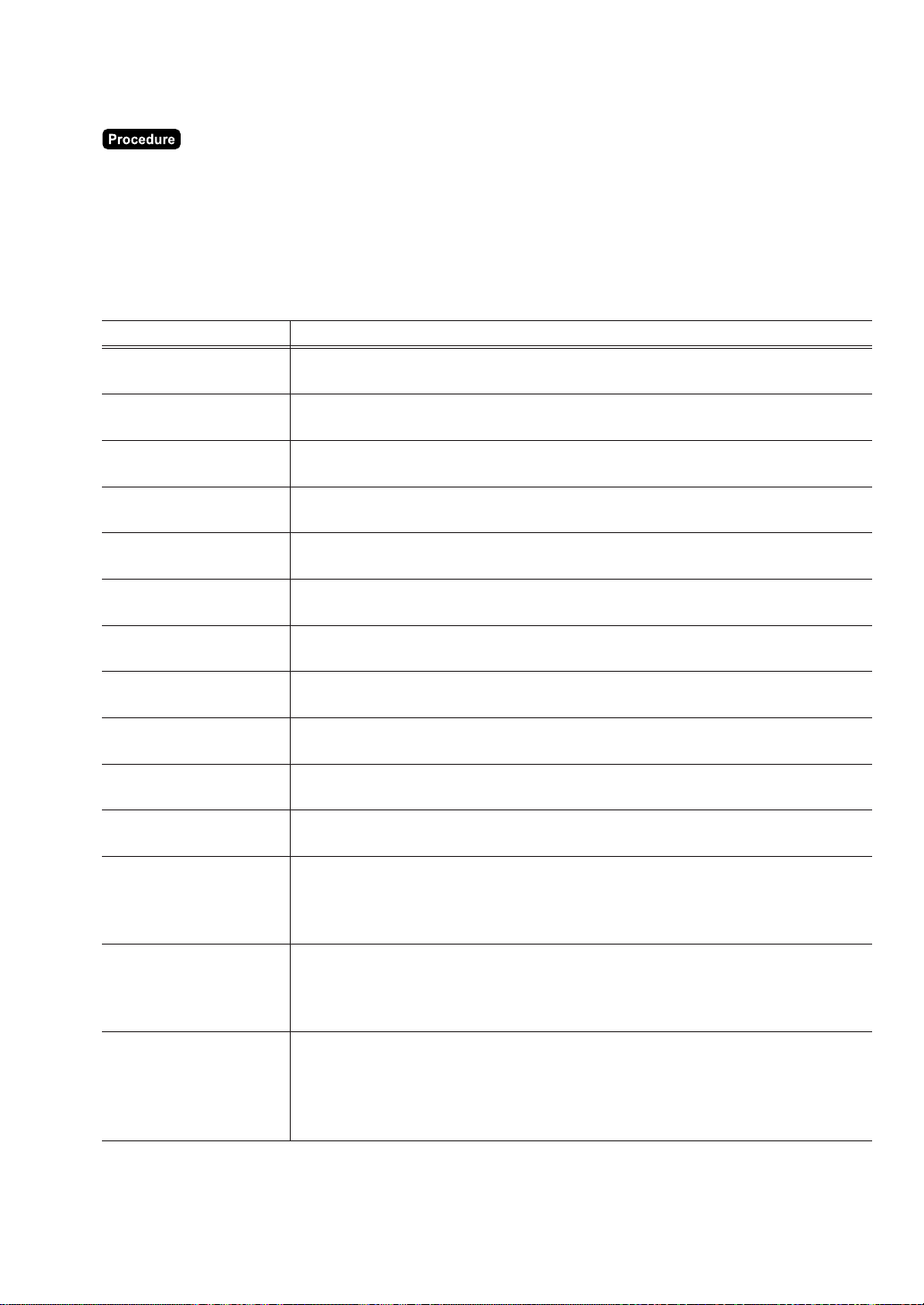
197
■■
■■
■ Final key (6 POS FUNCTIONS
➝
2 MEDIA
➝
6 FINAL KEY .......... PGM2)
(1) Select the PGM2 mode and touch the [2 POS SETTING] to perform the programming.
(2) Touch the [6 POS FUNCTIONS] button to display the menu, and touch the [2 MEDIA] button to display
the detail menu. Then touch the [6 FINAL KEY] button to program the final key.
(3) Touch the required programming item, and enter or select each parameter and touch the [ENTER] key.
Repeat this step (3) satisfactorily.
(4) To terminate the programming, touch the [EXIT] key.
Text Parameter
HEADER ON BILL
YES: Header printing on bill
NO: No header printing on bill
FOOTER ON BILL
YES: Footer printing on bill
NO: No footer printing on bill
BILL PRINT
COMPULSORY: Compulsory bill printing
NON-COMPULSORY: Non-compulsory bill printing
RECEIPT ISSUE
YES: Enables receipt issuing.
NO: Disables receipt issuing.
BILL PRINTING
YES: Enables bill printing.
NO: Disables bill printing.
BILL ON RCPT PRT.
YES: Enables bill printing on receipt.
NO: Disables bill printing on receipt.
OUTPUT KP NO.1
KP number of the network remote printer 1 (1 digit: (1 to 9)/0)
If the number “0” is entered, no remote printer will operate.
OUTPUT KP NO.2
KP number of the network remote printer 2 (1 digit: (1 to 9)/0)
If the number “0” is entered, no remote printer will operate.
OUTPUT KP NO.3
KP number of the network remote printer 3 (1 digit: (1 to 9)/0)
If the number “0” is entered, no remote printer will operate.
CHIT RECEIPT
YES: Prints a chit receipt in a remote printer format.
NO: Prints nothing on the chit receipt.
DATA ENT.JOB#
Key data entry number : max. 2 digits (1 to 99/0)
(1 to 99 : Data entry compulsory)/(0 : Data entry inhibit)
Operation type programming;
TYPE OPERATION
TYPE2 COMPULSORY: Type 2 compulsory
ACCT COMPULSORY: ACCT compulsory
NON-COMPULSORY: Non-compulsory
Type2 setting
TYPE2 ACTION CODE
AUTH-ONLY:
DIAL:
POST-AUTH:
Type2 type setting
CHECK:
TYPE2 TYPE DEBIT:
CREDIT:
GIFT CARD:
(Continued to the next page.)
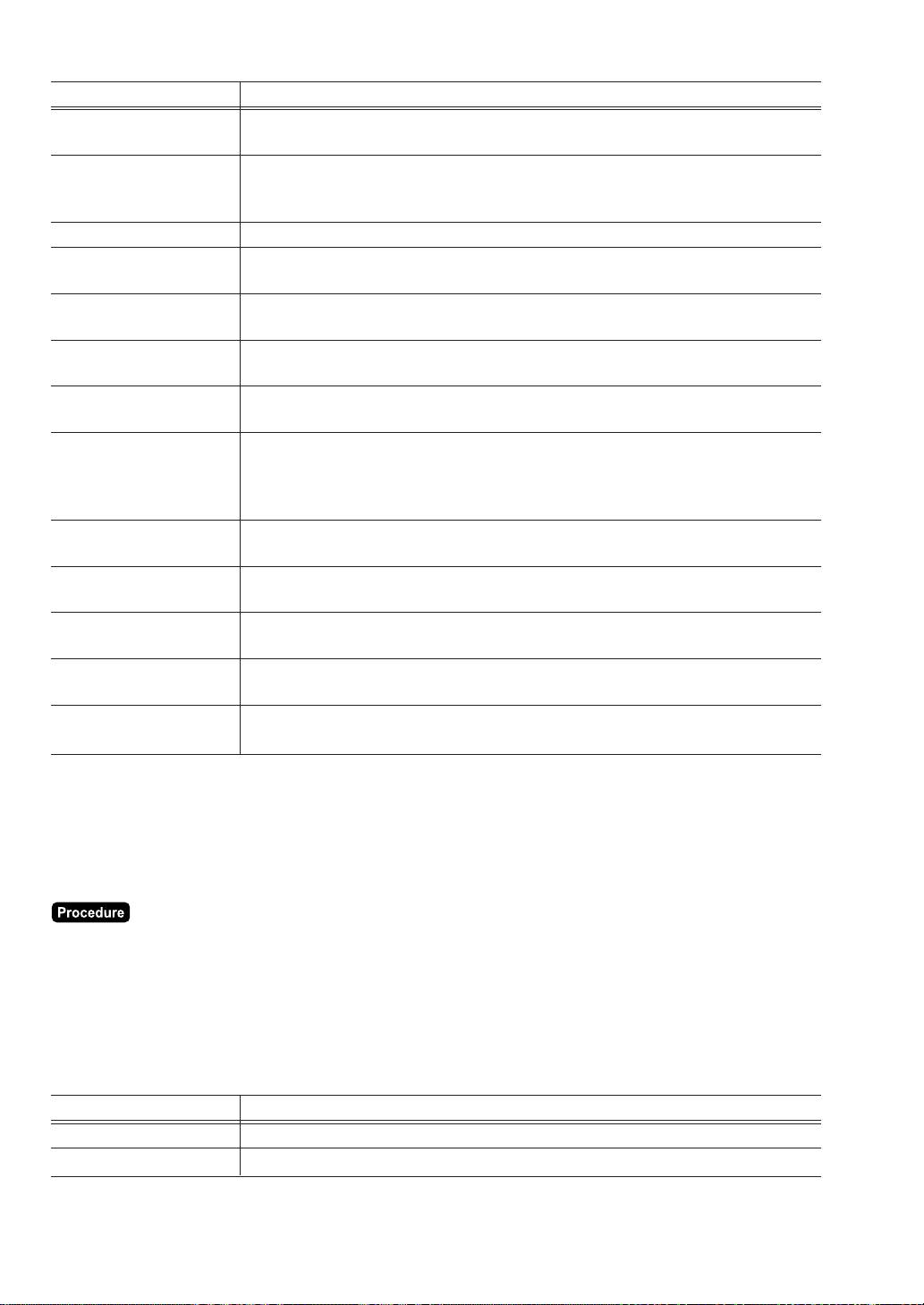
198
Text Parameter
CARD# PRT.
YES: Prints the card number.
NO: Not prints the card number.
FULL: Prints the entire card number.
CARD# FORMAT PARTIAL-1: Prints only part of the card number.
PARTIAL-2: Prints only part of the card number.
CARD# HIDE DIGIT Card number hide digits : max. 2 digits (0-99/04)
TIP LINE PRT.
YES: Enables tip line printing
NO: Disables tip line printing
SIGN.LINE PRT.
YES: Enables signature line printing
NO: Disables signature line printing
CARD HOLDER PRT.
YES: Enables name of card holder printing
NO: Disables name of card holder printing
EXPIRATION PRT.
YES: Enables expiration printing
NO: Disables expiration printing
Account balance kind setting
ACCT. BAL. KIND
CARD READER COMPULSORY:
OFFLINE COMPULSORY:
ONLINE COMPULSORY:
NEGATIVE#
YES: Enables negative# checking
NO: Disables negative# checking
POSITIVE#
YES: Enables positive# checking
NO: Disables positive# checking
NUMBER OF RCPT
Number of authorization receipt to be issued: 1 digit (1 to 9/0)
If the number “0” is entered, no authorization receipt is issued.
RCPT PRINT LALO
Low Amount Lockout (LALO) for Gift card authorization receipt print : max. 4 digits
(0 to 9999)
IC CARD
YES: Enables IC card
NO: Disables IC card
■■
■■
■ Check change (6 POS FUNCTIONS
➝
2 MEDIA
➝
7 CHANGE POLICY .......... PGM2)
(1) Select the PGM2 mode and touch the [2 POS SETTING] to perform the programming.
(2) Touch the [6 POS FUNCTIONS] button to display the menu, and touch the [2 MEDIA] button to display
the detail menu. Then touch the [7 CHANGE POLICY] button to program for the check change.
(3) Touch the required programming item, and enter or select each parameter and touch the [ENTER] key.
Repeat this step (3) satisfactorily.
(4) To terminate the programming, touch the [EXIT] key.
Text Parameter
TEXT Text: max. 16 characters (CHK/CG)
HALO High Amount Lockout (HALO) amount: max. 8 digits (0 to 999999.99)
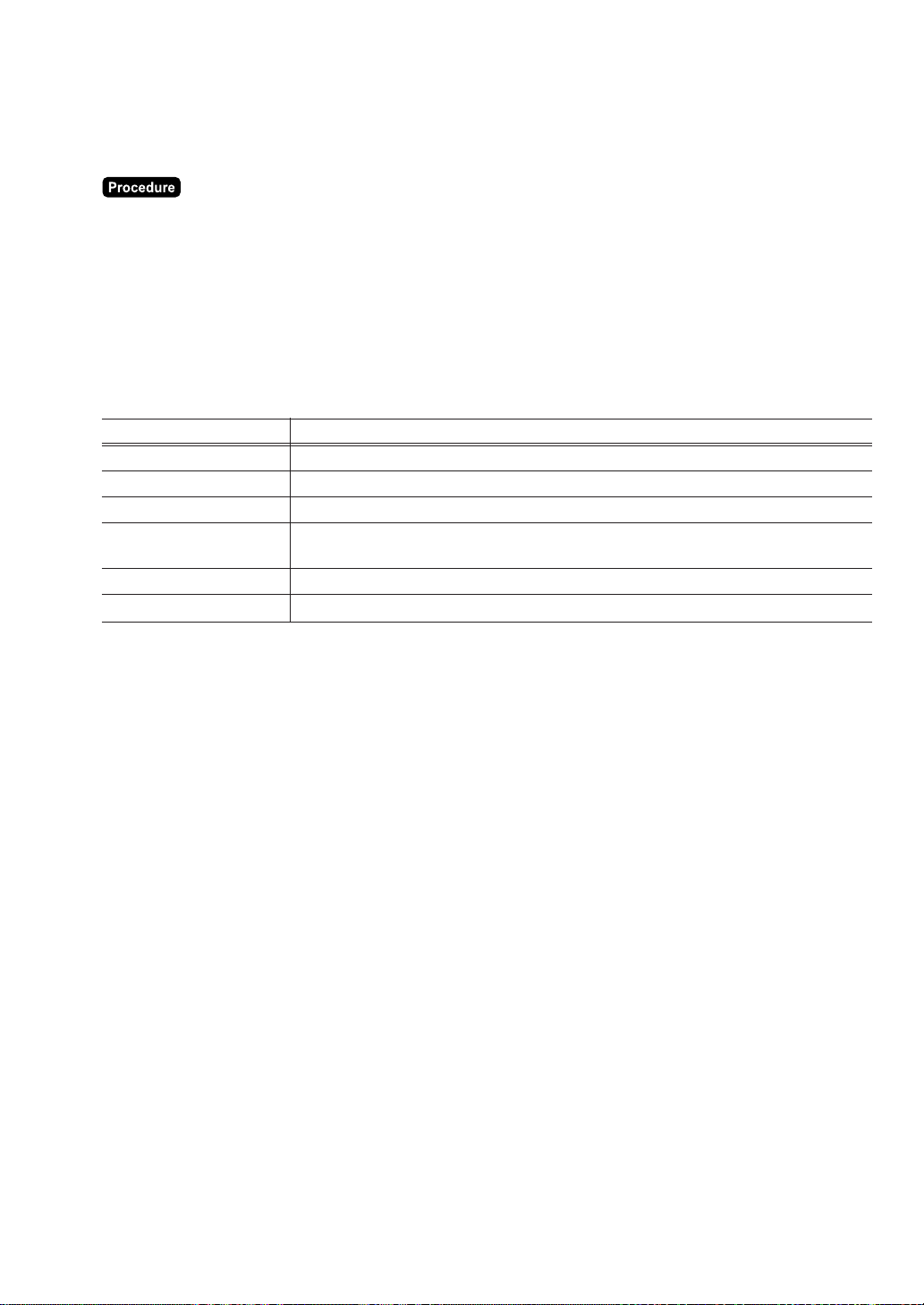
199
■■
■■
■ Conversion rates
(6 POS FUNCTIONS
➝
3 CONVERSION RATES
➝
1 CONVERSION RATES .......... PGM2)
UP to 4 conversion rates
(1) Select the PGM2 mode and touch the [2 POS SETTING] to perform the programming.
(2) Touch the [6 POS FUNCTIONS] button to display the menu, and touch the [3 CONVERSION RATES]
button to display the detail menu. Then touch the [1 CONVERSION RATES] button to display the
conversion rate list.
(3) Select the conversion rate from the list.
(4) Touch the required programming item, and enter or select each parameter and touch the [ENTER] key.
Repeat this step (4) satisfactorily.
(5) To terminate the programming, touch the [EXIT] key.
Text Parameter
RATE Currency conversion rate: 0 to 9999.9999
TEXT Text : max. 16 characters (CONV n)
DESCRIPTOR Currency descriptor : max. 4 characters (space)
DRAWER OPEN ST= 0
NO: Disables drawer opening (when ST = 0).
YES: Opens the drawer (when ST = 0).
DRAWER NO. Foreign currency drawer no. : 1 digit (0 to 2)
AUTHORITY LEVEL Authority Level : 1 digit (Lowest: 1 to 5: Highest)

200
■■
■■
■ Money type (6 POS FUNCTIONS
➝
3 CONVERSION RATES
➝
2 MONEY .......... PGM2)
The money type is used to define items for entry of SCM+/SCM- and CID entry.
UP to 20 money type
(1) Select the PGM2 mode and touch the [2 POS SETTING] to perform the programming.
(2) Touch the [6 POS FUNCTIONS] button to display the menu, and touch the [3 CONVERSION RATES]
button to display the detail menu. Then touch the [2 MONEY] button to display the money type list.
(3) Select the money type from the list.
(4) Touch the required programming item, and enter or select each parameter and touch the [ENTER] key.
Repeat this step (4) satisfactorily.
(5) To terminate the programming, touch the [EXIT] key.
Text Parameter
TEXT Text: max. 16 characters
AMOUNT Unit amount: max. 6 digits
The default data is the followings;
Classification Default text Default amount
MONEY1 1 CENTS 0.01
MONEY2 5 CENTS 0.05
MONEY3 10 CENTS 0.10
MONEY4 25 CENTS 0.25
MONEY5 50 CENTS 0.50
MONEY6 100 CENTS 1.00
MONEY7 1$ 1.00
MONEY8 2$ 2.00
MONEY9 5$ 5.00
MONEY10 10$ 10.00
MONEY11 20$ 20.00
MONEY12 50$ 50.00
MONEY13 100$ 100.00
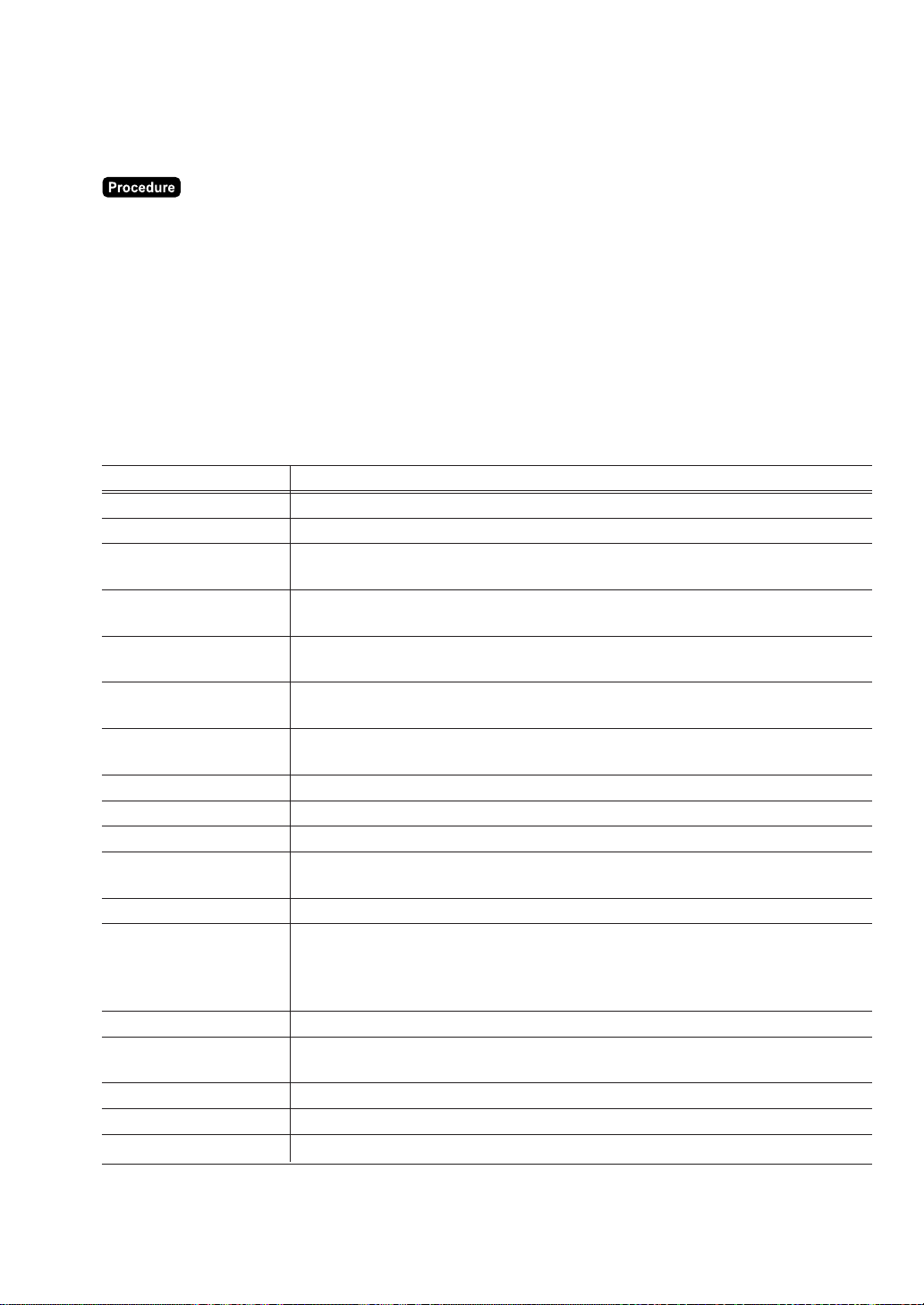
201
■■
■■
■ ( - ) keys (3 POS FUNCTIONS
➝
1 SALE/ITEM COUPONS .......... PGM1)
(6 POS FUNCTIONS
➝
4 FUNCTIONS
➝
1 SALE/ITEM COUPONS .......... PGM2)
UP to 99 ( - ) keys
(1) Select the PGM1 or PGM2 mode and touch the [2 POS SETTING] to perform the programming.
(2) In the PGM1 mode, touch the [3 POS FUNCTIONS] button to display the menu, and touch the [1
SALE/ITEM COUPONS] button to display the ( - ) key list.
(2)’ In the PGM2 mode, touch the [6 POS FUNCTIONS] button to display the menu, and touch the [4
FUNCTIONS] button to display the detail menu. Then touch the [1 SALE/ITEM COUPONS] button to
display the ( - ) key list.
(3) Select the ( - ) key to program each ( - ) key.
(4) Touch the required programming item, and enter or select each parameter and touch the [ENTER] key.
Repeat this step (4) satisfactorily.
(5) To terminate the programming, touch the [EXIT] key.
Text Parameter
AMOUNT Discount amount: max. 6 digits (0 to 999999)
TEXT Text: max. 16 characters (( – ) n)
SIGN
–: Minus amount (discount)
+: Plus amount (premium)
TAXABLE1
YES: Tax 1 taxable
NO: Tax 1 non-taxable
TAXABLE2
YES: Tax 2 taxable
NO: Tax 2 non-taxable
TAXABLE3
YES: Tax 3 taxable
NO: Tax 3 non-taxable
TAXABLE4
YES: Tax 4 taxable
NO: Tax 4 non-taxable
GR.DISC. Group discount grouping max. 2 digits (1 to 99/0)
GR.DISC. Group discount grouping max. 2 digits (1 to 99/0)
GR.DISC. Group discount grouping max. 2 digits (1 to 99/0)
TEFRA
YES: TEFRA report
NO: Non-TEFRA report
HALO High Amount Lockout (HALO) amount: max. 7 digits (0 to 9999999)
Entry type;
ENTRY TYPE
ITEM: Item(-)
SBTL: Subtotal (-)
BOGO: Bogo entry
ASSOCIATED DEPT. Associated dept. no. : max. 2 digits (1 to 99/0)
DATA ENT.JOB#
Key data entry number : max. 2 digits (1 to 99/0)
(1 to 99 : Data entry compulsory)/(0 : Data entry inhibit)
AUTHORITY LEVEL Authority level : 1 digit (Lowest: 1 to 5: Highest)
EXPIRY DATE Expiry date max. 6 digits (000000: 00/00/2000)
REVENUE NO. Revenue center no. : 1 digit (1 to 9)
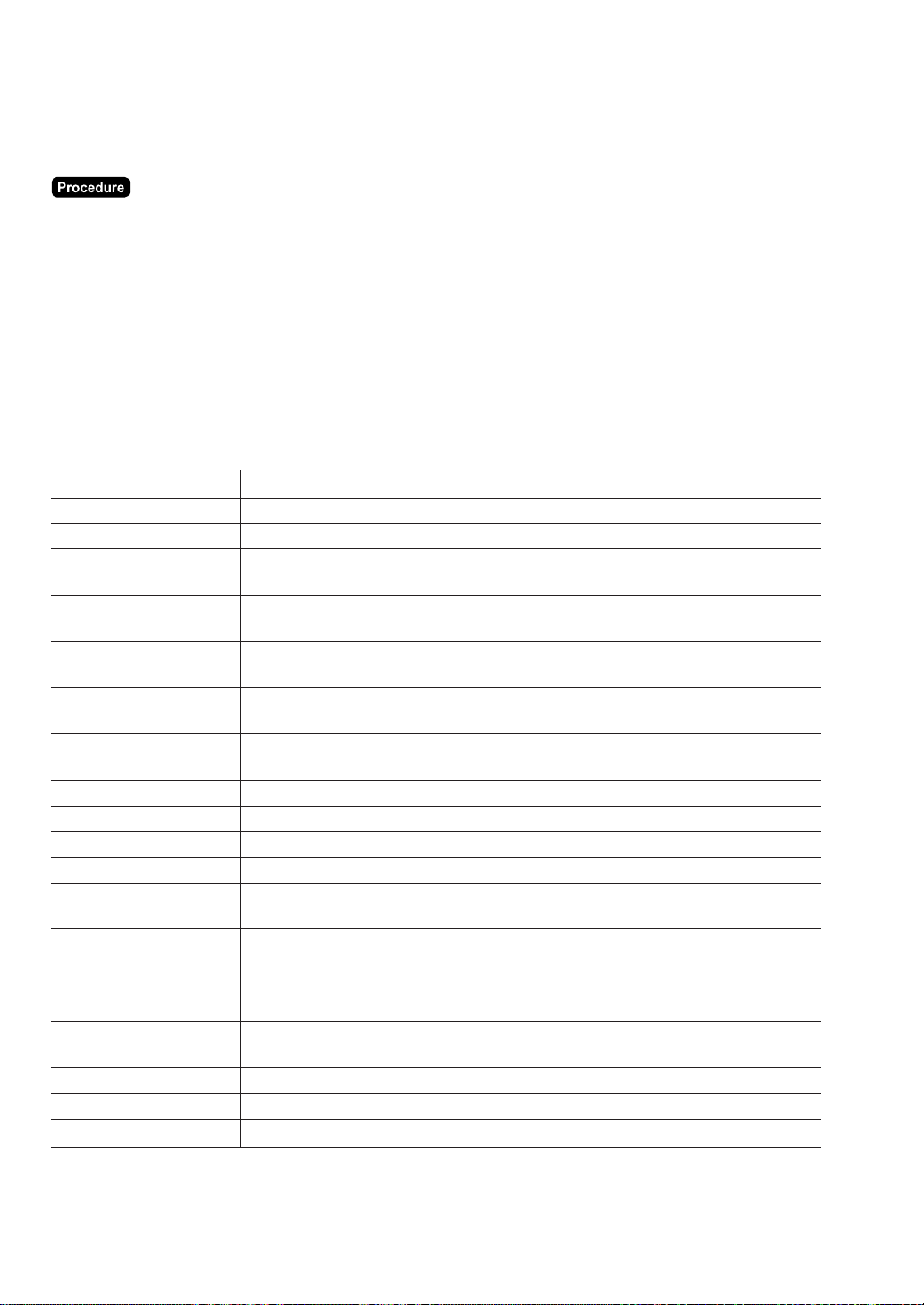
202
■■
■■
■ % keys (3 POS FUNCTIONS
➝
2 SALE/ITEM DISCOUNTS .......... PGM1)
(6 POS FUNCTIONS
➝
4 FUNCTIONS
➝
2 SALE/ITEM DISCOUNTS .......... PGM2)
UP to 99 % keys
(1) Select the PGM1 or PGM2 mode and touch the [2 POS SETTING] to perform the programming.
(2) In the PGM1 mode, touch the [3 POS FUNCTIONS] button to display the menu, and touch the [2
SALE/ITEM DISCOUNTS] button to display the ( % ) key list.
(2)’ In the PGM2 mode, touch the [6 POS FUNCTIONS] button to display the menu, and touch the [4
FUNCTIONS] button to display the detail menu. Then touch the [2 SALE/ITEM DISCOUNTS] button to
display the ( % ) key list.
(3) Select the ( % ) key to program each ( % ) key.
(4) Touch the required programming item, and enter or select each parameter and touch the [ENTER] key.
Repeat this step (4) satisfactorily.
(5) To terminate the programming, touch the [EXIT] key.
Text Parameter
RATE Percent rate: max. 5 digits (0 to 100.00)
TEXT Text: max. 16 characters (% n)
SIGN
–: Minus (discount)
+: Plus (premium)
TAXABLE1
YES: Tax 1 taxable
NO: Tax 1 non-taxable
TAXABLE2
YES: Tax 2 taxable
NO: Tax 2 non-taxable
TAXABLE3
YES: Tax 3 taxable
NO: Tax 3 non-taxable
TAXABLE4
YES: Tax 4 taxable
NO: Tax 4 non-taxable
%HALO High Amount Lockout (HALO) for the percent:: max. 5 digits (0 to 100.00)
GR.DISC. Group discount grouping max. 2 digits (1 to 99/0)
GR.DISC. Group discount grouping max. 2 digits (1 to 99/0)
GR.DISC. Group discount grouping max. 2 digits (1 to 99/0)
TEFRA
YES: TEFRA report
NO: Non-TEFRA report
Entry type;
ENTRY TYPE ITEM: Item %
SBTL: Subtotal %
ASSOCIATED DEPT. Associated dept. no. : max. 2 digits (1 to 99/0)
DATA ENT.JOB#
Key data entry number : max. 2 digits (1 to 99/0)
(1 to 99 : Data entry compulsory)/(0 : Data entry inhibit)
AUTHORITY LEVEL Authority level : 1 digit (Lowest: 1 to 5: Highest)
EXPIRY DATE Expiry date max. 6 digits (000000: 00/00/2000)
REVENUE NO. Revenue center no. : 1 digit (1 to 9)
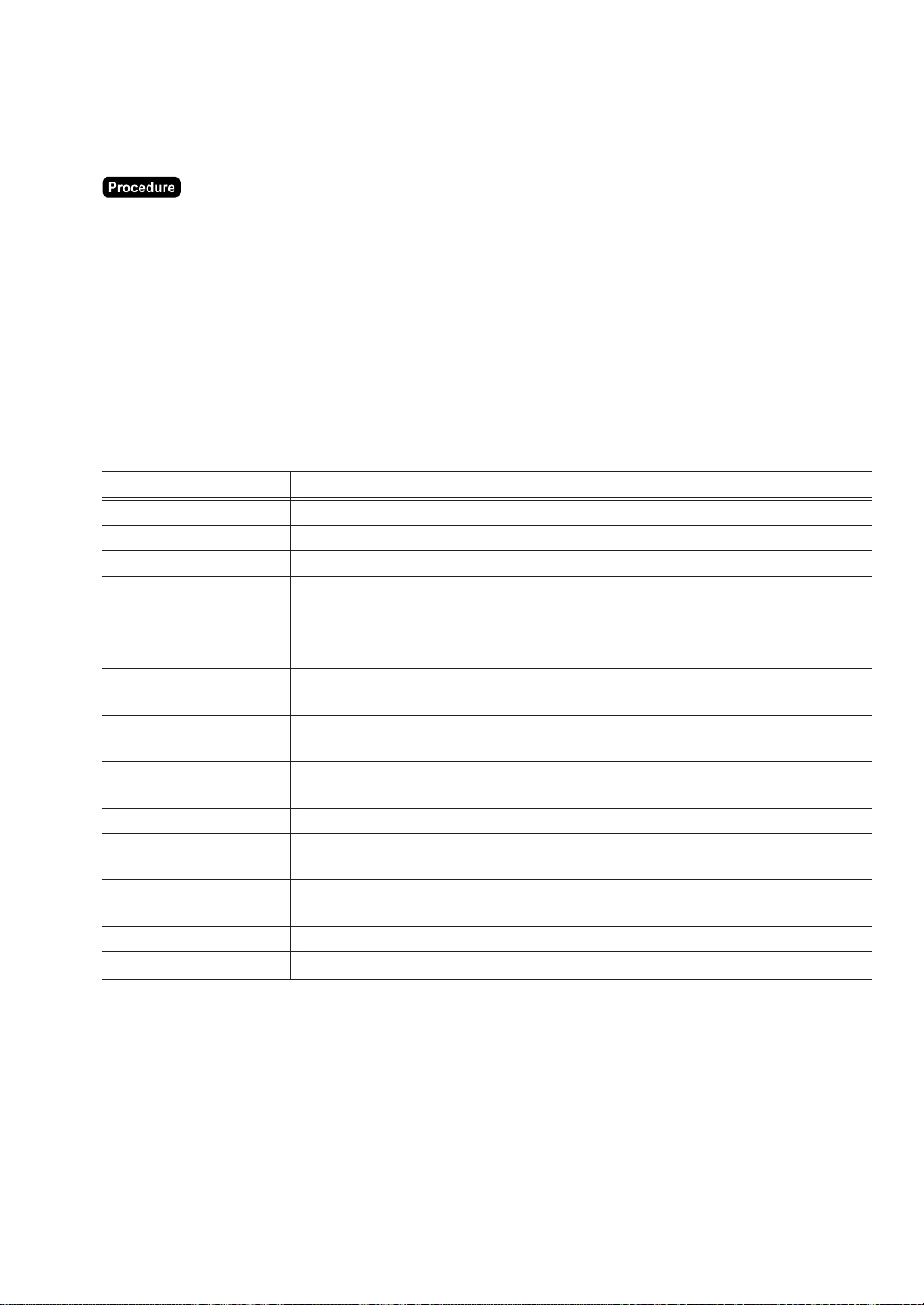
203
■■
■■
■ Group discount
(3 POS FUNCTIONS
➝
3 GROUP DISCOUNTS .......... PGM1)
(6 POS FUNCTIONS
➝
4 FUNCTIONS
➝
3 GROUP DISCOUNTS .......... PGM2)
UP to 99 group discounts
(1) Select the PGM1 or PGM2 mode and touch the [2 POS SETTING] to perform the programming.
(2) In the PGM1 mode, touch the [3 POS FUNCTIONS] button to display the menu, and touch the [3
GROUP DISCOUNTS] button to display the group discount key list.
(2)’ In the PGM2 mode, touch the [6 POS FUNCTIONS] button to display the menu, and touch the [4
FUNCTIONS] button to display the detail menu. Then touch the [3 GROUP DISCOUNTS] button to
display the group discount key list.
(3) Select the group discount key to program each group discount key.
(4) Touch the required programming item, and enter or select each parameter and touch the [ENTER] key.
Repeat this step (4) satisfactorily.
(5) To terminate the programming, touch the [EXIT] key.
Text Parameter
RATE Percent rate: max. 5 digits (0 to 100.00)
TEXT (%) Text for group discount: max. 16 characters (GDISC%n)
TEXT (ST) Text for group subtotal: max. 16 characters (GDn ST)
SIGN
–: Minus (discount)
+: Plus (premium)
TAXABLE1
YES: Tax 1 taxable
NO: Tax 1 non-taxable
TAXABLE2
YES: Tax 2 taxable
NO: Tax 2 non-taxable
TAXABLE3
YES: Tax 3 taxable
NO: Tax 3 non-taxable
TAXABLE4
YES: Tax 4 taxable
NO: Tax 4 non-taxable
%HALO High Amount Lockout (HALO) for the percent: max. 5 digits (0 to 100.00)
TEFRA
YES: TEFRA report
NO: Non-TEFRA report
DATA ENT.JOB#
Key data entry number : max. 2 digits (1 to 99/0)
(1 to 99 : Data entry compulsory)/(0 : Data entry inhibit)
AUTHORITY LEVEL Authority level : 1 digit (Lowest: 1 to 5: Highest)
REVENUE NO. Revenue center no. : 1 digit (1 to 9)
204
■■
■■
■ Vender coupon UPC
(6 POS FUNCTIONS
➝
4 FUNCTIONS
➝
4 VENDER COUPON UPC .......... PGM2)
Text Parameter
REVENUE NO. Revenue center no. : 1 digit (1 to 9)
■■
■■
■ Tip (3 POS FUNCTIONS
➝
4 TIP .......... PGM1)
(6 POS FUNCTIONS
➝
4 FUNCTIONS
➝
5 TIP .......... PGM2)
(1) Select the PGM1 or PGM2 mode and touch the [2 POS SETTING] to perform the programming.
(2) In the PGM1 mode, touch the [3 POS FUNCTIONS] button to display the menu, and touch the [4 TIP]
button to program for the tip function.
(2)’ In the PGM2 mode, touch the [6 POS FUNCTIONS] button to display the menu, and touch the [4
FUNCTIONS] button to display the detail menu. Then touch the [5 TIP] button to program for the tip
function.
(3) Touch the required programming item, and enter or select each parameter and touch the [ENTER] key.
Repeat this step (3) satisfactorily.
(4) To terminate the programming, touch the [EXIT] key.
Text Parameter
RATE Percent rate: max. 5 digits (0 to 100.00)
TEXT Text: max. 16 characters (TIP)
“Over tender is tip” function;
OVER TEND TIP YES: Enable
NO: Disable
HALO High Amount Lockout (HALO) amount: max. 7 digits (0 to 9999999)
(1) Select the PGM2 mode and touch the [2 POS SETTING] to perform the programming.
(2) In the PGM2 mode, touch the [6 POS FUNCTIONS] button to display the menu, and touch the [4
FUNCTIONS] button to display the detail menu. Then touch the [4 VENDER COUPON UPC] button to
program for the vender coupon UPC.
(3) Enter the revenue center number and touch the [ENTER] key.
(4) To terminate the programming, touch the [EXIT] key.
205
■■
■■
■ RA functions (6 POS FUNCTIONS
➝
4 FUNCTIONS
➝
6 RA FUNCTIONS .......... PGM2)
UP to 9 RA keys
(1) Select the PGM2 mode and touch the [2 POS SETTING] to perform the programming.
(2) Touch the [6 POS FUNCTIONS] button to display the menu, and touch the [4 FUNCTIONS] button to
display the detail menu. Then touch the [6 RA FUNCTIONS] button to display the RA list.
(3) Select the RA from the list.
(4) Touch the required programming item, and enter or select each parameter and touch the [ENTER] key.
Repeat this step (4) satisfactorily.
(5) To terminate the programming, touch the [EXIT] key.
Text Parameter
HALO High Amount Lockout (HALO) amount: max. 8 digits (0 to 999999.99)
TEXT Text: max. 16 characters (
***
RAn)
Operation type programming;:
TYPE ACCT COMPULSORY: ACCT compulsory
NON-COMPULSORY: Non-compulsory
Account balance kind setting
ACCT. BAL. KIND
CARD READER COMPULSORY:
OFFLINE COMPULSORY:
ONLINE COMPULSORY:
NEGATIVE#
YES: Enables negative# checking
NO: Disables negative# checking
POSITIVE#
YES: Enables positive# checking
NO: Disables positive# checking
DATA ENT.JOB#
Key data entry number : max. 2 digits (1 to 99/0)
(1 to 99 : Data entry compulsory)/(0 : Data entry inhibit)
AUTHORITY LEVEL Authority level : 1 digit (Lowest: 1 to 5: Highest)
206
■■
■■
■ PO functions (6 POS FUNCTIONS
➝
4 FUNCTIONS
➝
7 PO FUNCTIONS .......... PGM2)
UP to 9 PO keys
(1) Select the PGM2 mode and touch the [2 POS SETTING] to perform the programming.
(2) Touch the [6 POS FUNCTIONS] button to display the menu, and touch the [4 FUNCTIONS] button to
display the detail menu. Then touch the [7 PO FUNCTIONS] button to display the PO list.
(3) Select the PO from the list.
(4) Touch the required programming item, and enter or select each parameter and touch the [ENTER] key.
Repeat this step (4) satisfactorily.
(5) To terminate the programming, touch the [EXIT] key.
Text Parameter
HALO High Amount Lockout (HALO) amount: max. 8 digits (0 to 999999.99)
TEXT Text: max. 16 characters (
***
POn)
DATA ENT.JOB#
Key data entry number : max. 2 digits (1 to 99/0)
(1 to 99 : Data entry compulsory)/(0 : Data entry inhibit)
AUTHORITY LEVEL Authority level : 1 digit (Lowest: 1 to 5: Highest)
207
■■
■■
■ No sale (6 POS FUNCTIONS
➝
4 FUNCTIONS
➝
8 NO SALE .......... PGM2)
(1) Select the PGM2 mode and touch the [2 POS SETTING] to perform the programming.
(2) In the PGM2 mode, touch the [6 POS FUNCTIONS] button to display the menu, and touch the [4
FUNCTIONS] button to display the detail menu. Then touch the [8 NO SALE] button to program for the
no-sale function.
(3) Touch the required programming item, and enter or select each parameter and touch the [ENTER] key.
Repeat this step (3) satisfactorily.
(4) To terminate the programming, touch the [EXIT] key.
Text Parameter
TEXT Text: max. 16 characters (NO SALE)
DATA ENT.JOB#
Key data entry number : max. 2 digits (1 to 99/0)
(1 to 99 : Data entry compulsory)/(0 : Data entry inhibit)
AUTHORITY LEVEL Authority level : 1 digit (Lowest: 1 to 5: Highest)
■■
■■
■ Direct void (6 POS FUNCTIONS
➝
4 FUNCTIONS
➝
9 VOID
➝
1 DIRECT VOID .......... PGM2)
(1) Select the PGM2 mode and touch the [2 POS SETTING] to perform the programming.
(2) Touch the [6 POS FUNCTIONS] button to display the menu, and touch the [4 FUNCTIONS] button to
display the detail menu. Then touch the [9 VOIDS] button to display the void function list.
(3) Select the “DIRECT VOID” from the list.
(4) Touch the required programming item, and enter or select each parameter and touch the [ENTER] key.
Repeat this step (4) satisfactorily. For the programming items, refer to the following tables.
(5) To terminate the programming, touch the [EXIT] key.
■■
■■
■ Indirect void
(6 POS FUNCTIONS
➝
4 FUNCTIONS
➝
9 VOID
➝
2 INDIRECT VOID .......... PGM2)
(1) Select the PGM2 mode and touch the [2 POS SETTING] to perform the programming.
(2) Touch the [6 POS FUNCTIONS] button to display the menu, and touch the [4 FUNCTIONS] button to
display the detail menu. Then touch the [9 VOIDS] button to display the void function list.
(3) Select the “INDIRECT VOID” from the list.
(4) Touch the required programming item, and enter or select each parameter and touch the [ENTER] key.
Repeat this step (4) satisfactorily. For the programming items, refer to the following tables.
(5) To terminate the programming, touch the [EXIT] key.
208
■■
■■
■ Printed void
(6 POS FUNCTIONS
➝
4 FUNCTIONS
➝
9 VOID
➝
3 PRINTED VOID .......... PGM2)
(1) Select the PGM2 mode and touch the [2 POS SETTING] to perform the programming.
(2) Touch the [6 POS FUNCTIONS] button to display the menu, and touch the [4 FUNCTIONS] button to
display the detail menu. Then touch the [9 VOIDS] button to display the void function list.
(3) Select the “PRINTED VOID” from the list.
(4) Touch the required programming item, and enter or select each parameter and touch the [ENTER] key.
Repeat this step (4) satisfactorily. For the programming items, refer to the following tables.
(5) To terminate the programming, touch the [EXIT] key.
■■
■■
■ Subtotal void
(6 POS FUNCTIONS
➝
4 FUNCTIONS
➝
9 VOID
➝
4 SUBTOTAL VOID .......... PGM2)
(1) Select the PGM2 mode and touch the [2 POS SETTING] to perform the programming.
(2) Touch the [6 POS FUNCTIONS] button to display the menu, and touch the [4 FUNCTIONS] button to
display the detail menu. Then touch the [9 VOIDS] button to display the void function list.
(3) Select the “SUBTOTAL VOID” from the list.
(4) Touch the required programming item, and enter or select each parameter and touch the [ENTER] key.
Repeat this step (4) satisfactorily. For the programming items, refer to the following tables.
(5) To terminate the programming, touch the [EXIT] key.
■■
■■
■ Check void (6 POS FUNCTIONS
➝
4 FUNCTIONS
➝
9 VOID
➝
5 CHECK VOID .......... PGM2)
(1) Select the PGM2 mode and touch the [2 POS SETTING] to perform the programming.
(2) Touch the [6 POS FUNCTIONS] button to display the menu, and touch the [4 FUNCTIONS] button to
display the detail menu. Then touch the [9 VOIDS] button to display the void function list.
(3) Select the “CHECK VOID” from the list.
(4) Touch the required programming item, and enter or select each parameter and touch the [ENTER] key.
Repeat this step (4) satisfactorily. For the programming items, refer to the following tables.
(5) To terminate the programming, touch the [EXIT] key.
Text Parameter
Text : max. 16 characters;
(DIR VD) : Direct void
TEXT
(NONP VD) : Indirect void
(PRNT VD) : Printed void
(SBTL VD) : Subtotal void
(CHK VD) : Check void
DATA ENT.JOB#
Key data entry number : max. 2 digits (1 to 99/0)
(1 to 99 : Data entry compulsory)/(0 : Data entry inhibit)
AUTHORITY LEVEL Authority level : 1 digit (Lowest: 1 to 5: Highest)
209
■■
■■
■ Refund (6 POS FUNCTIONS
➝
4 FUNCTIONS
➝
10 REFUND
➝
1 REFUND .......... PGM2)
(1) Select the PGM2 mode and touch the [2 POS SETTING] to perform the programming.
(2) Touch the [6 POS FUNCTIONS] button to display the menu, and touch the [4 FUNCTIONS] button to
display the detail menu. Then touch the [10 REFUND] button to display the refund function list.
(3) Select the “REFUND” from the list.
(4) Touch the required programming item, and enter or select each parameter and touch the [ENTER] key.
Repeat this step (4) satisfactorily. For the programming items, refer to the following tables.
(5) To terminate the programming, touch the [EXIT] key.
■■
■■
■ Return
(6 POS FUNCTIONS
➝
4 FUNCTIONS
➝
10 REFUND
➝
2 RETURN .......... PGM2)
(1) Select the PGM2 mode and touch the [2 POS SETTING] to perform the programming.
(2) Touch the [6 POS FUNCTIONS] button to display the menu, and touch the [4 FUNCTIONS] button to
display the detail menu. Then touch the [10 REFUND] button to display the refund function list.
(3) Select the “RETURN” from the list.
(4) Touch the required programming item, and enter or select each parameter and touch the [ENTER] key.
Repeat this step (4) satisfactorily. For the programming items, refer to the following tables.
(5) To terminate the programming, touch the [EXIT] key.
Text Parameter
Text : max. 16 characters;
TEXT (REFUND) : Refund
(RETURN) : Return
DATA ENT.JOB#
Key data entry number : max. 2 digits (1 to 99/0)
(1 to 99 : Data entry compulsory)/(0 : Data entry inhibit)
AUTHORITY LEVEL Authority level : 1 digit (Lowest: 1 to 5: Highest)
210
■■
■■
■ Non add code (6 POS FUNCTIONS
➝
4 FUNCTIONS
➝
11 NON ADD CODE .......... PGM2)
(1) Select the PGM2 mode and touch the [2 POS SETTING] to perform the programming.
(2) In the PGM2 mode, touch the [6 POS FUNCTIONS] button to display the menu, and touch the [4
FUNCTIONS] button to display the detail menu. Then touch the [11 NON ADD CODE] button to
program for the non-add code.
(3) Touch the required programming item, and enter or select each parameter and touch the [ENTER] key.
Repeat this step (3) satisfactorily.
(4) To terminate the programming, touch the [EXIT] key.
Text Parameter
TEXT Text : max. 8 characters (#)
DATA ENT.JOB#
Key data entry number : max. 2 digits (1 to 99/0)
(1 to 99 : Data entry compulsory)/(0 : Data entry inhibit)
AUTHORITY LEVEL Authority level : 1 digit (Lowest: 1 to 5: Highest)
■■
■■
■ Free text (6 POS FUNCTIONS
➝
4 FUNCTIONS
➝
12 FREE TEXT .......... PGM2)
Free text no.: 2 digits (1 to 99)
(1) Select the PGM2 mode and touch the [2 POS SETTING] to perform the programming.
(2) Touch the [6 POS FUNCTIONS] button to display the menu, and touch the [4 FUNCTIONS] button to
display the detail menu. Then touch the [12 FREE TEXT] button to display the free text list.
(3) Select the free text from the list.
(4) Touch the required programming item, and enter or select each parameter and touch the [ENTER] key.
Repeat this step (4) satisfactorily.
(5) To terminate the programming, touch the [EXIT] key.
Text Parameter
TEXT Text : max. 16 characters (TEXTnn)
Free text type ;
FREE TEXT TYPE FOR ORDER:
FOR ITEM:
ASSIGNED KP
KP number of the network remote printer 1 (1 digit: (1 to 9)/0)
If the number “0” is entered, no remote printer will operate.
PRINTED ON
TOP OF KP: Planto Printed on top of KP
BOTTOM OF KP: Printed on bottom of KP
CVM1 CTRL CHAR. CVM (Color Video Monitor) 1 control character (0 thru 255)
CVM2 CTRL CHAR. CVM (Color Video Monitor) 2 control character (0 thru 255)

211
■■
■■
■ Negative code (6 POS FUNCTIONS
➝
5 NEGATIVE# .......... PGM2)
(1) Select the PGM2 mode and touch the [2 POS SETTING] to perform the programming.
(2) Touch the [6 POS FUNCTIONS] button to display the menu, and touch the [5 NEGATIVE#] button to
display the negative code list.
(3) Select the negative code or enter the negative code by using the “NUMBER ENTRY” menu.
(4) Program the following data for the negative code.
To delete the negative code, touch the [DELETE] key.
(5) To finish the programming touch the [EXIT] key.
Text Parameter
AUTHORITY LEVEL Authority level : 1 digit (Lowest: 1 to 5: Highest)
■■
■■
■ Positive code (6 POS FUNCTIONS
➝
5 POSITIVE# .......... PGM2)
(1) Select the PGM2 mode and touch the [2 POS SETTING] to perform the programming.
(2) Touch the [6 POS FUNCTIONS] button to display the menu, and touch the [6 POSITIVE#] button to
program the positive code.
(3) Enter the positive code by using the “NUMBER ENTRY” menu.
To delete the positive code, touch the required code. The confirmation window is displayed, then touch
the “YES” bottom.
(4) To finish the programming touch the [EXIT] key.
212
■■
■■
■ Report zero skip (7 TERMINAL
➝
1 REPORTS
➝
1 ZERO SKIP .......... PGM2)
(1) Select the PGM2 mode and touch the [2 POS SETTING] to perform the programming.
(2) Touch the [7 TERMINAL] button to display the menu, and touch the [1 REPORTS] button to display the
detail menu. Then touch the [1 ZERO SKIP] button to program the zero skip data.
(3) Touch the required programming item, and select each parameter and touch the [ENTER] key.
Repeat this step (3) satisfactorily.
(4) To terminate the programming, touch the [EXIT] key.
Text Parameter
CASHIER
NOT SKIP: Does not skip those data that are “0” sales in the cashier report.
SKIP: Skips those data that are “0” sales in the cashier report.
TRANSACTION
NOT SKIP: Does not skip those data that are “0” sales in the transaction report.
SKIP: Skips those data that are “0” sales in the transaction report.
DEPARTMENT
NOT SKIP: Does not skip those data that are “0” sales in the dept. report.
SKIP: Skips those data that are “0” sales in the dept. report.
PLU
NOT SKIP: Does not skip those data that are “0” sales in the PLU report.
SKIP: Skips those data that are “0” sales in the PLU report.
HOURLY
NOT SKIP: Does not skip those data that are “0” sales in the hourly report.
SKIP: Skips those data that are “0” sales in the hourly report.
DAILY NET
NOT SKIP: Does not skip those data that are “0” sales in the daily net report.
SKIP: Skips those data that are “0” sales in the daily net report.
SCM
NOT SKIP: Does not skip those data that are “0” sales in the SCM report.
SKIP: Skips those data that are “0” sales in the SCM report.
DISCOUNT FOR PLU
NOT SKIP: Does not skip those data that are “0” sales in the discount for PLU report.
SKIP: Skips those data that are “0” sales in the discount for PLU report.
TAX
NOT SKIP: Does not skip those data that are “0” sales in the tax report.
SKIP: Skips those data that are “0” sales in the tax report.
213
■■
■■
■ Report print options
(7 TERMINAL
➝
1 REPORTS
➝
2 REPORT PRINT OPTIONS .......... PGM2)
(1) Select the PGM2 mode and touch the [2 POS SETTING] to perform the programming.
(2) Touch the [7 TERMINAL] button to display the menu, and touch the [1 REPORTS] button to display the
detail menu. Then touch the [2 REPORT PRINT OPTIONS] button to program the print options.
(3) Touch the required programming item, and select each parameter and touch the [ENTER] key.
Repeat this step (3) satisfactorily.
(4) To terminate the programming, touch the [EXIT] key.
Text Parameter
SHARE%
PRINT: Share% is printed in department report.
NOT PRINT: Share% is not printed in department report.
GT REVENUE
PRINT: GT is printed in revenue report.
NOT PRINT: GT is not printed in revenue report.
TRANS REVENUE
PRINT: Transaction is printed in revenue report.
NOT PRINT: Transaction is not printed in revenue report.
TAX ST
PRINT: TAX ST is printed between NET1 & NET2.
NOT PRINT: TAX ST is not printed between NET1 & NET2.
NET PRT(CASHIER)
PRINT: NET is printed on cashier report.
NOT PRINT: NET is not printed on cashier report.
NET PRT(CID)
PRINT: NET is printed on CID report.
NOT PRINT: NET is not printed on CID report.
(When the cover count is set as “Non-Compulsory”.)
OPN GLU REPO CT PRINT: COVER CT is printed on open GLU report.
NOT PRINT: COVER CT is not printed on open GLU report.
(When the cover count is set as “Non-Compulsory”.)
CLS GLU REPO CT PRINT: COVER CT is printed on open GLU report.
NOT PRINT: COVER CT is not printed on closed GLU report.
(When the cover count is set as “Non-Compulsory”.)
OPN GLU BY CAH CT PRINT: COVER CT is printed on open GLU report.
NOT PRINT: COVER CT is not printed on open GLU by cashier report.
(When the cover count is set as “Non-Compulsory”.)
CLS GLU BY CAH CT PRINT: COVER CT is printed on open GLU report.
NOT PRINT: COVER CT is not printed on closed GLU by cashier report.
214
■■
■■
■ Department group projection
(7 TERMINAL
➝
1 REPORTS
➝
3 DEPT GR. PROJECTION .......... PGM2)
(1) Select the PGM2 mode and touch the [2 POS SETTING] to perform the programming.
(2) Touch the [7 TERMINAL] button to display the menu, and touch the [1 REPORTS] button to display the
detail menu. Then touch the [3 DEPT GR. PROJECTION] button to program the group projection.
(3) Touch the required programming item, and enter each group number and touch the [ENTER] key.
Repeat this step (3) satisfactorily.
(4) To terminate the programming, touch the [EXIT] key.
Text Parameter
DEPT GR. No.#1 Dept group no. 1 : max. 2 digits (1 to 99/0)/ (0: undefined)
DEPT GR. No.#2 Dept group no. 2 : max. 2 digits (1 to 99/0)/ (0: undefined)
: :
: :
DEPT GR. No.#25 Dept group no. 25 : max. 2 digits (1 to 99/0)/ (0: undefined)
■■
■■
■ Hourly report (7 TERMINAL
➝
1 REPORTS
➝
4 HOURLY REPORT .......... PGM2)
(1) Select the PGM2 mode and touch the [2 POS SETTING] to perform the programming.
(2) Touch the [7 TERMINAL] button to display the menu, and touch the [1 REPORTS] button to display the
detail menu. Then touch the [4 HOURLY REPORT] button to program for the hourly report.
(3) Touch the required programming item, and select or enter each parameter and touch the [ENTER] key.
Repeat this step (3) satisfactorily.
(4) To terminate the programming, touch the [EXIT] key.
Text Parameter
Memory type;
MEMORY TYPE
15MIN: 15-minute type
30MIN: 30-minute type
60MIN: 60-minute type
STARTING TIME Starting time: max. 2 digits (1 to 12)
Starting time (AM/PM selection);
START TIME AM/PM AM:
PM:
•
This setting effect both setting to HOURLY, LABOR COST% REPORT.
•
This setting effect only starting time to SERVICE TIME REPORT.
215
■■
■■
■ Stacked report (7 TERMINAL
➝
1 REPORTS
➝
5 STACKED REPORT .......... PGM2)
Up to 2 stacked reports (STACKED REPORT1 or STACKED REPORT2)
Text Parameter
STACKED REPORT Stacked report : max. 20 reports
(1) Select the PGM2 mode and touch the [2 POS SETTING] to perform the programming.
(2) Touch the [7 TERMINAL] button to display the menu, and touch the [1 REPORTS] button to display the
detail menu. Then touch the [5 STACKED REPORT] button to program the stacked report.
(3) Select the “STACKED REPORT 1” or “STACKED REPORT 2”.
(4) Select the contents number (01 to 20) by using the [
] or [ ] key, and touch the [ENTER] key to
display the report list.
To delete the report contents, select the contents number (01 to 20) by using the [ ] or [ ] key, and
touch the [DELETE] key.
(5) Select the proper report from the report list.
When the report with the range data is selected, the sub-parameters window is displayed, enter the
range data.
(6) To finish the programming touch the [EXIT] key.
<Report list>
REVENUE DEPARTMENT GROUP
REVENUE TRANSACTION
SALES COMPARISON
DEPARTMENT GROUP COMPARISON
DISCOUNT BY REVENUE
MEDIA TYPE BY REVENUE
TAX BY REVENUE
HOURLY BY REVENUE
DAILY SUMMARY BY REVENUE
ALL CASHIER
INDIVIDUAL CASHIER
CASHIER SUMMARY
CID
TAX
SCM
DEPARTMENT GROUP
DEPARTMENT
PLU/UPC
PLU/UPC BY DEPARTMENT
PLU/UPC WATCH LIST
THEORETICAL FOOD COST%
DEPARTMENT GROUP PROJECTION
PIECE COUNT
TRANSACTION
DAILY SUMMARY
DYNAMIC UPC
DYNAMIC UPC BY DEPARTMENT
DYNAMIC UPC WATCH LIST
NON ACCESSED UPC
DYNAMIC UPC CLEAR
DYNAMIC UPC CLEAR BY DEPT.
HOURLY
DEPARTMENT GROUP HOURLY
CAR # HOURLY
COUPON/DISCOUNT TOTAL
COUPON/DISCOUNT BY DEPARTMENT
COUPON
OPEN GLU
OPEN GLU BY CASHIER
CLOSED CHECK
CLOSED CHECK BY CASHIER
DRIVE THRU
DRIVE THRU BY CASHIER
CLOSED DRIVE THRU
CLOSED DRIVE THRU BY CASHIER
SERVICE TIME
ALL EMPLOYEE TEFRA
TEFRA BY EMPLOYEE LIST
TEFRA SUMMARY
EMPLOYEE
EMPLOYEE SUMMARY
PAY PERIOD
PAY PERIOD SUMMARY
EMPLOYEE OVER TIME
LABOR COST %
DAILY LABOR COST%
EMPLOYEE TIME CALCULATION
EMPLOYEE TIME ADJUSTMENT
EMPLOYEE ACTIVE STATUS
KEY CAPTURE DATA

216
■■
■■
■ TEFRA rate (7 TERMINAL
➝
1 REPORTS
➝
6 TEFRA RATE .......... PGM2)
(1) Select the PGM2 mode and touch the [2 POS SETTING] to perform the programming.
(2) Touch the [7 TERMINAL] button to display the menu, and touch the [1 REPORTS] button to display the
detail menu. Then touch the [6 TEFRA RATE] button to program the TEFRA rate.
(3) Enter the TEFRA rate and touch the [ENTER] key.
(4) To terminate the programming, touch the [EXIT] key.
Text Parameter
TEFRA RATE TEFRA rate: 0 to 100.00%
■■
■■
■ Maintenance data create/modify/delete
(7 TERMINAL
➝
2 MAINTENANCE
➝
1 MAINTENANCE DATA CREATE .......... PGM2)
The maintenance data can be used to schedule changes to items to be automatically applied on future
dates and times. The following maintenance data can be created.
1 PLU/UPC
2 COUPON PLU
3 CONDIMENT TABLES
4 COMBO MEAL TABLES
5 LINK PLU/UPC TABLES
6 SET PLU TABLES
7 MIX&MATCH TABLES
8 PLU MENU KEYS
9 SALE/ITEM COUPONS
10 SALE/ITEM DISCOUNTS
(1) Select the PGM2 mode and touch the [2 POS SETTING] to perform the programming.
(2) Touch the [7 TERMINAL] button to display the menu, and touch the [2 MAINTENANCE] button to
display the detail menu. Then touch the [1 MAINTENANCE DATA CREATE] button to display the
maintenance data list.
(3) Select the required data file, the maintenance data window is displayed.
(4) To create the new maintenance data;
Touch the [NEW] key, the maintenance date/time is displayed. Enter the maintenance date/time.
When the maintenance date/time is entered, the programming data list is displayed. Perform the
programming procedure for each data contents.
(4)’ To modify the maintenance data;
Select required maintenance date/time in the maintenance data window, the programming data list
is displayed.
Perform the programming procedure for each data contents.
(4)’’ To delete the maintenance data;
Select required maintenance date/time in the maintenance data window, the confirmation window is
displayed.
Select “YES” to delete, select “NO” to cancel the deletion.
(5) To finish the programming touch the [EXIT] key.
Text Parameter
DATE Maintenance date: max. 6 digits (mmddyy) : month/day/year
TIME Maintenance time: max. 4 digits : Hour 2 digits (01 to 12), Minute 2 digits (00 to 59)
Maintenance time (AM/PM):
AM/PM AM:
PM:
217
■■
■■
■ Maintenance data down-loading
(7 TERMINAL
➝
2 MAINTENANCE
➝
2 MAINTENANCE DATA D/L .......... PGM2)
(1) Select the PGM2 mode and touch the [2 POS SETTING] to perform the programming.
(2) Touch the [7 TERMINAL] button to display the menu, and touch the [2 MAINTENANCE] button to
display the detail menu. Then touch the [2 MAINTENANCE DATA D/L] button, the confirmation window
is displayed.
(3) To finish the programming touch the [EXIT] key.
■■
■■
■ Dynamic UPC data down-loading
(7 TERMINAL
➝
2 MAINTENANCE
➝
3 D-UPC DOWNLOAD .......... PGM2)
(1) Select the PGM2 mode and touch the [2 POS SETTING] to perform the programming.
(2) Touch the [7 TERMINAL] button to display the menu, and touch the [2 MAINTENANCE] button to
display the detail menu. Then touch the [3 D-UPC DOWNLOAD] button, the confirmation window is
displayed.
(3) To finish the programming touch the [EXIT] key.
■■
■■
■ System backup data
(7 TERMINAL
➝
2 MAINTENANCE
➝
4 SYSTEM BACKUP .......... PGM2)
(1) Select the PGM2 mode and touch the [2 POS SETTING] to perform the programming.
(2) Touch the [7 TERMINAL] button to display the menu, and touch the [2 MAINTENANCE] button to
display the detail menu. Then touch the [4 SYSTEM BACKUP] button, the programming parameters
window is displayed.
(3) To finish the programming touch the [EXIT] key.
Text Parameter
Sending data selection;
SEND DATA ALL RAM:
SSP:
Communication speed selection;
Programmed speed:
115200bps:
57600bps:
SPEED 38400bps:
19200bps:
9600bps:
4800bps:
2400bps:
218
■■
■■
■ System restore data
(7 TERMINAL
➝
2 MAINTENANCE
➝
4 SYSTEM RESTORE .......... PGM2)
(1) Select the PGM2 mode and touch the [2 POS SETTING] to perform the programming.
(2) Touch the [7 TERMINAL] button to display the menu, and touch the [2 MAINTENANCE] button to
display the detail menu. Then touch the [5 SYSTEM RESTORE] button, the programming parameters
window is displayed.
(3) To finish the programming touch the [EXIT] key.
Text Parameter
Communication speed selection;
Programmed speed:
115200bps:
57600bps:
SPEED 38400bps:
19200bps:
9600bps:
4800bps:
2400bps:
■■
■■
■ Machine number (7 TERMINAL
➝
3 TERMINAL
➝
1 MACHINE# .......... PGM2)
Select the PGM2 mode and touch the [2 POS SETTING] to perform the programming.
(2) Touch the [7 TERMINAL] button to display the menu, and touch the [3 TERMINAL] button to display
the detail menu. Then touch the [1 MACHINE#] button to program the machine number.
(3) Enter the machine number and touch the [ENTER] key.
(4) To terminate the programming, touch the [EXIT] key.
Text Parameter
MACHINE# Machine number: max. 6 digits (0 to 999999)
■■
■■
■ Consecutive number (7 TERMINAL
➝
3 TERMINAL
➝
2 CONSECUTIVE# .......... PGM2)
(1) Select the PGM2 mode and touch the [2 POS SETTING] to perform the programming.
(2) Touch the [7 TERMINAL] button to display the menu, and touch the [3 TERMINAL] button to display
the detail menu. Then touch the [2 CONSECUTIVE#] button to program the consecutive number.
(3) Enter the consecutive number and touch the [ENTER] key.
(4) To terminate the programming, touch the [EXIT] key.
Text Parameter
CONSECUTIVE# Consecutive number: max. 4 digits (0 to 9999)
219
■■
■■
■ Till timer and drawer alarm (7 TERMINAL
➝
3 TERMINAL
➝
3 TILL TIMER .......... PGM2)
(1) Select the PGM2 mode and touch the [2 POS SETTING] to perform the programming.
(2) Touch the [7 TERMINAL] button to display the menu, and touch the [3 TERMINAL] button to display
the detail menu. Then touch the [3 TILL TIMER] button to program the till timer data.
(3) Enter the till timer and/or drawer alarm data and touch the [ENTER] key.
(4) To terminate the programming, touch the [EXIT] key.
Text Parameter
TILL TIMER Till timer: max. 3 digits (0 to 255 sec)
DRAWER ALARM Drawer alarm: max. 3 digits (0 to 255 sec)
■■
■■
■ Screen set up (7 TERMINAL
➝
3 TERMINAL
➝
4 SCREEN SETUP .......... PGM2)
(1) Select the PGM2 mode and touch the [2 POS SETTING] to perform the programming.
(2) Touch the [7 TERMINAL] button to display the menu, and touch the [3 TERMINAL] button to display
the detail menu. Then touch the [4 SCREEN SETUP] button to program the screen data.
(3) Touch the required programming item, and select or enter each parameter and touch the [ENTER] key.
Repeat this step (3) satisfactorily.
(4) To terminate the programming, touch the [EXIT] key.
Text Parameter
SCREEN SAVE Screen save mode: max. 2 digits (1 to 99/0 minutes) : “0”means 100 minutes.
TERMINAL Message for terminal: max. 30 characters (space)
CUST. DISPLAY Message for customer display: max. 30 characters (space)
BRIGHTNESS Backlight brightness: max. 3 digits (1 to 255/179)
AUTO OFF
YES: Enables backlight auto off
NO: Disables backlight auto off
Information area color;
INFO.AREA COLOR Select a key color from the colors list 224 Colors
(Fore color/Back color) (BLACK/SILVER)
■■
■■
■ Bill number (7 TERMINAL
➝
3 TERMINAL
➝
5 BILL NUMBER .......... PGM2)
(1) Select the PGM2 mode and touch the [2 POS SETTING] to perform the programming.
(2) Touch the [7 TERMINAL] button to display the menu, and touch the [3 TERMINAL] button to display
the detail menu. Then touch the [5 BILL NUMBER] button to program the bill number.
(3) Enter the bill number and touch the [ENTER] key.
(4) To terminate the programming, touch the [EXIT] key.
Text Parameter
BILL NUMBER Bill number: max. 4 digits (0 to 9999)
220
■■
■■
■ Condiment ignore (7 TERMINAL
➝
3 TERMINAL
➝
6 CONDIMENT IGNORE .......... PGM2)
(1) Select the PGM2 mode and touch the [2 POS SETTING] to perform the programming.
(2) Touch the [7 TERMINAL] button to display the menu, and touch the [3 TERMINAL] button to display
the detail menu. Then touch the [6 CONDIMENT IGNORE] button to program the useless condiment
tables.
(3) Enter the start useless condiment table number and/or end useless condiment table number and touch
the [ENTER] key.
(4) To terminate the programming, touch the [EXIT] key.
Text Parameter
START USELESS Start useless condiment table: max. 3 digits (1 to 999/0)
END USELESS End useless condiment table: max. 3 digits (1 to 999/0)
■■
■■
■ Date and time (7 TERMINAL
➝
3 TERMINAL
➝
7 DATE AND TIME .......... PGM2)
(1) Select the PGM2 mode and touch the [2 POS SETTING] to perform the programming.
(2) Touch the [7 TERMINAL] button to display the menu, and touch the [3 TERMINAL] button to display
the detail menu. Then touch the [7 DATE AND TIME] button to program the date/time data.
(3) Enter the date and/or time data and touch the [ENTER] key.
(4) To terminate the programming, touch the [EXIT] key.
Text Parameter
DATE Date: max. 6 digits (mmddyy) : month/day/year
TIME Time: max. 4 digits : hour 2 digits (01 to 12), minute 2 digits (00 to 59)
Time selection (AM/PM);
AM/PM SELECT AM:
PM:
■■
■■
■ GLU start/ end code
(7 TERMINAL
➝
3 TERMINAL
➝
8 GLU CODE BY TERMINAL .......... PGM2)
(1) Select the PGM2 mode and touch the [2 POS SETTING] to perform the programming.
(2) Touch the [7 TERMINAL] button to display the menu, and touch the [3 TERMINAL] button to display
the detail menu. Then touch the [8 GLU CODE BY TERMINAL] button to program the GLU code.
(3) Enter the start GLU code and/or end GLU code and touch the [ENTER] key.
(4) To terminate the programming, touch the [EXIT] key.
Text Parameter
START CODE GLU start code: max. 8 digits (1 to 99999999)
END CODE GLU end code: max. 8 digits (1 to 99999999)
221
■■
■■
■ Revenue center number by terminal
(7 TERMINAL
➝
3 TERMINAL
➝
10 REVENUE BY TERMINAL .......... PGM2)
(1) Select the PGM2 mode and touch the [2 POS SETTING] to perform the programming.
(2) Touch the [7 TERMINAL] button to display the menu, and touch the [3 TERMINAL] button to display
the detail menu. Then touch the [10 REVENUE BY TERMINAL] button to program.
(3) Enter the revenue center number and touch the [ENTER] key.
(4) To terminate the programming, touch the [EXIT] key.
Text Parameter
REVENUE NO. Revenue center number: 1 digit (1 to 9)
■■
■■
■ Report by terminal
(7 TERMINAL
➝
3 TERMINAL
➝
11 REPORT BY TERMINAL .......... PGM2)
(1) Select the PGM2 mode and touch the [2 POS SETTING] to perform the programming.
(2) Touch the [7 TERMINAL] button to display the menu, and touch the [3 TERMINAL] button to display
the detail menu. Then touch the [11 REPORT BY TERMINAL] button to program.
(3) Select the parameter and touch the [ENTER] key.
(4) To terminate the programming, touch the [EXIT] key.
Text Parameter
OPN D-THRU EXIST
DISALLOWED: Disallowed open drive-thru GLU existing
ALLOWED: Allowed open drive-thru GLU existing
■■
■■
■ Drive-thru by terminal
(7 TERMINAL
➝
3 TERMINAL
➝
9 DRIVE THRU BY TERMINAL .......... PGM2)
(1) Select the PGM2 mode and touch the [2 POS SETTING] to perform the programming.
(2) Touch the [7 TERMINAL] button to display the menu, and touch the [3 TERMINAL] button to display
the detail menu. Then touch the [9 DRIVE THRU BY TERMINAL] button to program.
(3) Enter the window number and touch the [ENTER] key.
(4) To terminate the programming, touch the [EXIT] key.
Text Parameter
WINDOW# Window number: 1 digit (1 or 2)
222
■■
■■
■ Function selections
(7 TERMINAL
➝
4 OPTIONAL SETTINGS
➝
1 FUNCTION SELECTIONS .......... PGM2)
(1) Select the PGM2 mode and touch the [2 POS SETTING] to perform the programming.
(2) Touch the [7 TERMINAL] button to display the menu, and touch the [4 OPTIONAL SETTINGS] button
to display the detail menu. Then touch the [1 FUNCTION SELECTIONS] button to program.
(3) Touch the required program item, and select the parameter and touch the [ENTER] key.
Repeat this step (3) satisfactorily.
(4) To terminate the programming, touch the [EXIT] key.
Text Parameter
PLU level shift;
LEVEL SFT METHOD STAY DOWN: Stay-down (lock shift) mode
ONE SHOT: Automatic return mode
BY ONE RCPT.: Returns the PLU level to level 1 by one receipt.
RETURN TO LEVEL1 BY ONE ITEM: Returns the PLU level to level 1 by one item.
(When PLU level system is “ONE SHOT”, PLU level returns to level 1)
COVER COUNT
COMPULSORY: Compulsory cover count entry (GLU operations)
NON-COMPULSORY: Non-compulsory cover count entry (GLU operations)
Cover count calculation;
COVER CALC COUNT UP 1: Cover counter is counted up by one (GLU operations).
NO CHANGE: Cover counter is counted up by entered number (GLU operations).
TABLE NUMBER
COMPULSORY: Compulsory table number entry (GLU operations)
INHIBIT: Inhibited table number entry (GLU operations)
TIP ENTRY METHOD
AMOUNT: Manual tip entry
FIX RATE: Tip entry using a programmed rate
CSH DRW ASSIGN
COMPULSORY: Compulsory cashier drawer assignment at sign-on
INHIBIT: Inhibited cashier drawer assignment at sign-on
MANUAL: Only when the function key for the drive-thru screen is touched, the
drive-thru screen appears.
DRIVE SCREEN
AUTO: When the drive-thru registration is made, the drive-thru screen becomes the
default screen automatically. If the function key for the drive-through screen is
touched, the drive-thru screen appears also.
(Indication screen change method)
TOUCH: Transaction on the screen can be opened immediately by touching window.
DTHRU SEQUENCE TOUCH+PBAL2: Transaction on the screen can be opened by touching window to
select and touching [PBAL2] key
VD TOTAL CHK
NOT: Not prompt at void of total check
APPEAR: Appear prompt at void of total check
DISABLE: Disables automatic hourly report.
AUTO HOURLY ENABLE: Enables automatic hourly report.
If “ENABLE” is selected, a hourly report may be issued at hourly intervals automatically.
ISBN PRICE
INHIBIT: Inhibit price entry after ISBN or ISSN
COMPULSORY: Compulsory price entry after ISBN or ISSN
T-LOG FULL
CONTINUE: Not lock entries at a satellite even when T-LOG butter becomes full.
LOCK: Lock entries at a satellite when T-LOG buffer becomes full.
E.J. FULL
CONTINUE: Not lock programming when electric journal (EJ) file buffer is full.
LOCK: Locks programming when electric journal file buffer is full.
(Continued to the next page.)
223
Text Parameter
CAPTURE FULL
CONTINUE: Not lock entries at a satellite even when capture job memory becomes full.
LOCK: Lock entries at a satellite when capture job memory becomes full.
Calculation number of purchase at condiment PLU;
PURCHASE COND. MEALS: By meals
ITEMS: By items
I.BILL FINALIZE
DISABLE: Disables GLU finalize before Intermediate bill
ENABLE: Enables GLU finalize before Intermediate bill
Free text entry timing;
FREE TEXT AFTER ITEM: After item entry
BEFORE ITEM: Before item entry
Eat-in entry compulsory;
EAT IN ENTRY START TRANS.: starting transactions
EACH MEDIA: entering media operation
■■
■■
■ Printing options
(7 TERMINAL
➝
4 OPTIONAL SETTINGS
➝
2 PRINTING OPTIONS .......... PGM2)
(1) Select the PGM2 mode and touch the [2 POS SETTING] to perform the programming.
(2) Touch the [7 TERMINAL] button to display the menu, and touch the [4 OPTIONAL SETTINGS] button
to display the detail menu. Then touch the [2 PRINTING OPTIONS] button to program.
(3) Touch the required program item, and select the parameter and touch the [ENTER] key.
Repeat this step (3) satisfactorily.
(4) To terminate the programming, touch the [EXIT] key.
Text Parameter
# OF PURCHASE
NOT PRINT: Does not print the number of purchases.
PRINT: Prints the number of purchases.
TIME
NOT PRINT: Does not print the time on the receipt and journal.
PRINT: Prints the time on the receipt and journal.
JOURNAL SELECT
JOURNAL SELECT: Prints the summary information on the journal.
FULL PRINT: Prints the detailed information on the journal.
JOURNAL LETTER
NORMAL: Prints the normal-size letters on the journal.
SMALL: Prints the compressed-size letters on the journal.
EATIN HEADER PRT
NOT PRINT: Does not print the eat-in header on the receipt and journal.
PRINT: Prints the eat-in header on the receipt and journal.
Link PLU text printing;
LINK PLU TEXT ONLY PARENT PLU:
ALL TIED PLU:
NOT PRINT: Prints no items in a GLU transaction on the bill printer.
ITEM ON BILL PRINT: Prints items in a GLU transaction on the bill printer.
(Printing of item in GLU transaction on Bill printer)
BILL ON RECEIPT
NOT PRINT: Does not print the bill on the receipt printer.
PRINT: Prints the bill on the receipt printer.
(Continued to the next page.)
224
■■
■■
■ Expand function
(7 TERMINAL
➝
4 OPTIONAL SETTINGS
➝
3 EXPAND FUNCTION .......... PGM2)
(1) Select the PGM2 mode and touch the [2 POS SETTING] to perform the programming.
(2) Touch the [7 TERMINAL] button to display the menu, and touch the [4 OPTIONAL SETTINGS] button
to display the detail menu. Then touch the [3 EXPAND FUNCTION] button to program.
(3) Touch the required program item, and select the parameter and touch the [ENTER] key.
Repeat this step (3) satisfactorily.
(4) To terminate the programming, touch the [EXIT] key.
Text Parameter
RCPT WINDOW RECAPITULATION
YES: Enables recapitulate item display
NO: Disables recapitulate item display
RECEIPT RECAPITULATION
YES: Enables recapitulate item printing on the receipt
NO: Disables recapitulate item printing on the receipt
BILL RECAPITULATION
YES: Enables recapitulate item printing on the bill
NO: Disables recapitulate item printing on the bill
KP RECAPITULATION
YES: Enables recapitulate item printing on the kitchen printer
NO: Disables recapitulate item printing on the kitchen printer
Text Parameter
INTER.GLU BILL
NOT PRINT: Does not print the inter mediate GLU reading on the bill printer.
PRINT: Prints the inter mediate GLU reading on the bill printer.
INTER.GLU RCPT.
NOT PRINT: Does not print the inter mediate GLU reading on the receipt printer.
PRINT: Prints the inter mediate GLU reading on the receipt printer.
BARCODE ON BILL
NOT PRINT: Does not print the bar-code on the bill.
PRINT: Prints the bar-code on the bill.
225
■■
■■
■ Z1 mode secret codes (7 TERMINAL
➝
5 AUTHORITY SETUP
➝
1 Z1 MODE .......... PGM2)
(1) Select the PGM2 mode and touch the [2 POS SETTING] to perform the programming.
(2) Touch the [7 TERMINAL] button to display the menu, and touch the [5 AUTHORITY SETUP] button to
display the detail menu. Then touch the [1 Z1 MODE] button to program.
(3) Touch the required program item, and enter the secret code and touch the [ENTER] key.
Repeat this step (3) satisfactorily.
(4) To terminate the programming, touch the [EXIT] key.
Text Parameter Report jobs
REVENUE GROUP 4 digits (0001 to 9999/0000) Revenue group report
REVENUE TRANS. 4 digits (0001 to 9999/0000) Revenue transaction report
REVENUE HOURLY 4 digits (0001 to 9999/0000) Revenue hourly report
ALL CASHIER 4 digits (0001 to 9999/0000) All cashier report
IND. CASHIER 4 digits (0001 to 9999/0000) Individual cashier report
DEPT GROUP 4 digits (0001 to 9999/0000) Department group report
DEPARTMENT 4 digits (0001 to 9999/0000) Department report
PLU 4 digits (0001 to 9999/0000) PLU/UPC report
PLU BY DEPT 4 digits (0001 to 9999/0000) PLU/UPC by dept report
PIECE COUNT 4 digits (0001 to 9999/0000) Piece count report
TRANSACTION 4 digits (0001 to 9999/0000) Transaction report
DYNAMIC UPC 4 digits (0001 to 9999/0000) Dynamic UPC report
D-UPC BY DEPT 4 digits (0001 to 9999/0000) Dynamic UPC by dept report
NON ACCESS UPC 4 digits (0001 to 9999/0000) Non-accessed UPC report
D-UPC CLEAR 4 digits (0001 to 9999/0000) Dynamic UPC clear
D-UPC CLR DEPT 4 digits (0001 to 9999/0000) Dynamic UPC clear by dept
HOURLY 4 digits (0001 to 9999/0000) Hourly report
DEPT GR. HOURLY 4 digits (0001 to 9999/0000) Dept group hourly report
CAR# GR. HOURLY 4 digits (0001 to 9999/0000) CAR# group hourly report
COUPON 4 digits (0001 to 9999/0000) Coupon report
GLU 4 digits (0001 to 9999/0000) GLU report
GLU BY CASHIER 4 digits (0001 to 9999/0000) GLU by cashier report
CLOSED GLU 4 digits (0001 to 9999/0000) Closed GLU report
CL-GLUBY CASHIER 4 digits (0001 to 9999/0000) Closed GLU by cashier report
DRIVE THRU 4 digits (0001 to 9999/0000) Drive-thru report
D-THRU BY CSH 4 digits (0001 to 9999/0000) Drive-thru by cashier report
CLOSED D-THRU 4 digits (0001 to 9999/0000) Closed drive-thru report
CL-DT BY CASHIER 4 digits (0001 to 9999/0000) Closed drive-thru by cashier report
SERVICE TIME 4 digits (0001 to 9999/0000) Service time report
EJ 4 digits (0001 to 9999/0000) Electronic journal report
STACKED REPORT 4 digits (0001 to 9999/0000) Stacked report
When the secret code “0000” is programmed, the status “compulsory secret code entry” is
disregarded.
226
■■
■■
■ PGM2 mode secret codes
(7 TERMINAL
➝
5 AUTHORITY SETUP
➝
2 PGM2 MODE .......... PGM2)
(1) Select the PGM2 mode and touch the [2 POS SETTING] to perform the programming.
(2) Touch the [7 TERMINAL] button to display the menu, and touch the [5 AUTHORITY SETUP] button to
display the detail menu. Then touch the [2 PGM2 MODE] button to program.
(3) Touch the required program item, and enter the secret code and touch the [ENTER] key.
Repeat this step (3) satisfactorily.
(4) To terminate the programming, touch the [EXIT] key.
Text Parameter Programming jobs
DEPARTMENT 4 digits (0001 to 9999/0000) Department programming
ITEM SETUP 4 digits (0001 to 9999/0000) Item setup programming
TABLES 4 digits (0001 to 9999/0000) Tables programming
WORK FORCE 4 digits (0001 to 9999/0000) Work force programming
KEYBOARD FUNCTIONS 4 digits (0001 to 9999/0000) Keyboard functions programming
POS FUNCTIONS 4 digits (0001 to 9999/0000) POS functions programming
TERMINAL 4 digits (0001 to 9999/0000) Terminal programming
TEXT EDITOR 4 digits (0001 to 9999/0000) Text editor programming
SYSTEM 4 digits (0001 to 9999/0000) System programming
DATA CLEAR 4 digits (0001 to 9999/0000) Data clear
When the secret code “0000” is programmed, the status “compulsory secret code entry” is
disregarded.
227
■■
■■
■ System Z1 mode secret codes
(7 TERMINAL
➝
5 AUTHORITY SETUP
➝
3 SYS Z1 MODE .......... PGM2)
(1) Select the PGM2 mode and touch the [2 POS SETTING] to perform the programming.
(2) Touch the [7 TERMINAL] button to display the menu, and touch the [5 AUTHORITY SETUP] button to
display the detail menu. Then touch the [3 SYS Z1 MODE] button to program.
(3) Touch the required program item, and enter the secret code and touch the [ENTER] key.
Repeat this step (3) satisfactorily.
(4) To terminate the programming, touch the [EXIT] key.
Text Parameter Report jobs
REVENUE GROUP 4 digits (0001 to 9999/0000) Revenue group report
REVENUE TRANS. 4 digits (0001 to 9999/0000) Revenue transaction report
REVENUE HOURLY 4 digits (0001 to 9999/0000) Revenue hourly report
ALL CASHIER 4 digits (0001 to 9999/0000) All cashier report
IND. CASHIER 4 digits (0001 to 9999/0000) Individual cashier report
DEPT GROUP 4 digits (0001 to 9999/0000) Department group report
DEPARTMENT 4 digits (0001 to 9999/0000) Department report
PLU 4 digits (0001 to 9999/0000) PLU/UPC report
PLU BY DEPT 4 digits (0001 to 9999/0000) PLU/UPC by dept report
PIECE COUNT 4 digits (0001 to 9999/0000) Piece count report
TRANSACTION 4 digits (0001 to 9999/0000) Transaction report
DYNAMIC UPC 4 digits (0001 to 9999/0000) Dynamic UPC report
D-UPC BY DEPT 4 digits (0001 to 9999/0000) Dynamic UPC by dept report
NON ACCESS UPC 4 digits (0001 to 9999/0000) Non-accessed UPC report
D-UPC CLEAR 4 digits (0001 to 9999/0000) Dynamic UPC clear
D-UPC CLR DEPT 4 digits (0001 to 9999/0000) Dynamic UPC clear by dept
HOURLY 4 digits (0001 to 9999/0000) Hourly report
DEPT GR. HOURLY 4 digits (0001 to 9999/0000) Dept group hourly report
CAR# GR. HOURLY 4 digits (0001 to 9999/0000) CAR# group hourly report
COUPON 4 digits (0001 to 9999/0000) Coupon report
GLU 4 digits (0001 to 9999/0000) GLU report
GLU BY CASHIER 4 digits (0001 to 9999/0000) GLU by cashier report
CLOSED GLU 4 digits (0001 to 9999/0000) Closed GLU report
CL-GLU BY CASHIER 4 digits (0001 to 9999/0000) Closed GLU by cashier report
DRIVE THRU 4 digits (0001 to 9999/0000) Drive-thru report
D-THRU BY CSH 4 digits (0001 to 9999/0000) Drive-thru by cashier report
CLOSED D-THRU 4 digits (0001 to 9999/0000) Closed drive-thru report
CL-DT BY CASHIER 4 digits (0001 to 9999/0000) Closed drive-thru by cashier report
SERVICE TIME 4 digits (0001 to 9999/0000) Service time report
EJ 4 digits (0001 to 9999/0000) Electronic journal report
STACKED REPORT 4 digits (0001 to 9999/0000) Stacked report
When the secret code “0000” is programmed, the status “compulsory secret code entry” is
disregarded.
228
■■
■■
■ System PGM2 mode secret codes
(7 TERMINAL
➝
5 AUTHORITY SETUP
➝
4 SYS PGM2 MODE .......... PGM2)
(1) Select the PGM2 mode and touch the [2 POS SETTING] to perform the programming.
(2) Touch the [7 TERMINAL] button to display the menu, and touch the [5 AUTHORITY SETUP] button to
display the detail menu. Then touch the [4 SYS PGM2 MODE] button to program.
(3) Touch the required program item, and enter the secret code and touch the [ENTER] key.
Repeat this step (3) satisfactorily.
(4) To terminate the programming, touch the [EXIT] key.
Text Parameter Programming jobs
DATA CLEAR 4 digits (0001 to 9999/0000) Data clear
INLINE SETTING 4 digits (0001 to 9999/0000) Inline setting
When the secret code “0000” is programmed, the status “compulsory secret code entry” is
disregarded.
229
■■
■■
■ Initial down-loading secret codes
(7 TERMINAL
➝
5 AUTHORITY SETUP
➝
5 INITIAL D/L .......... PGM2)
(1) Select the PGM2 mode and touch the [2 POS SETTING] to perform the programming.
(2) Touch the [7 TERMINAL] button to display the menu, and touch the [5 AUTHORITY SETUP] button to
display the detail menu. Then touch the [5 INITIAL D/L] button to program.
(3) Touch the required program item, and enter the secret code and touch the [ENTER] key.
Repeat this step (3) satisfactorily.
(4) To terminate the programming, touch the [EXIT] key.
Text Parameter Down-loading jobs
DEPARTMENT 4 digits (0001 to 9999/0000) Dept preset
DIRECT KEYS 4 digits (0001 to 9999/0000) Direct key
PLU/UPC 4 digits (0001 to 9999/0000) PLU preset
PLU MENU KEYS 4 digits (0001 to 9999/0000) PLU menu key
LINK PLU/UPC TABLES 4 digits (0001 to 9999/0000) Link PLU/UPC preset
SET PLU TABLES 4 digits (0001 to 9999/0000) Set PLU preset
CONDIMENT TABLES 4 digits (0001 to 9999/0000) Condiment PLU preset
COUPON PLU 4 digits (0001 to 9999/0000) Coupon PLU preset
MIX&MATCH TABLES 4 digits (0001 to 9999/0000) MIX&MATCH preset
RECIPE TEXT 4 digits (0001 to 9999/0000) Recipe text preset
COMBO MEAL TABLES 4 digits (0001 to 9999/0000) Combo meal preset
UPC NON-PLU 4 digits (0001 to 9999/0000) UPC non-PLU format
MODIFIER PLU 4 digits (0001 to 9999/0000) Modifier PLU preset
TRANSACTION 4 digits (0001 to 9999/0000) Transaction preset
CASHIER 4 digits (0001 to 9999/0000) Cashier preset
CASHIER SIGN OFF 4 digits (0001 to 9999/0000) All cashier sign off
OPTION 4 digits (0001 to 9999/0000) Other preset
DATE AND TIME 4 digits (0001 to 9999/0000) Date, time
LOGO TEXT 4 digits (0001 to 9999/0000) Logo text
FUNCTION KEYS 4 digits (0001 to 9999/0000) Function key preset
TAX 4 digits (0001 to 9999/0000) Tax preset
NEGATIVE# 4 digits (0001 to 9999/0000) Negative#
POSITIVE# 4 digits (0001 to 9999/0000) Positive#
MACRO KEYS 4 digits (0001 to 9999/0000) MACRO key
FUNCTION MENU KEYS 4 digits (0001 to 9999/0000) Function menu key
CAPTURE KEYS 4 digits (0001 to 9999/0000) Capture key
CAPTURE JOB# 4 digits (0001 to 9999/0000) Capture job#
ONLINE PRESET 4 digits (0001 to 9999/0000) Online preset
INLINE PRESET 4 digits (0001 to 9999/0000) PGM preset relating to inline operation
KP PRESET 4 digits (0001 to 9999/0000) KP preset
DEVICE CONFIG 4 digits (0001 to 9999/0000) System preset
REVENUE CENTER 4 digits (0001 to 9999/0000) Revenue center
ALL PGM 4 digits (0001 to 9999/0000) All PGM preset
When the secret code “0000” is programmed, the status “compulsory secret code entry” is
disregarded.
230
■■
■■
■ Maintenance down-loading secret codes
(7 TERMINAL
➝
5 AUTHORITY SETUP
➝
6 MAINTENANCE D/L .......... PGM2)
(1) Select the PGM2 mode and touch the [2 POS SETTING] to perform the programming.
(2) Touch the [7 TERMINAL] button to display the menu, and touch the [5 AUTHORITY SETUP] button to
display the detail menu. Then touch the [6 MAINTENANCE D/L] button to program.
(3) Touch the required program item, and enter the secret code and touch the [ENTER] key.
Repeat this step (3) satisfactorily.
(4) To terminate the programming, touch the [EXIT] key.
Text Parameter Down-loading jobs
DEPARTMENT 4 digits (0001 to 9999/0000) Dept preset
PLU/UPC 4 digits (0001 to 9999/0000) PLU/UPC preset
PLU/UPC PRICE 4 digits (0001 to 9999/0000) PLU price preset
PLU/UPC CVM DATA 4 digits (0001 to 9999/0000) PLU CVM preset
LINK PLU/UPC TABLES 4 digits (0001 to 9999/0000) Link PLU/UPC preset
SET PLU TABLES 4 digits (0001 to 9999/0000) Set PLU preset
CONDIMENT TABLES 4 digits (0001 to 9999/0000) Condiment PLU preset
COUPON PLU 4 digits (0001 to 9999/0000) Coupon PLU
MIX&MATCH TABLES 4 digits (0001 to 9999/0000) MIX&MATCH preset
RECIPE TEXT 4 digits (0001 to 9999/0000) Recipe
COMBO MEAL TABLES 4 digits (0001 to 9999/0000) Combo meal preset
COMBO CVM DATA 4 digits (0001 to 9999/0000) Combo CVM preset
MODIFIER PLU 4 digits (0001 to 9999/0000) Modifier PLU
TRANSACTION 4 digits (0001 to 9999/0000) Transaction preset
POSITIVE# 4 digits (0001 to 9999/0000) Positive#
When the secret code “0000” is programmed, the status “compulsory secret code entry” is
disregarded.
231
■■
■■
■ E-payment secret codes
(7 TERMINAL
➝
5 AUTHORITY SETUP
➝
7 E-PAYMENT .......... PGM2)
(1) Select the PGM2 mode and touch the [2 POS SETTING] to perform the programming.
(2) Touch the [7 TERMINAL] button to display the menu, and touch the [5 AUTHORITY SETUP] button to
display the detail menu. Then touch the [7 E-PAYMENT] button to program.
(3) Touch the required program item, and enter the secret code and touch the [ENTER] key.
Repeat this step (3) satisfactorily.
(4) To terminate the programming, touch the [EXIT] key.
Text Parameter E-payment jobs
OPEN BATCH 4 digits (0001 to 9999/0000) Open batch processing
CLOSE BATCH 4 digits (0001 to 9999/0000) Close batch processing
CHANGE BATCH 4 digits (0001 to 9999/0000) Change batch processing
INITIALIZE 4 digits (0001 to 9999/0000) Initialization
DIAL OUT 4 digits (0001 to 9999/0000) Dial out
DIAL IN 4 digits (0001 to 9999/0000) Dial in
CLEAR BATCH 4 digits (0001 to 9999/0000) Clear batch
When the secret code “0000” is programmed, the status “compulsory secret code entry” is
disregarded.
■■
■■
■ GLU code range (7 TERMINAL
➝
6 GLU/D-THRU SETTINGS
➝
1 GLU RANGE .......... PGM2)
(1) Select the PGM2 mode and touch the [2 POS SETTING] to perform the programming.
(2) Touch the [7 TERMINAL] button to display the menu, and touch the [6 GLU/D-THRU SETTINGS]
button to display the detail menu. Then touch the [1 GLU RANGE] button to program.
(3) Enter the start GLU code and/or end GLU code and touch the [ENTER] key.
(4) To terminate the programming, touch the [EXIT] key.
Text Parameter
START CODE GLU start code: max. 8 digits (1 to 99999999)
END CODE GLU end code: max. 8 digits (1 to 99999999)

232
■■
■■
■ Drive-thru code range
(7 TERMINAL
➝
6 GLU/D-THRU SETTINGS
➝
2 D-THRU RANGE .......... PGM2)
(1) Select the PGM2 mode and touch the [2 POS SETTING] to perform the programming.
(2) Touch the [7 TERMINAL] button to display the menu, and touch the [6 GLU/D-THRU SETTINGS]
button to display the detail menu. Then touch the [2 D-THRU RANGE] button to program.
(3) Touch the required program item, and enter each parameter and touch the [ENTER] key.
Repeat this step (3) satisfactorily.
(4) To terminate the programming, touch the [EXIT] key.
Text Parameter
START CODE Drive-thru start code: max. 7 digits (1 to 9999999)
END CODE Drive-thru end code: max. 7 digits (1 to 9999999)
TIME Drive-thru alarm time: max. 4 digits : minute 2 digits (00 to 59), second 2 digits (00 to 59)
■■
■■
■ GLU code assignment by cashier (3 GLU# ASSIGN .......... OPXZ)
(1) Select the OPXZ mode and touch the [3 GLU# ASSIGN], the cashier number entry window is displayed.
Enter the required cashier number, the GLU code programming window is displayed.
Program the proper GLU codes.
(2) To finish the programming touch the [EXIT] key.
Text Parameter
START CODE GLU start code for cashier: max.8 digits (1 to 99999999)
END CODE GLU end code for cashier: max. 8 digits (1 to 99999999)
GLU#1 8 digits (1 to 99999999/0) : GLU code 1
GLU#2 8 digits (1 to 99999999/0) : GLU code 2
: :
: :
GLU#49 8 digits (1 to 99999999/0) : GLU code 49
GLU#50 8 digits (1 to 99999999/0) : GLU code 50
233
■■
■■
■ Revenue center text (8 TEXT EDITOR
➝
1 REVENUE CTR TEXT .......... PGM2)
Revenue centers can be used to separate sales of different concepts. They can be applied either by
terminal or by department group.
(1) Select the PGM2 mode and touch the [2 POS SETTING] to perform the programming.
(2) Touch the [8 TEXT EDITOR] button to display the menu, and touch the [1 REVENUE CTR TEXT]
button to display the revenue center list.
(3) Select the revenue center from the list, and enter the revenue center text.
(4) To terminate the programming, touch the [EXIT] key.
Text Parameter
REVENUE CENTER1 max. 16 characters (RECENUE CENTER1)
REVENUE CENTER2 max. 16 characters (RECENUE CENTER2)
REVENUE CENTER3 max. 16 characters (RECENUE CENTER3)
: :
: :
REVENUE CENTER9 max. 16 characters (RECENUE CENTER9)
■■
■■
■ Function text (8 TEXT EDITOR
➝
2 FUNCTION TEXT .......... PGM2)
(1) Select the PGM2 mode and touch the [2 POS SETTING] to perform the programming.
(2) Touch the [8 TEXT EDITOR] button to display the menu, and touch the [2 FUCTION TEXT] button to
display the function text list.
(3) Select the function from the list, and enter the function text.
(4) To terminate the programming, touch the [EXIT] key.
No Default Text Classification Note
1 N E T 1 Net sales total 16 characters
2 TAX1 ST Net taxable 1 subtotal
3 GRS TAX1 Gross tax 1 total
4 RFD TAX1 Tax 1 total of refund entries
5 TAX1 Net tax 1 total
6 TX1 EXPT Exempt tax 1
7 TAX2 ST Net taxable 2 subtotal
8 GRS TAX2 Gross tax 2 total
9 RFD TAX2 Tax 2 total of refund entries
10 TAX2 Net tax 2 total
11 TX2 EXPT Exempt tax 2
12 TAX3 ST Net taxable 3 subtotal
13 GRS TAX3 Gross tax 3 total
14 RFD TAX3 Tax 3 total of refund entries
15 TAX3 Net tax 3 total
16 TX3 EXPT Exempt tax 3
17 TAX4 ST Net taxable 4 subtotal
18 GRS TAX4 Gross tax 4 total
234
19 RFD TAX4 Tax 4 total of refund entries 16 characters
20 TAX4 Net tax 4 total
21 TX4 EXPT Exempt tax 4
22 TAX5 ST Net taxable 5 subtotal
23 GRS TAX5 Gross tax 5 total
24 RFD TAX5 Tax 5 total of refund entries
25 TAX5 Net tax 5 total
26 TX5 EXPT Exempt tax 5
27 TAX6 ST Net taxable 6 subtotal
28 GRS TAX6 Gross tax 6 total
29 RFD TAX6 Tax 6 total of refund entries
30 TAX6 Net tax 6 total
31 TX6 EXPT Exempt tax 6
32 TAX7 ST Net taxable 7 subtotal
33 GRS TAX7 Gross tax 7 total
34 RFD TAX7 Tax 7 total of refund entries
35 TAX7 Net tax 7 total
36 TX7 EXPT Exempt tax 7
37 TAX8 ST Net taxable 8 subtotal
38 GRS TAX8 Gross tax 8 total
39 RFD TAX8 Tax 8 total of refund entries
40 TAX8 Net tax 8 total
41 TX8 EXPT Exempt tax 8
42 TAX9 ST Net taxable 9 subtotal
43 GRS TAX9 Gross tax 9 total
44 RFD TAX9 Tax 9 total of refund entries
45 TAX9 Net tax 9 total
46 TX9 EXPT Exempt tax 9
47 TAX10 ST Net taxable 10 subtotal
48 GRS TAX10 Gross tax 10 total
49 RFD TAX10 Tax 10 total of refund entries
50 TAX10 Net tax 10 total
51 TX10 EXPT Exempt tax 10
52 TAX11 ST Net taxable 11 subtotal
53 GRS TAX11 Gross tax 11 total
54 RFD TAX11 Tax 11 total of refund entries
55 TAX11 Net tax 11 total
56 TX11 EXPT Exempt tax 11
57 TAX12 ST Net taxable 12 subtotal
58 GRS TAX12 Gross tax 12 total
59 RFD TAX12 Tax 12 total of refund entries
60 TAX12 Net tax 12 total
61 TX12 EXPT Exempt tax 12
62 TAX13 ST Net taxable 13 subtotal
235
63 GRS TAX13 Gross tax 13 total 16 characters
64 RFD TAX13 Tax 13 total of refund entries
65 TAX13 Net tax 13 total
66 TX13 EXPT Exempt tax 13
67 TAX14 ST Net taxable 14 subtotal
68 GRS TAX14 Gross tax 14 total
69 RFD TAX14 Tax 14 total of refund entries
70 TAX14 Net tax 14 total
71 TX14 EXPT Exempt tax14
72 TAX15 ST Net taxable 15 subtotal
73 GRS TAX15 Gross tax 15 total
74 RFD TAX15 Tax 15 total of refund entries
75 TAX15 Net tax 15 total
76 TX15 EXPT Exempt tax 15
77 TAX16 ST Net taxable 16 subtotal
78 GRS TAX16 Gross tax 16 total
79 RFD TAX16 Tax 16 total of refund entries
80 TAX16 Net tax 16 total
81 TX16 EXPT Exempt tax 16
82 TAX17 ST Net taxable 17 subtotal
83 GRS TAX17 Gross tax 17 total
84 RFD TAX17 Tax 17 total of refund entries
85 TAX17 Net tax 17 total
86 TX17 EXPT Exempt tax 17
87 TAX18 ST Net taxable 18 subtotal
88 GRS TAX18 Gross tax 18 total
89 RFD TAX18 Tax 18 total of refund entries
90 TAX18 Net tax 18 total
91 TX18 EXPT Exempt tax 18
92 TAX19 ST Net taxable 19 subtotal
93 GRS TAX19 Gross tax 19 total
94 RFD TAX19 Tax 19 total of refund entries
95 TAX19 Net tax 19 total
96 TX19 EXPT Exempt tax 19
97 TAX20 ST Net taxable 20 subtotal
98 GRS TAX20 Gross tax 20 total
99 RFD TAX20 Tax 20 total of refund entries
100 TAX20 Net tax 20 total
101 TX20 EXPT Exempt tax 20
102 GRS MTAX Gross manual tax total
103 RFD MTAX Refund manual tax total
104 GST EXPT Exempt total from GST
105 PST TTL PST total
106 GST TTL GST total

236
107
*
TTL TAX Tax total 16 characters
108 N E T Net
109 N E T 2 Sales total including tax total
110 CP PLU Coupon-like PLU
111 V. CP UPC Vender coupon UPC
112 V O I D Void mode
113 R F N D Refund mode
114 HASH VD Hash direct void
115 HASH PRVD Hash past void (printed)
116 HASH NPVD Hash past void (non-printed)
117 HASH RF Hash item refund
118 HASH RT Hash item return
119 NT VD Non turnover direct void
120 NT PRVD Non turnover past void (printed)
121 NT NPVD Non turnover past void (non-printed)
122 NT RF Non turnover item refund
123 NT RT Non turnover item return
124 BILL CNT Bill counter
125 TRAY CNT Tray counter
126 G.C. CNT Guest check copy counter
127 DRW CNT Drawer counter
128 VIP1 SALE Vip1 sale
129 VIP2 SALE Vip2 sale
130 VIP3 SALE Vip3 sale
131 VIP4 SALE Vip4 sale
132 VIP5 SALE Vip5 sale
133 VIP6 SALE Vip6 sale
134 VIP7 SALE Vip7 sale
135 VIP8 SALE Vip8 sale
136 VIP9 SALE Vip9 sale
137
***
PBAL PBAL
138
***
PBAL2 PBAL2
139 COVER CT Cover count
140 TRANS CT Customer
141 N E T 3 NET3(SALES)
142 HASH TTL Hash net total
143 NT TTL Non turnover total
144 CA+CH ID Cash + check in drawer
145
***
CID Cash in drawer
146 DEPOSIT Deposit
147 DPST RF Deposit refund
148 TIP PAID Tip paid
149 MIX&MATCH Mix &Match
150
*
DEPT TL (+)Dept total
237
151 DEPT(-) (-)Dept total 16 characters
152
*
HASH TL Hash (+)Dept total
153 HASH(-) Hash (-)Dept total
154
*
BTTL TL Bottle (+)Dept total
155 BTTL(-) Bottle (-)Dept total
156
*
NT TL Non turnover total
157 SUBTOTAL Subtotal
158 MDSE ST Merchandise subtotal
159 NON-TURN Non-turnover subtotal
160
***
TOTAL Total
161 CHANGE Change
162 DUE Due
163 TRAY TL Tray total
164 ITEMS Items
165 BALANCE Balance
166 C O P Y Copy receipt title
167 G.C COPY G.C. copy title
168 B . T . Bill total title
169 B . S . Bill separate title
170 PR.CHNG Price change receipt title
171 INTERMED. GLU reading title
172 VIP1 SALE Vip1 sale title
173 VIP2 SALE Vip2 sale title
174 VIP3 SALE Vip3 sale title
175 VIP4 SALE Vip4 sale title
176 VIP5 SALE Vip5 sale title
177 VIP6 SALE Vip6 sale title
178 VIP7 SALE Vip7 sale title
179 VIP8 SALE Vip8 sale title
180 VIP9 SALE Vip9 sale title
181 FIN.BAL Final balance
182 BAL FWD Balance forward
183 CLOSE CK Closed check
184 OPEN CK Open check
185 (%)SALES Percent of net sale
186 TTL COST Total cost
187 LOC# Location#
188 L.COST L.COST
189 TTL HOUR TTL HOUR
190 OVR TIME Over time
191 OVR COST Over REPO: Over cost
192 TIME-IN Clock-in
193 TIME-OUT Clock-out
194 BREAK-IN Break-in
238
195 BREAK-OUT Break-out 16 characters
196 BREAK PD Break-in/paid
197 LABOR% Labor%
198 SHIFT-OPEN Shift-open
199 SHIFT-CLS Shift-close
200 TRANSFER Cash transfer
201 VAT EXPT VAT exempt
202 TARE WT. Tare weight
203 RCP S.W. Receipt switch
204 FREE GLU Free GLU
205 AVE SALE Average sales
206 ST(-) TL ST(-) total
207 ST % TL ST % total
208 ITEM(-) TL Item (-) total
209 ITEM% TL Item % total
210 GDISC%TL Group discount % total
211 CASH TL Cash total
212 RA TL RA total
213 PO TL PO total
214 CONV TL CONV total
215 CHR TL Charge total
216 CHECK TL Check total
217 COUNT Quantity sold minus negative transaction
218 NET Dollar amount minus refund and void mode
219 DISCOUNT Total item coupon/discounts (-)/(%)
220 NET-DSC Net sales minus coupon/discounts (-)/(%)
221 NEG TRNS Total negative transaction refund/return/void mode
222 FREE DISC Free discount (item sales PRT.)
223 CONV1 IS Conversion1 is
224 CONV2 IS Conversion2 is
225 CONV3 IS Conversion3 is
226 CONV4 IS Conversion4 is
227 CASH IS Cash is
228 CASH TIP Cash tip
229 CHARGE TIP Charge tip
230 CHECK1 IS Check1 is
231 CHECK2 IS Check2 is
232 CHECK3 IS Check3 is
233 CHECK4 IS Check4 is
234 CHECK5 IS Check5 is
235 CHECK6 IS Check6 is
236 CHECK7 IS Check7 is
237 CHECK8 IS Check8 is
238 CHECK9 IS Check9 is
239
239 COUPON IS Coupon is 16 characters
240 CCD CCD
241 CCD DIF. CCD DIFFER
242 DIF. TL CCD DIFFER total
243 SCM (+) SCM(+)
244 SCM (-) SCM(-)
245 SCM TTL SCM total
246 SALES/COST Sales/cost (food cost REPO.)
247 G L U # GLU text
248 C A R # Drive thru text
249 GIFT RF Gift refund
250 GC/CG Gift change
251 GIFT TTL Gift net total
252
*
GC TL Gift card dept total
253 GIFT BAL Gift card balance
254 YOU SAVE You save
255 TAXABLE1 ST Taxable1 ST (for print)
256 TAXABLE2 ST Taxable2 ST (for print)
257 TAXABLE3 ST Taxable3 ST (for print)
258 TAXABLE4 ST Taxable4 ST (for print)
259 TAX Drive thru tax text
260 SBTL Drive thru SBTL text
261 #TRANS Normal transaction text for report
262 #GLU GLU text for report
263 #D-GLU Drive thru text for report
264 MIN.AVE. Minutes average for report
265 SERVICE TIME Service time text for report
266 SIGN-ON Sign on status for report
267 REPRINT Reprint
240
■■
■■
■ Header logo text (8 TEXT EDITOR
➝
3 LOGO TEXT
➝
1 HEADER LOGO .......... PGM2)
(1) Select the PGM2 mode and touch the [2 POS SETTING] to perform the programming.
(2) Touch the [8 TEXT EDITOR] button to display the menu, and touch the [3 LOGO TEXT] button to
display the detail menu. Then touch the [1 HEADER LOGO] button to program.
(3) Enter the header logo text and touch the [ENTER] key.
(4) To terminate the programming, touch the [EXIT] key.
Text Parameter
Header logo text for the receipt: 40 characters x 6 lines: default data
S H A R P
PRESENT THE
HEADER LOGO
U P - 3 5 0 0
S H A R P
I S T H E
B E S T
■■
■■
■ Footer logo text (8 TEXT EDITOR
➝
3 LOGO TEXT
➝
2 FOOTER LOGO .......... PGM2)
(1) Select the PGM2 mode and touch the [2 POS SETTING] to perform the programming.
(2) Touch the [8 TEXT EDITOR] button to display the menu, and touch the [3 LOGO TEXT] button to
display the detail menu. Then touch the [2 FOOTER LOGO] button to program.
(3) Enter the footer logo text and touch the [ENTER] key.
(4) To terminate the programming, touch the [EXIT] key.
Text Parameter
FOOTER LOGO Footer logo text for the receipt: max. 40 characters x 12 lines: (space)
■■
■■
■ Bill header logo text
(8 TEXT EDITOR
➝
3 LOGO TEXT
➝
3 BILL LOGO
➝
1 BILL HEADER .......... PGM2)
(1) Select the PGM2 mode and touch the [2 POS SETTING] to perform the programming.
(2) Touch the [8 TEXT EDITOR] button to display the menu, and touch the [3 LOGO TEXT] button to
display the detail menu. Then touch the [3 BILL LOGO] button to program.
(3) Select the “BILL HEADER”.
(4) Enter the bill header logo text and touch the [ENTER] key.
(5) To terminate the programming, touch the [EXIT] key.
Text Parameter
BILL HEADER Header logo text for the bill: max. 40 characters x 3 lines: (space)
241
■■
■■
■ Bill footer logo text
(8 TEXT EDITOR
➝
3 LOGO TEXT
➝
3 BILL LOGO
➝
1 BILL FOOTER .......... PGM2)
(1) Select the PGM2 mode and touch the [2 POS SETTING] to perform the programming.
(2) Touch the [8 TEXT EDITOR] button to display the menu, and touch the [3 LOGO TEXT] button to
display the detail menu. Then touch the [3 BILL LOGO] button to program.
(3) Select the “BILL FOOTER”.
(4) Enter the bill footer logo text and touch the [ENTER] key.
(5) To terminate the programming, touch the [EXIT] key.
Text Parameter
BILL FOOTER Footer logo text for the bill: max. 40 characters x 12 lines: (space)
■■
■■
■ Eat-in logo text (8 TEXT EDITOR
➝
3 LOGO TEXT
➝
4 EAT IN LOGO .......... PGM2)
(1) Select the PGM2 mode and touch the [2 POS SETTING] to perform the programming.
(2) Touch the [8 TEXT EDITOR] button to display the menu, and touch the [3 LOGO TEXT] button to
display the detail menu. Then touch the [4 EAT IN LOGO] button to program.
(3) Enter the eat-in logo text and touch the [ENTER] key.
(4) To terminate the programming, touch the [EXIT] key.
Text Parameter
EAT IN LOGO Header logo text: max. 40 characters x 3 lines: (space)
■■
■■
■ Sort group text (8 TEXT EDITOR
➝
4 SORT GROUP TEXT .......... PGM2)
(1) Select the PGM2 mode and touch the [2 POS SETTING] to perform the programming.
(2) Touch the [8 TEXT EDITOR] button to display the menu, and touch the [4 SORT GROUP TEXT] button
to display the detail menu.
(3) Select the sort group number to program.
(4) Enter the sort group text and touch the [ENTER] key.
(5) To terminate the programming, touch the [EXIT] key.
Text Parameter
SORT GR00 max. 8 characters (SORTGR00)
SORT GR01 max. 8 characters (SORTGR01)
SORT GR02 max. 8 characters (SORTGR02)
: :
: :
SORT GR99 max. 8 characters (SORTGR99)
242
■■
■■
■ Receipt printer (4 PRINTERS
➝
1 RECEIPT PRINTER .......... PGM1)
(9 SYSTEM
➝
1 PRINTERS
➝
1 RECEIPT PRINTER .......... PGM2)
(1) Select the PGM1 or PGM2 mode and touch the [2 POS SETTING] to perform the programming.
(2) In the PGM1 mode, touch the [4 PRINTERS] button to display the menu, and touch the [1 RECEIPT
PRINTER] button to program for the receipt printer.
(2)’ In the PGM2 mode, touch the [9 SYSTEM] button to display the menu, and touch the [1 PRINTERS]
button to display the detail menu. Then touch the [1 RECEIPT PRINTER] button to program.
(3) Touch the required programming item, and enter or select each parameter and touch the [ENTER] key.
Repeat this step (3) satisfactorily.
(4) To terminate the programming, touch the [EXIT] key.
Text Parameter
[0] : [SELF TERMINAL No.] : This means local device.
TERMINAL# [1-254 (EXCEPT SELF TERMINAL NO.)] : RS232 connection (SHARED DEVICE)
TCP/IP (4th octet of IP address)
CHANNEL#
0: not connect/TCP/IP connection
1-5 : RS232 connection (channel#)
TM-T85/T88(3)/T88 mark4
TM-300
TM-U200/230
PRINTER NAME TM-T88(3)+LOGO
TM-U220+LOGO
ER-01PU
TM-T90
AUTO CUTTER
NO: Disables auto cutter
YES: Enables auto cutter
PAPER SHEET
TWO OR MORE: Two or more copy sheet
ONE SHEET: One sheet
TRAY ST FEED# Feed no. for tray subtotal printing: 1 digit (0 to 9) (only receipt printer’s programming)
# OF COPY RCPT Number of copy receipt: 1digit (1 to 9/0)
CASHIER NAME
NOT PRINT: Does not print the cashier name
PRINT: prints the cashier name
DATA PRINT
DISABLE: Disables data transaction
ENABLE: Enables data transaction
HEADER LOGO PRINT
PRE-PRINT: Pre-print the header logo
EACH ISSUE: Header logo is printed at each receipt issuing.
243
■■
■■
■ Journal printer (4 PRINTERS
➝
2 JOURNAL PRINTER .......... PGM1)
(9 SYSTEM
➝
1 PRINTERS
➝
2 JOURNAL PRINTER .......... PGM2)
(1) Select the PGM1 or PGM2 mode and touch the [2 POS SETTING] to perform the programming.
(2) In the PGM1 mode, touch the [4 PRINTERS] button to display the menu, and touch the [2 JOURNAL
PRINTER] button to program for the journal printer.
(2)’ In the PGM2 mode, touch the [9 SYSTEM] button to display the menu, and touch the [1 PRINTERS]
button to display the detail menu. Then touch the [2 JOURNAL PRINTER] button to program.
(3) Touch the required programming item, and enter or select each parameter and touch the [ENTER] key.
Repeat this step (3) satisfactorily.
(4) To terminate the programming, touch the [EXIT] key.
Text Parameter
[0] : [SELF TERMINAL No.] : This means local device.
TERMINAL# [1-254 (EXCEPT SELF TERMINAL NO.)] : RS232 connection (SHARED DEVICE)
TCP/IP (4th octet of IP address)
CHANNEL#
0: not connect/TCP/IP connection
1-5 : RS232 connection (channel#)
TM-T85/T88(3)/T88 mark4
TM-300
TM-U200/230
PRINTER NAME TM-T88(3)+LOGO
TM-U220+LOGO
ER-01PU
TM-T90
AUTO CUTTER
NO: Disables auto cutter
YES: Enables auto cutter
PAPER SHEET
TWO OR MORE: Two or more copy sheet
ONE SHEET: One sheet
DATA PRINT
DISABLE: Disables data transaction
ENABLE: Enables data transaction
244
■■
■■
■ Bill printer (4 PRINTERS
➝
3 BILL PRINTER .......... PGM1)
(9 SYSTEM
➝
1 PRINTERS
➝
3 BILL PRINTER .......... PGM2)
(1) Select the PGM1 or PGM2 mode and touch the [2 POS SETTING] to perform the programming.
(2) In the PGM1 mode, touch the [4 PRINTERS] button to display the menu, and touch the [3 BILL
PRINTER] button to program for the bill printer.
(2)’ In the PGM2 mode, touch the [9 SYSTEM] button to display the menu, and touch the [1 PRINTERS]
button to display the detail menu. Then touch the [3 BILL PRINTER] button to program.
(3) Touch the required programming item, and enter or select each parameter and touch the [ENTER] key.
Repeat this step (3) satisfactorily.
(4) To terminate the programming, touch the [EXIT] key.
Text Parameter
[0] : [SELF TERMINAL No.] : This means local device.
TERMINAL# [1-254 (EXCEPT SELF TERMINAL NO.)] : RS232 connection (SHARED DEVICE)
TCP/IP (4th octet of IP address)
CHANNEL#
0: not connect/TCP/IP connection
1-5 : RS232 connection (channel#)
TM-T85/T88(3)/T88 mark4
TM-300
TM-U200/230
PRINTER NAME TM-T88(3)+LOGO
TM-U220+LOGO
ER-01PU
TM-T90
AUTO CUTTER
NO: Disables auto cutter
YES: Enables auto cutter
PAPER SHEET
TWO OR MORE: Two or more copy sheet
ONE SHEET: One sheet
CASHIER NAME
NOT PRINT: Does not print the cashier name
PRINT: prints the cashier name
DATA PRINT
DISABLE: Disables data transaction
ENABLE: Enables data transaction
HEADER LOGO PRINT
PRE-PRINT: Pre-print the header logo
EACH ISSUE: Header logo is printed at each receipt issuing.
245
■■
■■
■ Report printer (4 PRINTERS
➝
4 REPORT PRINTER .......... PGM1)
(9 SYSTEM
➝
1 PRINTERS
➝
4 REPORT PRINTER .......... PGM2)
(1) Select the PGM1 or PGM2 mode and touch the [2 POS SETTING] to perform the programming.
(2) In the PGM1 mode, touch the [4 PRINTERS] button to display the menu, and touch the [4 REPORT
PRINTER] button to program for the report printer.
(2)’ In the PGM2 mode, touch the [9 SYSTEM] button to display the menu, and touch the [1 PRINTERS]
button to display the detail menu. Then touch the [4 REPORT PRINTER] button to program.
(3) Touch the required programming item, and enter or select each parameter and touch the [ENTER] key.
Repeat this step (3) satisfactorily.
(4) To terminate the programming, touch the [EXIT] key.
Text Parameter
[0] : [SELF TERMINAL No.] : This means local device.
TERMINAL# [1-254 (EXCEPT SELF TERMINAL NO.)] : RS232 connection (SHARED DEVICE)
TCP/IP (4th octet of IP address)
CHANNEL#
0: not connect/TCP/IP connection
1-5 : RS232 connection (channel#)
TM-T85/T88(3)/T88 mark4
TM-300
TM-U200/230
PRINTER NAME TM-T88(3)+LOGO
TM-U220+LOGO
ER-01PU
TM-T90
AUTO CUTTER
NO: Disables auto cutter
YES: Enables auto cutter
PAPER SHEET
TWO OR MORE: Two or more copy sheet
ONE SHEET: One sheet
LOGO PRT REPORT
PRINT: Prints the logo on report printer
NOT PRINT: Does not print the logo on report printer
CASHIER NAME
NOT PRINT: Does not print the cashier name
PRINT: prints the cashier name
DATA PRINT
DISABLE: Disables data transaction
ENABLE: Enables data transaction
HEADER LOGO PRINT
PRE-PRINT: Pre-print the header logo
EACH ISSUE: Header logo is printed at each receipt issuing.
246
■■
■■
■ Kitchen printer (4 PRINTERS
➝
5 KP#1 to 13 KP#9 .......... PGM1)
(9 SYSTEM
➝
1 PRINTERS
➝
5 KP#1 to 13 KP#9 .......... PGM2)
(1) Select the PGM1 or PGM2 mode and touch the [2 POS SETTING] to perform the programming.
(2) In the PGM1 mode, touch the [4 PRINTERS] button to display the menu, and touch the [5 KP#1] thru
[13 KP#9] button to program for the kitchen printer.
(2)’ In the PGM2 mode, touch the [9 SYSTEM] button to display the menu, and touch the [1 PRINTERS]
button to display the detail menu. Then touch the [5 KP#1] thru [13 KP#9] button to program.
(3) Touch the required programming item, and enter or select each parameter and touch the [ENTER] key.
Repeat this step (3) satisfactorily.
(4) To terminate the programming, touch the [EXIT] key.
Text Parameter
[0] : [SELF TERMINAL No.] : This means local device.
TERMINAL# [1-254 (EXCEPT SELF TERMINAL NO.)] : RS232 connection (SHARED DEVICE)
TCP/IP (4th octet of IP address)
CHANNEL#
0: not connect/TCP/IP connection
1-5 : RS232 connection (channel#)
TM-T85/T88(3)/T88 mark4
TM-300
TM-U200/230
PRINTER NAME TM-T88(3)+LOGO
TM-U220+LOGO
ER-01PU
TM-T90
AUTO CUTTER
NO: Disables auto cutter
YES: Enables auto cutter
PAPER SHEET
TWO OR MORE: Two or more copy sheet
ONE SHEET: One sheet
LOGO PRINT KP
NOT PRINT: Does not print logo on kitchen printer
PRINT: Prints logo on kitchen printer
CASHIER NAME
NOT PRINT: Does not print the cashier name
PRINT: prints the cashier name
HEADER LOGO PRINT
PRE-PRINT: Pre-print the header logo
EACH ISSUE: Header logo is printed at each receipt issuing.
SORT WITH CUT
YES: Enables sorted receipt with cut
NO: Disables sorted receipt with cut
ADDITION:
SINGLE/DOUBLE:
PRINT TYPE ADDTION+SINGLE:
DOUBLE ADDITION:
DOUBLE ADD+SNGL
NOTHING: Disables data transmission
DATA PRINT ON CHIT: Enables data transmission to chit receipt
ON KP: Enables data transmission to KP
SECOND KP Second KP number: 1 digit (0-9)
NAME Kitchen printer name: max.12 characters (Space)
(Continued to the next page.)
247
Text Parameter
QTY IS 1
SKIP: Print skip when the quantity is 1.
PRINT: Prints the quantity.
PLU CODE
SKIP: Skip PLU code printing
PRINT: Prints PLU code.
UNIT PRICE
SKIP: Skip the unit price printing
PRINT: Prints the unit price.
AMOUNT
SKIP: Skip the amount printing
PRINT: Prints the amount.
SOLID LINE
SKIP: Skip the solid line printing
PRINT: Prints the solid line
■■
■■
■ Chit format (4 PRINTERS
➝
14 CHIT FORMAT .......... PGM1)
(9 SYSTEM
➝
1 PRINTERS
➝
14 CHIT FORMAT .......... PGM2)
(1) Select the PGM1 or PGM2 mode and touch the [2 POS SETTING] to perform the programming.
(2) In the PGM1 mode, touch the [4 PRINTERS] button to display the menu, and touch the [14 CHIT
FORMAT] button to program for the chit format.
(2)’ In the PGM2 mode, touch the [9 SYSTEM] button to display the menu, and touch the [1 PRINTERS]
button to display the detail menu. Then touch the [14 CHIT FORMAT] button to program.
(3) Touch the required programming item, and enter or select each parameter and touch the [ENTER] key.
Repeat this step (3) satisfactorily.
(4) To terminate the programming, touch the [EXIT] key.
Text Parameter
QTY IS 1
SKIP: Print skip when the quantity is 1.
PRINT: Prints the quantity.
PLU CODE
SKIP: Skip PLU code printing
PRINT: Prints PLU code.
UNIT PRICE
SKIP: Skip the unit price printing
PRINT: Prints the unit price.
AMOUNT
SKIP: Skip the amount printing
PRINT: Prints the amount.
248
■■
■■
■ Bar code scanner
(9 SYSTEM
➝
2 DEVICE CONFIGURATIONS
➝
1 BAR CODE SCANNER .......... PGM2)
(1) Select the PGM2 mode and touch the [2 POS SETTING] to perform the programming.
(2) Touch the [9 SYSTEM] button to display the menu, and touch the [2 DEVICE CONFIGURATIONS]
button to display the detail menu. Then touch the [1 BAR CODE SCANNER] button to program.
(3) Touch the required program item, and enter each parameter and touch the [ENTER] key.
Repeat this step (3) satisfactorily.
(4) To terminate the programming, touch the [EXIT] key.
Text Parameter
CHANNEL# 0 – 5: “0” means no RS-232 channel is assigned.
Transmission data rate (Baud rate)
BAUD RATE
19200 bps:
9600 bps:
4800 bps:
DATA BITS
7 bits:
8 bits:
NON: Non-parity
PARITY ODD: Odd parity
EVEN: Even parity
STOP BIT
1 bit:
2 bits:
■■
■■
■ Coin dispenser
(9 SYSTEM
➝
2 DEVICE CONFIGURATIONS
➝
2 COIN DISPENSER .......... PGM2)
(1) Select the PGM2 mode and touch the [2 POS SETTING] to perform the programming.
(2) Touch the [9 SYSTEM] button to display the menu, and touch the [2 DEVICE CONFIGURATIONS]
button to display the detail menu. Then touch the [2 COIN DISPENSER] button to program.
(3) Enter the channel number and touch the [ENTER] key.
(4) To terminate the programming, touch the [EXIT] key.
Text Parameter
CHANNEL# 0 – 5: “0” means no RS-232 channel is assigned.
249
■■
■■
■ Scale (9 SYSTEM
➝
2 DEVICE CONFIGURATIONS
➝
3 SCALE .......... PGM2)
(1) Select the PGM2 mode and touch the [2 POS SETTING] to perform the programming.
(2) Touch the [9 SYSTEM] button to display the menu, and touch the [2 DEVICE CONFIGURATIONS]
button to display the detail menu. Then touch the [3 SCALE] button to program.
(3) Enter the channel number and touch the [ENTER] key.
(4) To terminate the programming, touch the [EXIT] key.
Text Parameter
CHANNEL# 0 – 5: “0” means no RS-232 channel is assigned.
■■
■■
■ E-pay device type2 (DATA TRAN)
(9 SYSTEM
➝
3 EPAY DEVICE PRESET
➝
1 TYPE#2 .......... PGM2)
(1) Select the PGM2 mode and touch the [2 POS SETTING] to perform the programming.
(2) Touch the [9 SYSTEM] button to display the menu, and touch the [3 EPAY DEVICE PRESET] button to
display the detail menu. Then touch the [1 TYPE#2] button to program.
(3) Touch the required program item, and enter each parameter and touch the [ENTER] key.
Repeat this step (3) satisfactorily.
(4) To terminate the programming, touch the [EXIT] key.
Text Parameter
TERMINAL#
[0] This means local device. (RS connection)
[1 – 254] This means re-routed device.
CHANNEL# 0 – 5: “0” means no RS-232 channel is assigned.
TIME OUT1 Time out timer for ACK/NAK: 3 digits (1 to 255 (sec)/10)
TIME OUT2 Time out timer for response of authorization: 3 digits (1 to 255 (sec): 99)
TIME OUT3 Time out timer for batch close: 4 digits (1 to 3000 (sec): 99)
TEL NO. Phone number for dial out: 1-25 character (0 to 9, W, comma)
TEL ID Password for dial out: 8 digits (00000000 to 99999999)
TEL MODE
PULSE:
TONE:
FTS MODE
ENABLE: Enables FTS mode
DISABLE: Disables FTS mode
AMOUNT% Authorization rate to allow CH tip: 0.00% -100.00%
250
■■
■■
■ E-pay device PIN pad (9 SYSTEM
➝
3 EPAY DEVICE PRESET
➝
2 PIN PAD .......... PGM2)
(1) Select the PGM2 mode and touch the [2 POS SETTING] to perform the programming.
(2) Touch the [9 SYSTEM] button to display the menu, and touch the [3 EPAY DEVICE PRESET] button to
display the detail menu. Then touch the [2 PIN PAD] button to program.
(3) Touch the required program item, and enter each parameter and touch the [ENTER] key.
Repeat this step (3) satisfactorily.
(4) To terminate the programming, touch the [EXIT] key.
Text Parameter
CHANNEL# 0 – 5: “0” means no RS-232 channel is assigned.
TIME OUT1 Time out timer for ACK/NAK: 3 digits (1 to 255 (sec): 10)
TIME OUT2 Time out timer for response of PIN data: 3 digits (1 to 255 (sec): 99)
Transmission data rate (baud rate)
19200 bps:
9600 bps:
BAUD RATE 4800 bps:
2400 bps:
1200 bps:
300 bps:
■■
■■
■ E-pay device IC card (9 SYSTEM
➝
3 EPAY DEVICE PRESET
➝
3 IC CARD .......... PGM2)
(1) Select the PGM2 mode and touch the [2 POS SETTING] to perform the programming.
(2) Touch the [9 SYSTEM] button to display the menu, and touch the [3 EPAY DEVICE PRESET] button to
display the detail menu. Then touch the [3 IC CARD] button to program.
(3) Touch the required program item, and enter each parameter and touch the [ENTER] key.
Repeat this step (3) satisfactorily.
(4) To terminate the programming, touch the [EXIT] key.
Text Parameter
CHANNEL# 0 – 5 “0” means no RS-232 channel is assigned.
TIME OUT1 Time out timer: 3 digits (1 to 255 (sec): 60)
251
■■
■■
■ E-pay device account balance I/F
(9 SYSTEM
➝
3 EPAY DEVICE PRESET
➝
4 ACCOUNT BALANCE I/F .......... PGM2)
(1) Select the PGM2 mode and touch the [2 POS SETTING] to perform the programming.
(2) Touch the [9 SYSTEM] button to display the menu, and touch the [3 EPAY DEVICE PRESET] button to
display the detail menu. Then touch the [4 ACCOUNT BALANCE I/F] button to program.
(3) Touch the required program item, and enter each parameter and touch the [ENTER] key.
Repeat this step (3) satisfactorily.
(4) To terminate the programming, touch the [EXIT] key.
Text Parameter
[0] (Self terminal no.) This means local device.
TERMINAL# [1 – 2] This means MWS connection.
[3 – 254] (Except self terminal no.) This means re-routed device.
CHANNEL# 0 – 5: “0” means no RS-232 channel is assigned.
TIME OUT1 Time out timer 1: 3 digits (1 to 255 (sec): 10)
TIME OUT2 Time out timer 2: 3 digits (1 to 255 (sec): 99)
Transmission data rate (baud rate)
38400 bps:
19200 bps:
BAUD RATE
9600 bps:
4800 bps:
2400 bps:
1200 bps:
300 bps
■■
■■
■ E-pay device card reader
(9 SYSTEM
➝
3 EPAY DEVICE PRESET
➝
5 CARD READER .......... PGM2)
(1) Select the PGM2 mode and touch the [2 POS SETTING] to perform the programming.
(2) Touch the [9 SYSTEM] button to display the menu, and touch the [3 EPAY DEVICE PRESET] button to
display the detail menu. Then touch the [5 CARD READER] button to program.
(3) Touch the required program item, and enter each parameter and touch the [ENTER] key.
Repeat this step (3) satisfactorily.
(4) To terminate the programming, touch the [EXIT] key.
Text Parameter
CHANNEL# 0 – 5: “0” means no RS-232 channel is assigned.
TIME OUT1 Time out timer 1: 3 digits (1 to 255 (sec): 10)
TIME OUT2 Time out timer 2: 3 digits (1 to 255 (sec): 99)
Transmission data rate (baud rate)
38400 bps:
19200 bps:
BAUD RATE
9600 bps:
4800 bps:
2400 bps:
1200 bps:
300 bps:
252
■■
■■
■ CVM preset (9 SYSTEM
➝
4 CVM PRESET .......... PGM2)
(1) Select the PGM2 mode and touch the [2 POS SETTING] to perform the programming.
(2) Touch the [9 SYSTEM] button to display the menu, and touch the [4 CVM PRESET] button to program.
(3) Touch the required program item, and enter each parameter and touch the [ENTER] key.
Repeat this step (3) satisfactorily.
(4) To terminate the programming, touch the [EXIT] key.
Text Parameter
TERMINAL#
[0] : not connect
[1 – 254] : TCP/IP (4th octet of IP address)
SEND PRINT DATA
DISABLE: Disables send print data
ENABLE: Enables send print data
■■
■■
■ E-pay device PROX card reader
(9 SYSTEM
➝
3 EPAY DEVICE PRESET
➝
6 PROX CARD READER .......... PGM2)
(1) Select the PGM2 mode and touch the [2 POS SETTING] to perform the programming.
(2) Touch the [9 SYSTEM] button to display the menu, and touch the [3 EPAY DEVICE PRESET] button to
display the detail menu. Then touch the [6 PROX CARD READER] button to program.
(3) Enter the channel number and touch the [ENTER] key.
(4) To terminate the programming, touch the [EXIT] key.
Text Parameter
CHANNEL# 0 – 5: “0” means no RS-232 channel is assigned.
253
■■
■■
■ OCB preset (9 SYSTEM
➝
5 OCB PRESET .......... PGM2)
(1) Select the PGM2 mode and touch the [2 POS SETTING] to perform the programming.
(2) Touch the [9 SYSTEM] button to display the menu, and touch the [5 OCB PRESET] button to program.
(3) Touch the required program item, and enter each parameter and touch the [ENTER] key.
Repeat this step (3) satisfactorily.
(4) To terminate the programming, touch the [EXIT] key.
Text Parameter
TERMINAL#
[0] : not connect
[1 – 254] : TCP/IP (4th octet of IP address)
SEND PRINT DATA
DISABLE: Disables send print data
ENABLE: Enables send print data
■■
■■
■ CCTV preset (9 SYSTEM
➝
6 CCTV PRESET .......... PGM2)
(1) Select the PGM2 mode and touch the [2 POS SETTING] to perform the programming.
(2) Touch the [9 SYSTEM] button to display the menu, and touch the [6 CCTV PRESET] button to
program.
(3) Touch the required program item, and enter each parameter and touch the [ENTER] key.
Repeat this step (3) satisfactorily.
(4) To terminate the programming, touch the [EXIT] key.
Text Parameter
TERMINAL#
[0] : not connect
[1 – 254] : TCP/IP (4th octet of IP address)
SEND PRINT DATA
DISABLE: Disables send print data
ENABLE: Enables send print data
254
■■
■■
■ On-line preset (9 SYSTEM
➝
7 ONLINE SETTING .......... PGM2)
(1) Select the PGM2 mode and touch the [2 POS SETTING] to perform the programming.
(2) Touch the [9 SYSTEM] button to display the menu, and touch the [7 ONLINE PRESET] button to
program.
(3) Touch the required program item, and enter each parameter and touch the [ENTER] key.
Repeat this step (3) satisfactorily.
(4) To terminate the programming, touch the [EXIT] key.
Text Parameter
CHANNEL# 0 – 5: “0” means no RS-232 channel is assigned.
TERMINAL No. 6 digits ((0 to 999999) : 000001)
CI SIGNAL
SENSING: Sensing of the CI signal
NON: Non sensing of the CI signal
Transmission line form;
LINE FORM HALF: Half duplex system
FULL: Full duplex system
Transmission data rate (Baud rate)
115200 bps
57600 bps
BAUD RATE
38400 bps
19200 bps
9600 bps
4800 bps
2400 bps
START CODE Start code: 3 digits ((0 to 127) : 002)
END CODE End code: 3 digits ((0 to 127) : 013)
TIME OUT Time out time: 3 digits ((1 to 255 (sec)) : 007)
AT COMMAND OPEN At command with open store: max. 50 characters (null)
AT COMMAND CLOSE At command with close store: max. 50 characters (null)
255
■■
■■
■ MWS preset (9 SYSTEM
➝
8 MWS PRESET .......... PGM2)
(1) Select the PGM2 mode and touch the [2 POS SETTING] to perform the programming.
(2) Touch the [9 SYSTEM] button to display the menu, and touch the [8 MWS PRESET] button to program.
(3) Touch the required program item, and enter each parameter and touch the [ENTER] key.
Repeat this step (3) satisfactorily.
(4) To terminate the programming, touch the [EXIT] key.
Text Parameter
MWS1 IP ADDR. 1 IP address 1 (for MWS1): 3 digits (0 to 255 : 192)
MWS1 IP ADDR. 2 IP address 2 (for MWS1): 3 digits (0 to 255 : 168)
MWS1 IP ADDR. 3 IP address 3 (for MWS1): 3 digits (0 to 255)
MWS1 T-NO. MWS1 terminal no. (IP address): 3 digits (0 to 254)
MWS1 TIME OUT Time out time (for MWS1): 3 digits (1 to 255 (sec) : 007)
MWS2 IP ADDR. 1 IP address 1 (for MWS2): 3 digits (0 to 255 : 192)
MWS2 IP ADDR. 2 IP address 2 (for MWS2): 3 digits (0 to 255 : 168)
MWS2 IP ADDR. 3 IP address 3 (for MWS2): 3 digits (0 to 255)
MWS2 T-NO. MWS2 terminal no. (IP address): 3 digits (0 to 254)
MWS2 TIME OUT Time out time: 3 digits (1 to 255 (sec) : 007)
G.W. ADDR. 1 GATEWAY address: 3 digits (0 to 255 : 192)
G.W. ADDR. 2 GATEWAY address: 3 digits (0 to 255 : 168)
G.W. ADDR. 3 GATEWAY address: 3 digits (0 to 255)
G.W. ADDR. 4 GATEWAY no. (IP address): 3 digits (0 to 254)

256
Data Clear
The DATA CLEAR is chiefly used for clearing data in the event some system trouble occurred.
Use the following procedure to perform the data clear operation only when instructed by your authorized
SHARP dealer.
(1) Select the menu “POS SETTING” in the PGM2 mode, the job menu window is displayed.
(2) Select the “DATA CLEAR” menu, the data list window is displayed.
Select the required data.
1 CAPTURE DATA : (The MAR file is cleared.)
2 OFFLINE ACCT : (The ACCT BAL offline file is cleared.)
3 T-LOG : (The T-LOG file is cleared.)
4 ELECTRONIC JOURNAL : (The electronic journal data is cleared.)
(3) To finish the operation touch the [EXIT] key.
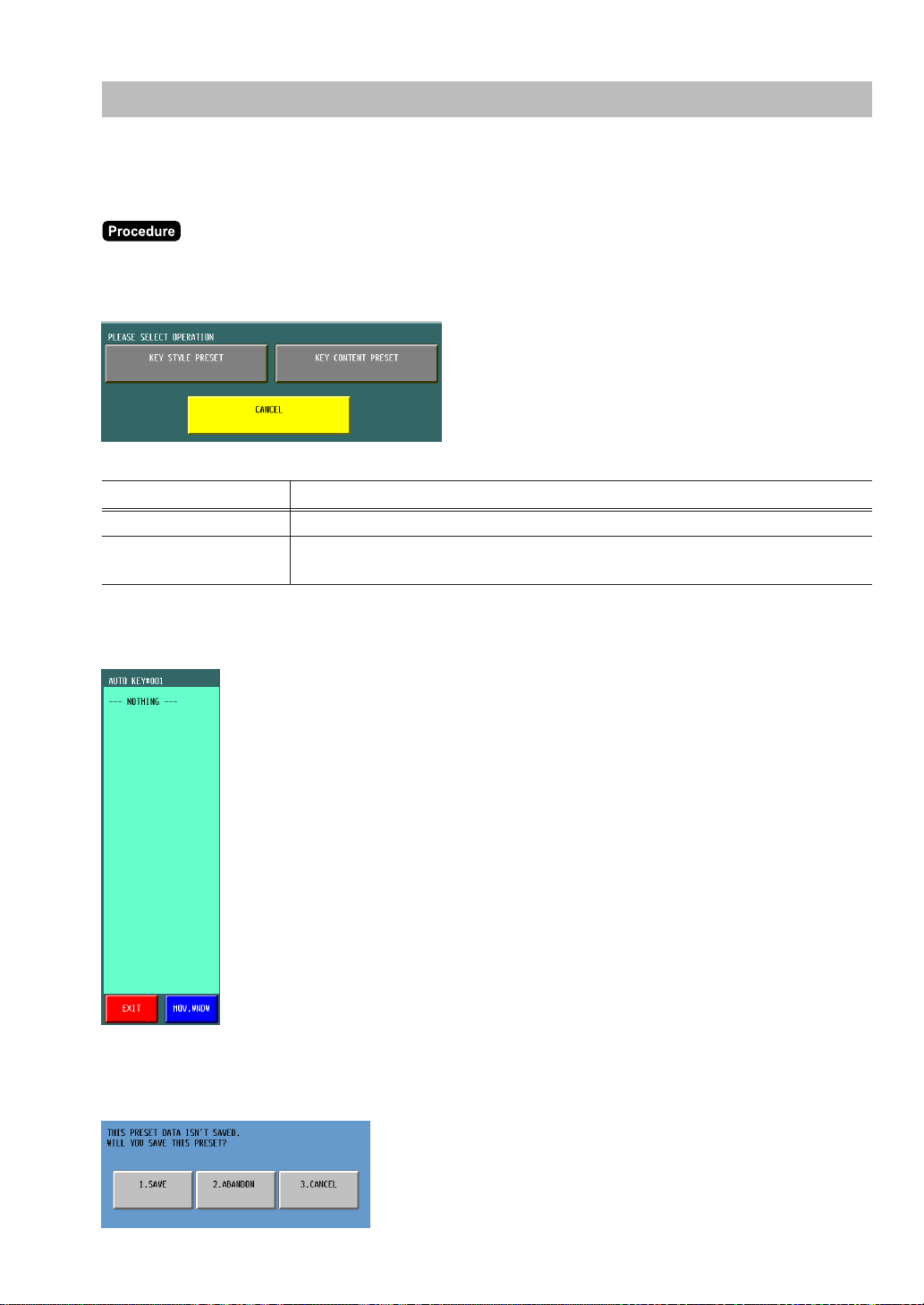
257
Automatic Sequencing Key Programming
If you program frequently performed key operations for the AUTO keys, you can enter those key operations
simply by pressing the corresponding AUTO keys in key operations.
To program an automatic sequencing key is as follows:
(1) Select the menu “AUTO KEY” in the PGM2 mode, the screen list window is displayed.
Select the required screen and touch the auto key to program, the sub menu “KEY STYLE PRESET”
and “KEY CONTENT PRESET” is displayed.
(2) To program the key text or key color, select the “KEY STYLE PRESET” and program the following data.
(2)’ To program the key sequence, select the “KEY CONTENT PRESET” and touch the sequence keys to
program.
Max. 99 key steps can be programmed.
(3) To finish the programming touch the [EXIT] key.
(4) The confirmation window is displayed. Select the operation from “1.SAVE/2.ABANDON/3.CANCEL”
menu.
Text Parameter
KEY TEXT 8 characters (AUTOnnn)
KEY COLOR
224 Color
(Fore Color/Back Color) (WHITE/FUCHSIA)
258
Reading Stored Programs
You can read programs stored in the PGM1 or PGM2 mode.
(1) Select the menu “POS READING” in the PGM1 or PGM2 mode, the job menu window is displayed.
(2) Select the required reading menu, the output device selection window is displayed.
Select the output device “DISPLAY/REPORT PRINTER”.
(3) To finish the operation touch the [EXIT] key.
PGM reading jobs:
PGM1 mode 1 PLU/UPC
2 DYNAMIC UPC
3 COUPON PLU
4 CASHIER
5 FUNCTION
6 PRINTERS
PGM2 mode 1 DEPARTMENT 1 DEPARTMENT
2 DEPT GR. REVENUE
2 ITEM SETUP 1 PLU/UPC
2 MODIFIER PLU
3 COUPON PLU
4 RECIPE TEXT
5 DYNAMIC UPC
6 UPC OTHER
3 TABLES 1 CONDIMENT TABLES
2 COMBO MEAL TABLES
3 LINK PLU/UPC TABLES
4 SET PLU TABLES
5 MIX&MATCH TABLES
6 SCALE TABLES
4 WORK FORCE 1 CASHIER
2 EMPLOYEE
3 JOB LOCATIONS
4 LABOR COST
5 AUTHORITY
5 KEYBOARD FUNCTIONS 1 PLU MENU KEYS
2 FUNCTION MENU KEYS
3 DIRECT KEYS
4 MACRO KEYS
5 CAPTURE KEYS
6 CAPTURE JOB#
7 FUNCTION KEYS
259
PGM2 mode 6 POS FUNCTIONS 1 TAX
2 MEDIA
3 CONVERSION
4 FUNCTIONS
5 NEGATIVE#
6 POSITIVE#
7 TERMINAL 1 REPORTS
2 MAINTENANCE
3 TERMINAL
4 OPTIONAL SETTING
5 GLU/D-THRU CODE
8 TEXT EDITOR 1 REVENUE CENTER TEXT
2 FUNCTION TEXT
3 LOGO TEXT
4 SORT GROUP TEXT
9 SYSTEM 1 PRINTERS
2 DEICE CONFIGURATIONS
3 EPAY DEVICE PRESET
4 CVM PRESET
5 OCB PRESET
6 CCTV PRESET
7 ONLINE PRESET
8 MWS PRESET
10 AUTO KEYS

260
Unit Price Mode Programming
The UNIT PRICE mode programming is mainly used for daily changes of the PLU’s unit price.
The programming procedure of unit prices for PLUs is as follows.
(1) Select the “UNIT PRICE” mode in the mode selection window, the programming window is displayed.
(2) To select the screen touch the [SELECT SCREEN] key and select the required screen.
Touch the objective PLU key.
(2)’ When you want to use the PLU list, touch the [LIST MENU] key and enter the PLU code or select the
PLU in the PLU list window.
(3) Enter the new unit price for a PLU.
(4) To finish the operation touch the [EXIT] key.
10
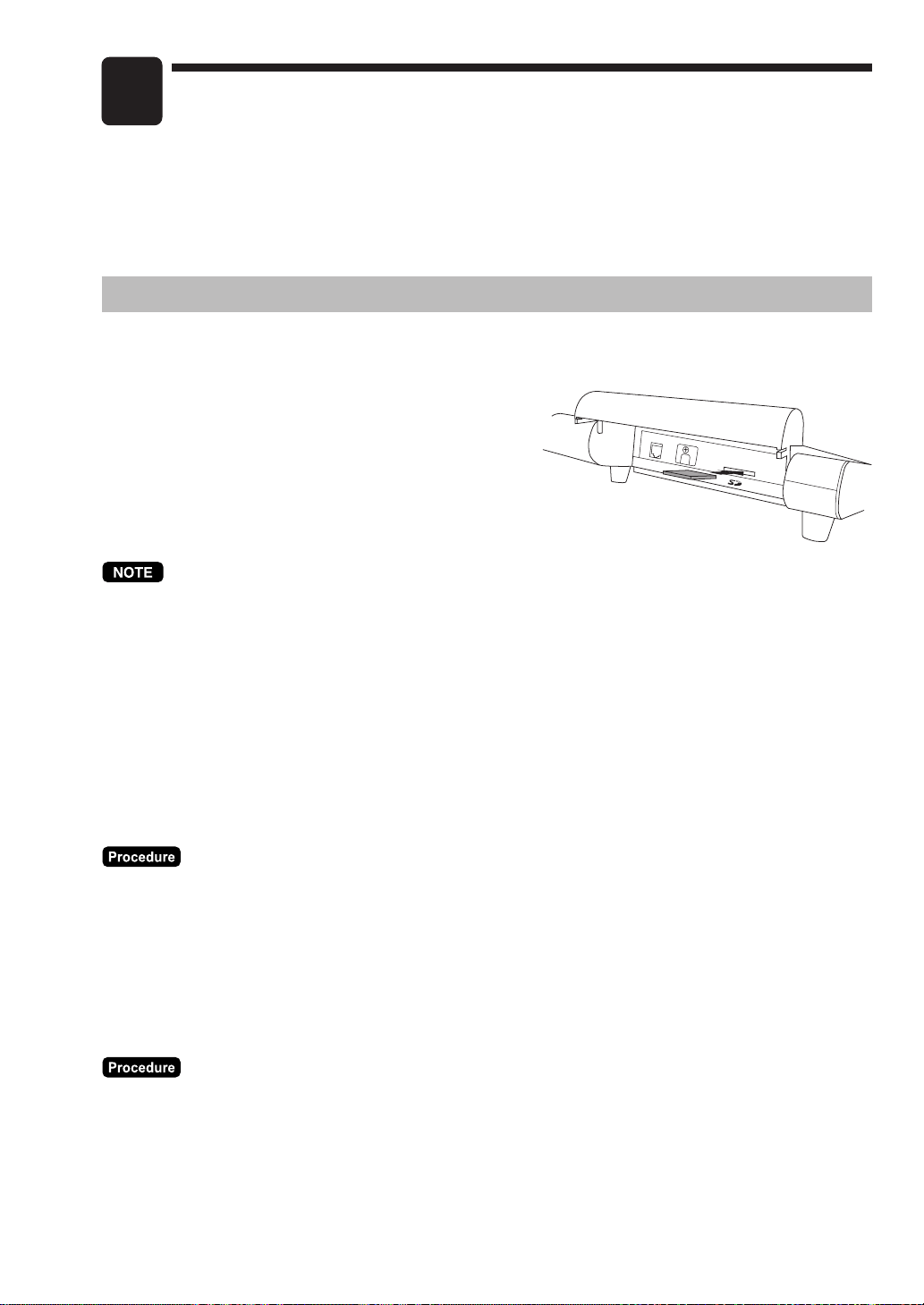
261
Data Saving or Loading (SD Card)
The POS terminal data can be saved to the SD memory card, and the programming data can be loaded
from the SD memory card.
To use the SD memory card function, select the “SD CARD” mode in the mode selection window and
perform the following operations.
Inserting and Removing an SD Memory Card
The SD card slot is located on the left side of your POS terminal and has a side cover.
Inserting an SD memory card
Insert an SD memory card into the SD card slot with the
printed SD logo facing upwards. Push the card in steady
with a finger until it clicks and release it slowly.
Removing the SD memory card
Push the card in gently with a finger and release it. The
card will Come out.
•
This model supports SD cards only. Use of any other types of SD cards such as mini SD, micro SD, etc.
with an adapter is not supported.
•
When inserting or removing the SD memory card, be sure to release it slowly. Otherwise, the card may
pop out and injure your finger.
•
Never touch or remove the SD memory card while it is accessed, otherwise the data stored in it may be
damaged.
•
Formatting the SD memory card erases all the data in it.
■■
■■
■ SD memory card formatting
When the SD memory card is not formatted yet, take the formatting operation.
(1) Select the “FORMATTING” menu in the “SD CARD” mode, the confirmation window is displayed.
(2) To perform the format operation, touch the [OK] key.
(2)’ To cancel the operation, touch the [CANCEL] key.
■■
■■
■ Folder code programming
The programmed code is used the file folder structure. Up to 8 digits code can be programmed.
(1) Select the “FOLDER CONTROL” menu in the “SD CARD” mode, the folder control menu window is
displayed.
(2) Select the “FOLDER CODE” menu and enter the folder codes.
(2)’ To cancel the operation, touch the [EXIT] key.
11

262
■■
■■
■ Folder creating
The master folder can be created for the data file.
(¥SHARP¥ECRmmmm¥nnnnnnnn¥: mmmm/machine no., nnnnnnnn/folder code)
(1) Select the “FOLDER CONTROL” menu in the “SD CARD” mode, the folder control menu window is
displayed.
(2) Select the “FOLDER CREATE” menu, the confirmation window is displayed.
(3) To create the file folder, touch the [OK] key.
(3)’ To cancel the operation, touch the [CANCEL] key.
■■
■■
■ Data saving
The sales data, EJ data or programming data can be saved to the SD memory card.
(1) Select the “SAVING” menu in the “SD CARD” mode, the data list window is displayed.
(2) Select the data menu from “SALES DATA/EJ DATA/PROGRAMMING DATA” list, the confirmation
window is displayed.
(3) To save the required data file, touch the [OK] key.
(3)’ To cancel the operation, touch the [CANCEL] key.
■■
■■
■ Data loading
The programming data can be loaded from the SD memory card.
(1) Select the “LOADING” menu in the “SD CARD” mode, the data list window is displayed.
(2) Touch the data menu “PROGRAMMING DATA”, the confirmation window is displayed.
(3) To load the programming data file, touch the [OK] key.
(3)’ To cancel the operation, touch the [CANCEL] key.
263
Before Calling for Service
The malfunction shown in the left-hand column below, labeled “Condition,” does not necessarily indicate
functional faults of the terminal. The condition listed is only meant to be a reference for the items shown in
the “Checking” column at the right before calling for service.
Operator Maintenance
In Case of Power Failure
When power is lost, the POS terminal retains its memory contents and all information on sales totals.
• When power failure is encountered in the POS terminal idle state or during an entry, the POS terminal
returns to the normal state of operation after power recovery.
12
Condition Checking
The power indicator is not lit. • Is power supplied to the electrical outlet?
• Is the AC power cord plug removed or loosely connected to
the electrical outlet?
• Is the AC adapter connector removed or loosely connected to
the AC adapter jack?

264
Options
List of Options
The following Sharp options are available for your POS terminal:
Please do not try to install options yourself.
For further details about additional options not listed below, contact your SHARP dealer.
1. External thermal printer models ER-01PU/ER-01PUG
2. Integrated rear customer display model UP-I20DP
3. Remote customer pole display models UP-P20DP/UP-P20DPB
4. Remote drawer models ER-03DWB7/ER-03DW/ER-04DW
5. The ER-75CC3 till is used for the ER-03DW.
6. The ER-55CC2 till is used for the ER-04DW.
7. The ER-02CV till cover is used for the ER-55CC2/ER-75CC3.
8. RAM memory board models UP-S04MB2/UP-S08MB
Note: You cannot use the UP-I20DP and the UP-P20DP/UP-P20DPB simultaneously.
13
265
Specifications
Model: UP-3500
External dimensions: 12.5(W) × 12.3(D) × 11.6(H) in. approximately
(317(W) × 313(D) × 294(H) mm)
Weight: Approximately 10.1 lb. (4.6 kg) (excluding the AC adapter)
Power source: 120V AC ±10%, 60 Hz
Power consumption: Stand-by: 6.5 W
Operating: 29 W
Working temperature: 32 to 104 °F (0 to 40 °C)
Electronics: LSI (CPU) etc.
Built-in battery: Rechargeable battery pack, memory holding time of approx. 1 month (with fully
charged built-in battery pack, at room temperature)
Display: Type: TFT color LCD with backlighting
Analog touch key
Size: 12.1" (307 mm) full screen
Resolution: 1024 × 768 dots
Accessories: Hardware operation manual (1 copy)
AC adapter (1 piece)
Leg caps (4 pieces)
• Specifications and appearance are subject to change without notice for improvement.
14

NOTICE
BE SURE TO ASK YOUR AUTHORIZED SHARP DEALER ABOUT THE WARRANTY THAT
YOUR SELLING DEALER EXTENDS TO YOU. In order to assure you, the end-user, of warranty
protection, Sharp extends a limited warranty to each of its authorized dealers, and in turn requires
each of its authorized dealers to extend its own warranty to you on terms that are no less favorable
than those given to the dealer by Sharp. You should be aware, however, that Sharp does not itself
extend any warranties, either express or implied, directly to you, the end-user, and no one is author-
ized to make any representations or warranties on behalf of Sharp. Specifically, SHARP DOES
NOT EXTEND TO YOU, THE END-USER, ANY EXPRESS WARRANTY OR ANY IMPLIED
WARRANTY OF MERCHANTABILITY, FITNESS FOR USE OR FITNESS FOR ANY PARTIC-
ULAR PURPOSE IN CONNECTION WITH THE HARDWARE, SOFTWARE, OR FIRMWARE
EMBODIED IN OR USED IN CONJUNCTION WITH THIS PRODUCT. Sharp is not responsible
for any damages or loss, either direct, incidental or consequential, which you, the end-user, may
experience as a result of your purchase or use of the hardware, software or firmware embodied in
or used in conjunction with this product. Your sole remedy in the event that you encounter any
difficulties with the product is against the authorized dealer from which you purchased the product.
In the event that this authorized dealer does not honor its warranty commitments, please contact
the Point of Sale Division, ISG, Sharp Electronics Corporation, Sharp Plaza, P.O. Box 650, Mahwah,
NJ 07495-1163 so that Sharp can try to help you to assure complete satisfaction of all the warranty
rights to which you are entitled from the authorized dealer.

SHARP ELECTRONICS CORPORATION
SHARP CORPORATION
Sharp Plaza, Mahwah, New Jersey 07495-1163
1-800-BE-SHARP
http://www.sharp-usa.com
UP3500U_MIE11