© 2006 Sony Corporation
2-889-166-12(2)
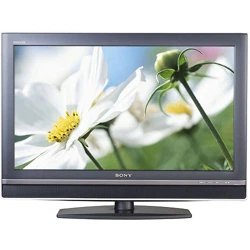
LCD Digital Color TV
Operating Instructions
KDL-23S2010
KDL-32S2010
KDL-46S2010
KDL-26S2010
KDL-40S2010
2
Owner’s Record
The model and serial numbers are located at the rear of the TV. Record
these numbers in the spaces provided below. Refer to them whenever
you call upon your Sony dealer regarding this product.
Model No.
Serial No.
For Your Convenience
Contact Sony Customer Support at:
http://www.sony.com/tvsupport
or to speak with a support representative:
United States
1-800-222-SONY (7669)
8:00 AM – 10:00 PM (EST) Mon–Fri
10:30 AM – 7:15 PM (EST) Sat–Sun
Canada
Please Do Not Return the Product to the Store
1-877-899-SONY (7669)
8:00 AM – 6:00 PM (Eastern)
8:00 AM – 5:00 PM (Western)
Please contact Sony directly if you:
Have questions on the use of your television after reading your manual
Experience difficulty operating your televsion
Sony will work to resolve your questions more quickly than your retailer or place of purchase.
z
z
3
WARNING
To reduce the risk of fire or electric shock, do
not expose this apparatus to rain or moisture.
This symbol is intended to
alert the user to the presence
of uninsulated “dangerous
voltage” within the
product’s enclosure that
may be of sufficient
magnitude to constitute a
risk of electric shock to
persons.
This symbol is intended to
alert the user to the presence
of important operating and
maintenance (servicing)
instructions in the literature
accompanying the
appliance.
The apparatus shall not be exposed to dripping
or splashing and no objects filled with liquids,
such as vases, shall be placed on the apparatus.
CAUTION
To prevent electric shock, do not use this
polarized AC plug with an extension cord,
receptacle or other outlet unless the blades can
be fully inserted to prevent blade exposure.
Note on Caption Vision
This TV provides display of TV closed
captioning in accordance with §15.119 of the
FCC rules.
NOTIFICATION
This equipment has been tested and found to
comply with the limits for a Class B digital
device, pursuant to Part 15 of the FCC Rules.
These limits are designed to provide reasonable
protection against harmful interference in a
residential installation. This equipment
generates, uses and can radiate radio frequency
energy and, if not installed and used in
accordance with the instructions, may cause
harmful interference to radio communications.
However, there is no guarantee that interference
will not occur in a particular installation. If this
equipment does cause harmful interference to
radio or television reception, which can be
determined by turning the equipment off and on,
the user is encouraged to try to correct the
interference by one or more of the following
measures:
s Reorient or relocate the receiving
antenna.
s Increase the separation between the
equipment and receiver.
s Connect the equipment into an outlet on a
circuit different from that to which the
receiver is connected.
s Consult the dealer or an experienced
radio/TV technician for help.
For Customers in Canada
This Class B digital apparatus complies with
Canadian ICES-003.
Safety
s Operate the TV only on 120-240 V AC.
s Use the AC power cord specified by Sony
and suitable for the voltage where you use
it.
s The plug is designed, for safety purposes,
to fit into the wall outlet only one way. If
you are unable to insert the plug fully into
the outlet, contact your dealer.
s If any liquid or solid object should fall
inside the cabinet, unplug the TV
immediately and have it checked by
qualified service personnel before
operating it further.
s If you will not be using the TV for several
days, disconnect the power by pulling the
plug itself. Never pull on the cord.
s For details concerning safety precautions,
see “Important Safety Instructions” on
page 4.
Installing
s The TV should be installed near an easily
accessible power outlet.
s To prevent internal heat buildup, do not
block the ventilation openings.
s Do not install the TV in a hot or humid
place, or in a place subject to excessive
dust or mechanical vibration.
s Avoid operating the TV at temperatures
below 41°F (5°C).
s If the TV is transported directly from a
cold to a warm location, or if the room
temperature changes suddenly, the picture
may be blurred or show poor color due to
moisture condensation. In this case,
please wait a few hours to let the moisture
evaporate before turning on the TV.
s To obtain the best picture, do not expose
the screen to direct illumination or direct
sunlight. It is recommended to use spot
lighting directed down from the ceiling or
to cover the windows that face the screen
with opaque drapery. It is desirable to
install the TV in a room where the floor
and walls are not of a reflective material.
CAUTION
Use the following Sony appliance(s) only with
the following WALL-MOUNT BRACKET or
TV Stand.
Use with other WALL-MOUNT BRACKET,
TV Stand may cause injury, (WALL-MOUNT
BRACKET see pages 43 & 44).
To Customers
Sufficient expertise is required for installing the
specified product. Be sure to subcontract the
installation to Sony dealers or licensed
contractors and pay adequate attention to safety
during the installation.
For Customers in the United
States
This product contains mercury. Disposal of this
product may be regulated if sold in the United
States. For disposal or recycling information,
please contact your local authorities or the
Electronics Industries Alliance
(http://www.eiae.org).
Note
This television includes a QAM demodulator
which should allow you to receive unscrambled
digital cable television programming via
subscription service to a cable service provider.
Availability of digital cable television
programming in your area depends on the type
of programming and signal provided by your
cable service provider.
Declaration of Conformity
Trade Name: SONY
Model: KDL-23S2010/KDL-26S2010/
KDL-32S2010/KDL-40S2010/
KDL-46S2010
Responsible Party: Sony Electronics Inc.
Address: 16530 Via Esprillo
San Diego, CA 92127 U.S.A.
Telephone Number: 858-942-2230
This device complies with part 15 of the FCC
rules. Operation is subject to the following
two conditions: (1) This device may not
cause harmful interference, and (2) this
device must accept any interference received,
including interference that may cause
undesired operation.
CAUTION
RISK OF ELECTRIC SHOCK
DO NOT OPEN
ATTENTION
RISQUE DE CHOC ELECTRIQUE,
NE PAS OUVRIR
PRECAUCION
RIESGO DE CHOQUE ELECTRICO
NO ABRIR
Pursuant to FCC regulations, you are
cautioned that any changes or modifications
not expressly approved in this manual could
void your authority to operate this
equipment.
Sony Appliance Model No.
KDL-23S2010
KDL-26S2010
KDL-32S2010
KDL-40S2010
KDL-46S2010
Sony Wall-Mount
Bracket Model No.
SU-WL31
SU-PW2
SU-WL51
Sony TV-Stand
Model No.
RHT-G1000
(Continued)
4
Trademark Information
TruSurround XT, SRS and ( ) symbol are trademarks of SRS Labs, Inc.
TruSurround XT technology is incorporated under license from SRS Labs,
Inc.
Manufactured under license from BBE Sound, Inc.
Licensed by BBE Sound, Inc. under one or more of the following US
patents: 5510752, 5736897. BBE and BBE symbol are registered
trademarks of BBE Sound, Inc.
Macintosh is a trademark licensed to Apple Computer, Inc., registered in
the U.S.A and other countries.
“BRAVIA” and are trademarks of Sony Corporation.
This TV incorporates High-Definition
Multimedia Interface (HDMI™) technology.
HDMI, the HDMI logo and High-Definition Multimedia Interface are
trademarks or registered trademarks of HDMI Licensing, LLC.
Manufactured under license from Dolby
Laboratories. “Dolby” and the double-D symbol are
trademarks of Dolby Laboratories.
Important
Safety
Instructions
1) Read these instructions.
2) Keep these instructions.
3) Heed all warnings.
4) Follow all instructions.
5) Do not use this apparatus near water.
6) Clean only with dry cloth.
7) Do not block any ventilation openings. Install in
accordance with the manufacturer’s instructions.
8) Do not install near any heat sources such
as radiators, heat registers, stoves, or other
apparatus (including amplifiers) that
produce heat.
9) Do not defeat the safety purpose of the polarized or
grounding-type plug. A polarized plug has two blades
with one wider than the other. A grounding type plug
has two blades and a third grounding prong. The wide
blade or the third prong are provided for your safety.
If the provided plug does not fit into your outlet,
consult an electrician for replacement of the obsolete
outlet.
10) Protect the power cord from being walked on or
pinched particularly at plugs, convenience
receptacles, and the point where they exit from the
apparatus.
11) Only use attachments/accessories specified by the
manufacturer.
12) Use only with the cart, stand, tripod, bracket, or table
specified by the manufacturer, or sold with the
apparatus. When a cart is used, use caution when
moving the cart/apparatus combination to avoid
injury from tip-over.
13) Unplug this apparatus during lightning storms or
when unused for long periods of time.
14) Refer all servicing to qualified service personnel.
Servicing is required when the apparatus has been
damaged in any way, such as power-supply cord or
plug is damaged, liquid has been spilled or objects
have fallen into the apparatus, the apparatus has been
exposed to rain or moisture, does not operate
normally, or has been dropped.
5
USE
For the TV with a three-wire grounding type AC
power cord plug (Class 1 unit)
This TV must be connected to an AC power outlet
with a protective earthing connection.
AC power cord
If you damage the AC power cord, it may result in a fire or an electric
shock. If the AC power cord is damaged, stop using it and ask your dealer
or Sony service center to exchange it.
s Do not place the TV where the power cord is subject to wear or
abuse.
s Do not pinch, bend, or twist the cord excessively. The core lines may
be bared and cut, and cause a short-circuit, resulting in a fire or an
electric shock.
s Do not convert or damage the power cord.
s Do not allow anything to rest on or roll over
the power cord.
s Do not pull the power cord.
s Do not move the TV with the power cord
plugged in.
s Keep the power cord away from heat sources.
s Be sure to grasp the plug when disconnecting
the power cord.
Wall outlet
Do not use a poor fitting outlet.
Insert the plug fully into the outlet. If it is loose, it may
cause arcing and result in a fire.
Contact your electrician to have the outlet changed.
Wiring
For your safety, unplug the AC power cord when wiring cables.
Cable wiring
Take care not to catch your feet on the cables. It may damage the TV.
Electric shock
Do not touch the AC power cord or the TV with a wet
hand. If you plug/unplug the AC power cord from the
TV with a wet hand, it may cause electric shock.
Lightning
For added protection for this TV during a lightning storm, or when it is left
unattended and unused for long periods of time, unplug it from the wall
outlet and disconnect the antenna. This will prevent damage to the TV due
to lightning and power line surges.
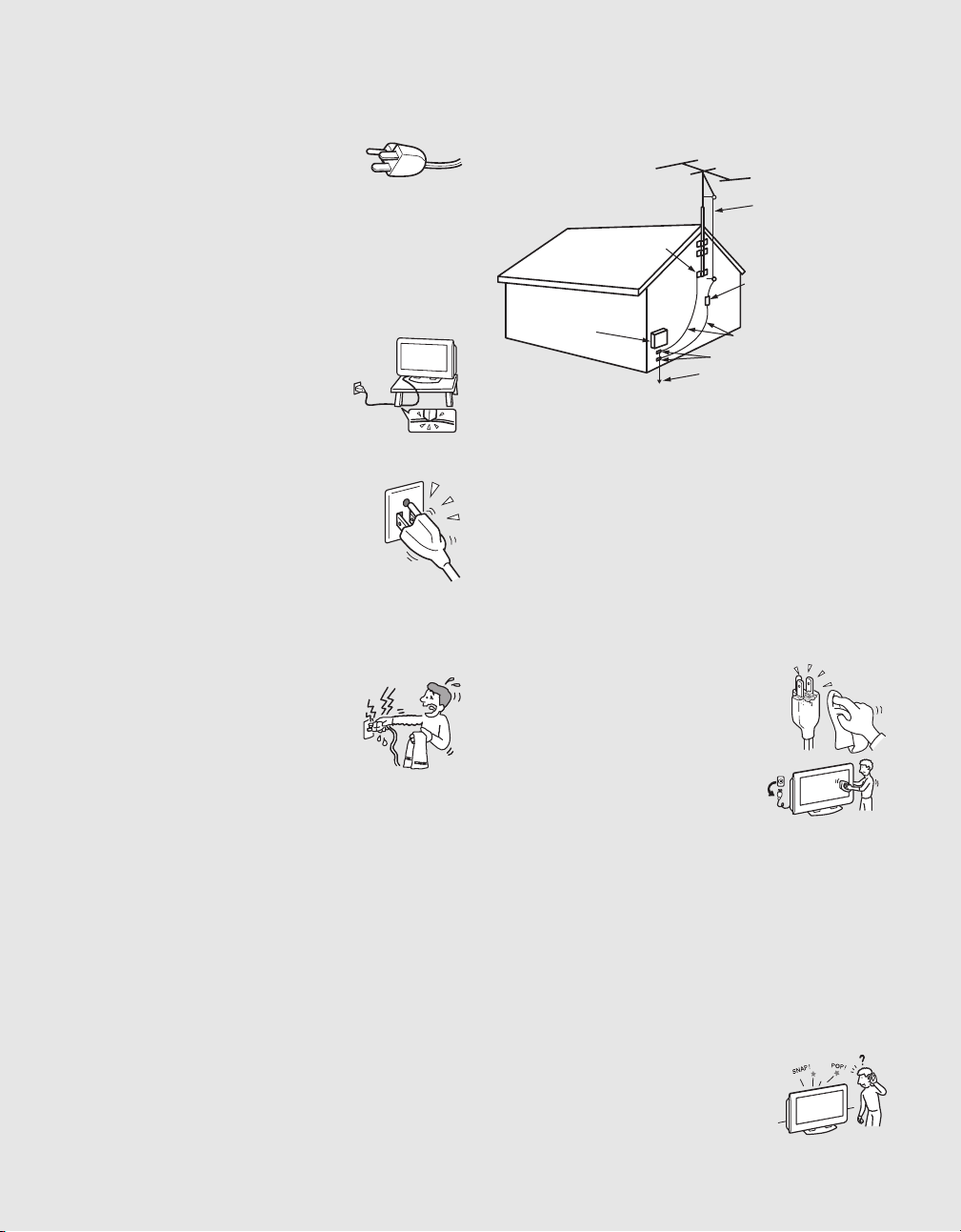
ANTENNA
Outdoor Antenna Grounding
If an outdoor antenna is installed, follow the precautions below. An
outdoor antenna system should not be located in the vicinity of overhead
power lines or other electric light or power circuits, or where it can come
in contact with such power lines or circuits.
WHEN INSTALLING AN OUTDOOR ANTENNA SYSTEM,
EXTREME CARE SHOULD BE TAKEN TO KEEP FROM
CONTACTING SUCH POWER LINES OR CIRCUITS AS CONTACT
WITH THEM IS ALMOST INVARIABLY FATAL.
Be sure the antenna system is grounded so as to provide some protection
against voltage surges and built-up static charges.
Section 810 of the National Electrical Code (NEC) in the USA and Section
54 of the Canadian Electrical Code in Canada provides information with
respect to proper grounding of the mast and supporting structure,
grounding of the lead-in wire to an antenna discharge unit, size of
grounding conductors, location of antenna discharge unit, connection to
grounding electrodes, and requirements for the grounding electrode.
Antenna Grounding According to the National
Electrical Code, ANSI/NFPA 70
BATTERIES
s Do not dispose of batteries in a fire.
s Do not short circuit, disassemble or overheat the batteries.
s Danger of explosion if battery is incorrectly replaced. Replace only
with the same or equivalent type.
Disposal of used batteries
To preserve our environment, dispose of used batteries according to your
local laws or regulations.
CLEANING
s Clean the AC power plug regularly.
If the plug is covered with dust and it picks
up moisture, its insulation may deteriorate
and result in a fire. Unplug the AC power
plug and clean it regularly.
s Unplug the AC power cord when
cleaning this TV. If not, it may result in
electric shock.
s Clean the cabinet of the TV with a dry
soft cloth. To remove dust from the
screen, wipe it gently with a soft cloth.
Stubborn stains may be removed with a cloth slightly dampened
with a solution of mild soap and warm water. Never use strong
solvents such as thinner or benzine for cleaning.
s If using a chemically pretreated cloth, please follow the instruction
provided on the package.
MAGNETIC INFLUENCE
This TV contains a strong magnet in the speaker unit that generates a
magnetic field. Keep any items susceptible to magnetic fields away from
the speaker.
SOUND
If a snapping or popping sound from the TV is con-
tinuous or frequent while the TV is operating,
unplug the TV and consult your dealer or service
technician. It is normal for some TVs to make occa-
sional snapping or popping sounds, particularly
when being turned on or off.
Antenna lead-in wire
Antenna discharge unit
(NEC Section 810-20)
Grounding conductors
(NEC Section 810-21)
Ground clamps
Power service grounding
electrode system
(NEC Art 250 Part H)
Ground clamps
Electric service
equipment
NEC: National Electrical Code
(Continued)
5
6
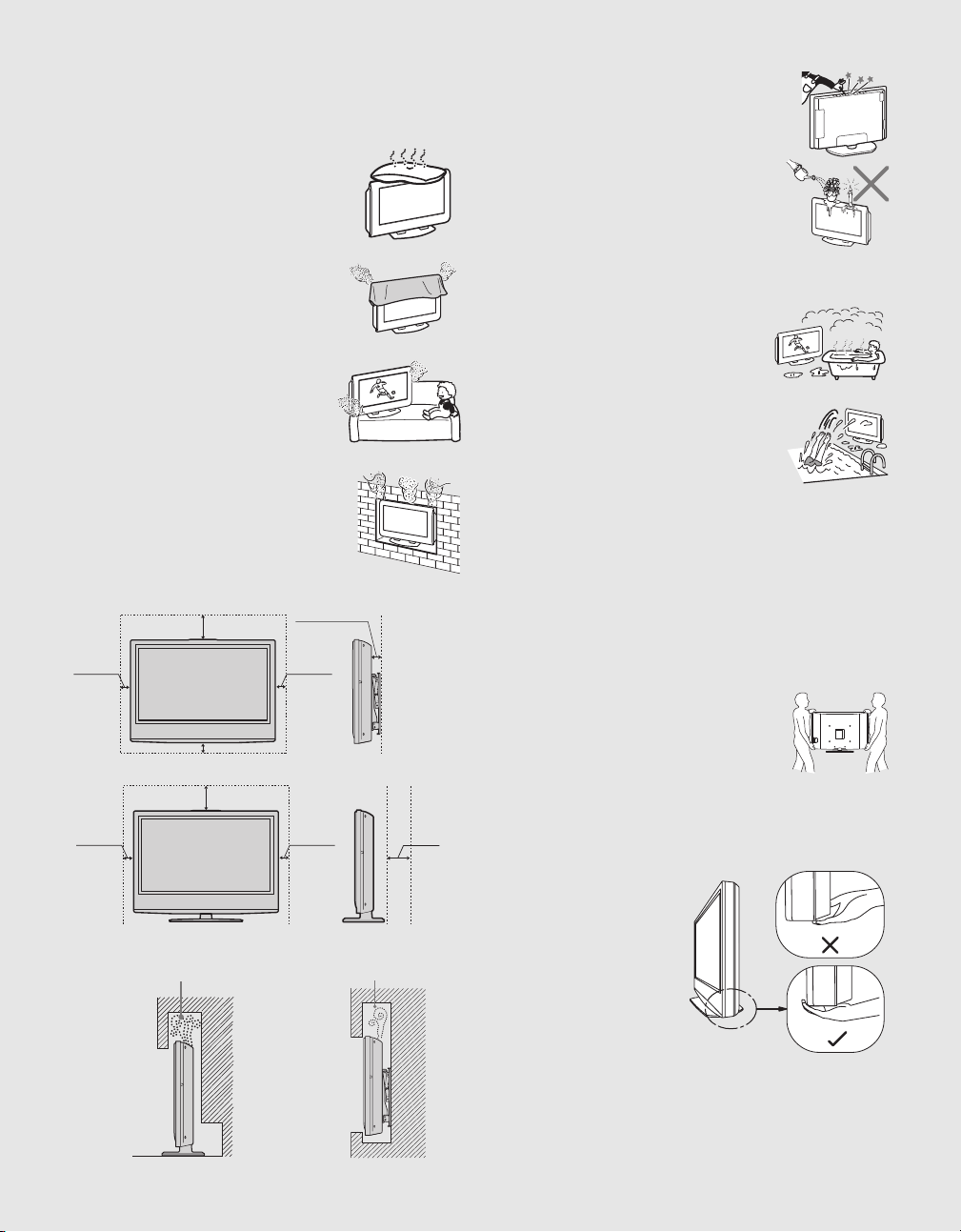
VENTILATION
The slots and openings in the TV are provided for necessary ventilation.
To ensure reliable operation of the TV, and to protect it from overheating,
these slots and openings must never be blocked or covered.
Unless proper ventilation is provided, the TV may
gather dust and get dirty. For proper ventilation,
observe the following:
s Do not install the TV face up or down or
sideways.
s Do not install the TV turned over or upside
down.
s Never cover the slots and openings with a
cloth or other materials.
s Never block the slots and openings by
placing the TV on a bed, sofa, rug or other
similar surface.
s Never place the TV in a confined space, such as
a bookcase or built-in cabinet, unless proper
ventilation is provided.
Objects and ventilation holes
Never push objects of any kind into the TV through the
cabinet slots as they may touch dangerous voltage points
or short out parts that could result in a fire or an electric
shock. Never spill liquid of any kind on the TV.
Do not place any objects on the TV.
The TV shall not be exposed to dripping or splashing
and no objects filled with liquids, such as vases, shall
be placed on the TV.
MOISTURE
Moisture and flammable objects
s
Do not use power-line operated sets near water
— for example, near a bathtub, washbowl,
kitchen sink, or laundry tub, in a wet basement,
or near a swimming pool, etc. It may result in a
fire or an electric shock.
s Do not let this TV get wet. Never spill liquid of
any kind on the TV. If any liquid or solid object
does fall through, do not operate the TV. It may
result in electric shock or damage to the TV.
Have it checked immediately by qualified
personnel.
s To prevent fire, keep flammable objects or open flame (e.g. candles)
away from the TV.
CARRYING THE TV
Carry the TV in the specified manner
Carrying the TV requires at least two people.
If you carry the TV in a manner other than that specified and without the
specified number of persons, it may drop and serious injury may result.
s Carry the TV with the specified number of people.
s Carry the TV holding the upper and bottom
frames of the TV as illustrated.
s Hold the TV securely when carrying it.
As the glass surface of the TV has a special
coating, be careful to avoid touching the glass
surface as much as possible.
s When transporting, do not subject the TV to shocks or vibration, or
excessive force.
s When lifting or moving the TV, be sure to hold the panel firmly as
illustrated. Place your palm directly under the panel, from the rear
of the TV.
When installing the TV on a wall, allow this much space:
15 cm
(6 inches)
30 cm
(11
7
/
8
inches)
10 cm
(4 inches)
10 cm
(4 inches)
When installing the TV using a stand, allow this much space:
30 cm
(11
7
/
8
inches)
10 cm
(4 inches)
10 cm
(4 inches)
10 cm (4 inches)
5.7 cm
(2
1
/
4
inches)
Never install the TV as follows:
Air circulation is blocked. Air circulation is blocked.
6
7
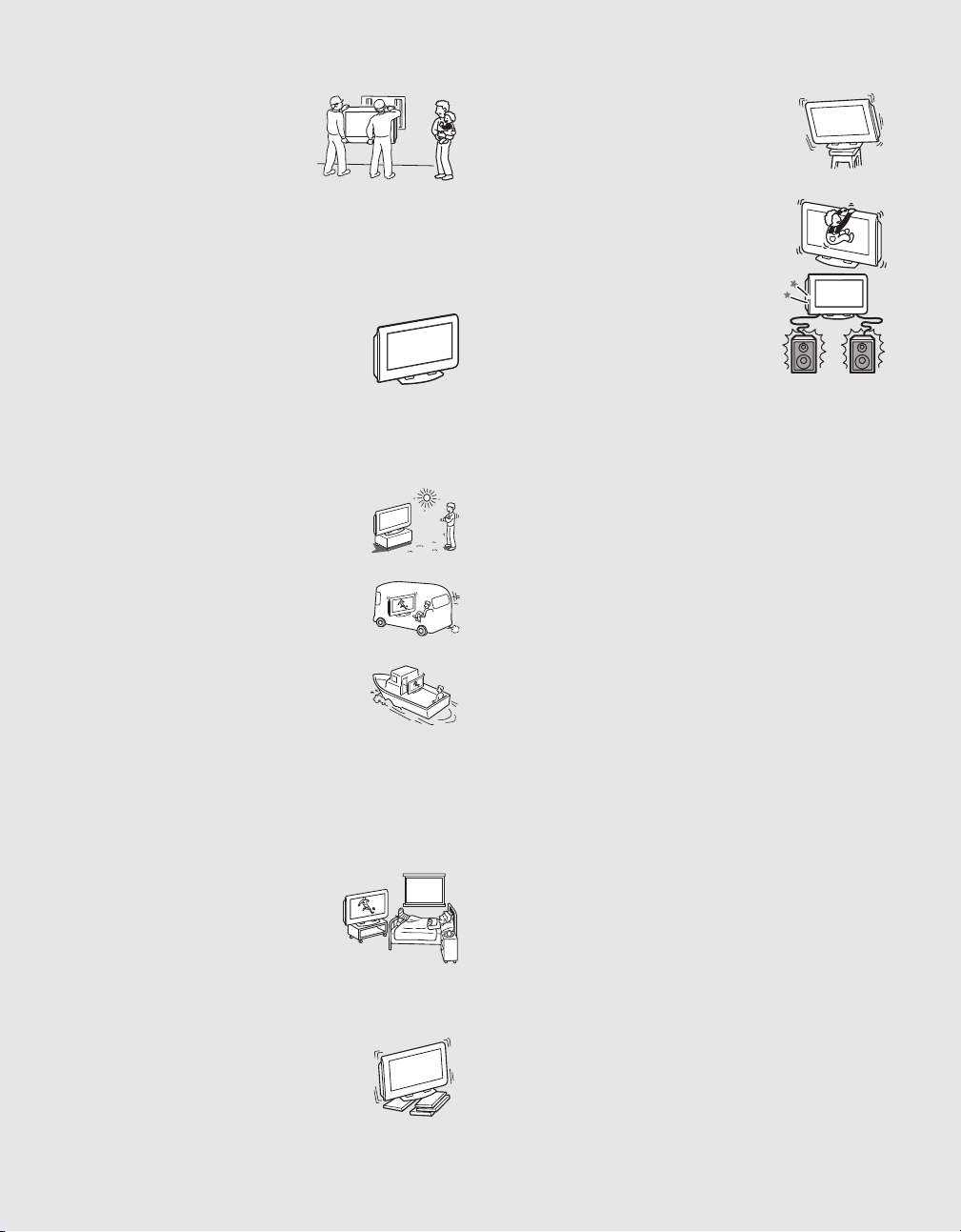
INSTALLATION
When installing or removing the TV, using
the Wall-Mount Bracket, be sure to use
qualified contractors. Wall mount installation
requires the use of a Wall-Mount Bracket. If
not properly secured during installation or
removal from the Wall-Mount Bracket, the
TV may fall and cause serious injury. Please
use a qualified contractor when installing or removing.
Placement for viewing
It is recommended to watch the TV at a distance of 3 - 7 times that of the
screen height, and in moderate brightness. Watching the TV for too long
or in a dark room may cause eye fatigue.
Optional wall mount
Observe the following when installing the TV using a
wall-mount bracket. If the TV is not secured properly, it
may fall and cause injury.
s Be sure to follow the operating instructions
supplied with the wall-mount bracket when
installing the TV.
s Be sure to attach the brackets supplied with the wall-mount bracket.
s Do not hang the TV from the ceiling. It may fall and cause serious
injury.
Outdoor use
Do not install this TV outdoors. If the TV is exposed to
rain, it may result in a fire or an electric shock. If the TV
is exposed to direct sunlight, the TV may heat up and
cause damage to the TV.
Vehicle
Do not install this TV in a vehicle.
Bumping of the vehicle may cause the TV to fall down
and cause injury.
Ship and vessel
Do not install this TV in a ship or vessel. If the TV is
exposed to seawater, it may cause a fire or damage the
TV.
Corrosion
If you use this TV near the seashore, salt may corrode metal parts of the
TV and cause internal damage or fire.
It may also shorten the life of the TV.
Oils
Do not install this TV in restaurants where oily vapors occur. Dust
absorbing oil may enter and damage the TV.
Medical institution
Do not place this TV in a place where medical
equipment is in use.
It may cause a malfunction of medical instruments.
Preventing the TV from toppling over
Take measures to prevent the TV from toppling over and causing injury.
To prevent the TV from toppling over, secure the TV to a wall or pillar.
Installing on a level surface
If you install the TV on an inclined surface, the TV may
fall or drop and cause injury or damage.
Placing on a stable surface
If you place the TV on an unstable surface, the TV may
fall and cause injury or damage.
Fall
Do not hang anything on the TV.
The TV may fall from the stand or wall-mount, causing
damage or serious injury.
Attachments
Do not use attachments not recommended by the
manufacturer, as they may cause hazards.
VOLUME ADJUSTMENT
s Adjust the volume so as not to trouble your neighbors. Sound carries
very easily at night. Therefore, closing the windows or using
headphones is suggested.
s When using headphones, adjust the volume so as to avoid excessive
levels, as hearing damage may result.
LCD SCREEN
s Although the LCD screen is made with high-precision technology
and has effective pixels of 99.99% or more, black dots or bright
points of light (red, blue, or green) may appear constantly on the
LCD screen. This is a structural property of the LCD panel and is not
a malfunction.
s Do not expose the LCD screen surface to direct sun light. Doing so
may damage the LCD panel.
s Do not push or scratch the LCD screen, or place objects on top of the
TV. The image may be uneven or the LCD panel may be damaged.
s If the TV is used in a cold place, a smear may occur in the picture or
the picture may become dark. This does not indicate a failure. These
phenomenon improve as the temperature rises.
s Ghosting may occur when still pictures are displayed continuously.
It should disappear after a few moments.
s The screen and cabinet get warm when the TV is in use. This is not
a malfunction.
s Avoid spraying insect repellent with volatile material on the screen.
s Avoid prolonged contact with rubber or plastic made material.
Broken pieces
Do not throw anything at the TV.
The screen glass may break by the impact and cause serious injury.
Handling of broken glass and liquid crystal
leakage
If the LCD panel gets damaged, crystalline liquid leakage may occur, or
scattered broken glass may result. Do not touch broken glass or crystalline
liquid (which is toxic), with bare hands as cuts or poisoning/skin irritation
may occur. Also, do not let glass fragments or leaked crystalline liquid get
into your eyes or mouth. Should either contact your eyes or mouth, rinse
the contacted area thoroughly with water and consult your doctor.
7
(Continued)
8
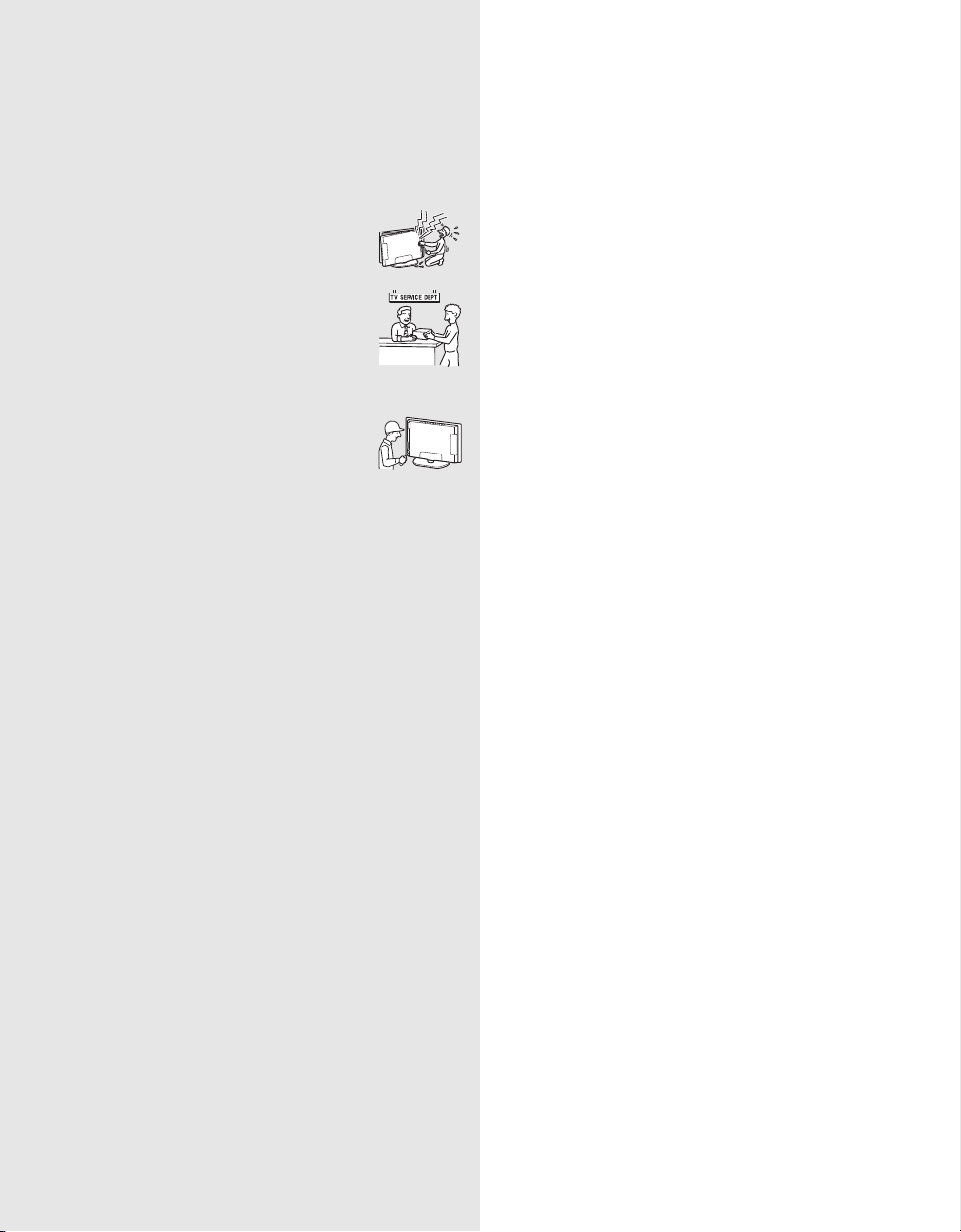
SERVICING
Damage requiring service
If the surface of the TV cracks, do not touch the TV until you unplug the
AC power cord.
Otherwise electric shock may result.
Servicing
Do not attempt to service the TV yourself since opening
the cabinet may expose you to dangerous voltage or other
hazards. Refer all servicing to qualified service personnel.
Replacement parts
When replacement parts are required, be sure the service
technician certifies in writing that he/she has used
replacement parts specified by the manufacturer that
have the same characteristics as the original parts.
Unauthorized substitutions may result in a fire, an
electric shock or other hazards.
Safety check
Upon completion of any service or repairs to the TV, ask
the service technician to perform routine safety checks
(as specified by the manufacturer) to determine that the
TV is in safe operating condition, and to so certify.
Should the TV not be repairable, ask a qualified service technician to
dispose of the TV.
DISPOSAL OF THE TV
s Do not dispose of the TV with general household waste.
s The LCD contains a small amount of liquid crystal. The fluorescent
tube used in this display also contains mercury. Follow your local
ordinances and regulations for disposal.
8

9
Contents
Getting Started
Welcome to the World of .............................................................................11
Connecting the TV .........................................................................................................11
Cable System and/or VHF/UHF Antenna System.....................................................11
HD Cable Box/HD Satellite Box ................................................................................12
Satellite Receiver and Cable/Antenna.......................................................................13
VCR, Cable and Antenna..........................................................................................13
When Connecting to Optional Equipment...................................................................14
Installing the TV .............................................................................................................16
Preventing the TV from Toppling Over......................................................................16
Bundling the Connecting Cables ...............................................................................17
Adjusting the Viewing Angle of the TV ......................................................................17
Setting Up the Channel List - Initial Setup...................................................................18
Basic Operations
Remote Control ..............................................................................................................19
TV Controls.....................................................................................................................22
Using the Menus
Overview of MENU .........................................................................................................23
Using the Picture Settings ............................................................................................26
Using the Sound Settings .............................................................................................28
Using the Screen Settings.............................................................................................29
Using the Setup Settings...............................................................................................31
Using the PC Settings....................................................................................................36
Using the Analog Setup Settings .................................................................................37
Using the Digital Setup Settings...................................................................................38
Other Information
Troubleshooting.............................................................................................................41
Preparation for Wall Mounting the KDL-23S2010, KDL-26S2010 and KDL-32S2010.......43
Preparation for Wall Mounting the KDL-40S2010 and KDL-46S2010........................44
PC Input Signal Reference Chart..................................................................................45
Specifications.................................................................................................................46
Index................................................................................................................................47

11
Getting Started
Getting Started
Welcome to the World of
TM
Thank you for purchasing this Sony LCD Digital Color Television. This
manual is for models KDL-23S2010, KDL-26S2010, KDL-32S2010, KDL-
40S2010 and KDL-46S2010. The packing box contains accessories that are
listed on page 46.
For optimum picture performance, your new BRAVIA TV is capable of
receiving high definition programming through its integrated tuner. It is also
capable of receiving HDTV content from a cable or satellite box via the
video inputs (HDMI and Y/P
B/PR component video; see page 15).
Connecting the TV
To display clear, crisp pictures, your TV must be connected properly. To
properly connect your TV, follow the basic connections provided in this
section. Advanced connection examples are provided in the separate Quick
Setup Guide accompanied with your TV. The Quick Setup Guide provides a
variety of optional equipment connection diagrams.
It is strongly recommended that you connect the antenna/cable input using the
supplied 75-ohm coaxial cable to receive optimum picture quality. A 300-ohm
twin lead cable can be easily affected by radio frequency, resulting in signal
deterioration.
When the antenna/cable connection is done, you must perform an Initial Setup
so your TV will create a list of channels you can view (see page 18). After you
can receive and view programming you should select the proper Wide Mode
setting to display the picture in your preferred aspect ratio. See “Changing the
Wide Screen Mode” on pages 21 and 29.
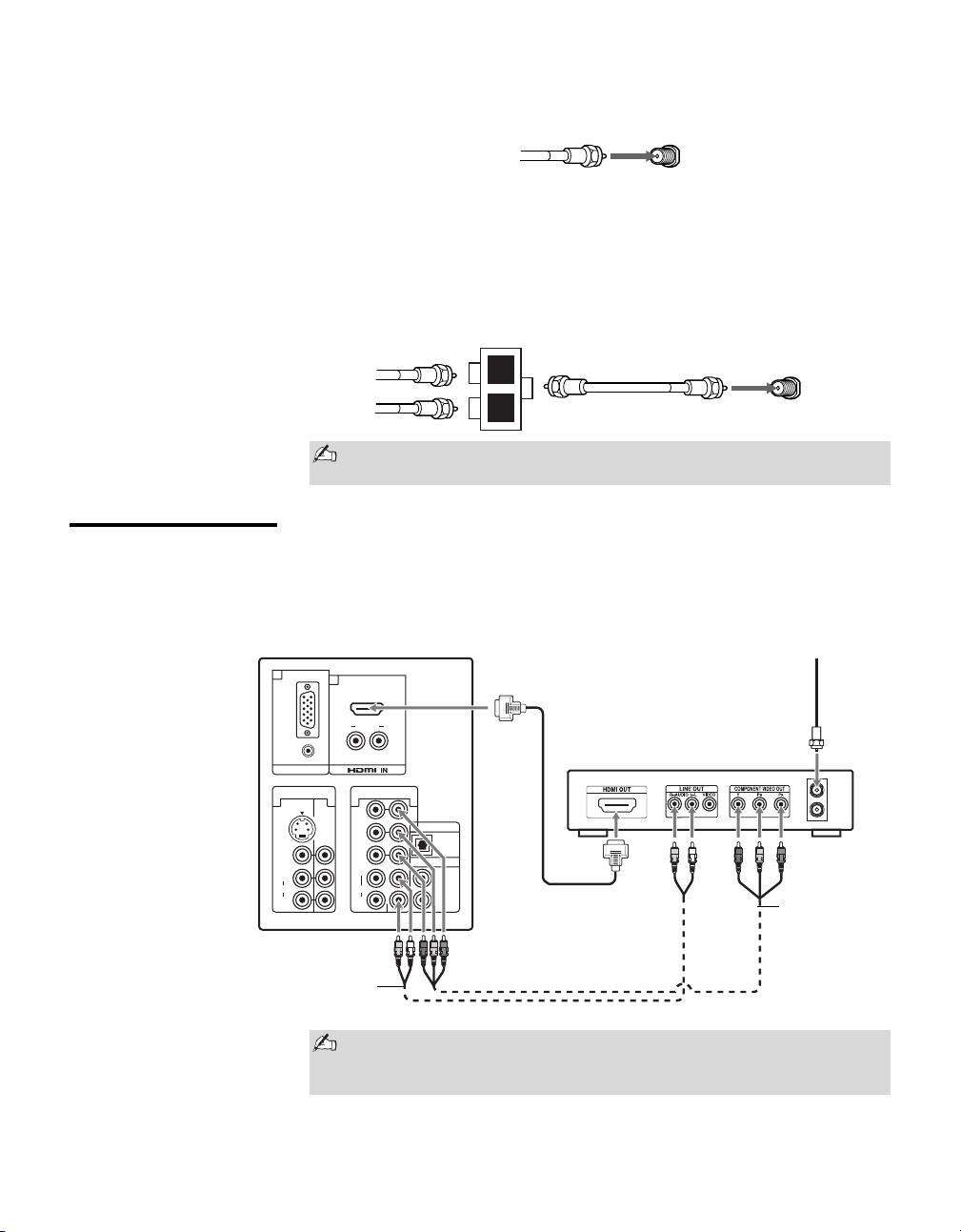
Cable System
and/or VHF/UHF
Antenna System
Connecting a cable system or an external VHF/UHF antenna to the
VHF/UHF input will allow you to enjoy high definition and standard
definition digital programming (if available in your area) along with the
standard definition analog programming.
This TV is capable of receiving unscrambled digital programming for
both cable (QAM and 8VSB) and external VHF/UHF antenna (ATSC).
(Continued)
Getting Started
12
Cable or VHF/UHF (or VHF only)
Cable and VHF/UHF (or VHF only)
If you want to watch both cable and antenna (over-the-air) programming,
you will need to use an optional A-B RF Switch (not supplied) to switch
between the cable and over-the air antenna programming, as shown.
HD Cable Box/
HD Satellite Box
You can also enjoy high definition programming by subscribing to high definition
cable service or high definition satellite service. Make sure you connect these
components to your TV via the HDMI or component video (with audio) input on
the back of your TV.
Be sure to set Cable setting option to Cable On or Cable Off in Setup
settings for the type of input signal you choose (see page 34).
75-ohm coaxial
cable (supplied)
Rear of TV
VHF/UHF input
A
B
A
A/B RF
Switch
Rear of TV
VHF/UHF input
Cable
Antenna
R AUDIO L
VIDEO
AUDIO
RGB
AUDIO
(MONO)
L
R
S VIDEO
AUDIO
L
Y
P
B
R
R
VIDEO IN
PC IN
HD/DVD IN
(1080i/720p/480p/480i)
7
6
134 5
OPTICAL OUT
AUDIO OUT
(VAR/FIX)
OUT
IN
Or connection
with component
cable
Rear of TV
HDMI Connection
Cable/
Satellite
High Definition Cable Box/
High Definition Satellite Box
Audio
cable
Component video (Y, PB, PR) or HDMI connection is necessary to view
480i, 480p, 720p and 1080i formats. Note that this TV displays all
format types of picture in its native resolution of 1,366 dots × 768 lines.
Getting Started
13
Getting Started
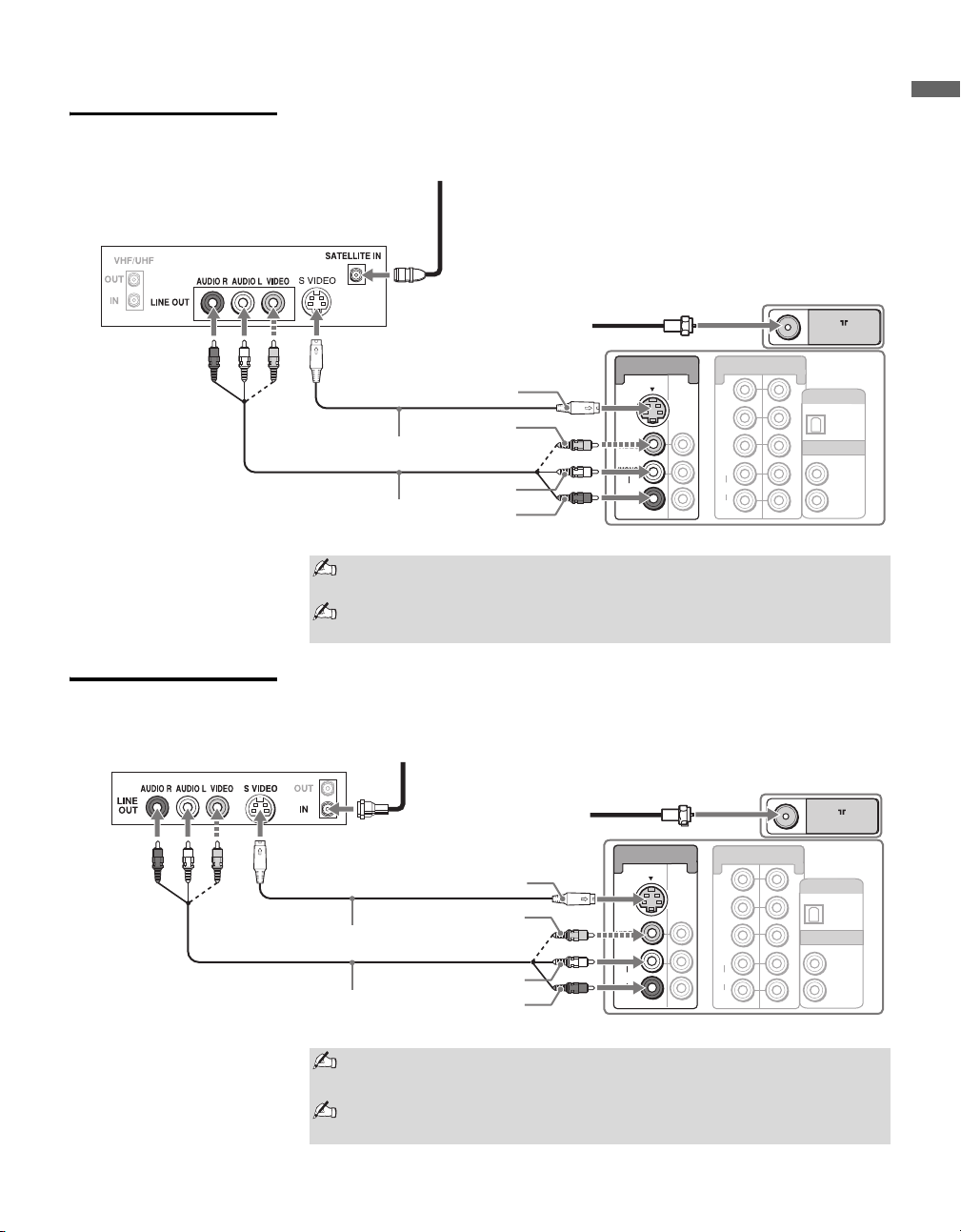
Satellite Receiver
and Cable/Antenna
VCR, Cable and
Antenna
VHF/UHF
VIDEO
AUDIO
(MONO)
L
R
VIDEO IN
S VIDEO
1
Y
P
B
PR
L
R
HD/DVD IN
(1080i/720p/480p/480i)
5
4
AUDIO
3
AUDIO OUT
OPTICAL OUT
(VAR/FIX)
A/V cable
Satellite Receiver
CATV/Antenna
cable (supplied)
Satellite
antenna
cable
S VIDEO cable
S VIDEO
VIDEO
(yellow)
AUDIO-L
(white)
AUDIO-R
(red)
Rear of TV
If your satellite receiver is not equipped with S VIDEO, use a VIDEO
cable (yellow) instead of the S VIDEO cable.
Run the Initial Setup program, as described in “Setting Up the Channel
List” on page 18 after completing your connections.
VHF/UHF
VIDEO
AUDIO
(MONO)
L
R
VIDEO IN
S VIDEO
1
Y
P
B
PR
L
R
HD/DVD IN
(1080i/720p/480p/480i)
5
4
AUDIO OUT
AUDIO
OPTICAL OUT
3
(VAR/FIX)
Rear of TV
A/V cable
CATV cable
Antenna cable
(supplied)
SVIDEO
AUDIO-L (white)
AUDIO-R (red)
S VIDEO cable
VCR
VIDEO
(yellow)
If your VCR is not equipped with S VIDEO, use a VIDEO cable (yellow)
instead of the S VIDEO cable.
Run the Initial Setup program, as described in “Setting Up the Channel
List” on page 18 after completing your connections.
Getting Started
14
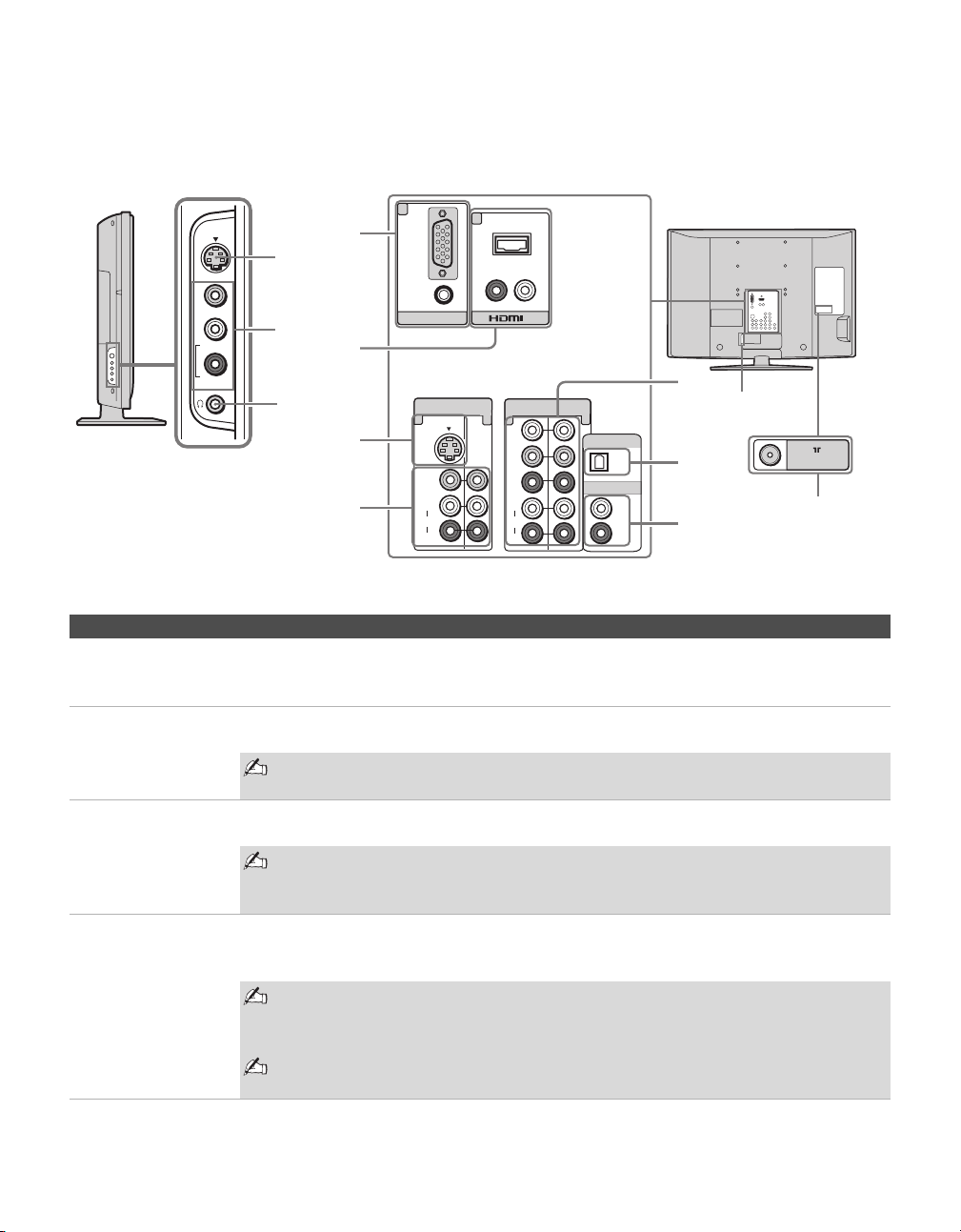
When Connecting to Optional Equipment
1
2
3
VIDEO 2
IN
S VIDEO
VIDEO
L (MONO)
R
AUDIO
RGB
7
6
AUDIO
PC IN
IN
R-AUDIO-L
VIDEO
AUDIO
(MONO)
L
R
VIDEO IN
S VIDEO
1
Y
P
B
PR
L
R
HD/DVD IN
(1080i/720p/480p/480i)
3
5
4
AUDIO
OPTICAL OUT
AUDIO OUT
VHF/UHF
(VAR/FIX)
4
5
9
7
0
8
6
qa
qs
Left side
Rear
Item Description
1 VIDEO 2 IN
S VIDEO
Connects to the S VIDEO output jack on your camcorder or other video equipment that has
S VIDEO. Provides better picture quality than composite video (2). (See Auto YC on page
33.)
2
VIDEO 2 IN
VIDEO/
L (MONO)-
R AUDIO
Connect to the composite video and audio output jacks on your camcorder or other video
equipment such as video game equipment.
If you have mono equipment, connect its audio output jack to the TV’s L (MONO)
audio input jack.
3 Headphones
jack
Connects to your headphones. If your headphones do not match the jack, use a suitable plug
adapter (not supplied).
While headphones are connected, the TV speakers turn off, and volume control
affects headphone volume only. Sound Setting options, on page 28, have no
effect while using headphones.
4 PC IN 7
(RGB/AUDIO)
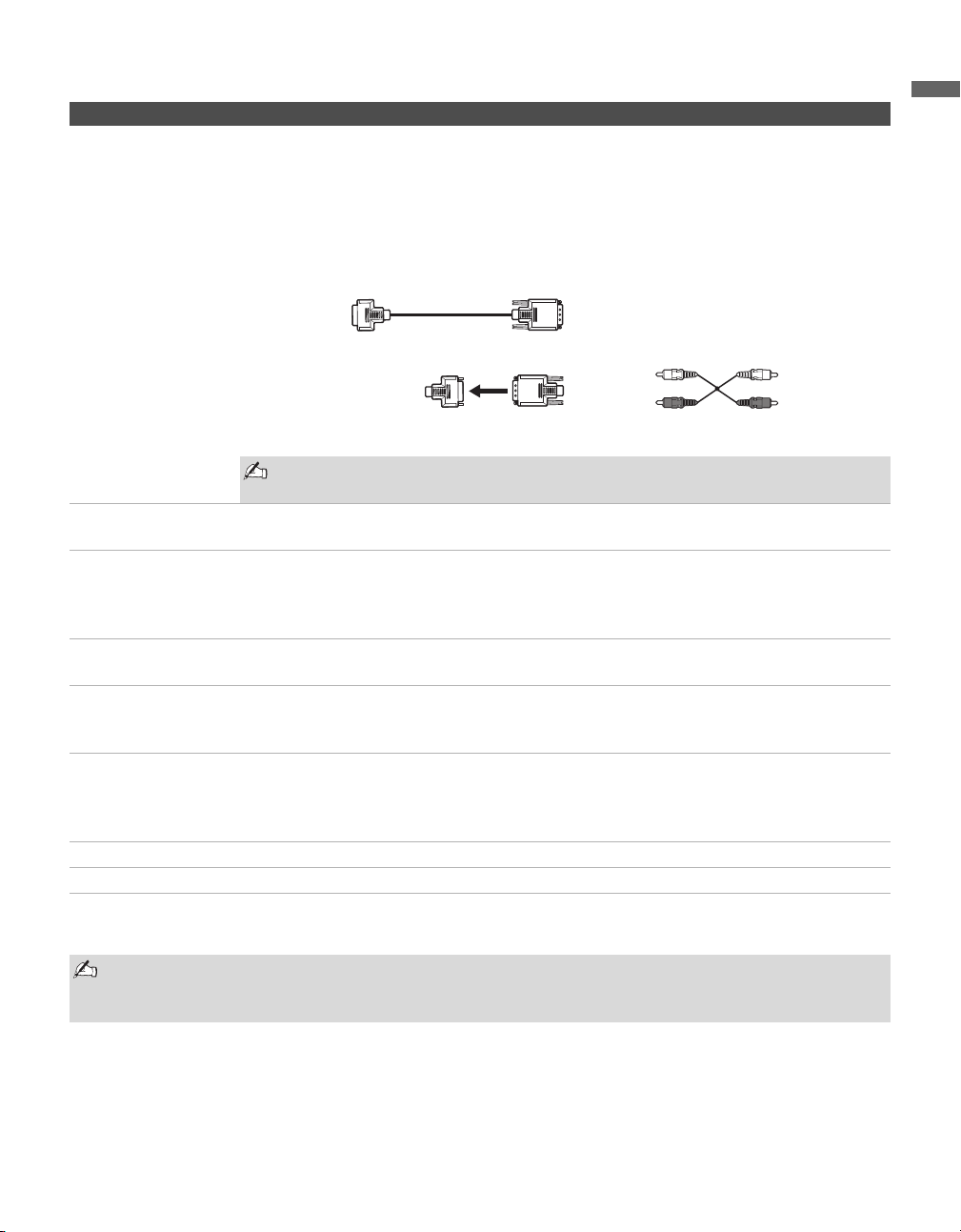
Connect to a personal computer’s video output connector using HD15-HD15 cable (analog
RGB, supplied).
See “PC Input Signal Reference Chart” on page 45 for the signals that can be displayed.
For some Apple Macintosh computers, it may be necessary to use an adapter
(not supplied). If this is the case, connect the adapter to the computer before
connecting the HD15-HD15 cable.
If the picture is noisy, flickering or not clear, adjust the Phase and Pitch of the PC
Settings see page 36.
Getting Started
15
Getting Started
5 HDMI IN 6
HDMI/
R-AUDIO-L
HDMI (High-Definition Multimedia Interface) provides an uncompressed, all-digital
audio/video interface between this TV and any HDMI-equipped audio/video equipment, such
as a set-top box, DVD player, and A/V receiver. HDMI supports enhanced, or high-definition
video, plus digital audio.
If the equipment has a DVI connector and not an HDMI connector, connect the DVI connector
to the HDMI IN (with HDMI-to-DVI cable or adapter) connector, and connect the audio jacks
to the AUDIO IN(L/R) jacks of HDMI IN. (DVI connector is for video signals only.)
Do not connect a PC to the TV’s HDMI input. Use the PC IN (RGB IN) input
instead when connecting a PC.
6 VIDEO IN 1
S VIDEO
Connects to the S VIDEO output jack of your VCR or other video equipment that has
S VIDEO. S VIDEO provides better picture quality than composite video (7).
7 VIDEO IN 1/3
VIDEO/
L(MONO)-
AUDIO-R
Connect to the composite video and audio output jacks on your A/V equipment such as a VCR
or other video equipment. A third composite video and audio (VIDEO 2) input is located on
the left side panel of the TV.
8 AUDIO OUT
(VAR/FIX)
Connect to the left and right audio input jacks of your audio or video equipment. You can use
these outputs to listen to your TV’s audio through your stereo system.
9 OPTICAL OUT
(PCM/DOLBY
*
DIGITAL)
Connects to the optical audio input of a digital audio equipment that is PCM/Dolby digital
compatible. (OPTICAL OUT is only available for digital channels.)
0 HD/DVD IN 4/5
(1080i/720p/
480p/480i)/
L-AUDIO-R
Connect to your DVD player’s or digital set-top box’s component video (YP
B
P
R
) and audio
(L/R) jacks. Component video provides better picture quality than the S VIDEO (6) or the
composite video (7) connections.
qa AC IN Connects the supplied AC power cord.
qs VHF/UHF RF input that connects to your Cable or VHF/UHF antenna.
* Manufactured under license from Dolby Laboratories. “Dolby” and the double-D symbol are trademarks of Dolby Laboratories.
Item Description
HDMI-to-DVI cable
HDMI-to-DVI adapter Audio cable
Component video (YP
B
P
R
) or HDMI connection is necessary to view 480i, 480p, 720p, and 1080i
formats. Note that this TV displays all format types of picture in its native resolution of 1,366 dots × 768
lines.
Getting Started
16
Installing the TV
Preventing the TV
from Toppling Over
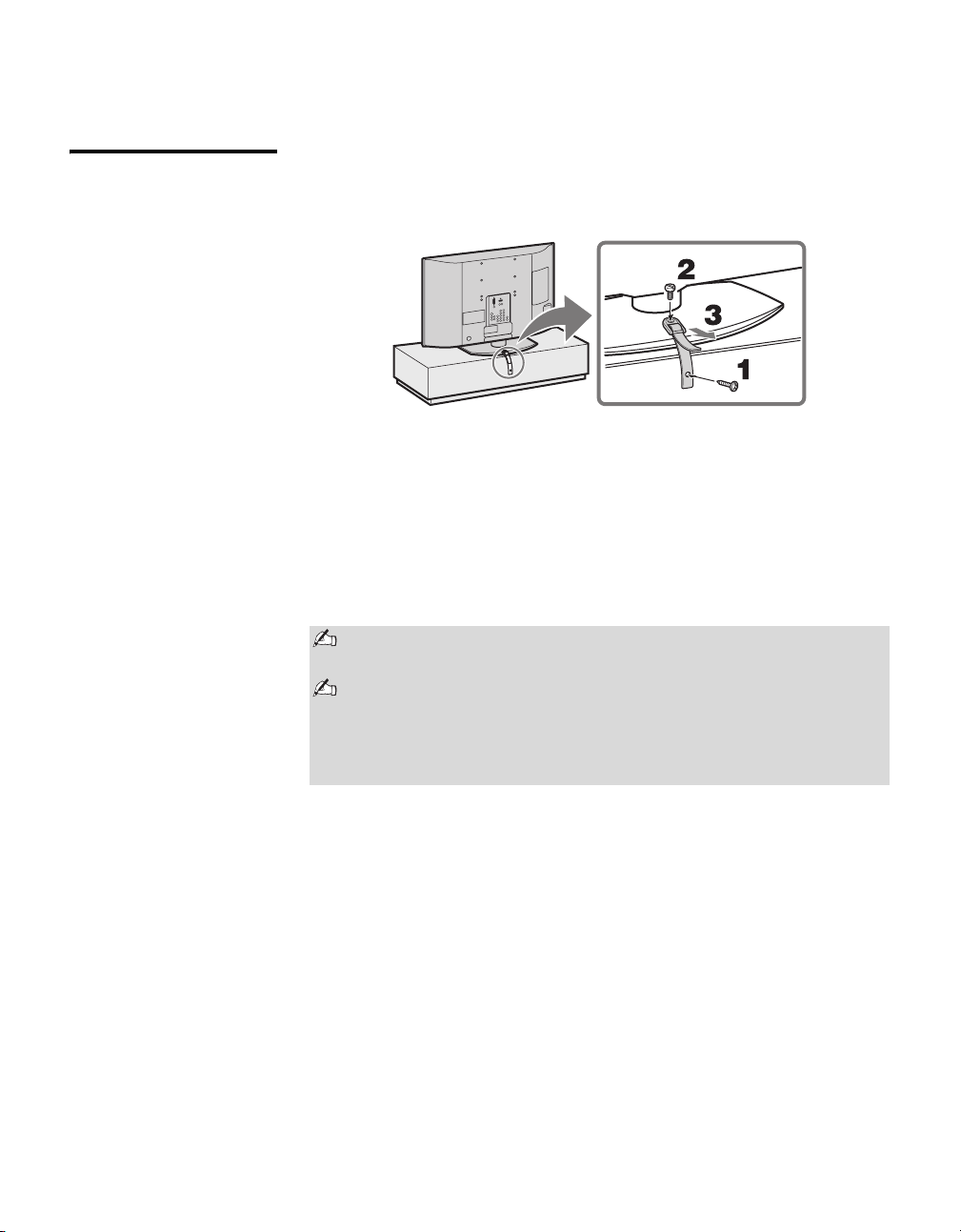
Attaching the Support Belt
1 Screw the support belt (supplied) to the TV stand with a wood screw
(supplied).
2 Attach the support belt to the stand with the securing screw (supplied)
using a coin, etc.
3 Adjust the length by pulling the support belt towards you while holding
the TV stand.
When Installing on a Wall
Be sure to use the specified Wall-Mount Bracket (see page 3) when
installing the TV on a wall. Refer to the Instruction Guide supplied with the
Wall-Mount Bracket (sold separately).
(See page 43 or 44 for Table-Top Stand removal.)
Be sure to take measures to prevent the TV from toppling over and
causing injury.
The supplied wood screw may not be used depending on the type of TV
stand. In this case, or when the securing strength is not enough,
prepare commercial screws to fit to the TV stand. Use commercial
screws of 3 to 4 mm (1/8 to 3/16 inches) diameter. Consult your dealer
about the types of screw.
Getting Started
17
Getting Started
Bundling the
Connecting Cables
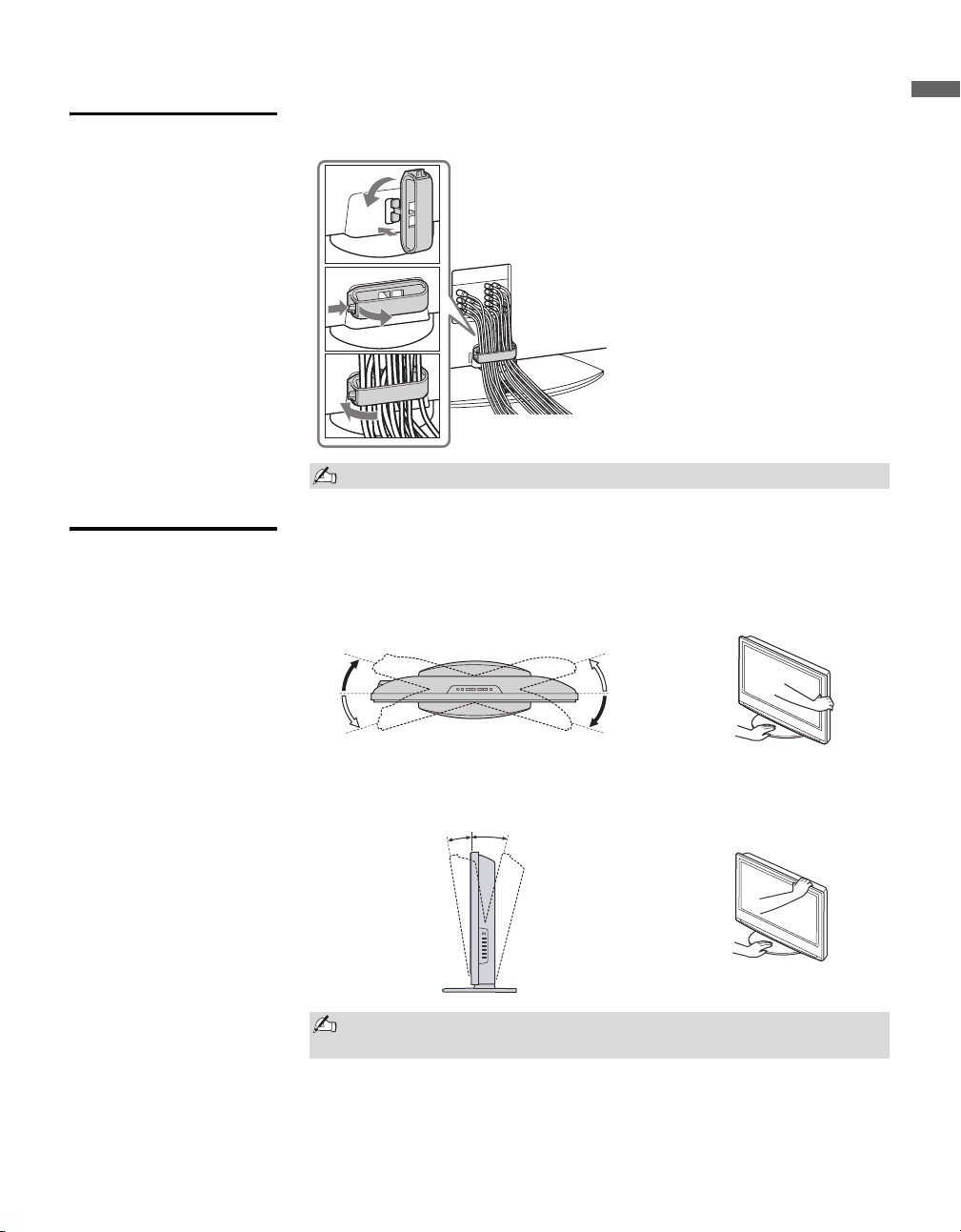
You can bundle the connecting cables as illustrated below.
Adjusting the
Viewing Angle of the
TV
This TV can be adjusted within the angles shown below.
Do not bundle the AC power cord with other connecting cables.
1
2
3
When adjusting the angle or tilt, hold the stand with one hand to avoid
slipping or tipping the TV.
Adjust the angle left and right (swivel for all models except for KDL-23S2010)
Top view
Front
15°
15°
15°
15°
Adjust the angle back and forth (tilt for KDL-23S2010 only)
3˚
8˚
Right view
Front
Getting Started
18
Setting Up the Channel List - Initial Setup
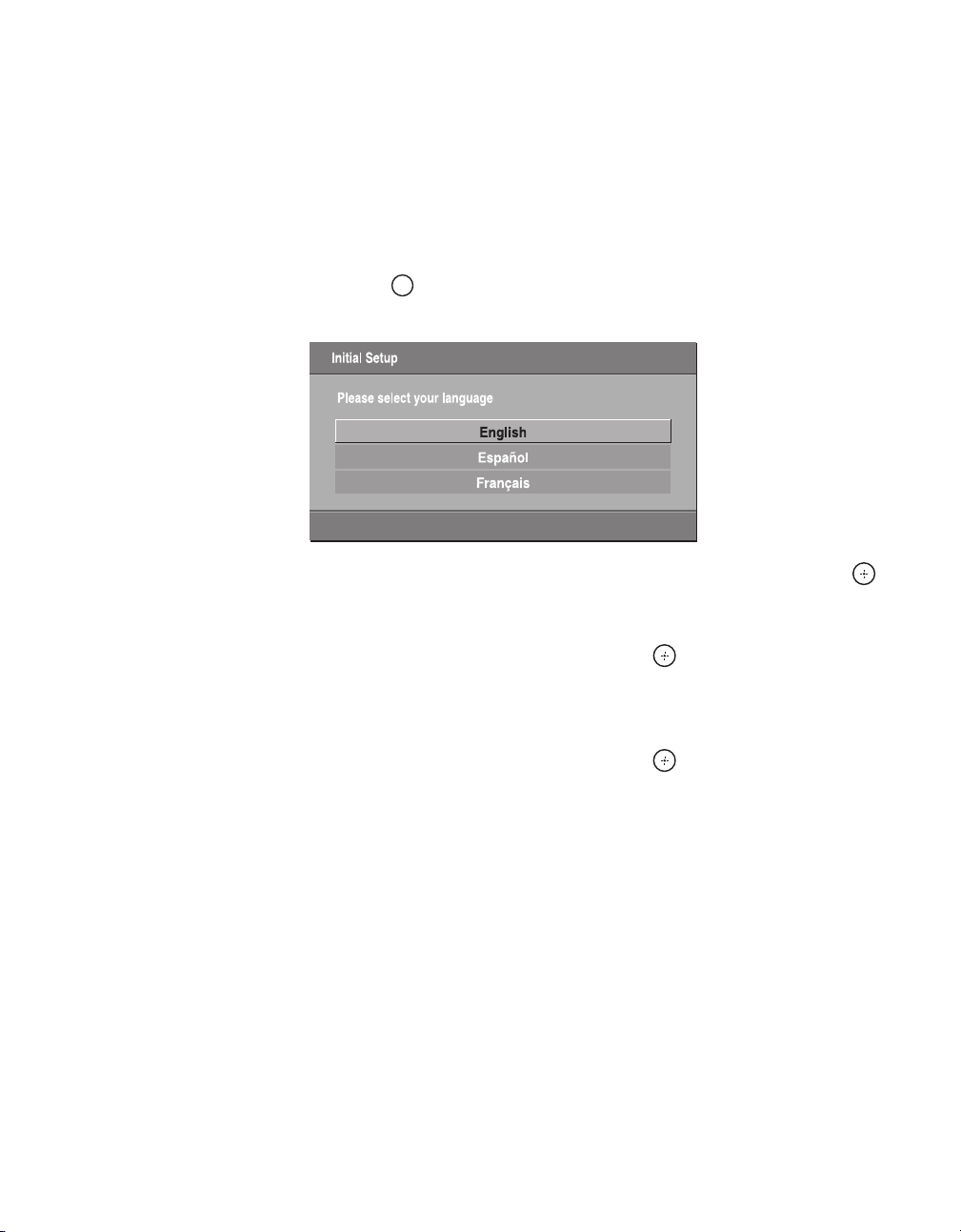
After you finish connecting your TV, you need to run Initial Setup, which
automatically sets up available channels. The Initial Setup screen appears
when you turn on your TV for the first time. If you do not want to set up the
channels at this time, you can do it later by selecting the Auto Program
option in the Analog and Digital Setup settings (see pages 37 and 38).
1 Press to turn on the TV.
The Initial Setup screen appears.
2 Press V/v to highlight the on-screen display language. Then press .
The message “First please connect cable/antenna. Do you want to start
Auto Program?” appears.
3 Press B/b to highlight “OK” then press .
The message “Auto Program” appears. Then the message “Continue
programming digital channels?” appears. This may require 50+ minutes
for completion.
4 Press B/b to highlight “OK” then press .
To run Auto Program again at a later time
❑
Use the Auto Program feature as described on pages 37 and 38.
To add individual digital channels
❑
Use the Digital Channels Add feature as described on page 38.
POWER
19
Basic Operations
Basic Operations
Remote Control
Button Description
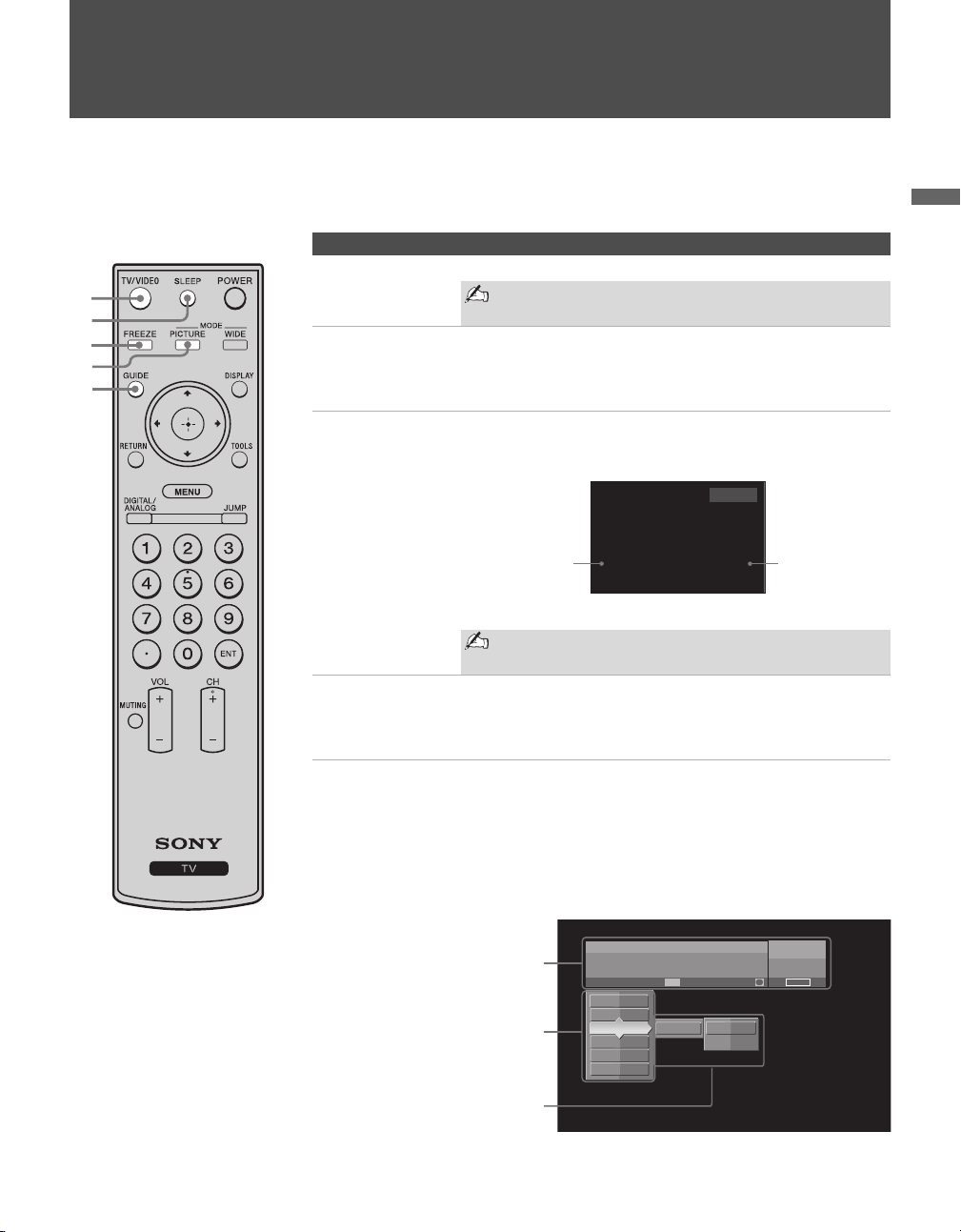
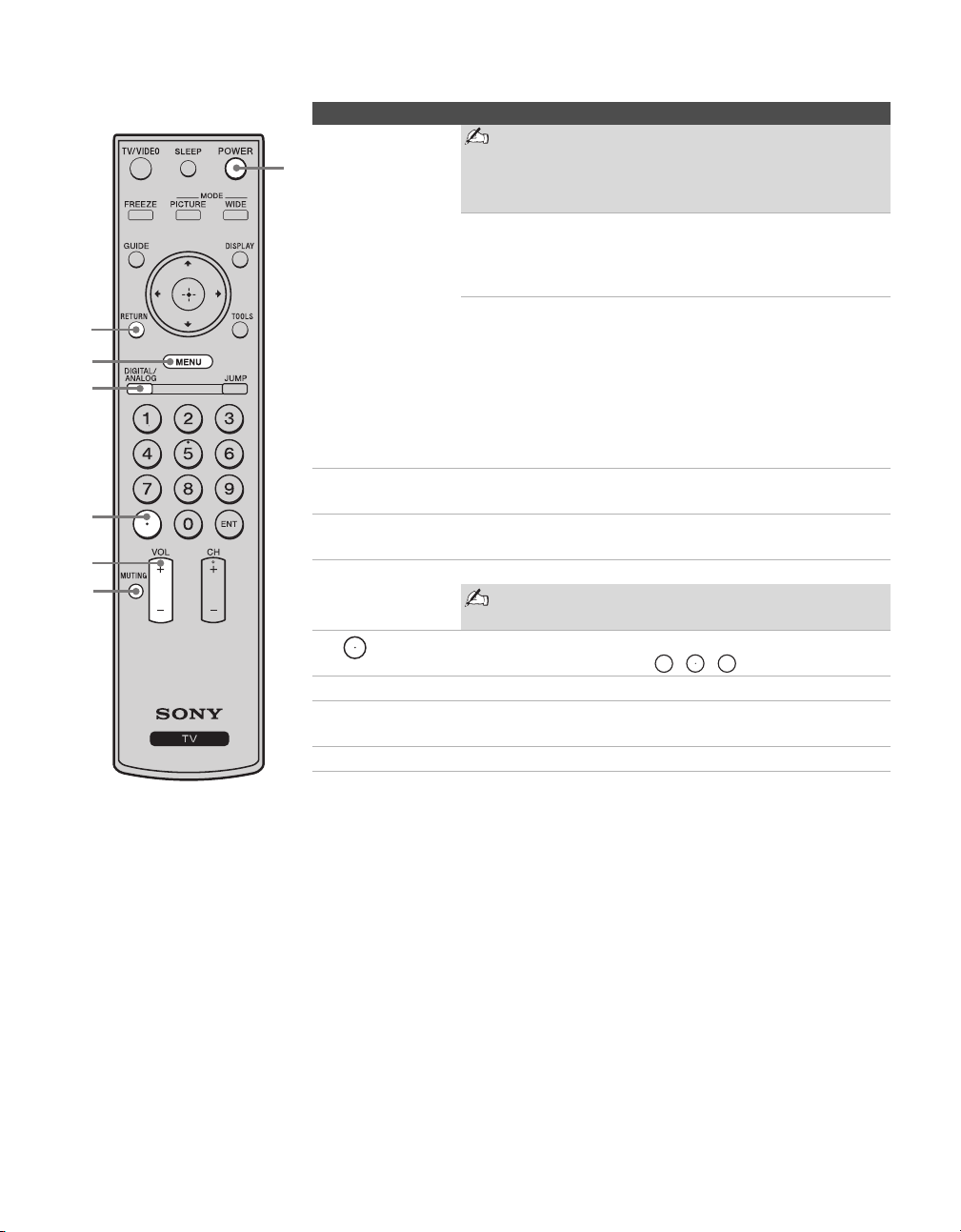
1 TV/VIDEO Press repeatedly to cycle through the video inputs.
See page 32 on setting up the video input labels,
including the Skip function.
2 SLEEP Press repeatedly until the TV displays the time in minutes
(Off, 15, 30, 45, 60, 90 or 120) that you want the TV to remain
on before shutting off. To cancel Sleep Timer, press SLEEP
repeatedly until Sleep Off appears.
3 FREEZE Press once to display a frozen image of the current program in
a window. Press again to show only the frozen image. Press
again to return to the program.
With Freeze function active, some functions are
unavailable, such as MENU.
4 PICTURE Press repeatedly to cycle through the available picture modes:
Vivid, Standard, Custom. The picture modes can be also
accessed in the Picture settings. For details, see “Using the
Picture Settings” on page 26.
5 GUIDE
(Digital
channels only)
Press to display the Guide when you are watching digital
channels (if it is available from the station).
Using the Guide
The Guide allows you to select the channels from a channel
list. The Guide also provides information about the current
program being shown on each channel.
1
2
3
5
4
z The 5 and CH + buttons
have a tactile dot. Use
them as a reference when
operating the TV.
Freeze
Frozen picture
Current program
Move the sub screen with V v B b.
Make Way for Ducks!
Series follows the aquatic misadventures of Henry and Riley, two
wayward ducks on a unique mission.
Time remaining: 1:26
TV-G
CC
Alternate Audio
FAM
C23.1
Alt. Audio
1 ABC
10 DISC
23.1
FAM
36 TLC
65 HIST
68 SHOW
Audio 1 Englsih
Audio 2 English
Channel
list
Information
banner
Program
options
Basic Operations
20
Program information in the guide is provided by the
broadcasters. As a result, it may sometimes include
only the channel number, without a program title or
description.
Using the Program Options Setting
The Program Options setting allows you to customize the
program settings on the currently tuned channel.
Each program has a main video and audio
stream (the video or audio that you see or hear
when the channel is first tuned), and may have
alternate streams. This option allows you to
select from the alternate audio streams, when the
broadcaster provides an alternate audio stream
(for instance, the audio may contain a different
language).
6 RETURN Press to go back to the previous screen when displaying
MENU items and settings.
7 MENU Press to display the MENU with TV functions and settings.
See “Overview of MENU” on page 23.
8 DIGITAL/
ANALOG
Press to switch between analog and digital channels.
To enjoy the digital features of this TV, press
DIGITAL/ANALOG.
9 Use with 0-9 and ENT buttons to select digital channels. For
example, to enter 2.1, press , , and ENT.
0 VOL +/– Press to adjust the volume.
qa MUTING Press to mute the sound. Press again or press VOL + to restore
the sound.
qs POWER Press to turn on and off the TV.
Button Description
qa
qs
0
9
6
7
8
2
1
Alternate
Audio
(When
available)
Basic Operations
21
Basic Operations
Changing the Wide Screen Mode
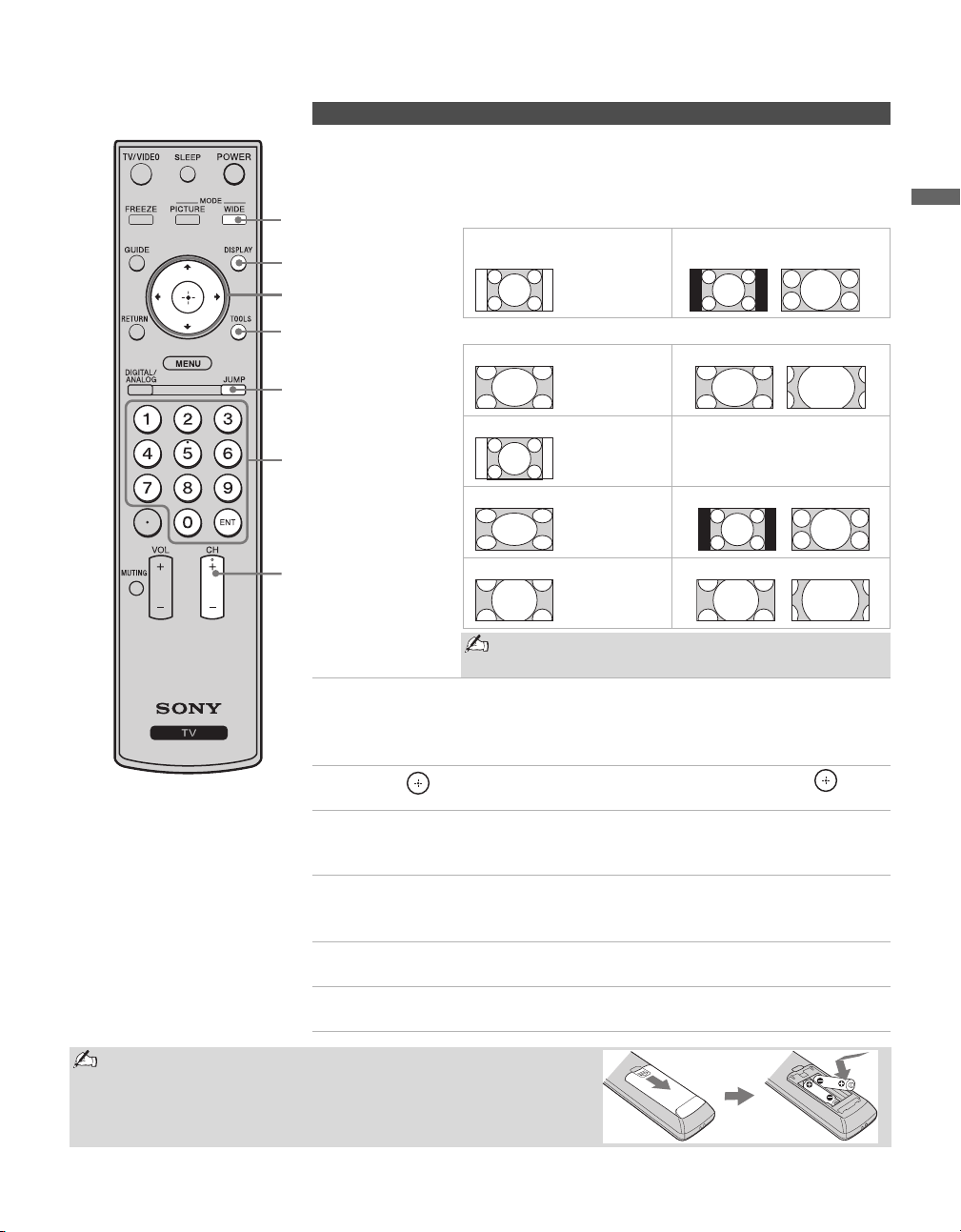
qd WIDE Press repeatedly to step through the Wide Mode settings:
Wide Zoom, Normal, Full, Zoom. The Wide Mode settings
can be also accessed in the Screen settings. See page 29.
4:3 Original source
Standard definition source
16:9 Original source
High definition source
mm
Wide Zoom Wide Zoom
Normal Normal
This mode is not available
Full Full
Zoom Zoom
When the TV receives a 720p or 1080i signal,
Normal cannot be selected.
qf DISPLAY Press once to display the current channel number, channel
label, time and Wide Mode settings. The OSD (on screen
display) will turn off after a few seconds or press again to
immediately turn off the display.
qg V/v/B/b Press V/v/B/b to move the on-screen cursor. Press to
select/confirm an item.
qh TOOLS Press to display the Tools Menu that is associated with your
current input: Analog TV, Digital TV, or External Inputs. (See
page 26, 28, 31, 36 and 37.)
qj JUMP Press to jump back and forth between two channels. The TV
alternates between the current channel and the last channel that
was selected.
qk 0 - 9 ENT Press 0 - 9 to select a channel; the channel changes after two
seconds. Press ENT to change channels immediately.
ql CH +/– Press to scan through channels. To scan quickly through
channels, press and hold down either +/–.
Button Description
qg
qf
qk
qh
qj
ql
qa
qa
qd
Insert two size AA batteries (supplied) by matching the e and E
on the batteries to the diagram inside the remote control’s battery
compartment.
(see
page 29 for details)
Basic Operations
22
TV Controls
67 8 9
0
PIC OFF/TIMER STANDBY POWER
TV/VIDEO
VOLUME
MENU
CHANNEL
POWER
12 3 4 5
Item Description
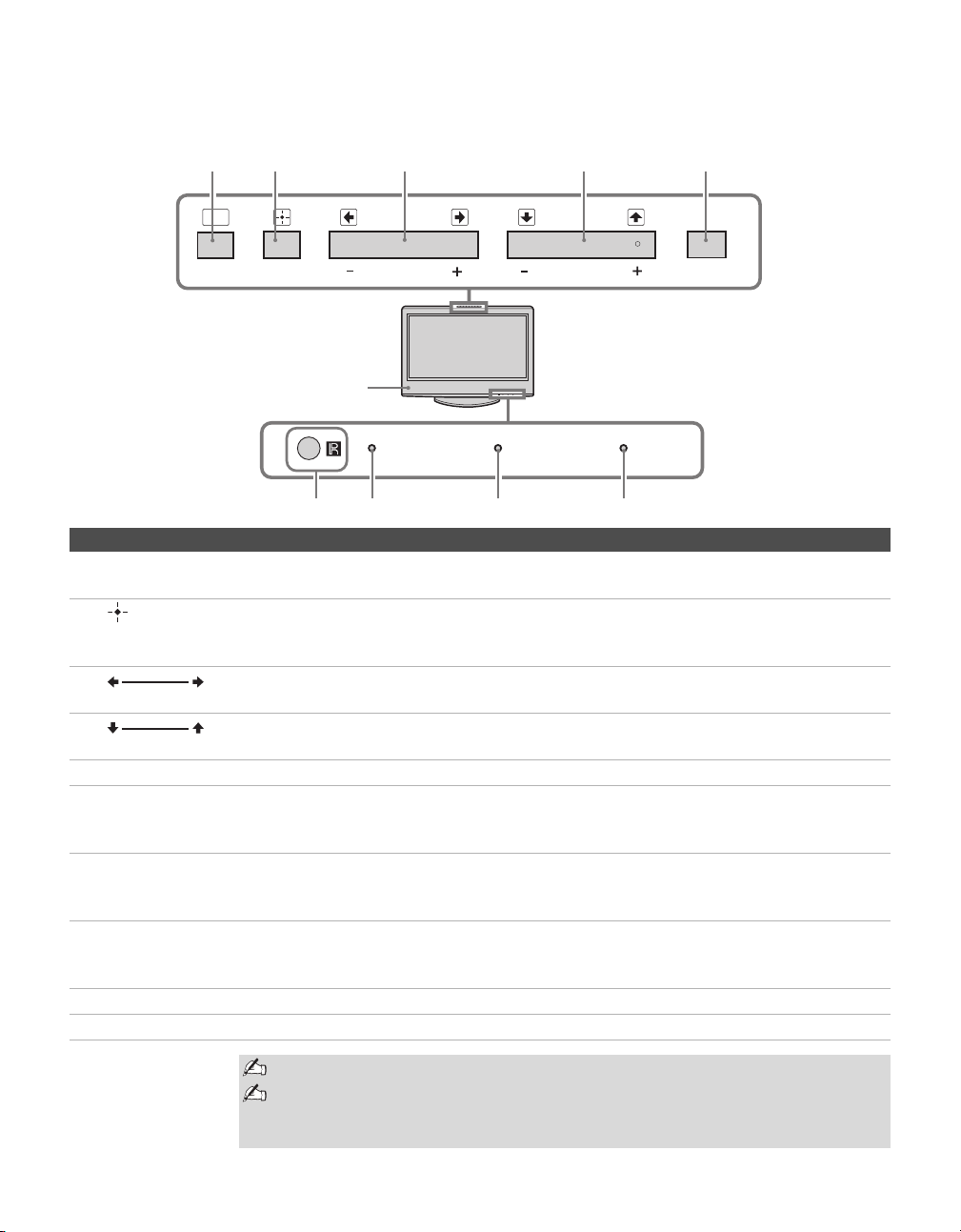
1 MENU Press to display MENU with TV functions and settings (see “Overview of MENU” on page
23).
2
TV/VIDEO
Press to cycle through the video inputs. If you set a certain input to Skip in Label Video
Inputs, then the input will not appear.
In the MENU screen, this button serves as confirming the selection or setting.
3
– VOLUME +
Press to adjust the volume. In the MENU screen, these buttons serve as left/right buttons.
4
– CHANNEL +
Press to scan through channels. To scan quickly through channels, press and hold down either
–/+. In the MENU screen, these buttons serve as up/down buttons.
5 POWER Press to turn on and off the TV.
6 (IR) Infrared
Receiver/
Light Sensor
Receives IR signals from the remote control.
Senses room light level and adjusts the screen brightness accordingly (see page 33 for details).
Do not put anything near the sensor, as its function may be affected.
7 PIC OFF/
TIMER LED
Lights up in green when the Picture Off feature is activated. Lights up in orange when the
timer is set. When the timer is set, this LED will remain lit even if the TV is turned off. For
details, see page 33.
8 STANDBY LED Lights up in red when your TV is in PC power saving mode. If the LED blinks in red
continuously, this may indicate the TV needs servicing (see “For Your Convenience” on page
2).
9 POWER LED Lights up in green when the TV is turned on.
0 Speaker Outputs audio signal.
The CHANNEL + button has a tactile dot. Use it as a reference when operating the TV.
Make sure that the TV is turned off before unplugging the power cord. Unplugging the
power cord while the TV is turned on may cause the Power LED to remain lit for up to
20 seconds or may cause the TV to malfunction.
23
Using the Menus
Using the Menus
Overview of MENU
Select from connected equipment
MENU
External Inputs
Analog Favorites
Digital Favorites
Analog
Digital
Settings
Select:
Exit:Set:
MENU
1
2,
3
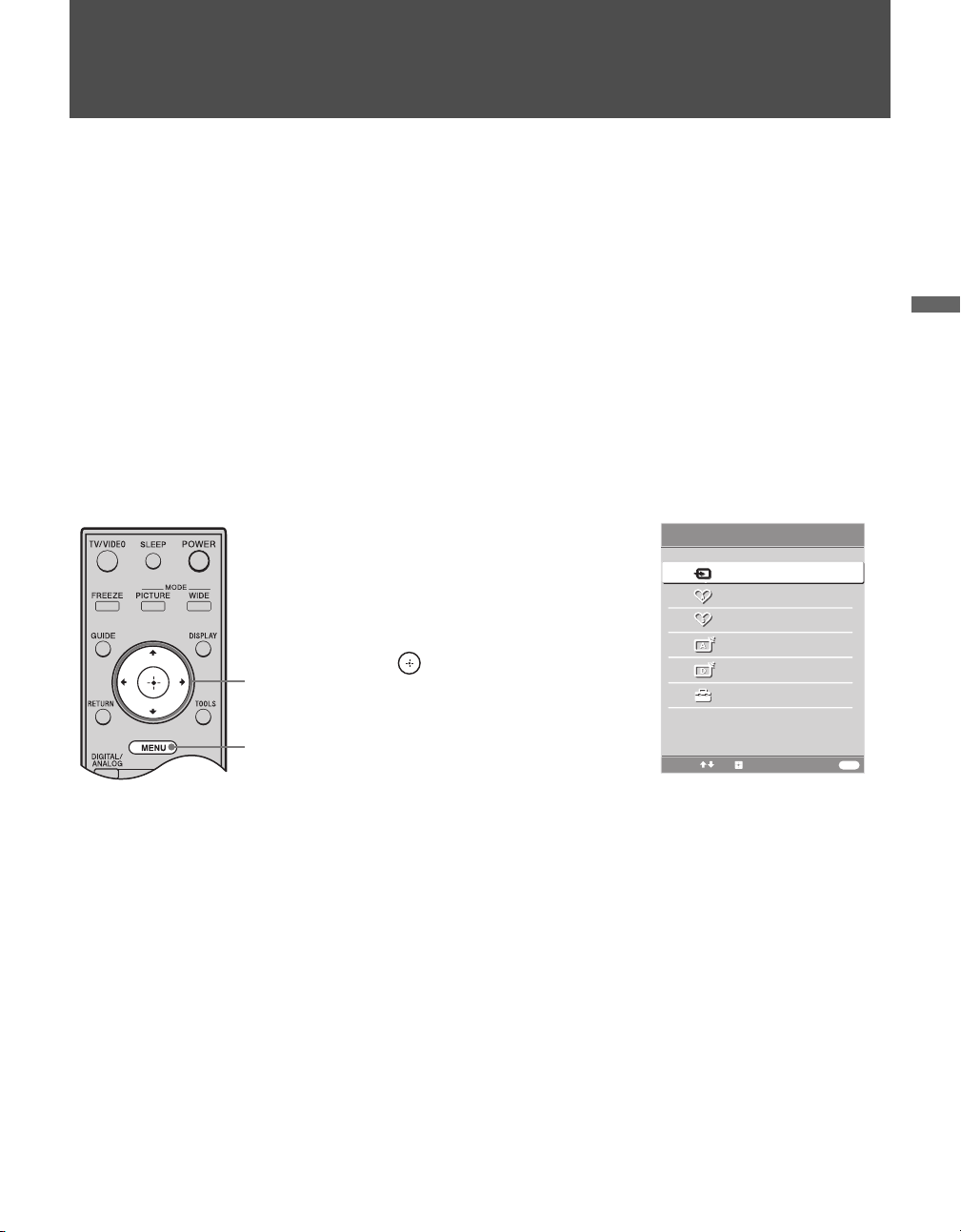
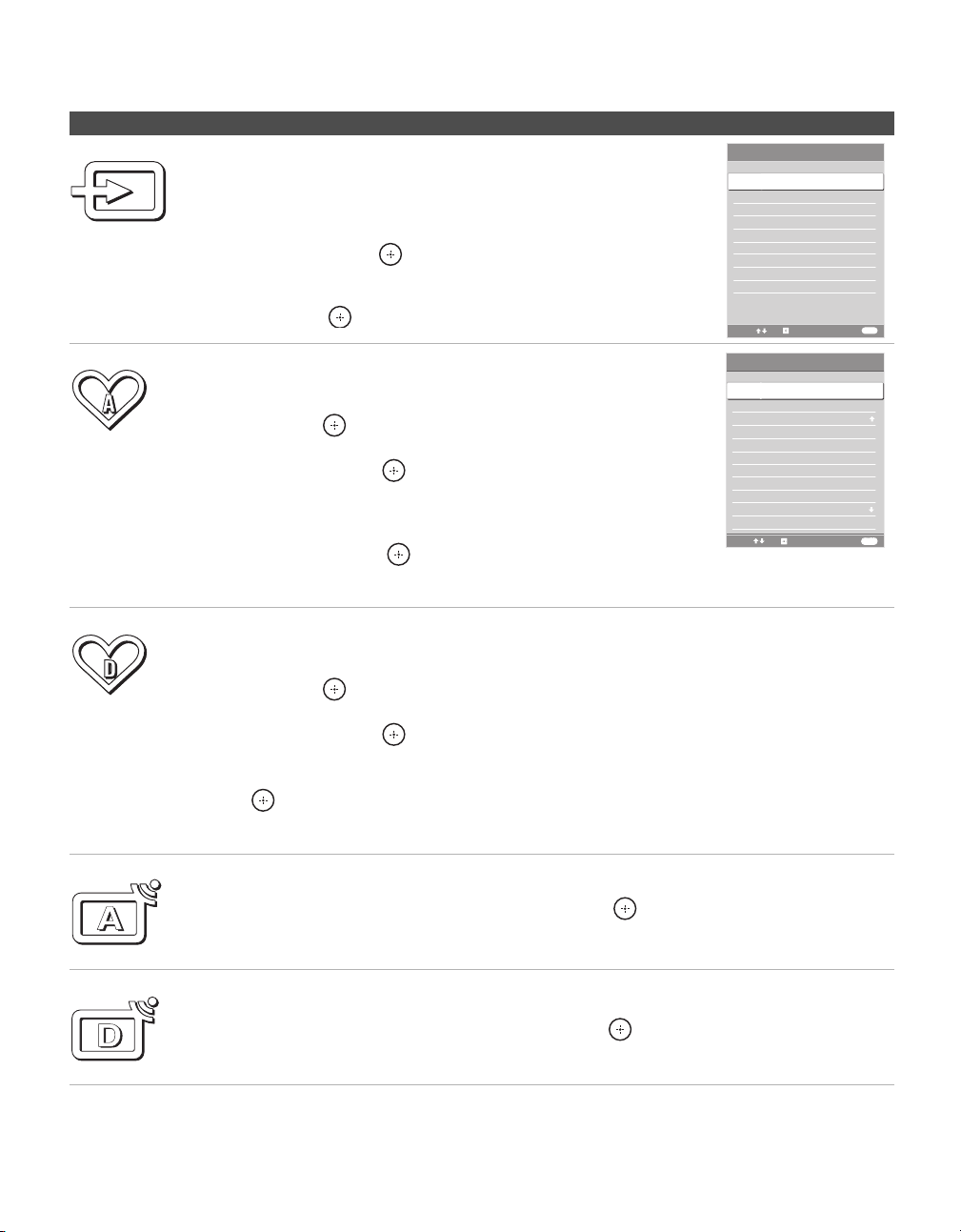
1 Press MENU on the remote.
MENU control panel appears.
2 Press V/v to highlight the item.
3 Press to select an option.
Press MENU to exit.
MENU provides one button access for controlling your TV. It enables you to perform a variety of tasks intuitively
with a control panel on the screen rather than a variety of remote control button presses.
When you press the MENU button, you can easily perform basic TV functions such as: switching between external
inputs, viewing your favorite analog/digital stations, switching between analog and digital channels, and changing or
customizing your TV settings.
Using the Menus
24
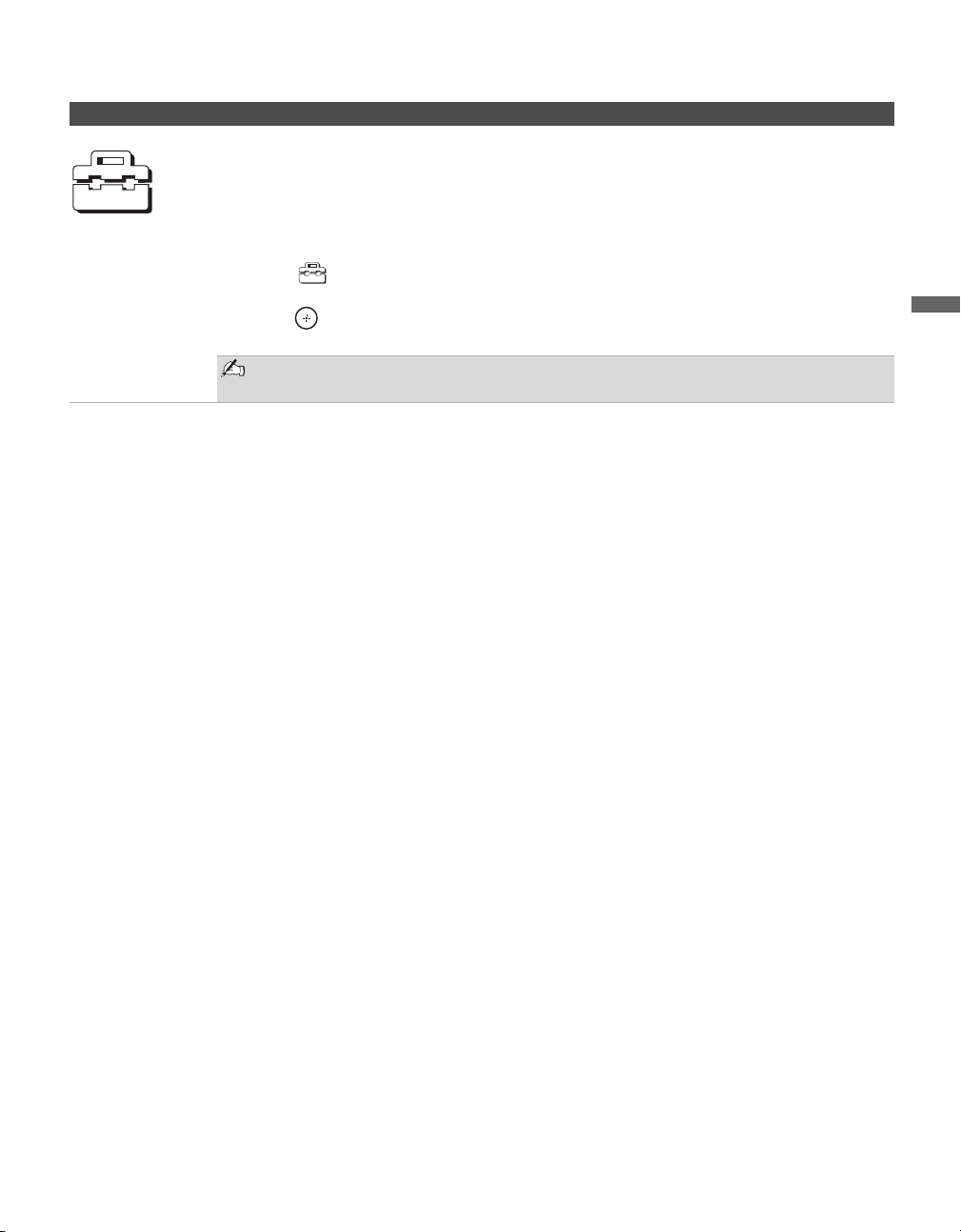
MENU Allows you to
External Inputs
The External Inputs feature lets you select the external inputs
connected to your TV. You can also assign a label using Label
Video Inputs in the Setup settings. (see page 32)
Analog Favorites
The
Analog Favorites
feature lets you select programs from a list
of up to 16 favorite channels that you specify.
1 Highlight Analog Favorites on the MENU control panel
and press .
2 Make your selection by pressing V/v to highlight the desired
channel then press .
To add the current channel to the list of Favorite Channels, follow
step 1 above then highlight and select Add to Favorites or while
viewing a program simply press TOOLS button then select Add to
Favorites and press .
To manually edit your list of favorite channels, select Edit Favorites. For more information,
see page 37.
Digital Favorites
The Digital Favorites feature lets you create a list of up to 16
favorite channels that you specify.
1 Highlight Favorites on the MENU control panel
and press .
2 Make your selection by pressing V/v to highlight the desired
channel then press .
To add the current channel to the list of Favorite Channels,
follow step 1 above then highlight Add to Favorites and press
.
To edit your list of favorite channels, follow step 1 above then highlight and select Edit
Favorites.
Analog
The Analog feature takes you to the most recently viewed analog channel. When tuned to the
channel, Channel number will be displayed.
Highlight Analog on the MENU control panel and press .
Digital
The Digital feature takes you to the most recently viewed digital channel. When tuned to the
channel, the Program Banner and Channel number will be displayed.
Highlight Digital on the MENU control panel and press .
MENU
Select:
Set:
Exit:
External Inputs
Return
Video 1 VCR
Video 2 GAME
Video 3 -
Video 4 -
Video 5 -
Video 6 -
Video 7 -
Edit Video Labels
1
Highlight External Inputs on the MENU control
panel and press .
2
Press
V
/
v
to highlight the desired external input
and press .
MENU
Analog Favorites
Select:
Exit:Set:
MENU
Return
Add to Favorites
1 28 : -----
2 60 : -----
3 28 : -----
4 65 : -----
5 68 : -----
6 28 : -----
7 -- : -----
8 -- : -----
Edit Favorites
Using the Menus
25
Using the Menus
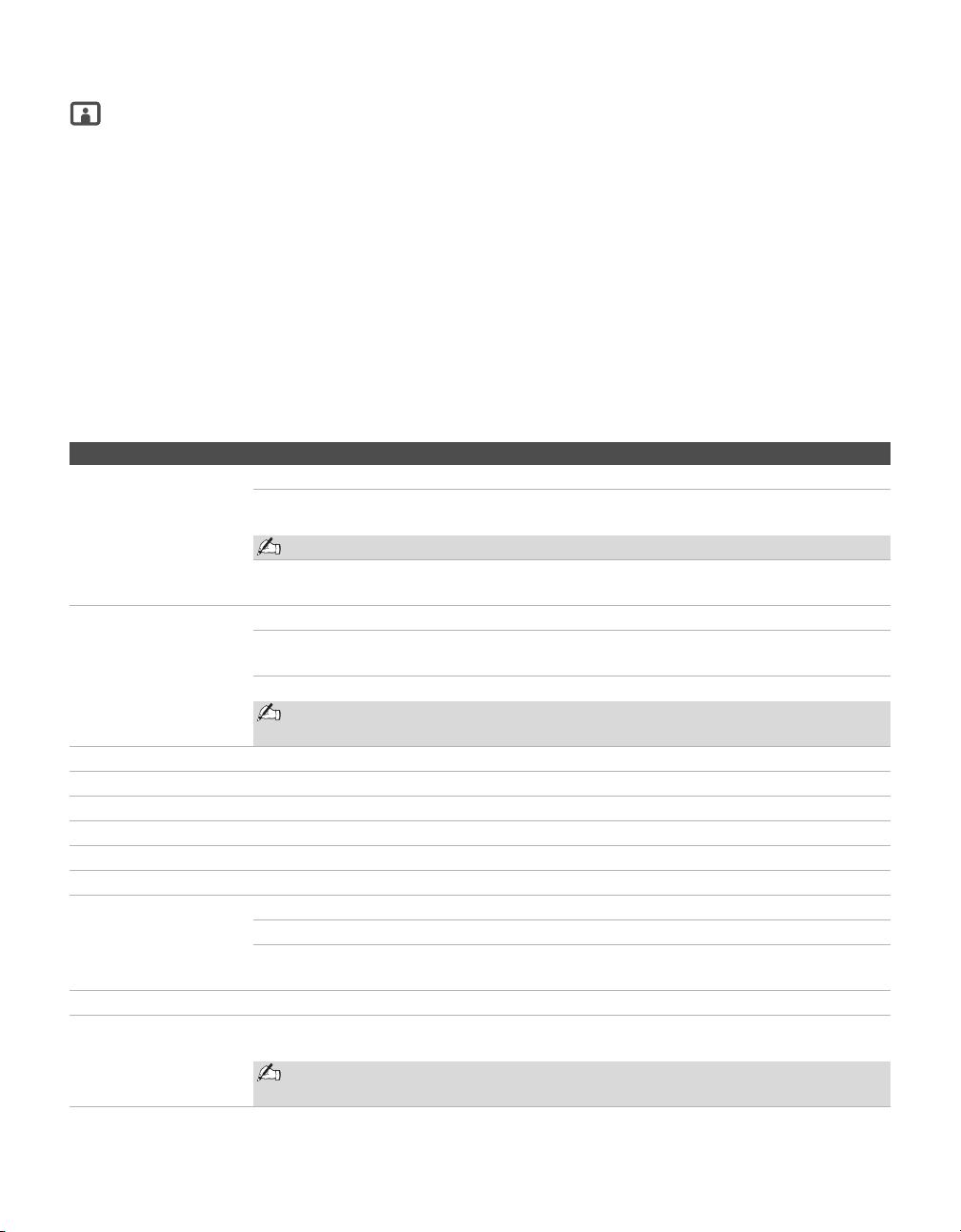
Settings
The Settings feature lets you enter the settings screen. Settings and adjustments can be performed
from the Settings menu. The information on various settings starts from page 26.
Navigating Through Settings
The Settings screen provides access to the features:
1 Press MENU.
2 Select .
3 Highlight the item: Picture, Sound, Screen, Setup, PC Settings, Analog Setup, Digital Setup.
4 Press to select an option.
To exit Settings, press
MENU.
The options you can adjust vary depending on the situation. Unavailable options are
grayed out.
MENU Allows you to
Using the Menus
26
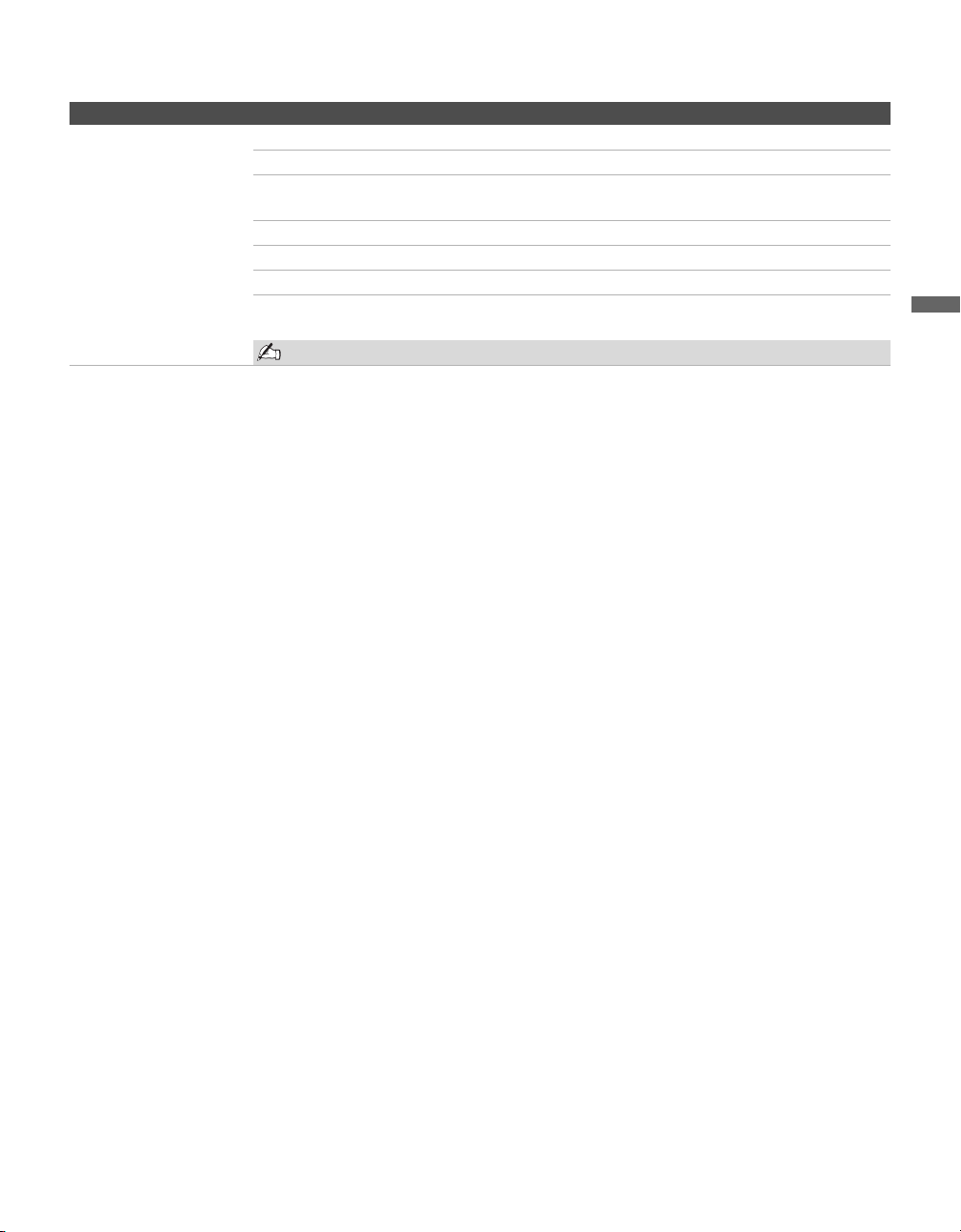
Using the Picture Settings
Option Description
Target Inputs Determines whether to apply Picture Settings to current input only, or to all inputs.
All Inputs Settings will be applied to “All Inputs” (ex: TV is showing Video 1.
Changes to the picture settings affect TV, Video1 - Video7)
“All Inputs” will override any settings set by “Current Input.”
Current Input Settings will be applied to only the “Current Input” (ex: TV is
showing Video 1. Changes to picture settings affect only Video 1)
Picture
Mode
Customized picture
viewing
Vivid Select for enhanced picture contrast and sharpness.
Standard Select for standard picture settings. Recommended for home
entertainment.
Custom Allows you to store your preferred settings.
Picture Mode can also be accessed using the TOOLS button on the remote
control when in Analog TV, Digital TV and External Inputs.
Reset Resets the current Picture Mode setting to the default values.
Backlight Adjust to brighten or darken the backlight.
Picture Adjust to increase or decrease picture contrast.
Brightness Adjust to brighten or darken the picture.
Color Adjust to increase or decrease color intensity.
Hue Adjust to increase or decrease the green tones.
Color Temperature
White adjustment
Cool Select to give the white colors a bluish tint.
Neutral Select to give the white colors a neutral tint.
Warm 1,2 Select to give the white colors a reddish tint. Available only when
Picture Mode is set to Custom.
Sharpness Adjust to sharpen or soften the picture.
Noise Reduction Select to reduce the noise level of connected equipment, and the VHF/UHF input. Select
from Auto, High, Medium, Low and Off.
Auto is only available when you are watching analog channels. It is not available
when Target Input is set to All Inputs.
Using the Menus
27
Using the Menus
Advanced Settings
Only available in
“Custom Picture Mode”
Reset Resets all the advanced settings to the default settings.
Black Corrector Enhances black areas of the picture for stronger contrast.
Contrast
Enhancer
Automatically optimizes the contrast. This setting is especially
effective for dark images which increases the vibrancy of the picture.
Gamma Adjusts the balance between the light and dark areas of the picture.
Clear White Emphasizes white and light colors.
Live Color Makes colors more vivid.
MPEG Noise
Reduction
Reduces the mosaic effect in MPEG-compressed video.
Effective for Digital TV programs.
If the function is set to High, it will reduce the sharpness of the pictures.
Option Description
Using the Menus
28
Using the Sound Settings
Option Description
Target Inputs Determines whether to apply Sound Settings to current input only, or to all inputs.
All Inputs Settings will be applied to “All Inputs” (ex: TV is showing Video 1.
Changes to the picture settings affect TV, Video1 - Video7)
“All Inputs” will override any settings set by “Current Input.”
Current Input Settings will be applied to only the “Current Input” (ex: TV is showing
Video 1. Changes to picture settings affect only Video 1)
Sound Mode
Customized
sound listening
Dynamic Select to enhance treble and bass.
Standard Suitable for spoken dialog.
Custom Flat setting. Allows you to store your preferred settings.
Sound Mode can also be accessed using the TOOLS button on the remote
control when in Analog TV, Digital TV and External Inputs.
Reset Resets the current Sound Mode setting to the default values, except MTS.
Tr e bl e Adjust to increase or decrease higher-pitched sounds.
Bass Adjust to increase or decrease lower-pitched sounds.
Balance Adjust to emphasize left or right speaker balance.
Steady Sound On Select to stabilize the volume across all programs and commercials.
Off Select to turn off Steady Sound.
Surround TruSurround XT Select for surround sound (for stereo programs only).
Simulated Stereo Adds a surround-like effect to mono programs.
Off Select for normal stereo or mono reception.
BBE Select to give sound more impact by compensating for phase effects in speakers. Select from
High, Low, and Off.
MTS
Enjoy stereo, bilingual
and mono programs
Stereo Select for stereo reception when viewing a program broadcast in stereo.
Auto SAP Select to automatically switch the TV to second audio programs when a
signal is received. If no SAP signal is present, the TV remains in
Stereo mode.
Mono Select for mono reception. Use to reduce noise during weak stereo
broadcasts.
MTS is only available for analog programs.
Using the Menus
29
Using the Menus
Using the Screen Settings
Option Description
Target Inputs Determines whether to apply Screen Settings to current input only, or to all inputs.
All Inputs Settings will be applied to “All Inputs” (ex: TV is showing Video 1.
Changes to the picture settings affect TV, Video1 - Video7)
“All Inputs” will override any settings set by “Current Input.”
Current Input Settings will be applied to only the “Current Input” (ex: TV is showing
Video 1. Changes to picture settings affect only Video 1)
Wide Mode Wide Zoom Select to fill screen with minimum distortion.
Normal Select to display 4:3 picture in original size when the original source is
4:3.
Normal is not available when you are watching 720p or 1080i sources.
Full Select to enlarge the picture horizontally to fill the screen when the
original source is 4:3 (Standard definition source). When the original
source is 16:9 (High definition source), select this mode to display 16:9
picture in original size.
Zoom Select to enlarge the original picture without distorting the aspect ratio.
Auto Wide On Select to have the screen automatically change to the screen mode that
is best for the current program. If frequent screen changes are disturbing
to you, select Off.
Off Select to turn off the Auto Wide option. Choose a screen mode from the
Wide Mode option.
(Continued)
Using the Menus
30
4:3 Default
Select the default
Screen Mode to use for
4:3 sources
Wide Zoom Select to enlarge the 4:3 picture to fill the 16:9 screen, keeping the
original image as much as possible, with minimal distortion.
Normal Select to display the 4:3 picture in its original size.
Off Select to continue using the current Wide Mode setting when the
channel or input is changed.
If 4:3 Default is set to anything but Off, the Wide Mode setting changes only for
the current channel. When you change channels (or inputs), Wide Mode is
automatically replaced with the 4:3 Default setting for 4:3 sources. To retain the
current Wide Mode setting as channels and inputs are changed, set 4:3 Default
to Off.
Display Area Select Normal to return to the default display area. Select -1 or -2 to enlarge the picture so
that the edges are outside the visible portion of the screen.
Horizontal Center Allows you to move the position of the picture left and right.
Press B/b and press to choose a correction between Min, – 4 to +4 and Max.
Horizontal Center feature is useful if TV is connected to game equipment.
Vertical Center Allows you to move the position of the picture up and down. Available only in Zoom mode.
Press V/v and press to choose a correction between Min, – 4 to +4 and Max.
Ver tical Size Allows you to adjust the vertical size of the picture. (Available only in Wide Zoom and
Zoom modes.)
Press V/v and press to choose a correction between Min, – 4 to +4 and Max.
Option Description
Using the Menus
31
Using the Menus
Using the Setup Settings
Option Description
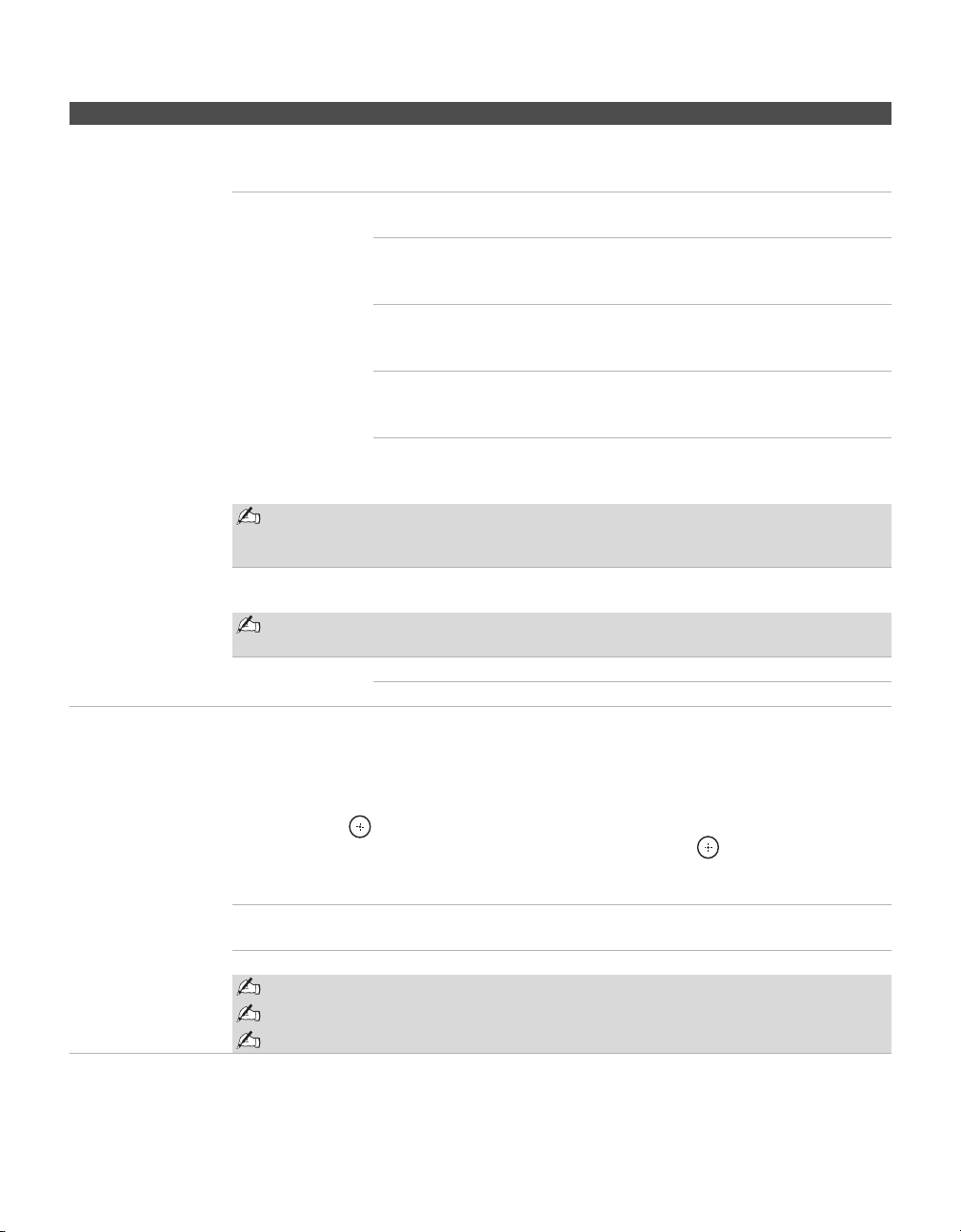
Language Select to display all on-screen settings in your language of choice: English, Español, Français.
Caption Vision Allows you to select from several closed caption modes (for programs that are broadcast with
closed captioning). Some caption modes for digital channels are only accessible from the Digital
Setup setting. For details, see page 39.
Off Caption Vision is turned off.
CC1, CC2,
CC3, CC4
Displays a printed version of the dialog or sound effects of a program.
(Should be set to CC1 for most programs.)
Text1,Text2,
Text3,Text4
Displays network/station information presented using either half or the
whole screen (if available).
Caption Vision can also be accessed using the TOOLS button on the remote
control when in Analog TV, Digital TV and External Inputs (with the exception of PC
input).
Info Banner Set to On or Off. When on, displays the program name and the remaining time (if the
broadcaster offers this service). Displays for a few seconds when the channel is changed or the
DISPLAY button is pressed.
(Continued)
Using the Menus
32
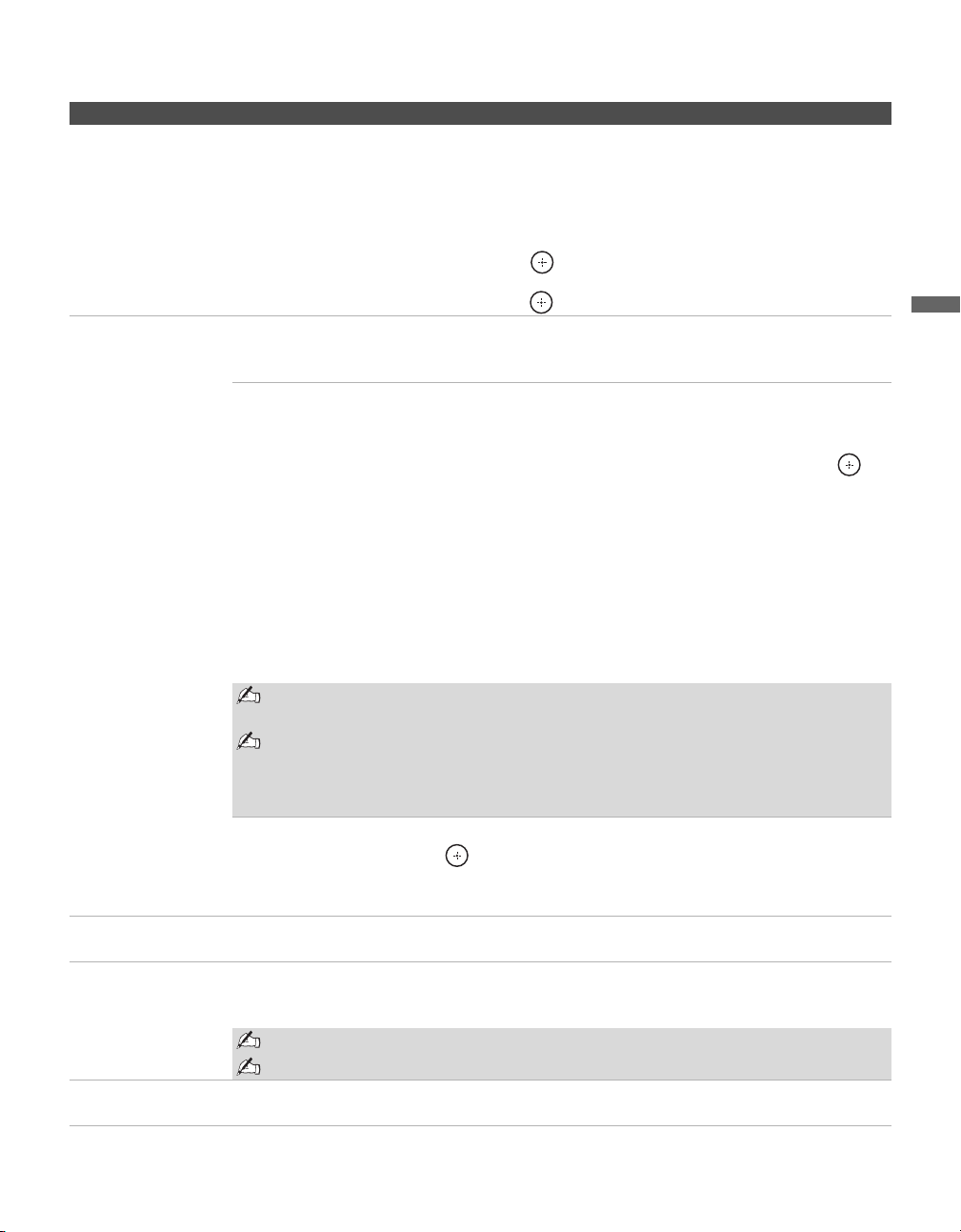
Parental Lock The Parental Lock settings allows you to set up the TV to block programs according to their
content and rating levels. Use 0-9 on the remote control to enter a four-digit password. The first
time you create a password, confirm the password by entering it again.
Lock Off Turn Parental Lock off. No programs are
blocked from viewing.
Child Maximum ratings permitted are:
U.S.: TV-Y, TV-G, G
Canada: C, G, TV-Y
Yo u t h Maximum ratings permitted are:
U.S.: TV-PG, PG
Canada: C8+, PG, 8 ans+, TV-PG
Young Adult Maximum ratings permitted are:
U.S.: TV-14, PG-13
Canada: 14+, 13 ans+, TV-14
Custom Select to set ratings manually.
U.S.: See page 34 for details.
Canada: See page 35 for details.
If you are not familiar with the Parental Guideline rating system, you should select
Child, Youth, or Young Adult to help simplify the rating selection. To set more
specific ratings, select Custom.
Change Password
Select to change your password.
You need your password for any future access into the Parental Lock settings. If
you lose your password, see “Lost password.” on page 42.
Select Country U.S.A. Select to use U.S.A. ratings (see page 34).
Canada Select to use Canadian ratings (see page 35).
Label Video Inputs Allows you to identify A/V equipment you connected to the TV, such as a VCR, DVD, etc. For
example, if you have a DVD player connected to the VIDEO 4 jack, you can select the label
DVD for the Video 4 input. Then when you press TV/VIDEO to change inputs, the Video Label
you assigned to that input appears on screen.
1 Press V/v to highlight the video input (Video 1-7) to which you want to assign a label.
Then press to select the input.
2 Press V/v to highlight one of the displayed labels. Then press to select the label.
You can select from the following labels for each input:
Video 1-6 –, RECEIVER, SATELLITE, CABLE BOX, VCR, DVD, DVR, HD,
GAME, CAMCORDER, Edit:, Skip
Video 7
–, PC, Edit:, Skip
Edit: allows you to create a custom five character label.
If you select Skip, your TV skips this input when you press the TV/VIDEO button.
The Skip label is useful for inputs to which no equipment is connected.
Option Description
Using the Menus
33
Using the Menus
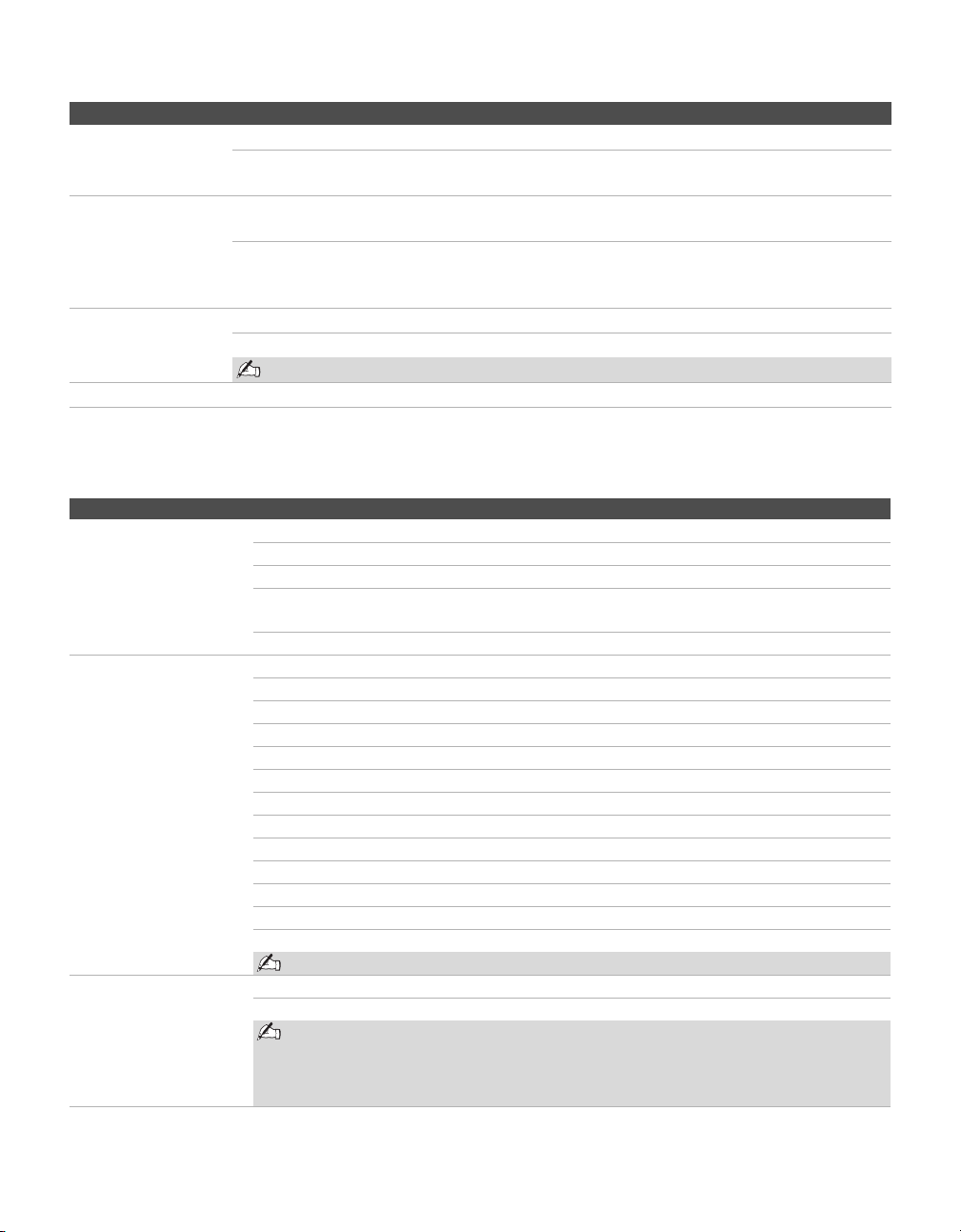
Auto YC Both composite video and S Video can be connected to VIDEO 1 and VIDEO 2. Your TV by
default will automatically select to receive input signal from the S Video. Use this option when
you want to receive the input signal from the composite video.
1 Press TV/VIDEO repeatedly until the desired video input appears.
2 After selecting the Auto YC option, to watch the pictures input from the S VIDEO input
jack:
Press V/v to highlight On, then press .
To watch the pictures input from the VIDEO input jack:
Press V/v to highlight Off, then press .
Timer Settings Sleep Timer Set the time in minutes (Off, 15 min, 30 min, 45 min, 60 min, 90 min, or
120 min) that you want the TV to remain on before shutting off
automatically.
Timer You can use the Timer to program the TV to turn and off, and to tune to a
specific channel at a scheduled time.
Timer feature will not be available until you set the Current Time.
1
Press
V
/
v
to highlight one of the following options, then press .
Set: Select to set the timer by Day, Time, Duration, Channel and Volume
Setup.
Off: Select to turn off the timer. (Your previous settings are saved.)
2 If you selected Set in step 1, press V/v/B/b to set the day(s), hour,
minute, AM/PM, duration, channel number (VHF/UHF, CATV or
Digital), and volume.
When Digital is selected, the last digital channel you viewed will
automatically show when the TV is turned on.
3 Press MENU to exit Settings.
To return to the Timer Settings after programming the Timer or Current Time, press
B.
Timer will be set to Off when:
- Auto Program for analog channels is executed.
- the AC power cord is disconnected and then reconnected to turn the TV on and
the Current Time is displayed as --:-- --.
Current Time Select to set the current time (day, hour, minute, and AM/PM).
1 Press to select Current Time.
2 Press V/v/B/b to set the current time (day, hour, minute, and AM/PM).
3 Press MENU to exit Settings.
Power Saving Select to reduce the power consumption by adjusting the backlight brightness. This also
enhances the black level. Select from Off, Low, High and Picture Off.
Light Sensor Select On to enable the automatic picture (screen) brightness control. The light sensor measures
the room brightness which allows the TV to automatically adjust the backlight brightness based
on the picture settings and the ambient room light conditions.
Be sure not to put anything around the sensor, as its function may be affected.
In low light the range of the backlight control is reduced when Light Sensor is set to On.
Quiet Power On Select to have the TV volume start at the minimum volume and gradually change to the set level
when you turn it on.
Option Description
(Continued)
Using the Menus
34
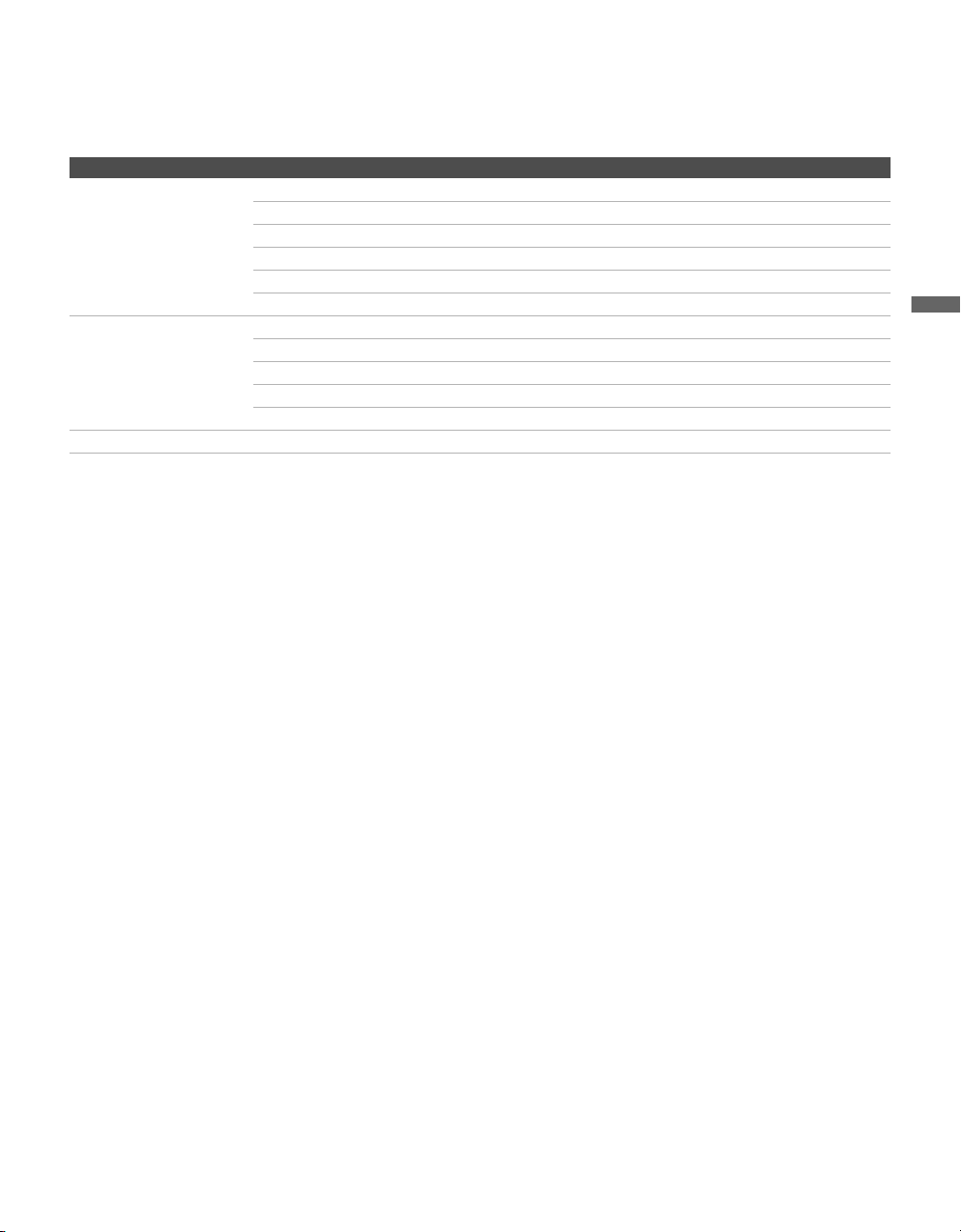
US Models: Selecting Custom Parental Lock Rating Options
To select custom rating options for the U.S., select U.S.A. in the Select Country setting (see page 32).
Speaker On Select to turn on the TV speakers.
Off Select to turn off the TV speakers and listen to the TV’s sound only through
your external audio receiver and speakers.
Audio Out
Easy control of
volume adjustments
Variable When Speaker is set to Off, the audio output from your audio system can be
controlled by the TV’s remote control.
Fixed When Speaker is set to Off, the audio output of the TV is fixed. Use your
audio receiver’s remote control to adjust the volume (and other audio
settings) through your audio system.
Cable On Select if you are receiving cable channels via Cable TV provider.
Off Select if you are using an antenna.
You should run Auto Program after changing the Cable setting.
Information Select to display the equipment information of your TV.
Option Description
Movie Rating G All children and general audience.
PG Parental guidance suggested.
PG-13 Parental guidance for children under 13.
R Restricted viewing, parental guidance is suggested for children under
17.
NC-17 and X No one 17 or under allowed.
TV Rating
Block programs by
their rating, content or
both
Age-Based Ratings
TV-Y All children.
TV-Y7 Directed to children age 7 and older.
TV-G General audience.
TV-PG Parental guidance suggested.
TV-14 Parents strongly cautioned.
TV-MA Mature audience only.
Content-Based Ratings
FV Fantasy violence.
D Suggestive dialogue.
L Strong language.
S Sexual situations.
V Violence.
To ensure maximum blocking capability, set the Age-Based Ratings.
Unrated
Block programs or
movies that are
broadcast without a
rating
Allow Allows programs and movies that are broadcast without a rating.
Block Blocks all programs and movies that are broadcast without a rating.
If you block unrated TV programs, be aware that the following types of programs
may be blocked: programs broadcast from another country, emergency
broadcasts, political programs, sports, news, public service announcements,
religious programs and weather.
Option Description
Using the Menus
35
Using the Menus
Canadian Models: Selecting Custom Parental Lock Rating Options
To select custom rating options for Canada, select Canada in the Select Country setting (see page 32).
Viewing Blocked Programs
You can view blocked programs by entering the password. Press ENT when tuned to a blocked program,
then enter the password. This temporarily turns the parental control feature off. To reactivate the Parental
Lock settings, turn off the TV. When the TV is turned on again, your Parental Lock settings are reactivated.
Option Description
English Rating C All children.
C8+ Children 8 years and older.
G General programming.
PG Parental guidance.
14+ Viewers 14 and older.
18+ Adult programming.
French Rating G General programming.
8 ans+ Not recommended for young children.
13 ans+ Not recommended for ages under 13.
16 ans+ Not recommended for ages under 16.
18 ans+ Programming restricted to adults.
U.S.A. Rating See “US Models” on page 34 for details.
Using the Menus
36
Using the PC Settings
Option Description
Wide Mode Normal Select to display in the original resolution.
Full1 Select to enlarge the picture to fill the display area, keeping its original
aspect ratio.
Full2 Select to enlarge the picture to fill the display area.
Reset
Resets the current setting to the default values, except
Wide Mode
and
Power Management
.
Auto Adjustment Select to automatically adjust the display position and phase of the picture when the TV
receives an input signal from the connected PC. Note that Auto Adjustment may not work
well with certain input signals. In such cases, manually adjust the options below.
Auto Adjustment for PC can also be set using the TOOLS button on the remote
control.
Phase Adjust after Pitch to fine tune overall sharpness.
Pitch Adjust uneven sharpness on screen.
For the PC Input Signal Reference Chart, see page 45.
Horizontal Center Allows you to move the position of the picture left and right.
Press B/b and press to choose a correction between Min, –49 to +49 and Max.
Vertical Center Allows you to move the position of the picture up and down.
Press V/v and press to choose a correction between Min, –49 to +49 and Max.
Power Management On Select to automatically switch to the power saving mode when there is
no signal input for 30 seconds.
Off Select to turn off Power Management.
Power Management is not VESA-compliant.
Using the Menus
37
Using the Menus
Using the Analog Setup Settings
Option Description
Favorite Channels Lets you set up a list of up to 16 of your favorite channels.
1 Press V/v to highlight a Favorite Channel number (1-16) which you want to make your
Favorite Channel, then press to select it.
2
Press
V
/
v
to scroll throu
gh the channels until you find the channel that you would like to
add and then press to select i
t.
To add other Favorite Channel numbers, repeat steps 1-2
.
To select Favorite Channel numbers that you specified, see page 24.
Favorite Channels for Analog TV can also be set using the TOOLS button on
the remote control.
Auto Program Automatically sets up the channel list on the TV for all receivable analog channels.
1 Select Auto Program.
2 Select OK to start Auto Program. When Auto Program is done, the Show/Hide
Channels screen will appear. (See below)
Show/Hide Channels Allows you to show or hide channels that appear when you use the CH +/– buttons.
1 Press V/v to scroll through the channels until you find the channel you want to show or
hide. Then press to select it.
2 Press V/v to determine if the channel will be shown or hidden.
To show or hide more channels, repeat steps 1-2.
Channels that you set to be hidden can be accessed only with the 0-9 buttons.
Label Channels Allows you to assign labels (such as station call letters) to channel numbers.
1 Press V/v to scroll through the channel numbers. Then press to select the channel
number that you want to assign a label.
2 Press V/v to scroll through the label characters (A-Z, 0-9, etc.). Press b to move to the
next character. Repeat to add up to 5 characters to the label. Press b to highlight OK
and press to set.
To assign labels to more channels, repeat steps 1-2.
Using the Menus
38
Using the Digital Setup Settings
Option Description
Digital Channels Favorite
Channels
Lets you set up a list of up to 16 of your favorite channels.
1 Press V/v to highlight a Favorite Channel number (1-16) which
you want to make your Favorite Channel.
2 Enter the number you wish to assign to the channel. Reset will
remove the existing Favorite Channel and Surf will take you to the
Favorite Channel list.
To select other Favorite Channel numbers, repeat steps 1-2.
Digital Channels Add Select to add digital channels without replacing the original
Channel List. This option is useful for antenna installations.
Auto Program Automatically sets up the channel list on the TV for all receivable
digital channels.
1 Select Auto Program then Start.
2 Select OK to start Auto Program. When Auto Program is done,
select OK.
Show/Hide
Channels
Allows you to show or hide channels that appear when you use the CH
+/– buttons.
1 Press V/v to scroll through the channels until you find the channel
you want to show or hide.
2 Press to determine if the channel will be shown or hidden.
To show or hide more channels, repeat steps 1-2.
Channels that you set to be hidden can be accessed only with the 0-9 buttons.
Label Channels Allows you to assign labels (such as station call letters) to channel
numbers.
1 Press V/v to scroll through the channel numbers. Then press
to select the channel number that you want to assign a label.
2 Press V/v to scroll through the label characters (A-Z, 0-9, etc.).
Press b to move to the next character. Repeat to add up to 7
characters to the label. Then press to set it.
To assign labels to more channels, repeat steps 1-2.
Highlight Digital
Setup and press .
The Digital Setup option
appears.
Using the Menus
39
Using the Menus
Programming Caption Vision
If you selected the Program option under Caption Vision, you can change the following settings:
Option Description
Digital Setup Caption Vision Allows you to select from several closed-caption modes for digital
channels. To set Caption Vision for analog channels, see page 31.
On Caption Vision is turned on.
Off Caption Vision is turned off.
Program Allows you to set basic and advanced Caption Vision
options. See “Programming Caption Vision” below.
A/V Sync Off/1/2/3 Use this option to make adjustments to audio and video
synchronization when you have external equipment
connected to OPTICAL OUT of the TV. Select Off
(default setting) to make no adjustments. Select 1, 2 or
3 to adjust so that the video and audio from your
connected external equipment are synchronized.
Diagnostics Display diagnostics information about the TV. This can be useful in pro-
viding information to an authorized technician or repair person.
Parental Lock The Parental Lock option in the Digital Setup settings allows you to set up the TV to block
digital programs that contain digital ratings.
This setting is only available if digital ratings have been downloaded by your TV
and ratings have been set for U.S.A. in the Setup settings (see page 31).
Password If the password has not been set, or to change the password, use
Change Password option in the Setup settings (see page 32).
Digital Rating Off Turn Parental Lock off. No programs that contain
downloadable ratings are blocked from viewing.
Custom...
Select to block programs based on downloadable ratings.
Clear All Select to clear the entire downloadable rating system.
This action will delete the current Digital Rating menu and
the menu will no longer be available until the TV is tuned to a
channel that contains downloadable ratings.
Option Description
Basic Allows you to select basic analog (EIA-608) closed caption options.
CC1, CC2,
CC3, CC4
See Caption Vison in the Setup setting on page 31.
Text1, Text2,
Text3, Text4
See Caption Vison in the Setup setting on page 31.
Digital CC Allows you to set digital closed captioning to Basic (digital EIA-608) or Advanced (digital
EIA-708).
Advanced Allows you to select advanced digital (EIA-708) closed caption options. Select from the
available options.
(Continued)
Using the Menus
40
Advanced Settings Allows you to make additional settings for digital (EIA-708) closed caption options. Select
from As Broadcast, Small Tex t, Large Tex t and Custom.
Custom
... Allows you to customize the following settings:
Character Size Small, Standard, Large
Character Style Style 1-7
Character Color Color 1-8
Character Opacity Solid, Translucent
Edge Color Color 1-8
Edge Type None, Raised, Depressed, Outline,
Left Shadow, Right Shadow
Background Color None, Color 1-8
Background Opacity Solid, Translucent
Window Color None, Color 1-8
Window Opacity Solid, Translucent
Option Description
41
Other Information
Other Information
Troubleshooting
If you have additional questions, service needs, or required technical assistance related to the use of your
Sony TV, please visit our website or call one of the following numbers:
http://www.sony.com/TVsupport
1-800-222-SONY(7669) for US Residents
1-877-899-SONY(7669) for Canadian Residents
Problem Possible Remedies
No picture.
No picture.
❑ Check Power Saving settings (page 33).
Cannot receive any channels.
❑ Make sure the power cord is connected securely.
❑ Turn on the power of the TV.
❑ Check antenna/cable connections.
TV is locked to one channel.
❑ Perform Auto Program to add receivable channels that are not presently in the
TV’s memory (pages 37 and 38).
Cannot receive or select channels.
❑ Perform Auto Program to add receivable channels that are not presently in the
TV’s memory (pages 37 and 38).
❑ To receive or select cable channels, make sure that Cable in the Setup settings
is set to On (page 34). To receive or select UHF channels over an antenna, make
sure Cable is set to Off.
The TV turns off automatically.
❑ Check if the Sleep Timer is activated, or confirm the Duration setting of Timer.
(page 33).
❑ Check Power Management in the PC Settings. (page 36)
No picture from some video
sources.
❑ Check the connection between the optional video equipment and the TV.
❑ Press TV/VIDEO on the remote control (page 19).
❑ If you connect video equipment to the S VIDEO input of the TV, set Auto YC to
On in the Setup settings (page 33).
❑ Press MENU on the remote control. Select your desired input from the External
Inputs list.
Poor picture.
Double images or ghosts.
❑ Check antenna/cable connections.
❑ Check the antenna location and direction.
Only snow and noise appear on the
screen.
❑ Check if the antenna is broken or bent.
❑ Check if the antenna has reached the end of its serviceable life. (3-5 years in
normal use, 1-2 years at the seaside.)
Dotted lines or stripes.
❑ Keep the TV away from noise sources such as cars, motorcycles, or hair-dryers.
❑ If using 300 ohm twin lead, move the excess lead away from the TV or try using
75 ohm coaxial cable instead.
No color/Dark picture/Color is not
correct/The picture is too bright.
❑ Press PICTURE to select the desired picture mode (page 19).
❑ Adjust the Picture Mode options in the Picture settings (page 26).
❑ If you set the Power Saving mode to Low or High, it will enhance the black
level.
Noisy picture.
❑ Make sure that the antenna is connected using the supplied 75-ohm coaxial
cable.
❑ Keep the antenna cable away from other connecting cords.
❑ To avoid TV interference, make sure to use an undamaged antenna cable.
(Continued)

Other Information
42
No sound/Noisy sound
Good picture, no sound.
❑ Check the volume control.
❑ Press MUTING or VOL + so that “Muting” disappears from the screen
(page 20).
❑ Disconnect your headphones.
❑ Set Speaker to On in the Setup settings (page 34). If it is set to Off, sound is
not output from the TV’s speakers regardless of the TV’s volume control.
Audio noise.
❑ Make sure that the antenna is connected using the supplied 75-ohm coaxial
cable.
❑ Keep the antenna cable away from other connecting cords.
❑ To avoid TV interference, make sure to use an undamaged antenna cable.
Wide Mode changes automatically.
❑
The current
Wide Mode
setting is automatically replaced with the
4:3 Default
setting when you change the channel or video input, if
4:3 Default
in the
Screen
settings is set to other than
Off
. If you want to lock in the
Wide Mode
selected
with the
WIDE
button, set
4:3 Default
to
Off
in the
Screen
settings (page 30).
❑ Check the Auto Wide option in the Screen settings (page 29).
“Black box” on screen.
❑ You have selected a text option in the Setup/Digital Setup setting and no text is
available. (See pages 31 and 39 to reset Setup selections.) To turn off this feature,
set the Caption Vision option to Off. If you were trying to select closed
captioning, select CC1 instead of Tex t1 - 4 .
Black bands appear at the top and
bottom of the screen.
❑ Some wide screen programs are filmed in aspect ratios that are greater than 16:9
(this is especially common with theatrical releases). Your TV will show these
programs with black bands at the top and bottom of the screen. For more details,
check the documentation that came with your DVD (or contact your program
provider).
Certain programs on DVD or other
digital sources display a loss of
detail, especially during fast-motion
or dark scenes.
❑ The compression used by certain digital broadcasts and DVDs may cause your
TV’s screen to display less detail than usual, or cause artifacts (small blocks or
dots, pixelations) to appear on your screen. This is due to your TV’s large screen
and ability to show very fine detail, and is normal for certain digitally recorded
programs.
Remote control does not operate.
❑ Check the polarity of the batteries or replace the batteries.
❑ Point the remote control at the remote control sensor of the TV.
❑ Florescent lamps can interfere with your remote control operation; try turning
off the florescent lamps.
❑ Keep the remote control sensor area clear from obstacles.
Some digital cable channels are not
being displayed.
❑ Certain cable companies have limitations on the broadcast of digital cable
channels. Check with your cable company for more information.
❑ The digital cable channel may be set to Hidden in the Show/Hide Channels
setting (see page 38).
Lost password. ❑ Select the Parental Lock settings on the settings screen, then enter the following
master password: 4357. The master password clears your previous password and
allows you to enter a new password (page 32).
How to reset the TV to factory
settings.
❑ Turn on the TV. While holding down the V button on the remote control, press
the POWER button on the TV. (The TV will turn itself off, then back on again.)
Release the
V button.
WARNING: The Reset will clear all of your customized settings including
Parental Lock setting.
Problem Possible Remedies
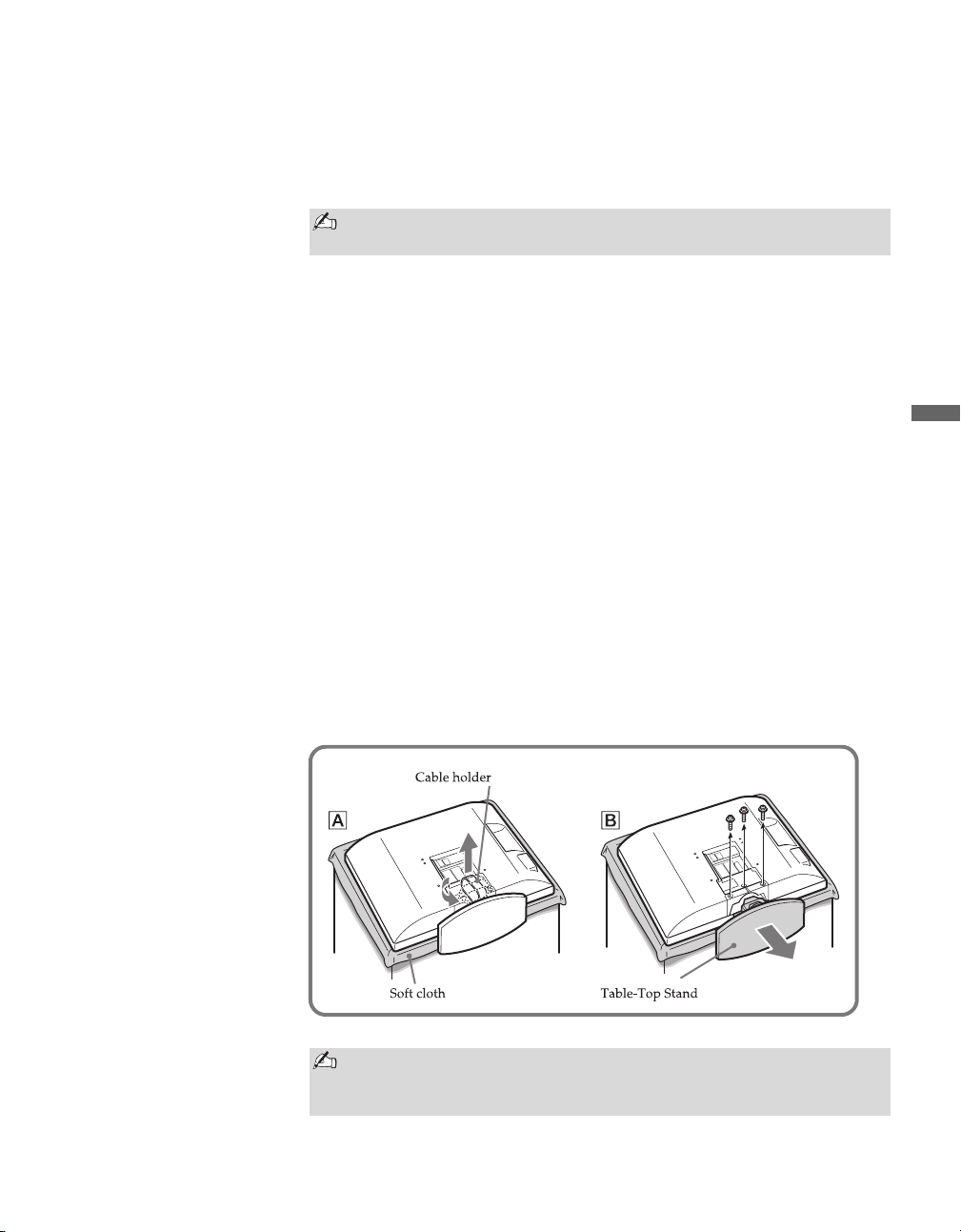
Other Information
43
Other Information
Preparation for Wall Mounting the KDL-23S2010, KDL-26S2010 and KDL-32S2010
This TV can be installed on a wall by using a wall-mount bracket (sold
separately). Before mounting the TV on a wall, the Table-Top Stand must be
removed from the TV.
Follow the simple steps below to remove the Table-Top Stand:
1 Disconnect all the cables from the TV.
2 Cover a level and stable surface with a thick and soft cloth.
3 Gently lay the TV, face down, onto the cloth. Make sure the Table-Top
Stand is hanging over the edge.
4 Rotate the cable holder 90 degrees, and pull it out completely. [See
illustration A]
5 Remove the screws and detach the Table-Top Stand from the TV. [See
illustration B] Be sure to hold the Table-Top Stand firmly while
removing the last screw.
6 Do not remove any other screws from the TV.
For bracket installation, refer to the instruction guide provided by the Wall-
Mount Bracket model for your TV. Sufficient expertise is required in
installing this TV, especially to determine the strength of the wall for
withstanding the TV’s weight. For product protection and safety reasons,
Sony strongly recommends that you use the Wall-Mount Bracket model
designed for your TV and the wall-mounting of your TV should be
performed by Sony dealers or licensed contractors.
Do not remove the Table-Top Stand for any reason other than to wall-
mount the TV.
Be sure to store the removed screws and Table-Top Stand in a safe
place until you are ready to reattach the Table-Top Stand. Keep the
screws away from small children.
Sony Wall-Mount
Bracket Model
SU-WL31
(KDL-23S2010/
KDL-26S2010/
KDL-32S2010)
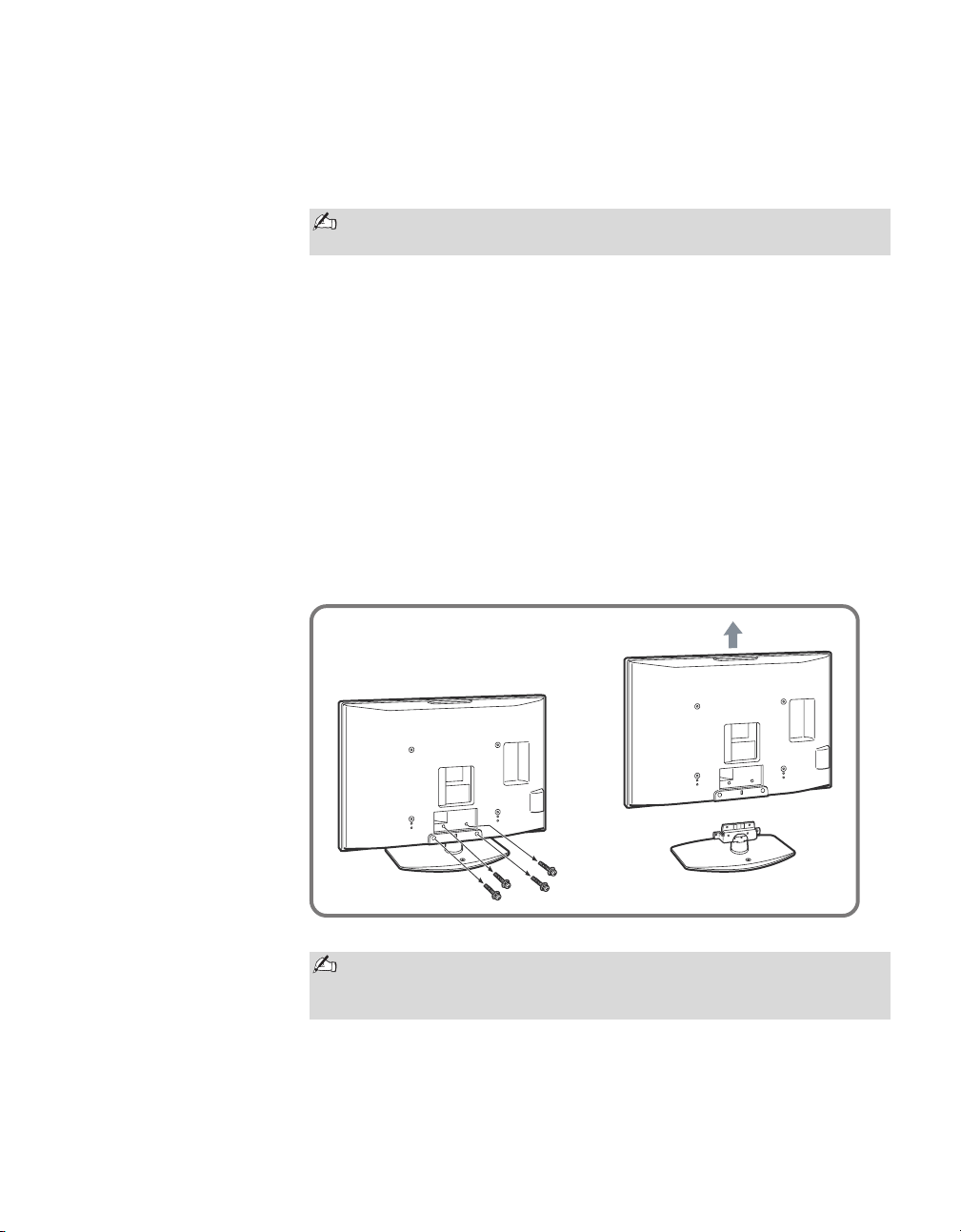
Other Information
44
Preparation for Wall Mounting the KDL-40S2010 and KDL-46S2010
This TV can be installed on a wall by using a wall-mount bracket (sold
separately). Before mounting the TV on a wall, the Table-Top Stand must be
removed from the TV.
Follow the simple steps below to remove the Table-Top Stand:
1 Disconnect all the cables from the TV.
2 Start removing the screws from the ones on top. (See illustration below)
Do not remove any other screws from the TV.
3 When screws are removed, lift the TV out. Make sure that you carry out
this task with two people. Do not attempt to lift the TV by your self.
For bracket installation, refer to the instruction guide provided by the Wall-
Mount Bracket model for your TV. Sufficient expertise is required in
installing this TV, especially to determine the strength of the wall for
withstanding the TV’s weight. For product protection and safety reasons,
Sony strongly recommends that you use the Wall-Mount Bracket model
designed for your TV and the wall-mounting of your TV should be
performed by Sony dealers or licensed contractors.
Do not remove the Table-Top Stand for any reason other than to wall-
mount the TV.
Be sure to store the removed screws and Table-Top Stand in a safe
place until you are ready to reattach the Table-Top Stand. Keep the
screws away from small children.
Sony Wall-Mount
Bracket Models
SU-WL51 and
SU-PW2
(KDL-40S2010/
KDL-46S2010)
Other Information
45
Other Information
PC Input Signal Reference Chart
Resolution
Horizontal frequency
(kHz)
Ve rt i ca l
frequency (Hz)
Standard
Signals Horizontal
(Pixel)
× Vertical
(Line)
VGA
640 × 480 31.5 60 VGA
640 × 480 37.5 75 VESA
720 × 400 31.5 70 VGA-T
SVGA
800 × 600 37.9 60 VESA Guidelines
800 × 600 46.9 75 VESA
XGA
1024 × 768 48.4 60 VESA Guidelines
1024 × 768 56.5 70 VESA
1024 × 768 60.0 75 VESA
WXGA
1280 × 768 47.4 60 VESA
1280 × 768 47.8 60 VESA
1360 × 768 47.7 60 VESA
This TV's PC Input does not support Sync on Green or Composite Sync.
This TV's PC Input does not support interlaced signals.
This TV's PC Input supports signals in the above chart with a 60Hz vertical frequency.
For the best picture quality, it is recommended to use signals with a 60Hz vertical frequency from a
personal computer. In plug and play, signals with 60Hz vertical frequency will be selected automatically.
Other Information
46
Television system:
Panel System:
LCD (Liquid Crystal Display) Panel
Display resolution (horizontal × vertical):
1,366 dots × 768 lines
VIDEO IN 1/2/3:
S VIDEO (4-pin mini DIN) (VIDEO 1/2 only):
Y: 1.0 Vp-p, 75 ohms unbalanced, sync negative
C: 0.286 Vp-p (Burst signal), 75 ohms
VIDEO: 1 Vp-p, 75 ohms unbalanced, sync negative
AUDIO: 500 mVrms (100% modulation)
Impedance: 47 kilohms
HD/DVD IN 4/5:
YP
B
P
R
(Component Video):
Y: 1.0 Vp-p, 75 ohms unbalanced,
sync negative
P
B: 0.7 Vp-p, 75 ohms
P
R: 0.7 Vp-p, 75 ohms
Signal format: 480i, 480p, 720p, 1080i
AUDIO: 500 mVrms (100% modulation)
Impedance: 47 kilohms
HDMI IN 6:
HDMI: Video: 480i, 480p, 720p, 1080i
Audio: Two channel linear PCM 32, 44.1 and
48 kHz, 16, 20 and 24 bits
AUDIO: 500 mVrms (100% modulation)
Impedance: 47 kilohms
NTSC
American TV standard
ATSC (8VSB terrestrial)
ATSC compliant 8VSB
QAM on cable
ANSI/SCTE 07 2000
(Does not include CableCARD
functionality)
Channel coverage:
Analog Digital
Terrestrial 2-69 2-69
Cable 1-125 1-135
Antenna:
75-ohm external terminal for VHF/UHF
AUDIO OUT:
500 mVrms (100% modulation)
More than 1 Vrms at the maximum volume setting (Variable)
More than 500 mVrms (Fixed)
PC IN 7:
D-sub 15-pin, analog RGB, 0.7 Vp-p, 75 ohms, positive
See the PC Input Signal Reference Chart on page 45
PC AUDIO INPUT:
Stereo mini jack, 0.5 Vrms, 1 kilohm
Headphones:
Stereo mini jack
Impedance: 16 ohms
Power Requirement:
120 V-240 V AC, 50/60 Hz
Supplied accessories:
Remote control RM-YD005 (1)
Size AA batteries (2)
75-ohm coaxial cable (1)
AC power cord (1)
HD15-HD15 cable (1)
Support belt (1), securing screw (1) and wood screw (1)
Cable holder (1)
Operating Instructions (1)
Quick Setup Guide (1)
Warranty Card (1)
Online Registration Card (U.S.A. only) (1)
Optional accessories:
Headphones plug adapter
Connecting cables
Front Surround Home Theater Stand: RHT-G1000
Wall-Mount Bracket: SU-PW2 (KDL-40S2010/KDL-46S2010)
SU-WL31 (KDL-23S2010/
KDL-26S2010/KDL-32S2010)
SU-WL51 (KDL-40S2010/KDL-46S2010)
Optional accessories availability depends on its stock.
Specifications
For All Models
Design and specifications are subject to change without notice.
By Model
KDL-46S2010 KDL-40S2010 KDL-32S2010 KDL-26S2010 KDL-23S2010
Screen size (in inches)
46 40 32 26 23
Speaker/Full range (2)
Speaker output
(in mm)
10 + 10W
70 × 130
10 + 10W
55 × 150
10 + 10W
42 × 150
10 + 10W
42 × 150
5 + 5W
40 × 100
(in inches) 2 3/4 × 5 7/16 2 1/4 × 6 1 11/16 × 6 1 11/16 × 6 1 9/16 × 3 15/16
Power consumption (in use)
240 W 200 W 150 W 120 W 95 W
(in standby) All models less than 0.1 W
Dimensions
with stand (in mm)
1,120
×
805
×
334 988
×
716
×
334 792
×
593
×
219 658
×
516
×
219 566
×
447
×
209
with stand (in inches)
44 1/8
×
31 3/4
×
13 1/4 39
×
28 1/4
×
13 1/4 31 1/4
×
23 3/8
×
8 5/8 26
×
20 3/8
×
8 5/8 22 3/8
×
17 5/8
×
8 1/4
without stand (in mm)
1,120
×
755
×
116 988
×
664
×
103 792
×
546
×
99 658
×
470
×
94 566
×
410
×
90
without stand (in inches)
44 1/8
×
29 3/4
×
4 5/8 39
×
26 1/4
×
4 1/8 31 1/4
×
21 1/2
×
4 26
×
18 5/8
×
3 3/4 22 3/8
×
16 1/8
×
3 1/2
Mass
with stand (in kg.) 34.0 27.0 17.0 13.0 10.2
with stand (in lb.) 74.96 59.5 37.44 28.63 22.5
without stand (in kg.) 28.0 21.0 15.0 11.0 8.8
without stand (in lb.) 61.73 46.19 33 24.25 19.4

47
Index
4:3 Default 30
A
A/V Sync 39
AC IN 15
Advanced Settings 27
Alternate Audio 20
Audio Out 34
AUDIO OUT jack, described 15
Auto Adjustment 36
Auto Program 18, 37, 38
Auto SAP, MTS setting 28
Auto Wide 29
Auto YC 33
B
Backlight 26
Balance 28
Bass 28
BBE 28
Bilingual audio 28
Brightness 26
C
Cable
with VCR, connecting
13
Caption Vision 31, 39
CH+/– button 21, 22
Channels
Creating labels
37, 38
Setting up 18
Closed caption modes 31
Color 26
Color Temperature 26
Current Time 33
D
Diagnostics 39
Digital Channels 38
Digital Setup 39
DIGITAL/ANALOG button 20
Display Area 30
DISPLAY button 21
Dynamic, Sound Mode 28
E
English Rating 35
ENT button 21
F
Favorite Channels 37, 38
FREEZE button 19
French Rating 35
G
GUIDE button 19
H
HD/DVD IN jack (1080i/720p/480p/
480i), described
15
HDMI IN jack, described 15
Headphones jack, described 14
Horizontal Center 30, 36
Hue 26
I
Info Banner 31
Information 34
Infrared Receiver (IR) 22
Installing the TV on a wall 43, 44
J, K
JUMP button 21
L
Label Channels 37, 38
Label Video Inputs 32
Language 31
Light Sensor
Described
22
Setting 33
M
MENU
Analog
24
Analog Favorites 24
Digital 24
Digital Favorites 24
Settings 25
MENU button 20, 22
Mono, MTS setting 28
Movie Rating 34
MTS 28
MUTING button 20
N
Noise Reduction 26
O
OPTICAL OUT 15
P, Q
Parental Lock 32, 39
PC IN 14
Phase 36
PIC OFF LED 22
Picture 26
PICTURE button 19
Picture Mode 26
Pitch 36
POWER button 20, 22
POWER LED 22
Power Management 36
Power Saving 33
Preparation 43, 44
Problems, troubleshooting 41, 42
Program Options 20
Quiet Power On 33
R
Reset 26, 28, 36, 42
RETURN button 20
S
S VIDEO jack, described 14, 15
Setting up channels 18
Settings
Analog Setup
37
Digital Setup 38
PC 36
Picture 26
Screen 29
Setup 31
Sound 28
Sharpness 26
Show/Hide Channels 37, 38
SLEEP button 19
Sound Mode 28
Speaker 34
STANDBY LED 22
Steady Sound 28
Stereo, MTS setting 28
Support Belt 16
Surround 28
Swivel 17
T, U
Target Inputs 26, 28, 29
TIMER LED 22
Timer Settings 33
TOOLS button 21
Treble 28
Troubleshooting 41, 42
TruSurround XT 28
Turning on/off the TV 22
TV Rating 34
TV/VIDEO button 19
Unrated 34
US Models 34
V
VCR
With cable, connecting
13
Vertical Center 30, 36
Vertical Size 30
VHF/UHF input, described 15
VIDEO/AUDIO (L/R) jacks, described
14, 15
Viewing Blocked Programs 35
VOL+/– button 20, 22
W, X, Y
WIDE button 21
Wide Mode 29, 36
For Your Convenience
Contact Sony Customer Support at:
http://www.sony.com/tvsupport
or to speak with a support representative:
United States
1-800-222-SONY (7669)
8:00 AM – 10:00 PM (EST) Mon–Fri
10:30 AM – 7:15 PM (EST) Sat–Sun
Canada
Please Do Not Return the Product to the Store
1-877-899-SONY (7669)
8:00 AM – 6:00 PM (Eastern)
8:00 AM – 5:00 PM (Western)
Please contact Sony directly if you:
Have questions on the use of your television after reading your manual
Experience difficulty operating your televsion
Sony will work to resolve your questions more quickly than your retailer or place of purchase.
z
z
Printed in U.S.A.