3-084-946-12(1)
© 2003 Sony Corporation
Computer
Applications Guide
Digital Video Camera Recorder

2
Read this first
On image capture/editor software
You can edit pictures recorded on a tape or
“Memory Stick” using the supplied CD-ROM
(image capture/editor software). The software
used differs depending on the picture to be
edited. See below.
This manual describes how to edit pictures with
ImageMixer and Image Transfer*. If your
camcorder is a MICROMV format model, refer
to the separate MovieShaker Application Guide
supplied with your camcorder.
If your camcorder is a DV format model
• When editing pictures on a tape: ImageMixer
1)
• When editing pictures on a “Memory Stick”:
ImageMixer
1) 2)
If your camcorder is a MICROMV format
model
• When editing pictures on a tape:
ImageMixer
1)
, MovieShaker
1)
• When editing pictures on a “Memory Stick”:
ImageMixer
1) 2)
1)
for Windows computer
2)
for Macintosh computer
* Use Image Transfer to copy still pictures from your
camcorder to a computer (Windows computer
only).
System requirements for using
ImageMixer Ver.1.5 for Sony
When viewing pictures recorded on a
tape on a computer
b Note
• When you connect your camcorder to a Macintosh
computer using a USB cable, you cannot view
pictures recorded on a tape on the computer screen.
• OS: Microsoft Windows 98SE, Windows
2000 Professional, Windows Millennium
Edition, Windows XP Home Edition or
Windows XP Professional
Standard installation is required.
Operation is not assured if the above OS has
been upgraded.
You cannot hear sound if your computer is
running Windows 98. You can only transfer
and view still images.
• CPU: Intel Pentium III 500 MHz or faster
(800 MHz or faster recommended)
• Application: DirectX 8.0a or later (This
product is based on DirectX technology. It is
necessary to have DirectX installed.)
• Sound system: 16 bit stereo sound card and
stereo speakers
• Memory: 64 MB or more
• Hard disk:
Available memory required for installation:
250 MB or more
Available free hard disk space recommended:
1 GB or more (depending on the size of the
image files edited)
• Display: 4 MB VRAM video card, Minimum
800 × 600 dots, High color (16 bit color,
65 000 colors), DirectDraw display driver
capability (this product will not operate
correctly at 800 × 600 dots or less, and 256
colors or less.)
• Others: USB port (this must be provided as
standard), DV Interface (to connect via an
i.LINK cable, DV format models only), disc
drive (you need a CD-R drive to create a
Video CD.)
• For camera operations, read the separate
Camera Operations Guide supplied with
your camcorder.
• If your camcorder is a MICROMV format
model, read also the separate MovieShaker
Application Guide supplied with your
camcorder.

3
When playing pictures recorded on a
“Memory Stick” on a computer
Windows
• OS: Microsoft Windows 98, Windows 98SE,
Windows 2000 Professional, Windows
Millennium Edition, Windows XP Home
Edition or Windows XP Professional
Standard installation is required.
Operation is not assured if the above OS has
been upgraded.
• CPU: MMX Pentium 200 MHz or faster
• Application: Windows Media Player (this
must be installed to play back movies.)
• Others: USB port (this must be provided as
standard), disc drive
Macintosh
• OS: Mac OS 8.5.1/8.6/9.0/9.1/9.2 or Mac OS
X (v10.0/v10.1/v10.2)
Standard installation is required.
However, note that the computer should be
updated to Mac OS 9.0/9.1/9.2 if it is an
iBook, a Power Mac G4, or an iMac with a
slot loading type disc drive, with the Mac
OS 8.6 standard installation.
• Application: QuickTime 3.0 or later (this
must be installed to play back movies.)
• Others: USB port (this must be provided as
standard), disc drive
About this manual
The screens shown in this manual are from a
Windows 2000 computer. The screens may vary
depending on the OS.
On trademarks
• “Memory Stick” and are registered
trademarks of Sony Corporation.
• Microsoft and Windows are registered
trademarks of Microsoft Corporation in the
United States and/or other countries.
• Windows Media is a trademark of Microsoft
Corporation.
• Macintosh, iMac, Mac OS, iBook and Power
Mac are trademarks of Apple Computer, Inc.
• QuickTime and the QuickTime logo are
trademarks of Apple Computer, Inc.
• Pentium is a trademark or registered
trademark of Intel Corporation.
All other product names mentioned herein may
be the trademarks or registered trademarks of
their respective companies. Furthermore, “
”
and “
” are not mentioned in each case in this
manual.

4
Read this first............................................................................................. 2
Connecting to a Windows computer
Introduction to editing pictures on a computer........................................... 6
Features ......................................................................................................................6
Overview of the preparation ........................................................................................7
Step 1: Installing the USB driver on a computer........................................ 8
Step 2: Installing the image editor software
(ImageMixer Ver.1.5 for Sony).............................................................. 9
Step 3: Installing the image exchange software (Image Transfer)........... 11
Step 4: Connecting your camcorder to a computer.................................. 13
Connecting with the USB cable (supplied) ................................................................14
Connecting with an i.LINK cable (optional) (DV format models only) ........................16
Step 5: Checking the connection ............................................................. 17
Playing pictures recorded on a tape on your computer .............................................17
Viewing pictures recorded on a “Memory Stick” on your computer ...........................18
Managing pictures on a Windows computer
Copying and viewing pictures recorded on a tape................................... 19
Copying movies onto your computer .........................................................................19
Copying still images extracted from a movie on your computer ................................21
Editing pictures on your computer .............................................................................21
Viewing pictures on your computer via the USB port — USB Streaming ..................23
Creating Video CDs ................................................................................. 24
Copying and viewing pictures recorded on a “Memory Stick”.................. 26
Editing still images on your computer ........................................................................28
Copying pictures edited on ImageMixer Ver.1.5 for Sony to a “Memory Stick” .........29
Connecting to a Macintosh computer (“Memory
Stick” only)
Step 1: Installing the USB driver on a computer...................................... 31
Step 2: Connecting your camcorder to a computer.................................. 32
Copying pictures recorded on a “Memory Stick”...................................... 33
Table of Contents

5
Other functions
Creating DVDs (on Sony VAIO series computers only)........................... 34
Connecting an analog VCR to the computer via your camcorder
(DV format models only) — Digital convert function ........................... 37
Additional information
Troubleshooting ....................................................................................... 40
Index ........................................................................................................ 46
Connecting to a Windows computer
6
Connecting to a Windows computer
Introduction to
editing pictures on a
computer
Features
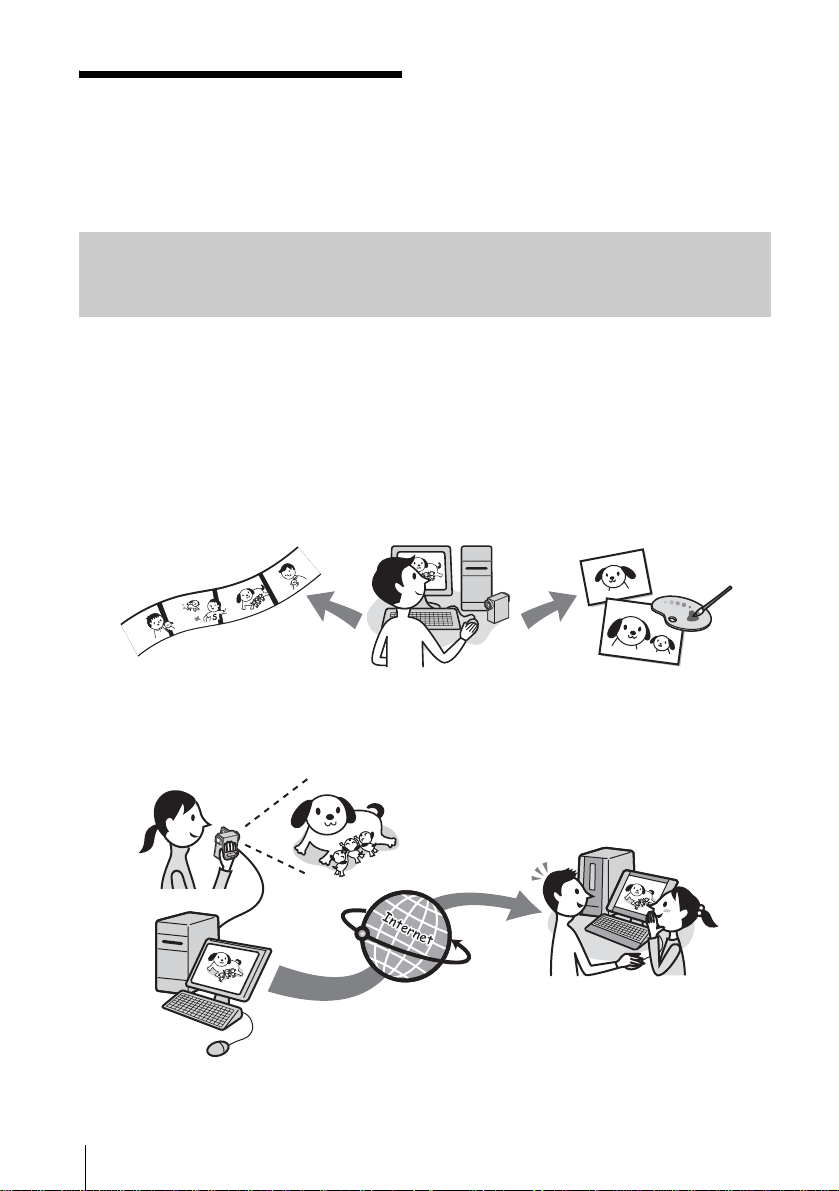
You can copy movies and still images recorded on your camcorder as digital data to your computer.
The copied pictures can be edited to your preference.
Create your own original video
You can superimpose a title, cut out scenes, and
re-arrange the order on the movies that you have
recorded on a tape or a “Memory Stick.” You
can also create Video CDs.
Edit still images
You can add digital effects or superimpose
words and illustrations on still images stored in
a “Memory Stick” or extracted from movies
recorded on a tape or a “Memory Stick.” You
can create original posters, post cards, etc.
Distribute movies over the Internet via your computer (USB Streaming)
You can distribute movies live on the Internet using your computer without storing data on your hard
disk.
Connecting to a Windows computer
Connecting to a Windows computer
7
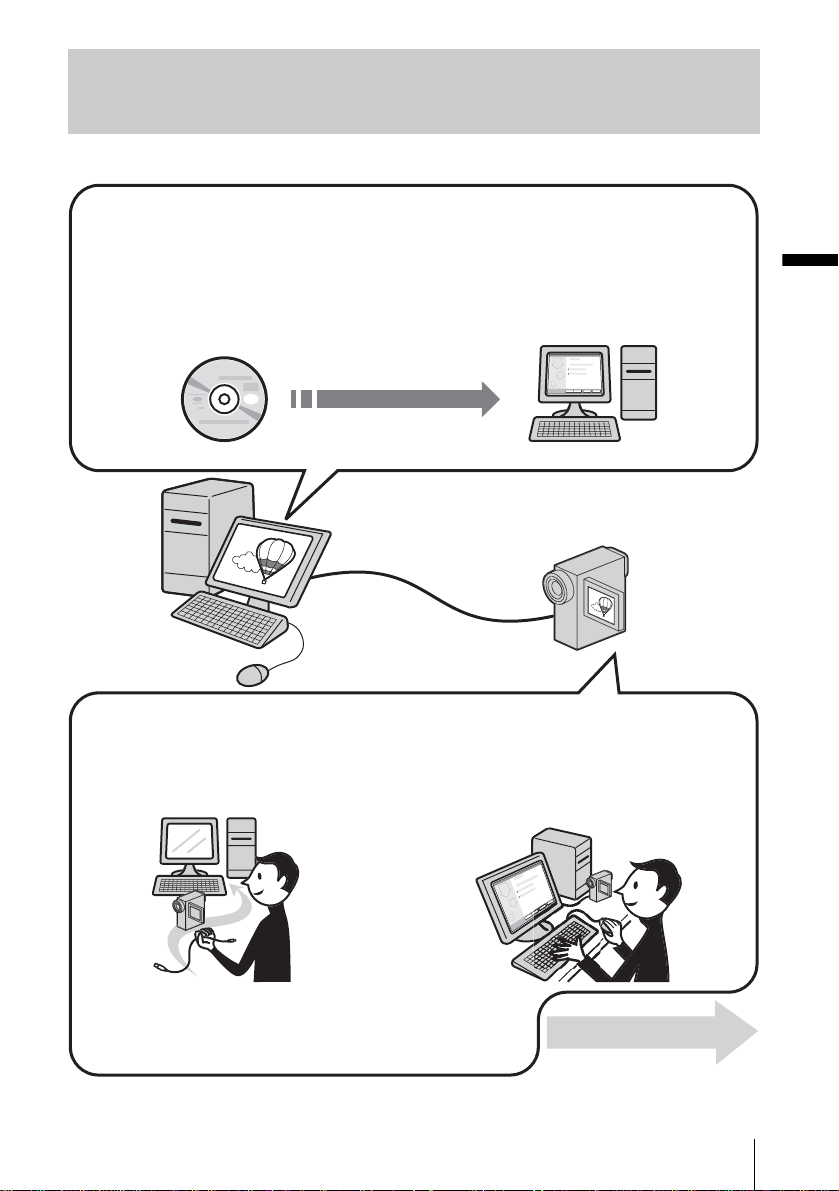
Overview of the preparation
Follow the steps below to complete the preparation.
CD-ROM (supplied)
On your camcorder
Step 4: Connect your camcorder to a
computer.
Step 5: Check the connection between
the camcorder and the
computer.
On your computer (for the first time only)
* Install these items from the CD-ROM “SPVD-010 USB Driver” supplied with your camcorder.
Step 1: Install the USB
driver on your
computer.*
Step 2: Install the image
editor software
(ImageMixer).*
Step 3: Install the image
exchange
software (Image
Transfer).*
Now, start from Step1 !
There are two ways to connect your camcorder to a computer.
• Connecting with a USB cable (supplied)
• Connecting with an i.LINK cable (optional)
See “Step 4: Connecting your camcorder to a computer” (p. 13) for details.
,continued
Connecting to a Windows computer
8
Step 1: Installing the
USB driver on a
computer
You need to install the USB driver on your
computer to connect your camcorder via a
USB cable (supplied). The installation is
required only for the first time. From the
second time on, you only need to connect the
USB cable.
To transfer pictures with more precision, use
an i.LINK cable (optional) instead of the
USB cable (DV format models only).
In that case, operations in Step 1 are not
necessary.
For Windows 2000/Windows XP
Log on as Administrators.
b Note
• Do not connect the USB cable (supplied) before
installing the driver.
1 Start up the computer.
Close down all applications running on the
computer before installing the USB driver.
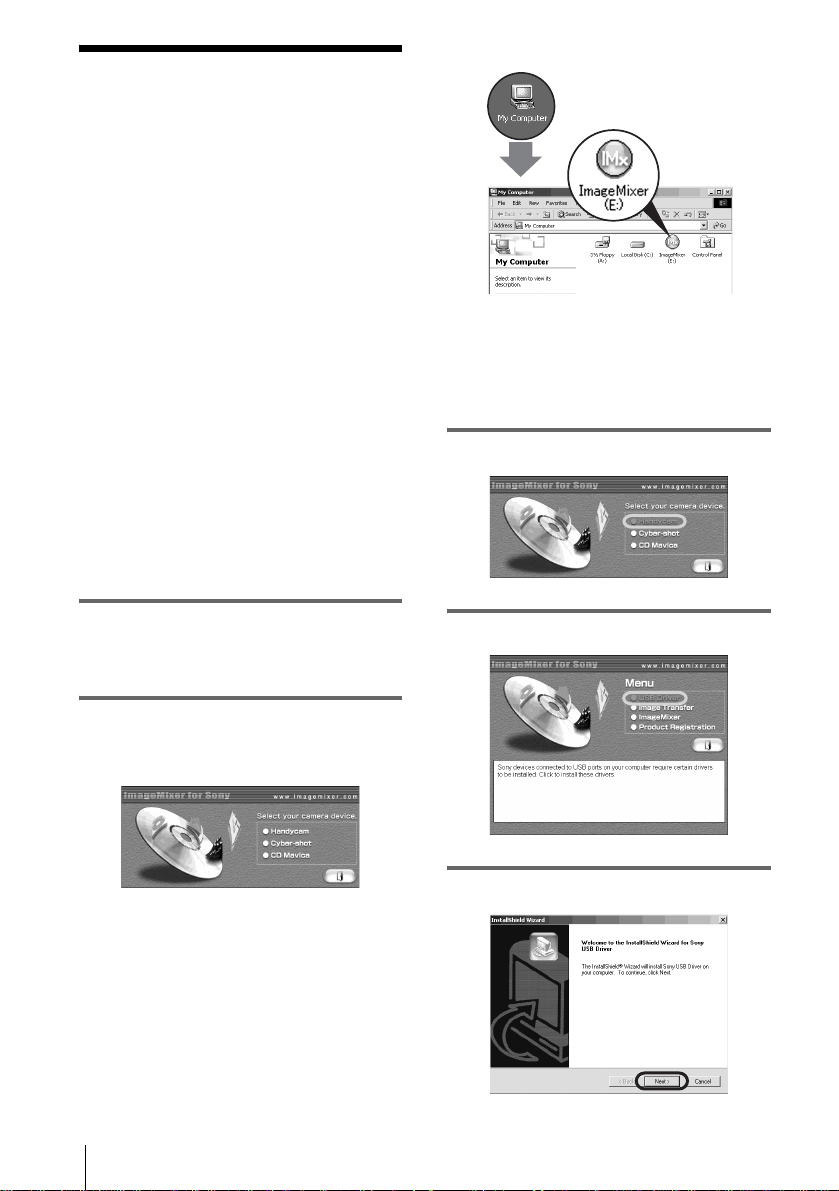
2 Place the supplied CD-ROM in the
disc drive of your computer.
The application software starts up.
If the screen does not appear
1 Double-click [My Computer].
2 Double-click [ImageMixer] (Disc
drive)*.
* Drive names (such as (E:)) may vary
depending on the computer.
3 Click [Handycam].
4 Click [USB Driver].
5 Click [Next].
Connecting to a Windows computer
Connecting to a Windows computer
9
6 Follow the on-screen instructions.
Read [Note on installing the USB driver],
then click [Next].
The driver installation starts.
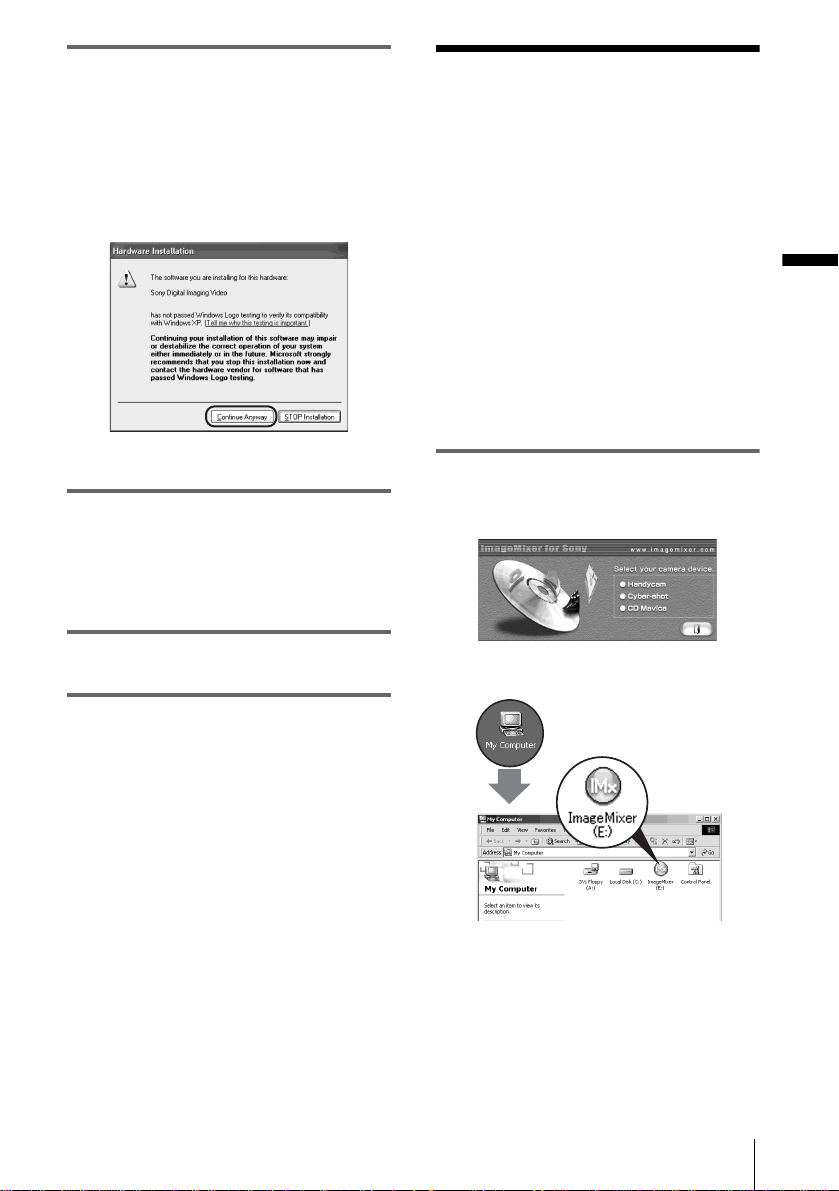
For Windows 2000/Windows XP
If a dialog box urging you to check the
digital signature appears, click [Yes] or
[Continue Anyway].
Example: for Windows XP
7 Make sure [Yes, I want to restart my
computer now.] is checked, then click
[Finish].
The computer turns off once, then starts up
again automatically (Restart).
8 Remove the CD-ROM from the disc
drive of your computer.
Step 2: Installing the
image editor software
(ImageMixer Ver.1.5
for Sony)
If you have any questions about
ImageMixer Ver.1.5 for Sony
ImageMixer Ver.1.5 for Sony is a product of
PIXELA Corporation. For details, refer to the
operating instructions on the CD-ROM supplied
with your camcorder.
For Windows 2000/Windows XP
Log on as Administrators.
1 Place the supplied CD-ROM in the
disc drive of your computer.
The application software starts up.
If the screen does not appear
1 Double-click [My Computer].
2 Double-click [ImageMixer] (Disc
drive)*.
* Drive names (such as (E:)) may vary
depending on the computer.
,continued
Connecting to a Windows computer
10
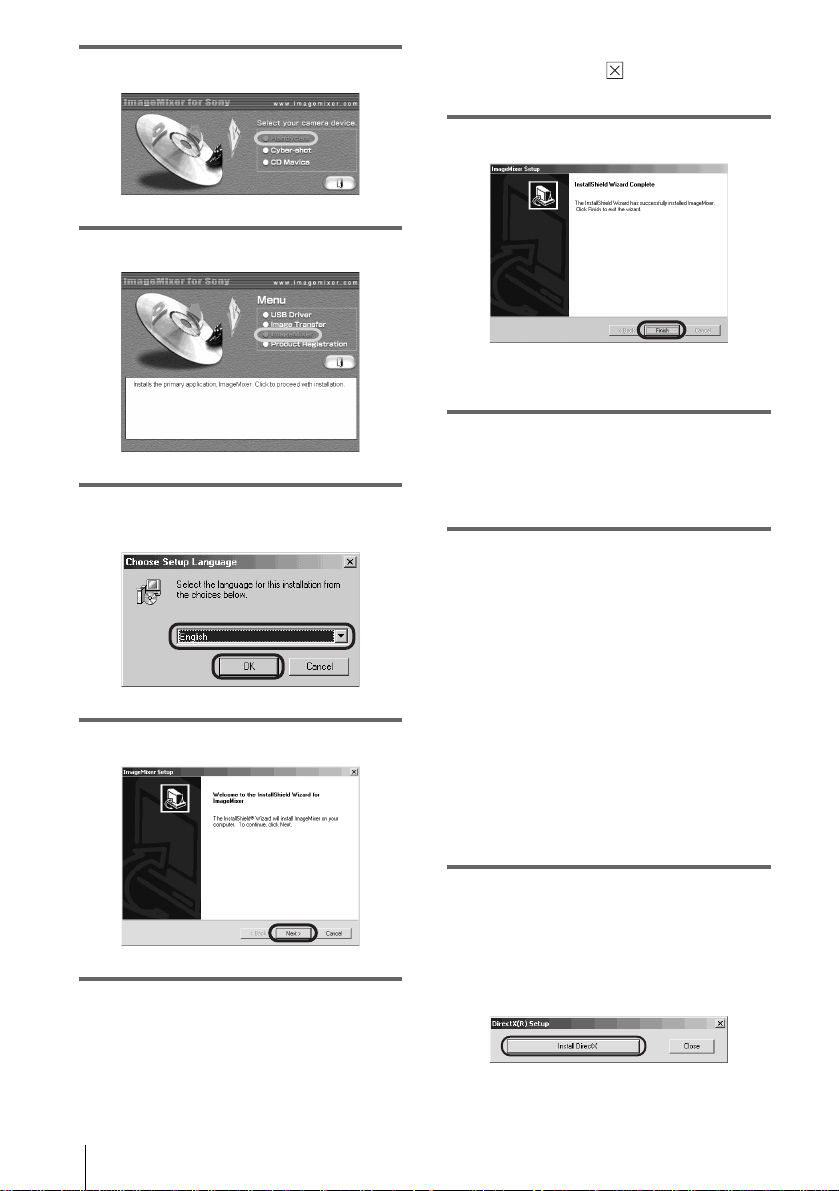
2 Click [Handycam].
3 Click [ImageMixer].
4 Select the language for the installation,
then click [OK].
5 Click [Next].
6 Follow the on-screen instructions.
z Tips
• If you use this software personally, enter
[Personal] etc. for [Company Name].
• Read the [Readme.txt] file (Memo Pad) when it
appears, then click (Close) to close Memo
Pad.
7 Click [Finish].
The installation of ImageMixer is complete.
8 Click [OK], then install WINASPI*
following the on-screen instructions.
* You need this software to copy the pictures
edited on your computer to a CD-R.
9 Click [End].
The installation for WINASPI is complete.
If DirectX 8.0a or a later version is not
installed on your computer
Go on to step 10 to install DirectX 8.0a.
If Windows XP, or DirectX 8.0a or a
later version is installed on your
computer
When [InstallShield Wizard Complete] is
displayed on the screen, click [Finish], then
[OK].
The computer restarts automatically. Then,
remove the CD-ROM. (You can skip the
rest of the procedure.)
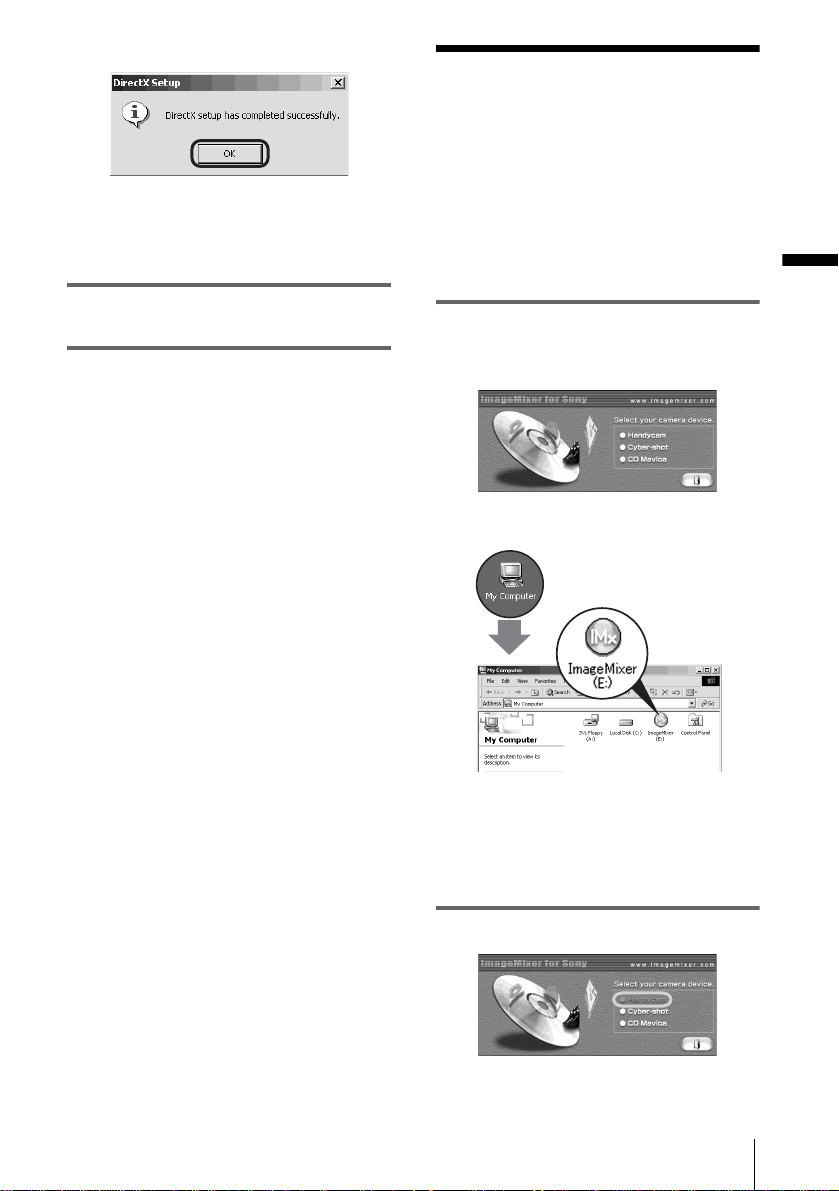
10Click [OK] to continue the installation
of DirectX 8.0a.
1 Read [License Agreement], then click
[Yes].
2 Click [Install DirectX] (or [ReInstall]).
Connecting to a Windows computer
Connecting to a Windows computer
11
3 Click [OK].
The computer restarts automatically, then a
short-cut icon for ImageMixer Ver.1.5 for
Sony appears on the desktop.
11Remove the CD-ROM from the disc
drive of your computer.
Step 3: Installing the
image exchange
software (Image
Transfer)
For Windows 2000/Windows XP
Log on as Administrators.
1 Place the supplied CD-ROM in the
disc drive of your computer.
The application software starts up.
If the screen does not appear
1 Double-click [My Computer].
2 Double-click [ImageMixer] (Disc
drive)*.
* Drive names (such as (E:)) may vary
depending on the computer.
2 Click [Handycam].
,continued
Connecting to a Windows computer
12
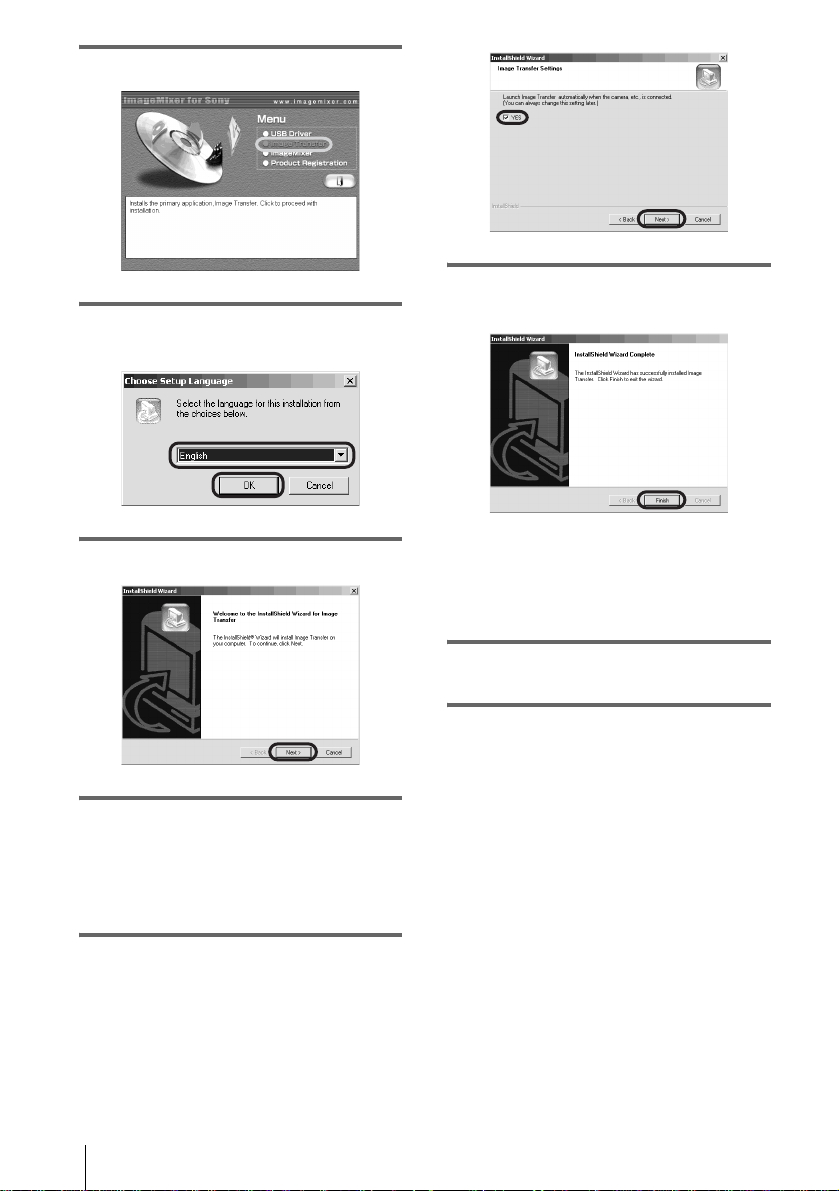
3 Click [Image Transfer].
4 Select the language for the installation,
then click [OK].
5 Click [Next].
6 Follow the on-screen instructions.
Make sure [Image Transfer] is indicated on
the program folder, then click [Next].
Normally, a new program folder [Image
Transfer] will be created.
7 Make sure that [YES] is checked for
[Launch Image Transfer
automatically when the camera, etc., is
connected.], then click [Next].
8 Click [Finish] to complete the
installation of Image Transfer.
The installation screen is closed.
Short-cut icons for Image Transfer and the
Image Transfer folder appear on the
desktop.
9 Remove the CD-ROM from the disc
drive of your computer.

Connecting to a Windows computer
Connecting to a Windows computer
13
Step 4: Connecting
your camcorder to a
computer
On connection
There are two ways to connect your camcorder
to a computer.
Connecting with a USB cable (supplied)
(p. 14)
• This method is good for copying files from a
“Memory Stick” to a computer for editing, and
copying files to a “Memory Stick.”
• You can view the image that your camcorder
is seeing on a computer, or play back pictures
and sound recorded on a tape and view them
on a computer. (PC Camera, Video
Streaming)
• You need to install the USB driver on your
computer beforehand (p. 8).
Connecting with an i.LINK cable
(optional) (p. 16)
• This method is good for copying and editing
pictures and sound recorded on a tape.
• Image data is transferred with more precision
than with a USB cable.
• You cannot copy files from a “Memory Stick”
to a computer or copy files from a computer to
a “Memory Stick” in your camcorder.
b Note
• When you are using a USB cable or an i.LINK cable
to connect your camcorder to a computer, make sure
you insert the connector in the correct direction. If
you insert the connector forcibly, it may be
damaged, and causes a malfunction of your
camcorder.
To copy and edit pictures recorded on a
tape
If your computer has a USB jack
,Connect your camcorder to your computer
using the supplied USB cable. See
“Connecting with the USB cable (supplied)”
(p. 14).
If your computer has an i.LINK
(IEEE1394) connector
,Connect your camcorder to your computer
using an optional i.LINK cable. See
“Connecting with an i.LINK cable
(optional) (DV format models only)”
(p. 16). Image data are transferred with more
precision, and the installation of the USB
driver is not required with this type of
connection.
If your camcorder is a MICROMV format
model, refer also to the separate
MovieShaker Application Guide supplied
with your camcorder.
To copy and edit pictures recorded on a
“Memory Stick”
If your computer has a USB jack
,Connect your camcorder to your computer
using the supplied USB cable. See
“Connecting with the USB cable (supplied)”
(p. 14).
If your computer has a Memory Stick
slot
,Copy still images or movies to a “Memory
Stick,” then insert it into the Memory Stick
slot on your computer. To check where the
images are stored on a “Memory Stick,” see
page 27.
,continued
Connecting to a Windows computer
14
Connecting with the USB cable
(supplied)
When connecting your camcorder to your
computer with the USB cable (supplied), you
must have the proper USB driver installed on
your computer (p. 8) before following the
steps below.
b Note
• Do not connect your camcorder to the computer
at this point.
1 Start up the computer.
Close down all applications running on the
computer.
For Windows 2000/Windows XP
Log on as Administrators.
2 Prepare the power source for your
camcorder, then slide the POWER
switch to select the CAMERA-TAPE
mode.
Use the supplied AC Adaptor as the power
source. For details, refer to the separate
Camera Operations Guide supplied with
your camcorder.
3 Touch [P-MENU], [MENU], [
(STANDARD SET)] and [USB-
CAMERA], then touch to select [USB
STREAM].
For details on using the personal menu,
refer to the separate Camera Operations
Guide supplied with your camcorder.
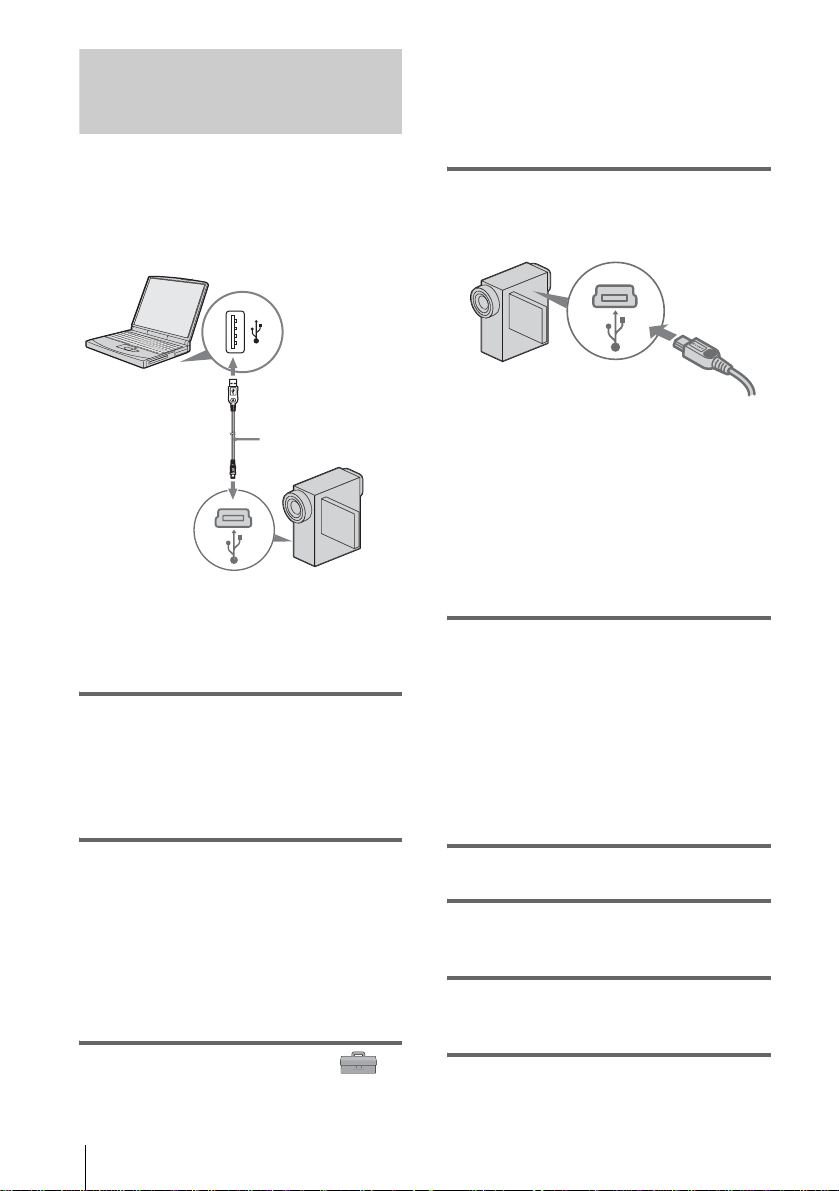
4 Connect the USB cable (supplied) to
the USB jack on the camcorder.
The location of the USB jack varies
depending on the model. Refer to the
separate Camera Operations Guide
supplied with your camcorder for the
location.
For the model that is supplied with the
Handycam Station, connect the USB cable
to the USB jack on the Handycam Station,
then set the USB ON/OFF switch to ON.
5 Connect the other end of the USB cable
to the USB jack on your computer.
It may take some time for the computer to
recognize the camcorder when you connect
the USB cable for the first time.
For Windows XP
If [Found New Hardware Wizard] appears,
click [Continue Anyway] and complete the
installation.
6 Turn off the power of your camcorder.
7 Disconnect the USB cable from your
camcorder.
8 Insert a recorded “Memory Stick” into
your camcorder.
9 Slide the POWER switch repeatedly to
select the PLAY/EDIT mode.
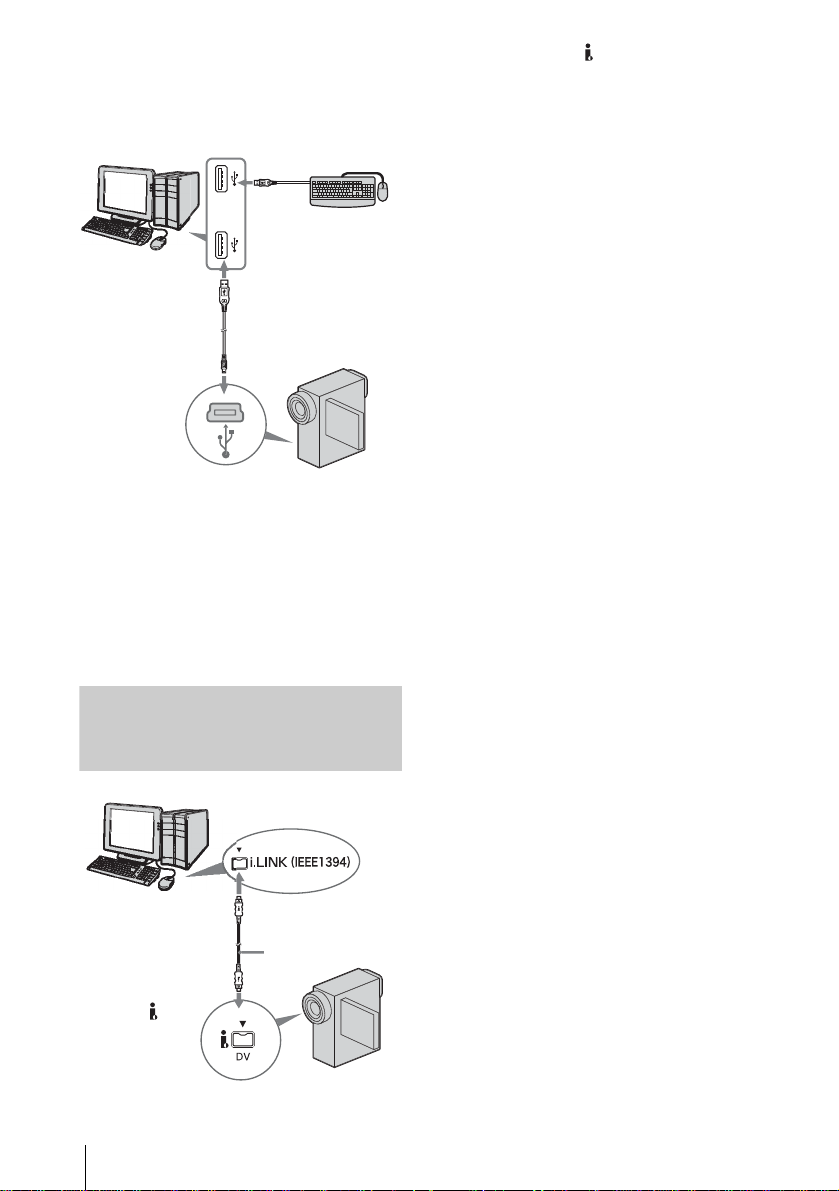
to USB jack
USB cable
(supplied)
to USB jack
Fully insert.
Connecting to a Windows computer
Connecting to a Windows computer
15
10Touch [P-MENU], [MENU], [
(STANDARD SET)] and [USB-PLY/
EDT], then touch to select [STD-USB].
11Connect your camcorder to the
computer via the USB cable (p. 14).
[USB MODE] appears on the LCD screen
of your camcorder and the computer starts
to recognize the camcorder.
It may take some time for the computer to
recognize the camcorder when you connect
the USB cable for the first time.
For Windows XP
If [Found New Hardware Wizard] appears,
click [Continue Anyway] and complete the
installation.
To disconnect the USB cable
For Windows 2000/Windows Me/
Windows XP
If [USB MODE] appears on the LCD screen,
follow the procedure below to disconnect the
USB cable.
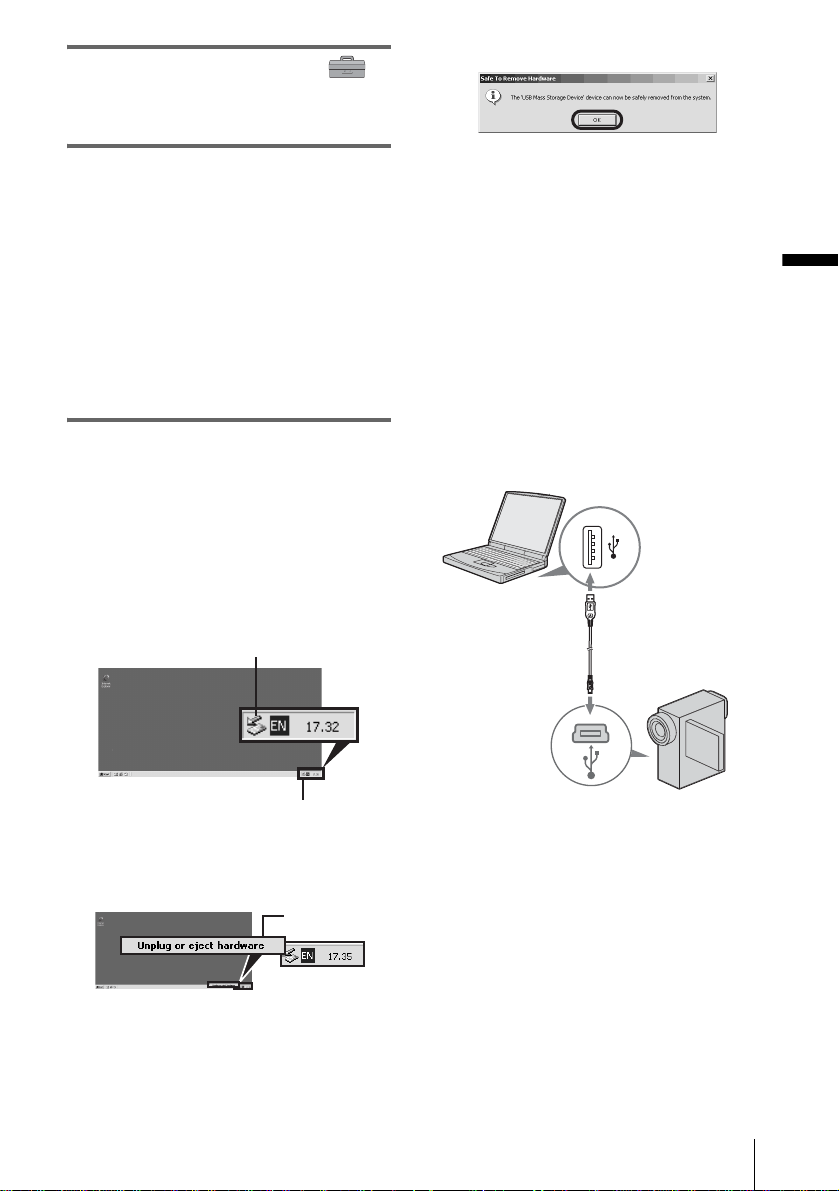
1 Click the [Unplug or eject hardware]
icon on the task tray.
2 Click [Unplug or eject hardware]
([Safely remove Sony Camcorder] in
Windows XP).
3 Click [OK].
4 Disconnect the USB cable from the
camcorder and computer.
If [USB MODE] does not appear on the LCD
screen, do only step 4 above.
For Windows 98/Windows 98SE
Do only step 4 above.
Recommended connection
Connect as shown in the following illustrations
to operate the camcorder correctly.
• Connect the camcorder to a computer via the
USB cable (supplied). Make sure no other
USB devices are connected to the computer.
Click this icon.
task tray
Click here.
,continued
Connecting to a Windows computer
16
• If your computer has a USB keyboard and a
USB mouse as standard equipment, leave
them connected and connect the camcorder to
an available USB jack with the USB cable
(supplied).
b Notes
• Operation is not guaranteed if you connect two or
more USB devices to the computer.
• Operation is not guaranteed if you connect the USB
cable to the USB jack on a keyboard or USB hub.
Make sure to connect the cable to the USB jack on
the computer.
• Operation is not guaranteed on all the recommended
environments.
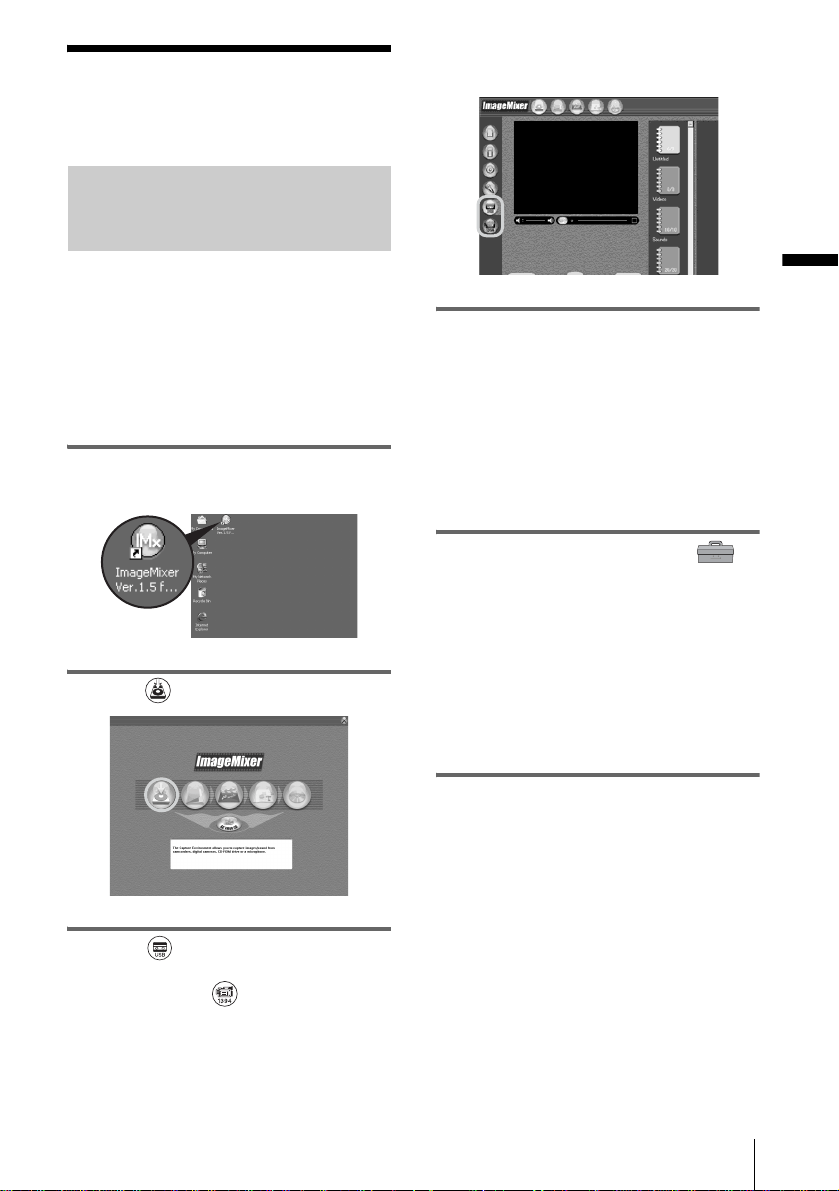
Connecting with an i.LINK cable
(optional) (DV format models only)
The location of the DV Interface varies
depending on the model. Refer to the separate
Camera Operations Guide supplied with your
camcorder for the location.
To disconnect the i.LINK cable
Turn off the power of the camcorder and
disconnect the i.LINK cable from the
camcorder and computer.
z Tip
• You can use other image editing software that can
read video signals to edit the recorded pictures. For
details on the operation of other software, refer to the
help files or the operating instructions of that
software.
to i.LINK (IEEE1394)
connector
i.LINK cable
(optional)
to DV
Interface
Connecting to a Windows computer
Connecting to a Windows computer
17
Step 5: Checking the
connection
Playing pictures recorded on a
tape on your computer
Before following the procedure below, start
up ImageMixer Ver.1.5 for Sony and check
the connection.
b Note
• Before following the procedure below, make sure
you remove the “Memory Stick” from the
camcorder.
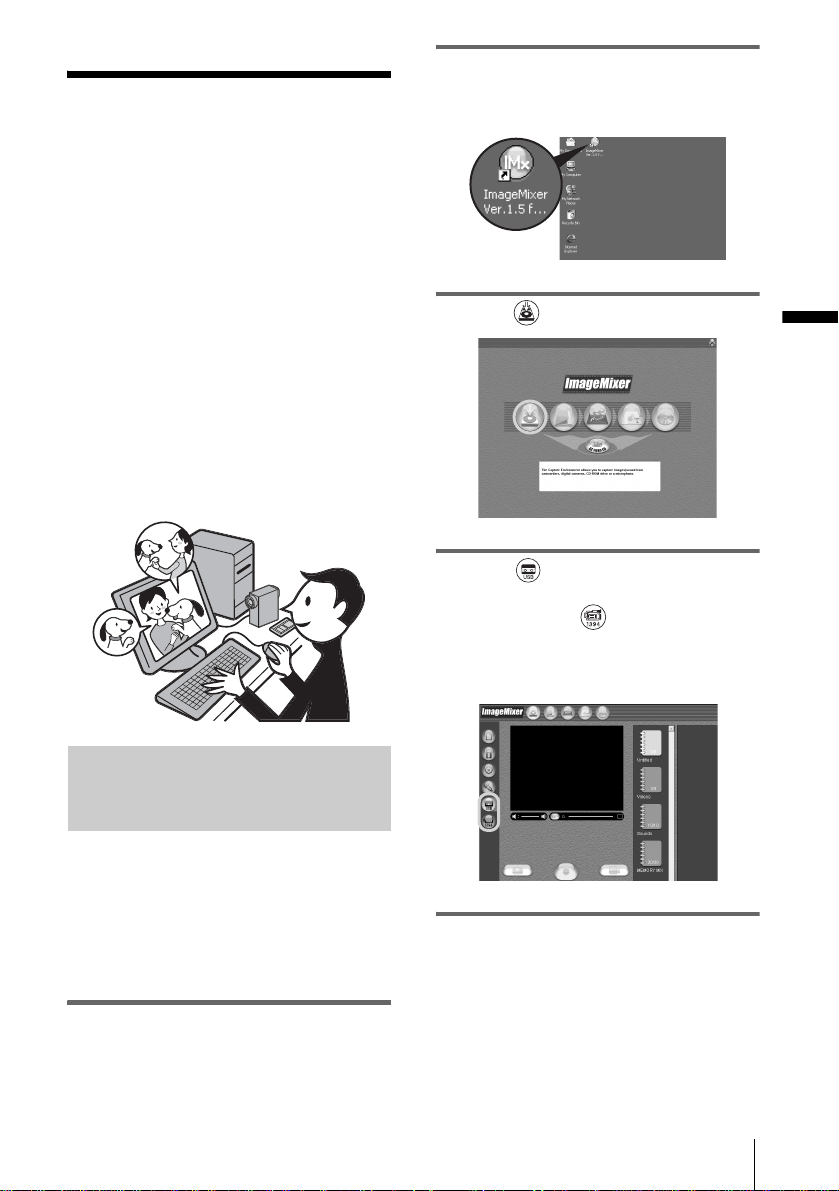
1 Double-click [ImageMixer Ver.1.5 for
Sony] on the desktop.
2 Click (Capture Environment).
3 Click (USB Device Capture
Mode) if you are connecting via a USB
cable, or click (DV Camcorder
Capture Mode) if you are connecting
via an i.LINK cable (DV format
models only).
4 Prepare the power source for your
camcorder, then slide the POWER
switch repeatedly to select the PLAY/
EDIT mode.
Use the supplied AC Adaptor as the power
source.
For details, refer to the separate Camera
Operations Guide supplied with your
camcorder.
5 Touch [P-MENU], [MENU], [
(STANDARD SET)] and [USB-PLY/
EDT], then touch to select [USB
STREAM].
For details, refer to the separate Camera
Operations Guide supplied with your
camcorder.
This operation is not necessary when
connecting the camcorder to the computer
via an i.LINK cable (p. 16).
6 Connect your camcorder to the
computer (p. 13).
,continued

Connecting to a Windows computer
18
7 Click (Playback) to see if the
picture appears on the preview screen
on your computer.
It may take some time before it is displayed.
If the playback picture does not
appear on the screen
Check to see if the USB driver is correctly
installed on your computer (p. 41).
To cancel the operation
1
Click (Close) at the upper right-
hand corner of the screen on your
computer to quit ImageMixer Ver.1.5 for
Sony.
2 Turn off the camcorder, then disconnect
the cable.
Viewing pictures recorded on a
“Memory Stick” on your computer
1 Insert the “Memory Stick” into your
camcorder.
2 Prepare the power source for your
camcorder, then slide the POWER
switch repeatedly to select the PLAY/
EDIT mode.
3 Touch [P-MENU], [MENU], [
(STANDARD SET)] and [USB-PLY/
EDT], then touch to select [STD-USB].
For details, refer to the separate Camera
Operations Guide supplied with your
camcorder.
4 Connect your camcorder to the
computer (p. 13), then see if Image
Transfer starts up automatically.
[USB MODE] appears on the LCD screen
and the pictures stored in the “Memory
Stick” are copied to the computer. Then,
ImageMixer Ver.1.5 for Sony starts up
automatically and a list of pictures appears
(p. 26).
If Image Transfer does not start
See “Troubleshooting” (p. 44) for details.
Preview screen
Managing pictures on a Windows computer
Managing pictures on a Windows computer
19
Managing pictures on a Windows computer
Copying and viewing
pictures recorded on
a tape
You can play or edit pictures on your
computer without connecting the camcorder
each time, by copying the pictures recorded
on your tape to the computer.
If your camcorder is a MICROMV format
model, you can also edit the pictures with the
supplied CD-ROM (MovieShaker Ver.3.1
for MICROMV). For details, refer also to the
separate MovieShaker Application Guide
supplied with your camcorder.
For Windows 2000/Windows XP
Log on as Administrators.
Copying movies onto your
computer
Before following the procedures below,
make sure you have installed ImageMixer
Ver.1.5 for Sony on your computer.
The maximum length of movies you can copy
on a computer varies from 10 to 20 minutes,
depending on the computer environment.
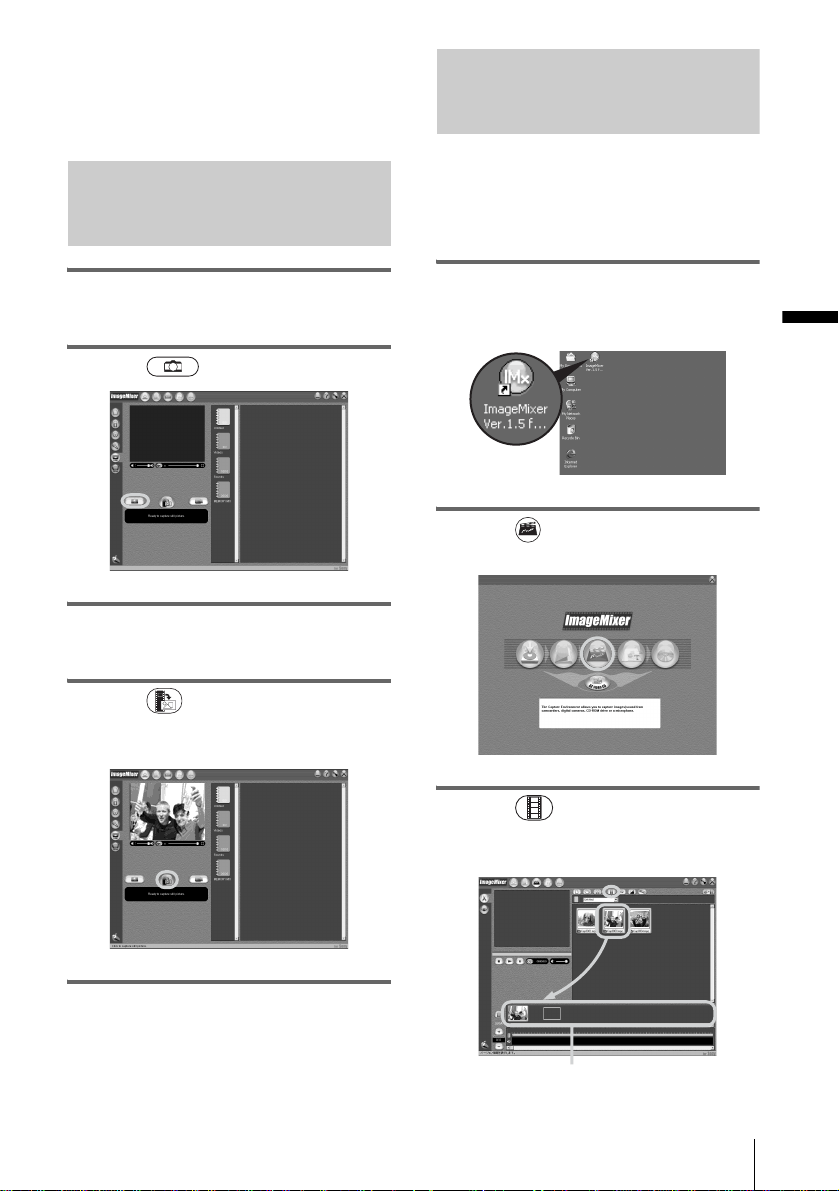
1 Prepare the power source for your
camcorder, then insert a cassette into
your camcorder.
2 Start up the computer, then double-
click [ImageMixer Ver.1.5 for Sony]
on the desktop.
3 Click (Capture Environment).
4 Click (USB Device Capture
Mode) if you are connecting via a USB
cable, or click (DV Camcorder
Capture Mode) if you are connecting
via an i.LINK cable (DV format
models only).
5 On your camcorder, slide the POWER
switch repeatedly to select the PLAY/
EDIT mode.
,continued
Managing pictures on a Windows computer
20
6 Touch [P-MENU], [MENU], [
(STANDARD SET)] and [USB-PLY/
EDT], then touch to select [USB
STREAM].
For details, refer to the separate Camera
Operations Guide supplied with your
camcorder.
This operation is not necessary when
connecting the camcorder to the computer
via an i.LINK cable (p. 16).
7 Connect your camcorder to the
computer (p. 13).
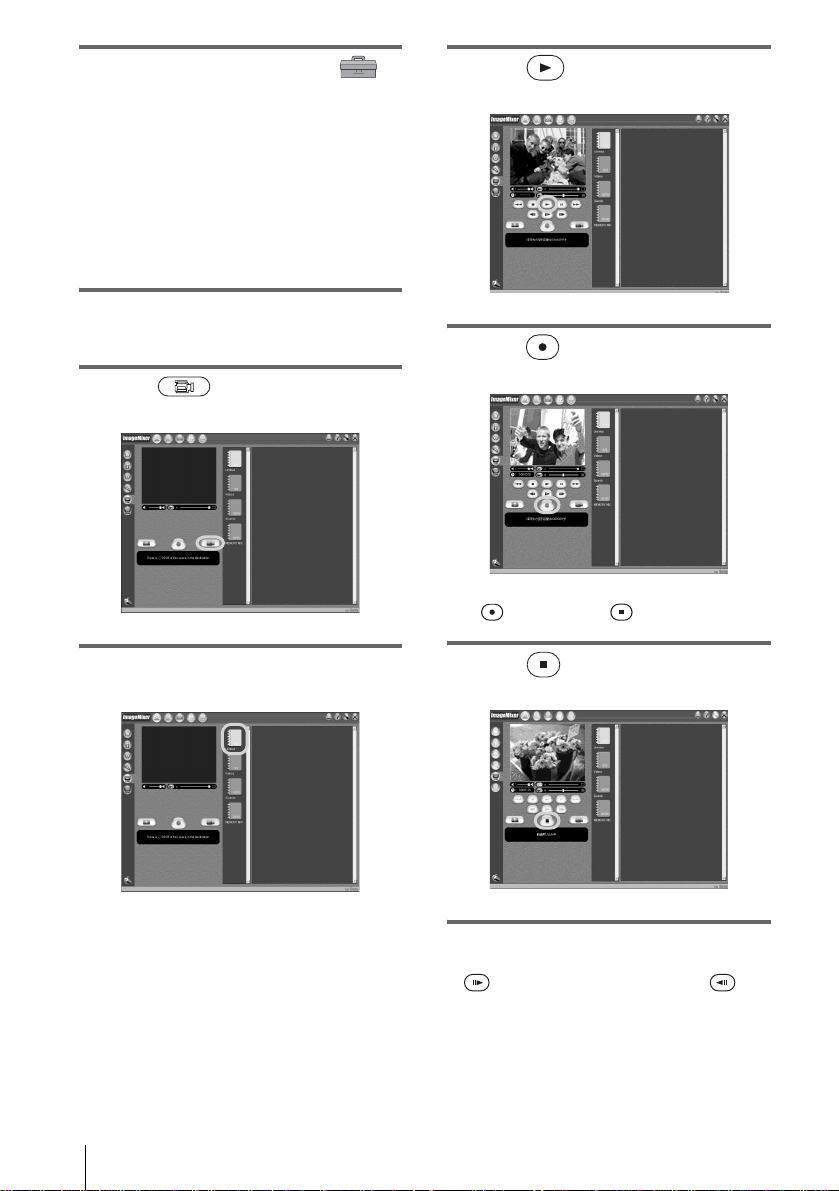
8 Click (Motion Picture
Capture).
9 Click to select an album to copy the
picture to.
10Click (Playback) to play back
the tape.
11Click (Capture) at the point you
want to start copying.
(red) turns to (black).
12Click (Stop) at the point you
want to stop copying.
b Note
• (forward one frame at a time) and
(rewind one frame at a time) only function on the
DV format models. (These buttons do not appear on
other models.)
Managing pictures on a Windows computer
Managing pictures on a Windows computer
21
z Tip
• When you copy a movie longer than the maximum
recording time allowed (10 to 20 minutes), the
playback stops automatically and the scenes up to
that point will be copied to the computer.
Copying still images extracted
from a movie on your computer
1 Follow steps 1 to 7 on “Copying movies
onto your computer” (p. 19).
2 Click (Still Picture Capture).
3 Follow steps 9 and 10 on “Copying
movies onto your computer” (p. 20).
4 Click (Capture) at the point
where you want to extract a still image
from the movie.
Editing pictures on your computer
You can put together multiple pictures copied
onto your computer and create one movie.
Refer to the on-line help for details on this
operation (p. 22).
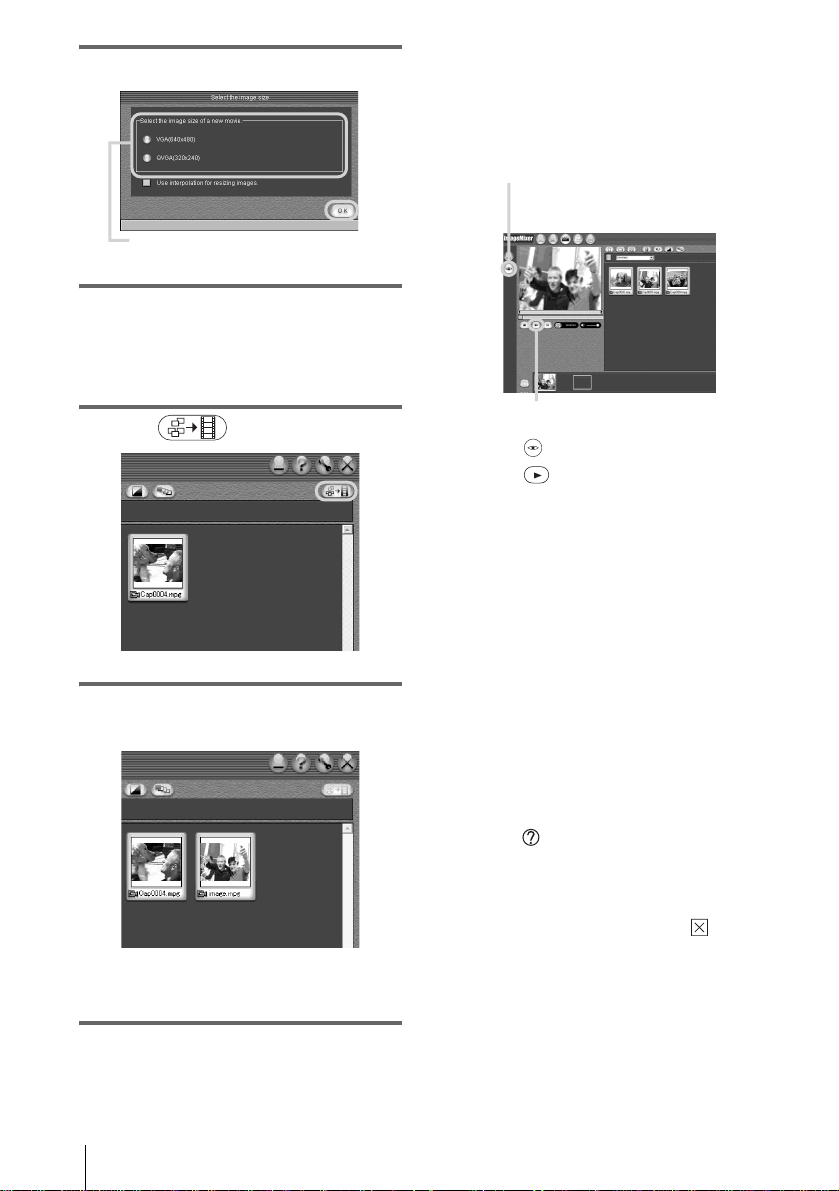
1 Start up the computer, then double-
click [ImageMixer Ver.1.5 for Sony]
on the desktop.
2 Click (Movie Editing
Environment).
3 Click (Movie Display). Select a
movie from the list, then drag and drop
it on the storyboard.
Storyboard
,continued
Managing pictures on a Windows computer
22
4 Click [OK].
5 Select a movie from the list, then drag
and drop it on the storyboard
repeatedly to sort the order of the
images used in the movie.
6 Click (Save).
7 Name and save the movie in [My
Documents].
The created movie is also added to the
current album.
To play back the movie while editing
—
Preview
Follow the steps below to play back the movie
while editing. It may take some time for the
preview picture to be displayed.
1 Click (Preview Mode).
2 Click (Playback).
To play back the edited movie
In the [My Documents] folder, double-click the
icon of the movie you created.
Windows Media Player* starts up, and the
playback starts.
* You need Windows Media Player installed on your
computer to play back the movie you created
(MPEG-format movie file).
b
Note
• The picture may flicker when you view it on a
computer.
To use the on-line help
Refer to the on-line help for detailed operating
instructions for ImageMixer Ver.1.5 for Sony.
1 Click (Help) at the upper right-hand
corner of the screen.
2 Search for the desired topic from the
table of contents.
To close the on-line help, click (Close)
at the upper right-hand corner of the Help
screen.
Click the desired size to change the
image size.
1
2
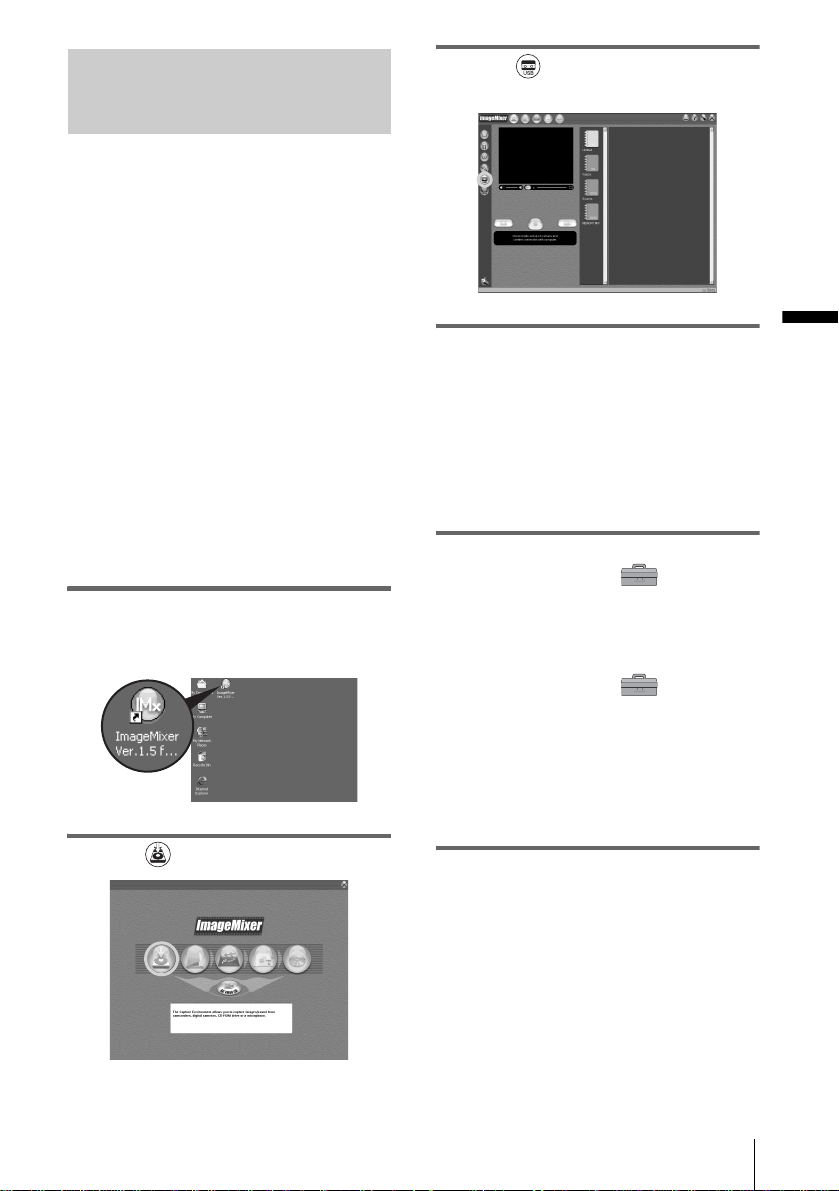
Managing pictures on a Windows computer
Managing pictures on a Windows computer
23
Viewing pictures on your
computer via the USB port — USB
Streaming
When you connect your camcorder to a
computer via a USB cable (supplied), you
can view a movie played on your camcorder
on the computer screen. You do not need to
store the data on the computer.
By using communication software, you can
connect your computer to the Internet to
distribute the picture live via the Internet.
Before following the procedures below,
make sure you have installed ImageMixer
Ver.1.5 for Sony on your computer (p. 9).
Video Streaming
You can play a movie recorded on a tape on
your camcorder and view it on the computer
screen.
PC Camera
You can view the image that your camcorder is
currently seeing.
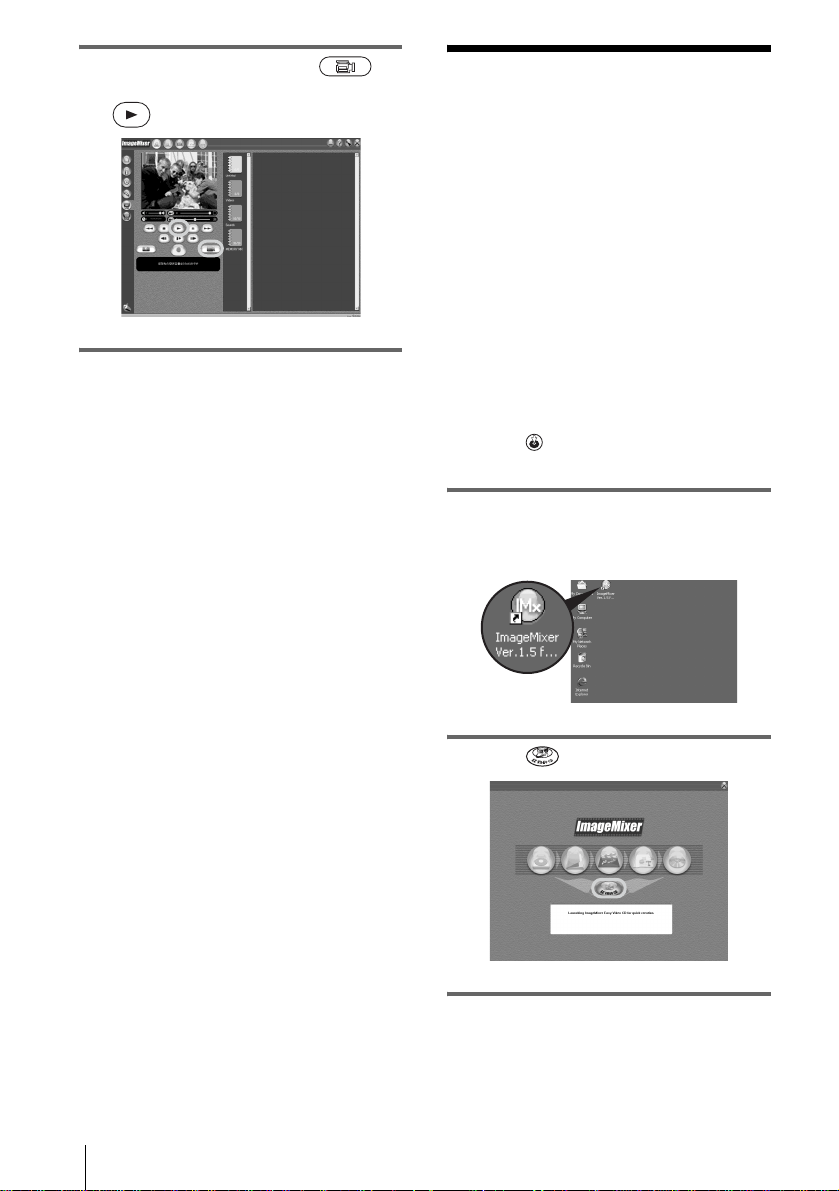
1 Start up the computer, then double-
click [ImageMixer Ver.1.5 for Sony]
on the desktop.
2 Click (Capture Environment).
3 Click (USB Device Capture
Mode).
4 Prepare the power source for your
camcorder, then slide the POWER
switch repeatedly to select the PLAY/
EDIT mode (for Video Streaming) or
CAMERA-TAPE mode (for the PC
Camera function).
Use the supplied AC Adaptor as the power
source.
5 For Video Streaming, touch [P-
MENU], [MENU], [
(STANDARD SET)] and [USB-PLY/
EDT], then touch to select [USB
STREAM].
For the PC Camera function, touch [P-
MENU], [MENU], [
(STANDARD SET)] and [USB-
CAMERA], then touch to select [USB
STREAM].
For details, refer to the separate Camera
Operations Guide supplied with your
camcorder.
6 Connect your camcorder to the
computer via the USB cable (supplied)
(p. 14).
,continued
Managing pictures on a Windows computer
24
7 For Video Streaming, click
(Motion Picture Capture), then click
(Playback).
Creating Video CDs
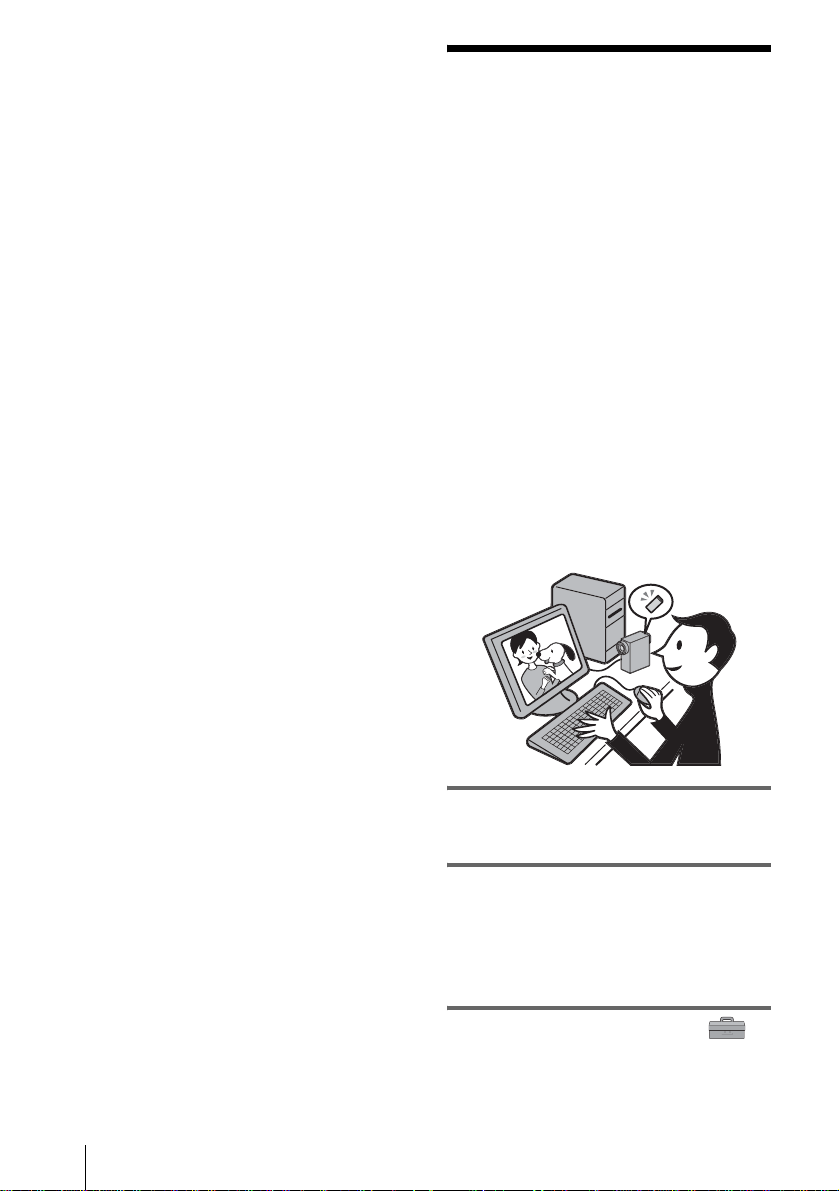
You can create Video CDs using a computer
equipped with a disc drive.
The following procedure describes how to
create a Video CD from a picture recorded on
a tape (maximum length of about one hour).
You can also create a Video CD from the
images that your camcorder is currently
seeing.
Before starting the operation, make sure you
have installed ImageMixer Ver.1.5 for Sony
on your computer (p. 9).
z Tip
• To create a Video CD from pictures edited on a
computer, start up ImageMixer Ver.1.5 for Sony,
then click
(Video Disc Environment). Refer to
the on-line help for details on this operation (p. 22).
1 Start up the computer, then double-
click [ImageMixer Ver.1.5 for Sony]
on the desktop.
2 Click (EZ VIDEO CD).
3 Prepare the power source for your
camcorder, then slide the POWER
switch repeatedly to select the PLAY/
EDIT mode.
Managing pictures on a Windows computer
Managing pictures on a Windows computer
25
Use the supplied AC Adaptor as the power
source.
4 Touch [P-MENU], [MENU], [
(STANDARD SET)] and [USB-PLY/
EDT], then touch to select [USB
STREAM].
For details, refer to the separate Camera
Operations Guide supplied with your
camcorder.
5 Search for the point on the tape where
you want to start copying to the Video
CD.
z Tip
• You can also create a Video CD of the image
that the camcorder is currently seeing when the
POWER switch is set to the CAMERA-TAPE
mode. Touch [P-MENU], [MENU] and [USB-
CAMERA], then touch to select [USB
STREAM].
6 Connect the camcorder to a computer
via the USB cable (supplied) (p. 14).
7 Place a new CD-R in the disc drive.
You cannot use a CD-RW.
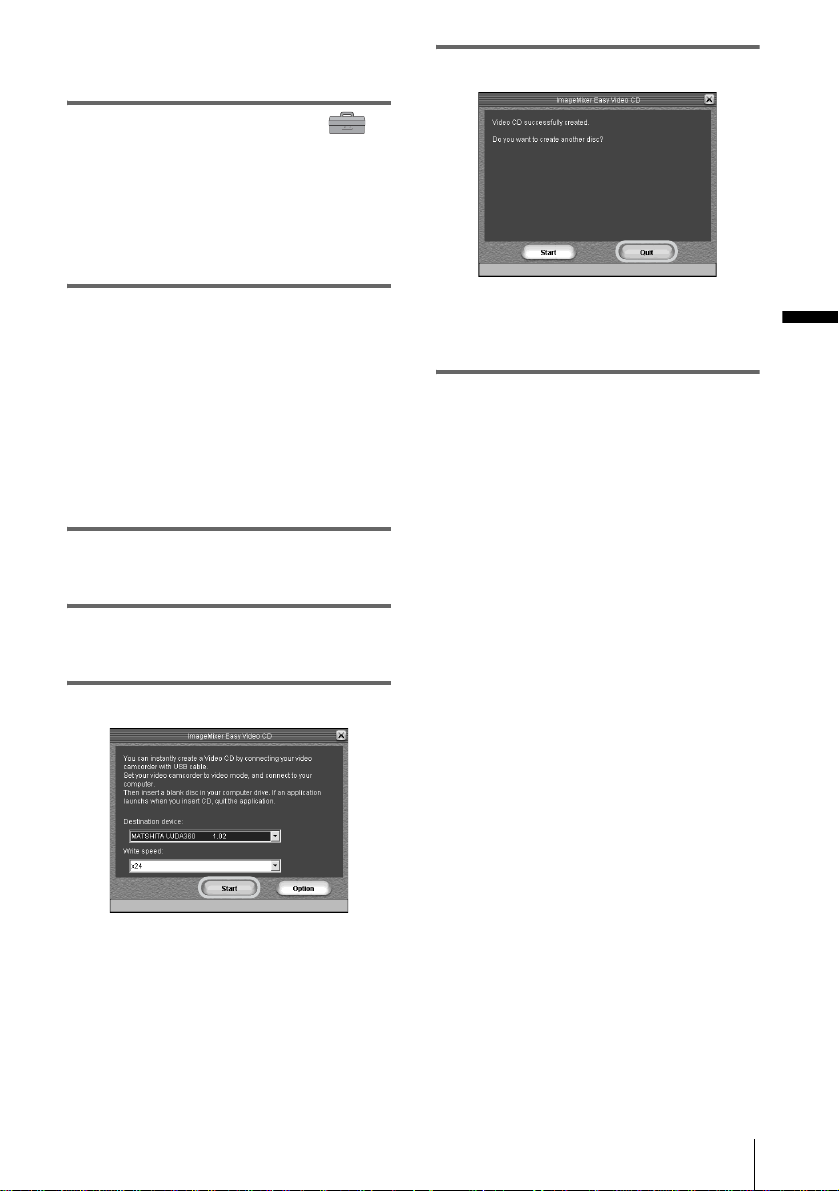
8 Click [Start].
The tape starts playing and the picture is
imported to the buffer via the HDD before
being written onto the CD-R automatically.
To cancel the operation, click [Stop]. In this
case, the picture played up to that point is
written on the CD-R.
9 Click [Quit] after writing is finished.
To create another Video CD of the same
content, place a new CD-R in the disc drive,
then click [Start].
b Notes
• Do not press any buttons on the camcorder while
creating a Video CD.
• Select a hard disk that has enough space (more than
about 6GB) for the [Location of work folder] on the
[Option] screen.
• Once you have created a Video CD, you cannot add
images to the same CD-R.
• There may be a few second-break about every 10
minutes on the created Video CD. This is due to the
AVI format used to create the Video CD, which
divides a picture every 10 minutes (about 4GB) to
write it on a CD-R.
• The picture being written onto the CD-R will not
appear on the computer screen.
z
Tip
• The importing of the picture stops automatically
when the tape is played to the end.
To play the Video CD
You can play back the Video CD in one of the
following devices. Refer to the operating
instructions supplied with each player for
details.
– DVD player
– a computer equipped with a DVD drive and
software compatible with Video CDs
– a computer equipped with Windows Media
Player (You may not be able to play back the
Video CD depending on the computer
environment, including such factors as the
operating system or the hardware. The menu
functions of Windows Media Player do not
work.)
,continued
Managing pictures on a Windows computer
26
The following procedure describes how to play
back a Video CD using Windows Media Player.
1 Place a Video CD in the disc drive of your
computer and start up Windows Media
Player.
For Windows XP
Click [Start], [All Programs],
[Accessories], [Entertainment], then
[Windows Media Player].
For other operating systems
Click [Start], [Programs], [Accessories],
[Entertainment], then [Windows Media
Player].
2 Open [My Computer], [CD-R], then
[MPEGAV]. Then, drag and drop the
movie file [sss*.DAT] onto the
Windows Media Player screen.
* sss indicates the actual file name.
Copying and viewing
pictures recorded on
a “Memory Stick”
You can play or edit pictures without
connecting the computer to your camcorder
by copying the pictures recorded on a
“Memory Stick” to the computer.
Before starting the operation, make sure you
have installed Image Transfer on your
computer (p. 11).
For Windows 2000/Windows XP
Log on as Administrators.
b Notes
• Use the supplied AC Adaptor as the power source,
since the data on the “Memory Stick” may be
destroyed if the power runs out during the operation.
• For details on the “Memory Stick” that you can use
with the camcorder, refer to the separate Camera
Operations Guide supplied with your camcorder.
1 Insert a “Memory Stick” into your
camcorder.
2 Start up the computer, prepare the
power source for your camcorder,
then slide the POWER switch
repeatedly to select the PLAY/EDIT
mode.
3 Touch [P-MENU], [MENU], [
(STANDARD SET)] and [USB-PLY/
EDT], then touch to select [STD-USB].
Managing pictures on a Windows computer
Managing pictures on a Windows computer
27
4 Connect the camcorder to the
computer via the USB cable (supplied)
(p. 14).
Image Transfer starts up automatically and
the pictures recorded on the “Memory
Stick” are transferred to the computer.
Normally, the [Image Transfer] and [Date]
folders are created inside the [My
Documents] folder, and all the pictures are
stored in those folders.
When the image transfer is complete,
ImageMixer starts up automatically and
displays a list of pictures.
For Windows XP
The automatic playback wizard starts up at the
default setting. Follow the steps below to
deactivate this setting. (From the second time
on, you can skip the rest of the procedure.)
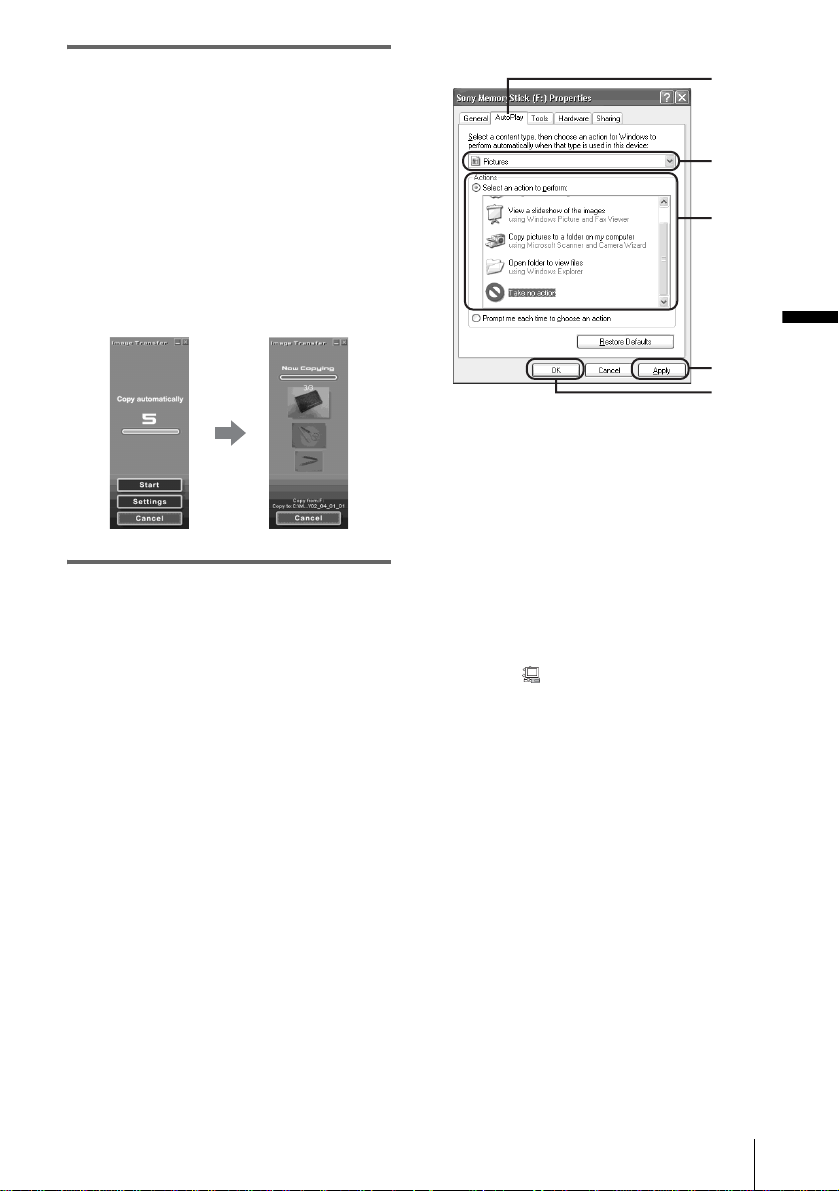
1 Make sure you have connected your
camcorder to a computer via a USB
cable.
2 Click [Start], then select [My Computer]
from the start menu.
3 Right-click [Sony MemoryStick], then
click [Properties].
4 Deactivate the setting.
AClick the [Auto Play] tab.
BSelect [Pictures] for a content type.
CSelect [Actions], check [Select an action
to perform], then select [Take no
action]. Click [Apply].
DSelect [Video Files] for a content type.
Repeat step 3.
ESelect [Mixed content] for a content
type. Repeat step 3.
FClick [OK].
To change the Image Transfer settings
Right-click (Image Transfer icon) on the
task tray. Then, select [Open settings] to change
[Basic], [Copy], and [Delete].
Click [Restore defaults] to return to the default
setting.
On destination folders and file names
Pictures transferred to the computer
using Image Transfer
The pictures are copied to the [Image Transfer]
and [Date] folders created inside the [My
Documents] folder.
A
B
DE
C
C
F
,continued
Managing pictures on a Windows computer
28
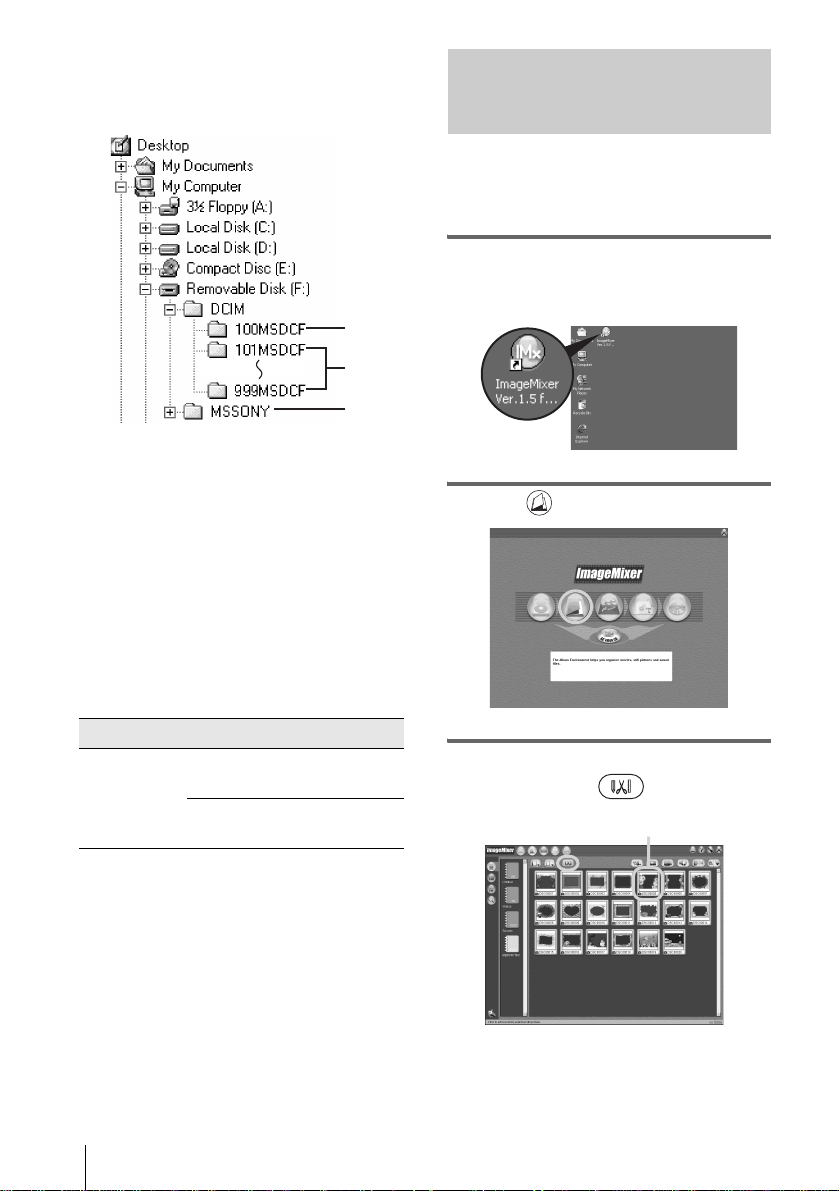
Pictures on a “Memory Stick”
The pictures are stored in the [Removable disk]
or [Sony MemoryStick] folder displayed in [My
Computer].
A Folder containing image files recorded
using other camcorders without the
folder creation function (for playback
only)
B Folder containing image files recorded
with your camcorder
When no new folders have been created,
only [101MSDCF] is displayed.
C Folder containing movie data recorded
using other camcorders without the
folder creation function (for playback
only)
sssss stands for any number between 00001 to
99999.
To copy pictures on the computer
without using Image Transfer
Double-click the [Removable disk] or [Sony
MemoryStick] icon displayed in [My
Computer]. Then, drag and drop a picture in the
folder onto the hard disk drive of your
computer.
Editing still images on your
computer
You can edit the still images copied from your
camcorder using ImageMixer Ver.1.5 for Sony
and save them on your computer.
1 Start up the computer, then double-
click [ImageMixer Ver.1.5 for Sony]
on the desktop.
2 Click (Album).
3 Click the still image that you want to
edit, then click (Edit).
Folder File Meaning
101 MSDCF
(up to 999
MSDCF)
DSCssss
s.JPG
Still image
file
MOVsss
ss.MPG
Movie file
1
2
3
Click and select an image.
Managing pictures on a Windows computer
Managing pictures on a Windows computer
29
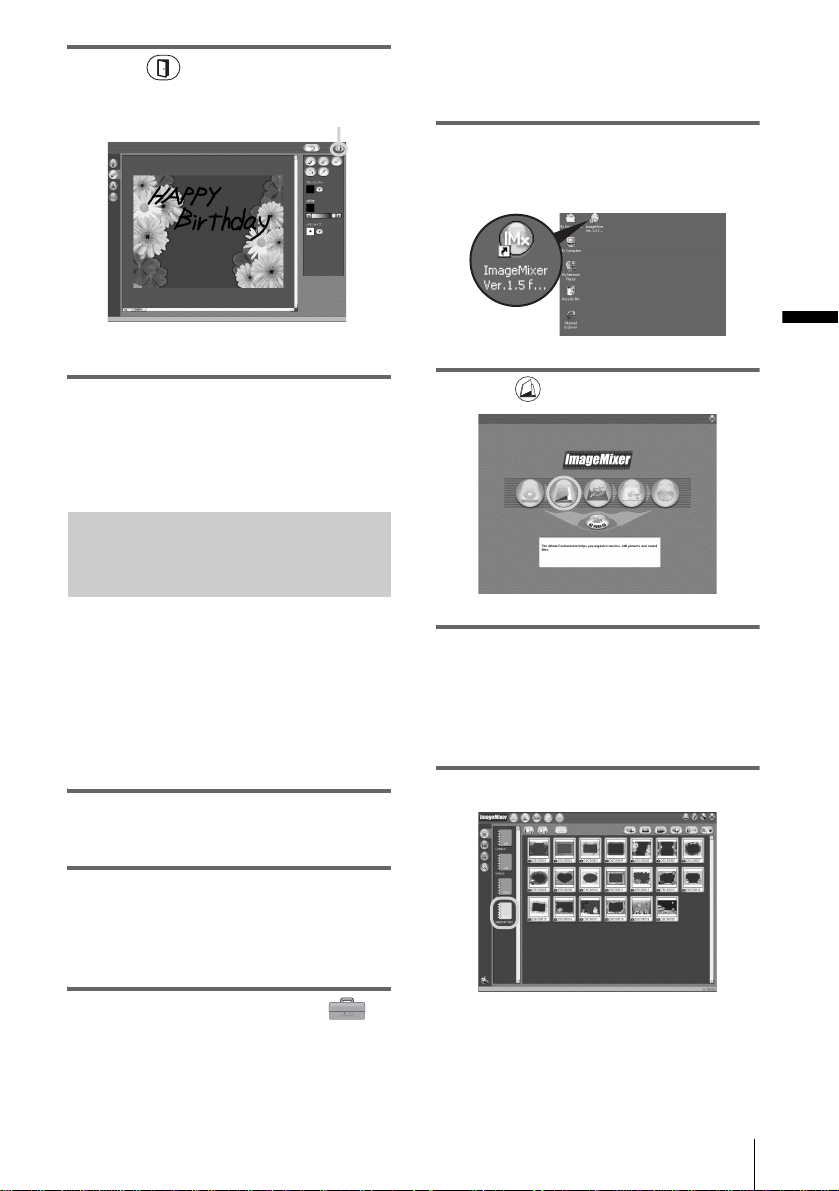
4 Click (Exit) after you finish
editing.
The edited still image is added to the album.
z Tip
• Refer to the on-line help for detailed operating
instructions on ImageMixer Ver.1.5 for Sony
(p. 22).
Copying pictures edited on
ImageMixer Ver.1.5 for Sony to a
“Memory Stick”
You can copy pictures edited on ImageMixer
Ver.1.5 for Sony to a “Memory Stick,” and
use them as materials for MEMORY MIX on
your camcorder.
Refer to the separate Camera Operations
Guide supplied with your camcorder for
details on MEMORY MIX.
1 Insert a “Memory Stick” into your
camcorder.
2 Prepare the power source for your
camcorder, then slide the POWER
switch repeatedly to select the PLAY/
EDIT mode.
3 Touch [P-MENU], [MENU], [
(STANDARD SET)] and [USB-PLY/
EDT], then touch to select [STD-USB].
For details, refer to the separate Camera
Operations Guide supplied with your
camcorder.
4 Start up the computer, then double-
click [ImageMixer Ver.1.5 for Sony]
on the desktop.
5 Click (Album).
6 Connect your camcorder to the
computer via the USB cable (supplied)
(p. 14).
Click [Cancel] if Image Transfer starts up
automatically.
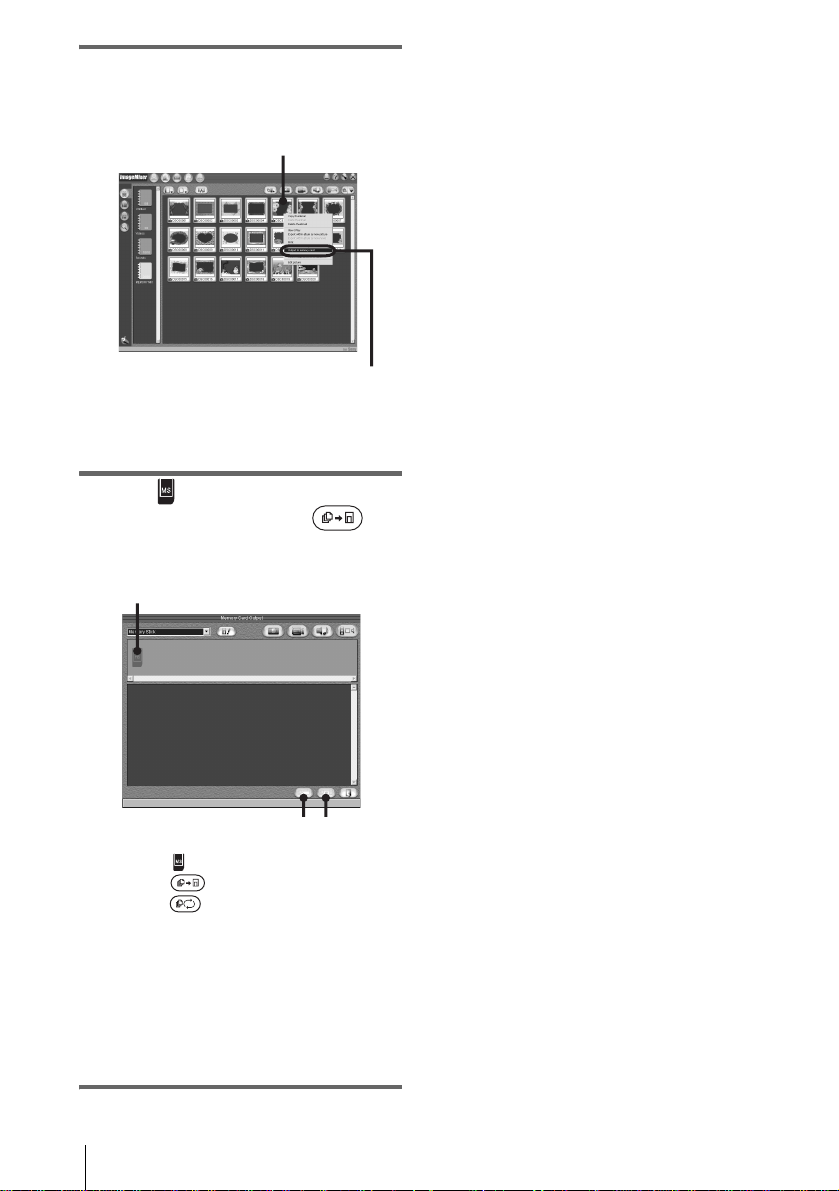
7 Click the [MEMORY MIX] album.
Click.
,continued
Managing pictures on a Windows computer
30
8 Right-click the picture that you want
to copy, then click [Output to memory
card].
1 Right-click the desired picture.
2 Click [Output to memory card].
9 Click (“Memory Stick” Select) on
the title screen, then click
(Output) displayed at the bottom
right-hand corner of the screen.
1 Click (“Memory Stick” Select).
2 Click (Output).
3 Click (Refresh) to confirm the
picture that you have copied to the
“Memory Stick.”
The picture will be copied to the folder
selected as a destination folder. For
details, refer to the separate Camera
Operations Guide supplied with your
camcorder.
1
2
1
23

Connecting to a Macintosh computer (“Memory Stick” only)
Connecting to a Macintosh computer (“Memory Stick” only)
31
Connecting to a Macintosh computer
(“Memory Stick” only)
Step 1: Installing the
USB driver on a
computer
The installation of the USB driver is not
required for Mac OS 9.1/9.2 or Mac OS X
(v10.0/v10.1/v10.2). Skip this section and go
on to “Step 2: Connecting your camcorder to
a computer” (p. 32).
1 Start up the computer.
2 Place the supplied CD-ROM in the
disc drive of the computer.
A screen for selecting model names appears
after a while.
3 Click [Handycam].
4 Click [USB Driver].
5 Double-click the icon of the hard disk
drive which stores the operating
system. Then, double-click the [System
Folder] icon.
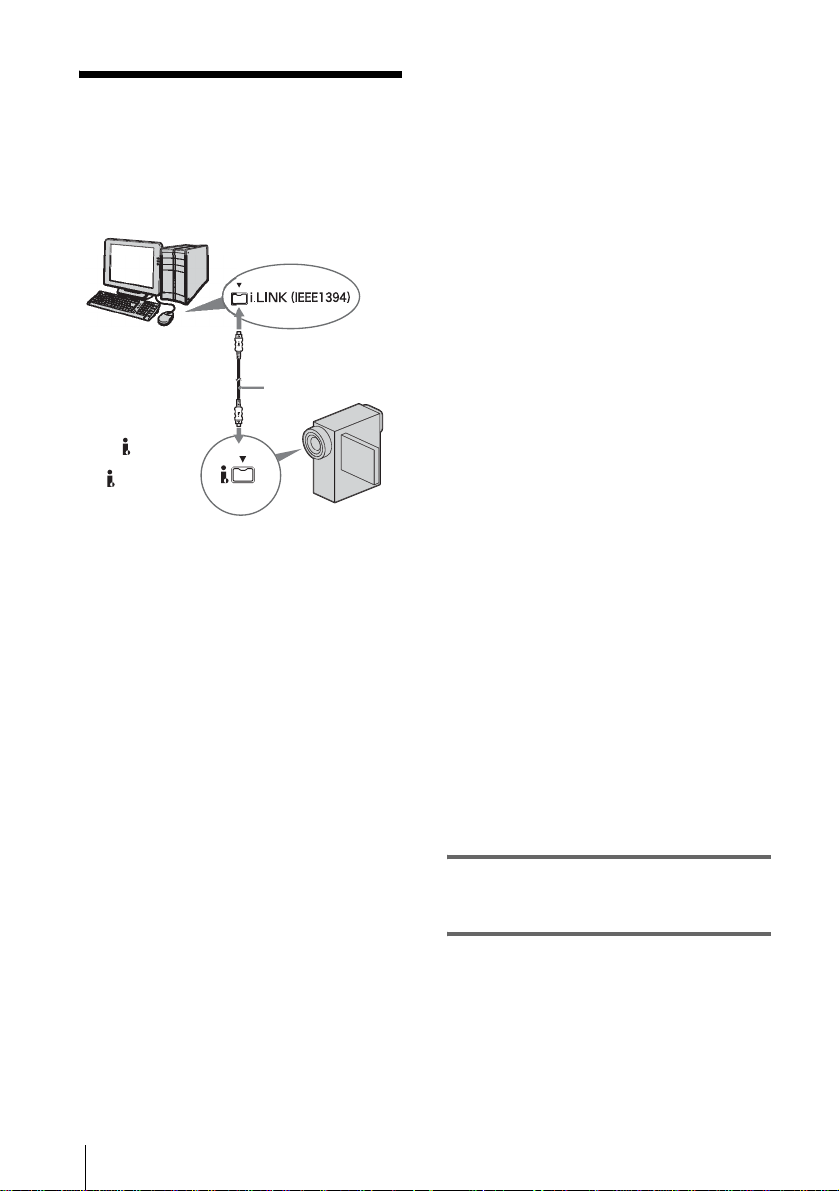
6 Drag and drop the [Sony Camcorder
USB Driver] file and [Sony Camcorder
USB Shim] file to [System Folder].
7 When a message appears, click [OK].
The USB driver is installed on the
computer.
8 Close the [USB Driver] screen, and
eject the CD-ROM from the computer.
9 Restart the computer.
Drag and drop
[USB Driver] folder [System Folder]

Connecting to a Macintosh computer (“Memory Stick” only)
32
Step 2: Connecting
your camcorder to a
computer
You must have the USB driver installed on
your computer before starting the following
operation (p. 31). However, the installation is
not required for Mac OS 9.1/9.2 or Mac OS
X (v10.0/v10.1/v10.2).
1 Insert the “Memory Stick” into your
camcorder.
2 Prepare the power source for your
camcorder, then slide the POWER
switch repeatedly to select the PLAY/
EDIT mode.
Use the supplied AC Adaptor as the power
source.
For details, refer to the separate Camera
Operations Guide supplied with your
camcorder.
3 Touch [P-MENU], [MENU], [
(STANDARD SET)] and [USB-PLY/
EDT], then touch to select [STD-USB].
For details, refer to the separate Camera
Operations Guide supplied with your
camcorder.
4 Connect the USB cable (supplied) to
the USB jack on your camcorder.
The location of the USB jack varies
depending on the model. Refer to the
separate Camera Operations Guide
supplied with your camcorder for the
location.
For the model that is supplied with the
Handycam Station, connect the USB cable
to the USB jack on the Handycam Station,
then set the USB ON/OFF switch to ON.
b Note
• When you connect your camcorder to a
computer, make sure you insert the connector in
the correct direction. If you insert the connector
forcibly, it may be damaged, and causes a
malfunction of your camcorder.
5 Connect the other end of the USB cable
to the USB jack on your computer.
[USB MODE] appears on the LCD screen
of your camcorder, and a “Memory Stick”
icon appears on the desktop.
For details on connecting your camcorder
to a computer, see “Connecting with the
USB cable (supplied)” (p. 14).
To disconnect the USB cable/ To turn off
the camcorder/To eject the “Memory
Stick”
For Mac OS X (v10.0)
Turn off your computer, disconnect the USB
cable, then remove the “Memory Stick” from
the camcorder.
For Mac OS 8.5.1/8.6/9.0/9.1/9.2 or Mac
OS X (v10.1/v10.2)
1 Quit all applications running on the
computer.
2 Drag and drop the “Memory Stick” or
drive icon on the desktop onto the
[Trash] icon.

Connecting to a Macintosh computer (“Memory Stick” only)
Connecting to a Macintosh computer (“Memory Stick” only)
33
Copying pictures
recorded on a
“Memory Stick”
To copy pictures recorded on a tape to your
computer, copy the pictures to a “Memory
Stick” on the camcorder first.
Double-click the “Memory Stick” icon.
Then, drag and drop the desired picture
file onto the hard disk icon.
To play back movies
You need QuickTime 3.0 or a later version
installed on your computer.
The picture or sound may break up when you
directly play back a picture saved on a “Memory
Stick.” Make sure to copy the picture file to the
hard disk before playing.
b Note
• You cannot copy pictures saved on a “Memory
Stick” to your computer using Image Transfer.
Other functions
34
Other functions
Creating DVDs (on
Sony VAIO series
computers only)
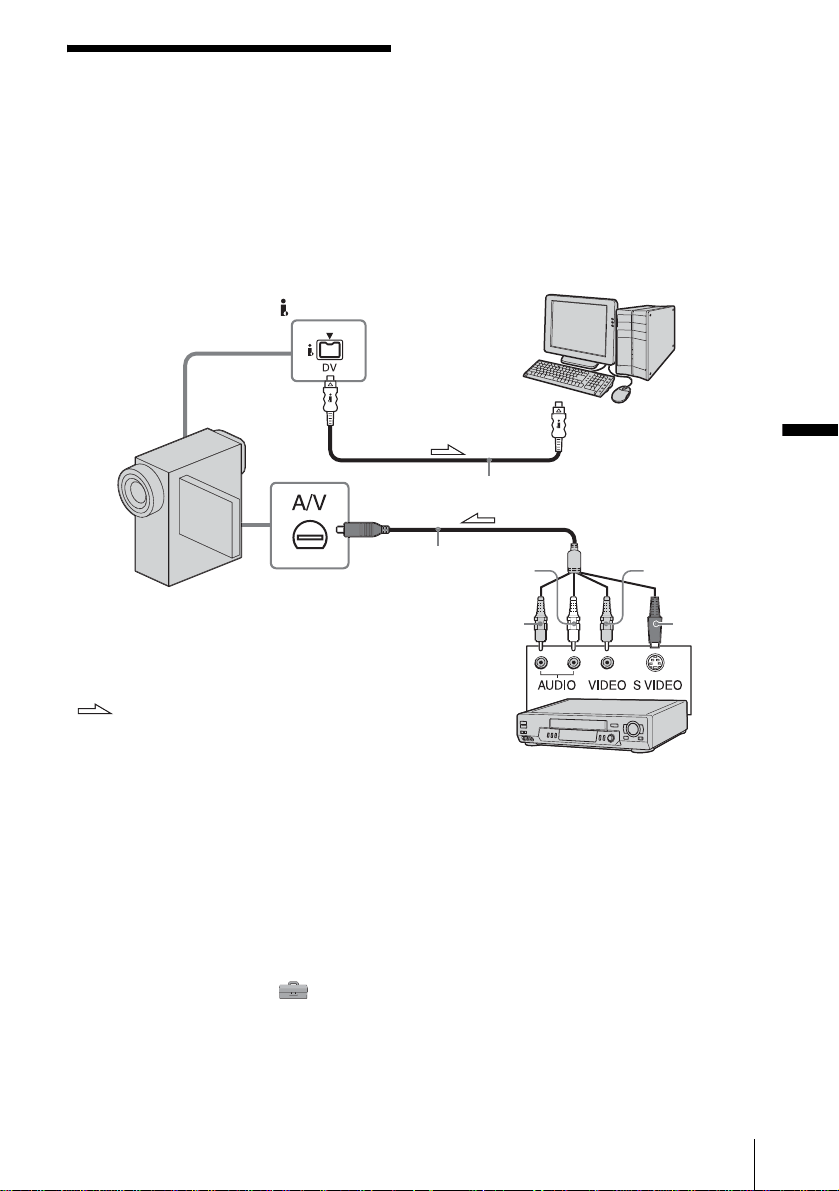
You can create DVDs when you connect your
camcorder to a Sony VAIO series computer*
that supports “Click to DVD” via an i.LINK
cable (optional). The picture will be
automatically copied and written to a DVD.
The following procedures describe how to
create a DVD from a picture recorded on a tape.
For system and operation requirements, visit the
following URL:
* Note that you need a Sony VAIO computer
equipped with a DVD drive that can be used to
write DVDs. You also need the computer with a
compatible version of
“Click to DVD” (Sony
original software) installed.
DV format model (Ver.1.2 or later)
MICROMV format model (Visit the following
URL.)
–U.S.A.
http://www.ita.sel.sony.com/support/
dvimag/
– Asia Pacific Regional
http://www.css.ap.sony.com/
–Korea
http://scs.sony.co.kr/
–Taiwan
http://www.sony.com.tw/cic/
– China
http://www.sonystyle.com.cn/vaio/
–Thailand
http://www.sony.co.th/vaio/index.html
– United Kingdom
http://www.vaio-link.com/uk/info/
ctdvd_upd_13.shtm
–Germany
http://www.vaio-link.com/DE/info/
ctdvd_upd_13.shtm
–France
http://www.vaio-link.com/FR/info/
ctdvd_upd_13.shtm
–Spain
http://www.vaio-link.com/SP/info/
ctdvd_upd_13.shtm
Using the Direct Access to “Click to
DVD” function for the first time
The Direct Access to “Click to DVD” function
enables you to create DVDs easily if your
camcorder is connected to a computer. Before
operating the Direct Access to “Click to DVD”
function, follow the steps below to start “Click
to DVD Automatic Mode Launcher.”
1 Start up the computer.
2 Click the start menu, then select [All
Programs].
3 Select [Click to DVD] from the programs
displayed, then click [Click to DVD
Automatic Mode Launcher].
[Click to DVD Automatic Mode Launcher]
starts up.
z Tips
• After you start up [Click to DVD Automatic Mode
Launcher] once, from then on it starts up
automatically when you turn on your computer.
• [Click to DVD Automatic Mode Launcher] is set up
for each Windows XP user.
1 Start up the computer.
Quit all applications running with i.LINK.
2 Prepare the power source for your
camcorder, then slide the POWER
switch repeatedly to select the PLAY/
EDIT mode.
Use the supplied AC Adaptor as the power
source since it takes a few hours to create a
DVD. For details, refer to the separate
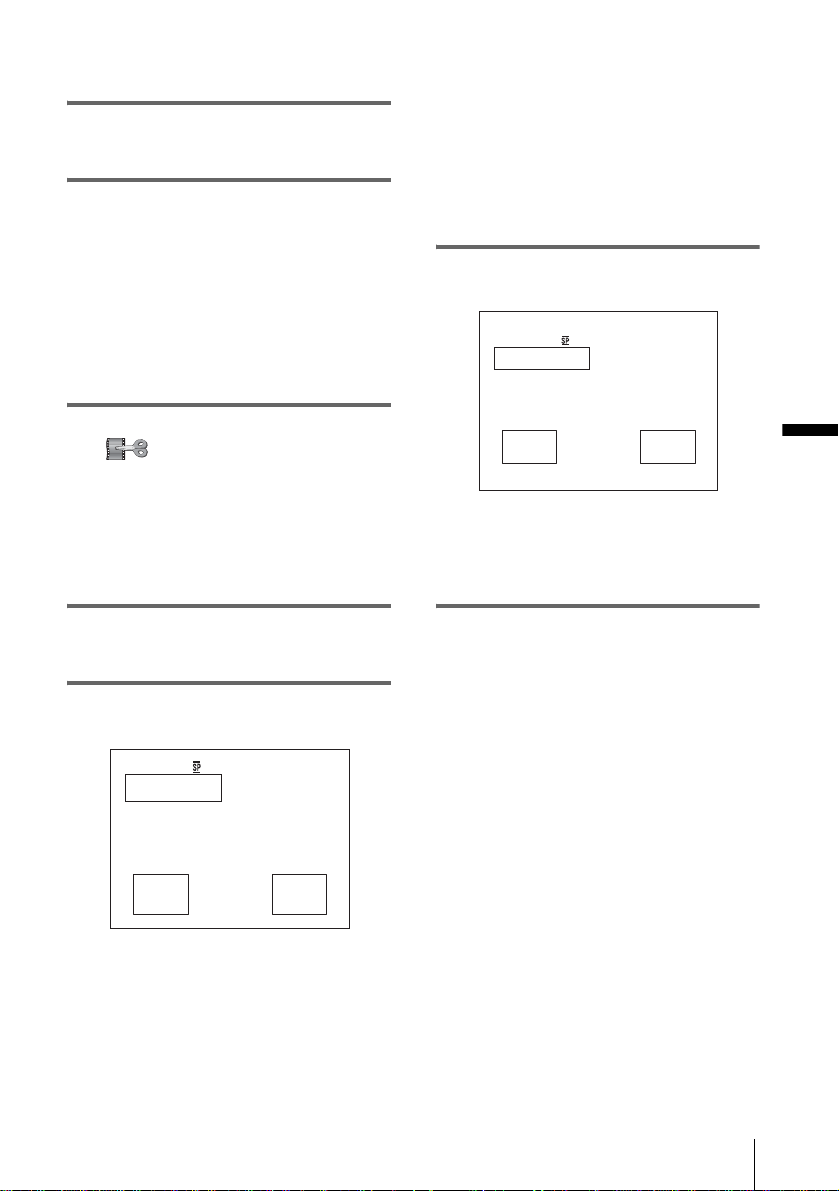
to i.LINK (IEEE1394)
connector
i.LINK cable
(optional)
to DV
Interface or
MICROMV
Interface
Other functions
Other functions
35
Camera Operations Guide supplied with
your camcorder.
3 Insert a recorded cassette into your
camcorder.
4 Connect your camcorder to a
computer via an i.LINK cable
(optional).
b Note
• When you connect your camcorder to a
computer, make sure you insert the connector in
the correct direction. If you insert the connector
forcibly, it may be damaged, and causes a
malfunction of your camcorder.
5 Touch [P-MENU], [MENU] and
[ (EDIT/PLAY)], then touch to
select [BURN DVD].
“Click to DVD” starts up and the on-screen
instructions appear on your computer.
For details, refer to the separate Camera
Operations Guide supplied with your
camcorder.
6 Place a writable DVD in the disc drive
of the computer.
7 Touch [EXEC] on the LCD screen of
your camcorder.
The status of the operation on your
computer is displayed on the LCD screen of
your camcorder.
CAPTURING: The picture recorded on
the tape is being copied to the computer.
CONVERTING: The picture is being
converted to the digital format.
WRITING: The picture is being written
onto the DVD.
z Tip
• If you use a DVD-RW/+RW which has other
data stored on it, the message [This is a
recorded disc. Delete and overwrite?] appears
on the LCD screen of your camcorder. When
you touch [EXEC], the existing data is erased
and new data will be written.
8 Touch [NO] after creating a DVD.
The disc tray comes out automatically.
To create another DVD with the same
content, touch [YES]. The disc tray comes
out and place a new writable DVD in the
disc drive.
To cancel the operation
On your camcorder, touch [CANCEL] after step
5, or select [CANCEL], then touch [YES] in
step 7.
Note that you cannot cancel the operation after
[Finalizing DVD] is displayed on the LCD
screen.
b Notes
• Do not disconnect the i.LINK cable or set the
POWER switch to another mode on your camcorder
until the picture is completely copied to the
computer.
• The DVD will be created even if you disconnect the
i.LINK cable (optional) or turn off the power of your
camcorder while [WRITING] or [CONVERTING]
is displayed.
• When any of the following occurs, copying of the
picture is canceled. A DVD containing the data up to
the point the operation was canceled will be created.
Refer to the help files of “Click to DVD Automatic
Mode” for details.
– When there is a blank portion of 10 seconds or
longer on the tape.
0:00:00:00
CREATE DVD
?
BURN DVD
START
EXEC CANCEL
0:00:00:00
Create another
copy?
Disctray opens.
BURN DVD
COMPLETED
YES NO
,continued

Other functions
36
– When the data of the tape contains a date before
the recording date of the later images.
– When normal and wide size pictures are recorded
on the same tape.
• You cannot operate your camcorder in the following
situations:
– While playing back a tape
– While recording images onto a “Memory Stick”
– When touching [P-MENU], [MENU], [
(STANDARD SET)] and [A/VtDV OUT], then
touch to select [ON]. (DV format models only)
– When “Click to DVD” is started up from the
computer
Other functions
Other functions
37
Connecting an analog
VCR to the computer
via your camcorder
(DV format models
only)
— Digital convert function
* The supplied A/V connecting cable has a video
plug and S video plug. You need to set which plug
to use depending on the equipment to be connected.
For details, refer to the separate Camera Operations
Guide supplied with your camcorder.
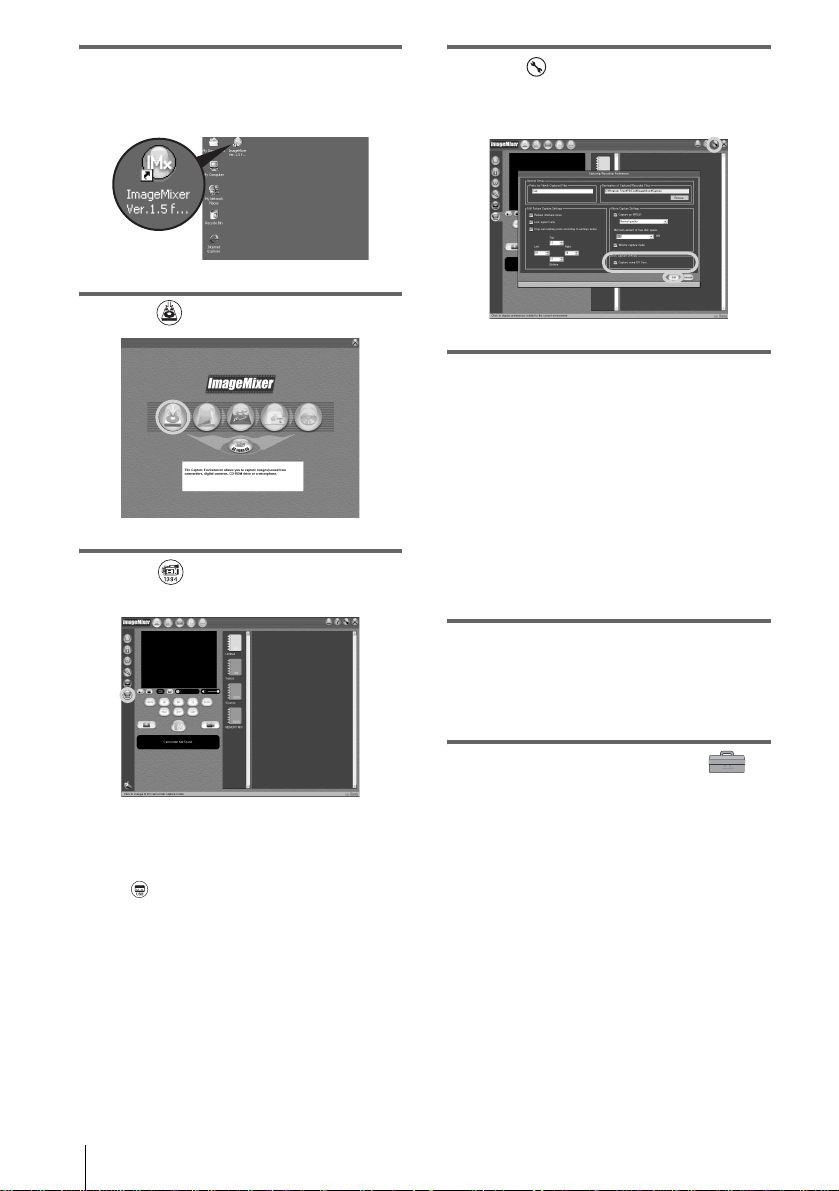
You can convert an analog signal output from
an analog device such as a VCR to a digital
signal and transfer it to a digital device, such as
a computer, via your camcorder.
Select [P-MENU], [MENU], [
(STANDARD SET)], [DISPLAY], then [LCD
PANEL] (default setting). For details, refer to
the separate Camera Operations Guide supplied
with your camcorder.
To carry out this operation, you need a software
application (such as ImageMixer Ver.1.5 for
Sony) that can read a video signal installed on
your computer.
ImageMixer Ver.1.5 for Sony is used to
describe the operation in this section.
DV Interface
to i.LINK (IEEE1394)
connector
i.LINK cable (optional)
A/V connecting cable
(supplied)
*
AUDIO/VIDEO
jacks
A/V (audio/video)
jack
: Signal flow
VCR (analog)
(White)
(Red)
(Yellow)
S video
plug (Black)
,continued
Other functions
38
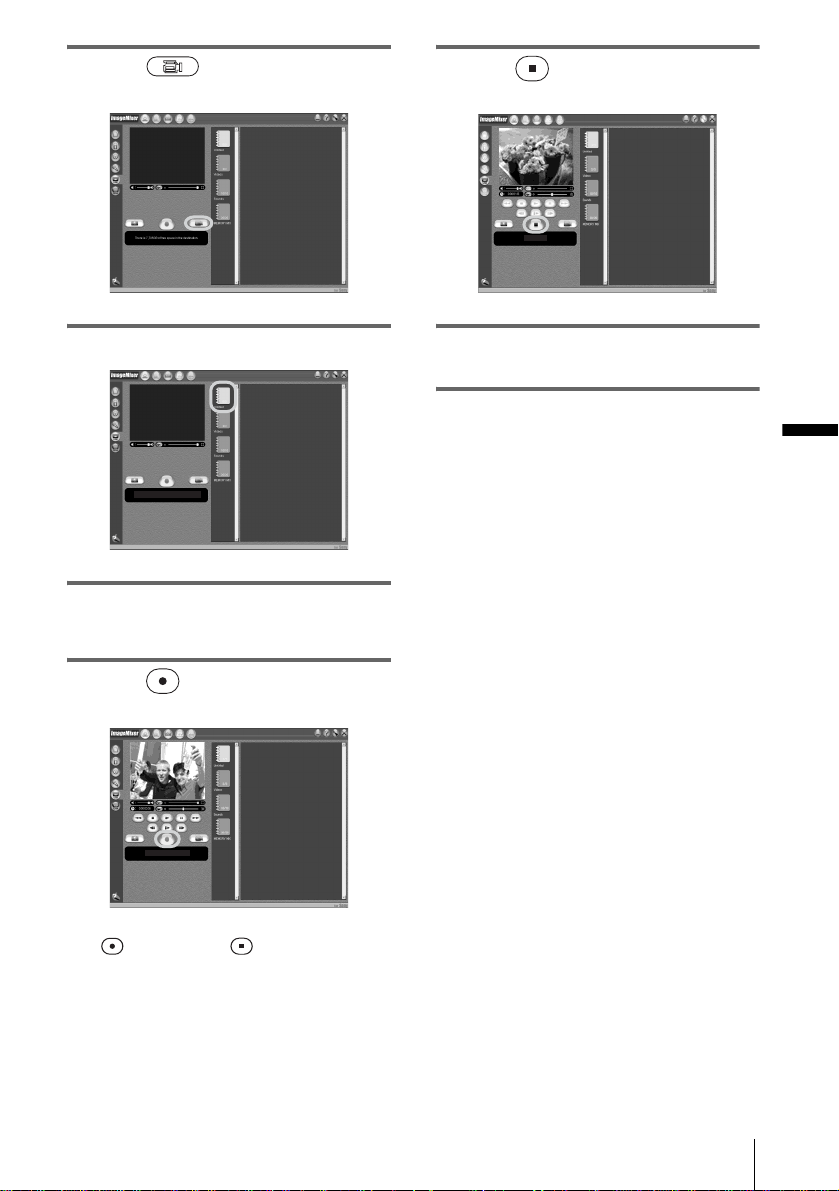
1 Start up the computer, and double-
click [ImageMixer Ver.1.5 for Sony]
displayed on the desktop.
2 Click (Capture Environment).
3 Click (DV Camcorder Capture
Mode).
z Tip
• You can also use the USB cable to connect your
camcorder and computer for converting signals.
Click (USB Device Capture Mode) in this case.
4 Click (Preference), check
[Capture using DV Cam.] in [DVC
Capture settings], then click [OK].
5 Connect your camcorder to the
computer using an i.LINK cable
(optional), then connect it to a VCR
(analog equipment) using the A/V
connecting cable (supplied).
b Note
• When you connect your camcorder to a
computer, make sure you insert the connector in
the correct direction. If you insert the connector
forcibly, it may be damaged, and causes a
malfunction of your camcorder.
6 Prepare the power source for your
camcorder, then slide the POWER
switch repeatedly to select the PLAY/
EDIT mode.
7 Touch [P-MENU], [MENU], [
(STANDARD SET)]and [A/VtDV
OUT], then touch to select [ON].
For details, refer to the separate Camera
Operations Guide supplied with your
camcorder.
Other functions
Other functions
39
8 Click (Motion Picture
Capture).
9 Select an album to copy the picture to.
10Start the playback on the VCR (analog
equipment).
11Click (Capture) at the point you
want to start copying.
(red) turns to (black).
12Click (Stop) at the point you
want to stop copying.
13Stop the playback on the VCR (analog
equipment).
b Notes
• You may not be able to output the pictures correctly
depending on the condition of the analog video
signal input to your camcorder.
• You cannot transfer pictures with copyright
protection signals to a computer.
• You can use a USB cable instead of an i.LINK cable
(optional) to transfer pictures to a computer. Note,
however, that the picture displayed may lack the
smoothness.
• The location of the USB jack and the shape of the
cable vary depending on the model. For details, refer
to the separate Camera Operations Guide supplied
with your camcorder.

Additional information
40
Additional information
Troubleshooting
Symptom Cause and/or Corrective Actions
The computer does not recognize
your camcorder.
cDisconnect the cable from the computer and camcorder, then
connect it again firmly.
cFor the model that is supplied with the Handycam Station, set
the USB ON/OFF switch to ON.
cFor the model that is supplied with the Handycam Station,
connect the Handycam Station to the camcorder firmly.
cDisconnect the USB device other than the keyboard, the mouse,
and the camcorder from the computer.
You cannot view the pictures the
camcorder is seeing on the
computer.
cDisconnect the cable from the computer, turn on the camcorder,
then connect it again.
cSlide the POWER switch to select the CAMERA-TAPE mode,
touch [P-MENU], [MENU], [ (STANDARD SET)] and
[USB-CAMERA], then touch to select [USB STREAM].
You cannot view the pictures
recorded on a tape on the
computer.
cDisconnect the cable from the computer, turn on the camcorder,
then connect it again.
cSlide the POWER switch repeatedly to select the PLAY/EDIT
mode, touch [P-MENU], [MENU], [ (STANDARD SET)]
and [USB-PLY/EDT], then touch to select [USB STREAM].
You cannot view the pictures
recorded on a tape on the
Macintosh computer.
cTo copy pictures recorded on a tape to your Macintosh
computer, copy the pictures to a “Memory Stick” in your
camcorder first, then copy the pictures recorded on the
“Memory Stick” to your computer.
You cannot view the pictures
recorded on a “Memory Stick”
on the computer.
cInsert the “Memory Stick” firmly.
cYou cannot use an i.LINK cable. Connect the camcorder and the
computer using the USB cable.
cSlide the POWER switch repeatedly to select the PLAY/EDIT
mode, touch [P-MENU], [MENU], [ (STANDARD SET)]
and [USB-PLY/EDT], then touch to select [STD-USB].
• The computer does not recognize the “Memory Stick” during
camcorder operation such as tape playback or editing.
cFinish camcorder operation before connecting the camcorder
to the computer.

Additional information
Additional information
41
The image does not appear on
ImageMixer Ver.1.5 for Sony
when using the USB cable.
cThe USB driver has been registered incorrectly as the computer
was connected to your camcorder before the installation of the
USB driver was completed. Follow the procedure below to
install the USB driver correctly.
For Windows 98*/Windows 98SE/Windows Me
* When copying or playing the pictures on a tape using a computer, the
operation is not guaranteed on Windows 98.
1 Check that your camcorder is connected to a computer.
2 Right-click [My Computer], then click [Properties].
The [System Properties] screen appears.
3 Click the [Device Manager] tab.
4 If other devices below are already installed, right-click
them, then click [Remove] to delete them.
For copying and viewing pictures recorded on a
tape
• [USB Audio Device] in the [Sound, video and game
controllers] folder
• [USB Device] in the [Other devices] folder
• [USB Composite Device] in the [Universal Serial Bus
Controller] folder
For copying and viewing pictures recorded on a
“Memory Stick”
• [? Sony Handycam] or [? Sony DSC] with a “?” mark in the
[Other devices] folder
5 When the [Confirm Device Removal] screen appears,
click [OK].
6 Turn off the power of your camcorder, disconnect the
USB cable, then restart the computer.
7 Re-install the USB driver (p. 8).
b Note
• Deleting anything other than [USB Audio Device], [USB Device], [USB
Composite Device], [? Sony Handycam] and [? Sony DSC] may cause
malfunction of your computer.
Symptom Cause and/or Corrective Actions
,continued,continued

Additional information
42
The image does not appear on
ImageMixer Ver.1.5 for Sony
when using the USB cable.
(Continued from the previous
page)
For Windows 2000
Log on as Administrators.
1 Check that your camcorder is connected to a computer.
2 Right-click [My Computer], then click [Properties].
The [System Properties] screen appears.
3 Click the [Hardware] tab.
4 Click [Device Manager].
5 Click [View], then click [Devices by type].
6 If other devices below are already installed, right-click
them, then click [Remove] to delete them.
For copying and viewing pictures recorded on a
tape
• [USB Composite Device] or [Sound, video and game
controllers] in the [Universal Serial Bus Controller] folder
• [Composite USB Device] in the [USB Audio Device] folder
• [Composite USB Device] in the [Other devices] folder
For copying and viewing pictures recorded on a
“Memory Stick”
• [? Sony Handycam] or [? Sony DSC] with a “?” mark in the
[Other devices] folder
7 When the [Confirm Device Removal] screen appears,
click [OK].
8 Turn off the power of your camcorder, disconnect the
USB cable, then restart the computer.
9 Re-install the USB driver (p. 8).
b Note
• Deleting anything other than [USB Composite Device], [Sound, video
and game controllers], [Composite USB Device], [? Sony Handycam]
and [? Sony DSC] may cause malfunction of your computer.
Symptom Cause and/or Corrective Actions

Additional information
Additional information
43
The image does not appear on
ImageMixer Ver.1.5 for Sony
when using the USB cable.
(Continued from the previous
page)
For Windows XP
Log on as Administrators.
1 Check that your camcorder is connected to a computer.
2 Click [Start].
3 Right-click [My Computer], then click [Properties].
The [System Properties] screen appears.
4 Click the [Hardware] tab.
5 Click [Device Manager].
6 Click [View], then click [Devices by type].
7 If other devices below are already installed, right-click
them, then click [Remove] to delete them.
For copying and viewing pictures recorded on a
tape
• [USB Composite Device] in the [Universal Serial Bus
Controller] folder
• [USB Audio Device] in the [Sound, video and game
controllers] folder
• [USB Device] in the [Other devices] folder
For copying and viewing pictures recorded on a
“Memory Stick”
• [? Sony Handycam] or [? Sony DSC] with a “?” mark in the
[Other devices] folder
8 When the [Confirm Device Removal] screen appears,
click [OK].
9 Turn off the power of your camcorder, disconnect the
USB cable, then restart the computer.
10 Re-install the USB driver (p. 8).
b Note
• Deleting anything other than [USB Composite Device], [USB Audio
Device], [USB Device], [? Sony Handycam] and [? Sony DSC] may
cause malfunction of your computer.
The “Memory Stick” icon
([Removable Disk] or [Sony
MemoryStick]) does not appear
on the computer screen.
cSlide the POWER switch repeatedly to select the PLAY/EDIT
mode on your camcorder.
cInsert a “Memory Stick” into your camcorder.
cDisconnect the USB device other than the keyboard, the mouse,
and the camcorder from the computer (p. 15).
cTouch [P-MENU], [MENU], [ (STANDARD SET)] and
[USB-PLY/EDT], then touch to select [STD-USB].
• The computer does not recognize the “Memory Stick” during
camcorder operation such as tape playback or editing.
cFinish camcorder operation before connecting the camcorder
to the computer.
Symptom Cause and/or Corrective Actions
,continued

Additional information
44
ImageMixer Ver.1.5 for Sony
does not function correctly.
cClose ImageMixer Ver.1.5 for Sony, then restart the computer.
An error message appears while
operating ImageMixer Ver.1.5
for Sony.
cClose ImageMixer Ver.1.5 for Sony first, then set the POWER
switch on your camcorder to another mode.
Image Transfer does not start up. cDisplay pictures recorded on a “Memory Stick” with the
following procedures.
1 Double-click [My Computer].
2 Double-click the icon for the newly recognized drive
[Removable Disk (F:)] (For Windows XP, [Sony
MemoryStick]).
It may take some time until the drive is recognized. If the
computer does not recognize it, the USB driver may be
installed incorrectly.
For details, see “The image does not appear on ImageMixer
Ver.1.5 for Sony when using the USB cable.” (p. 41).
3 Double-click the desired image file.
z Tip
• Windows XP does not start up Image Transfer automatically at the
default setting even though [Removable Disk] appears in [My
Computer]. To deactivate the setting, see “For Windows XP” in
“Copying and viewing pictures recorded on a “Memory Stick”” (p. 27).
An error message appears when
you place the supplied CD-ROM
in your computer.
cSet the computer display as follows:
Windows: 800 × 600 dots or more, High Color (16 bits, 65 000
colors) or more
Macintosh: 800 × 600 dots or more, 32 000 colors or more
[USB Streaming... This function
is not available.] appears on the
screen of your camcorder.
cStart the operations for MEMORY MIX, recording or playing
back pictures recorded on a “Memory Stick” after
USB
Streaming is finished.
Video CDs cannot be created. • CD-RWs cannot be used.
• WINASPI is not installed. To use the CD writing function in
ImageMixer, WINASPI should be installed on your computer
(p. 10).
b Note
• Installing WINASPI may cause malfunction of your computer if another
writing software application has already been installed.
Symptom Cause and/or Corrective Actions
Additional information
Additional information
45
Images from analog equipment
are not displayed on the
computer screen when the signal
convert function is being used.
cClick (Preference) at the upper right-hand corner of the
ImageMixer screen, check [Capture using DV Cam.] in [DVC
Capture settings], then click [OK].
There is no sound when the
camcorder is connected to the
computer via a USB cable.
• Sound is not supported on Windows 98.
cChange the settings for your computer environment as described
in the following procedures:
1 Double-click [ImageMixer Ver.1.5 for Sony] on the
desktop.
2 Click (Capture Environment).
3 Click (USB Device Capture Mode), then click
(Preference).
4 Select another device from the pull-down menu of [Sound
capture device], then click [OK].
5 Close ImageMixer Ver.1.5 for Sony, then restart it.
If the problem is not solved, repeat the procedure above.
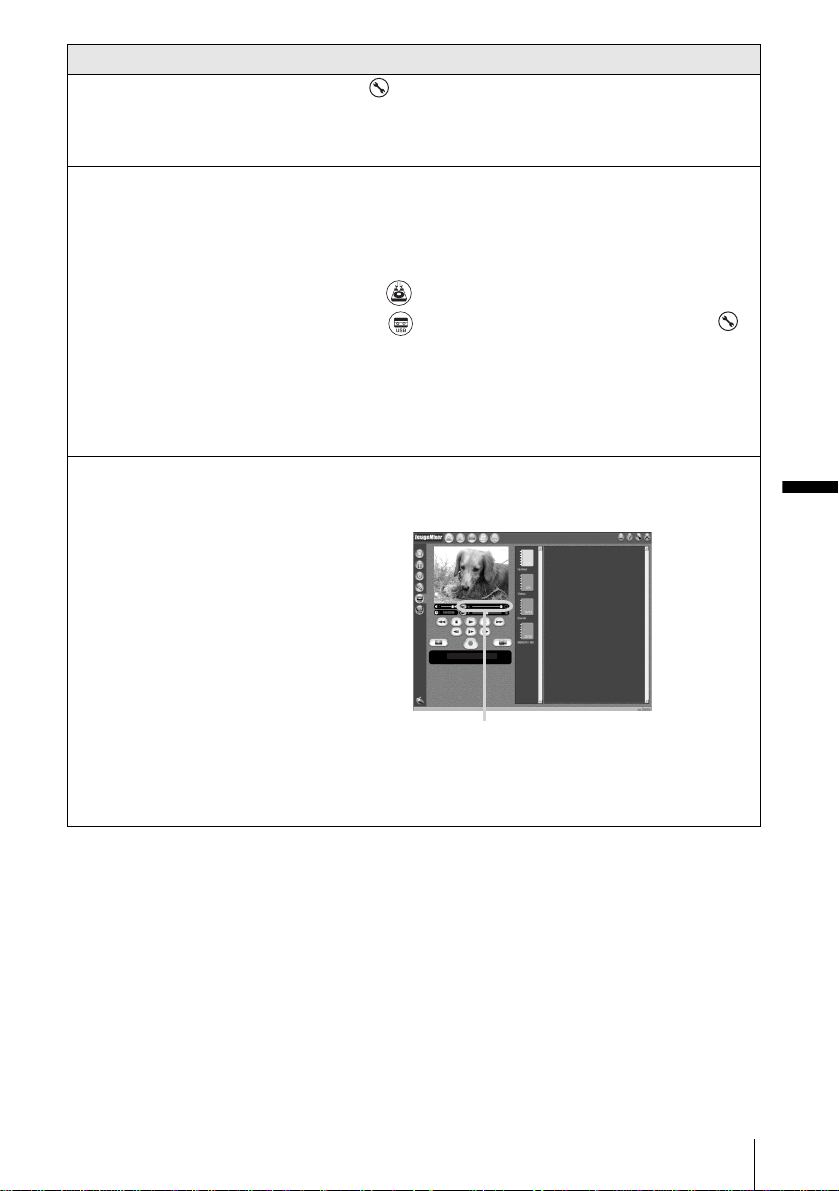
The image displayed on the
computer is distorted.
cAdjust the image quality with the slider to view images with a
large amount of data. Adjusting the slider to the left reduces the
noise, but the image quality deteriorates.
b Note
• The picture goes dark while the adjustment takes place after you click the
slider.
Symptom Cause and/or Corrective Actions
Slider
,continued

Additional information
46
Index
A
Album.................................. 28
AVI format.......................... 25
B
BURN DVD........................ 35
C
Capture................................ 21
CD-R ................................... 25
CD-ROM.....................8, 9, 11
CD-RW .........................25, 44
Click to DVD...................... 34
Copying and viewing
pictures (on a “Memory
Stick”).....................26, 33
Copying and viewing pictures
recorded on a tape
.......19
D
Digital convert function..... 37
DirectX 8.0a........................10
Drag and drop..................... 21
DV Interface.................16, 34
DVD .................................... 34
H
Handycam Station........14, 32
I
i.LINK cable...........13, 16, 34
Image Transfer..............11, 26
ImageMixer Ver.1.5
for Sony
....................9, 19
Install...........................8, 9, 11
M
Macintosh........................ 3, 31
MEMORY MIX................. 29
“Memory Stick”.....26, 29, 33
MICROMV........................... 2
O
On-line help........................22
P
PC Camera.......................... 23
Preview................................ 22
U
USB cable ........................... 14
USB driver............................ 8
USB Streaming................... 23
V
VAIO................................... 34
Video CD............................ 24
Video Streaming.................23
W
WINASPI............................ 10
Windows ......................... 3, 19
Windows Media Player ..... 26
Writable DVD .................... 35


Printed in Japan
Printed on 100% recycled paper using
VOC (Volatile Organic Compound)-free
vegetable oil based ink.