
Table of Contents
1. Important ................................................1
1.1 Safetyprecautionsandmaintenance...1
1.2 NotationalDescriptions.............................2
1.3 Disposalofproductandpacking
material................................................................3
2. Setting up the monitor .........................4
2.1 Installation...........................................................4
2.2 Operatingthemonitor...............................6
3. Image Optimization ...............................8
3.1 SmartImage........................................................8
3.2 SmartKolor.........................................................9
3.3 SmartContrast.................................................9
3.4 SmartSharpness..............................................9
3.5 PhilipsSmartControlPremium...........10
3.6 SmartDesktopGuide................................16
4. Technical Specifications ......................21
4.1 Resolution&PresetModes...................23
5. Power Management ............................24
6. Regulatory Information ......................25
7. Customer care and warrant .............31
7.1 Philips’FlatPanelMonitorsPixel
DefectPolicy..................................................31
7.2 CustomerCare&Warranty.................33
8. Troubleshooting & FAQs ...................36
8.1 Troubleshooting...........................................36
8.2 SmartControlPremiumFAQs.............37
8.3 GeneralFAQs...............................................38

1
1. Important
1. Important
Thiselectronicuser’sguideisintendedfor
anyonewhousesthePhilipsmonitor.Taketime
toreadthisusermanualbeforeyouuseyour
monitor.Itcontainsimportantinformationand
notesregardingoperatingyourmonitor.
ThePhilipsguaranteeappliesprovidedthe
productishandledproperlyforitsintendeduse,
inaccordancewithitsoperatinginstructionsand
uponpresentationoftheoriginalinvoiceorcash
receipt,indicatingthedateofpurchase,dealer’s
nameandmodelandproductionnumberofthe
product.
1.1 Safety precautions and mainte-
nance
Warnings
Useofcontrols,adjustmentsorprocedures
otherthanthosespecifiedinthisdocumentation
mayresultinexposuretoshock,electrical
hazardsand/ormechanicalhazards.
Readandfollowtheseinstructionswhen
connectingandusingyourcomputermonitor.
Operation
• Pleasekeepthemonitoroutofdirect
sunlight,verystrongbrightlightsand
awayfromanyotherheatsource.Lengthy
exposuretothistypeofenvironmentmay
resultindiscolorationanddamagetothe
monitor.
• Removeanyobjectthatcouldfallinto
ventilationholesorpreventpropercooling
ofthemonitor’selectronics.
• Donotblocktheventilationholesonthe
cabinet.
• Whenpositioningthemonitor,makesure
thepowerplugandoutletareeasilyac-
cessible.
• Ifturningoffthemonitorbydetachingthe
powercableorDCpowercord,waitfor6
secondsbeforeattachingthepowercable
orDCpowercordfornormaloperation.
• Pleaseuseapprovedpowercordprovided
byPhilipsallthetime.Ifyourpowercord
ismissing,pleasecontactwithyourlocal
servicecenter.(PleaserefertoCustomer
CareConsumerInformationCenter)
• Donotsubjectthemonitortosevere
vibrationorhighimpactconditionsduring
operation.
• Donotknockordropthemonitorduring
operationortransportation.
Maintenance
• Toprotectyourmonitorfrompossible
damage,donotputexcessivepressureon
theLCDpanel.Whenmovingyourmoni-
tor,grasptheframetolift;donotliftthe
monitorbyplacingyourhandorfingerson
theLCDpanel.
• Unplugthemonitorifyouarenotgoingto
useitforanextensiveperiodoftime.
• Unplugthemonitorifyouneedtocleanit
withaslightlydampcloth.Thescreenmay
bewipedwithadryclothwhenthepower
isoff.However,neveruseorganicsolvent,
suchas,alcohol,orammonia-basedliquids
tocleanyourmonitor.
• Toavoidtheriskofshockorpermanent
damagetotheset,donotexposethe
monitortodust,rain,water,orexcessive
moistureenvironment.
• Ifyourmonitorgetswet,wipeitwithdry
clothassoonaspossible.
• Ifforeignsubstanceorwatergetsinyour
monitor,pleaseturnthepoweroffimmedi-
atelyanddisconnectthepowercord.Then,
removetheforeignsubstanceorwater,and
sendittothemaintenancecenter.
• Donotstoreorusethemonitorinloca-
tionsexposedtoheat,directsunlightor
extremecold.
• Inordertomaintainthebestperformance
ofyourmonitoranduseitforalongerlife-
time,pleaseusethemonitorinalocation
thatfallswithinthefollowingtemperature
andhumidityranges.

2
1. Important
• Temperature:0-40°C32-95°F
• Humidity:20-80%RH
Important information for Burn-in/Ghost
image
• Alwaysactivateamovingscreensaver
programwhenyouleaveyourmonitor
unattended.Alwaysactivateaperiodic
screenrefreshapplicationifyourmonitor
willdisplayunchangingstaticcontent.
Uninterrupteddisplayofstillorstatic
imagesoveranextendedperiodmay
cause“burnin”,alsoknownas“after-
imaging”or“ghostimaging”,onyour
screen.
• "Burn-in","after-imaging",or"ghost
imaging"isawell-knownphenomenonin
monitorpaneltechnology.Inmostcases,
the“burnedin”or“after-imaging”or
“ghostimaging”willdisappeargradually
overaperiodoftimeafterthepowerhas
beenswitchedoff.
Warning
Failuretoactivateascreensaver,oraperiodic
screenrefreshapplicationmayresultinsevere
“burn-in”or“after-image”or“ghostimage”
symptomsthatwillnotdisappearandcannotbe
repaired.Thedamagementionedaboveisnot
coveredunderyourwarranty.
Service
• Thecasingcovershouldbeopenedonly
byqualifiedservicepersonnel.
• Ifthereisanyneedforanydocumentfor
repairorintegration,pleasecontactwith
yourlocalservicecenter.(pleasereferto
thechapterof"ConsumerInformation
Center")
• Fortransportationinformation,please
referto"TechnicalSpecifications".
• Donotleaveyourmonitorinacar/trunk
underdirectsunlight.
Note
Consultaservicetechnicianifthemonitor
doesnotoperatenormally,oryouarenotsure
whatproceduretotakewhentheoperating
instructionsgiveninthismanualhavebeen
followed.
1.2 Notational Descriptions
Thefollowingsubsectionsdescribenotational
conventionsusedinthisdocument.
Notes, Cautions and Warnings
Throughoutthisguide,blocksoftextmaybe
accompaniedbyaniconandprintedinboldor
italictype.Theseblockscontainnotes,cautions
orwarnings.Theyareusedasfollows:
Note
Thisiconindicatesimportantinformationand
tipsthathelpyoumakebetteruseofyour
computersystem.
Caution
Thisiconindicatesinformationthattellsyou
howtoavoideitherpotentialdamageto
hardwareorlossofdata.
Warning
Thisiconindicatesthepotentialforbodilyharm
andtellsyouhowtoavoidtheproblem.
Somewarningsmayappearinalternateformats
andmaynotbeaccompaniedbyanicon.Insuch
cases,thespecificpresentationofthewarningis
mandatedbytherelevantregulatoryauthority.

3
1. Important
1.3 Disposal of product and packing
material
Waste Electrical and Electronic Equipment-
WEEE
Thismarkingontheproductoronits
packagingillustratesthat,underEuropean
Directive2002/96/ECgoverningusedelectrical
andelectronicappliances,thisproductmay
notbedisposedofwithnormalhousehold
waste.Youareresponsiblefordisposalof
thisequipmentthroughadesignatedwaste
electricalandelectronicequipmentcollection.
Todeterminethelocationsfordroppingoff
suchwasteelectricalandelectronic,contact
yourlocalgovernmentoffice,thewastedisposal
organizationthatservesyourhouseholdorthe
storeatwhichyoupurchasedtheproduct.
Yournewmonitorcontainsmaterialsthatcan
berecycledandreused.Specializedcompanies
canrecycleyourproducttoincreasethe
amountofreusablematerialsandtominimize
theamounttobedisposedof.
Allredundantpackingmaterialhasbeen
omitted.Wehavedoneourutmosttomakethe
packagingeasilyseparableintomonomaterials.
Pleasefindoutaboutthelocalregulationson
howtodisposeofyouroldmonitorandpacking
fromyoursalesrepresentative.
Recycling Information for Customers
Yourdisplayismanufacturedwithhighquality
materialsandcomponentswhichcanbe
recycledandreused.
Tolearnmoreaboutourrecyclingprogram
pleasevisitwww.philips.com/about/sustainability/
recycling.
4
2. Setting up the monitor
2. Setting up the monitor
2.1 Installation
Package contents
VGA (optional)
DVI (optional)
HDMI (optional)
AC/DC Adapter
Note
UseonlytheAC/DCadaptermodel:Philips
ADPC1245
Installation
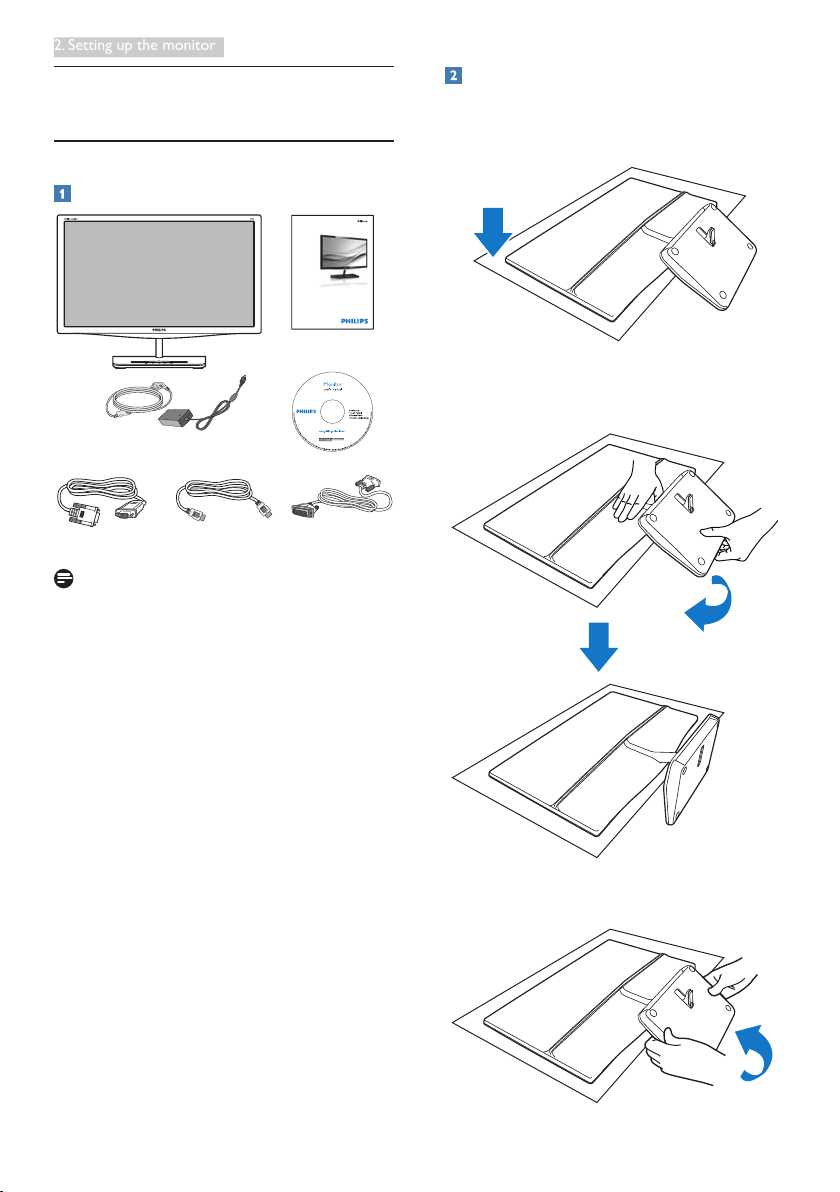
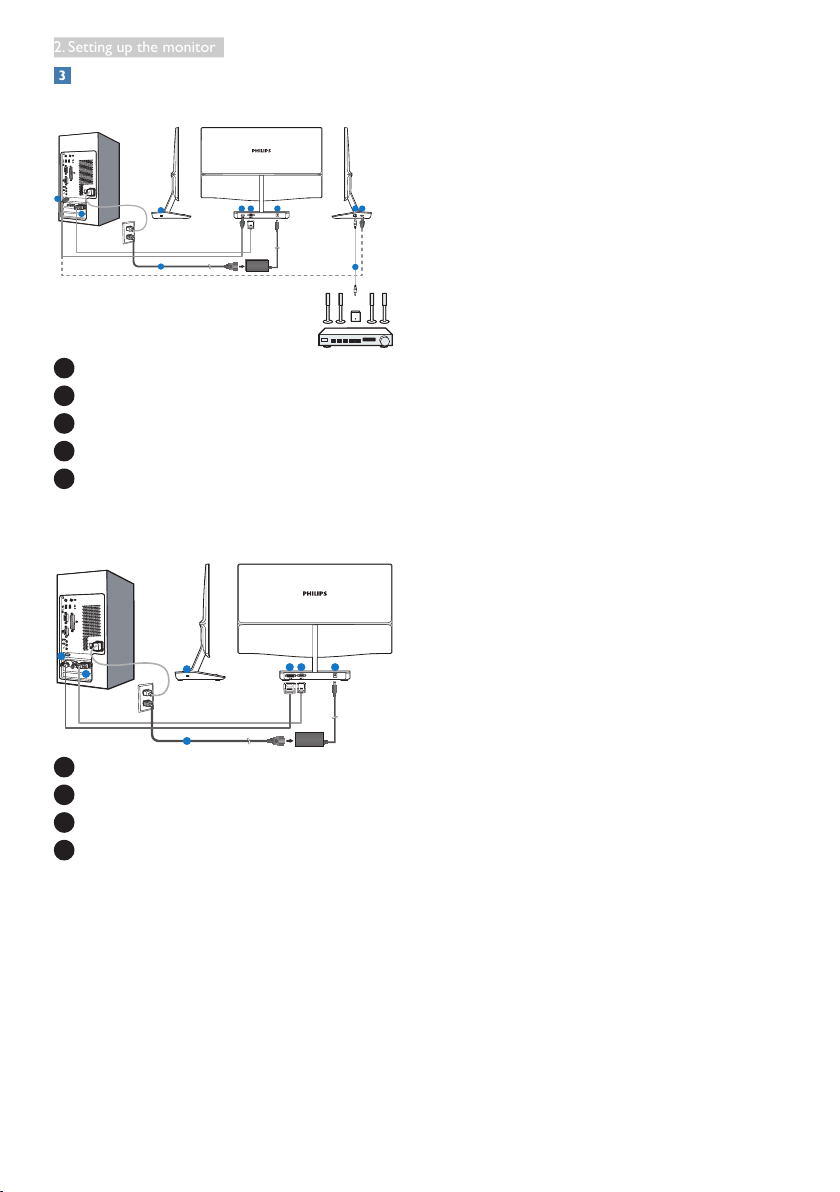
1. Placethemonitorfacedownonasmooth
surface.Payattentionnottoscratchor
damagethescreen.
2. Holdthemonitorandbasewithboth
hands.Gentlybendthebasevertically
downtoafixedangle.
3. Toretainthemonitor,bendthebase
verticallyup.
Register your product and get support at
www.philips.com/welcome
239C4Q
Quick
Star t
5
2. Setting up the monitor
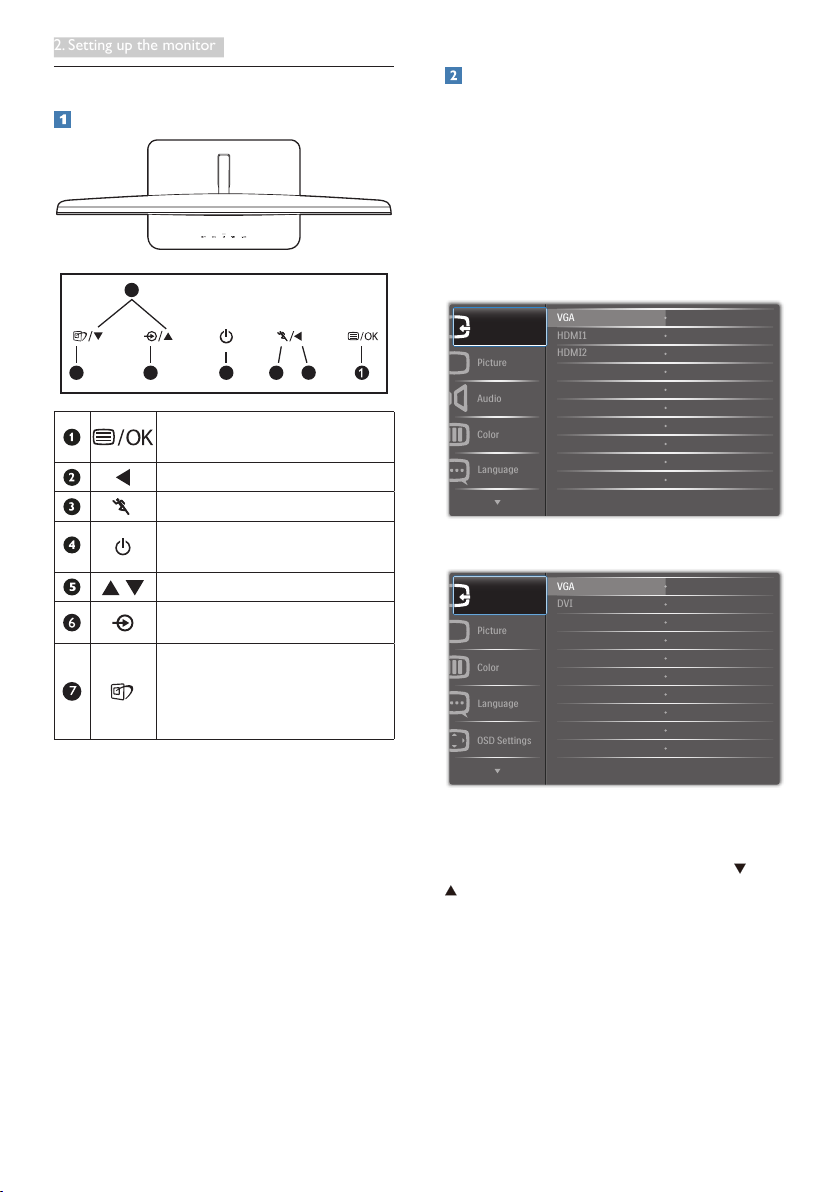
Connecting to your PC
Model 239C4QH:
1 4
4
323
2
3
5
1
1
AC/DCpowerinput
2
VGAinput
3
HDMIinputs(HDMI1andHDMI2)
4
HDMIaudiooutput
5
Kensingtonanti-theftlock
Model 239C4Q:
123
3
2
4
1
1
AC/DCpowerinput
2
VGAinput
3
DVIinput
4
Kensingtonanti-theftlock
Connect to PC
1. Turnoffyourcomputerandunplugits
powercord.
2. ConnecttheVGAorDVIcableforvideo
connection.
3. ConnecttheDCpowerinputtoyour
monitor.
4. PlugthepowercordoftheAC/DCadapter
intoanearbyACpoweroutlet.
5. Turnonyourcomputerandmonitor.Ifthe
monitordisplaysimages,theinstallationis
done.
6
2. Setting up the monitor
2.2 Operating the monitor
Description of the control buttons
5
6 4 237
AccesstheOSDmenu
.
ConfirmtheOSDadjustment.
ReturntopreviousOSDlevel.
UsetheTurbofunction.
Switchmonitor’spowerONand
OFF.
AdjusttheOSDmenu.
Changethesignalinputsource.
SmartImage
hotkey
.Thereare
7modestoselect:Text,Office,
Photo,Movie,Game,Economy,
Off.
Description of the On Screen Display
What is On-Screen Display (OSD)?
On-ScreenDisplay(OSD)isafeatureinall
PhilipsLCDmonitors.Itallowsanenduserto
adjustscreenperformanceorselectfunctions
ofthemonitorsdirectlythroughanon-screen
instructionwindow.Auserfriendlyonscreen
displayinterfaceisshownasbelow:
Model 239C4QH:
Model 239C4Q:
Basic and simple instruction on the control
keys
IntheOSDshownabove,youcanpress
buttonsatthefrontbezelofthemonitor
tomovethecursor,andpressOKbuttonto
confirmthechoiceorchange.

7
2. Setting up the monitor
The OSD Menu
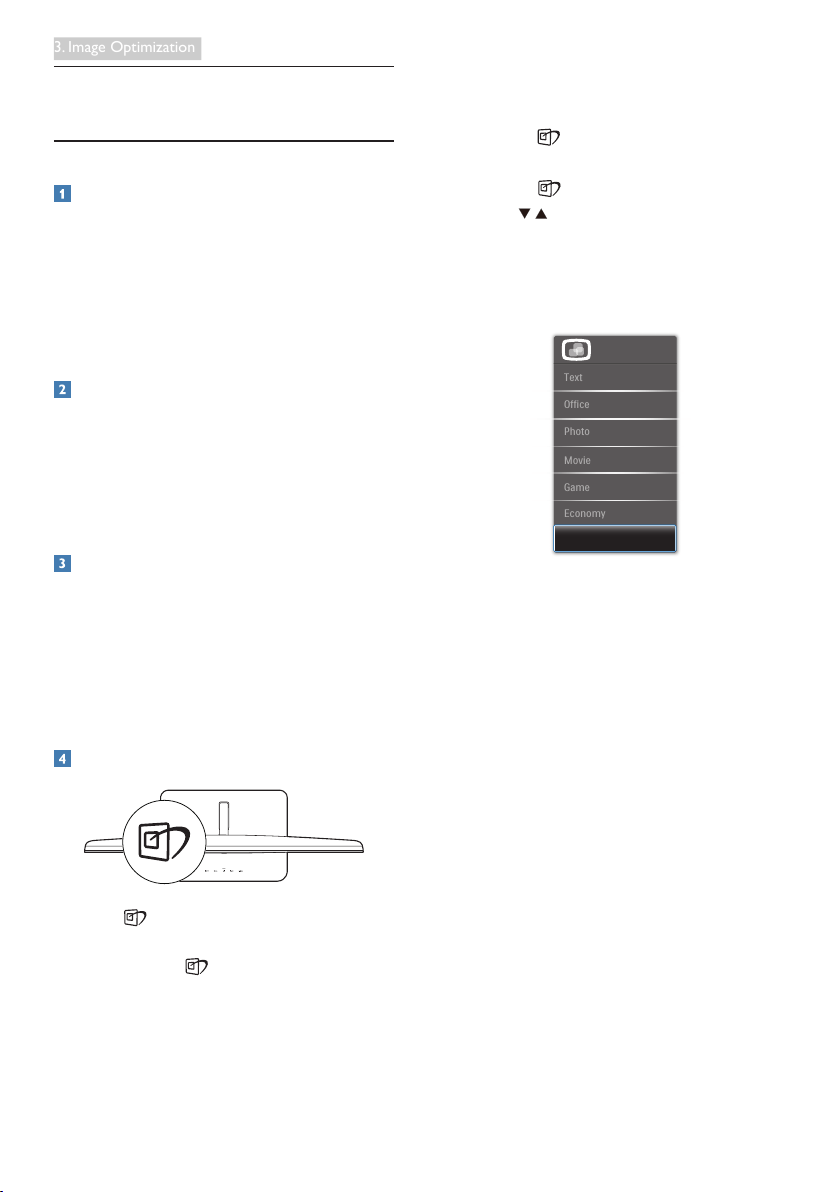
Belowisanoverallviewofthestructureof
theOn-ScreenDisplay.Youcanusethisasa
referencewhenyouwanttoworkyourway
aroundthedifferentadjustmentslateron.
Main menu Sub menu
Resolution notification
Thismonitorisdesignedforoptimal
performanceatitsnativeresolution,1920×
1080@60Hz.Whenthemonitorispowered
onatadifferentresolution,analertisdisplayed
onscreen:Use1920×1080@60Hzforbest
results.
Displayofthenativeresolutionalertcanbe
switchedofffromSetupintheOSD(On
ScreenDisplay)menu.
Physical Function
Tilt
-3
15
Picture
Wide Screen, 4:3
0~100
0~100
Picture Format
Brightness
Contrast
OSD Settings
0~100
0~100
Off, 1, 2, 3, 4
5s, 10s, 20s, 30s, 60s
Horizontal
Vertical
Transparency
OSD Time Out
Setup
0~100
On, Off
Yes, No
0~100
0~100
0~100
H.Position
Auto
V.Position
Phase
Clock
Resolution Notification
Reset
Information
Language
English Español, Français, Deutsch, Italiano,
Português,
Русский
简体中文
Color
5000K, 6500K, 7500K,
8200K, 9300K, 11500K
Red: 0~100
Green: 0~100
Blue: 0~100
Color Temperature
sRGB
User Define
Audio
(optional)
0~100
Volume
On, Off
Mute
VGA
HDMI1 (optional)
HDMI2 (optional)
Input
Off, Fast, Faster, Fastest
SmartResponse
On, Off
Pixel Orbiting
On, Off
Over Scan
DVI (optional)
On, Off
SmartKolor
On, Off
SmartTxt
On, Off
SmartContrast
1.8, 2.0, 2.2, 2.4, 2.6
Gamma
8
3. Image Optimization
3. Image Optimization
3.1 SmartImage
What is it?
SmartImageprovidespresetsthatoptimize
displayfordifferenttypesofcontent,dynamically
adjustingbrightness,contrast,colorand
sharpnessinrealtime.Whetheryou'reworking
withtextapplications,displayingimagesor
watchingavideo,PhilipsSmartImagedelivers
greatoptimizedmonitorperformance.
Why do I need it?
Youwantamonitorthatdeliversoptimized
displayallyourfavoritetypesofcontent,
SmartImagesoftwaredynamicallyadjust
brightness,contrast,colorandsharpnessin
realtimetoenhanceyourmonitorviewing
experience.
How does it work?
SmartImageisanexclusive,leadingedgePhilips
technologythatanalyzesthecontentdisplayed
onyourscreen.Basedonascenarioyouselect,
SmartImagedynamicallyenhancesthecontrast,
colorsaturationandsharpnessofimagesto
enhancethecontentsbeingdisplayed-allin
realtimewiththepressofasinglebutton.
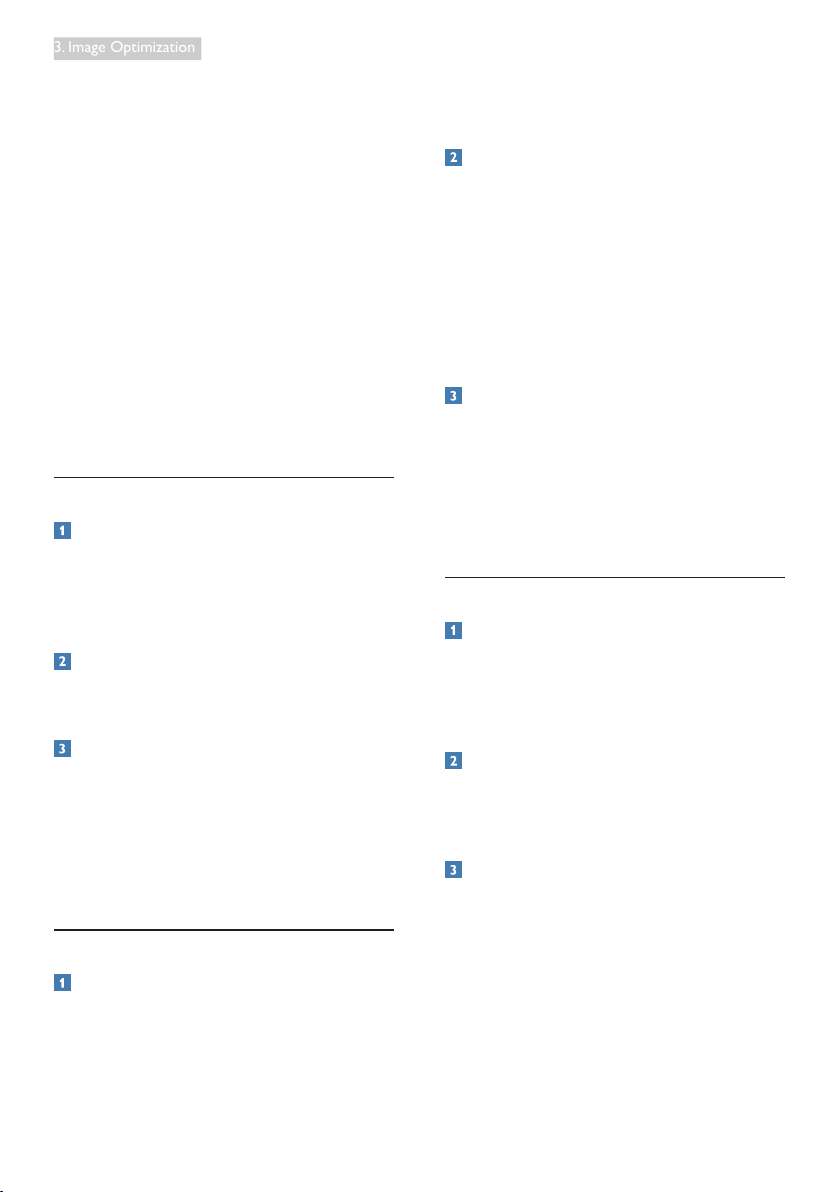
How to enable SmartImage?
1. Press tolaunchtheSmartImageon
screendisplay.
2. Keeppressing totoggleamongText,
Office,Photo,Movie,Game,Economyand
Off.
3. TheSmartImageonscreendisplaywill
remainonscreenfor5seconds,oryoucan
alsopress"OK"tomakeconfirmation.
4. WhenSmartImageisenabled,thesRGB
schemeisdisabledautomatically.Touse
sRGB,youneedtodisableSmartImage
withthe buttonatthefrontbezelof
yourmonitor.
Exceptusing keytoscrolldown,youcan
alsopress buttonstochooseandpress
“OK”toconfirmselectionandclosethe
SmartImageOSD.
Therearesevenmodestoselect:Text,Office,
Photo,Movie,Game,EconomyandOff.
• Text: Helpsimprovereadingoftext
basedapplicationlikePDFebooks.By
usingaspecialalgorithmwhichincreases
thecontrastandboundarysharpness
oftextcontent,thedisplayisoptimized
forastress-freereadingbyadjustingthe
brightness,contrastandcolortemperature
ofthemonitor.
• Office: Enhancestextanddampens
brightnesstoincreasereadabilityand
reduceeyestrain.Thismodesignificantly
enhancesreadabilityandproductivitywhen
you’reworkingwithspreadsheets,PDFfiles,
scannedarticlesorothergeneraloffice
applications.
• Photo: Thisprofilecombinescolor
saturation,dynamiccontrastandsharpness
enhancementtodisplayphotosandother
imageswithoutstandingclarityinvibrant
colors-allwithoutartifactsandfaded
colors.
• Movie: Rampedupluminance,deepened
colorsaturation,dynamiccontrastand
9
3. Image Optimization
razorsharpnessdisplayseverydetailsin
darkerareasofyourvideoswithoutcolor
washoutinbrighterareasmaintaininga
dynamicnaturalvaluesfortheultimate
videodisplay.
• Game: Turnonoverdrivecircuitforbest
responsetime,reducejaggyedgesforfast
movingobjectsonscreen,enhancecontrast
ratioforbrightanddarkscheme,this
profiledeliversthebestgamingexperience
forgamers.
• Economy: Underthisprofile,brightness,
contrastareadjustedandbacklighting
finetunedforjustrightdisplayofeveryday
officeapplicationsandlowerpower
consumption.
• Off: NooptimizationbySmartImage.
3.2 SmartKolor
What is it?
SmartKolorisaspecialcolorextension
technologythatisabletoenhancevisual
colorrangetodelivervividandrichpicture
performance.
Why do I need it?
Youwanttherich,vibrantimagesfor
experiencingtheoutstandingphotosorvideos.
How does it work?
SmartKolorwilldynamicallyenhancecolor
saturationandextendvisualcolorrangeto
enrichcolorqualityandperformanceofyour
viewingimages.SmartKoloristurnedoff
automatically;forexample,inTextmodeor
Officemode,whereitisnotrequired.
3.3 SmartContrast
What is it?
Uniquetechnologythatdynamicallyanalyzes
displayedcontentandautomaticallyoptimizes
aMonitor'scontrastratioformaximumvisual
clarityandviewingenjoyment,steppingup
backlightingforclearer,crisperandbrighter
imagesordimmingbacklightingforcleardisplay
ofimagesondarkbackgrounds.
Why do I need it?
Youwanttheverybestvisualclarityand
viewingcomfortforeverytypeofcontent.
SmartContrastdynamicallycontrolscontrast
andadjustsbacklightingforclear,crisp,bright
gamingandvideoimagesordisplaysclear,
readabletextforofficework.Byreducingyour
monitor'spowerconsumption,yousaveon
energycostsandextendthelifetimeofyour
monitor.
How does it work?
WhenyouactivateSmartContrast,itwillanalyse
thecontentyouaredisplayinginrealtimeto
adjustcolorsandcontrolbacklightintensity.This
functionwilldynamicallyenhancecontrastfora
greatentertainmentexperiencewhenviewing
videosorplayinggames.
3.4 SmartSharpness
What is it?
Smarttechnologythatenhancessharpness
whenyouneeditforultimatedisplay
performanceandmoreentertainmentfunwhen
youareviewingvideosorphotos.
Why do I need it?
Youwanttheultimateinsharpnessformore
entertainmentfunwhenviewingphotosor
videos.
How does it work?
Smarttechnologyenhancessharpnesswhen
youneeditforultimatedisplayperformance
andmoreentertainmentfunwhenyouare
viewingvideosorphotosintheMovieorGame
mode.Itisturnedofffortopqualitydisplayof
officeapplicationsandintheEconomymodeto
reducepowerconsumptions.

10
3. Image Optimization
3.5 Philips SmartControl Premium
ThenewSmartControlPremiumsoftware
byPhillipsallowsyoutocontrolyourmonitor
viaaneasytouseon-screengraphicinterface.
Complicatedadjustmentsareathingofthe
pastasthisuserfriendlysoftwareguidesyou
throughfine-tuningresolution,Colorcalibration,
Clock/Phaseadjustments,RGBWhitepoint
adjustment,etc.
Equippedwithlatesttechnologyincore
algorithmforfastprocessingandresponse,this
Windows7complianteyecatchinganimated
Iconbasedsoftwareisreadytoenhanceyour
experiencewithPhilipsmonitors!
Installation
• Followtheinstructionandcompletethe
installation.
• Youcanlaunchafterinstallationis
completed.
• Ifyouwanttolaunchlater,youcaneither
clicktheshortcutondesktoportoolbar.
First launch -Wizard
• ThefirsttimeafterinstallationofSmart-
ControlPremium,itwillautomaticallygo
toWizardforfirsttimelaunch.
• Thewizardwillguideyouthroughadjust-
mentyourmonitorperformancestepby
step.
• YoucangotoPlug-inmenutolaunch
wizardlateronaswell.
• Youcanadjustmoreoptionswithout
wizardbyStandardpane.
Start with Standard pane
Adjust menu
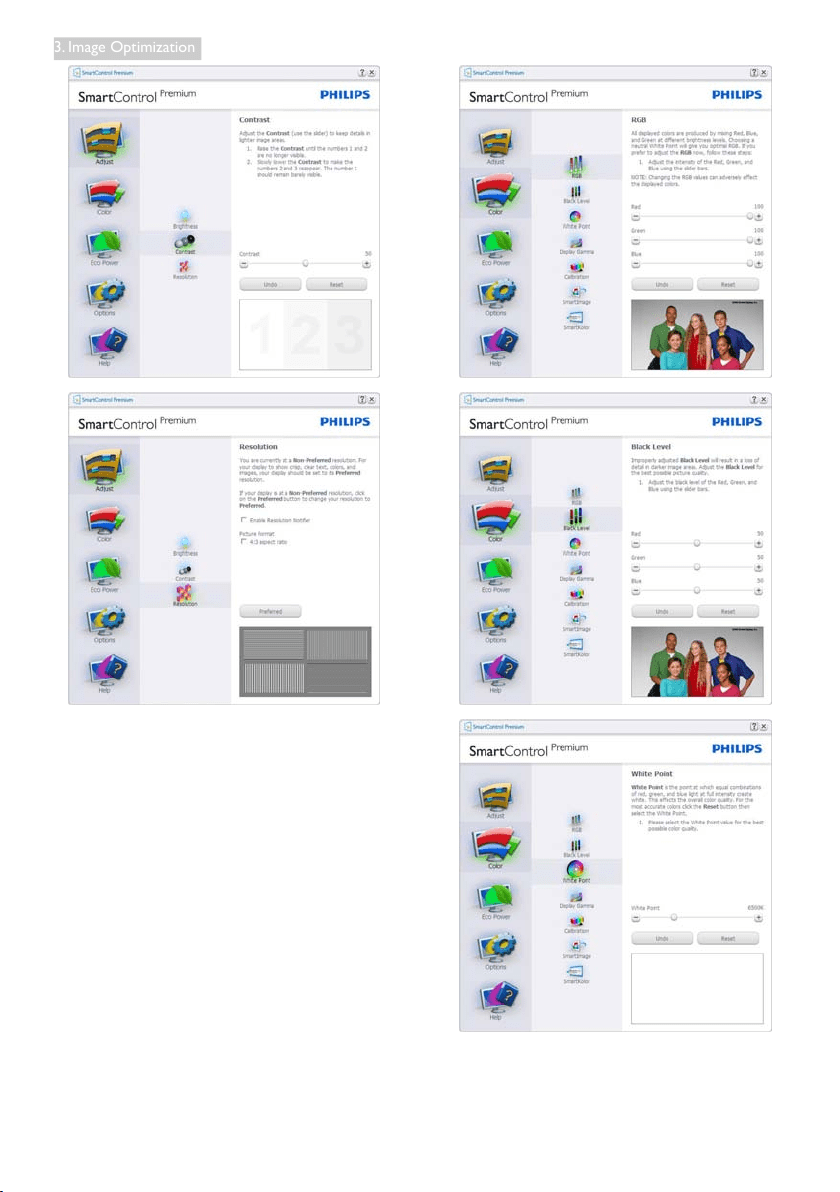
• AdjustMenuallowsyoutoadjustBright-
ness,Contrast,andResolution.
• Youcanfollowtheinstructionanddothe
adjustment.
• Cancelpromptsuserifyouwanttocancel
installation.
11
3. Image Optimization
Color menu
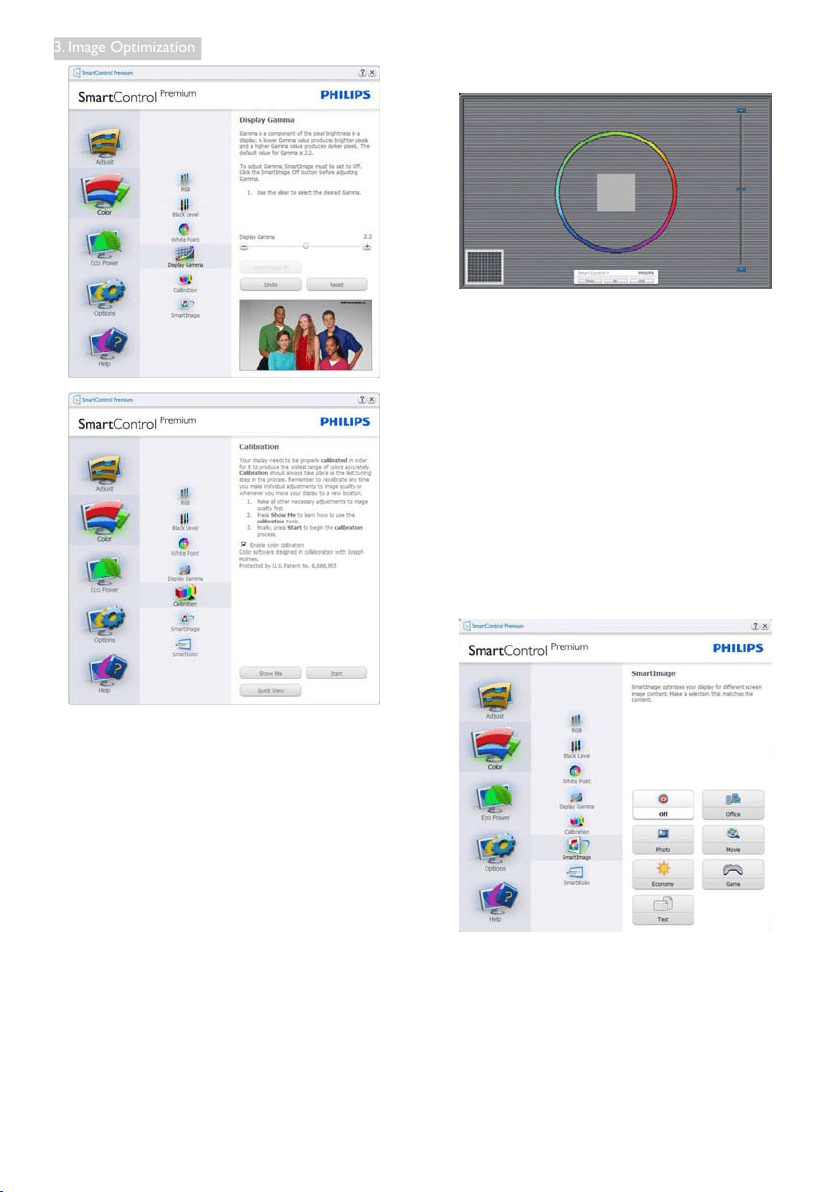
• ColorMenuallowsyoutoadjustRGB,
BlackLevel,WhitePoint,DisplayGamma,
Calibration,SmartImage,andSmartKolor.
• Youcanfollowtheinstructionanddothe
adjustment.
• Refertobelowtableforsub-menuitem
baseonyourinput.
• ExampleforColorCalibration.
12
3. Image Optimization
1. "ShowMe"startscolorcalibrationtutorial.
2. Start-startsthe6-stepcolorcalibration
sequence.
3. QuickViewloadsthebefore/afterimages.
4. ToreturntoColorhomepane,clickthe
Cancelbutton.
5. Enablecolorcalibration-bydefaultison.
Ifunchecked,doesnotallowforcolor
calibrationtohappen,dimesoutstartand
quickviewbuttons.
6. Musthavepatentinfoincalibrationscreen.
First Color Calibration Screen
• Previousbuttonisdisableduntilthesec-
ondcolorscreen.
• Nextgoestothesucceedingtarget
(6-targets).
• FinalnextgoesFile>Presetspane.
• CancelclosestheUIandreturnstothe
pluginpage.
SmartImage
Allowuserstochangesettingforbetterdisplay
settingbasedoncontent.
WhenEntertainmentisset,SmartContrastand
SmartResponseareenabled.

13
3. Image Optimization
Eco Power menu
Options menu
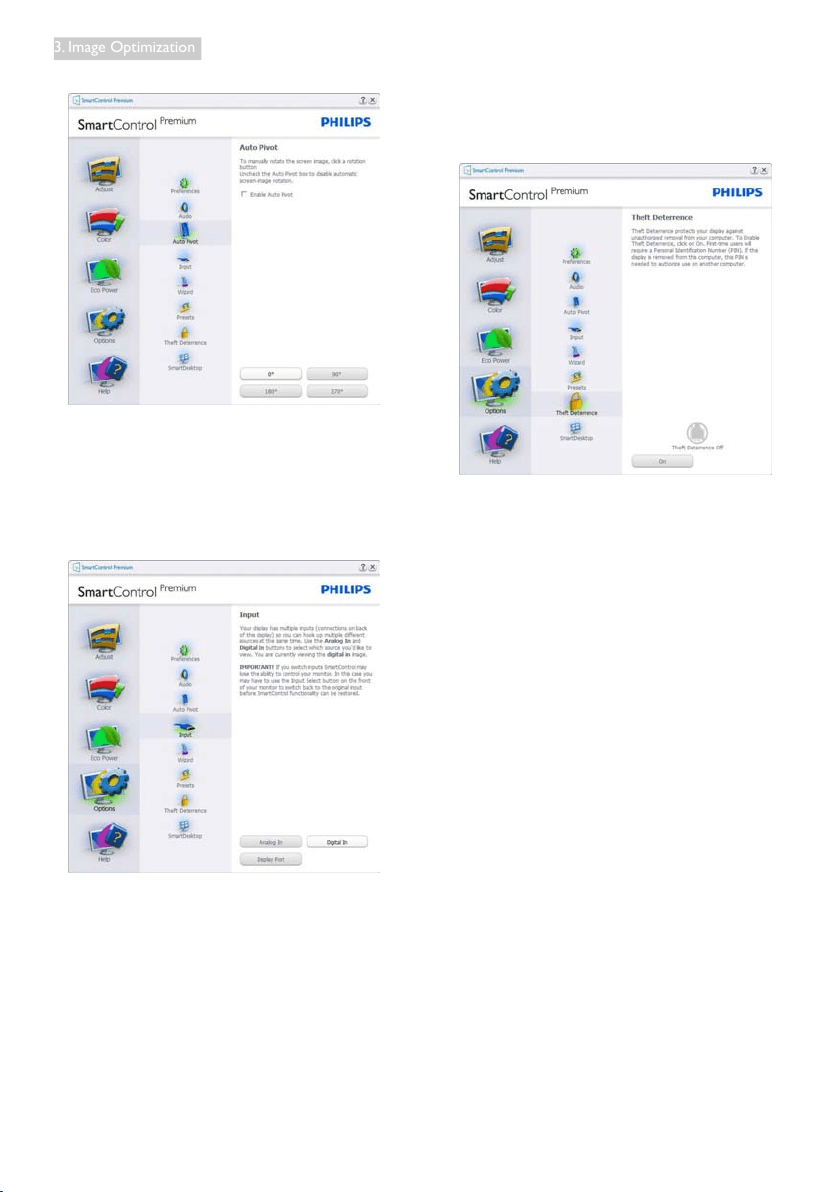
Options>Preferences-Willonlybeactive
whenselectingPreferencesfromthedrop-
downOptionsmenu.Onanon-supported
displaycapableofDDC/CI,onlytheHelpand
Optionstabsareavailable.
• Displayscurrentpreferencesettings.
• Acheckedboxenablesthefeature.The
checkboxisatoggle.
• EnableContextMenuondesktopis
checked(On)bydefault.EnableContext
menudisplaysSmartControlPremiumse-
lectionsforSelectPresetandTuneDisplay
inthedesktopright-clickcontextmenu.
DisabledremovesSmartControlPremium
fromtherightclickcontextmenu.
• EnableTaskTrayiconischecked(On)
bydefault.Enablecontextmenushows
thetasktraymenuforSmartControl
Premium.Arightclickonthetasktray
icondisplaysthemenuoptionsforHelp,
TechnicalSupport.CheckforUpdate,
About,andExit.WhenEnabletasktray
menuisdisabled,thetasktrayiconwill
onlydisplayExit.
• RunatStartupischecked(On)bydefault.
Whendisabled,SmartControlPremium
willnotlaunchatstartorbeinthetask
tray.TheonlywaytolaunchSmartControl
Premiumiseitherfromthedesktopshort
cutorfromtheprogramfile.Anypreset
settorunatstartupwillnotloadwhen
thisboxisunchecked(Disabled).
• Enabletransparencymode(Windows7,
Vista,XP).Defaultis0%Opaque.
Options>Audio-Willonlybeactivewhen
selectingVolumefromthedrop-downOptions
menu.
Onanon-supporteddisplaycapableofDDC/
CI,onlytheHelpandOptionstabsareavailable.
14
3. Image Optimization
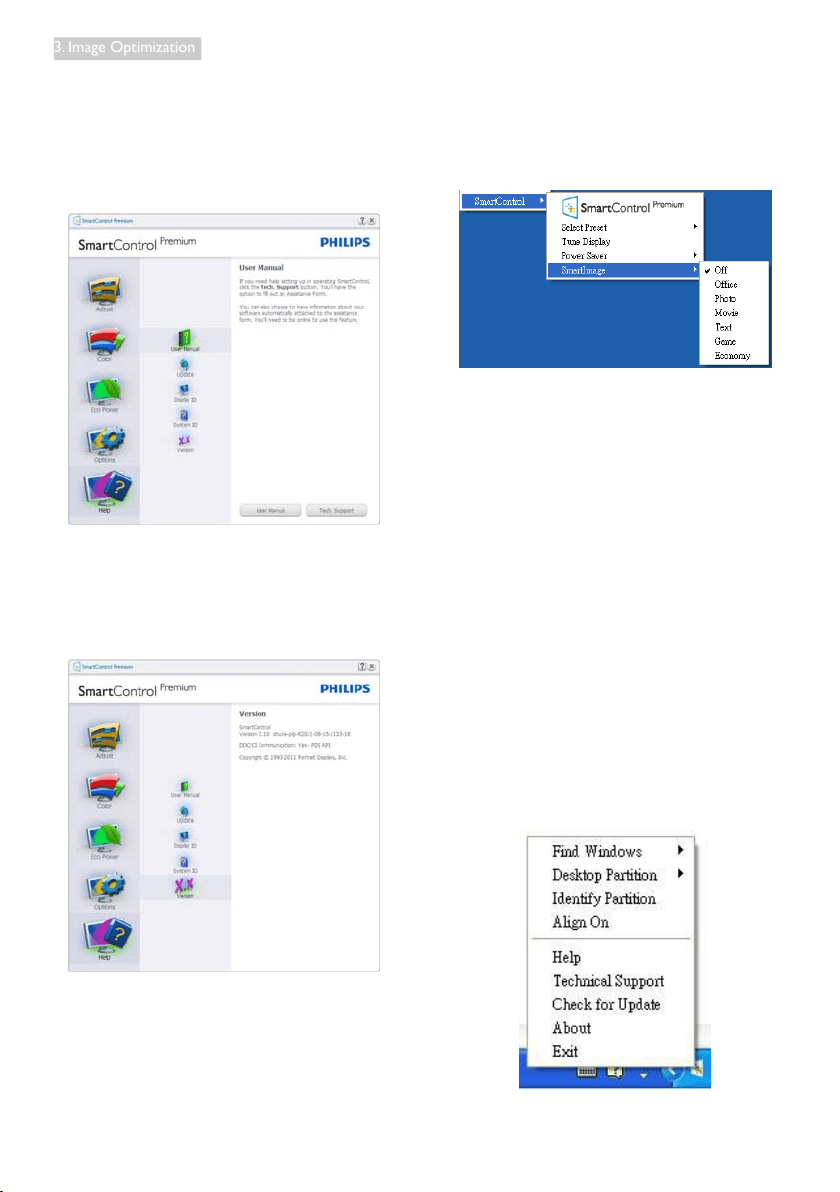
Option>Auto Pivot.
Options>Input-Willonlybeactivewhen
selectingInputfromthedrop-downOptions
menu.Onanon-supporteddisplaycapableof
DDC/CI,onlytheHelpandOptionstabsare
available.AllotherSmartControlPremiumtabs
arenotavailable.
• DisplaytheSourceinstructionpaneand
currentinputsourcesetting.
• Onsingleinputdisplays,thispanewillnot
bevisible.
Options>Theft Deterrence-TheftDeterrence
PanewillonlybeactivewhenselectingTheft
DeterrenceModefromthedrop-downPlug-in
menu.
ToenableTheftDeterrence,clickonOnbutton
tobringupthefollowingscreen:
• UsercanenterPINbetween4and9digits
numbersonly.
• AfterenteringPIN,Acceptbuttontakes
usertothepop-updialogboxonthefol-
lowingpage.
• Minimumminutessetto5.Slidersetto5
bydefault.
• Doesnotrequirethedisplaybeattached
toadifferenthosttogointoTheftDeter-
rencemode.
AftercreatingPIN,theTheftDeterrencepane
willindicateTheftDeterrenceEnabledand
providePINOptionsbutton:
• TheftDeterrenceEnabledisdisplayed.
• DisableTheftDeterrenceModeopens
panescreenonnextpage.
• PINOptionsbuttononlyavailableafter
usercreatesPIN,buttonopenssecure
PINwebsite.
15
3. Image Optimization
Help menu
Help>User Manual-Willonlybeactivewhen
selectingUserManualfromthedrop-down
Helpmenu.Onanon-supporteddisplay
capableofDDC/CI,onlytheHelpandOptions
tabsareavailable.
Help>Version-Willonlybeactivewhen
selectingVersionfromthedrop-downHelp
menu.Onanon-supporteddisplaycapableof
DDC/CI,onlytheHelpandOptionstabsare
available.
Context Sensitive menu
TheContextSensitivemenuisEnabledby
default.IfEnableContextMenuhasbeen
checkedintheOptions>Preferencespane,then
themenuwillbevisible.
TheContextMenuhasfourentries:
• SmartControl Premium-Whenselected
theAboutscreenisdisplayed.
• Select Preset-Providesahierarchical
menuofsavedpresetsforimmediate
use.Acheckmarkshowsthecurrently
selectedpreset.FactoryPresetcanalsobe
calledfromthedrop-downmenu.
• Tune Display-OpenstheSmartControl
Premiumcontrolpanel.
• SmartImage-Checkcurrentsettings:
Off,Office,Photo,Movie,Text,Game,
Economy.
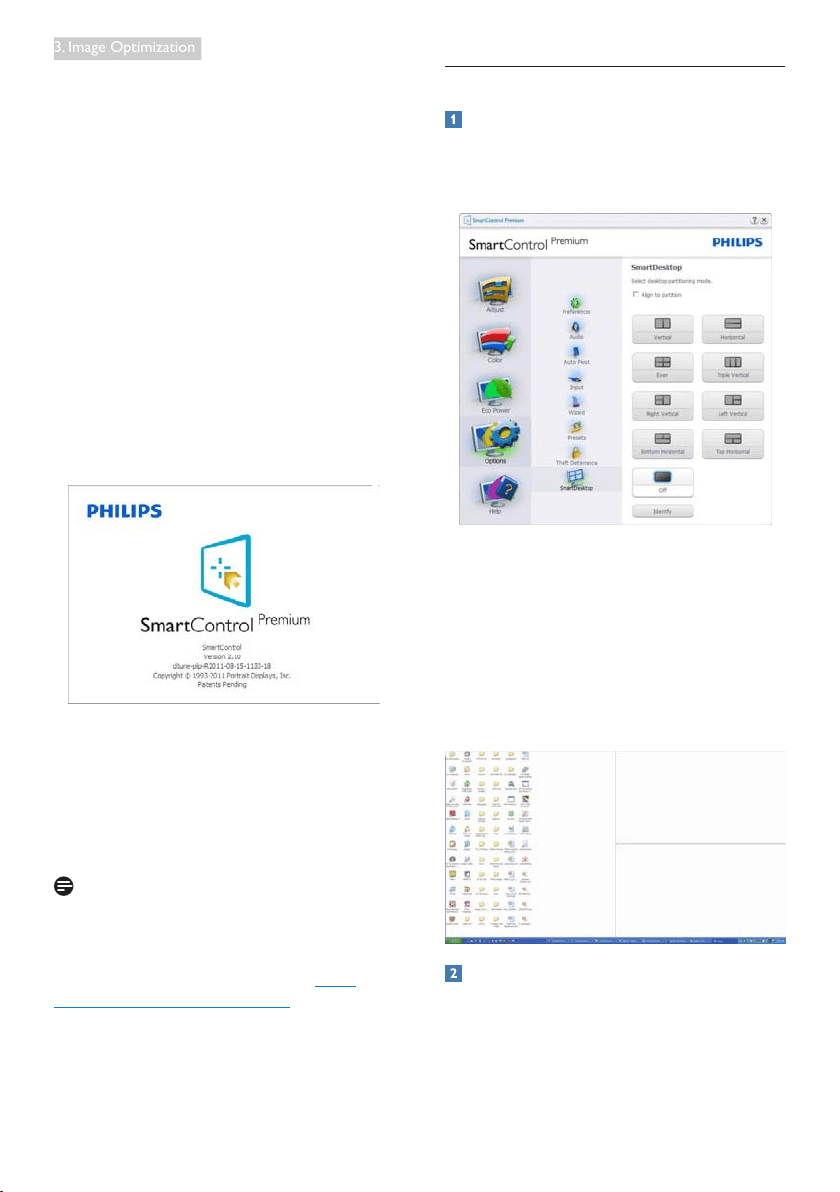
Task Tray Menu Enabled
Thetasktraymenucanbedisplayedbyright-
clickingontheSmartControlPremiumicon
fromthetasktray.LeftClickwilllaunchthe
application.
16
3. Image Optimization
Thetasktrayhasfiveentries:
• Help-AccesstoUserManualfile:Open
UserManualfileusingthedefaultbrowser
window.
• Technical Support-Displaysthetech
supportpage.
• Check for Update-Takestheuserto
PDILandingandcheckstheuser’sversion
againstthemostcurrentavailable.
• About-Displaysdetailedreferenceinfor-
mation:productversion,releaseinforma-
tion,andproductname.
• Exit-CloseSmartControlPremium.
TorunSmartControlPremiumagain,either
selectSmartControlPremiumfromProgram
menu,double-clickthedesktopPCicon,or
restartthesystem.
Task Tray Menu Disabled
WhentheTaskTrayisdisabledinthepreference
folder,onlytheExitselectionisavailable.To
completelyremoveSmartControlPremium
fromthetasktray,disableRunatStartupin
Options>Preferences.
Note
Alltheillustrationsinthissectionarefor
referenceonly.SmartControlsoftwareversion
mightbechangedwithoutnotification.Please
alwayscheckofficialPortraitwebsitewww.
portrait.com/dtune/phl/enu/indextodownload
thelatestversionofCmartControlsoftware.
3.6 SmartDesktop Guide
SmartDesktop
SmartDesktopisinSmartControlPremium.
InstallSmartControlPremiumandselect
SmartDesktopfromOptions.
• Aligntopartitioncheckboxwillenable
automaticalignmentforthewindowwhen
draggedintothedefinedpartition.
• Selectthedesiredpartitionbyclickingon
theicon.Thepartitionwillbeappliedto
thedesktopandtheiconwillbehigh-
lighted.
• Identifyprovidesaquickwaytoviewthe
grid.
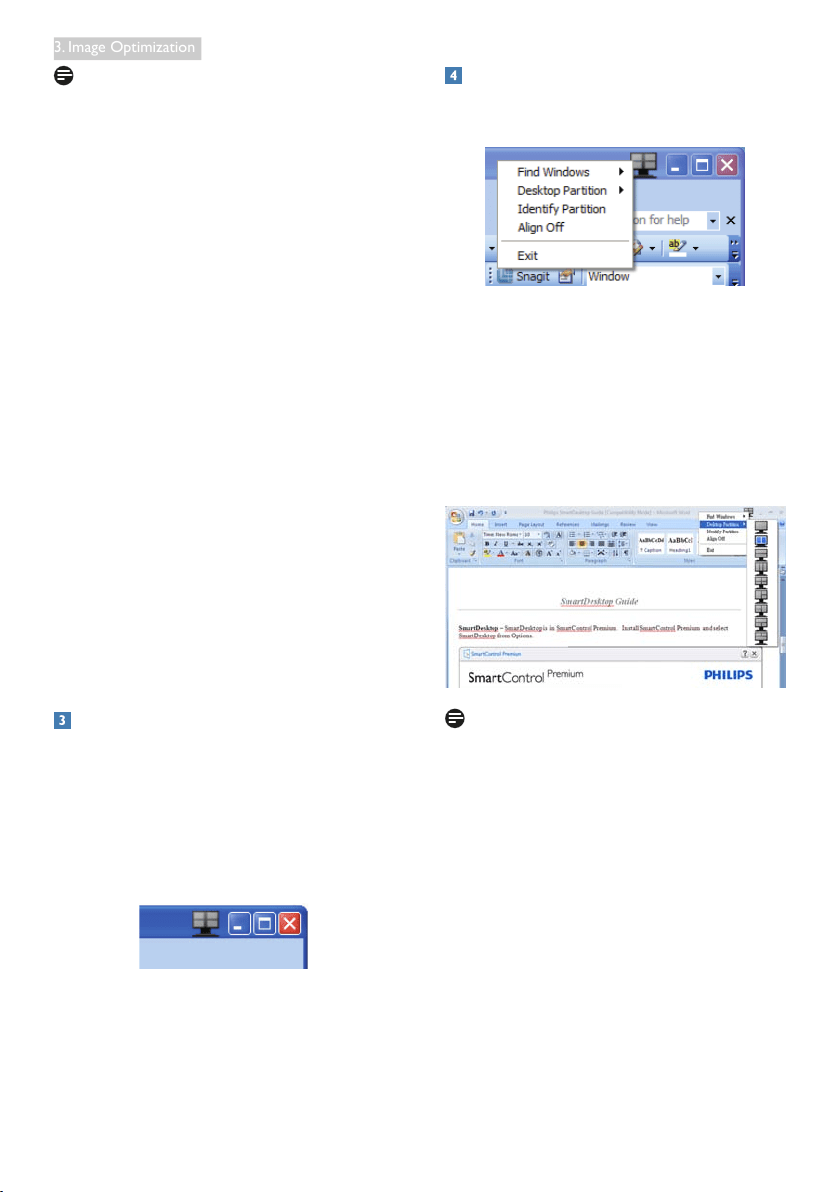
Drag and Drop Windows
OncethepartitionsareconfiguredandAlignto
partitionisselectedawindowcanbedragged
intotheregionanditwillautomaticallyalign.
Whenthewindowandmousecursorarewithin
theregion,theregionwillbecomehighlighted.
17
3. Image Optimization
Note
Iftheoutlineoftheregionisnotvisiblewhen
draggingthewindow,“Showwindowscontents
whiledragging”isdisabled.Toenable:
1. InControlPanel,clickSystem.
2. ClickAdvancedsystemsettings(ForVista
&Win7OS,thisislocatedontheleft
sidebar)
3. InPerformancesection,clickSettings.
4. Inthebox,checkShowwindowcontents
whiledragging,andclickOK.
Other alternative path:
Vista:
"ControlPanel">"Personalization">"Window
ColorandAppearance">Click"OpenClassic
appearancepropertiesformorecoloroptions"
>Click"Effects"button>check"Showwindow
contentswhiledragging".
XP:
"DisplayProperties">"Appearance">
"Effects...">check"Showwindowcontents
whiledragging".
Win 7:
Nootheralternativepathavailable.
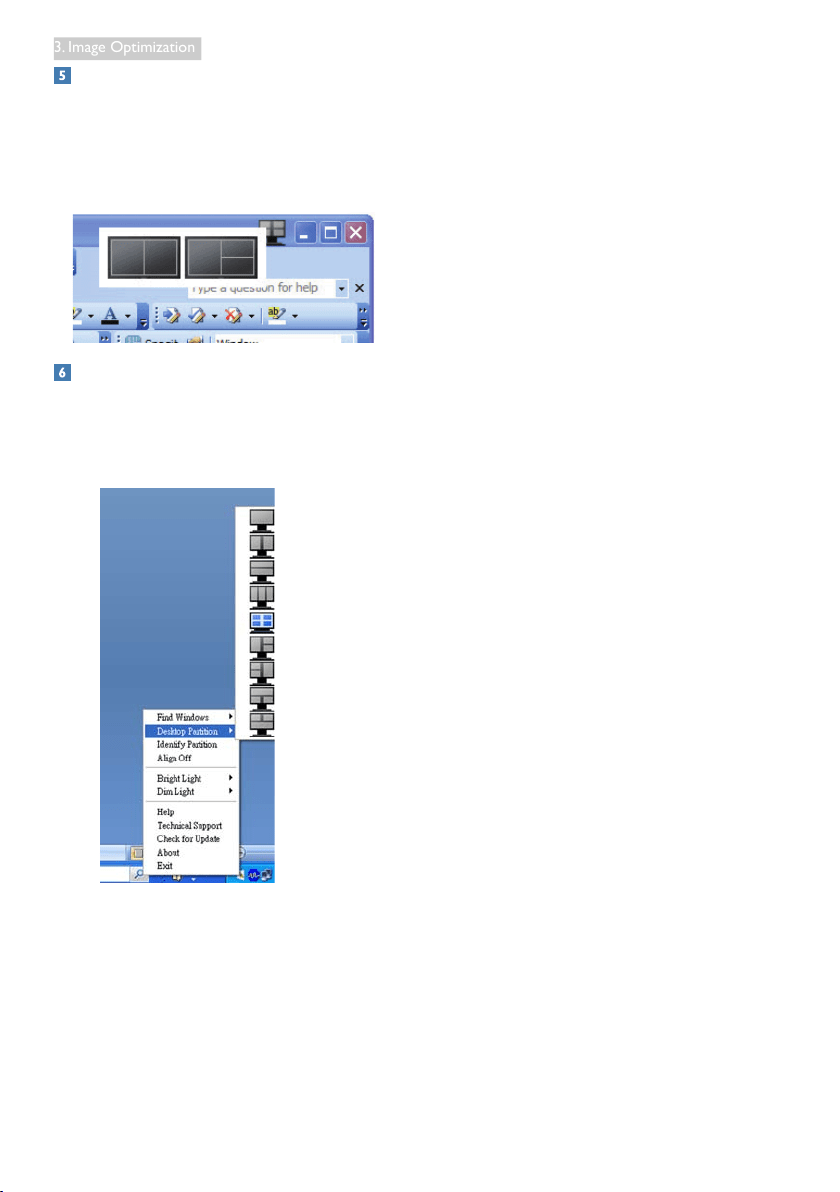
Title Bar Options
Desktoppartitioncanbeaccessedfromthetitle
baroftheactivewindow.Thisprovidesaquick
andeasywaytomanagethedesktopaswellas
sendinganywindowtoanypartitionwithout
havingtodraganddrop.Movethecursorinto
theactivewindow’stitlebartoaccessthedrop
downmenu.
Right Click Menu
RightclickontheDesktopPartitioniconto
viewthedropdownmenu.
1. Find Windows–Insomecases,theuser
mayhavesentmultiplewindowstothe
samepartition.FindWindowwillshow
allopenwindowsandmovetheselected
windowtotheforefront.
2. Desktop Partition–DesktopPartition
showsthecurrentselectedpartitionand
allowstheusertoquicklychangetoanyof
thepartitionsshowninthedropdown.
Note
Ifmorethanonedisplayisattached,theuser
canselectthetargeteddisplaytochangethe
partition.Thehighlightediconrepresentsthe
currentactivepartition.
3. Identify Partition–Displaystheoutline
gridonthedesktopforthecurrent
partition.
4. Align On/Align Off–Enables/disablesthe
draganddropautoalignfeature.
5. Exit–ClosesDesktopPartitionand
DisplayTune.Tore-initialize,launchDisplay
Tunefromthestartmenuorshortcuton
thedesktop.
18
3. Image Optimization
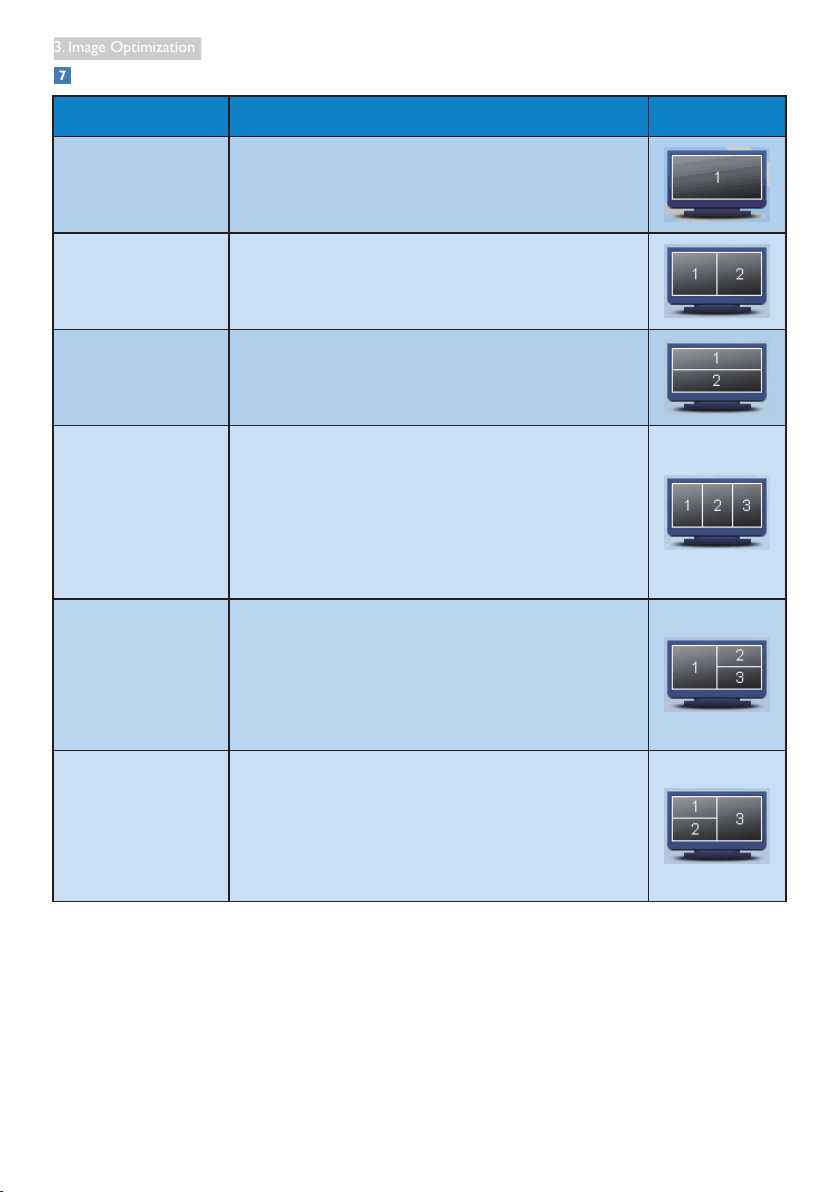
Left Click Menu
LeftclickontheDesktopPartitioniconto
quicklysendtheactivewindowtoanypartition
withouthavingtodraganddrop.Releasingthe
mousewillsendthewindowtothehighlighted
partition.
Task Tray Right Click
Thetasktrayalsocontainsmostofthefeatures
supportedinthetitlebar(withtheexception
ofautomaticallysendingawindowtoany
partition).
• Find Windows–Insomecases,theuser
mayhavesentmultiplewindowstothe
samepartition.FindWindowwillshow
allopenwindowsandmovetheselected
windowtotheforefront.
• Desktop Partition–DesktopPartition
showsthecurrentselectedpartitionand
allowstheusertoquicklychangetoanyof
thepartitionsshowninthedropdown.
• Identify Partition–Displaystheoutline
gridonthedesktopforthecurrentparti-
tion.
• Align On/Align Off–Enables/disablesthe
draganddropautoalignfeature.
19
3. Image Optimization
SmartDesktop Partition Definitions
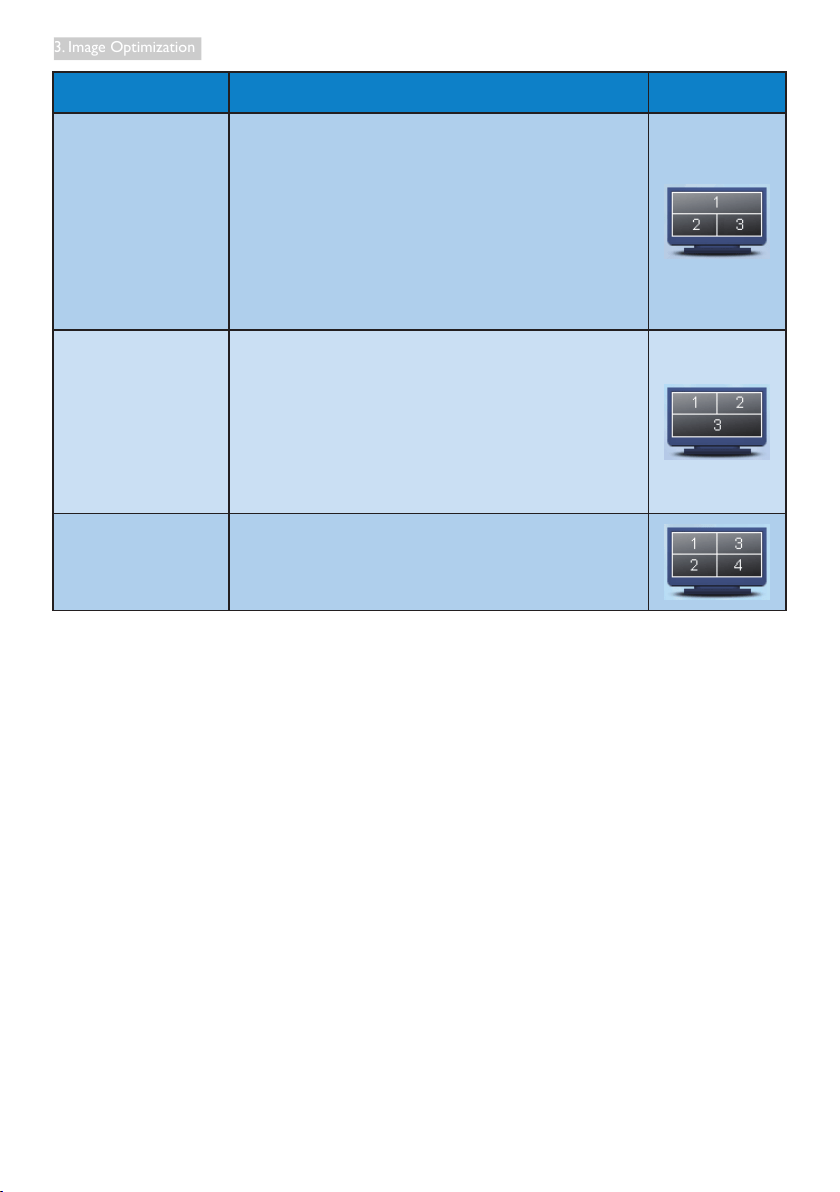
Name Description Image
FullDesktop Appliesallsettingstotheentiredesktop.
Vertical Assessesthescreenresolutionanddividesthedisplay
intotwoevenlysizedverticalregions.
For90/270maintainverticalconfiguration.
Horizontal Assessesthescreenresolutionanddividesthedisplay
intotwoevenlysizedhorizontalregions.
For90/270maintainhorizontalconfiguration.
VerticalTriple Assessesthescreenresolutionanddividesthedisplay
intothreeevenlysizedverticalregions.
For90Partition1horizontaltopPartition2horizontal
centerPartition3horizontalbottom.
For270Partition3horizontaltopPartition2horizontal
centerPartition1horizontalbottom.
VerticalSplitLeft
Assessesthescreenresolutionanddividesthedisplayinto
twoverticalregions,thelefthandsideisasingleregion,
therighthandsideissplitintotwoevenlysizedregions
For90Partition1ontopPartition2&3onbottom.
For270Partition1onbottomPartition2&3ontop.
VerticalSplitRight Assessesthescreenresolutionanddividesthedisplayinto
twoverticalregions,therighthandsideisasingleregion,
thelefthandsideissplitintotwoevenlysizedregions
For90Partition1&2ontopPartition3onbottom.
For270Partition3ontopPartition1&2onbottom.
20
3. Image Optimization
Name Description Image
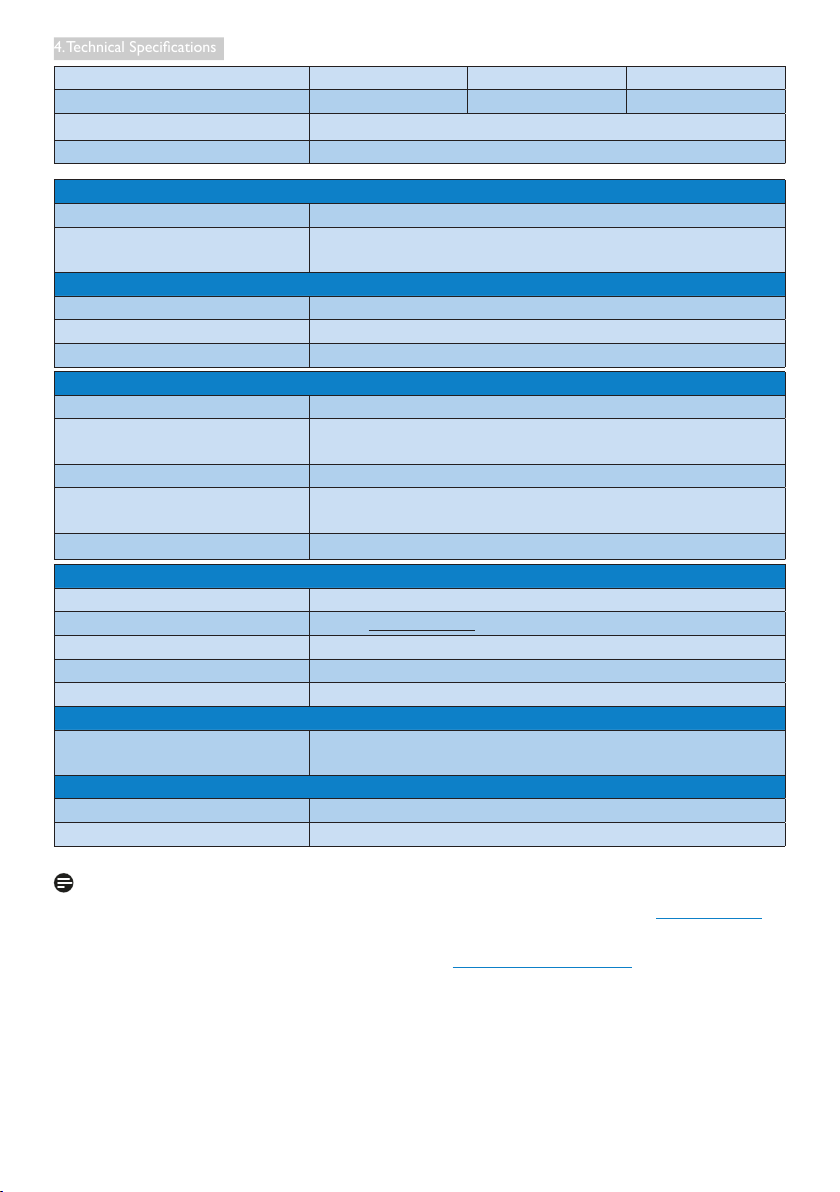
HorizontalSplitTop Assessesthescreenresolutionanddividesthedisplay
intotwoevenlysizedhorizontalregions,thetopregion
issingle,thebottomregionisspiltintotwoevenlysized
regions
For90Partition1onrightsideVerticalPartition2&3on
leftsideVertical.
For270Partition1onleftsideVerticalPartition2&3on
rightsideVertical.
HorizontalSplit
Bottom
Assessesthescreenresolutionanddividesthedisplayinto
twoevenlysizedhorizontalregions,thebottomregionis
single,thetopregionisspiltintotwoevenlysizedregions
For90Partition1&2onrightsideVerticalPartition3on
leftsideVertical.
For270Partition1&2onleftsideVerticalPartition3on
rightsideVertical.
EvenSplit Assessesthescreenresolutionanddividesthedisplay
intofourevenlysizedregions.

21
4. Technical Specications
4. Technical Specifications
Picture/Display
MonitorPanelType IPS-LCD
Backlight LED
PanelSize 23"W(58.42cm)
AspectRatio 16:9
PixelPitch
0.265x0.265mm
Brightness 250cd/m²
SmartContrast 20,000,000:1
ContrastRatio(typ.) 1000:1
ResponseTime(typ.) 14ms
SmartResponseTime(typ.) ms5
OptimumResolution 1920x1080@60Hz
ViewingAngle 178°(H)/178°(V)@C/R>10
DisplayColors 16.7M
VerticalRefreshRate 56Hz-76Hz
HorizontalFrequency 30kHz-83kHz
sRGB YES
Connectivity
SignalInput
239C4QH:HDMI1,HDMI2(Digital),VGA(Analog)
239C4Q:DVI(Digital),VGA(Analog)
InputSignal SeparateSync,SynconGreen
Convenience
UserConvenience
OSDLanguages
English,French,German,Spanish,Italian,Russian,
SimplifiedChinese,Portuguese
OtherConvenience KensingtonLock
Plug&PlayCompatibility DDC/CI,sRGB,Windows7/Vista/XP,MacOSX,Linux
Stand
Tilt -3/+15
Power
OnMode 33.6W(typ.)
EnergyConsumption
(EnergyStar5.0testmethod)
ACInputVoltageat
100VAC+/-5VAC,
50Hz+/-3Hz
ACInputVoltageat
115VAC+/-5VAC,
60Hz+/-3Hz
ACInputVoltageat
230VAC+/-5VAC,
50Hz+/-3Hz
NormalOperation(typ.) 28.38W 28.54W 28.27W
Sleep(Standby) 0.3W(typ.) 0.3W(typ.) 0.3W(typ.)
Off 0.3W(typ.) 0.3W(typ.) 0.3W(typ.)
HeatDissipation*
ACInputVoltageat
100VAC+/-5VAC,
50Hz+/-3Hz
ACInputVoltageat
115VAC+/-5VAC,
60Hz+/-3Hz
ACInputVoltageat
230VAC+/-5VAC,
50Hz+/-3Hz
NormalOperation 96.86BTU/hr 97.41BTU/hr 96.48BTU/hr
22
4. Technical Specications
Sleep(Standby) 1.023BTU/hr 1.023BTU/hr 1.023BTU/hr
Off 1.023BTU/hr 1.023BTU/hr 1.023BTU/hr
PowerLEDindicator Onmode:White,Standby/Sleepmode:White(blinking)
PowerSupply Built-in,100-240VAC,50/60Hz
Dimensions
Productwithstand(WxHxD) 550x421x180mm
Productwithoutstand
(WxHxD)
550x339x34mm
Weight
Productwithstand 3. kg
Productwithoutstand 2.06kg
Productwithpackaging . kg
Operating Condition
Temperaturerange(operation) 0°Cto40°C
Temperaturerange
(Non-operation)
-20°Cto60°C
Relativehumidity 20%to80%
Altitude
Operation:+6,500ft(1,981m)
Non-operation:+40,000ft(12,192m)
MTBF 30,000hrs
Environmental
ROHS YES
EPEAT Silver(www.epeat.net)
Packaging 100%recyclable
SpecificSubstances 100%PVCBFRfreehousing
EnergyStar 5.0
Compliance and standards
RegulatoryApprovals
CEMark,FCCClassB,SEMKO,UL/cUL,BSMI,GOST,
ISO9241-307,TCO5.2
Cabinet
Color
Finish Glossy
Note
1. EPEATGoldorSilverisvalidonlywherePhilipsregisterstheproduct.Pleasevisitwww.epeat.net
forregistrationstatusinyourcountry.
2. Thisdataissubjecttochangewithoutnotice.Gotowww.philips.com/supporttodownloadthe
latestversionofleaflet.
Black/White, or other color options as applicable in your regions
11
5 43
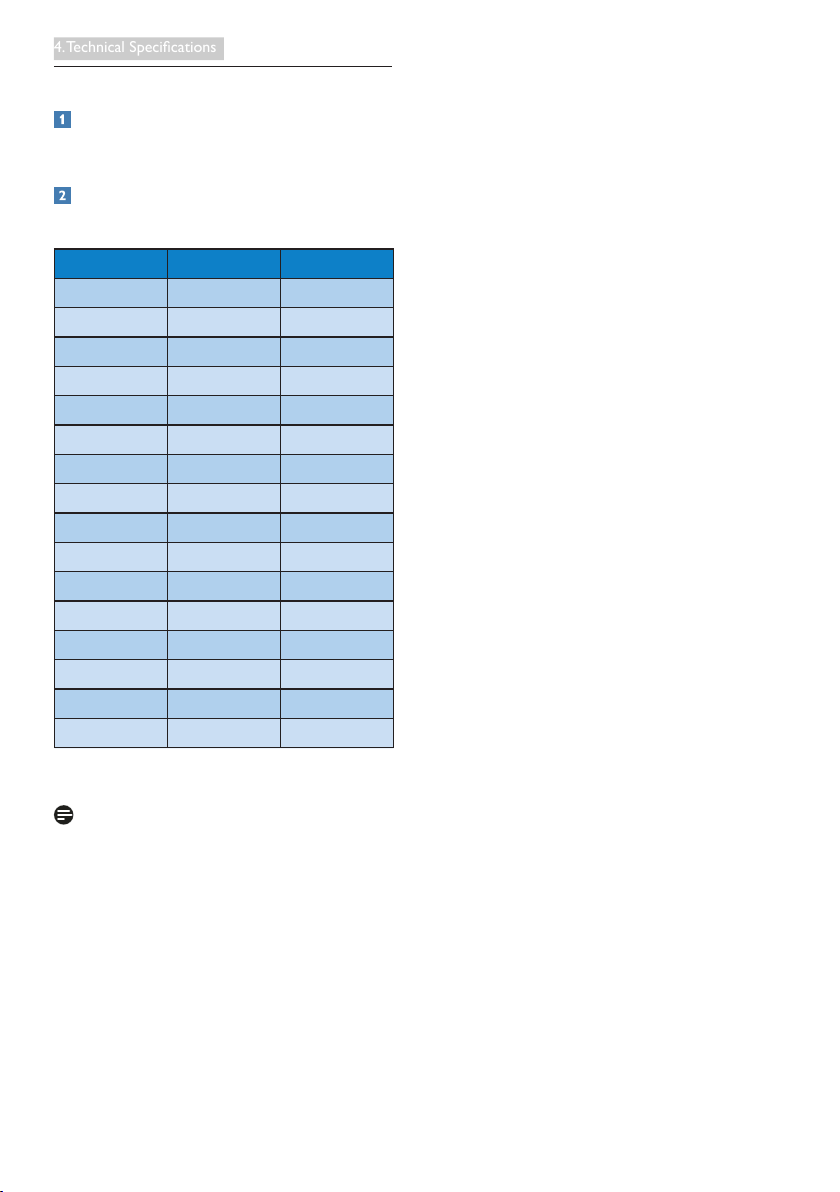
23
4. Technical Specications
4.1 Resolution & Preset Modes
Maximum Resolution
1920x1080@60Hz(analoginput)
1920x1080@60Hz(digitalinput)
Recommended Resolution
1920x1080@60Hz(digitalinput)
H. freq (kHz) Resolution V. freq (Hz)
31.47 720x400 70.09
31.47 640x480 59.94
35.00 640x480 66.67
37.86 640x480 72.81
37.50 640x480 75.00
37.88 800x600 60.32
46.88 800x600 75.00
48.36 1024x768 60.00
60.02 1024x768 75.03
63.89 1280
x
1024 60.02
79.98 1280
x
1024 75.03
55.94 1440
x
900 59.89
70.64 1440
x
900 74.98
65.29 1680
x
1050 59.95
Note
Pleasenoticethatyourdisplayworksbestat
nativeresolutionof1920x1080@60Hz.For
bestdisplayquality,pleasefollowthisresolution
recommendation.
67.50 1920 x 1080 60.00
44.77 1280 x 720 59.86
24
5. Power Management
5. Power Management
IfyouhaveVESADPMcompliancedisplaycard
orsoftwareinstalledinyourPC,themonitor
canautomaticallyreduceitspowerconsumption
whennotinuse.Ifaninputfromakeyboard,
mouseorotherinputdeviceisdetected,
themonitorwill'wakeup'automatically.The
followingtableshowsthepowerconsumption
andsignalingofthisautomaticpowersaving
feature:
PowerManagementDefinition
VESA
Mode
Video H-sync V-sync PowerUsed LEDColor
Active ON Yes Yes 33.6W(typ.) White
Sleep
(Standby)
OFF No No <0.3W(typ.)
White
(blink)
SwitchOff OFF - - <0.3W(typ.) OFF
Thefollowingsetupisusedtomeasurepower
consumptiononthismonitor.
• Nativeresolution:1920x1080
• Contrast:50%
• Brightness:300nits
• Colortemperature:6500kwithfullwhite
pattern
Note
Thisdataissubjecttochangewithoutnotice.

25
6. Regulatory Infomation
6. Regulatory Information
Congratulations!
Thisdisplayisdesignedforbothyouandthe
planet.
Thedisplayyouhavejustpurchased
carriestheTCOCertifiedlabel.
Thisensuresthatyourdisplayis
designed,manufacturedandtestedaccordingto
someofthestrictestqualityandenvironmental
requirementsintheworld.Thismakesforahigh
performanceproduct,designedwiththeuser
infocusthatalsominimizestheimpactonthe
climateandournaturalenvironment.
TCOCertifiedisathirdpartyverifiedprogram,
whereeveryproductmodelistestedbyan
accreditedimpartialtestlaboratory.TCO
Certifiedrepresentsoneofthetoughest
certificationsfordisplaysworldwide.
Some of the Usability features of the TCO
Certified for displays:
• Visualergonomicsforgoodimagequality
istestedtoensuretopperformanceand
reducesightandstrainproblems.Important
parametersareluminance,contrast,
resolution,blacklevel,gammacurve,colour
andluminanceuniformityandcolour
rendering.
• Productsaretestedaccordingtorigorous
safetystandardsatimpartiallaboratories.
• Electricandmagneticfieldsemissionsas
lowasnormalhouseholdbackground
levels.
• Lowacousticnoiseemissions(when
applicable).
Some of the Environmental features of the
TCO Certified for displays:
• Thebrandownerdemonstratescorporate
socialresponsibilityandhasacertified
environmentalmanagementsystem(EMAS
orISO14001).
• Verylowenergyconsumptionbothinon-
andstandbymodeminimizeclimateimpact.
• Restrictionsonchlorinatedandbrominated
flameretardants,plasticizers,plasticsand
heavymetalssuchascadmium,mercury
andlead(RoHScompliance).
• Bothproductandproductpackagingis
preparedforrecycling.
• Thebrandownerofferstake-backoptions.
Therequirementscanbedownloadedfromour
website.Therequirementsincludedinthislabel
havebeendevelopedbyTCODevelopmentin
co-operationwithscientists,experts,usersas
wellasmanufacturersallovertheworld.Since
theendofthe1980sTCOhasbeeninvolved
ininfluencingthedevelopmentofITequipment
inamoreuser-friendlydirection.Ourlabeling
systemstartedwithdisplaysin1992andis
nowrequestedbyusersandIT-manufacturers
allovertheworld.About50%ofalldisplays
worldwideareTCOcertified.
Formoreinformation,pleasevisit:
www.tcodevelopment.com
TCOF1058TCODocument,Ver.2.1
Technology for you and the planet
For displays with glossy bezels the user should
consider the placement of the display as the
bezel may cause disturbing reflections from
surrounding light and bright surfaces.

26
6. Regulatory Infomation
Lead-free Product
Leadfreedisplaypromotes
environmentallysoundrecovery
anddisposalofwastefromelectrical
andelectronicequipment.Toxic
substanceslikeLeadhasbeeneliminated
andcompliancewithEuropeancommunity’s
stringentRoHsdirectivemandatingrestrictions
onhazardoussubstancesinelectricaland
electronicequipmenthavebeenadheredto
inordertomakePhilipsmonitorssafetouse
throughoutitslifecycle.
EPEAT
(www.epeat.net)
TheEPEAT(Electronic
ProductEnvironmental
AssessmentTool)program
evaluatescomputer
desktops,laptops,andmonitorsbasedon51
environmentalcriteriadevelopedthrough
anextensivestakeholderconsensusprocess
supportedbyUSEPA.
EPEATsystemhelpspurchasersinthepublic
andprivatesectorsevaluate,compareand
selectdesktopcomputers,notebooksand
monitorsbasedontheirenvironmental
attributes.EPEATalsoprovidesaclearand
consistentsetofperformancecriteriaforthe
designofproducts,andprovidesanopportunity
formanufacturerstosecuremarketrecognition
foreffortstoreducetheenvironmentalimpact
ofitsproducts.
Benefits of EPEAT
Reduceuseofprimarymaterials
Reduceuseoftoxicmaterials
AvoidthedisposalofhazardouswasteEPEAT’S
requirementthatallregisteredproductsmeet
ENERGYSTAR’senergyefficiencyspecifications,
meansthattheseproductswillconsumeless
energythroughouttheirlife.
CE Declaration of Conformity
Thisproductisinconformitywiththefollowing
standards
• EN60950-1:2006(Safetyrequirementof
InformationTechnologyEquipment).
• EN55022:2006(RadioDisturbance
requirementofInformationTechnology
Equipment).
• EN55024:1998+A1:2001+A2:2003
(ImmunityrequirementofInformation
TechnologyEquipment).
• EN61000-3-2:2006(LimitsforHarmonic
CurrentEmission).
• EN61000-3-3:1995+A1:2001+A2:2005
(LimitationofVoltageFluctuationand
Flicker)followingprovisionsofdirectives
applicable.
• 2006/95/EC(LowVoltageDirective).
• 2004/108/EC(EMCDirective).
• 2005/32/EC(EuPDirective,ECNo.
1275/2008mplementingDirective
forStandbyandOffmodepower
consumption)andisproducedbya
manufacturingorganizationonISO9000
level.
Theproductalsocomplywiththefollowing
standards
• ISO9241-307:2008(Ergonomic
requirement,Analysisandcompliancetest
methodsforelectronicvisualdisplays).
• GSEK1-2000:2009(GSmarkrequirement).
• prEN50279:1998(LowFrequencyElectric
andMagneticfieldsforVisualDisplay).
• MPR-II(MPR:1990:8/1990:10Low
FrequencyElectricandMagneticfields).

27
6. Regulatory Infomation
Energy Star Declaration
(www.energystar.gov)
AsanENERGYSTAR
®
Partner,we
havedeterminedthatthisproduct
meetstheENERGYSTAR
®
guidelinesforenergyefficiency.
Note
Werecommendyouswitchoffthemonitor
whenitisnotinuseforalongtime.
Federal Communications Commission (FCC)
Notice (U.S. Only)
Thisequipmenthasbeentestedandfound
tocomplywiththelimitsforaClassBdigital
device,pursuanttoPart15oftheFCC
Rules.Theselimitsaredesignedtoprovide
reasonableprotectionagainstharmful
interferenceinaresidentialinstallation.
Thisequipmentgenerates,usesandcan
radiateradiofrequencyenergyand,ifnot
installedandusedinaccordancewiththe
instructions,maycauseharmfulinterference
toradiocommunications.
However,thereisnoguaranteethat
interferencewillnotoccurinaparticular
installation.Ifthisequipmentdoescause
harmfulinterferencetoradioortelevision
reception,whichcanbedeterminedby
turningtheequipmentoffandon,the
userisencouragedtotrytocorrect
theinterferencebyoneormoreofthe
followingmeasures:
• Reorientorrelocatethereceivingantenna.
• Increasetheseparationbetweenthe
equipmentandreceiver.
• Connecttheequipmentintoanoutleton
acircuitdifferentfromthattowhichthe
receiverisconnected.
• Consultthedealeroranexperienced
radio/TVtechnicianforhelp.
Changesormodificationsnotexpressly
approvedbythepartyresponsiblefor
compliancecouldvoidtheuser'sauthority
tooperatetheequipment.
UseonlyRFshieldedcablethatwassupplied
withthemonitorwhenconnectingthismonitor
toacomputerdevice.
Topreventdamagewhichmayresultinfireor
shockhazard,donotexposethisapplianceto
rainorexcessivemoisture.
THISCLASSBDIGITALAPPARATUSMEETS
ALLREQUIREMENTSOFTHECANADIAN
INTERFERENCE-CAUSINGEQUIPMENT
REGULATIONS.
FCC Declaration of Conformity
DeclarationofConformityforProductsMarked
withFCCLogo,
United States Only
ThisdevicecomplieswithPart15oftheFCC
Rules.Operationissubjecttothefollowingtwo
conditions:(1)thisdevicemaynotcauseharmful
interference,and(2)thisdevicemustacceptany
interferencereceived,includinginterferencethat
maycauseundesiredoperation.
Commission Federale de la Communication
(FCC Declaration)
Cetéquipementaététestéetdéclaré
conformeauxlimitesdesappareils
numériquesdeclassB,auxtermesde
l'article15DesrèglesdelaFCC.Ces
limitessontconçuesdefaçonàfourir
uneprotectionraisonnablecontreles
interférencesnuisiblesdanslecadred'une
installationrésidentielle.
CETappareilproduit,utiliseetpeutémettre
deshyperfréquencesqui,sil'appareiln'est
pasinstalléetutiliséselonlesconsignes
données,peuventcauserdesinterférences
nuisiblesauxcommunicationsradio.
28
6. Regulatory Infomation
Cependant,riennepeutgarantirl'absence
d'interférencesdanslecadred'une
installationparticulière.Sicetappareilest
lacaused'interférencesnuisiblespour
laréceptiondessignauxderadiooude
télévision,cequipeutêtredéceléen
fermantl'équipement,puisenleremettant
enfonction,l'utilisateurpourraitessayerde
corrigerlasituationenprenantlesmesures
suivantes:
• Réorienteroudéplacerl’antennede
réception.
• Augmenterladistanceentrel’équipement
etlerécepteur.
• Brancherl’équipementsurunautrecircuit
queceluiutiliséparlerécepteur.
• Demanderl’aidedumarchandoud’un
technicienchevronnéenradio/télévision.
Toutesmodificationsn'ayantpasreçu
l'approbationdesservicescompétents
enmatièredeconformitéestsusceptible
d'interdireàl'utilisateurl'usageduprésent
équipement.
N'utiliserquedescâblesRFarméspour
lesconnectionsavecdesordinateursou
périphériques.
CETAPPAREILNUMERIQUEDELACLASSE
BRESPECTETOUTESLESEXIGENCESDU
REGLEMENTSURLEMATERIELBROUILLEUR
DUCANADA.
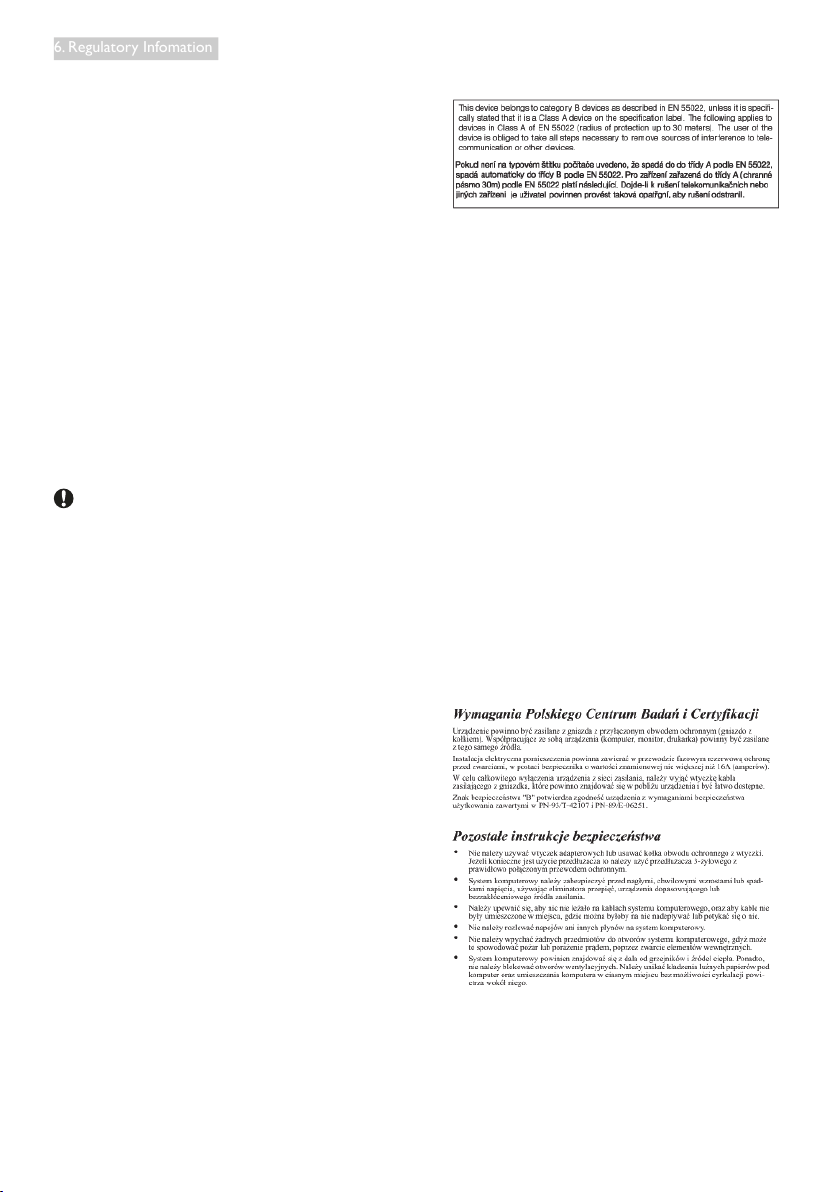
EN 55022 Compliance (Czech Republic Only)
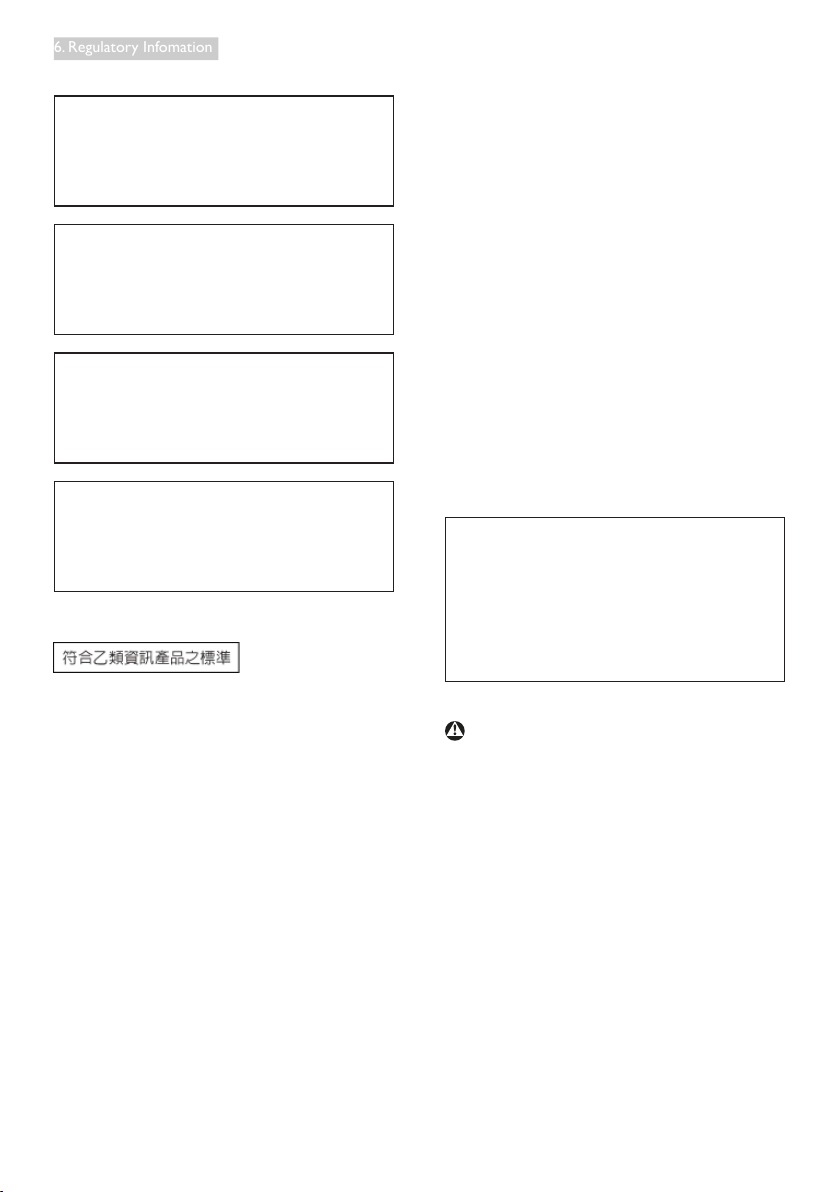
Polish Center for Testing and Certification
Notice
Theequipmentshoulddrawpowerfroma
socketwithanattachedprotectioncircuit(a
three-prongsocket).Allequipmentthatworks
together(computer,monitor,printer,andsoon)
shouldhavethesamepowersupplysource.
Thephasingconductoroftheroom'selectrical
installationshouldhaveareserveshort-circuit
protectiondeviceintheformofafusewitha
nominalvaluenolargerthan16amperes(A).
Tocompletelyswitchofftheequipment,the
powersupplycablemustberemovedfromthe
powersupplysocket,whichshouldbelocated
neartheequipmentandeasilyaccessible.
Aprotectionmark"B"confirmsthatthe
equipmentisincompliancewiththeprotection
usagerequirementsofstandardsPN-93/T-42107
andPN-89/E-06251.
29
6. Regulatory Infomation
North Europe (Nordic Countries) Information
Placering/Ventilation
VARNING:
FÖRSÄKRADIGOMATTHUVUDBRYTARE
OCH UTTAGÄR LÄTÅTKOMLIGA,NÄR
DUSTÄLLERDINUTRUSTNINGPÅPLATS.
Placering/Ventilation
ADVARSEL:
SØ R GV ED P LAC ERI N G EN FO R , AT
NETLEDNINGENSSTIKOGSTIKKONTAKT
ERNEMTTILGÆNGELIGE.
Paikka/Ilmankierto
VAROITUS:
SIJOITALAITESITEN,ETTÄVERKKOJOHTO
VOIDAANTARVITTAESSA HELPOSTI
IRROTTAAPISTORASIASTA.
Plassering/Ventilasjon
ADVARSEL:
NÅR DETTE UTSTYRET PLASSERES,MÅ
DU PASSE PÅAT KONTAKTENE FOR
STØMTILFØRSELERLETTEÅNÅ.
BSMI Notice (Taiwan Only)
Ergonomie Hinweis (nur Deutschland)
DervonunsgelieferteFarbmonitorentspricht
deninder"VerordnungüberdenSchutzvor
SchädendurchRöntgenstrahlen"festgelegten
Vorschriften.
AufderRückwanddesGerätesbefindetsich
einAufkleber,deraufdieUnbedenklichkeitder
Inbetriebnahmehinweist,dadieVorschriften
überdieBauartvonStörstrahlernnachAnlage
III¤5Abs.4derRöntgenverordnungerfülltsind.
DamitIhrMonitorimmerdeninderZulassung
gefordertenWertenentspricht,istdaraufzu
achten,daß
1. ReparaturennurdurchFachpersonal
durchgeführtwerden.
2. nuroriginal-Ersatzteileverwendetwerden.
3. beiErsatzderBildröhrenureine
bauartgleicheeingebautwird.
AusergonomischenGründenwirdempfohlen,
die Grundfarben Blau und Rot nicht auf
dunklemUntergrundzuverwenden(schlechte
LesbarkeitunderhöhteAugenbelastungbeizu
geringemZeichenkontrastwärendieFolge).
DerarbeitsplatzbezogeneSchalldruckpegel
nach DIN 45 635 beträgt 70dB (A) oder
weniger.
ACHTUNG:BEIMAUFSTELLEN
DIESESGERÄTESDARAUF
ACHTEN,DAßNETZSTECKERUND
NETZKABELANSCHLUßLEICHT
ZUGÄNGLICHSIND.
30
6. Regulatory Infomation
China RoHS
ThePeople'sRepublicofChinareleaseda
regulationcalled"ManagementMethodsfor
ControllingPollutionbyElectronicInformation
Products"orcommonlyreferredtoasChina
RoHS.AllproductsproducedandsoldforChina
markethavetomeetChinaRoHSrequest.
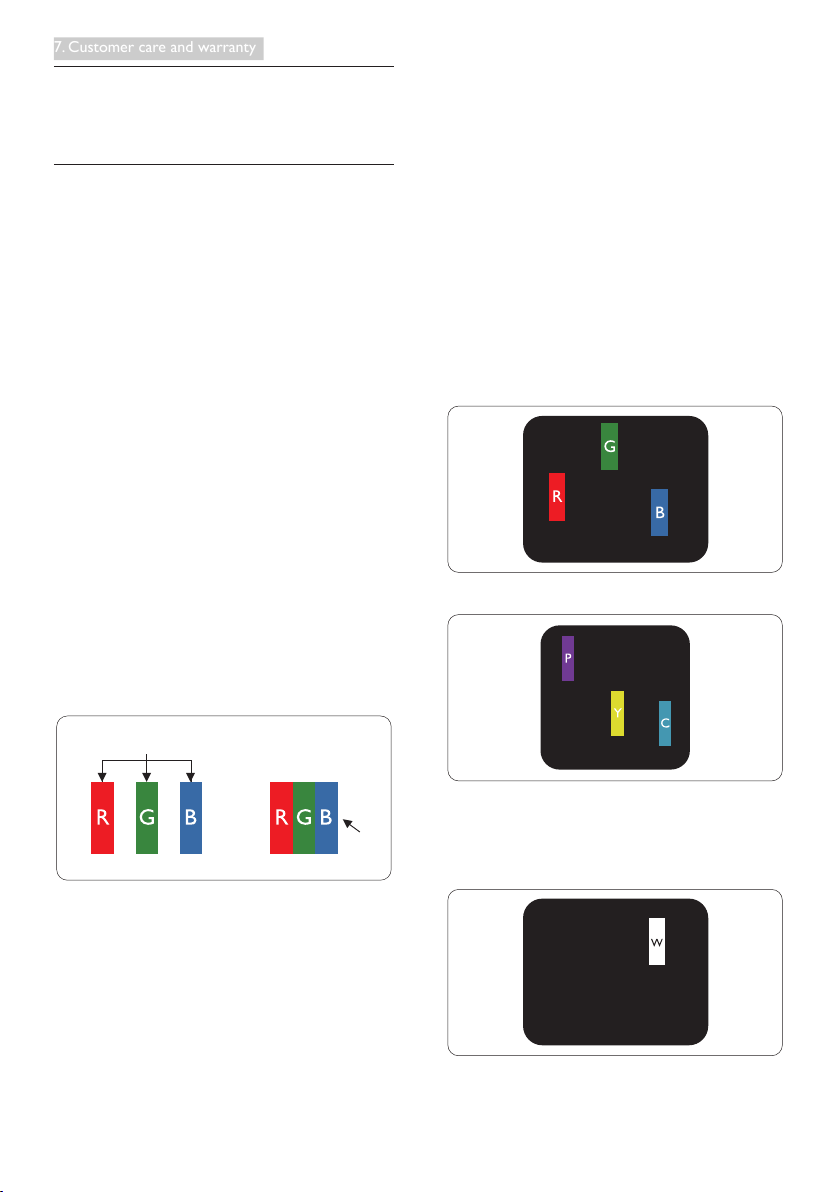
中国电子信息产品污染控制标识要求(中国
RoHS
法规标示要求)产品中有毒有害物质或
元素的名称及含量
部件名称
有毒有害物质或元素
铅
(Pb)
汞
(Hg)
镉
(Cd)
六价铬
(Cr6+)
多溴联苯
(PBB)
多溴二苯醚
(PBDE)
外壳
O
O O O O O
液晶显示屏/灯管
X
O O O O O
电路板组件
*
X O O O O O
电源适配线
X O O O O O
电源线/连接线
X O O O O O
*:
电路板组件包括印刷电路板及其构成的零部件,如电阻、电容、集成电
路、连接器等。
O:
表示该有毒有害物质在该部件所有均质材料中的含量均在《电子信息产品
中有毒有害物质的限量要求标准》规定的限量要求以下。
X:
表示该有毒有害物质至少在该部件的某一均质材料中的含量超出《电子信
息产品中有毒有害物质的限量要求标准》规定的限量要求;但是上表中打
“X”
的部件,符合欧盟
RoHS
法规要求(属于豁免的部分)。
环保使用期限
此标识指期限(十年),电子信息产品中含有
的有毒有害物质或元素在正常使用的条件
下不会发生外泄或突变,电子信息产品用户
使用该电子信息产品不会对环境造成严重
污染或对其人身、财产造成严重损害的期
限。
《废弃电器电子产品回收处理管理条例》
提示性说明
为了更好地关爱及保护地球,当用户不再
需要此产品或产品寿命终止时,请遵守国
家废弃电器电子产品回收处理相关法律法
规,将其交给当地具有国家认可的回收处
理资质的厂商进行回收处理。
31
7. Customer care and warranty
blackpixel.Othercombinationsoflitanddark
subpixelsappearassinglepixelsofothercolors.
Types of Pixel Defects
Pixelandsubpixeldefectsappearonthescreen
indifferentways.Therearetwocategoriesof
pixeldefectsandseveraltypesofsubpixel
defectswithineachcategory.
Bright Dot Defects
Brightdotdefectsappearaspixelsorsubpixels
thatarealwayslitor'on'.Thatis,abrightdotis
asub-pixelthatstandsoutonthescreenwhen
themonitordisplaysadarkpattern.Thereare
thetypesofbrightdotdefects.
Onelitred,greenorbluesubpixel.
Twoadjacentlitsubpixels:
- Red+Blue=Purple
- Red+Green=Yellow
- Green+Blue=Cyan(LightBlue)
Threeadjacentlitsubpixels(onewhitepixel).
7. Customer care and
warrant
7.1 Philips’ Flat Panel Monitors Pixel
Defect Policy
Philipsstrivestodeliverthehighestquality
products.Weusesomeoftheindustry'smost
advancedmanufacturingprocessesandpractice
stringentqualitycontrol.However,pixelor
subpixeldefectsontheTFTMonitorpanels
usedinflatpanelmonitorsaresometimes
unavoidable.Nomanufacturercanguarantee
thatallpanelswillbefreefrompixeldefects,
butPhilipsguaranteesthatanymonitorwithan
unacceptablenumberofdefectswillberepaired
orreplacedunderwarranty.Thisnoticeexplains
thedifferenttypesofpixeldefectsanddefines
acceptabledefectlevelsforeachtype.Inorder
toqualifyforrepairorreplacementunder
warranty,thenumberofpixeldefectsonaTFT
Monitorpanelmustexceedtheseacceptable
levels.Forexample,nomorethan0.0004%of
thesubpixelsonamonitormaybedefective.
Furthermore,Philipssetsevenhigherquality
standardsforcertaintypesorcombinations
ofpixeldefectsthataremorenoticeablethan
others.Thispolicyisvalidworldwide.
subpixel
pixel
Pixels and Sub pixels
Apixel,orpictureelement,iscomposedof
threesubpixelsintheprimarycolorsofred,
greenandblue.Manypixelstogetherforman
image.Whenallsubpixelsofapixelarelit,the
threecoloredsubpixelstogetherappearasa
singlewhitepixel.Whenallaredark,thethree
coloredsubpixelstogetherappearasasingle

32
7. Customer care and warranty
Note
Aredorbluebrightdotmustbemore
than50
percentbrighterthanneighboringdotswhile
agreenbrightdotis30percentbrighterthan
neighboringdots.
Black Dot Defects
Blackdotdefectsappearaspixelsorsubpixels
thatarealwaysdarkor'off'.Thatis,adarkdotis
asub-pixelthatstandsoutonthescreenwhen
themonitordisplaysalightpattern.Theseare
thetypesofblackdotdefects.
Proximity of Pixel Defects
Becausepixelandsubpixelsdefectsofthe
sametypethatareneartooneanothermaybe
morenoticeable,Philipsalsospecifiestolerances
fortheproximityofpixeldefects.
Pixel Defect Tolerances
Inordertoqualifyforrepairorreplacement
duetopixeldefectsduringthewarrantyperiod,
aTFTMonitorpanelinaPhilipsflatpanel
monitormusthavepixelorsubpixeldefects
exceedingthetoleranceslistedinthefollowing
tables.
BRIGHT DOT DEFECTS ACCEPTABLE LEVEL
1litsubpixel 3
2adjacentlitsubpixels 1
3adjacentlitsubpixels(onewhitepixel) 0
Distancebetweentwobrightdotdefects* >15mm
Totalbrightdotdefectsofalltypes 3
BLACK DOT DEFECTS ACCEPTABLE LEVEL
1darksubpixel 5orfewer
2adjacentdarksubpixels 2orfewer
3adjacentdarksubpixels 0
Distancebetweentwoblackdotdefects* >15mm
Totalblackdotdefectsofalltypes 5orfewer
TOTAL DOT DEFECTS ACCEPTABLE LEVEL
Totalbrightorblackdotdefectsofalltypes 5orfewer
Note
1. 1or2adjacentsubpixeldefects=1dotdefect
2. ThismonitorisISO9241-307compliant(ISO9241-307:Ergonomicrequirement,analysisand
compliancetestmethodsforelectronicvisualdisplays)
33
7. Customer care and warranty
7.2 Customer Care & Warranty
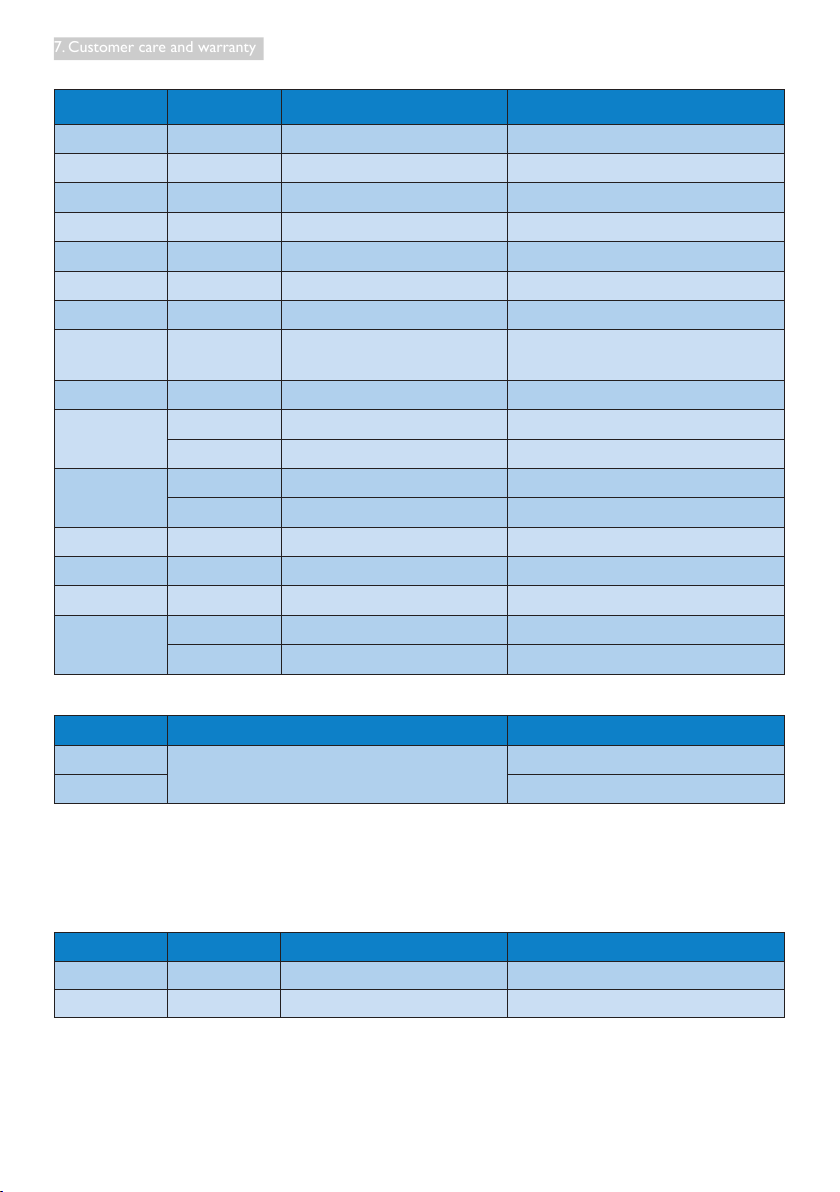
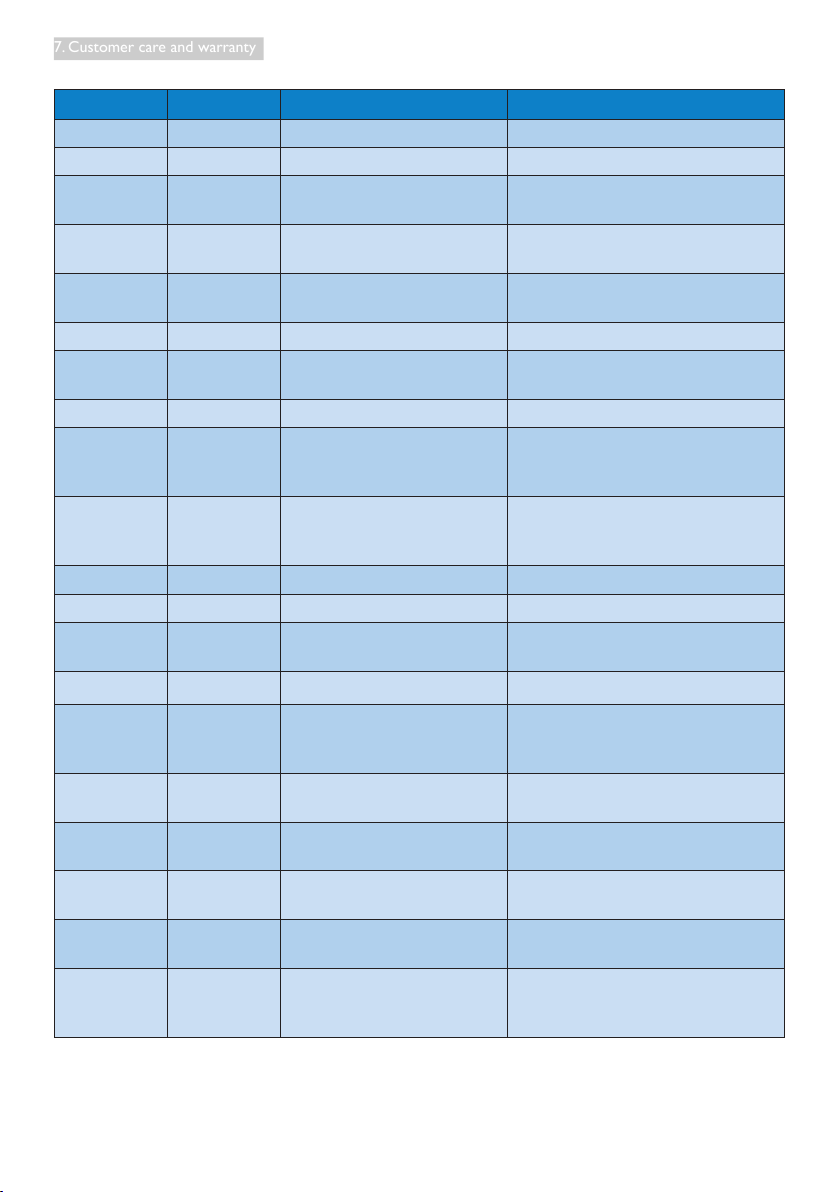
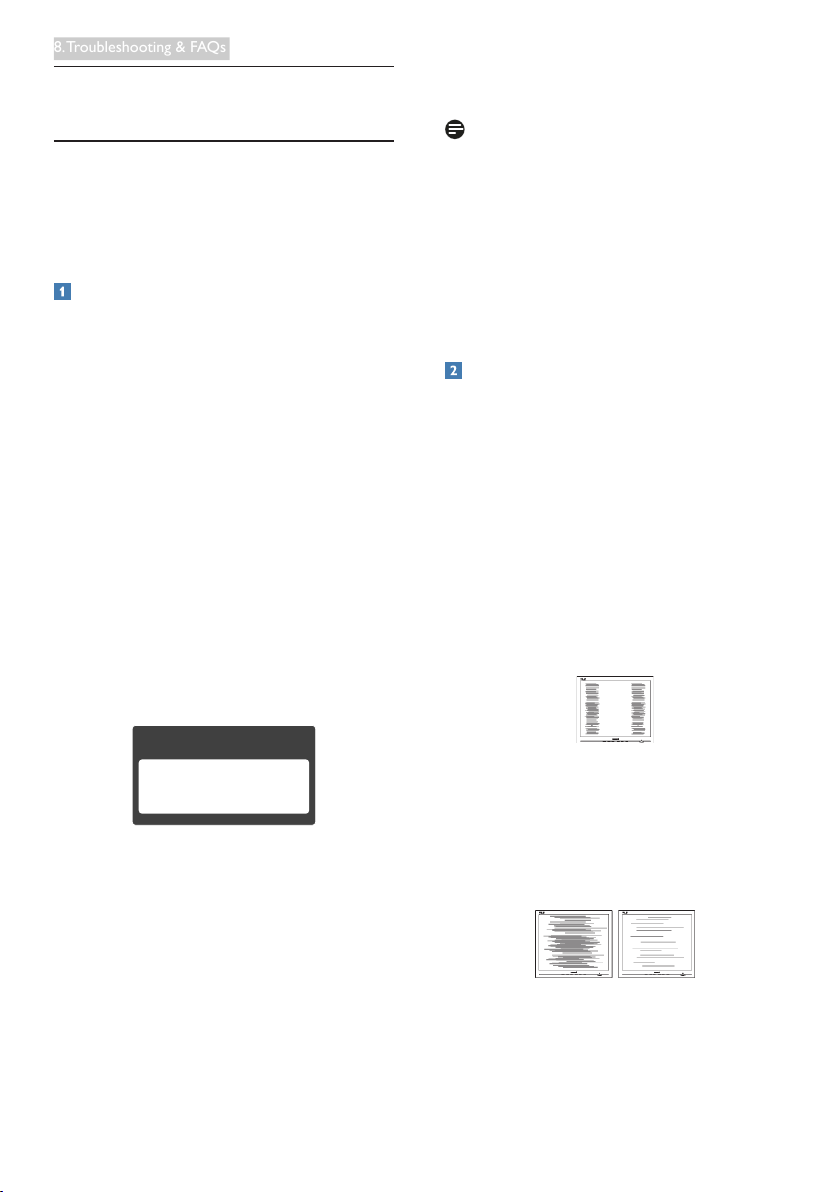
Forwarrantycoverageinformationandadditionalsupportrequirementvalidforyourregion,pleasevisit
www.philips.com/supportwebsitefordetails.YoumayalsocontactyourlocalPhilipsCustomerCare
Centernumberlistedbelow.
Contact Information for WESTERN EUROPE region:
Country ASC Consumer care number Price
Germany SiemensI&S +4901803386853
€
0.09
UnitedKingdom InvecScotland +4402079490069 Localcalltariff
Ireland InvecScotland +353016011161 Localcalltariff
Spain EatsaSpain +34902888785
€
0.10
Finland A-novo +3580922901908 Localcalltariff
France A-novo +330821611658
€
0.09
Greece AllmanHellas +300080031221223 Freeofcharge
Italy A-novo +39840320041
€
0.08
Netherlands ECare +3109000400063
€
0.10
Denmark A-novo +4535258761 Localcalltariff
Norway A-novo +4722708250 Localcalltariff
Sweden A-novo +46086320016 Localcalltariff
Poland Zolter +480223491505 Localcalltariff
Austria SiemensI&S +430810000206
€
0.07
Belgium ECare +32078250851
€
0.06
Luxembourg ECare +35226843000 Localcalltariff
Portugal EatsaSpain +351213591440 Localcalltariff
Switzerland A-novo +410223102116 Localcalltariff
34
7. Customer care and warranty
Contact Information for CENTRAL AND EASTERN EUROPE region:
Country Call center ASC Consumer care number
Belarus NA IBA +375172173386
Bulgaria NA LANService +35929602360
Croatia NA Renoprom +38513330974
Estonia NA FUJITSU +3726519900
Latvia NA “ServiceNetLV”Ltd. +3717460399
Lithuania NA UAB"Servicenet" +3707400088
Romania NA BlueRidgeIntl. +40212101969
Serbia&
Montenegro
NA KimTecd.o.o. +381112070684
Slovenia NA PCH.and +38615300824
Ukraine
NA Comel +380562320045
NA Topaz-ServiceCompany +380442457331
Russia
NA CPS +7(495)6456746(forrepair)
NA CEEEPartners +7(495)6453010(forsales)
Slovakia NA DatalanService +421249207155
Turkey NA Techpro +902124444832
CzechRep. NA Asupport 800100697
Hungary
NA Serware +3612426331
NA ProfiService +3618148080
Contact Information for LATIN AMERICA region:
Country Call center Consumer care number
Brazil
Vermont
0800-7254101
Argentina 08003330856
Contact Information for China:
China
Consumercarenumber:4008800008
Contact Information for NORTH AMERICA :
Country Call center ASC Consumer care number
U.S.A. TOS Teleplan (877)835-1838
Canada Supercom Supercom (800)479-6696
35
7. Customer care and warranty
Contact Information for APMEA region:
Country Call center ASC Consumer care number
Australia NA AGOSNETWORKPTYLTD 1300360386
NewZealand NA VisualGroupLtd. 0800657447
HongKong/
Macau
NA SmartPixelsTechnologyLtd.
HongKong:Tel:+85226199639
Macau:Tel:(853)-0800-987
India NA REDINGTONINDIALTD
Tel:18004256396
SMS:PHILIPSto56677
Indonesia NA PT.GadingsarielektronikaPrima
Tel:622175909053,75909056,
7511530
SouthKorea NA PCSOneKoreaLtd. 080-600-6600
Malaysia NA
AfterMarketSolutions(CE)
SdnBhd
60379533370
Pakistan NA PhilipsConsumerService (9221)2737411-16
Singapore NA
PhilipsElectronicsSingapore
PteLtd(PhilipsConsumerCare
Center)
(65)68823999
Taiwan
PCCW
Teleservices
Taiwan
FETEC.CO 0800-231-099
Thailand NA AxisComputerSystemCo.,Ltd. (662)934-5498
SouthAfrica NA SylvaraTechnologiesPtyLtd 0860000888
UnitedArab
Emirates
NA ALSHAHDCOMPUTERL.L.C 0097142276525
Israel NA EastronicsLTD 1-800-567000
Vietnam NA
FPTServiceInformatic
CompanyLtd.
+84838248007HoChiMinhCity
+845113.562666DanangCity
+845113.562666CanthoProvince
Philippines NA GleeElectronics,Inc.
(02)633-4533to34,
(02)637-6559to60
SriLanka NA
nodistributorand/orservice
providercurrently
Bangladesh NA
Distributor:ComputerSource
Ltd(warrantybuy-out)
880-2-9141747,9127592
880-2-8128848/52
Nepal NA
Distributor:SyakarCo.Ltd
(warrantybuy-out)
977-1-4222395
Cambodia NA
Distributor:NeatTechnology
PteLtd(Singapore)(warranty
buy-out)
855-023-999992
36
8. Troubleshooting & FAQs
8. Troubleshooting & FAQs
8.1 Troubleshooting
Thispagedealswithproblemsthatcanbe
correctedbyauser.Iftheproblemstillpersists
afteryouhavetriedthesesolutions,contact
Philipscustomerservicerepresentative.
Common Problems
No Picture (Power LED not lit)
• Makesurethepowercordispluggedinto
thepoweroutletandintothebackofthe
monitor.
• First,ensurethatthepowerbuttononthe
frontofthemonitorisintheOFFposition,
thenpressittotheONposition.
No Picture (Power LED is White)
• Makesurethecomputeristurnedon.
• Makesurethesignalcableisproperly
connectedtoyourcomputer.
• Makesurethemonitorcablehasnobent
pinsontheconnectside.Ifyes,repairor
replacethecable.
• TheEnergySavingfeaturemaybeactivated
Screen says
Attention
Check cable connection
• Makesurethemonitorcableisproperly
connectedtoyourcomputer.(Alsoreferto
theQuickStartGuide).
• Checktoseeifthemonitorcablehasbent
pins.
• Makesurethecomputeristurnedon.
AUTO button doesn't function
• Theautofunctionisapplicableonlyin
VGA-Analogmode.Iftheresultisnot
satisfactory,youcandomanualadjustments
viatheOSDmenu.
Note
TheAutoFunctionisnotapplicableinDVI-
Digitalmodeasitisnotnecessary.
Visible signs of smoke or sparks
• Donotperformanytroubleshootingsteps
• Disconnectthemonitorfrommainspower
sourceimmediatelyforsafety
• ContactwithPhilipscustomerservice
representativeimmediately.
Imaging Problems
Image is not centered
• Adjusttheimagepositionusingthe“Auto”
functioninOSDMainControls.
• AdjusttheimagepositionusingthePhase/
ClockofSetupinOSDMainControls.Itis
validonlyinVGAmode.
Image vibrates on the screen
• Checkthatthesignalcableisproperly
securelyconnectedtothegraphicsboard
orPC.
Vertical flicker appears
• Adjusttheimageusingthe“Auto”function
inOSDMainControls.
• EliminatetheverticalbarsusingthePhase/
ClockofSetupinOSDMainControls.Itis
validonlyinVGAmode.
Horizontal flicker appears
• Adjusttheimageusingthe“Auto”function
inOSDMainControls.

37
8. Troubleshooting & FAQs
• EliminatetheverticalbarsusingthePhase/
ClockofSetupinOSDMainControls.Itis
validonlyinVGAmode.
Image appears blurred, indistinct or too dark
• Adjustthecontrastandbrightnesson
On-ScreenDisplay.
An "after-image", "burn-in" or "ghost image"
remains after the power has been turned off.
• Uninterrupteddisplayofstillorstatic
imagesoveranextendedperiodmaycause
"burnin",alsoknownas"after-imaging"
or"ghostimaging",onyourscreen."Burn-
in","after-imaging",or"ghostimaging"isa
well-knownphenomenoninLCDpanel
technology.Inmostcases,the"burnedin"
or"after-imaging"or"ghostimaging"will
disappeargraduallyoveraperiodoftime
afterthepowerhasbeenswitchedoff.
• Alwaysactivateamovingscreensaver
programwhenyouleaveyourmonitor
unattended.
• Alwaysactivateaperiodicscreenrefresh
applicationifyourLCDmonitorwilldisplay
unchangingstaticcontent.
• Failuretoactivateascreensaver,ora
periodicscreenrefreshapplicationmay
resultinsevere“burn-in”or“after-image”
or“ghostimage”symptomsthatwillnot
disappearandcannotberepaired.The
damagementionedaboveisnotcovered
underyourwarranty.
Image appears distorted. Text is fuzzy or
blurred.
• SetthePC’sdisplayresolutiontothesame
modeasmonitor’srecommendedscreen
nativeresolution.
Green, red, blue, dark, and white dots appears
on the screen
• Theremainingdotsarenormal
characteristicoftheliquidcrystalusedin
today’stechnology,Pleasereferthepixel
policyformoredetail.
The "power on" light is too strong and is
disturbing
• Youcanadjust“poweron”lightusingthe
powerLEDSetupinOSDmainControls.
Forfurtherassistance,refertotheConsumer
InformationCenterslistandcontactPhilips
customerservicerepresentative.
8.2 SmartControl Premium FAQs
Q1. I change the monitor on a PC to a
different one and the SmartControl
Premium becomes un-usable, what do
I do?
Ans.: RestartyourPCandseeif
SmartControlPremiumcanwork.
Otherwise,youwillneedtoremove
andre-installSmartControlPremiumto
ensureproperdriverisinstalled.
Q2. The SmartControl Premium functions
worked well before, but it does not
work anymore, what can I do?
Ans.: Ifthefollowingactionswereexecuted,
themonitordrivermayneedtobere-
installed.
• Changedvideographicadaptertoanother
one
• Updatedvideodriver
• ActivitiesonOS,suchasservicepackor
patch
• RunWindowsUpdateandupdated
monitorand/orvideodriver
• Windowswasbootedwiththemonitor
poweroffordisconnected.
• Tofindout,pleaserightclickMyComputer
andclickonProperties->Hardware->
DeviceManager.
• Ifyousee“PlugandPlayMonitor”shows
underMonitor,thenyouneedtore-install.
SimplyremoveSmartControlPremiumand
re-installit.

38
8. Troubleshooting & FAQs
Q3. After installing SmartControl Premium,
when clicking on SmartControl
Premium tab, nothing shows up after a
while or a failure message shows, what
happened?
Ans.: Itmightbeyourgraphicadaptorisnot
compatiblewiththeSmartControl
Premium.Ifyourgraphicadaptorisone
oftheabovementionedbrands,tryto
downloadthemostupdatedgraphic
adaptordriverfromcorresponding
companies’website.Installthedriver.
RemoveSmartControlPremium,and
re-installitoncemore.
Ifitisstillnotworking,wearesorrythat
thegraphicadaptorisnotsupported.
PleasevisitPhilipswebsiteandcheck
ifanupdatedSmartControlPremium
driverisavailable.
Q4. When I click on Product Information,
only partial information is shown, what
happened?
Ans.: Itmightbeyourgraphiccardadaptor
driverisnotthemostupdated
versionwhichfullysupportingDDC/
CIinterface.Pleasetrytodownload
themostupdatedgraphicadaptor
driverfromcorrespondingcompanies’
website.Installthedriver.Remove
SmartControlPremiumandre-installit
oncemore.
Attention
Theft mode enabled
Q5. I forgot my PIN for Theft Deterrence
Function. How can I do?
Ans.: PhilipsServicecenterhasarightto
askforlegitimateidentificationand
authorization,inordertoestablish
ownershipofthemonitor.
8.3 General FAQs
Q1: When I install my monitor what should
I do if the screen shows 'Cannot
display this video mode'?
Ans.: Recommendedresolutionforthis
monitor:1920x1080@60Hz.
• Unplugallcables,thenconnectyourPCto
themonitorthatyouusedpreviously.
• IntheWindowsStartMenu,selectSettings/
ControlPanel.IntheControlPanel
Window,selecttheDisplayicon.Insidethe
DisplayControlPanel,selectthe'Settings'
tab.Underthesettingtab,inboxlabelled
'desktoparea',movethesidebarto1920x
1080pixels.
• Open'AdvancedProperties'andsetthe
RefreshRateto60Hz,thenclickOK.
• Restartyourcomputerandrepeatstep2
and3toverifythatyourPCissetat1920
x1080@60Hz.
• Shutdownyourcomputer,disconnectyour
oldmonitorandreconnectyourPhilips
LCDmonitor.
• Turnonyourmonitorandthenturnon
yourPC.
Q2: What is the recommended refresh
rate for LCD monitor?
Ans.: RecommendedrefreshrateinLCD
monitorsis60Hz,Incaseofany
disturbanceonscreen,youcansetit
upto75Hztoseeifthatremovesthe
disturbance.
Q3: What are the .inf and .icm files on the
CD-ROM? How do I install the drivers
(.inf and .icm)?
Ans.: Thesearethedriverfilesforyour
monitor.Followtheinstructionsinyour
usermanualtoinstallthedrivers.Your
computermayaskyouformonitor
drivers(.infand.icmfiles)oradriver
diskwhenyoufirstinstallyourmonitor.
Followtheinstructionstoinsertthe(

39
8. Troubleshooting & FAQs
companionCD-ROM)includedinthis
package.Monitordrivers(.infand.icm
files)willbeinstalledautomatically.
Q4: How do I adjust the resolution?
Ans.: Yourvideocard/graphicdriverand
monitortogetherdeterminethe
availableresolutions.Youcanselectthe
desiredresolutionunderWindows
®
ControlPanelwiththe"Display
properties".
Q5: What if I get lost when I am making
monitor adjustments via OSD?
Ans.: SimplypresstheOKbutton,thenselect
'Reset'torecallalloftheoriginalfactory
settings.
Q6: Is the LCD screen resistant to
scratches?
Ans.: Ingeneralitisrecommendedthat
thepanelsurfaceisnotsubjectedto
excessiveshocksandisprotectedfrom
sharporbluntobjects.Whenhandling
themonitor,makesurethatthereis
nopressureorforceappliedtothe
panelsurfaceside.Thismayaffectyour
warrantyconditions.
Q7: How should I clean the LCD surface?
Ans.: Fornormalcleaning,useaclean,soft
cloth.Forextensivecleaning,pleaseuse
isopropylalcohol.Donotuseother
solventssuchasethylalcohol,ethanol,
acetone,hexane,etc.
Q8: Can I change the color setting of my
monitor?
Ans.: Yes,youcanchangeyourcolorsetting
throughOSDcontrolasthefollowing
procedures,
• Press"OK"toshowtheOSD(OnScreen
Display)menu
• Press"DownArrow"toselecttheoption
"Color"thenpress"OK"toentercolor
setting,therearethreesettingsasbelow.
1. ColorTemperature:Thesixsettingsare
5000K,6500K,7500K,8200K,9300K
and11500K.Withsettingsinthe5000K
rangethepanelappears"warm,witha
red-whitecolortone",whilea11500K
temperatureyields"cool,bluewhite
toning".
2. sRGB:Thisisastandardsettingfor
ensuringcorrectexchangeofcolors
betweendifferentdevice(e.g.digital
cameras,monitors,printers,scanners,
etc).
3. UserDefine:Theusercanchoosehis/
herpreferencecolorsettingbyadjusting
red,greenbluecolor.
Note
Ameasurementofthecoloroflightradiated
byanobjectwhileitisbeingheated.This
measurementisexpressedintermsof
absolutescale,(degreesKelvin).LowerKevin
temperaturessuchas2004Karered;higher
temperaturessuchas9300Kareblue.Neutral
temperatureiswhite,at6504K.
Q9: Can I connect my LCD monitor to any
PC, workstation or Mac?
Ans.: Yes.AllPhilipsLCDmonitorsarefully
compatiblewithstandardPCs,Macs
andworkstations.Youmayneedacable
adaptertoconnectthemonitorto
yourMacsystem.Pleasecontactyour
Philipssalesrepresentativeformore
information.
Q10: Are Philips LCD monitors Plug-and-
Play?
Ans.: Yes,themonitorsarePlug-and-Play
compatiblewithWindows7/Vista/XP/
NT,MacOSX,Linux
Q11: What is Image Sticking, or Image Burn-
in, or After Image, or Ghost Image in
LCD panels?
Ans.: Uninterrupteddisplayofstillorstatic
imagesoveranextendedperiod

40
8. Troubleshooting & FAQs
maycause"burnin",alsoknownas
"after-imaging"or"ghostimaging",on
yourscreen."Burn-in","after-imaging",
or"ghostimaging"isawell-known
phenomenoninLCDpaneltechnology.
Inmostcases,the"burnedin"or
"atter-imaging"or"ghostimaging"will
disappeargraduallyoveraperiodof
timeafterthepowerhasbeenswitched
off.
Alwaysactivateamovingscreensaver
programwhenyouleaveyourmonitor
unattended.
Alwaysactivateaperiodicscreen
refreshapplicationifyourLCDmonitor
willdisplayunchangingstaticcontent.
Warning
Failuretoactivateascreensaver,oraperiodic
screenrefreshapplicationmayresultinsevere
“burn-in”or“after-image”or“ghostimage”
symptomsthatwillnotdisappearandcannotbe
repaired.Thedamagementionedaboveisnot
coveredunderyourwarranty.
Q12: Why is my Display not showing
sharp text, and is displaying jagged
characters?
Ans.: YourLCDmonitorworksbestatits
nativeresolutionof1920x1080@
60Hz.Forbestdisplay,pleaseusethis
resolution.

2012 © Koninklijke Philips Electronics N.V. All rights reserved.
Philips and the Philips Shield Emblem are registered trademarks of
Koninklijke Philips Electronics N.V. and are used under license from
Koninklijke Philips Electronics N.V.
Specications are subject to change without notice.
Version: M4239CQ1T