
www.lg.com
Please read this manual carefully before operating your set and
retain it for future reference.
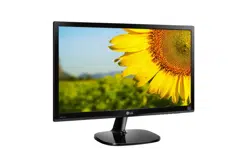
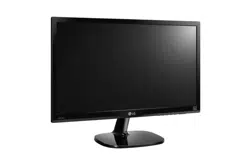
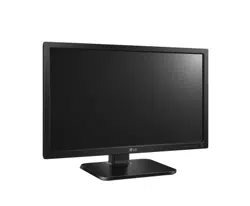
IPS LED(LED LCD) MONITOR MODEL
22MB37PU 24MB37PM
24MB37PY
24MB37PV
*LG LED Monitors are LCD Monitors with LED Backlighting.
Owner's Manual
IPS LED MONITOR
LED LCD MONITOR
(LED MONITOR*)

2
ENG
ENGLISH
TABLE OF CONTENTS
CONTENTS
3 ASSEMBLINGANDPREPAR-
ING
3 Unpacking
4 Partsandbuttons
5 SettinguptheMonitorset
5 - AttachingtheStandBase
5 - DetachingtheStandBase
6 - DetachingtheStandBody
6 - Usingthecableholder
6 - Mountingonatable
7 - Adjustingtheangle
7 - Adjustingthestandheight
8 - UsingtheKensingtonlockingdevice
9 - Swivelstand
9 - UsingthePivotfunction
10 - Mountingonawall
11 USINGTHEMONITORSET
11 ConnectingtoaPC
11 - D-SUBconnection
11 - DVI-Dconnection
11 - HDMIconnection
12 ConnectingtoAVDevices
12 - HDMIconnection
13 - Peripheraldeviceconnection
14 CUSTOMIZINGSETTINGS
15 CustomizingSettings
15 - MenuSettings
17 -Picture
18 -Color
19 -Display
19 -Audio
20 -Others
21 READERSetting
22 SMARTENERGYSAVINGSetting
23 TROUBLESHOOTING
25 SPECIFICATIONS
25 22MB37PU
26 24MB37PY
27 24MB37PV
28 24MB37PM
29 PresetModes(Resolution)
29 Indicator
30 PROPERPOSTURE
30 ProperpostureforusingtheMonitorset.
3
ENG
ENGLISH
ASSEMBLING AND PREPARING
ASSEMBLINGANDPREPARING
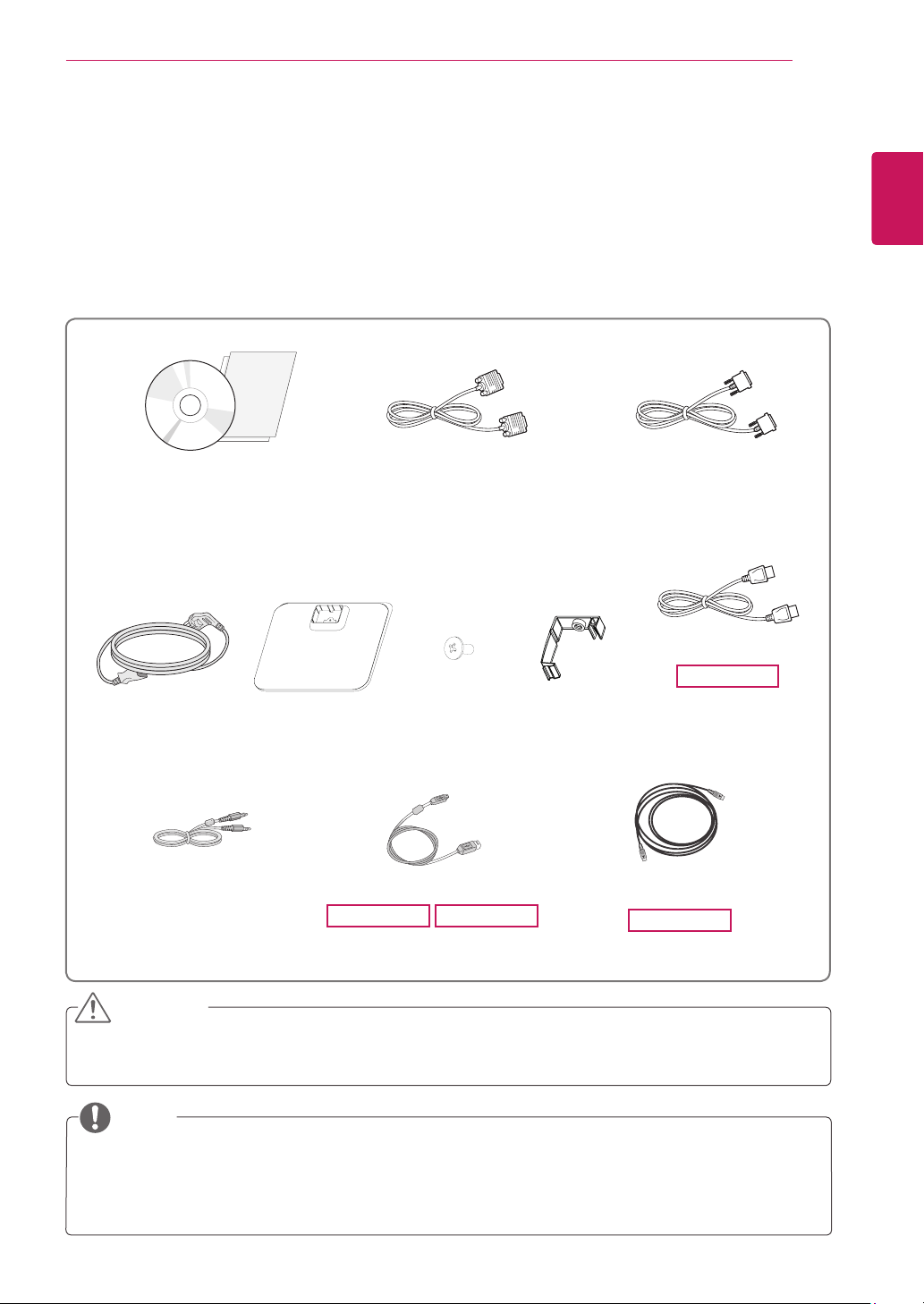
Unpacking
Checkyourproductboxforthefollowingitems.Ifthereareanymissingaccessories,contactthelocal
dealerwhereyoupurchasedyourproduct.Theillustrationsinthismanualmaydifferfromtheactualproduct
andaccessories.
Donotuseanyunapprovedaccessoriestoensurethesafetyandproductlifespan.
Anydamagesorinjuriesbyusingunapprovedaccessoriesarenotcoveredbythewarranty.
Theaccessoriessuppliedwithyourproductmayvarydependingonthemodel.
Productspecificationsorcontentsinthismanualmaybechangedwithoutpriornoticeduetoupgrade
ofproductfunctions.
CAUTION
NOTE
StandBase
CD(Owner'sManual)/
Card
D-SUBCable
(Thiscableisnotincludedinall
countries.)
(Thiscableisnotincludedinall
countries.)
(Thiscableisnotincludedinall
countries.)
PowerCord
DVI-DCable
(Thiscableisnotincludedinall
countries.)
HDMICable
24MB37PV
(Thiscableisnotincludedinall
countries.)
OneScrew
CableHolder
USBCable
22MB37PU
24MB37PY
AudioCable
DisplayPortCable
24MB37PY
(Thiscableisnot
included
inallcountries.)
5
ENG
ENGLISH
ASSEMBLING AND PREPARING
SettinguptheMonitorset
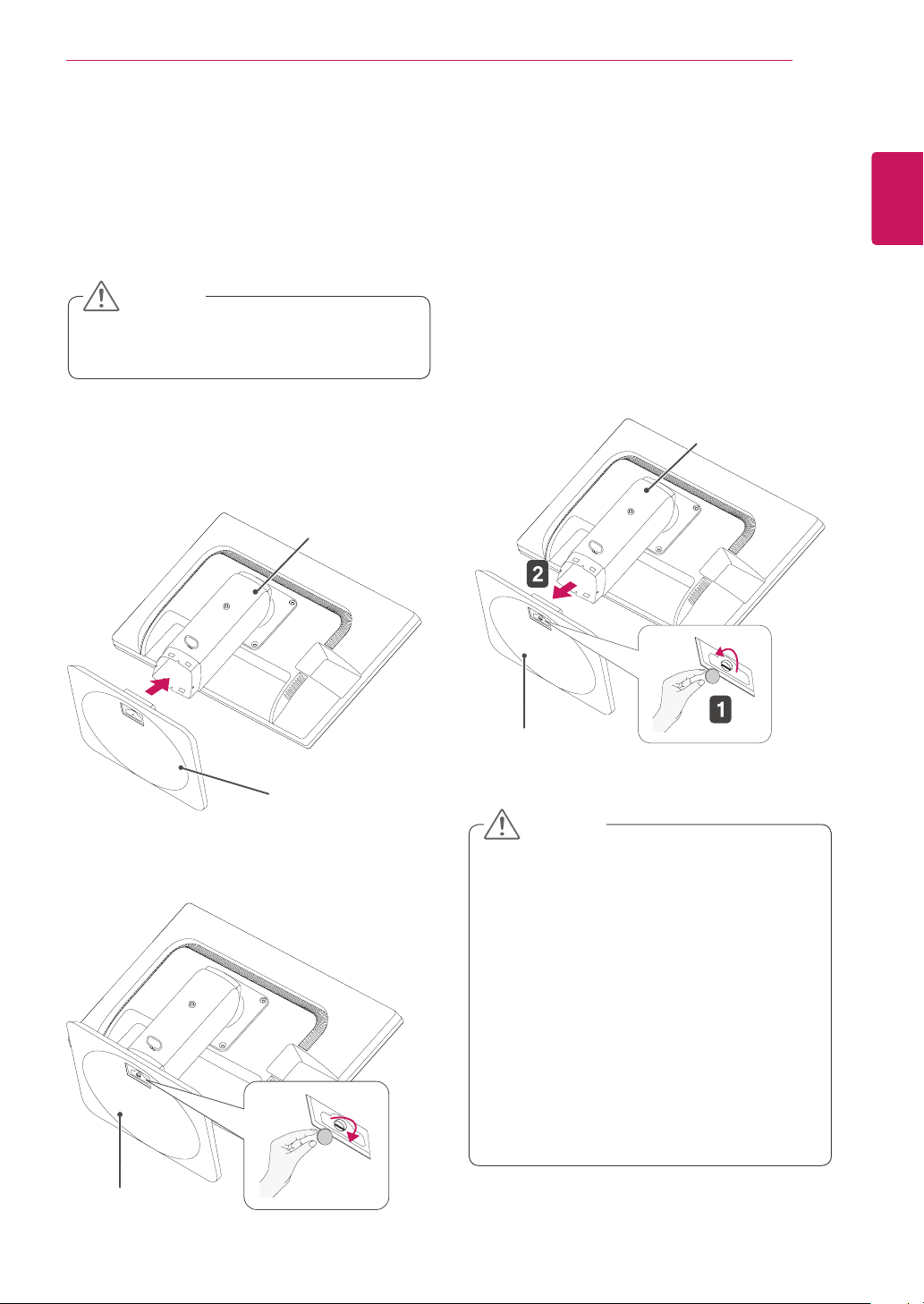
AttachingtheStandBase
1
PlacetheMonitorsetwiththescreenside
downonaflatandcushionedsurface.
StandBase
StandBody
StandBase
StandBody
Toprotectthescreenfromscratches,cover
thesurfacewithasoftcloth.
3
Usingacoin,turnthescrewclockwisetose-
cure
the
standbase.
2
Checkthe
position(atthefrontandrear)
of
thestandbody,
then
mountthe
standbase
on
the
standbody
asshowninthefigure.
CAUTION
StandBase
Thecomponentsappearingintheillustra-
tionsmaylookdifferentfromtheactualprod-
uct.
Donotcarrythemonitorupside-downasthis
maycauseittofalloffitsstand,resultingin
damageorinjury.
Toavoiddamagingthescreenwhenlifting
ormovingthemonitor,onlyholdthestandor
theplasticcover.Thisavoidsputtingunnec-
essarypressureonthescreen.
Onlyremovethetapeandthelockingpin
whenthemonitorismountedonthestand
baseandisinanuprightposition.Otherwise,
thestandbodymayprotrude,whichmay
leadtoinjury.
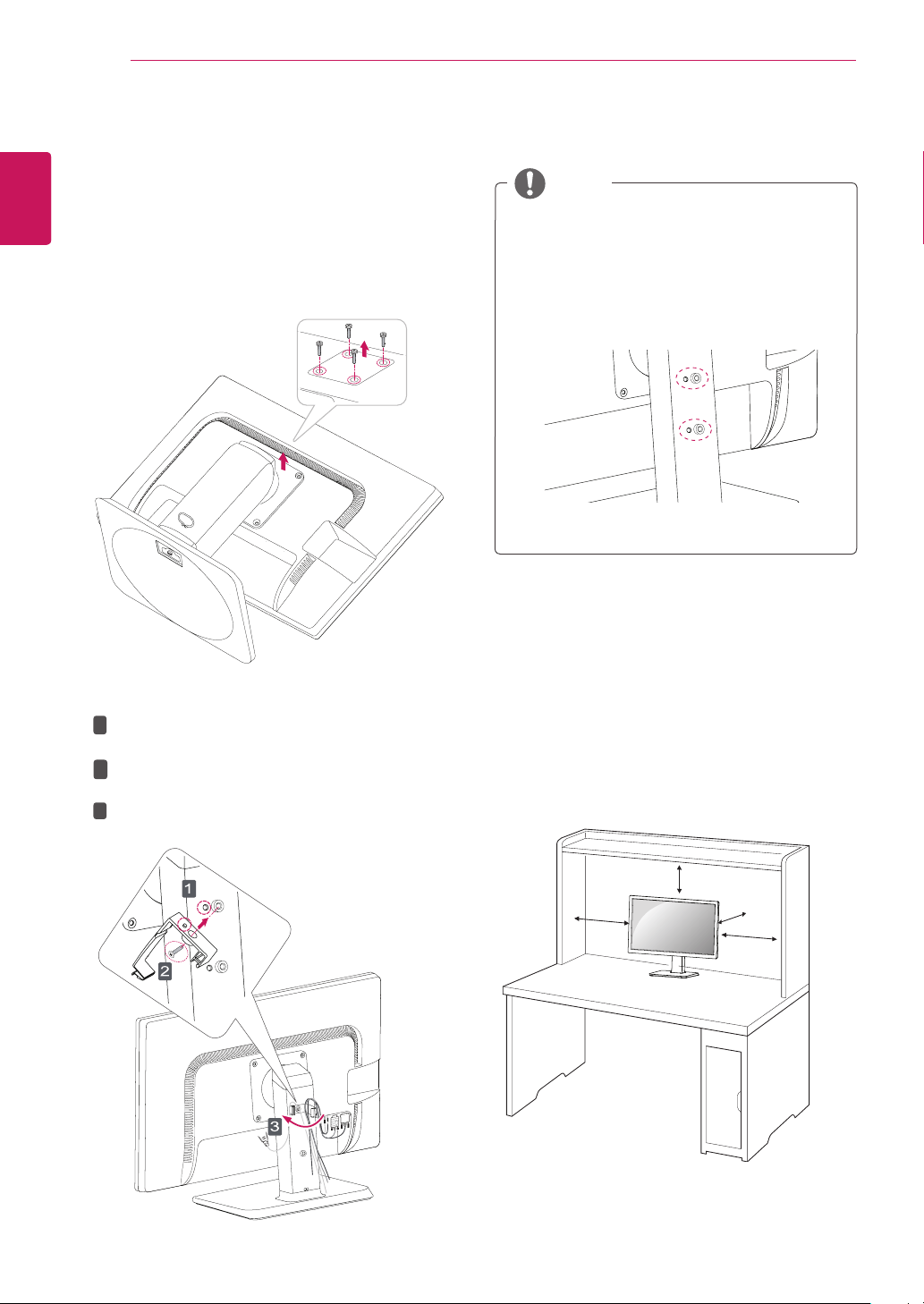
DetachingtheStandBase
1
Placethemonitor'sscreenfacedown.
Toprotectthescreenfromscratches,coverthe
surfacewithasoftcloth.
2
Usingacoin,turnthescrewinthestandbase
counterclockwise.Detachthe
standbase
from
the
standbody
.
CAUTION
6
ENG
ENGLISH
ASSEMBLING AND PREPARING
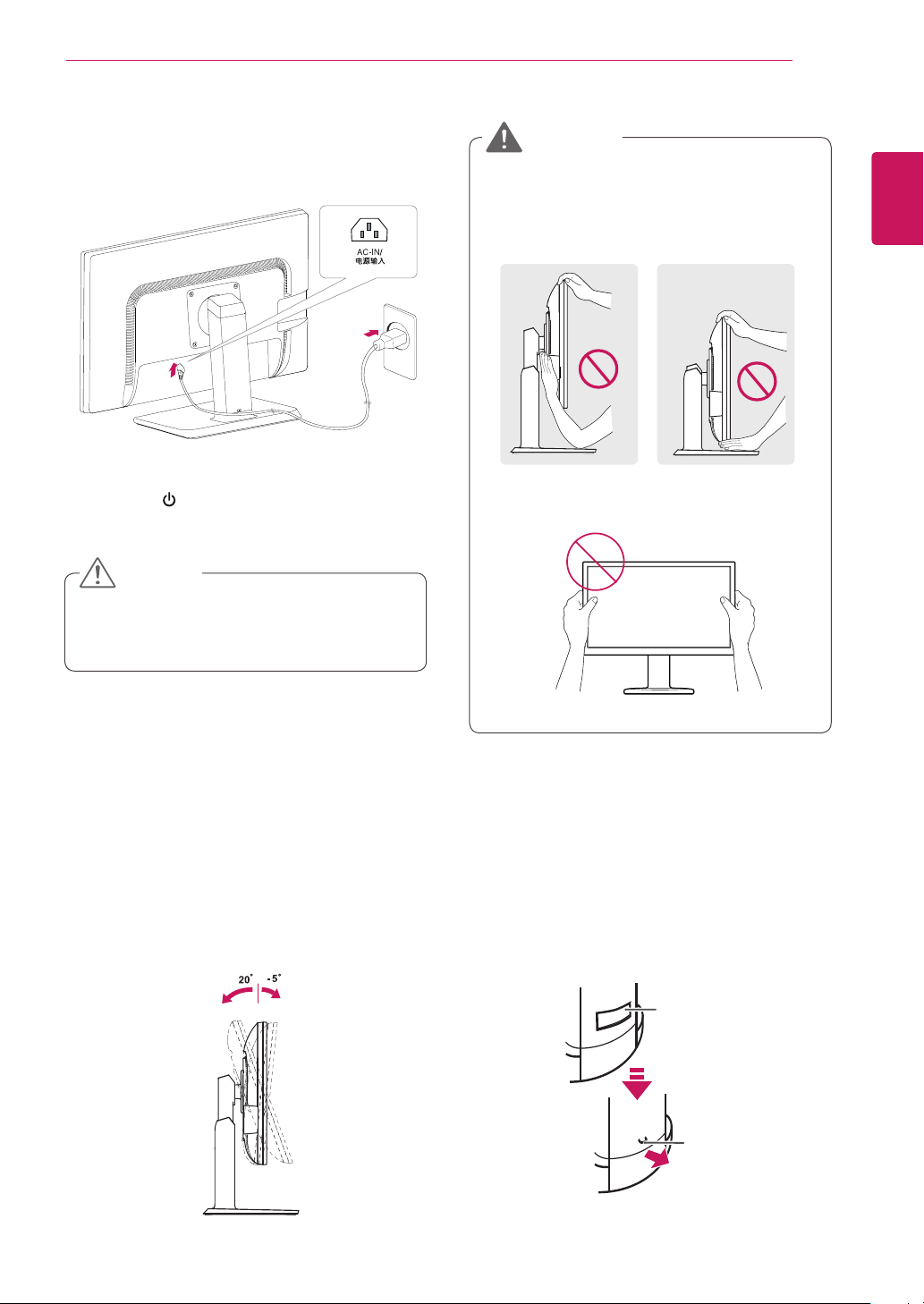
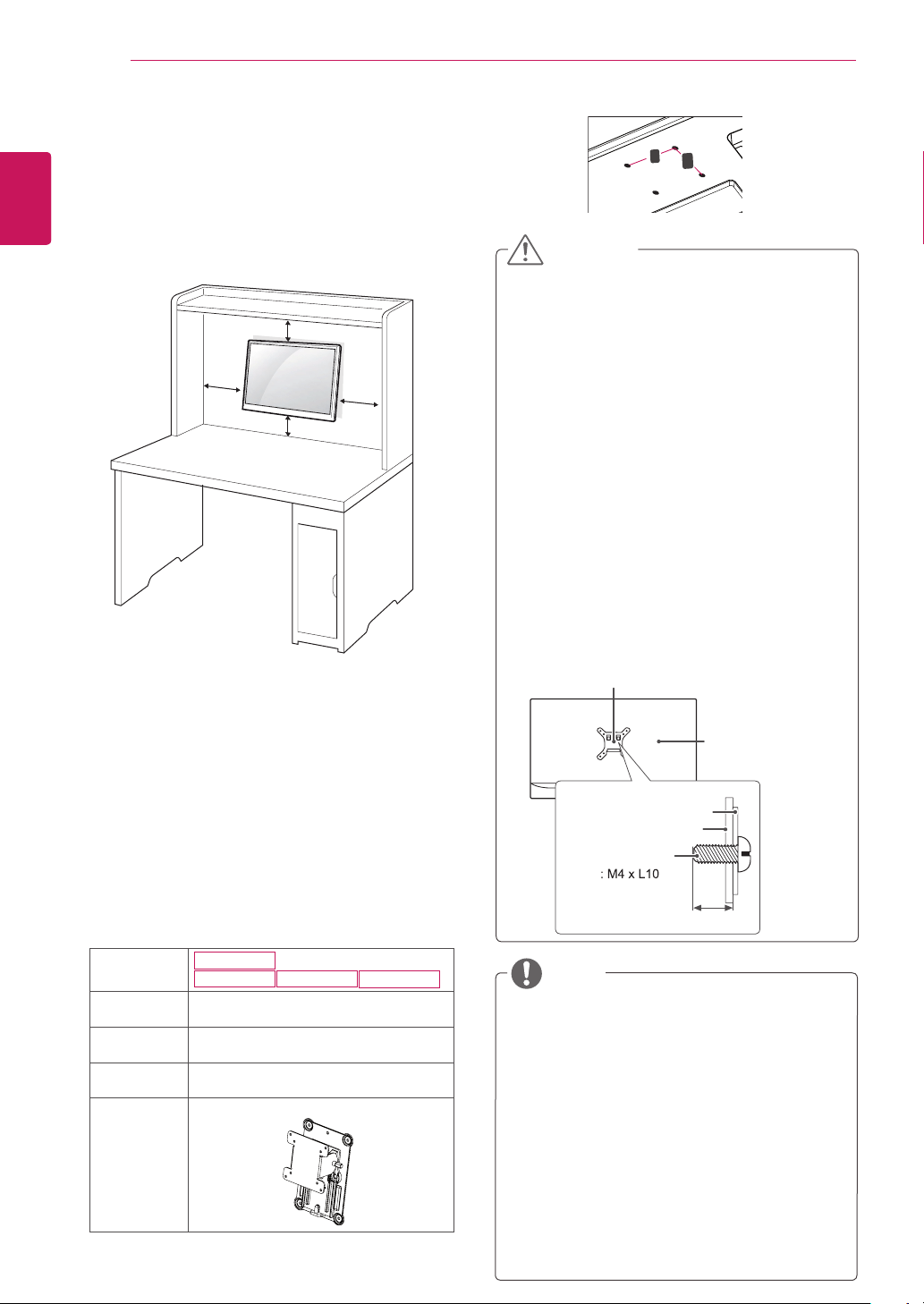
Mountingonatable
1
Liftthemonitorandplaceitonthetableinan
uprightposition.
Installatleast
10cm
awayfromthewallto
ensuresufficientventilation.
10 cm
10 cm
10 cm
10 cm
DetachingtheStandBody
1
Placethemonitor'sscreenfacedown.To
protectthescreenfromscratches,coverthe
surfacewithasoftcloth.
2
Usingascrewdriver,removethefourscrews
anddetachthestandfromthemonitor.
Usingthecableholder
FixtheKnob(Cableholder)tothe
Hole(Hingebody).
1
2
3
UseonescrewtofixtheCableHolderand
monitorset.
ClosetheCableholder.
Theholesareusedforwallmountbracket.
Variesdependinguponyourcountryor
model.
NOTE
7
ENG
ENGLISH
ASSEMBLING AND PREPARING
2
3
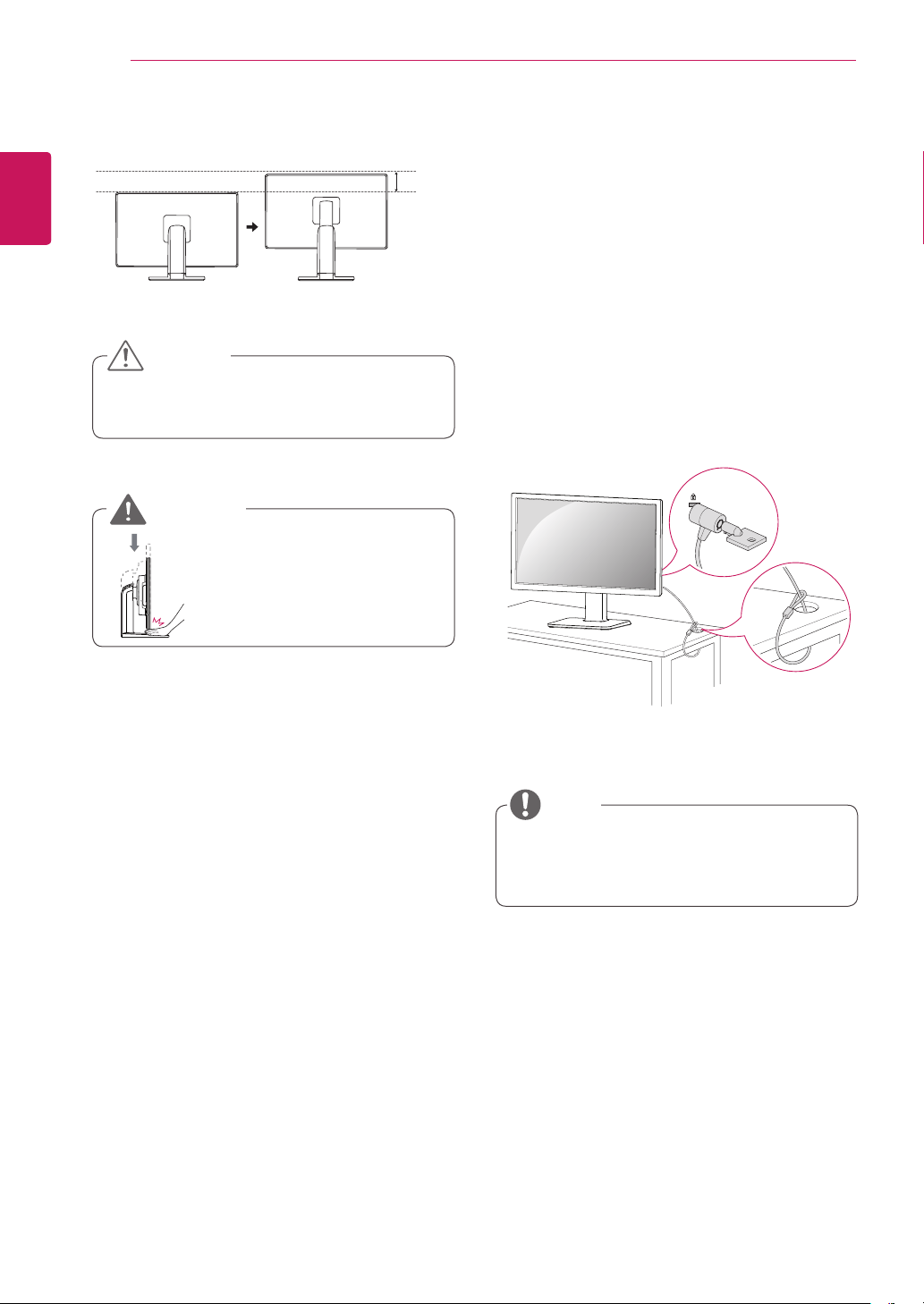
Pressthe (Power)buttononthefrontofthe
monitortoturnonthemonitor.
Unplugthepowercordpriortomovingor
installingthemonitor.Thereisriskofelectric
shock.
CAUTION
ConnectthePowercordtothemonitor,then
plugthepowercordintothewalloutlet.
Adjustingtheangle
1
Placethemonitormountedonthestandbase
inanuprightposition.
2
Adjusttheangleofthescreen.Theangleof
thescreencanbeadjustedupto5°forwards
and20°backwardsforacomfortableviewing
experience.
Toavoidinjurytothefingerswhenadjusting
thescreen,donotholdthelowerpartofthe
monitor'sframeasillustratedbelow.
Becarefulnottotouchorpressthescreen
areawhenadjustingtheangleofthemonitor.
WARNING
FrontSideRearSide
Adjustingthestandheight
1
Placethemonitormountedonthestandbase
inanuprightposition.
2
Removethe
tape
attachedatthebottomrear
ofthe
standbody,
thenpulloutthe
locking
pin
.
Tape
LockingPin
StandBody
8
ENG
ENGLISH
ASSEMBLING AND PREPARING
Using the Kensington locking
device
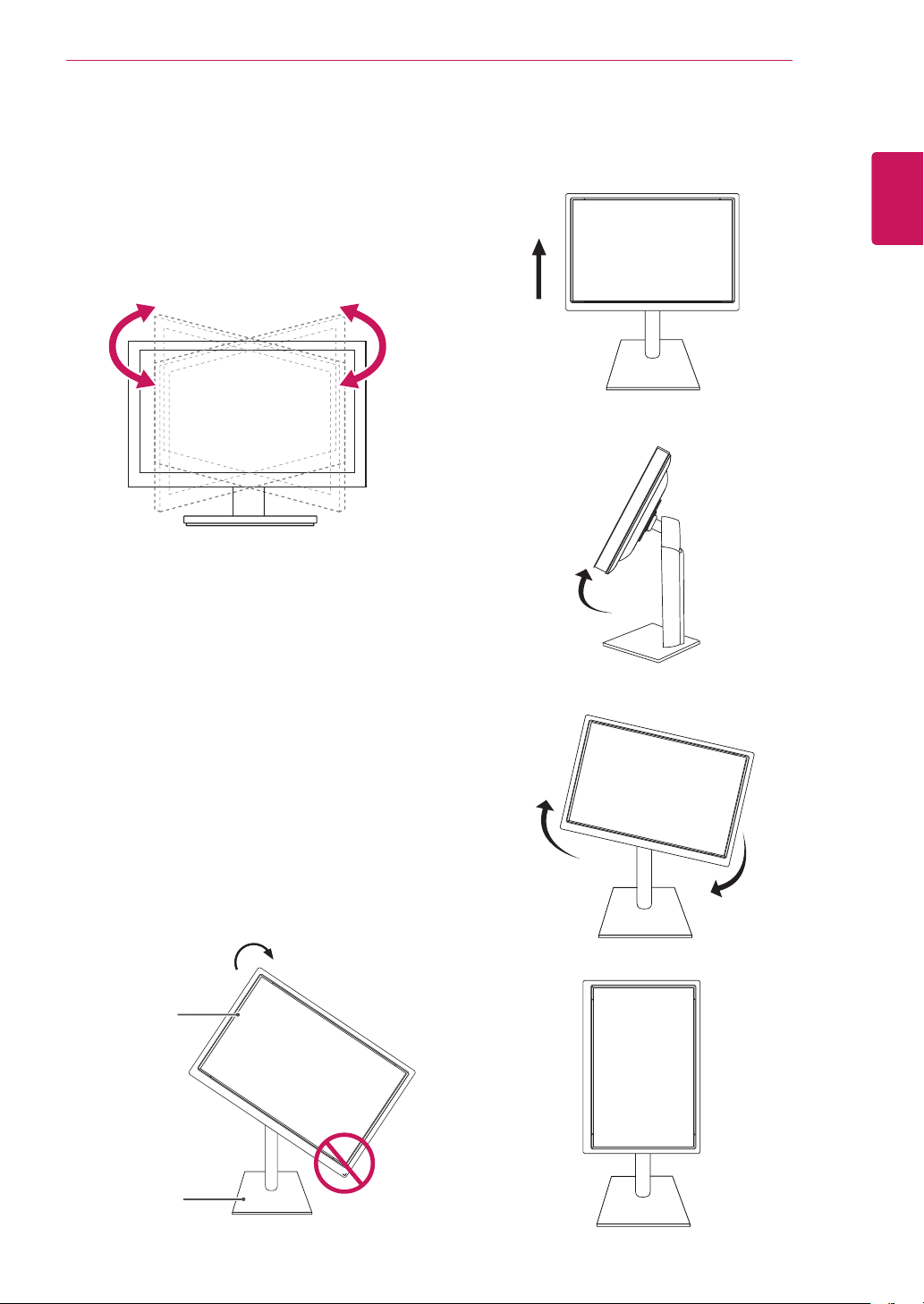
TheconnectorfortheKensingtonlockislocated
ontherearofthemonitor.
Formoreinformationoninstallationandusage,
refertotheKensingtonlockusermanualorvisit
thewebsiteathttp://www.kensington.com.
ConnectthemonitortothetablewiththeKensing-
tonlockcable.
UsingtheKensingtonlockisoptional.The
accessoriescanbepurchasedatyourlocal
electronicsstore.
NOTE
Oncethepinisremoved,itisnotnecessary
tore-insertittoadjusttheheight.
3
Theheightcanbeadjustedupto
120mm
.
Donotputyourfingerbe-
tweenthescreenandthe
base(chassis)whenadjust-
ingthescreen'sheight.
CAUTION
WARNING
120.0mm
9
ENG
ENGLISH
ASSEMBLING AND PREPARING
Swivelstand
ImageshownmaydifferfromyourMonitor
set.
1
Swivel355degreesandadjusttheangleofthe
Monitorsettosuityourview.
1
Liftthemonitortoitshighestheighttoutilize
thePivotfunction.
UsingthePivotfunction
Thepivotfunctionallowsyoutorotatethescreen
90degreesclockwise.
2
Landscape&Portrait:Youcanrotatethepanel
90°clockwise.Pleasebecautiousandavoid
contactbetweenthemonitorheadandthe
StandBasewhenrotatingthescreentoaccess
thePivotfunction.Ifthemonitorheadtouches
theStandBase,thentheStandBasecould
crack.
Head
section
Stand
section
3
Becarefulwiththecableswhenrotatingthe
screen.
10
ENG
ENGLISH
ASSEMBLING AND PREPARING
Mountingonawall
Forproperventilation,allowaclearanceof10cm
oneachsideandfromthewall.Detailed
instructionsareavailablefromyourdealer,seethe
optionalTiltWallMountingBracketInstallationand
SetupGuide.
10 cm
10 cm
10 cm
10 cm
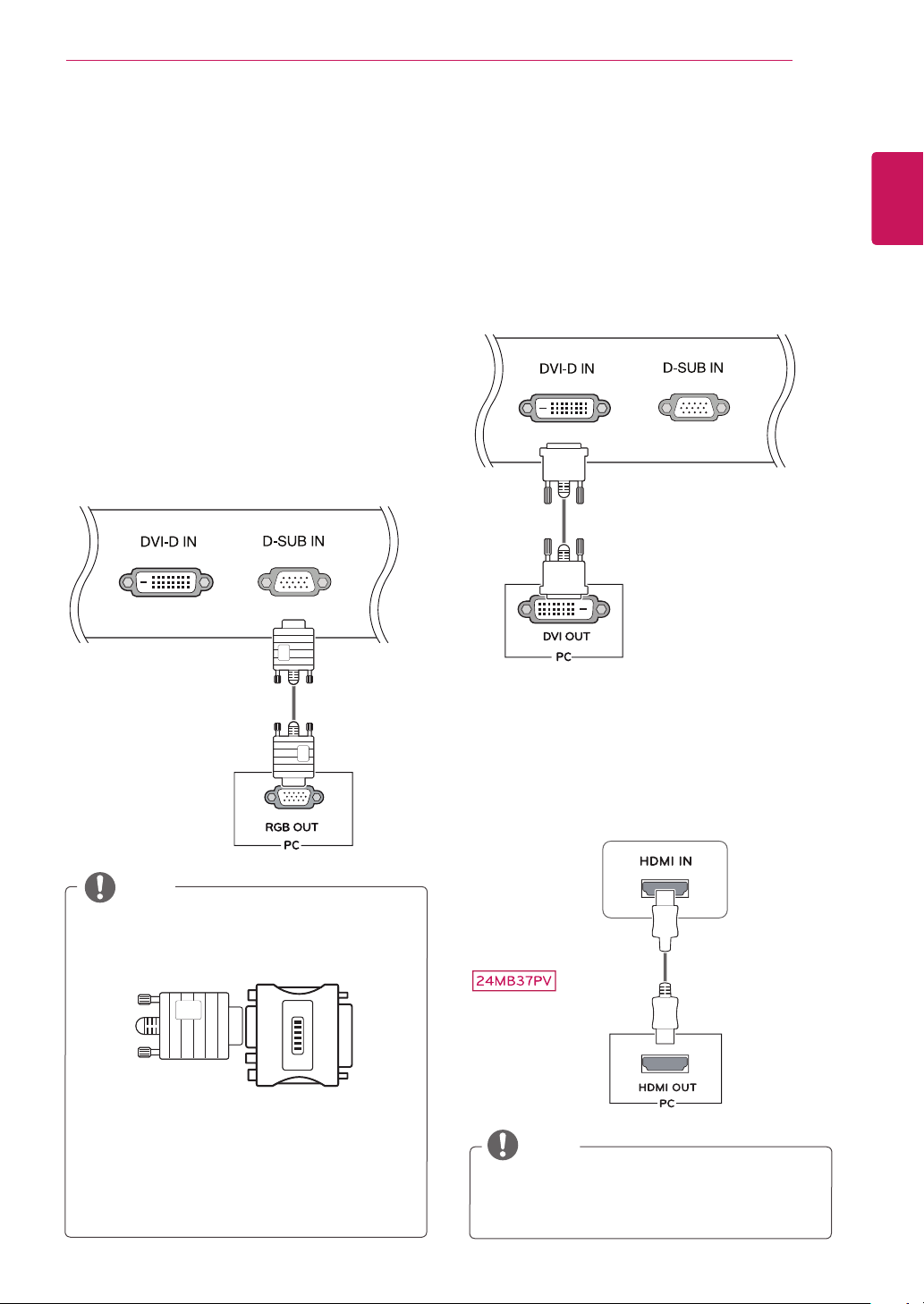
UsethescrewsthatarelistedontheVESA
standardscrewspecifications.
Thewallmountkitwillincludeaninstallation
manualandnecessaryparts.
Thewallmountbracketisoptional.Youcan
obtainadditionalaccessoriesfromyourlocal
dealer.
Thelengthofscrewsmaydifferdepending
onthewallmount.Besuretousetheproper
length.
Formoreinformation,refertothe
instructionssuppliedwiththewallmount.
NOTE
Disconnectthepowercordfirst,andthen
moveorinstalltheMonitorset.Otherwise
electricshockmayoccur.
IfyouinstalltheMonitorsetonaceilingor
slantedwall,itmayfallandresultinsevere
injury.
UseonlyanauthorizedLGwallmount
andcontactthelocaldealerorqualified
personnel.
Donotovertightenthescrewsasthismay
causedamagetotheMonitorsetandvoid
yourwarranty.
Useonlyscrewsandwallmountsthat
meettheVESAstandard.Anydamages
orinjuriesbymisuseorusinganimproper
accessoryarenotcoveredbythewarranty.
Screwlengthfromoutersurfaceofback
covershouldbeunder8mm.
CAUTION
BackCover
WallmountPad
WallmountPad
BackCover
Standardscrew
Max.8mm
IfyouintendtomounttheMonitorsettoawall,
attachWallmountinginterface(optionalparts)to
thebackoftheset.
WhenyouinstalltheMonitorsetusingawall
mountinginterface(optionalparts),attachit
carefullysoitwillnotdrop.
1Ifyouusescrewlongerthanstandard,themoni-
tormightbedamagedinternally.
2Ifyouuseimproperscrew,theproductmightbe
damagedanddropfrommountedposition.
Inthiscase,LGElectronicsisnotresponsible
forit.
Model
22MB37PU
24MB37PM
24MB37PY
24MB37PV
WallMount
(AxB)
100x100
Standard
screw
M4xL10
Numberof
screws
4
WallMount
Plate
(Optional)
RW120
WallMount(AxB)
A
B
11
ENG
ENGLISH
USING THE MONITOR SET
USINGTHEMONITORSET
ConnectingtoaPC
YourMonitorsetsupportsPlug&Play*.
*Plug&Play:APCrecognizesaconnected
devicethatusersconnecttoaPCandturn
on,withoutdeviceconfigurationoruser
intervention.
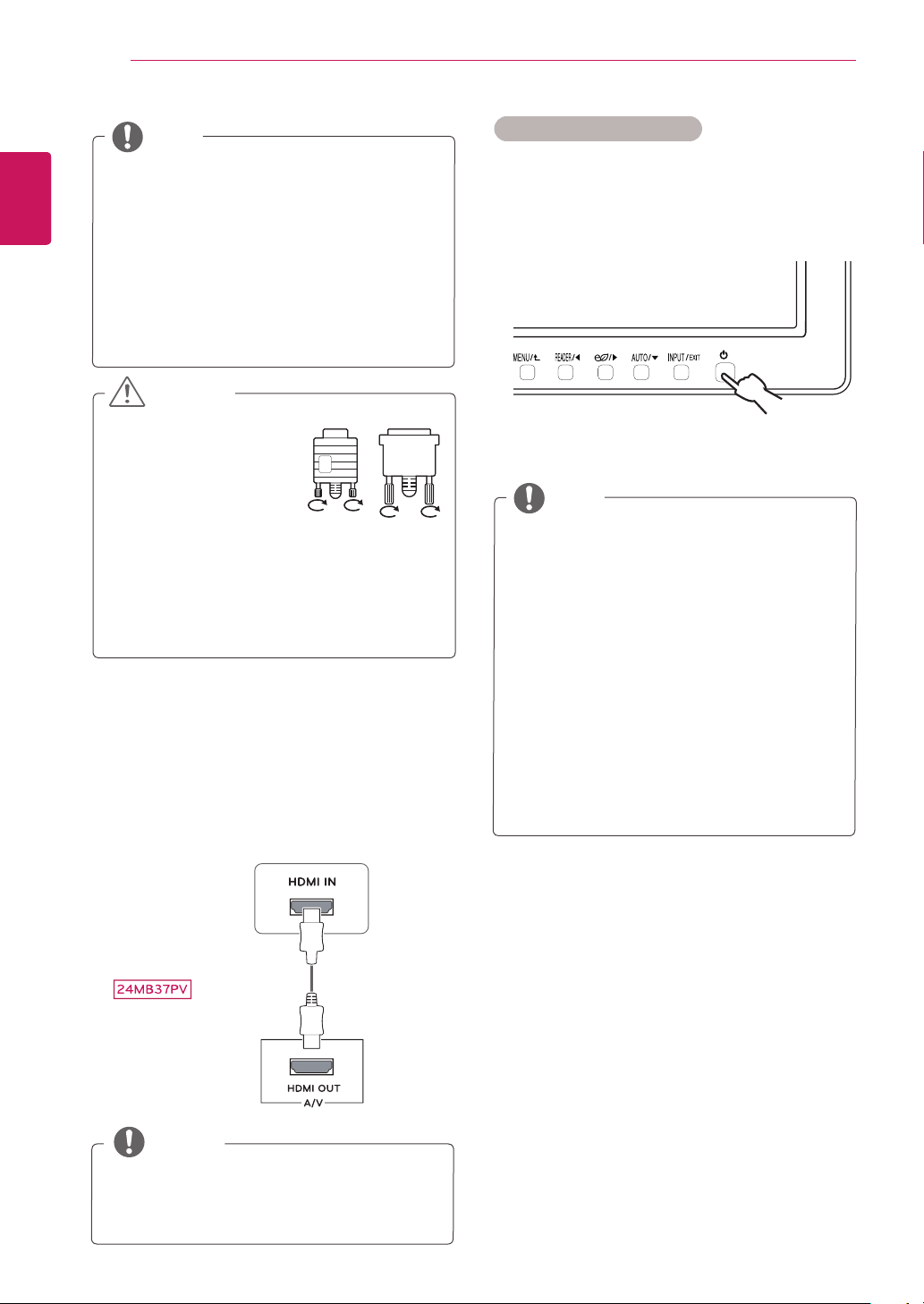
D-SUBconnection
TransmitsanalogvideofromyourPCtothe
Monitorset.ConnectthePCandtheMonitorset
withthesuppliedD-sub15pinsignalcableas
showninthefollowingillustrations.
Macadapter
ForAppleMacintoshuse,aseparateplug
adapterisneededtochangethe15pin
highdensity(3row)D-SUBVGAconnector
onthesuppliedcabletoa15pin2row
connector.
WhenusingaD-Subsignalinputcable
connectorforMacintosh
NOTE
DVI-Dconnection
TransmitsadigitalvideosignalfromyourPCto
theMonitorset.ConnectthePCandtheMonitor
setwithaDVIcableasshowninthefollowing
illustrations.
HDMIconnection
Transmitsthedigitalvideoandaudiosignalsfrom
yourPCtotheMonitorset.ConnectthePCand
theMonitorsetwiththeHDMIcableasshownin
thefollowingillustrations.
IfyouuseHDMIPC,itcancausecompatibility
problem.
NOTE
12
ENG
ENGLISH
USING THE MONITOR SET
IfyouuseDP,itcancausecompatibility
problem.
WhenyouwanttousetwoPCinourMonitor,
pleaseconnectthesignalcable(D-SUB/
DVI-D/HDMI/DP)respectivelyinMonitorset.
IfyouturntheMonitorsetonwhileitiscold,
thescreenmayflicker.Thisisnormal.
Somered,green,orbluespotsmayappear
onthescreen.Thisisnormal.
NOTE
Connectthesignal
inputcableandtighten
itbyturningthescrews
clockwise.
Donotpressthescreen
withyourfingerforalongtimeasthismay
resultintemporarydistortiononthescreen.
Avoiddisplayingafixedimageonthe
screenforalongperiodoftimetoprevent
imageburn.Useascreensaverifpossible.
CAUTION
"SelfImageSetting"Function.
Thisfunctionprovidestheuserwithoptimal
displaysettings.Whentheuserconnects
themonitorforthefirsttime,thisfunction
automaticallyadjuststhedisplaytooptimal
settingsforindividualinputsignals.(Only
supportedinAnalogMode)
‘AUTO’Function.
Whenyouencounterproblemssuchas
blurryscreen,blurredletters,screenflicker
ortiltedscreenwhileusingthedeviceor
afterchangingscreenresolution,pressthe
AUTOfunctionbuttontoimproveresolution.
(OnlysupportedinAnalogMode)
NOTE
SelfImageSettingFunction
Pressthepowerbuttononthebottompanelto
turnthepoweron.Whenmonitorpoweristurned
on,the"
SelfImageSetting
"Functionisexecuted
automatically.(OnlysupportedinAnalogMode)
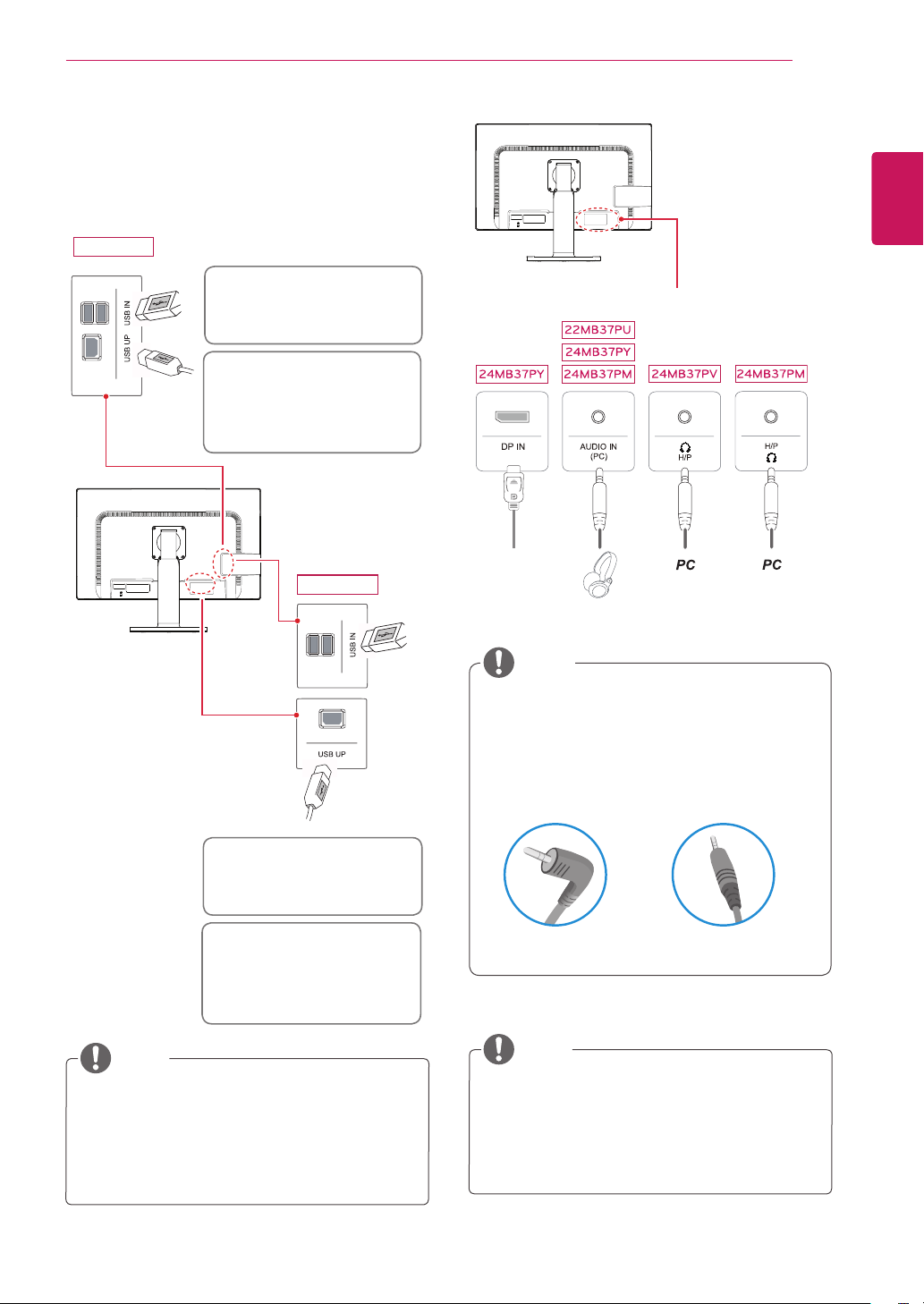
ConnectingtoAVDevices
HDMIconnection
Transmitsthedigitalvideoandaudiosignalsfrom
yourAVdevicestothemonitor.ConnectyourAV
devicetothemonitorwiththeHDMIcableasil-
lustratedbelow.
IfyouuseHDMIPC,itcancausecompatibility
problem.
NOTE
13
ENG
ENGLISH
USING THE MONITOR SET
22MB37PU
24MB37PY
Peripheraldevicesaresoldseparately.
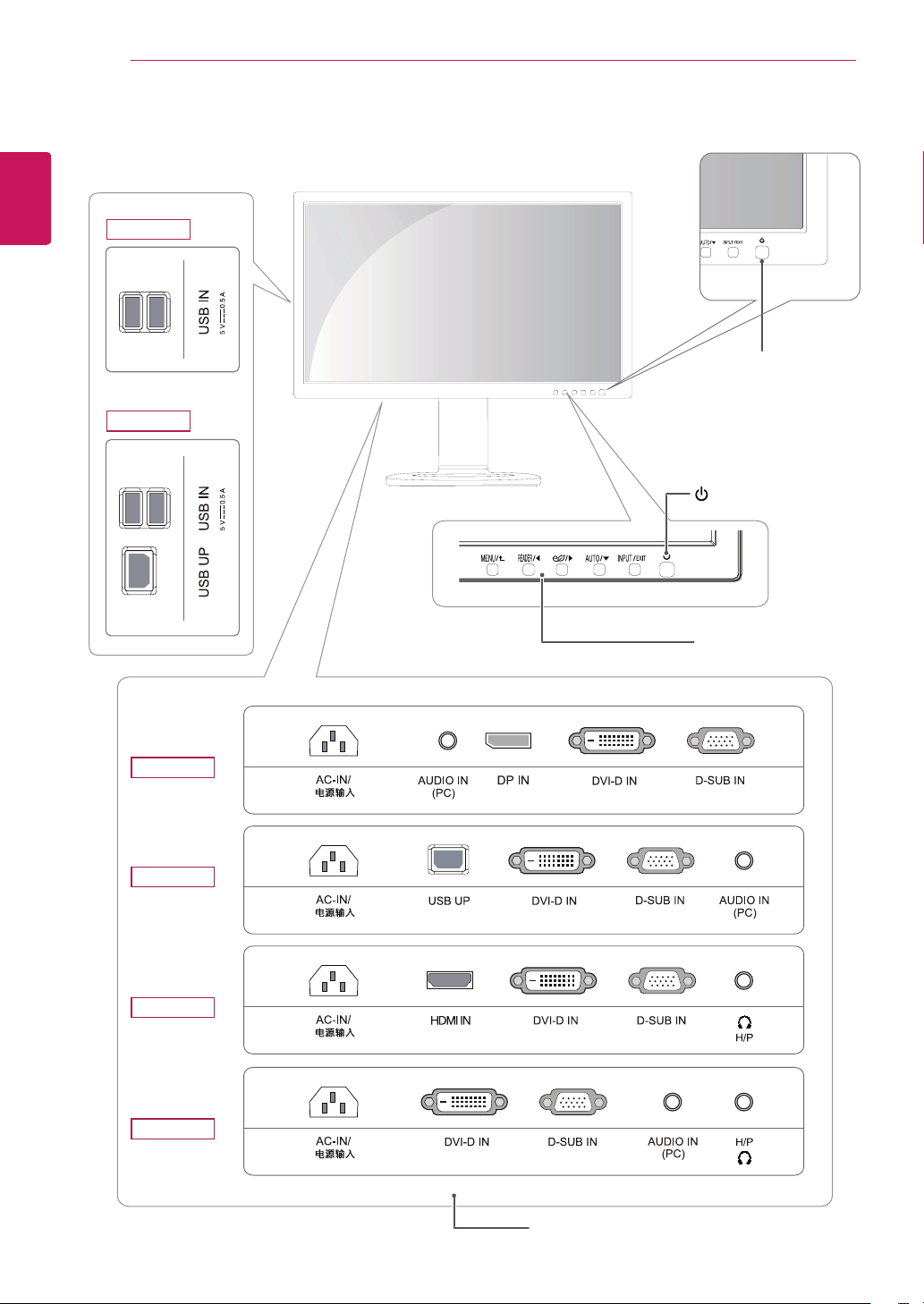
TheUSBportsontheleftandbottomofthe
monitorcanbeusedtoconnectthekeyboard,
mouse,andotherUSBdevices.
Cableswithangledplugsmayhaveclearance
issues,usestraightplugswhenpossible.
Peripheraldeviceconnection
Connectperipheraldevicestothemonitor.
NOTE
NOTE
Headphonesorspeakersmaynotworknor-
mally,dependingontheserverPCsettings.
Virtualsolutionsmayaffectthefunctionsor
speedofthespecificUSBstoragedevice.
NOTE
Themonitor'sUSBterminalsupportsUSB
2.0andhighspeedcables.
DP=DisplayPort
Thecableis
Separatepurchase
.
TwoUSBDownstreamports
Connecttheseportstoamouse,
USBkeyboard,memorystickwith
currentspecunder100mA.
OneUSBUpstreamport
Connectthisporttothedown-
streamportofacomputer,laptop
orUSBmonitor(Yourcomputer
orUSBmonitormustsupport
USBandhaveUSBports).
TwoUSBDownstreamports
Connecttheseportstoamouse,
USBkeyboard,memorystickwith
currentspecunder100mA.
OneUSBUpstreamport
Connectthisporttothedown-
streamportofacomputer,laptop
orUSBmonitor(Yourcomputer
orUSBmonitormustsupport
USBandhaveUSBports).
AngleType StraightType
14
ENG
ENGLISH
CUSTOMIZING SETTINGS
CUSTOMIZINGSETTINGS
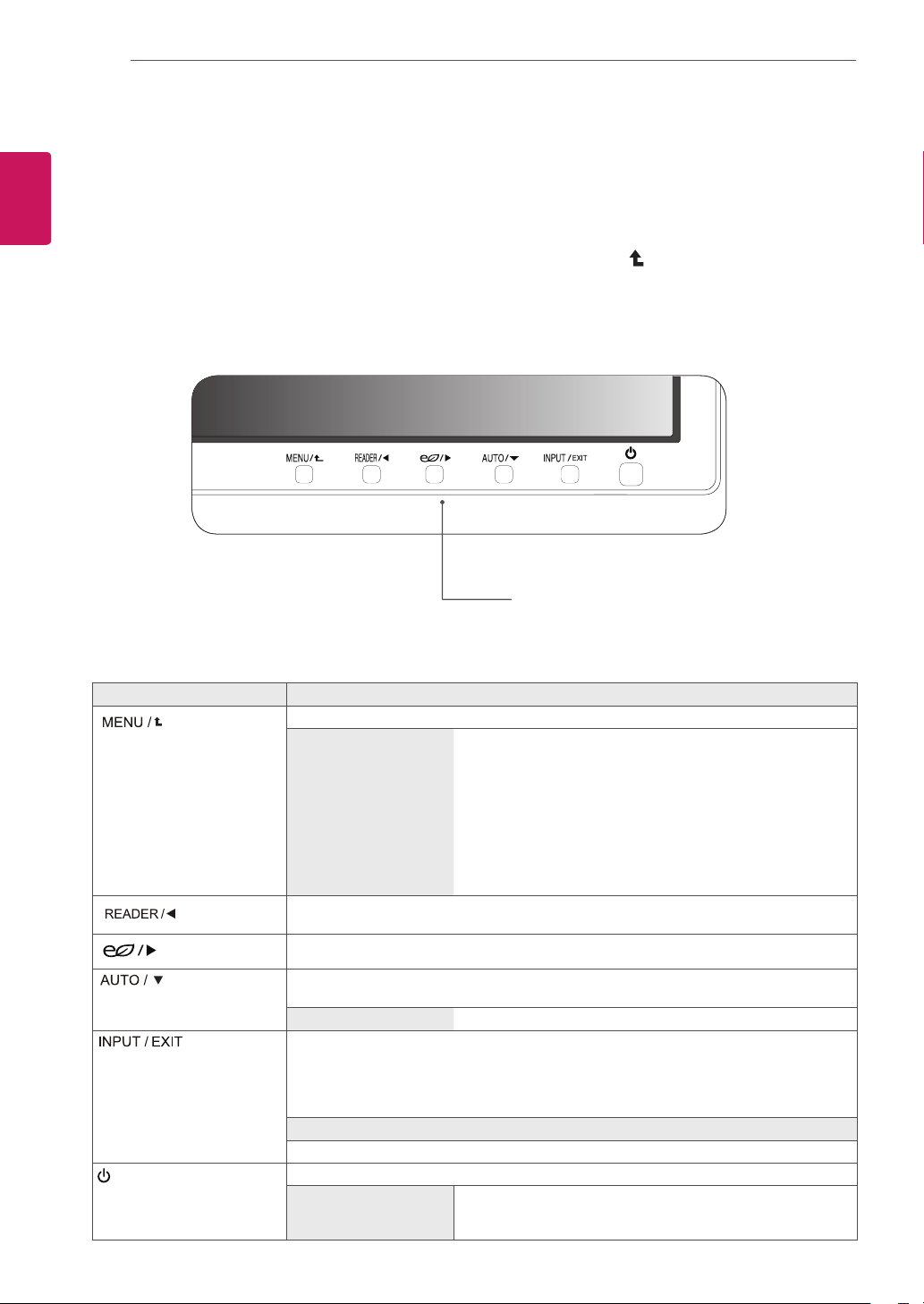
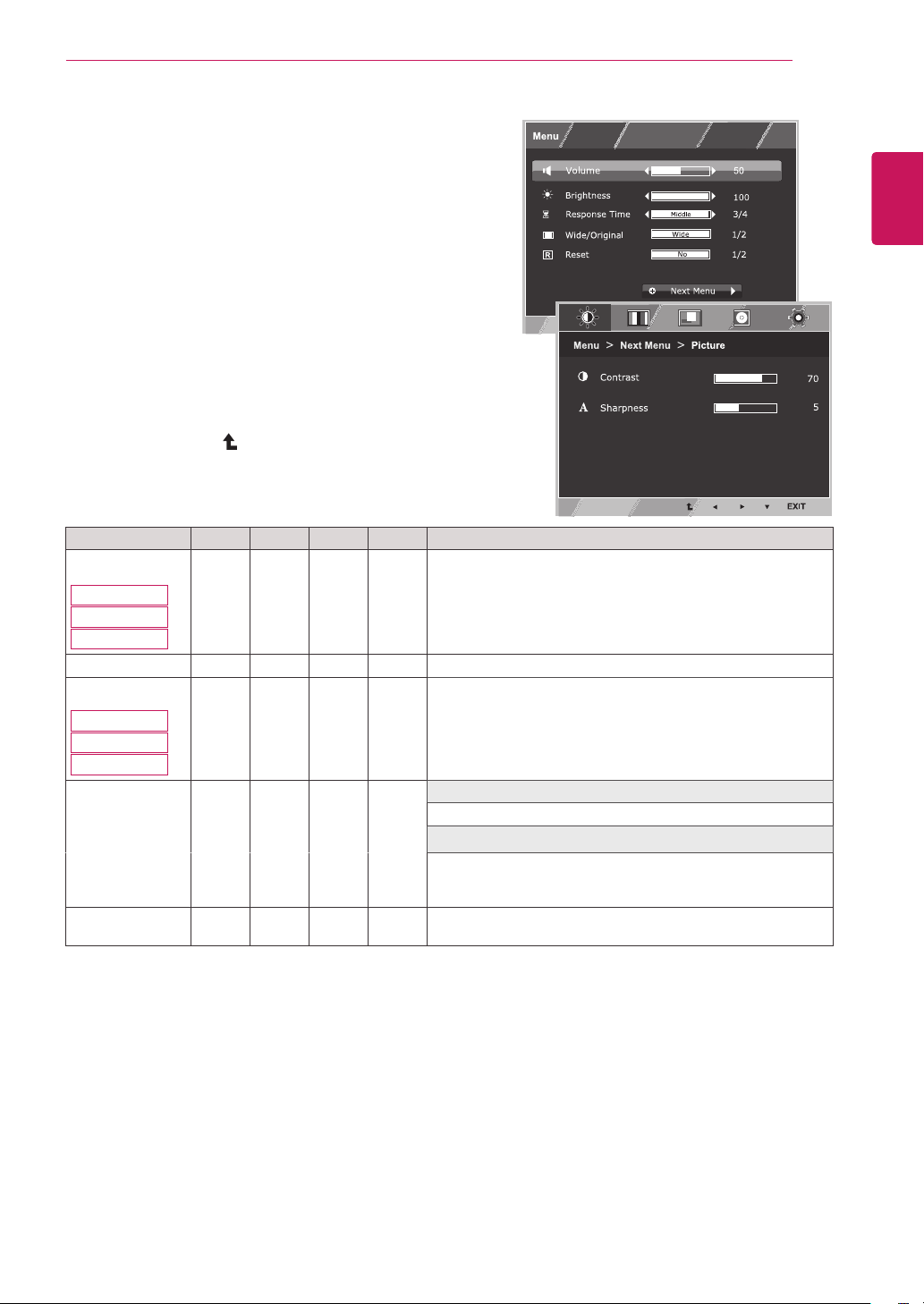
1
PressthedesiredbuttononthebottomoftheMonitorset.
2
ChangethevalueofthemenuitembypressingthebuttonsonthebottomoftheMonitorset.
Toreturntotheuppermenuorsetothermenuitems,usetheuparrow( )button.
3
Select
EXIT
toleavetheOSDmenu.
MonitorsetButtons
Button Description
Accessesthemainmenus.(Seep.15)
OSDLocked/OSD
Unlocked
Thisfunctionallowyoutolockthecurrentcontrolsettings,so
thattheycannotbeinadvertentlychanged.
PressandholdtheMENUbuttonforseveralseconds.Then
OSDof“OSDLock”willappear.Afterthat,usercanselect
lockorunlockbypressingleft/rightbutton.
Ifuserselectsthe“Lock”iconbypressingthe“OK”button,
themessage“OSDLocked”willappear.Otherwise,“OSD
Unlocked”willappear.Afterselectingthe“Lock”,Ifyouwant
tochangetoUnlock,youcanpushthe“MENU”buttonfor
severalseconds.Themessage“OSDUnlocked”willappear.
UsethisbuttontoenterReaderModemenu.Itsfunctionworkstodisplayscreenas
paper-likepictureforEyecomfort.Ifyouwanttomoreinformation.(Seep.21)
UsethisbuttontoenterSMARTENERGYSAVINGmenu.(Seep.22)
Whenadjustingyourdisplaysettings,alwayspresstheAUTObuttonontheMONITOR
SETUPOSD.(OnlysupportedinAnalogMode)
Thebestdisplaymode
1920x1080
Youcanchoosetheinputsignal.
• Whentwoinputsignalsareconnected,youcanselecttheinputsignal(D-SUB/DVI-D/
HDMI/DP)youwant.
• Whenonlyonesignalisconnected,itisautomaticallydetected.Thedefaultsettingis
D-SUB.
EXIT
ExittheOSD(OnScreenDisplay).
(PowerButton)
Turnsthepoweronoroff.
PowerIndicator
Thepowerindicatorstayswhiteifthedisplayisrunning
properly(OnMode).IfthedisplayisinSleepMode,thepower
indicatorblinkswhite.
15
ENG
ENGLISH
CUSTOMIZING SETTINGS
CustomizingSettings
MenuSettings
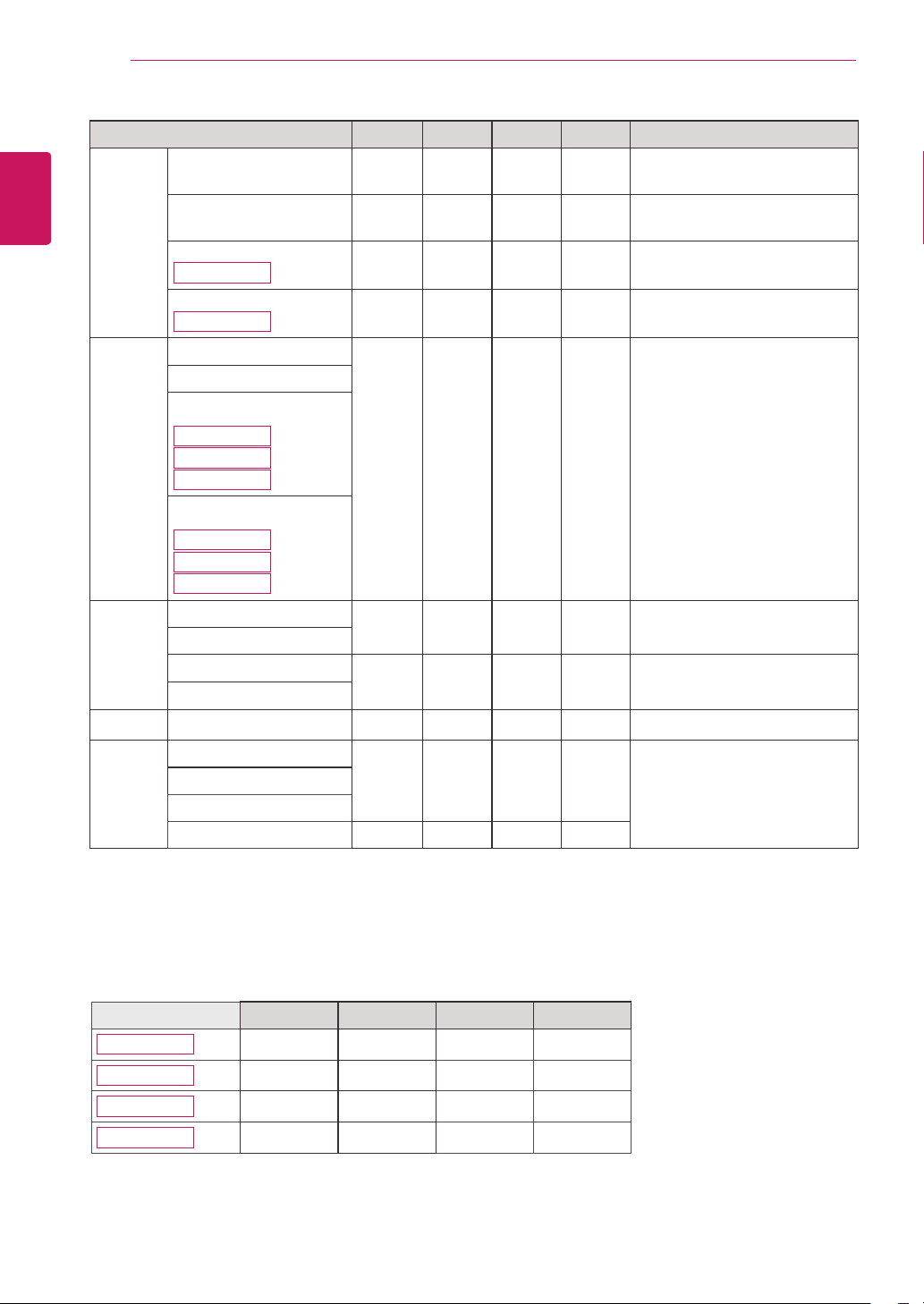
1
Press
MENU
buttononthebottomoftheMonitorset
todisplaythe
Menu
OSD.
2
Settheoptionsbypressingthe◄or►or▼
buttons.
3
Selectthe"
NextMenu
"buttontoenterthemore
optionsettings.
4
Select
EXIT
toleavetheOSDmenu.
Toreturntotheuppermenuorsetothermenuitems,
usetheuparrow( )button.
Eachoptionisexplainedbelow.
Menu Analog Digital DP HDMI Description
Volume
22MB37PU
24MB37PY
24MB37PM
● ● ● ●
Toadjustthevolume
Brightness ● ● ● ●
Toadjustthebrightnessofthescreen
ResponseTime
24MB37PY
24MB37PV
24MB37PM
● ● ● ●
Youcansetaresponsetimefordisplayedpicturesbased
onthespeedofthescreen.Foranormalenvironment,itis
recommendedthatyouuse'Off'.Forafast-movingpicture,it
isrecommendedthatyouuse'High'.
Wide/Original
● ● ● ●
Wide
Switchtofullscreenmodeaccordingtoinputimagesignal.
Original
Changetheinputimagesignalratiotooriginal.
*Thisfunctionworksonlyifinputresolutionislowerthan
Monitorsetratio(16:9).
Reset
● ● ● ●
Restoreallfactorydefaultsettings.Pressthe
◄
,
►
buttonsto
resetimmediately.
16
ENG
ENGLISH
CUSTOMIZING SETTINGS
Menu>NextMenu Analog Digital DP HDMI Description
Picture
Contrast ● ● ● ●
Toadjustthecontrastofthe
screen
Sharpness ● ● ● ●
Toadjusttheclearnessof
thescreen
BlackLevel
24MB37PV
●
Tosetoffsetlevel
OverScan
24MB37PV
●
Toimprovetheclarityand
stabilityofthescreen
Color Gamma
● ● ● ●
Tocustomizethecolorof
thescreen
ColorTemp
SixColor
24MB37PY
24MB37PV
24MB37PM
ColorReset
24MB37PY
24MB37PV
24MB37PM
Display Horizontal
●
Toadjustthepositionofthe
screen
Vertical
Clock
●
Toimprovetheclarityand
stabilityofthescreen
Phase
Audio
AudioInput ●
Toselecttheaudioinput
Others Language
● ● ● ●
Tocustomizethescreen
statusforauser'soperating
environment
PowerIndicator
OffTimeSetting
Resolution ●
Analog:
D-SUB(Analogsignal)input.
Digital:
DVI-D(Digitalsignal)input.
DP:
DisplayPortinput.
HDMI:
HDMI(Digitalsignal)input.
Analog Digital DP HDMI
22MB37PU
● ●
24MB37PY
● ●
●
24MB37PV
● ●
●
24MB37PM
● ●
17
ENG
ENGLISH
CUSTOMIZING SETTINGS
Picture
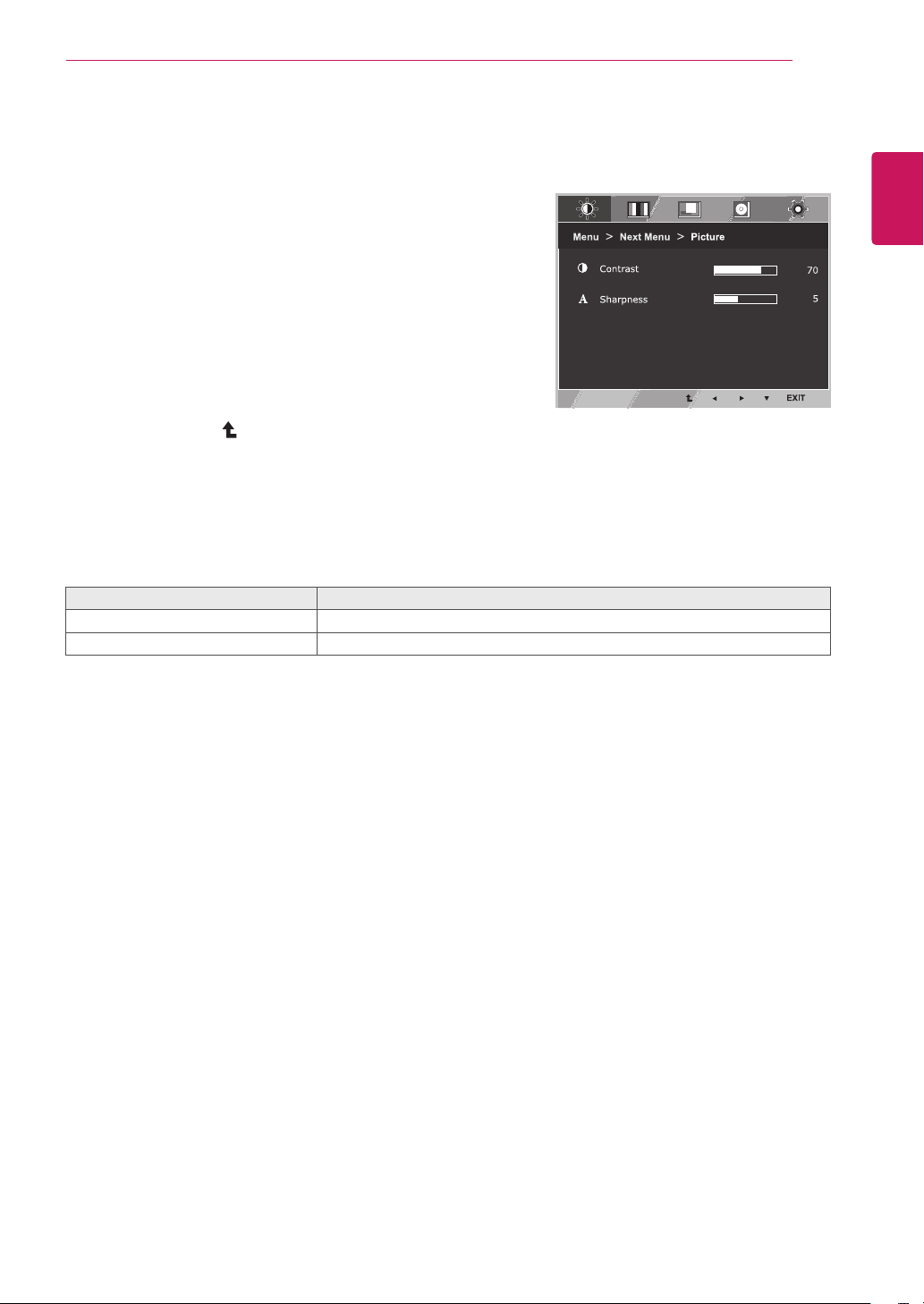
1
Press
MENU
buttononthebottomoftheMonitorset
todisplaythe
Menu
OSD.
2
Selectthe"
NextMenu
"buttontoenterthemore
optionsettings.
3
Enterto
Picture
bypressingthe▼button.
4
Settheoptionsbypressingthe◄or►or▼
buttons.
5
Select
EXIT
toleavetheOSDmenu.
Toreturntotheuppermenuorsetothermenuitems,
usetheuparrow( )button.
Eachoptionisexplainedbelow.
Menu>NextMenu>Picture Description
Contrast
Toadjustthecontrastofthescreen.
Sharpness
Toadjusttheclearnessofthescreen.
Menu>NextMenu Analog Digital DP HDMI Description
Picture
Contrast ● ● ● ●
Toadjustthecontrastofthe
screen
Sharpness ● ● ● ●
Toadjusttheclearnessof
thescreen
BlackLevel
●
Tosetoffsetlevel
OverScan
●
Toimprovetheclarityand
stabilityofthescreen
Color Gamma
● ● ● ●
Tocustomizethecolorof
thescreen
ColorTemp
SixColor
ColorReset
Display Horizontal
●
Toadjustthepositionofthe
screen
Vertical
Clock
●
Toimprovetheclarityand
stabilityofthescreen
Phase
Audio
AudioInput ●
Toselecttheaudioinput
Others Language
● ● ● ●
Tocustomizethescreen
statusforauser'soperating
environment
PowerIndicator
OffTimeSetting
Resolution ●
Analog:
D-SUB(Analogsignal)input.
Digital:
DVI-D(Digitalsignal)input.
DP:
DisplayPortinput.
HDMI:
HDMI(Digitalsignal)input.
18
ENG
ENGLISH
CUSTOMIZING SETTINGS
Color
1
Press
MENU
buttononthebottomoftheMonitorset
todisplaythe
Menu
OSD.
2
Selectthe"
NextMenu
"buttontoenterthemore
optionsettings.
3
Select
Color
bypressingthe►button.
4
Enterto
Color
bypressingthe▼button.
5
Settheoptionsbypressingthe◄or►or▼
buttons.
6
Select
EXIT
toleavetheOSDmenu.
Toreturntotheuppermenuorsetothermenuitems,
usetheuparrow( )button.
Eachoptionisexplainedbelow.
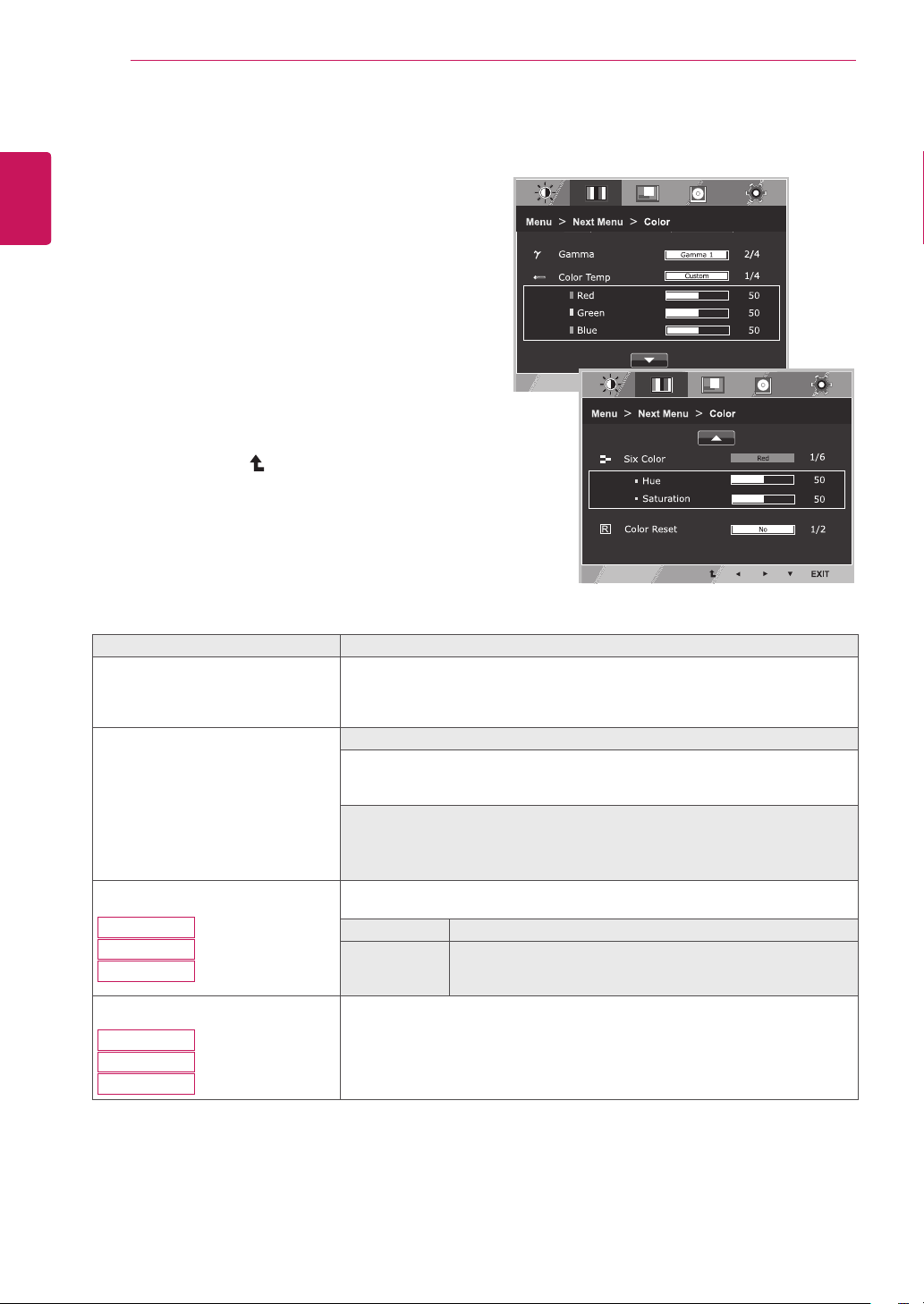
Menu>NextMenu>Color Description
Gamma Setyourowngammavalue.:Gamma0,Gamma1,Gamma2,Offon
themonitor,highgammavaluesdisplaywhitishimagesandlowgamma
valuesdisplayblackishimages.
Ifuserdon'twantadjustedgamma,usercanselectGammaoff.
ColorTemp Custom
•Red:
Setyourownredcolorlevels.
•Green:
Setyourowngreencolorlevels.
•Blue:
Setyourownbluecolorlevels.
Selectthescreencolor.
Warm:
Setthescreentowarmcolortemperature(morered).
Medium:
Setthescreentomediumcolortemperature.
Cool:
Setthescreentocoolcolortemperature(moreblue).
SixColor
24MB37PY
24MB37PV
24MB37PM
Setsandstoresthehueandsaturationforsixcolors(Red/Green/Blue/Cyan/
Magenta/Yellow)tosatisfythecolorrequirementsofauser.
Hue Adjuststhescreenhue.
Saturation Adjuststhecolorsharpnessonthescreen.Lowervaluesmake
thecolorsharpnessweakerandcolorslighterwhilehigher
valuesmakethecolorsharpnessstrongerandcolorsdark.
ColorReset
24MB37PY
24MB37PV
24MB37PM
Resetsthecolorsettingstothefactorydefaultsettingsforthecurrentinput
device.

19
ENG
ENGLISH
CUSTOMIZING SETTINGS
Display
1
Press
MENU
buttononthebottomoftheMonitorset
todisplaythe
Menu
OSD.
2
Selectthe"
NextMenu
"buttontoenterthemore
optionsettings.
3
Select
Display
bypressingthe►button.
4
Enterto
Display
bypressingthe▼button.
5
Settheoptionsbypressingthe◄or►or▼
buttons.
6
Select
EXIT
toleavetheOSDmenu.
Toreturntotheuppermenuorsetothermenuitems,
usetheuparrow( )button.
Eachoptionisexplainedbelow.
Menu>NextMenu>Display Description
Horizontal
Tomoveimageleftandright.
Vertical
Tomoveimageupanddown.
Clock
Tominimizeanyverticalbarsorstripesvisibleonthescreenbackground.The
horizontalscreensizewillalsochange.
Phase
Toadjustthefocusofthedisplay.Thisitemallowsyoutoremoveanyhorizontal
noiseandclearorsharpentheimageofcharacters.
Audio
1
Press
MENU
buttononthebottomoftheMonitorset
todisplaythe
Menu
OSD.
2
Selectthe"
NextMenu
"buttontoenterthemore
optionsettings.
3
Select
Audio
bypressingthe►button.
4
Enterto
Audio
bypressingthe▼button.
5
Settheoptionsbypressingthe◄or►buttons.
6
Select
EXIT
toleavetheOSDmenu.
Toreturntotheuppermenuorsetothermenuitems,
usetheuparrow( )button.
Eachoptionisexplainedbelow.
Menu>NextMenu>Audio Description
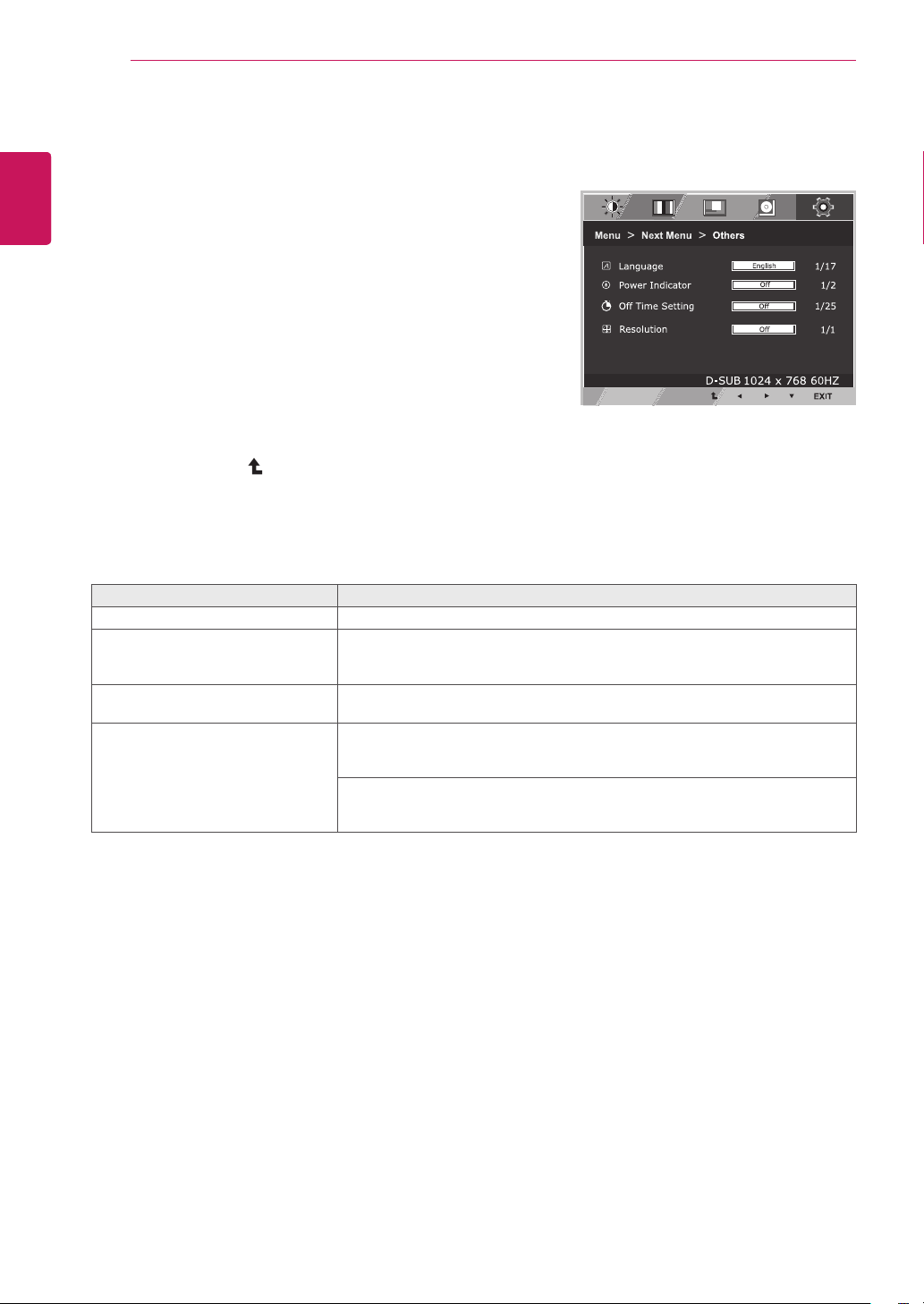
AudioInput ToSelecttheaudiosourcetooutputtospeaker/headphonefrombelowitems.
1.DP:TheaudiosourceonDPport(OnlyinDPinput).
2.Audio-In:Theaudiosourceonexternalanalogaudiojack.
(OnlyinDsub/DVI-Dinput)
3.Auto:TheaudiosourceisswitchedautomaticallybetweenDPorAudio-In.
DPhashigherpriority.(OnlyinDPinput)
20
ENG
ENGLISH
CUSTOMIZING SETTINGS
Others
1
Press
MENU
buttononthebottomoftheMonitorset
todisplaythe
Menu
OSD.
2
Selectthe"
NextMenu
"buttontoenterthemore
optionsettings.
3
Select
Others
bypressingthe►button.
4
Enterto
Others
bypressingthe▼button.
5
Settheoptionsbypressingthe◄or►or▼
buttons.
6
Select
EXIT
toleavetheOSDmenu.
Toreturntotheuppermenuorsetothermenuitems,
usetheuparrow( )button.
Eachoptionisexplainedbelow.
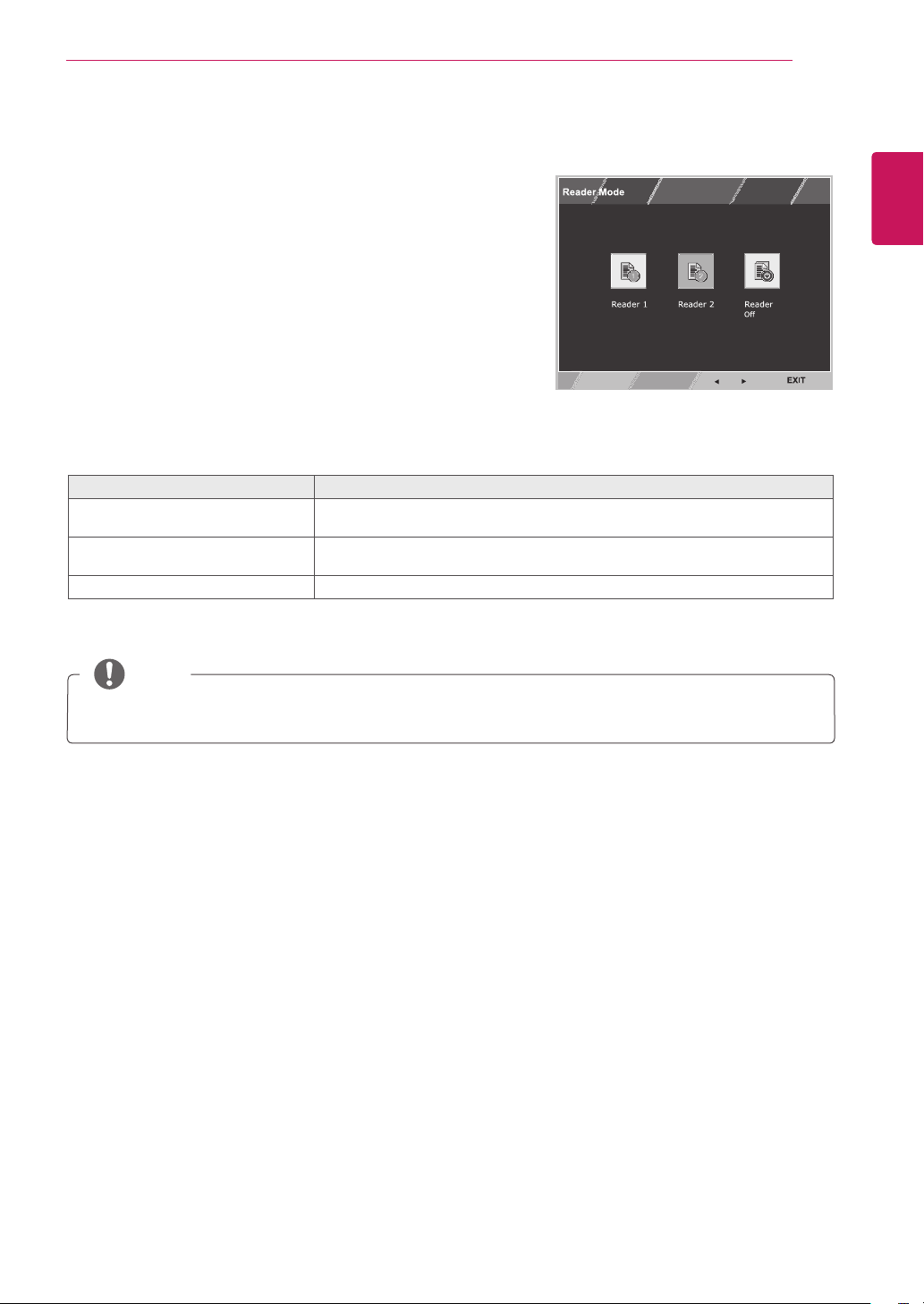
Menu>NextMenu>Others Description
Language
Tochoosethelanguageinwhichthecontrolnamesaredisplayed.
PowerIndicator
Usethisfunctiontosetthepowerindicatoronthebottomsideofthemonitorto
OnorOff.IfyousetOff,itwillgooff.
IfyousetOnatanytime,thepowerindicatorwillautomaticallybeturnedon.
OffTimeSetting
Themonitorsetwillswitchtopoweroffmodeafterthetimetobechosenbyuser
(1~24hours)
Resolution Usercansetthedesiredresolution.Thefunctionisenabledonlywhenthe
screenresolutiononyourcomputerissettothefollowing,exceptthatthePC
outputwrongresolution.
1024x768,1280x768,1360x768,1366x768,Off
1280x960,1600x900,Off
1440x960,1600x900,Off
21
ENG
ENGLISH
CUSTOMIZING SETTINGS
IfoptionofReaderModeisReader1orReader2,SMARTENERGYSAVINGwillautomaticallybeOff.
NOTE
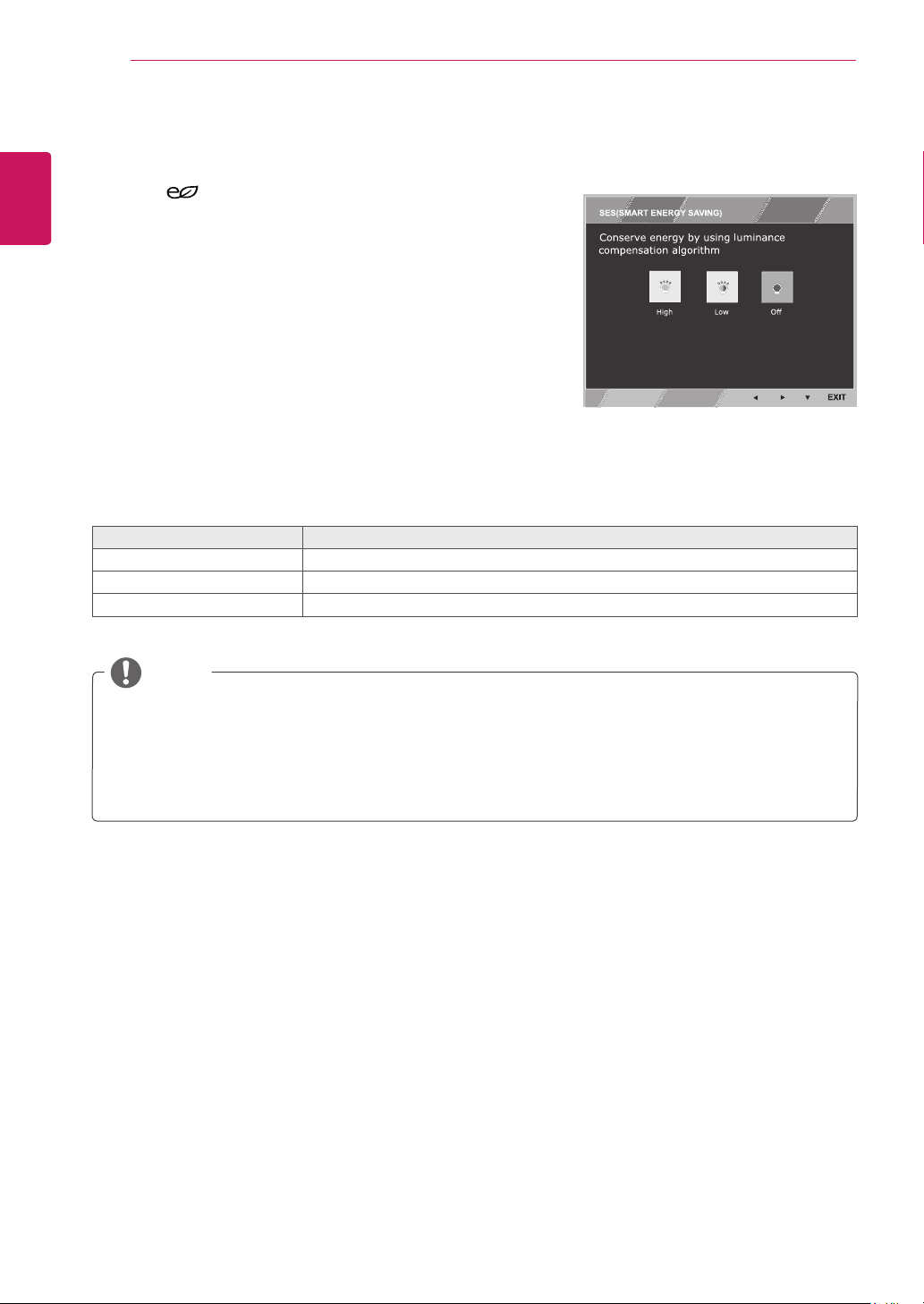
ReaderMode Description
Reader1 Itisamodethatthescreenisadjustedtothebestforthenewspaper.Ifyou
wantscreenmorebright,youcancontrolbrightnessinMenuOSD.
Reader2 Itisamodethatthescreenisadjustedtothebestforthecartoon.Ifyouwant
screenmorebright,youcancontrolbrightnessinMenuOSD.
ReaderOff Itisamodethatreadermodeisoff.
Eachoptionisexplainedbelow.
READERSetting
1
Press
READER
buttononthebottomoftheMonitor
settodisplaythe
ReaderMode
OSD.
2
Settheoptionsbypressingthe◄or►buttons.
3
Select
EXIT
toleavetheOSDmenu.
22
ENG
ENGLISH
CUSTOMIZING SETTINGS
y
Saving Data depends on the Panel. So,those values should be different from each panel and panel
vendor.If you select the option of SMART ENERGY SAVING is High or Low, monitor luminance
become lower or higher depend on source.
y
If option of SMART ENERGY SAVING is High or Low, Reader Mode will automatically be Reader Off.
NOTE
SMART ENERGY SAVING Setting
1
Press
button on the bottom of the Monitor set to
display the SMART ENERGY SAVING OSD.
2
Settheoptionsbypressingthe◄or►buttons.
3
Select
EXIT to leave the OSD menu.
Each option is explained below.
SMART ENERGY SAVING Description
High
Enables SMART ENERGY SAVING you can save energy with this energy- high efficient function.
Low
Enables SMART ENERGY SAVING you can save energy with this energy- low efficient function.
Off Disables SMART ENERGY SAVING.
* SMART ENERGY SAVING: Conserve energy by using luminance compensation algorithm.
23
ENG
ENGLISH
TROUBLESHOOTING
TROUBLESHOOTING
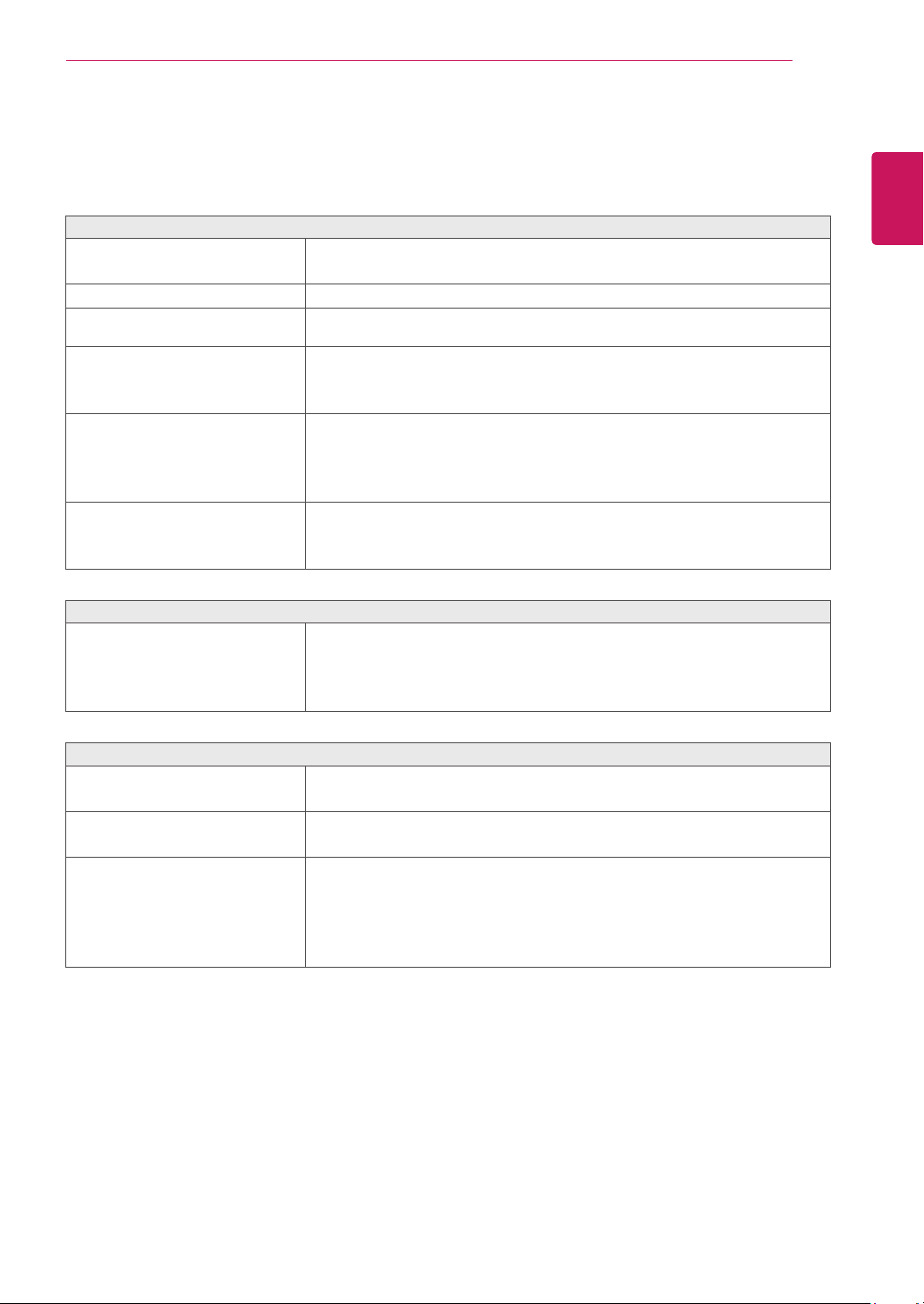
Check the following before calling for service.
No image appears
Is the power cord of the display
connected?
y
Check and see if the power cord is connected properly to the power
outlet.
Is the power indicator light on?
y
Press the Power button.
Is the power on and the power
indicator White?
y
Adjust the brightness and the contrast.
Is the power indicator flickering?
y
If the display is in power saving mode, try moving the mouse or
pressing any key on the keyboard to bring up the screen.
y
Try to turn on the PC.
Do you see an "OUT OF RANGE"
message on the screen?
y
This message appears when the signal from the PC (video card) is
out of horizontal or vertical frequency range of the display. See the
'Specifications' section of this manual and configure your display
again.
Do you see a "NO SIGNAL"
message on the screen?
y
After the monitor is on "NO SIGNAL", the monitor goes to DPM mode.
y
This is displayed when the signal cable between the PC and the
monitor is missing or disconnected. Check the cable and reconnect it.
Do you see a "OSD LOCKED" message on the screen?
Do you see “OSD LOCKED” when
you push MENU button?
y
You can secure the current control settings, so that they cannot be
inadvertently changed. You can unlock the OSD controls at any time
by pushing the MENU button for several seconds: the message “OSD
UNLOCKED” will appear.
Display image is incorrect
Display Position is incorrect.
y
Press the AUTO button to automatically adjust your display image to
the ideal setting.
On the screen background, vertical
bars or stripes are visible.
y
Press the AUTO button to automatically adjust your display image to
the ideal setting.
Any horizontal noise appearing in
any image or characters are not
clearly portrayed.
y
Press the AUTO button to automatically adjust your display image to
the ideal setting.
y
Check Control Panel ► Display ► Settings and adjust the display
to the recommended resolution or adjust the display image to the ideal
setting. Set the color setting higher than 24 bits (true color).
24
ENG
ENGLISH
TROUBLESHOOTING
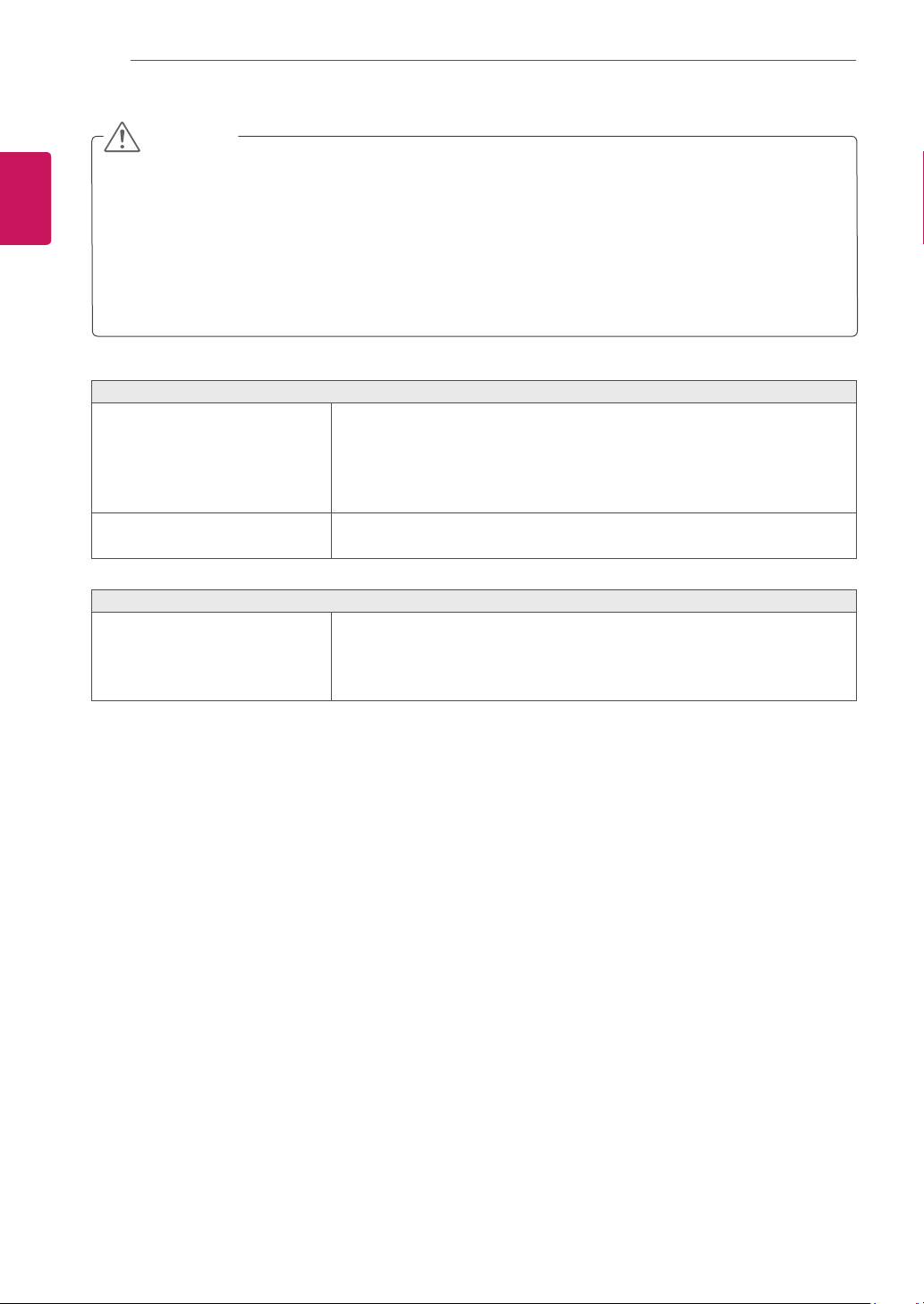
Display image is incorrect
The screen color is mono or
abnormal.
y
Check if the signal cable is properly connected and use a screwdriver
to fasten if necessary.
y
Make sure the video card is properly inserted in the slot.
y
Set the color setting higher than 24 bits (true color) at Control Panel
► Settings.
The screen blinks.
y
Check if the screen is set to interlace mode and if yes, change it to the
recommend resolution.
Do you see an "Unrecognized monitor, Plug&Play (VESA DDC) monitor found" message?
Have you installed the display
driver?
y
Be sure to install the display driver from the display driver CD (or
diskette) that comes with your display. Or, you can also download the
driver from our web site: http://www.lg.com.
y
Make sure to check if the video card supports Plug&Play function.
y
Check Control Panel ► Display ► Settings and see if the frequency or the resolution were
changed. If yes, readjust the video card to the recommend resolution.
y
If the recommended resolution (optimal resolution) is not selected, letters may be blurred and the
screen may be dimmed, truncated or biased. Make sure to select the recommend resolution.
y
The setting method can differ by computer and O/S (Operation System), and resolution mentioned
above may not be supported by the video card performance. In this case, please ask to the computer
or the video card manufacturer.
CAUTION
25
ENG
ENGLISH
SPECIFICATIONS
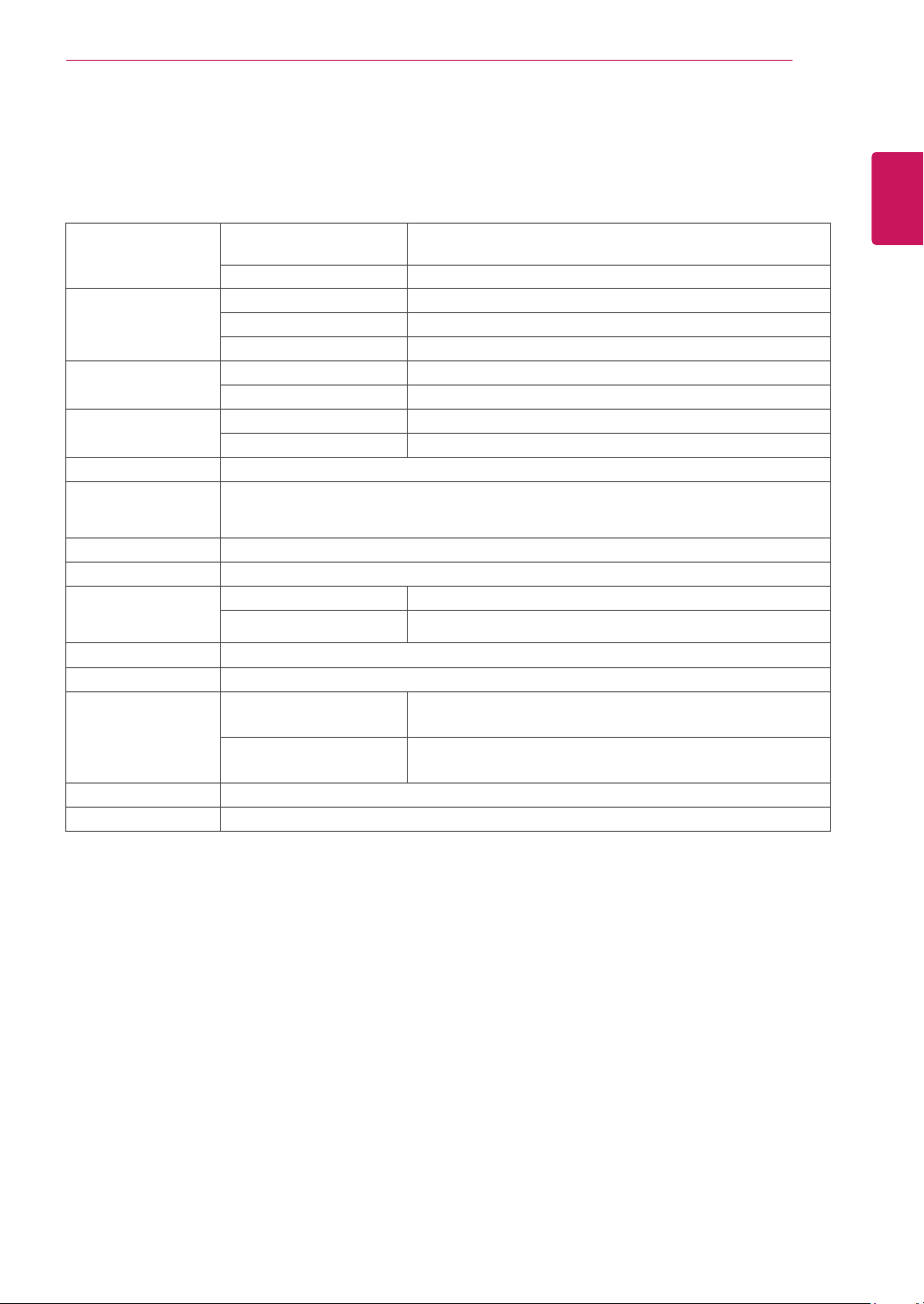
SPECIFICATIONS
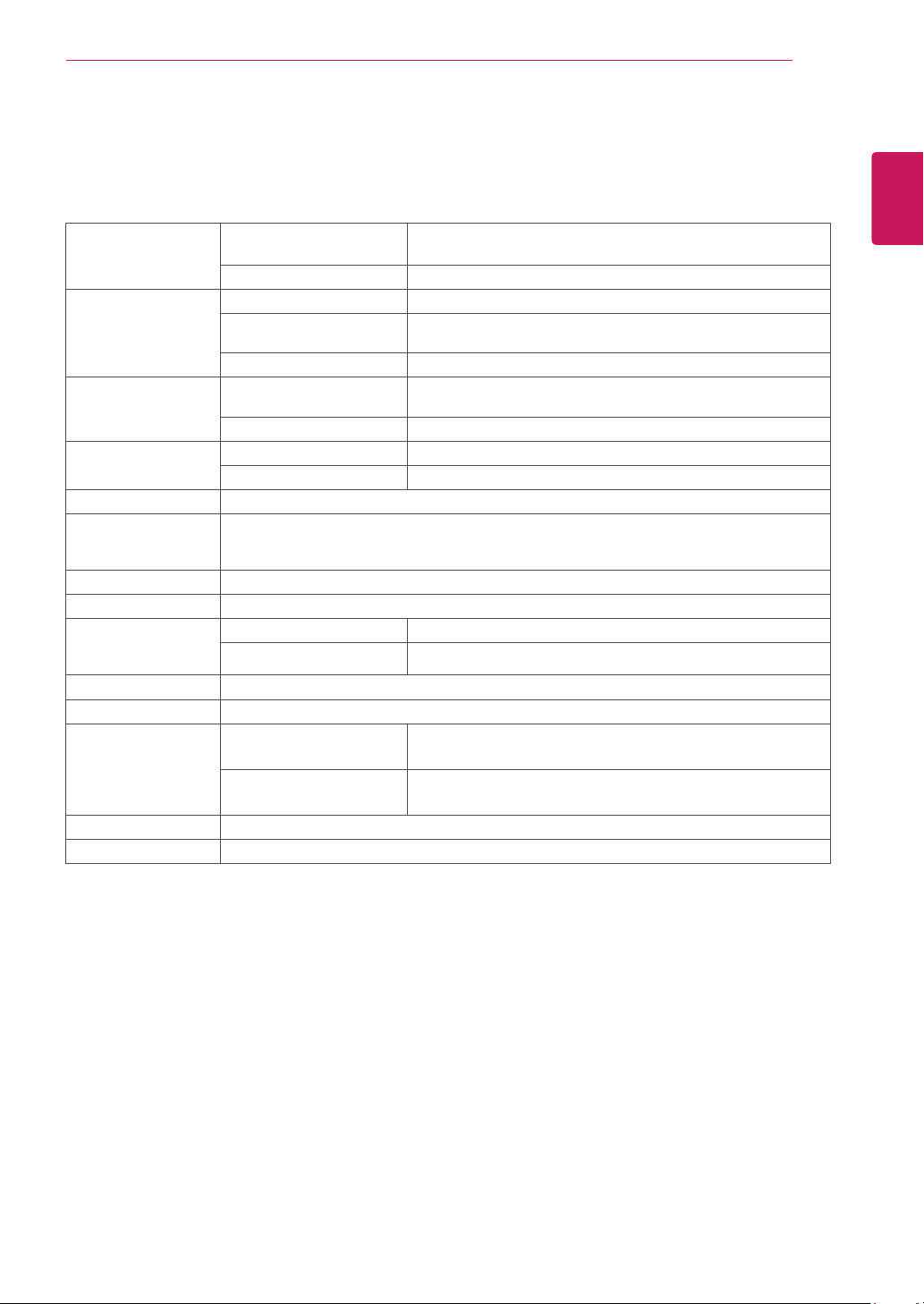
Display Screen Type Flat Panel Active matrix-TFT LCD
Anti-Glare coating
Pixel Pitch 0.24795 mm x 0.24795 mm (Pixel Pitch)
Sync Input Horizontal Frequency 30 kHz to 83 kHz (Automatic)
Vertical Frequency 56Hz to 75Hz (D-SUB,DVI-D)
Input Form Separate Sync. Digital
Video Input Signal Input 15 pin D-SUB Connector /DVI-D Connector (Digital)
Input Form RGB Analog (0.7 Vp-p/ 75 ohm), Digital
Resolution Max VESA 1920 x 1080 @ 60 Hz
Recommend VESA 1920 x 1080 @ 60 Hz
Plug & Play DDC 2B(Analog,Digital)
Power
Consumption
On Mode : 21.7 W Typ. ( Outgoing condition ) *
SleepMode≤0.3W**
OffMode≤0.3W
Power Input AC 100-240V ~ 50/60Hz 1.0 A
Speaker Wattage 1 W + 1 W
Dimensions
(Width x Height x
Depth)
With Stand 50.9 cm x 36.3 cm x 23.9 cm
Without Stand 50.9 cm x 30.4 cm x 6.9 cm
Weight 4.1 kg
Tilt Range -5° to 20°
Environmental
conditions
Operating Temperature
Operating Humidity
10°C to 35 °C
10 % to 80 %
Storage Temperature
Storage Humidity
-20°C to 60 °C
5 % to 90 % non-Condensing
Stand Base Attached ( ), Detached (O)
Power cord Wall-outlet type
Product specifications shown above may be changed without prior notice due to upgrade of product
functions.
* The power consumption level can be different by operating condition and monitor setting.
* The On mode power consumption is measured with LGE test standard ( Full White pattern , Maximum
resolution).
** The monitor goes to the Sleep Mode in a couple of minutes(Max 5 minutes)
22MB37PU
26
ENG
ENGLISH
SPECIFICATIONS
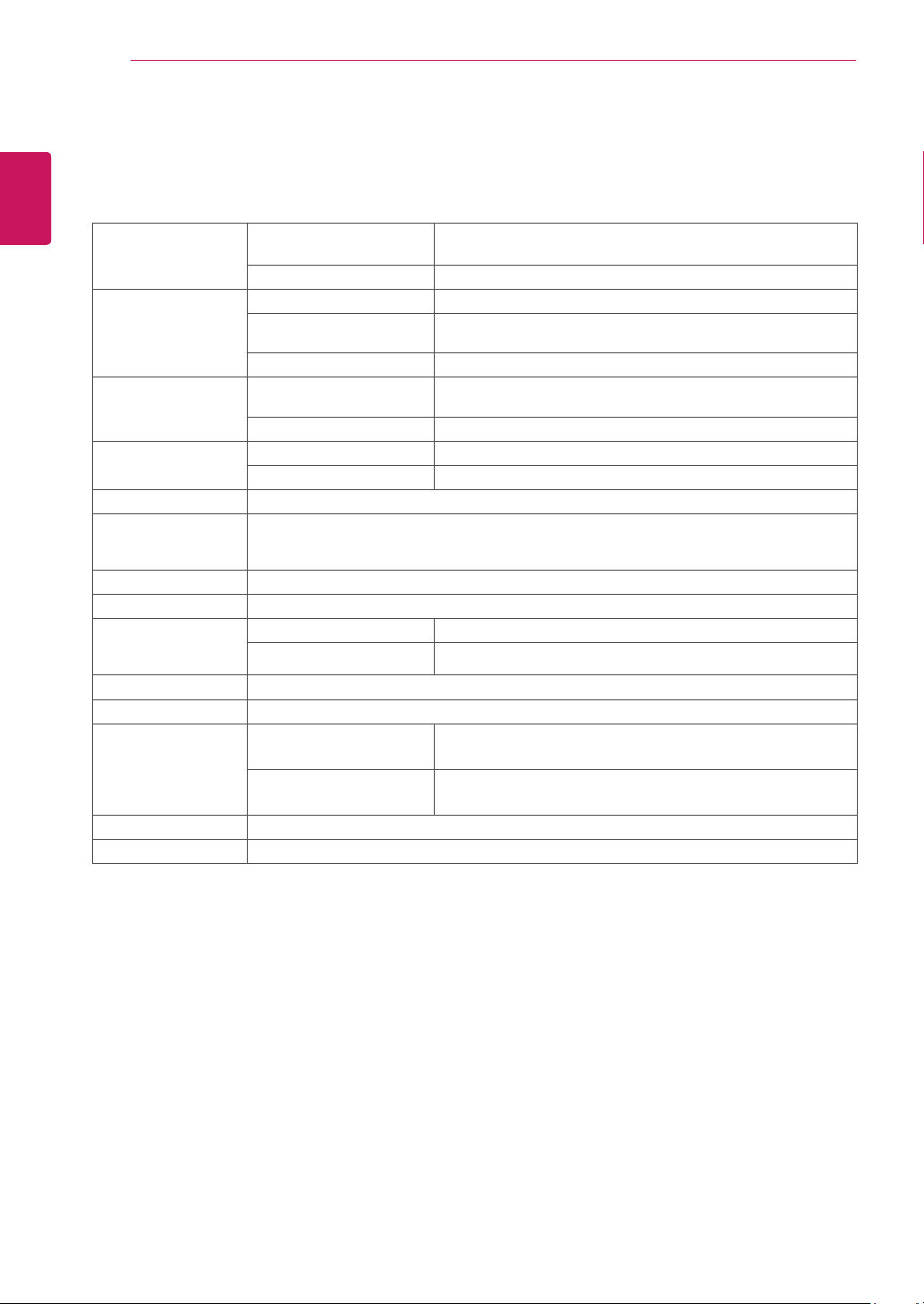
SPECIFICATIONS
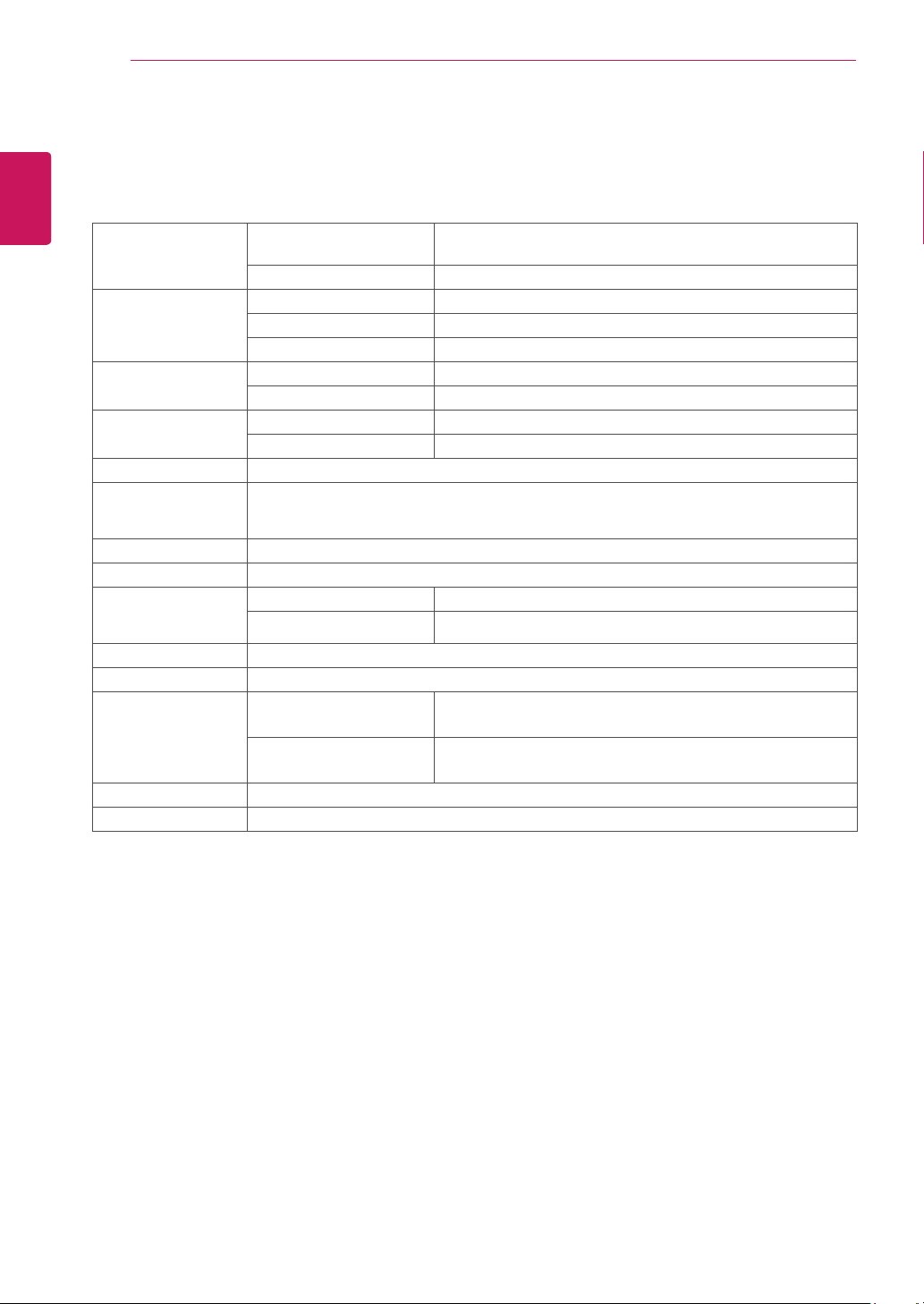
Display Screen Type Flat Panel Active matrix-TFT LCD
Anti-Glare coating
Pixel Pitch 0.2745 mm x 0.2745 mm (Pixel Pitch)
Sync Input Horizontal Frequency 30 kHz to 83 kHz (Automatic)
Vertical Frequency 56Hz to 75Hz (D-SUB,DVI-D)
56Hz to 61Hz (DP)
Input Form Separate Sync. Digital
Video Input Signal Input 15 pin D-SUB Connector /DVI-D Connector (Digital)/
DP Connector
Input Form RGB Analog (0.7 Vp-p/ 75 ohm), Digital
Resolution Max VESA 1920 x 1080 @ 60 Hz
Recommend VESA 1920 x 1080 @ 60 Hz
Plug & Play DDC 2B(Analog,Digital,DP)
Power
Consumption
On Mode : 24 W Typ. ( Outgoing condition ) *
SleepMode≤0.3W**
OffMode≤0.3W
Power Input AC 100-240V ~ 50/60Hz 1.2 A
Speaker Wattage 1 W + 1 W
Dimensions
(Width x Height x
Depth)
With Stand 56.9 cm x 38.2 cm x 23.9 cm
Without Stand 56.9 cm x 34.2 cm x 6.3 cm
Weight 4.8 kg
Tilt Range -5° to 20°
Environmental
conditions
Operating Temperature
Operating Humidity
10°C to 35 °C
10 % to 80 %
Storage Temperature
Storage Humidity
-20°C to 60 °C
5 % to 90 % non-Condensing
Stand Base Attached ( ), Detached (O)
Power cord Wall-outlet type
Product specifications shown above may be changed without prior notice due to upgrade of product
functions.
* The power consumption level can be different by operating condition and monitor setting.
* The On mode power consumption is measured with LGE test standard ( Full White pattern , Maximum
resolution).
** The monitor goes to the Sleep Mode in a couple of minutes(Max 5 minutes)
24MB37PY
27
ENG
ENGLISH
SPECIFICATIONS
SPECIFICATIONS
Display Screen Type Flat Panel Active matrix-TFT LCD
Anti-Glare coating
Pixel Pitch 0.275 mm x 0.275 mm (Pixel Pitch)
Sync Input Horizontal Frequency 30 kHz to 83 kHz (Automatic)
Vertical Frequency 56Hz to 75Hz (D-SUB,DVI-D)
56Hz to 61Hz (HDMI)
Input Form Separate Sync. Digital
Video Input Signal Input 15 pin D-SUB Connector /DVI-D Connector (Digital)/
HDMI Connector
Input Form RGB Analog (0.7 Vp-p/ 75 ohm), Digital
Resolution Max VESA 1920 x 1080 @ 60 Hz
Recommend VESA 1920 x 1080 @ 60 Hz
Plug & Play DDC 2B(Analog,Digital,HDMI)
Power
Consumption
On Mode : 20 W (ENERGY STAR
®
standard)*
SleepMode≤0.3W
OffMode≤0.3W
Power Input AC 100-240V ~ 50/60Hz 1.2 A
Speaker Wattage 1 W + 1 W
Dimensions
(Width x Height x
Depth)
With Stand 56.9 cm x 38.2 cm x 23.9 cm
Without Stand 56.9 cm x 34.2 cm x 6.3 cm
Weight 4.8 kg
Tilt Range -5° to 20°
Environmental
conditions
Operating Temperature
Operating Humidity
10°C to 35 °C
10 % to 80 %
Storage Temperature
Storage Humidity
-20°C to 60 °C
5 % to 90 % non-Condensing
Stand Base Attached ( ), Detached (O)
Power cord Wall-outlet type
Product specifications shown above may be changed without prior notice due to upgrade of product
functions.
* The power consumption level can be different by operating condition and monitor setting.
* The On mode power consumption is measured with ENERGY STAR
®
test standard.
* ENERGY STAR
®
is a US registered mark of the United States Environmental Protection Agency.
24MB37PV
28
ENG
ENGLISH
SPECIFICATIONS
SPECIFICATIONS
Display Screen Type Flat Panel Active matrix-TFT LCD
Anti-Glare coating
Pixel Pitch 0.2745 mm x 0.2745 mm (Pixel Pitch)
Sync Input Horizontal Frequency 30 kHz to 83 kHz (Automatic)
Vertical Frequency 56Hz to 75Hz (D-SUB,DVI-D)
Input Form Separate Sync. Digital
Video Input Signal Input 15 pin D-SUB Connector /DVI-D Connector (Digital)
Input Form RGB Analog (0.7 Vp-p/ 75 ohm), Digital
Resolution Max VESA 1920 x 1080 @ 60 Hz
Recommend VESA 1920 x 1080 @ 60 Hz
Plug & Play DDC 2B(Analog,Digital)
Power
Consumption
On Mode : 22.8 W Typ. ( Outgoing condition ) *
SleepMode≤0.3W**
OffMode≤0.3W
Power Input AC 100-240V ~ 50/60Hz 1.2 A
Speaker Wattage 1 W + 1 W
Dimensions
(Width x Height x
Depth)
With Stand 56.9 cm x 38.2 cm x 23.9 cm
Without Stand 56.9 cm x 34.2 cm x 6.3 cm
Weight 4.8 kg
Tilt Range -5° to 20°
Environmental
conditions
Operating Temperature
Operating Humidity
10°C to 35 °C
10 % to 80 %
Storage Temperature
Storage Humidity
-20°C to 60 °C
5 % to 90 % non-Condensing
Stand Base Attached ( ), Detached (O)
Power cord Wall-outlet type
Product specifications shown above may be changed without prior notice due to upgrade of product
functions.
* The power consumption level can be different by operating condition and monitor setting.
* The On mode power consumption is measured with LGE test standard ( Full White pattern , Maximum
resolution).
** The monitor goes to the Sleep Mode in a couple of minutes(Max 5 minutes)
24MB37PM
29
ENG
ENGLISH
SPECIFICATIONS
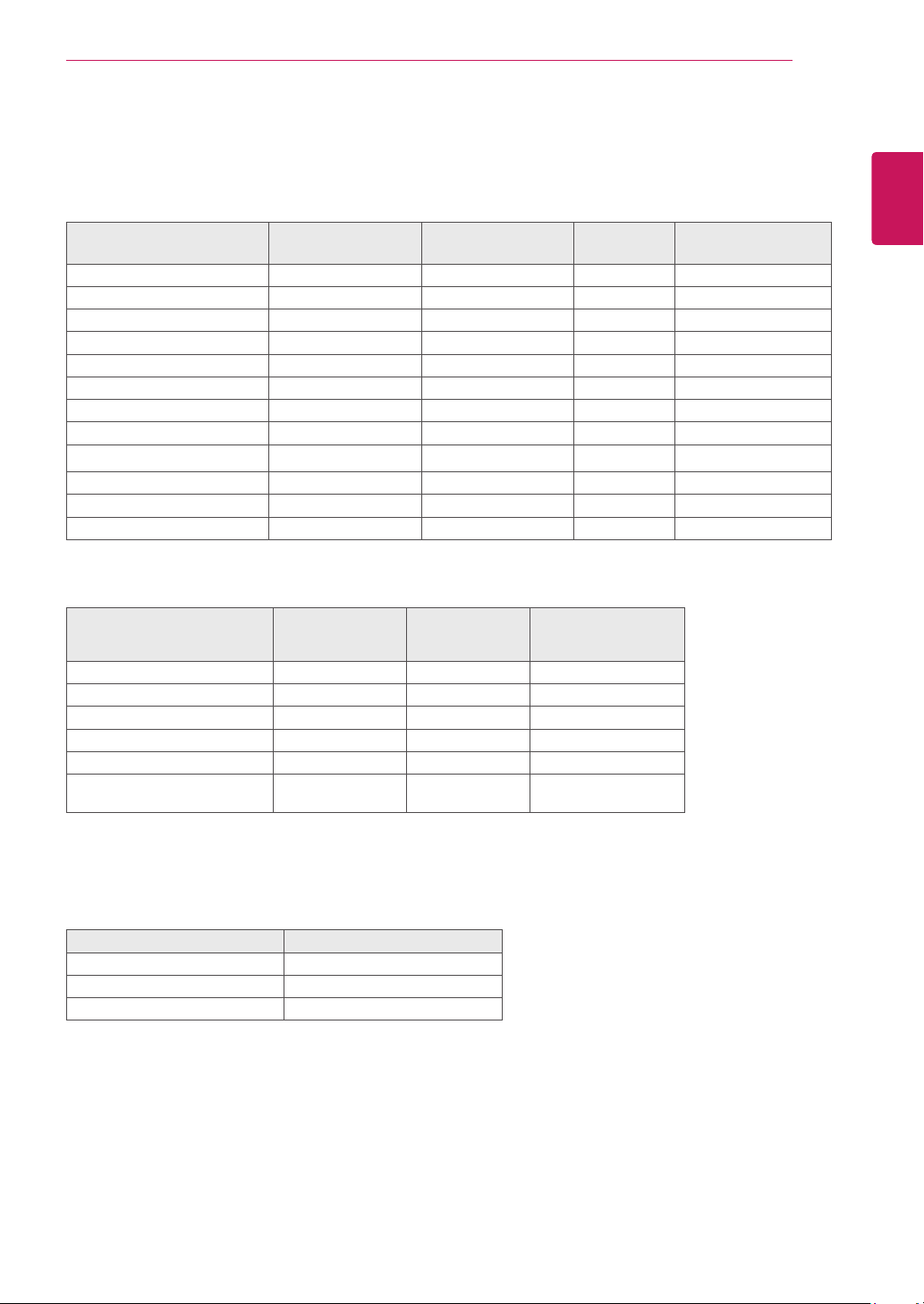
Preset Modes (Resolution)
D-SUB/DVI Timing
Display Modes (Resolution)
Horizontal
Frequency(kHz)
Vertical
Frequency(Hz)
Polarity(H/V)
720 x 400 31.468 70 -/+
640 x 480 31.469 60 -/-
640 x 480 37.500 75 -/-
800 x 600 37.879 60 +/+
800 x 600 46.875 75 +/+
1024 x 768 48.363 60 -/-
1024 x 768 60.023 75 +/+
1152 x 864 67.500 75 +/+
1280 x 1024 63.981 60 +/+
1280 x 1024 79.976 75 +/+
1680 x 1050 65.290 60 -/+
1920 x 1080 67.500 60 +/+ Recommend Mode
DP/HDMI Timing
Factory support mode
(Preset Mode)
Horizontal
Frequency(kHz)
Vertical
Frequency(Hz)
HDMI
480P 31.50 60 O
576P 31.25 50 O
720P 37.50 50 O
720P 45.00 60 O
1080P 56.25 50 O
1080P 67.50 60
O
Recommend Mode
Indicator
Mode LED Color
On Mode White
Sleep Mode Blinking White
Off Mode Off
30
ENG
ENGLISH
PROPER POSTURE
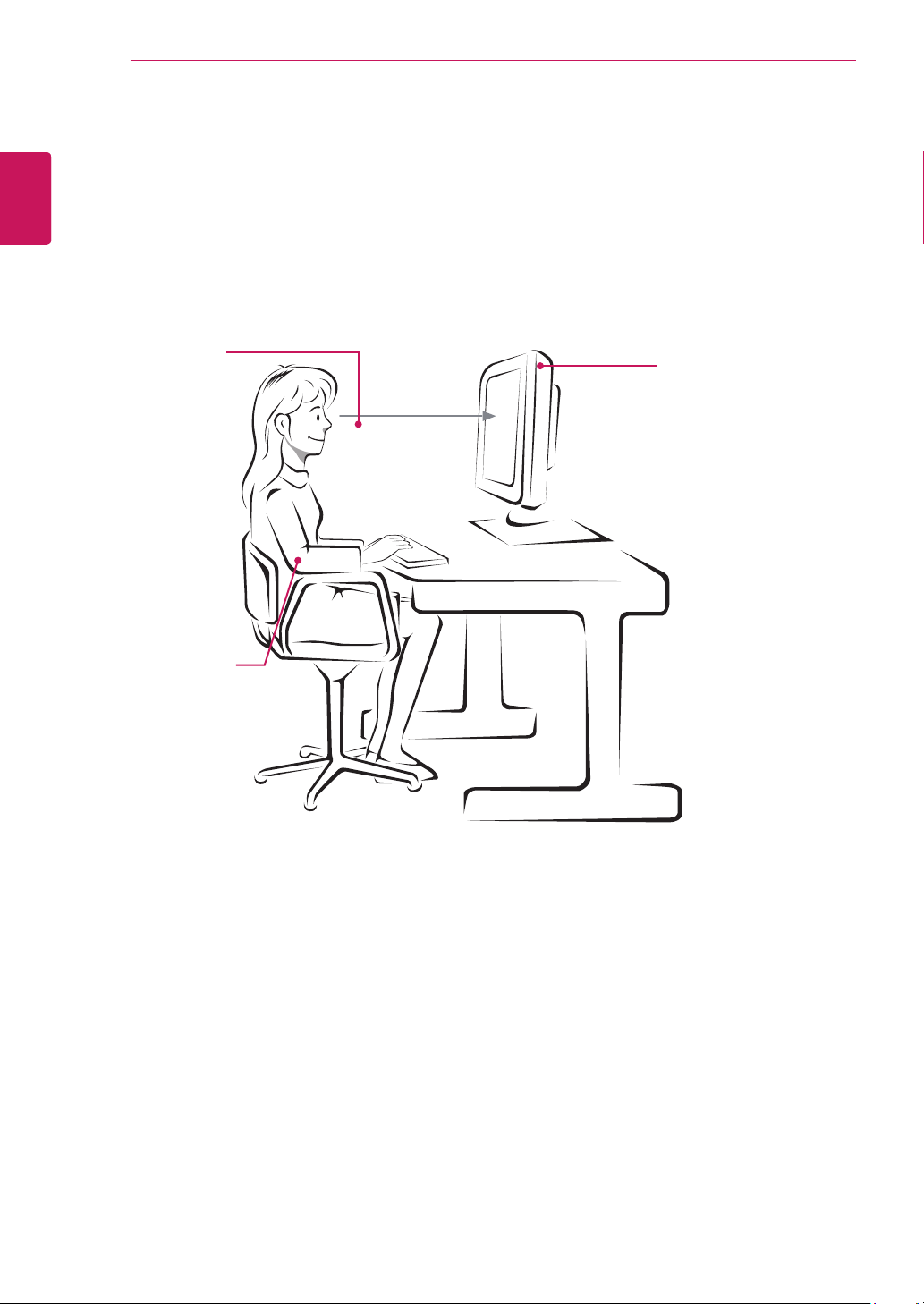
Proper posture for using the Monitor set.
PROPER POSTURE
Adjust the
Monitor set and
your posture to
allow you to view
images at the
optimal viewing
angle.
Place your hands
gently on the
keyboard, keeping
your arms bent at
the elbows and
horizontally outright.
Adjust the location of the
Monitor set to avoid it
reflecting light.
Make sure to read the Safety Precautions before
using the product.
Keep the Owner’s Manual (CD) in an accessible
place for future reference.
The model and serial number of the SET is
located on the back and one side of the SET.
Record it below should you ever need service.
MODEL
SERIAL
*above information is only for USA FCC Regulatory
Declaration of Conformity
Trade Name: LG
Model : 22MB37PU, 24MB37PM, 24MB37PY,
24MB37PV
Responsible Party: LG Electronics Inc.
Address : 1000 Sylvan Ave. Englewood Cliffs
NJ 07632 U.S.A
TEL: 201-266-2534