
User guide
Bluetooth
®
Keyboard
BKB50

Contents
Basics.............................................................................................3
General overview.............................................................................. 3
Keyboard overview........................................................................... 3
Charging the keyboard..................................................................... 4
Turning on and o............................................................................ 5
Getting started..............................................................................6
Setting up the keyboard...................................................................6
Assembly...........................................................................................6
Using your Bluetooth® Keyboard..................................................8
Tablet settings for Danish and Norwegian users.............................8
PC style keyboard launcher application...........................................8
Overview of PC style keyboard launcher......................................... 8
Using the touchpad.......................................................................... 9
Sleep mode...................................................................................... 11
Resetting the keyboard................................................................... 11
Support on the web......................................................................... 11
Legal information.........................................................................12
Declaration of Conformity .............................................................. 13
2
Basics
General overview
The BKB50Bluetooth® Keyboard helps you use your Xperia™ Z4 Tablet like a PC
and is convenient when you are on the move. You can pair the Bluetooth®
Keyboard easily with the tablet using the NFC function. Once it’s set up and
attached to your tablet, the Bluetooth® Keyboard can detect when your tablet is
closed and can switch o, if necessary, to save power.
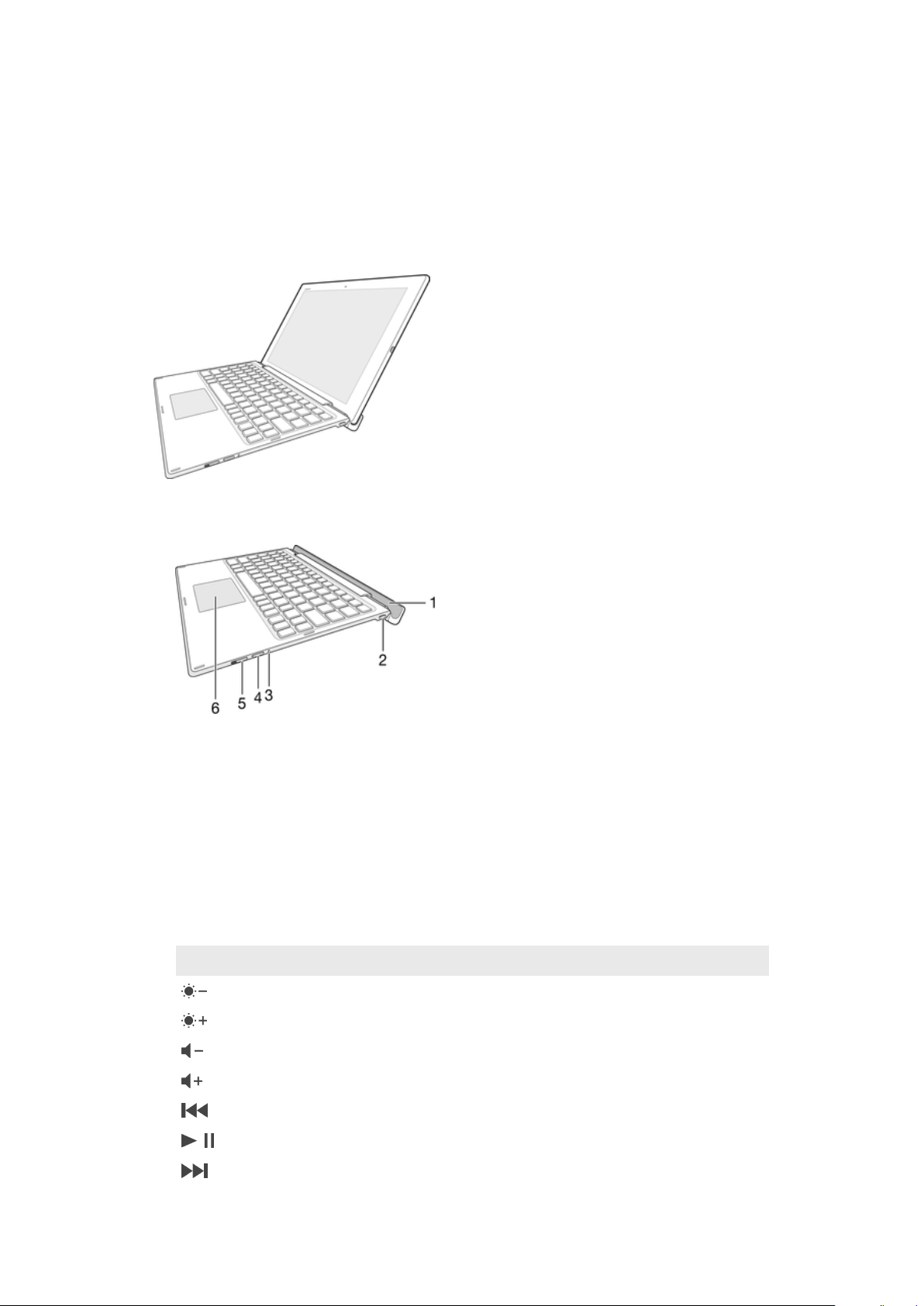
Keyboard overview
1
Groove for tablet
2 Charging port
3 Notification light
4 Pair key
5 Power switch
6 Touchpad
Keypad controls
Key symbol Key combination Function
Fn + F1 Decrease the brightness.
Fn + F2 Increase the brightness.
Fn + F3 Decrease the volume.
Fn + F4 Increase the volume.
Fn + F5 Go to the previous audio or video file.
Fn + F6 Play or pause the current audio or video file.
Fn + F7 Go to the next audio or video file.
3
This is an Internet version of this publication. © Print only for private use.

Fn + F8 Turn on the USB detection function to detect connected USB
devices.
Fn + F9 Cut
Fn + F10 Copy
Fn + F11 Paste
Fn + F12 Search
Open the Notification panel.
Print the screen.
Turn the screen on or o.
The list above only shows combination key controls and a few other commonly used keys.
Other keys that are not listed above function in the same way as on most keyboards.
Notification light status
Flashing blue The keyboard is in pairing mode – the keyboard is available for pairing with other
devices.
White The keyboard is in active mode.
Flashing white The keyboard is in sleep mode.
Green The battery is charging and the battery charge level is greater than 90%.
Amber The battery is charging and the battery charge level is between 15% and 90%.
Red The battery is charging and the battery charge level is less than 15%.
Charging the keyboard
To charge the keyboard
Charge the keyboard for four hours before using it for the first time. Use a regular charger
only.
1 Plug the charger for your Android phone or tablet into a power outlet.
2 Plug one end of the USB cable into the charger.
3 Plug the other end of the USB cable into the charging port on your keyboard.
A micro USB cable and charger are not included at purchase.
4
This is an Internet version of this publication. © Print only for private use.
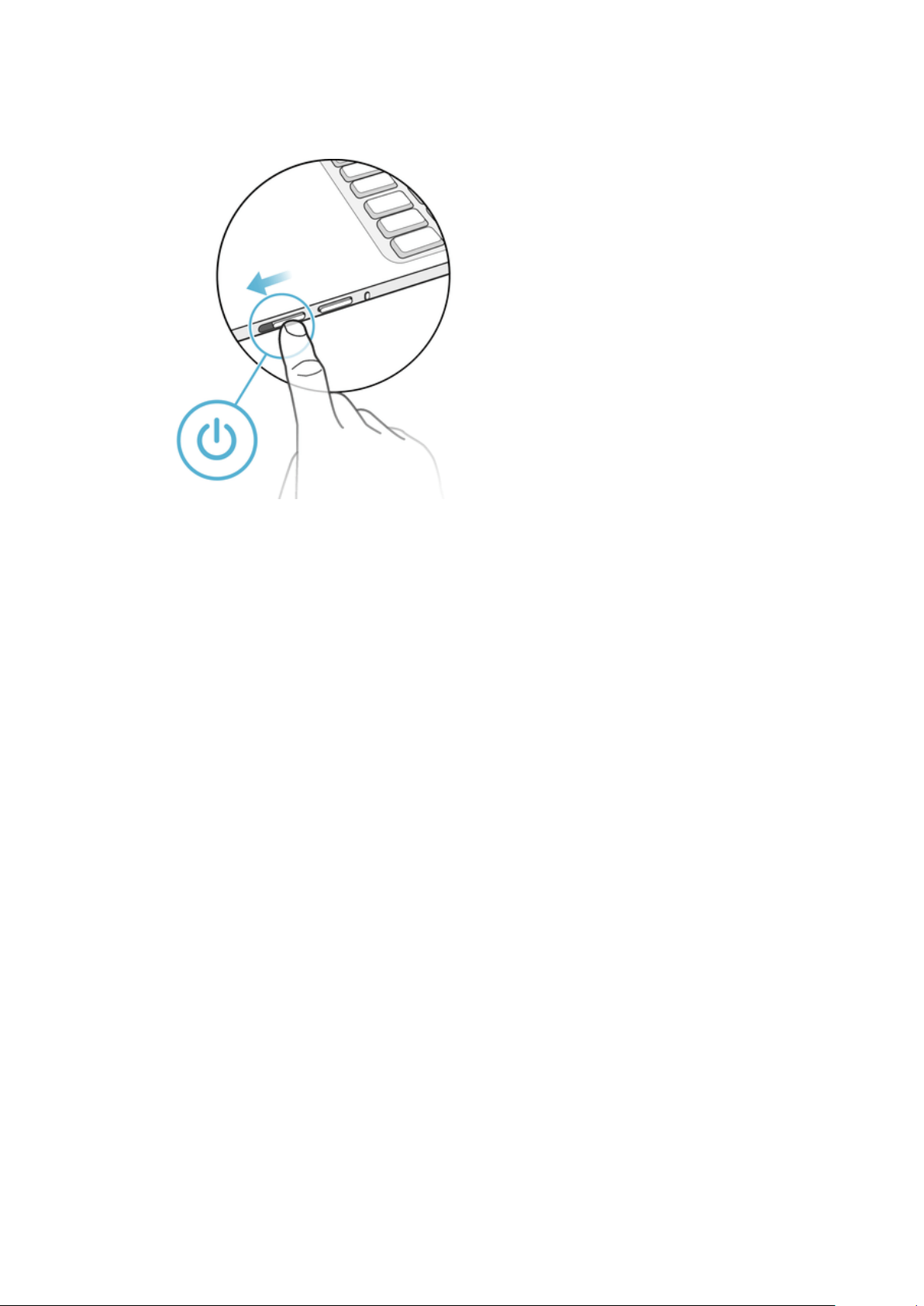
Turning on and o
To turn the keyboard on or o
• Slide the power switch downwards and then release it.
5
This is an Internet version of this publication. © Print only for private use.
Getting started
Setting up the keyboard
The BKB50Bluetooth® Keyboard uses Bluetooth® technology to communicate with
your tablet. To establish a Bluetooth® connection between the two devices, you
can either use automatic NFC-assisted pairing or you can pair the devices
manually.
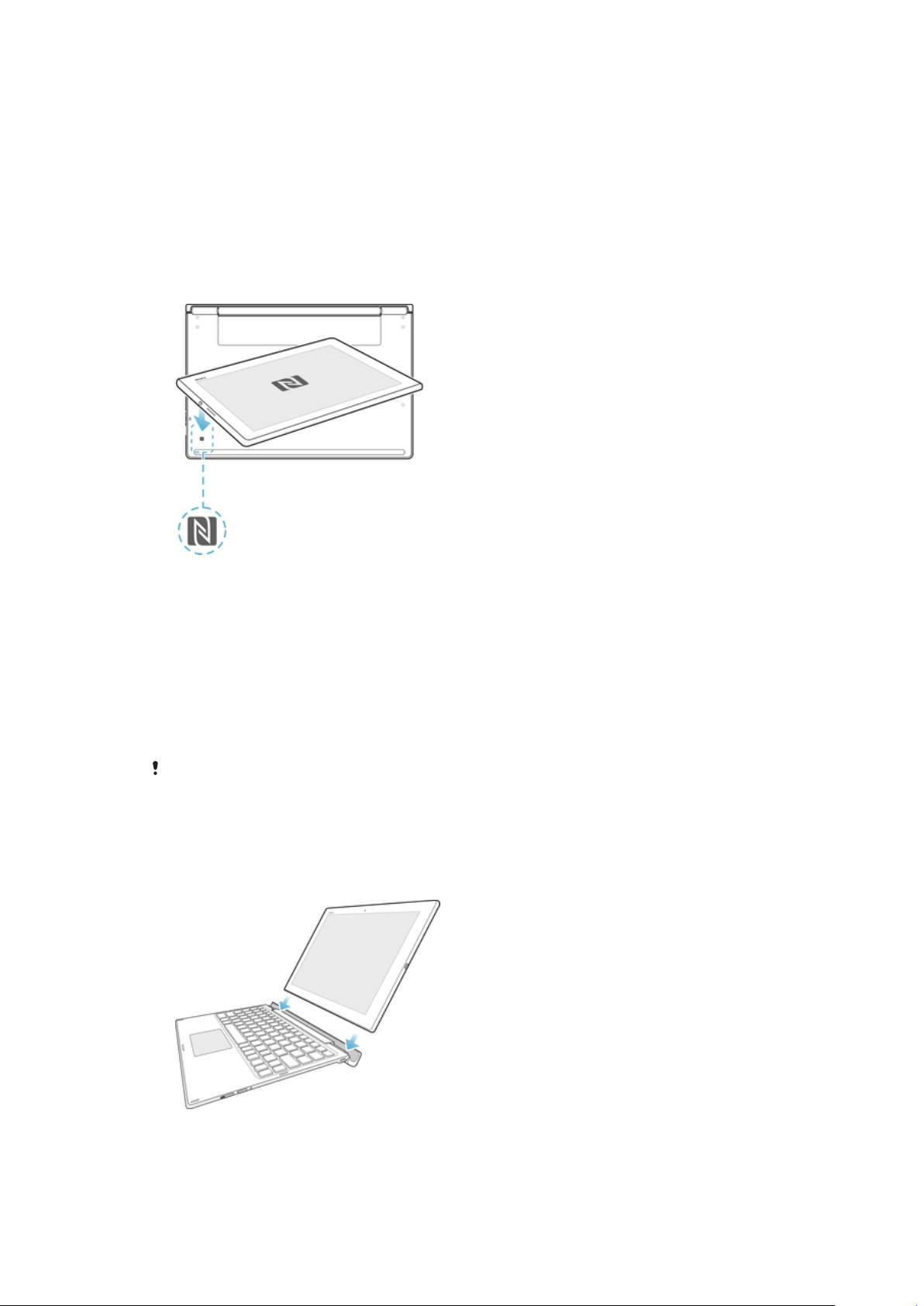
To automatically pair the keyboard with the tablet using NFC
1 Tablet: Make sure that the NFC function is turned on and that the screen is
active and unlocked.
2 Place the tablet over the NFC detection area of your keyboard so that the
NFC detection area of each device touches the other. The devices should
now connect to each other automatically.
To manually pair the keyboard with the tablet using Bluetooth®
1 Keyboard: Turn on the keyboard. The keyboard enters pairing mode
automatically and the notification light flashes blue.
2 Tablet: Turn on the Bluetooth® function, then search for and tap BKB50.
If the notification light stops flashing blue before you get time to pair your tablet with the
keyboard, press the pair key until the notification light flashes blue and then try again.
Assembly
To insert the tablet
6
This is an Internet version of this publication. © Print only for private use.

1 Insert the bottom edges of the tablet firmly into the grooves of the
keyboard.
2 Adjust the angle of the tablet so that it’s positioned suitably.
7
This is an Internet version of this publication. © Print only for private use.
Using your Bluetooth® Keyboard
Tablet settings for Danish and Norwegian users
For Nordic keyboard users, the default keyboard layout on your tablet is Swedish
and Finnish. Danish and Norwegian users can switch the keyboard layout to their
respective languages via the Keyboard Layout settings on the tablet.
To switch the keyboard layout to Danish or Norwegian
1 From your Home screen, tap .
2 Find and tap Settings > Language & input > BKB50 > SET UP KEYBOARD
LAYOUTS.
3 Select Norwegian or Danish.
4 Go back to the previous screen or the Home screen.
PC style keyboard launcher application
A keyboard launcher application opens when the keyboard and tablet are paired
and connected. This application helps you to:
• Launch applications
• Modify shortcuts
• View and adjust keyboard settings
• Update the keyboard firmware
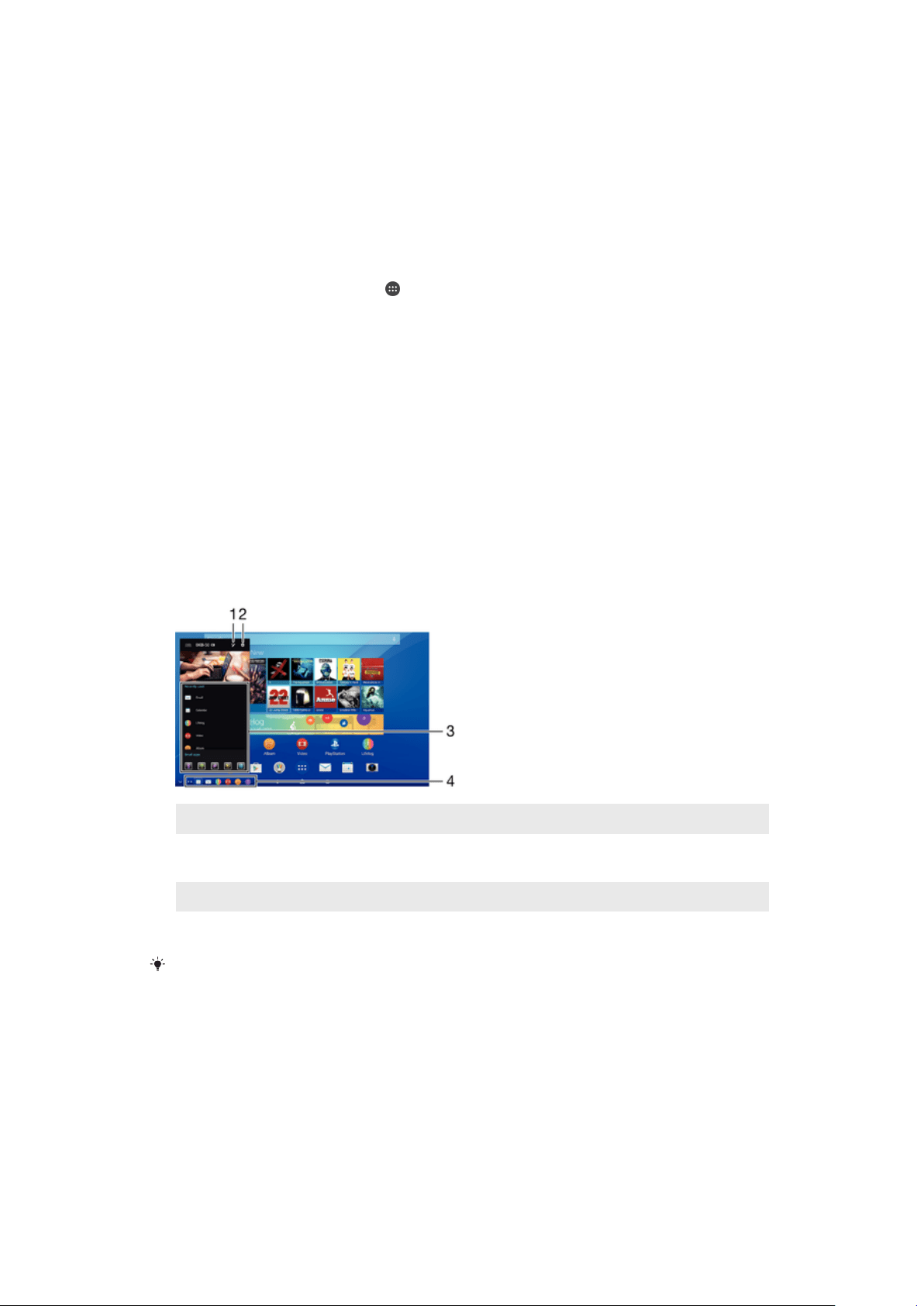
Overview of PC style keyboard launcher
1
Edit shortcuts.
2
Follow the on-screen instructions to adjust settings or update the keyboard
firmware.
3
Launch a recently used application or a small app.
4
Tap a shortcut to launch frequently used applications.
When the keyboard and tablet are paired and connected, a dialogue box opens if an
update is available. If you select No in the dialogue box, you can manually update the
keyboard later from the Settings menu.
8
This is an Internet version of this publication. © Print only for private use.

To create and delete application shortcuts
1 Make sure the keyboard and the tablet are both turned on and paired.
2 Tap
.
3 Tap .
4 To add an application shortcut, drag and drop the application from the
Applications list on the right of the screen to the Shortcut list on the left.
5 To delete an application shortcut, drag the application from the Shortcut list
to
at the bottom of the screen.
6 Tap SAVE.
Using the touchpad
To use the pointer
1 Slide one finger on the touchpad until you locate the pointer on the screen,
then move it to the desired position.
2 Press the left button zone or right button zone to execute commands or
display menus.
To scroll the screen
9
This is an Internet version of this publication. © Print only for private use.
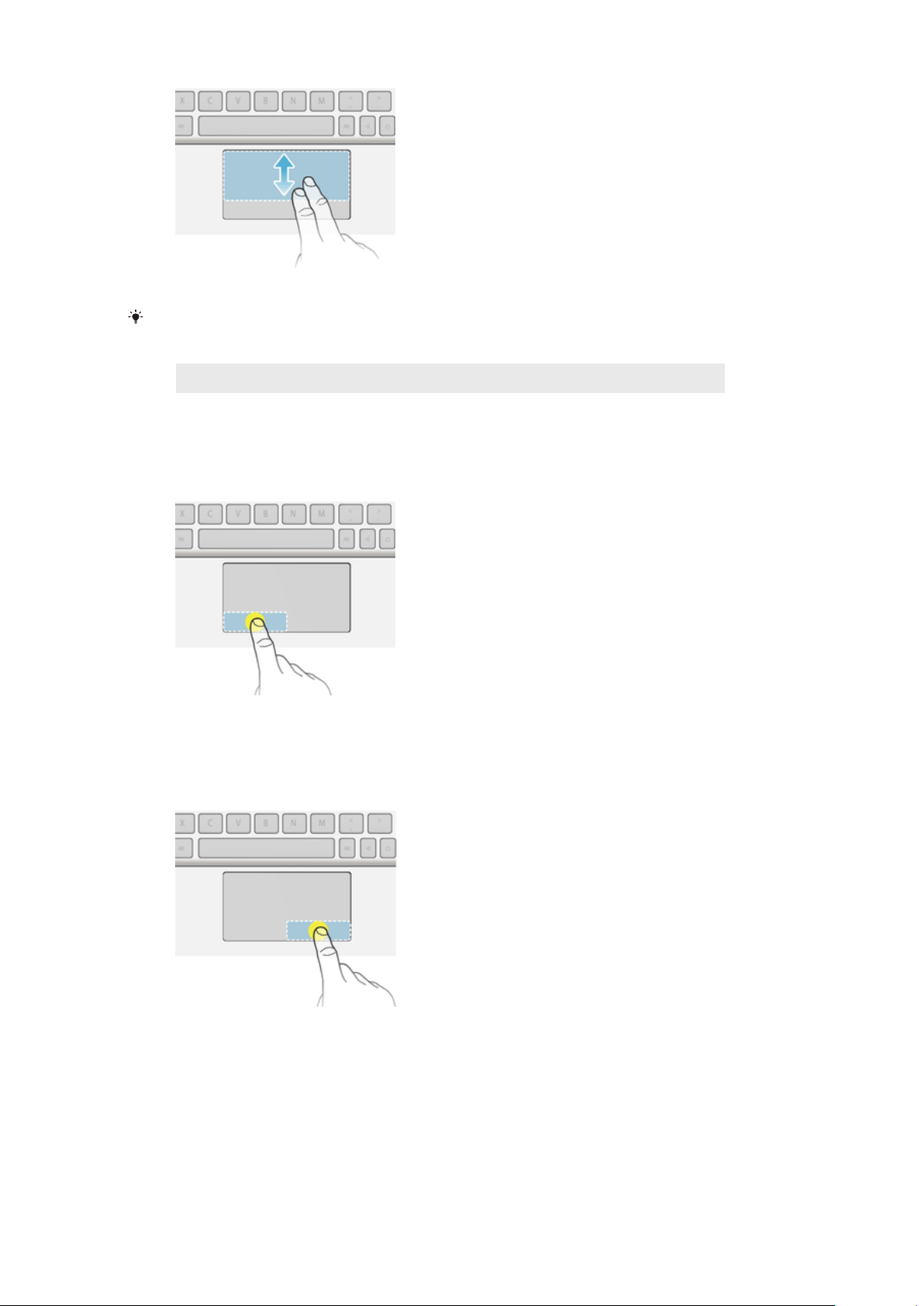
• Slide two fingers on the touchpad until a circular pointer appears, then slide
left or right, or up and down, to scroll the tablet screen.
Sliding left or right on the touchpad is equivalent to flicking left or right on
the tablet screen.
Motion On-screen action
Slide across Flick page by page.
Slide up or down Scroll page by page.
To click
1 Move one finger on the active zone to locate the pointer.
2 Move the pointer to the desired item or object, then press the left button
zone once or tap the active zone briefly with one finger.
To right click
1 Move one finger on the active zone to locate the pointer.
2 Move the pointer to the desired item or object, then press the right button
zone once.
10
This is an Internet version of this publication. © Print only for private use.
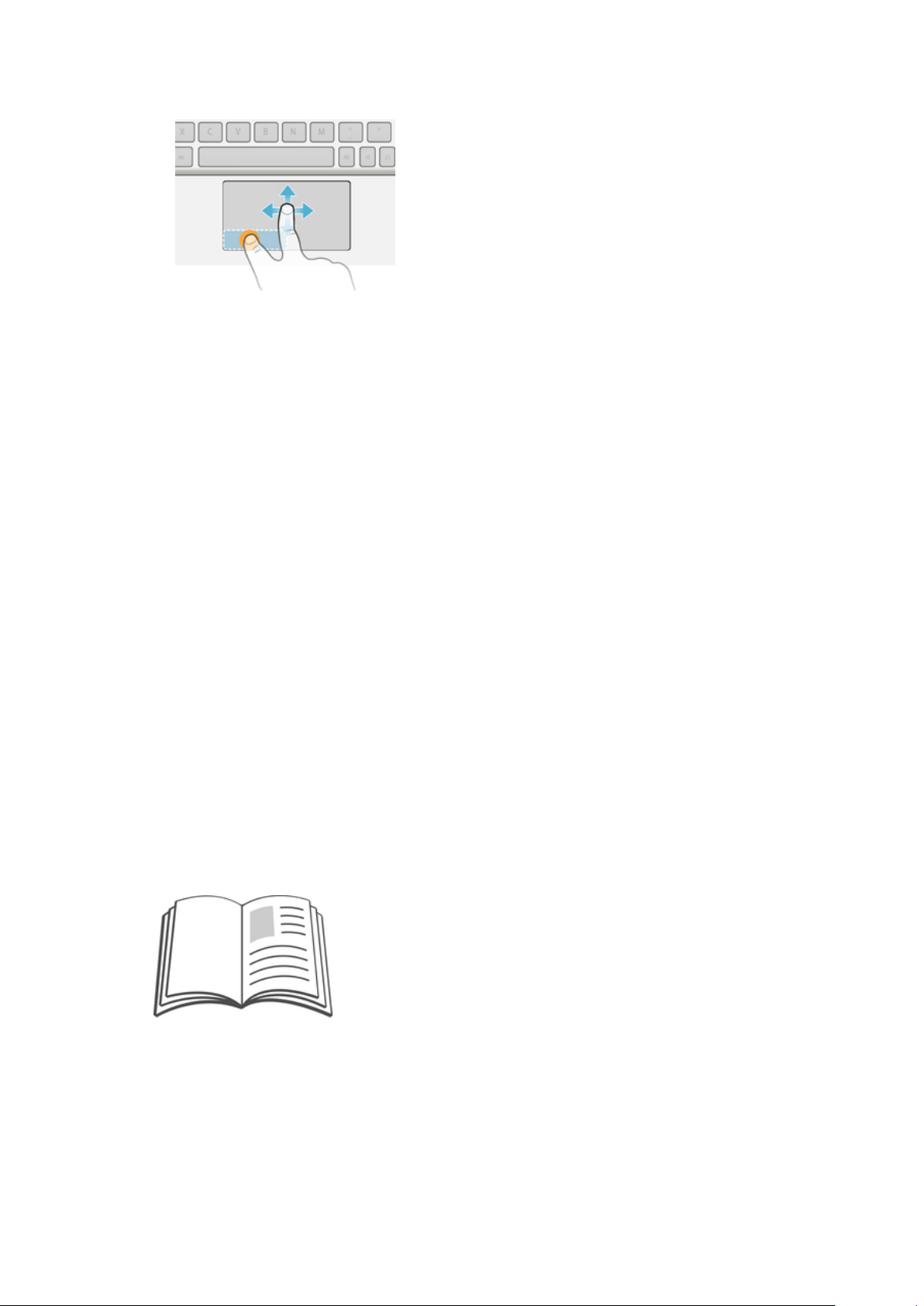
To drag and drop
1 Move one finger on the active zone to locate the pointer, then move it over
the item that you want to select.
2 Long press the left button zone.
3 Using another finger, drag and drop the selected item to the desired
position.
To pinch in or out
1 Press and hold the active zone using two fingers until a circular pointer
appears, then move it to the desired position on the tablet screen.
2 Using two fingers, pinch to zoom in or out.
Sleep mode
When connected, the keyboard goes into sleep mode to save power if it is inactive
for five minutes.
To wake up the keyboard from sleep mode
• Press any key or slide the power switch briefly downwards.
Resetting the keyboard
You can perform a hardware reset on your Bluetooth® Keyboard if it behaves
unexpectedly. All information about paired devices gets deleted when you perform
a reset.
To perform a hardware reset
• Press and hold down the pair key and, at the same time, slide the power
switch downwards and keep it in the down position for 3 seconds.
Support on the web
Visit
www.sonymobile.com/support
to access a range of support options for your
device, including downloads, troubleshooting tips and a User guide.
11
This is an Internet version of this publication. © Print only for private use.

Legal information
Sony BKB50
Prior to use, please read the
Important information
leaflet separately provided.
This User guide is published by Sony Mobile Communications Inc. or its local aliated company, without
any warranty. Improvements and changes to this User guide necessitated by typographical errors,
inaccuracies of current information, or improvements to programs and/or equipment, may be made by
Sony Mobile Communications Inc. at any time and without notice. Such changes will, however, be
incorporated into new editions of this User guide.
All rights reserved.
©2015 Sony Mobile Communications Inc.
Interoperability and compatibility among Bluetooth® devices varies. Device generally supports products
utilizing Bluetooth spec. 1.2 or higher, and Headset or Handsfree profile.
Sony is the trademark or registered trademark of Sony Corporation. Bluetooth is the trademark of the
Bluetooth (SIG) Inc. and is used under license. All other marks are the property of their respective owners.
All rights reserved.
All product and company names mentioned herein are the trademarks or registered trademarks of their
respective owners. Any rights not expressly granted herein are reserved. All other trademarks are property
of their respective owners.
Visit
www.sonymobile.com
for more information.
All illustrations are for illustration only and may not accurately depict the actual accessory.
12
This is an Internet version of this publication. © Print only for private use.
Declaration of Conformity
We, Sony Mobile Communications Inc of
Nya Vattentornet
SE-221 88 Lund, Sweden
declare under our sole responsibility that our product
Sony type RD-0101
to which this declaration relates is in conformity with the appropriate standards
Spectrum EMC Safety
EN 300 328:V1.8.1 EN 301 489-3:V1.6.1 EN 60950-1:2006+A11:2009+A1:2010+A12:2010
+A2:2013
EN 302 291-2:V1.1.1 EN 301 489-7:V1.3.1
EN 301 489-17:V2.2.1
following the provisions of, Radio Equipment and Telecommunication Terminal
Equipment directive 1999/5/EC.
Mikael Nilsson
Head of Global Type Approval
FCC Statement
This device complies with Part 15 of the FCC rules. Operation is subject to the following two conditions: (1)
This device may not cause harmful interference, and (2) This device must accept any interference received,
including interference that may cause undesired operation.
Any change or modification not expressly approved by Sony may void the user's authority to operate the
equipment.
This equipment has been tested and found to comply with the limits for a Class B digital device, pursuant to
Part 15 of the FCC Rules. These limits are designed to provide reasonable protection against harmful
interference in a residential installation. This equipment generates, uses and can radiate radio frequency
energy and, if not installed and used in accordance with the instructions, may cause harmful interference to
radio communications. However, there is no guarantee that interference will not occur in a particular
installation.
If this equipment does cause harmful interference to radio or television reception, which can be determined
by turning the equipment o and on, the user is encouraged to try to correct the interference by one or
more of the following measures:
• Reorient or relocate the receiving antenna.
• Increase the separation between the equipment and receiver.
• Connect the equipment into an outlet on a circuit dierent from that to which the receiver is connected.
• Consult the dealer or an experienced radio/TV technician for help.
Industry Canada Statement
This device complies with RSS-210 of Industry Canada.
Operation is subject to the following two conditions: (1) this device may not cause interference, and (2) this
device must accept any interference, including interference that may cause undesired operation of the
device.
This Class B digital apparatus complies with Canadian ICES-003.
Cet appareil numérique de la classe B est conforme à la norme NMB-003 du Canada.
Avis d’industrie Canada
Le présent appareil est conforme aux CNR d'Industrie Canada applicables aux appareils radio exempts de
licence.
L'exploitation est autorisée aux deux conditions suivantes:(1) l'appareil ne doit pas produire de brouillage,
et, and (2) l'utilisateur de l'appareil doit accepter tout brouillage radioélectrique subi, même si le brouillage
est susceptible d'en compromettre le fonctionnement.
Cet appareil numérique de la classe B est conforme à la norme NMB-003 du Canada.
13
This is an Internet version of this publication. © Print only for private use.