132Q_IRX-6890_US/ES 4-466-813-21(1)
Quick
Start
Guide
Initial Setup
1
Check supplied items
2
Install battery pack
3
Connect AC adapter/
Turn on your VAIO
4
Connect to the
Internet
Printed in China
© 2013 Sony Corporation
AC adapter
Power cord
Battery pack
Wireless keyboard
Wireless mouse
AA batteries (2)
6
Locate User Guide
7
Sign in with Microsoft
account
Parts and Controls
1
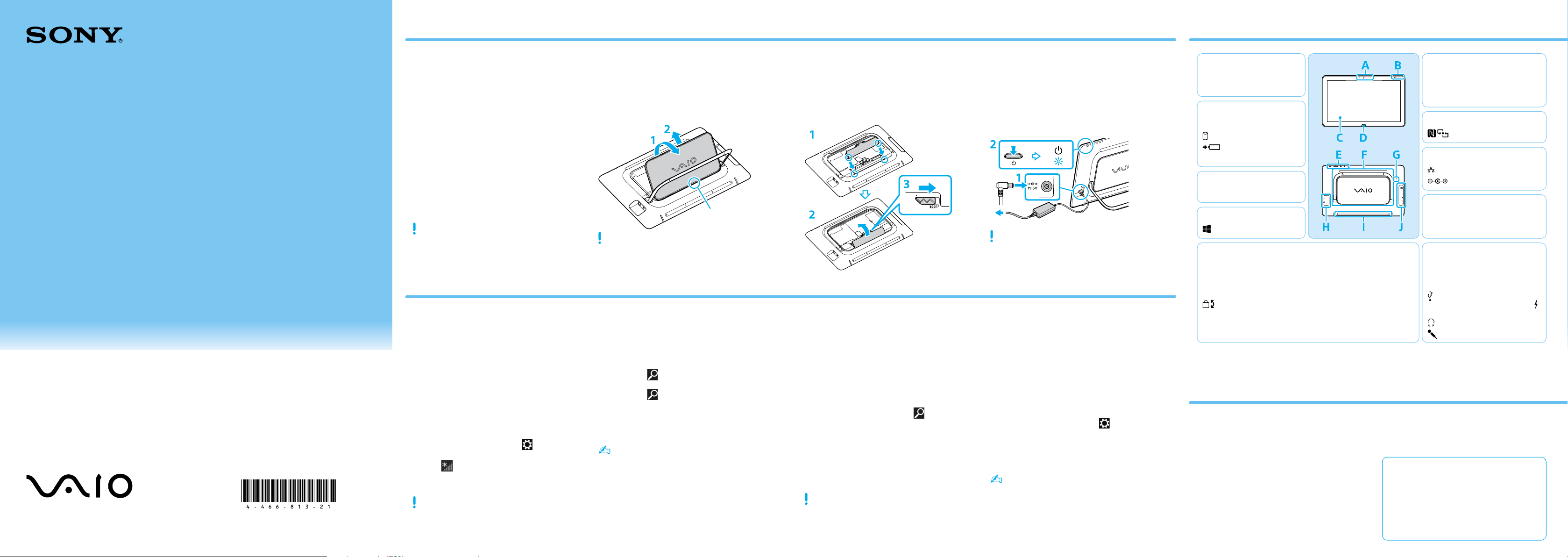
Gently lay your VAIO computer face down
on a soft cloth, then open the stand and
remove the back panel.
Hook
After installing the battery pack, anchor the
back panel to the hook, and then close the
back panel.
2
Unlock the battery’s LOCK switch before
installing the battery, and then lock the
switch after installing.
1
Plug the power cord and the AC adapter
into an AC outlet and the computer.
2
Press and hold down the power button
until the power indicator light turns on.
Be sure to connect the AC adapter to your
computer when using it for the first few times
to ensure the battery becomes fully charged.
Connect to the Internet to automatically
activate Windows.
Wired connection
Connect your computer and router with a
LAN cable.
Wi-Fi
(Wireless LAN) connection
1
Open the charms by pointing to the top
right corner of the screen, then move the
pointer down and click the
Settings
charm.
2
Click (the network icon).
3
Select the desired network (SSID) and click
Connect.
For details on the security key and other
settings, refer to the manual of the network
device or the information from your Internet
service provider.
To download and use apps from Windows
Store, you need to use a Microsoft account
instead of a local account. You can create a
Microsoft account by following the steps
below.
1
Open the charms by pointing to the top
right corner of the screen, then move the
pointer down and click the
Settings
charm.
2
Click Change PC settings, Users, and
Switch to a Microsoft account.
3
Follow the on-screen instructions.
When app updates are available, a number
appears on the Store tile on the Start
screen. Click the tile to start Store and
update Windows Store apps.
An introductory version of the User Guide is
available on your computer. To update to the
complete version, connect to the Internet
and follow the steps below.
1
Open the charms by pointing to the top
right corner of the screen, then move the
pointer down and click the
Search
charm.
2
Click Apps, enter “VAIO Manual” in the
search box, and then click the icon.
The User Guide appears.
3
Close the User Guide, and after a while,
open again by following the same steps.
The complete version will be available.
Be sure to use VAIO Update before updating.
4-466-813-21(1)
Personal Computer
VAIO Tap 20 SVJ202
Please read this manual and
Safety Regulations carefully
before using the product.
Keep them in a safe place.
5
Complete important
tasks
Perform Windows Update and VAIO
Update
Click the Search charm and Settings,
then search Windows Update.
Click the
Search charm and Apps,
then search VAIO Update.
Create your Recovery Media
Press the ASSIST button to start VAIO
Care, then click Advanced Tools.
Recovery Media are not supplied with your
computer. Refer to the supplied Recovery,
Backup and Troubleshooting Guide
before creating the Recovery Media.
Register your computer
Press the ASSIST button to start VAIO
Care, then click About your VAIO.
ˈ Insert the supplied AA alkaline battery and
slide the power switch to ON before use.
Features and specifications may vary and are
subject to change without notice.
Care and Handling Tips
Computer Handling
Do not exert pressure on your computer,
especially the touch screen or the AC
adapter cable.
HDD Care
If your computer is equipped with a built-in
hard disk drive, avoid moving the computer
when it is turned on, is in the process of
powering on, or is shutting down.
Ventilation
Place your computer on hard surfaces such
as a desk or table. Proper air circulation
around vents is important to prevent
overheating.
Liquid Damage
Protect your computer from contact with
liquids.
Support websites
http://esupport.sony.com/US/VAIO/ (USA)
http://www.sony.ca/support/ (Canada: English)
http://fr.sony.ca/support/ (Canada: French)
http://esupport.sony.com/LA/VAIO/
(Latin American area)
http://esupport.sony.com/BR/VAIO/ (Brazil)
A
Built-in camera / indicator
Ambient light sensor
B
WIRELESS indicator
Disc drive indicator
Charge indicator
Power indicator
D
Windows button
C
Touch screen
F
Subwoofer
Air exhaust vent
Stand
G
Touch mark
H
LAN port
DC IN port
I
Built-in speakers
Air intake vent
J
Media access indicator
“Memory Stick Duo” / SD memory
card combined slot
USB port x 2 (Compliant with the
USB 3.0 standard, the port with the
mark supports USB charging.)
Headphone jack
Microphone jack
ˈ On selected models only.
E
Built-in microphone
ASSIST button Starts VAIO Care while your computer is
on - easily tune-up and self support the
computer.
Rotation lock button
VOL (Volume) buttons
Power button

132Q_IRX-6890_US/ES 4-466-813-21(1)
Guía de
Inicio
Rápido
Instalación inicial
1
Verifique los artículos
suministrados
2
Instale la batería
3
Conecte el adaptador de
CA/Encienda su VAIO
4
Conéctese a Internet
Adaptador de CA
Cable de alimentación
Batería
Teclado inalámbrico
Mouse inalámbrico
Baterías AA (2)
6
Ubique la Guía
del usuario
7
Inicie sesión con la
cuenta Microsoft
Piezas y controles
1
Con suavidad, coloque su computadora
VAIO hacia abajo sobre un paño suave,
abra el soporte y retire el panel posterior.
Gancho
Después de instalar la batería, sujete el panel
posterior al gancho, y después, ciérrelo.
2
Desbloquee el interruptor LOCK de la
batería antes de instalarla y bloquee el
interruptor después de la instalación.
1
Conecte el cable de alimentación y
el adaptador de CA a una toma de
corriente de CA y a la computadora.
2
Mantenga presionado el botón de
encendido hasta que el indicador de
encendido se ilumine.
Conecte el adaptador de CA a la computadora
las primeras veces que la use para asegurarse
de que la batería se cargue completamente.
Conéctese a Internet para activar Windows
automáticamente.
Conexión por cable
Conecte su computadora y enrutador con
un cable LAN.
Conexión Wi-Fi
(LAN inalámbrica)
1
Abra los accesos; para ello, en la esquina
superior derecha de la pantalla, mueva
el puntero hacia abajo y haga clic en el
acceso
Configuración.
2
Haga clic en (el ícono de red).
3
Seleccione la red deseada (SSID) y haga
clic en Conectar.
Para obtener detalles sobre la clave de
seguridad y otras configuraciones, consulte el
manual del dispositivo de red o la información
de su proveedor del servicio de Internet.
Para descargar y utilizar las aplicaciones de
la Tienda Windows, debe usar una cuenta
Microsoft en lugar de una cuenta local. Para
crear una cuenta Microsoft, siga los pasos a
continuación.
1
Abra los accesos; para ello, en la esquina
superior derecha de la pantalla, mueva
el puntero hacia abajo y haga clic en el
acceso
Configuración.
2
Haga clic en Cambiar configuración de PC,
Usuarios, y Cambiar a una cuenta
Microsoft.
3
Siga las instrucciones en pantalla.
Cuando existan actualizaciones de
aplicaciones disponibles, aparecerá un
número en el mosaico Tienda en la
pantalla Inicio. Haga clic en el mosaico
para iniciar la Tienda y actualizar las
aplicaciones de la Tienda Windows.
La computadora ofrece una versión
introductoria de la Guía del usuario. Para
obtener la versión completa, conéctese a
Internet y siga los pasos a continuación.
1
Abra los accesos apuntando a la esquina
superior derecha de la pantalla, luego,
mueva el puntero hacia abajo y haga
clic en el acceso
Buscar.
2
Haga clic en Aplicaciones e introduzca
“Manual de VAIO” en el cuadro de
búsqueda; luego, haga clic en el ícono.
Aparecerá la Guía del usuario.
3
Cierre la Guía del usuario, aguarde unos
minutos y vuelva a abrirla siguiendo los
mismos pasos.
Estará disponible la versión completa.
Asegúrese de usar VAIO Update antes de
comenzar la actualización.
Computadora personal
VAIO Tap 20 SVJ202
Lea este manual y la Reglamentación
de Seguridad detenidamente antes
de utilizar este producto.
Manténgalos en un sitio seguro.
5
Complete tareas
importantes
Ejecute Windows Update y VAIO Update
Haga clic en el acceso Buscar
y en Configuración, y después busque
Windows Update.
Haga clic en el acceso
Buscar
y en Aplicaciones, y después busque
VAIO Update.
Cree su Medio de Recuperación
Presione el botón ASSIST para iniciar
VAIO Care y, a continuación, haga clic
en Herramientas avanzadas.
Los Medio de Recuperación no se
suministran con la computadora.
Consulte la Guía de recuperación, copia
de seguridad y solución de problemas
antes de crear el Medio de Recuperación.
Registre la computadora
Presione el botón ASSIST para iniciar
VAIO Care y, a continuación, haga clic
en Acerca de VAIO.
ˈ Antes de utilizar, inserte las baterías alcalinas
AA suministradas y deslice el interruptor de
encendido hasta la posición ON.
Las funciones y especificaciones pueden variar
y están sujetas a cambios sin previo aviso.
Consejos de cuidado y manipulación
Manipulación de la computadora
No ejerza presión sobre la computadora,
especialmente sobre la pantalla táctil o el
cable del adaptador de CA.
Cuidado del disco duro
Si la computadora está equipada con una
unidad de disco duro incorporada, evite mover
la computadora mientras está encendida o
durante los procesos de encendido y apagado.
Ventilación
Coloque la computadora sobre superficies
duras, como un escritorio o una mesa. La
circulación adecuada de aire es importante
para evitar el sobrecalentamiento.
Daños por líquidos
Evite que cualquier líquido entre en contacto
con la computadora.
Sitios web de asistencia
http://esupport.sony.com/US/VAIO/
(Estados Unidos)
http://www.sony.ca/support/ (Canadá: inglés)
http://fr.sony.ca/support/ (Canadá: francés)
http://esupport.sony.com/LA/VAIO/
(Área de América Latina)
http://esupport.sony.com/BR/VAIO/ (Brasil)
A
Cámara/indicador incorporado
Sensor de luz ambiental
B
Indicador WIRELESS
Indicador de la unidad de disco
Indicador de carga
Indicador de encendido
D
Botón Windows
C
Panel táctil
F
Subwoofer
Abertura de ventilación
Soporte
G
Marca táctil
H
Puerto LAN
Puerto de entrada de CC
I
Altavoces incorporados
Ventilación de entrada
J
Indicador de acceso a medios
Ranura combinada para “Memory
Stick Duo”/tarjeta de memoria SD
Puerto USB x 2 (Cumple con el
estándar USB 3.0, el puerto con la
marca
es compatible con la carga USB.)
Conector para auriculares
Conector para micrófono
ˈ Solo en los modelos seleccionados.
E
Micrófono incorporado
Botón ASSIST
Inicia VAIO Care mientras la computadora
está encendida (permite ajustar fácilmente y
realizar el mantenimiento de la computadora).
Botón de bloqueo
de rotación
Botones VOL (Volumen)
Botón de encendido