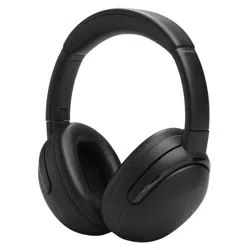
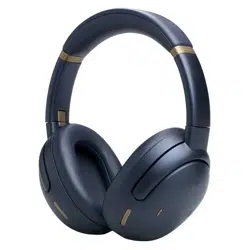
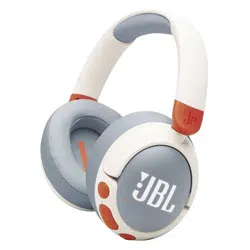
User manual Headphones
Google Assistant
To set up Google Assistant
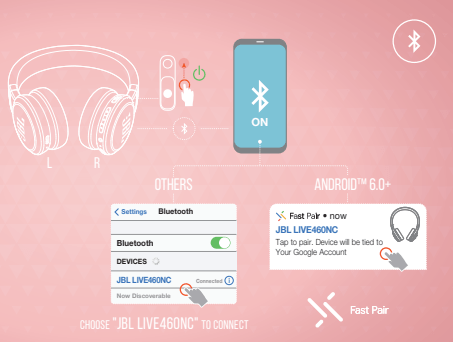
- Connect your headphones to your mobile device
- Set up Google Assistant using your mobile device: On your Android device, press and hold the home button to open Google Assistant and follow the on-screen instructions. On your iOS devices, open or download Google Assistant app and follow the app instructions.

NOTE: Google Assistant is available on eligible Android 6.0 devices or later. For iOS devices, Google Assistant app needs to be downloaded. Works on Lollipop, Marshmallow and Nougat Android Phones with Google Play Services, >1.5GB of memory and 720p or higher screen resolution. For more information on what Google Assistant can do, visit: assistant.google.com/platforms/headphones
To use Google Assistant
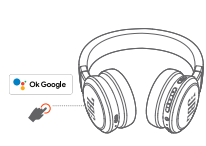
- Talk to Google Assistant: TAP AND HOLD THE ACTION BUTTON TO BEGIN. Requires pairing with eligible phone and internet connection. For examples of questions and things you can do, visit: https://assistant.google.com/platforms/headphones
- Get your notifications: DOUBLE TAP THE ACTION BUTTON.
- Stop Google Assistant: TAP ONCE THE ACTION BUTTON
- Reply to a message (where available): AFTER RECEIVING A MESSAGE NOTIFICATION, TAP AND HOLD THE ACTION BUTTON TO RESPOND. When you’re done, release the button.
NOTE:
- Google, Android and Google Play are trademarks of Google LLC.
- Google Assistant isn’t available in certain languages and countries.
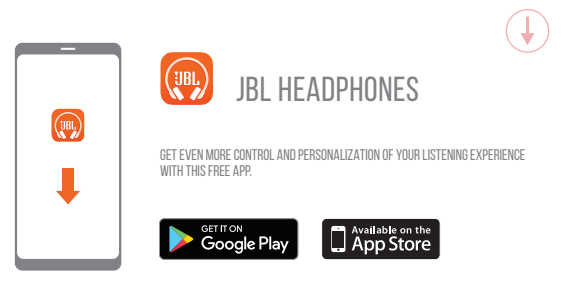
- If you want to turn on or off Google Assistant, please download our My JBL Headphones App. You can select under Settings > Voice assistant > Google Assistant.
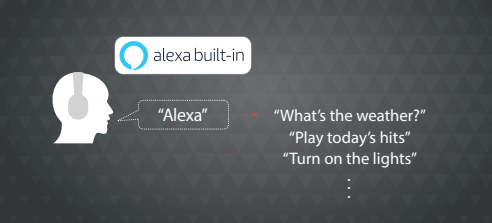
Amazon Alexa
- Connect your headphones to your mobile device.
- On your mobile device, open or download the Amazon Alexa app and follow the app instructions.
- In the Amazon Alexa App, navigate to the Device Page.
- Click the Plus (+) button on the top right of the screen and select ‘Add Device’.
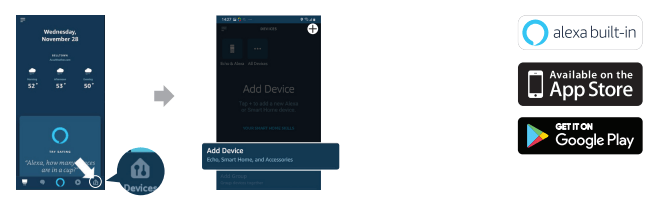
5. Select Headphones from the list and then choose your Live Series Headphones in the Available Devices section. Follow the rest of the instructions in the Alexa App to complete set up.
6. Alexa setup has been completed for your device. Enable Alexa as the preferred Voice Assistant on the JBL app. Press the action button for 2 seconds and try one of the below utterances:
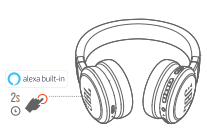
- Ask for the weather: "Alexa, what's the weather?"
- Play audio: "Alexa, play today’s hits." Note: Amazon Music is set as the default music service, To change the default music service, use the Alexa app.
- Voice control your smart home devices: "Alexa, turn on the lights."
- Discover more skills: Alexa, what new skills do you have?"
- Stop Alexa: While Alexa is talking, press and release the Action button then say "Stop".
NOTE:
- Android 6.0 or higher is required for full access to Alexa features when using this device.
- To turn on or off the Amazon Alexa, please download our JBL APP. You can select under Settings > Voice assistant > Amazon Alexa.
- Alexa is not available in all languages and countries. Alexa features and functionality may vary by location.
Bluetooth Troubleshooting
1. How to avoid Bluetooth interference/interruptions:
- Always have a clear line of sight between your Bluetooth device (speaker, headphones, etc.) and source device (Smartphone/tablet/PC, etc). Be aware of obstacles in front of your devices.
- Try to shutdown products that have Bluetooth, but not are not being used. They are often the reason for interference even though they are not being used.
- Do not stand too close to your Wi-Fi router since a Wi-Fi signal is stronger and in many cases will "overlap" the connection.
- Be aware of walls around you. Concrete and brick walls will often interrupt the signal, as it cannot pass through such thick walls.
- Bluetooth signals cannot travel through water, which includes the human body. Make sure with Wireless Headphones to keep your Source device and the receiver on the same side of your body.
- Open spaces such as parks can cause issues for your devices, as open air is "bad" for any Bluetooth signal if it cannot reflect from objects around you.
2. Pairing issues with a Smartphone or Tablet:
- First, try to restart the Bluetooth connection on your source device (Smartphone/tablet/PC) by switching Bluetooth off and on again with a short pause in between.
- "Forget" (remove) the previously paired connection (on your smartphone/tablet/PC) in your Bluetooth settings if you had once paired with our product.
- Try to restart the source device(Smartphone/tablet/PC) by powering it off and on again, and after restarting try to establish a Bluetooth connection to your product.
- If the above does not work, then try to restart your product (Portable speaker, Headphone) by turning it off and on again.
- Press and hold down the Bluetooth button on your device (Portable speaker, Headphones) to initiate pairing mode again.
- Go into the Bluetooth settings on your Smartphone/tablet or PC to start the pairing process.
- You should now have a successful pairing with our device, but if you are still experiencing issues then contact us again.
3. Pairing issues with a Computer or PC:
- In most cases when a Computer/PC/Laptop has issues connecting to a Bluetooth device (Portable speaker, Headphones, Active speakers), it's caused by your Computer/PC/Laptop's Bluetooth driver (software).
- The driver (software) should support the following Bluetooth protocols, to be able to play music/sounds from your Computer/PC/Laptop:
- A2DP (Advanced Audio Distribution Profile) driver for your Computer/PC/Headphones to transfer music. AVRCP (Audio/Video Remote Control Profile) driver to send skip/forward/pause/play music to your device Always get the latest driver version available for your Computer/PC/Laptop.
- To download the correct driver (software), visit the manufacturer's website of your Computer/PC/Laptop. They usually have a "Support/Download" section where you can find the correct driver. Otherwise, contact their support.
- The standard drivers provided by Microsoft/Windows systems are often not correct, and will result in error messages (such as having to enter a PIN code), or pairing not working.
4. What is Bluetooth technology?
- Bluetooth technology is a wireless technology that exchanges data (Music etc.) over short distances from a mobile device.
- Bluetooth range depends on your surroundings (reflection from objects) and what chipset is being used (some can go 1 meter, 10 meters or 100 meters).
- Our Bluetooth devices typically supports up to 10 meter distance from the source device.
5. Explaining the different Bluetooth profiles used in our devices:
- Many of our Bluetooth devices have a specification sheet like Bluetooth Profiles Supported: A2DP v1.5/AVRCP v1.6. These are the protocols that a specific Bluetooth speaker or Headphone device is compatible with. This might look too technical for some customers, but all you need to know is that Bluetooth Speakers and Headphones they are the only ones with these profile that you need to be aware of:
- A2DP – A2DP stands for ‘Advanced Audio Distribution Profile’ and is a Bluetooth protocol that allows mobile users to stream high quality (stereo or mono) audio wirelessly. If you want to listen to your music on a pair of Bluetooth headphones or speakers, both devices need to support this.
- AVRCP – AVRCP stands for ‘Audio/Video Remote Control Profile' and controls remote functions such as pause/start/skip/forward.
- HSP – HSP stands for ‘Headset Profile’ and is a Bluetooth profile to enable a two-way wireless Headphone to be used with a Bluetooth smartphone. In our Headphones this is one of the most common Bluetooth profiles and supports simultaneous two-way (full-duplex) audio, but it does not support stereo audio.
- HFP - HFP Stands for 'Hands Free Profile'. This profile provides the same abilities as HSP does, but adds abilities such as redial last number called, voice dialing and call waiting.
Note for HSP and HFP: You can also use it with devices other than phones, like your Computer/PC with a Bluetooth Headphone that could be used with a Bluetooth-enabled PC and VoIP software to place an Internet phone call (NOTE: some PC software requires different drivers for specific purposes like SKYPE - Always refer to the manufacturer of the PC/Laptop for help with setting this up)
Quick start guide
APP
Power on & CONNECT 
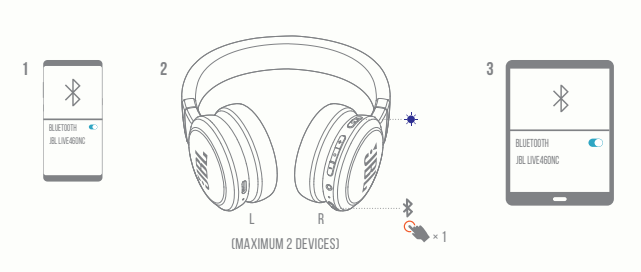
Multi-point connection 
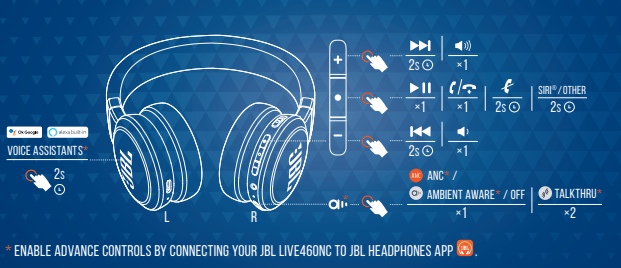
BUTTON COMMAND 
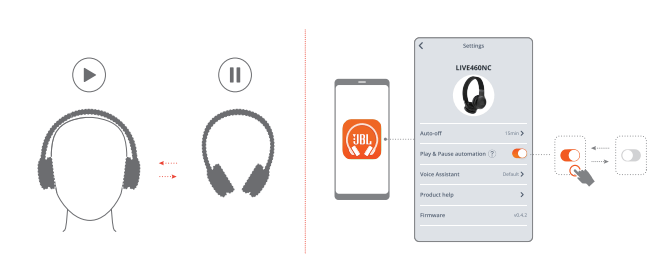
Auto-play/pause 
DO MORE WITH THE APP 
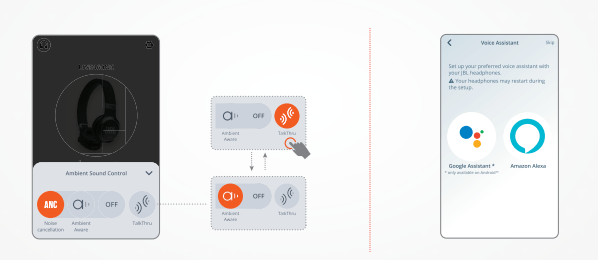
HANDS-FREE VOICE CONTROL
Get more done on the go. Say "Ok Google" to get started.
- “Play my Workout playlist”
- “Turn up the volume”
- “Send a message”
- “What's my schedule today?”
- “Set an alarm for 7 AM”

Note: Only available on Android™
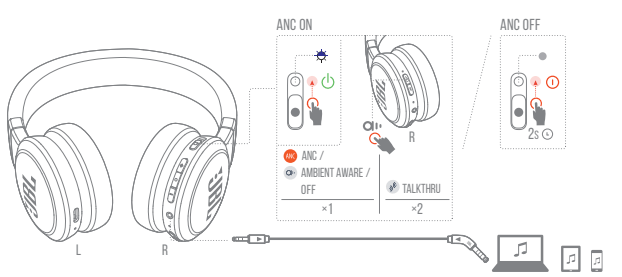
Wired listening mode 
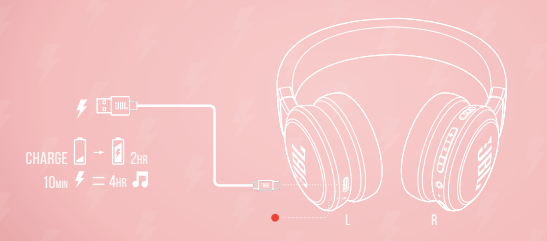
Charging 
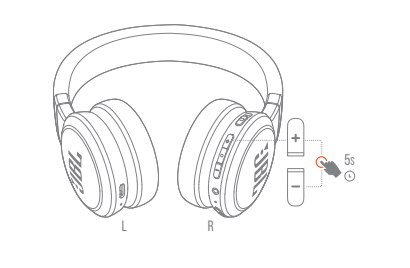
FACTORY RESET 
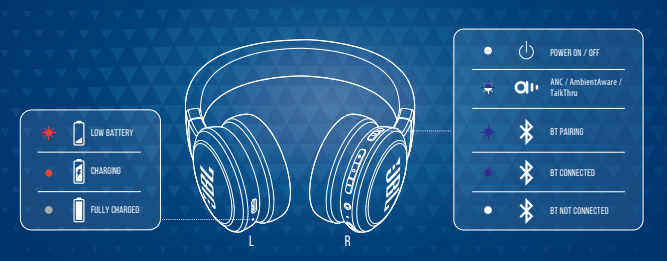
Led behaviors 
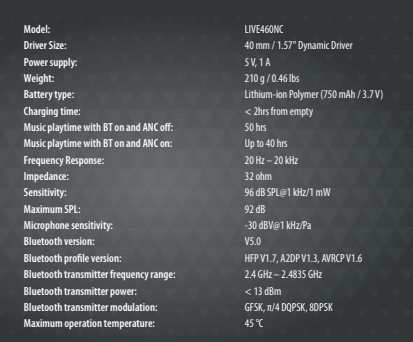
TECH SPEC