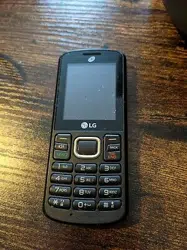
www.lg.com
MFL69341601 (1.0)
USER GUIDE
ENGLISH
LG 328BG
BC
www.lg.com
Printed in China
GUÍA DEL USUARIO
ESPAÑOL
LG 328BG


•
Screen displays and illustrations may differ from those you see on actual phone.
•
Actual displays and the color of the phone may vary.
•
Some of the contents of this guide may not apply to your phone, depending on
the software and your service provider. All information in this document is subject
to change without notice.
•
This handset is not suitable for people who have a visual impairment due to the
touch screen keyboard.
•
Copyright
©
2015 LG Electronics, Inc. All rights reserved. LG and the LG logo are
registered trademarks of LG Group and its related entities.
All other trademarks are the property of their respective owners.
User Guide
ENGLISH

6
Phone Overview
9
Power/End Key
10
Back/Voice command Key
Allows you to return to the previous screen.
Press and hold from standby mode to activated the Voice recorder function, and press from
standby mode to activated the Voice command function. You can also use this key to erase
text/numbers you have entered.
Charger/Accessory Port Connects the phone to the charger or other
compatible accessories.
Charging with PC & USB cable: You can use your computer
to charge your phone. Connect one end of a USB cable to the
Charger/ Accessory Port on your phone and the other end to
a high-power USB port on your PC (commonly located on the
front panel of the computer).

7
Getting Started
Removing the Battery
1 Turn the phone off.
2 Use the fingernail cutout at the bottom of the back cover to lift and remove the
cover.
3 Use the fingertip opening near the bottom of the battery compartment to lift the
battery out.
Getting Started

12
General Functions
Ending a Call
To end a call, press the End/Power Key .
Making a Call from the Contacts
You can store frequently called names and phone numbers in the SIM card as well
as in your Contacts list.
You can dial a number by simply highlighting a name in the Contacts list and
pressing the Send Key
.
1 Press the Down Navigation Key to access the Contact list.
2 Highlight the Contact and press the Send Key .
Answering a Call
When you receive a call, the phone displays a notification on the screen and rings
and/or vibrates. If the caller can be identified, the caller’s phone number (or name, if
stored in your Contacts) is displayed.
1 Press the Send Key or the Left Selection Key Accept to answer an
incoming call.
If the Answer mode has been set as Any Key (
Menu > Settings >
Call > Answer mode), any key press will answer a call, except for the
End/Power Key
, Right Selection Key , and Volume Keys (Up/Down
Navigation Keys)
.
2 End the call by pressing the End/Power Key .
NOTE: You can answer a call while using other functions or features.

13
General Functions
Adjusting the Volume
Use the Volume Keys during a call to adjust the earpiece volume.
Slient mode (Quick)
Silent mode can be activated by pressing and holding down the key.
Signal Strength
If you are inside a building, being near a window may give you better reception. You
can see the strength of your signal by the signal indicator on your phone’s display
screen.
Entering Text
You can enter alphanumeric characters by using the phone’s keypad. For example,
storing names in the Contacts, writing a message, or scheduling events in the
calendar all require text to be entered.
Changing the Text input mode
Change the text input mode by pressing when in a text entry field.
You can check the current text input mode in the upper right corner of the screen.
The following text input modes are available on the phone.
123 mode (Numbers mode)
Type numbers using one keystroke per number. To change to 123 mode in a text
entry field, press the
key until 123 mode is displayed in the upper right corner.

14
General Functions
Using the 123 (Numbers) mode
The 123 mode enables you to enter numbers in a text message (a telephone
number, for example) more quickly. Press the keys corresponding to the required
digits before manually switching back to the appropriate text entry mode.
Symbol mode
The Symbol mode enables you to enter various symbols or special characters.
To enter a symbol, press the
key. Use the Navigation Keys to highlight the
desired symbol and press the OK Key
.
ABC mode
This mode allows you to enter letters by pressing the key labeled with the required
letter.
Using the ABC mode
Use the alphanumeric keypad to enter your text.
1 Press the key labeled with the required letter.
2 To insert a space, press the key once. To delete letters, press the Clear/
Back Key
. Press and hold down the Clear/Back Key to erase all of the
entered text.
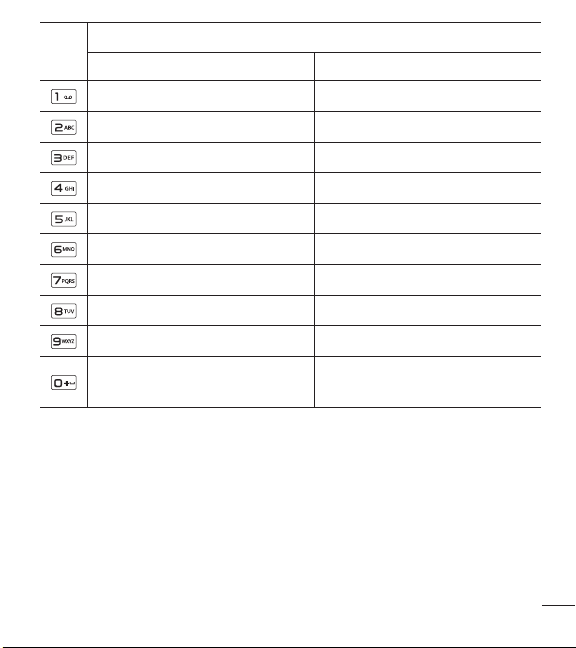
NOTE: Refer to the table below for more information on the characters
available using the keys.
15
General Functions
Key
Characters in the order displayed
Upper case Lower case
11
A B C 2 a b c 2
D E F 3 d e f 3
G H I 4 g h i 4
J K L 5 j k l 5
M N O 6 m n o 6
P Q R S 7 p q r s 7
T U V 8 t u v 8
W X Y Z 9 w x y z 9
Space Key,
0 (Long press)
Space Key,
0 (Long press)

16
In-Call Menu
During a Call
Your phone provides a number of control functions that you can use during a call.
To access these functions during a call, press the Left Selection Key
Options.
Making a Second Call
You can select a number you wish to dial from the Contacts to make a second call.
1 Press the Left Selection Key Options, then select Contacts.
2 Highlight the contact, then press the Send Key to make a second call.
Swapping Between Two Calls
Once the second call has been dialed (or answered), you can switch between the
calls by using one of the following three methods:
1 Press the Send Key .
2 Press the Left Selection Key Options and then select Swap Calls.
Answering an Incoming Call
To answer an incoming call when the phone is ringing, simply press the Send Key
.
The phone is also able to warn you of an incoming call while you are already on
a call. A tone sounds in the earpiece and the display will show that a second call
is waiting. This feature, known as Call Waiting, is only available if your network
supports it.
If Call Waiting is turned on, you can put the first call on hold and answer the second
call by pressing the Send Key
.
In-Call Menu

17
In-Call Menu
Rejecting an Incoming Call
You can reject an incoming call without answering by simply pressing the End/
Power Key
and Right Selection Key .
Muting the Microphone
You can mute the microphone during a call by pressing the Right Selection Key
Mute. The phone can be unmuted by pressing the Right Selection Key
Unmute. When the phone is muted, the caller cannot hear you, but you can still
hear the caller.
Using the Speakerphone
You can use the integrated Speakerphone during a call by pressing the Speaker
On/Off key
. The loudspeaker is automatically deactivated when you end the
call.
Warning: Due to increased volume levels, do not place the phone near
your ear while the speakerphone is enabled.

18
Contacts
Contact list
This menu allows you to save and manage contact address information. The Contact
List allows you to add a new address or search saved contact addresses by name.
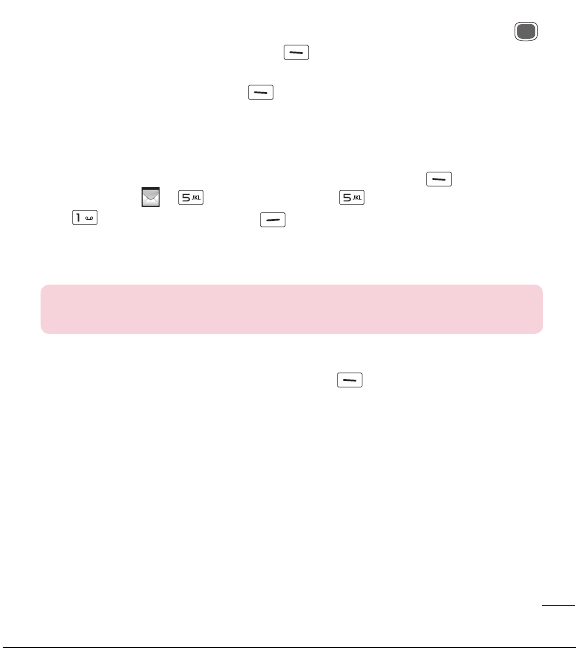
To access Contact list, from the standby screen, press the Left Selection Key
Menu, Contacts
and Contact list.
New contact
This menu allows you to add a new contact to the Contact List. You can enter
contact address information including name, phone numbers, group information
items, memos, ringtones, and a contact Picture ID.
To access New contact, from the standby screen, press the Left Selection Key
Menu, Contacts
and New contact.
Groups
This menu allows you to manage group information. You can also configure a
ringtone for a group so that the group ringtone sounds when a call from a specific
contact address within that group is received and there is no ringtone configured for
the specific contact address.
To access Groups, from the standby screen, press the Left Selection Key
Menu, Contacts
and Groups.
Contacts
21
Messages
•
Record new audio: You can record a new audio clip by pressing the OK Key
Record. Press the Left Selection Key Options before you begin recording
to set the options (below). After recording a new audio clip, you can delete it by
pressing the Left Selection Key
Discard.
Quality: Set the audio’s quality to Fine, Normal, or Economy.
•
Template
Text: Allows you to easily insert frequently used sentences in the text message.
Multimedia: Preset multimedia templates can be created (
Menu >
Messages
> Message settings > Multimedia message >
Multimedia templates > New).
Signature: Allows you to insert your own created signature.
•
More: Allows you to insert vCard, vCalendar, vNote, vTask or Contact.
NOTE: vCard, vCalendar, vNote and vTask are created by the Contacts,
Calendar, Notepad, and Tasks functions, respectively.
Using Options
While entering text, press the Left Selection Key Options.
•
Text entry mode: Sets the text input mode.
•
Text entry settings
Text entry language: Allows you to set the text entry language to English or
Spanish.
T9 word candidate list: Displays the word candidates as you type.
T9 next word prediction: Allows the phone to predict the next word when
typing in T9 mode.
T9 dictionary: Allows you to add, delete, reset, and modify words.
Save to drafts: Saves the message to Drafts.

22
Messages
Cancel message: Allows you to exit the text input mode without saving your
message.
Sending a Message
After completing a message, press the OK Key Send To to select a recipient.
•
Enter the recipient(s). For more options, press the Left Selection Key
Options. In this menu, you can choose from the following options:
Enter number: Allows you to enter the phone number using the keypad.
Enter email : Allows you to enter an email address instead of a phone number.
Insert symbol: Allows you to enter symbols.
Caller groups: Displays Contacts Groups.
Recent messages: Choose a Contact from Recent Messages.
Recent calls: Choose a Contact from Recent Calls.
Delivery options: Allows you to set the options for Add Cc and Add Bcc.
Save to drafts: Saves the selected message to Drafts.
Text entry mode: Allows you to change the text entry mode.
Text entry settings: Allows you to set the options for Text entry language, T9
Word candidate list, T9 next word prediction, and T9 dictionary.
Cancel message: Allows you to cancel the message.

23
Messages
Inbox
You will be alerted when you receive a message. New messages are stored in the
Inbox. In the Inbox, you can identify each message by icons. If you are notified that
you have received a multimedia message, you can download the whole multimedia
message by selecting it in the Inbox menu. To reach the Inbox, from the standby
screen, press the Left Selection Key
Menu > Messages > Inbox.
You can reply to the sender of the message by pressing the Right Selection Key
Reply.
While viewing the Inbox, press the Left Selection Key
Options for the
following options:
•
Add to contact: You can save the sender’s phone number in the Contact list.
•
Delete: You can delete the selected message.
•
Forward: You can forward the selected message to another person.
•
Copy to SIM/Copy to phone: You can copy the message to the phone or SIM
card depending on where the text message is stored.
•
Move to SIM/Move to phone: You can move the message to the phone or SIM
card depending on where the text message is stored.
•
Select multiple: You can select multiple messages to delete.
•
Sort by: Allows you to sort the messages by date, sender, read/unread, or subject.
•
Message details: You can view the following information about received
messages: Type, Subject, From, and Time.
•
Delete all read msg: You can delete all read messages.

28
Accessibility
This menu allows you to easily control various accessibility options.
Press the Left Selection Key
Menu and select Accessibility.
Menu readout
This option allows the phone to read out menus that are accessed.
Multimedia
Allows you to control your Multimedia volume.
Large text
Allows you to set a large size for text. Select from On or Off.
Invert color
Allows you to set the color contrast for better screen viewing. Select from On or Off.
Mono sound
Allows you to enable or disable the Mono sound function.
Senior mode
Allows you to turn the senior mode on or off. Senior mode enhances high
frequencies to reduce the effects of hearing loss.
TTY
Allows you to enable TTY Mode in order to contact other TTY devices. Select from
TTY full, TTY talk, TTY hear or TTY off.
Hearing aid
Allows you to enable or disable the Hearing aid function.
Accessibility

34
Tools
Voice command Options
When the Voice command option is activated, you can press the Left Selection Key
Options for the following options:
•
Mode
Speed: Voice command is abbreviated.
Normal: Voice command is played normally with prompts.
•
Best match
1 match: The most likely match will be displayed when finding a number from
the address book.
4 matches: The four most likely matched names will be displayed when finding
a name from the address book.
•
Sensitivity
High: Operation and performance of the voice recognition engine is rarely
affected by the user’s voice command and surrounding sound.
Medium: Operation of the voice recognition engine is normally affected by
user’s voice command and surrounding sound.
Low: Operation of the voice recognition engine is strongly affected by user’s
voice command and surrounding sound.
•
Spk. on mode
Automatic on: When this option is selected, the speakerphone is turned on
and the sound is loud enough so you can hear the output when the phone is
away from the ear, at a distance
Off: When this option is selected, the speakerphone is turned off and the sound
comes from the earpiece, which is quieter and cannot be heard when the
phone is away from the ear, at a distance.

35
Tools
•
Call alert
Ring only: This option will not read out the caller name. You will only hear the
selected ringtone.
Ring after name: This option will read out the caller name once, and then will
ring.
Name repeat: This option will read out the caller name continuously.
Calculator
The Calculator function allows you to calculate simple mathematical equations.
To access Calculator, from the standby screen, press the Left Selection Key
Menu, Tools
and Calculator.
Tasks
This feature allows you to save and manage a task.
To access Tasks, from the standby screen, press the Left Selection Key
Menu, Tools
and Tasks.
1 To add a new task item, press the Left Selection Key New.
2 Input the Due Date, Note, Priority, and Status information for the new Task.
3 Press the Left Selection Key Save to save the Task item.
The following options are available in the Task list by pressing the Left Selection
Key
Options:
•
Mark ‘Complete’: Allows you to change the status of the selected task as
Completed.
•
Edit: Allows you to edit a saved task.
•
Delete: Deletes the selected task.
•
Selective delete: Allows you to delete All completed/All past tasks/All tasks
selectively.

37
Tools
Menu, Tools and Tip calculator.
1 Enter the Total bill ($), Tip (%), and Split amounts.
2 The Tip ($) and You owe ($) amounts will be automatically calculated.
Unit converter
This function allows you to convert units of measurement.
There are 6 types of units that can be converted: Area, Length, Weight, Temperature,
Volume, and Velocity.
To access Unit converter, from the standby screen, press the Left Selection Key
Menu, Tools and Unit converter.
Voice recorder
Allows you to record an audio clip to your phone. The recorded audio file is saved
automatically in the Audio menu.
To access Voice recorder, hold down the Clear/Back Key
while the phone is
in standby mode or press the Left Selection Key
Menu, Tools and
Voice recorder.
The following options are available when you press the Left Selection Key
Options:
•
Record mode: Sets the recording mode to either MMS mode or General mode.
•
Quality: Allows you to set the quality of an audio clip. You can set it to Fine,
Normal, or Economy.
When you press the Right Selection Key
Gallery, it will take you to the Audio
gallery.
38
Browser
The Browser is one of the services provided by your network operator and it gives
you access to all the cool things you can do with your wireless phone.
NOTE:
•
Check the availability of services, pricing, and tariffs with your network
operator and/or the service provider whose service you wish to use.
Service providers will also give you instructions on how to use their
services.
•
Please contact your service provider to open an Internet account.
Launch the Browser
To launch the browser from the standby screen, press the Right Selection Key
Browser or press the Left Selection Key
Menu and select the Browser
using the Navigation Keys.
To exit the browser at any time, press the End/Power Key
.
Using the Browser
Once you are connected to the Internet, the following menu options are available
when you press the Left Selection Key
Options:
•
Zoom: Allows you to zoom in/out for better look.
•
Home: Directs you to the homepage.
•
Enter URL: Allows you to enter URL you desire to visit.
•
Send link: Allows you to send the URL link in a message.
Browser

40
Alarm clock
The alarm clock function allows you to set up multiple separate alarms. You can also
set the time, repetition interval, and alarm tone. If there is no alarm setting, press
the Left Selection Key
New to add a new alarm.
To access Alarm clock from the standby screen, press the Left Selection Key
Menu and select
Alarm clock.
•
Time: Input your desired alarm time by specifying the hour and minutes.You can
also choose a predefined amount of time (15 minutes later, 30 minutes later, 45
minutes later, 1 hour later, Off).
•
Repeat: Select the desired repeat mode (Once, Daily, Mon ~ Fri, Sat ~ Sun, Select
weekday).
•
Alarm tone: Press the OK Key List to access the list of available Alarm
Tones.
•
Volume: Set the volume of the alarm by pressing the up and down Volume Keys.
•
Type: Select the Ring Alert type between Ring, Vibrate, Ring & vibrate and Vibrate
after ring.
•
Memo: Enter an alarm name.
•
Snooze interval: Select the snooze interval between 5 minutes, 15 minutes, 30
minutes, 45 minutes, 1 hour and Off.
Press the Left Selection Key
Save to save your new Alarm.
Alarm clock

41
Calendar
When you enter this menu, a calendar will be displayed. The red square cursor is
used to locate a particular day. The bottom bar on the calendar indicates saved
schedules (if any) for that day. This function helps you keep track of your schedule.
The phone can sound an alarm tone if it has been set for a specific schedule item.
The chart below shows the keys that can be used to navigate the Calendar:
Key
Description
/
Weekly
/
Daily
/ Annually
/ Monthly
To access Calendar, from the standby screen, press the Left Selection Key
Menu and select
Calendar.
The following options are available when pressing the Left Selection Key
Options:
•
Set holiday: Allows you to set specific dates to display as Holidays on your
calendar.
•
Week view: Allows you to view the calendar by week.
•
Go to date: Allows you to jump to a specific date.
•
Settings: Allows you to set various calendar settings.
Calendar

44
Settings
Auto key lock
Allows you to lock your keypad automatically after a defined length of display
backlight time.
(Left Selection Key
Menu > Settings > Display > Backlight
timer >
Display).
You can set the Auto Key lock to On or Off.
Airplane mode
This allows you to only use the phone’s features that do not require the use of the
wireless network, excluding emergency calls, when you are in an airplane or in
places where the wireless network is prohibited. If you set the Airplane mode on,
the Airplane mode icon will be displayed on the screen instead of the network signal
icon.
•
On: You cannot make (or receive) calls, excluding emergency calls, or use other
features that require network coverage.
•
Off: You can deactivate the Airplane mode to access the network.
Security
Various codes and passwords are used to protect the features and settings of your
phone.
•
Phone lock: You can use a security code to avoid unauthorized use of the phone.
If you set the Phone Lock to When power on, the phone will request a security
code whenever you switch the phone on. If you set the Phone Lock to Lock phone
now your phone will lock immediately.
•
Change codes: The Change Codes feature allows you to change your current
password to a new one. You must enter the current password before you can
specify a new one. You can change the access codes for: Security code.

45
Settings
Reset settings
This function allows you to restore factory settings. To do this, you need the security
code.
•
Master reset: Restores the phone settings (e.g.: Audio, Display, Language) to
default values.
•
Master clear: Deletes downloaded/user created contents (e.g.: images, videos)
from the phone.
Phone
Deletes all downloaded/user created images and audios from the phone
memory. Deletes personal information stored in the phone memory (e.g.:
Contacts, Messages, Tasks, Alarm, Calendar Schedules). Restores the settings
stored in the phone memory to the default values.
Display
This menu allows you to configure your Display settings.
To access Display, from the standby screen, press the Left Selection Key
Menu, Settings
and Display.
Wallpapers
This menu allows you to set a picture or color as your background.
Fonts
You can configure the font size and color of the font that your phone uses.
48
Settings
•
Phone reserved
This function shows the status of the reserved memory used by Text message,
Contacts, Calendar, Tasks, and the Notepad.
•
SIM card
This function shows the status of the SIM card memory.
Applications
This menu allows you to configure application settings
To access Applications, from the standby screen, press the Left Selection Key
Menu, Settings
and Applications.
Messages
This option allows you to configure the Messaging option.
Browser
This menu allows you to configure the Browser settings.
Appearance
You can choose the settings of the browser appearance (Text size, Character
encoding, Show image).
Cache
The web pages you have accessed are stored in the phone memory. This menu
allows you to manage that function.
•
Clear cache: Remove all cached data in the memory.
•
Cache: Allows you to turn the memory cache on or off.
NOTE: Cache is a type of buffer memory, which is used to store data
temporarily, especially when it is online.

52
For your safety
The highest SAR value for this model phone when tested for use at the ear is 1.22
W/kg and when worn on the body, as described in this user guide, is 1.09 W/kg
(body-worn measurements differ among phone models, depending upon available
accessories and FCC requirements).
While there may be differences between SAR levels of various phones and at various
positions, they all meet the government requirement for safe exposure.
The FCC has granted an Equipment Authorization for this model phone with
all reported SAR levels evaluated as in compliance with the FCC RF emission
guidelines.
SAR information on this model phone is on file with the FCC and can be found under
the Display Grant section of http://www. fcc.gov/oet/ea/fccid/ after searching on FCC
ID ZNF329G.
•
To reduce risk of fire or burns, do not expose to temperature above 45 °C / 113
°F, or dispose of in fire.
•
To reduce risk of fire or burns, do not dispose of in fire or water.
•
Do not disassemble or open crush, bend or deform, puncture or shred.
•
There is a danger of explosion if battery is incorrectly replaced. To reduce risk
of fire or burns, do not disassemble, crush, puncture, short external contacts,
expose to temperature above 45 °C / 113 °F, or dispose of in fire or water. Keep
this product away from excessive moisture and extreme temperatures. Keep the
battery or device dry and away from water or any liquid as it may cause a short
circuit.
•
Avoid using your phone near strong electromagnetic sources, such as microwave
ovens, sound speakers, TV and radio.
For your safety

55
For your safety
For information about hearing aids and digital wireless phones
Wireless Phones and Hearing Aid Accessibility
http://www.accesswireless.org/
Gallaudet University, RERC
http://tap.gallaudet.edu/Voice/
FCC Hearing Aid Compatibility and Volume Control
http://www.fcc.gov/cgb/dro/hearing.html
The Hearing Aid Compatibility FCC Order
http://hraunfoss.fcc.gov/edocs_public/attachmatch/FCC-03-168A1.pdf
Hearing Loss Association of America [HLAA]
http://hearingloss.org/content/telephones-and-mobile-devices
7.11 Warranty Laws
The following laws govern warranties that arise in retail sales of consumer goods:
•
The California Song-Beverly Consumer Warranty Act [CC §§1790 et seq],
•
The California Uniform Commercial Code, Division Two [Com C §§2101 et seq],
and
•
The federal Magnuson-Moss Warranty Federal Trade Commission Improvement
Act [15 USC §§2301 et seq; 16 CFR Parts 701– 703]. A typical Magnuson-Moss
Act warranty is a written promise that the product is free of defects or a written
promise to refund, repair, or replace defective goods. [See 15 USC §2301(6).]
Remedies include damages for failing to honor a written warranty or service
contract or for violating disclosure provisions. [See 15 USC §2310(d).] Except for
some labeling and disclosure requirements, the federal Act does not preempt state
law. [See 15 USC §2311.]
The Consumer Warranty Act does not affect the rights and obligations of parties
under the state Uniform Commercial Code, except the provisions of the Act prevail

•
Las visualizaciones e ilustraciones de la pantalla pueden variar de las que ve en
el teléfono.
•
Las pantallas reales y el color del teléfono pueden variar.
•
Es posible que parte del contenido de esta guía no aplique a su teléfono, eso
dependerá del software y de su proveedor de servicios. Toda la información de
este documento está sujeta a cambios sin previo aviso.
•
Este teléfono no es adecuado para personas con alguna discapacidad visual ya
que cuenta con un teclado en pantalla táctil.
•
Copyright
©
2015 LG Electronics, Inc. Todos los derechos reservados. LG
y el logotipo de LG son marcas registradas de LG Group y sus entidades
relacionadas.
Todas las demás marcas son propiedad de sus respectivos titulares.
Guía del usuario
ESPAÑOL

5
Descripción general del teléfono
Descripción general del teléfono
1
Auricular
2
Pantalla LCD
3
Teclas de selección
Cada una de estas teclas realiza las funciones
indicadas por el texto de la pantalla que se encuentra
inmediatamente arriba de ellas.
4
Funciones de las teclas de navegación de la
pantalla de inicio
: Accesibilidad : Alarma
: Lista de contactos : Mensajes
Tecla OK: Seleccione opciones y menús.
•
Información de mi tiempo aire: Mantenga
presionado mientras el teléfono está en modo de
espera para ver información de tiempo aire.
5
Tecla Altavoz
Permite cambiar al modo altavoz en la pantalla de espera
o durante una llamada. El altavoz se apagará después
de 1 minuto de inactividad cuando se encienda desde la
pantalla de espera.
6
Tecla Enviar
1
2
3
5
6
7 8
9
10
4
3

7
Introducción
Extraer la batería
1 Apague el teléfono.
2 Coloque una uña en la ranura de la parte inferior izquierda de la tapa posterior
para levantarla y quitarla.
3 Use la abertura para dedo que se encuentra cerca de la parte inferior del
compartimiento de la batería para levantarla.
Introducción

10
Introducción
Iconos en pantalla
La tabla debajo describe varios
indicadores o iconos que aparecen en la
pantalla principal del teléfono.
ICONO/
INDICADOR
DESCRIPCIÓN
Potencia de la señal de red
(varía la cantidad de barras)
Sin señal de red
Batería baja
Nuevo mensaje de texto
Hay una alarma establecida
Perfil de Timbre en uso
Perfil de Silencio en uso
Red EDGE disponible
Red 3G disponible
El navegador está activo
Modo vibración activado
Altavoz
Llamada en curso
ICONO/
INDICADOR
DESCRIPCIÓN
Correo de voz
Batería llena
Batería cargando
Modo de Avión encendido

14
Funciones generales
Modo 123 (Modo de números)
Introduzca los números oprimiendo la tecla una vez por número. Para cambiar al
modo 123 en un campo de entrada de texto, oprima la tecla
hasta que se
muestre el modo 123 en la esquina superior derecha.
Uso del modo 123 (modo de números)
El modo 123 le permite introducir números en un mensaje de texto (un número de
teléfono, por ejemplo) con mayor rapidez. Oprima las teclas correspondientes a los
dígitos que quiere marcar y luego regrese manualmente al modo de entrada de
texto que corresponda.
Modo de símbolos
El modo de símbolos le permite introducir varios símbolos o caracteres especiales.
Para introducir un símbolo, oprima la tecla
. Use las Teclas de Navegación para
resaltar el símbolo que desea y oprima la Tecla OK
.
Modo ABC
Este modo le permite introducir letras oprimiendo la tecla etiquetada con la letra
requerida.
Uso del modo ABC
Utilice las teclas alfanuméricas para introducir el texto.
1 Oprima la tecla que tenga impresa la letra deseada.
2 Para insertar un espacio, oprima la tecla una vez. Para borrar letras, oprima
la Tecla Borrar/Volver
. Mantenga oprimida la Tecla Borrar/Volver
para borrar todo el texto introducido.
NOTA: Consulte la tabla a continuación para más información acerca de
los caracteres disponibles con las teclas.

15
Funciones generales
Tecla
Caracteres en orden de aparición
Mayúsculas Minúsculas
11
A Á B C 2 a á b c 2
D E É F 3 d e é f 3
G H I Í 4 g h i í 4
J K L 5 j k l 5
M N Ñ O Ó 6 m n ñ o ó 6
P Q R S 7 p q r s 7
T U Ú Ü V 8 t u ú ü v 8
W X Y Z 9 w x y z 9
Tecla de espacio,
0 (mantener presionado)
Tecla de espacio,
0 (mantener presionado)

17
Menú En llamada
Responder una llamada entrante
Para responder una llamada entrante cuando el teléfono está sonando, oprima la
Tecla Enviar
.
El teléfono también puede advertirle que tiene una llamada entrante mientras está
respondiendo otra llamada.
Suena un tono en el auricular y la pantalla muestra que una segunda llamada está
en espera. Esta función, conocida como Llamada En Espera, sólo estará disponible
si su red la admite. Si la llamada en espera está activada, es posible poner en
espera la primera llamada y contestar la segunda oprimiendo la Tecla Enviar
.
Rechazar una llamada entrante
Puede rechazar una llamada entrante sin responderla, simplemente presione la
Tecla Finalizar/Encender
y la Tecla de Selección Derecha .
Silenciar el micrófono
Durante una llamada, puede silenciar el micrófono si oprima la Tecla de Selección
Derecha
Silencio. Se puede anular el silencio del teléfono al oprimir la Tecla
de Selección Derecha
No sil. Si silencia el teléfono, la persona que lo llama
no podrá oírlo, pero usted sí la oirá.
Usando el altavoz
Puede usar el altavoz integrado durante una llamada presionando la Tecla Altavoz
. El altavoz se desactiva automáticamente cuando finaliza la llamada.
Advertencia: Debido al aumento en el nivel del volumen, no coloque el
teléfono cerca de su oído mientras está activado el altavoz.

21
Mensajes
•
Imagen: Permite seleccionar una imagen e insertarla usando las Teclas de
Navegación. Se puede obtener una vista previa de la imagen seleccionada al
oprimir la Tecla de Selección Derecha
Ver.
•
Audio: Permite insertar un archivo de audio de los archivos de audio guardados.
•
Video: Permite insertar un clip de video de los archivos de video guardados.
•
Grabar nuevo audio: Permite grabar un nuevo clip de audio al presionar la Tecla
OK
Grabar. Antes de comenzar la grabación, oprima la Tecla de Selección
Izquierda
Opciones para configurar las opciones (a continuación). Después
de grabar el nuevo clip de audio, puede borrarlo al oprimir la Tecla de Selección
Izquierda
Descartar.
Calidad: Permite establecer la calidad del audio en Fino, Normal o Economía.
•
Plantilla
Texto: Permite introducir las frases que usa con más frecuencia en los
mensajes de texto fácilmente.
Multimedia: Permite crear plantillas multimedia preestablecidas (
Menú
> Mensajes
> Config. de mensaje > Mensaje multimedia >
Plantillas MMS > Nuevo).
Firma: Permite insertar la firma que haya creado.
•
Más: Permite insertar vCard, vCalendar, vNote, vTask o Contacto.
NOTA: vCard, vCalendar, vNote y vTask se crean por las funciones
Contactos, Calendario, Bloc de notas y Tareas, respectivamente.

22
Mensajes
Usar opciones
Mientras introduce texto, oprima la Tecla de Selección Izquierda Opciones.
•
Modo de entrada de texto: Establece el modo de entrada de texto.
•
Ajustes de entrada de texto
Idioma de entrada de texto: Permite establecer el idioma de entrada de texto
en inglés o español.
Lista de palabras T9 más probables: Muestra las palabras más probables a
medida que escribe.
Predicción de palabra T9: Permite que el teléfono predicta la siguiente
palabra cuando escribe en modo T9.
Diccionario T9: Permite agregar, eliminar, restaurar y modificar las palabras.
Guardar en borradores: Guarda el mensaje en Borradores.
Cancelar mensaje: Permite salir del modo de entrada de texto sin guardar el
mensaje.
Enviar un mensaje
Una vez completado el mensaje oprima la Tecla OK Enviar para seleccionar un
destinatario.
•
Introduzca los destinatarios. Para obtener más opciones, oprima la Tecla de
Selección Izquierda
Opciones. En este menú, puede elegir una de las
siguientes opciones.
Introducir el número: Permite introducir el número telefónico con el teclado.
Introducir e-mail: Permite introducir la dirección de correo electrónico en lugar
del número de teléfono.
Insertar símbolo: Permite introducir símbolos.
Grupos: Muestra los contactos en los grupos guardados.
Mensajes recientes: Permite elegir un contacto de los mensajes recientes.

23
Mensajes
Llamadas recientes: Permite elegir un contacto de las llamadas recientes.
Opciones de entrega: Permite elegir entre las opciones Agregar a CC y
Agregar a CCO.
Guardar en borradores: Permite guardar el mensaje seleccionado en
Borradores.
Modo de entrada de texto: Permite cambiar el modo de entrada de texto.
Ajustes de entrada de texto: Permite establecer las opciones de Idioma
de entrada, Lista de palabras T9 más probables, Predicción de palabra T9 y
Diccionario T9.
Cancelar mensaje: Permite cancelar el mensaje.
Buzón de entrada
Se le dará una alerta cuando reciba un mensaje. Los mensajes nuevos se
almacenan en el Buzón de entrada. En el Buzón de Entrada, puede identificar cada
mensaje mediante iconos. Si se le notifica que recibió un mensaje multimedia,
puede descargar todo el mensaje multimedia seleccionándolo en el Buzón de
entrada.
Para acceder al Buzón de entrada, desde la pantalla de espera, oprima la Tecla de
Selección Izquierda
Menú > Mensajes > Buzón de entrada.
Al presionar la Tecla de Selección Derecha
Resp., puede responder al
remitente del mensaje.
Mientras está viendo el Buzón de Entrada, oprima la Tecla de Selección Izquierda
Opciones para las siguientes opciones:
•
Agregar a contacto: Permite guardar el número de teléfono del remitente en la
Lista de Contactos.
•
Borrar: Permite borrar el mensaje actual.
•
Reenviar: Permite reenviar el mensaje seleccionado a otra persona.

24
Mensajes
•
Copiar en SIM/a teléfono: Puede copiar el mensaje al teléfono o a la tarjeta SIM
dependiendo de donde está guardado el mensaje.
•
Mover a la tarjeta SIM/al teléfono: Puede mover el mensaje al teléfono o a la
tarjeta SIM dependiendo de donde está guardado el mensaje.
•
Seleccionar varios: Permite seleccionar varios mensajes para borrarlos.
•
Ordenar por: Permite ordenar los mensajes por fecha, remitente, leído/no leído o
asunto.
•
Detalles del mensaje: Puede ver la siguiente información acerca de los mensajes
recibidos: Tipo, Asunto, Desde y Tiempo.
•
Borrar todos los mensajes leídos: Permite borrar todos los mensajes leídos.
Borradores
Le permite ver y editar los mensajes guardados como borradores.
Para acceder Borradores, desde la pantalla de espera, oprima la Tecla de
Selección Izquierda
Menú, Mensajes , y Borradores. Oprimiendo la
Tecla de Selección Derecha
Borrar le permite eliminar el mensaje.
Mientras está viendo Borradores, oprima la Tecla de Selección Izquierda
Opciones para las siguientes opciones:
•
Seleccionar varios: Permite seleccionar varios mensajes de la lista para
borrarlos.
•
Detalles del mensaje: Permite ver los detalles del mensaje.

25
Mensajes
Buzón de salida
El Buzón de salida es la ubicación en la que se almacenan los mensajes enviados
recientemente. Al oprimir la Tecla Enviar
, puede realizar una llamada al
número del destinatario del mensaje seleccionado.
Si el mensaje no envía del Buzón de salida, recibirá una alerta de sonido junto con
un aviso de falla de envío del mensaje en la pantalla.
Se reintentará enviar el mensaje fallido y, después de dos intentos sin éxito, ya no
volverá a enviarlo en forma automática.
Para acceder al Buzón de salida, desde la pantalla de espera, oprima la Tecla de
Selección Izquierda
Menú, Mensajes , y Buzón de salida.
Las siguientes opciones son disponible para el Buzón de salida al oprimir la Tecla
de Selección Izquierda
Opciones:
•
Ver estado: Muestra el estado del mensaje.
•
Borrar: Borra el mensaje seleccionado.
•
Editar: Permite editar el mensaje seleccionado.
•
Seleccionar varios: Permite seleccionar varios mensajes de la lista para
borrarlos.
•
Ordenar por: Permite ordenar los mensajes del Buzón de salida por remitente o
fecha.
•
Detalles del mensaje: Permite ver los detalles del mensaje.
Oprima la Tecla de Selección Derecha
Reenviar para enviar el mensaje
seleccionado a otra persona.

27
Mensajes
Mensaje multimedia
Permite establecer sus preferencias para mensajes multimedia.
Las siguientes opciones son disponibles:
•
Plantillas MMS: Permite agregar, editar y borrar plantillas multimedia. Oprima la
Tecla de Selección Derecha
Nuevo para crear una plantilla nueva. Presione
la Tecla de Selección Izquierda
Opciones para acceder a las siguientes
opciones disponibles:
Enviar: Permite enviar el mensaje seleccionado a través de mensaje
multimedia.
Borrar: Permite borrar la plantilla del mensaje seleccionado.
Editar: Permite editar la plantilla del mensaje seleccionado.
Cambiar nombre: Permite cambiar el nombre de la plantilla del mensaje
seleccionado.
Borrar todo: Permite borrar todos los mensajes de una sola vez.
Correo de voz
Muestra el número de teléfono utilizado para su servicio de correo de voz. Por favor
sólo cambie el número si se lo dirige su proveedor de servicios.

31
Bloc de notas
Es posible crear un máximo de 30 notas.
Para acceder al Bloc de notas, desde la pantalla de espera, presione la Tecla de
Selección Izquierda
Menú y seleccione Bloc de notas.
1 Oprima la Tecla de Selección Izquierda Nuevo para crear una nueva nota.
2 Escriba la nota y oprima la Tecla OK Guardar para guardarla.
Bloc de notas

32
Mi carpeta
Audio
Para acceder Audio, desde la pantalla de espera, oprima la Tecla de Selección
Izquierda
Menú, Mi carpeta y Audio.
•
Comprar tonos de timbre: Permite comprar tonos de timbre.
•
Grabar voz: Permite grabar notas de voz.
•
Los archivos de audio guardados aparecen en la lista.
Imágenes
Para acceder Imágenes, desde la pantalla de espera, oprima la Tecla de Selección
Izquierda
Menú, Mi carpeta e Imágenes.
•
Comprar gráficos: Le permite comprar imágenes.
•
Se muestran los archivos de imagen guardados en el teléfono.
Video
Para acceder Video, desde la pantalla de espera, oprima la Tecla de Selección
Izquierda
Menú, Mi carpeta y Video.
•
Se muestran los archivos de video guardados en el teléfono.
NOTA: La administración de derechos digitales en ocasiones restringe
algunas funciones, como enviar a otros.
Mi carpeta

33
Mi carpeta
Otros archivos
Los archivos de formato indefinido (como .vcs, .vcf, entre otros) que reciba por
correo electrónico se guardarán en esta carpeta.
Para acceder Otros archivos, desde la pantalla de espera, oprima la Tecla de
Selección Izquierda
Menú, Mi carpeta y Otros archivos.
Están disponibles las siguientes opciones al oprimir la Tecla de Selección
Izquierda
Opciones:
•
Enviar vía: Envía el archivo seleccionado mediante Mensaje.
•
Borrar: Permite borrar el archivo seleccionado.
•
Mover: Permite mover el archivo seleccionado.
•
Copiar: Permite copiar el archivo seleccionado.
•
Renombrar: Permite editar el nombre del archivo seleccionado.
•
Seleccionar varios: Permite seleccionar múltiple archivos a la vez para realizar
varias funciones.
•
Ordenar por: Permite ordenar los archivos por Nombre, Fecha y Tipo.
•
Información del archivo: Permite ver información sobre el archivo seleccionado o
el espacio utilizado en su teléfono.
Admin. de archivos
Esta función le permite ver el contenido en la memoria interna de su teléfono.
Para acceder Admin. de archivos, desde la pantalla de espera, oprima la Tecla de
Selección Izquierda
Menú, Mi carpeta y Admin. de archivos.

37
Herramientas
3 Oprima la Tecla de Selección Izquierda Guar. para guardar el elemento
Tarea. Las siguientes opciones son disponibles en la lista de Tareas al oprimir la
Tecla de Selección Izquierda
Opcions:
•
Marcar ‘Finalizada’: Permite cambiar el estado de la tarea seleccionada a
Finalizada.
•
Editar: Permite editar una tarea guardada.
•
Borrar: Permite borrar la tarea seleccionada.
•
Borrado selectivo: Permite borrar Todos los completados/Todas las tareas
pasadas/Todas las tareas de manera selectiva.
•
Enviar tarea por: Permite enviar la tarea seleccionada por Mensaje de texto,
Mensaje multimedia.
•
Seleccionar varios: Permite seleccionar varias tareas.
•
Ver calendario: Permite ver el Calendario.
Cronómetro
Este menú le permite registrar el tiempo transcurrido de un evento. Puede mostrar
la duración de una vuelta individual (hasta 20 vueltas) y el tiempo total.
Para acceder Cronómetro, desde la pantalla de espera, oprima la Tecla de
Selección Izquierda
Menú, Herramientas y Cronómetro.
•
Mostrar último: Muestra el último tiempo grabado (sólo está disponible si el
tiempo anterior no se reinició).
•
Nuevo tiempo
1 Para iniciar el cronometraje, oprima la Tecla OK Inicio. El tiempo continuo
se muestra como HH.MM.SS.hh (horas, minutos, segundos, centésimas de
segundo).

38
Herramientas
2 Durante el cronometraje, puede registrar un tiempo de vuelta individual si oprima
la Tecla de Selección Derecha
Vuelta. Pueden registrarse hasta 20
tiempos de vuelta.
3 Para detener o reiniciar el cronometraje, oprima la Tecla OK de nuevo.
4 Para restaurar el cronómetro, oprima la Tecla de Selección Derecha
Restaur. después de detener el tiempo, o bien, para guardar el cronómetro,
oprima la Tecla de Selección Izquierda
Opciones y después seleccione
Guardar.
•
Tiempos guardados: Permite ver una lista de los registros de tiempo guardados.
Calculadora de propinas
Esta función permite calcular la propina según el total de la factura y también dividir
el total de la factura entre la cantidad de personas.
Para acceder la Calculadora de propinas, desde la pantalla de espera, oprima la
Tecla de Selección Izquierda
Menú, Herramientas y Calc. de
propinas.
1 Ingrese las cantidades para Total ($), Propina (%) y Dividir.
2 Las cantidades para Propina ($) y Debe ($) serán calculadas automáticamente.
Conversor de unidad
Esta función permite convertir unidades de medida.
Se pueden convertir seis tipos de unidades: Área, Longitud, Peso, Temperatura,
Volumen y Velocidad.
Para acceder Conversor de unidad, desde la pantalla de espera, oprima la Tecla de
Selección Izquierda
Menú, Herramientas y Conversor de unidad.

39
Herramientas
Grabador de voz
Puede grabar un clip de audio en este menú. El archivo de audio grabado se guarda
automáticamente en el menú Audio.
Para acceder a la función grabadora de voz, mantenga presionada la Tecla Borrar/
Atrás
mientras el teléfono está en modo de espera o presione la Tecla de
Selección Izquierda
Menú, Herramientas y Grabador de voz.
Las siguientes opciones están disponibles al oprimir la Tecla de Selección
Izquierda
Opciones:
•
Modo de grabación: Establece el modo de grabación en Modo MMS o Modo
general.
•
Calidad: Permite establecer la calidad de una grabación de audio. Seleccione
entre Fino, Normal y Economía.
Presione la Tecla de Selección Derecha
Galería para abrir la galería de audio.
43
Calendario
Cuando acceda a este menú, se mostrará un calendario. El cursor rojo cuadrado
se utiliza para ubicar un día en particular. La barra inferior del calendario indica las
citas guardadas (si hay alguno) para ese día.
Esta función permite llevar un registro de las citas. El teléfono puede emitir un tono
de alarma si ha sido configurado para un elemento específico del calendario.
La siguiente tabla muestra las teclas que se pueden usar para navegar el
Calendario:
Tecla
Descripción
/
Semanal
/
Diario
/ Anualmente
/ Mensual
Para acceder al Calendario, desde la pantalla de espera, presione la Tecla de
Selección Izquierda
Menú y seleccione Calendario.
Las siguientes opciones son disponibles cuando un oprima la Tecla de Selección
Izquierda
Opciones:
•
Fijar feriado: Permite establecer fechas específicas y mostrarlas como días
festivos en el calendario.
•
Vista semanal: Permite ver el calendario en vista de semana.
•
Ir a fecha: Permite ir directamente a una fecha determinada.
•
Configuraciones: Permite establecer varias configuraciones del calendario.
Calendario

44
Configuración
Audio y tonos de timbre
Este menú permite configurar los ajustes de Audio y tonos de timbre de su teléfono.
Para acceder Audio y tonos de timbre, desde la pantalla de espera, oprima la Tecla
de Selección Izquierda
Menú, Configuración y Audio y tonos de
timbre.
Timbre
•
Sonidos: Permite fijar un sonido como tono de timbre para su teléfono.
•
Volumen: Permite controlar el volumen del tono de timbre.
•
Tipo de alerta: Admite tres tipos de alertas: Timbrar, Timbrar y vibrar, y Timbrar
después de vibrar.
NOTA: No es posible configurar pistas de música completas como tonos
de timbre ni de mensaje.
Tono de mensaje
•
Sonidos: Permite fijar un sonido como tono de mensaje para su teléfono.
•
Volumen: Permite controlar el volumen de la alerta de mensaje nuevo.
•
Tipo de alerta: Admite 4 tipos de alertas de mensajes: Silencio, Vibrar, Sólo
timbre, Timbrar y vibrar.
•
Intervalo de la alerta: Le permite establecer el intervalo de alerta a Una vez,
Cada 2 min, Cada 5 min, Cada 10 min o Cada 15 min.
Confi guración

46
Configuración
Bloqueo automático del teclado
Permite bloquear automáticamente el teclado después de un tiempo definido de luz
de fondo de la pantalla.
(Tecla de Selección Izquierda
Menú > Ajustes > Pantalla >
Tiempo de luz de fondo >
Pantalla).
Puede alternar el bloqueo automático de teclas a encendido o apagado.
Modo de avión
Permite usar sólo las funciones del teléfono que no requieran el uso de la red
inalámbrica cuando esté en un avión o en lugares en los que se prohíbe usar la red
inalámbrica. Si ajusta el Modo de avión como activado, el icono de Modo de avión
se mostrará en la pantalla en lugar del icono de señal de red.
•
Encendido: No se pueden realizar (ni recibir) llamadas, incluidas las de
emergencia, ni usar otras funciones que requieran cobertura de red.
•
Apagado: Permite el Modo de avión para acceder a la red.
Seguridad
Existen varios códigos y contraseñas para proteger las funciones y la configuración
del teléfono.
•
Bloqueo de teléfono: Usted puede usar un código de seguridad para prevenir
el uso no autorizado del teléfono. Si fija el Bloqueo del Teléfono a al encender,
el teléfono solicitará un código de seguridad cada vez que lo encienda. Si
fija el Bloqueo del Teléfono a Bloquear teléfono ahora el teléfono se bloquea
inmediatamente.
•
Cambiar códigos: La función Cambiar códigos permite cambiar el código actual
a uno nuevo. Debe introducir el código actual antes de especificar uno nuevo.
Para eso, deberá ingresar la contraseña actual y luego especificar la nueva. Puede
cambiar los códigos de acceso por: Código de seguridad.

47
Configuración
Restaurar configuraciones
Esta función permite restaurar la configuración de fábrica. Para hacerlo, se necesita
introducir el código de seguridad.
•
Reinicio maestro: Restaura los ajustes del teléfono (por ej.: Audio, Pantalla,
Idioma) a sus valores predeterminados.
•
Borrado maestro: Borra el contenido descargado o creado por el usuario (por
ejemplo, imágenes o videos) del teléfono.
Teléfono
Borra de la memoria del teléfono todas las imágenes, el audio y los
videos descargados o creados por el usuario. Borra la información
personal almacenada en la memoria del teléfono (por ejemplo, Lista de
contactos, Mensajes, Tareas, Alarmas, y Citas de calendario) a los valores
predeterminados. Restaura la configuración almacenada en la memoria del
teléfono a los valores predeterminados.
Pantalla
Este menú permite configurar los ajustes de Pantalla.
Para acceder a Pantalla, desde la pantalla de espera, oprima la Tecla de Selección
Izquierda
Menú, Configuración y Pantalla.
Fondos de pantalla
Este menú permite fijar una imagen o un color como fondo de pantalla.
Fuentes
Este menú permite configurar el tamaño y el color de las fuentes que usa el
teléfono.

51
Configuración
•
Permitir caché: Permite encender o apagar la memoria caché.
NOTA: La memoria caché es una memoria de búfer que permite
almacenar datos de forma temporal, especialmente los que provienen del
Internet.
Cookies
La información de los servicios a los que ha accedido está almacenada en lo que se
denomina Cookie.
Desde este menú, puede elegir Permitir cookies o Borrar cookies que ya contiene el
teléfono.
Borrar información de inicio de sesión
Borrar información de inicio de sesión. Puede borrar el historial de información de
identificación o contraseña que haya guardado anteriormente.
Configuración de pantalla
Puede cambiar la configuración de la pantalla del acceso Web (Modo de
procesamiento).
Seguridad
Se muestra una lista de certificados disponibles.
•
Certificados: Permite ver la lista de certificados y visualizarla en detalle.
•
Borrar sesión: Permite eliminar la sesión segura.
Modo de navegación
Puede cambiar los métodos de navegación del Acceso Web.
•
Navegación de 4 modos: El cursor del Acceso Web se desplaza o sigue los
enlaces.
•
Puntero del mouse: Puede mover el cursor como el puntero de un ratón.

52
Configuración
Emergente seguro
Puede activar o desactivar los elementos emergentes que indican si la página es
segura.
Teclas de acceso rápido
Si se activa, puede usar el Acceso Web de manera más rápida y conveniente con el
teclado del teléfono. Si se activan las Teclas de acceso rápido, se pueden utilizar los
siguientes atajos son disponibles:
1. Introduzca URL
3. Ver marcadores
5. Pantalla completa
7. Retroceder página
9. Ampliar
*. Página abajo
2. Esta página
4. Guía de acceso rápido
6. Páginas guardadas
8. Páginas recientes
0. Buscar texto
#. Reducir
Información del teléfono
Este menú permite ver datos como Mi número, Fabricante, Nombre del modelo, ID
del dispositivo, Versión de hardware, Versión del software, Idioma.
Para acceder a Información del teléfono, desde la pantalla de espera, oprima la
Tecla de Selección Izquierda
Menú, Configuración y Información
del teléfono.

53
Accesorios
Estos accesorios están disponibles para usarlos con su teléfono. (Los elementos
descritos podrían ser opcionales y venderse por separado).
•
Adaptador de viaje
•
Guía del Usuario
•
Batería
NOTA:
•
Utilice siempre accesorios LG originales. Si no lo hace, la garantía puede
anularse.
•
Los accesorios pueden variar según la región; para mayor información,
consulte con la empresa o el agente de servicio técnico de su región.
Accesorios

57
Por su seguridad
En el ejemplo de la izquierda, si un audífono cumple con la
clasificación de nivel M2 y el teléfono inalámbrico cumple con la
clasificación de nivel M3, la suma de los dos valores es igual a M5.
Esto debería proporcionarle al usuario del audífono un “uso normal” mientras usa su
audífono con ese teléfono inalámbrico en particular. En este contexto, “uso normal”
se define como una calidad de señal que es aceptable para la operación normal.
La marca M es sinónimo de la marca U. La marca T es sinónimo de la marca UT.
La Alianza para Soluciones de la Industria de las Telecomunicaciones (ATIS, por
su siglas en inglés) recomienda las marcas M y T. La sección 20.19 de las reglas
de la FCC hace referencia a las marcas U y UT. El procedimiento de clasificación y
medición de la HAC se encuentra descrito en el estándar C63.19 del Instituto de
Estándares Nacionales de los EE. UU. (ANSI, por su sigla en inglés).
Al hablar por un teléfono celular, se recomienda apagar el modo BT (Bluetooth) o
WLAN para HAC.
Información sobre audífonos y teléfonos inalámbricos digitales
Accesibilidad de prótesis auditivas y teléfonos móviles
http://www.accesswireless.org/
Gallaudet University, RERC
http://tap.gallaudet.edu/Voice/
Compatibilidad de prótesis auditivas y control de volume de la FCC
http://www.fcc.gov/cgb/dro/hearing.html
Orden de compatibilidad de prótesis auditivas de la FCC
http://hraunfoss.fcc.gov/edocs_public/attachmatch/FCC-03-168A1.pdf
Hearing Loss Association of America [HLAA]
http://hearingloss.org/content/telephonesand-mobile-devices

58
Por su seguridad
Legislación sobre la garantía
Las leyes siguientes rigen las garantías que surgen en virtud de las ventas minorista
de productos para el consumidor:
•
Ley Song-Beverly de Garantía del Consumidor de California [CC, Sección 1790 y
siguientes]
•
El Código Uniforme de Comercio de California, División Dos [Cód. de Comercio,
Sección 2101 y siguientes], y
•
La Ley Federal de Mejora de Garantías Magnuson-Moss de la Comisión Federal
de Comercio (Magnuson-Moss Warranty Federal Trade Commission Improvement
Act) [Sección 2301 y siguientes del Código de los Estados Unidos (USC); Título 16
del Código de Reglamentos Federales (CFR) Partes 701– 703]. Una garantía típica
de la Ley Magnuson-Moss es una promesa escrita de que el producto no presenta
defectos o una promesa escrita de devolver el dinero, reparar o reemplazar los
productos defectuosos. [Ver el Título 15 del Cód. de los Estados Unidos, Sección
2301(6)]. Entre los resarcimientos se incluyen los daños y perjuicios por incumplir
con una garantía escrita o un contrato de servicios o por violar las disposiciones
sobre divulgación. [Ver el Título 15 del Cód. de los Estados Unidos, Sección
2310(d)]. Con excepción de determinados requisitos respecto de divulgación y
difamación, la ley federal no prevalece sobre la ley estatal. [Ver el Título 15 del
Cód. de los Estados Unidos, Sección 2311].
La Ley de Garantía del Consumidor no afecta los derechos y las obligaciones de
las partes en virtud del Código Uniforme de Comercio, con la excepción de que las
disposiciones de la Ley prevalecen sobre las disposiciones del Código de Comercio
en caso de surgir un conflicto. [CC §1790.3.]
A los fines de demandas de menor cuantía, este curso se enfocará en los derechos
y obligaciones en virtud de las leyes estatales.