En
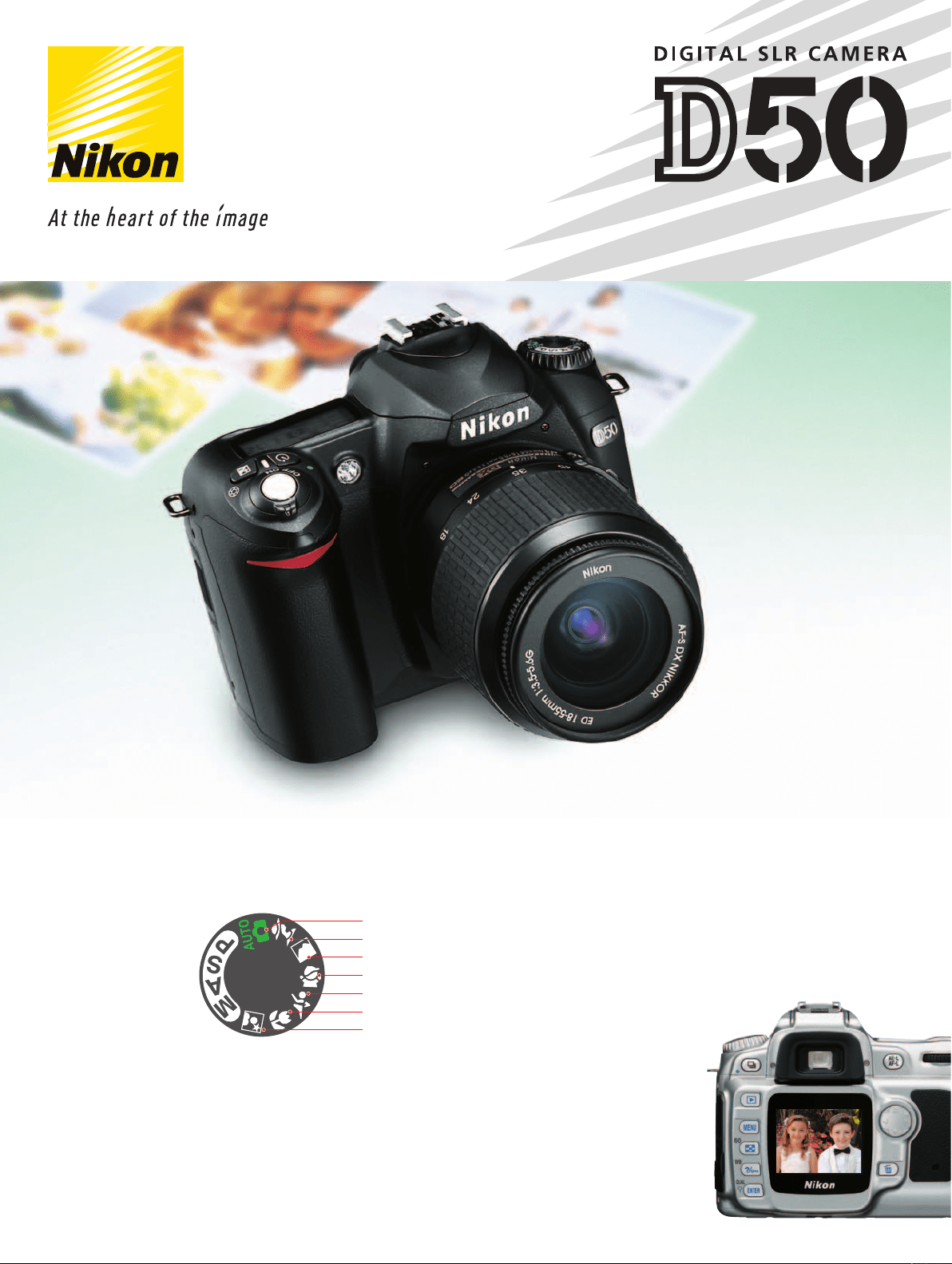
The Nikon Guide to Digital Photography
with the
DIGITAL CAMERA
About This Manual
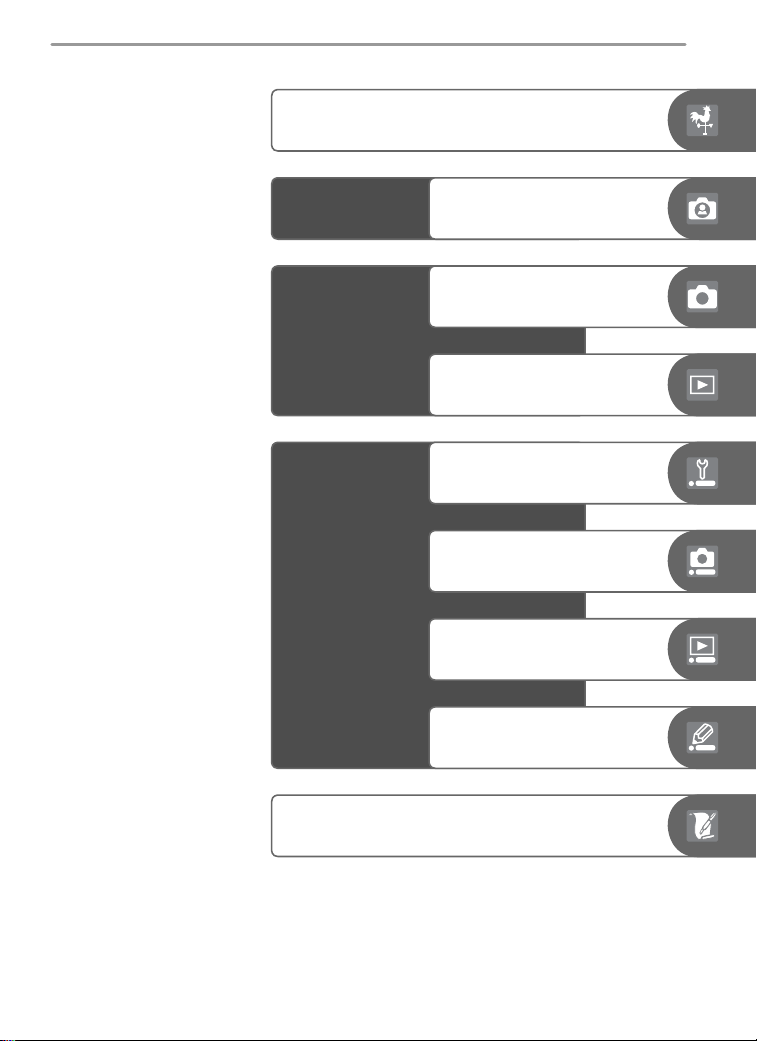
The topics in this manual are arranged in order from easy to advanced.
These chapters cover all you need to
know for simple, “point-and-shoot”
photography
Read these chapters for a complete
description of all aspects of camera
operation
Introduction (pages 1–13)
Learn the names of camera parts and ready the camera for use.
Setup: Shooting, Playback, and Custom Settings (pages 76–100)
Read this chapter for more information on Custom Set-
tings and on shooting and playback options.
Reference: More on Playback (pages 51–67)
Learn more about camera playback, transferring photo-
graphs to a computer, and printing photographs.
Reference: More on Photography (pages 30–50)
Play with exposure and explore the creative possibilities
of some of the camera’s more advanced settings.
Tutorial: Photography and Playback (pages 14–24)
The basic operations involved in taking photographs and playing them back.
Technical Notes (pages 101–103)
Read this chapter for information on camera specifi cations, accessories, and
troubleshooting.
Setup: Basic Camera Settings (pages 68–75)
Basic camera setup, including formatting memory cards and setting the camera
clock.
i
Setup
Reference
Introduction
Tutorial
More on Photography
More on Playback
Basic Camera Settings:
The Setup Menu
Shooting Options:
The Shooting Menu
Playback Options:
The Playback Menu
Custom Settings:
The Custom Settings Menu
Technical Notes
Photography and Playback
ii
To prevent damage to your Nikon product or injury to yourself or to oth-
ers, read the following safety precautions in their entirety before using this
equipment. Keep these safety instructions where all those who use the
product will read them.
The consequences that could result from failure to observe the precautions
listed in this section are indicated by the following symbol:
This icon marks warnings, information that should be read before using this
Nikon product to prevent possible injury.
WARNINGS
Do not look at the sun through the view-
fi nder
Viewing the sun or other strong light
source through the viewfi nder could
cause per ma nent visual im pair ment.
Turn off immediately in the event of
malfunction
Should you notice smoke or an un usu al
smell coming from the equip ment or
from the AC adapt er (avail able sep-
a rate ly), unplug the AC adapt er and
re move the battery im me di ate ly, tak-
ing care to avoid burns. Con tin ued
op er a tion could re sult in injury. After
re mov ing the bat tery, take the equip-
ment to a Nikon-au tho rized service
cen ter for in spec tion.
Do not use in the presence of fl am-
ma ble gas
Do not use electronic equip ment in the
presence of fl ammable gas, as this could
result in ex plo sion or fi re.
Do not place strap around the neck of
an infant or child
Placing the camera strap around the
neck of an infant or child could result
in strangulation.
Do not disassemble
Touching the product’s internal parts
could result in injury. In the event of
a malfunction, the prod uct should be
re paired only by a qualifi ed tech ni cian.
Should the product break open as the
re sult of a fall or other ac ci dent, re move
the battery and/or AC adapt er and then
take the prod uct to a Nikon-au tho rized
ser vice cen ter for in spec tion.
Observe proper precautions when han-
dling batteries
Batteries may leak or explode if im-
prop er ly handled. Observe the fol low ing
pre cau tions when handling bat ter ies for
use in this product:
• Be sure the product is off before re-
plac ing the battery. If you are using an
AC adapter, be sure it is un plugged.
• Use only batteries approved for use in
this equipment. Do not mix old and
new batteries or batteries of different
types.
• Do not at tempt to insert the battery
upside down or back wards.
• Do not short or disassemble the bat-
tery.
• Do not expose the battery to fl ame or
to excessive heat.
• Do not immerse in or expose to wa ter.
• Replace the terminal cover when trans-
porting the battery. Do not transport
For Your Safety
iii
or store with metal objects such as
neck lac es or hair pins.
• Batteries are prone to leakage when fully
discharged. To avoid damage to the
prod uct, be sure to remove the battery
when no charge re mains.
• When the battery is not in use, at tach
the terminal cover and store in a cool
place.
• Immediately after use, or when the
prod uct is used on battery power for
an ex tend ed period, the bat tery may
become hot. Before re mov ing the bat-
tery, turn the camera off and al low the
battery to cool.
• Discontinue use immediately should you
notice any changes in the bat tery, such
as dis col or a tion or de for ma tion.
Use appropriate cables
When connecting cables to the in put
and output jacks, use only the ca bles
pro vid ed or sold by Nikon for the
pur pose, to main tain com pli ance with
prod uct reg u la tions.
Keep out of reach of children
Particular care should be tak en to pre-
vent infants from putting the bat tery or
other small parts into their mouths.
CD-ROMs
The CD-ROMs on which the soft ware
and manuals are dis trib ut ed should not
be played back on audio CD equip ment.
Playing CD-ROMs on an audio CD play er
could cause hear ing loss or dam age the
equip ment.
Observe caution when using the fl ash
• Do not operate the fl ash with the fl ash
window touching a person or object.
Failure to observe this precaution could
result in burns or fi re.
• Using the fl ash close to your sub ject’s
eyes could cause tem po rary vi su al
im pair ment. Par tic u lar care should
be observed if pho to graph ing in fants,
when the fl ash should be no less than
one meter (39˝) from the sub ject.
When using the viewfi nder
When operating the diopter ad just ment
control with your eye to the viewfi nder,
care should be tak en not to put your
fi n ger in your eye ac ci den tal ly.
Avoid contact with liquid crystal
Should the monitor break, care should
be tak en to avoid injury due to bro ken
glass and to pre vent liq uid crystal from
the mon i tor touch ing the skin or en-
ter ing the eyes or mouth.

iv
• No part of the manuals included with
this product may be reproduced, trans-
mitted, transcribed, stored in a retrieval
system, or translated into any language
in any form, by any means, without
Nikon’s prior written permission.
• Nikon reserves the right to change the
specifi cations of the hardware and soft-
ware described in these manuals at any
time and without prior notice.
• Nikon will not be held liable for any
damages resulting from the use of this
product.
• While every effort has been made to
ensure that the information in these
manuals is accurate and complete, we
would appreciate it were you to bring
any errors or omissions to the attention
of the Nikon representative in your area
(address provided separately).
Notice for customers in the U.S.A.
Federal Communications Commission (FCC) Radio Frequency Interference Statement
Notices
This equipment has been tested and
found to comply with the limits for a
Class B digital device, pursuant to Part
15 of the FCC rules. These limits are
designed to provide reasonable protec-
tion against harmful interference in a
residential installation. This equipment
generates, uses, and can radiate radio
frequency energy and, if not installed and
used in accordance with the instructions,
may cause harmful interference to radio
communications. However, there is no
guarantee that interference will not occur
in a particular installation. If this equip-
ment does cause harmful interference to
radio or television reception, which can be
determined by turning the equipment off
and on, the user is encouraged to try to
correct the interference by one or more of
the following measures:
•
Reorient or relocate the receiving an-
tenna.
• Increase the separation between the
equipment and receiver.
• Connect the equipment into an outlet
on a circuit different from that to which
the receiver is connected.
• Consult the dealer or an experienced
radio/television technician for help.
CAUTIONS
Modifi cations
The FCC requires the user to be notifi ed
that any changes or modifi cations made
to this device that are not expressly ap-
proved by Nikon Corporation may void
the user’s authority to operate the equip-
ment.
Interface Cables
Use the interface cables sold or provided
by Nikon for your equipment. Using oth-
er interface cables may exceed the limits
of Class B Part 15 of the FCC rules.
Notice for customers in the State of California
WARNING: Handling the cord on this
product will expose you to lead, a chemi-
cal known to the State of California to
cause birth defects or other reproductive
harm. Wash hands after handling.
Nikon Inc.,
1300 Walt Whitman Road, Melville, New York
11747-3064, U.S.A.
Tel.: 631-547-4200
D50
Tested To Comply
With FCC Standards
FOR HOME OR OFFICE USE

v
Notice for customers in Canada
CAUTION
This class B digital apparatus meets all re-
quirements of the Canadian Interference
Causing Equipment Regulations.
ATTENTION
Cet appareil numérique de la classe B res-
pecte toutes les exigences du Règlement
sur le matériel brouilleur du Canada.
Notice Concerning Prohibition of Copying or Reproduction
Note that simply being in possession of material that has been digitally copied or
reproduced by means of a scanner, digital camera or other device may be punishable
by law.
• Items prohibited by law from being
copied or reproduced
Do not copy or reproduce paper money,
coins, securities, government bonds, or
local government bonds, even if such
copies or reproductions are stamped
“Sample.”
The copying or reproduction of paper
money, coins, or securities which are
circulated in a foreign country is pro-
hibited.
Unless the prior permission of the
government has been obtained, the
copying or reproduction of unused
postage stamps or post cards issued by
the government is prohibited.
The copying or reproduction of stamps
issued by the government and of certi-
fi ed documents stipulated by law is
prohibited.
• Cautions on certain copies and re-
productions
The government has issued cautions on
copies or reproductions of securities is-
sued by private companies (shares, bills,
checks, gift certifi cates, etc.), commuter
passes, or coupon tickets, except when
a minimum of necessary copies are to
be provided for business use by a com-
pany. Also, do not copy or reproduce
passports issued by the government,
licenses issued by public agencies and
private groups, ID cards, and tickets,
such as passes and meal coupons.
• Comply with copyright notices
The copying or reproduction of copy-
righted creative works such as books,
music, paintings, woodcut prints, maps,
drawings, movies, and photographs is
governed by national and international
copyright laws. Do not use this product
for the purpose of making illegal copies
or to infringe copyright laws.
Trademark Information
Macintosh, Mac OS, and QuickTime are registered trademarks of Apple Computer, Inc. Microsoft and Windows are
registered trademarks of Microsoft Corporation. The SD logo is a trademark of the SD Card Association. Adobe
and Acrobat are registered trademarks of Adobe Systems Inc. PictBridge is a trademark. All other trade names
mentioned in this manual or the other documentation provided with your Nikon product are trademarks or regis-
tered trademarks of their respective holders.

vi
Table of Contents
For Your Safety.............................................................................................. ii
Notices ........................................................................................................... iv
Introduction.................................................................................................... 1
Getting to Know the Camera....................................................................... 2
First Steps ...................................................................................................... 7
Attaching a Lens ........................................................................................... 7
Charging and Inserting the Battery................................................................ 8
Basic Setup ................................................................................................... 10
Inserting Memory Cards................................................................................ 11
Adjusting Viewfi nder Focus........................................................................... 13
Tutorial: Photography and Playback ............................................................ 14
Taking Photographs in
Mode................................................................. 14
Digital Vari-Programs ................................................................................... 19
Choosing a Shooting Mode.......................................................................... 21
Using the Self-timer or Remote Control...................................................... 22
Basic Playback ............................................................................................... 24
Reference........................................................................................................ 25
Using Camera Menus.................................................................................... 26
Reference: More on Photography ................................................................ 30
Image Quality and Size................................................................................. 30
Image Quality ............................................................................................... 31
Image Size .................................................................................................... 32
Choosing the Focus Area.............................................................................. 33
Manual Focus ................................................................................................ 35
Flash Sync Mode............................................................................................ 36
Sensitivity (ISO Equivalency)......................................................................... 39
P, S, A, and M Modes .................................................................................... 40
Choosing an Exposure Mode......................................................................... 40
P: Programmed Auto..................................................................................... 42
S: Shutter-Priority Auto.................................................................................. 43
A: Aperture-Priority Auto .............................................................................. 44
M: Manual.................................................................................................... 45
Exposure Compensation (P, S, A, and M Modes Only).................................... 47
Optimizing Images ........................................................................................ 48
White Balance............................................................................................... 49
Restoring Default Settings ........................................................................... 50
Reference: More on Playback........................................................................ 51
Viewing Photographs ................................................................................... 51
Protecting Photographs from Deletion....................................................... 56
Deleting Individual Photographs................................................................. 57
Viewing Photographs on TV ........................................................................ 58

vii
A two-button reset (page 50) and Custom Setting R (Menu Reset; page 87) can be
used to restore factory default settings.
Viewing Photographs on a Computer......................................................... 59
Printing Photographs ................................................................................... 62
Setup............................................................................................................... 68
Basic Camera Settings................................................................................... 68
Format.......................................................................................................... 68
CSM/Setup Menu ......................................................................................... 69
Date ............................................................................................................. 69
LCD Brightness ............................................................................................. 69
Video Mode.................................................................................................. 69
Language (LANG).......................................................................................... 70
Image Comment........................................................................................... 70
USB .............................................................................................................. 71
Folders.......................................................................................................... 71
File No. Seq................................................................................................... 73
Mirror Lock-up.............................................................................................. 73
Dust Ref Photo.............................................................................................. 74
Firmware Ver. ................................................................................................ 75
Image Rotation ............................................................................................. 75
Shooting Options.......................................................................................... 76
Optimize Image............................................................................................. 76
Long Exp. NR ................................................................................................ 78
Image Quality ............................................................................................... 78
Image Size .................................................................................................... 78
White Balance............................................................................................... 79
ISO ............................................................................................................... 82
Playback Options .......................................................................................... 83
Delete........................................................................................................... 84
Playback Fldr................................................................................................. 84
Rotate Tall ..................................................................................................... 84
Slide Show.................................................................................................... 85
Print Set........................................................................................................ 86
Small Picture ................................................................................................. 86
Custom Settings ............................................................................................ 87
Technical Notes............................................................................................... 101
Camera Settings ............................................................................................ 101
Optional Accessories..................................................................................... 104
Caring for the Camera.................................................................................. 115
Troubleshooting............................................................................................ 120
Appendix ....................................................................................................... 126
Specifi cations ................................................................................................ 129
Index .............................................................................................................. 136
viii
Foreign Matter on the Low-Pass Filter
Nikon takes every possible precaution to pre vent foreign matter from com ing into
con tact with the low-pass fi lter during production and ship ping. The D50, how ev er,
is designed to be used with interchangeable lens es, and for eign matter may enter the
camera when lens es are removed or exchanged. Once inside the camera, this for eign
matter may adhere to the low-pass fi lter, where it may appear in photographs tak en
under cer tain con di tions. To prevent foreign matter from entering the camera, do
not exchange lenses in dusty environments. To pro tect the camera when no lens is in
place, be sure to replace the body cap pro vid ed with the camera, being care ful to fi rst
remove all dust and other foreign matter that may be ad her ing to the body cap.
Should foreign matter fi nd its way onto the low-pass fi lter, clean the low-pass fi lter as
instructed on pages 116–117 of this manual, or have the low-pass fi lter cleaned by
authorized Nikon ser vice per son nel. Pho to graphs affected by the presence of for eign
matter on the low-pass fi lter can be re touched us ing Nikon Capture 4 version 4.3 or
later (available separately) or the clean image options available in some third-party
im ag ing software.
Take Test Shots
Before taking pictures on important occasions (for example, at weddings or be fore
tak ing the cam era with you on a trip), take a test shot to ensure that the camera is
func tion ing normally. Nikon will not be held liable for damages or lost profi ts that
may result from product malfunction.
Life-Long Learning
As part of Nikon’s “Life-Long Learning” commitment to ongoing prod uct sup port
and ed u ca tion, con tin u al ly-updated information is avail able on-line at the following
sites:
• For users in the U.S.A.: http://www.nikonusa.com/
• For users in Europe: http://www.europe-nikon.com/support
• For users in Asia, Oceania, the Middle East, and Africa: http://www.nikon-asia.com/
Visit these sites to keep up-to-date with the latest product in for ma tion, tips, an swers
to fre quent ly-asked ques tions (FAQs), and gen er al advice on digital imaging and pho-
tog ra phy. Ad di tion al information may be available from the Nikon rep re sen ta tive in
your area. See the URL below for contact in for ma tion:
http://nikonimaging.com/
Replacing This Manual
Should you lose this manual, replacements can be ordered, for a fee, from any au tho -
rized Nikon service representative.
1
Thank you for your purchase of a Nikon D50 single-lens refl ex (SLR) digital
camera with interchangeable lenses. This manual has been written to help
you enjoy taking pictures with your Nikon digital camera. Read this manual
thoroughly before use, and keep it handy when using the product. The docu-
mentation for this product also includes the manuals listed below. Please be
sure to read all instructions thoroughly to get the most from the cam era.
• Quick Start Guide: The Quick Start Guide takes you through the process
of unpacking and set ting up your Nikon digital camera, taking your fi rst
photographs, and trans fer ring them to your computer.
• PictureProject Reference Manual (on CD): The PictureProject Reference
Manual contains information on using the PictureProject software provid-
ed with your camera. For information on view ing the reference manual,
see the Quick Start Guide.
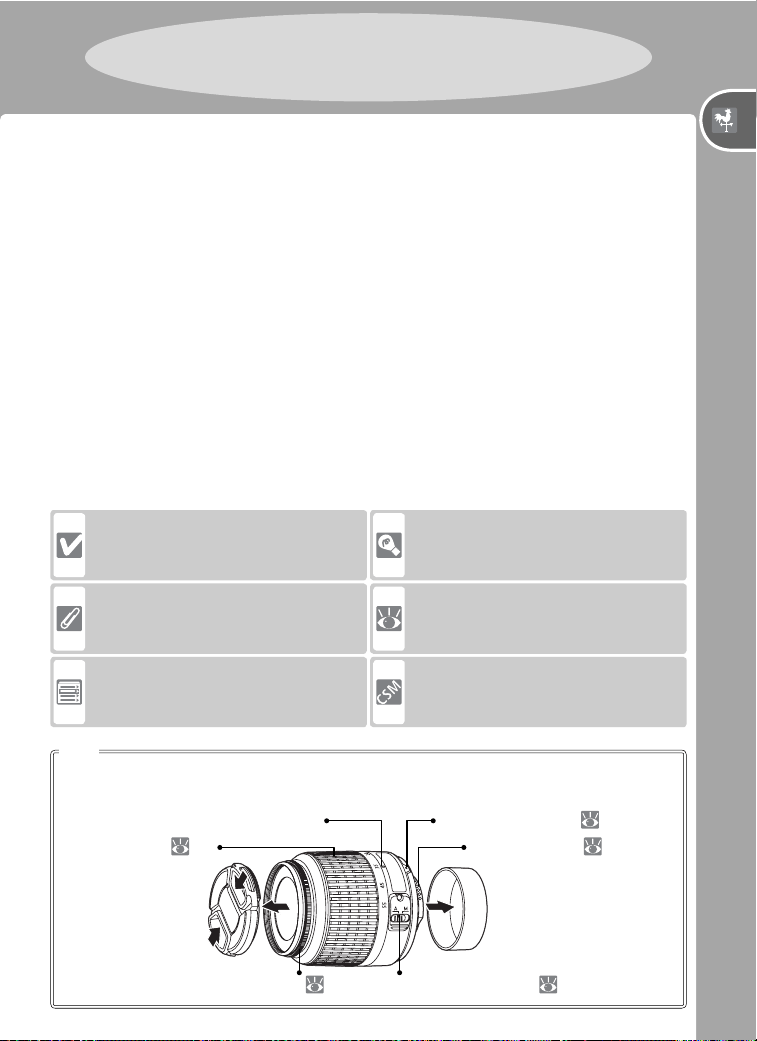
To make it easier to fi nd the information you need, the following sym bols
and con ven tions are used:
This icon indicates that more infor-
mation is available elsewhere in this
manual or in the Quick Start Guide.
This icon marks notes, information
that should be read before using
the camera.
This icon marks tips, additional in-
formation that may be helpful when
using the camera.
This icon marks cautions, informa-
tion that should be read before use
to prevent damage to the camera.
This icon marks settings that can be
fi ne-tuned from the Custom Set tings
menu.
This icon marks settings that can be
adjusted using camera menus.
An AF-S DX 18–55 mm f/3.5-5.6G ED lens is used in this manual for illustrative
purposes. See the manual provided with the lens for more information.
Lens
Focal length scale Mounting index: 7
Focus ring:
35 A-M mode switch: 15, 35
Introduction
CPU contacts: 105Zoom ring: 16
Introduction
2
Introduction—Getting to Know the Camera
Take a few moments to familiarize yourself with camera controls and dis-
plays. You may fi nd it helpful to bookmark this section and refer to it as you
read through the rest of the manual.
Camera Body
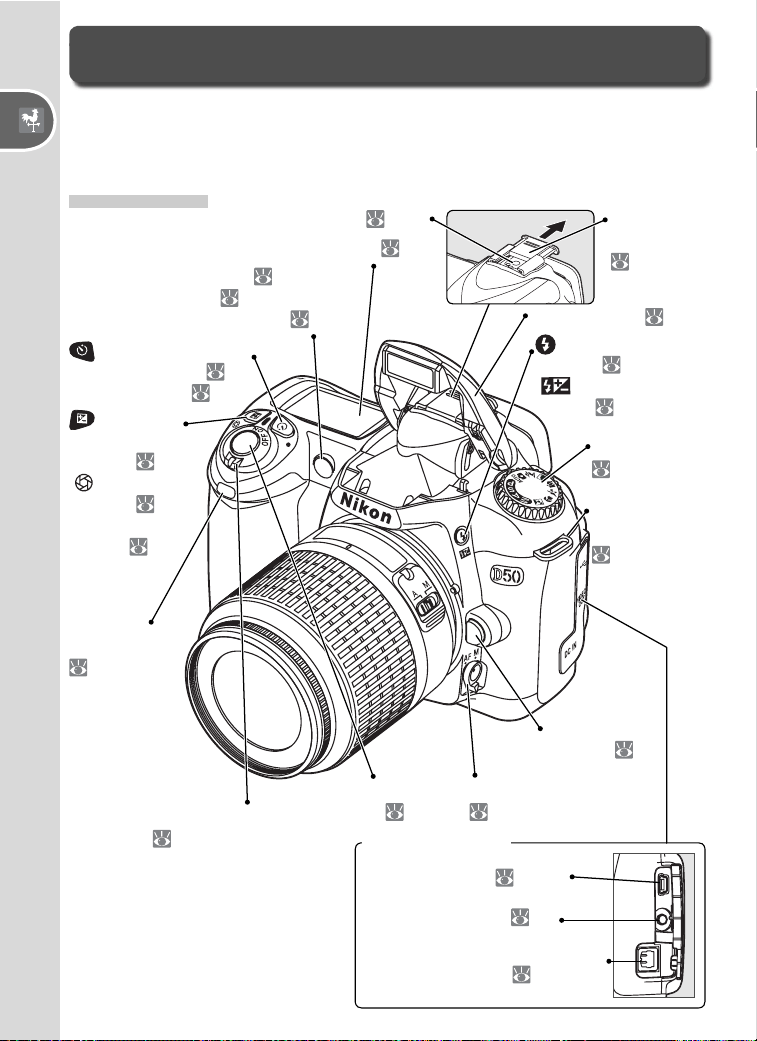
Accessory shoe: 109
Getting to Know the Camera
Mode dial:
6
(fl ash sync mode)
button: 18, 36
[ Flash compen-
sation: 38]
Eyelet for
camera strap:
7
Lens release
button:
7
Focus-mode selector:
15, 35
Infrared
receiver:
28
Power switch:
14
(exposure
compensation)
button: 47
[ Aperture
button: 45]
[Flash compen-
sation: 38]
(self-timer / remote
control) button: 28
[Reset button: 50]
AF-assist illuminator:
34
[Self-timer lamp: 22]
[Red-eye reduction lamp: 36]
Control panel: 4
Built-in fl ash:
109
Accessory
shoe cover:
109
Shutter-release
button: 17
Connector cover
USB connector:
60, 63
Video connector:
58
DC-IN connector for optional
EH-5 AC adapter:
113
3
Introduction—Getting to Know the Camera
Camera Body (continued)
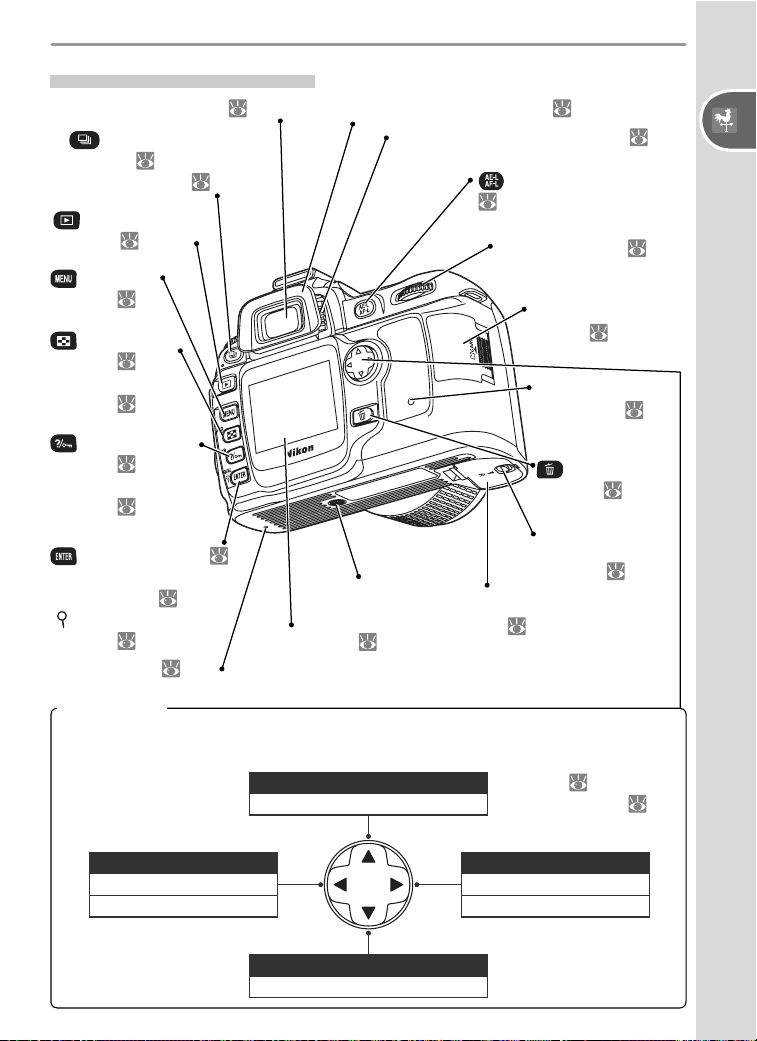
(AE / AF lock) button:
34, 97, 98
Command dial:
43–45, 51–55
Memory card slot
cover:
11, 12
Battery-chamber
cover: 9
Tripod socket
Reset switch:
120
(playback)
button: 24, 51
(menu)
button: 26
(thumbnail)
button: 54
[ISO (sensitivity)
button: 39]
(help / protect)
button: 26, 56
[WB (white balance)
button: 49]
(enter) button: 29
[QUAL (image quality /
size) button: 32]
[ (playback zoom)
button: 55]
(shooting mode)
button: 21
[Reset button: 50]
Monitor:
24, 26
Viewfi nder eyepiece cup:
13Viewfi nder eyepiece: 5, 13, 16
Diopter adjustment control: 13
Hide / display photo information
Move cursor down
Display previous page
Return to previous menu
Cancel
Display next page
Display sub-menu
Make selection
Hide/display photo information
Move cursor up
Battery-chamber
cover latch: 9
Memory card ac-
cess lamp:
11,
12, 17
(delete)
button: 24, 57
The multi selector is used for menu navigation and to control the display of photo
information during playback.
Multi selector
Playback ( 51)
Menu navigation ( 28)
4
Introduction—Getting to Know the Camera
18
21
20
19
12
14
15
17
13
22
16
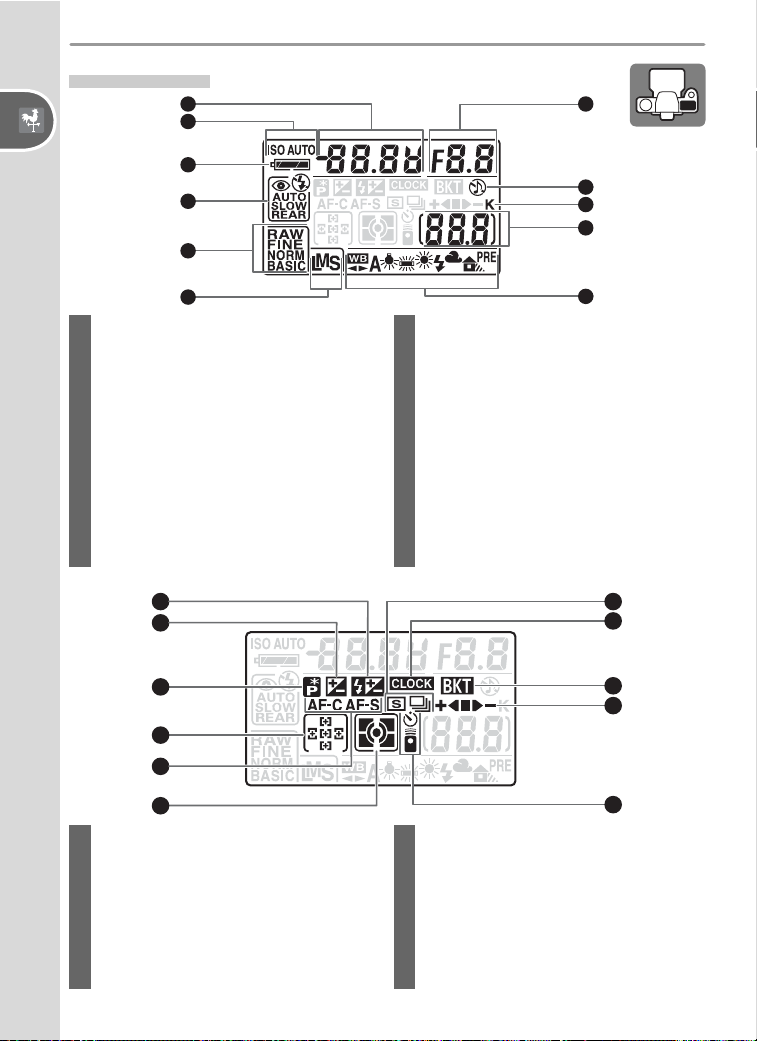
Control Panel
1
2
3
4
5
6
7
8
11
10
9
1 Shutter speed ..........................40–45
Exposure compensation value ....... 47
Flash compensation value ............. 38
Sensitivity (ISO equivalency) .......... 39
2 Sensitivity (ISO) indicator............... 39
Auto sensitivity indicator......... 91, 92
3 Battery indicator ........................... 14
4 Flash sync mode ........................... 36
5 Image quality................................ 31
6 Image size .................................... 32
7 White balance mode..................... 49
8 Number of exposures remaining ... 14
Number of shots remaining
before memory buffer fi lls............. 21
Preset white balance recording
indicator ....................................... 79
PC mode indicator ........................ 59
9 “K” (appears when memory remains
for over 1000 exposures) ................ 5
10 “Beep” indicator .......................... 88
11 Aperture (f/-number) ...............40–45
PC mode indicator ........................ 60
12 Flash compensation indicator........ 38
13 Exposure compensation indicator.. 47
14 Flexible program indicator............. 42
15 Focus area .............................. 16, 33
AF-area mode............................... 89
16 AF mode....................................... 88
17 Metering mode............................. 96
18 Self-timer / remote control
indicator ....................................... 22
19 Bracketing progress indicator........ 93
20 Bracketing indicator...................... 93
21 Clock battery indicator.......... 10, 123
22 Shooting mode............................. 21
5
Introduction—Getting to Know the Camera
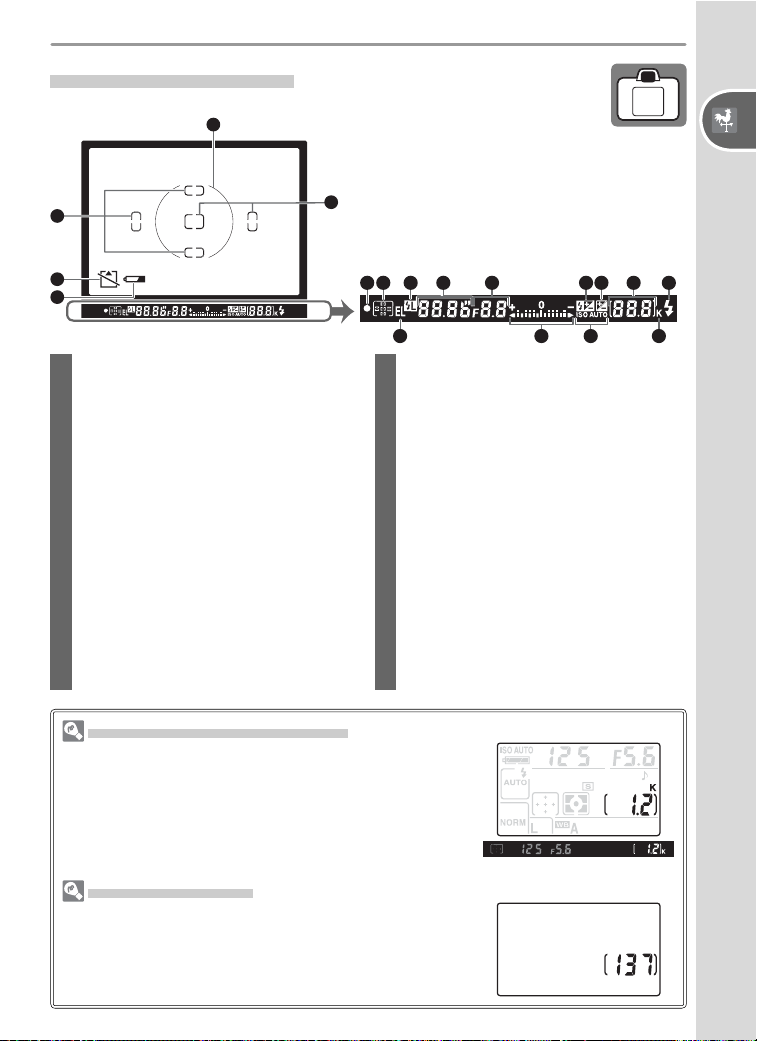
Large-Capacity Memory Cards
When enough mem o ry re mains on the memory card to
record a thou sand or more pic tures at cur rent set tings,
the num ber of exposures re main ing will be shown in
thou sands, round ed down to the near est hun dred
(e.g., if there is room for ap prox i mate ly 1,260 ex po -
sures, the ex po sure count dis play will show 1.2 K).
Camera Off Display
If the camera is turned off with a battery and memory
card inserted, the number of exposures remaining will
be displayed in the control panel.
The Viewfi nder Display
When the battery is totally exhausted, the
display in the viewfi nder will dim. The view-
fi nder display will return to normal when a
fully-charged battery is inserted.
5 6 7 8 9 10 11 12 13
14
15
16
17
1
2
3
2
4
1 Reference circle for center-weighted
metering....................................... 96
2 Focus brackets (focus areas).... 16, 33
3
“No memory card” warning
.. 11, 123
4 Battery indicator ........................... 14
5 Focus indicator ............... 17, 35, 123
6 Focus area .............................. 16, 33
AF-area mode............................... 89
7 Flash value (FV) lock...................... 98
8 Shutter speed ..........................40–45
9 Aperture (f/-number) ...............40–45
10 Flash compensation indicator........ 38
11 Exposure compensation indicator.. 47
12 Number of exposures remaining ... 14
Number of shots remaining
before memory buffer fi lls............. 21
Preset white balance recording
indicator ....................................... 79
Exposure compensation value ....... 47
Flash compensation value ............. 38
PC mode indicator .................. 59, 60
13 Flash-ready indicator..................... 18
14 Autoexposure (AE) lock................. 97
15
Electronic analog exposure display
.. 46
Exposure compensation ................ 47
16 Auto sensitivity indicator......... 91, 92
17 “K” (appears when memory remains
for over 1000 exposures) ................ 5
6
Introduction—Getting to Know the Camera
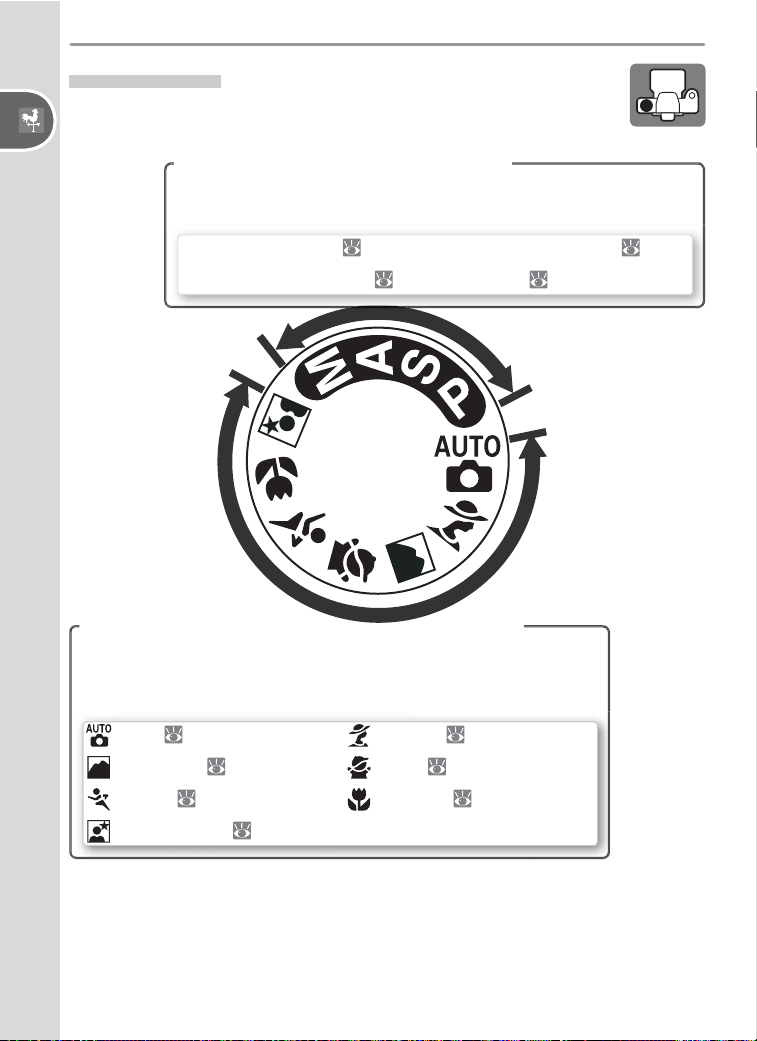
The Mode Dial
The D50 offers a choice of the following eleven shooting
modes:
Advanced Modes (Exposure Modes)
Select these modes for full control over camera settings, in-
cluding shutter speed and aperture.
P: Programmed auto ( 42)
A: Aperture-priority auto ( 44)
S: Shutter-priority auto ( 43)
M: Manual ( 45)
Point-and-Shoot Modes (Digital Vari-Programs)
Point-and-Shoot Modes (Digital Vari-Programs)
Selecting a Digital Vari-Program automatically optimizes set-
tings to suit the selected scene, making creative photography
as simple as rotating the mode dial.
: Auto ( 14)
: Landscape ( 20)
: Sports ( 20)
: Night portrait ( 20)
: Portrait ( 19)
: Child ( 20)
: Close up ( 20)
7
Introduction—First Steps
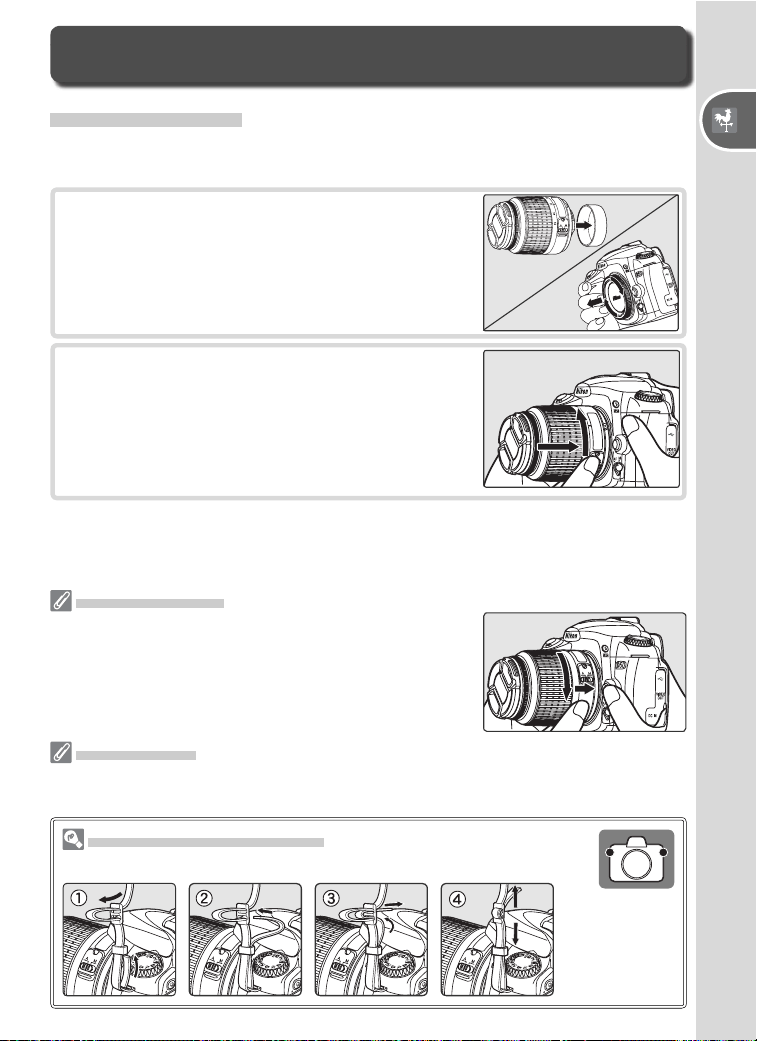
Attaching the Camera Strap
Attach the strap as shown below.
Detaching Lenses
Be sure the camera is off when removing or exchang-
ing lenses. To remove the lens, press and hold the lens-
release button while turning the lens clockwise.
2
Keep ing the mounting index on the lens
aligned with the mounting index on the
cam era body, position the lens in the cam-
era’s bayonet mount. Being careful not to
press the lens-release button, ro tate the lens
counter-clockwise until it clicks into place.
Attaching a Lens
Care should be taken to prevent dust from entering the camera when the
lens is removed.
1
Turn the camera off and remove the body
cap. Remove the rear lens cap from the
lens.
First Steps
Aperture Ring
If the lens is equipped with an aperture ring, lock aperture at the minimum setting
(highest f/-number). See the lens manual for details.
8
Introduction—First Steps
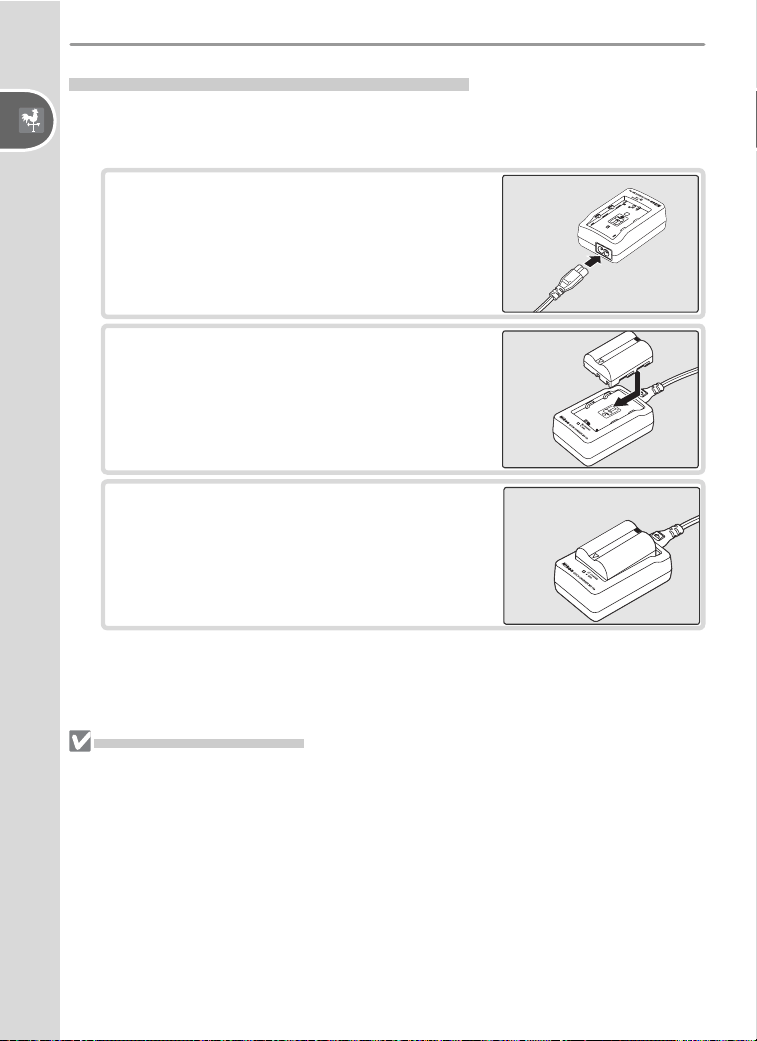
Charging and Inserting the Battery
Use the supplied EN-EL3 battery and MH-18a quick charger.
1
Charge the battery
1.1 Connect the power cord to the charger
and plug it in.
1.2 Place the battery in the charger. The
CHARGE lamp will blink as the battery
charges. About two hours are required
for an exhausted battery to fully charge.
1.3 Charging is complete when the CHARGE
lamp stops blinking. Remove the battery
from the charger and unplug the char-
ger.
The Battery and Charger
Read and follow the warnings and cautions on pages ii–iii and 118–119 of this
manual, together with any warnings and instructions provided by the battery
manufacturer.
Do not use the battery at ambient temperatures below 0 °C (32 °F) or above 40 °C
(104 °F). During charging, the tem per a ture should be in the vi cin i ty of 5–35 °C
(41–95 °F). Note that the battery may become hot during use; wait for the battery to
cool before charging. Failure to observe these precautions could damage the battery,
impair its performance, or prevent it from charging normally.
The supplied power cable is intended solely for use with the MH-18a and is for
domestic use only. It may be necessary to purchase another cable for use abroad;
consult with a local Nikon-authorized retailer or service representative.
9
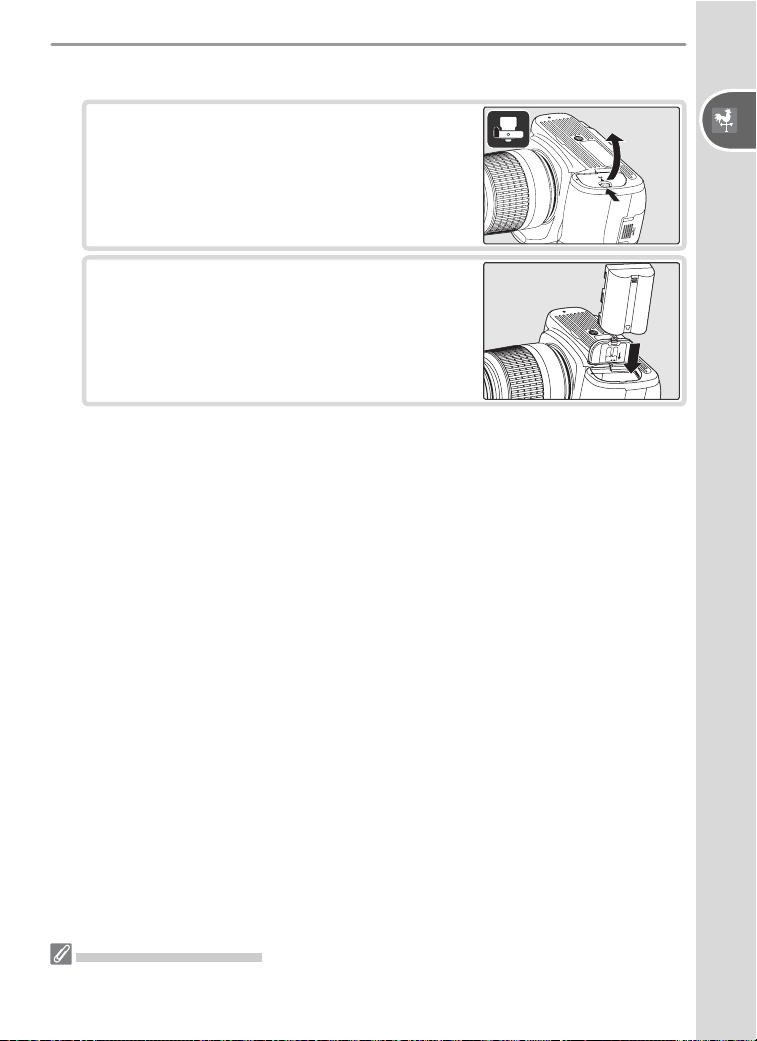
Introduction—First Steps
2
Insert the battery
2.1 After confi rming that the camera is off,
open the battery chamber cover.
2.2 Insert a fully charged battery as shown at
right. Close the battery chamber cover.
Removing the Battery
Turn the camera off before removing the battery. Replace the terminal cover when
the battery is not in use.
10
Introduction—First Steps
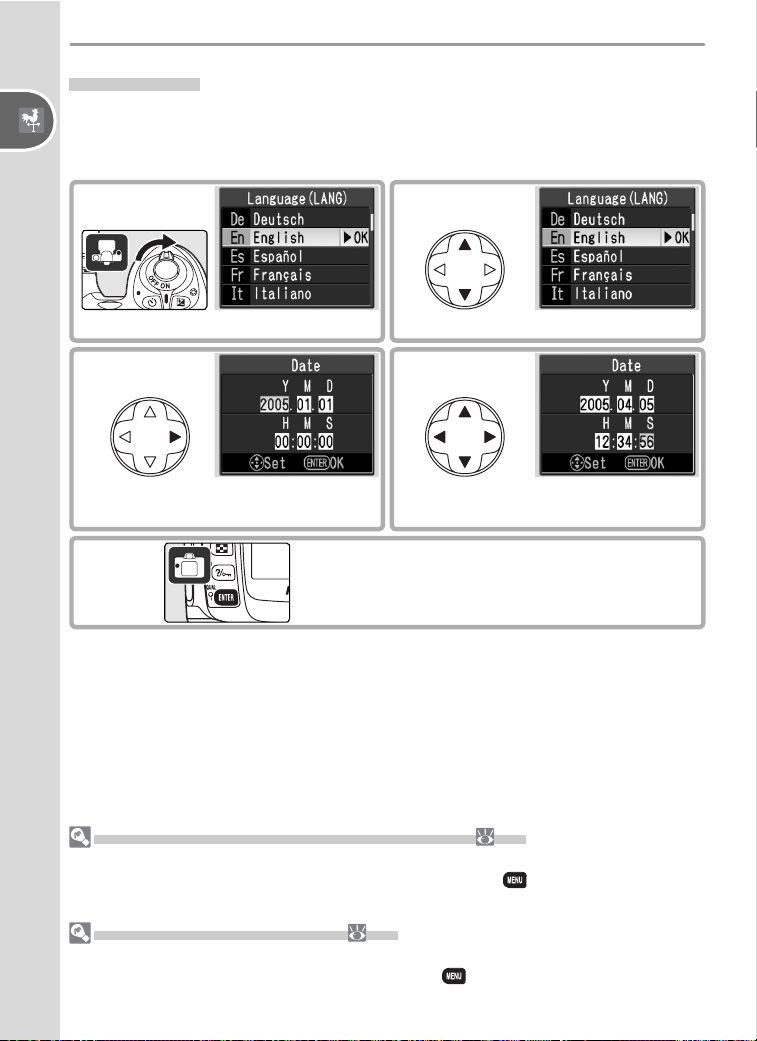
Basic Setup
The fi rst time the camera is turned on, the language selection dialog shown
in Step 1 will be displayed in the monitor. Follow the steps below to choose
a language and set the time and date.
3 4
Press multi selector left or right to
select item, up or down to change.
Display DATE menu.
2
Select language.
5
Exit DATE menu. Monitor turns off.
Choosing a Language from the Setup Menu ( 68)
Selecting Language (LANG) in the setup menu displays the menu shown in Step 1.
Highlight an option with the multi selector and press the button to return to the
setup menu.
Changing the Time and Date ( 68)
Selecting Date in the setup menu displays the menu shown in Step 3. Set the time
and date as described in Step 4 and press the button to return to the setup
menu.
1
Display language-selection dialog.
11
Introduction—First Steps
Inserting Memory Cards
The camera stores pictures on Secure Digital (SD) memory cards (available
separately).
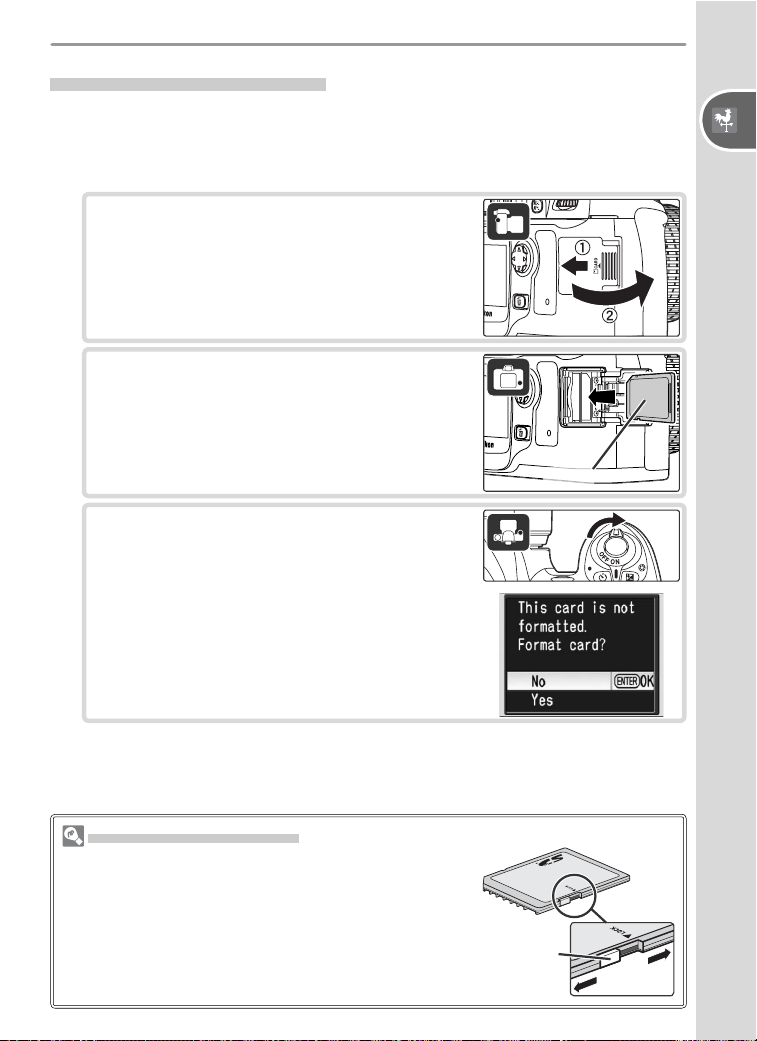
1
Insert a memory card
1.1 Before inserting or removing memory
cards, turn the camera off and open
the card slot cover.
1.2 Slide the memory card in as shown at
right until it clicks into place. The mem-
ory card access lamp will light for about
a second. Close the memory card slot
cover.
Front
The Write Protect Switch
SD cards are equipped with a write protect switch to
prevent accidental loss of data. When this switch is in
the “lock” position, the camera will display a message
to warn that photos can not be recorded or deleted
and the memory card can not be formatted.
Write
protect
switch
1.3 Turn the camera on. If the control panel
shows the number of exposures remain-
ing, the card is ready for use.
If the message shown at right is displayed
in the monitor, the memory card must be
formatted before it can be used in the
camera. Proceed to Step 2.
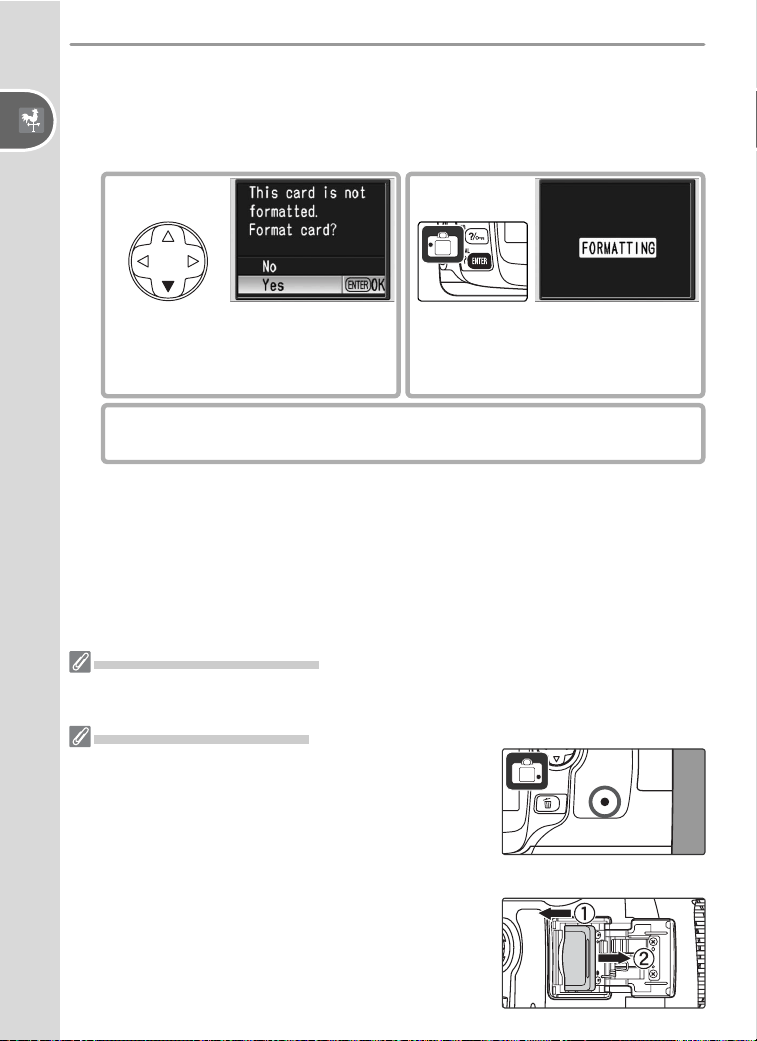
12
Introduction—First Steps
2
Format the memory card
Formatting memory cards permanently deletes all photographs and
other data they may contain. Be sure all data you wish to keep have
been copied to another storage device before formatting the card.
2
.1
Highlight Yes.
2
.2
Begin formatting. Do not turn
camera off or remove battery or
memory card until formatting is
complete.
2
.3
Monitor turns off when formatting is complete.
Formatting Memory Cards
Use the camera Format option to format memory cards. Performance may drop if
cards are formatted in a computer.
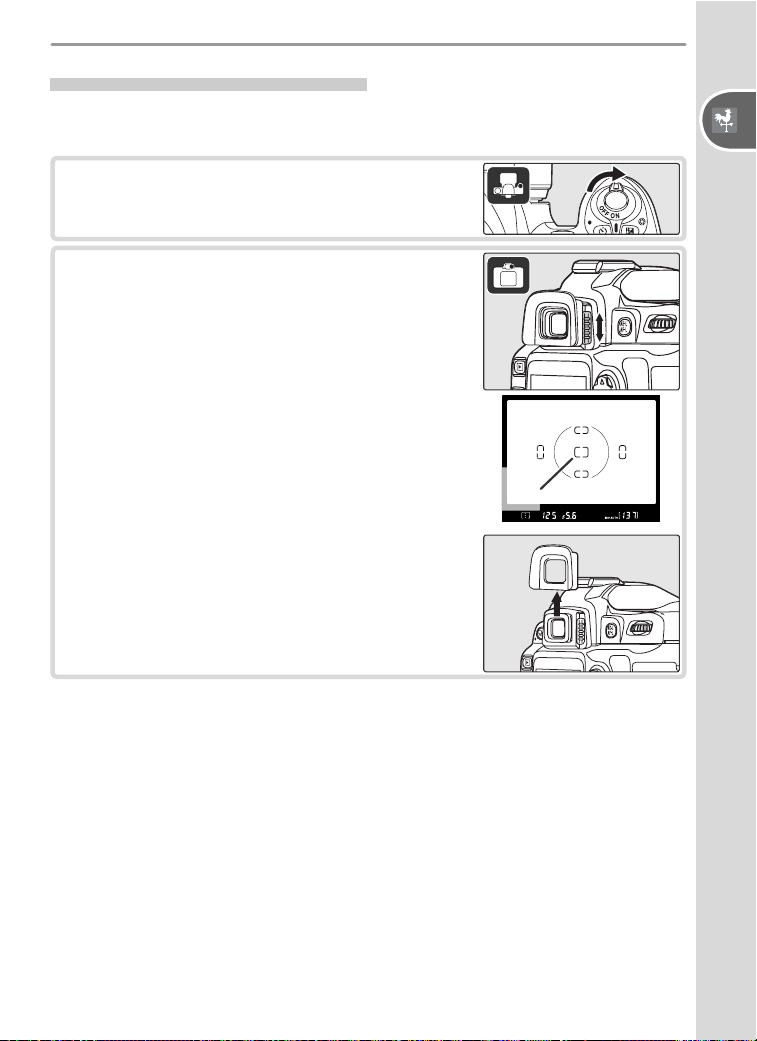
Removing Memory Cards
1 Confi rm that the access lamp is off.
2 Turn the camera off and open the memory card slot cover.
3 Press the card in to eject (
햲
). The card can then be
removed by hand (
햳
).
13
Introduction—First Steps
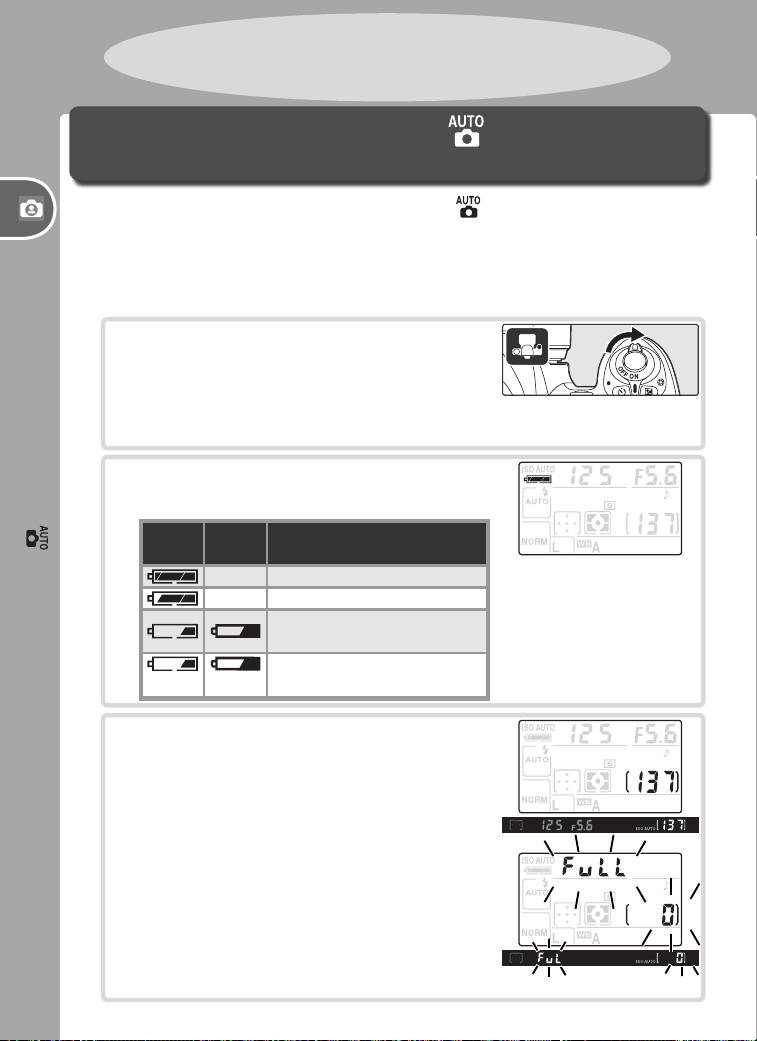
Adjusting Viewfi nder Focus
Photographs are framed in the viewfi nder. Before shooting, make sure that
the display in the viewfi nder is in clear focus.
1
Remove the lens cap and turn the camera
on.
2
Slide the diopter adjustment control up and
down until the focus brackets are in sharp fo-
cus. When operating the diopter adjustment
control with your eye to the viewfi nder, be
careful not to put your fi ngers or fi ngernails
in your eye.
Focus
brackets
The eyepiece cup can be removed when ad-
justing viewfi nder focus.
14
Tutorial—Taking Photographs in Mode
This section describes how to take pictures in (auto) mode, an automat-
ic, “point-and-shoot” mode in which the majority of settings are controlled
by the camera in response to shooting conditions.
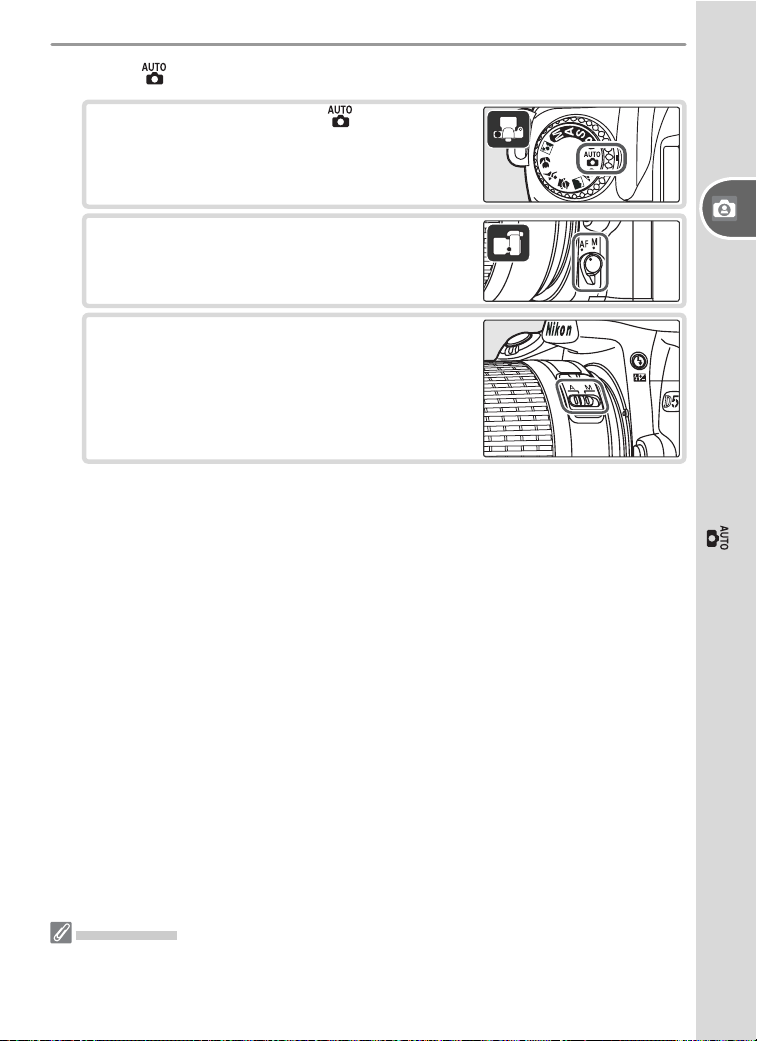
1
Turn the camera on
Taking Photographs in Mode
“Point-and-Shoot” Photography
1.1 Remove the lens cap and turn the camera
on. The control panel will turn on and
the display in the viewfi nder will light.
The monitor remains off during shoot-
ing.
1.2 Check the battery level in the viewfi nder
or control panel.
Control
panel
View-
fi nder Description
— Battery fully charged.
— Battery partially discharged.
Low battery. Ready fully-
charged spare battery.
(blinks) (blinks)
Shutter-release disabled.
Change battery.
1.3 The exposure count displays in the con-
trol panel and viewfi nder show the num-
ber of photographs that can be stored on
the memory card. Check the number of
exposures remaining.
If there is not enough memory to store
additional photographs at current set-
tings, the display will fl ash as shown at
right. No further pictures can be taken
until the memory card has been replaced
or pictures have been deleted.
Tutorial:
Photography and Playback
15
Tutorial—Taking Photographs in Mode
2
Select mode and adjust camera settings
Illustrations
In illustrations throughout this manual, indicators in the control panel and viewfi nder
are relevant to the explanation in accompanying text are shown in black. Indicators
not mentioned in the text are shown in gray.
2.1 Rotate the mode dial to .
2.2 Rotate the focus-mode selector to AF
(autofocus).
2.3 Slide the lens A-M mode switch to A
(autofocus). See the lens manual for
details.
16
Tutorial—Taking Photographs in Mode
3
Frame a photograph
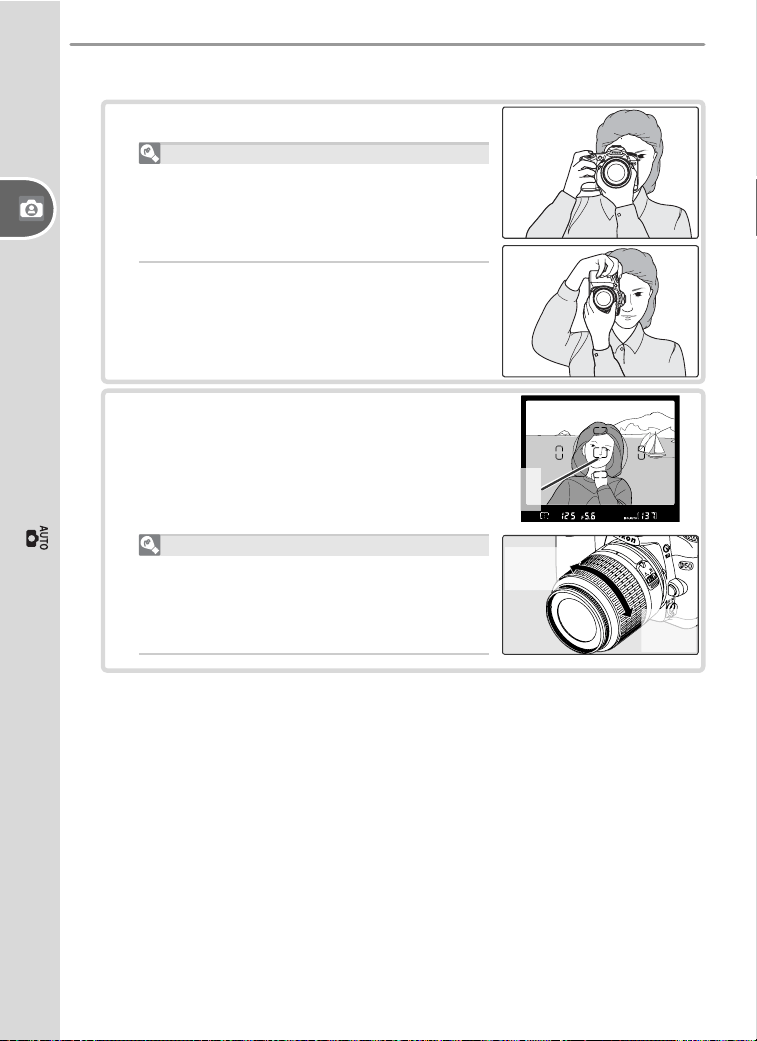
3.1 Hold the camera as shown.
Holding the Camera
Hold the handgrip in your right hand and
cradle the cam era body or lens with your
left. Keep your elbows propped lightly
against your torso for support.
3.2 Frame a photo in the viewfi nder with the
main subject positioned in any of the fi ve
focus areas.
Focus
area
Using a Zoom Lens
Use the zoom ring to zoom in on the
subject so that it fi lls a larger area of the
frame, or zoom out to increase the area
visible in the fi nal photograph.
Zoom
in
Zoom
out
17
Tutorial—Taking Photographs in Mode
4
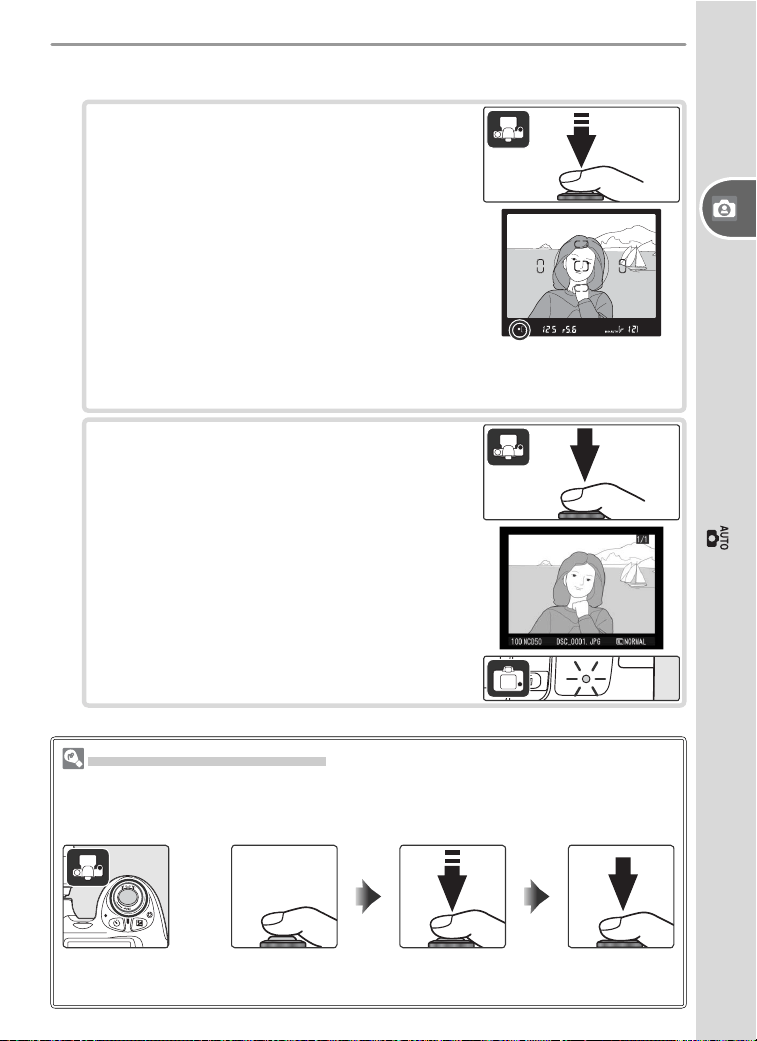
Focus and shoot
4.1 Press the shutter-release button halfway.
The camera will automatically select the
focus area containing the subject closest
to the camera and focus on this subject.
When the focus operation is complete,
the selected focus area will be highlight-
ed, a beep will sound, and the in-focus
indicator (●) will appear in the view-
fi nder. Focus will lock while the shutter-
release button is pressed halfway.
If the subject is dark, the AF-assist illuminator may light to assist
the focus operation and the fl ash may pop up.
The Shutter-Release Button
The camera has a two stage shutter-release button. The camera focuses when
the button is pressed halfway; focus locks until the button is released. To take the
picture, press the shutter-release button the rest of the way down.
Lock focus Take
photograph
4.2 Smoothly press the shutter-release button
the rest of the way down to release the
shutter and record the photograph. The
photograph will be displayed in the moni-
tor and the access lamp next to the card
slot cov er will light. Do not eject the
mem o ry card, turn the camera off,
or remove or dis con nect the power
source until the lamp has gone out
and recording is complete.
18
Tutorial—Taking Photographs in Mode
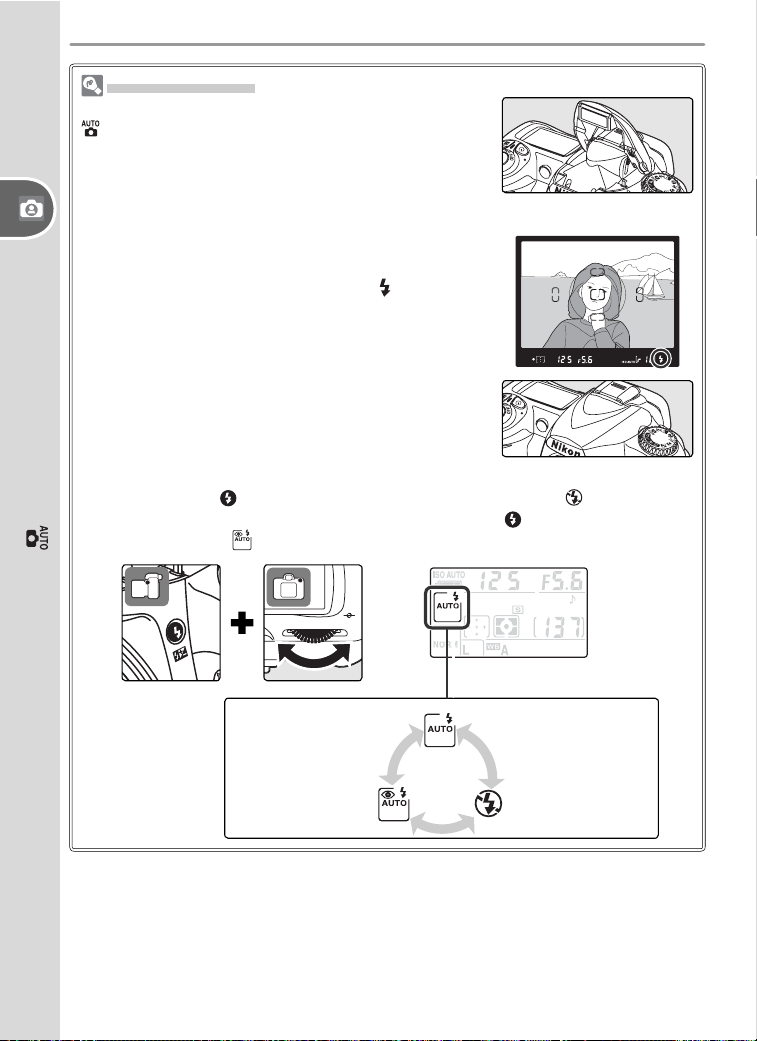
The Built-in Flash
If additional lighting is required for correct exposure in
mode, the built-in fl ash will pop up automatically
when the shutter-release is pressed halfway. Subjects
outside the range of the fl ash (0.6–7.5 m / 2´–24´7˝)
may not be properly lit. Remove lens hoods when
using the fl ash.
Once the fl ash is raised, it will only fi re when required
for additional lighting. If the fl ash is required, pho-
tographs can only be taken when the
(fl ash-ready)
indicator is displayed. Wait until the fl ash-ready indi-
cator is displayed before shooting.
Flash off
Auto with red-
eye reduction
(see “Reference”)
Flash fi res when
lighting is poor
If desired, the fl ash can be turned off so that it will not fi re even when lighting
is poor. Press the button and rotate the command dial until is displayed in
the control panel. To turn the fl ash back on, press the button and rotate the
command dial until is displayed in the control panel.
To save battery power when the fl ash is not in use,
return it to the closed position by pressing it gently
downward until the latch clicks into place.
19
Tutorial—Digital Vari-Programs
Digital Vari-Programs
Creative Photography
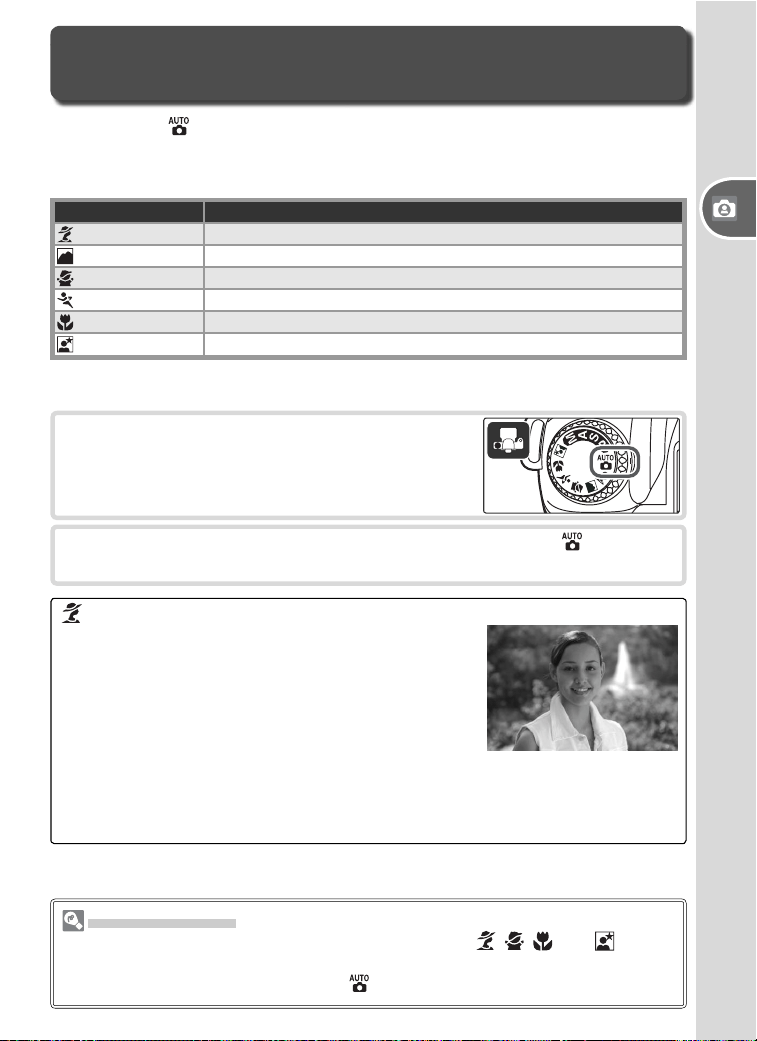
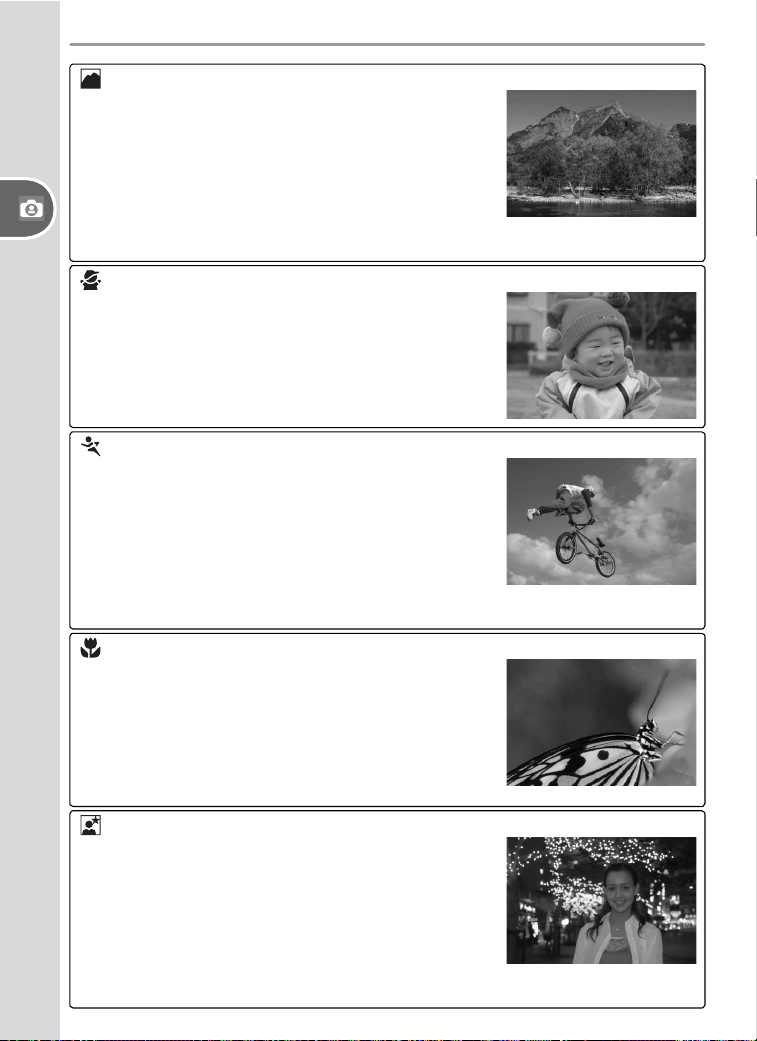
In addition to , the D50 offers a choice of six Digital Vari-Program modes.
Selecting a program automatically optimizes settings to suit the selected
scene, making creative photography as easy as rotating the mode dial.
Mode Description
Portrait For portraits.
Landscape For landscapes.
Child For pictures of children.
Sports For moving subjects.
Close up For close up shots of small objects.
Night portrait For portraits taken against a backdrop of night scenery.
To take pictures in Digital Vari-Program modes:
2
Frame a photograph, focus, and shoot as described for mode.
1
Rotate the mode dial to select a Digital Vari-
Program mode.
Portrait: Bringing out a Portrait Subject
Use for portraits. Camera selects focus area
containing subject closest to camera; this subject
stands out clearly while background details are
softened, lending composition sense of depth.
Colors are processed for soft, natural-looking
skin tones.
• Degree of softening depends on amount of light available. Increase
distance between subject and background or use telephoto lens for best
results.
The Built-in Flash
If additional lighting is required for correct exposure in , , , and ,modes,
the built-in fl ash will pop up automatically when the shutter-release is pressed
halfway. See “Taking Photographs in Mode.”
20
Tutorial—Digital Vari-Programs
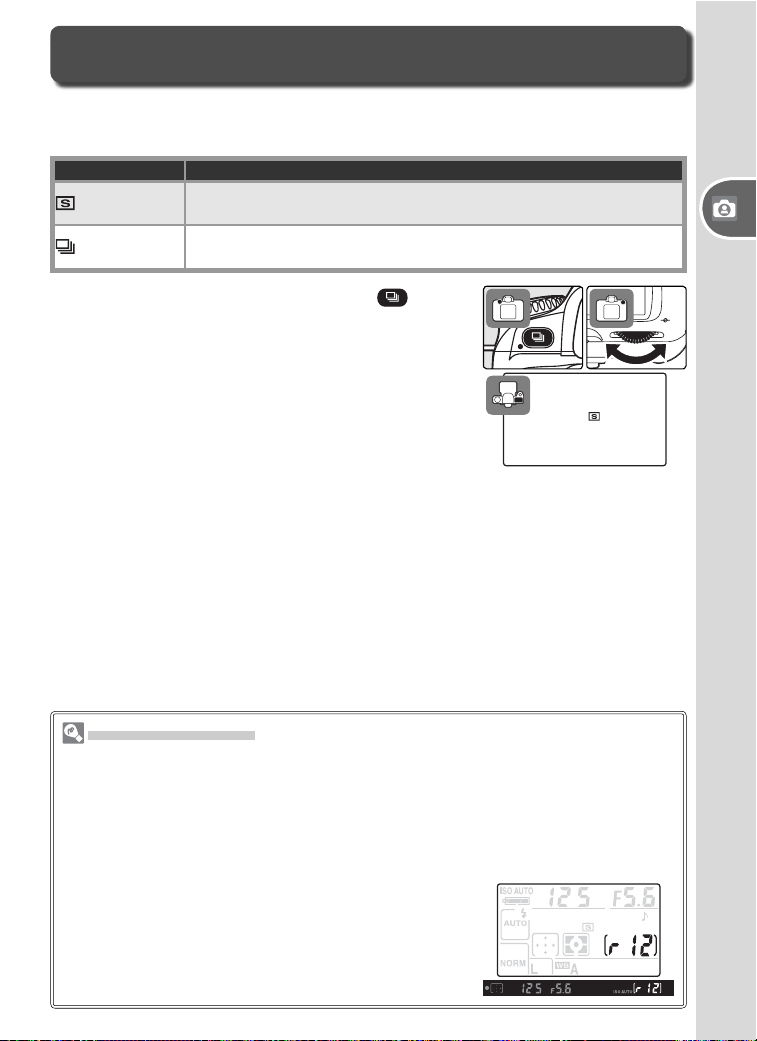
Landscape: Capturing Nature’s Majesty
Use for vivid landscape shots that enhance out-
lines, colors, and contrast in such subjects as
skyscapes and forests.
• Camera selects focus area containing subject
closest to camera.
• Built-in fl ash and AF-assist illuminator turn off
automatically.
Child: Kid Pics in Living Color
Use for snapshots of children. Clothing and
background details are vividly rendered while
skin tones remain soft and natural.
• Camera selects focus area containing subject
closest to camera.
Sports: Bodies in Motion
High shutter speeds freeze motion for dynamic sports
shots in which main subject stands out clearly.
• Camera focuses continuously on subject in
center focus area while shutter-release button
is pressed halfway. Beep does not sound when
camera focuses.
• Built-in fl ash and AF-assist illuminator turn off automatically.
Close up: Photographing Small Objects
Use for close-up shots of fl owers, insects, and
other small objects.
• Camera focuses on subject in center focus
area.
• Tripod recommended to prevent blurring at
slow shutter speeds.
Night Portrait: Taking Portraits at Night
Provides natural balance between main subject
and background in portraits taken under low
light.
• Camera selects focus area containing subject
closest to camera.
• Tripod recommended to prevent blurring at
slow shutter speeds.
21
Tutorial—Choosing a Shooting Mode
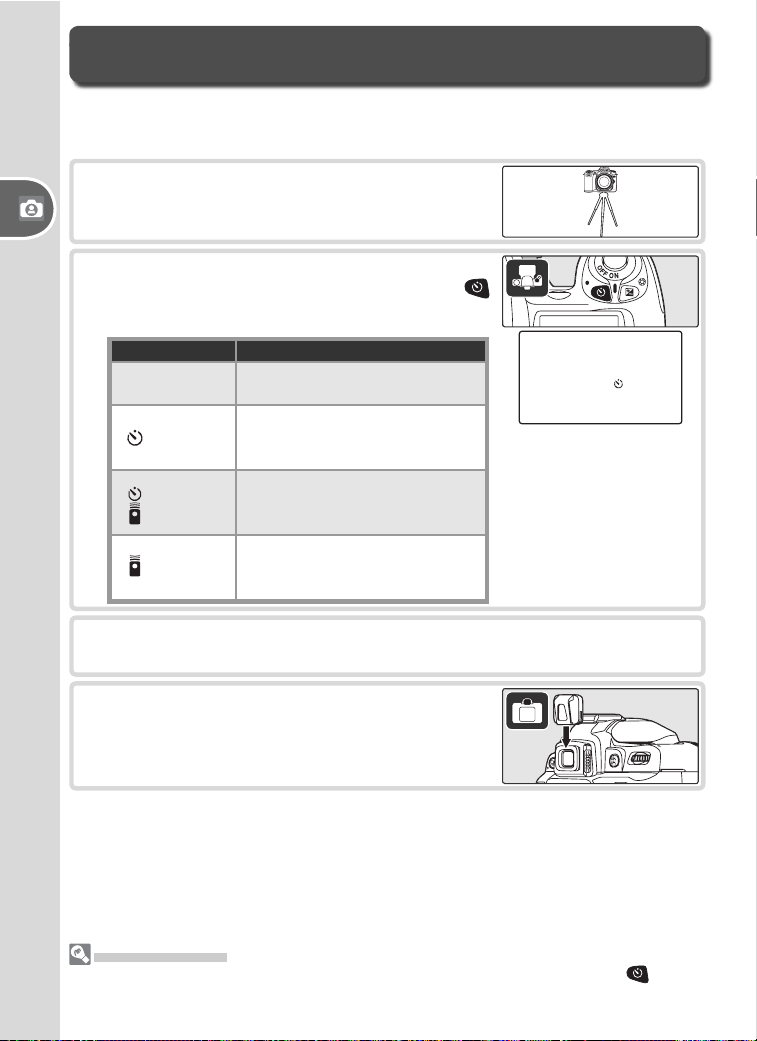
Shooting mode determines how the camera takes pho to graphs: one at a
time or continuously while the shutter-release button is held down.
Mode Description
Single frame
(default)
Camera takes one photograph each time shutter-release button
is pressed.
Continuous
(burst mode)
Camera records photographs at rate of up to about 2.5 frames
per second while shutter-release button is pressed.
To choose a shooting mode, press the button
and rotate the command dial until the desired
mode is displayed in the control panel.
Choosing a Shooting Mode
The Memory Buffer
The camera is equipped with a memory buffer for tem po rary storage, allowing
shooting to continue while photographs are being saved to the memory card.
When the buff er is full, the shut ter is disabled until enough data have been trans-
ferred to the mem o ry card to make room for another photograph. In con tin u ous
mode, shooting will con tin ue as long as the shutter-release button is held down,
al though the frame rate will drop once the buffer has fi lled.
The number of im ag es that can be stored in the
memory buffer at current set tings is shown in the
ex po sure-count dis plays in the viewfi nder and con trol
pan el while the shutter-release button is pressed.
22
Tutorial—Using the Self-timer or Remote Control
The self-timer or optional ML-L3 remote control can be used for photo-
graphs in which you wish to appear yourself. To use the self-timer:
Using the Self-timer or Remote Control
1
Mount the camera on a tripod (recommend-
ed) or place the camera on a stable, level
sur face.
2
The current self-timer / remote control mode
is shown in the control panel. Use the
button to select one of the following modes:
Mode Description
NO
ICON
Timer
off
Photos are taken when shutter-
release button is pressed.
Self-
timer
Photos are taken about 10 s
after shutter-release button is
pressed.
Delayed
remote
Photos are taken about 2 s after
shutter-release button on re-
mote control is pressed.
Quick-
response
remote
Photos are taken when shut-
ter-release button on remote
control is pressed.
Mode Selection
The self-timer / remote control mode can also be selected by pressing the button
and rotating the command dial.
3
Frame the photograph.
4
To prevent light entering via the viewfi nder
from interfering with exposure, cover the
viewfi nder eyepiece with the supplied eye-
piece cap as shown at right.
23
Tutorial—Using the Self-timer or Remote Control
5
Take the photograph.
Self-timer: Press the shutter-release button all the way down to start
the self-timer. The self-tim er lamp (AF-assist lamp) will blink for about
eight seconds. The lamp stops blinking two seconds before the pho-
tograph is taken and remains lit until the shutter is released.
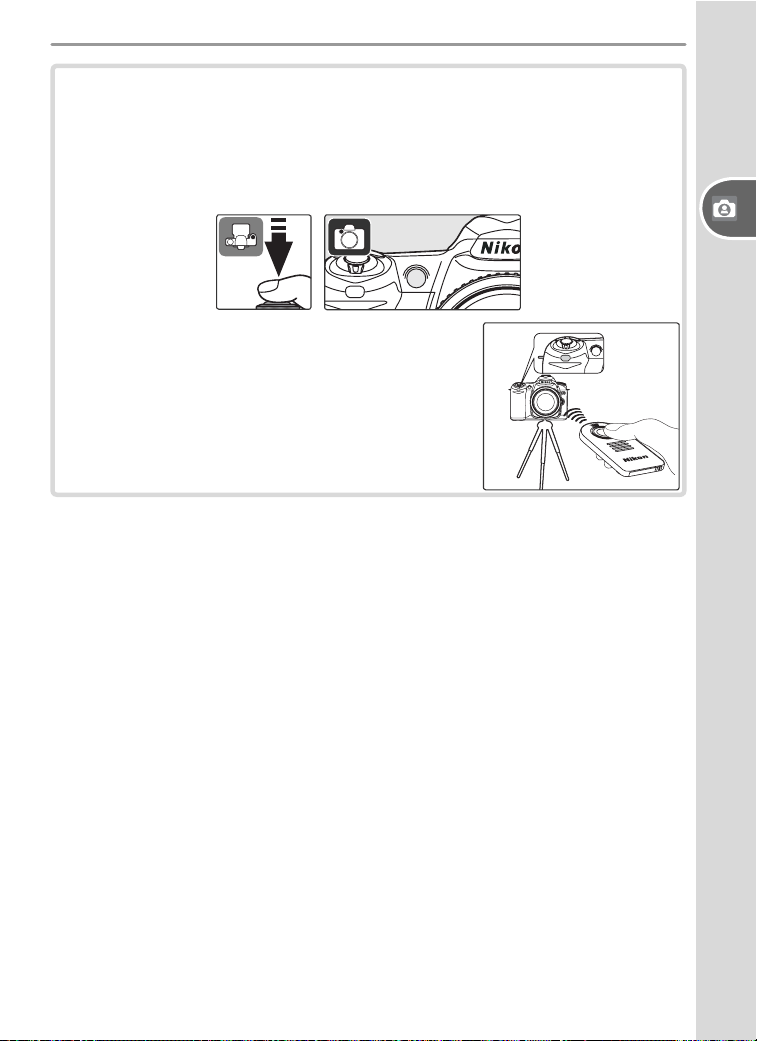
Remote control: From a distance of 5 m (16´)
or less, point the remote control at the in-
frared receiver on the front of the camera
and press the shutter-release button on the
remote control. In delayed remote mode, the
shutter will be released about two seconds
after the shutter-release button is pressed.
24
Tutorial—Basic Playback
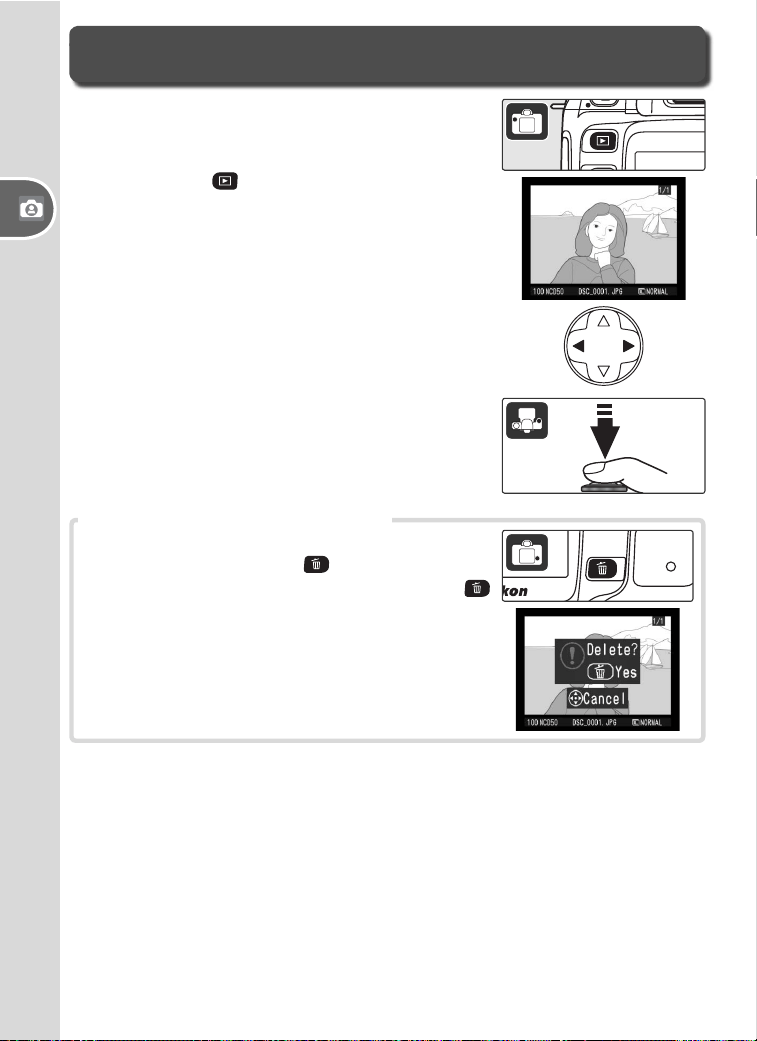
Photographs are displayed automatically after
shooting. If no photograph is displayed in the
monitor, the most recent picture can be viewed
by pressing the button. Additional pictures
can be displayed by rotating the command dial or
pressing the multi selector left or right.
Basic Playback
To end playback and return to shooting mode,
press the shutter-release button halfway.
To delete the pho to graph cur rent ly dis played
in the monitor, press the button. A confi r-
mation dialog will be dis played. Press the
button again to de lete the image and re turn to
play back. Press any other button to exit without
de let ing the picture.
Deleting Unwanted Photographs
25
Reference
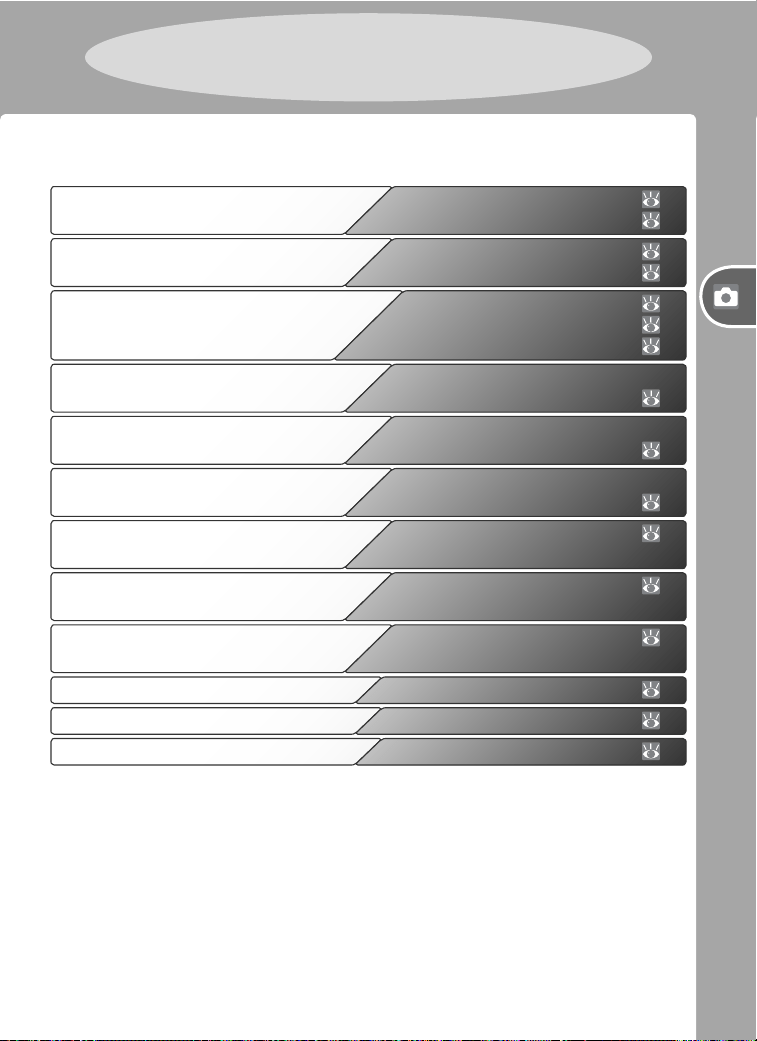
This section builds on the Tutorial to cover more advanced shooting and
playback options.
Adjust image quality and size according to
how the picture will be used
Image Quality: 31
Image Size:
32
Choose the focus area or focus manually Choosing the Focus Area: 33
Manual Focus: 35
Control depth of fi eld Exposure Mode A
(Aperture-Priority Auto): 44
Choose shutter speed and aperture
manually
Exposure Mode M (Manual): 45
Make photographs brighter or darker or
enhance contrast
Exposure Compensation: 47
Make colors look natural
Take photos under unusual lighting
White Balance: 49
Viewing Photographs 51
Take photographs where lighting is poor Flash Sync Mode: 36
Flash Compensation: 38
Sensitivity (ISO Equivalency): 39
Let the camera choose shutter speed and
aperture
Exposure Mode P
(Programmed Auto): 42
Printing Photographs 62
Viewing Photographs on a Computer 59
Freeze or blur motion Exposure Mode S
(Shutter-Priority Auto): 43
Reference
26
Reference—Using Camera Menus
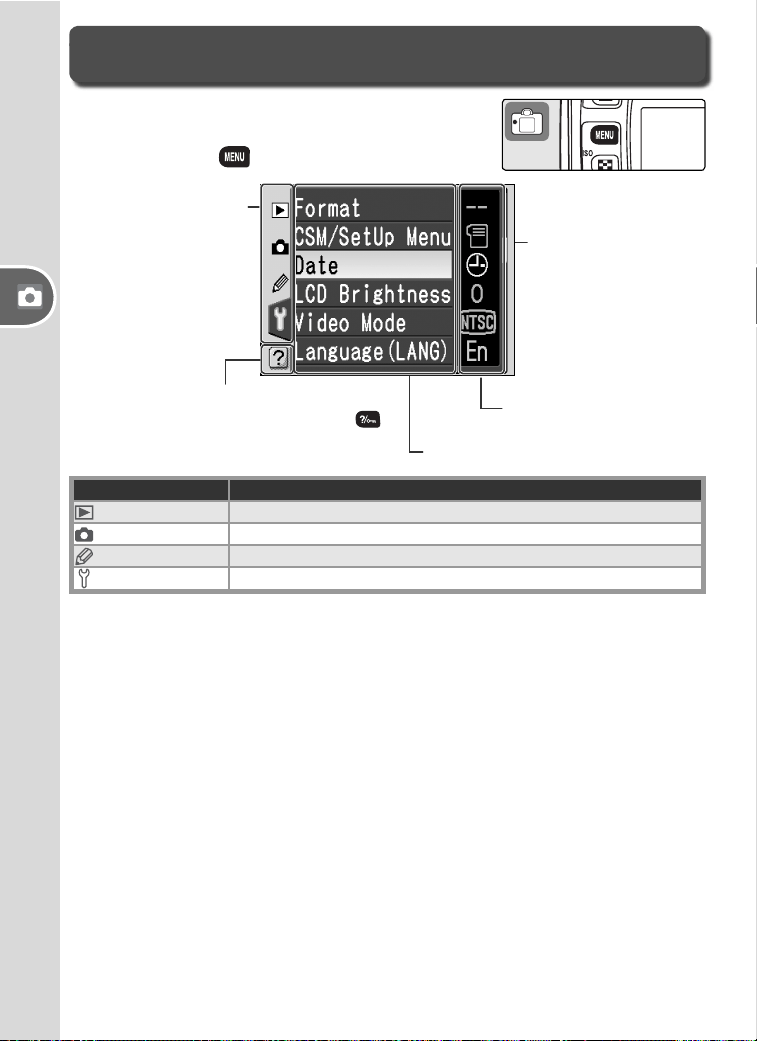
Most shooting, playback, and setup options can
be accessed from the camera menus. To view the
menus, press the button.
Using Camera Menus
Choose from play-
back, shooting, Cus-
tom Settings, and
setup menus (see
below)
Current menu item is highlighted
Current setting for each
option is shown by icon
This icon indicates that help is avail-
able for current menu item. Press
button to view help.
Slider is displayed
if more options are
available in current
menu
Menu Description
Playback Adjust playback settings and manage photos.
Shooting Adjust shooting settings.
Custom Settings Personalize camera settings.
Setup Format memory cards and perform basic camera setup.
27
Reference—Using Camera Menus
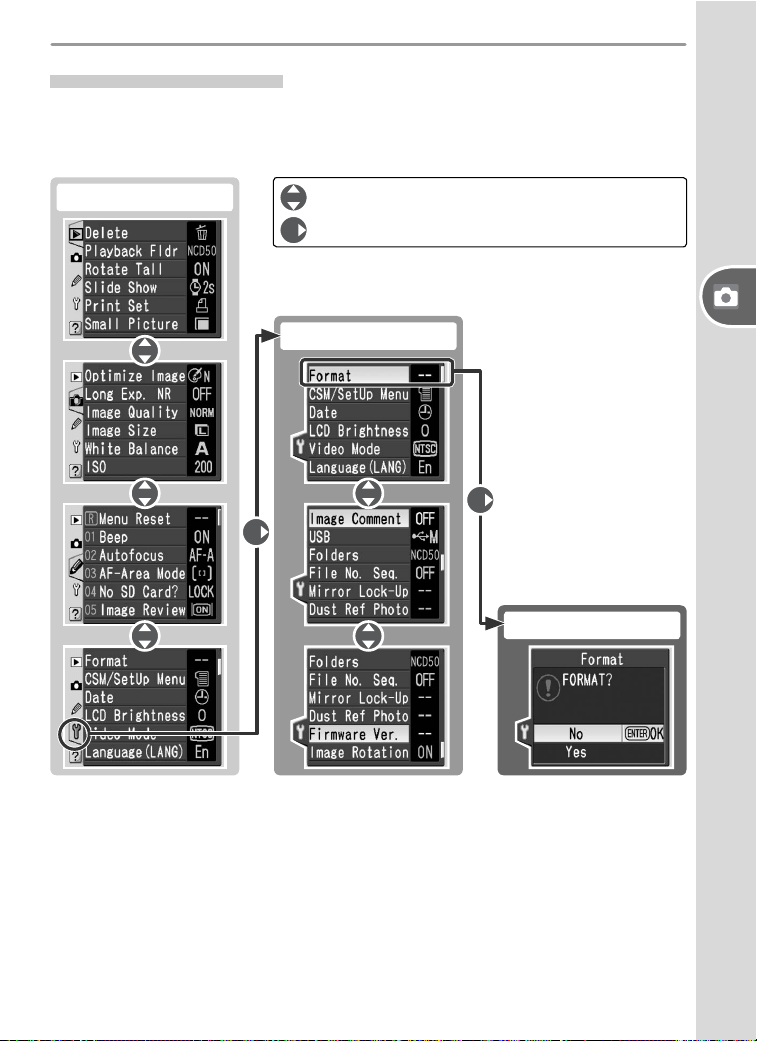
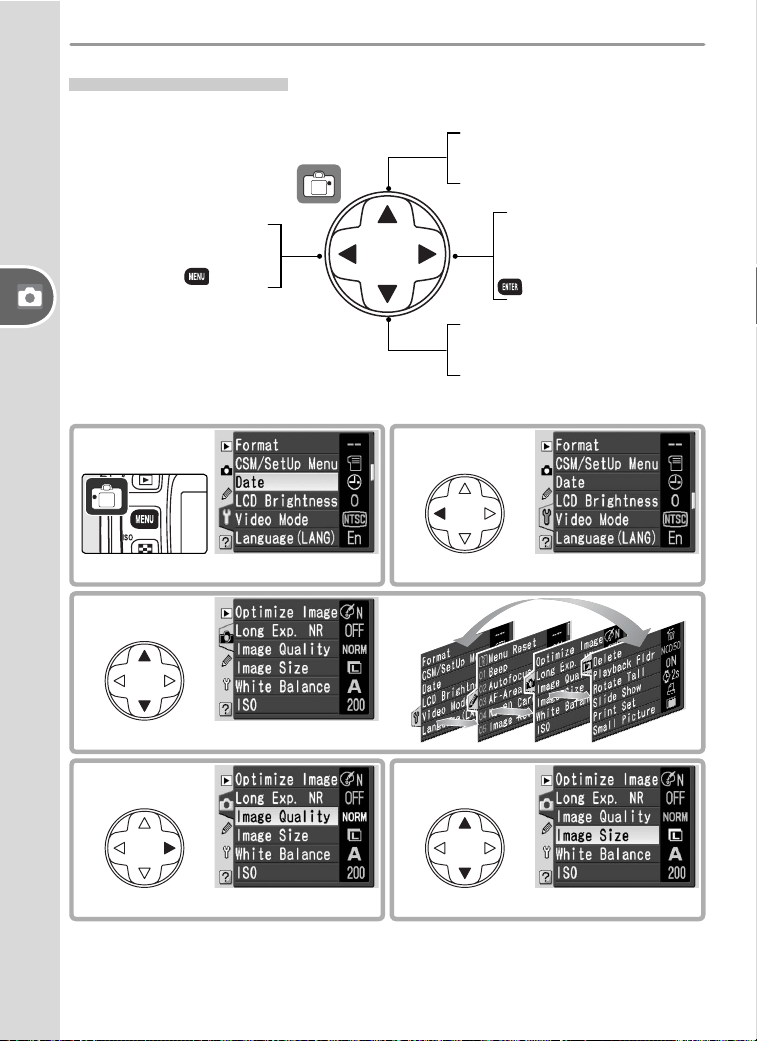
: Press multi selector up or down
: Press multi selector right
Navigating the Menus
To make changes to a menu item, fi rst select the menu from the playback,
shooting, Custom Settings, and setup menus (1), then select the menu item
(2), and fi nally select an option (3).
Some menus may contain multiple pages. The selection for some options is
made from a sub-menu.
(1) Choose menu
(2) Highlight item
(3) Choose option
28
Reference—Using Camera Menus
Making a Selection
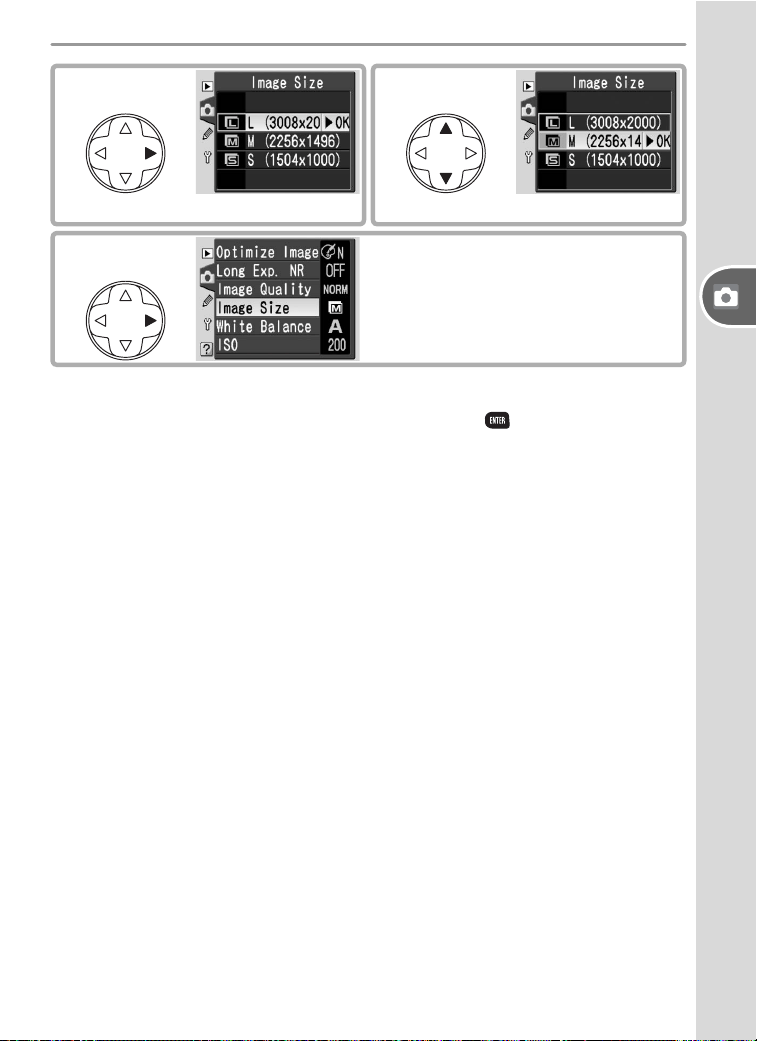
The multi selector is used to navigate through the camera menus.
To modify menu settings:
Move cursor up
Increase number
Return to previous menu
Cancel (can also be per-
formed with button)
Display sub-menu
Make selection (selection
can also be made with
button)
Move cursor down
Decrease number
2
Highlight icon for current menu
1
Display menus
3
Select menu
5
Highlight menu item
4
Position cursor in selected menu
29
Reference—Using Camera Menus
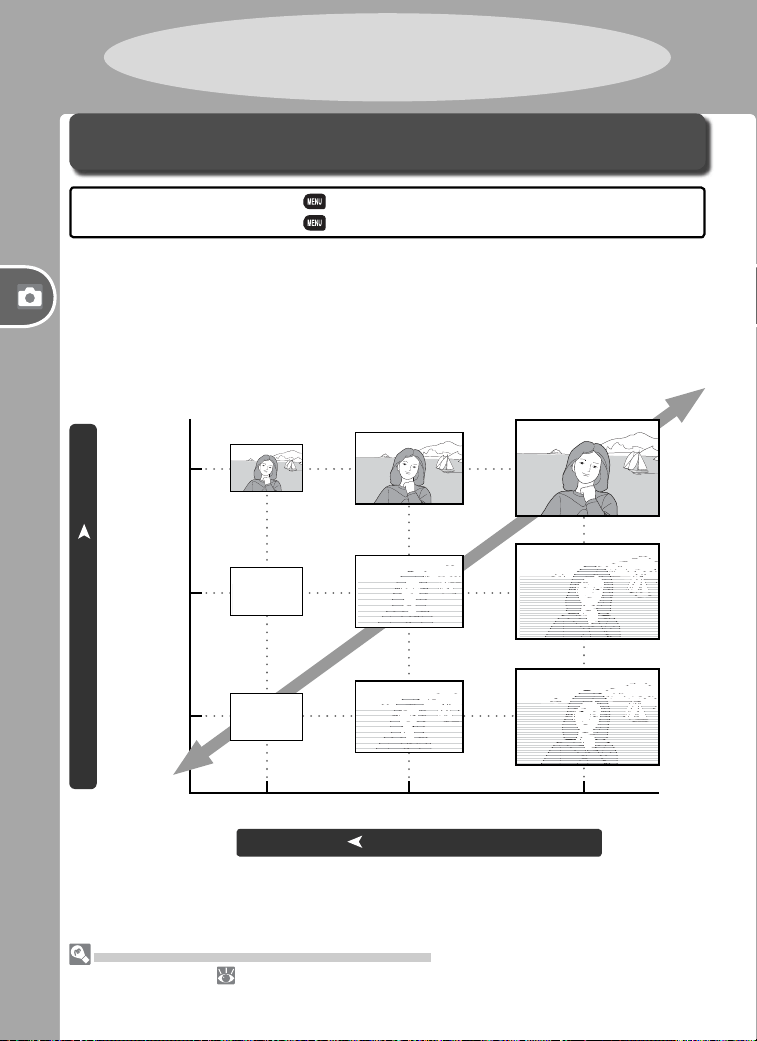
• Menu items that are displayed in gray are not currently available.
• When formatting memory cards and in other cases in which user confi rmation is
required, a selection can only be made by pressing the button. A message to
this effect will appear in the display.
•To exit the menus and return to shooting mode, press the shutter-release button
halfway.
7
Highlight option
6
Display options
8
Make selection
30
Reference—Image Quality and Size
Image Quality and Size
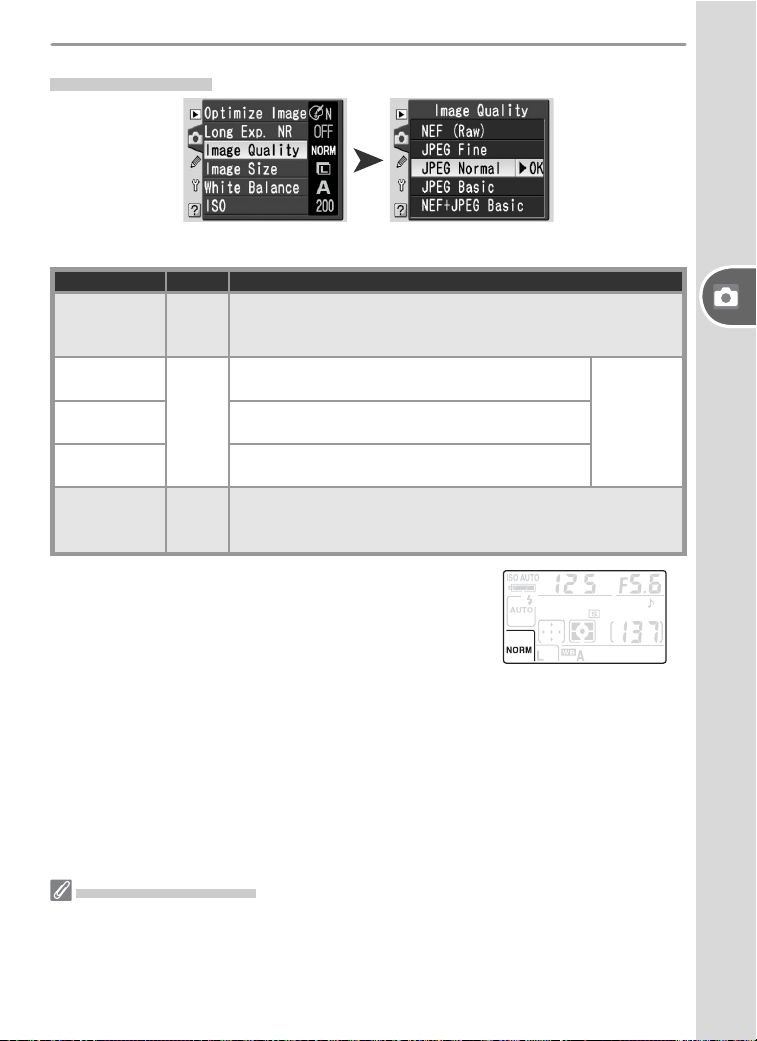
Together, image quality and size determine how much space each pho to -
graph occupies on the memory card. Larger, higher quality images look
better when printed at a larger size but also require more memory, meaning
that fewer such images can be stored on the memory card.
Image Quality, Image Size, and File Size
See the Appendix ( 126) for information on the number of pictures that can be
stored on a memory card.
SM L
Image Quality and Size
➤ Shooting menu ➤ Image Quality
➤ Shooting menu ➤ Image Size
Controls used:
Large
fi le size
FINE
NORMAL
BASIC
Small
fi le size
Small Image size ➤ Large
High Image quality ➤ Low
Reference:
More on Photography
31
Reference—Image Quality and Size
The following options are available:
Option Format Description
NEF (Raw)
(RAW)
NEF
Raw data from image sensor are saved in compressed Nikon
Electronic Format (NEF). Suitable for images that will be
processed on a computer.
JPEG Fine
(FINE)
JPEG
Fine image quality, suitable for enlargements or
high-quality prints.
Low
(1 : 4)
Compression ratio
JPEG Normal
(NORM)
Normal image quality, suited to most applica-
tions.
Medium
(1 : 8)
JPEG Basic
(BASIC)
Smallest fi le size, suitable to distribution by e-
mail or use in web pages.
High
(1 : 16)
NEF+JPEG
Basic
(RAW BASIC)
NEF+
JPEG
Two images are recorded, one NEF (RAW) image and one
basic-quality JPEG image. Image size automatically set to L;
JPEG image is 3,008 × 2,000 pixels in size.
The current image quality setting is displayed in
the control panel.
Image Quality
NEF (Raw) / NE F + JP EG
NEF images can only be viewed using Nikon Capture 4 version 4.3 or later (avail-
able separately) or PictureProject. When opened on a computer, NEF images are
3,008 × 2,000 pixels in size. When photographs taken at NEF + JPEG Basic are
viewed on the camera, only the JPEG image will be displayed. When photographs
taken at NEF + JPEG Basic are deleted, both NEF and JPEG images will be deleted.
32
Reference—Image Quality and Size
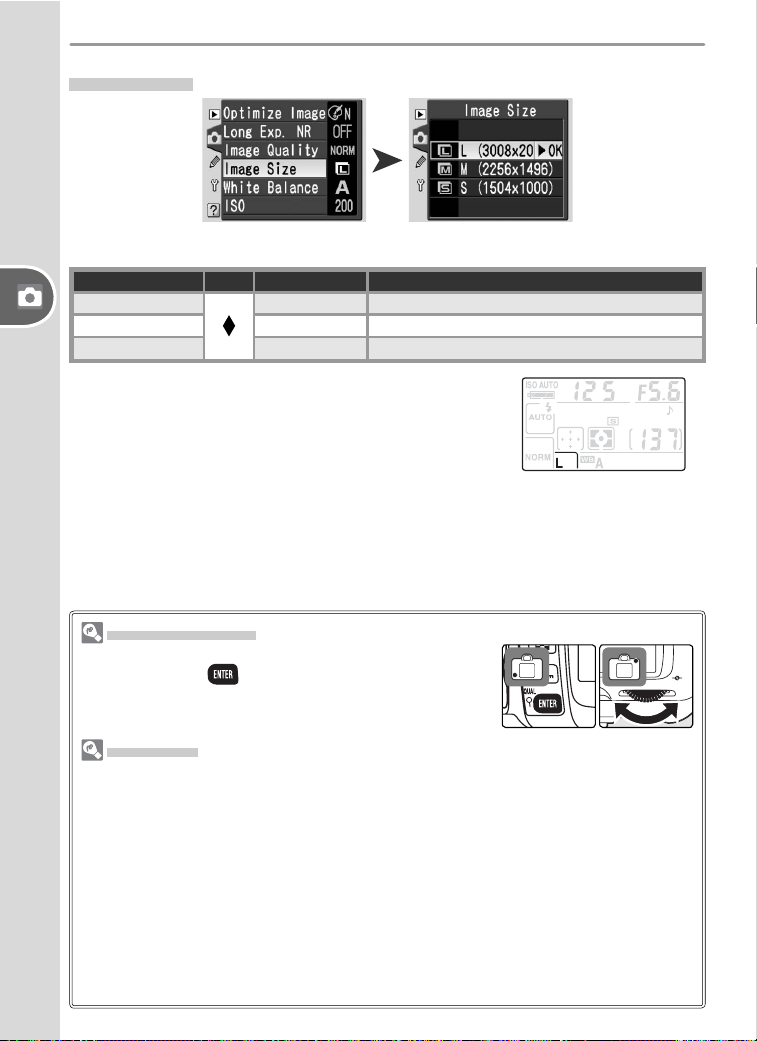
Image Size
The following options are available:
Image size Size Size (pixels) Approximate size when printed at 200 dpi
L (3008 × 2000) Large 3,008 × 2,000 38 × 25 cm (15˝ × 10˝)
M
(2256 × 1496) 2,256× 1,496 29 × 19 cm (11.5˝ × 7.5˝)
S (1504 × 1000) Small 1,504 × 1,000 19 × 13 cm (7.5˝ × 5˝)
The current image size setting is displayed in the
control panel.
The QUAL Button
If the monitor is off, image quality and size can be set
by pressing the (QUAL) button and rotating the
command dial until the desired combination of image
quality and size is displayed in the control panel.
File Names
Photographs are stored as image fi les with names of the form “DSC_nnnn.xxx,”
where nnnn is a four-digit number between 0001 and 9999 as signed automati-
cally in ascending order by the camera, and xxx is one of the following three letter
extensions: “NEF” for NEF images, “JPG” for JPEG im ag es, and “NDF” for Dust
Off ref photos. The NEF and JPEG fi les recorded at a setting of NEF + JPEG Basic
have the same fi le names but different extensions. Small copies created with the
small picture option have fi le names beginning with “SSC_” and ending with the
extension “.JPG” (e.g., “SSC_0001.JPG”), while images recorded at an Optimize
Image > Color Mode setting of II (Adobe RGB) have names that begin with
an underscore, (e.g., “_DSC0001.JPG”, or “_SSC0001.JPG” for small copies of
Color Mode II pictures).
33
Reference—Choosing the Focus Area
2
Press the multi selector left, right, up, or
down to select the focus area. The se lect ed
focus area will be displayed in the viewfi nder,
highlighted in red if necessary to establish
contrast with the background. The selected
focus area is also shown in the control panel
and viewfi nder status display.
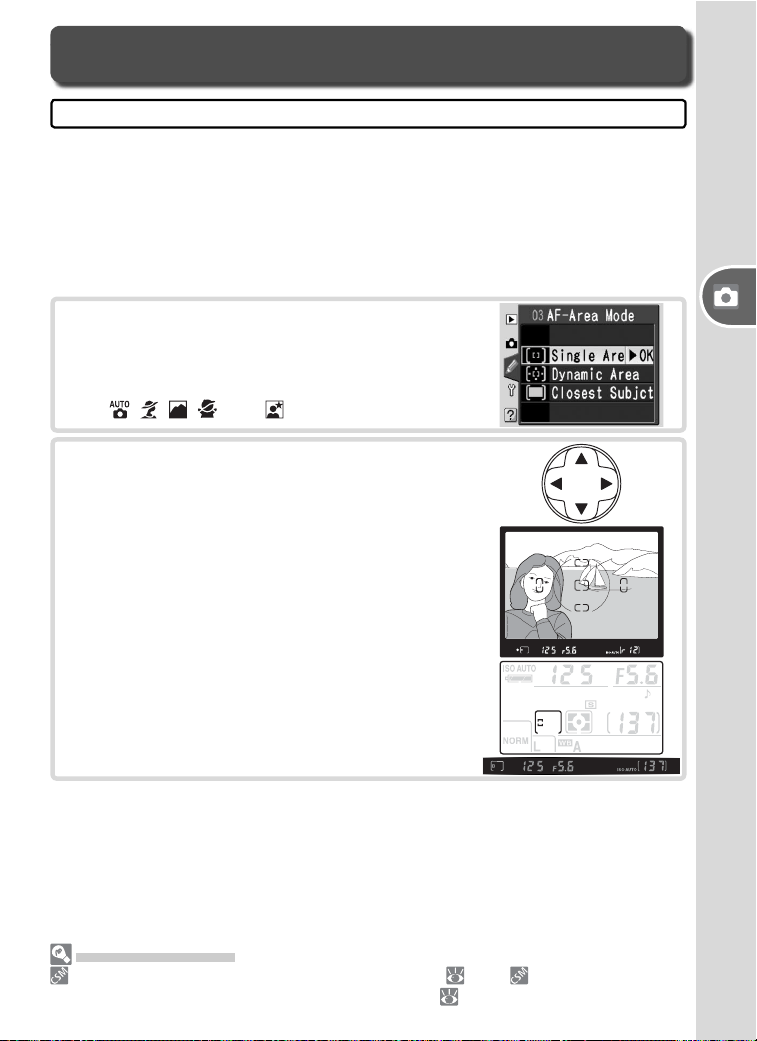
The D50 offers a choice of fi ve focus areas that together cover a wide area
of the frame. By default, the camera selects the focus area automatically
or focuses on the subject in the center focus area. The focus area can also
be selected manually to allow photographs to be composed with the main
subject almost anywhere in the frame.
Manual Focus Area Selection
Choosing the Focus Area
Controls used: Multi selector
1
Select Single Area or Dynamic Area for
Custom Setting 3 (AF-Area Mode). Man-
ual focus area selection is not available with
Closest Subjct, which is the default setting
in , , , , and modes.
Advanced Settings
3: AF-Area Mode controls focus-area selection ( 89). 8: AF Area Illm de-
termines when the active focus area is highlighted ( 91).
34
Reference—Choosing the Focus Area
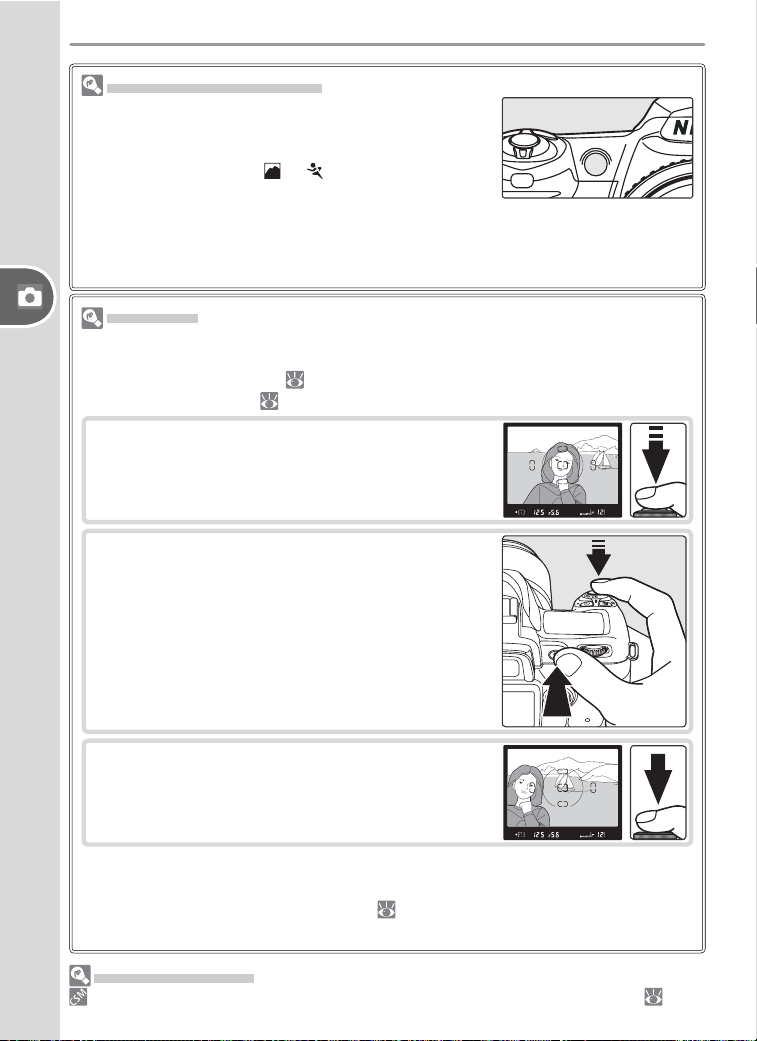
Focus Lock
Focus lock can be used to focus on a subject that will not be in one of the fi ve
focus areas in the fi nal composition. It can also be used when the autofocus
system is unable to focus ( 121). Single or dynamic area AF is recommended
when using focus lock ( 89).
The AF-Assist Illuminator
If the subject is poorly lit, the AF-assist illuminator will
light to assist the focus operation when the shutter-
release button is pressed halfway. The AF-assist illumi-
nator is not available in or mode or when Off is
selected for Custom Setting 7 (AF Assist).
For the AF-assist illuminator to function correctly, the lens must have a focal
length of 24–200 mm and the subject must be in range of the illuminator (0.5–
3 m/1´8˝–9´10˝). Lens hoods should be removed.
1
Position the subject in the center focus area and
press the shutter-release button halfway.
2
Check that the in-focus indicator (●) appears in
the viewfi nder. Focus will lock when the in-focus
indicator appears, and remain locked while the
shutter-release button is pressed halfway. Focus
can also be locked by pressing the AE-L/AF-L but-
ton while the shutter-release button is pressed
halfway. Focus will remain locked while the AE-L/
AF-L button is pressed, even if you later remove
your fi nger from the shutter-release button.
3
Recompose the photograph and shoot. Do not
change the distance between the camera and
subject while focus lock is in effect.
Taking Multiple Photographs Without Refocusing
Focus will remain locked between shots if the shutter-release button is kept
pressed halfway. In continuous mode ( 21), focus will remain locked if the AE-
L/AF-L button is kept pressed between shots.
Advanced Settings
14: AE-L/AF-L controls the function performed by the AE-L/AF-L button ( 98).
35
Reference—Manual Focus
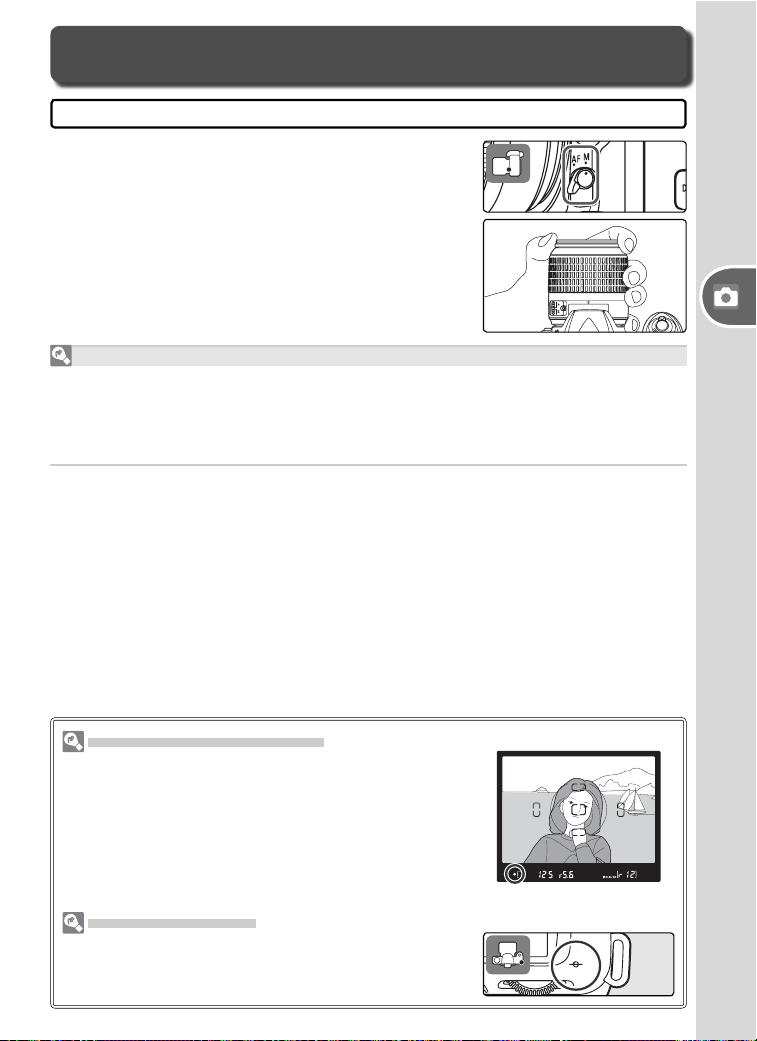
The Electronic Range Finder
If the lens has a maximum aperture of f/5.6 or faster,
the viewfi nder fo cus indicator can be used to con fi rm
whether the subject in the se lect ed focus area is in
focus. After positioning the sub ject in the active focus
area, press the shut ter-re lease but ton half way and
rotate the lens fo cus ring un til the in-fo cus in di ca tor
(●) is dis played.
Focal Plane Position
To determine the distance between your subject and
the camera, measure from the focal plane mark on the
camera body.
Manual focus is available for manual focus lenses
or when autofocus does not produce the desired
re sults. To focus manually, set the focus-mode
selector to M and rotate the lens focus ring until
the image displayed on the clear matte fi eld in
the viewfi nder is in focus. Pho to graphs can be
taken at any time, even when the image is not
in focus.
A-M Selection/Autofocus with Manual Priority
When using a lens that offers A-M selection, select M when focusing manu-
ally. With lenses that support M/A (autofocus with manual priority), focus
can be adjusted man u al ly with the lens set to M or M/A. See the documen-
tation provided with your lens for details.
Manual Focus
Controls used: Focus-mode selector ➤ Lens focus ring
36
Reference—Flash Sync Mode
Flash Sync Mode
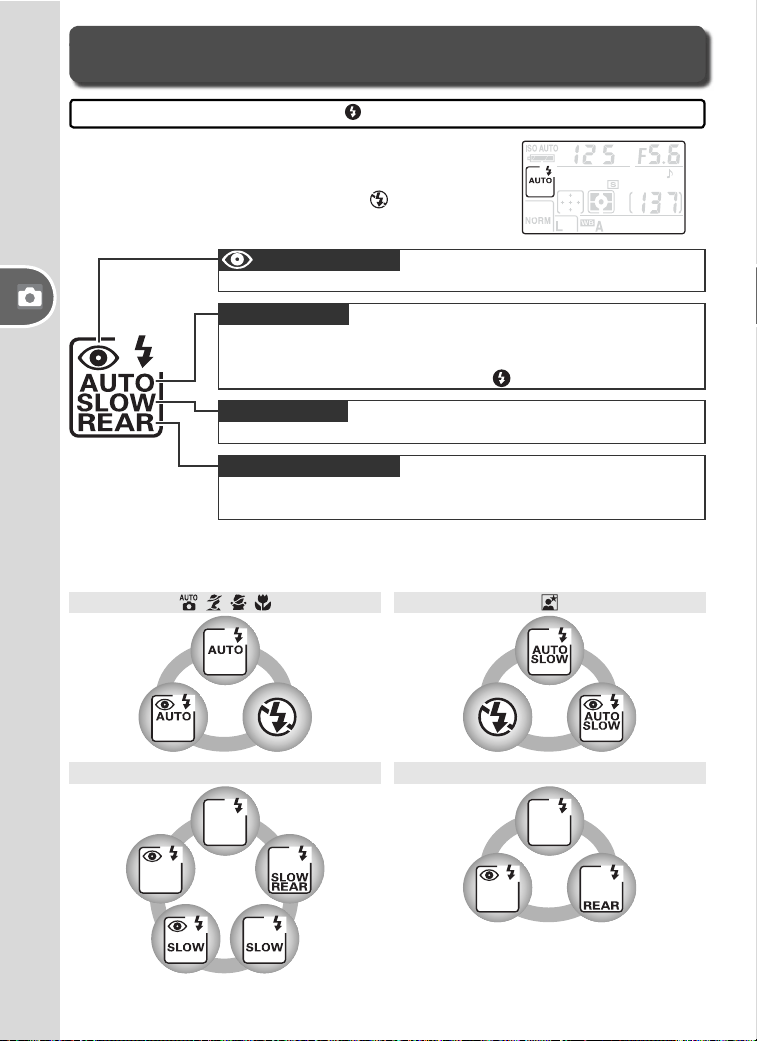
Choose a fl ash sync mode according to shooting
conditions. The current fl ash mode is displayed in
the control panel as shown below. is displayed
when the fl ash is off.
Controls used: button + command dial
The fl ash sync modes available depend on the mode currently selected with
the mode dial.
Auto+
red-eye
reduction
, , ,
Auto
Off Off
Auto slow sync
Auto slow
sync+
red-eye
reduction
Use for portraits. AF-assist lamp lights
before fl ash fi res, reducing “red-eye.”
: Red-eye reduction
Flash fi res just before shutter closes, cre-
ating stream of light effect behind moving subjects. If this icon is
not displayed, fl ash will fi re immediately after shutter opens.
REAR: Rear-curtain sync
When lighting is poor or subject is back lit,
fl ash pops up automatically when shutter-release button is
pressed halfway and fi res as required. If this icon is not dis-
played, fl ash will only pop up when
button is pressed.
AUTO: Auto fl ash
Shutter speed slows automatically to capture
background lighting at night or under low light.
SLOW: Slow sync
P, A
Fill fl ash
Red-eye
reduction
Rear
curtain
+slow
sync
*
Slow sync+
red-eye
reduction Slow sync
* SLOW is displayed after command dial is released.
Red-eye
reduction
S, M
Fill fl ash
Rear-
curtain
sync
37
Reference—Flash Sync Mode
Choosing a Flash Sync Mode
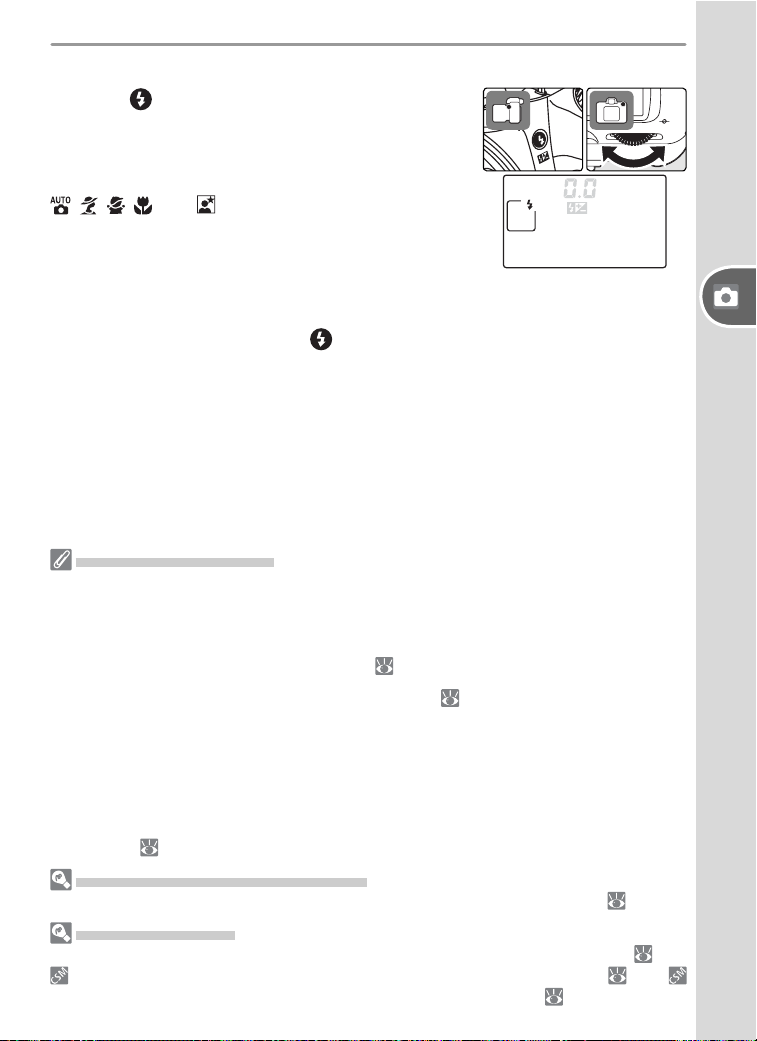
Press the button and rotate the command dial.
The current fl ash sync mode is displayed in the
control panel.
Using the Built-in Flash
, , , , and modes: Choose the fl ash sync
mode as described on the preceding page. The
fl ash will pop-up as required when the shutter-
pressed halfway, and fi re when a photograph is
taken.
P, S, A, and M modes: Press the
button to raise the built in fl ash and then
choose a fl ash sync mode as described on the preceding page. Select a
metering method and set exposure before taking photographs.
Lowering the Built-in Flash
To save battery power when the fl ash is not in use, press it gently down-
ward until the latch clicks into place.
Using the Built-in Flash
Use with lenses with a focal length of 18–300 mm (CPU lenses; the maximum focal
length when the built-in fl ash is used with non-CPU lenses is 200 mm) and remove
lens hoods to prevent them from casting shadows on the subject. The fl ash has a
minimum range of 60 cm (2´), and can not be used in the macro range of macro
zoom lenses. See “Optional Accessories” ( 108) for details.
If the fl ash is used in continuous shooting mode ( 21), only one picture will be
taken each time the shutter-release button is pressed.
After the built-in fl ash has been used for several consecutive shots, the shutter re-
lease may be briefl y disabled to protect the fl ash. The fl ash can be used again after
a short pause.
See the Appendix for information on the type of fl ash control used by the built-in
Speedlight ( 127).
Optional Flash Units (Speedlights)
See “Optional Accessories” for information on using optional fl ash units ( 109).
Advanced Settings
See “FV Lock” for information on locking fl ash output for a selected subject ( 98).
10: ISO Auto can be used to adjust sensitivity for optimal fl ash output ( 92).
16: Flash Mode can be used for manual control of fl ash output ( 99).
38
Reference—Flash Sync Mode
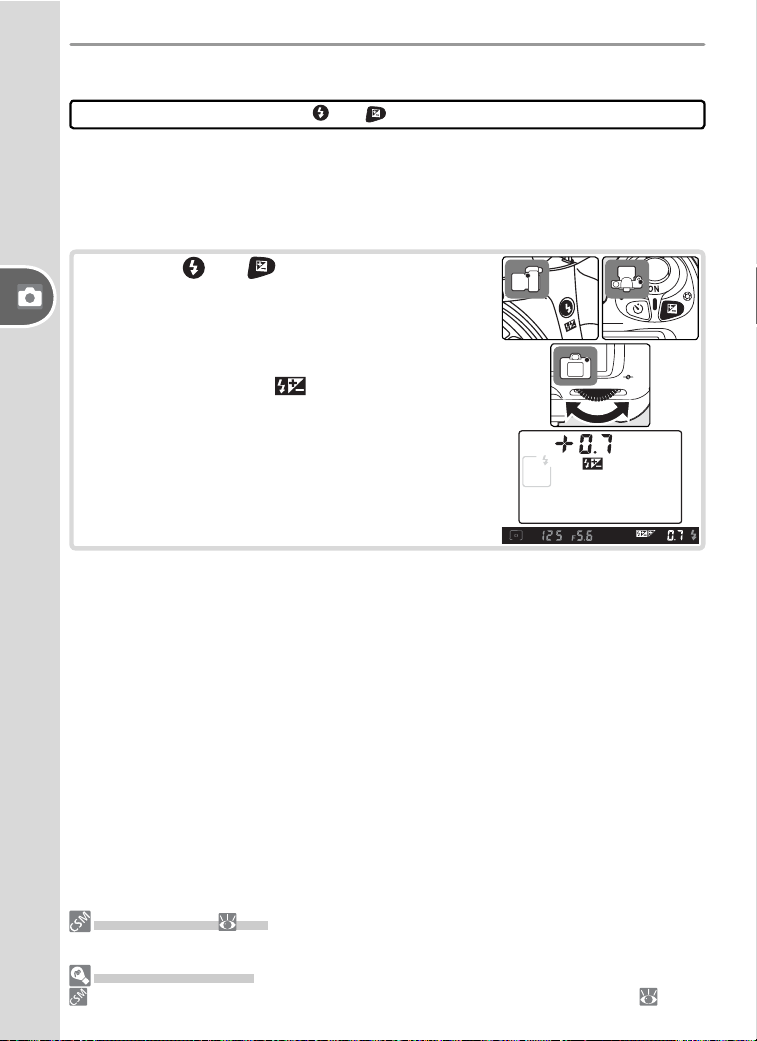
Flash Compensation (P, S, A, and M Modes Only)
Controls used: and buttons + command dial
Flash compensation can be used to increase or reduce fl ash output from
the level chosen by the camera’s fl ash control system. Flash output can be
increased to make the main subject appear brighter, or reduced to prevent
unwanted highlights or refl ections.
Pressing the and buttons, rotate the com-
mand dial and confi rm fl ash compensation in the
control panel or viewfi nder. Flash compensation
can be set to values between –3 EV (darker) and
+1 EV (brighter) in increments of
1
/3 or ½ EV. At
values other than ±0, a icon will be displayed
in the control panel and viewfi nder after the but-
tons are released.
Normal fl ash output can be restored by setting
fl ash compensation to ±0.0. Flash compensation
is not reset when the camera is turned off.
6: Flash Level ( 90)
This option can be used to select a value for fl ash compensation from a menu.
Advanced Settings
11: EV Step controls the size of the increments for fl ash compensation ( 92).
39
Reference—Sensitivity (ISO Equivalency)
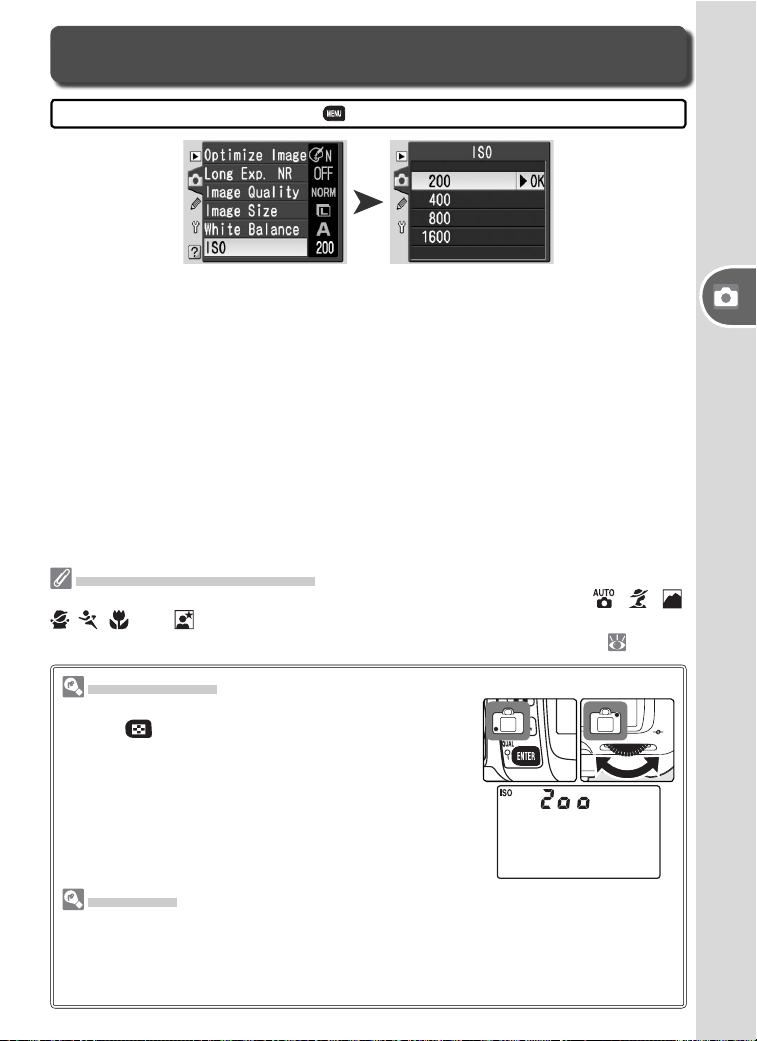
Sensitivity (ISO Equivalency)
Photographs taken at slow shutter speeds are prone to blurring. If sensitiv-
ity is raised above the default value of ISO 200 equivalent, the same expo-
sure can be achieved at faster shutter speeds, preventing blur. Sensitivity
can be set to values between ISO 200 and ISO 1600 in steps of 1 EV.
Controls used: ➤ Shooting menu ➤ ISO
The ISO Button
If the monitor is off, sensitivity can be set by press-
ing the (ISO) button and rotating the command
dial until the desired value is displayed in the control
panel.
Sensitivity
“Sensitivity” is the digital equivalent of fi lm speed. The higher the sensitivity, the
less light needed to make an exposure, allowing higher shutter speeds or smaller
apertures. Just as higher speed fi lms tend to be “grainy,” pictures taken at high
sensitivities are prone to mottling.
Digital Vari-Program Modes
At default settings, manual sensitivity adjustment is not available in
,
,
,
,
,
, and modes. Instead, the camera adjusts sensitivity automatically. To
adjust sensitivity manually, select Off for Custom Setting 9 (ISO Control; 91).
40
Reference—P, S, A, and M Modes
P, S, A, and M modes offer varying degrees of control over shutter speed
and aperture.
Mode Description
P
Programmed
auto
Camera sets shutter speed and aperture for optimal exposure.
Recommended for snapshots and in other situations in which
little time is available for adjusting camera settings.
S
Shutter-priority
auto
User chooses shutter speed; camera selects aperture for best
results. Use to freeze or blur motion.
A
Aperture-priority
auto
User chooses aperture; camera selects shutter speed for best
results. Use to blur background or bring both foreground and
background into focus.
M Manual
User controls both shutter speed and aperture. Set shutter
speed to “bulb” for long time-exposures.
P, S, A, and M modes offer control over a variety of advanced settings, in-
cluding shutter speed, aperture, and white balance.
Choosing an Exposure Mode
P, S, A, and M Modes
Controls used: Mode dial
P, S, A, and M Modes
When using a CPU lens equipped with an aperture ring, lock the aperture ring at the
min i mum aperture (highest f/-number). Non-CPU lenses can only be used in mode
M, when aperture can be adjusted manually using the lens aperture ring. The cam-
era exposure meter can not be used. See “Optional Accessories” ( 105).
If the limits of the exposure metering system are exceeded, one of the following in di -
ca tors will be dis played in the control panel and viewfi nder:
Indicator Description
Subject too bright. Lower sensitivity or use optional Neutral Density (ND) fi lter.
Subject too dark. Raise sensitivity or use fl ash.
Advanced Settings
11: EV Step controls the size of the increments for shutter speed and aperture
( 92). 12: BKT SET can be used to vary exposure automatically over a series of
photographs ( 93). Exposure can be locked using AE lock ( 97).
41
Reference—P, S, A, and M Modes
Exposure
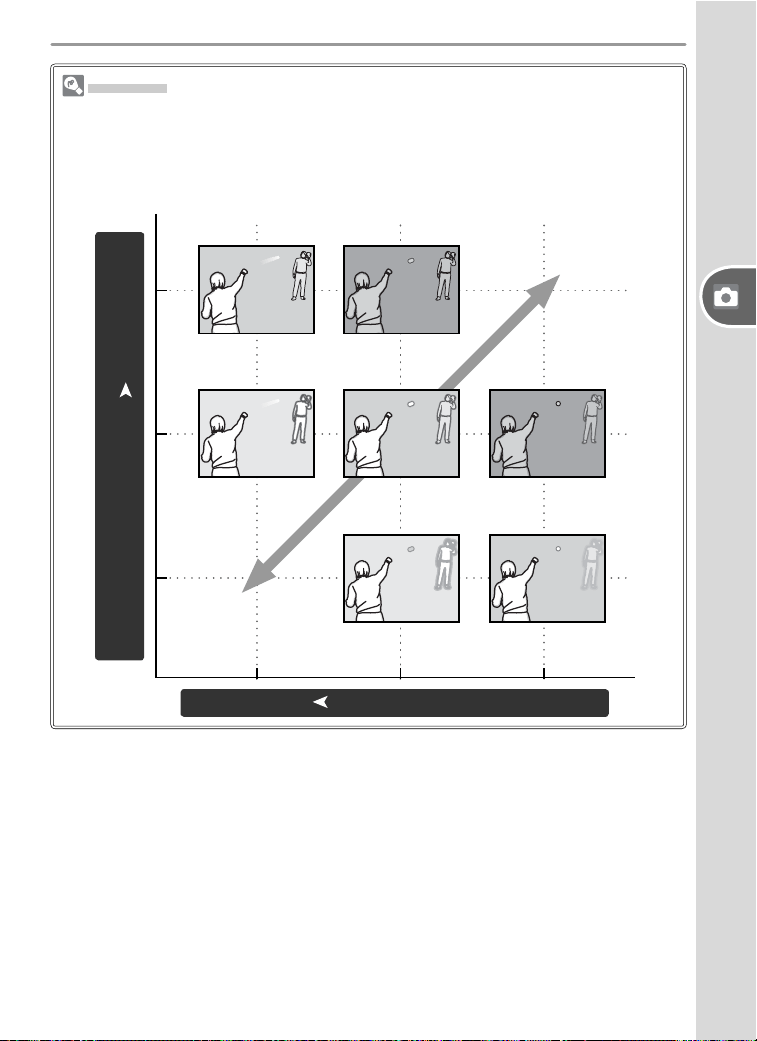
Exposure controls the brightness of photographs. The same exposure can be
achieved with different combinations of shutter speed and aperture, allowing you
to blur or freeze motion or control depth of fi eld. The following fi gure shows how
shutter speed and aperture affect exposure.
Overexposed
(bright)
Underex-
posed (dark)
Slow Shutter speed ➤ Fast
Small
(high f/-numbers)
Aperture ➤
Wide
(low f/-numbers)
42
Reference—P, S, A, and M Modes
P: Programmed Auto
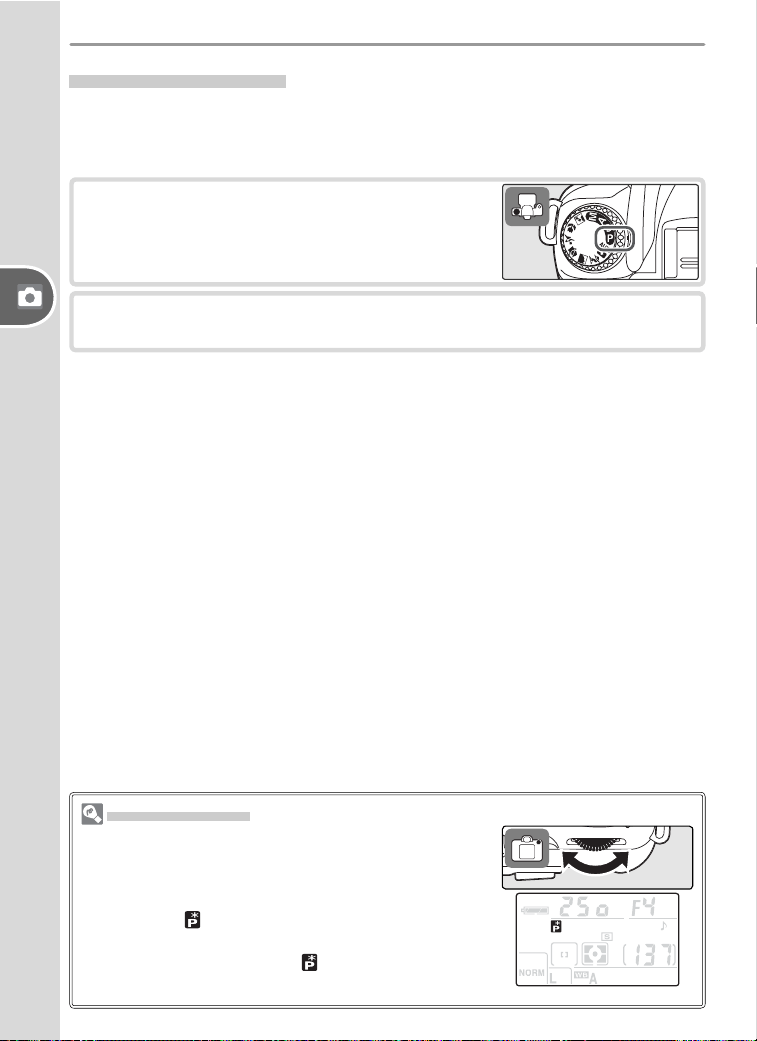
In this mode, the camera sets shutter speed and aperture for optimal ex-
posure. This mode is recommended for snapshots and other situations in
which little time is available for adjusting camera settings.
1
Rotate the mode dial to P.
2
Frame a photograph, focus, and shoot.
Flexible Program
In mode P, different com bi na tions of shutter speed
and ap er ture can be selected by rotating the com-
mand dial (“fl exible program”). All combinations
pro duce the same ex po sure. While fl exible program
is in effect, a icon appears in the control panel. To
restore the default shutter speed and aperture, rotate
the com mand dial until the icon is no longer dis-
played.
43
Reference—P, S, A, and M Modes
S: Shutter-Priority Auto
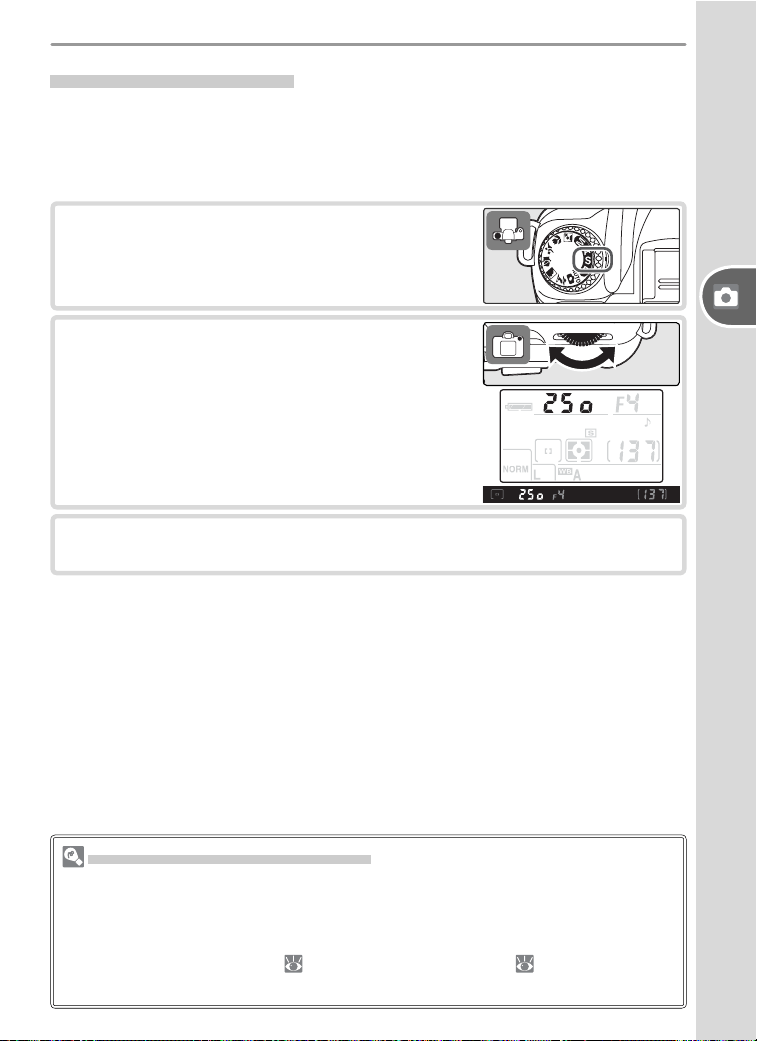
In mode S, you choose the shutter speed while the camera au to mat i cal ly
selects the aperture that will produce optimal exposure. Use slow shutter
speeds to suggest motion by blurring moving objects, high shutter speeds
to “freeze” motion.
1
Rotate the mode dial to S.
2
Rotate the com mand dial to choose a shutter
speed between 30 s and ¼,000 s.
3
Frame a photograph, focus, and shoot.
Shutter Speed and Camera Shake
To prevent blurring caused by camera shake, the shutter speed should be faster
than the inverse of the focal length of the lens, in seconds (for example, if a lens
has a focal length of 300 mm, shutter speed should be faster than
1
/
300 s). Use of
a tripod is rec om mend ed when shooting at slower shutter speeds. To prevent
blur, try increasing sensitivity ( 39), using the built-in fl ash ( 18), mounting the
camera on a tripod, or attaching a VR lens.
44
Reference—P, S, A, and M Modes
A: Aperture-Priority Auto
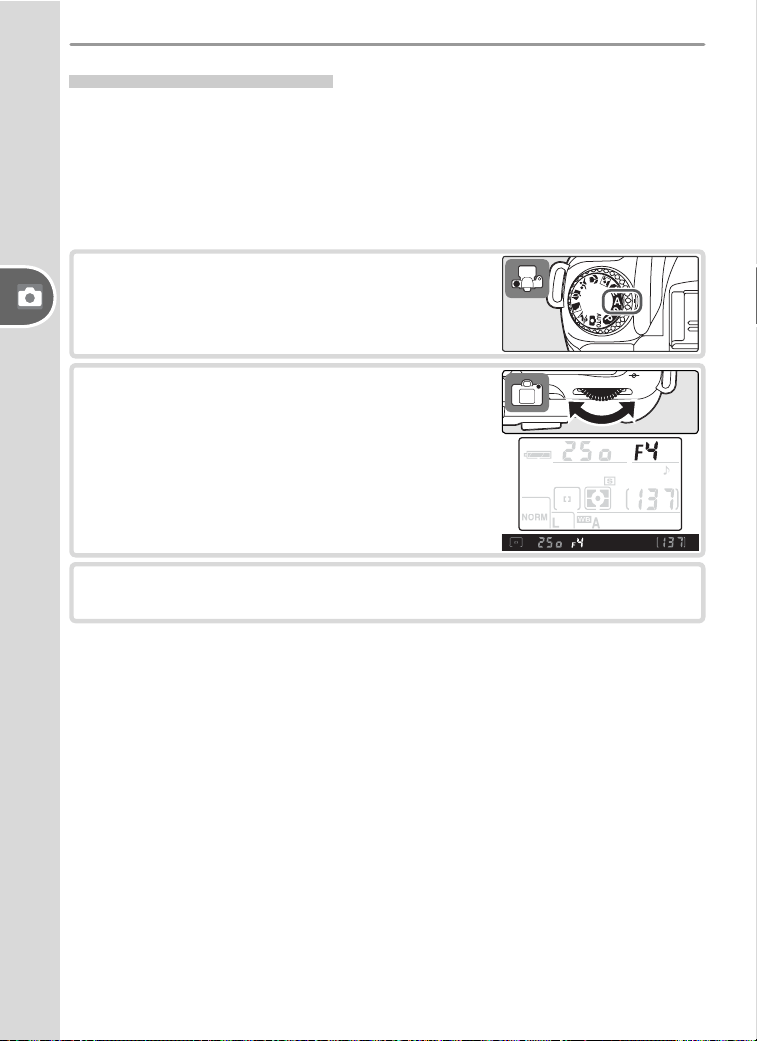
In mode A, you choose the aperture while the camera controls shutter
speed for optimal exposure. Small apertures (high f/-numbers) increase
depth of fi eld, bringing both the main subject and back ground into focus.
Large apertures (low f/-num bers) soften background details and let more
light into the camera, increasing the range of the fl ash and making photo-
graphs less susceptible to blurring.
1
Rotate the mode dial to A.
2
Rotate the com mand dial to choose the de-
sired aperture.
3
Frame a photograph, focus, and shoot.
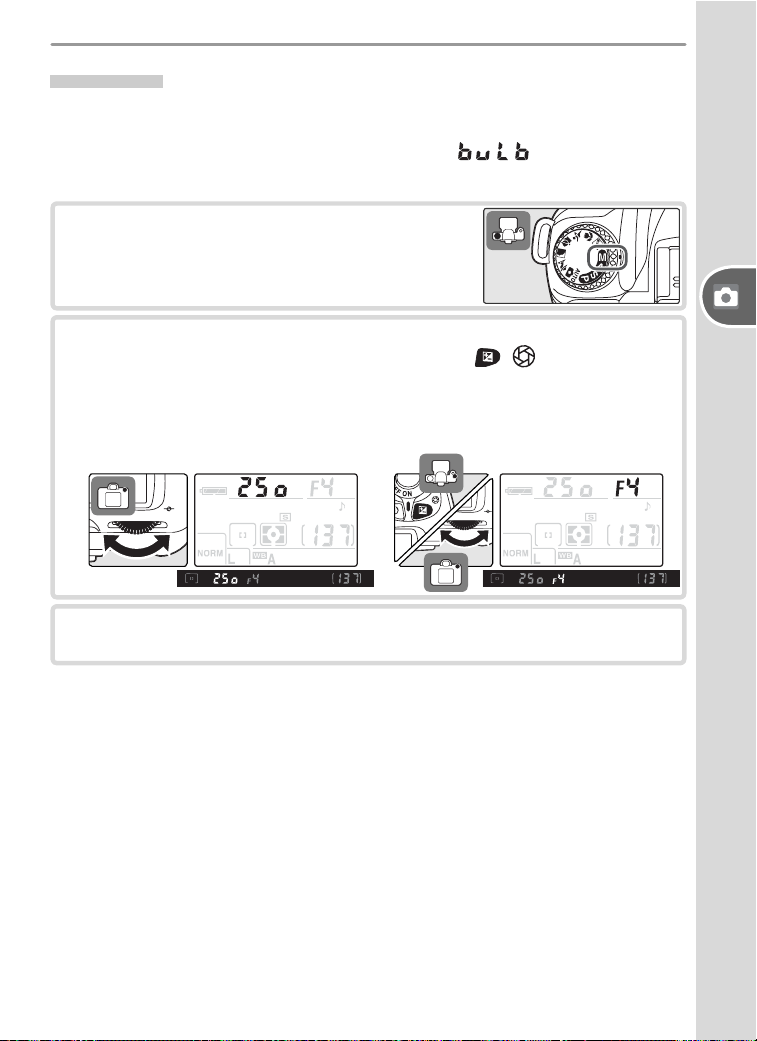
45
Reference—P, S, A, and M Modes
M: Manual
In mode M, the user controls both shutter speed and aperture. Shut ter
speed can be set to values between 30 s and ¼,000 s, or the shutter can be
held open indefi nitely for a long time-exposure ( ). Aperture can be
set to val ues between the minimum and maximum values for the lens.
1
Rotate the mode dial to M.
2
Rotate the com mand dial to choose a shut ter speed. To set aperture,
rotate the command dial while pressing the ( ) button. Check
exposure in the electronic an a log ex po sure display (see following
page), and con tin ue to adjust shut ter speed and ap er ture until the
de sired ex po sure is achieved.
3
Frame a photograph, focus, and shoot.
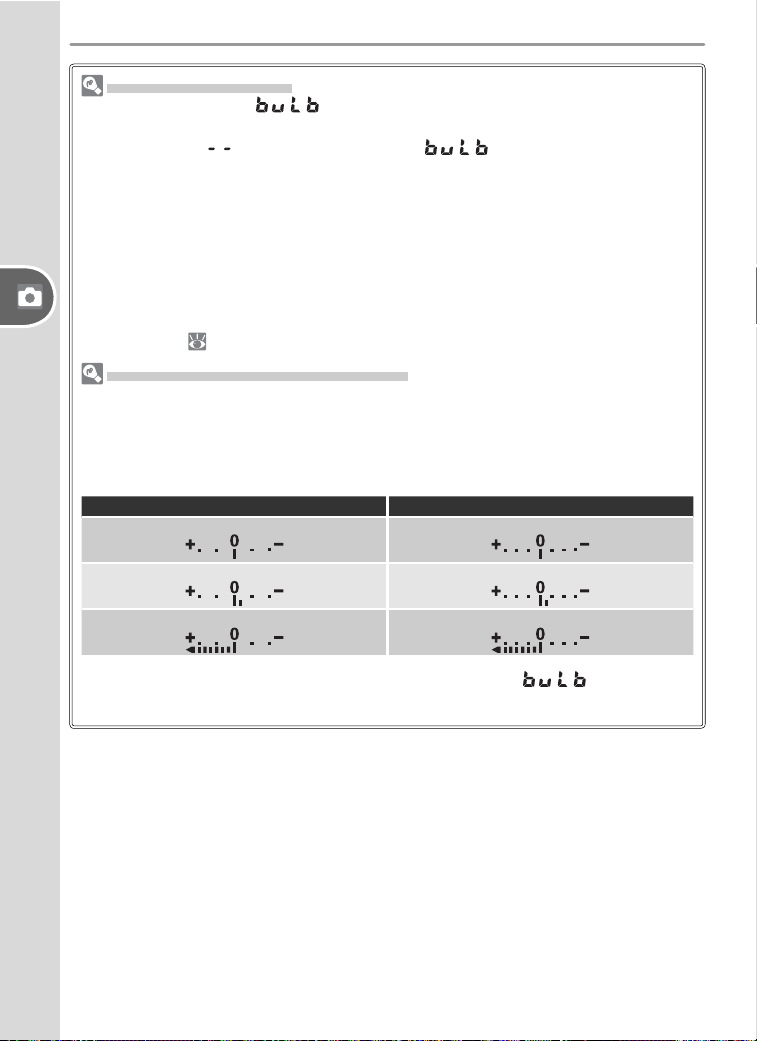
46
Reference—P, S, A, and M Modes
Long Time-Exposures
At a shutter speed of , the shutter will remain open while the camera
shutter-release but ton is held down. In delayed remote and quick-response
remote modes, is displayed instead of ; the shutter opens when
the shutter-release button on the optional ML-L3 remote control is pressed (2 s
after the button is pressed in delayed remote mode) and remains open until
the remote-control shutter-release button is pressed a second time (maximum
30 minutes). Nikon recommends using a fully-charged battery or an optional EH-5
AC adapter to prevent loss of power while the shutter is open. Note that if the
shutter is open for more than approximately 1 s at any setting, “noise” in the form
of randomly-spaced, brightly-colored pixels may ap pear in the fi nal pho to graph.
Noise can be reduced by turning long exposure noise reduction on before taking
photographs (
78).
Electronic Analog Exposure Display
The electronic analog exposure display in the viewfi nder shows whether the pho-
tograph would be un der- or over-exposed at current settings. Depending on the
option chosen for Custom Setting 11 (EV Step), the amount of un der- or over-
ex po sure is shown in increments of
1
/
3 EV or ½ EV. If the limits of the ex po sure
metering system are ex ceed ed, the display will fl ash.
“EV Step” set to “1/3 Step” “EV Step” set to “1/2 Step”
Optimal exposure
Optimal exposure
Underexposed by
1
/
3 EV Underexposed by ½ EV
Overexposed by more than 2 EV Overexposed by more than 3 EV
The electronic analog exposure display is not shown when is selected for
shutter speed or a non-CPU lens is attached.
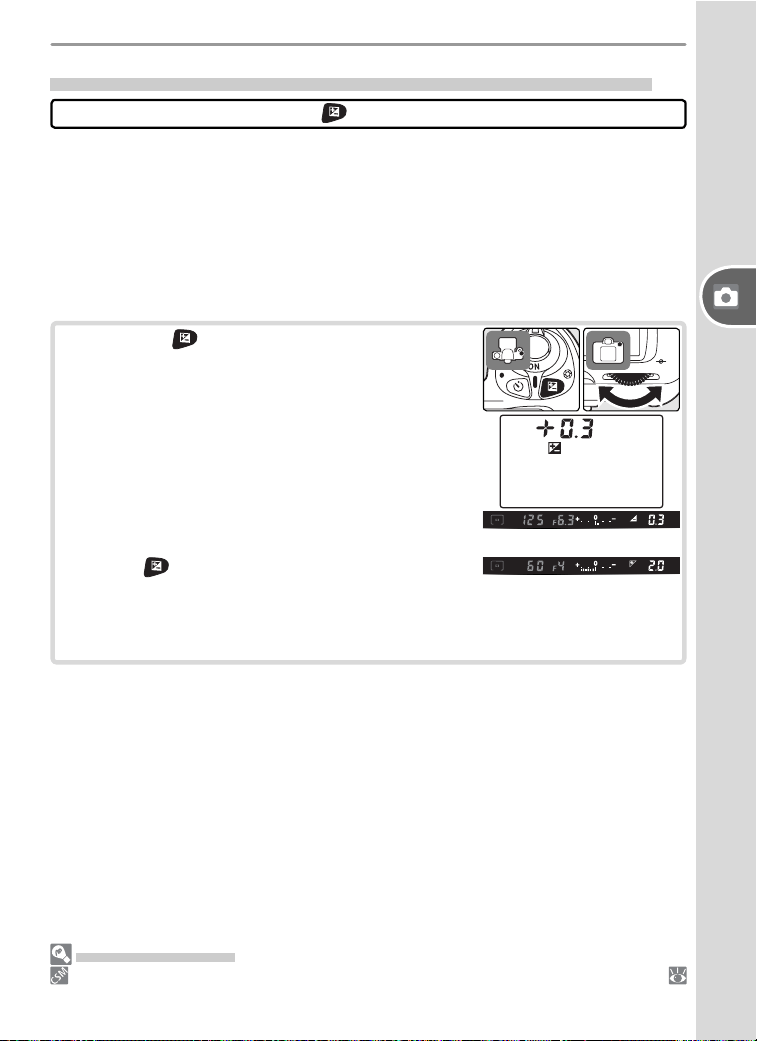
47
Reference—P, S, A, and M Modes
Exposure Compensation (P, S, A, and M Modes Only)
Controls used: button + command dial
To obtain the desired results with certain subject compositions, it may be
nec es sary to use ex po sure compensation to alter exposure from the val ue
sug gest ed by the cam era. As a rule of thumb, positive compensation
may be needed when the main sub ject is dark er than the background,
negative val ues when the main sub ject is bright er than the background.
Center-weighted or spot metering is recommended when using exposure
compensation.
Pressing the button, rotate the main com-
mand dial and confi rm ex po sure com pen sa tion
in the control panel or the electronic analog
exposure display. Ex po sure com pen sa tion can
be set to val ues be tween –5 EV (un der ex po sure)
and +5 EV (over ex po sure) in in cre ments of
1
/
3 or
½ EV.
The cur rent val ue for ex po sure com pen sa tion
is displayed in the control panel and viewfi nder
when the but ton is pressed.
–0.3 EV
+2.0 EV
Normal ex po sure can be restored by set ting ex po sure compensation to
±0. Ex po sure com pen sa tion is not reset when the camera is turned off.
Advanced Settings
11: EV Step controls the size of the increments for exposure compensation (
92).
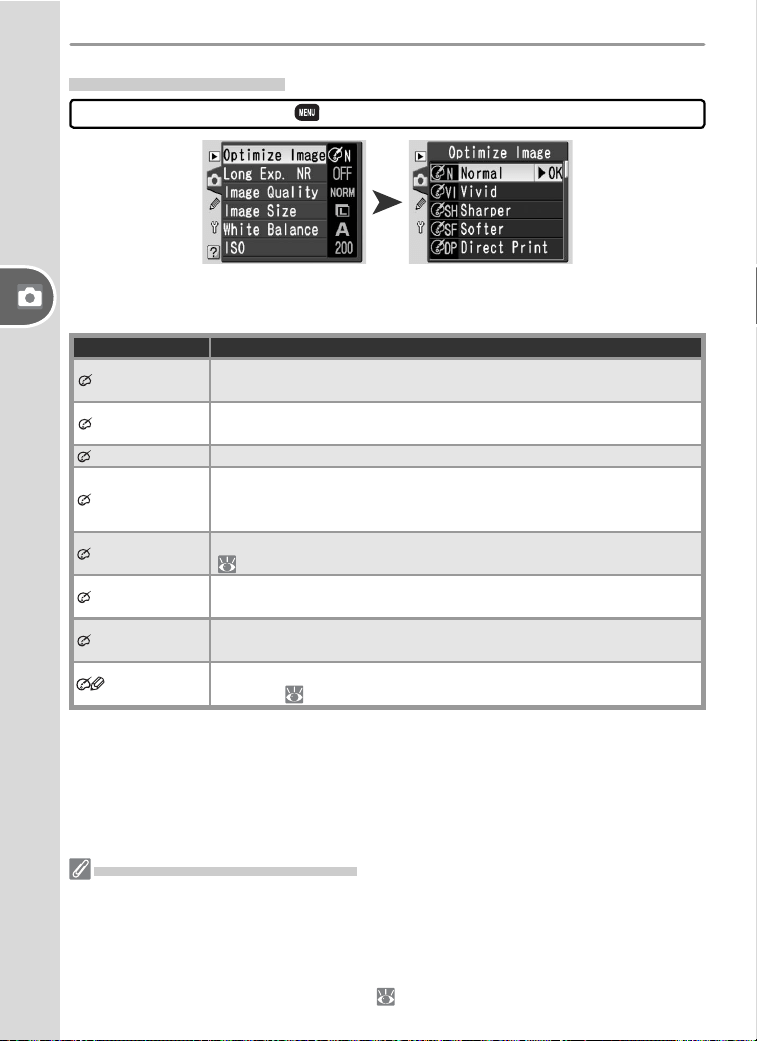
48
Reference—P, S, A, and M Modes
The options in the Optimize Image menu control sharpening, contrast,
saturation, and hue.
Option Description
N
Normal
(default)
Recommended for most situations.
VI
Vivid
Enhances saturation, contrast, and sharpness to produce vivid
images with vibrant reds, greens, and blues.
SH
Sharper Sharpens outlines.
SF
Softer
Softens outlines. Use to ensure soft, natural-looking fl esh tones
in portrait subjects or when taking pictures that will be sharp-
ened in image application.
DP
Direct Print
Optimizes images for printing “as is” via direct USB connection
( 62). Images will be sharp and clear even when enlarged.
PO
Portrait
Lowers contrast while lending natural texture and rounded feel
to skin of portrait subjects.
LA
Landscape
Enhances saturation and sharpness to produce landscapes with
vibrant greens and blues.
Custom
Customize sharpness, contrast, color reproduction, saturation,
and hue ( 76).
Controls used: ➤ Shooting menu ➤ Optimize Image
Optimizing Images
At Settings Other than Custom
At settings other than Custom:
• Photographs are optimized for current shooting conditions. Results will vary with
exposure and the position of the subject in the frame, even in scenes of the same
type.
• Photographs are recorded in the sRGB color space.
• Use a type G or D lens for best results ( 105).
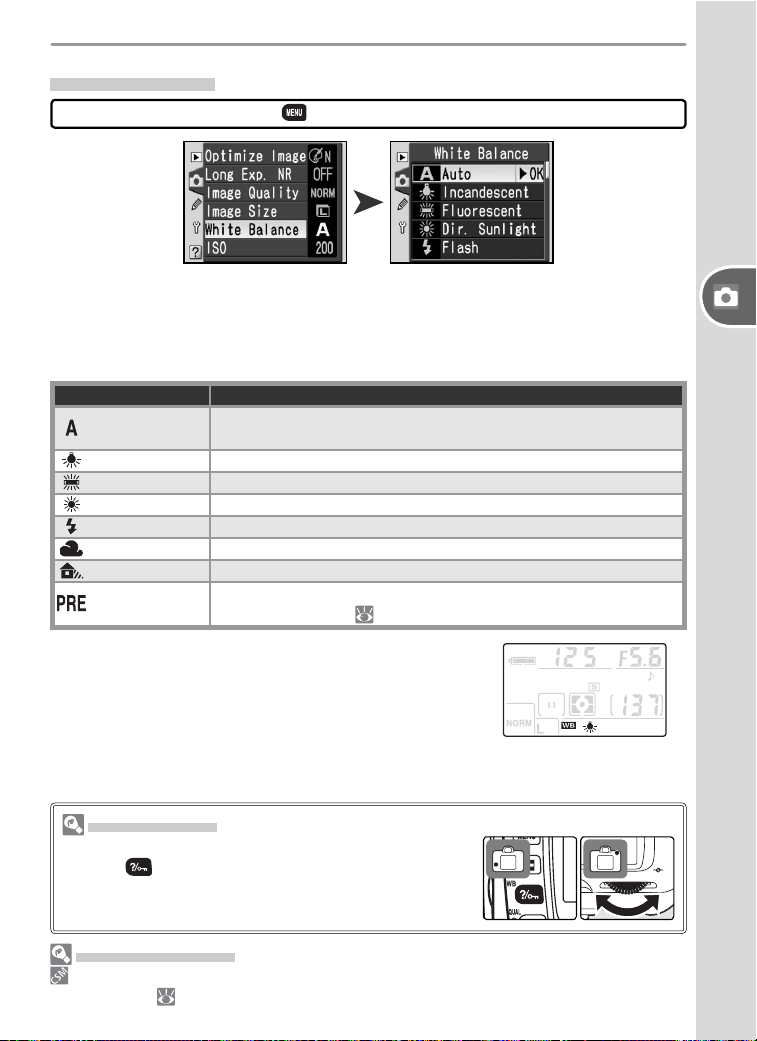
49
Reference—P, S, A, and M Modes
White balance ensures that colors appear natural regardless of the color of
the light source. Auto white balance is recommended in most situations,
but it may necessary to choose another option if colors seem too cold or
warm.
Option Description
Auto
(default)
White balance automatically adjusted to suit lighting condi-
tions. Recommended for most situations.
Incandescent Use under incandescent lighting.
Fluorescent Use under fl uorescent lighting.
Dir. sunlight Use with subjects lit by direct sunlight.
Flash Use with the built-in fl ash or optional Nikon fl ash units.
Cloudy Use in daylight under overcast skies.
Shade Use in daylight with subjects in the shade.
Preset
Use gray or white object or existing photograph as reference
for white balance ( 79).
The current white balance setting is shown in the
control panel.
Controls used: ➤ Shooting menu ➤ White Balance
White Balance
The WB Button
If the monitor is off, white balance can be set by press-
ing the (WB) button and rotating the command
dial until the desired setting is displayed in the control
panel.
Advanced Settings
12: BKT SET can be used to vary white balance automatically over a series of
photographs ( 93).
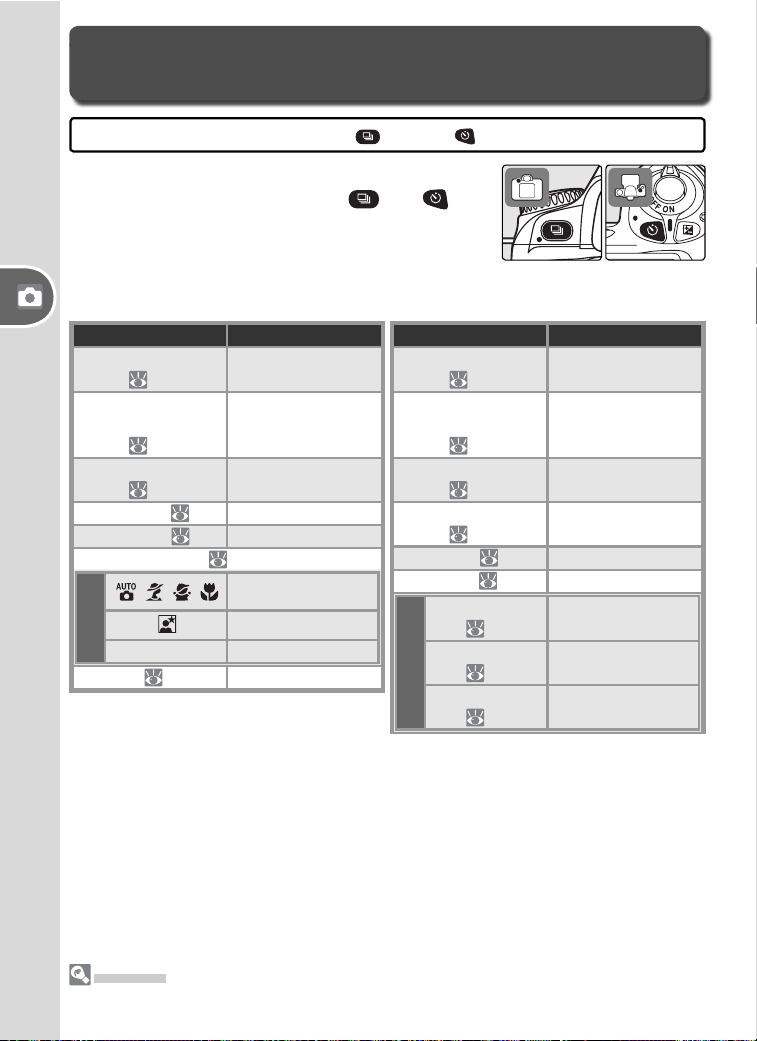
50
Reference—Restoring Default Settings
The camera settings listed below can be re stored
to default values by holding the
and but-
tons down together for more than two seconds
(these but tons are marked by a green dot). The
monitor will turn off briefl y while these settings
are reset. Other settings are unaffected.
Restoring Default Settings
Two-Button Reset
Controls used: button + button
Option Description
Shooting mode
(
21)
Single
Self-timer /
remote control
(
22)
Off
Image quality
(
31)
JPEG Normal
Image size (
32) L
Focus area (
33) Center
Flash sync mode (
36)
Mode
, , ,
Auto
Auto slow sync
P, S, A, M Fill fl ash
ISO (
39) 200
Option Description
Flexible program
(
42)
Off
Exposure
compensation
(
47)
Off (0.0)
Optimize image
(
48)
Normal
White balance
(
49)
Auto
AE lock (
97) Off
FV lock (
98) Off
Custom Settings
6: Flash Level
( 90)
0
12: BKT Set
(
93)
Off
13: Metering
(
96)
Matrix
Defaults
See pages 101–103 for more information on default settings.
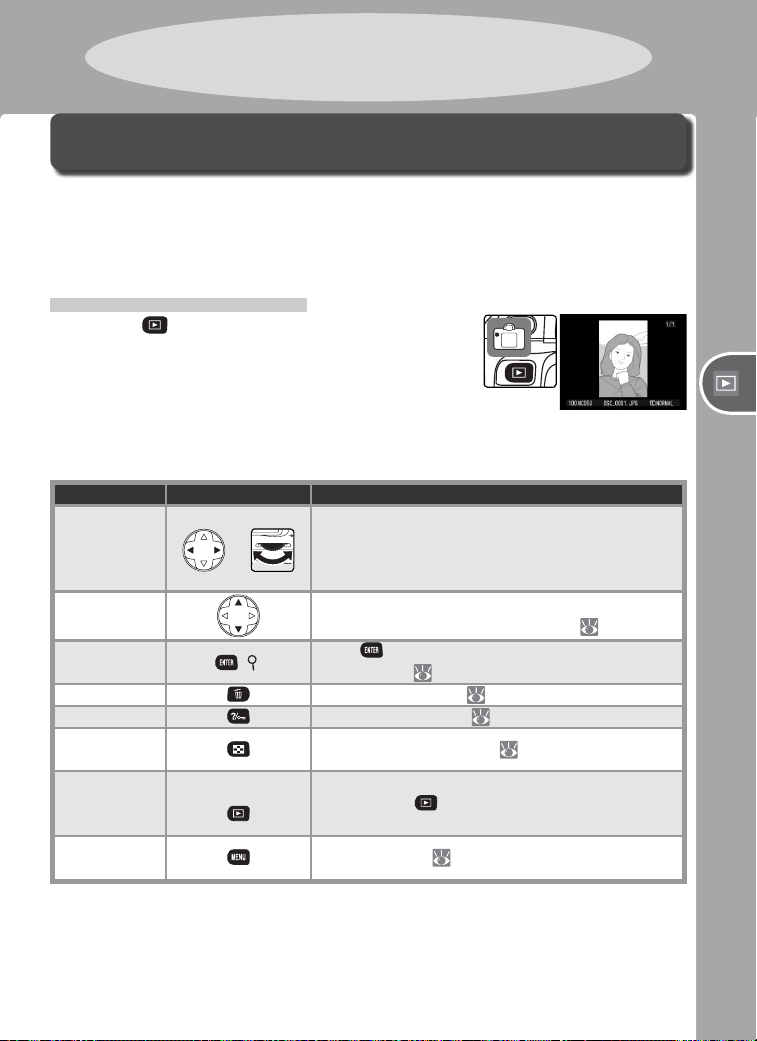
51
Reference—Viewing Photographs
Photographs can be viewed in the monitor one at a time (“single-image
playback”) or in “contact sheets” of up to nine images (“thumbnail play-
back”).
Single-Image Playback
Press the button to view the most recent
photograph in the monitor. Photographs taken
in “tall” (portrait) orientation are displayed in tall
orientation.
The following operations can be performed in
single-image playback:
To Use Description
View
additional
photos
or
Press multi selector right or rotate command dial
right to view photographs in order recorded.
Press multi selector left or rotate command dial
left to view photographs in reverse order.
View photo
information
Press multi selector up or down to view infor-
mation about current photograph ( 52).
Zoom in on
photo
( )
Press button for enlarged view of current
photograph ( 55).
Delete photo
Delete photograph ( 57).
Protect photo
Protect photograph ( 56).
View
thumbnails
View thumbnail display ( 54).
Return to
shooting
mode
Shutter release /
To turn monitor off and return to shooting
mode, press button or press shutter-release
button halfway.
Display
menus
Display menus ( 26).
Viewing Photographs
Reference: More on Playback
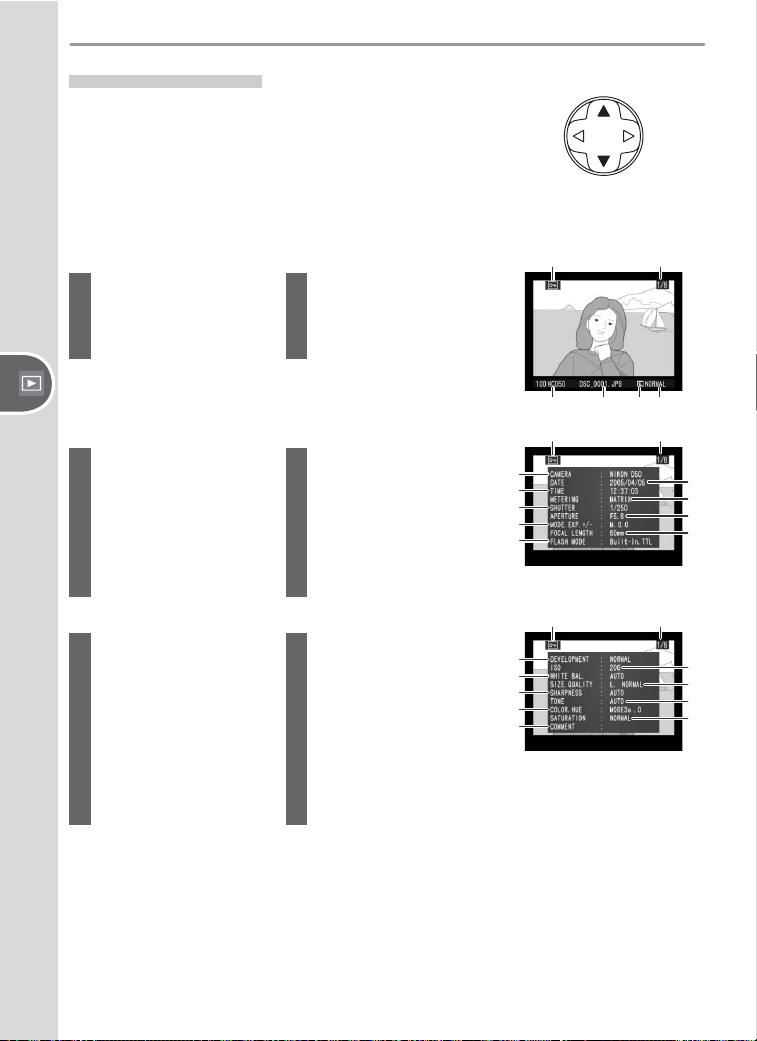
52
Reference—Viewing Photographs
Photo Information
Photo in for ma tion is su per im posed on images
displayed in single-im age play back. Press the
multi-se lec tor up or down to cycle through photo
in for ma tion as follows: File Information ↔ Shoot-
ing Data Page 1 ↔ Shooting Data Page 2 ↔ High-
lights ↔ Histogram ↔ File Information.
File Information
햲 햳
햴 햵 햶 햷
1 Protect status...........56
2 Frame number / total
number of images
3 Folder name ............71
4 File name.................32
5 Image size ...............32
6 Image quality...........31
Shooting Data, Page 1
1 Protect status...........56
2 Frame number / total
number of images
3 Camera name
4 Date of recording.....10
5 Time of recording ....10
6 Metering .................96
7 Shutter speed ..........40
8 Aperture..................40
9 Mode ........................6
Exposure
compensation..........47
10 Focal length...............1
11 Flash control ............36
햴
햲
햶
햸
햺
햽
햷
햹
햵
햻
햳
Shooting Data, Page 2
1 Protect status...........56
2 Frame number / total
number of images
3 Image optimization..48
4 Sensitivity
(ISO equivalency)
1
....39
5 White balance .........49
6 Image size ...............32
Image quality...........31
7 Sharpening ..............76
8 To ne compensation..77
9 Color mode .............77
Hue .........................78
10 Saturation................77
11 Image comment
2
.....70
1 Displayed in red if Custom Setting 10 (ISO Auto) was
on when photograph was taken and sensitivity was
altered from value selected by user.
2 Only fi rst twelve letters appear in photo information
display.
햴
햲
햶
햸
햺
햽
햷
햹
햵
햻
햳
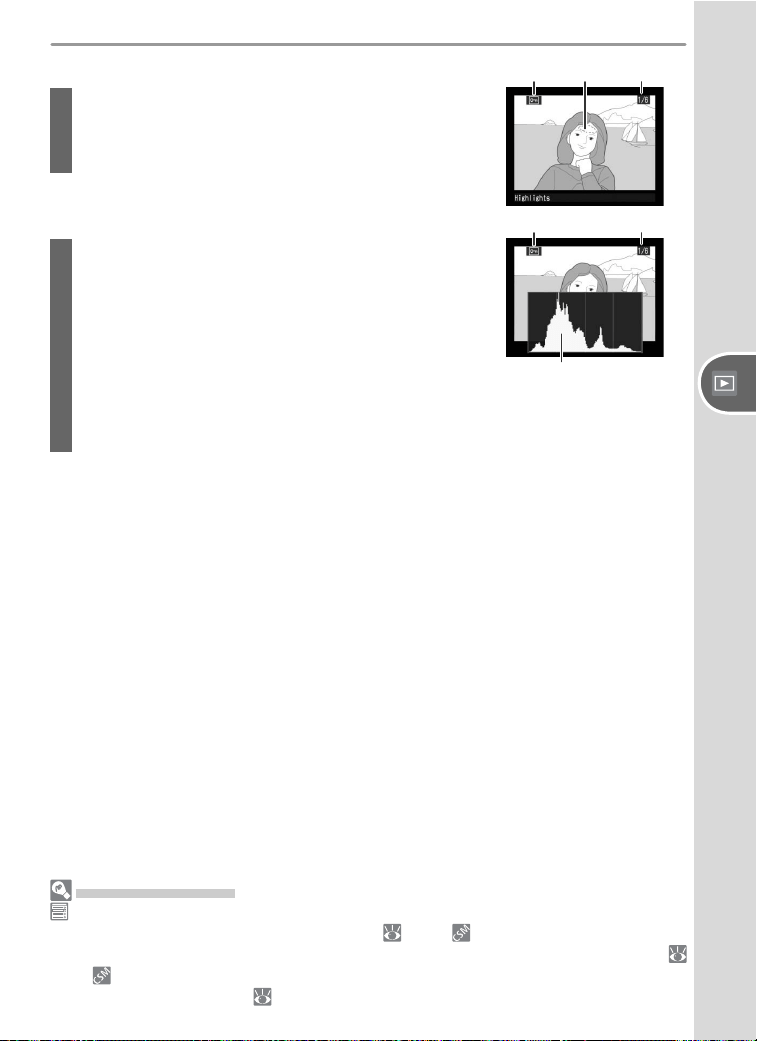
53
Reference—Viewing Photographs
햲 햴
햲 햳
햴
Highlights
1 Protect status...................................................... 56
2 Image high lights (brightest areas of image) are
marked by a fl ashing border.
3 Frame number / total number of images
Histogram
1 Protect status...................................................... 56
2 Frame number / total number of images
3 Histogram showing the dis tri bu tion of tones in the
im age. The horizontal axis cor re sponds to pixel
bright ness, with dark tones to the left and bright
tones to the right. The vertical axis shows the num-
ber of pix els of each brightness in the image. Note
that camera histogram is intended as guide only and
may differ from histograms displayed in imaging ap-
plications.
Advanced Settings
Rotate Tall controls whether “tall” (portrait-orientation) photographs are dis-
played in tall orientation during playback ( 84). 5: Image Review controls
whether photographs are automatically displayed in the monitor after shooting (
90). 17: Monitor Off controls how long the monitor will remain on when no
operations are performed ( 100).
햳
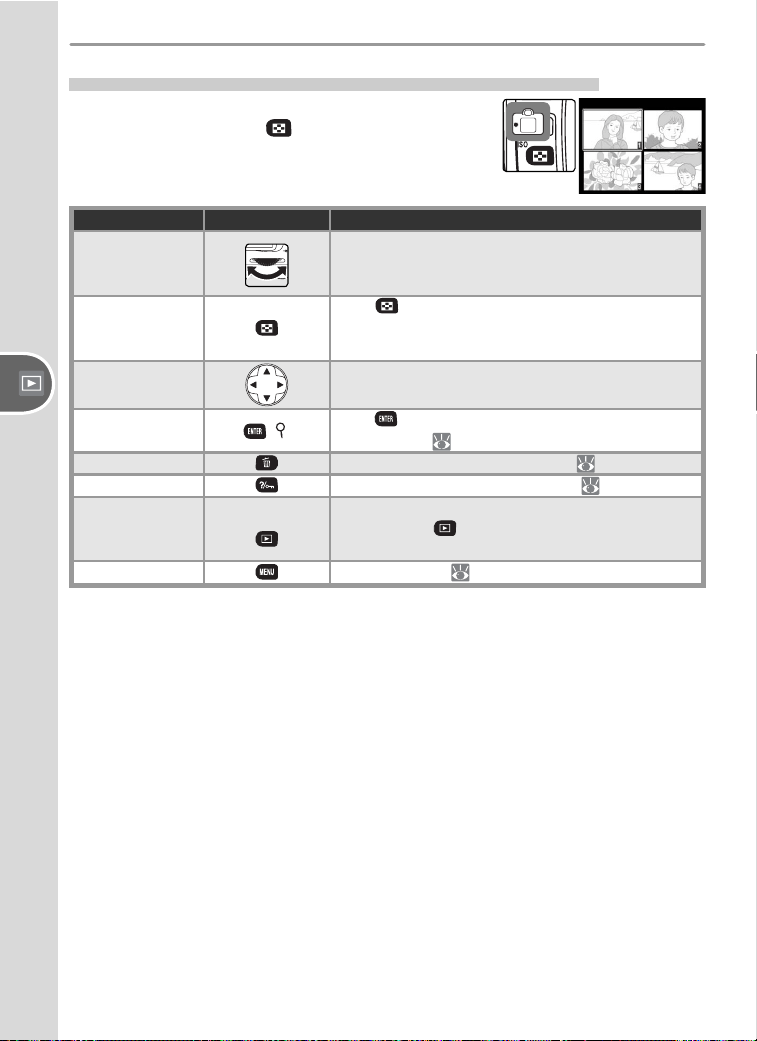
54
Reference—Viewing Photographs
Viewing Multiple Images: Thumbnail Playback
To display images in “con tact sheets” of four or
nine images, press the
button in single-image
playback. The fol low ing operations can be per-
formed while thumb nails are displayed:
To Use Description
View additional
pages of photos
Rotate command dial right to view photographs
in order recorded, left to view photographs in
reverse order.
Change num-
ber of images
displayed
Press button to switch between four-thumb-
nail display, nine-thumbnail display, and single-
image playback.
Highlight
photographs
Press multi selector up, right, left, or down to
highlight thumbnails.
Zoom in on
photograph
( )
Press button for enlarged view of highlighted
photograph ( 55).
Delete photo
Delete highlighted photograph ( 57).
Protect photo
Protect highlighted photograph ( 56).
Return to
shooting mode
Shutter release /
To turn monitor off and return to shooting
mode, press button or press shutter-release
button halfway.
Display menus
Display menus ( 26).
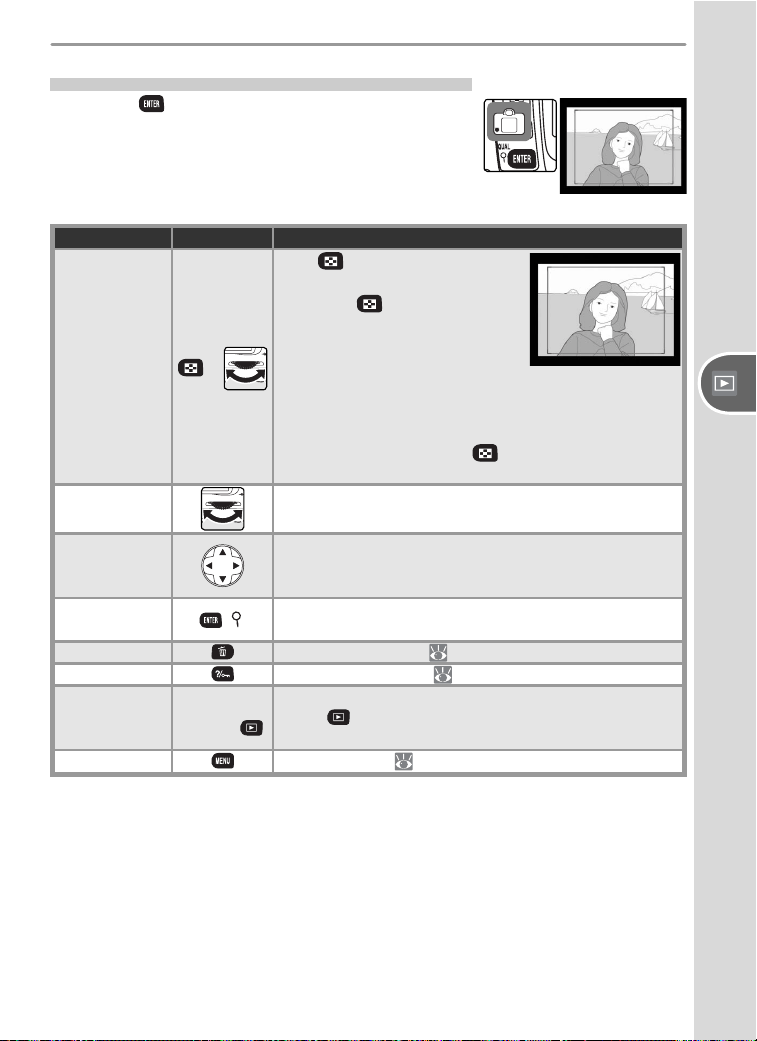
55
Reference—Viewing Photographs
Taking a Closer Look: Playback Zoom
Press the button to zoom in on the im age
displayed in single-image playback or on the im-
age currently highlighted in thumbnail playback.
The following operations can be performed while
zoom is in effect:
To Use Description
Change zoom
ratio / navigate
to other areas
of image
+
Press button to display frame
show ing area currently zoomed
in. While button is pressed,
multi selector can be used to
move frame and com mand dial
can be used to control size of
frame—rotate dial counterclockwise to zoom out,
clockwise to zoom in to maximum of approximately
4.7× (large images), 3.5× (medium images), or 2.4×
(small images). Release button to magnify se-
lected area to fi ll monitor.
View other
images
Rotate command dial to view same area of other im-
ages at current zoom ratio.
View other
areas of image
Use multi selector to view ar ea not visible in monitor.
Hold multi selector down to scroll rapidly to other
ar eas of frame.
Cancel zoom
( )
Cancel zoom and return to single-image or thumb nail
playback.
Delete photo
Delete photograph ( 57).
Protect photo
Protect photograph ( 56).
Return to
shooting
mode
Shutter
release /
To turn monitor off and return to shooting mode,
press button or press shutter-release button
halfway.
Display menus
Display menus ( 26).
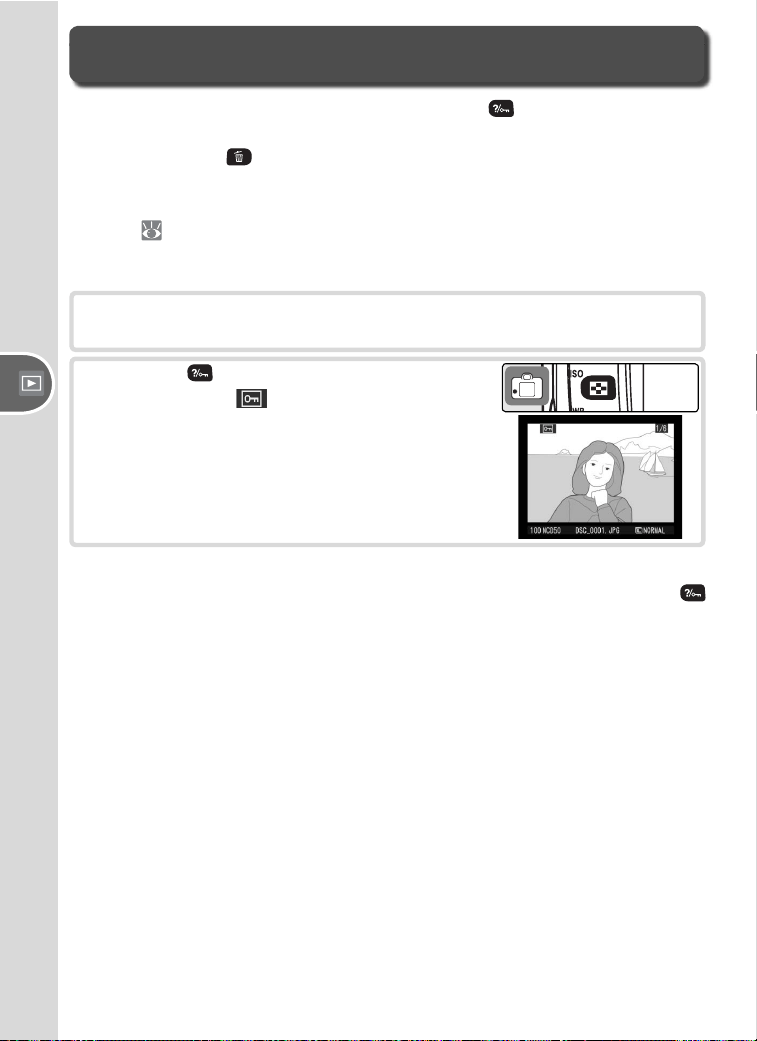
56
Reference—Protecting Photographs from Deletion
In full-frame, zoom, and thumbnail playback, the button can be used to
protect pho to graphs from ac ci den tal deletion. Protected fi les can not be
deleted using the button or the Delete op tion in the playback menu,
and have DOS “read-only” status when viewed on a Windows computer.
Note that pro tect ed im ag es will be de let ed when the mem o ry card is for-
matted (
68).
To protect a photograph:
Protecting Photographs from Deletion
1
Display the image in full-frame playback or highlight it in the thumb-
nail list.
2
Press the button. The pho to graph will be
marked with a icon.
To remove pro tec tion from the pho to graph so that it can be deleted, display
the photograph or high light it in the thumbnail list and then press the
button.
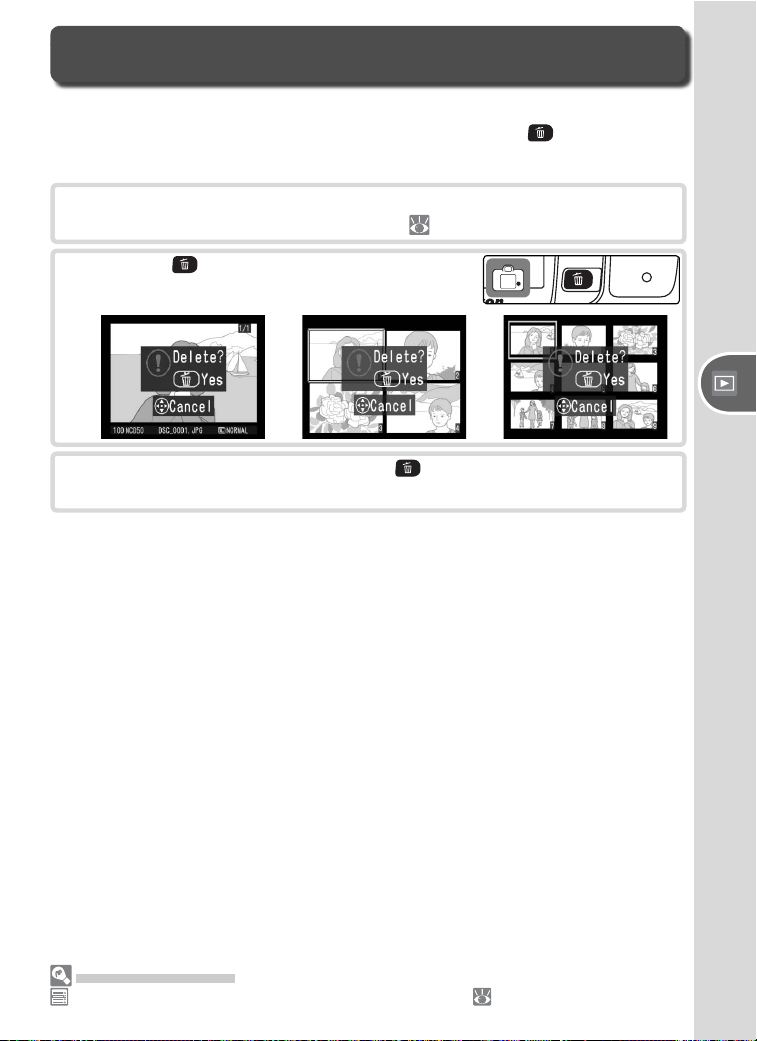
57
Reference—Deleting Individual Photographs
To delete a photograph displayed in single-image playback, or the pho-
to graph highlighted in thumbnail playback, press the button. Once
de let ed, photographs can not be recovered.
Deleting Individual Photographs
1
Display the image in full-frame playback or highlight it in the thumb-
nail list. Note that protected images (
56) can not be deleted.
2
Press the button. A confi rmation dialog
will be displayed.
3
To delete the photograph, press the button again. Press any other
button to exit without deleting the photograph.
Advanced Settings
Delete can be used to delete multiple photographs ( 84).
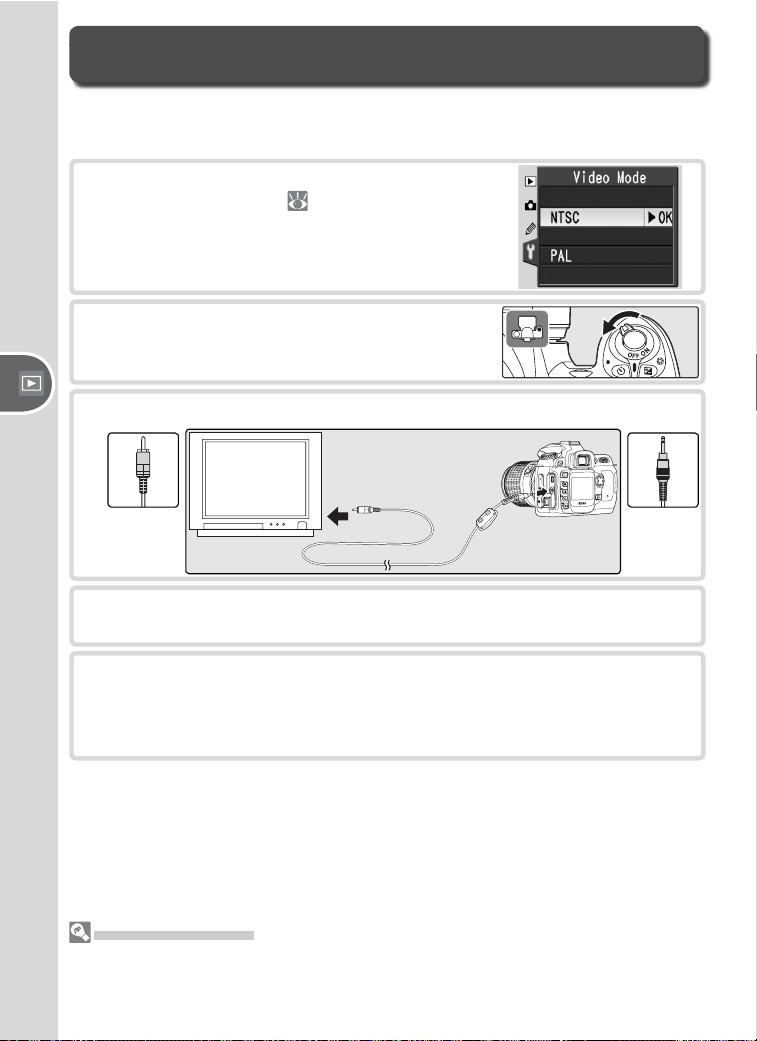
58
Reference—Viewing Photographs on TV
The supplied video cable can be used to connect the camera to a tele vi sion
or VCR for playback or recording.
Viewing Photographs on TV
1
Select the appropriate video mode from the
Video Mode menu ( 69).
2
Turn the camera off. Always turn the cam-
era off before connecting or disconnecting
the video cable.
3
Connect the video cable as shown below.
Connect
to video
device
Connect
to
camera
4
Tune the television to the video channel.
5
Turn the camera on. During playback, images will be displayed on the
television screen or recorded to video tape; the camera monitor will
remain off. Note that the television may not be able to display the
entire image when pictures are played back.
Use an AC Adapter
Use of an EH-5 AC adapter (available separately) is recommended for extended play-
back. When the EH-5 is connected, the camera monitor-off delay will be fi xed at ten
minutes and the exposure meters will no longer turn off automatically.
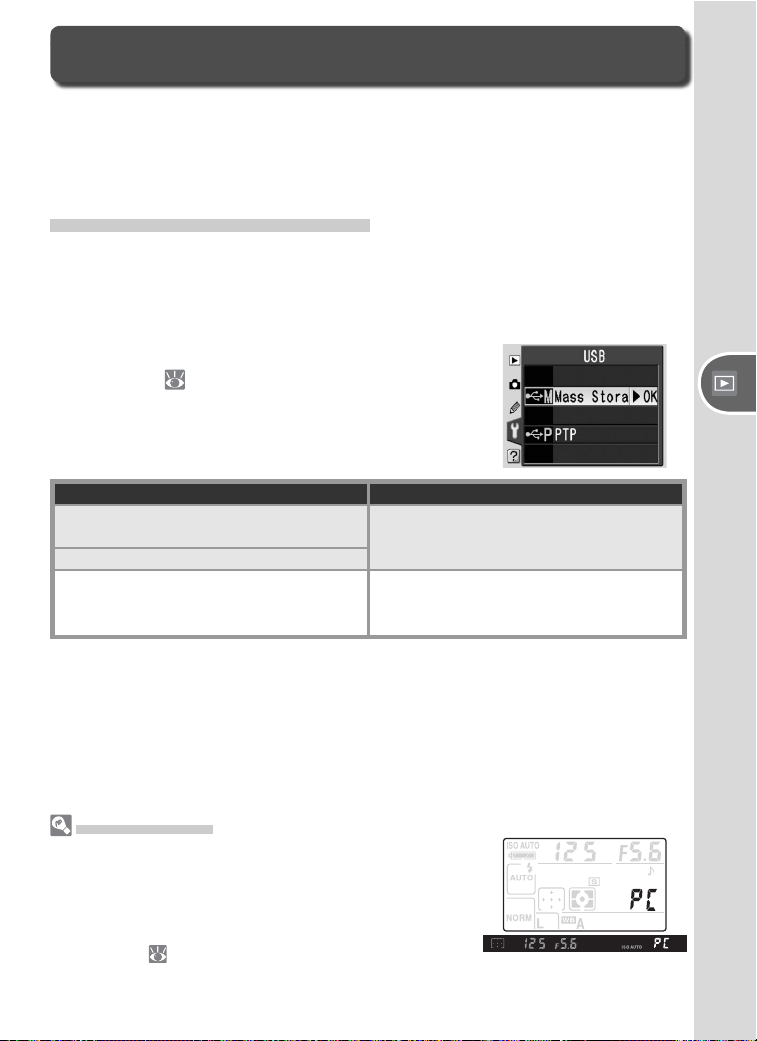
59
Reference—Viewing Photographs on a Computer
Nikon Capture 4
Nikon Capture 4 version 4.3 or later (available separate-
ly) can be used to control the camera from a computer
and supports batch processing and more advanced im-
age editing options. Before connecting the camera to a
computer running Nikon Capture 4 Camera Control, set
USB to PTP ( 71). The display shown at right will ap-
pear in the control panel and viewfi nder while Camera
Control is running.
The supplied USB cable can be used to connect the camera to a computer.
Once the camera is connected, the supplied PictureProject software can be
used to copy photographs to the computer, where they can be viewed and
retouched.
Before Connecting the Camera
Install PictureProject after reading the manuals and reviewing the system
requirements. To ensure that data transfer is not interrupted, be sure the
camera battery is fully charged. If in doubt, charge the battery before use
or use an EH-5 AC adapter (available separately).
Before connecting the camera, choose a camera
USB option ( 71) according to the computer
operating system:
Viewing Photographs on a Computer
Operating system USB option
Windows XP Home Edition
Windows XP Professional
Choose PTP or Mass Storage
Mac OS X
Windows 2000 Professional
Windows Millennium Edition (Me)
Windows 98 Second Edition (SE)
Choose Mass Storage
*
* Do NOT select PTP. If PTP is selected when the camera is connected, the Windows
hardware wizard will be displayed. Click Cancel to exit the wizard, and then dis-
connect the camera. Be sure to select Mass Storage before reconnecting the
camera.
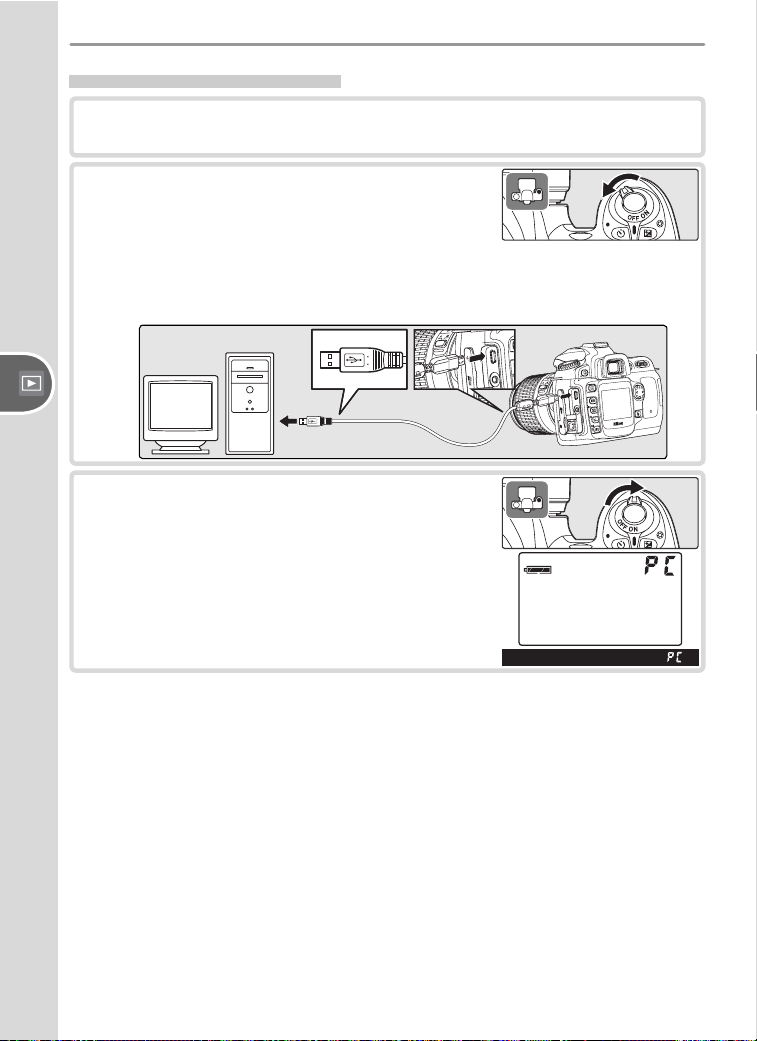
60
Reference—Viewing Photographs on a Computer
Connecting the USB Cable
1
Turn the computer on and wait for it to start up.
3
Turn the camera on. If Mass Storage is
selected for USB, the control panel and
viewfi nder will display the icons shown at
right (this display is not shown when PTP is
selected). Photographs can be transferred to
the computer as described in the PicturePro-
ject Reference Manual (on the silver CD).
2
Turn the camera off and connect the supplied
USB cable as shown. Do not use force or at-
tempt to insert the connectors at an angle.
Connect the camera directly to the comput-
er; do not connect the cable via a USB hub or
keyboard.
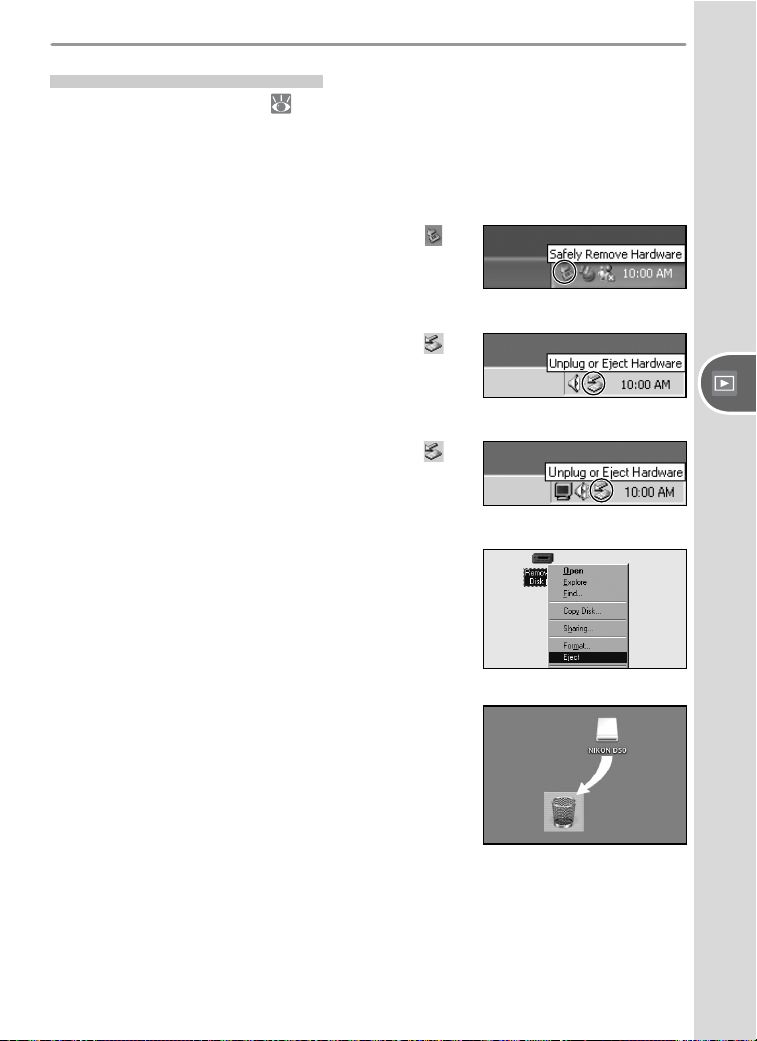
61
Reference—Viewing Photographs on a Computer
Macintosh
Drag the camera volume (“NIKON D50”) into the
Trash.
Disconnecting the Camera
If PTP is selected for USB ( 71), the camera can be turned off and the USB
cable disconnected once transfer is complete. If the USB option in the cam-
era setup menu is still at its default setting of Mass Storage, the camera
must fi rst be removed from the system as described below.
Windows XP Home Edition / Windows XP Professional
Click the “Safely Remove Hardware” icon (
) in
the taskbar and select Safely remove USB Mass
Storage Device from the menu that appears.
Windows 2000 Professional
Click the “Unplug or Eject Hardware” icon ( ) in
the taskbar and select Stop USB Mass Storage
Device from the menu that appears.
Windows Millennium Edition (Me)
Click the “Unplug or Eject Hardware” icon ( ) in
the taskbar and select Stop USB Disk from the
menu that appears.
Windows 98 Second Edition (SE)
In My Computer, click with the right mouse but-
ton on the removable disk corresponding to the
camera and select Eject from the menu that ap-
pears.
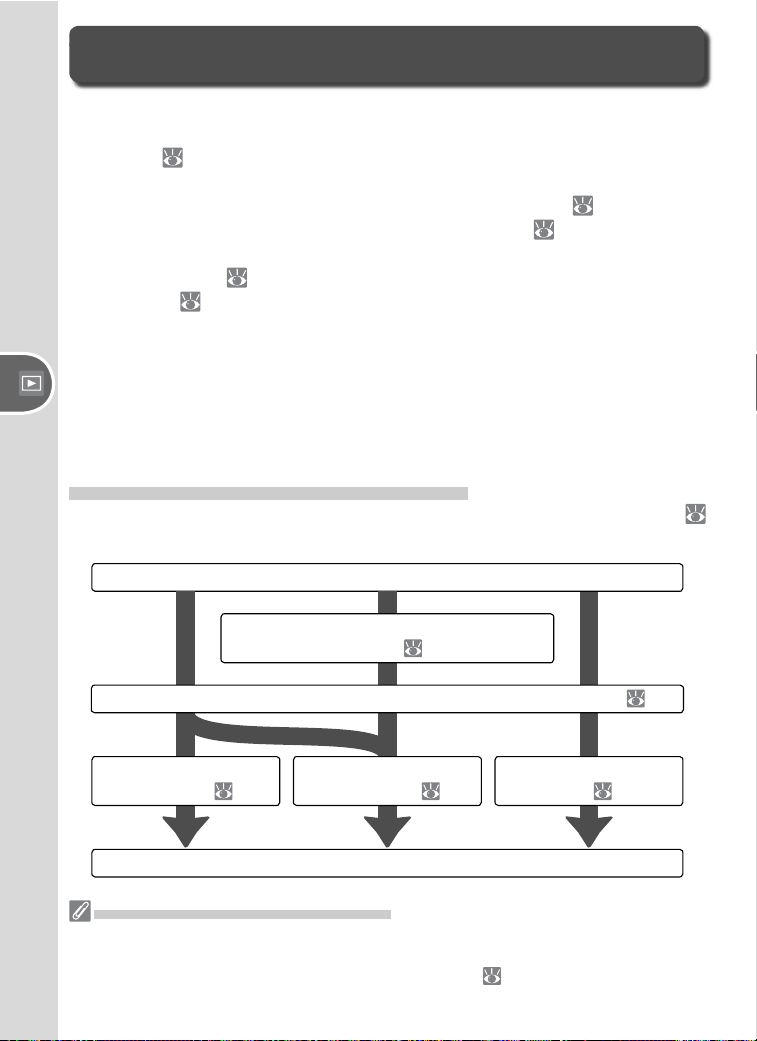
62
Reference—Printing Photographs
Take photographs
Photographs can be printed by any of the following methods:
• Connect the camera to a printer and print photographs directly from the
camera ( 63).
• Insert the memory card in a printer equipped with a card slot (see the
printer manual for details). If the printer supports DPOF ( 128), photo-
graphs can be selected for printing using Print Set (
67).
• Take the memory card to a developer or digital print center. If the center
supports DPOF ( 128), photographs can be selected for printing using
Print Set ( 67).
• Transfer the pictures using PictureProject and print them from a computer
(see the PictureProject Reference Manual, on CD).
Note that RAW photographs can only be printed by transferring them to
a computer and printing them using Nikon Capture 4 version 4.3 or later
(available separately) or PictureProject.
Printing Via Direct USB Connection
When the camera is connected to a printer that supports PictBridge (
128), photographs can be printed directly from the camera.
Printing Photographs
Select PTP in camera USB menu and connect camera to printer ( 63)
Select photographs for printing using
Print Set ( 67)
Printing Via Direct USB Connection
If possible, use the EH-5 AC adapter when printing to reduce the drain on the camera
battery. When taking photographs to be printed without modifi cation in P, S, A, and
M modes, choose Direct Print for Optimize image ( 48) or select Custom and
set Color mode to Ia (sRGB) or IIIa (sRGB) (the default option).
Print photographs
one by one ( 64)
Print multiple
photographs ( 65)
Create index
prints ( 65)
Disconnect USB cable
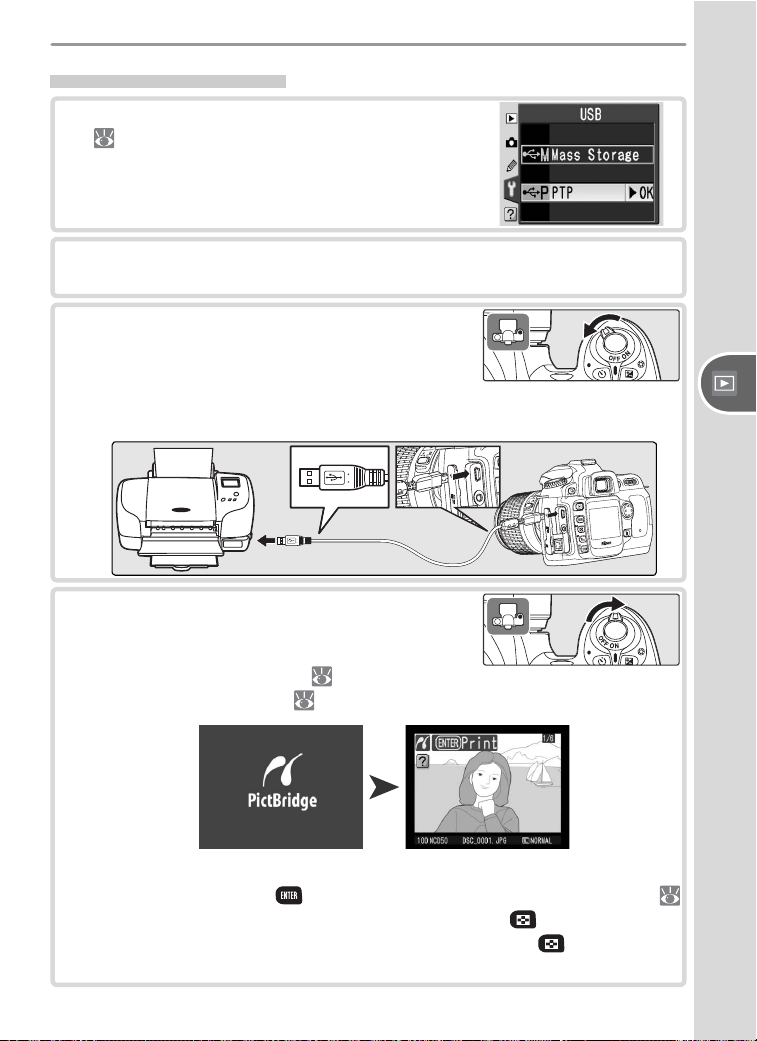
63
Reference—Printing Photographs
Connecting the Printer
1
Set the USB option in the setup menu to PTP
( 71).
2
Turn the printer on.
3
Turn the camera off and connect the supplied
USB cable as shown. Do not use force or at-
tempt to insert the connectors at an angle.
Connect the camera directly to the printer;
do not connect the cable via a USB hub.
4
Turn the camera on. A welcome screen will
be displayed, followed by the PictBridge
playback display. Proceed to “Printing Pho-
tographs One at a Time” ( 64) or “Printing
Multiple Photographs” ( 65).
Press the multi selector left or right to view additional photographs,
or press and hold the button to zoom in on the current photo (
66). To view six photographs at a time, press the button. Use the
multi selector to highlight photographs, or press the button again
to display the highlighted photograph full frame.
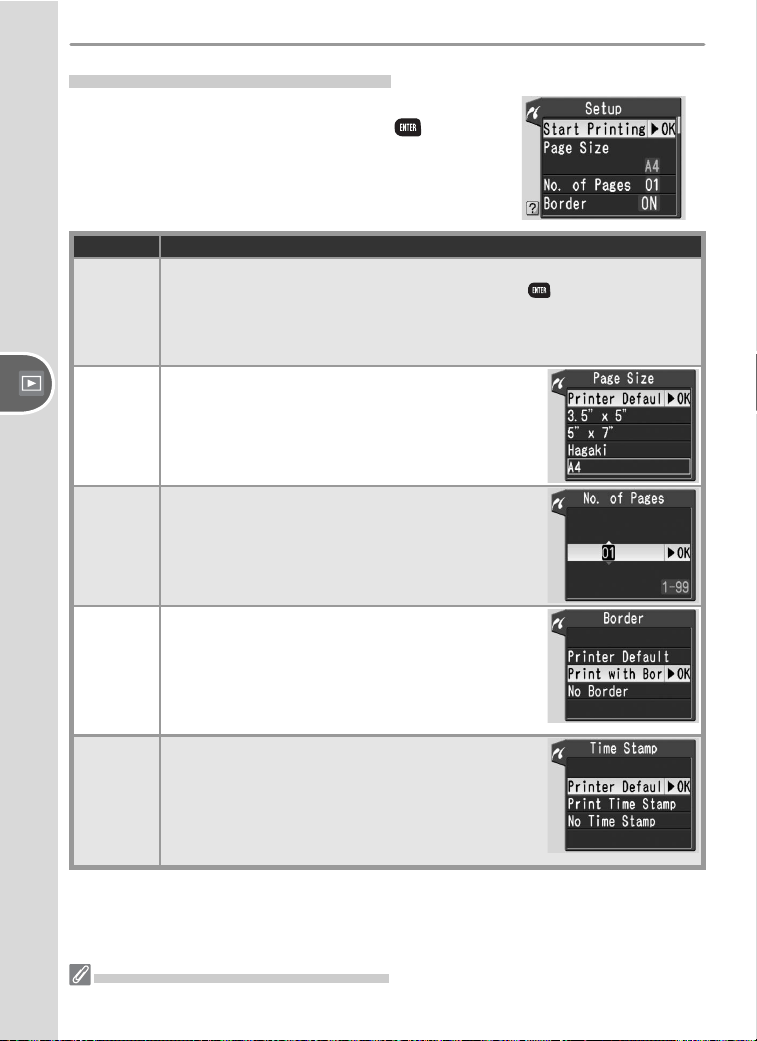
64
Reference—Printing Photographs
Option Description
Start
Printing
Print selected picture. To cancel and return to PictBridge playback dis-
play before all images have been printed, press
button. PictBridge
playback display will be shown when printing is complete. Print ad-
ditional pictures as described above or turn camera off and disconnect
USB cable.
Page Size
Page sizes for current printer will be displayed.
Press multi selector up or down to highlight de-
sired page size, then press multi selector to right to
select and return to print menu.
No. of
Pages
Menu shown at right will be displayed. Press multi
selector up or down to choose number of copies
(maximum 99), then press multi selector to right to
select and return to print menu.
Border
Menu shown at right will be displayed. Press multi
selector up or down to highlight Printer Default
(default setting for current printer), Print with
Border (print photo with white border), or No
Border, then press multi selector to right to select
and return to print menu.
Time
Stamp
Menu shown at right will be displayed. Press multi
selector up or down to highlight Printer Default
(default setting for current printer), Print Time
Stamp (print time and date of recording on pho-
to), or No Time Stamp, then press multi selector
to right to select and return to print menu.
Printing Pictures One at a Time
To print the photograph selected in the PictBridge
playback display, press and release the button.
The menu shown at right will be displayed. Press
the multi selector up or down to highlight an op-
tion and press to the right to select.
Page Size, Border, and Time Stamp
Choose Printer Default to print at current printer settings.
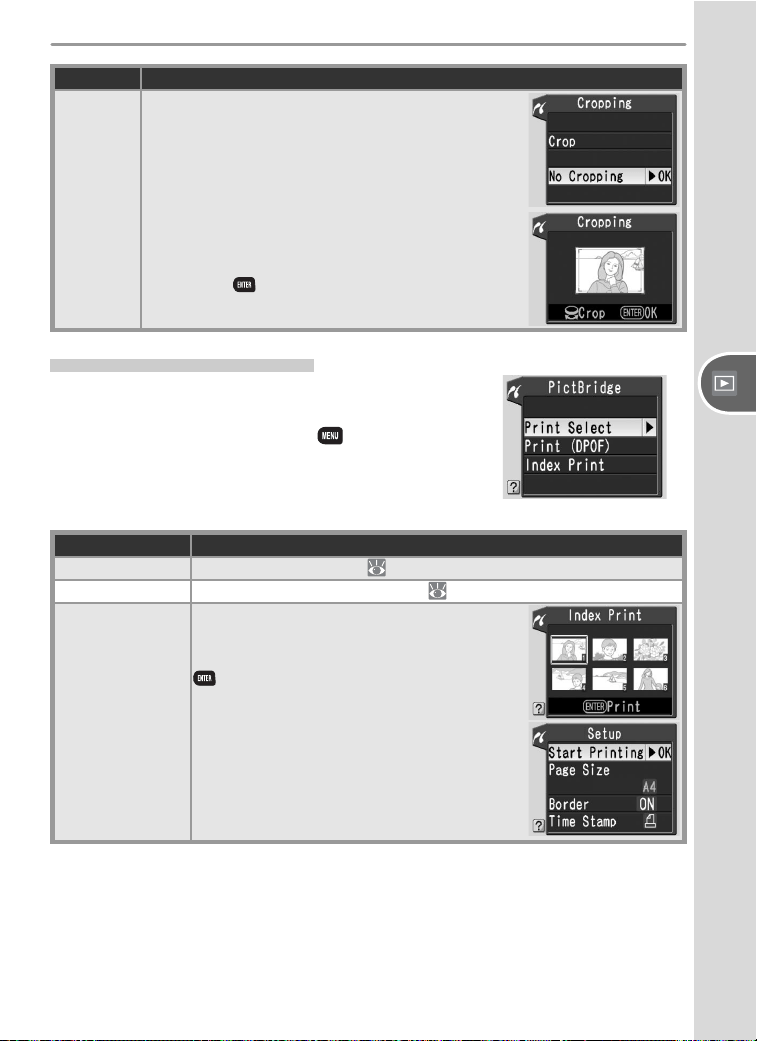
65
Reference—Printing Photographs
Option Description
Cropping
Menu shown at right will be displayed. Press multi
selector up or down to highlight Crop (crop photo
for printing) or No Cropping, then press multi se-
lector to right.
If Crop is selected, dialog shown at right will be
displayed; rotate command dial to choose size of
crop and use multi selector to choose position of
crop. Press
to return to print menu.
Printing Multiple Pictures
To print multiple selected pictures or to create an
index print listing all JPEG photographs as small
thumbnail images, press the button. The
menu shown at right will be displayed. Press the
multi selector up or down to highlight an option
and press to the right to select.
Option Description
Print Select Print selected pictures (
66).
Print (DPOF) Print current DPOF print order (
67).
Index Print
Create index print of all JPEG photos (if
memory card contains more than 256 pho-
tos, only 256 photos will be printed). Press
button to display menu shown below at
right; choose page size, border, and time
stamp options as described on page 64
(warning will be displayed if selected page
size is too small). To start printing, highlight
Start Printing and press multi selector
right. PictBridge menu will be displayed
when printing is complete.
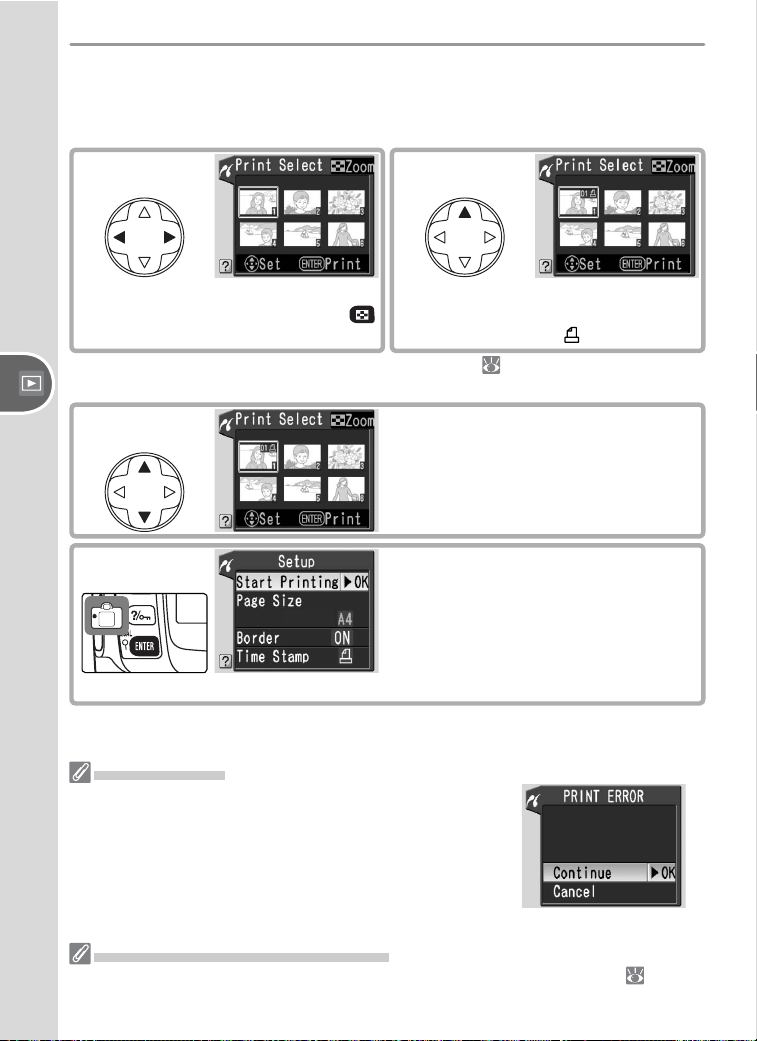
66
Reference—Printing Photographs
Printing Selected Photographs
Choosing Print Select in the PictBridge menu (see above) displays the
menu shown in Step 1.
Error Messages
If the dialog shown at right is displayed, an error has
occurred. After checking the printer and resolving any
problems as directed in the printer manual, press the
multi selector up or down to highlight Continue and
press the multi selector to the right to resume printing.
Select Cancel to exit without printing the remaining
images.
Selecting Photographs for Printing
NEF (RAW) photos and pictures created using the small picture option ( 86) are
displayed in the Print Selected menu but can not be selected for printing.
2
Select current picture and set num-
ber of prints to 1. Selected pictures
marked by icon.
1
Scroll through pictures. To display
current picture full screen, press
button.
*
3
Specify number of prints (up to 99).
To deselect picture, press multi selec-
tor down when number of prints is 1.
Repeat steps 1–3 to select additional
pictures.
*To print photos in print order created with Print Set ( 67), select Print (DPOF) in
PictBridge menu. Print order can be modifi ed as described on this page.
4
Display print options. Choose page
size, border, and time stamp options
as described on page 64. To print
selected pictures, highlight Start
Printing and press multi selector right.
PictBridge menu will be displayed
when printing is complete.
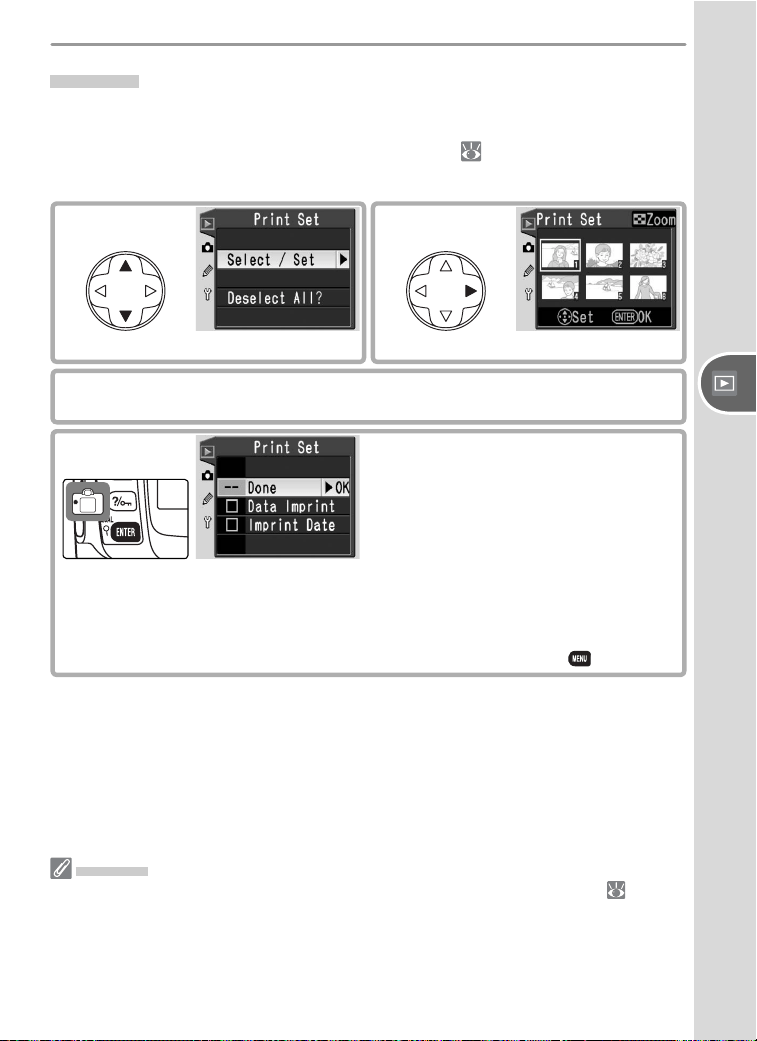
67
Reference—Printing Photographs
Print Set
The Print Set option in the playback menu is used to create digital “print
orders” for PictBridge-compatible printers and devices that support DPOF.
Selecting Print Set from the playback menu ( 83) displays the menu
shown in Step 1.
2
Display selection dialog.
1
Highlight Select / Set.
3
Select pictures and specify number of prints as described in Steps 1–3 on
previous page.
4
Return to Print Set menu. To select or
deselect options, highlight and press
multi selector to right. Selected items
are marked with a ✔.
• Data Imprint: Print shutter speed and aperture on all pictures in print or-
der.
• Imprint Date: Print date of recording on all pictures in print order.
To complete print order and return to playback, highlight Done and press
multi selector right. To exit without altering print order, press button.
Print Set
NEF (RAW) photos and pictures created using the small picture option ( 86) are
displayed in the Print Set menu but can not be selected for printing. Note that the
Print Set option may not available if there is not enough space on the memory card
to store the print order. After creating a print order, do not change the hidden status
of images in the print order or use a computer or other device to delete images.
Either action could cause problems during printing.
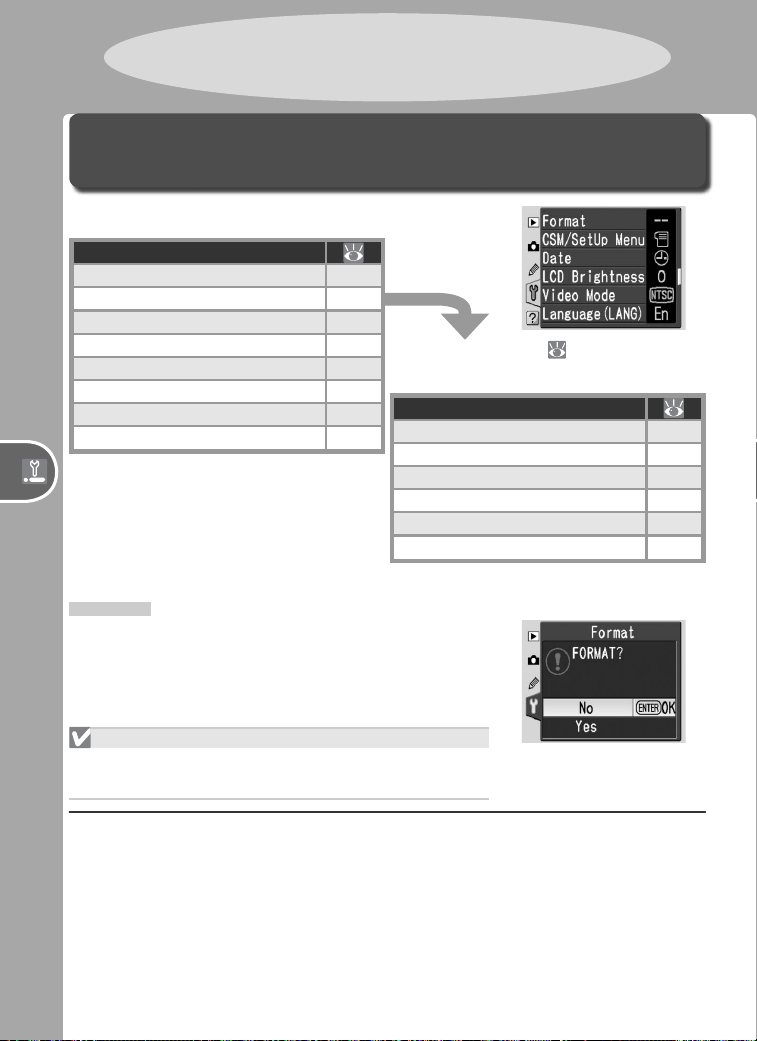
68
Basic Camera Settings: The Setup MenuSetup
Setup
The setup menu contains the following options.
Option
Format 68
CSM/Setup Menu 69
Date 69
LCD Brightness 69
Video Mode 69
Language (LANG) 70
Image Comment 70
USB 71
Basic Camera Settings
The Setup Menu
Select Detailed ( 69) to display
the following additional options:
Option
Folders 71
File No. Seq. 73
Mirror Lock-Up 116
Dust Ref Photo 74
Firmware Ver. 75
Image Rotation 75
Format
Formats the memory card. Note that this perma-
nently deletes all photographs and any other data
the card may contain. Copy all required fi les to a
computer before formatting.
Formatting Memory Cards
Do not turn the camera off or remove the memo-
ry card while formatting is in progress.
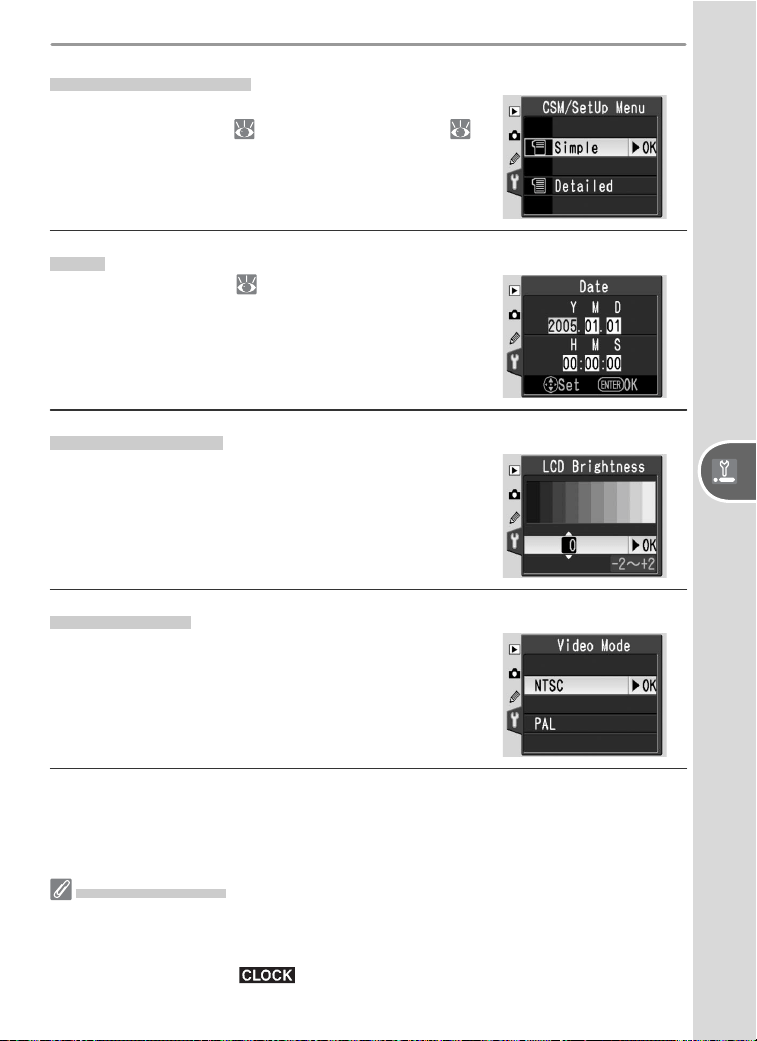
69
Basic Camera Settings: The Setup MenuSetup
CSM/Setup Menu
Choose Simple to display only basic options in
the Custom Settings ( 87) and setup menus (
68), Detailed to list all options.
Date
Set the camera clock ( 10). Nikon recommends
resetting the clock monthly.
LCD Brightness
Adjust monitor brightness.
Video Mode
Before connecting your camera to a video device
such as a television or VCR, choose a video mode
setting that matches the video standard used in
the device.
The Clock Battery
The clock-calendar is powered by an independent, rechargeable power source, which
is charged as necessary when the main battery is installed or the camera is powered
by an optional EH-5 AC adapter. Three days of charging will power the clock for
about one month. If the icon fl ashes in the control panel, the clock battery is
exhausted and the clock has been reset. Set the clock to the correct date and time.
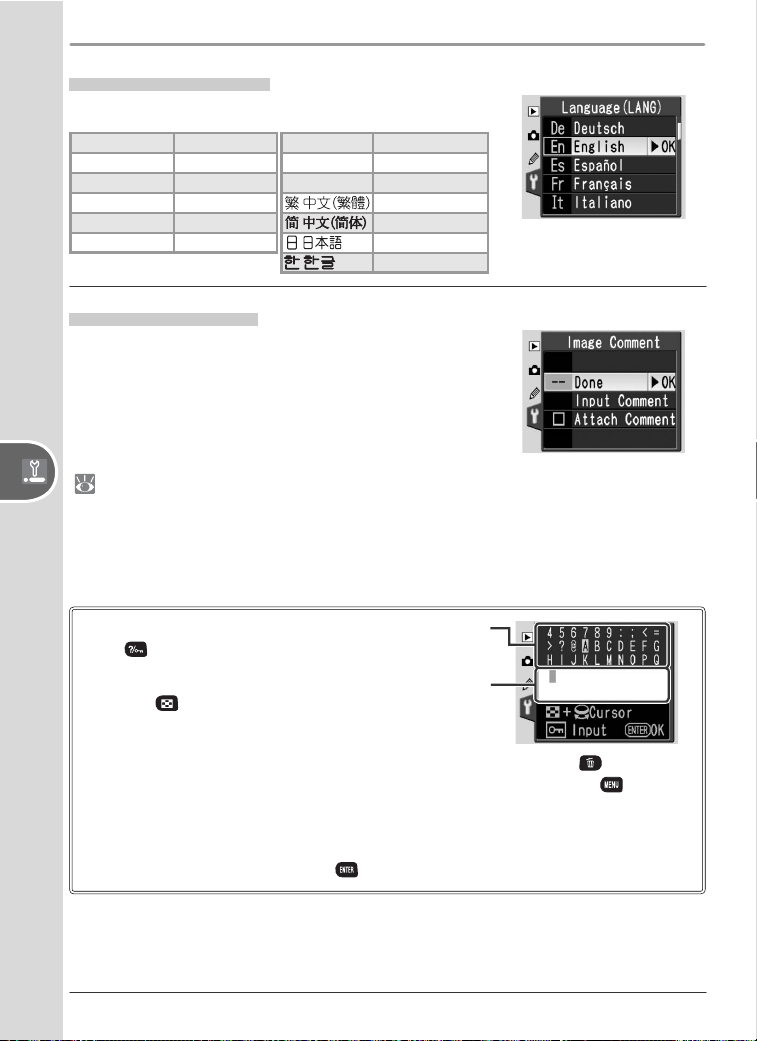
70
Basic Camera Settings: The Setup MenuSetup
Language (LANG)
Choose from the following languages:
Image Comment
Add brief text com ments to photographs as they
are taken. Com ments can be viewed when the
pho to graphs are displayed using PictureProject
or Nikon Capture 4 version 4.3 or later. The fi rst
twelve let ters of the comment are also visible on
the third page of the pho to in for ma tion dis play
( 52).
Done: Save changes and return to the setup menu.
Input comment: The following dialog will be displayed. Enter a comment
as described below.
Keyboard area: Use multi selector to highlight letters,
press button to select.
Comment area: Comment appears here. To move cur-
sor, press button and use multi selector.
To delete the character at the current cursor position, press the button. To
return to the setup menu without changing the comment, press the button.
Comments can be up to thirty-six characters long. Any additional characters will
be deleted.
After editing the comment, press to return to the image comment menu.
Attach comment: A comment is added to all photographs taken when this
option is checked (✔). Highlight this option and press the multi selector to
the right to toggle the check mark on or off.
De Deutsch German
En English English
Es Español Spanish
Fr Français French
It Italiano Italian
Ne Nederlands Dutch
Po Português Portuguese
Py
Русский
Russian
Sv Svenska Swedish
Traditional Chinese
Simplifi ed Chinese
Japanese
Korean
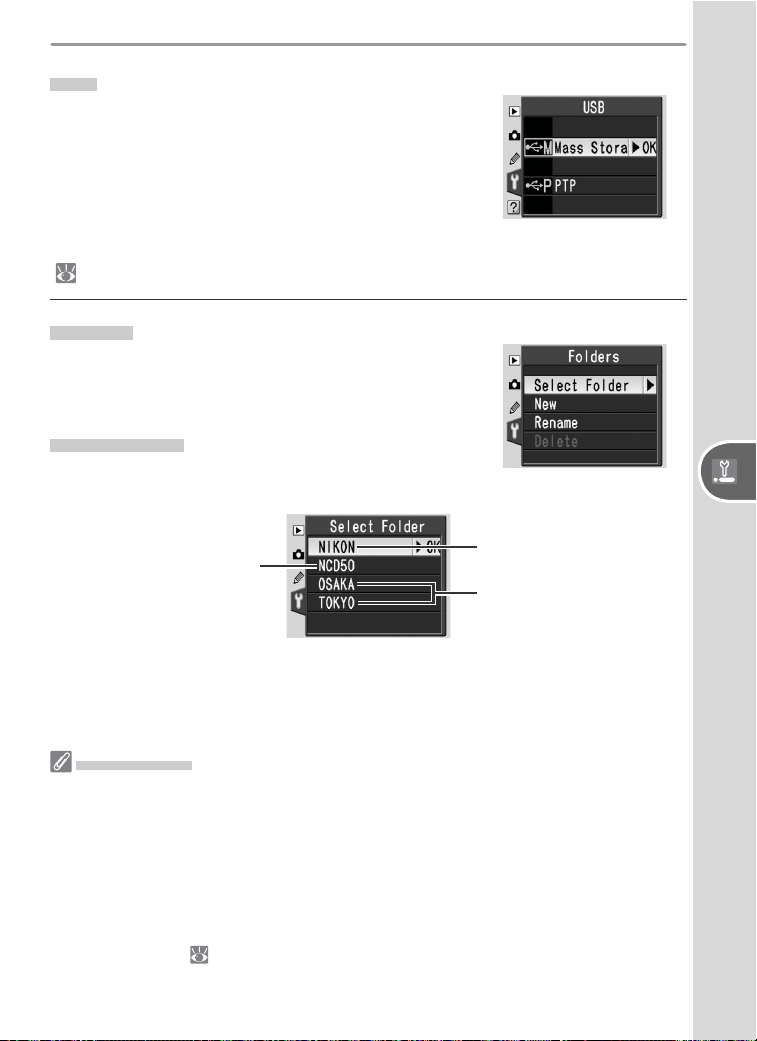
71
Basic Camera Settings: The Setup MenuSetup
USB
Choose a USB option for connection to a com-
puter or PictBridge printer. Choose PTP when
connecting to a PictBridge printer or using the
Camera Control function in Nikon Capture 4
version 4.3 (available separately). See “Viewing
Photographs on a Computer” for information on
selecting a USB option for use with PictureProject
(
59).
Folders
Create, rename, or delete folders and to choose
the folder in which new photographs will be
stored.
Select Folder
Choose the folder in which subsequent images
will be stored.
Current folder
NCD50 (default folder)
Other folders
(in alphabetical order)
Folder Names
On the memory card, folder names are preceded by a three-digit folder number as-
signed automatically by the camera (e.g., 100NCD50) Each folder can contain up
to 999 photographs. If a photograph is taken when the current folder contains 999
fi les or a picture numbered 9999, the camera will create a new folder by adding one
to the current folder number (e.g., 101NCD50). For the purposes of selection and
naming, all folders with the same name are treated as the same folder. For example,
if the folder NIKON is selected, pictures in all folders named NIKON (100NIKON,
101NIKON, 102NIKON, etc.) will be visible when Current is selected in the Play-
back Fldr menu ( 84). Renaming similarly applies to all folders with the same
name. During shooting, pictures are stored in the highest-numbered folder with the
selected name.
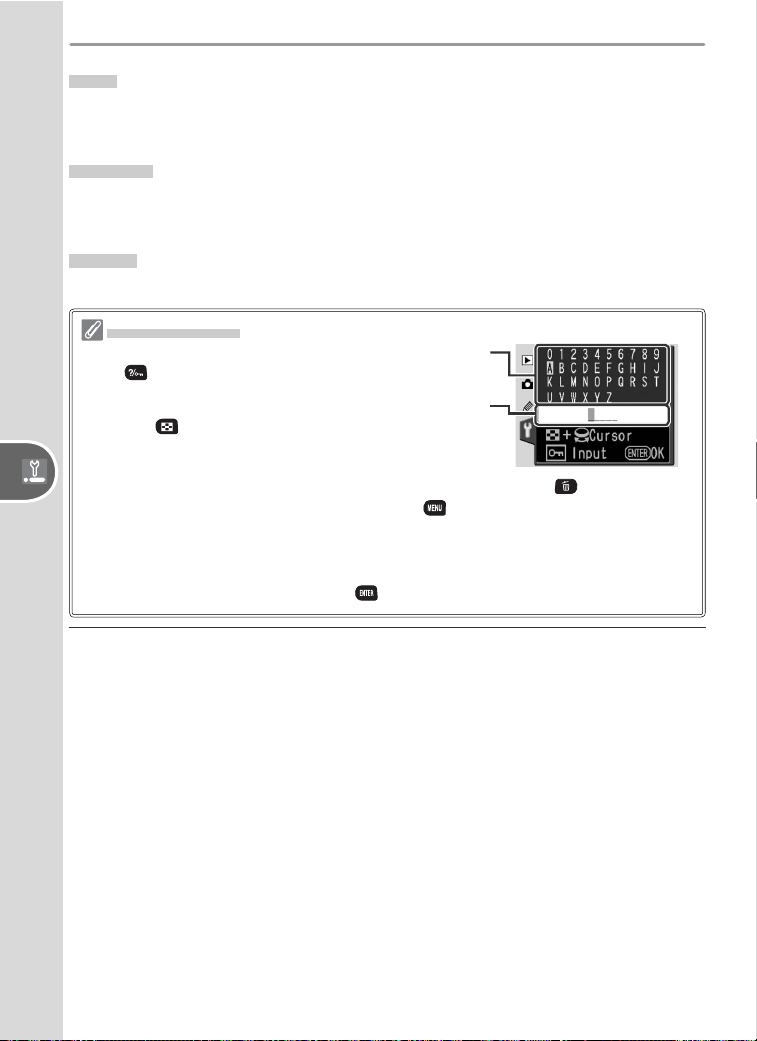
72
Basic Camera Settings: The Setup MenuSetup
New
Create a folder with a new name as described in “Naming Folders,” be-
low.
Rename
Rename an existing folder. Select the folder from a list of existing folders
and rename it as described in “Naming Folders,” below.
Delete
Delete all empty folders on the memory card.
Naming Folders
Keyboard area: Use multi selector to highlight letters,
press button to select.
Name area: Folder name appears here. To move cur-
sor, press button and use multi selector.
To delete the character at the current cursor position, press the button. To exit
without changing the folder name, press the button.
Folder names can be up to fi ve characters long. Any additional characters will be
deleted.
After editing the folder name, press to return to the setup menu.
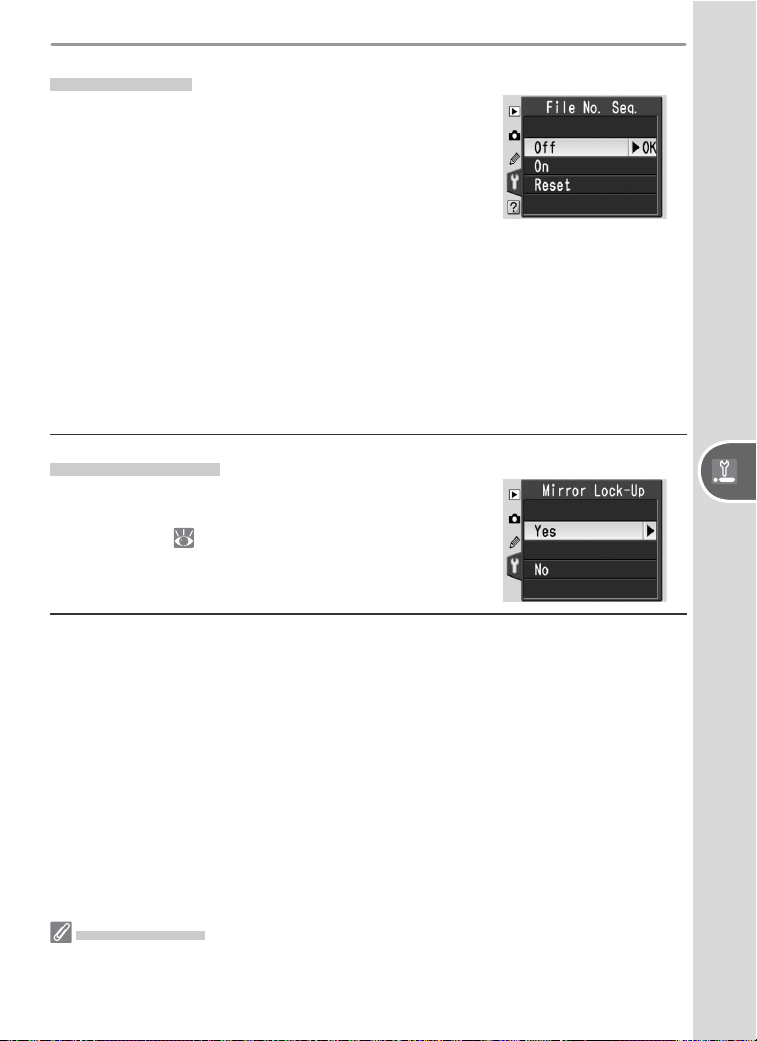
73
Basic Camera Settings: The Setup MenuSetup
File No. Seq.
Choose how the camera names fi les.
• Off (default): File numbering is reset to 0001
when a new folder is created, the memory card
is formatted, or a new memory card is inserted
in the camera.
File Numbering
If the current folder is numbered 999 and contains 999 photographs or a photograph
numbered 9999, the shutter release will be disabled. If File No. Seq. is on, turn it
off, then format the memory card or insert another memory card in the camera.
• On: When a new folder is created, the memory card is formatted, or a
new memory card is inserted in the camera, fi le numbering continues
from the last number used. If a photograph is taken when the current
folder contains a photograph numbered 9999, a new folder will be cre-
ated and fi le numbering will begin again from 0001.
• Reset: As for On, except that fi le numbering is reset to 0001 with the
next photograph taken (a new folder will be created if the current folder
already contains photographs).
Mirror Lock-up
Lock the mirror in the up position for inspection
or cleaning of the low-pass fi lter that protects the
image sensor ( 116).
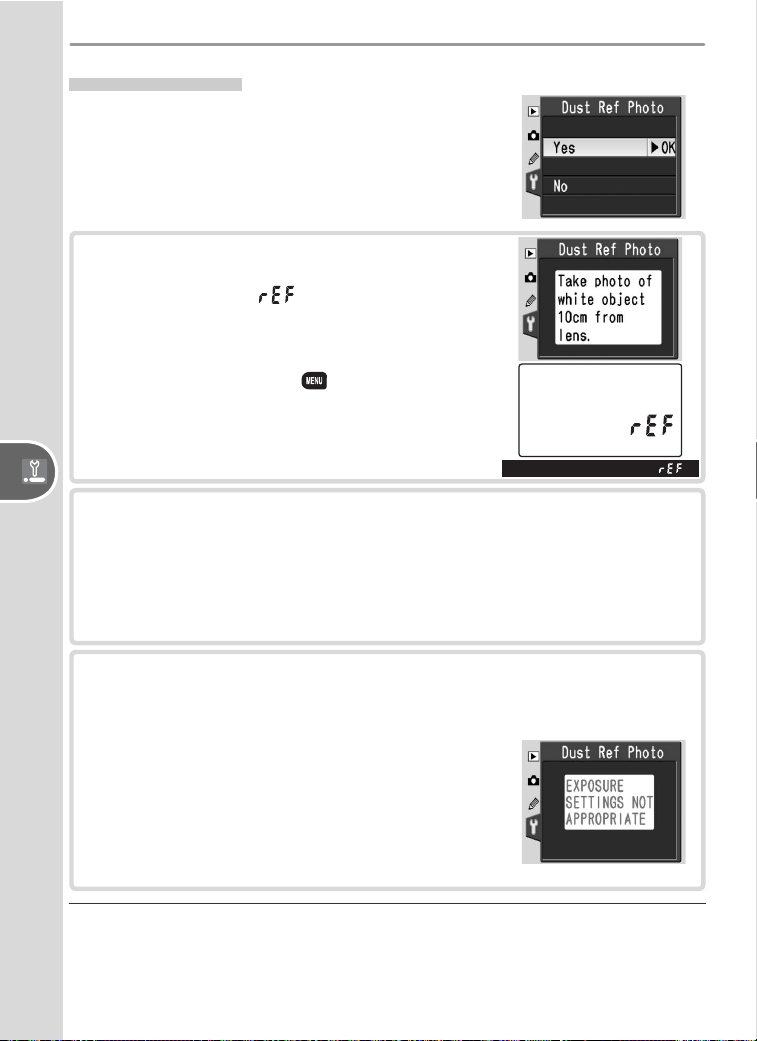
74
Basic Camera Settings: The Setup MenuSetup
Dust Ref Photo
Acquire reference data for the Image Dust Off
function in Nikon Capture 4 version 4.3 or later
(available separately; for more information, see
the Nikon Capture 4 User’s Manual).
1
Highlight Yes and press the multi selector to
the right. The message shown at right will
be displayed, and will be displayed in the
control panel and viewfi nder.
To cancel the operation and return to the
setup menu, press the button.
2
With the lens ten centimeters (four inches) from a bright, featureless
white object, frame the object so that nothing else is visible in the
viewfi nder and press the shutter-release button halfway. In autofo-
cus mode, focus will automatically be set to infi nity; in manual focus
mode, set focus to infi nity manually before pressing the shutter-re-
lease button.
3
Press the shutter-release button the rest of the way down to acquire
Image Dust Off reference data. The monitor turns off when the shut-
ter-release button is pressed.
If the reference object is too bright or too
dark, the camera may be unable to acquire
Image Dust Off reference data and the
message shown at right will be displayed.
Choose another reference object and repeat
the process from Step 1.
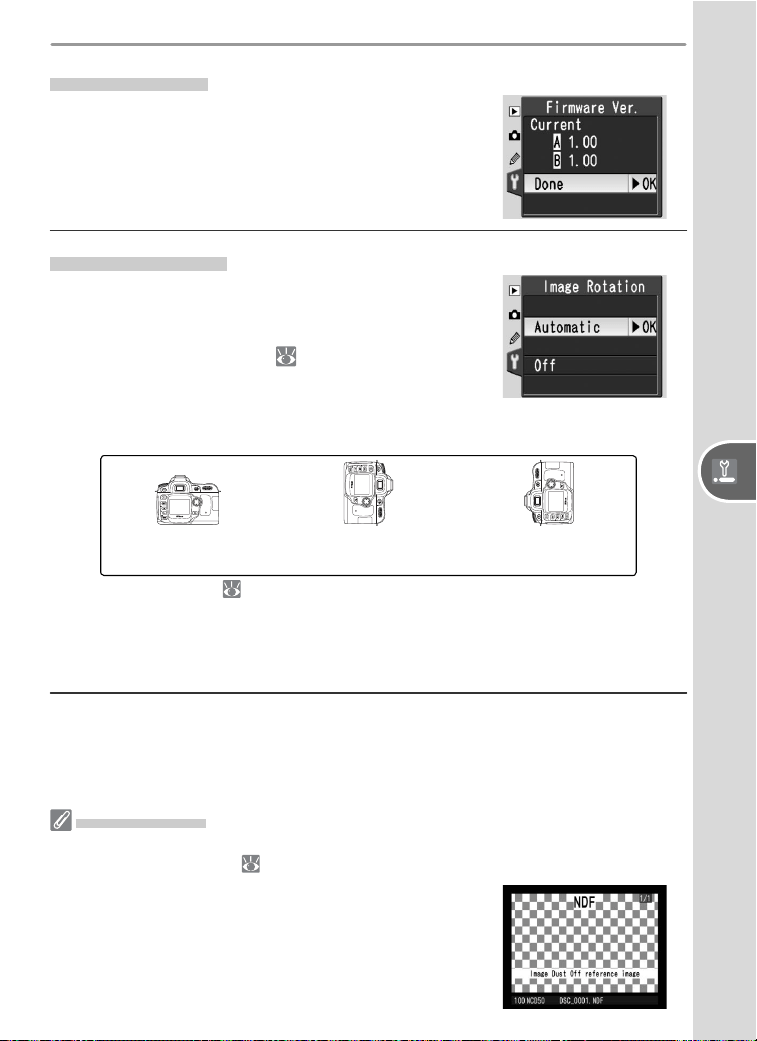
75
Basic Camera Settings: The Setup MenuSetup
Image Dust Off
Dust Ref Photo is only available with CPU lenses. A lens with a focal length of at least
50 mm is recommended ( 105). If using a zoom lens, zoom all the way in.
The same reference image can be used for other pho-
tographs taken with different lenses or at different
apertures. Reference images can not be viewed using
computer imaging software. A grid pattern is displayed
when reference images are viewed on the camera.
Firmware Ver.
View the current camera fi rmware version.
Image Rotation
Photographs taken while Automatic (the default
option) is selected contain information on camera
orientation, allowing them to be rotated auto-
matically during playback ( 84) or when viewed
in PictureProject or Nikon Capture 4 version 4.3
or later (available separately).
*
The following
orientations are recorded:
Landscape (wide)
orientation
Camera rotated 90 °
clockwise
Camera rotated 90 °
counter-clockwise
* In continuous mode ( 21), orientation recorded for fi rst shot applies to all images
in same burst, even if camera orientation is changed during shooting.
Camera orientation is not recorded when Off is selected. Choose this op-
tion when taking photographs with the lens pointing up or down.
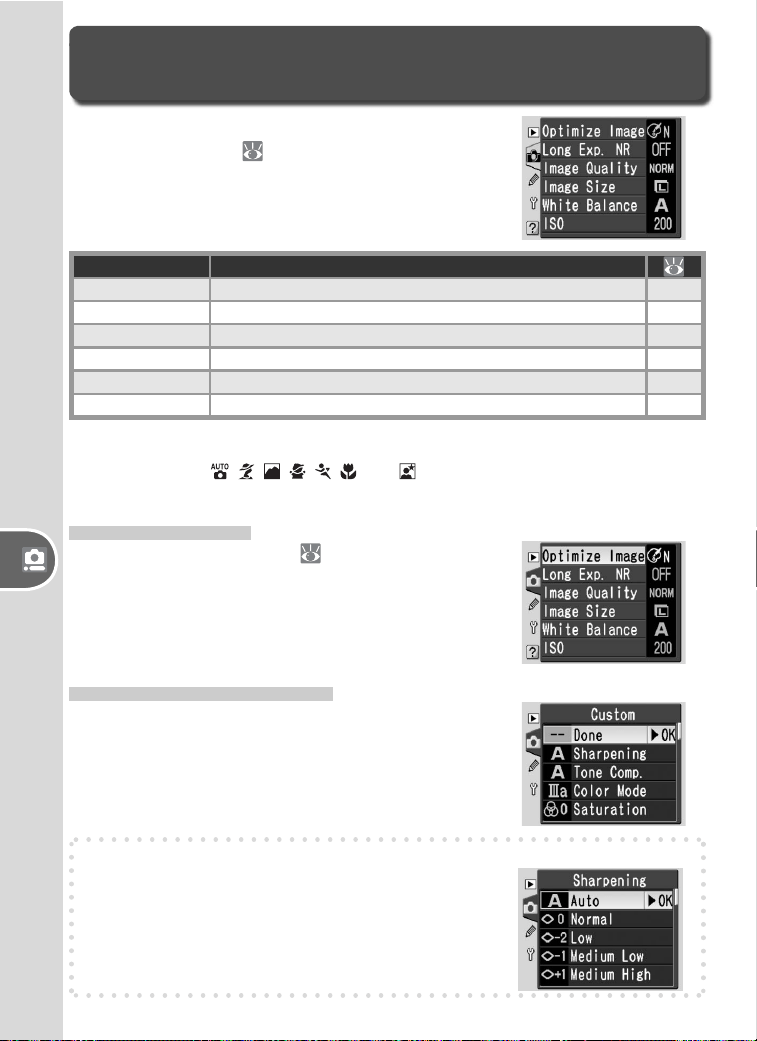
76
Setup Shooting Options: The Shooting Menu
Shooting Options
The Shooting Menu
Adjustments to shooting options are made from
the shooting menu (
26).
Option Description
Optimize Image Optimize images for type of scene.
48, 76
Long Exp. NR Reduce noise at slow shutter speeds. 78
Image Quality Choose fi le type and compression ratio. 31
Image Size Choose image size. 32
White Balance
1
Adjust colors according to color of light source.
49, 79
ISO
2
Raise sensitivity when lighting is poor. 39
1Available in P, S, A, and M modes only.
2Available in P, S, A, and M modes and when Off is selected for Custom Setting 9
(ISO Control) in , , , , , , and modes.
Optimize Image
See “Optimizing Images” ( 48) for more infor-
mation.
Optimize Image > Custom
To make separate adjustments to sharpening,
contrast, color reproduction, saturation, and hue,
select Custom for Optimize Image.
Sharpening
Choose the degree to which outlines are sharp-
ened. The default setting is Auto.
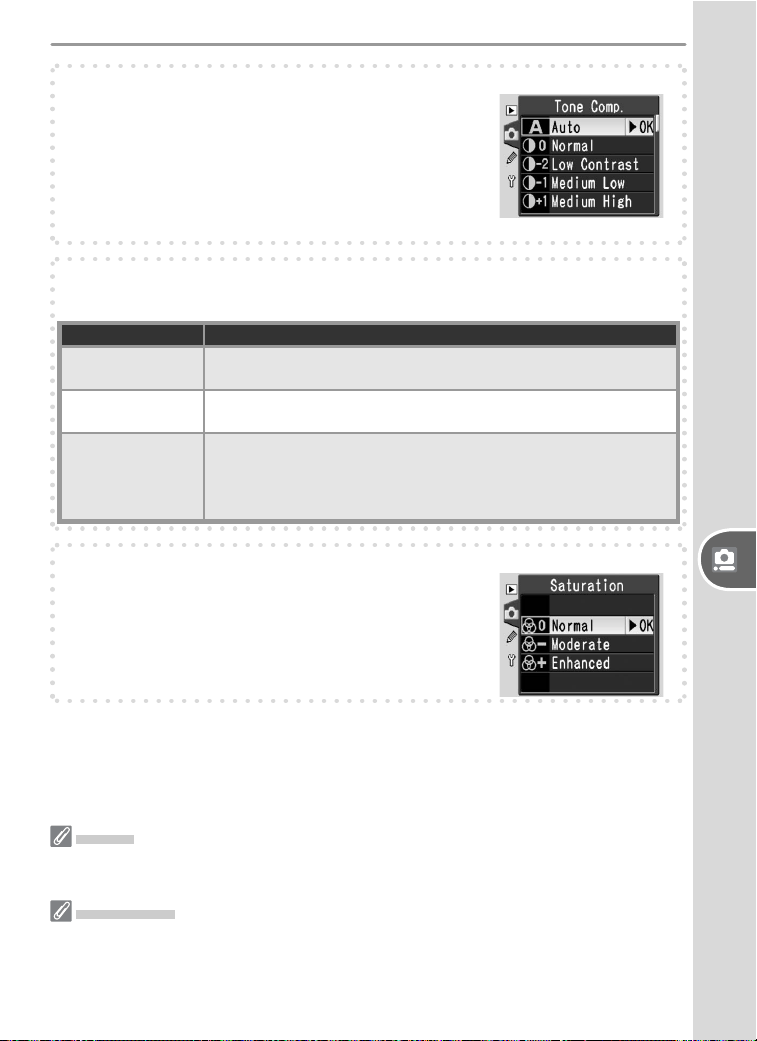
77
Setup Shooting Options: The Shooting Menu
Tone Comp.
Choose the amount of contrast. The default set-
ting is Auto; a setting of Custom is available to
select a user-defi ned tone curve downloaded to
the camera using Nikon Capture 4 version 4.3 or
later (available separately). See the Nikon Cap-
ture 4 manual for details.
“Auto”
If Auto is selected for Sharpening or Tone Comp, results will vary with exposure
and the position of the subject in the frame. A type G or D lens is recommended.
Color Mode
Choose the “Adobe RGB” color profi le when using imaging software to open pho-
tographs taken in Mode II. See the software documentation for details. Modes IIIa
and Ia are recommended for photographs that will be printed without modifi cation
or viewed in applications that do not support color management.
Color Mode
Choose from the following options for color reproduction:
Option Description
III a (sRGB)
(default)
Produces nature and landscape shots with vivid colors. Pho to -
graphs are adapt ed to sRGB col or space.
Ia (sRGB)
Produces portraits with soft, natural colors. Pho to graphs are
adapted to sRGB col or space.
II (Adobe RGB)
Photographs taken at this setting are adapted to Adobe RGB
color space. This color space is capable of expressing wider
gamut of colors than sRGB, making it preferred choice for im-
ages that will be extensively processed or retouched.
Saturation
Control the vividness of colors. The default set-
ting is Normal.
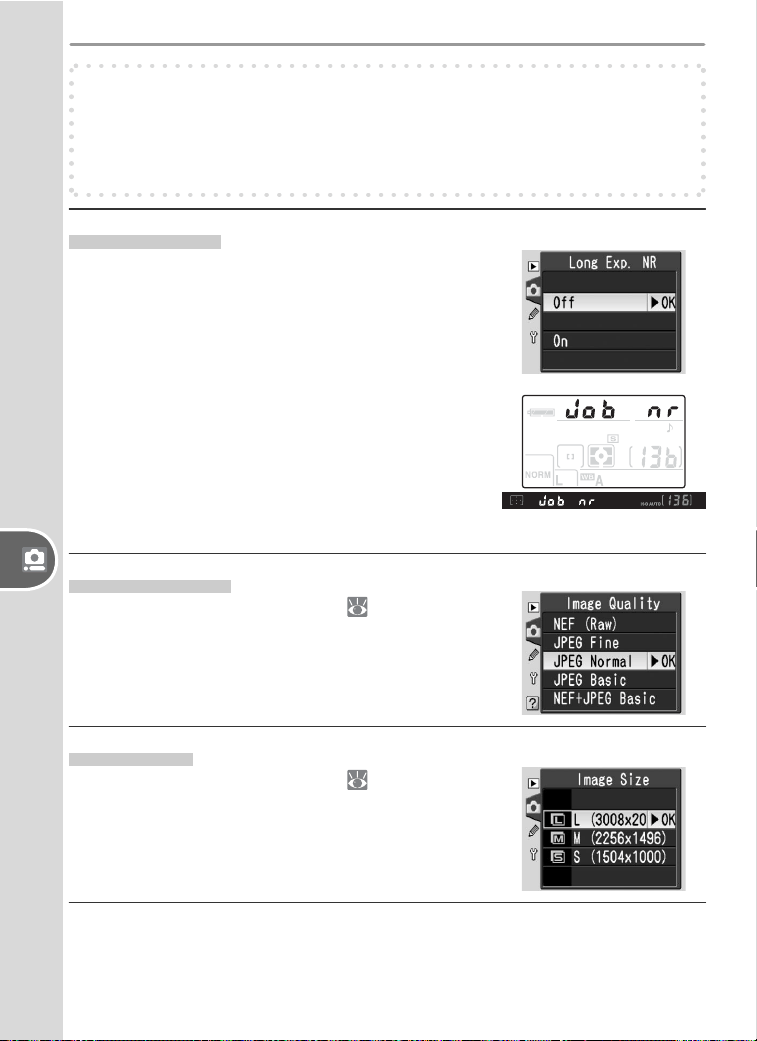
78
Setup Shooting Options: The Shooting Menu
Hue Adjustment
Hue can be adjusted from the default setting of 0 ° in in cre ments of 3 °.
Taking red as an example, raising hue introduces a yel low cast, mak ing
reds more orange. Low er ing hue in tro duces a blue cast, mak ing reds
more pur ple.
Long Exp. NR
Photographs taken at slow shutter speeds are
subject to “noise” (randomly-spaced, brightly-
col ored pix els that tend to appear predominantly
in shadows). If On is selected, photos taken at
shutter speeds slower than about 1 s will be pro-
cessed to reduce noise before being recorded to
the memory card (the default setting is Off). Note
that the time required to process images more
than doubles when noise reduction is on; during
processing, the display shown at right appears in
the control panel and viewfi nder. The next photo
can be taken when the display stops blinking.
Image Quality
See “Image Quality and Size” ( 31) for more
information.
Image Size
See “Image Quality and Size” ( 32) for more
information.
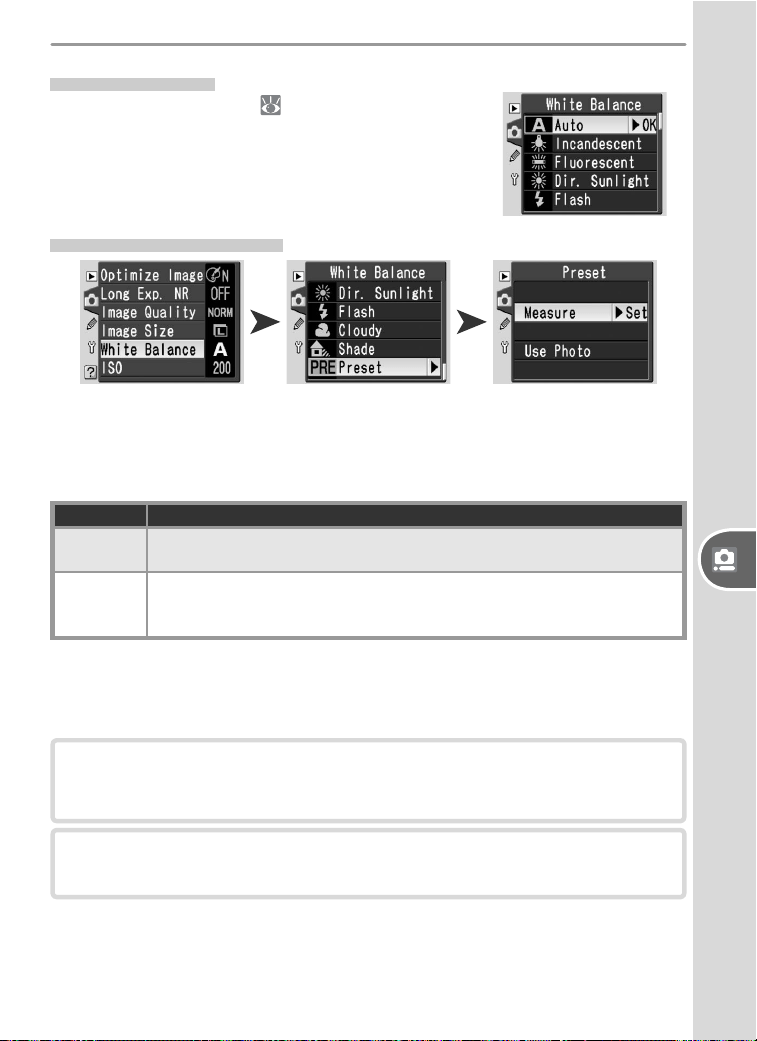
79
Setup Shooting Options: The Shooting Menu
White Balance
See “White Balance” ( 49) for more infor-
mation.
White Balance > Preset
Preset white balance is used to record and recall custom white balance set-
tings for shooting under mixed lighting, to compensate for light sources
with a strong color cast, or to replicate the white balance used in an existing
photo. Two methods are available for setting preset white balance:
Option Description
Measure
Neutral gray or white object is placed under lighting that will be used in
fi nal photograph and white balance is measured by camera.
Use Photo
White balance value is copied from photo on memory card (note that
Nikon Capture 4 version 4.3 or later can be used to adjust white bal-
ance of existing pictures if desired).
Measuring a Value for White Balance
The existing measured value is lost when a new value is measured. The
value for Use Photo is unaffected.
1
Place a neutral gray or white object under the lighting that will be
used in the fi nal photograph. For more accurate results, use an 18%
diffusion panel to make the reference object appear gray.
2
Select Measure.
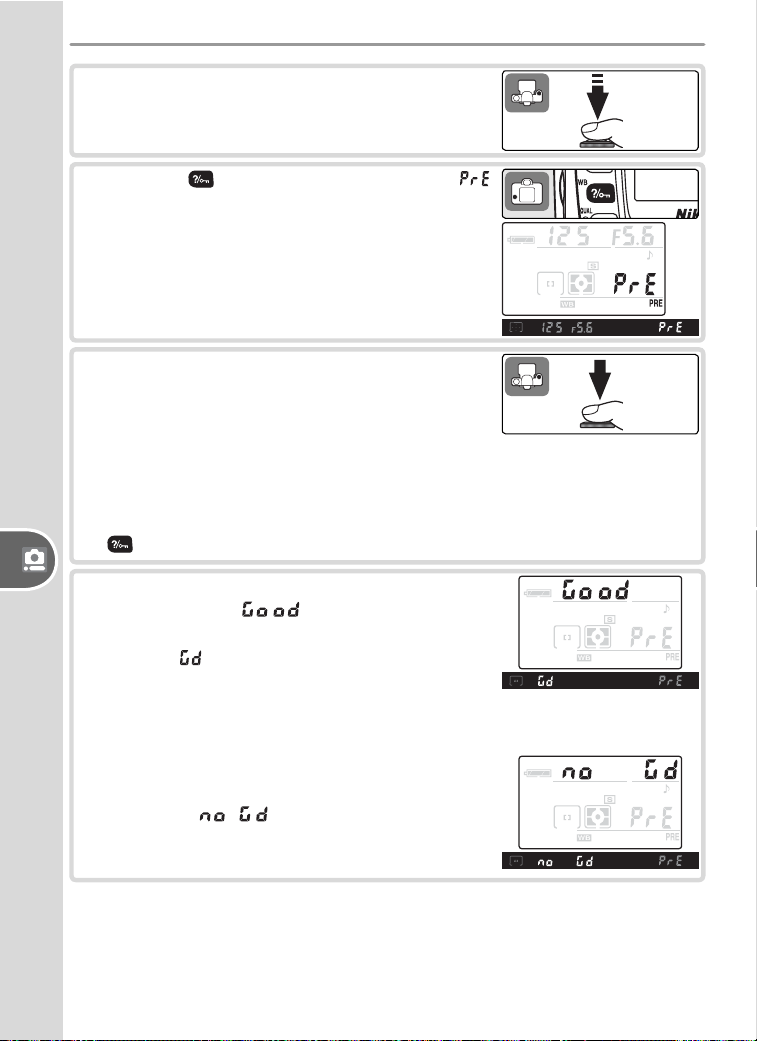
80
Setup Shooting Options: The Shooting Menu
3
Press the shutter-release button halfway to
return to shooting mode.
4
Press the (WB) button until a blinking
appears in the control panel and viewfi nder.
5
Frame the reference object so that it fi lls the
viewfi nder and press the shutter-release but-
ton all the way down. No photograph will
be recorded; white balance can be measured
accurately even when the camera is not in
focus.
To exit without measuring a new value for white balance, press the
(WB) button.
6
If the camera was able to measure a value for
white balance, will fl ash in the con-
trol panel, while the viewfi nder will show a
fl ashing . White balance is set to the new
value, and the new value will be used when-
ever Preset > Measure is selected for white
balance.
If lighting is too dark or too bright, the cam-
era may be unable to measure white balance.
A fl ashing will appear in the control
panel and viewfi nder. Return to Step 4 and
measure white balance again.
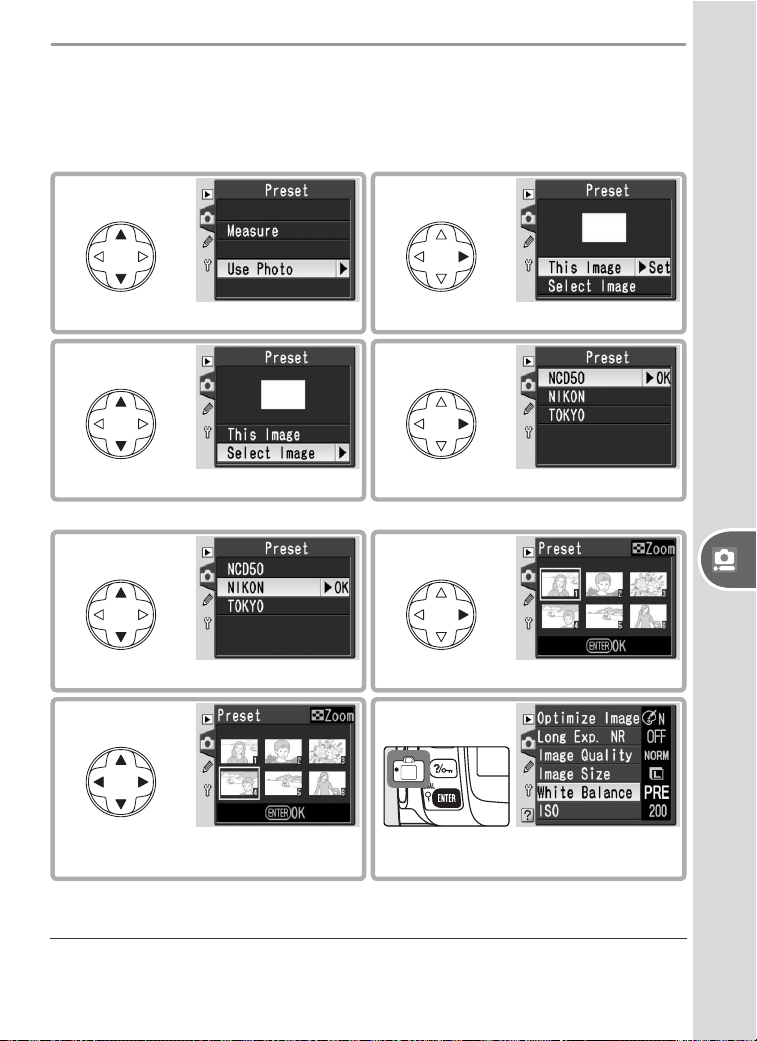
81
Setup Shooting Options: The Shooting Menu
Copying White Balance from a Photograph
Selecting a new source photograph overwrites any white balance values
previously selected with Use Photo. The value for Measure is unaf-
fected.
2
Display current source photo.
1
Highlight Use photo.
* Select This Image to use white balance value for current photo.
4
Display folder list.
3
Highlight Select Image.
*
6
Display images in selected folder.
5
Highlight folder.
† Images displayed may include those created by other cameras, but only photo-
graphs created with D50 can be used as source for preset white balance.
7
Highlight photograph.
†
8
Set preset white balance to value
for highlighted photograph.
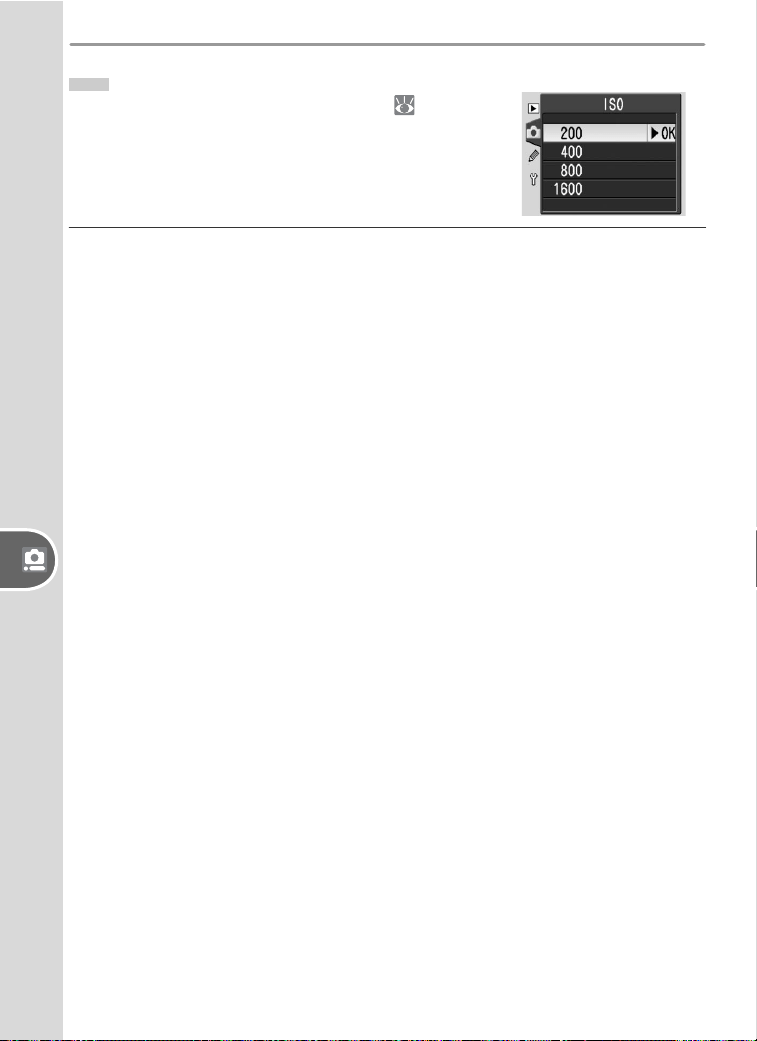
82
Setup Shooting Options: The Shooting Menu
ISO
See “Sensitivity (ISO Equivalency)” ( 39) for
more information.
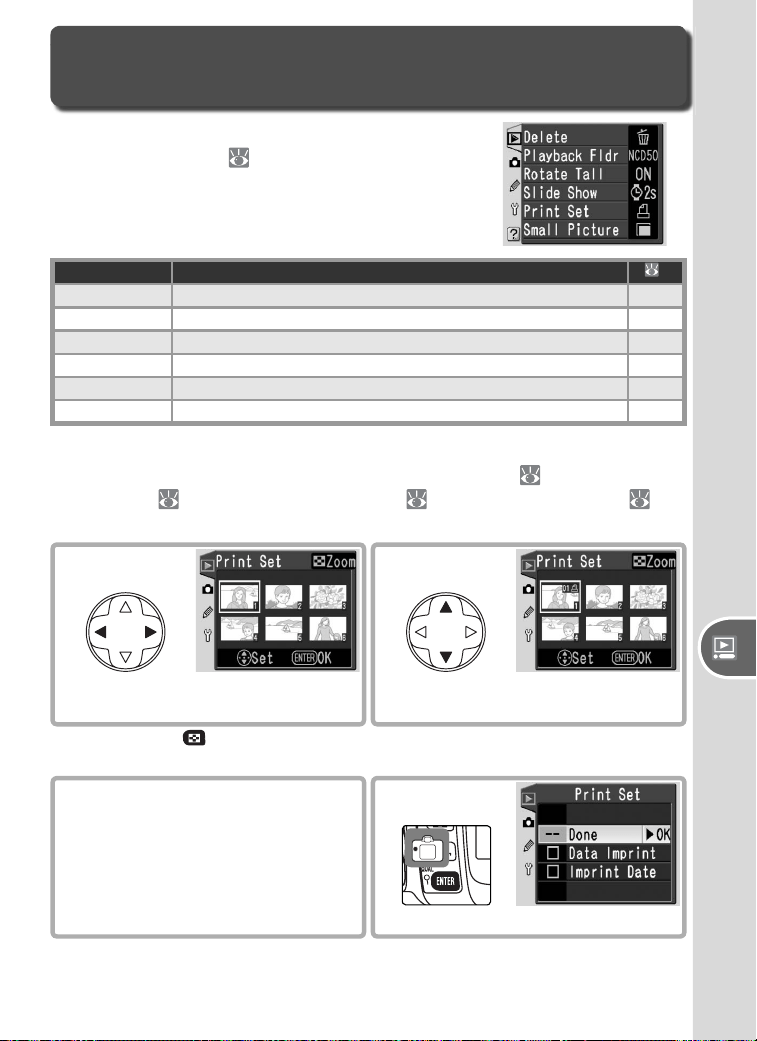
83
Setup Playback Options: The Playback Menu
Playback Options
The Playback Menu
Adjustments to playback options are made from
the playback menu (
26). Note that the play-
back menu is only displayed when a memory card
is inserted.
Option Description
Delete Delete all or selected photos. 84
Playback Fldr Choose folder for playback. 84
Rotate Tall Rotate portrait (“tall”) orientation photos for playback. 84
Slide Show Play photos back in automatic slide show. 85
Print Set Select photos for printing.
67, 86
Small Picture Create small copies of photos. 86
Selecting Multiple Pictures
To select multiple pictures in the Delete > Selected ( 84), Print Set >
Select/Set ( 67, 86), Small Picture ( 86), or Print Select ( 66)
menus:
2
Select photo. Selection
shown by icon.
1
Highlight photo.
*
3
Repeat steps 1–2 to select addi-
tional photos. To deselect, high-
light and press multi selector up
or down.
*Press and hold button to view selected photo full frame. Thumbnail display
restored when button is released.
4
Complete operation.
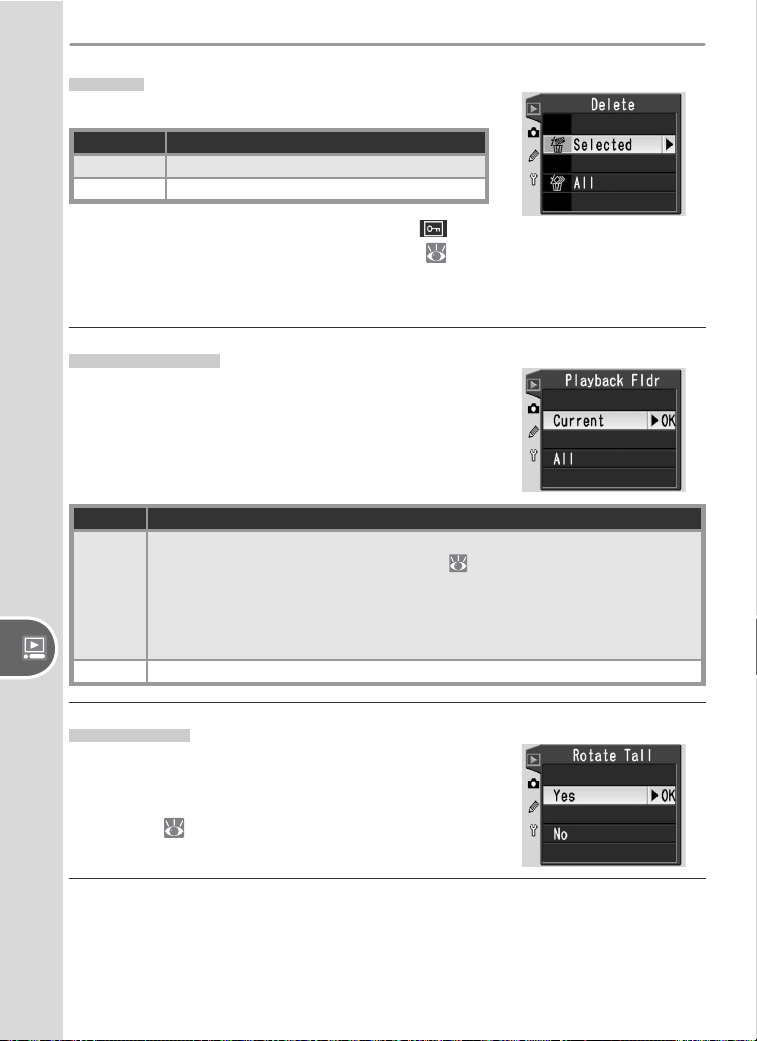
84
Setup Playback Options: The Playback Menu
Delete
Choose from:
Option Description
Selected Delete selected photos.
All Delete all photos.
Note that photographs marked with an icon
are protected and can not be deleted ( 56).
More time may be required if the number of pho-
tographs to be deleted is very large.
Playback Fldr
Choose the folder from which photographs will
be played back.
Option Description
Current
Only images in folder currently selected for storage in setup Folders
menu are displayed during playback (
51). This option is selected
automatically when photo is taken. If memory card is inserted and this
option selected before photos have been taken, message stating that
folder contains no images will be displayed during playback. Select All
to begin playback.
All View photos in all folders.
Rotate Tall
Select Yes to rotate portrait-orientation (“tall”)
photographs for display in the monitor. Pho-
tographs taken with Off selected for Image
Rotation ( 75) will be displayed in landscape
(“wide”) orientation.
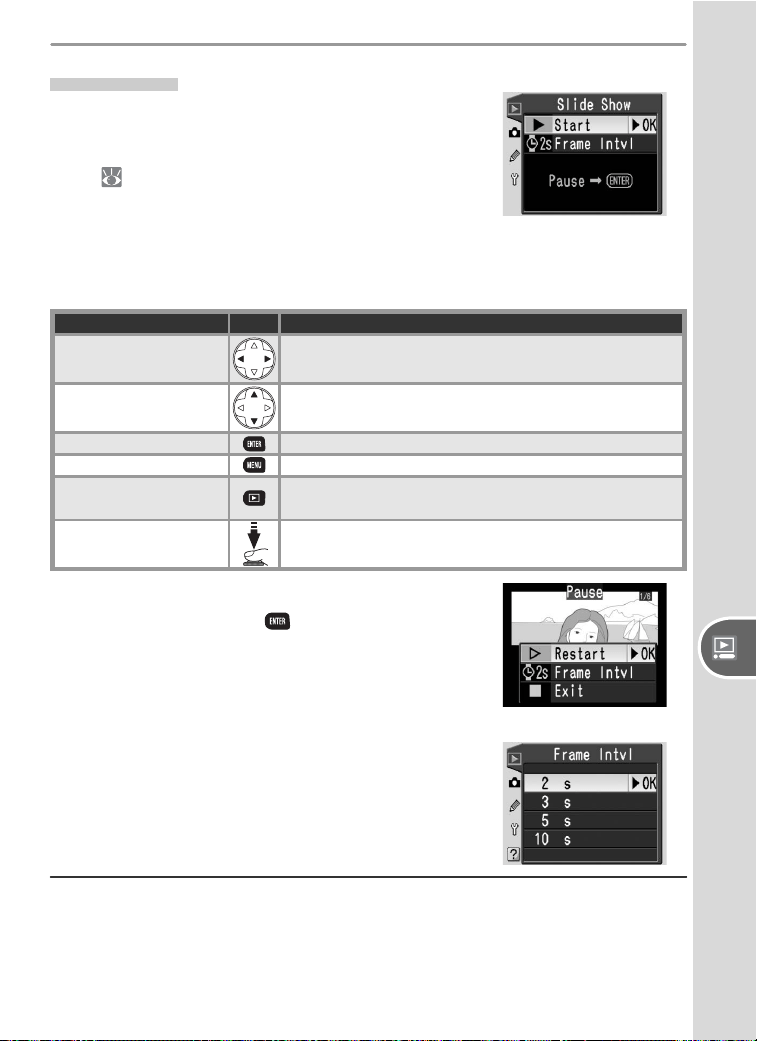
85
Setup Playback Options: The Playback Menu
Slide Show
View photographs in an automated slide show
(see “Playback Fldr” for information on choosing
the folder from which photographs will be played
back; 84).
Start
Start the slide show. The following operations can be performed during a
slide show:
To Use Description
Go forward or back
one frame
Press multi selector left to return to previous frame,
right to skip to next frame.
View photo info
Change photo info displayed during slide show.
Pause Pause slide show (see below).
Exit to playback menu
End slide show and display playback menu.
Exit to playback mode
End slide show and return to single-image or thumb-
nail playback.
Exit to shooting mode
Press shutter-release button halfway to turn monitor
off and return to shooting mode.
The dialog shown at right is displayed when the
show ends or when the button is pressed to
pause playback. Select Restart to restart the
show or Exit to return to the playback menu.
Frame Intvl
Choose how long each slide is displayed. The
default setting is 2 s.
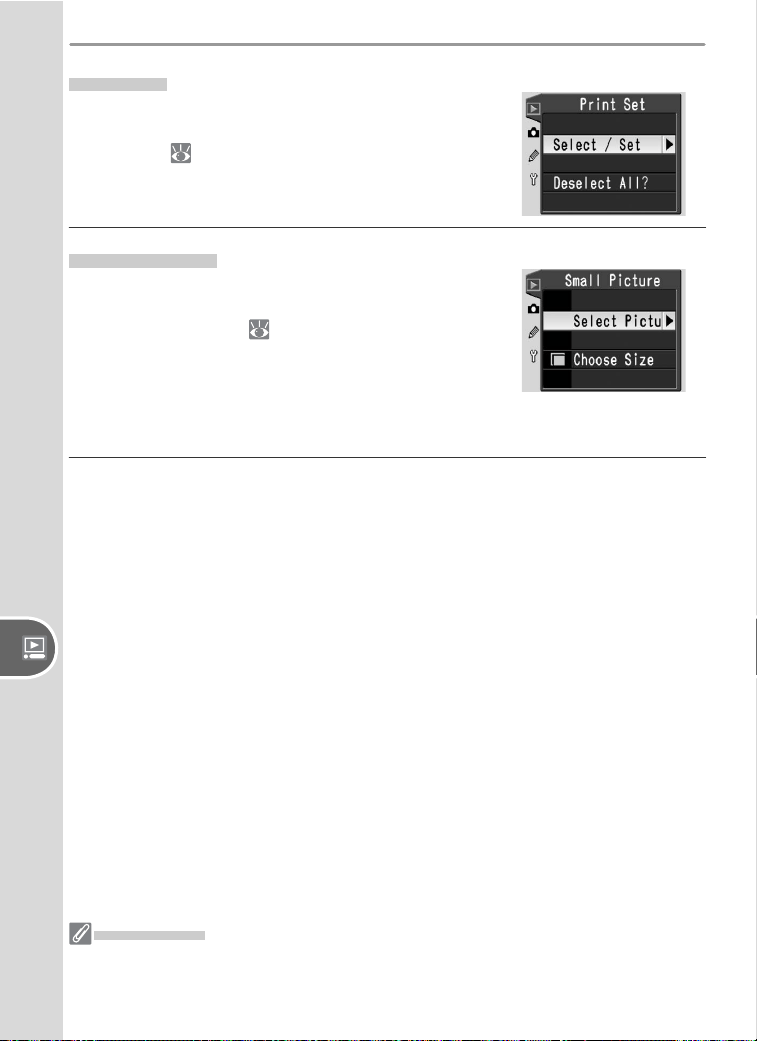
86
Setup Playback Options: The Playback Menu
Print Set
Choose Select/Set to select photographs for
printing on a PictBridge printer or DPOF-compat-
ible device ( 128). Choose Deselect All to re-
move all photos from the current print order.
Small Picture
Create small JPEG copies of selected pictures for
e-mail or the web. Choose Select Pictures to
select the pictures ( 83) and select Choose
Size to choose a size from 640 × 480, 320 × 240,
160 × 120. A 640 × 480 pixel copy is about one-
twentieth the size of a Large (3,008 × 2,000)
photo.
Small Picture
During playback, small copies are indicated by a gray border. Copies can only be
created if suffi cient memory is available. Small copies may not display or transfer
correctly when viewed on other models of Nikon camera.
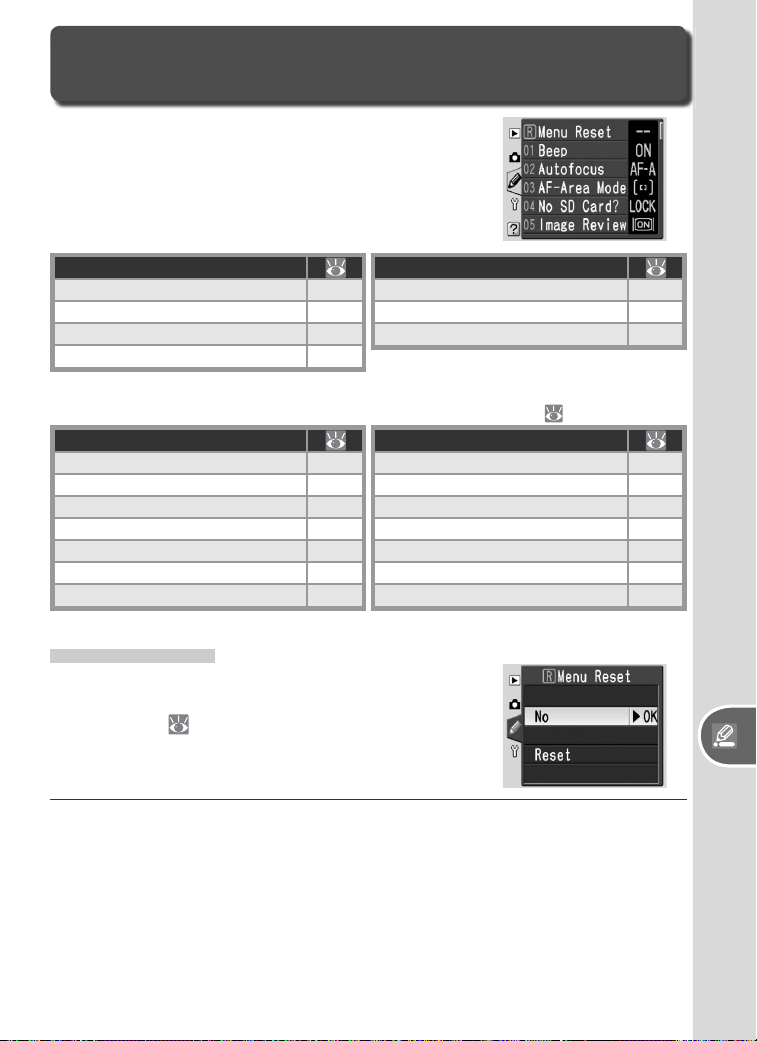
87
Setup Custom Settings
Custom Settings are used to customize camera
settings to suit individual preferences.
Custom Settings
The Custom Settings Menu
Option
R Menu Reset 87
1 Beep 88
2 Autofocus 88
3 AF-Area Mode 89
Option
4 No SD Card? 90
5 Image Review 90
6 Flash Level
38, 90
To display the following options, select Detailed for
the CSM/Setup Menu option in the setup menu ( 69):
Option
7 AF Assist 90
8 AF Area Illm 91
9 ISO Control 91
10 ISO Auto 92
11 EV Step 92
12 BKT Set 93
13 Metering 96
Option
14 AE-L/AF-L 98
15 AE Lock 99
16 Flash Mode 99
17 Monitor Off 100
18 Meter Off 100
19 Self-Timer 100
20 Remote 100
R: Menu Reset
Select Reset to restore all Custom Settings
(including those that are not affected by a two-
button reset; 50) to their default values. See
pages 101–103 for a complete list of default set-
tings.
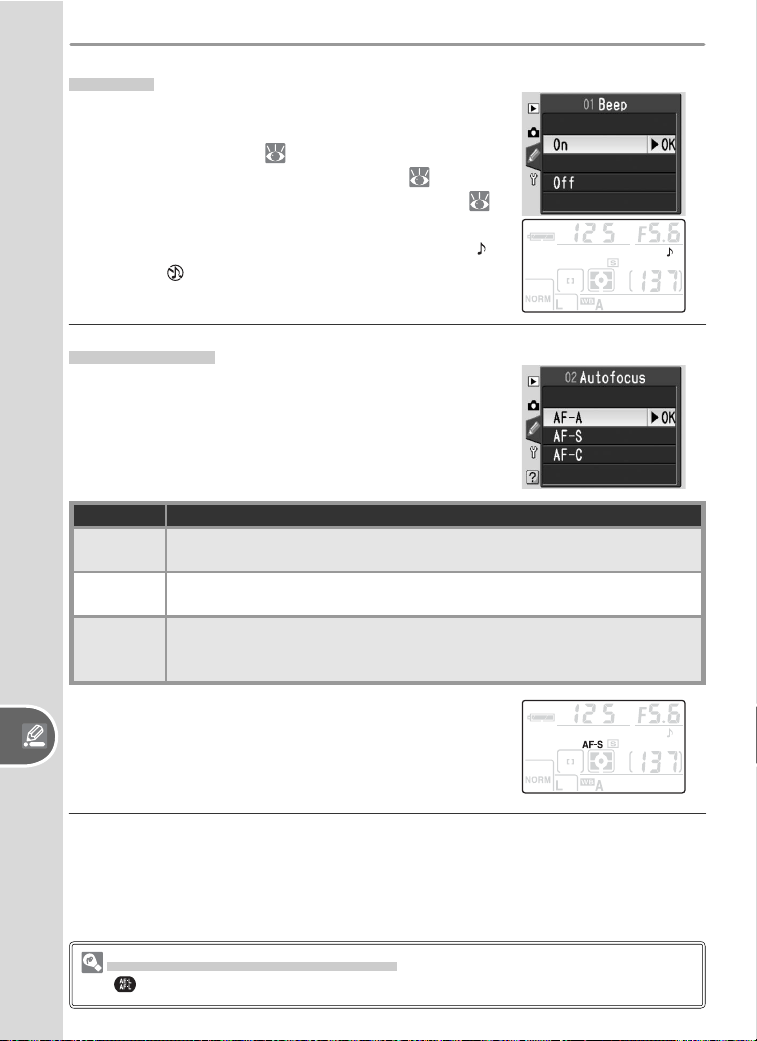
88
Custom SettingsSetup
2: Autofocus
Choose from:
1: Beep
At the default setting of On, a beep will sound
while the release timer is running in self-timer and
delayed remote modes ( 22), when a photograph
is taken in quick-response remote mode ( 22), or
when the camera has focused in single-servo AF (
88). The beep will not sound when Off is selected.
The current setting is shown in the control panel:
for On and for Off.
Option Description
AF-A
(default)
Camera selects AF-S or AF-C mode automatically according to shoot-
ing conditions and whether the subject is moving.
AF-S
Single-servo AF. Focus locks when shutter-release button is pressed
halfway. Use with stationary subjects.
AF-C
Continuous-servo AF. Camera focuses continuously while shutter-re-
lease button is pressed halfway; AF-assist illuminator turns off. Use
with moving subjects.
This option takes effect only in P, S, A, and M
modes. The current autofocus mode is shown in
the control panel when AF-S or AF-C is selected.
No icon is displayed in AF-A mode.
Focus Lock (Continuous-Servo AF)
The button can be used to lock focus when AF-C is selected.
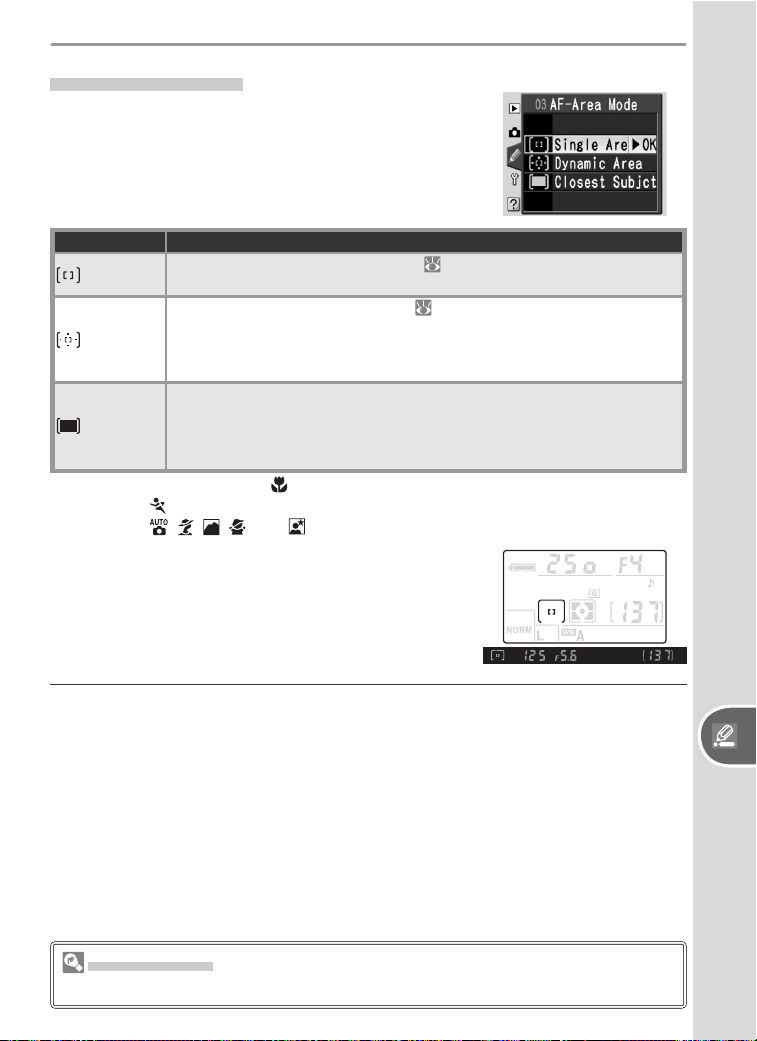
89
Setup Custom Settings
Option Description
Single
Area
1
User selects focus area manually ( 33); camera focuses on subject
in selected focus area only. Use for stationary subjects.
Dynamic
Area
2
User selects focus area manually ( 33), but camera uses information
from multiple focus areas to de ter mine focus. If sub ject leaves se-
lected focus area even briefl y, cam era will focus based on in for ma tion
from oth er focus areas. Use with erratically moving subjects.
Closest
Subjct
3
Camera automatically selects focus area containing subject closest
to camera. If sub ject leaves active focus area, cam era will focus
based on in for ma tion from oth er focus areas. Works best when
there is contrast between subject and background.
1 Default for P, S, A, M, and modes.
2 Default for mode.
3 Default for , , , , and modes.
The current AF-area mode is displayed in the
control panel and viewfi nder (icon shows active
focus area).
3: AF-Area Mode
Choose how the camera focuses in autofocus
mode.
AF-Area Mode
Choose Single Area or Dynamic Area when using focus lock.
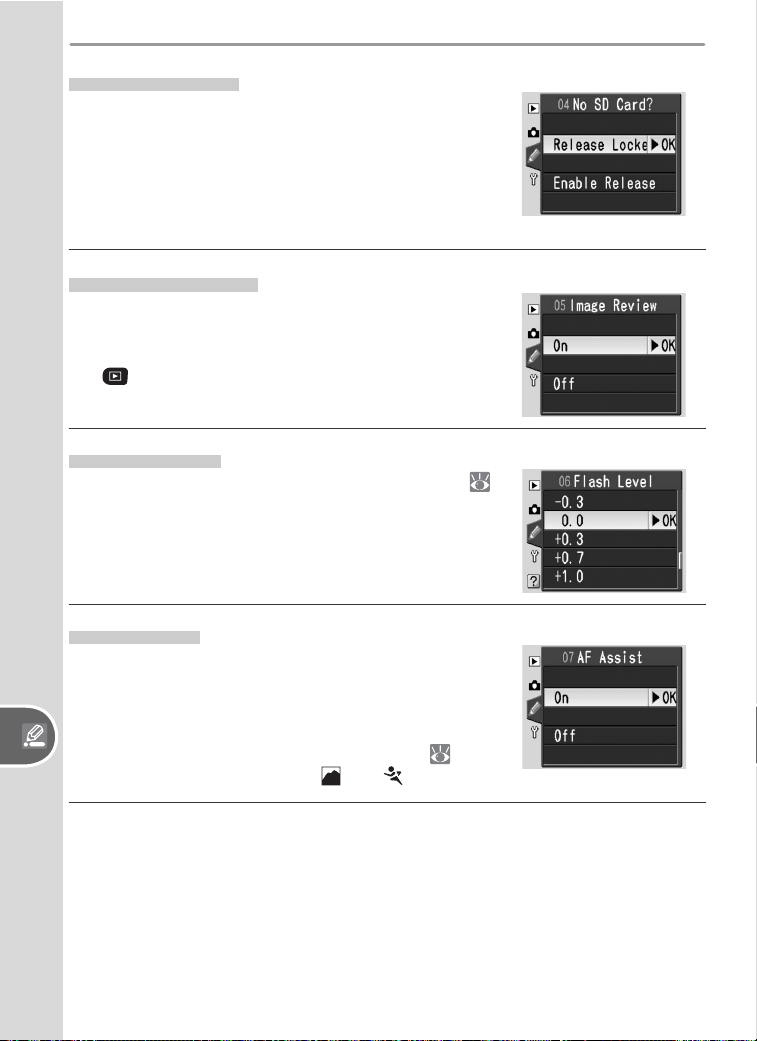
90
Custom SettingsSetup
4: No SD Card?
At the default setting of Release Locked, the
shutter-release button is only enabled when a
memory card is inserted. Choose Enable Re-
lease to enable the shutter-release button when
no memory card is inserted. Photographs will be
displayed in the monitor but will not saved.
5: Image Review
This option determines whether photographs
are automatically displayed in the monitor after
shooting (On, the default option) or only when
the button is pressed (Off).
6: Flash Level
Adjust fl ash level (P, S, A, and M modes only;
38). The default setting is 0.
7: AF Assist
At the default setting of On, the AF-assist lamp
lights automatically when required to assist the
focus operation. The AF-assist lamp will not light
when Off is selected or when the camera is fo-
cusing using continuous-servo autofocus ( 88).
This option is not available in and modes.
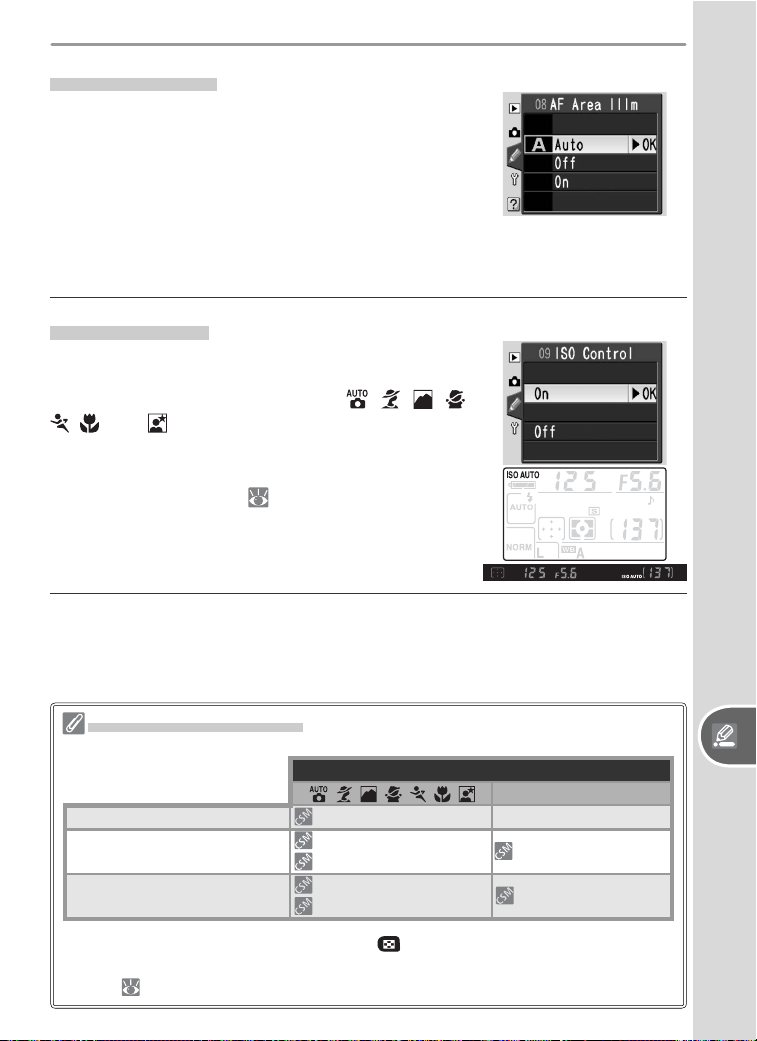
91
Setup Custom Settings
8: AF Area Illm
At the default setting of Auto, the active focus
area will be highlighted in red in the viewfi nder
as needed to establish contrast with the back-
ground. The active focus area will not light if
Off is selected; if On is selected, the focus area
will light regardless of the brightness of the back-
ground (this may make it diffi cult to see the focus
active focus area against a bright background).
9: ISO Control
At the default setting of On, the camera will au-
tomatically adjust sensitivity (ISO equivalency) to
help achieve optimal exposure in , , , ,
, , and modes. ISO AUTO will be displayed
in the control panel and viewfi nder. Select Off to
choose a value for sensitivity using the ISO option
in the shooting menu ( 39). This option is not
available in P, S, A, and M modes.
“ISO Control” “ISO Auto”
These settings determine how sensitivity is set:
Mode
, , , , , , P, S, A, M
Camera sets sensitivity
9: ISO Control > On —
User sets sensitivity
9: ISO Control > Off
10: ISO Auto > Off
10: ISO Auto > Off
User sets sensitivity; camera
adjusts for optimal exposure
9: ISO Control > Off
10: ISO Auto > On
10: ISO Auto > On
The sensitivity value displayed when the (ISO) button is pressed is the value
selected by the user. Values selected automatically by the camera are not dis-
played ( 39).
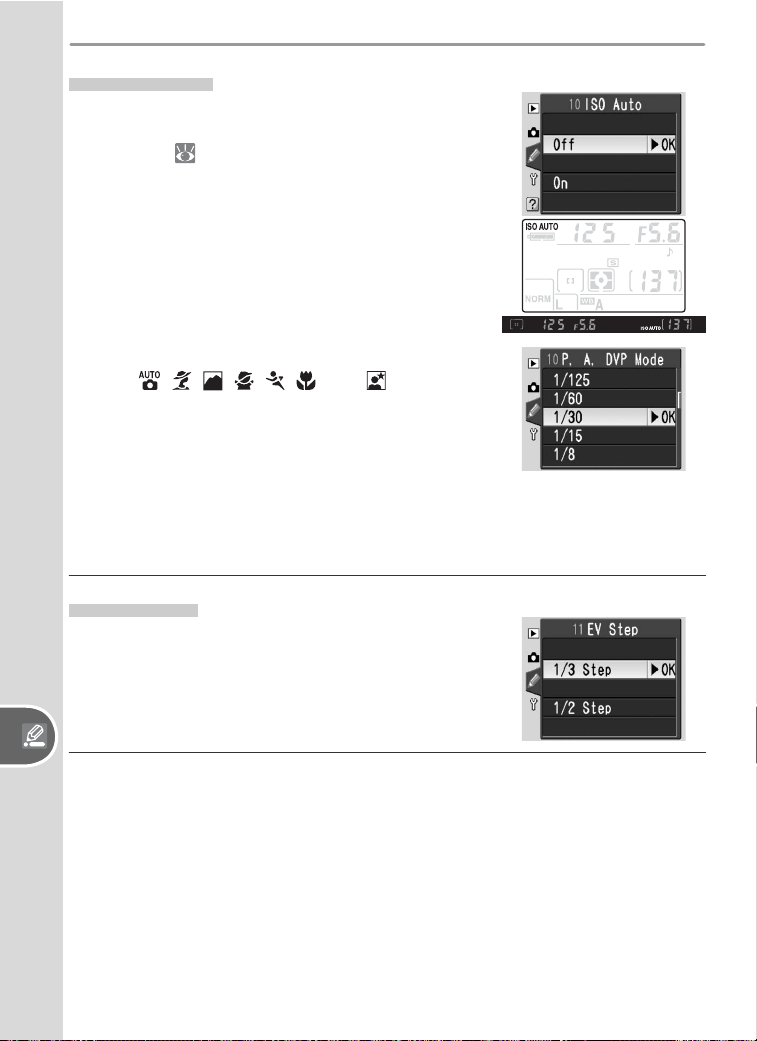
92
Custom SettingsSetup
Selecting On displays the menu shown at right.
In P, A, , , , , , , and modes, the
user can choose a maximum shutter speed. If
the shutter speed would exceed this value at the
sensitivity selected by the user, the camera will au-
tomatically raise sensitivity to compensate. Select
P, A, DVP mode to choose a maximum shutter
speed (the default is
1
/
30 s). Select Done to exit to
the CSM menu.
11: EV Step
Choose whether the camera makes adjustments
to shutter speed, aperture, exposure compensa-
tion, bracketing, and fl ash compensation in incre-
ments equivalent to
1
/
3 EV (1/3 Step, the default
option) or ½ EV.
10: ISO Auto
At the default setting of Off, sensitivity (ISO
equivalency) will remain fi xed at the value selected
by the user ( 39). If On is selected, the camera
will automatically choose a sensitivity between
ISO 200 and 1600 if optimal exposure can not be
achieved at current settings. An ISO AUTO icon is
displayed in the control panel and viewfi nder; this
icon will blink when sensitivity is altered from the
value selected by the user.
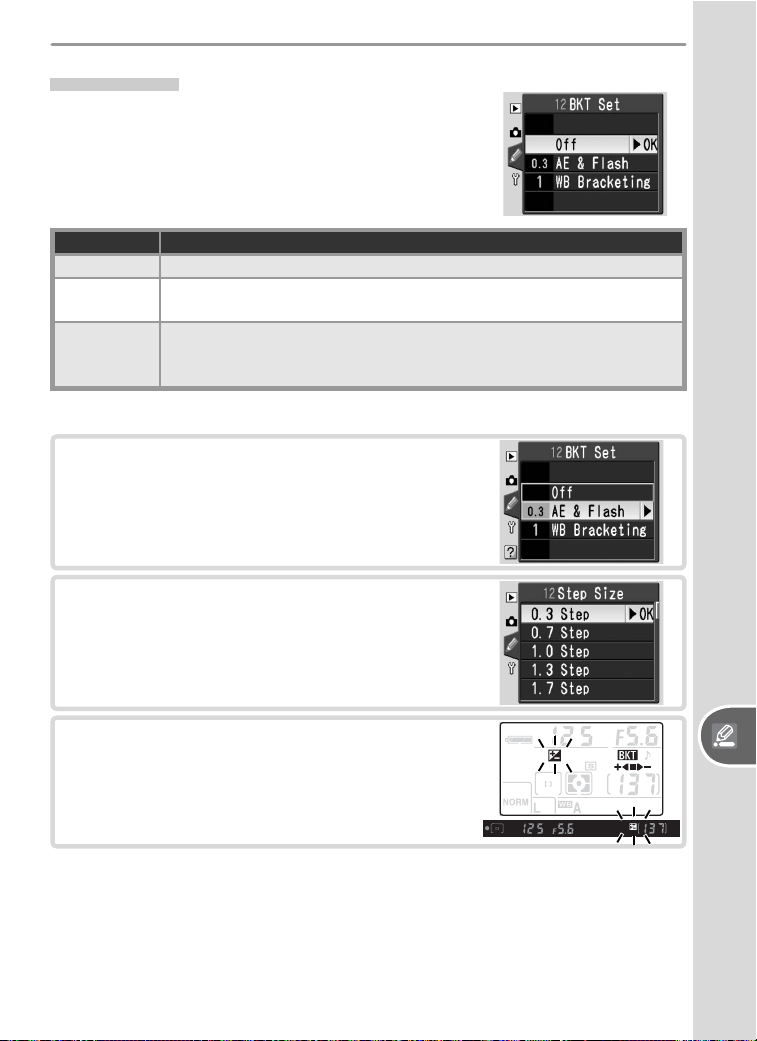
93
Setup Custom Settings
12: BKT Set
In P, S, A, and M modes, the camera offers the
following bracketing options:
Option Description
Off (default) No bracketing performed.
AE & Flash
Camera varies exposure and fl ash level over three shots, “bracket-
ing” optimal exposure value.
WB
Bracketing
Camera creates three images each time shutter is released, “bracket-
ing” current white balance setting. Not available at image qualities
of NEF (Raw) or NEF+JPEG Basic.
Exposure and Flash Bracketing
1
Highlight AE & Flash and press the multi
selector to the right.
2
Highlight a bracketing increment and press
the multi selector to the right. The settings
available depend on the option selected for
Custom Setting 11 (EV Step).
3
Press the shutter-release button halfway to
exit to shooting mode. The display shown
at right will appear in the control panel and
viewfi nder.
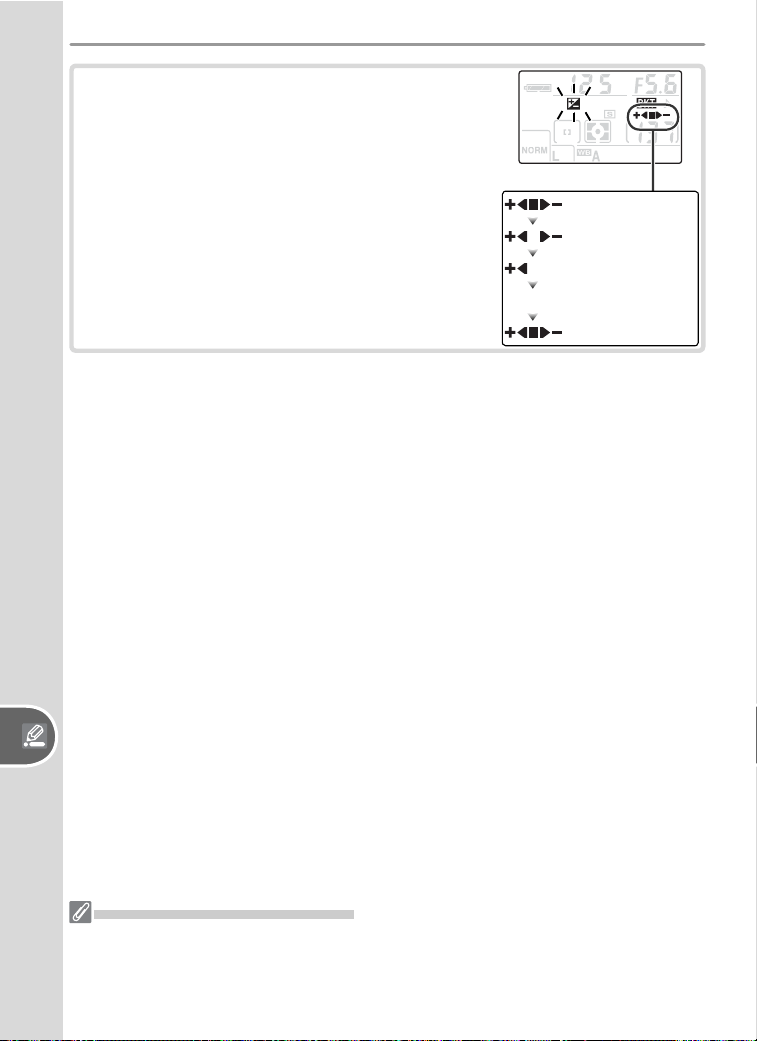
94
Custom SettingsSetup
4
Take a series of three photographs. The
fi rst photograph will be taken at optimal
exposure, the second will be underexposed
by the selected exposure increment, and the
third overexposed by the same amount. A
segment will disappear from the bracketing
progress indicator after each shot. Repeat
Steps 3–4 to record additional bracketing
sequences.
To end bracketing when shooting is com-
plete, select Off for Custom Setting 12.
Start
After 2nd shot
Series complete
After 3rd shot
After 1st shot
Exposure and Flash Bracketing
In continuous mode, shooting will stop after each series of three photographs.
Bracketing is not cancelled when the camera is turned off or the memory card is
exchanged. Bracketing will however be cancelled if the user selects a mode other
than P, S, A, or M.
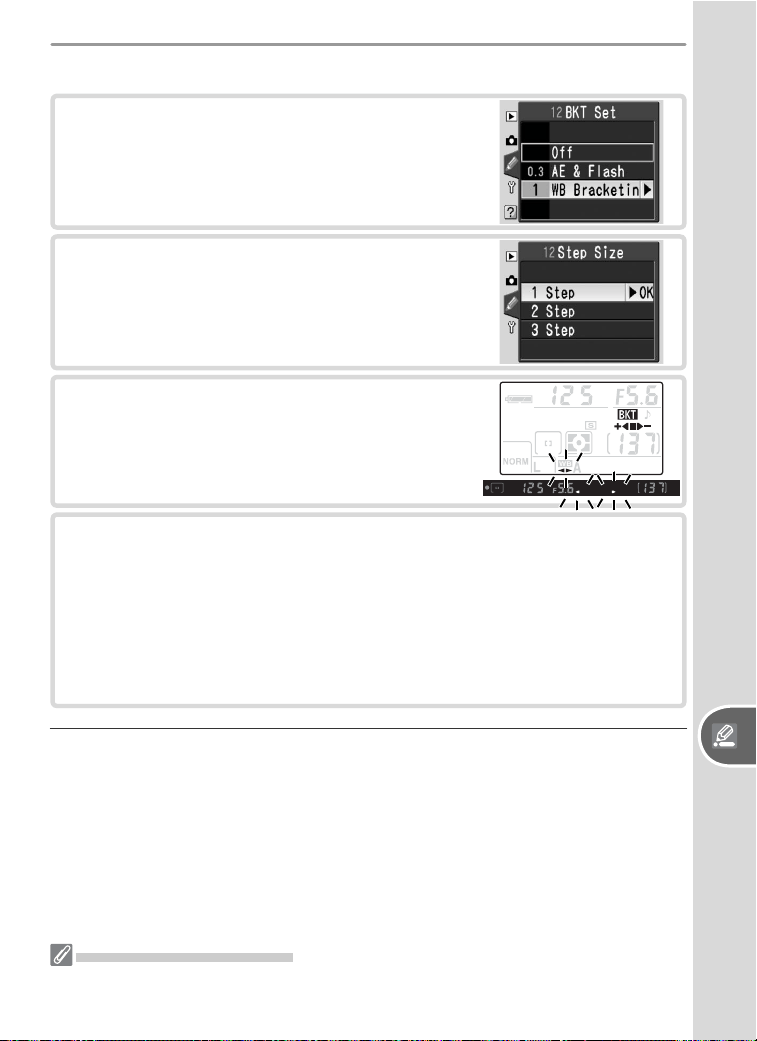
95
Setup Custom Settings
1
Highlight WB Bracketing and press the
multi selector to the right.
2
Highlight a bracketing increment and press
the multi selector to the right.
3
Press the shutter-release button halfway to
exit to shooting mode. The display shown
at right will appear in the control panel and
viewfi nder.
White Balance Bracketing
4
Compose a photograph, focus, and shoot. Each photograph will be
processed to create three images, the fi rst with unmodifi ed white
balance, the second with slightly warmer colors, and the third with
slightly colder colors. Repeat Steps 3–4 to record additional bracket-
ing sequences.
To end bracketing when shooting is complete, select Off for Custom
Setting 12.
White Balance Bracketing
The shutter is released only once each time the shutter-release button is pressed,
even in continuous mode. Each shot is processed to create three separate images.
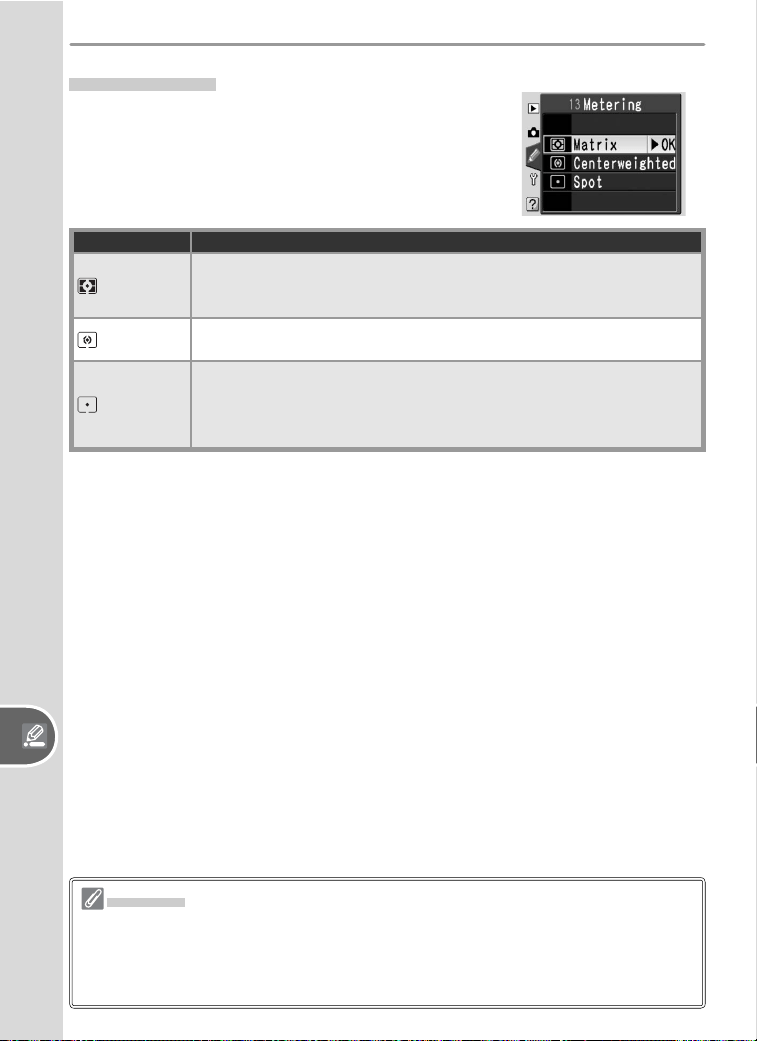
96
Custom SettingsSetup
Option Description
Matrix
(default)
Camera meters wide area of frame and instantly sets exposure
based on composition, distance, shading, and color. Produces
natural-looking results in almost any situation.
Center-
weighted
Camera meters entire frame but assigns greatest weight to center.
Classic meter for portraits.
Spot
Camera meters active focus area only (if Closest Subjct is selected
for AF-Area Mode, camera meters center focus area). Ensures that
main subject will be correctly exposed, even when background is
much brighter or darker.
13: Metering
In P, S, A, and M modes, metering determines
how the camera sets exposure.
Metering
Metering is available with CPU lenses only. If a type G and D lens is used when
matrix metering is selected, the camera will set exposure using the full range of
information available from its 420-segment RGB sensor (3D color matrix metering
II). Color matrix metering II is used with other CPU lenses.
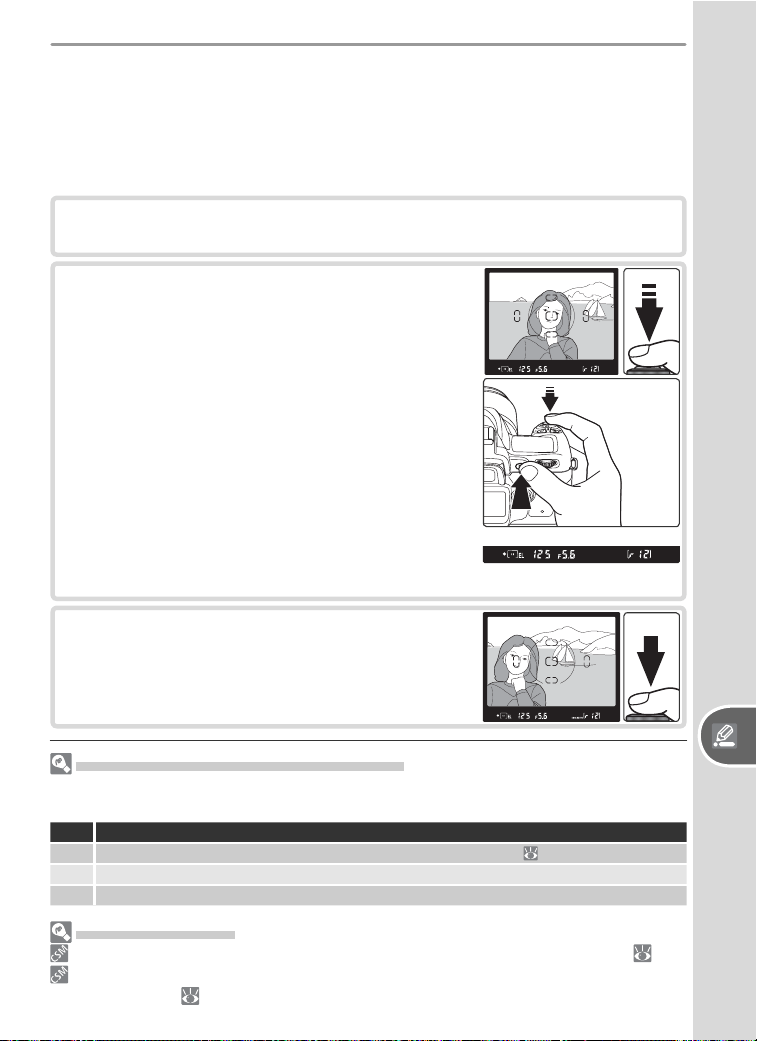
97
Setup Custom Settings
1
Rotate the mode dial to P, S, or A and select center-weight ed or spot
metering (exposure lock has no effect in mode M).
2
Position the sub ject in the selected focus area
and press the shutter-release button halfway
(when using center-weighted metering, po-
sition the subject in the center focus area).
With the shut ter-release button pressed
halfway and the subject still po si tioned in
the fo cus area, press the AE-L/AF-L button
to lock exposure. Confi rm that the in-focus
in di ca tor (●) appears in the viewfi nder.
While ex po sure lock is in effect, an EL in di -
ca tor will ap pear in the viewfi nder.
3
Without releasing the AE-L/AF-L but ton, re-
com pose the pho to graph and shoot.
Adjusting Shutter Speed and Aperture
While exposure lock is in effect, the following settings can be changed without alter-
ing the metered value for exposure:
Mode Description
P Shutter speed and aperture (fl exible program;
42)
S Shutter speed
A Aperture
Advanced Settings
14: AE-L/AF-L controls the function performed by the AE-L/AF-L button ( 98).
15: AE Lock controls whether exposure locks when the shutter-release button is
pressed halfway ( 99).
Autoexposure Lock
If the subject is not in the metered area when center-weighted or spot
metering is used, exposure will be based on lighting conditions in the back-
ground, and the main subject may not be correctly exposed. This can be
prevented using autoexposure lock:
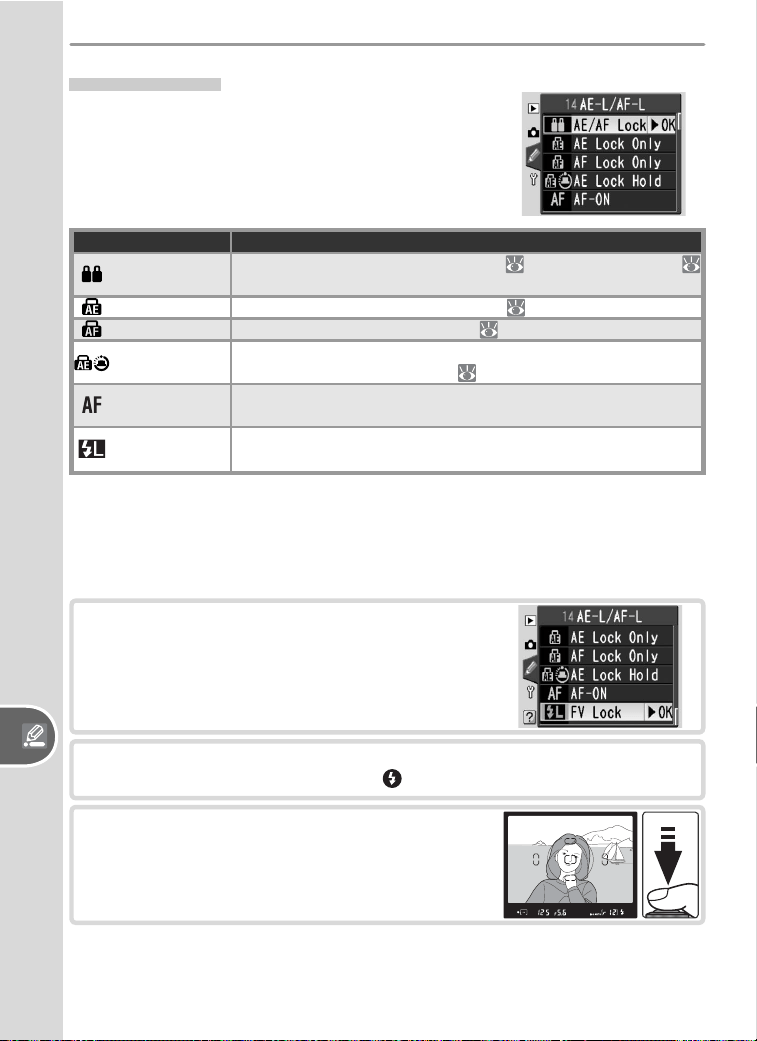
98
Custom SettingsSetup
Option Description
AE/AF Lock
(default)
Pressing button locks both focus ( 34) and exposure (
97).
AE Lock Only Pressing button locks exposure only ( 97).
AF Lock Only Pressing button locks focus only ( 34).
AE Lock Hold
Exposure locks when button is pressed and remains locked
until button is pressed again ( 97).
AF-ON
Camera focuses when button is pressed. Camera does not
focus when shutter-release button is pressed halfway.
FV Lock
Flash level locks when button is pressed and remains locked
until button is pressed again (see below).
FV Lock
This feature is used to recompose photographs without changing the me-
tered fl ash value, ensuring that fl ash level is appropriate to the subject even
when the subject is not in the center of the frame.
14: AE-L/AF-L
Choose the function performed by the AE-L/AF-L
button.
1
Highlight FV Lock and press the multi se-
lector to the right.
2
Press the shutter-release button halfway to exit to shooting mode. In
P, S, A, and M modes, press the button to raise the fl ash.
3
Position the subject in the center of the
frame and press the shutter-release button
halfway.
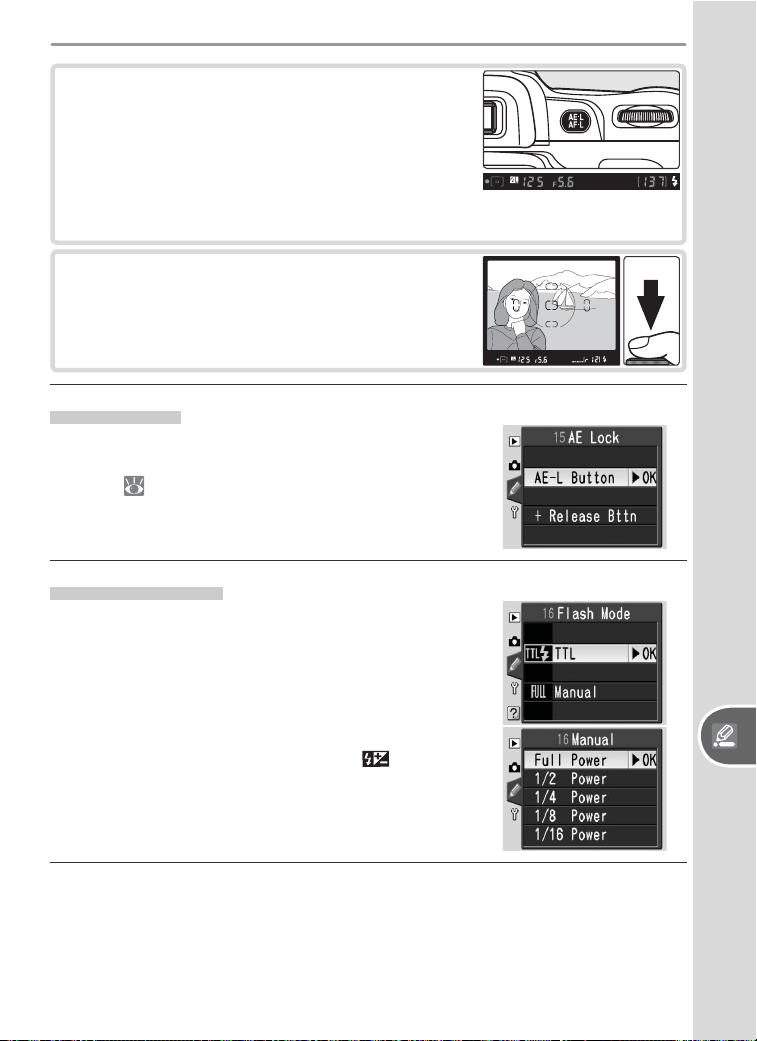
99
Setup Custom Settings
4
Confi rm that the fl ash-ready indicator is
displayed in the viewfi nder and press the
AE-L/AF-L button. The built-in fl ash will emit
a low-intensity pulse to determine the appro-
priate fl ash level. Flash output will be locked
at this level and an EL icon will be displayed
in the viewfi nder.
5
Recompose the photograph and shoot. If de-
sired, additional pictures can be taken without
releasing FV lock. When shooting is complete,
press the AE-L/AF-L button to release FV lock.
15: AE Lock
At the default setting of AE-L Button, exposure
can only be locked by pressing the AE-L/AF-L
button ( 97). If +Release Bttn is selected,
exposure will also lock when the shutter-release
button is pressed halfway.
16: Flash Mode
At the default setting of TLL, the camera adjusts
fl ash level automatically in response to shooting
conditions. Selecting Manual allows the user to
select the fl ash level for P, S, A, and M modes
from the menu shown below at right (at full
power, built-in fl ash has a Guide Number [m / ft] of
17/56 [ISO 200] or 12/39 [ISO 100]). icons will
blink in the control panel and viewfi nder when
Manual is selected.
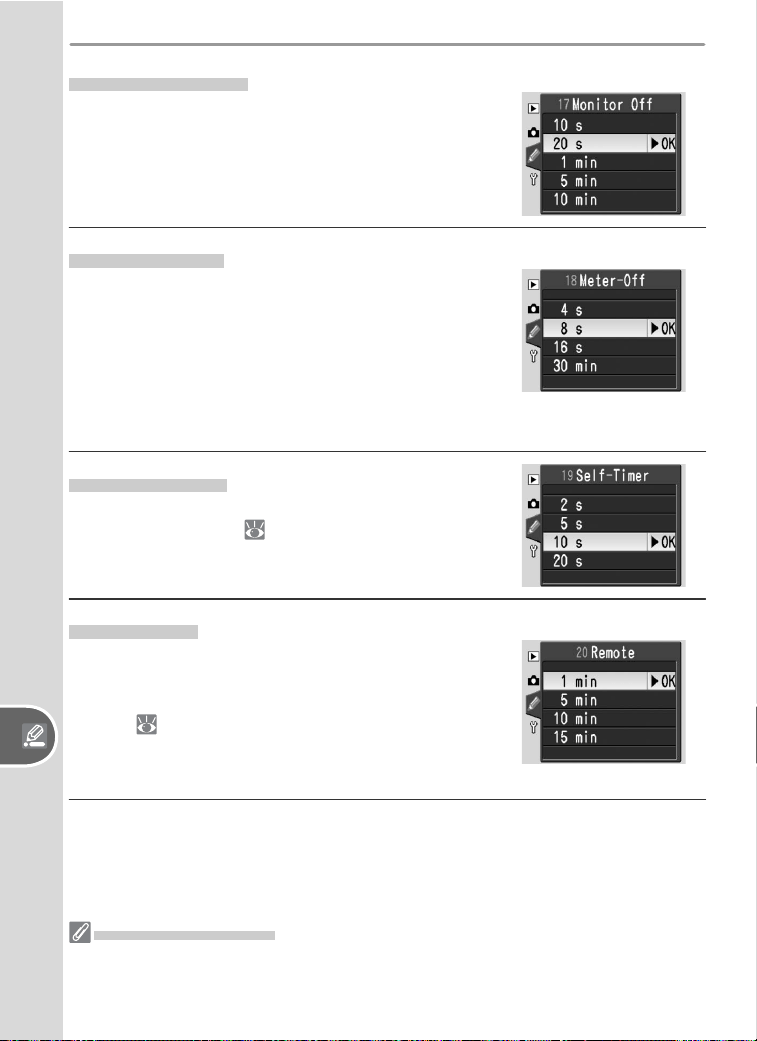
100
Custom SettingsSetup
17: Monitor Off
Choose how long the monitor will remain on
when no operations are performed. The default
setting is 20 s.
18: Meter Off
Choose how long the camera continues to meter
exposure when no operations are performed.
The default setting is 8 s. When the exposure me-
ter turns off, the viewfi nder and the shutter speed
and aperture displays in the control panel will also
turn off to save power. Press the shutter-release
button halfway to reactivate the display.
19: Self-Timer
Choose the length of the shutter-release delay
in self-timer mode ( 22). The default setting
is 10 s.
20: Remote
Choose how long the camera will wait for a signal
from the remote control when no operations are
performed in delayed or quick-response remote
modes ( 22). The default setting is one minute.
Remote mode will end if no signal is received in
the specifi ed period.
The EH-5 AC Adapter
When the camera is powered by an optional EH-5 AC adapter, exposure meters will
not turn off and the monitor will only power off after ten minutes, regardless of the
options chosen for Custom Settings 17 (Monitor Off) and 18 (Meter Off).
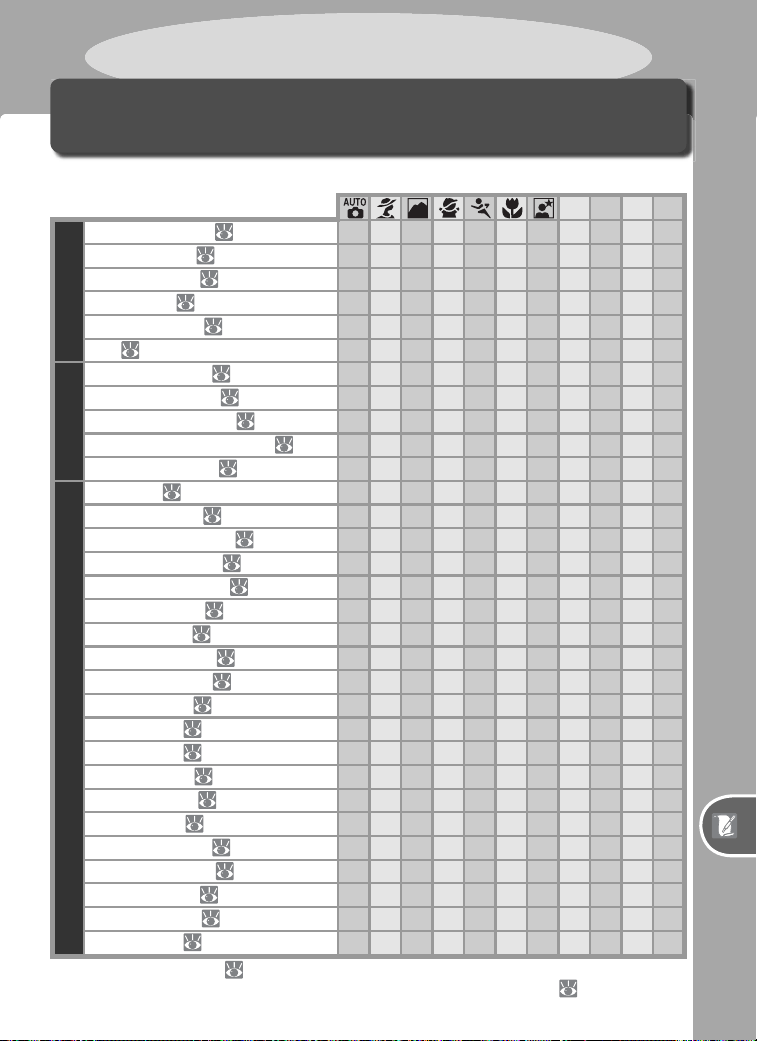
101
Technical Notes—Camera Settings
Camera Settings
Available Settings and Defaults
The following table lists the settings that can be adjusted in each mode.
PSAM
Shooting menu
Optimize Image ( 48)
1
✔✔✔✔
Long Exp. NR (
78)
✔✔✔✔✔✔✔✔✔✔✔
Image Quality (
31)
1
✔✔✔✔✔✔✔✔✔✔✔
Image Size (
32)
1
✔✔✔✔✔✔✔✔✔✔✔
White Balance (
49)
1
✔✔✔✔
ISO (
39)
1
✔
2
✔
2
✔
2
✔
2
✔
2
✔
2
✔
2
✔✔✔✔
Other settings
Shooting mode ( 21)
1
✔✔✔✔✔✔✔✔✔✔✔
Flexible program (
42)
1
✔
Autoexposure lock (
97)
1
✔✔✔✔✔✔✔✔✔✔✔
Exposure compensation (
47)
1
✔✔✔
Flash sync mode (
36)
1
✔
3
✔
3
✔
3
✔
3
✔
3
✔✔✔✔
Custom Settings
1: Beep ( 88)
4
✔✔✔✔✔✔✔✔✔✔✔
2: Autofocus (
88)
4
✔✔✔✔
3: AF-Area Mode (
89)
4
✔
3
✔
3
✔
3
✔
3
✔
3
✔
3
✔
3
✔✔✔✔
4: No SD Card? (
90)
4
✔✔✔✔✔✔✔✔✔✔✔
5: Image Review (
90)
4
✔✔✔✔✔✔✔✔✔✔✔
6: Flash Level (
38, 90)
1, 4
✔✔✔✔
7: AF Assist (
90)
4
✔✔ ✔ ✔✔✔✔✔✔
8: AF Area Illm (
91)
4
✔✔✔✔✔✔✔✔✔✔✔
9: ISO Control (
91)
4
✔✔✔✔✔✔✔
10: ISO Auto (
92)
4
✔
2
✔
2
✔
2
✔
2
✔
2
✔
2
✔
2
✔✔✔✔
11: EV Step (
92)
4
✔✔✔✔✔✔✔✔✔✔✔
12: BKT Set (
93)
1, 4
✔✔✔✔
13: Metering (
96)
1, 4
✔✔✔✔
14: AE-L/AF-L (
98)
4
✔✔✔✔✔✔✔✔✔✔✔
15: AE Lock (
99)
4
✔✔✔✔✔✔✔✔✔✔✔
16: Flash Mode (
99)
4
✔✔✔✔
17: Monitor Off (
100)
4
✔✔✔✔✔✔✔✔✔✔✔
18: Meter Off (
100)
4
✔✔✔✔✔✔✔✔✔✔✔
19: Self-Timer (
100)
4
✔✔✔✔✔✔✔✔✔✔✔
20: Remote (
100)
4
✔✔✔✔✔✔✔✔✔✔✔
1 Reset with two-button reset ( 50).
2 Available when Off is selected for Custom Setting 9.
3 Reset when mode dial rotated to new setting.
4 Reset with R: Menu Reset ( 87).
Technical Notes
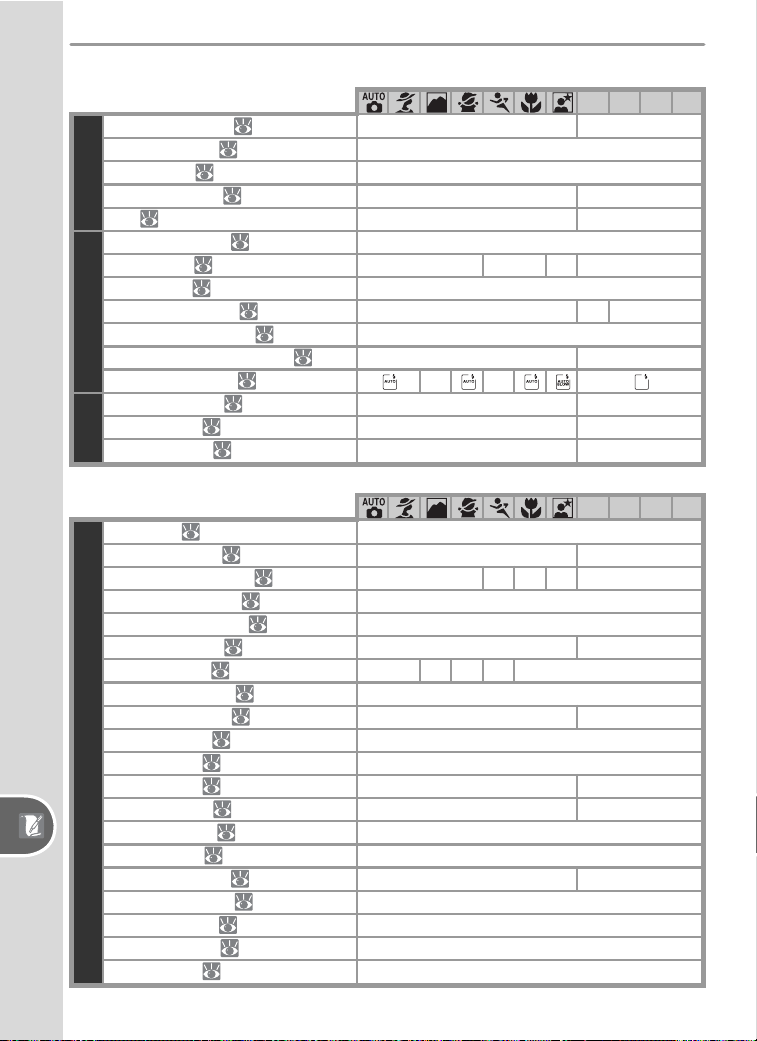
102
Technical Notes—Camera Settings
The following defaults are restored when a two-button reset is performed:
PSAM
Shooting menu
Optimize Image ( 48)
— Normal
Image Quality (
31) JPEG Normal
Image Size (
32) L (3008 × 2000)
White Balance (
49) — Auto
ISO (
39) 200 (Custom Setting 9 off) 200
Other settings
Shooting mode ( 21) Single frame
Focus area (
33) — Center — Center
Focus lock (
34) Off
Flexible program (
42) — Off —
Autoexposure lock (
97) Off
Exposure compensation (
47) — Off (0.0)
Flash sync mode (
36) — —
CSM
6: Flash Level ( 38, 90) — Off (0.0)
12: BKT Set (
93) — Off
13: Metering (
96) — Matrix
The following defaults are restored with Custom Setting R (Menu Reset):
PSAM
Custom Settings
1: Beep ( 88)
On
2: Autofocus (
88) — AF-A
3: AF-Area Mode (
89) Closest Subjct DA
*
SA
*
CS
*
Single Area
4: No SD Card? (
90) Release Locked
5: Image Review (
90) On
6: Flash Level (
38, 90) — 0.0
7: AF Assist (
90) On Off On Off On
8: AF Area Illm (
91) Auto
9: ISO Control (
91) On —
10: ISO Auto (
92) Off
11: EV Step (
92) 1/3 Step
12: BKT Set (
93) — Off
13: Metering (
96) — Matrix
14: AE-L/AF-L (
98) AE/AF Lock
15: AE Lock (
99) AE-L Button
16: Flash Mode (
99) — TTL
17: Monitor Off (
100) 20 s
18: Meter Off (
100) 8 s
19: Self-Timer (
100) 10 s
20: Remote (
100) 1 min
* DA=Dynamic Area, SA=Single Area; CS=Closest Subjct.
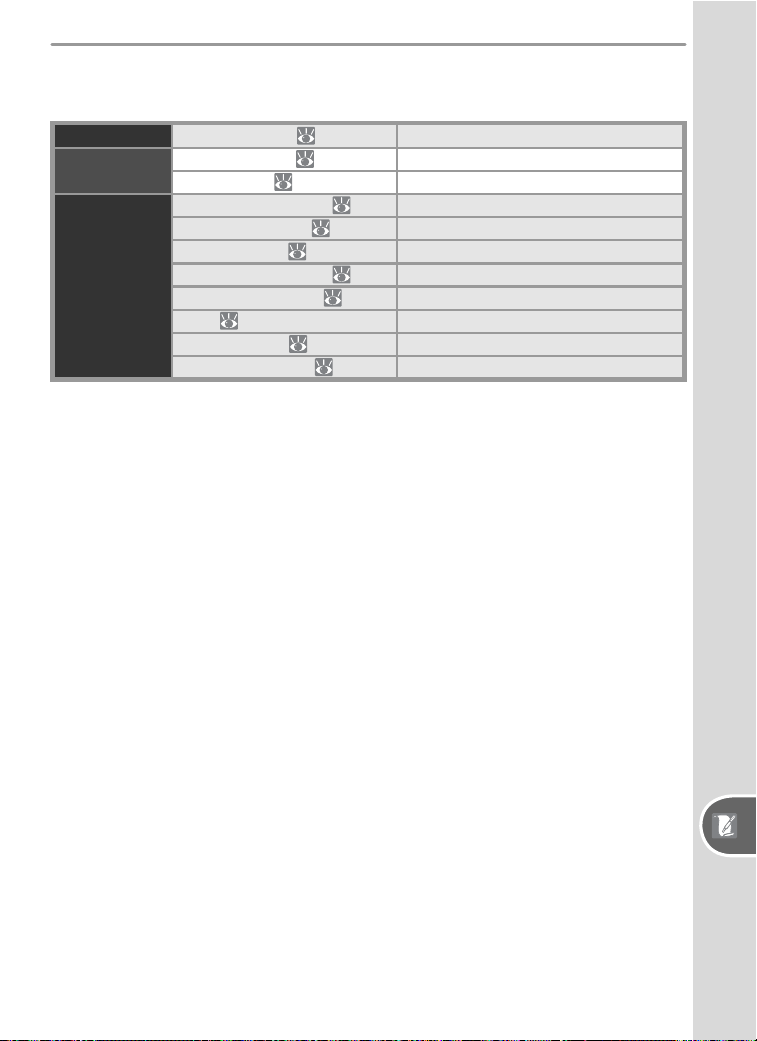
103
Technical Notes—Camera Settings
Factory defaults for other menu options are listed below. These settings are
not affected by two-button resets or Custom Setting R (Menu Reset).
Shooting menu Long Exp. NR ( 78) Off
Playback menu
Playback Fldr (
84) Current
Rotate Tall (
84) Yes
Setup menu
CSM/Setup Menu (
69) Simple
LCD Brightness (
69) 0
Video Mode (
69) Varies with region of sale
Language (LANG) (
70) Varies with region of sale
Image Comment (
70) None
USB (
71) Mass Storage
File No. Seq. (
73) Off
Image Rotation (
75) Automatic
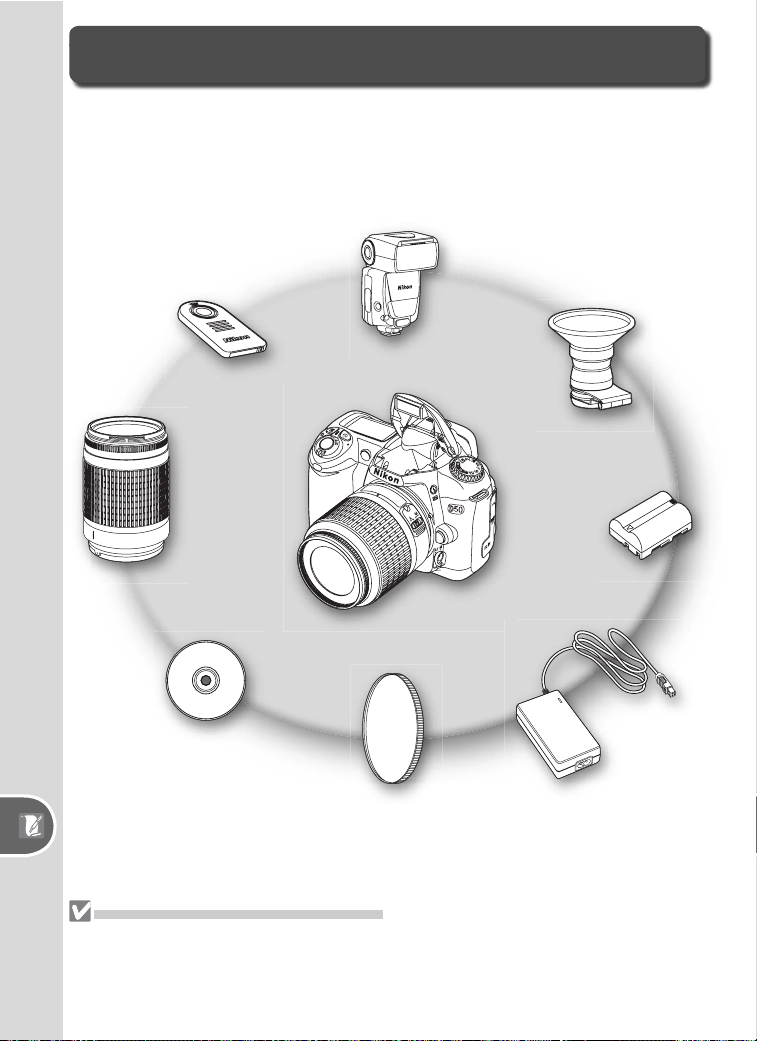
104
Technical Notes—Optional Accessories
Optional Accessories
One advantage of digital SLR cameras is the wide variety of accessories
available for broadening the scope of digital photography. The following
types of accessory are available for the D50:
ML-L3 remote control
Batteries
AC adapters
Flash units (Speedlights)
Filters
Software
Viewfi nder accessories
Lenses
Use Only Nikon Brand Ac ces so ries
Only Nikon brand ac ces so ries cer ti fi ed by Nikon spe cifi cal ly for use with your Nikon
dig i tal cam era are engineered and proven to op er ate with in its op er a tion al and safety
requirements. THE USE OF NON-NIKON AC CES SO RIES COULD DAMAGE YOUR CAM ERA AND MAY VOID
YOUR NIKON WAR RAN TY.
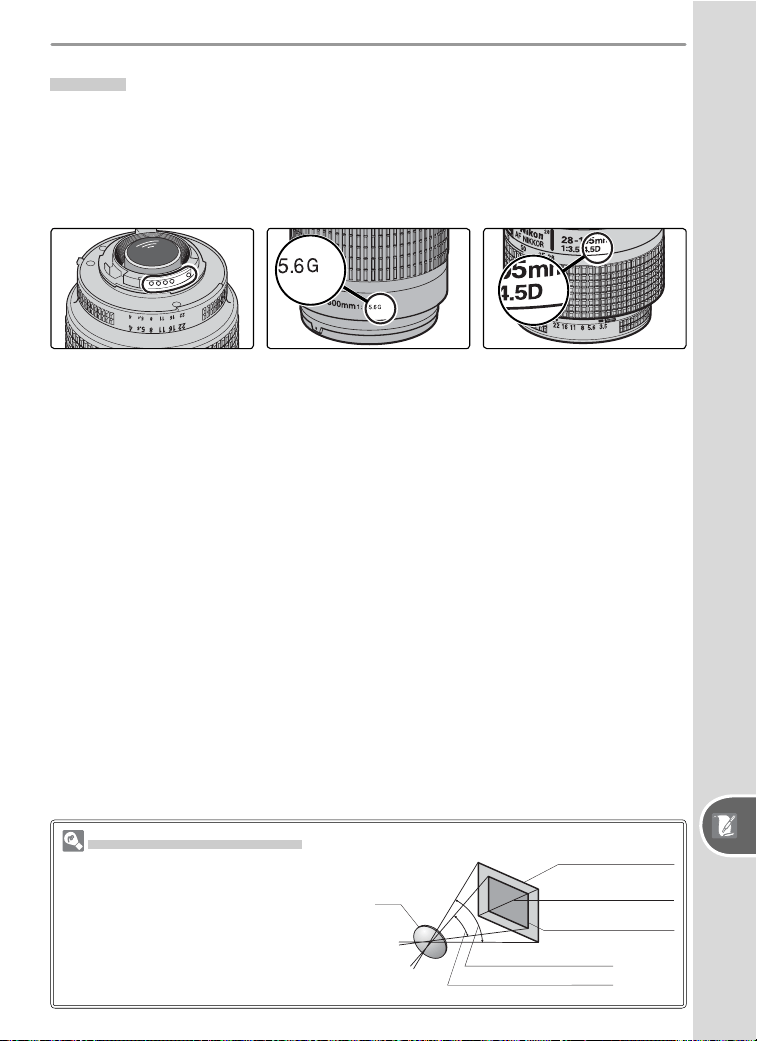
105
Technical Notes—Optional Accessories
Lenses
CPU lenses (particularly type G and D lenses) are recommended for use
with the D50 (note that IX Nikkor CPU lenses can not be used). CPU lenses
can be iden ti fi ed by the presence of CPU contacts. Type G lenses have no
aperture ring and are marked with a “G” on the lens barrel. Type D lenses
are indicated by a “D.”
CPU lens Type G lens Type D lens
Cal cu lat ing Picture Angle
The size of the area exposed by a 35-
mm camera is 36 × 24 mm. The size of
the area exposed by the D50, in con-
trast, is 23.7 ×15.6 mm, meaning that
the diagonal picture angle of a 35-mm
camera is approximately 1.5 times that
of the D50.
Picture size (D50)
Picture size (35-mm format)
Lens
(23.7 mm × 15.6 mm)
Picture diagonal
(36 mm × 24 mm)
Picture angle (35-mm format)
Picture angle (D50)
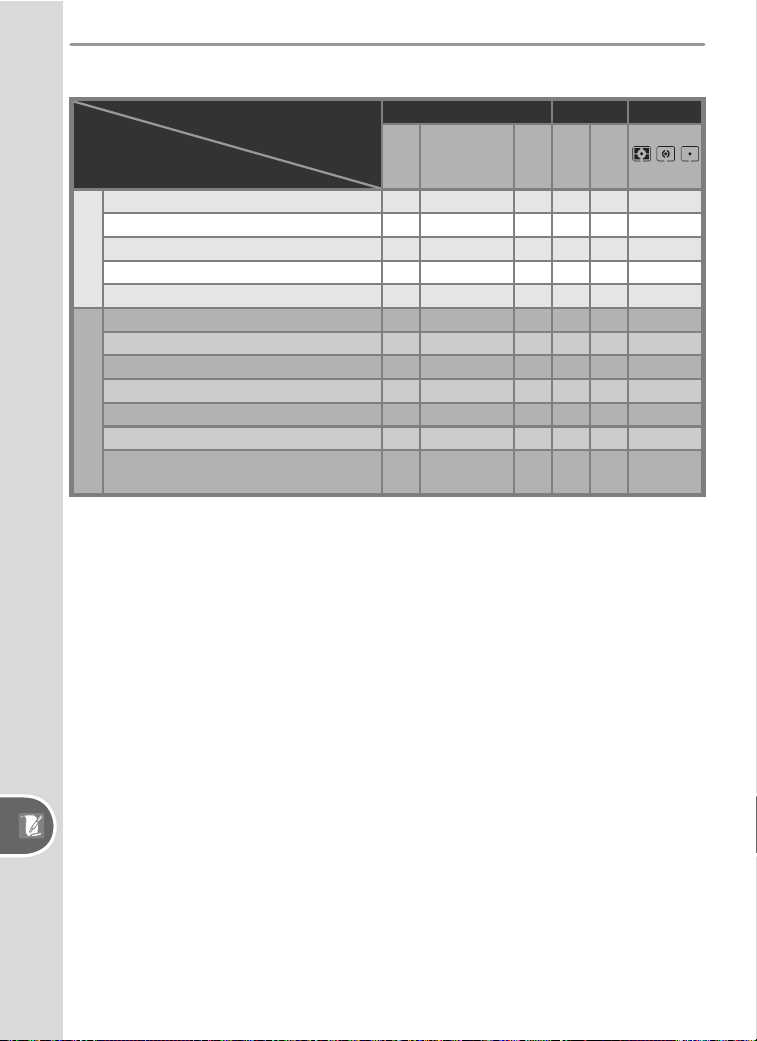
106
Technical Notes—Optional Accessories
The following lenses can be used with the D50:
Camera setting
Lens/accessory
Focus Mode Metering
AF
M (with
electronic
range fi nder)
M
DVP,
P, S,
A
M
, ,
CPU lenses
1
Type G or D AF Nikkor
2
; AF-S, AF-I Nikkor
✔✔✔✔✔ ✔
3
PC-Micro Nikkor 85 mm f/2.8D
4
—
✔
5
✔
—
✔✔
3
AF-S / AF-I Teleconverter
6
✔
7
✔
7
✔✔✔ ✔
3
Other AF Nikkor (except lenses for F3AF)
✔
8
✔
8
✔✔✔ ✔
3
AI-P Nikkor —
✔
9
✔✔✔ ✔
3
Non-CPU lenses
10
AI-modifi ed, AI-, AI-S, or Series E Nikkor —
✔
9
✔
—
✔
11
—
Medical Nikkor 120 mm f/4 —
✔
9
✔
—
✔
12
—
Refl ex Nikkor ——
✔
—
✔
11
—
PC-Nikkor —
✔
5
✔✔
11
—
AI-type Teleconverter
—
✔
7
✔
—
✔
11
—
PB-6 Bellows Focusing Attachment
13
—
✔
9
✔
—
✔
11
—
Auto extension rings (PK-series 11-A, 12,
or 13; PN-11)
—
✔
9
✔
—
✔
11
—
1 IX Nikkor lenses can not be used.
2 Vibration Reduction (VR) supported with VR lens es.
3 Spot metering meters selected focus area.
4 The camera’s exposure metering and fl ash con trol
sys tems do not work properly when shifting and/or
tilt ing the lens, or when an aperture oth er than the
maximum aperture is used.
5 Electronic range fi nder can not be used with shifting
or tilting.
6 Compatible with AF-I Nikkor lenses and with all AF-
S lens es ex cept DX 12–24 mm f/4G, ED 17–35 mm
f/2.8D, DX ED 17–55 mm f/2.8G, DX ED 18–70 mm
f3.5–4.5G, ED 24–85 mm f/3.5–4.5G, VR ED
24–120 mm f/3.5–5.6G, and ED 28–70 mm f/2.8D.
7 With maximum effective aperture of f/5.6 or faster.
8 If AF 80–200 mm f/2.8S, AF 35–70 mm f/2.8S, new-
model AF 28–85 mm f/3.5–4.5S, or AF 28–85 mm
f/3.5–4.5S is zoomed in while focusing at minimum
range, image on matte screen in viewfi nder may not
be in focus when in-focus indicator is displayed.
Focus manually using image in viewfi nder as guide.
9 With maximum ap er ture of f/5.6 or fast er.
10 Some lenses can not be used (see following page).
11 Can be used in mode M, but camera exposure meter
can not be used.
12 Can be used in mode M at shutter speeds slower
than 1/125 s, but camera exposure meter can not be
used.
13 Attach in vertical orientation (can be used in hori-
zontal orientation once attached).
107
Technical Notes—Optional Accessories
Incompatible Accessories and Non-CPU Lenses
The following accessories and non-CPU lenses can NOT be used with the D50:
• TC-16A AF Teleconverter
• Non-AI lenses
• Lenses that require the AU-1 focus-
ing unit (400 mm f/4.5, 600 mm f/5.6,
800 mm f/8, 1200 mm f/11)
• Fisheye (6 mm f/5.6, 8 mm f/8, OP
10 mm f/5.6)
• 21 mm f/4 (old type)
• K2 rings
• ED 180–600 mm f/8 (serial numbers
174041–174180)
• ED 360–1200 mm f/11 (serial numbers
174031–174127)
• 200–600 mm f/9.5 (serial numbers
280001–300490)
• Lenses for the F3AF (80 mm f/2.8,
200 mm f/3.5, TC-16 Teleconverter)
• PC 28 mm f/4 (serial number 180900 or
earlier)
• PC 35 mm f/2.8 (serial numbers
851991–906200)
• PC 35 mm f/3.5 (old type)
• 1000 mm f/6.3 Refl ex (old type)
• 1000 mm f/11 Refl ex (serial numbers
142361–143000)
• 2000 mm f/11 Refl ex (serial numbers
200111–200310)
Compatible Non-CPU Lenses
Non-CPU lenses not included in the list above can be used, but only in mode M.
Aperture must be adjusted manually using the lens aperture ring and the camera
exposure meter and TTL fl ash control can not be used. If another mode is selected
when a non-CPU lens is attached, the shutter-release will be disabled.
AF-Assist Illumination
The following lenses may block the AF-assist illuminator at ranges under 1 m (3´3˝).
Note that the camera may not be able to focus using autofocus if the AF-assist il-
luminator is blocked.
• AF Micro ED 200 mm f/4D
• AF-S ED 17–35 mm f/2.8D
• AF ED 18–35 mm f/3.5–4.5D
• AF 20–35 mm f/2.8D
• AF-S ED 28–70 mm f/2.8D
• AF ED 24–85 mm f/2.8–4D
• AF-S VR ED 24–120 mm f/3.5–5.6G
• AF 24–120 mm f/3.5–5.6D
• AF Micro ED 70–180 mm f/4.5–5.6D
• AF-S DX IF ED 17–55 mm f/2.8G
AF assist is not available with the following lenses:
• AF-S VR ED 70–200 mm f/2.8G
• AF ED 80–200 mm f/2.8D
• AF-S VR ED 200–400 mm f/4G
• AF-S VR 300 mm f/2.8G
• AF-S ED 80–200 mm f/2.8D
• AF VR ED 80–400 mm f/4.5–5.6D
• AF-S VR 200 mm f/2G
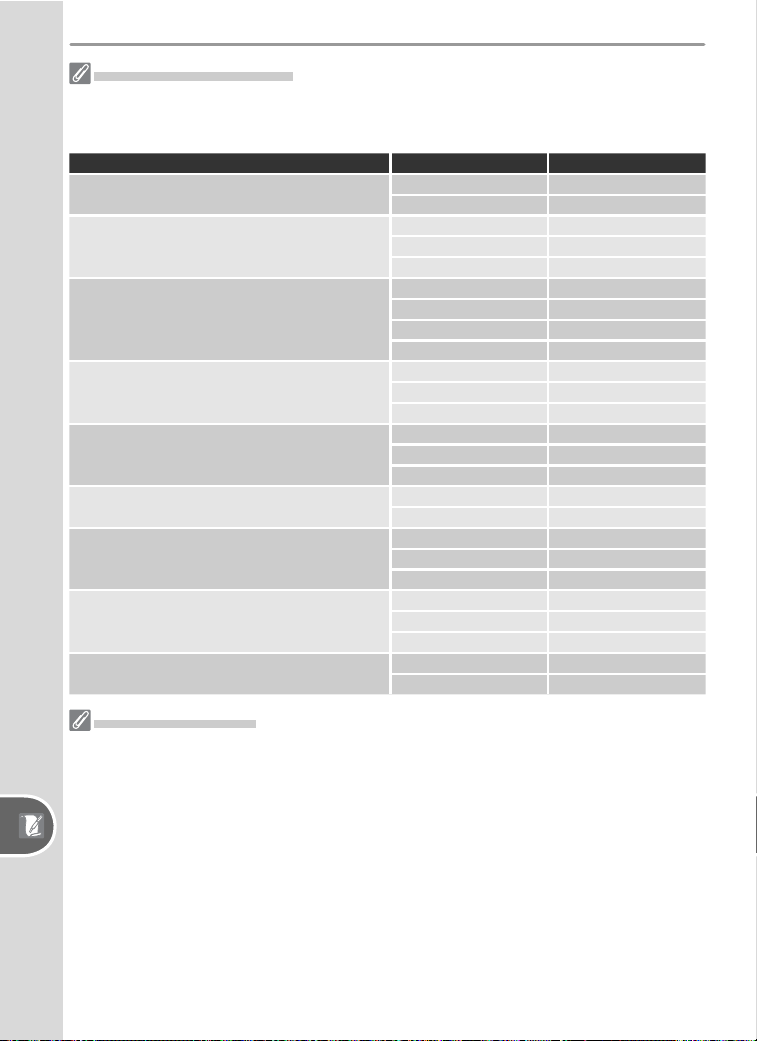
108
Technical Notes—Optional Accessories
Using the Built-in Flash
The built-in fl ash can be used with any CPU lens with a focal length of 18–300 mm.
Note that the fl ash may be unable to light the entire subject if the following lenses
are not used at or above the minimum ranges given below:
Lens Zoom position Minimum Range
AF-S DX ED 12–24 mm f/4G
20 mm 2.5 m / 8´2˝
24 mm 1.0 m / 3´3˝
AF-S ED 17–35 mm f/2.8D
20 mm, 24 mm 2.5 m / 8´2˝
28 mm 1.0 m / 3´3˝
35 mm 0.6 m / 2´
AF-S DX IF ED 17–55 mm f/2.8G
20 mm, 24 mm 2.5 m / 8´2˝
28 mm 1.5 m / 4´11˝
35 mm 0.7 m / 2´4˝
45–55 mm 0.6 m / 2´
AF ED 18–35 mm f/3.5–4.5D
18 mm, 21 mm 2.0 m / 6´7˝
24 mm 0.7 m / 2´4˝
28–35 mm 0.6 m / 2´
AF 20–35 mm f/2.8D
20 mm 1.5 m / 4´11˝
24 mm 1.0 m / 3´3˝
28–35 mm 0.6 m / 2´
AF-S VR ED 24–120 mm f/3.5–5.6G
24 mm 0.8 m / 2´7˝
28–120 mm 0.6 m / 2´
AF-S ED 28–70 mm f/2.8D
28 mm 3.0 m / 9´10˝
35 mm 1.0 m / 3´3˝
50–70 mm 0.6 m / 2´
AF-S VR 200–400 mm f/4G
200 mm 4.0 m / 13´1˝
250 mm 2.5 m / 8´2˝
300–400 mm 0.6 m / 2´
AF-S 18–70 mm f/3.5–4.5G
18 mm 1.0 m / 3´3˝
24–70 mm 0.6 m / 2´
Red-Eye Reduction
Some lenses may interfere with red-eye reduction by preventing the subject from
seeing the AF-assist illuminator.
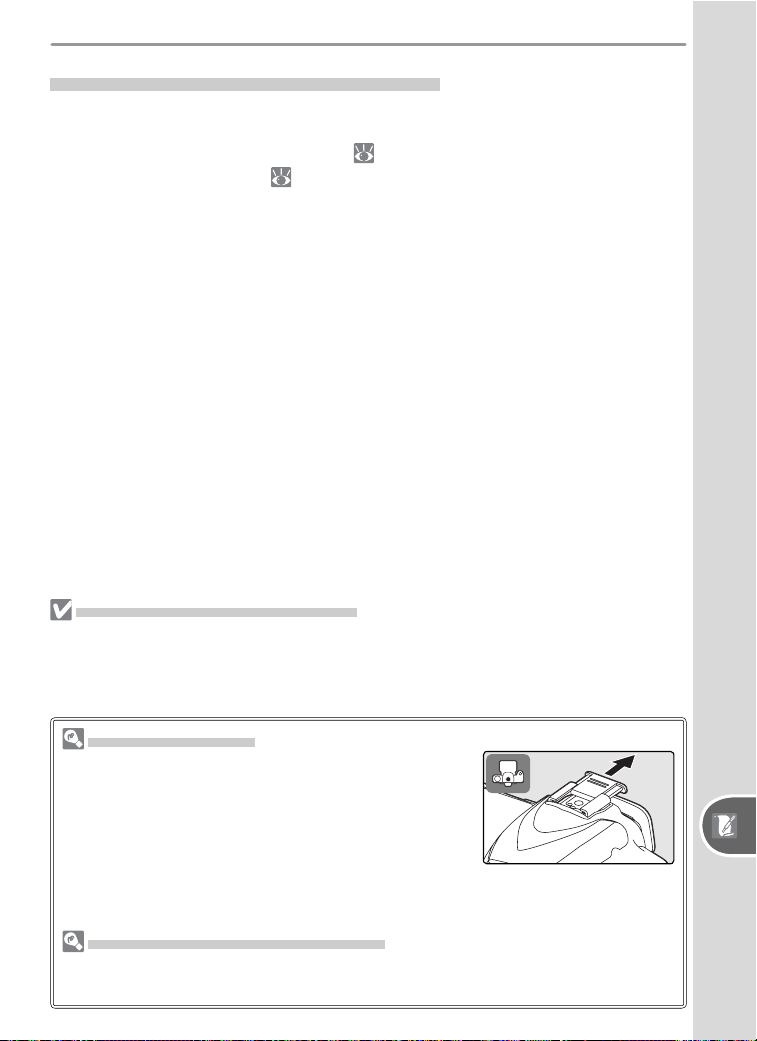
109
Technical Notes—Optional Accessories
Optional Flash Units (Speedlights)
When used with a compatible Speedlight such as the SB-800 or SB-600
(available separately), the D50 supports the Nikon Creative Lighting System
(CLS), including i-TTL fl ash control ( 127), Flash Color Information Com-
munication, and FV lock ( 98). The built-in fl ash does not fi re when an
optional fl ash unit is used.
SB-800 and SB-600 Speedlights
These high performance Speedlights have Guide Numbers of 53/174 and
42/138 respectively (m/ft, 35-mm zoom head position, ISO 200, 20 °C/
68 °F; GNs at ISO 100 are 38/125 and 30/98 respectively). The fl ash head
can be rotated through 90 ° above the horizontal, 180 ° left, and 90 ° right
for bounce-fl ash or close-up photography. The SB-800 can be rotated 7 °
below the horizontal. Auto power zoom (24–105 mm and 24–85 mm, re-
spectively) ensures that the illuminating angle is adjusted in accord with lens
focal length. The built-in wide panel can be used for an angle of 14 mm
(the SB-800 also supports 17 mm). An illuminator is included to assist in
adjusting settings in the dark.
Use Only Nikon Flash Accessories
Use only Nikon Speedlights. Negative voltages or voltages over 250 V applied to
the ac ces so ry shoe could not only prevent normal operation, but damage the sync
cir cuit ry of the camera or fl ash. Be fore us ing a Nikon Speed light not listed in this sec-
tion, con tact a Nikon-au tho rized ser vice rep re sen ta tive for more information.
The Accessory Shoe
The D50 is equipped with an accessory shoe that
allows SB-series Speedlights, including the SB-800,
600, 80DX, 28DX, 28, 27, 23, 22S, and 29S to be
mounted directly on the camera without a sync cable.
The accessory shoe is equipped with a safety lock for
Speedlights with a locking pin, such as the SB-800
and SB-600. Before attaching an optional fl ash unit,
remove the accessory shoe cover.
The AS-15 Accessory Shoe Adapter
An AS-15 accessory shoe adapter (available separately) can be mounted on the
accessory shoe to allow fl ash accessories to be attached via a sync cable.
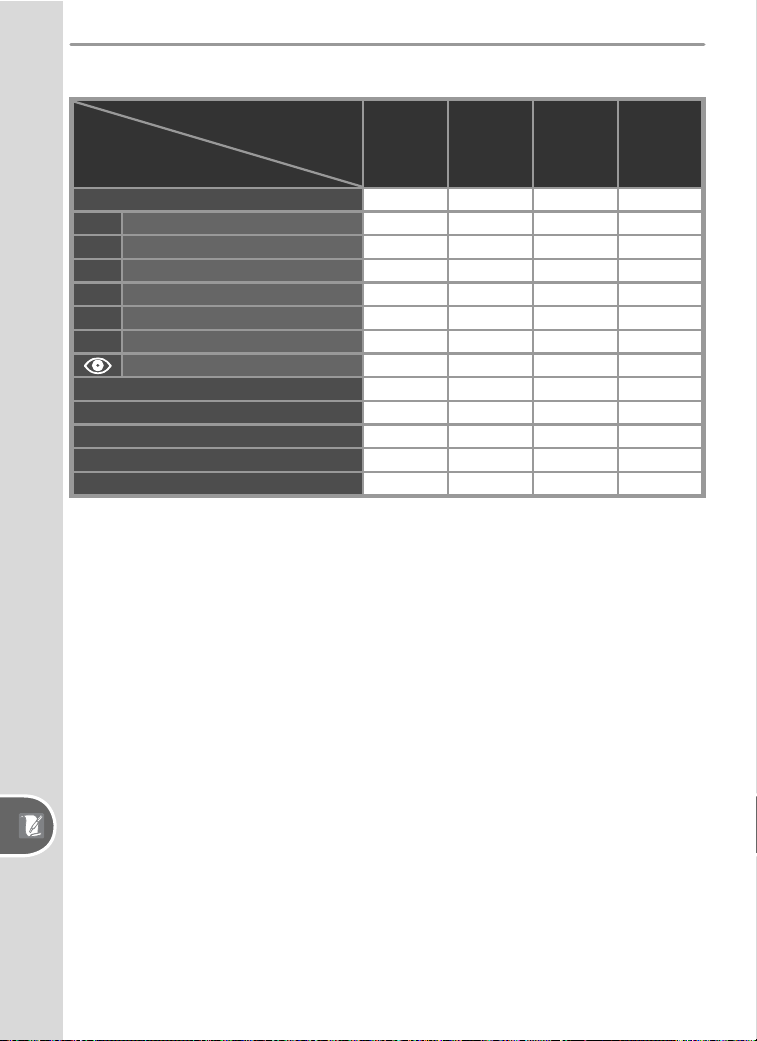
110
Technical Notes—Optional Accessories
The following features are available with SB-800 and SB-600 Speedlights:
Speedlight
Flash mode/feature SB-800
SB-800
(Advanced
Wireless
Lighting) SB-600
SB-600
(Advanced
Wireless
Lighting)
i-TTL
1
✔
2
✔✔
2
✔
AA Auto aperture
1
✔
3
✔
——
A Non-TTL auto
✔
3
✔
4
——
GN Range-priority manual
✔
5
———
M Manual
✔✔✔✔
RPT Repeating fl ash
✔
———
REAR Rear-curtain sync
✔✔✔✔
Red-eye reduction
✔
—
✔
—
Flash Color Information Communication
✔
—
✔
3
—
FV lock
1
✔✔✔✔
AF-assist for multi-area AF
6
✔
—
✔
—
Auto zoom
1
✔
—
✔
—
ISO Auto (Custom Setting 10)
1
✔
—
✔
—
1 Available only with CPU lenses (IX Nikkor lenses
excluded).
2 Standard i-TTL Flash for Digital SLR is used when spot
metering is selected. Otherwise, i-TTL Balanced Fill-
Flash for Digital SLR is used.
3 Use Speedlight controls to select fl ash mode.
4 Available only with non-CPU lenses.
5 Adjusted automatically according to camera aperture
setting when CPU lens is used. When non-CPU lens
is used, must be adjusted manually to match aperture
selected with lens aperture ring.
6 Available with CPU AF lenses only (IX Nikkor lenses
excluded).
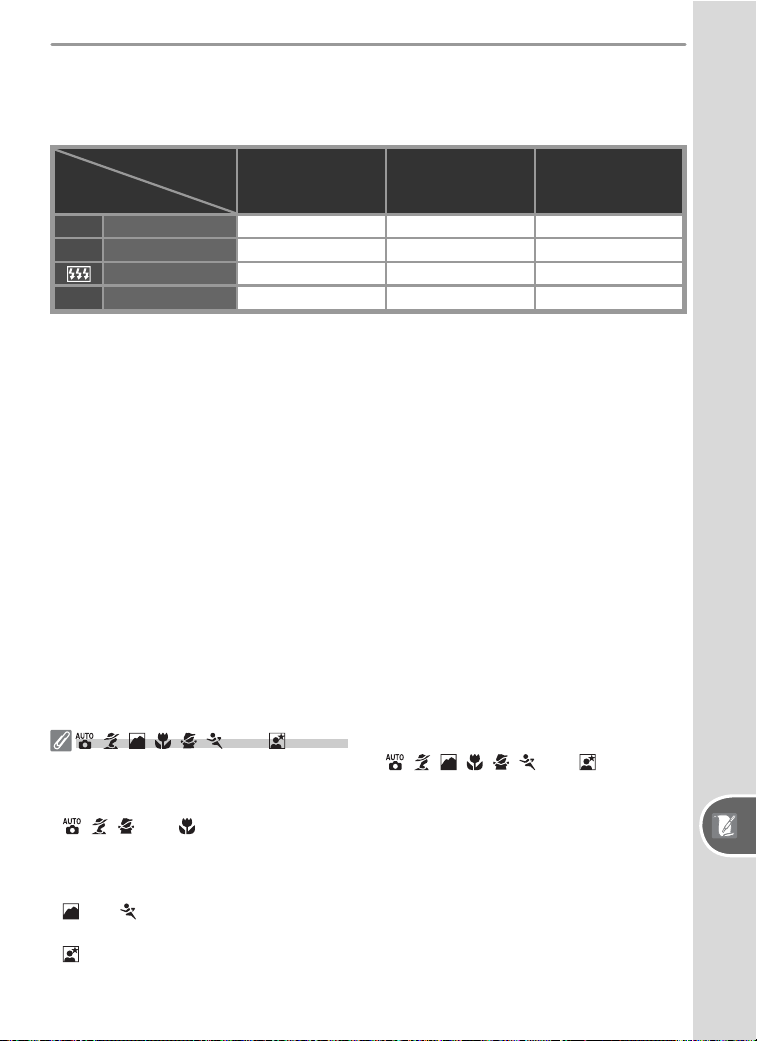
111
Technical Notes—Optional Accessories
The following Speedlights can be used in non-TTL auto and manual modes.
If they are set to TTL, the camera shutter-release button will lock and no
pho to graphs can be taken.
Speedlight
Flash mode
SB-80DX, SB-28DX,
SB-28, SB-26,
SB-25, SB-24
SB-50DX, SB-23,
SB-29
2
,
SB-21B
2
,
SB-29S
2
SB-30, SB-27
1
, SB-
22S, SB-22, SB-20,
SB-16B, SB-15
A Non-TTL auto
✔
—
✔
M Manual
✔✔✔
Repeating fl ash
✔
——
REAR Rear-curtain sync
✔✔✔
1 When an SB-27 is mounted on the D50, the fl ash mode is automatically set to TTL, and the shutter-release will
be disabled. Set the SB-27 to A (non-TTL auto fl ash).
2 Autofocus is only avail able with AF-Mi cro lenses (60 mm, 105 mm, 200 mm, or 70–180 mm).
, , , , , , and Modes
When an optional Speedlight is attached in , , , , , , and modes, the
fl ash fi res whenever a photograph is taken. The following fl ash modes are avail-
able:
• , , , and modes: Front-curtain sync and red-eye reduction. If off or auto
front-curtain sync is selected when an optional Speedlight is attached, the fl ash
sync mode selection will change to front-curtain sync. Auto with red-eye reduction
becomes red-eye reduction.
• and modes: Front-curtain sync is selected automatically. Red-eye reduction
can also be selected.
• mode: Slow sync, slow sync with red-eye reduction, and front-curtain sync. Auto
slow sync becomes slow sync, auto slow sync with red-eye reduction becomes red-
eye reduction, and off becomes front-curtain sync.
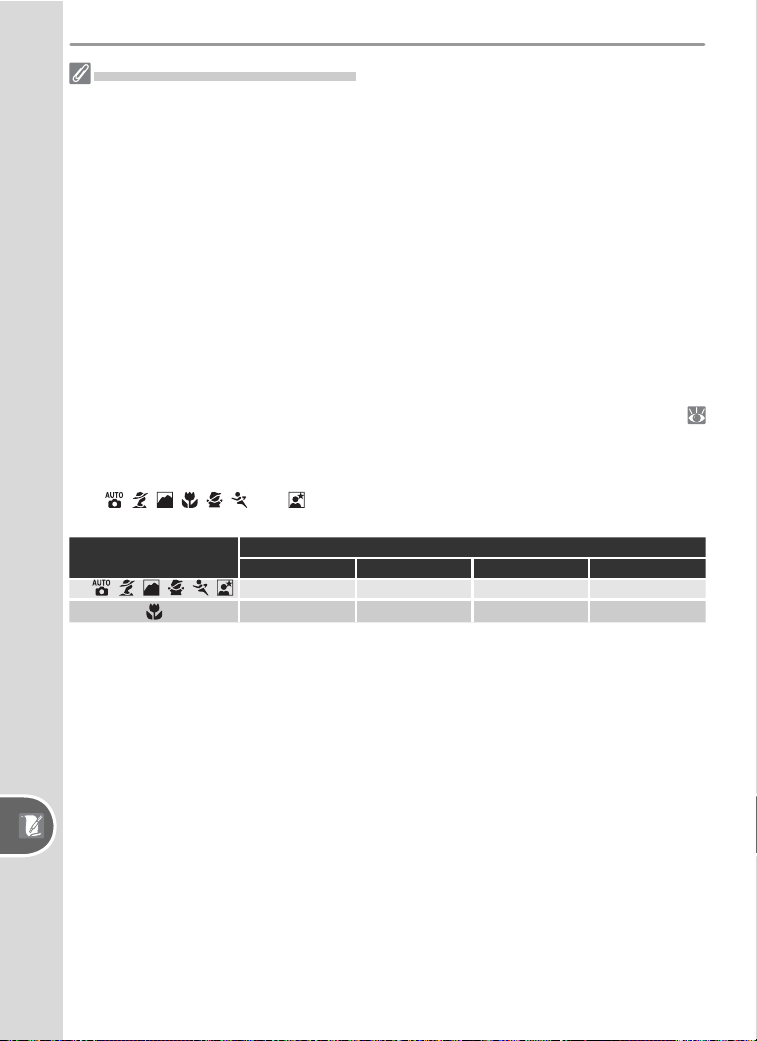
112
Technical Notes—Optional Accessories
Notes on Optional Speedlights
Refer to the Speedlight manual for detailed instructions. If the Speedlight supports
the Creative Lighting System, refer to the section on CLS-compatible digital SLR cam-
eras. The D50 is not included in the “digital SLR” category in the SB-80DX, SB-28DX,
and SB-50DX manuals.
The shutter will synchronize with an external fl ash at speeds of
1
/
500 s or slower.
i-TTL and Auto Aperture (AA) fl ash control are available only with CPU lenses. Se-
lecting spot metering while an SB-800 or SB-600 Speedlight is attached activates
standard i-TTL Flash for Digital SLR.
i-TTL fl ash control is available at all sensitivity (ISO equivalency) settings. If the fl ash-
ready indicator blinks for about three seconds after a photograph is taken with i-TTL
fl ash control, the photograph may be underexposed.
When an SB-800 or SB-600 is mounted on the camera, AF-assist illumination and
red-eye reduction are performed by the optional Speedlight. With other Speedlights,
AF-assist illumination is performed using the AF-assist illuminator on the camera (
34).
Auto power zoom is available only with SB-800 and SB-600 Speedlights.
In P, , , , , , , and modes, the maximum aperture (minimum f/-number)
is limited according to sensitivity (ISO equivalency) as shown below:
Mode
Maximum aperture at ISO equivalent of
200 400 800 1600
P,
, , , , , 4 4.8 5.6 6.7
8 9.5 11 13
For each one-step increase in sensitivity (e.g., from 200 to 400), aperture is stopped
down by half an f/-stop. If the maximum aperture of the lens is smaller than that
listed above, the maximum value for aperture is the maximum aperture of the lens.
When an SC-series 17, 28, or 29 sync cable is used for off-camera fl ash photography,
correct exposure may not be achieved using i-TTL Balanced Fill-Flash for Digital SLR.
We recommend that you choose spot metering to select Standard i-TTL Flash for
Digital SLR. Take a test shot and view the results in the monitor.
In i-TTL mode, use the fl ash panel provided with your Speedlight. Do not use other
panels such as diffusion panels, as this may produce incorrect exposure.
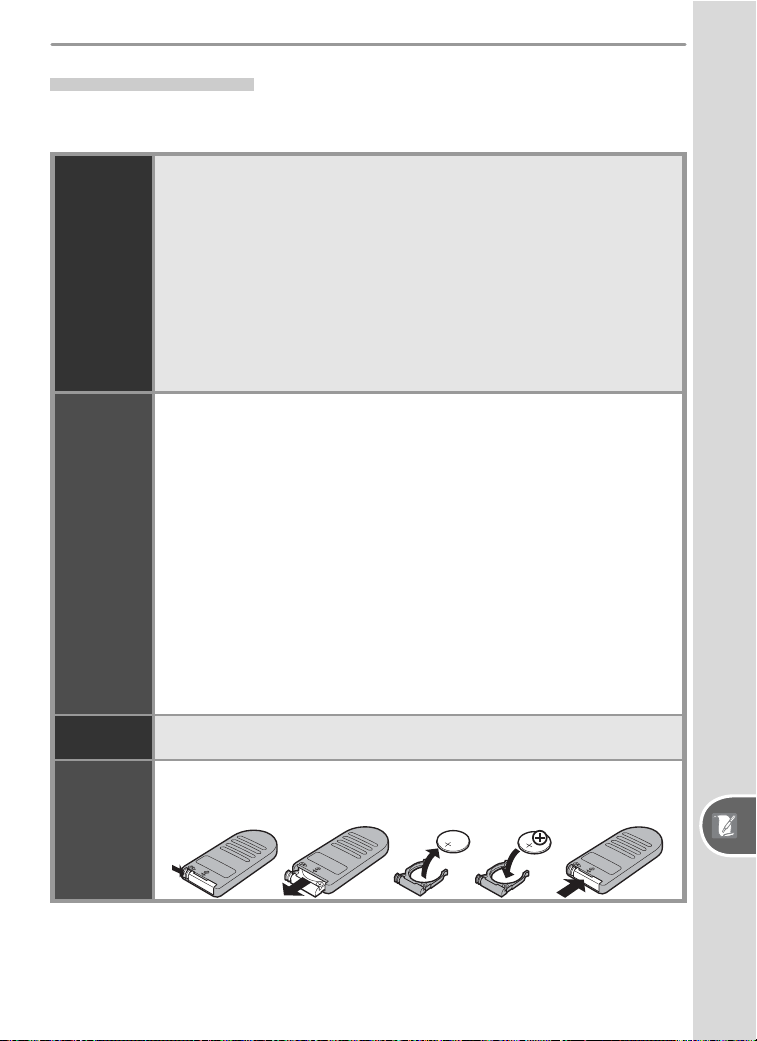
113
Technical Notes—Optional Accessories
Other Accessories
At the time of writing, the following accessories were available for the D50.
Contact your retailer or local Nikon representative for details.
Batteries/
Chargers/
AC adapters
♦ EN-EL3 Rechargeable Li-ion Battery: Additional EN-EL3 batteries are
available from local retailers and Nikon service representatives.
♦ EH-5 AC Adapter: Use the EH-5 to power the camera for extended
periods.
♦ MH-19 Multi Charger: The MH-19 can be used to recharge the fol-
lowing batteries: EN-EL3 rechargeable Li-ion batteries, MN-30 bat-
teries for the F5 camera (with MC-E1), MN-15 batteries for the F100
camera (with MC-E2), EN-4 batteries (for D1 series cameras), or EN-3
batteries for the E3 camera. The charger can charge two pairs of
batteries of different types, for a total of four batteries, and comes
with a twelve-volt cable for connection to a cigarette-lighter socket.
Viewfi nder
eyepiece
accessories
♦ Diopter-Adjustment Viewfi nder Lenses: Lenses are available with
diopters of –5, –4, –3, –2, 0, +0.5, +1, +2, and +3 m
–1
. Use diopter
adjustment lenses only if the desired focus can not be achieved with
the built-in diopter adjustment control (–1.6 to +0.5 m
–1
). Test diopter
adjustment lenses before purchase to ensure that the desired focus
can be achieved.
♦ DG-2 Magnifi er: Magnify the scene displayed in the center of the
viewfi nder for close-up photography, copying, telephoto lenses, and
other tasks that call for added precision. Eyepiece adapter required
(available separately).
♦ Eyepiece Adapter: Use to attach the DG-2 Magnifi er to the D50.
♦ DR-6 Right-Angle Viewing Attachment: The DR-6 attaches at a right
angle to the viewfi nder eyepiece, allowing the image in the view-
fi nder to be viewed from above when the camera is in the horizontal
shooting position.
Body caps
♦ BF-1A Body Cap: The BF-1A keeps the mirror, viewfi nder screen, and
low-pass fi lter free of dust when a lens is not in place.
Remote
controls
♦ ML-L3 Wireless Remote Control: Use the ML-L3 as a remote shutter
release for self-portraits or to prevent blur caused by camera shake.
The ML-L3 uses a 3 V CR2025 battery.
햲햳 햴 햵햶
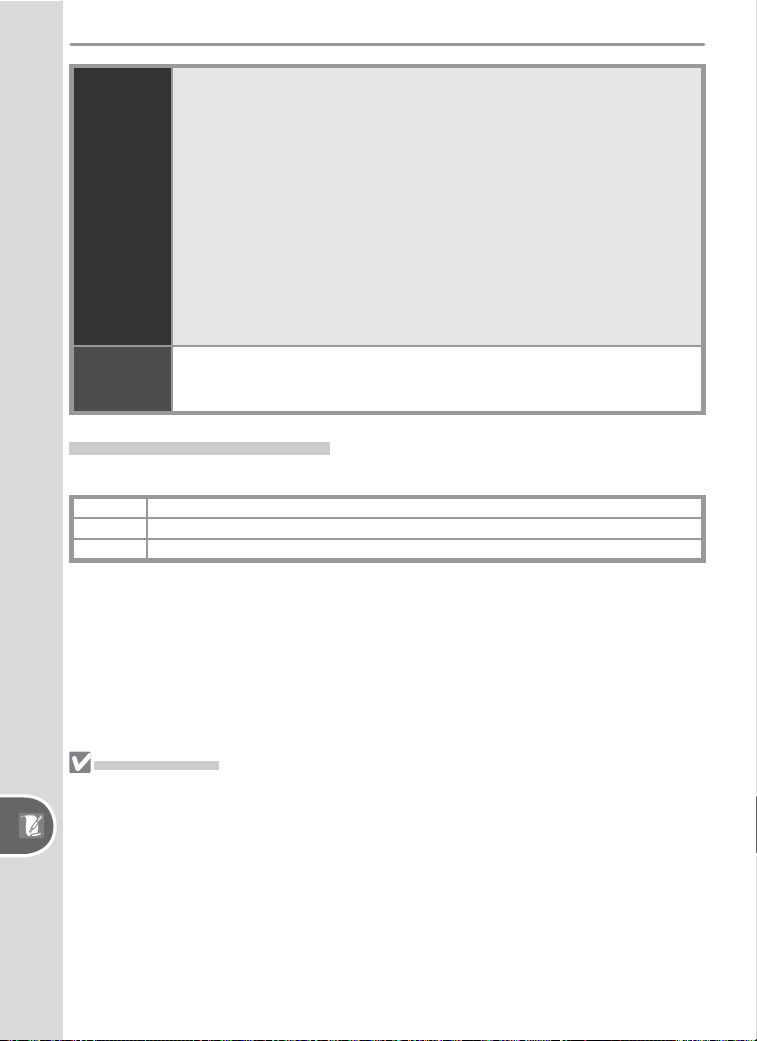
114
Technical Notes—Optional Accessories
Filters •
Nikon fi lters can be divided into three types: screw-in, drop-in, and rear-
interchange.
Use Nikon fi lters; other fi lters may interfere with au to fo cus
or elec tron ic range fi nd ing.
• The D50 can not be used with linear polarizing fi lters. Use the C-PL
circular polarizing fi lter instead.
• The NC and L37C fi lters are recommended for pro tect ing the lens.
•
When using an R60 fi lter,
set exposure compensation to +1.
•To prevent moiré, use of a fi lter is not recommended when the sub-
ject is framed against a bright light, or when a bright light source is
in the frame.
• Center-weighted metering is recommended with fi lters with exposure
factors (fi lter factors) over 1 × (Y48, O56, R60, X0, X1, C-PL, ND4S,
ND8S, A2, A12, B2, B8, B12).
Software
♦ Nikon Capture 4 (Version 4.3 or Later): Nikon Capture 4 version 4.3
or later can be used to capture photos to a computer and to edit and
save RAW images in other formats.
Approved Memory Cards
The following cards have been tested and approved for use in the D50:
SanDisk 64 MB, 128 MB, 256 MB, 512 MB, 1 GB
Toshiba 64 MB, 128 MB, 256 MB, 512 MB
Panasonic
64 MB, 128 MB, 256 MB, 512 MB, 1 GB
Operation is not guaranteed with other makes of card. For more details on
the above cards, please contact the manufacturer.
Memory Cards
• Format memory cards in the camera before fi rst use.
•Turn the pow er off before in sert ing or re mov ing mem o ry cards. Do not remove
mem o ry cards from the camera, turn the camera off, or re move or disconnect the
power source during formatting or while data are being recorded, deleted, or cop-
ied to a computer. Failure to observe these precautions could result in loss of data
or in dam age to the camera or card.
• Do not touch the card terminals with your fi ngers or metal objects.
• Do not apply force to the card casing. Failure to ob serve this precaution could dam-
age the card.
• Do not bend, drop, or subject to strong physical shocks.
• Do not expose to heat, water, high levels of humidity, or direct sunlight.
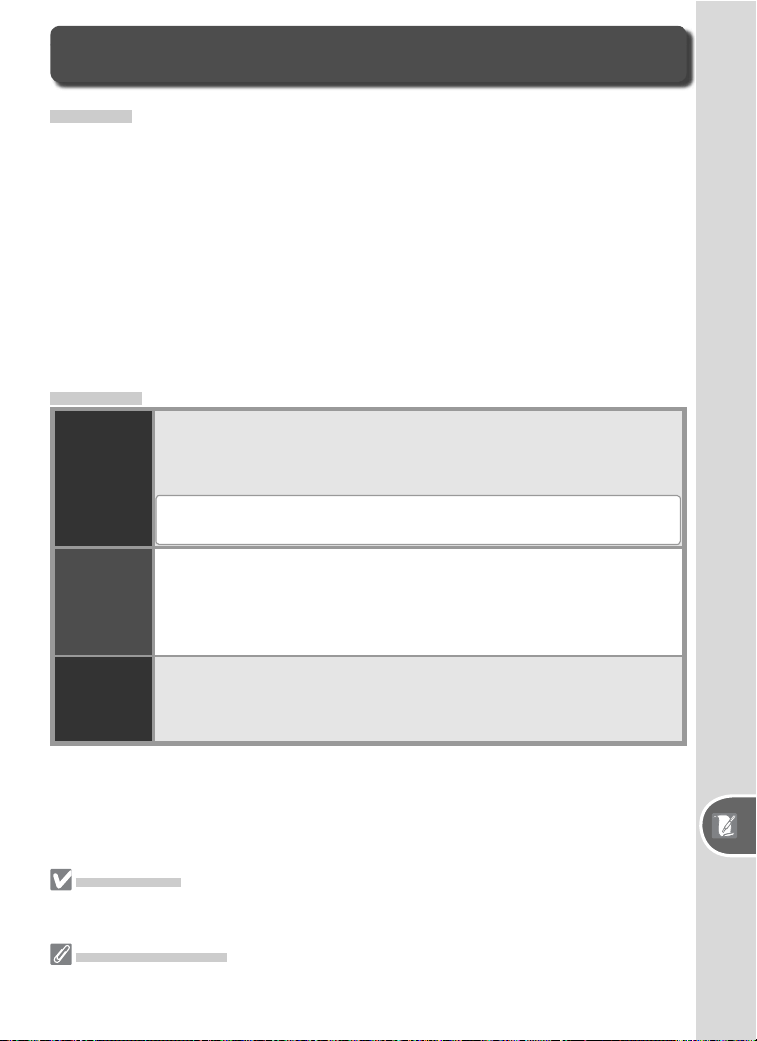
115
Technical Notes—Caring for the Camera
Storage
When the camera will not be used for an extended period, remove the
battery, and store the battery in a cool, dry area with the terminal cover in
place. To pre vent mold or mil dew, store the cam era in a dry, well-ven ti lat ed
area. Do not store your cam era with naph tha or cam phor moth balls or in
lo ca tions that:
• are poorly ventilated or subject to humidities of over 60%
• are next to equipment that produces strong elec tro mag net ic fi elds, such
as televisions or radios
• are exposed to temperatures above 50 °C/122 °F (for example, near a
space heater or in a closed ve hi cle on a hot day) or below –10 °C (14 °F)
Cleaning
Camera
body
Use a blower to remove dust and lint, then wipe gently with a soft,
dry cloth. After using the camera at the beach or seaside, wipe off
sand or salt with a cloth lightly dampened in distilled water and dry
thor ough ly.
IMPORTANT: Dust or other foreign matter inside the camera may
cause damage not covered under warranty.
Lens,
mirror, and
viewfi nder
These elements are made of glass and are easily dam aged. Remove
dust and lint with a blower. If using an aerosol blower, keep the can
vertical to prevent the discharge of liquid. To remove fi ngerprints and
other stains, apply a small amount of lens cleaner to a soft cloth and
clean with care.
Monitor
Remove dust and lint with a blower. When removing fi ngerprints
and other stains, wipe the surface lightly with a soft cloth or cham-
ois leath er. Do not apply pressure, as this could result in damage or
malfunction.
The Monitor
Should the monitor break, care should be taken to avoid injury caused by broken
glass and to prevent liquid crystal from entering your eyes and mouth.
The Control Panel
Rarely, static electricity may cause the control panel to brighten or darken. This does
not indicate a malfunction; the display will shortly return to normal.
Caring for the Camera
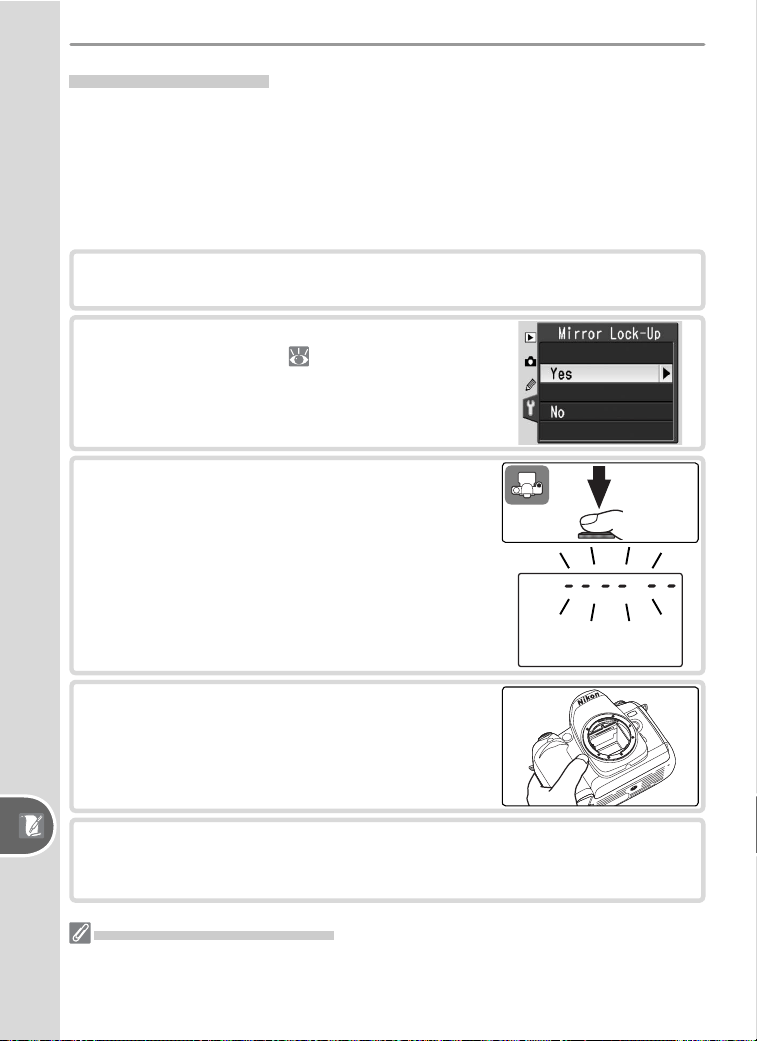
116
Technical Notes—Caring for the Camera
The Low-Pass Filter
The image sensor that acts as the cam era’s picture element is fi tted with a
low-pass fi lter to prevent moiré. Al though this fi lter prevents foreign ob-
jects from adhering directly to the image sensor, under certain con di tions
dirt or dust on the fi lter may appear in photographs. If you suspect that dirt
or dust in side the camera is affecting your pho to graphs, you can check for
the pres ence of for eign ob jects on the low-pass fi lter as described below.
1
Remove the lens and turn the camera on.
2
Choose Yes for the Mirror Lock-Up option
in the setup menu ( 68). The mes sage,
“Press shutter-release but ton” will be dis-
played.
3
Press the shut ter-re lease but ton all the way
down. The mir ror will be raised and the shut-
ter cur tain will open, re veal ing the low-pass
fi l ter, and a row of dashes will blink in the
control panel.
4
Holding the camera so that light falls on the
low-pass fi lter, ex am ine the fi lter for dust or
lint. If there are for eign ob jects on the fi lter,
the fi lter requires cleaning. See the fol low ing
sec tion.
5
Turn the camera off. The mirror will return to the down position and
the shutter curtain will close. Replace the lens or body cap and dis-
connect the AC adapter.
Use a Reliable Power Source
To prevent the camera from powering off while the mirror is raised, use a fully-
charged battery or an EH-5 AC adapter (available separately) for prolonged inspec-
tion or cleaning of the low-pass fi lter.
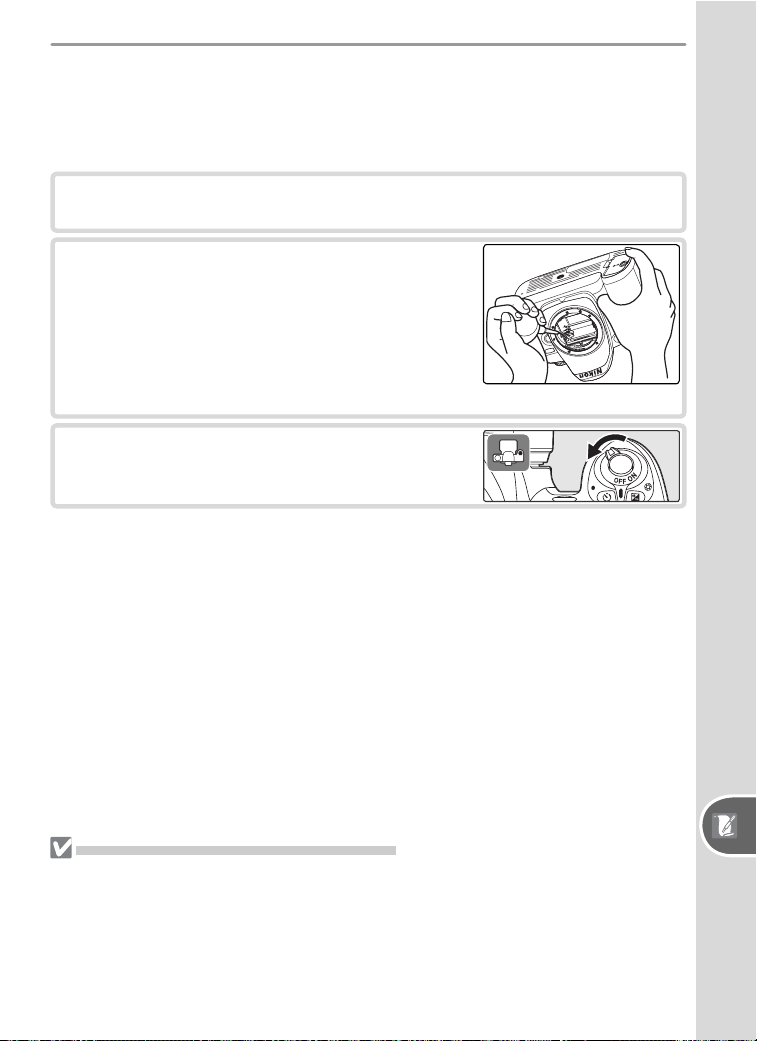
117
Technical Notes—Caring for the Camera
Cleaning the Low-Pass Filter
The low-pass fi lter is extremely delicate and easily damaged. Nikon recom-
mends that fi lter be cleaned only by Nikon-authorized service personnel.
Should you choose to clean the fi lter yourself, follow the steps below.
1
Raise the mirror as described in steps 1–3 on the preceding page.
2
Re move dust and lint from the fi lter with a
blow er. Do not use a blower-brush, as the
bris tles could damage the fi lter. Dirt that can
not be removed with a blower can only be
re moved by Nikon-au tho rized ser vice per-
son nel. Un der no circumstances should you
touch or wipe the fi l ter.
3
Turn the cam era off. The mirror will return
to the down position and the shutter cur tain
will close. Replace the lens or body cap.
Servicing the Camera and Accessories
The D50 is a precision device and requires regular servicing. Nikon recommends that
the camera be inspected by the original retailer or Nikon service representative once
every one to two years, and that it be serviced once every three to fi ve years (note
that fees apply to these services). Frequent inspection and servicing are particularly
recommended if the camera is used professionally. Any accessories regularly used
with the camera, such as lenses or optional Speedlights, should be included when the
camera is inspected or serviced.

118
Technical Notes—Caring for the Camera
Caring for the Camera and Battery: Cautions
Do not drop
The product may malfunction if sub ject ed to
strong shocks or vi bra tion.
Keep dry
This product is not waterproof, and may
mal func tion if im mersed in wa ter or ex-
posed to high levels of hu mid i ty. Rust ing
of the in ter nal mech a nism can cause ir rep a-
ra ble dam age.
Avoid sudden changes in tem per a ture
Sud den chang es in tem per a ture, such as
oc cur when en ter ing or leav ing a heat ed
build ing on a cold day, can cause con den -
sa tion in side the de vice. To prevent con den -
sa tion, place the device in a car ry ing case or
a plas tic bag be fore ex pos ing it to sud den
chang es in tem per a ture.
Keep away from strong mag net ic fi elds
Do not use or store this device in the vi cin i ty
of equip ment that gen er ates strong elec-
tro mag net ic radiation or mag net ic fi elds.
Strong static charg es or the mag net ic fi elds
pro duced by equip ment such as radio trans-
mit ters could in ter fere with the monitor,
dam age data stored on the mem o ry card, or
affect the prod uct’s in ter nal cir cuit ry.
Do not leave the lens pointed at the sun
Do not leave the lens pointed at the sun or
another sight source for an extended period.
Intense light may cause the image sensor to
deteriorate or produce a white blur effect in
photographs.
Blooming
Vertical white streaks may appear in pho-
tographs of the sun or other strong light
sources. This phenomenon, known as
“blooming,” can be prevented by reducing
the amount of light that falls on the image
sensor, either by choosing a slow shutter
speed and small aperture or by using an
ND fi lter.
Do not touch the shutter curtain
The shutter curtain is extremely thin and
easily damaged. Under no cir cum stanc es
should you exert pres sure on the curtain,
poke it with clean ing tools, or sub ject it to
powerful air cur rents from a blow er. These
actions could scratch, de form, or tear the
curtain.
Handle all mov ing parts with care
Do not ap ply force to the bat tery-cham ber,
card-slot, or con nec tor cov ers. These parts
are es pe cial ly sus cep ti ble to dam age.
Cleaning
• When cleaning the camera body, use a
blow er to remove dust and lint, then wipe
gently with a soft, dry cloth. After using
your camera at the beach or seaside, wipe
off any sand or salt using a cloth lightly
damp ened with pure water and then dry
your camera thoroughly. In rare in stanc es,
static electricity produced by a brush or
cloth may cause the LCD dis plays to light
up or dark en. This does not in di cate a
malfunction, and the dis play will shortly
return to normal.
• When cleaning the lens and mirror, re-
mem ber that these elements are easily
dam aged. Dust and lint should be gen tly
removed with a blower. When using an
aerosol blower, keep the can vertical (tilt-
ing the can could result in liquid be ing
sprayed on the mir ror). If you do get a
fi ngerprint or other stain on the lens, ap-
ply a small amount of lens cleaner to a
soft cloth and wipe the lens carefully.
• See “Cleaning the Low-Pass Filter” for in-
formation on cleaning the low-pass fi lter
( 117).
Storage
•To prevent mold or mildew, store the cam-
era in a dry, well-ven ti lat ed area. If you will
not be us ing the prod uct for long pe ri ods,
re move the bat tery to pre vent leak age and
store the cam era in a plastic bag con tain ing

119
Technical Notes—Caring for the Camera
a des ic cant. Do not, how ev er, store the
cam era case in a plas tic bag, as this may
cause the ma te ri al to de te ri o rate. Note
that des ic cant grad u al ly los es its ca pac i ty to
ab sorb mois ture and should be re placed at
reg u lar in ter vals.
• Do not store the camera with naph tha or
camphor moth balls, close to equip ment
that pro duc es strong mag net ic fi elds, or in
areas subject to extremes of tem per a ture,
for ex am ple near a space heater or in a
closed ve hi cle on a hot day.
•To prevent mold or mil dew, take the cam-
era out of storage at least once a month.
Turn the camera on and re lease the shut-
ter a few times before putting the cam era
away again.
• Store the battery in a cool, dry place.
Replace the terminal cover before put ting
the battery away.
Notes on the monitor
• The monitor may contain a few pix els
that are always lit or that do not light.
This is a char ac ter is tic com mon to all TFT
LCD monitors and does not in di cate a
mal func tion. Im ag es re cord ed with the
prod uct will not be af fect ed.
• Images in the mon i tor may be dif fi cult to
see in a bright light.
• Do not apply pressure to the monitor; this
could cause dam age or mal func tion. Dust
or lint on the mon i tor can be re moved
with a blower. Stains can be re moved
by rub bing the surface light ly with a soft
cloth or cham ois leath er.
• Should the monitor break, care should be
taken to avoid injury due to bro ken glass
and to pre vent the liq uid crystal from the
monitor touch ing the skin or en ter ing the
eyes or mouth.
Turn the product off before re mov ing or
disconnecting the power source
Do not unplug the product or re move the
battery while the prod uct is on, or while
im ag es are being recorded or deleted. Forc-
ibly cut ting pow er to the prod uct in these
cir cum stanc es could re sult in loss of data or
in damage to product memory or internal
circuitry. To pre vent an ac ci den tal in ter -
rup tion of pow er, avoid car ry ing the prod uct
from one lo ca tion to an oth er while the AC
adapter is con nect ed.
Batteries
• Dirt on the battery terminals can prevent
the camera from functioning.
• When you turn the device on, check the
battery-level dis played in the con trol pan el
to de ter mine whether the bat tery needs
to be recharged or replaced. The bat tery
needs to be recharged or replaced when
the battery-level in di ca tor is fl ash ing.
• When tak ing pho to graphs on im por tant
oc ca sions, ready a spare EN-EL3 bat tery
and keep it ful ly charged. De pend ing on
your lo ca tion, you may fi nd it diffi cult to
pur chase re place ment bat ter ies on short
notice.
• On cold days, the capacity of bat ter ies
tends to de crease. Be sure the battery is
fully charged before tak ing pho to graphs
out side in cold weath er. Keep a spare
bat tery in a warm place and ex change the
two as nec es sary. Once warmed, a cold
bat tery may re cov er some of its charge.
• Should the bat tery ter mi nals be come dirty,
wipe them off with a clean, dry cloth be-
fore use.
• After removing the battery from the cam-
era, be sure to replace the ter mi nal cov er.
• Used batteries are a valuable resource.
Please recycle used batteries in accord
with local regulations.
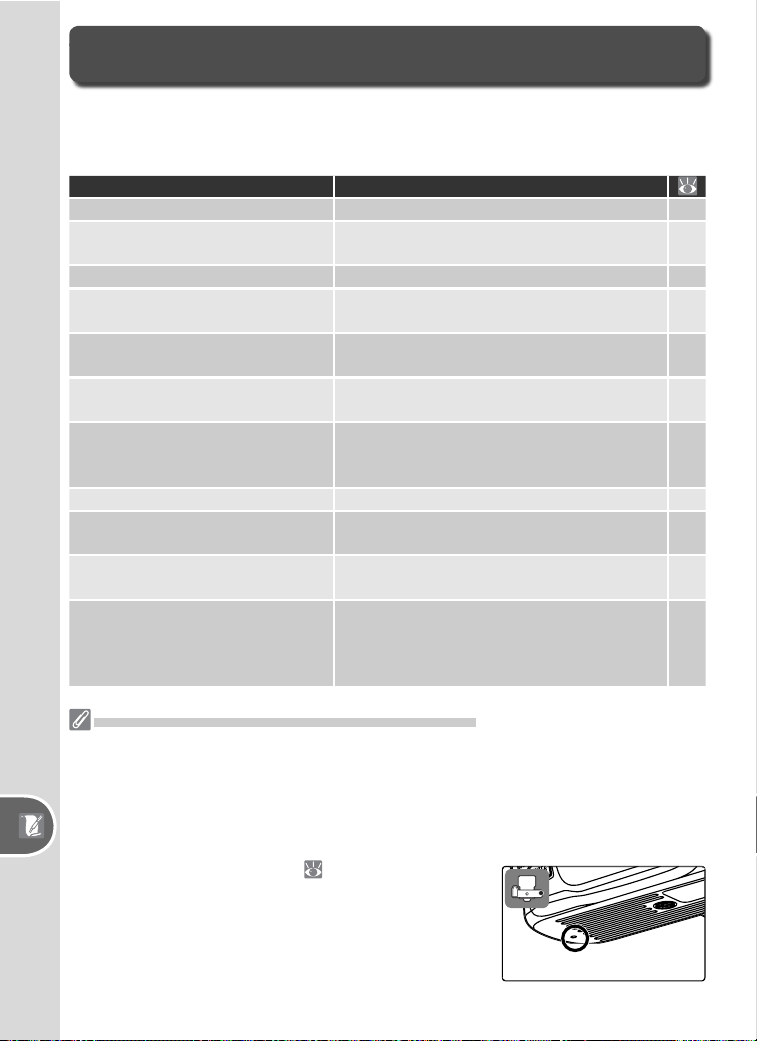
120
Technical Notes—Troubleshootng
If the camera fails to function as expected, check the list of common prob-
lems below before consulting your retailer or Nikon representative. Refer to
the page numbers in the right-most column for more information.
Problem Solution
Camera takes time to turn on. Delete fi les or folders. 84
Viewfi nder is out of focus.
• Adjust viewfi nder focus.
• Use optional diopter adjustment lens.
13
113
Viewfi nder is dark. Charge battery or insert charged battery. 14
Displays turn off without warning.
Choose longer monitor off or meter of
delays.
100
Unusual characters displayed in
control panel
See “A Note on Electronically Controlled
Cameras,” below.
—
Displays in control panel or view-
fi nder are slow and dim
Displays are affected by high or low tem-
peratures.
—
• Fine lines around active focus
area in viewfi nder
• Viewfi nder display turns red
These phenomena are normal and do not
indicate a malfunction.
—
Menu item is not displayed. Select Detailed for CSM/Setup Menu.69
Menu item is unavailable.
Choose another mode or insert memory
card.
11
101
Image size can not be changed.
NEF (Raw) or NEF+JPEG Basic selected for
image quality.
31
Shutter release is disabled.
• Aperture not locked at highest f/-number.
• Memory card is locked.
• Memory card is full.
• Flash is charging.
7
11
14
18
Troubleshooting
A Note on Electronically-Controlled Cam er as
In extremely rare in stanc es, un usu al char ac ters may ap pear in the control panel and
the cam era may stop func tion ing. In most cas es, this phe nom e non is caused by a
strong ex ter nal stat ic charge. Turn the cam era off, re move and replace the battery,
and turn the cam era on again, or, if you are using an AC adapt er (available sep a -
rate ly), dis con nect and re con nect the adapt er and turn the cam era on again. If the
problem persists, press the reset switch (see right) and then reset the camera clock
to the correct date and time ( 68). In the event of
con tin ued mal func tion, con tact your re tail er or Nikon
rep re sen ta tive. Note that dis con nect ing the power
source as de scribed above may result in loss of any
data not re cord ed to the memory card at the time the
prob lem occurred. Data already recorded to the card
will not be affected.
Reset switch
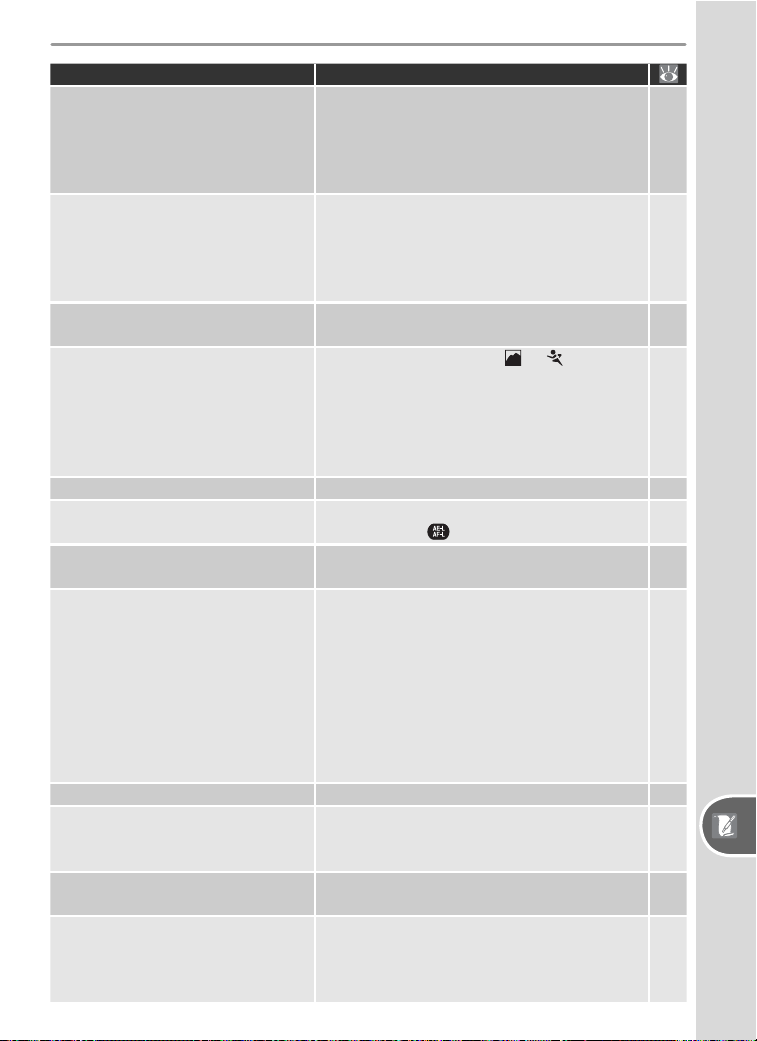
121
Technical Notes—Troubleshootng
Problem Solution
Shutter release is disabled (con-
tinued).
• Camera is not in focus.
• Non-CPU lens: camera not in M mode.
• Mode dial rotated to S after shutter speed
of bulb selected in M mode: choose new
shutter speed.
17
45
43
No photo taken when remote con-
trol shutter release is pressed.
• Replace battery in remote control.
• Choose remote control mode.
• Time selected for Remote has passed:
reselect remote control mode.
• Bright light is interfering with remote.
113
22
100
23
Can not select focus area.
• AF-Area Mode set to Closest Subjct
• Monitor is on: camera in playback mode.
89
24
AF-assist illuminator does not
light.
• Mode dial is rotated to
or .
• Continuous-servo AF is in effect.
• Off selected for AF Assist.
• Illuminator has turned off automatically.
Illuminator may become hot with contin-
ued use; wait for lamp to cool down.
34
88
90
—
Slow shutter speeds not available. Flash raised (P, S, A, and M modes) 128
Focus does not lock when shutter-
release button is pressed halfway.
AF-C selected for Autofocus (P, S, A, and
M modes: use
button to lock focus.
34
88
Area shown in viewfi nder is smaller
than fi nal photo.
Viewfi nder has vertical and horizontal frame
coverage of about 95%.
—
Photos are out of focus.
• Rotate focus-mode selector to AF.
• Camera unable to focus using autofocus:
use manual focus or focus lock. Camera
may not focus if focus area contains ob-
jects at different distances from camera
or subject is low contrast, contains highly
detailed or repeating patterns, is much
brighter or darker than background, or is
much smaller than objects in background.
15
34
35
Recording time increases. Turn noise reduction off. 78
Randomly-spaced bright pixels
(“noise” appears in photos.
• Choose lower sensitivity.
• Shutter speed is slower than 1˝: use noise
reduction.
39
78
Blotches appear on photos.
• Clean lens.
• Clean low-pass fi lter.
115
116
Colors are unnatural.
• Select P, S, A, or M mode and adjust white
balance to match light source.
• Select P, S, A, or M mode and adjust Opti-
mize Image setting.
49
48
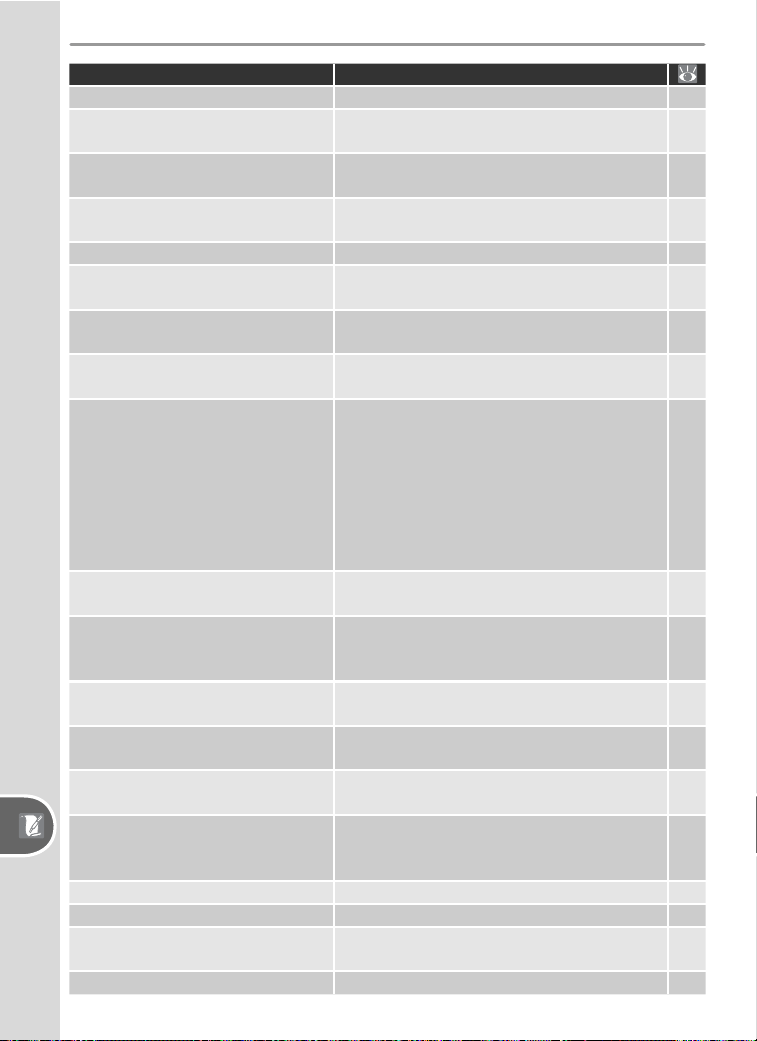
122
Technical Notes—Troubleshootng
Problem Solution
Can not measure white balance. Subject is too dark or too bright. 80
Image can not be selected as
source for preset white balance.
Image was not created with D50. 81
White balance bracketing unavail-
able.
NEF (Raw) or NEF+JPEG Basic selected for
image quality.
31
93
Results for Optimize Image vary
from shot to shot.
Select Custom and choose setting other than
Auto for Sharpening and Tone Comp.
76
Metering can not be changed. Autoexposure lock is in effect. 96
Exposure compensation can not
be used.
Rotate mode dial to P, S, or A.47
Continuous shooting ends unex-
pectedly.
• P, S, A, and M modes: lower fl ash.
• Turn bracketing off.
37
93
RAW image is not displayed during
playback.
Photo taken at image quality of NEF+JPEG
Basic.
31
“Tall” (portrait-orientation) photos
are displayed in “wide” (land-
scape) orientation.
• Select Yes for Rotate Tall.
• Photo was taken with Off selected for Im-
age Rotation.
• Camera orientation was changed while
shutter-release button was pressed in con-
tinuous mode.
• Camera was pointed up or down when
shot was taken.
84
75
75
75
Can not delete photo.
• Photo is protected: remove protection.
• Memory card is locked.
56
11
Some photos are not displayed
during playback.
Select All for Playback Fldr. Note that
Current will automatically be selected
when next photo is taken.
84
Photos are not displayed in moni-
tor after shooting.
Select On for Image Review.90
Can not change print order.
• Memory card is full: delete photos.
• Memory card is locked.
84
11
Can not print pictures via direct
USB connection.
Set USB to PTP.71
Can not select photo for printing.
Photo is a RAW (NEF) image. Use Picture
Project or Nikon Capture 4 version 4.3 or
later (available separately) to print photo.
59
Photo is not displayed on TV. Choose correct video mode. 69
Can not copy photos to computer. Choose correct USB option. 59
Can not use Nikon Capture 4 Cam-
era Control.
Set USB to PTP.
59
71
Date of recording is not correct. Set camera clock. 69
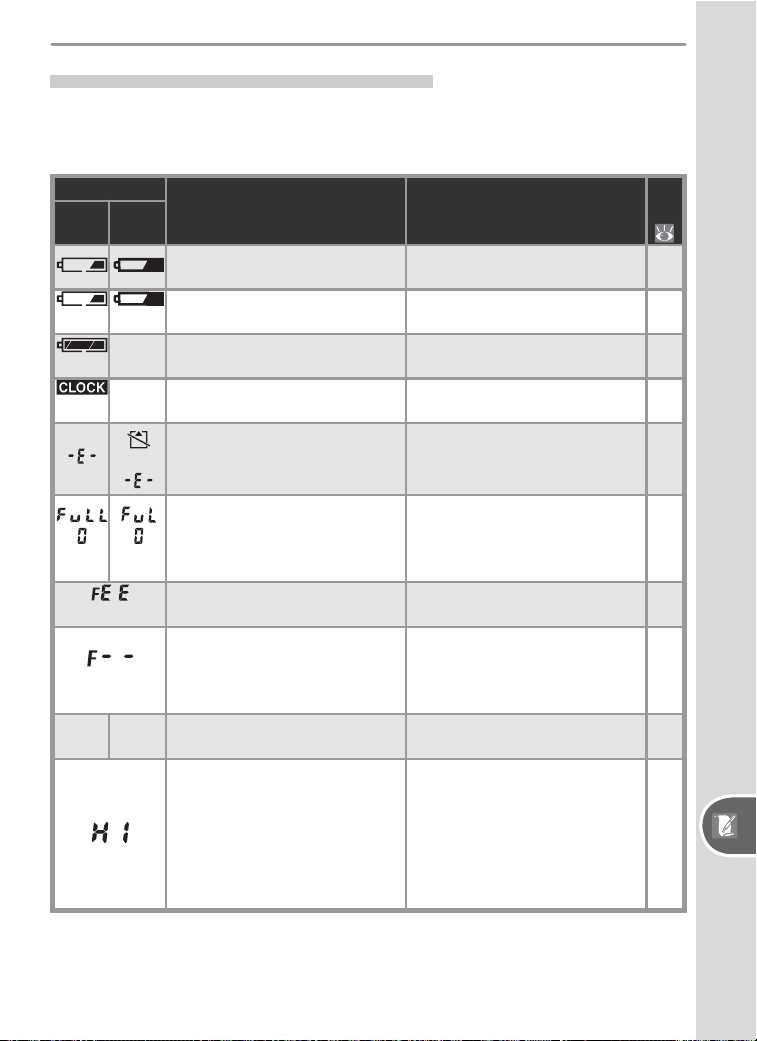
123
Technical Notes—Troubleshootng
Camera Error Messages and Displays
This section lists the indicators and error messages that appear in the
viewfi nder, control panel, and monitor when there is a problem with the
camera.
Indicator
Problem Solution
Control
panel
View-
fi nder
Low battery.
Ready a fully-charged spare
bat tery.
8
14
(blinks) (blinks)
Battery exhausted. Replace battery.
8
14
(blinks)
Camera can not detect bat-
tery.
Insert battery. 8
(blinks)
Camera clock is not set. Set camera clock.
10
68
(blinks)
No memory card. Insert memory card. 11
(blinks) (blinks)
Memory insuffi cient to record
further photos at current set-
tings, or cam era has run out of
fi le or folder numbers.
• Reduce quality or size.
• Delete photographs.
• Insert new memory card.
30
84
11
(blinks)
Lens aperture ring is not locked
at minimum aperture.
Lock ring at minimum aperture
(largest f/-number).
7
(blinks)
No lens attached, or non-CPU
lens attached.
Attach CPU lens (IX Nikkor ex-
cluded), or rotate mode dial to
M and use lens aperture ring to
set aperture.
7
45
105
●
(blinks)
Camera unable to focus using
autofocus.
Focus manually. 35
Subject too bright; photo will
be overexposed.
• Choose lower sensitivity.
• Use optional Neutral Density
(ND) fi lter
• In mode:
S Increase shutter speed
A Choose smaller ap er ture
(larg er f/-number)
39
114
43
44
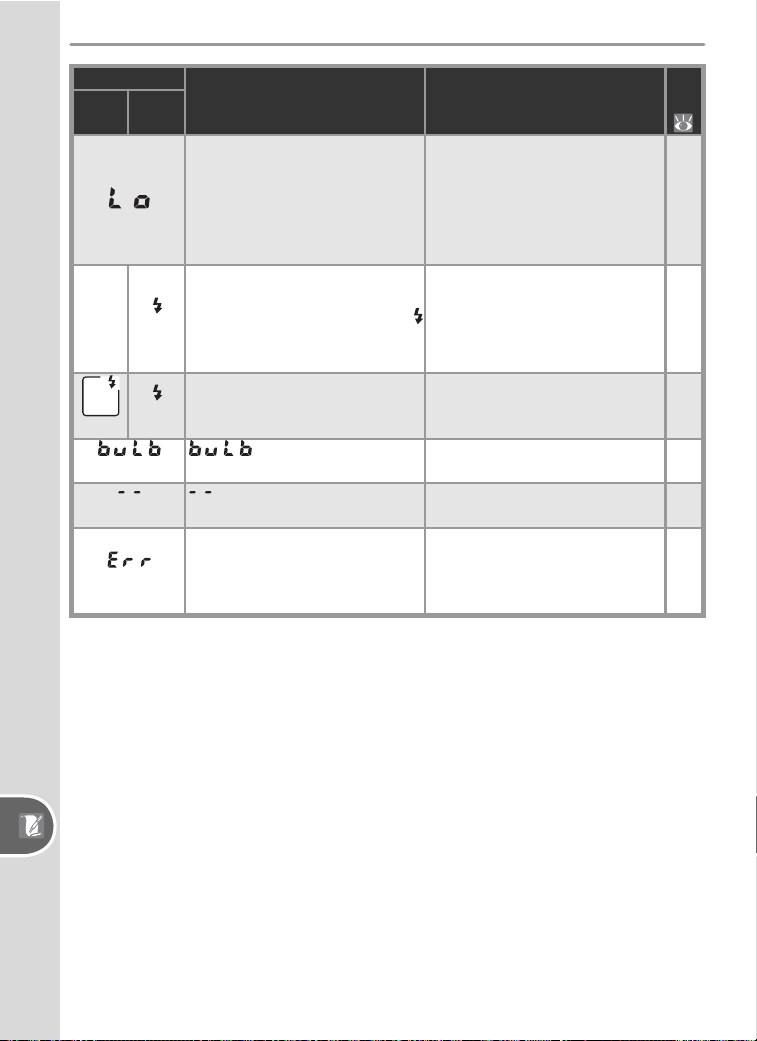
124
Technical Notes—Troubleshootng
Indicator
Problem Solution
Control
panel
View-
fi nder
Subject too dark; photo will be
underexposed.
• Choose higher sensitivity.
• Use built-in fl ash.
• In mode:
S Lower shutter speed
A Choose larger ap er ture
(smaller f/-number)
39
36
43
44
(blinks)
• Flash required for correct ex-
posure (P, S, A, M modes).
• Flash has fi red at full power (
blinks for three seconds after
fl ash fi res) .
• Raise built-in fl ash.
• Check photo in monitor; if
underexposed, adjust settings
and try again.
36
24
(blinks)
(blinks)
Speedlight that does not
sup port i-TTL fl ash control at-
tached and set to TTL.
Change fl ash mode setting on
optional Speedlight.
110
127
(blinks)
selected in mode M
and mode dial rotated to S.
Change shutter speed or select
mode M.
43
45
(blinks)
selected in mode M and
mode dial rotated to S.
Change shutter speed or select
mode M.
43
45
(blinks)
Camera malfunction.
Release shutter. If error per-
sists or appears frequently,
consult with Nikon-au tho rized
service representative.
—
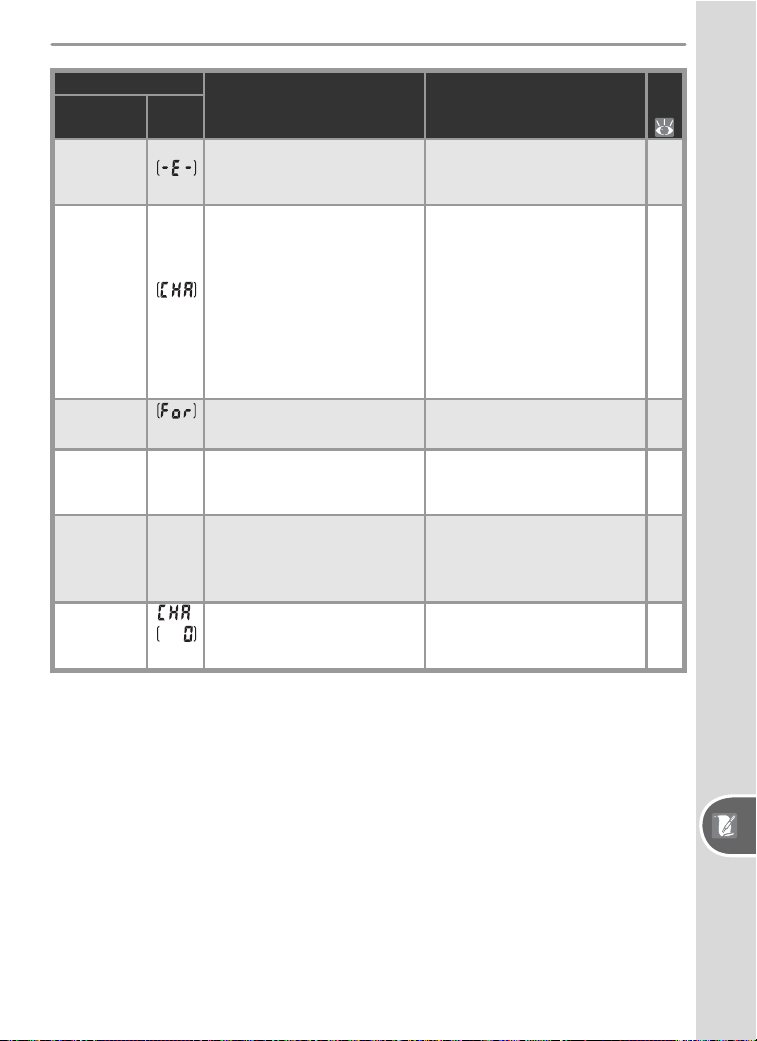
125
Technical Notes—Troubleshootng
Indicator
Problem Solution
Monitor
Control
panel
NO CARD
PRESENT
Camera cannot detect
memory card.
Turn camera off and con-
fi rm that card is correctly
inserted.
11
THIS CARD
CAN NOT BE
USED
(blinks)
• Error accessing memory
card.
• Unable to create new
folder
• Card has not been format-
ted for use in D50.
• Use Nikon-approved card.
• Check that contacts are
clean. If card is dam aged,
contact retailer or Nikon
rep re sen ta tive.
• Delete fi les or insert new
memory card.
• Format memory card.
114
—
11
84
11
CARD IS NOT
FORMATTED
(blinks)
Memory card has not been
formatted for use in D50.
Format memory card. 11
FOLDER
CONTAINS
NO IMAGES
• Memory card contains no
images.
• Current folder is empty.
• Insert another card.
• Set Playback fl dr to All.
11
84
FILE DOES
NOT
CONTAIN
IMAGE DATA
File has been created or
modifi ed using a com put er
or different make of camera,
or fi le is corrupt.
Delete fi le or reformat
memory card.
11
84
CARD IS
LOCKED
,
(blinks)
Memory card is locked (write
protected).
Slide write-protect switch to
“write” position.
11
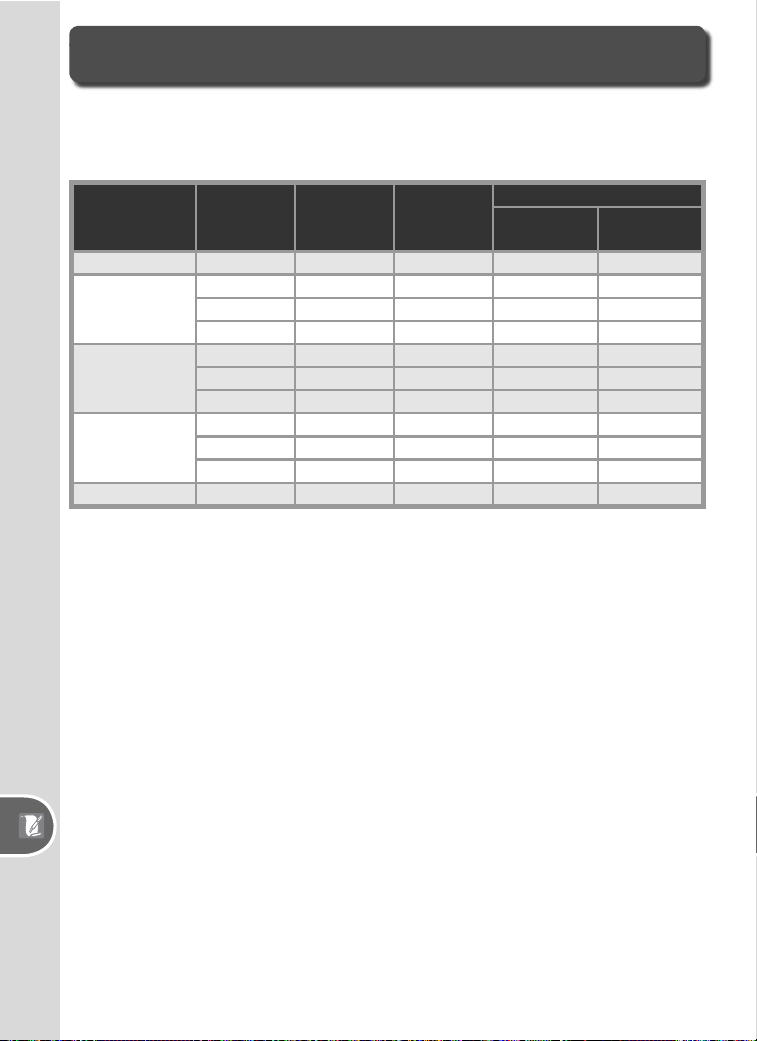
126
Technical Notes—Appendix
Appendix
Memory Card Capacity and Image Quality/Size
The following table shows the approximate number of pictures that can be
stored on a 256 MB card at different image quality and size settings.
Image
quality
Image
size
File size
(MB)
1
No. of
images
1
Buffer capacity
2
Long Exp. NR
Off
Long Exp. NR
On
NEF (Raw) — 5.0 33 4 3
JPEG Fine
L 2.9 70 9 7
M 1.6 123 10 8
S 0.8 258 19 17
JPEG Normal
L 1.5 137 12 10
M 0.8 233 16 14
S 0.4 464 27 25
JPEG Basic
L 0.8 258 19 17
M 0.4 423 27 25
S 0.2 770 49 47
NEF+JPEG Basic —/L 5.8
3
29 4 3
1 All fi gures are approximate. File size varies with scene recorded and make of
memory card.
2 Maximum number of frames that can be stored in memory buffer. Actual number
of photos that can be taken before buffer fi lls may vary with make of memory
card.
3Total fi le size of NEF (RAW) and JPEG images.
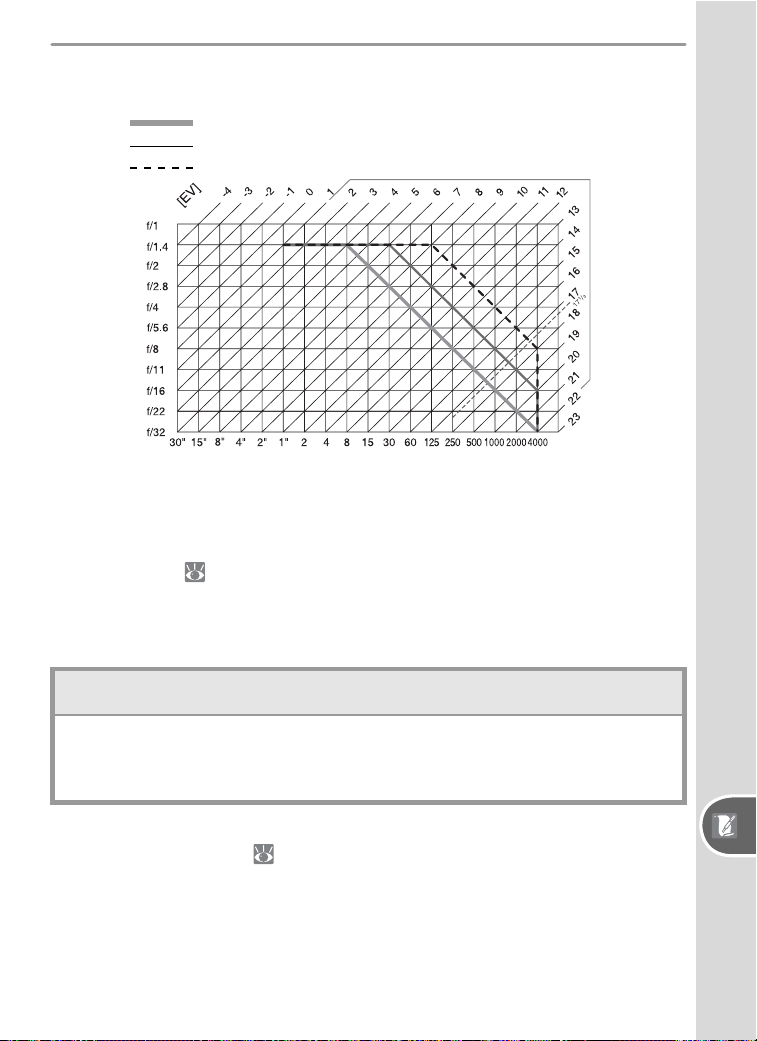
127
Technical Notes—Appendix
Exposure Program (Mode P)
The exposure program for mode P is shown in the fol low ing graph:
F (lens focal length)
울
55 mm
55
쏝
F
울
135 mm
F
쏜
135 mm
Shutter speed
The maximum and minimum values for EV vary with sen si tiv i ty (ISO equivalency); the
above graph assumes a sen si tiv i ty of ISO 200 equivalent. When matrix metering is
used, values over 17
1
/
3 EV are re duced to 17
1
/
3 EV.
Flash Control ( 36, 109)
The following types of fl ash control are supported when a CPU lens is used
in combination with the built-in fl ash or an optional SB-800 or SB-600
Speedlight:
i-TTL Balanced Fill-Flash for Digital SLR: Flash output is adjusted for a natural bal-
ance between the main subject and the background.
Standard i-TTL Flash for Digital SLR: Flash output is adjusted for the main subject;
the brightness of the background is not taken into account. Recommended for
shots in which the main subject is emphasized at the expense of background de-
tails, or when exposure compensation is used.
Standard i-TTL fl ash control is used when Spot is selected for Custom
Setting 13 (Metering; 96) or exposure mode M is selected when the
built-in fl ash is used. i-TTL balanced fi ll-fl ash for digital SLR is used in all
other cases.
Aperture
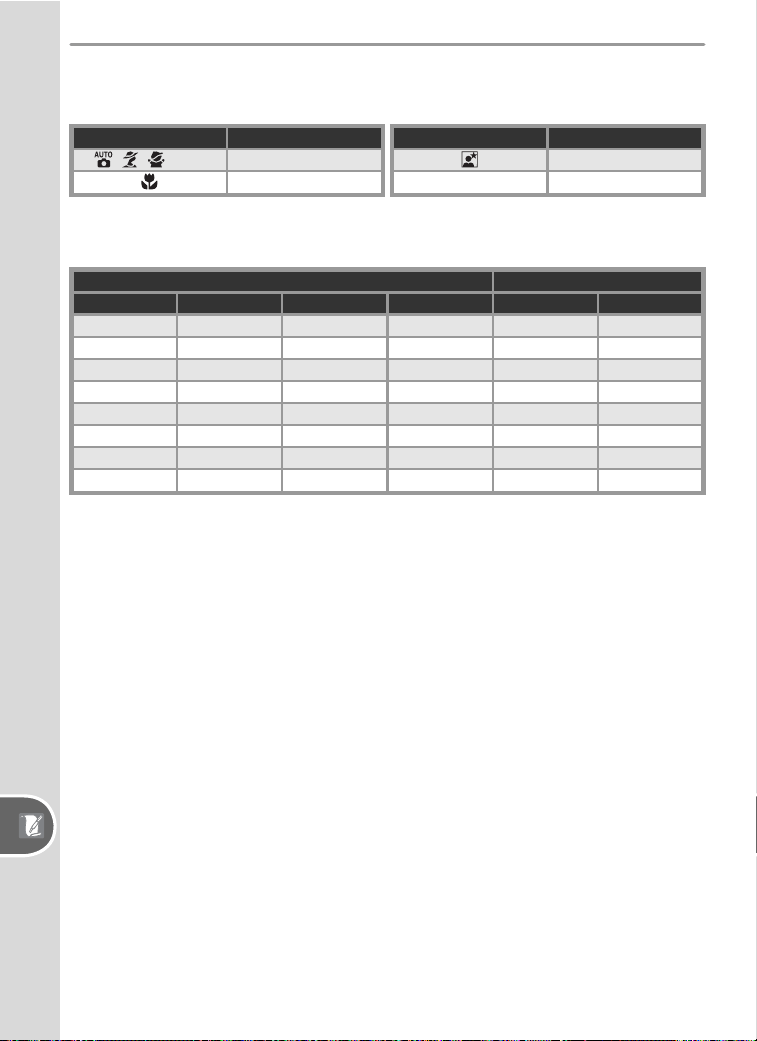
128
Technical Notes—Appendix
Shutter Speeds Available with Built-in Flash
The following shutter speeds are available when the built-in fl ash is used.
Mode Shutter speed
, , , P, A
1
/
500–
1
/
60 s
1
/
500–
1
/
125 s
Mode Shutter speed
1
/
500–1 s
S, M
1
/
500–
1
/
30 s
Flash Range, Aperture, and Sensitivity
Flash range varies with sensitivity (ISO equivalency) and aperture.
Aperture at ISO equivalent of Range
200 400 800 1600 m ft
2 2.8 4 5.6 1.0–7.5 3´3˝–24´7˝
2.8 4 5.6 8 0.7–5.4 2´4˝–17´8˝
4 5.6 8 11 0.6–3.8 2´–12´6˝
5.6 8 11 16 0.6–2.7 2´–8´9˝
81116220.6–1.9 2´–6´3˝
11 16 22 32 0.6–1.4 2´–4´7˝
16 22 32 — 0.6–0.9 2´–2´11˝
22 32 — — 0.6–0.7 2´–2´4˝
Supported Standards
DCF Version 2.0: Design Rule for Camera File System (DCF) is standard
widely used in the digital camera industry to ensure compatibility among
different makes of camera.
DPOF: Digital Print Order Format (DPOF) is an industry-wide standard that
allows pictures to be printed from print orders stored on the memory card.
Exif version 2.21: The D50 supports Exif (Exchangeable Image File Format
for Digital Still Cameras) ver sion 2.21, a stan dard that al lows in for ma tion
stored with pho to graphs to be used for optimal color re pro duc tion when
im ag es are output on Exif-compliant print ers.
PictBridge: A standard developed by in cooperation with the digital cam-
era and printer industries, allowing photographs to be output directly to a
printer without connecting the camera to a computer.
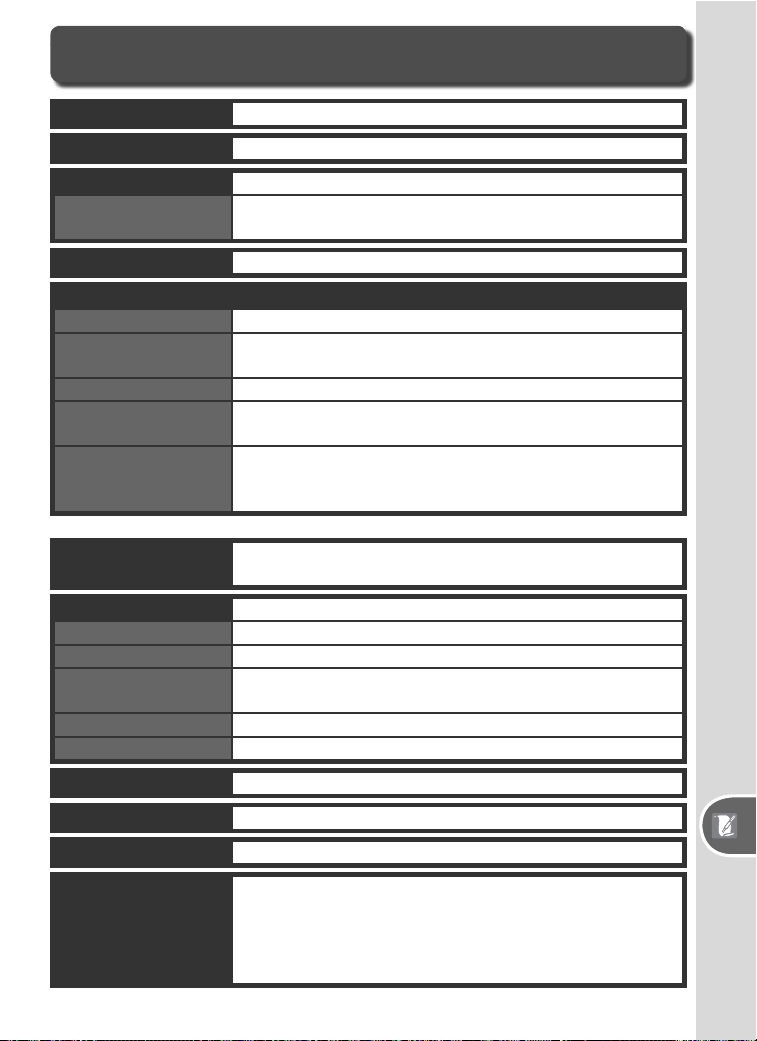
129
Technical Notes—Specifi cations
Specifi cations
Type Single-lens refl ex digital camera with interchangeable lenses
CCD 23.7 × 15.6 mm; total pixels: 6.24 million
Image size (pixels) • 3008 × 2000 (Large)
Effective pixels 6.1 million
Lens mount Nikon F mount (with AF coupling and AF contacts)
Compatible lenses
*
Type G or D AF Nikkor All functions supported
Other AF Nikkor
†
All functions supported except 3D color matrix metering II
Micro Nikkor 85 mm
f/2.8D
All functions supported except autofocus and some expo-
sure modes
AI-P Nikkor All functions supported except 3D color matrix metering II
and autofocus
Non-CPU Can be used in mode M, but exposure meter does not
function; electronic range fi nder can be used if maximum
aperture is f/5.6 or faster
Picture angle Equivalent in 35-mm format is approximately 1.5 times lens
focal length
Viewfi nder
Diopter adjustment –1.6 – +0.5 m
–1
Focusing screen Type B BriteView clear matte screen Mark V with superim-
posed focus brackets
Eyepoint 18 mm (–1.0 m
–1
)
Frame coverage Approximately 95% of lens (vertical and horizontal)
Magnifi cation Approximately 0.75× (50-mm lens at infi nity; –1.0 m
–1
)
Fixed-eyelevel penta-Dach-mirror type
* IX Nikkor lenses can not be used † Excluding lenses for F3AF
Refl ex mirror Quick return
Lens aperture Instant return with depth-of-fi eld preview
Focus-area selection Can be selected from 5 focus areas
Lens servo • Autofocus (AF): Instant single-servo AF (AF-S); continu-
ous-servo AF (AF-C); auto AF-S/AF-C selection (AF-A); pre-
dictive focus tracking automatically activated according to
subject status
• Manual focus (M)
• 2256 × 1496 (Medium)
• 1504 × 1000 (Small)
130
Technical Notes—Specifi cations
Autofocus
Detection range –1 – +19 EV (ISO 100 at 20 °C/68 °F)
AF-area mode Single-area AF, dynamic-area AF, dynamic-area AF with
closest subject priority
Focus lock Focus can be locked by pressing shutter-release button
halfway (single-servo AF) or by pressing AE-L/AF-L button
TTL phase detection by Nikon Multi-CAM900 autofocus
module with AF-assist illuminator (range approximately
0.5–3.0 m / 1´8˝–9´10˝)
Exposure
Metering Three-mode through-the-lens (TTL) exposure metering
Matrix 3D color matrix metering II (type G and D lenses); color
matrix metering II (other CPU lenses); metering performed
by 420-segment RGB sensor
Center-weighted Weight of 75% given to 8-mm circle in center of frame
Spot Meters 3.5-mm circle (about 2.5% of frame) centered on
active focus area
Range
(ISO 100 equivalent,
f/1.4 lens, 20 °C/68 °F)
0 – 20 EV (3D color matrix or center-weighted metering)
2 – 20 EV (spot metering)
Exposure meter coupling
CPU coupling
Exposure control
Operating mode Digital Vari-Program ( auto, portrait, landscape,
child, sports, close up, night portrait), programmed
auto (P) with fl exible program; shutter-priority auto (S);
aperture priority auto (A); manual (M)
Exposure compensation –5 – +5 EV in increments of
1
/
3 or ½ EV
Bracketing Exposure and / or fl ash bracketing (up to ±2 EV over 3 ex-
posures)
Exposure lock Luminosity locked at detected value with AE-L/AF-L button
Shutter
Speed 30 –
1
/
4000 s in steps of
1
/
3 or ½ EV, bulb, remote
Combined mechanical and CCD electronic shutter
Sensitivity 200 – 1600 (ISO equivalent) in steps of 1 EV
White balance
Bracketing 3 exposures in increments of 1, 2, or 3
Auto (TTL white-balance with 420 pixels RGB sensor), six
manual modes with preset white balance
131
Technical Notes—Specifi cations
Storage
Media SD (Secure Digital) memory cards
File system Compliant with Design Rule for Camera File System (DCF)
2.0 and Digital Print Order Format (DPOF)
Compression • NEF (RAW): compressed 12-bit
• JPEG: JPEG baseline-compliant
Built-in Speedlight
Guide number
(m / ft at 20 °C/68 °F)
• ISO 200: approximately 15/49 (manual 17/56)
• ISO 100: approximately 11/36 (manual 12/39)
• , , , , : auto fl ash with auto pop-up
• P, S, A, M: manual pop-up with button release
Flash
Sync contact X-contact only; fl ash synchronization at up to
1
/
500 s
Sync modes • , , , : front curtain sync, red-eye reduction
• : slow sync, slow sync with red-eye reduction
• , : front curtain sync and red-eye reduction available
with optional Speedlights
• P, S, A, M: front curtain sync, slow sync, rear-curtain sync,
red-eye reduction, slow sync with red-eye reduction
Flash control
TTL TTL fl ash control by 420-segment RGB sensor (CPU lenses only)
• Built-in Speedlight: i-TTL balanced fi ll-fl ash for digital SLR,
or standard i-TTL fl ash for digital SLR (spot metering)
• SB-800 or 600: i-TTL balanced fi ll-fl ash for digital SLR, or
standard i-TTL fl ash for digital SLR (spot metering)
Auto aperture Available with SB-800 with CPU lens
Non-TTL auto Available with such Speedlights as SB-800, 80DX, 28DX,
28, 27, and 22s
Range-priority manual Available with SB-800
Flash compensation –3 – +1 EV in increments of
1
/
3 or ½ EV
Nikon Creative
Lighting System
Supports Flash Color Information Communication and FV
lock with built-in Speedlight, SB-800, and SB-600. SB-800
and 600 also support Advanced Wireless Lighting.
Accessory shoe Standard ISO hot-shoe contact with safety lock
Self-timer Electronically controlled timer with 2 – 20 s duration
Monitor 2.0˝, 130,000-dot, low-temperature polysilicon TFT LCD
with brightness adjustment
132
Technical Notes—Specifi cations
Video output Can be selected from NTSC and PAL
External interface USB 2.0 Hi-speed
Tripod socket ¼˝ (ISO)
Power source • One rechargeable Nikon EN-EL3 Li-ion battery; charging
voltage (MH-18a quick charger or optional MH-19 multi
charger): 7.4 V DC
• EH-5 AC adapter (available separately)
Dimensions (W × H × D) Approximately 133 × 102 × 76 mm (5.2˝ × 4.0˝ × 3.0˝)
Weight Approximately 540 g (1 lb 3 oz) without battery, memory
card, or body cap
Operating environment
Temperature 0 – +40 °C (+32 – 104 °F)
Humidity Less than 85% (no condensation)
• Unless otherwise stated, all fi gures are for a camera with a fully-charged battery
op er at ing at an ambient temperature of 20 °C (68 °F).
• Nikon reserves the right to change the specifi cations of the hardware and software
described this manual at any time and without prior notice. Nikon will not be held
liable for damages that may result from any mistakes that this manual may con-
tain.
Firmware upgrades Firmware can be upgraded by user
Supported languages Chinese (Simplifi ed and Traditional), Dutch, English, French,
German, Italian, Japanese, Korean, Portuguese, Russian,
Spanish, Swedish
133
Technical Notes—Specifi cations
EN-EL3 Rechargeable Li-ion Battery
Type Rechargeable lithium-ion battery
Weight Approximately 80 g (2.8 oz), excluding terminal cover
Rated capacity 7.4 V/1400 mAh
Dimensions (W × H × D) Approximately 39.5 × 56 × 21 mm (1.6˝ × 2.2˝ × 0.8˝)
MH-18a Quick Charger
Rated input AC 100–240 V, 50/60 Hz
Weight Approximately 80 g (2.8 oz), excluding power cable
Rated output DC 8.4 V/900 mA
Supported batteries EN-EL3 rechargeable Li-ion batteries
Charging time Approximately 120 min
Operating temperature 0 – +40 °C (+32 – 104 °F)
Length of cord Approximately 1800 mm (5´11˝)
Dimensions (W × H × D) Approximately 58 × 90 × 35 mm (2.3˝ × 3.5˝ × 1.4˝)
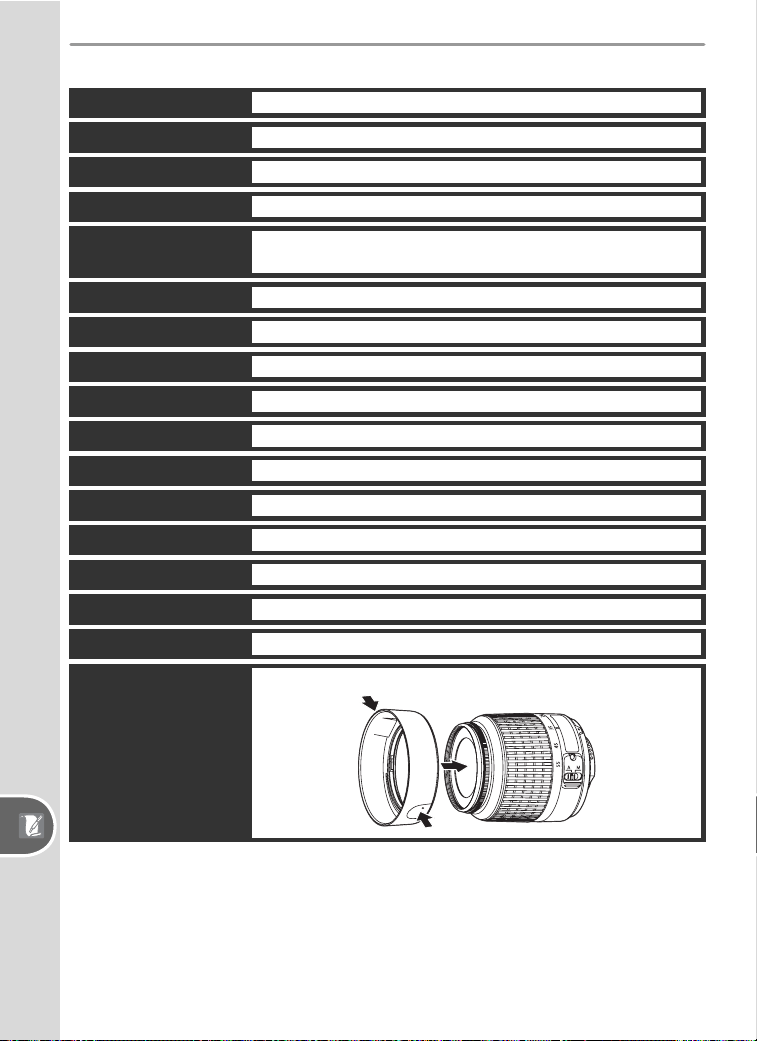
134
Technical Notes—Specifi cations
AF-S 18–55 mm, f/3.5–5.6G Lens
Type Type G CPU AF-S DX Nikkor zoom lens with Nikon mount
Attachment diameter 52 mm (P=0.75 mm)
Supported cameras Nikon DX-format digital SLR cameras
Focal length 18–55 mm
Max. reproduction ratio 1:3.5–5.6
Construction 7 elements in 5 groups, including 1 ED glass element and
1 aspherical element
Zoom positions 18, 24, 35, 45, and 55 mm
Distance information Supplied to camera body
Zoom Zoom adjusted by rotating lens zoom ring
Focus Autofocus with Silent Wave motor; manual focus
Min. focus distance 0.28 m at all zoom positions
Aperture Auto aperture
Aperture range f/3.5–22 (18 mm zoom); f/5.6–38 (55 mm zoom)
Metering Maximum aperture
Weight Approximately 210 g (7.4 oz)
Dimensions (W × H × D) Approximately 69 mm diameter × 74 mm (2.7˝ × 2.9˝)
Lens hoods HB-33 (available separately; attaches as shown below)
135
Technical Notes—Specifi cations
Battery Life
The number of shots that can be taken with a fully-charged EN-EL3 battery
(1400 mAh) varies with the con di tion of the batteries, temperature, and how the
camera is used. The following measurements were performed at a temperature of
20 °C (68 °F).
Example 1: 2000 shots
AF-S DX ED 18–55 mm f/3.5–5.6G lens; con tin u ous shoot ing mode; con tin u ous-
servo autofocus; image quality set to JPEG Basic; im age size set to M; shutter speed
½
50 s; shut ter-re lease pressed half way for three sec onds and fo cus cycled from infi nity
to min i mum range three times; after six shots, mon i tor turned on for fi ve seconds
and then turned off; cycle re peat ed once exposure meters have turned off.
Example 2: 400 shots
AF-S DX ED 18–55 mm f/3.5–5.6G lens; sin gle-frame shoot ing mode; single-ser vo
autofocus; image qual i ty set to JPEG Normal; im age size set to L; shut ter speed
½50 s; shut ter-re lease pressed half way for fi ve seconds and fo cus cycled from infi nity
to min i mum range once with each shot; built-in Speedlight fi red at full power with
every other shot; AF-assist illuminator lights when Speedlight is used; cycle re peat ed
once exposure meters have turned off; camera turned off for one minute with every
ten shots.
The following can reduce battery life:
• Using the monitor
• Keeping the shutter-release button pressed halfway
• Repeated autofocus operations
•Taking NEF (RAW) photographs
• Slow shutter speeds
To ensure maximum battery performance:
• Keep the battery contacts clean. Soiled contacts can reduce battery performance.
• Use EN-EL3 batteries immediately after charging. Batteries will lose their charge if
left un used.
136
Technical Notes—Index
Index
Symbols
. See Exposure compensa-
tion
. See Flash compensation
. See Flash ready indicator
. See FV lock
, , , , , . See
Mode, Digital Vari-Program
. See Remote control
. See Self-timer
. See Shooting mode
A
A.
See Mode
Advanced Wireless Lighting, 110
AE-L/AF-L, 98
AE Lock, 99
AF.
See Focus mode; Auto-
focus
AF Area Illm, 91
AF-Area Mode, 89
AF Assist, 90
AF-assist illuminator, 34
Aperture, 40–45
(auto) mode, 14
Autoexposure lock, 97
Autofocus, 88
Autofocus, 33, 88, 89
AF-A, 88
AF-C, 88
AF-S, 88
B
BASIC. See Image Quality
Battery, 8–9
EN-EL3, 8
inserting, 8–9
life, 135
storage, 118–119
Beep, 88
BKT. See bracketing
BKT Set, 93
Blur, reducing, 43
Bracketing, 93–95. See also
Ex po sure bracketing; white
bal ance, bracketing
Brightness. See LCD Bright ness
Bulb. See long time exposures
C
CCD, 129
cleaning, 116–117
Clock, 69
CLOCK.
See Clock
Closest subject priority. See
AF-area mode
Color Mode, 77
Color profi le. See Color
Mode
Computer, 59–61
Continuous shooting. See
shooting mode
Contrast. See Tone Comp.
CPU lenses, 105–106
Custom Settings, 87–100, 101
defaults, 87, 102
CSM. See Custom Settings
CSM/Setup Menu, 69
D
Date. See Date
Date, 69
Delete, 84
Deleting, 57, 84. See also
Mem o ry card, for mat ting
all images, 84
selected images, 84
single-frame playback, 24
Digital Print Order Format,
67, 128
Digital Vari-Program. See
;
mode
Diopter, 13
DPOF. See Digital Print Order
Format
Dust Ref Photo, 74
DVP. See mode, Digital Vari-
Program
Dynamic-area AF. See AF-area
mode.
E
EL.
See Autoexposure lock
Electronic analog exposure
dis play, 45–46
Electronic range fi nder, 35
EV Step, 92
Exif version 2.21, 128
Exposure bracketing, 93–94
Exposure compensation, 47
Exposure meters, 96. See also
Meter Off
Eyepiece cap, 13
F
File No. Seq., 73
Files. See image fi les
FINE. See Image quality
Firmware, 75
Firmware Ver., 75
Flash, 18, 36–38, 109–112.
See also Speedlight
bracketing, 93–94
Flash Color Information Com-
munication, 109–110
Flash exposure compensa-
tion, 38
Flash Level, 90
Flash Mode, 99
Flash-ready indicator, 18
Flash sync mode, 36–37
Flexible program, 42. See also
Mode, P, S, A, M
Focal plane mark, 35
Focus. See Au to fo cus; Fo cus
mode; Man u al focus
Focus area (focus brackets), 33
Focus lock, 34
Focus mode, 15, 35
Folders, 71–72, 84
Folders, 71
Format, 68
FV lock, 98–99
H
Highlight display, 53
Histogram, 53
Hue Adjustment, 78
I
Image Comment, 70
Image dust off, 74
Image fi les, 31–32
Image Quality, 31
Image review, 90
Image Review, 90
Image Rotation, 75
Image Size, 32
ISO,
39
. See also Sen si tiv i ty
ISO Auto, 92
137
Technical Notes—Index
ISO Control, 91
i-TTL fl ash control, 109–110,
127
J
JPEG, 31
L
L. See Image size
Language. See Language
(LANG)
Language (LANG), 70
LCD Brightness, 69
Lens, 105–108
attaching, 7
compatible, 105–108
CPU, 105–106
non-CPU, 106–107
type G or D, 105–108
Long time-exposures, 45–46
Long Exp. NR, 78
Low-pass fi lter, 116–117
M
M.
See
Image Size
; Manual
focus; Mode
M
anual focus, 35
Mass Storage, 59, 71
Memory buffer, 21
Memory card, 11–12
approved, 114
capacity of, 126
formatting, 68
Menu Reset, 87
Metering, 96
Meter Off, 100
Mirror Lock-Up, 116
Mode, 6
Digital Vari-Program, 14–20
P, S, A, M, 40–46
Monitor, 115
auto off, 100
Monitor Off, 100
N
NEF, 31–32. See also Im age
Qual i ty; RAW
Nikon Capture 4, 31, 59, 114
Noise, 46
reduction, 78
NORMAL. See Image Quality
NO SD Card?, 90
O
Optimize Image, 48, 76
P
P.
See mode
P*.
See Flexible program
PictBridge, 62–67, 128
PictureProject, 31,59–60
Picture Transfer Protocol. See
PTP.
Photo information, 52–53
Playback, 51–67
Playback Fldr, 84
Playback menu, 83–86
PRE. See White balance,
preset
Predictive focus tracking, 129
Printing photographs, 62–67
Print Set, 67
Protecting images, 56
PTP, 59, 63 71
R
RAW, 32. See also Im age
Qual i ty; NEF
Red-eye reduction, 36
Remote, 100
Remote control, 22–23
Rotate Tall, 84
S
S.
See Image Size; Mode
S.
See Shooting mode
Saturation, 77
SD. See Memory card
Secure Digital. See Memory
card
Self-portraits. See Remote
control; Self-timer
Self-timer, 22–23
Self-Timer, 100
Sensitivity, 39. See also ISO
Setup menu, 68–75
Sharpening, 76
Shutter speed, 40–45
and fl ash synchronization,
128
Shooting menu, 76–82,
101–103
Shooting mode, 21
Single-area AF. See AF-area
mode.
Single-frame playback, 51–53
Single-frame shooting. See
Shooting mode
Size. See Image Size
Slide Show, 85
Slide shows. See Slide Show
Small Picture, 86
Speedlight, 109–112. See
also fl ash
built-in, 18, 36–38
optional, 109–112
sRGB. See Color Mode
T
Television, 58, 69
Time. See Date
Time exposures. See Long
time-exposures
Thumbnail playback, 54
Tone Comp., 77
Two-button reset, 50
U
USB, 59, 63, 71
V
Video device, 58, 69
Video Mode, 69
VIDEO OUT, 58
Viewfi nder, 13, 16–17
focus. See diopter
W
WB.
See White balance
White Balance, 47, 79
White balance, 49
bracketing, 93, 95
preset, 79–82
No reproduction in any form of this manual, in
whole or in part (except for brief quotation in critical
articles or reviews), may be made without written
authorization from NIKON CORPORATION.
Printed in Japan
SB5E01100201(11)
6MBA4211-02