3-081-016-11 (1) US
Video Cassette
Recorder
Operating Instructions
For customers in the USA
Many solutions to common problems and service information can be found at
www.sony.com/vcrhelp or contact Sony VCR service at 1 (800) VHS-
SONY.
To register your purchase of this product, visit:
www.sony.com/productregistration
For all other Sony product questions, please call Sony Customer
Information Services Company at 1-800-222-SONY (7669).
For Customers in Canada
If this product is not working properly, please call 1-877-602-2008 for
Peace of Mind Warranty Replacement service.
For other product related questions please contact our Customer
Information Service Centre at 1-877-899-7669 or write to us at: Customer
Information Service 115 Gordon Baker Road, Toronto, Ontario, M2H 3R6
SLV-N900
© 2003 Sony Corporation
2
WARNING
WARNING
To prevent fire or shock hazard, do not
expose the unit to rain or moisture.
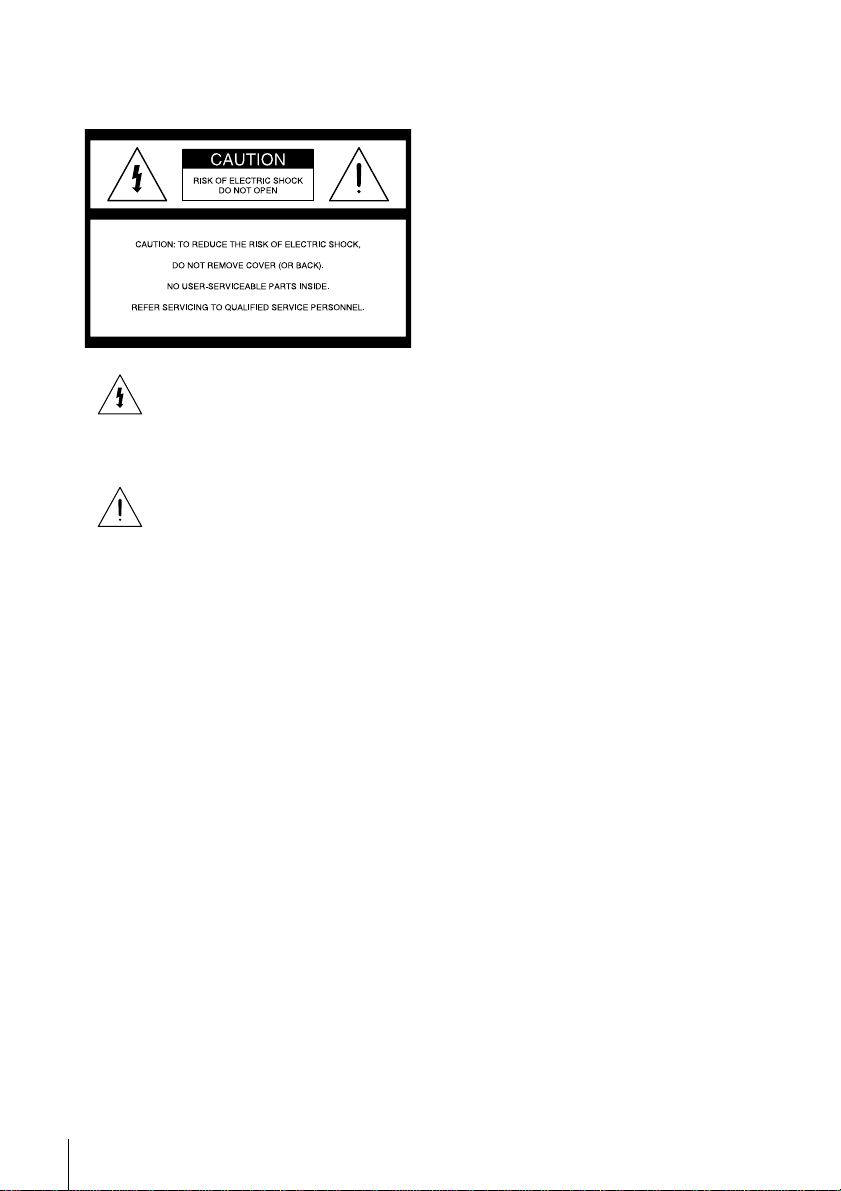
This symbol is intended to alert the user
to the presence of uninsulated
“dangerous voltage” within the product’s
enclosure that may be of sufficient
magnitude to constitute a risk of electric
shock to persons.
This symbol is intended to alert the user
to the presence of important operating
and maintenance (servicing) instructions
in the literature accompanying the
appliance.
CAUTION
TO PREVENT ELECTRIC SHOCK, MATCH
WIDE BLADE OF PLUG TO WIDE SLOT,
FULLY INSERT.
Precautions
Safety
• Operate the unit only on 120 V AC, 60 Hz.
• If anything falls into the cabinet, unplug the unit
and have it checked by qualified personnel before
operating it any further.
• This unit is not disconnected from the AC power
source (mains) as long as it is connected to the
wall outlet, even if the unit itself has been turned
off.
• Unplug the unit from the wall outlet if you do not
intend to use it for an extended period of time. To
disconnect the cord, pull it out by the plug, never
by the cord.
• One blade of the plug is wider than the other for
the purpose of safety and will fit into the power
outlet only one way. If you are unable to insert
the plug fully into the outlet, contact your Sony
dealer.
Installing
• Allow adequate air circulation to prevent internal
heat buildup.
• Do not place the unit on surfaces (rugs, blankets,
etc.) or near materials (curtains, draperies) that
may block the ventilation slots.
• Do not install the unit near heat sources such as
radiators or air ducts, or in a place subject to
direct sunlight, excessive dust, mechanical
vibration or shock.
• Do not install the unit in an inclined position. It
is designed to be operated in a horizontal position
only.
• Keep the unit and cassettes away from equipment
with strong magnets, such as microwave ovens or
large loudspeakers.
• Do not place heavy objects on the unit.
• If the unit is brought directly from a cold to a
warm location, moisture may condense inside the
VCR and cause damage to the video head and
tape. When you first install the unit, or when you
move it from a cold to a warm location, wait for
about three hours before operating the unit.
Information
For customers in the USA
CAUTION
You are cautioned that any changes or modifications
not expressly approved in this manual could void
your authority to operate this equipment.
NOTE:
This equipment has been tested and found to
comply with the limits for a Class B digital device,
pursuant to Part 15 of the FCC Rules.
These limits are designed to provide reasonable
protection against harmful interference in a
residential installation.
This equipment generates, uses, and can radiate
radio frequency energy and, if not installed and used
in accordance with the instructions, may cause
harmful interference to radio communications.
However, there is no guarantee that interference will
not occur in a particular installation. If this
equipment does cause harmful interference to radio
or television reception, which can be determined by
turning the equipment off and on, the user is
encouraged to try to correct the interference by one
or more of the following measures:
• Reorient or relocate the receiving antenna.
• Increase the separation between the equipment
and receiver.
• Connect the equipment into an outlet on a circuit
different from that to which the receiver is
connected.
• Consult the dealer or an experienced radio/TV
technician for help.
Owner’s record
The model and serial numbers are located at the rear
of the unit.
Record these numbers in the spaces provided below.
Refer to them whenever you call upon your Sony
dealer regarding this product.
Model No._________________________
Serial No._________________________
3
Important Safeguards
Important Safeguards
For your protection, please read these safety
instructions completely before operating the
appliance, and keep this manual for future reference.
Carefully observe all warnings, precautions and
instructions on the appliance, or the one described in
the operating instructions and adhere to them.
Use
Installation
Power sources
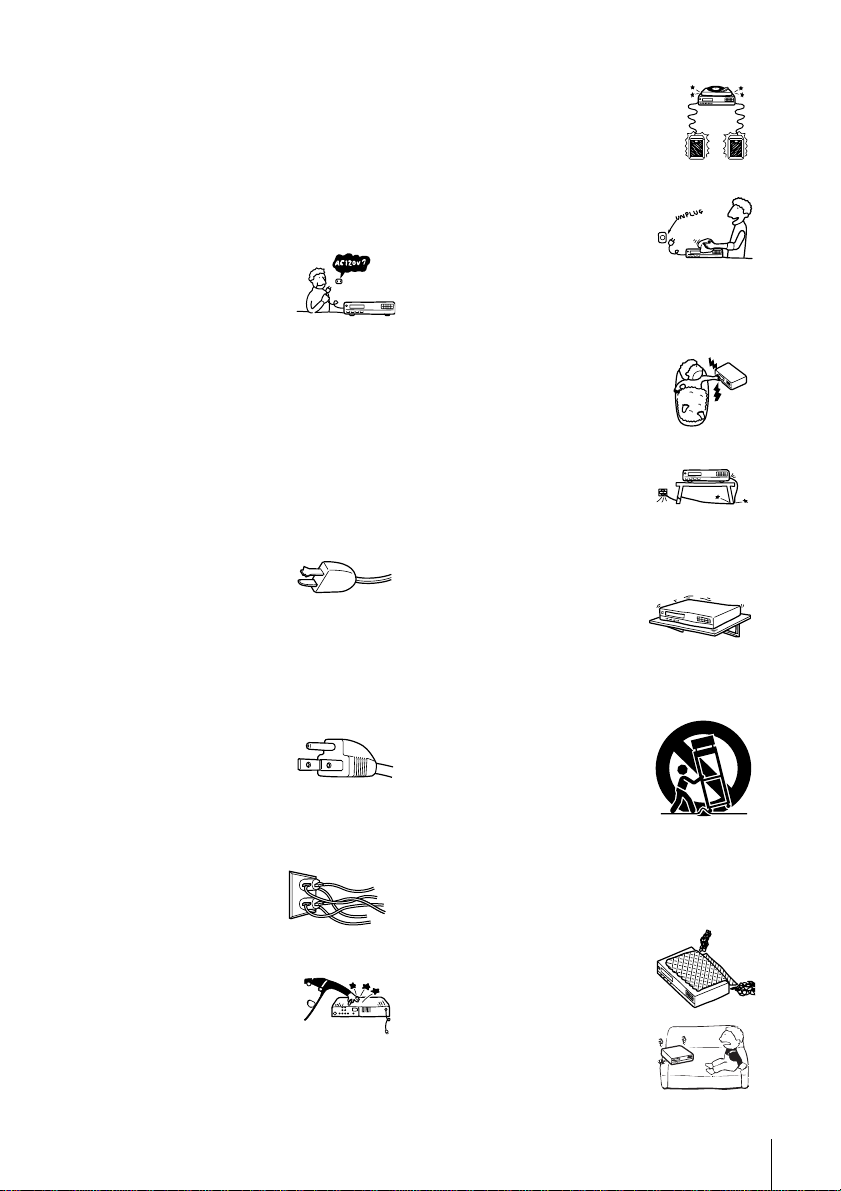
This set should be operated only
from the type of power source
indicated on the marking label. If
you are not sure of the type of
electrical power supplied to your
home, consult your dealer or local power company.
For those sets designed to operate from battery
power, or other sources, refer to the operating
instructions.
Grounding or Polarization
This set is equipped with a polarized ac power cord
plug (a plug having one blade wider than the other),
or with a three-wire grounding type plug (a plug
having a third pin for grounding). Follow the
instructions below:
For the set with a polarized ac power cord
plug:
This plug will fit into the power
outlet only one way. This is a
safety feature. If you are unable
to insert the plug fully into the outlet, try reversing
the plug. If the plug should still fail to fit, contact
your electrician to have a suitable outlet installed.
Do not defeat the safety purpose of the polarized
plug by forcing it in.
For the set with a three-wire grounding
type ac plug:
This plug will only fit into a
grounding-type power outlet.
This is a safety feature. If you are
unable to insert the plug into the outlet, contact your
electrician to have a suitable outlet installed. Do not
defeat the safety purpose of the grounding plug.
Overloading
Do not overload wall outlets,
extension cords or convenience
receptacles beyond their capacity,
since this can result in fire or
electric shock.
Object and Liquid Entry
Never push objects of any kind into
the set through openings as they
may touch dangerous voltage
points or short out parts that could
result in a fire or electric shock.
Never spill liquid of any kind on the set.
Attachments
Do not use attachments not
recommended by the manufacturer, as
they may cause hazards.
Cleaning
Unplug the set from the wall
outlet before cleaning or polishing
it. Do not use liquid cleaners or
aerosol cleaners. Use a cloth
lightly dampened with water for
cleaning the exterior of the set.
Water and Moisture
Do not use power-line operated sets
near water - for example, near a
bathtub, washbowl, kitchen sink, or
laundry tub, in a wet basement, or
near a swimming pool, etc.
Power-Cord Protection
Route the power cord so that it is
not likely to be walked on or
pinched by items placed upon or
against them, paying particular attention to the
plugs, receptacles, and the point where the cord exits
from the appliance.
Accessories
Do not place the set on an
unstable cart, stand, tripod,
bracket, or table. The set may
fall, causing serious injury to a
child or an adult, and serious damage to the set. Use
only a cart stand tripod, bracket, or table
recommended by the manufacturer.
An appliance and cart
combination should be moved
with care. Quick stops, excessive
force, and uneven surfaces may
cause the appliance and cart
combination to overturn.
Ventilation
The slots and openings in the cabinet are provided for
necessary ventilation. To ensure reliable operation of
the set, and to protect it from overheating, these slots
and openings must never be blocked or covered.
• Never cover the slots and
openings with a cloth or other
materials.
• Never block the slots and
openings by placing the set on
a bed, sofa, rug or other similar
surface.
S3125A
4
Important Safeguards
Antennas
Service
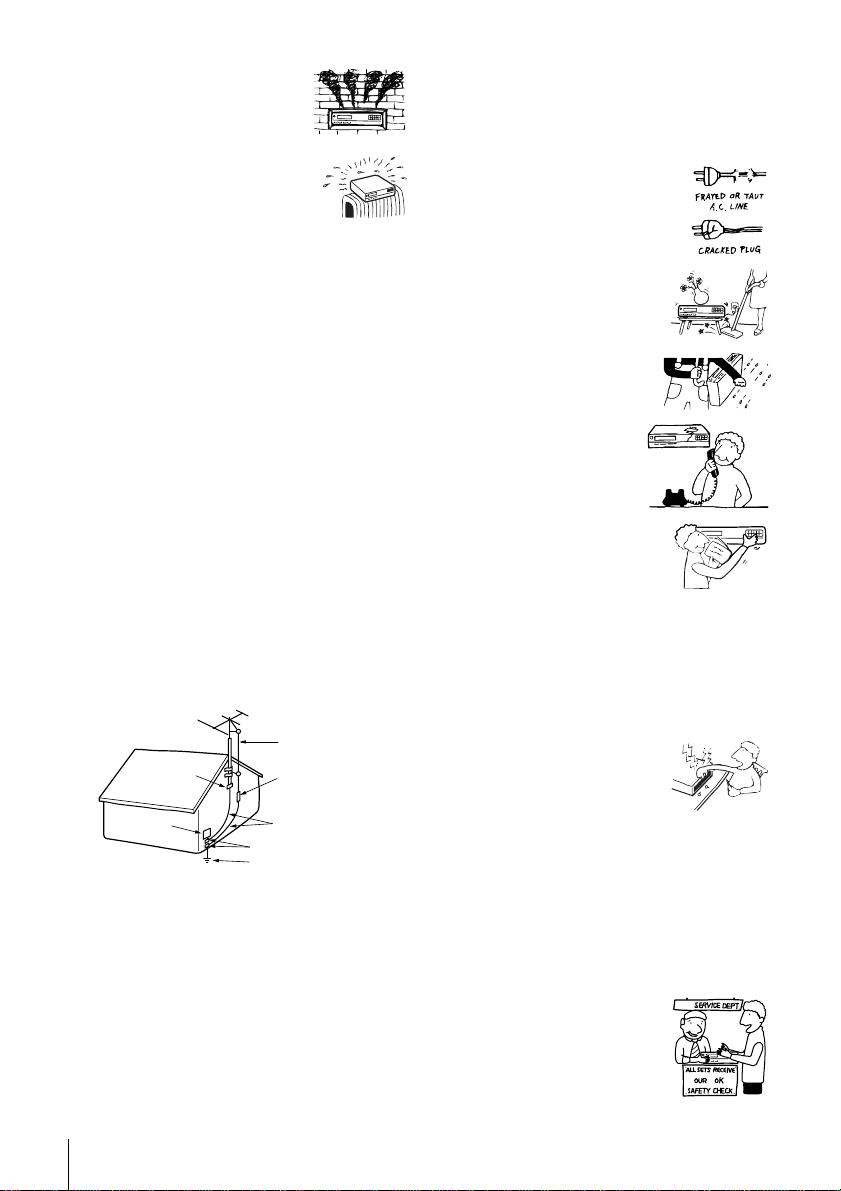
• Never place the set in a
confined space, such as a
bookcase, or built-in cabinet,
unless proper ventilation is
provided.
• Do not place the set near or
over a radiator or heat register,
or where it is exposed to direct
sunlight.
Outdoor antenna grounding
If an outdoor antenna or cable system is installed,
follow the precautions below.
An outdoor antenna system should not be located in
the vicinity of overhead power lines or other electric
light or power circuits, or where it can come in
contact with such power lines or circuits.
WHEN INSTALLING AN OUTDOOR ANTENNA
SYSTEM, EXTREME CARE SHOULD BE
TAKEN TO KEEP FROM CONTACTING SUCH
POWER LINES OR CIRCUITS AS CONTACT
WITH THEM IS ALMOST INVARIABLY FATAL.
Be sure the antenna system is grounded so as to
provide some protection against voltage surges and
built-up static charges. Section 810 of the National
Electrical Code provides information with respect to
proper grounding of the mast and supporting
structure, grounding of the lead-in wire to an
antenna discharge unit, size of grounding
conductors, location of antenna-discharge unit,
connection to grounding electrodes, and
requirements for the grounding electrode.
Antenna Grounding According to the
National Electrical Code
Lightning
For added protection for this set during a lightning
storm, or when it is left unattended and unused for
long periods of time, unplug it from the wall outlet
and disconnect the antenna or cable system. This
will prevent damage to the set due to lightning and
power-line surges.
Antenna Lead in Wire
Ground Clamp
Antenna Discharge unit
(NEC Section 810-20)
Grounding Conductors
(NEC Section 810-21)
Ground Clamps
Power Service Grounding
Electrode System
(NEC Art 250 Part H)
Electric Service
Equipment
NEC-NATIONAL ELECTRICAL CODE
Damage Requiring Service
Unplug the set from the wall outlet and refer
servicing to qualified service personnel under the
following conditions:
• When the power cord or plug is
damaged or frayed.
• If liquid has been spilled or
objects have fallen into the set.
• If the set has been exposed to
rain or water.
• If the set has been subject
to excessive shock by
being dropped, or the
cabinet has been damaged.
• If the set does not operate
normally when following the
operating instructions. Adjust
only those controls that are
specified in the operating
instructions. Improper adjustment of other
controls may result in damage and will often
require extensive work by a qualified technician
to restore the set to normal operation.
• When the set exhibits a distinct change in
performance - this indicates a need for service.
Servicing
Do not attempt to service the set
yourself as opening or removing
covers may expose you to
dangerous voltage or other
hazards.
Refer all servicing to qualified service personnel.
Replacement parts
When replacement parts are required, be sure the
service technician has used replacement parts
specified by the manufacturer that have the same
characteristics as the original parts.
Unauthorized substitutions may result in fire,
electric shock, or other hazards.
Safety Check
Upon completion of any service
or repairs to the set, ask the
service technician to perform
routine safety checks (as specified
by the manufacturer) to determine
that the set is in safe operating
condition.

5
Table of contents
Getting Started
Table of contents
Getting Started
6 Step 1 : Unpacking
7 Step 2 : Setting up the remote commander
10 Step 3 : Hookups
23 Step 4 : Selecting a language
24 Step 5 : Setting the clock
29 Step 6 : Presetting channels
33 Step 7 : Setting up the cable box/satellite receiver control
39 Step 8 : Setting up the VCR Plus+C
3®
system
Basic Operations
42 Playing a tape
45 Recording TV programs
48 Recording TV programs using the
Dial Timer
53 Recording TV programs using the
VCR Plus+C
3®
system
56 Setting the timer manually
59 Locking the VCR (Child Lock)
Additional Operations
60 Playing/searching at various speeds
62 Quick Timer Recording
63 Checking/changing/canceling timer
settings
65 Recording stereo and bilingual
programs
66 Searching using various functions
68 Adjusting the picture (tracking)
69 Changing menu options
71 Editing with another VCR
Additional Information
73 Antenna information
74 Troubleshooting
76 Specifications
77 Index to parts and controls
82 Index
Back Cover
Quick reference to using the VCR
*VCR Plus+, C
3
and PlusCode are registered trademarks of Gemstar Development Corporation.
The VCR Plus+ system is manufactured under license from Gemstar Development Corporation.
Caution
Television programs, films, video tapes and other materials may be copyrighted.
Unauthorized recording of such material may be contrary to the provisions of the copyright laws. Also, use of
this recorder with cable television transmission may require authorization from the cable television
transmission and/or program owner.
6
Unpacking
Getting Started
Step 1 : Unpacking
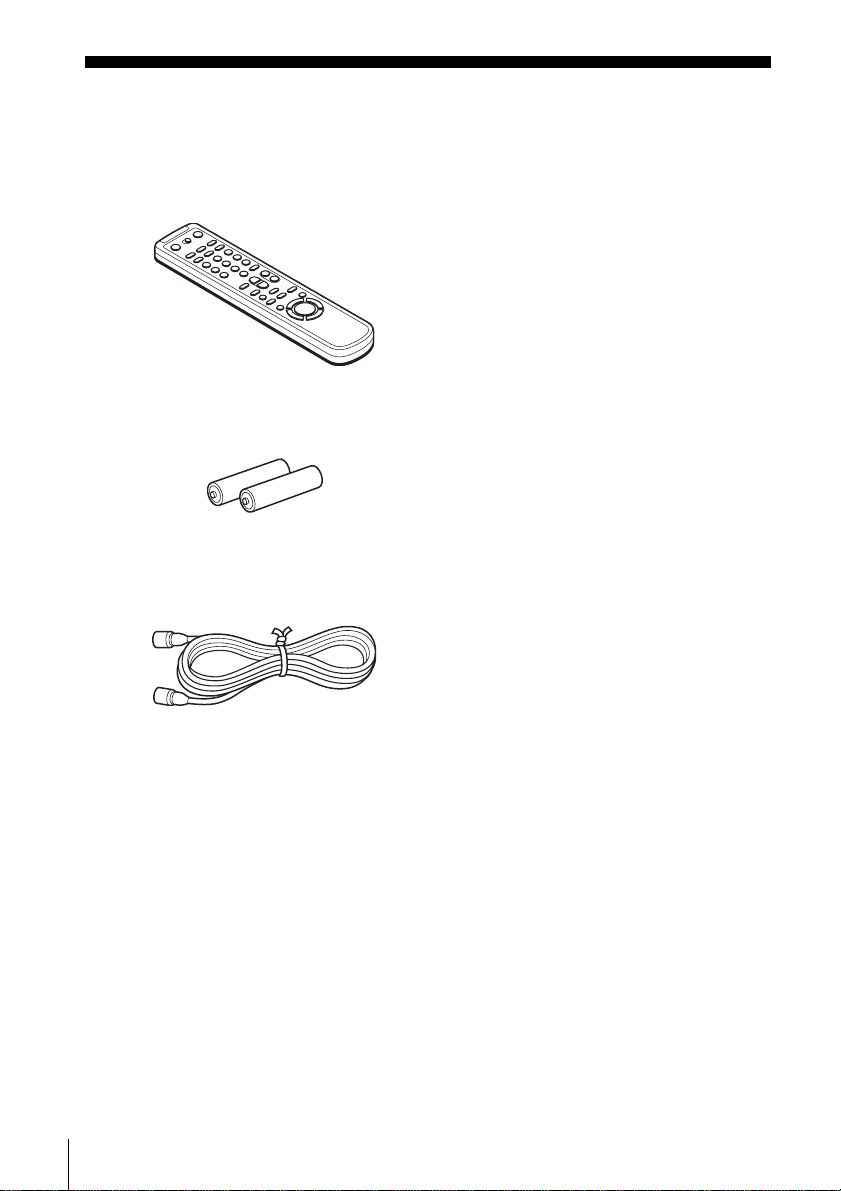
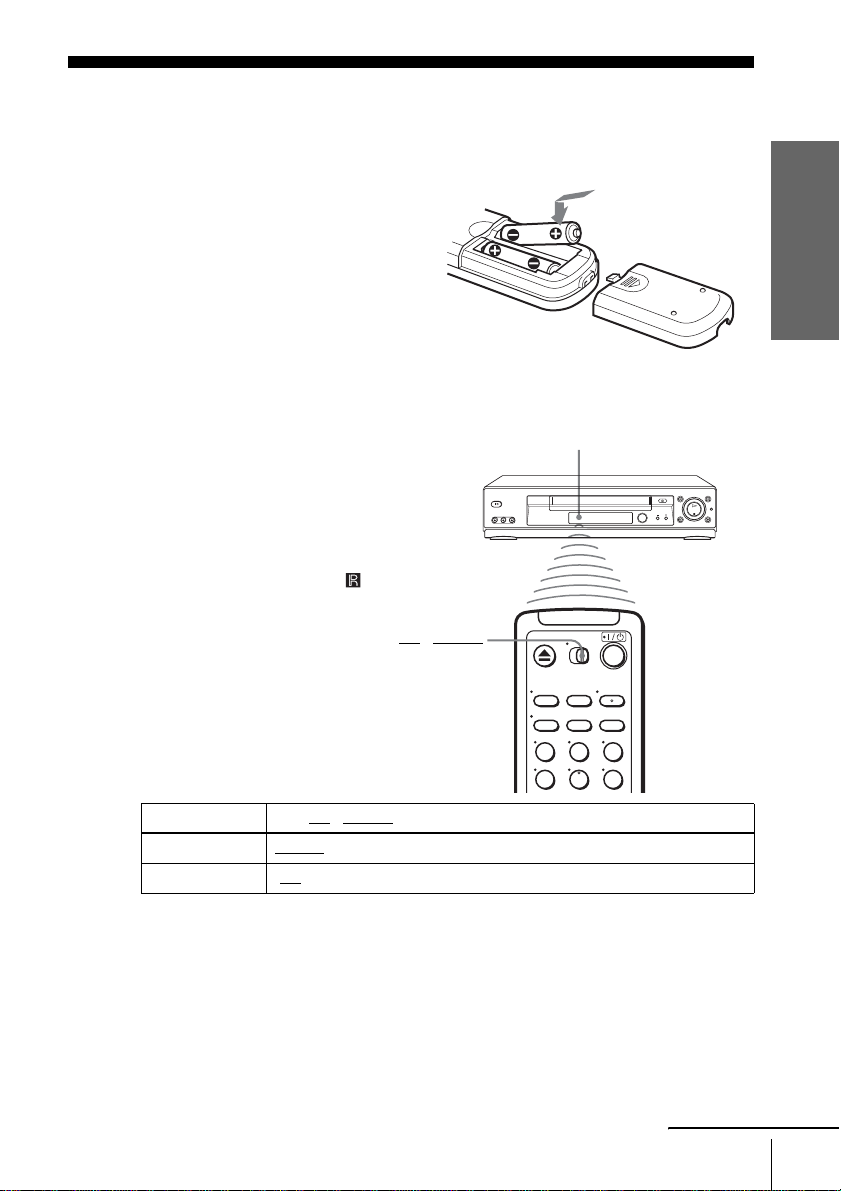
Check that you have received the following items with the VCR:
• Remote commander
• Size AA (R6) batteries
• 75-ohm coaxial cable with F-type connectors
Getting Started
7
Setting up the remote commander
Step 2 : Setting up the remote commander
Notes
• With normal use, the batteries should last about three to six months.
• If you do not use the remote commander for an extended period of time, remove the batteries
to avoid possible damage from battery leakage.
• Do not use a new battery with an old one.
• Do not use different types of batteries.
Inserting the batteries
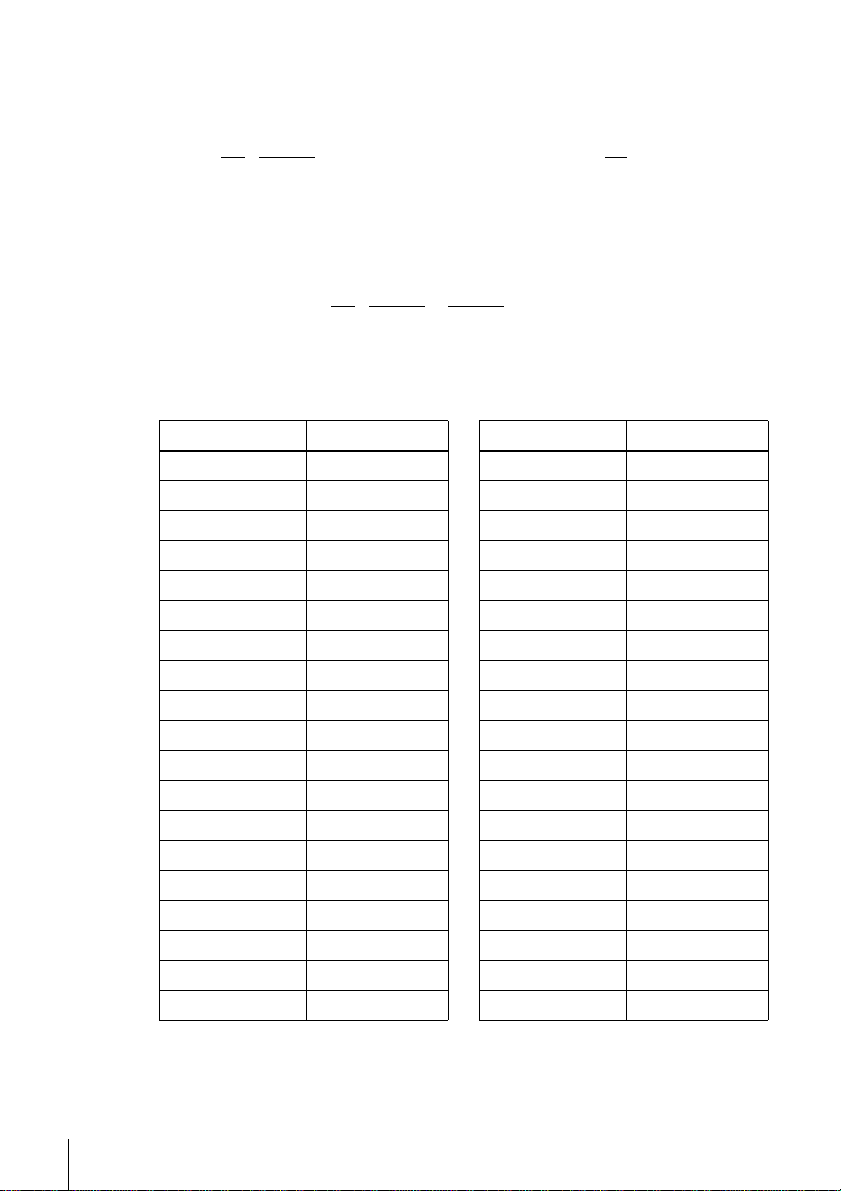
Insert two size AA (R6) batteries
by matching the + and – on the
batteries to the diagram inside the
battery compartment.
Insert the negative (–) end first,
then push in and down until the
positive (+) end clicks into
position.
Using the remote
commander
You can use this remote
commander to operate this VCR
and a Sony TV. Buttons on the
remote commander marked with a
dot (•) can be used to operate your
Sony TV.
If the TV does not have the
symbol near the remote sensor, this
remote commander will not
operate the TV.
To operate Set •TV / VIDEO to
the VCR VIDEO
and point at the remote sensor at the VCR
a Sony TV •TV
and point at the remote sensor at the TV
123
456
•TV / VIDEO
Remote sensor
continued
8
Setting up the remote commander
Controlling other TVs with the remote commander
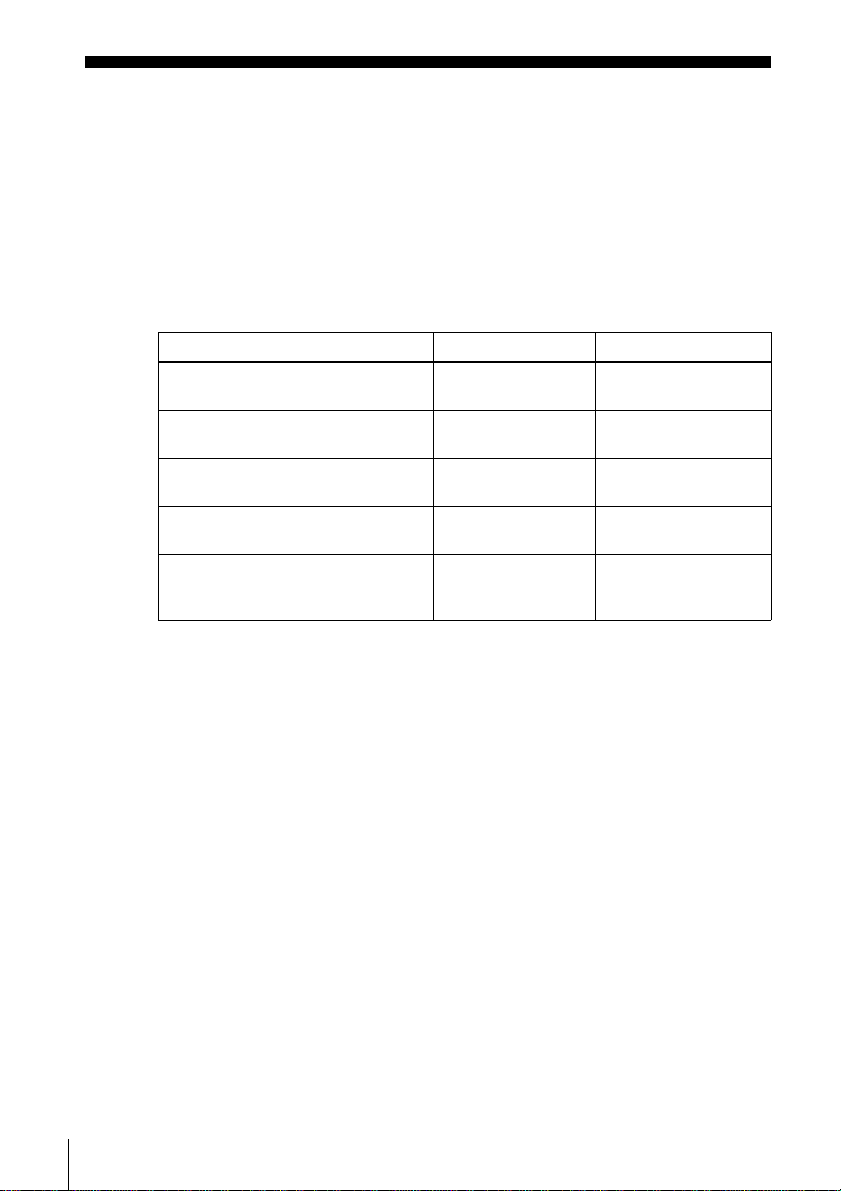
The remote commander is preprogramed to control non-Sony TVs. If your TV is
listed in the following table, set the appropriate manufacturer’s code number.
Now you can use the ?/1, VOL +/–, CH +/–, and TV/VIDEO buttons to control your
TV. You can also use the buttons marked with a dot (•) to control a Sony TV. To
control the VCR, reset •TV
/ VIDEO to VIDEO.
Code numbers of controllable TVs
If more than one code number is listed, try entering them one at a time until you find
the one that works with your TV.
1
Set •TV / VIDEO at the top of the remote commander to •TV.
2
Hold down ?/1, and enter your TV’s code number using the number buttons.
Then release ?/1.
TV brand Code number
Sony 01
Akai 04
AOC 04
Centurion 12
Coronado 03
Curtis-Mathes 12
Daytron 12
Emerson 03, 04, 14
Fisher 11
General Electric 06, 10
Gold Star 03, 04, 17
Hitachi 02, 03
J.C.Penney 04, 12
JVC 09
KMC 03
Magnavox 03, 08, 12
Marantz 04, 13
MGA/Mitsubishi 04, 12, 13, 17
NEC 04, 12
Panasonic 06, 19
Philco 03, 04
Philips 08
Pioneer 16
Portland 03
Quasar 06, 18
Radio Shack 05, 14
RCA 04, 10
Sampo 12
Sanyo 11
Scott 12
Sears 07, 10, 11
Sharp 03, 05, 18
Sylvania 08, 12
Teknika 03, 08, 14
Toshiba 07
Wards 03, 04, 12
Yor x 12
Zenith 15
TV brand Code number

Getting Started
9
Setting up the remote commander
Notes
• If you enter a new code number, the code number previously entered will be erased.
• If the TV uses a different remote control system from the one programed to work with the
VCR, you cannot control your TV with the remote commander.
• When you replace the batteries of the remote commander, the code number may change. Set
the appropriate code number every time you replace the batteries.
• When you press the AUDIO MONITOR button, your TV’s menu may appear on the TV
screen. To exit the TV menu, press the MENU button on the TV remote commander or wait
until the menu disappears automatically.
10
Hookups
Step 3 : Hookups
Selecting the best hookup option
There are many ways in which your VCR can be hooked up. To hook up your VCR
so that it works best for you, first scan through the table below. Then use the
accompanying diagrams and procedures on the following pages to set up your VCR.
If your TV has audio/video inputs, refer to page 12 for audio/video (A/V) hookup.
Then follow one of the hookups below. If your TV does not have A/V inputs,
perform directly one of the hookups below.
After you have completed the connections, follow the instructions for setup.
After you have completed the setup, you are ready to use your VCR. Procedures
differ depending on the hookup you used. For an overview, refer to “Quick reference
to using the VCR” on the back cover.
Before you get started
• Turn off the power to all equipment.
• Do not connect the AC power cords until all of the connections are completed. If
you connect the AC power cord before the connections are completed, you may not
be able to use the Plug and Play function.
• Be sure you make connections firmly. Loose connections may cause picture
distortion.
• If your TV does not match any of the examples provided, see your nearest Sony
dealer or qualified technician.
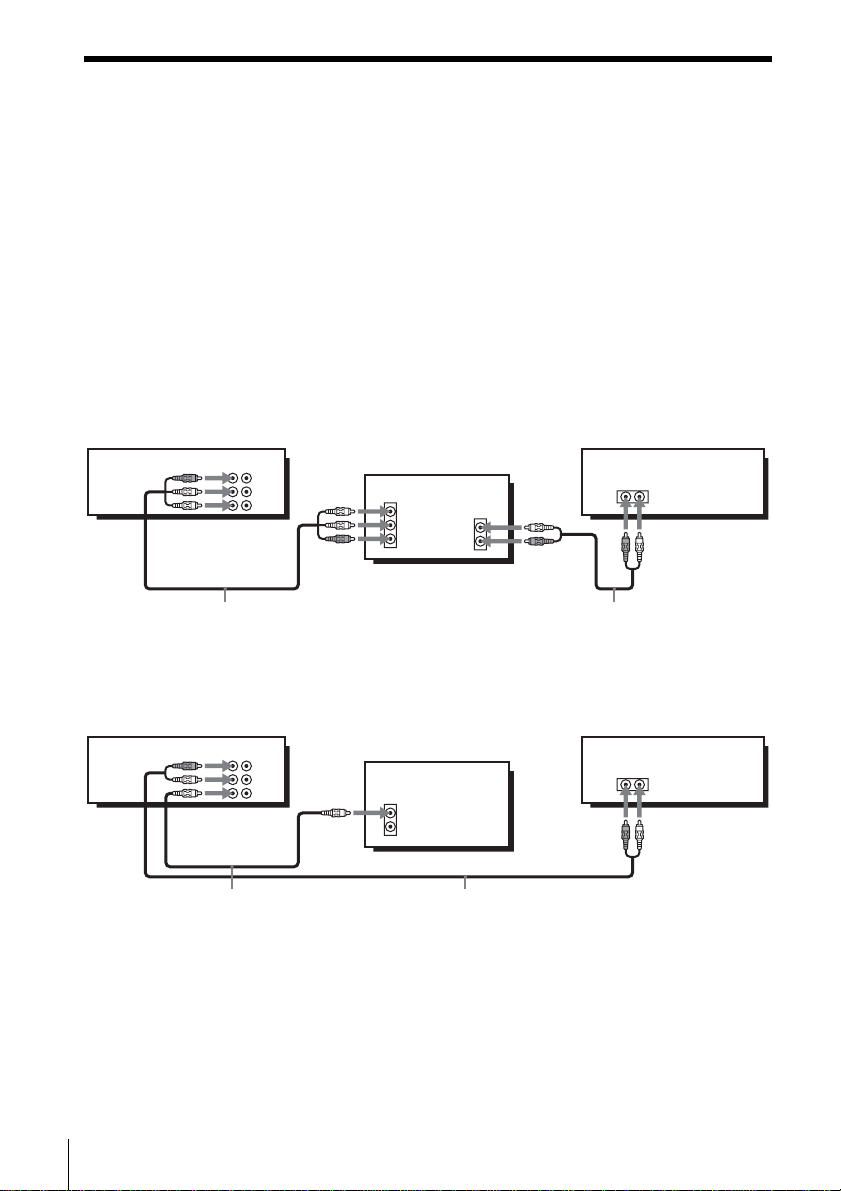
If you have Use Refer to
Antenna only, no cable TV Hookup 1
(Plug and Play)
Pages 14 and 15
No cable box or cable box with only a
few scrambled channels
Hookup 2
(Plug and Play)
Pages 16 and 17
Cable box with many scrambled
channels
Hookup 3 Page 18
A cable box that is compatible with an
infrared remote control
Hookup 4 Page 19
A digital broadcast service’s digital
satellite receiver that is compatible with
an infrared remote control
Hookup 5 Page 21

Getting Started
11
Hookups
Caution
Connections between the VCR’s VHF/UHF connector and the antenna terminals of the TV
receiver should be made only as shown in the following instructions. Failure to do so may result
in operation that violates the regulations of the Federal Communications Commission regarding
the use and operation of RF devices. Never connect the output of the VCR to an antenna or
make simultaneous (parallel) antenna and VCR connections at the antenna terminals of your
receiver.
Note to CATV system installer (in USA)
This reminder is provided to call the CATV system installer’s attention to Article 820- 40 of the
NEC that provides guidelines for proper grounding and, in particular, specifies that the cable
ground shall be connected to the grounding system of the building, as close to the point of cable
entry as practical.
12
Hookups
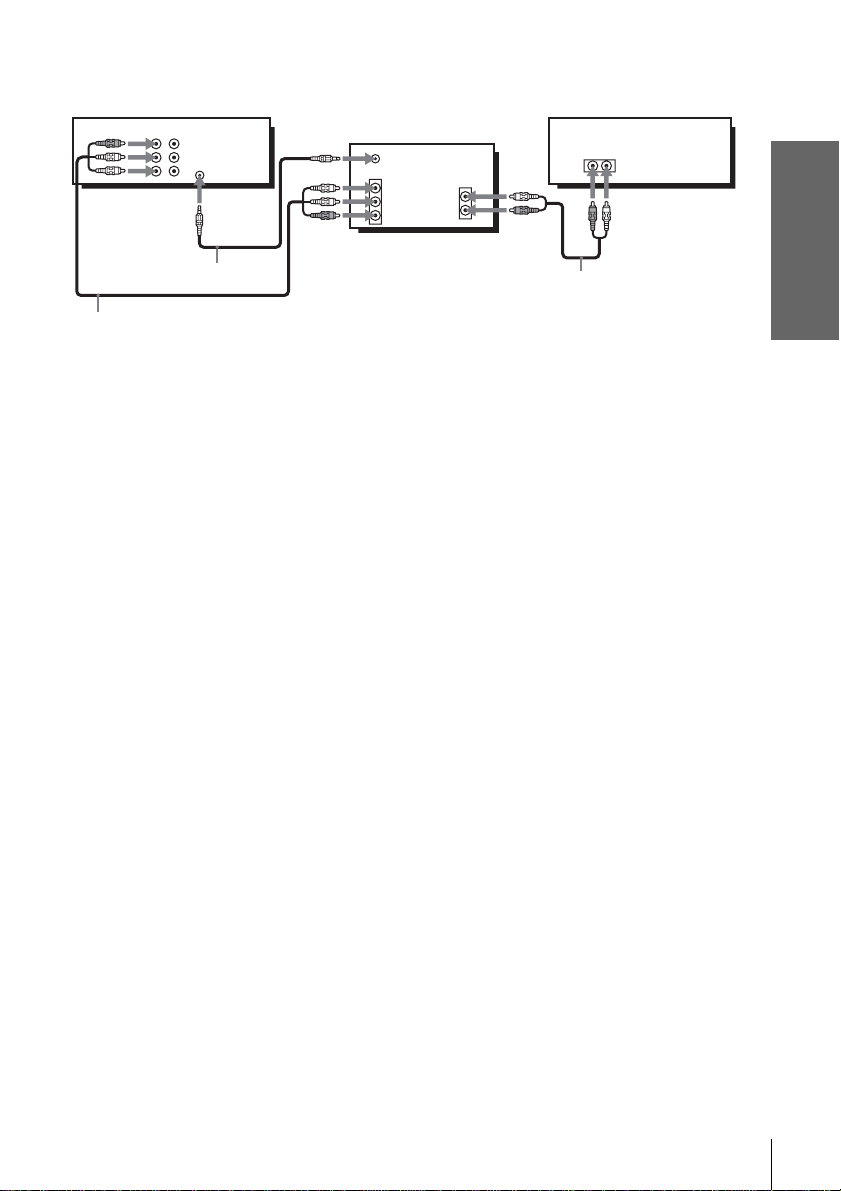
Audio/video (A/V) hookup
If your TV has audio/video (A/V) input jacks, you will get a better picture and sound
if you hook up your VCR using these connections. For a true “home theater”
experience, you should connect the audio outputs of your VCR or TV to your stereo
system. If your TV does not have A/V inputs, see the following pages for antenna or
cable hookups.
If your TV has the Control S function, hook up your VCR using the connection
shown on page 13. This will allow you to operate your VCR by pointing your VCR’s
remote commander at your TV.
If you are not planning to use your VCR to record programs, you finished setting up
the VCR after you have made the connections shown on this page. If you want to
record regular or cable TV programs, complete these connections first, and then go to
the following pages for antenna or cable hookups.
A Use this hookup if your TV has stereo jacks
B Use this hookup if your TV does not have stereo jacks
IN
VIDEO
AUDIO
AUDIO OUT
AUX IN
LINE
IN 1
LINE
OUT
AUDIO
VIDEO
Audio/video cable (not supplied)
TV
Audio cable (not supplied)
Stereo receiverVCR
LINE
IN 1
LINE
OUT
AUDIO
VIDEO
VIDEO
AUDIO
IN
AUX IN
Video cable (not supplied)
TV
Audio cable (not supplied)
Stereo receiverVCR
Getting Started
13
Hookups
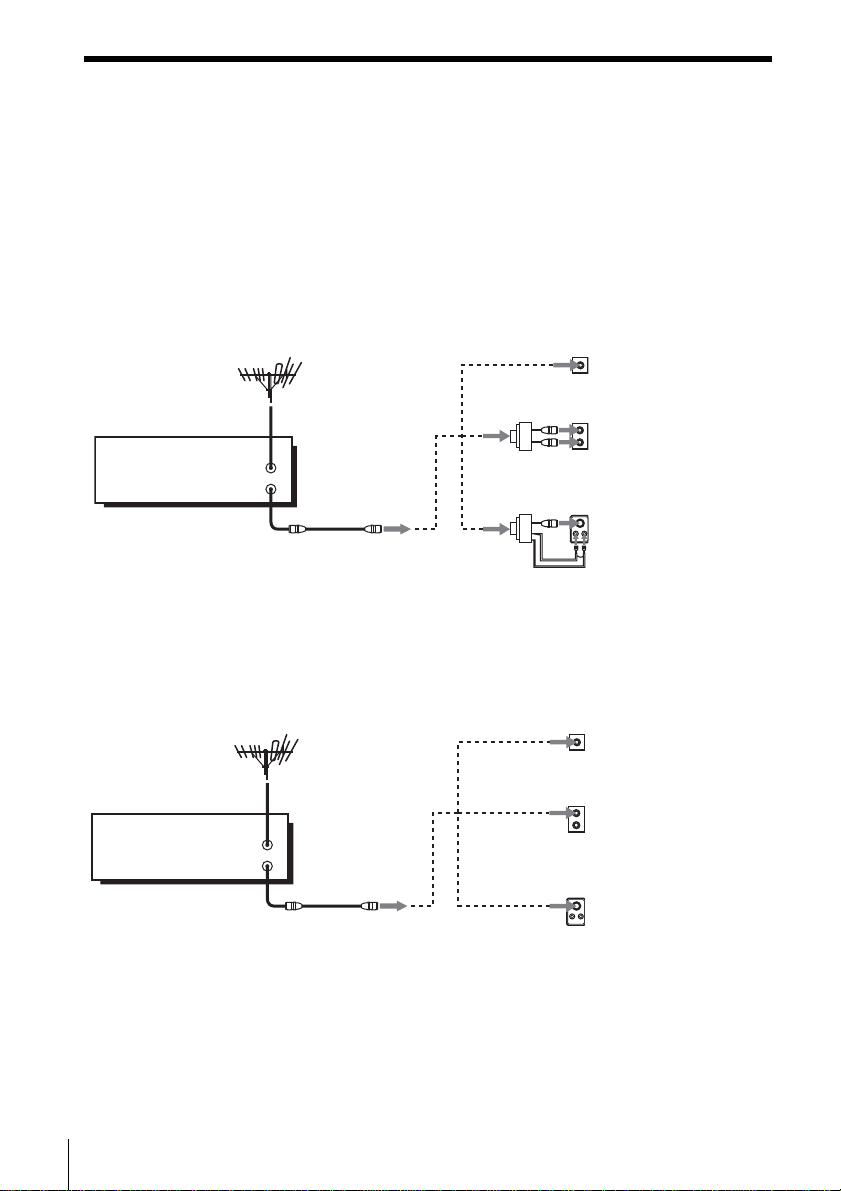
C Use this hookup if your TV has the Control S function
Notes
• To play a tape in stereo, you must use the A/V connection.
• If you do not have a stereo receiver, connect the white LINE OUT/AUDIO L jack to the
AUDIO IN jack on your TV.
• Use a Control S cable (not supplied) for Control S connections.
LINE
IN 1
LINE
OUT
CONTROL S
IN
AUDIO
VIDEO
IN
VIDEO
AUDIO
AUDIO OUT
AUX IN
CONTROL S OUT
Video cable (not supplied)
TV
Audio cable (not supplied)
Stereo receiverVCR
Audio/video cable
(not supplied)
14
Hookups
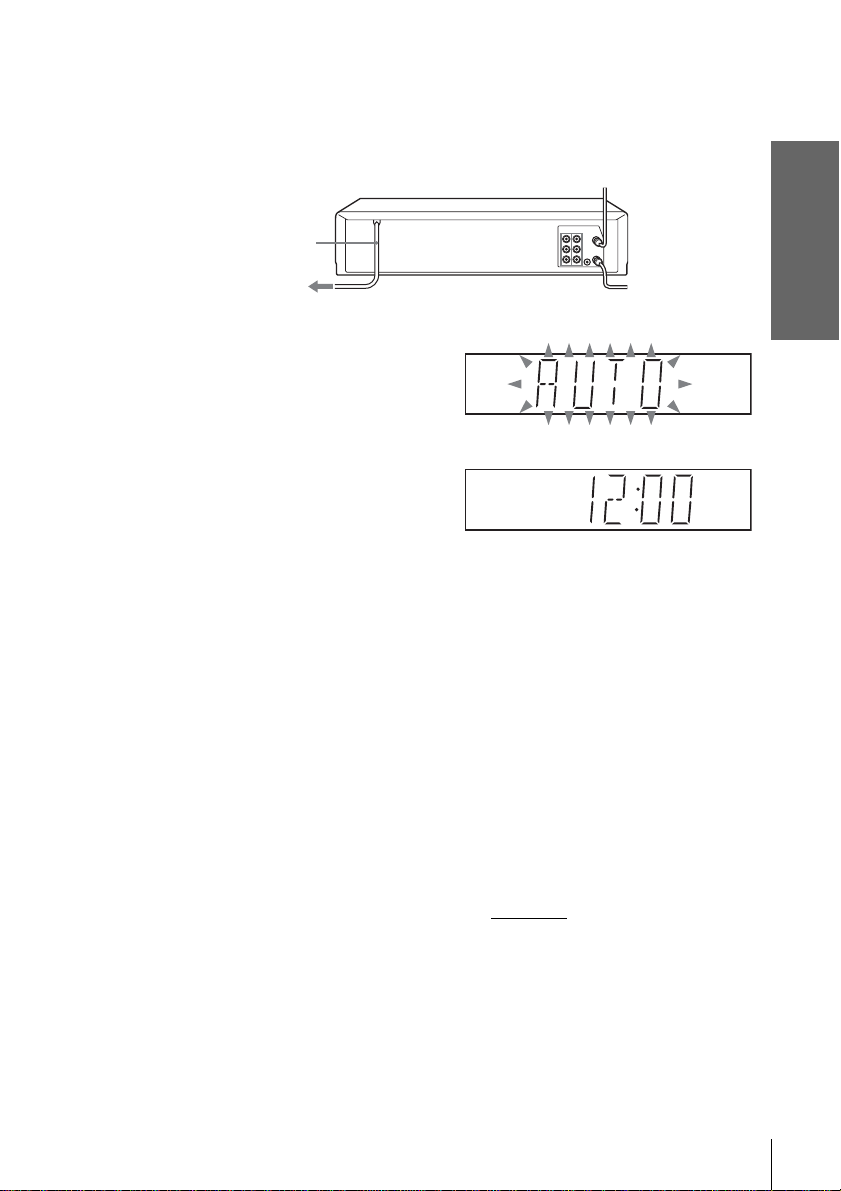
Hookup 1 (Plug and Play)
Antenna hookup
Make the following connections if you are using an antenna (if you do not have cable
TV).
A Use this hookup if you are using:
• VHF/UHF antenna (you get channels 2–13 and channels 14 and higher)
• UHF-only antenna (you get channels 14 and higher)
• Separate VHF and UHF antennas
B Use this hookup if you are using a VHF-only antenna (you get
channels 2–13 only)
If you cannot connect your antenna cable to the VCR directly
If your antenna cable is a flat cable (300-ohm twin lead cable), attach an external
antenna connector (not supplied) so you can connect the cable to the RF IN
connector. If you have separate cables for VHF and UHF antennas, you should use a
U/V band mixer (not supplied) (page 73).
IN
OUT
or
A
Rear of TV
VHF/UHF
B
VHF
C
VHF
or
Match the type of
connector on your
TV: A, B, or C.
UHF
UHF
VCR
IN
OUT
or
A
Rear of TV
VHF/UHF
B
VHF
C
VHF
or
Match the type of
connector on your
TV: A, B, or C.
UHF
UHF
VCR
For connector type
s
B and C, no UHF
connection is
required.
Getting Started
15
Hookups
Hookup 1 : VCR setup
Notes
• If you connect the AC power cord before the antenna connections are completed, the channels
may be incorrectly set. If this happens, see “Step 6 : Presetting channels” on page 29.
• Do not press any buttons on the VCR or remote commander during Auto preset.
• Auto preset starts automatically only when you plug in the AC power cord for the first time
after you purchase the VCR.
• Auto preset can be performed by pressing x STOP on the VCR
continuously for 5 seconds
or more with the VCR power turned off.
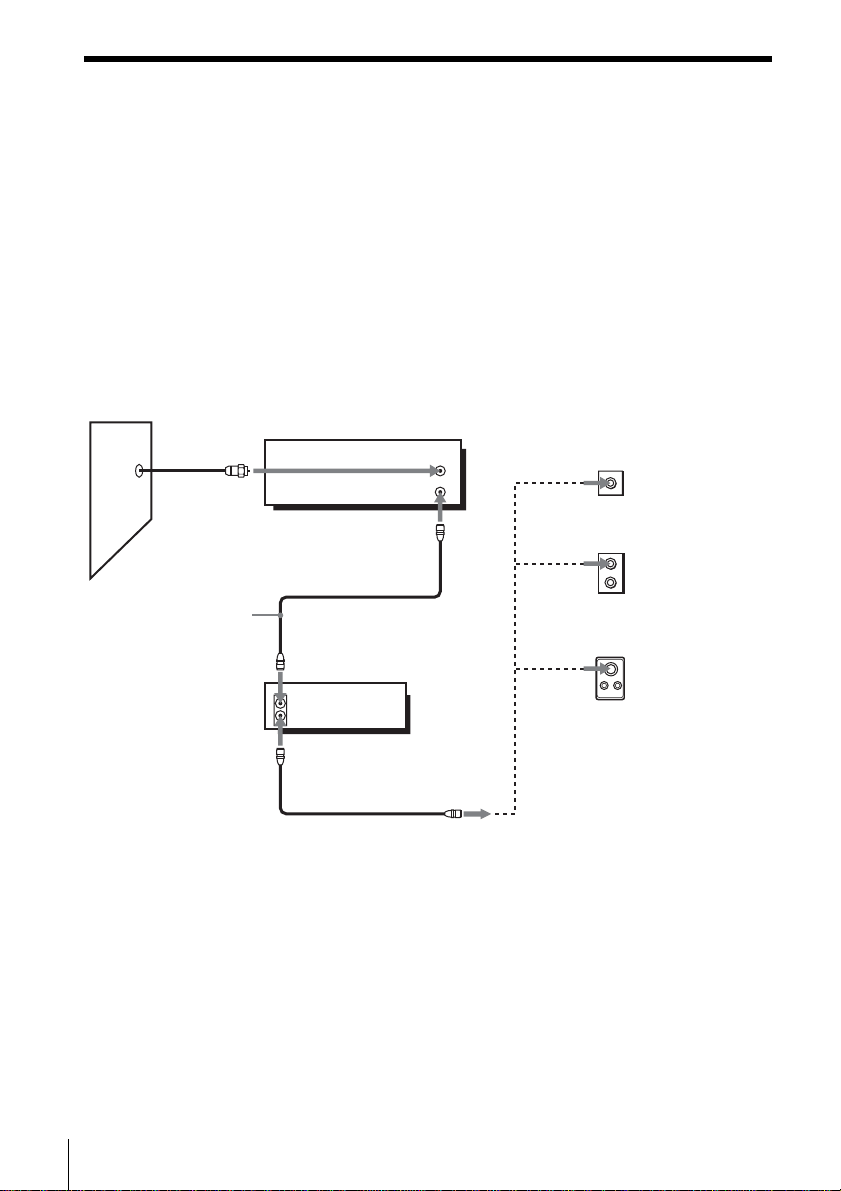
Plug the VCR into the AC outlet.
The VCR automatically presets the VCR’s clock and TV channels when the VCR
is plugged into the AC outlet.
The VCR starts presetting the clock
and channels.
When Auto preset is completed, the
current time appears in the display
window.
You have now completed VCR setup.
To change the on-screen display language to French or Spanish, see
“Step 4 : Selecting a language” on page 23.
The clock is set using a time signal provided by some TV channels. If the clock
is incorrect, or “--:--” appears in the display window, see “Using Manual Clock
Set” on page 27.
To add or disable channels manually, see “Presetting/disabling channels
manually” on page 31.
AC power cord
to AC outlet
16
Hookups
Hookup 2 (Plug and Play)
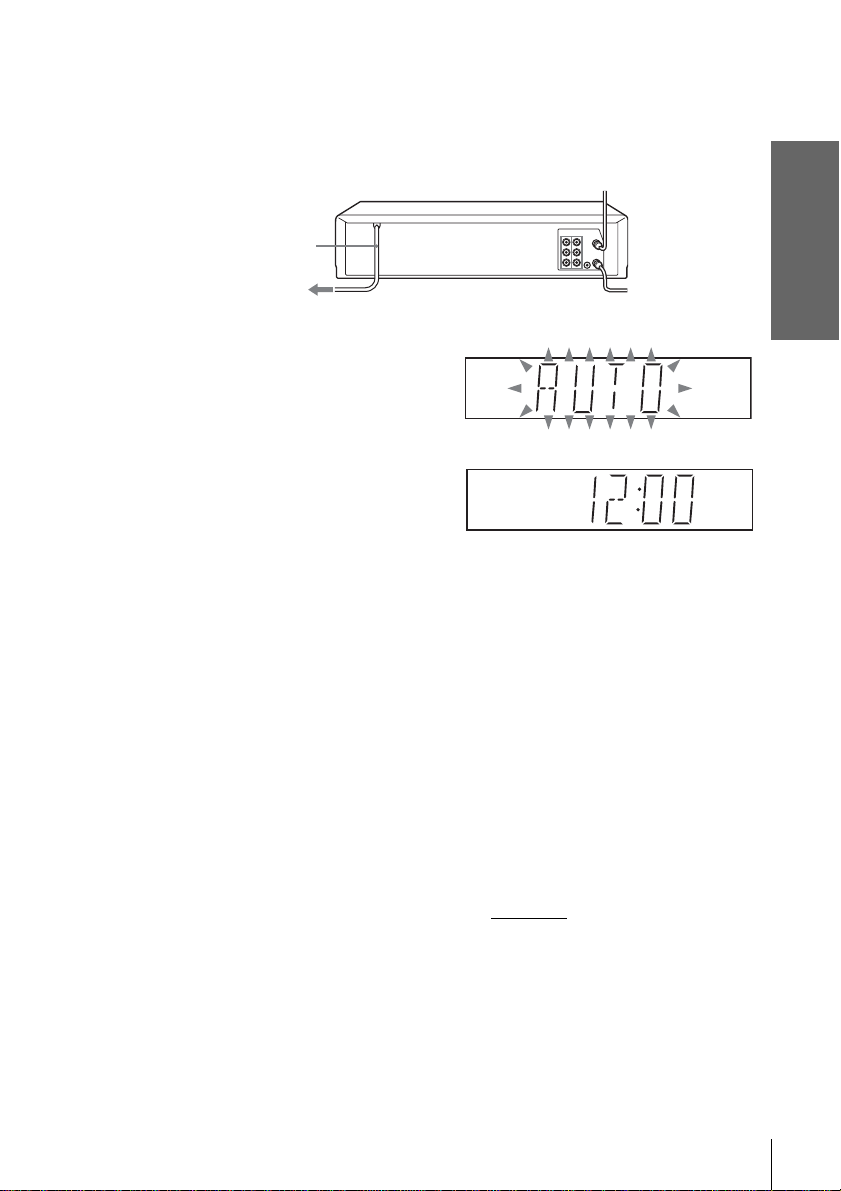
You have no cable box, or a cable box with only a few
scrambled channels
Recommended use
Use this hookup if you do not have a cable box. Also use this hookup if your cable
system scrambles only a few channels.
What you can do with this hookup
• Record any unscrambled channel by selecting the channel on the VCR
What you cannot do
• Record scrambled channels that require a cable box
IN
OUT
IN
OUT
Rear of TV
VHF/UHF
VHF
UHF
VCR
Match the type
of connector
on your TV: A,
B, or C.
For connector
types B and C,
no UHF
connection is
required.
B
C
or
or
Cable box
A
VHF
UHF
Wall
Connect this cable
directly to your TV if
you do not have a
cable box.
Getting Started
17
Hookups
Hookup 2 : VCR setup
Notes
• If you connect the AC power cord before the antenna connections are completed, the channels
may be incorrectly set. If this happens, see “Step 6 : Presetting channels” on page 29.
• Do not press any buttons on the VCR or remote commander during Auto preset.
• Auto preset starts automatically only when you plug in the AC power cord for the first time
after you purchase the VCR.
• Auto preset can be performed by pressing x STOP on the VCR
continuously for 5 seconds
or more with the VCR power turned off.
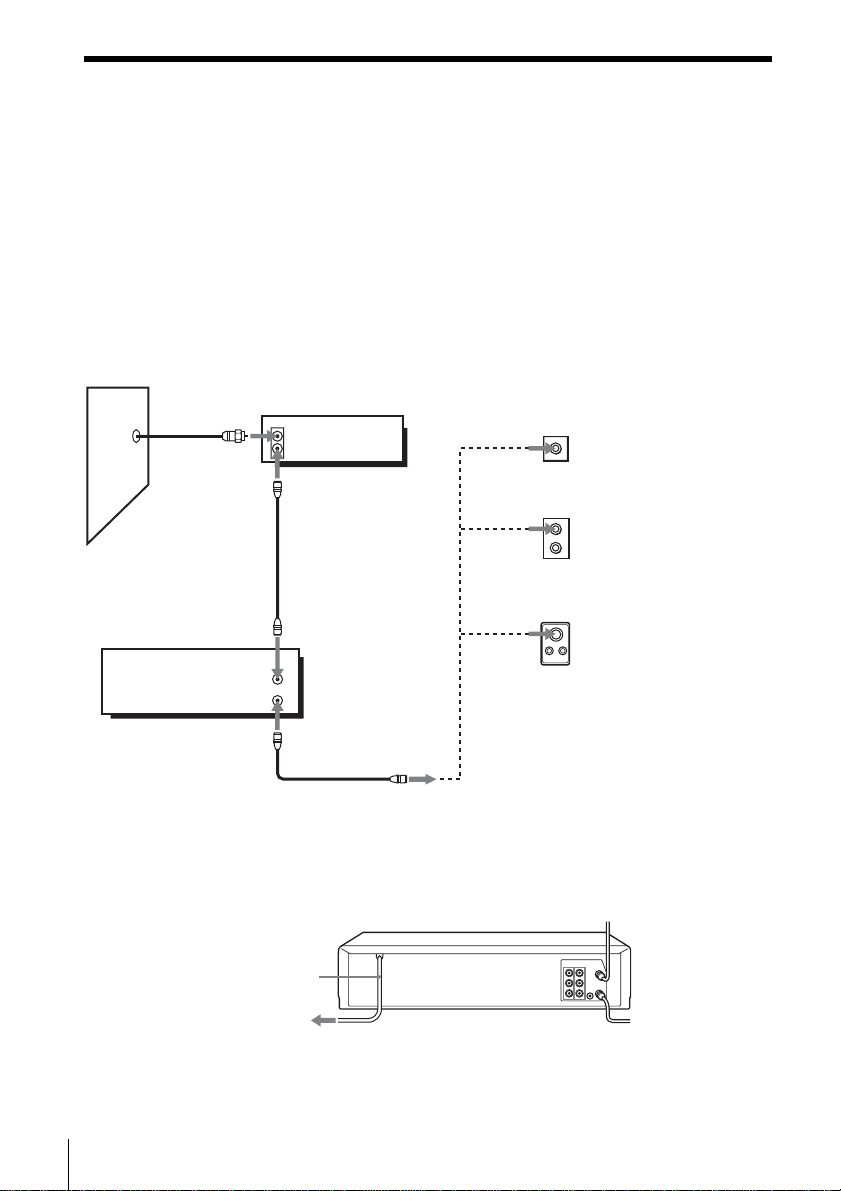
Plug the VCR into the AC outlet.
The VCR automatically presets the VCR’s clock and TV channels when the VCR
is plugged into the AC outlet.
The VCR starts presetting the clock
and channels.
When Auto preset is completed, the
current time appears in the display
window.
You have now completed VCR setup.
To change the on-screen display language to French or Spanish, see
“Step 4 : Selecting a language” on page 23.
The clock is set using a time signal provided by some TV channels. If the clock
is incorrect, or “--:--” appears in the display window, see “Using Manual Clock
Set” on page 27.
To add or disable channels manually, see “Presetting/disabling channels
manually” on page 31.
AC power cord
to AC outlet
18
Hookups
Hookup 3
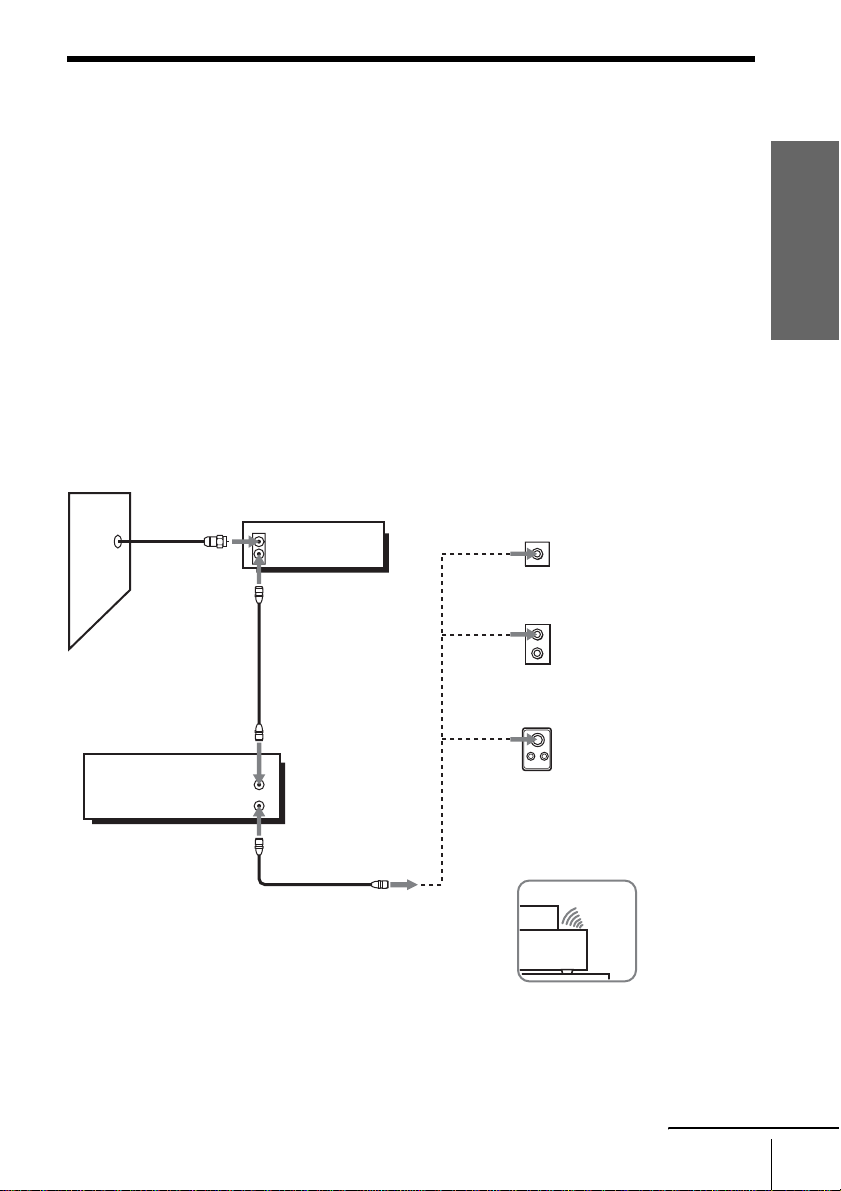
Connecting a cable box with many scrambled channels
Recommended use
Use this hookup if your cable system scrambles all or most channels.
What you can do with this hookup
• Record any channel by selecting the channel on the cable box
What you cannot do
• Record with the cable box turned off
• Record one channel while watching another channel
After you have completed hookup…
After you have completed hookup, plug the VCR into the AC outlet and see
“Step 4 : Selecting a language” on page 23.
IN
OUT
IN
OUT
Rear of TV
VHF/UHF
VHF
UHF
VCR
Match the type of
connector on your
TV: A, B, or C.
For connector
types B and C, no
UHF connection
is required.
B
C
or
or
Cable box
A
VHF
UHF
Wall
to AC outlet
AC power cord
Getting Started
19
Hookups
Hookup 4
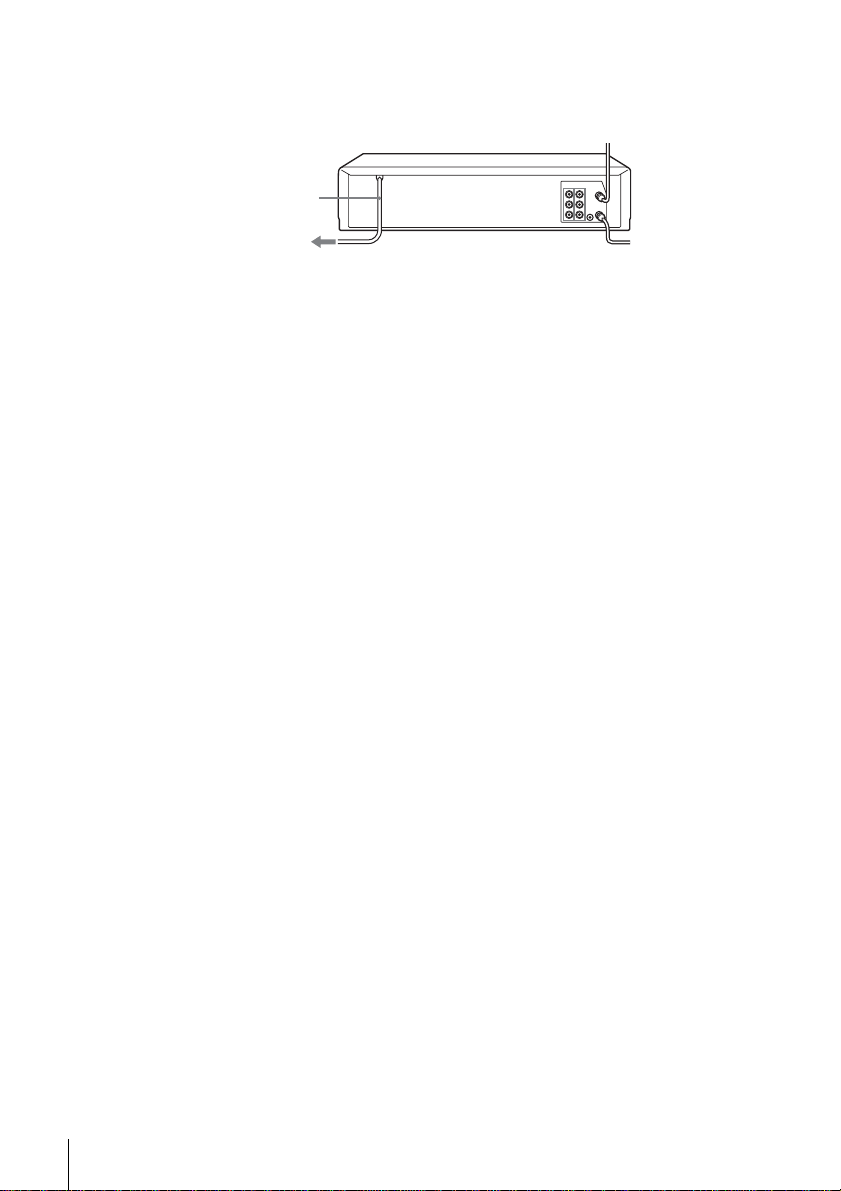
Using the cable box/satellite receiver control feature
Recommended use
You should use this hookup if you have a cable box, especially if your cable system
scrambles all or most channels. This hookup allows the VCR’s cable box/satellite
receiver control feature to control the channels on the cable box, simplifying the
recording process. A list of compatible cable boxes is on page 36.
What you can do with this hookup
• Record any channel by using the cable box/satellite receiver control feature to
select channels on the cable box
What you cannot do
• Record with the cable box turned off
• Record one channel while watching another channel
IN
OUT
VHF/UHF
IN
OUT
Rear of TV
VHF/UHF
VHF
UHF
VCR
Match the type of
connector on your
TV: A, B, or C.
For connector
types B and C, no
UHF connection
is required.
B
C
or
or
Cable box
A
VHF
UHF
Wall
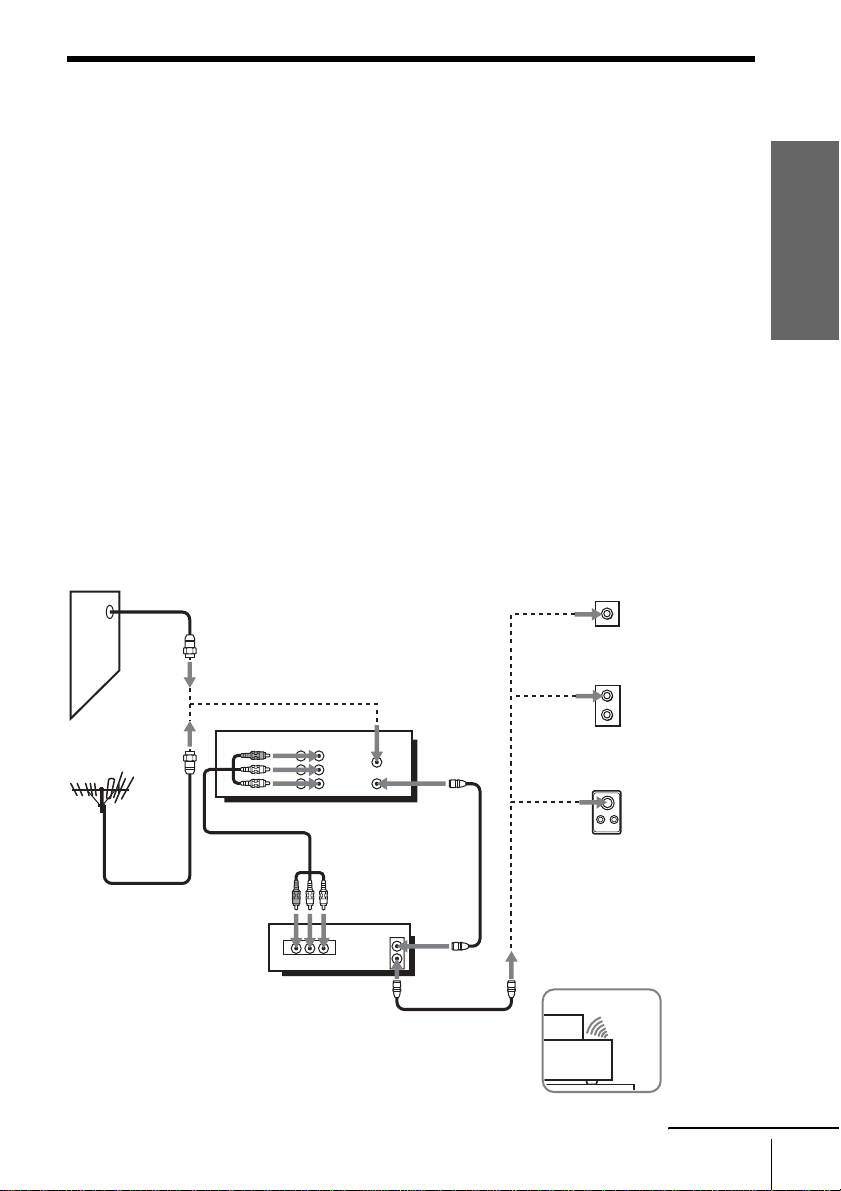
Positioning the Cable box
Place the Cable box on top of the
VCR so that it may not block the
sensor window on the VCR.
Side view
continued
20
Hookups
After you have completed hookup…
After you have completed hookup, plug the VCR into the AC outlet and see
“Step 4 : Selecting a language” on page 23.
to AC outlet
AC power cord
Getting Started
21
Hookups
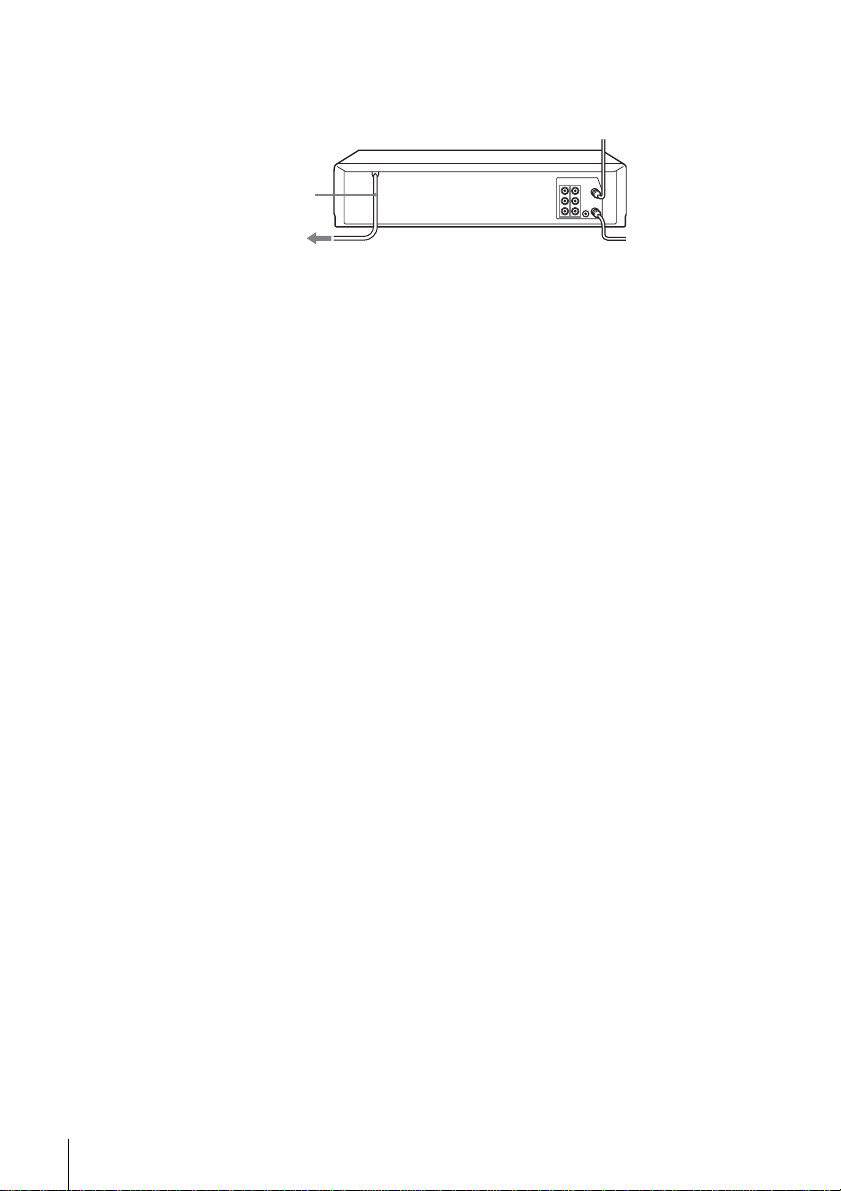
Hookup 5
Connecting to a digital satellite receiver
Recommended use
Use this hookup if you have a digital satellite receiver that is compatible with an
infrared remote control. It allows the VCR’s cable box/satellite receiver control
feature to control the channel on the digital satellite receiver, simplifying the
recording process. A list of compatible digital satellite receivers is on page 36.
What you can do with this hookup
• Record any channels by using the cable box/satellite receiver control feature to
select channels on the digital satellite receiver
What you cannot do
• Record with the digital satellite receiver turned off
• Record any channels from cable or an antenna (To record channels from cable or
an antenna, turn off the cable box/satellite receiver control feature.)
• Use a cable box
• Record programs with the VCR Plus+C
3
system (To use the VCR Plus+C
3
system,
turn off the cable box/satellite receiver control feature.)
IN
OUT
VHF/UHF
AUDIO VIDEO
LINE
OUT
OUT
VHF/UHF
IN
LINE
IN 1
LINE
OUT
AUDIO
VIDEO
Rear of TV
VHF/UHF
VHF
UHF
VCR
Match the
type of
connector on
your TV: A,
B, or C.
For
connector
types B and
C, no UHF
connection is
required.
B
C
or
or
A
VHF
UHF
Wall
Positioning the Digital
satellite receiver
Place the Digital satellite receiver
on top of the VCR so that it may
not block the sensor window on
the VCR.
Side view
Digital satellite
receiver
or
continued
22
Hookups
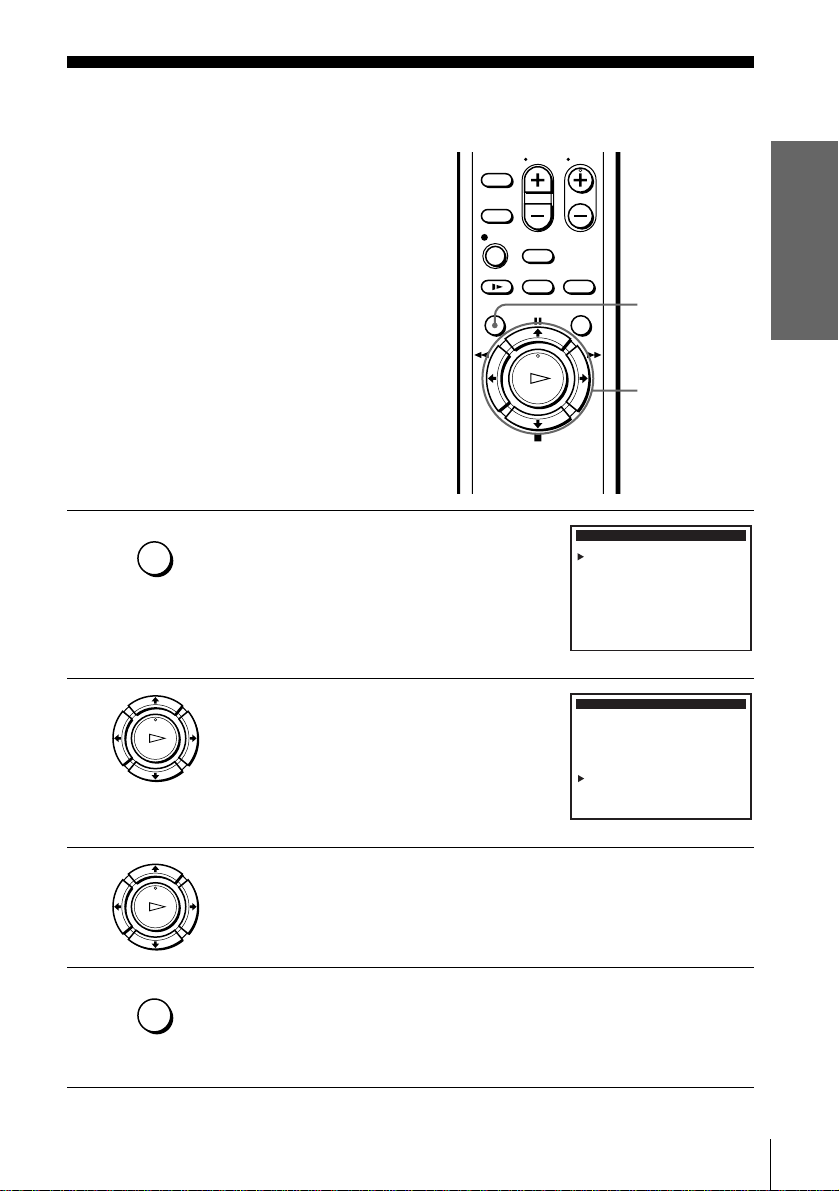
After you have completed hookup…
After you have completed hookup, plug the VCR into the AC outlet and see
“Step 4 : Selecting a language” on page 23.
Note
• To successfully record a program from the digital satellite receiver, proceed as follows:
– Leave the digital satellite receiver on all the time.
– Turn off the display (menu screen, channel number, etc.) of the digital satellite receiver.
– To record or receive locked channels, unlock the channel before the VCR starts recording.
– To set pay-per-view programs in the timer setting, order the pay-per-view program before
the VCR starts recording.
– Some programs are copy protected. You cannot record these programs.
to AC outlet
AC power cord
Getting Started
23
Selecting a language
Step 4 : Selecting a language
You can change the on-screen display
language.
Before you start…
• Turn on the VCR and the TV.
• Set the “VCR Output CH” to “3CH” or
“4CH” in ADVANCED OPTIONS menu
(page 69). If both are used, set the “VCR
Output CH” to either channel. If your TV
is connected to the VCR using A/V
connections, set the TV to video input.
• Press TV/VIDEO to display the VIDEO
indicator in the VCR’s display window.
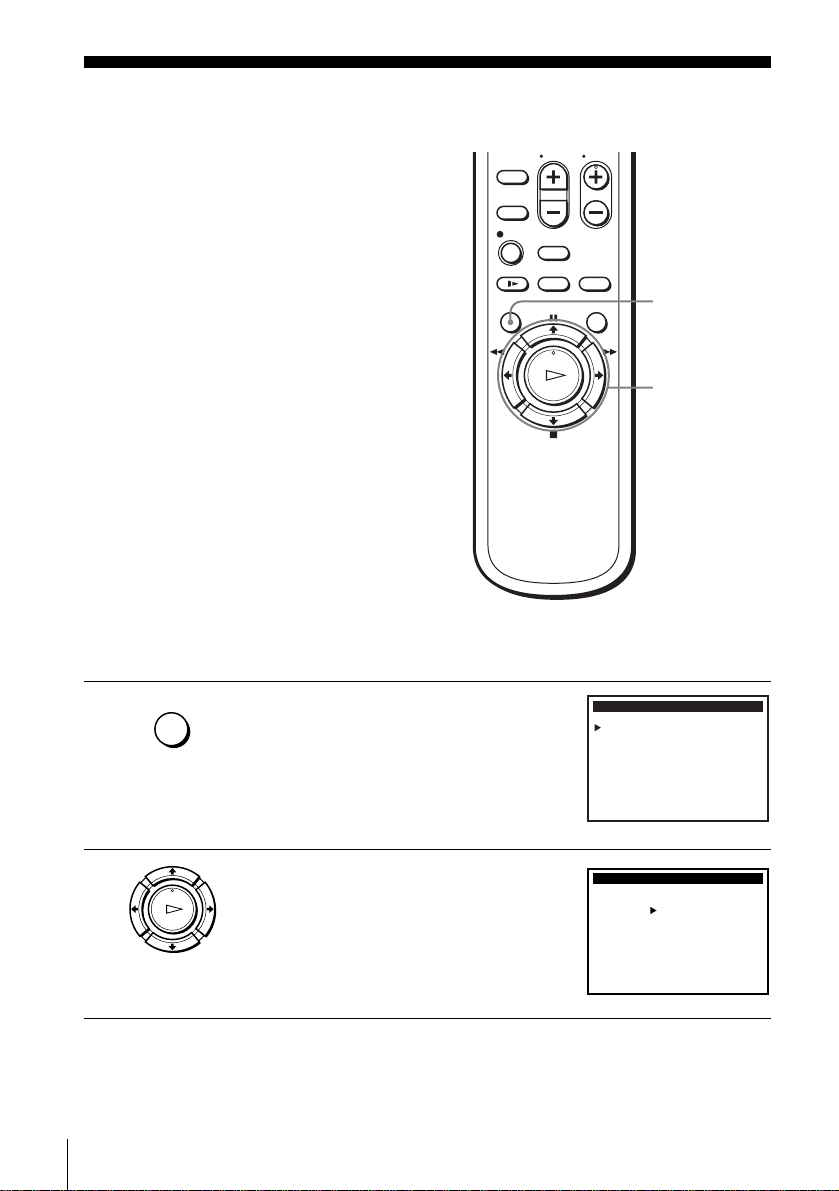
1
Press MENU.
2
Press M/m to move the cursor (B) to
“Language/Idioma/Langue.”
3
Press , to select the desired language, French or Spanish.
4
Press MENU to exit the menu.
M/m/,
MENU
MENU
Select
:Set
:
MAIN MENU
OK
Vv
Clock set
Timer set / check
Tuner preset
Advanced options
Language / Idioma / Langue
: MENUQuit
Cable Box / Sat. Control
OK
PLAY
Select
:Set
:
MAIN MENU
Vv
Clock set
Timer set / check
Tuner preset
Advanced options
Language / Idioma / Langue
: MENUQuit
Cable Box / Sat. Control
b
OK
PLAY
MENU
24
Setting the clock
Step 5 : Setting the clock
Using the Auto Clock Set
feature
Some TV and cable channels transmit time
signals with their broadcasts. Your VCR can
pick up this time signal to automatically set
the clock.
The Auto Clock Set feature works only if a
channel in your area is broadcasting a time
signal. If broadcasters in your area are not
yet sending time signals, set the time
manually (page 27).
Before you start…
• Turn on the VCR and the TV. When using
a cable box, turn it on.
• Set the “VCR Output CH” to “3CH” or
“4CH” in ADVANCED OPTIONS menu
(page 69). If both are used, set the “VCR
Output CH” to either channel. If your TV
is connected to the VCR using A/V
connections, set the TV to video input.
• Press TV/VIDEO to display the VIDEO
indicator in the VCR’s display window.
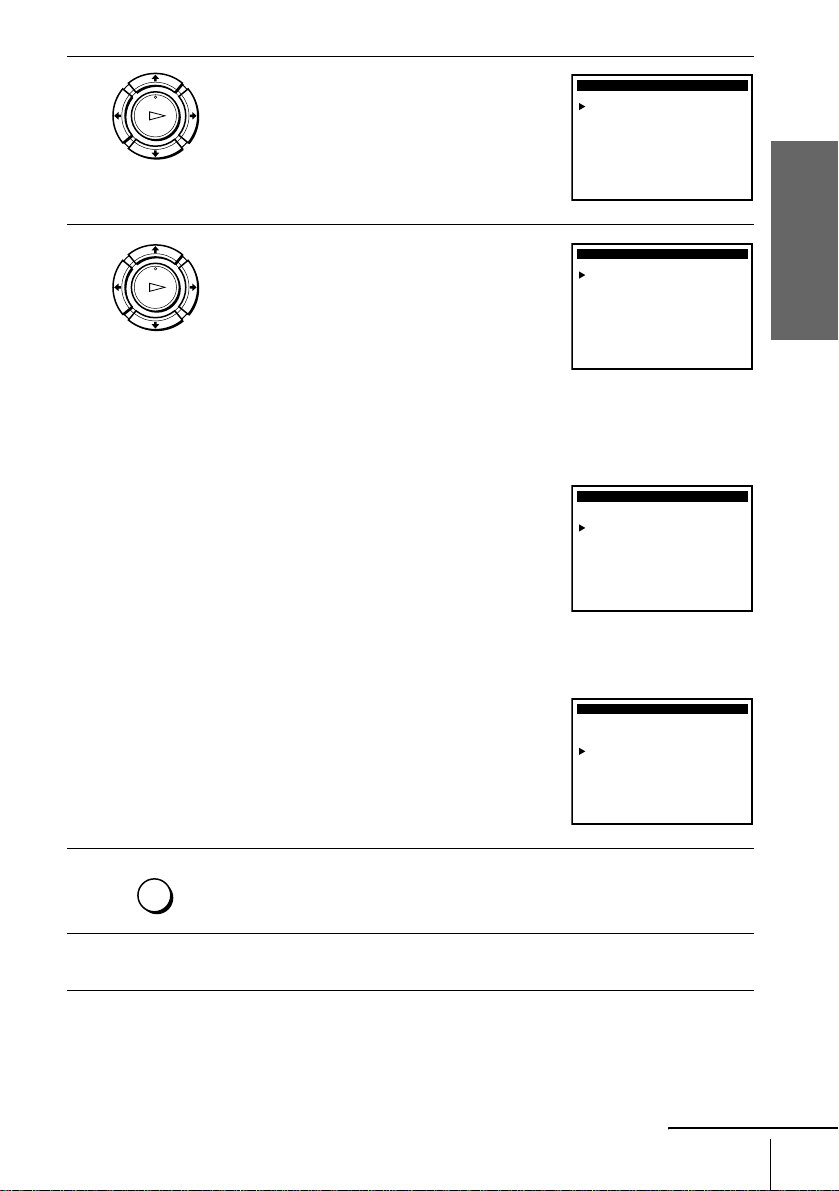
1
Press MENU.
2
Press M/m to move the cursor (B) to “Clock
set,” then press OK.
M/m/</,
OK
MENU
MENU
Select
:Set
:
MAIN MENU
OK
Vv
Clock set
Timer set / check
Tuner preset
Advanced options
Language / Idioma / Langue
: MENUQuit
Cable Box / Sat. Control
OK
PLAY
Select
:Set
:
CLOCK SET
OK
Vv
AUTO
MANUAL
: MENUQuit
Getting Started
25
Setting the clock
3
Press M/m to select AUTO, then press OK.
4
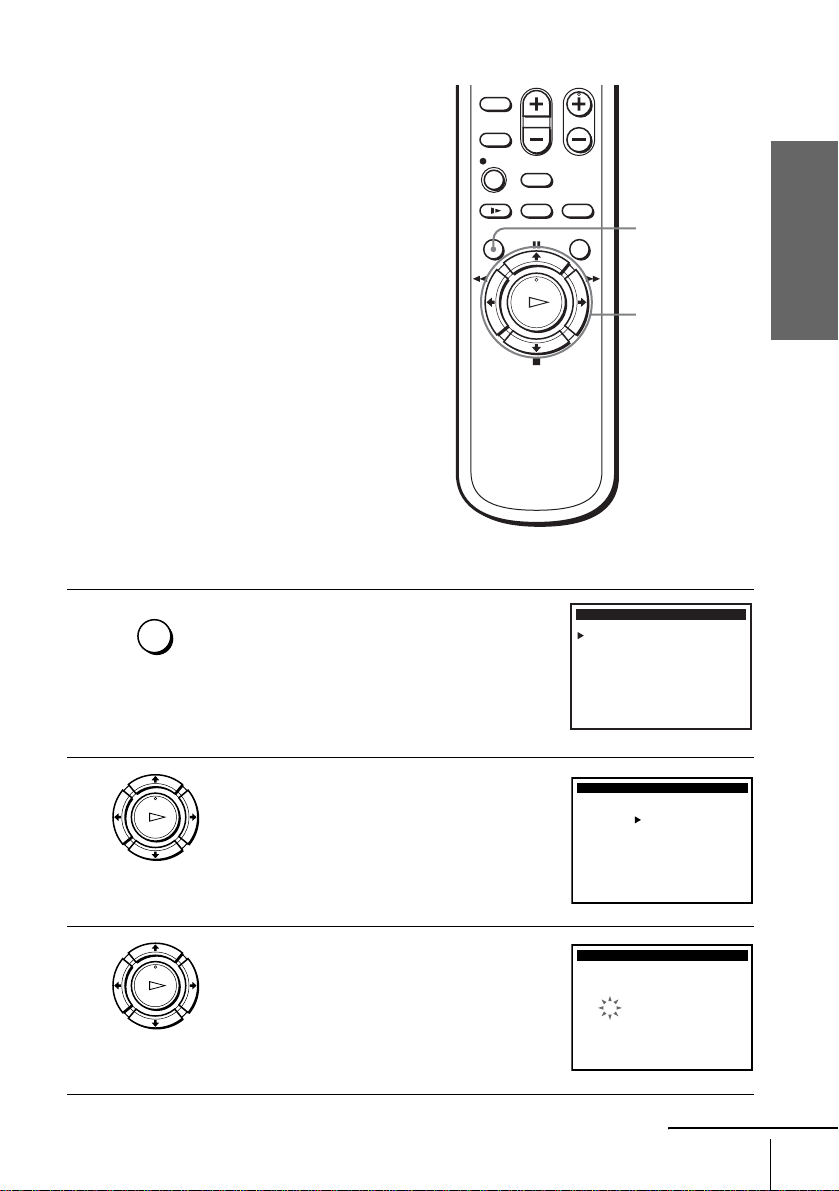
Press M/m to select the item you want. Then
press
</, to make the setting and press OK.
• For “Clock set CH”
Leave the setting to AUTO to have the VCR
automatically search for a channel that
carries a time signal. Press
</, to select a
channel that carries a time signal. Use this
option if you know of a channel that carries a
time signal. Most PBS member stations
broadcast a time signal. For the fastest
response, select your local PBS station.
• For “Time zone”
Select the time zone of your area, or select
AUTO to have the VCR automatically set
your time zone.
The options are:
AUTO y Atl. (Atlantic) y
East (Eastern) y Cen. (Central) y
Mtn. (Mountain) y Pac. (Pacific) y
Alas (Alaska) y Haw. (Hawaii) y
AUTO
• For “Daylight Saving”
Select YES or NO (standard time), or AUTO
to have the VCR automatically set the
daylight saving time.
5
Press MENU to exit the menu.
6
To activate the Auto Clock Set function, turn off the VCR.
OK
PLAY
Select
:End
:
CLOCK SET
OK
Vv Set : Bb
Time zone:
Clock set CH:
Daylight Saving:
AUTO
AUTO
[
[
]
AUTO
[]
]
: MENUQuit
OK
PLAY
Select
:
:
CLOCK SET
OK
Vv Set : Bb
Time zone:
Clock set CH:
Daylight Saving:
123
[]
: MENUQuitEnd
AUTO
[]
AUTO
[]
Select
:End
:
CLOCK SET
OK
Vv Set : Bb
Time zone:
Clock set CH:
Daylight Saving:
Pac.
AUTO
[
[
]
]
AUTO
[]
: MENUQuit
Select
:
:
CLOCK SET
OK
Vv Set : Bb
Time zone:
Clock set CH:
Daylight Saving:
AUTO
[]
: MENUQuitEnd
AUTO
[]
NO
[]
MENU
continued

26
Setting the clock
Notes
• The clock cannot be set automatically if you do not receive a channel that carries a time
signal in your area. If so, set the clock manually (page 27).
• If there are only a few channels in your area that carry time signals, setting the clock
automatically may take up to about 20 minutes. If nothing happens even after you wait about
20 minutes, set the clock manually (page 27).
• If you made Hookup 3 or 4, make sure you leave the cable box on.
Getting Started
27
Setting the clock
Using Manual Clock Set
Before you start…
• Turn on the VCR and the TV.
• Set the “VCR Output CH” to “3CH” or
“4CH” in ADVANCED OPTIONS menu
(page 69). If both are used, set the “VCR
Output CH” to either channel. If your TV
is connected to the VCR using A/V
connections, set the TV to video input.
• Press TV/VIDEO to display the VIDEO
indicator in the VCR’s display window.
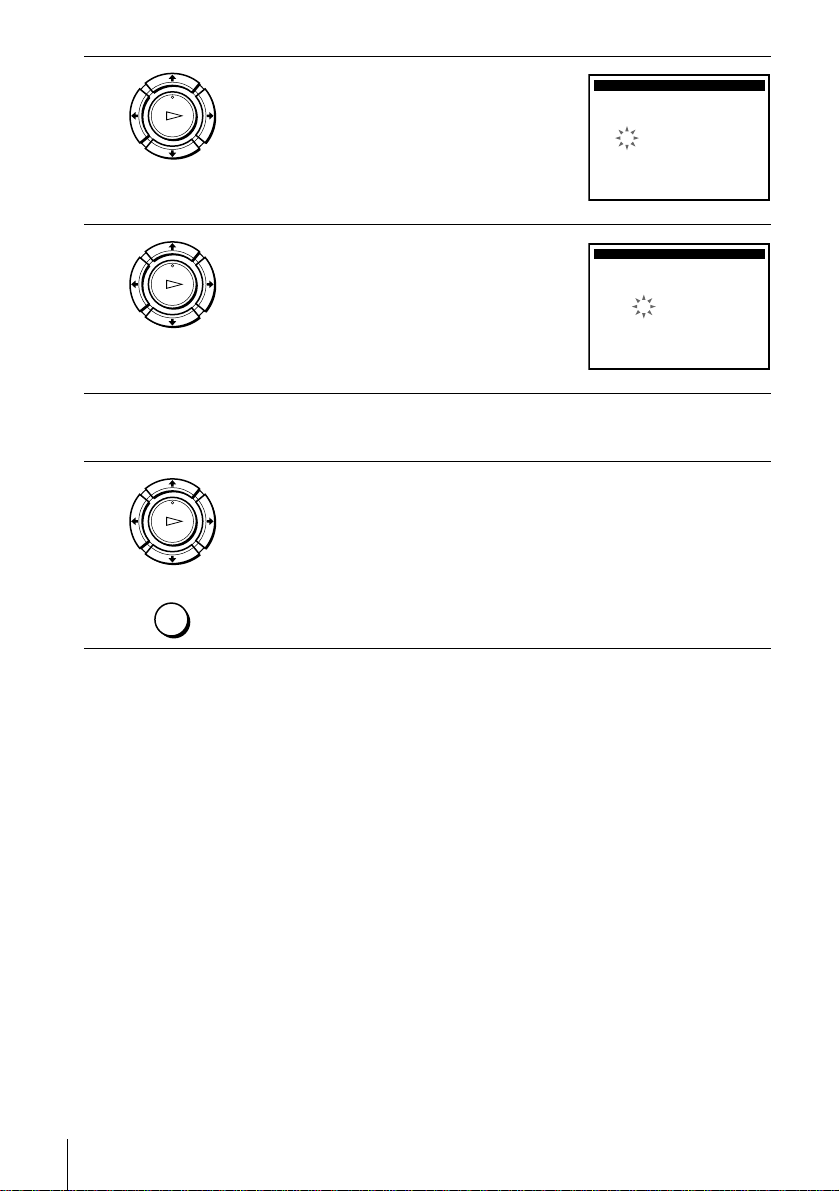
1
Press MENU.
2
Press M/m to move the cursor (B) to “Clock
set,” then press OK.
3
Press M/m to select MANUAL, then press OK.
MENU
M/m/,
OK
MENU
Select
:Set
:
MAIN MENU
OK
Vv
Clock set
Timer set / check
Tuner preset
Advanced options
Language / Idioma / Langue
: MENUQuit
Cable Box / Sat. Control
OK
PLAY
Select
:Set
:
CLOCK SET
OK
Vv
AUTO
MANUAL
: MENUQuit
OK
PLAY
Select
:End
:
CLOCK SET
OK
Bb Set : Vv
DATE
10120 0003 WED :
12
A
M
/
TIME
: MENUQuit
YEAR
continued
28
Setting the clock
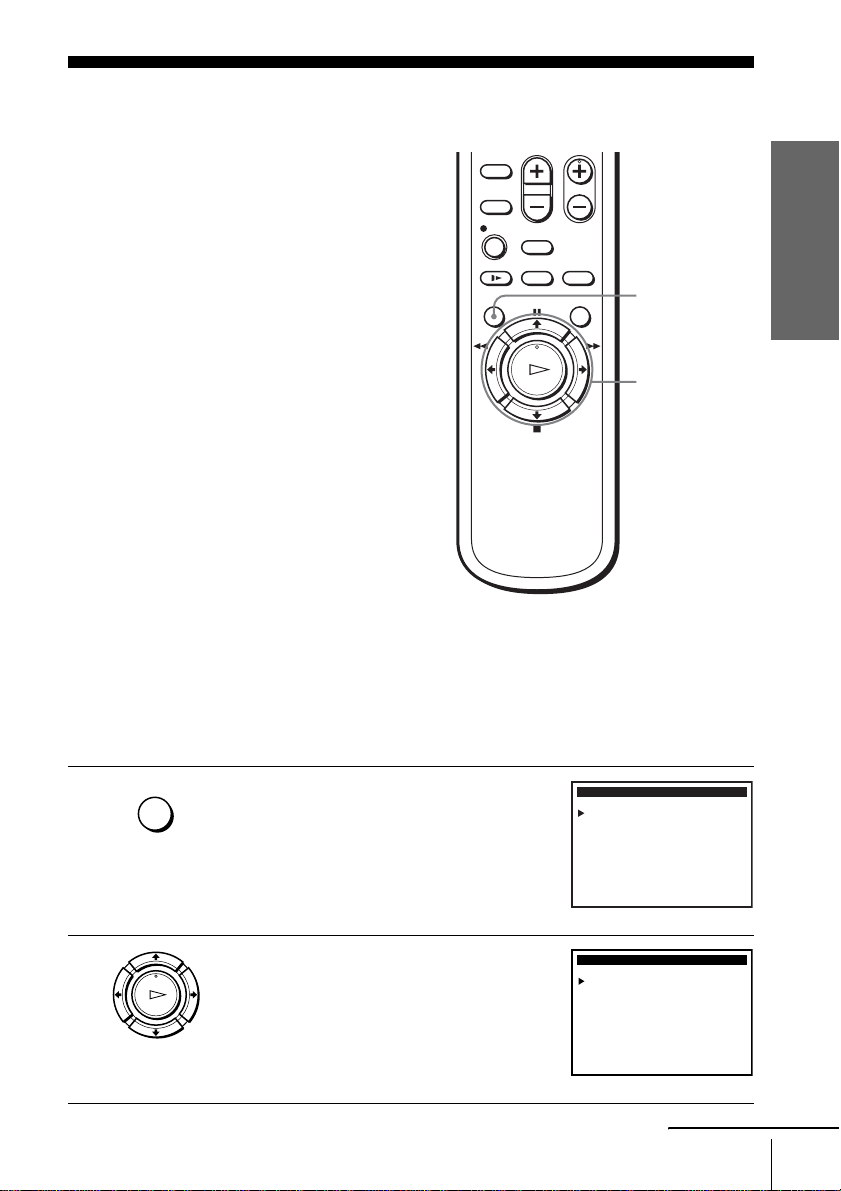
4
Press M/m to set the month.
5
Press , to flash the day and press M/m to set
the day.
6
Set the year, hour, and minutes in the same way as the day.
The day of the week is set automatically.
7
Press OK or MENU to start the clock.
OK
PLAY
Select
:End
:
CLOCK SET
OK
Bb Set : Vv
DATE
90120 0003 MON :
12
A
M
/
TIME
: MENUQuit
YEAR
OK
PLAY
Select
:End
:
CLOCK SET
OK
Bb Set : Vv
DATE YEAR
92820 0003 SUN :
12
A
M
/
TIME
: MENUQuit
OK
PLAY
MENU
Getting Started
29
Presetting channels
Step 6 : Presetting channels
(Skip this section if you are
using a cable box or digital
satellite receiver control.)
This VCR is capable of receiving VHF
channels 2 to 13, UHF channels 14 to 69 and
unscrambled CATV channels 1 to 125. First,
we recommend that you preset the receivable
channels in your area using automatic
presetting methods. Then, if there are any
unwanted channels, disable them manually.
If you have already decided which channels
you wish to preset, set them directly using
manual presetting methods (page 31).
Presetting all receivable
channels automatically
Before you start…
• Turn on the VCR and the TV.
• Set the “VCR Output CH” to “3CH” or
“4CH” in ADVANCED OPTIONS menu
(page 69). If both are used, set the “VCR
Output CH” to either channel. If your TV
is connected to the VCR using A/V
connections, set the TV to video input.
• Press TV/VIDEO to display the VIDEO
indicator in the VCR’s display window.
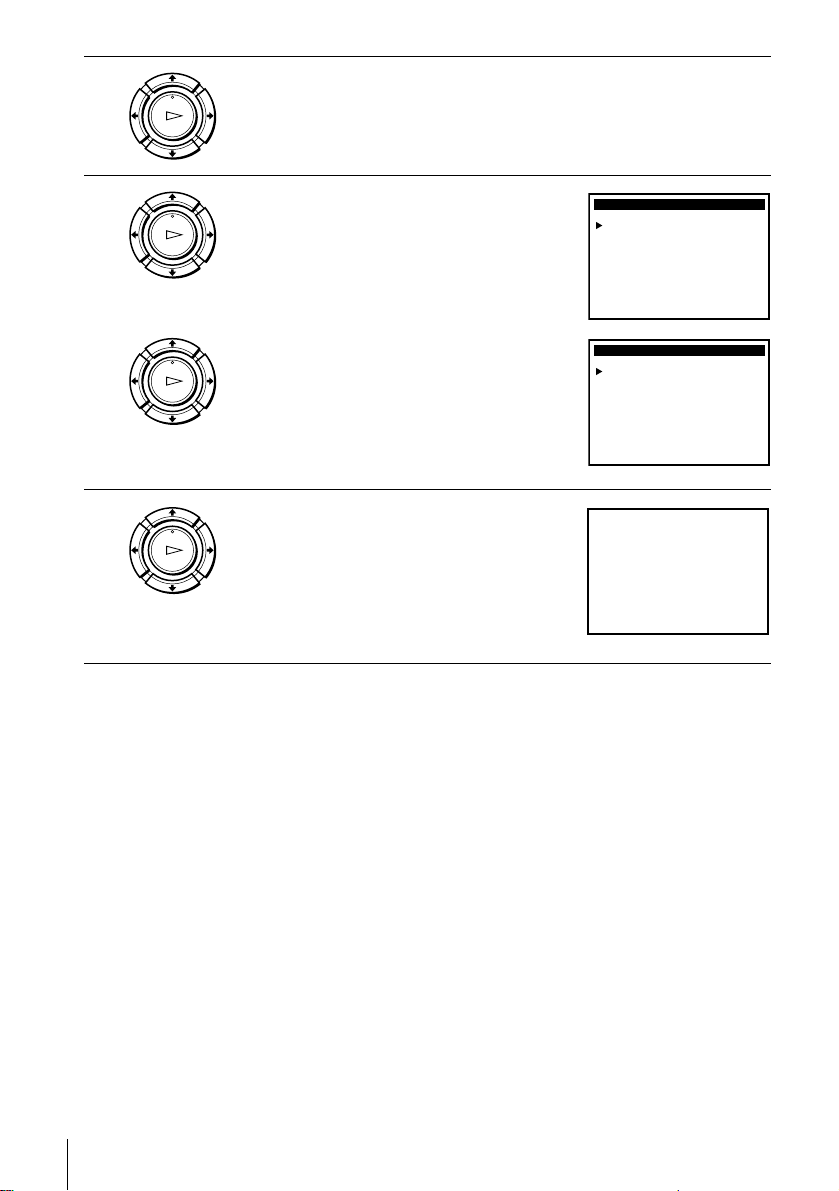
1
Press MENU.
2
Press M/m to move the cursor (B) to “Tuner
preset,” then press OK.
MENU
M/m/</,
OK
MENU
Select
:Set
:
MAIN MENU
OK
Vv
Clock set
Timer set / check
Tuner preset
Advanced options
Language / Idioma / Langue
: MENUQuit
Cable Box / Sat. Control
OK
PLAY
TUNER PRESET
Auto preset
Ant / Cable:
Channel add / erase
Guide channel setup
Select
:End
:
OK
Vv Set : Bb
: MENUQuit
CABLE
[]
continued
30
Presetting channels
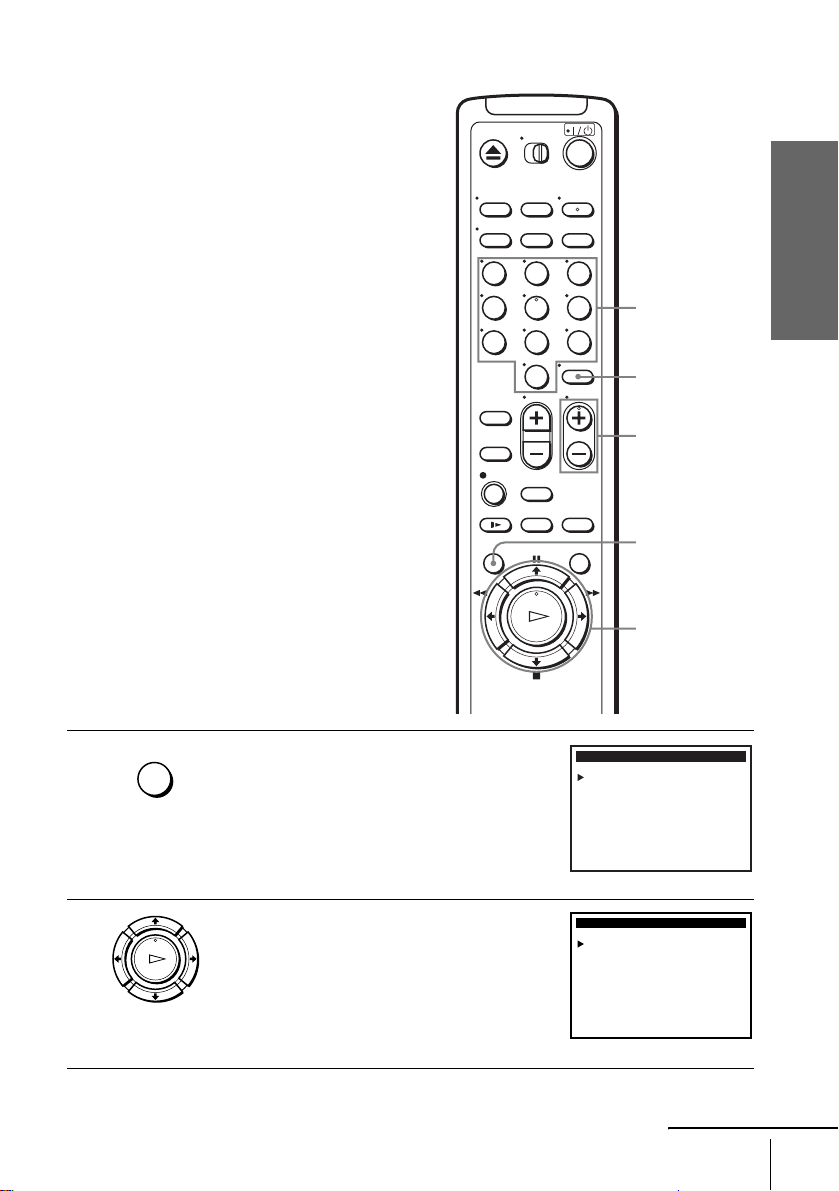
3
Press M/m to move the cursor (B) to “Ant/Cable.”
4
• To preset cable TV channels:
Press
</, to select CABLE.
• To preset VHF and UHF channels:
Press
</, to select ANTENNA.
5
Press M/m to move the cursor (B) to “Auto
preset,” then press OK.
All receivable channels are preset in numerical
sequence. When no more receivable channels
can be found, presetting stops and the picture
from the lowest numbered channel is displayed
on the TV screen.
OK
PLAY
OK
PLAY
OK
PLAY
TUNER PRESET
Auto preset
Ant / Cable: CABLE
[]
Channel add / erase
Guide channel setup
Select
:End
:
OK
Vv Set : Bb
: MENUQuit
TUNER PRESET
Auto preset
Ant / Cable: ANTENNA
[]
Channel add / erase
Guide channel setup
Select
:End
:
OK
Vv Set : Bb
: MENUQuit
OK
PLAY
• • • • •
please wait
• • • • •
02CHAuto preset
Getting Started
31
Presetting channels
Presetting/disabling channels manually
Before you start…
• Turn on the VCR and the TV.
• Set the “VCR Output CH” to “3CH” or
“4CH” in ADVANCED OPTIONS menu
(page 69). If both are used, set the “VCR
Output CH” to either channel. If your TV
is connected to the VCR using A/V
connections, set the TV to video input.
• Press TV/VIDEO to display the VIDEO
indicator in the VCR’s display window.
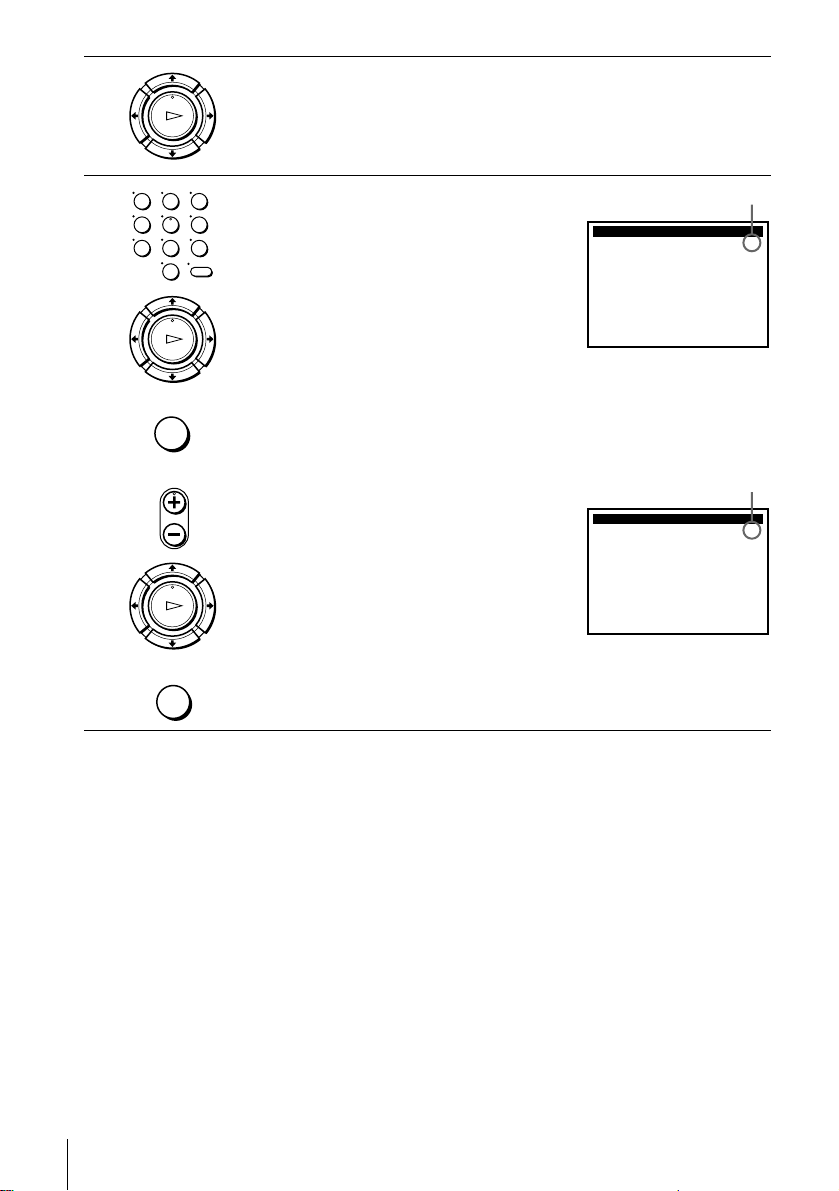
1
Press MENU.
2
Press M/m to move the cursor (B) to “Tuner
preset,” then press OK.
123
456
789
0
MENU
CH +/–
Number
buttons
M/m/</,
OK
ENTER
MENU
Select
:Set
:
MAIN MENU
OK
Vv
Clock set
Timer set / check
Tuner preset
Advanced options
Language / Idioma / Langue
: MENUQuit
Cable Box / Sat. Control
OK
PLAY
TUNER PRESET
Auto preset
Ant / Cable:
Channel add / erase
Guide channel setup
Select
:End
:
OK
Vv Set : Bb
: MENUQuit
CABLE
[]
continued
32
Presetting channels
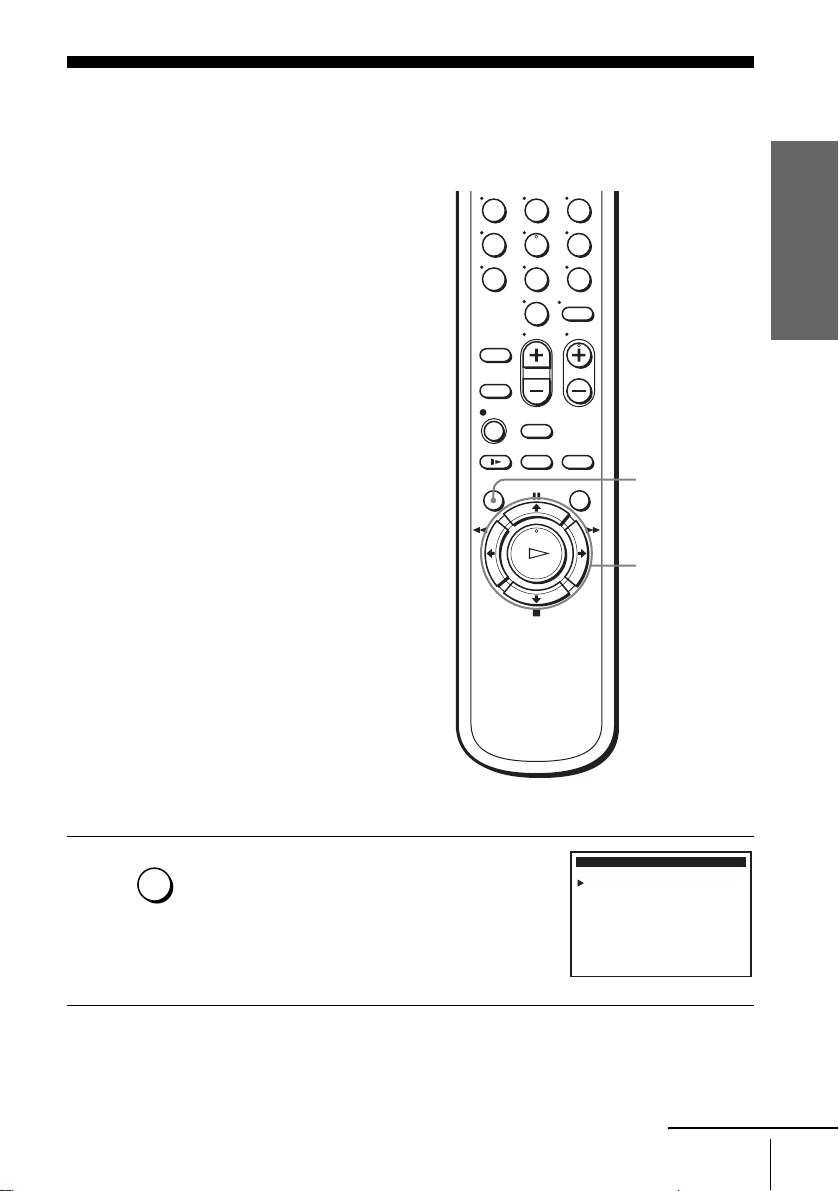
3
Press M/m to move the cursor (B) to “Channel add/erase,” then press OK.
4
• To preset a channel:
1 Press the number buttons to enter the
channel number, then press ENTER.
2 Press ,, then press OK or MENU.
• To disable a channel:
1 Press CH +/– to select the channel number.
2 Press <, then press OK or MENU.
OK
PLAY
OK
PLAY
123
456
789
0
MENU
OK
PLAY
• CH
MENU
:End
CHANNEL ADD / ERASE
OK
Select channel:
and press to ADD[]b
press to ERASE[]B
[]1
: MENUQuit
Channel to be preset
:End
CHANNEL ADD / ERASE
OK
Select channel:
and press to ADD[]b
press to ERASE[]B
5
: MENUQuit
[]
Channel to be disabled
Getting Started
33
Setting up the cable box/satellite receiver control
Step 7 : Setting up the cable box/satellite
receiver control
(Skip this section if you are
using Hookup 1, 2, or 3.)
Your VCR includes a cable box/satellite
receiver control feature that allows the VCR
to control cable boxes or digital satellite
receivers equipped with an infrared remote
control. With the cable box/satellite receiver
control, the VCR controls channels on the
cable box or digital satellite receiver for
timer recording. You can also use the VCR’s
remote commander to change channels on
the cable box or digital satellite receiver
whenever the cable box or digital satellite
receiver is turned on even if the VCR is
turned off. To use cable box/satellite receiver
control, you need to set the code number and
output channel.
This VCR is programmed with codes
necessary to control channel selection on
most brands of cable boxes or digital satellite
receivers at the time this VCR was
manufactured. It is possible that new cable
boxes may be introduced that cannot be
controlled with this VCR. If you have a
cable box that is incompatible with this VCR,
contact your cable operator—they may be
able to provide you with a compatible cable
box.
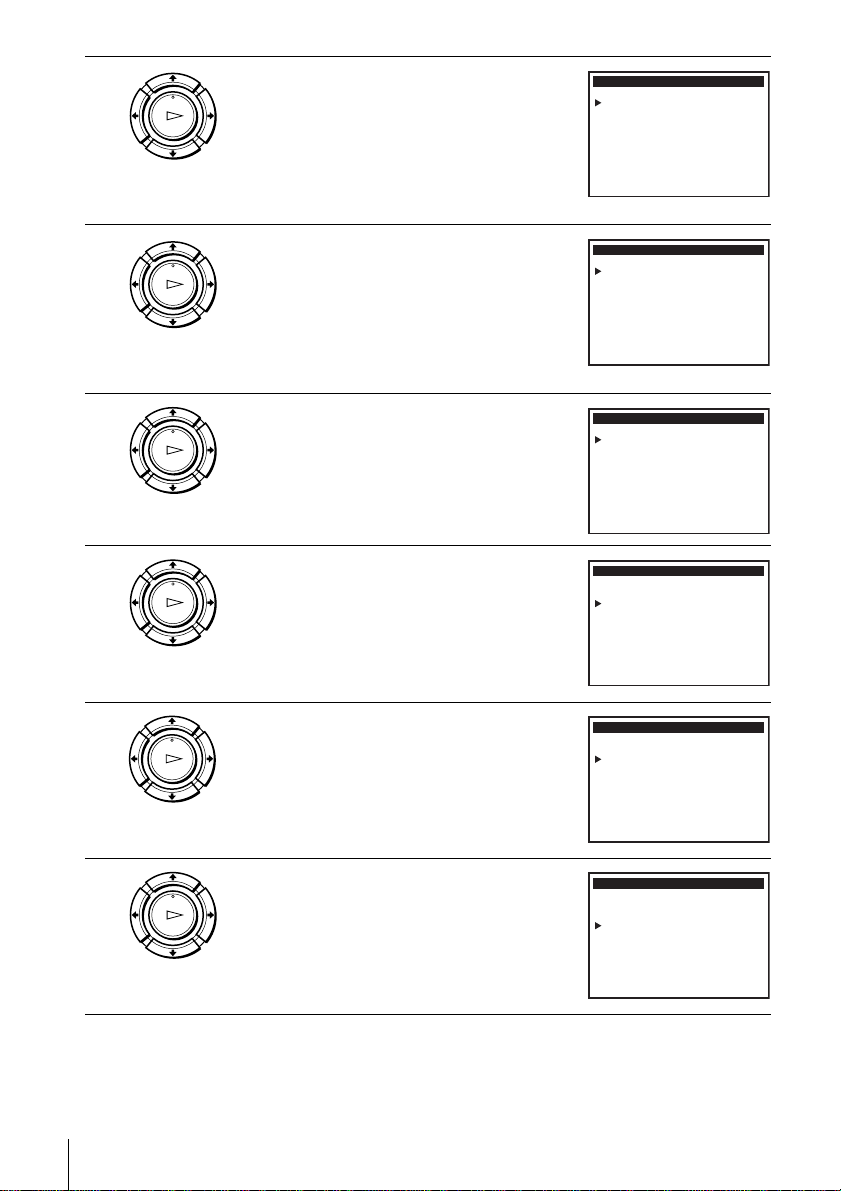
1
Press MENU.
123
456
789
0
MENU
M/m
OK
MENU
Select
:Set
:
MAIN MENU
OK
Vv
Clock set
Timer set / check
Tuner preset
Advanced options
Language / Idioma / Langue
: MENUQuit
Cable Box / Sat. Control
continued
34
Setting up the cable box/satellite receiver control
2
Press M/m to move the cursor (B) to “Cable
Box/Sat. Control,” then press OK.
3
Press M/m to move the cursor (B) to “Cable
Box/Sat.”
4
Press </, to select ON.
5
Press M/m to move the cursor (B) to “Brand
Code No.”
6
Press </, to enter the cable box or digital
satellite receiver code number.
Find your cable box or digital satellite receiver
code number from the following chart.
7
Press M/m to move the cursor (B) to “Channel
/Line out.”
OK
PLAY
CABLE BOX / SAT. CONTROL
Brand Code No.
Cable Box / Sat.
Channel / Line out
Select
:
:
OK
Vv Set : Bb
: MENUQuitEnd
OFF
[]
CH3
[]
[]
–––
OK
PLAY
CABLE BOX / SAT. CONTROL
Brand Code No.
Cable Box / Sat.
Channel / Line out
Select
:
:
OK
Vv Set : Bb
: MENUQuitEnd
OFF
[]
CH3
[]
[]
–––
OK
PLAY
CABLE BOX / SAT. CONTROL
Brand Code No.
Cable Box / Sat.
Channel / Line out
Select
:
:
OK
Vv Set : Bb
: MENUQuitEnd
CH3
[]
ON
[]
[]
–––
OK
PLAY
CABLE BOX / SAT. CONTROL
Brand Code No.
Cable Box / Sat.
Channel / Line out
Select
:
:
OK
Vv Set : Bb
: MENUQuitEnd
ON
[]
CH3
[]
[]
–––
OK
PLAY
CABLE BOX / SAT. CONTROL
Brand Code No.
Cable Box / Sat.
Channel / Line out
Select
:
:
OK
Vv Set : Bb
: MENUQuitEnd
ON
[]
[]
CH3
[]
21
OK
PLAY
CABLE BOX / SAT. CONTROL
Brand Code No.
Cable Box / Sat.
Channel / Line out
Select
:
:
OK
Vv Set : Bb
: MENUQuitEnd
CH3
[]
ON
[]
[]
21
Getting Started
35
Setting up the cable box/satellite receiver control
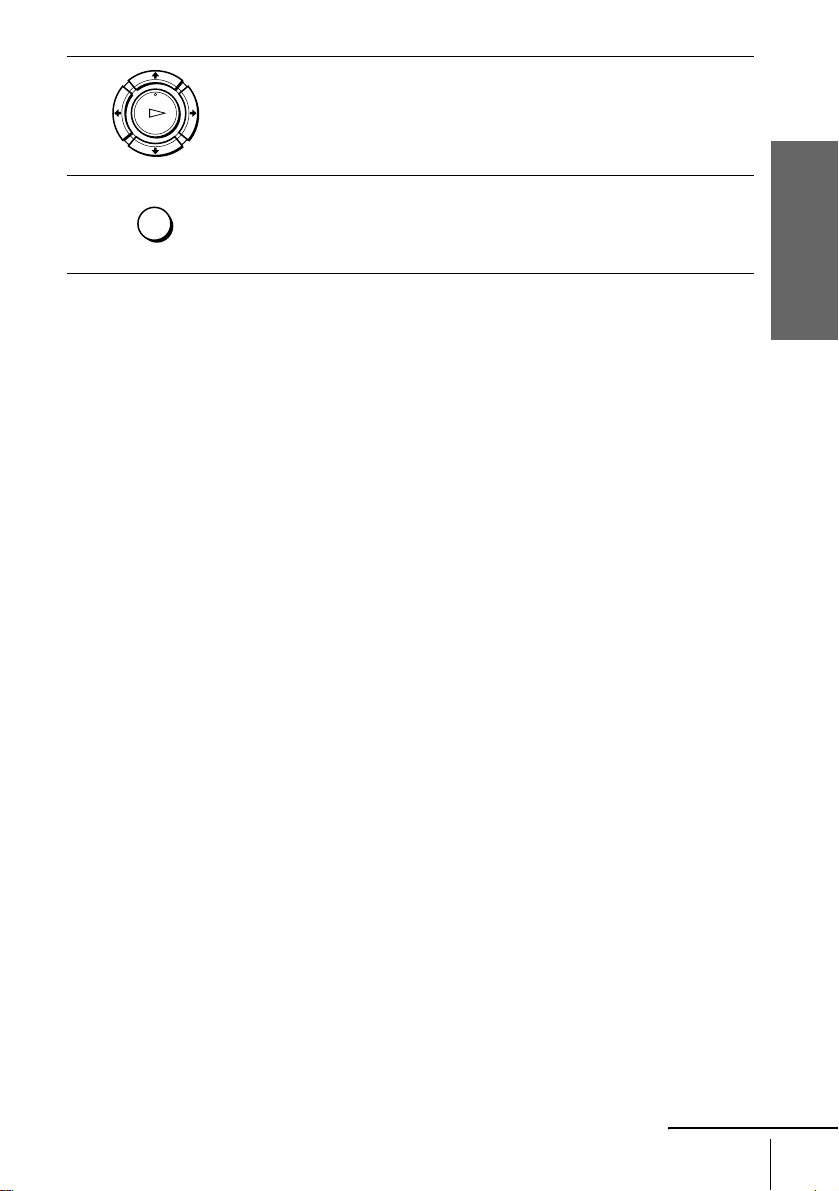
8
If you want to control a cable box, press </, to select the cable box
output channel, then press OK.
If you want to control a digital satellite receiver, select LINE, then press
OK.
9
Press MENU to exit the menu.
OK
PLAY
MENU
continued
36
Setting up the cable box/satellite receiver control
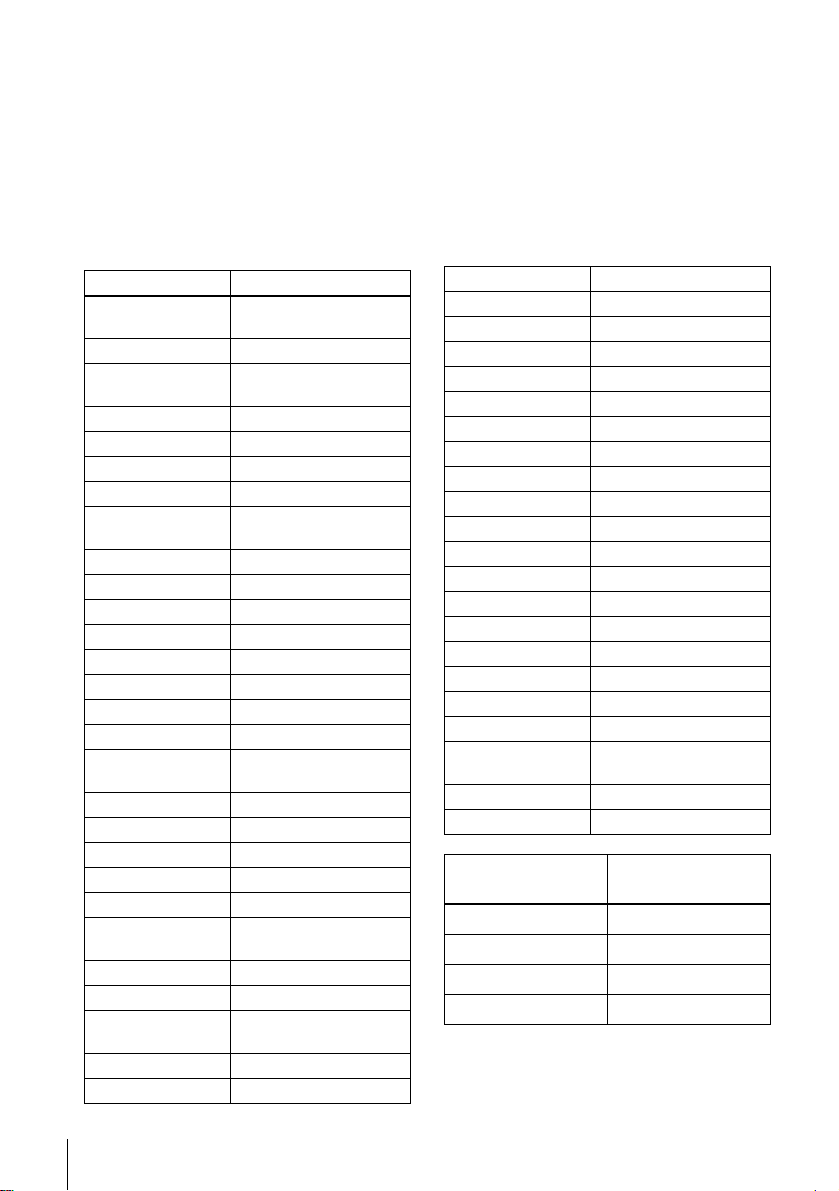
Cable box and digital satellite receiver brands and the
corresponding code numbers
If more than one code number is listed, try entering them one by one until you come
to the correct code for your equipment.
Note
• Cable box/satellite receiver control may not be compatible with all brands of cable boxes and
DirecTV receivers.
• Only Sony digital cable box is available for Cablevision.
Cable box brand Code numbers
Anvision 13, 20, 21, 22, 23, 24, 25,
26, 58, 62
Archer 29, 42, 44
Cable Star 13, 20, 21, 22, 23, 24, 25,
26, 58, 62
Cable View 42, 44
Citizen 42, 44
Curtis 8, 9, 56, 61
Diamond 29, 44
Eagle 13, 20, 21, 22, 23, 24, 25,
26, 58, 62
Eastern 28
GC Brand 42, 44
Gemini 4, 30
General Instrument 1, 2, 3, 4, 55, 75, 85
Hamlin 14, 15
Hitachi 31, 79, 80
Jerrold 1, 2, 3, 4, 55, 75, 83, 85
Macom 31, 79, 80
Magnavox 13, 20, 21, 22, 23, 24, 25,
26, 58, 62
Movie time 32, 38, 39
NSC 38, 39
OAK 10, 11, 12, 13, 46
OAK Sigma 46
Panasonic 6, 8, 16, 17
Philips 13, 20, 21, 22, 23, 24, 25,
26, 58, 62
Pioneer 5, 6
Pulser 42, 44
Randtek 13, 20, 21, 22, 23, 24, 25,
26, 58, 62
RCA 6, 8, 16, 17
Regal 14, 23, 41
Rembrandt 32
Samsung 4, 6, 42, 44, 78, 86
Scientific Atlantic 8, 9, 56, 61
Sheritech 26, 27, 28
SL Mark 4, 6, 42, 78
Sony 96
Sprucer 6, 8, 16, 17
Stargate 4, 6, 42, 44, 78
Sylvania 19
Teknica 74
Telecaption 77
Teleview 4, 6, 42, 78
Texscan 18, 19
Tocom 33, 34, 48, 49, 73
Toshiba 36
Unika 20, 21, 29, 42, 44
Universal 43, 52, 63, 82
Videoway 7, 45, 50, 59
Viewstar 13, 20, 21, 22, 23, 24, 25,
26, 58, 62
Warner Amex 6
Zenith 7, 45, 50, 59
Digital satellite
receiver brand
Code numbers
Sony 100
Panasonic 101
Toshiba 102
RCA 103
Cable box brand Code numbers
Getting Started
37
Setting up the cable box/satellite receiver control
To ensure correct operation
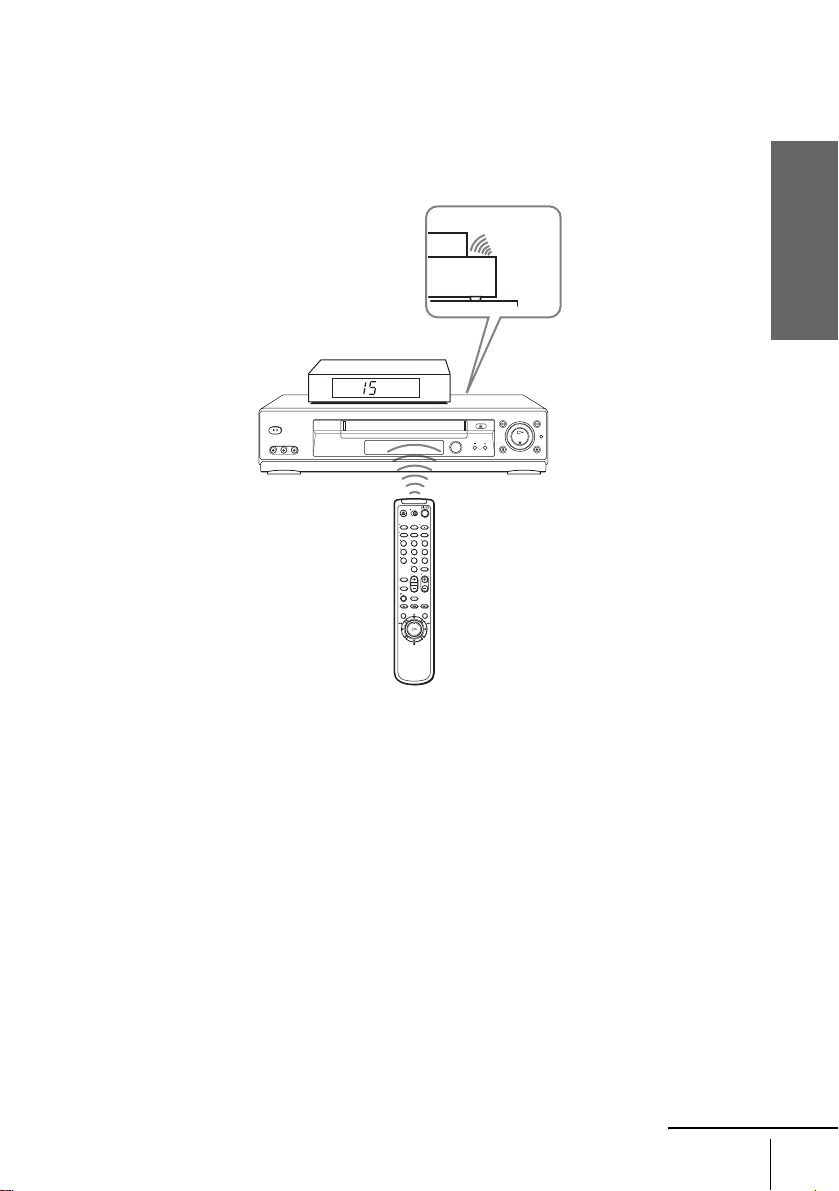
• Place the cable box or digital satellite receiver so that it may not block the sensor window on
the VCR.
• Do not place the cable box or digital satellite receiver on top of the TV.
• Position the cable box or digital satellite receiver on top of the VCR.
• Point the remote commander at the VCR, not at the cable box or digital satellite receiver.
To check the cable box/satellite receiver control setting
If the answer to both 1 and 2 is “yes,” you have made the correct setting.
1
Press CH +/– on the remote commander. Does the channel indicator on the cable
box or digital satellite receiver change? (Point the remote commander at the
VCR, not at the cable box or digital satellite receiver.)
2
Press all 10 number buttons (0 to 9) on the remote commander. Does the channel
indicator on the cable box or digital satellite receiver change?
123
456
789
0
Side view
continued

38
Setting up the cable box/satellite receiver control
If you cannot get your VCR to control the cable box or digital satellite
receiver
• Check the position of the cable box or digital satellite receiver.
• Place the cable box or digital satellite receiver on top of the VCR. Do not place the cable box
or digital satellite receiver and VCR away form each other.
• Try the setup again making sure to use the correct control code. If the cable box still does not
respond, try the other codes that are listed.
If your cable box still does not operate with this VCR, contact your cable company to
see if they can provide you with a compatible cable box.
Getting Started
39
Setting up the VCR Plus+C
3®
system
Step 8 : Setting up the VCR Plus+C
3®
system
How the VCR Plus+C
3
system works
Whenever you want to record a TV program,
all you need to do is look up the “PlusCode”
number, a number assigned to each program
published in the TV section of most
newspapers, cable TV listings, and even TV
GUIDE magazine. Then, just enter the
PlusCode number of the program you want
and the VCR is automatically programed to
record that show. It’s that simple.
How to set up your VCR
Setting up your VCR involves coordinating
the TV channel number (the number you turn
to on your TV or VCR to watch a program)
with the guide channel (the number that is
assigned to that channel in your program
guide).
To find the guide channel numbers, look at
the “Channel Line-up Chart” in the program
guide for your area that features VCR
PlusCode numbers. It usually looks like the
example to the right.
To set the guide channels, use the Channel
Line-up Chart to check that the guide channel
numbers match the TV channel your VCR
receives. For example, if HBO is listed in the
Channel Line-up Chart as channel 33, and
your VCR receives HBO on channel 5, you
need to coordinate these numbers using the
following procedure. If the guide and TV
channel numbers are the same, you can skip
this procedure.
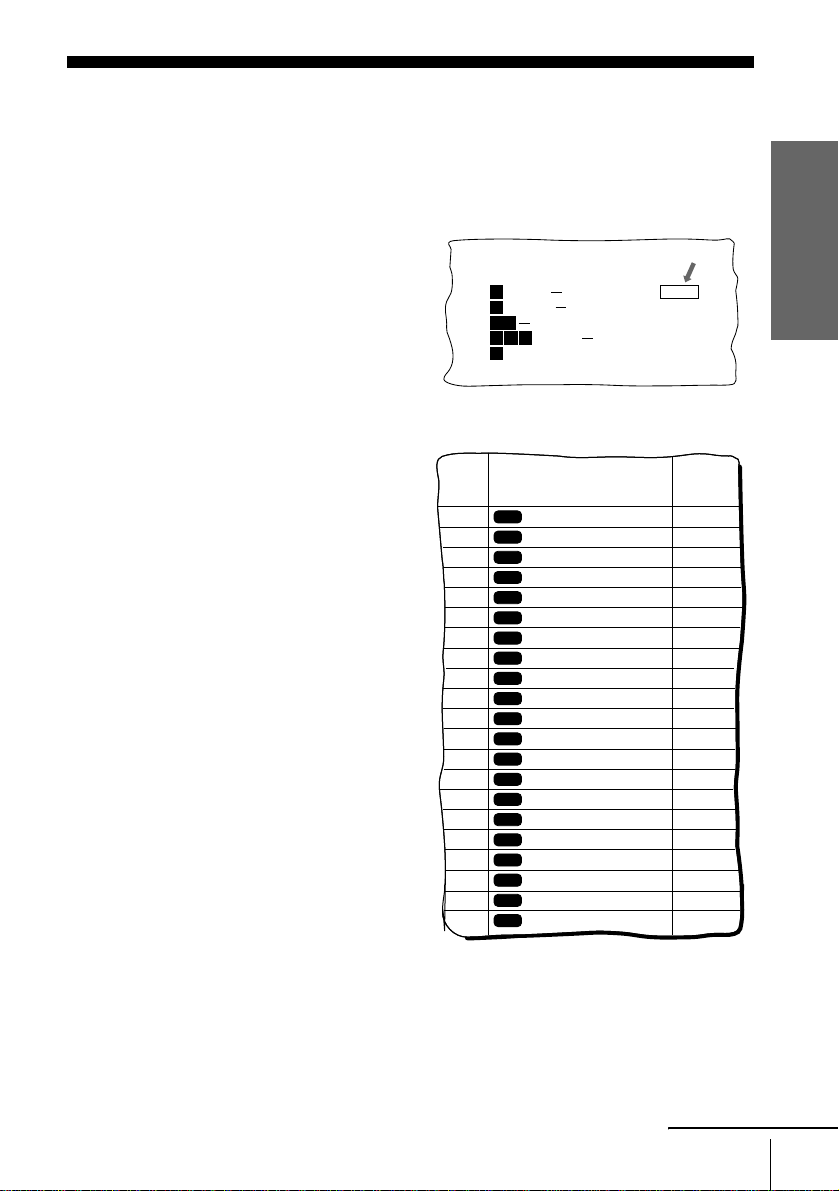
5:30
6:30
PlusCode
14
2
CNN
23
4
5
SCIENCE AND TECHNOLOGY
(1hr. 15min.) 73457
DRAMA
WS 9974
SPORT
MOVIE Musical (2hrs.)
33044
Golf (1hr. 25min.) 42060
Comedy (2hrs.) 17390
SAMPLE
CABLE TV
AMC
BRV
CNN
CSP
DIS
DSC
ESN
FAM
HBO
LIF
MAX
MTV
NIK
SC
SCA
SHO
TBS
TMC
TNN
TNT
USA
VCR Plus+
GUIDE CH
35
54
42
28
53
37
34
47
33
46
45
48
38
59
70
41
43
58
49
52
44
American Movie Classics
Bravo (program grid only)
Cable News Network
C-SPAN
The Disney Channel
The Discovery Channel
ESPN
The Family Channel
Home Box Office
Lifetime
Cinemax
Music Television
Nickelodeon
Sports Channel
Sports Channel America
Showtime
TBS SuperStation
The Movie Channel
The Nashville Network
Turner Network Television
USA Network
CABLE
CH
16
17
20
21
22
25
34
35
5
27
29
31
38
39
45
17
44
49
50
51
30
Example of “PlusCode”
Example of “Channel Line-up Chart”
continued
40
Setting up the VCR Plus+C
3®
system
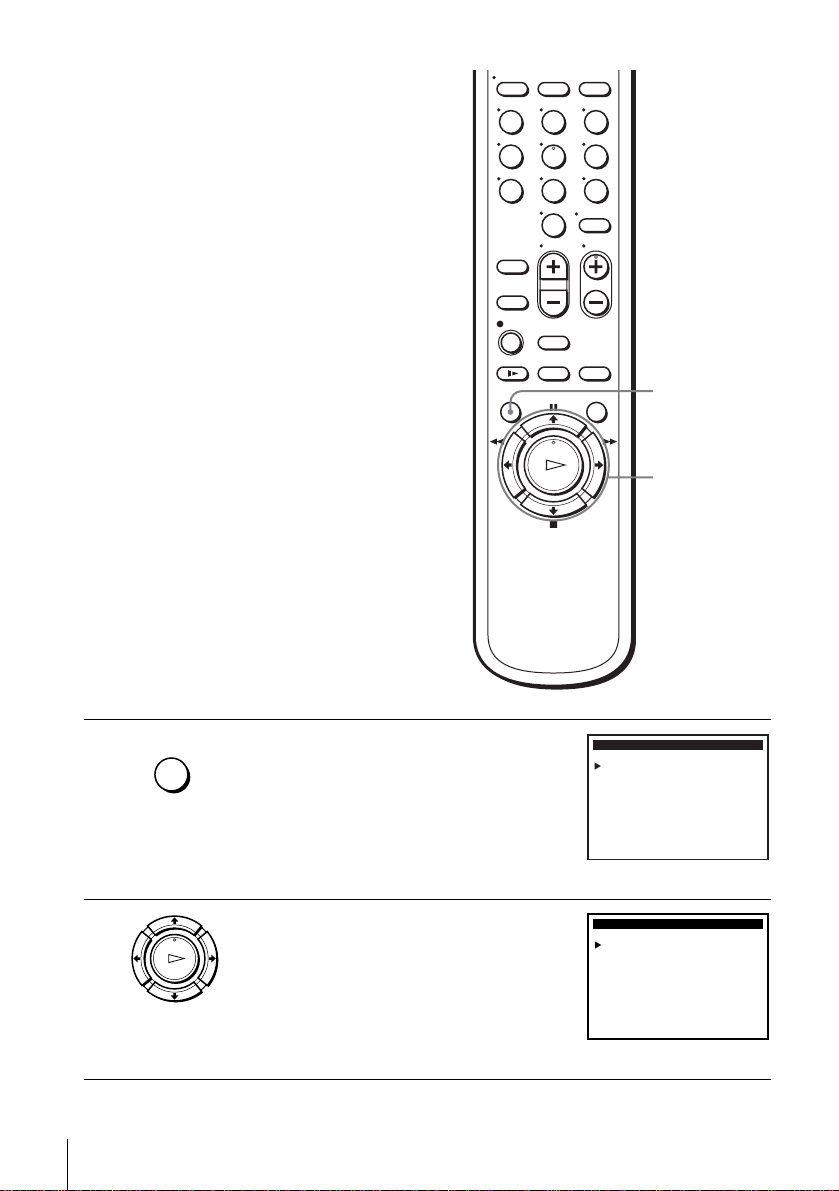
1
Press MENU.
2
Press M/m to move the cursor (B) to “Tuner
preset,” then press OK.
123
456
789
0
MENU
M/m/</,
OK
MENU
Select
:Set
:
MAIN MENU
OK
Vv
Clock set
Timer set / check
Tuner preset
Advanced options
Language / Idioma / Langue
: MENUQuit
Cable Box / Sat. Control
OK
PLAY
TUNER PRESET
Auto preset
Ant / Cable:
Channel add / erase
Select
:End
:
OK
Vv Set : Bb
: MENUQuit
]
Guide channel setup
CABLE
[
Getting Started
41
Setting up the VCR Plus+C
3®
system
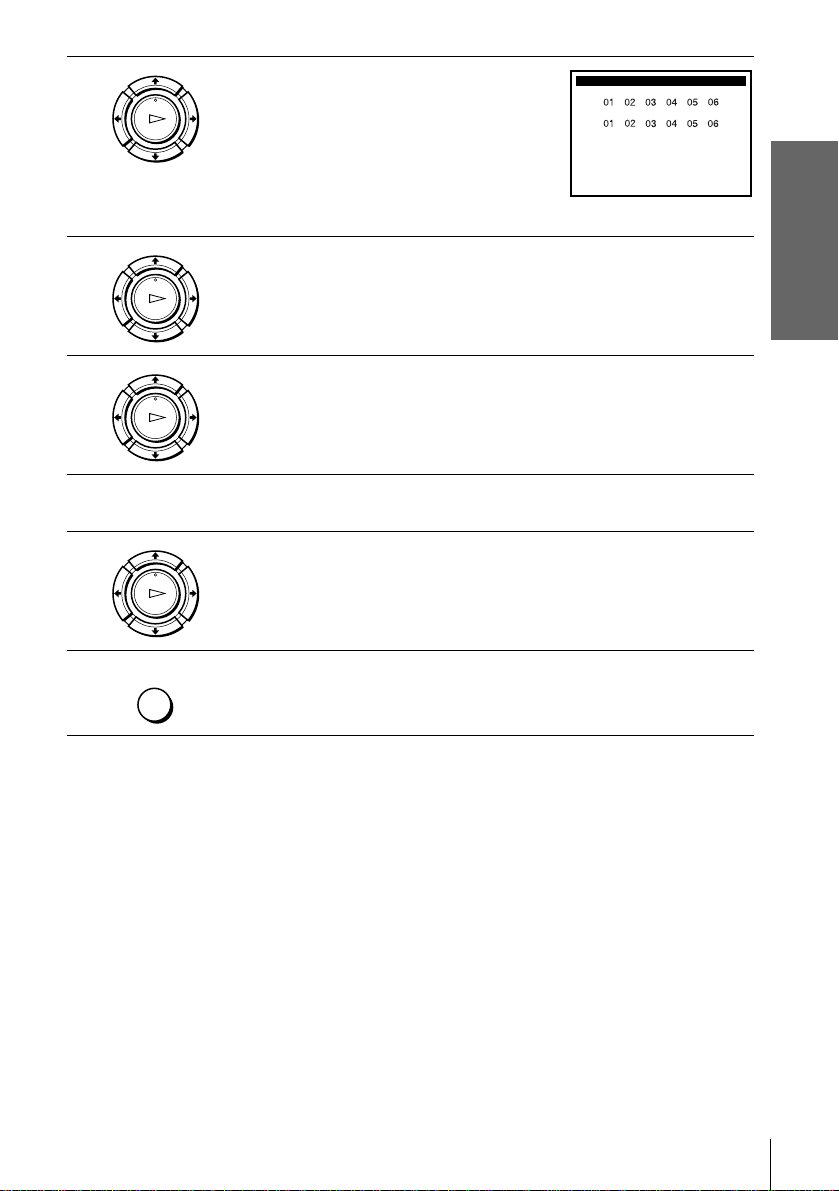
3
Press M/m to move the cursor (B) to “Guide
channel setup,” then press OK.
4
The upper row shows VCR Plus+C
3
guide channels and the lower row
shows TV channels or cable box out put channels. Press </, to select
the channel number that does not match the guide channel.
5
• If you made Hookup 1 or 2: Enter the actual number on your TV (and
VCR), then press M/m.
• If you made Hookup 3: Enter the cable box output channel (usually 2, 3,
or 4), then press M/m.
6
Repeat steps 4 and 5 for each channel number that does not match.
7
Press OK to confirm the setting.
8
Press MENU to exit the menu.
OK
PLAY
GUIDE CHANNEL SETUP
Select
:End
:
OK
Vv
Set :
Bb
: MENUQuit
Enter actual
receiving channel
v
[GUIDE CH]
[TV CH]
OK
PLAY
OK
PLAY
OK
PLAY
MENU
42
Playing a tape
Basic Operations
Playing a tape
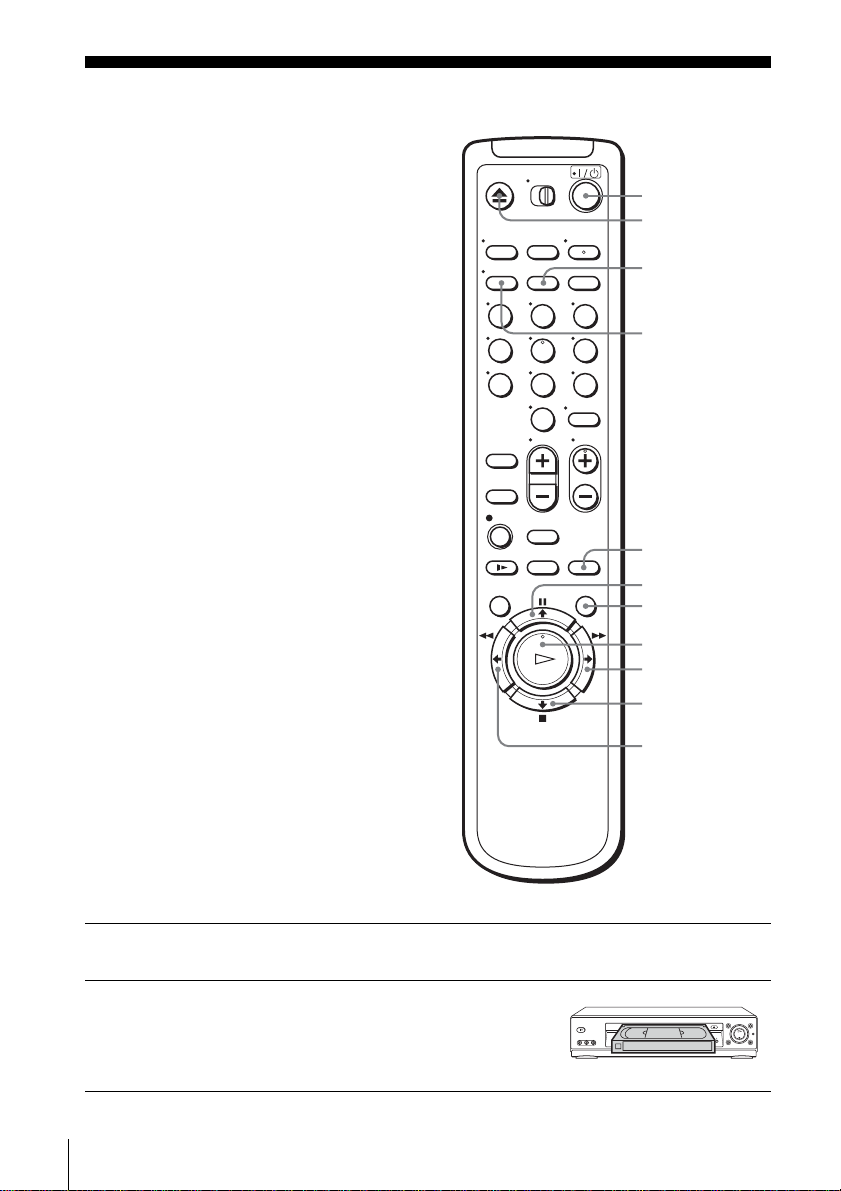
1
Turn on your TV and set it to the video channel.
2
Insert a tape.
The VCR turns on and starts playing
automatically if you insert a tape with its
safety tab removed.
123
456
789
0
Z EJECT
DISPLAY
CLEAR
H PLAY
COMMERCIAL
SKIP
X PAUSE
M FF
x STOP
m REW
REPLAY
?/1
43
Playing a tape
Basic Operations
Additional tasks
To play a recently watched scene
You can immediately rewind and playback the scene you want to watch again.
During playback, press REPLAY. The VCR rewinds the tape about ten seconds on
the counter for each press of the button, and restarts playback.
To skip playback
You can skip a portion of playback you do not want to watch (such as a commercial)
and restart playback.
During playback, press COMMERCIAL SKIP up to four times. The VCR skips the
tape 30 seconds on the counter for each press of the button, and restarts playback.
To turn off the power while rewinding (Rewind Shut Off)
Press ?/1 while the tape is rewinding. The power will turn off but the tape will keep
rewinding until it reaches the end.
3
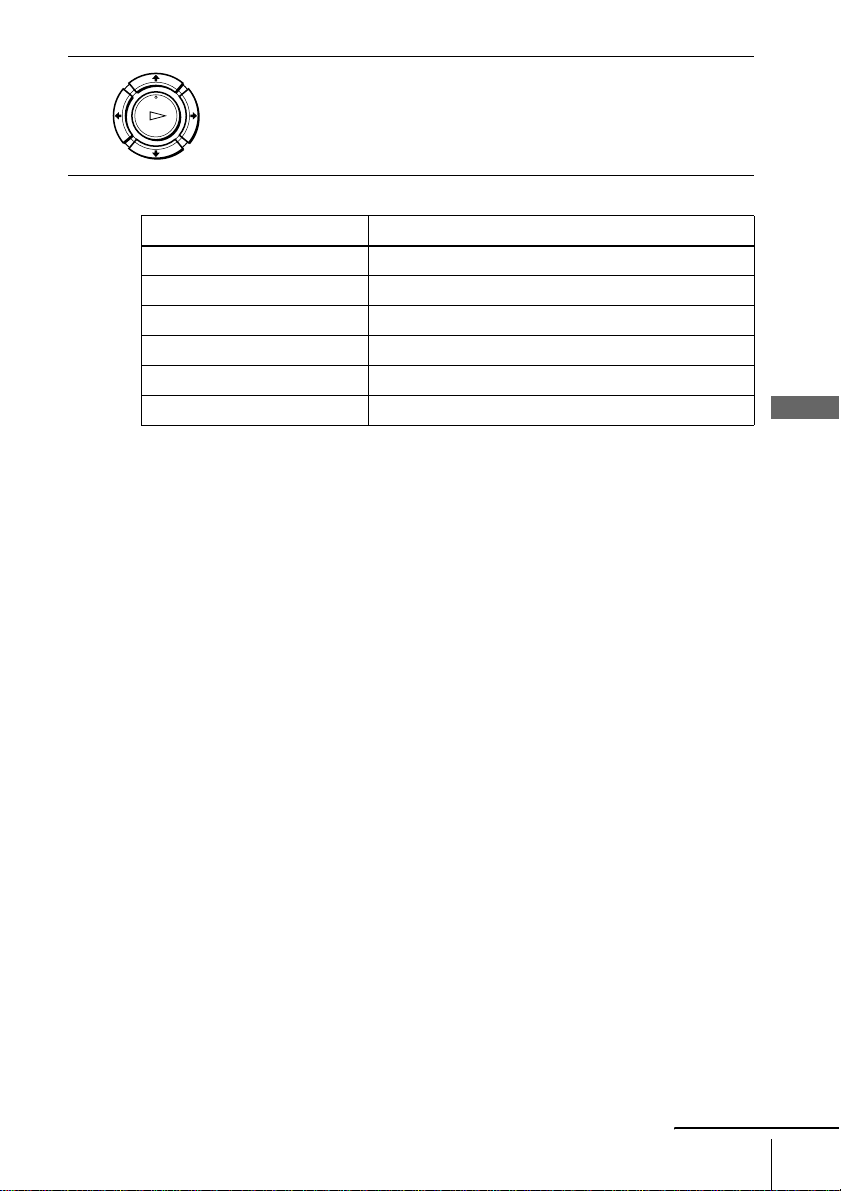
Press H PLAY.
When the tape reaches the end, it will rewind automatically.
To Press
Stop play x STOP
Pause play X PAUSE
Resume play after pause X PAUSE or H PLAY
Fast-forward the tape M FF during stop
Rewind the tape m REW during stop
Eject the tape Z EJECT
OK
PLAY
continued
44
Playing a tape
To use the time counter
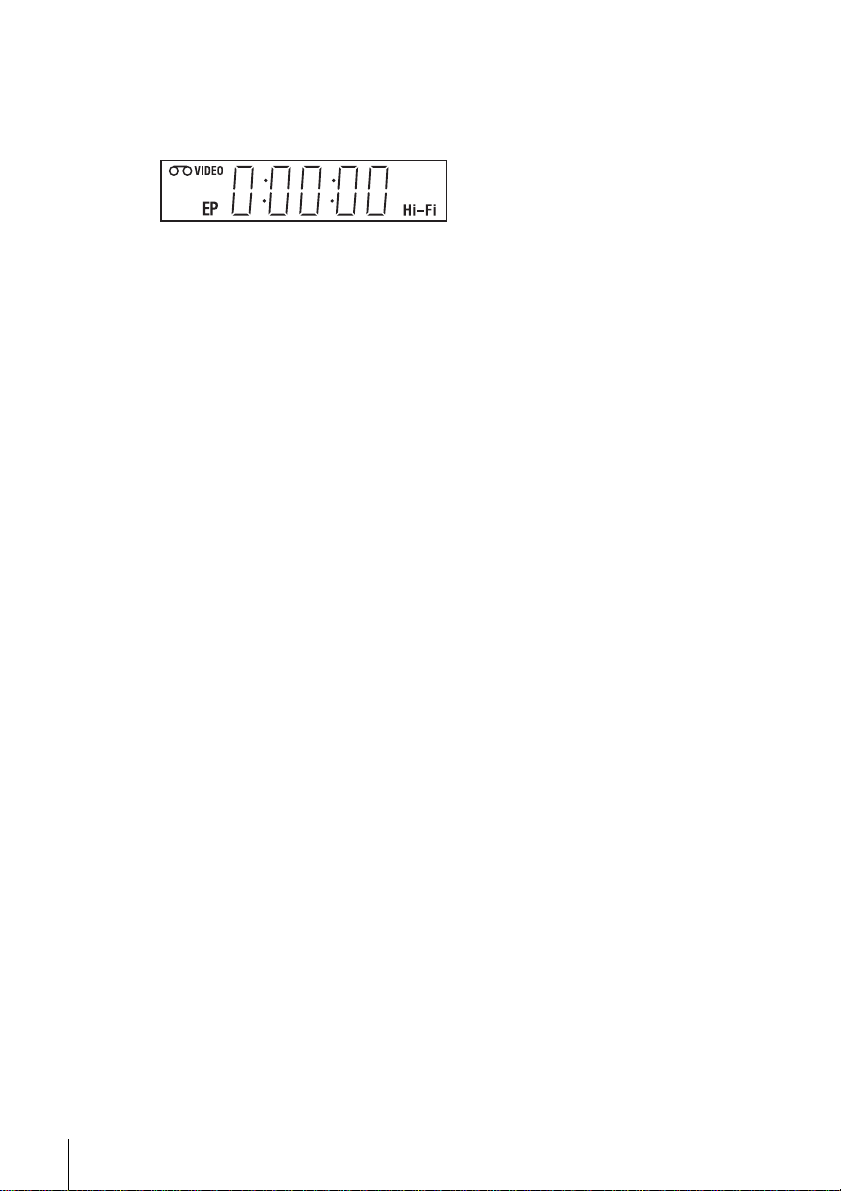
Press CLEAR at the point on the tape that you want to find later. The counter in the
display window resets to “0:00:00.” To search for the counter “0:00:00” point
automatically, see “To search for the counter 0:00:00 point” on page 67.
To display the counter on the TV screen, press DISPLAY.
Notes
• Tapes recorded in the LP mode on other VCRs can be played back on this VCR but the
picture quality cannot be guaranteed.
• While displaying a menu on the TV screen, you cannot use H PLAY, X PAUSE,
M FF, m REW, or x STOP buttons.
• The counter resets to “0:00:00” in the display window and on the TV screen whenever a tape
is reinserted.
• The counter stops counting when it comes to a portion with no recording.
• When 10 hours have passed, the counter in the display window returns to “0:00:00” and the
count starts over again.
• When playback does not start even if you insert a tape with its safety tab removed, set “Auto
play” in the ADVANCED OPTIONS menu correctly (page 69).
• The SLV-N900 can also play S-VHS tapes. The SLV-N900 will automatically identify the
type of tape inserted in the VCR (either VHS or S-VHS). When S-VHS tapes are played in
the SLV-N900, the enhanced resolution will not be visible on screen; there may also be
picture distortion while playing the S-VHS tape in slow motion or while utilizing other
special playback modes. The SLV-N900 will not record in S-VHS mode on an S-VHS tape.
45
Recording TV programs
Basic Operations
Recording TV programs
1
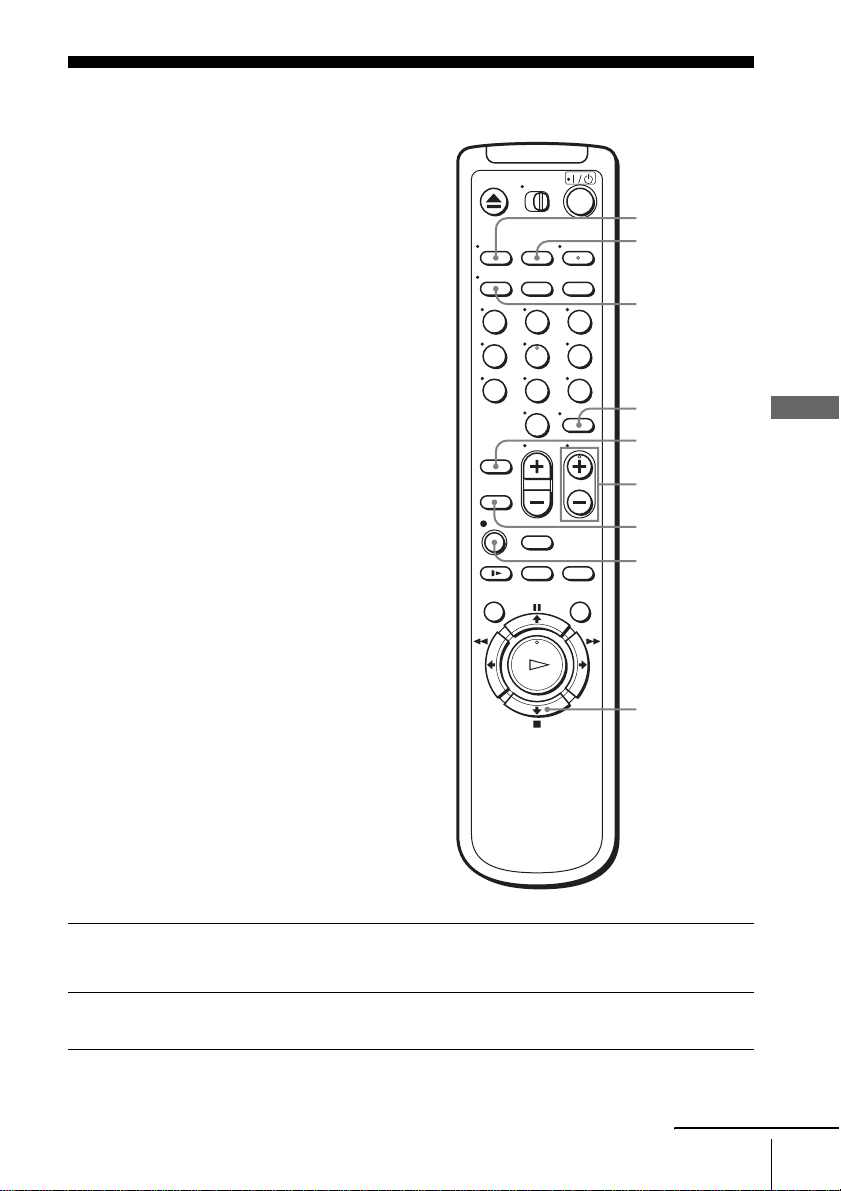
Turn on your TV and set it to the video channel.
To record from a cable box, turn it on.
2
Insert a tape with its safety tab in place.
123
456
789
0
CH +/–
z REC
SP/EP
x STOP
COUNTER/
REMAIN
DISPLAY
TV/VIDEO
ENTER
INPUT
SELECT
continued
46
Recording TV programs
To stop recording
Press x STOP.
To check the remaining tape length
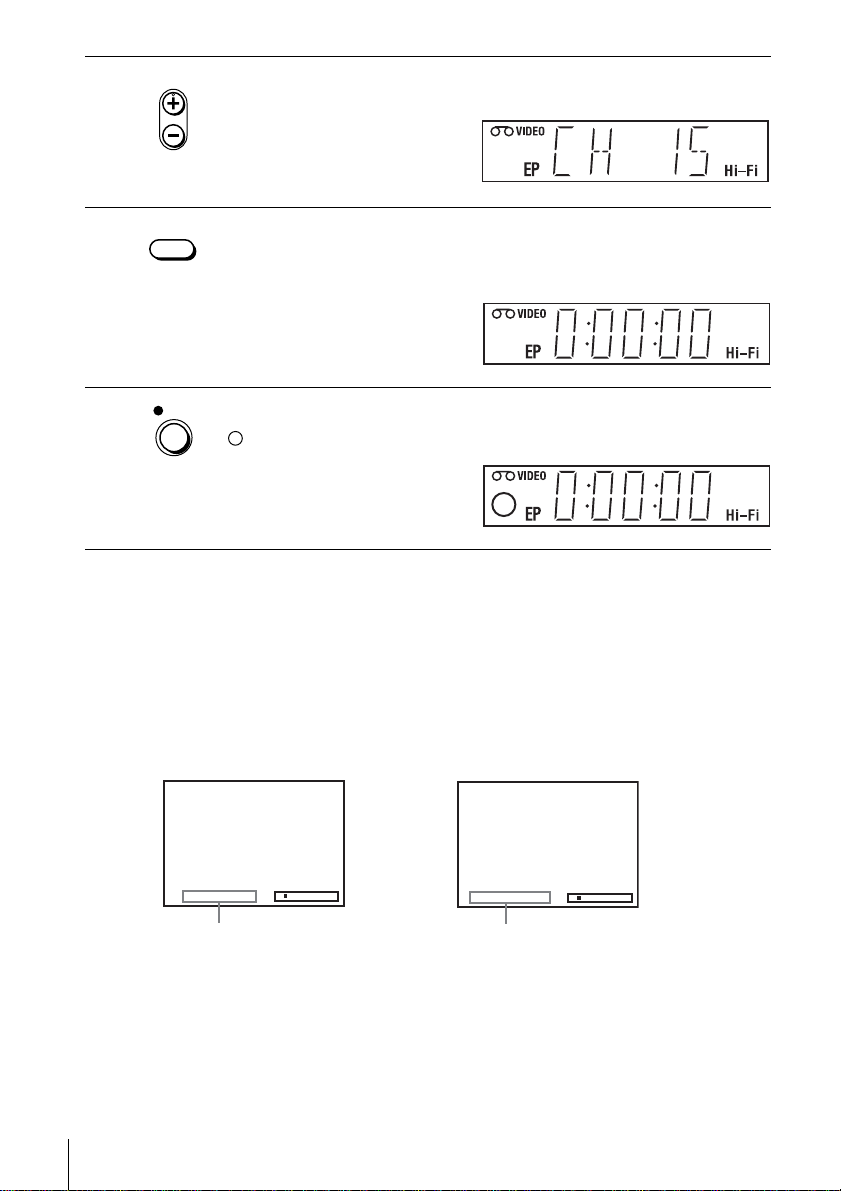
Press DISPLAY. With the display on, press COUNTER/REMAIN to check the
remaining time. Each time you press COUNTER/REMAIN, the time counter and the
remaining tape length appear alternately. The white bar indicates the current location
in relation to the entire tape length. The remaining time also appears in the display
window.
To check the remaining tape length of a tape, set “Tape select” in the ADVANCED
OPTIONS menu correctly (page 69).
3
Press CH +/– to select the channel or line input video source you want to
record.
4
Press SP/EP to select the tape speed, SP or EP.
EP (Extended Play) provides recording time three times as long as SP
(Standard Play). However, SP produces better picture and audio quality.
5
Press z REC to start recording.
indicator appears in the display window.
• CH
SP / EP
REC
Time counter Remaining tape length
::00030SP
:Rem 1 38 SP
47
Recording TV programs
Basic Operations
To watch another TV program while recording
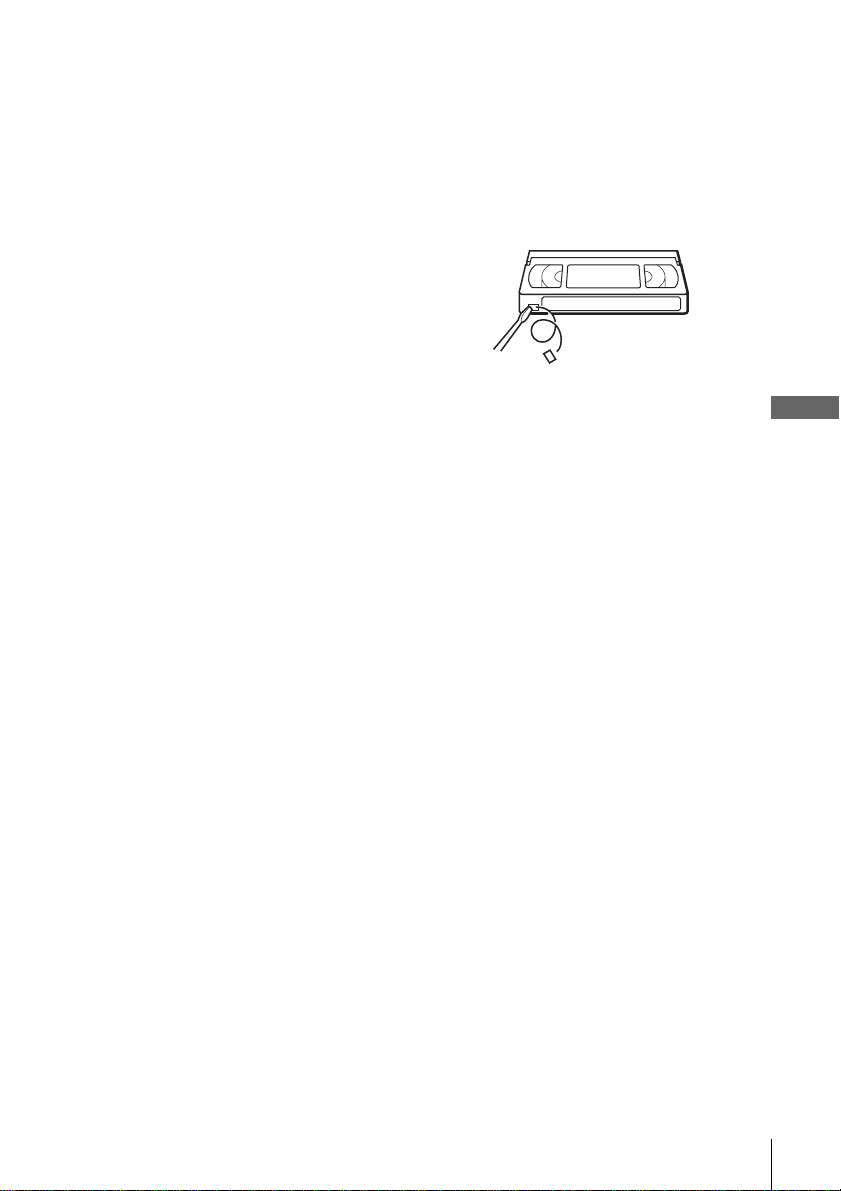
To save a recording
To prevent accidental erasure, break
off the safety tab as illustrated. To
record on the tape again, cover the tab
hole with adhesive tape.
Tips
• To select a channel, you can use the number buttons on the remote commander. Enter the
channel number, then press ENTER.
• You can select a video source from the LINE IN 1 or LINE-2 IN jacks using the INPUT
SELECT button.
• The display appears on the TV screen indicating information about the tape, but the
information will not be recorded on the tape.
• If you do not want to watch TV while recording, you can turn off the TV. When using a cable
box, make sure to leave it on.
Notes
• The remaining tape length may not be indicated accurately for short tapes such as T-20 or T-
30, or tapes recorded in the LP mode.
• The display does not appear during still (pause) mode or slow-motion playback.
• It may take up to one minute for the VCR to calculate and display the remaining tape length
after you press DISPLAY.
1
Press TV/VIDEO to turn off the VIDEO indicator in the display window.
2
If your TV is connected to the VCR using A/V connections, set the TV to the
TV’s antenna input; if not, skip this step.
3
Select another channel on the TV.
Safety tab
48
Recording TV programs using the Dial Timer
Recording TV programs using the Dial
Timer
The Dial Timer function allows you to make
timer recordings of programs without turning on
your TV. Set the recording timer to record up to
eight programs that will be broadcast within a
month using the DIAL TIMER. The recording
start time and recording stop time can be set at
one minute intervals.
Before you start...
• When using a cable box, turn it on.
• Insert a tape with its safety tab in place. Make sure the tape is longer than the total recording
time.
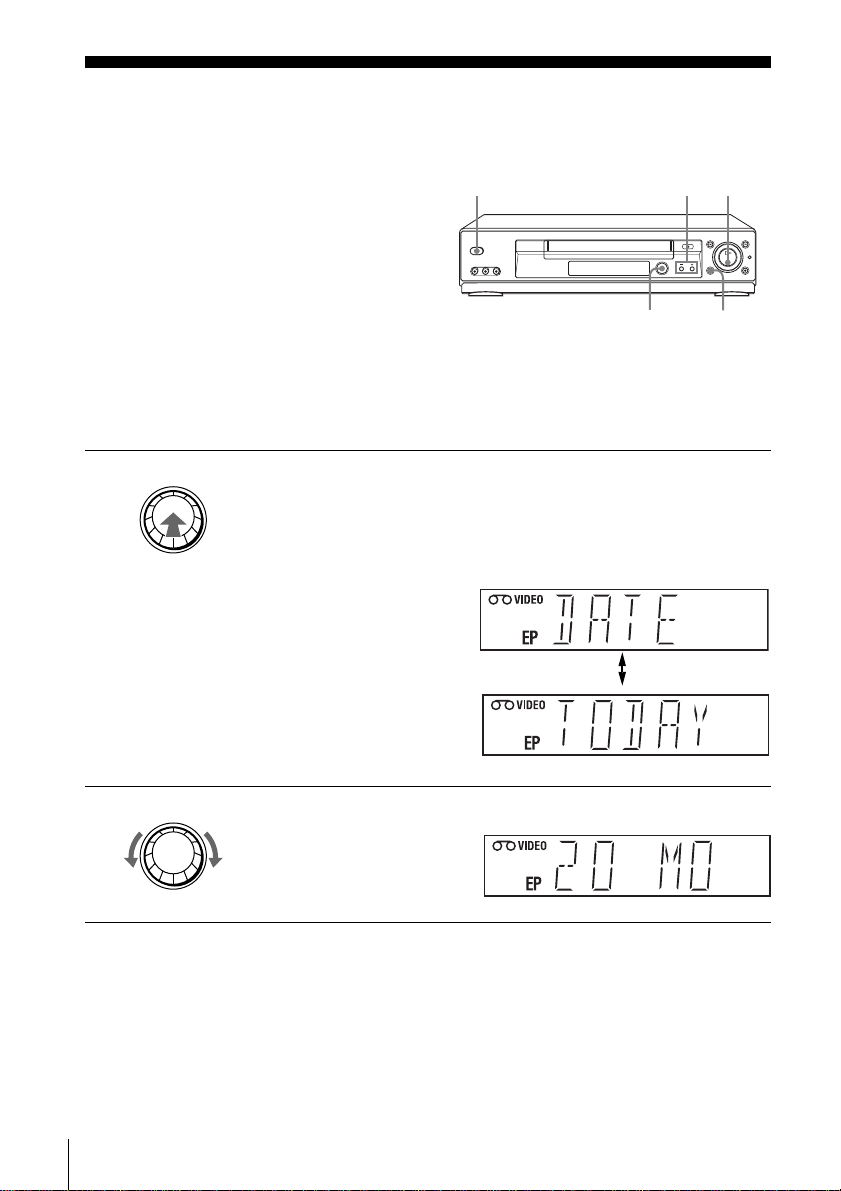
1
Press DIAL TIMER.
“DATE” and “TODAY” appear alternately in the display window.
If the date and time are not set, “MONTH” will appear. To set the date and
time, see “To set the clock” on page 51.
2
Turn DIAL TIMER to set the recording date.
CHANNEL +/–?/1 POWER
DIAL TIMER X PAUSE
x STOP
DIAL TIMER
DIAL TIMER
49
Recording TV programs using the Dial Timer
Basic Operations
3
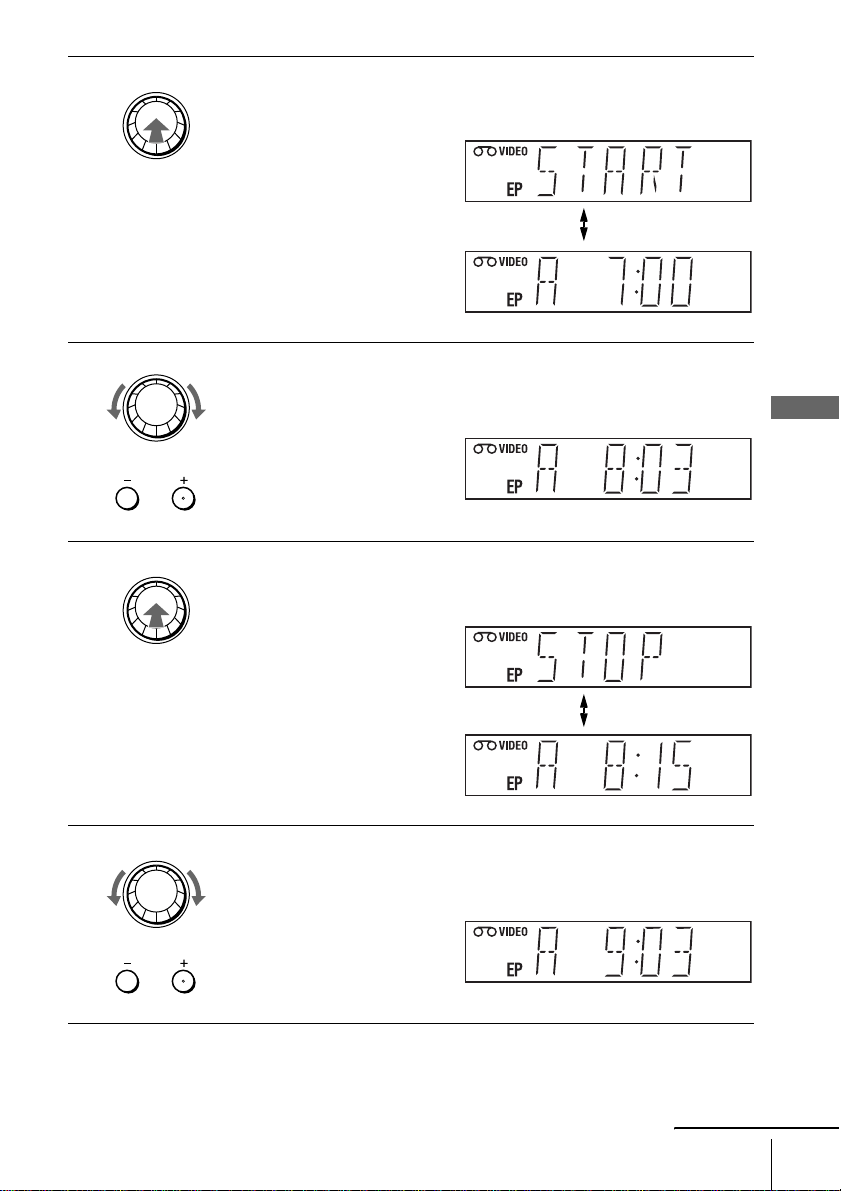
Press DIAL TIMER to set the start time.
“START” and “Current time” appear alternately in the display window.
4
Turn DIAL TIMER to set the recording start time.
You can set the recording start time in 15 minute intervals or adjust the time
in one minute intervals by pressing the CHANNEL +/– buttons.
5
Press DIAL TIMER to set the stop time.
“STOP” or “Start time” appear alternately in the display window.
6
Turn DIAL TIMER to set the recording stop time.
You can set the recording stop time in 15 minute intervals or adjust the time
in one minute intervals by pressing the CHANNEL +/– buttons.
DIAL TIMER
DIAL TIMER
CHANNEL
DIAL TIMER
DIAL TIMER
CHANNEL
continued
50
Recording TV programs using the Dial Timer
To return to the previous step
To return to the previous step, press the CHANNEL + and – buttons on the VCR at
the same time during any of the Dial Timer settings.
To stop recording
To stop the VCR while recording, press x STOP.
To use the VCR after setting the timer
To use the VCR before a timer recording begins, just press ?/1. The TIMER
indicator disappears from the display window and the VCR switches on. Remember
to press ?/1 to reset the VCR to the timer recording standby mode after using the
VCR.
You can also do the following tasks while the VCR is recording:
• Reset the counter (page 44).
• Display tape information on the TV screen (page 46).
• Check the timer settings (page 63).
• Watch another TV program (page 47).
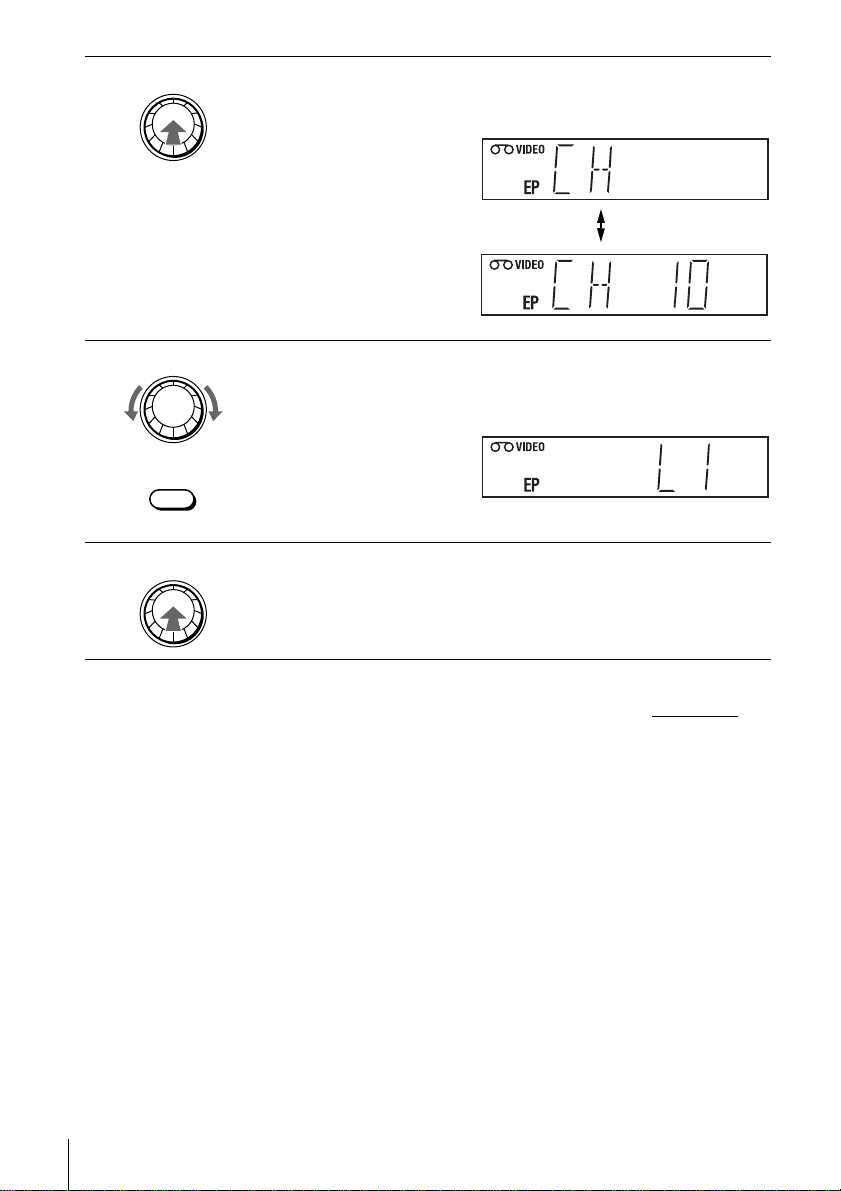
7
Press DIAL TIMER.
“CH” and “Current channel” appear alternately in the display window.
8
Turn DIAL TIMER to set the channel number.
To record from a source connected to the LINE IN 1 or LINE-2 IN jacks,
turn DIAL TIMER or press INPUT SELECT to display “L1” or “L2.”
9
Press DIAL TIMER to complete the setting.
“OK” appears in the display window for about five seconds.
The TIMER indicator appears in the display window and the VCR stands by
for recording. When using a cable box, leave it on.
DIAL TIMER
DIAL TIMER
INPUT
SELECT
DIAL TIMER
51
Recording TV programs using the Dial Timer
Basic Operations
To set the clock
Tips
• To cancel a Dial Timer setting, press x STOP on the VCR
while you are making the setting.
• The program is recorded in the current tape speed. To change the tape speed, press SP/EP
before you complete the setting in step 9 (page 50).
• To check, change, or cancel the program setting, see “Checking/changing/canceling timer
settings” on page 63.
Notes
• If eight programs have already been set using the VCR Plus+C
3
system or the manual timer
setting, “FULL” appears in the display window for about five seconds.
• If you set the clock using the Auto Clock Set feature, the clock will adjust itself to the
incoming time signal regardless of adjustments made with the Dial Timer. Be sure you have
set Auto Clock Set correctly.
• If you are setting the clock for the first time or “0:– –” appears in the display window, you
cannot set the clock to February 29
th
using the Dial Timer. Please use the Auto Clock Set
feature to set the VCR to this day.
• The TIMER
indicator flashes in the display window when you complete the setting in step 9
on page 50 with no tape inserted.
• When the setting time is incorrect, “ERROR” appears in the display window in step 9. Set
the timer again from step 1.
• You cannot set the tape speed to “AUTO” using the DIAL TIMER. To select “AUTO,” set the
“SPD” position in “ Timer set/check.”
1
Hold down DIAL TIMER so that “MONTH” and “1” appear alternately in the
display window. However, if the clock has already been set, the current setting
appears.
2
Turn DIAL TIMER to set the month.
3
Press DIAL TIMER.
“DAY” and “1” appear alternately in the display window.
4
Turn and press DIAL TIMER to set the day and then the year.
After you set the year, “AM” and “12:– –” appear alternately in the display
window.
5
Turn and press DIAL TIMER to set the hour and minute.
6
When you have finished setting the time, press DIAL TIMER to start the clock.
continued

52
Recording TV programs using the Dial Timer
About the Demonstration Mode
The Dial Timer function has a Demonstration Mode that allows the user, such as a
salesperson, to enter more than eight examples of timer settings when demonstrating
the use of the Dial Timer. It cancels the FULL notice which appears if eight
programs have already been set. Do not use the Demonstration Mode for making
timer recordings. Doing so may cause the settings to be inaccurate.
To activate the Demonstration Mode
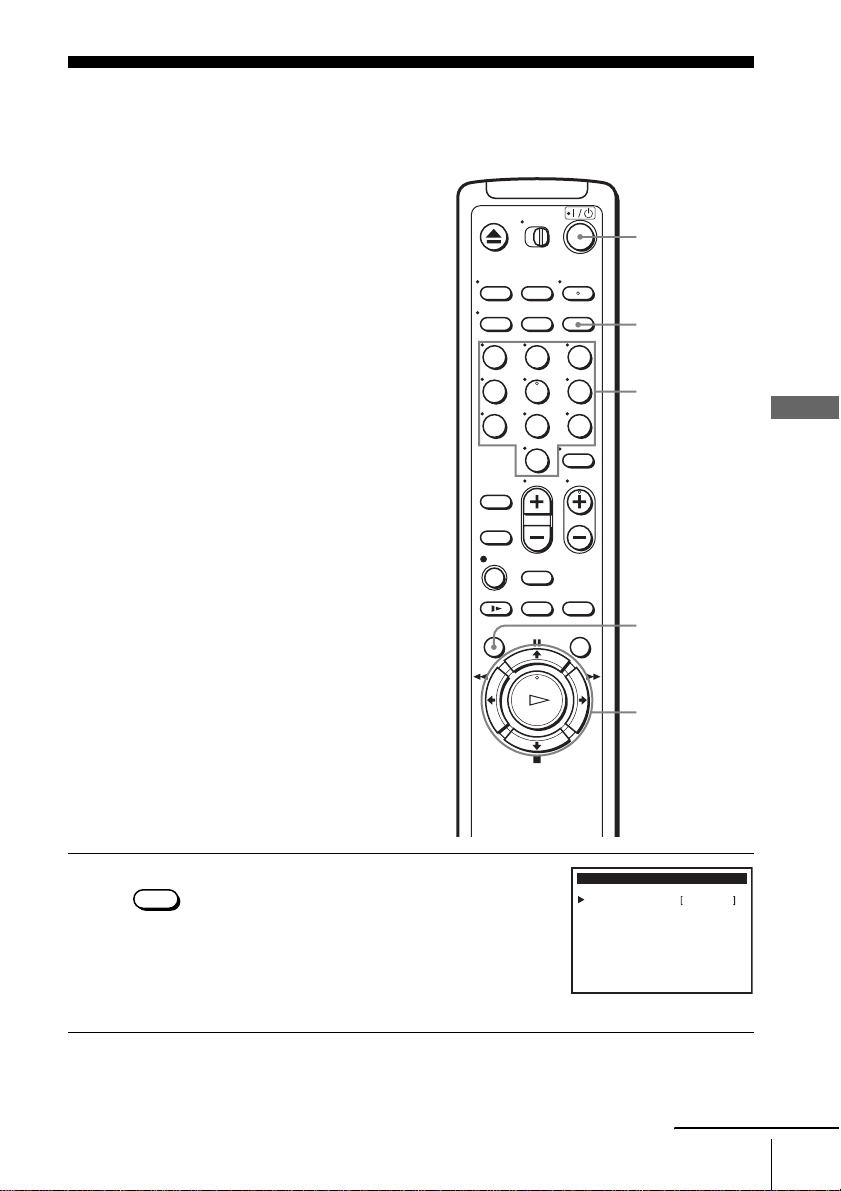
Press X PAUSE on the VCR
while turning the DIAL TIMER. “DEMO” appears in
the display window for a few seconds.
To cancel the Demonstration Mode
Turn the power off and unplug the AC power cord. Although the Demonstration
Mode is canceled, the timer settings entered while using the Demonstration Mode
will remain. Be sure to manually cancel the timer settings before you use the Dial
Timer or any other timer method after reconnecting the AC power cord (page 63).
53
Recording TV programs using the VCR Plus+C
3®
system
Basic Operations
Recording TV programs using the VCR
Plus+C
3®
system
Just enter the PlusCode number listed in the
TV program guide. The date, time and
channel number of that program are set
automatically. You can preset up to eight
programs together with the DIAL TIMER
and manual timer settings at one time.
Before you start…
• Check that the VCR clock is set to the
correct time.
• Turn on the VCR and the TV and set it to
the video channel. When using a cable
box, turn it on.
• Insert a tape with its safety tab in place.
Make sure the tape is longer than the total
recording time.
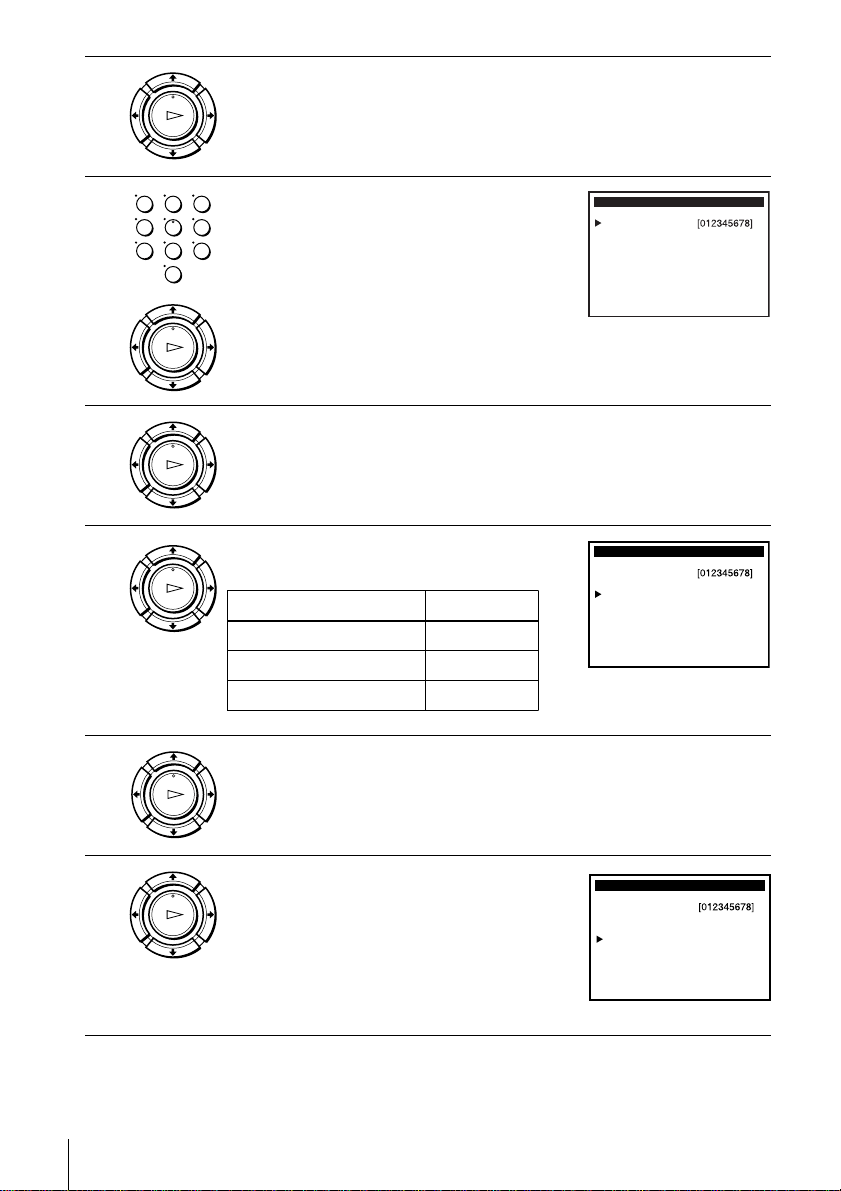
1
Press the VCR Plus+ button.
123
456
789
0
VCR Plus+
M/m/</,
OK
x STOP
Number
buttons
?/1
MENU
VCR Plus+
Select
:End
:
VCR Plus+
OK
Vv
with [0~9]
Enter code
Mode
Speed
: MENUQuit
[ONCE]
[AUTO]
V
continued
54
Recording TV programs using the VCR Plus+C
3®
system
2
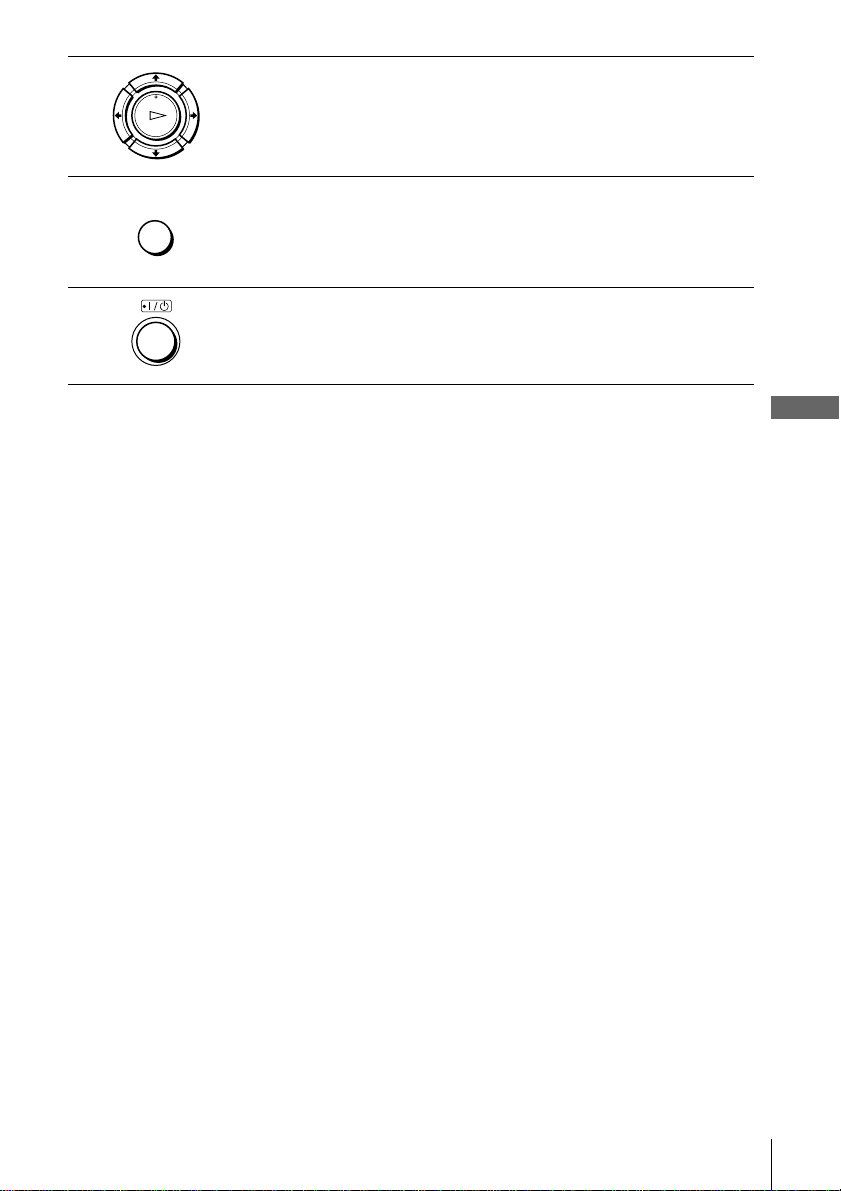
Press M/m to move the cursor (B) to “Enter code.”
3
Press the number buttons to enter the
PlusCode number.
If you make a mistake, press < and re-
enter the correct number.
4
Press M/m to move the cursor (B) to “Mode.”
5
Press </, to select ONCE, MO~FR, or
WEEKLY:
6
Press M/m to move the cursor (B) to “Speed.”
7
Press </, to select the tape speed,
AUTO, SP, or EP.
OK
PLAY
123
456
789
0
OK
PLAY
Select
:End
:
VCR Plus+
OK
Vv
with [0~9]
Enter code
Mode
Speed
: MENUQuit
[ONCE]
[AUTO]
V
OK
PLAY
OK
PLAY
Select
:End
:
VCR Plus+
OK
Vv : Bb
with [0~9]
Enter code
Mode
Speed
: MENUQuit
[ONCE]
[AUTO]
Set
To record Select
Only once ONCE
Everyday Monday to Friday MO~FR
Once a week WEEKLY
OK
PLAY
OK
PLAY
Select
:End
:
VCR Plus+
OK
Vv
with [0~9]
Enter code
Mode
Speed
: MENUQuit
[ONCE]
[AUTO]
: Bb
Set
55
Recording TV programs using the VCR Plus+C
3®
system
Basic Operations
To stop recording
To stop the VCR while recording, press x STOP.
To use the Auto Tape Speed function
When you are recording a program in the SP mode and the remaining tape becomes
shorter than the recording time, the tape speed is automatically changed to the EP
mode. Note that some noise will appear on the picture when the tape speed is
changed. If you want to keep the tape speed, select SP. To operate this function, set
“Tape select” in the ADVANCED OPTIONS menu correctly (page 69).
To use the VCR after setting the timer
To use the VCR before a timer recording begins, just press ?/1. The TIMER
indicator disappears from the display window and the VCR switches on. Remember
to press ?/1 to reset the VCR to the timer recording standby mode after using the
VCR.
You can also do the following tasks while the VCR is recording:
• Reset the counter (page 44).
• Display tape information on the TV screen (page 46).
• Check the timer settings (page 63).
• Watch another TV program (page 47).
Tip
• To check, change or cancel the program setting, see “Checking/changing/canceling timer
settings” on page 63.
Note
• If the VCR does not accept the PlusCode number, this means that:
– The PlusCode number is incorrect.
– ONCE, MO~FR, or WEEKLY was selected incorrectly. You cannot select MO~FR or
WEEKLY for a program that airs more than seven days ahead.
Correctly set the PlusCode number again from step 2.
8
Press OK to confirm the setting.
To enter another setting, repeat steps 1 to 7.
9
Press MENU to exit the menu.
10
Press ?/1 to turn off the VCR.
The TIMER indicator appears in the display window and the VCR stands by
for recording. When using a cable box, leave it on.
OK
PLAY
MENU
56
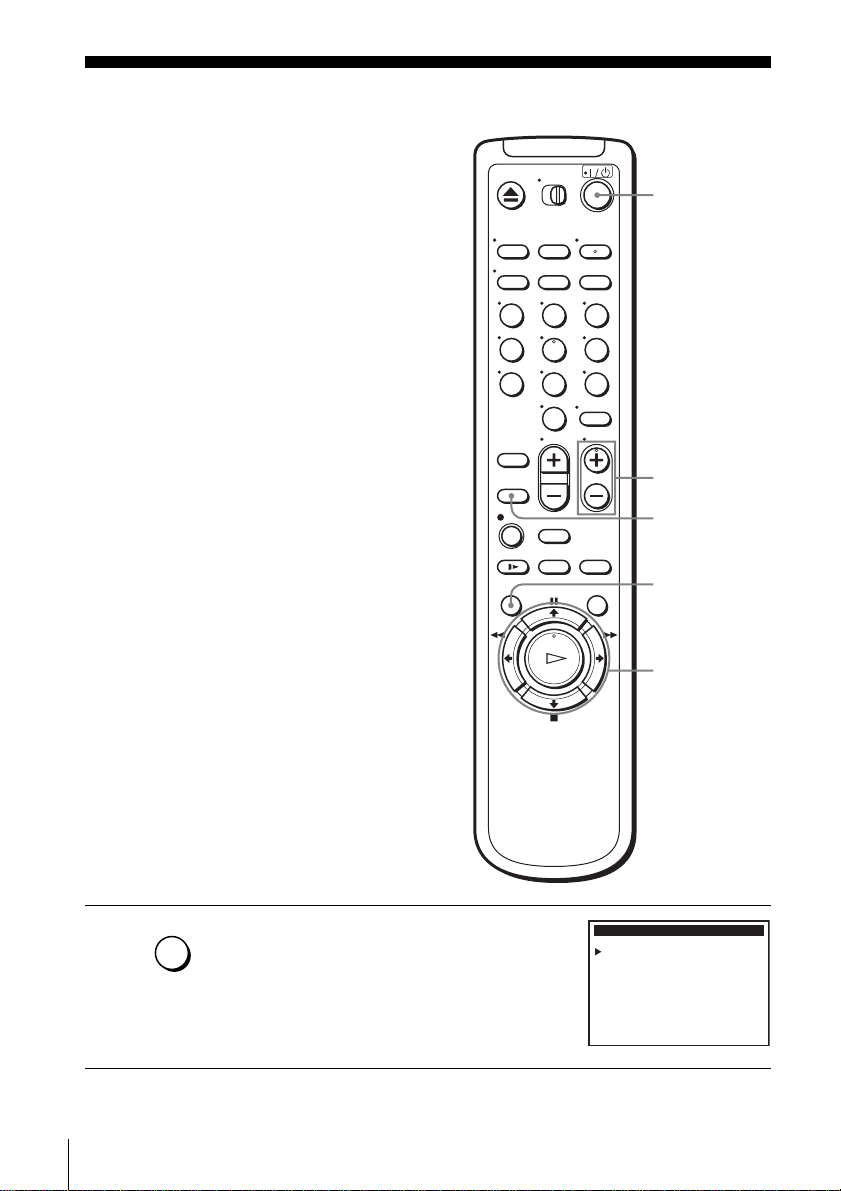
Setting the timer manually
Setting the timer manually
If the VCR Plus+C
3
system is not available in
your area, follow the instructions below to set
the timer to record programs. You can preset
up to eight programs together with the DIAL
TIMER and the VCR Plus+C
3
system at one
time.
Before you start…
• Check that the VCR clock is set to the
correct time.
• Turn on the VCR and the TV and set it to
the video channel. When using a cable
box, turn it on.
• Insert a tape with its safety tab in place.
Make sure the tape is longer than the total
recording time.
1
Press MENU.
123
456
789
0
MENU
INPUT
SELECT
CH +/–
M/m/</,
OK
x STOP
?/1
MENU
Select
:Set
:
MAIN MENU
OK
Vv
Clock set
Timer set / check
Tuner preset
Advanced options
Language / Idioma / Langue
: MENUQuit
Cable Box / Sat. Control
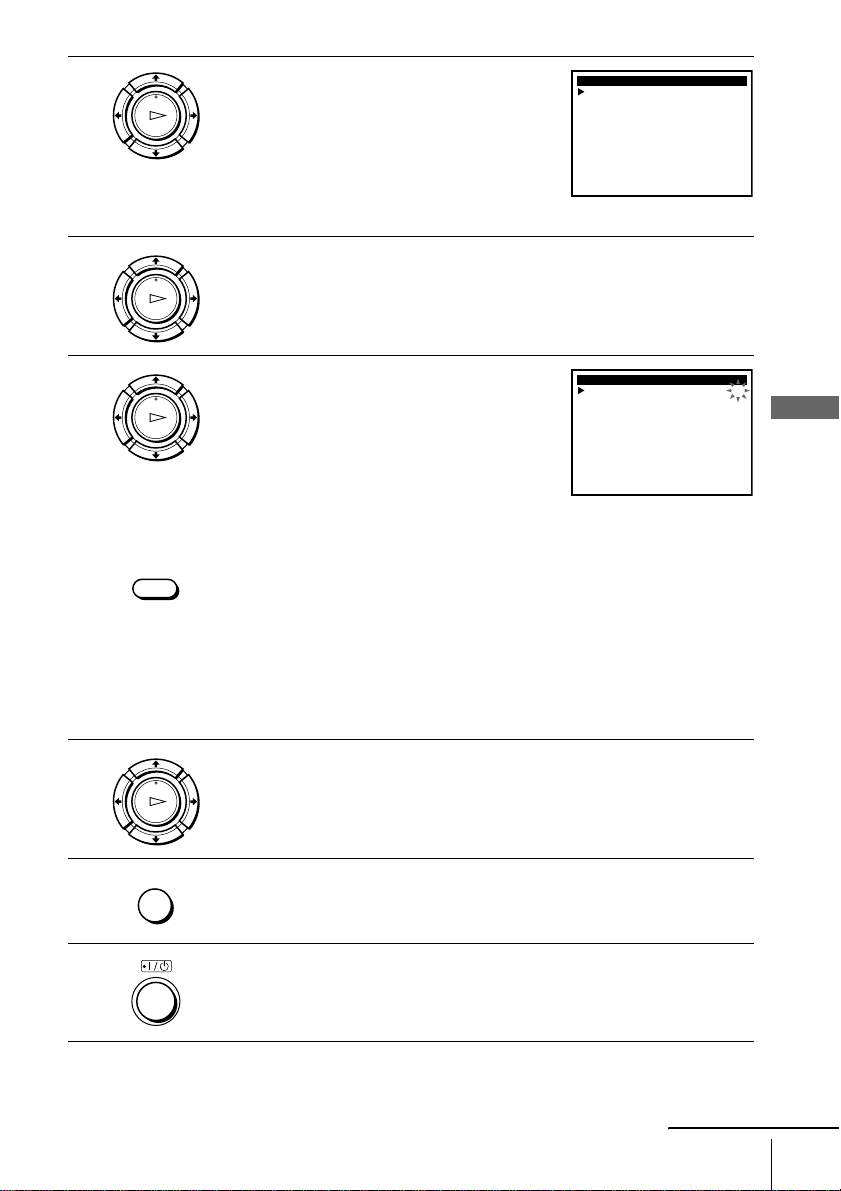
57
Setting the timer manually
Basic Operations
To stop recording
To stop the VCR while recording, press x STOP.
2
Press M/m to move the cursor (B) to “Timer
set/check,
” then press OK.
3
If necessary, press M/m to move the cursor (B) to the row that is to be set.
4
Set the channel number, start and stop time,
date, and tape speed:
1 Press , to flash each item in turn.
2 Press M/m to set each item.
To correct a setting, press < to return to
that setting and reset.
To record from a source connected to the LINE IN 1 or LINE-2 IN jacks,
press INPUT SELECT or M/m to display “L1” or “L2” in the “CH”
position.
To record the same program every day or the same day every week, press m
while the date is flashing. For details, see “Daily/weekly recording” below.
To use the Auto Tape Speed function, press m to display “AUTO” in the
“SPD” position. For details, see “To use the Auto Tape Speed function” on
page 55.
5
Press OK to confirm the setting.
To enter another setting, press M/m to select the next row and repeat step 4.
6
Press MENU to exit the menu.
7
Press ?/1 to turn off the VCR.
The TIMER indicator appears in the display window and the VCR stands by
for recording. When using a cable box, leave it on.
OK
PLAY
Select
::End
:
CH START STOP DATE
SPD
OK
Bb
MENUQuit
Set : Vv
–– –:–– –:–– ––– --
–– –:–– –:–– ––– --
–– –:–– –:–– ––– --
–– –:–– –:–– ––– --
–– –:–– –:–– ––– --
–– –:–– –:–– ––– --
–– –:–– –:–– ––– --
–– –:–– –:–– ––– --
OK
PLAY
OK
PLAY
INPUT
SELECT
Select
::End
:
CH START STOP DATE
SPD
OK
Bb
MENUQuit
Set : Vv
35 8:00 9:00 9/30 SP
–– –:–– –:–– ––– --
–– –:–– –:–– ––– --
–– –:–– –:–– ––– --
–– –:–– –:–– ––– --
–– –:–– –:–– ––– --
–– –:–– –:–– ––– --
–– –:–– –:–– ––– --
P
M
P
M
OK
PLAY
MENU
continued

58
Setting the timer manually
Daily/weekly recording
In step 4 above, press m to select the recording pattern. Each time you press m, the
indication changes as shown below. Press M to change the indication in reverse
order.
MO~FR t SUN’S t MON’S t ..... t SAT’S t 1 month later t (dates count
down) t the current date
To use the VCR after setting the timer
To use the VCR before a timer recording begins, just press ?/1. The TIMER
indicator disappears from the display window and the VCR switches on. Remember
to press ?/1 to reset the VCR to the timer recording standby mode after using the
VCR.
You can also do the following tasks while the VCR is recording:
• Reset the counter (page 44).
• Display tape information on the TV screen (page 46).
• Check the timer settings (page 63).
• Watch another TV program (page 47).
Tips
• To set the channel, you can also use the number buttons.
• If the indicator appears, the timer settings overlap. To check, change or cancel the program
setting, see “Checking/changing/canceling timer settings” on page 63.
• If the indicator appears, this means that the VCR is currently recording this program.
• When you are recording a program in the SP mode and the remaining tape becomes shorter
than the recording time, the tape speed is automatically changed to the EP mode. Note that
some noise will appear on the picture when the tape speed is changed. If you want to keep
the tape speed, set “Tape select” to SP in the ADVANCED OPTIONS menu (page 69).
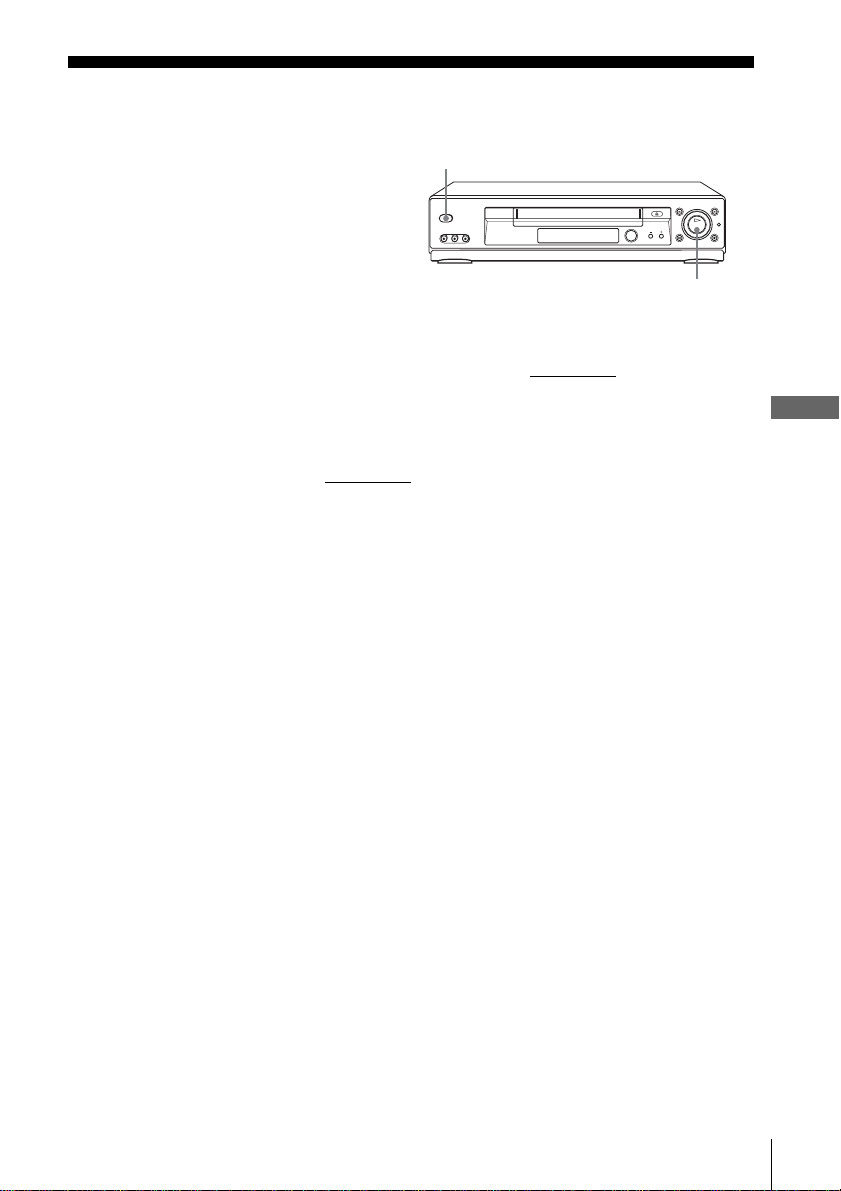
59
Locking the VCR (Child Lock)
Basic Operations
Locking the VCR (Child Lock)
To lock the VCR
When the VCR is turned on, hold down ?/1 POWER on the VCR until “LOC”
appears in the display window. The VCR turns off and the TIMER indicator remains
lit if there is a timer setting. The VCR will not work except for timer recordings.
To unlock the VCR
Hold down ?/1 POWER on the VCR until “LOC” disappears from the display
window. The VCR is unlocked and turns on.
To stop timer recording while the VCR is locked, press x STOP. The recording
stops and the VCR is unlocked.
Note
• The VCR will be unlocked when:
– You stop timer recording by pressing x STOP.
– You insert a tape.
– The AC power cord is disconnected or power supply stops.
After you have set the timer, you can lock all
of the buttons on the VCR so that the settings
are not canceled by mistake.
?/1 POWER
x STOP
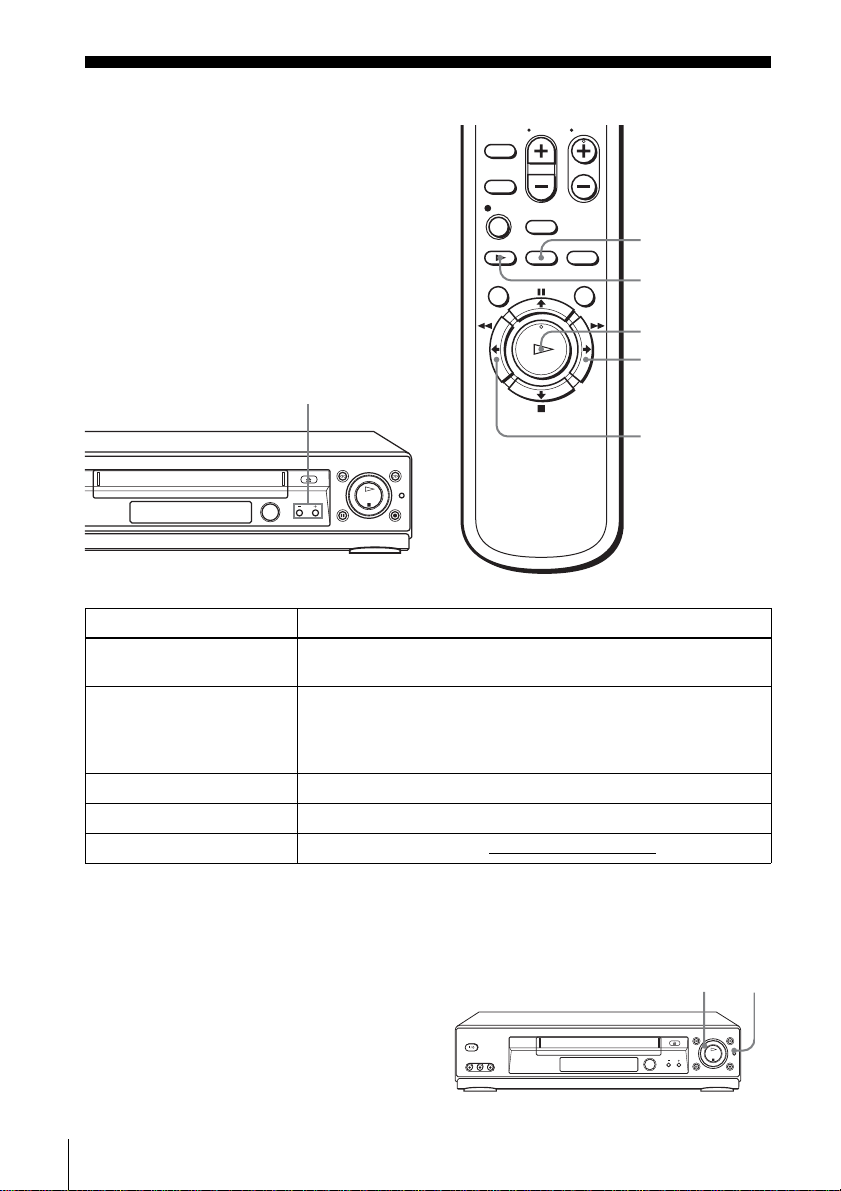
60
Playing/searching at various speeds
Additional Operations
Playing/searching at various speeds
To resume normal playback
Press H PLAY.
Using the shuttle ring
With the shuttle ring, you can
operate a variety of playback
options. There are two ways for
using the shuttle ring, normal mode
and jog mode.
Playback options Operation
View the picture during fast-
forward or rewind
During fast-forward, hold down M FF. During rewind, hold down
m REW.
Play at high speed • During playback, briefly press M FF or m REW. The tape
continues to play at high speed.
• During playback, hold down M FF or m REW. When you
release the button, normal playback resumes.
Play at twice the normal speed During playback, press ×2.
Play in slow motion During playback or pause, press y SLOW.
Play frame by frame During pause, press M FF on the remote commander
.
M FF
y SLOW
x2
m REW
H PLAY
TRACKING +/–
Shuttle ring
JOG
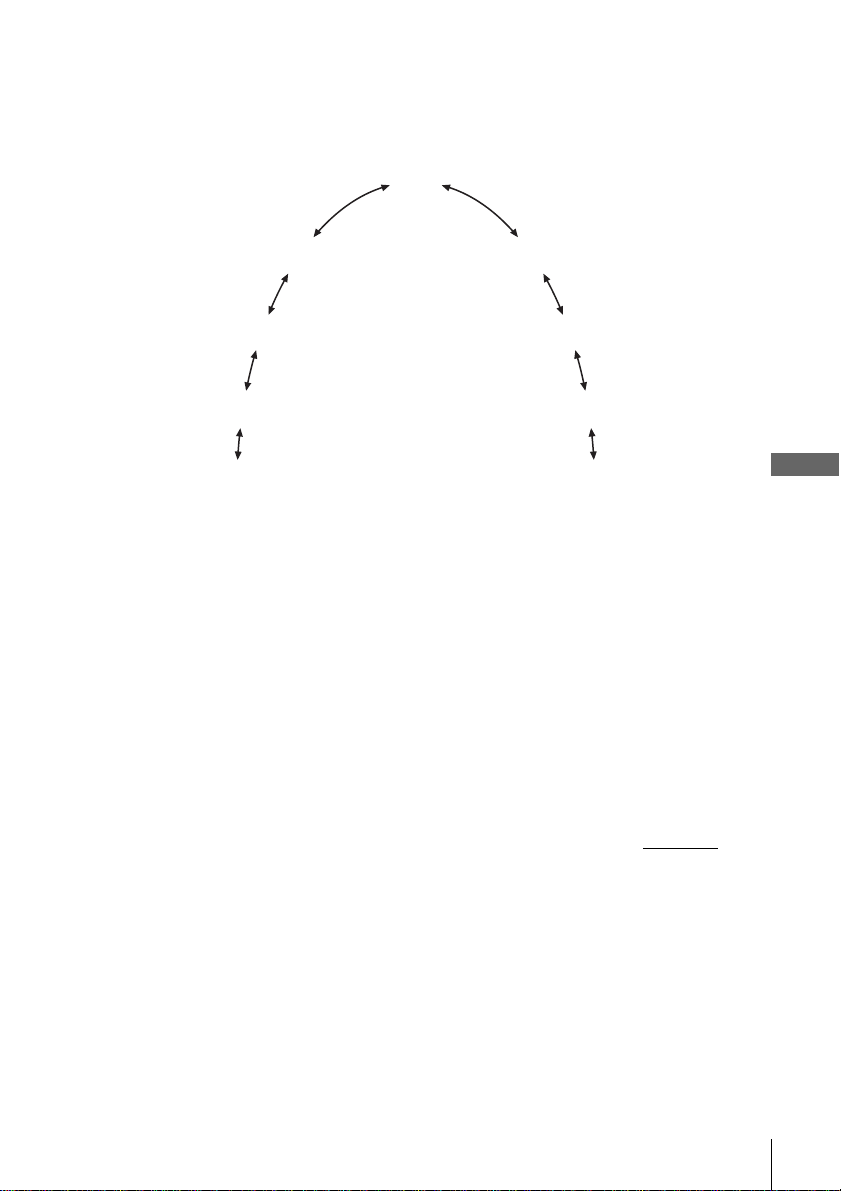
61
Playing/searching at various speeds
Additional Operations
To use the shuttle ring in normal mode
During playback or pause, turn the shuttle ring clockwise or anticlockwise.
Each change in the shuttle ring position changes the playback mode in the
following way.
To use the shuttle ring in jog mode
Use this mode for frame-by-frame playback.
Press JOG to enter the jog mode. The JOG button lights up. If you change
to the jog mode during any playback mode, playback pauses so you can see a
still picture. Each change in the shuttle ring position shifts the picture one
frame. To shift frames in reverse, turn the shuttle ring anticlockwise. The
frame shift speed depends on the speed you turn the shuttle ring.
To resume normal mode, press JOG again. The JOG button turns off.
Tips
• Adjust the picture using the TRACKING +/– buttons if:
– Streaks appear while playing in slow motion.
– The picture shakes during pause.
• The VCR turns on and starts playback automatically by pressing H PLAY on the VCR
with
the VCR power turned off.
Notes
• The sound is muted during these operations.
• Tapes recorded in the LP mode on other VCRs can be played back on this VCR but the
picture quality cannot be guaranteed.
• The picture may show noise when playing at high speed in reverse.
Pause
Slow motion
in reverse
Normal speed
in reverse
Double speed
in reverse
High speed in
reverse
Slow motion
Double speed
High speed
Normal speed
(Initial speed)
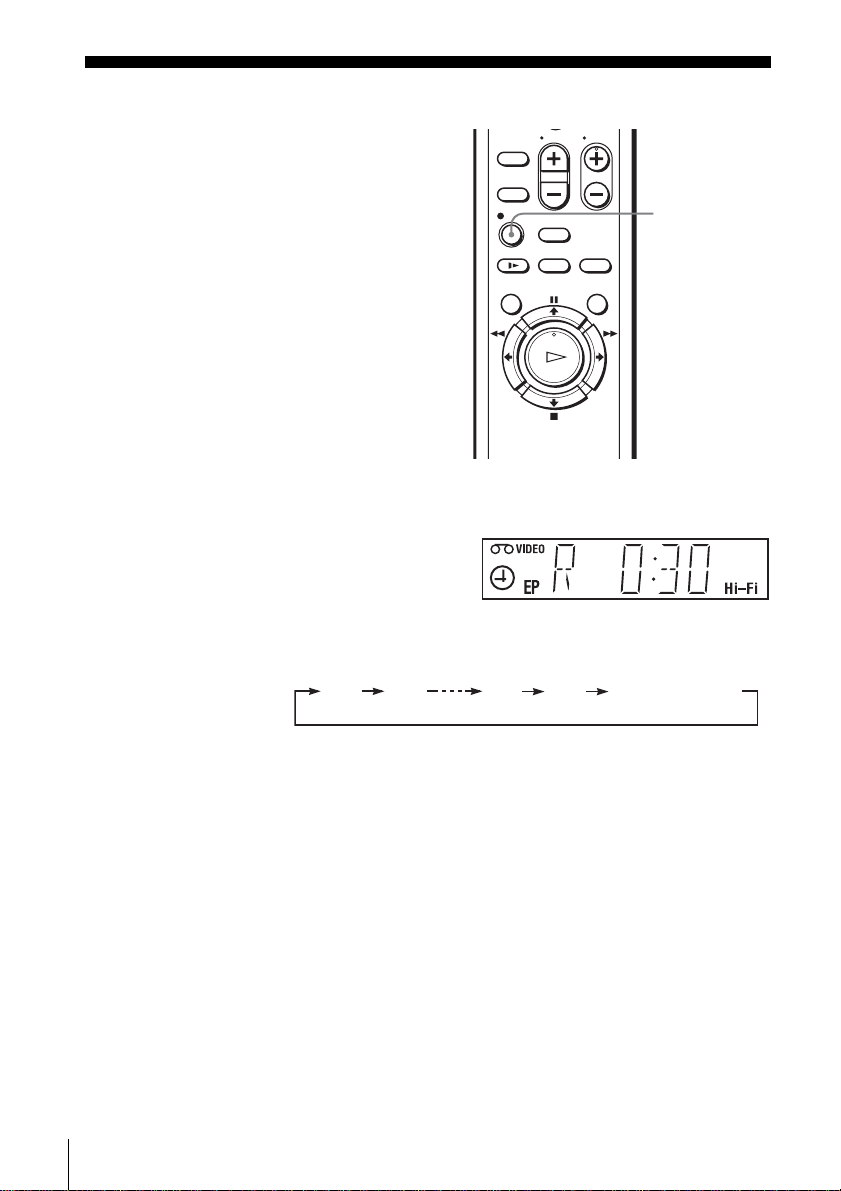
62
Quick Timer Recording
Quick Timer Recording
To extend the duration
Press z REC repeatedly to set a new duration time.
To cancel the duration
Press z REC repeatedly until the c indicator disappears and the VCR returns to
normal recording mode.
To stop while recording
Press x STOP.
Note
• You cannot display the current tape time in the display window when setting the recording
duration time.
After you have started recording, you can
have the VCR stop recording automatically
after a specified duration.
1
While recording, press z REC.
The c indicator appears in the display window.
2
Press z REC repeatedly to set the duration time.
Each press advances the time in increments of 30 minutes.
The tape counter decreases minute by minute to 0:00, then the VCR stops
recording and turns off automatically.
z REC
0:30 1:00
3:30 4:00
Normal recording
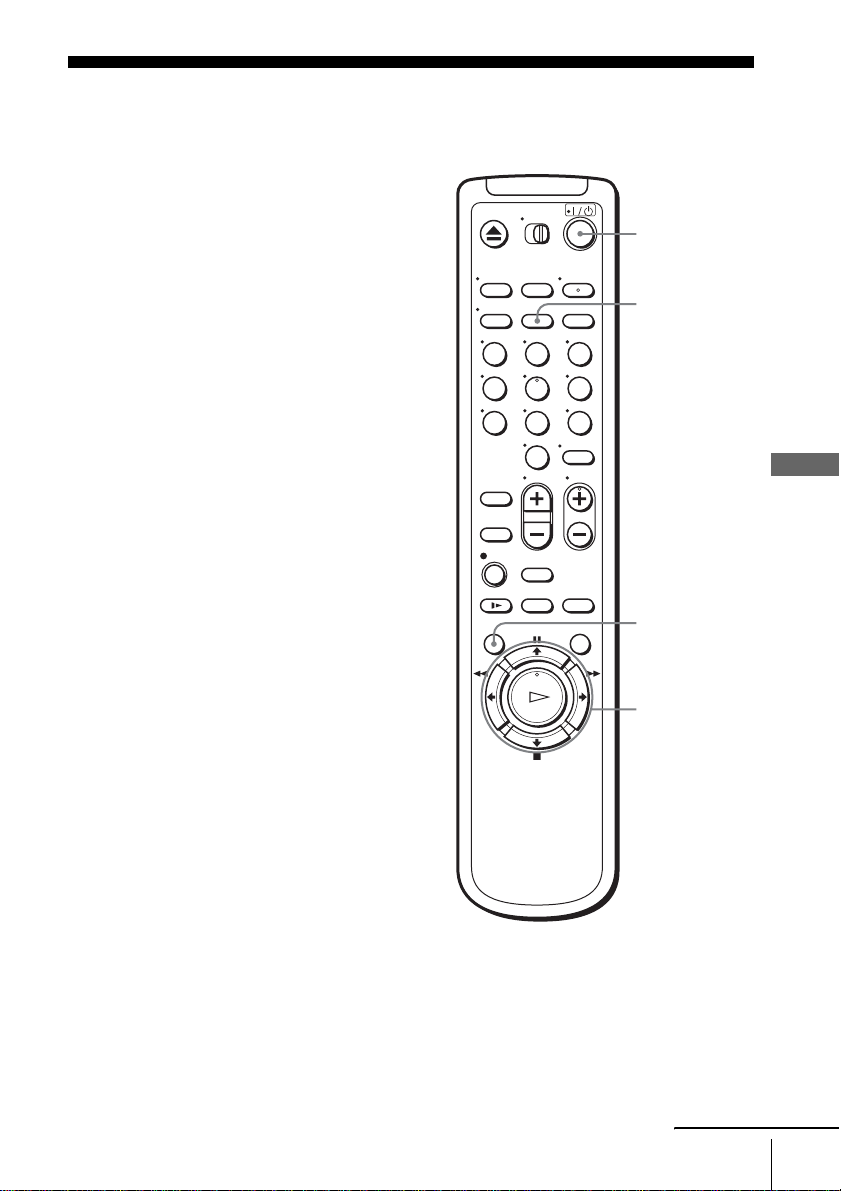
63
Checking/changing/canceling timer settings
Additional Operations
Checking/changing/canceling timer
settings
Before you start…
• Turn on the TV and set it to the video
channel.
1
Press ?/1 to turn on the VCR.
2
Press MENU.
123
456
789
0
?/1
CLEAR
MENU
M/m/</,
OK
continued
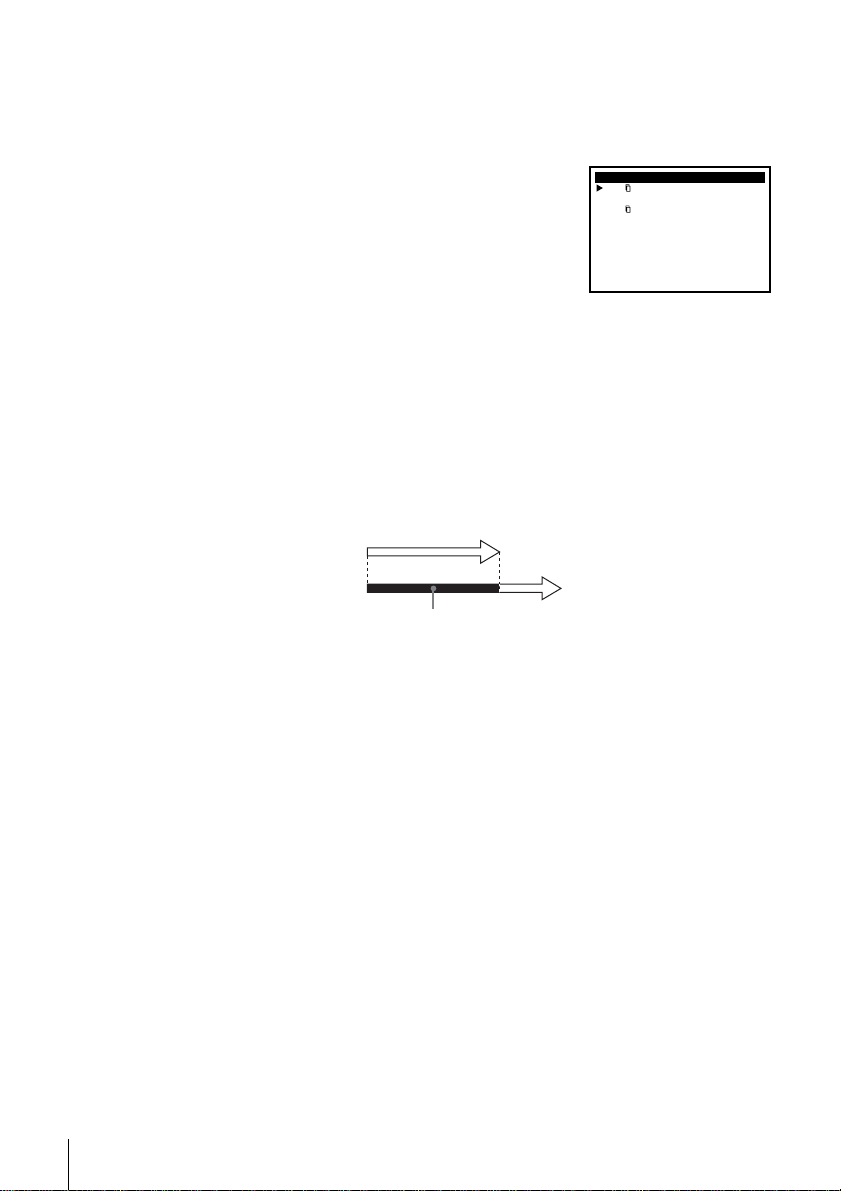
64
Checking/changing/canceling timer settings
When the timer settings overlap
The program that starts first has priority and the second program starts recording only
after the first program has finished. If the programs start at the same time, the
program listed first in the menu has priority.
3
Press M/m to move the cursor (B) to “Timer set/check,” then press OK.
• If you want to change a setting, go on to the next step.
• If you do not need to change the settings, press MENU, then turn off the VCR
to return to recording standby.
4
Press M/m to move the cursor (B) to the setting
you want to change or cancel.
• To change the setting, press </, to flash the
item you want to change, and press M/m to
change it.
• To cancel the setting, press CLEAR.
5
Press OK to confirm the setting.
6
Press MENU to exit the menu.
If any timer settings remain, turn off the VCR to return to recording standby.
Select
::End
:
CH START STOP DATE
SPD
OK
Bb
MENUQuit
Set : Vv
35 8:00 9:00 9/30 SP
20
10
:00
11
:30
10
/0 EP
–– –:–– –:–– ––– --
–– –:–– –:–– ––– --
–– –:–– –:–– ––– --
–– –:–– –:–– ––– --
–– –:–– –:–– ––– --
60 8:30
10
:00 9/3
2
0
AUTO
P
M
A
M
P
M
P
M
A
M
P
M
Will be cut off
Program 1
Program 2
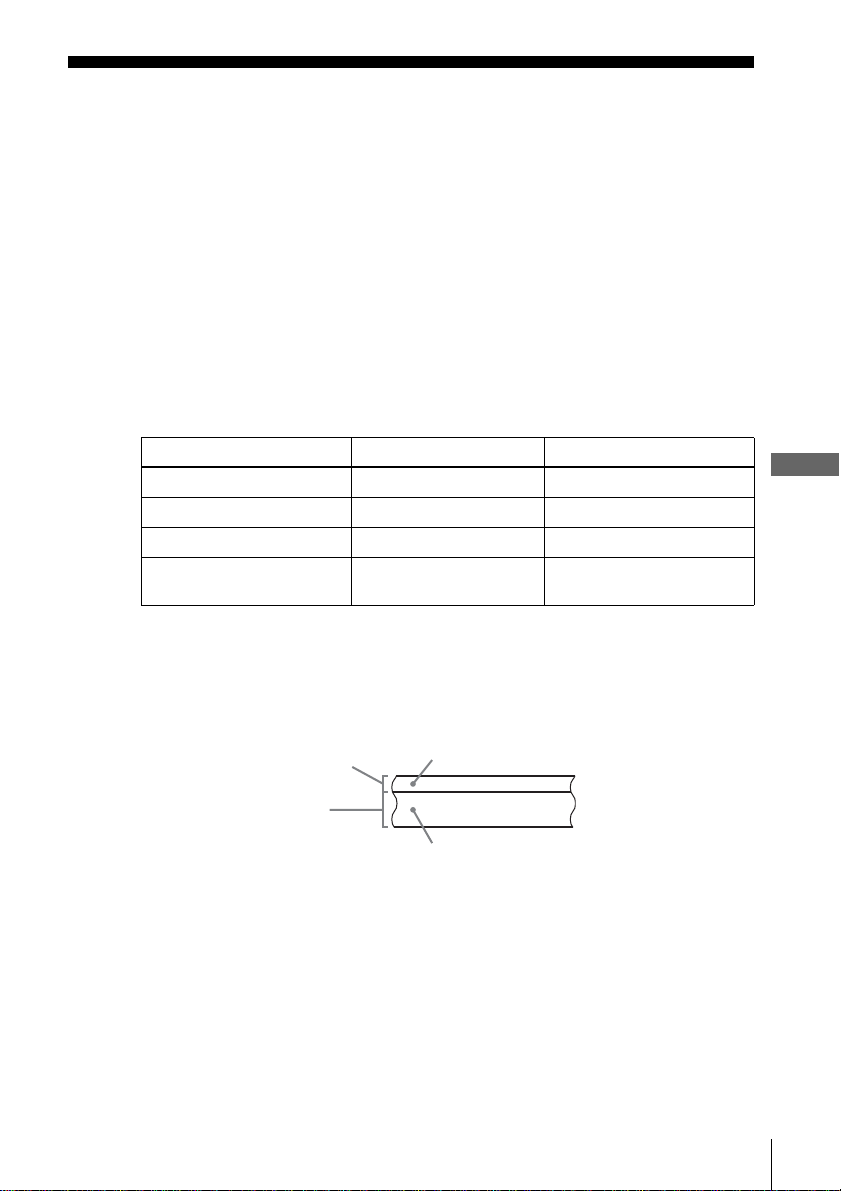
65
Recording stereo and bilingual programs
Additional Operations
Recording stereo and bilingual programs
Recording stereo programs
When you receive a program broadcast in stereo, press AUDIO MONITOR to display
STEREO on the TV screen. You can also select LEFT, RIGHT, or MONO. If there
is noise in the stereo program, select MONO. The sound will be recorded in
monaural (on both hi-fi and normal audio tracks) but with less noise.
Recording bilingual programs
Press AUDIO MONITOR to display “SAP” on the TV screen. When a SAP (Second
Audio Program) is received, “SAP” appears on the TV screen and the SAP indicator
lights up. When MAIN is selected, the VCR records only the main sound.
Selecting the sound during playback
During playback, press AUDIO MONITOR to select the sound you want.
How sound is recorded on a video tape
The VCR records sound onto two separate tracks. Hi-fi audio is recorded onto the
main track along with the picture. Monaural sound is recorded onto the normal audio
track along the edge of the tape.
Notes
• To play a tape in stereo, you must use the A/V connections.
• When you play a tape recorded in monaural, the sound is heard in monaural regardless of the
AUDIO MONITOR setting.
To listen to On-screen display Display window
Stereo HI-FI Hi-Fi
Left channel LEFT Hi-Fi
Right channel RIGHT Hi-Fi
Monaural sound on the
normal audio track
MONO No indicator
Normal audio track
Hi-Fi audio track
(main track)
Monaural sound
Stereo sound
(left/right channels)
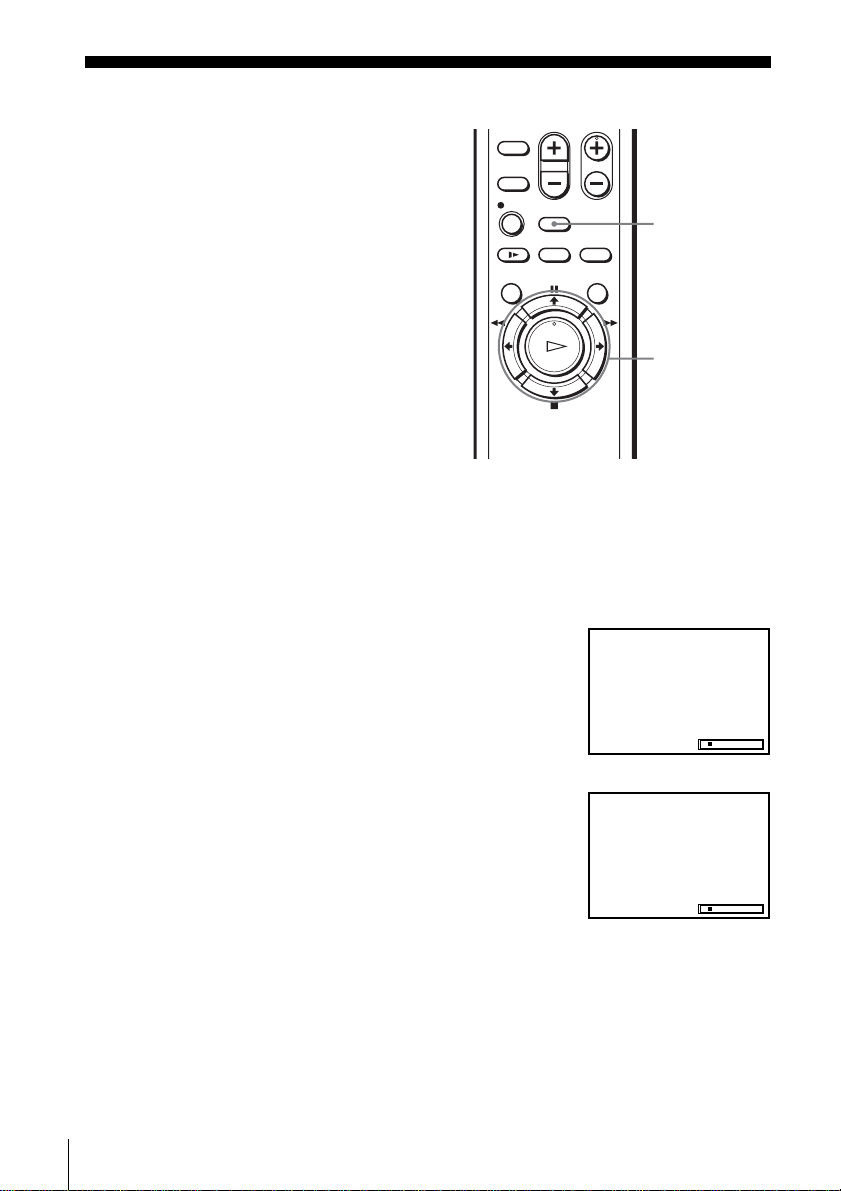
66
Searching using various functions
Searching using various functions
To search using the index function (Scan and Play)
The VCR automatically marks the tape with an index signal at the point where each
recording begins. Use these signals as references to find a specific recording.
The VCR automatically marks the tape with
an index signal at the point where each
recording begins.
You can easily find a specific point using
various search functions.
1
Insert an indexed tape into the VCR.
2
Press SEARCH.
3
Press , to scan ahead, or < to scan backwards.
The VCR searches and then plays back for about
five seconds.
4
Press H PLAY to view that program.
If you do not press H PLAY, the VCR automatically searches for the next index
mark, or until it reaches the end of the tape.
SEARCH
M/m/</,
H PLAY
::00130SP
Scan and play:
Press [ orB ][b ]
Go to
[]
000:00::
Press [ V ]
End search:
Press [ v ]
::00130SP
Scan and play
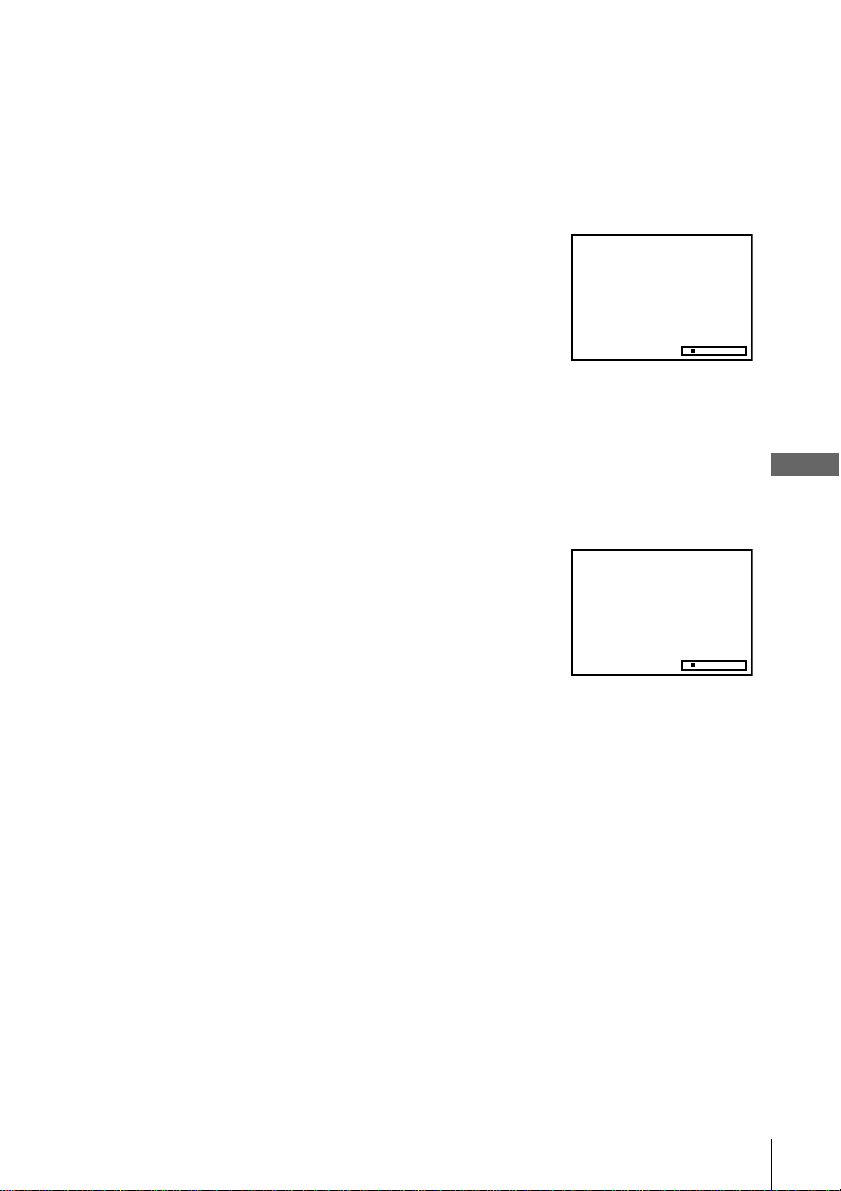
67
Searching using various functions
Additional Operations
To search for the counter 0:00:00 point
To mark a point on the tape that you want to find later, reset the tape counter to
“0:00:00.”
The VCR automatically fast-forwards or rewinds to the 0:00:00 point on the tape
counter.
To search for a blank portion of the tape
The VCR automatically searches for the beginning of a blank portion. You can easily
find a point you can start recording from.
Note
• Once in recording mode, if the VCR is put in pause and then released to start the recording,
no index mark will be inserted. An index mark will be inserted if the channel is changed
while VCR is put in pause.
1
Press SEARCH.
2
Press M.
The VCR starts searching and automatically
stops at the 0:00:00 point.
1
Press SEARCH.
2
Press m.
The VCR starts searching and automatically
stops at the beginning of a blank space. If no
blank space is found, the VCR reaches the end
and the tape will stop.
::00130SP
Go to
[]
000:00:
::00130SP
End search

68
Adjusting the picture (tracking)
Adjusting the picture (tracking)
Although the VCR automatically adjusts the tracking
when playing a tape, distortion may occur if the
recording is in poor condition. In this case, manually
adjust the tracking.
Press TRACKING +/– on the VCR to display the
tracking meter. The distortion should disappear as
you press one of the two tracking buttons. To resume
automatic tracking adjustment, eject the tape and
reinsert it.
Note
• The auto tracking adjustment cannot be guaranteed to work with tapes recorded in the LP
mode on other VCRs.
TRACKING
Tracking meter
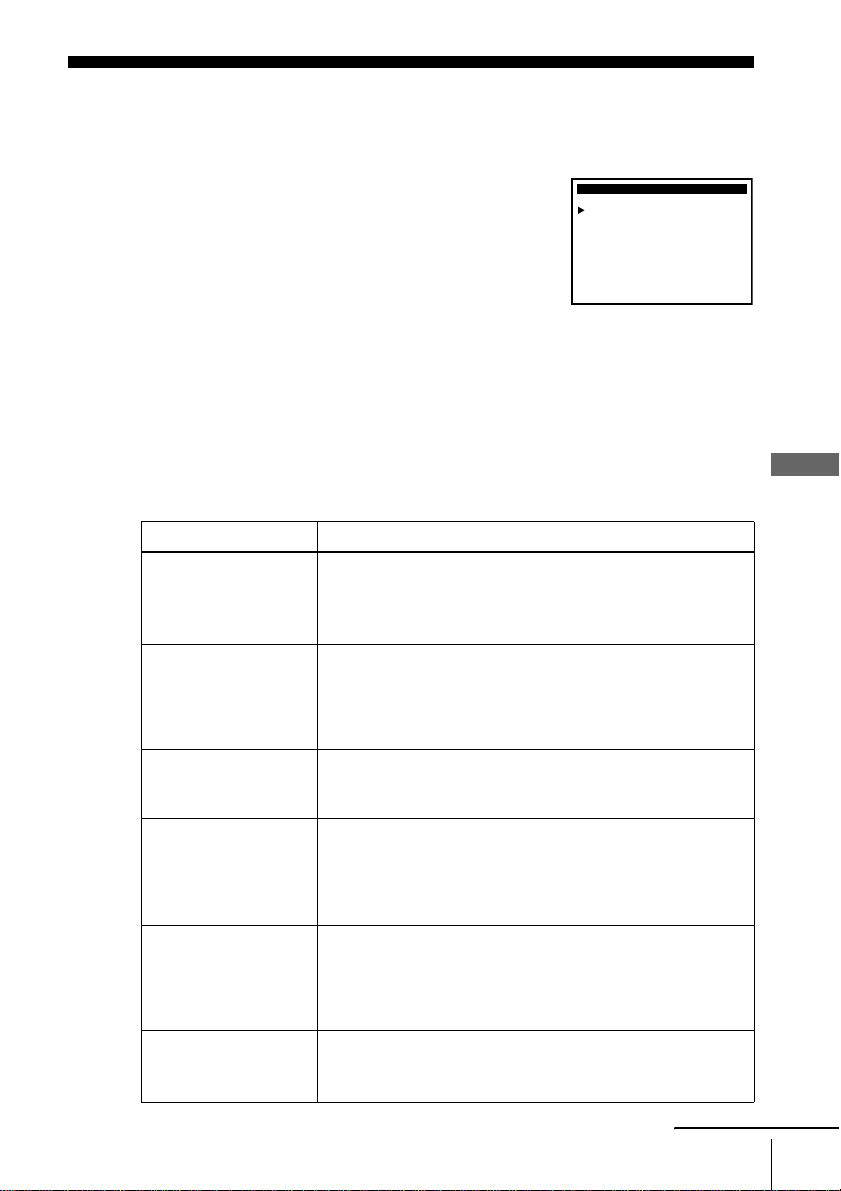
69
Changing menu options
Additional Operations
Changing menu options
Menu choices
Initial settings are indicated in bold print.
1
Press MENU.
2
Press M/m to move the cursor (B) to “Advanced
options,” then press OK.
3
Press M/m to move the cursor (B) to the option to change.
4
Press </, to change the setting, then press OK.
5
Press MENU to exit the menu.
Menu option Set this option to
Tape select • T-120 when using a T-120 or shorter length tape.
• T-160 when using a T-160 length tape.
• T-180 when using a T-180 or longer length tape.
For details, see page 46.
Auto play • ON to start playback automatically, when you insert a tape
with its safety tab removed.
• OFF to turn off Auto play. You need to press H PLAY to
start playback, even if you insert a tape with its safety tab
removed.
Auto repeat • ON to play back a tape repeatedly. The VCR rewinds a tape to
the beginning and restarts playback automatically.
• OFF to turn off Auto repeat.
Auto power off • 1Hr to turn off the VCR automatically one hour after the last
operation.
• 2Hr to turn off the VCR automatically two hours after the last
operation.
• OFF to set no specific time to turn off.
Power save • ON to turn off the indicators in the display window during
standby mode to reduce the VCR’s power consumption to a
minimum.
• OFF to turn on the indicators in the display window while the
VCR is standing by.
VCR Output CH • 3CH when using channel 3 to receive the VCR signal.
• 4CH when using channel 4 to receive the VCR signal.
For details, see page 70.
Select
:End
:
ADVANCED OPTIONS
OK
Vv Set : Bb
Auto play:
Tape select:
Auto repeat:
ON
T120
OFF
[
[
[
]
]
]
Auto power off: OFF
[]
OFF
[]
3CH
[]
: MENUQuit
Power save:
VCR Output CH:
continued
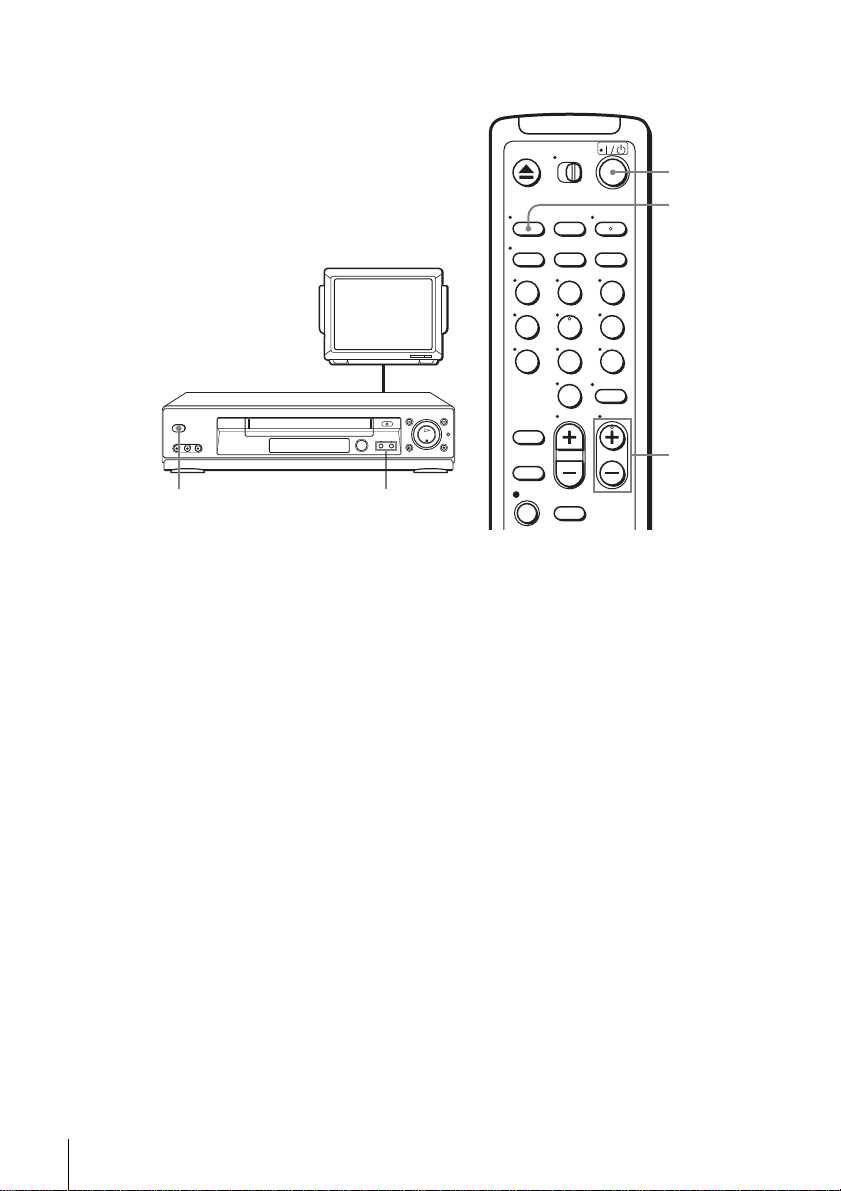
70
Changing menu options
Setting the RF Output channel
When connecting the VCR to the TV
using only the antenna cable, you must
set the “VCR Output CH” in the
ADVANCED OPTIONS menu so that the
TV can receive the correct signal from the
VCR.
1
Set the “VCR Output CH” to “3CH” or “4CH” (see page 69 to set the channel),
whichever channel is not used in your area. If both are used, set the “VCR
Output CH” to either channel.
2
Press ?/1 to turn on the VCR.
3
Press TV/VIDEO to turn on the VCR indicator in the VCR’s display window.
4
Press CH +/– to display a channel number in the display window.
Select an active channel number in your area.
5
Turn on your TV and set it to the channel you selected in step 1 (3CH or 4CH).
The channel you selected in step 4 appears on the TV screen. If the channels
change when you press CH +/–, you have made the correct setting.
Whenever you use the VCR, set the TV to the channel selected in step 1.
TV
CHANNEL +/–?/1
123
456
789
0
?/1
CH +/–
TV/VIDEO
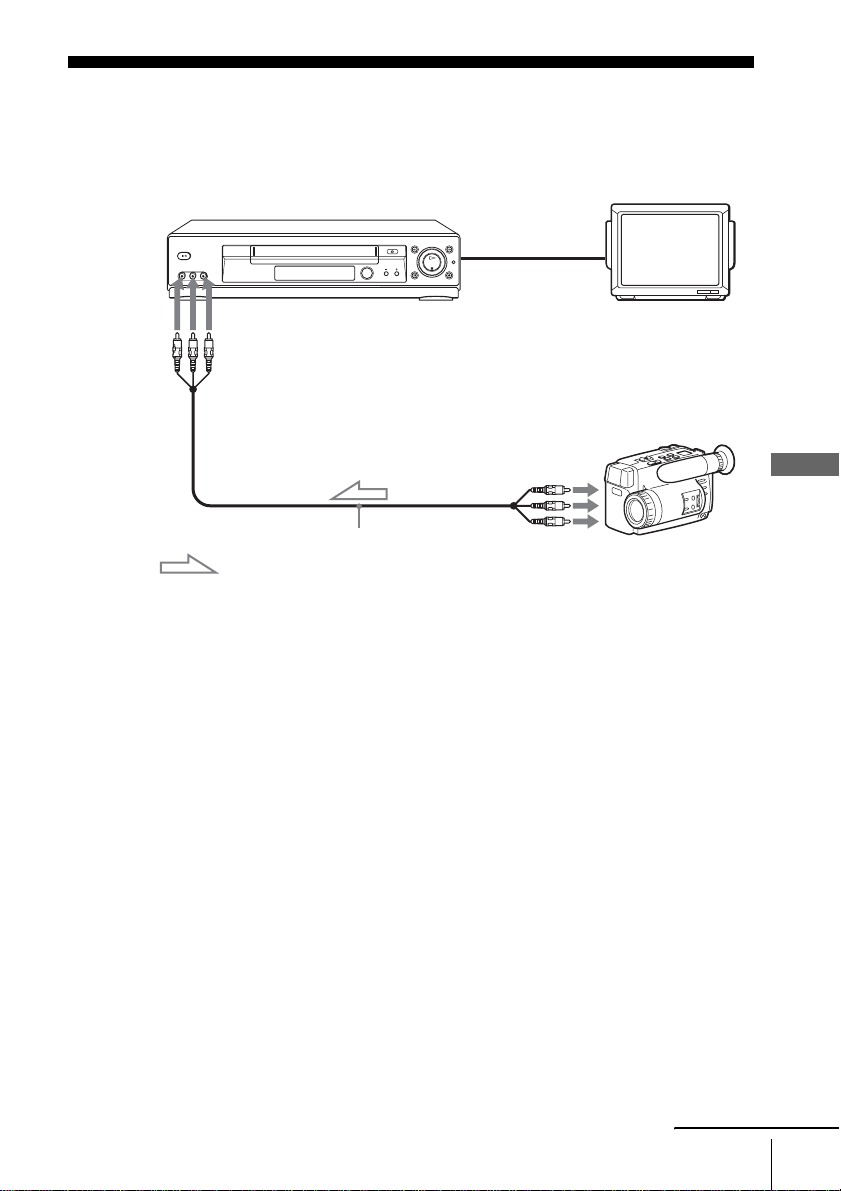
71
Editing with another VCR
Additional Operations
Editing with another VCR
How to connect to record on this VCR
Notes
• Make sure you connect the plugs to jacks of the same color.
• If the other VCR is a monaural type and connected to this VCR’s LINE-2 IN jacks, connect
the audio plug to the AUDIO L (white) jack. The sound is recorded on both right and left
channels. If you connect to the AUDIO R (red) jack, the sound is recorded only on the right
channel.
• If you connected this VCR to both the LINE IN and LINE OUT jacks of the other VCR,
select the input correctly to prevent a humming noise.
• You can use the LINE IN 1 jacks for editing. If the other VCR is a monaural type the sound
is recorded only on the channel whose jack is connected to the audio plug. To record on both
right and left channels, connect the audio plugs to the AUDIO R/L jacks using an audio/video
cable (not supplied).
This VCR (Recorder)
Other VCR (Player)
LINE OUT
: Signal flow
LINE-2 IN
TV
Audio/video cable (not supplied)
continued
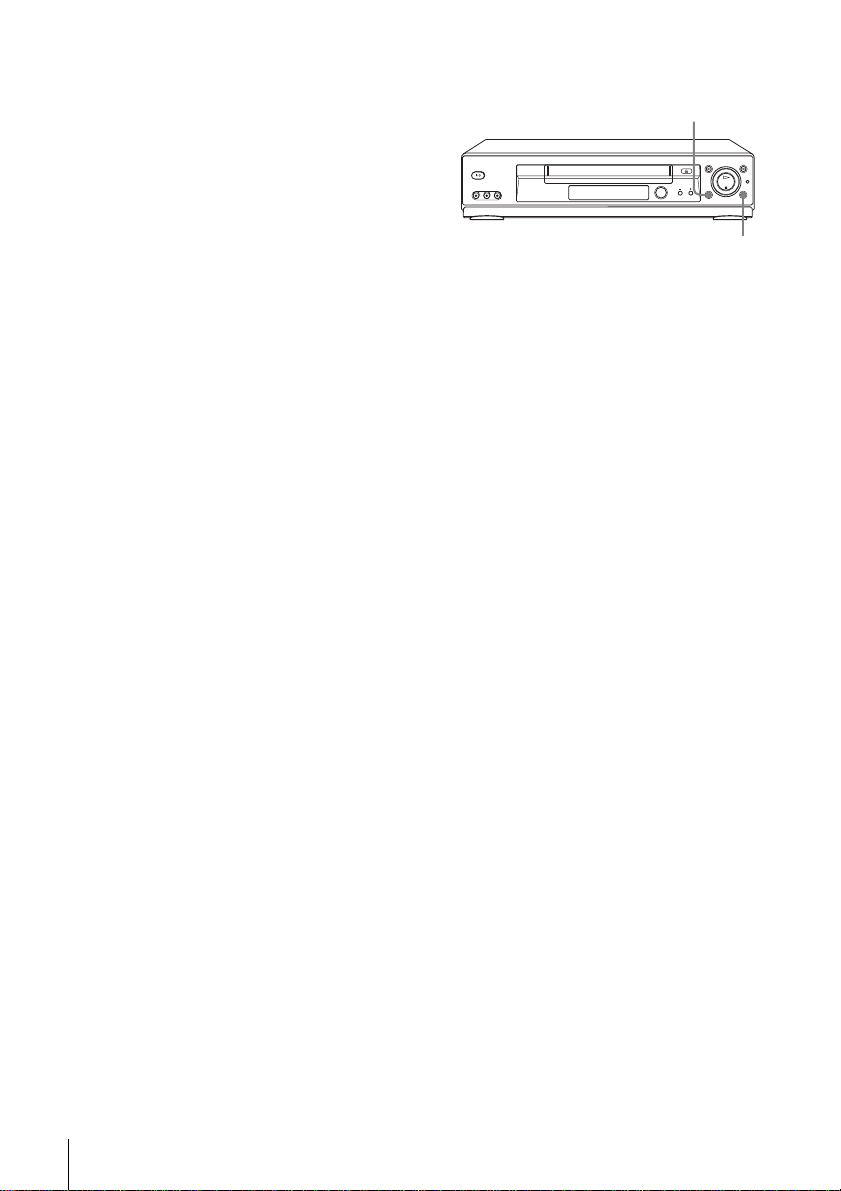
72
Editing with another VCR
Operation (when recording on this VCR)
To stop editing
Press the x STOP buttons on both VCRs.
Tip
• To cut out unwanted scenes while editing, press X PAUSE on this VCR when an unwanted
scene begins. When it ends, press X PAUSE again to resume recording.
Before you start editing
• Turn on the VCR and the TV and set
it to the video channel.
• Press INPUT SELECT or
CHANNEL +/– to display “L1” or
“L2” in the display window.
• Press SP/EP to select the tape speed,
SP or EP.
1
Insert a source tape with its safety tab removed into the other (playback) VCR.
Search for the point to start playback and set it to playback pause.
2
Insert a tape into this (recording) VCR. Search for the point to start recording
and press X PAUSE.
3
Press z REC on this VCR to set it to recording pause.
4
To start editing, press the X PAUSE buttons on both VCRs at the same time.
z REC
X PAUSE
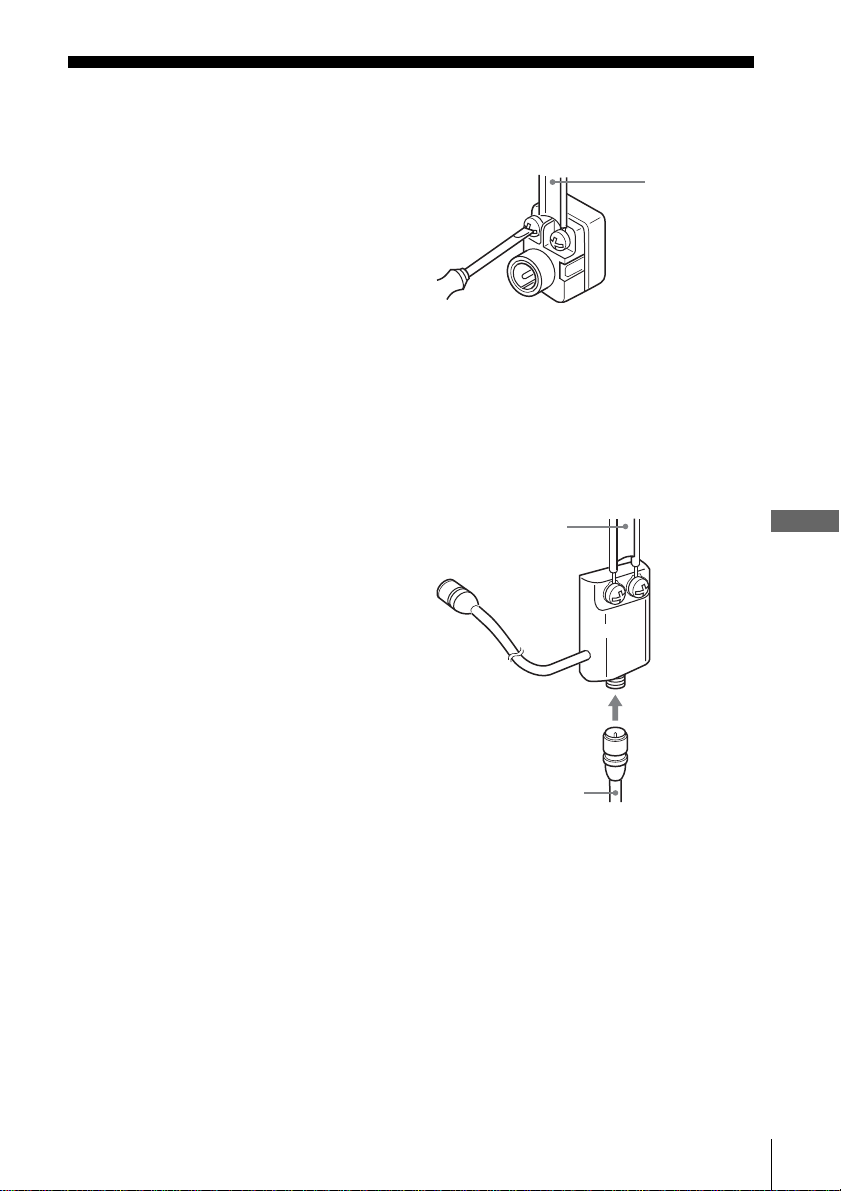
73
Antenna information
Additional Information
Additional Information
Antenna information
Attaching the external antenna connector
Attaching a UHF/VHF band mixer
When using a 300-ohm twin lead cable for a
VHF/UHF antenna, use an antenna connector
(not supplied) to connect the antenna to the
VCR.
1
Loosen the screws on the antenna connector.
2
Wind the twin leads around the screws on the antenna connector.
3
Retighten the screws.
When using both a 75-ohm coaxial cable and
a 300-ohm twin lead cable for a VHF/UHF
antenna, use a UHF/VHF band separator/
mixer (not supplied) to connect the antenna
to the VCR.
1
Loosen the screws on the mixer.
2
Wind the twin leads around the screws on the mixer.
3
Retighten the screws.
4
Connect the 75-ohm coaxial cable to the mixer.
300-ohm twin
lead cable
Antenna
connector (not
supplied)
300-ohm twin
lead cable
UHF/VHF
band
separator/
mixer (not
supplied)
75-ohm coaxial
cable
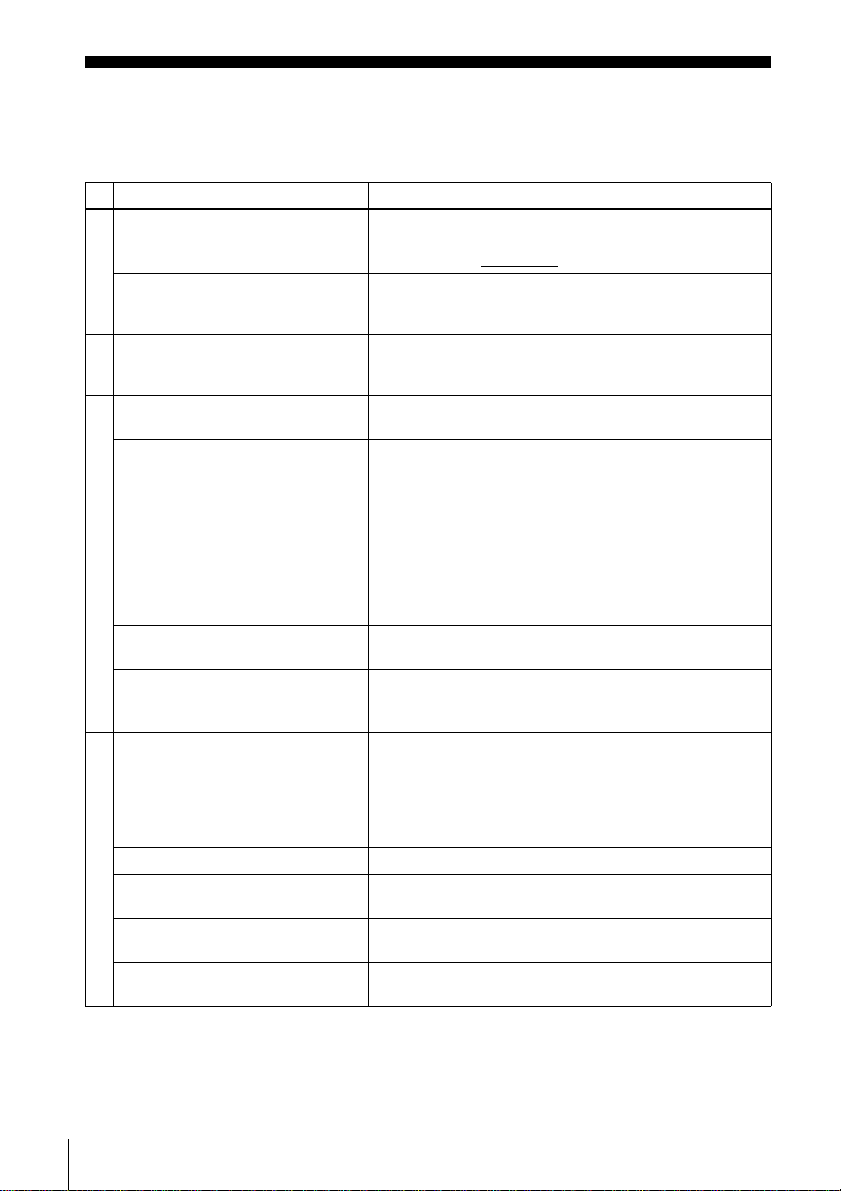
74
Troubleshooting
Troubleshooting
If you have any questions or problems not covered below, please consult your nearest Sony
dealer.
Symptom Remedy
Power
The ?/1 switch does not function. • Connect the AC power cord securely.
• Make sure the VCR is not locked. To unlock, hold down
?/1 POWER on the VCR
until “LOC” disappears.
The power is turned on but the VCR
does not operate.
• Moisture condensation has occurred. Turn the power off,
unplug the AC power cord and leave the VCR to dry for
over three hours.
Clock
The clock has stopped and “--:--”
appears in the display window.
• The clock stops if the VCR is disconnected from the wall
outlet for more than one minute. Reset the clock (and
timer).
Playback
The playback picture does not appear
on the TV screen.
• Make sure the TV is set to the channel for the VCR. If
you are using a monitor, set it to video input.
The picture is not clear. • Adjust the tracking with the TRACKING +/– buttons.
• The video heads are dirty (see the last page of
“Troubleshooting”). Clean the video heads using a Sony
video head cleaning cassette. If a Sony cleaning cassette
is not available in your area, have the heads cleaned at
your nearest Sony dealer (a standard service fee will be
charged). Do not use a commercially available liquid
type cleaning cassette, as it may damage the video heads.
• The video heads may have to be replaced. Consult your
local Sony dealer for more information.
The picture rolls vertically during
picture search.
• Adjust the vertical hold control on the TV or monitor.
The picture has no sound. • The tape is defective.
• If you made A/V connections, check the audio cable
connection.
Recording
A TV program does not appear on
the TV screen.
• Make sure the TV is set to the channel for the VCR. If
you are using a monitor, set it to video input.
• Select the correct source with the INPUT SELECT or
CH +/– buttons. Select a channel number when recording
TV programs; select “L1” or “L2” when recording from
other equipment.
TV reception is poor. • Adjust the TV antenna.
The tape starts playing as soon as it is
inserted.
• The safety tab has been removed. To record on this tape,
cover the tab hole.
The tape is ejected when you press
z REC.
• Check that the safety tab has not been removed.
Nothing happens when you press
z REC.
• Make sure the tape is not at its end.
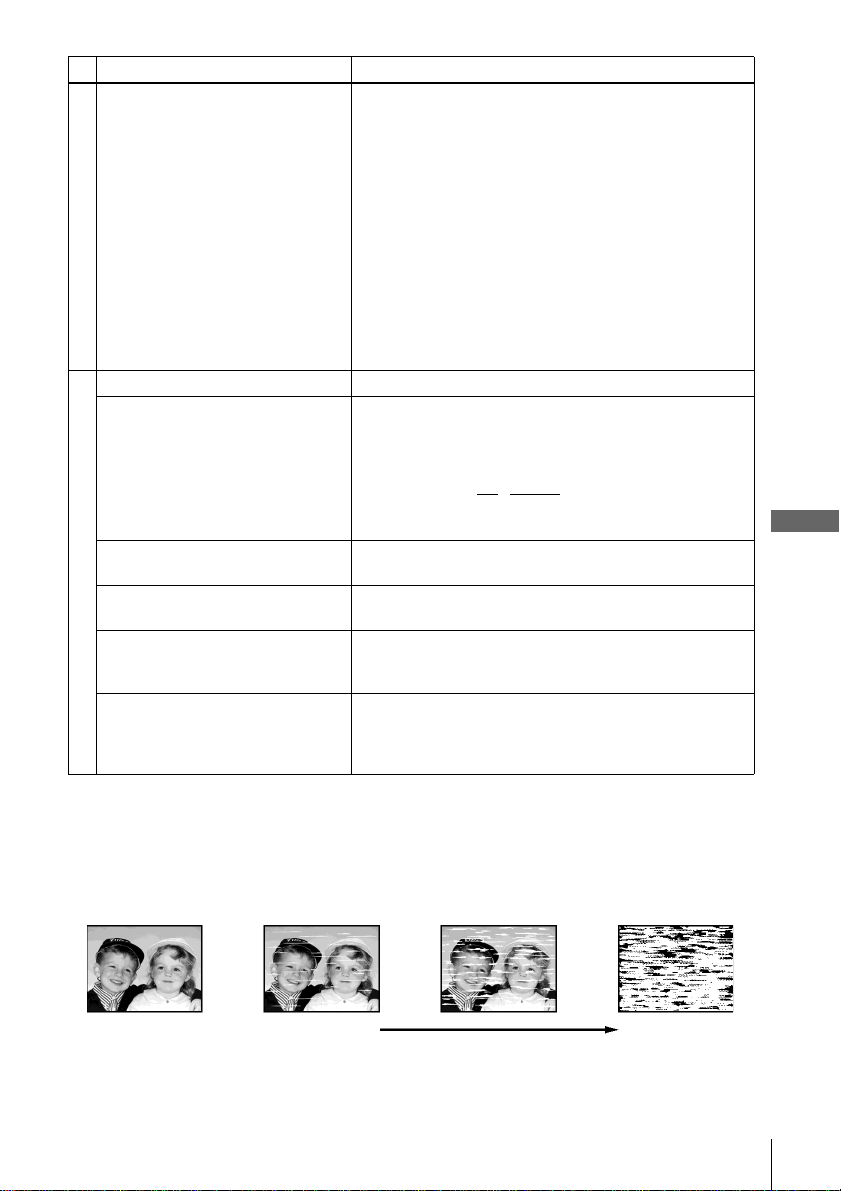
75
Troubleshooting
Additional Information
Timer recording
The timer does not operate. • Check that the clock is set.
• Make sure a tape has been inserted.
• Check that the safety tab has not been removed.
• Make sure the tape is not at its end.
• Make sure a program has been set for timer recording.
• Make sure your timer settings are past the current time.
• Check that the cable box is turned on.
• The clock stops if the VCR is disconnected from the wall
outlet for more than one minute. Reset the clock and
timer.
• When you use the cable box/satellite receiver control
feature, make sure the “Cable Box/Sat.” option is set to
ON.
• Turn the power off and unplug the AC power cord.
Others
A tape cannot be inserted. • Check that a tape is not already in the tape compartment.
The remote commander does not
function.
• Make sure you are pointing the remote commander at the
remote sensor on the VCR.
• Replace all the batteries in the remote commander with
new ones if they are weak.
• Make sure the •TV
/ VIDEO switch is set correctly.
• If you are not using Control S, make sure that both
miniplugs are disconnected.
The channels on the VCR cannot be
changed.
• Make sure the “Cable Box/Sat.” option is set to OFF.
The tracking meter does not appear
on the screen.
• The recording condition of the tape is very poor and
tracking cannot be adjusted.
You cannot control other TVs. • Set your TV’s code number. The code number may
change when you replace the batteries of the remote
commander.
The VCR needs to be cleaned. • Clean the cabinet, panel and controls with a dry, soft
cloth, or a soft cloth slightly moistened with a mild
detergent solution. Do not use any type of solvent, such
as alcohol or benzine.
Symptom Remedy
Symptoms caused by contaminated video heads
•Normal picture •Unclear picture•Rough picture
initial
contamination
terminal
•No picture (or
black & white
screen appears)

76
Specifications
Specifications
System
Format
VHS NTSC standard
Video recording system
Rotary head helical scanning FM system
Video heads
Double azimuth four heads
Video signal
NTSC color, EIA standards
Tape speed
SP: 33.35 mm/s (1
inches/s)
EP: 11.12 mm/s (
inches/s)
LP: 16.67 mm/s (
inches/s),
playback only
Maximum recording/playback time
8 hrs. in EP mode (with T-160 tape)
Rewind time
Approx. 1 min (with T-120 tape)
Tuner section
Channel coverage
VHF 2 to 13
UHF 14 to 69
CATV A-8 to A-1, A to W, W+1 to W+84
Antenna
75-ohm antenna terminal for VHF/UHF
Inputs and outputs
LINE IN 1 and LINE-2 IN
VIDEO IN, phono jack (1 each)
Input signal: 1 Vp-p, 75 ohms, unbalanced, sync
negative
AUDIO IN, phono jacks (2 each)
Input level: 327 mVrms
Input impedance: more than 47 kilohms
LINE OUT
VIDEO OUT, phono jack (1)
Output signal: 1 Vp-p, 75 ohms, unbalanced, sync
negative
AUDIO OUT, phono jacks (2)
Standard output: 327 mVrms
Load impedance: 47 kilohms
Output impedance: less than 10 kilohms
Timer section
Clock
Quartz locked
Timer indication
12-hour cycle
Timer setting
8 programs (max.)
General
Power requirements
120 V AC, 60 Hz
Power consumption
16 W
Operating temperature
0°C to 45°C (32°F to 113°F)
Storage temperature
–20°C to 60°C (–4°F to 140°F)
Dimensions including projecting parts and controls
(w/h/d)
Approx. 430 × 96 × 259 mm
(Approx. 17 × 3 × 10 inches)
Mass
Approx. 2.8 kg (Approx. 6 lb 3 oz)
Supplied accessories
Remote commander (1)
Size AA (R6) batteries (2)
75-ohm coaxial cable with F-type connectors (1)
Design and specifications are subject to change without
notice.
ENERGY STAR
®
is a U.S. registered mark.
As an ENERGY STAR
®
Partner, Sony Corporation has
determined that this product meets the
ENERGY STAR
®
guidelines for energy efficiency.
3
8
7
16
11
16
7
8
1
4
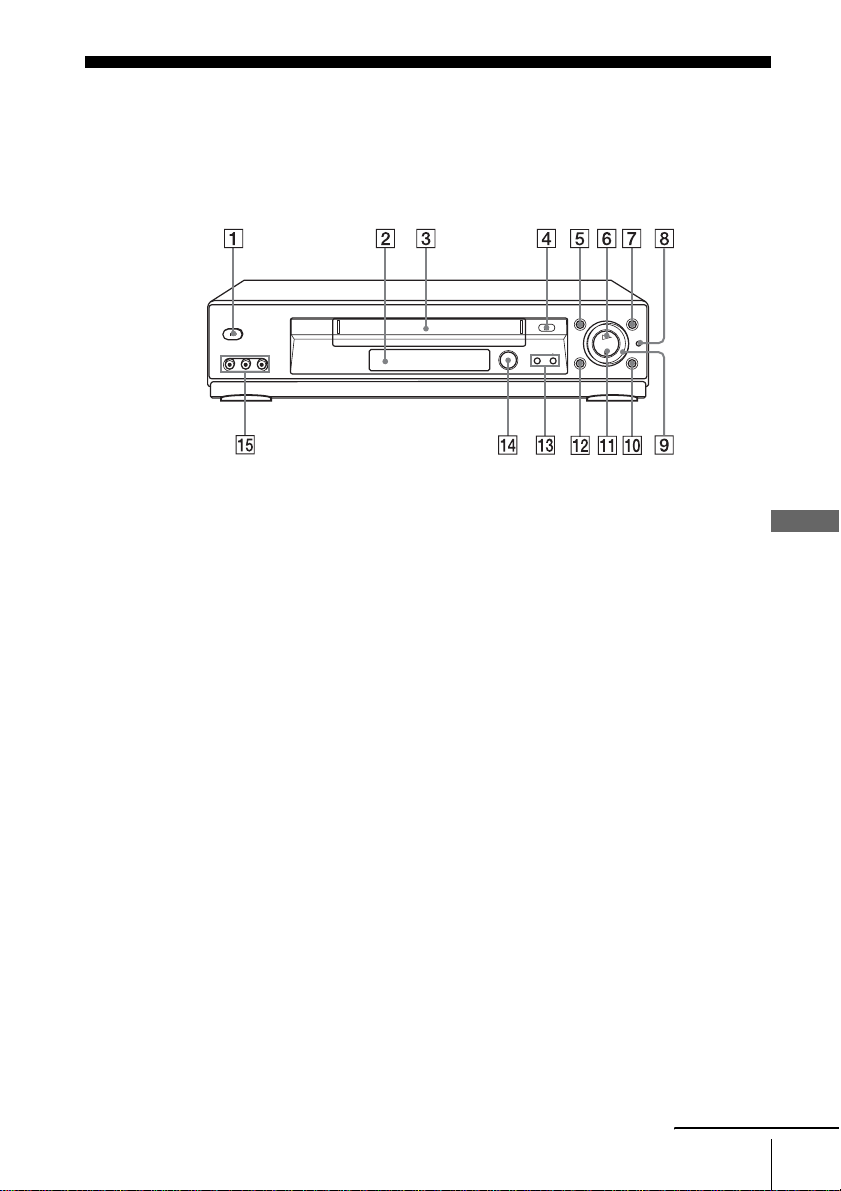
77
Index to parts and controls
Additional Information
Index to parts and controls
Refer to the pages indicated in parentheses ( ) for details.
Front panel
A ?/1 POWER switch (55) (57)
B Remote sensor (7)
C Tape compartment
D A EJECT button (43)
E m REW (rewind) button (43) (60)
F H PLAY button* (43)
G M FF (fast-forward) button (43) (60)
H JOG button (60)
I Shuttle ring (60)
J z REC (record) button (46) (62) (72)
K x STOP button* (43) (72)
L X PAUSE button (43) (72)
M CHANNEL/TRACKING +/– buttons*
(46) (68)
N DIAL TIMER* (48)
O LINE-2 IN VIDEO/AUDIO L/R jacks
(71)
*
1
The H PLAY, CHANNEL + and x STOP
buttons have a tactile dot.
continued
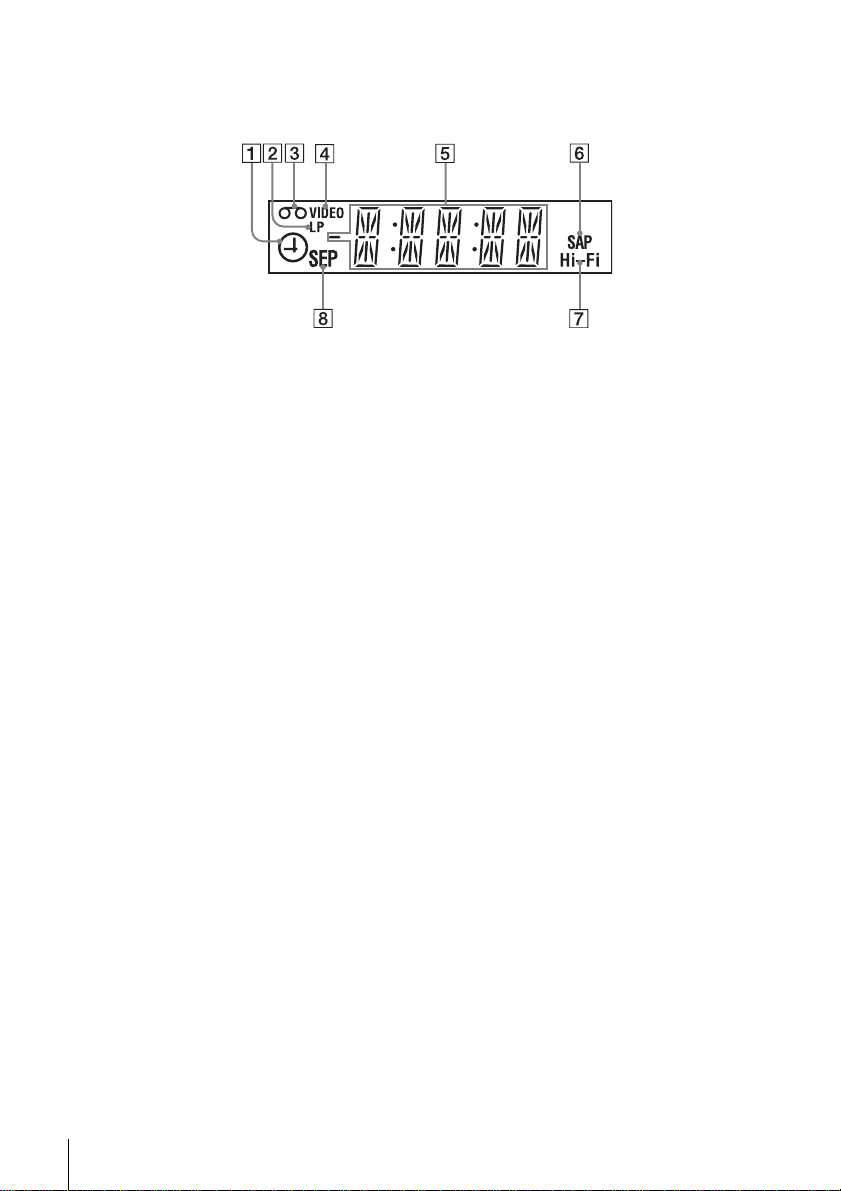
78
Index to parts and controls
Display window
A TIMER/recording indicator (55) (57)
B LP indicator (46)
C Tape indicator (46)
D VIDEO indicator (47) (70)
E Time counter/clock/line/channel
indicator (44) (46) (72)
F SAP indicator (65)
G Hi-Fi indicator (65)
H SP/EP indicator (46)
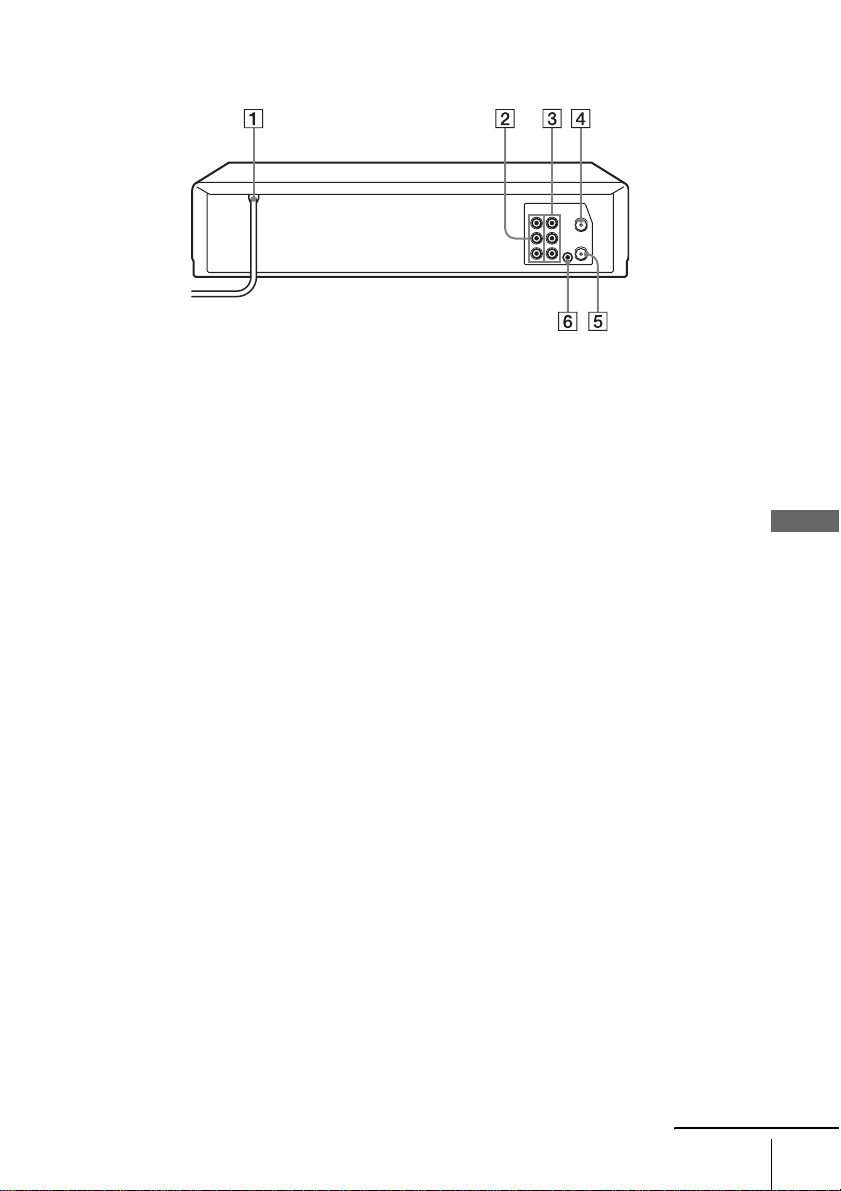
79
Index to parts and controls
Additional Information
Rear panel
A AC power cord (10) (15) (17)
B LINE OUT AUDIO R/AUDIO L/VIDEO
jacks (12)
C LINE IN 1 AUDIO R/AUDIO L/VIDEO
jacks (71)
D RF IN (FROM ANT.) connector (14)
(16) (18)
E RF OUT (TO TV) connector (14) (16)
(18)
F CONTROL S IN jack
continued
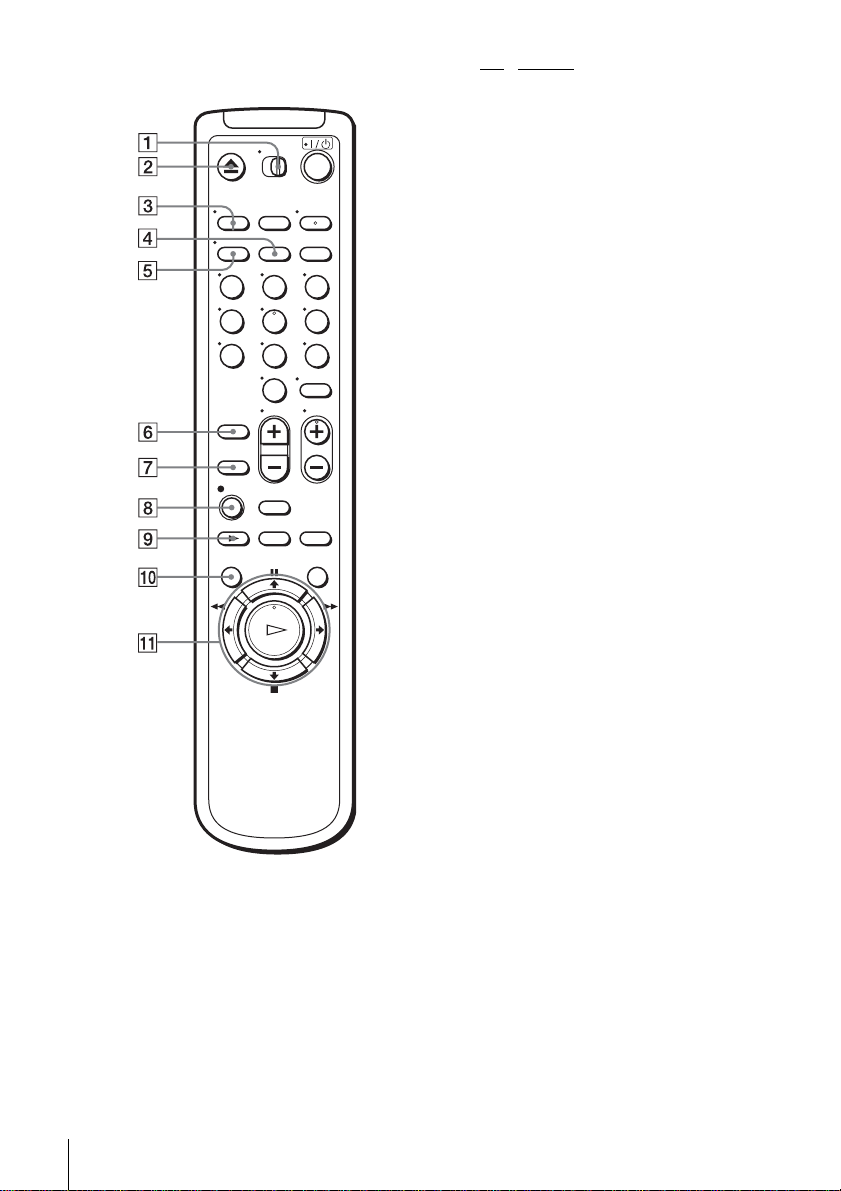
80
Index to parts and controls
Remote commander
A •TV / VIDEO switch (7)
B Z EJECT button (43)
C TV/VIDEO button (8) (47)
D CLEAR button (44) (64)
E DISPLAY button (46)
F SP (Standard Play)/EP (Extended Play)
button (46)
G INPUT SELECT button (47) (72)
H z REC (record) button (46) (62)
I y SLOW button (60)
J MENU button (23) (56) (63) (69)
K X PAUSE/M button (23) (43)
x STOP/m button (23) (43)
m REW (rewind)/ < button (43) (60)
M FF (fast-forward)/ , button (43)
(60)
H PLAY/OK button* (23) (43) (54)
* The H PLAY button has a tactile dot.
123
456
789
0
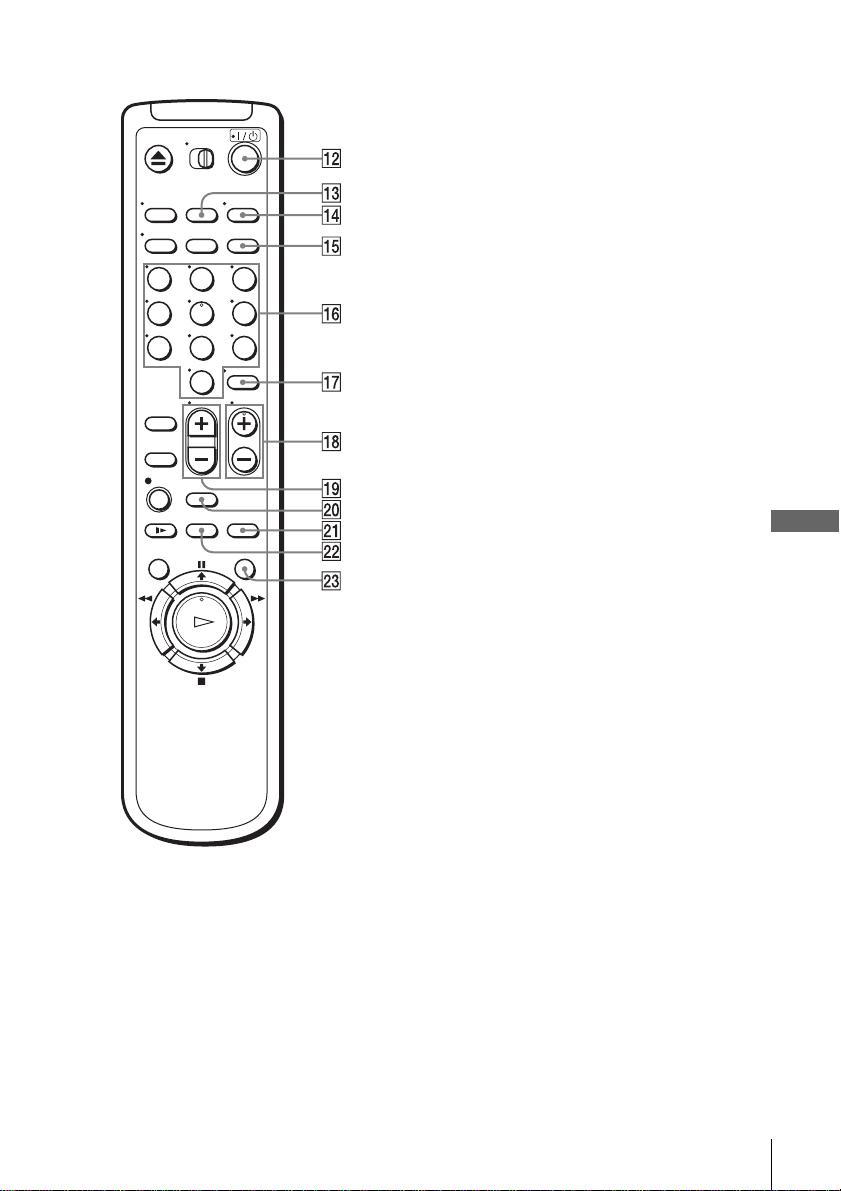
81
Index to parts and controls
Additional Information
L ?/1 (power) switch (8) (55) (57)
M COUNTER/REMAIN button (46)
N AUDIO MONITOR button* (65)
O VCR Plus+ button* (53)
P Number buttons* (47) (54)
Q ENTER button (47)
R CH (channel) +/– buttons* (8) (46)
S VOL (volume) +/– buttons (8)
T SEARCH button (66)
U REPLAY button (43)
V ×2 button (60)
W COMMERCIAL SKIP button (43)
* The AUDIO MONITOR, number 5 and CH +
buttons have a tactile dot.
123
456
789
0

82
Index
Index
A
Adjusting
picture
68
tracking
68
Advanced option
69
Antenna hookup
14
Audio track
65
Audio/video (A/V) hookup
12
Auto Clock Set
24
Auto Tape Speed
55
C
Cable hookup 10
Channel line-up chart
39
Child Lock
59
Cleaning the video heads
74
Clock setting
24
Commercial Skip
43
Connecting
Cable TV
18, 19, 21
external antenna connector
73
UHF/VHF band mixer
73
Counter
44
D
Demonstration Mode 52
Dial Timer
48
Disabling channels
31
Dubbing. see Editing
E
Editing 71
EP mode
46
H
Hi-fi audio track 65
L
Language selecting 23
Locking the VCR
59
LP mode
47
M
Monaural 65
Monitoring audio during
playback
65
N
Normal audio track 65
P
Picture adjustment 68
Playback
42
at various speeds
60
frame by frame
60
selecting the sound
65
skip
43
slow motion
60
Presetting channels
29
R
Recording 45
bilingual programs
65
SAP broadcasts
65
saving
47
stereo broadcasts
65
timer setting
56
using Dial Timer
48
using the VCR Plus+C
3
system
53
while watching another
program
47
RF channel
70
S
Safety tab 47
SAP (Second Audio Program)
65
Searching
at various speeds
60
for a blank portion
67
for the counter 0 point
67
Scan and Play
66
SP mode
46
Stereo
65
T
Timer setting 56
canceling
63
changing
63
checking
63
daily/weekly recording
58
using the VCR Plus+C
3
system
53
Tracking adjustment. see
Adjusting
Tuner presetting
29
V
VCR Plus+C
3
system
channel set up
39
recording
53

Sony Corporation Printed in China AC68-01953A
Quick reference to using the VCR
Hookup 1
To play a tape
1 Set the TV to channel 3 or 4
(or to video input, if you
made A/V connections).
2 Insert a tape and press
H PLAY. If there is no
picture on your TV, press the
VCR’s TV/VIDEO button
until the VIDEO indicator
appears in the display
window.
To record a program
1 Press MENU and select
“Timer set/check.”
2 Set the channel, time, date,
and tape speed.
3 Press OK.
4 Insert a tape.
5 Press ?/1 to turn off the
VCR.
To watch TV
1 Turn off the VCR, or press
the VCR’s TV/VIDEO
button until the VIDEO
indicator in the display
window turns off.
2 Set the TV to the channel you
want to watch.
Hookup 2
To play a tape
1 If you made A/V
connections, set the TV to
video input. If you did not
use A/V hookup:
• Turn on the cable box.
• Set the cable box to channel
3 or 4.
• Set the TV to the output
channel of the cable box
(usually 2, 3, or 4).
2 Insert a tape and press
H PLAY.
To record a program
1 Press MENU and select
“Timer set/check.”
2 Set the channel, time, date,
and tape speed.
3 Press OK.
4 Insert a tape.
5 Press ?/1 to turn off the
VCR.
To watch TV
1 Turn off your VCR, or press
the VCR’s TV/VIDEO
button until the VIDEO
indicator in the display
window turns off.
2 Select the channel with your
cable box (if you have one)
or with your TV.
Hookup 3
To play a tape
1 Set the TV to channel 3 or 4
(or to video input, if you
made A/V connections).
2 Insert a tape and press
H PLAY.
To record a program
1 Turn on the cable box.
2 Set the cable box to the
channel you want to record.
3 Press MENU and select
“Timer set/check.”
4 Set the channel, time, date,
and tape speed.
5 Press OK.
6 Insert a tape.
7 Press ?/1 to turn off the
VCR.
Leave the cable box on.
To watch TV
1 Turn off your VCR, or press
the VCR’s TV/ VIDEO
button until the VIDEO
indicator in the display
window turns off.
2 Turn on your cable box.
3 Set the TV to the cable box
output channel (usually 2, 3,
or 4).
4 Set the cable box to the
channel you want to watch.
Hookup 4
To play a tape
1 Set the TV to channel 3 or 4
(or to video input, if you
made A/V connections).
2 Insert a tape and
pressH PLAY.
To record a program
1 Turn on the cable box.
2 Press VCR Plus+ on the
remote commander.
3 Enter the PlusCode number.
4 Select ONCE, DAILY, or
WEEKLY, then press
ENTER.
5 Insert a tape.
6 Press ?/1 to turn off the
VCR.
7 Leave the cable box on.
To watch TV
1 Turn off the VCR, or press
the VCR’s TV/VIDEO
button until the VIDEO
indicator in the display
window turns off.
2 Turn on your cable box on.
3 Set the TV to the cable box
output channel (usually 2, 3,
or 4).
4 Set the cable box to the
channel you want to watch.