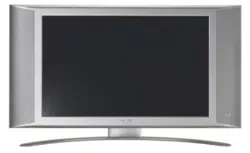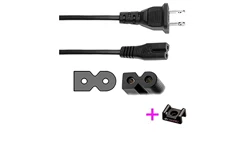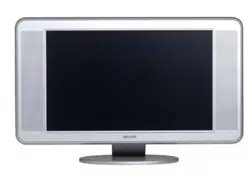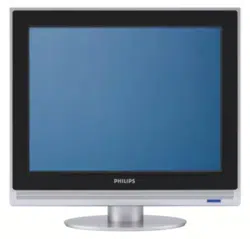
LCD TV

CANAL ................FREQ (MHz)
E2 ........................48.25
E3 ........................55.25
E4 ........................62.25
E5 ......................175.25
E6 ......................182.25
E7 ......................189.25
E8 ......................196.25
E9 ......................203.25
E10 ....................210.25
E11 ....................217.25
E12 ....................224.25
R1 ........................49.75
R2 ........................59.25
R3 ........................77.25
R4 ........................85.25
R5 ........................93.25
R6 ......................175.25
R7 ......................183.25
R8 ......................191.25
R9 ......................199.25
R10 ....................207.25
R11 ....................215.25
R12 ....................223.25
S1 ......................105.25
S2 ......................112.25
S3 ......................119.25
S4 ......................126.25
S5 ......................133.25
S6 ......................140.25
S7 ......................147.25
S8 ......................154.25
S9 ......................161.25
S10 ....................168.25
S11 ....................231.25
S12 ....................238.25
S13 ....................245.25
S14 ....................252.25
CANAL ................FREQ (MHz)
S15 ....................259.25
S16 ....................266.25
S17 ....................273.25
S18 ....................280.25
S19 ....................287.25
S20 ....................294.25
H1 ......................303.25
H2 ......................311.25
H3 ......................319.25
H4 ......................327.25
H5 ......................335.25
H6 ......................343.25
H7 ......................351.25
H8 ......................359.25
H9 ......................367.25
H10 ....................375.25
H11 ....................383.25
H12 ....................391.25
H13 ....................399.25
H14 ....................407.25
H15 ....................415.25
H16 ....................423.25
H17 ....................431.25
H18 ....................439.25
H19 ....................447.25
21.......................471.25
22.......................479.25
23.......................487.25
24.......................495.25
25.......................503.25
26.......................511.25
27.......................519.25
28.......................527.25
29.......................535.25
30.......................543.25
31.......................551.25
32.......................559.25
CANAL ................FREQ (MHz)
33.......................567.25
34.......................575.25
35.......................583.25
36.......................591.25
37.......................599.25
38.......................607.25
39.......................615.25
40.......................623.25
41.......................631.25
42.......................639.25
43.......................647.25
44.......................655.25
45.......................663.25
46.......................671.25
47.......................679.25
48.......................687.25
49.......................695.25
50.......................703.25
51.......................711.25
52.......................719.25
53.......................727.25
54.......................735.25
55.......................743.25
56.......................751.25
57.......................759.25
58.......................767.25
59.......................775.25
60.......................783.25
61.......................791.25
62.......................799.25
63.......................807.25
64.......................815.25
65.......................823.25
66.......................831.25
67.......................839.25
68.......................839.25
69.......................855.2
5
ITALY
CANALE..............FREQ (MHz)
A ..........................53.75
B ..........................62.25
C ..........................82.25
D ........................175.25
E ........................183.75
F.........................192.25
G ........................201.25
H ........................210.25
H1 ......................217.25
FRANCE
CANAL ................FREQ (MHz)
2...........................55.75
3...........................60.50
4...........................63.75
5...........................176.0
6...........................184.0
7...........................192.0
8...........................200.0
9...........................208.0
10.........................216.0
B ........................116.75
C ........................128.75
D ........................140.75
E ........................159.75
F.........................164.75
G ........................176.75
H ........................188.75
I..........................200.75
J .........................212.75
K ........................224.75
L.........................236.75
M........................248.75
N ........................260.75
O ........................272.75
P ........................284.75
Q ........................296.75
Ta b le of TV frequencies.
Frequenztabelle der Fernsehsender.
Liste des fréquences TV.
Frequentietabel TV-Zenders.
Tabella delle frequenze TV.
Lista de frecuencias TV.
Lista das frequências TV
Liste over TV senderne.
Tabell over TV-frekvenser.
Tabell över TV-frekvenser.
TV-taajuustaulukko.
KK··ÙÙ¿¿ÏÏÔÔÁÁÔÔ˜˜ ÛÛ˘˘¯¯ÓÓÔÔÙÙ‹‹ÙÙˆˆÓÓ ÔÔÌÌÒÒÓÓ..
CÔËÒÓÍ ˜‡ÒÚÓÚ Ô‰‡Ú˜ËÍÓ‚.
A televizió-adóállomások
frekvenciáinak a listája.
Lista częstotliwości stacji nadawczych.
Seznam frekvenčních pásem vysílačů.
Zoznam frekvenčných pásiem vysielačov.
EUROPE
Positioning the TV
For the best results, choose a position where light
does not fall directly on the screen, and at some
distance away from radiators or other sources of
heat. Leave a space of at least 5 cm all around the
TV for ventilation, making sure that curtains,
cupboards etc. cannot obstruct the air flow through
the ventilation apertures.The TV is intended for use
in a domestic environment only and should never be
operated or stored in excessively hot or humid
atmospheres.
General Points
Please take note of the section entitled 'Tips' at the
end of this booklet.
Interference
The Department of Trade and Industry operates a
Radio Interference Investigation Service to help TV
licence holders improve reception of BBC and IBA
programmes where they are being spoilt by
interference.
If your dealer cannot help, ask at a main Post Office
for the booklet "How to Improve Television and
Radio Reception".
Mains connection
Before connecting the TV to the mains, check that the
mains supply voltage corresponds to the voltage
printed on the type plate on the rear panel of the TV. If
the mains voltage is different, consult your dealer.
Important
This apparatus is fitted with an approved moulded
13AMP plug. Should it become necessary to replace
the mains fuse, this must be replaced with a fuse of
the same value as indicated on the plug.
1. Remove fuse cover and fuse.
2.The replacement fuse must comply with BS 1362
and have the ASTA approval mark. If the fuse is
lost, make contact with your retailer in order to
verify the correct type.
3. Refit the fuse cover.
In order to maintain conformity to the EMC directive,
the mains plug on this product must not be removed.
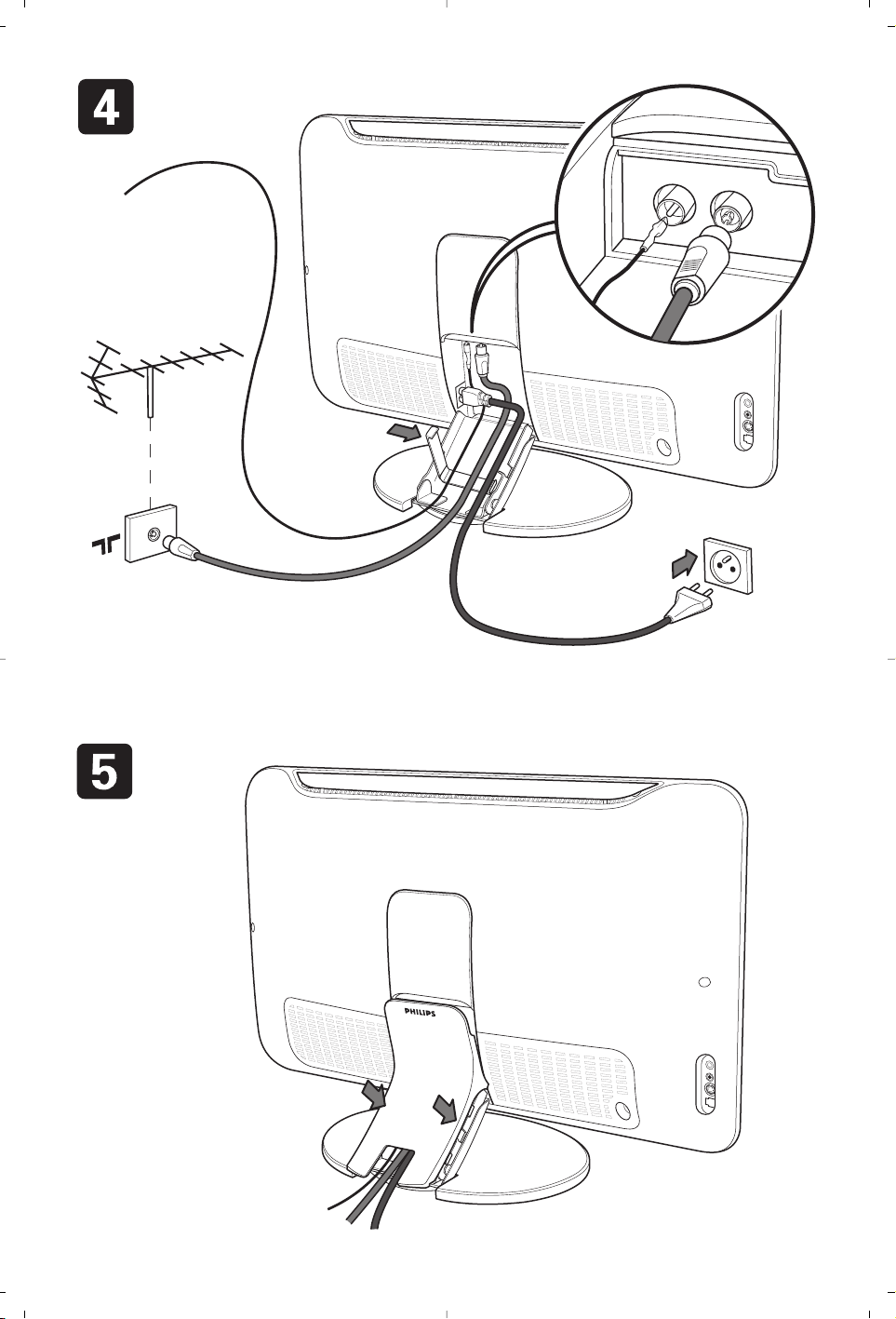
Connecting the aerial
The aerial should be connected to the socket marked
: at the back of the set.An inferior aerial is likely to
result in a poor,perhaps unstable picture with ghost
images and lack of contrast. Make-shift loft or set-top
aerials are often inadequate.Your dealer will know from
experience the most suitable type for your locality.
Should you wish to use the set in conjunction with
other equipment, which connects to the aerial socket
such as TV games, or a video camera it is recommended
that these be connected via a combiner unit to avoid
repeated connection and disconnection of the aerial plug.
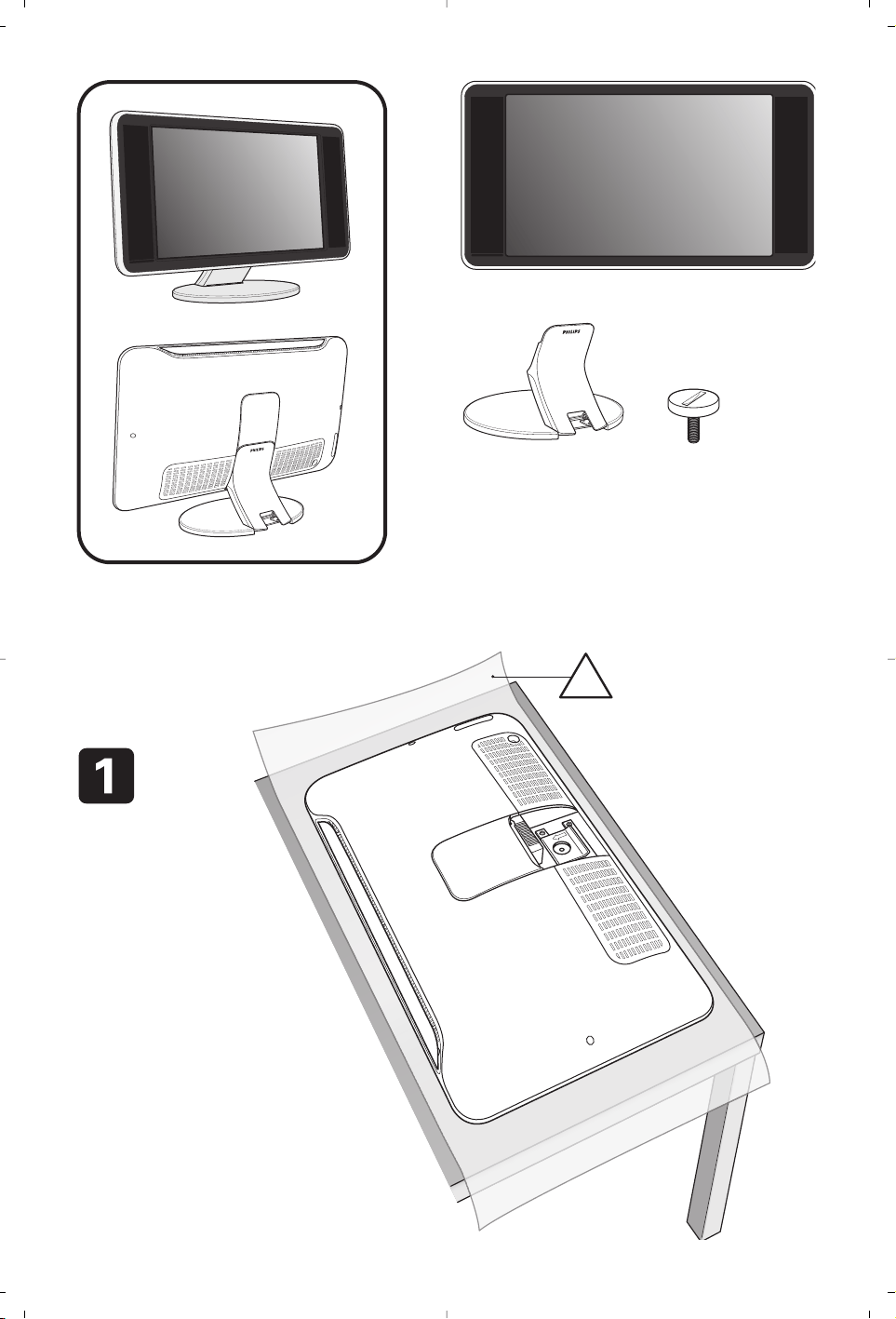
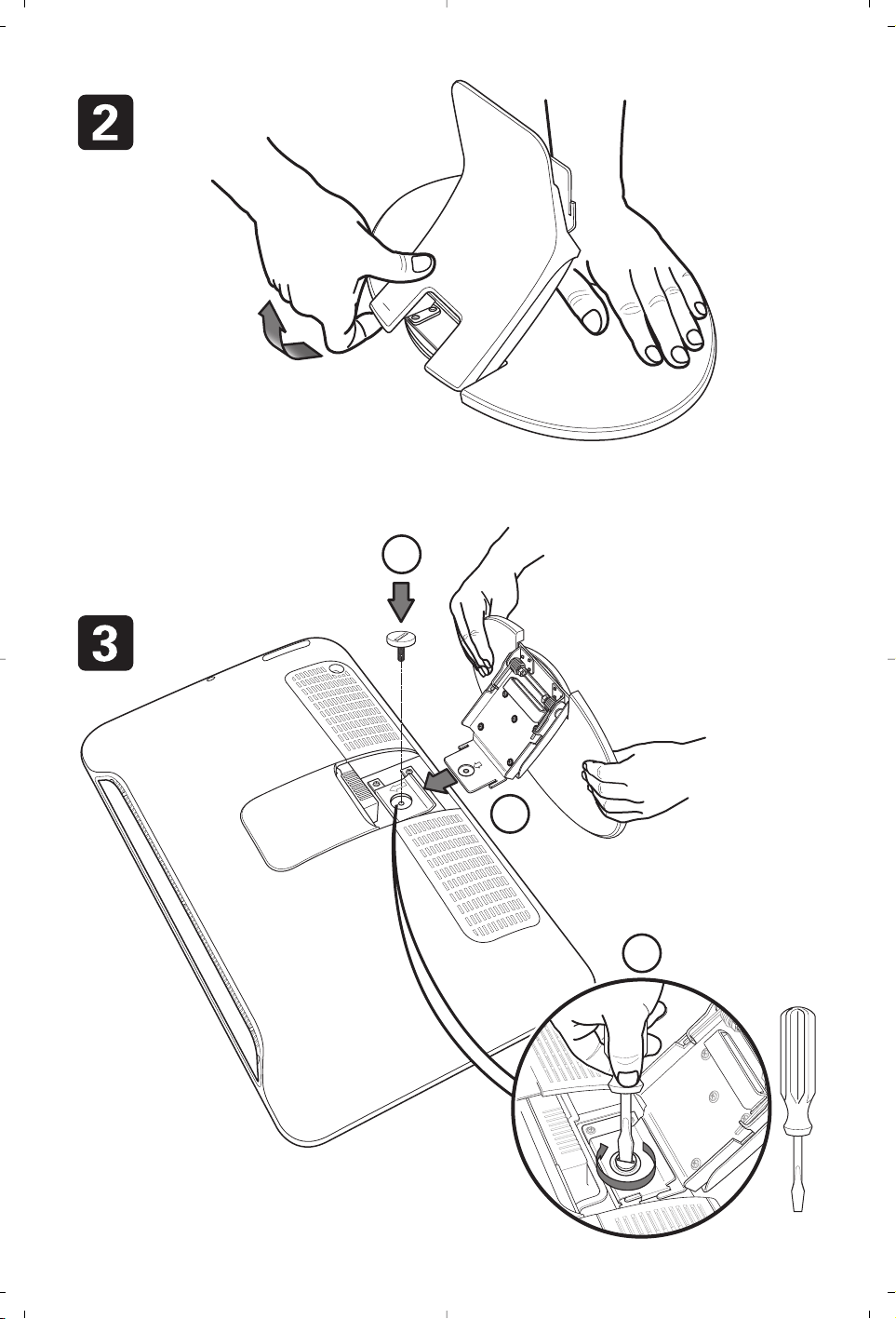
Fitting the stand (if provided)
Use only the stand provided with the set, making
sure that the fixings are properly tightened.A
diagram showing how to assemble the stand is
packed with the stand. Never use a make-shift stand,
or legs fixed with woodscrews.
Information for users in the UK (not applicable outside the UK)
x 1
x 1
x 1
T
O
P
!
LIFT HERE
TO
OPEN
SOULEVER ICI
TOP
INSERT THIS W
A
Y
2
1
3
FM ANT.
FM ANT
:
1
Introduction
Ta b le of Contents
Thank you for purchasing this television set.
This handbook has been designed to help you install and operate your TV set.
We strongly recommend that you read it thoroughly.
Installation
Presentation of the LCD Television . . . . . . . . . . . . . . . . . . . . . . . . . . . . . . . . . . . . .2
Remote control . . . . . . . . . . . . . . . . . . . . . . . . . . . . . . . . . . . . . . . . . . . . . . . . . . .2
Remote control keys . . . . . . . . . . . . . . . . . . . . . . . . . . . . . . . . . . . . . . . . . . . . . . .3
Installing your television set . . . . . . . . . . . . . . . . . . . . . . . . . . . . . . . . . . . . . . . . . .4
Quick installation . . . . . . . . . . . . . . . . . . . . . . . . . . . . . . . . . . . . . . . . . . . . . . . . . .4
Program sort . . . . . . . . . . . . . . . . . . . . . . . . . . . . . . . . . . . . . . . . . . . . . . . . . . . . . .5
Manual store . . . . . . . . . . . . . . . . . . . . . . . . . . . . . . . . . . . . . . . . . . . . . . . . . . . . . .5
Other settings in the Install menu . . . . . . . . . . . . . . . . . . . . . . . . . . . . . . . . . . . . .5
Operation
Picture settings . . . . . . . . . . . . . . . . . . . . . . . . . . . . . . . . . . . . . . . . . . . . . . . . . . . .6
Sound adjustments . . . . . . . . . . . . . . . . . . . . . . . . . . . . . . . . . . . . . . . . . . . . . . . . .6
Feature settings . . . . . . . . . . . . . . . . . . . . . . . . . . . . . . . . . . . . . . . . . . . . . . . . . . . .6
Screen Formats . . . . . . . . . . . . . . . . . . . . . . . . . . . . . . . . . . . . . . . . . . . . . . . . . . . .7
Teletext . . . . . . . . . . . . . . . . . . . . . . . . . . . . . . . . . . . . . . . . . . . . . . . . . . . . . . . . . .8
Using the radio . . . . . . . . . . . . . . . . . . . . . . . . . . . . . . . . . . . . . . . . . . . . . . . . . . . . .9
Using in PC monitor mode . . . . . . . . . . . . . . . . . . . . . . . . . . . . . . . . . . . . . . . . . . .9
Using in HD mode . . . . . . . . . . . . . . . . . . . . . . . . . . . . . . . . . . . . . . . . . . . . . . . . .10
Peripherals
Video recorder . . . . . . . . . . . . . . . . . . . . . . . . . . . . . . . . . . . . . . . . . . . . . . . . . . .11
Other equipment . . . . . . . . . . . . . . . . . . . . . . . . . . . . . . . . . . . . . . . . . . . . . . . . .11
To select connected equipment . . . . . . . . . . . . . . . . . . . . . . . . . . . . . . . . . . . . .11
Side connections . . . . . . . . . . . . . . . . . . . . . . . . . . . . . . . . . . . . . . . . . . . . . . . . . .12
Amplifier . . . . . . . . . . . . . . . . . . . . . . . . . . . . . . . . . . . . . . . . . . . . . . . . . . . . . . . .12
Computer . . . . . . . . . . . . . . . . . . . . . . . . . . . . . . . . . . . . . . . . . . . . . . . . . . . . . . .12
HD equipment . . . . . . . . . . . . . . . . . . . . . . . . . . . . . . . . . . . . . . . . . . . . . . . . . . . .13
Practical information
Tips . . . . . . . . . . . . . . . . . . . . . . . . . . . . . . . . . . . . . . . . . . . . . . . . . . . . . . . . . . . .14
Glossary . . . . . . . . . . . . . . . . . . . . . . . . . . . . . . . . . . . . . . . . . . . . . . . . . . . . . . . .14
FR
NL
DE
IT
DK
NO
SU
SF
RU
ES
PT
GR
TR
HU
PL
CZ
SK
GB
Recycling
Disposal of your old product.
Your product is designed and manufactured with high quality materials and components,
which can be recycled and reused.
When this crossed-out wheeled bin symbol is attached to a product it means the product
is covered by the European Directive 2002/96/EC. Please inform yourself about the local
separate collection system for electrical and electronic products.
Please act according to your local rules and do not dispose of your old products with your
normal household waste.The correct disposal of your old product will help prevent
potential negative consequences for the environment and human health.
The packaging of this set can be recovered or recycled.Apply to the local authorities in
order to minimise environmental waste.
°
2
-
PROGRAM
+-
VOLUME
+
&
é
Presentation of the LCD Television
Remote control
VGA
In
DVI-D
In
Audio
In
Audio
Out
EXT 1 EXT 2FM ANT
"'(§
è
:
&
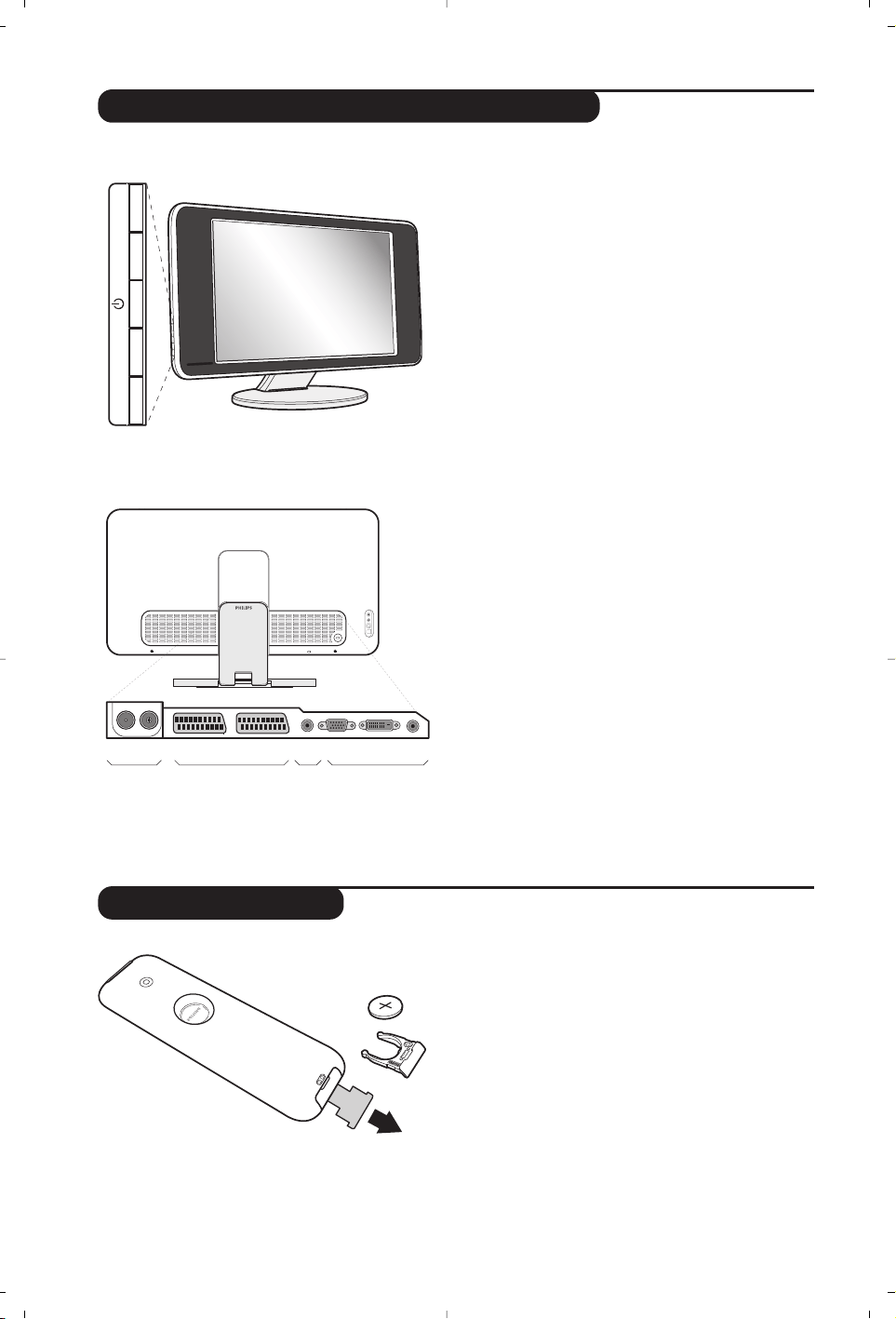
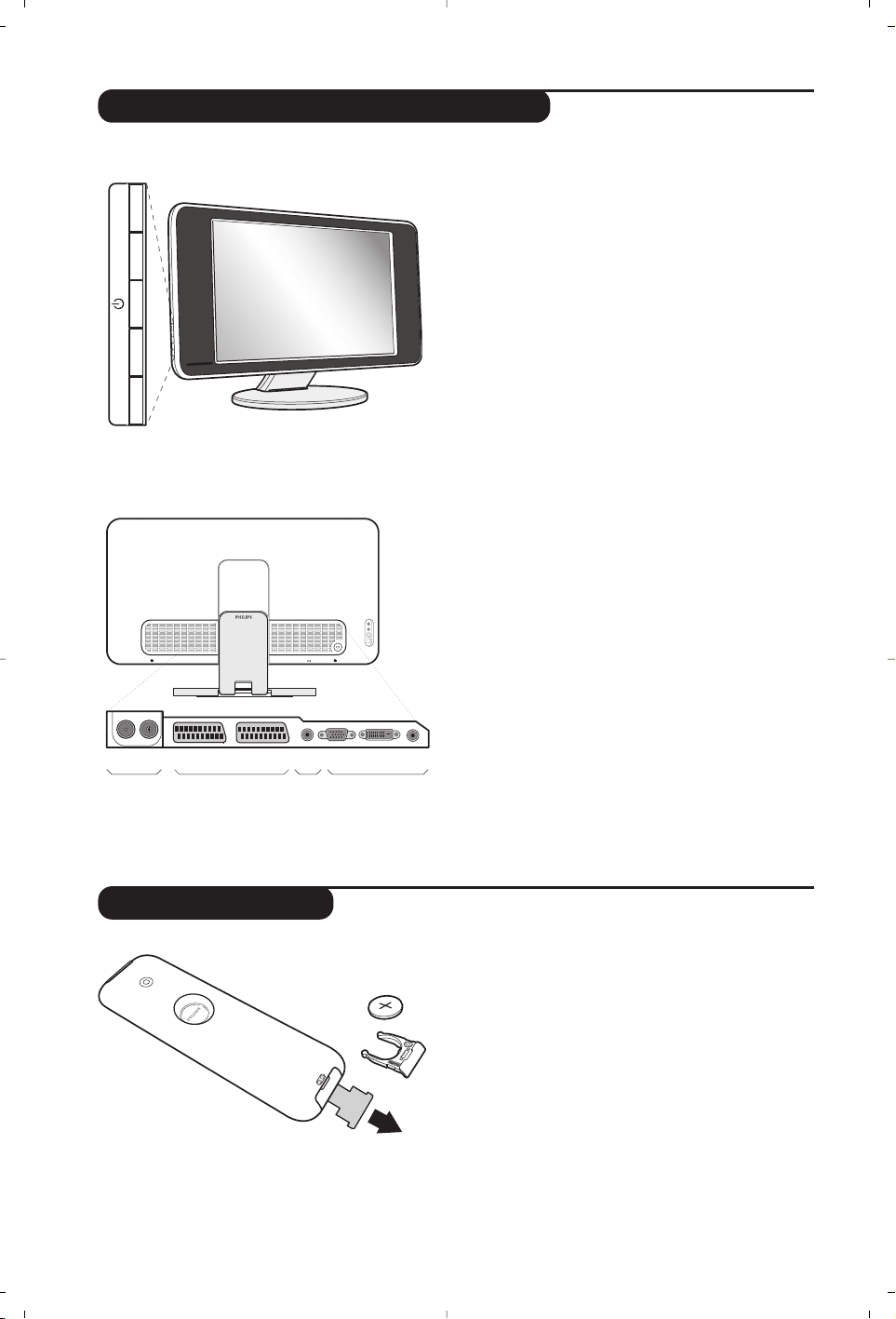
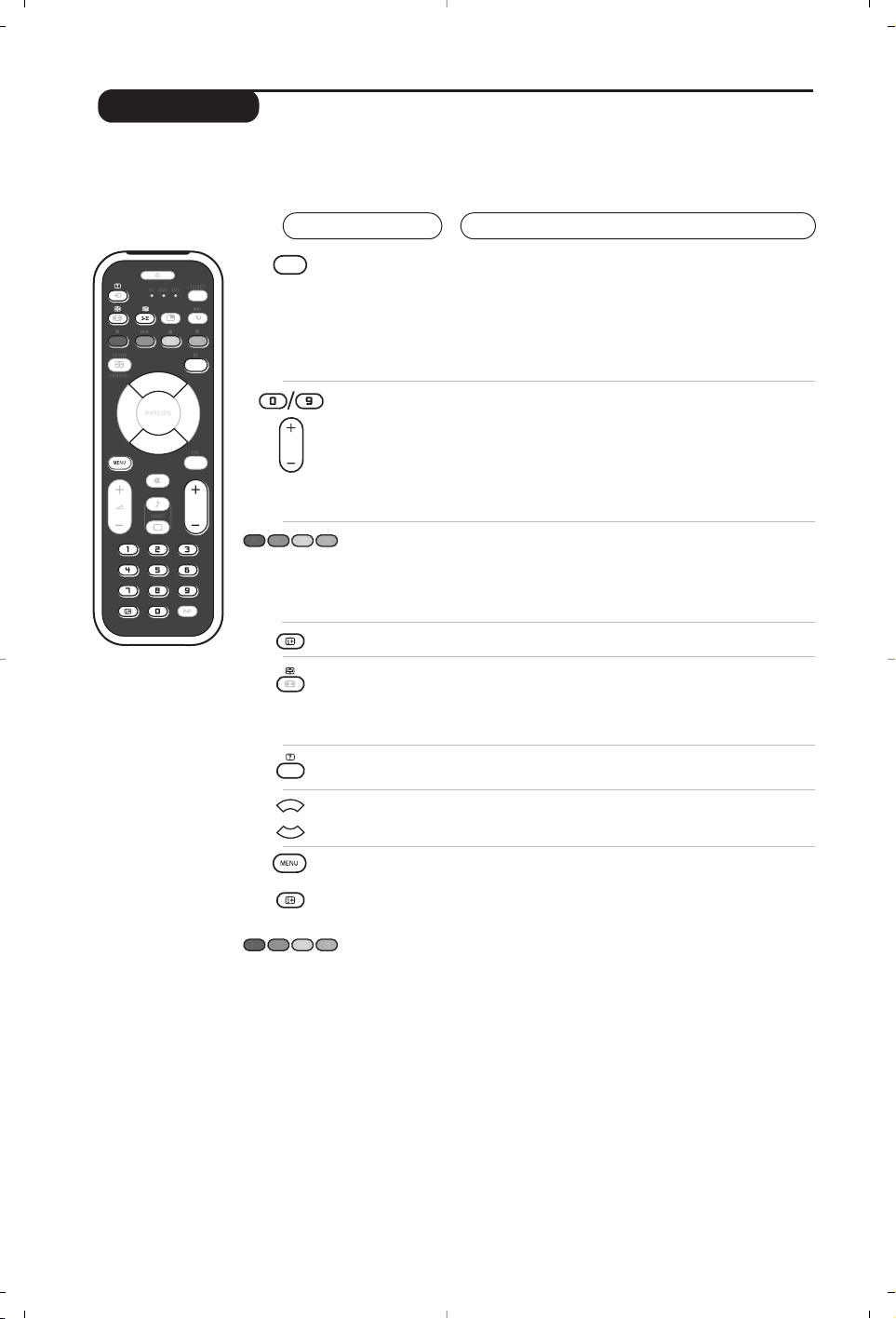
Television keys:
• .: to switch the TV on or off.
• VOLUME - + : to adjust sound level.
• PROGRAM - + : to select programmes.
• To access or close menus, simultaneously press
the VOLUME - and VOLUME + keys. The
PROGRAM - + keys can be used to select an
adjustment and the VOLUME - + keys to make
that adjustment.
é
Adjustable stand.
The stand can be tilted backward/forward and also
swivel sideways.The stand can be removed and
replaced with a wall mounting kit available as an
option (ask your dealer).
Rear of set :
The main connections are made at the bottom of
the television.
For more details on connections see page 11.
“ TV and radio aerial sockets
‘ EXT1 and EXT2 socket
( Audio output for connecting an amplifier.
§ VGA, DVI-D and audio input for connecting a
computer.
è Side connections
Pull out the plastic insulation sheet from the
battery to activate the remote control.
The battery supplied with the appliance does not
contain mercury or nickel cadmium so as to
protect the environment. Please do not discard
your used batteries, but use the recycling methods
available (ask your dealer).
CR 2025
3
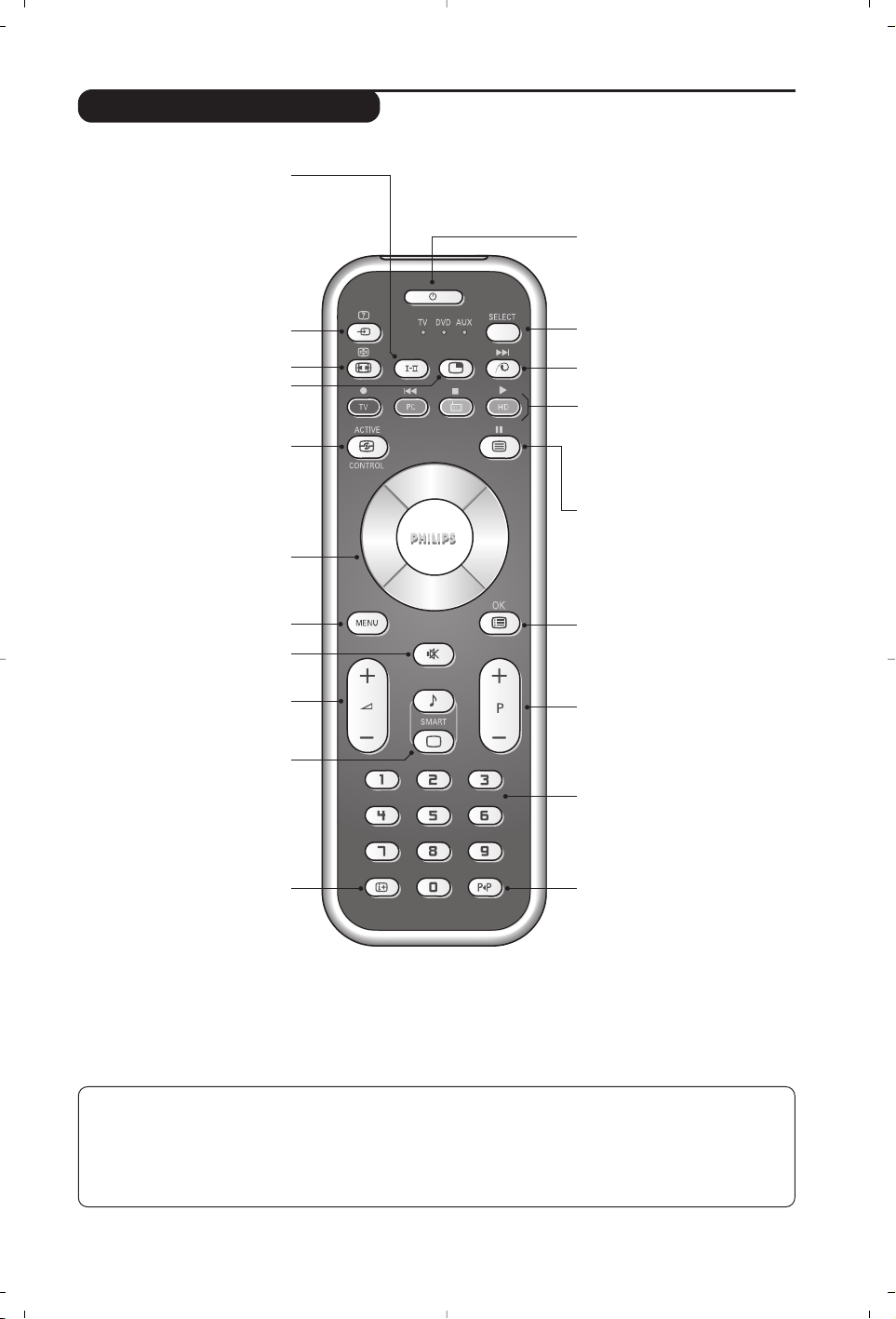
Remote control keys
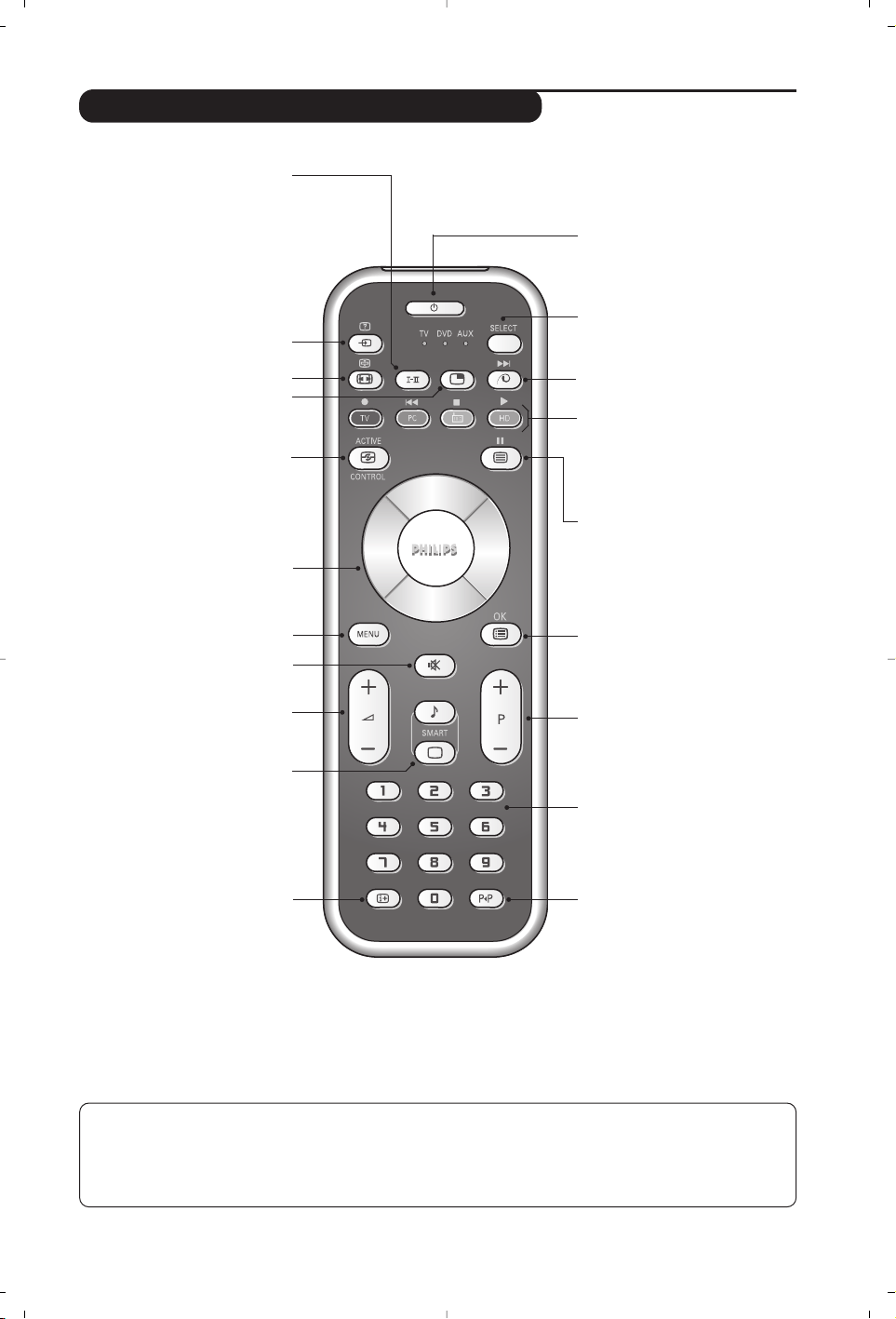
Sound mode
Used to force programmes in
Stereo and Nicam Stereo to Mono
or, for bilingual programmes, to
choose between Dual I or Dual II.
The Mono indication is red when in
forced position.
Select peripherals (p.11)
Press several times to select the
required EXT connector.
Screen Format (p. 7)
PIP (Picture in Picture)
on/off (p. 9)
PC / TV / Radio/HD
Press one of these keys to switch
the television between PC,TV,
radio or HD mode (p. 9).
Cursor
These 4 keys are used to move
around the menus
(<>≤≥)
.
Active control
Optimizes the picture quality depending
on the quality of the incoming signal
and the ambient light conditions.
Mute
To mute or restore the sound.
Volume
To adjust the sound level.
Smart picture and sound
Used to access a series of predefined
picture and sound settings.
The personal position relates to
settings selected from the menus.
Screen information
To display / remove the programme
number, the time, the sound mode
and the time remaining on the
timer.Hold down for 5 seconds to
permanently display the
programme number on the screen.
Standby
To set the TV to standby mode.
To switch the TV set on again,
press .,P - + or ñ/ô.
Mode selector *
Pixel +
Switches the Pixel +
demonstration mode on or off.
Teletext (p. 8)
Menu
To call up or exit the menus.
Selecting TV programmes
To move up or down a programme.
The number and the sound
mode are
displayed for a few seconds.
For some TV programmes the title of
the programme appears at the
bottom of the screen.
Numerical keys
For direct access to programmes.
For a 2 digit programme number,
the 2
nd
digit must be entered
before the dash disappears.
Previous programme
To access the previously viewed
programme.
List of programmes
To display/clear the list of
programmes.
Use the keys <> to
select a programme and the key
≥
to display it.
* Mode selector
Press the Select key to select the required mode : DVD or AUX.
The remote control indicator lights up to display the selected mode. It switches off automatically after 20 seconds if
left idle.The remote control automatically returns to TV mode.
The following keys are operational, depending on the equipment :
.ê·I¢∫I ÊÆ ∆ OK h <>≤≥(cursor) P - + ñ/ô∂º
4
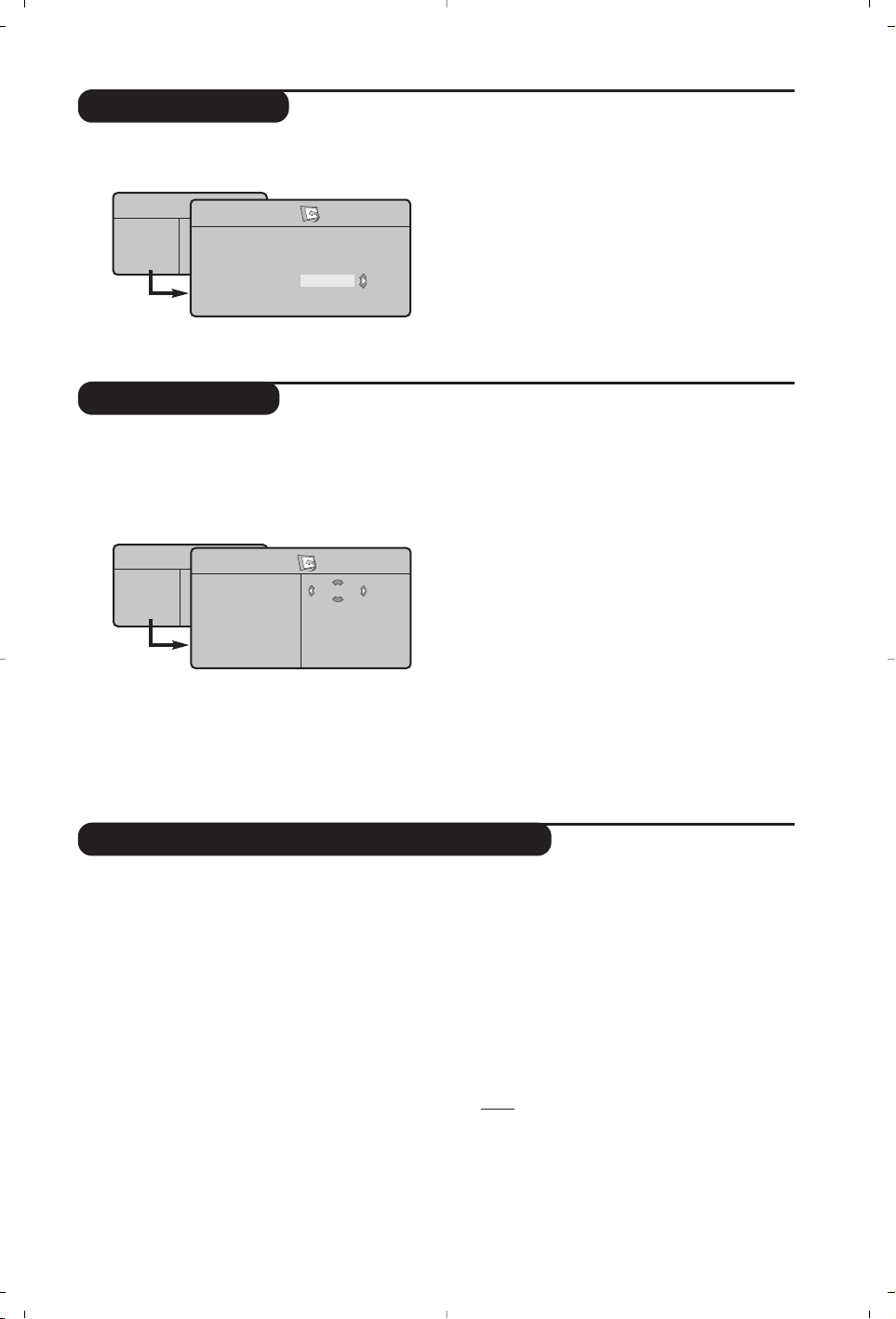
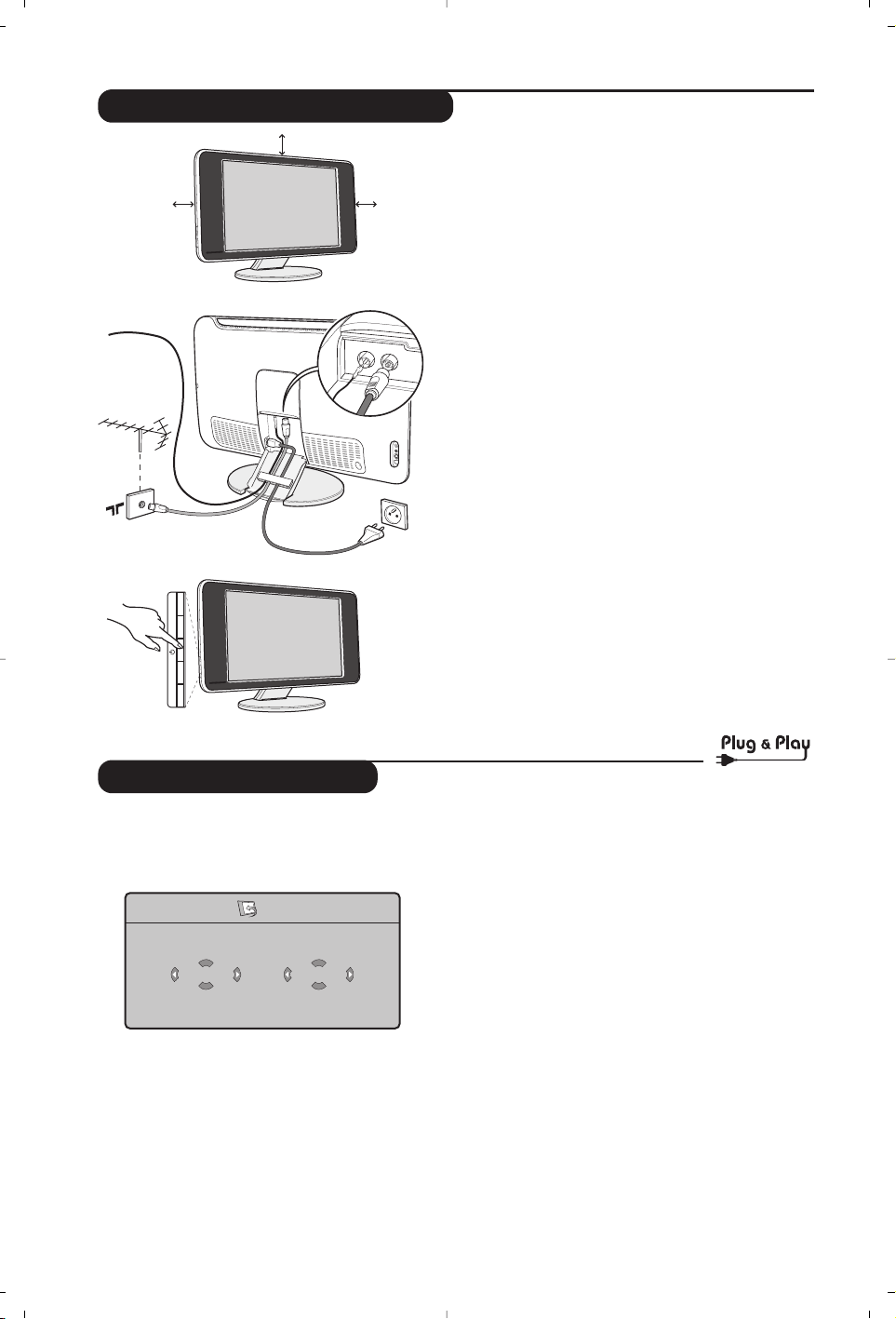
Quick installation
When you turn on the TV set for the first time,
a menu is displayed on screen.This menu
prompts you to select the country and language
for the menus:
If the menu is not displayed, press and hold down
the VOLUME -+ keys on the TV set for 5 seconds to
display the menu.
& Use the
<> keys on the remote control to
select your country and confirm with
≥.
If your country does not appear in the list, select
choice “. . .”
é Next select your language using the
<> keys
and confirm with
≥.
“ The search starts automatically.All the available
TV programmes and radio stations will be
stored. This operation takes a few minutes.The
display shows the progress of the search and
the number of programs found. At the end of
the search, the menu disappears.
To exit or interrupt the search, press h. If no
programme is found, consult the possible solutions p. 14.
‘ If the transmitter or cable network sends the
automatic sort signal, the programs will be
numbered correctly. In this case, the installation
is complete.
( If this is not the case, you need to use the Sort
menu to number the programs correctly.
Some transmitters or cable networks broadcast their
own sort parameters (region, language, etc.). In this
case, indicate your choice using the
<> keys and
confirm with
≥.
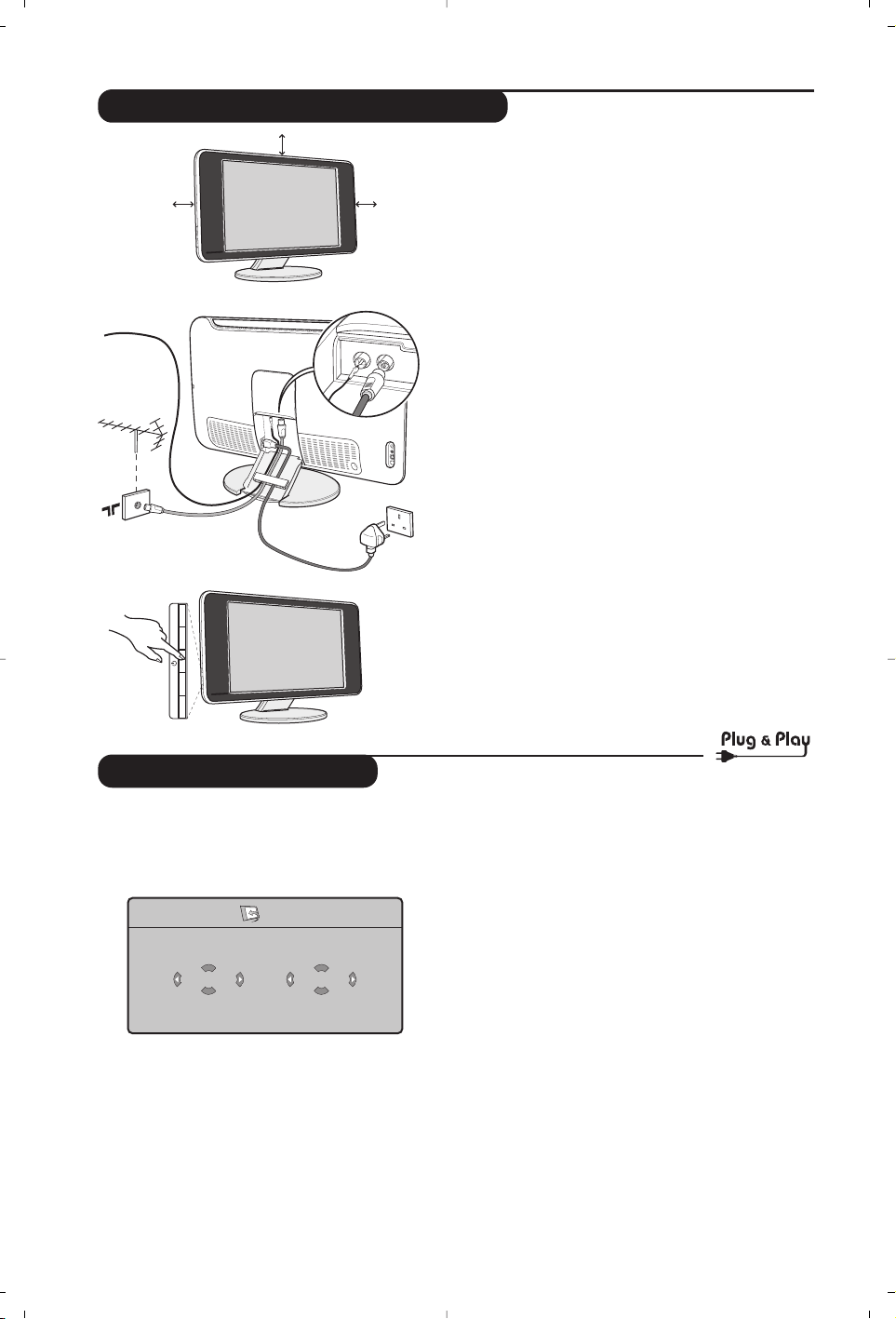
& Positioning the television set
Place your TV on a solid stable surface. To avoid
danger do not expose the TV to water, or a heat
source (e.g. lamp, candle, radiator). Do not
obstruct the ventilation grid at the rear.
é
Connecting the aerials
• Use the aerial connection lead supplied and
connect the
: socket situated at the bottom
of the TV to your aerial socket.
• Insert the radio aerial lead supplied into the FM
Antenna socket located at the bottom of the TV.
• Connect the power lead to the television and the
mains plug into the wall socket (220-240 V/50 Hz).
• Arrange the leads by passing them through the
television stand. Replace the stand cover.
For connecting other appliances see page p.11.
“
Switching on
To switch on the set, press the on/off key. A
green indicator comes on and the screen lights
up. Go straight to the Quick Installation chapter.
If the TV remains in standby mode(red indicator),
press the P
# key on the remote control.
The indicator will flash when you use the remote control.
Installing your television set
5 cm
5 cm
5 cm
-
PROGRAM
+-
VOLUME
+
FM ANT.
FM ANT
:
Plug’n’Play
Country
GB
Language
English
5
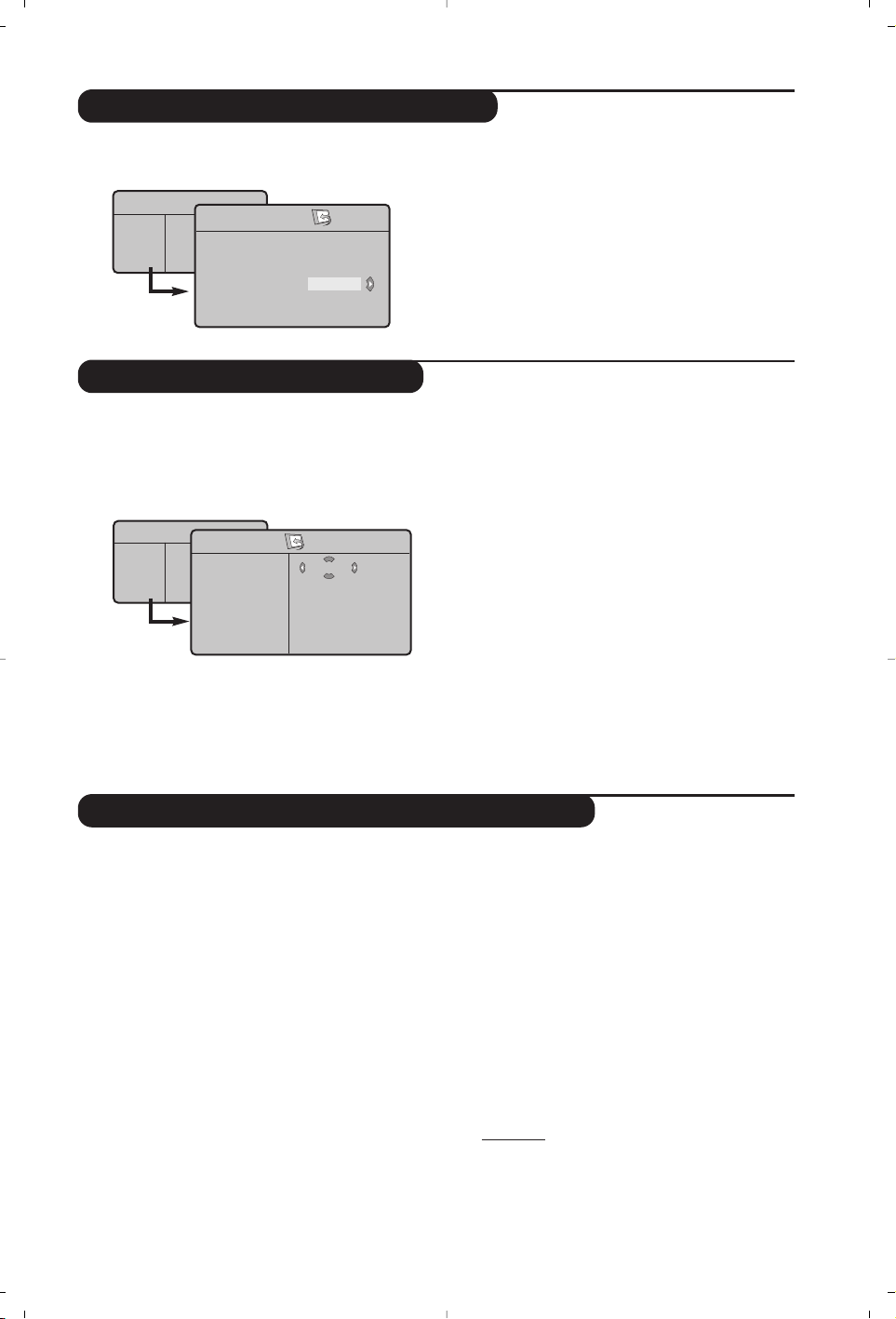
Manual store
Other settings in the Install menu
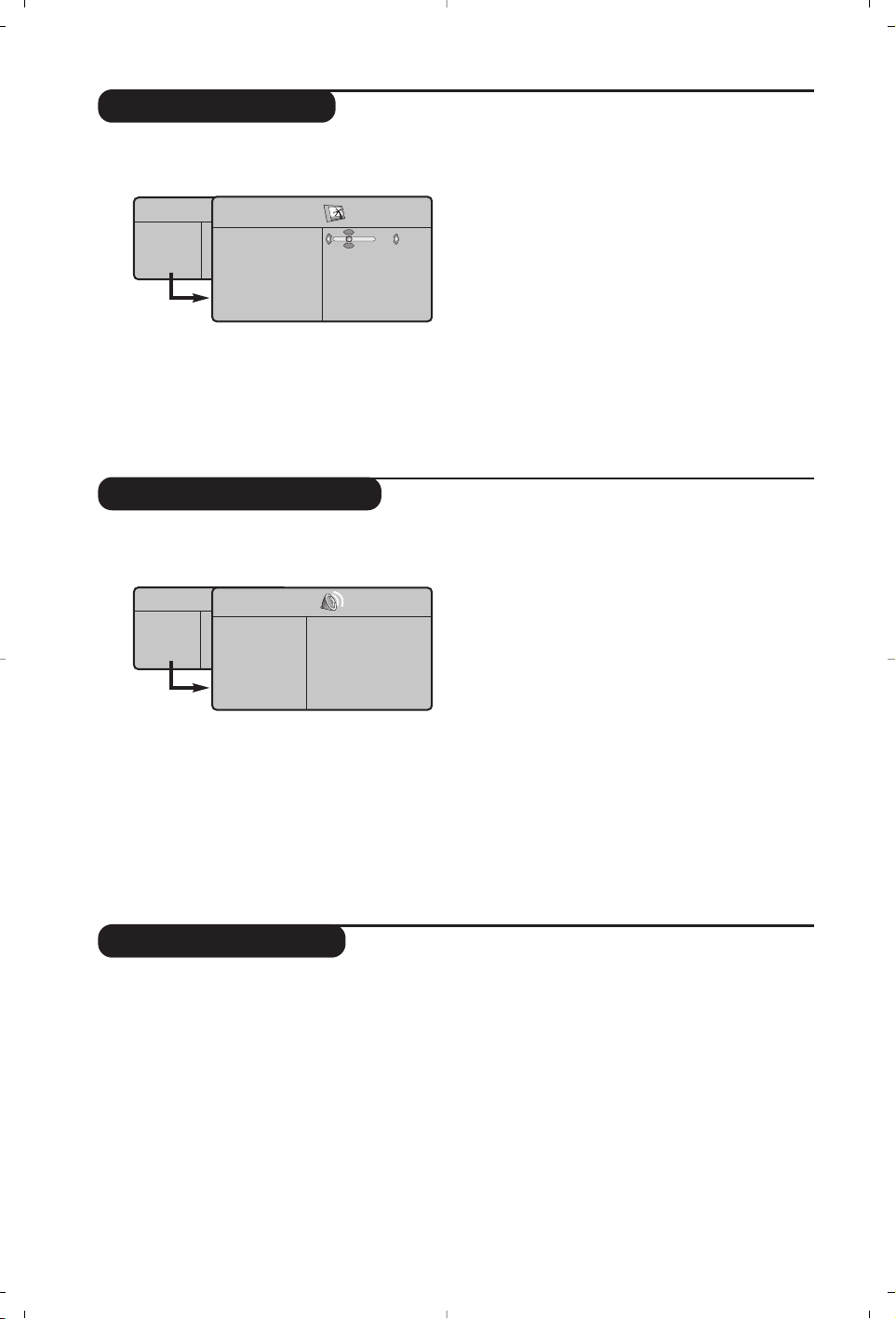
This menu is used to store the programmes
one at a time.
& Press the
h key.
é With the cursor, select the Install menu then
Manual store:
“ System: select
Europe (automatic detection*)
or
Western Europe (BG standard), Eastern
Europe (DK standard), United Kingdom (I
standard) or France (LL’ standard).
* Except for France (LL’ standard), you must select
choice France.
‘ Search: press
≥.The search starts. Once a
programme is found, the scanning stops and its
name is displayed (when available). Go to the
next step. If you know the frequency of the
required programme, this can be entered
directly using the
ñ to ô keys.
If no picture is found, consult the possible solutions (p. 14).
( Program No.: enter the required number
with the
≤≥ or ñ to ô keys.
§ Fine Tune: if the reception is not satisfactory,
adjust using the
≤≥ keys.
è Store: press
≥.The program is stored.
! Repeat steps ‘ to ! for each programme to
store.
ç To quit the menus, press ∂.
& Press the h key and select the Install menu:
é Language: to change the display language for
the menus.
“ Country: to select your country (GB for
Great Britain).
This setting is used for the search, automatic
programme sort and teletext display. If your country
does not appear in the list, select “. . .”
‘ Auto Store: to start automatic search for all
programmes available in your region. If the
transmitter or cable network sends the
automatic sort signal, the programmes will be
numbered correctly. If this is not the case, you
need to use the Sort menu to renumber the
programmes (see p. 5).
Some transmitters or cable networks broadcast
their own sort parameters (region, language, etc.). In
this case, indicate your choice using the
<> keys
and validate with
≥.To quit or interrupt the search,
press h. If no picture is found, consult the
possible solutions (p. 14).
( Name .:
If required, you can give a name to the
programmes and external connectors. Use the
≤≥ keys to move around the name display area
(5 characters) and the
<> keys to select the
characters.When the name has been entered,
use the
≤ key to exit.The name is stored.
Note: on installation, the programs are named
automatically when an identification signal is sent.
§ To quit the menus, press
∂.
TV Menu
Picture
Sound
Features
Install
Mode
Manual Store
System
Search
Program No.
Fine Tune
Store
Europe
Program sort
& Press key h.The TV Menu is displayed on
the screen.
é With the cursor, select the Install menu
followed by the Sort menu.
“ Select the programme you want to move using
the
<> keys and press ≥.
‘ Then use the
<> keys to select the new
number and validate with
≤.
( Repeat steps “ and ‘ for each program you
wish to renumber.
§ To quit the menus, press
∂.
TV Menu
Picture
Sound
Features
Install
Mode
Install
Language Æ •
Country Æ •
Auto Store Æ •
Manual Store Æ •
Sort Æ •
Name Æ •
0
1
2
3
4
5
6
Picture settings
Sound adjustments
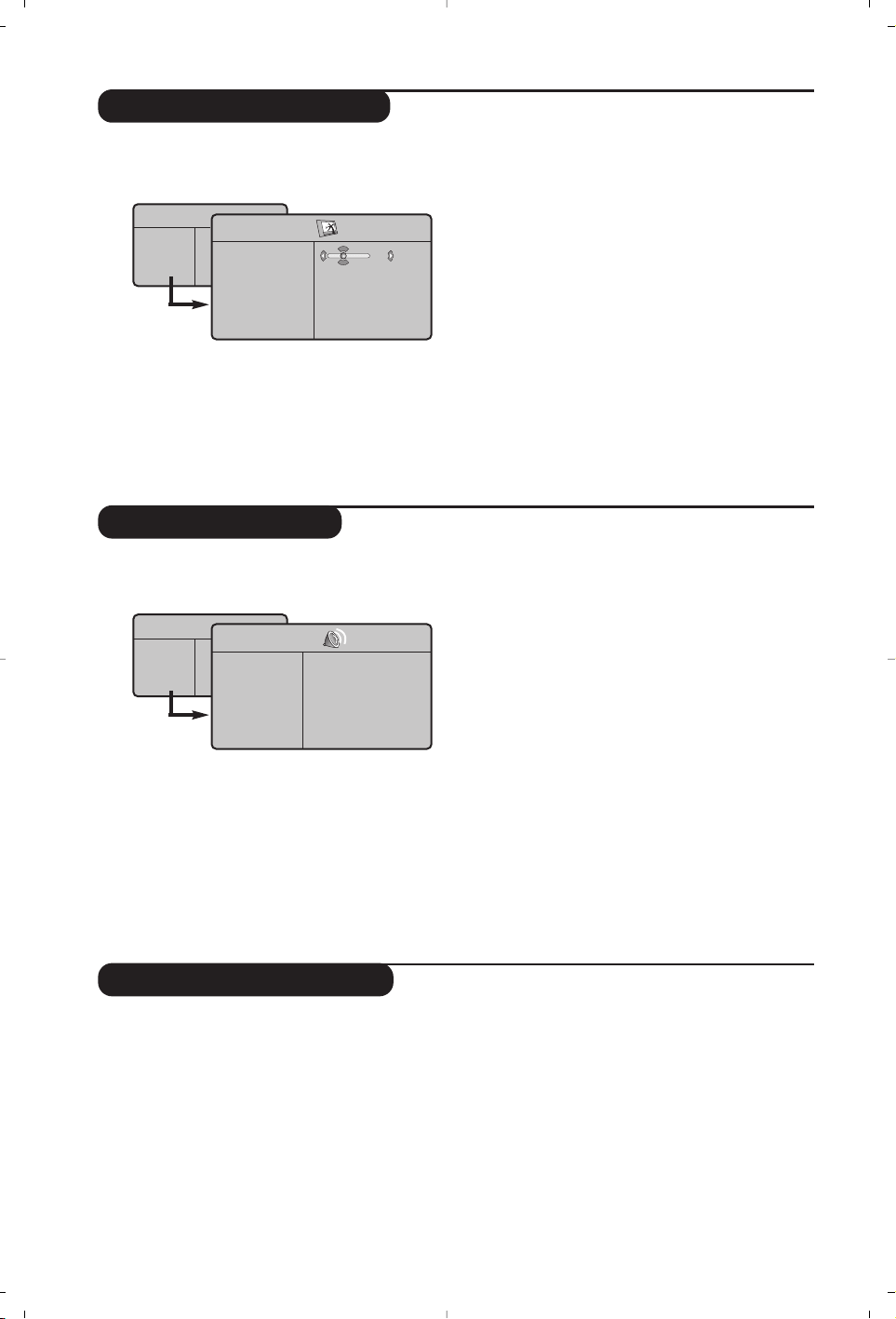
& Press h then ≥.The Picture menu is
displayed:
é Use the
<> keys to select a setting and the
≤≥ keys to adjust.
“ Once the adjustments have been made, select
Store and press ≥ to store them. Press ∂
to exit.
Description of the adjustments:
• Brightness: this changes picture brilliance.
• Colour: this changes the intensity of the
colour.
• Contrast: this changes the difference
between the light and dark tones.
•
Sharpness: this changes the picture definition.
• Colour Temp.: this changes the colour
rendering:
Cold (bluer), Normal (balanced)
or
Warm (redder).
• Store: to store the picture adjustments and
settings.
& Press h, select Sound (>) and press ≥.The
Sound menu is displayed:
é Use the <> keys to select a setting and the
≤≥ keys to adjust.
“ Once the adjustments have been made, select
Store and press
≥ to store these changes.
‘ To quit the menus, press
∂.
Description of the settings:
• Equalizer: to adjust the sound tone (from
bass: 120 Hz to treble: 10 kHz).
•
Balance: this balances the sound on the left
and right speakers.
• Delta Volume: this is used to compensate
any volume discrepancies between the
different programs or EXT sockets.This
setting is available for programs 0 to 40 and
the EXT sockets.
• AVL (Automatic Volume Leveller): this is
used to limit increases in sound, especially on
program change or advertising slots.
• Dolby Virtual:To activate / deactivate the
surround sound effect.
• Store: this is used to store the sound
settings.
Feature settings
& Press h, select Features (>) and press ≥.
You can adjust:
é Contrast +: automatic adjustment of the
picture contrast which permanently sets the
darkest part of the picture to black.
“ NR (Noise Reduction): reduces picture
noise (snow) in difficult reception conditions.
‘ Sleep : to select the length of time before the
set automatically switches to standby (from 0
to 240 minutes)
( PIP (Picture in Picture): to adjust the size
and position of the PIP screen.
§ To quit the menus, press
∂.
TV Menu
Picture
Sound
Features
Install
Mode
Picture
Brightness
Colour
Contrast
Sharpness
Colour Temp.
Store
39
TV Menu
Picture
Sound
Features
Install
Mode
Sound
Equalizer Æ •
Balance Æ •
Delta Volume Æ •
AVL Æ •
Dolby Virtual Æ •
Store Æ •
120 Hz
500 Hz
1500 Hz
5 KHz
10 KHz
7
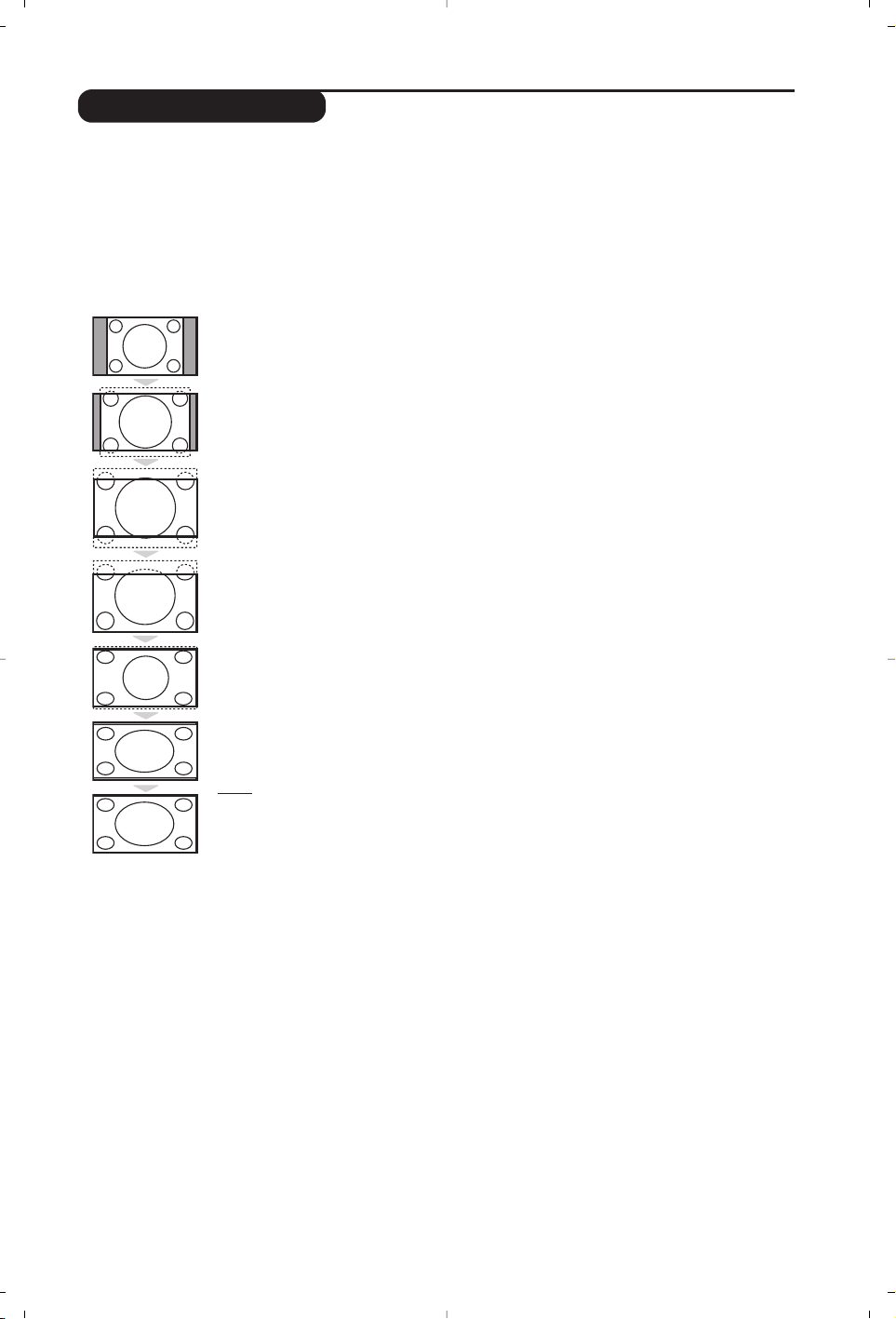
Screen Formats
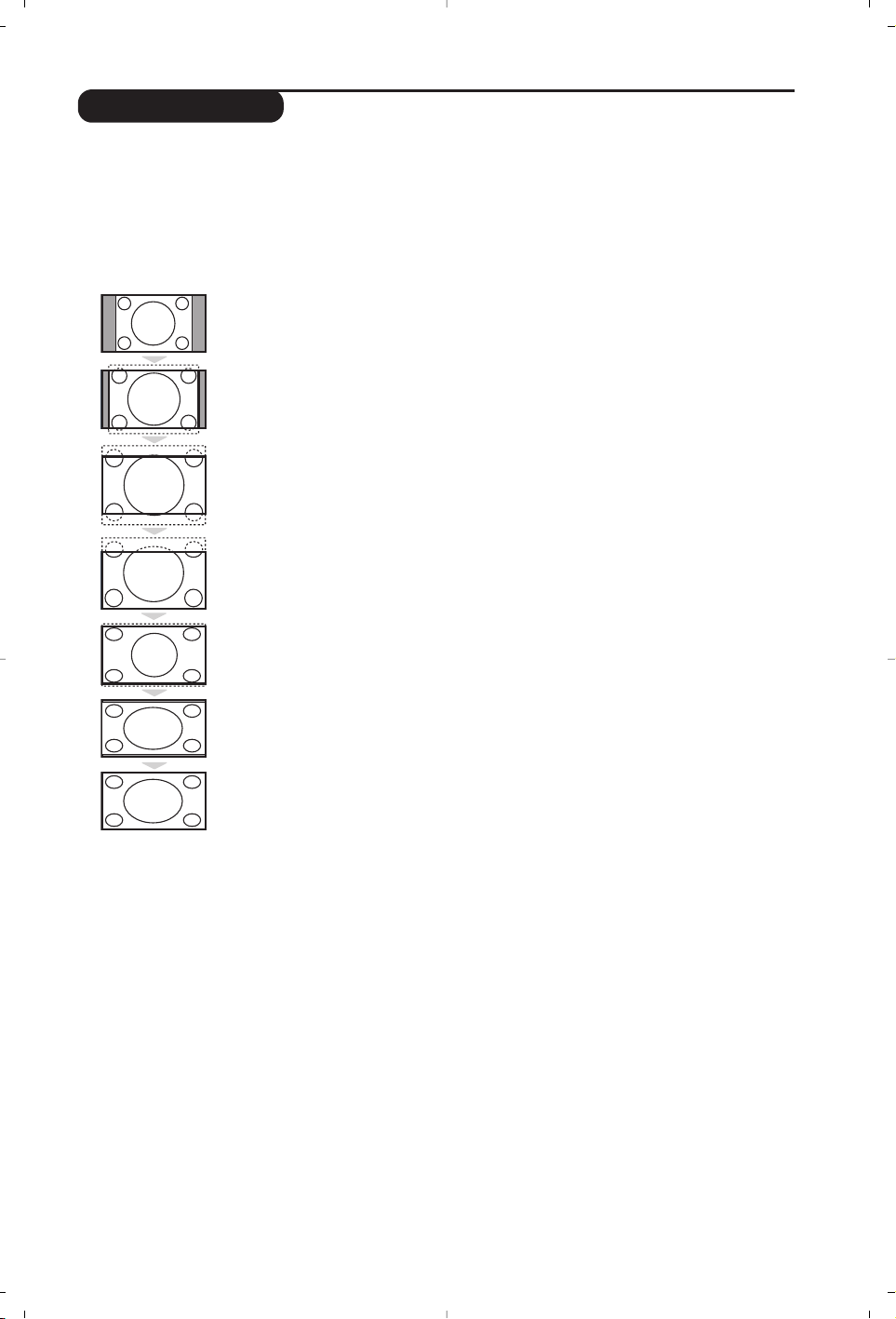
The pictures you receive may be transmitted in 16:9 format (wide screen) or 4:3 format
(conventional screen). 4:3 pictures sometimes have a black band at the top and bottom of the screen
(letterbox format).This function allows you to optimise the picture display on screen.
Press the
ë
key (or ≤≥) to select the different modes:
This TV set is also equipped with automatic switching which will select the correct-screen
format, provided the specific signals are transmitted with the programmes.
4:3
The picture is reproduced in 4:3 format and a black band is displayed on either side
of the picture.
Zoom 14:9
The picture is enlarged to 14:9 format, a thin black band remains on both sides of
the picture.
Zoom 16:9
The picture is enlarged to 16:9 format.This mode is recommended when displaying
pictures which have black bands at the top and bottom (letterbox format).
Subtitle Zoom
This mode is used to display 4:3 pictures using the full surface of the screen leaving
the sub-titles visible.
Super Wide
This mode is used to display 4:3 pictures using the full surface of the screen by
enlarging the sides of the picture.
Widescreen
This mode restores the correct proportions of images transmitted in 16:9.
Note: If you display a 4:3 picture in this mode, it will be enlarged horizontally.
Fullscreen
This mode displays images in full screen.
8
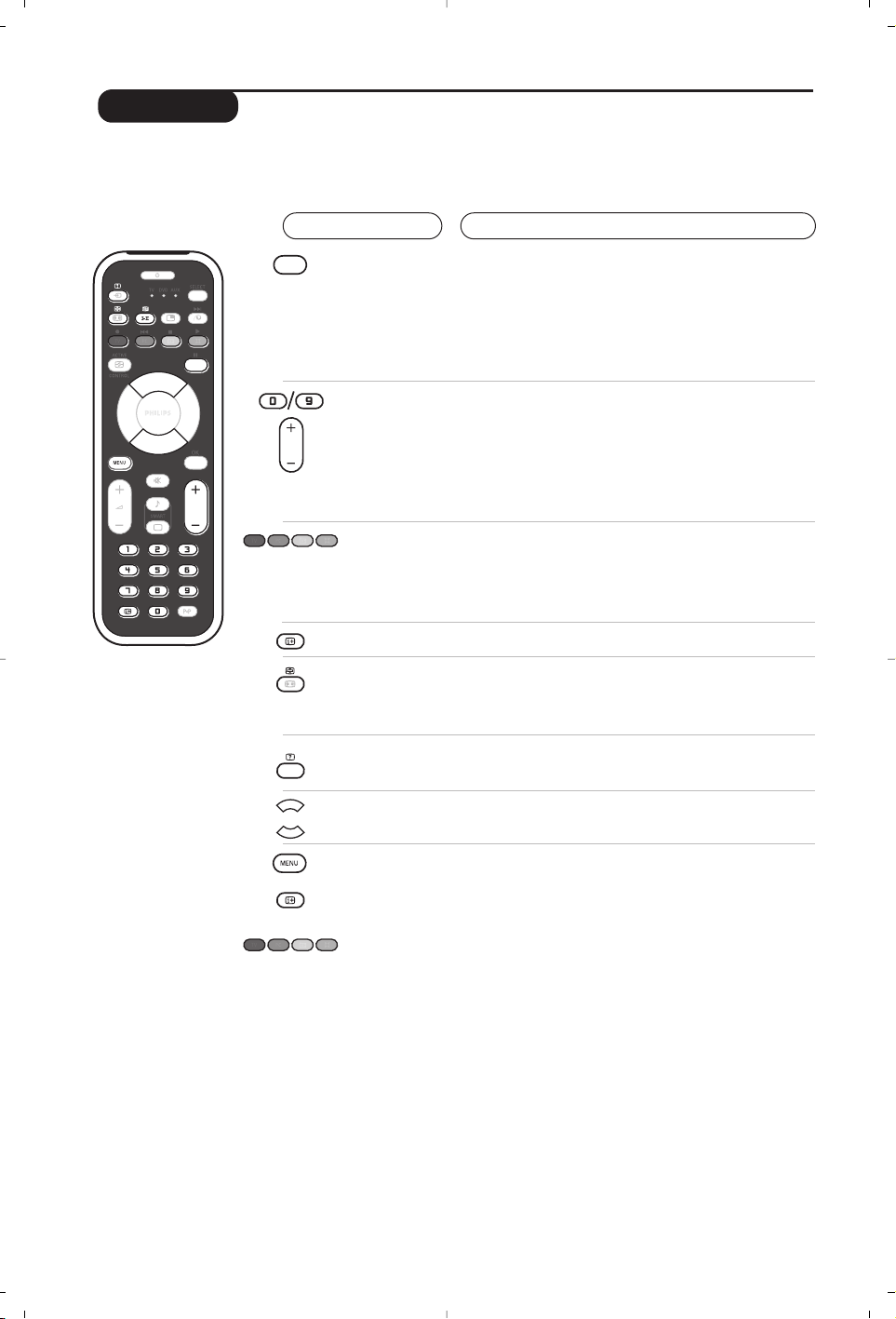
Teletext
Press :
You will obtain :
Teletext is an information system broadcast by certain channels which can be consulted like a
newspaper. It also offers access to subtitles for viewers with hearing problems or who are not familiar
with the transmission language (cable networks, satellite channels, etc.).
P
P
ı
¤
¤
Y
Teletext call
Selecting a
page
This is used to call teletext, change to transparent mode
and then exit.The summary appears with a list of items
that can be accessed. Each item has a corresponding
3 digit page number.
If the channel selected does not broadcast teletext, the
indication 100 will be displayed and the screen will remain
blank (in this case, exit teletext and select another channel).
Enter the number of the page required using the
ñ to
ô or- P + keys. Example: page 120, enter ó ò ñ.
The number is displayed top left, the counter turns and
then the page is displayed. Repeat this operation to view
another page.
If the counter continues to search, this means that the page is
not transmitted. Select another number.
Direct access
to the items
Coloured areas are displayed at the bottom of the screen.
The 4 coloured keys are used to access the items or
corresponding pages.
The coloured areas flash when the item or the page is not yet
available.
Contents
This returns you to the contents page (usually page 100).
Stop or resume
display of
sub-page
Certain pages contain sub-pages which are automatically
displayed successively.This key is used to stop or resume
display of sub-page.The indication
_ appears top left.
Hidden
information
Enlarge a
page
Favourite
pages
To display or hide the concealed information (games
solutions).
This allows you to display the top or bottom part of the
page and then return to normal size.
Instead of the standard coloured areas displayed at the bottom
of the screen, you can store 4 favourite pages on the first
40 channels which can then be accessed using the coloured
keys (red, green, yellow, blue). Once set, these favourite pages
will become the default every time tetetext is selected.
& Press the h key to change to favourite pages mode.
é Display the teletext page that you want to store.
“ Press the coloured key of your choice for 3 seconds.
The page is now stored.
‘ Repeat the operation with the other coloured keys.
( Now when you consult teletext, your favourite pages
will appear in colour at the bottom of the screen.
To temporaly retrieve the standard items, press h.
To clear everything, and return the standard items as the
default, press
∂ for 5 seconds.
9
Using in PC monitor mode
PC Mode
Your TV can be used as a computer monitor.
The PIP function lets you display a
superimposed image to watch the TV channels
at the same time.
You must first of all connect the computer and
adjust the resolution (see p.12).
Choosing PC mode
Press the
U key on the remote control to
switch the TV to PC-A mode
(VGA In) or
PC-D mode
(DVI-D In).Press the W key to
return to TV mode.
If there is no PC signal for more than five seconds,
the TV automatically goes into standby mode.
Using PIP (Picture in Picture)
While in PC mode you can call up a window
for TV channels.
Attention
: the PIP feature is only available if a
computer is connected to the DVI-D In (see p. 12).
& Press the
g key to display the PIP screen.
The television image is reproduced in a small
superimposed window.
é Subsequent presses of the
g key changes
the size of the window, switches to dual
screen and turns PIP off.
“ Use the
- P + keys to change the programmes
of the PIP screen or the
µ key if you want to
display a picture from an appliance connected
to the TV (e.g. video recorder, DVD).
Using the PC menus
Press the h key to access the specific settings of
the PC monitor mode. Use the cursor to adjust
them (the settings are automatically saved) :
• Picture :
-
Brightness / Contrast
: to adjust the
brightness and contrast.
-
Horizontal / Vertical
:
to adjust the horizontal
and vertical placing of the image.
- Adjust Colour :
to adjust the colours (cold,
normal or warm).
• Audio Selection :
to choose the sound
reproduced on the TV (PC or TV/Radio).
For example, you can listen to the radio while
you use the computer.
• Features :
-
Phase/Clock*
:
eliminates the horizontal
(
Phase) and vertical (Clock) interfering lines.
- View Format:
to choose between large screen
or the original format of the PC screens.
- PIP Controls :
to adjust the size and position
of the PIP screen.
- Auto Adjust :
position is set automatically.
• Reset To Factory Setting :
to return to the
factory settings (default settings).
• Mode Select :
to come back to TV or radio
mode.
*These adjustments are not available when a
computer is connected to the
DVI-D In.
Using the radio
Choosing radio mode
Press the
 key on the remote control to
switch the TV to radio mode. Press the
W
key to return to TV mode. In radio mode the
number and name of the station (if available),
its frequency and the sound mode are
indicated on the screen.
Selecting programmes
Use the
ñ
/
ô
or - P + keys to select the
FM stations (from 1 to 40).
List of radio stations
Press the
T
key to display / hide the list of
radio stations. Then use the cursor to select a
station.
Using the radio menus
Use the
h key to access the specific radio
settings.
Searching radio stations
If you have used the quick installation all the
available FM stations will be stored. To start a
new search use the
Install menu : Auto Store
(for a complete search) or Manual Store (for
a station by station search).These menus work
in exactly the same way as the TV menus.
Screen saver
In the
Features menu you can activate / close
the screen saver.
NOTE
– When using the LCD TV as a PC monitor, slight diagonal interference lines may be observed when it is
operated under electromagnetic interference environment but will not affect the performance of this product.
– For better performance, good quality VGA/DVI cable with good noise isolation filter is recommended.
10
Using in HD (High Definition) Mode
HD Mode
The HD (High Definition) mode allows you to
enjoy clearer and sharper pictures through
the DVI inputs if you are using a HD
receiver/ equipment that can transmit high
definition programming.
You must first of all connect the HD equipment
(see p.13).
Choosing HD mode
Press the
j key on the remote control to
switch the TV to HD-A mode
(VGA In) or
HD-D mode
(DVI-D In).Press the W key to
return to TV mode.
Using the HD menus
Press the
MENU key to access the specific
settings of the HD mode. Use the cursor to
adjust them (the settings are automatically
saved):
Picture:
• Brightness: this changes picture brilliance.
• Colour: this changes the intensity of the
colour.
• Contrast: this changes the difference
between the light and dark tones.
•
Sharpness: this changes the picture
definition.
• Colour Temp.: this changes the colour
rendering:
Cool (bluer), Normal (balanced)
or
Warm (redder).
• Store: to store the picture adjustments and
settings.
Sound:
• Equalizer: to adjust the sound tone (from
bass: 120 Hz to treble: 10 kHz).
• Balance: this balances the sound on the left
and right speakers.
• Delta Volume: this is used to compensate
any volume discrepancies between the
different programs or EXT sockets.
• AVL (Automatic Volume Leveller): this is
used to limit increases in sound, especially
on program change or advertising slots.
• Dolby Virtual:To activate / deactivate the
surround sound effect.
• Store: this is used to store the sound
settings.
Features:
• S
leep : to select the length of time before
the set automatically switches to standby
(from 0 to 240 minutes).
•
PIP (Picture in Picture): to adjust the
size and position of the PIP screen.
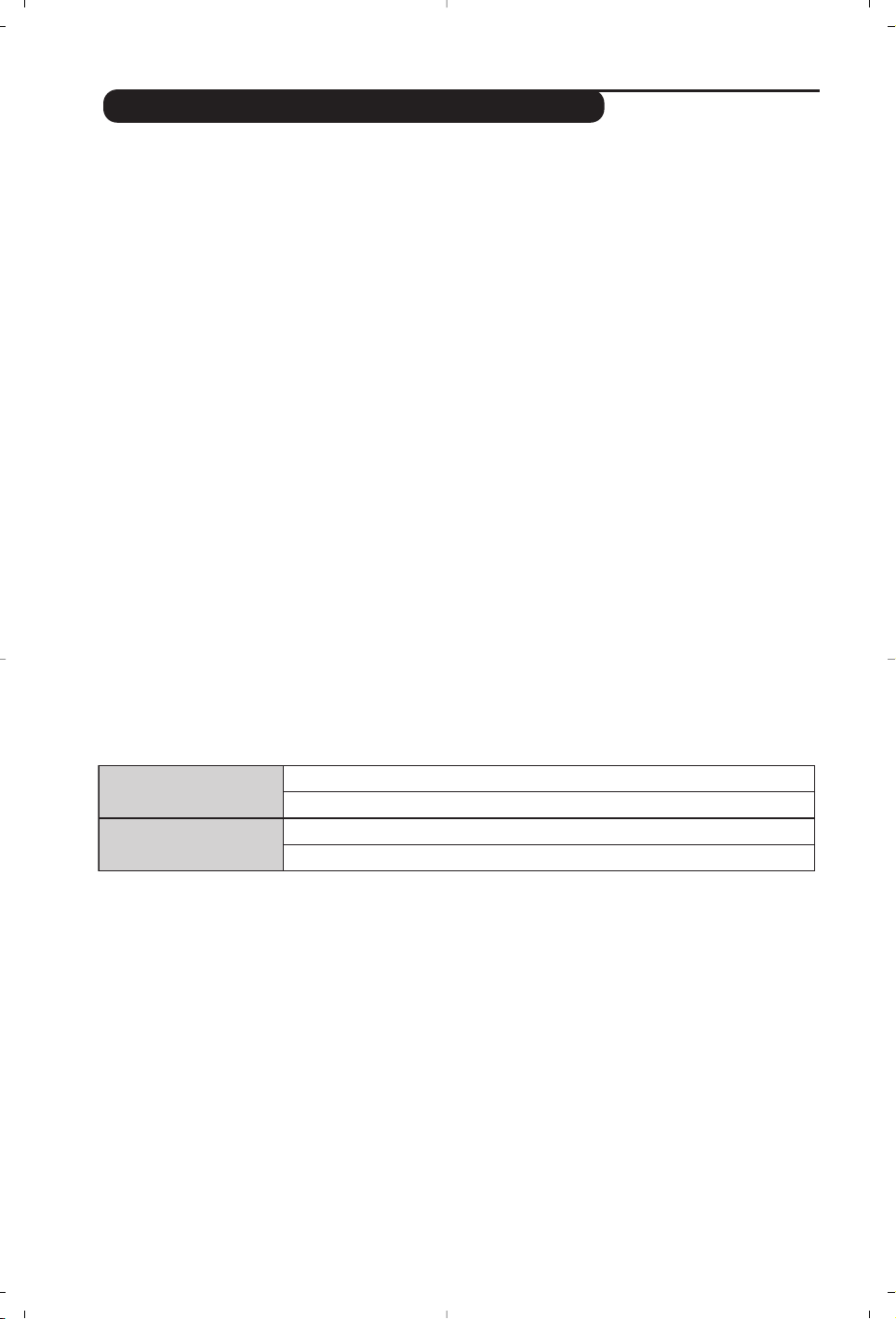
Here is the list of the different display resolutions available on your TV:
480 i
576 i
Analogue HD (YPbPr)
480 p
576 p
720 p
1080 i
EDTV 480 p
EDTV 576 p
Digital HD (DVI-D)
HDTV 720 p HDTV 1080 i
11
Connecting peripheral equipment
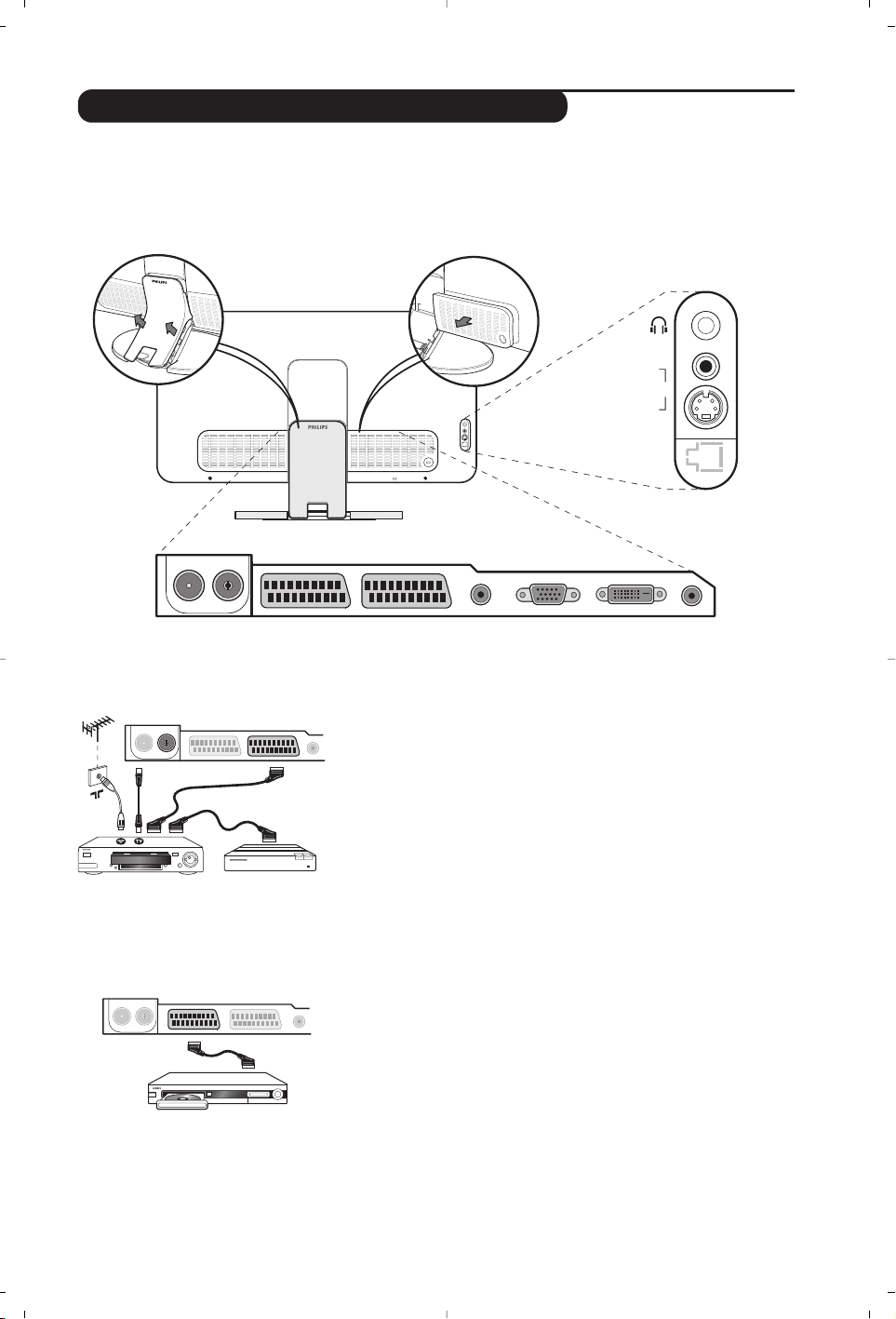
Carry out the connections shown opposite, using a good quality
euroconnector cable.
If your video recorder does not have a euroconnector socket, the only
connection possible is via the aerial cable.You will therefore need to
tune in your video recorder's test signal and assign it programme
number 0 (refer to manual store, p. 5).
To reproduce the video recorder picture, press
ñ.
Video recorder with decoder
Connect the decoder to the second euroconnector socket of
the video recorder.You will then be able to record scrambled
transmissions.
The television has 2 external sockets situated at the back of the set (EXT1 and EXT2).
Remove the stand cover and the clip on rear panel of the television to expose the connectors.
Arrange the leads by passing them through the television stand. Replace the stand cover.
The EXT1 socket has audio, CVBS/RGB inputs and audio, CVBS outputs.
The EXT2 socket has audio, CVBS/S-VHS inputs and audio, CVBS outputs.
Video recorder
Satellite receiver, decoder, DVD, DVD-R,games, etc.
Carry out the connections shown opposite.
To optimise picture quality, connect the equipment which
produces the RGB signals (digital decoder, games, etc.) to EXT1,
and the equipment which produces the S-VHS signals (S-VHS and
Hi-8 video recorders, certain DVD drives) to EXT2 and all other
equipment to either EXT1 or EXT2.
To select connected equipment
Press the
µ key to select EXT1, EXT2/S-VHS2 (S-VHS signals
from the EXT2 socket) and
AV/S-VHS for connections on the
front panel.
Most equipment (decoder, video recorder) carries out the switching itself.
Other equipment
EXT 1 EXT 2FM ANT
:
EXT 1 EXT 2FM ANT
:
VGA In DVI-D In Audio InAudio Out
:
EXT 1 EXT 2FM ANT
AV in
AV 3
S-VIDEO
12
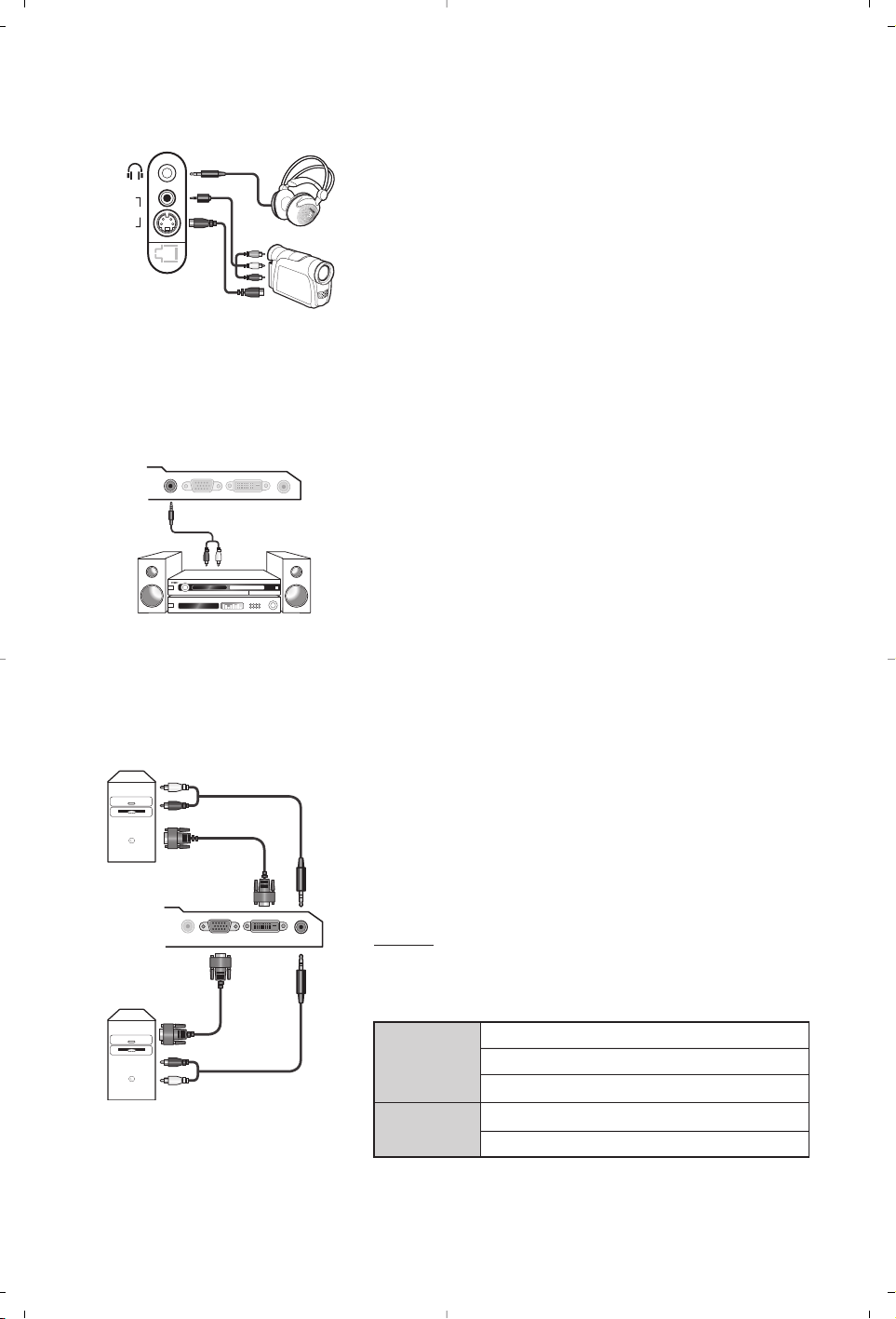
Make the connections as shown opposite.
With the
µ key, select AV/S-VHS.
For a mono set, connect the sound signal to the AUDIO L (or AUDIO R)
input.The sound automatically comes out of the left and right speakers
of the set.
Headphones
When headphones are connected, the sound on the TV set will be
cut.The
- ” +
keys are used to adjust the volume level.
The headphone impedance must be between 32 and 600 Ohms.
Side connections
Amplifier
Computer
To connect to a home theater or hi-fi system, use an audio
connection cable and connect the sound output
Audio out on
the TV set to the “AUDIO IN” “L” and “R” input on your hi-fi
amplifier.
Connect the monitor output of your computer to the
PC VGA
In or DVI-D In
of the TV.
Attention: If you are using a Notebook computer, you need to toggle to the
monitor screen (please refer to your Notebook Computer user manual).
Connect the sound output Audio out L and R of the computer
to the input
Audio in (PC) of the TV.
Attention: the PIP feature is only available if a computer is connected
to the DVI-D In. For more information on using PC mode see page 9.
Configure the computer on 1024 x 768, 60 Hz for optimum
resolution.
Attention:
if you use another resolution, the PIP function may not work.
In this case a warning message is displayed on the screen.
Here is the list of the different display resolutions available on
your TV:
VGA
In
DVI-D
In
Audio
In
Audio
Out
Audio
in
VGA In DVI-D In Audio In
Audio
Out
Analogue
PC
Digital
PC
AV in
AV 3
S-VIDEO
640 x 350 p
640 x 480 p
Analogue PC
(VGA)
720 x 400 p
800 x 600 p
832 x 624 p
1024 x 768 p
640 x 350 p
640 x 480 p
720 x 400 p
Digital PC
(DVI-D)
800 x 600 p
832 x 624 p
1024 x 768 p
1152 x 864 p
1280 x 960 p
1280 x 1024 p
13
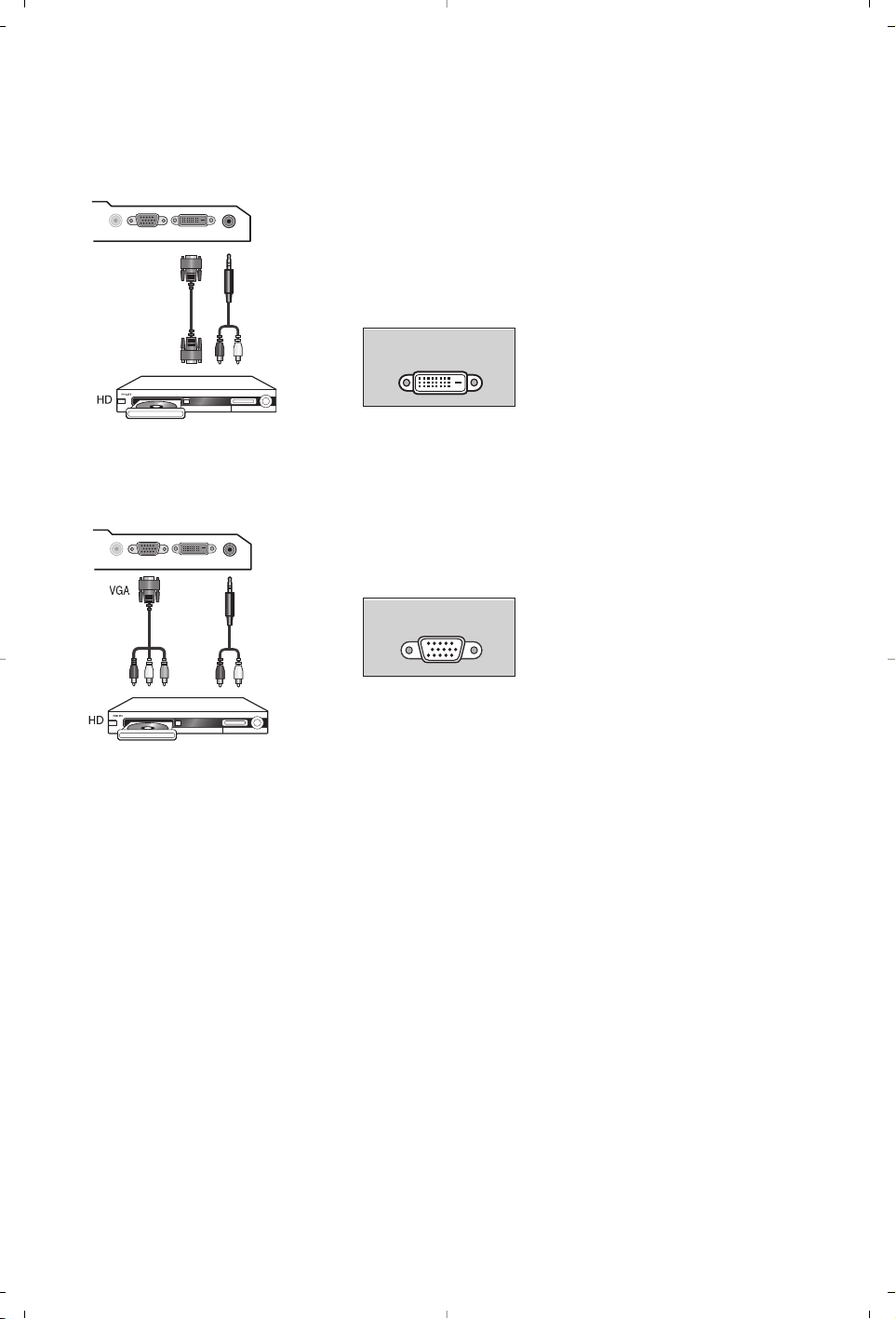
Make the connections as shown opposite.
Press the
j key on the remote control to switch the TV to
HD-A mode
(VGA In) or HD-D mode (DVI-D In)
For more information on using HD mode see page 10.
Supports Digital signals only.
Supports Analogue (YPbPr) signals.
DVI-
D
DVI-
D
VGA In DVI In Audio In
Audio
Out
Y Pb P
r
VGA In DVI In Audio In
Audio
Out
HD Digital Connection (DVI-D)
HD equipment
HD Analogue Connection (VGA)
DVI-DDVI-D
VGAVGA
14
Glossary
DVI (Digital Visual Interface):A digital interface
standard created by the Digital Display
Working Group (DDWG) to convert analog
signals into digital signals to accommodate
both analog and digital monitors.
VGA (Video Graphics Array): a common standard
graphics display system for PCs.
RGB signals : These are the three video signals,
Red Green Blue, which make up the picture.
Using these signals improves picture quality.
S-VHS Signals: These are 2 separate Y/C video
signals from the S-VHS and Hi-8 recording
standards.The luminance signals Y (black and
white) and chrominance signals C (colour) are
recorded separately on the tape.This provides
better picture quality than with standard video
(VHS and 8 mm) where the Y/C signals are
combined to provide only one video signal.
NICAM sound: Process by which digital sound
can be transmitted.
System: Television pictures are not broadcast in
the same way in all countries.There are different
standards: BG, DK, I, and L L’.The
System setting
(p. 5) is used to select these different standards.This
is not to be confused with PAL or SECAM colour
coding. Pal is used in most countries in Europe,
Secam in France, Russia and most African countries.
The United States and Japan use a different system
called NTSC.The inputs EXT1 and EXT2 are used
to read NTSC coded recordings.
16:9: Refers to the ratio between the length and
height of the screen.
Wide screen televisions have a ratio of 16/9,
conventional screen TV sets have a ratio of 4/3.
Tips
Poor reception
No picture
No sound
PC and PIP modes
don’t work ?
Remote control
Standby
Cleaning the set
Still no results?
The proximity of mountains or high buildings may be responsible for ghost
pictures, echoing or shadows. In this case, try manually adjusting your picture: see
Fine Tune (p.5) or modify the orientation of the outside aerial. If you are using an
indoor aerial, reception may be difficult in certain conditions.You can improve
reception by rotating the aerial. If the reception remains poor, you will need to
use an external aerial
Have you connected the aerial socket properly? Have you chosen the right
system? (p. 5). Poorly connected euroconnector cables or aerial sockets are often
the cause of picture or sound problems (sometimes the connectors can become
half disconnected if the TV set is moved or turned). Check all connections.
If on certain channels you receive a picture but no sound, this means that you do not have
the correct TV system. Modify the
System
setting (p. 5).
The amplifier connected to the TV does not deliver any sound? Check that you
have not confused the audio output with the audio input.
Check that you have configured the computer on a compatible display resolution
(see p. 12).
You can’t get the radio sound in PC mode? When PIP is active the sound is
forced to TV.
The TV set does not react to the remote control; the indicator on the set no
longer flashes when you use the remote control? Replace the battery.
If the set receives no signal for 15 mins, it automatically goes into standby mode.
To save power, your set is fitted with components that give it a very low power
consumption when in standby mode (less than 1 W).
Only use a clean, soft and lint-free cloth to clean the screen and the casing of your
set. Do not use alcohol-based or solvent-based products.
Disconnect the mains plug of the TV for 30 seconds then reconnect it.
If your TV set breaks down, never attempt to repair it yourself: contact your
dealer's after-sales service.

1
Introduction
Sommaire
Vous venez d’acquérir ce téléviseur, merci de votre confiance.
Nous vous conseillons de lire attentivement les instructions qui suivent pour
mieux comprendre les possibilités offertes par votre téléviseur.
Installation
Présentation du téléviseur LCD . . . . . . . . . . . . . . . . . . . . . . . . . . . . . . . . . . . . . . .2
Télécommande . . . . . . . . . . . . . . . . . . . . . . . . . . . . . . . . . . . . . . . . . . . . . . . . . . . . 2
Les touches de la télécommande . . . . . . . . . . . . . . . . . . . . . . . . . . . . . . . . . . . . . . 3
Installation du téléviseur . . . . . . . . . . . . . . . . . . . . . . . . . . . . . . . . . . . . . . . . . . . . . 4
Installation rapide . . . . . . . . . . . . . . . . . . . . . . . . . . . . . . . . . . . . . . . . . . . . . . . . . . .4
Classement des programmes . . . . . . . . . . . . . . . . . . . . . . . . . . . . . . . . . . . . . . . . . 5
Mémorisation manuelle . . . . . . . . . . . . . . . . . . . . . . . . . . . . . . . . . . . . . . . . . . . . . 5
Autres réglages du menu Installation . . . . . . . . . . . . . . . . . . . . . . . . . . . . . . . . . . .5
Utilisation
Réglages de l’image . . . . . . . . . . . . . . . . . . . . . . . . . . . . . . . . . . . . . . . . . . . . . . . . .6
Réglages du son . . . . . . . . . . . . . . . . . . . . . . . . . . . . . . . . . . . . . . . . . . . . . . . . . . . .6
Réglage des options . . . . . . . . . . . . . . . . . . . . . . . . . . . . . . . . . . . . . . . . . . . . . . . . .6
Format 16:9 . . . . . . . . . . . . . . . . . . . . . . . . . . . . . . . . . . . . . . . . . . . . . . . . . . . . . . .7
Télétexte . . . . . . . . . . . . . . . . . . . . . . . . . . . . . . . . . . . . . . . . . . . . . . . . . . . . . . . . . 8
Utilisation de la radio . . . . . . . . . . . . . . . . . . . . . . . . . . . . . . . . . . . . . . . . . . . . . . . .9
Utilisation en mode moniteur PC . . . . . . . . . . . . . . . . . . . . . . . . . . . . . . . . . . . . . .9
Utilisation en mode HD (Haute Définition) . . . . . . . . . . . . . . . . . . . . . . . . . . . . .10
Raccordements
Magnétoscope . . . . . . . . . . . . . . . . . . . . . . . . . . . . . . . . . . . . . . . . . . . . . . . . . . . . 11
Autres appareils . . . . . . . . . . . . . . . . . . . . . . . . . . . . . . . . . . . . . . . . . . . . . . . . . . 11
Pour sélectionner les appareils connectés . . . . . . . . . . . . . . . . . . . . . . . . . . . . . .11
Connexions latérales . . . . . . . . . . . . . . . . . . . . . . . . . . . . . . . . . . . . . . . . . . . . . . 12
Amplificateur . . . . . . . . . . . . . . . . . . . . . . . . . . . . . . . . . . . . . . . . . . . . . . . . . . . . .12
Ordinateur . . . . . . . . . . . . . . . . . . . . . . . . . . . . . . . . . . . . . . . . . . . . . . . . . . . . . . .12
Lecteur/Récepteur HD . . . . . . . . . . . . . . . . . . . . . . . . . . . . . . . . . . . . . . . . . . . . . . . .13
Informations pratiques
Conseils . . . . . . . . . . . . . . . . . . . . . . . . . . . . . . . . . . . . . . . . . . . . . . . . . . . . . . . . 12
Glossaire . . . . . . . . . . . . . . . . . . . . . . . . . . . . . . . . . . . . . . . . . . . . . . . . . . . . . . . .12
FR
Directive pour le recyclage
Elimination de votre ancien produit.
Votre téléviseur est conçu et fabriqué avec des matériaux et composants de haute qualité
qui peuvent être recyclés et réutilisés.
La directive européenne 2002/96/EC s’applique à tous les appareils marqués de ce logo
(poubelle barrée). Renseignez-vous sur les systèmes de collecte mis à votre disposition
pour les appreils électriques et électroniques.
Conformez-vous aux règles en vigueur dans votre localité et ne jetez pas vos anciens
appareils avec les déchêts ménagers. L’élimination appropriée de votre ancien appareil aidera
à prévenir les effets négatifs sur l’environnement et la santé humaine.
L’emballage de cet appareil peut être recyclé. Conformez-vous aux règles en vigueur dans
votre localité pour une élimination appropriée.
°
2
Présentation du téléviseur LCD
Télécommande
&
Les touches du téléviseur
• . : pour allumer ou éteindre le téléviseur.
• VOLUME - + : pour régler le niveau sonore.
• PROGRAM - + : pour sélectionner les
programmes.
• Pour appeler ou quitter les menus, appuyez
simultanément sur les 2 touches VOLUME - +.
Ensuite, les touches
PROGRAM - +
permettent
de sélectionner
un réglage et les touches
VOLUME - + de régler.
é Pied inclinable
Le pied peut être démonté et remplacé par un kit
de fixation mural disponible en option (renseignez-
vous auprès de votre revendeur).
Face arrière :
Les raccordements principaux s’effectuent par le
dessous du téléviseur.
Pour plus de détails sur les raccordements, voir p.11.
“ Prises d’antennes RADIO et TV
‘ Prises péritel EXT 1 et EXT 2
( Sortie Audio pour le raccordement d’un
amplificateur
§ Entrée VGA, DVI et audio pour le raccordement
d’un ordinateur
è Connexions latérales
Retirer le film d’isolation de la pile pour activer la
télécommande.
La pile livrée avec l’appareil ne contient ni mercure ni
cadmium nickel, dans un souci de préserver
l’environnement.Veillez à ne pas jeter vos piles usagées
mais à utiliser les moyens de recyclage mis à votre
disposition (consultez votre revendeur). En cas de
remplacement, utiliser une pile de même type.
-
PROGRAM
+-
VOLUME
+
&
é
VGA
In
DVI-D
In
Audio
In
Audio
Out
EXT 1 EXT 2FM ANT
"'(§
è
:
CR 2025
3
Les touches de la télécommande
Mode son
Permet de forcer les émissions
Stéréo et Nicam Stéréo en Mono
ou pour les émissions bilingues de
choisir entre Dual I ou Dual II.
L’indication Mono est rouge lorsqu’il
s’agit d’une position forcée.
Sélection des prises EXT (p.11)
Appuyez plusieurs fois pour
sélectionner l’appareil connecté.
Formats 16:9 (p. 7)
Appel du PIP (p. 9)
PC / TV / Radio/HD
Appuyez sur une de ces touches
pour commuter le téléviseur en
mode PC,TV, radio ou HD.
Curseur <>≤≥
Ces 4 touches permettent de
naviguer
dans les menus
.
Active Control
Optimise la qualité de l’image en
fonction du signal reçu et de la
luminosité ambiante.
Coupure son
Pour supprimer ou rétablir le son.
Volume
Pour ajuster le niveau sonore
Préréglages image et son
Permet d’accéder à une série de
préréglages de l’image et du son.
La position Personnel correspond aux
réglages effectués dans les menus.
Info. d’écran / n° permanent
Pour afficher / effacer le numéro
de programme, l’heure, le mode
son, et le temps restant de la
minuterie.Appuyez pendant 5
secondes pour activer l’affichage
permanent du numéro.
Veille
Permet de mettre en veille le
téléviseur. Pour l’allumer, appuyez
sur P - +, ., ñ à ô.
Sélecteur de mode*
Pixel +
Pour activer/désactiver le mode
démonstration du traitement
d’image Pixel +.
Appel télétexte (p. 8)
Menu
Pour appeler ou quitter les menus.
Sélection des programmes
Pour accéder au programme
inférieur ou supérieur. Le numéro
et le mode son s’affichent
quelques instants.
Pour certains programmes le titre de
l’émission apparaît en bas de l’écran.
Touches numériques
Accès direct aux programmes.
Pour un programme à 2 chiffres, il
faut ajouter le 2ème chiffre avant
que le trait ne disparaisse.
Programme précédent
Pour accéder au programme
précédemment visualisé.
ı Liste des programmes
Pour afficher / effacer la liste des
programmes. Utilisez ensuite les
touches <> pour sélectionner
un programme et la touche ≥
pour l’afficher.
* Sélecteur de mode
Appuyez sur la touche Select pour sélectionner le mode désiré : DVD ou AUX (amplificateur).
Le voyant de la télécommande s’allume pour montrer le mode sélectionné. Il s’éteint automatiquement après 20
secondes sans action (retour au mode TV). En fonction de l’équipement, les touches suivantes sont opérationnelles :
. ê · I¢∫I ÊÆ ∆ OK h <>≤≥ (curseur) P - + ñ/ô∂º
4
Installation rapide
La première fois que vous allumez le
téléviseur, un menu apparaît à l’écran.
Ce menu vous invite à choisir le pays ainsi que
la langue des menus :
Si le menu n’apparaît pas, maintenez appuyées
pendant 5 secondes les touches VOLUME - + du
téléviseur, pour le faire apparaître.
& Utilisez les touches <> de la télécommande
pour choisir votre pays, puis validez avec
≥.
Si votre pays n’apparaît pas dans la liste,
sélectionnez le choix “. . .”
é Sélectionnez ensuite votre langue avec les
touches
<> puis validez avec ≥.
“ La recherche démarre automatiquement.
Tous les programmes TV et stations radio
disponibles sont mémorisés. L’opération prend
quelques minutes. L’affichage montre la
progression de la recherche et le nombre de
programmes trouvés. A la fin, le menu disparaît.
Pour sortir ou interrompre la recherche, appuyez
sur
h. Si aucun programme n’est trouvé,
reportez vous au chapitre conseils p. 14.
‘ Si l’émetteur ou le réseau câblé transmet le
signal de classement automatique, les
programmes seront correctement numérotés.
L’installation est alors terminée.
( Si ce n’est pas le cas, vous devez utiliser le
menu
Classement pour les renuméroter.
Certains émetteurs ou réseaux câblés diffusent leurs
propres paramètres de classement (région, langage...).
Dans ce cas, vous devez indiquer votre choix avec les
touches <> puis valider avec ≥.
& Positionnement du téléviseur
Placez votre téléviseur sur une surface solide et
stable. Pour prévenir toute situation dangereuse,
ne pas exposer le téléviseur à des projections
d’eau, à une source de chaleur (lampe, bougie,
radiateur, ...) et ne pas obstruer les grilles de
ventilation situées à l’arrière.
é Raccordements
• Utilisez le cordon de liaison d’antenne fourni
et raccordez la prise
: située en dessous
du téléviseur à votre prise d’antenne.
• Branchez le fil d'antenne radio fournie à la
prise FM ANT située en dessous du téléviseur.
• Branchez le cordon d’alimentation sur le
téléviseur et la prise de courant sur le secteur
(220-240 V / 50 Hz).
• Rangez les fils en les passant à travers le pied
du téléviseur. Remettre en place le couvercle.
Pour le raccordement d’autres appareils, voir p.11.
“ Mise en marche
Pour allumer le téléviseur, appuyez sur la touche
marche arrêt. Un voyant s’allume en vert et
l’écran s’illumine.Allez directement au chapitre
installation rapide. Si le téléviseur reste en
veille (voyant rouge), appuyez sur la touche P +
de la télécommande.
Le voyant clignote lorsque vous utilisez la télécommande.
Installation du téléviseur
5 cm
5 cm
5 cm
FM ANT.
-
PROGRAM
+-
VOLUME
+
FM ANT
:
Plug’n’Play
Country
GB
Language
English
5
Mémorisation manuelle
Autres réglages du menu Installation
Classement des programmes
Ce menu permet de mémoriser les
programmes un par un.
& Appuyez sur la touche
h.
é Avec le curseur, sélectionnez le menu
Installation puis Mémo Manuelle :
“
Système : sélectionnez Europe (détection
automatique*) ou
Europe Ouest (norme BG),
Europe Est (norme DK), Royaume-Uni
(norme I) ou France (norme LL’).
* Sauf pour la France (norme LL’), il faut
sélectionner impérativement le choix
France.
‘
Recherche :appuyez sur ≥. La recherche
commence. Dès qu’un programme est trouvé,
le défilement s’arrête et le nom du programme
s’affiche (si disponible).Allez à l’étape suivante.
Si vous connaissez la fréquence du programme
désiré, composez directement son numéro
avec les touches
ñ à ô.
Si aucune image n’est trouvée, voir conseils (p. 14).
(
No De Prog. : entrer le numéro souhaité avec
les touches
≤≥ ou ñ à ô.
§
Ajust. Fin : si la réception n’est pas
satisfaisante, réglez avec les touches
≤≥.
è
Mémoriser :appuyez sur ≥. Le programme
est mémorisé.
! Répétez les étapes ‘ à ! autant de fois qu’il
y a de programmes à mémoriser.
ç Pour quitter les menus, appuyez sur
∂.
& Appuyez sur la touche h et sélectionnez le
menu
Installation :
é
Langage : pour modifier la langue d’affichage des
menus.
“
Pays : pour choisir votre pays (F pour France).
Ce réglage intervient dans la recherche, le
classement automatique des programmes et
l’affichage du télétexte. Si votre pays n’apparaît pas
dans la liste, sélectionnez le choix “. . .”
‘
Mémo. Auto : pour lancer une recherche
automatique de tous les programmes
disponibles dans votre région. Si l’émetteur ou
le réseau câblé transmet le signal de
classement automatique, les programmes
seront correctement numérotés. Si ce n’est pas
le cas, vous devez utiliser le menu
Classement
pour les renuméroter.
Certains émetteurs ou réseaux câblés diffusent leurs
propres paramètres de classement (région, langage, ...).
Dans ce cas, vous devez indiquer votre choix avec
les touches
<> puis valider avec ≥.Pour sortir ou
interrompre la recherche, appuyez sur h.
Si aucune image n’est trouvée, voir conseils (p. 14).
( Nom du prog.
:
vous pouvez,si vous le
souhaitez, donner un nom aux programmes,
stations radio et prises extérieures. Utilisez les
touches
≤≥ pour vous déplacer dans la zone
d’affichage du nom (5 caractères) et les touches
<> pour choisir les caractères. Lorsque le nom
est entré, utilisez la touche
≤ pour sortir. Le nom
est mémorisé.
Remarque: lors de l’installation, les programmes
sont nommés automatiquement lorsque le signal
d’identification est transmis.
§ Pour quitter les menus, appuyez sur
∂.
& Appuyez sur la touche h. Le Menu TV
s’affiche à l’écran.
é Avec le curseur, sélectionnez le menu
Installation puis le menu Classement .
“ Sélectionnez le programme que vous
souhaitez déplacer avec les touches
<> et
appuyez sur
≥.
‘ Utilisez ensuite les touches
<> pour choisir
le nouveau numéro et validez avec
≤.
( Recommencez les étapes “ et ‘ autant de
fois qu’il y a de programmes à renuméroter.
§ Pour quitter les menus, appuyez sur
∂.
Menu TV
Image •
Son •
Options •
Installation •
Mode •
Menu TV
Image •
Son •
Options •
Installation •
Mode •
Mémo. Manuel.
Système
Recherche
No. De Prog.
Ajust. Fin
Mémoriser
France
Installation
Langage Æ •
Pays Æ •
Mémo. Auto. Æ •
Mémo Manuel. Æ •
Classement Æ •
Nom du Prog. •
0
1
2
3
4
5
6
Réglages de l’image
Réglages du son
& Appuyez sur la touche h puis sur ≥.
Le menu
Image apparaît :
é Utilisez les touches
<> pour sélectionner
un réglage et les touches
≤≥ pour régler.
“ Une fois les réglages effectués, sélectionnez le
choix
Mémoriser et appuyer sur ≥ pour les
enregistrer.Appuyez sur
∂ pour quitter.
Description des réglages :
•
Lumière : agit sur la luminosité de l’image.
•
Couleur : agit sur l’intensité de la couleur.
•
Contraste : agit sur la différence entre les
tons clairs et les tons foncés.
•
Définition : agit sur la netteté de l’image.
•
Temp. Couleur : agit sur le rendu des
couleurs :
Froide (plus bleue), Normale
(équilibrée) ou Chaude (plus rouge).
•
Mémoriser : pour mémoriser les réglages de
l’image.
& Appuyez sur h, sélectionner Son (>) et
appuyez sur
≥. Le menu Son apparaît :
é Utilisez les touches
<> pour sélectionner un
réglage et les touches
≤≥ pour régler.
“ Une fois les réglages effectués, sélectionnez le
choix
Mémoriser et appuyer sur ≥ pour les
enregistrer.
‘ Pour quitter les menus, appuyez sur
∂.
Description des réglages:
•
Egaliseur : pour régler la tonalité du son (de
grave: 120 Hz à aigus: 10 kHz).
•
Balance : pour équilibrer le son sur les haut-
parleurs gauche et droit.
•
Delta Volume : permet de compenser les
écarts de volume qui existent entre les
différents programmes ou les prises EXT.
Ce réglage est opérationnel pour les
programmes 0 à 40 et les prises EXT.
• AVL (Automatic Volume Leveler): contrôle
automatique du volume qui permet de limiter
les augmentations du son, en particulier lors des
changements de programmes ou des publicités.
• Dolby Virtual : pour
activer / désactiver l’effet
d’élargissement du son.
• Mémoriser : pour mémoriser les réglages du
son.
Réglage des options
& Appuyez sur h, sélectionner Options (>) et
appuyez sur
≥.Vous pouvez régler :
é
Contraste + : réglage automatique du
contraste de l’image qui ramène en
permanence la partie la plus sombre de
l’image au noir.
“
Réduct. Bruit : atténue le bruit de l’image (la
neige), en cas de réception difficile.
‘
Minuterie : pour sélectionner une durée de
mise en veille automatique (de 0 à 240
minutes).
(
PIP
: pour ajuster la taille et la position de
l’écran PIP
§ Pour quitter les menus, appuyez sur
∂.
Menu TV
Image
Son
Options
Installation
Mode
Menu TV
Image
Son
Options
Installation
Mode
Son
Egaliseur Æ •
BalanceÆ •
Delta VolumeÆ •
AVLÆ •
Dolby VirtualÆ •
MémoriserÆ •
120 Hz
500 Hz
1500 Hz
5 KHz
10 KHz
Image
Lumière
Couleur
Contraste
Définition
Temp. Couleur
Mémoriser
39
7
Formats 16:9
Les images que vous recevez peuvent être transmises au format 16:9 (écran large) ou 4:3 (écran
traditionnel). Les images 4:3 ont parfois une bande noire en haut et en bas (format cinémascope).
Cette fonction permet d’éliminer les bandes noires et d’optimiser l’affichage des images sur l’écran.
Appuyez sur la touche
ë (ou ≤≥) pour sélectionner les différents modes :
Le téléviseur est équipé d’une commutation automatique qui décode le signal spécifique
émis par certains programmes et sélectionne automatiquement le bon format d’écran.
4:3
L’image est reproduite au format 4:3, une bande noire apparaît de chaque côté de
l’image.
Zoom 14:9
L’image est agrandie au format 14:9, une petite bande noire subsiste de chaque côté
de l’image.
Zoom 16:9
L’image est agrandie au format 16:9. Ce mode est recommandé pour visualiser les
images avec bande noire en haut et en bas (format cinémascope).
16:9 Sous-titres
Ce mode permet de visualiser les images 4:3 sur toute la surface de l’écran en
laissant visibles les sous-titres.
Super 4:3
Ce mode permet de visualiser les images 4:3 sur toute la surface de l’écran en
élargissant les côtés de l’image.
16:9
Ce mode permet de restituer les bonnes proportions des images transmises en 16:9.
Si vous visualisez une image 4:3 comme représentée ici, elle sera élargie sur le plan horizontal.
Plein Écran
Ce mode permet d’afficher les images en plein écran.
8
Télétexte
Appuyez sur :
Vous obtenez :
Le télétexte est un système d'informations, diffusé par certaines chaînes, qui se consulte comme un
journal. Il permet aussi d'accéder aux sous-titrages pour les personnes malentendantes ou peu
familiarisées avec la langue de transmission (réseaux câblés, chaînes satellites,...).
P
P
ı
¤
¤
Y
Appel
télétexte
Sélection
d’une page
Permet d’appeler le télétexte, de passer en mode
transparent puis de quitter. Le sommaire apparaît avec la
liste des rubriques auxquelles vous pouvez accéder.Chaque
rubrique est repérée par un numéro de page à 3 chiffres.
Si la chaîne sélectionnée ne diffuse pas le télétexte, l'indication
100 s'affiche et l'écran reste noir (dans ce cas, quittez le
télétexte et choisissez une autre chaîne).
Composer le numéro de la page désiré avec les touches
ñ à ô ou - P +.Exemple: page 120, tapez óòñ.
Le numéro s’affiche en haut à gauche, le compteur tourne,
puis la page est affichée.
Renouvelez l'opération pour consulter une autre page.
Si le compteur continue à chercher, c’est que la page n'est pas
transmise. Choisissez un autre numéro.
Accès
direct aux
rubriques
Des zones colorées sont affichées en bas de l’écran.
Les 4 touches colorées permettent d’accéder aux
rubriques ou aux pages correspondantes.
Les zones colorées clignotent lorsque la rubrique ou la page
n’est pas encore disponible.
Sommaire
Pour revenir au sommaire (généralement la page 100).
Arrêt de
l'alternance
des sous-
pages
Certaines pages contiennent des sous-pages qui se
succèdent automatiquement. Cette touche permet
d’arrêter ou reprendre l'alternance des sous-pages.
L'indication _ apparaît en haut à gauche.
Informations
cachées
Agrandissement
d'une page
Pages
préférées
Pour faire apparaître ou disparaître les informations
cachées (solutions de jeux).
Pour afficher la partie supérieure, inférieure, puis revenir à
la dimension normale.
Pour les programmes télétexte 0 à 40, vous pouvez
mémoriser 4 pages préférées qui seront ensuite
directement accessibles avec les touches colorées (rouge,
verte, jaune, bleue).
& Appuyez sur la touche h pour passer en mode pages
préférées.
é Affichez la page télétexte que vous souhaitez mémoriser.
“ Appuyez ensuite pendant 3 secondes sur la touche
colorée de votre choix. La page est mémorisée.
‘ Renouvelez l’opération avec les autres touches colorées.
( À présent, dès que vous consultez le télétexte, vos
pages préférées apparaissent en couleur en bas de
l’écran. Pour retrouver les rubriques habituelles,
appuyez sur h.
Pour tout effacer, appuyez sur
∂ pendant 5 secondes.
9
Utilisation de la radio
Utilisation en mode moniteur PC
Choix du mode radio
Appuyez sur la touche
 de la télécommande
pour commuter le téléviseur en mode radio.
Appuyez sur la touche
W pour revenir en
mode tv. En mode radio, le numéro de la
station, sa fréquence et le mode son s’affichent
à l’écran.
Sélection des programmes
Utilisez les touches
ñ à ô ou -P +pour
sélectionner les stations FM (de 1 à 40).
Liste des stations radio
Appuyez sur la touche T pour afficher/effacer la
liste des stations radio.
Utilisez ensuite le
curseur pour sélectionner une station.
Utilisation des menus radio
Utilisez la touche
h pour accéder aux
réglages spécifiques à la radio.
Recherche des stations radio
Si vous avez utilisé l’installation rapide, toutes les
stations FM disponibles ont été mémorisées. Pour
lancer une nouvelle recherche, utilisez le menu
Installation : Mémo. Auto (pour une recherche
complète) ou
Mémo. Manuel (pour une
recherche station par station). Le fonctionnement
de ces menus est identique a celui des menus TV.
Économiseur d’écran
Dans le menu
Options
vous pouvez activer /
désactiver l’économiseur d’écran.
Mode PC
Votre téléviseur peut être utilisé comme un
moniteur d’ordinateur. La fonction PIP vous
permettra d’afficher en même temps un écran
d’incrustation d’image pour regarder les chaînes tv.
Vous devez d’abord effectuer les raccordements de
l’ordinateur et ajuster la résolution (voir p.12).
Choix du mode PC
Appuyez sur la touche
U
de la télécommande
pour commuter le téléviseur en mode
PC-A
(entrée VGA in) ou PC-D (entrée DVI-D in).
Appuyez sur
W
pour revenir en mode tv.
En cas d’absence de signal PC pendant plus de 5
secondes, le téléviseur passe automatiquement en veille.
Utilisation du PIP
En mode PC, vous pouvez afficher une fenêtre
permettant de visualiser les chaînes tv.
Attention: la fonction PIP n’est opérationnelle que si
l’ordinateur est connecté à l’entrée DVI-D in (voir p.12)
& Appuyez sur la touche g pour afficher l’écran
PIP. L’image de la télévision est reproduite dans
une petite fenêtre d’incrustation.
é Appuyez de nouveau sur
g pour modifier la
taille de la fenêtre, passer en double écran,
puis la faire disparaître.
“
Utilisez les touches -P +pour changer les
programmes de l’écran PIP ou la touche
µ si
vous souhaitez afficher l’image d’un appareil
connecté au téléviseur (magnétoscope, DVD, ...).
Utilisation des menus PC
Appuyez sur la touche
h pour accéder aux
réglages spécifiques au mode moniteur PC.
Utilisez le curseur pour régler (les réglages
sont mémorisés automatiquement) :
•
Image
:
-
Lumière
/
Contraste
: pour régler la lumière
et le contraste.
-
Horizontal / Vertical *: pour ajuster le
positionnement horizontal et vertical de l’image.
- Régler la couleur : pour régler la teinte des
couleurs (froide, normale ou chaude).
•
Sélection Audio: pour choisir le son qui est
reproduit sur le téléviseur (PC ou TV / Radio).
Vous pouvez par exemple écouter la radio
pendant que vous utilisez l’ordinateur.
•
Options
:
-
Phase / Horloge
*
:permet d’éliminer les lignes
parasites horizontales (
Phase) et verticales
(
Horloge).
-
Format d’écran
: pour choisir entre écran
large ou le format original des écrans PC.
-
Contrôle PIP
: pour ajuster la taille et la
position de l’écran PIP.
-
Ajustement Auto *
: le positionnement est
réglé automatiquement.
•
Revenir réglages usine
: pour revenir aux
réglages d’usine (réglages par défaut).
•
Sélection Mode
: pour revenir en mode TV ou
radio.
* Ces réglages ne sont pas disponibles lorsque
l’ordinateur est connecté à l’entrée
DVI-D in.
Note:
– Lorsque vous utilisez le TV LCD en moniteur PC dans un environnement d’interférences électromagnétiques,
des petites lignes parasites diagonales peuvent apparaître. Ceci n’affecte en rien les performances du produit.
– Pour des performances optimales, il est conseillé d’utiliser un câble DVI de bonne qualité (avec filtre d’isolation).
10
Utilisation en mode HD (Haute Définition)
Mode HD
Le mode HD (Haute Définition) vous permet
de profiter d’une meilleure qualité d’image
lorsque vous connectez un récepteur HD à la
prise DVI.
Vous devez d’abord effectuer les raccordements du
récepteur HD (voir p.13).
Choix du mode HD
Appuyez sur la touche
j
de la télécommande
pour commuter le téléviseur en mode
HD-A
(entrée VGA in) ou HD-D (entrée DVI-D in).
Appuyez sur
W
pour revenir en mode tv.
Utilisation des menus HD
Appuyez sur la touche
MENU pour accéder
aux réglages spécifiques au mode HD. Utilisez
le curseur pour régler (les réglages sont
mémorisés automatiquement) :
•
Image
:
•
Lumière : agit sur la luminosité de l’image.
•
Couleur : agit sur l’intensité de la couleur.
•
Contraste : agit sur la différence entre les
tons clairs et les tons foncés.
• Définition : agit sur la netteté de l’image.
•
Temp. Couleur : agit sur le rendu des
couleurs :
Froide (plus bleue), Normale
(équilibrée) ou Chaude (plus rouge).
•
Mémoriser : pour mémoriser les réglages de
l’image.
•
Son
:
•
Egaliseur : pour régler la tonalité du son (de
grave: 120 Hz à aigus: 10 kHz).
•
Balance : pour équilibrer le son sur les haut-
parleurs gauche et droit.
•
Delta Volume : permet de compenser les
écarts de volume qui existent entre les
différents programmes ou les prises EXT.
Ce réglage est opérationnel pour les
programmes 0 à 40 et les prises EXT.
• AVL (Automatic Volume Leveler): contrôle
automatique du volume qui permet de limiter
les augmentations du son, en particulier lors des
changements de programmes ou des publicités.
• Dolby Virtual : pour
activer / désactiver l’effet
d’élargissement du son.
• Mémoriser : pour mémoriser les réglages du
son.
•
Options
:
•
Minuterie : pour sélectionner une durée de
mise en veille automatique (de 0 à 240
minutes).
•
PIP
: pour ajuster la taille et la position de
l’écran PIP
Voici la liste des différentes résolutions d’affichage disponibles sur votre téléviseur :
480 i
576 i
Analogue HD (YPbPr)
480 p
576 p
720 p
1080 i
EDTV 480 p
EDTV 576 p
Digital HD (DVI-D)
HDTV 720 p HDTV 1080 i
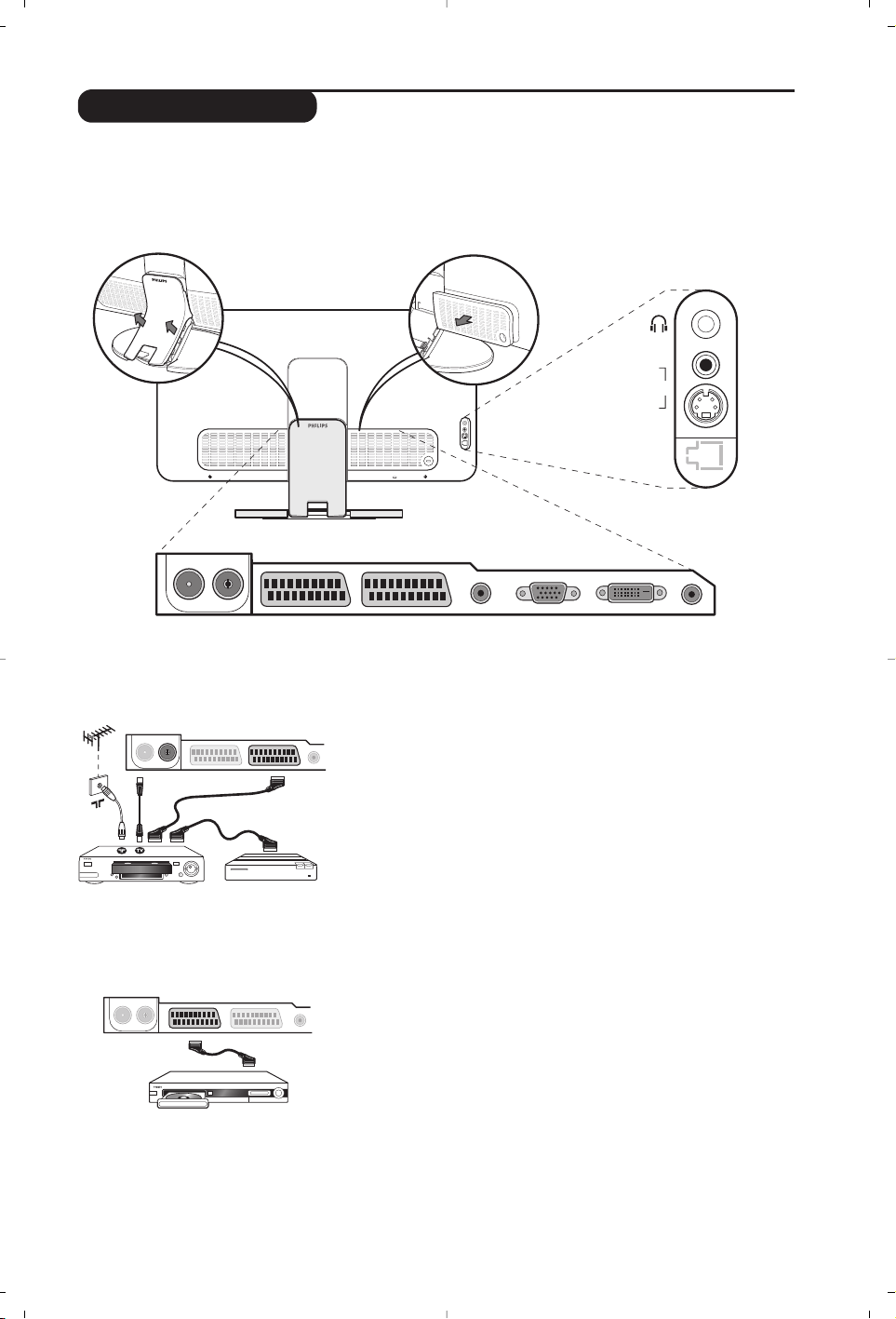
11
Raccordements
Effectuez les raccordements ci-contre. Utilisez un cordon de
liaison péritel de bonne qualité.
Si votre magnétoscope ne possède pas de prise péritel, seule la liaison
par le câble antenne est possible.Vous devez accorder le programme
numéro 0 du téléviseur sur le signal de test du magnétoscope (voir
mémo. manuelle p. 5). Ensuite pour reproduire l’image du
magnétoscope, appuyez sur
ñ.
Magnétoscope avec Décodeur
Connectez le décodeur sur la deuxième prise péritel du
magnétoscope.Vous pourrez ainsi enregistrer les émissions
cryptées.
Le téléviseur est équipé de 2 prises péritel EXT1 et EXT2 situées à l’arrière.
Pour faciliter les raccordements, retirer les couvercles du pied et du dos du téléviseur.
Rangez les fils en les passant à travers le pied du téléviseur. Remettre en place le couvercle.
La prise EXT1 possède les entrées/sorties audio vidéo et les entrées RVB.
La prise EXT2 possède les entrées/sorties audio vidéo et les entrées S-VHS.
Magnétoscope
Récepteur satellite, décodeur, DVD,DVD-R, jeux,...
Effectuez les raccordements ci-contre.
Pour optimiser la qualité de l’image, connectez à EXT1 les
équipements délivrant les signaux RVB (décodeur numérique,
lecteurs DVD, jeux, ...), à EXT2 les équipements délivrant les
signaux S-VHS (magnétoscopes S-VHS et Hi-8, ...) et
indifféremment à EXT1 ou EXT2 les autres équipements.
Pour sélectionner les appareils connectés
Appuyez sur la touche
µ pour sélectionner
EXT1, EXT2 /S-VHS2
(signaux S-VHS de la prise EXT2) et
AV
/ S-VHS pour les
connections latérales.
La plupart des appareils réalisent eux-mêmes la commutation
(décodeur, magnétoscope).
Autres appareils
EXT 1 EXT 2FM ANT
:
EXT 1 EXT 2FM ANT
:
VGA In DVI-D In Audio InAudio Out
:
EXT 1 EXT 2FM ANT
AV in
AV 3
S-VIDEO
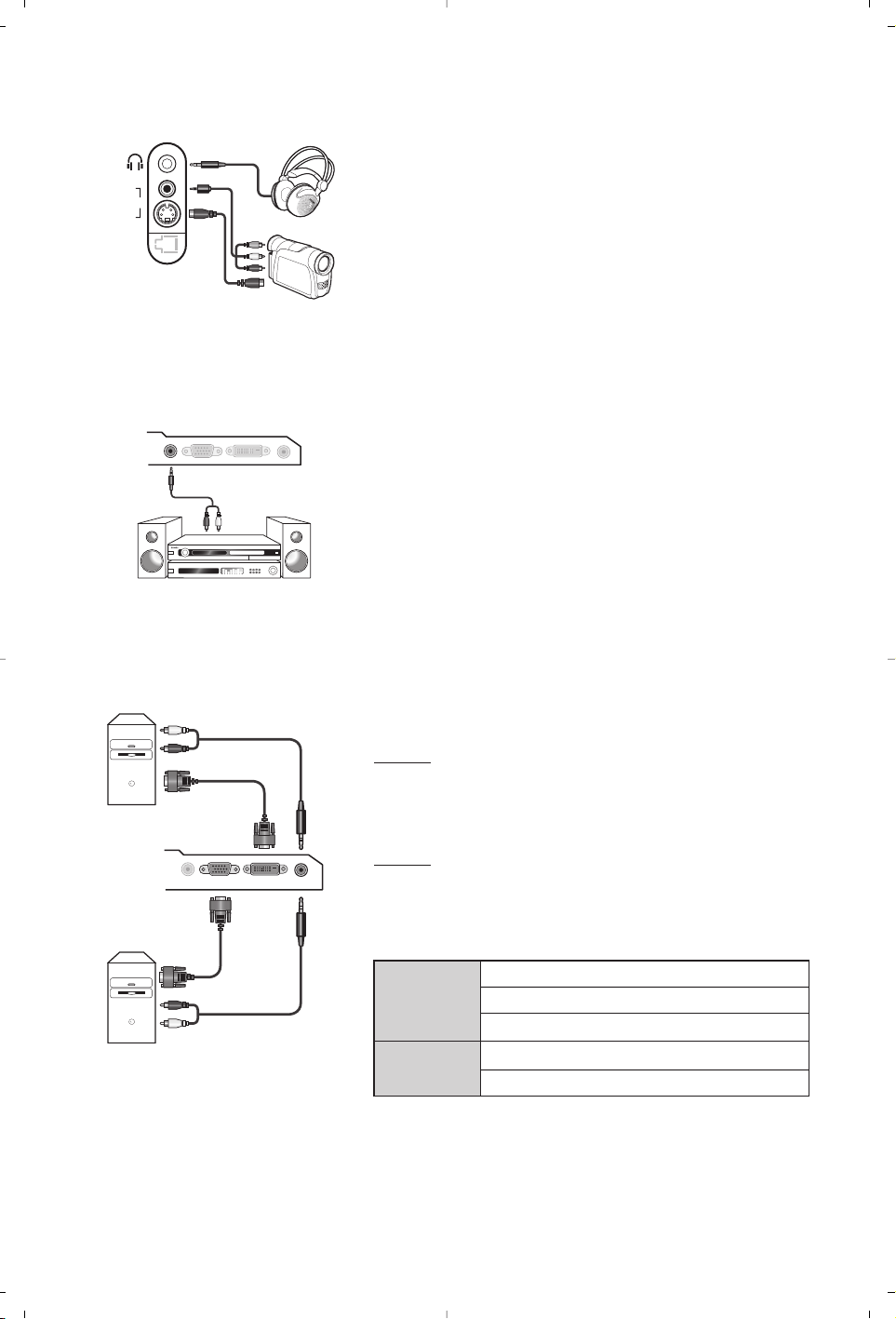
12
Effectuez les raccordements ci-contre.
Avec la touche
µ, sélectionner
AV
/ S-VHS.
Pour un appareil monophonique, connectez le signal vidéo sur l’entrée
VIDEO et le signal son sur l’entrée AUDIO L (ou AUDIO R). Le son est
reproduit automatiquement sur les haut-parleurs gauche et droit du
téléviseur.
Casque
Lorsque le casque est connecté, le son du téléviseur est coupé.
Les
touches
-
”
+
permettent de régler le volume.
L'impédance du casque doit être comprise entre 32 et 600 ohms.
Connexions latérales
Amplificateur
Ordinateur
Pour le raccordement à une chaîne Hi-fi, utilisez un cordon de
liaison audio et connectez la sortie son
Audio out du téléviseur
à une entrée “AUDIO IN” “L” et “R” de la chaîne Hi-fi.
Connectez la sortie moniteur de votre ordinateur à l’entrée
PC VGA in ou DVI-D in du téléviseur.
Connectez la sortie son
Audio out L et R de l’ordinateur à
l’entrée
Audio in (PC) du téléviseur.
Attention
: la fonction PIP n’est opérationnelle que si l’ordinateur est
connecté à l’entrée
DVI-D in.
Pour plus d’informations sur l’utilisation en mode PC, voir page 9.
La résolution optimale de l’écran est obtenue en configurant
l’ordinateur sur 1024 x 768, 60 Hz.
Attention
: si vous utilisez une autre résolution, il est possible que la
fonction PIP ne soit pas opérationnelle. Dans ce cas, un message
d’avertissement s’affiche à l’écran.
Voici la liste des différentes résolutions d’affichage disponibles
sur votre téléviseur :
VGA
In
DVI-D
In
Audio
In
Audio
Out
Audio
in
VGA In DVI-D In Audio In
Audio
Out
Analogue
PC
Digital
PC
AV in
AV 3
S-VIDEO
640 x 350 p
640 x 480 p
Analogue PC
(VGA)
720 x 400 p
800 x 600 p
832 x 624 p
1024 x 768 p
640 x 350 p
640 x 480 p
720 x 400 p
Digital PC
(DVI-D)
800 x 600 p
832 x 624 p
1024 x 768 p
1152 x 864 p
1280 x 960 p
1280 x 1024 p
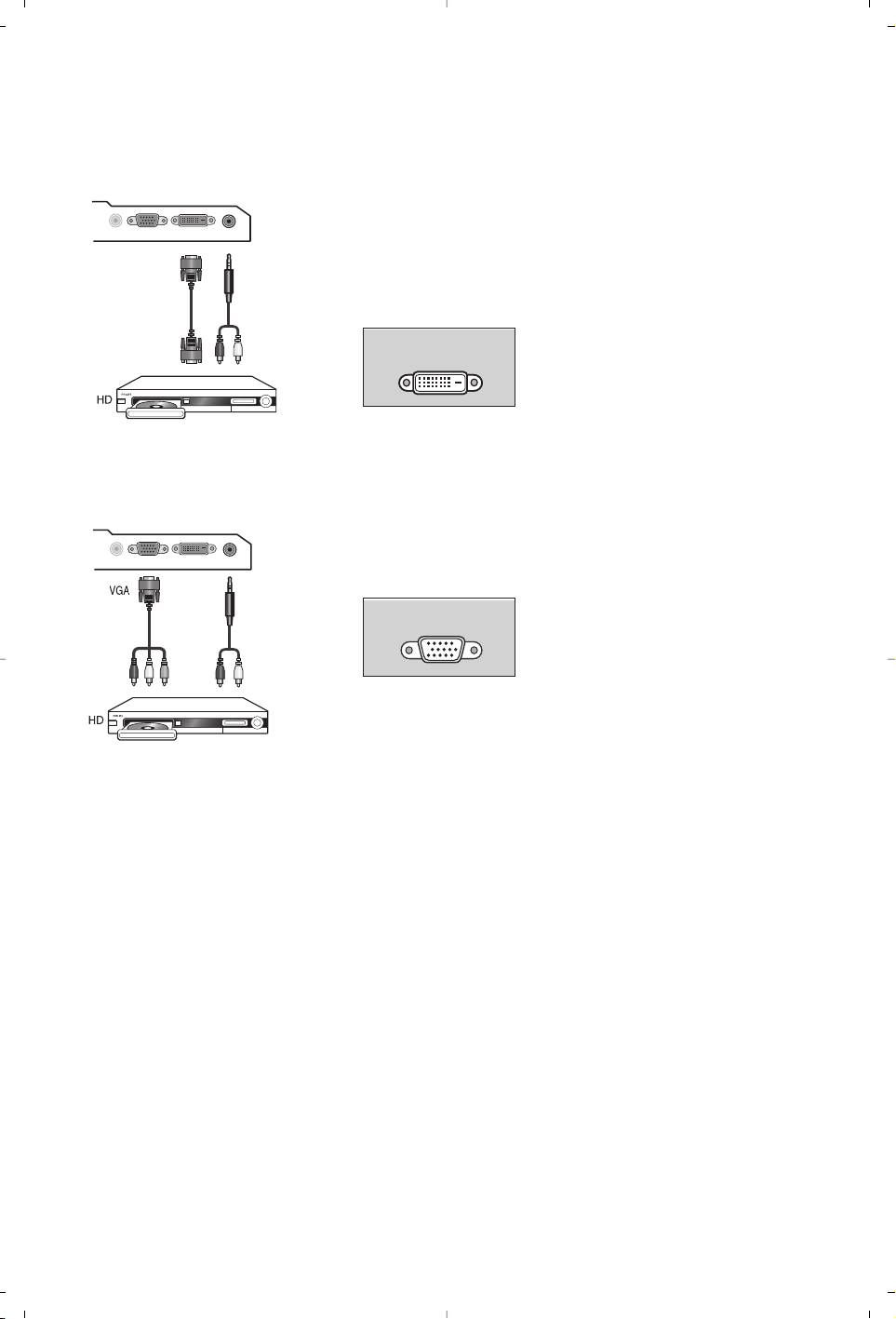
13
Effectuez les raccordements ci-contre.
Appuyez sur la touche
j
de la télécommande pour commuter
le téléviseur en mode
HD-A (entrée VGA in) ou HD-D (entrée
DVI-D in).
Pour plus d’informations sur l’utilisation en mode HD, voir page 10.
Prend en compte uniquement les signaux
digitaux.
Prend en compte uniquement les signaux
analogiques (YPbPr).
DVI-
D
DVI-
D
VGA In DVI In Audio In
Audio
Out
Y Pb P
r
VGA In DVI In Audio In
Audio
Out
Connection HD digitale (DVI-D)
Récepteur HD
Connection HD analogique (VGA)
DVI-DDVI-D
VGAVGA
14
Glossaire
DVI (Digital Visual Interface) : Interface standard
digitale crée par Digital Display Working Group
(DDWG) et qui convertit les signaux analogiques
en signaux numériques afin de s’adapter aux
moniteurs analogiques et numériques.
HDCP (High-bandwidth Digital-Content
Protection) : Système développé par Intel qui
fournit une protection sécurisée du contenu
transmis numériquement de la source (lecteur
DVD ou terminal numérique) vers la TV.
VGA (Video Graphics Array) : Système d’affichage
graphique commun aux ordinateurs.
Signaux RVB : Il s’agit de 3 signaux vidéo Rouge,
Vert, Bleu qui composent l’image. L’utilisation de
ces signaux permet d’obtenir une meilleure
qualité d’image.
Signaux S-VHS : Il s’agit de 2 signaux vidéo séparés
Y/C issus des standards d’enregistrement S-VHS et
Hi-8. Les signaux de luminance Y (noir et blanc) et
de chrominance C (couleur) sont enregistrés
séparément sur la bande. On obtient ainsi une
meilleur qualité qu’avec la vidéo standard (VHS et 8
mm) où les signaux Y/C sont mélangés pour ne
former qu’un seul signal vidéo.
Son NICAM : Procédé permettant de transmettre le
son en qualité numérique.
Système : La transmission des images n’est pas faite de
la même façon dans tous les pays. Il existe différentes
normes : BG, DK, I, et L L’. Le réglage
Système (p. 5)
permet de sélectionner ces différentes normes. Ne
pas confondre avec le codage couleur PAL ou
SECAM. Le Pal est utilisé dans la plupart des pays
d’Europe, le Secam en France, en Russie et dans la
plupart des pays d’Afrique. Les États Unis et le Japon
utilisent un autre système appelé NTSC. L’entrée
EXT1 permet de lire les enregistrements codés en
NTSC.
16:9 : Désigne les proportions largeur / hauteur de
l’écran. Les téléviseurs à écran large ont des
proportions 16/9 et les écrans traditionnels : 4/3.
Conseils
Mauvaise réception
Absence d'image
Absence de son
Le mode PC ou le
PIP ne fonctionne
pas ?
Image neigeuse lors
de la commutation
en mode HD-D
La télécommande
ne fonctionne plus ?
Veille
Nettoyage du
téléviseur
Toujours pas de
résultats ?
La proximité de montagnes ou de hauts immeubles peut être la cause d'image
dédoublée, d'écho ou d'ombres. Dans ce cas, essayez d’ajuster manuellement l’accord
de l’image: voir
Ajust. Fin
(p. 5) ou modifiez l'orientation de l'antenne extérieure.
Vérifiez également que votre antenne permet de recevoir les émissions dans
cette bande de fréquences (bande UHF ou VHF) ?
Avez-vous bien branché l'antenne ? Avez-vous choisi le bon système ? (p. 5)
Une prise péritel ou une prise d'antenne mal connectée est souvent la cause de
problèmes d'image ou de son (il arrive que les prises se déconnectent légèrement
lorsque l'on déplace ou que l'on tourne le téléviseur).Vérifiez toutes les connexions.
Si certains programmes sont dépourvus de son, mais pas d’image, c’est que vous
n’avez pas le bon système TV. Modifiez le réglage
Système
(p. 5). L’amplificateur
connecté au téléviseur ne délivre pas de son ? Vérifiez que vous n’avez pas
confondu la sortie audio avec l’entrée audio.
Vérifiez que vous avez bien configuré l’ordinateur sur une résolution d’affichage
compatible (voir p. 12). En mode PC, vous n’arrivez pas à obtenir le son de la
radio ? Lorsque le PIP est en service, le son est forcé sur tv.
De la neige peut apparaître si le protocole d’identification HDCP de l’appareil
digital connecté échoue (lecteur DVD ou terminal numérique). Reportez-vous au
manuel d’utilisation de l’appareil que vous souhaitez connecter.
Le voyant du téléviseur ne clignote plus lorsque vous utilisez la télécommande ?
Remplacez la pile.
Si le téléviseur ne reçoit pas de signal pendant 15 mn,il passe automatiquement en veille.
Pour faire des économies d’énergie, votre téléviseur est équipé de composants
permettant une très faible consommation en veille.
Le nettoyage de l’écran et du coffret doit être effectué uniquement avec un chiffon
propre, doux et non pelucheux. Ne pas utiliser de produit à base d’alcool ou de solvant.
Débranchez la prise secteur du téléviseur pendant 30 secondes puis rebranchez
la à nouveau. En cas de panne, n’essayez jamais de réparer vous même le
téléviseur, mais consultez le service après vente.

1
Inleiding
Inhoudsopgave
Hartelijk dank voor de aankoop van dit televisietoestel.
Deze handleiding is bedoeld om u te helpen bij de installatie en bediening van uw
TV toestel.
We raden u ten sterkste aan de handleiding zorgvuldig door te nemen.
Installatie
Voorstell van de LCD-televisie . . . . . . . . . . . . . . . . . . . . . . . . . . . . . . . . . . . . . . . .2
Afstandsbediening . . . . . . . . . . . . . . . . . . . . . . . . . . . . . . . . . . . . . . . . . . . . . . . . . .2
Toetsen van de afstandsbediening . . . . . . . . . . . . . . . . . . . . . . . . . . . . . . . . . . . . .3
Installeren van het televisietoestel . . . . . . . . . . . . . . . . . . . . . . . . . . . . . . . . . . . . .4
Snelle installatie . . . . . . . . . . . . . . . . . . . . . . . . . . . . . . . . . . . . . . . . . . . . . . . . . . . .4
Sorteren van de programma’s . . . . . . . . . . . . . . . . . . . . . . . . . . . . . . . . . . . . . . . .5
Handmatig vastleggen in het geheugen . . . . . . . . . . . . . . . . . . . . . . . . . . . . . . . . . .5
Andere instellingen van het menu Installatie . . . . . . . . . . . . . . . . . . . . . . . . . . . . .5
Gebruik
Instellen van het beeld . . . . . . . . . . . . . . . . . . . . . . . . . . . . . . . . . . . . . . . . . . . . . .6
Instellen van het geluid . . . . . . . . . . . . . . . . . . . . . . . . . . . . . . . . . . . . . . . . . . . . . .6
Instellen van de diversen . . . . . . . . . . . . . . . . . . . . . . . . . . . . . . . . . . . . . . . . . . . .6
Formaat 16:9 . . . . . . . . . . . . . . . . . . . . . . . . . . . . . . . . . . . . . . . . . . . . . . . . . . . . . .7
Teletekst . . . . . . . . . . . . . . . . . . . . . . . . . . . . . . . . . . . . . . . . . . . . . . . . . . . . . . . . .8
Gebruik van de radio . . . . . . . . . . . . . . . . . . . . . . . . . . . . . . . . . . . . . . . . . . . . . . . .9
Gebruik van de modus PC-scherm . . . . . . . . . . . . . . . . . . . . . . . . . . . . . . . . . . . . .9
Gebruiken in HD (Hoge Definitie) mode . . . . . . . . . . . . . . . . . . . . . . . . . . . . . . .10
Extra apparatuur
Videorecorder . . . . . . . . . . . . . . . . . . . . . . . . . . . . . . . . . . . . . . . . . . . . . . . . . . .11
Andere apparaten . . . . . . . . . . . . . . . . . . . . . . . . . . . . . . . . . . . . . . . . . . . . . . . . .11
Het selecteren van aangesloten apparatuur . . . . . . . . . . . . . . . . . . . . . . . . . . . . .11
Aansluitingen aan de zijkant . . . . . . . . . . . . . . . . . . . . . . . . . . . . . . . . . . . . . . . . .12
Versterker . . . . . . . . . . . . . . . . . . . . . . . . . . . . . . . . . . . . . . . . . . . . . . . . . . . . . . .12
Computer . . . . . . . . . . . . . . . . . . . . . . . . . . . . . . . . . . . . . . . . . . . . . . . . . . . . . . .12
HD ontvanger . . . . . . . . . . . . . . . . . . . . . . . . . . . . . . . . . . . . . . . . . . . . . . . . . . . . . . .13
Praktische informatie
Tips . . . . . . . . . . . . . . . . . . . . . . . . . . . . . . . . . . . . . . . . . . . . . . . . . . . . . . . . . . . .14
Verklaring technische termen . . . . . . . . . . . . . . . . . . . . . . . . . . . . . . . . . . . . . . . .14
NL
Aanwijzing voor hergebruik
Het verwijderen van uw oud product.
Uw product is ontworpen en geproduceerd met materialen en componenten van een hoge
kwaliteit, die gerecycled en hergebruikt kunnen worden.Wanneer dit doorkruist
afvalemmer symbool bevestigd is op uw product, betekend dit dat deze voldoet aan de
Europese Directieven 2002/96/EC. Gelieve uzelf te informeren met betrekking tot de lokale
gescheiden afval collectie van elektrische en elektronische producten.
Gelieve volgens lokale wetgeving te handelen en uw oude producten niet met het gewone
huisvuil te verwijderen. Het correct afvoeren van uw oude producten helpt het voorkomen
van het vervuilen van milieu en menselijk welzijn.
De verpakking van dit product is bedoeld voor recyclage. Contacteer locale overheden voor
correcte inlevering.
°
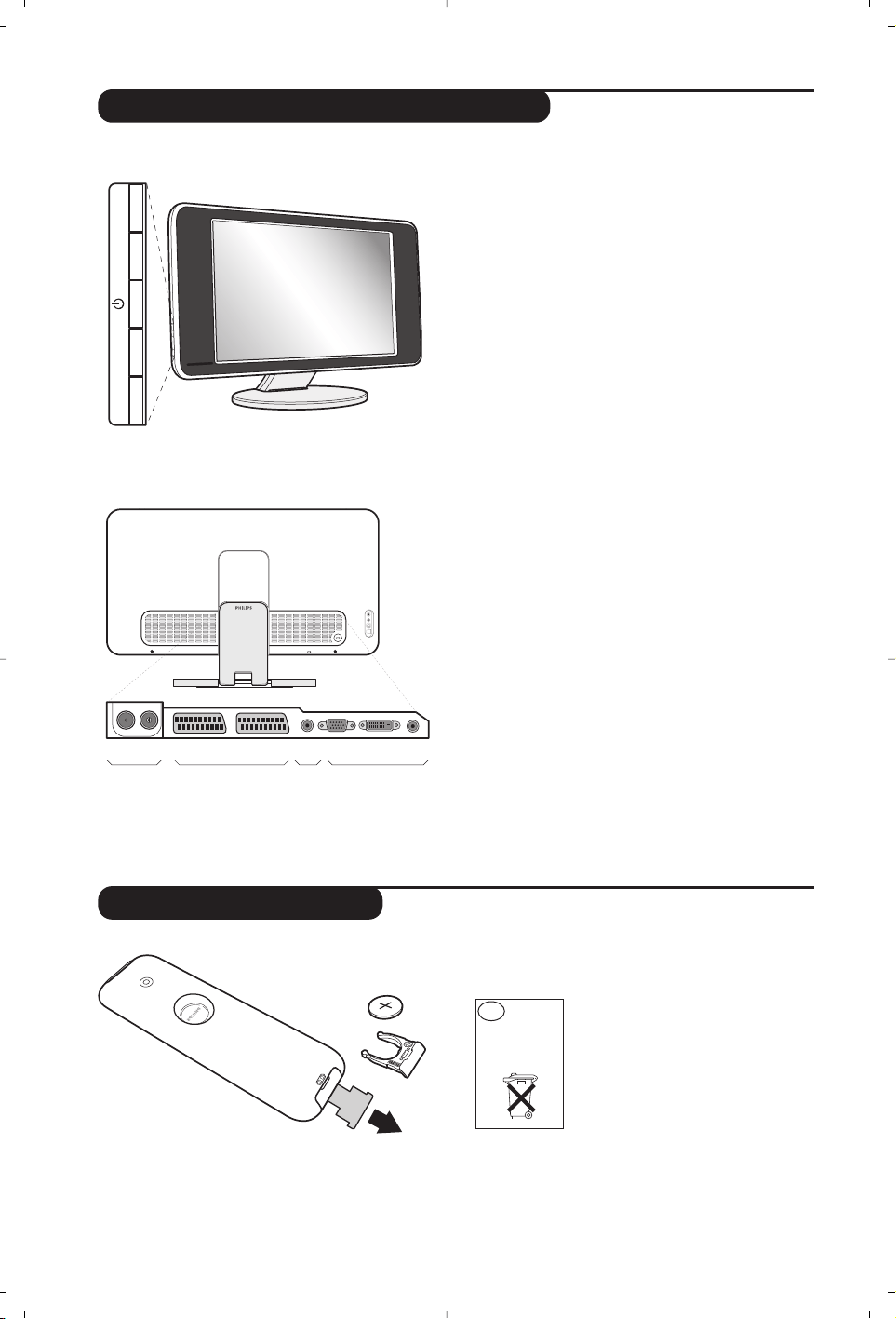
2
Voorstell van de LCD-televisie
Afstandsbediening
&
De toesten van de tv :
• . : om de tv aan of uit te zetten.
• VOLUME - + : voor het regelen van het
geluidsvolume.
• PROGRAM - + : voor het selecteren van de
programma’s.
• Om een menu op te roepen of te verlaten, drukt u
tegelijk op VOLUME - +. Daarna kunt u met de
toetsen PROGRAM - + een optie selecteren en met
VOLUME - + de optie regelen.
é
Kantelbare voet.
De voet kan worden gedemonteerd en vervangen
door een wandbevestigingskit (optie – vraag
inlichtingen bij uw verkoper).
Achterzijde :
De belangrijkste aansluitingen zitten onderaan de TV.
Zie pagina 11 voor meer details over de aansluitingen.
“ Stekker voor TV- en radioantenne
‘ SCART EXT1, EXT2
(
Audio output voor het aansluiten van een versterker
§ VGA/DVI en audio ingang voor het aansluiten van
een computer.
è Aansluitingen aan de zijkant
Verwijder de beschermfolie van de batterij om de
afstandsbediening te activeren.
Om het milieu te helpen beschermen,
bevat de bij dit televisietoestel
geleverde batterij geen kwik of nikkel
cadmium.
Gooi gebruikte batterijen niet
weg maar maak gebruik van de
recycleermogelijkheden ter uwer
beschikking (raadpleeg uw verkoper).
Niet
weggooien,
maar inleveren
als KCA.
NL
-
PROGRAM
+-
VOLUME
+
&
é
VGA
In
DVI-D
In
Audio
In
Audio
Out
EXT 1 EXT 2FM ANT
"'(§
è
:
CR 2025
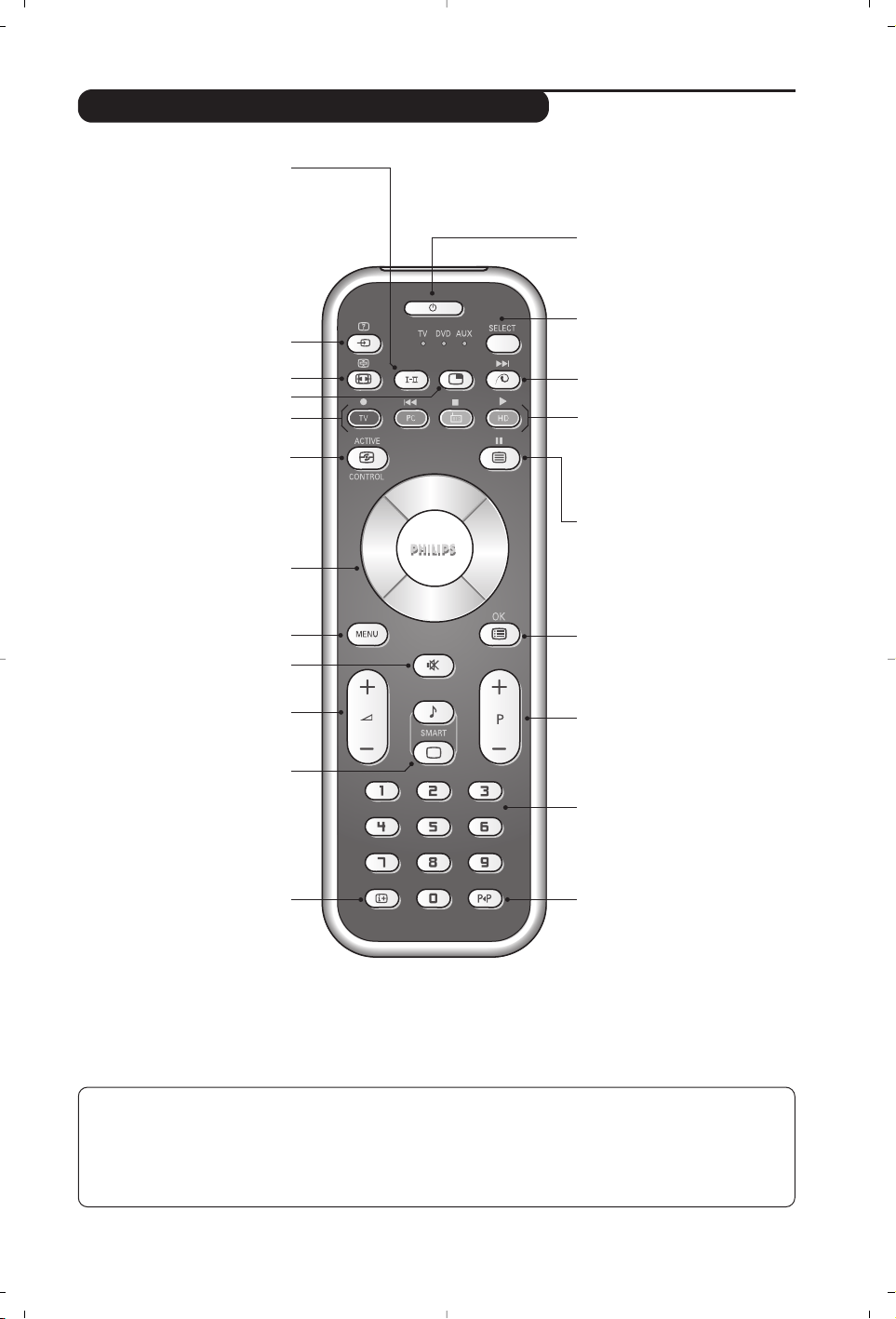
3
Toetsen van de afstandsbediening
Geluidsmodus
Om van Stereo en Nicam Stereo
naar Mono te schakelen of te
kiezen tussen
Dual I of Dual II bij
tweetalige uitzendingen.
De Mono-aanduiding is rood wanneer
er geen andere mogelijkheid is.
Keuze van de EXT-
aansluitingen (p.11)
Druk verscheidene keren om het
aangesloten apparaat te selecteren.
Formaat 16:9 (p. 7)
Oproepen van PIP (p. 9)
PC / TV / Radio / HD
Druk op een van deze toetsen
om de tv in de modus PC,TV,
radio of HD te zetten.
Cursor
(<>≤≥)
Deze 4 toetsen worden gebruikt
om te kiezen binnen de menu’s.
Active Control
Verbetert de beeldkwaliteit
naargelang ontvangst en
omgevingslicht.
Afzetten van het geluid
Om het geluid aan of uit te zetten.
Volume
Voor het regelen van het geluidsniveau.
Voorinstellingen van beeld
en geluid
Geeft toegang tot een aantal
instellingen van beeld en geluid.
De stand Persoonlijk komt overeen met
de gekozen instellingen in de menu’s.
Scherm informatie
Om het programmanummer, de tijd,
de geluidsmode en de resterende
tijd op de timer in beeld te brengen
of te verwijderen. Door de toets 5
seconden lang ingedrukt te houden
blijft het programmanummer
permanent op het scherm.
Wachtstand (Stand-by)
Om de TV in de wachtstand te zetten.
Druk op .,P - + of ñ/ô, om de
TV weer aan te zetten.
Keuzetoets *
Pixel +
Schakelt de Pixel + demonstratie
aan of uit.
Oproepen van teletekst (p. 8)
Menu
Om de menu’s op te roepenof te
verlaten.
Kiezen van TV programma’s
Om een programma lager of hoger te
kiezen. Nummer en geluidsmode
verschijnen voor een paar seconden in
beeld.
Voor sommige programma’s voorzien
van teletekst, verschijnt de titel van het
programma onderaan het scherm.
Cijfertoetsen
Om direct een programma te kiezen.
Voor een programmanummer van twee
cijfers moet het tweede cijfer worden
ingevoerd voor het streepje verdwijnt.
Vorig programma
Om terug te schakelen naar het
eerder bekeken programma.
Programmalijst
Om de programmalijst af te
beelden of te wissen. Dan kunt u
met de toetsen <> een
programma uitkiezen en het met
behulp van de toets ≥ afbeelden.
* Keuzetoets
Druk op de toets Select om de gewenste modus te selecteren: DVD of AUX.
Het controlelampje van de afstandsbediening licht op om aan te tonen welke modus werd geselecteerd. Dit gebeurt
automatisch wanneer er 20 seconden lang niets gebeurt (terug naar TV-modus).
Afhankelijk van de uitrusting kunnen de volgende toetsen worden gebruikt:
.ê·I¢∫I ÊÆ ∆ OK h <>≤≥ (cursor) P - + ñ/ô∂º
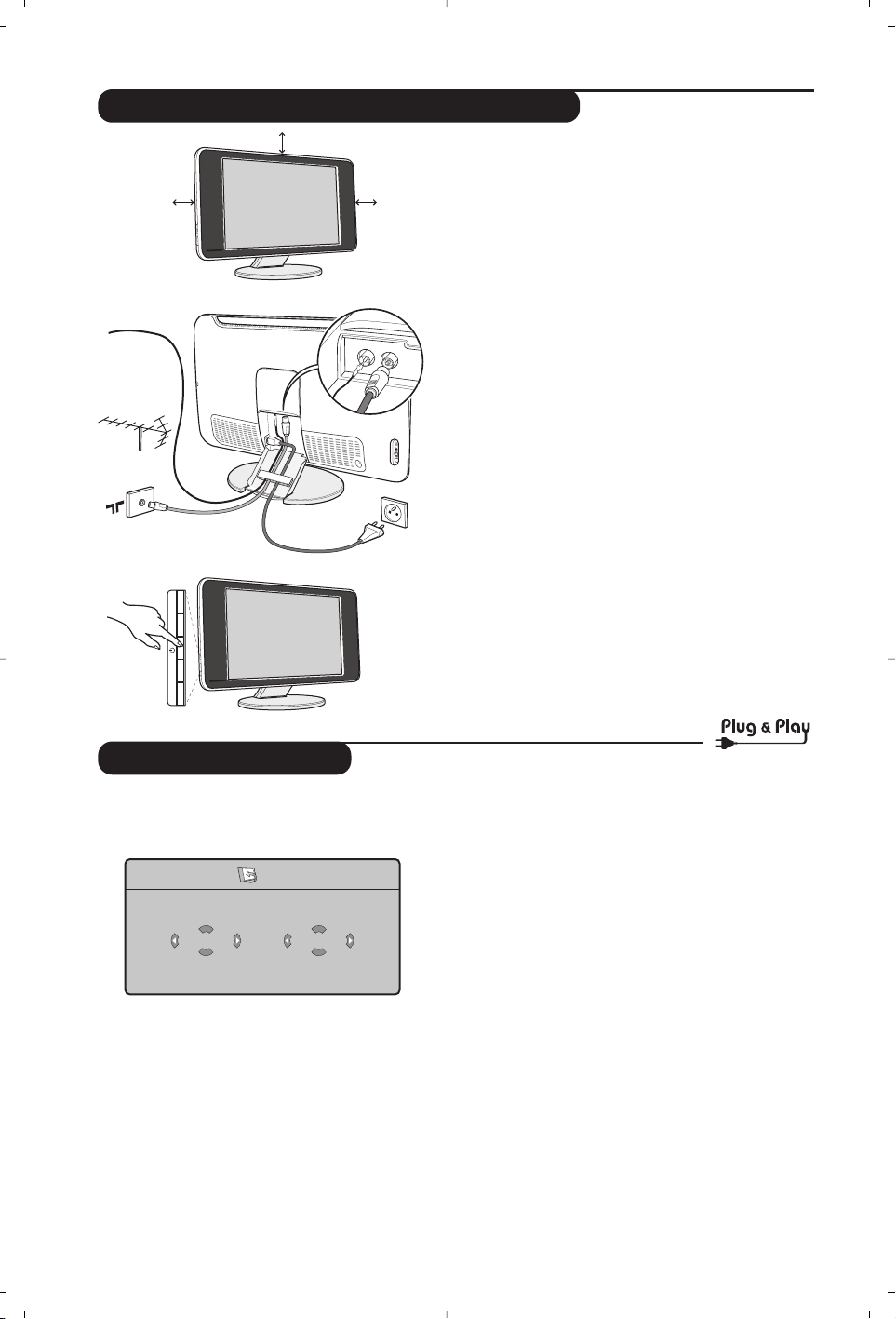
4
Snelle installatie
Wanneer u de televisie voor het eerst aanzet,
verschijnt er een menu op het scherm. In dit menu
kunt u het land en de taal van de menu’s kiezen:
Indien het menu niet verschijnt, houd de toetsen
VOLUME - + van het televisietoestel dan 5
seconden ingedrukt om het te laten verschijnen.
& Gebruik de toetsen
<> van de
afstandsbediening om uw land te kiezen en
bevestig met
≥.
Indien uw land niet op de lijst voorkomt, selecteer
dan “. . .”
é Selecteer vervolgens uw taal met de toetsen
<> en bevestig met ≥.
“ Het zoeken start nu automatisch.Alle
beschikbare tv-programma’s en radiostations*
worden in het geheugen opgeslagen. Dit alles
duurt enkele minuten. Op het scherm ziet u
hoe het zoeken vordert en hoeveel
programma’s er gevonden zijn. Na afloop
verdwijnt dit menu.
Druk op de toets
h om het zoeken te stoppen
of te onderbreken. Zie het hoofdstuk Tips op p. 14
als er geen programma wordt gevonden.
‘ Als de kabel of het kabelnetwerk het
automatische sorteersignaal uitzendt, dan
worden de programma’s op de juiste manier
genummerd. De installatie wordt dan beëindigd.
( Indien dit niet het geval is, dient u het menu
Sorteren te gebruiken om ze te nummeren.
Sommige zenders of kabelnetwerken zenden hun
eigen sorteerparameters uit (regio, taal enz...). In
dat geval moet u uw keuze aangeven met de
toetsen
<> en bevestigen met ≥.
&
Plaatsen van de tv
Plaats uw toestel op een stevig en stabiel vlak. Stel
het toestel nooit bloot aan waterspatten,
warmtebronnen (lamp, kaars, radiator, ...) en houd de
ventilatieroosters achteraan het toestel vrij.
é
Aansluiten van de antennes
• Gebruik de bijgeleverde antennekabel en verbind
de stekker
: onderaan het toestel met uw
antennestekker.
• Sluit de bijleverde radioantenne aan op de stekker
FM ANT onderaan het toestel.
• Sluit de stroomkabel aan op het televisietoestel en
stop het netsnoer in de wandcontactdoos (220-
240V / 50 Hz).
• Voer de kabels door de voet van het toestel.
Zie pagina 11 voor het aansluiten van andere apparaten.
“
Inschakelen
Druk op de aan/uit toets om de televisie aan te
zetten. Een rood indicatielampje gaat branden en het
scherm licht op. Ga rechtstreeks naar het hoofdstuk
Snelle installatie.Als de televisie in stand-by blijft
(rood lampje) drukt u op de toets P + van de
afstandsbediening.
Het indicatielampje knippert wanneer u de
afstandsbediening gebruikt.
Installeren van het televisietoestel
5 cm
5 cm
5 cm
FM ANT.
-
PROGRAM
+-
VOLUME
+
FM ANT
:
Plug’n’Play
Country
GB
Language
English
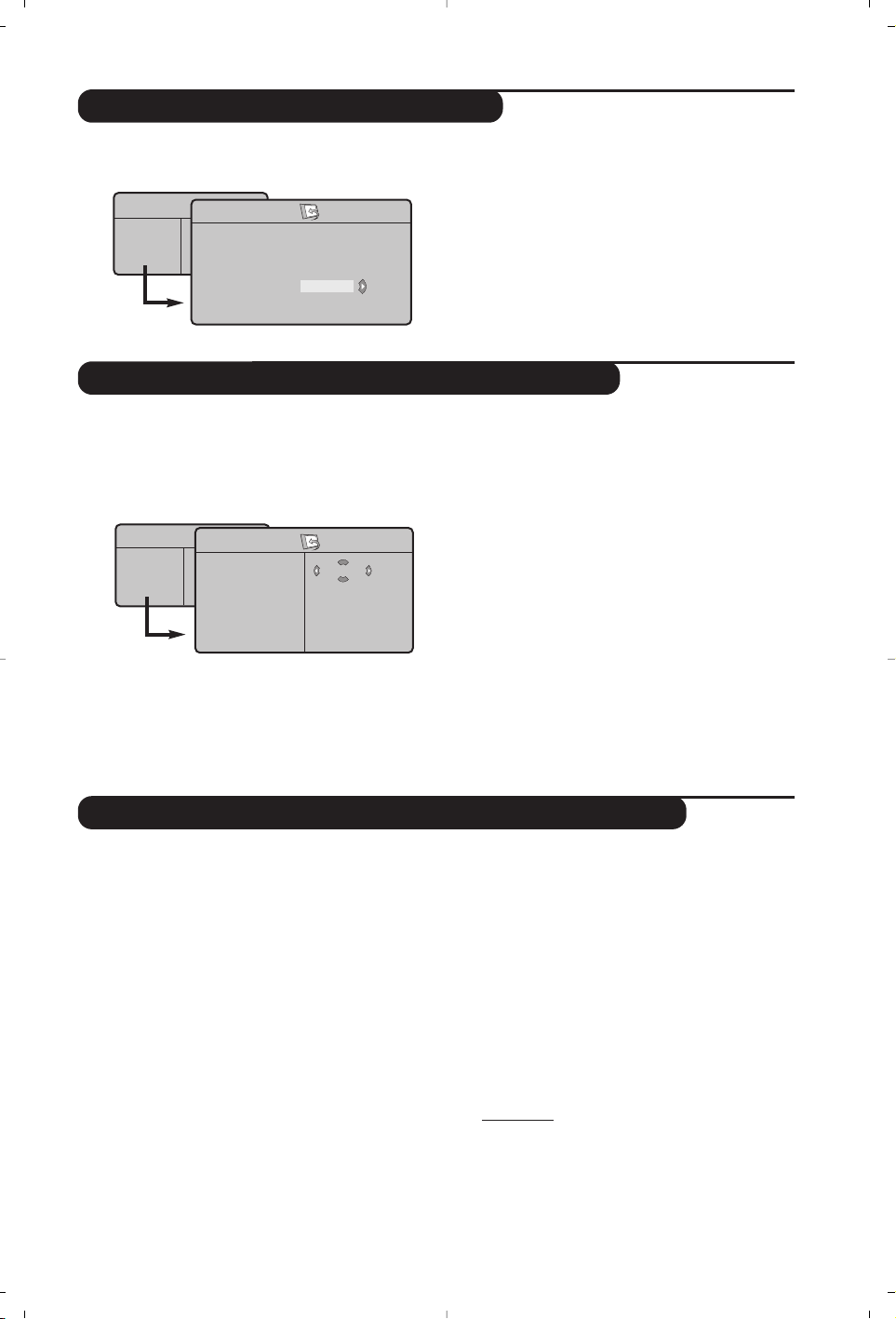
5
Handmatig vastleggen in het geheugen
Andere instellingen van het menu Installatie
Sorteren van de programma’s
Met dit menu kunt u de programma’s één
voor één vastleggen.
& Druk op de toets
h.
é Met de cursor selecteert u het menu
Installatie
en vervolgens Handmatig vastleggen:
“
Systeem: selecteer Europe (automatisch
zoeken*) of
West Eur (BG-norm), East Eur
(DK-nrom), UK (I-norm) of France (LL-norm).
* Behalve voor Frankrijk (LL-norm) moet verplicht
de keuze France worden gemaakt
‘
Zoeken: druk op ≥. Het zoeken begint. Zodra
een programma is gevonden, stopt het zoeken en
wordt de programmanaam weergegeven (indien
beschikbaar). Ga naar de volgende stap. Indien u
de frequentie van het gewenste programma kent,
dan kunt u het nummer ervan direct invoeren
met behulp van de toetsen
ñ tot ô.
Als geen programma wordt gevonden, zie het
hoofdstuk Tips (p. 14).
(
Programnr.: voer het gewenste nummer in
met de toetsen
≤≥ of ñ tot ô.
§
Fijnafst. : als de ontvangst niet bevredigend is,
stel dan af met de toetsen
≤≥.
è
Vastleggen: druk op ≥. Het programma is
vastgelegd.
! Herhaal de stappen ‘ tot ! voor elk vast te
leggen programma.
Om het menu te verlaten: druk op de toets ∂.
& Druk op de toets h en selecteer het menu
Installatie:
é
Taal: om de taal van de weergave van de
menu’s te wijzigen.
“
Land: om uw land te kiezen.
Deze instelling wordt gebruikt bij het zoeken, het
automatisch sorteren van de programma’s en de
weergave van teletekst. Indien uw land niet in de
lijst voorkomt, selecteer dan “. . .”
‘ Automatisch vastleggen: met dit menu start u
het automatisch zoeken naar de programma’s die
u in uw regio kunt ontvangen.Als de kabel of het
kabelnetwerk het automatische sorteersignaal
uitzendt, dan worden de programma’s op de
juiste manier genummerd. Indien dit niet het
geval is, dan moet u het menu
Sorteren
gebruiken om ze te hernummeren (zie p. 4).
Sommige zenders of sommige kabelnetwerken zenden
hun eigen sorteerparameters uit (regio, taal enz.). In dit
geval moet u uw keuze aanduiden met de toetsen
<> en bevestigen met ≥.Druk op h om het
zoeken te stoppen of te onderbreken. Indien geen enkel
programma werd gevonden, zie dan het menu Tips (p. 14).
(
Naam :
Indien u dit wenst, kunt u een naam
geven aan de programma’s,
radiostations
en
externe aansluitingen. Gebruik de toetsen
≤≥
om in het naamveld van de ene naar de andere
letterpositie te gaan (5 tekens) en de toetsen
<> om de tekens te selecteren. Druk op ≤
als u de naam heeft ingevoerd. De naam is nu in
het geheugen vastgelegd.
Opmerking: tijdens de installatie krijgen de
programma’s automatisch een naam wanneer het
identificatiesignaal wordt doorgezonden.
§ Druk op
∂ om de menu’s te verlaten.
& Druk op de toets h. Het TV menu
verschijnt op het scherm.
é Selecteer het menu
Installatie met de cursor
en vervolgens het menu
Sorteren.
“ Selecteer het programma dat u wil verplaatsen
met de toets
<> en druk op ≥.
‘ Gebruik vervolgens de toetsen
<> om het
nieuwe nummer te kiezen en bevestig
met
≤.
( Herhaal de stappen “ en ‘ zo vaak als er
programma’s hernummerd moeten worden.
§ Om de menu’s te verlaten, druk op
∂.
TV menu
Beeld
Geluid
Diversen
Installatie
Mode
TV menu
Beeld
Geluid
Diversen
Installatie
Mode
Handmatig
Systeem
Zoeken
Programnr.
Fijnafst.
Vasteleggen
Europe
Installatie
Taal Æ •
Land Æ •
Automatisch Æ •
Handmatig Æ •
Sorteren Æ •
Naam Æ •
0
1
2
3
4
5
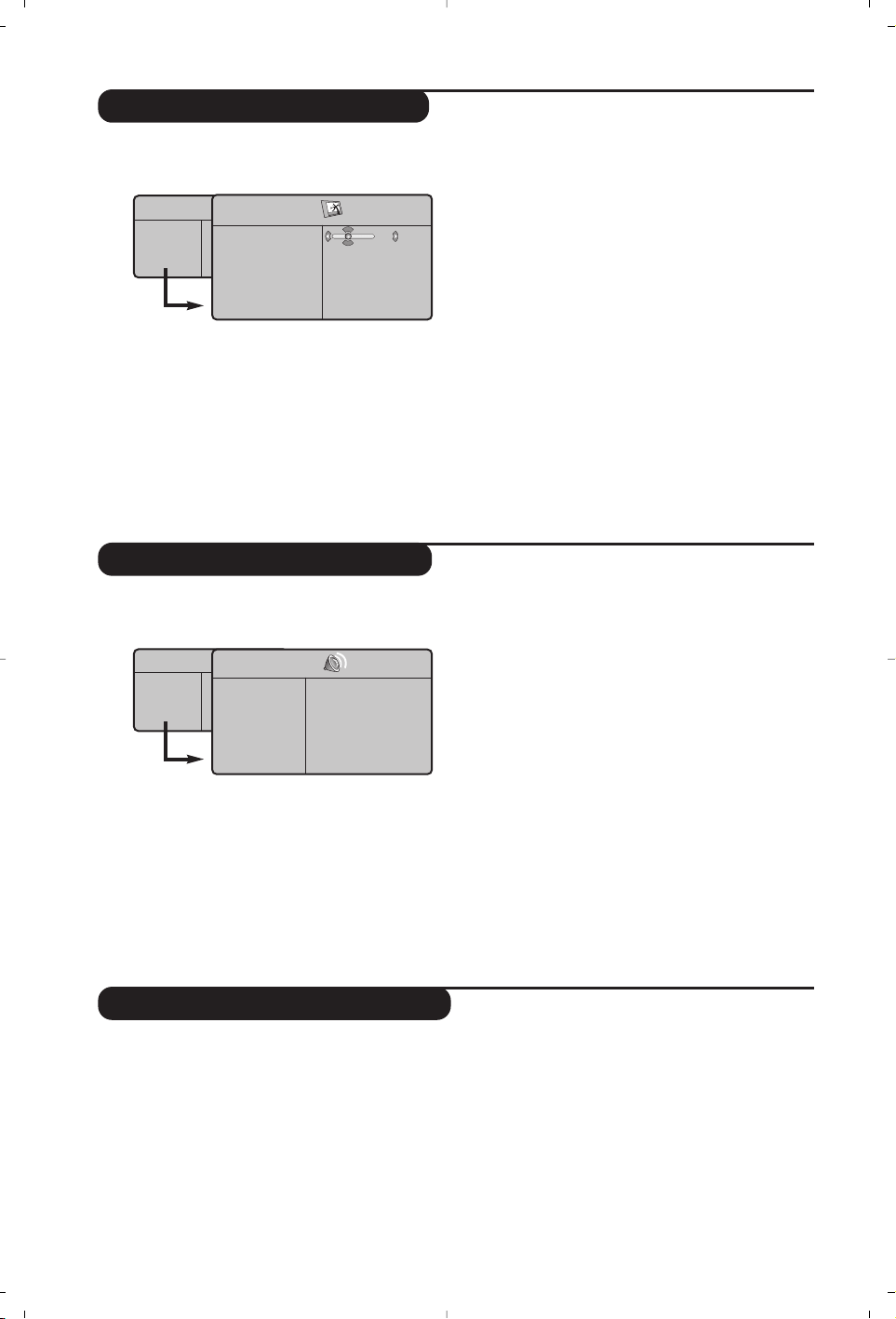
6
Instellen van het beeld
Instellen van het geluid
& Druk op de toets h en vervolgens op ≥.
Het menu
Beeld verschijnt:
é Gebruik de toetsen
<> om een instelling te
selecteren en de toetsen
≤≥ om de instelling
af te regelen.
“ Zodra u de instellingen heeft uitgevoerd,
selecteer dan de keuze
Vastleggen en druk
op
≥ om de instelling vast te leggen.
Druk op
∂ om de menu’s te verlaten.
Beschrijving van de instellingen:
•
Helderheid: om de helderheid van het beeld
in te stellen.
•
Kleur: om de kleurintensiteit in te stellen.
•
Contrast: om het verschil tussen de lichte en
de donkere kleuren in te stellen.
•
Scherpte: om de scherpte van het beeld in
te stellen.
•
Kleurtoon: stelt de kleurweergave in: Koel
(blauwer), Normaal (uitgebalanceerd) of
Warm (roder).
•
Vastleggen: om de instellingen van het beeld
in het geheugen vast te leggen.
& Druk op h, selecteer Geluid (>) en druk
op
≥. Het menu Geluid verschijnt:
é Gebruik de toetsen
<> om een instelling te
kiezen en de toetsen
≤≥ om in te stellen.
“ Als u het geluid heeft ingesteld, selecteer dan
de optie
Vastleggen en druk op ≥ om de
instelling vast te leggen.
‘ Om de menu’s te verlaten, druk op
∂.
Beschrijving van de instellingen:
•
Equalizer:
om de frequenties in te stellen (van
lage tonen: 120 Hz tot hoge tonen: 10 kHz).
•
Balans: om het geluid evenwichtig over de
linker- en rechterluidsprekers te verdelen.
•
Delta Volume: stelt u in staat om de
volumeverschillen die tussen de verschillende
programma’s of de EXT-aansluitingen kunnen
bestaan, te compenseren. Deze instelling is
beschikbaar voor de programma’s 0 tot 40 en
de EXT-aansluitingen.
• Max. Volume: controleert automatisch het
volume zodat verhogingen van het geluid kunnen
worden beperkt, met name bij het schakelen
tussen programma’s of reclamespots.
•
Dolby VIrtual:
Om het effect van verruimd
geluid te activeren/desactiveren.
• Vastleggen: om de geluidsinstellingen in het
geheugen vast te leggen.
Instellen van de diversen
& Druk op h, selecteer Diversen (>) en druk
op
≥.U kan het volgende instellen:
é
Contrast +: automatische instelling van het
beeldcontrast die het donkerste deel van het
beeld permanent zwart maakt.
“
Ruisonderdrukking: vermindert de beeldruis
(sneeuw) bij een slechte ontvangst.
‘
Timer : voor het instellen van de tijdsduur
waarna automatisch naar de wachtstand wordt
overgeschakeld (van 0 tot 120 minuten).
(
PIP: voor het instellen van het formaat en de
positie van het PIP-scherm.
§
Om de menu’s te verlaten, druk op ∂.
TV menu
Beeld
Geluid
Diversen
Installatie
Mode
Beeld
Helderheid
Kleur
Contrast
Scherpte
Kleurtemp.
Vastleggen
39
TV menu
Beeld
Geluid
Diversen
Installatie
Mode
Geluid
Equalizer Æ •
Balans Æ •
Delta Vol Æ •
Max. Volume Æ •
Dolby Virtual Æ •
Vastleggen Æ •
120 Hz
500 Hz
1500 Hz
5 KHz
10 KHz
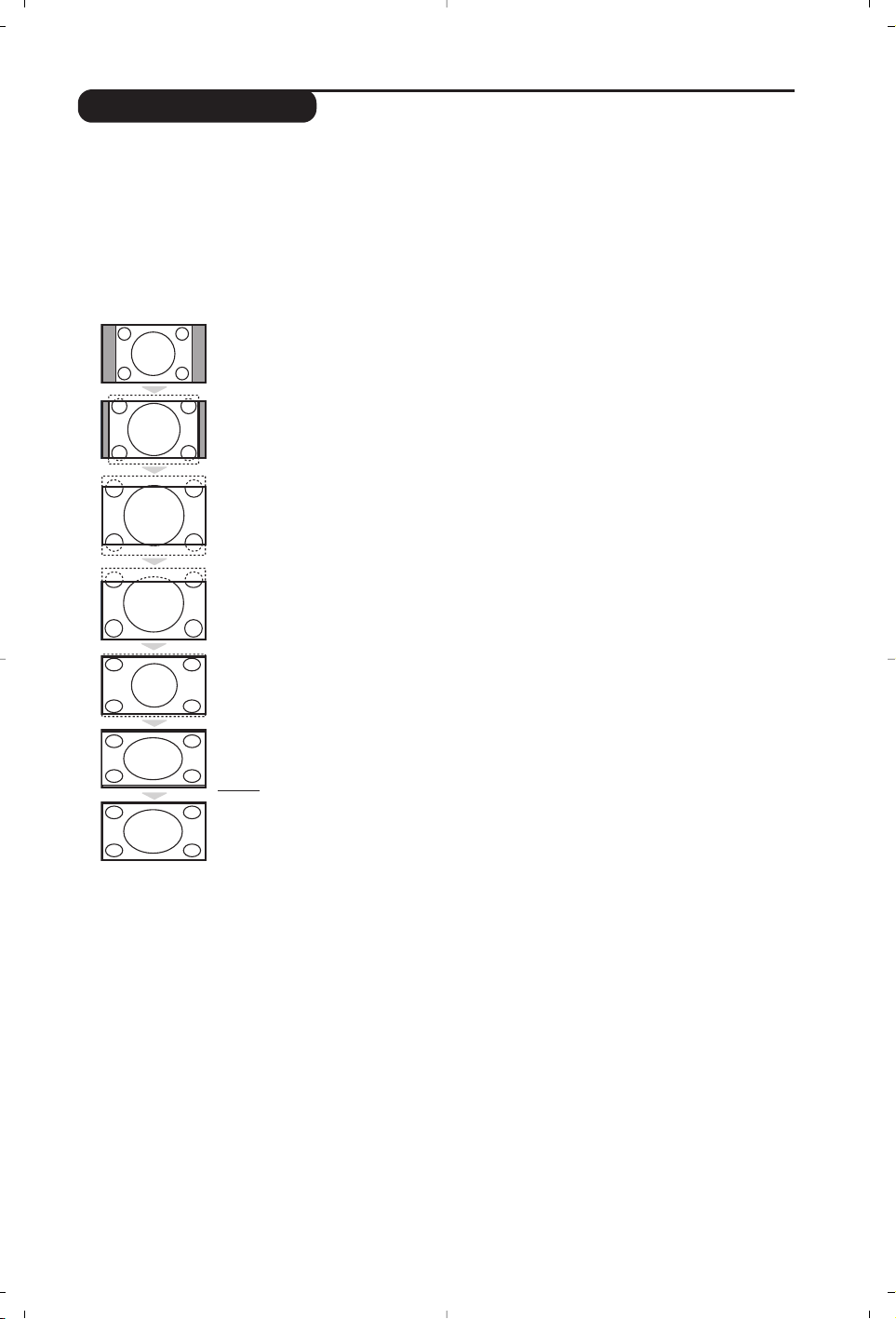
7
16:9 Formaten
De beelden die u ontvangt kunnen in het 16:9 (breedbeeld) of 4:3 (traditioneel beeld) formaat
worden uitgezonden. Soms hebben 4:3 beelden een zwarte balk boven en onder in het beeld
(letterbox uitzendingen). Met de 16:9 functie kunt u de zwarte balken laten verdwijnen en de
(letterbox) uitzending beeldvullend weergeven.
Druk op de toets
ë
(of ≤≥) om een ander beeldformaat te kiezen :
Het televisietoestel is voorzien van een automatische beeldformaat-selectie. Hierdoor wordt
het door sommige zenders specifiek uitgezonden signaal gedecodeerd en automatisch het
juiste beeldformaat geselecteerd.
4:3
Het beeld wordt in het 4:3 formaat weergegeven, met brede zwarte stroken links en
rechts van het beeld.
Zoom 14:9
Het beeld wordt naar het 14:9 formaat vergroot, met dunne zwarte stroken links en
rechts van het beeld.
Zoom 16:9
Het beeld wordt naar het 16:9 formaat vergroot.Dit formaat is geschikt voor letterbox-
uitzendingen (met zwarte balken boven en onder in het beeld).
Ondertitel Zoom
In dit formaat worden 4:3 beelden horizontaal en verticaal vergroot zodat het
beeldvullend wordt weergegeven.
Superzoom
Met dit formaat worden 4:3 beelden beeldvullend weergegeven door het 4:3 beeld
horizontaal te vergroten. Eventuele ondertitels blijven zichtbaar.
Breedbeeld
Met deze modus stelt u de goede verhoudingen in van beelden die in 16:9 worden verzonden.
Pas op: in dit formaat worden 4:3 beelden vervormd weergegeven.
Full Screen
Met deze modus geeft u de beelden in full screen weer.
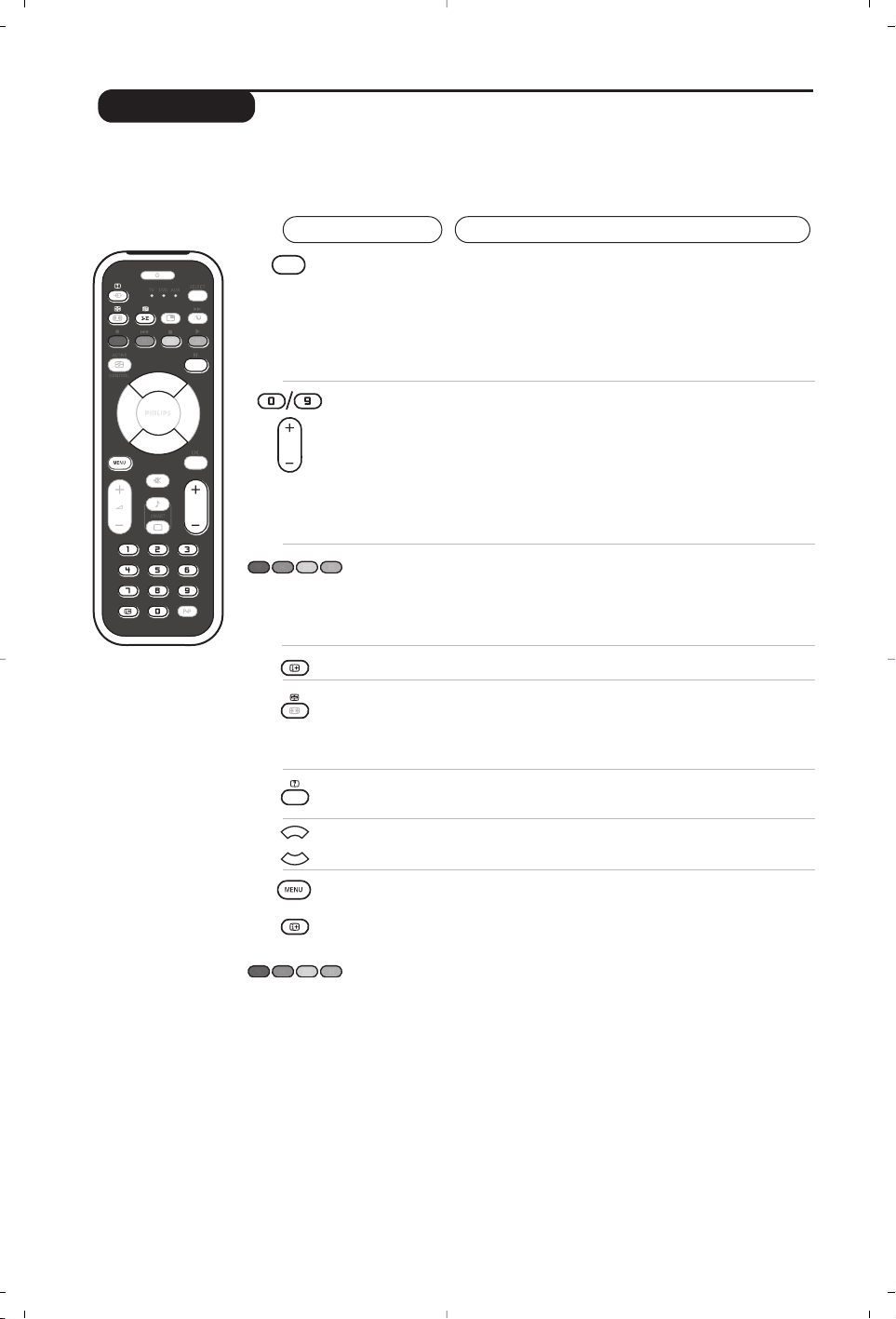
8
Teletekst
Druk op:
U krijgt:
Teletekst is een informatiesysteem dat door bepaalde tv-kanalen wordt uitgezonden en als een
krant kan worden geraadpleegd. Het voorziet ook in ondertiteling voor slechthorenden of voor
mensen die weinig vertrouwd zijn met de taal waarin een bepaald programma wordt uitgezonden
(kabelnetwerken, satellietkanalen, …).
Y
P
¤
P
ı
¤
Teletekst
aanzetten
Een pagina
kiezen
Om teletekst op te roepen, over te gaan op de transparante
modus en vervolgens teletekst uit te zetten. De pagina met de
hoofdindex geeft een lijst van rubrieken die kunnen worden
geraadpleegd. Iedere rubriek heeft een paginanummer van
drie cijfers. Als het gekozen kanaal geen teletekst uitzendt, dan
verschijnt de aanduiding 100 en het scherm blijft donker (verlaat in
dit geval teletekst en kies een ander kanaal).
Vorm het nummer van de gewenste pagina met de toetsen
ñ tot ô of - P +. Bijvoorbeeld: voor pagina 120, voer
ó ò ñ in. Het nummer verschijnt in de
linkerbovenhoek van het scherm, de paginateller begint te
zoeken en vervolgens verschijnt de pagina. Herhaal de
procedure om een andere pagina te raadplegen.
Als de teller blijft zoeken, betekent dit dat de gekozen pagina niet
wordt uitgezonden. Kies in dit geval een ander nummer.
Rechtstreeks
e keuze van
de
subpagina’s
Onderaan de pagina staan gekleurde velden.
Met de 4 gekleurde toetsen kunnen de ermee
overeenkomende rubrieken of pagina’s worden opgeroepen.
De gekleurde velden knipperen wanneer de pagina of de rubriek
nog niet beschikbaar is.
Inhoud
Om terug te keren naar de inhoud (gewoonlijk pagina 100).
Weergave
van
subpagina’s
onderbreken
Sommige pagina’s bevatten subpagina’s die elkaar
automatisch opvolgen. Met deze toets kunt u de afwisseling
van de subpagina’s onderbreken of voortzetten. De
aanduiding
_ verschijnt bovenaan rechts.
Verborgen
informatie
Een pagina
vergroten
Favoriete
pagina’s
Om verborgen informatie te doen verschijnen of verdwijnen
(oplossingen van spelletjes).
Om het bovenste of het onderste deel van de pagina weer te geven
en vervolgens naar de normale paginagrootte terug te keren.
Voor de teletekstprogramma’s 0 tot 40 kunt u 4 favoriete
pagina’s vastleggen die vervolgens kunnen worden opgeroepen
met de gekleurde toetsen (rood, groen, geel, blauw).
& Druk op de toets h om naar de modus favoriete
pagina’s te gaan.
é Geef de teletekstpagina weer die u wilt vastleggen.
“ Houd vervolgens de gekleurde toets van uw keuze
3 seconden ingedrukt. De pagina wordt vastgelegd.
‘ Herhaal deze stappen voor de andere gekleurde toetsen.
(Van nu af aan verschijnen uw favoriete pagina’s onderaan
het scherm zodra u teletekst oproept.
Om de gewone rubrieken terug te vinden, druk op
h.
Houd ∂ 5 seconden lang ingedrukt om dit ongedaan te maken.
9
Gebruik van de radio
Gebruik van de modus PC-scherm
De radiomodus kiezen
Druk op de toets  van de afstandsbediening
om de tv in radiomodus te zetten. Druk op de
toets
W om opnieuw de TV-modus te kiezen. In
radiomodus worden het nummer en de naam van
het station (indien beschikbaar), de frequentie en
de geluidsmodus op het scherm weergegeven.
Programma selecteren
Selecteer een FM-station met de toetsen
ñ
/
ô
of - P + (van 1 tot 40).
Lijst met radiostations
Druk op de toets
T om de lijst met
radiostations weer te geven/te verbergen.
Selecteer een station met de cursortoets.
De radiomenu’s gebruiken
Met de toets
h krijgt u toegang tot de
instelfuncties van de radio.
Radiostations zoeken
Als u de snelle installatie hebt gebruikt, zijn alle
beschikbare FM-stations opgeslagen in het
geheugen. Om een nieuw station te zoeken
gebruikt u het menu
Installatie
:
Automatisch
(om volledig te zoeken) of
Handmatig
(om per
station te zoeken). Deze menu’s werken op
dezelfde manier als de TV-menu’s.
Screensaver
In het menu
Diversen
kunt u de screensaver aan- of
uitzetten.
PC-modus
Uw tv kan ook worden gebruikt als
computerscherm. Met de functie PIP kunt u
tegelijk op een verkleind scherm naar TV kijken.
U moet eerst de computer aansluiten en de
resolutie aanpassen (zie pagina 12).
PC-modus kiezen
Druk op de toets U van de afstandsbediening
om de PC-A modus (VGA In) of PC-D modus
(DVI-D In) te kiezen. Druk op de toets
W om
de TV-modus te kiezen.
Wanneer de televisie gedurende minstens 5
seconden geen PC-signaal ontvangt, gaat het toestel
automatisch in stand-by.
PIP gebruiken
In PC-modus kunt u een venster weergeven
waarin u de tv-zenders kunt bekijken.
Opgelet: de PIP functie is enkel mogelijk als de computer
aangesloten is op de DVI-D ingang (zie pag. 12).
& Druk op de toets
g
om het PIP-scherm weer
te geven. Het tv-beeld wordt in een klein
venster weergegeven.
é Druk opnieuw op de g toets om de grootte van
het pip venster te wijzigen, naar dual screen over
te schakelen, en het terug te laten verdwijnen.
“ Druk op de toetsen - P + om een ander
programma te kiezen in het PIP-scherm of op
de toets
µ wanneer u het beeld van een op
de tv aangesloten toestel wil weergeven
(videorecorder, DVD, ...).
Gebruiken van de PC-menu’s
Druk op de toets h om toegang te krijgen
tot de specifieke instellingen in de PC-modus.
Gebruik de cursor voor het regelen van (de
instellingen worden automatisch opgeslagen):
• Beeld:
- Helderheid/Contrast: om de helderheid en
het contrast te regelen.
- Horizontaal/ Verticaal*: voor het horizontaal
en verticaal instellen van de beeldpositie.
- Kleurtemp.: voor het instellen van de kleuren
(koud, normaal of warm).
• Audio keuze: om te kiezen welk geluid wordt
weergegeven op het toestel (PC of TV / Radio). U
kunt bijvoorbeeld naar de radio luisteren terwijl u
de computer gebruikt.
•
Diversen:
- Fase/Clock*:
voor het verwijderen van
horizontale (Fase) en verticale (Clock) stoorlijnen.
- Formaat: om te schakelen tussen vergrote of
standaard weergave van de PC-schermen.
- PIP: voor het instellen van het formaat en de
positie van het PIP-scherm.
- Automatisch* : de positie wordt automatisch
ingesteld.
• Fabr. inst. : om terug te keren naar de
fabrieksinstellingen (standaard instellingen).
• Mode: om terug te keren naar TV of radio modus.
* Deze instellingen zijn niet beschikbaar als de
computer aangesloten is op de DVI-D ingang.
Opmerking:
– Wanneer u de LCD-tv als monitor voor uw computer gebruikt, kunnen er lichte diagonale storingslijnen te zien
zijn wanneer de monitor wordt gebruikt in een omgeving met elektromagnetische interferentie, maar dit heeft
geen invloed op de prestaties van het product.
– Voor betere prestaties wordt een DVI-kabel van goede kwaliteit met een goed ruisfilter aangeraden.

10
Gebruiken in HD (Hoge Definitie) mode
HD modus
De HD (Hoge Definitie) mode, laat u genieten
van nog scherpere en helderdere beelden via
de DVI ingang, als u gebruik maakt van HD
ontvanger of andere HD-toestelen.
Sluit hiervoor eerst alle HD-toestellen aan (zie p.13)
U moet eerst de computer aansluiten en de
resolutie aanpassen (zie p. 13).
HD-modus kiezen
Druk op de toets j van de afstandsbediening
om de HD-A modus (VGA In) of HD-D modus
(DVI-D In) te kiezen.
Druk op de toets
W om de TV-modus te
kiezen.
Gebruiken van het HD-menu
Druk op de MENU toets om toegang te
krijgen tot de specifieke instellingen in de HD-
modus. Gebruik de cursor voor het regelen
van (de instellingen worden automatisch
opgeslagen):
• Beeld:
- Helderheid: om de helderheid van het beeld
in te stellen.
- Kleur: om de kleurintensiteit in te stellen.
- Contrast: om het verschil tussen de lichte en
de donkere kleuren in te stellen.
- Scherpte: om de scherpte van het beeld in
te stellen.
- Kleurtoon: stelt de kleurweergave in: Koel
(blauwer), Normaal (uitgebalanceerd) of
Warm (roder).
- Vastleggen: om de instellingen van het beeld
in het geheugen vast te leggen.
• Geluid:
-
Equalizer:
om de frequenties in te stellen (van
lage tonen: 120 Hz tot hoge tonen: 10 kHz).
- Balans: om het geluid evenwichtig over de
linker- en rechterluidsprekers te verdelen.
- Delta Volume: stelt u in staat om de
volumeverschillen die tussen de verschillende
programma’s of de EXT-aansluitingen kunnen
bestaan, te compenseren.
-
Max. Volume
:
controleert automatisch het
volume zodat verhogingen van het geluid kunnen
worden beperkt, met name bij het schakelen
tussen programma’s of reclamespots.
-
Dolby VIrtual
:
Om het effect van verruimd
geluid te activeren/desactiveren.
- Vastleggen: om de geluidsinstellingen in het
geheugen vast te leggen.
•
Diversen:
- Timer : voor het instellen van de tijdsduur
waarna automatisch naar de wachtstand
wordt overgeschakeld (van 0 tot 120
minuten).
-
PIP: voor het instellen van het formaat en de
positie van het PIP-scherm.
Hier vindt u een lijst met de verschillende resoluties de beschikbaar zijn op uw televisie:
480 i
576 i
Analogue HD (YPbPr)
480 p
576 p
720 p
1080 i
EDTV 480 p
EDTV 576 p
Digital HD (DVI-D)
HDTV 720 p HDTV 1080 i
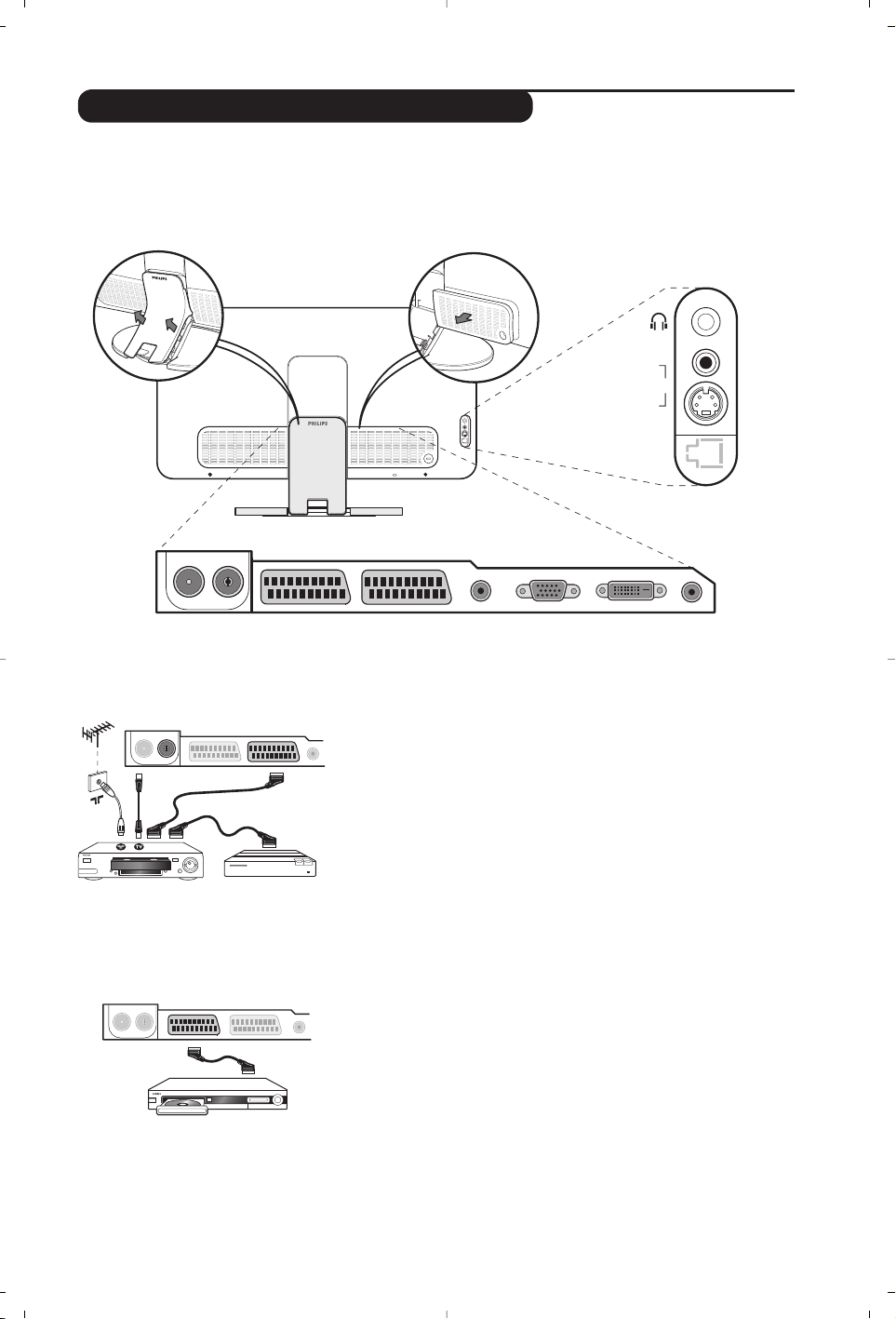
11
Aansluiten van extra apparatuur
Sluit de recorder aan zoals hiernaast is weergegeven. Gebruik
een euroconnector kabel van goede kwaliteit.
Als uw videorecorder geen euroconnector aansluiting heeft, is de
verbinding alleen mogelijk via de antennekabel. U dient dan af te
stemmen op het testsignaal van uw videorecorder en dit
programmanummer 0 toe te kennen (zie handmatig vastleggen, p. 5).
Om het beeld van de videorecorder weer te geven, druk op
ñ.
Videorecorder met decoder
Sluit de decoder aan op de tweede euroconnector aansluiting
van de videorecorder. U kunt dan ook gecodeerde uitzendingen
opnemen.
De televisie heeft 2 externe aansluitingen aan de achterkant van het toestel (EXT1 en EXT2).
Om de aansluitingen te vergemakkelijken, verwijder de afdekplaat van de stand en de achterwand van de TV.
Voer de kabels door de voet van het toestel. Bevestig opnieuw de afdekplaat van de stand.
De EXT1 aansluiting heeft audio en video ingangen/uitgangen en RGB ingangen.
De EXT2 aansluiting heeft audio en video ingangen/uitgangen en S-VHS ingangen.
Videorecorder
Satellietontvanger, decoder, DVD, DVD-R, etc.
Maak de aansluitingen zoals hiernaast is weergegeven.
Sluit voor een optimale beeldkwaliteit apparatuur die RGB
signalen produceert (digitale decoder, DVD, bepaalde CDV drives,
etc.) aan op EXT1, en apparatuur die S-VHS signalen produceert
(S-VHS en Hi-8 videorecorders) op EXT2 en alle andere
apparatuur op EXT1 of EXT2.
Het selecteren van aangesloten apparatuur
Druk op de
µ toets om EXT1, EXT2/S-VHS2 (S-VHS signalen
van de EXT2 aansluiting) en
AV/S-VHS voor aansluitingen aan de
voorkant (afhankelijk van het model) te selecteren.
De meeste apparaten (decoder, videorecorder) schakelen zelf om.
Andere apparaten
EXT 1 EXT 2FM ANT
:
EXT 1 EXT 2FM ANT
:
VGA In DVI-D In Audio InAudio Out
:
EXT 1 EXT 2FM ANT
AV in
AV 3
S-VIDEO
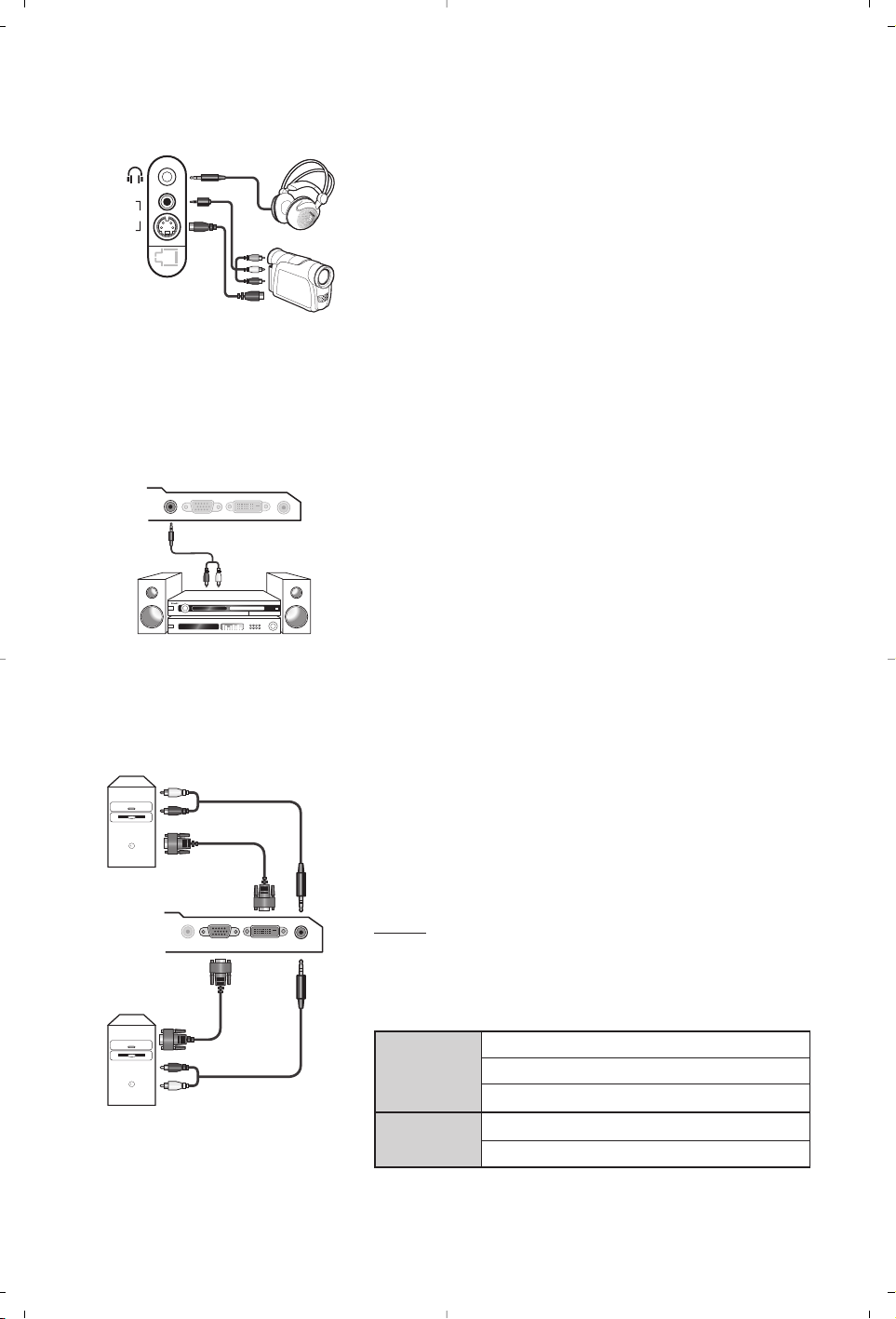
12
Maak de aansluitingen zoals hiernaast is weergegeven.
Met de toets
µ, kies AV/S-VHS.
Bij een mono-toestel sluit u het geluidssignaal aan op de ingang
AUDIO L (of AUDIO R). Het geluid komt automatisch uit de linker- en
rechterluidsprekers van het televiesietoestel.
Hoofdtelefoon
Wanneer de hoofdtelefoon aangesloten is, wordt het geluid van
het televisietoestel uitgezet. Met de toetsen
- ” + kunt u het
volume regelen.
De impedantie van de hoofdtelefoon moet tussen 32 en 600 ohm liggen.
Aansluitingen aan de zijkant
Versterker
Computer
Om een hi-fi systeem aan te sluiten, dient u een audiokabel te
gebruiken en de
Audio out uitgangen van het TV toestel aan te
sluiten op de ingangen “AUDIO IN” “L” en “R” van de
versterker van uw hi-fi.
Sluit de schermuitgang van uw computer aan op de
PC input
VGA In
of DVI-D In ingang van de TV.
Sluit de
Audio out L en R uitgangen van de computer aan op de
Audio in (PC) ingang van de televisie.
Opgelet: de PIP functie is enkel mogelijk als de computer aangesloten
is op de DVI-D ingang.
Meer informatie over het gebruik van de PC-modus vindt u op pagina 9.
De optimale schermresolutie configureert u op de PC met de
instelling 1024 x 768, 60 Hz.
Opgelet:
wanneer u een andere resolutie gebruikt, kan het gebeuren
dat de PIP-functie niet werkt. U ziet dan een waarschuwing op het
scherm.
Hier vindt u een lijst met de verschillende resoluties de
beschikbaar zijn op uw televisie:
VGA
In
DVI-D
In
Audio
In
Audio
Out
Audio
in
VGA In DVI-D In Audio In
Audio
Out
Analogue
PC
Digital
PC
AV in
AV 3
S-VIDEO
640 x 350 p
640 x 480 p
Analogue PC
(VGA)
720 x 400 p
800 x 600 p
832 x 624 p
1024 x 768 p
640 x 350 p
640 x 480 p
720 x 400 p
Digital PC
(DVI-D)
800 x 600 p
832 x 624 p
1024 x 768 p
1152 x 864 p
1280 x 960 p
1280 x 1024 p
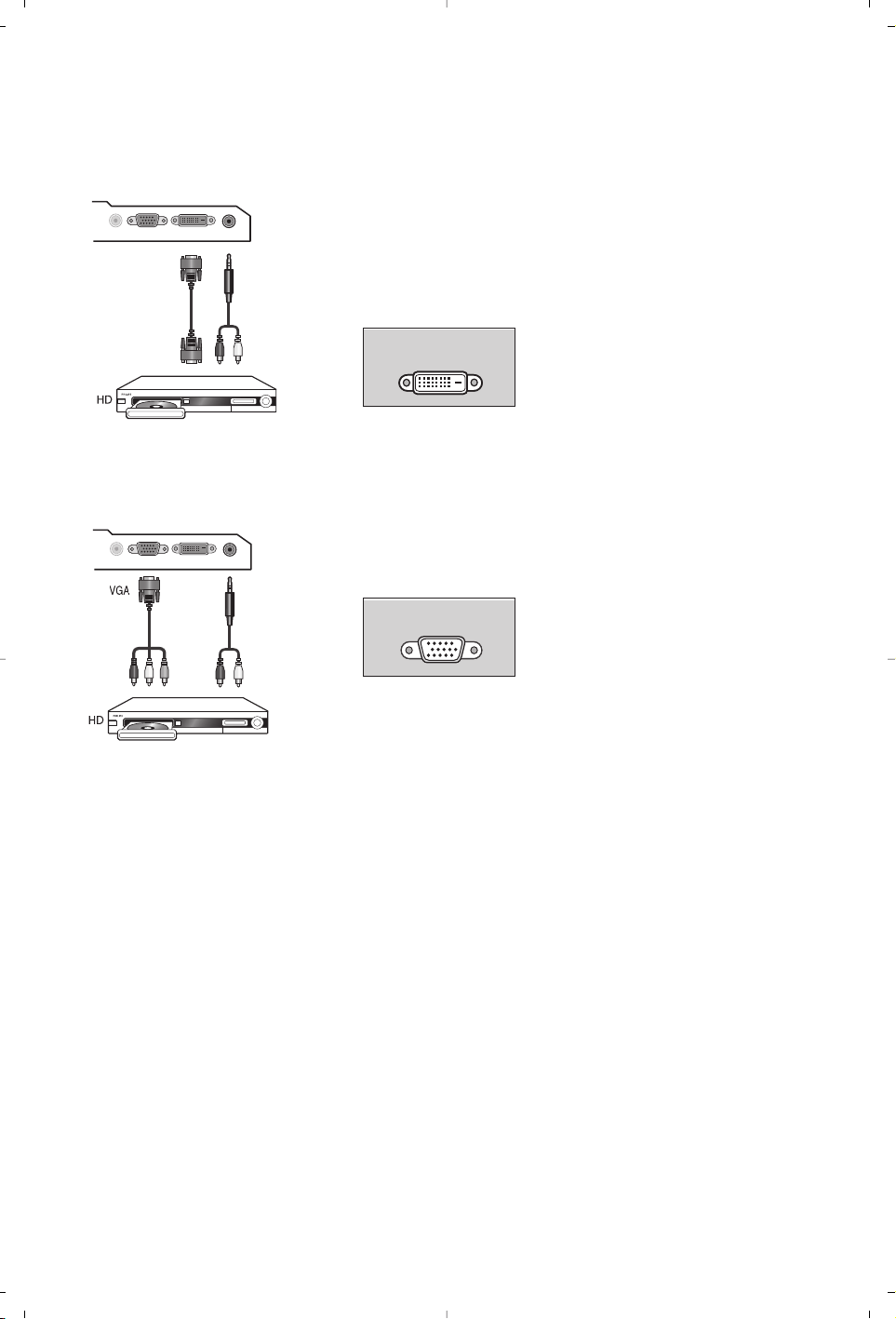
13
Maak de aansluitingen zoals hiernaast is weergegeven.
Druk op de toets j van de afstandsbediening om de HD-A
modus (VGA In) of HD-D modus (DVI-D In) te kiezen.
Meer informatie over het gebruik van de HD-modus vindt u op
pagina 10.
Ondersteund enkel Digitale signalen.
Ondersteund enkel Analoge (YpbPr) signalen.
DVI-
D
DVI-
D
VGA In DVI In Audio In
Audio
Out
Y Pb P
r
VGA In DVI In Audio In
Audio
Out
HD Digitale connectie (DVI-D)
HD ontvanger
HD Analoge Connectie (VGA)
DVI-DDVI-D
VGAVGA
14
Verklaring technische termen
DVI (Digital Visual Interface): Een digitale interface
standaard, ontwikkeld door de Digital Display
Working Group (DDWG), om analoge signalen
om te zetten in digitale signalen, om zo analoge
als ook digitale monitoren te ondersteunen.
HDCP
(Hoge/grote - bandbreedte Digitale Content
Protectie):Kopieerbeveiliging Ontwikkeld door
Intel, voor de beveiliging van de digitale content die
van de bron (zoals DVD-speler of set-top box)
naar de TV gestuurd wordt.
VGA (Video Graphics Array):
Een veel gebruikte
standaard voor grafische beeldschermen bij PC’s.
RGB-signalen :
dit zijn de 3 videosignalen (rood,
groen,blauw) van het beeldsignaal. Met deze signalen
wordt een betere beeldkwaliteit verkregen.
S-VHS signalen: Dit zijn twee gescheiden Y/C
videosignalen van de S-VHS en Hi-8
opnamestandaards. De luminantiesignalen Y (zwart
en wit) en chrominantiesignalen C (kleur) worden
apart op de videoband opgenomen. Dit geeft een
betere beeldkwaliteit dan met gewone video (VHS en 8
mm) waarbij de Y/C signalen worden gecombineerd
tot één videosignaal.
NICAM geluid: Proces waarmee digitaal geluid kan
worden uitgezonden.
Systeem:Televisiebeelden worden niet in alle landen op
dezelfde manier uitgezonden. Er zijn verschillende
standaards:BG, DK, I, en LL’.Met de
Systeem
instelling (p. 5) kunnen deze verschillende standaards
worden gekozen. Dit moet niet worden verward
met PAL of SECAM kleurcodering.Pal wordt
gebruikt in de meeste landen van Europa,Secam in
Frankrijk, Rusland en de meeste Afrikaanse landen.
De Verenigde Staten en Japan gebruiken een ander
systeem, NTSC genaamd. De EXT1 ingangen kunnen
opnames met NTSC kleurcodering weergeven.
16:9:Verwijst naar de verhouding tussen de
breedte en hoogte van het scherm.
Breedbeeldtelevisies hebben een verhouding
van 16:9, de traditionele televisietoestellen
hebben een 4:3 scherm.
Tips
Slechte ontvangst
Geen beeld
Geen geluid
De PC-modus of PIP-
functie werkt niet
Beeld met sneeuw
wanneer
omgeschakeld wordt
naar HD-D mode.
De
afstandsbediening
werkt niet meer ?
Stand-by
Schoonmaken
Nog steeds geen
resultaten?
Dubbele beelden, echobeelden of schaduwen kunnen het gevolg zijn van de
nabijheid van bergen of hoge gebouwen. Probeer in zo’n geval het beeld
handmatig bij te stellen: zie “fijnafstemming” (p. 5) of verander de oriëntatie van
de buitenantenne.
Met de binnenantennes kan ontvangst in bepaalde
omstandigheden moeilijk zijn. U kan dit verbeteren door de antenne te draaien.
Indien de ontvangst middelmatig blijft, dan dient u een buitenantenne te gebruiken.
Is de antenne op de juiste manier aangesloten? Hebt u het juiste systeem
gekozen? (p. 5) Slecht aangesloten euroconnector kabels of antenne aansluitingen
zijn vaak de oorzaak van problemen met beeld of geluid (soms gaan de
aansluitingen gedeeltelijk los als het TV toestel wordt verplaatst of gedraaid.
Controleer alle aansluitingen.
Als u op bepaalde kanalen wel beeld ontvangt, maar geen geluid, betekent dit dat
u niet het juiste TV systeem hebt.Wijzig de
Systeem instelling (p. 5).
De versterker die is aangesloten op de televisie geeft geen geluid. Controleer of
u de audio ingang en uitgang niet hebt verwisseld.
Controleer of uw computer is ingesteld op een compatibele resolutie (p. 12). U krijgt in
PC-modus geen radiogeluid ? Wanneer PIP actief is, krijgt u automatisch het TV-geluid.
Er verschijnt ruis op het scherm wanneer de HDCP authenticatie van de
aangesloten digitale toestellen (zoals DVD-speler of set-top box) mislukt is.
Raadpleeg de handleiding van de digitale toestellen die u wil aansluiten.
Reageert het TV toestel niet op de afstandsbediening of knippert het
indicatielampje aan het toestel niet meer wanneer u de afstandsbediening
gebruikt ? Vervang de batterij.
Als het toestel gedurende 15 minuten geen signaal ontvangt, gaat het automatisch
in de wachtstand. Om energie te sparen bestaat uw TV uit onderdelen die in de
wachtstand slechts zeer weinig stroom verbruiken.
Het scherm en de kast van uw TV mogen alleen worden schoongemaakt met een
zacht en niet-pluizend doekje. Gebruik nooit een schoonmaakmiddel op basis van
alcohol of oplosmiddel.
Trek de stekker van de TV gedurende minstens 30 seconden uit. Steek nadien de
stekker opnieuw in het stopcontact.
Als uw TV toestel defect is, probeer het dan nooit zelf te repareren: neem
contact op met de serviceafdeling van uw verkoper.