©2004 Sony Corporation
RM-NX7000
Integrated Remote
Commander
Operating Instructions
3-254-727-11(1)
Integrated Remote Commander
RM-NX7000

2
3
•Memory Stick and are trademarks of Sony Corporation.
•Memory Stick Duo, and “Memory Stick PRO” are trademarks
of Sony Corporation.
•“TouchEngine” is a trademark of Sony Corporation.
•Microsoft and Windows are registered trademarks of Microsoft Corporation in
the United States and/or other countries.
•All other names of systems and products are trademarks or registered
trademarks of their respective owners. ™ and
®
marks are omitted in this
manual.
•Microsoft
®
Windows
®
XP Professional and Microsoft
®
Windows
®
XP Home
Edition are mentioned as Windows XP in this manual.
•Microsoft
®
Windows
®
2000 Professional is mentioned as Windows 2000 in this
manual.
•Microsoft
®
Windows
®
Millennium Edition is mentioned as Windows Me in
this manual.
•Microsoft
®
Windows
®
98 Second Edition is mentioned as Windows 98 SE in
this manual.
•Copyright laws prohibit reproducing the software supplied with this Remote
Commander or the manual accompanying it in whole or in part, or renting
the software without the permission of the copyright holder.
•In no event will SONY be liable for any financial damages, or loss of profits,
including claims made by third parties, arising out of the use of the software
supplied with this Remote Commander.
•In the event a problem occurs with this product as a result of defective
manufacturing, SONY will replace it. However, SONY bears no other
responsibility.
•The software provided with this Remote Commander cannot be used with
equipment other than that which is so designated.
•Please note that, due to continued efforts to improve quality, the
specifications of the software supplied with this Remote Commander may be
changed without notice.

4
WARNING
To prevent fire or shock hazard, do
not expose the unit to rain or
moisture.
To avoid electrical shock, do not
open the cabinet. Refer servicing to
qualified personnel only.
For the customers in the U.S.A.
Owner’s Record
The model number is located on the rear
panel.
The serial number is located next to the
Reset button inside the “Memory Stick”
slot cover.
Record these numbers in the spaces
provided below.
Refer to them whenever you call upon
your Sony dealer regarding this product.
Model No. RM-NX7000
Serial No.
You are cautioned that any changes or
modifications not expressly approved in
this manual could void your authority to
operate this equipment.
If you have any questions about this
product, contact:
Declaration of Conformity
Trade Name SONY
Model No. RM-NX7000
Responsible Party Sony Electronics Inc.
Address 16450 W. Bernardo Dr, San Diego, CA 92127 USA
Telephone No. 858-942-2230
This device complies with Part 15 of the FCC Rules. Operation is subject to the
following two conditions: (1) This device may not cause harmful interference, and
(2) this device must accept any interference received, including interference that
may cause undesired operation.
Note:
This equipment has been tested and found
to comply with the limits for a Class B
digital device, pursuant to Part 15 of the
FCC Rules. These limits are designed to
provide reasonable protection against
harmful interference in a residential
installation. This equipment generates,
uses and can radiate radio frequency
energy and, if not installed and used in
accordance with the instructions, may
cause harmful interference to radio
communications.
However, there is no guarantee that
interference will not occur in a particular
installation. If this equipment does cause
harmful interference to radio or television
reception, which can be determined by
turning the equipment off and on, the user
is encouraged to try to correct the
interference by one or more of the
following measures:
– Reorient or relocate the receiving
antenna.
– Increase the separation between the
equipment and receiver.
– Connect the equipment into an outlet on
a circuit different from that to which the
receiver is connected.
– Consult the dealer or an experienced
radio/TV technician for help.
Sony Remote Support site
<http://www.sony.com/nxremotesupport>
or Sony Remote Support Line
1-(866)-922-7669

5
Table of Contents
Continued
Features ........................................................................................................................... 8
Getting Started
Unpacking .....................................................................................................................11
Preparing RM-NX7000................................................................................................ 12
Charging ....................................................................................................................... 14
Using the touch panel display ................................................................................... 16
Calibrating the touch panel display (ALIGNMENT) ................................................ 16
Location and Function of Controls ........................................................................... 17
Screen layout and elements ........................................................................................... 21
Setting up the Remote Commander using “NAVITUS Design” .......................... 25
Basic Operations
Basic Operations of the Remote Commander ......................................................... 37
Operating a component (Operation mode) ................................................................. 37
Entering the Set display (Setting mode)....................................................................... 39
Inputting letters (label setting) ...................................................................................... 40
Programming the preset codes of components (PRESET)..................................... 42
Default settings of Component keys ............................................................................ 42
Programming a preset code ........................................................................................... 43
Using the Direct Access buttons (DIRECT ACCESS) ............................................. 52
Setting the label of a Direct Access button................................................................... 52
Programming an action to skip to the desired page for a Direct Access button .... 55
Programming remote control signals for a key or button – Learning function
(LEARN) .................................................................................................................... 58
Deleting the learned remote control signal ................................................................. 64
Customizing the Display
Customizing the Home display (HOME EDIT) ...................................................... 67
Changing the assignment of a Component key (MOVE) .......................................... 69
Deleting a Component key (DELETE) ......................................................................... 72
Setting the skin (key appearance and color) and the label (name) of the
Component key (SKIN/LABEL) ................................................................................ 74
Copying a Component key (DUPLICATE) ................................................................. 77
Creating a new Component key (NEW) ...................................................................... 80
Creating an Alias Component key (ALIAS) ................................................................ 83
Adding/deleting a page of the Home display (PAGE) ............................................. 85

6
Continued
Table of Contents
Customizing the Component display (COMPONENT EDIT).............................. 88
Changing the assignment of a function key (MOVE) ................................................ 89
Deleting a function key (DELETE)................................................................................ 92
Setting the skin (key appearance and color) and the label (name) of a function
key (SKIN/LABEL) ...................................................................................................... 97
Setting a function key of another component to a Component display (ALIAS)... 100
Setting a wallpaper (WALLPAPER)............................................................................ 103
Adding/deleting a page of the Component display (PAGE) ................................. 105
Assigning function keys of multiple AV components to a Component display ... 109
Convenient operations by programming a series of actions
(macro) for a key/button
Outline of a series of actions (macro).......................................................................113
What is a macro ?........................................................................................................... 113
Programming a series of actions (macro) for a key/button .................................115
Step 1: Selecting a key/button you want to program a macro for ......................... 115
Step 2: Setting a macro.................................................................................................. 120
Macro operation using the Timer function ............................................................ 127
About the edit display for the Timer program key .................................................. 127
Step 1: Creating a Timer program key........................................................................ 129
Step 2: Setting the time ................................................................................................. 132
Step 3: Programming a macro ..................................................................................... 135
Programming a series of actions (macro) for a Component
List
Outline of a Component List ................................................................................... 147
What is a Component List? .......................................................................................... 147
Programming a List element.................................................................................... 148
About the edit display for a List element .................................................................. 148
Step 1: Creating a List element .................................................................................... 150
Step 2: Programming a macro ..................................................................................... 154
Creating a User List (USER LIST)............................................................................ 157
About the edit display for a User List ........................................................................ 157
Creating a User List key ............................................................................................... 159
Adding an element to a User List ............................................................................... 164
Using the Component List ....................................................................................... 169

7
Easy selection of a series of actions (macro) programmed
for Zapping (ZAPPING)
Outline of Zapping .................................................................................................... 172
What is Zapping? .......................................................................................................... 172
Editing the Zapping function .................................................................................. 174
About the edit display for Zapping ............................................................................ 174
Step 1: Creating a Zapping group ............................................................................... 176
Step 2: Creating a Zapping element............................................................................ 178
Step 3: Programming a macro ..................................................................................... 180
Step 4: Creating a Zapping viewer ............................................................................. 182
Using a “Memory Stick”
About a “Memory Stick” .......................................................................................... 198
Inserting a “Memory Stick” ......................................................................................... 200
Removing a “Memory Stick” ....................................................................................... 201
Reading data saved in a “Memory Stick” (READ) ............................................... 202
Saving Remote Commander data to a “Memory Stick” (SAVE) ........................ 207
Remote Commander’s Other Functions
Setting the Display Window .................................................................................... 212
Calibrating the touch panel display (ALIGNMENT) .............................................. 212
Setting the Backlight Automatic-Off time (BACK LIGHT) ..................................... 214
Setting the Automatic-Off time of the display window (OFF TIME) .................... 216
Adjusting the brightness of the display window’s backlight (BRIGHTNESS) .... 218
Setting the system clock (CLOCK) .......................................................................... 220
Setting the beep sound (BEEP) ................................................................................ 222
Locking the settings (LOCK).................................................................................... 223
Remote Commander information (ABOUT) ......................................................... 224
Setting to the recovery mode (RECOVERY) .......................................................... 225
Using the application mode ..................................................................................... 226
Cleaning the Remote Commander ............................................................................. 226
Displaying image files set as wallpapers ................................................................... 227
Additional Information
Precautions ................................................................................................................. 229
Troubleshooting ......................................................................................................... 231
Specifications.............................................................................................................. 248

8
Features
The multi functional remote control, RM-NX7000, allows you to control multiple
AV components, lighting equipment, and air-conditioners with one remote
control. The following features are provided.
Easy to use interface
65,536 color operation display
The Remote Commander is equipped
with a vividly clear 65,536 color TFT
LCD operation display for
comfortable operation.
High-speed performance
High-speed CPU for smooth
operation of the Remote Commander.
Computer Interface
The Remote Commander provides a
USB connector and a “Memory Stick”
slot, which allows you to exchange
data with your computer. The high-
speed data transfer USB connection
allows for stress-free exchange of data
with your computer.
Tactile response panel
The Remote Commander is equipped
with the tactile response panel with
the TouchEngine™ technology
providing a realistic “click feel” to a
key when you press it.
Easy setting of the remote control
codes
The intelligent code setting system
simplifies a usually complicated code
setting process.
Extended functions of the
Remote Commander
Customizing of the operation
display
You can customize the operation
display according to your preference.
You can create your own personal
easy-to-use display by changing the
design, allocation of keys, etc.
Direct Access Buttons that call up
desired pages with just one button
You can program frequently used-
pages, etc., for the Direct Access
Buttons, then the page is called up by
simply pressing a single button.
Macro function – A series of
operations at the touch of a button
A macro is a programmed series of
actions condensed into the function of
one button.
If you program several operations
(such as turning on the TV and
selecting a channel) for a key as a
macro, multiple remote control
signals are sent by pressing the one
key.
Component List for easy selection
of a CD or a channel
A Component List shows what
objects a component handles.
For example, if you register CDs in
the CD changer to a Component List,
you can play back a desired CD just
by selecting it from the list. The
Component List can be displayed by
category, such as by artist name,
genre, etc.

9
Zapping function for easy selection
of a channel
Zapping is the function to call up
only desired channels sequentially,
making channel selection (from a
multitude of channels) easy.
For example, if you create a Zapping
group gathering only sports channels,
or movie channels, you can select a
desired channel from the Zapping
group.
Multi Component keys for
operating multiple components on
one display
You can assign function keys of
multiple components to a single
component display.
For example, when you watch a DVD
with a home theater system, if you
register several components used for
playing back a DVD to a key, you can
operate those components in one
display.
“NAVITUS Design” for setting the
Remote Commander more simply
and freely
The supplied software “NAVITUS
Design” allows you to set up the
Remote Commander on your
computer and download the settings
to the Remote Commander. Various
advanced settings can be made easily
on your computer. You also can
download the data from the web site
to program components, and import
a desired image from your computer
to customize the operation display.
Product registration
For customers who purchased this
product in the USA
Please register this product on line at
www.sony.com/ productregistration
<http://www.sony.com/productregistration>
Proper registration will enable us to
send you periodic mailings about
software upgrades, new products,
services and other important
announcements. Thank you.
If you have any questions about
this product, contact:
www.sony.com/nxremotesupport
or Sony Remote Support Line
1-(866)-922-7669
10
Getting Started
11
Getting Started
Unpacking
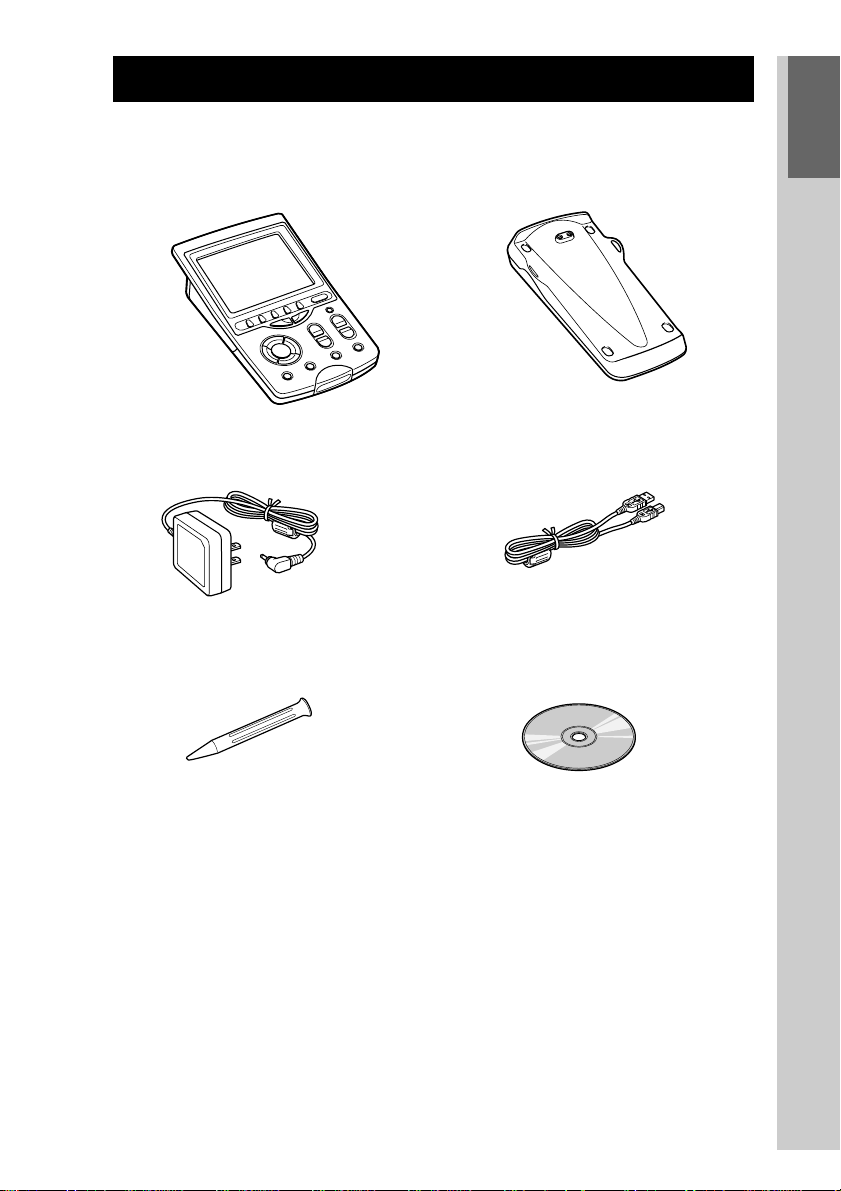
Check the accessories in the package before using the Remote Commander.
• Battery charging stand (1)
•USB cable (1)
•Installation CD-ROM (1)
• Remote Commander RM-NX7000 (1)
•AC power adaptor (1)
•Stylus (1)
•Operating Instructions (1, this manual)
•Brochure (1)
•Warranty Card (1)
•Other printed materials (1 set)
12
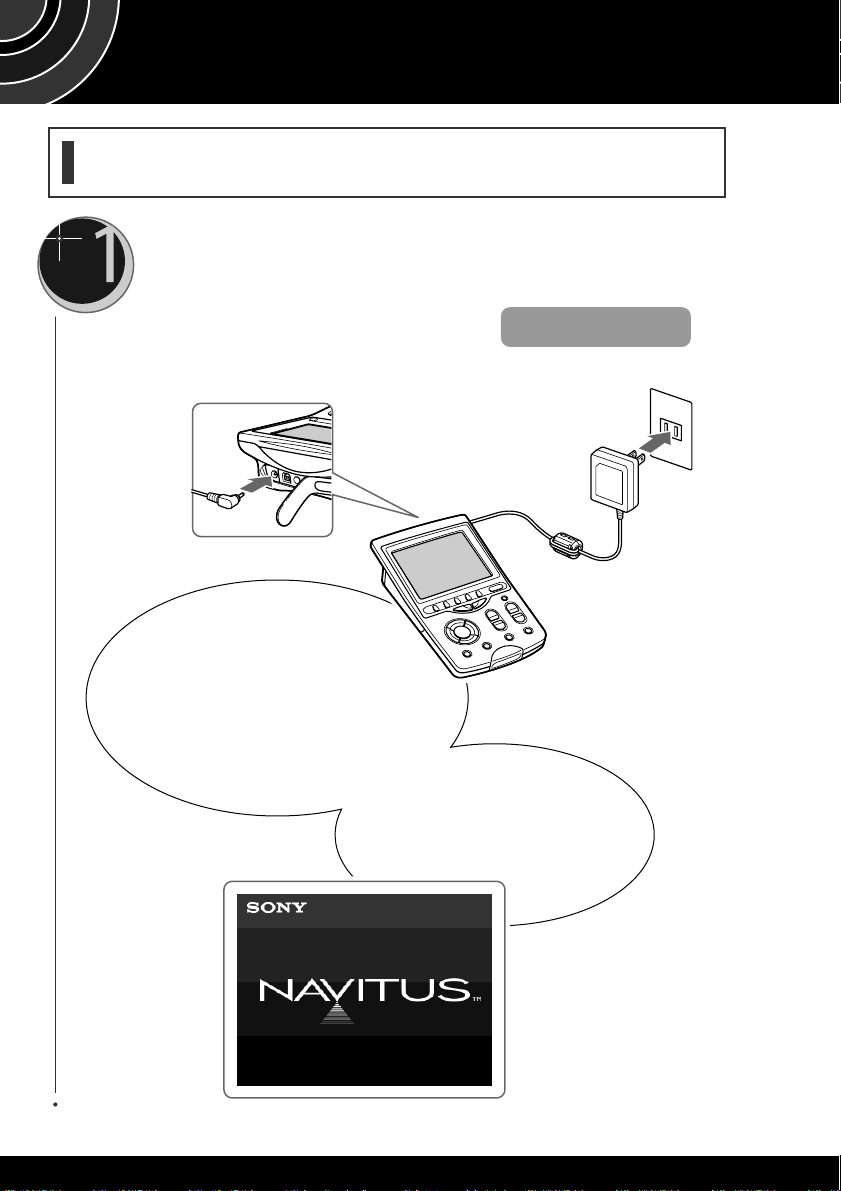
Charge the Remote Commander, connecting the supplied
AC power adaptor.
After checking the contents of the package, start up the Remote Commander.
The procedure to start up the Remote Commander is explained here.
Be sure to charge the Remote
Commander when using it for
the first time.
It takes about 60 minutes to
charge.
After about 60 minutes, the
“NAVITUS” logo appears.
Preparing RM-NX7000
For details, see page 14.
13
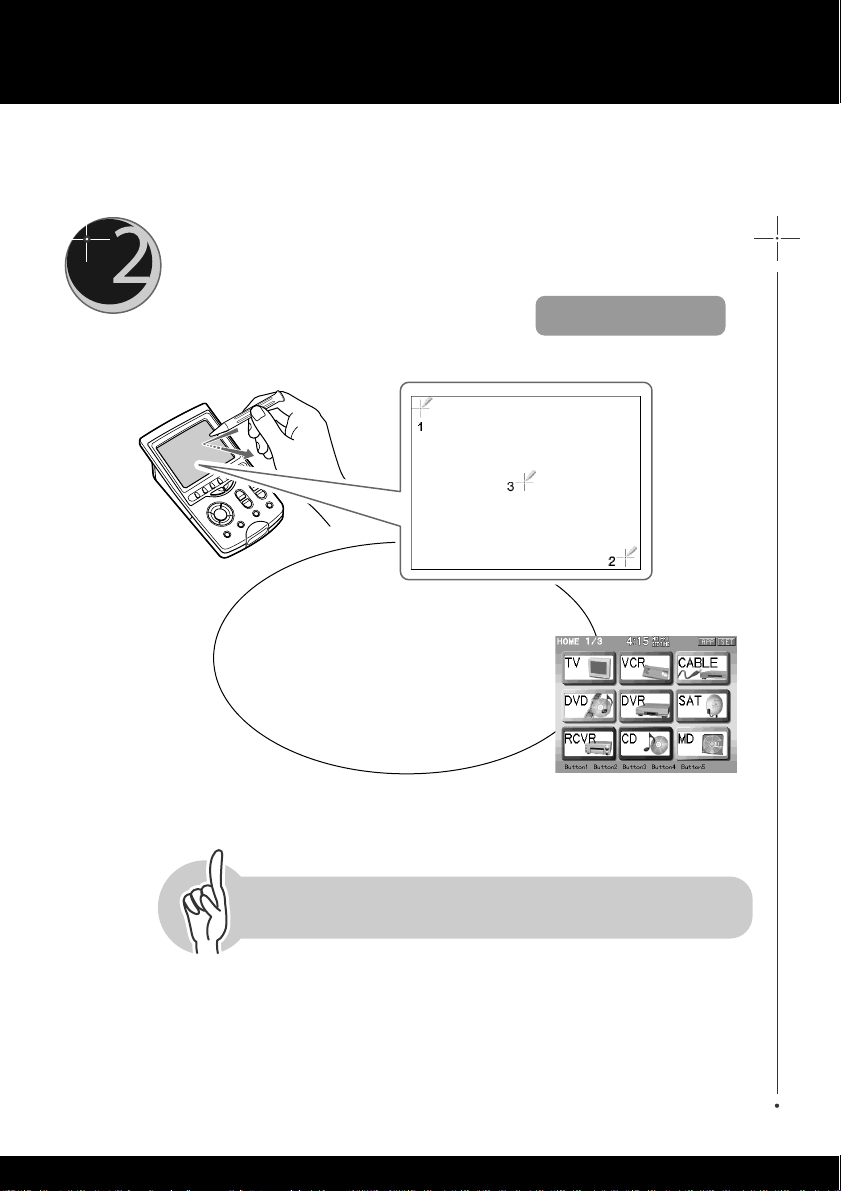
When the display for the alignment appears, calibrate the
touch key display.
The Home display appears,
and the Remote Commander is
ready to operate.
Then, let’s start up the Remote Commander!Then, let’s start up the Remote Commander!
For details, see page 16.
14
Charging
Charge the Remote Commander using the supplied Battery charging stand. The
Remote Commander can also be charged by connecting the supplied AC power
adaptor directly without using the Battery charging stand.
Notes
• Be sure to charge the Remote Commander when you use it for the first time.
• Use the supplied AC power adaptor. If an adaptor other than the supplied one is
connected to the Remote Commander, a beep may keep sounding.
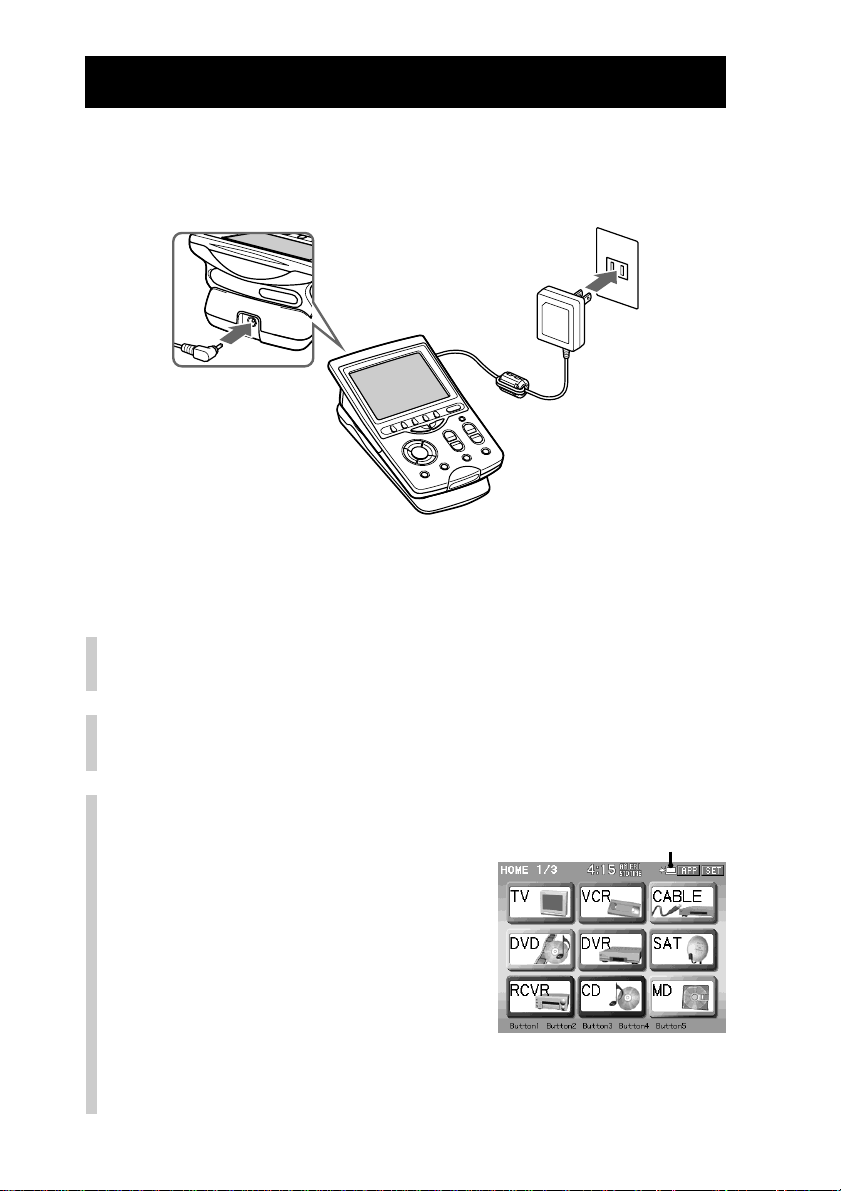
1
Connect the supplied AC power adaptor to the
Battery charging stand.
2
Connect the AC power adaptor plug to the wall
outlet.
3
Place the Remote
Commander on the Battery
charging stand.
Charging starts. After about 60 minutes of
charging, the Remote Commander starts
up automatically and the display appears.
After starting up (after the “NAVITUS”
logo is displayed), the Remote
Commander enters calibrating mode.
Calibrate the touch panel display by
referring to page 16. When calibration is
complete, the Home display appears. be
disappears when charging is complete.
Charging indicator
1
3
2
15
Getting Started
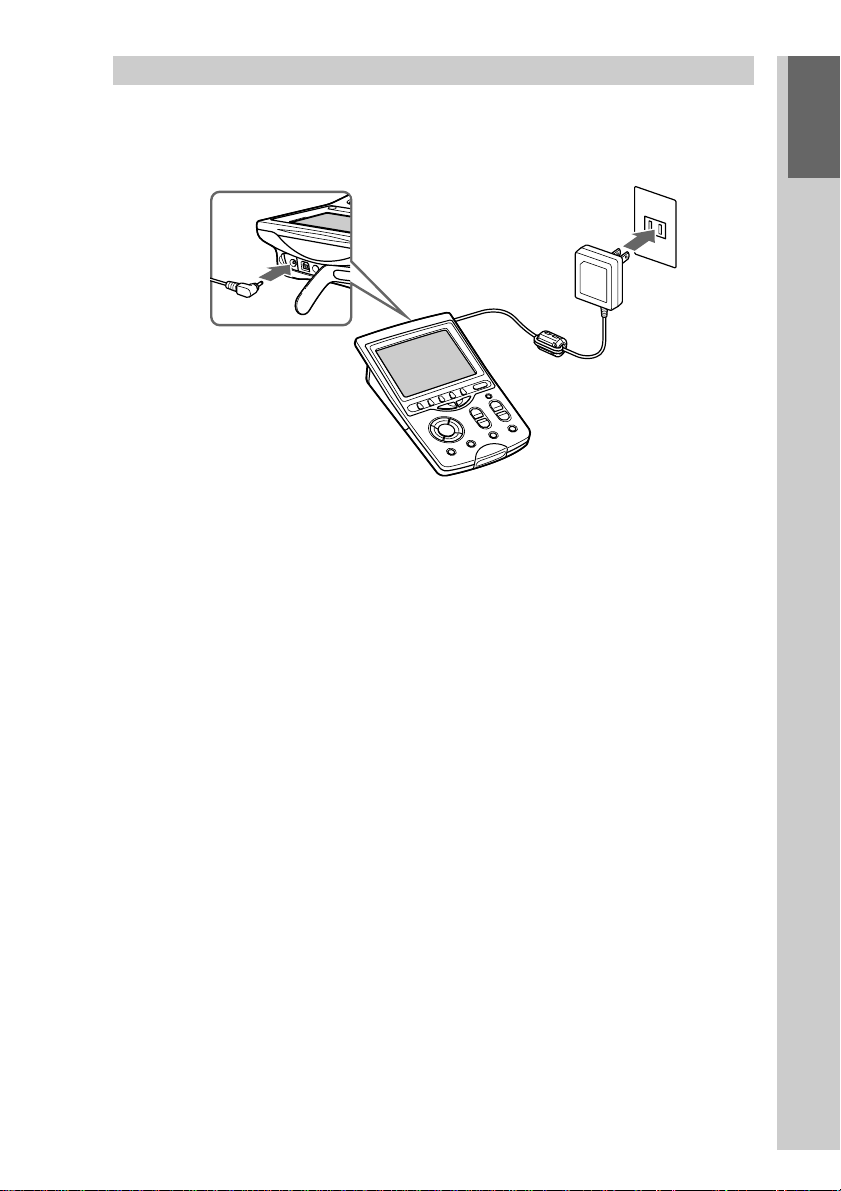
Charging without using the Battery charging stand
Connect the AC power adaptor directly to the DC IN jack of the Remote
Commander. You can operate the Remote Commander while charging it.
Notes
• After starting up, charging continues. Do not disconnect the AC power adaptor until
charging is complete and be disappears.
• While starting up (while the “NAVITUS” logo is displayed), do not disconnect the AC
power adaptor, as it may cause a malfunction.
• After charging starts, it takes a maximum of about 8 hours to complete charging.
z Tips
• If you charge the Remote Commander frequently, charging time will be reduced.
•When be is not shown in the display, charging is not necessary.
16
Using the touch panel display
Calibrating the touch panel display (ALIGNMENT)
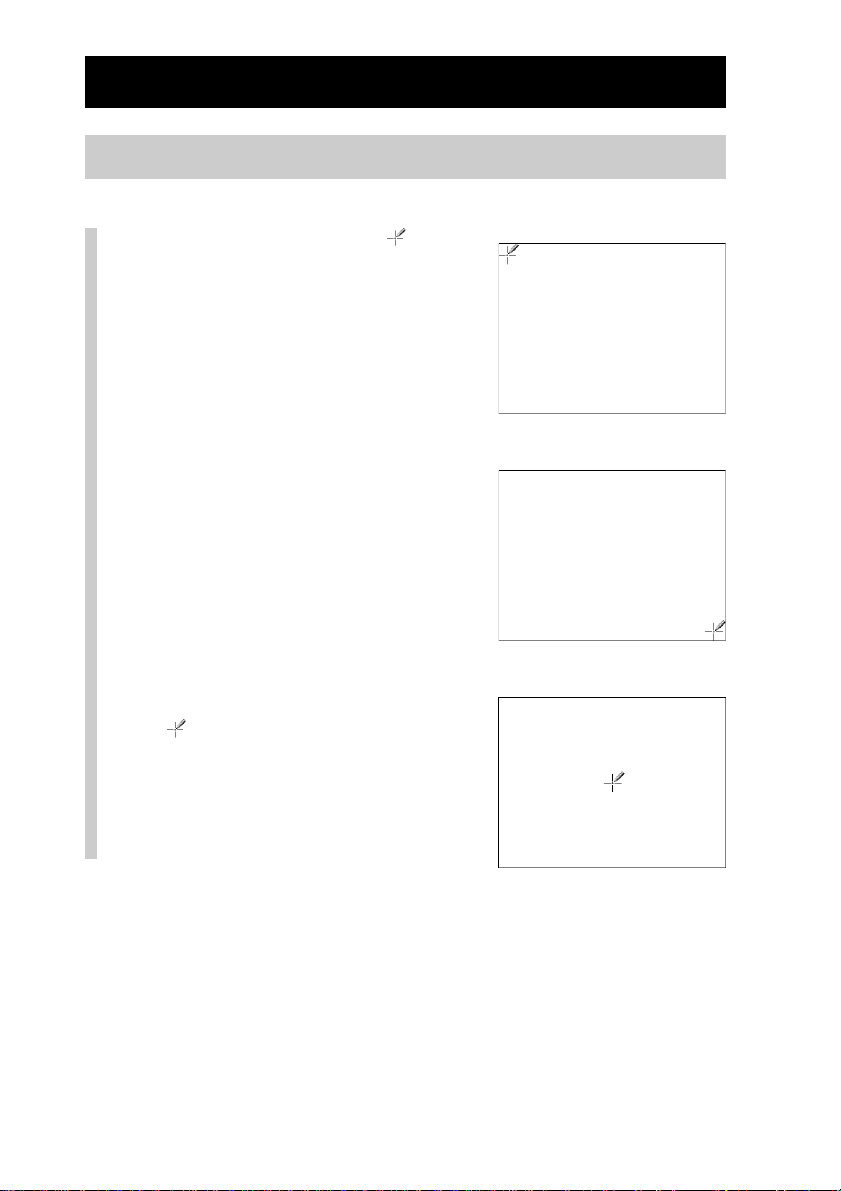
1
Tap the center of the
marks sequentially with the
supplied Stylus.
We say “tap” about pressing lightly on
the display with the Stylus.
When you tap the center of the display,
calibration of the display is complete and
the Home display appears.
Note
When calibrating, tap correctly the center of
the mark. If you do not tap the center, the
display in step 1 appears repeatedly until the
calibration is correctly performed.
z Tip
To calibrate the display again, see “Calibrating the touch panel display (ALIGNMENT)”
(page 212).
m
m
17
Getting Started
Continued
Location and Function of Controls
In this section, names and functions of parts and controls on RM-NX7000 are
explained.
Software keys on the touch panel screen are called function keys, and hardware
buttons on the Remote Commander are called function buttons.
Remote Commander RM-NX7000 (front panel)
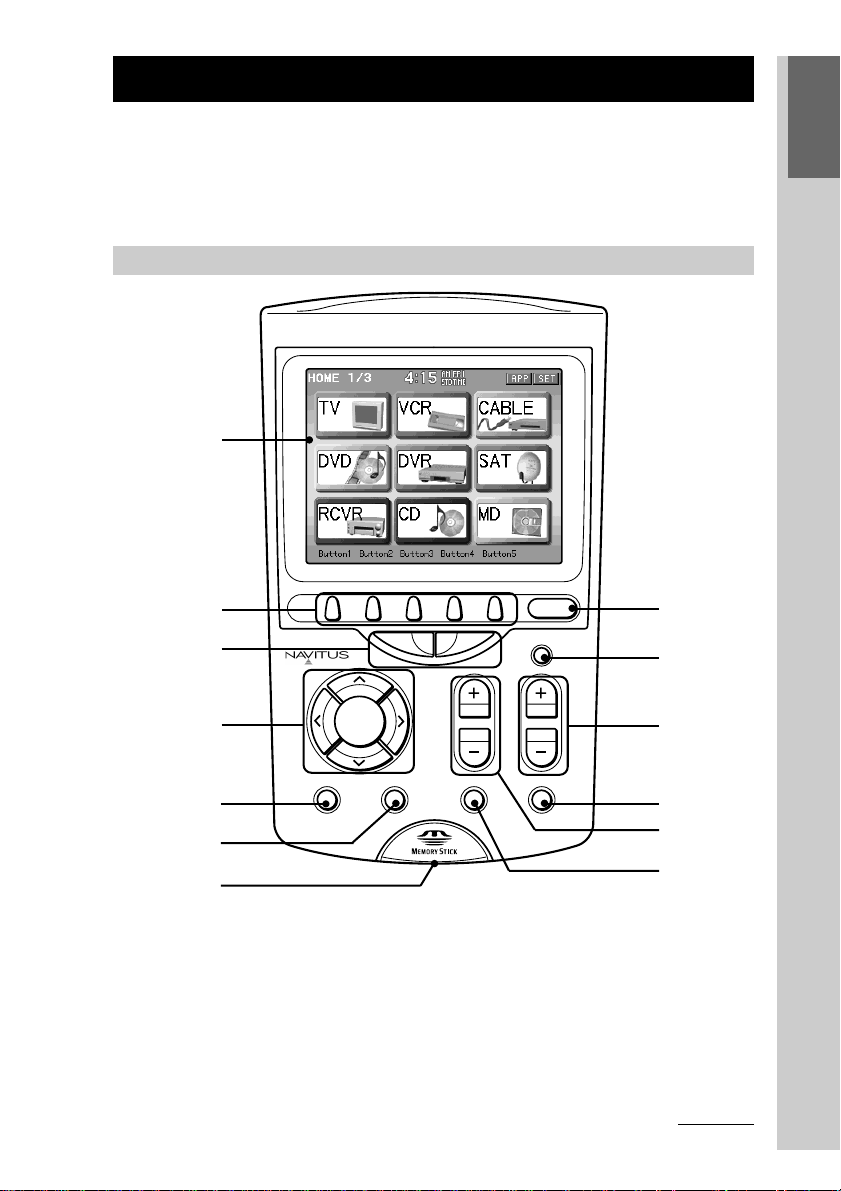
1 Touch panel display
Shows operation keys and various pieces of information. For details, see
“Screen layout and elements” (page 21).
2 Direct Access buttons (page 52)
Directly skips to the page that is programmed for the button.
3 NEXT/BACK buttons (page 38)
Change the page shown on the touch panel display. Press the NEXT button
to display the next page, or press the BACK button to display the previous
one.
BACK NEXT
HOME
OK
VOL CH
MENU EXIT MUTING RECALL
COMMANDER
OFF
INTEGRATED
REMOTE COMMANDER
1
2
3
4
5
8
9
q;
qs
qa
qd
6
7

18
Location and Function of Controls
Continued
4 OK button and Cursor Control buttons
Used to operate the menu display of a component being controlled by the
Remote Commander.
5 MENU button
Shows the menu display of a component being controlled by the Remote
Commander.
6 EXIT button
Exits the menu of a component being controlled by the Remote Commander.
7 Memory Stick slot (page 200)
Used to insert a “Memory Stick.”
8 HOME button (pages 21, 37)
Returns to the first page of the Home display
9 COMMANDER OFF button (page 38)
Turns off the indication of the touch panel display.
If this button is pressed while a macro is executed, the macro procedure
stops.
q; CH +/– buttons
Select a channel.
qa RECALL button
The function of this button varies depending on the component being
controlled by the Remote Commander.
qs VOL +/– buttons
Adjust the volume.
qd MUTING button
Mutes the audio of a component being controlled by the Remote
Commander. Press the button once again to resume at the previous volume.
About the VOL +/– and MUTING buttons
The Remote Commander is factory-set to control the volume of a visual component on a
TV and the volume of an audio component on an amplifier.
To adjust the volume of the amplifier when controlling a visual component, or to adjust
the volume of the TV when controlling an audio component, see “Setting a function key of
another component to a Component display (ALIAS)” (page 100).
19
Getting Started
About the Automatic-Off function of the display
If you do not use the Remote Commander for 10 minutes, indications on the display turn
off automatically even if you do not press the COMMANDER OFF button (Automatic-Off
function of the display). To turn on the display again, press any button except the
COMMANDER OFF, or the touch panel display. To change the length of time before the
Automatic-Off function works, see page 216.
Remote Commander RM-NX7000 (upper and rear panel)
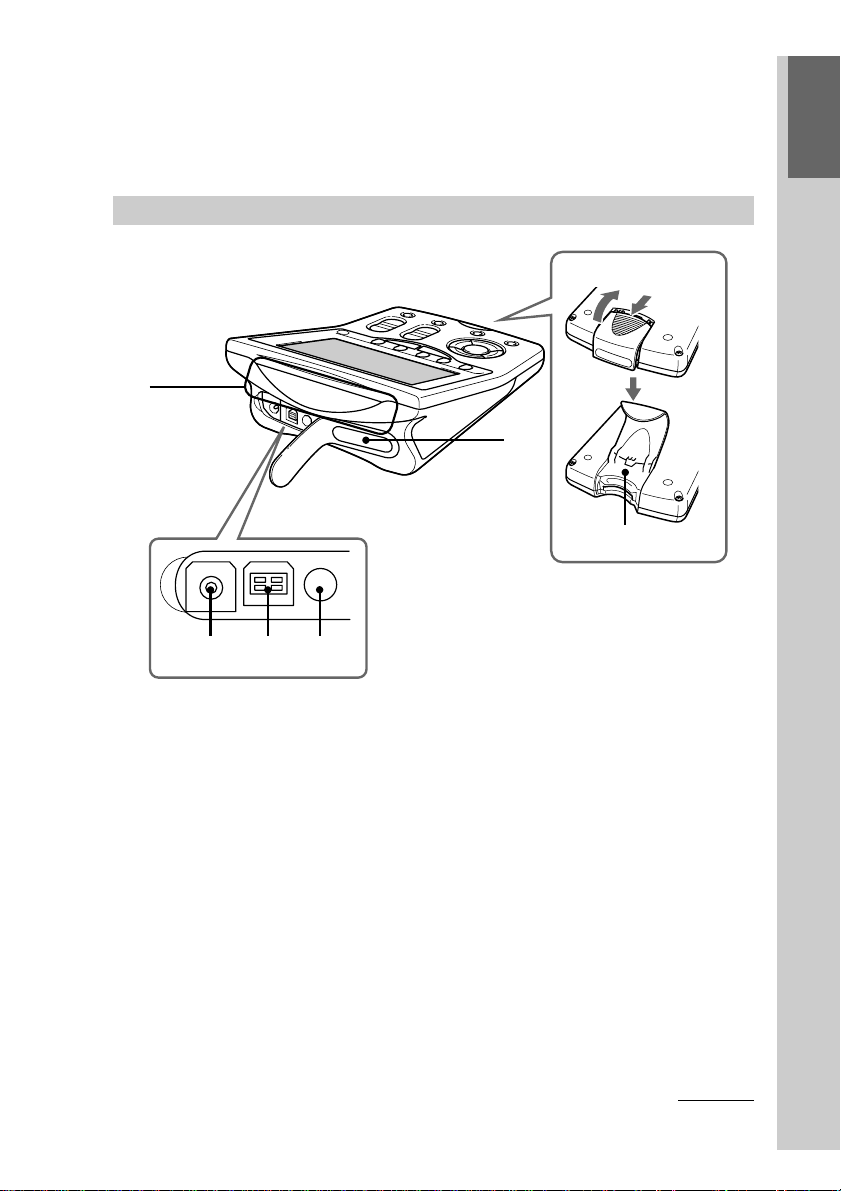
qf DC IN jack
Used to connect the supplied AC power adaptor. See also “About the DC IN
jack” (page 20).
qg USB connector
Used to connect the USB cable for computer connection. To set up the
Remote Commander using your computer, see “Setting up the Remote
Commander using “NAVITUS Design”” (page 25).
qh Stylus holder
Used to store the supplied Stylus.
qj Infrared detector/Infrared emitter
This is the area for receiving the component’s remote control signal or
transmitting the Remote Commander’s signal. Make sure not to obstruct this
area, as data will not be received or transmitted. Especially before presetting
(PRESET) (page 42) or learning (LEARN) (page 58), confirm that the emitter
of the component’s remote control is aimed directly at this area.
Continued
qk
qf qg qh
Rear
qj
ql
20
Continued
Location and Function of Controls
Battery charging stand
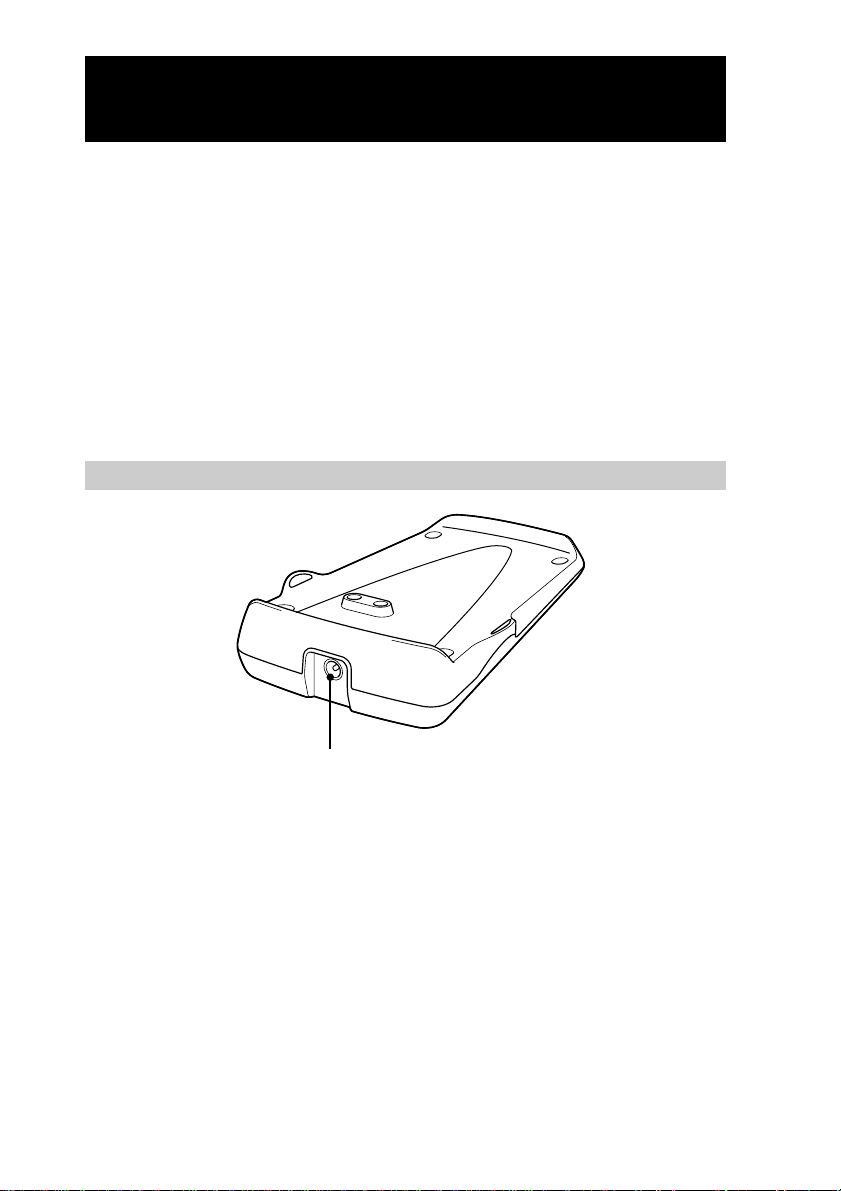
w; DC IN jack
Used to connect the supplied AC power adaptor.
About the DC IN jack
The supplied AC power adaptor can be connected to the DC IN jack of the Remote
Commander or the DC IN jack of the Battery charging stand. You can charge and operate
the Remote Commander with either connected. It is recommended to connect the AC
power adaptor directly to the DC IN jack of the Remote Commander when importing/
exporting data with the supplied USB cable to prevent disconnecting the AC power
adaptor by mistake.
w;
qk Infrared emitter
ql RESET button
Used to restart the Remote Commander. Press this button with the supplied
Stylus when the Remote Commander does not work at all even if you press
the touch panel display. Make sure not to press this button when the touch
panel display works normally. The Remote Commander will be restarted
even while setting. When you restart the Remote Commander, be sure to
connect the supplied AC power adaptor. If the AC power adaptor is not
connected, the Remote Commander will not be restarted even if you press
the RESET button. After the Remote Commander is restarted, set the system
clock again.
21
Getting Started
6
7
12345
Screen layout and elements
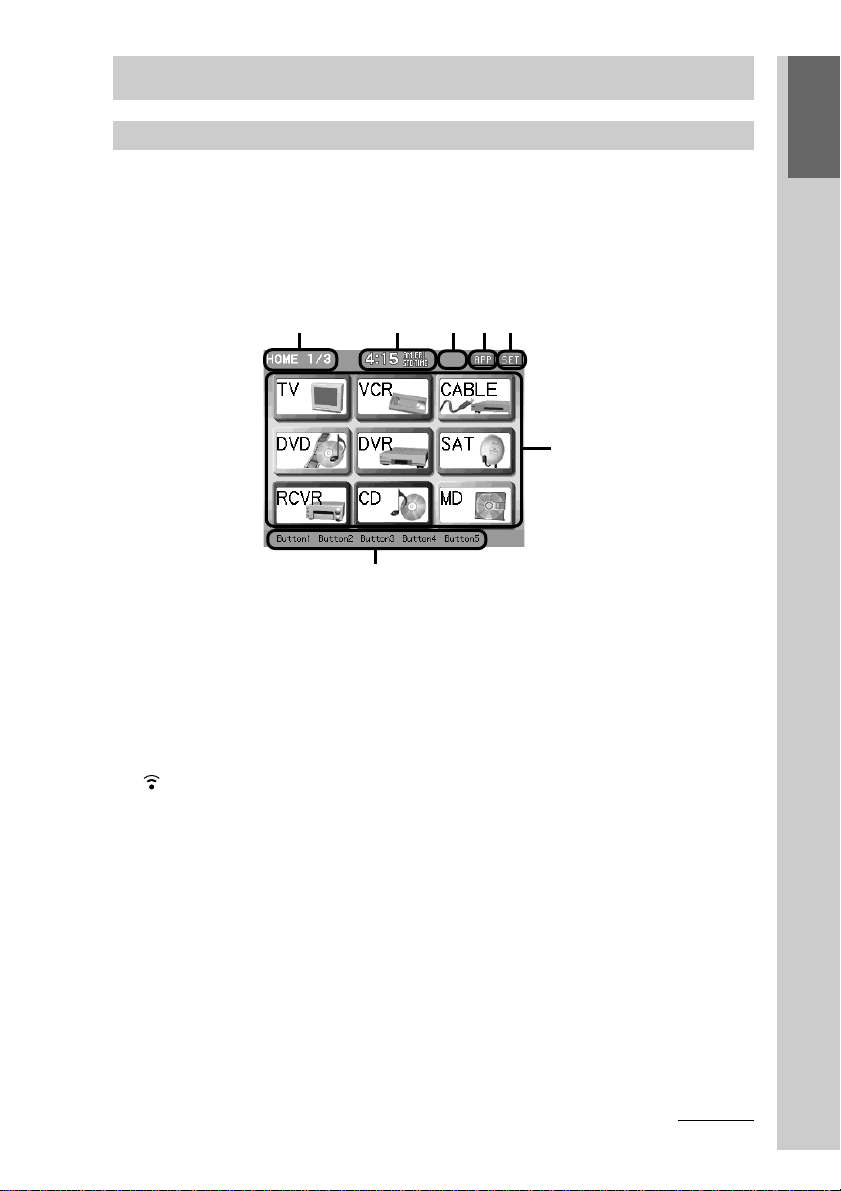
Operation mode display
This is the display used for operating your component. If you press a respective
Component key shown in the Home display, function keys for the selected
component appear.
■ Home Display
The Home display appears when the HOME button is pressed.
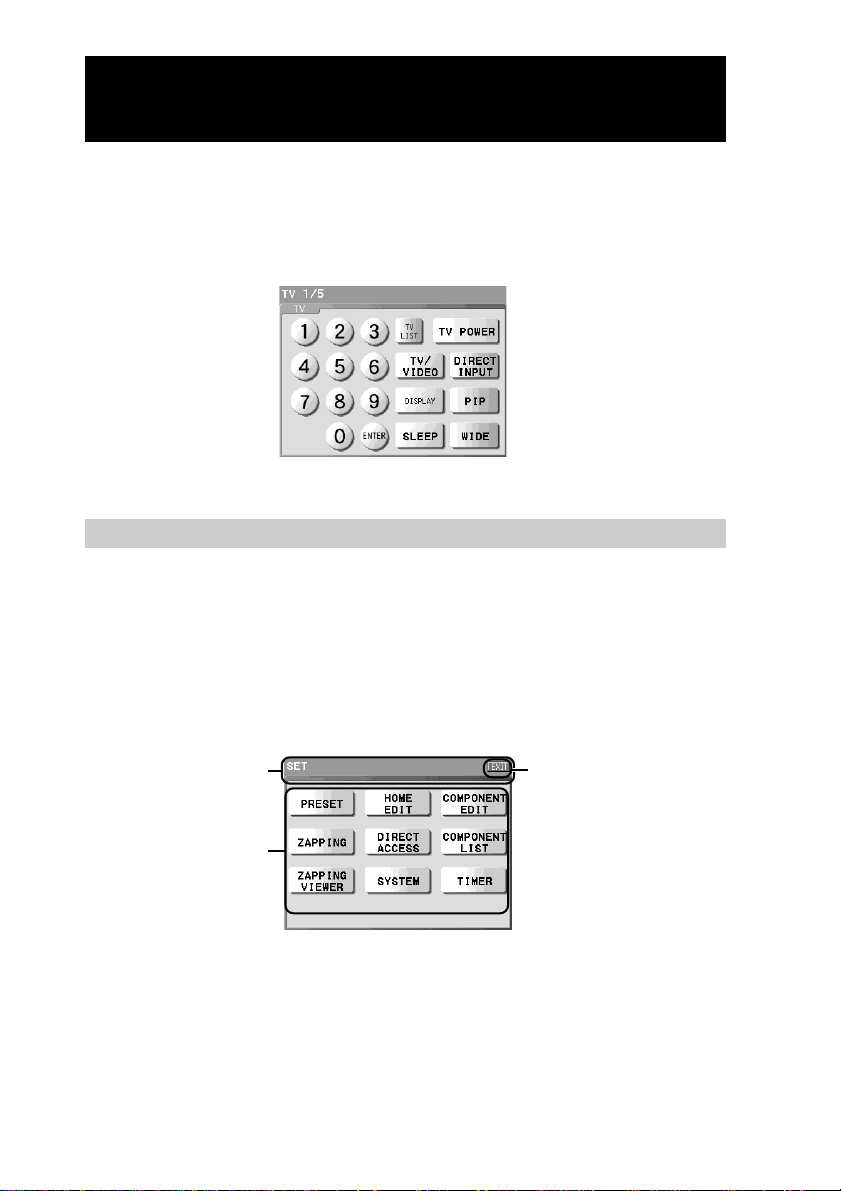
1 Display name/ Page number
The name of the currently shown display and the page number (current
page/total pages) are shown. To skip to another page, press the NEXT/
BACK button on the Remote Commander.
2 Clock
The clock is shown. Referring to page 220, set the clock before starting operation.
3 Mark indication
(transmission mark), be (charging mark), E (low battery) and c
(timer mark) are shown.
4 [APP] key
Press this key for 2 seconds or longer to enter the application mode (page
226).
5 [SET] key
Press this key for 2 seconds or longer to enter the Set display (pages 22, 39).
6 Component keys
A component to be controlled by the Remote Commander is assigned to
each Component key. Press any Component key, then the display for
operating the component (Component display) assigned to the key appears.
7 Direct Access button labels (page 52)
The names (label) of Direct Access buttons on the Remote Commander are
shown.
Continued
22
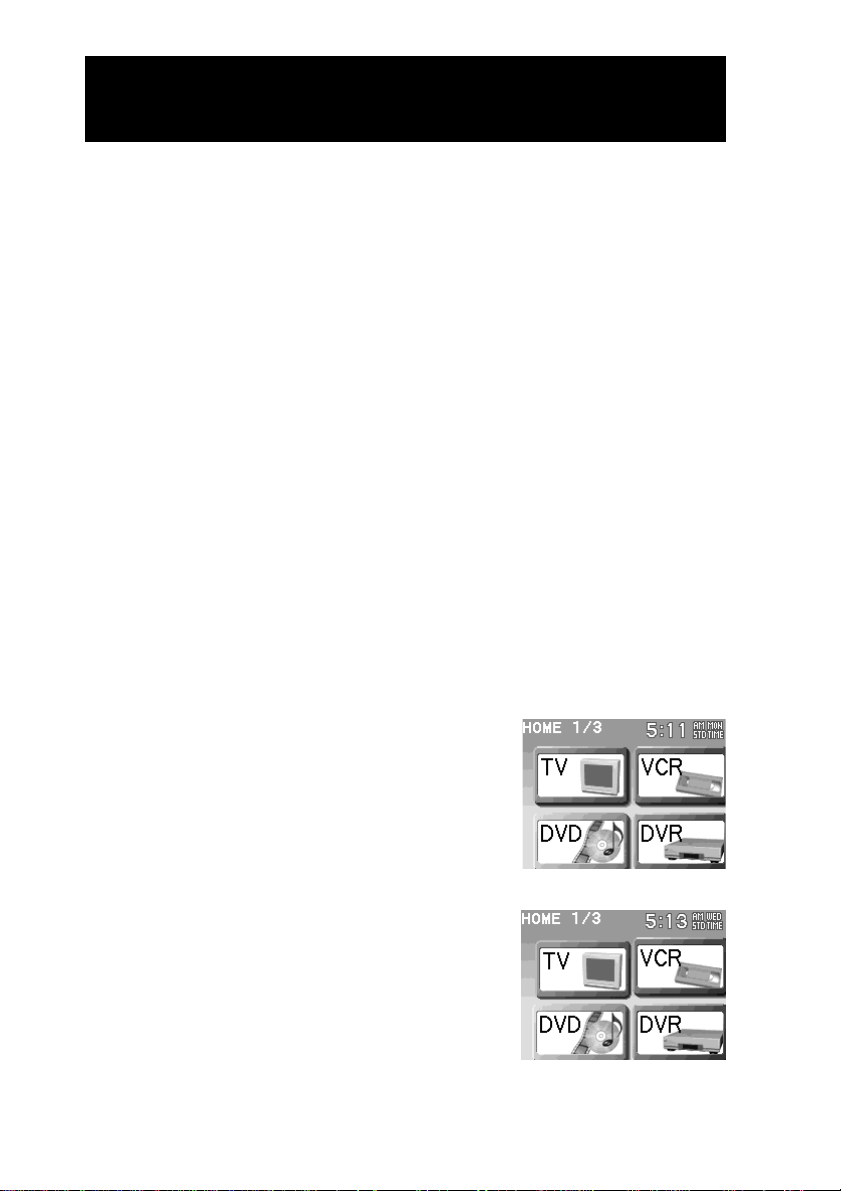
1 Item confirmation area
If you press this area (other than keys), the character string that indicates the
item being set up scrolls from right to left*.
* When programming a preset code, if you select [SOLUTION] and the display of the
standby mode for the remote control signal is shown, the character string does not
scroll even if you tap it.
Component display of TV
1
3
2
■ Component display
A Component display appears when a Component key in the Home display is
pressed.
Function keys to control the component are assigned to the Component display.
Setting mode display
This is the display used for setting the Remote Commander. If you press the
[SET] key shown on the upper right-hand of the display for 2 seconds or longer,
the Set display for entering the setting mode appears.
■ Set display
Perform the respective setting by selecting the setting item key shown in the Set
display.
Continued
Location and Function of Controls

23
Getting Started
2 [EXIT] key
Press to return to the previous mode display.
3 Setting keys
Press to set up each setting.
[PRESET] key
Press to change a component preset code (page 43).
Setting items:
[SOLUTION] (page 45) [BRAND] (page 48)
[SEARCH] (page 50)
[HOME EDIT] key
Press to customize the Home display (page 67).
Setting items:
[NEW] (page 80) [ALIAS] (page 83)
[DELETE] (page 72) [SKIN/LABEL] (page 74)
[MOVE] (page 69) [DUPLICATE] (page 77)
[COMPONENT MACRO] (page 119) [MACRO VIEWER] (page 123)
[PAGE] (page 85)
[COMPONENT EDIT] key
Press to customize the Component display (page 88).
Setting items:
[LEARN] (page 58) [ALIAS] (page 100)
[DELETE] (page 92) [SKIN/LABEL] (page 97)
[MOVE] (page 89) [WALLPAPER] (page 103)
[SYSTEM MACRO] (page 116) [MACRO VIEWER] (page 123)
[PAGE] (page 105)
[ZAPPING] key
Press to set Zapping (page 176).
Setting items:
[DELETE] (page 184) [LABEL] (page 177)
[EDIT] (page 178)
[DIRECT ACCESS] key
Press to set the label and the macro for Direct Access buttons (page 52).
Setting items:
[LABEL] (page 53) [DIRECT ACCESS MACRO] (page 56)
[COMPONENT LIST] key
Press to set a list assigned to each component (page 150).
Setting items:
[ELEMENT EDIT] (page 150) [USER] (page 159)
[ZAPPING VIEWER] key
Press to set the viewer operation of a created Zapping Group to a
function key/button (page 182).
Setting items:
[ADD] (page 182) [DELETE] (page 192)
[ASSIGN] (page 194)
Continued
24
[SYSTEM] key
Press to set the function of the Remote Commander (“Memory Stick”,
display indication, etc.) (pages 206, 212).
Setting items:
[MEMORY STICK] (page 206) [DISPLAY] (page 212)
[CLOCK] (page 220) [BEEP] (page 222)
[LOCK] (page 223) [ABOUT] (page 224)
[RECOVERY] (page 225)
[TIMER] key
Press to set the timer (page 129).
Setting items:
[PROGRAM EDIT] (page 129) [TIMER ON/OFF] (page 142)
z Tip
You cannot select a component being set up or certain keys depending on data set to the
keys though they are shown.
Keys that are not selectable appear pressed. If you press one of these keys, a beep sounds
twice.
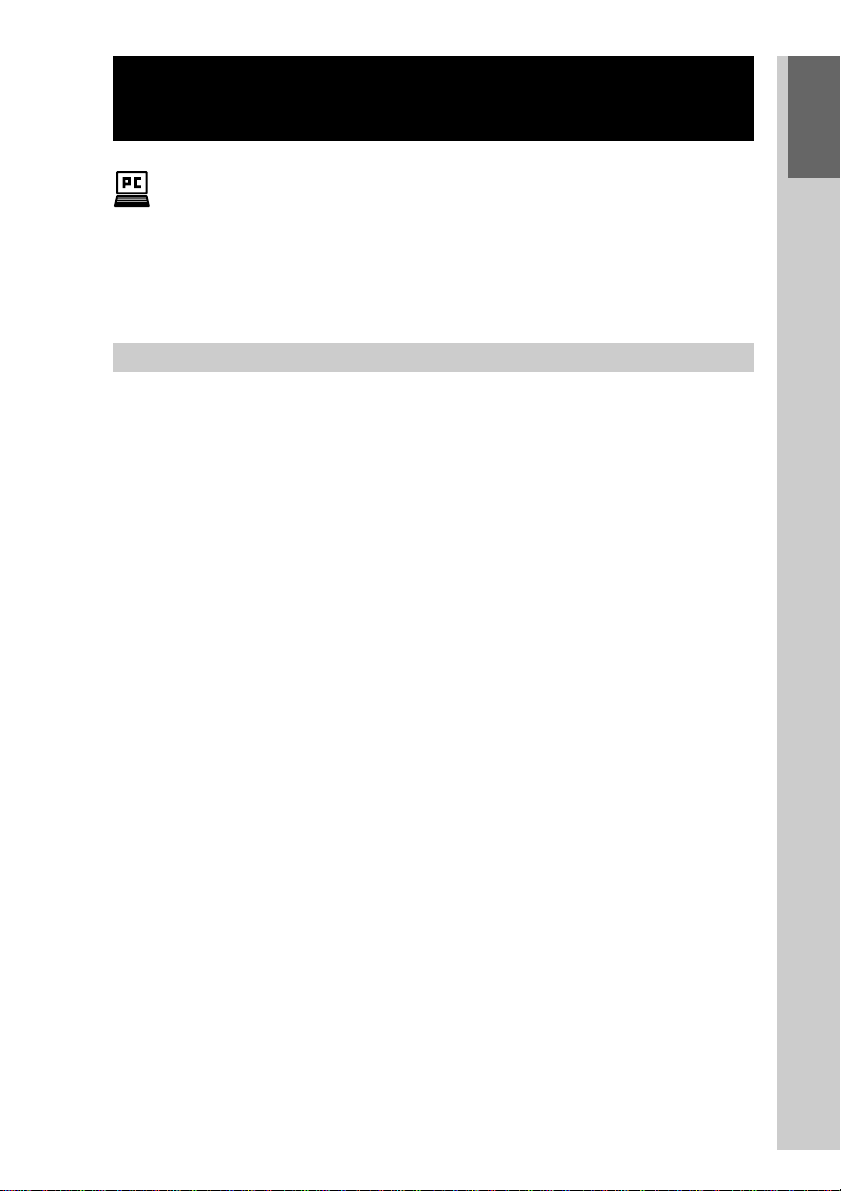
Key appearance on the setting display
Press the keys shown in the display to set the Remote Commander.
There are two types of keys, selectable keys and not selectable keys depending on the data
set to the key.
Normal appearance : Selectable (you can set). If you
press the key, you can go to
the next step.
Pressed appearance: Not selectable (you cannot
set). If you press the key, a
beep sounds twice.
Continued
Location and Function of Controls
25
Getting Started
Setting up the Remote Commander using
“NAVITUS Design”
Installing “NAVITUS Design” software contained in the supplied CD-
ROM on your computer, you can set up the Remote Commander with
your computer. “NAVITUS Design” makes complex settings such as
“Macro” (page 113) or “Zapping” (page 172) easy, and also provides
various convenient functions that can be set up only on the computer.
For details on using, see the manual (Help) provided in “NAVITUS
Design.”
“NAVITUS Design” system requirements
Operating systems:
Windows
®
XP Professional/Windows
®
XP Home Edition/
Windows
®
2000 Professional/Windows
®
Millennium Edition/
Windows
®
98 Second Edition (manufacturer installed)
CPU: Pentium II, 300 MHz or more
RAM: 64 MB or more (128 MB or more for Windows
®
XP)
Required hard disc capacity:
10 MB or more
Display: High (16 bits) Color or higher, 1,024 × 768 dots or better *
1)
CD-ROM drive
USB port
(Memory Stick slot) *
2)
*
1)
Does not operate with a display of under 1,024 × 768 dots.
*
2)
Only when using a “Memory Stick”
26
Continued
Setting up the Remote Commander using “NAVITUS Design”
Installing “NAVITUS Design”
Follow the instructions below to install.
Notes
• Do not copy the “NAVITUS Design” folder in the supplied CD-ROM to a computer.
• On Windows 2000 Professional, or Windows XP, logon with the ID authorized as the
computer administrator when installing “NAVITUS Design.”
1
Close all software running on Windows.
2
Insert the supplied CD-ROM in the CD-ROM drive of the computer.
After a moment, “InstallShield Wizard” of “NAVITUS Design” appears.
3
Click [Next].
Follow the on-screen instructions and proceed with the installation.
The “InstallShield Wizard Complete” display appears when the installation
is complete.
z Tip
If the installation display is hidden behind other windows
“InstallShield Wizard” of “NAVITUS Design” may be sometimes hidden behind
other displays while the installation is in progress and you cannot operate the
installation. In this case, press the [Tab] key several times while pressing down the
[Alt] key. “InstallShield Wizard” of “NAVITUS Design” appears again.
4
Click [Finish].
The message telling you to restart the computer appears.
5
Click [OK].
The computer restarts, and installing of “NAVITUS Design” finishes.
After restarting the computer, install consecutively the USB driver.
Before installing the USB driver, confirm the operating system of your
computer, and then perform the procedure from step 4 in “Installing the
USB driver” that begins from the next page.
27
Getting Started
Continued
Installing the USB driver
To connect a computer and the Remote Commander using the supplied
USB cable, installing the USB driver to the computer is necessary.
Follow the instructions below to install.
Notes
• If the AC power adaptor is not connected to the Remote Commander, USB cannot be
detected by the computer even if the USB cable is connected. Make sure to connect the
AC power adaptor before installing the USB driver.
Or, the USB communication is disconnected if the Remote Commander is unloaded from
the Battery charging stand. Make sure that the Remote Commander is securely loaded
on the Battery charging stand. Or it is recommended to connect the AC power adaptor
directly to the Remote Commander. If the USB communication is disconnected by
mistake, install the USB driver again from the beginning.
• Do not copy the USB driver in the supplied CD-ROM to the computer.
• On Windows 2000 Professional or Windows XP, logon with the ID authorized as the
computer administrator when installing “NAVITUS Design.”
• On Windows 2000 Professional or Windows XP, installing of the driver is required for
each USB port. Therefore, perform the installation for each USB port to which the
Remote Commander is to be connected.
• Messages other than those of the installation procedure of the USB driver described
below may appear depending on the computer. In this case, perform the installation
following the on-screen instructions.
For Windows XP users
1
Close all software running on Windows.
2
Insert the supplied CD-ROM in the CD-ROM drive of the computer.
After a moment, “InstallShield Wizard” of “NAVITUS Design” appears.
3
Click [Cancel] to close “InstallShield Wizard” of “NAVITUS Design.”
4
Connect a computer and the Remote Commander using the
supplied USB cable.
The “Found New Hardware” message appears in the Notification Area in
the lower right-hand of the display. After a moment, “Found New
Hardware Wizard” appears.

28
Continued
Setting up the Remote Commander using “NAVITUS Design”
5
Select “Install the software automatically [Recommended]”,
then click [Next].
Installing of the USB driver starts.
The “Completing the Found New Hardware Wizard” display appears when
the installation is complete.
6
Click [Finish].
Installing of the USB driver finishes.
For Windows 2000 users
1
Close all software running on Windows.
2
Insert the supplied CD-ROM in the CD-ROM drive of the computer.
After a moment, “InstallShield Wizard” of “NAVITUS Design” appears.
3
Click [Cancel] to close “InstallShield Wizard” of “NAVITUS Design.”
4
Connect a computer and the Remote Commander using the
supplied USB cable.
The “Found New Hardware” message appears. After a moment, “Found
New Hardware Wizard” appears.
5
Click [Next].
The “Install Hardware Device Drivers” display appears.
6
Select “Search for a suitable driver for my device
[recommended]”, then click [Next].
The “Locate Driver Files” display appears.
7
Mark only the check box of “CD-ROM drives”, then click [Next].
The “Driver Files Search Results” display appears, and the found driver is
displayed.
8
Click [Next].
Installing of the USB driver starts. The “Completing the Found New
Hardware Wizard” display appears when the installation is complete.

29
Getting Started
Continued
9
Click [Finish].
Installing of the USB driver finishes.
For Windows Millennium Edition users
1
Close all software running on Windows.
2
Insert the supplied CD-ROM in the CD-ROM drive of the computer.
After a moment, “InstallShield Wizard” of “NAVITUS Design” appears.
3
Click [Cancel] to close “InstallShield Wizard” of “NAVITUS Design.”
4
Connect a computer and the Remote Commander using the
supplied USB cable.
The “Found New Hardware” message appears. After a moment, “Add New
Hardware Wizard” appears.
5
Click [Next].
The display for selecting the search method of a driver appears.
6
Select “Search for the best driver for your device.
[Recommended]”, then click [Next].
The display for specifying a driver location appears.
7
Mark only the check box of “Specify a location” and input CD-ROM
drive name in the text box, then click [Next].
The search results of the driver files display appears, and the found driver is
displayed.
8
Click [Next].
Installing of the USB driver starts. The installation complete display appears
when the installation is complete.
9
Click [Finish].
Installing of the USB driver finishes.

30
Continued
Setting up the Remote Commander using “NAVITUS Design”
For Windows 98 Second Edition users
1
Close all software running on Windows.
2
Insert the supplied CD-ROM in the CD-ROM drive of the computer.
After a moment, “InstallShield Wizard” of “NAVITUS Design” appears.
3
Click [Cancel] to close “InstallShield Wizard” of “NAVITUS Design.”
4
Connect a computer and the Remote Commander using the
supplied USB cable.
The “Found New Hardware” message appears. After a moment, “Add New
Hardware Wizard” appears.
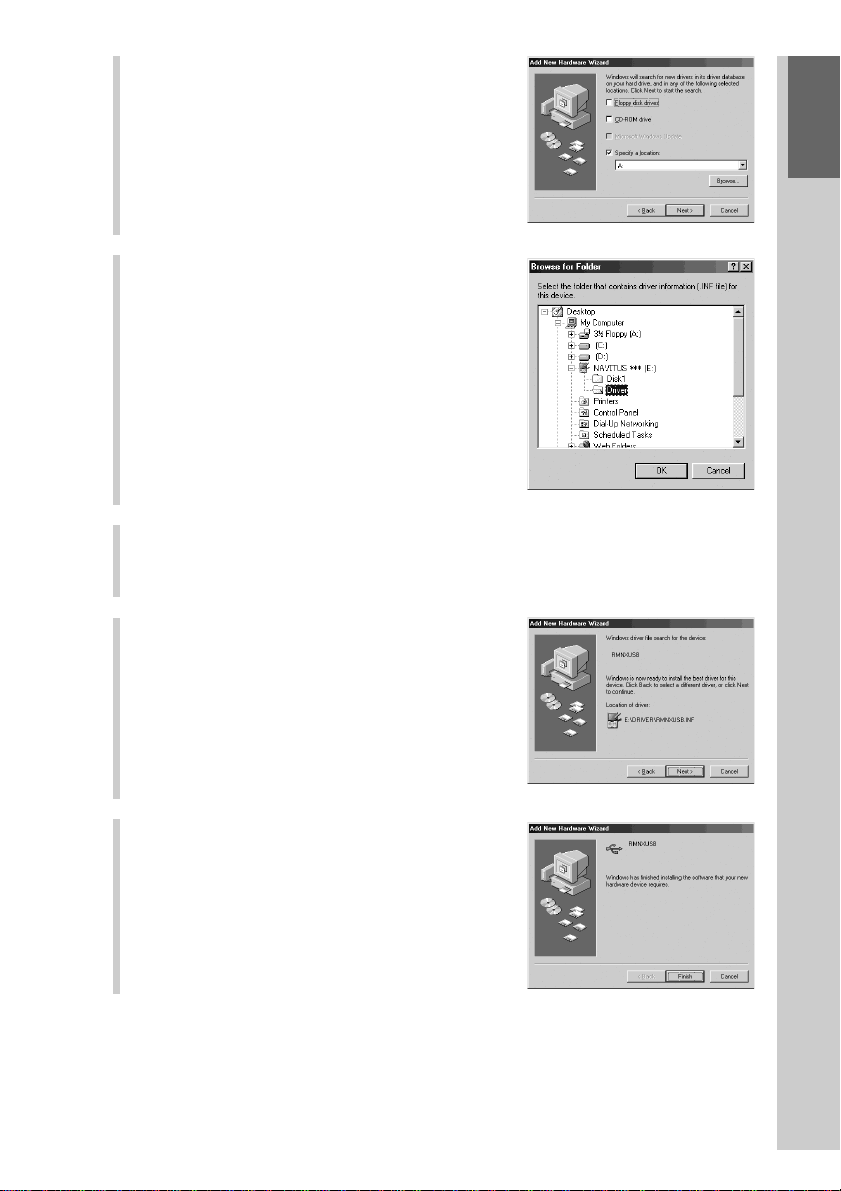
5
Click [Next].
The display for selecting the search method
of a driver appears.
6
Select “Search for the best driver for
your device. [Recommended]”, then
click [Next].
The display for specifying a driver location
appears.
31
Getting Started
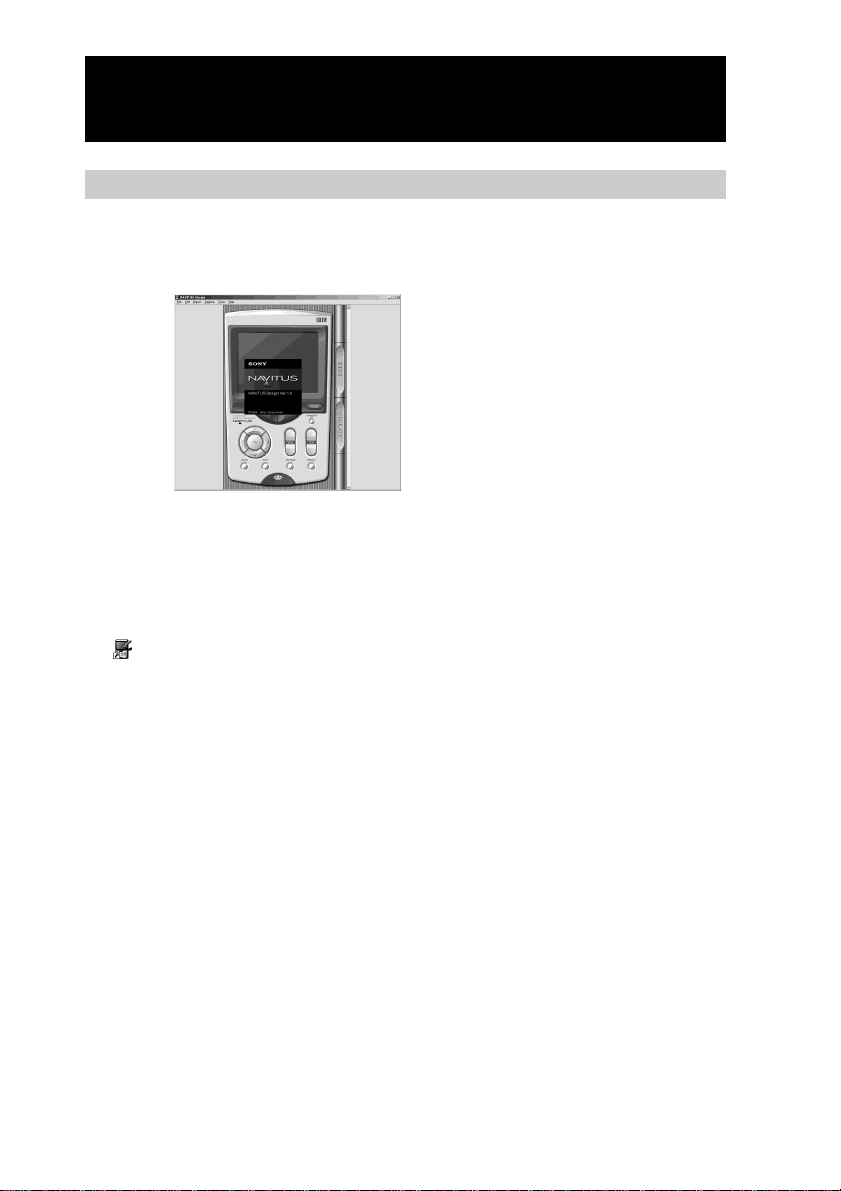
7
Mark only the check box of “Specify
a location”, then click [Browse].
The “browse for Folder” dialog box
appears.
8
Select the “Driver” folder in “CD-
ROM drive (NAVITUS)”, then click
[OK].
The display returns to the display for
specifying a driver location.
9
Click [Next].
The search results of the driver files display appears, and the found driver is
displayed.
10
Click [Next].
Installing of the USB driver starts. The
installation complete display appears when
the installation is complete.
11
Click [Finish].
Installing of the USB driver finishes.
z Tip
After clicking [Finish], restarting the computer may be required depending on the
computer. In this case, restart the computer following the on-screen instructions.
32
Continued
Setting up the Remote Commander using “NAVITUS Design”
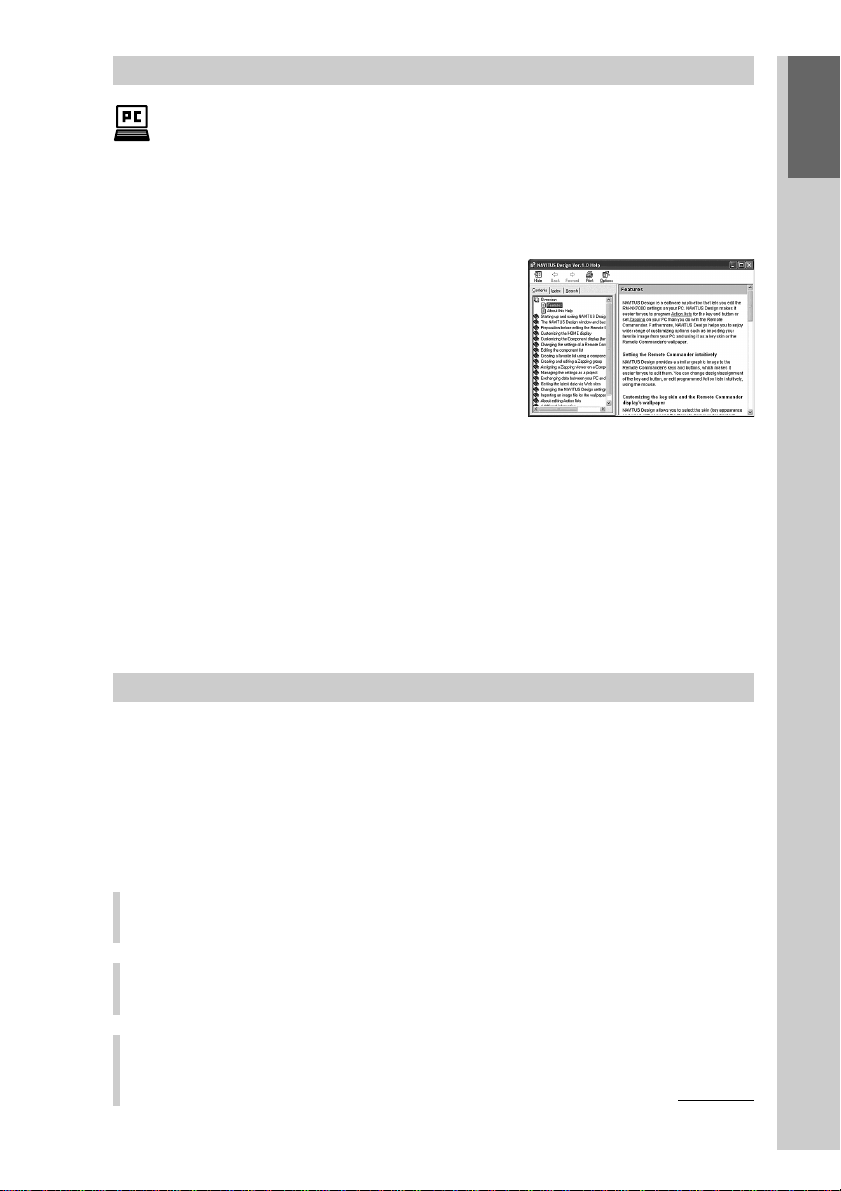
“NAVITUS Design 1.0” display
Starting up “NAVITUS Design 1.0”
On Windows XP
Click the [Start] button on Windows, and point to [All Programs]. Click [Sony
NAVITUS] then [NAVITUS Design 1.0].
On Windows other than XP
Click the [Start] button on Windows, and point to [Programs]. Click [Sony
NAVITUS] then [NAVITUS Design 1.0].
z Tips
• If (“NAVITUS Design 1.0” icon) is shown, you can also start up “NAVITUS Design
1.0” by double-clicking the icon.
• When exchanging data, connect the Remote Commander and the computer with the
supplied USB cable, and then start up “NAVITUS Design 1.0.” For details on connection
and data transfer, refer to the manual (Help) of “NAVITUS Design 1.0.”
33
Getting Started
Using “NAVITUS Design”– Help
You can set up the Remote Commander by operating “NAVITUS
Design”, referring to the detailed instructions provided in Help.
Starting Help
Start up “NAVITUS Design”, then click [Help] on the menu bar and select
[NAVITUS Design help].
How to use Help
Click one of the tabs: [Contents], [Index] or
[Search], and check the information you need.
To search by contents (Contents)
You can find information relating to a specific subject by using the table of contents shown
on the “Contents” tab.
To search indexed information (Index)
You can find information from a list of predetermined keywords shown on the “Index”
tab.
To search using key words (Search)
You can submit a Keyword search on the “Search” tab by typing in your keyword(s).
Uninstalling “NAVITUS Design”
Follow the instruction below to uninstall “NAVITUS Design.”
Note
For Windows 2000/Windows XP users, logon with a user name, with “Computer
Administrator” as a privilege, and then follow the instructions below. Refer to the
operating instructions of your computer for details on logging on as an administrator.
For Windows XP users
1
Click [Start] then [Control Panel].
The “Control Panel” window appears.
2
Click [Add or Remove Programs].
The “Add/Remove Programs” dialog box appears.
3
Click [Change or Remove Programs].
Continued

34
Continued
Setting up the Remote Commander using “NAVITUS Design”
4
Click [NAVITUS Design 1.0] in the “Currently Installed Programs”
list, then click [Change/Remove].
“InstallShield Wizard” of “NAVITUS Design” appears.
5
Select “Remove”, then click [Next].
The confirmation message of deleting the selected program (“NAVITUS
Design”) appears.
6
Click [OK].
The uninstallation of “NAVITUS Design” starts.
The display of completing the uninstallation appears when the
uninstallation is complete.
7
Click [Finish].
Uninstalling of “NAVITUS Design” finishes.
For Windows 2000 users
1
Click [Start], [Settings] then [Control Panel].
The “Control Panel” window appears.
2
Double-click [Add/Remove Programs].
The “Add/Remove Programs” dialog box appears.
3
Click [Change or Remove Programs].
4
Click [NAVITUS Design 1.0] in the “Currently Installed Programs”
list, and then click [Change/Remove].
“InstallShield Wizard” of “NAVITUS Design” appears.
5
Select “Remove”, then click [Next].
The confirmation message of deleting the selected program (“NAVITUS
Design”) appears.
6
Click [OK].
The uninstallation of “NAVITUS Design” starts.
The display of completing the uninstallation appears when the
uninstallation is complete.

35
Getting Started
7
Click [Finish].
Uninstalling of “NAVITUS Design” finishes.
For Windows Millennium Edition/Windows 98 Second Edition users
1
Click [Start], [Settings] then [Control Panel].
The “Control Panel” window appears.
2
Double-click [Add/Remove Programs].
The “Add/Remove Programs Properties” dialog box appears.
3
Click [NAVITUS Design 1.0] in the list of programmes for
automatic removal, and then click [Add/Remove].
“InstallShield Wizard” of “NAVITUS Design” appears.
4
Select “Remove”, then click [Next].
The confirmation message of deleting the selected program (“NAVITUS
Design”) appears.
5
Click [OK].
The uninstallation of “NAVITUS Design” starts.
The display of completing the uninstallation appears when the
uninstallation is complete.
6
Click [Finish].
Uninstalling of “NAVITUS Design” finishes.
36
Basic Operations
37
Basic Operations
Basic Operations of the Remote Commander
The basic operations of the Remote Commander in the operation mode, how to
enter the Set display used for setting the Remote Commander, and how to input
letters are explained here.
Operating a component (Operation mode)
Let’s operate a component by pressing keys shown in the display in the
operation mode.
z Tip
The Remote Commander is preset at the factory to control most Sony components. To use
certain Sony components or components other than Sony’s, see “Programming the preset
codes of components (PRESET)” (page 42) and program the component preset codes for
the Remote Commander.
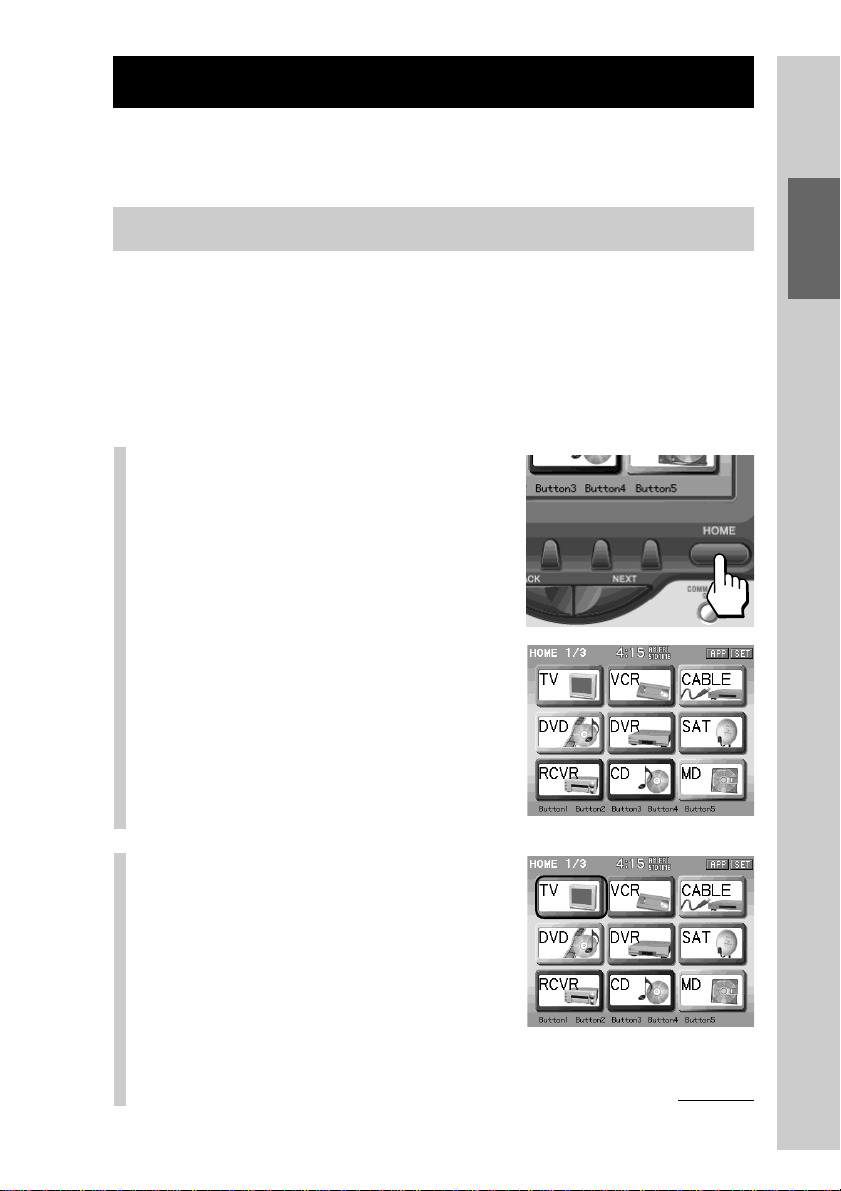
1
Press the HOME button.
The Home display appears.
2
Press a Component key of
the component you want to
operate.
For example, press the [TV] key.
The Component display assigned to the
pressed key appears.
Continued
38
Basic Operations of the Remote Commander
Continued
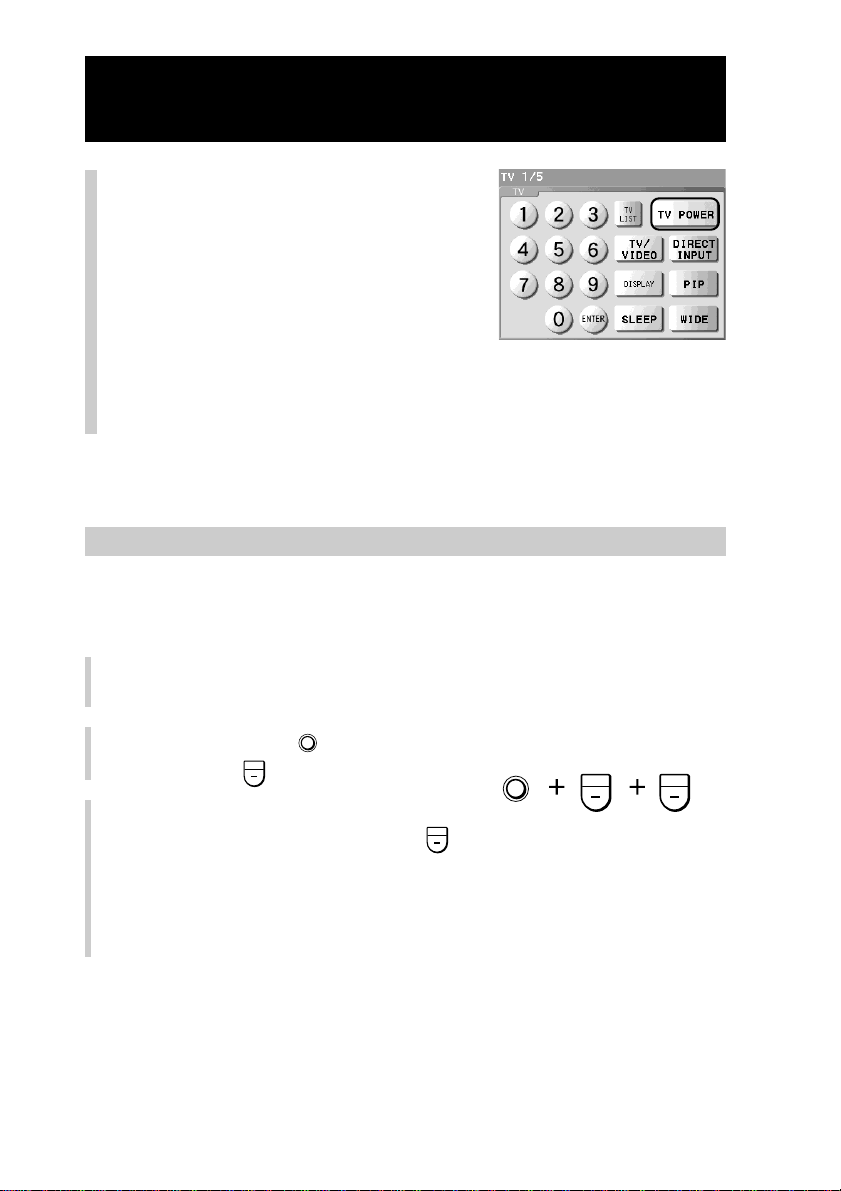
3
Press a function key on the
Component display or a
button on the Remote
Commander.
For example, press the [TV POWER] key.
The remote control signal is sent to the
component you want to operate (in this
case, a TV), and the component functions.
To change the page of the display
Press the NEXT button on the Remote Commander to display the next page, or
press the BACK button to display the previous one.
z Tip
It is recommended that you turn off the display by pressing the COMMANDER OFF
button after using to save the battery charge.
To lock the operation mode (Operation Lock)
You can lock the keys and buttons on the Remote Commander to prevent
operation with the Remote Commander.
Lock the operation mode in the Home display.
1
Show the Home display.
2
While pressing the
EXIT
button, press
and hold the
VOL–
button.
3
While pressing the above two
buttons consecutively, press the
CH–
button.
The operation mode is locked.
Operations cannot be performed if you press keys or buttons when the
operation mode is locked.
If you press any key or button, a beep sounds twice.
Note
Even if you connect the USB cable or insert a “Memory Stick” when the operation mode is
locked, the USB cable or a “Memory Stick” cannot be detected by the Remote Commander.
Before connecting the USB cable or inserting a “Memory Stick”, unlock the operation
mode.
To unlock the operation mode
Perform steps 2 and 3 described above. The operation mode is unlocked.
EXIT
VOL– CH–
39
Basic Operations
Entering the Set display (Setting mode)
You can customize the Remote Commander’s display to your preference by
changing key design or programming complex operations for a single key. Each
setting can be performed in the corresponding setting mode.
As it is necessary to use the Set display for setting, how to enter the Set display
and how certain keys function in each setting display are explained here.
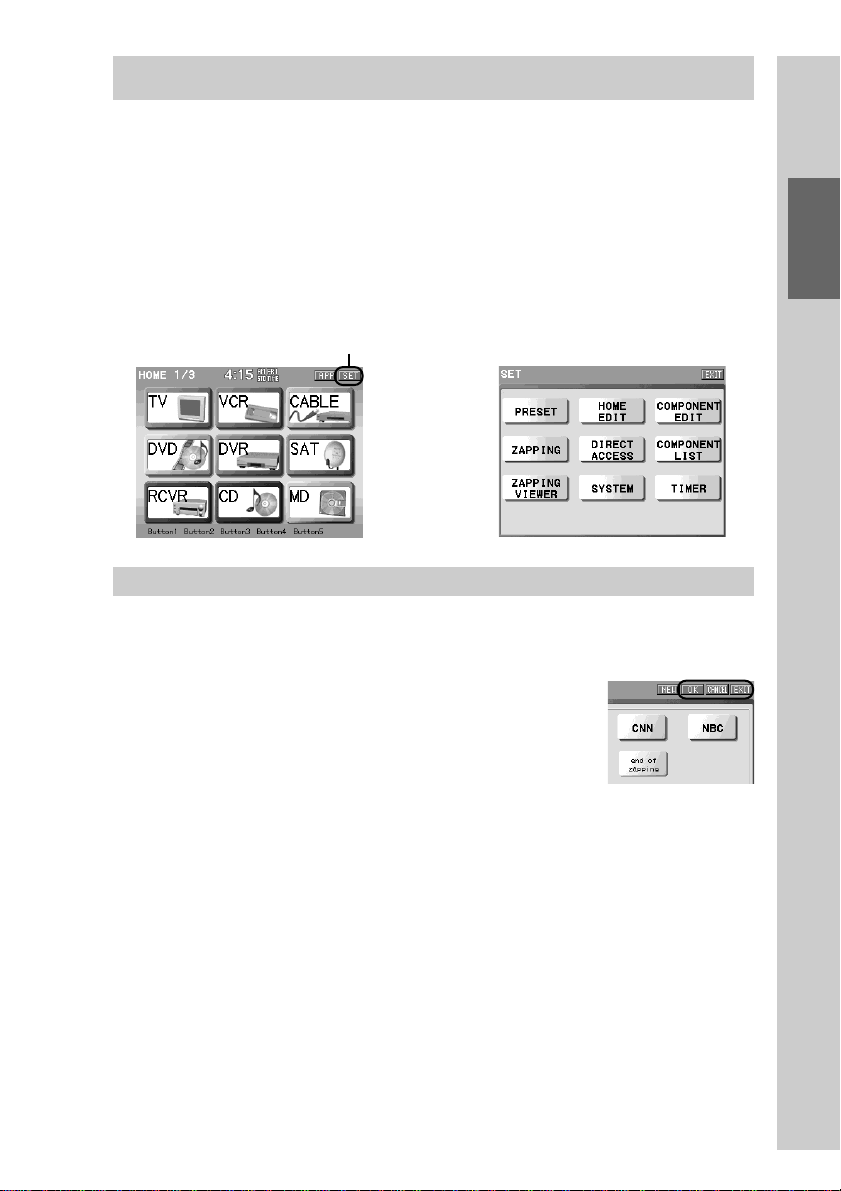
To display the Set display, press the [SET] key for 2 seconds or longer on the
upper right in the Home display. It is convenient to use the supplied Stylus
when pressing the [SET] key.
About the [OK]/[CANCEL]/[EXIT] keys
The [OK], [CANCEL] and [EXIT] keys, that are displayed in the upper right in
the display while setting the Remote Commander, function as follows.
[OK]:To decide the setting. Press to decide
temporally the setting and go to the next
operation. Or press to decide all set
contents in current setting mode.
[CANCEL]:Press to cancel all contents being set and
return to the previous status. Or press to
return to the previous display.
[EXIT]:Press to return to the previous mode
display.
z Tip
It is convenient to use the supplied Stylus when pressing the keys shown on the upper
right in the display, such as [OK], [CANCEL] and [EXIT].
Home display Set display
,
Press for 2 seconds
or longer.
40
Basic Operations of the Remote Commander
Continued
Inputting letters (label setting)
The basic operations to input letters is explained here. Letters can be input in the
label (name) setting display by pressing the keyboard using the supplied Stylus.
The label setting display appears when creating a new key or changing a key
label already set. Display the label setting display by following the procedure of
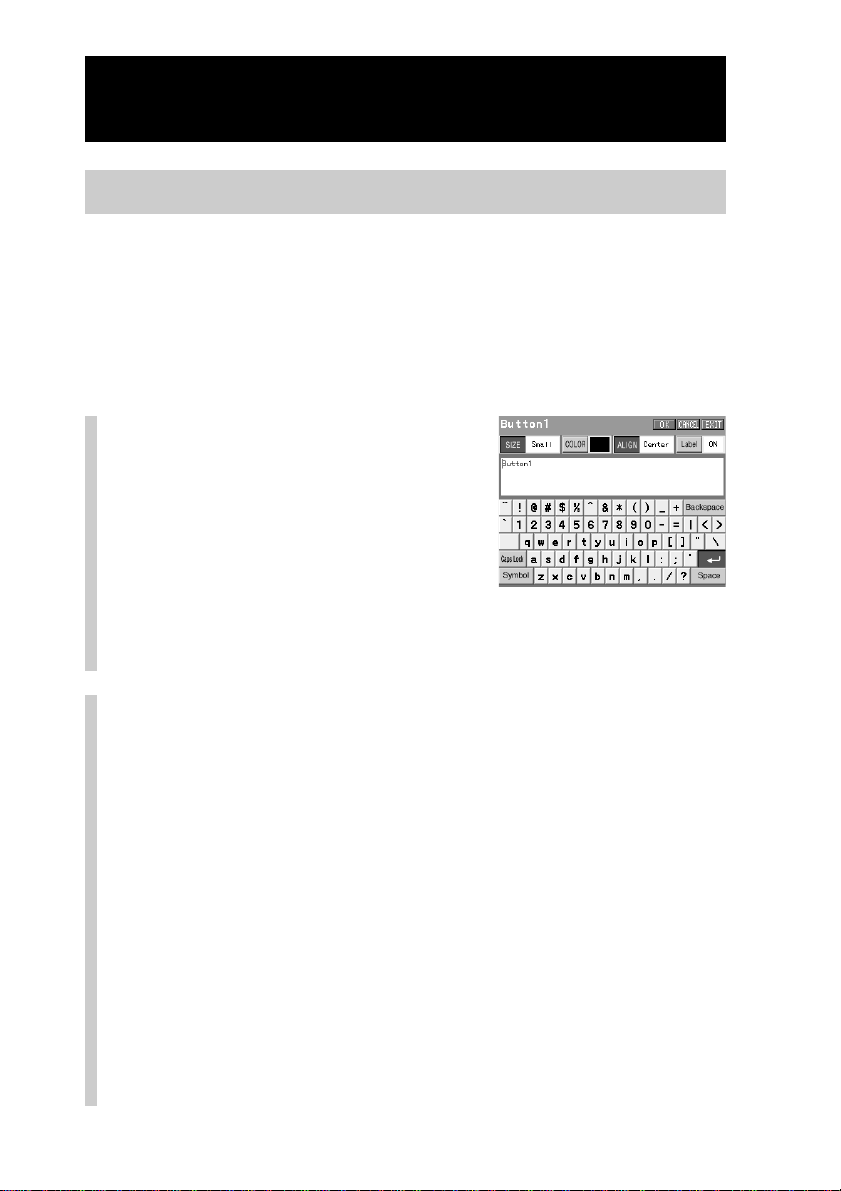
each chapter. How you can change [Button1] to [MOTHER] by following the
example of “Setting the label of a Direct Access button” (page 52) is explained
here.
1
Delete unnecessary letters
by pressing the [Backspace]
key.
Move the cursor to the right of a letter
you want to delete by pressing the NEXT
button, and press the [Backspace] key.
Each time you press the [Backspace] key,
you can delete a letter from the right. For
this example, press the NEXT button 7
times, and press the [Backspace] key 7
times to delete all letters.
2
Press to highlight the [Caps Lock] key, then input
letters in the order [M], [O], [T], [H], [E] and [R].
To input capital letters:Press to highlight the [Caps Lock] key, then
input letters. Press the [Caps Lock] key again
to release it.
To input symbols:Press the [Symbol] key to display a page for
symbols. There are 4 pages of symbols. Select
a page with the [Symbol] key. If you press the
[Symbol] key in the last page for symbols, the
page returns to the normal keyboard display.
To input a space:Press the [Space] key.
To start a new line:Press the [3] key.
To move the cursor:Press the NEXT/BACK button on the Remote
Commander.

41
Basic Operations
Notes
•You cannot use certain keys depending on the genre of label. Keys that cannot
be used appear pressed. If you press one of these keys, a beep sounds twice.
•You cannot set a label having no letters.
• If a label contains many letters, the letters may be partially hidden on the key
or on the Item confirmation area.
3
Press the [OK] key to decide the label setting.
Settings in the keyboard display
The following settings can be performed in the keyboard display in addition to
letter input.
[SIZE]: To select a size of letters.*
1)
Press the [SIZE] key to display a selectable letter size in the order.
Select a letter size among [Large], [Medium] and [Small].
*
1)
Letters are displayed only in the small size in the letter input display.
The size you set is reflected and displayed in the actual display.
[COLOR]: To select a color of letters.*
2)
Press the [COLOR] key to display a selectable letter color in the
order. Select a letter color of your preference.
*
2)
Letters are displayed only in black in the letter input display. The color
you set is reflected and displayed in the actual display.
[ALIGN]: To select a location of letters.*
3)
Press the [ALIGN] key to display a selectable location in the order.
Select a location of letters between [Top Left] and [Center].
*
3)
Letters are displayed only in the [Top Left] location in the letter input
display. The location you set is reflected and displayed in the actual
display.
[Label]: To select whether to show or hide the label.*
4)
Press the [Label] key to select ON/OFF (showing/hiding) of a
label.
If you set to OFF, a label is hidden in the display.
*
4)
Letters are shown in the letter input display even if you set [Label] to
OFF. The setting is reflected in the actual display.
Note
You cannot select certain setting items depending on the genre of label as the settings are
fixed. For further details, read the corresponding pages.
For setting the label for a Direct Access Button, see page 53.
For setting the label for a Component key, see page 76.
For setting the label for a function key, see page 99.
For setting the label for a Timer program key, see page 130.
For setting the label for a List element, see page 151.
For setting the label for a User List key, see page 160.
For setting a label for a Zapping group, see page 176.
For setting a label for a Zapping element, see page 179.
42
Programming the preset codes of
components (PRESET)
You can register components to the Remote Commander by programming the
component brand preset codes.
Programming of the preset code is required in the following cases:
–To use a Sony component that is not registered to the Remote Commander by
the default setting
–To use a component other than Sony’s
New components can be registered to the Remote Commander by downloading their
preset codes from the web site and programming for the Remote Commander. For details,
refer to the manual (Help) of “NAVITUS Design.”
Default settings of Component keys
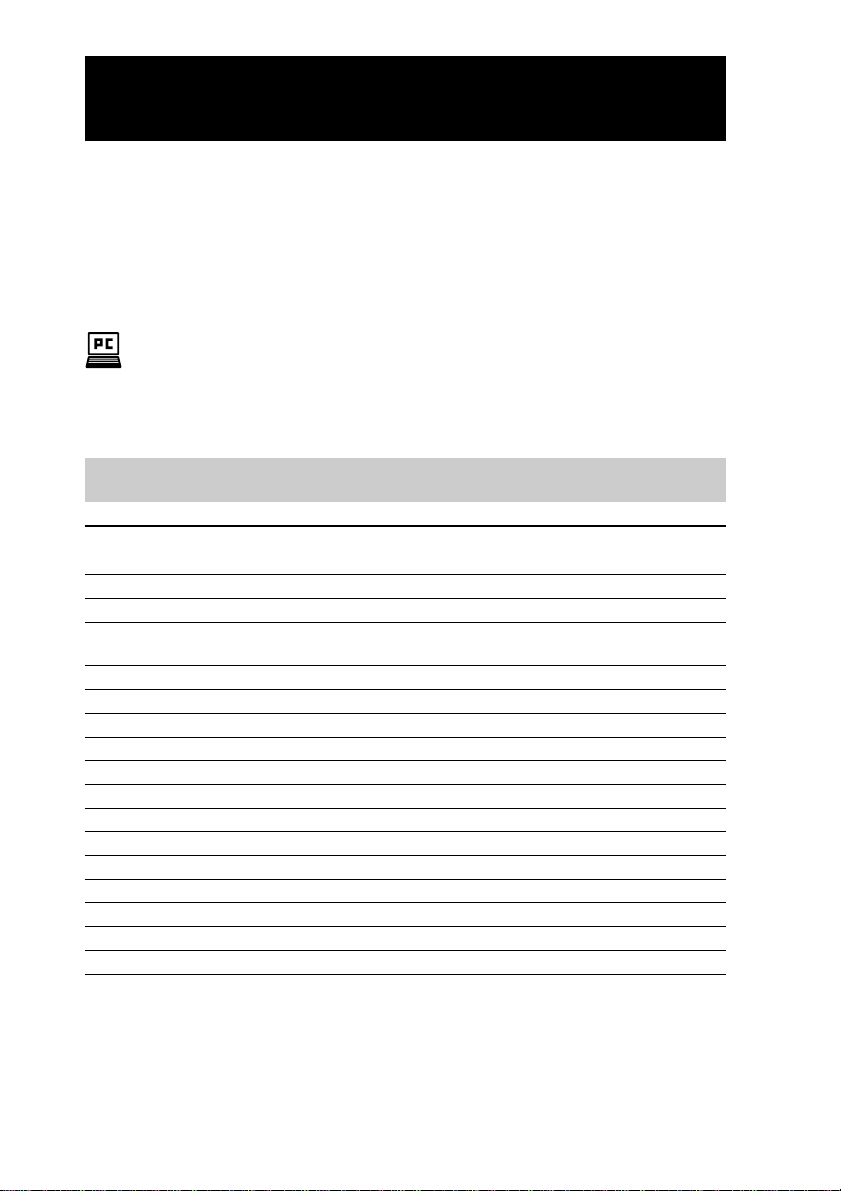
Component key Category of component Brand and type of component
to be controlled
TV TV Sony TV
VCR VCR Sony VHS VCR (VTR3)
CABLE • Analog cable
• Digital cable Sony digital cable
DVD DVD player Sony DVD player (DVD1)
DVR Hard disc video recorder Sony hard disc video recorder
SAT Digital satellite Sony digital satellite
RCVR Receiver Sony receiver
CD CD player Sony CD player
MD MD deck Sony MD deck
DSP Digital surround processor Sony digital surround processor
TAPE Cassette deck Sony cassette deck
DAT DAT deck Sony DAT deck
DVD RECORDER DVD recorder Sony DVD recorder
LD LD player Sony LD player
HDAR Hard disc audio recorder Sony hard disc audio recorder
LIGHT Light Light

43
Basic Operations
Programming a preset code
1
Press the [SET] key for 2 seconds or longer in the
Home display.
The Set display appears.
2
Press the [PRESET] key.
3
Press a Component key you
want to program a preset
code for.
The programming method selection
display appears.
Note
You cannot select a component being set up or certain keys depending on data set
to the keys though they are shown.
Keys that are not selectable appear pressed. If you press one of these keys, a beep
sounds twice.
Continued
44
Continued
Programming the preset codes of components (PRESET)
4
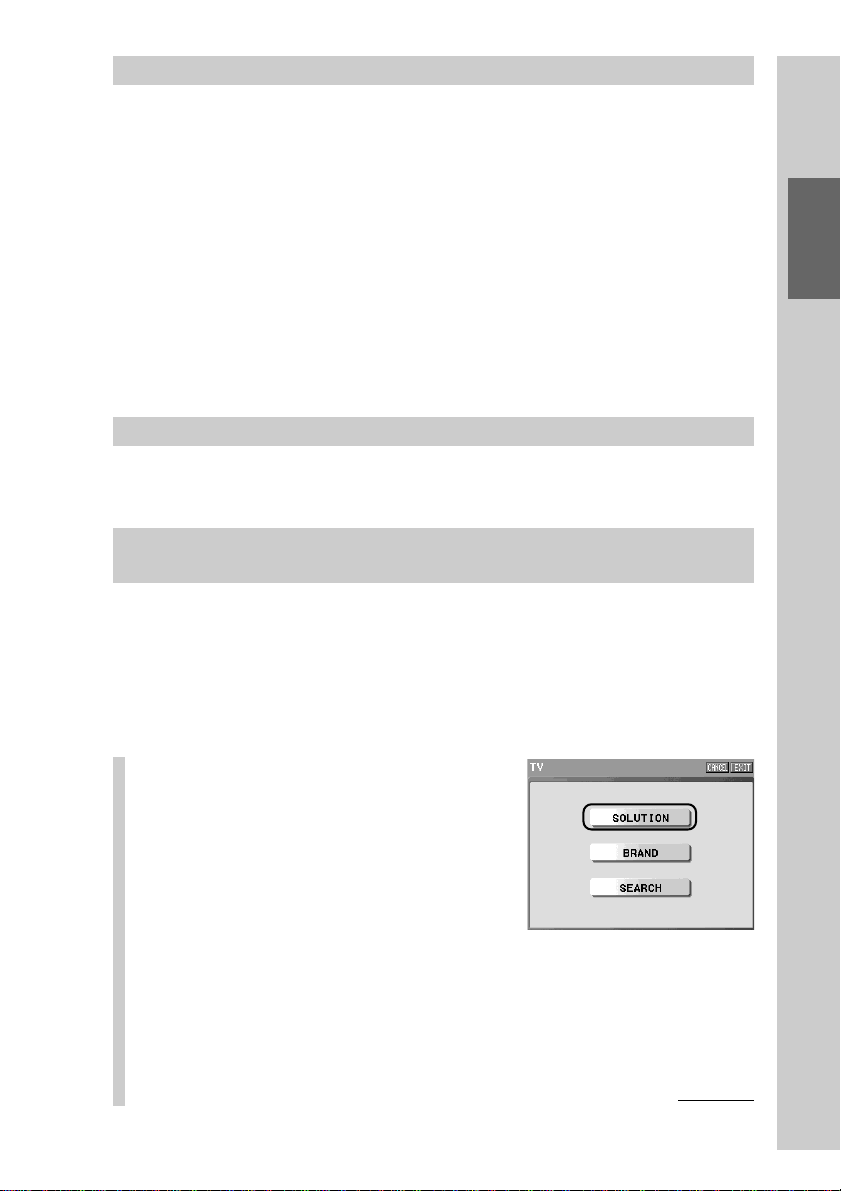
Press the [SOLUTION], [BRAND] or [SEARCH] key to
select a method of programming.
There are three methods to program the preset code. For details on each
method, go to the page indicated below. Try [SOLUTION] first. If the
preset code cannot be confirmed with [SOLUTION], try [BRAND], then
[SEARCH].
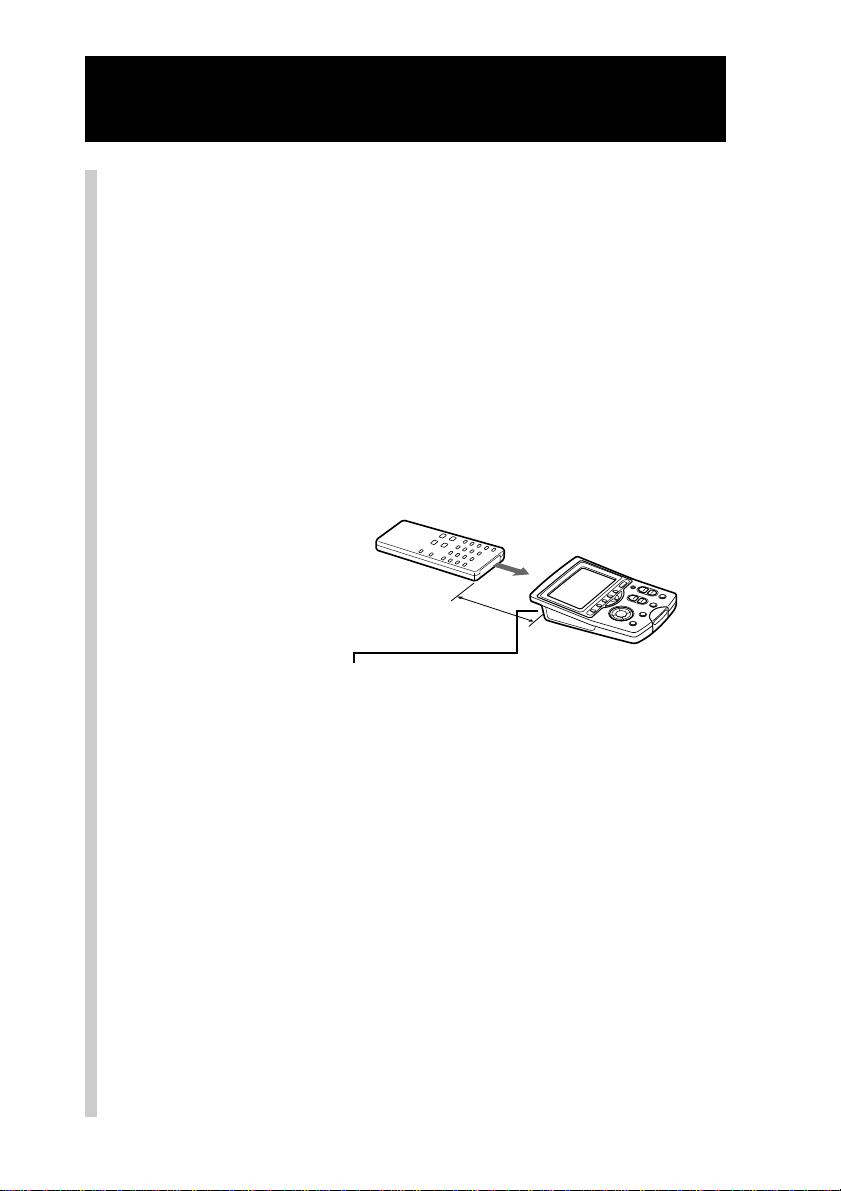
[SOLUTION]: Use the remote control supplied to the component to be
registered.
Place the Remote Commander head to head with the
remote control of the component to be registered as
illustrated below.
Remote control signals of the component to be registered
is received by the Remote Commander, then registering
can be simply performed by searching automatically a
preset code.
t Go to page 45.
[BRAND]: Program a preset code by selecting a component brand
from the brand list.
Even if there are multiple preset codes in the brand of the
component to be registered, you can confirm the preset
code by performing a test execution. After this, it will not
be necessary to set again.
t Go to page 48.
[SEARCH]:
Program a preset code by selecting a preset code from the
component code list and performing test execution one by one.
You can search a preset code with this method even when
you have not a remote control of the component to be
registered, or you cannot find a brand name of the
component to be registered in the brand list.
t Go to page 50.
RM-NX7000
Remote control of
the component to be
registered
About 5 - 10 cm
(2 - 4 inches)
Infrared detector
Confirm the location of the detector of the Remote
Commander. When the AC power adaptor is connected to
the Remote Commander, make sure that the detector is not
shut off by the cord.
45
Basic Operations
When programming of a preset code is complete
The display returns to the Component key selection display (step 3, page 43).
■ To program another component successively
Repeat the procedure from step 3 on page 43.
■ To perform other settings after finishing the setting of
programming a preset code
Press the [EXIT] key. The display returns to the previous mode display.
■ To finish all settings
Press the COMMANDER OFF button for 2 seconds or longer. The display
returns to the Home display. Or press the [EXIT] key repeatedly until the Home
display is shown.
Confirming whether the correct preset code is programmed
Operate the component using the Remote Commander. For details on operation,
see “Operating a component (Operation mode)” (page 37).
Programming a preset code using the remote control of a
component (SOLUTION)
The following steps are a continued from step 4 on page 44.
Place the Remote Commander head to head with the remote control of the
component to be registered to. While programming, do not disconnect or
connect the USB cable or the AC power adaptor, or do not remove or insert a
“Memory Stick”, as a malfunction may result.
Programming a preset code of a TV component is explained here.
1
Press the [SOLUTION] key in
the programming method
selection display.
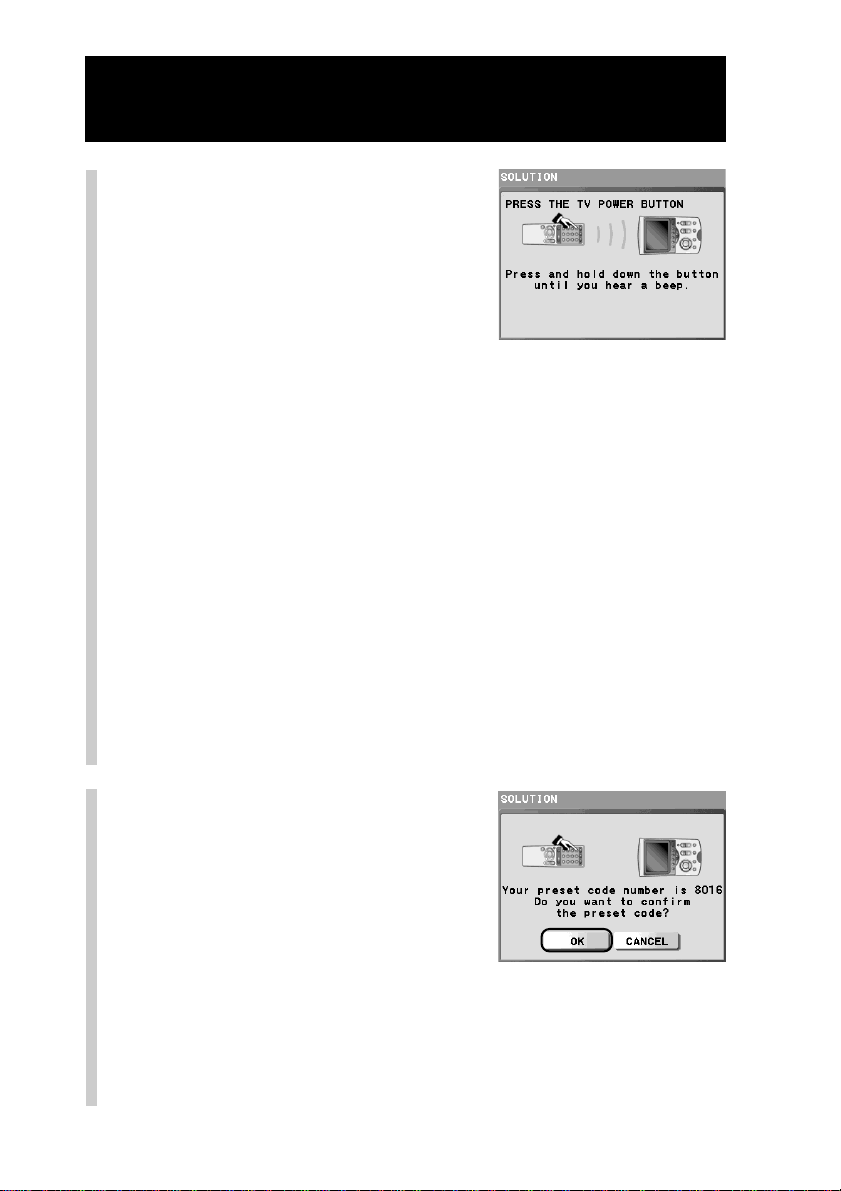
Instructions appear in the display and
the Remote Commander is set to the
standby mode for receiving the remote
control signal.
■ To cancel the standby mode
Press the COMMANDER OFF button.
The display returns to the programming method selection display.
Continued
46
Continued
Programming the preset codes of components (PRESET)
2
Following the on-screen
instructions, press and hold
down the button of the
remote control of the AV
component to be registered
until a beep sounds.
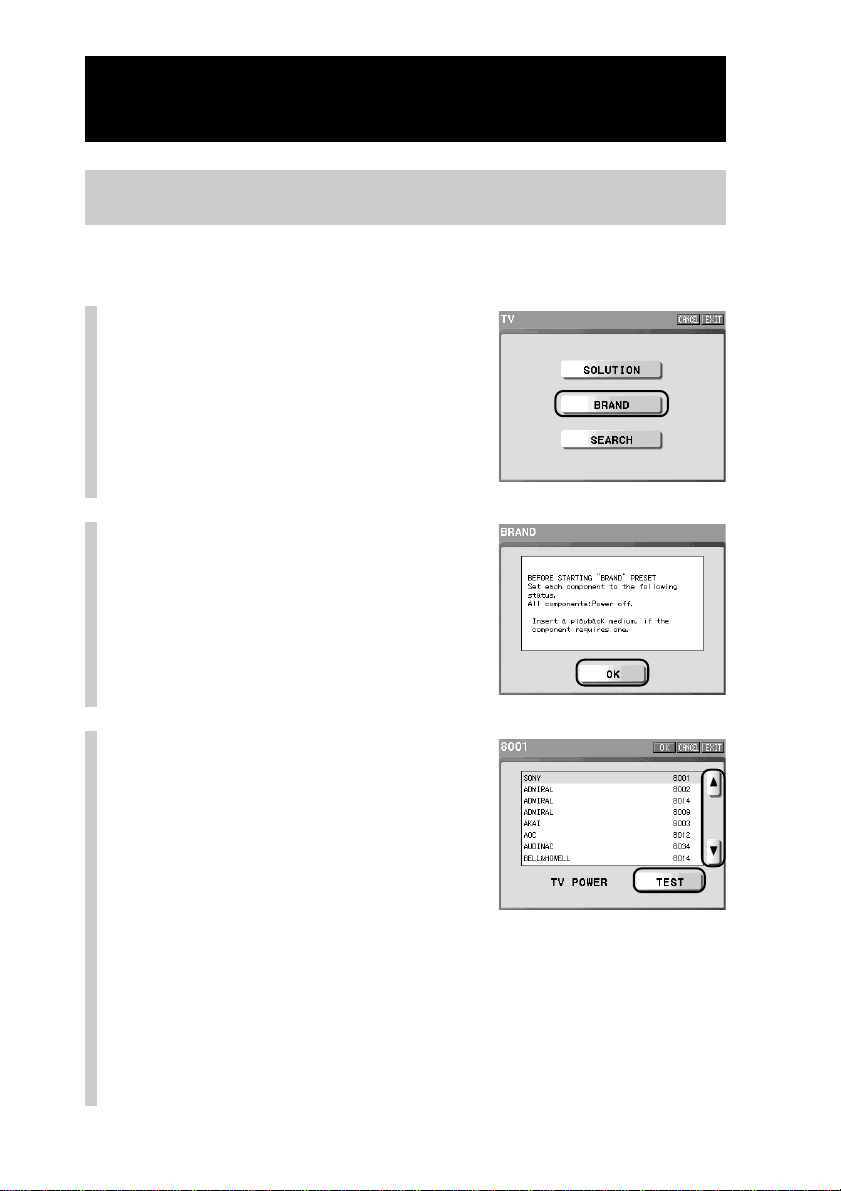
The preset code found by the Remote
Commander appears in the display.
■ If a beep sounds five times
— The Remote Commander cannot find a preset code. Try
registering by other methods.
Press the [OK] key in the confirmation display that appears after the
error display, then the display returns to the programming method
selection display. See step 4 on page 44 and go to the procedure of
[BRAND] or [SEARCH].
— 20 seconds has passed before you press the button on the remote
control of the component to be registered.
Press the [SOLUTION] key again and register again, or go to the
procedure of [BRAND] or [SEARCH].
Note
When the display returns to the programming method selection display because
the remote control of the component does not have a key indicated in the display,
show the list of preset codes with the [LIST] key and select a preset code from the
expected preset codes (shown in red) if you can reduce the number of expected
codes. Or select [BRAND] or [SEARCH].
3
Press the [OK] key.
The preset code is programmed for the
Remote Commander and the display
returns to the component selection
display (step 3 on page 43).
z Tip
If you press the [CANCEL] key, the preset
code will not be programmed and the display
will return to step 1 on page 45.
Press the button indicated on
this display.

47
Basic Operations
■ When two or more preset codes are detected
The display on the right appears.
Program a preset code by performing
one of the following ways.
z Tip
If you press the [CANCEL] key, the preset
code will not be programmed and the display
will return to the programming method
selection display (step 1 on page 45).
◆ To reduce the number of expected codes by transmitting a
signal again.
1Press the [CONTINUE] key.
The display returns to step 2 and the instruction in the display asks
you to press a different button. Repeat this step until a preset code
appears in the display.
◆ To select a preset code from the list of preset codes
1Press the [LIST] key.
The list of preset codes appears and expected preset codes are
displayed in red.
2Press the [v] or [V] key to select
the preset code to be programmed,
and then press the [OK] key.
The selected preset code is
programmed for the Remote
Commander, and the display returns
to the component selection display
(step 3 on page 43).
z Tips
• Each time you press the [v] or [V] key, the cursor moves one line up or down
on the list. If you press the [v] or [V] key for 2 seconds or longer, the list in the
display scrolls.
• If you press the [CANCEL] key, the preset code will not be programmed and
the display will return to the previous one.
4
To finish all settings, press the COMMANDER OFF
button for 2 seconds or longer.
The display returns to the Home display. Or press the [EXIT] key
repeatedly until the Home display is shown.
48
Continued
Programming the preset codes of components (PRESET)
Programming a preset code using the list of brand preset
codes (BRAND)
The following steps are continued from step 4 on page 44.
Programming a preset code of a TV component is explained here.
1
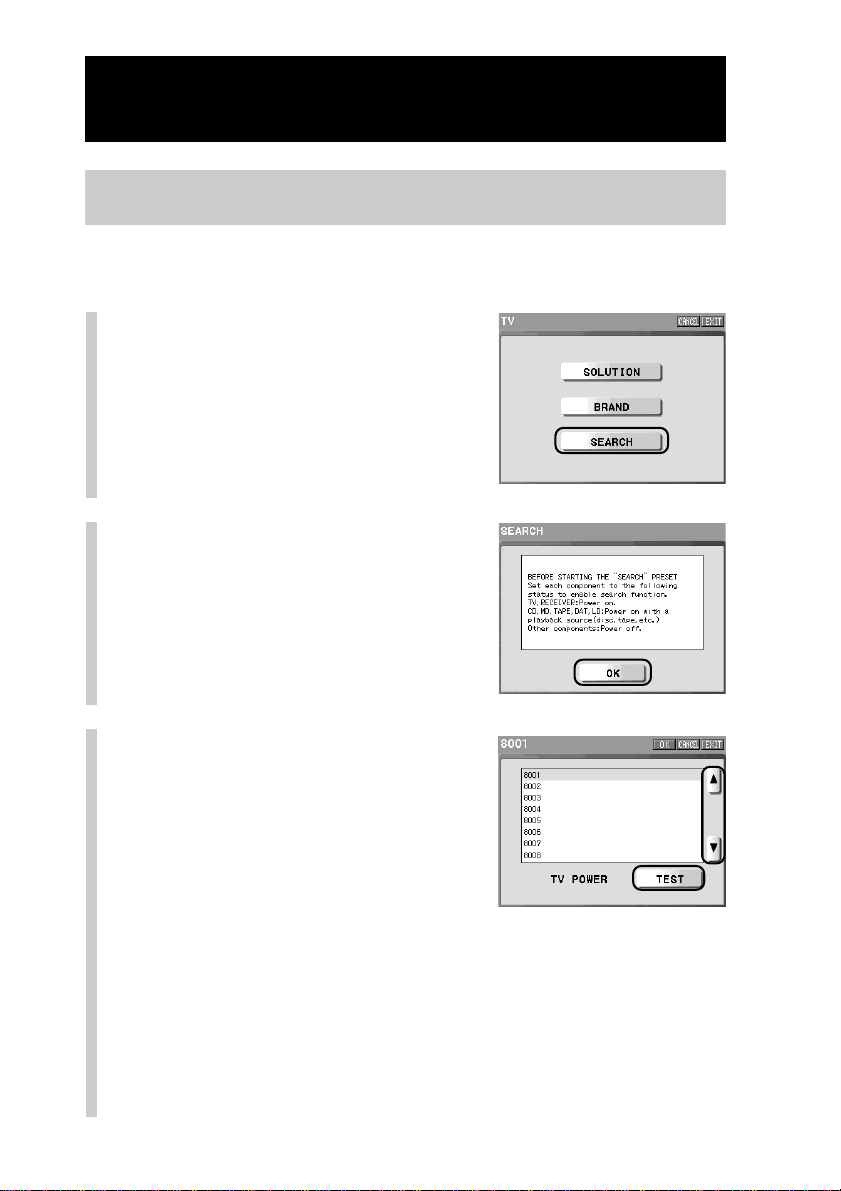
Press the [BRAND] key in the
programming method
selection display.
Instructions for the preparation of the
component to be registered appear in the
display. Set the component to the status
as instructed.
2
Press the [OK] key.
The list of brand names and preset codes
appear in the display.
3
Press the [v] or [V] key to
select the brand of the
component by the cursor,
aim the Remote Commander
at the component to be
registered, and then press
the [TEST] key.
The Remote Commander transmits the remote control signal. If there are
two or more preset codes for a brand, select the first one and press the
[TEST] key.
■ When the component to be registered functions properly
The correct remote control signal was transmitted. Go to step 4.

49
Basic Operations
■ When the component to be registered does not function properly
The selected preset code may be incorrect. Select again the preset code by
pressing the [v] or [V] key, aim the Remote Commander at the component
to be registered, and then press the [TEST] key again.
z Tips
• Each time you press the [v] or [V] key, the cursor moves one line up or down on
the list. If you press the [v] or [V] key for 2 seconds or longer, the list in the display
scrolls.
• The name of the test key signal is displayed on the left of the [TEST] key. Each time
you press the [TEST] key, the test key signal assigned to the preset code selected by
the cursor is automatically changed. The test key signal names assigned to the
selected preset code will cycle automatically.
4
Press the [OK] key.
The preset code is programmed for the Remote Commander and the
display returns to the component selection display (step 3 on page 43).
z Tip
If you press the [CANCEL] key, the preset code will not be programmed and the
display will return to step 1 on page 48.
5
To finish all settings, press the COMMANDER OFF
button for 2 seconds or longer.
The display returns to the Home display. Or press the [EXIT] key
repeatedly until the Home display is shown.
50
Continued
Programming the preset codes of components (PRESET)
Programming a preset code using the list of component
preset codes (SEARCH)
The following steps are continued from step 4 on page 44.
Programming a preset code of a TV component is explained here.
1
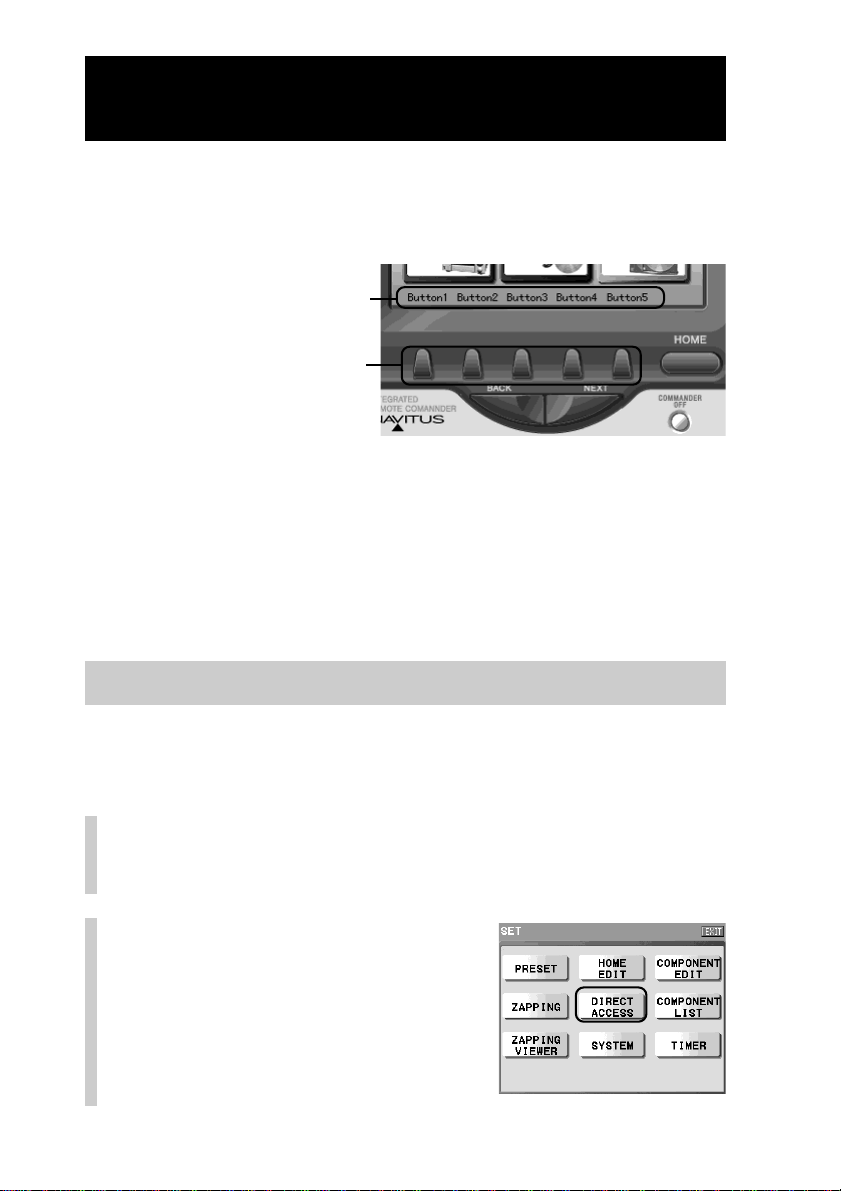
Press the [SEARCH] key in
the programming method
selection display.
Instructions for the preparation of the
component to be registered appear in the
display. Set the component to the status
as instructed.
2
Press the [OK] key.
The list of preset codes appears in the
display. Make sure that the first preset
code is selected by the cursor.
3
Press the [v] or [V] key to
select a component preset
code by the cursor, aim the
Remote Commander at the
component to be registered,
and then press the [TEST]
key.
The Remote Commander transmits the
remote control signal. One test key signal
is assigned to a preset code. The name of
test key signal is displayed on the left of
the [TEST] key.
z Tip
Each time you press the [v] or [V] key, the cursor moves one line up or down on
the list. If you press the [v] or [V] key for 2 seconds or longer, the list in the
display scrolls.

51
Basic Operations
■ When the component to be registered does not function properly
The selected preset code may be incorrect. Select again the preset code by
pressing the [v] or [V] key, aim the Remote Commander at the component
to be registered, and then press the [TEST] key again. Repeat this operation
until the component to be registered functions properly.
■ When the component to be registered functions properly
The correct remote control signal was transmitted. Go to step 4.
4
Press the [OK] key.
The preset code is programmed for the Remote Commander and the
display returns to the component selection display (step 3 on page 43).
z Tip
If you press the [CANCEL] key, the preset code will not be programmed and the
display will return to step 1 on page 50.
5
To finish all settings, press the COMMANDER OFF
button for 2 seconds or longer.
The display returns to the Home display. Or press the [EXIT] key
repeatedly until the Home display is shown.
52
Using the Direct Access buttons (DIRECT
ACCESS)
The Direct Access buttons are shortcuts to skip to given displays from the home
display. If you program a Direct Access button to jump to the desired page, the
page will appear by just pressing the Direct Access button. You can also change
the labels (names) of the Direct Access buttons.
The labels and programmed contents for the Direct Access buttons are as
follows in the default settings. The label names are [Button1],
[Button2]...[Button5] in the order from the left.
[Button1]: Jumps to the first page of the TV component.
[Button2]: Jumps to the first page of the SAT component.
[Button3]: Jumps to the first page of the DVD component.
[Button4]: Jumps to the first page of the VCR component.
[Button5]: Jumps to the first page of the RCVR component.
Setting the label of a Direct Access button
The label of a Direct Access button shown in the touch panel display can be
changed. As an example, let’s change [Button1] to [MOTHER] so that it will be a
mother’s own Direct Access button.
1
Press the [SET] key for 2 seconds or longer in the
Home display.
The Set display appears.
2
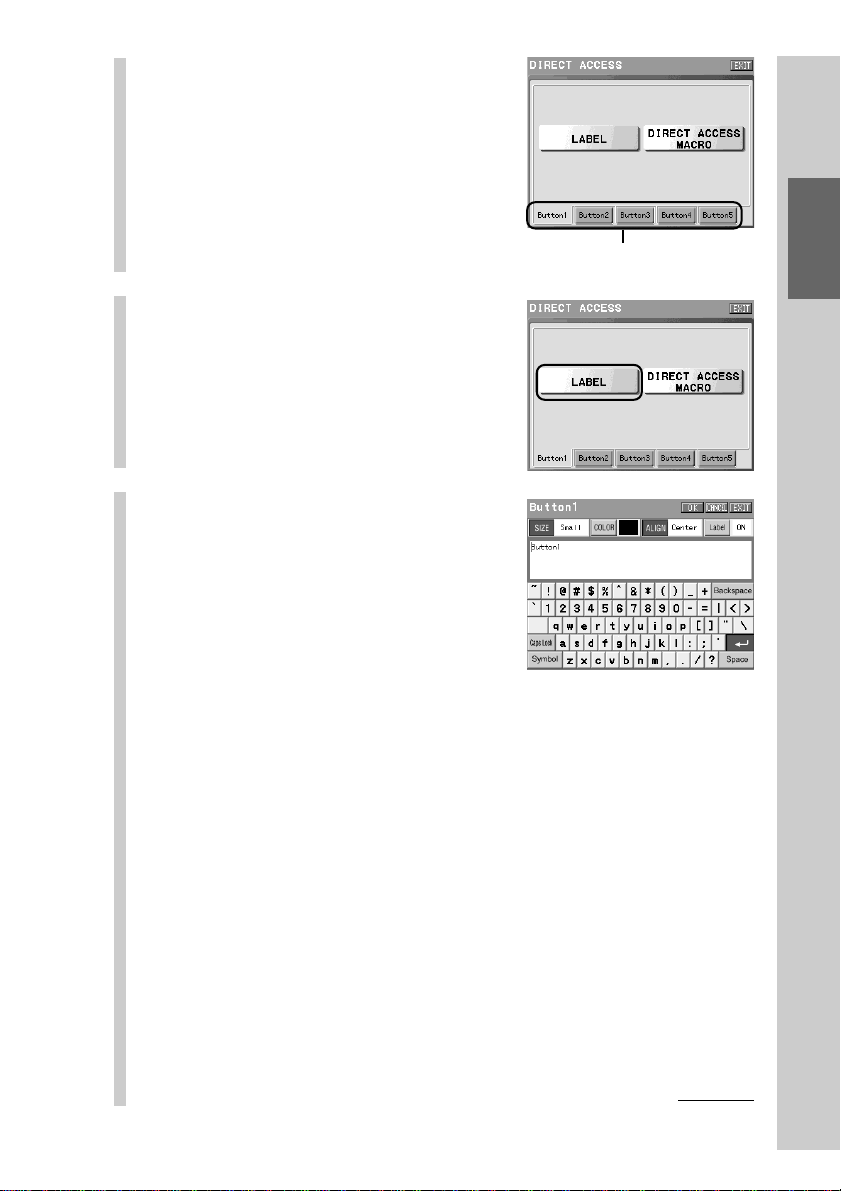
Press the [DIRECT ACCESS]
key.
The Direct Access display appears.
Direct Access buttons
Labels (names) of Direct Access
buttons
53
Basic Operations
3
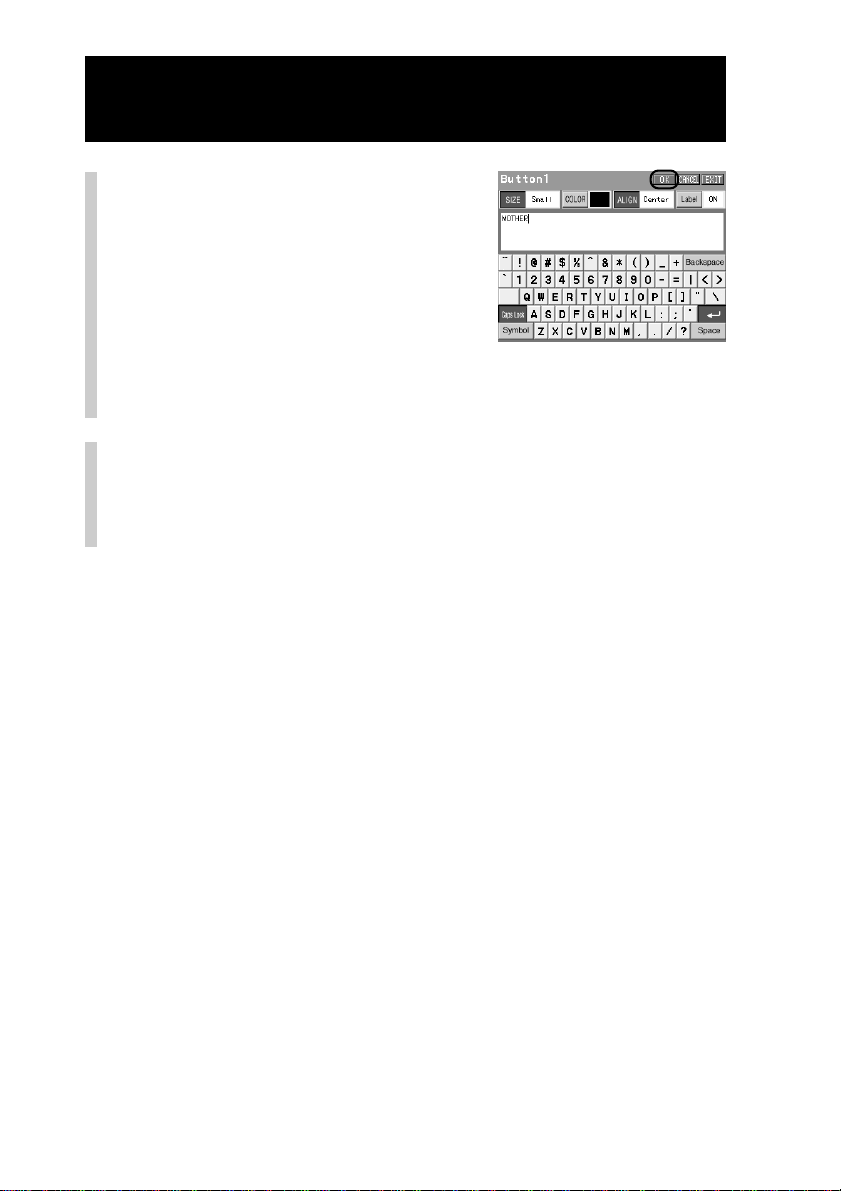
Press the tag of a Direct
Access button you want to
set the label to.
For example, set the label by pressing the
[Button1] tag.
Note
You cannot select a tag, even if you press a
Direct Access button on the Remote
Commander.
4
Press the [LABEL] key.
The software keyboard appears in the
display.
5
Set the label of the Direct
Access button.
For inputting letters to the label, see
“Inputting letters (label setting)” (pages
40 - 41).
Specified settings to the label of the
Direct Access button besides the
information described on pages 40 - 41
are as follows.
Letter input: Up to 8 letters can be input.
Starting a new line: Not available.
Pictographs: Can be input. A pictograph is counted as 4 letters.
[SIZE]: Not selectable. The letter size is fixed to [Small].
[ALIGN]: Not selectable. The letter location is fixed to
[Center].
[COLOR]: Select a letter color of your preference.
[Label]:Available.
Tags of the Direct Access buttons
Continued
54
Continued
Using the Direct Access button (DIRECT ACCESS)
6
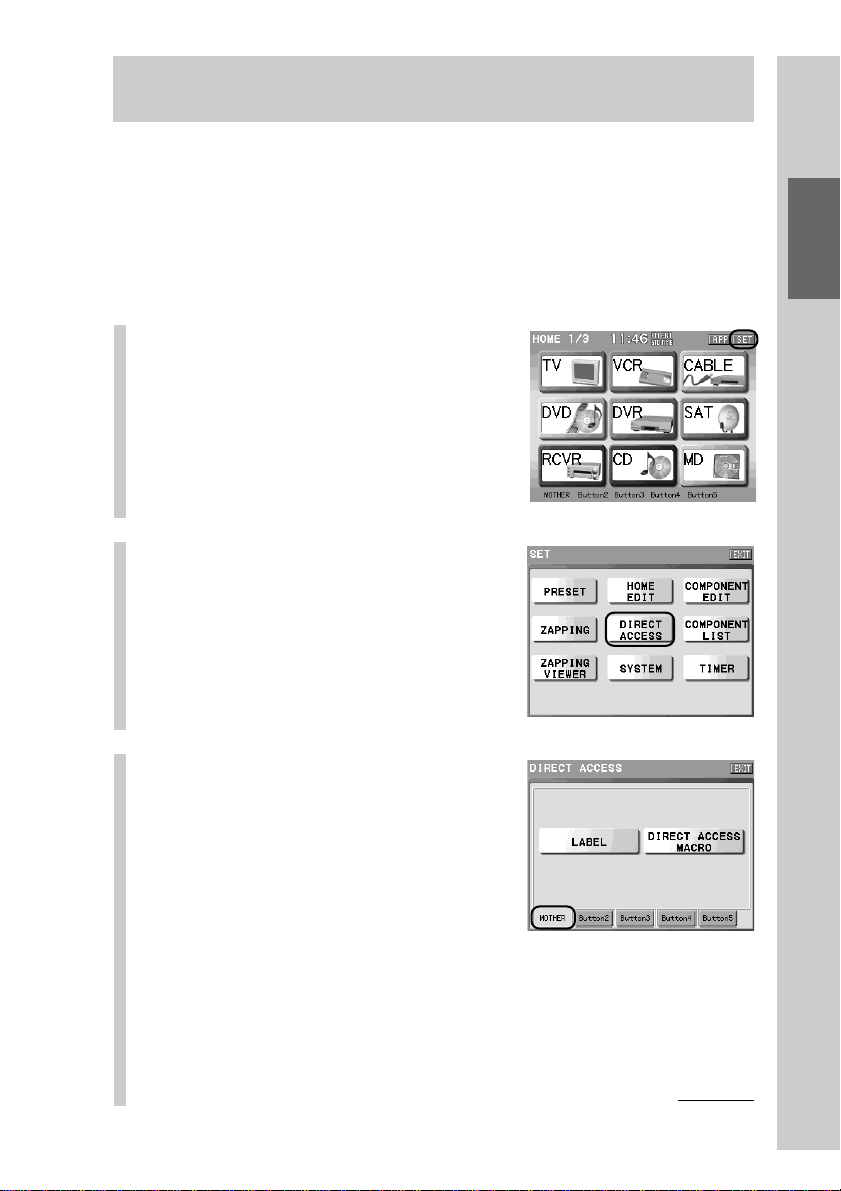
When the label setting is
complete, press the [OK]
key.
The label setting of the Direct Access
button is confirmed and the display
returns to step 3.
z Tip
If you press the [CANCEL] key, the label will
not be set and the display will return to step 3.
7
To finish all settings, press the COMMANDER OFF
button for 2 seconds or longer.
The display returns to the Home display. Or press the [EXIT] key
repeatedly until the Home display is shown.
55
Basic Operations
Programming an action to skip to the desired page for a
Direct Access button
You can program a series of actions (macro) for the Direct Access buttons. If you
program an action to skip to the desired page for a Direct Access button, you
can jump to your favorite page just by pressing the button.
For example, let’s program an action to skip to the page that a mother often use
(the first page of the TV/DVD component) as you changed the [Button1] label to
the [MOTHER] label in “Setting the label of a Direct Access button” on page 52.
1
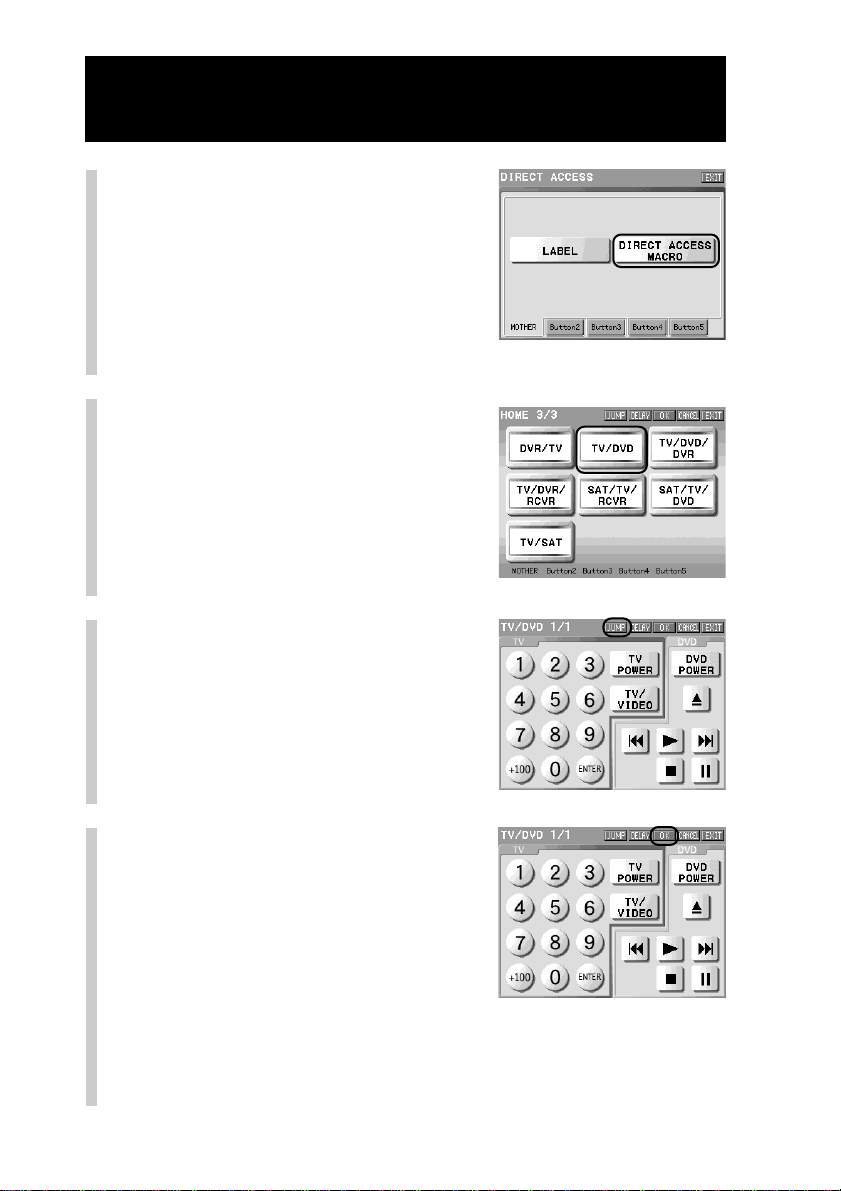
Press the [SET] key for 2
seconds or longer in the
Home display.
The Set display appears.
2
Press the [DIRECT ACCESS]
key.
The Direct Access display appears.
3
Press the [MOTHER] tag.
The Direct Access button for which you
want to program an action to skip to the
desired page is decided.
Continued
56
Continued
Using the Direct Access button (DIRECT ACCESS)
4
Press the [DIRECT ACCESS
MACRO] key.
A message for confirming of deleting a
macro appears.
If you press [YES] key, a macro that has
already been programmed will be
deleted, and a new macro will be
programmed. If you press the [NO] key,
the display returns to step 3.
5
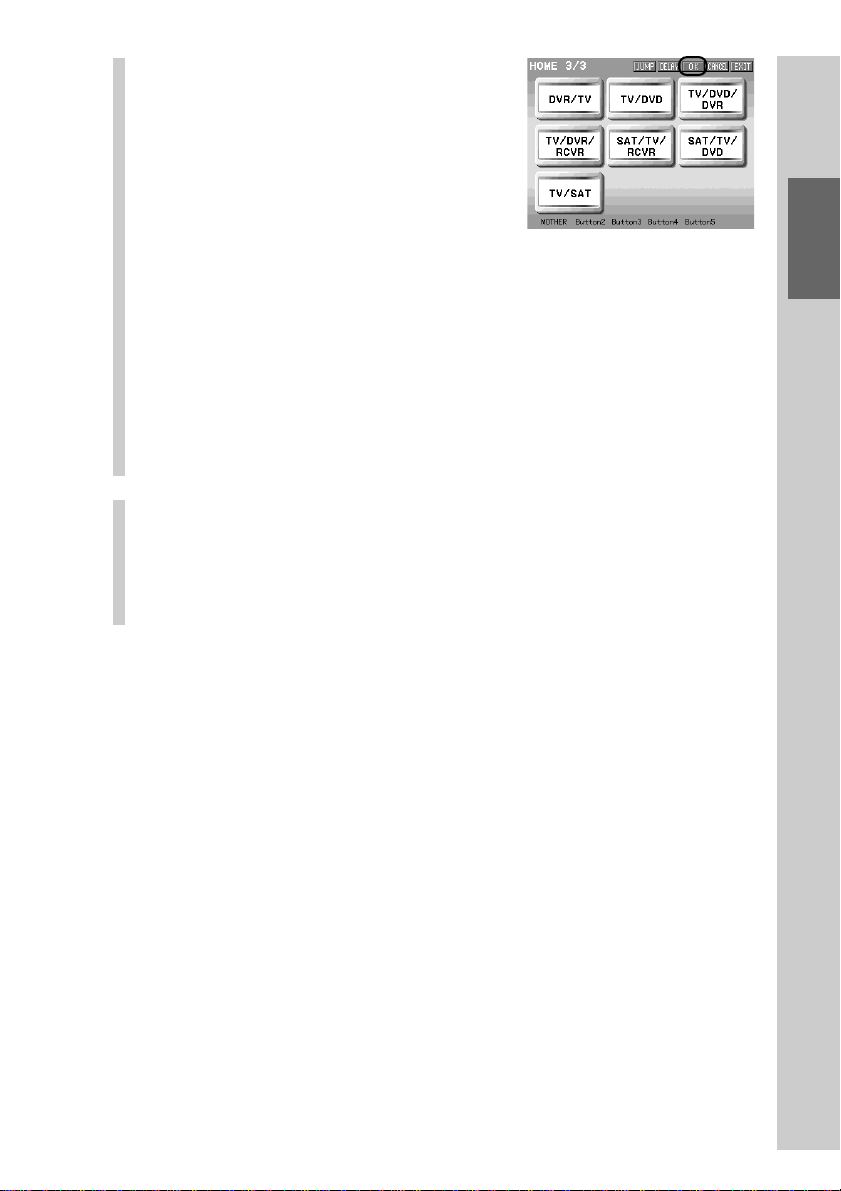
Press the NEXT button to
display the third page of the
Home display, and then
press the [TV/DVD] key.
The Component display appears.
6
Press the [JUMP] key.
In this example, the first page of the TV/
DVD component is stored as the
destination for jumping.
7
Press the [OK] key.
The display returns to step 5.
57
Basic Operations
8
Press the [OK] key.
The display returns to step 3.
The setting for jumping to the first page
of the TV/DVD component by pressing
the MOTHER button is programmed.
z Tips
• If you press the [CANCEL] key, the macro will not be set and the display will
return to step 3.
• In this chapter, how to change the [Button1] label to the [MOTHER] label and
how to program a simple macro for jumping to the first page of the TV/DVD
component are explained. You can also set a series of actions. In step 6, before
pressing the [JUMP] key, program a series of actions. For details on
programming a series of actions, see “Step 2: Setting a macro” (page 120) in
“Programming a series of actions (macro) for a key/button.”
•You can set a macro to a Direct Access button also from the Home Edit display.
For details, see “3 When programming a macro for a Component key or a
Direct Access button” (page 119).
9
To finish all settings, press the COMMANDER OFF
button for 2 seconds or longer.
The display returns to the Home display. Or press the [EXIT] key
repeatedly until the Home display is shown.
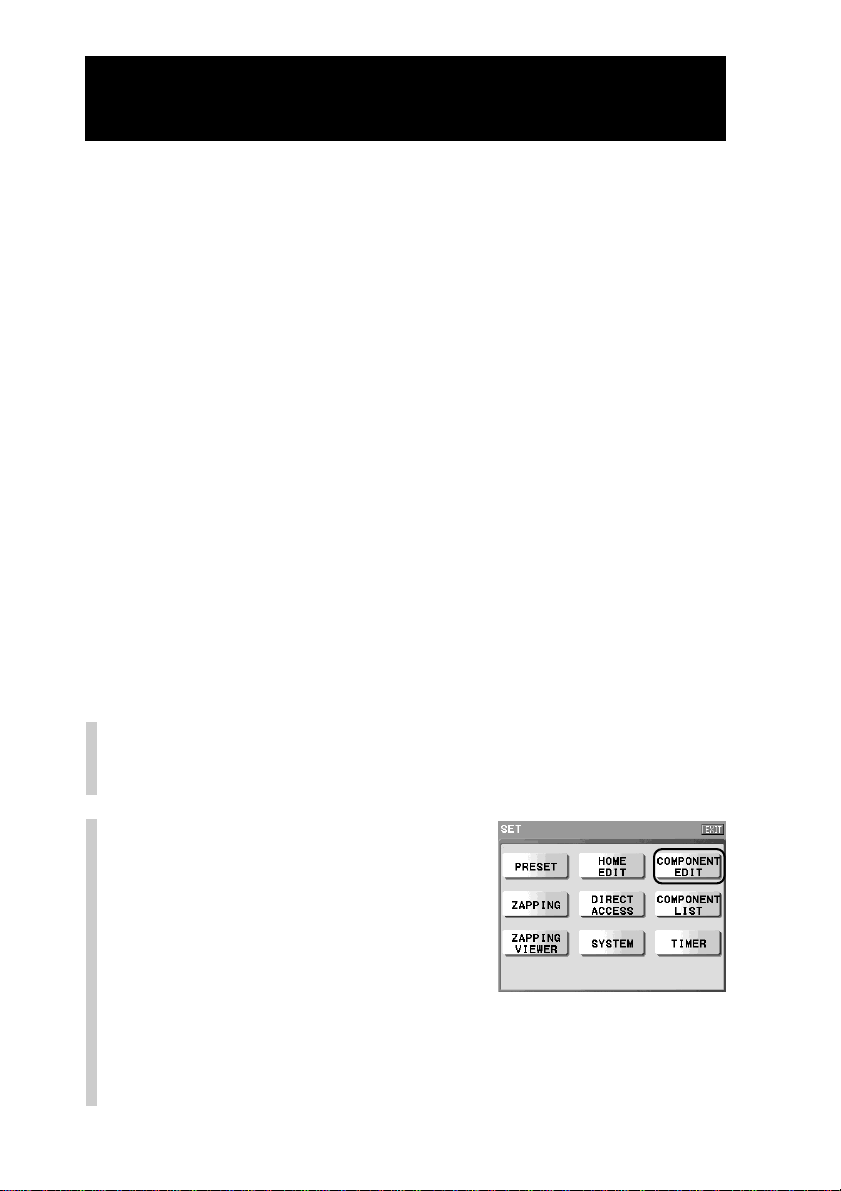
58
Programming remote control signals for a key
or button – Learning function (LEARN)
You can teach remote control signals for an component to any of the
programmable function keys on the Component display, and buttons on the
Remote Commander.
Using this learning function, you can set the Remote Commander to operate
components or to have functions of components when they are not controllable
even if you have programmed the preset codes. You can also use the learning
function to change the function of individual keys and buttons after
programming the preset code.
Notes
• While learning, do not disconnect or connect the USB cable or the AC power adaptor, or
do not remove or insert a “Memory Stick”, as a malfunction may result.
• Certain remote control signals may not be learned depending on the remote control
signal of the component to be programmed.
• Before performing the learning function, install new batteries in the remote control of
the component whose signal is to be learned, and fully charge the Remote Commander
or connect the AC power adaptor to the Remote Commander. (When the E mark is lit,
you cannot use the learning function, as the Remote Commander cannot enter the
setting mode.
•Avoid performing the learning function in places under direct sunlight or strong
fluorescent light. (It may cause noise.)
•You cannot set learning signals to the Component keys or the buttons when the Home
display is shown.
•You cannot set learning signals to certain function keys or buttons. Function keys that
are not learnable appear pressed. If you press one of these keys, a beep sounds twice. If
you press a function button that is not learnable, a message appears.
1
Press the [SET] key for 2 seconds or longer in the
Home display.
The Set display appears.
2
Press the [COMPONENT EDIT]
key.
The Component edit display appears.
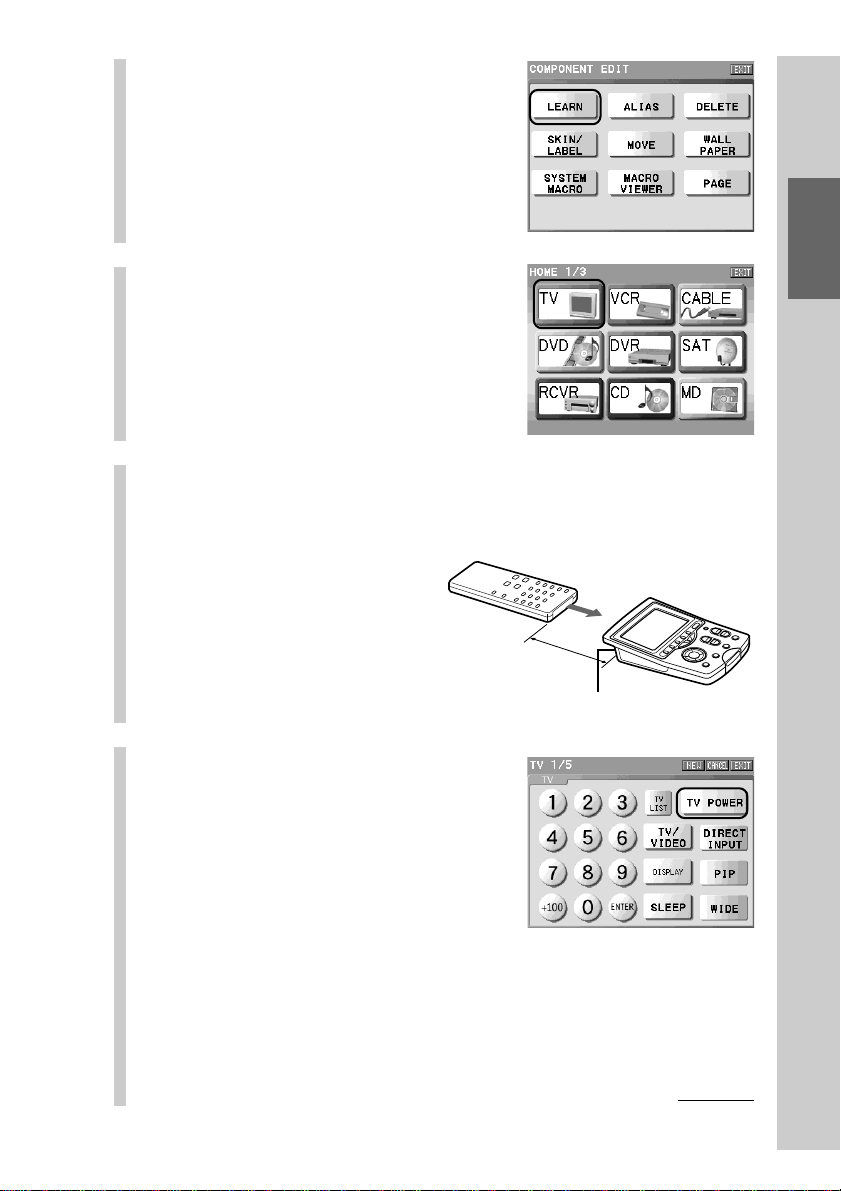
59
Basic Operations
3
Press the [LEARN] key.
4
Press the Component key
whose component display
includes the key you want
to teach.
For example, press the [TV] key.
5
Place the Remote Commander head to head with
the remote control of the component whose
signal is to be learned.
6
Press the function key or
button to which you want
to teach a signal.
For example, press the [TV POWER] key.
The Remote Commander is set to the
standby mode for receiving the remote
control signal.
Go to step 7 on page 61.
RM-NX7000
Remote control of
the AV component
About 5 - 10 cm
(2 - 4 inches)
Infrared detector
Continued

60
Continued
Programming remote control signals for a key or button – Learning function (LEARN)
Notes
• Function keys that are not learnable appear pressed. If you press one of these
keys, a beep sounds twice. Or if you select a function key which has already
learned a remote control signal, a function key for which a macro has been
programmed or a function key which has been set as the reference key for
Alias, a message appears according to the respective setting contents. In this
case, perform the learning procedure following the on-screen instructions.
• If you press a function button that is not learnable, a message saying that it is
not learnable appears. Press the [OK] key, and then select another function
button. Or if you select a function button which has already learned a remote
control signal, a function button for which a macro has been programmed or a
function button which has been set as the reference button for Alias, a message
appears according to the respective setting contents. In this case, perform the
learning procedure following the on-screen instructions.
• If no input signal is detected for 10 seconds, an error message appears, and a
beep sounds five times. Select the function key or button again.
z Tips
•You can change a page with the NEXT/BACK button. (The Trash can page
does not appear.)
• If you want to teach function keys or buttons of other components, press the
[CANCEL] key. The display returns to step 4.
• If you press the COMMANDER OFF button, you can exit the standby mode for
remote control signal reception. Then the display returns to step 6.
■ To create a new function key and teach a remote
control signal to it
1Press the [NEW] key.
2 Set the skin (key appearance and color) and the label of the
function key.
For details, see steps 6 and 7 in “Setting the skin (key appearance and
color) and the label (name) of a function key (SKIN/LABEL)” (page
97).
z Tip
A newly created function key is shown in the last page.
■ When you overwrite the key or button to which
learning signal has already been set
Keys to which a learning signal has already been set blink. If you press a
blinking key or a button to which a learning signal has already been set,
a message for confirmation of overwriting appears.
Press the [YES] key to overwrite the key or button with a new signal.
If you press the [NO] key, the display returns to the previous display.
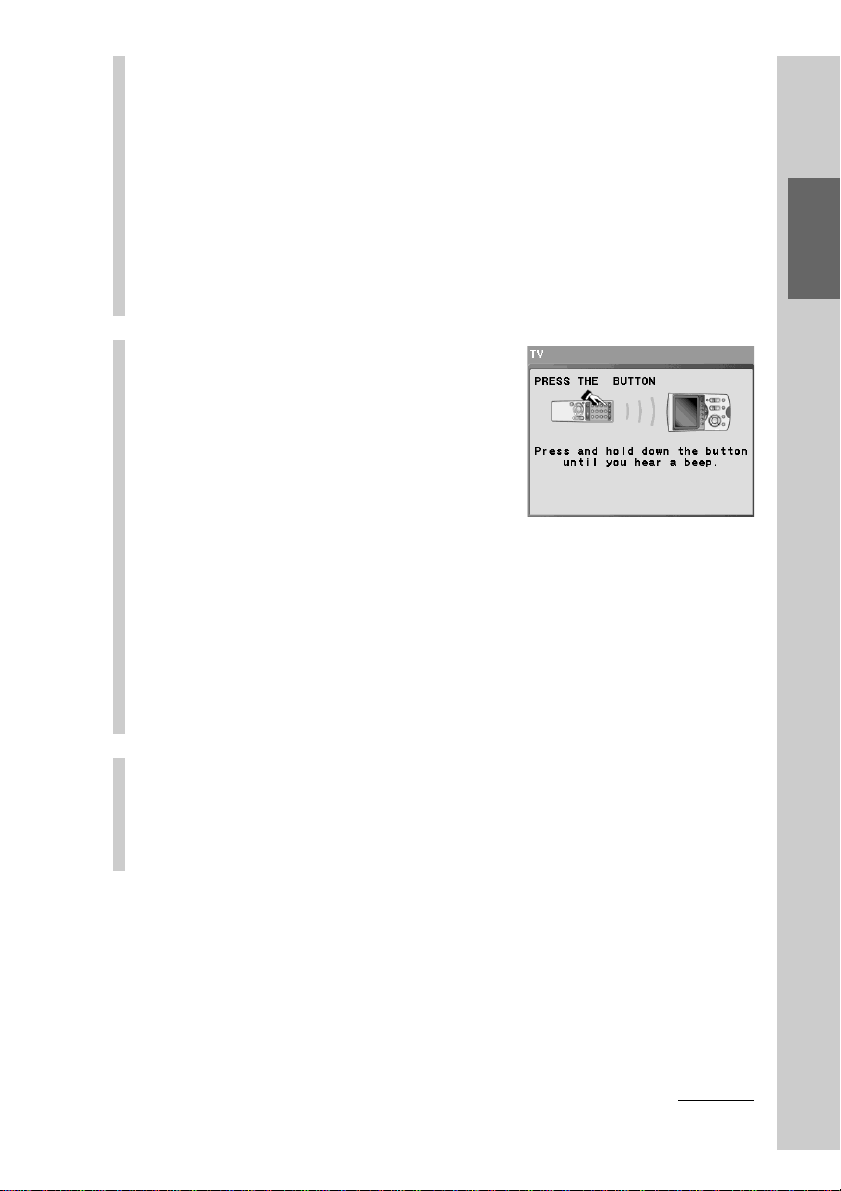
61
Basic Operations
Note on when teaching a signal to an Alias key/button
An Alias key/button is set to refer to the setting contents of another key/button
and work the same as the reference key/button.
When you teach an Alias button, a message appears and prompts you to select
either the button you pressed or the reference key/button of the pressed button to
teach a signal to. To teach a signal to the Alias button you pressed, press the
[SELECTED KEY] key. To teach a signal to the reference key/button press the
[REFERENCE KEY] key.
If the reference key is not learnable, a message appears. If you press the [OK] key,
the display returns to step 6 on page 59.
When teaching an ALIAS key, the reference key will be learned.
For details on ALIAS, see “Setting a function key of another component to a
Component display (ALIAS)” (page 100).
7
Press and hold down the
button of the remote
control, whose signal you
want to teach to the key or
button, until a beep sounds.
The learned signal is set to the function
key or button. When learning is
complete, the display returns to step 6.
■ If a beep sounds five times
The Remote Commander did not successfully learn the signal
transmitted from the remote control of the component. Learn the remote
control signal again.
Note
A beep also sounds five times when the button of the remote control is not pressed
within 10 seconds after the instruction is shown in the display.
8
To finish all settings, press the COMMANDER OFF
button for 2 seconds or longer.
The display returns to the Home display. Or press the [EXIT] key
repeatedly until the Home display is shown.
Continued

62
Continued
Programming remote control signals for a key or button – Learning function (LEARN)
z Tips
• Operate the key or button that learned the signal, and check if the AV component
functions properly. If the AV component does not function properly, perform learning of
a remote control signal again.
•You cannot teach a remote control signal to the Direct Access buttons or Component
keys directly. To use the learned signal with these buttons/keys, first teach function keys
in the component, and then program the action of the learned key/button as a macro for
the Direct Access button or Component key. For details, see “Programming a series of
actions (macro) for a key/button” (page 115).
For accurate learning
•Do not move the remote control units during the learning procedure.
•Do not disconnect or connect the AC power adaptor or the USB cable while
learning. This may cause an incorrect learning procedure. It is recommended
to connect the AC power adaptor before learning.
•Press and hold down the button of the remote control whose signal you want
to teach until a beep sounds.
•Decide the position of two remote control units or the distance between them
according to the position of the infrared ray emitter.
•When you teach signals of an interactive signal exchange system remote
control unit (supplied with some Sony tuners, amplifiers and receivers) to the
Remote Commander, the response signal of the main unit may interfere with
learning of the Remote Commander. In this case, move to a place where the
signals will not reach the main unit (e.g. other rooms, etc.).
63
Basic Operations
Notes on learning the signals of an air-conditioner
About seasonal adjustments
If you change the seasonal settings of your air-conditioner, you have to teach the
remote control signals of the new settings to the Remote Commander.
If the power-on/off operation does not work correctly
If the Remote Commander operates only “ON” or “OFF”, but not both, with a
learned key or button, while your air-conditioner’s remote control can operate
both “ON” and “OFF” with a single button, teach the signal on two separate
keys or buttons of the Remote Commander as follows.
1
Delete the remote control signal from the key or button to
which you taught the air-conditioner’s power-on/off signal. For
details on deleting the remote control signal, see “Deleting the
learned remote control signal” (page 64).
2
Teach the power-on signal of the air-conditioner’s remote
control for a key or button on the Remote Commander to which
you want to teach the power-on signal of the air-conditioner.
3
Teach the power-off signal of the air-conditioner’s remote
control for a key or button on the Remote Commander to which
you want to teach the power-off signal of the air-conditioner.
IMPORTANT
Be sure to place the Remote Commander out of the reach of small children or
pets.
Also set the Operation Lock function to lock the operation mode of the Remote
Commander (page 38) when it is not in use.
Components such as air conditioners, heaters and electric appliances may be operated
by infrared signals transmitted accidentally, and may cause a fire or a serious injury.
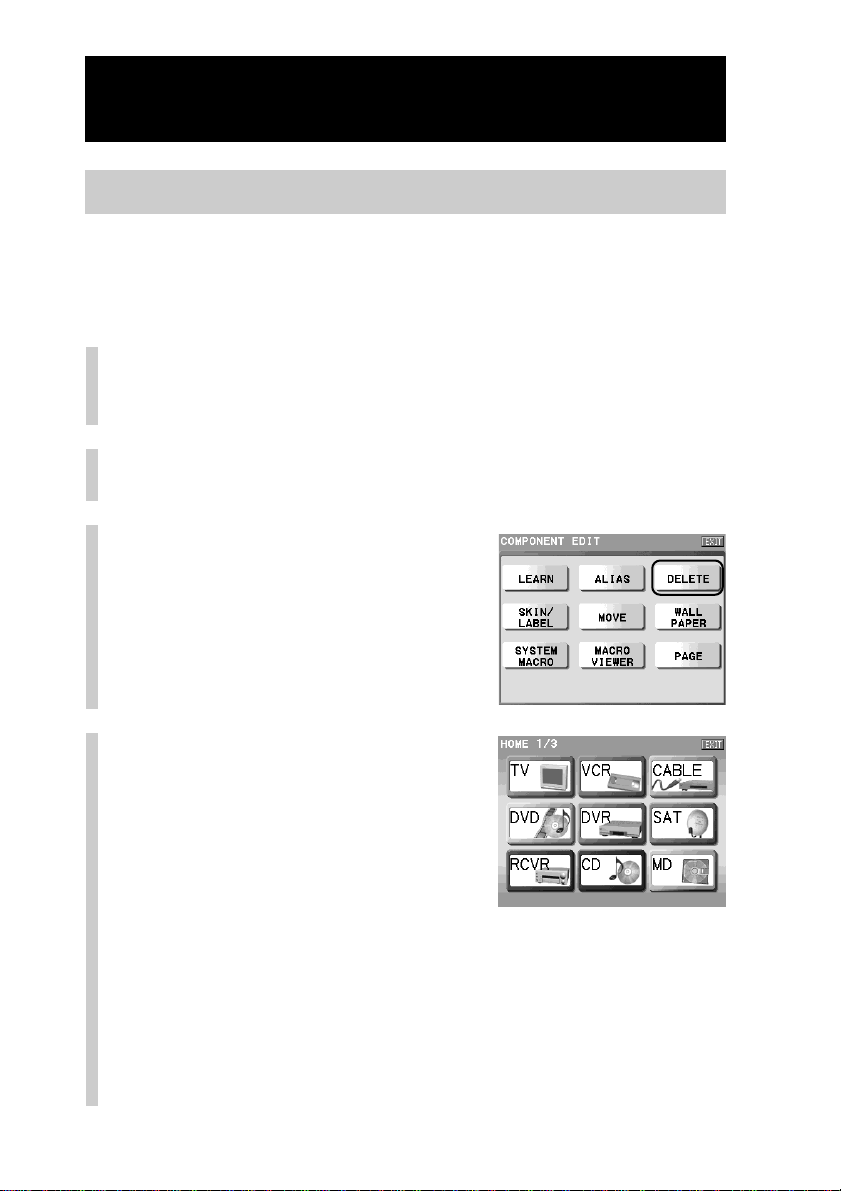
64
Continued
Programming remote control signals for a key or button – Learning function (LEARN)
Deleting the learned remote control signal
You can delete the remote control signal that a key or button has learned. When
the learned signal is deleted, the key or button returns to the status before
learning.
1
Press the [SET] key for 2 seconds or longer in the
Home display.
The Set display appears.
2
Press the [COMPONENT EDIT] key.
The Component Edit display appears.
3
Press the [DELETE] key.
4
Press the Component key
that includes the key or
button whose learned signal
you want to delete.
■ To delete all learned signals programmed for keys
and buttons in a component
Press the Component key for 2 seconds or longer.
The deletion confirmation display appears.
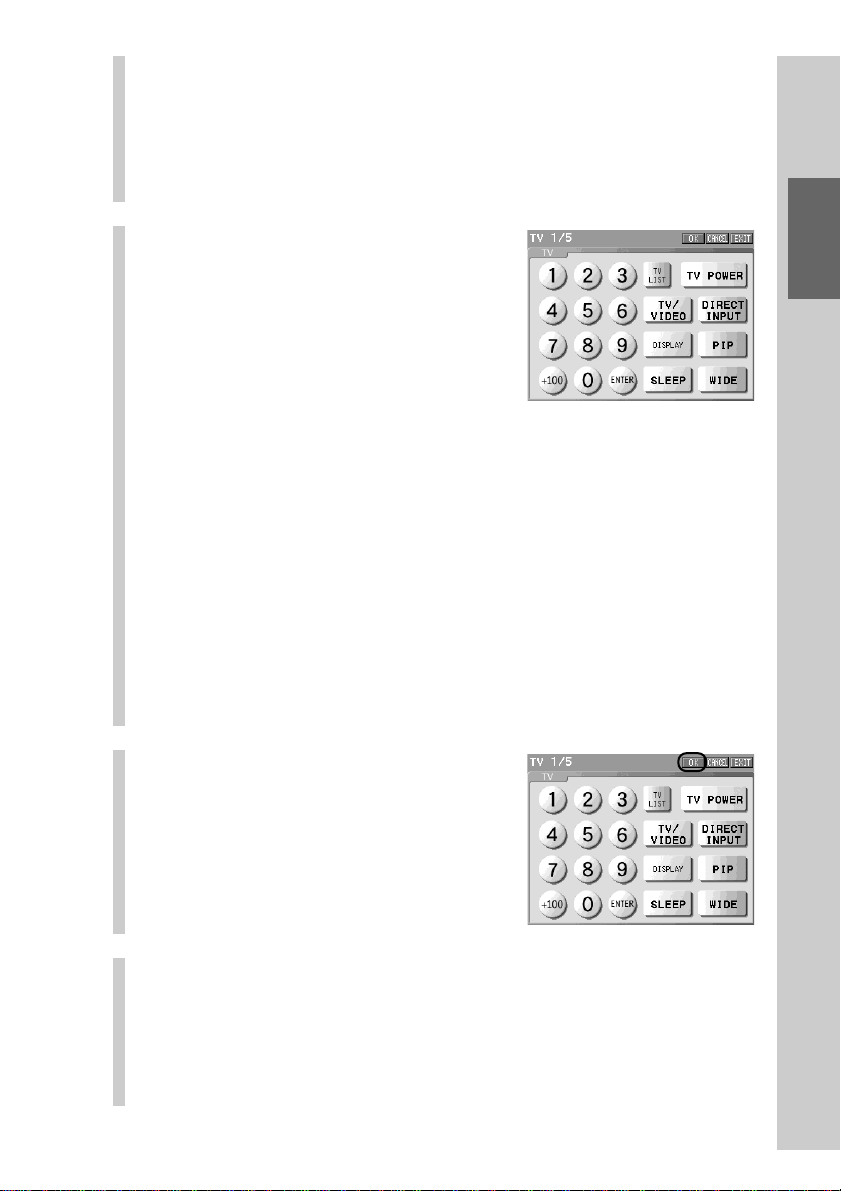
65
Basic Operations
If you want to delete all learned data
Press the [YES] key. The data deleting message appears. When deletion is
complete, the display returns to step 4.
If you do not want to delete all learned data
Press the [NO] key. Learned data will not be deleted and the display will
return to the previous one.
5
Press the key or button
whose learned signal you
want to delete.
When deletion of the learned signal is
complete, the key stops blinking and
appears released (normal).
When the button that has learned the
remote control signal is pressed, the
deletion confirmation message appears.
If you want to delete the learned signal of the button
Press the [YES] key. The button will return to the default setting status,
and the display will return to the previous one.
If you do not want to delete the learned signal of the
button
Press the [NO] key. The learned signal will not be deleted and the display
will return to the previous one.
z Tip
Using the NEXT/BACK button, you can select the page where you assigned the
key or button whose learned signal you want to delete.
6
Press the [OK] key.
The learned signal is deleted, and the
display returns to step 4.
7
To finish all settings, press the COMMANDER OFF
button for 2 seconds or longer.
The display returns to the Home display. Or press the [EXIT] key
repeatedly until the Home display is shown.
66
Customizing the Display
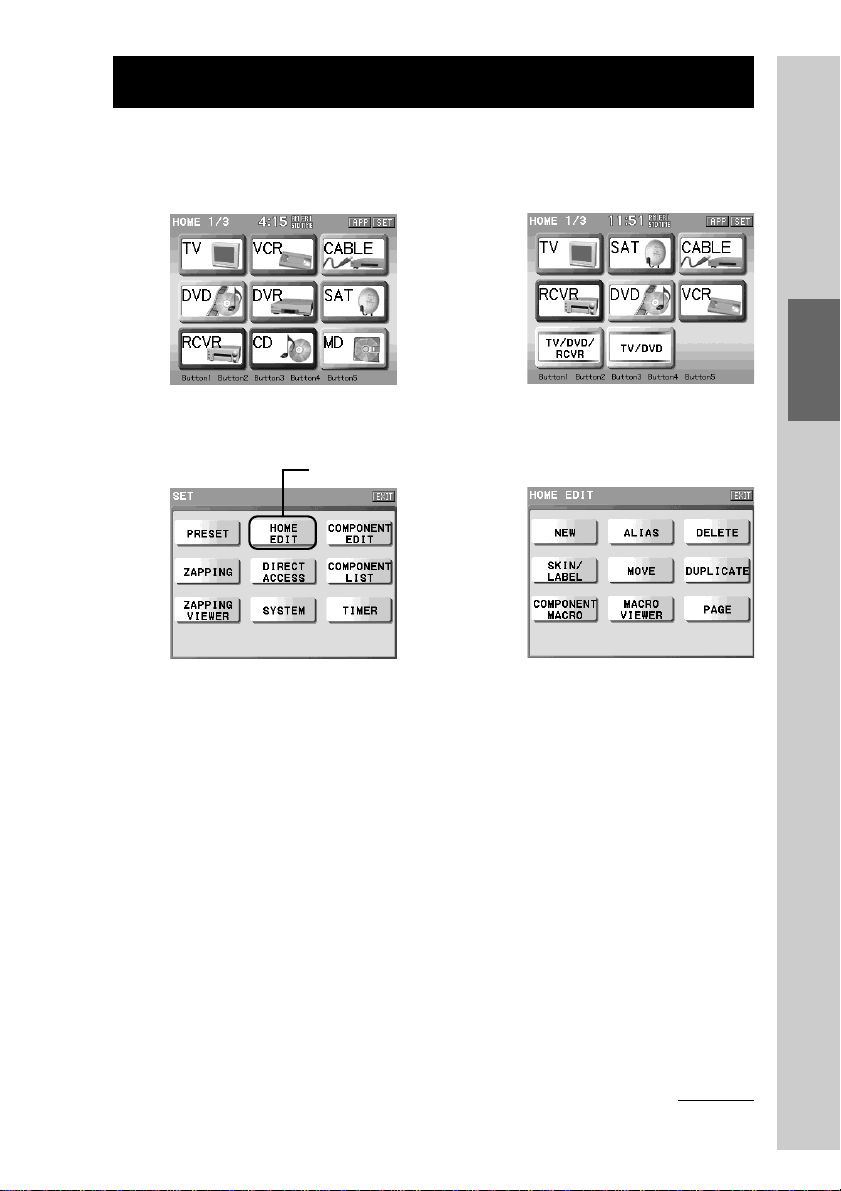
67
Customizing the Display
Customizing the Home display (HOME EDIT)
You can change the assignment of the Component keys in the Home display,
and the labels of the Component keys. Also, you can add a new page to the
Home display if necessary. Customize the Home display as you prefer.
Start editing of the Component keys or the Home display screen from the Home
Edit display.
Editing functions for the Component keys
[MOVE]: Changes the assignment of Component keys.
[DELETE]: Deletes a Component key.
[SKIN/LABEL]: Sets the label and the skin (key appearance and color) shown
on a Component key.
[DUPLICATE]: Creates a new Component key by copying an existing
Component key. The programmed component can be
changed.
[NEW]: Creates a new Component key.
[ALIAS]: Creates an Alias Component key that refers to the setting of
other components.
Editing function for the Home display
[PAGE]: Adds a page to or deletes a page from the Home display.
Home Edit display
,
Set display
,
Press the [HOME
EDIT] key.
Continued

68
Customizing the Home display (HOME EDIT)
Continued
The Home display can also be customized easily with a computer by using the supplied
application “NAVITUS Design.” You can enjoy customizing the Home display screen by
importing pictures from the computer and set them to the keys, for example. “NAVITUS
Design” is especially useful when setting the function keys for two or more components to
one component (creating a Multi Component key).
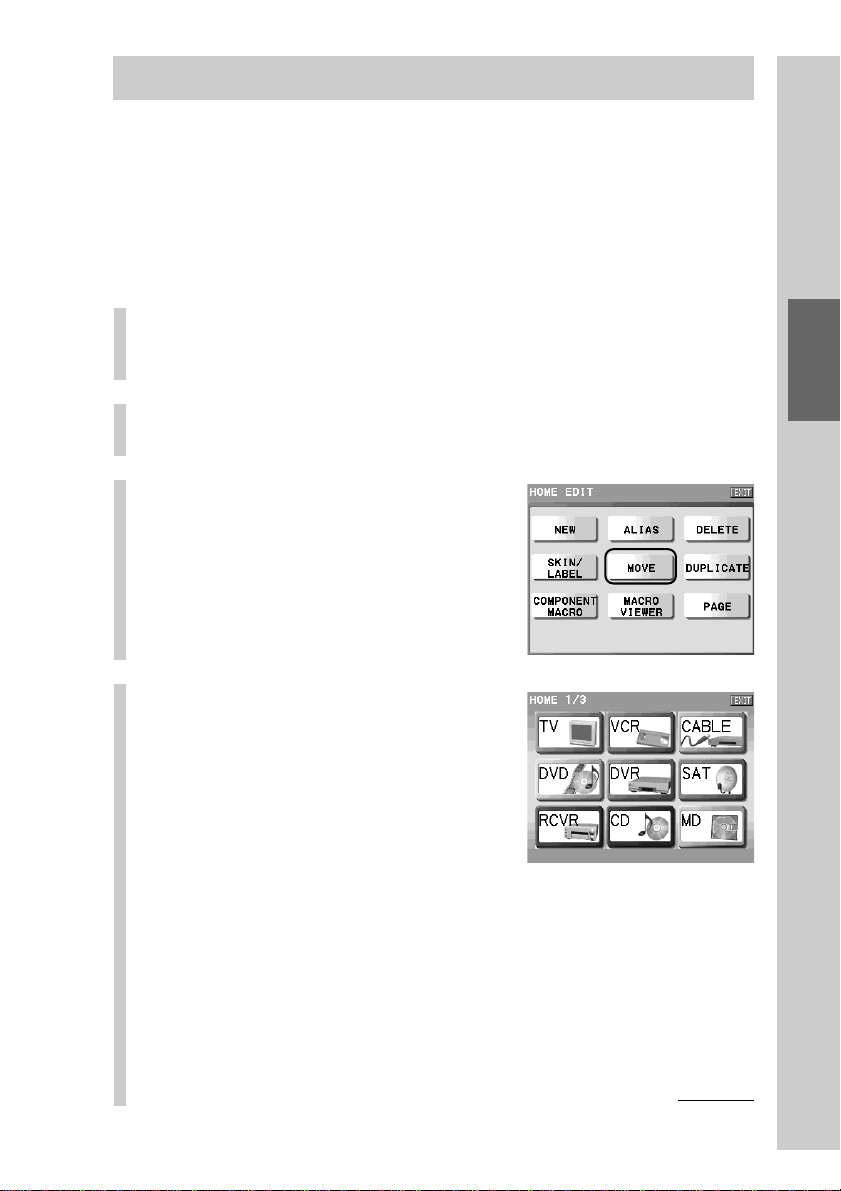
69
Customizing the Display
Changing the assignment of a Component key (MOVE)
The assignment of the Component keys can be changed. You can assign a
component you often use to the first page, or assign AV components used
together to nearby keys.
z Tip
It is recommended to add a new page using the [PAGE] function (page 85) before moving
a Component key, so that you can change the assignment of Component keys after empty
space is created by moving a Component key to an added page.
1
Press the [SET] key for 2 seconds or longer in the
Home display.
The Set display appears.
2
Press the [HOME EDIT] key.
The Home Edit display appears.
3
Press the [MOVE] key.
4
Press the Component key
you want to move.
The selected Component key appears
pressed.
Continued
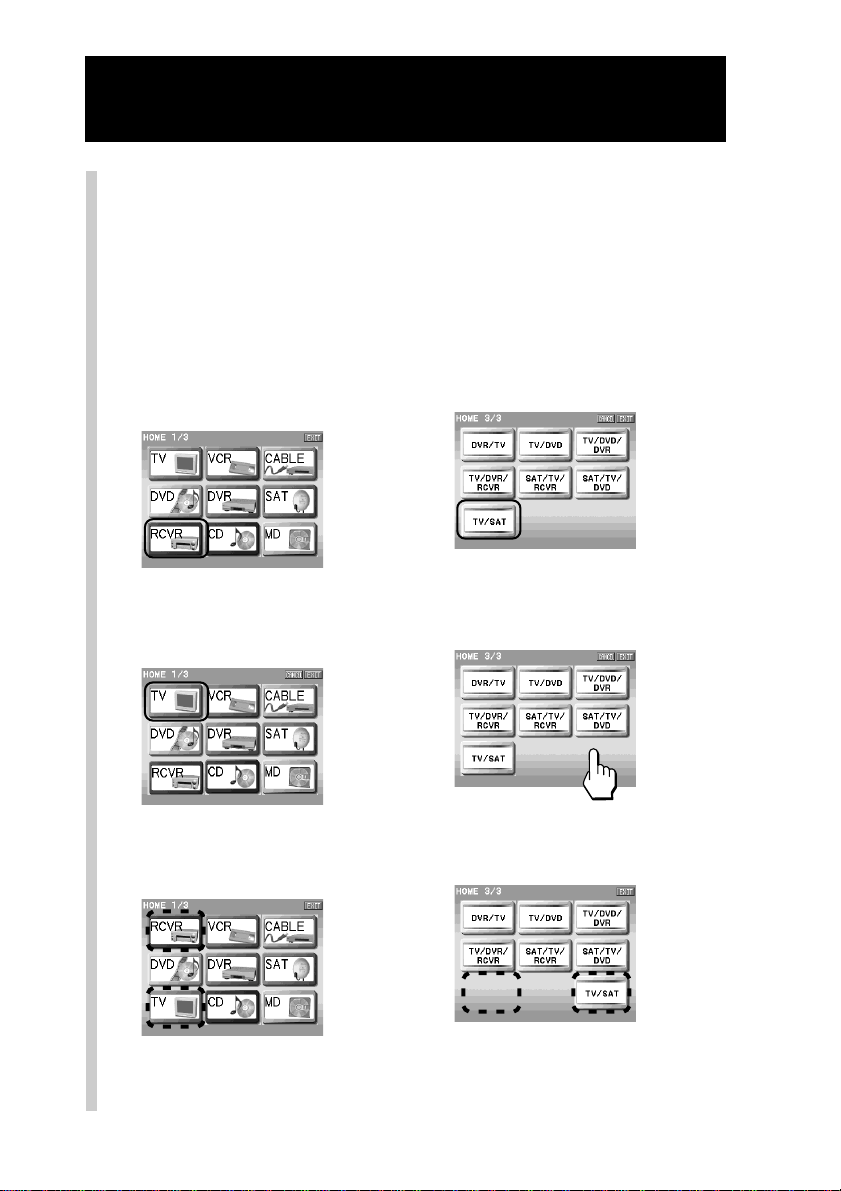
70
Customizing the Home display (HOME EDIT)
Continued
5
Press the position to which the Component key is
to be moved.
To move the Component key to another page of the Home display
Press the NEXT/BACK button to change the page, then press the position the
Component key is to be moved to.
For example, let’s change the position of the [RCVR] and [TV/SAT] key.
m
m
When selecting another
Component key position as the
destination
When selecting an empty
space as the destination
Press the [RCVR] key.
m
Press the [TV] key.
Press the [TV/SAT] key.
m
Press the empty space.
The [TV] key and the [RCVR]
key exchange the places.
The [TV/SAT] key is moved to
the empty space.

71
Customizing the Display
z Tip
If you press the [CANCEL] key without pressing the position the Component key
is to be moved to, the display returns to step 4.
Note
If you press a position that cannot be specified as the position the Component key
is to be moved to (the Component key selected to be moved that appears pressed,
or positions except Component keys and empty space), a beep sounds twice.
6
To finish all settings, press the COMMANDER OFF
button for 2 seconds or longer.
The display returns to the Home display. Or press the [EXIT] key
repeatedly until the Home display is shown.
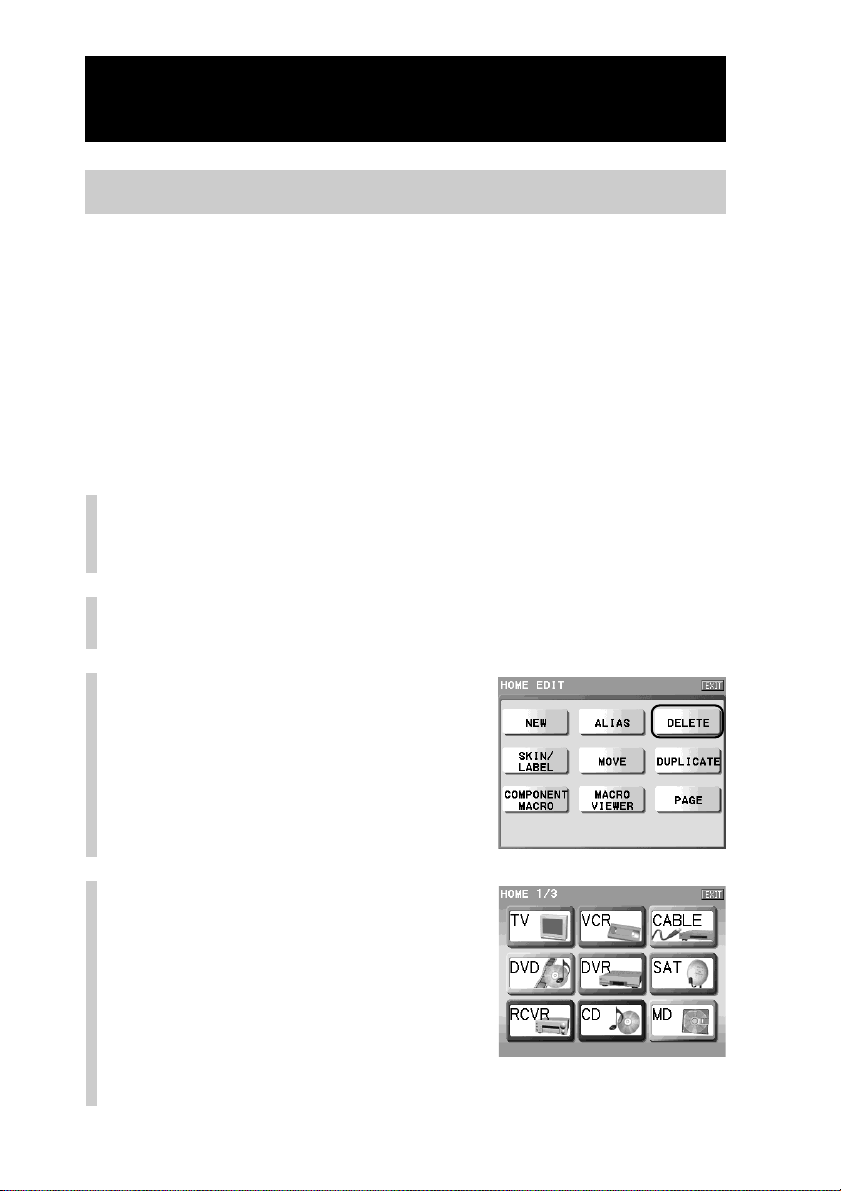
72
Customizing the Home display (HOME EDIT)
Continued
Deleting a Component key (DELETE)
Unnecessary Component keys can be deleted from the Home display. Once a
Component key is deleted, all the programmed data and settings for the
component (the Component display, function keys, data on function buttons)
are deleted.
Perform a deletion if an existing Component key becomes unnecessary when
you purchase a new AV component, for example.
Note
If you delete a Component key set to be the reference key for Alias or a macro, keys and
buttons that refer to the Component key will not function properly.
1
Press the [SET] key for 2 seconds or longer in the
Home display.
The Set display appears.
2
Press the [HOME EDIT] key.
The Home Edit display appears.
3
Press the [DELETE] key.
4
Press the Component key
you want to delete.
The deletion confirmation display
appears.
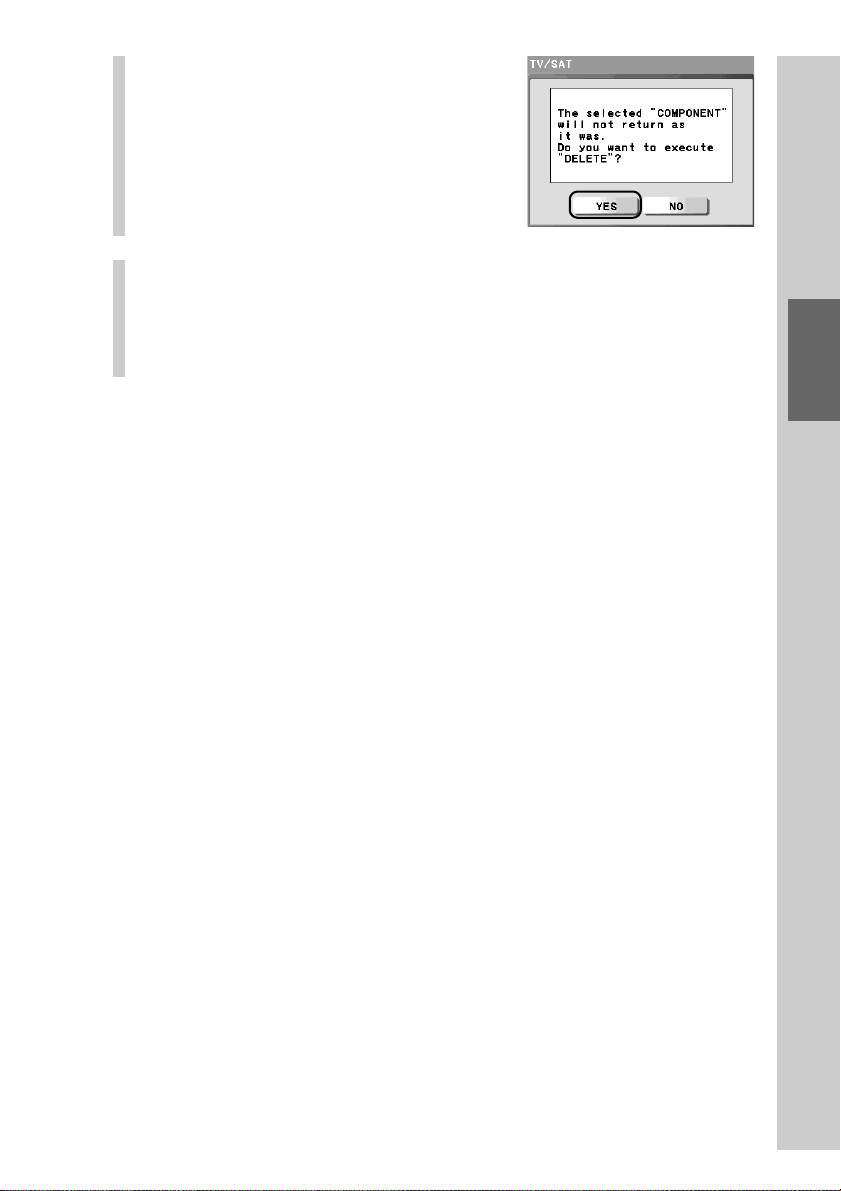
73
Customizing the Display
5
Press the [YES] key.
The selected Component key is deleted,
the display returns to step 4.
If you do not want to delete the
Component key, press the [NO] key. The
Component key will not be deleted, and
the display returns to step 4.
6
To finish all settings, press the COMMANDER OFF
button for 2 seconds or longer.
The display returns to the Home display. Or press the [EXIT] key
repeatedly until the Home display is shown.
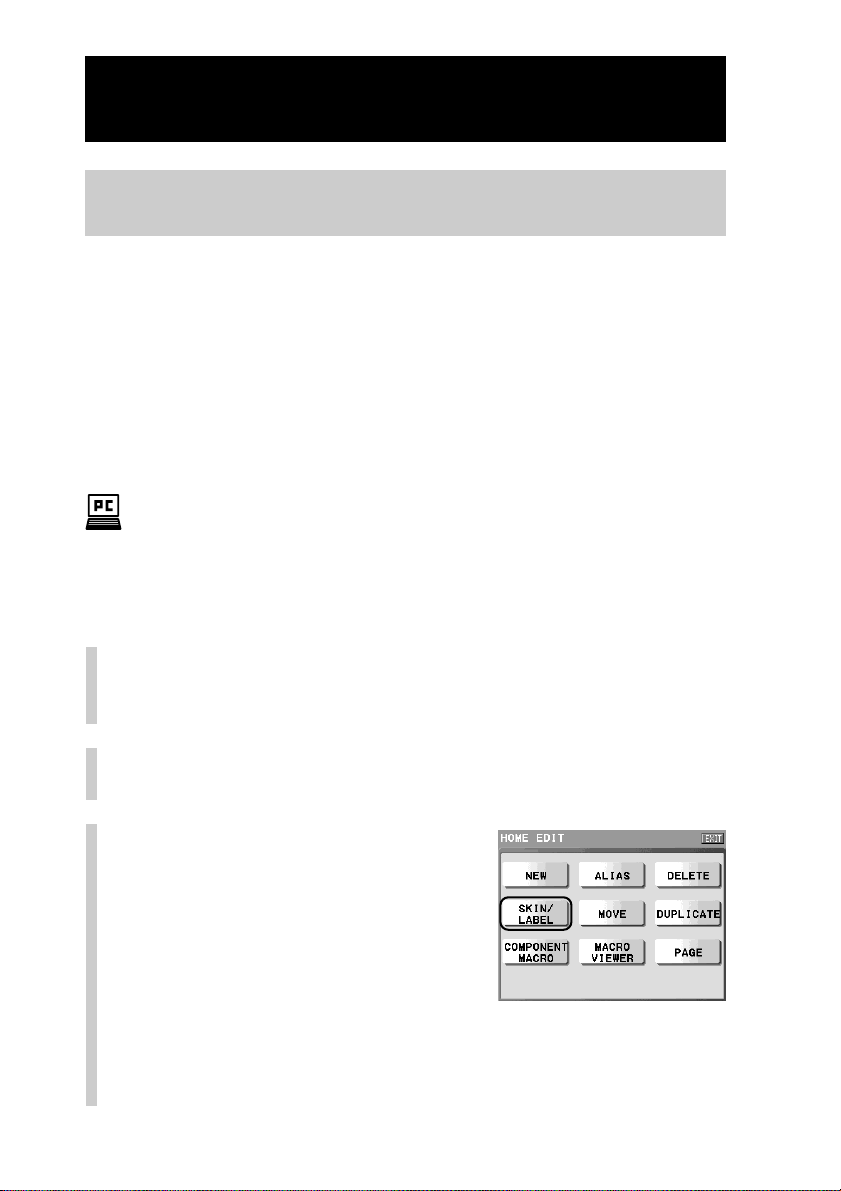
74
Customizing the Home display (HOME EDIT)
Continued
Setting the skin (key appearance and color) and the label
(name) of the Component key (SKIN/LABEL)
You can set the skin (key appearance and color) and the label shown on the
Component key.
For the skin setting, select from the provided skins for the Component key.
For the label setting, you can set the letter size and color in addition to the label
name shown on the Component key.
z Tip
The label of the Direct Access buttons can be also set in the Home Edit display. For details
on the number of letters you can input, the letter size and color, see step 5 in “Setting the
label of a Direct Access button” (page 52).
With the supplied application “NAVITUS Design”, you can import image files to design
your own skin on your computer. For details on importing of image files for the skin, refer
to “Importing an image file for the skin” in the manual (Help) of “NAVITUS Design.”
1
Press the [SET] key for 2 seconds or longer in the
Home display.
The Set display appears.
2
Press the [HOME EDIT] key.
The Home Edit display appears.
3
Press the [SKIN/LABEL] key.
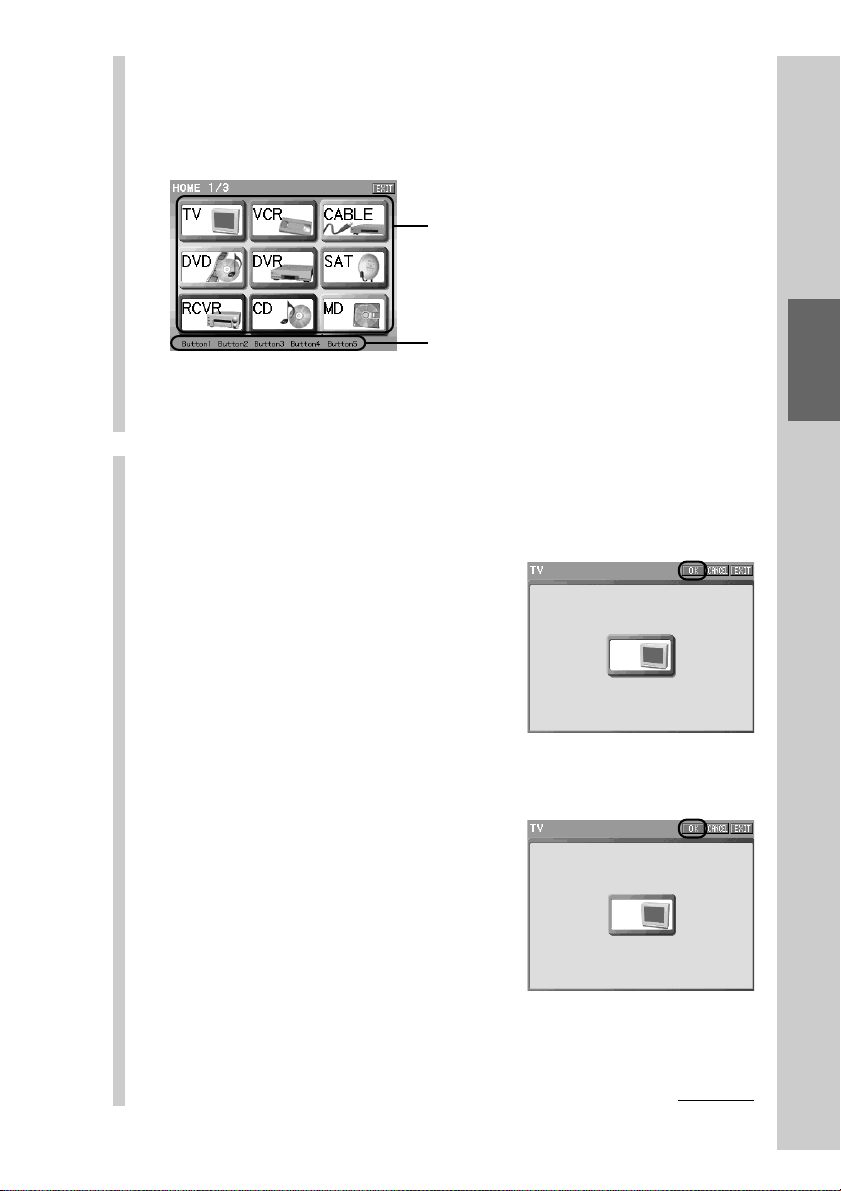
75
Customizing the Display
4
Press a Component key whose skin (key
appearance and color) and label you want to set.
The display for the skin setting appears.
z Tip
If you press the Direct Access button, you cannot set the skin. In this case, go to
the label setting in step 6.
5
Select a skin for the Component key from the
provided skins.
Set two kinds of skin: a skin that appears released (normal skin) and then
a skin that appears pressed (pressed skin).
1 Select a normal skin to be set.
Only one skin appears in the center of
the display. To display the next skin,
press the NEXT button on the Remote
Commander. To display the previous
skin, press the BACK button.
2Press the [OK] key.
3 Select a pressed skin to be set.
Only one skin appears in the center of
the display. To display the next skin,
press the NEXT button on the Remote
Commander. To display the previous
skin, press the BACK button.
4Press the [OK] key.
Component keys
Labels for the Direct Access buttons
Press the Direct Access button to select it.
m
Normal skin
Pressed skin
Continued
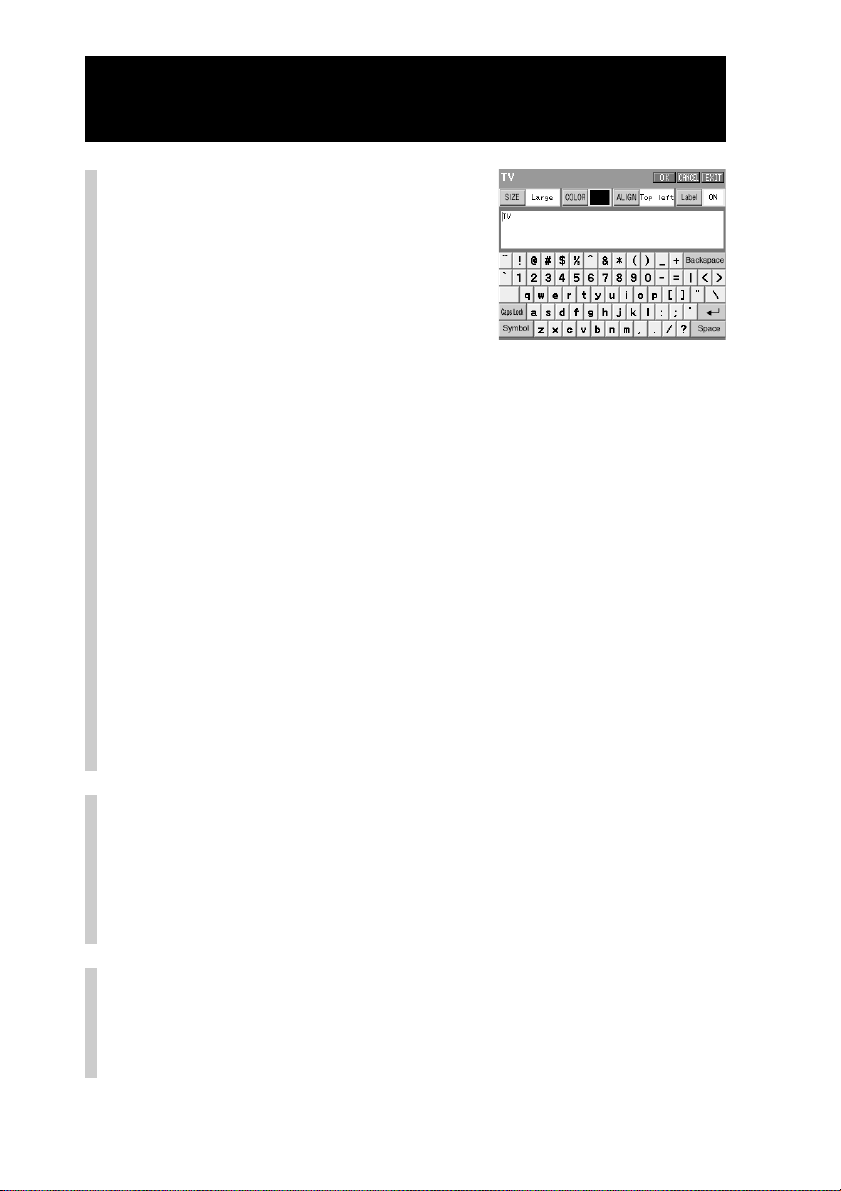
76
Customizing the Home display (HOME EDIT)
Continued
6
Set the label of the
Component key.
Input letters to the label in the label
setting display by pressing the keyboard
using the supplied Stylus.
For inputting letters to the label, see
“Inputting letters (label setting)” (pages
40 - 41).
Specified settings to the label of the Component key besides the
information described on pages 40 - 41 are as follows.
Letter input: Up to 32 letters can be input.
Starting a new line: Available. Starting a new line is counted as a
letter.
Pictographs: Can be input. A pictograph is counted as 4 letters.
Specified settings to the label of the Direct Access button are as follows.
Letter input: Up to 8 letters can be input.
Starting a new line: Not available.
Pictographs: Can be input. A pictograph is counted as 4 letters.
[SIZE]: Not selectable. The letter size is fixed to [Small].
[ALIGN]: Not selectable. The letter location is fixed to
[Center].
Note
You cannot set the same label name as an existing Component key, regardless of
whether characters are upper or lowercase. If you try to set the same label name, a
message appears.
7
When the label setting is complete, press the [OK]
key.
The skin and label are set and the display returns to step 4.
z Tip
If you press the [CANCEL] key, the label will not be set and the display will return
to step 5.
8
To finish all settings, press the COMMANDER OFF
button for 2 seconds or longer.
The display returns to the Home display. Or press the [EXIT] key
repeatedly until the Home display is shown.
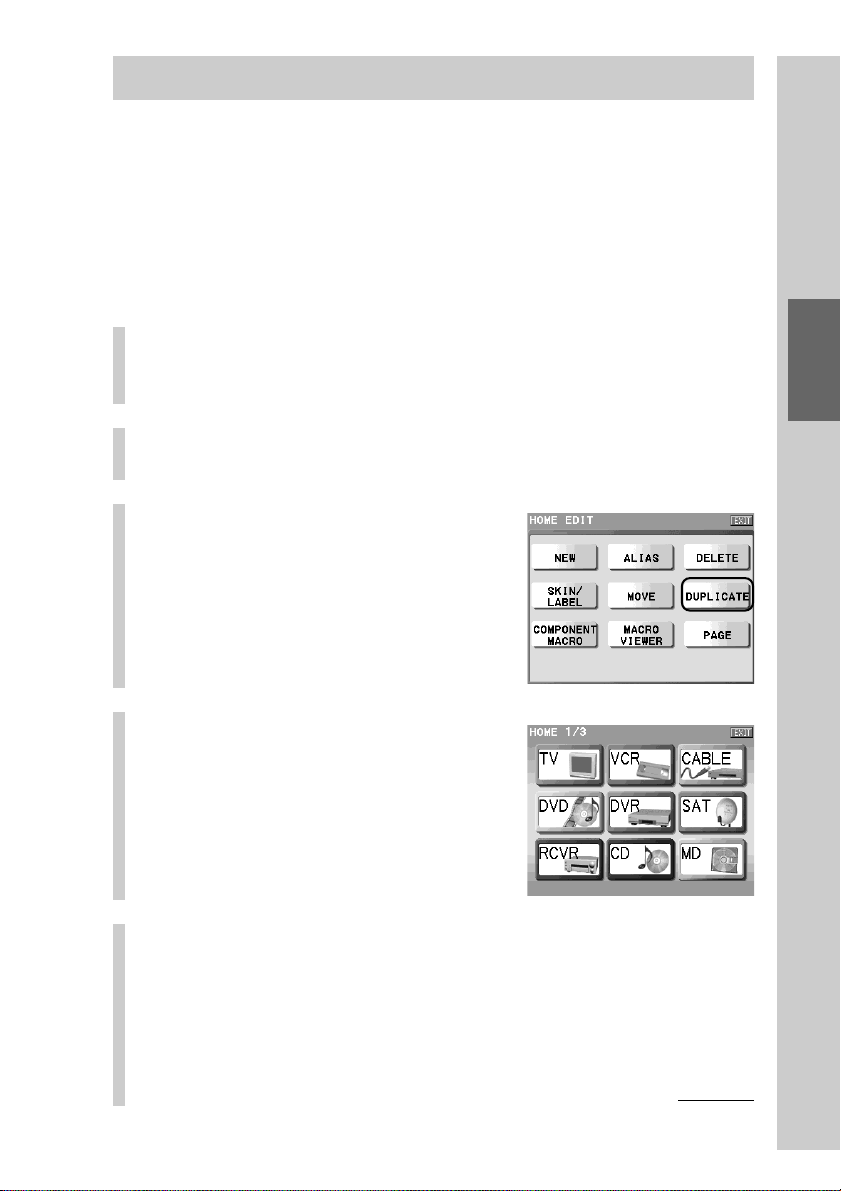
77
Customizing the Display
Copying a Component key (DUPLICATE)
You can create a new Component key by copying an existing Component key.
If you duplicate a Component key, a new Component key with the same preset
code and function buttons as an existing Component key is created. It is
convenient to create a new Component key by changing partially the setting
contents of an existing Component key.
z Tip
A new Component key created by copying is assigned on the last page of the Home
display.
1
Press the [SET] key for 2 seconds or longer in the
Home display.
The Set display appears.
2
Press the [HOME EDIT] key.
The Home Edit display appears.
3
Press the [DUPLICATE] key.
4
Press the Component key
you want to copy.
Component keys that cannot be copied
appear pressed and cannot be selected. If
you press one of them, a beep sounds
twice.
5
Select whether to change a component preset code
programmed for the Component key to be copied.
Continued
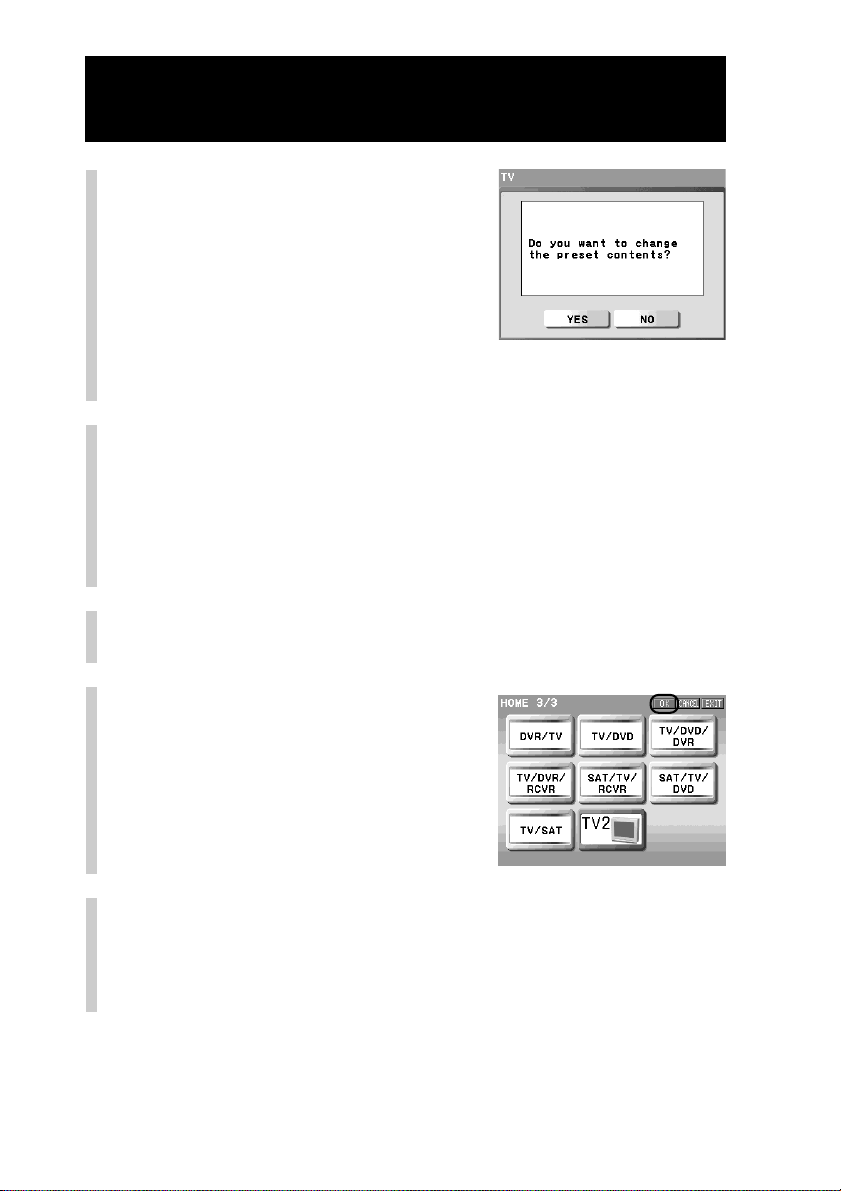
78
Customizing the Home display (HOME EDIT)
Continued
■ If you want to change a
component preset code
Press the [YES] key.
For details on programming of a preset
code, see “Programming the preset codes
of components (PRESET)” (page 42).
When the preset setting is complete, go
to step 6.
■ If you do not want to change a preset code
Press the [NO] key. Then go to step 6.
6
Set the label of the new Component key.
For details on setting the label, see “Inputting letters (label setting)”
(pages 40 -41).
Note
You cannot set the same label name as the copied Component key or another
existing Component key, regardless of whether characters are upper or lowercase.
If you try to set the same label name, a message appears.
7
When the label setting is complete, press the [OK] key.
A new Component key is displayed.
8
Confirm the copying of the
Component key, and then
press the [OK] key.
A new Component key created by copying
is assigned on the last page of the Home
display. The display returns to step 4.
If you press the [CANCEL] key, the
display returns to step 6.
9
To finish all settings, press the COMMANDER OFF
button for 2 seconds or longer.
The display returns to the Home display. Or press the [EXIT] key
repeatedly until the Home display is shown.

79
Customizing the Display
z Tips
•A new Component key created by copying has the same skin as the copied Component
key. If you want to change the skin of a new Component key created by copying, set the
skin again. For details, see “Setting the skin (key appearance and color) and the label
(name) of the Component key (SKIN/LABEL)” (page 74).
•A new Component key created by copying is assigned on the last page of the Home
display. If there is no space to assign a new key on the last page, a new page will be
added, and a new key will be assigned to that page. You can create up to 63 pages for
the Home display. If you try to create a page over 63 pages, a message will appear. In
this case, press the [OK] key.
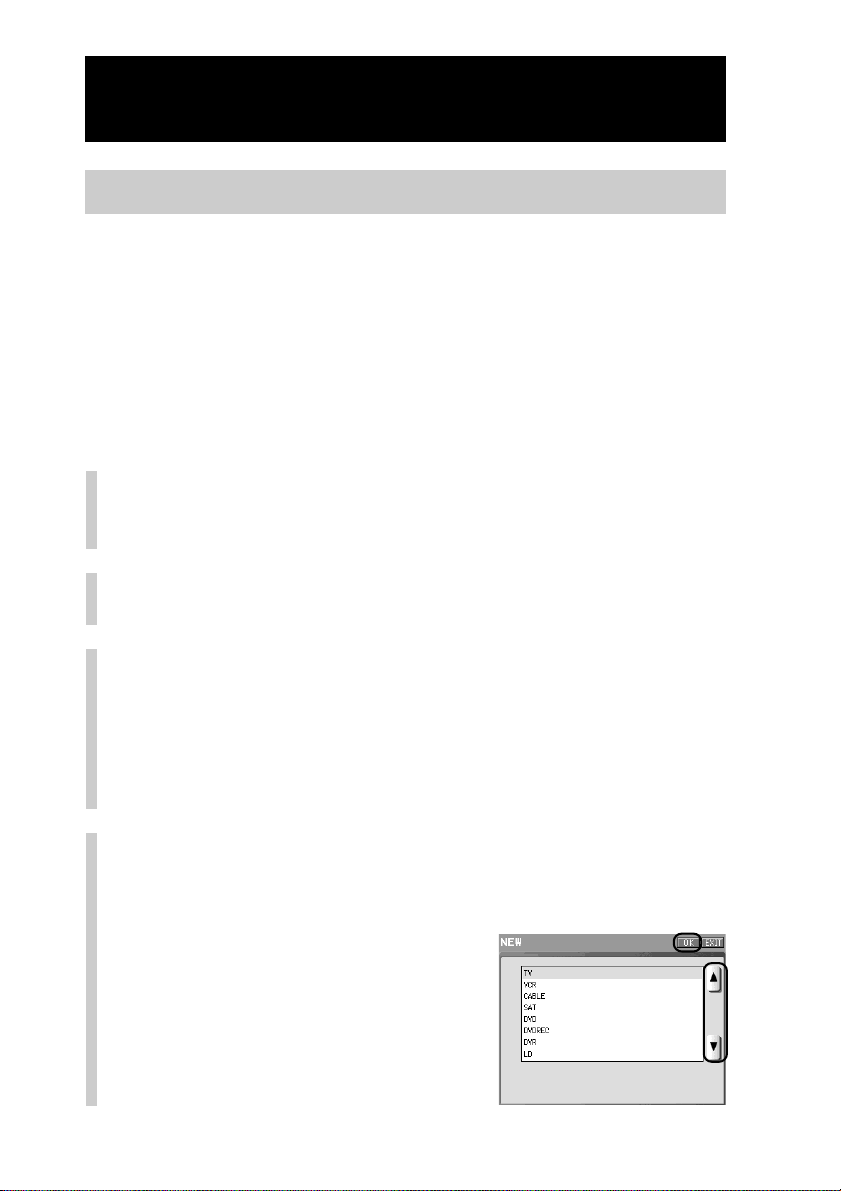
80
Creating a new Component key (NEW)
You can create a new Component key in the Home display.
There are two methods to create a new Component key.
•Create a key programmed with a preset code of a specific component
•Create an empty key without programming a preset code
If you create an empty Component key, program the Alias, macro and learning
settings to function keys in a component later.
z Tip
The created Component key is assigned on the last page of the Home display.
1
Press the [SET] key for 2 seconds or longer in the
Home display.
The Set display appears.
2
Press the [HOME EDIT] key.
The Home Edit display appears.
3
Press the [NEW] key.
z Tip
A new created Component key is assigned on the last page of the Home display. If
there is no space to assign a new key on the last page, a new page will be added,
and a new key will be assigned to that page. You can create up to 63 pages for the
Home display. If you try to create a page over 63 pages, a message will appear. In
this case, press the [OK] key.
4
Select a component category.
Select a component category to be programmed to the new Component key.
For example, select “TV.”
1Press the [v] or [V] key to select
the component category to be set
for the new Component key from
the AV component list in the
display.
2Press the [OK] key.
Customizing the Home display (HOME EDIT)
Continued
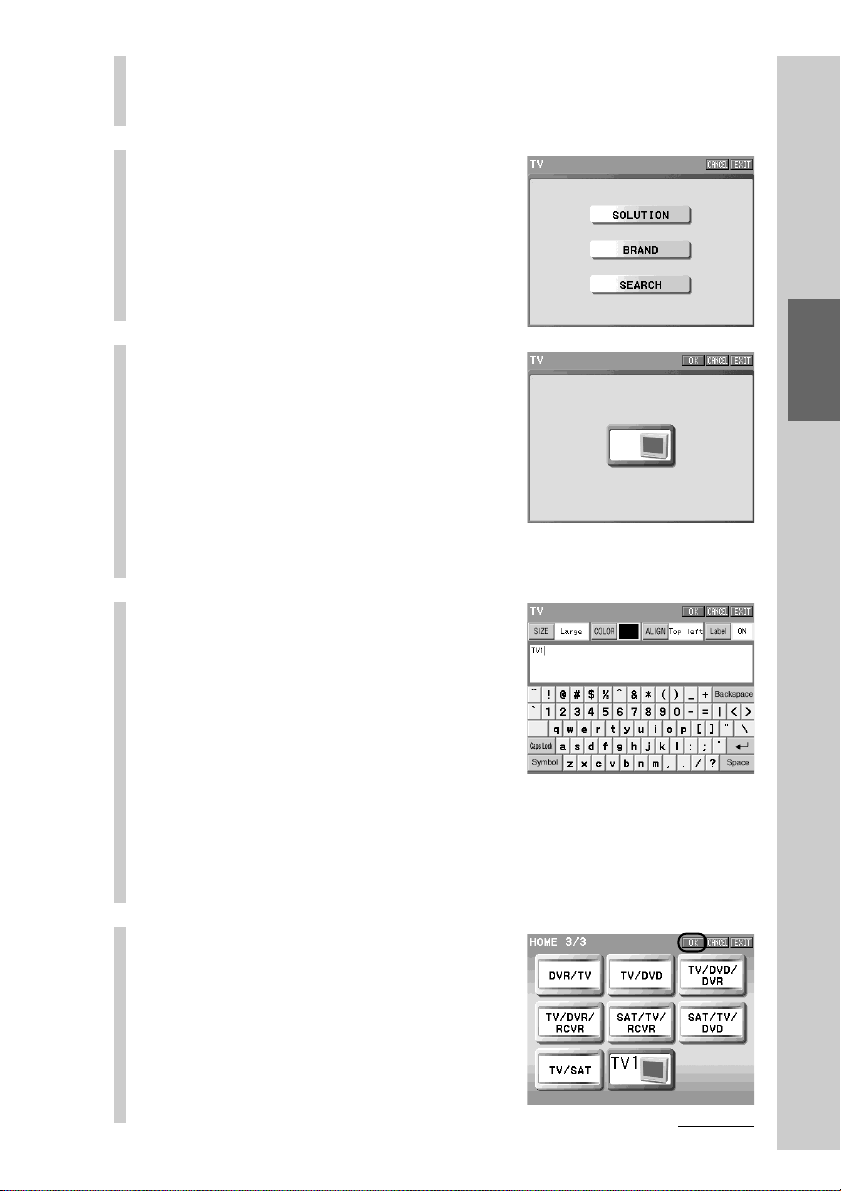
81
Customizing the Display
■ To create a Component key without programming a
preset code of a component
Select “NONE” from the AV component list in the display and then go to step 6.
5
Select a method to program
a preset code (PRESET) for
the Component key, and
then program a preset code.
For details on programming of a preset
code, see “Programming the preset codes
of components (PRESET)” (page 42).
6
Set the skin for the
Component key.
Select the normal skin, and press the
[OK] key. Then select the pressed skin,
and press the [OK] key.
For details on setting the skin, see step 5
in “Setting the skin (key appearance and
color) and the label (name) of the
Component key (SKIN/LABEL)” (pages
74 - 76).
7
Set the label for the
Component key.
When the label setting is complete, press
the [OK] key.
For details on setting the label, see step 6
in “Setting the skin (key appearance and
color) and the label (name) of the
Component key (SKIN/LABEL)” (pages
74 - 76).
Note
You cannot set the same label name as an existing Component key, regardless of
whether characters are upper or lowercase. If you try to set the same label name, a
message appears.
8
After confirming that the
newly created Component
key is displayed, press the
[OK] key.
Creation of the Component key is
complete and the display returns to step 4.
If you press the [CANCEL] key, the
display returns to step 7.
Continued

82
Customizing the Home display (HOME EDIT)
Continued
9
To finish all settings, press the COMMANDER OFF
button for 2 seconds or longer.
The display returns to the Home display.
Or press the [EXIT] key
repeatedly until the Home display is shown.
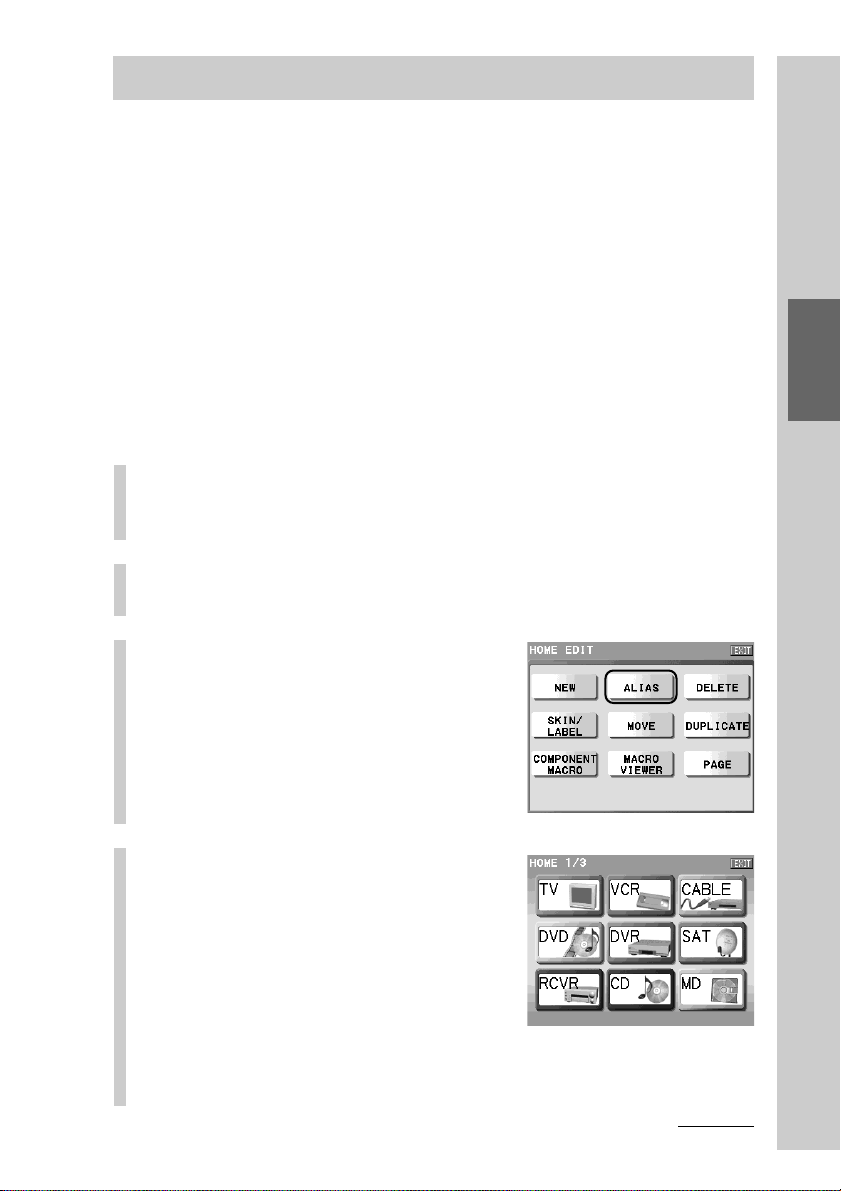
83
Customizing the Display
Creating an Alias Component key (ALIAS)
An Alias Component key is a Component key that operates by referring to the
setting contents of another component.
For example, if you create an Alias key that refers to the TV Component key, you
can create a Component key having the same setting contents as the existing TV
Component key. If you customize the Component keys by creating an Alias key
named “TV Kids” only for children or “TV MOTHER” only for a mother, you
can create original keys for individual family members.
z Tips
•A created Alias Component key is assigned on the last page of the Home display.
• Using this Alias Component function, you can assign the function keys of various AV
components (alias keys) to one Component display. The Component key that has this
kind of function is called a Multi Component key.
For details on creating a Multi Component key, see “Assigning function keys of multiple
AV components to a Component display” (page 109).
1
Press the [SET] key for 2 seconds or longer in the
Home display.
The Set display appears.
2
Press the [HOME EDIT] key.
The Home Edit display appears.
3
Press the [ALIAS] key.
4
Press the Component key to
which the Alias Component
key refers.
Continued
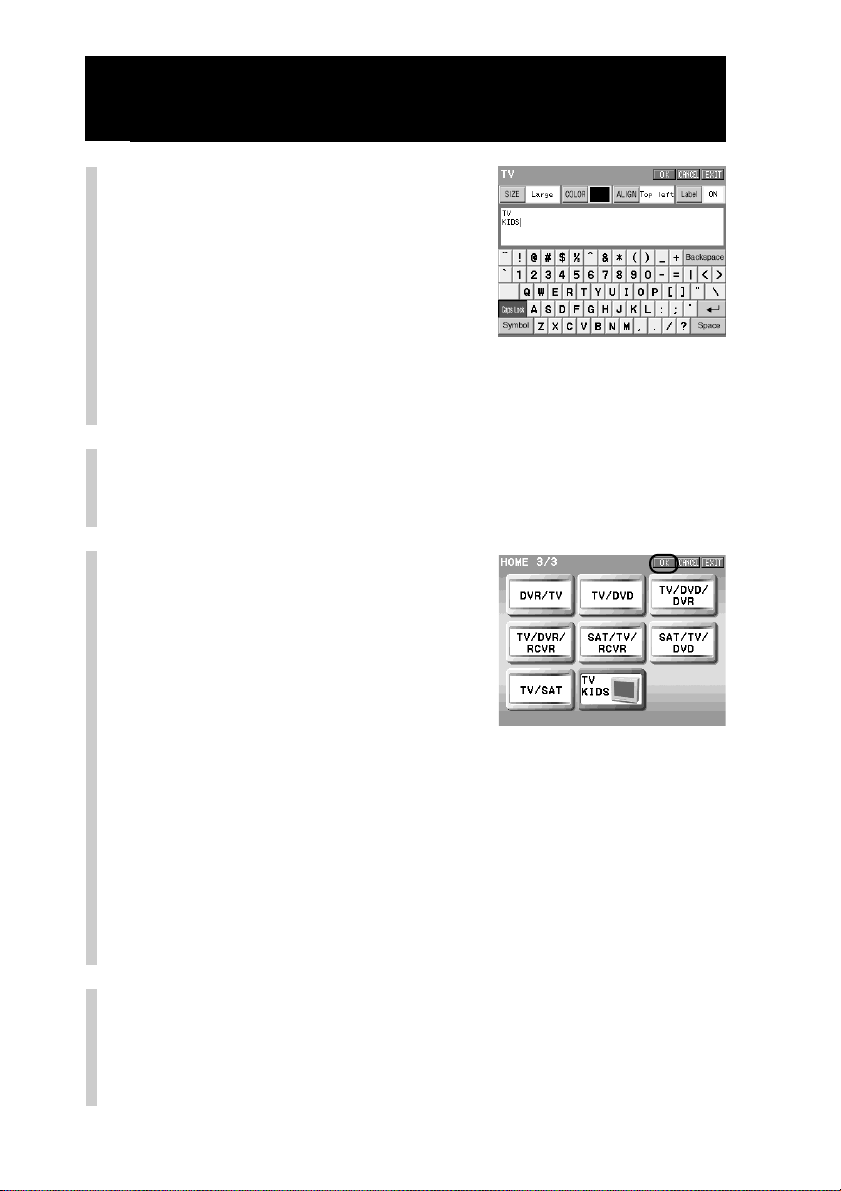
84
Customizing the Home display (HOME EDIT)
Continued
5
Set the label of the Alias
Component key to be
created.
For details on setting the label, see
“Inputting letters (label setting)” (pages
40 - 41).
Note
You cannot set the same label name as the reference Component key or another
existing Component key, regardless of whether characters are upper or lowercase.
If you try to set the same label name, a message appears.
6
When the label setting is complete, press the [OK]
key.
A created Alias Component key is displayed.
7
After confirming that the
created Alias Component
key is displayed, press the
[OK] key.
Creation of the Alias Component key is
complete and the display returns to step
4.
Note
The following keys will not be created as Alias keys when an Alias component is created.
• List key
• Zapping Viewer key
z Tips
• The skin of the reference key is applied to the Alias Component key.
•A created Alias Component key is assigned on the last page of the Home
display. If there is no space to assign a new key on the last page, a new page will
be added, and a new key will be assigned to that page. You can create up to 63
pages for Home display. If you try to create a page over 63 pages, a message will
appear. In this case, press the [OK] key.
8
To finish all settings, press the COMMANDER OFF
button for 2 seconds or longer.
The display returns to the Home display. Or press the [EXIT] key
repeatedly until the Home display is shown.
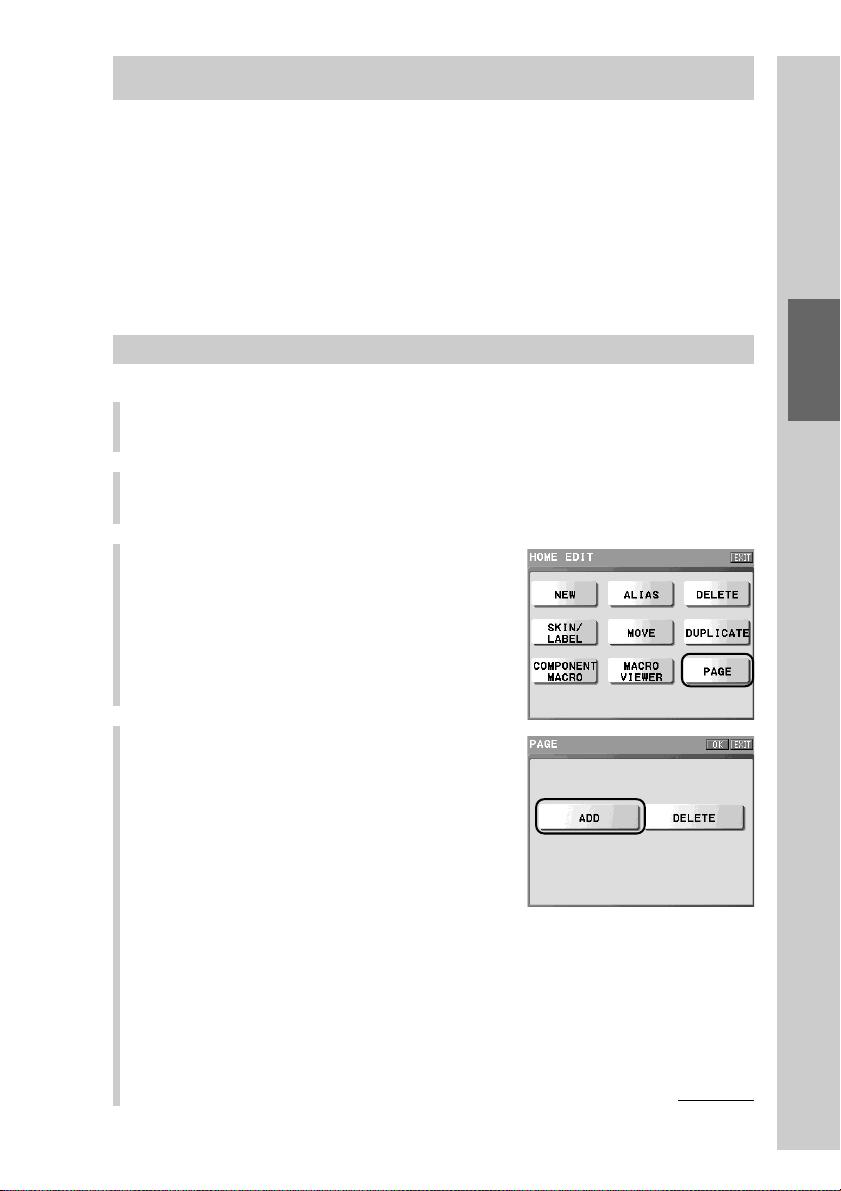
85
Customizing the Display
Adding/deleting a page of the Home display (PAGE)
You can add or delete a page of the Home display.
You can add a page of the Home display, if there is no space to assign a key
when you want to create a Component key, or if you want to group Component
keys by page as you prefer.
You can delete an unnecessary page created by deletion of Component keys.
Note
You can delete only an empty page having no key. You cannot delete a page where
Component keys are assigned.
Adding a page to the Home display (ADD)
1
Press the [SET] key for 2 seconds or longer in the Home display.
The Set display appears.
2
Press the [HOME EDIT] key.
The Home Edit display appears.
3
Press the [PAGE] key.
4
Press the [ADD] key.
z Tip
You can create up to 63 pages in the Home display. If you try to create a page over
63 pages, a message will appear. After confirming a message, press the [OK] key.
The display returns to the previous one.
Continued
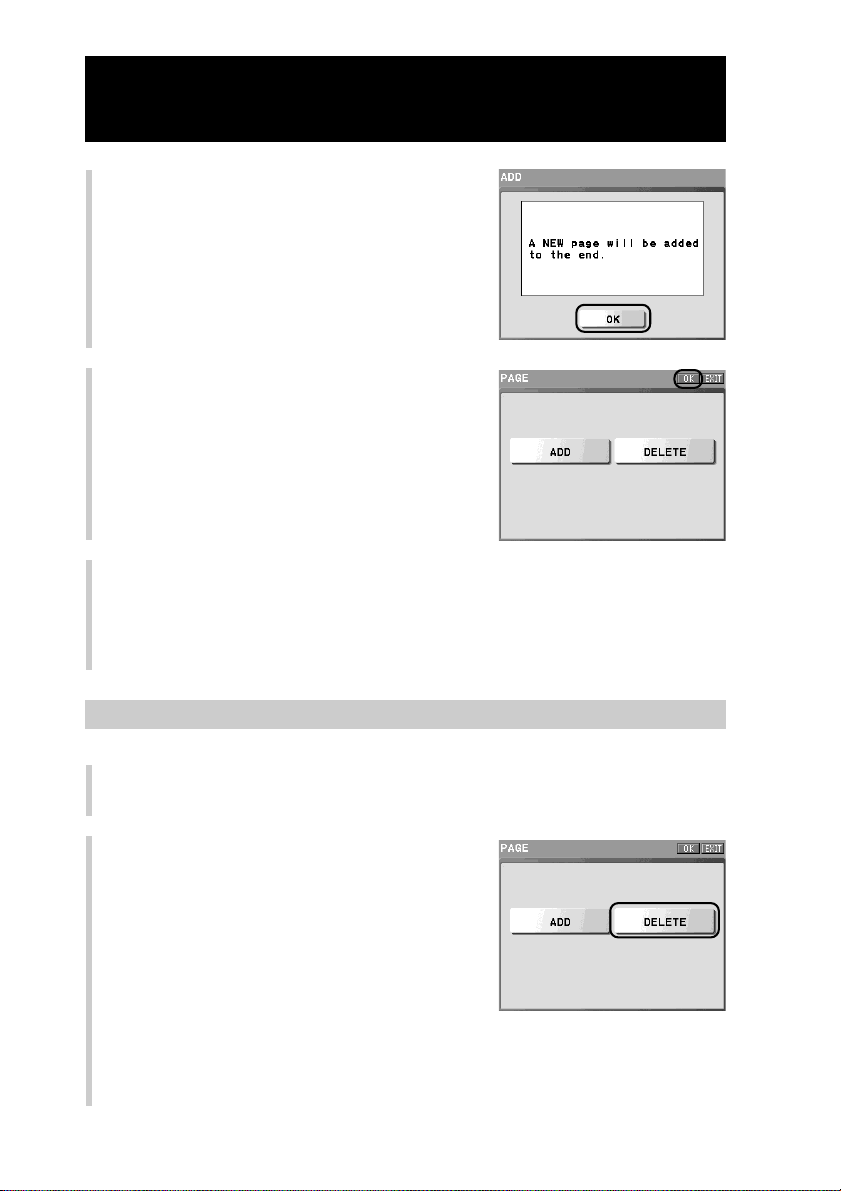
86
Customizing the Home display (HOME EDIT)
Continued
Deleting a page of the Home display (DELETE)
1
Perform steps 1 to 3 in “Adding a page to the Home display
(ADD)” (page 85).
2
Press the [DELETE] key.
5
Confirm that a page will be added,
and press the [OK] key.
A new page is not added yet here, and the
display returns to step 4.
6
Press the [OK] key.
A new page is added to the last of the
Home display, and the display returns to
step 3.
7
To finish all settings, press the COMMANDER OFF button for 2
seconds or longer.
The display returns to the Home display. Or press the [EXIT] key repeatedly
until the Home display is shown.
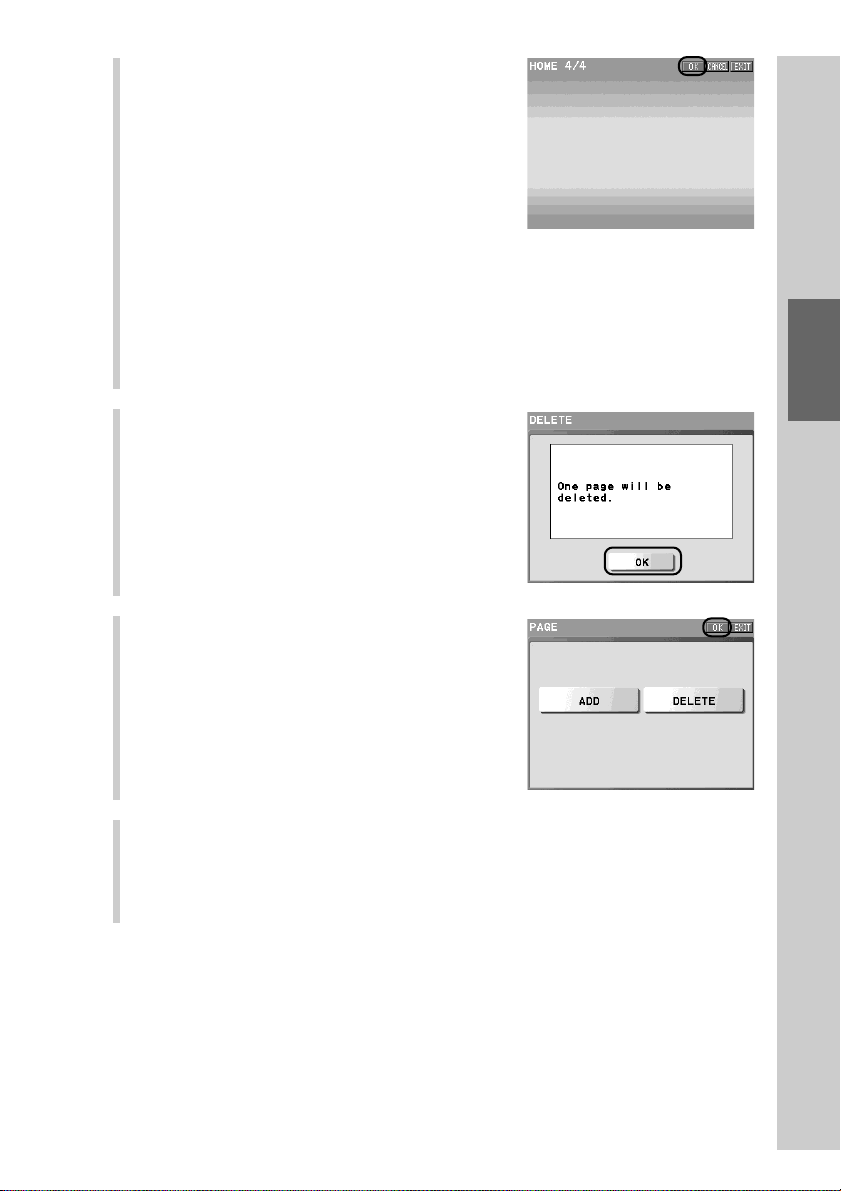
87
Customizing the Display
3
Press the NEXT button to select the
page you want to delete, and then
press the [OK] key.
Press the NEXT button to display the next
page, or press the BACK button to display
the previous one. All Component keys
appear pressed. Even if you press a
Component key, it does not function.
z Tip
If you press the [CANCEL] key, the display return to step 2 without deleting a page.
Note
You can delete only an empty page having no key. If you press the [OK] key on a
page having a key, a message appears. If you press the [OK] key after confirming a
message, the display returns to the previous one.
4
Confirm that a page will be deleted,
and press the [OK] key.
A page is not deleted yet here, and the
display returns to step 2.
5
Press the [OK] key.
Deletion of the page is complete and the
display returns to the Home Edit display
(step 3 on page 85).
6
To finish all settings, press the COMMANDER OFF button for 2
seconds or longer.
The display returns to the Home display. Or press the [EXIT] key repeatedly
until the Home display is shown.
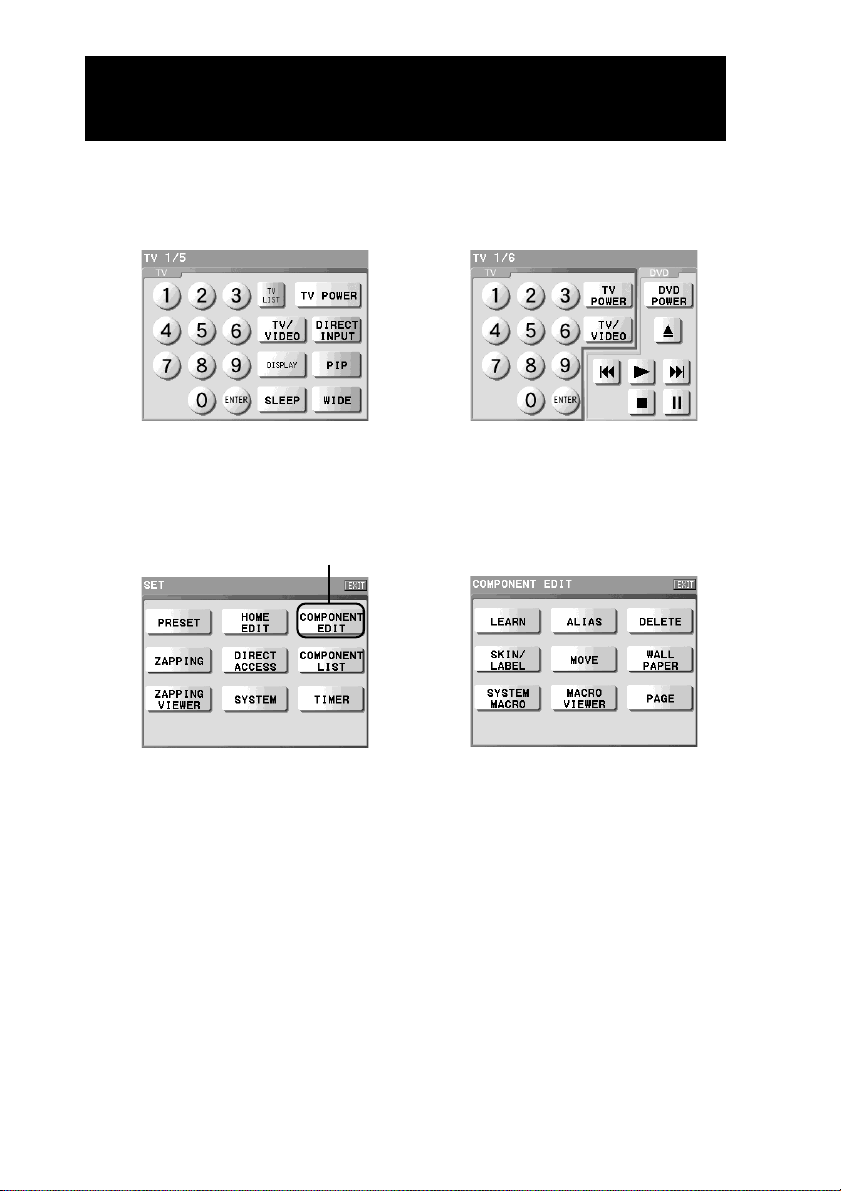
88
Customizing the Component display
(COMPONENT EDIT)
You can change the assignment of function keys in a Component display, and
the labels of function keys. Also, you can add a new page to the Component
display if necessary. Customize the Component display as you prefer.
Start editing of function keys or the Component display screen from the
Component Edit display.
Editing functions for function keys
[MOVE]: Changes the assignment of function keys.
[DELETE]: Deletes a function key. Also, the setting programmed for
function buttons can be erased.
[SKIN/LABEL]: Sets the label and the skin (key appearance and color) shown
on a function key.
[ALIAS]: Creates an Alias function key that refers to the setting of other
function keys.
[WALLPAPER]: Sets a wallpaper for the Component display screen selecting
from the provided wallpapers.
Editing function for the Component display
[PAGE]: Adds a page to or deletes a page from the Component display.
Component Edit display
,
Set display
Press the [COMPONENT
EDIT] key.
,
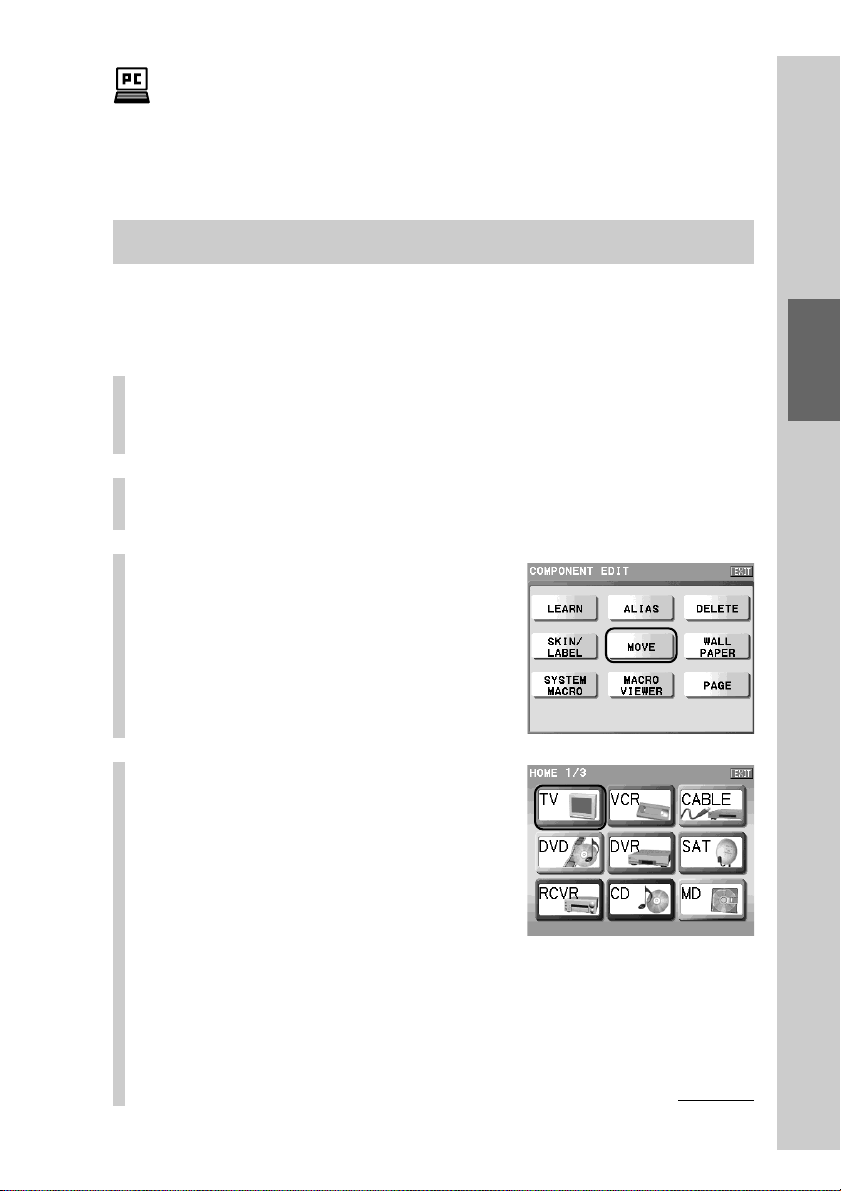
89
Customizing the Display
Changing the assignment of a function key (MOVE)
The assignment of function keys can be changed. You can assign a function key
you often use to the first page, or assign keys used together to nearby keys.
1
Press the [SET] key for 2 seconds or longer in the
Home display.
The Set display appears.
2
Press the [COMPONENT EDIT] key.
The Component Edit display appears.
3
Press the [MOVE] key.
4
Press the Component key
that includes the key
function you want to move.
For example, press the [TV] key.
To change a page of the display
Press the NEXT button on the Remote Commander to display the next page, or
press the BACK button to display the previous one.
The Component display can also be customized easily with a computer by using the
supplied application “NAVITUS Design.” You can enjoy customizing the Component
display screen by importing pictures from the computer and set them to the keys or
wallpaper, for example.
Continued
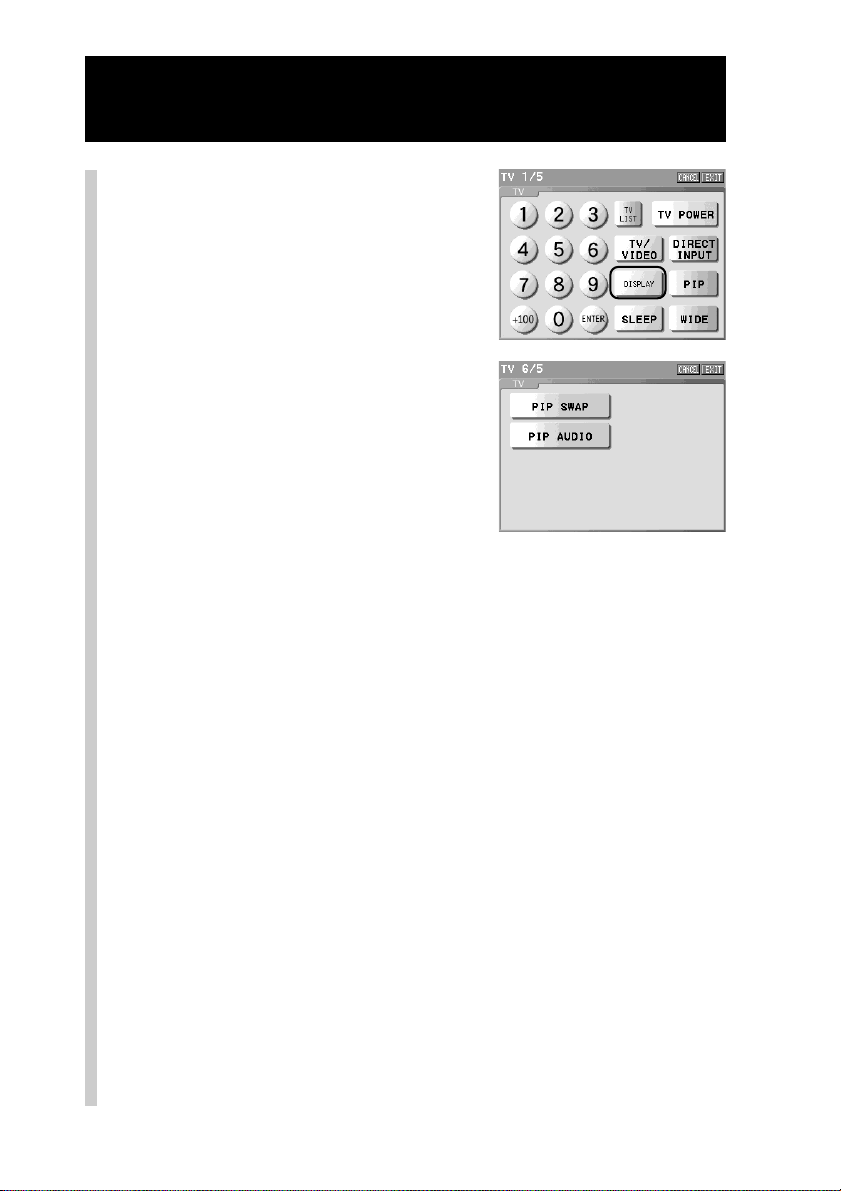
90
Customizing the Component display (COMPONENT EDIT)
Continued
5
Press the key you want to
move.
For example, press the [DISPLAY] key.
The selected key appears pressed.
■ To move the key in the Trash
can page
Press the NEXT/BACK button on the
Remote Commander to display the Trash
can page. The Trash can page is assigned
on the last page of the Component
display. When the Trash can page is
displayed, press the function key you
want to move.
z Tip
If the Component display consists of 5 pages, for example, the number indication
of pages are shown as “1/5”, 2/5”, ... “5/5”, and the number indication of the
Trash can page starts from “6/5.” (“5” that indicates the total pages of the
Component display does not change even in the Trash can page.)
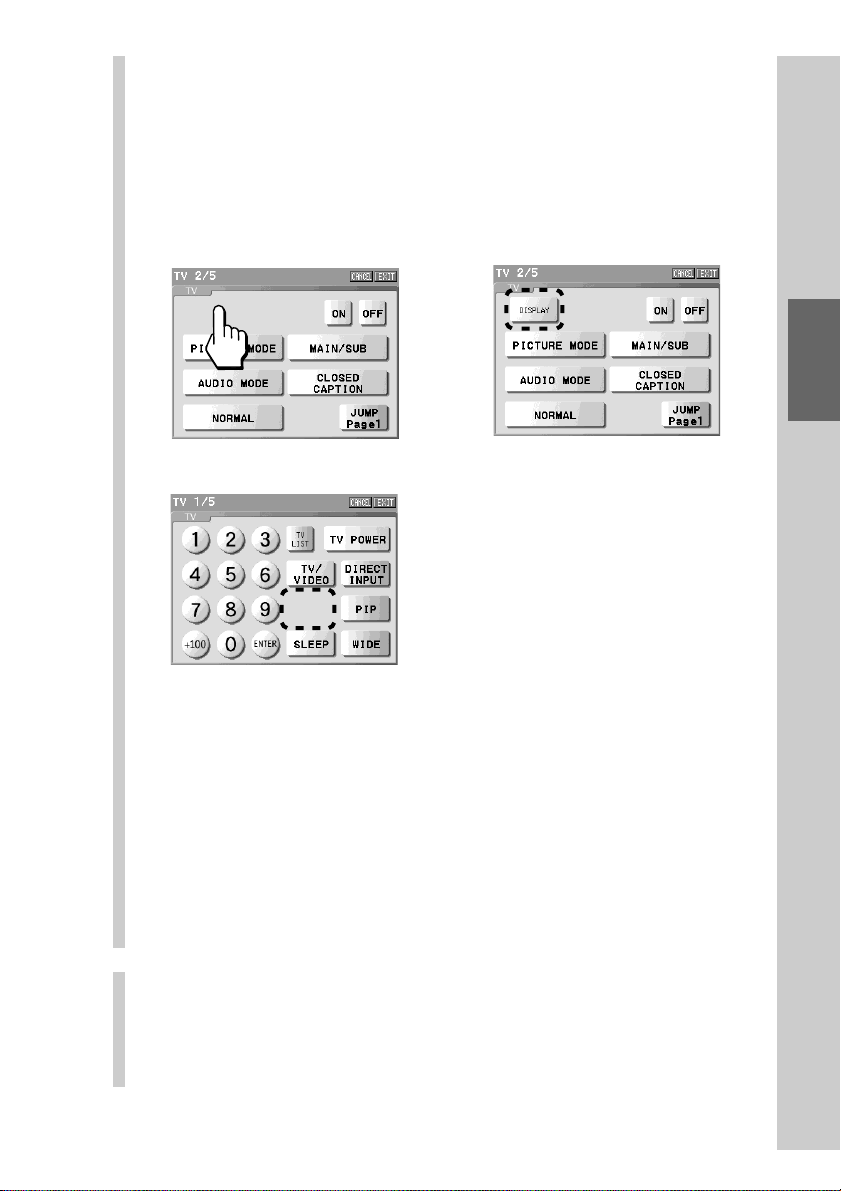
91
Customizing the Display
The page from where the key moved
After moving
The destination page
Before moving
The destination page
After moving
,
6
Press the position you want to move the function
key to.
If the position you pressed has enough empty space to assign the
function key you want to move, the key moves there. To move other
function keys successively, repeat steps 5 and 6.
For example, select the space on the upper left in the page 2/5 of TV as
the destination.
z Tips
•To move a function key to another page of the same Component display, press
the NEXT/BACK button on the Remote Commander to change the page, and
then press the destination space.
• If you press the [CANCEL] key without pressing the destination space, the
display returns to step 5.
• When moving a key, if there is enough space in the destination place, tap the
center of the location where the key is to be moved to, and you can assign the
key in the proper location.
Notes
• Function keys cannot be moved to the Trash can page.
•A beep sounds twice when there is not enough space for the function key to be
assigned at the selected position. Press another space.
7
To finish all settings, press the COMMANDER OFF
button for 2 seconds or longer.
The display returns to the Home display. Or press the [EXIT] key
repeatedly until the Home display is shown.

92
Customizing the Component display (COMPONENT EDIT)
Continued
Deleting a function key (DELETE)
You can delete a function key shown in the Component display. If there are any
unnecessary function keys after setting or customizing, you can delete them.
The deleted key is once stored in the Trash can page. To delete the function key
completely, delete the key in the Trash can page.
You can also erase the data programmed for a function button, or mass deletion
of the learned data programmed for all function keys for a component is also
possible.
Notes
• Note that, if you delete the reference key for an Alias, you cannot use the function of the
key you created so that it refers to the reference key.
• If you perform steps 1 to 6 below for a Zapping Viewer key, the key will not stored in
the Trash can page but will be deleted completely.
• If you perform steps 1 - 6 below for the function key for which the learned data is
programmed (blinking key), only the learned data is erased and the key remains in the
original position. To delete the function key, perform steps 1 - 6 again.
To delete a function key
Perform the procedure from step 1 on this page.
To erase the data programmed for a function button (learned signal,
macro, Zapping group)
See “Erasing the data programmed for a function button” (page 94).
To perform mass deletion of the learned data for a component
See “To erase all learned data set to the keys/buttons in a component” (page
96).
1
Press the [SET] key for 2 seconds or longer in the
Home display.
The Set display appears.
2
Press the [COMPONENT EDIT] key.
The Component Edit display appears.

93
Customizing the Display
3
Press the [DELETE] key.
4
Press the Component key
that includes the function
key you want to delete.
Keys that can be deleted appear released
(normal appearance). Keys having
learned data blink indicating that the
learning signal can be deleted.
You can change a page of the display
with the NEXT/BACK button on the
Remote Commander.
5
Press the function key you want to delete.
The selected function key disappears from the display, and the key is
stored in the Trash can page. The setting contents are erased from the
deleted function key.
■ If you select a function key for which the learned
signal is programmed
Function keys for which the learned signal is programmed blink. If you
select a function key for which the learned signal is programmed, only
the learned data is erased and the key is not deleted. To delete the
function key, perform the procedure from step 4 again.
z Tip
A deleted function key can be used as a function key again by moving it to the
Component display. However, the data you have programmed before deleting the
key cannot be restored.
6
Press the [OK] key.
The selected function key is deleted, and the display returns to step 4.
■ To delete completely the key stored in the Trash can
page
Display the Trash can page in step 4 and press the function key you want
to delete.
Continued
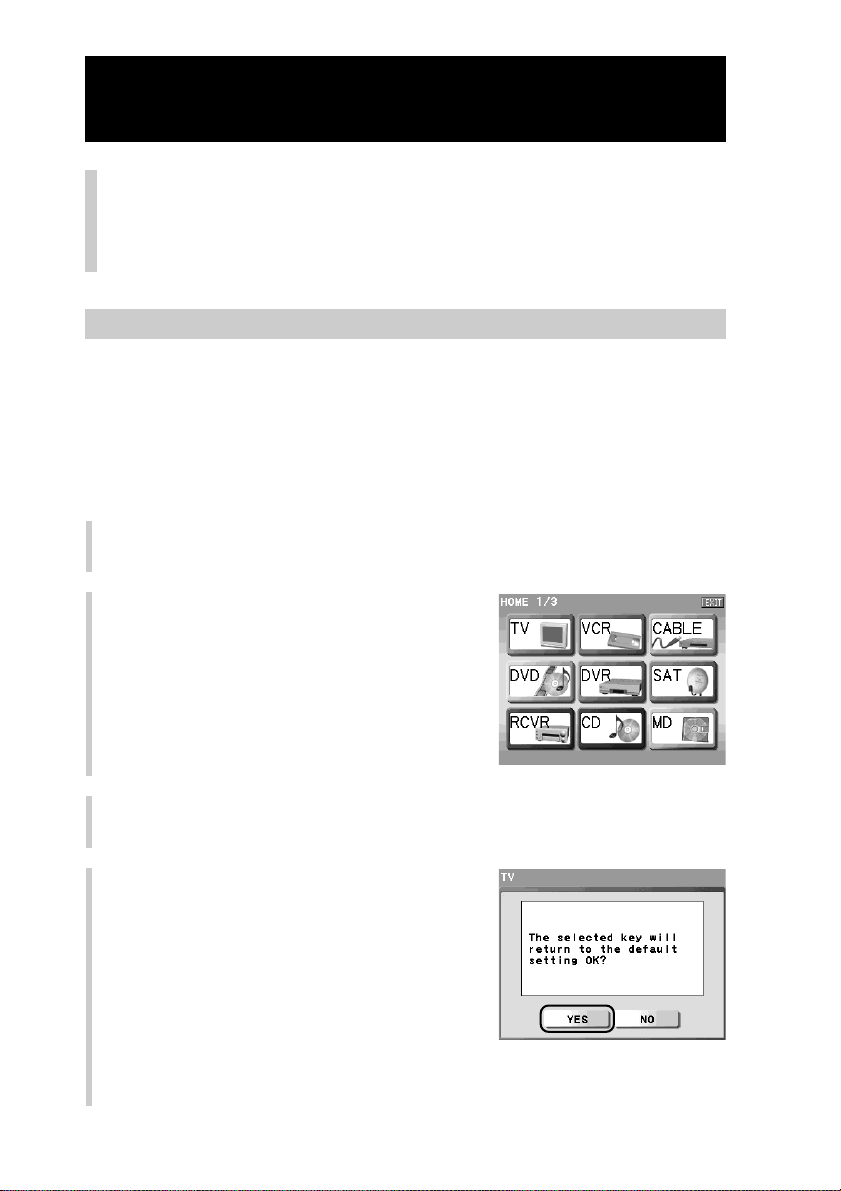
94
Customizing the Component display (COMPONENT EDIT)
Continued
7
To finish all settings, press the COMMANDER OFF
button for 2 seconds or longer.
The display returns to the Home display. Or press the [EXIT] key
repeatedly until the Home display is shown.
Erasing the data programmed for a function button
The data programmed for a function button (learned signal, macro, Zapping
group) can be erased, and the function button will return to its default setting.
Note
You cannot erase the data of function buttons that have no programmed actions (Empty
buttons), that have preset actions (Preset buttons) or that refer to other keys (Alias
buttons) .
1
Perform steps 1 to 3 in “Deleting a function key (DELETE)” (page
92).
2
Press the Component key that
includes the function button whose
data you want to erase.
3
Press the function button whose data you want to erase.
The confirmation display appears.
4
Press the [YES] key.
The programmed data will be erased, and
the function button will return to its default
setting. The display returns to step 3.
If you press the [NO] key, the display
returns to step 3 without deleting the
programmed data.

95
Customizing the Display
5
To finish all settings, press the COMMANDER OFF button for 2
seconds or longer.
The display returns to the Home display. Or press the [EXIT] key repeatedly
until the Home display is shown.

96
Customizing the Component display (COMPONENT EDIT)
Continued
To erase all learned data set to the keys/buttons in a
component
You can erase all learned data by specifying the component on the Remote
Commander. This operation erases all learned data you programmed to the
function keys/buttons for a specific component.
Note
Keys that refer to another key will not function properly if the reference key (for Alias or
macro) is deleted.
1
Perform steps 1 to 3 in “Deleting a function key (DELETE)” (page
92).
2
Press the Component key for 2
seconds or longer.
Press the Component key whose learned
data you want to erase for 2 seconds or the
confirmation display of erasing the remote
control signal appears.
3
Press the [YES] key.
The deletion of learned data begins. While
deleting learned data, a message appears.
When the deletion is complete, the display
returns to step 2.
If you press the [NO] key, the display
returns to step 2 without deleting.
4
To finish all settings, press the COMMANDER OFF button for 2
seconds or longer.
The display returns to the Home display. Or press the [EXIT] key repeatedly
until the Home display is shown.
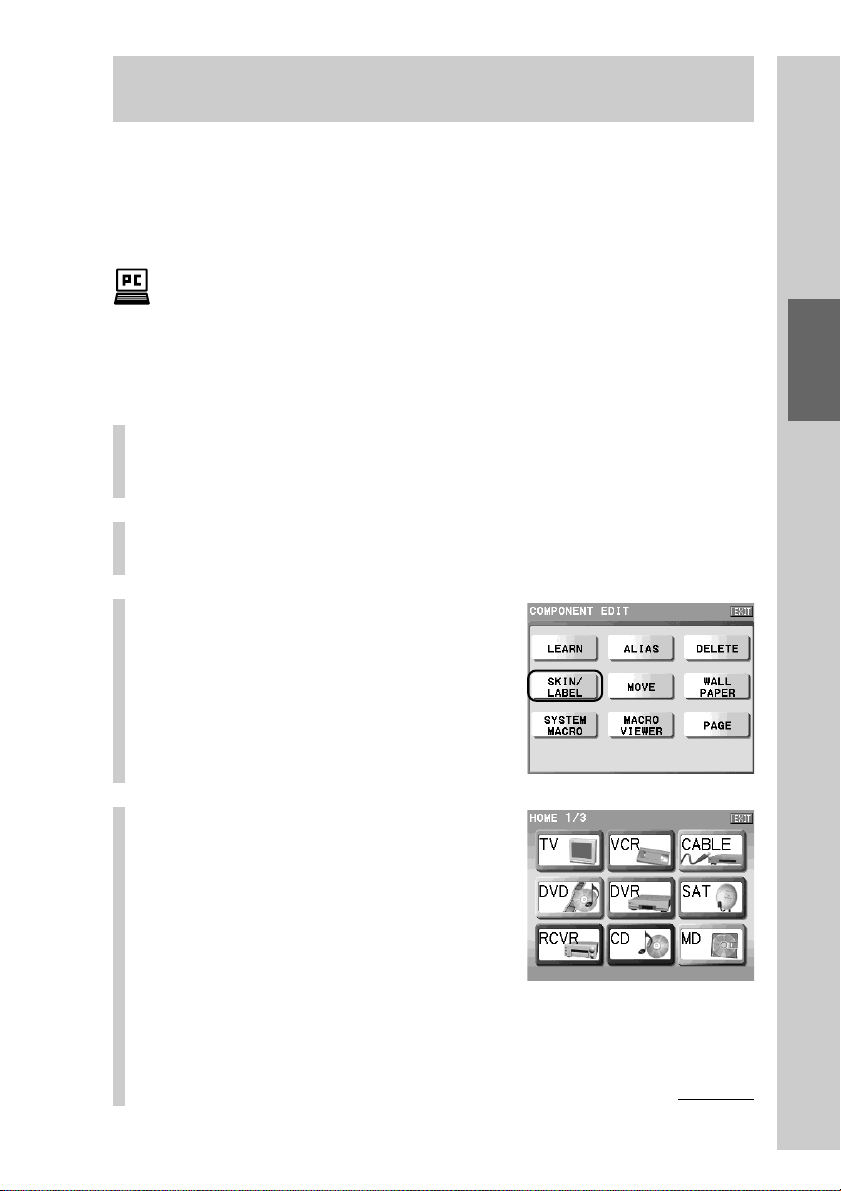
97
Customizing the Display
Continued
Setting the skin (key appearance and color) and the label
(name) of a function key (SKIN/LABEL)
You can set the skin (key appearance and color) and the label displayed on a
function key.
For the skin setting, select from the provided skins for a function key.
For the label setting, you can set the letter size and color in addition to the label
name shown on a function key.
With the supplied application “NAVITUS Design”, you can import image files to design
your own skin on your computer. For details on importing of image files for the skin, refer
to “Importing an image file for the skin” in the manual (Help) of “NAVITUS Design.”
1
Press the [SET] key for 2 seconds or longer in the
Home display.
The Set display appears.
2
Press the [COMPONENT EDIT] key.
The Component Edit display appears.
3
Press the [SKIN/LABEL] key.
4
Press a Component key that
includes the key whose skin
(key appearance and color)
and label you want to set.
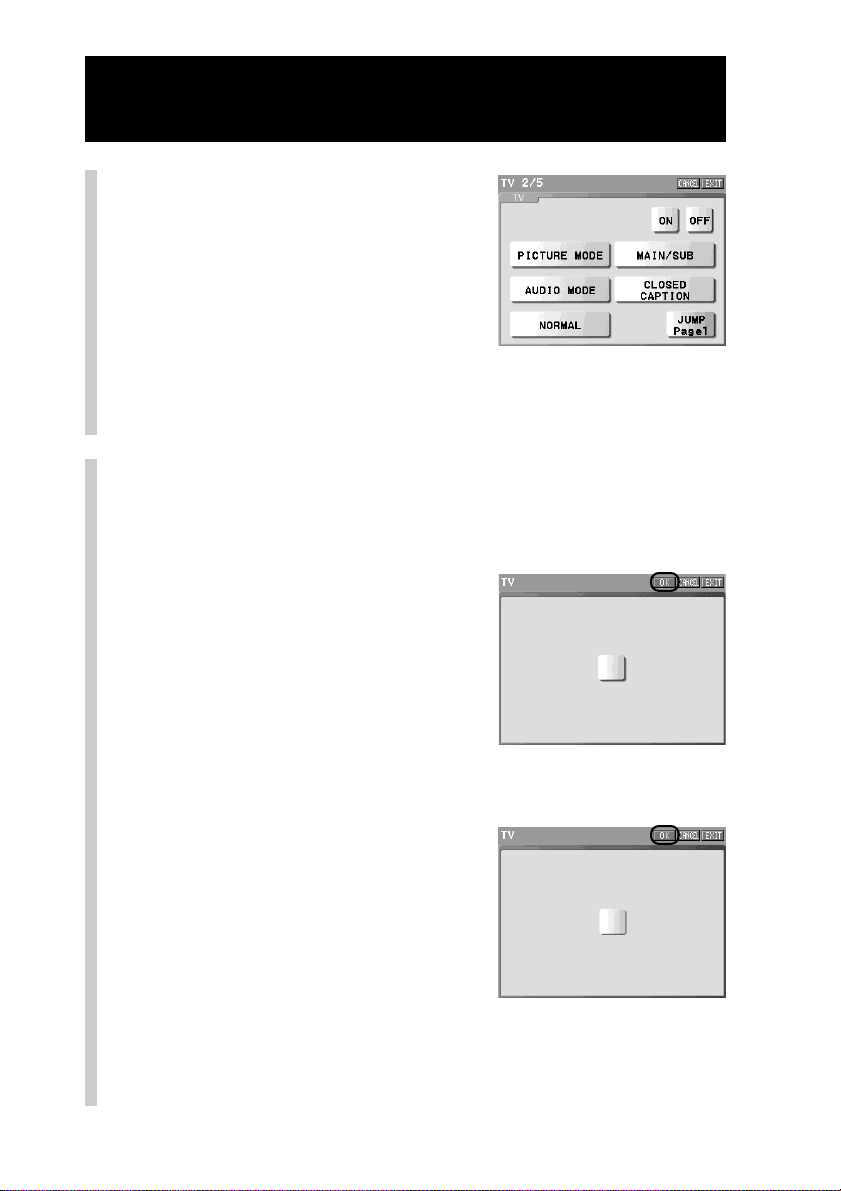
98
Customizing the Component display (COMPONENT EDIT)
Continued
5
Press a function key whose
skin and label you want to
set.
The display for the skin setting appears.
z Tips
•You can change a page of the display with the NEXT/BACK button on the
Remote Commander.
• Function keys to which you cannot set the skin appear pressed and cannot be
selected. If you press one of these keys, a beep sounds twice.
6
Select a skin for the function key from the
provided skins.
Set two kinds of skin: a skin that appears released (normal skin) and then
a skin that appears pressed (pressed skin).
1 Select a normal skin to be set.
Only one skin appears in the center of
the display. To display the next skin,
press the NEXT button on the Remote
Commander. To display the previous
skin, press the BACK button.
2Press the [OK] key.
3 Select a pressed skin to be set.
Only one skin appears in the center of
the display. To display the next skin,
press the NEXT button on the Remote
Commander. To display the previous
skin, press the BACK button.
4Press the [OK] key.
Notes
•A skin is displayed from the provided skins only of the size that can be assigned
in the space selected in step 5.
•You cannot select a pressed skin of a different size from that of a normal skin.
m
Normal skin
Pressed skin
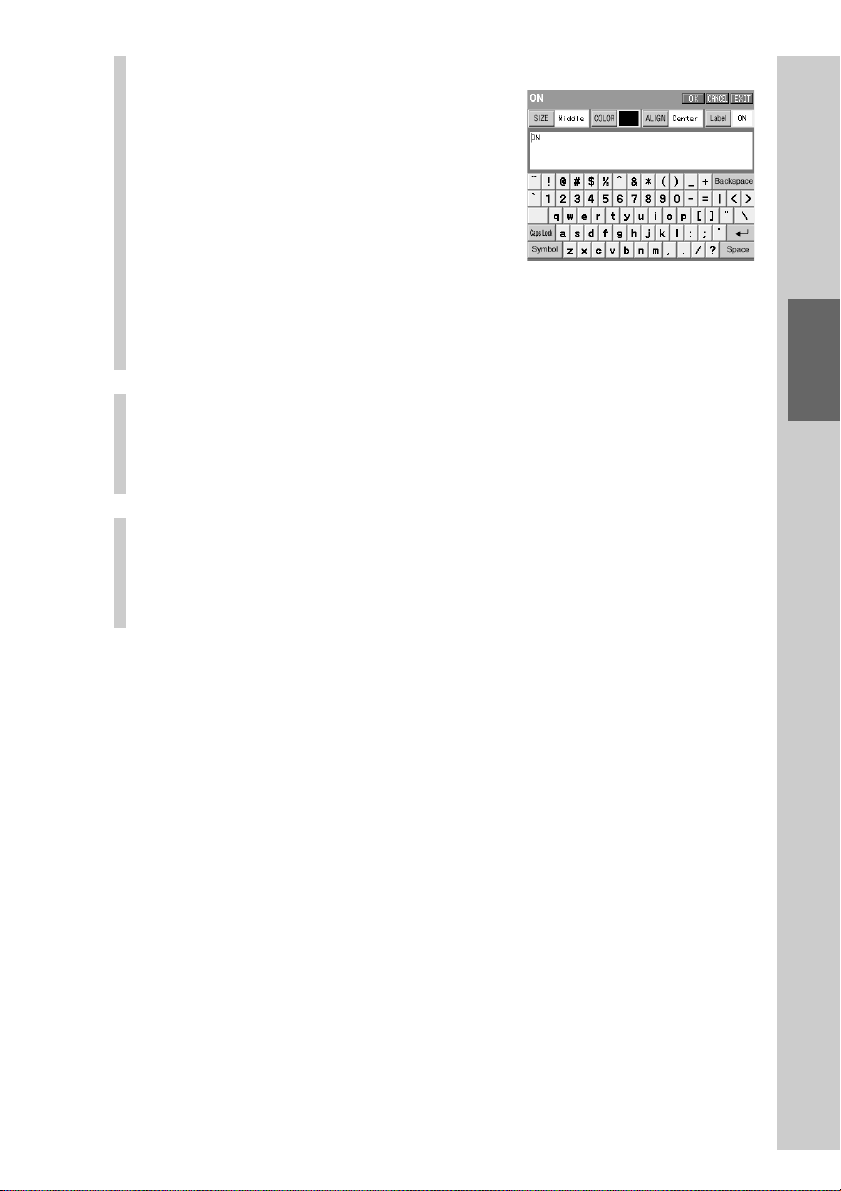
99
Customizing the Display
7
Set the label to be displayed on the function key.
Input letters to the label in the label
setting display by pressing the keyboard
using the supplied Stylus.
For inputting letters to the label, see
“Inputting letters (label setting)” (pages
40 - 41).
Specified settings to the label of the
function key besides the information
described on pages 40 - 41 are as follows.
Letter input: Up to 32 letters can be input.
Starting a new line: Available. Starting a new line is counted as a
letter.
Pictographs: Can be input. A pictograph is counted as 4 letters.
8
When the label setting is complete, press the [OK]
key.
The skin and label of the function key are set and the display returns to
step 5.
9
To finish all settings, press the COMMANDER OFF
button for 2 seconds or longer.
The display returns to the Home display. Or press the [EXIT] key
repeatedly until the Home display is shown.
Notes on the Zapping Viewer key and List key
• The label and the skin (key appearance and color) cannot be set to the Zapping Viewer
key in the procedure above. The label of the Zapping Viewer key is set in the Zapping
Group attached to the Home display. For further details, see “Step 1: Creating a Zapping
group” (page 176).
• The List key cannot be edited in the steps above. For details on the List key, see
“Programming a series of actions (macro) for a Component List” (page 146).
About the skins imported with “NAVITUS Design”
For skins (imported) other than those set at the factory, only skins imported for a
project can be read to the Remote Commander and selected . You cannot read a
skin imported as the common skin for all projects.
When importing a skin image, you can select whether to import the skin for a
specified project, or import it as the common skin for all projects in the dialog
box of “Options” on “NAVITUS Design.”
For details, see “Changing the NAVITUS Design settings” of the “NAVITUS
Design” Help.
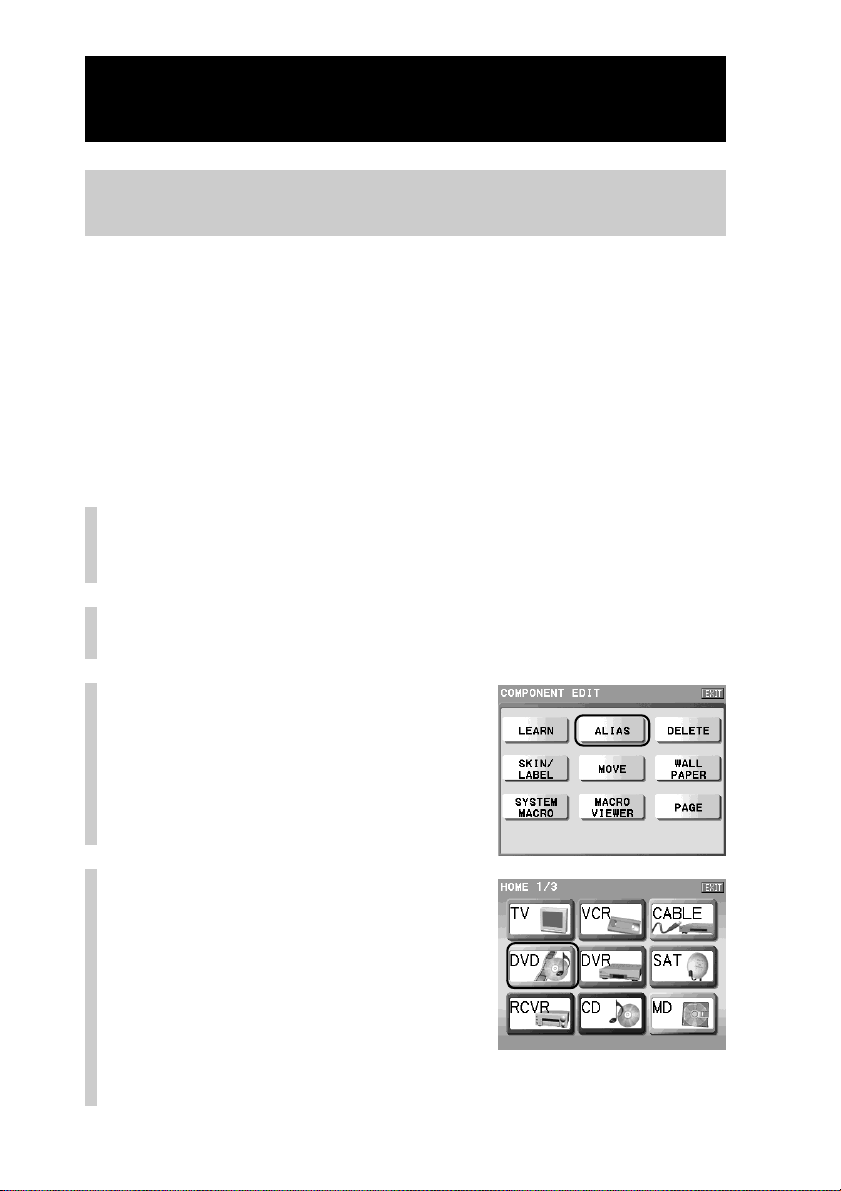
100
Setting a function key of another component to a
Component display (ALIAS)
You can create an Alias key in the Component display.
The Alias key in created so that it refers to the setting contents of another
function key and works in the same way as the reference key. For example, if
you set a function key for TV as an Alias key in a DVD Component display, you
can perform remote control operation to see a DVD image on a TV just by
displaying a DVD operating display (Component display).
“Setting Alias” means “setting a function of a reference key to an Alias key.”
Alias can be set to function buttons on the Remote Commander in the same way.
We call the function button to which Alias is set the “Alias button.”
1
Press the [SET] key for 2 seconds or longer in the
Home display.
The Set display appears.
2
Press the [COMPONENT EDIT] key.
The Component Edit display appears.
3
Press the [ALIAS] key.
4
Press the Component key
that will include an Alias
key/button you want to
create.
For example, press the [DVD] key.
z Tip
You can change a page of the display with the
NEXT/BACK button on the Remote
Commander.
Customizing the Component display (COMPONENT EDIT)
Continued
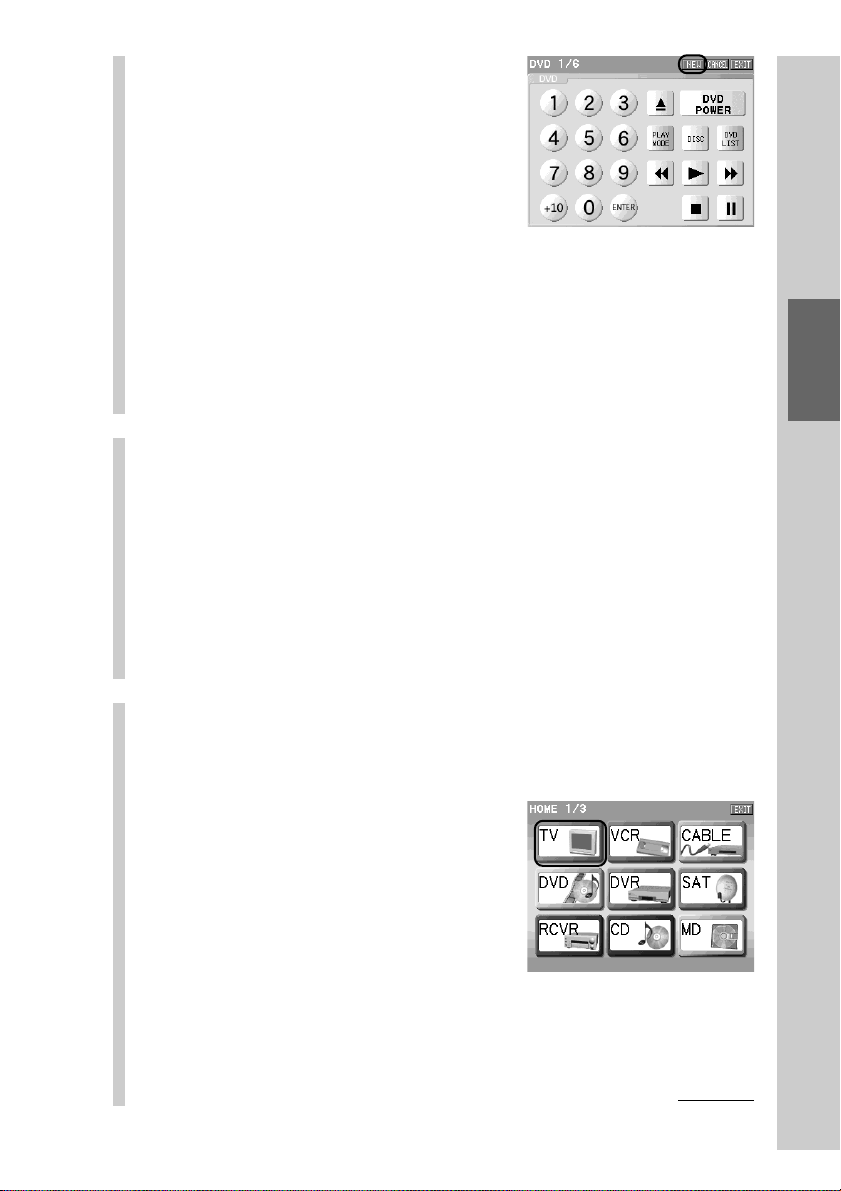
101
Customizing the Display
5
Press the [NEW] key.
■ To set Alias to an existing key
Select a function key or a function button on the Remote Commander
you want to set Alias to, and then go to step 7.
Notes
• Function keys to which you cannot set Alias appear pressed and cannot be
selected. If you press one of these keys, a beep sounds twice.
• If you press the function button to which you cannot set Alias, a message
appears. If you press the [OK] key, the display returns to the previous one.
6
Set the skin (key appearance and color) of the
label of the Alias key to be created.
First select the normal skin, and press the [OK] key. Then select the
pressed skin, and press the [OK] key.
When the skin setting is complete, the display for the label setting is
displayed.
After setting the label, press the [OK] key.
For details, see steps 6 and 7 in “Setting the skin (key appearance and
color) and the label (name) of a function key (SKIN/LABEL)” (pages 97 -
99).
7
Select a function key for reference.
For example, set the [TV POWER] key of the TV Component display to
the Alias key.
1Press the Component key that
includes the key you want to refer
to.
For example, press the [TV] key.
Continued
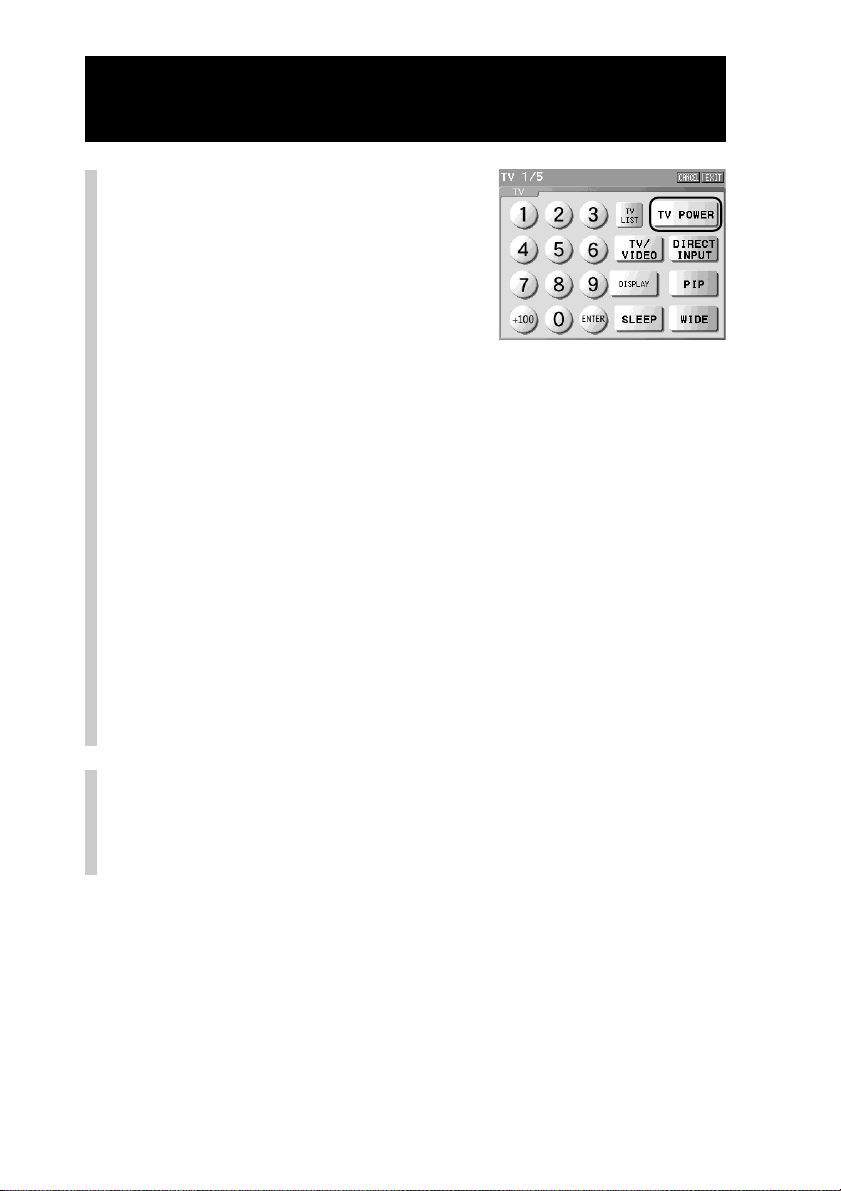
102
2Press the function key you want to
refer to.
For example, press the [TV POWER]
key.
3 The function key for reference is set to the Alias key, and the
display returns to step 5 for other Alias key settings.
When you create an Alias key, a new Alias key is added to the last
page of the Component display.
■ If “The selected key will cause a circulated reference.
The key cannot be programmed.” is displayed
The action programmed for the selected reference key/button will cause
a circulated reference. The key/button cannot be programmed for the
Alias key.
For details on the circulated reference, see “About the circulated
reference” below.
Notes
• Keys that you cannot select as the reference key for an Alias appear pressed and
cannot be selected. If you press one of these keys, a beep sounds twice.
• If you press the function button to which you cannot set Alias, a beep sounds
twice.
8
To finish all settings, press the COMMANDER OFF
button for 2 seconds or longer.
The display returns to the Home display. Or press the [EXIT] key
repeatedly until the Home display is shown.
About the circulated reference
The circulated reference is caused when keys refer to each other by the Alias setting and
the operation procedure becomes looped and endless. For example, if you set a macro
procedure of Key A to Key B and a macro procedure of Key B to Key A, the two keys refer
to each other and the operation will be looped and endless.
On this Remote Commander, when you select keys that refer to each other, a message
appears to prevent the circulated reference.
Customizing the Component display (COMPONENT EDIT)
Continued
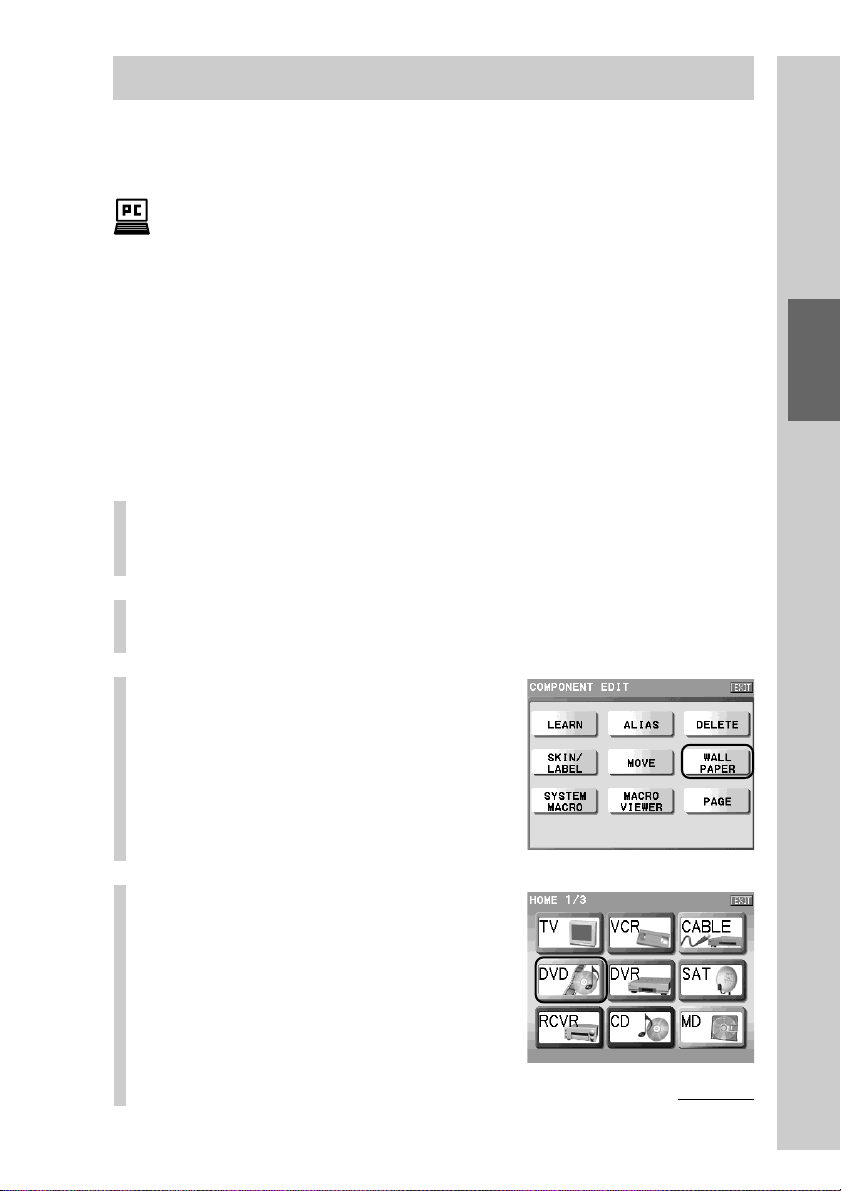
103
Customizing the Display
Setting a wallpaper (WALLPAPER)
The wallpaper (background) for the Component display screen can be set by
selecting from the provided Wallpapers.
With the supplied application “NAVITUS Design”, you can import your original
wallpaper and set it on “NAVITUS Design.” If you set the wallpaper imported on the
computer to the Component display of “NAVITUS Design” on the computer, you can read
the wallpaper to the Remote Commander and select it as the wallpaper of the Component
display. For details on importing of image files for the wallpaper, refer to “Importing an
image file for the wallpaper” in the manual (Help) of “NAVITUS Design.”
Note
The letter color of the Item confirmation area in the display of the Remote Commander is
fixed to white. Note that you cannot see the letters on the Item confirmation area if you
read the wallpaper whose Item confirmation area is white when reading the wallpaper
from “NAVITUS Design” to the Remote Commander.
1
Press the [SET] key for 2 seconds or longer in the
Home display.
The Set display appears.
2
Press the [COMPONENT EDIT] key.
The Component Edit display appears.
3
Press the [WALLPAPER] key.
4
Press the Component key
you want to set a wallpaper
to.
Continued
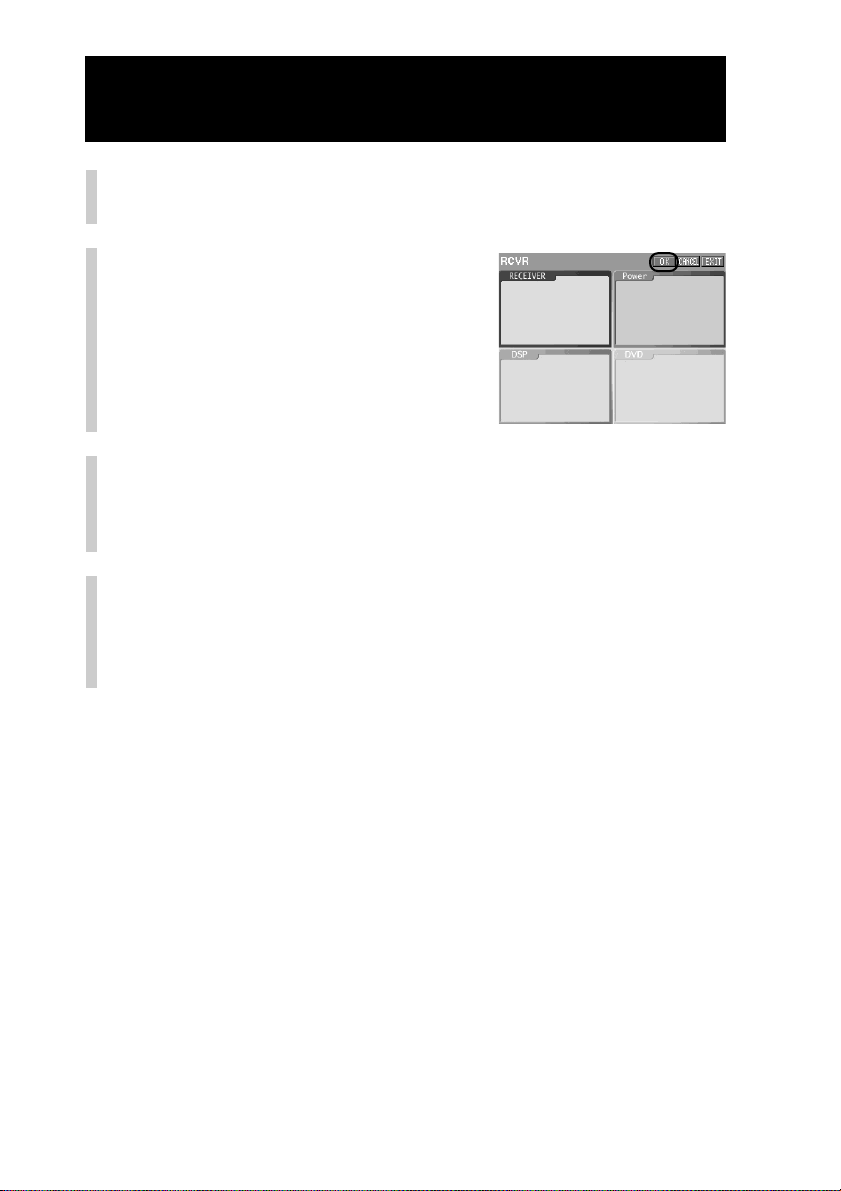
104
5
Press the NEXT/BACK button on the Remote
Commander to select a wallpaper.
6
Press the [OK] key.
The preview of the Component display
with the selected wallpaper appears.
7
Press the [OK] key.
The selected wallpaper is set to the Component display, and the display
returns to step 4.
If you press the [CANCEL] key, the display returns to step 5.
8
To finish all settings, press the COMMANDER OFF
button for 2 seconds or longer.
The display returns to the Home display. Or press the [EXIT] key
repeatedly until the Home display is shown.
About the wallpapers imported with “NAVITUS Design”
For wallpapers (imported) other than those set at the factory, only wallpapers
imported for a project can be read to the Remote Commander and selected . You
cannot read a wallpaper imported as the common wallpaper for all projects.
When importing a wallpaper image, you can select whether to import the
wallpaper for a specified project, or import it as the common wallpaper for all
projects in the dialog box of “Options” on “NAVITUS Design.”
For details, see “Changing the NAVITUS Design settings” of the “NAVITUS
Design” Help.
Customizing the Component display (COMPONENT EDIT)
Continued
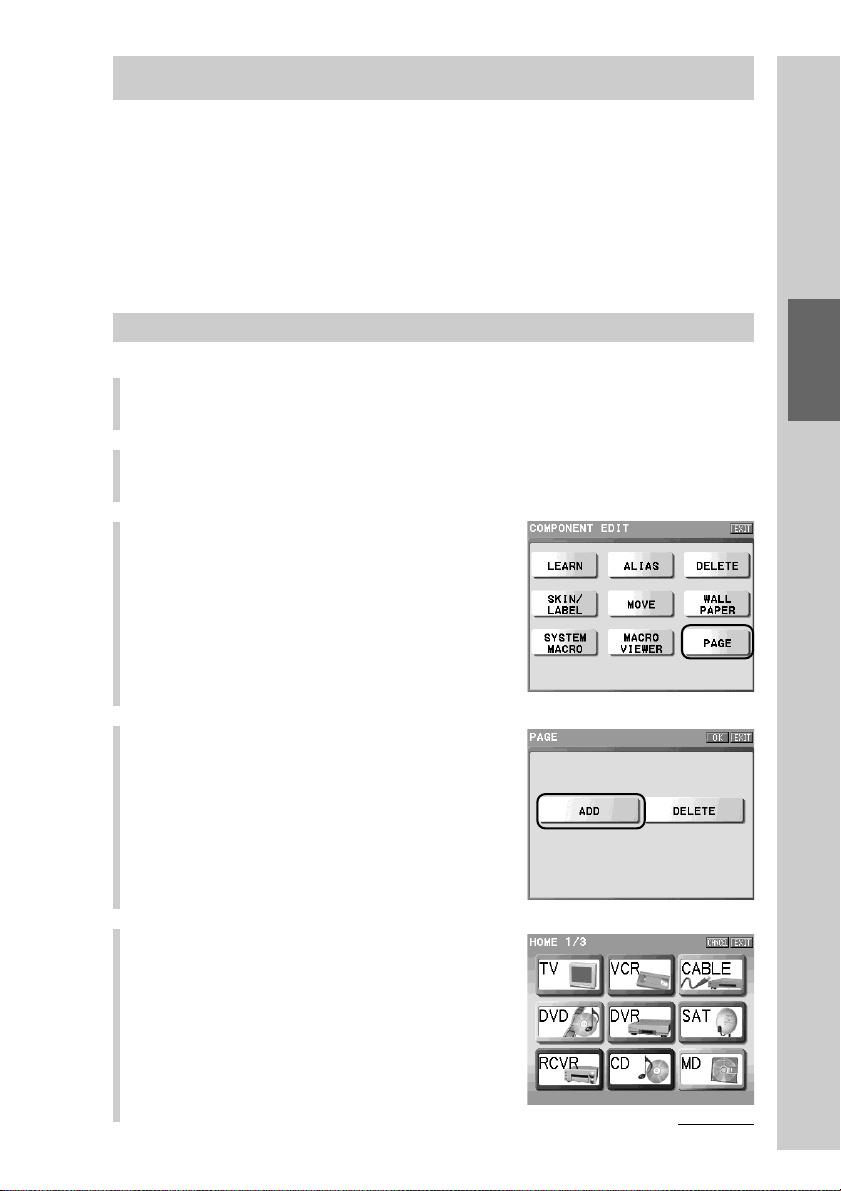
105
Customizing the Display
Adding/deleting a page of the Component display (PAGE)
You can add or delete a page of the Component display.
If you want to group keys that are usually used together, create a page, then
assign those keys on the new page for easy use.
You can delete an unnecessary page created by deletion of function keys.
Note
You can only delete an empty page having no key. You cannot delete a page where
function keys are assigned.
Adding a page to the Component display (ADD)
1
Press the [SET] key for 2 seconds or longer in the Home display.
The Set display appears.
2
Press the [COMPONENT EDIT] key.
The Component Edit display appears.
3
Press the [PAGE] key.
4
Press the [ADD] key.
5
Press the Component key you want
to add a page to.
z Tip
You can create up to 63 pages in a Component
display. If you try to create a page over 63 pages,
a message will appear. After confirming a
message, press the [OK] key.
Continued
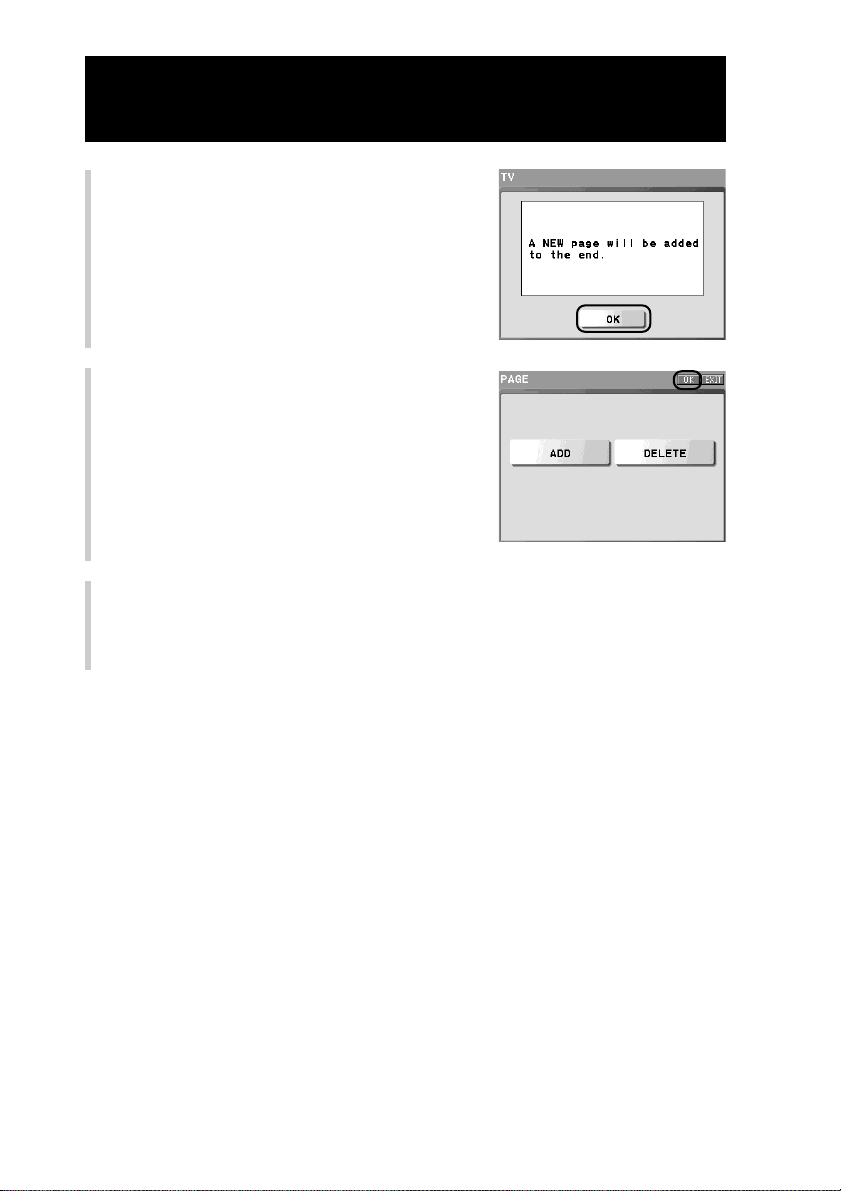
106
6
Confirm that a page will be added,
and press the [OK] key.
A new page is not added here yet.
7
Press the [OK] key.
A new page is added to the end of the
Component display, and the display returns
to step 3.
If you press the [EXIT] key, the display
returns to step 3 without adding a page.
8
To finish all settings, press the COMMANDER OFF button for 2
seconds or longer.
The display returns to the Home display. Or press the [EXIT] key repeatedly
until the Home display is shown.
Customizing the Component display (COMPONENT EDIT)
Continued
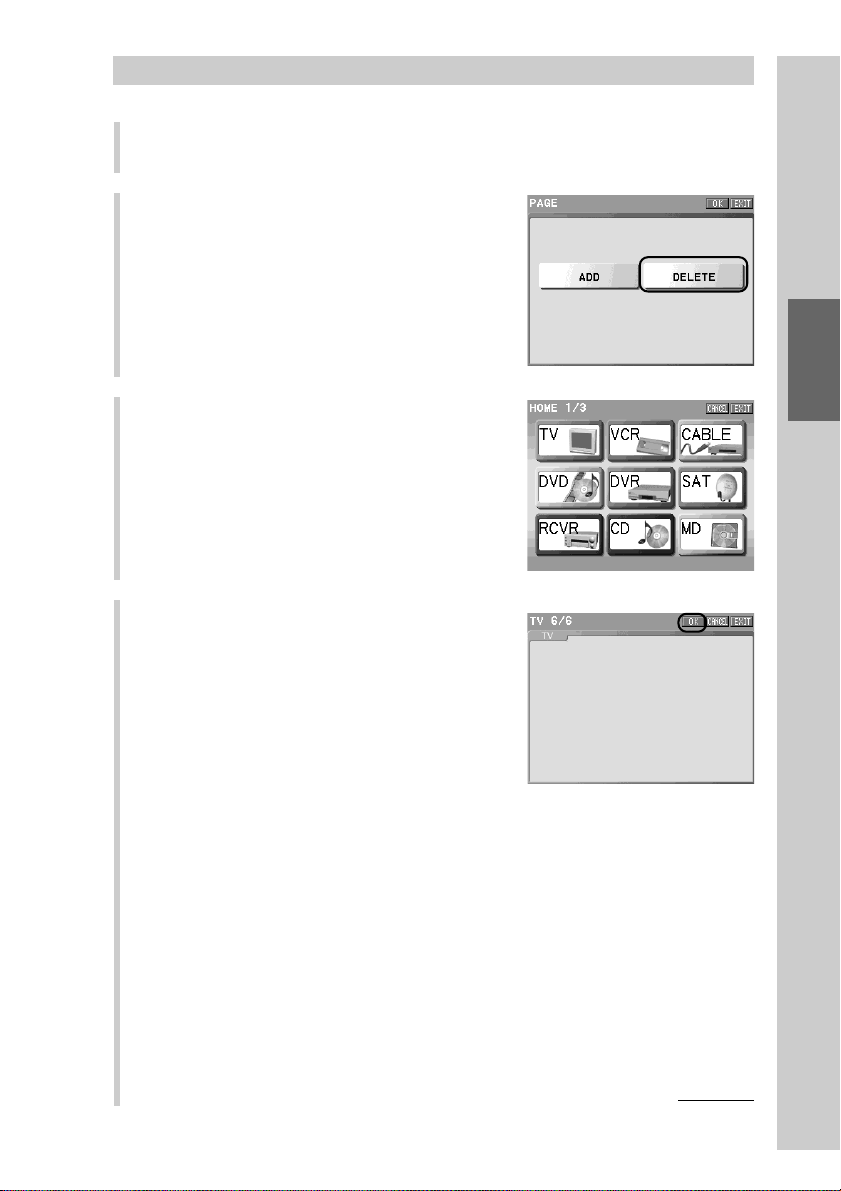
107
Customizing the Display
Continued
Deleting a page of the Component display (DELETE)
1
Perform steps 1 to 3 in “Adding a page to the Component
display (ADD)” (page 105).
2
Press the [DELETE] key.
3
Press the Component key that
includes the page you want to
delete.
4
Press the NEXT button to select the
page you want to delete, and then
press the [OK] key.
Press the NEXT button to display the next
page, or press the BACK button to display
the previous one.
z Tip
If you press the [CANCEL] key, the display returns to step 3 without deleting a page.
Note
You can delete only an empty page having no key. If you try to delete a page having
keys, a message appears. If you press the [OK] key after confirming a message, the
display returns to the previous one.
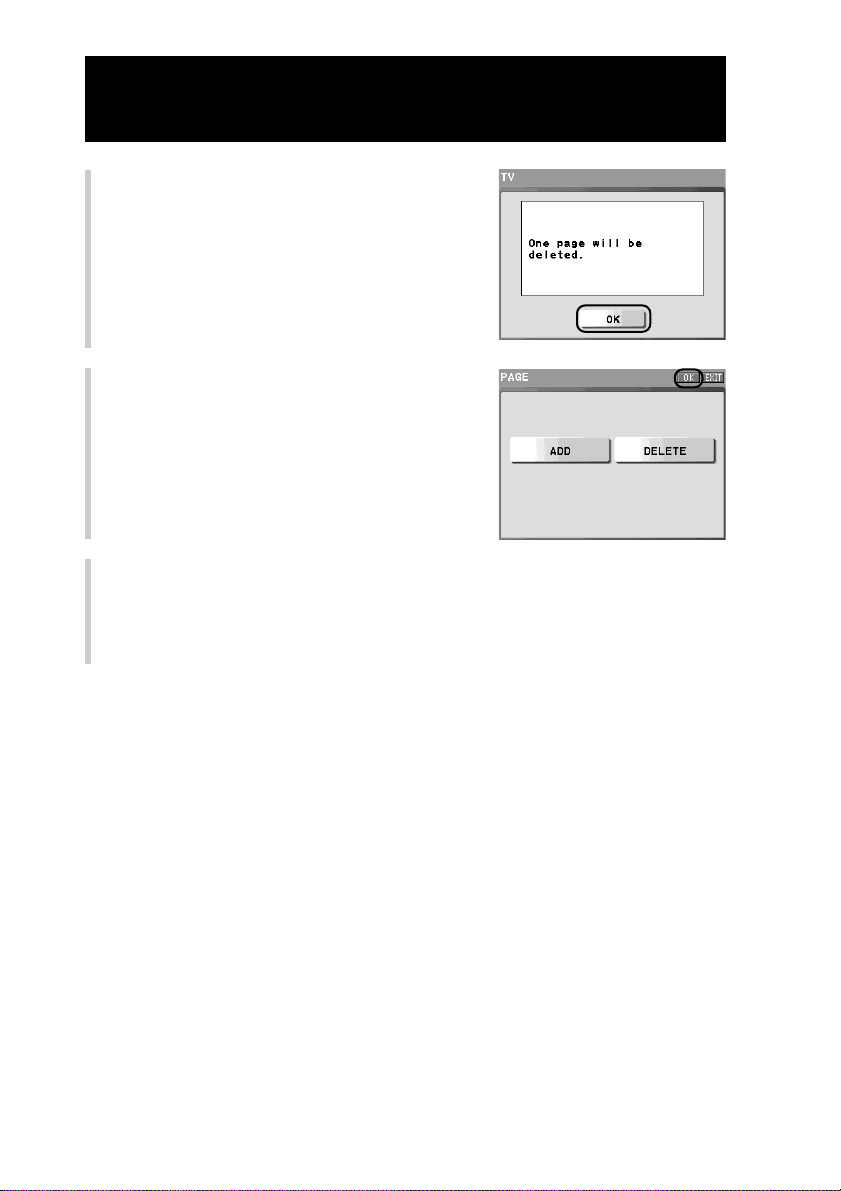
108
5
Confirm that a page will be deleted,
and press the [OK] key.
A page is not deleted here yet.
6
Press the [OK] key.
Deletion of the page is complete and the
display returns to the Component Edit
display (step 3 on page 105).
If you press the [EXIT] key, the display
returns to the Component Edit display (step
3 on page 105) without deleting a page.
7
To finish all settings, press the COMMANDER OFF button for 2
seconds or longer.
The display returns to the Home display. Or press the [EXIT] key repeatedly
until the Home display is shown.
Customizing the Component display (COMPONENT EDIT)
Continued
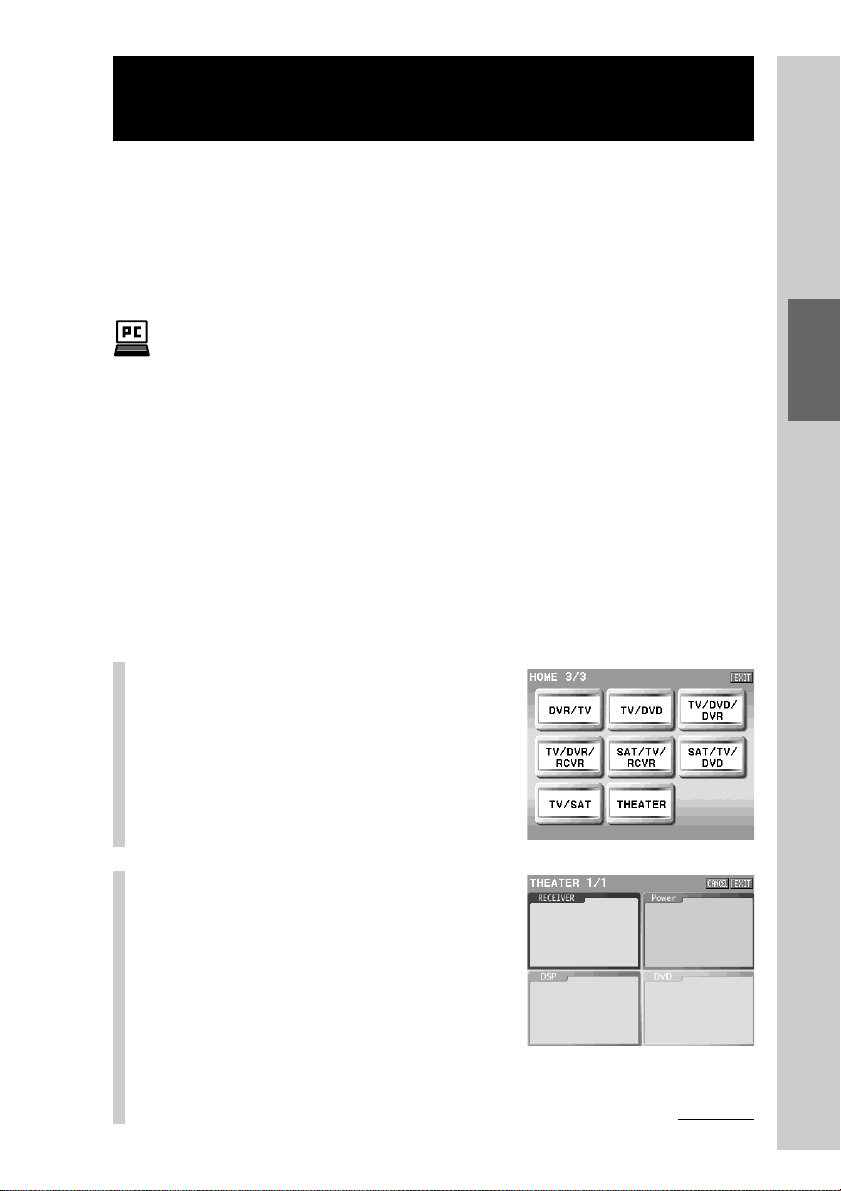
109
Customizing the Display
Assigning function keys of multiple AV
components to a Component display
The Multi component key is a Component key with which you can remotely
control multiple AV components with function keys of multiple AV components
assigned to one Component display. If you create a Multi component key when
a DVD player is connected to a receiver and a DSP (digital surround processor),
for example, you can remotely control these components in one display without
switching between each component.
The Multi component key can also be created easily with a computer using the supplied
application. For details, refer to the manual (Help) of “NAVITUS Design.”
In this section, how to create a Multi Component “THEATER” key, for
example, containing function keys for a DVD player, a receiver and a DSP
(digital surround processor) together assigned on the Component display is
explained.
How to program a Multi Component “THEATER” key
1Create an Alias Component key.
2 Change the wallpaper.
3 Move or delete the function keys.
4Create Alias function keys and assign them to the component display.
1
Create an Alias component
key.
In this case, create an Alias component
key with the label “THEATER.”
For details on creating an Alias key, see
“Creating an Alias Component key
(ALIAS)” (page 83).
2
Change the wallpaper
(background) of the
Component display screen
assigned to the created
Alias Component key.
In this case, set a wallpaper divided into
spaces for a DVD, a RECEIVER, a DSP
and a POWER.
For details on setting the wallpaper, see “Setting a wallpaper
(WALLPAPER)” (page 103).
Continued
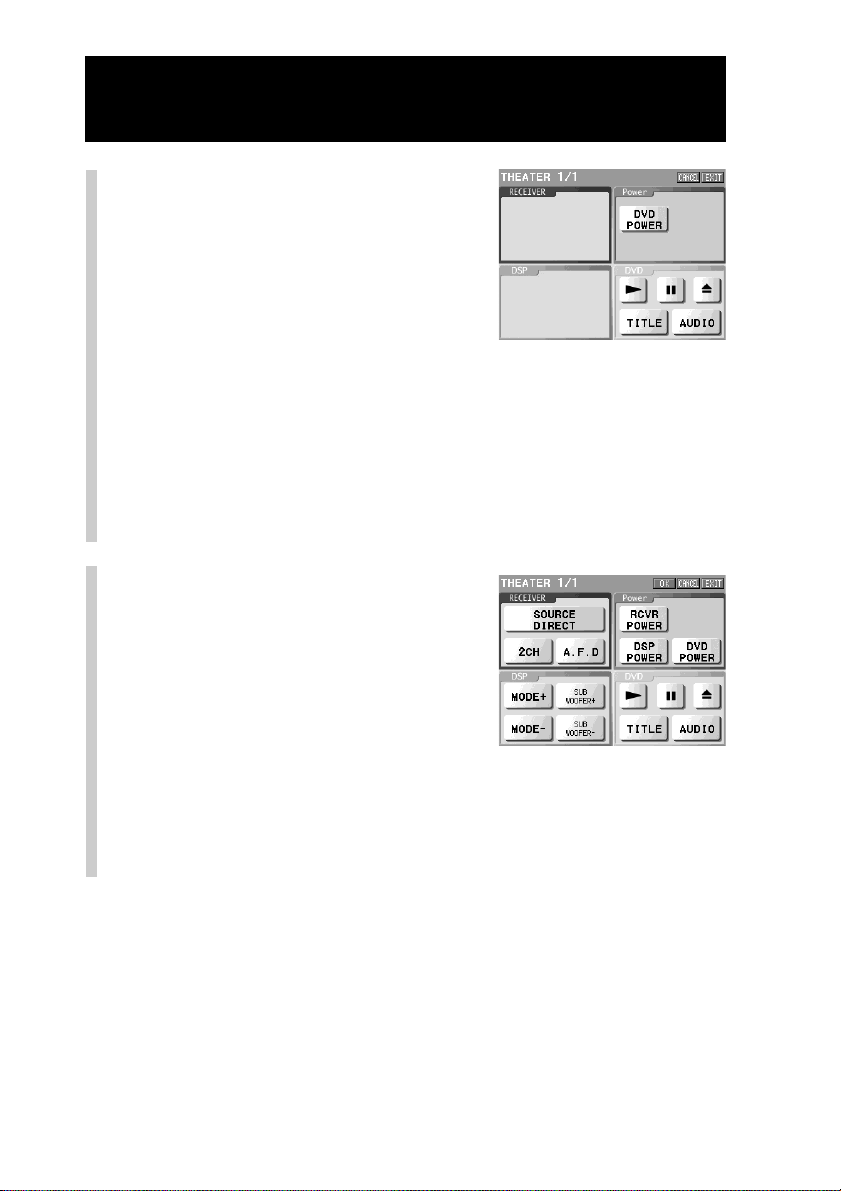
110
Assigning function keys of multiple AV components to a Component display
Continued
3
Delete or move function
keys in the Component
display assigned to the
created Alias component.
Assign the function keys according to the
frame space of the wallpaper changed in
step 2. Customize function keys to your
preference by deleting function keys or
adding a page, if necessary.
In this case, delete keys other than [DVD POWER], [N], [X], [Z], [TITLE], [AUDIO]
in the “THEATER” component display, and move the [DVD POWER] key.
For details on deleting function keys, see “Deleting a function key
(DELETE)” (page 92), on moving function keys, see “Changing the
assignment of a function key (MOVE)” (page 89), and on adding a page
to the Component display, see “Adding/deleting a page of the
Component display (PAGE)” (page 105).
4
Create Alias function keys
that refer to function keys
of another component you
want to assign to the
Component display.
In this case, assign Alias function keys for
[RCVR] (Receiver), [DSP] (digital surround
processor) and [DVD] in the frames for
respective components of the “Theatre”
component display.
For details on creating an Alias function key, see “Setting a function key
of another component to a Component display (ALIAS)“ (page 100).

111
Customizing the Display
Customizing functions
Customizing functions to create your favorite Multi Component key and
reference pages are as follows.
[ALIAS]:To create Alias function keys and assign them to a Component
display (page 100)
[SKIN/LABEL]:To set the skin and the label of a function key (page 97)
[WALLPAPER]:To set a wallpaper to the Component display (page 103)
[MOVE]:To change the assignment of a function key (page 89)
[DELETE]:To delete a function key or delete the contents set to a function
button on the Remote Commander (page 92)
[PAGE]:To add/delete a page of the Component display (page 105)
About the Multi Component keys created in the default
settings at the factory
In the Remote Commander, nine Multi Component keys, such as the [TV/VCR]
key, the [TV/DVD] key, etc., have already been created on pages 2/3 and 3/3 of
the Home display. Because all the Multi Component keys are created so that
they refer to other keys by the Alias setting, the already set contents will be
overwritten if you perform some new settings for these keys by the customizing
function, etc. Therefore, if you delete the setting contents of a Multi Component
key after performing new settings, the key will become an Empty key and the
contents set at the factory cannot be returned to the original status. If you want
to return the setting contents to the original status, perform the setting again.
112
Convenient operations by programming a
series of actions (macro) for a key/button
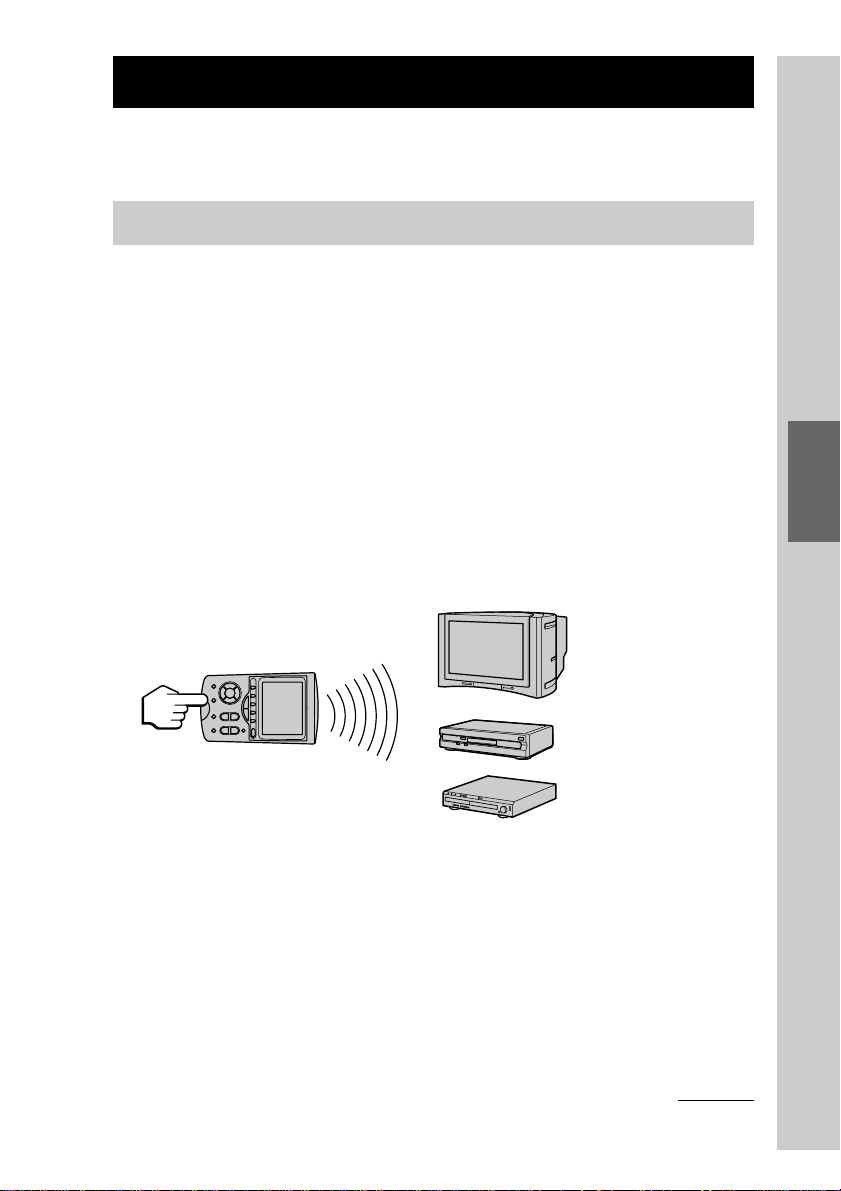
113
Convenient operations by programming a
series of actions (macro) for a key/button
Power ON/Input select
TV
DVD
RCVR
Power ON/Play back
Power ON/Input select
One touch!
Outline of a series of actions (macro)
In this section, the concept of a macro, types of macros and the setting up
procedure of a macro are explained.
What is a macro ?
If you program a series of actions as one operation, you can transmit several
remote control signals in proper order by simply pressing a key/button. This
series of actions is an action program (macro), and “programming a macro”
means “programming an action program for a key/button.” For example, if you
program the following actions, which are required for playing a DVD, as a
macro, you can watch a DVD by simply pressing a key/button.
Remote control operations to see a DVD image
1Turn on the amplifier.
2Turn on the TV.
3Turn on the DVD.
4 Set the input selector of the amplifier to DVD.
5 Set the input selector of the TV to DVD.
6 Start DVD playback.
Continued

114
Types of macros and setting flow
There are the three following types of macros.
SYSTEM MACRO: A macro programmed for a function key/button. A
series of actions you programmed works when the
programmed key/button is pressed.
COMPONENT MACRO: A macro programmed for a Component key. A series
of actions you programmed works when the
programmed key/button is pressed for 2 seconds or
longer.
TIMER MACRO: A macro programmed for a Timer program key that is
created for the timer operation. A series of actions you
programmed works when the set time comes if the
timer is set.
Setting flow of System macro and Component macro
Step 1: Selecting a key/button you want to program a macro for (page 115)
1 When programming a macro for a newly created function key (page
115)
2 When programming a macro for an existing function key/button (page
117)
3 When programming a macro for a Component key or a Direct Access
button (page 119)
Step 2: Setting a macro (page 120)
Setting flow of Timer macro
Step 1: Creating a Timer program key (page 129)
Step 2: Setting the time (page 132)
Step 3: Programming a macro (page 135)
Continued
Outline of a series of actions (macro)
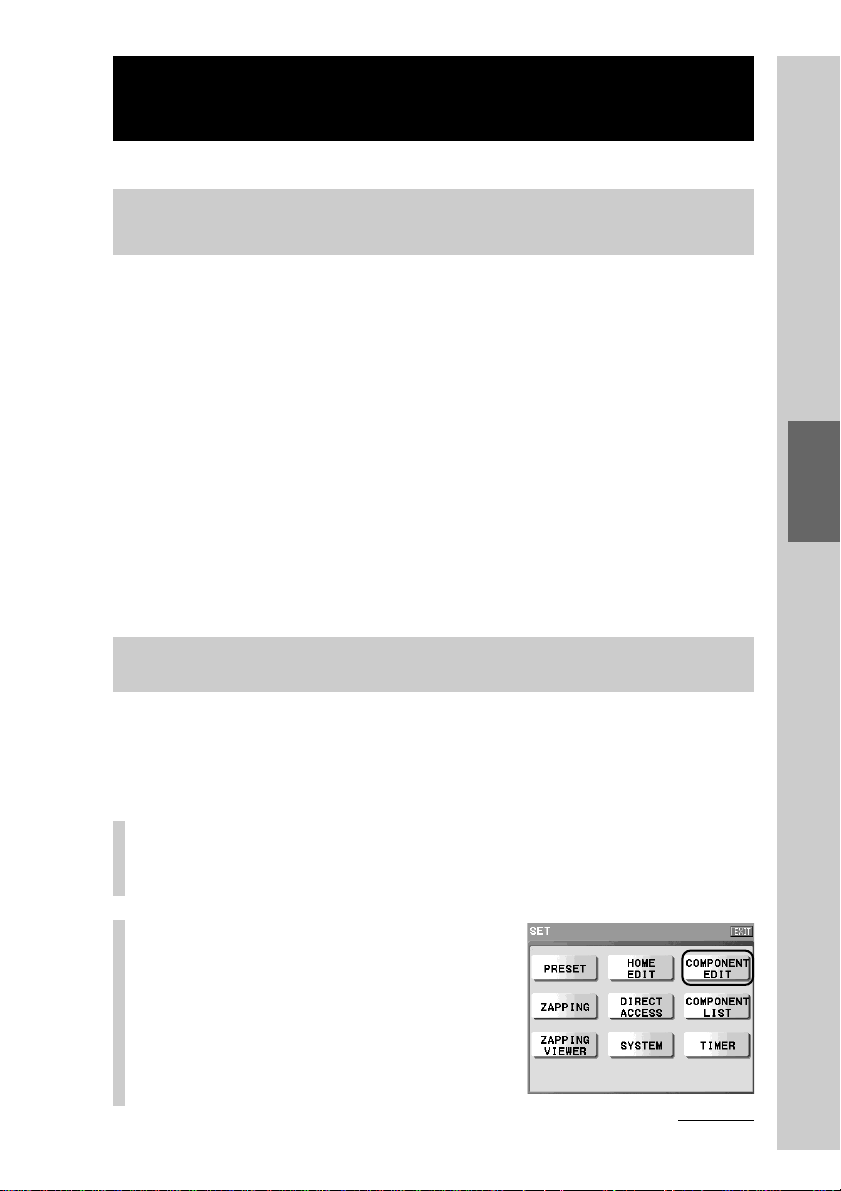
115
Convenient operations by programming a
series of actions (macro) for a key/button
Programming a series of actions (macro) for a
key/button
Step 1: Selecting a key/button you want to program a
macro for
In “Step 1”, before programming a macro procedure, how to select a key/button
you want to program a macro procedure for is explained. You can create a new
key or select a key/button from existing keys/buttons as the key/button a
macro is to be programmed for. Select a type of selecting a key/button you want
to program a macro for among the following methods.
If you want to create a new key a macro is to be programmed for:
1 When programming a macro for a newly created function key (page 115)
If you want to program a macro for an existing key/button:
2 When programming a macro for an existing function key/button (page
117)
If you want to program a macro for a Component key or a Direct Access
button:
3 When programming a macro for a Component key or a Direct Access
button (page 119)
1 When programming a macro for a newly created
function key
Create a function key you want to program a macro for.
For example, create a function key a macro is to be programmed for in the
DVD component.
1
Press the [SET] key for 2 seconds or longer in the
Home display.
The Set display appears.
2
Press the [COMPONENT EDIT]
key.
The Component edit display appears.
Continued
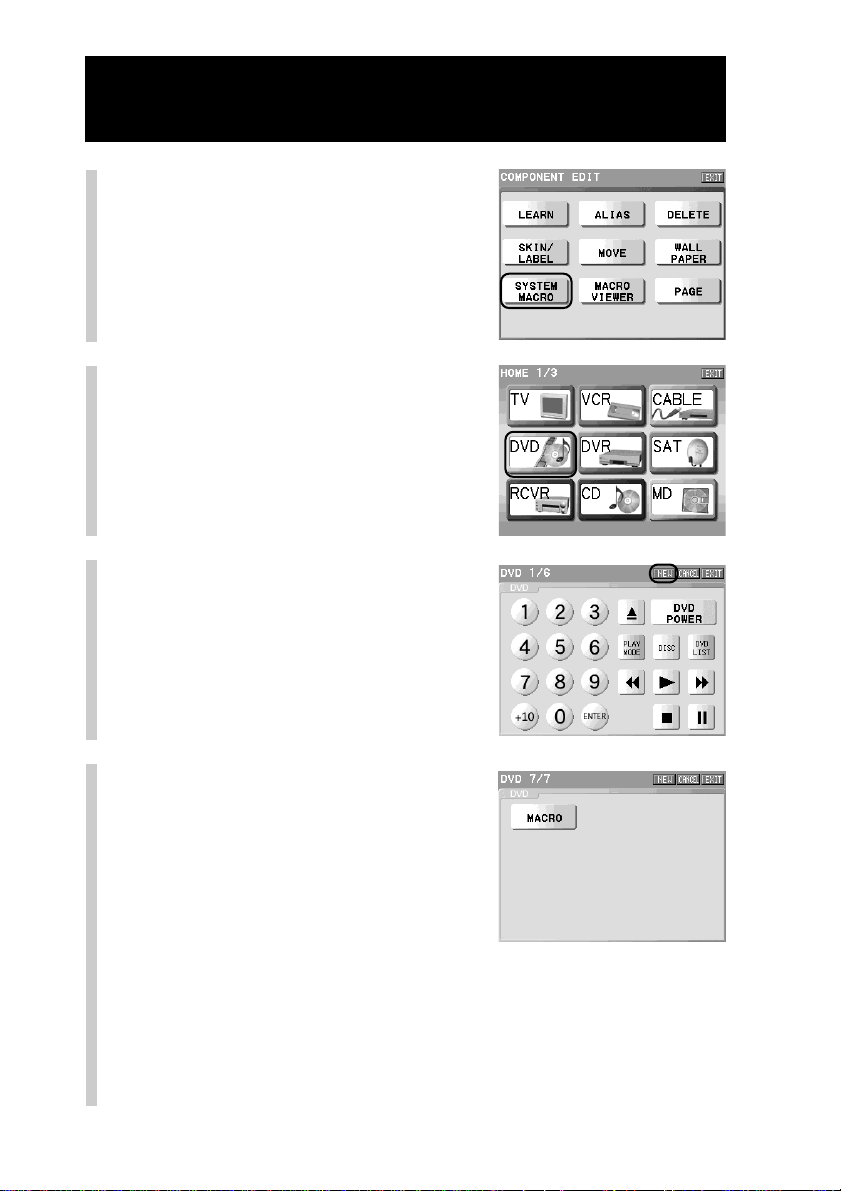
116
Continued
Programming a series of actions (macro) for a key/button
3
Press the [SYSTEM MACRO]
key.
4
Press a Component key that
will include the function key
to be created.
For example, press the [DVD] key.
5
Press the [NEW] key.
z Tip
You can change a page of the display with the
NEXT/BACK button.
6
Set the skin and the label
for a new key.
First select the normal skin, and press the
[OK] key. Then select the pressed skin,
and press the [OK] key.
When the skin setting is complete, the
display for the label setting is displayed.
After setting the label, press the [OK] key.
For details, see steps 6 and 7 in “Setting
the skin (key appearance and color) and
the label (name) of a function key
(SKIN/LABEL)” (pages 97 - 99).
Example for the DVD
Component display
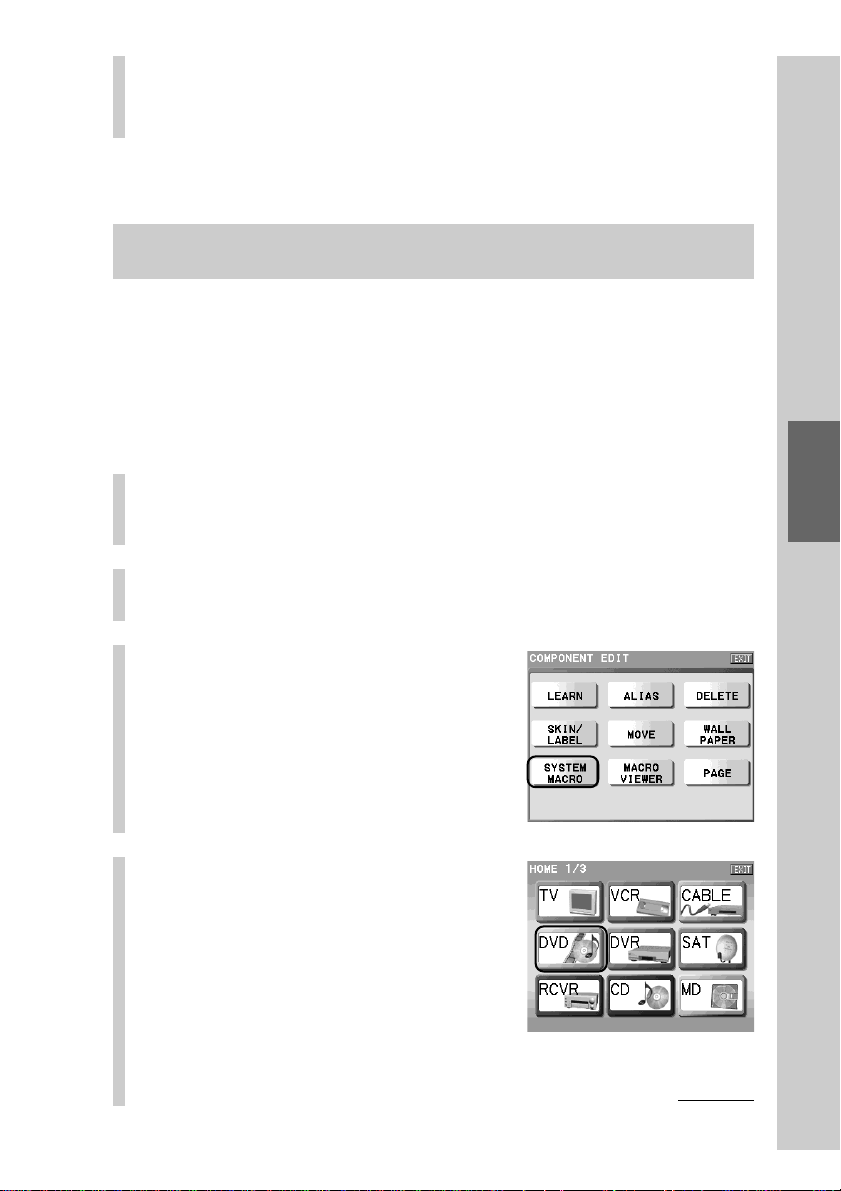
117
Convenient operations by programming a
series of actions (macro) for a key/button
2 When programming a macro for an existing function
key/button
Select a function key/button you want to program a macro for.
z Tip
You can also program a macro for an Empty key/button having no setting.
For example, select a function key/button a macro is to be programmed for
in the DVD component.
1
Press the [SET] key for 2 seconds or longer in the
Home display.
The Set display appears.
2
Press the [COMPONENT EDIT] key.
The Component edit display appears.
3
Press the [SYSTEM MACRO]
key.
4
Press a Component key that
includes the function key/
button you want to
program a macro for.
For example, press the [DVD] key.
Note
Make sure to set the label to a new key. The label will not be set when no letters
are input even if you press the [OK] key.
, Go on to “Step 2: Setting a macro” (page 120).
Continued
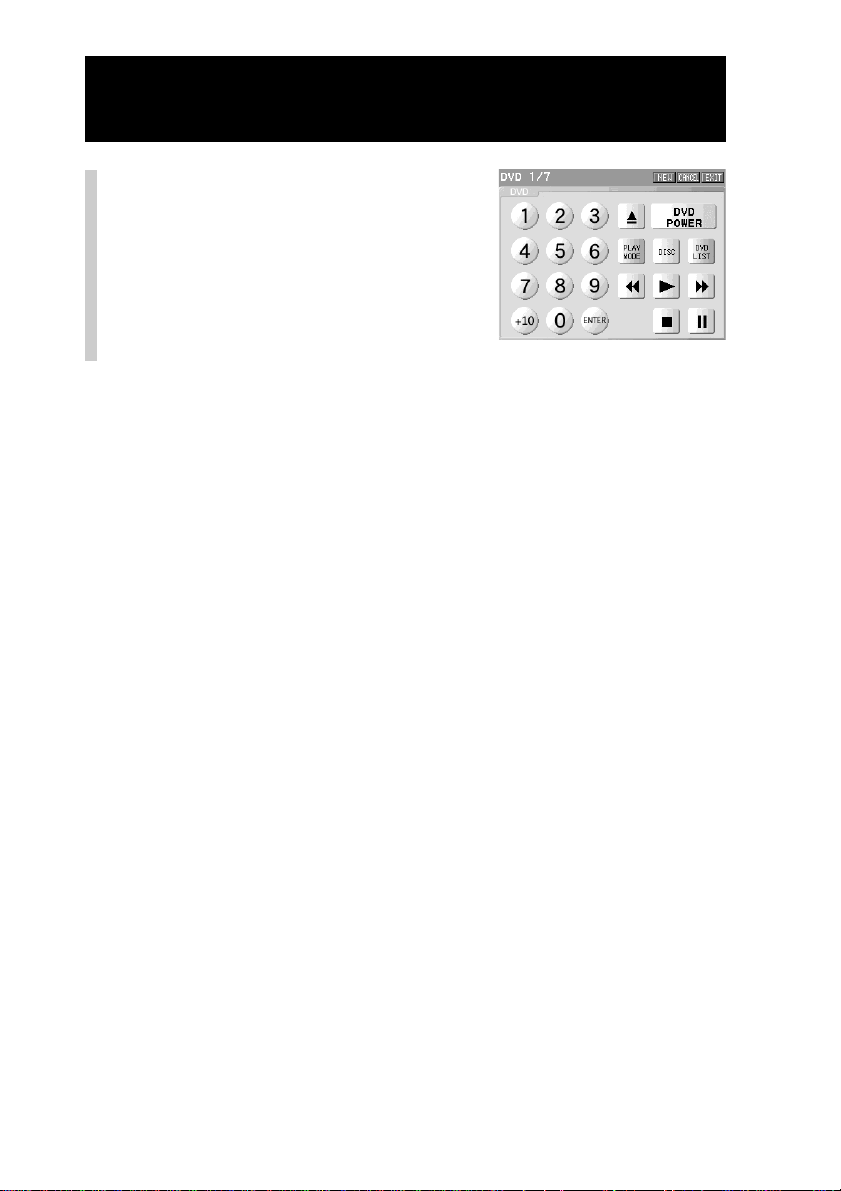
118
Continued
Programming a series of actions (macro) for a key/button
5
Press a function key/button
a macro is to be
programmed for.
Notes
• Function keys you cannot program a macro for appear pressed, and cannot be selected.
If you press one of these keys, a beep sounds twice.
• If you press a function button you cannot program a macro for, a message appears. If
you press the [OK] key, the display returns to the previous one.
, Go on to “Step 2: Setting a macro” (page 120).
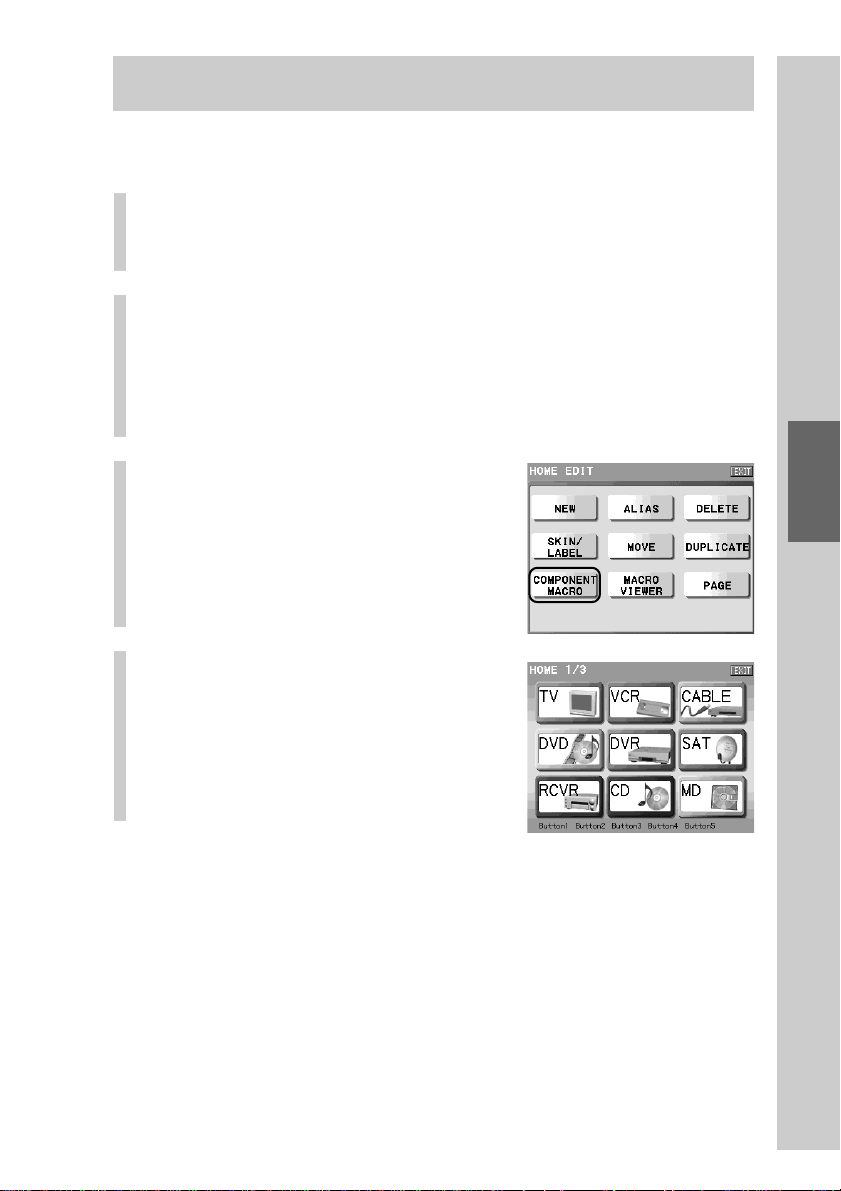
119
Convenient operations by programming a
series of actions (macro) for a key/button
3 When programming a macro for a Component key or a
Direct Access button
Select a Component key or a Direct Access button a macro is to be programmed
for.
1
Press the [SET] key for 2 seconds or longer in the
Home display.
The Set display appears.
2
Press the [HOME EDIT] key.
The Home Edit display appears.
z Tip
You can program a macro for a Direct Access button, by pressing the [DIRECT
ACCESS] key in this step. For details, see “Programming an action to skip to the
desired page for a Direct Access button” (page 55).
3
Press the [COMPONENT
MACRO] key.
4
Press a Component key or a
Direct Access button you
want to program a macro
for.
, Go on to “Step 2: Setting a macro” (page 120).
If the Component key/Direct Access button selected in step 4 has already been
programmed with a macro
The overwrite confirmation display appears.
Press the [YES] key to overwrite the existing macro with a new one.
Press the [NO] key to cancel the setting. The display returns to step 4.
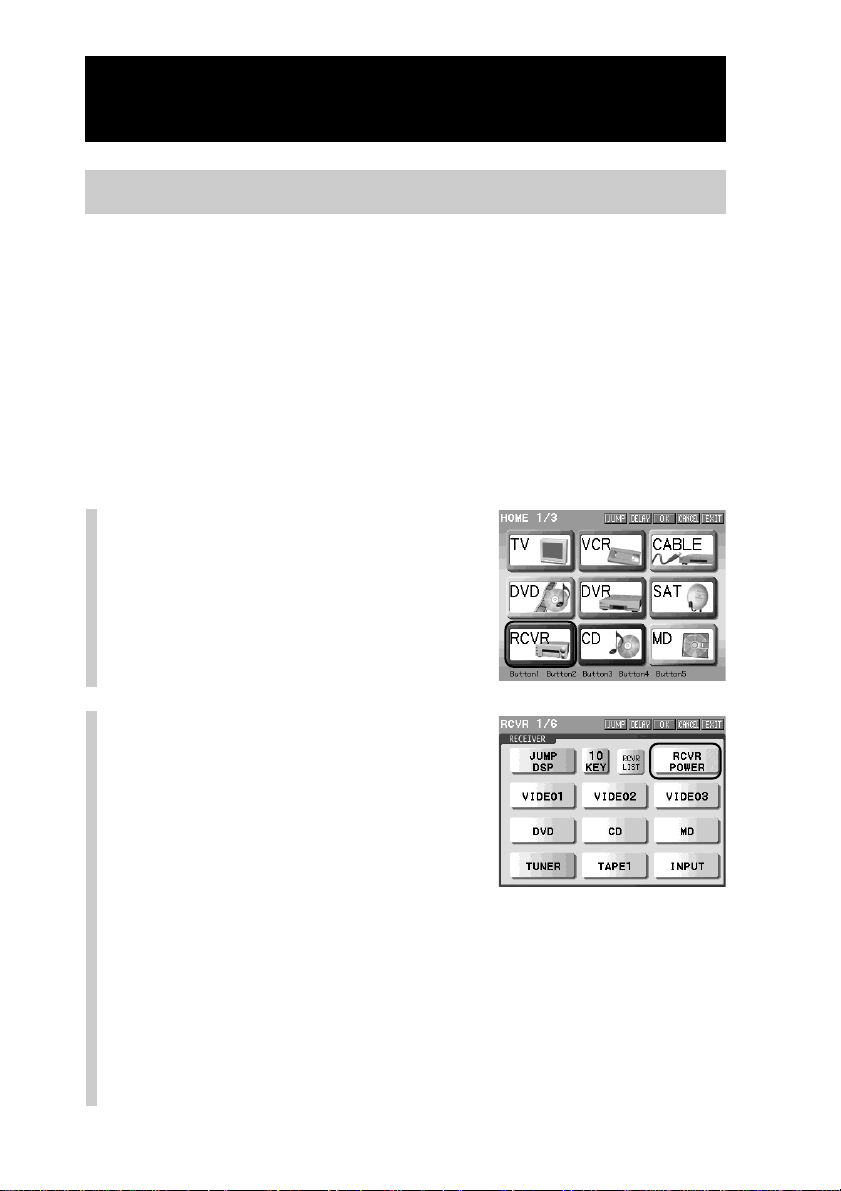
120
Continued
Programming a series of actions (macro) for a key/button
Step 2: Setting a macro
The procedure to set a macro to a key/button selected in “Step 1” is explained
here.
In this step, program the following operations as the macro procedure for the
newly created key in the DVD component in “Step 1.”
Remote control operations to see a DVD image
1Turn on the amplifier.
2Turn on the TV.
3Turn on the DVD.
4 Set the input selector of the amplifier to DVD.
5 Set the input selector of the TV to DVD.
6 Start DVD playback.
1
Press a Component key that
includes a function key/
button whose action you
want to program as a step
of the macro.
In this example, press the [RCVR] key.
2
Press a key/button whose
action you want to set as a
step of the macro.
For example, press the [RCVR POWER]
key.
■ If you press a key/button programmed with a macro
A macro programmed for a key/button you pressed is set as a macro
procedure.
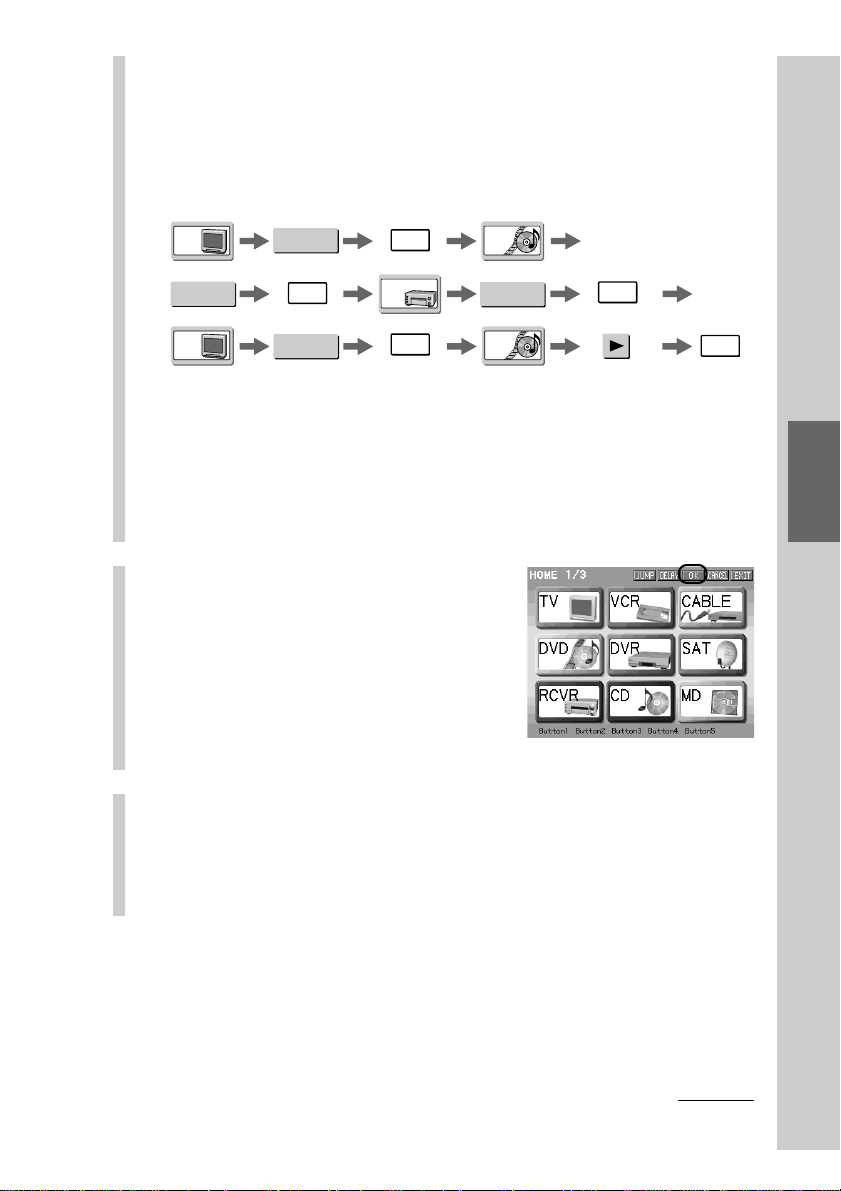
121
Convenient operations by programming a
series of actions (macro) for a key/button
3
Press the [OK] key to program the key/button of
the selected component.
Operation for turning on the amplifier is temporarily stored.
Repeat steps 1 - 3 until you finish programming the macro procedure.
For example, press the following keys to set remote control operations to
watch a DVD.
z Tip
Make sure to press the [OK] key after pressing a function key/button to be
programmed as a macro procedure. An operation step is stored by pressing the
[OK] key.
To change a component also, press the [OK] key.
Note
A macro procedure already programmed for a key/button is set as one step.
4
Press the [OK] key.
The macro is programmed here.
The display returns to the Component
display where you selected a key/button
you wanted to program a macro for.
Programming of the macro is complete.
z Tip
If you press the [CANCEL] key here, all procedures above are canceled.
5
To finish all settings, press the COMMANDER OFF
button for 2 seconds or longer.
The display returns to the Home display. Or press the [EXIT] key
repeatedly until the Home display is shown.
z Tips
• If you want to set the macro programmed for a Component key as a step of a macro,
press the Component key for 2 seconds or longer in step 1. When programming is
complete, a short beep sounds.
• If you want to set the macro programmed for a Direct Access button as a step of a
macro, press the Direct Access button in step 1.
DVD
DVD
TV
TV
RCVR
TV POWER
DVD
POWER
VIDE01
DVD
OK
OK
OK
OK
OK
Continued
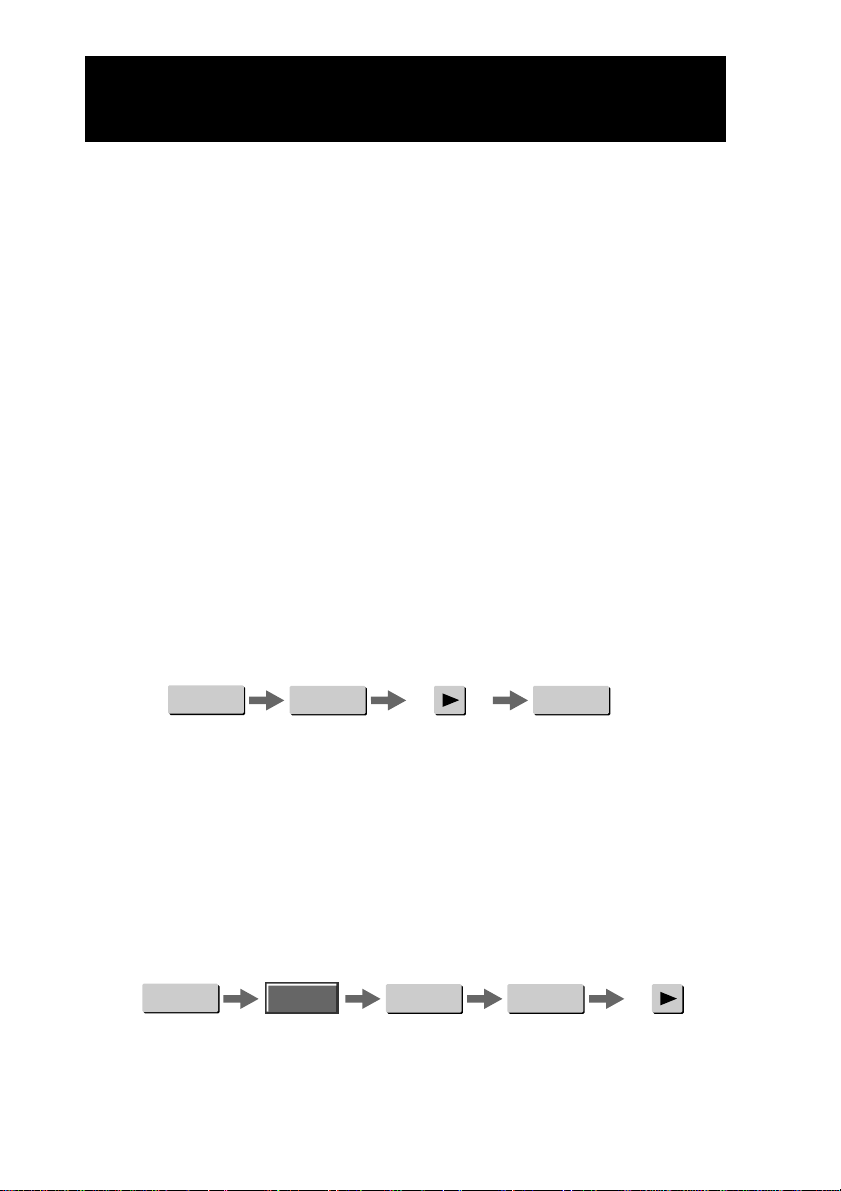
122
Continued
Programming a series of actions (macro) for a key/button
TV POWER
DVD
POWER
VIDE01
Turn on
the TV.
Turn on
the DVD.
Start DVD
playback.
Set the input mode
of the TV to VIDEO1.
Notes
•You can program up to 128* operation steps for a macro. After programming 128 steps,
the programmable macro procedure setting finishes automatically and the 128 steps you
have programmed are registered as a macro.
* The maximum number for operation steps to be programmed changes depending on the memory
capacity.
•A macro cannot be programmed for the following buttons
– COMMANDER OFF button
– HOME button
– NEXT/BACK button
About the circulated reference
The circulated reference is caused when keys refer to each other by the Alias setting and
the operation procedure becomes looped and endless. For example, if you set a macro
procedure of Key A to Key B and a macro procedure of Key B to Key A, the two key refer
to each other and the operation will be looped and endless.
On this Remote Commander, when you select keys that refer to each other, a message
appears to prevent the circulated reference.
About the order of operation steps
Certain components may not accept consecutive remote control signals. For example, a TV
generally does not react to the next signal right after the Power-on signal. So, a series of
commands such as TV Power-on and input select may not work properly. In this case,
insert other signals like the example below.
About the interval between operation steps ([DELAY] key)
If intervals between consecutive remote control signals are short, a component may not
function properly. If this happens, create an interval (delay time) between operation steps.
You can set a 0.2 second interval (fixed) by pressing the [DELAY] key. If a longer interval is
necessary, press the [DELAY] key as many times as required. Each time you press the
[DELAY] key, this operation is counted as a step. The interval can be changed using the
supplied application on your computer between 0.1 second and 1 second. For details, refer
to “Editing the Action list of a function key” (“NAVITUS Design” manual (Help)).
TV POWER
DVD
POWER
VIDE01
DELAY
Turn on
the TV.
DELAY Set the input
mode of the
TV to DVD.
Turn on
the DVD.
Start DVD
playback.
123
Convenient operations by programming a
series of actions (macro) for a key/button
zTip
Make sure to press the [OK] key after pressing a function key/button to be programmed
as a macro procedure. An operation step is stored by pressing the [OK] key.
To change a component also, press the [OK] key.
Procedure for jumping to a certain display ([JUMP] key)
If you press the [JUMP] key, that appears in the display for selecting a component or the
function key/button you want to program for a macro, you can insert an operation step
for jumping to the shown display between steps.
To program to turn on a component when it is selected
If there is a Power-on key/button in a Component display, set the key/button as
a step of a macro to the Component key. You can turn on the component by just
pressing the Component key for 2 seconds or longer (delay time).
Note
If you set the power-on/off function to a macro, the component may be turned on or off
unexpectedly. Confirm the setting contents when you program a macro.
z Tip
If you are using a Sony AV component, the power-on and power-off keys are assigned on
the second page of the Component display. These keys are programmed with the
functions to power on and power off respectively.
The delay time can be changed using the supplied application “NAVITUS
Design.” For details, refer to “Adding a Delay action (“Set delay time” dialog
box)” in the manual (Help) of “NAVITUS Design.”
To check a macro (series of actions) setting (MACRO VIEWER)
You can check, on the display, the contents of the macro procedure set to a key/
button .
For example, check the macro procedure programmed in “Step 2: Setting a
macro” (page 120).
Continued
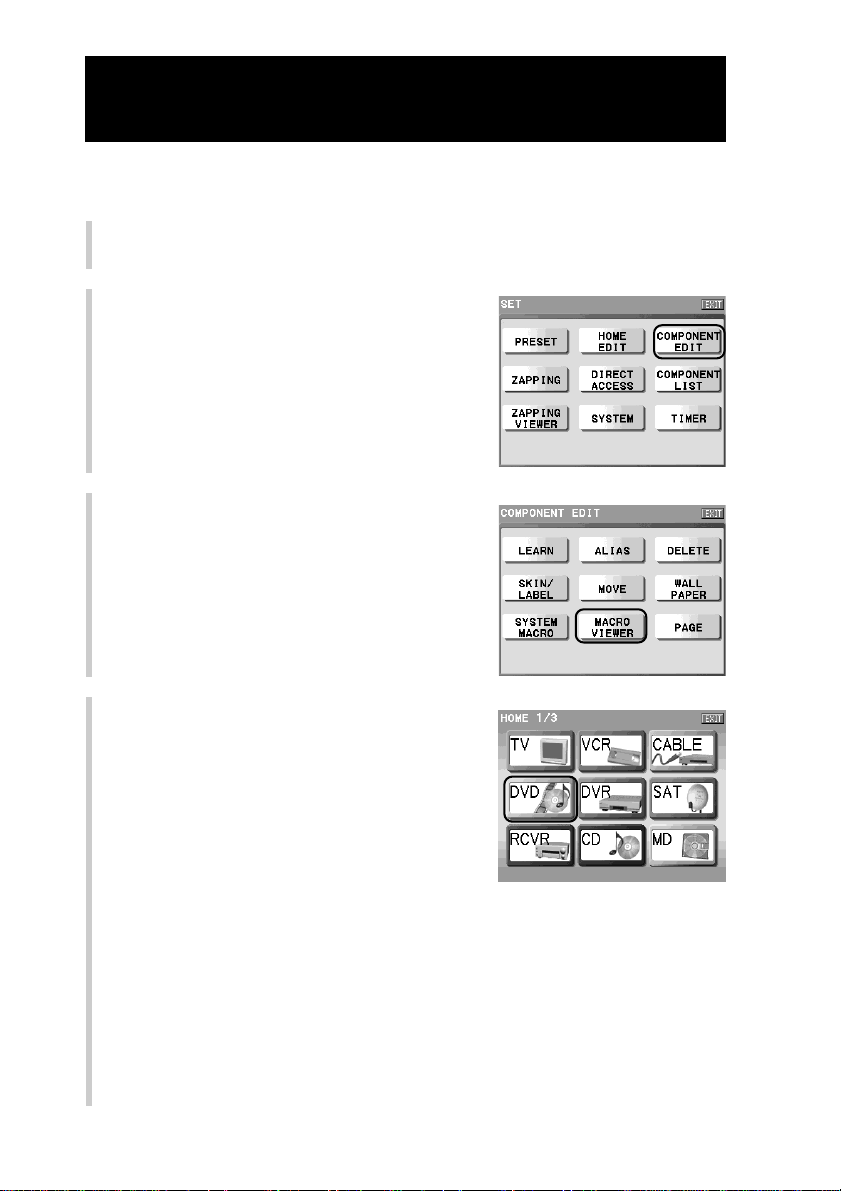
124
Continued
Programming a series of actions (macro) for a key/button
To check the settings of the system macro (function key/button)
1
Press the [SET] key for 2 seconds or longer in the Home display.
The Set display appears.
2
Press the [COMPONENT EDIT] key.
The Component edit display appears.
3
Press the [MACRO VIEWER] key.
4
Press the Component key that
includes the function key/button you
programmed a macro for.
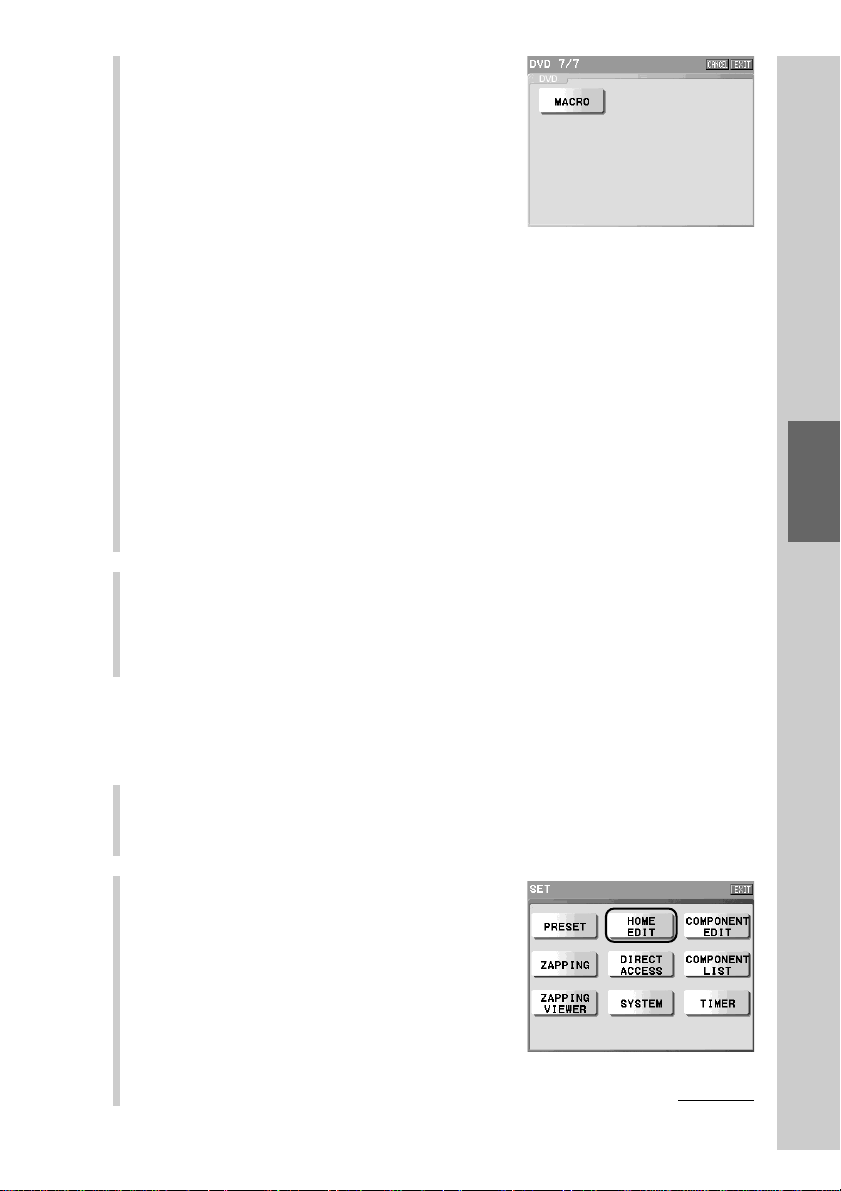
125
Convenient operations by programming a
series of actions (macro) for a key/button
5
Press the key/button whose macro
you want to check.
The macro procedure programmed in “Step
2” is shown in the display in order.
When a function key is programmed as a
step, the key appears where the key is
assigned in the display. When a function
button is programmed, its name appears in
the center of the display.
When showing is complete, the display
returns to the first page of the selected
component.
Notes
•A function key for which no macro is programmed appear pressed and cannot be
selected. If you select a function button for which no macro is programmed, a
message appear.
• The macro procedures of the [JUMP] key and the [DELAY] key are not displayed.
■ To manually check the programmed macro procedure in order
Press the [PAUSE] key to suspend consecutive showing. Press the [PAUSE]
key again to resume consecutive showing.
While consecutive showing is suspended, press the NEXT button to show
the next macro step and press the BACK button to show the previous step.
6
To finish all settings, press the COMMANDER OFF button for 2
seconds or longer.
The display returns to the Home display. Or press the [EXIT] key repeatedly
until the Home display is shown.
To check the settings of the component macro (Component key and
Direct Access button)
1
Press the [SET] key for 2 seconds or longer in the Home display.
The Set display appears.
2
Press the [HOME EDIT] key.
The Home Edit display appears.
Continued
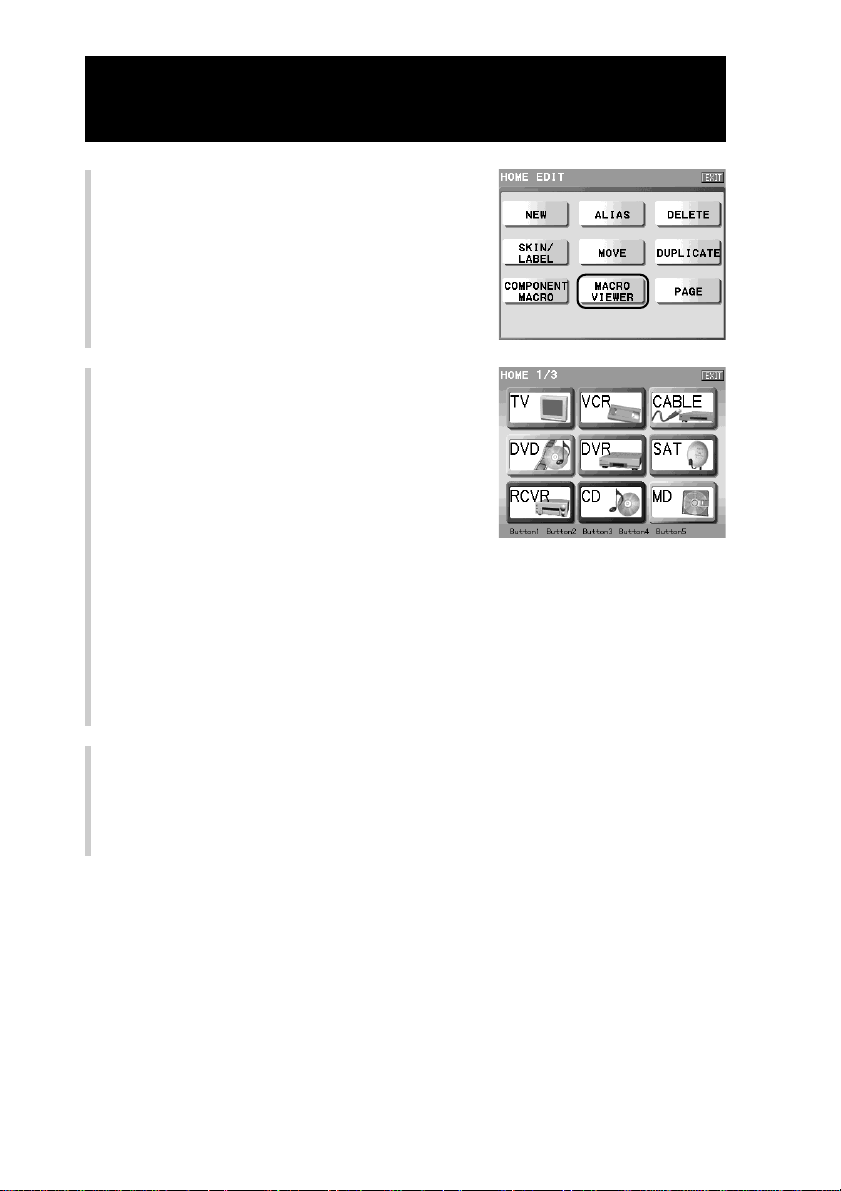
126
3
Press the [MACRO VIEWER] key.
4
Press the Component key or a Direct
Access button whose macro you
want to check.
The macro procedure is shown in the
display in order. When showing is
complete, the display returns to step 4.
Notes
•You cannot select a Component key for which no macro is programmed.
• The macro procedures of the [JUMP] key and the [DELAY] key are not displayed.
■ To manually check the programmed macro procedure in order
Press the [PAUSE] key to suspend consecutive showing. Press the [PAUSE]
key again to resume consecutive showing.
While consecutive showing is suspended, press the NEXT button to show
the next macro step and press the BACK button to show the previous step.
5
To finish all settings, press the COMMANDER OFF button for 2
seconds or longer.
The display returns to the Home display. Or press the [EXIT] key repeatedly
until the Home display is shown.
Continued
Programming a series of actions (macro) for a key/button
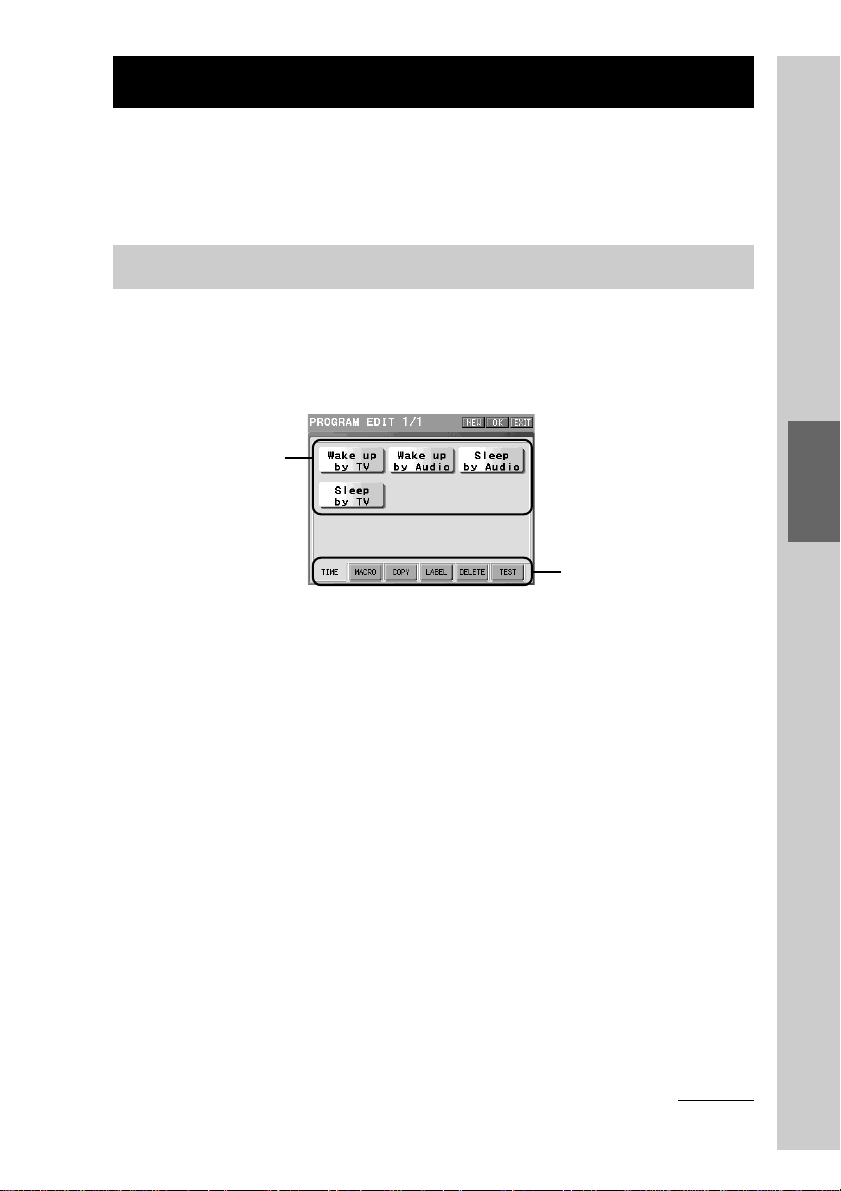
127
Convenient operations by programming a
series of actions (macro) for a key/button
Macro operation using the Timer function
You can set the Remote Commander to perform a series of actions at a desired
time. This is called a Timer macro. Create a Timer program key and program a
Timer macro for the key. If a Timer macro is set to be executed, the c indicator
appears at the top of the display.
About the edit display for the Timer program key
In this section, we explain about the edit display for the Timer program key.
The following items can be set to the Timer program key. The setting can be
performed by selecting a setting item tag.
[TIME]:To set the operating time of the timer macro to the Timer program
key.
[MACRO]:To set the timer macro to the Timer program key.
[COPY]:To copy the contents of the timer macro from another Timer
program key.
[LABEL]:To set the label to the Timer program key.
[DELETE]:To delete the Timer program key.
[TEST]:To check the execution of the timer macro by transmitting the
remote control signal of the timer macro set to the Timer program
key to a component.
Notes
• Before setting a timer macro, check that the system clock of the Remote Commander is
correct. If not, a timer macro will not be performed correctly. For details on setting the
system clock, see “Setting the system clock (CLOCK)” (page 220).
• The Timer program function cannot be edited with the supplied application “NAVITUS
Design.”
• The timer of the Remote Commander is weekly, so a Timer program you set will work
every week as long as it is set to ON. If you want to execute the Timer program only
once, set the execution of the Timer program to OFF after the Timer program has
executed.
Timer program keys
(No keys are
displayed in the
default.)
Setting item tags
Program Edit display
Continued
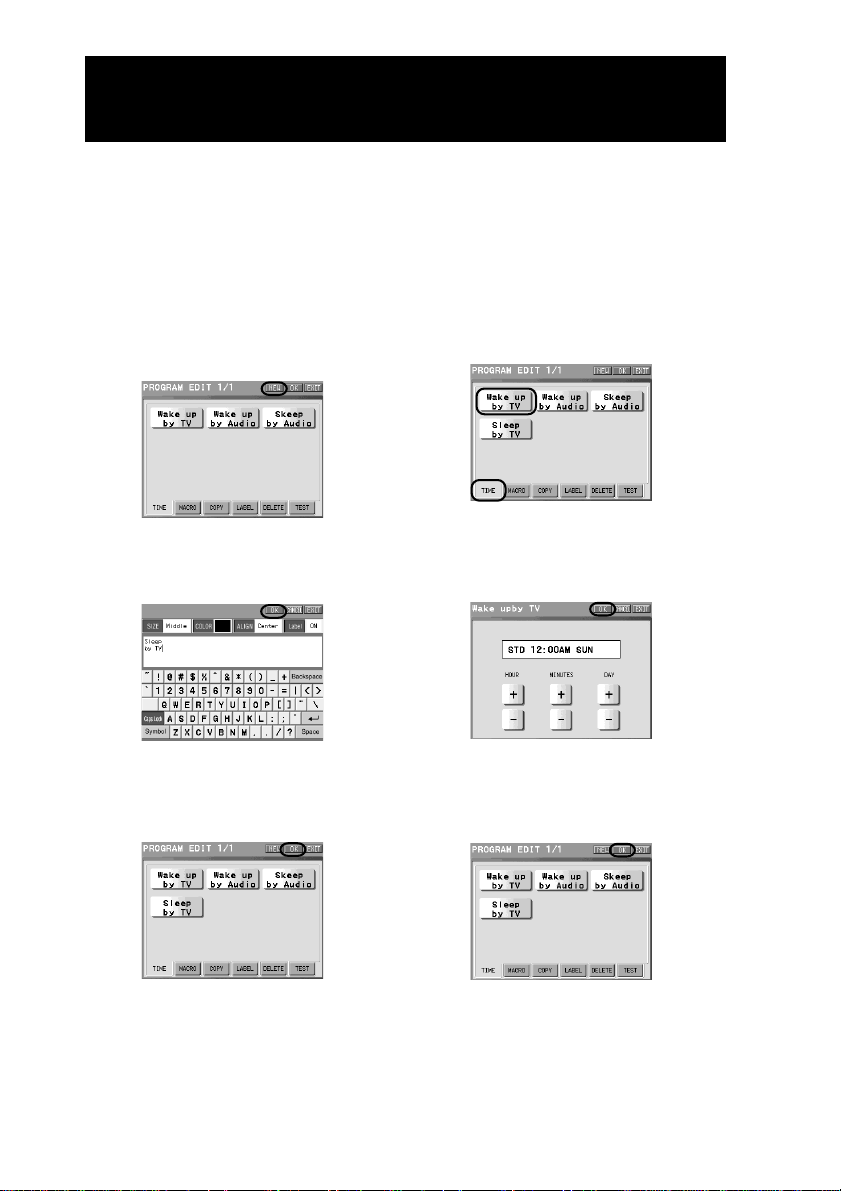
128
Continued
Macro operation using the Timer function
The Program Edit display is the basic setting display to set the Timer Program
key. To program the setting, return to the Program Edit display and press the
[OK] key shown in the upper right of the display after setting with each setting
item tag.
If you do not press the [OK] key in the Program Edit display after setting with
each setting item tag, the setting will not be programmed. Make sure to finish
the setting by pressing the [OK] key in the basic Program Edit display.
Example: To create a new Timer
Program key
Press the [NEW] key in the Program Edit
display.
Set a label in the display for the label setting,
and press the [OK] key.
Press the [OK] key in the Program Edit
display.
m
m
Example: To set the time
Select the [TIME] tag and press the Timer
Program key in the Program Edit
display.
Set the timer execution time, and press
the [OK] key.
Press the [OK] key in the Program Edit
display.
m
m
In addition to the label setting above, when setting with each setting item tag,
press the [OK] key in the Program Edit display at last to decide the setting
contents.
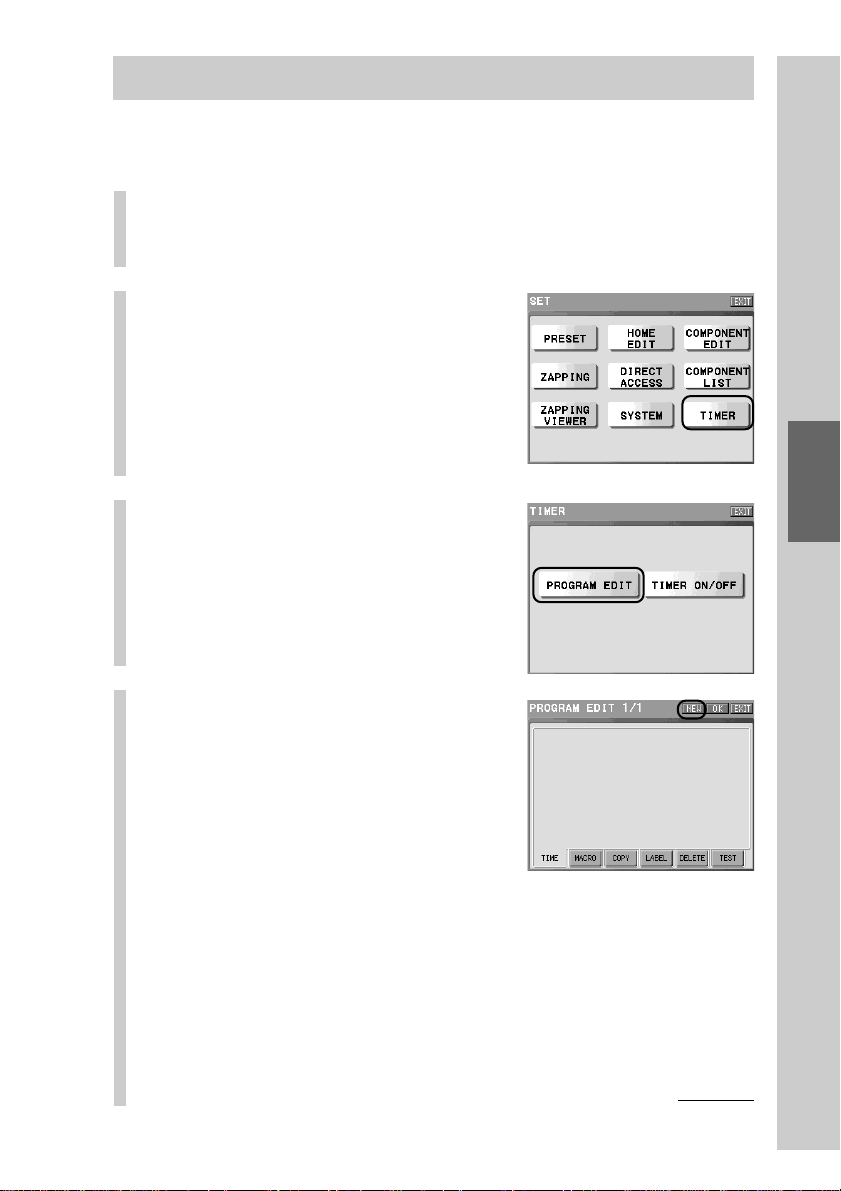
129
Convenient operations by programming a
series of actions (macro) for a key/button
Step 1: Creating a Timer program key
In “Step 1”, creating a Timer program key to be programmed with a Timer
macro is explained.
1
Press the [SET] key for 2 seconds or longer in the
Home display.
The Set display appears.
2
Press the [TIMER] key.
3
Press the [PROGRAM EDIT]
key.
4
Press the [NEW] key.
z Tips
• Whatever tag is selected, you can set the
label if you press the [NEW] key.
• For a Timer program key, you cannot select
or change a skin.
Continued
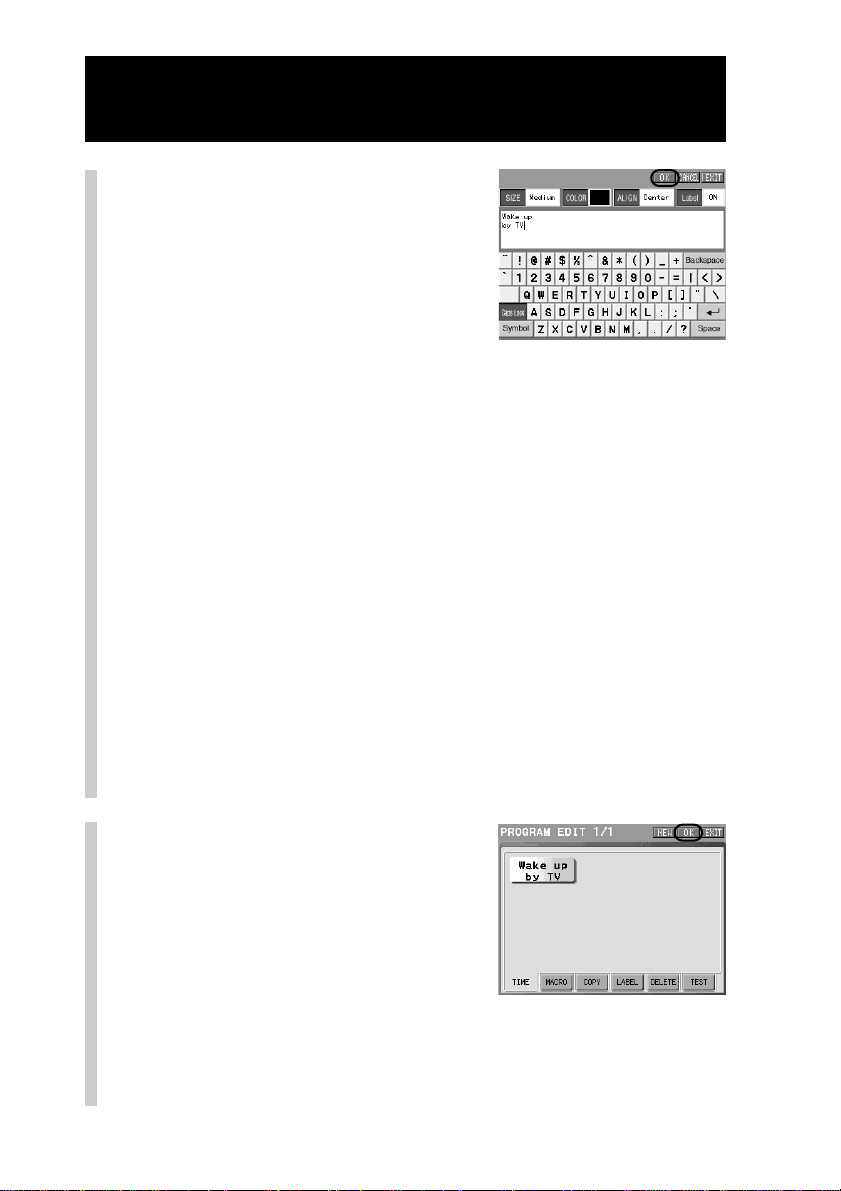
130
Continued
Macro operation using the Timer function
5
Set the label, and then press
the [OK] key.
The newly created Timer program key is
displayed.
Input letters to the label in the label setting display by pressing the
keyboard using the supplied Stylus.
For inputting letters to the label, see “Inputting letters (label setting)”
(pages 40 - 41).
Specified settings to the label of the Timer program key besides the
information described on pages 40 - 41 are as follows.
Letter input: Up to 32 letters can be input.
Starting a new line:Available. Starting a new line is counted as a
letter.
Pictographs: Cannot be input.
[SIZE]: Not selectable. The letter size is fixed to
[Medium].
[COLOR]: Not selectable. The letter color is fixed to black.
[ALIGN]: Not selectable. The letter location is fixed to
[Center].
[Label]: Not selectable. The letter indication is fixed to
ON.
Note
Be sure to input at least one letter for the label of a Timer program key. If no letter
is input, the label cannot be set even if you press the [OK] key.
6
Press the [OK] key.
A new program key is set, and the
display returns to step 3.
z Tip
You can create up to 45 Timer program keys.
However, the number of Timer program keys
that you can create may be less than 45
depending on the free memory capacity of the
Remote Commander.
To finish the setting
Press the COMMANDER OFF button for 2 seconds or longer. The display returns
to the Home display. The setting finishes.

131
Convenient operations by programming a
series of actions (macro) for a key/button
To set the label again
To set the label of the Timer program key again, press the [LABEL] tag in step 4,
press the Timer program key you want to set the label to, and set letters in the
label setting display. Then press the [OK] key.
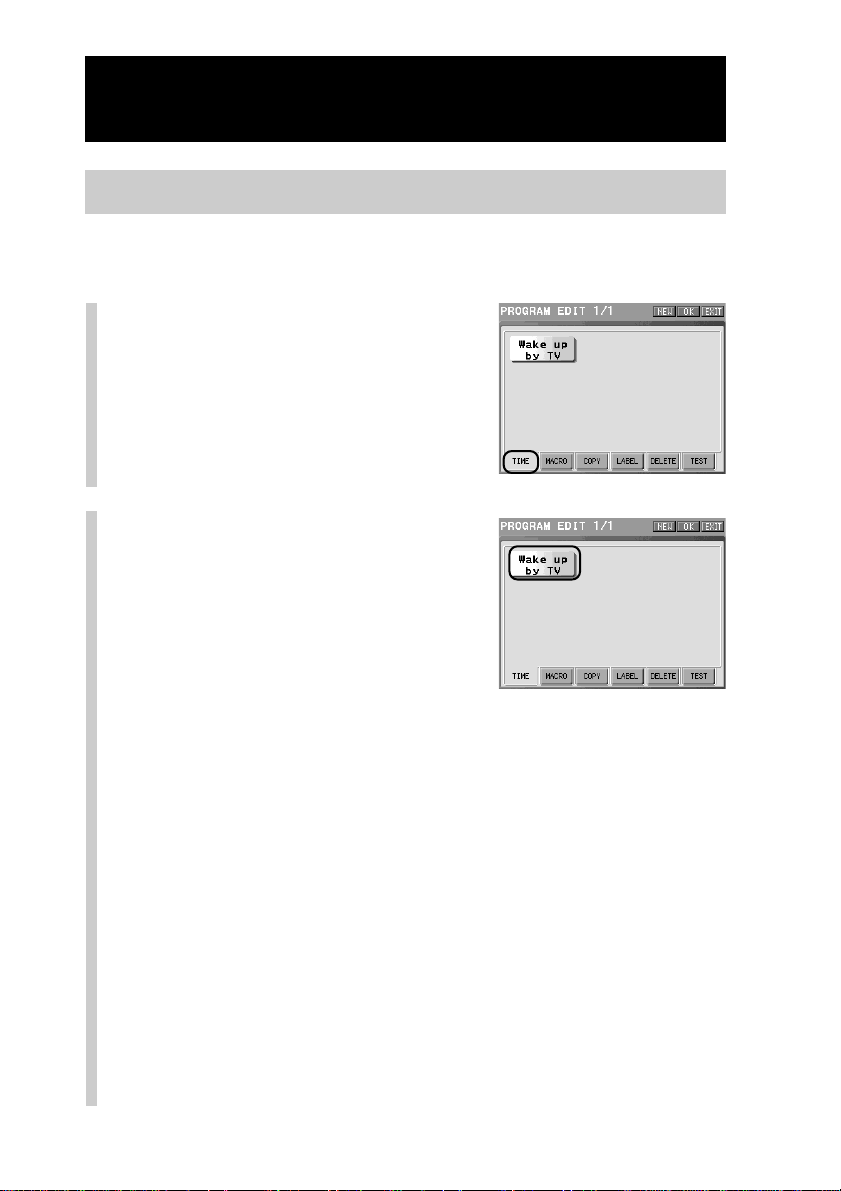
132
Continued
Macro operation using the Timer function
Step 2: Setting the time
In this Step, setting the day of the week and the time for starting a timer macro
is explained.
1
Press the [TIME] tag.
2
Press a Timer program key
you want to set the time the
timer operation to.
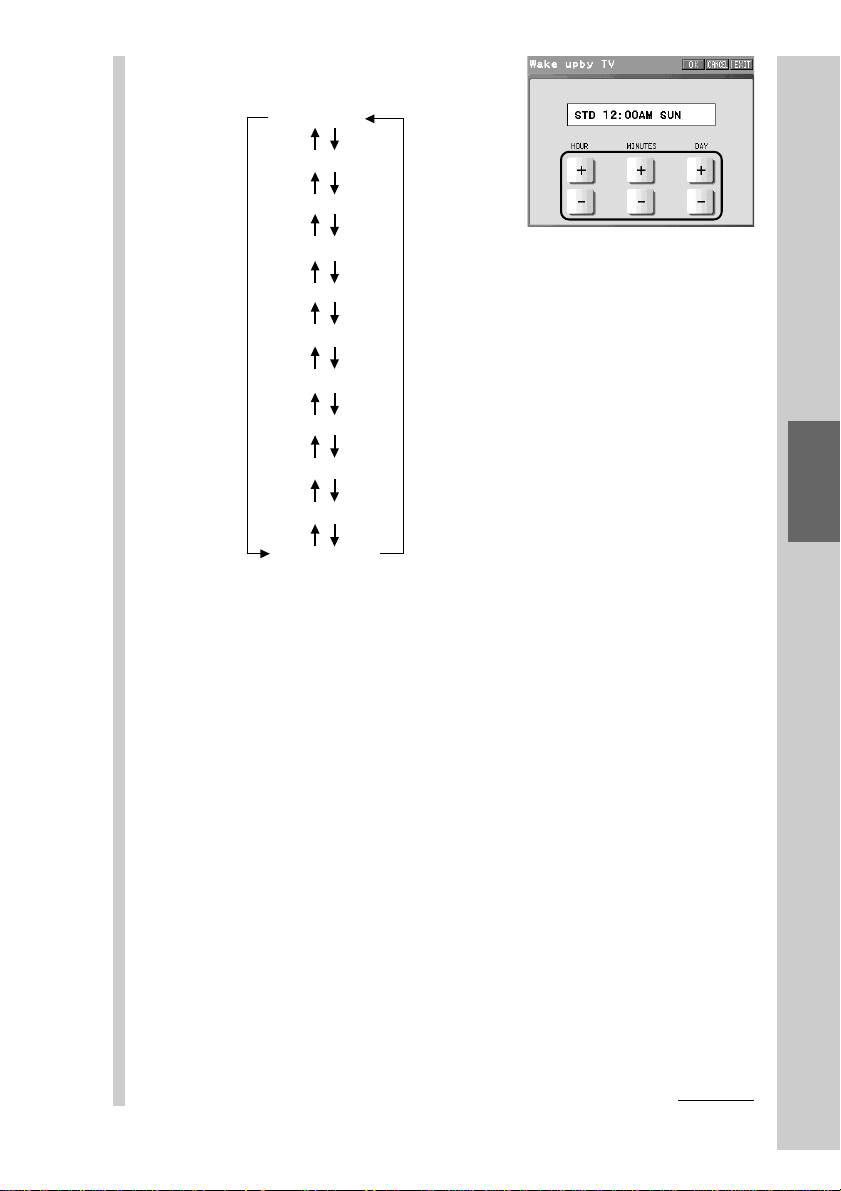
133
Convenient operations by programming a
series of actions (macro) for a key/button
3
Set the timer execution
time.
Set the [HOUR], [MINUTES] and [DAY] by pressing the [+]/[–] key.
z Tip
Each time you press the [+]/[–] key, the [HOUR], [MINUTES] or [DAY] is
advanced/reversed by one. If you hold the [+]/[–] key pressed, the [HOUR] or
[MINUTES] is advanced/reversed by two.
Note
At the time for executing the timer you have set, the first operation step (action) of
the macro procedure starts automatically. It may take some time before the last
operation step being programmed is executed depending on the contents of the
macro procedure. Therefore, set the time regarding the contents of the macro
procedure, etc., when setting the timer.
SUN
MON
TUE
WED
THU
FRI
SAT
SUN – SAT
MON – SAT
MON – FRI
SUN, SAT
“–”“+”
SUN: Sunday
MON: Monday
TUE: Tuesday
WED: Wednesday
THU: Thursday
FRI: Friday
SAT: Saturday
Continued
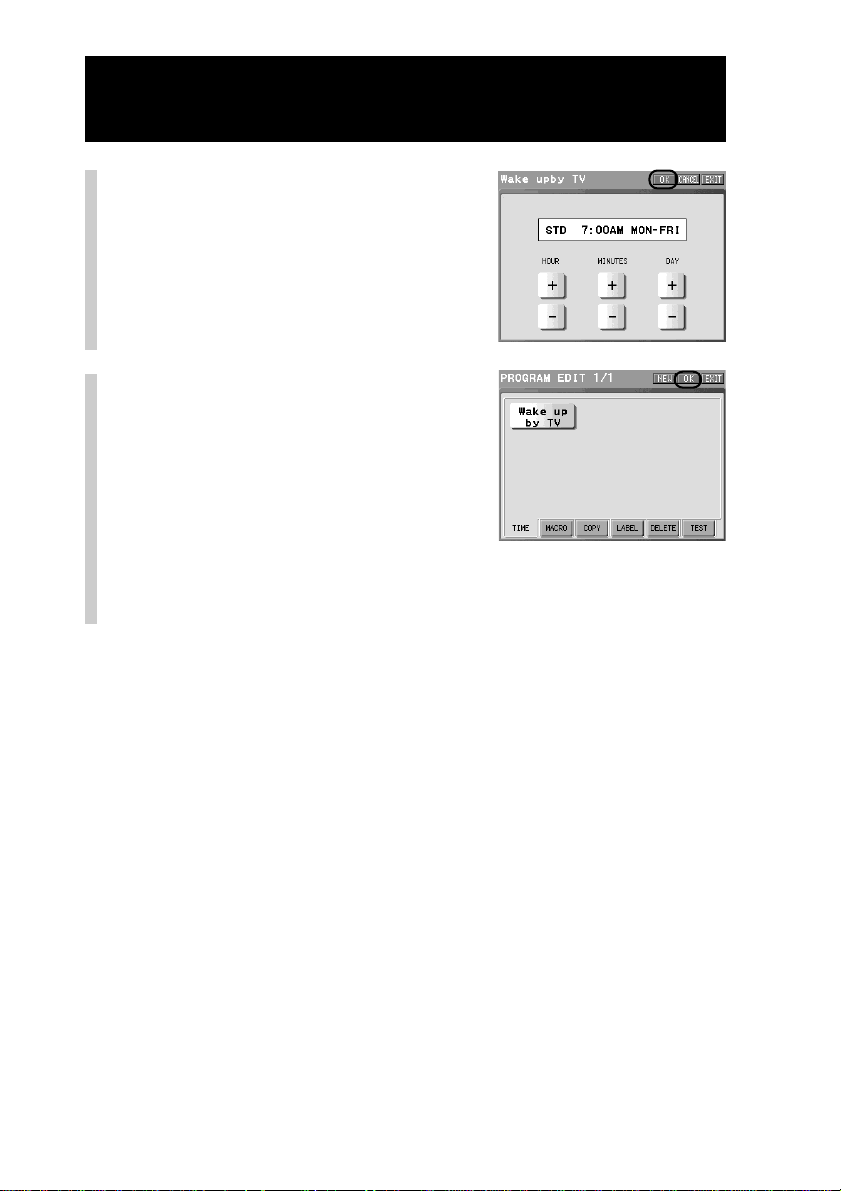
134
Continued
Macro operation using the Timer function
4
Press the [OK] key.
The setting of the time for timer
operation is complete.
5
Press the [OK] key.
The timer execution time is decided, and
the display returns to the Timer display
(step 3 on page 129).
To finish the setting
Press the COMMANDER OFF button for 2 seconds or longer. The display returns
to the Home display. The setting finishes.
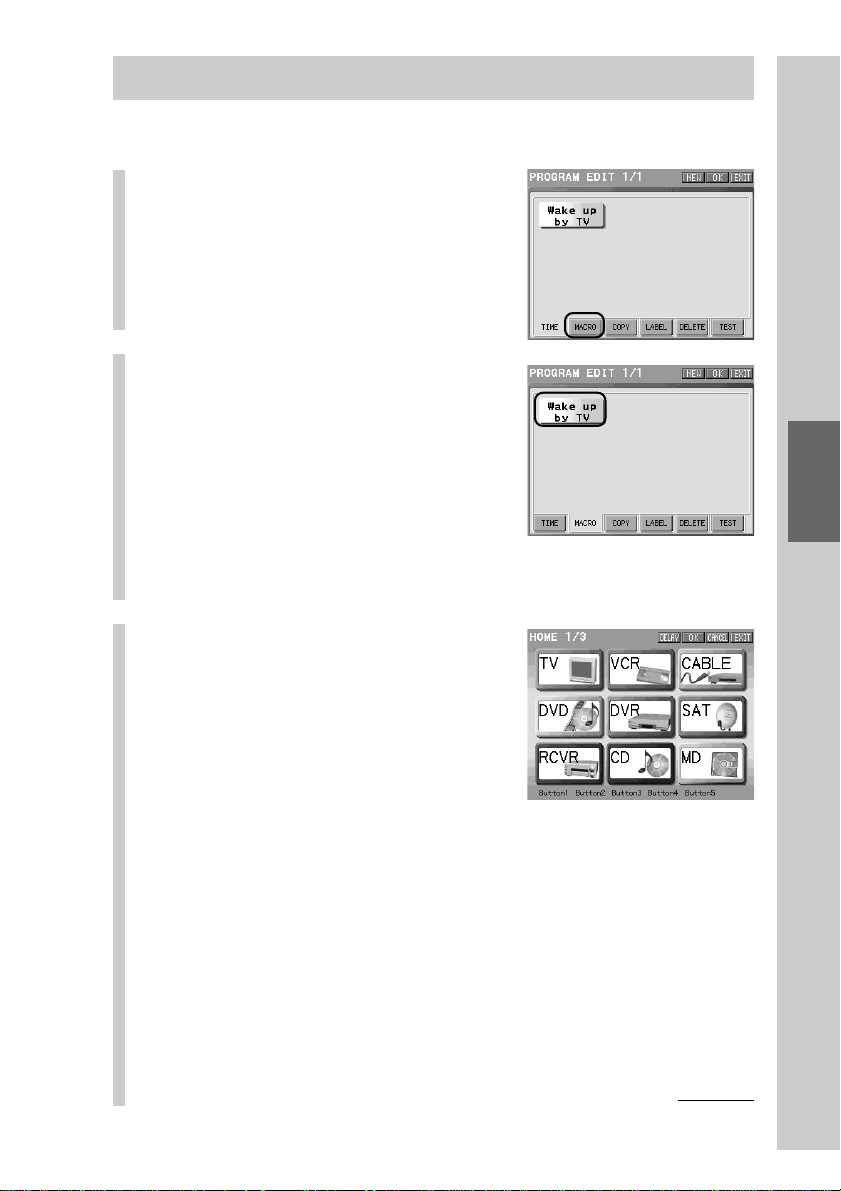
135
Convenient operations by programming a
series of actions (macro) for a key/button
Step 3: Programming a macro
In this Step, how to set a macro is explained.
1
Press the [MACRO] tag.
2
Press a Timer program key
you want to program a
macro for.
If you select a Timer program key
already programmed with a macro
The message for confirmation of deleting
a macro appears. Press the [YES] key to
overwrite the macro. If you press the
[NO] key, the display returns to the
previous one without overwriting.
3
Set a macro procedure.
For details on setting a macro, see steps 1
- 4 in “Step 2: Setting a macro” (pages
120 - 121).
Note
For the macro setting to the Timer program
key, the procedure of the [JUMP] key cannot
be set.
z Tip
You can program up to 128 steps (actions) for one Timer program key. However,
the number of steps (actions) you can program may be less than 128 depending on
the free memory capacity of the Remote Commander.
Continued
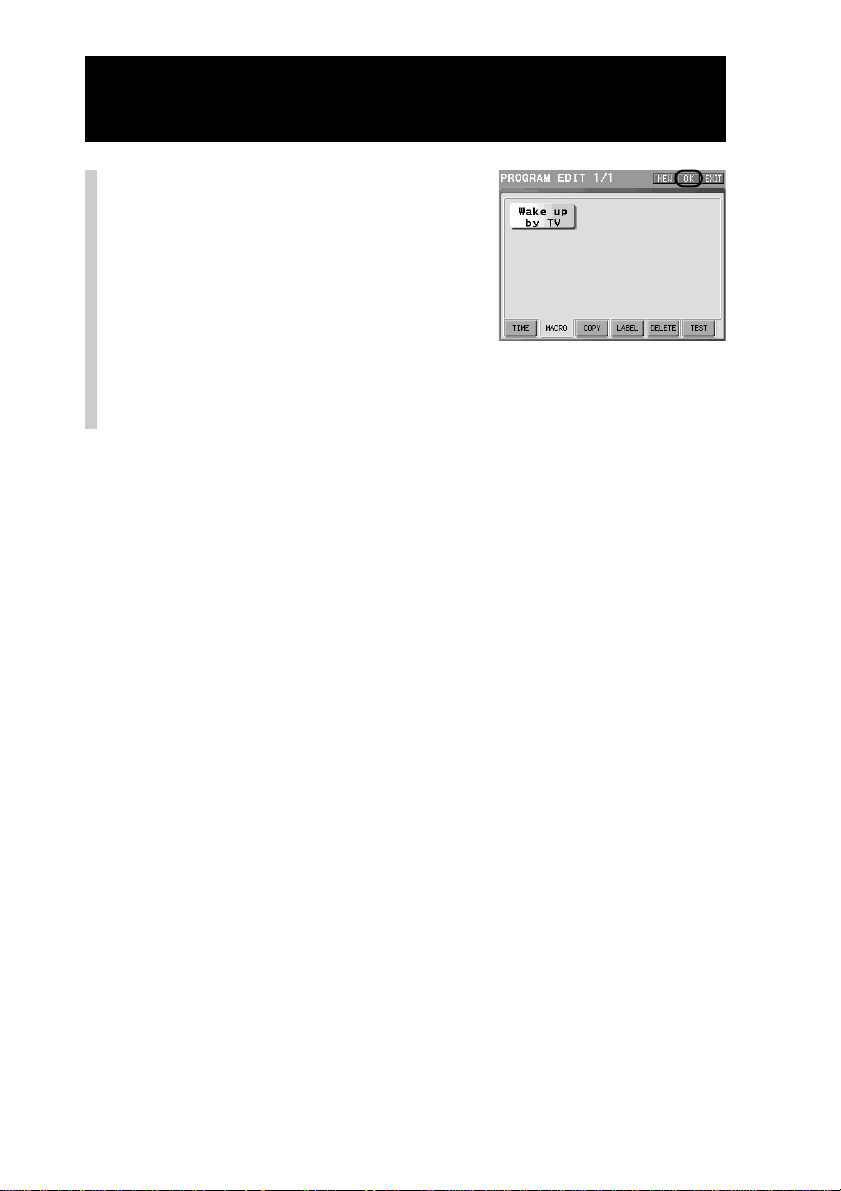
136
Continued
Macro operation using the Timer function
4
Press the [OK] key.
The setting of the macro procedure is
complete and the display returns to the
Timer display (step 3 on page 129).
To finish the setting
Press the COMMANDER OFF button for 2 seconds or longer. The display returns
to the Home display. The setting finishes.
Notes
• A Timer program key can have only one Timer macro. If you want to set a component to
turn on at a programmed time, and to set the component to turn off at another time,
program two Timer macros separately.
• According to the status of the component operated by the Timer macro, the next
program might not work successfully. When setting a Timer macro, check carefully the
setting contents of other Timer macros.
• While a Timer program is working, if the set time for another Timer program is reached,
the Timer program starts after the current program finishes.
About the execution time of the macro procedure you have set for the
timer macro
The execution of the timer macro starts from the first operation step (action)
programmed for the macro procedure. Because it may take some time before the
last operation step is executed depending on the contents of the macro
procedure, the last operation step may start later than the programmed time.
Therefore, set the time regarding the contents of the macro procedure, etc., when
setting the timer.
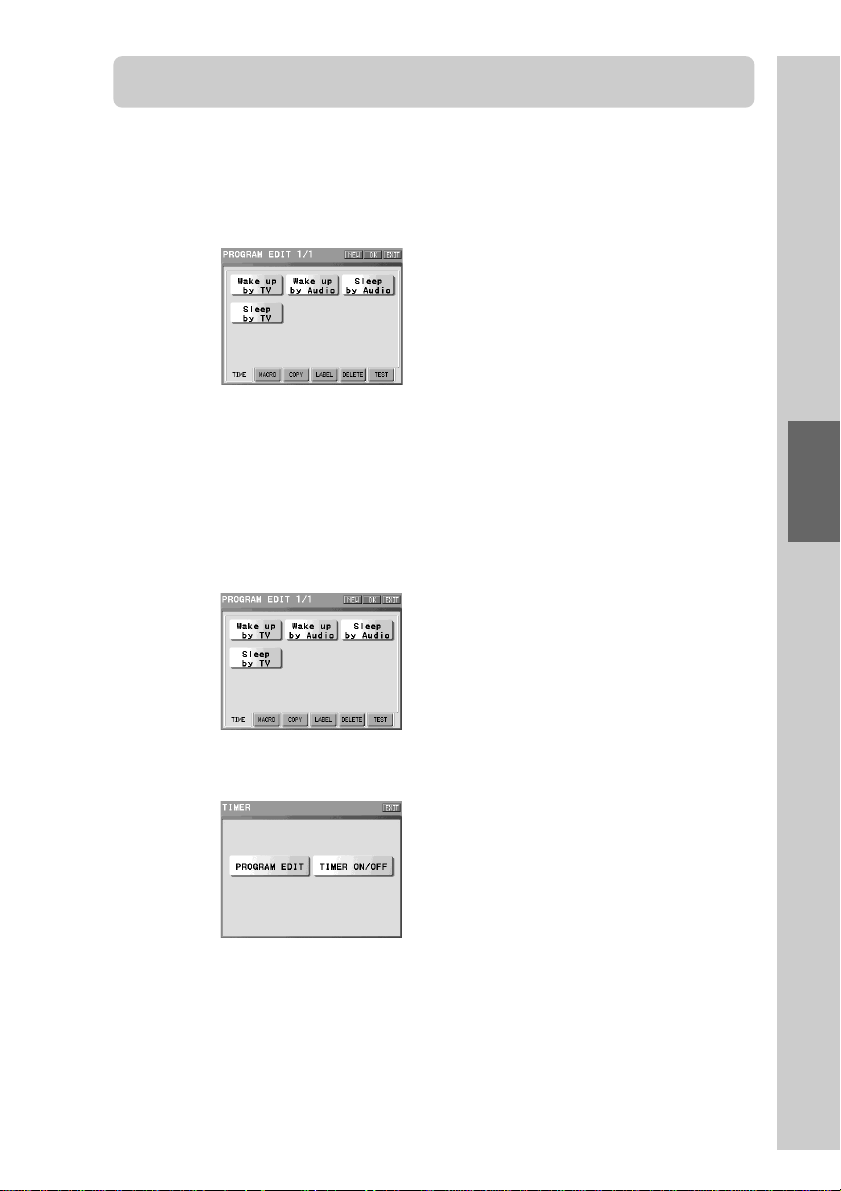
137
Convenient operations by programming a
series of actions (macro) for a key/button
z Tip Progressive method for setting the Timer program
You programmed the setting with the respective tag, such as [TIME],
[MACRO], etc., in the method for setting explained from page 129. You
can also program the settings totally after setting with all tags.
In the Program Edit display,
create a new key by pressing
the [NEW] key. Or select an
existing key.
Set the time and macro, etc.
Press the [OK] key in the
respective display.
When the display returns to
the Program Edit display,
press the [OK] key.
The settings of key creation, timer
and macro are totally complete.
m
m
m
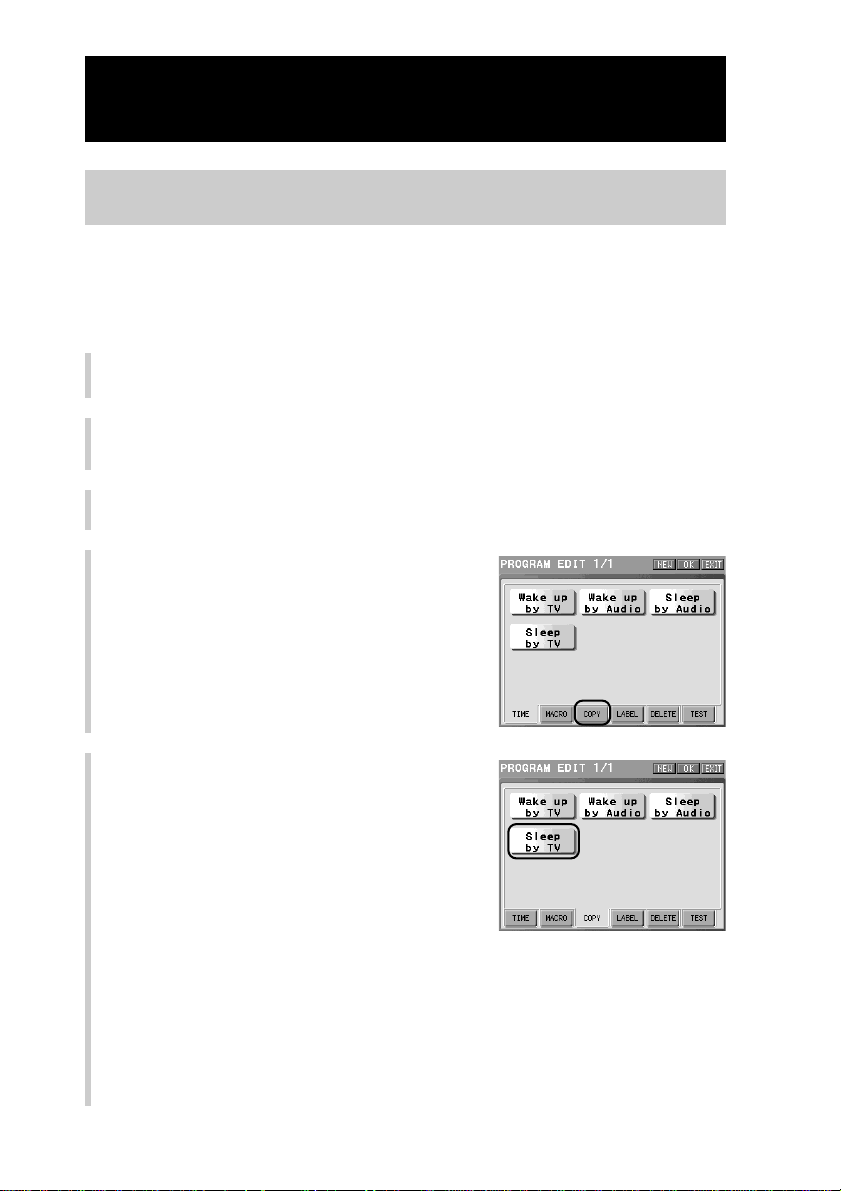
138
Continued
Macro operation using the Timer function
To copy a macro programmed for another Timer program
key
You can copy the time set with the [TIME] tag and the macro contents set with
the [MACRO] tag that have already been programmed for a Timer program key
to another Timer program key. This is useful when you want to execute the
same macro at different times.
1
Press the [SET] key for 2 seconds or longer in the Home display.
The Set display appears.
2
Press the [TIMER] key.
3
Press the [PROGRAM EDIT] key.
4
Press the [COPY] tag.
5
Press a Timer program key whose
macro you want to copy.
For example, press the [Sleep by TV] key.
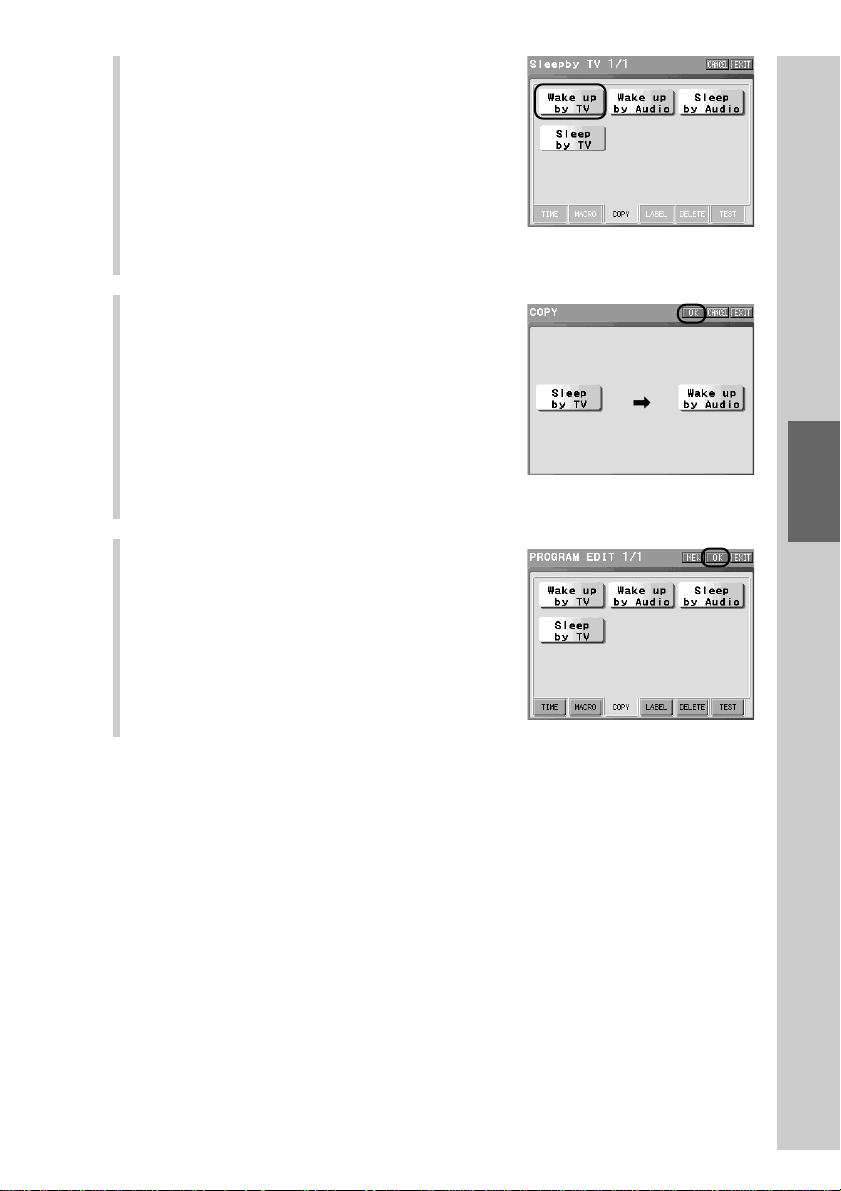
139
Convenient operations by programming a
series of actions (macro) for a key/button
6
Press a Timer program key you want
to set the copied macro.
For example, press the [Wake up by TV]
key.
The display to confirm execution of copying
appears in the display.
Note
You cannot select the tag other than [COPY] in this step.
7
Press the [OK] key.
Copying of the macro is complete.
z Tip
If you press the [CANCEL] key, the display returns to step 5 without copying.
8
Press the [OK] key.
Programming the setting is complete, and
the display returns to the Timer display
(step 3 on page 129).
To finish the setting
Press the COMMANDER OFF button for 2
seconds or longer. The display returns to the
Home display. The setting finishes.
Note
The key selected to be copied in step 6 and keys whose execution of the Timer program
setting is set to ON appear pressed and cannot be selected.
For details on Timer program execution, see “To set the execution of a Timer macro (to
ON/OFF)” (page 142).
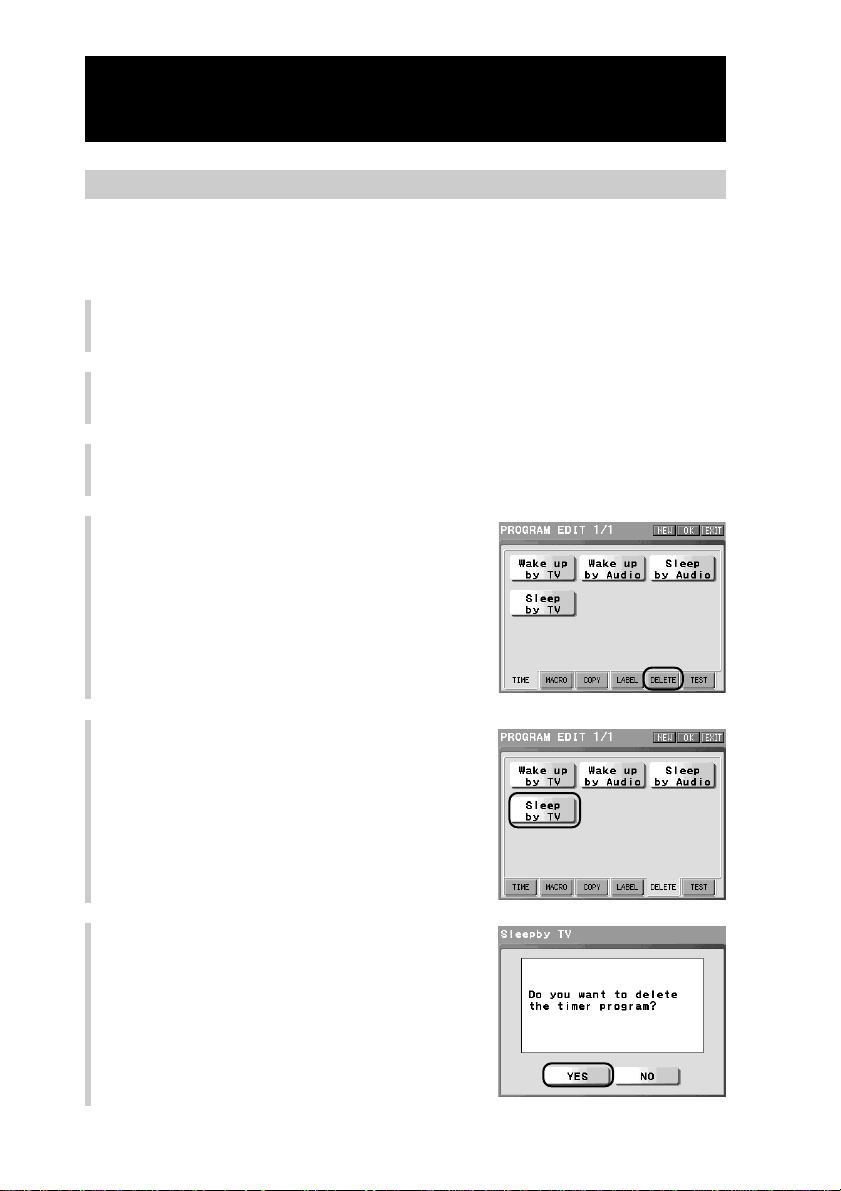
140
Continued
Macro operation using the Timer function
To delete a Timer program key
You can delete a Timer program key created accidentally, or a Timer program
key that is no longer in use.
1
Press the [SET] key for 2 seconds or longer in the Home display.
The Set display appears.
2
Press the [TIMER] key.
3
Press the [PROGRAM EDIT] key.
4
Press the [DELETE] tag.
5
Press a Timer program key you want
to delete.
For example, select the [Sleep by TV] key.
The message for confirmation of deleting
the Timer program key appears.
6
Press the [YES] key.
The Timer program key is deleted.
If you press the [NO] key, the display
returns to the Program Edit display (step 5)
without deleting the key.
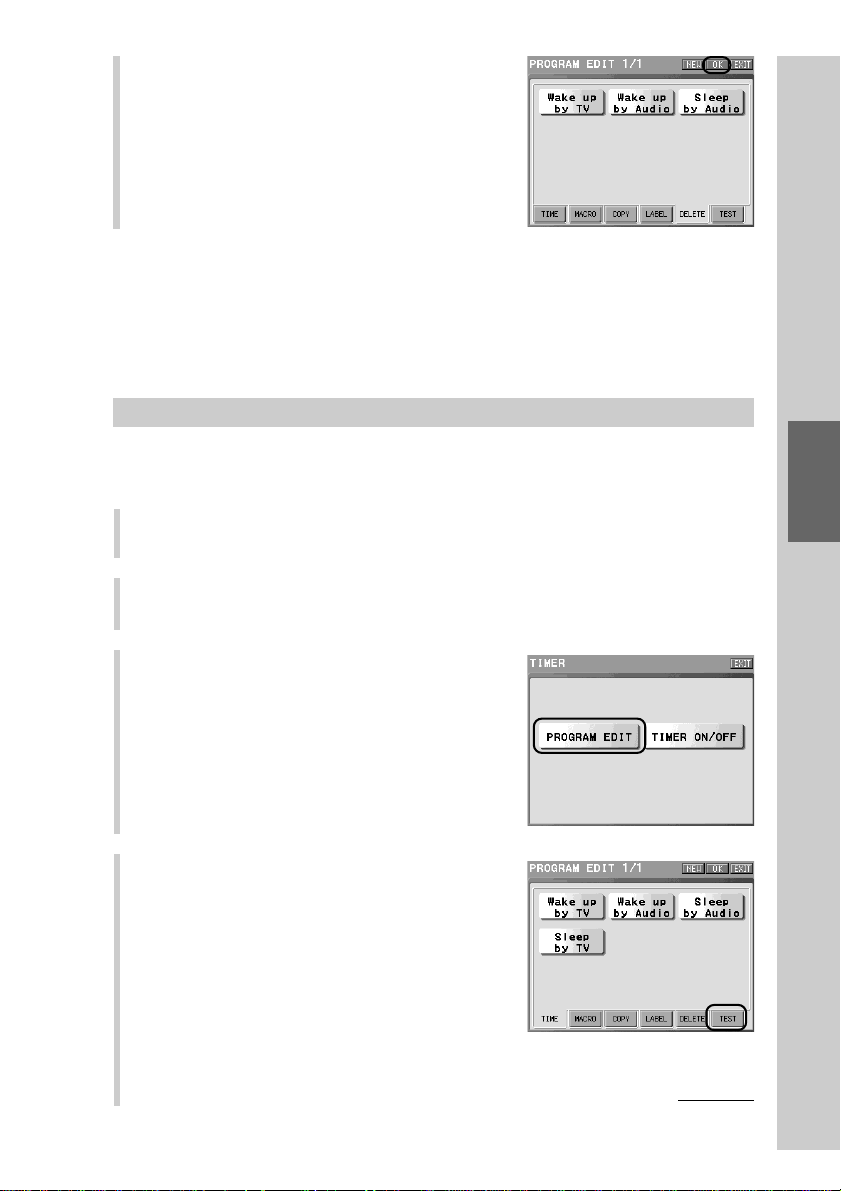
141
Convenient operations by programming a
series of actions (macro) for a key/button
To check execution of a Timer macro
You can check the timer macro execution by transmitting remote control signals
programmed for the Timer program key.
1
Press the [SET] key for 2 seconds or longer in the Home display.
The Set display appears.
2
Press the [TIMER] key.
3
Press the [PROGRAM EDIT] key.
4
Press the [TEST] tag.
7
Press the [OK] key.
The deletion setting is programmed, and
the display returns to the Timer display
(step 3 on page 129).
To finish the setting
Press the COMMANDER OFF button for 2
seconds or longer. The display returns to the
Home display. The setting finishes.
Note
Keys whose execution of the Timer program setting is set to ON in step 5 appear pressed
and cannot be selected.
For details on Timer program execution, see “To set the execution of a Timer macro (to
ON/OFF)” (page 142).
Continued
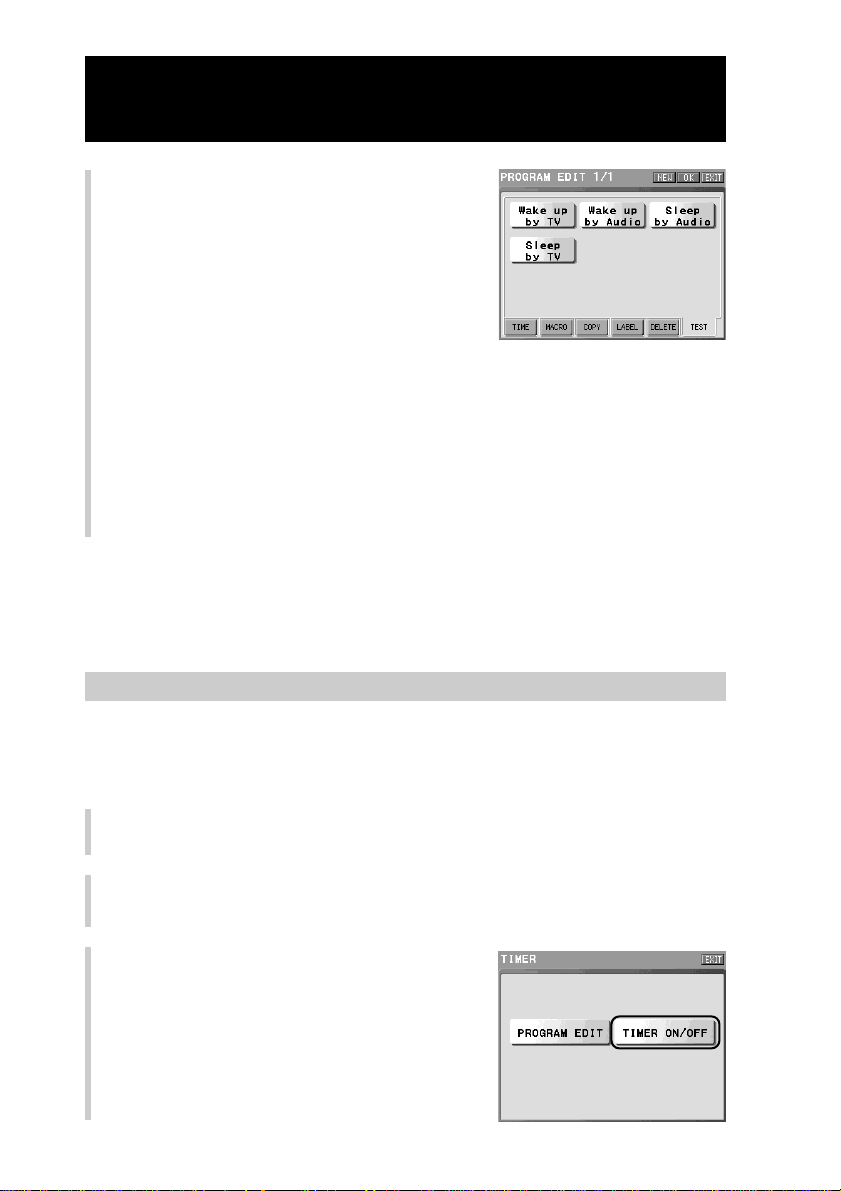
142
Continued
Macro operation using the Timer function
To set the execution of a Timer macro (to ON/OFF)
Set the execution of a Timer macro setting to ON/OFF. If you set the execution
setting to ON, the Timer macro will be executed. If you set to OFF, the Timer
macro will not be executed.
1
Press the [SET] key for 2 seconds or longer in the Home display.
The Set display appears.
2
Press the [TIMER] key.
3
Press the [TIMER ON/OFF] key.
5
Press a Timer program key whose
macro execution you want to check.
The label for the Timer program key and
the timer operation time are displayed, and
the remote control signals of the macro
programmed for the Timer program key are
transmitted.
After the test execution, the display returns
to step 5.
■ If there is a step that is not correctly linked in the macro
A message saying that a macro is not correctly linked appears in the display.
If you press the [OK] key, the display returns to the previous one.
To finish the setting
Press the COMMANDER OFF button for 2 seconds or longer. The display returns to
the Home display. The setting finishes.
Note
Keys whose execution of the Timer program setting is set to ON in step 5 appear pressed
and cannot be selected.
For details on execution of a Timer macro, see “To set the execution of a Timer macro (to
ON/OFF)” below.
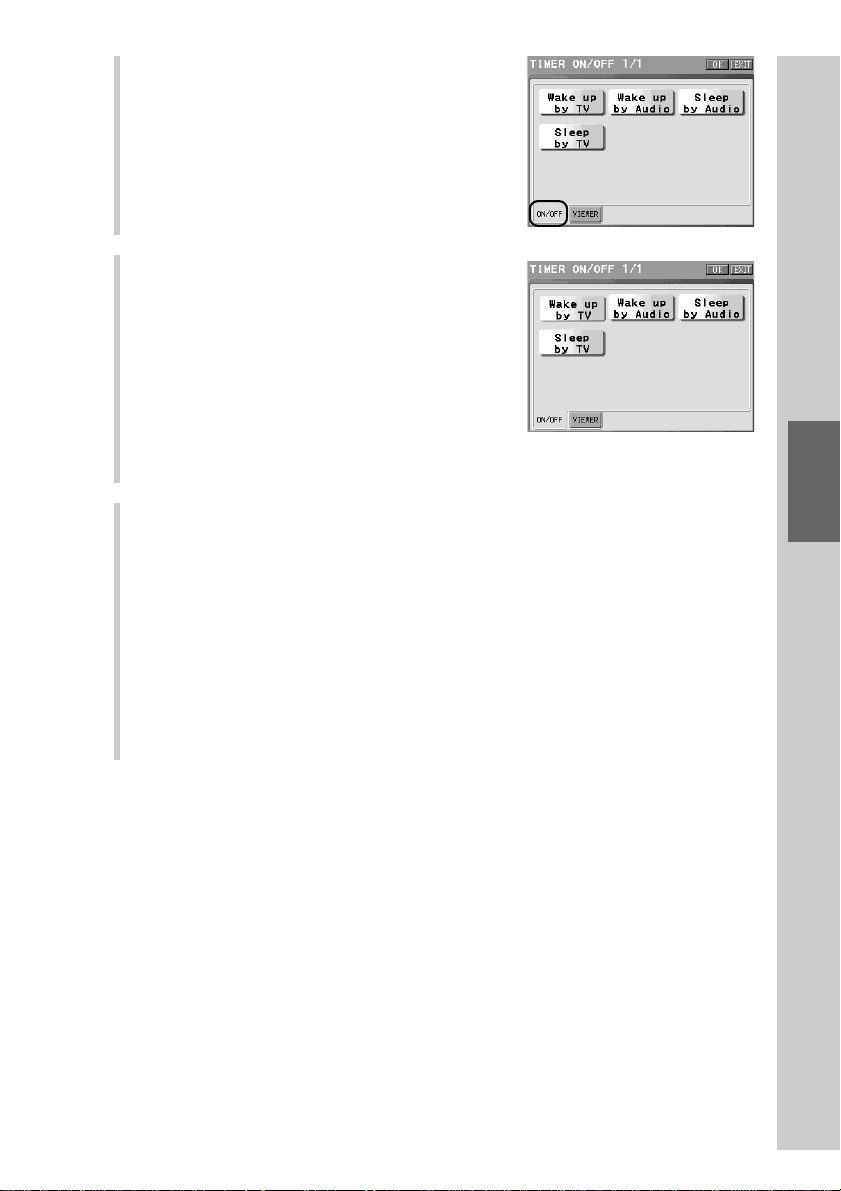
143
Convenient operations by programming a
series of actions (macro) for a key/button
4
Press the [ON/OFF] tag.
5
Press a Timer program key whose
execution setting you want to set to
ON/OFF.
If you press a Timer program key that
appears normal (released), the key will
appear pressed and the execution setting
will be set to ON. If you press a Timer
program key that appears pressed, the key
will appear normal and the execution
setting will be set to OFF.
6
Press the [OK] key.
The execution of the Timer macro is set to ON/OFF, and the display returns
to step 3. When the execution of the Timer macro is set to ON, c (timer
mark) appears in the upper portion of the operation mode display.
z Tip
If you press the [EXIT] key, the setting will be canceled and the display returns to step
3.
To finish the setting
Press the COMMANDER OFF button for 2 seconds or longer. The display returns to
the Home display. The setting finishes.
When the execution of the Timer macro is set to ON
•Beforehand, connect the supplied AC power adaptor to the Remote
Commander so that the battery capacity is sufficient when the timer program
begins. If the battery capacity is insufficient at the time of operation, the timer
program cannot be executed.
•If the Remote Commander is not aimed at a component to be operated at the
time the timer program begins, the component may not operate even if a
signal is transmitted from the Remote Commander. When the execution of the
Timer macro is set to ON, select the [TEST] tag in the Program Edit display,
check the location of the Remote Commander and place it so that the
component operates properly.
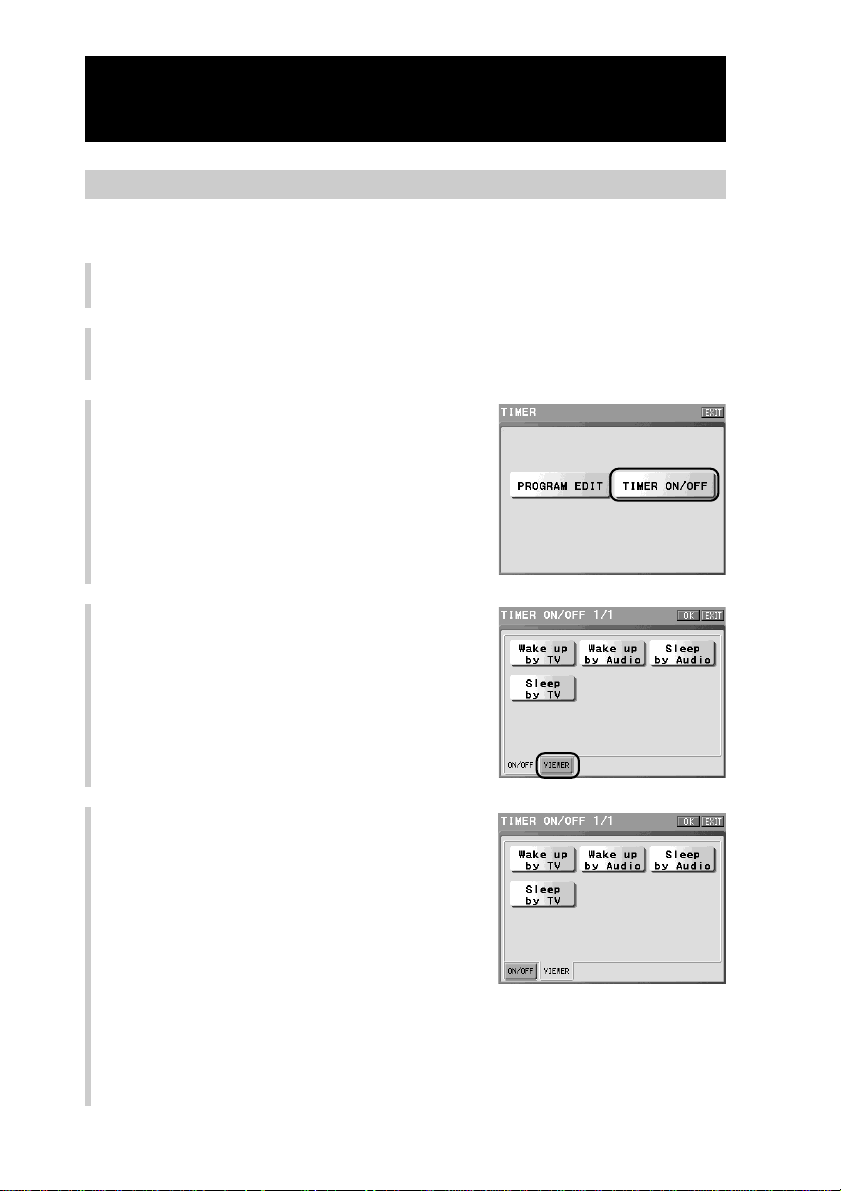
144
Continued
Macro operation using the Timer function
To check the setting of a Timer macro procedure
You can check the contents of a Timer macro procedure in the display.
1
Press the [SET] key for 2 seconds or longer in the Home display.
The Set display appears.
2
Press the [TIMER] key.
3
Press the [TIMER ON/OFF] key.
4
Press the [VIEWER] tag.
5
Press a Timer program key whose
macro you want to check.
The macro procedure is shown in the
display in order.
When a function key is programmed as a
step of macro, the key appears where the
key is assigned in the display. When a
function button is programmed, its name
appears in the center of the display.
When checking is complete, the display returns to step 5.
Note
The macro procedures of the [JUMP] key and the [DELAY] key are not displayed.
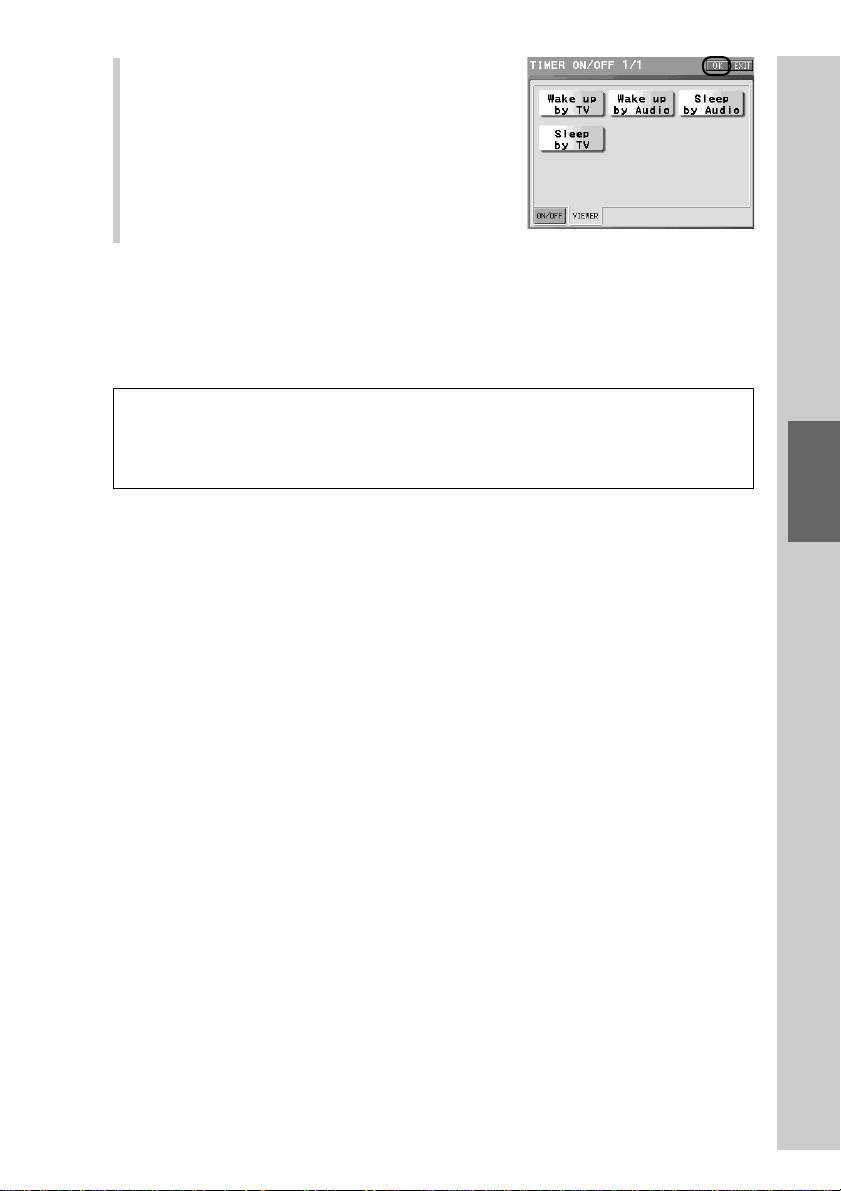
145
Convenient operations by programming a
series of actions (macro) for a key/button
IMPORTANT
The timer function of this Remote Commander is designed for the timer operation of
AV components. Do not use the timer function to operate an air-conditioner or
electrical appliances other than AV components. It may cause a fire or serious injury.
6
Press the [OK] key.
The display returns to step 3.
To finish the setting
Press the COMMANDER OFF button for 2
seconds or longer. The display returns to the
Home display. The setting finishes.
To manually check the programmed macro procedure in order in step 5
Press the [PAUSE] key to suspend consecutive showing. Press the [PAUSE] key
again to resume consecutive showing.
While consecutive showing is suspended, press the NEXT button to show the
next macro step and press the BACK button to show the previous step.
146
Programming a series of actions
(macro) for a Component List
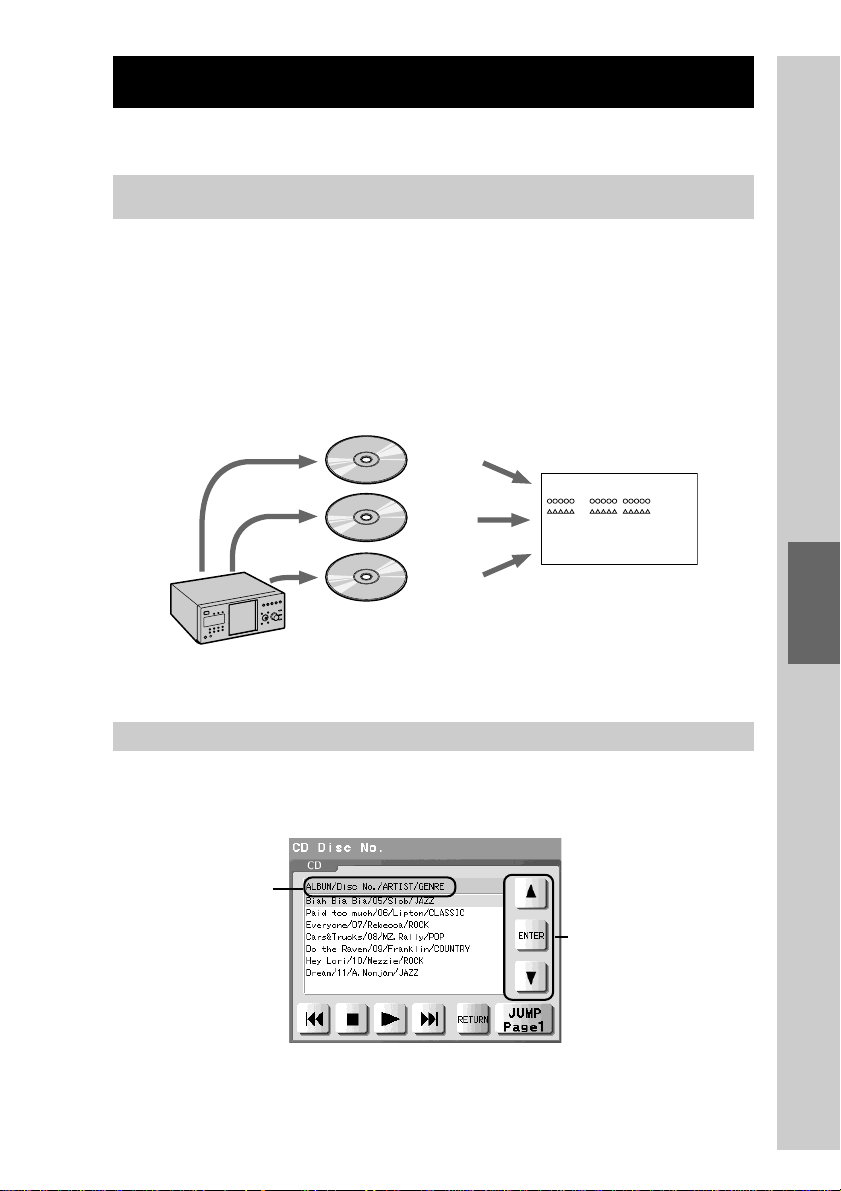
147
Programming a series of actions (macro) for a Component
List
Outline of a Component List
In this section, the concept of a Component list is explained.
What is a Component List?
The Component List that is provided for each component shows what items (list
elements) a component handles. You can play the contents or change channels
just by selecting an item from the list.
The contents you can program for the list and display differ depending on a
component.
For example, the title and genre of the CD, etc. in the disc changer can be
programmed for the Component List of a CD player, and TV channel names,
etc., can be programmed for the Component List of a TV.
Using a Component List
You can perform playback or select a channel just by selecting an item form the
list.
Disc 1
Disc 5
Disc 20
CD changer
ALBUM/DISC No./ARTIST/GENRE
xxxxxx/01/ xxxxxx / xxxxxx
/05/ /
/20/ /
Program the information of a CD for the Component List.
Select an item with
the [v]/[V] key, and
then press the [Enter]
key.
The display order of
items can be
changed by sorting
and searching as you
prefer.
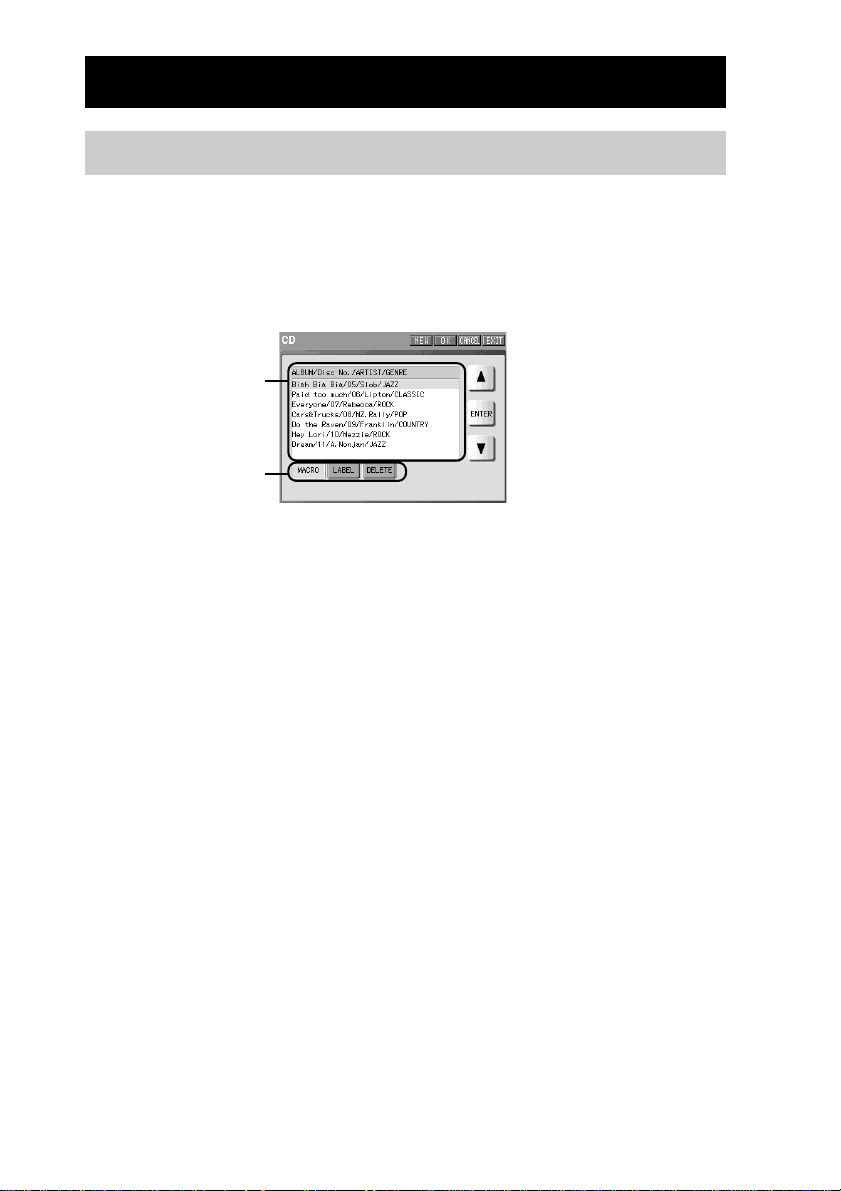
148
Programming a List element
About the edit display for a List element
Before setting a List element, we will explain about the edit display for a List
element.
The following items can be set to a List element. The setting can be performed
by selecting a setting item tag in the edit display for a List element.
[MACRO]:To program a macro (series of actions) for the List element
[LABEL]:To set the label (name) to the List element
[DELETE]:To delete the List element
List elements
Setting item tags
Edit display for a List element
Each time the setting for a respective setting item tag shown in the edit display
for a List element is complete, the display returns to this edit display for a List
element. When the display returns to the edit display for a List element, press
the [OK] key shown on the upper right of the display to decide the contents set
by a respective setting item tag.
If you do not press the [OK] key in the edit display for a List element, the
contents set by a respective setting item tag cannot be decided. Therefore, make
sure to press the [OK] key.
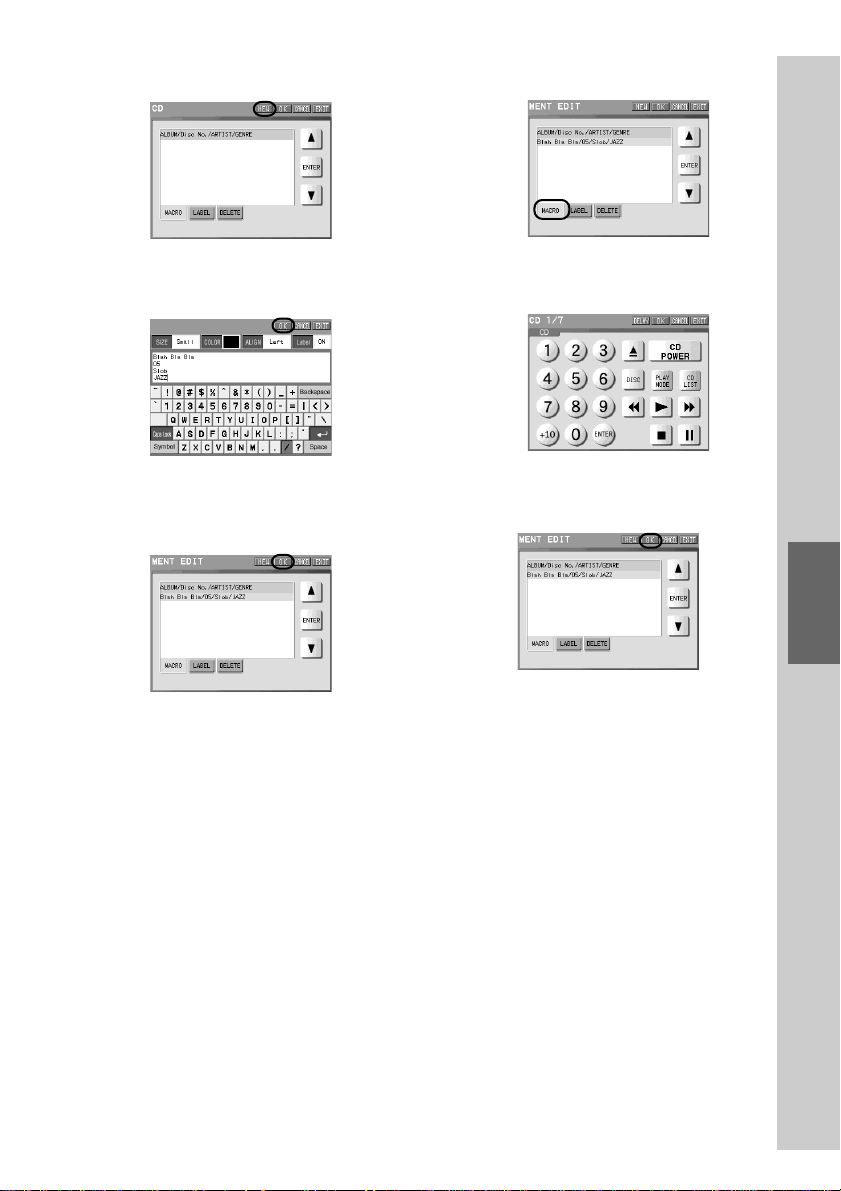
149
Programming a series of actions (macro) for a Component
List
Example: To create a new List
element
Press the [NEW] key.
Set a label in the display for the label
setting, and press the [OK] key.
Press the [OK] key.
m
Example: To program the macro
procedure for a List element
Press the [MACRO] tag.
Program the macro procedure.
Press the [OK] key.
m
m
m
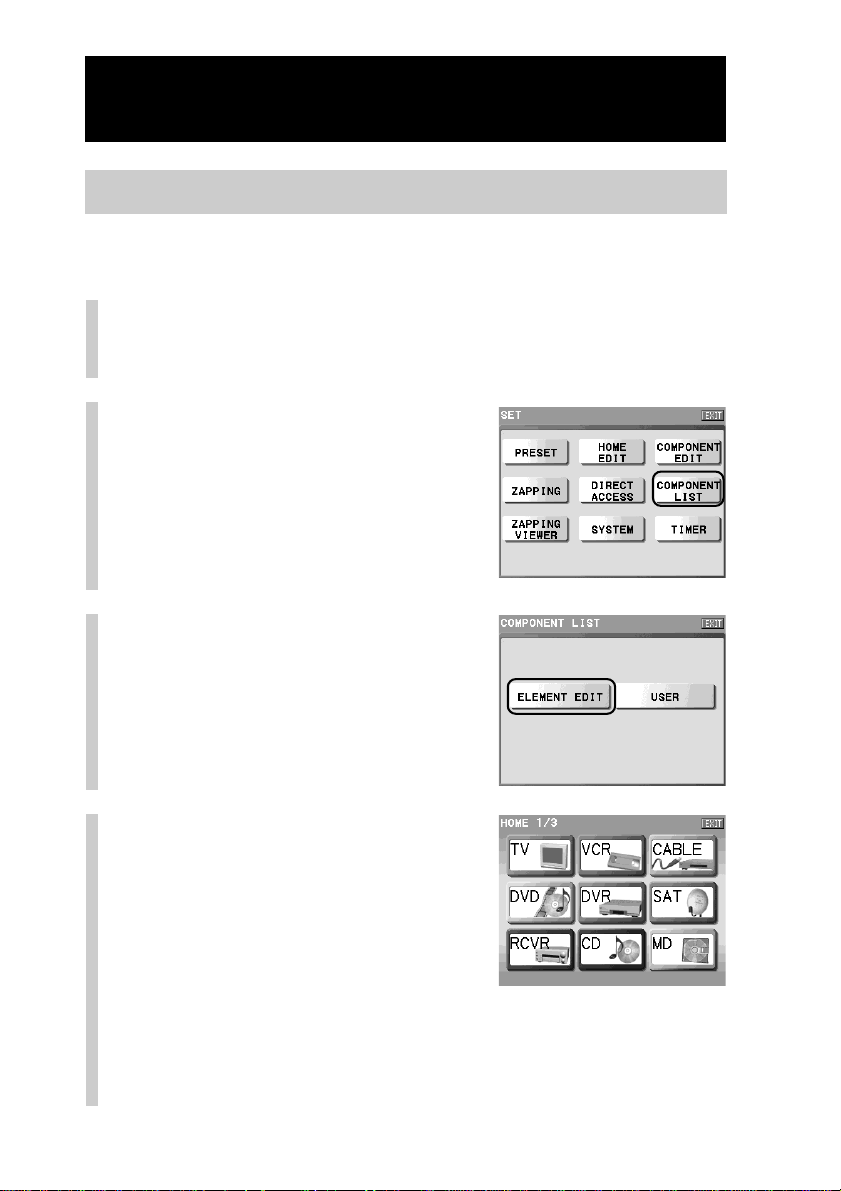
150
Continued
Programming a List element
Step 1: Creating a List element
In “Step 1”, creating an element for a Component List is explained. You can set a
title, etc., to an element for a Component List.
1
Press the [SET] key for 2 seconds or longer in the
Home display.
The Set display appears.
2
Press the [COMPONENT LIST]
key.
3
Press the [ELEMENT EDIT]
key.
4
Press the Component key
you want to create a List
element for.
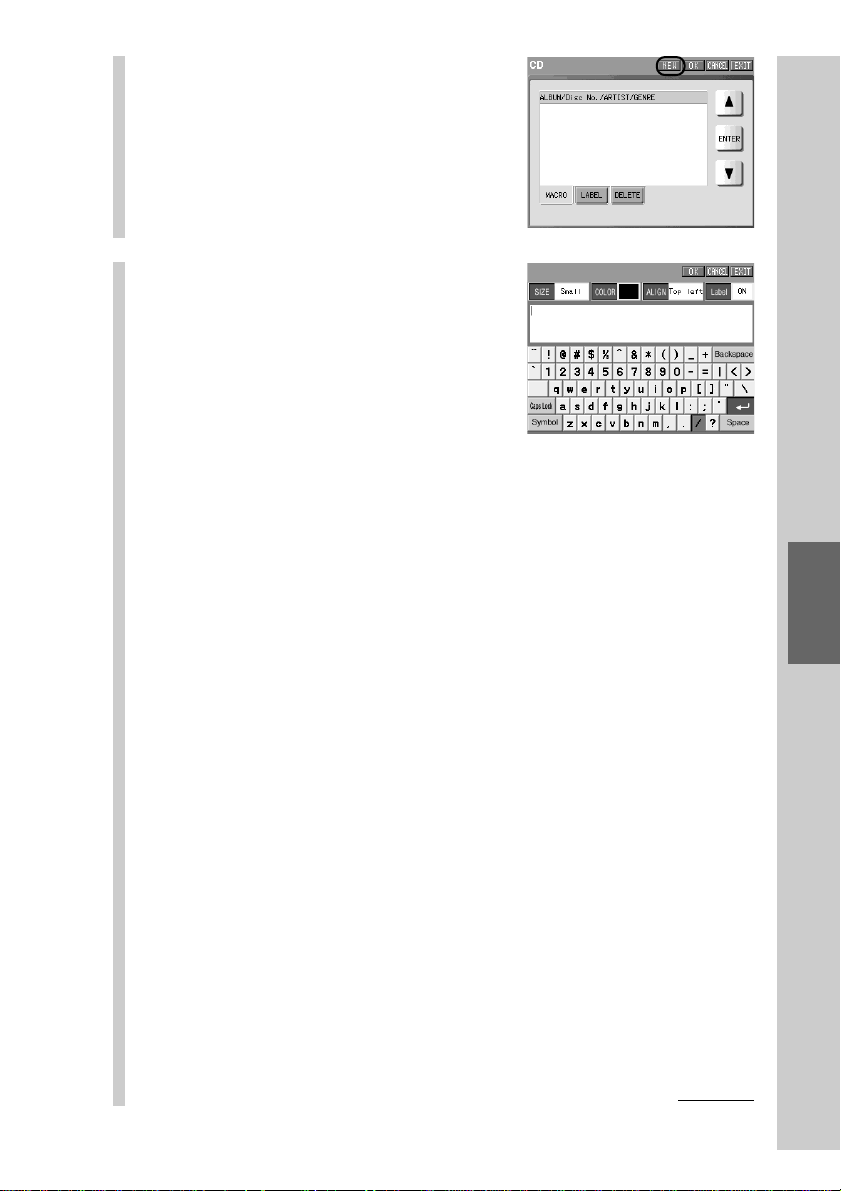
151
Programming a series of actions (macro) for a Component
List
5
Press the [NEW] key.
z Tip
Whatever tag is selected, you can set the label
if you press the [NEW] key.
6
Set the label.
■ About the label to be set for the List element
For element labels, input all relevant information needed for searching or
sorting.*
1)
Input the search information for each item.
*
1)
Label items for searching differ depending on a component. For details, see “About
items to be set to the label” (page 153).
For inputting letters to the label, see “Inputting letters (label setting)”
(pages 40 - 41).
Specified settings to the label of the List element besides the information
described on pages 40 - 41 are as follows.
Letter input for each item:
Up to 31 letters can be input. Move the cursor by
pressing the NEXT/BACK button, and input letters
for each item.
[/] key: Appears pressed and cannot be input.
Starting a new line: Not available.
Pictographs: Cannot be input.
[SIZE]: Not selectable. The letter size is fixed to [Small].
[COLOR]: Not selectable. The letter color is fixed to black.
[ALIGN]: Not selectable. The letter location is fixed to [Top left].
[Label]: Not selectable. The label indication is set to ON.
Continued
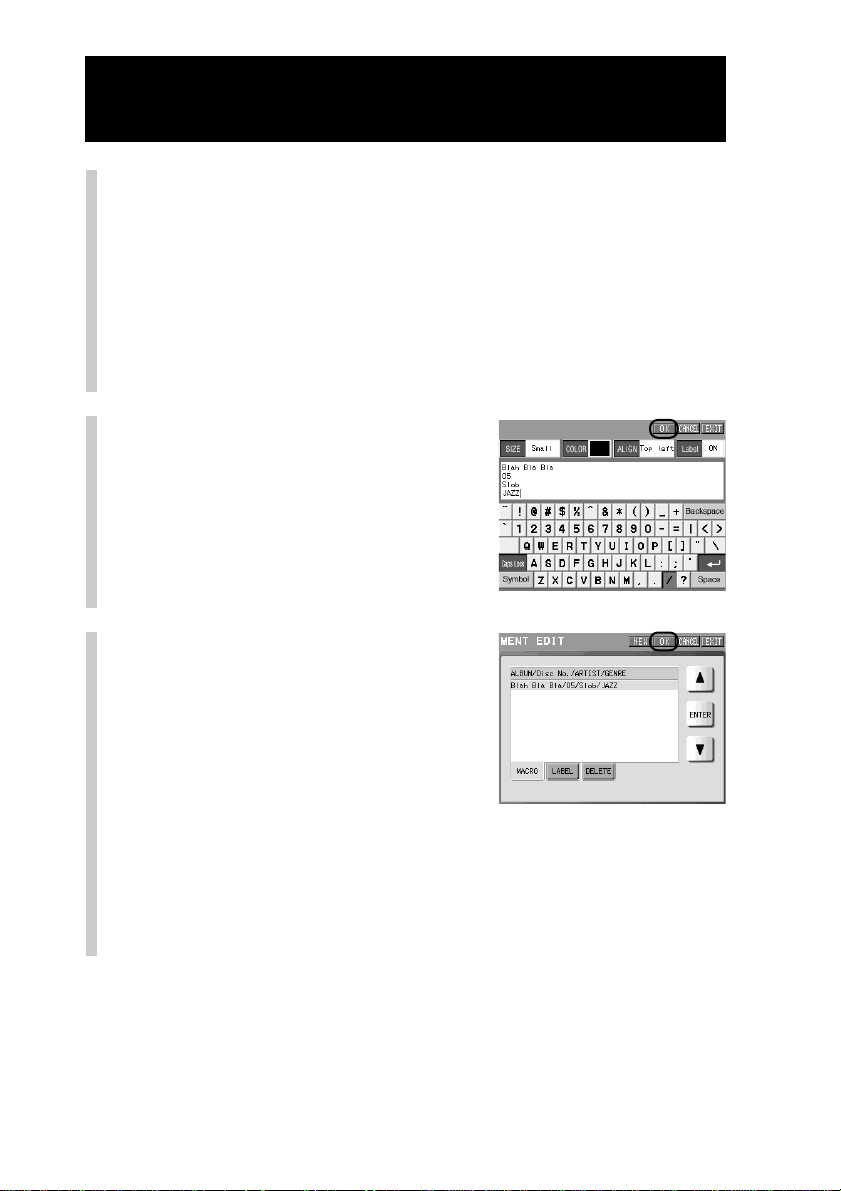
152
Continued
Programming a List element
Example: Label items for CD changer
Input letters for [ALBUM], [DISC No], [ARTIST] and [GENRE] in the order.
1 Input “Blah Bla Bla” for [ALBUM].
2 Input “05” for [DISC No].
3 Input “Slob” for [ARTIST].
4 Input “JAZZ” for [GENRE]. *
2)
*
2)
Input letters for [GENRE] by selecting from the items previously provided. For
details, see “About items to be set to the label” (page 153).
7
When the label setting is
complete, press the [OK]
key.
8
Press the [OK] key.
The new List element is added to the
Component List and the display returns
to step 4.
z Tip
Up to 1,000 List elements can be created for
one Component List. However, the number of
List elements that you can create may be less
than 1,000 depending on the free memory
capacity of the Remote Commander.
To finish the setting
Press the COMMANDER OFF button for 2
seconds or longer. The display returns to the
Home display. The setting finishes.
, Go to “Step 2: Programming a macro” (page 154).
153
Programming a series of actions (macro) for a Component
List
About items to be set to the label
Items to be set to the label differ depending on a component. When inputting letters, see
the table below.
* Input letters by selecting an item from the words in the parentheses above for [GENRE].
If you input another word, searching will be performed by [OTHERS].
With the Remote Commander, an item for [GENRE] is to be selected from the
previously provided six words. However, you can add up to three items for
[GENRE] using supplied application “NAVITUS Design.” For details on adding
items for [GENRE], see “Adding/deleting a genre used for a component list
(DVD/CD/MD/DVR/DVD REC/HDAR only)” in the manual (Help) of
“NAVITUS Design.”
Usage of the Component List
The usage of the Component List differs depending on a component. For components
with a disc changer, select your favorite disc by checking the list of the disc changer in
which are stored disc numbers. For a TV, select a TV station by checking the list of TV
station names shown in the display.
Label items to be set
ALBUM
DISC No.
ARTIST
GENRE* (CLASSIC, COUNTRY, JAZZ, POP, ROCK, OTHERS)
ALBUM
No.
ARTIST
GENRE* (CLASSIC, COUNTRY, JAZZ, POP, ROCK, OTHERS)
TITLE
Component
DVD
CD
MD
DVD RECORDER
HDAR
DVR
TV
CABLE
SAT
VCR
RCVR
DSP
TAPE
DAT
LD
LIGHT
To set the label again
To set the label of a List element again, press the [LABEL] tag in step 5, press the
[v]/[V] key to select a List element whose label you want to change, and press
the [ENTER] key. Then set the letters again in the display for the label setting,
and press the [OK] key.
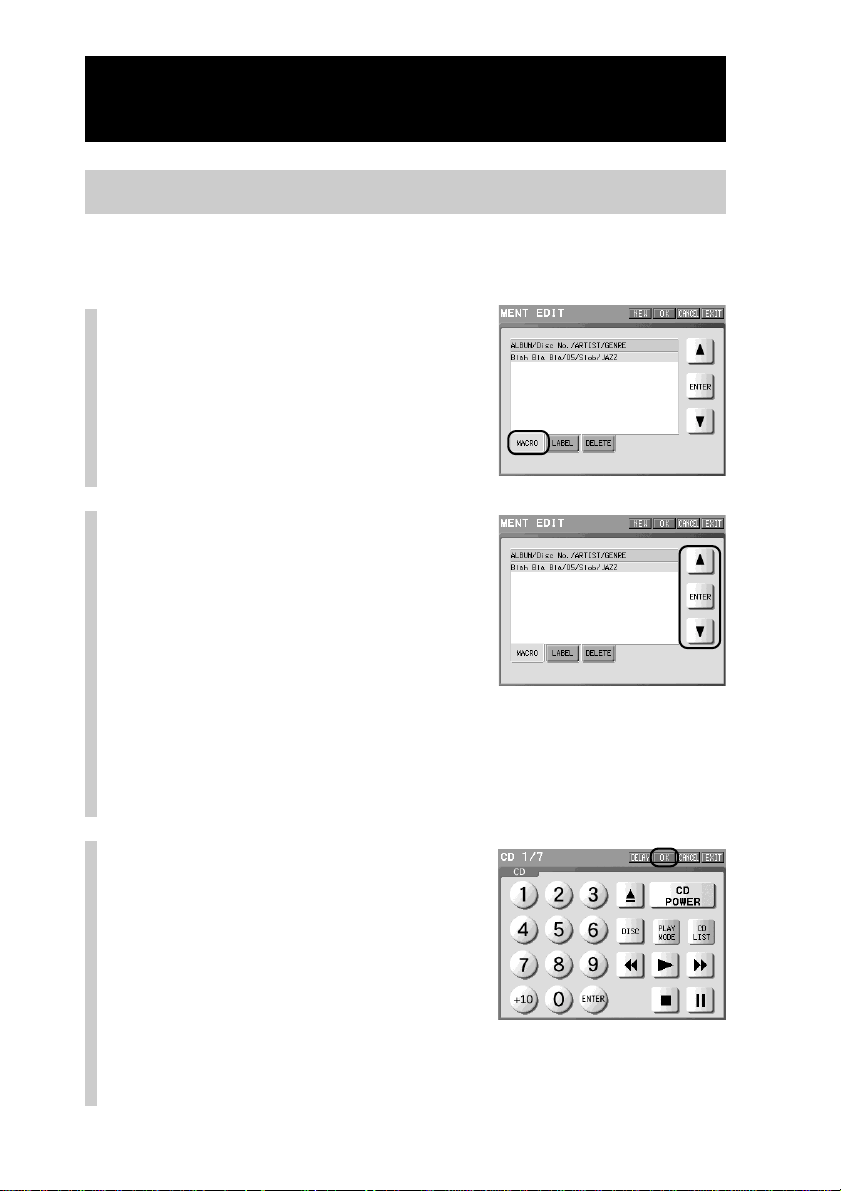
154
Continued
Programming a List element
Step 2: Programming a macro
In this step, programming a macro for a List element created in “Step 1” is
explained.
1
Press the [MACRO] tag.
2
Press the [v] or [V] key to
select an element you want
to program a macro for, and
then press the [ENTER] key.
Each time you press the [v]/[V] key, the
cursor moves up/down by an element. If
you press the [v]/[V] key for 2 seconds
or longer, the window display scrolls.
If you select a List element a macro has been already programmed for
A confirmation display for deleting a macro appears.
If you press the [YES] key, a macro already programmed is deleted, and the
display goes to step 3.
If you press the [NO] key, the display returns to the previous one.
3
Program a macro for an
element.
After pressing all function keys and
buttons you want to program as the
macro procedure, press the [OK] key.
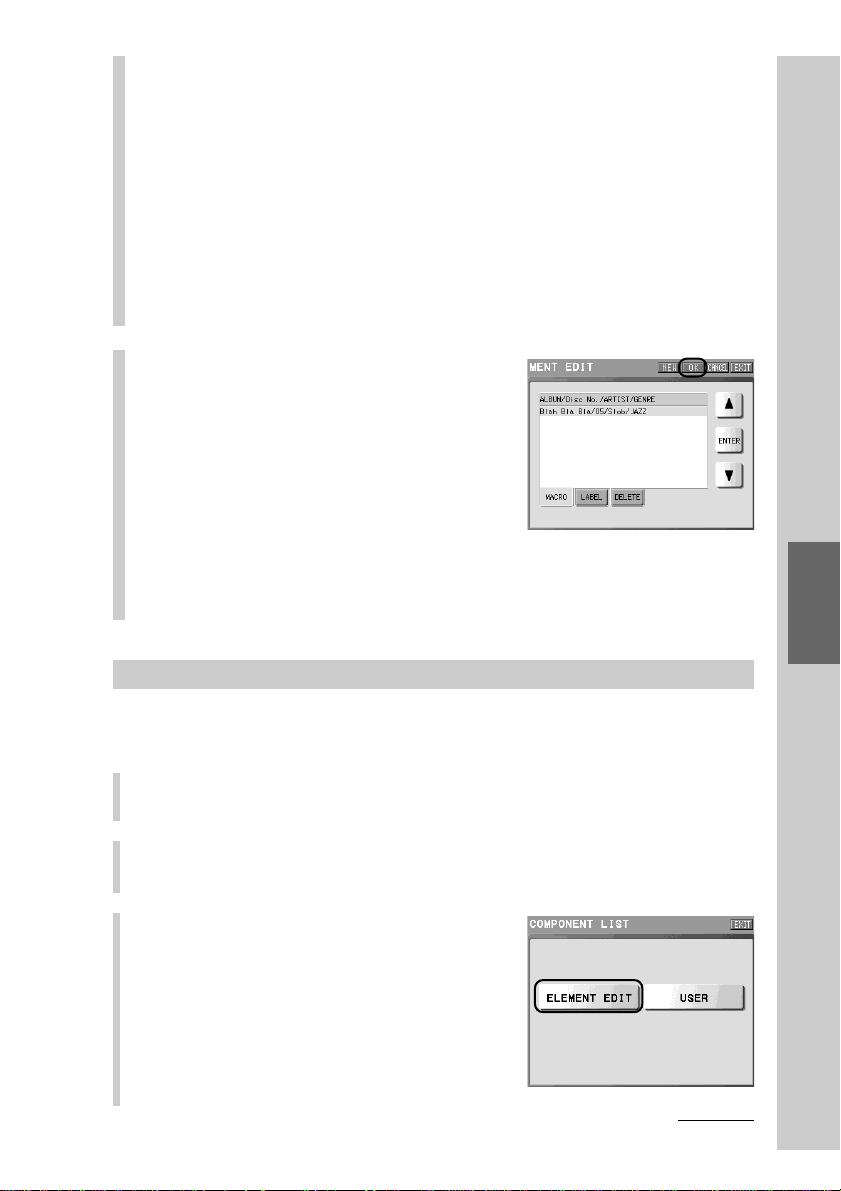
155
Programming a series of actions (macro) for a Component
List
z Tips
• For programming a macro for a List element, press in sequence function keys
and buttons you want to program as the macro procedure. Confirm the program
by pressing the [OK] key for the same component. It is not necessary to press the
[OK] key each time you press the individual function keys or buttons.
• Up to 128 steps (actions) can be programmed for one List element. However, the
number of steps (actions) that you can program may be less than 128 depending
on the free memory capacity of the Remote Commander.
Note
For programming a macro for a List element, you can program function keys and
buttons only for the selected component. For example, when the CD component is
selected, you cannot program function keys or buttons for another component,
such as TV or DVD, as the macro procedure.
4
Press the [OK] key.
A macro is programmed for the List
element and the display returns to the
component selection display (step 4 on
page 150).
Macro programming for a List element is
complete.
To finish the setting
Press the COMMANDER OFF button for 2 seconds or longer. The display returns
to the Home display. The setting finishes.
To delete a List element
You can delete a List element created by mistake, or an element that is no longer
in use.
1
Press the [SET] key for 2 seconds or longer in the Home display.
The Set display appears.
2
Press the [COMPONENT LIST] key.
3
Press the [ELEMENT EDIT] key.
Continued
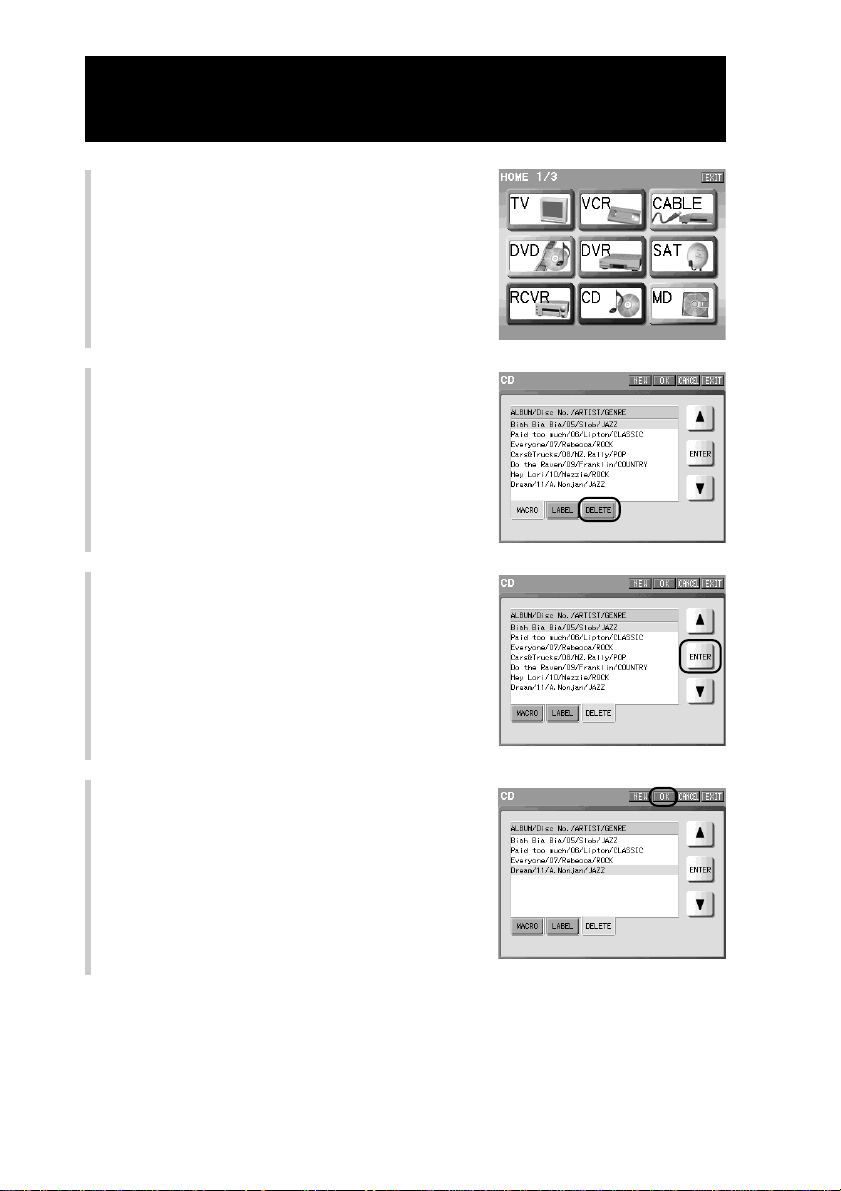
156
4
Press the Component key that
includes the List element you want
to delete.
5
Press the [DELETE] tag.
6
Press the [v] or [V] key to select a
List element you want to delete, and
then press the [ENTER] key.
The selected List element disappears from
the list.
Note
If you delete all the List elements, all the User
List keys are deleted.
7
Press the [OK] key.
The selected element is deleted and the
display returns to step 4.
To finish the setting
Press the COMMANDER OFF button for 2
seconds or longer. The display returns to the
Home display. The setting finishes.
Continued
Programming a List element
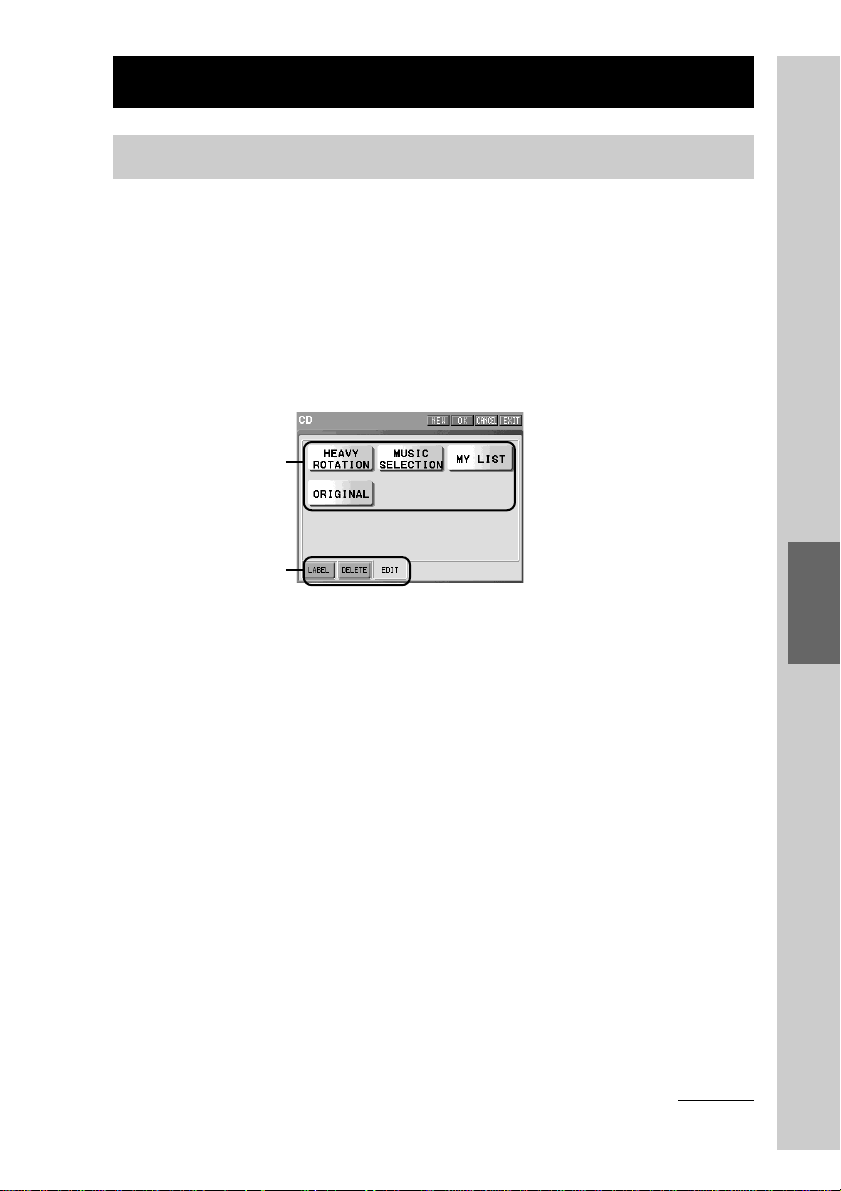
157
Programming a series of actions (macro) for a Component
List
User List keys
Setting item tags
Edit display for a User List
Each time the setting for a respective setting item tag shown in the edit display
for a User List is complete, the display returns to this edit display for a User List.
When the display returns to the edit display for a Use List, press the [OK] key
shown on the upper right of the display to decide the contents set by a
respective setting item tag.
If you do not press the [OK] key in the edit display for a User List, the contents
set by a respective setting item tag cannot be decided. Therefore, make sure to
press the [OK] key.
Creating a User List (USER LIST)
About the edit display for a User List
Collecting only your favorite List elements, you can set them to a User List key.
You can create up to nine User List keys.
For example, you can create a category named “MY MUSIC” that consists of
only your favorite List elements of CD List.
Before setting a User List, we will explain about the edit display for a User List.
The following items can be set to a User List. The setting can be performed by
selecting a setting item tag in the edit display for a User List.
[LABEL]:To set the label (name) to the User List
[DELETE]:To delete the User List key
[EDIT]:To set a List element to the User List key
Continued
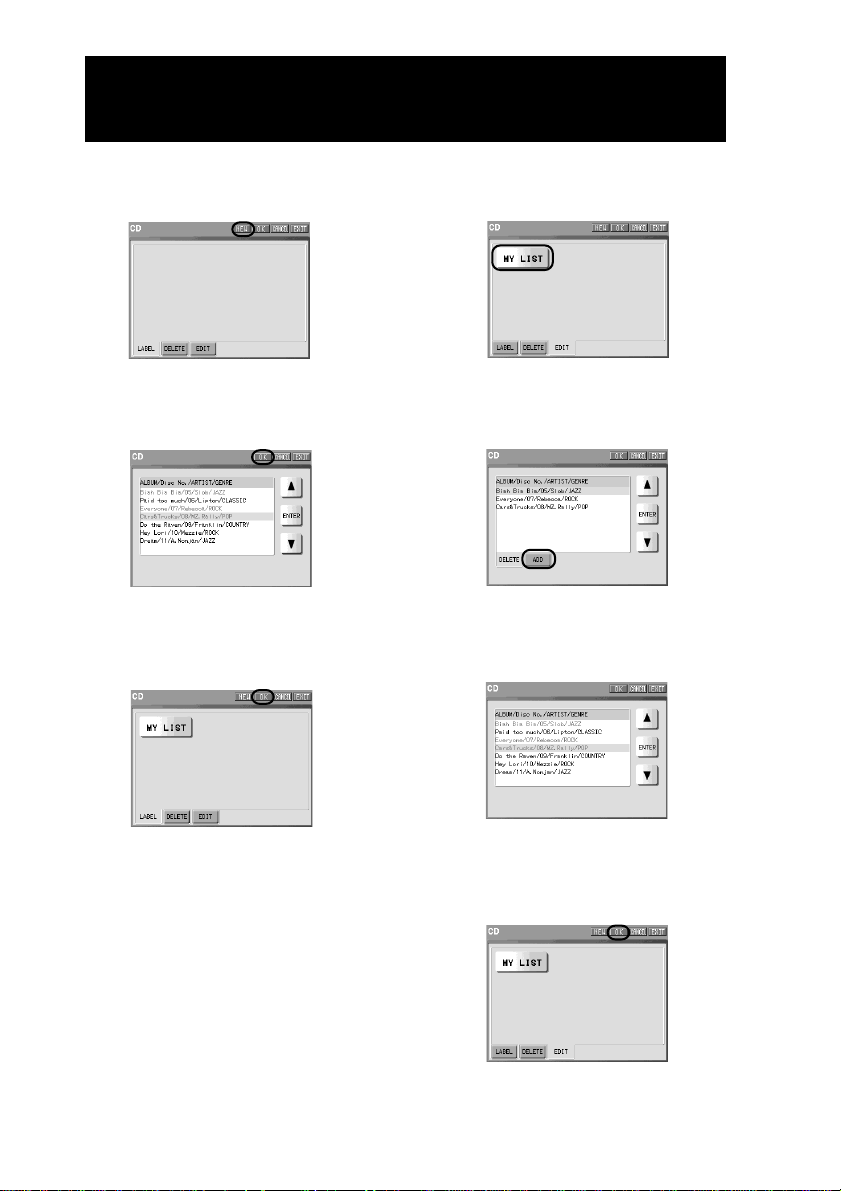
158
Continued
Creating a User List (USER LIST)
Example: To create a new User
List key
Press the [NEW] key, and set a label for
the User List key.
Select a List element you want to
program for the User List key.
Press the [OK] key.
m
m
Example: To add a List element
to the User List key
Select a User List key you want to add
a List element to.
Press the [ADD] tag.
Select a List element you want to add
among those shown.
Press the [OK] key.
m
m
m
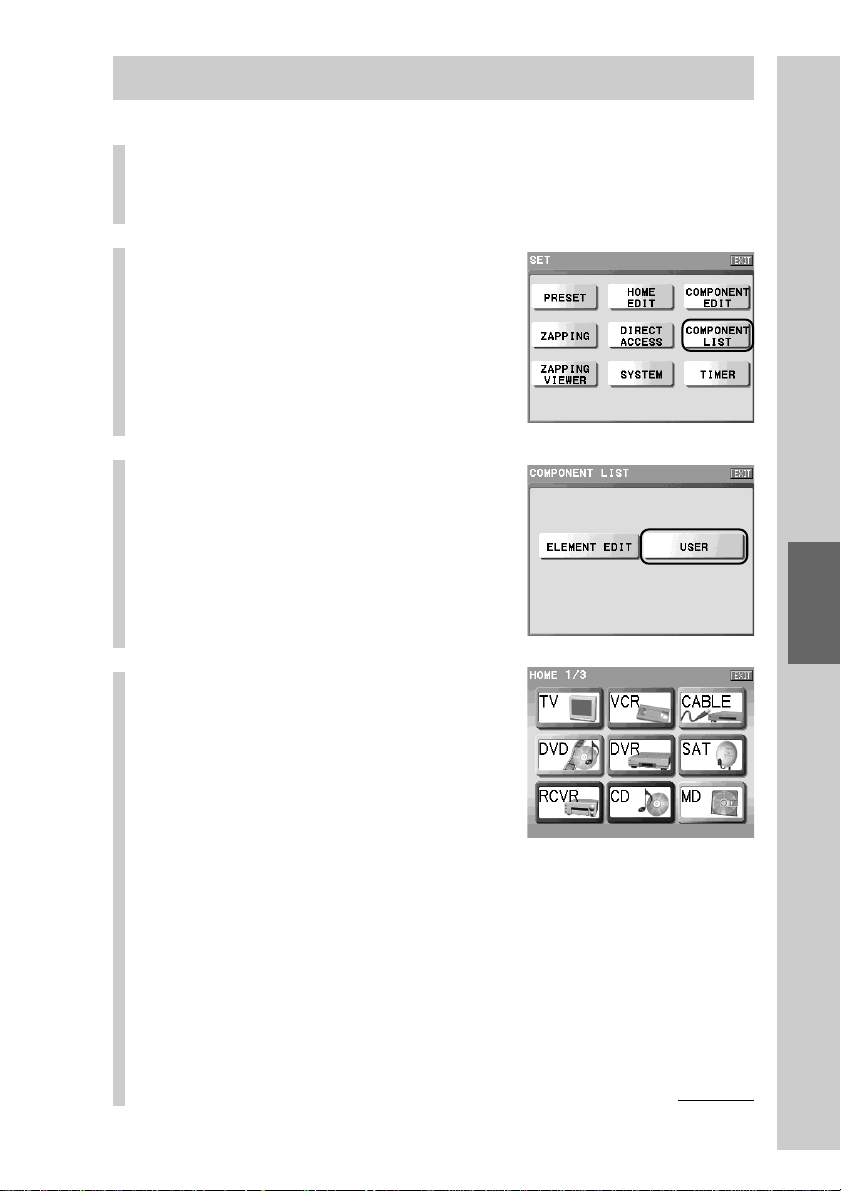
159
Programming a series of actions (macro) for a Component
List
Creating a User List key
1
Press the [SET] key for 2 seconds or longer in the
Home display.
The Set display appears.
2
Press the [COMPONENT LIST]
key.
3
Press the [USER] key.
4
Press the Component key
you want to create a User
List for.
If you select a Component key that
includes no List element, a message
saying that there is no list element
appears. If you press the [OK] key, the
message disappears. Create a List
element referring to “Step 1: Creating a
List element” (page 150).
Continued
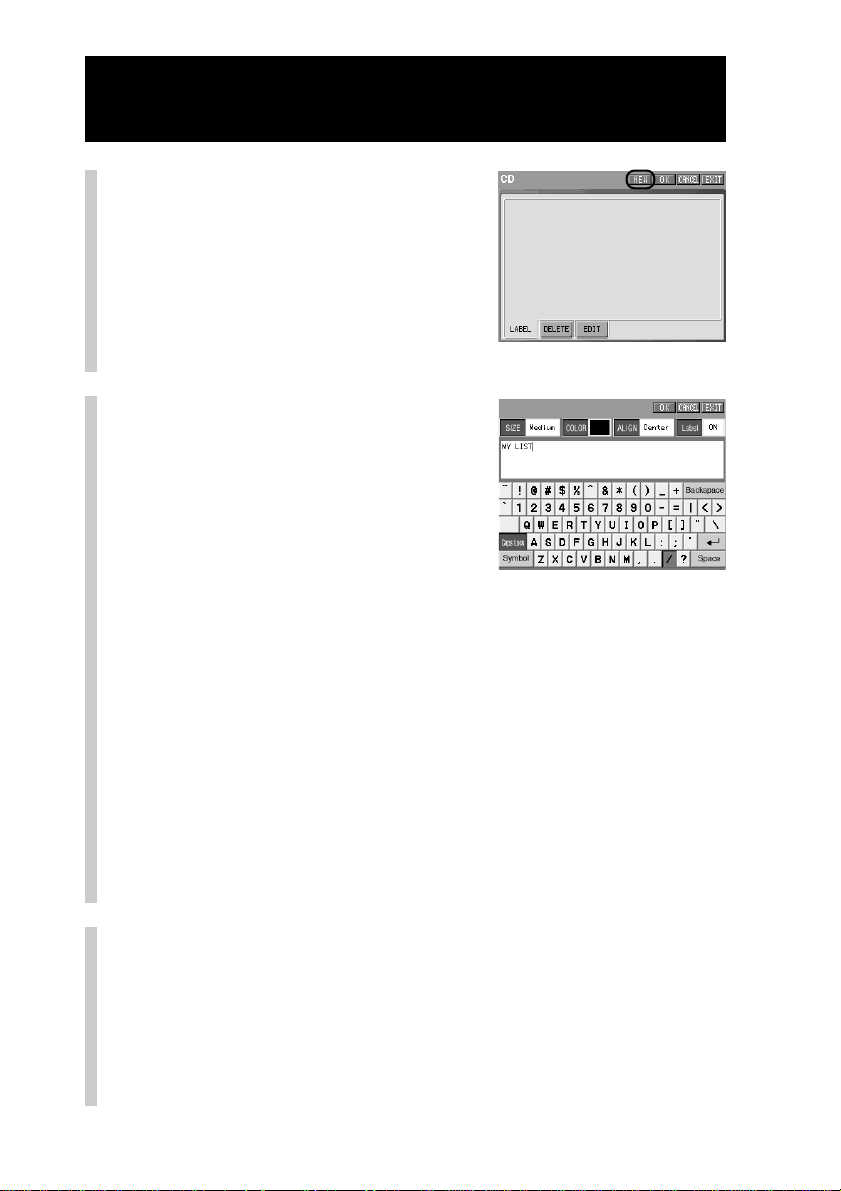
160
Continued
Creating a User List (USER LIST)
5
Press the [NEW] key.
z Tips
• Whatever tag is selected, you can set the
label if you press the [NEW] key.
• For a User List key, you cannot select or
change a skin.
6
Set the label of the User List
key.
For inputting letters to the label, see
“Inputting letters (label setting)” (pages
40 - 41).
Specified settings to the label of the User
List key besides the information
described on pages 40 - 41 are as follows.
Letter input: Up to 31 letters can be input.
[/] key: Appears pressed and cannot be input.
Starting a new line:Available. Starting a new line is counted as a
letter.
Pictographs: Cannot be input.
[SIZE]: Not selectable. The letter size is fixed to
[Medium].
[COLOR]: Not selectable. The letter color is fixed to black.
[ALIGN]: Not selectable. The letter location is fixed to
[Center].
[Label]: Not selectable. The label indication is set to ON.
Note
You cannot set the same label name as another User List key, regardless of
whether characters are upper or lowercase. If you try to set the same label name, a
beep sounds twice.
7
When the label setting is complete, press the [OK]
key.
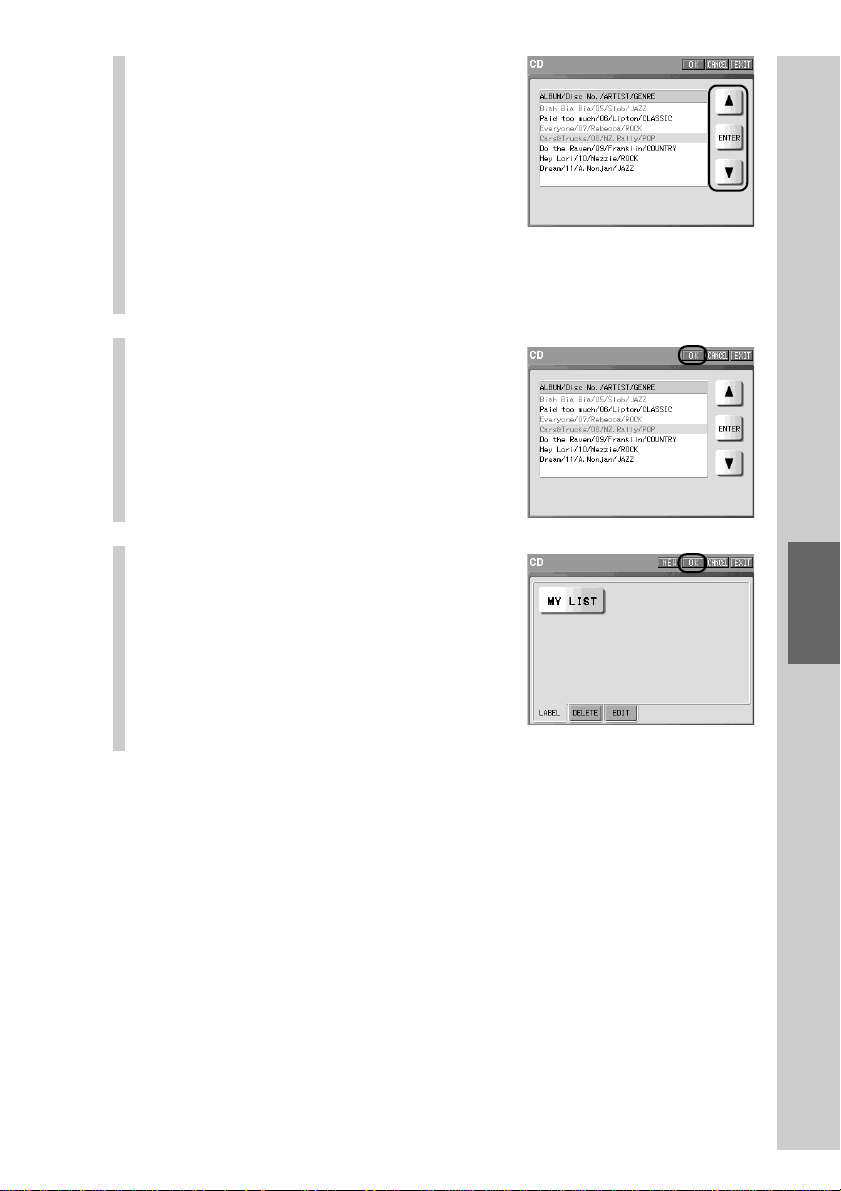
161
Programming a series of actions (macro) for a Component
List
8
Press the [v] or [V] key to
select a List element to be
added, and then press the
[ENTER] key.
In this step, when you press the [ENTER]
key, the color of the selected List element
changes to red. (In the real settings, the
color of List elements is fixed to black.)
z Tip
Each time you press the [v]/[V] key, the cursor moves up/down by an element. If
you press the [v]/[V] key for 2 seconds or longer, the window display scrolls.
9
Press the [OK] key.
The newly created User List key is
displayed.
10
Press the [OK] key.
The new User List key is programmed,
and the display returns to step 4.
To finish the setting
Press the COMMANDER OFF button for 2
seconds or longer. The display returns to the
Home display. The setting finishes.
To set the label again
To set the label of a User List again, press the [LABEL] tag in step 5, and press
the [USER LIST] key whose label you want to change. Then set the letters again
in the display for the label setting, and press the [OK] key.
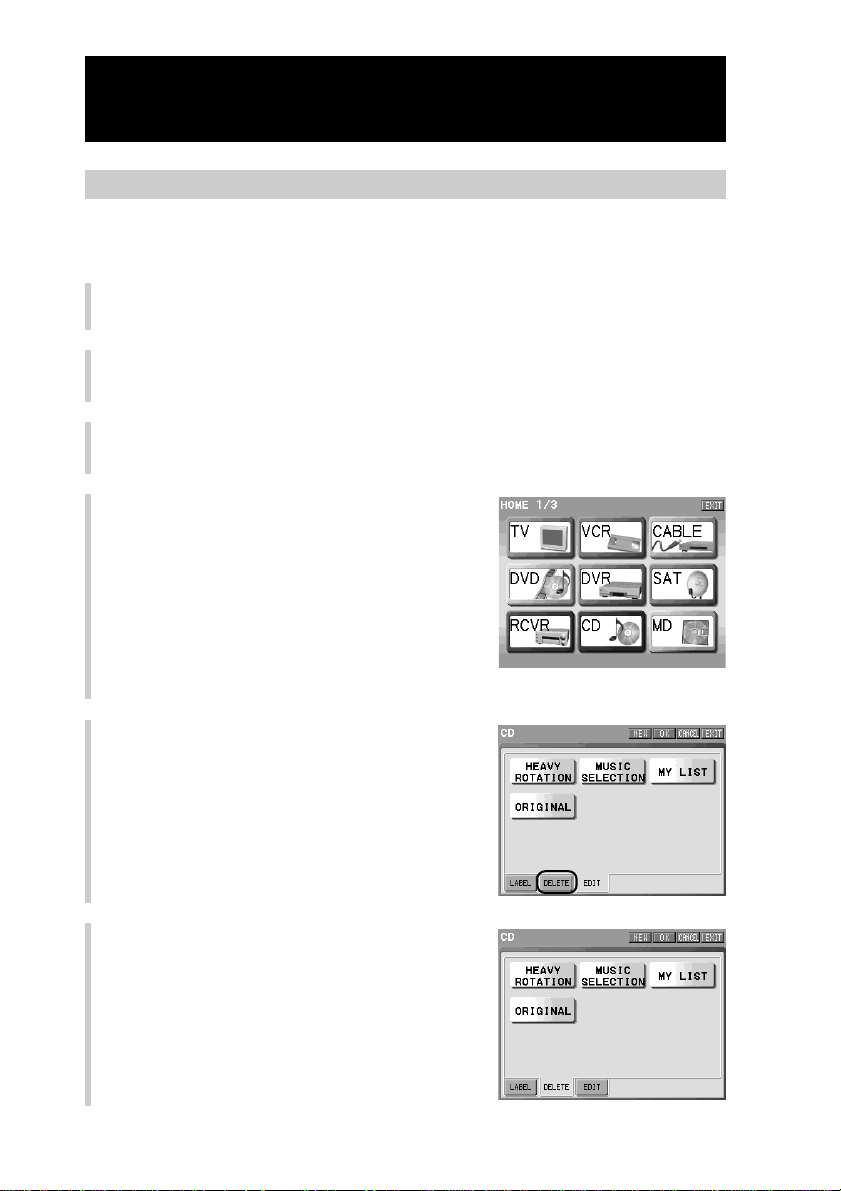
162
To delete a User List
You can delete a User List key created by mistake, or a User List key that is no
longer in use.
1
Press the [SET] key for 2 seconds or longer in the Home display.
The Set display appears.
2
Press the [COMPONENT LIST] key.
3
Press the [USER] key.
4
Press the Component key that
includes the User List key you want
to delete.
If you select a Component key that includes
no List element, a message saying that there
is no list element appears. If you press the
[OK] key, the message disappears. Create a
List element referring to “Step 1: Creating a
List element” (page 150).
5
Press the [DELETE] tag.
6
Press the User List key you want to
delete.
The selected User List key is disappears.
Continued
Creating a User List (USER LIST)
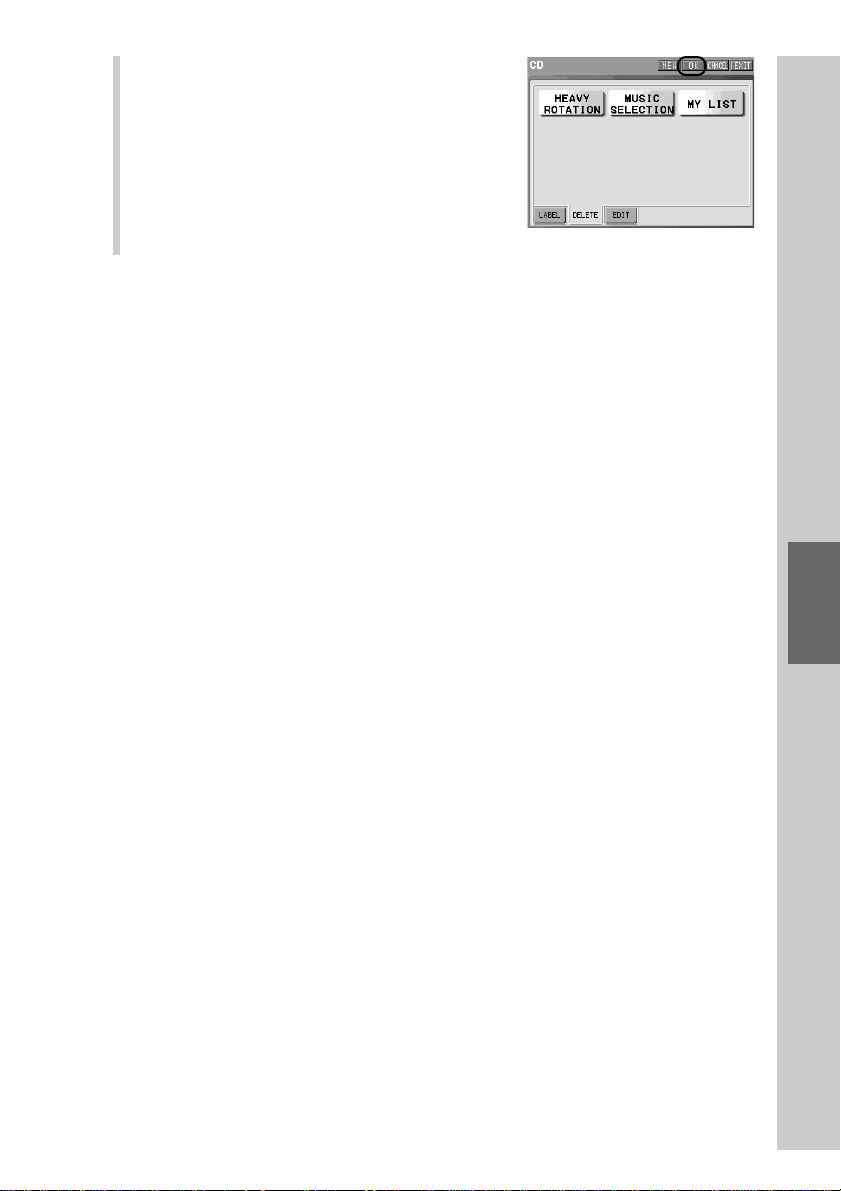
163
Programming a series of actions (macro) for a Component
List
7
Press the [OK] key.
The selected User List key is deleted. The
display returns to step 4.
To finish the setting
Press the COMMANDER OFF button for 2
seconds or longer. The display returns to the
Home display. The setting finishes.
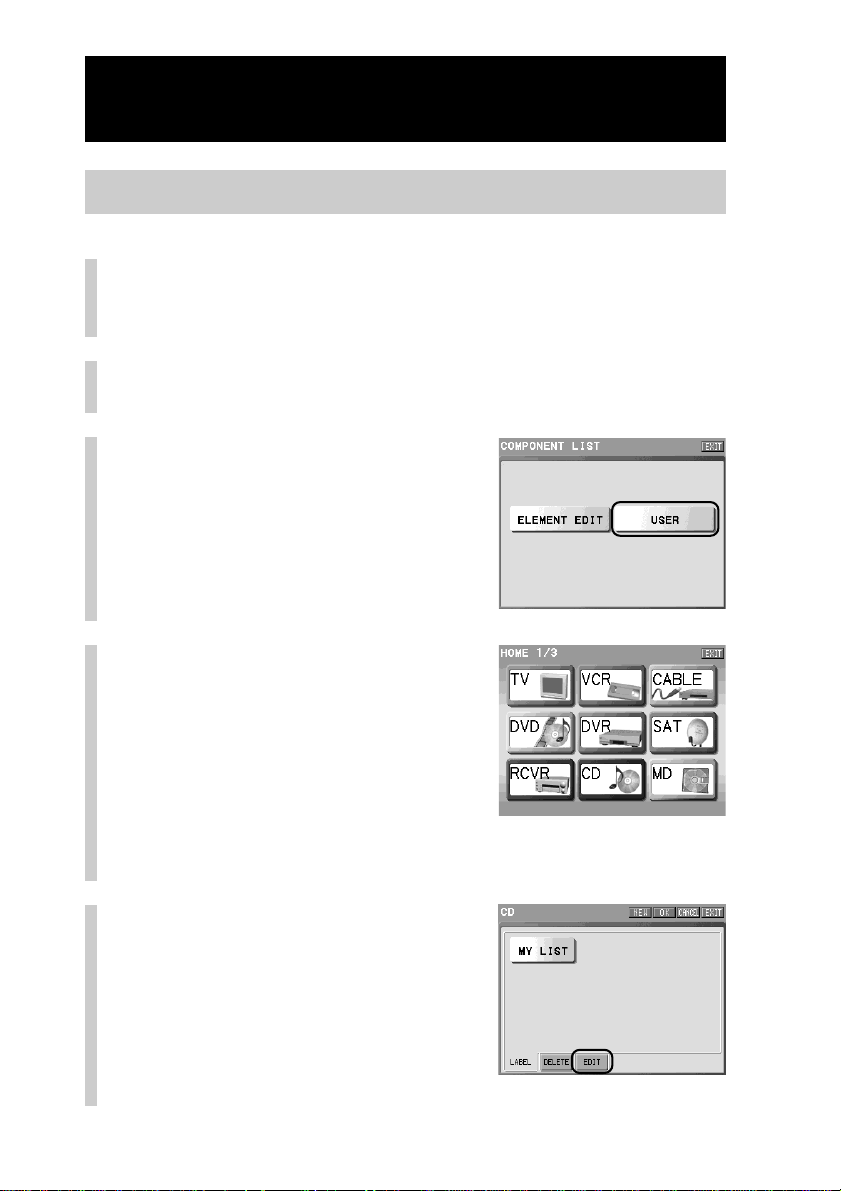
164
Continued
Creating a User List (USER LIST)
Adding an element to a User List
1
Press the [SET] key for 2 seconds or longer in the
Home display.
The Set display appears.
2
Press the [COMPONENT LIST] key.
3
Press the [USER] key.
4
Press a Component key that
includes the User List you
want to add a User element to.
If you select a Component key that
includes no List element, a message
saying that there is no list element
appears. If you press the [OK] key, the
message disappears. Create a List
element referring to “Step 1: Creating a
List element” (page 150).
5
Press the [EDIT] tag.
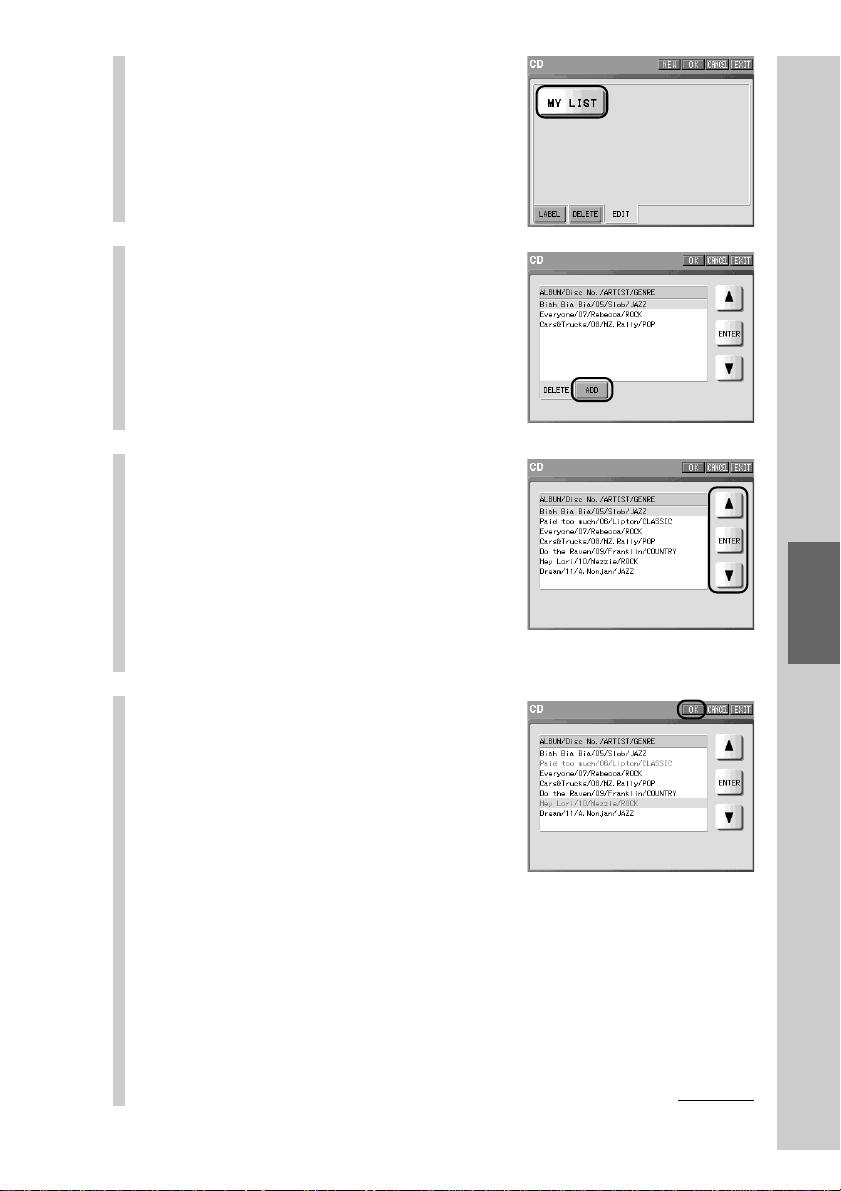
165
Programming a series of actions (macro) for a Component
List
6
Press the User List key you
want to add a User element
to.
The table of the list elements
programmed for the selected User List
key is shown.
7
Press the [ADD] tag.
8
Press the [v] or [V] key to
select a User element to be
added to the User List, and
then press the [ENTER] key.
In this step, when you press the [ENTER]
key, the color of the selected List element
changes to red. (In the real settings, the
color of List elements is fixed to black.)
9
Press the [OK] key.
The selected List element is added.
Display for List element
selection
Continued
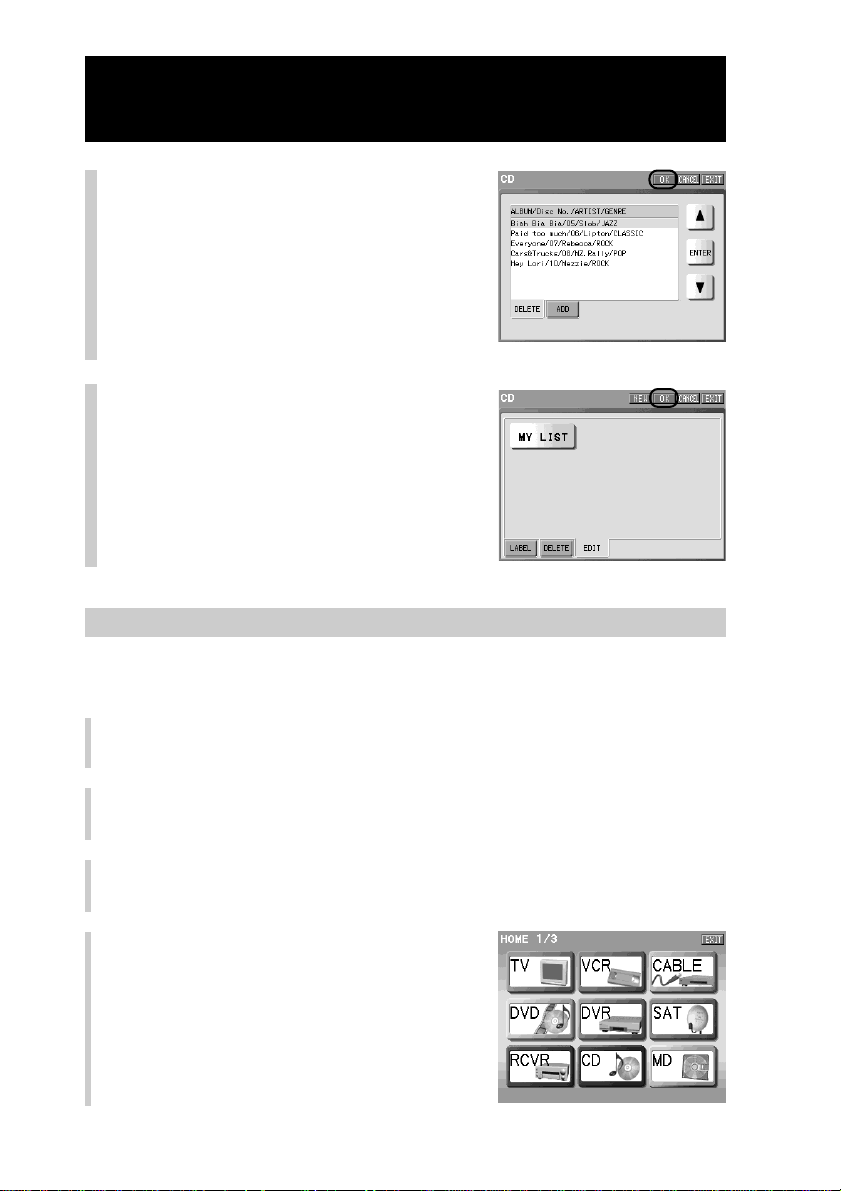
166
Continued
Creating a User List (USER LIST)
10
Press the [OK] key.
11
Press the [OK] key.
Adding a List element is programmed,
and the display returns to step 4.
To finish the setting
Press the COMMANDER OFF button for 2
seconds or longer. The display returns to the
Home display. The setting finishes.
To delete a List element of a User List
You can delete a List element of a User List created by mistake, or an element
that is no longer in use.
1
Press the [SET] key for 2 seconds or longer in the Home display.
The Set display appears.
2
Press the [COMPONENT LIST] key.
3
Press the [USER] key.
4
Press the component key that
includes the User List with the User
element you want to delete.
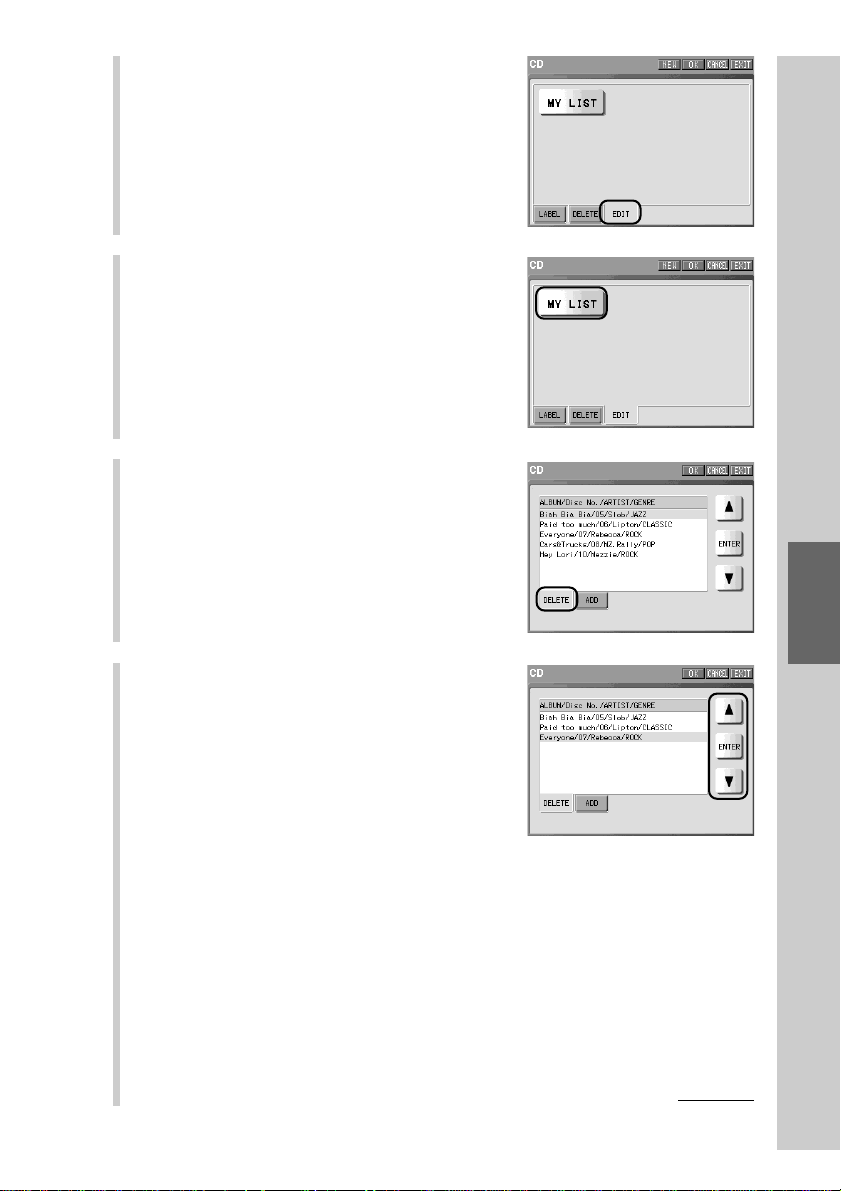
167
Programming a series of actions (macro) for a Component
List
5
Press the [EDIT] tag.
6
Press the User List key of the User
element you want to delete.
The table of the list elements programmed
for the selected User List key is shown.
7
Press the [DELETE] tag.
8
Press the [v] or [V] key to select the
element you want to delete, and
then press the [ENTER] key.
The selected List element is disappears. If
you want to delete other List elements in
the same User List, repeat this step.
Note
You cannot make a User List empty. If you try to
delete the last List element, a message appears.
Press the [OK] key to return to the previous
display.
Continued
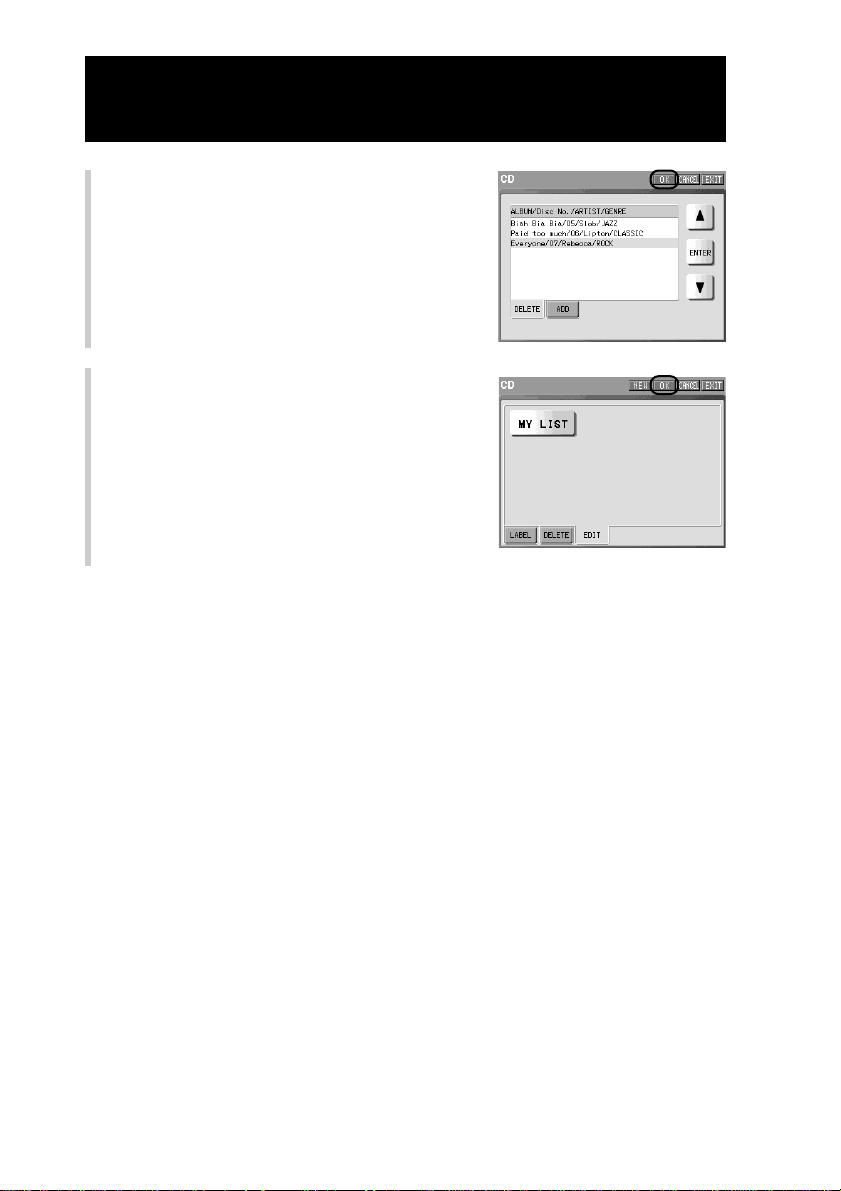
168
9
Press the [OK] key.
The deletion of the List element is stored in
memory.
10
Press the [OK] key.
The List element is deleted, and the display
returns to step 4.
To finish the setting
Press the COMMANDER OFF button for 2
seconds or longer. The display returns to the
Home display. The setting finishes.
Continued
Creating a User List (USER LIST)
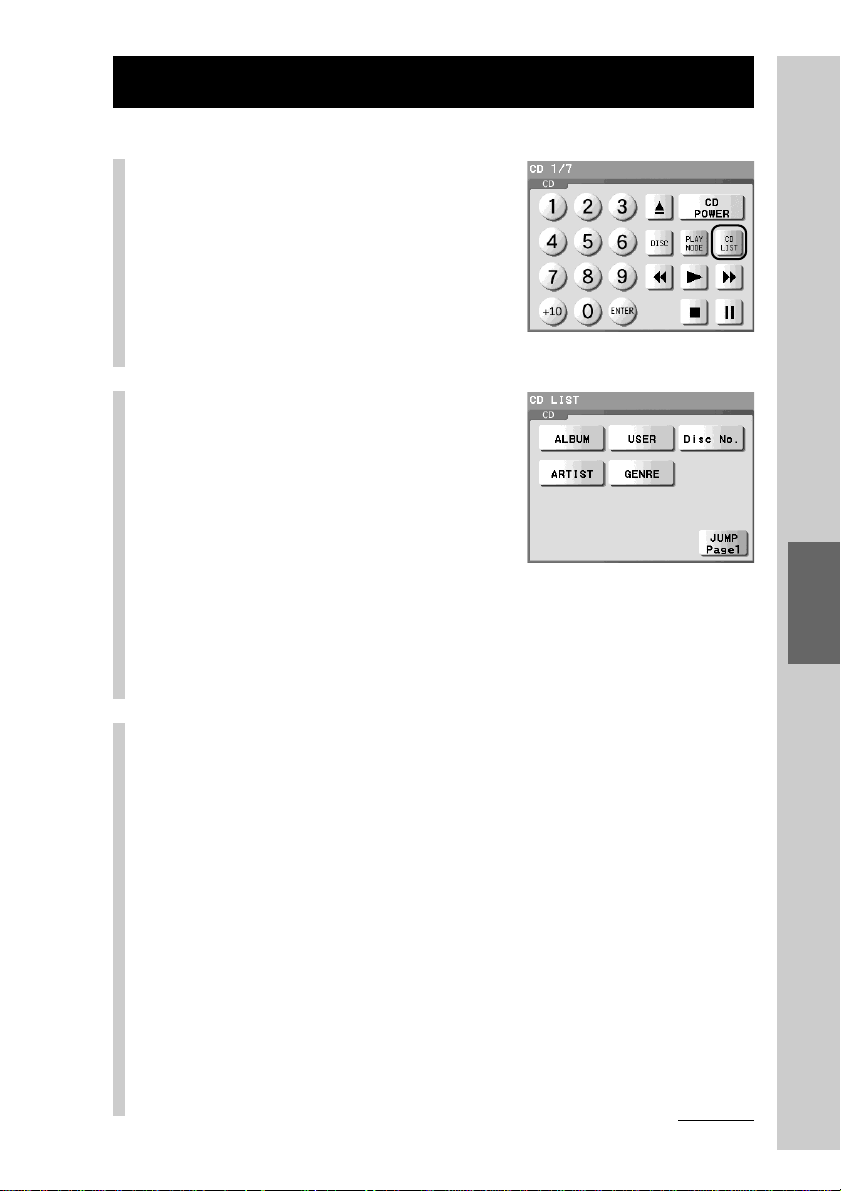
169
Programming a series of actions (macro) for a Component
List
Using the Component List
1
Press the List key of a
component key in the
Component display.
For example, press the [CD LIST] key.
The sort item display appears.
[CD LIST] key
The sort item display for the CD component
appears.
2
Press the desired sort item
key.
[ALBUM]: To show the list of elements by programmed album title
[USER]: To show the list of elements by title created by a user
[Disc No.]: To show the list of elements by programmed disc No.
[ARTIST]: To show the list of elements by programmed artist name
[GENRE]: To show the list of elements by programmed genre
[JUMP Page1] key:To return to the first page of the Component display
3
Press the desired key to select a method for
searching or sorting.
[ALBUM], [ARTIST]
[NUM/SYMBOL]: To extract elements whose sort item starts with a number or a
symbol.
Alphabets key: To extract elements whose sort item starts with an alphabetic
letter shown on the key
[GENRE]
To extract elements with the genre shown on the key
[Disc No.]
To show the list of all programmed elements
[USER]
To extract programmed elements shown on the key
z Tip
If you press the [RETURN] key, the display returns to the previous one.
If you press the [JUMP Page1] key, the display returns to the first page of the
Component display.
Continued
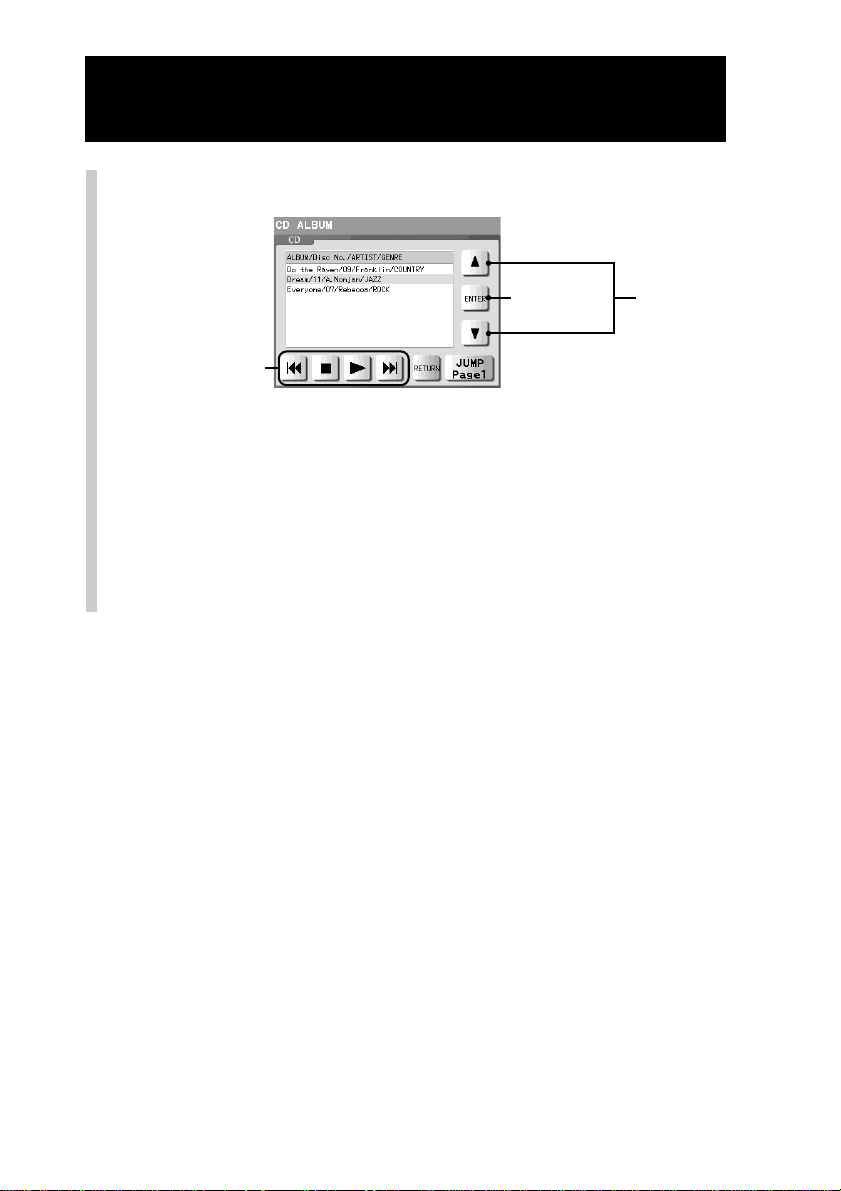
170
4
Select an album and press the key.
Arrow keys: Move the cursor up/down.
[ENTER] key: Confirms the element selected by the cursor and executes the
macro programmed for the element.
Alias keys: Refer to the [.], [N], [x] and [>] keys of the operation
display of the component. Operating contents of these keys
cannot be changed.
If a component preset to the selected Component display does
not use the [.], [N], [x] and [>] keys, the Alias keys are
not shown.
Arrow
Keys
[ENTER] key
Alias keys
Continued
Using the Component List
171
Easy selection of a series of actions
(macro) programmed for Zapping (ZAPPING)
Easy selection of a series of actions (macro)
programmed for Zapping (ZAPPING)
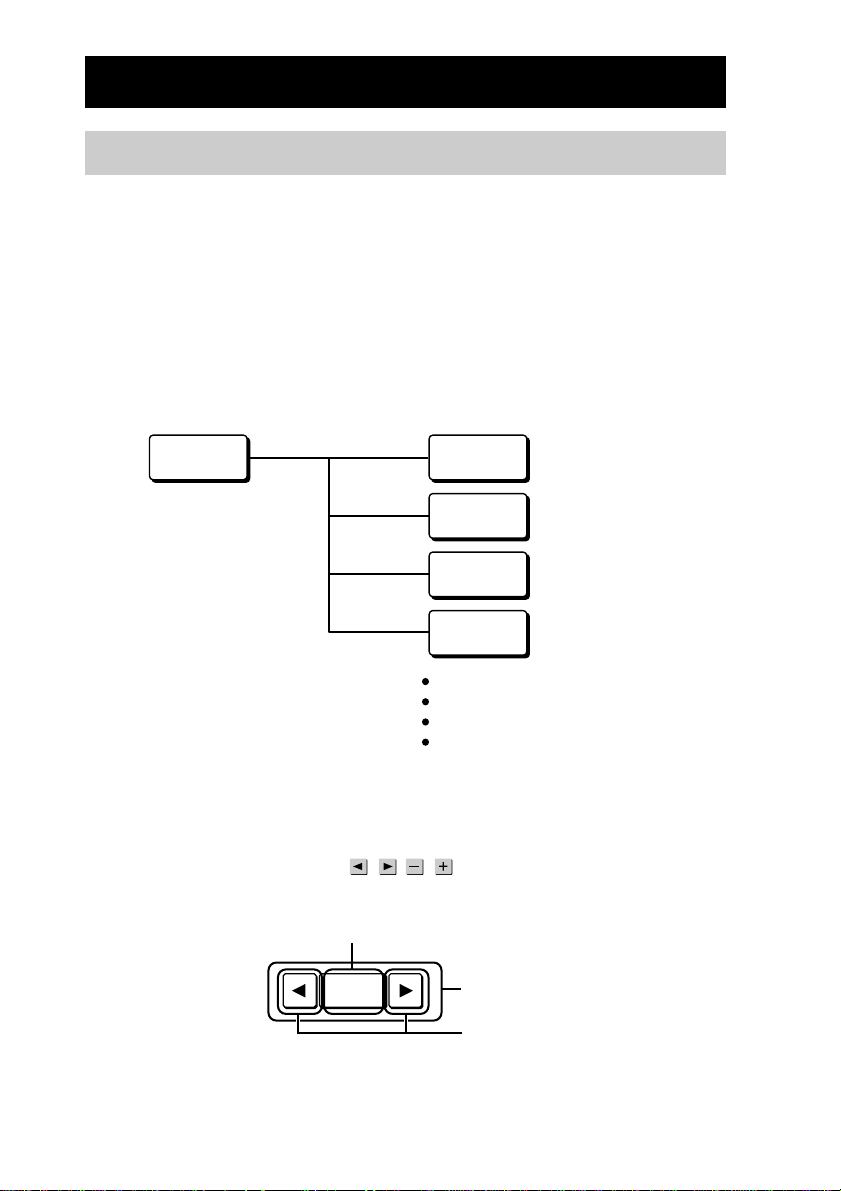
172
News
Outline of Zapping
What is Zapping?
Zapping is the function to call up easily and sequentially only desired channels,
enabling channel selection from multiple channels grouped by genre. For
example, if you create a “NEWS” group by gathering your favorite news
channels together, you can select any one channel set to this group.
You can also use Zapping for selecting a disc from a disc changer.
To use the Zapping function, first you need to create a group where you collect
channels. This group is called a “Zapping group”, and each channel contained
in the group is called a “Zapping element.” In the above example, “NEWS” is a
Zapping group and each news channel is a “Zapping element.”
You need to assign a viewer in the Component display to actually operate a
created Zapping group with the Remote Commander.
This viewer is called a “Zapping viewer.” After assigning a Zapping viewer in
the Component display, with the
/ , / keys of the Zapping viewer, you
can switch among elements (channels) in the Zapping group one after another.
News CBS
CNN
NBC
ABC
(Zapping element)
(Zapping group)
(Zapping element)
(Zapping element)
(Zapping element)
Zapping viewer
Press one of these keys to
switch to a news channel
before/after the current
channel one after another.
Press this key to switch to the
current channel.
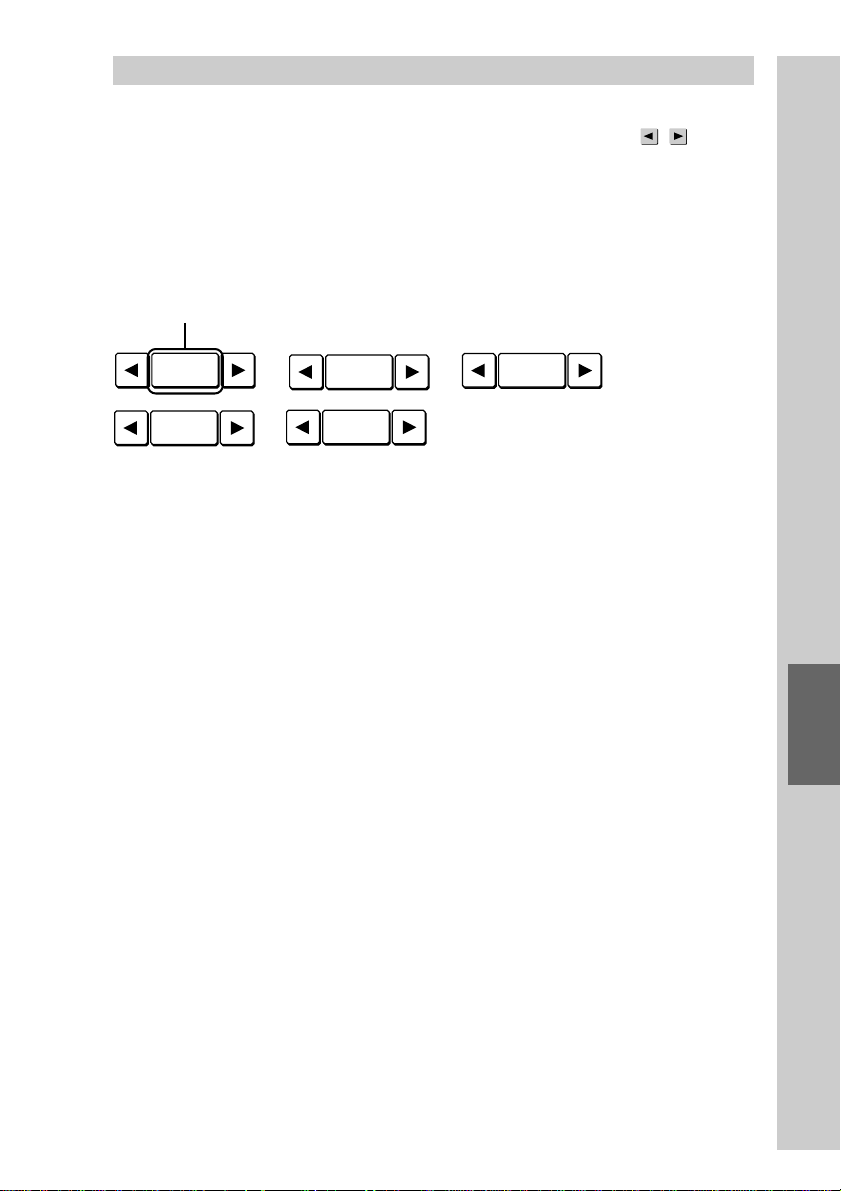
173
Easy selection of a series of actions
(macro) programmed for Zapping (ZAPPING)
Using Zapping
Right after the Component display appears, the label of the Zapping group
“News” is shown on the Zapping viewer. Each time you press the
/ key of
the Zapping viewer on the touch panel display, the labels of the Zapping
elements appear sequentially on the Zapping viewer as follows, and you can
switch among news channels only.
News
t
CBS
t
CNN
t
NBC
t
ABC
• • • •
Each Zapping element, such as “CBS”, “CNN”, “NBC” or “ABC.”.., is
programmed with a macro to tune into each channel.
z Tip
The order of Zapping elements to be called up can be changed for your convenience, such
as placing the most frequently watched channel at the top.
If no Zapping operation is performed for 30 seconds while the
Zapping viewer is shown, the indication returns to the Zapping
group name (in this case, [NEWS]).
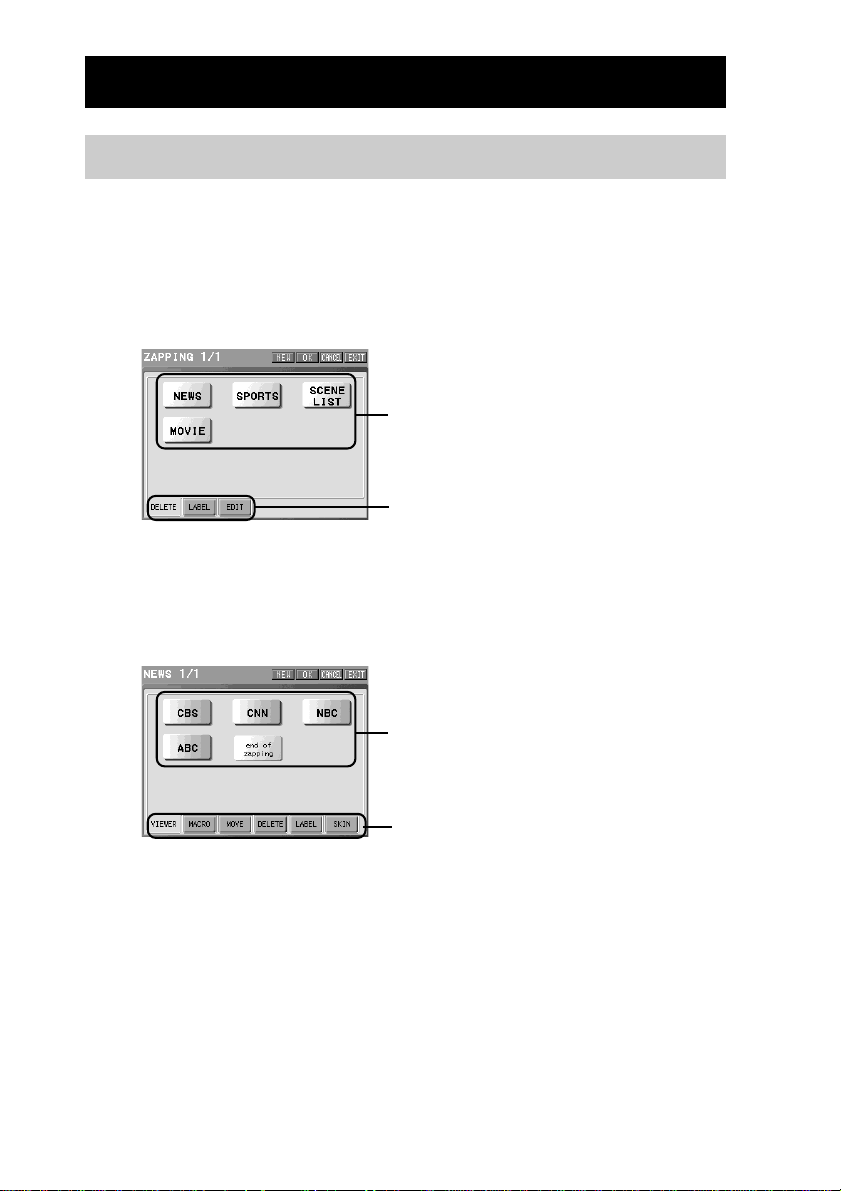
174
Editing the Zapping function
About the edit display for Zapping
Before setting the Zapping function, we explain about the edit display for
Zapping.
Editing the Zapping group where channels are collected is performed in the
Zapping display. Editing each Zapping element that is contained in the Zapping
group is performed in the Zapping Edit display.
Edit display for a Zapping group
Zapping groups
(No keys are displayed
in the default.)
Setting item tags
[DELETE]:To delete the Zapping group
[LABEL]:To set the label to the Zapping group
[EDIT]:To set a Zapping element to the Zapping group
Edit display for a Zapping element
Zapping elements
(Only the [end of zapping] key is
displayed in the default.)
Setting item tags
[VIEWER]:To check the macro (series of actions) setting programmed for a
Zapping element key on the display
[MACRO]:
To program a macro (series of actions) for the ZAPPING element key
[MOVE]:To change the order of the Zapping element keys
[DELETE]:To delete the Zapping element key
[LABEL]:To set the label to the Zapping element key
[SKIN]:To set the skin (key appearance and color) to the Zapping element
key
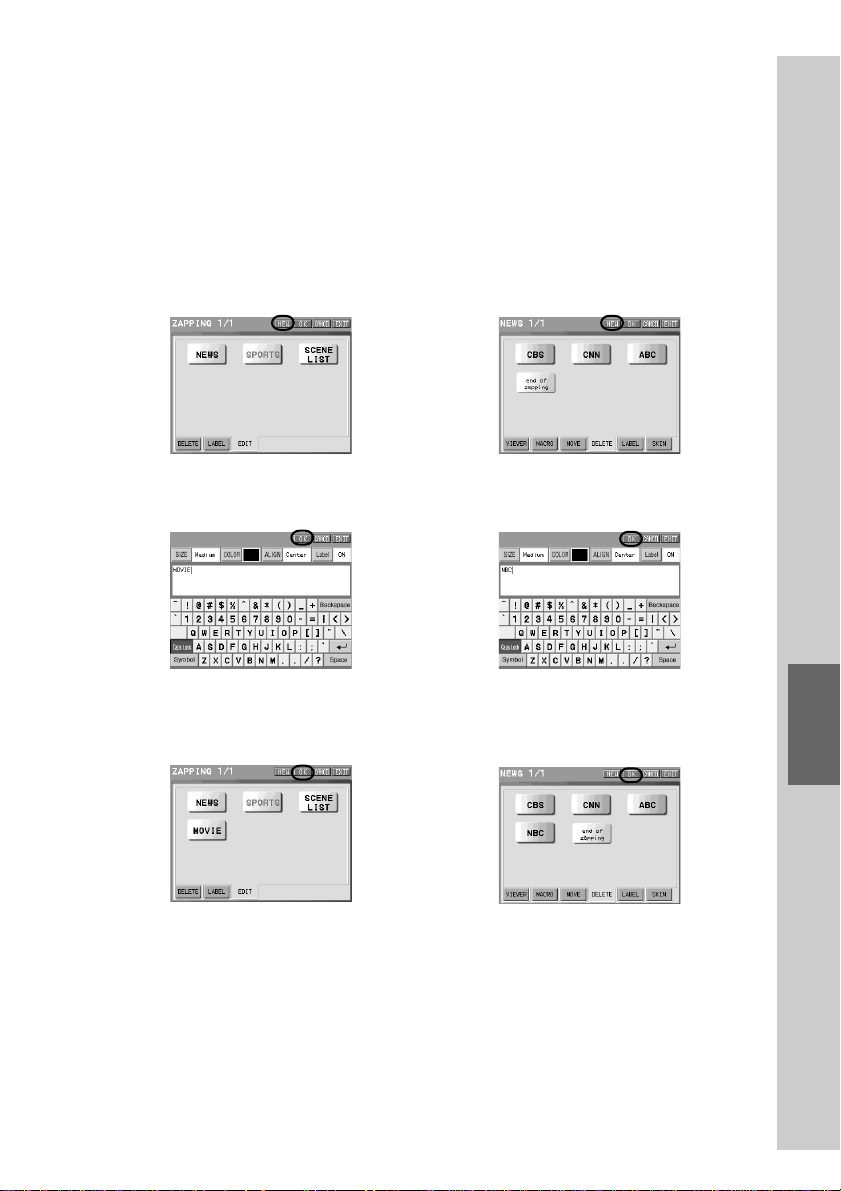
175
Easy selection of a series of actions
(macro) programmed for Zapping (ZAPPING)
Each time the setting for a respective setting item tag shown in the edit display
for a Zapping group or a Zapping element is complete, the display returns to
this edit display for a Zapping group or a Zapping element. When the display
returns to the edit display for a Zapping group or a Zapping element, press the
[OK] key shown on the upper right of the display to decide the contents set by a
respective setting item tag.
If you do not press the [OK] key in the edit display for a Zapping group or a
Zapping element, the contents set by a respective setting item tag cannot be
decided. Therefore make sure to press the [OK] key.
Example: To create a new Zapping
group
Press the [NEW] key.
Set a label in the display for the label setting,
and press the [OK] key.
Press the [OK] key.
m
m
Example: To create a new Zapping
element
Press the [NEW] key.
Set a label in the display for the label
setting, and press the [OK] key.
Press the [OK] key.
m
m
In addition to the label setting above, when setting with each setting item tag,
finally press the [OK] key in the edit display for a Zapping group or a Zapping
element to decide the setting contents.
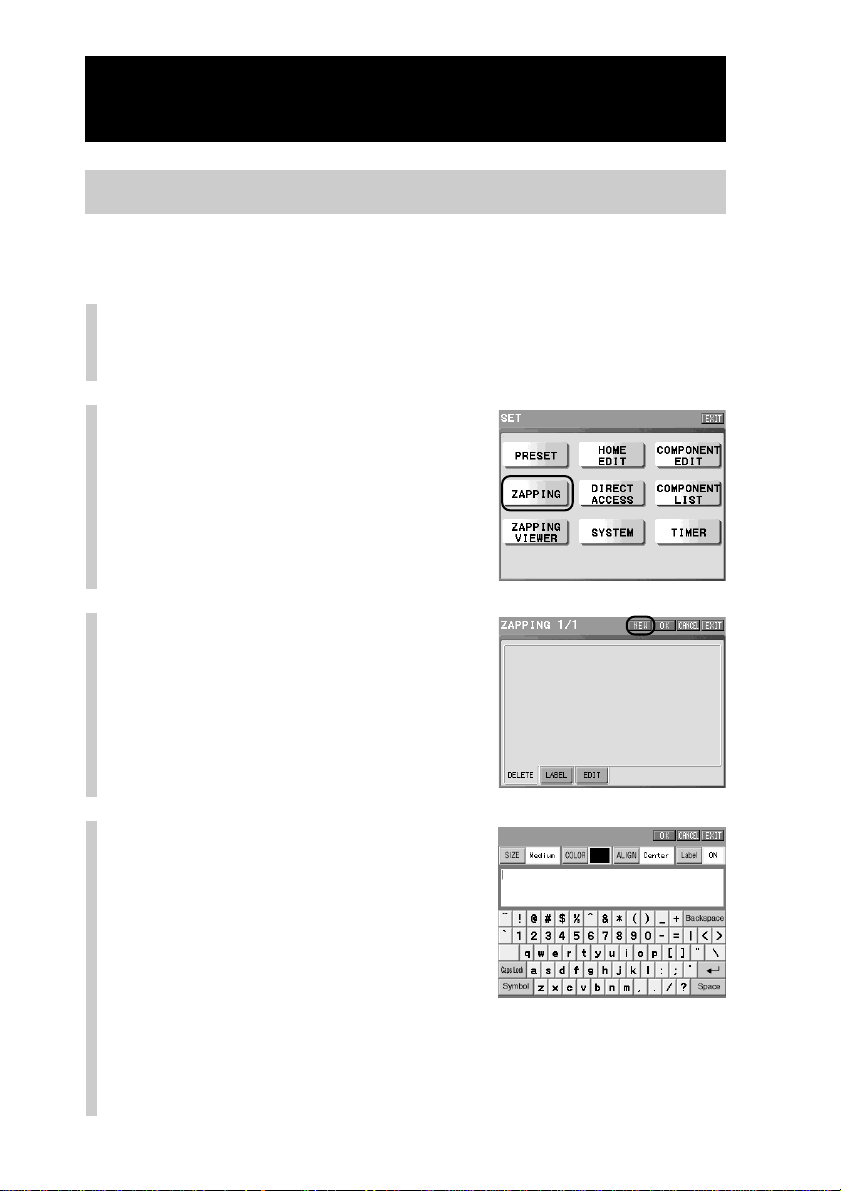
176
Continued
Editing the Zapping function
Step 1: Creating a Zapping group
In this step, creating a Zapping group to which Zapping elements are to be set is
explained. For example, create a Zapping group named “NEWS.”
1
Press the [SET] key for 2 seconds or longer in the
Home display.
The Set display appears.
2
Press the [ZAPPING] key.
3
Press the [NEW] key.
z Tips
• Whatever tag is selected, you can set the
label if you press the [NEW] key.
• For a Zapping group, you cannot select or
change a skin.
4
Set the label of the Zapping
group to be created.
For inputting letters to the label, see
“Inputting letters (label setting)” (pages
40 - 41).
Specified settings to the label of the
Zapping group besides the information
described on pages 40 - 41 are as follows.
Letter input: Up to 31 letters can be input.
Starting a new line:Available. Starting a new line is counted as a
letter.
Pictographs: Cannot be input.
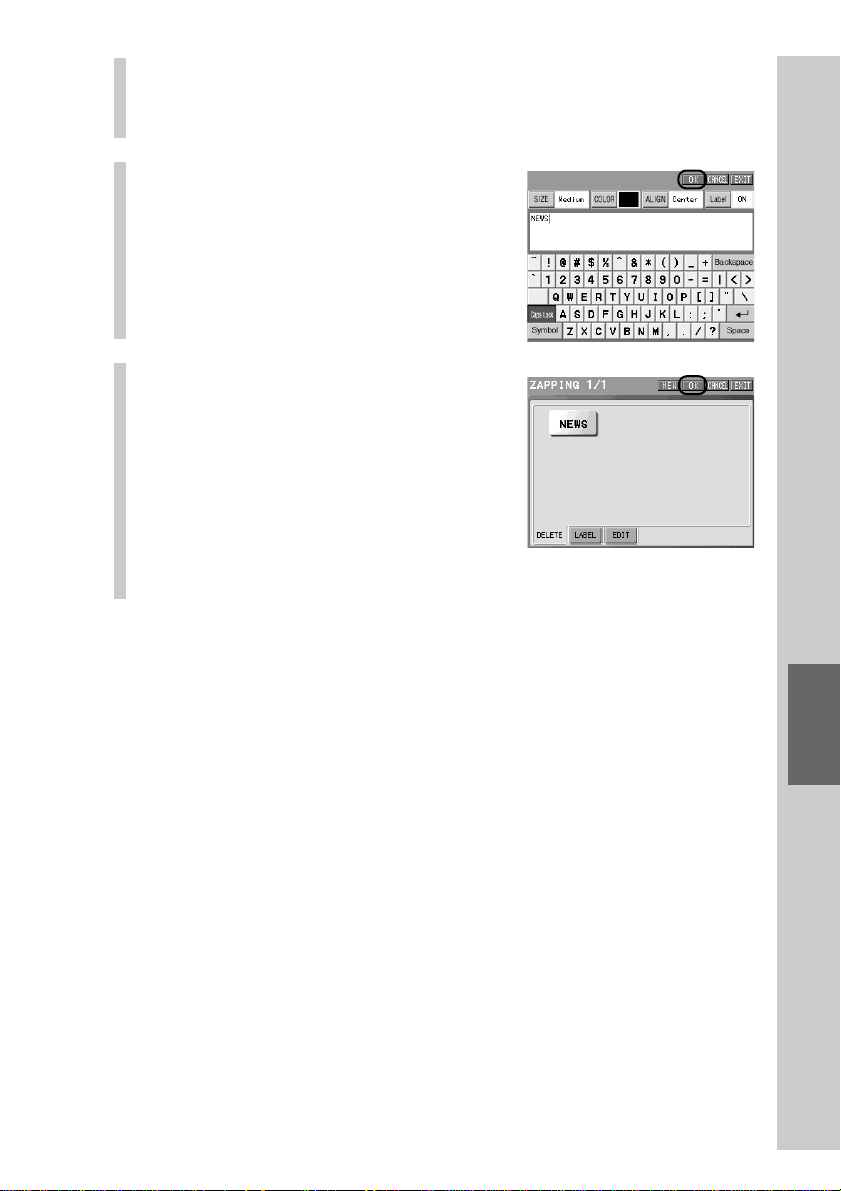
177
Easy selection of a series of actions
(macro) programmed for Zapping (ZAPPING)
Note
You cannot set the same label name as another Zapping group, regardless of
whether characters are upper or lowercase. If you try to set the same label name, a
beep sounds twice.
5
Press the [OK] key.
Creation of the label of the Zapping
group is set.
6
Press the [OK] key.
A new Zapping group is created, and the
display returns to step 2.
Note
If you press the [CANCEL] key, the created
Zapping group will be canceled.
To finish the setting
Press the COMMANDER OFF button for 2
seconds or longer. The display returns to the
Home display. The setting finishes.
,
Go on to “Step 2: Creating a Zapping element” (page 178).
To set the label again
To set the label of a Zapping group again, press the [LABEL] tag in step 3, and
press the Zapping key whose label you want to change. Then set the letters
again in the display for the label setting, and press the [OK] key.
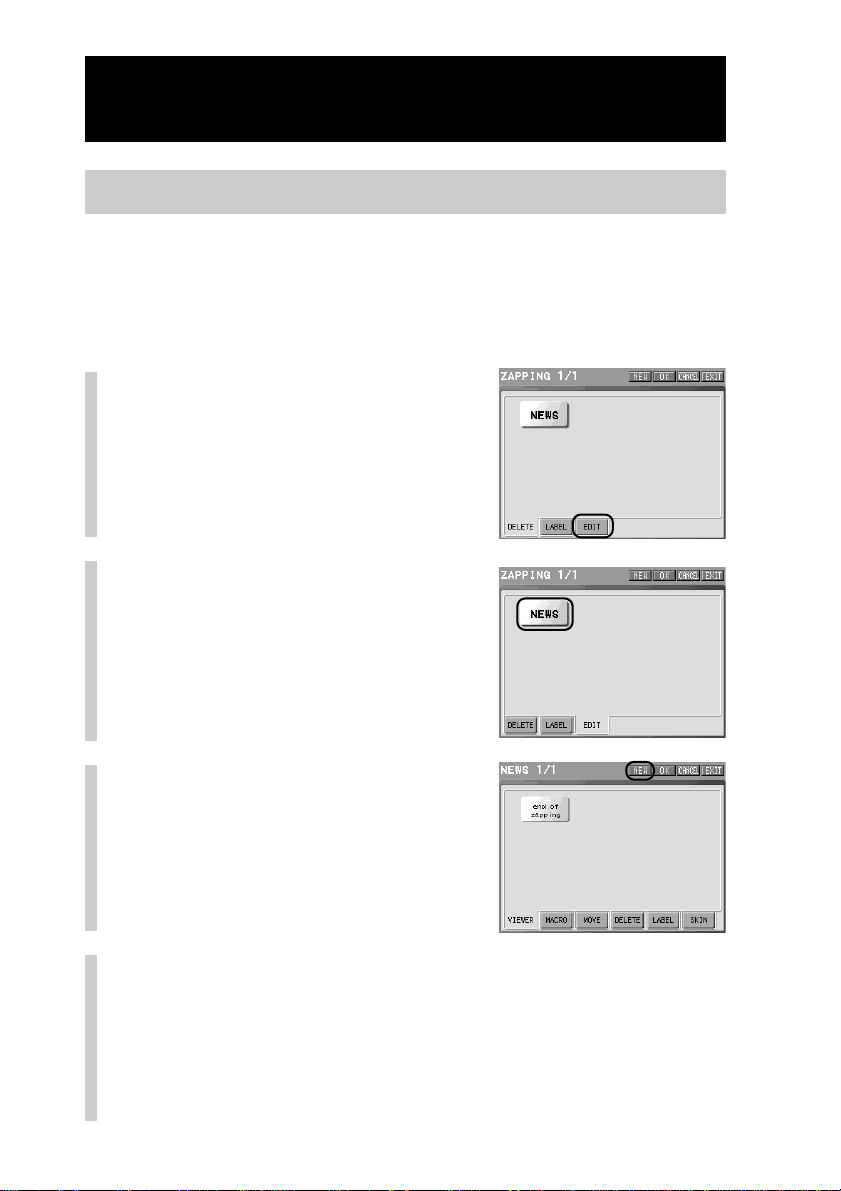
178
Continued
Editing the Zapping function
Step 2: Creating a Zapping element
Create a Zapping element for the Zapping group ([NEWS] key) created in “Step 1.”
z Tip
If no Zapping element is set to the Zapping group, only the [end of zapping] key appears
in the display. The [end of zapping] key appears pressed, and you cannot edit for a
Zapping element.
1
Press the [EDIT] tag in the
Zaping display.
2
Press a Zapping group key
you want to create a
Zapping element for.
3
Press the [NEW] key.
z Tip
Whatever tag is selected, you can set the label
if you press the [NEW] key.
4
Set the skin of the Zapping element to be created.
Select the normal skin, and press the [OK] key. Then select the pressed
skin, and press the [OK] key.
For details, see step 6 in “Setting the skin (key appearance and color) and
the label (name) of a function key (SKIN/LABEL)” (page 97).
Note
The skin size for the Zapping element is only 70 × 38 pixels.
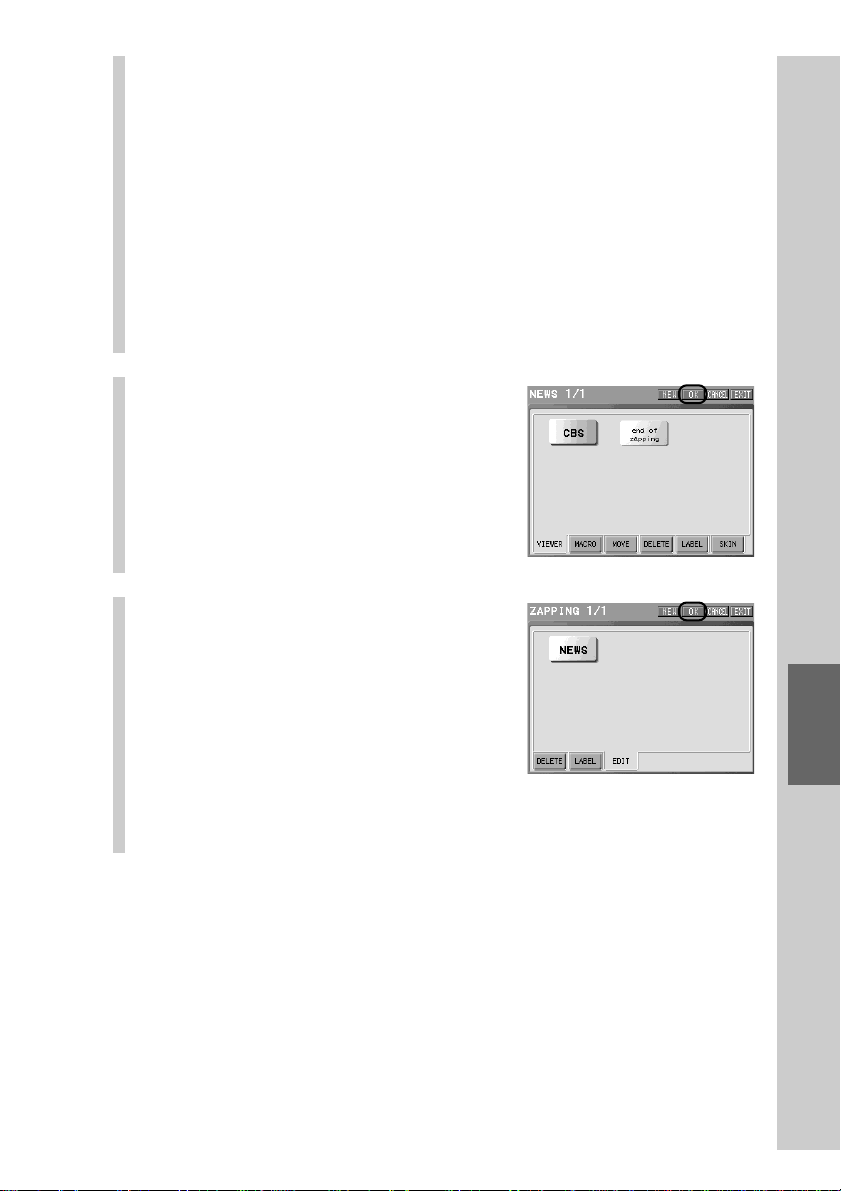
179
Easy selection of a series of actions
(macro) programmed for Zapping (ZAPPING)
5
Set the label of the Zapping element.
When the label setting is complete, press the [OK] key. For inputting
letters to the label, see “Inputting letters (label setting)” (pages 40 - 41).
Specified settings to the label of the Zapping element besides the
information described on pages 40 - 41 are as follows.
Letter input: Up to 31 letters can be input.
Starting a new line:Available. Starting a new line is counted as a
letter.
Pictographs: Cannot be input.
Note
You cannot set the same label name as another Zapping element, regardless of
whether characters are upper or lowercase. If you try to set the same label name, a
beep sounds twice.
6
After confirming that the
newly created Zapping
element is displayed, press
the [OK] key.
The label of the Zapping element is set.
Note
If you press the [CANCEL] key, the created
Zapping element will be canceled.
7
Press the [OK] key.
The new Zapping element is added to the
Zapping group, and the display returns
to the Set display (step 2 on page 176).
Note
If you press the [CANCEL] key, the created
Zapping element will be canceled.
z Tip
Up to 1,000 Zapping elements can be created for one Zapping group. However,
the number of Zapping elements that you can create may be less than 1,000
depending on the free memory capacity of the Remote Commander.
, Go on to “Step 3: Programming a macro” (page 180).
To finish the setting
Press the COMMANDER OFF button for 2 seconds or longer. The display returns to the
Home display. The setting finishes.
To set the skin or label of a Zapping element again
In step 3, press the [SKIN] tag to set the skin again or the [LABEL] tag to set the
label again, and press the Zapping element key whose skin or label you want to
change. Then set the letters again in the display for the skin or label setting, and
press the [OK] key.
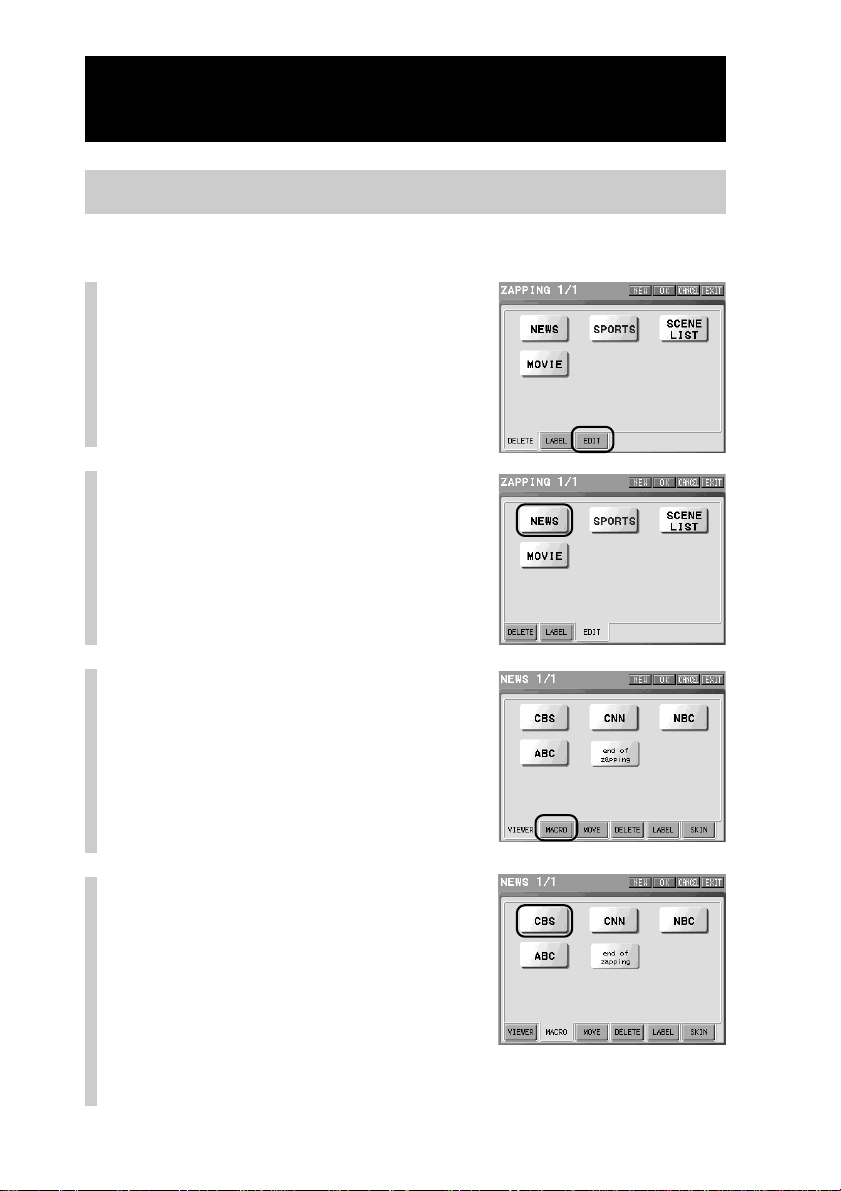
180
Step 3: Programming a macro
Program a macro for the Zapping element ([CBS] key) created in “Step 2.”
1
Press the [EDIT] tag in the
Zapping display.
2
Press a Zapping group key
that includes the Zapping
element you want to
program a macro for.
3
Press the [MACRO] tag.
4
Select an element you want
to program a macro for.
If you select a Zapping element already
programmed with a macro
The message for confirmation of deleting a
macro appears.
Press the [YES] key to overwrite the macro. If
you press the [NO] key, the display returns to
the previous one without overwriting.
Continued
Editing the Zapping function
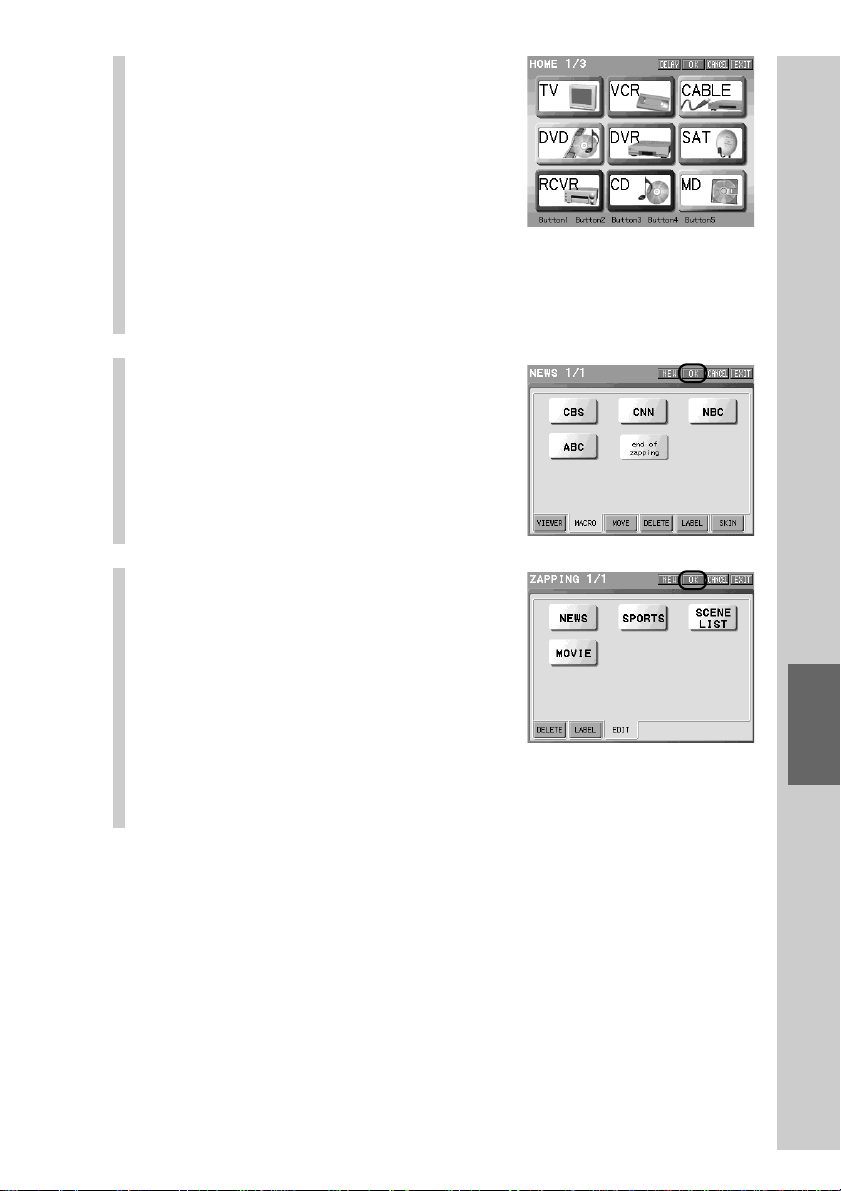
181
Easy selection of a series of actions
(macro) programmed for Zapping (ZAPPING)
5
Program a macro procedure
for the Zapping element.
For details on programming a macro
procedure, see steps 1 - 4 in “Step 2:
Setting a macro” (pages 120 - 121).
z Tip
Up to 128 steps (actions) can be programmed
for one Zapping element. However, the
number of steps (actions) that you can
program may be less than 128 depending on
the free memory capacity of the Remote
Commander.
6
Press the [OK] key.
A macro procedure is stored in memory
for the Zapping element.
Note
If you press the [CANCEL] key, a macro set to
the Zapping element will be canceled.
7
Press the [OK] key.
A macro procedure is programmed for
the Zapping element, and the display
returns to the Set display (step 2 on page
176).
Note
If you press the [CANCEL] key, a macro set to
the Zapping element will be canceled.
To finish the setting
Press the COMMANDER OFF button for 2 seconds or longer. The display returns
to the Home display. The setting finishes.
Programming of the Zapping group, element and macro is complete.
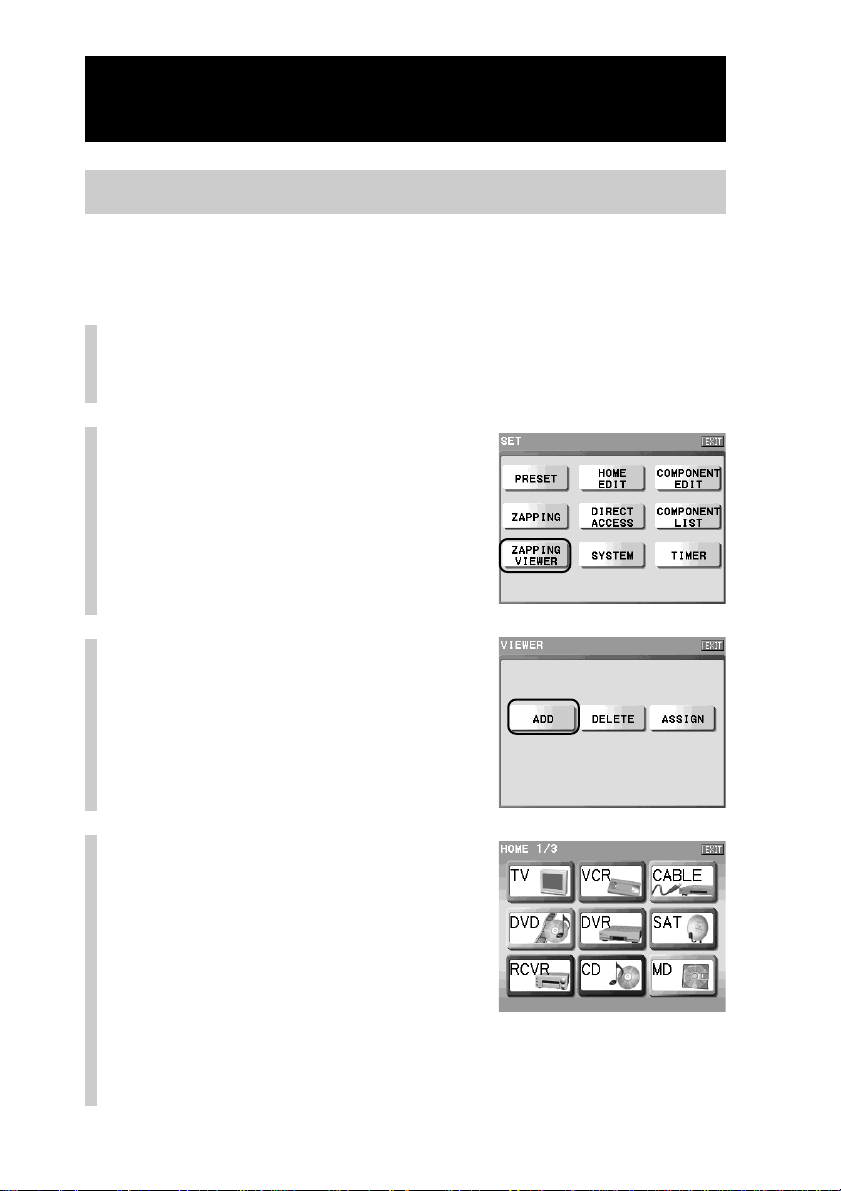
182
Continued
Editing the Zapping function
Step 4: Creating a Zapping viewer
After creating a Zapping viewer key, you can assign a Zapping group to it. You
can create up to 5 Zapping viewer keys for a component.
1
Press the [SET] key for 2 seconds or longer in the
Home display.
The Set display appears.
2
Press the [ZAPPING VIEWER]
key.
3
Press the [ADD] key.
4
Press a Component key you
want to create a Zapping
viewer for.
Note
If you select a Component key for which you
have already created five Zapping viewers, an
error message appears.
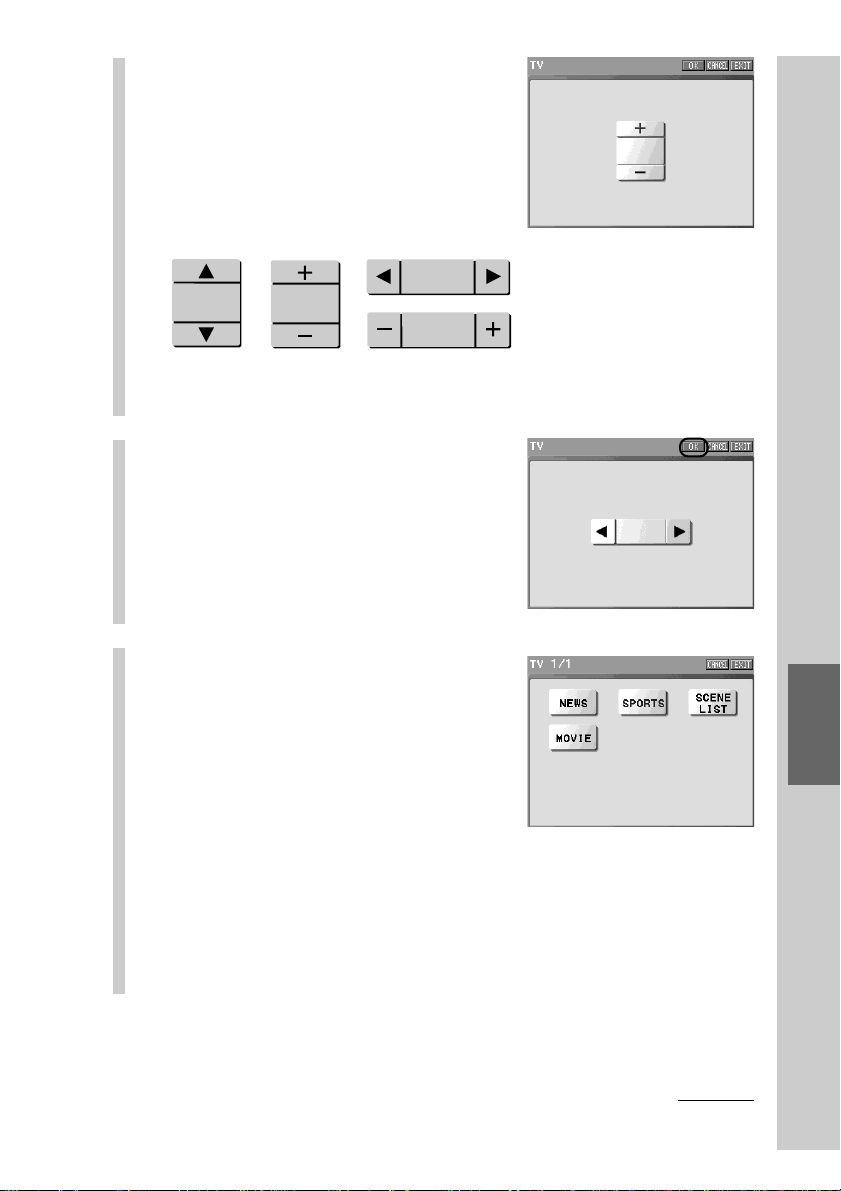
183
Easy selection of a series of actions
(macro) programmed for Zapping (ZAPPING)
5
Set the skin of the Zapping
viewer.
The skin for the Zapping viewer can be
selected from four skins shown below.
Press the NEXT button to show the next
skin, and press the BACK button to show
the previous skin.
Note
Skins appear normal (released). They do not function even if they are pressed.
6
Press the [OK] key.
7
Select a Zapping group that
you want to assign to the
Zapping viewer.
Notes
• Before creating a Zapping Viewer, it is necessary to create a Zapping group first.
• If there is no Zapping group, see “Step 1: Creating a Zapping group” (page 176)
and create a Zapping group.
• If a Zapping element is not created, a Zapping group is not displayed. Create a
Zapping element referring to “Step 2: Creating a Zapping element” (page 178).
Continued
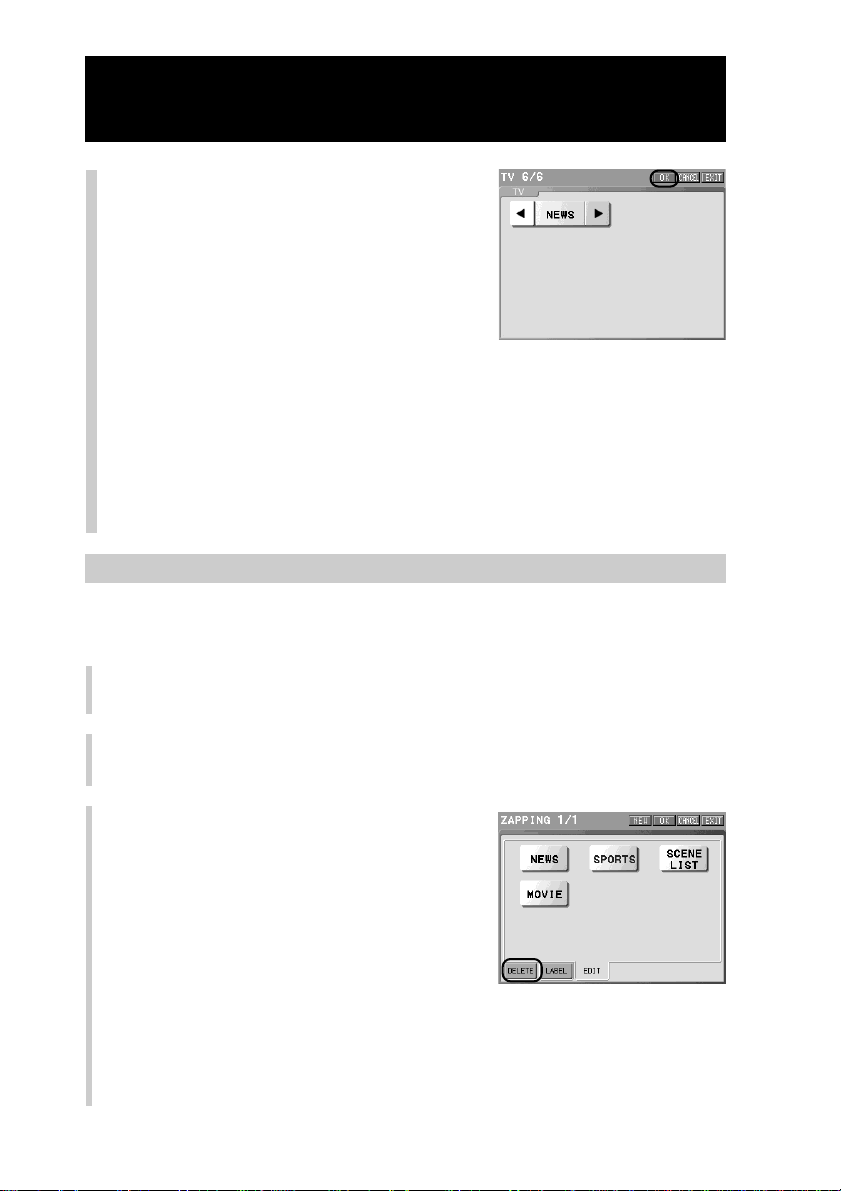
184
Continued
Editing the Zapping function
8
Press the [OK] key.
The Zapping viewer key is assigned on
the last page of the Component display
and the display returns to step 4.
z Tips
• If there is no space to assign a Zapping
viewer key in the last page, a new page will
be added and the key will be created there.
• If you press the [CANCEL] key, a Zapping
viewer key will not be created and the
display will return to step 7.
Note
You cannot create more than five Zapping viewers for a component.
To finish the setting
Press the COMMANDER OFF button for 2 seconds or longer. The display returns
to the Home display. The setting finishes.
To delete a Zapping group
You can delete a Zapping group created by mistake or a Zapping group that is
no longer in use.
1
Press the [SET] key for 2 seconds or longer in the Home display.
The Set display appears.
2
Press the [ZAPPING] key.
3
Press the [DELETE] tag.
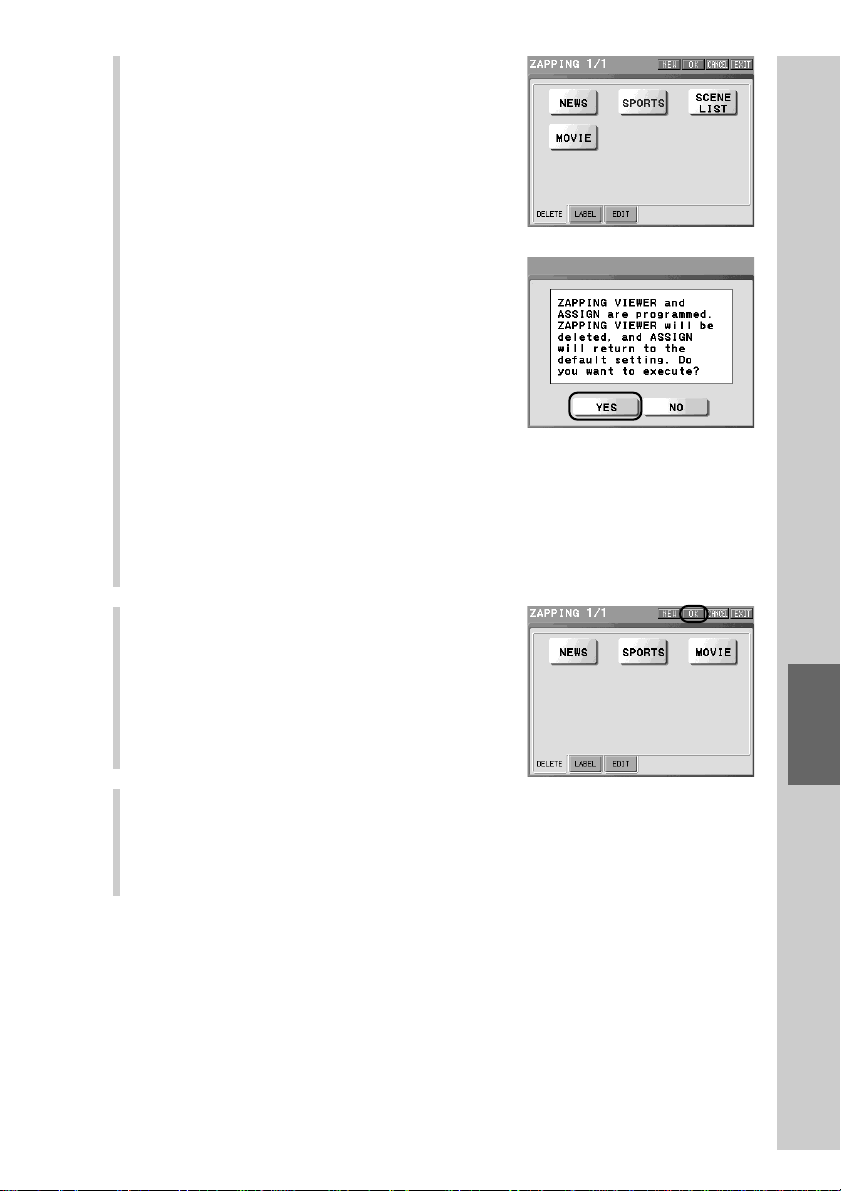
185
Easy selection of a series of actions
(macro) programmed for Zapping (ZAPPING)
4
Press the Zapping group you want to
delete.
The indiction of the Zapping group
disappears.
If the selected Zapping group is assigned
to a Zapping viewer key or an Assign
button, the message for confirmation of
deleting Zapping group appears.
If you press the [YES] key, the Zapping
viewer key is also deleted and the setting of
the Assign button returns to its preset
status. If you press the [NO] key, the
display returns to the Zapping display (step
3) without deleting the Zapping group.
The ASSIGN button is a function button on
the Remote Commander a Zapping group
is assigned to. For details, see “To assign a
Zapping viewer to a function button” (page
194).
5
Press the [OK] key.
The Zapping group is deleted and the
display returns to the Set display (step 2 on
page 182).
6
To finish all settings, press the COMMANDER OFF button for 2
seconds or longer.
The display returns to the Home display. Or press the [EXIT] key repeatedly
until the Home display is shown.
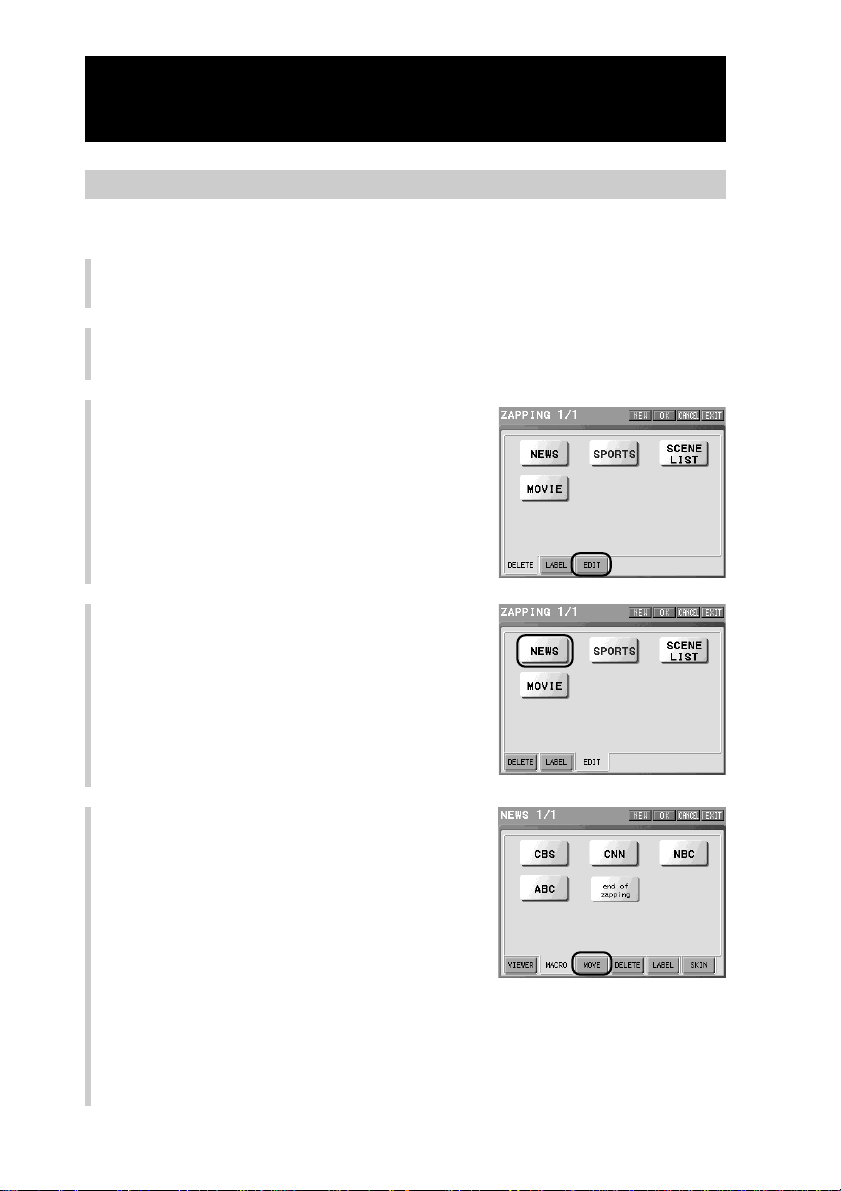
186
Continued
Editing the Zapping function
To change the order of the Zapping elements
You can change the order of the Zapping elements after you have created them.
1
Press the [SET] key for 2 seconds or longer in the Home display.
The Set display appears.
2
Press the [ZAPPING] key.
3
Press the [EDIT] tag.
4
Press the Zapping group whose
element order you want to change.
5
Press the [MOVE] tag.
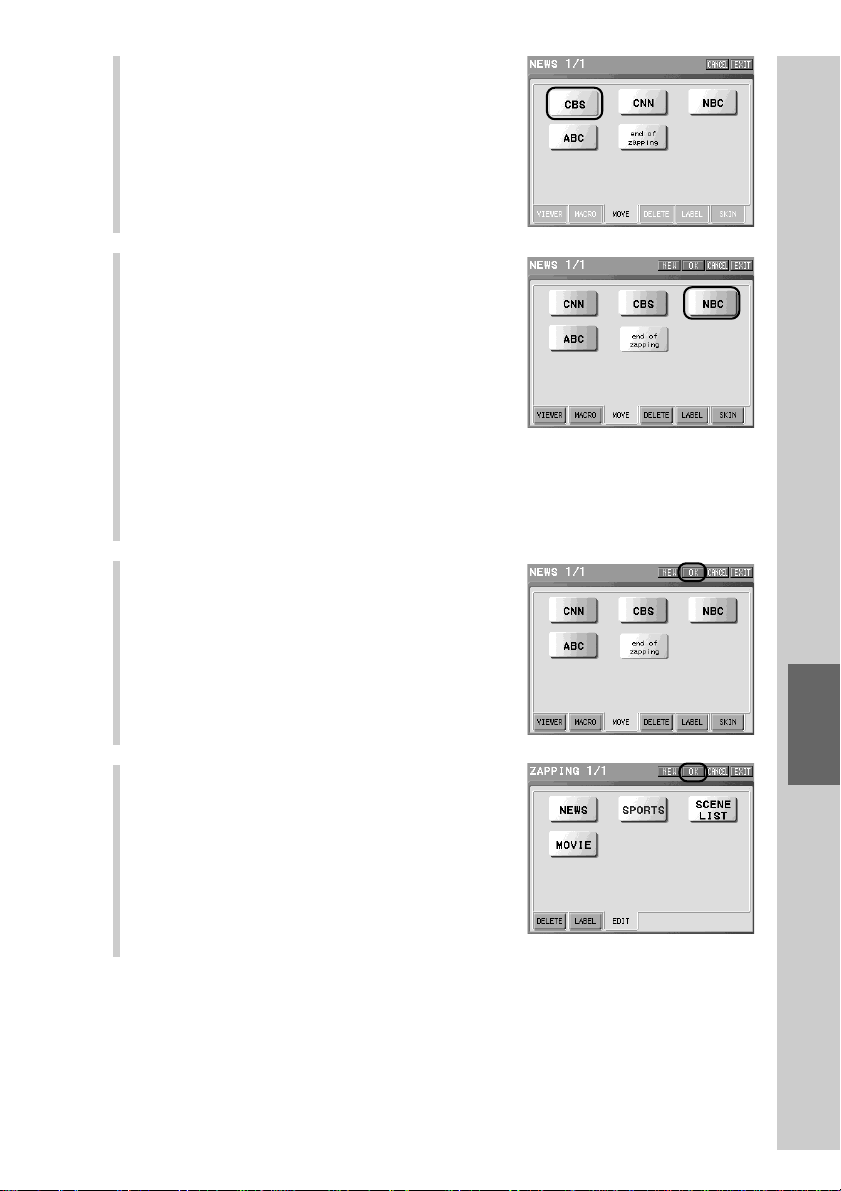
187
Easy selection of a series of actions
(macro) programmed for Zapping (ZAPPING)
6
Press the Zapping element key you
want to move.
The selected key appears pressed.
For example, press the [CBS] key.
7
Press the Zapping element key that
is assigned after the place where you
want to assign the Zapping element
key selected in step 6.
The Zapping element selected in step 6
moves to the position before the element
selected in step 7.
As you pressed the [NBC] key in this case,
the [CBS] key selected in step 6 moved to
the position before the [NBC] key.
Note
The Zapping element key selected in step 6
appears pressed and cannot be selected.
8
Press the [OK] key.
9
Press the [OK] key.
Moving of Zapping element key is decided,
and the display returns to the Set display
(step 2 on page 182).
To finish the setting
Press the COMMANDER OFF button for 2
seconds or longer. The display returns to the
Home display. The setting finishes.
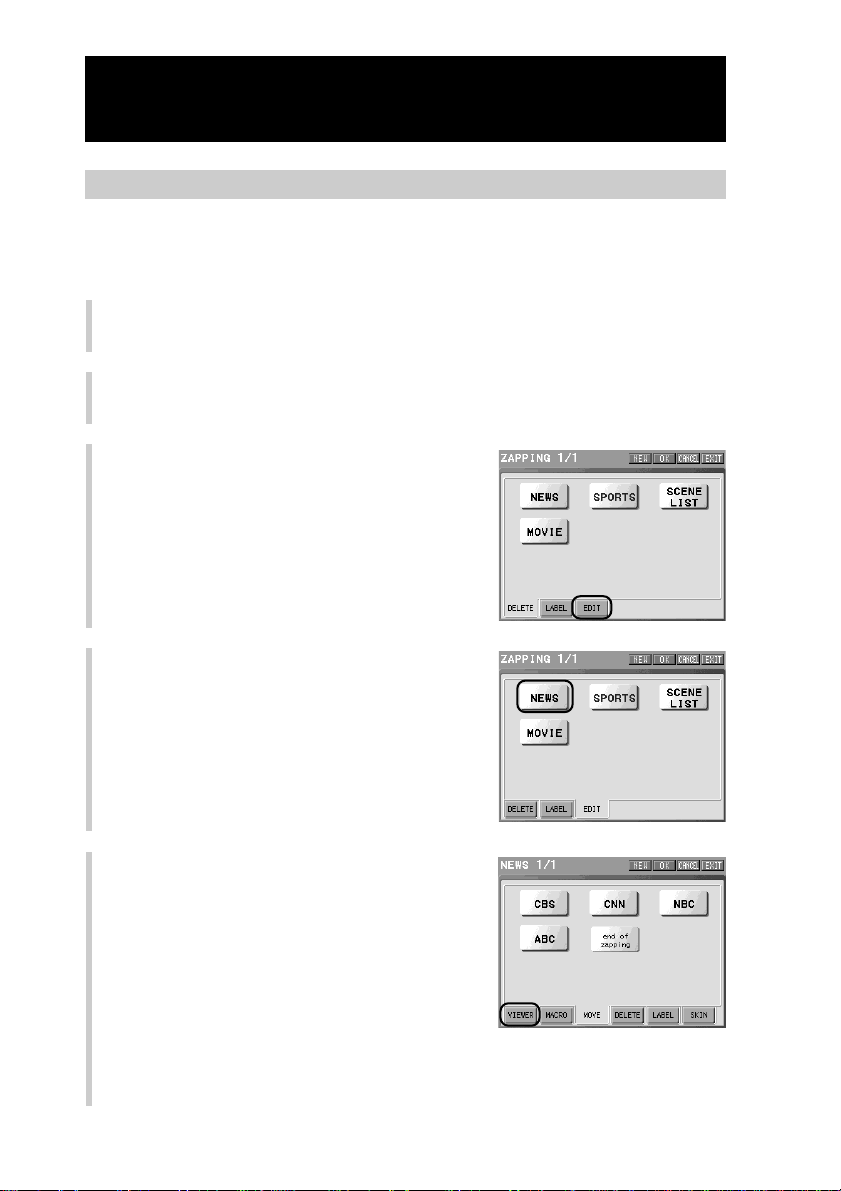
188
To check the macro procedure of a Zapping element
You can check, on the display, the contents of the macro procedure set to a
Zapping element.
1
Press the [SET] key for 2 seconds or longer in the Home display.
The Set display appears.
2
Press the [ZAPPING] key.
3
Press the [EDIT] tag.
4
Press the Zapping group that
includes the Zapping element whose
macro procedure you want to check.
5
Press the [VIEWER] tag.
Continued
Editing the Zapping function
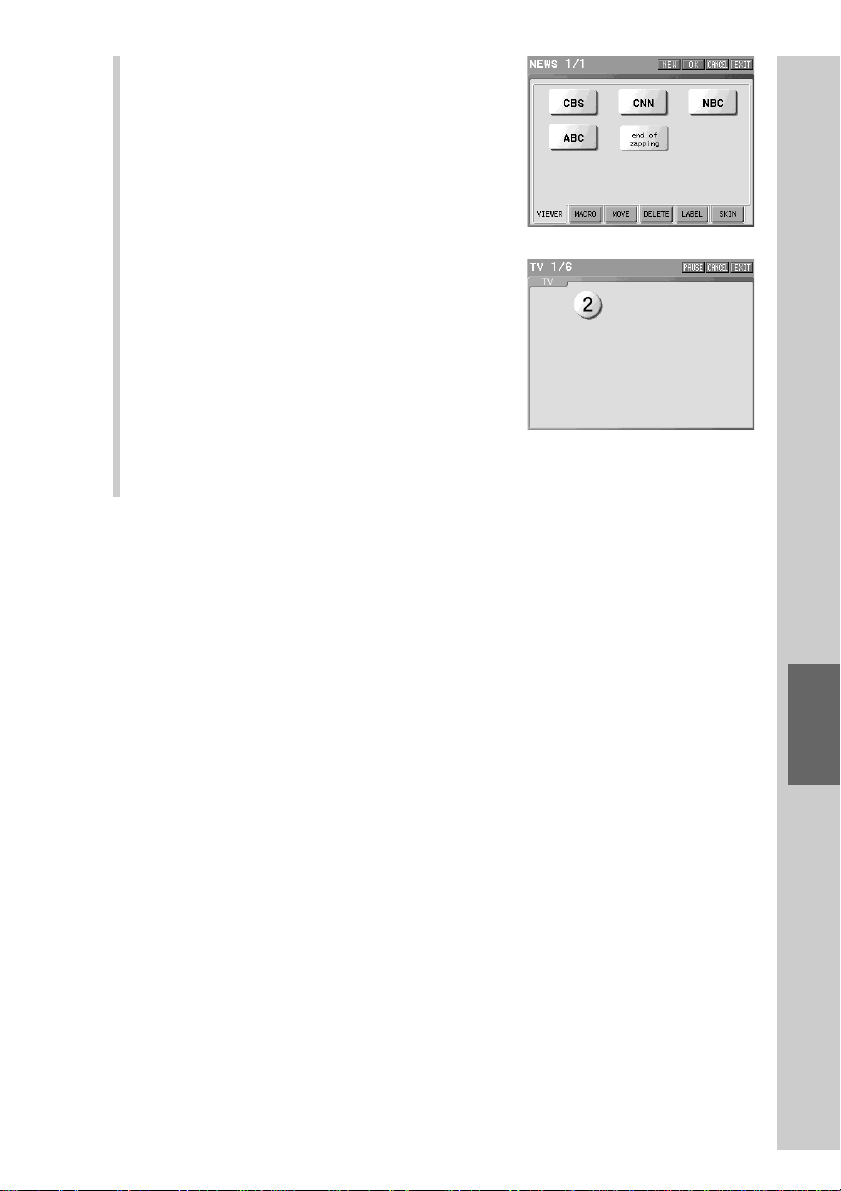
189
Easy selection of a series of actions
(macro) programmed for Zapping (ZAPPING)
6
Press the Zapping element whose
macro you want to check.
The macro procedure is shown.
■ About checking the macro procedure
When a function key is programmed as a
step, the key appears where the key is
assigned in the display. When a function
button is programmed, its name appears in
the center of the display.
When showing is complete, the display
returns to step 6.
Note
The macro procedures of the [JUMP] key and the [DELAY] key are not displayed.
To manually check the programmed macro procedure in order
Press the [PAUSE] key to suspend showing. Press the [PAUSE] key again to resume
consecutive showing.
While consecutive showing is suspended, press the NEXT button to show the next macro
step and press the BACK button to show the previous step.
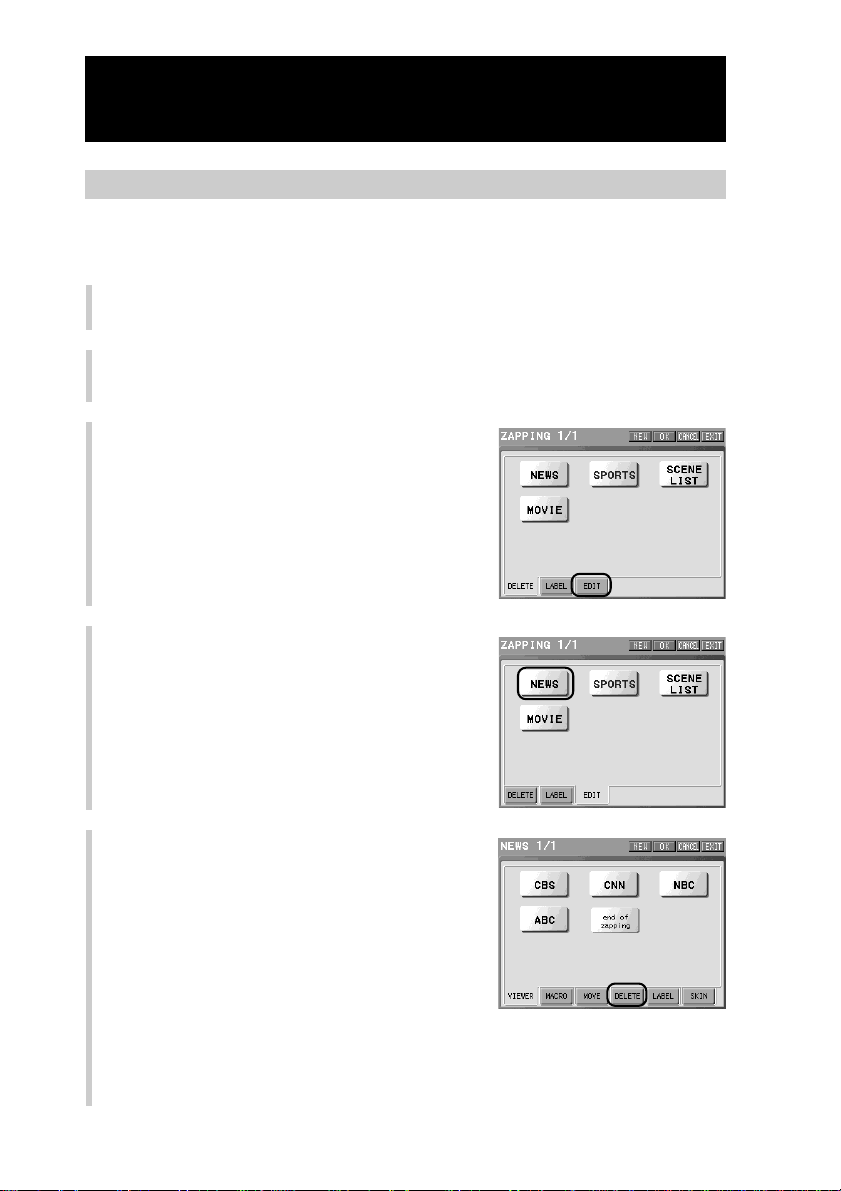
190
To delete a Zapping element
You can delete a Zapping element created by mistake or a Zapping element that
is no longer in use.
1
Press the [SET] key for 2 seconds or longer in the Home display.
The Set display appears.
2
Press the [ZAPPING] key.
3
Press the [EDIT] tag.
4
Press the Zapping group that
includes the Zapping element you
want to delete.
5
Press the [DELETE] tag.
Continued
Editing the Zapping function
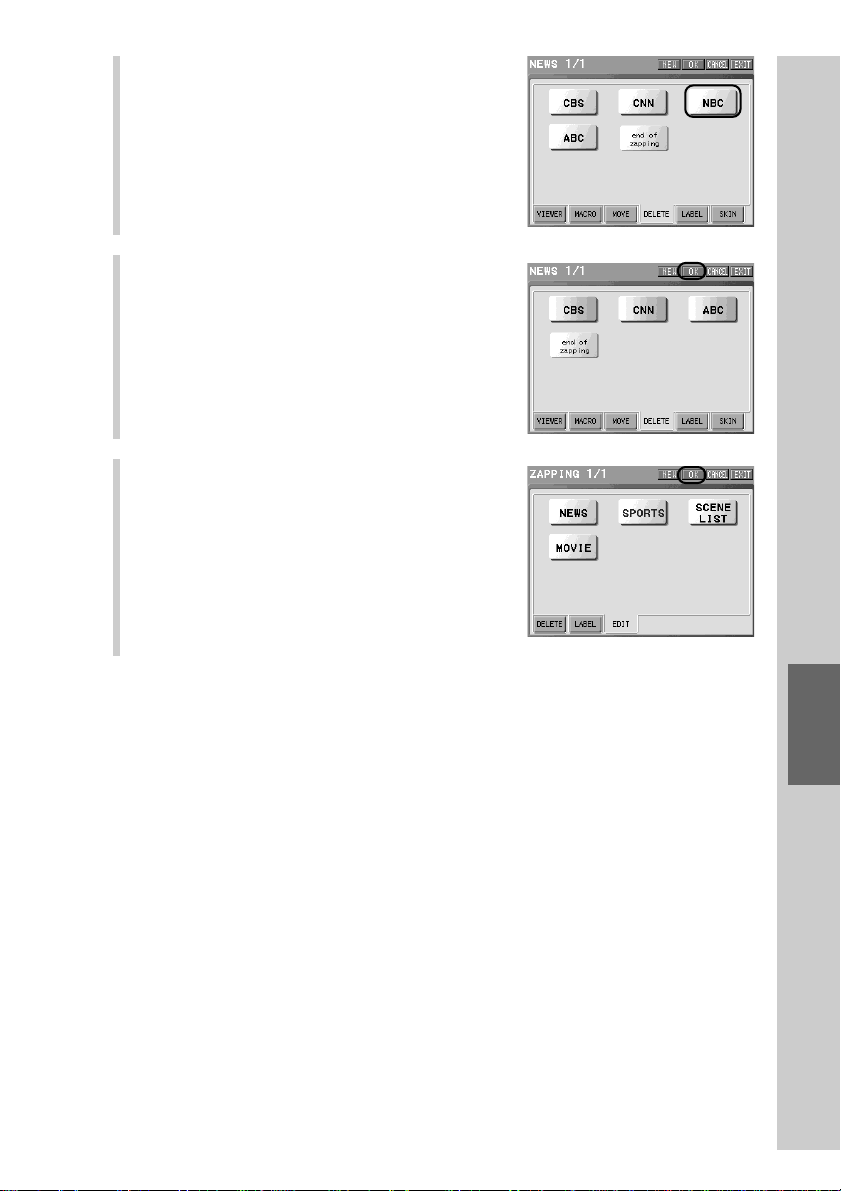
191
Easy selection of a series of actions
(macro) programmed for Zapping (ZAPPING)
6
Press the Zapping element key you
want to delete.
The indication of the Zapping element
disappears.
7
Press the [OK] key.
8
Press the [OK] key.
The Zapping element key is deleted, and
the display returns to the Set display (step 2
on page 182).
To finish the setting
Press the COMMANDER OFF button for 2
seconds or longer. The display returns to the
Home display. The setting finishes.
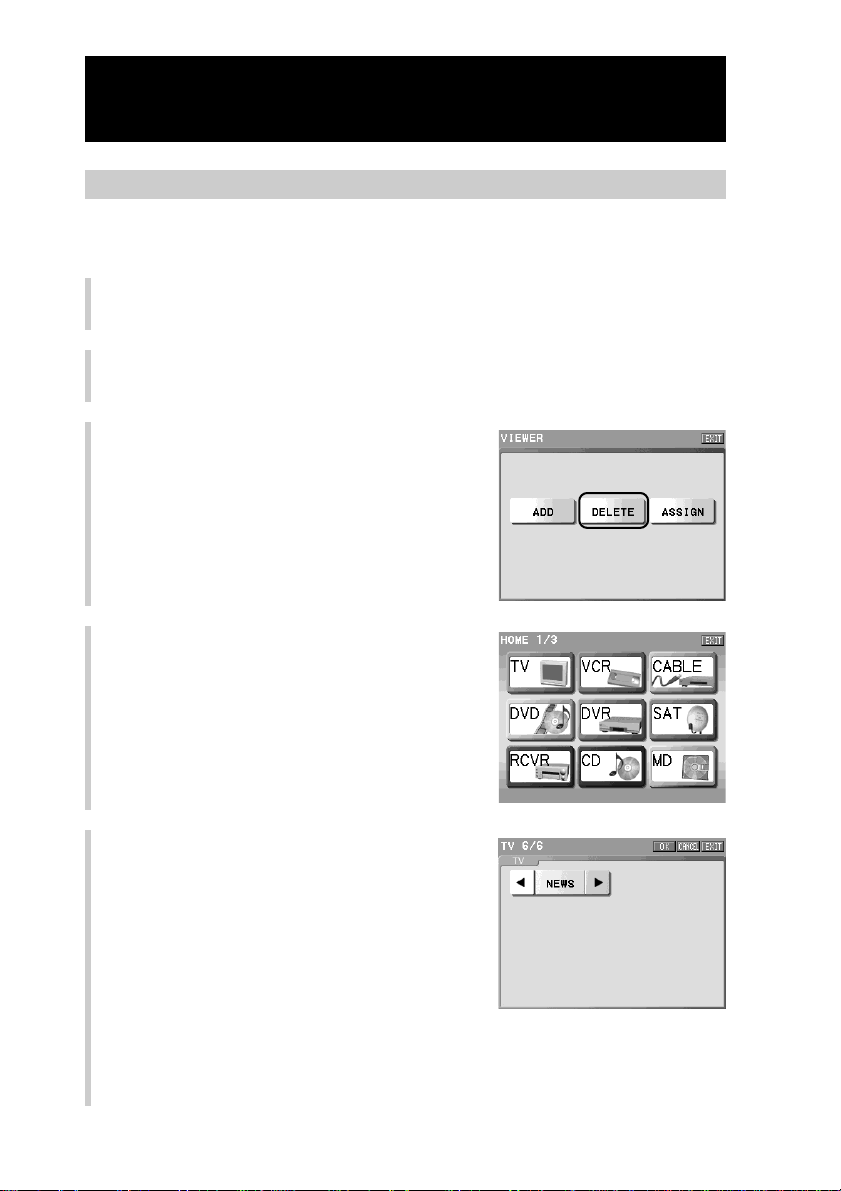
192
To delete a Zapping viewer
You can delete a Zapping viewer created by mistake or a Zapping viewer that is
no longer in use.
1
Press the [SET] key for 2 seconds or longer in the Home display.
The Set display appears.
2
Press the [ZAPPING VIEWER] key.
3
Press the [DELETE] key.
4
Press the Component key that
includes the Zapping viewer key you
want to delete.
5
Press the NEXT/BACK button to select
a page and, press the Zapping viewer
key you want to delete.
The indication of the selected key
disappears from the display.
Continued
Editing the Zapping function
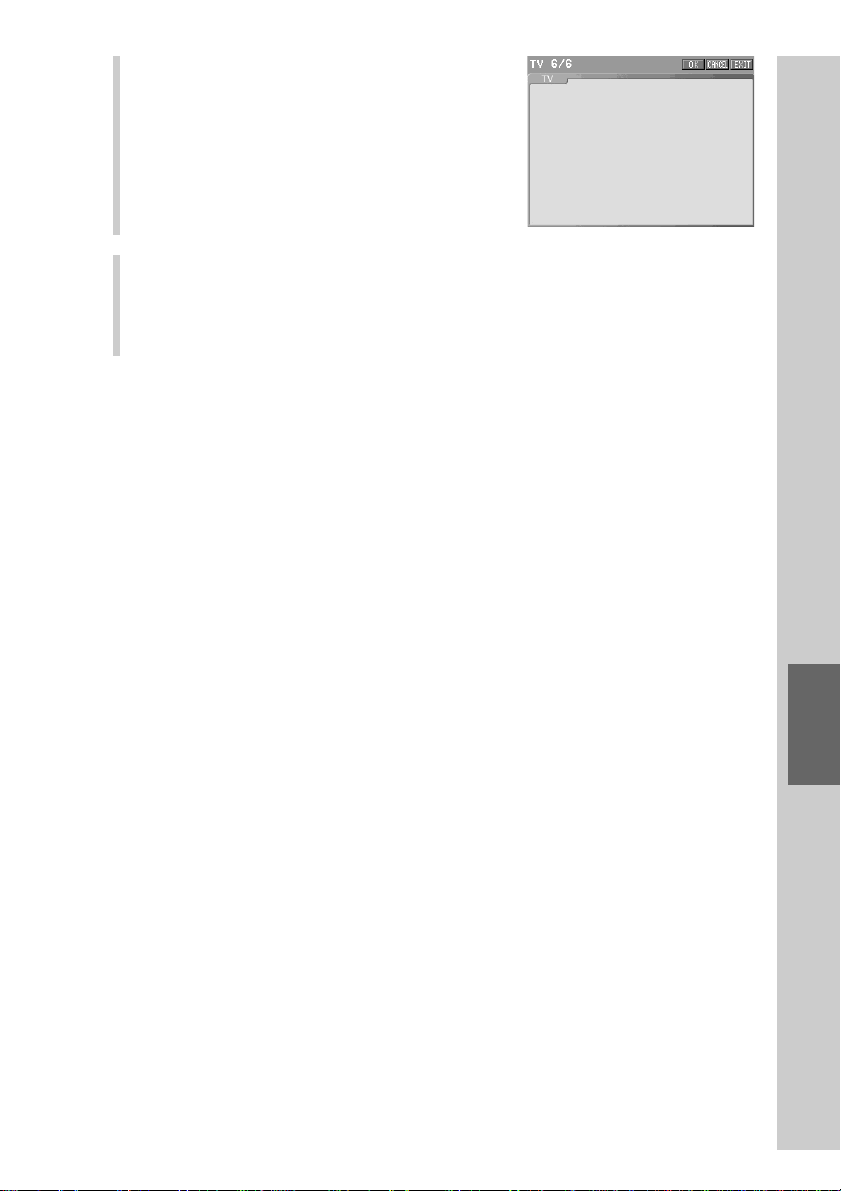
193
Easy selection of a series of actions
(macro) programmed for Zapping (ZAPPING)
6
Press the [OK] key.
The Zapping viewer is deleted and the
display returns to step 4.
7
To finish all settings, press the COMMANDER OFF button for 2
seconds or longer.
The display returns to the Home display. Or press the [EXIT] key repeatedly
until the Home display is shown.
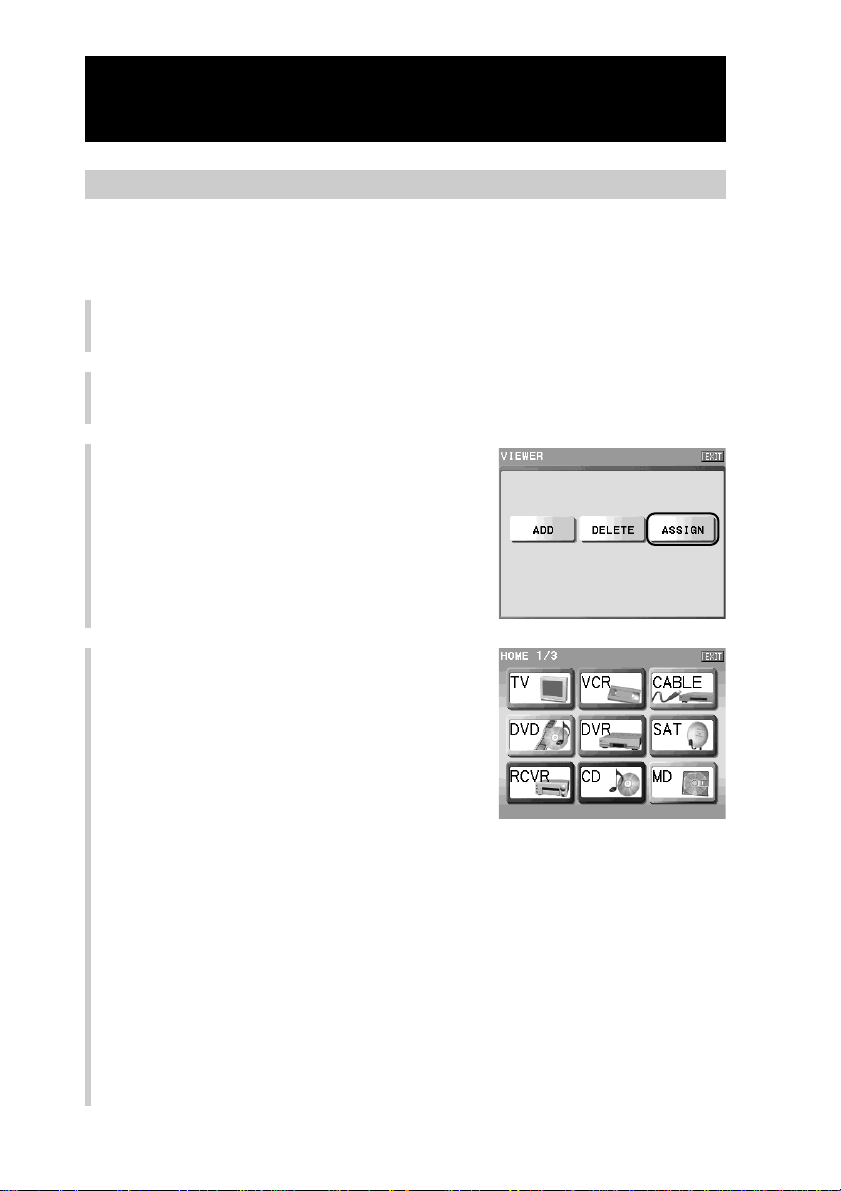
194
Continued
Editing the Zapping function
To assign a Zapping viewer to a function button
If you assign a Zapping group to a function button, you can perform the
Zapping function with one function button. The button a Zapping group is
assigned to is called an Assign button.
1
Press the [SET] key for 2 seconds or longer in the Home display.
The Set display appears.
2
Press the [ZAPPING VIEWER] key.
3
Press the [ASSIGN] key.
4
Press a Component key that includes
a Zapping group you want to assign
to a function button.
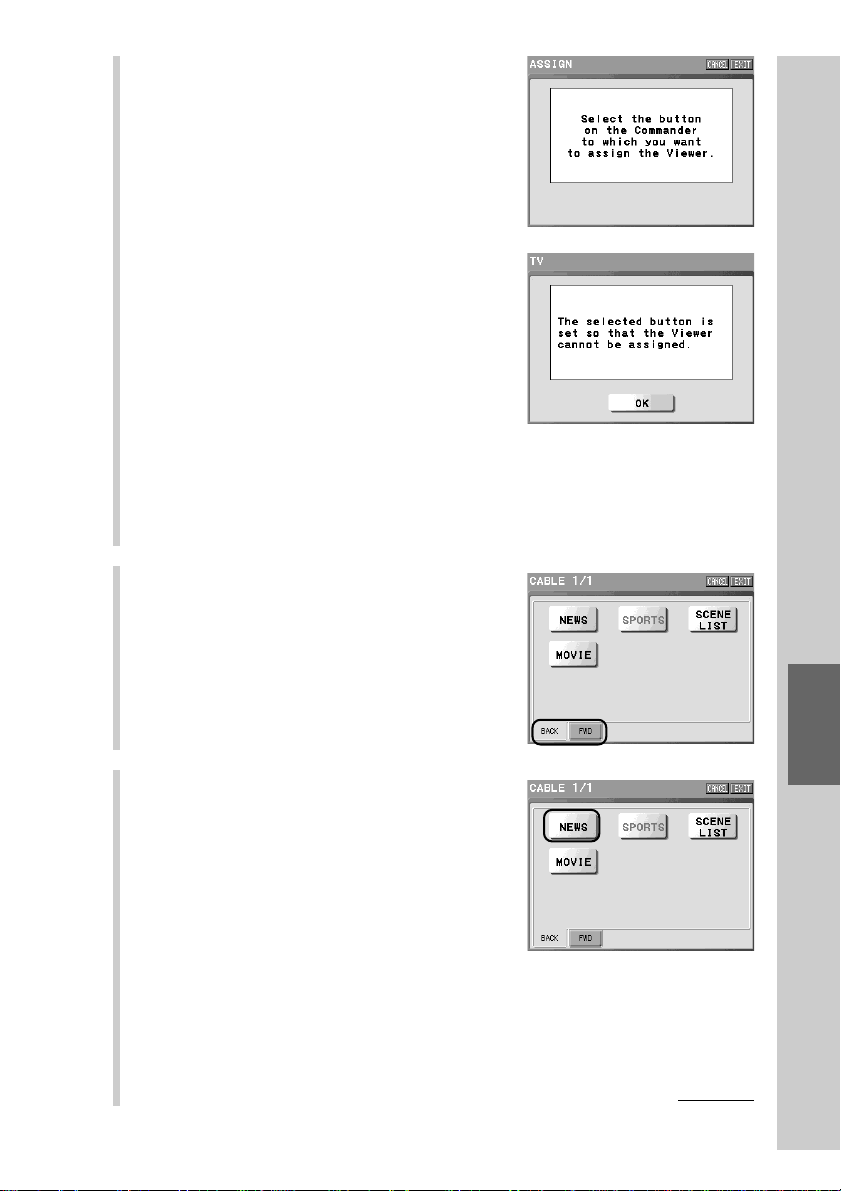
195
Easy selection of a series of actions
(macro) programmed for Zapping (ZAPPING)
5
Press a function button you want to
assign a Zapping group to.
■ If you press a function button to
which the Zapping viewer cannot be
assigned
A message appears. A button for which
learned data or a macro, etc., has been
programmed cannot become an Assign
button and you cannot assign the Zapping
viewer to that button.
If you press the [OK] key, the display
returns to the previous one. Select another
function button, or erase learned data or a
macro, etc., programmed for the function
button.
6
Select the direction to call up the
Zapping elements by pressing a tag.
Select the [FWD] (forward) or [BACK]
(backward) tag.
If you press the [CANCEL] key, the display
returns to step 5 without reading for
assignment.
7
Press a Zapping group you want to
assign to the function button.
The display for confirmation of setting
contents of the Assign button.
Continued
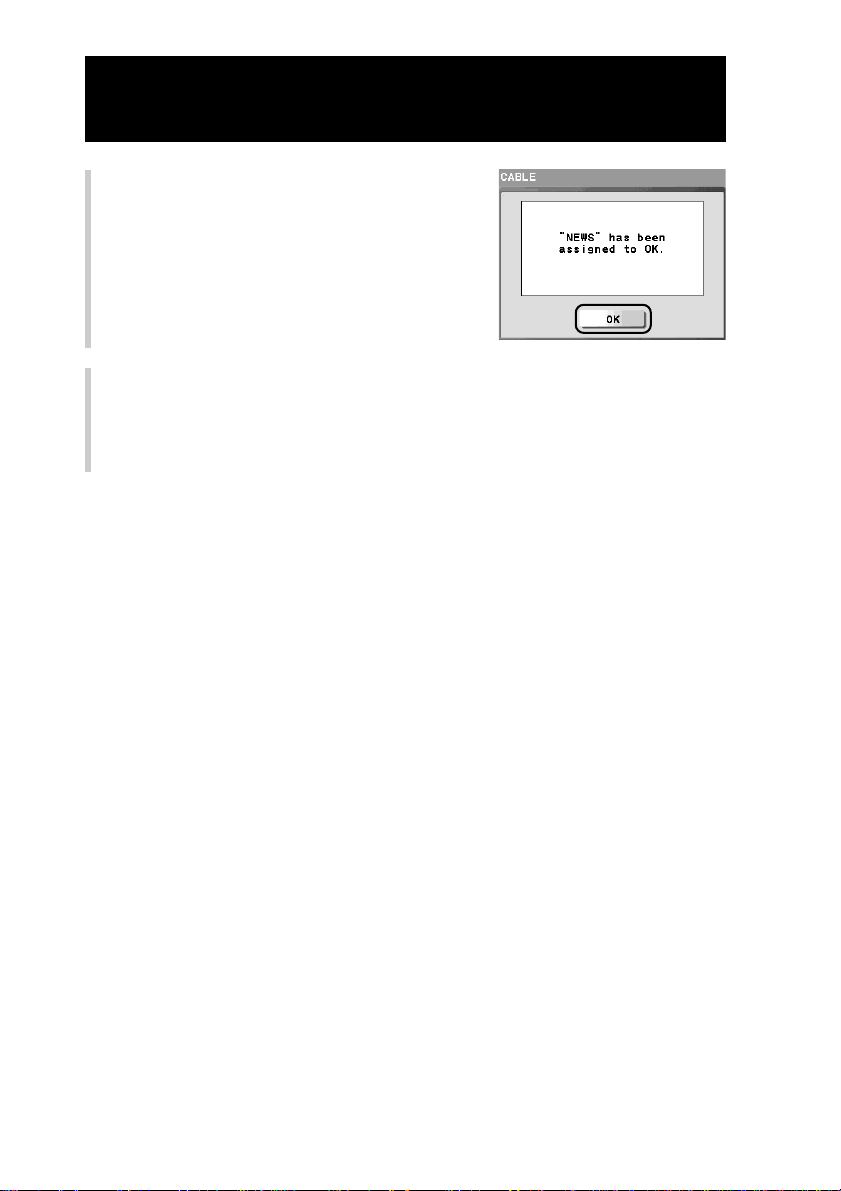
196
Continued
Editing the Zapping function
8
Press the [OK] key.
Setting of the Assign button is complete and
the display returns to step 4.
9
To finish all settings, press the COMMANDER OFF button for 2
seconds or longer.
The display returns to the Home display. Or press the [EXIT] key repeatedly
until the Home display is shown.
197
Using a “Memory Stick”
Using a “Memory Stick”

198
About a “Memory Stick”
What is a “Memory Stick”?
A “Memory stick” is a small and light IC recording media with a storage
capacity larger than a floppy disk. It can be used in specified external connected
devices or as a removable recording media for saving data, as well as a data-
exchangeable media between various “Memory Stick”-compatible devices.
A “Memory Stick” comes in standard size and a more compact size, called
“Memory Stick Duo.” By attaching a “Memory Stick Duo” adaptor, a “Memory
Stick Duo” can also be used with products compatible with a standard-sized
“Memory Stick.”
Notes
• The Remote Commander is not compatible with “Memory Stick Pro.”
• The Remote Commander is not supplied with a “Memory Stick.” You can use functions
described in this chapter after purchasing a “Memory Stick.”
• For details on handling a “Memory Stick”, refer to the instructions supplied with the
“Memory Stick.”
• The Remote Commander consumes considerably more battery power when using a
“Memory Stick” than when operating other functions. Use the AC power adaptor for
“Memory Stick” operation.
About a “Memory Stick Duo”
•Before using a “Memory Stick Duo” with the Remote Commander, make sure
to attach it to a “Memory Stick Duo” adaptor to it.
•Make sure to insert a “Memory Stick Duo” in the correct direction. If a
“Memory Stick Duo” is inserted in the wrong direction, the device may be
damaged.
•Do not insert a “Memory Stick Duo” adaptor into a “Memory Stick”-
compatible device without a “Memory Stick Duo” attached. If used in this
way, the device may be damaged.
About formatting a “Memory Stick”
A “Memory Stick” is already formatted at the factory in original standard
format. If it is necessary to format a “Memory Stick” yourself, format it using
the format function on the Remote Commander (page 209).
Note
If you format a “Memory Stick” using the “Memory Stick” drive on the computer, a
“Memory Stick” cannot be used with “NAVITUS Design” or the Remote Commander.
Make sure to format a “Memory Stick” with the Remote Commander.

199
Using a “Memory Stick”
While reading or writing data
“Do not remove the “Memory Stick”” appears in the display. Do not subject the
Remote Commander to excessive shock or vibration while reading or writing
data. Also, avoid disconnecting the AC power adaptor or removing the
“Memory Stick”, as saved data, the Remote Commander system, or the
“Memory Stick” may be damaged.
Notes on use
•We recommend backing up data frequently to avoid data loss. Sony is not
liable for data that is lost or damaged.
•You cannot use copyrighted recorded materials without permission except for
personal use.
•Software specifications of the Remote Commander are subject to change
without notice due to improvements.
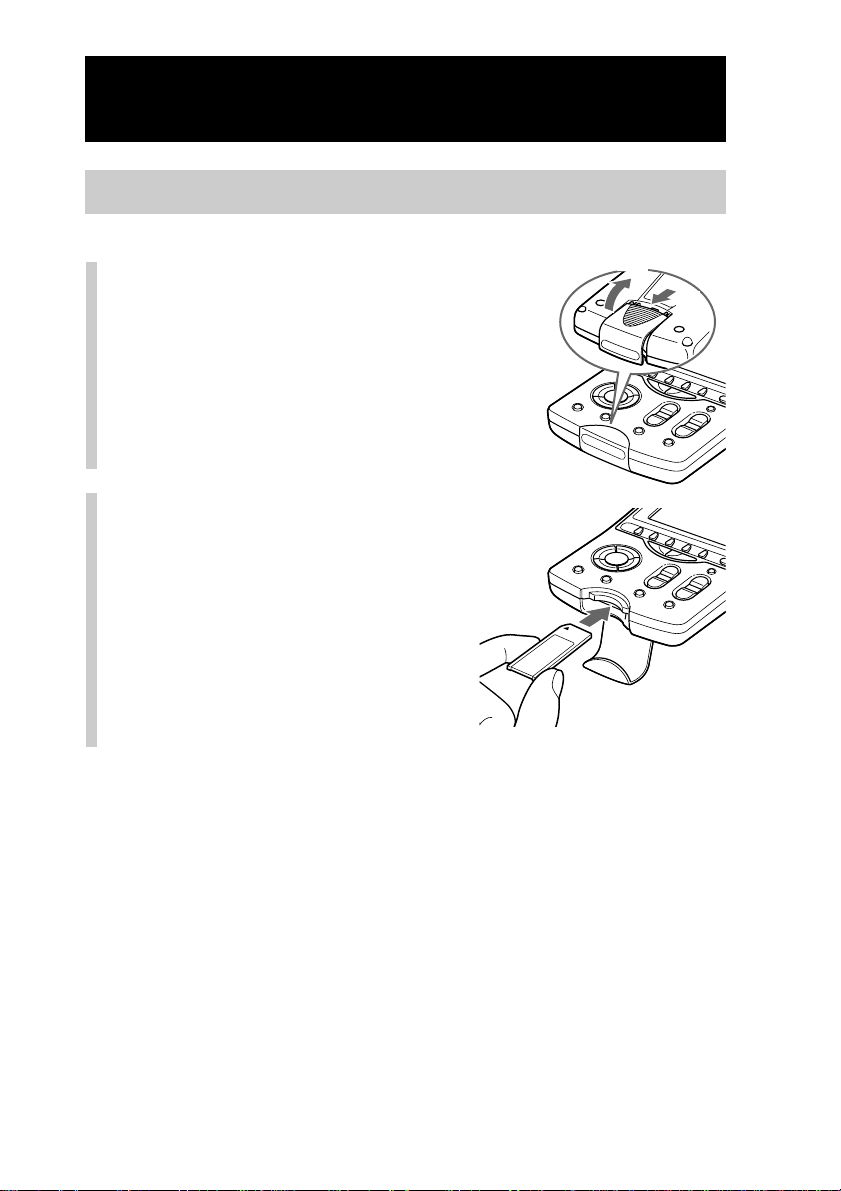
200
About a “Memory Stick”
Continued
Rear
Inserting a “Memory Stick”
1
Open the “Memory Stick”
slot cover.
2
Insert a “Memory Stick”
with the label side up until
a click is heard.
Notes
• Insert a “Memory Stick” in the correct direction. If a “Memory Stick” is forcibly inserted
in the wrong direction, the “Memory Stick” slot may be damaged.
• Do not insert a “Memory Stick” into anywhere other than the “Memory Stick” slot. The
“Memory Stick” and the Remote Commander may be damaged.
• Do not insert anything other than the “Memory Stick” into the “Memory Stick” slot. The
Remote Commander may be damaged.
1
2
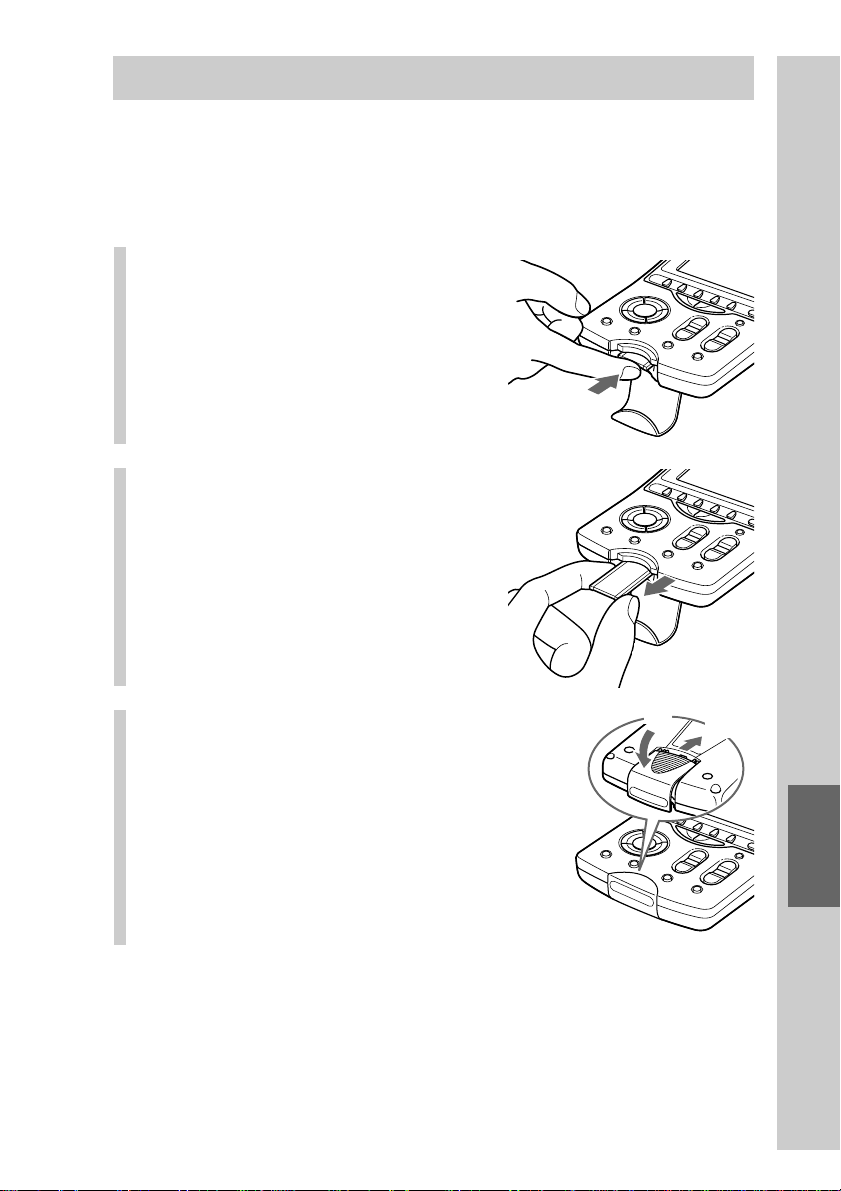
201
Using a “Memory Stick”
Removing a “Memory Stick”
Note
If you remove a “Memory Stick” while the indication of writing or reading is shown,
recorded data may be deleted or damaged. Make sure that the Remote Commander is not
reading from or writing to the “Memory Stick” when removing the “Memory Stick.”
1
Open the “Memory Stick”
slot cover and push the
“Memory Stick” into the
slot.
2
When the “Memory Stick”
pops out a little from the
Remote Commander,
remove it.
3
Close the “Memory Stick”
slot cover.
Rear
2
1
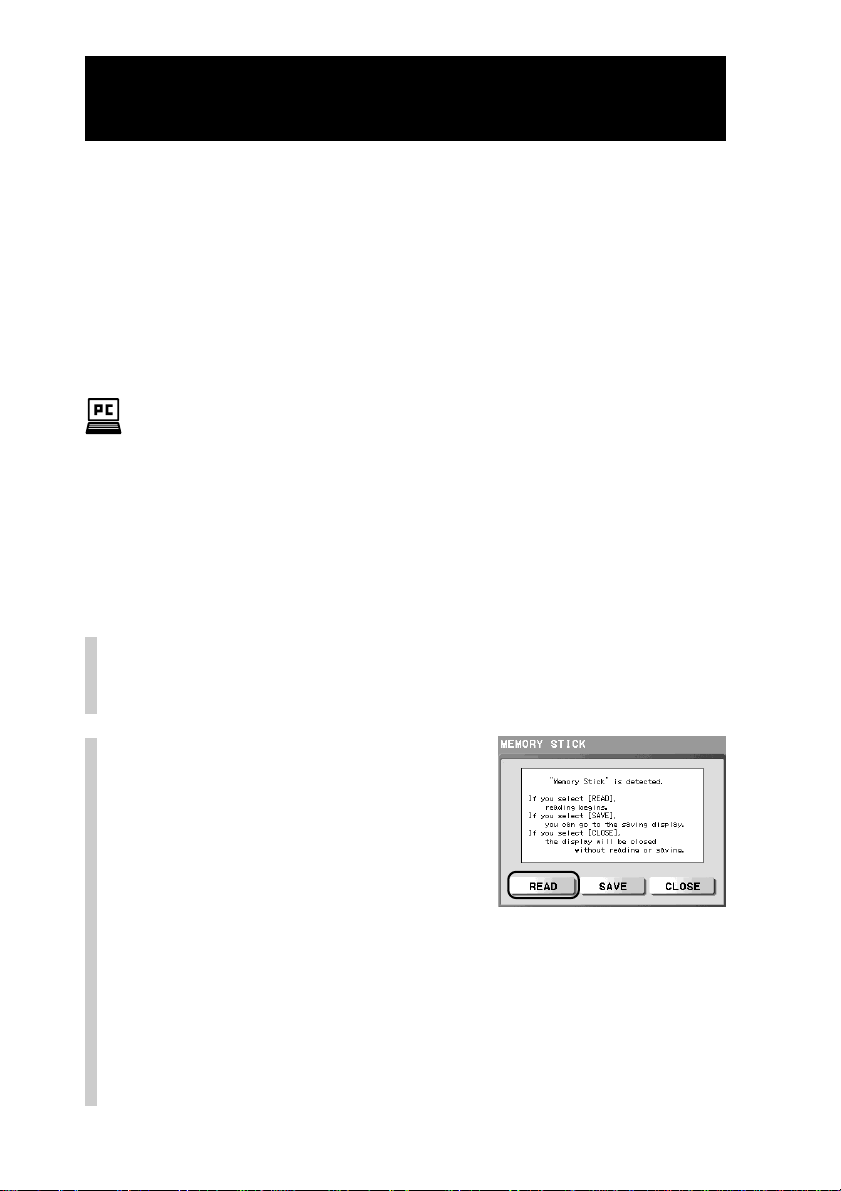
202
Reading data saved in a “Memory Stick”
(READ)
You can import data set up with the supplied application or the latest remote
control codes downloaded from a web site to the Remote Commander from
“NAVITUS Design” using a “Memory Stick.”
The following data can be saved to a “Memory Stick” using a computer. *
1)
•All environment data (all data of the Remote Commander)
•Latest remote control code (preset code) and its image data
•Data for each component
*
1)
A single “Memory Stick” can contain only one of the above.
• For details on how to save data to the “Memory Stick” from a computer, refer to
“Exporting the settings by NAVITUS Design to a Memory Stick” (“NAVITUS Design”
manual (Help)).
• The data saved by any application other than “NAVITUS Design” cannot be read.
The procedure explained here is for when the “Memory Stick” detection
message appears after inserting a “Memory Stick.”
1
Insert a “Memory Stick” into the “Memory Stick”
slot of the Remote Commander.
For details, see “Inserting a “Memory Stick”” (page 200).
2
Press the [READ] key.
z Tip
If you press the [CLOSE] key, the display returns to the previous one without
reading.
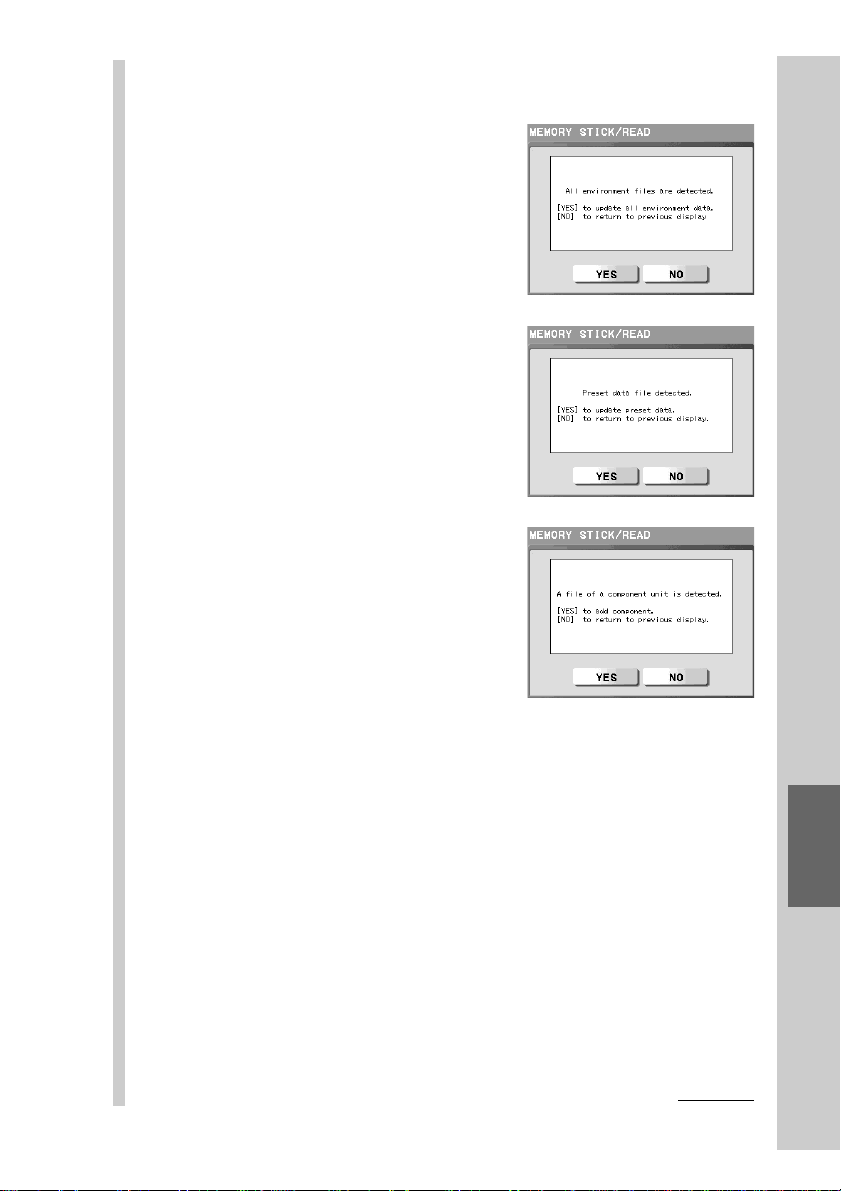
203
Using a “Memory Stick”
After the “Memory Stick” confirmation display, the following displays
appear according to the contents in the “Memory Stick.”
■ In case of all environment
data:
The confirmation display for updating
all environmental data appears.
■ In case of preset data and its
image data:
The confirmation display for updating
preset data appears.
■ In case of component unit
data:
The confirmation display for adding
component unit data appears.
Notes on reading data as component unit data
• Do not replace a “Memory Stick” with another one while a message appears. It
causes a malfunction. If you want to replace a “Memory Stick”, press the [NO]
key to return to step 2, and then replace it.
• If an Alias Component key is added as component unit data, the Alias
Component key is added as an Empty key. Therefore, the operation display
cannot be displayed, even if you press the added Alias Component key in the
operation mode of the Remote Commander.
• If you add a Component key of the same label name as a Component key that
exists on the Remote Commander, the label name of the added Component key
is shown with a digit added. (Example: If you add a Component key of the label
name [TV], the label name of the added Component key is shown as [TV2] on
the Remote Commander.)
Continued
204
Reading data saved in a “Memory Stick” (READ)
Continued
If an error message appears
If an abnormal status of the “Memory Stick” or the Remote Commander is
detected while reading the “Memory Stick”, an error message appears.
About the data contents in the “Memory Stick”
You can read three types of data contents with the Remote Commander. The
respective types of data (meanings) for the items of “Data contents in the
“Memory Stick” “ in the table below are as follows.
All: all environment data (all data of the Remote Commander)
Preset: the latest remote control code (preset code) and its image data
Component: data for each component
3
Press the [YES] key.
The Remote Commander starts reading the file. When reading of the file
is correctly complete, the confirmation display appears. If you fail to read
the file, an error message appears. For details on the error message, see
pages 204 - 205.
z Tip
If you press the [NO] key, the display returns to step 2 without reading.
Note
Do not remove the “Memory Stick” or disconnect the AC power adaptor while
reading the file.
4
Press the [OK] key in the confirmation display.
The display returns to the first page of the Home display.
Data contents in the
“Memory Stick”
All
Preset
Component
All
Preset
Component
Message
The “Memory Stick” cannot be
correctly read. Or there is no
file to be read.
The memory capacity of the
Commander is insufficient.
You cannot update the data.
Symptom and corrective action
You cannot correctly read the
“Memory Stick” or there is no file to
be read in the “Memory Stick.”
Save data on the “Memory Stick”
first, and then read it again.
The size of the data saved on the
“Memory Stick” is larger than the
free memory space of the Remote
Commander. Delete unnecessary
pages, etc., from the file on the
computer, and save the file again.
Then read the “Memory Stick” on
the Remote Commander again.

205
Using a “Memory Stick”
Data contents in the
“Memory Stick”
All
Preset
Component
All
Preset
Component
All
Preset
Component
Message
A “Memory Stick” is not
inserted. Operate after
inserting a “Memory Stick.”
Loading from the “Memory
Stick” failed. Try again?
The version of the data on the
Commander is newer than
that of the “Memory Stick.”
You cannot update the data.
The preset data of the
Commander is old, so
addition failed. Update preset
data file and try again.
Symptom and corrective action
Insert a “Memory Stick.”
If you press the [YES] key, you can
choose to read again.
If you press the [NO] key, reading
finishes.
As the version of the data on the
Remote Commander is newer than
that of the “Memory Stick” to be
read, you cannot update the data.
When reading all enviroment data
or preset data and its image data,
read newer version than that on the
Remote Commander. For details on
checking the version of the data on
the Remote Commander, see
“Remote Commander information
(ABOUT)” (page 224).
The version of the data on the Remote
Commander is older than that of the
file on the “Memory Stick”to be read.
Update the preset data on the Remote
Commander to the latest, and then
read the file again.
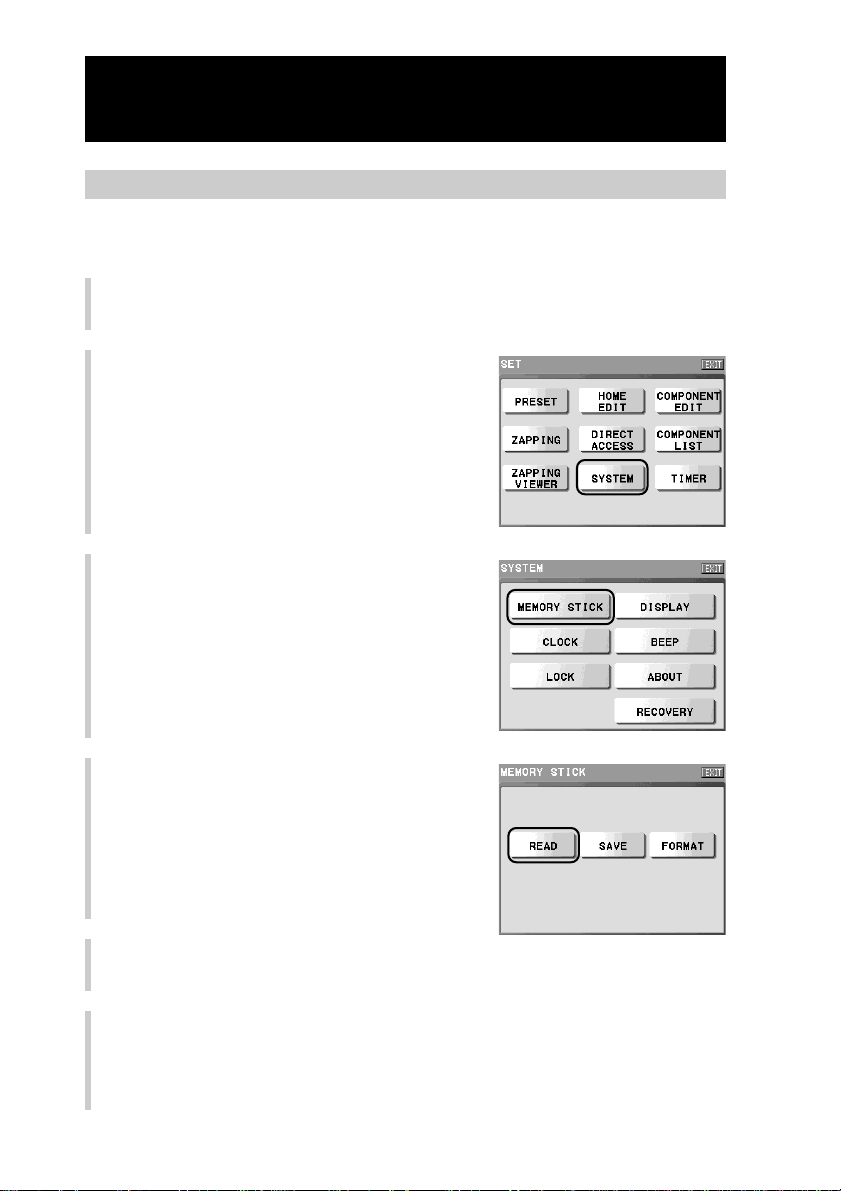
206
Reading a “Memory Stick” from the setting mode
When a “Memory Stick” is already inserted in the Remote Commander, you can
start the reading procedure from the Set display.
1
Press the [SET] key for 2 seconds or longer in the Home display.
The Set display appears.
2
Press the [SYSTEM] key.
3
Press the [MEMORY STICK] key.
4
Press the [READ] key.
For further operations, see steps 2 and 3 in
“Reading data saved in a “Memory Stick”
(READ)” (page 202).
5
Press the [OK] key in the confirmation display.
The display returns to step 4.
6
To finish all settings, press the COMMANDER OFF button for 2
seconds or longer.
The display returns to the Home display. Or press the [EXIT] key repeatedly
until the Home display is shown.
Reading data saved in a “Memory Stick” (READ)
Continued
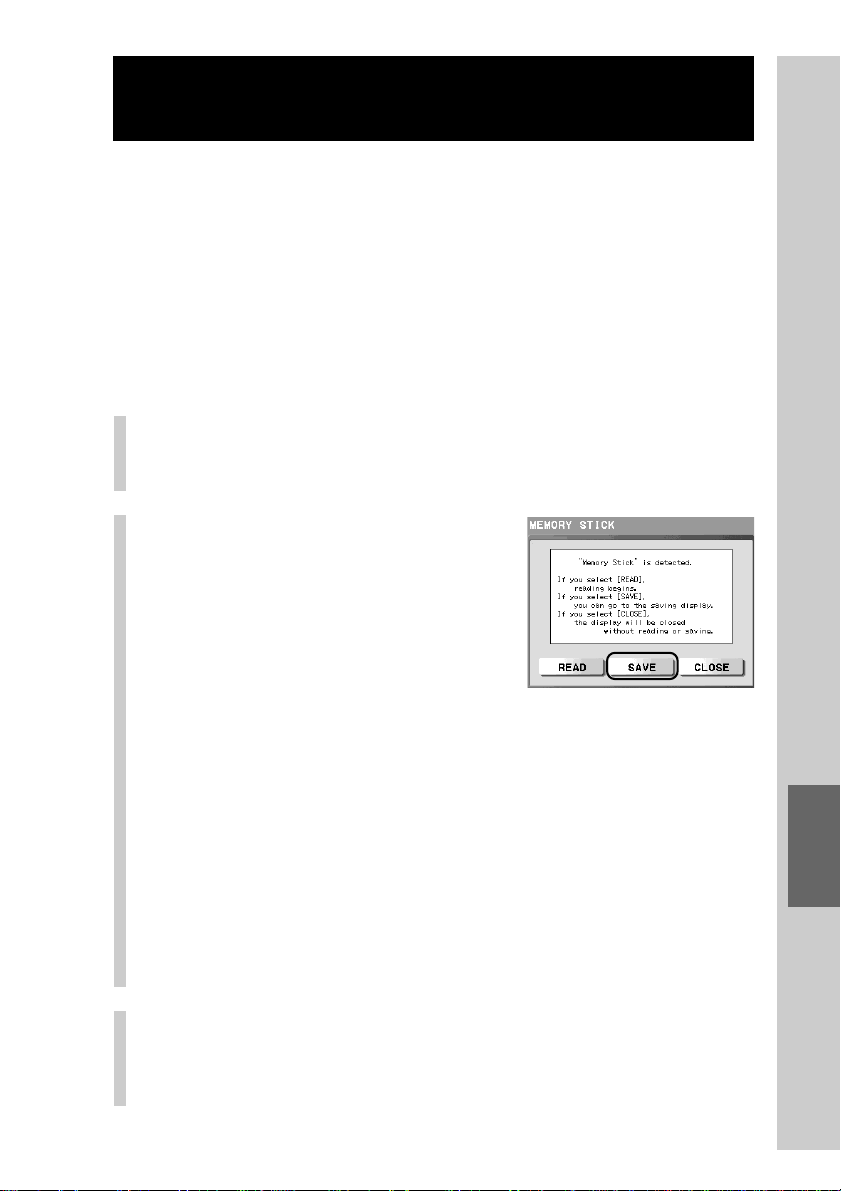
207
Using a “Memory Stick”
Saving Remote Commander data to a
“Memory Stick” (SAVE)
You can save all data set up with the Remote Commander to a “Memory Stick.”
This function is useful when backing up the data or transferring all data set up
with the Remote Commander to a computer via a “Memory Stick.”
The procedure explained here is for when the “Memory Stick” detection
message appears after inserting a “Memory Stick.”
Note
Connect the AC power adaptor when saving data to a “Memory Stick” as this operation
consumes considerable battery power. If the battery power is insufficient, you cannot use
the “Memory Stick.”
1
Insert a “Memory Stick” into the “Memory Stick”
slot of the Remote Commander.
For details, see “Inserting a “Memory Stick”” (page 200).
2
Press the [SAVE] key.
z Tip
If you press the [CLOSE] key, the display
returns to the previous one without saving.
The Remote Commander starts saving the file. When saving of the file is
correctly complete, the confirmation display appears. If you fail to save
the file, an error message appears. For details on the error message, see
page 208.
If another file has already been saved, a confirmation message for
overwriting appears. Press the [YES] key to start saving. If you press the
[NO] key, the display returns to the previous one without saving.
z Tip
If you press the [NO] key, the procedure finishes without saving.
Note
Do not remove the “Memory Stick” or disconnect the AC power adaptor while
saving the file.
3
Press the [OK] key in the confirmation display.
The display returns to the display in step 2.
When the display in step 2 is shown, press the [CLOSE] key to return to
the Home display.

208
Saving Remote Commander data to a “Memory Stick” (SAVE)
Continued
If an error message appears
If an abnormal status of the “Memory Stick” or the Remote Commander is
detected while reading the “Memory Stick”, an error message appears.
Message Symptom and corrective action
The “Memory Stick” capacity is
insufficient.
The memory capacity of the
Commander is insufficient. You
cannot save the data.
The “Memory Stick” is broken
or locked, so saving was not
carried out.
Saving to the “Memory Stick”
failed. Try again?
The “Memory Stick” was
removed while saving, so data
was not saved correctly.
A “Memory Stick” is not
inserted. Operate after inserting
a “Memory Stick.”
Delete unnecessary files from the “Memory Stick.”
You cannot create a file format for saving because the free
memory capacity of the Remote Commander is insufficient.
Save again after securing the free memory capacity by
deleting any unnecessary pages or keys.
Saving cannot be carried out as the “Memory Stick” is broken
or locked. Use another “Memory Stick” if it is broken. If the
“Memory Stick” is locked, release the lock and try saving
again. For details on the lock of the “Memory Stick”, refer to
instructions of the “Memory Stick” you purchased.
You failed in saving to “Memory Stick.” Press the [YES] key
to try again. If you press the [NO] key, the procedure finishes
without saving.
Data cannot be correctly saved as the “Memory Stick” was
removed while saving. Press the [OK] key to finish the
procedure.
Insert a “Memory Stick.”
Saving data of the Remote Commander to a “Memory
Stick” from the setting mode
Make sure that “Memory Stick” is already inserted in the Remote Commander,
before you can start the saving procedure from the Set display.
Note
Connect the AC power adaptor when saving data to a “Memory Stick” as this operation
consumes considerable battery power. If the battery power is insufficient, you cannot use
the “Memory Stick.”
1
Press the [SET] key for 2 seconds or longer in the Home display.
The Set display appears.
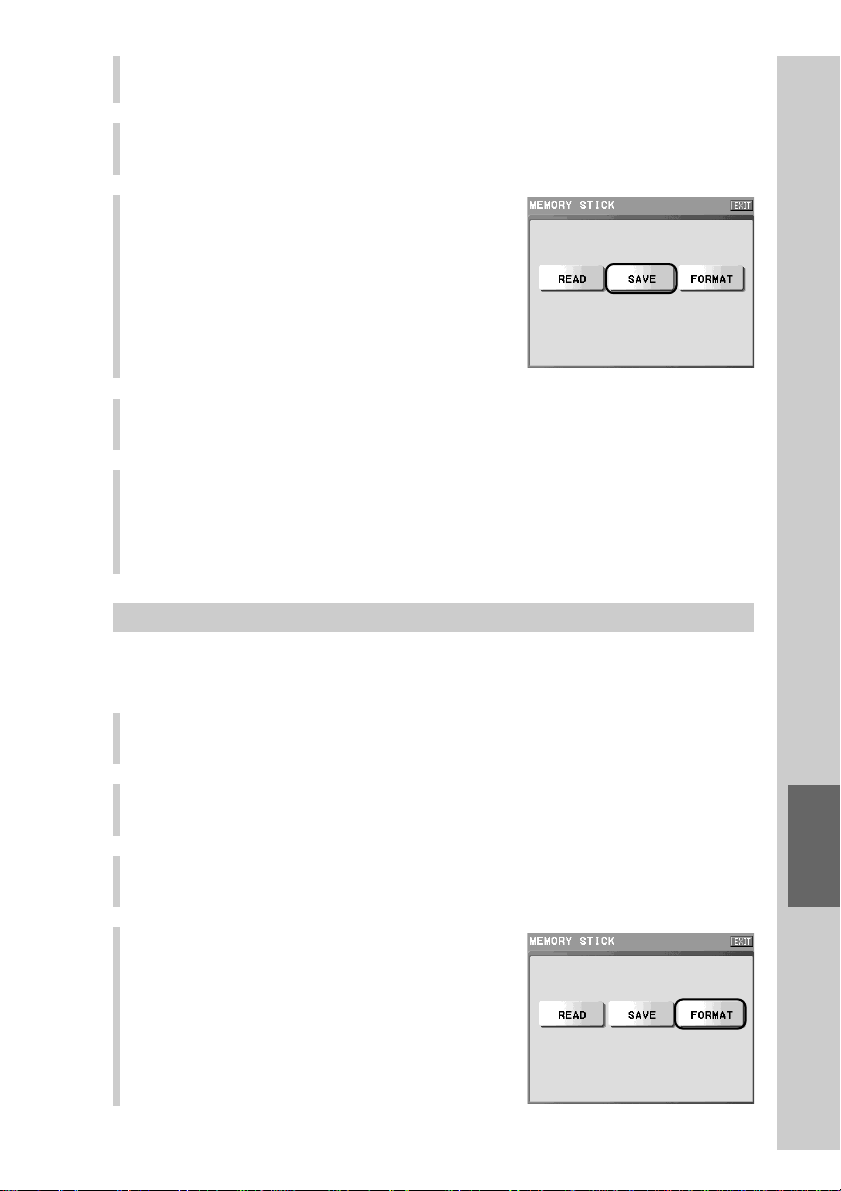
209
Using a “Memory Stick”
Formatting a “Memory Stick”
You can format a “Memory Stick” so that it can be used on this Remote
Commander.
1
Press the [SET] key for 2 seconds or longer in the Home display.
The Set display appears.
2
Press the [SYSTEM] key.
3
Press the [MEMORY STICK] key.
4
Press the [FORMAT] key.
The confirmation message for formatting
appears.
2
Press the [SYSTEM] key.
3
Press the [MEMORY STICK] key.
4
Press the [SAVE] key.
For further operations, see steps 2 and 3 in
“Saving Remote Commander data to a
“Memory Stick” (SAVE)” (page 207).
5
Press the [OK] key in the confirmation display.
The display returns to step 4.
6
To finish all settings, press the COMMANDER OFF button for 2
seconds or longer.
The display returns to the Home display. Or press the [EXIT] key repeatedly
until the Home display is shown.
210
5
Press the [YES] key.
The Remote Commander starts formatting. When formatting a “Memory
Stick” is correctly complete, the confirmation display appears.
z Tip
If you press the [NO] key, the procedure finishes without formatting.
Note
Do not remove the “Memory Stick” while formatting the “Memory Stick.”
6
Press the [OK] key in the confirmation display.
The display returns to the first page of the Step 4.
7
To finish all settings, press the COMMANDER OFF button for 2
seconds or longer.
The display returns to the Home display. Or press the [EXIT] key repeatedly
until the Home display is shown.
If an error message appears
If an abnormal status of the “Memory Stick” is detected while formatting the
“Memory Stick”, an error message appears.
Formatting cannot be carried out as the “Memory Stick” is
broken or locked. Use another “Memory Stick” if it is broken.
If the “Memory Stick” is locked, release the lock and insert it
again. For details on the lock of the “Memory Stick”, refer to
instructions of the “Memory Stick” you purchased.
Saving Remote Commander data to a “Memory Stick” (SAVE)
Continued
Message Symptom and corrective action
The “Memory Stick” is broken
or locked.
211
Remote Commander’s Other Functions
Remote Commander’s Other Functions
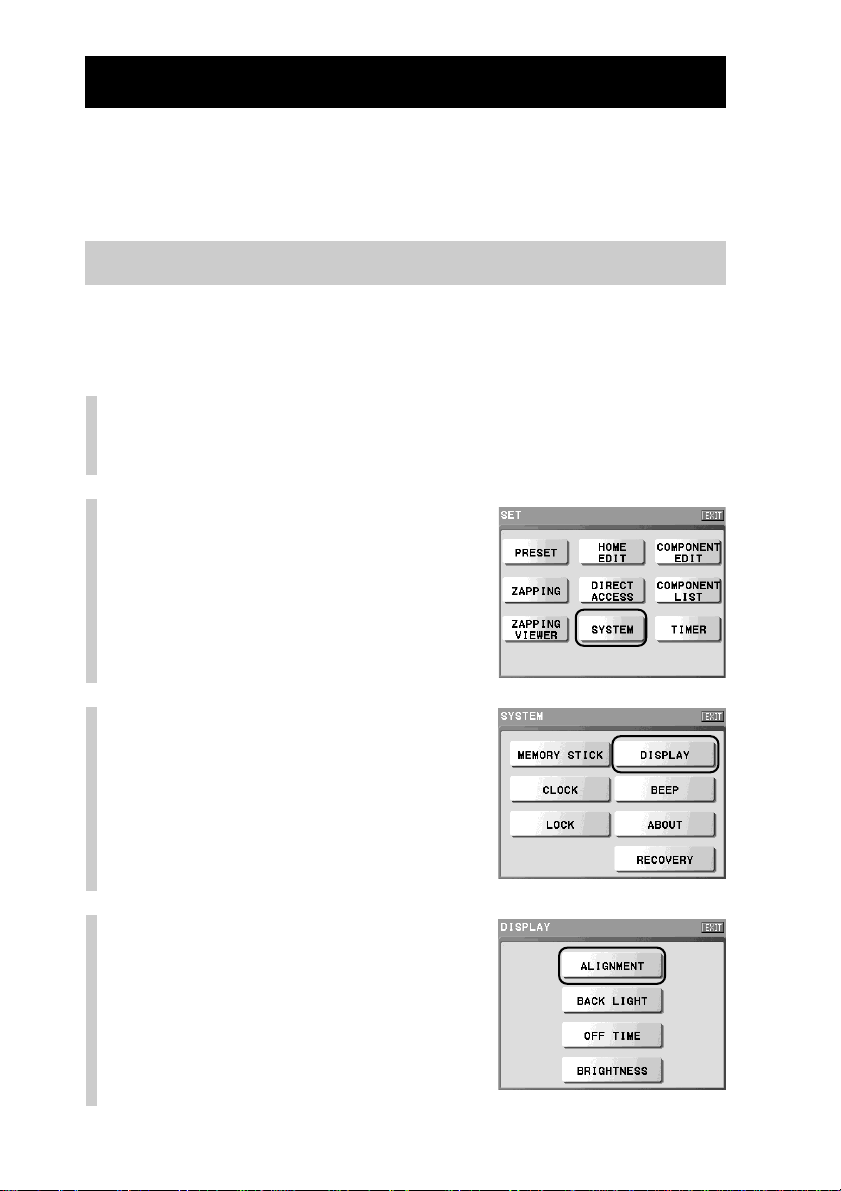
212
Setting the Display Window
You can make various settings to the touch panel display.
In addition to calibrating the touch panel display, you can set the automatic off
time of the display window, or the automatic off time and brightness of the
backlight that illuminates the LCD screen.
Calibrating the touch panel display (ALIGNMENT)
The calibration of the touch panel display is usually performed when the
Remote Commander is turned on for the first time. However, you can calibrate
the touch panel display again at any time if necessary.
1
Press the [SET] key for 2 seconds or longer in the
Home display.
The Set display appears.
2
Press the [SYSTEM] key.
3
Press the [DISPLAY] key.
4
Press the [ALIGNMENT] key.
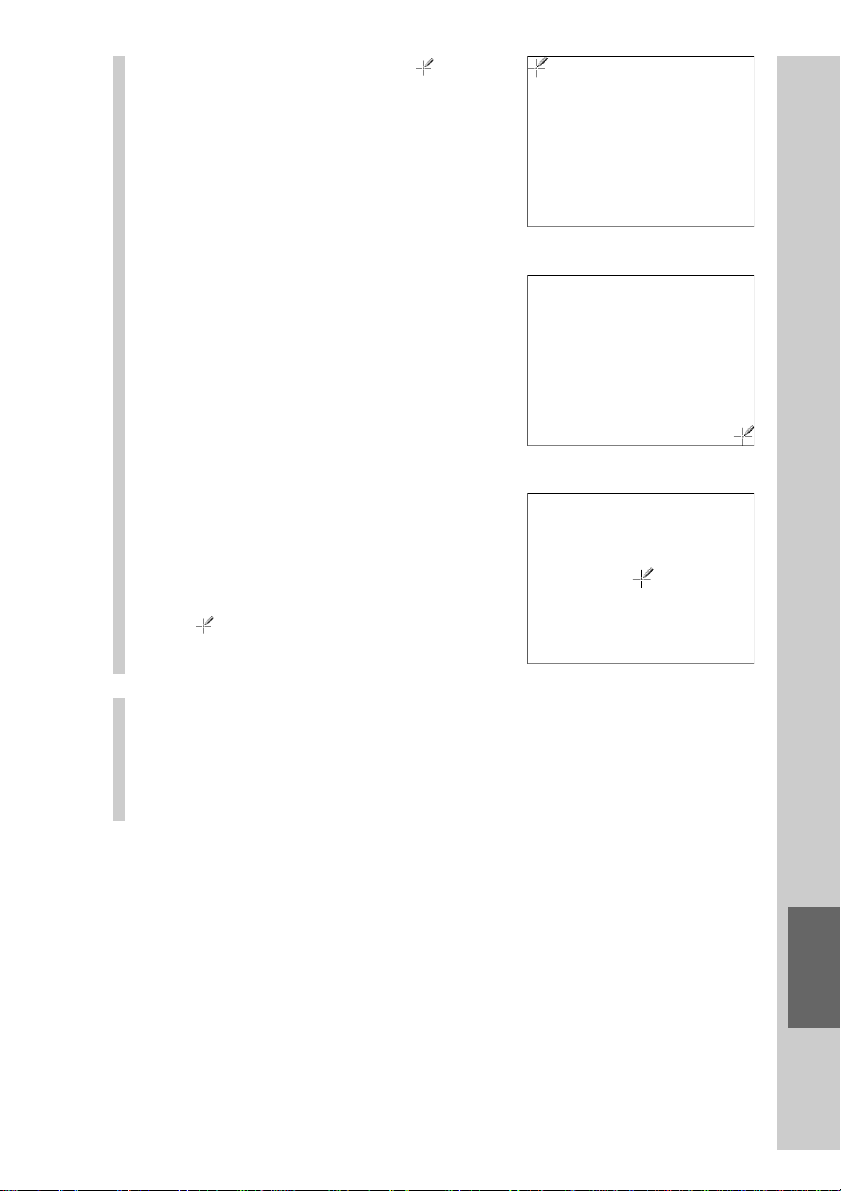
213
Remote Commander’s Other Functions
5
Tap the center of the
mark three times in order
with the supplied Stylus.
When calibration is complete, the
display returns to step 4.
Note
When calibrating, tap correctly the center of
the mark. If you do not tap the center, the
display of step 5 appears repeatedly until the
calibration is correctly performed.
6
To finish all settings, press the COMMANDER OFF
button for 2 seconds or longer.
The display returns to the Home display. Or press the [EXIT] key
repeatedly until the Home display is shown.
m
m
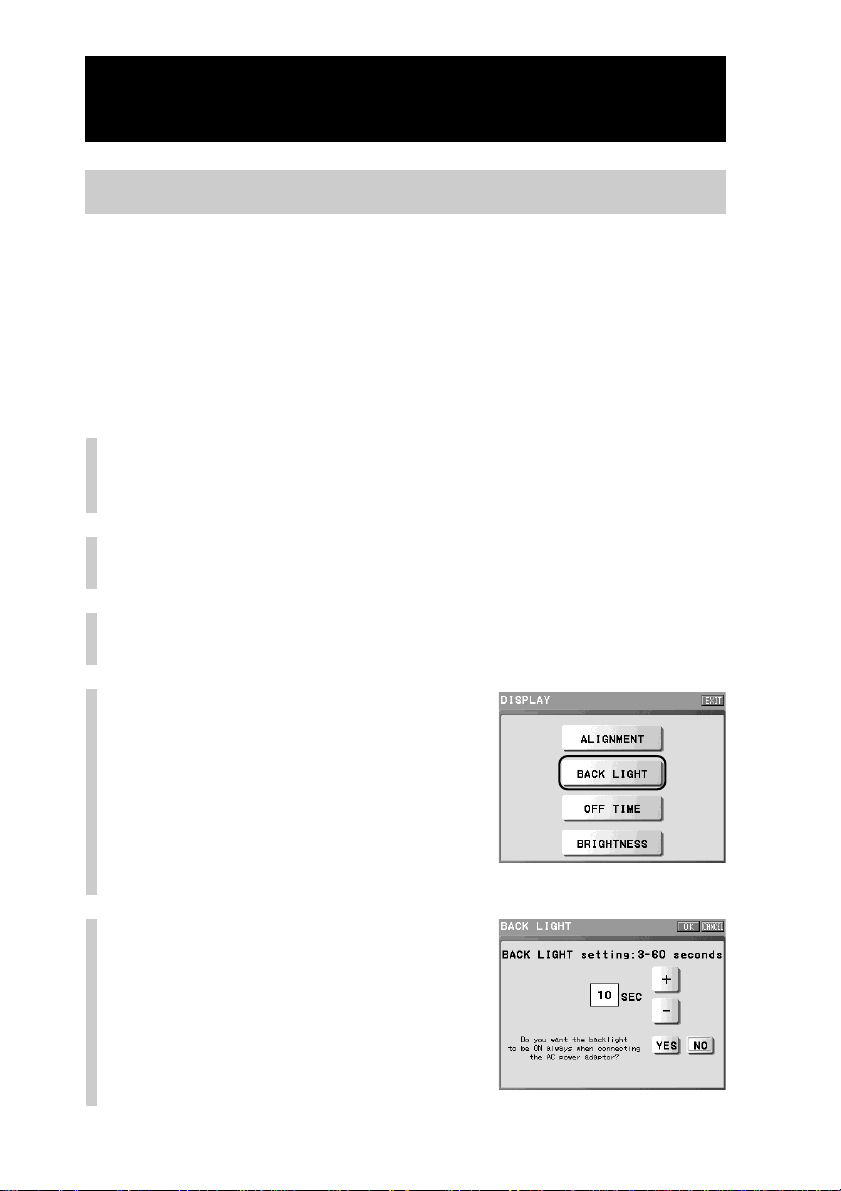
214
Setting the Display Window
Continued
Setting the Backlight Automatic-Off time (BACK LIGHT)
The backlight that illuminates the LCD screen turns on automatically when an
indication appears in the LCD screen and turns off after a certain period of time
(Backlight Automatic-Off function). The backlight turns off in 10 seconds if you
do not operate the Remote Commander by the default setting. This Automatic-
Off time is adjustable between 3 and 60 seconds. You can also set to deactivate
the Automatic-Off function when the Commander is connected to the AC power
adaptor (also when the Remote Commander is loaded on the Battery charging
stand).
1
Press the [SET] key for 2 seconds or longer in the
Home display.
The Set display appears.
2
Press the [SYSTEM] key.
The System display appears.
3
Press the [DISPLAY] key.
4
Press the [BACK LIGHT] key.
5
Set the Automatic-Off
function of the backlight.
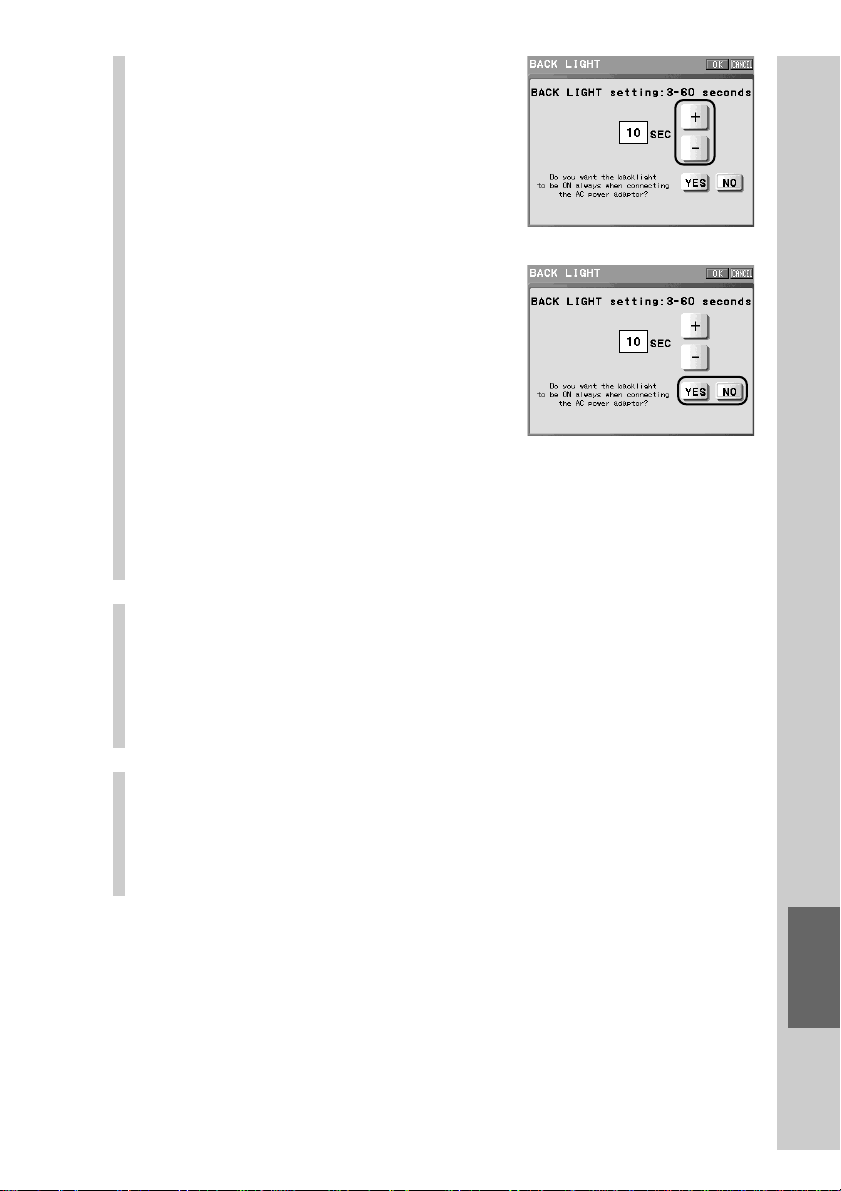
215
Remote Commander’s Other Functions
1 Set Automatic-Off time.
Each time you press the [+] / [–] key,
the time is advanced/reversed by 1
second. If you hold the [+]/[–] key
pressed, the time is advanced/
reversed by 2 seconds. You can adjust
the time between 3 and 60 seconds.
The default setting is 10 seconds.
2 Set the backlight to on or off when
the Remote Commander is
connected to the AC power
adaptor.
Press the [YES] or [NO] key to select
the setting. The selected key is
bordered.
[YES]: To set the backlight not to turn off.*
[NO]: To operate the Automatic-Off function and turn off the
backlight.
The default setting is [NO].
*
The backlight turns off when the display turns off.
6
Press the [OK] key.
Setting of the display’s backlight is complete, and the display returns to
step 4.
Note
When you set the Automatic-Off time of the backlight longer than 10 seconds
(default), the battery life of the Remote Commander may be shorter.
7
To finish all settings, press the COMMANDER OFF
button for 2 seconds or longer.
The display returns to the Home display. Or press the [EXIT] key
repeatedly until the Home display is shown.
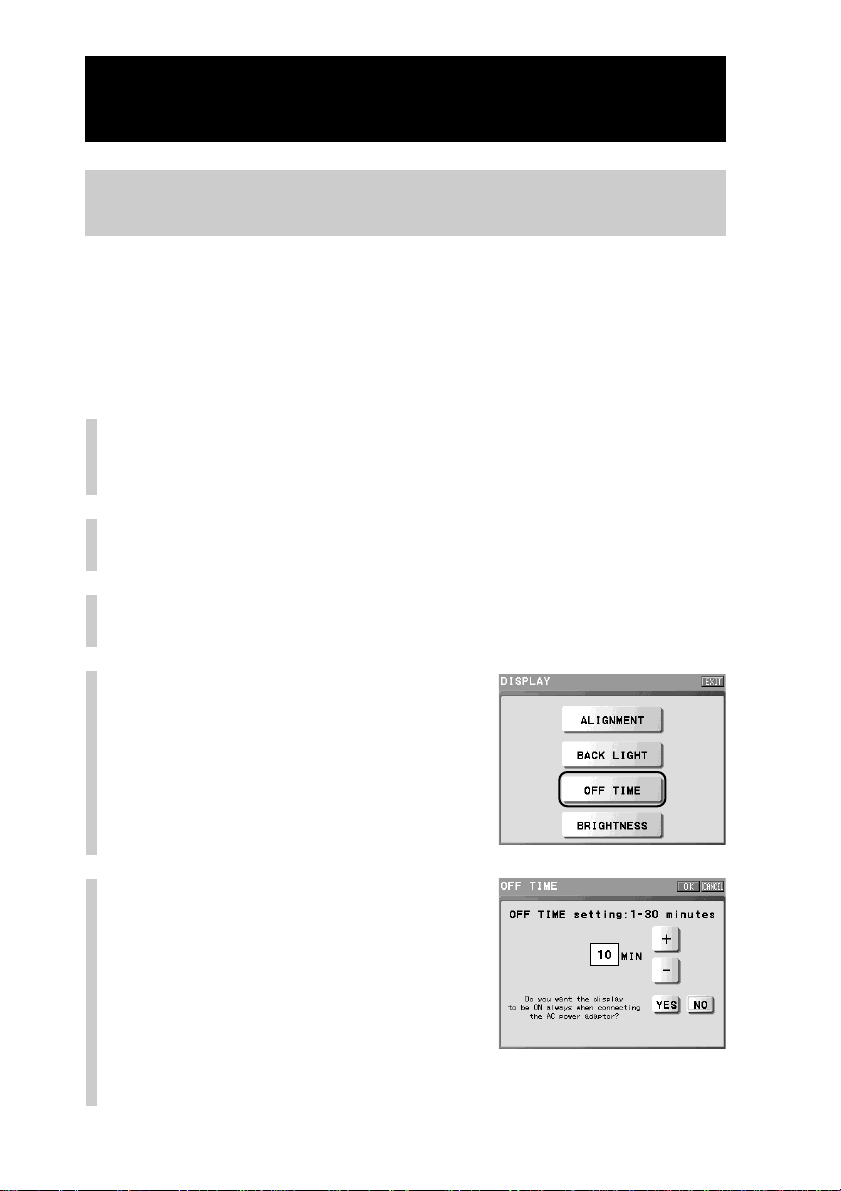
216
Setting the Display Window
Continued
Setting the Automatic-Off time of the display window
(OFF TIME)
The LCD screen turns off automatically after a certain period of time (Display
Automatic-Off function). The display turns off after 10 minutes if you do not
operate the Remote Commander by the default setting. This Automatic-Off time
is adjustable between 1 and 30 minutes.
You can also set the Automatic-Off function when the Remote Commander is
connected to the AC power adaptor.
1
Press the [SET] key for 2 seconds or longer in the
Home display.
The Set display appears.
2
Press the [SYSTEM] key.
The System display appears.
3
Press the [DISPLAY] key.
4
Press the [OFF TIME] key.
5
Set the Automatic-Off
function of the display.
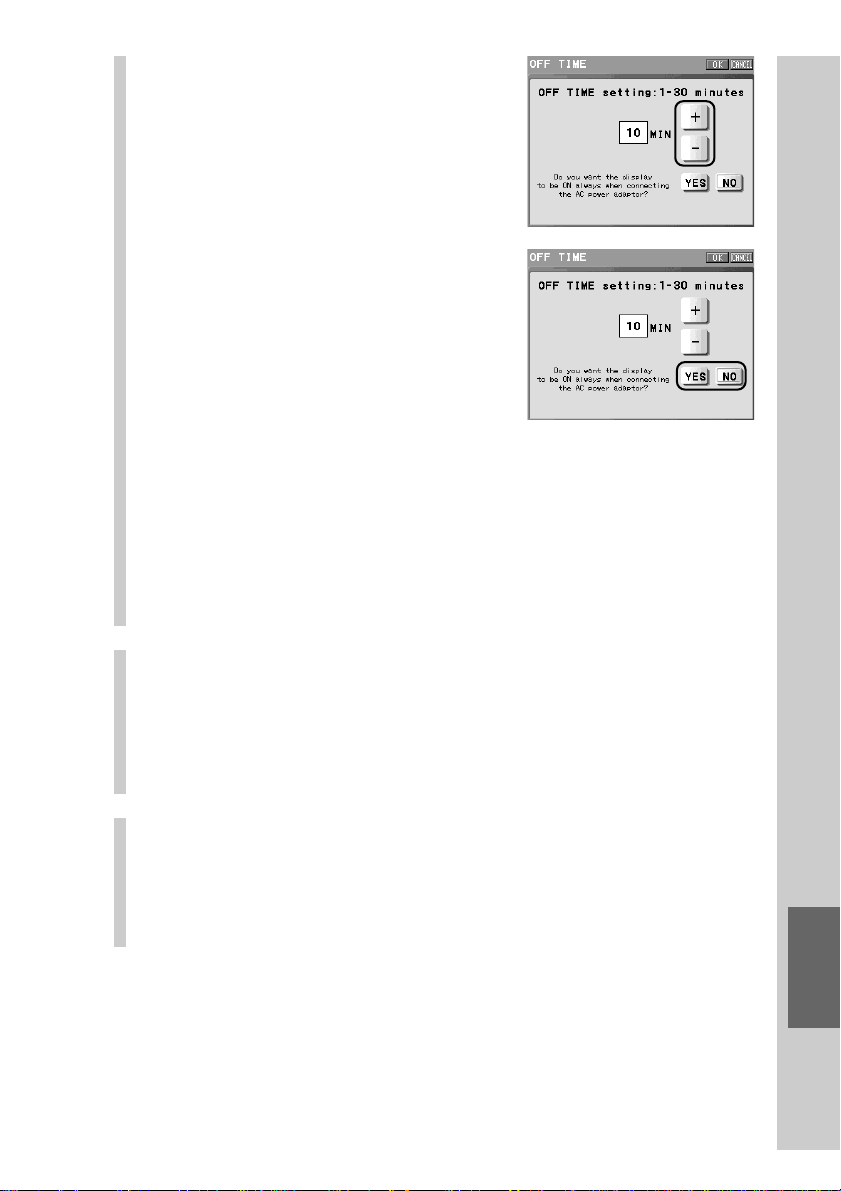
217
Remote Commander’s Other Functions
1 Set Automatic-Off time.
Each time you press the [+] or [–] key,
the time is advanced/reversed by 1
minute. If you hold the [+]/[–] key
pressed, the time is advanced/
reversed by 2 minutes. You can adjust
the time between 1 and 30 minutes.
The default setting is 10 minutes.
2 Set the display to on or off always
when the Remote Commander is
connected to the AC power
adaptor despite the setting of the
display’s Automatic-Off function.
Press the [YES] or [NO] key to select
the setting. The selected key is
bordered.
[YES]: To set the display not to turn off.
[NO]:
To operate the Automatic-Off function and turn off the display.
*
* Even when the screen backlight is set to always turn on when the Remote
Commander is connected to the AC power adaptor, the backlight turns off if
the touch panel screen turns off by the Automatic-Off function of the
display.
6
Press the [OK] key.
Setting of the display’s Automatic-Off function finishes, and the display
returns to step 4.
Note
When you set the Automatic-Off time of the display window longer than 10
minutes (default), the battery life of the Remote Commander may be shorter.
7
To finish all settings, press the COMMANDER OFF
button for 2 seconds or longer.
The display returns to the Home display. Or press the [EXIT] key
repeatedly until the Home display is shown.
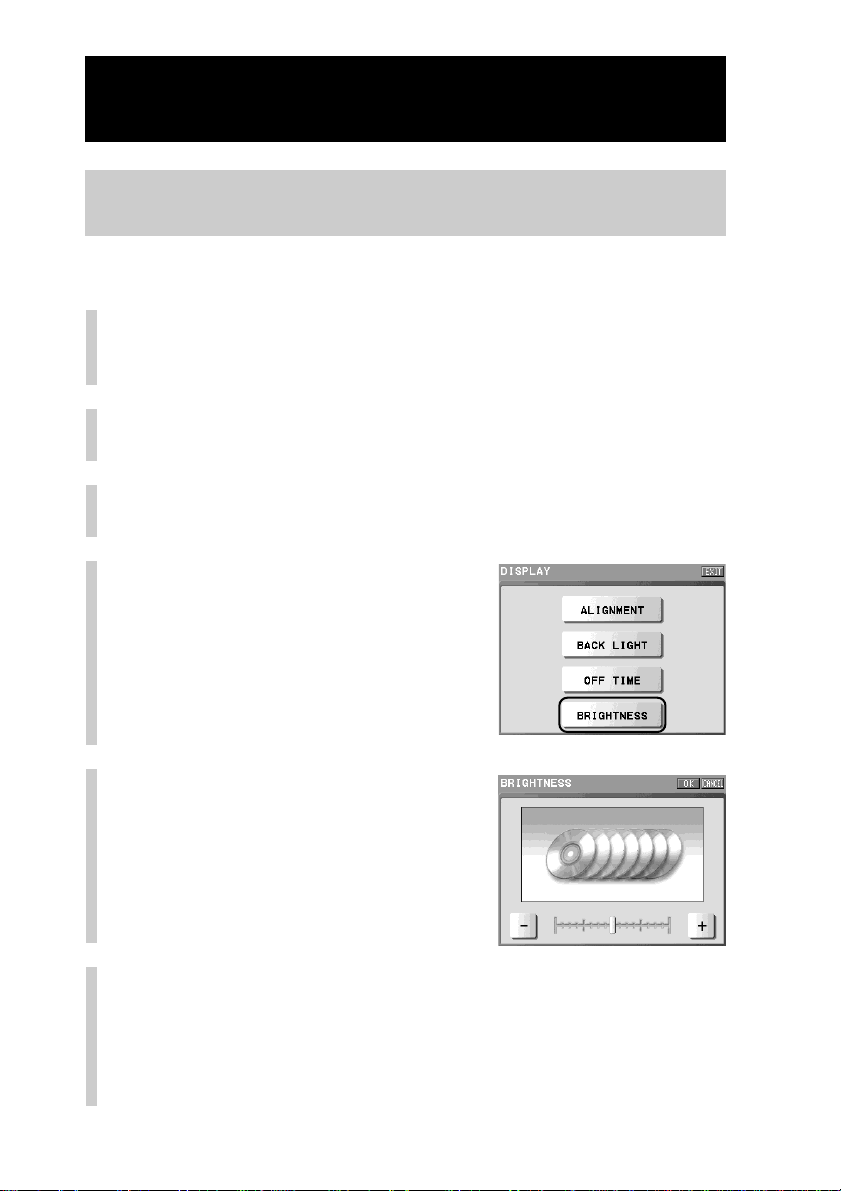
218
Adjusting the brightness of the display window’s
backlight (BRIGHTNESS)
Adjust the brightness of the backlight.
1
Press the [SET] key for 2 seconds or longer in the
Home display.
The Set display appears.
2
Press the [SYSTEM] key.
The System display appears.
3
Press the [DISPLAY] key.
4
Press the [BRIGHTNESS] key.
5
Press the [+] or [–] key to
adjust the brightness of the
backlight.
z Tip
If you set the brightness to minimum, the
backlight is set to OFF.
6
Press the [OK] key.
Setting of the display’s backlight brightness is complete, and the display
returns to step 4.
Setting the Display Window
Continued

219
Remote Commander’s Other Functions
7
To finish all settings, press the COMMANDER OFF
button for 2 seconds or longer.
The display returns to the Home display. Or press the [EXIT] key
repeatedly until the Home display is shown.
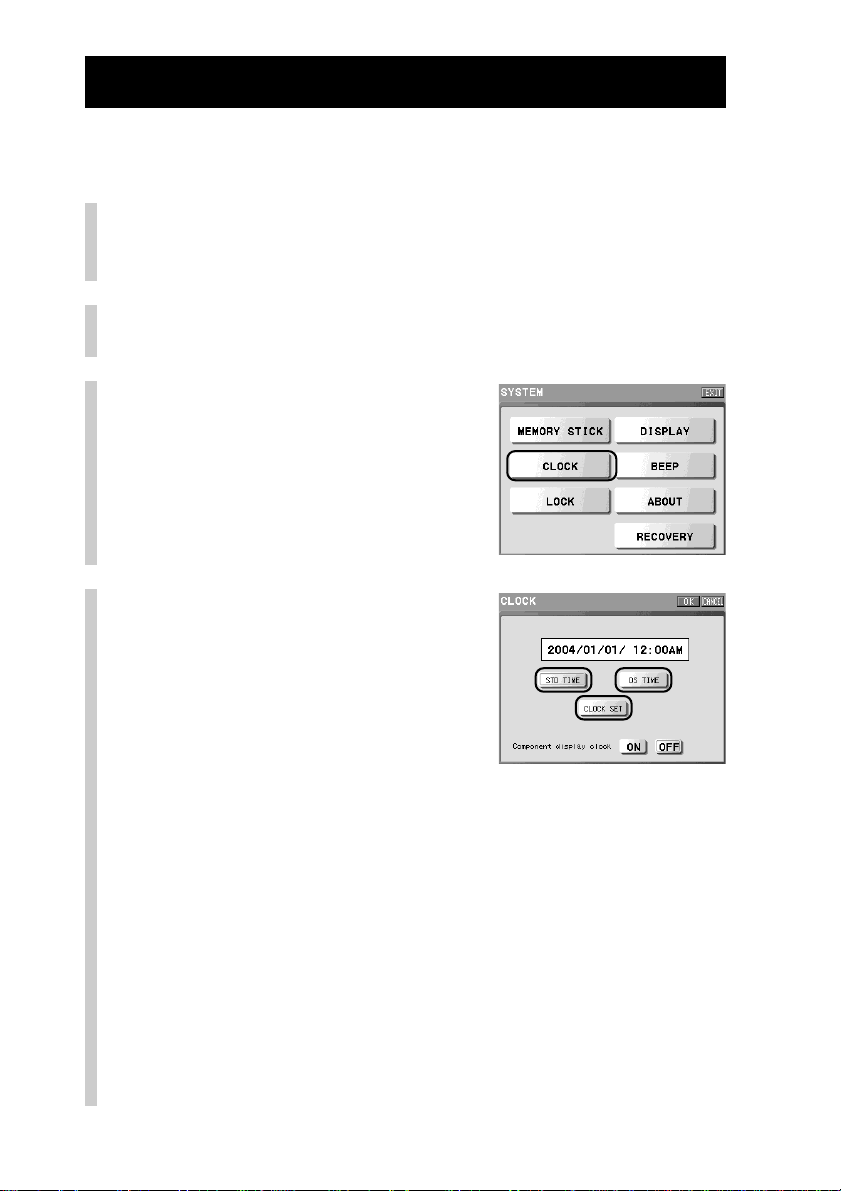
220
Setting the system clock (CLOCK)
You can set the system clock that appears in the Home and Component display.
1
Press the [SET] key for 2 seconds or longer in the
Home display.
The Set display appears.
2
Press the [SYSTEM] key.
The System display appears.
3
Press the [CLOCK] key.
4
Select the standard time
(STD TIME) or the daylight
saving time (DS TIME),
select to show (ON) or hide
(OFF) the clock in the
normal display (operation
display), and then press the
[CLOCK SET] key.
The selected keys are bordered. The System clock setting display
appears.
[ON]:To show the clock indication in the operation display of a
component.
(A component name or page indication may be partially hidden
by the clock.)
[OFF]:To hide the clock indication in the operation display of a
component.
z Tips
• If you press the [OK] key, the current settings are decided, and the clock starts
from zero seconds. The display returns to step 3.
• If you press the [CANCEL] key, the settings in this display will be canceled.
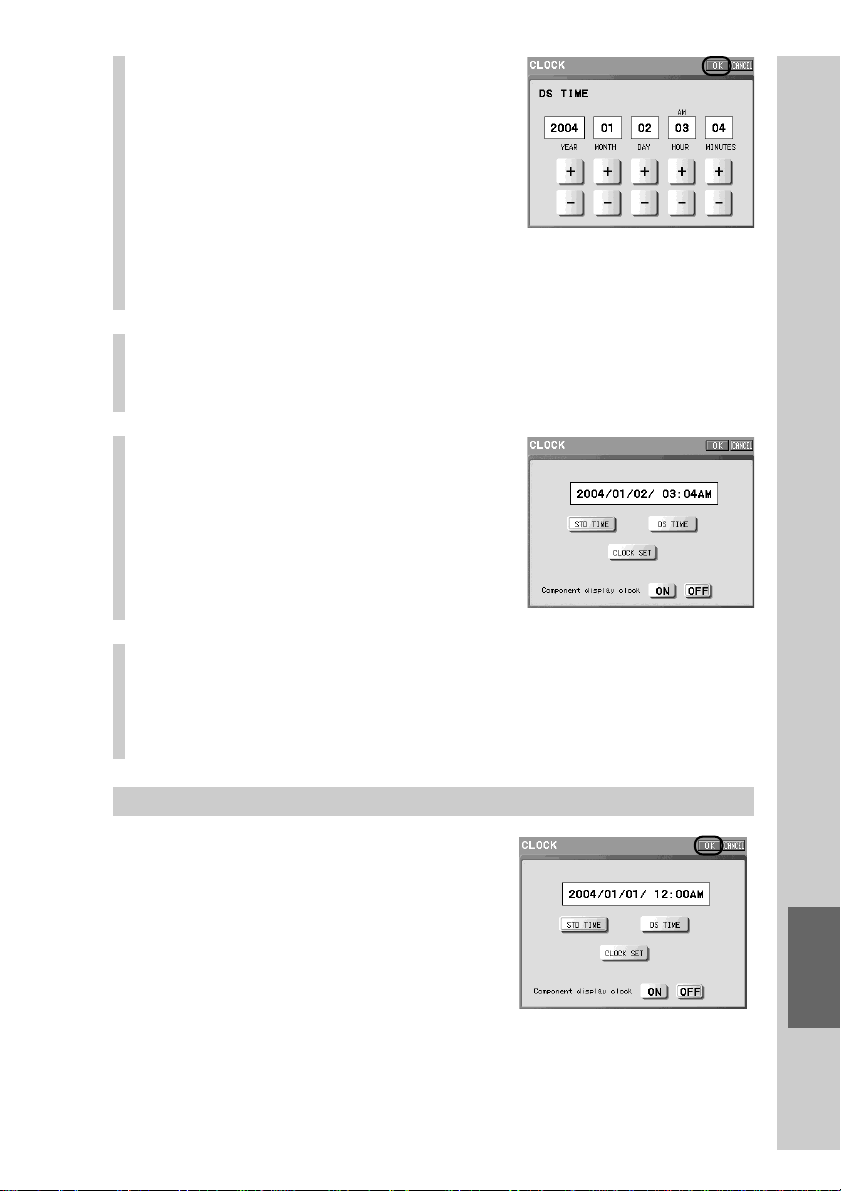
221
Remote Commander’s Other Functions
If you do not want to change the system clock setting
In step 4, press the [OK] key without pressing
the [CLOCK SET] key. The setting in this
display will be complete, and the display will
return to step 3.
Or, in step 5, press the [CANCEL] key. The
setting in this display will be canceled, and the
display will return to step 4.
5
Set the year, month, day,
hour, and minutes by
pressing the [+]/[–] keys to
adjust the System clock.
z Tips
• Each time you press the [+]/[–] key, the
digit is advanced/reversed by one. If you
hold the [+]/[–] key pressed the digit is
advanced/reversed by two.
• The AM/PM indication changes every 12
hours.
6
Confirm the setting contents, and then press the
[OK] key.
The display returns to step 4.
7
Press the [OK] key.
The system clock is set, and the display
returns to step 3.
8
To finish all settings, press the COMMANDER OFF
button for 2 seconds or longer.
The display returns to the Home display. Or press the [EXIT] key
repeatedly until the Home display is shown.
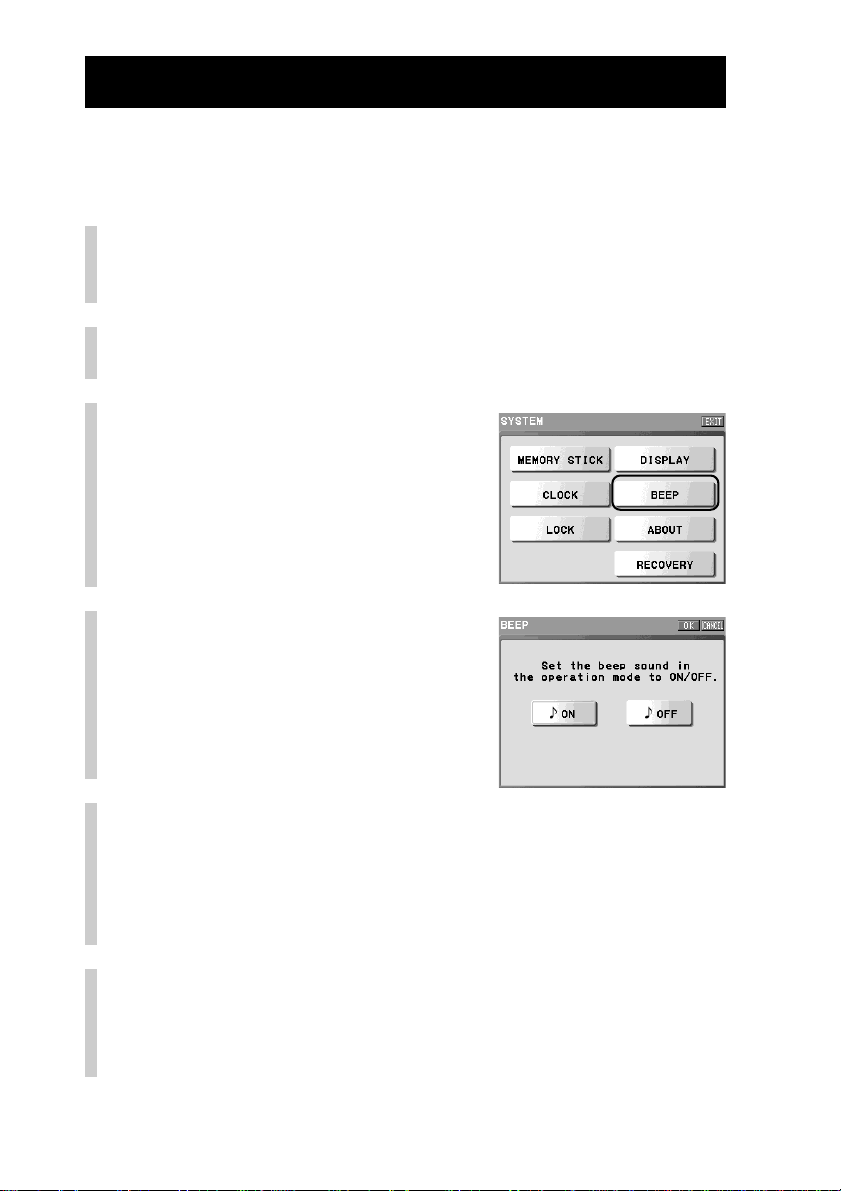
222
Setting the beep sound (BEEP)
The Remote Commander is set at the factory for the key-touch confirmation
beep to sound when you press a display key or a button on the Remote
Commander. You can set the key-touch confirmation beep not to sound.
1
Press the [SET] key for 2 seconds or longer in the
Home display.
The Set display appears.
2
Press the [SYSTEM] key.
The System display appears.
3
Press the [BEEP] key.
4
Press the [ON] or [OFF] key.
The selected key is bordered.
The default setting is [ON].
[ON]:To turn on the key-touch beep.
[OFF]:To turn off the key-touch beep.
5
Press the [OK] key.
The setting of the beep is complete, and the display returns to step 3.
z Tip
A beep sounds in the setting mode to confirm the setting operation, even if you set
the beep to OFF. Also the ‘OK’ beep sounds (once), or the ‘NG’ beep warning
sounds (twice, three times or five times).
6
To finish all settings, press the COMMANDER OFF
button for 2 seconds or longer.
The display returns to the Home display. Or press the [EXIT] key
repeatedly until the Home display is shown.
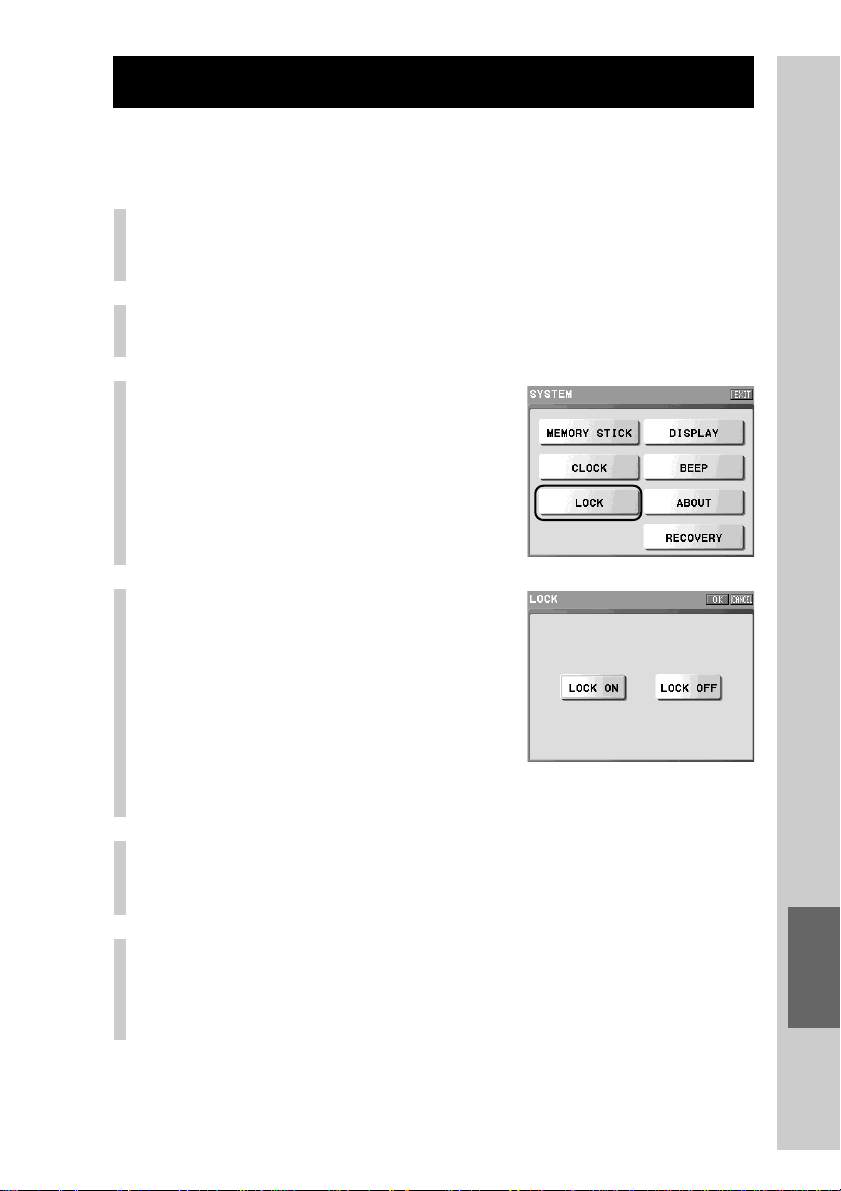
223
Remote Commander’s Other Functions
Locking the settings (LOCK)
To prevent accidental changing, adding or erasing of settings, lock the settings so
that you can edit only the System settings. All settings are not locked by default.
1
Press the [SET] key for 2 seconds or longer in the
Home display.
The Set display appears.
2
Press the [SYSTEM] key.
The System display appears.
3
Press the [LOCK] key.
4
Press the [LOCK ON] or
[LOCK OFF] key.
The selected key is bordered.
[LOCK ON]:To lock settings other than
[SYSTEM].
[LOCK OFF]:To unlock all settings.
z Tip
If you press the [CANCEL] key, the setting in this display will be canceled, and the
display will return to step 3.
5
Press the [OK] key.
Setting ([LOCK ON] or [LOCK OFF]) is complete.
The display returns to step 3.
6
To finish all settings, press the COMMANDER OFF
button for 2 seconds or longer.
The display returns to the Home display. Or press the [EXIT] key
repeatedly until the Home display is shown.
Note
The lock setting is available only for setting up operations of the Remote Commander.
Data update using the USB connection or a “Memory Stick” can be done even when the
lock setting is set to ON. After updating, the lock setting is available.

224
Remote Commander information (ABOUT)
You can check the system information (used memory capacity, version, etc.) of
the Remote Commander in the display.
1
Press the [SET] key for 2 seconds or longer in the
Home display.
The Set display appears.
2
Press the [SYSTEM] key.
The System display appears.
3
Press the [ABOUT] key.
The system information display appears.
The version of the Remote Commander is shown in the “System” item in
the information.
4
After checking, press the [OK] key.
The display returns to step 3.
5
To finish all settings, press the COMMANDER OFF
button for 2 seconds or longer.
The display returns to the Home display. Or press the [EXIT] key
repeatedly until the Home display is shown.
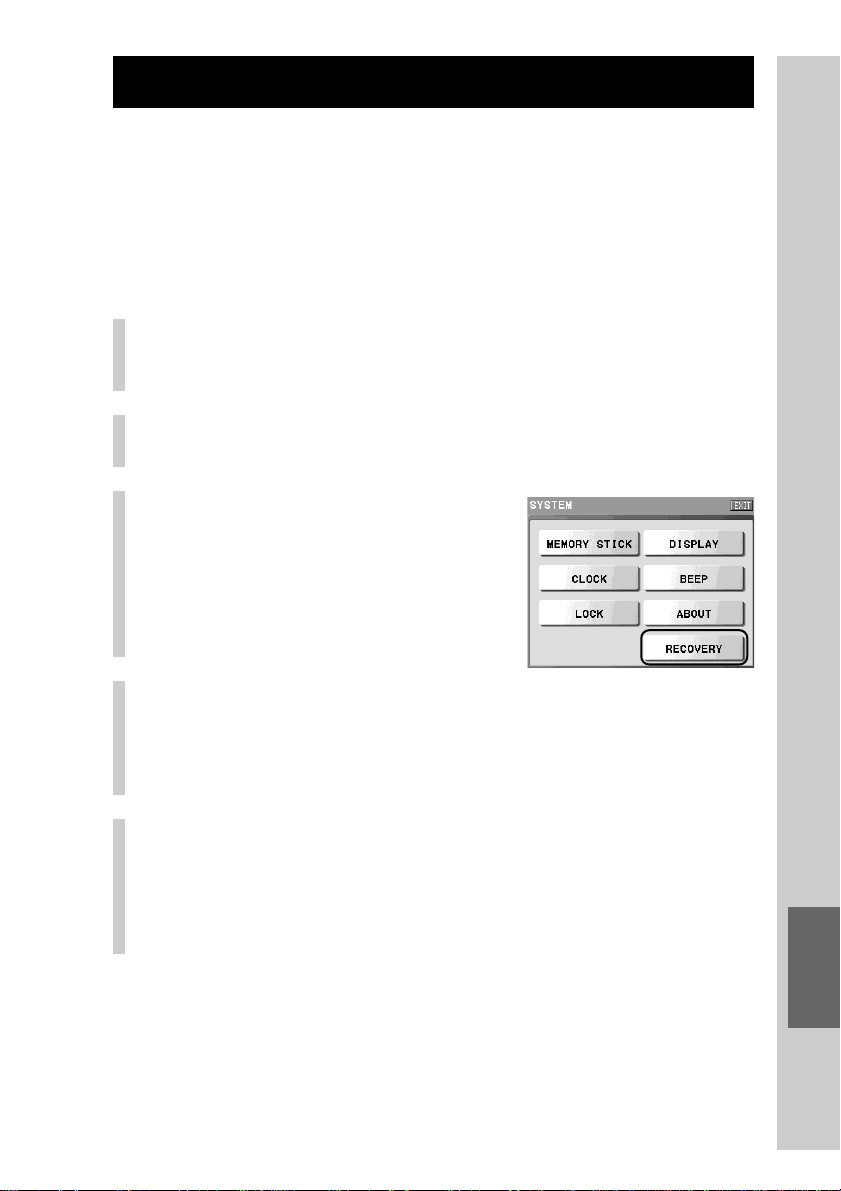
225
Remote Commander’s Other Functions
Setting to the recovery mode (RECOVERY)
The latest kernel (basic program of the Remote Commander) is updated as
necessary in the NAVITUS web site. After downloading the latest kernel to
“NAVITUS Design”, you can transfer it to the Remote Commander by
connecting the Remote Commander to the computer with the USB cable.
Before connecting the Remote Commander to the computer with the USB cable,
set the Remote Commander to the recovery mode.
1
Press the [SET] key for 2 seconds or longer in the
Home display.
The Set display appears.
2
Press the [SYSTEM] key.
The System display appears.
3
Press the [RECOVERY] key
for 2 seconds or longer.
The confirmation display for the
transition to the recovery mode appears.
4
Press the [YES] key.
After restarting, the Remote Commander enters the recovery mode.
z Tip
If you press the [NO] key, the display returns to step 3 without restarting.
5
To finish the setting, follow the on-screen
instructions in the recovery mode.
When the recovery mode finishes, the Remote Commander is restarted.
If the Remote Commander is restarted, the system clock is reset. After
restarting, set the system clock again.
For details on the recovery mode, see the manual (Help) of “NAVITUS Design.”
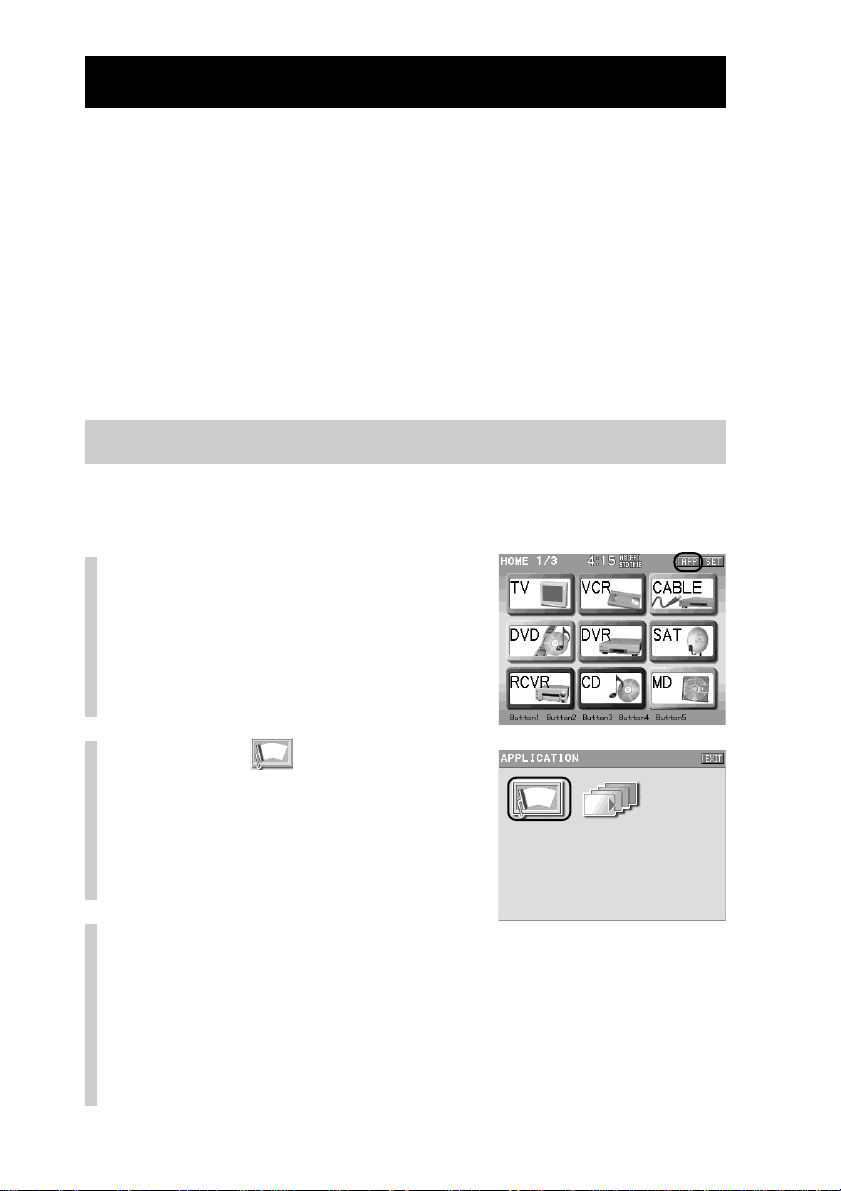
226
Using the application mode
Use the application mode when you clean the LCD screen of the Remote
Commander or when you want to browse imported image files for the
wallpaper using “NAVITUS Design.”
Notes
The Remote Commander consumes considerable battery power in the application mode
compared with other modes. It is recommended to use the AC power adaptor in the
application mode.
• Although the timer mark (c) is not shown when cleaning the display of the Remote
Commander or browsing the wallpapers in the application mode, the timer is executed
if set to ON.
• Although the charging mark (be) is not shown when cleaning the display of the
Remote Commander or browsing the wallpapers in the application mode while
charging, charging continues.
Cleaning the Remote Commander
The Remote Commander is set to ignore input from keys and buttons in the
cleaning mode. Use this function when you clean the display or casing.
1
Press the [APP] key for 2
seconds or longer in the
Home display.
The Application display appears.
2
Press the (Cleaning) key.
The application mode confirmation
message appears in the display.
z Tip
If you want to close the application display,
press the [EXIT] key to return to the Home
display.
3
Clean the Remote Commander.
z Tip
If you press the COMMANDER OFF button, the display returns to step 2.
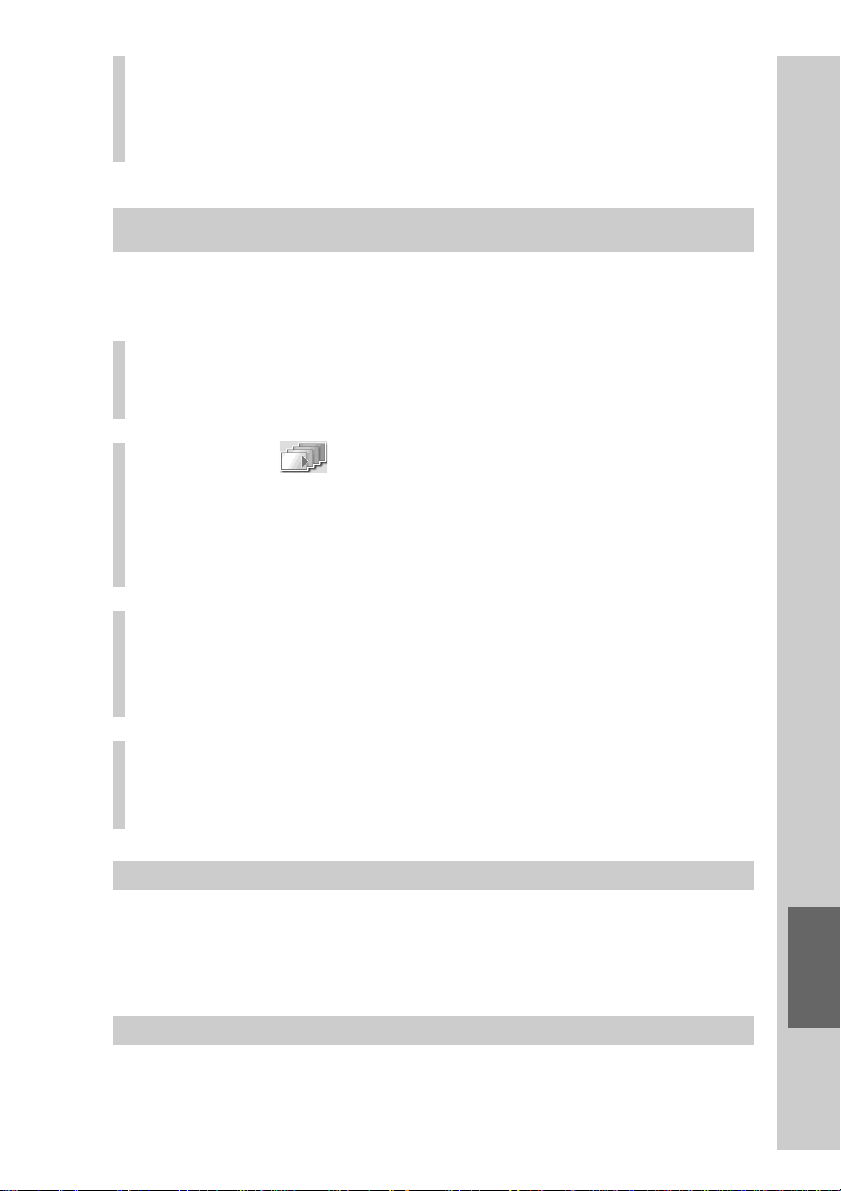
227
Remote Commander’s Other Functions
Displaying image files set as wallpapers
Using the Wall Album function, you can browse image files set as wallpapers for
the Remote Commander with “NAVITUS Design.”
1
Press the [APP] key for 2 seconds or longer in the
Home display.
The Application display appears.
2
Press the (Wall Album) key.
The image files set as wallpapers using “NAVITUS Design” are shown
sequentially in alphabetical order.
z Tip
If you want to close the application display, press the [EXIT] key to return to the
Home display.
3
Press the NEXT/BACK button to see the next/
previous image.
z Tip
If you press the COMMANDER OFF button, the display returns to step 2.
4
Press the COMMANDER OFF button for 2 seconds
or longer after checking the wallpapers.
The display returns to the Home display.
To browse wallpapers continuously in step 3 (slide show)
Press the NEXT/BACK button for 2 seconds or longer. A slide show starts in the
forward direction when the NEXT button is pressed, and in the backward
direction when the BACK key is pressed. Each image is shown for 5 seconds. To
stop the slide show, press the NEXT/BACK button again.
If there is no file to be shown
“No files to be displayed” appears in the display. Press the [OK] key, and the
display returns to the Application display.
4
When cleaning is complete, press the
COMMANDER OFF button for 2 seconds or longer.
The display returns to the Home display.
Or you can also return to the Home display by pressing the [EXIT] key.
228
Additional Information

229
Additional Information
Precautions
•Do not expose the remote control detectors of your components to direct
sunlight or other strong illumination. Strong light can interfere with remote
control operations.
•Be sure to place the Remote Commander out of reach of small children or pets.
Household products such as air conditioners, heaters, electric appliances, and
electric shutters or curtains could accidentally be operated by the infrared
signals of the Remote Commander, creating risk of fire or serious injury.
Notes on use
Be sure of the following when using the Remote Commander.
• Do not scratch or damage the touch panel screen of the Remote Commander. Always
use the supplied stylus or your finger for tapping on the display. Do not use a pen,
pencil, or any other sharp object, as it may cause a malfunction.
• Do not expose the Remote Commander to water or moisture. Make sure that water does
not enter the unit, as it may cause a malfunction.
• Do not drop the Remote Commander or subject it to shock, as it may break the glass of
the display.
•Avoid leaving the Remote Commander in locations subject to the following conditions,
as a malfunction may occur.
– Extremely high or low temperature, especially on the dashboard inside a car left in the
sun, or near a heater
– Excessive dust
– High humidity or moisture
– Use the AC power adaptor supplied to the Remote Commander.
Maintenance
Clean the surface of the Remote Commander with a soft cloth slightly moistened with
water or a mild detergent solution. Do not use any type of solvent, such as alcohol,
benzine or thinner, as they may damage the surface finish .
Clean the surface of the touch panel screen gently with a soft dry cloth.
For easy cleaning, select the cleaning mode of the application function which sets the
Remote Commander to not accept input from the keys or buttons. For details, see
“Cleaning the Remote Commander” (page 226).
230
Notes on charging
About the charging time
• It takes about eight hours to fully charge the discharged batteries.
• While charging, you can still use the Remote Commander to control AV components
and make settings.
About the battery life when the Remote Commander is fully charged
The battery life span varies depending on the environment and conditions of use. For
further details, see “Specifications” (page 248).
To conserve battery power
• Set the backlight to OFF by setting the brightness to minimum when using the Remote
Commander under good lighting conditions. For further details, see “Adjusting the
brightness of the display window’s backlight (BRIGHTNESS)” (page 218).
• Shorten the Automatic-Off time (which turns the Remote Commander off automatically
if you do not use it for a certain length of time). For further details, see “Setting the
Automatic-Off time of the display window (OFF TIME)” (page 216).
When the batteries run down through normal usage
E appears at the top of the display.
The battery charge is running out. You can control components, however, other functions
will not be operative. Charge the Remote Commander immediately by connecting the AC
power adaptor or loading the remote commander on the Battery charging stand (page 14).
You can operate the Remote Commander while charging.
Do not continue to use the Remote Commander when the E mark is shown
If you continue to use the Remote Commander with the E mark shown, the operating
system of the Remote Commander will suddenly shut off, and all stored data in the
Remote Commander will be erased. It is recommended to charge the Remote
Commander frequently.
Others
When the Remote Commander is connected to the AC power adaptor and the Automatic-
Off function of the display is deactivated (page 214), the Remote Commander may become
warm if turned on for a long period. This is not a malfunction.
Precautions
Continued
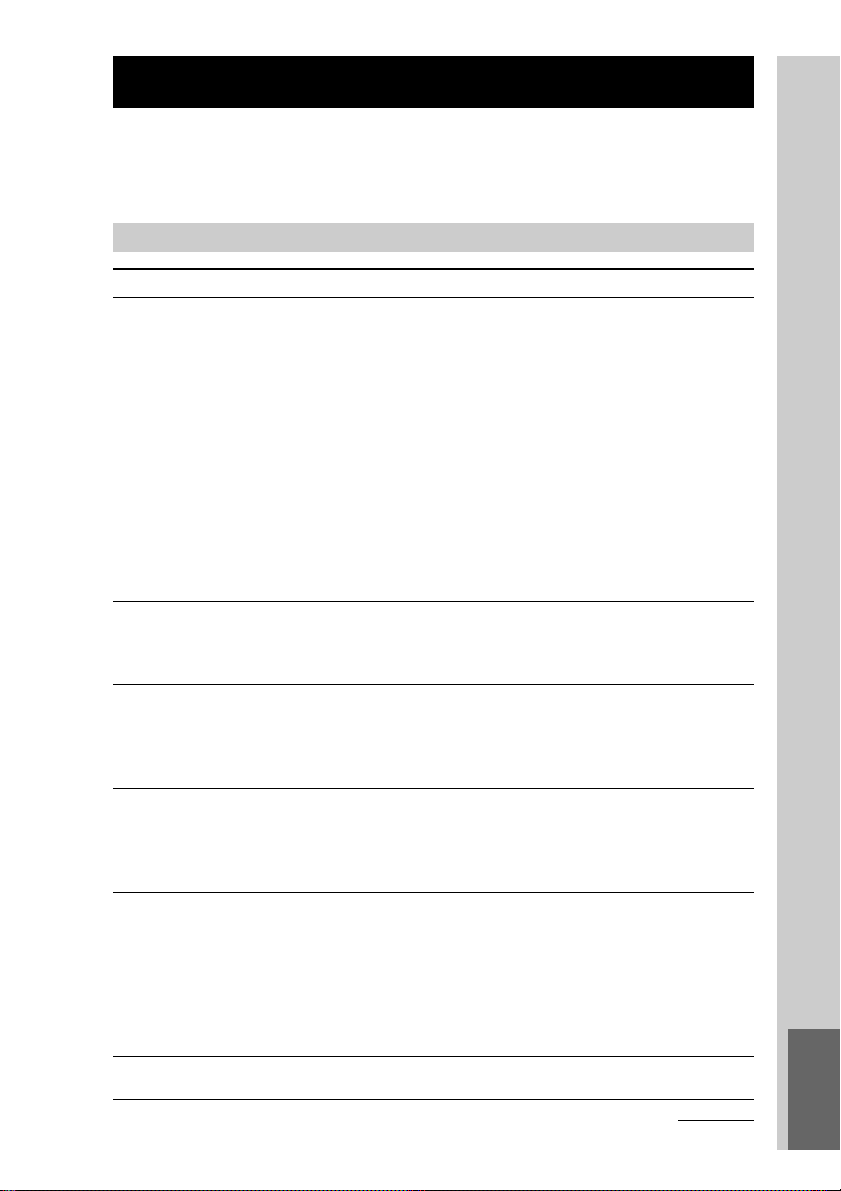
231
Additional Information
Troubleshooting
If you have problems setting up or using the Remote Commander, first check
that the batteries are charged (page 14), then check the items below.
If the problem persists, consult your nearest Sony dealer.
Trouble with the Remote Commander’s basic settings
Symptom
You cannot turn the Remote
Commander on.
The display indication turns off.
And you cannot turn the display on
by any operation.
You cannot see the LCD display
clearly.
The display of the Remote
Commander turns off by itself.
The backlight does not light when
adjusting the brightness of the
display.
A beep is not heard.
Remedy
• The batteries may be discharged. Charge the
batteries by connecting the supplied AC power
adaptor to the Battery charging stand, and
loading the Remote Commander on the Battery
charging stand.
Or connect the supplied AC power adaptor
directly to the Remote Commander, and charge
the batteries for more than an hour. After an
hour, the Remote Commander starts
automatically.
• The connectors of the Remote Commander
and/or the Battery charging stand may be
dirty. If the connectors are dirty, the Remote
Commander cannot be charged. Clean the
connectors with a cotton swab.
•
The batteries are discharged. Charge the Remote
Commander immediately by loading it on the
Battery charging stand or by connecting the AC
power adaptor to the Remote Commander.
• The brightness of the display varies depending
on the angle of view. Adjust the brightness of
the backlight. For details, see “Adjusting the
brightness of the display window’s backlight
(BRIGHTNESS)” (page 218).
•
This Remote Commander is set at the factory to
turn the display off automatically if you do not
operate it for more than 10 minutes (Automatic-
Off function of the display window). You can
change this setting (page 216).
• When adjusting the brightness, the backlight of
the LCD display lights up automatically.
However, if the brightness is set to minimum,
the display appears dark, so that you may not
see the display clearly. This is not a
malfunction. For details, see “Adjusting the
brightness of the display window’s backlight
(BRIGHTNESS)” (page 218).
• The beep sound is set to OFF. For details, see
“Setting the beep sound (BEEP)” (page 222).
Continued
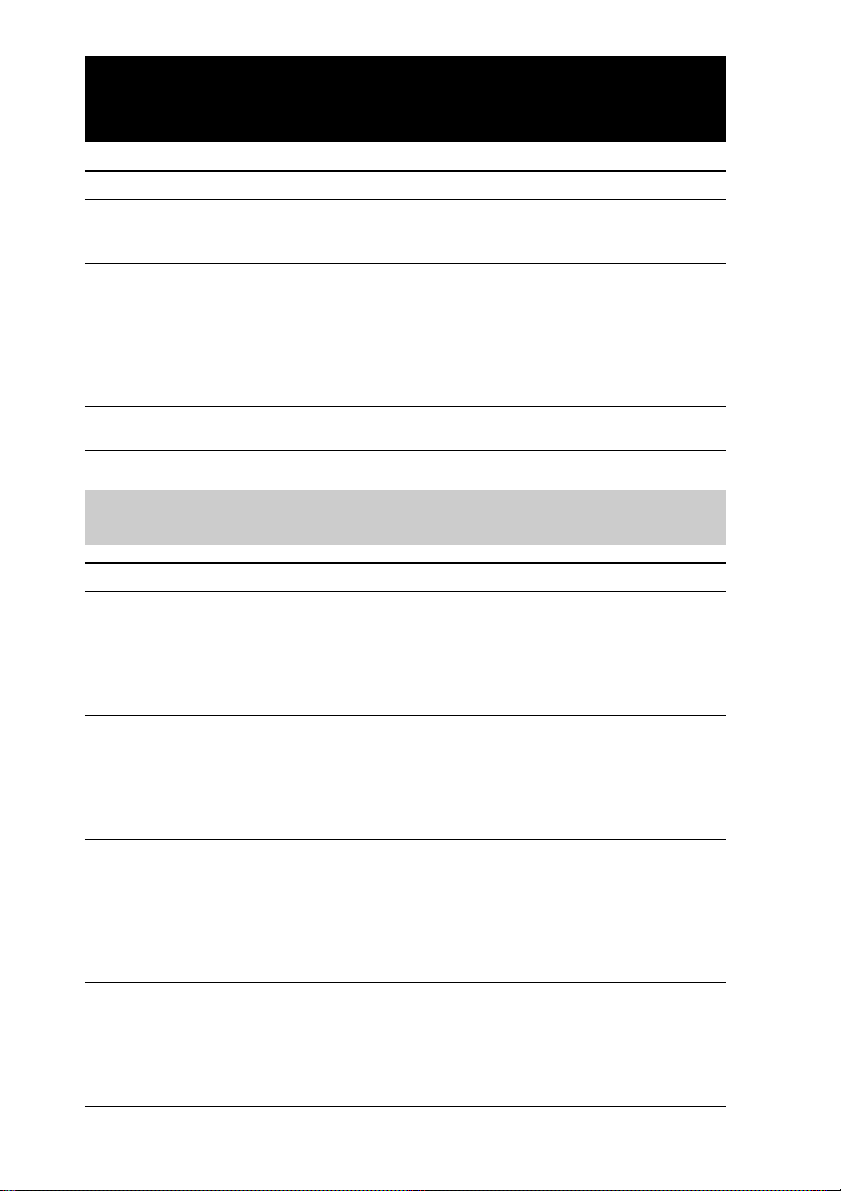
232
Troubleshooting
Continued
Symptom
The clock does not appear in the
Component display.
The label letters shown on the
upper side of the Component
display are partially hidden.
Key location is not proper.
Remedy
• The system clock indication may be set to OFF.
Set the system clock indication to ON (page
220).
• The letters are hidden partially because the area
where the component label and the page
number are shown becomes narrow if the
system clock indication is set to ON. If you
want to show the component label and the
page number wholly, set the system clock
indication to OFF.
• Calibrate the touch panel display
(ALIGNMENT) (page 212).
You cannot program a preset code of a component properly
(PRESET)
Symptom
A beep sounds five times when
performing the SOLUTION preset
function.
The display returns to the
programming method selection
display because the remote control
of the component does not have a
key indicated in the SOLUTION
display.
When you select [SOLUTION] and
the display is in the standby mode
for the remote control signal input,
the backlight will not turn on, even
if you tap the display or press a
button.
You cannot operate AV components
even after programming preset
codes.
Remedy
• The preset code of the AV component cannot be
received from the remote control signals of the
AV component to be programmed (PRESET).
Preset again, referring to “Programming a
preset code using the remote control of a
component (SOLUTION)” (page 45).
• If you can reduce the number of expected
codes, display the list of preset codes with the
[LIST] key and select a preset code from the
expected preset codes (shown in red). Or
program a preset code by the BRAND or
SEARCH preset function.
• If the display turns off when the display is in
the standby mode for the remote control signal
input, the backlight will not turn on, even if
you tap the display or press a button. If you tap
the display or press a button after the standby
mode of the display finishes, the backlight will
turn on.
• Some features may not be preset depending on
a component of the brand. If some or all of the
keys and buttons do not function correctly even
after you have set the preset codes, use the
learning function to program the remote
control signals for the component (page 58).
233
Additional Information
Symptom
A beep sounds five times while
learning.
The Remote Commander fails to
learn the remote control signals.
When the display is in the standby
mode for the remote control signal
input to be learned, the backlight
will not turn on, even if you tap the
display or press a button.
You cannot operate a component
even after you programmed the
remote control signals with the
learning function.
Remedy
• Leaning has not succeeded. After checking the
following, try the learning procedure again
(page 58).
– Change the distance between a remote
control of a component and the Remote
Commander.
– See “For accurate learning” (page 62).
• When you teach signals of an interactive signal
exchange system remote control unit (supplied
with some Sony receivers and amplifiers) to the
Remote Commander, the response signal of the
main unit, such as an amplifier, may interfere
with the learning of the Remote Commander.
In such a case, move to a place where the
signals will not reach the main unit (e.g.
another room, etc.).
•A component may not satisfy the specifications
for learning corresponding with the Remote
Commander. You cannot use the learning
function for a component that does not satisfy
the specifications corresponding with the
Remote Commander.
•You may have pressed a function key or button
to which the learning signal cannot be set. You
cannot set learning signals to the Component
keys or buttons when the Home display is
shown.
• If the display turns off when the display is in
the standby mode for the remote control signal
input to be learned, the backlight will not turn
on, even if you tap the display or press a
button. If you tap the display or press a button
after the standby mode of the display finishes,
the backlight will turn on.
• The Remote Commander has not correctly
learned the signals. See “For accurate learning”
(page 62) and try the learning procedure again
(page 58).
You cannot perform the learning properly (LEARN)
Continued

234
Troubleshooting
Continued
Symptom
A beep sounds twice, and the
display does not change even if you
press a key.
You cannot operate your
components.
Remedy
• The settings are locked and cannot be edited.
Release the lock (page 223).
• Move closer to the component. The maximum
operating distance is approximately 10 meters
(32.8 feet).
• Check that you are aiming the Remote
Commander directly at the component, and
that there are no obstructions between the
Remote Commander and the remote control
detector of the component.
•Turn on the component first, if necessary.
• Check that you have selected the correct
Component key, and that the preset code
programmed for the Component key is correct.
• Check the remote control functions for the keys
and buttons. With this Remote Commander,
various remote control functions can be
assigned to keys and buttons by the learning
function. It may be that the function you set is
different from the name (label) of the key or
button you are trying to operate, or, that the
function keys of different components are set
for one Component key.
•You might have changed the reference key for
an Alias key or button. The function of the
Alias key or button will be changed if the
reference key for the key or button is changed.
• Check that the component has infrared remote
capability. For example, if your component is
not supplied with a remote control, it probably
is not capable of being controlled by a remote
control.
Trouble with the operation mode

235
Additional Information
Symptom
You cannot control the volume.
You cannot press the [SET] key.
Remedy
• The Remote Commander is Alias-set at the
factory to adjust the volume of a visual
component on a TV and the volume of an
audio component on an amplifier, assuming
that you hear the sound of a visual component
from the TV speakers and the sound of an
audio component from the speakers connected
to an AV amplifier.
If you want to adjust the volume of the
amplifier when selecting another visual
component, or if you want to adjust the volume
of the TV when selecting an audio component,
set the VOL +/– buttons assigned to the TV or
the amplifier as Alias keys or buttons for the
component. For details on setting the Alias key,
see “Setting a function key of another
component to a Component display (ALIAS)”
(page 100).
• The key or button set as the reference key for
the Alias setting of the volume control is
assigned to a preset AV component which has
no volume control function. In this case, you
cannot control the volume because the
reference component has no volume control
function.
• The alignment is incorrect. If the [SET] key
does not appear pressed even after you have
pressed on and around the key, enter the
setting display for the alignment following the
procedure below and calibrate the touch panel
display.
1 Enter the Home display.
2 While pressing the [EXIT] button, press and
hold the [VOL–] button.
3 While pressing the above two buttons
consecutively, press the [CH–] button.
Continued

236
Troubleshooting
Continued
Symptom
The display does not change to the
setting display even when you press
the [SET] key.
The display does not change to the
application display even if you
press the [APP] key.
The display does not change even if
you press the Component key
shown in the Home display.
You cannot operate a component
even if you press the [REC] key.
The key to which a macro has been
set does not appear.
Remedy
• The [SET] key should be pressed for 2 seconds
or longer. If you press the [SET] key for 2
seconds or longer, you can enter the setting
display.
• The E mark may be shown. If the batteries are
running out, you cannot enter the setting
display. Connect the supplied AC power
adaptor. Or, because in the setting display,
power consumption increases when saving or
updating data, it is recommended to use the
Remote Commander with the supplied AC
power adaptor connected.
• The [APP] key should be pressed for 2 seconds
or longer. If you press the [APP] key for 2
seconds or longer, you can enter the setting
display.
• The E mark may be shown. If the batteries are
running out, you cannot enter the application
display. Connect the supplied AC power
adaptor. Or, because of the application display,
power consumption increases. It is therefore
recommended to use the Remote Commander
with the supplied AC power adaptor connected
in this instance.
• No key is assigned that is available in the first
page of the component. Edit to assign, in the
setting mode, a key that is available in the first
page.
• The key corresponding to the sound or image
recording is set so that a signal is transmitted
after the key is kept pressed for 2 seconds or
longer to prevent accidental operation. The
press time (the pressing time of the function
key until the operation (action) is executed) can
be changed by the supplied “NAVITUS
Design.” You can also change the press time of
a Component key or a function button.
• The setting contents of the macro (action) may
have been changed while editing, and the
macro may not be correctly linked. Check the
setting procedure of the macro, and set again.
237
Additional Information
Symptom
Although you have programmed a
macro for a Component key, the
Component key will not operate,
even if you press it.
The macro of the Zapping viewer or
the Component List does not
operate.
The Zapping viewer key you have
created does not appear.
The Assign button to which you
have assigned a Zapping group as a
viewer does not operate.
The number of keys shown in the
operation mode is changed after the
preset code is changed.
You cannot edit keys shown in the
display for the Component List
keys.
The User List key set in the edit
display for a User List has
disappeared.
The same error message appears
repeatedly.
Remedy
• The Component key should be pressed for 2
seconds or longer in this case. When a macro is
programmed for a Component key, the macro
will be executed if the Component key is
pressed for 2 seconds or longer.
• The setting contents of the macro (action) may
have been changed while editing, and the
macro may not be correctly linked. Check the
setting procedure of the macro, and set again.
•You may have deleted a Zapping group. If you
delete a Zapping group, the Zapping viewer to
which a Zapping group has been assigned is
also deleted.
•You may have deleted a Zapping group. If you
delete a Zapping group, the Assign button to
which you have assigned a Zapping group
returns to the default setting.
• Keys to which a code signal is not assigned do
not appear in the operation mode. They appear
in the setting mode.
• The Component List display is the operation
display for playing back a component or
watching a program by selecting a List. The
shown keys cannot be edited. However, editing
a macro for the reference is reflected to a
Component List because a List refers to a
macro programmed for a Component List.
•You may have deleted List elements in the edit
display for a list element. If you delete List
elements set to the User List key, the User List
key is also deleted.
• Operate the Remote Commander according to
the instructions of the error message.
Continued
238
Troubleshooting
Continued
Trouble with the setting mode
Common problems
Symptom
The setting cannot be edited.
A beep sounds twice when you
press a key or button.
A beep sounds in the setting mode
even if the beep sound is set to OFF.
When you press a Component key,
a beep sounds twice, and you
cannot select it.
A key in the Trash can page you
want to delete appears pressed. A
beep sounds twice when you press
the key, and you cannot delete it.
When you try to delete a page
having no key, a message appears
and you cannot delete the page.
You cannot select a Direct Access
button even if you press the Direct
Access button when setting a label
or a macro.
Remedy
• The settings are locked so that they cannot be
edited. Release the lock. For details, see
“Locking the settings (LOCK)” (page 223).
•You may have pressed a key or button that is
not selectable (cannot be set) on the setting
display. Press to select another key or button.
• In the setting mode, the beep sound is set to be
heard so that you can confirm the operation
even if the beep sound is set to OFF.
•You may try to program a preset code for an
Alias Component key. You cannot program a
preset code for an Alias Component key.
•You may try to delete a key for which a preset
code is programmed. You cannot delete a
preset key.
•You may have tried to delete the first page of
the Trash can. You cannot delete the first page
of the Trash can. Check the page number
shown on the upper side of the display. (The
page number (numerator) of the first page of
the Trash can is one more than the total page
number (denominator), such as “5/4.”
•You may have tried to delete the first page of
the operation pages. You cannot delete the first
page of the operation pages.
•You may try to set a label or a macro in the
Direct Access display. When setting a label or a
macro in the Direct Access display, you cannot
select a Direct Access button even if you press
it. Perform the setting by selecting the tag
shown in the Direct Access display.
(You can select a Direct Access button when
setting a label or a macro in the Home Edit
display.)
239
Additional Information
Symptom
A button or key assigned to the
Alias component does not operate
even if you press it.
A Zapping group assigned to the
Zapping Viewer does not appear.
Although you want to assign the
Zapping viewer to a function
button, a message appears and you
cannot assign.
When you try to create a new User
List key, a beep sounds twice and
you cannot create it.
When you try to assign a Zapping
group to a function button, an error
message appears, and you cannot
perform the setting.
You cannot select a wallpaper image
read from “NAVITUS Design.”
Remedy
•You may have edited or deleted the setting
contents of the button or key. For the Alias
components already created at the factory as
the Multi Components, all assigned buttons
and keys are created so that they refer to other
keys by the Alias setting. Therefore, if you
delete the setting contents of the button or key
after editing its setting contents, it will become
an Empty button or Empty key and the
contents set at the factory cannot return to the
original status. If you want to return the setting
contents to the original status, perform the
setting again.
•You may have deleted all the Zapping
elements. If you delete all the Zapping
elements, the Zapping group to which the
Zapping elements have been assigned becomes
empty. Therefore, the Zapping group is also
deleted from the Zapping Viewer. Set the
Zapping elements again.
•You may have pressed a button for which the
setting of a learned signal or a macro, etc., is
programmed, or to which another key or
button refers.
You cannot assign the Zapping viewer to a
button for which the setting of a learned signal
or a macro, etc., is programmed, or to which
another key or button refers. Assign the
Zapping viewer after erasing each setting.
•You may have already created nine User List
keys. You can create up to nine User List keys
only.
• The function button you want to assign may be
the reference key for an Alias, contains a
learned signal, or is programmed with a macro.
•A wallpaper imported with “NAVITUS
Design” cannot be selected on the Remote
Commander if the wallpaper is not set to the
Component display on “NAVITUS Design.”
When selecting a wallpaper for the Remote
Commander, if you want to select a wallpaper
set on “NAVITUS Design”, read the wallpaper
to the Remote Commander after setting the
wallpaper to the Component display on
“NAVITUS Design.”
Continued

240
Troubleshooting
Continued
Symptom
A skin image read from “NAVITUS
Design” does not appear.
Remedy
• For the skins imported from “NAVITUS
Design”, only skins imported for a project can
be read to the Remote Commander and
selected. You cannot read a skin imported as
the common skin for all projects.
When importing a skin image, you can select
whether to import a skin for a specified project
or import it as the common skin for all the
projects in the dialog box of “Options” on
“NAVITUS Design.”
For details, see “Changing the NAVITUS
Design settings” of the “NAVITUS Design”
Help.

241
Additional Information
Trouble with the timer program and the timer macro setting
Symptom
The timer you have set cannot be
correctly executed.
The component set to be operated
by the timer of the Remote
Commander does not function as
expected.
The timer program is executed the
following week even though that
program has already been executed.
Remedy
• The macro programmed for the Timer program
key may be incorrectly set. Check the macro
procedure by selecting the [TEST] tag in the
Program Edit display (page 141).
• The set time may be incorrect. Check the day of
the week and the time you have set (page 132).
• The setting time may be the same as the time
set to another Timer program key. If you want
to execute the timer correctly, set again so that
the setting time is not the same as the time set
to another Timer program key.
• The distance between the Remote Commander
and the component to be operated may be too
far. Use the Remote Commander within about
10 meters (32.8 feet) of the component to be
operated.
• The component could not receive the signal
from the Remote Commander successfully.
When using the timer, check the following.
– Check that the timer macro program
functions correctly by using the [TEST] tag,
after programming the timer (page 141).
– Check the location of the Remote
Commander.
• The current status of the component does not
allow the desired operation to be carried out.
(For example, if you programmed the power-
on setting, and the power of the component is
already on when the component receives the
remote control signal from the Remote
Commander, the component will turn off.)
• The timer program contents you set on the
Remote Commander repeat every week
(weekly timer). If you want to execute the timer
program once, set the timer execution mode to
OFF after the execution of the timer program
(page 142).
Continued
242
Troubleshooting
Continued
Trouble with the move setting
Symptom
A beep sounds twice when you tap
the point where you want to move
the key to.
You cannot return the key to the
original position, or the key
alignment is incorrect, even if you
return it to the original position.
The setting contents (action) cannot
be executed, even if you move a key
from the Trash can page.
Remedy
• There is no space for locating a key on the place
where you want to move the function key to, or
the tapping point is not proper (page 91). Select
another place where the key can be moved to.
Tap the point of the center of the area where the
key is moved to.
•To perform the minor adjustment of the key
location when returning the moved key to the
original position, it is recommended to perform
the setting with “NAVITUS Design.”
When performing the setting with this Remote
Commander, tap the point of the center of the
area where the key is moved to.
• Once you move a key to the Trash can page, the
setting contents of the key except the Preset key
are deleted. When you return the key from the
trash can page, perform the setting again.

243
Additional Information
Trouble with the macro setting
Symptom
The macro function does not
operate correctly.
When trying to perform the Viewer
function to check the macro
procedure programmed for a
Component key, a function key or a
function button, an error message
appears and a check cannot be
performed even if you select a key
or button.
Remedy
• Make sure to program a series of actions in the
correct order (page 123).
•Try changing the orientation of the Remote
Commander. If that does not help, try placing
the component as close to the Remote
Commander as possible.
• Check the status of the component and make
sure you set the component properly to receive
signals.
• The settings for a key or button that has been
programmed with a macro (series of actions)
may be changed. In this case, the new signals
are transmitted when the macro (series of
actions) is executed.
• The interval may be too short. See “About the
interval between operation steps ([DELAY]
key)” (page 122) and set a longer interval, or
adjust the series of actions by changing the
order of buttons and keys. (See “About the
order of operation steps” (page 122).)
•You may have programmed the macro
procedure only with the Jump or Delay
function. If the macro procedure is
programmed only with the Jump or Delay
function, you cannot check the macro
procedure by the Viewer function.
Continued
Trouble with the application mode
Symptom
You cannot return to the Home
display from the application mode.
Images transferred from “NAVITUS
Design” do not appear even if you
select [WALL ALBUM].
Remedy
• Keep the COMMANDER OFF button pressed
for 2 seconds or longer.
• Only image files that are set to the project can
be transferred from “NAVITUS Design.” Set the
images to be shown as the wallpaper for the
Home or Component display with “NAVITUS
Design.”

244
Troubleshooting
Continued
Trouble with a “Memory Stick”
Symptom
A “Memory Stick” cannot be
inserted.
Even if you insert a “Memory
Stick”, a beep sounds twice and the
“Memory Stick” cannot be detected.
The detection message is not
shown, or an error occurs when
inserting a “Memory Stick.”
Remedy
• The inserting direction is incorrect. Insert the
“Memory Stick” in the correct direction.
•You may have locked the operation mode.
While pressing the [EXIT] button, press and
hold the [VOL–] button, and while pressing
these two buttons, press the [CH–] button
(page 38). The operation lock will be released.
• The settings are locked and cannot be edited.
Release the lock (page 223).
• The Remote Commander may be in the
application mode, or detecting USB. While the
Remote Commander is in the application
mode, or detecting USB, a “Memory Stick”
cannot be detected. Check the status of the
Remote Commander.
• The “Memory Stick” is not detected properly.
Remove the “Memory Stick”, then reinsert it.
• If the terminal of a “Memory Stick” is dirty,
reading/writing of data may not be possible.
Clean the terminal of the “Memory Stick” with
a cotton swab.
•You may not be able to use a “Memory Stick”
which was formatted using a device other than
the Remote Commander. Format the “Memory
Stick” using the Remote Commander.
• When the batteries in the Remote Commander
are exhausted, data you have saved in the
“Memory Stick” may not be shown. In this
case, charge the Remote Commander.

245
Additional Information
Symptom
Data of the “Memory Stick” cannot
be read by the Remote Commander
or data of the Remote Commander
cannot be written to the “Memory
Stick.”
When an Alias component is read
from a “Memory Stick”, the keys for
the component do not operate
though they are shown in the
display.
When skins and labels of a
component edited with “NAVITUS
Design” are read to the Remote
Commander using a “Memory
Stick”, the setting contents cannot
be reflected.
Remedy
• The size of the data saved on the “Memory
Stick” is larger than the free memory space of
the Remote Commander. Delete unnecessary
pages, etc., using “NAVITUS Design”, and save
the file again. Then read the “Memory Stick”
on the Remote Commander again.
• When you are trying to read all environment
data or preset data and its image data, if the
version of the data on the Remote Commander
is newer than that of the “Memory Stick” to be
read, you cannot update the data. Read a newer
version than that on the Remote Commander.
• When you are trying to read component data, if
the preset version on the Remote Commander
is older than that of the “Memory Stick” to be
read, you cannot add the data by reading.
Update the preset version on the Remote
Commander to the latest, and then read again.
• Make sure that the write-protect tab of the
“Memory Stick” is not set to “LOCK.”
• When an Alias component is read from a
“Memory Stick”, linking is disconnected and
the setting contents cannot be read. Edit again
with the Remote Commander by learning or
programming a macro in the setting mode.
•You may have written data to a “Memory
Stick” as component data. If component data is
read, the skin setting cannot be read. Write data
again to a “Memory Stick” as full data.
Continued
246
Trouble with the USB connection
Symptom
A beep sounds twice and data
cannot be transferred even if the
USB cable is connected.
The USB cable cannot be detected
even if it is connected.
The USB connection is
disconnected.
Remedy
•You may have locked the operation mode.
While pressing the [EXIT] button, press and
hold the [VOL–] button, and while pressing
these two buttons, press the [CH–] button
(page 38). The operation lock will be released.
• The settings are locked and cannot be edited.
Release the lock (page 223).
• Check that the AC power adaptor is connected.
The USB cable cannot be detected if the AC
power adaptor is not detected. Connect the AC
power adaptor to the Remote Commander.
• The AC power adaptor may be disconnected,
or the Remote Commander may be unloaded
from the Battery charging stand. Connect the
AC power adaptor to the Remote Commander,
and perform the USB connection again.
Trouble with installing “NAVITUS Design” and transferring
data
Symptom
“NAVITUS Design” cannot be
installed properly.
“NAVITUS Design” software does
not start, or you cannot select an
item from the menu.
Remedy
• Read “Setting up the Remote Commander
using “NAVITUS Design”” (page 25) in this
manual and reinstall the software.
• The software has not been installed properly.
There may be some problem with the
compatibility of the hardware or the software
of your computer. Uninstall the “NAVITUS
Design” software, and install it again.
Troubleshooting
Continued

247
Additional Information
Others
Symptom
A beep sounds, and the error
message “Import full data from
NAVITUS Design using the
“Memory Stick” or USB.” appears.
Remedy
•A problem with the project file may have
occured.
Transfer full data to the Remote Commander
with USB by connecting the USB cable and the
AC power adaptor, or read full data from a
“Memory Stick.” If the same message appears
repeatedly reqardless of how many times you
transfer/read full data, the capacity of full data
written from “NAVITUS Design” may exceed
the free memory capacity of the Remote
Commander. In this case, reduce the capacity of
full data by deleting any unnecessary
components with “NAVITUS Design,” or avoid
using image files imported for wallpapers/
skins as much as possible, and then try to write
full data to the Remote Commander again.
When transferring or reading full data is
complete, the message “Finished. Restarting.”
appears. Press the [OK] key, and wait until the
Remote Commander starts. When this message
appears, set the system clock again after the
Remote Commander restarts.

248
Specifications
OS
LINUX
CPU
i.MX1 Application Processor 200 MHz
Memory
32 MB (RAM)
User memory range: approx. 15 MB
Interface
Interface connector
USB. “Memory Stick” slot
Display
TFT color LCD with backlight
320 x 240 pixels (65,536 colors)
Dimensions
Approx. 101 × 165 × 50 mm (w × h × d)
(4 × 6
1
/
2
× 2 inches)
Mass
320 g (11
1
/
2
ounce) (including batteries)
Operating temperature recommended
5 ºC to 35 ºC (41 ºF to 95 ºF)
Operating distance*
Approx. 10 meters (32.8 feet) (front distance)
Learnable signals**
Capacity par signal: up to 300 bits
Signal frequency range: up to 500 kHz***
Signal interval: up to 1 second***
Power requirements
Supplied AC power adaptor: DC 4.5 V
(dedicated connector)
Built-in, rechargeable and non-removable
Ni-MH batteries (2)
Battery Life
Approx. 1 day (varies depending on
frequency of use)
Supplied accessories
Battery charging stand (1)
AC power adaptor (1)
USB cable (1)
Stylus (1)
Installation CD-ROM (1)
Operating Instructions (1, this manual)
Brochure (1)
Warranty Card (1)
Other printed materials (1 set)
* The operating distance varies depending
on components of different
manufacturers.
** Some signals cannot be learned by the
Remote Commander, even though the
signals comply with these specifications.
*** Depending on the component, some
signals may not be learned by the
Commander.
Design and specifications are subject to
change without notice.




Printed in Japan
Cover printed on 100% recycled paper. All other content
printed on chlorine-free paper using VOC (Volatile
Organic Compound)-free vegetable oil based ink.