BL00258-200
(
1
)
Getting Ready
Using the Camera
Advanced Features
Settings
Software
Installation
Camera Connection
2 3
Warning
For customers in the U.S.A.
Tested To Comply
With FCC Standards
FOR HOME OR OFFICE USE
FCC Statement
This device complies with part 15 of the FCC Rules. Operation is subject to the following two
conditions :
(
1
)
This device may not cause harmful interference, and
(
2
)
this device must accept any
interference received, including interference that may cause undesired operation.
To prevent fire or shock hazard, do not expose the unit to rain or moisture.
CAUTION
This equipment has been tested and found to
comply with the limits for a Class B digital device,
pursuant to Part 15 of the FCC Rules. These limits
are designed to provide reasonable protection
against harmful interference in a residential
installation. This equipment generates, uses, and
can radiate radio frequency energy and, if not
installed and used in accordance with the
instructions, may cause harmful interference to
radio communications. However, there is no
guarantee that interference will not occur in a
particular installation. If this equipment does cause
harmful interference to radio or television
reception, which can be determined by turning the
equipment off and on, the user is encouraged to
try to correct the interference by one or more of
the following measures :
—
Reorient or relocate the receiving antenna.
—
Increase the separation between the
equipment and receiver.
—
Connect the equipment into an outlet on a
circuit different from that to which the receiver is
connected.
Please read the Safety Notes
(
➡
P.130
)
and make sure you understand them
before using the camera.
—
Consult the dealer or an experienced radio/TV
technician for help.
You are cautioned that any changes or
modifications not expressly approved in this
manual could void the user’s authority to operate
the equipment.
Notes on the Grant :
To comply with Part 15 of the FCC rules, this
product must be used with a Fujifilm-specified
ferrite-core USB cable and DC supply cord.
For customers in Canada
CAUTION
This Class B digital apparatus complies with
Canadian ICES
-
003.
4 5
QUALITY SETTINGS IN
STILL PHOTOGRAPHY
(
q
)
MODE
....................
43
QUALITY SETTINGS IN MOVIE
(
T
)
MODE
......
44
fSENSITIVITY
...................................................
45
FinePix COLOR
....................................................
47
i
HOW TO SPECIFY PRINT OPTIONS
(
DPOF
)
...
48
ª
DPOF ALL RESET
...........................................
52
SELECTING | AUTO OR W MANUAL
...............
54
PHOTOGRAPHY MENU OPERATION/
PHOTOGRAPHY MENU OPTIONS
.........................
55
=SELF
-
TIMER PHOTOGRAPHY
.......................
57
tCONTINUOUS SHOOTING
.............................
59
tTop 4
-
frame Continuous Shooting
..............
60
PHOTOGRAPHY MENU
q
MODE
_
PHOTO MODE PLAYBACK
_
PHOTO MODE STILL IMAGE
/
MOVIE
nRed-Eye Reduction
.....................................
35
z Forced Flash
................................................
35
bSuppressed Flash
........................................
36
vSlow Synchro
...............................................
36
VIEWING YOUR IMAGES
(
PLAYBACK
)
.............
37
Fast Forwarding Images
..................................
37
MULTI
-
FRAME PLAYBACK
.................................
38
PLAYBACK ZOOM
...............................................
39
Saving Trimmed Images
..................................
40
ERASING SINGLE FRAME
.................................
41
w
MODE
Contents
BASIC OPERATION GUIDE
....................................
21
SHOOTING STILL IMAGES
(
|
AUTO MODE
)
....
23
■ Viewfinder Lamp Display
..............................
27
Number of Available Frames
...........................
28
USING AF/AE LOCK
............................................
29
FRAMING GUIDELINE FUNCTION
.....................
31
USING THE ZOOM
..............................................
32
eMACRO
(
CLOSE
-
UP
)
PHOTOGRAPHY
.........
33
z FLASH
.............................................................
34
Auto Flash Mode
(
no icon
)
...............................
34
q
MODE
q
/
u
MODE
q
MODE
LOADING THE BATTERY AND xD
-
Picture Card
TM
....
11
CHARGING THE BATTERY
....................................
14
Using the AC Power Adapter
................................
14
SWITCHING ON AND OFF
SETTING THE DATE AND TIME
.............................
15
Changing the date and time
.................................
18
To change the date display format
.......................
18
SELECTING THE LANGUAGE
.................................
20
1 Getting Ready
Warning
................................................................
2
Preface
.................................................................
6
Accessories included
.............................................
7
Nomenclature/Attaching the strap
........................
8
THE SOFTWARE COMPONENTS
..........................
87
5 Software Installation
}Final 4
-
frame Continuous Shooting
.............
60
dEV
(
EXPOSURE COMPENSATION
)
..............
61
aWHITE BALANCE
(
SELECTING THE LIGHT SOURCE
)
..............
62
TSHOOTING MOVIES
.......................................
63
PLAYING BACK MOVIES
....................................
66
■ Playing back movies
....................................
67
p ERASING SINGLE • ALL FRAMES
.................
68
k
PROTECTING IMAGES FRAME/SET ALL/RESET ALL
...
71
rRECORDING VOICE MEMOS
........................
75
PLAYING BACK VOICE MEMOS
........................
78
■ Playing back voice memos
...........................
79
w
MODE
PLAYBACK MENU
w
MODE
MOVIE MODE
System Expansion Options
...............................
109
Accessories Guide
............................................
110
Notes on Using Your Camera Correctly
...........
112
Notes on the Power Supply
..............................
113
Notes on Using the Battery
(
NP
-
60
)
.............
113
AC Power Adapter
........................................
115
Notes on the xD
-
Picture Card
TM
........................
117
Warning Displays
..............................................
119
Troubleshooting
................................................
122
Explanation of Terms
........................................
125
Specifications
....................................................
127
Safety Notes
.....................................................
130
EC Declaration of Conformity
...........................
134
2 Using the Camera
3 Advanced Features
6
ADJUSTING THE MONITOR BRIGHTNESS
ADJUSTING THE VOLUME
............................
80
gUSING SET
–
UP
...............................................
82
■ SET
-
UP Menu Options
.................................
83
POWER SAVE
.....................................................
84
FORMAT
..............................................................
85
SET FRAME NO. MEMORY
................................
86
SET
–
UP
4 Settings
1
2
3
4
5
6
CAMERA CONNECTION
.........................................
99
USING THE AC POWER ADAPTER
.....................
100
USE AT DSC MODE
..............................................
101
DISCONNECTING THE CAMERA
.........................
104
USING FinePixViewer
............................................
106
UNINSTALLING THE SOFTWARE
........................
107
6 Camera Connection
PRE
-
INSTALLATION CHECKLIST
..........................
88
Hardware and software requirements
..................
88
INSTALLATION ON A Windows PC
.........................
90
Load the CD
-
ROM into your PC
...........................
90
INSTALLATION ON A Mac OS 8.6 TO 9.2
..............
91
Pre-installation Checklist
......................................
91
Check the system software settings
.....................
92
From FinePixViewer installation to restart
............
92
INSTALLATION ON A Mac OS X
.............................
95
Pre-installation Checklist
......................................
95
From FinePixViewer installation to restart
............
97
6 7
Preface
■
Test Shots Prior to Photography
For particularly important photographs
(
such as weddings and
overseas trips
)
, always take a test photograph and view the
image to make sure that the camera is functioning normally.
h
Fuji Photo Film Co., Ltd. cannot accept liability for any
incidental losses
(
such as the cost of photography or the
loss of income from photography
)
incurred as a result of
faults with this product.
■
Notes on Copyright
Images recorded using your digital camera system cannot be
used in ways that infringe copyright laws without the consent
of the owner, unless intended only for personal use. Note that
some restrictions apply to the photographing of stage
performances, entertainments and exhibits, even when
intended purely for personal use. Users are also asked to note
that the transfer of xD
-
Picture Card containing images or data
protected under copyright laws is only permissible within the
restrictions imposed by those copyright laws.
■
Liquid Crystal
If the LCD monitor or display panel is damaged, take particular
care with the liquid crystal in the monitor or panel. If any of the
following situations arise, take the urgent action indicated.
h
If liquid crystal comes in contact with your skin
Wipe the area with a cloth and then wash thoroughly with
running water and soap.
h
If liquid crystal gets into your eye
Flush the affected eye with clean water for at least
15 minutes and then seek medical assistance.
h
If liquid crystal is swallowed
Flush your mouth thoroughly with water. Drink large quantities
of water and induce vomiting. Then seek medical assistance.
■
Notes on Electrical Interference
If the camera is to be used in hospitals or aircrafts, please
note that this camera may cause interference to other
equipment in the hospital or aircraft. For details, please
check with the applicable regulations.
■
Handling Your Digital Camera
This camera contains precision electronic components. To
ensure that images are recorded correctly, do not subject the
camera to impact or shock while an image is being recorded.
■
Trademark Information
h
and xD
-
Picture Card™ are trademarks of Fuji Photo
Film Co., Ltd.
h
IBM PC/AT is a registered trademark of International
Business Machines Corp. of the U.S.A.
h
Macintosh, Power Macintosh, iMac, PowerBook, iBook
and Mac OS are trademarks of Apple Computer, Inc.,
registered in the U.S. and other countries.
h
QuickTime and the QuickTime logo are trademarks used
under license. The QuickTime logo is registered in the
U.S. and other countries.
h
Adobe Acrobat
®
Reader
®
is a trademark of Adobe Systems
Incorporated of the U.S.
h
Microsoft, Windows, and the Windows logo are
trademarks, or registered trademarks of Microsoft
Corporation in the United States and/or other countries.
Windows is an abbreviated term referring to the Microsoft
Windows Operating System.
✽
The “Designed for Microsoft Windows XP” logo refers to
the camera and the driver only.
h
Other company or product names are trademarks or
registered trademarks of the respective companies.
■ Exif Print
(
Exif ver. 2.2
)
Exif Print Format is a newly revised digital camera file
format that contains a variety of shooting information for
optimal printing.
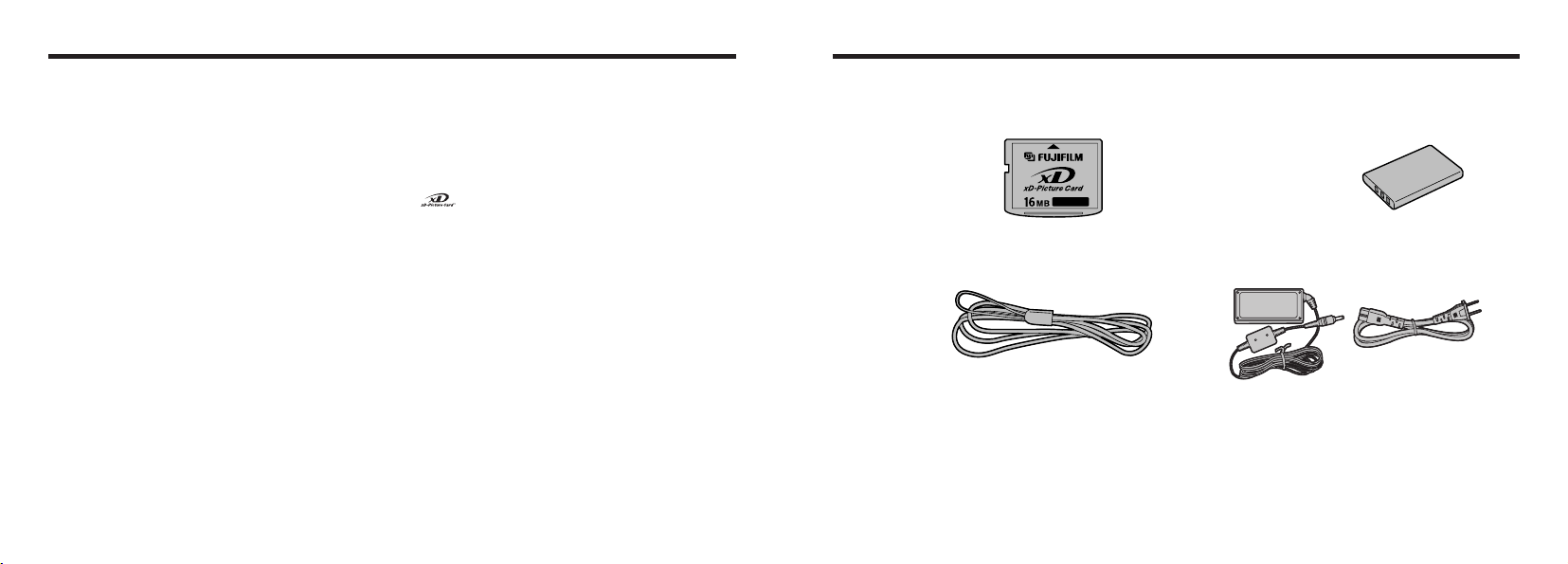
Accessories included
hNP
-
60 Rechargeable Battery
(
1
)
Soft case included
hAC
-
5VW AC Power Adapter
(
1
)
hOwner’s Manual
(
this manual
)(
1
)
h16MB, xD
-
Picture Card™
(
1
)
Included with : Anti
-
static case
(
1
)
hStrap
(
1
)
hUSB Interface Set
(
1
)
• CD-ROM : Software for FinePix SX
(
1
)
• Special USB cable with Noise Suppression core
(
1
)
8 9
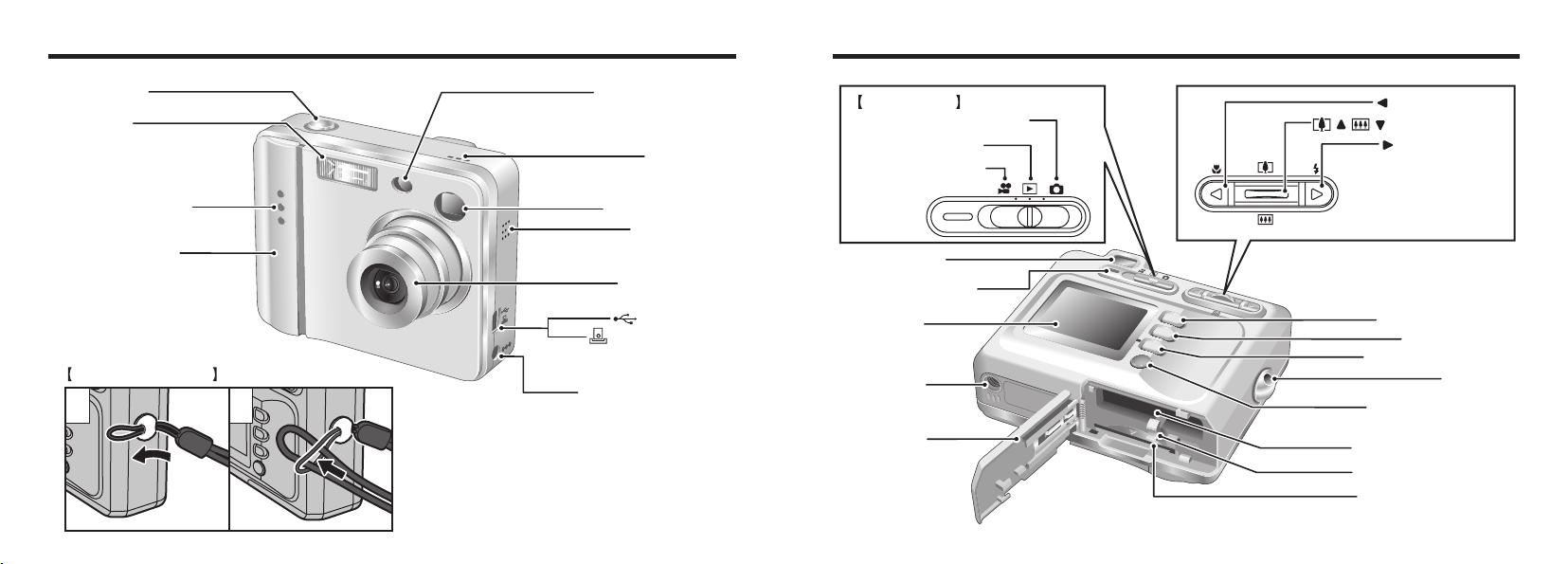
Shutter button
Flash
(
P.34
)
Self-timer lamp
(
P.58
)
Power switch
(
P. 1 5
)
(
USB
)
socket
Cradle connection
socket
(
P.101, 105
)
DC IN 5V
(
power input
)
socket
(
P.14
)
Speaker
(
P.80
)
Lens/Lens cover
Viewfinder window
Microphone
Flash control sensor
Attaching the strap
1 2
Nomenclature ✽ Refer to the pages in parentheses for information on using the camera features.
Viewfinder lamp
(
P.27
)
LCD monitor
Tripod mount
Viewfinder
(
P.25
)
MENU/OK button
(
P.22
)
/Flash button
(
P.34
)
BACK button
(
P.22
)
DISP button
(
P.21, 31, 38
)
Photo mode button
(
P.22
)
Strap mount
( ) ( ) /Zoom button
(
P.21
)
/Macro button
(
P.33
)
Battery release catch
(
P.12
)
Battery compartment
(
P.12
)
Battery cover
(
P.12, 13
)
xD
-
Picture Card slot
(
P.13
)
Movie mode (P.44, 63)
Playback mode (P.37)
Still photography mode (P.23)
Mode switch
11
1
10
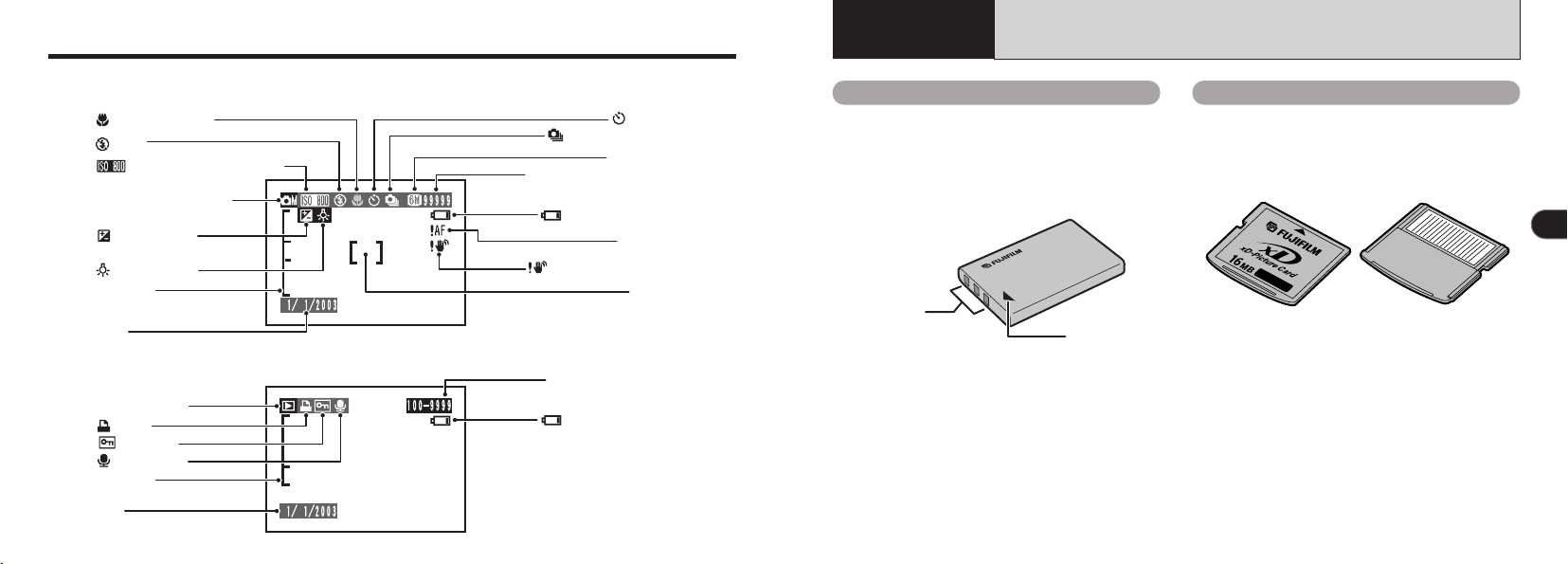
Nomenclature
(
Sample display
)
Macro
(
close-up
)
Self-Timer
Continuous shooting
White balance
Sensitivity
(
Only displayed
for 800
)
Number of remaining shots
Camera shake warning
AF warning
Battery level warning
Battery level warning
Quality mode
EV
(
Exposure
compensation
)
AF frame
Flash
Still photography mode
Zoom bar
Zoom bar
Date
DPOF
Voice memo
Protection
Playback mode
Date
Playback frame number
Example of LCD Monitor Text Display : Still photography mode
Example of LCD Monitor Text Display : Playback mode
1 Getting Ready
LOADING THE BATTERY AND xD
-
Picture Card
TM
Compatible Batteries
Use only the special Rechargeable Battery NP-60.
The use of other brands of rechargeable battery
could cause faults or damage to the camera.
NP-60 Rechargeable Battery
(
1
)
●
!
The battery is not fully charged at shipment and
must be charged up before being used.
●
!
Do not stick labels onto the battery as this could
cause the battery to become jammed inside the
camera.
●
!
See P.113, 114 for notes on the battery.
Terminals
Indicator
N
P
-6
0
xD
-
Picture Card
TM
(
sold separately
)
●
!
Operation of this camera is only guaranteed when it
is used with FUJIFILM xD-Picture Card.
●
!
Because xD
-
Picture Cards are small, they can be
accidentally swallowed by small children. Be sure to
store xD
-
Picture Cards out of the reach of small
children. If a child accidentally swallows an xD
-
Picture Card, seek medical advice immediately.
●
!
See P.117, 118 for more information on xD
-
Picture
Cards.
DPC
-
16
(
16MB
)
DPC
-
32
(
32MB
)
DPC
-
64
(
64MB
)
DPC
-
128
(
128MB
)
DPC
-
256
(
256MB
)
Front Back
12 13
1
LOADING THE BATTERY AND xD
-
Picture Card
TM
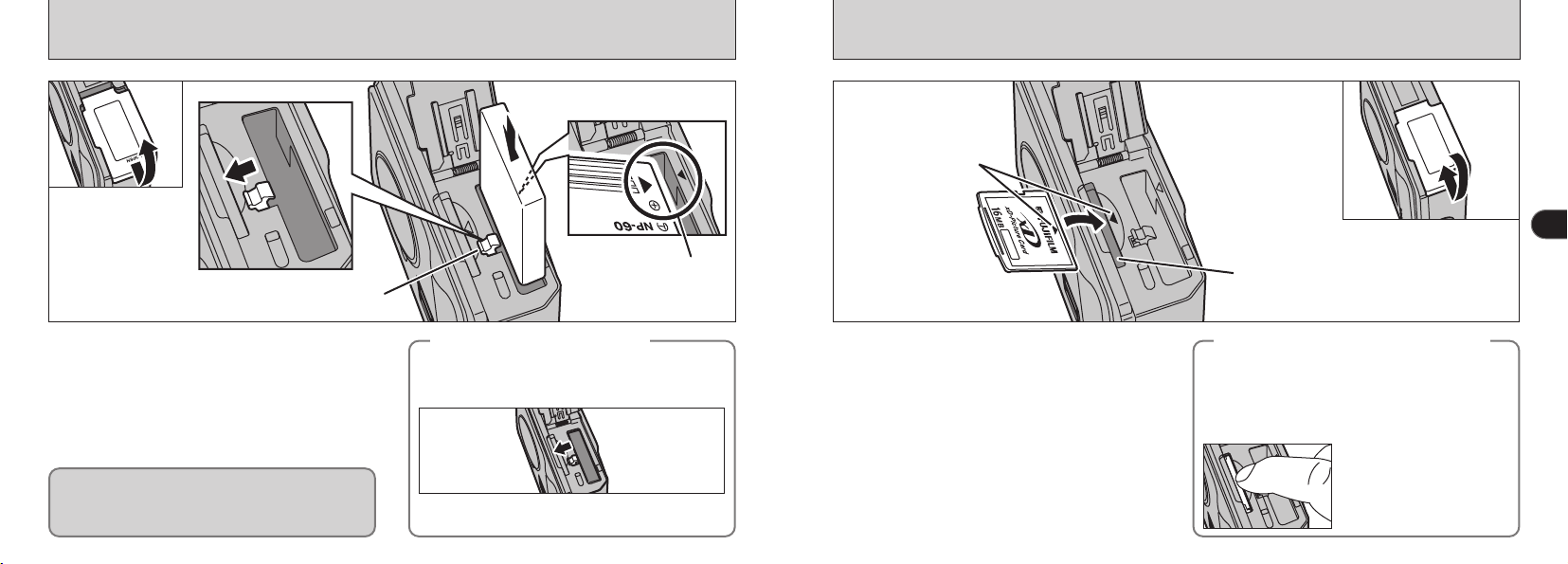
Indicator
Battery release catch
01
04
1 Slide the battery cover out to open it.
2 Hold the battery so that the arrow markings
are aligned.
3Use your finger to pull the battery release catch
in the direction shown and insert the battery.
4 Check that the battery is locked in place.
●
!
Do not apply excessive force to the battery cover.
Never open the battery cover while the camera
is still switched on. This could damage the xD
-
Picture Card or corrupt the image files on the
xD
-
Picture Card.
◆
To remove the battery
◆
●
!
Always switch the camera off when removing
the battery.
1 Firmly insert the xD
-
Picture Card all the way
into the xD
-
Picture Card slot with the indicator
on the card aligned with the indicator in the
slot.
2 Close the battery cover.
●
!
If you open the battery cover while the camera is still
switched on, the camera is automatically switched
off to protect the xD
-
Picture Card.
●
!
The xD
-
Picture Card will not slide fully into the slot if
it is inserted facing the wrong way. Be careful not to
apply excessive force to the xD
-
Picture Card.
●
!
When storing an xD
-
Picture Card, always place the
card in the special case or special carrying case.
xD-Picture Card slot
Indicator
01
02
◆
Replacing an xD
-
Picture Card
◆
Open the battery cover and pull the battery
release catch in the direction indicated to
release the battery.
When you push the xD
-
Picture Card into the slot
and then slowly remove your finger, the lock is
released and the xD
-
Picture Card is pushed out.
You can then pull the xD
-
Picture Card the rest of
the way out.
●
!
Take care not to remove
your finger too quickly
after the lock is released,
as the card may spring
completely out of the slot.
02
03
DC IN 5V socket
14 15
1
CHARGING THE BATTERY
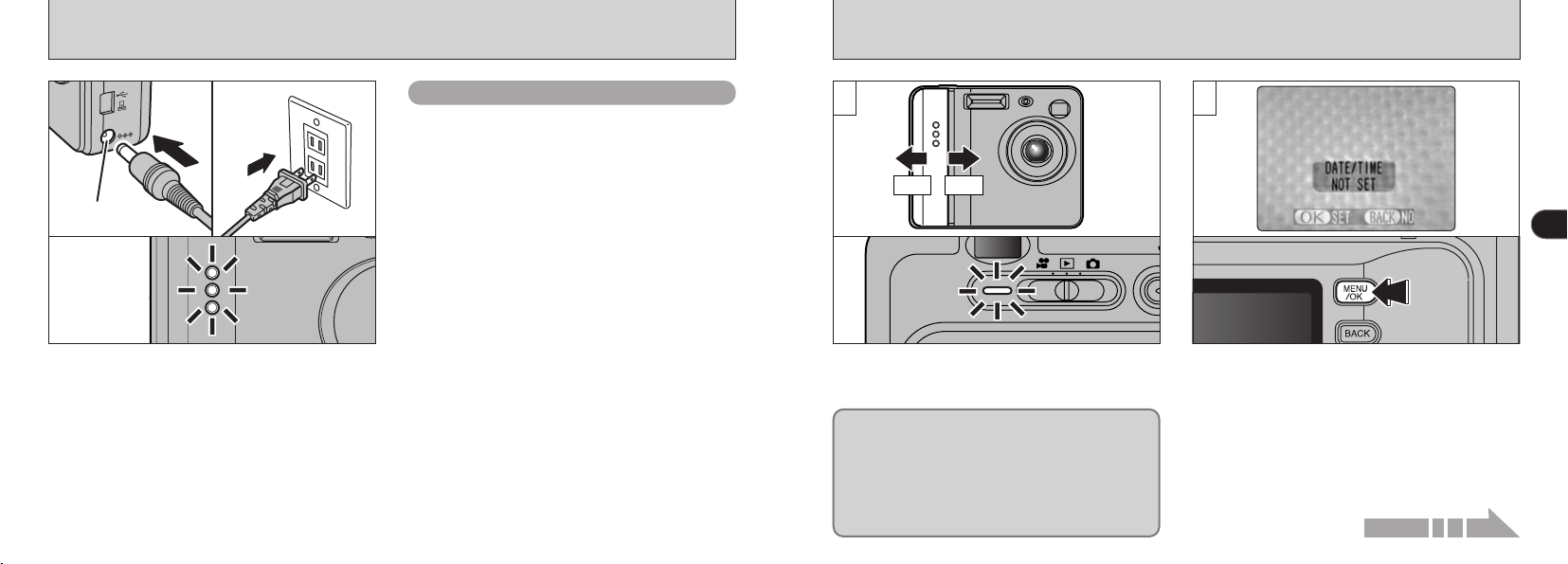
Check that the camera is switched off. Plug the
AC power adapter connector into the DC IN 5V
socket on the camera and then plug the adapter
itself into the main power outlet.
The self timer lamp lights
(
blue
)
and battery
charging begins. When charging is completed,
the self-timer lamp switches off.
A fully discharged battery takes roughly 3 hours
to fully recharge
(
at an ambient temperature of
+
21°C to
+
25°C
(+
70°F to
+
77°F
))
.
Use the AC power adapter to avoid losing power
at inconvenient times, such as when you are
downloading photographed images to your
computer. Using the AC power adapter also
allows you to take pictures and play back images
without worrying about depleting the battery.
hCompatible AC power adapters
AC
-
5VW/AC
-
5VS/AC
-
5VHS/AC
-
5VH
●
!
Use only the FUJIFILM products listed above.
●
!
See P.115 for notes on using the AC power adapter.
●
!
Only connect or disconnect the AC power adapter when
the camera is switched off.
Connecting or disconnecting the AC power adapter while
the camera is switched on temporarily interrupts the
power supply to the camera, so that images or movies
being shot at the time are not recorded. Failing to switch
the camera off first can also result in damage to the xD
-
Picture Card or malfunctions during PC connection.
●
!
Charging times increase at low temperatures.
●
!
If the self
-
timer lamp blinks during charging, a charging
error has occurred and the battery cannot be charged. If
this occurs, see P.122.
●
!
Switching the camera on during charging interrupts the
charging.
●
!
You can charge the battery more quickly by using the
BC
-
65 Battery Charger
(
sold separately
)(
➡P.110
)
.
●
!
The shape of the plug and socket
-
outlet depends on the
country of use.
Using the AC Power Adapter
SWITCHING ON AND OFF SETTING THE DATE AND TIME
1 2
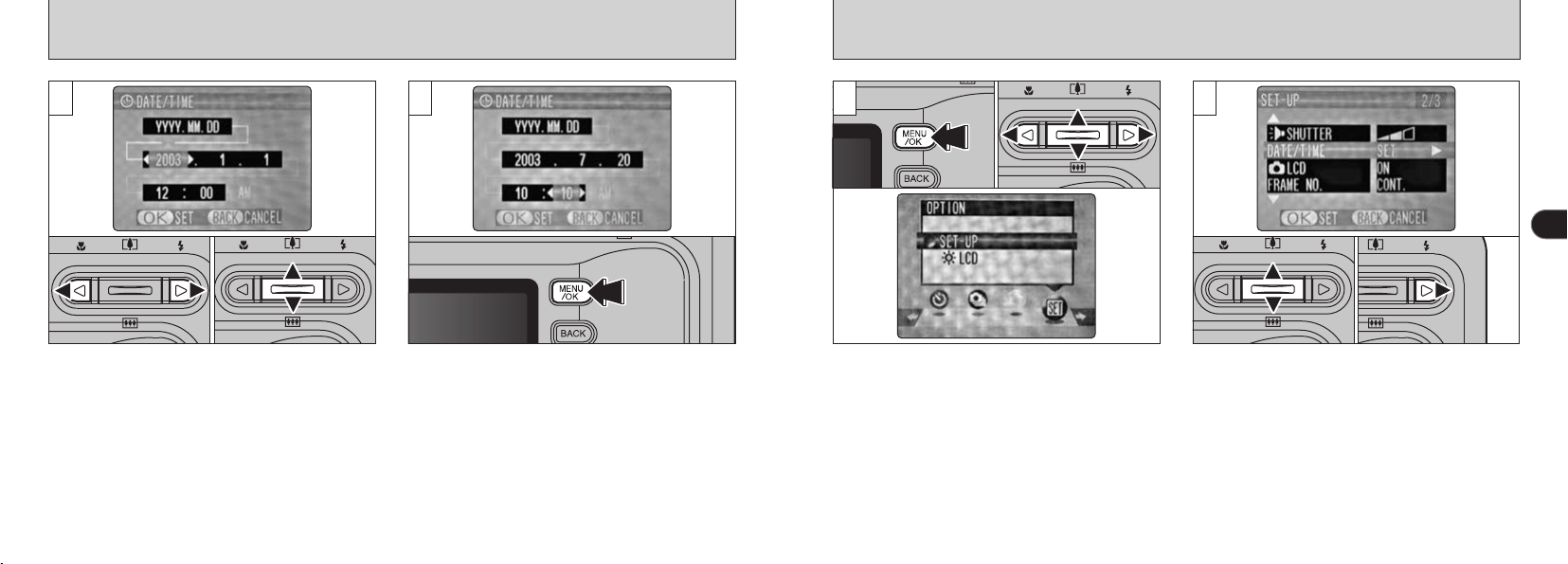
When you first switch the camera on, the date is
cleared. Press the “MENU/OK” button to set the
date and time.
Slide the POWER switch to turn the camera on and
off. When you switch the camera on, the viewfinder
lamp lights
(
green
)
.
●
!
To set the date and time later, press the
“
BACK
”
button.
●
!
If you do not set the date and time, this confirmation
screen will appear each time you switch the camera on.
●
!
When you switch the camera on, the self timer lamp
lights for about 5 seconds.
●
!
If you load the battery while the camera’s POWER switch
is set to ON, the viewfinder lamp/self timer lamp lights
briefly. This is normal and does not indicate a fault.
If the “
q
/
T
” mode is selected, the lens cover opens
and the lens slides out. Avoid pressing on the lens
so as not to damage precision components.
Obstructing the lens will cause a malfunction or fault
and the “
ß
” or “
´
” message
will appear. Take care also not to get fingerprints on
the camera lens as this will result in impaired image
quality in your shots.
OFFON
Continued on next page...
17
1
16
SETTING THE DATE AND TIME
3 4
01 02
●
!
You cannot set the seconds.
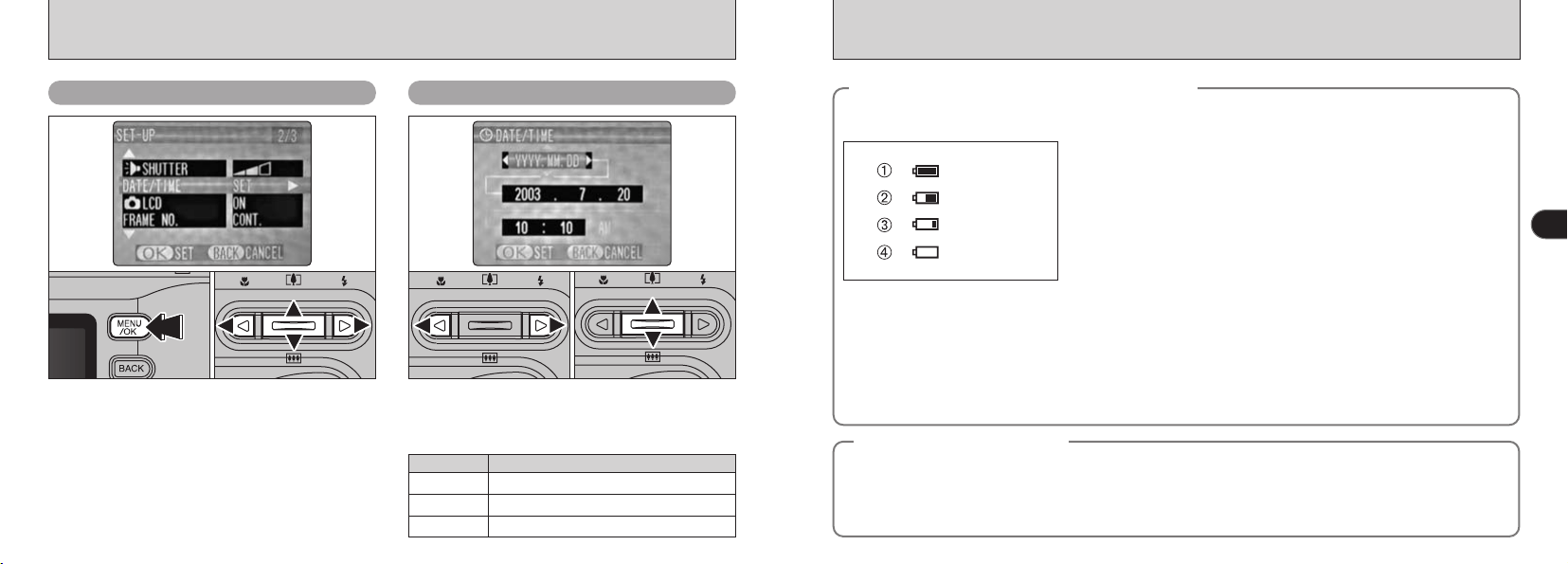
1 Press “d” or “c” to select Year, Month, Day,
Hour or Minute.
2 Press “a” or “b” to set the number.
Once you have set the date and time, press the
“MENU/OK” button. Pressing the “MENU/OK”
button switches the camera to Photography or
Playback mode.
If the SET
–
UP screen reappears, press the
“MENU/OK” button again.
●
!
If you hold down “a” or “b”, the numbers change continuously.
●
!
When the time displayed passes “12:00”, the AM/PM setting
automatically switches.
●
!
Settings such as the date and time are not set at the time of
purchase and are cleared if the camera is left for a long
period with the battery removed. Once the AC power
adapter has been connected or a fully charged battery has
been fitted for 2 hours or more, the settings are retained for
roughly 6 hours even when the camera has no power supply
(
AC power adapter disconnected and battery removed
)
.
1 Press the “MENU/OK” button.
2 Press “d” or “c” to select “g” OPTION and
then press “a” or “b” to select “SET
–
UP”.
3 Press the “MENU/OK” button.
1 Press “a” or “b” to select “DATE/TIME”.
2 Press “c”.
0301 02
01 02
1 2
19
1
18
◆
Checking the remaining battery charge
◆
●
!
The above estimates are for the still photography modes. In Playback mode, the transition from “X” to “C” may
take less time.
●
!
When the battery runs flat, the “C” is displayed and the camera automatically stops operating. When this occurs, the
camera may continue operating if you switch it back on even if you haven’t loaded a new or fully charged battery.
However, this may cause malfunctions that could lead to camera damage, such as the camera shutting down without
retracting the lens. Always load a new or fully charged battery.
●
!
Due to the nature of the battery, the battery low warning may appear early when the camera is used in cold locations.
This is normal and does not indicate a fault. We recommend that you warm the battery in your pocket or a similar
location before use.
SETTING THE DATE AND TIME
Changing the date and time To change the date display format
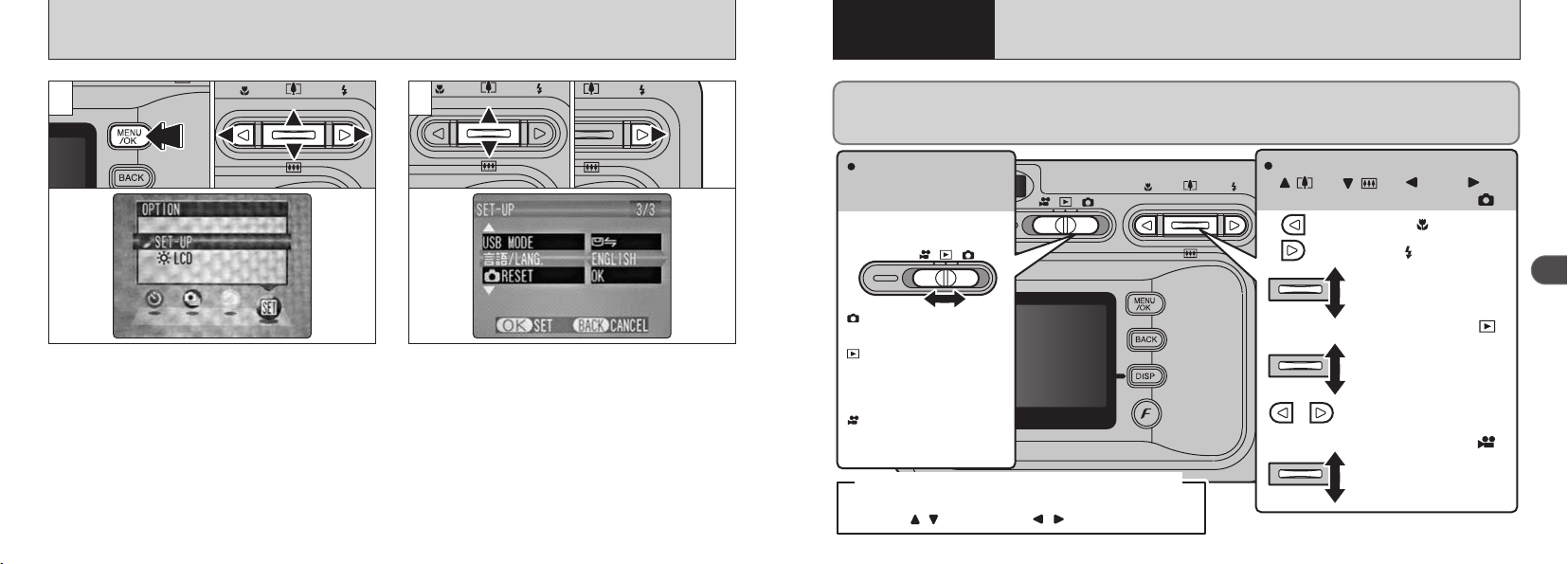
1 Press the “MENU/OK” button.
2 Press “d” or “c” to select “g” OPTION and
then press “a” or “b” to select “SET
–
UP”.
3 Press the “MENU/OK” button.
4 Press “a” or “b” to select “DATE/TIME”.
5 Press “c”.
See P.16 for information on setting the date and
time.
0103 020405
01 02
1 Press “d” or “c” to select the date format.
2 Press “a” or “b” to set the format. Refer to
the table below for details of the settings.
Setting Explanation
YYYY.MM.DD Displays the date in the “year.month. day” format.
MM/DD/YYYY Displays the date in the “month/day/ year” format.
DD.MM.YYYY Displays the date in the “day.month. year” format.
◆
Power Save Function
◆
If the camera is not used in any way for approx. 30 seconds when the camera functions are enabled, this
function temporarily switches features such as the LCD monitor off to reduce power consumption
(
➡P.84
)
. If the camera is then left unused for a further period
(
2 minutes or 5 minutes
)
, the Power Save
function automatically switches the camera off. To switch the camera back on, slide the Power switch to
the side to turn the camera off briefly and then turn it back on.
1 There is ample remaining battery charge.
(
Displayed for only 3 seconds when the camera is switched on or
the mode is changed.
)
2 The battery is approximately half charged.
(
Displayed for only 3 seconds when the camera is switched on or
the mode is changed.
)
3 Battery charge low. Replace or recharge the battery as it will run
out shortly.
4 The battery is exhausted. The display will shortly go blank and the
camera will stop working. Replace or recharge the battery.
Blinking red
Lit white
Lit red
Lit white
Switch the camera on and check that no battery level warning
(
Z, X or C
)
is displayed on the LCD
monitor. If the “
º” is displayed, the battery is fully charged.
21
2
20
In the Owner’s Manual, black triangles are used to indicate
up, down
(
,
)
and left, right
(
,
)
respectively.
◆ Conventions used in the Owner’s Manual ◆
Main actions performed by
“
(
)
”, “
(
)
”, “ ” and “ ”
When the Mode switch is set to “ ” :
Sets the flash
(
)
.
Switches Macro
(
)
on and off.
When the Mode switch is set to “ ” :
Digital Zoom only
Zoom
Playback zoom,
start/stop movie or sound
playback.
Change frame or
(
in a
movie
)
frame advance.
When the Mode switch is set to “ ” :
Switching between still
photography, playback
and movies
Slide the Mode switch to
select the mode.
Still image :
Still photography.
Movie :
Movie photography
(➡P.63).
Playback :
Play back still images,
movies or sound, and
record sound.
2
Basic
Photography
BASIC OPERATION GUIDE
You’ve read the chapter on getting ready and the camera is now set up and ready to take pictures.
The Basic Photography section explains the three basic steps of “taking pictures”, “viewing pictures” and
“erasing pictures”. Master the basic steps by actually trying them out on the camera as you go.
BASIC OPERATION GUIDE
2
Using the
Camera
BASIC OPERATION GUIDE
1
SELECTING THE LANGUAGE
1 Press the “MENU/OK” button to display the
menu screen.
2 Press “a”, “b”, “d” or “c” to select “SET
–
UP”
from the “g” OPTION menu.
3 Press the “MENU/OK” button.
1 The “SET
–
UP” screen appears. Use “a” or
“b” to select “LANGUAGE”.
2 Press “c” to select “日本語”, “ENGLISH”,
“FRANCAIS”, “DEUTSCH”, “ESPANOL” or
“中文”. You can cycle through the language
settings by pressing “c”.
01 02
2
0301 02
●
!
The screens in this manual are shown in English.
●
!
See P.82, 83 for more information on the “g ”
OPTION menu.
ON
23
2
22
SHOOTING STILL IMAGES
(
|
AUTO MODE
)
U
MODE
Turn the camera on and set the Mode switch to
“U”.
When you are taking shots using the viewfinder,
you can make the battery last longer by pressing
the “DISP” button to switch the LCD monitor off.
hPhotography range : Approx. 60 cm
(
2 ft.
)
to
infinity
●
!
Cannot switch the LCD monitor off in Macro mode.
●
!
If a “∂ ”, “∆ ”, “˚ ” or
“
˙” message appears, see P.119.
1 2
Brace your elbows against your sides and hold
the camera with both hands. Position the thumb
of your right hand so that it is handy for using
the zoom.
●
!
For subjects closer than 60 cm
(
2 ft.
)
, use Macro
photography
(
➡P.33
)
.
●
!
The image will be blurred if the camera moves when
taking the picture
(
camera shake
)
. Use a tripod to avoid
camera shake, particularly for shots in dark locations
when the flash is set to Suppressed Flash mode.
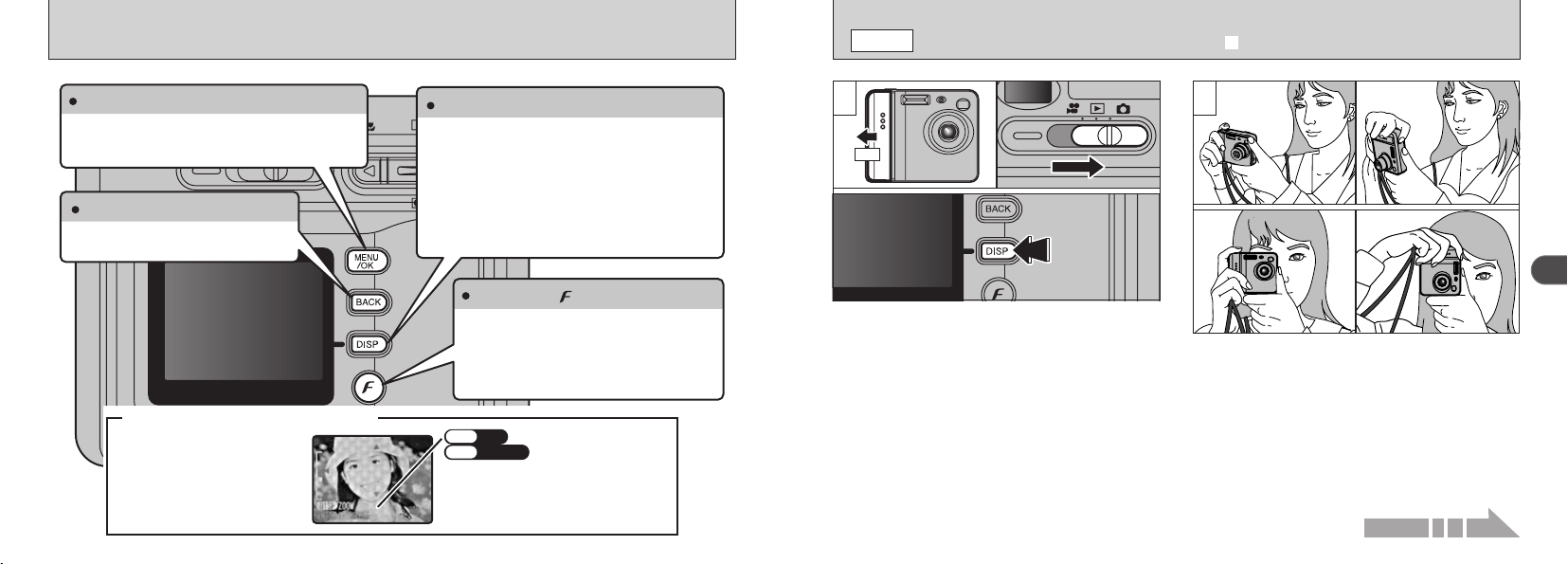
DISP button
You can use this button to select the LCD monitor
display.
When shooting :
Switches the LCD monitor on and off or displays
the framing guides.
During playback :
Switches text display on and off or selects multi-
frame playback.
BACK button
Press this button to stop a procedure
midway through.
MENU/OK button
Displays the menu screen when you are shooting
or playing back images. You also press this button
to confirm a menu selection.
Photo mode ( ) button
During shooting : Allows you to select the
resolution, sensitivity and “FinePix COLOR”
settings.
During playback : Allows you to specify
the print order
(
DPOF
)
settings. selection.
BASIC OPERATION GUIDE
ZOOM
ZOOM
TRIMMING
TRIMMING
OK
OK
DISP
DISP
Instructions for the next step
in the procedure are displayed
at the bottom of the LCD
monitor. Press the button
indicated.
Press the “DISP” button to use the
zoom or the “MENU/OK” button to
crop the image.
◆ Displaying the On-screen Help ◆
Continued on next page...
25
2
24
65
3333
AF frame
AF frame
LCD monitor
Viewfinder
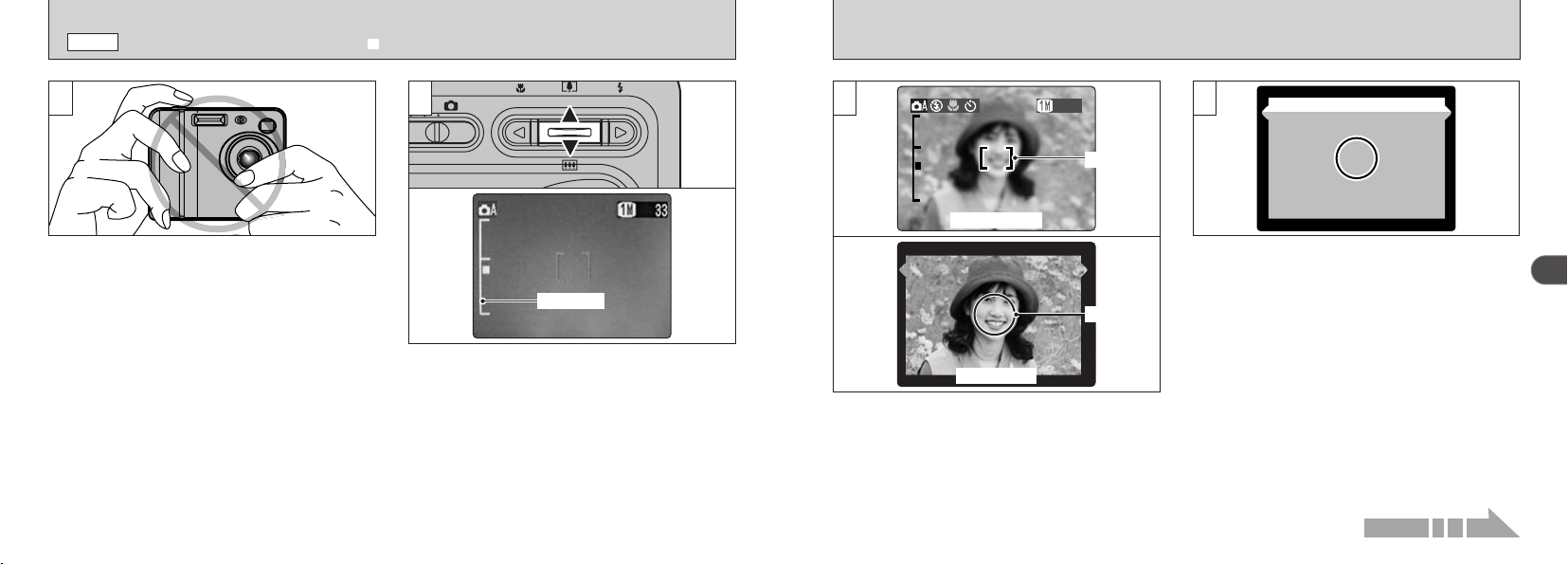
Using the viewfinder or LCD monitor, frame your
shot so that the subject fills the entire AF
(
Auto
Focus
)
frame.
●
!
If your subject is not in the center of the picture, use
AF/AE lock to take the picture
(
➡P.29
)
.
When you are using the viewfinder to take a
picture at a distance of 0.6 m to 1.5 m
(
2.0 ft. to
4.9 ft.
)
, only the shaded area in the figure is
photographed.
●
!
To center the photographed area accurately, you
should use the LCD monitor to take the shot.
●
!
In some conditions it may be difficult to see your
subject clearly on the LCD monitor
(
such as in sunny
weather outdoors or when you are shooting dimly lit
scenes
)
. In such situations, use the viewfinder to
take the shot.
●
!
The image shown on the LCD monitor before you
take the shot may differ in its brightness, color, etc.
from the image actually recorded. If necessary, play
back the recorded image to check it
(
➡P.32
)
.
SHOOTING STILL IMAGES
(
| AUTO MODE
)
q
MODE
3 44
Take care to hold the camera so that your
fingers or the strap do not cover the lens, flash
or flash control sensor. If the lens, flash or flash
control sensor is obscured by your fingers or the
camera strap, you may not be able to obtain the
correct brightness
(
exposure
)
for your shot.
●
!
There may be some unevenness in the brightness at
the lower edge of the LCD monitor. This is normal
and does not indicate a fault. This does not affect
the photographed image.
●
!
Check that the lens is clean. If it is dirty, clean the
lens as described on P.112.
●
!
If you use the flash in very dusty conditions or when
it is snowing, white dots may appear in the image
due to the flash reflecting off the dust particles or
snowflakes. Try taking the shot with the flash
switched off.
To zoom in on the subject, press “
a
”
(
P
TELE
)
. To
zoom out, press “
b
”
(
{
WIDE
)
. A “zoom bar”
appears on the LCD monitor when you zoom in or out.
h
Optical zoom focal length
(
35 mm camera equivalent
)
Approx. 38 mm-114 mm
(
1.5 in. to 4.5 in.
)
Maximum zoom scale : 3×
●
!
Zooming stops briefly when the camera switches
between optical zoom and digital zoom
(
➡P.32
)
.
Press the same zoom button again to switch zoom
modes.
Continued on next page...
Zoom bar
Bebeep
27
2
26
■ Viewfinder Lamp Display
✽ Detailed warning messages are displayed on the LCD monitor
(
➡P.119
-
121
)
.
Display Status
Lit green Ready to shoot.
Blinking green AF/AE operating or camera shake/AF warning
(
ready to shoot
)
.
Blinking green and orange
alternately
Recording data to the xD
-
Picture Card
(
ready to shoot
)
.
Lit orange Recording data to the xD
-
Picture Card
(
not ready to shoot
)
.
Blinking orange Charging the flash
(
flash will not fire
)
.
Blinking red
Blinking green Power save
(
sleep mode
)
.
h Very shiny subjects such as a mirror or car body.
h Subjects photographed through glass.
h Subjects that do not reflect well, such as hair or fur.
h Subjects with no substance, such as smoke or flames.
h When the subject is dark.
h When there is very little contrast between the subject
and the background
(
such as white walls or subjects
dressed in the same color as the background
)
.
h Subjects moving at high speed.
h When something other than your subject is close to
the AF frame, has contrasting areas of light and
dark and is either closer or further away than your
subject
(
as when you photograph someone against
a background with strongly contrasting elements
)
.
For subjects of this type, use AF/AE lock
(
➡P.29
)
.
◆
Subjects Not Suitable for Autofocus
◆
Though the FinePix F410 uses an accurate autofocus mechanism, it may have difficulty focusing or not be able
to focus at all on the types of subject and situation listed below. In such cases, the image may be out of focus.
SHOOTING STILL IMAGES
(
| AUTO MODE
)
q
MODE
77
1/500 F2.81/500 F2.8
Click
8
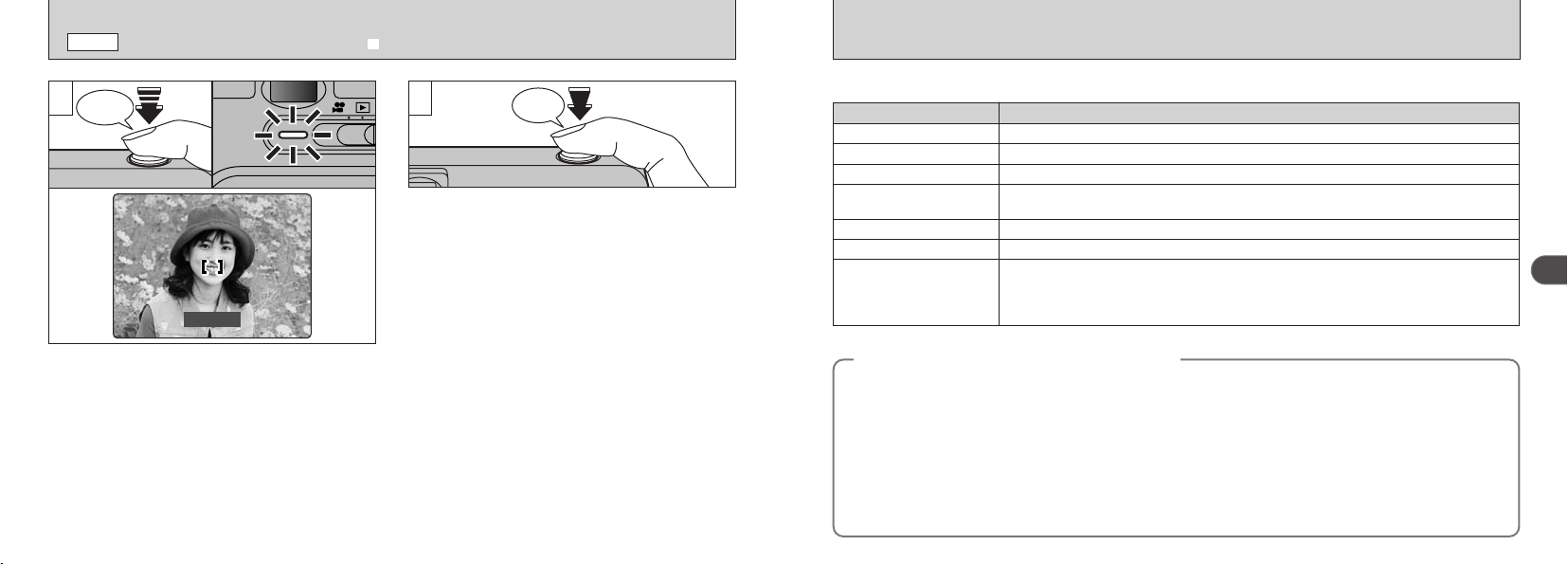
If you press the shutter button down fully without
releasing it, the camera makes a clicking noise
and takes the picture. The camera then records
the photographed image.
●
!
You can adjust the volume of the camera operation
noises
(
“bebeep” and “click”
)
or switch them off
altogether in the SET
–
UP menu
(
➡P.82, 83
)
.
●
!
There is a slight delay between the shutter button
being pressed and the shot being taken. If necessary,
play back the shot to check the image.
●
!
If you press the shutter button down fully in one motion,
the shot is taken without the AF frame changing.
●
!
When you take a picture, the viewfinder lamp lights
orange
(
camera not ready
)
before switching back to
green to indicate that the camera is again ready for
shooting.
●
!
The viewfinder lamp flashes orange while the flash is
charging. If the LCD monitor is switched on, the
screen may go dark for a moment. This is normal
and does not indicate a fault.
●
!
See P.119
-
121 for information on the warning displays.
When you press the shutter button down halfway, the
camera emits a short double-beep and focuses on your
subject
(
the viewfinder lamp
(
green
)
changes from
blinking to steady
)
. At that point, the AF frame on the
LCD monitor becomes smaller and the camera sets the
shutter speed and aperture.
●
!
If the camera does not emit a short double-beep and “V”
appears on the LCD monitor, the camera cannot focus.
●
!
When you press the shutter button down halfway, the image
on the screen freezes temporarily. However, this image is not
the recorded image.
●
!
If “V” is displayed on the screen
(
e.g. the shot is too dark
for the camera to focus
)
, try standing about 2 m
(
6.6 ft.
)
from
your subject to take the picture.
ixD
-
Picture Card
-
related warning.
The xD
-
Picture Card is not loaded, is not formatted, is incorrectly formatted or has a
write-protect sticker attached. xD
-
Picture Card full. xD
-
Picture Card fault.
iLens operation error.
29
2
28
USING AF
/
AE LOCK
q
MODE
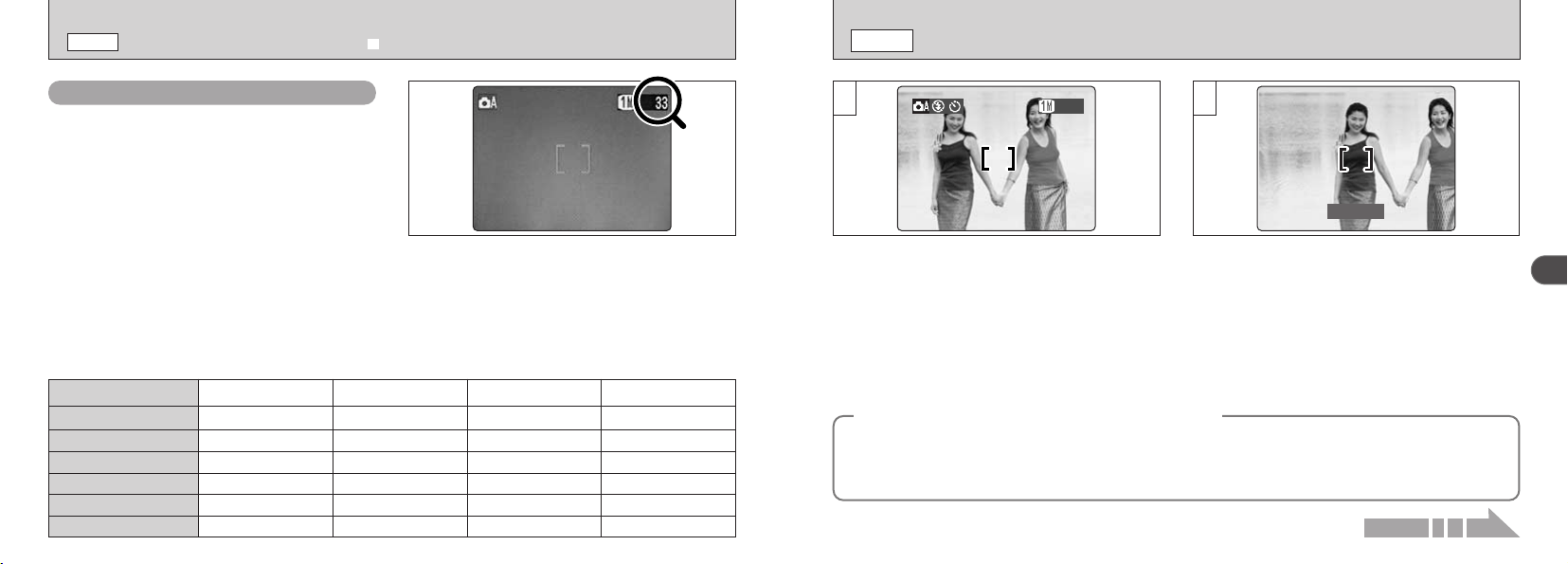
In a shot with this type of composition, the
subjects (two people in this case) are not in the
AF frame. If the shot is taken at this point, the
subjects will not be in focus.
Move the camera slightly so that one of the
subjects in the AF frame.
1
3333
2
1/500 F2.81/500 F2.8
◆
AF
(
Autofocus
)
/AE
(
Auto exposure
)
Lock
◆
On the FinePix F410, when you press the shutter button down half way, the focus and exposure settings
are fixed
(
AF/AE lock
)
. If you want to focus on a subject that is off to one side of the image or if you want
to set the exposure before you compose the final shot, lock the AF and AE settings and then compose
and shoot your picture to get the best results.
Number of Available Frames
■ Standard number of shots per xD
-
Picture Card
This is the standard number of shots displayed for a new xD
-
Picture Card that was formatted on the
camera. Because the amount of data recorded varies depending on the subject, the number of
available shots may not decrease when recording ends, or may decrease by 2 frames. The
discrepancy between the standard number of available shots and the actual number of available shots
increases in proportion to the capacity of the xD
-
Picture Card.
The number of available shots is displayed on
the LCD monitor.
●
!
See P.43 for information on changing the image
quality.
●
!
The default image quality “y” set at shipment is 1.
Quality
DPC
-
16
(
16MB
)
DPC
-
32
(
32MB
)
DPC
-
64
(
64MB
)
DPC
-
128
(
128MB
)
Number of recorded pixels
~ 6M
43
86
21
10
2816 × 2120 640 × 480
122
247
497
997
! 0.3M
33
68
137
275
1280 × 960
1 1M
19
40
81
162
DPC
-
256
(
256MB
)
173 1997550325
2048 × 1536
` 3M
SHOOTING STILL IMAGES
(
| AUTO MODE
)
q
MODE
Continued on next page...
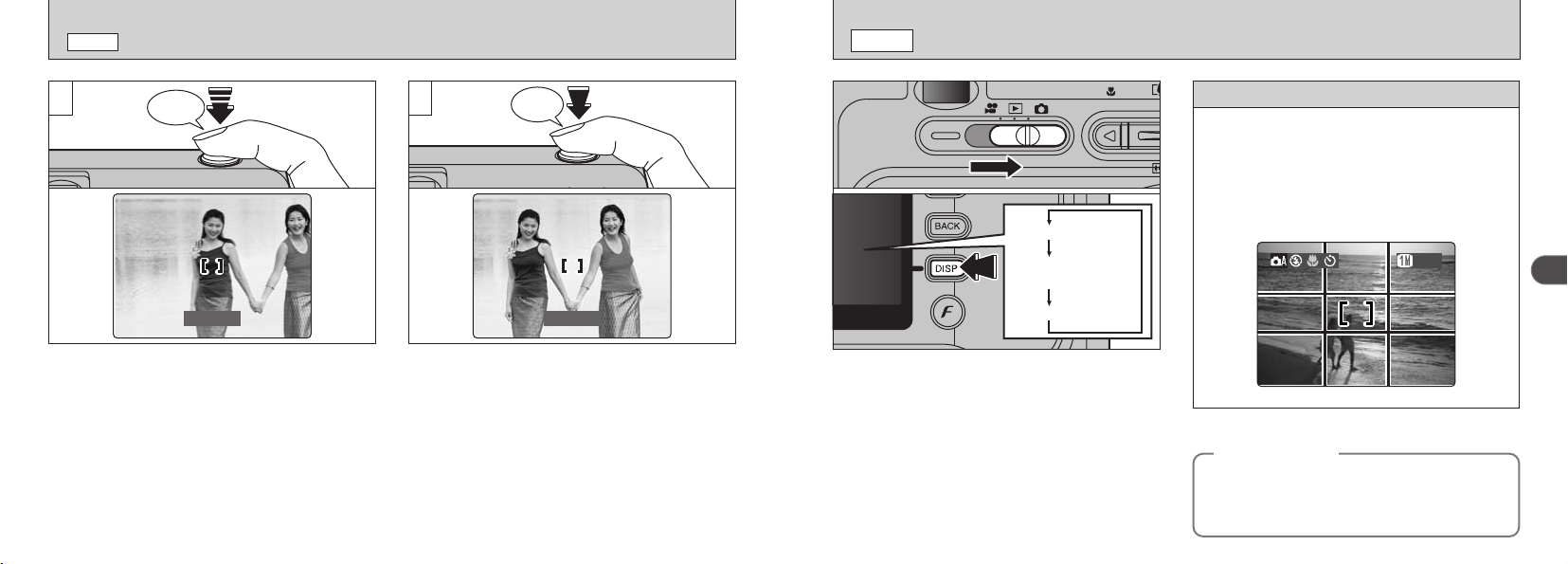
LCD monitor ON
Framing Guideline
displayed
LCD monitor OFF
31
2
30
FRAMING GUIDELINE FUNCTION
q
MODE
You can select the Framing Guideline function in
the “q” still photography mode. The LCD monitor
display changes each time you press the “DISP”
button. Press the “DISP” button until “Framing
Guideline” appears.
●
!
The framing guideline is not recorded on the image.
●
!
The lines in the scene frame roughly divide the
recorded pixels into three equal parts horizontally and
vertically. When the image is printed, the resulting
print may be shifted slightly from the scene frame.
Always use the AF/AE lock to compose your
picture.
Failing to use the AF/AE lock may result in the
image being out of focus.
◆
Important
◆
Scene
99999999
Use this frame when you want to position your
main subject in the center of the frame or when
you want to align your shot with the horizon.
This feature provides a clear guide to the
subject size and the overall balance of the shot
so that you get exactly the shot you want.
USING AF
/
AE LOCK
q
MODE
Without moving the camera, press the shutter
button down halfway
(
AF/AE lock
)
. Check that
the AF frame on the LCD monitor has shrunk
and the green viewfinder lamp has stopped
blinking and is now lit.
Continue to hold the shutter button down
halfway. Move the camera back to the original
image and then fully press down on the shutter
button.
●
!
You can reapply the AF/AE lock as many times as
you like before releasing the shutter.
●
!
The AF/AE lock operates in all photography modes
and can be used to ensure excellent results.
Bebeep
1/500 F2.81/500 F2.8
3
Click
1/500 F2.81/500 F2.8
4
33
2
32
e
MACRO
(
CLOSE
-
UP
)
PHOTOGRAPHY
q
MODE
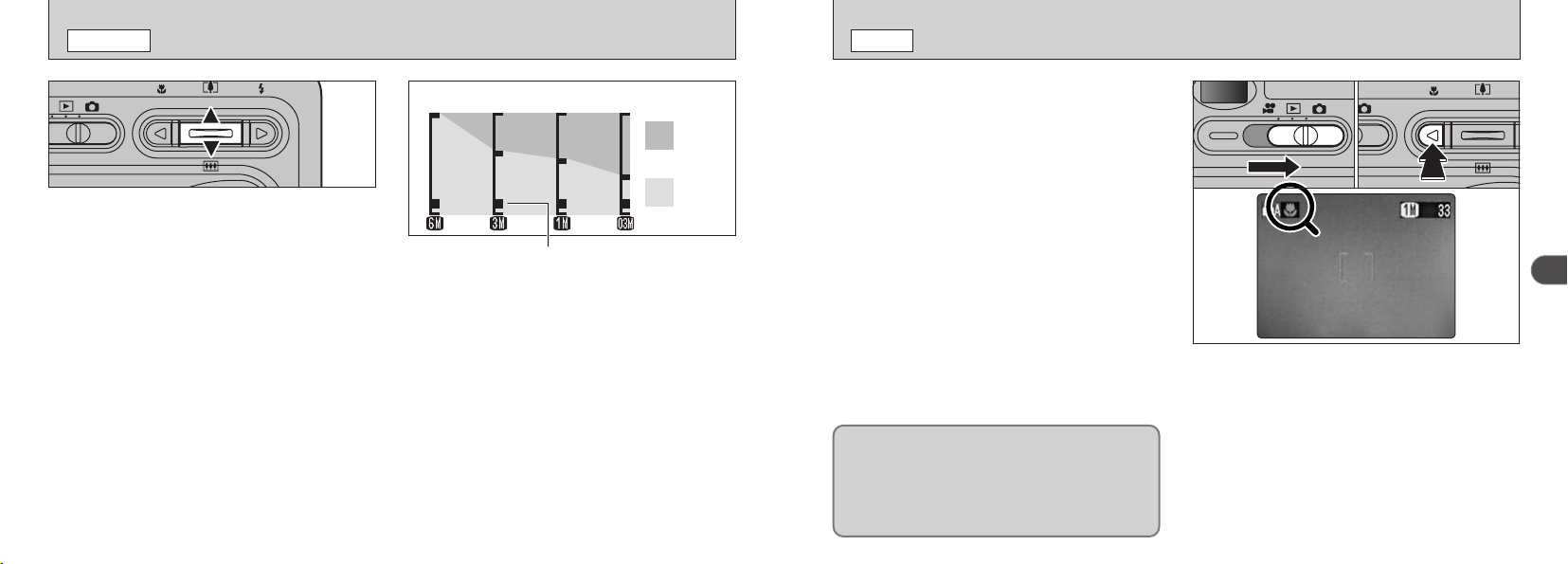
Selecting Macro mode allows you to take close
-
up shots.
●
Effective Photography Range :
Approx. 10 cm to 80 cm (4 in to 31 in.).
Also, set the flash functions according to the
given circumstances.
For subjects closer than 30 cm
(
1.0 ft.
)
, the flash
mode should be set to Suppressed Flash
(
➡P.35
)
.
●
!
When you set the mode, the “e” is briefly displayed larger.
●
!
The LCD monitor automatically switches on.
●
!
You cannot switch the LCD monitor off.
●
!
The LCD monitor automatically switches on and cannot
be switched off.
●
!
The lens is fixed at the wide-angle zoom setting and only
the digital zoom can be used.
1 Set the Mode switch to “q”.
2 Press the “e” Macro button
(
d
)
. The “e” appears
on the LCD monitor indicating that you can take
close-up shots.
To cancel Macro mode, press the “e” Macro
button
(
d
)
again.
●
!
Macro photography is automatically cancelled in the
following situations :
• When you switch to Movie mode
• When the camera is switched off
●
!
If you are shooting in a dark location
(
when the “\”
camera shake warning icon is displayed
)
, use a
tripod to prevent camera shake.
If you use the viewfinder to take a picture in Macro
mode, the field visible through the viewfinder does
not match the field actually photographed because
the viewfinder and lens are in different positions.
Accordingly, you should use the LCD monitor to
take pictures in Macro mode.
01 02
USING THE ZOOM
q
/
T
MODE
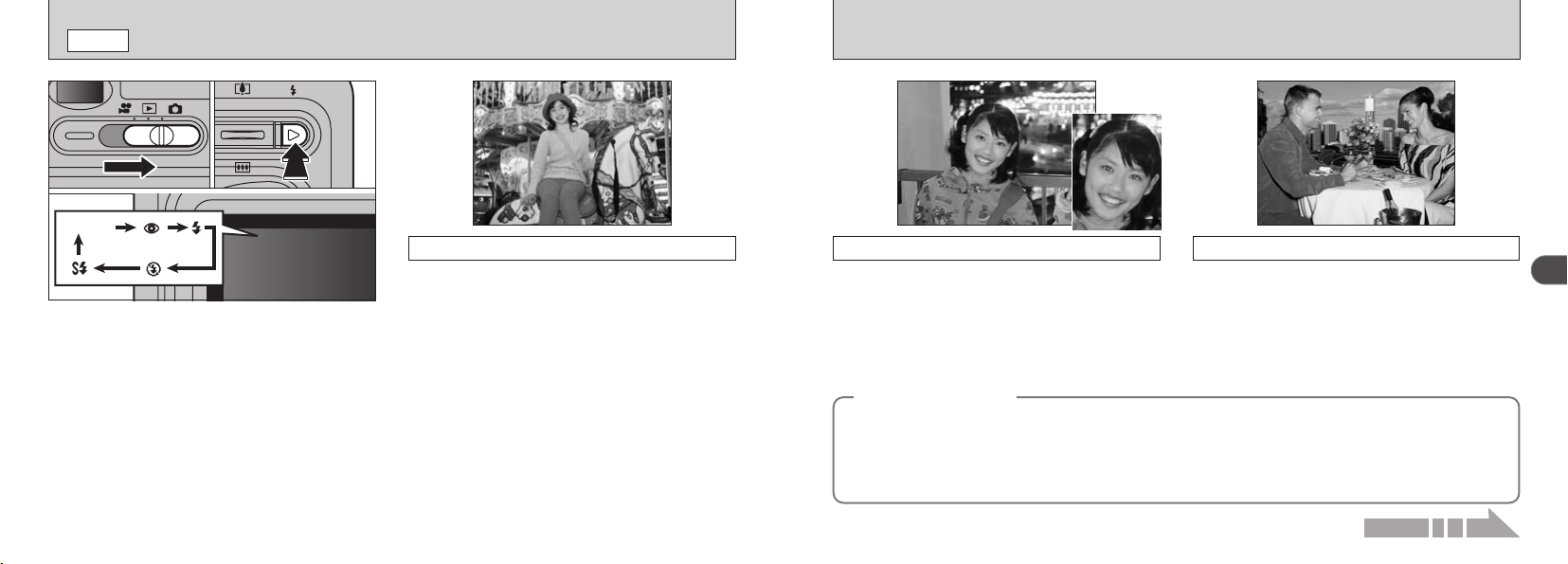
Optical
zoom
Digital
zoom
Zoom bar display
You can operate the optical zoom using the zoom
buttons. You can also use the digital zoom when
the quality setting is “`”, “1”, “!” or “MOVIE”
(
# or $
)
. However, this only applies when you
are using the LCD monitor to take pictures.
h
Optical zoom focal distance
(
35 mm camera equivalent
)
A
pprox. 38 mm to 114 mm
Maximum zoom scale : 3×
h
Digital zoom focal distance
(
35 mm camera equivalent
)
`: A
pprox. 114 mm to 157 mm
Maximum zoom scale :
Approx.
1.4×
1: Approx. 114 mm
to
251 mm
Maximum zoom scale :
2.2×
!: Approx. 114 mm
to
502 mm
Maximum zoom scale :
4.4×
●
!
See P.64 for information on using the zoom when
shooting movies.
●
!
You cannot use the digital zoom for image quality of
“~”.
●
!
The digital zoom cannot be used in high-sensitivity
photography
(
f800
)
.
●
!
See P.43, 44 for information on changing the quality
setting.
●
!
If the image goes out of focus when you use the
zoom, press the shutter button down halfway to
refocus.
The position of the “■” on the zoom bar indicates
the current zoom setting.
hIf the “
■ ” is above the dividing line, the digital
zoom is being used. If it is below the line, the
optical zoom is being used.
hPress “P
(
a
)
” or “{
(
b
)
” to move the “■ ”.
hWhen you switch between digital zoom and
optical zoom, the “■ ” stops moving. Press the
button for the same direction again to start the
“■ ” moving again.
35
2
34
n
Red
-
Eye Reduction
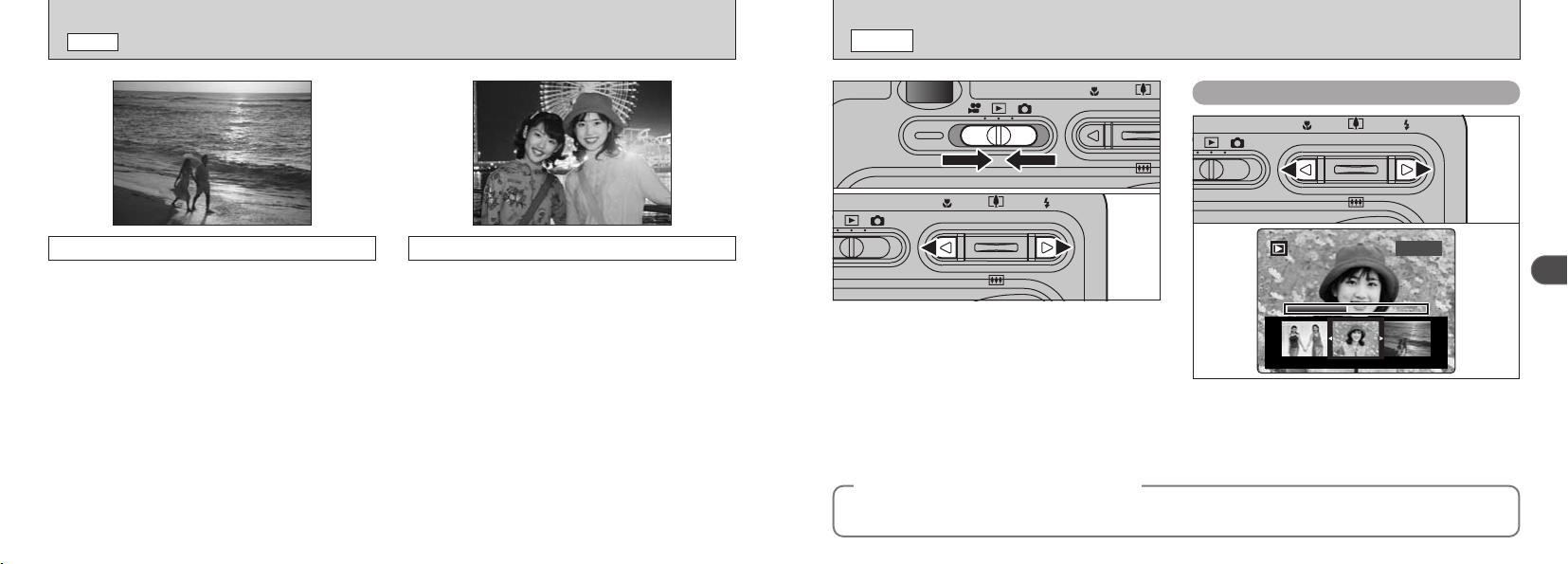
Use this mode to ensure that the subject’s eyes
appear natural when photographing people in
low-light conditions.
The flash fires a pre-flash just before the picture
is taken and then fires again to take the actual
picture.
I
Forced Flash
Use this mode to photograph backlit scenes,
such as a subject against a window or in the
shade of a tree, or to obtain the correct colors
when you are shooting under lighting such as
fluorescent tubes. In this mode, the flash fires in
bright as well as dark conditions.
◆
Red
-
Eye Effect
◆
When you use the flash to photograph people in low
-
light conditions, their eyes sometimes appear red in
the picture. This is caused by the light of the flash reflecting off the inside of the eye. Use Red
-
Eye
Reduction flash to effectively minimize the likelihood of the red-eye effect.
Take the following measures to make Red
-
Eye Reduction more effective :
h Get the subjects to look at the camera. h Get as close as possible to the subjects.
I FLASH
q
MODE
You can choose from 5 flash modes according
to the type of shot.
1 Set the Mode switch to “q”.
2 The flash setting changes each time you
press the “z” Flash button
(
c
)
. The last flash
mode displayed is selected.
h
Effective flash range
(
for | AUTO
)
Wide
-
angle
:
Approx. 0.4 m to 3.5 m
(
1.3 ft. to 11.5 ft.
)
Telephoto
:
Approx. 0.4 m to 2 m
(
1.3 ft. to 6.6 ft.
)
Use this mode for ordinary photography. The
flash fires automatically as required by the
shooting conditions.
Auto Flash Mode
(
no icon
)
●
!
If you use the flash in very dusty conditions or when
it is snowing, white dots may appear in the image
due to the flash reflecting off the dust particles or
snowflakes. Try taking the shot with the flash mode
set to Suppressed Flash.
●
!
The flash charging time may increase if the charge
remaining in the battery is low.
●
!
When you take a shot using the flash, you may see
the video image disappear and the screen go dark
as the flash charges. The viewfinder lamp blinks
orange while the flash is charging.
01 02
Continued on next page...
No icon
●
!
The selected flash icon is briefly displayed larger.
37
2
36
VIEWING YOUR IMAGES
(
PLAYBACK
)
w
MODE
Fast Forwarding Images
100ー0009100ー0009
1 Set the Mode switch to “Q”.
2 You can press the “d” or “c” to move forward
and backward respectively through your
images.
●
!
When you set the Mode switch to “Q”, the last
image shot is displayed.
●
!
If the lens is extended during playback, the camera
retracts the lens as a protective measure if the
camera is not used for approximately 6 seconds.
◆
Still images that can be viewed
◆
You can use this camera to view still images recorded on the FinePix F410 or still images
(
excluding
some uncompressed images
)
recorded on a FUJIFILM digital camera that supports xD-Picture Cards.
You can fast forward through the frames by
holding down “d” or “c” for about 1 second
during playback.
●
!
A progress bar is displayed to show the approximate
playback position on the xD
-
Picture Card.
01
02
I FLASH
q
MODE
This is a flash mode that uses a slow shutter
speed. This allows you to take pictures of people
at night that clearly show both your subjects and
the night time backdrop. To prevent camera
shake, always use a tripod.
v
Slow Synchro
●
!
The image may be overexposed when you shoot
bright scenes.
b
Suppressed Flash
Use this mode for photography using indoor
lighting, for shots taken through glass, and for
photography in venues such as theaters or at
indoor sporting events where the distance is too
great for the flash to be effective. When you use
Suppressed Flash, the Automatic White Balance
function
(
➡P.126
)
operates so that natural colors
are captured along with the ambience of the
available light.
●
!
If you are shooting in Suppressed Flash mode in
dark conditions, use a tripod to prevent camera
shake.
●
!
See P.27, 119 for information on the camera shake
warning.
39
2
38
PLAYBACK ZOOM
w
MODE
1 2
020301
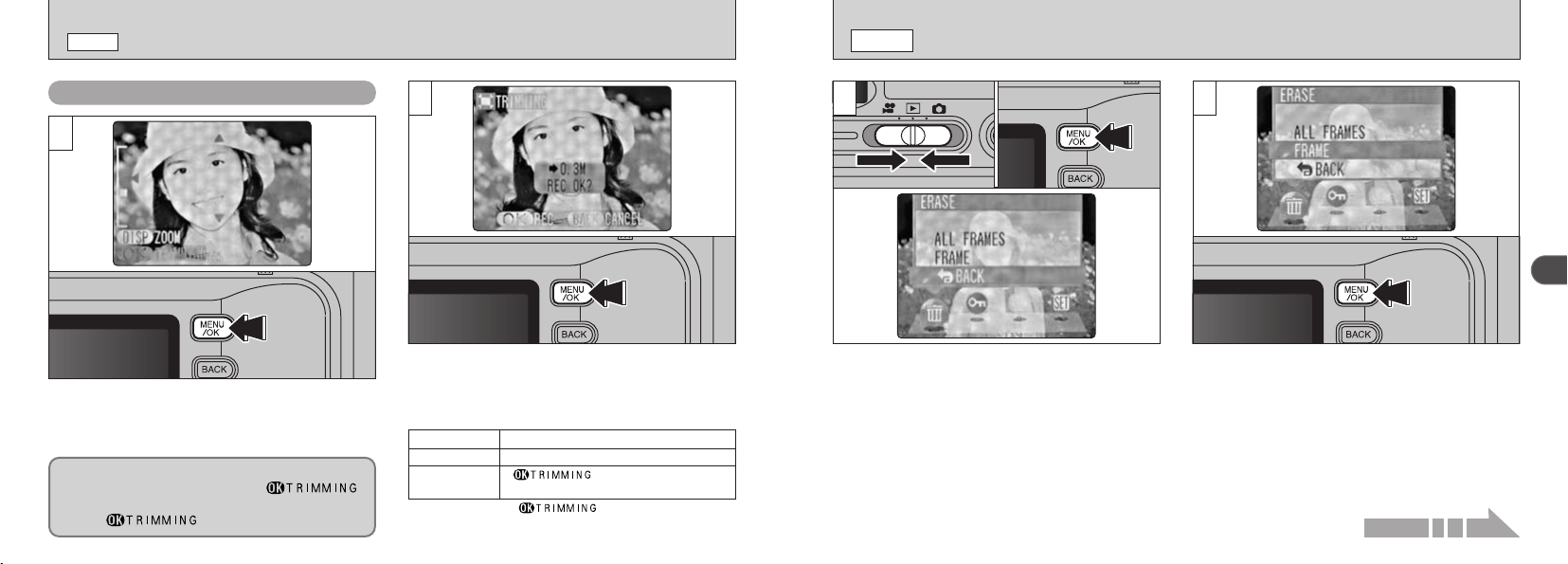
Pressing the “a
(
P
)
” or “b
(
{
)
” during single
-
frame
playback zooms in
(
enlarges
)
or out on a still image.
When you use this function, a zoom bar is
displayed. On
-
screen help is also displayed at the
bottom of the screen.
hZoom scales :
~ 2816 × 2120 pixel images : Max. 17.6×
` 2048 × 1536 pixel images : Max. 12.8×
1 1280 × 960 pixel images : Max. 8×
! 640 × 480 pixel images : Max. 4×
After you have zoomed in on your image,
1 Press the “DISP” button.
2 Press “a
(
P
)
, b
(
{
)
” or “d”, “c” to zoom in
on different parts of the image.
3Press the “DISP” button again to revert to
zoomed display.
●
!
Pressing the “d ” or “c ” during zooming cancels
zooming and moves to the next image.
●
!
Press the “BACK” button to return to normal unscaled
display.
MULTI
-
FRAME PLAYBACK
w
MODE
Text displayed
No text displayed
Multi-frame playback
1 2
01 02
●
!
The LCD monitor text display disappears after
approx. 3 seconds.
●
!
Playback zoom cannot be used with multi-frame
playback.
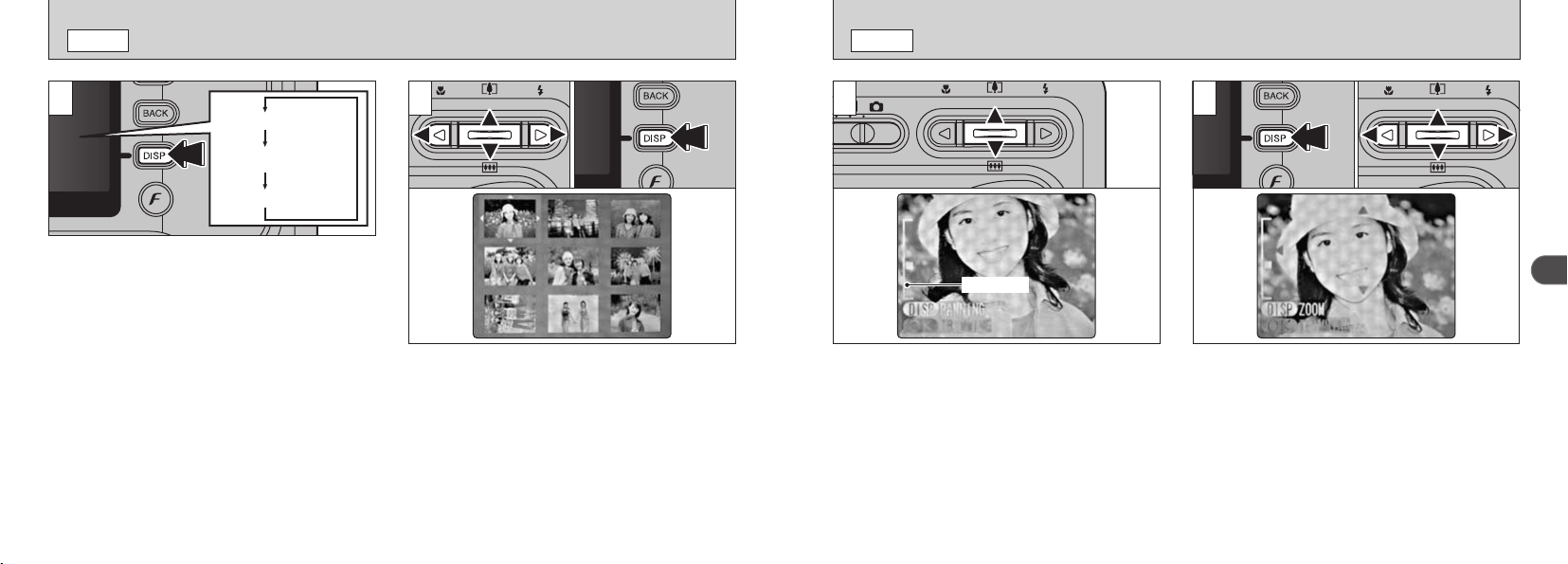
In Playback mode, the display shown on the
LCD monitor switches each time you press the
“DISP” button. Press the “DISP” button until the
multi-frame playback screen
(
9 frames
)
appears.
1 Select a frame by pressing “d”, “c”, “a” or
“b” to move the cursor
(
the orange box
)
to
the desired frame. Press the “a ” or “b ”
several times to switch to the previous page
or the next page.
2 You can enlarge the selected image by
pressing the “DISP” button again.
Zoom bar
41
2
40
ERASING SINGLE FRAME
w
MODE
1
1 Set the Mode switch to “w”.
2 Press the “MENU/OK” button to display the
Menu screen on the LCD monitor.
Select “FRAME” in the “
p” ERASE menu and
press the “MENU/OK” button.
See P.68 for more information on “ALL FRAMES”.
2
01 02
●
!
To revert to image playback without erasing the
image, select “BACK” and press the “MENU/OK”
button.
PLAYBACK ZOOM
w
MODE
Saving Trimmed Images
1
2
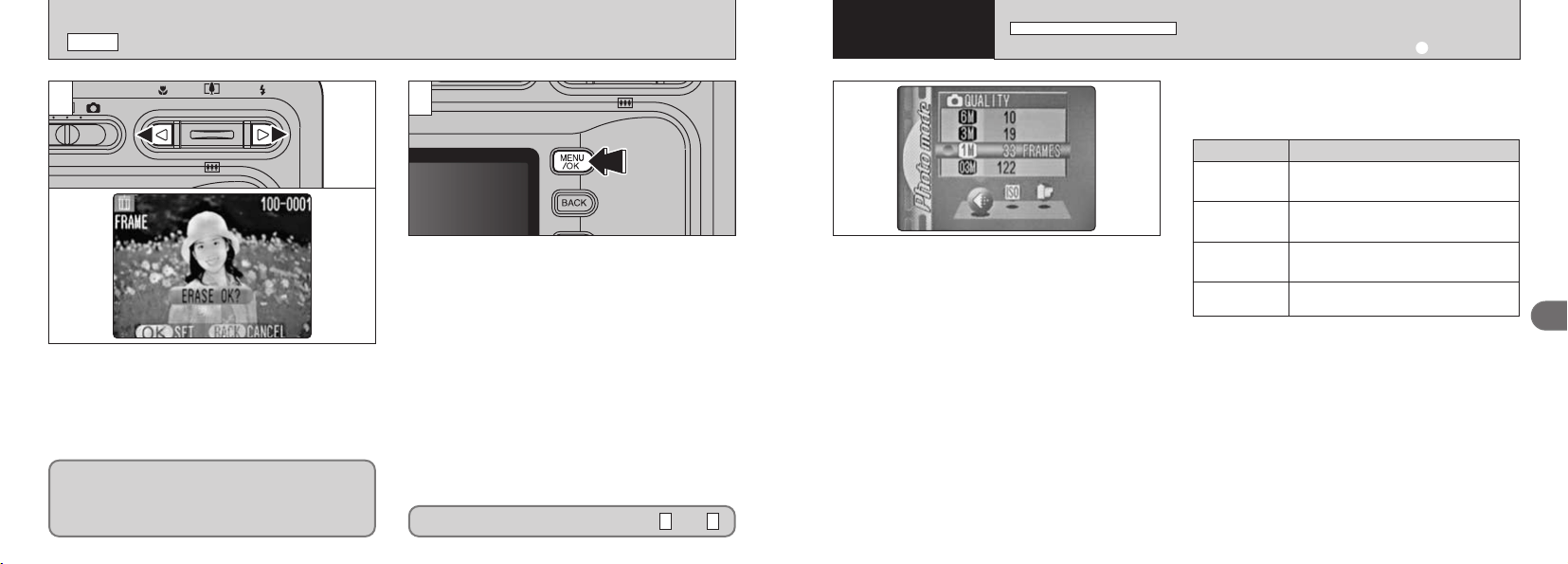
After using playback zoom, press the “MENU/OK”
button to crop the image.
Check the size of the image being saved and then
press the “MENU/OK” button. The cropped image
is added as a separate file in the last frame.
■ Image Sizes
` Best for A6 to A5 size prints
1 Best for A7 to A6 size prints
!
“ ” is displayed in yellow
since the quality is too low for printing.
✽ Lower than
!
: “ ” is no longer displayed
and images cannot be saved trimmed as
the quality is not suitable for printing.
The size of the saved image varies depending on
the zoom scale. In 0.3M mode, “ ”
is displayed in yellow. At recorded pixels below
0.3M, “ ” is no longer displayed.
Continued on next page...
43
3
●
!
The numbers to the right of each setting show the
number of available shots.
●
!
When you change the image quality, the number of
available shots also changes.
●
!
The quality setting is retained even if you switch the
camera off or change the Mode switch setting.
●
!
See P.44 for information on the image quality setting
for Movie mode.
1 Set the Mode switch to “q”.
2 Press the Photo mode
(
_
)
button.
3Press “g” to select the “y” setting and then
press “f” to change the setting.
4 Press the “MENU/OK” button to confirm the
setting.
Printing at A4 size or printing part of
the image cropped at A5 or A6 size.
~ 6MB
(
2816 × 2120
)
Printing at A4 or A5 size or printing
part of the image cropped at A6 size.
` 3MB
(
2048 × 1536
)
Printing at A6 size.
1 1MB
(
1280 × 960
)
For an image attached to E-mail or
used on a website.
! 0.3MB
(
680 × 480
)
Image quality Sample Uses
42
ERASING SINGLE FRAME
w
MODE
3 4
Press “d” or “c” to view the frame
(
selected
image
)
you want to erase.
●
!
Press the “BACK” button to cancel frame erasing.
●
!
Pressing the “MENU/OK” button repeatedly erases
consecutive frames. Take care not to mistakenly
erase frames.
Note that mistakenly erased images cannot be
recovered. You should copy important images
that you do not want to be erased to your
computer or other media.
Pressing the “MENU/OK” button erases the
frame
(
selected file
)
displayed. When erasing is
complete, the next image appears and the
“©” message is displayed.
To erase another frame, repeat steps and .
43
You can choose from 4 settings. Use the table
on the below as a guide for selecting the best
setting for the shot you want to take.
2
Basic
Photography
3
Advanced
Features
_
PHOTO MODE STILL IMAGE
/
MOVIE
QUALITY SETTINGS IN STILL PHOTOGRAPHY
(
q
)
MODE
45
3
44
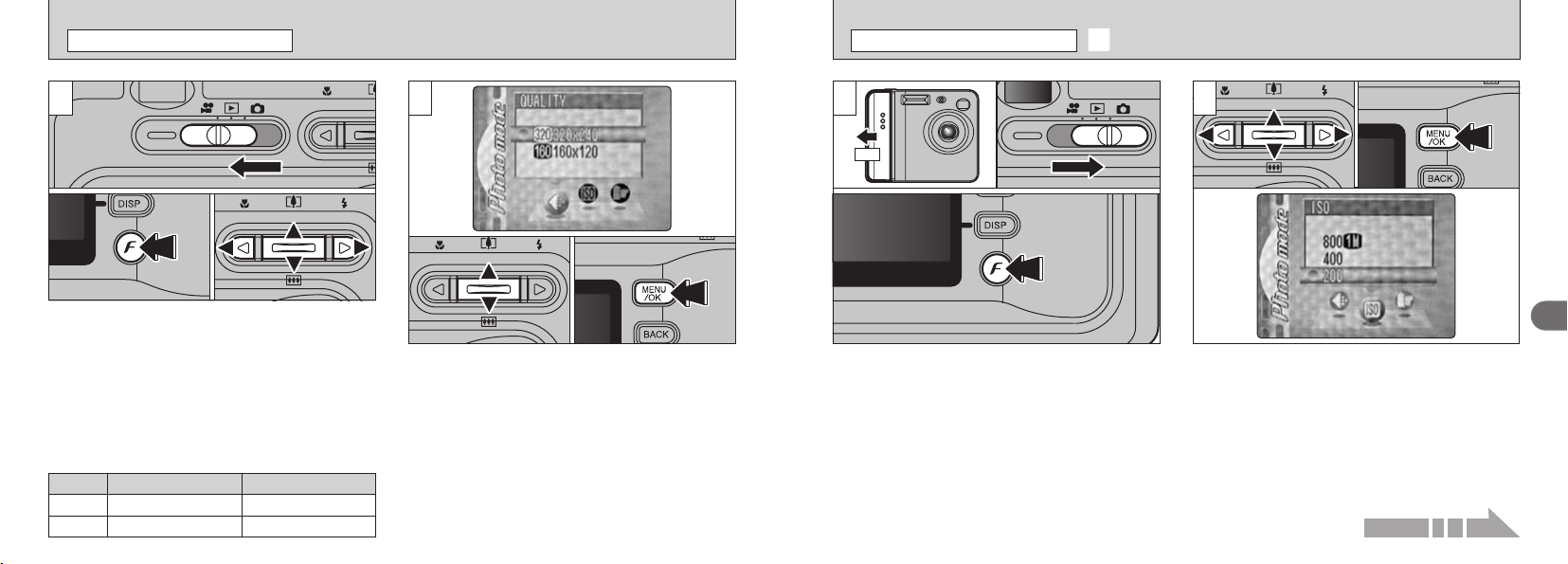
1 Press “g” to select the “f” setting and then
press “f” to change the setting.
2 Press the “MENU/OK” button to confirm the
setting.
hSettings : 200
(
standard
)
, 400, 800
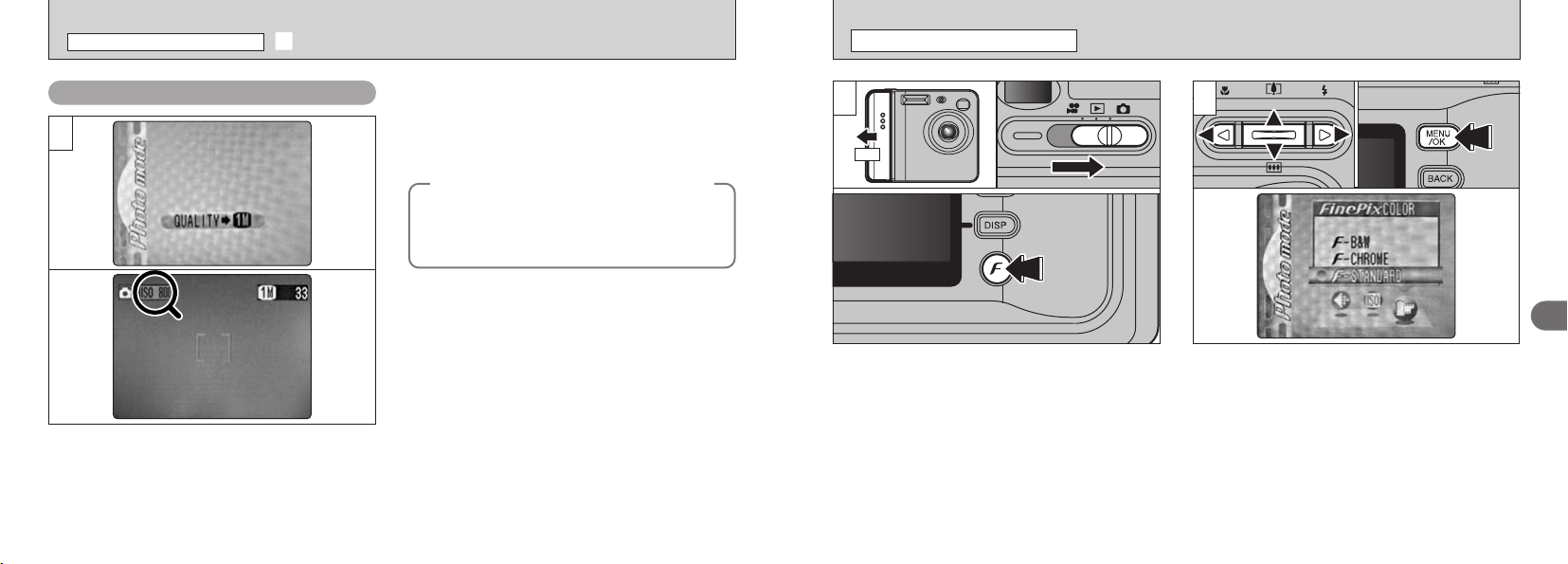
1 Slide the Power switch to the side to turn the
camera on.
2 Set the Mode switch to “q”.
3 Press the Photo mode
(
_
)
button.
●
!
In “u ” Movie mode, you cannot set the ISO
(
sensitivity
)
setting.
f SENSITIVITY
_
PHOTO MODE STILL IMAGE
/
MOVIE
●
!
While selecting a higher sensitivity setting will allow
you to take pictures in darker locations, it will also
increase the amount of speckling in your images.
Choose the sensitivity setting that best suits the
conditions.
1 Press “a” or “b” to change “y” QUALITY
setting.
2 Press “MENU/OK” button to confirm your
selection.
0201
2
1 Set the Mode switch to “T”.
2 Press the Photo mode
(
_
)
button.
3Press “g” to select “y” QUALITY setting
and then press “f” to change the setting.
You can select 2 levels of quality. For better
image quality, select “#”, and for longer
photography time, select “$”.
Movie Size
#
320 × 240
$
160 × 120
1
02 03
Maximum shooting time
120 sec.
480 sec.
01
ON
1
01 02
03
2
01 02
Continued on next page...
QUALITY SETTINGS IN MOVIE
(
T
)
MODE
_
PHOTO MODE STILL IMAGE
/
MOVIE
47
3
46
01 02
FinePix COLOR
_
PHOTO MODE STILL IMAGE
/
MOVIE
●
!
In “T” Movie mode, you cannot set the “FinePix
COLOR” setting.
●
!
The “FinePix COLOR” setting is retained even if you
switch the camera off or change the Mode switch
setting.
●
!
The quality setting is retained even if you switch the
camera off or change the Mode switch setting.
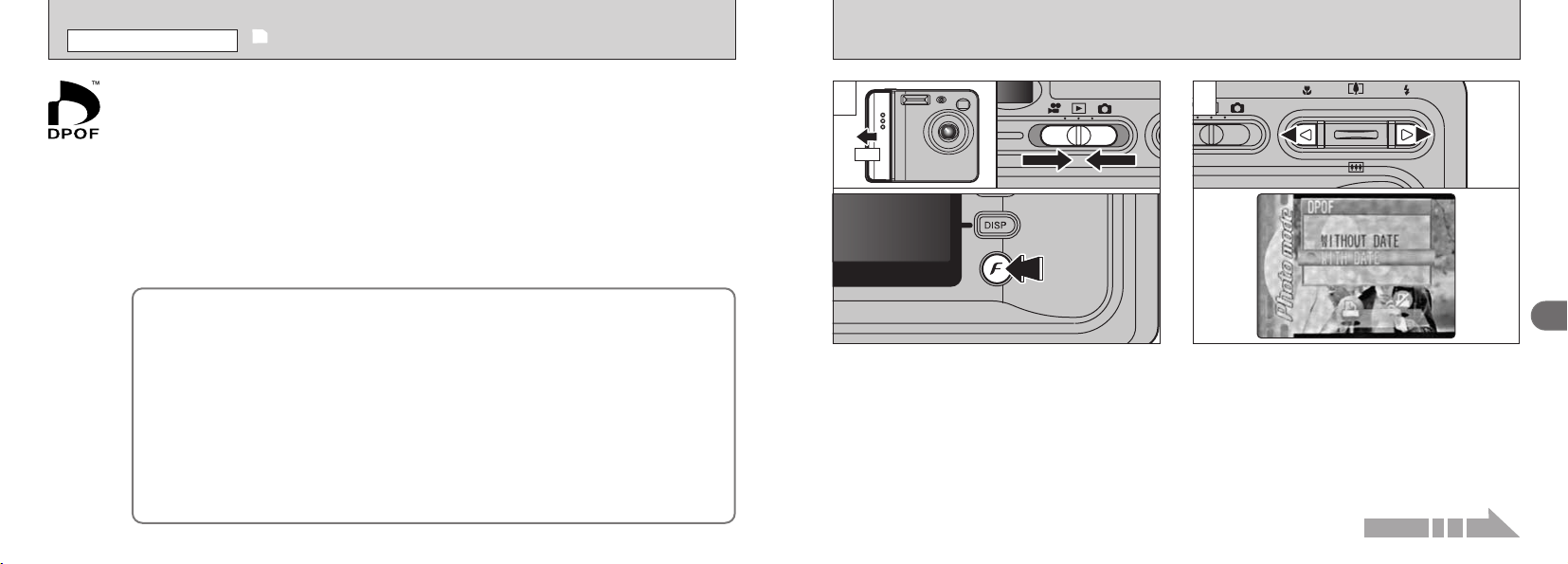
1 Slide the Power switch to the side to turn the
camera on.
2 Set the Mode switch to “q”.
3 Press the Photo mode
(
_
)
button.
2
High-sensitivity photography
(
800
)
When a high-sensitivity
(
800
)
is selected, the
quality is automatically set to “1”.
When you use a high sensitivity setting, “&”
appears on the LCD monitor.
●
!
When you specify a high sensitivity, the amount of
noise
(
interference
)
in the image shown on the LCD
monitor before the shot is taken increases. However,
this is normal and does not indicate a fault.
●
!
The digital zoom cannot be used in high-sensitivity
photography.
■ Camera settings for high-sensitivity
photography
The sensitivity remains set to high
(
800
)
even if
the Mode switch is set to Playback or the
camera is switched off.
f SENSITIVITY
_
PHOTO MODE STILL IMAGE
/
MOVIE
◆
Quality setting in high-sensitivity mode
◆
If you try to select a quality setting
(
➡P.45
)
other
than “1 ” when the camera is set to high-
sensitivity mode, “&” is displayed blinking
and the quality cannot be changed.
3
ON
1
01 02
03
1
Press “
g
” to select the “
+
” setting and then
press “
f
” to change the setting.
2
Press the “MENU/OK” button to confirm the setting.
_
-
STANDARD :
The contrast and color saturation are set to
standard. Use this mode for normal photography.
_
-
CHROME :
The contrast and color saturation are set to high.
●
!
Subjects with unpredictable results : Close-up shots of people
(
portraits
)
●
!
Because the effects on the image differ depending on the scene being
shot, shots should be taken in Standard mode as well as this mode. Note
that you may not be able to see any difference on the LCD monitor.
●
!
For shots taken in _
-
CHROME mode, automatic quality adjustment
will be suppressed on Exif print compliant printers.
_
-
B&W :
This setting converts the colors in the photographed
image to black and white.
49
3
48
2
Press “d” or “c” to select “i” DPOF.
DPOF stands for Digital Print Order Format and refers to a format that is used for
recording printing specifications for images shot using a digital camera on media such as
an xD
-
Picture Card. The recorded specifications include information on which frames are
to be printed.
This section gives a detailed description of how to order your prints with the FinePix F410.
On the FinePix F410, you can specify only one print per image in the DPOF settings.
✽ Note that some printers do not support date and time imprinting or specification of the
number of prints.
✽ Note that the warnings shown below may be displayed while you are specifying the
prints.
≤
≥
(
➡P.68
)
When you erase the image, the DPOF setting for that image is deleted at the same time.
π
(
➡P.50
)
If you load an xD
-
Picture Card that contains frames specified for printing on by
another camera, those print specifications are all reset and replaced by the new print
specifications.
÷
(
➡P.119
)
Up to 999 frames can be specified on the same xD
-
Picture Card.
i
HOW TO SPECIFY PRINT OPTIONS
(
DPOF
)
_
PHOTO MODE PLAYBACK
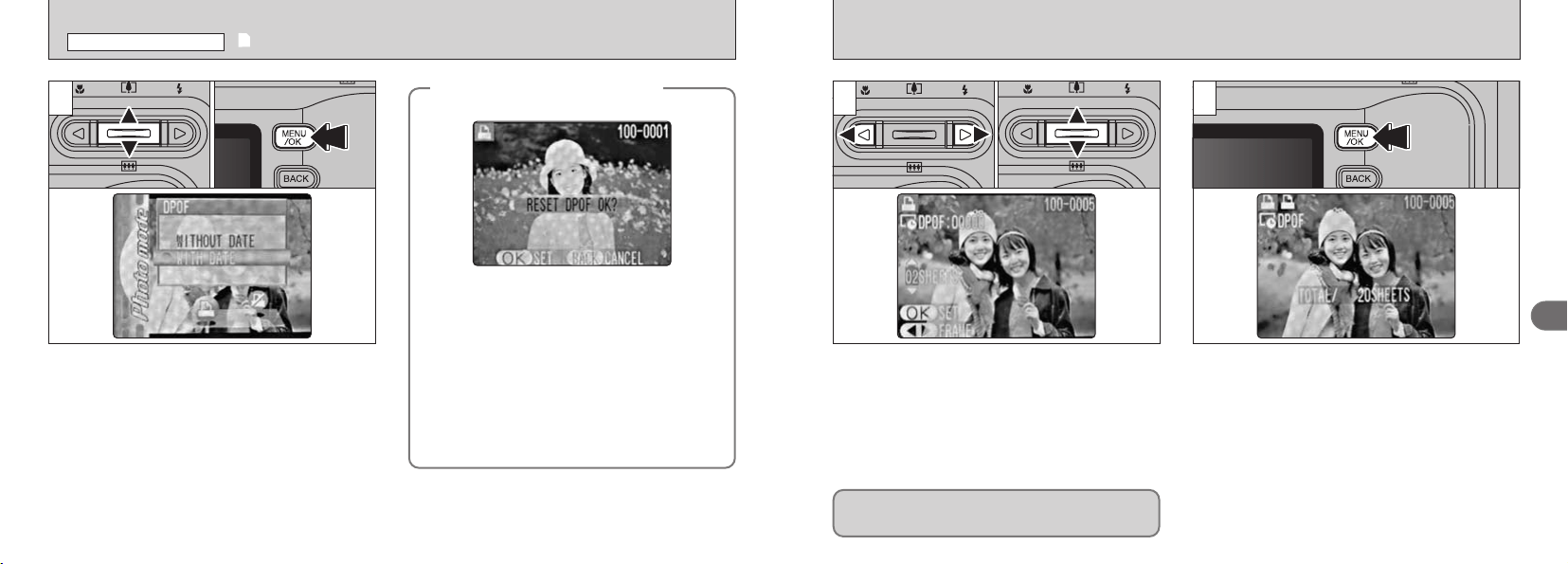
1 Slide the Power switch to the side turn the
camera on.
2 Set the Mode switch to “w”.
3 Press the Photo mode
(
_
)
button.
Continued on next page...
ON
1
01 02
03
51
3
50
34
01 02
5
1 Press “d” or “c” to display the frame for which
you want to specify DPOF settings.
2 Press “f” to set a value up to 99 as the number
of copies of the frame to be printed.
To specify more DPOF settings, repeat steps 1 and 2.
●
!
You can order prints of up to 999 image frames on the
same xD
-
Picture Card.
●
!
You cannot specify DPOF settings for movies.
Always press the “MENU/OK” button when you
complete the settings.
If you press the “BACK” button, no DPOF settings
are specified.
1 Press “f ” to select “WITH DATE” or
“WITHOUT DATE”. If you select “WITH
DATE”, the date is imprinted on your prints.
2 Press the “MENU/OK” button.
i HOW TO SPECIFY PRINT OPTIONS
(
DPOF
)
_
PHOTO MODE PLAYBACK
33
01 02
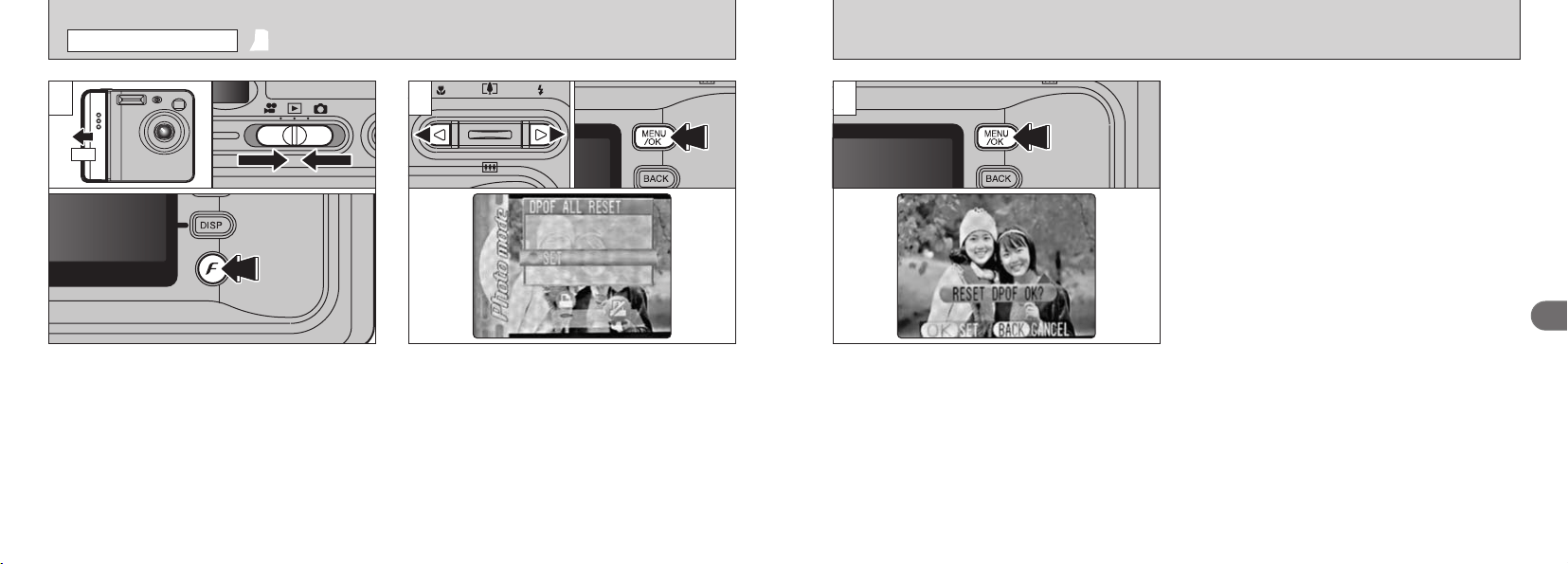
When the data includes a frame with DPOF
settings that were specified on by another
camera, “
π” is displayed.
Pressing the “MENU/OK” button erases all of
the DPOF settings already specified for each
frame. You must then specify the DPOF setting
for each frame again.
●
!
Press the “BACK” button to leave the previous
settings unchanged.
●
!
During playback, check that the “i” is displayed
for the previous settings.
◆
When DPOF settings were
specified on another camera
◆
If you press the “BACK” button during the settings, all the
new settings are cancelled. If there were previous DPOF
settings, only the modifications are cancelled.
53
3
52
ª
DPOF ALL RESET
_
PHOTO MODE PLAYBACK
1 Slide the Power switch to the side turn the
camera on.
2 Set the Mode switch to “w”.
3 Press the Photo mode
(
_
)
button.
1 Press “d” or “c” to select “
ª” DPOF ALL
RESET.
2 Press the “MENU/OK” button.
32
01 02
3
A confirmation screen appears.
To reset all the DPOF settings, press the
“MENU/OK” button.
ON
1
01 02
03
55
3
54
PHOTOGRAPHY MENU OPERATION
/
PHOTOGRAPHY MENU OPTIONS
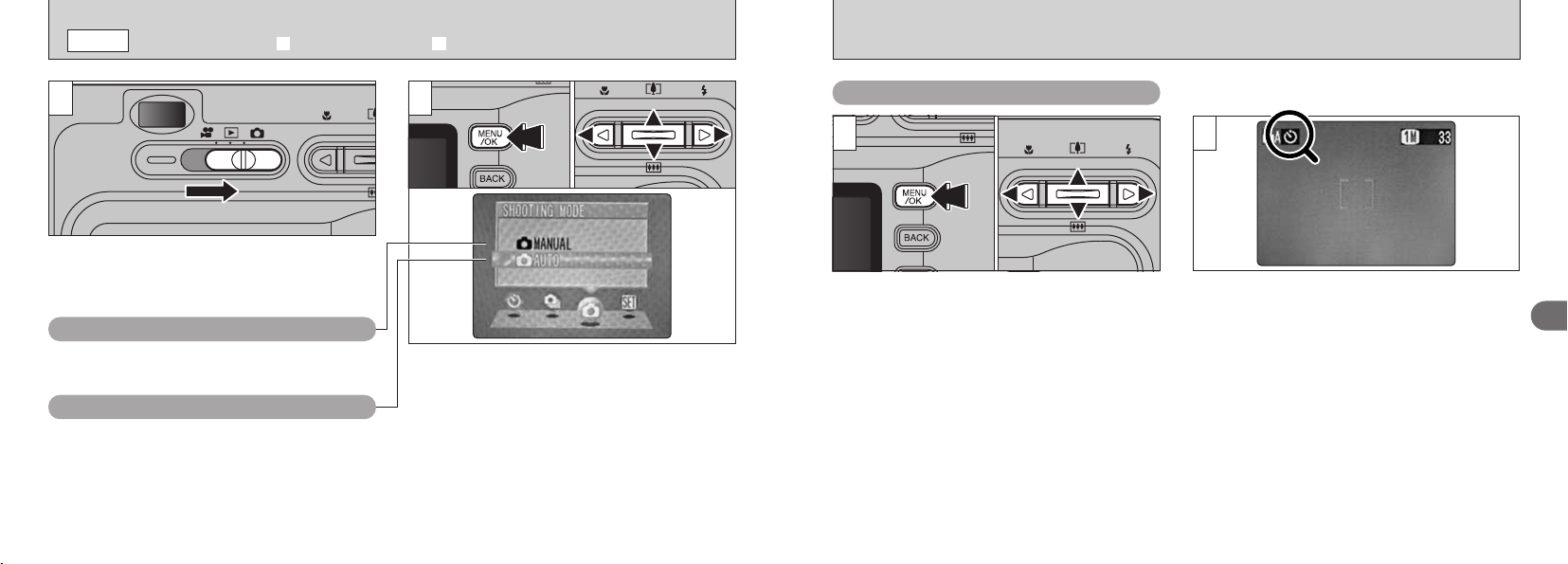
1 Press the “MENU/OK” button to display the
menu.
2 Press “d” or “c” to select the menu item and
“a” or “b” to change the setting.
3Press the “MENU/OK” button to confirm the
selection.
1
0103 02
Photography Menu Operation
1 2
0301 02
1 Press the “MENU/OK” button to display the
menu.
2 Use “d” or “c” to select “q” SHOOTING
MODE and then use “a” or “b” to select
“qAUTO” or “q MANUAL”.
3Press the “MENU/OK” button to confirm the
selection.
Set the Mode switch to “q”.
●
!
See P.63 for information on shooting movies.
This is the easiest mode for taking pictures and
can be used in a wide range of conditions.
This mode allows you to specify your own
brightness and white balance settings.
q
AUTO
q
MANUAL
SELECTING
|
AUTO OR
W
MANUAL
q
MODE
When you enable the setting, an icon appears in
the top-left corner of the LCD monitor.
●
!
The options available in the menu screen vary
depending on the photography mode.
2
Bebeep
57
3
56
Beep
3333
1 2
01
02 03
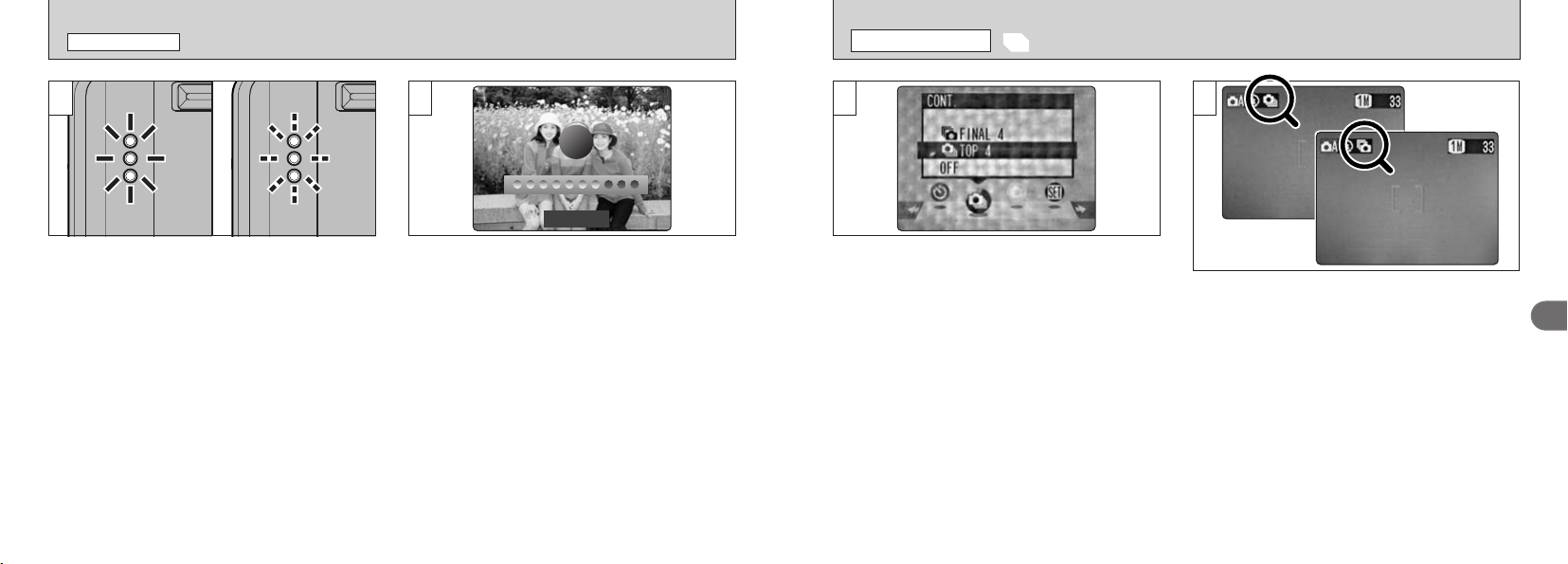
Use self-timer photography for shots such as
group photos where the photographer is
included in the shot.
This mode can be selected in the “
|”, “W” still
photogaphy modes.
When you set the self-timer to “ON”, “
=” appears
on the LCD monitor.
In this mode, a timer runs for roughly 10 seconds
before the shutter is released.
1 Position the AF frame over your subject.
2 Press the shutter button down half way to set
the focus.
3Without releasing the shutter button, press it
down fully. The self-timer then starts running.
●
!
The self timer is automatically switched off in the
following situations :
• When shooting ends
• When you switch to “|” or “W” mode
• When you change the Mode switch setting
• When the camera is switched off
●
!
You can also use the AF/AE lock
(
➡P.29
)
.
●
!
Be careful not to stand in front of the camera when you
press the shutter button as this can cause focusing or
exposure metering errors.
✽ Displaying the menus
(
➡P.42
)
Continued on next page...
=
SELF
-
TIMER PHOTOGRAPHY
PHOTOGRAPHY MENU
✽ Displaying the menus
(
➡P.56
)
PHOTOGRAPHY MENU OPERATION
/
PHOTOGRAPHY MENU OPTIONS
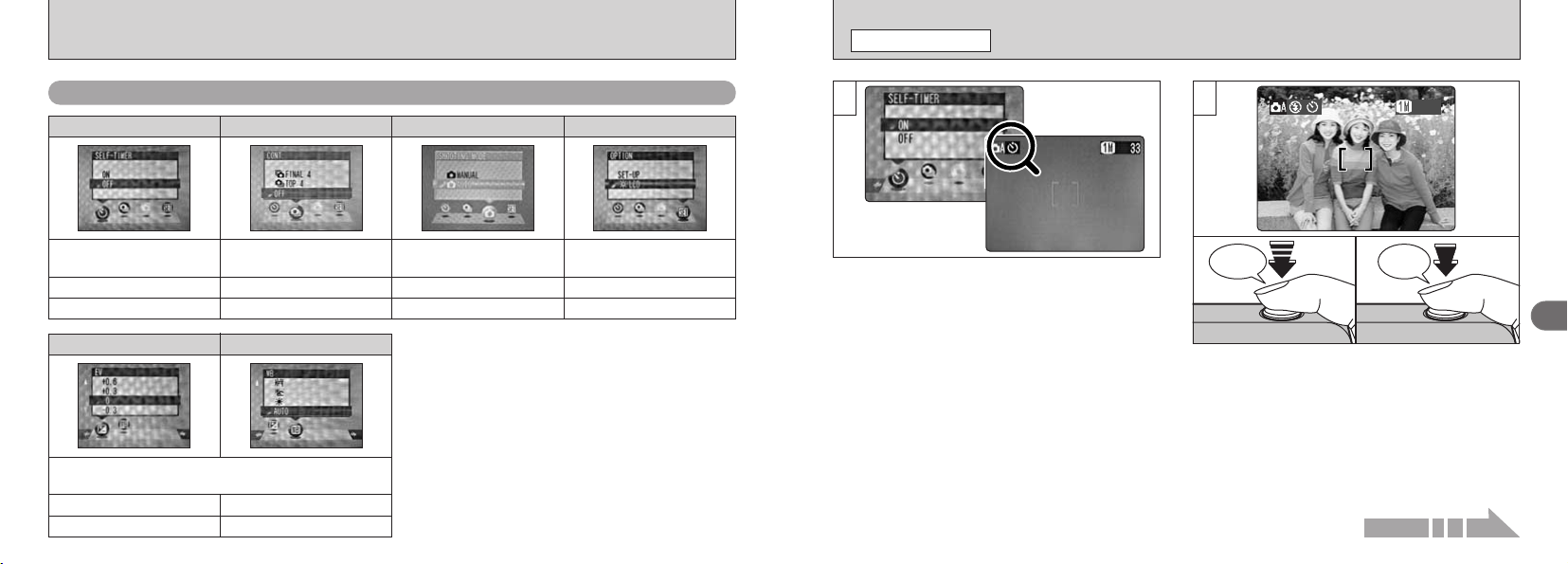
= Self-timer photography
Available modes
|
,
W
Default setting : OFF
See P.57 for details.
t Continuous shooting
Available modes
|
,
W
Default setting : OFF
See P.59 for details.
q
Still photography mode
Available modes
|
,
W
Default setting : | AUTO
See P.54 for details.
g Option
Available modes
|
,
W
,
u
—
See P.82 for details.
Photography Menu Options
In “W”
(
Manual
)
mode :
You can also specify the “EV” and “White
Balance” settings in Manual mode. Use the “d”
and “c” buttons to move between pages.
a White Balance
Available modes
W
Default setting : AUTO
See P.62 for details.
d EV
Default setting : 0
See P.61 for details.
59
3
58
●
!
The focus and exposure are determined for the first
frame and cannot be changed during shooting.
●
!
If there is insufficient available space on the xD
-
Picture Card to take the maximum number of
continuous shots, the number of shots that can be
recorded is taken.
●
!
“¨” appears on the LCD monitor during
shooting.
●
!
You cannot use the flash in this mode.
●
!
The speed of continuous shooting remains the same
regardless of the image quality setting.
●
!
The shots should be taken using the viewfinder.
●
!
The results of the shot are displayed even when
“POSTVIEW” is set to OFF
(
➡P.83
)
.
●
!
The time required to record a file is approximately
12 seconds in “
1” mode
(
for TOP or FINAL 4
-
frame
continuous shooting
)
.
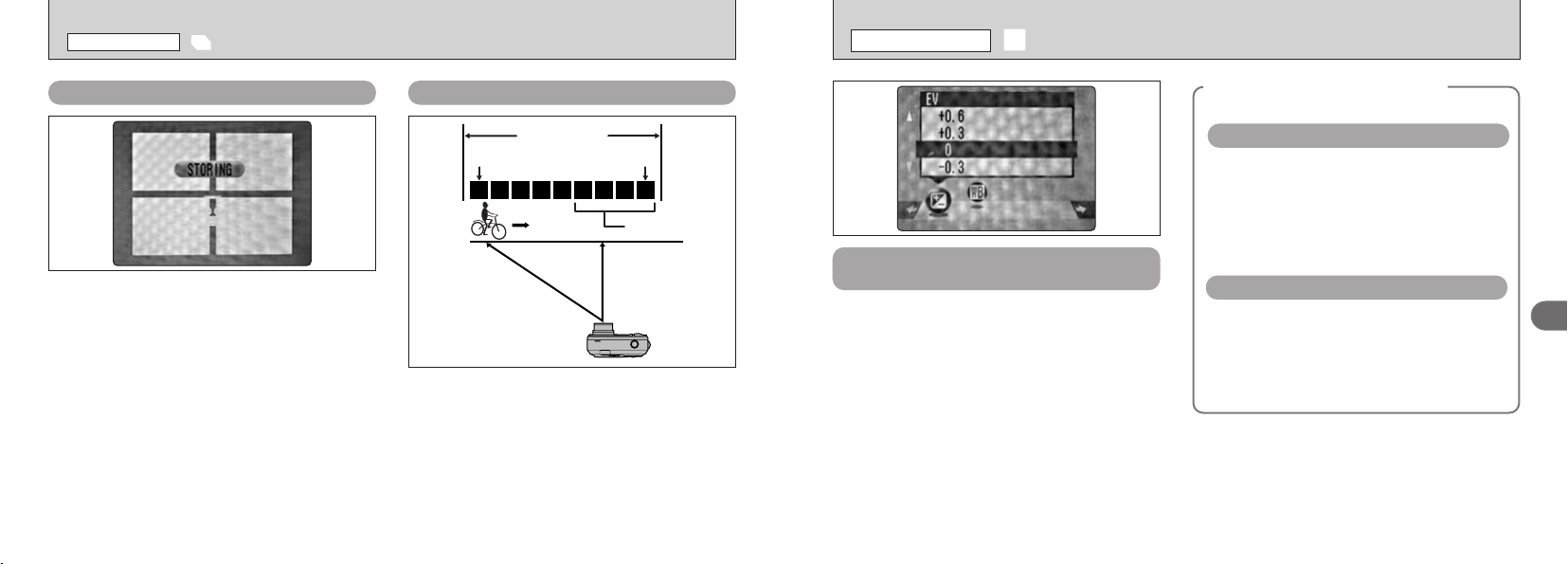
When Top 4
-
frame continuous shooting is set to
ON, the “t” appears on the LCD monitor. When
Final 4
-
frame continuous shooting is set to ON,
“}” appears on the LCD monitor.
Continuous shooting continues while the shutter
button is pressed down fully.
This mode can be selected in the “
|”, “W” still
image modes.
Select the continuous shooting mode you want
to use.
See P.60 for more information on continuous
shooting modes.
21
✽ Displaying the menus (➡P.42)
t
CONTINUOUS SHOOTING
PHOTOGRAPHY MENU
✽ Displaying the menus
(
➡P.56
)
The self timer lamp lights for 5 seconds and then
starts flashing. 5 seconds later the camera
makes a clicking noise and takes the picture.
A counter on the LCD monitor counts down the
time until the shot is taken.
Self-timer mode is automatically cancelled after
each shot.
●
!
To stop the self-timer once it has started running,
press the “BACK” button.
1/500 F2.81/500 F2.8
7
43
=
SELF
-
TIMER PHOTOGRAPHY
PHOTOGRAPHY MENU
61
3
60
Use the Brightness setting to obtain the optimum
image brightness
(
exposure
)
when the subject is
much brighter or darker than the background.
hCompensation range
–
2.1 to
+
1.5 EV
(
13 levels in 0.3 EV increments
)
See P.125 for more information on EV.
●
!
The Brightness setting is disabled in the following
situations :
• When the flash is used in Auto or Red
-
Eye
Reduction mode.
• When dark scenes are shot in Forced Flash mode.
✽ Selecting |/W
(
➡P.54
)
✽ Displaying the menus
(
➡P.56
)
h Copying of printed text
(
black characters on
white paper
)(+
1.5 EV
)
h Backlit portraits
(+
0.6 EV to
+
1.5 EV
)
h Very bright scenes
(
such as snowfields
)
and
highly reflective subjects
(+
0.9 EV
)
h Shots made up predominantly of sky
(+
0.9 EV
)
h Spotlit subjects, particularly against dark
backgrounds
(–
0.6 EV
)
h Copying of printed text
(
white characters on
black paper
)(–
0.6 EV
)
h Scenes with low reflectivity, such as shots of
pine trees or dark foliage
(–
0.6 EV
)
Guide to using
+
(positive) compensation
Guide to using – (negative) compensation
◆
Subjects for Which Exposure
Adjustment is Particularly Effective
◆
d
EV
(
EXPOSURE COMPENSATION
)
PHOTOGRAPHY MENU
Press shutter
button
Max. 25 shots
4 frames
× × × × 1× 1 2 3 4
Release shutter
button
This mode allows you to release the shutter up to
25 times (at intervals as short as 0.3 seconds) and
record the last 4 frames. If you take your finger off
the shutter button before 25 shots have been
taken, the camera records the final 4 frames shot
before you released the shutter button.
If there is insufficient space on the media, the
camera records as many of the shots taken just
before the shutter button was released as will fit
on the xD-Picture Card.
}
Final 4
-
frame Continuous Shooting
t
Top 4
-
frame Continuous Shooting
In this mode, you can shoot up to 4 frames at
intervals as short as 0.3 seconds. When you
take the shots, the photographed images are
displayed and automatically recorded.
t CONTINUOUS SHOOTING
PHOTOGRAPHY MENU
This mode can be selected in the
“W” still photography mode.
✽ Displaying the menus
(
➡P.56
)
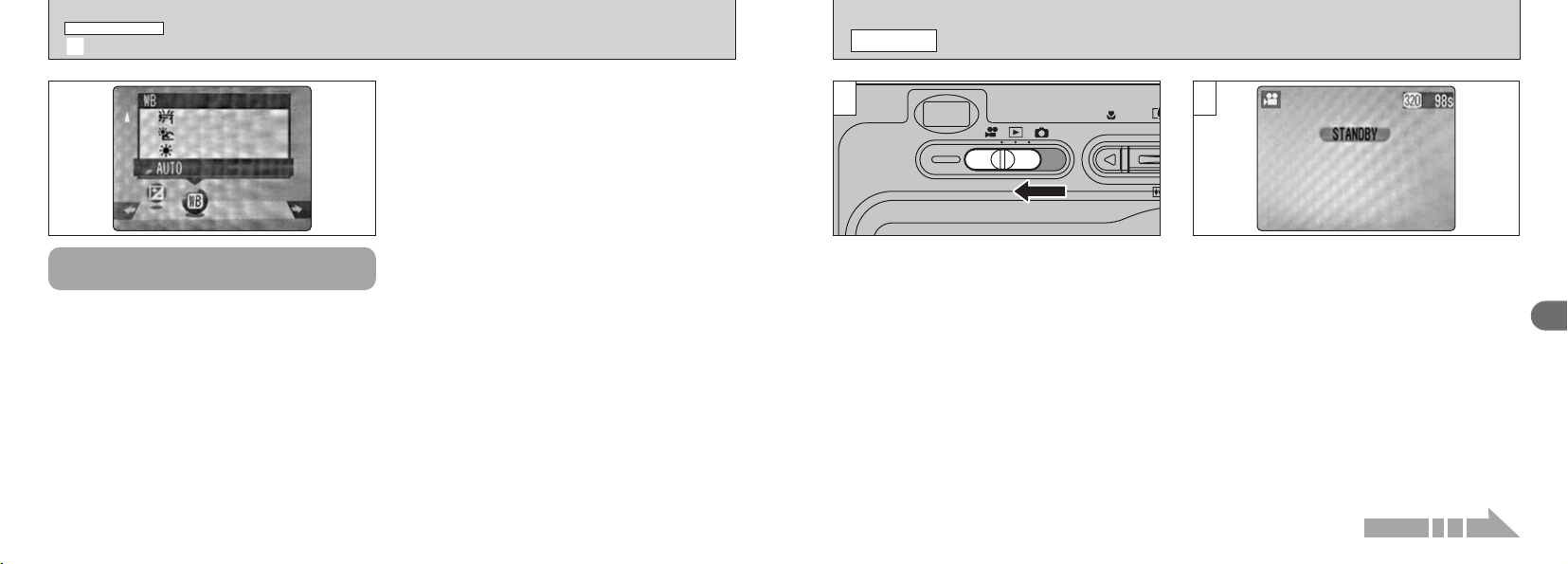
63
3
62
T SHOOTING MOVIES
MOVIE MODE
1
Set the Mode switch to “T”.
This mode allows you to shoot movies up to 120
seconds
(
at the # setting
)
or 480 seconds
(
at the
$ setting
)
with sound.
(
See P.44 for information
on image quality settings.
)
hSpecification : Motion JPEG
(
➡P.125
)
#
(
320 × 240 pixels
)
$
(
160 × 120 pixels
)
Frame rate : 10 frames per second
With monaural sound
2
The available shooting time and the “œ”
message are shown on the LCD monitor.
}
selectable
Continued on next page...
AUTO : Automatic adjustment
(Shooting to show the ambience of the
light source)
6
: Shooting outdoors in fine weather
7
: Shooting in shade
9
: Shooting under “Daylight” fluorescent
lamps
0
: Shooting under “Warm White” fluorescent
lamps
-
: Shooting under “Cool White” fluorescent
lamps
8
: Shooting in incandescent light
✽ When the flash fires, the white balance set for the
flash is used. To achieve a particular desired effect,
set the flash mode to Suppressed Flash
(
➡P.36
)
.
Change the white balance setting when you
want to take a picture with the white balance
fixed for the surroundings and lighting when the
picture is taken.
In AUTO mode, the correct white balance may
not be obtained for subjects such as close-ups
of people’s faces and shots taken under a
special light source. In such situations, select
the correct white balance for the light source.
See P.126 for information on the white balance.
PHOTOGRAPHY MENU
a WHITE BALANCE
(
SELECTING THE LIGHT SOURCE
)
✽ Selecting |/W
(
➡P.54
)
✽ Displaying the menus
(
➡P.56
)
This mode can be selected in the
“W” still photography mode.
●
!
The color tones may vary somewhat depending on
the shooting conditions
(
light source, etc
)
.
●
!
Depending on the available space on the xD
-
Picture
Card, the available shooting time per movie may be
shorter.
●
!
Because the audio is recorded as you shoot, take care
not to cover the microphone with your finger
(
➡P.8
)
.
●
!
You cannot switch the LCD monitor off in this mode.
●
!
It may not be possible to play back your movie on
other cameras.
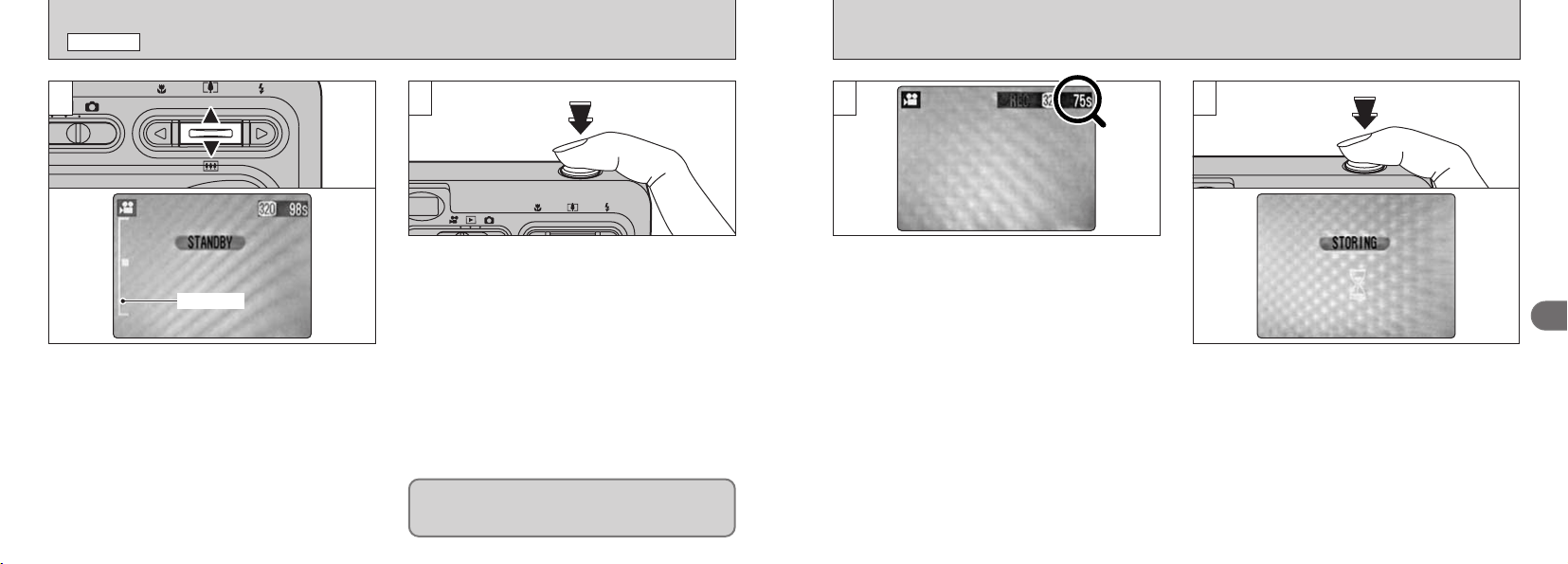
65
3
64
5 6
●
!
Once the remaining time runs out, movie recording
automatically stops and the movie is stored on the
xD
-
Picture Card.
During shooting, a timer in the top
-
right corner of
the LCD monitor counts down the remaining
time.
●
!
After you have shot a movie, it may take roughly 30
seconds to record the movie on an xD
-
Picture Card.
To end shooting, press the shutter button again.
The movie is then recorded onto the xD
-
Picture
Card.
In Movie
(
video
)
mode, the lens is fixed at the
wide-angle setting and only the digital zoom can
be used. Press the “a
(
P
)
” or “b
(
{
)
” to zoom
in and out. A “zoom bar” appears on the LCD
monitor.
h
Digital zoom focal length
(
35mm camera equivalent
)
# : Approx. 38 mm to 111 mm
Max. zoom scale : 2.93×
$ : Approx. 38 mm to 277 mm
Max. zoom scale : 7.3×
Press the shutter button down fully to start
shooting the movie.
43
●
!
The focus is fixed at 2 m
(
6.6 ft.
)
to infinity.
●
!
The brightness and color of the screen shown during
movie shooting may differ from those shown before
shooting begins.
●
!
Camera operation noises may be recorded during
movie shooting.
●
!
You do not need to hold down the shutter button.
Pressing the shutter button down fully locks the
focus, but the exposure varies automatically
according to the scene being shot.
T SHOOTING MOVIES
MOVIE MODE
Zoom bar
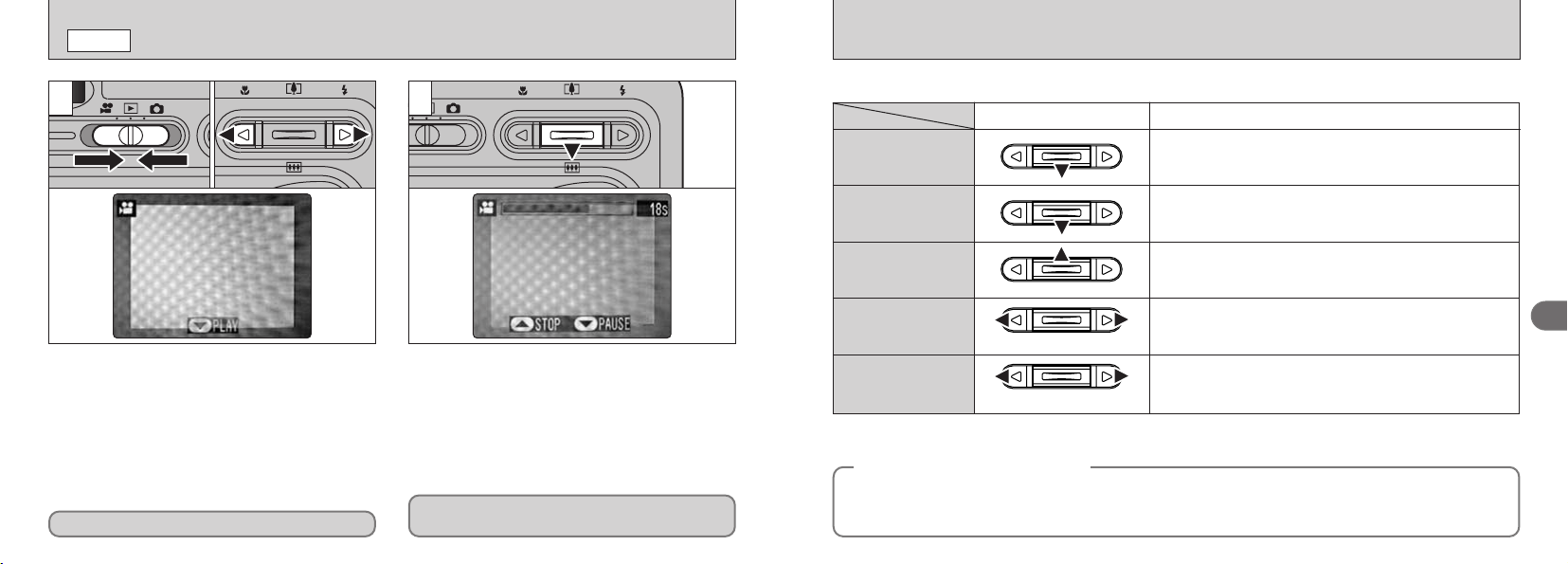
67
3
66
Plays the movie.
The movie automatically stops when playback ends.
Playback
Control Description
Pauses the movie during playback.
Press this button again to resume playback.
Pause/Resume
Stops playback.
✽ Press “d” or “c” while movie playback is stopped to go back
to the previous file or advance to the next file respectively.
Stop
Press these during playback to skip forwards or backwards
through the movie.
Fast forward/Rewind
i Each time you press “d” or “c” when the movie is paused,
the movie advances or goes back one frame.
i Hold down the button to move through the frames quickly.
Skip playback
■ Playing back movies
When paused
Rewind Fast forward
◆
Playing back movie files
◆
i It may not be possible to playback a movie file that was recorded on a camera other than the FinePix F410.
i To playback movie files on a computer, save the movie file on the xD
-
Picture Card to the computer’s
hard disk and then playback the saved file.
21
01 01
02
02
PLAYING BACK MOVIES
w
MODE
1 Set the Mode switch to “w”.
2 Press “d” or “c” to select a movie file.
●
!
Movies cannot be played back using multi-frame
playback. Press the “DISP” button to select single-
frame playback.
Indicated by the “u” icon.
Movies are displayed somewhat smaller than
still images.
●
!
If the subject of the movie was very bright, white streaks
may appear on the image. This is normal and does not
indicate a fault.
●
!
Take care not to block the speaker.
●
!
If the sound is difficult to hear, adjust the volume
(
➡P.80
)
.
1 Press “b” to playback the movie.
2 The LCD monitor shows the playback time
and a playback progress bar.
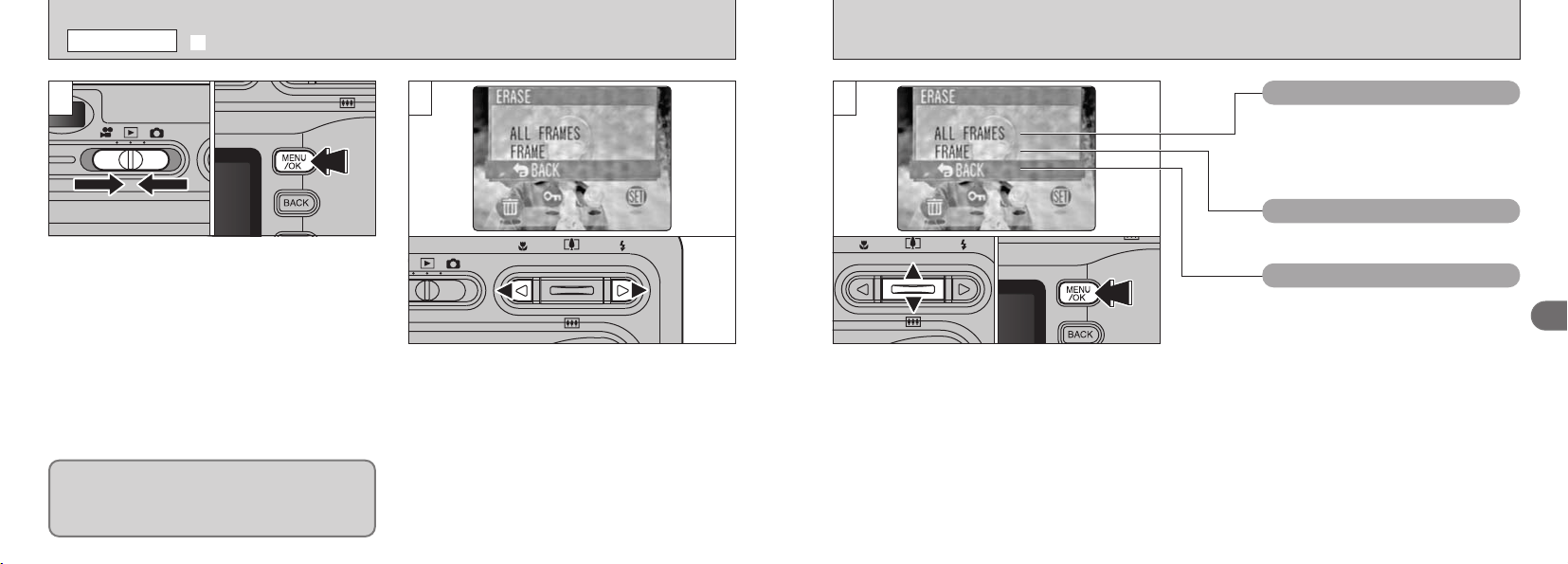
69
3
68
1 Press “a” or “b” to select “FRAME”, “ALL
FRAMES” or “BACK”.
2 Press “MENU/OK” button to confirm your
selection.
01 02
BACK
Returns to playback without erasing
any files.
FRAME
Erases only the selected file.
ALL FRAMES
Erases all unprotected files.
You should copy important files that
you do not want to be erased to your
computer or other media.
31
01 02
2
1 Set the Mode switch to “w”.
2 Press the “MENU/OK” button to display the
menu screen.
Press “d” or “c” to select “
p” ERASE.
p
ERASING SINGLE
•
ALL FRAMES
PLAYBACK MENU
Note that mistakenly erased images cannot be
recovered. You should copy important files that
you do not want to be erased to your computer
or other media.
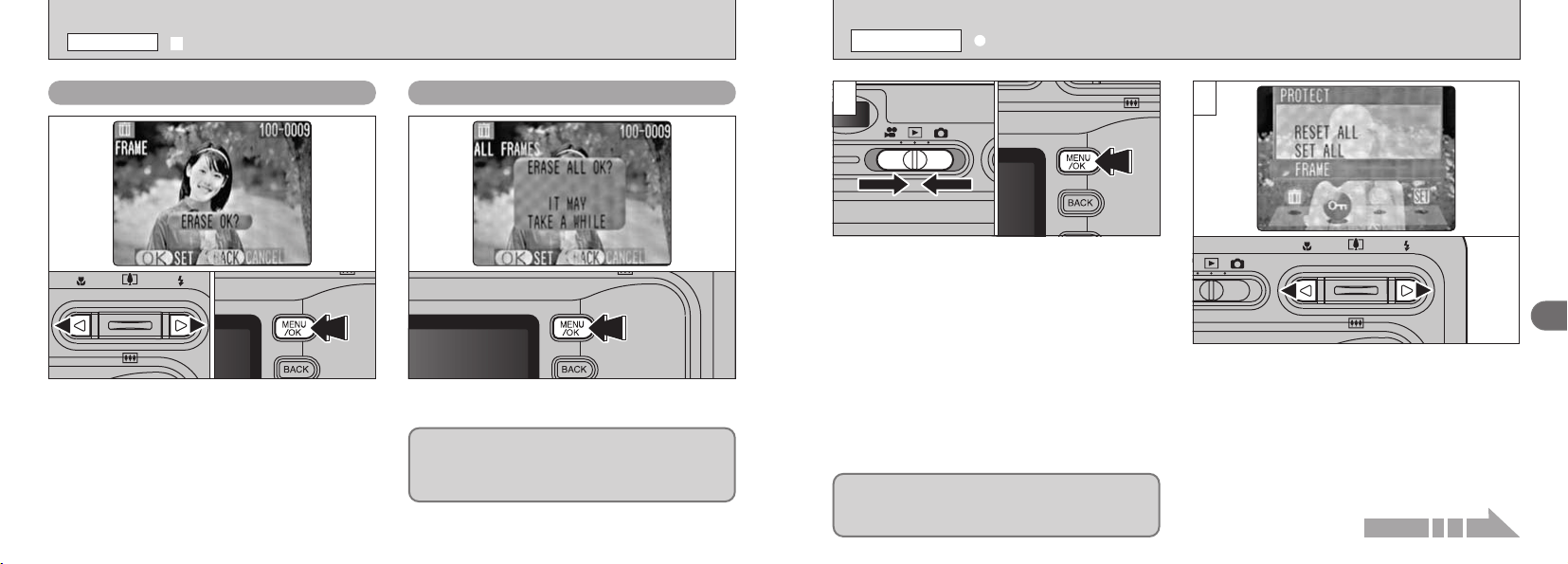
71
3
70
1
01 02
Protection is a setting that prevents images from
being accidentally erased. However, “FORMAT”
erases all images
(
➡P.85
)
.
2
1 Set the Mode switch to “w”.
2 Press the “MENU/OK” button to display the
menu screen.
Press “d” or “c” to select “
k” PROTECT.
k
PROTECTING IMAGES FRAME
/
SET ALL
/
RESET ALL
PLAYBACK MENU
Continued on next page...
FRAME ALL FRAMES
01 02
1 Press “d” or “c” to select the file to be erased.
Pressing the “MENU/OK” button repeatedly
erases consecutive frames. Take care not to
mistakenly erase frames.
2 Press the “MENU/OK” button to erase the
currently displayed file.
To erase another image, repeat steps 1 and 2.
When you have finished erasing images, press
the “BACK” button.
Pressing the “MENU/OK” button to erases all the
unprotected files.
●
!
The file for which “
ˆ
” was displayed
cannot be erased. Remove the protection.
If the “
≤
” or
“
∫
” message
appears, press the “MENU/OK” button once
more to erase the image.
p ERASING SINGLE
•
ALL FRAMES
PLAYBACK MENU
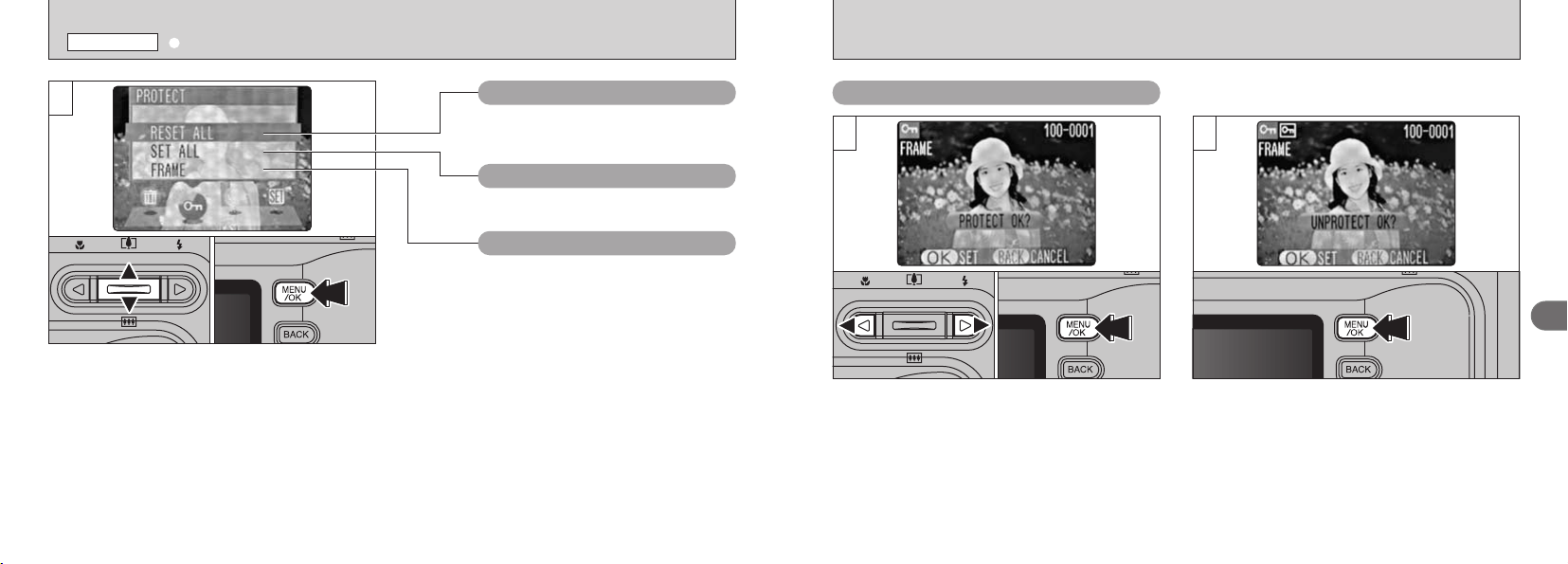
73
3
72
FRAME
01 02
1 Press “d ” or “c ” to select the file to be
protected.
2 Press the “MENU/OK” button to protect the
file currently displayed.
To protect another file, repeat steps 1 and 2.
To finish protecting files, press the “BACK”
button.
To remove the protection, press the “MENU/OK”
button again.
1 2
1 Press “a” or “b” to select “RESET ALL”, “SET
ALL” or “FRAME”.
2 Press “MENU/OK” button to confirm your
selection.
01 02
Protects or unprotects only the
selected file.
FRAME
Removes the protection from all the
files.
RESET ALL
Protects all the files.
SET ALL
3
k
PROTECTING IMAGES FRAME
/
SET ALL
/
RESET ALL
PLAYBACK MENU
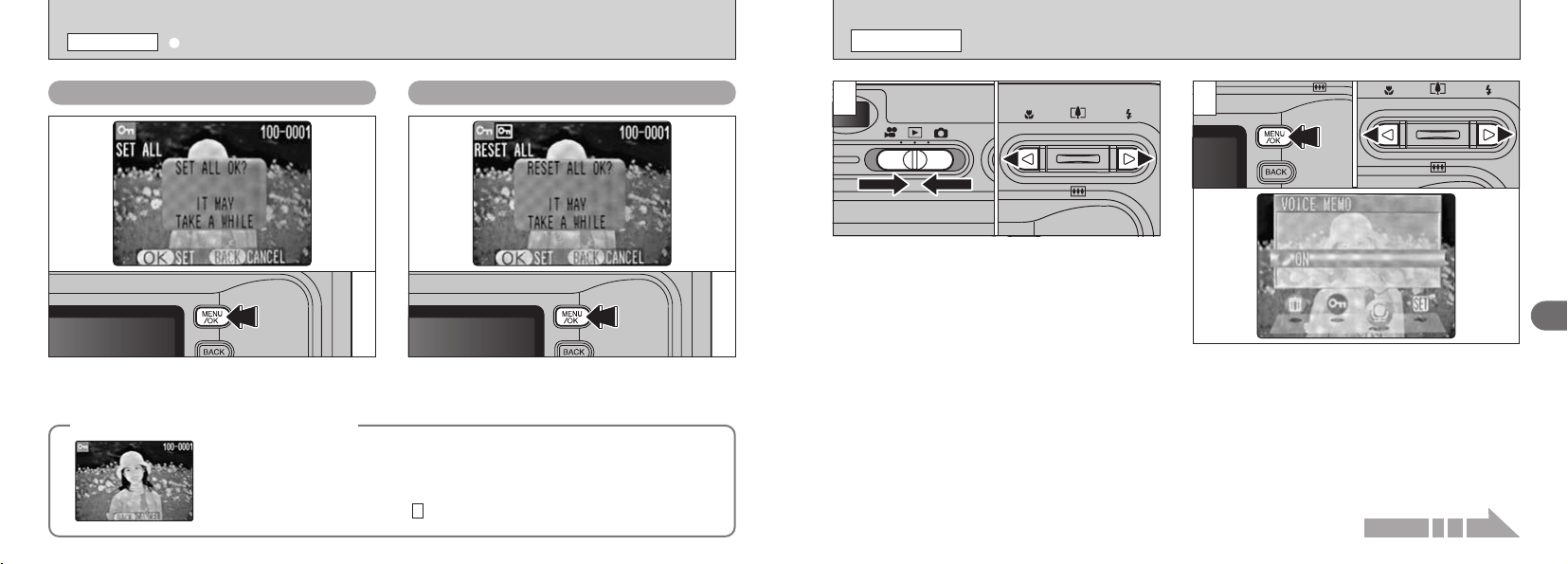
75
3
74
r RECORDING VOICE MEMOS
PLAYBACK MENU
2
0301 02
1
●
!
In some cases, it may not be possible to attach voice
memos to images
(
still images
)
shot on cameras
other than the FinePix F410.
●
!
Voice memos cannot be added to movies.
01 02
1 Set the Mode switch to “w”.
2 Press “d” or “c” to select the image
(
still
image
)
to which you want to add a voice
memo.
1 Press the “MENU/OK” button to display the
menu screen.
2 Press “d” or “c” to select “
r” VOICE MEMO.
3 Press the “MENU/OK” button.
Continued on next page...
SET ALL
Press the “MENU/OK” button to protect all the
files.
Press the “MENU/OK” button to unprotect all the
files.
RESET ALL
◆
To stop the procedure mid-way
◆
If the photographed images are very large, protecting or unprotecting all the
frames may take some time.
If you want to shoot a picture or a movie during the procedure, press the “BACK”
button. To then return to protecting or unprotecting all the frames, start the
procedure on page 71 from step .
1
k
PROTECTING IMAGES FRAME
/
SET ALL
/
RESET ALL
PLAYBACK MENU
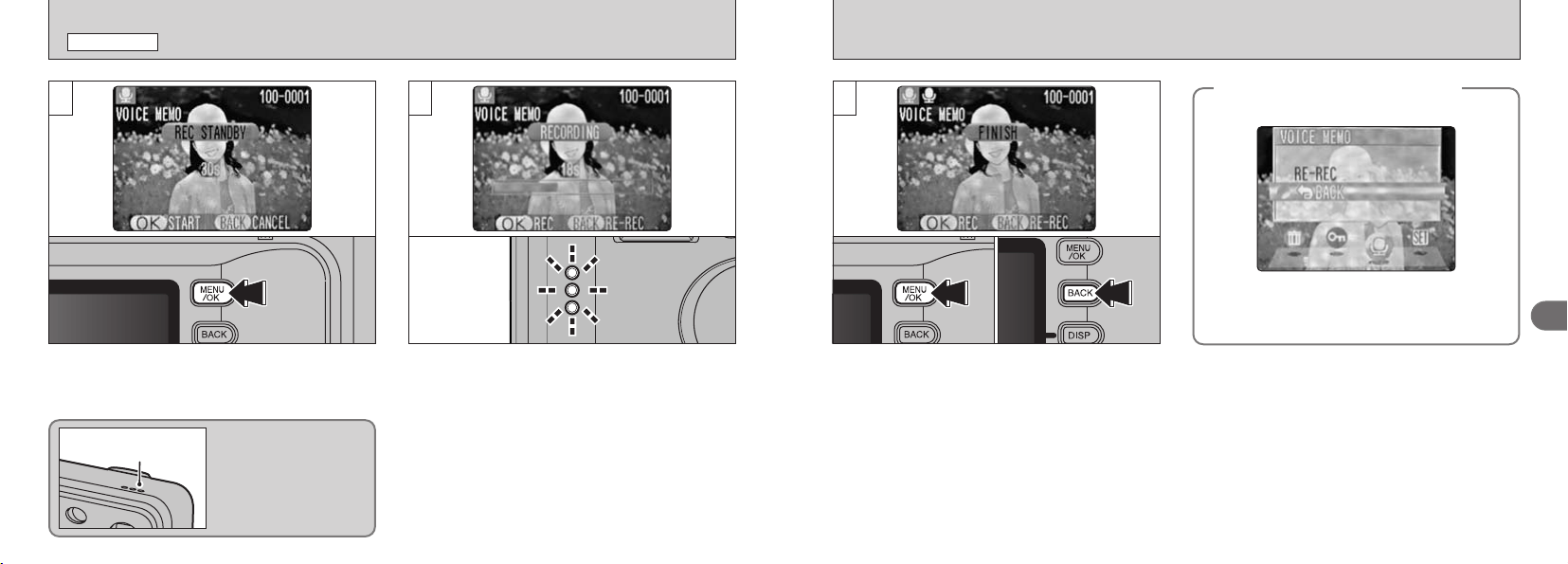
77
3
76
5
If you select an image that already has a voice
memo, a screen appears in which you can
select whether or not to rerecord the caption.
When you have recorded 30 seconds of
comment, the “∑” message appears on
the LCD monitor.
To finish :
Press the “MENU/OK” button.
To re
-
record your comment :
Press the “BACK” button.
◆
When the image already has
a voice memo
◆
r RECORDING VOICE MEMOS
PLAYBACK MENU
The “®” message appears on the
LCD monitor. Recording begins when you press
the “MENU/OK” button.
3 4
Face the microphone as
you record the voice
memo. Hold the camera
roughly 20 cm
(
7.9 in.
)
away for the best
results.
Microphone
During recording, the remaining time is shown
on the LCD monitor and the self-timer lamp
blinks.
When the time remaining reaches 5 seconds,
the self-timer lamp starts flashing quickly.
●
!
To end your comment during recording, press the
“MENU/OK” button.
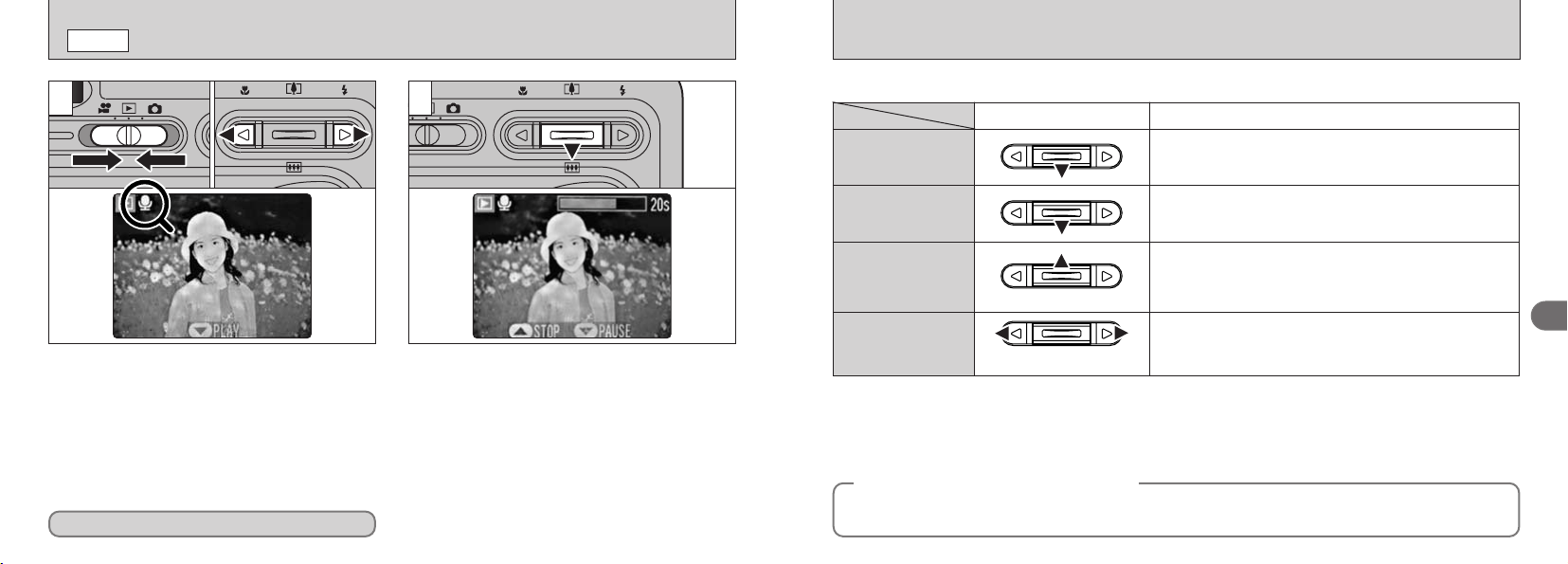
79
3
78
The voice memo automatically stops when playback ends.
Playback
Control Description
Pauses the voice memo during playback.
Press this button again to resume playback.
Pause/Resume
Stops playback.
✽ Press “d” or “c” while voice memo playback is stopped to
go back to the previous file or advance to the next file
respectively.
Stop
Press these during playback to skip forwards or backwards
through the voice memo.
✽ These buttons do not function while playback is paused.
Fast forward/Rewind
■ Playing back voice memos
◆
Playing back voice memo files
◆
Rewind Fast forward
The FinePix F410 can play voice memo files recorded on a FinePix F410 and voice memo files up to
30 seconds long that were recorded on a FUJIFILM digital camera and stored on xD
-
Picture Card.
PLAYING BACK VOICE MEMOS
w
MODE
21
01
02
01 02
●
!
You cannot play back voice memos using multi-
frame playback. Use the “DISP” button to revert to
normal playback.
1 Set the Mode switch to “w”.
2 Press “d” or “c” to select an image file that
has a voice memo.
The “r” icon is displayed.
1 Press “b” to play the voice memo.
2 The LCD monitor shows the playback time
and a playback progress bar.
●
!
Take care not to block the speaker.
●
!
If the sound is difficult to hear, adjust the volume
(
➡P.80
)
.
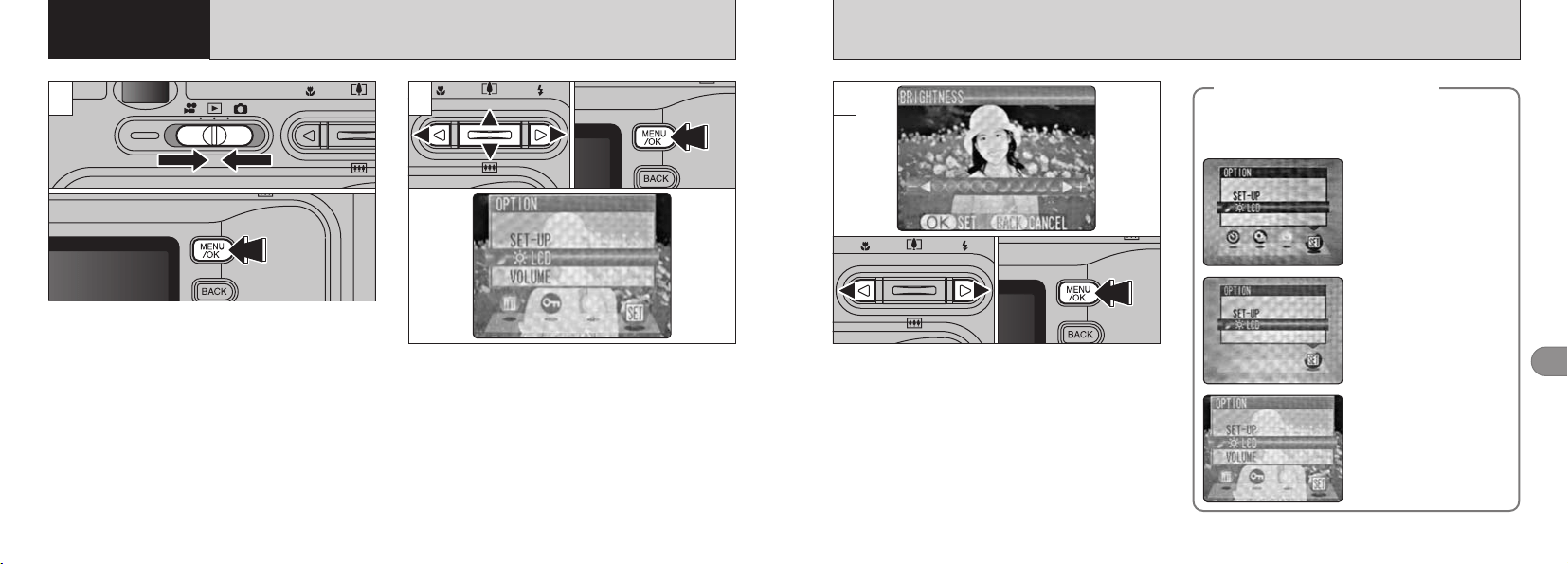
81
4
80
1 Press “d ” or “c ” to adjust the monitor
brightness or the volume.
2 Press the “MENU/OK” button to confirm the
new setting.
3
01 02
1 Set the Mode switch to “w”.
2 Press the “MENU/OK” button to display the
menu on the screen.
01 02
2
1 Press “d” or “c” to select “g” OPTION and
then press “a” or “b” to select “6LCD” or
“VOLUME”.
2 Press the “MENU/OK” button.
4 Settings
6
ADJUSTING THE MONITOR BRIGHTNESS
ADJUSTING THE VOLUME
01
02
1
h “q”
Still photography mode
h “u”
Movie mode
h “w”
Playback mode
◆
SET
–
UP Menu Options
◆
The options available in the g menu vary
depending on whether “
q” or “w” mode is
selected.
●
!
The LCD monitor brightness can be adjusted in “q”
and “
T”.
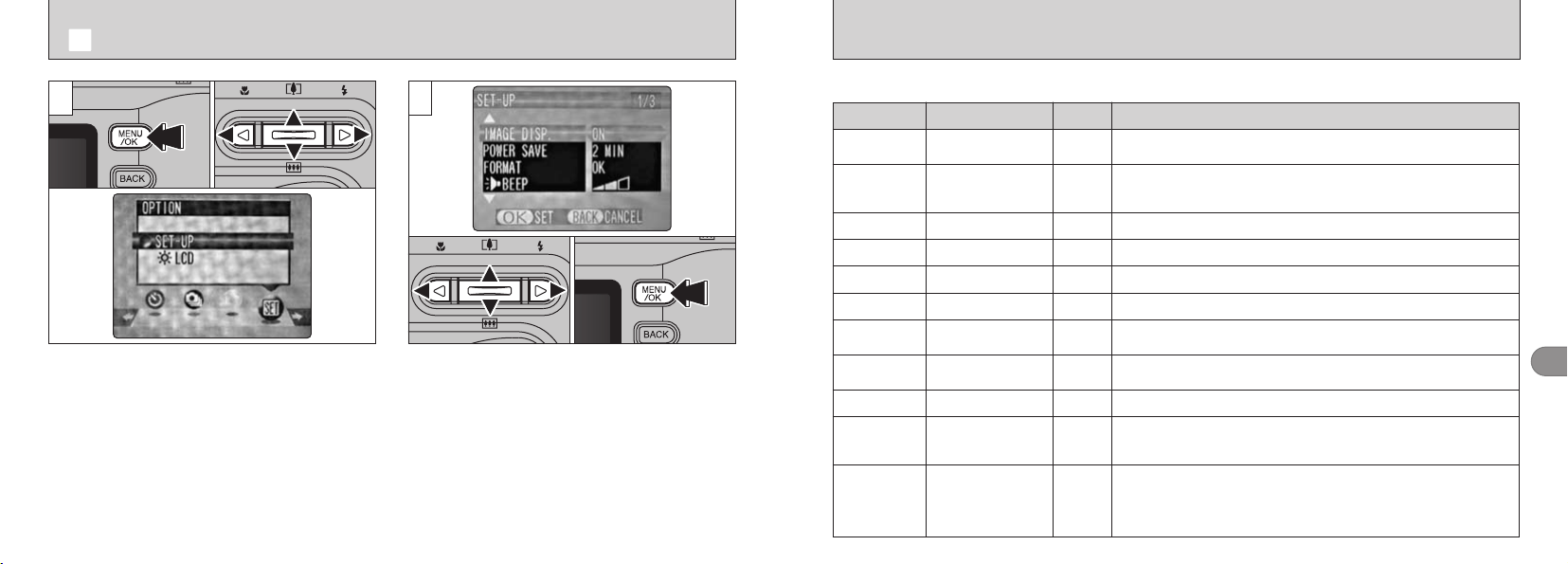
83
4
82
■ SET
-
UP Menu Options
Settings Display Explanation
Factory
Default
1 Press “a” or “b” to select a menu option and
then press “d” or “c” to change the setting.
2 Press “c ” or the “MENU/OK” button for
“FORMAT”, “DATE/TIME” and “q RESET”.
The options in the SET
–
UP screen can be
specified in the “
q” Photography, “w” Playback
and “T” Movie modes.
1 Press the “MENU/OK” button to display the
menu screen.
2 Press “d” or “c” to select “g” OPTION and
then press “a” or “b” to select “SET
–
UP”.
3 Press the “MENU/OK” button.
21
01
0201
0203
●
!
Screen for still photography.
g USING SET
–
UP
IMAGE DISP. ON/OFF/PREVIEW ON
Use this option to specify whether the Preview screen
(
the photographed
image
)
is displayed after you take a shot.
POWER SAVE 2 MIN/5MIN/OFF 2 MIN
Use this option to specify whether the camera’s power consumption is
reduced and the camera is subsequently switched off automatically
when it is not being used. See P.84 for details.
FORMAT OK – Erases all files. See P.85 for details.
)BEEP
OFF/1/2/3 2 Sets the volume of the tone emitted when the camera controls are used.
)SHUTTER
OFF/1/2/3 2 Sets the volume of the sound emitted when the shutter operates.
DATE/TIME SET – Use this option to correct the date or time. See P.15 for details.
qLCD
ON/OFF ON
Use this option to specify whether the LCD monitor is automatically
switched ON or OFF when the Mode switch is set to “
q
”.
FRAME NO. CONT./RENEW CONT.
Specifies whether frame numbers are assigned consecutively from
previous numbers or begin again. See P.86 for details.
USB MODE
•/qPC
•
See P.101 for details.
言語/LANG.
日本語/ENGLISH/
FRANCAIS/DEUTSCH/
ESPANOL/中文
ENGLISH
Select Japanese, English, French or German, Spanish, Chinese as the
language used for screen display.
qRESET
OK –
Resets all the camera settings other than the DATE/TIME, FRAME NO.
and LANG. to the factory default values set at shipment. A confirmation
screen appears when you press “c”. To reset the camera settings,
press the “MENU/OK” button again.
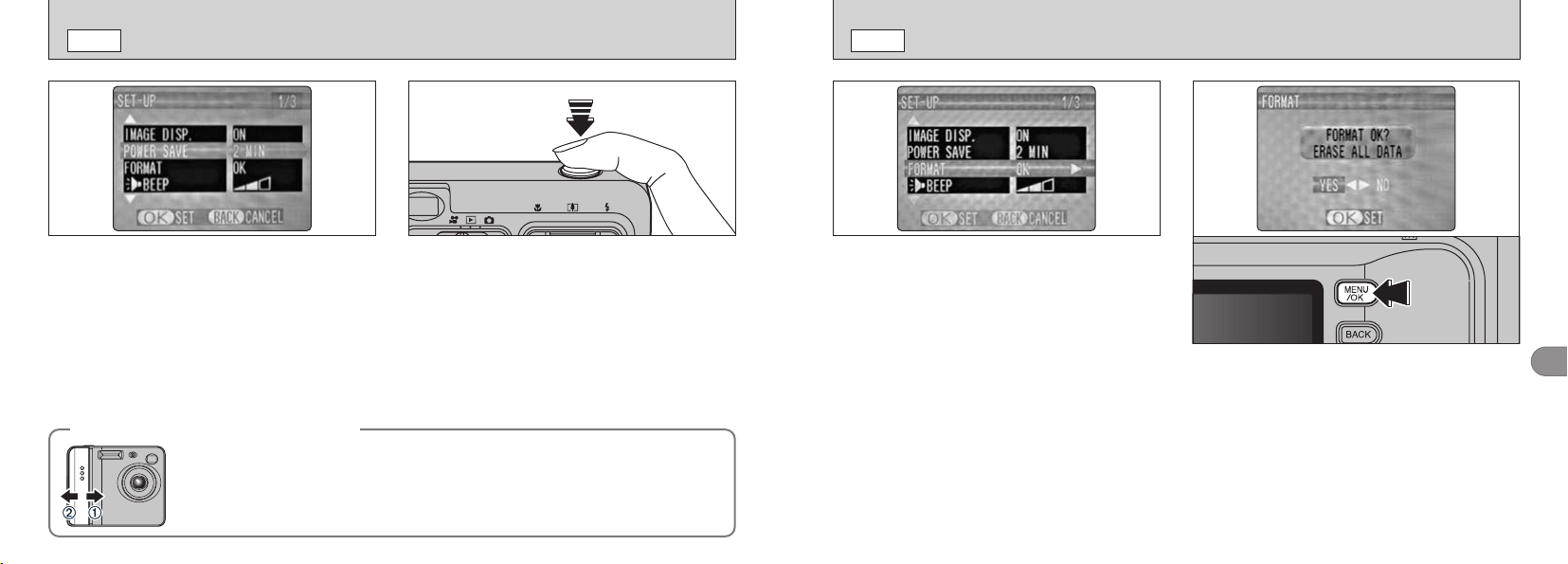
85
4
84
FORMAT
SET
–
UP
POWER SAVE
SET
–
UP
Formatting erases protected files also.
Formatting erases all files, including protected files.
Initialize the xD
-
Picture Card for use in the
camera.
1 Use “d” or “c” to select “YES”.
2 Pressing the “MENU/OK” button erases all
the files and initializes the xD
-
Picture Card.
●
!
If the “∂” “ƒ” “å”
or “
˙” message appears, refer to
P.119 before formatting the media and take the
appropriate measures.
●
!
You should copy important files that you do not want
to be erased to your computer or another xD
-
Picture
Card.
When the camera is in sleep mode, pressing the
shutter button down halfway brings the camera
back to full operational mode. This is a useful
feature as it allows you to take pictures more
quickly than switching the camera off and then
on again. You can also take a picture by
pressing the shutter button all the way down.
●
!
Operation can also be restored by pressing buttons
other than the shutter button.
◆
To restore power to the camera
◆
The Sleep function does not operate when the LCD monitor is switched off or when
the camera is in Setup or Playback mode. However, if the camera controls are not
used for some time
(
2 minutes or 5 minutes
)
, the camera automatically switches off.
If the camera has been automatically switched off, switch it back on by moving the
Power switch to the OFF position 1 briefly and then back to ON 2.
Once you enable this function, the monitor is
temporarily switched off to reduce power
consumption
(
Sleep mode
)
if the camera is not
used for about 30 seconds. If the camera is then
left unused for a further time
(
2 minutes or 5
minutes
)
, it is automatically switched off. Use
this function when you want to get the maximum
possible running time from the battery.
●
!
Power Save is disabled when the camera is connected
to a USB port.
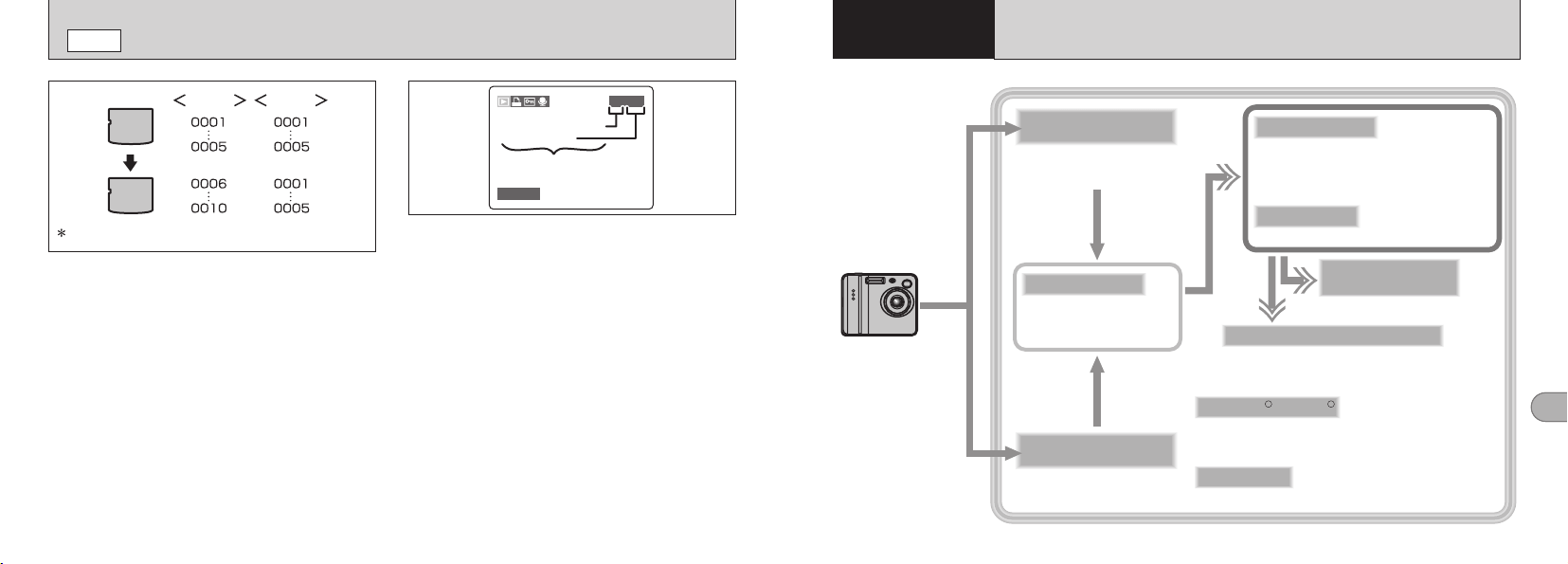
87
5
86
5
Software needed for playing back movies, etc.
Used when you open RAW files that were photographed on
cameras that support the RAW file format.
Launches the FinePixViewer
software when a camera is
connected.
Software used to read PDF-format documents on a personal
computer. This software is needed to read the User’s Guides for
FinePixViewer.
Creates a FinePix CD Album.
Used for videoconferencing.
Allows you to display thumbnail lists of the
images stored on your PC or in the camera,
print the images individually or as an index,
display the images at full size and perform
some basic image processing.
✽ Note that the software configuration differs slightly depending on your operating system.
Connect the camera
with “DSC” selected as
the USB setting
(➡P.101).
Connect the camera
with “PC CAM”
selected as the USB
setting.
Allows a digital camera to be used
as USB Mass Storage (removable
disk drive, card reader).
Allows a digital camera to be
used as a PC Camera.
ImageMixer VCD
for FinePix
FinePixViewer
PictureHello
Acrobat Reader
R R
QuickTime
RAW FILE CONVERTER LE
USB PC Camera
Driver
Exif Launcher
USB Mass Storage
Driver
✽ Macintosh only
✽ Windows only
SET FRAME NO. MEMORY
SET
–
UP
Setting this function to “CONT.” makes file
management easier as it ensures that file names are
not duplicated when images are downloaded to a
PC.
CONT. : Pictures are stored beginning from the
highest file number stored on the last xD
-
Picture Card used.
RENEW: Pictures are stored on each xD
-
Picture
Card beginning with a file number “0001”.
AA
BB
CONT. RENEW
Formatted xD-Picture Card used for both A and B.
You can check the file number by viewing the
image. The last 4 digits of the 7-digit number in
the top right corner of the screen are the file
numbers, while the first 3 digits show the
directory number.
100−9999100−9999
7/20/2003 7/20/2003
FramenumberFramenumber
File number
Directory number
Frame number
●
!
If the xD
-
Picture Card already contains image files
with file numbers higher than the highest file number
on the last xD
-
Picture Card, images are stored
beginning from the highest file number on the current
xD
-
Picture Card.
●
!
When you change the xD
-
Picture Card, always
switch the camera off before you open the battery
cover. If you open the battery cover without
switching the camera off, the Frame No. Memory will
not function.
●
!
File numbers run from 0001 to 9999. Once 9999 is
exceeded, the directory number changes from 100 to
101. The maximum number is 999
–
9999.
●
!
If the “√” message appears, see P.119.
●
!
The displayed frame number may differ for images
photographed on other cameras.
5
Software
Installation
THE SOFTWARE COMPONENTS
89
5
88
i Connect the camera directly to the computer using the special USB cable. The software may not operate correctly
if you use an extension cable or connect the camera via a USB hub.
i If your computer has more than one USB port, the camera can be connected to either port.
i Push the USB connector fully into the socket to ensure that it is securely connected. The software may not operate
correctly if the connection is faulty.
i Additional USB interface board is not guaranteed.
i Windows 95 and Windows NT cannot be used.
i Operation is not guaranteed on home-built computers or on computers running updated operating system software.
i If your Internet connection is via a router or via a LAN
(
connecting machines on the LAN to the Internet
)
, you
cannot use videoconferencing.
i If you are using Windows XP and you tick the “Protect my computer and network by limiting or preventing access to this
computer from the Internet” checkbox in the Internet connection firewall settings, videoconferencing cannot be used.
i When you reinstall or remove FinePixViewer, the Internet menu and your user ID and password for the FinePix
Internet Service are deleted from your computer. Click the
[
Register now
]
button, enter your registered user ID and
password and download the menu again.
NOTE
To run this software, you must have the hardware and software described below. Check your system
before you begin the installation.
Compatible PCs
IBM PC/AT or compatible
✽1
Operating System
Windows 98
(
including the Second Edition
)
, Windows Millennium Edition
(
Windows Me
)
, Windows 2000 Professional
✽2
, Windows XP Home Edition
✽2
,
Windows XP Professional
✽2
Sound functions
✽4
Speakers, microphone and sound card
Internet connection
✽3
• To use the FinePix Internet Service or mail attachment function
An Internet connection and e-mail transmission software
• Connection speed: 56k or better recommended
Display
800
×
600 pixels or better, 16
-
bit color or better
Hard disk space Amount required for installation : 140MB minimum
Amount required for operation : 300MB minimum
(
When ImageMixer VCD for FinePix is used : 2GB or better
)
RAM 64MB minimum
(
128MB minimum for Windows XP, 256MB recommeded
)
CPU
✽5
200 MHz Pentium or better recommended
(
800 MHz Pentium3 or better recommended for Windows XP
)
✽1 Models with a USB interface as a standard feature and one of the above operating systems preinstalled.
✽2 When you install the software, log in using a system administrator account
(
e.g. “Administrator”
)
.
✽3 Required to use the FinePix Internet Service and videoconferencing. The software can still be installed even if
you do not have an Internet connection.
✽4 Sound functions are required for videoconferencing.
✽5 Videos played back on a computer may not play back smoothly, depending on the performance of the computer.
PRE
-
INSTALLATION CHECKLIST
Hardware and software requirements
i Before playing back a video file on your computer, copy and save the video file from the media
(
xD-Picture Card,
SmartMedia or Microdrive
)
to your computer’s hard disk. Then play back the saved file.
i Video files contain large amounts of data. Depending on the performance of your computer, the video may not play
back smoothly because your computer cannot process the images quickly enough.
(
The video can still be played
back normally on the camera’s LCD monitor or on a TV screen connected to the camera.
)
i If video files do not play back smoothly, you may be able to get better results by using the batch format conversion
feature in FinePixViewer to convert the video files.
■ Guide to computer performance
(
using the enclosed QuickTime software
)
640
×
480 pixels
30 fps
Pentium 4 or better 600 MHz Pentium III or better 450 MHz Pentium II or better
233 MHz Pentium II or better
867 MHz G4 or better 366 MHz G3 or better 233 MHz G3 or better
15 fps 15 fps 10 fps 10 fps30 fps
320
×
240 pixels 160
×
120 pixels
Image size
Frame rate
Windows
Macintosh
Notes on playing back video on a computer
91
5
90
1. You may see messages for installing
QuickTime, NetMeeting, ImageMixer VCD
for FinePix and WINASPI. Install these
applications as directed by the on-screen
instructions. The installation screens for
these applications are displayed as required.
2. After you restart your PC, install DirectX
as directed by the on-screen instructions
and then restart your PC again. If the
latest version of DirectX is already
installed on your PC, this installation is
not performed.
3.
After you restart your PC, the “FinePixViewer
installation completed” message appears.
Click “Using FinePixViewer” to view the
basic FinePixViewer functions.
4. Proceed with the installation as directed
by the on-screen instructions.
Install FinePixViewer as described in the FinePix
F410 Quick Start Guide.
Do not connect the camera to your PC until
the software installation is completed.
INSTALLATION ON A Windows PC
Load the CD
-
ROM into your PC
◆
Launching the Installer Manually
◆
1. Double-click the “My Computer” icon.
✽ Windows XP users should click “My Computer”
in the “Start” menu.
2.
Right-click “FINEPIX”
(
CD
-
ROM drive
)
in the
“My Computer” window and select “Open”.
3. Double-click “SETUP” or “SETUP.exe”
in the CD
-
ROM window.
✽ The way file names are displayed differs as
described below depending on your computer
settings.
• File extensions
(
3
-
letter suffixes indicating
the file type
)
may be shown or hidden
(
e.g.
Setup.exe or Setup
)
.
• Text may be shown normally or all in uppercase
(
e.g. Setup or SETUP
)
.
INSTALLATION ON A Mac OS 8.6 TO 9.2
Pre-installation Checklist
To run this software, you must have the hardware and software described below. Check your system
before you begin the installation.
Compatible Mac Power Macintosh G3
✽1
, PowerBook G3
✽1
, Power Macintosh G4, iMac, iBook,
Power Macintosh G4 Cube or PowerBook G4
Operating System
Mac OS 8.6 to 9.2
✽2
RAM
64 MB minimum
✽3
, 256MB recommeded
Hard disk space Amount required for installation : 140 MB minimum
Amount required for operation : 300 MB minimum
(
When
ImageMixer VCD for FinePix
is used : 2 GB or better
)
Display
800 × 600 pixels or better, 16-bit color or better
Internet connection
✽4
i To use the FinePix Internet Service or mail attachment function
An Internet connection and e-mail transmission software
i Connection speed : 56k or better recommended
Sound functions
✽5
Speakers and microphone
✽1 Models with a USB port as a standard feature
✽2 This software does not run correctly in the Mac OS X Classic environment.
✽3 Turn virtual memory on if necessary.
✽4 Required to use the FinePix Internet Service. The software can still be installed even if you do not have an Internet
connection.
◆
NOTE
◆
i Connect the camera directly to the Macintosh using the special USB cable. The software may not operate correctly if you
use an extension cable or connect the camera via a USB hub.
i Push the USB connector fully into the socket to ensure that it is securely connected. The software may not operate
correctly if the connection is faulty.
i Additional USB interface board is not guaranteed.
i If other applications will be used at the same time, allocate the additional amount required for those applications also.
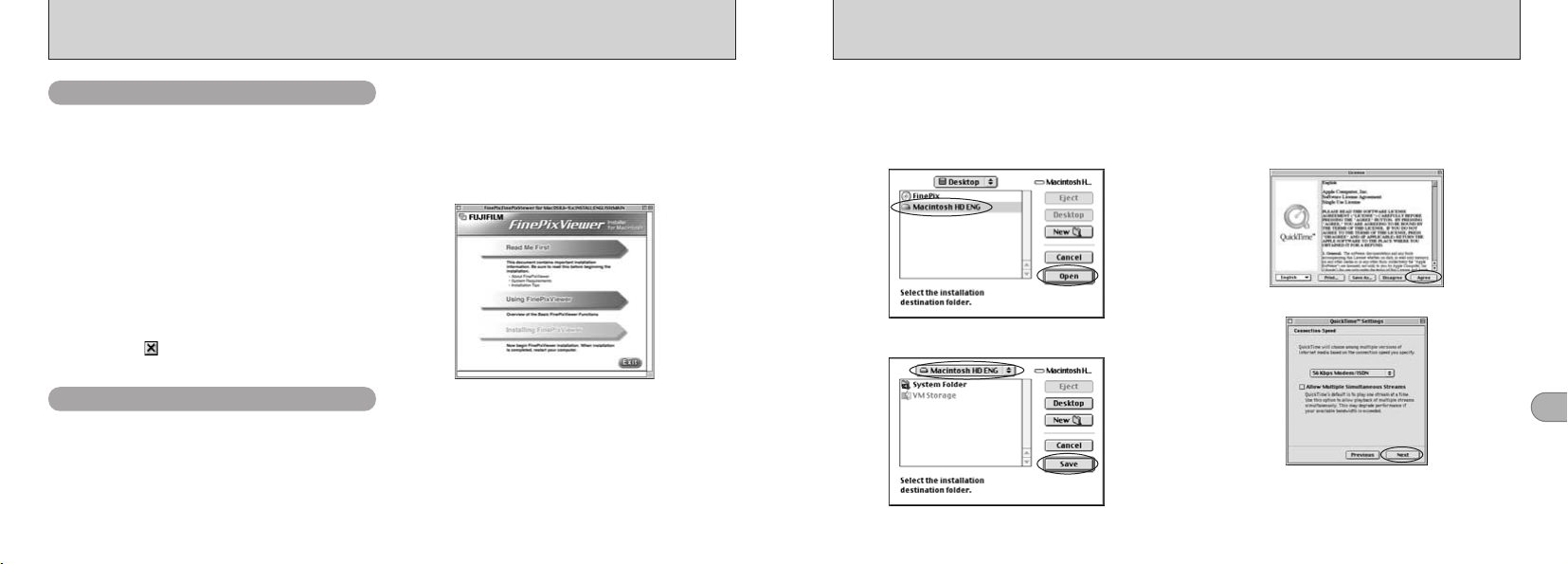
93
5
92
INSTALLATION ON A Mac OS 8.6 TO 9.2
■ Enable File Exchange
Check whether File Exchange is active.
To use an xD-Picture Card that is supported by
the camera, the File Exchange utility supplied
with Mac OS must be running.
1. Switch on your Macintosh and start up
Mac OS 8.6 to 9.2.
●
!
Do not connect the camera to your Macintosh until
the software installation is completed.
2. Select the Extension Manager in the Control
Panel and check that the File Exchange
check box is ticked. If not, click in the box
so that an appears and then restart your
Macintosh.
1. When you load the enclosed CD
-
ROM into
the CD
-
ROM drive, the “FinePix” window
automatically opens.
●
!
If the “FinePix” window does not open automatically,
double-click the CD-ROM icon.
Check the system software settings
From FinePixViewer installation to restart
2. Double-click “Installer for MacOS8.6
-
9.x”
to launch the Installer.
3. The Installer setup screen appears. Click
the
[
Installing FinePixViewer
]
button.
✽ For more information on what is installed, click the
[
Read Me First
]
button and
[
Using FinePixViewer
]
button.
4. A confirmation message appears asking
whether you want to continue with the
installation. Click the
[
OK
]
button.
5. The User License Agreement for this
software is displayed. Read the agreement
carefully and then, if you agree to the
terms of the Agreement, click the
[
Yes
]
button. If you click the
[
No
]
button, the
software is not installed.
7. Install QuickTime as directed by the on-
screen instructions and then restart your
Macintosh.
✽ If you have already installed QuickTime version
5.0.2 or later, this installation is not performed.
If the “Connection Speed” window appears after you restart your
Macintosh, set the correct speed for your environment of
connection and then click the
[
Next
]
button.
✽ If you do not know your connection speed, simply click the
[
Next
]
button.
Click the
[
Agree
]
button in the “License” window.
6. Select the installation destination for
FinePixViewer and ImageMixer VCD for
FinePix.
1 Click the
[
Open
]
button to open the installation
destination folder.
2 Click the
[
Save
]
button.
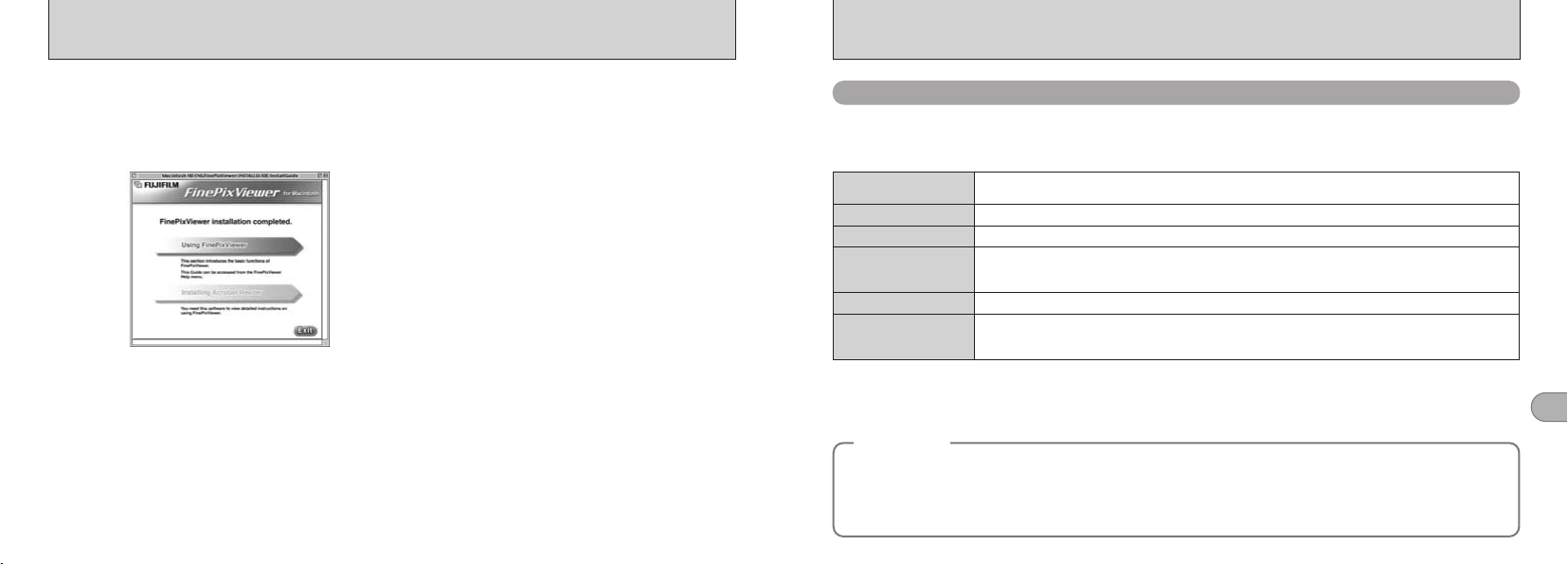
95
5
94
8. After you restart your Macintosh, the
“FinePixViewer installation completed”
message appears. Click “Using
FinePixViewer” to view the basic
FinePixViewer functions.
9. To install Acrobat Reader, click “Install
Acrobat Reader”.
✽
✽ You should install Adobe Systems’ Acrobat
Reader software to read the FinePixViewer User’s
Guide
(
PDF
)
.
If you already have the latest version installed,
this step is not required.
10
. Proceed with the installation as directed
by the on-screen instructions.
INSTALLATION ON A Mac OS 8.6 TO 9.2
■ To install Acrobat Reader later...
1. Double-click the “FinePix” CD-ROM to
open the CD
-
ROM window.
2. Double-click “FinePixViewer for Mac OS
8.6
-
9.x” → “Acrobat Reader” → “English”
folder.
3. Double-click “English Reader Installer”.
4. Proceed with the installation as directed
by the on-screen instructions.
INSTALLATION ON A Mac OS X
To run this software, you must have the hardware and software described below. Check your system
before you begin the installation.
■ Hardware and software requirements
✽1 Models with a USB port as a standard feature
✽2 AVI movies cannot be played back on version 10.0.4.
✽3 Required to use the FinePix Internet Service. The software can still be installed even if you do not have an Internet
connection.
Pre-installation Checklist
Compatible Mac Power Macintosh G3
✽1
, PowerBook G3
✽1
, Power Macintosh G4, iMac, iBook,
Power Macintosh G4 Cube, or PowerBook G4
Operating System
Mac OS X (compatible with version 10.0.4, 10.2.3
✽2
)
RAM 192 MB minimum
, 256MB recommeded
Hard disk space
Amount required for installation : 70 MB minimum
Amount required for operation : 300 MB minimum
(
When
ImageMixer VCD for FinePix
is used : 2 GB or better
)
Display
800 × 600 pixels or better, at least 32,000 colors
Internet connection
✽3
i To use the FinePix Internet Service or mail attachment function
An Internet connection and e-mail transmission software
i Connection speed : 56k or better recommended
◆
NOTE
◆
i Connect the camera directly to the Macintosh using the special USB cable. The software may not operate correctly if you
use an extension cable or connect the camera via a USB hub.
i Push the USB connector fully into the socket to ensure that it is securely connected. The software may not operate
correctly if the connection is faulty.
i Additional USB interface board is not guaranteed.
i If other applications will be used at the same time, allocate the additional amount required for those applications also.
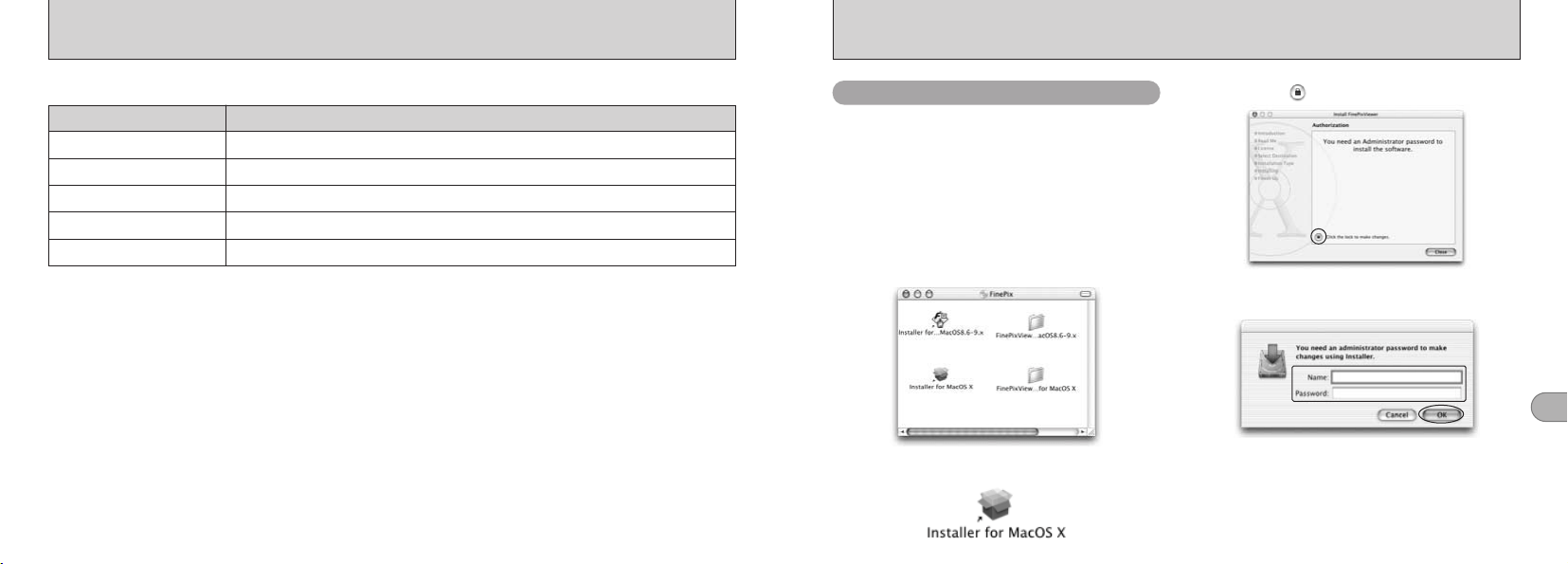
97
5
96
4. Click the “” icon.
5. Enter the administrator name and password.
Then click the
[
OK
]
button.
6. Click the
[
Continue
]
button.
7. Quit any other programs that are running
and then click the
[
Continue
]
button.
8. Click the
[
Continue
]
button in the “Software
License Agreement” window.
Only FinePixViewer is installed on Mac OS X.
●
!
AVI movies cannot be played back on version 10.0.4.
1. Switch your Macintosh on and start up Mac
OS X. Do not launch any other applications.
2. Load the enclosed CD
-
ROM into the CD
-
ROM drive. The “FinePix” window opens.
●
!
If the “FinePix” window does not open automatically,
double-click the CD
-
ROM icon.
3. Double-click “Installer for MacOS X”.
INSTALLATION ON A Mac OS X
From FinePixViewer installation to restart
■ Functions not supported in FinePixViewer for Mac OS X
Function Comment
AVI movie playback
Batch format conversion
Create data for CD writing
Online updating
Online help
Not supported in version 10.0.4
Only supported for still images.
Not supported.
Information on updates can be obtained using [Support] in the Internet menu.
Online help can be viewed by opening “English.pdf” in the installation folder.
■ Using the FinePix Internet Service
The user registration procedure for the FinePix Internet Service and the service upload method are
different from those used in Mac OS 8.6 to 9.2.
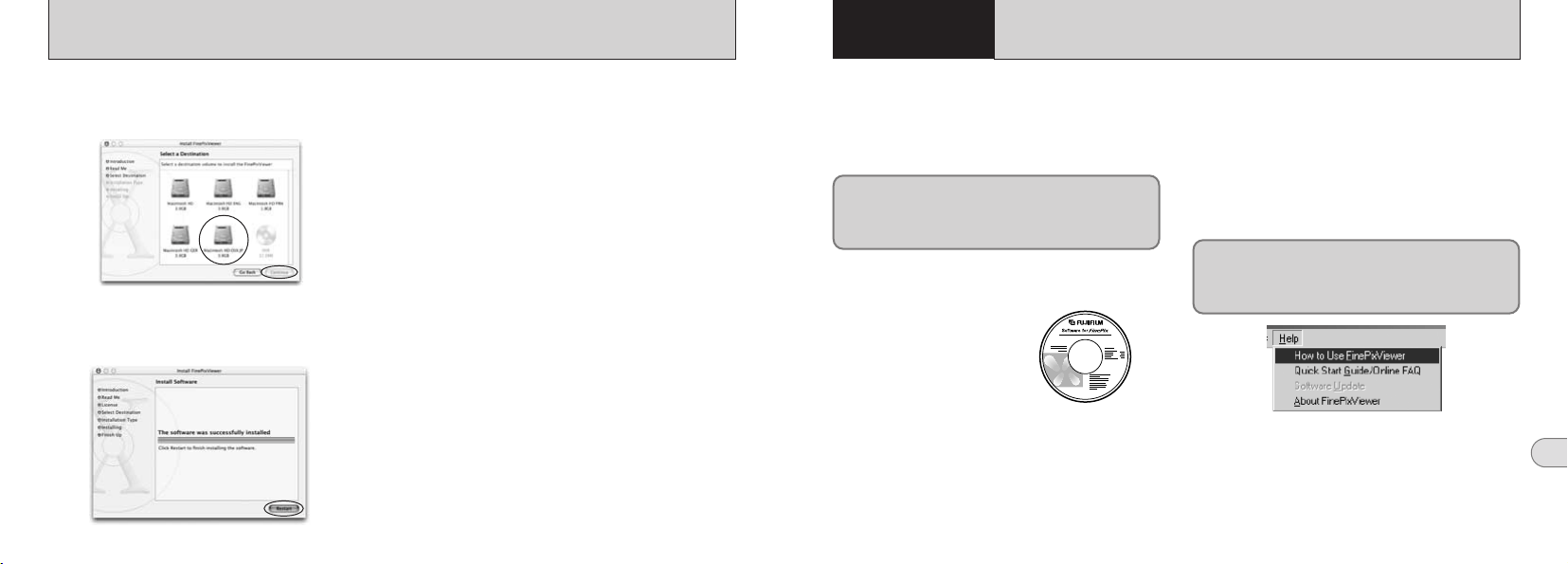
99
6
98
9. Select the Mac OS X startup disk as the
installation destination and click the
[
Continue
]
button.
10
. Click the
[
Install
(
upgrade
)]
button.
11
. When you have completed the installation,
click the
[
Restart
]
button.
INSTALLATION ON A Mac OS X
■ DSC
(
Mass storage device
)
Mode
This mode provides a simple way to read images
from an xD
-
Picture Card and store images on to
an xD-Picture Card
(
➡P.102
)
.
Refer to Section 5 the first time you
connect the camera to your computer
Do not connect the
camera with the computer
before installing all the
software.
■ PC CAM
(
PC Camera
)
Mode
This function can be used for activities such as
videoconferencing
(
“PictureHello”
)
with other
PCs connected to the Internet.
✽ Videoconferencing
(
“PictureHello”
)
is not
supported on Macintosh computers.
✽ Connection is only possible with a FUJIFILM camera
equipped with a “PC Camera” function.
CD
-
ROM
(
Software for FinePix SX
)
For more information on using the software,
refer to “How to use FinePixViewer” in the HELP
menu of FinePixViewer which was installed from
the CD
-
ROM.
If the power cuts out during data transmission,
the data will not be transmitted correctly. Always
use the AC power adapter when connecting the
camera to a computer.
The “Camera Connection” section explains how
to connect the camera to your computer using
the special USB cable and describes the
functions you can use once the camera and
computer are connected.
6
Camera
Connection
CAMERA CONNECTION
1. Slide the power switch to the side to turn
the camera on.
2. Set the “USB MODE” setting in the
“SET
–
UP” menu to “PC CAM”
(
➡P.82, 83
)
.
3. Slide the power switch to the side to turn
the camera off.
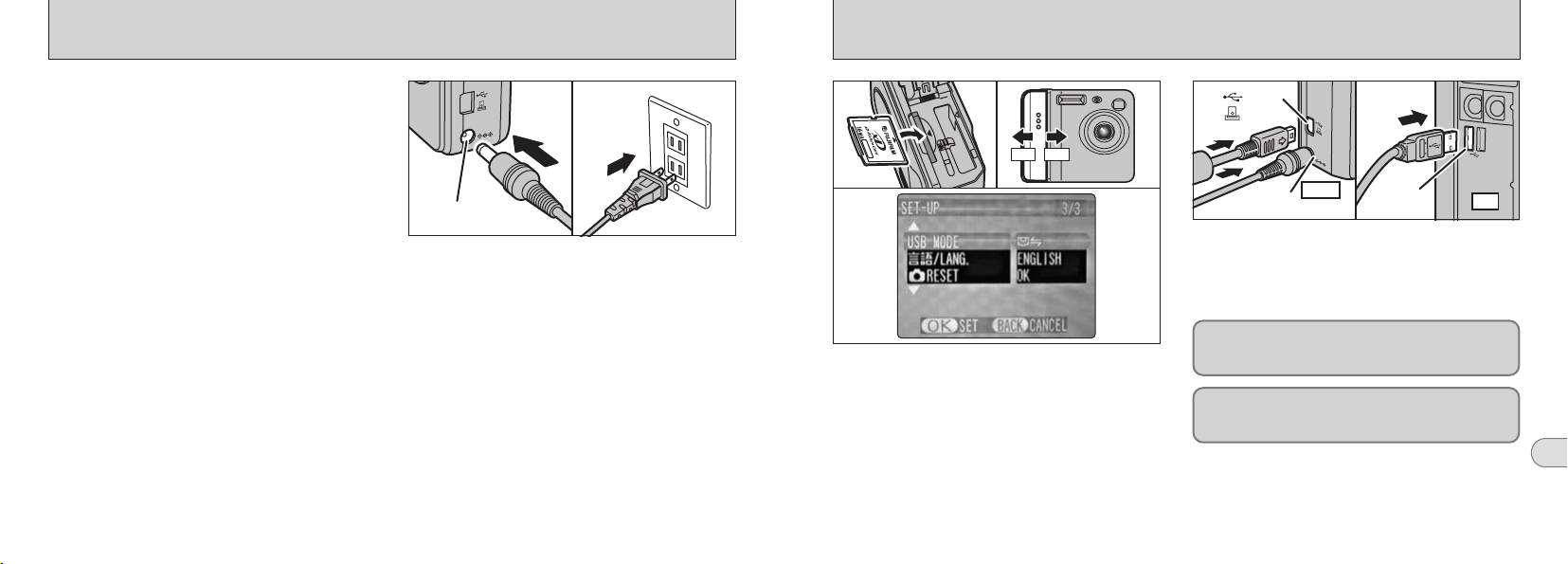
101
6
100
DC IN 5V socket
Always use a FUJIFILM AC Power Adapter AC
-
5VW/AC
-
5VS/AC
-
5VHS
(
➡P.7, 110
)
.
Use the AC power adapter to avoid losing power
at inconvenient times, such as when you are
downloading photographed images to your
computer. Using the AC power adapter also
allows you to take pictures and play back images
without worrying about depleting the batteries.
✽ See P.115 for notes on using the AC power adapter.
✽ Only connect or disconnect the AC power adapter
when the camera is switched off.
Connecting or disconnecting the AC power adapter
while the camera is switched on temporarily interrupts
the power supply to the camera, so that images or
movies being shot at the time are not recorded.
Failing to switch the camera off first can also result in
damage to the xD
-
Picture Card or malfunctions during
PC connection.
Check that the camera is switched off. Plug the
AC power adapter connector into the “DC IN 5V”
socket and then plug the AC power adapter into
the power outlet.
✽ The socket-outlet shall be installed near the equipment
and shall be easily accessible.
✽ The shape of the plug and socket-outlet depends on
the country of use.
USING THE AC POWER ADAPTER
(USB)
socket
DC IN
5V socket
Camera
OFFON
USB
socket
PC
1. Load an xD
-
Picture Card containing
photographed images into your camera. Plug
the AC power adapter connector into the DC
IN 5V socket on the camera and then plug
the adapter itself into the main power outlet.
2. Slide the power switch to the side to turn
the camera on.
3. Set the “USB MODE” setting in the
“SET
–
UP” menu to “•”
(
➡P.82, 83
)
.
4. Slide the Power switch to the side to turn
the camera off.
5. Switch your PC on.
6. Use the special USB cable to connect the
camera to your computer.
7. Switch the camera on.
If you are using a Windows PC, the driver settings
are specified automatically when installation is
completed. No further action is required.
Always use the prescribed procedure when
disconnecting or switching off the camera
(➡
P.104
)
.
✽ On Windows XP and Mac OS X, you must specify the
automatic launch settings the first time you connect
the camera to your computer.
✽ Take care to ensure that the special USB cable is
connected the correct way around and that the plugs
are pushed fully into the connection sockets.
01 0402
03
06
USE AT DSC MODE
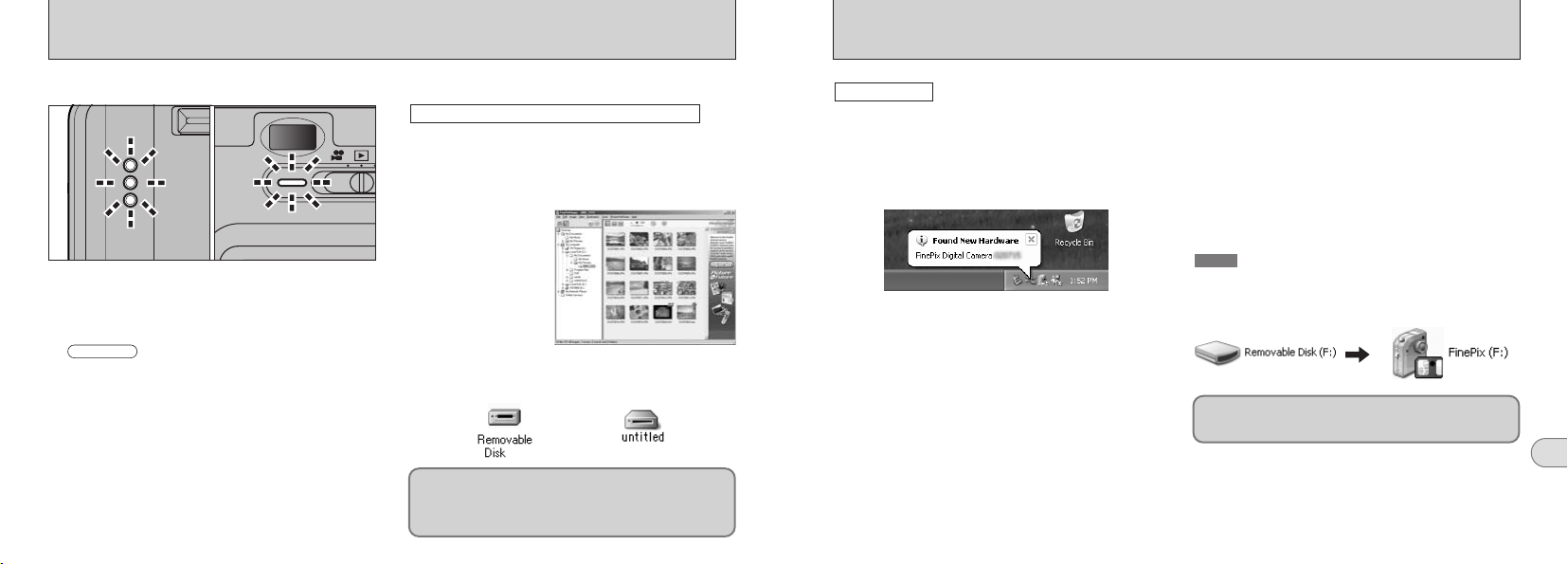
103
6
102
i When the camera and computer are
exchanging data, the self timer lamp blinks
and the viewfinder lamp blinks alternately
green and orange.
i “
•
DSC
” appears on the screen.
i Power Save is disabled when the camera is
connected to a USB port.
✽ Before replacing the xD
-
Picture Card, always
disconnect the camera from the PC using the
procedure on P.104.
✽ Do not disconnect the USB cable when the camera is
communicating with the PC. See P.104 for information
on the disconnection procedure.
■ PC Operation
✽ The Windows CD
-
ROM may also be required
during installation. In this event, switch CD
-
ROMs
as directed by the on-screen instructions.
i FinePixViewer automatically starts up.
Windows 98/98 SE/Me/2000 Professional
i A removable disk icon appears and you can use
your PC to transfer files to and from the camera.
Windows Macintosh
✽ Screen for
Windows 98 SE
If the above operations do not occur, you do not have
the required software programs or drivers installed on
your PC. Complete the required PC setup
procedures. Then reconnect the camera to your PC.
■ Camera Operation
USE AT DSC MODE
1. The “Found New Hardware” help message
appears in the bottom-right corner of your
screen. This message will close when the
settings are completed. No action is required.
✽ This step is not required for subsequent connections.
Windows XP
■ When FinePixViewer is not included
in the list of actions to perform
Select “Take no action” and then select the
“Always do the selected action” checkbox.
(
This
checkbox may not be shown in some cases.
)
Click the
[
OK
]
button and launch FinePixViewer
manually.
3. A new removable disk icon appears in the
“My Computer” window.
The next time you connect the camera, the removable
disk drive icon and name change to the “FinePix” icon
and name.
TIP
Proceed to “Using FinePixViewer” on
page 106.
2. Specify the settings in the “AutoPlay” dialog
box.
■ When FinePixViewer is included in
the list of actions to perform
Select “Viewing images using FinePixViewer”
and then select the “Always do the selected
action” checkbox.
(
This checkbox may not be
shown in some cases.
)
Click the
[
OK
]
button to launch FinePixViewer.
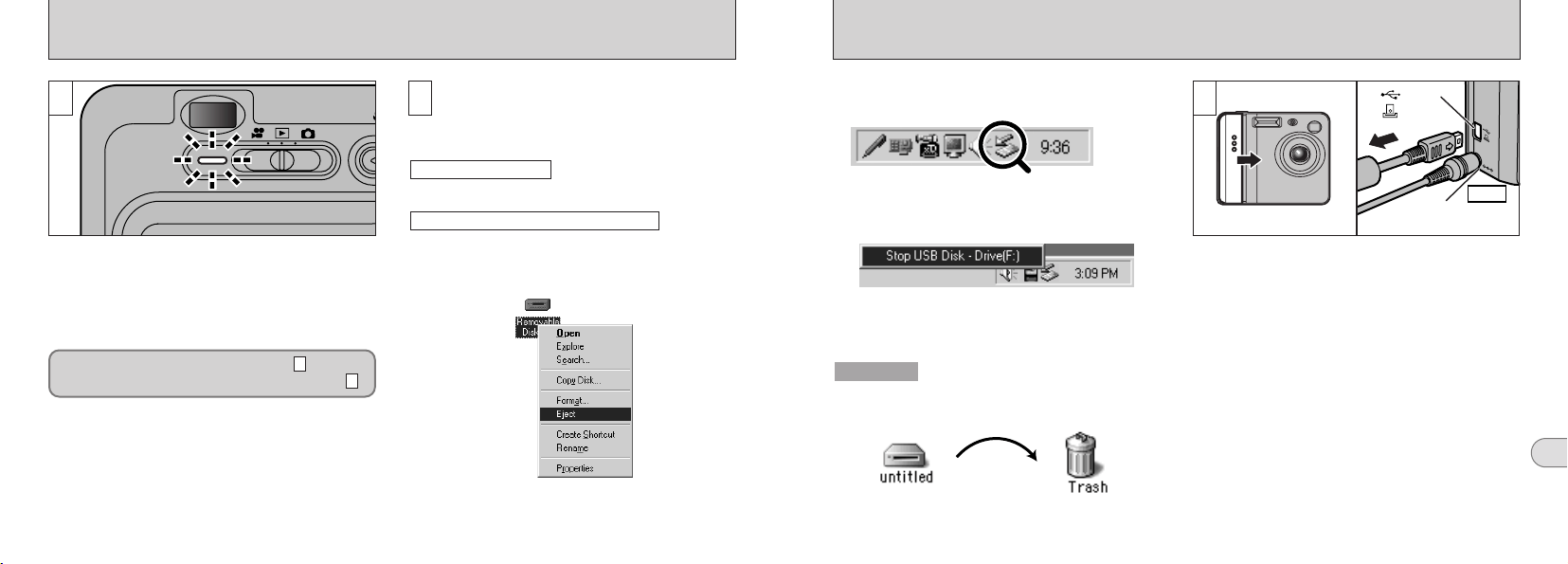
105
6
104
1
1. Quit all applications
(
FinePixViewer etc.
)
that are using the camera.
2. Check that the viewfinder lamp is lit green
(
the camera is not communicating with the
PC
)
.
Perform the steps shown below before you
switch the camera off. This procedure
differs depending on the operating system
software
(
or PC
)
you are using.
No PC operation is needed.
1. Right-click the removable disk icon in the
“My Computer” window and select Eject.
This step is only required in Windows Me.
Windows Me/2000 Professional/XP
Windows 98/98 SE
✽ Even when “Copying” is no longer displayed on the
PC, the PC may still be exchanging data with the
camera. Always check that the camera’s viewfinder
lamp is lit green.
2
For a DSC connection, proceed to step .
For a PC CAMERA connection, proceed to step .
3
2
DISCONNECTING THE CAMERA
DC IN
5V socket
Camera
(USB)
socket
1. Switch the camera off.
2. Unplug the special USB cable from the
camera.
✽ When you drag the icon to the Trash, “…”
appears on the camera’s LCD monitor.
3. The menu option shown below appears.
Click on this option.
✽ Screen for Windows Me
4. The “Eject hardware” dialog box appears.
Click the
[
OK
]
button or the close button.
Drag the “Removable drive” icon on the desktop
to the Trash.
Macintosh
3
01 02
2. Left-click the Eject icon in the taskbar and
eject “USB Disk”.
✽ Screen for Windows Me
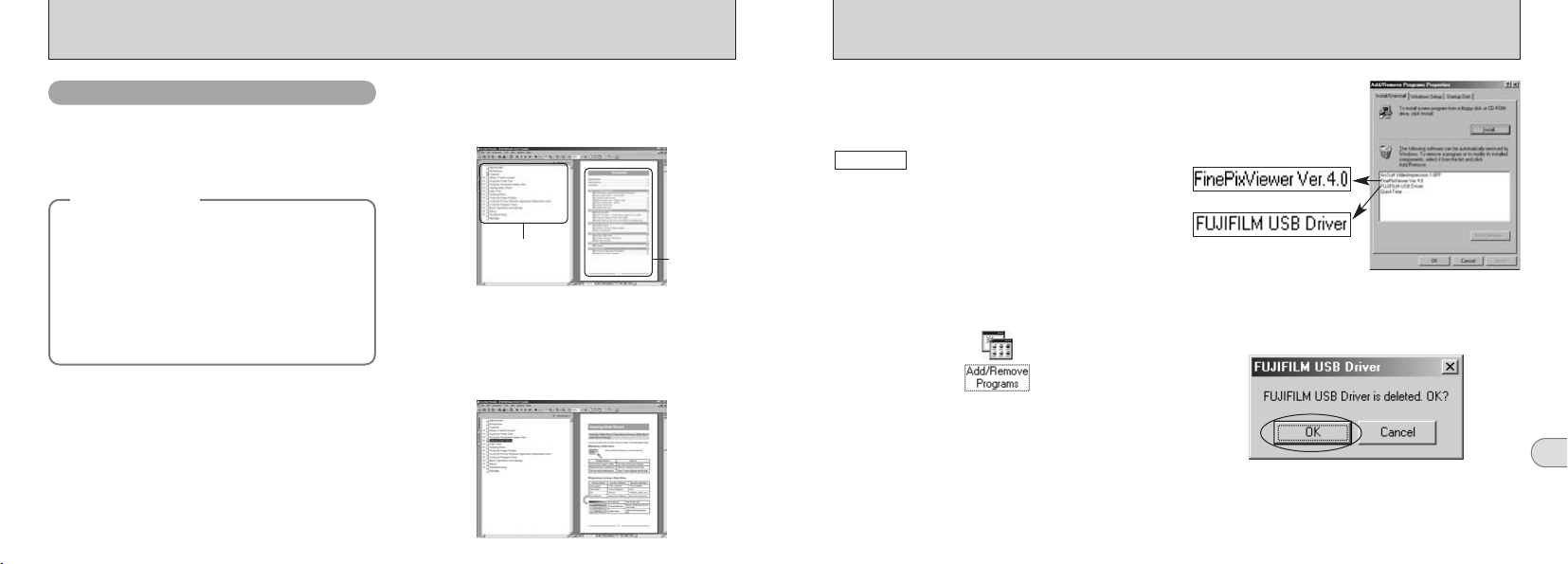
107
6
106
USING FinePixViewer
■ Example : Looking up slide shows
1. Click “How to Use FinePixViewer” in the
FinePixViewer Help menu.
2. Search for relevant articles by clicking the
corresponding items in the Help
“Bookmarks” or “Contents”. Here, click
“Viewing Slide Shows”.
3. The “Viewing Slide Shows” information is
displayed. Press the “←” key to view the
previous page or the “→” key to view the
next page.
●
!
For more information on using Acrobat Reader, refer
to the Acrobat Reader “Help” menu.
Bookmarks
Contents
For more information on FinePixViewer functions
not fully explained in this manual, refer to “How
to Use FinePixViewer” in the Help menu for
details.
Mastering FinePixViewer
◆
Macintosh
◆
h To read “How to Use FinePixViewer”...
You must install Adobe Systems Acrobat
Reader. See P.94 for information on
installing Acrobat Reader.
h What is explained in “How to Use
FinePixViewer”...
“How to Use FinePixViewer” covers a range
of topics, including batch processing and
ordering prints.
Only perform this operation when you no longer
require the installed software or when the software
was not installed correctly.
1. Switch on your PC.
2. Disconnect the camera
(
➡P.104, 105
)
.
3. Quit all currently running applications.
4. Close all files.
5. Open the “My Computer” window, open
the “Control Panel”, and double-click
“Add/Remove Programs”.
Windows
7. When the confirmation message appears,
click the
[
OK
]
button. Check your selection
carefully since the process cannot be
cancelled once you click
[
OK
]
.
6. The “Add/Remove Programs Properties”
window appears. Select the software to be
uninstalled
(
FinePixViewer or the driver
)
and then click the
[
Add/Remove
]
button.
8. Automatic uninstallation begins.
When uninstallation ends, click the
[
OK
]
button.
UNINSTALLING THE SOFTWARE
<To remove the driver software>
<To remove FinePixViewer>
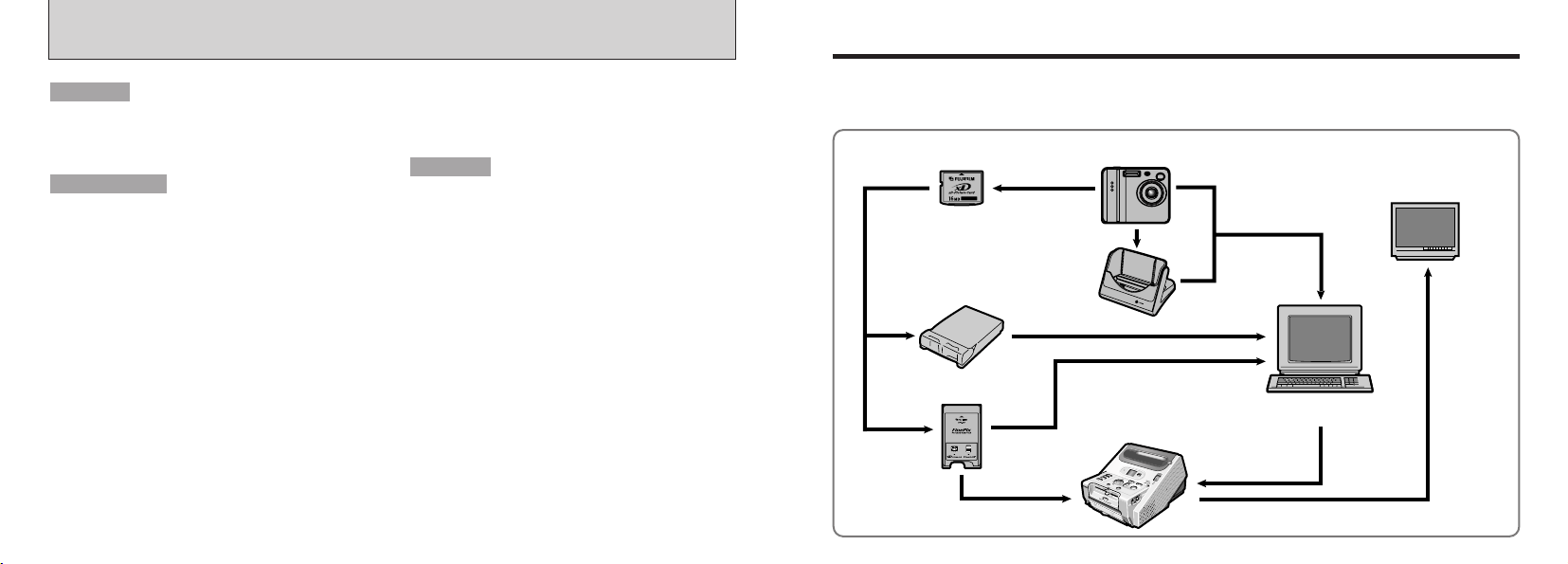
109108
●
!
Only perform this operation when you no longer
require the installed software or when the software
was not installed correctly.
■ Uninstalling Mass Storage Driver and
PC Camera Driver
1. Check that the camera is not connected to
your Macintosh.
2. Drag all the files that begin with
“USB04CB...” to the Trash.
3. Restart your Macintosh.
4. Select “Empty Trash” in the “Special”
menu.
■ Uninstalling Exif Launcher,
FinePixViewer and DP Editor
1. After you have quit Exif Launcher in “Exif
Launcher Settings” in the FinePixViewer
“Settings” menu, move the Exif Launcher
file from the “Startup Items” folder in the
System folder to the Trash. Then select
“Empty Trash” in the “Special” menu.
Mac OS 8.6
-
9.2
Macintosh
2. After you have exited FinePixViewer and
DP Editor and then drag the installed
FinePixViewer folder to the Trash. Then
click “Empty Trash” in the “Special” menu.
■ Uninstalling FinePixViewer
Quit FinePixViewer and DP Editor. Then drag
the installed FinePixViewer folder to the
Trash and select “Empty Trash” in the
“Special” menu.
Mac OS X
UNINSTALLING THE SOFTWARE
System Expansion Options
(
USB
)
(
PC card slot
)
Personal Computer
(commercially available)
Digital Photo Printer
CX-400
(
USB
)
(
USB
)
PC Card Adapter
xD-Picture Card
Image Memory Card Reader
TV monitor
(
commercially available)
Cradle
FinePix F410
Digital Camera
e By using the FinePix F410 together with other optional FUJIFILM products, your system can be
expanded to fill a wide range of uses.
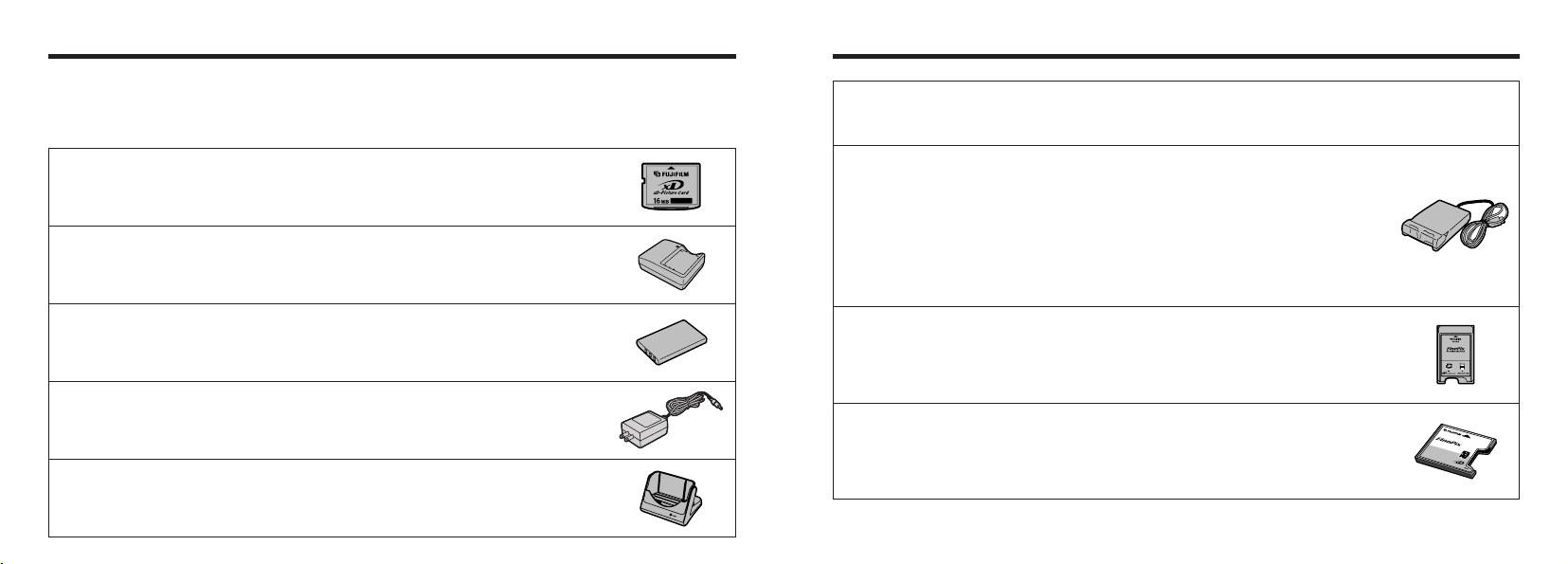
111110
Accessories Guide
e The optional accessories
(
sold separately
)
can make taking pictures with the FinePix F410 even easier.
For information on how to attach and use the accessories, refer to the instructions provided with the
accessory used.
Visit the FUJIFILM web site for the latest information on camera accessories. http://home.fujifilm.com/products/digital/index.html
h xD
-
Picture Card
These are separately available xD
-
Picture Card cards.
Use the following xD
-
Picture Card :
DPC
-
16
(
16MB
)
/DPC
-
32
(
32MB
)
/DPC
-
64
(
64MB
)
/DPC
-
128
(
128MB
)
/DPC
-
256
(
256MB
)
h AC
-
5VH/AC
-
5VHS AC Power Adapter
Use the AC
-
5VH/AC
-
5VHS when you want to take pictures or play back images for
long periods or when the FinePix F410 is connected to a personal computer.
✽ The shape of the AC power adapter, the plug and socket outlet depend on the country.
h PictureCradle CP
-
FX401
If you connect the AC power adapter and USB cable to this cradle, you can charge
the camera battery or connect the camera to your computer just by placing the
camera in the cradle.
h NP
-
60 Rechargeable Battery
Lithium
-
ion slimline rechargeable battery.
h BC
-
65 Battery Charger
Quickly charges the rechargeable battery. The BC
-
65 reduces charging time to
approximately 2 hours
(
for the NP
-
60
)
.
h SC
-
FX401
This is designed to protect the camera against dirt, dust and damage while you are
carrying it.
h DPC
-
R1 Image Memory Card Reader
The DPC
-
R1 provides a quick and easy way to transfer images back and forth
between your PC and an image memory card
(
xD
-
Picture Card and SmartMedia
)
.
The DPC
-
R1 uses the USB interface for high-speed file transfer.
i Compatible with Windows 98/98 SE, Windows Me, Windows 2000 Professional,
Windows XP or iMac, Mac OS 8.6 to 9.2, Mac OS X
(
10.1.2 to 10.2.2
)
and models
that support USB as standard.
i Compatible with xD
-
Picture Card of 16MB to 256MB, and SmartMedia of 3.3V,
4MB to 128MB.
h DPC
-
AD PC Card Adapter
The PC Card Adapter allows the xD
-
Picture Card and SmartMedia to be used as a
PC Card Standard ATA
-
compliant
(
PCMCIA 2.1
)
PC card
(
Type2
)
.
i Compatible with xD
-
Picture Card of 16MB to 256MB, and SmartMedia of 3.3V,
2MB to 128MB.
h CompactFlash™ Card Adapter
Loading an xD-Picture Card into this adapter allows you to use the card as a
CompactFlash card (Type1).
i Windows 95/98/98 SE/Me/2000 Professional/XP
i Mac OS 8.6 to 9.2/X
(
10.1.2/10.1.5
)
C
O
M
P
A
C
T
F
L
A
S
H
D
P
C
-
C
F
T
M
f
o
r
x
D
-
P
i
c
t
u
r
e
C
a
r
d
C
A
R
D
A
D
A
P
T
E
R
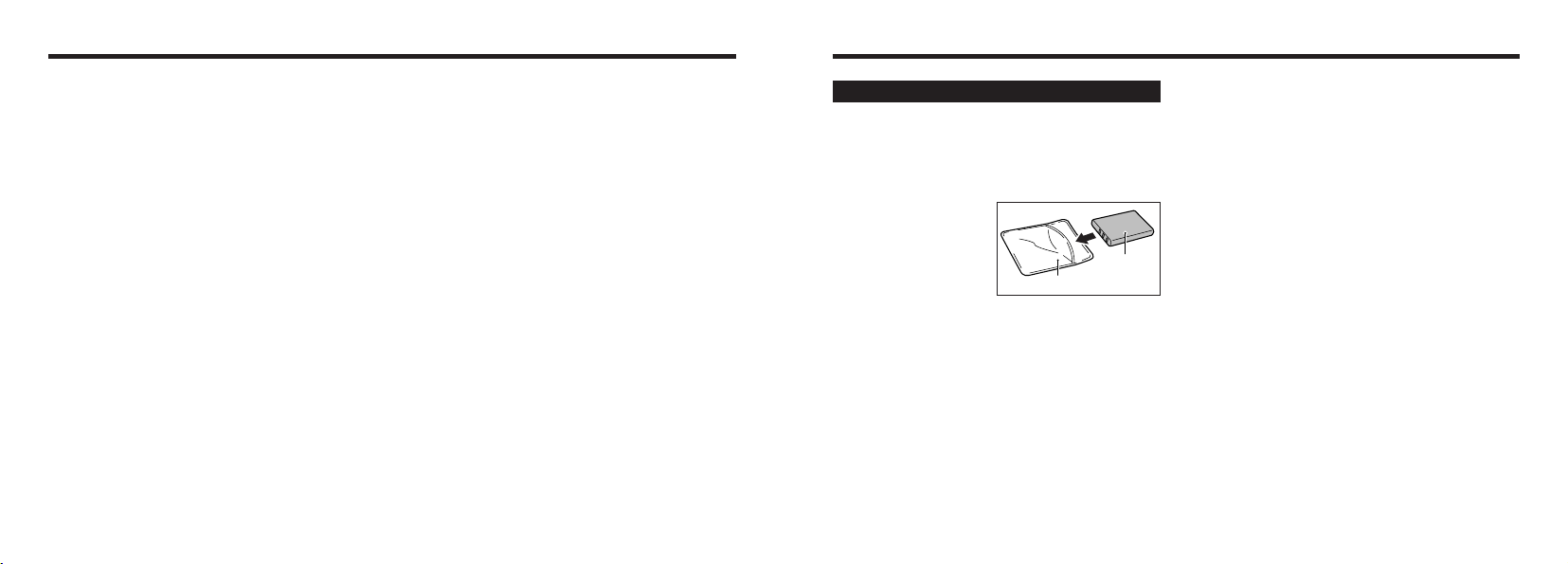
113112
Notes on Using Your Camera Correctly
■ Places to Avoid
Do not store or use the camera in the following types of
locations :
h In the rain or in very humid, dirty or dusty places
h In direct sunlight or in places subject to extreme
temperature rises, such as in a closed car in summer
h Extremely cold places
h Places subject to strong vibration
h Places affected by smoke or steam
h Places subject to strong magnetic fields
(
such as near
motors, transformers or magnets
)
h In contact with chemicals such as pesticides or next to
rubber or vinyl products for long periods of time
■ Notes on Immersion in Water or Sand
The FinePix F410 is particularly adversely affected by
water and sand. When you are at the beach or close to
water, ensure that the camera is not exposed to water or
sand. Take care not to place the camera on a wet
surface. Water or sand inside the camera can cause
faults that may be irreparable.
■ Notes on Condensation
If the camera is carried suddenly from a cold location into
a warm place, water droplets
(
condensation
)
may form
on the inside of the camera or on the lens. When this
occurs, switch the camera off and wait an hour before
using the camera. Condensation may also form on the
xD
-
Picture card. In this event, remove the xD
-
Picture
Card and wait a short time before using it again.
■ When the Camera is Unused for Long Periods
If you do not intend to use the camera for a long period
of time, remove the battery and the xD
-
Picture Card
before storing the camera.
■ Cleaning Your Camera
h Use a blower brush to remove dust from the lens, LCD
monitor screen or viewfinder as these surfaces, and
then wipe lightly with a soft, dry cloth. If any soiling
remains, apply a small amount of lens cleaning liquid
to a piece of FUJIFILM lens cleaning paper and wipe
gently.
h Do not scratch hard objects against the lens, LCD
monitor screen or viewfinder as these surfaces are
easily damaged.
h Clean the body of the camera with a soft, dry cloth. Do
not use volatile substances such as thinners, benzine
or insecticide, as these may react with camera body
and cause deformation or remove the coating.
■ Using the Camera Overseas
When travelling overseas, do not place your camera in
the check-in baggage. Baggage handling at airports may
subject baggage to violent shocks, and the camera may
be damaged internally even when no external damage is
visible.
e
Be sure to read this information in conjunction with “Safety Notes”
(
➡P.130
)
, to ensure that you use
your camera correctly.
Notes on the Power Supply
This camera uses the Rechargeable Lithium-ion Battery
Pack NP
-
60. Note the points below when using the
rechargeable battery. Take particular care to read the
Safety Notes to ensure that you use the battery correctly.
✽ When shipped, the NP
-
60 is not fully charged. Always
charge the NP-60 before using it.
h When carrying the NP
-
60, install it in a digital
camera or keep it in the
soft case.
h When storing the NP
-
60,
place it inside the special
soft case provided.
■ Battery Features
h The NP-60 gradually loses its charge even when not
used. Use a NP
-
60 that has been charged recently
(
in
the last day or two
)
to take pictures.
h To maximize the life of the NP
-
60, switch the camera
off as quickly as possible when it is not being used.
h The number of available shots will be lower in cold
locations or at low temperatures. Take along a spare
fully charged NP
-
60.
You can also increase the amount of power produced
by putting the NP
-
60 in your pocket or another warm
place to heat it and then loading it into the camera
just before you take taking a picture.
If you are using a heating pad, take care not to place the
NP
-
60 directly against the pad. The camera may not
operate if you use a depleted NP
-
60 in cold conditions.
Notes on Using the Battery
(
NP-60
)
■ Charging the Battery
h You can charge the NP
-
60 using the AC Power
Adapter AC
-
5VW/AC
-
5VS/AC
-
5VHS.
• The NP
-
60 can be charged at ambient temperatures
between 0°C and
+
40°C
(+
32°F and
+
104°F
)
. At an
ambient temperature of
+
23°C
(+
73°F
)
, it takes
approximately 3 hours to charge a fully depleted
NP
-
60 battery.
• You should charge the NP
-
60 at an ambient
temperature between
+
10°C and
+
35°C
(+
50°F and
+
95°F
)
. If you charge the NP
-
60 at a temperature
outside this range, charging takes longer because
the performance of the NP
-
60 is impaired.
• You cannot charge the NP
-
60 at temperatures of
0°C
(+
32°F
)
or below.
h You can also use the optional BC
-
65 Battery Charger
to charge the NP
-
60.
• The NP
-
60 can be charged using the BC
-
65 Battery
Charger at ambient temperatures between 0°C and
+
40°C
(+
32°F and
+
104°F
)
. At an ambient
temperature of
+
23°C
(+
73°F
)
, it takes approximately
2 hours to charge a fully depleted NP
-
60 battery.
• You should charge the NP
-
60 at an ambient
temperature between
+
10°C and
+
35°C
(+
50°F and
+
95°F
)
. If you charge the NP
-
60 at a temperature
outside this range, charging takes longer because
the performance of the NP
-
60 is impaired.
h The NP
-
60 does not need to be fully discharged or
exhausted flat before being charged.
h The NP
-
60 may feel warm after it has been charged or
immediately after being used. This is perfectly normal.
h Do not recharge a fully charged NP
-
60.
Soft case
Battery
(NP-60)
115114
Notes on the Power Supply
h Do not recharge the battery with chargers other those
specified.
h Dispose of used batteries promptly.
To avoid damaging the battery or shortening its
life, observe the following :
h Do not drop the battery or otherwise subject it to
strong impacts.
h Do not immerse the battery in water.
To ensure that you obtain optimum battery
performance, observe the following :
h Always keep the battery terminals clean.
h Store the battery in a cool, dry place. Storing the
battery for long periods in a hot location can shorten
the battery life.
If you use the battery for a long period, the camera
body and the battery itself will become warm. This is
normal and is not a malfunction. Use the AC power
adapter supplied with the camera if you are taking
pictures or viewing images for a long period of time.
■ Specifications of the Enclosed NP
-
60
Nominal voltage DC 3.7V
Nominal capacity 1035mAh
Operating temperature
0°C to
+
40°C
(+
32°F to
+
104°F
)
Dimensions 35.2 mm × 53 mm × 7.0 mm
(
1.39 in. × 2.1 in. × 0.28 in.
)
(
W × H × D
)
Mass
(
Weight
)
Approx. 30g
(
1.05 oz.
)
✽ These specifications are subject to change without notice.
■ Battery Life
At normal temperatures, the NP
-
60 can be used at
least 300 times.
If the time for which the NP
-
60 provides power shortens
markedly, this indicates that the NP
-
60 has reached the
end of its effective life and should be replaced.
The Lithium-ion Battery Pack NP
-
60 is both compact
and capable of storing large quantities of power.
However, if it is stored for long periods while charged,
the performance of the battery can be impaired.
h If the battery will not be used for some time, run the
battery flat before storing it.
h Always remove the battery from the camera or battery
charger when it is not being used.
h Place the battery pack inside the soft case and store
in a cool place.
✽ The battery should be stored in a dry location with an
ambient temperature between
+
15°C and
+
25°C
(+
59°F and
+
77°F
)
.
✽ Do not leave the battery in hot or extremely cold places.
■ Handling the Battery
To avoid injury or damage, observe the following :
h Do not allow the metal portions of the battery to touch
other metal objects.
h Do not bring the battery close to a flame or throw it
into a fire.
h Do not attempt to disassemble or modify the battery.
Notes on storage
AC Power Adapter
Use only the AC
-
5VW AC Power Adapter with your
FinePix F410 Digital Camera. The use of other AC
power adapters may result in damage to your camera.
■ Important Safety Instructions
h Read these instructions.
h Keep these instructions.
h Heed all warnings.
h Follow all instructions.
h Do not use this apparatus near water.
h Clean only with dry cloth.
h Do not block any ventilation openings, Install in
accordance with the manufacturer’s instructions.
h Do not install near any heat sources such as
radiators, heat registers, stoves, or other apparatus
(including amplifiers) that produce heat.
h Protect the power cord from being walked on or
pinched particularly at plugs, convenience
recectables, and the point where they exit from the
apparatus.
h Only use attachments/accessories specified by the
manufacturer.
h Unplug this apparatus during lightning storms or when
unused for long periods of time.
h Refer all servicing to qualified service personal.
Servicing is required when the apparatus has been
damaged in any way, such as power supply cor or
plug is damaged, liquid has been spilled or objects
have fallen into the apparatus, the apparatus has
been exposed to rain or moisture, does not operate
normally, or has been dropped.
h The AC Power Adapter is only intended for indoor use.
h Push the connection cord plug firmly into the DC input
socket.
h When unplugging the connector cord, switch the
camera off and pull out the plug by grasping the plug
itself.
(
Do not pull on the cord.
)
h Do not use the AC power adapter with any device
except the specified device.
h During use, the AC power adapter will become hot to
the touch, but this is normal.
h Do not disassemble the AC power adapter. Doing so
could be dangerous.
h Do not use the AC power adapter in a place with high
temperature and high humidity.
h Do not drop or subject the AC power adapter to
strong shocks.
h The AC power adapter may emit a humming noise,
but this is normal.
h Use of the AC power adapter near a radio may cause
static. Play the radio at a distance.
✽ Very Occasionally, DC output will be prevented by the
operation of the internal protection circuit. In this event,
unplug the AC
-
5VW/AC
-
5VS/AC
-
5VHS AC power
adapter from the power socket for a few moments and
then plug it in again. This will restore DC output.

117116
■ Image Memory Card
h This Image Memory Card is a new image recording
media (xD
-
Picture Card
)
developed for digital
cameras. The Image Memory Card consists of a
semiconductor memory
(
NAND
-
type flash memory
)
to
record digital image data.
The recording process is electrically performed and
enables erasure of existing image data as well as re-
recording of new image data.
h When using a new Memory Card, or a Memory Card
that has been initialized by a PC, be sure to initialize
(
format/initialize
)
the card with your digital camera
before using it.
■ Protecting Your Data
h Data may be lost or destroyed in the following
situations. Please note that FUJIFILM assumes no
responsibility for data that is lost or destroyed.
1. Removal of the memory card or turning the power
off while the memory card is being accessed
(
i.e.,
during record, erase, initialization, and playback
operations
)
.
2. Improper handling and use of the memory card by
the user or third party.
h We recommend saving your important data to another
media
(
i.e., MO disk, CD
-
R, hard disk, etc.
)
.
■ Notes on Handling xD-Picture Card
h Keep xD
-
Picture Cards out of the reach of small
children. When storing xD
-
Picture Cards, ensure that
they are kept in a location out of the reach of small
children to prevent a card being accidentally swallowed.
An xD
-
Picture Card could cause suffocation if
accidentally swallowed. If a child swallows an xD
-
Picture Card, seek medical advice immediately.
h Make sure that the memory card is straight when you
insert into the camera etc.
h The memory card is a precision electronic instrument.
Do not apply pressure or shock, and avoid bending.
h Do not use the memory card in a hot, humid, or
corrosive environment.
h If the contact area on the card is soiled
(
dust,
fingerprints, etc.
)
, wipe it clean with a soft, dry cloth.
h Clean the memory card with a soft dry piece of cloth
when dirty.
h Always keep the card in the anti-static case provided
when you carry or store it. Use a storage case if available.
h The memory card can be used reliably for a long
period of time, but will eventually lose its ability to
store and play back image data. At this point, replace
with a new memory card.
h Never remove the xD
-
Picture Card or switch the
camera off during data recording, during data erasing
(
xD
-
Picture Card formatting
)
or during frame advance
when images are being played back. These actions
could result in damage to the xD
-
Picture Card.
Notes on the xD
-
Picture Card
TM
■ Specifications
(
AC
-
5VW
)
Power Supply AC 100V to 240V, 50/60Hz
Rated Input Capacity 13W
(
U.S.A. and Canada
)
0.08A to 0.2A
(
other countries
)
Rated Output
DC 5.0V 1.5A
Temperature During Use
0°C to
+
40°C
(+
32°F to +104°F
)
Storage Temperature
-10°C to
+
70°C
(+
14°F to
+
158°F
)
Dimensions
(
MAX.
)
40 mm × 21 mm × 79 mm
(
1.6 in. × 0.8 in. × 3.1 in.
)
(
W × H × D
)
Mass
(
Weight
)
Approx. 110 g
(
3.9 oz.
)
(
excluding power cord
)
✽ Please note that specifications and characteristics are
subject to change without notice.
■ WARNINGS
To reduce the risk of fire or electric shock, do not
expose the AC power adapter to rain or moisture.
The AC power adapter shall not be exposed to
drippping or splashing and that no objects filled with
liquids, such as vases, shall be placed on the AC power
adapter.
Notes on the Power Supply

119118
Warning Displays
(Lit red)
(Blinking red)
The camera battery is low or completely out of
charge.
Charge the battery or replace with a fully
charged battery.
No xD
-
Picture Card is loaded. Insert an xD
-
Picture Card.
i The xD
-
Picture Card contact area is soiled.
i The xD
-
Picture Card is damaged.
i The xD
-
Picture Card format is incorrect.
i Camera fault.
i Wipe the contact area on the xD
-
Picture Card
with a soft dry cloth. It may be necessary to
format the xD
-
Picture Card. If the error message
is still displayed, replace the xD
-
Picture Card.
i Contact your FUJIFILM dealer.
The xD
-
Picture Card is fully recorded. Erase some images or use an xD
-
Picture Card
that has ample free space.
Warning Displayed Explanation Remedy
i The xD
-
Picture Card is not formatted.
i The xD
-
Picture Card contact area is soiled.
i Camera fault.
i Format the xD
-
Picture Card.
i Wipe the contact area on the xD
-
Picture Card
with a soft dry cloth. It may be necessary to
format the xD
-
Picture Card. If the error message
is still displayed, replace the xD
-
Picture Card.
i Contact your FUJIFILM dealer.
There is a strong likelihood of camera shake
because the shutter speed is slow.
Use flash photography. However, a tripod
should be used for some scenes and modes.
The AF
(
auto focus
)
cannot work effectively.
i If the image is too dark, take the picture at a
distance of around 2 m
(
6.6 ft.
)
from the subject.
i Use AF lock to take the picture.
Outside the AE continuous range. The shot can be taken, but the exposure will not
be correct.
\
e The table below lists the warnings that are displayed on the LCD monitor
h The use of xD
-
Picture Cards is recommended with
the FinePix F410.
The camera quality cannot be guaranteed when
cards other than those manufactured by FUJIFILM
are used.
h The xD-Picture Card may feel warm when it is
removed from the camera after extended periods of
picture taking or image viewing. This is normal and
does not indicate a fault.
h Do not affix labels to the xD
-
Picture Card.
This could result in the label peeling off and causing a
fault when the card is inserted or removed.
■ Notes on Using xD-Picture Card with a PC
h If you intend to take photos using an xD
-
Picture Card
that has been used on a PC, format the xD
-
Picture
Card on your camera.
h When you format an xD
-
Picture Card in the camera
and then shoot and record images, a directory
(
folder
)
is automatically created. Image data is then recorded
in this directory.
h Do not change or delete the directory
(
folder
)
names
or file names on the xD
-
Picture Card from your PC as
this will make it impossible to use the xD
-
Picture Card
in your camera.
h Always use the camera to erase image data on an
xD
-
Picture Card.
h To edit image data, copy the image data to the PC’s
hard disk and then edit the copied data.
h Do not copy files other than those that will be used by
the camera.
■ Specifications
Type
Image memory card for digital cameras
(
xD
-
Picture Card
)
Memory type NAND
-
type flash memory
Conditions for use Temperature :
0°C to
+
40°C
(+
32°F to
+
104°F
)
Humidity :
80% max.
(
no condensation
)
Dimensions 25 mm × 20 mm × 2.2 mm
(
0.98 in. × 0.79 in. × 0.09 in.
)(
W × H × D
)
Notes on the xD
-
Picture Card
TM
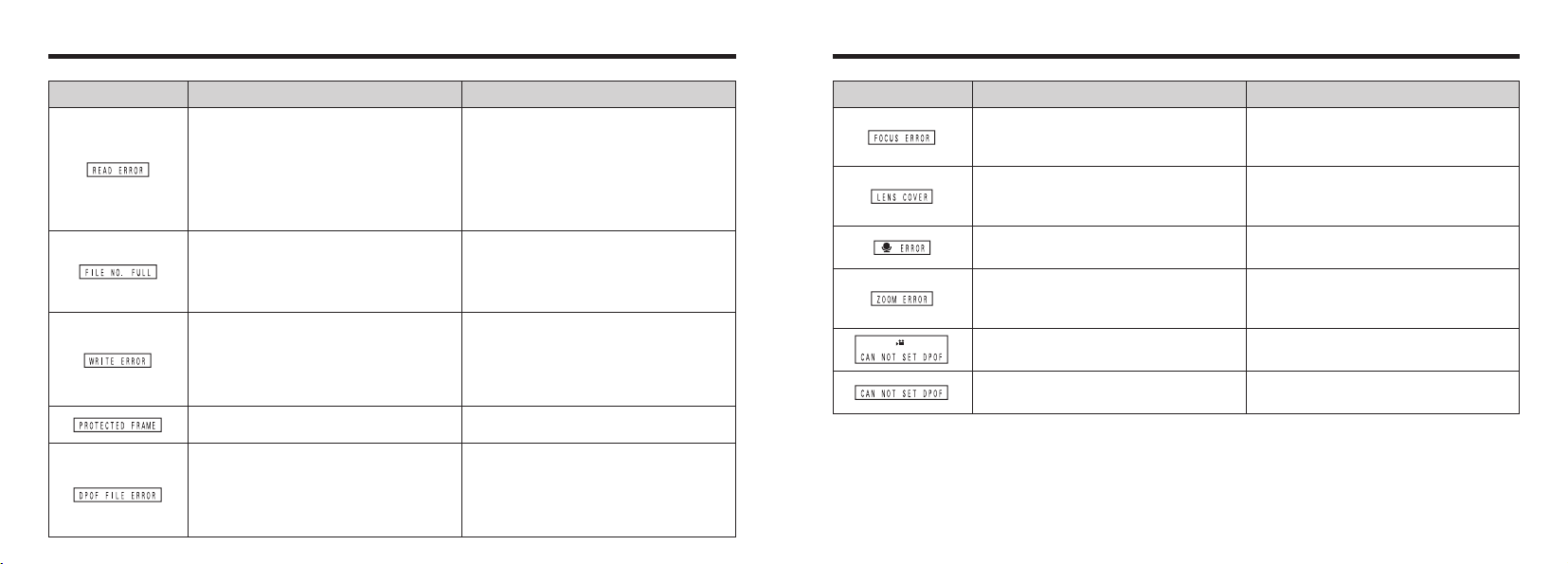
The frame number has reached 999–9999. If you reset the frame number and take pictures
using a formatted xD
-
Picture Card, the frame
numbers start from 100
-
0001. Sequential frame
numbering should then be used for subsequent
shots.
121120
Camera malfunction or fault.
i Switch the camera on again, taking care not to
touch the lens.
i Switch the camera off and on again.
The lens cover is faulty.
i Switch the camera on again, taking care not to
touch the lens.
i Switch the camera off and on again.
A movie was selected in the DPOF settings. Movies cannot be selected for DPOF print
orders.
The image cannot be handled by this camera. DPOF settings cannot be specified.
i The voice memo file is faulty.
i Camera fault.
Camera malfunction or fault.
i The voice memo cannot be played back.
i Contact your FUJIFILM dealer.
i Switch the camera on again, taking care not to
touch the lens.
i Switch the camera off and on again.
Warning Displayed Explanation Remedy
Prints were specified for more than 1000 frames
in the DPOF frame settings.
The maximum number of frames for which
prints can be specified on the same xD
-
Picture
Card is 999.
Copy the images for which you want to order
prints onto another xD
-
Picture Card and then
specify the DPOF settings.
i The data could not be recorded due to an xD
-
Picture Card error or a connection error
between the xD
-
Picture Card and camera.
i The photographed image cannot be recorded
as it is too large to fit in the available space on
the xD
-
Picture Card.
i Re-insert the xD
-
Picture Card or switch the
camera off and then on again.
i Use a new xD
-
Picture Card.
Warning Displayed Explanation Remedy
i The file played back was not recorded correctly.
i The xD
-
Picture Card contact area is soiled.
i Camera fault.
i You attempted to play a movie that was not
recorded on this camera.
i Images cannot be played back.
i Wipe the contact area on the xD
-
Picture Card
with a soft dry cloth. It may be necessary to
format the xD
-
Picture Card. If the error message
is still displayed, replace the xD
-
Picture Card.
i Contact your FUJIFILM dealer.
i Movies cannot be played back.
A protected file was encountered. Protected files cannot be erased. Remove the
protection.
Warning Displays
123122
No photograph is taken
when the shutter button is
pressed.
i The xD
-
Picture Card is damaged.
i The Auto Power Off function has switched
the camera off.
i The battery is exhausted.
i Load a new xD
-
Picture Card.
i Switch the camera on.
i Load a new fully charged battery.
Troubleshooting Possible causes Solutions
Can only select “Suppressed
Flash” flash mode.
Continuous shooting is selected. Set continuous shooting to OFF.
Can’t use the flash to take
pictures.
i The shutter button was pressed while the
flash was charging.
i The Suppressed Flash mode is selected.
i Wait until charging is completed before
pressing the shutter button.
i Set the flash mode to Auto, Red-eye
Reduction or Forced Flash
(
The flash
cannot be used in some modes
)
.
Can only select the “1”
image quality setting.
The sensitivity is set to 800
(
high-sensitivity
photography
)
in the Photography menu.
In the Photography menu, set the sensitivity
to 400 or less.
The photographed image
is dark even though I used
the flash.
i The subject is too far away.
i Your finger was covering the flash/flash
control sensor.
i Move to within the effective flash range
before taking the shot.
i Hold the camera correctly.
The image is blurred.
i The lens is dirty.
i You photographed scenery with Macro mode
selected.
i You took a close-up shot without selecting
Macro mode.
i You are shooting a subject that is not suited
to autofocusing.
i Clean the lens.
i Cancel Macro mode.
i Select Macro mode.
i Use AF/AE lock to take the shot.
Troubleshooting Possible causes Solutions
The self-timer lamp does
not light when charging
the battery.
i There is no battery in the camera.
i The camera and AC power adapter are not
connected correctly.
i Load the battery.
i Connect the camera and AC power adapter
correctly.
The self-timer lamp blinks
during charging and I can’t
charge the battery.
i The battery terminals are dirty.
i The battery is faulty or flat.
i Take the battery out briefly and then reload it.
i
Wipe the battery terminals with a clean, dry cloth.
i Load a new battery.
No power.
i The battery is exhausted.
i The AC power adapter plug has come out of
the power outlet.
i The battery is loaded the wrong way.
i Load a new fully charged battery.
i Plug the adapter back in.
i Load the battery in the correct direction.
Power cuts out during
operation.
The battery is exhausted. Load a new fully charged battery.
Battery runs out quickly.
i Camera is being used in extremely cold
conditions.
i The terminals are soiled.
i The battery is flat.
i Put the battery in your pocket or another
warm place to heat it and then load it into the
camera just before you take a picture.
i Wipe the battery terminals with a clean, dry
cloth.
i Fit a new or fully charged battery.
No photograph is taken
when the shutter button is
pressed.
i No xD
-
Picture Card is loaded.
i The xD
-
Picture Card is fully recorded.
i The xD
-
Picture Card is not formatted.
i The xD
-
Picture Card contact area is soiled.
i Load an xD
-
Picture Card.
i Insert a new xD
-
Picture Card or erase some
unwanted frames.
i Format the xD
-
Picture Card.
i Wipe the xD
-
Picture Card contact area with
a clean dry cloth.
Troubleshooting
e If you think the camera is faulty, check the following once more
125124
Explanation of Terms
DPOF : Digital Print Order Format
DPOF is a format used for recording information on a storage media
(
image memory card, etc.
)
that allows
you to specify which of the frames shot using a digital camera are printed and how many prints are made of
each image.
EV :
A number that denotes Exposure Value. The EV is determined by the brightness of the subject and sensitivity
(
speed
)
of the film or CCD. The number is larger for bright subjects and smaller for dark subjects. As the
brightness of the subject changes, a digital camera maintains the amount of light hitting the CCD at a
constant level by adjusting the aperture and shutter speed.
When the amount of light striking the CCD doubles, the EV increases by 1. Likewise, when the light is halved,
the EV decreases by 1.
Frame rate
(
fps
)
:
The frame rate is a unit used to indicate the number of images
(
frames
)
played back per second. This
camera shoots movie files at 10 consecutive frames per second, a rate that is expressed as 10 fps. By
comparison, TV images are played at 30 fps.
JPEG :
Joint Photographics Experts Group
A file format used for compressing and saving color images. The compression ratio can be selected, but the
higher the compression ratio, the poorer the quality of the expanded image.
Motion JPEG :
A type of AVI
(
Audio Video Interleave
)
file format that handles images and sound as a single file. Images in
the file are recorded in JPEG format. Motion JPEG can be played back by QuickTime 3.0 or later.
Troubleshooting Possible causes Solutions
Frame erase does not
erase the frame.
Some frames may be protected. Remove the protection.
The ERASE ALL function
does not erase all the frames.
When the camera is
connected to a personal
computer
(
PC
)
, the shot
image appears on the
camera’s LCD monitor.
i The special FinePix F410 USB cable is not
properly connected to the computer or
camera.
i The PC is not switched on.
i Set up the camera and the special FinePix
F410 USB cable correctly.
i Switch the PC on.
Nothing happens when I
use the camera switches.
i Camera malfunction.
i The battery is exhausted.
i Briefly remove the battery or disconnect the AC
power adapter. Then reload the battery or
reconnect the AC power adapter and try again.
i Load a new fully charged battery.
The camera no longer
works correctly.
The camera has suffered an unforeseen
problem.
Briefly remove the battery or disconnect the AC
power adapter. Then reload the battery or
reconnect the AC power adapter and try again.
There is speckling on the
image.
The shot was taken with a slow shutter speed
(
long
exposure
)
in a high-temperature environment.
This is a characteristic of CCDs and does not
indicate a camera fault.
The camera does not emit
any sound.
i The camera volume is set too low.
i The microphone was blocked during
shooting/recording.
i There is something covering the speaker
during playback.
i Adjust the volume.
i Take care not to block the microphone
during shooting/recording.
i Ensure that the speaker is uncovered.
Troubleshooting
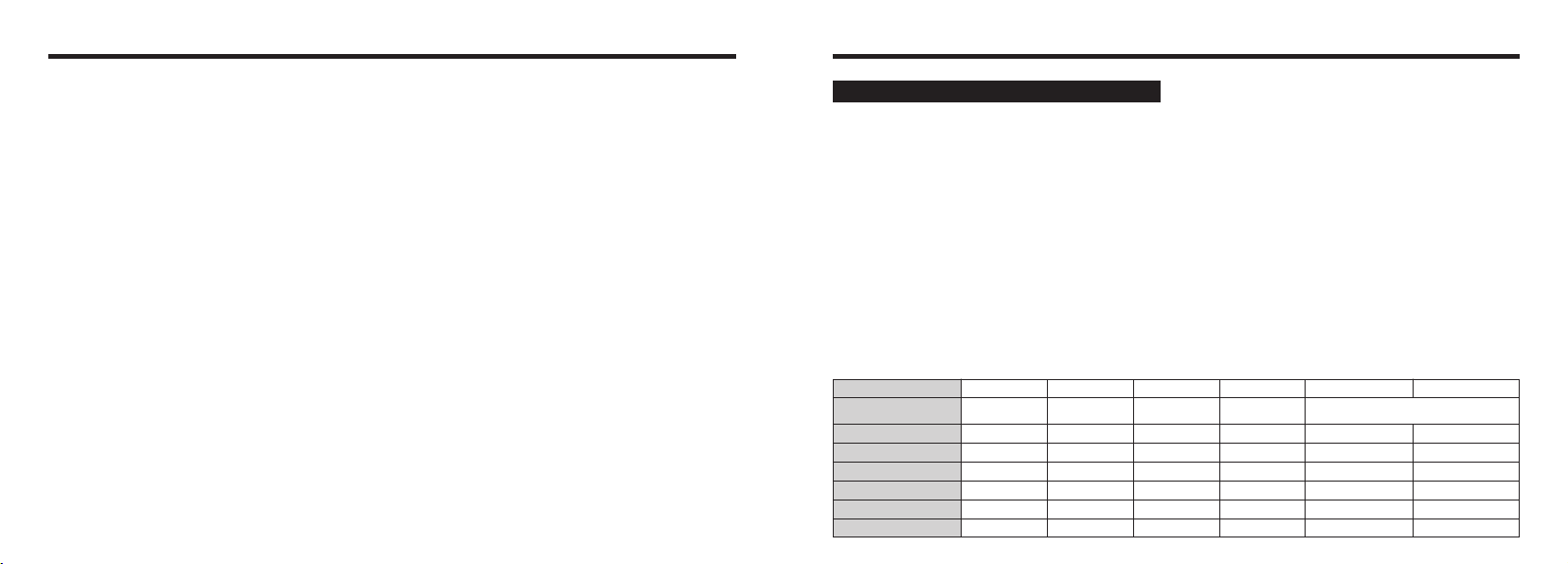
127126
Specifications
Quality
Image Data Size
DPC
-
16
(
16MB
)
DPC
-
32
(
32MB
)
DPC
-
64
(
64MB
)
33
68
137
122
247
497
1.5MB 780KB 470KB 130KB
~ 6M ` 3M
DPC
-
128
(
128MB
)
DPC
-
256
(
256MB
)
86
173
43
21
10
162
325
81
40
19
275
550
997
1997
Number of recorded
pixels
2816 × 2120 2048 × 1536 640 × 480
Movie
1 1M ! 0.3M
Approx.
26.8
min.
Approx.
98
sec.
Approx.
199
sec.
—
Approx.
6.7
min.
Approx.
13.4
min.
#
Approx.
91.3
min.
Approx.
5.6
min.
Approx.
11.3
min.
—
Approx.
22.8
min.
Approx.
45.6
min.
$
1280 × 960
System
h Model : Digital camera FinePix F410
h Number of effective pixels : 3.1 million pixels
h CCD sensor
1/2.7-inch Super CCD in an interwoven pattern
Number of total pixels 3.14 million pixels
h Number of recorded pixels
2816 × 2120 pixels
(
6.0 million pixels
)
/2048 × 1536 pixels/
1280 × 960 pixels/640 × 480 pixels
h File format
Still image : JPEG
(
Exif ver. 2.2
)
✽ Design rule for Camera File System compliant, DPOF
compatible
Movie : AVI format, Motion JPEG
Audio : WAV format
h Storage media : xD
-
Picture Card 16/32/64/128/256MB
h Viewfinder : Real image optical Approx. 80% coverage
h Lens : Fujinon optical 3× zoom lens
h Aperture : F2.8/F7
(
automatically selected
)
h Focus : TTL contrast-type, Auto focus
h Focus distance : f = 5.7 mm to 17.1 mm
(
Equivalent to 38 mm to 114 mm on a 35 mm camera
)
h Exposure control
TTL 64-zones metering, Program AE, exposure
compensation available in Manual photography mode
h Sensitivity : Equivalent to ISO 200/400/800
h White Balance
Auto
(
In Manual modes, 7 positions can be selected.
)
h Focal range
Normal : Approx. 60 cm
(
2.0 ft.
)
to infinity
Macro : Approx. 10 cm
(
0.3 ft.
)
to 80 cm
(
2.6 ft.
)
■ Standard number of available shots/recording time for xD
-
Picture Cards
The number of available shots, recording time or file size varies slightly depending on the subjects photographed. Note also that the divergence
between standard number of available shots and the actual number of available shots is greater for xD
-
Picture Cards with higher capacities.
PC Card :
A generic term for cards that meet the PC Card Standard.
PC Card Standard :
A standard for PC cards determined by the PCMCIA.
PCMCIA :
Personal Computer Memory Card International Association
(
US
)
.
WAVE :
A standard format used on Windows systems for saving audio data. WAVE files have the “.WAV” file
extension and the data can be saved in either compressed or uncompressed format. Uncompressed
recording is used on this camera.
WAVE files can be played back on a personal computer using the following software :
Windows : MediaPlayer
Macintosh : QuickTime Player
✽ QuickTime 3.0 or later
White Balance :
Whatever the kind of the light, the human eye adapts to it so that a white object still looks white. On the other
hand, devices such as digital cameras see a white subject as white by first adjusting the color balance to suit
the color of the ambient light around the subject. This adjustment is called matching the white balance. A
function that automatically matches the white balance is called an Automatic White Balance function.
Explanation of Terms
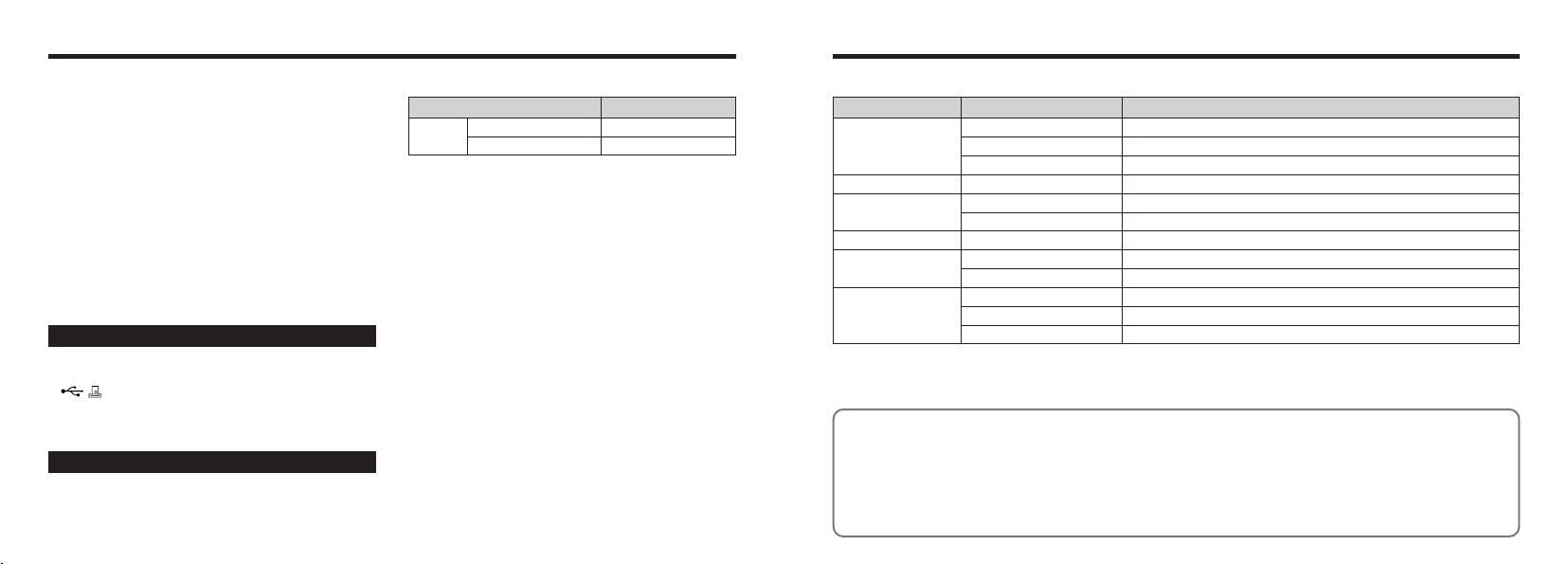
129128
✽
These specifications are subject to change without notice.
✽
The LCD monitor on your digital camera is manufactured using advanced high-precision technology. Even so, small bright
points and anomalous colors
(
particularly around text
)
may appear on the monitor. These are normal display characteristics
and do not indicate a fault with the monitor. This phenomenon will not appear on the recorded image.
✽ The operation error may be caused in a digital camera by the strong radio interference
(
i. e. electric fields, static
electricity, line noise, etc.
)
.
✽ Due to the nature of the lens, the edges of photographed images may appear distorted. This is normal and does not
indicate a fault.
Display Status
Lit Charging in progress
Charging error
From 10 seconds to 5 seconds before the shot is taken
Recording in progress
During communication with a computer
Charging complete
POWER switch set to ON (goes off after several seconds)
For 5 seconds or less before the shot is taken
For 5 seconds or less before recording ends
During communication with a computer
Ready for disconnection
Off
Blinking
Lit
Lit
Blinking
Blinking
Flashing rapidly
Flashing rapidly
Blinking
Off
Camera operation
During charging
Switched on
Self-timer
photography
Recording Voice
Memos
Connected to a
computer
■ Self timer lamp display
Specifications
h Shutter : Variable-speed, 1/4 sec. to 1/2000 sec.
(
depend
on Exposure mode
)
h Flash : Auto flash using flash control sensor
Effective range : Wide-angle Approx. 0.4 m to 3.5 m
(
1.3 ft. to 11.5 ft.
)
Telephoto Approx. 0.4 m to 2 m
(
1.3 ft. to 6.6 ft.
)
Flash modes : Auto, Red
-
Eye Reduction, Forced Flash,
Suppressed Flash, Slow Synchro
h Erase modes : ERASE FRAME, ERASE ALL FRAMES,
FORMAT
(
initialize
)
h LCD monitor
1.5-inches, low-temperature polysilicon TFT 118,000 pixels,
100% coverage
h Self
-
Timer : 10 sec. timer clock
h DC Input : To connect the AC power Adapter AC
-
5VW/
AC
-
5VHS
h
(
USB
)
socket
For file transfer to a computer and connection to the
optional cradle
Power Su
pp
l
y
and Others
In
p
ut
/
Out
p
ut Terminals
h Power supply
Use one of the following
• Rechargeable Battery NP
-
60 or AC Power Adapter
AC
-
5VW/AC
-
5VS/AC
-
5VHS
■ Available shots using the battery
(
When fully charged
)
The number of shots shown here is an approximate guide
to the number of consecutive shots that can be taken based
on 50% flash usage at normal temperatures. However, the
actual number of available shots will vary depending on the
ambient temperature when the camera is used and the
amount of charge in the battery. The number of available
shots will be lower in cold conditions.
h Conditions for use
Temperature : 0°C to
+
40°C
(+
32°F to
+
104°F
)
80% humidity or less
(
no condensation
)
h Camera dimensions
(
W/H/D
)
85.0 mm × 69.4 mm × 27.5 mm/3.3 in. × 2.7 in. × 1.1 in.
(not including accessories and attachments
)
h Camera mass
(
weight
)
: 165 g/5.8 oz.
(not including accessories, battery and xD
-
Picture Card
)
h Weight for photography : Approx. 195 g/6.9 oz.
(
including battery and xD
-
Picture Card
)
h Accessories : See P.7
h Optional Accessories : See P.110
-
111
Battery Type
Number of Shots
NP
-
60
LCD monitor ON
Approx. 240
Approx. 550
LCD monitor OFF
Start of recording
(
continuous shots
)(
excluding movies
)
LitRecording shots
131130
WARNINGWARNING
Do not modify, heat or unduly twist or pull
the connection cord and do not place
heavy objects on the connection cord.
These actions could damage the cord and
cause a fire or electric shock.
h If the cord is damaged, contact your
FUJIFILM dealer.
Do not place the camera on an unstable
surface.
This can cause the camera to fall or tip over
and cause injury.
Never attempt to take pictures while in
motion.
Do not use the camera while you are walking
or operating a moving car or other vehicle.
This can result in you falling down or being
involved in a traffic accident.
Do not touch any metal parts of the
camera during a thunderstorm.
This can cause an electric shock due to
induced current from the lightning discharge.
Do not use the battery except as
specified.
Load the battery with the poles positioned
as indicated by the > and < marks.
Do not heat, modify or attempt to
disassemble the battery.
Do not drop or subject the battery to
impacts.
Do not attempt to recharge lithium or
alkaline batteries.
Do not store the batteries with metallic
products.
Do not use chargers other than the
specified model to charge the battery.
Any of these actions can cause the battery to
burst or leak and cause fire or injury as a result.
Use only the battery or AC power
adapters specified for use with this
camera.
Do not use voltages other than the
power supply voltage shown.
The use of other power sources can cause
a fire.
If the battery leaks and fluid gets into
your eyes or comes into contact with
your skin or clothing, this can cause
injury or loss of eyesight. Immediately
flush the affected area thoroughly with
clean water and seek medical treatment.
h To ensure that you use your FinePix F410 camera
correctly, read these Safety Notes and your Owner’s
Manual carefully beforehand.
h After reading these Safety Notes, store them in a safe
place.
About the Icons
The icons shown below are used in this document to
indicate the severity of the injury or damage that can
result if the information indicated by the icon is ignored
and the product is used incorrectly as a result.
WARNING
This icon indicates that death or
serious injury can result if the
information is ignored.
CAUTION
This icon indicates that personal
injury or material damage can
result if the information is ignored.
The icons shown below are used to indicate the nature
of the information which is to be observed.
Triangular icons notify the user of information
requiring attention
(
“Important”
)
.
Circular icons with a diagonal bar notify the
user that the action indicated is prohibited
(
“Prohibited”
)
.
Filled circles with an exclamation mark notify
the user of an action that must be performed
(
“Required”
)
.
Safety Notes
WARNING
If a problem arises, switch the camera
off, remove the battery, disconnect and
unplug the AC power adapter.
Continued use of the camera when it is
emitting smoke, is emitting any unusual
odor, or is in any other abnormal state can
cause a fire or electric shock.
h Contact your FUJIFILM dealer.
Do not allow water or foreign objects to
enter the camera.
If water or foreign objects get inside the
camera, switch the camera off, remove the
battery and disconnect and unplug the AC
power adapter.
Continued use of the camera can cause a
fire or electric shock.
h Contact your FUJIFILM dealer.
Do not use the camera in the bathroom
or shower.
This can cause a fire or electric shock.
Never attempt to modify or disassemble
the camera.
(
Never open the casing.
)
Do not use the camera when it has been
dropped or the casing is damaged.
This can cause a fire or electric shock.
h Contact your FUJIFILM dealer.
Do not
disassemble.
Do not use in the
bathroom or shower.
Unplug from
power socket.
133132
CAUTION
CAUTION
Do not cover or wrap the camera or the
AC power adapter in a cloth or quilt.
This can cause heat to build up and distort
the casing or cause a fire.
When you are cleaning the camera or
you do not plan to use the camera for an
extended period, remove the battery and
disconnect and unplug the AC power
adapter.
Failure to do so can cause a fire or electric
shock.
When charging ends, unplug the
charger from the power socket.
Leaving the charger plugged into the power
socket can cause a fire.
Using a flash too close to a person’s
eyes may temporarily affect the
eyesight.
Take particular care when photographing
infants and young children.
When an xD-Picture Card is removed,
the card may fly completely out of the
slot. Use your finger to stop the card
from flying out before removing the
card.
If an xD
-
Picture Card is allowed to fly out, it
could hit someone and cause injury.
Request regular internal testing and
cleaning for your camera.
Build-up of dust in your camera can cause
a fire or electric shock.
h Contact your FUJIFILM dealer to request
internal cleaning every 2 years.
Safety Notes
WARNING
CAUTION
Do not use this camera in locations
severely affected by oil fumes, steam,
humidity or dust.
This can cause a fire or electric shock.
Do not leave this camera in places
subject to extremely high temperatures.
Do not leave the camera in locations such
as a sealed vehicle or in direct sunlight.
This can cause a fire.
Keep out of the reach of small children.
This product could cause injury in the
hands of a child.
Do not place heavy objects on the camera.
This can cause the heavy object to tip over
or fall and cause injury.
Do not move the camera while the AC
power adapter is still connected.
Do not pull on the connection cord to
disconnect the AC power adapter.
This can damage the power cord or cables
and cause a fire or electric shock.
Do not use the AC power adapter when
the plug is damaged or the plug socket
connection is loose.
This could cause a fire or electric shock.
Do not use the charger to charge a
battery other than those specified here.
The charger is designed for Fujifilm NP
-
60
battery or HR
-
AA Ni
-
MH batteries. Using
the charger to charge conventional battery
or other types of rechargeable battery can
cause the battery to leak fluid, overheat or
burst.
When discarding or storing batteries,
cover the battery terminals with
insulation tape.
h Contact with other metallic objects or
batteries could cause the battery to ignite
or burst.
Keep xD-Picture Cards out of the reach
of small children.
Because xD
-
Picture Cards are small, they
can be accidentally swallowed by small
children. Be sure to store xD
-
Picture Cards
out of the reach of small children. If a child
accidentally swallows an xD
-
Picture Card,
seek medical advice immediately.
135134
IMPORTANT
Be sure to read this page before using theSoftware.
NOTICE
BEFORE OPENING THE PACKAGE OF CD
-
ROM PROVIDED BY
FUJI PHOTO FILM CO., LTD., PLEASE READ THIS END USER
LICENSE AGREEMENT CAREFULLY. ONLY IF YOU DO AGREE TO
THIS AGREEMENT, YOU WILL BE ABLE TO USE THE SOFTWARE
RECORDED ON THE CD-ROM. BY OPENING THE PACKAGE, YOU
ACCEPT AND AGREE TO BE BOUND BY THIS AGREEMENT.
End User License Agreement
T
his End User License Agreement
(
“Agreement”
)
is an agreement between Fuji Photo
Film Co., Ltd.
(
“FUJIFILM”
)
and you, which sets forth the terms and conditions of the
license granted for you to use the software provided by FUJIFILM.
The CD
-
ROM contains third party software. In case a separate agreement is provided by
a third party supplier for its software, the provisions of such separate agreement shall
apply to the use of such third party software, prevailing over those of this Agreement.
1. Definitions.
(
a
)
“Media” means the CD
-
ROM titled “Software for FinePix SX” which is provided
to you together with this Agreement.
(
b
)
“Software” means the software which is recorded on Media.
(
c
)
“Documentation” means the operation manuals of Software and other related
written materials which are provided to you together with Media.
(
d
)
“Product” means Media
(
including Software
)
and Documentation collectively.
2. Use of Software.
FUJIFILM grants to you a nontransferable, nonexclusive license :
(
a
)
to install one copy of Software onto one computer in binary machine executable form;
(
b
)
to use Software on the computer onto which Software is installed; and
(
c
)
to make one backup copy of Software.
3. Restrictions.
3.1 You shall not distribute, rent, lease or otherwise transfer all or any part of
Software, Media or Documentation to any third party without FUJIFILM’s prior
written consent. You also shall not sublicense, assign or otherwise transfer all
or any part of the rights granted to you by FUJIFILM under this Agreement
without FUJIFILM’s prior written consent.
3.2 Except as expressly granted by FUJIFILM hereunder, you shall not copy or
reproduce all or any part of Software or Documentation.
3.3 You shall not modify, adapt or translate Software or Documentation. You also
shall not alter or remove copyright and other proprietary notices that appear on
or in Software or Documentation.
3.4 You shall not, or shall not have any third party, reverse-engineer, decompile,
or disassemble Software.
4. Ownership.
All copyrights and other proprietary rights to Software and Documentation are
owned and retained by FUJIFILM or the third party suppliers as indicated on or in
Software or Documentation. Nothing contained herein shall be construed,
expressly or implicitly, as transferring or granting any right, license, or title to you
other than those explicitly granted under this Agreement.
5. Limited Warranty.
FUJIFILM warrants to you that Media is free from any defect in material and
workmanship under normal use for ninety
(
90
)
days from the date of your receipt of
Media. Should Media not meet the foregoing warranty, FUJIFILM shall replace
such defective Media with other Media bearing no defect. FUJIFILM’s entire liability
and your sole and exclusive remedy with regard to any defect in Media shall be
expressly limited to such FUJIFILM’s replacement of Media as provided herein
6. DISCLAIMER OF WARRANTY.
EXCEPT AS PROVIDED IN SECTION 5 HEREIN, FUJIFILM PROVIDES
PRODUCT “AS IS” AND WITHOUT WARRANTIES OF ANY KIND, EXPRESS OR
IMPLIED. FUJIFILM SHALL MAKE NO WARRANTY, EXPRESS, IMPLIED OR
STATUTORY, AS TO ANY OTHER MATTERS, INCLUDING, BUT NOT LIMITED
TO NON
-
INFRINGEMENT OF ANY COPYRIGHT, PATENT, TRADE SECRET,
OR ANY OTHER PROPRIETARY RIGHTS OF ANY THIRD PARTY,
MARCHANTABILITY, OR FITNESS FOR ANY PARTICULAR PURPOSE.
7. LIMITATION OF LIABILITY.
IN NO EVENT SHALL FUJIFILM HAVE ANY LIABILITY FOR ANY GENERAL,
SPECIAL, DIRECT, INDIRECT, CONSEQUENTIAL, INCIDENTAL, OR OTHER
DAMAGES
(
INCLUDING DAMAGES FOR LOSS OF PROFITS OR LOST SAVINGS
)
INCURRED FROM THE USE OF OR INABILITY TO USE PRODUCT EVEN IF
FUJIFILM HAS BEEN ADVISED OF THE POSSIBILITY OF SUCH DAMAGES.
8. No export.
You acknowledge that neither Software nor any part thereof, will be transferred, or
exported to any country or used in any manner in violation of any export control
laws and regulations to which Software is subject.
9. Termination.
In case you breach any of the terms and conditions hereof, FUJIFILM may
immediately terminate this Agreement without any notice.
10. Term.
This Agreement is effective until the date when you cease to use
Software, unless earlier terminated in accordance with Section 9 hereof.
11. Obligation upon termination.
Upon termination or expiration of this Agreement, you shall, at your own
responsibility and expense, delete or destroy immediately all Software
(
including its copies
)
, Media and Documentation.
12. Governing Law.
This Agreement shall be governed by and construed in accordance with
laws of Japan.
EC Declaration of Conformity
We
Name
:
Fuji Photo Film
(
Europe
)
G.m.b.H.
Address
:
Heesenstrasse 31
40549 Dusseldorf, Germany
declare that the product
Product Name : FUJIFILM DIGITAL CAMERA FinePix F410
Manufacture’s Name : Fuji Photo Film Co., Ltd.
Manufacture’s Address : 26
-
30, Nishiazabu 2
-
chome, Minato
-
ku,
Tokyo 106
-
8620, Japan
is in conformity with the following Standards
Safety
:
EN60065
EMC
:
EN55022
:
1998 Classe B
EN55024
:
1998
EN61000
-
3
-
2
:
1995
+
A1:1998
+
A2: 1998
following the provision of the EMC Directive
(
89
/
336
/
EEC, 92
/
31
/
EEC and
93
/
68
/
EEC
)
and Low Voltage Directive
(
73
/
23
/
EEC
)
.
Dusseldorf, Germany March 1, 2003
Place Date Signature/Managing Director
Bij dit produkt zijn batterijen geleverd. Wanneer deze leeg zijn, moet u ze niet
weggooien maar inleveren als KCA
Printed in Japan FGS
-
305102
-
FG
Printed on recycled paper.
26
-
30, Nishiazabu 2
-
chome, Minato
-
ku, Tokyo 106
-
8620, Japan
http://home.fujifilm.com/products/digital/index.html