KLV-32U100M
2-668-009-13(1)
G:\#Sagyo\SONY\09 TV\kaihan KLV-
32U100M\1219_KLV32U100M_rev\2668009131\2668009131 KLV-
32U100M_US\00USCOVER.fm
masterpage:Right
© 2006 Sony Corporation
2-668-009-13(1)
LCD HDTV Monitor
Operating Instructions
KLV-32U100M
KLV-40U100M
01US02WAR-UC.book Page 1 Monday, December 19, 2005 1:58 PM
2
KLV-32U100M
2-668-009-13(1)
G:\#Sagyo\SONY\09 TV\kaihan
KLV-32U100M\1219_KLV32U100M_rev\2668009131\2668009131
KLV-32U100M_US\01US02Cov2.fm
masterpage:3 columns Right
Owner’s Record
The model and serial numbers are located at the rear of the unit. Record
these numbers in the spaces provided below. Refer to them whenever
you call upon your Sony dealer regarding this product.
Model No.
Serial No.
Contacting Sony
If, after reading the following instructions, you have additional
questions related to the use of your Sony
®
unit, please call one of
the following numbers.
Customers in the continental United States contact the Direct
Response Center at:
1-800-222-SONY (7669)
or visit http://www.sony.com/TVsupport
Customers in Canada contact the Customer Relations Center at:
1-877-899-SONY (7669)
or visit http://www.sony.com/TVsupport
01US02WAR-UC.book Page 2 Monday, December 19, 2005 1:58 PM
3
KLV-32U100M
2-668-009-13(1)
G:\#Sagyo\SONY\09 TV\kaihan
KLV-32U100M\1219_KLV32U100M_rev\2668009131\2668009131
KLV-32U100M_US\01US02WAR.fm
masterpage:3 columns Right
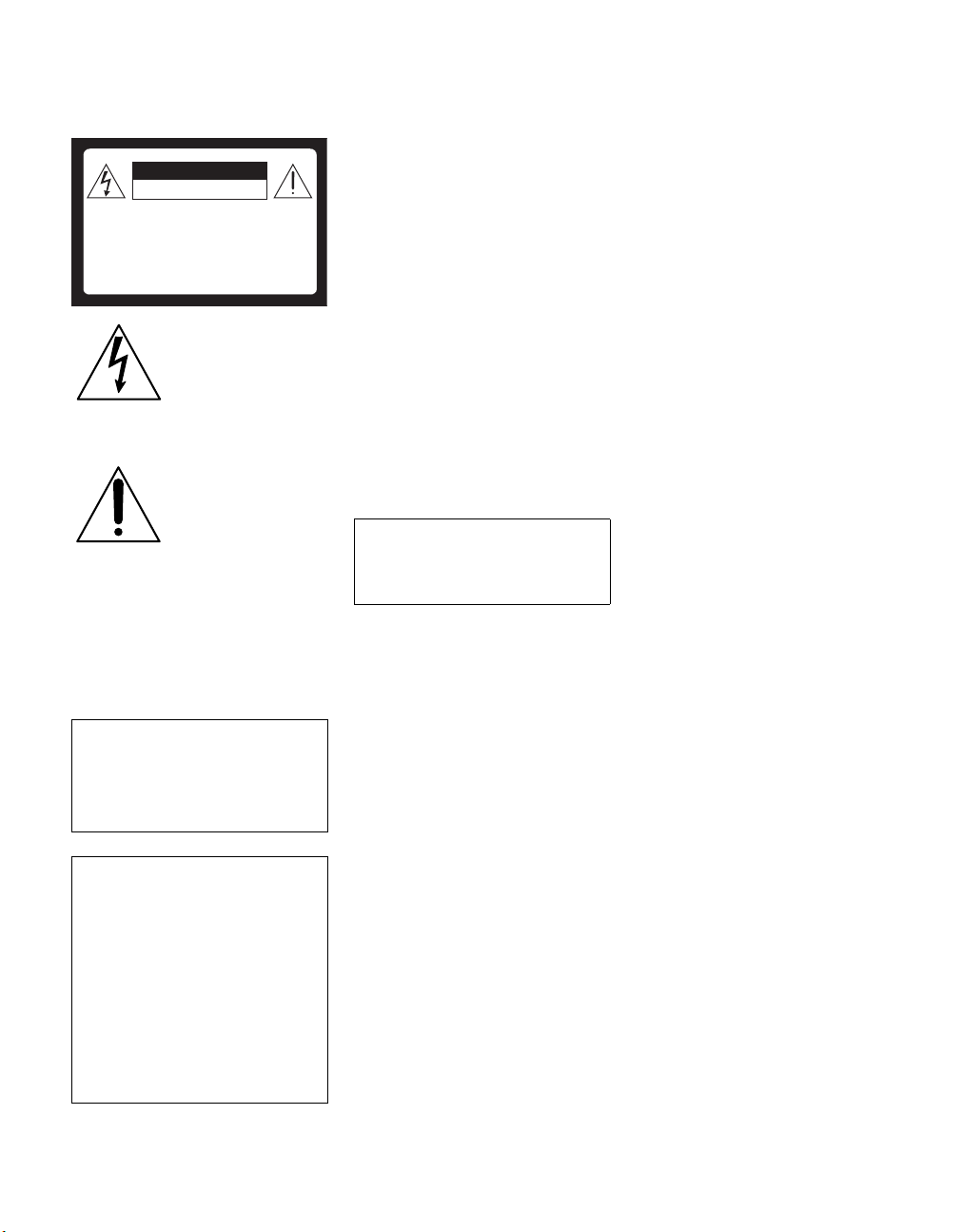
WARNING
To reduce the risk of fire or electric shock, do
not expose this apparatus to rain or moisture.
This symbol is intended to
alert the user to the presence
of uninsulated “dangerous
voltage” within the
product’s enclosure that
may be of sufficient
magnitude to constitute a
risk of electric shock to
persons.
This symbol is intended to
alert the user to the presence
of important operating and
maintenance (servicing)
instructions in the literature
accompanying the
appliance.
The apparatus shall not be exposed to dripping
or splashing and no objects filled with liquids,
such as vases, shall be placed on the apparatus.
CAUTION
To prevent electric shock, do not use this
polarized AC plug with an extension cord,
receptacle or other outlet unless the blades can
be fully inserted to prevent blade exposure.
NOTIFICATION
This equipment has been tested and found to
comply with the limits for a Class B digital
device, pursuant to Part 15 of the FCC Rules.
These limits are designed to provide reasonable
protection against harmful interference in a
residential installation. This equipment
generates, uses and can radiate radio frequency
energy and, if not installed and used in
accordance with the instructions, may cause
harmful interference to radio communications.
However, there is no guarantee that interference
will not occur in a particular installation. If this
equipment does cause harmful interference to
radio or television reception, which can be
determined by turning the equipment off and on,
the user is encouraged to try to correct the
interference by one or more of the following
measures:
s Reorient or relocate the receiving
antenna.
s Increase the separation between the
equipment and receiver.
s Connect the equipment into an outlet on a
circuit different from that to which the
receiver is connected.
s Consult the dealer or an experienced
radio/TV technician for help.
For Customers in Canada
This Class B digital apparatus complies with
Canadian ICES-003.
Safety
s Operate the unit only on 120 V AC.
s Use the AC power cord specified by Sony
and suitable for the voltage where you use
it.
s The plug is designed, for safety purposes,
to fit into the wall outlet only one way. If
you are unable to insert the plug fully into
the outlet, contact your dealer.
s If any liquid or solid object should fall
inside the cabinet, unplug the unit
immediately and have it checked by
qualified service personnel before
operating it further.
s If you will not be using the unit for several
days, disconnect the power by pulling the
plug itself. Never pull on the cord.
s For details concerning safety precautions,
see “Important Safety Instructions” on
page 4 and “Important Safeguards” on
page 5.
Installing
s The unit should be installed near an easily
accessible power outlet.
s To prevent internal heat buildup, do not
block the ventilation openings.
s Do not install the unit in a hot or humid
place, or in a place subject to excessive
dust or mechanical vibration.
s Avoid operating the unit at temperatures
below 5°C (41°F).
s If the unit is transported directly from a
cold to a warm location, or if the room
temperature changes suddenly, the picture
may be blurred or show poor color due to
moisture condensation. In this case,
please wait a few hours to let the moisture
evaporate before turning on the unit.
s To obtain the best picture, do not expose
the screen to direct illumination or direct
sunlight. It is recommended to use spot
lighting directed down from the ceiling or
to cover the windows that face the screen
with opaque drapery. It is desirable to
install the unit in a room where the floor
and walls are not of a reflective material.
CAUTION
Use the following Sony appliance(s) only with
the following WALL-MOUNT BRACKET.
Use with other WALL-MOUNT BRACKET
may cause instability and possibly result in
injury.
SONY APPLIANCE MODEL NO.
KLV-32U100M
KLV-40U100M
SONY WALL-MOUNT BRACKET MODEL NO.
SU-WL31 (KLV-32U100M)
SU-WL51 (KLV-40U100M)
To Customers
Sufficient expertise is required for installing the
specified product. Be sure to subcontract the
installation to Sony dealers or licensed
contractors and pay adequate attention to safety
during the installation.
For Customers in the United
States
If you have any questions about this product,
you may call; Sony Customer Information
Services Center 1-800-222-7669 or
http://www.sony.com/
Declaration of Conformity
Trade Name: SONY
Model: KLV-32U100M/KLV-40U100M
CAUTION
RISK OF ELECTRIC SHOCK
DO NOT OPEN
ATTENTION
RISQUE DE CHOC ELECTRIQUE,
NE PAS OUVRIR
PRECAUCION
RIESGO DE CHOQUE ELECTRICO
NO ABRIR
Responsible Party: Sony Electronics Inc.
Address: 16450 W. Bernardo Dr,
San Diego, CA 92127 U.S.A.
Telephone Number: 858-942-2230
This device complies with part 15 of the
FCC rules. Operation is subject to the
following two conditions: (1) This device
may not cause harmful interference, and (2)
this device must accept any interference
received, including interference that may
cause undesired operation.
Pursuant to FCC regulations, you are
cautioned that any changes or modifications
not expressly approved in this manual could
void your authority to operate this
equipment.
(Continued)
01US02WAR-UC.book Page 3 Monday, December 19, 2005 1:58 PM
4
KLV-32U100M
2-668-009-13(1)
G:\#Sagyo\SONY\09 TV\kaihan
KLV-32U100M\1219_KLV32U100M_rev\2668009131\2668009131
KLV-32U100M_US\01US02WAR.fm
masterpage:3 columns Right
For Customers in the United States
This product contains mercury. Disposal of this product may be regulated
if sold in the United States. For disposal or recycling information, please
contact your local authorities or the Electronics Industries Alliance
(http://www.eiae.org).
To Sony Dealers
For installation of SONY WALL-MOUNT BRACKET, be sure to read
and follow the instructions supplied with those optional products.
Trademark Information
WOW, SRS and the symbol are trademarks of SRS Labs, Inc.
WOW technology is incorporated under license from SRS Labs, Inc.
Licensed by BBE Sound, Inc. under USP4638258, 4482866. “BBE” and
BBE symbol are trademarks of BBE Sound, Inc.
BBE High Definition Sound is fully activated maximizing the sound effect
in the WOW mode.
Macintosh is a trademark licensed to Apple Computer, Inc., registered in
the U.S.A and other countries.
CineMotion is a registered trademark of Sony Corporation.
As an ENERGY STAR
®
Partner, Sony Corporation has
determined that this product meets the ENERGY STAR
®
guidelines for energy efficiency.
ENERGY STAR
®
is a U.S. registered mark.
This unit incorporates High-Definition
Multimedia Interface (HDMI™) technology.
HDMI, the HDMI logo and High-Definition Multimedia Interface are
trademarks or registered trademarks of HDMI Licensing LLC.
Important Safety Instructions
1) Read these instructions.
2) Keep these instructions.
3) Heed all warnings.
4) Follow all instructions.
5) Do not use this apparatus near water.
6) Clean only with dry cloth.
7) Do not block any ventilation openings. Install in
accordance with the manufacturer’s instructions.
8) Do not install near any heat sources
such as radiators, heat registers,
stoves, or other apparatus (including
amplifiers) that produce heat.
9) Do not defeat the safety purpose of the polarized
or grounding-type plug. A polarized plug has two
blades with one wider than the other. A grounding
type plug has two blades and a third grounding
prong. The wide blade or the third prong are
provided for your safety. If the provided plug
does not fit into your outlet, consult an electrician
for replacement of the obsolete outlet.
10) Protect the power cord from being walked on or
pinched particularly at plugs, convenience
receptacles, and the point where they exit from
the apparatus.
11) Only use attachments/accessories specified by the
manufacturer.
12) Use only with the cart, stand, tripod, bracket, or
table specified by the manufacturer, or sold with
the apparatus. When a cart is used, use caution
when moving the cart/apparatus combination to
avoid injury from tip-over.
13) Unplug this apparatus during lightning storms or
when unused for long periods of time.
14) Refer all servicing to qualified service personnel.
Servicing is required when the apparatus has been
damaged in any way, such as power-supply cord
or plug is damaged, liquid has been spilled or
objects have fallen into the apparatus, the
apparatus has been exposed to rain or moisture,
does not operate normally, or has been dropped.
01US02WAR-UC.book Page 4 Monday, December 19, 2005 1:58 PM
5
KLV-32U100M
2-668-009-13(1)
G:\#Sagyo\SONY\09 TV\kaihan
KLV-32U100M\1219_KLV32U100M_rev\2668009131\2668009131
KLV-32U100M_US\01US02WAR.fm
masterpage:3 columns Right
G:\#Sagyo\SONY\09 TV\kaihan
KLV-32U100M\1219_KLV32U100M_rev\2668009131\2668009131
KLV-32U100M_US\01US02WAR.fm
Important
Safeguards
Before using your unit, please read these instructions completely, and
keep this manual for future reference.
Carefully observe and comply with all warnings, cautions and
instructions placed on the unit or described in the operating instructions
or service manual.
WARNING
To guard against injury, the following basic safety precautions should be
observed in the installation, use and servicing of the unit.
Use
Power Sources
This unit should be operated only from the type of
power source indicated on the information label.
If you are not sure of the type of electrical power
supplied to your home, consult your dealer or
local power company.
Grounding or Polarization
This unit is equipped with a polarized AC power cord plug (a plug
having one blade wider than the other), or with a three-wire grounding
type plug (a plug having a third pin for grounding). Follow the
instructions below:
For the unit with a three-wire grounding type
AC power cord plug (Class 1 unit)
This unit must be connected to an AC power socket
outlet with a protective earthing connection.
For the unit with a polarized AC power cord
plug
This plug will fit into the power outlet only one way.
This is a safety feature. If you are unable to insert
the plug fully into the outlet, try reversing the plug.
If the plug still fails to fit, contact your electrician to have a suitable
outlet installed. Do not defeat the safety purpose of the polarized plug by
forcing it in.
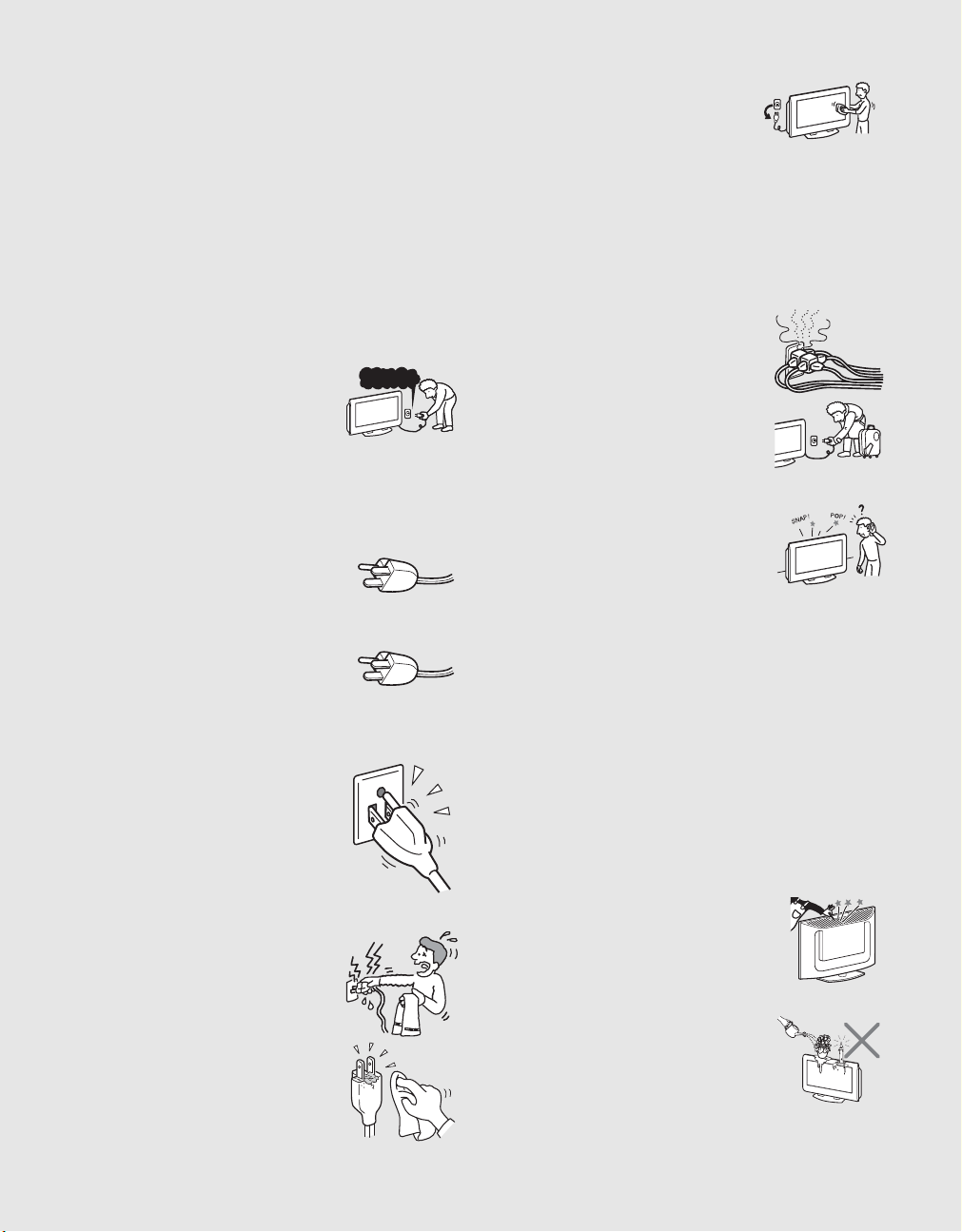
Wall outlet
Do not use a poor fitting outlet.
Insert the plug fully into the outlet. If it is loose, it
may cause arcing and result in fire.
Contact your electrician to have the outlet
changed.
Wiring
For your safety, unplug the AC power cord when wiring cables.
Electric shock
Do not touch the AC power cord or the unit with a
wet hand. If you plug/unplug the AC power cord
from the unit with a wet hand, it may cause electric
shock.
Cleaning
s Clean the AC power plug regularly.
If the plug is covered with dust and it picks
up moisture, its insulation may deteriorate
and result in fire. Unplug the AC power
plug and clean it regularly.
120V AC
s Unplug the AC power cord when
cleaning this unit. If not, it may result
in electric shock.
s Clean the cabinet of the unit with a dry
soft cloth. To remove dust from the screen, wipe it gently with a
soft cloth. Stubborn stains may be removed with a cloth slightly
dampened with a solution of mild soap and warm water. Never use
strong solvents such as thinner or benzine for cleaning.
s If using a chemically pretreated cloth, please follow the
instruction provided on the package.
s If the picture becomes dark after using the unit for a long period
of time, it may be necessary to clean the inside of the unit. Consult
qualified service personnel.
Overloading
Do not overload wall outlets, extension cords or
convenience receptacles beyond their capacity,
since this can result in fire or electric shock.
Power
Always turn the unit off when it is not being used.
When the unit is left unattended and unused for
long periods of time, unplug it from the wall outlet
as a precaution against the possibility of an
internal malfunction that could create a fire
hazard.
Sound
If a snapping or popping sound from the unit is
continuous or frequent while the unit is operating,
unplug the unit and consult your dealer or service
technician. It is normal for unit’s to make
occasional snapping or popping sounds,
particularly when being turned on or off.
AC Power Cord
If you damage the AC power cord, it may result in fire or electric shock.
s Do not pinch, bend, or twist the cord excessively. The core lines
may be bared and cut, and cause short-circuit, resulting in fire or
electric shock.
s Do not convert or damage the AC power cord.
s Do not put anything heavy on the AC power cord. Do not pull the
AC power cord.
s Keep the AC power cord away from heat sources.
s Be sure to grasp the plug when disconnecting the AC power cord.
If the AC power cord is damaged, stop using it and ask your dealer or
Sony service center to exchange it.
Batteries
Do not dispose of batteries in a fire.
Do not short circuit, disassemble or overheat the batteries.
Disposal of used batteries
To preserve our environment, dispose of used batteries according to your
local laws or regulations.
Ventilation holes
Never push objects of any kind into the unit through
the cabinet slots as they may touch dangerous
voltage points or short out parts that could result in
a fire or electric shock. Never spill liquid of any kind
on the unit
Objects and Liquid Entry
Do not place any objects on the unit.
The apparatus shall not be exposed to dripping or
splashing and no objects filled with liquids, such
as vases, shall be placed on the apparatus.
(Continued)
5
KLV-32U100M
2-668-009-13(1)
G:\#Sagyo\SONY\09 TV\kaihan
KLV-32U100M\1219_KLV32U100M_rev\2668009131\2668009131
KLV-32U100M_US\01US02WAR.fm
masterpage:3 columns Right
01US02WAR-UC.book Page 5 Monday, December 19, 2005 1:58 PM
6
KLV-32U100M
2-668-009-13(1)
G:\#Sagyo\SONY\09 TV\kaihan
KLV-32U100M\1219_KLV32U100M_rev\2668009131\2668009131
KLV-32U100M_US\01US02WAR.fm
masterpage:3 columns Right
Attachments
Do not use attachments not recommended by the
manufacturer, as they may cause hazards.
Medical institution
Do not place this unit in a place where medical
equipment is in use.
It may cause malfunction of medical instruments.
Moisture and flammable objects
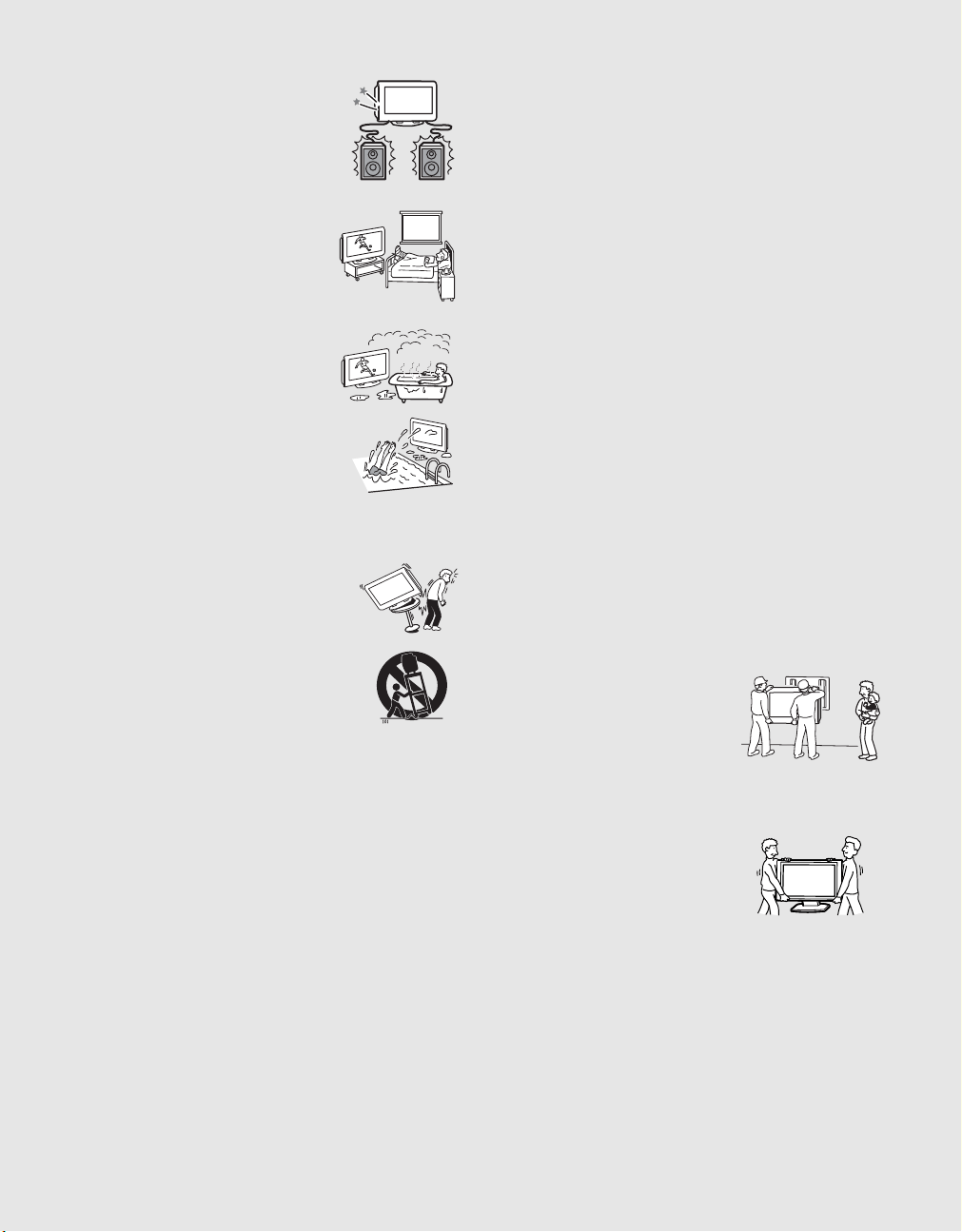
s Do not use plugged sets near
water — for example, near a bathtub,
washbowl, kitchen sink, or laundry tub, in
a wet basement, or near a swimming pool,
etc. It may result in fire or electric shock.
s Do not let this unit get wet. Never spill
liquid of any kind on the unit. If any liquid or
solid object does fall through, do not operate
the unit. It may result in electric shock or
damage to the unit. Have it checked
immediately by qualified personnel.
s To prevent fire, keep flammable objects or open flame (e.g.
candles) away from the unit.
Accessories
Do not place the unit on an unstable cart, stand, table
or shelf. The unit may fall, causing serious injury to a
child or an adult and serious damage to the unit. No
part of the unit should overhang any edge of the unit
cart or stand; any overhanging edge is a safety hazard.
An appliance and cart combination should be moved
with care. Quick stops, excessive force, and uneven
surfaces may cause the appliance and cart
combination to overturn.
Broken pieces
Do not throw anything at the unit.
The screen glass may break by the impact and cause serious injury.
Cable wiring
Take care not to catch your feet on the cables. It may damage the unit.
Heat
Do not touch the surface of the unit.
It remains hot, even for some time after the unit is turned off.
Volume adjustment
s Adjust the volume so as not to trouble your neighbors. Sound
carries very easily at night time. Therefore, closing the windows
or using headphones is suggested.
s When using headphones, adjust the volume so as to avoid
excessive levels, as hearing damage may result.
Disposal of the unit
s Do not dispose the unit with general household waste.
s The LCD contains a small amount of liquid crystal. The
fluorescent tube used in this display contains mercury. Follow
your local ordinances and regulations for disposal.
Handling of broken glass and liquid crystal
leakage
If the LCD panel gets damaged, crystalline liquid leakage may occur, or
scattered broken glass may result. Do not touch broken glass or
crystalline liquid (which is toxic), with bare hands as cuts or poisoning/
skin irritation may occur. Also, do not let glass fragments or leaked
crystalline liquid get into your eyes or mouth. Should either contact your
eyes or mouth, rinse the contacted area thoroughly with water and
consult your doctor.
LCD screen
s Although the LCD screen is made with high-precision technology
and has effective pixels of 99.99% or more, black dots may appear
or bright points of light (red, blue, or green) may appear constantly
on the LCD screen. This is a structural property of the LCD panel
and is not a malfunction.
s Do not expose the LCD screen surface to the direct sun light.
Doing so may damage the screen surface.
s Do not push or scratch the LCD screen, or place objects on top of
the unit. The image may be uneven or the LCD panel may be
damaged.
s If the unit is used in a cold place, a smear may occur in the picture
or the picture may become dark. This does not indicate a failure.
These phenomena improve as the temperature rises.
s Ghosting may occur when still pictures are displayed
continuously. It may disappear after a few moments.
s The screen and cabinet get warm when the unit is in use. This is
not a malfunction.
s Avoid spraying insect repellent with volatile material to the
screen.
s Avoid prolonged contact with rubber or plastic made material.
Fluorescent lamp
This unit uses a special fluorescent lamp as its light source. If the screen
image becomes dark, flickers, or does not appear, the fluorescent lamp
has run down and should be replaced. For replacement, consult qualified
service personnel.
Installation
Installation
s When installing or removing the unit
on the wall, be sure to use qualified
contractors. Wall mount installation
requires the use of a wall-mount
bracket. If the unit is installed or
removed from the wall by a person
other than a qualified contractor, the
unit may fall and cause serious injury
if the unit is not installed securely.
s To prevent injury, this apparatus
must be securely attached to the
stand/wall in accordance with the
installation instructions.
s Carrying the unit requires two or
more people.
Placement for viewing
It is recommended to watch the unit at a distance of 3 to 7 times that of
the screen height, and in moderate brightness. Watching the unit for too
long or in a dark room will cause eye fatigue.
6
KLV-32U100M
2-668-009-13(1)
G:\#Sagyo\SONY\09 TV\kaihan
KLV-32U100M\1219_KLV32U100M_rev\2668009131\2668009131
KLV-32U100M_US\01US02WAR.fm
masterpage:3 columns Right
01US02WAR-UC.book Page 6 Monday, December 19, 2005 1:58 PM
7
KLV-32U100M
2-668-009-13(1)
G:\#Sagyo\SONY\09 TV\kaihan
KLV-32U100M\1219_KLV32U100M_rev\2668009131\2668009131
KLV-32U100M_US\01US02WAR.fm
masterpage:3 columns Right
G:\#Sagyo\SONY\09 TV\kaihan
KLV-32U100M\1219_KLV32U100M_rev\2668009131\2668009131
KLV-32U100M_US\01US02WAR.fm
Optional accessories
Observe the following when installing the unit using a
wall-mount bracket. If the unit is not secured properly,
it may fall and cause injury.
s Be sure to follow the operating instructions
supplied with the wall-mount bracket when
installing the unit.
s Be sure to attach the brackets supplied with the
wall-mount bracket.
Protruding location
Do not install the unit in protruding locations. If you install the unit in the
following locations, injury may result.
s Do not install the unit in a location where the unit protrudes, such
as pillars.
s Do not install the unit in a location that may cause injury.
Oils
Do not install this unit in restaurants where oily vapors occur. Dust
absorbing oil may enter into the unit and damage the unit.
Corrosion
Use of this unit near the seashore may subject the set to excessive salt,
corrosion and internal damage and result in deterioration of the unit’s
performance. If the set will be subjected to these conditions, steps should
be taken to reduce the humidity and temperature of the area where the
unit is located.
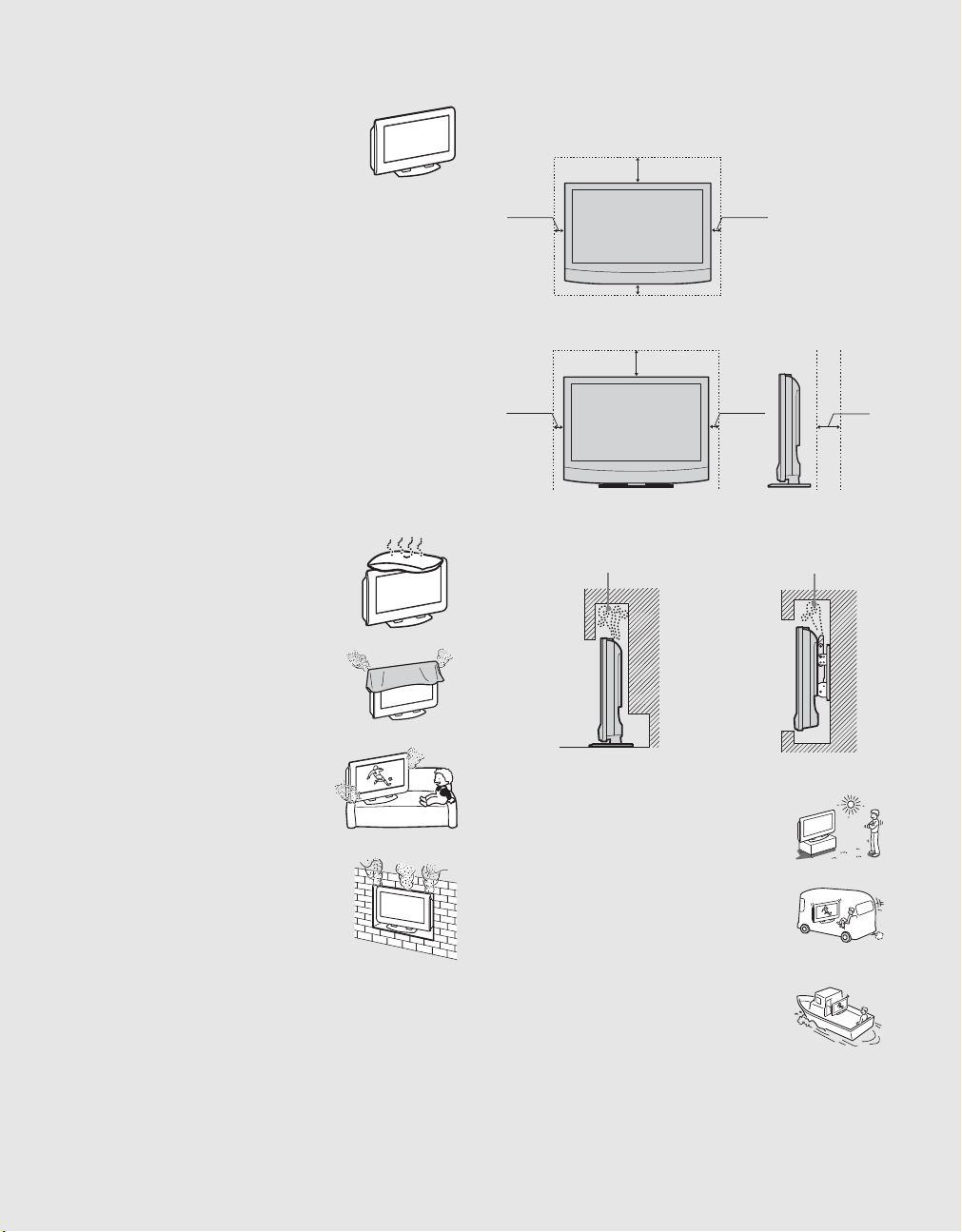
Ventilation
The slots and openings in the unit are provided for necessary ventilation.
To ensure reliable operation of the unit, and to protect it from
overheating, these slots and openings must never be blocked or covered.
Unless proper ventilation is provided, the unit may
gather dust and get dirty. For proper ventilation,
observe the following:
s Do not install the unit turned backward or
sideways.
s Do not install the unit turned over or upside
down.
s Never cover the slots and openings with a
cloth or other materials.
s Never block the slots and openings by
placing the unit on a bed, sofa, rug or
other similar surface.
s Never place the unit in a confined space, such
as a bookcase or built-in cabinet, unless
proper ventilation is provided.
s Leave some space around the unit. Otherwise, adequate
air-circulation may be blocked causing overheating and cause fire
or damage the unit.
Outdoor use
Do not install this unit outdoors. If the unit is exposed
to rain, it may result in fire or electric shock. If the unit
is exposed to direct sunlight, the unit may heat up and
cause damage to the unit.
Vehicle and ceiling
Do not install this unit in a vehicle or hang from the
ceiling.
Bumping of the vehicle may cause the unit to fall down
and cause injury.
Ship and vessel
Do not install this unit in a ship or vessel. If the unit is
exposed to seawater, it may cause fire or damage the
unit.
Preventing the unit from toppling
over
Take measures to prevent the unit from toppling over and causing injury.
To prevent the unit from toppling over, secure the unit to the wall or
pillar.
When installing the unit on the wall, allow this much space.
15 cm
(6 inches)
30 cm
(11
7
/
8
inches)
10 cm
(4 inches)
10 cm
(4 inches)
When installing the unit using a stand, allow this much space.
30 cm
(11
7
/
8
inches)
10 cm
(4 inches)
10 cm
(4 inches)
10 cm (4 inches)
Never install the unit as follows:
Air circulation is blocked. Air circulation is blocked.
(Continued)
7
KLV-32U100M
2-668-009-13(1)
masterpage:3 columns Right
G:\#Sagyo\SONY\09 TV\kaihan
KLV-32U100M\1219_KLV32U100M_rev\2668009131\2668009131
KLV-32U100M_US\01US02WAR.fm
01US02WAR-UC.book Page 7 Monday, December 19, 2005 1:58 PM
8
KLV-32U100M
2-668-009-13(1)
G:\#Sagyo\SONY\09 TV\kaihan
KLV-32U100M\1219_KLV32U100M_rev\2668009131\2668009131
KLV-32U100M_US\01US02WAR.fm
masterpage:3 columns Right
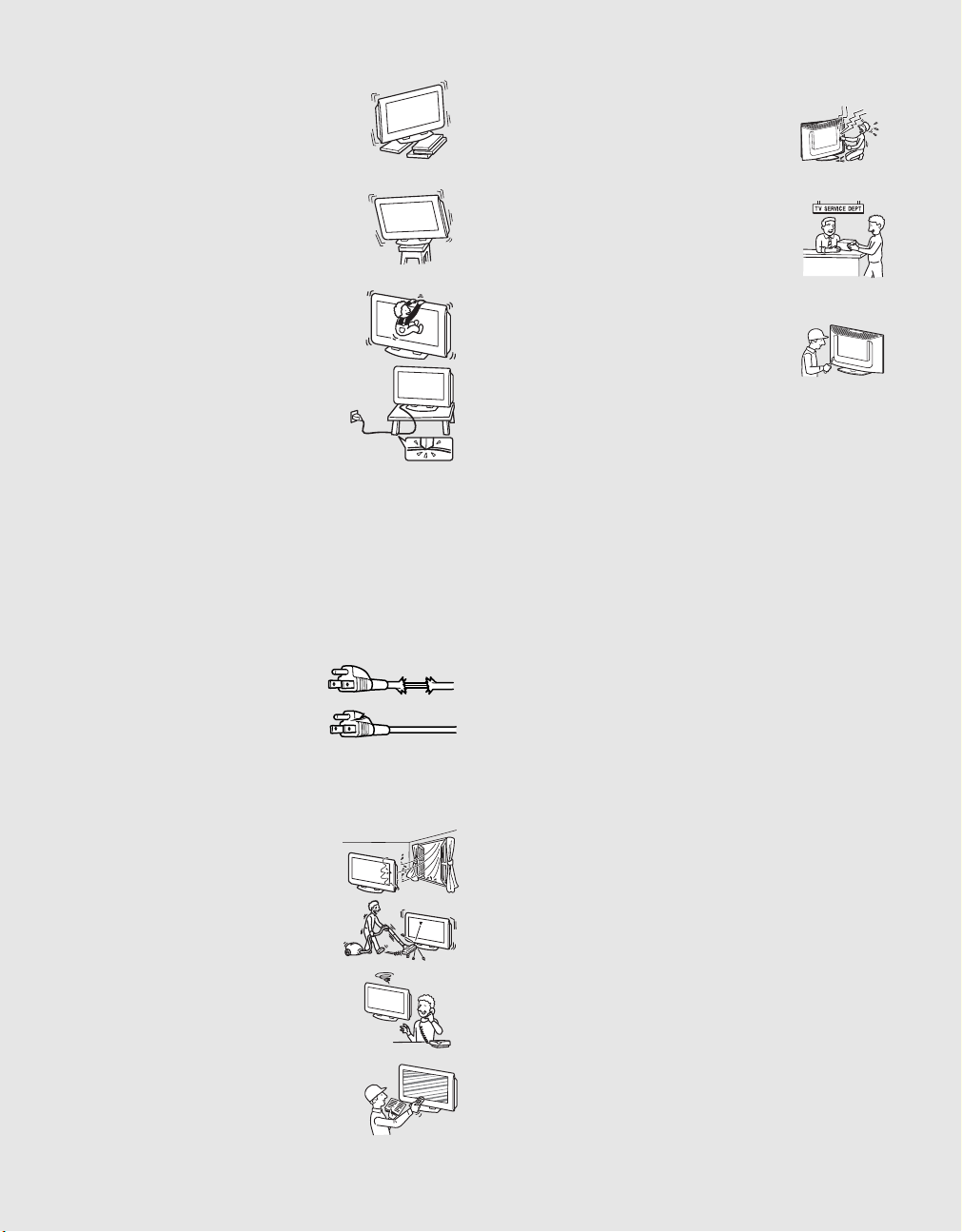
Installing on a level surface
If you install the unit on a non-level surface, the unit
may fall or drop and cause injury or damage.
Placing on a stable surface
If you place the unit on an unstable surface, the unit
may fall and cause injury or damage.
Fall
Do not hang anything on the unit.
The unit may fall from the stand or wall-mount
bracket, causing damage or serious injury.
AC power cord
Unplug the AC power cord when moving the unit.
Do not move the unit with the AC power cord
plugged in. It may damage the AC power cord and
result in fire or electric shock.
Do not allow anything to rest on or roll over the
power cord, and do not place the unit where the
power cord is subject to wear or abuse.
Lightning
For added protection for this unit during a lightning storm, or when it is
left unattended and unused for long periods of time, unplug it from the
wall outlet. This will prevent damage to the unit due to lightning and
power-line surges.
Service
Damage requiring service
Unplug the unit from the wall outlet and refer servicing to qualified
service personnel under the following conditions:
s When the power cord or plug is
damaged or frayed.
s If liquid has been spilled into the unit.
s If the surface of the unit cracks, do not touch it, unplug the AC
power cord.
s If the unit has been exposed to rain or
water.
s If the unit has been subjected to excessive
shock by being dropped, or the cabinet has
been damaged.
s If the unit does not operate normally when
following the operating instructions. Adjust
only those controls that are specified in the
operating instructions. Improper adjustment of
other controls may result in damage and will
often require extensive work by a qualified
technician to restore the unit to normal
operation.
s When the unit exhibits a distinct change in
performance, it indicates need for service.
Servicing
Do not attempt to service the unit yourself since
opening the cabinet may expose you to dangerous
voltages or other hazards. Refer all servicing to
qualified service personnel.
Replacement parts
When replacement parts are required, be sure the
service technician certifies in writing that he/she has
used replacement parts specified by the manufacturer
that have the same characteristics as the original parts.
Unauthorized substitutions may result in fire, electric
shock or other hazards.
Safety check
Upon completion of any service or repairs to the unit,
ask the service technician to perform routine safety
checks (as specified by the manufacturer) to
determine that the unit is in safe operating condition,
and to so certify. Ask a qualified service technician to
dispose of the unit.
8
KLV-32U100M
2-668-009-13(1)
G:\#Sagyo\SONY\09 TV\kaihan
KLV-32U100M\1219_KLV32U100M_rev\2668009131\2668009131
KLV-32U100M_US\01US02WAR.fm
masterpage:3 columns Right
01US02WAR-UC.book Page 8 Monday, December 19, 2005 1:58 PM
9
KLV-32U100M
2-668-009-13(1)
G:\#Sagyo\SONY\09 TV\kaihan
KLV-32U100M\1219_KLV32U100M_rev\2668009131\2668009131
KLV-32U100M_US\01US02TOC.fm
masterpage:3 columns Right
Contents
Introducing the Unit
Welcome.............................................................. 10
Package Contents.......................................... 10
Features......................................................... 10
Installing the Unit................................................ 11
Preventing the Unit from Toppling Over.........11
Bundling the Connecting Cables....................12
Unit Controls and Connectors...........................13
Front, Top and Side Panel............................. 13
Rear Panel..................................................... 15
Bottom Panel ................................................. 16
Connecting the Unit
Making Video and Audio Connections........... 17
Satellite Receiver................................................18
VCR and Cable.................................................... 19
HD Equipment..................................................... 20
DVD Player .......................................................... 22
HDMI-Equipped Device ...................................... 24
DVI-HDTV-Equipped Device...............................25
Personal Computer.............................................26
Camcorder or Video Game Equipment.............27
Using the Unit
Button Descriptions ........................................... 28
Special Buttons on the Remote Control...........29
Using the Wide Screen Mode ........................29
Using the Freeze Function............................. 30
Using the Power Saving Function..................30
Using the Sleep Function............................... 31
Using the Settings
Overview of the Settings.................................... 32
Using the Picture Settings................................. 33
Selecting Picture Options............................... 33
Selecting PC Picture Options......................... 34
Using the Sound Settings.................................. 35
Selecting Sound Options ............................... 35
Using the Screen Settings .................................36
Selecting Screen Options .............................. 36
Selecting PC Screen Options ........................ 38
Using the Setup Settings....................................40
Selecting Setup Options.................................40
Other Information
Troubleshooting..................................................42
Contacting Sony..................................................43
Specifications......................................................44
Index.....................................................................45
01US02WAR-UC.book Page 9 Monday, December 19, 2005 1:58 PM
10
KLV-32U100M
2-668-009-13(1)
G:\#Sagyo\SONY\09 TV\kaihan KLV-
32U100M\1219_KLV32U100M_rev\2668009131\2668009131 KLV-
32U100M_US\01US03WEL.fm
masterpage:3 columns Right
Introducing the Unit
Welcome
Thank you for purchasing this Sony HDTV Ready LCD unit. This manual is
for models KLV-32U100M and KLV-40U100M.
Package Contents Along with your new unit, the packaging box contains a remote control, size
AA batteries.
See page 44 for the complete list of supplied accessories.
Features Some of the features that you will enjoy with your new unit include:
s Wide Screen Mode: Watch conventional 4:3 aspect ratio broadcasts in
wide screen (16:9) mode.
s CineMotion
®
: Using the reverse 3-2 pull down technology, the
CineMotion feature provides smoother picture movement when playing
back movies or other video sources on film.
s Component Video Input: Offers the best video quality for DVD (480p
and 480i), and digital set-top box (1080i, 720p, 480p and 480i)
connections.
s HDMI (High-Definition Multimedia Interface): Provides an
uncompressed, all-digital audio/video interface between this unit and
any HDMI-equipped audio/video component, such as a set-top box,
DVD player, and A/V receiver. HDMI supports enhanced, or high-
definition video, plus two-channel digital audio.
s PC Input: PC Input allows you to connect your PC and display the PC
screen on your unit.
01US02WAR-UC.book Page 10 Monday, December 19, 2005 1:58 PM

Introducing the Unit
11
Introducing the Unit
KLV-32U100M
2-668-009-13(1)
G:\#Sagyo\SONY\09 TV\kaihan KLV-
32U100M\1219_KLV32U100M_rev\2668009131\2668009131 KLV-
32U100M_US\01US03WEL.fm
masterpage:3 columns Right
Installing the Unit
Preventing the Unit
from Toppling Over
Attaching the Support Belt
1 Screw the support belt (supplied) to the unit stand with a wood screw
(supplied).
2 Attach the support belt to the stand, and screw the belt with a securing
screw (supplied) using a coin, etc.
3 Adjust the length by pulling the support belt towards you while holding
the unit stand.
When Mounting on a Wall
See the Instruction Guide supplied with the wall-mount bracket on how to
mount the unit on the wall.
Be sure to take measures to prevent the unit from toppling over and
causing injury.
Depending on the material used for the stand you chose for this unit, the
supplied wood screw may not be suitable. Consult your dealer about the
type of screw you can use for this unit and your stand. You will need
screws that are 3 to 4 mm (
1
/8 to
3
/16 inches) in diameter.
01US02WAR-UC.book Page 11 Monday, December 19, 2005 1:58 PM
Introducing the Unit
12
KLV-32U100M
2-668-009-13(1)
G:\#Sagyo\SONY\09 TV\kaihan KLV-
32U100M\1219_KLV32U100M_rev\2668009131\2668009131 KLV-
32U100M_US\01US03WEL.fm
masterpage:3 columns Right
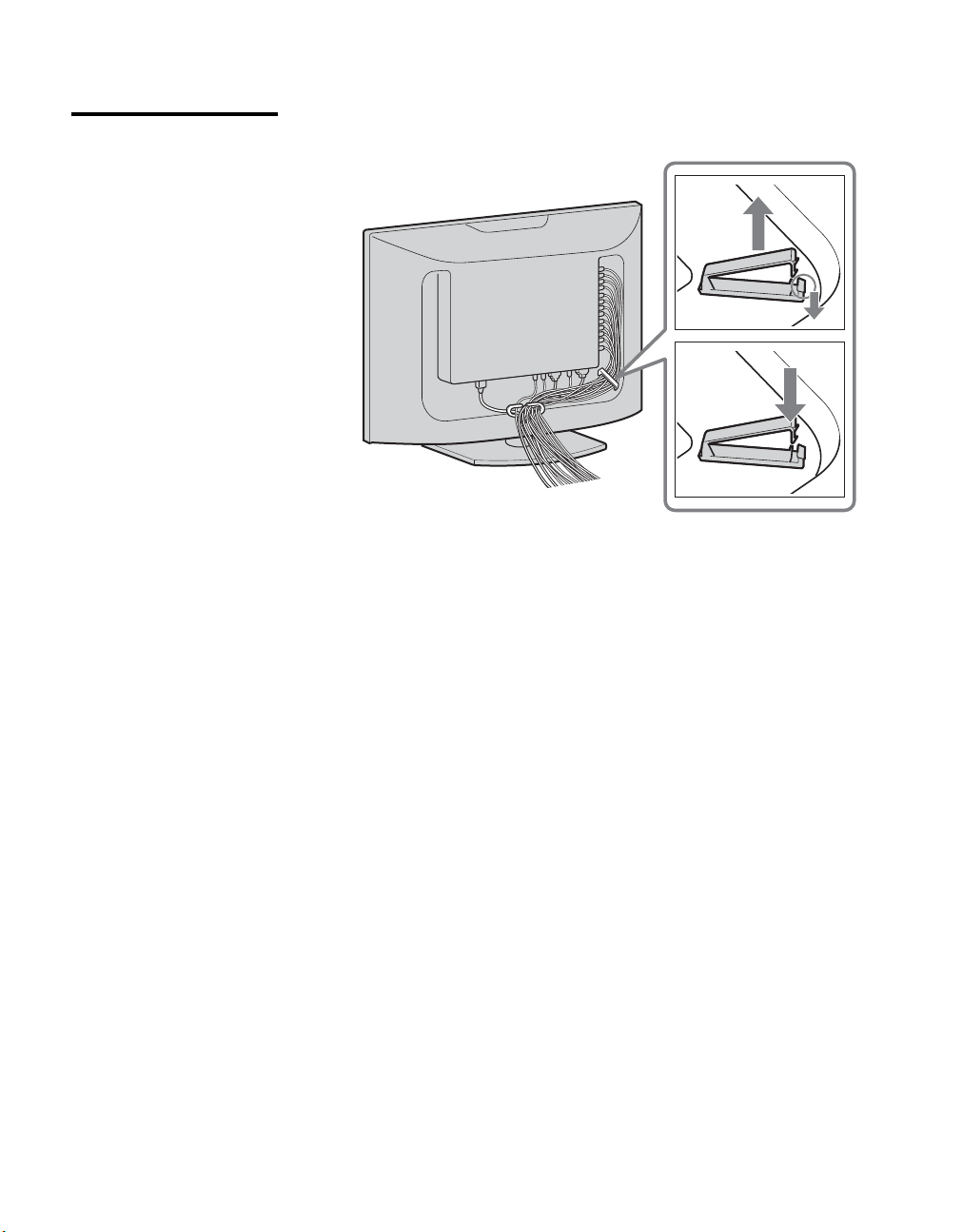
Bundling the
Connecting Cables
You can bundle the connecting cables as illustrated below.
01US02WAR-UC.book Page 12 Monday, December 19, 2005 1:58 PM

Introducing the Unit
13
Introducing the Unit
KLV-32U100M
2-668-009-13(1)
G:\#Sagyo\SONY\09 TV\kaihan KLV-
32U100M\1219_KLV32U100M_rev\2668009131\2668009131 KLV-
32U100M_US\01US03WEL.fm
masterpage:3 columns Right
Unit Controls and Connectors
Front, Top and Side
Panel
MENU
INPUT VOLUME POWER
PIC OFF/TIMER
STANDBY
POWER
Item Description
1 MENU Press to display MENU. Press again to exit MENU.
2 INPUT/ Press repeatedly to cycle through the external equipment connected to the unit’s inputs. Press
to select the menu options in the MENU screen.
3 B b In the MENU screen, these buttons serve as left/right buttons.
4 v V
– VOLUME +
Press to adjust the volume.
In the MENU screen, these buttons serve as up/down buttons.
5 POWER Press to turn on and off the unit.
6 Headphones
jack
Connects to your headphones. If your headphones do not match the jack, use a suitable plug
adaptor (not supplied).
7 PIC OFF/TIMER
LED
When lit in green, indicates that the Picture Off feature is activated. For details, see page 41.
When lit in orange, indicates Sleep Timer is set.
The VOLUME + button has a tactile dot. Use it as a reference when operating the
unit.
(Continued)
01US02WAR-UC.book Page 13 Monday, December 19, 2005 1:58 PM

Introducing the Unit
14
KLV-32U100M
2-668-009-13(1)
G:\#Sagyo\SONY\09 TV\kaihan KLV-
32U100M\1219_KLV32U100M_rev\2668009131\2668009131 KLV-
32U100M_US\01US03WEL.fm
masterpage:3 columns Right
Item Description
8 STANDBY LED Lights up in red when in the standby mode for PC inputs.
9 POWER LED Lights up in green when the unit is turned on.
0 (IR) Infrared
Receiver
Receives IR signals from the remote control.
01US02WAR-UC.book Page 14 Monday, December 19, 2005 1:58 PM
Introducing the Unit
15
Introducing the Unit
KLV-32U100M
2-668-009-13(1)
G:\#Sagyo\SONY\09 TV\kaihan KLV-
32U100M\1219_KLV32U100M_rev\2668009131\2668009131 KLV-
32U100M_US\01US03WEL.fm
masterpage:3 columns Right
Rear Panel
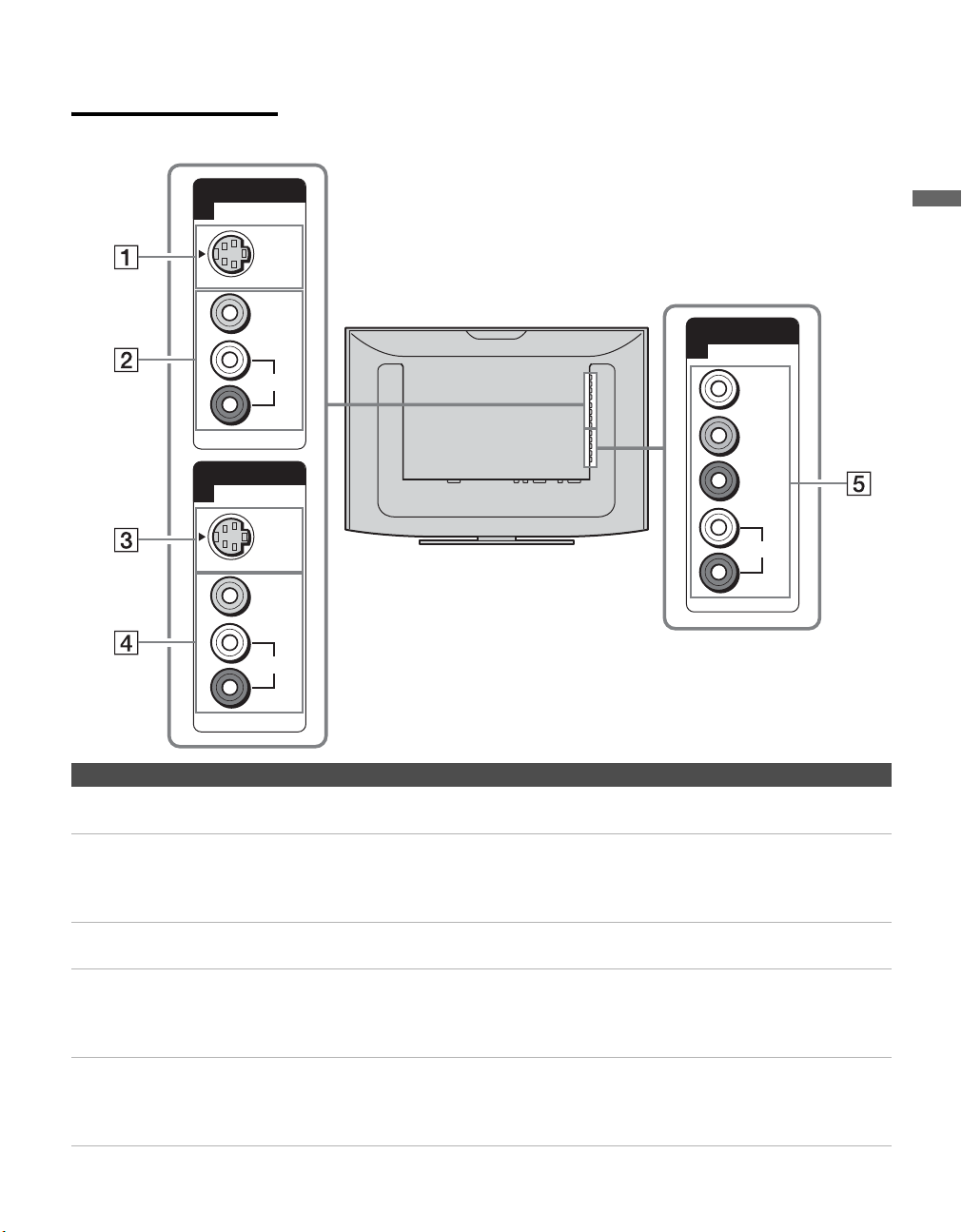
VIDEO IN
1
VIDEO
AUDIO
L
R
(MONO)
VIDEO IN
2
S VIDEO
S VIDEO
VIDEO
AUDIO
L
R
(MONO)
AUDIO
L
R
Y
P
B
PR
HD/DVD IN
(1080i/720p/480p/480i)
3
Jack Description
1 VIDEO IN 1
S VIDEO
Connects to the S VIDEO output jack of your VCR or other video equipment that has
S VIDEO. S VIDEO provides better picture quality than the composite video (2).
2 VIDEO IN 1
VIDEO/
L (MONO) -
AUDIO-R
Connect to the composite video and audio output jacks on your VCR or other video
component.
3 VIDEO IN 2
S VIDEO
Connects to the S VIDEO output jack of your VCR or other video equipment that has
S VIDEO. S VIDEO provides better picture quality than the composite video (4).
4 VIDEO IN 2
VIDEO/
L (MONO) -
AUDIO-R
Connect to the composite video and audio output jacks on your VCR or other video
component.
5 HD/DVD IN 3
(1080i/720p/
480p/480i)/
L-AUDIO-R
Connect to your DVD player’s or digital set-top box’s component video (YP
BPR) and audio
(L/R) jacks. Component video provides better picture quality than the S VIDEO (1, 3) or
the composite video (2, 4) connections.
01US02WAR-UC.book Page 15 Monday, December 19, 2005 1:58 PM
Introducing the Unit
16
KLV-32U100M
2-668-009-13(1)
G:\#Sagyo\SONY\09 TV\kaihan KLV-
32U100M\1219_KLV32U100M_rev\2668009131\2668009131 KLV-
32U100M_US\01US03WEL.fm
masterpage:3 columns Right
Bottom Panel
4
AC IN
AUDIO IN
AUDIO
RL
5
IN
PC IN
RGB
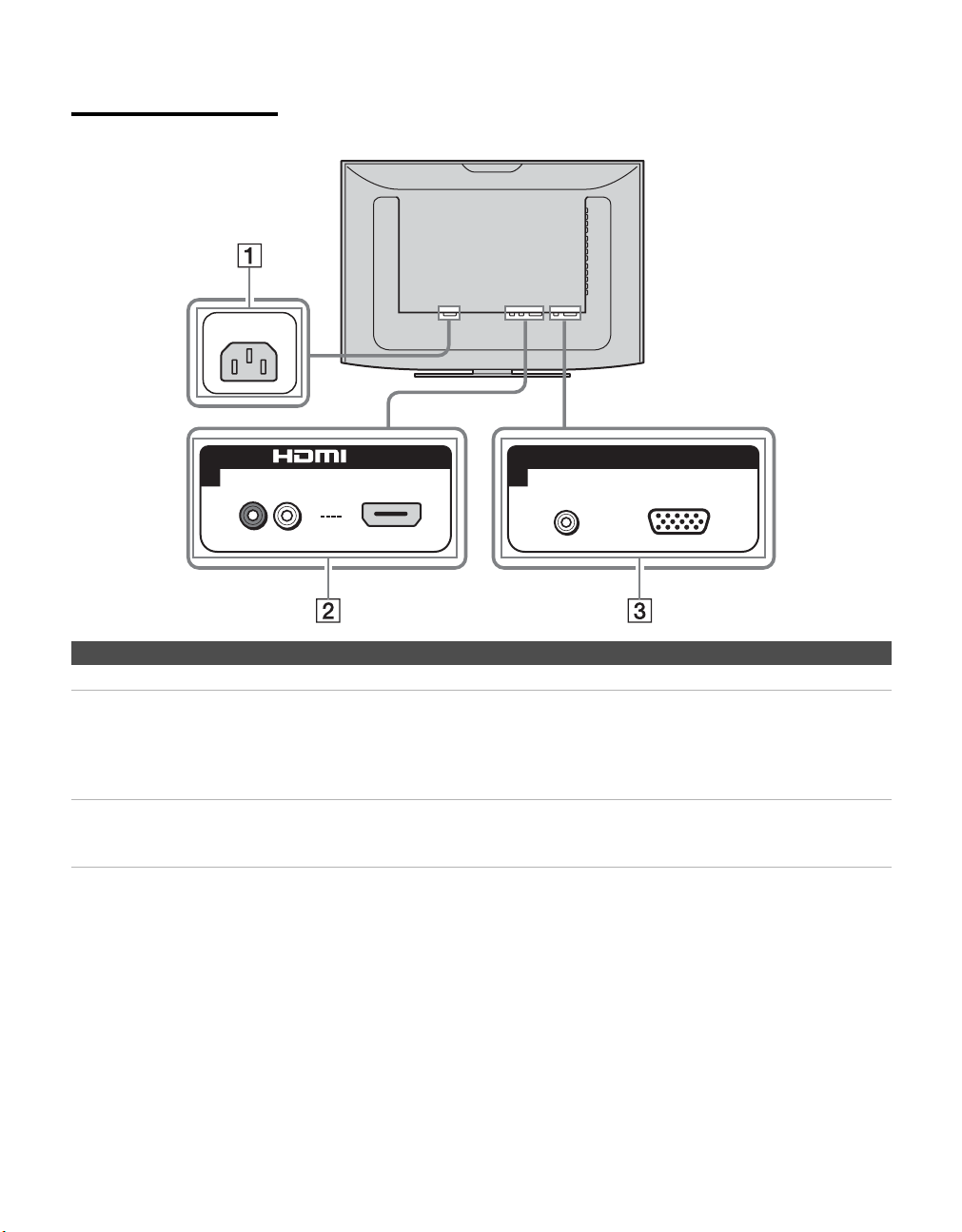
Jack Description
1 AC IN Connects the supplied AC power cord.
2 HDMI IN 4
HDMI/
R-AUDIO IN-L
HDMI (High-Definition Multimedia Interface) provides an uncompressed, all-digital
audio/video interface between this unit and any HDMI-equipped audio/video component, such
as a set-top box, DVD player, and A/V receiver. HDMI supports enhanced, or high-definition
video, plus two-channel digital audio.
The AUDIO IN (R/L) of HDMI IN is for DVI connection. See page 25 for details.
3 PC IN 5
RGB/AUDIO
Connect to a personal computer’s video and audio output jacks. Can be connected to other
Analog RGB devices such as Video Conferencing or Set-top Boxes.
See “PC Input Signal Compatibility Chart” on page 39 for the signal to be displayed.
01US02WAR-UC.book Page 16 Monday, December 19, 2005 1:58 PM
17
KLV-32U100M
2-668-009-13(1)
G:\#Sagyo\SONY\09 TV\kaihan KLV-
32U100M\1219_KLV32U100M_rev\2668009131\2668009131 KLV-
32U100M_US\01US04INS.fm
masterpage:3 columns Right
Connecting the Unit
Connecting the Unit
To display clear crisp pictures, first you must connect your unit correctly and
also need to choose the correct display format (see “Changing the wide
screen mode” on page 29).
Making Video and
Audio Connections
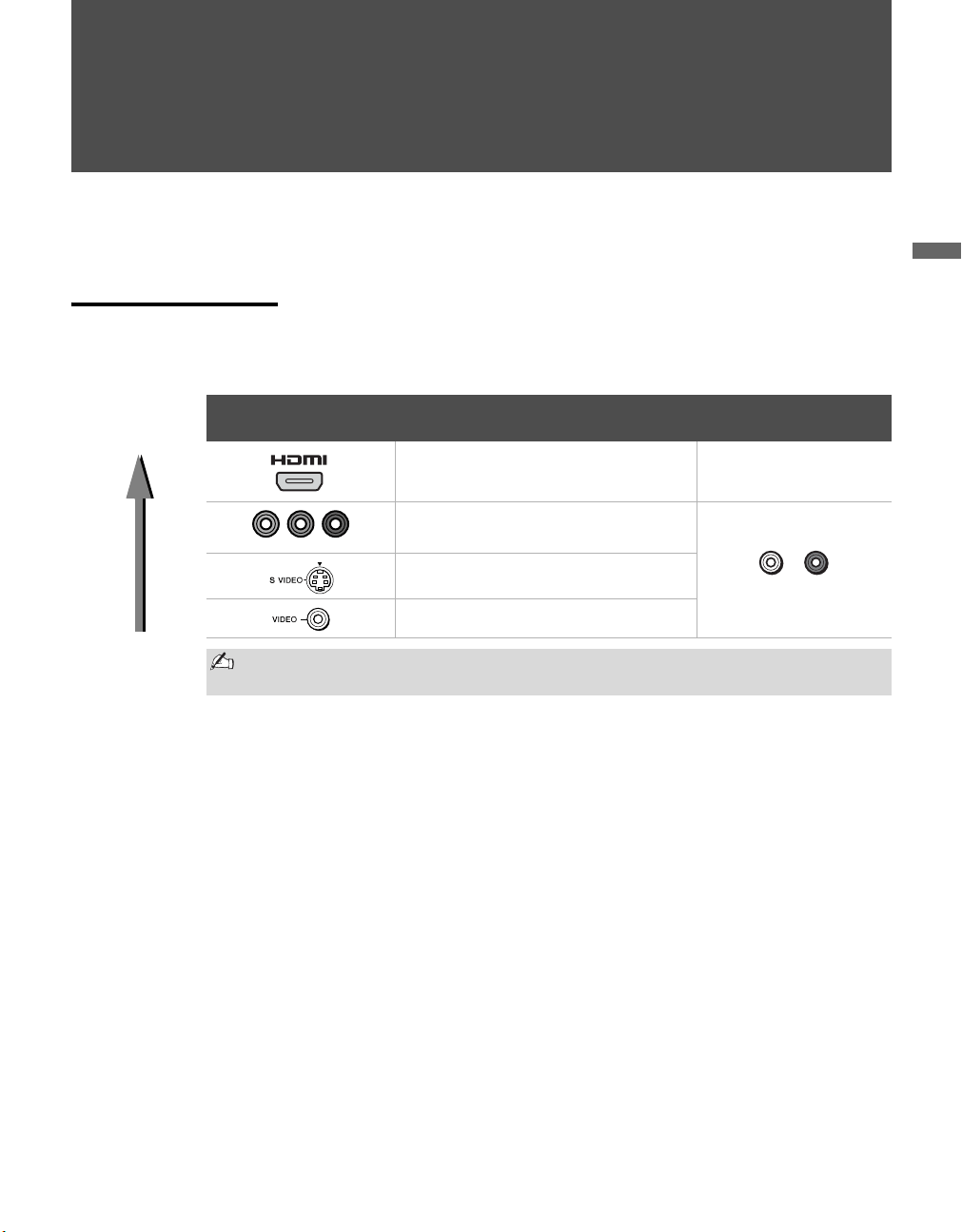
Your unit includes several types of video inputs. When connecting your unit,
use the inputs that are available on your devices that provide the best video
performance, as described below.
Best Video
Performance
Connector type
Separate audio
connection required
HDMI
(High-Definition Multimedia Interface)
No
Component video
(1080i/720p/480p/480i)
Ye s
S VIDEO
Composite video
When both S VIDEO and VIDEO inputs are connected, the S VIDEO input is
automatically selected. To view the VIDEO input, disconnect the S VIDEO cable.
YPB PR
L-
AUDIO
-R
01US02WAR-UC.book Page 17 Monday, December 19, 2005 1:58 PM
Connecting the Unit
18
KLV-32U100M
2-668-009-13(1)
G:\#Sagyo\SONY\09 TV\kaihan KLV-
32U100M\1219_KLV32U100M_rev\2668009131\2668009131 KLV-
32U100M_US\01US04INS.fm
masterpage:3 columns Right
Satellite Receiver
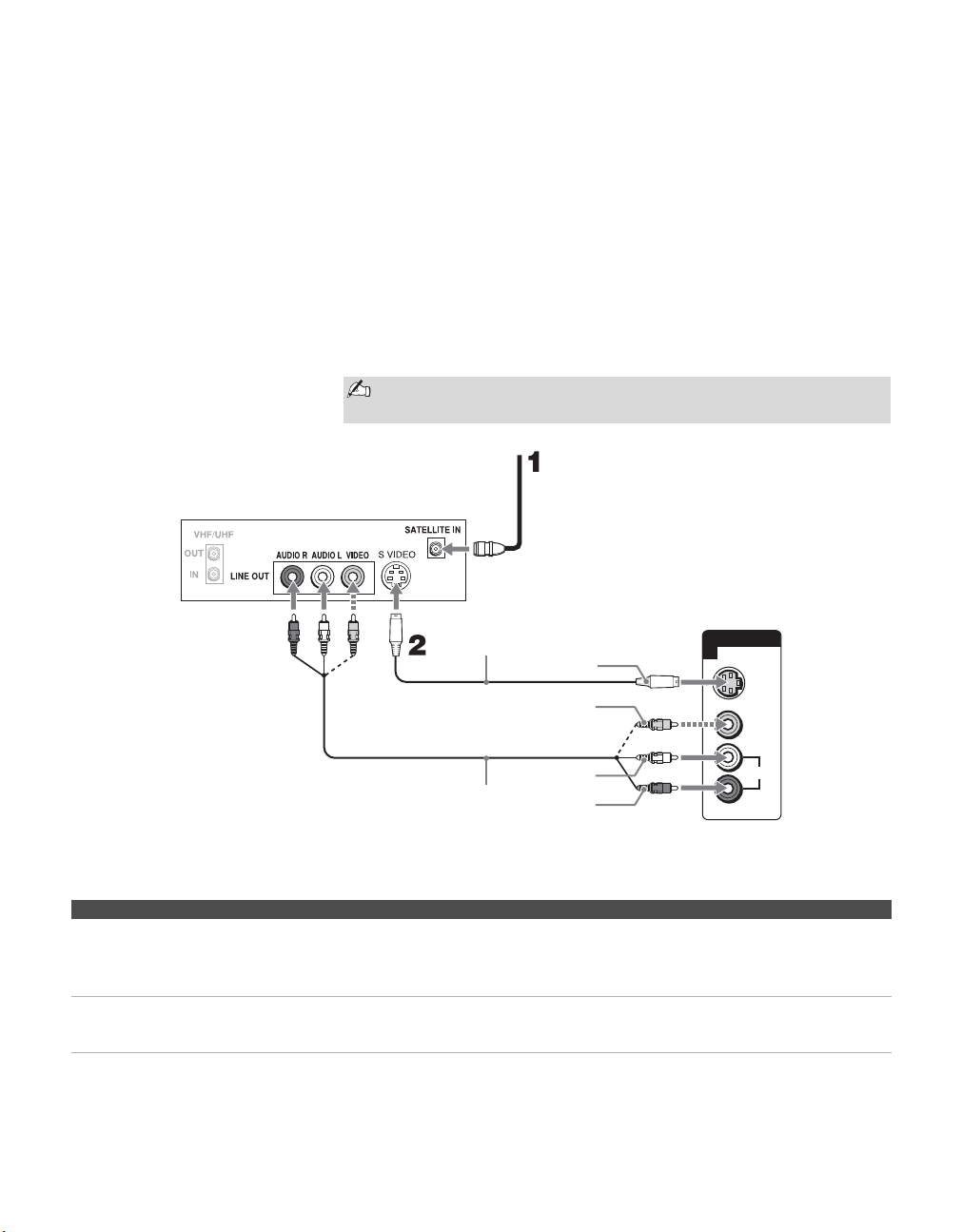
This scenario shows a SAT Box connected through the video inputs. Satellite
signals are selected by the SAT Box through the video inputs.
To connect a satellite receiver
1 Connect the satellite antenna cable to the satellite receiver’s satellite
input jack.
2 Use an A/V and S VIDEO cables to connect the satellite receiver’s
AUDIO and S VIDEO output jacks to the unit’s AUDIO and S VIDEO
input jacks (VIDEO 1 or 2).
Notes on Using This Connection
If your satellite receiver is not equipped with S VIDEO, use a
VIDEO cable (yellow) instead of the S VIDEO cable.
z If you connect the Digital
Satellite Receiver with
component video cables,
see page 20.
VIDEO IN
1
VIDEO
AUDIO
L
R
(MONO)
S VIDEO
Rear of unit
A/V cable
Satellite Receiver
Satellite
antenna
cable
S VIDEO cable
S VIDEO
VIDEO
(yellow)
AUDIO-L
(white)
AUDIO-R
(red)
To Do This ... Do This ...
Watch the satellite receiver Press V1 or V2 on the remote control.
or
Press INPUT on the top panel repeatedly to select the satellite receiver input (Video
1 or 2).
Label video inputs to easily
identify equipment connected to
the unit
See the instructions for setting up Label Video Inputs on page 40.
01US02WAR-UC.book Page 18 Monday, December 19, 2005 1:58 PM
Connecting the Unit
19
Connecting the Unit
KLV-32U100M
2-668-009-13(1)
G:\#Sagyo\SONY\09 TV\kaihan KLV-
32U100M\1219_KLV32U100M_rev\2668009131\2668009131 KLV-
32U100M_US\01US04INS.fm
masterpage:3 columns Right
VCR and Cable
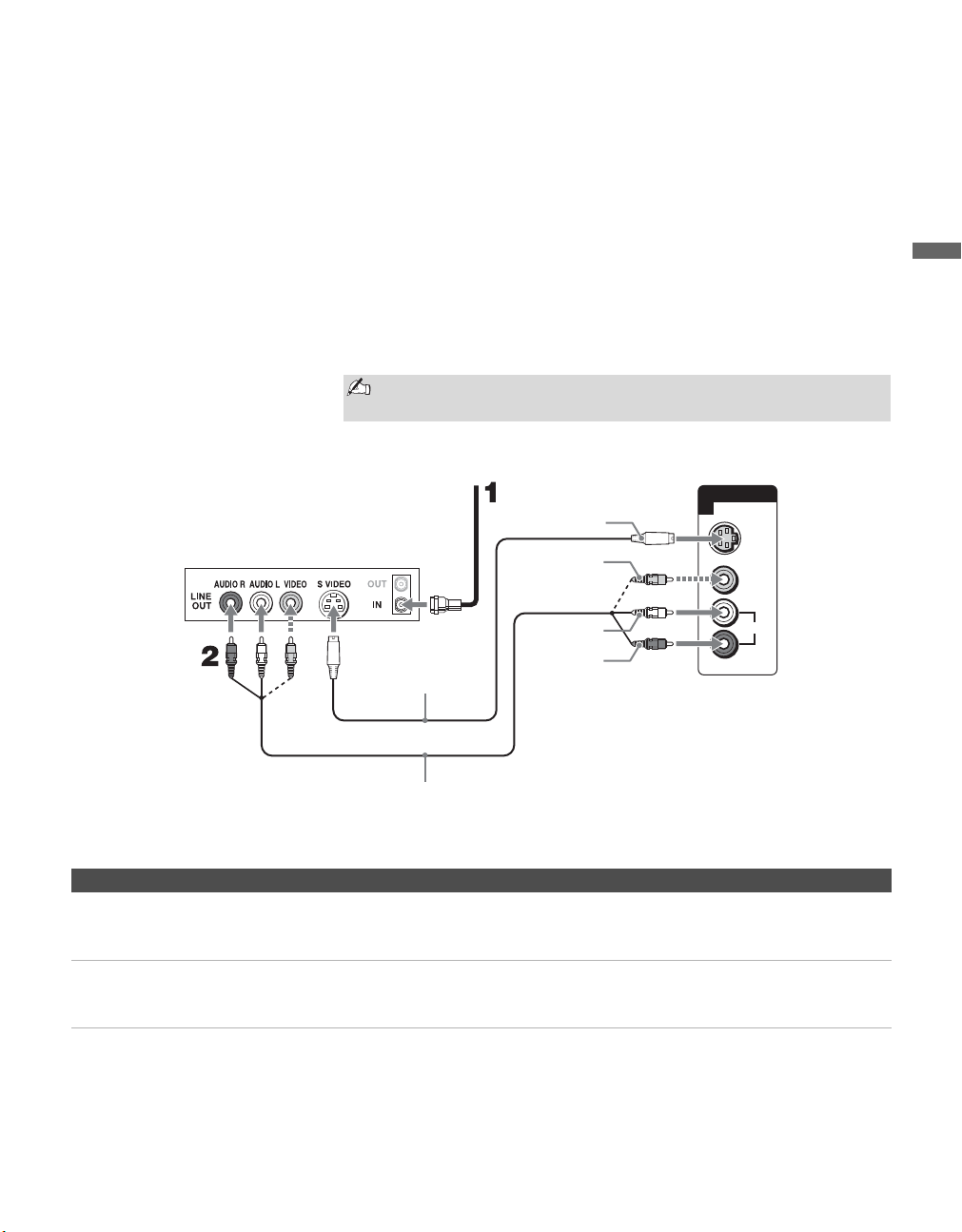
This scenario shows a VCR with Cable signals connected through the video
inputs. The Cable or VCR signals are selected by the VCR through the video
inputs.
To connect the VCR and cable
1 Connect the CATV cable to the VCR’s VHF/UHF input jack.
2 Use an A/V and S VIDEO cables to connect the VCR’s AUDIO and
S VIDEO output jacks to the unit’s AUDIO and S VIDEO input jacks
(VIDEO 1 or 2).
Notes on Using This Connection
If your VCR is not equipped with S VIDEO, use a VIDEO cable
(yellow) instead of the S VIDEO cable.
VIDEO IN
1
VIDEO
AUDIO
L
R
(MONO)
S VIDEO
A/V cable
CATV cable
VCR
SVIDEO
VIDEO
(yellow)
AUDIO-L
(white)
AUDIO-R
(red)
S VIDEO cable
Rear of unit
To Do This ... Do This ...
Watch the VCR or cable channels Press V1 or V2 on the remote control.
or
Press INPUT on the top panel repeatedly to select the VCR input (VIDEO 1 or 2).
Label video inputs to easily
identify equipment connected to
the unit
See the instructions for setting up Label Video Inputs on page 40.
01US02WAR-UC.book Page 19 Monday, December 19, 2005 1:58 PM
Connecting the Unit
20
KLV-32U100M
2-668-009-13(1)
G:\#Sagyo\SONY\09 TV\kaihan KLV-
32U100M\1219_KLV32U100M_rev\2668009131\2668009131 KLV-
32U100M_US\01US04INS.fm
masterpage:3 columns Right
HD Equipment
Disconnect all power sources before making any connections.
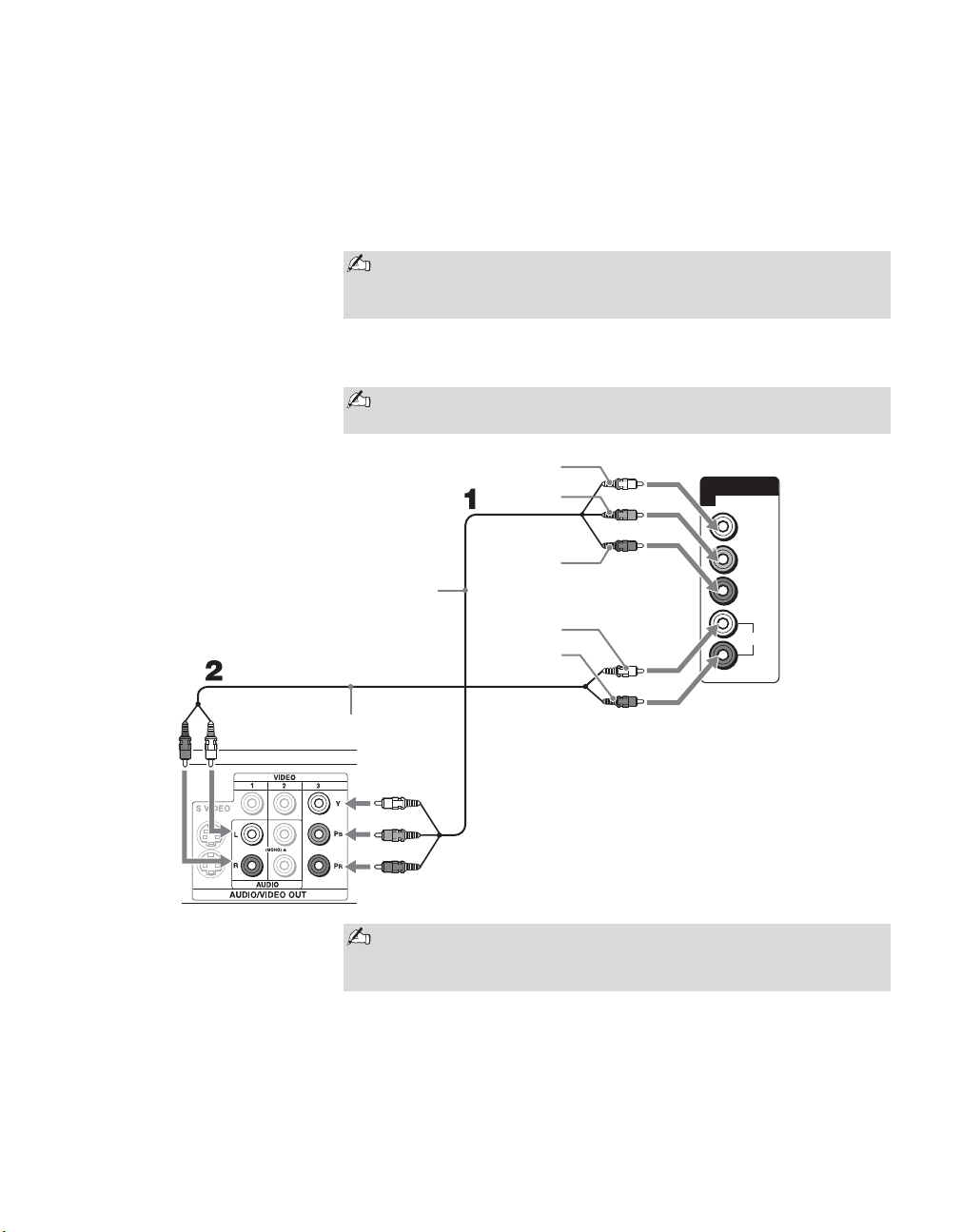
1 Using a component video cable, connect your equipment’s YPBPR
output jacks to the unit’s YP
BPR input jacks. Use the HD/DVD IN 3
connections.
2 Using an audio cable, connect your equipment’s AUDIO output jacks to
the unit’s AUDIO input jacks.
Component video (YPBPR) connection is necessary to view 480p,
720p, and 1080i formats. Note that this unit displays all format
types of picture in a resolution 1,366 dots × 768 lines.
The YPBPR jacks do not provide audio, so audio cables must be
connected to provide sound.
z If your equipment has an
HDMI or DVI connector,
see page 24.
AUDIO
L
R
Y
P
B
P
R
HD/DVD IN
(1080i/720p/480p/480i)
3
Rear of unit
Y
P
B
PR
AUDIO-L
(white)
AUDIO-R
(red)
Audio cable
Component
video cable
HD Equipment
with Component
Video
Some of the HD equipment you can connect to receive the
broadcasting signals are digital cable box, digital satellite receiver
and digital TV receiver.
01US02WAR-UC.book Page 20 Monday, December 19, 2005 1:58 PM
Connecting the Unit
21
Connecting the Unit
KLV-32U100M
2-668-009-13(1)
G:\#Sagyo\SONY\09 TV\kaihan KLV-
32U100M\1219_KLV32U100M_rev\2668009131\2668009131 KLV-
32U100M_US\01US04INS.fm
masterpage:3 columns Right
Notes on Using This Connection
To Do This ... Do This ...
Watch the HD equipment Press V3 on the remote control.
or
Press INPUT on the top panel repeatedly to select the HD equipment input (Video
3).
Label video inputs to easily
identify equipment connected to
the unit
See the instructions for setting up Label Video Inputs on page 40.
01US02WAR-UC.book Page 21 Monday, December 19, 2005 1:58 PM
Connecting the Unit
22
KLV-32U100M
2-668-009-13(1)
G:\#Sagyo\SONY\09 TV\kaihan KLV-
32U100M\1219_KLV32U100M_rev\2668009131\2668009131 KLV-
32U100M_US\01US04INS.fm
masterpage:3 columns Right
DVD Player
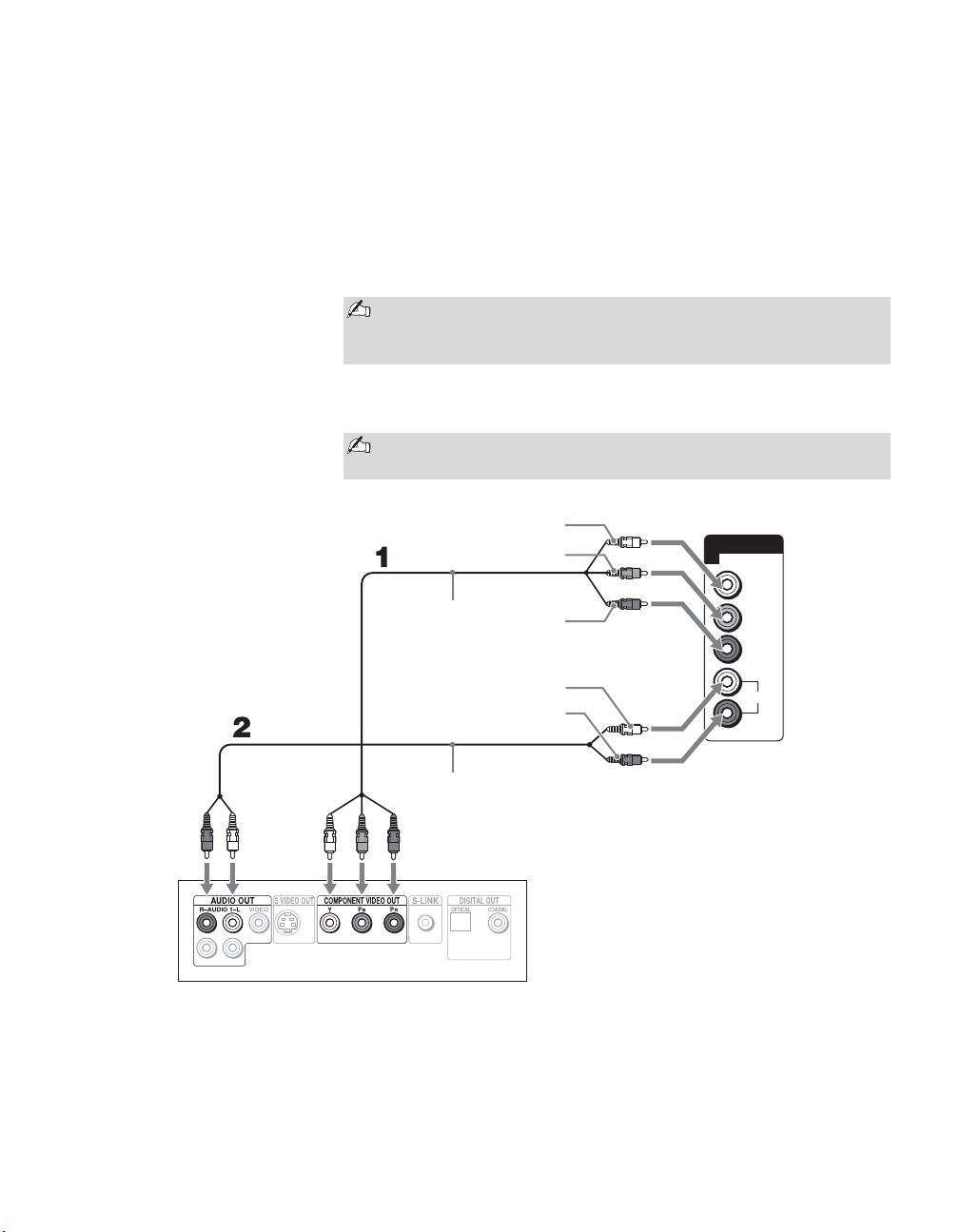
For best results, use this connection if your DVD player has component
video (YP
BPR) jacks.
To connect a DVD player with component video connectors
1 Use a component video cable to connect the DVD player’s YPBPR
output jacks to the unit’s YPBPR input jacks (HD/DVD IN 3).
2 Use an audio cable to connect the DVD player’s AUDIO output jacks to
the unit’s AUDIO input jacks (HD/DVD IN 3).
The YPBPR jacks on your DVD player are sometimes labeled Y, CB
and C
R, or Y, B-Y and R-Y. If so, connect the cables to their
matching color jacks.
The YPBPR jacks do not provide audio, so audio cables must be
connected to provide sound.
AUDIO
L
R
Y
P
B
P
R
HD/DVD IN
(1080i/720p/480p/480i)
3
Rear of unit
DVD Player
Component
video cable
Audio cable
Y
P
B
PR
AUDIO-L
(white)
AUDIO-R
(red)
01US02WAR-UC.book Page 22 Monday, December 19, 2005 1:58 PM
Connecting the Unit
23
Connecting the Unit
KLV-32U100M
2-668-009-13(1)
G:\#Sagyo\SONY\09 TV\kaihan KLV-
32U100M\1219_KLV32U100M_rev\2668009131\2668009131 KLV-
32U100M_US\01US04INS.fm
masterpage:3 columns Right
Notes on Using This Connection
To connect a DVD player with S VIDEO and audio connectors
If your DVD player does not have component video (YPBPR) jacks, or the
component video inputs are already connected to another device, use this
connection.
1 Use an S VIDEO cable to connect the DVD player’s S VIDEO output
jack to the unit’s S VIDEO input jack (VIDEO 1 or 2).
2 Use an audio cable to connect the DVD player’s AUDIO output jacks to
the unit’s AUDIO input jacks (VIDEO 1 or 2).
To Do This ... Do This ...
Watch the DVD player Press V3 on the remote control.
or
Press INPUT on the top panel repeatedly to select the DVD player input (Video 3).
Label video inputs to easily
identify equipment connected to
the unit
See the instructions for setting up Label Video Inputs on page 40.
If your DVD player is not equipped with S VIDEO, use a VIDEO cable
(yellow) instead of the S VIDEO cable.
01US02WAR-UC.book Page 23 Monday, December 19, 2005 1:58 PM
Connecting the Unit
24
KLV-32U100M
2-668-009-13(1)
G:\#Sagyo\SONY\09 TV\kaihan KLV-
32U100M\1219_KLV32U100M_rev\2668009131\2668009131 KLV-
32U100M_US\01US04INS.fm
masterpage:3 columns Right
HDMI-Equipped Device
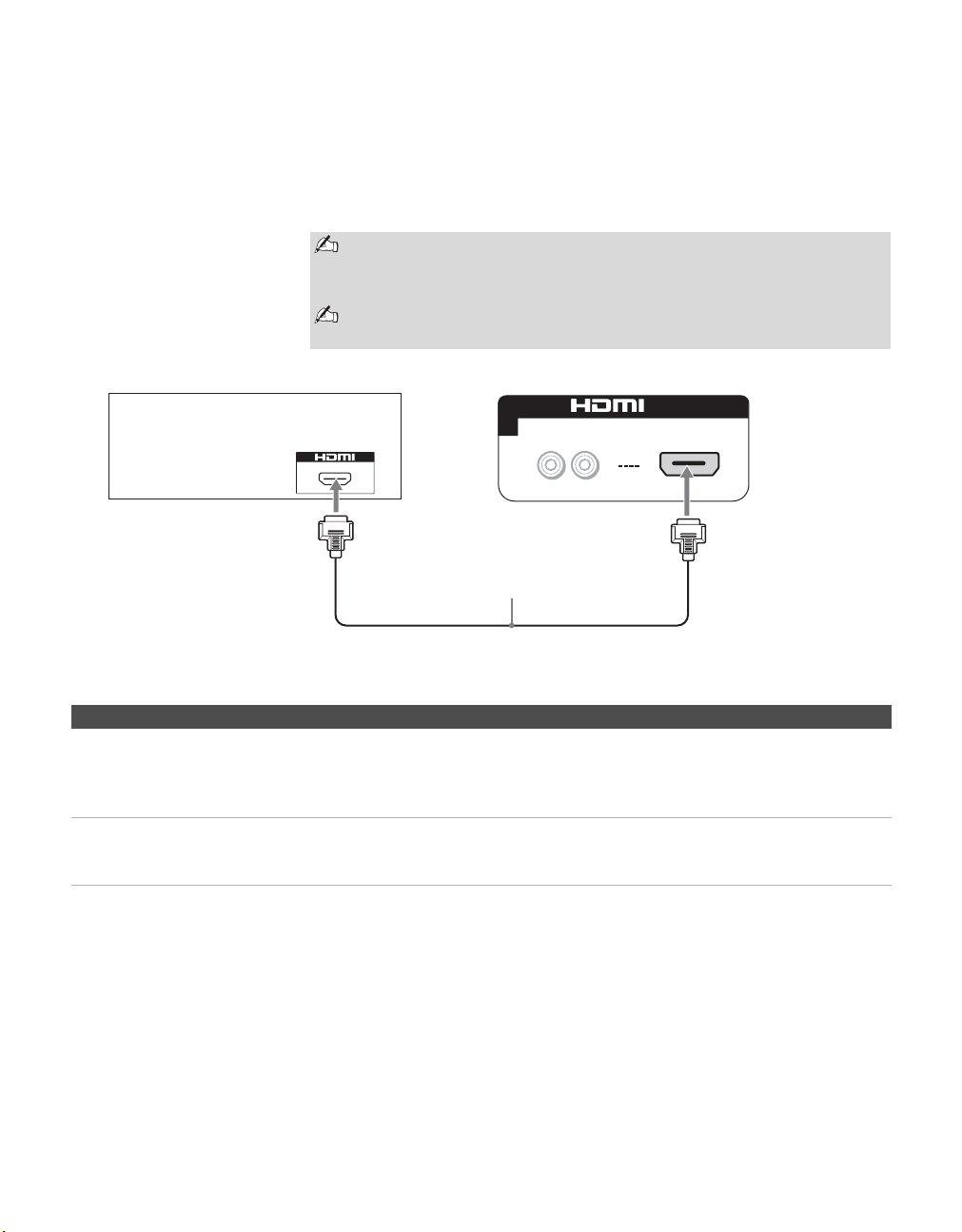
To connect a device with HDMI connector
Use an HDMI cable to connect the device’s HDMI output connector to the
unit’s HDMI IN connector on the rear panel.
Notes on Using This Connection
HDMI cables transmit both audio and video signals. (Separate audio
cables are not necessary.) You can purchase HDMI cables at your local
electronics store.
Do not connect a PC to the unit’s HDMI input. Use the PC IN (RGB)
connector instead when connecting a PC.
4
AUDIO IN
R L
IN
Rear of unitHDMI-Equipped Device
HDMI cable
To Do This ... Do This ...
Watch the device Press V4 on the remote control.
or
Press INPUT on the top panel repeatedly to select the HDMI-equipped device input
(Video 4).
Label video inputs to easily
identify equipment connected
to the unit
See the instructions for setting up Label Video Inputs on page 40.
01US02WAR-UC.book Page 24 Monday, December 19, 2005 1:58 PM
Connecting the Unit
25
Connecting the Unit
KLV-32U100M
2-668-009-13(1)
G:\#Sagyo\SONY\09 TV\kaihan KLV-
32U100M\1219_KLV32U100M_rev\2668009131\2668009131 KLV-
32U100M_US\01US04INS.fm
masterpage:3 columns Right
DVI-HDTV-Equipped Device
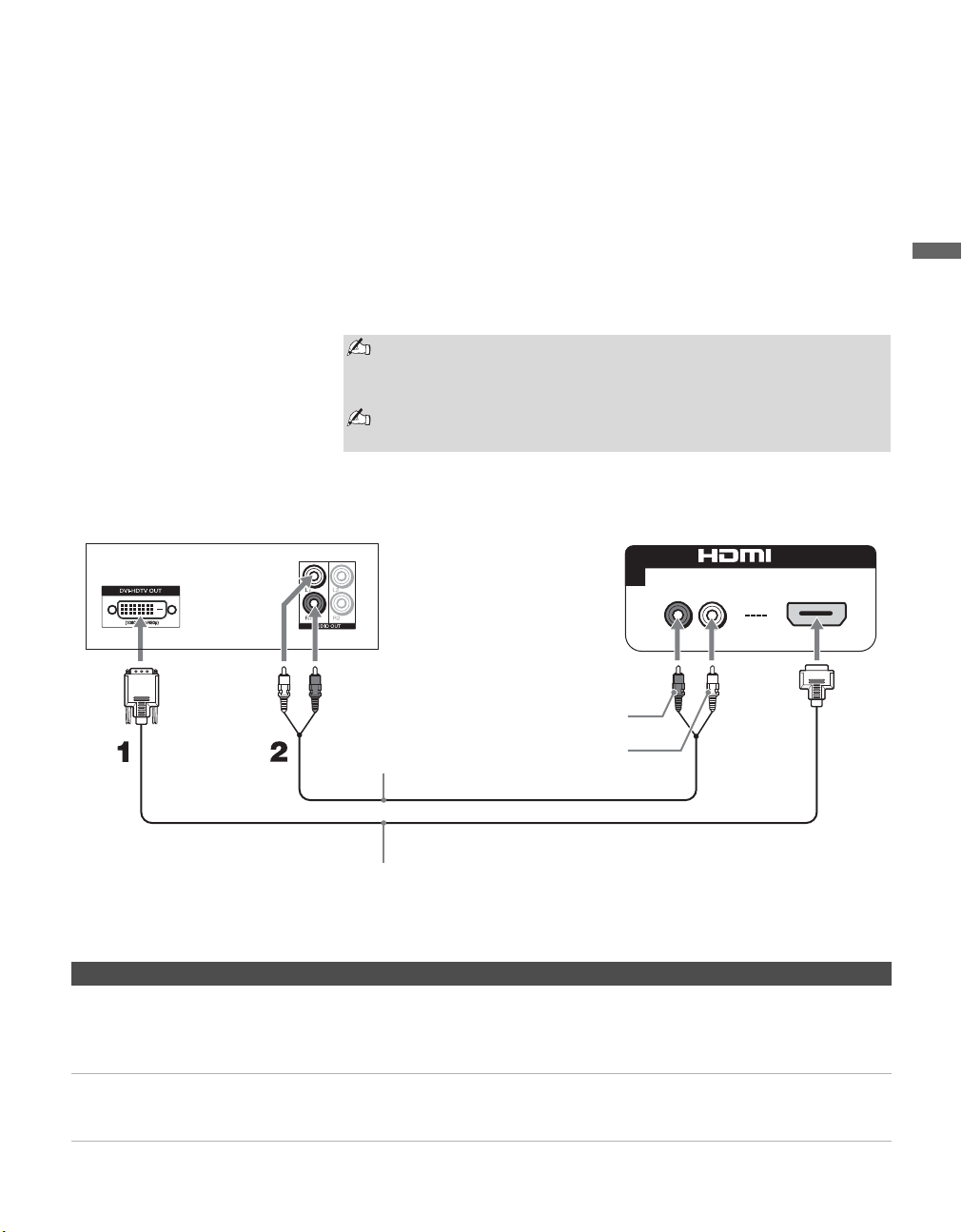
To connect a device with DVI-HDTV connector
If the device does not have an HDMI connector, you can connect the unit’s
HDMI IN connector to the device’s DVI-HDTV output connector using a
DVI to HDMI adapter or cable.
1 Use a DVI to HDMI adapter or cable to connect the device’s DVI-
HDTV output connector to the unit’s HDMI IN connector on the rear
panel.
2 Use an Audio cable to connect the device’s AUDIO output jacks to the
unit’s AUDIO input jacks on the rear panel.
Notes on Using This Connection
The DVI-HDTV VIDEO connector does not provide audio, so audio
cables must be connected to provide sound when a DVI to HDMI
adapter or cable is used.
Do not connect a PC to the unit’s HDMI input. Use the PC IN (RGB)
connector instead when connecting a PC.
4
AUDIO IN
RL
IN
DVI-HDTV-Equipped Device
DVI to HDMI
adapter or cable
Audio cable
Rear of unit
AUDIO-L (white)
AUDIO-R (red)
To Do This ... Do This ...
Watch the device Press V4 on the remote control.
or
Press INPUT on the top panel repeatedly to select the DVI-HDTV-equipped device
input (Video 4).
Label video inputs to easily
identify equipment connected
to the unit
See the instructions for setting up Label Video Inputs on page 40.
01US02WAR-UC.book Page 25 Monday, December 19, 2005 1:58 PM
Connecting the Unit
26
KLV-32U100M
2-668-009-13(1)
G:\#Sagyo\SONY\09 TV\kaihan KLV-
32U100M\1219_KLV32U100M_rev\2668009131\2668009131 KLV-
32U100M_US\01US04INS.fm
masterpage:3 columns Right
Personal Computer
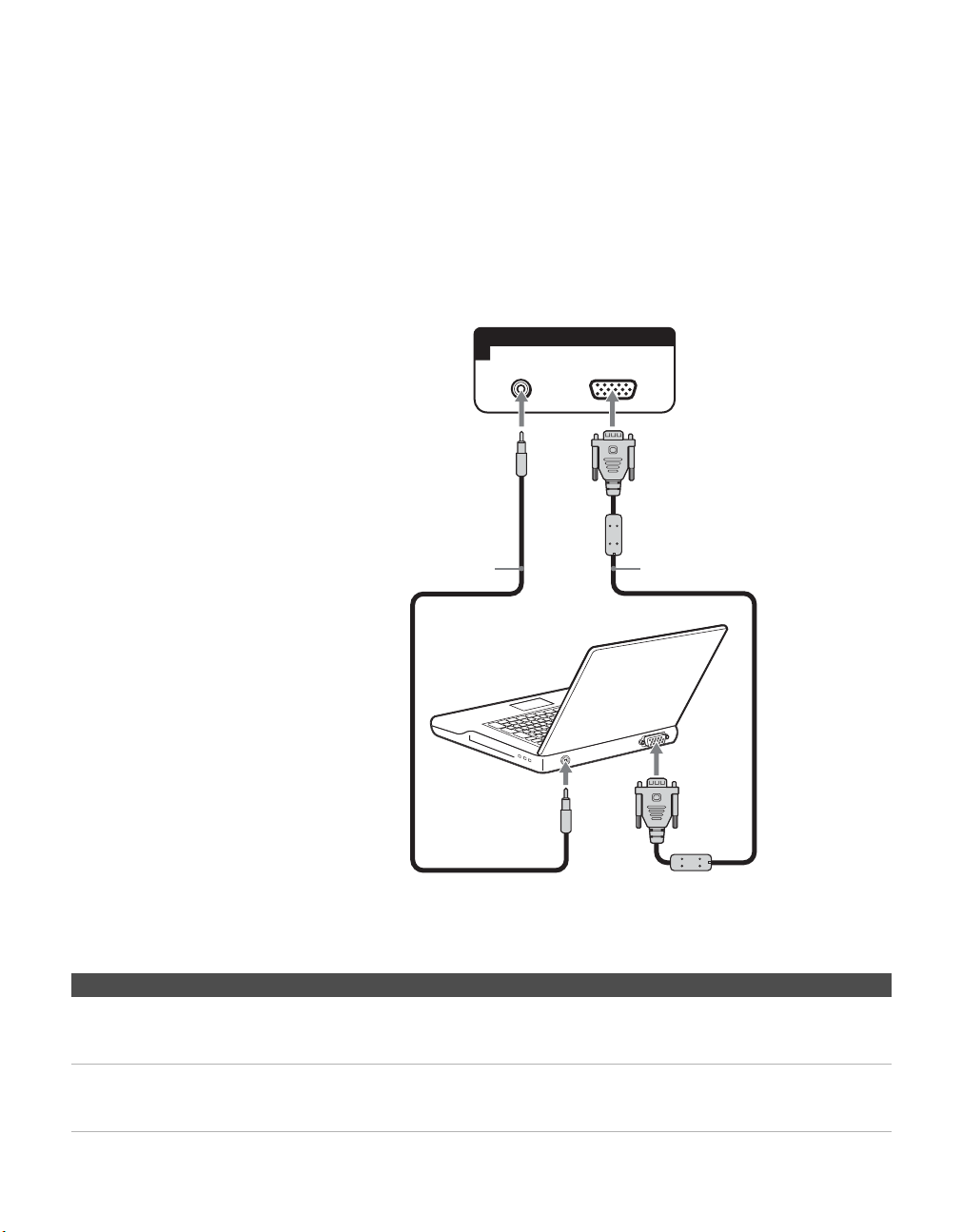
To connect a PC (personal computer)
If you connect your PC to the unit, you can watch your personal computer’s
display on the unit.
When your PC is connected to the unit with the supplied HD15-HD15 cable
and optional audio cable, you can view and listen to the PC’s video and
audio output on the unit.
Notes on Using This Connection
z When connecting to an
Apple Macintosh computer,
use the supplied HD15-
HD15 cable to connect PC
IN of the unit to video
output connector of the
computer. For some Apple
Macintosh computers, it
may be necessary to use
an adapter (not supplied).
If this is the case, connect
the adapter to the
computer before
connecting the supplied
HD15-HD15 cable.
z If the picture is noisy,
flickering or not clear,
adjust the Phase and Pitch
in the PC Screen settings
on page 39.
z When no signal is input to
VIDEO 5, the PC enters
standby mode and the
STANDBY LED lights in
red.
The PC will exit standby
mode when signal is input.
The power turns off when
you press the power button
in standby mode.
To turn it on, press the
power button again.
It is recommended to
select Skip in Video 5 of
Label Video Inputs in the
Setup settings when no PC
is connected.
RGB
AUDIO
5
PC IN
To PC IN (RGB) jack
To PC IN (AUDIO) jack
HD15-HD15 cable
(analog RGB,
supplied)
Audio cable
(optional: stereo
mini jack)
Audio output terminal To D-Sub output terminal
Rear of unit
To Do This ... Do This ...
Watch the PC Press V5 on the remote control.
or
Press INPUT on the top panel repeatedly to select the PC input (Video 5).
Label video inputs to easily
identify equipment connected
to the unit
See the instructions for setting up Label Video Inputs on page 40.
01US02WAR-UC.book Page 26 Monday, December 19, 2005 1:58 PM
Connecting the Unit
27
Connecting the Unit
KLV-32U100M
2-668-009-13(1)
G:\#Sagyo\SONY\09 TV\kaihan KLV-
32U100M\1219_KLV32U100M_rev\2668009131\2668009131 KLV-
32U100M_US\01US04INS.fm
masterpage:3 columns Right
Camcorder or Video Game Equipment
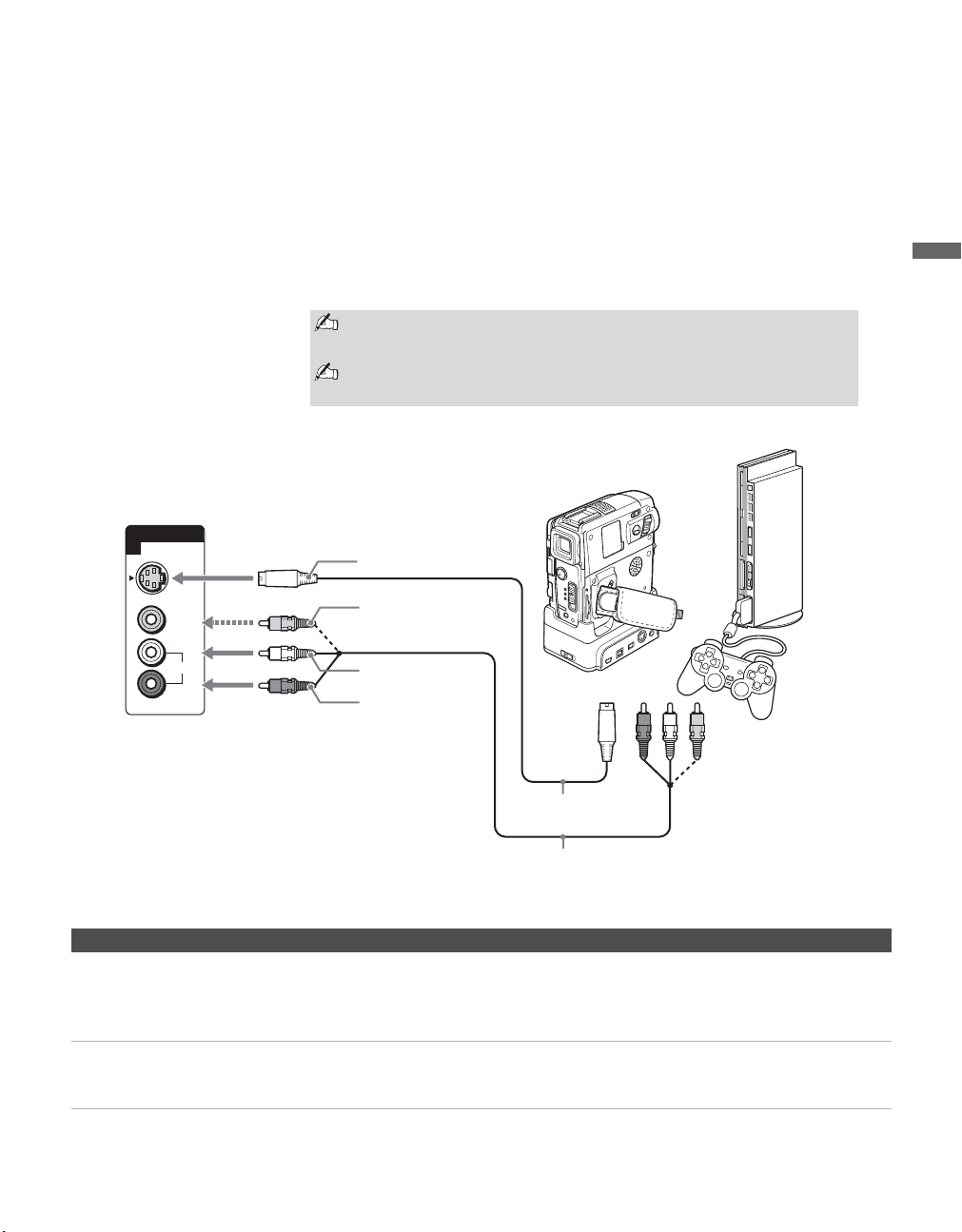
You can connect a camcorder or video game equipment to your unit’s rear
A/V input jacks.
To connect a camcorder or video game equipment
Use an A/V and S VIDEO cables to connect the camcorder or video game
equipment AUDIO and S VIDEO output jacks to the unit’s AUDIO and S
VIDEO input jacks (VIDEO 1 or 2) on the rear of panel.
Notes on Using This Connection
If your camcorder is not equipped with S VIDEO, use a VIDEO
cable (yellow) instead of the S VIDEO cable.
If you have a mono camcorder, connect its audio output jack to the
unit’s L MONO audio input jack.
VIDEO IN
2
VIDEO
AUDIO
L
R
(MONO)
S VIDEO
To A/V output jack
Rear of unit
Camcorder
SVIDEO
VIDEO
(yellow)
AUDIO-L
(white)
AUDIO-R
(red)
To
SVIDEO
jack
Video game equipment
or
S VIDEO cable
A/V cable
To Do This ... Do This ...
Watch the camcorder or video
game equipment
Press V1 or V2 on the remote control.
or
Press INPUT on the top panel repeatedly to select the camcorder or game input
(Video 1 or 2).
Label video inputs to easily
identify equipment connected to
the unit
See the instructions for setting up Label Video Inputs on page 40.
01US02WAR-UC.book Page 27 Monday, December 19, 2005 1:58 PM
28
KLV-32U100M
2-668-009-13(1)
G:\#Sagyo\SONY\09 TV\kaihan KLV-
32U100M\1219_KLV32U100M_rev\2668009131\2668009131 KLV-
32U100M_US\01US05REM.fm
masterpage:3 columns Right
Using the Unit
Button Descriptions
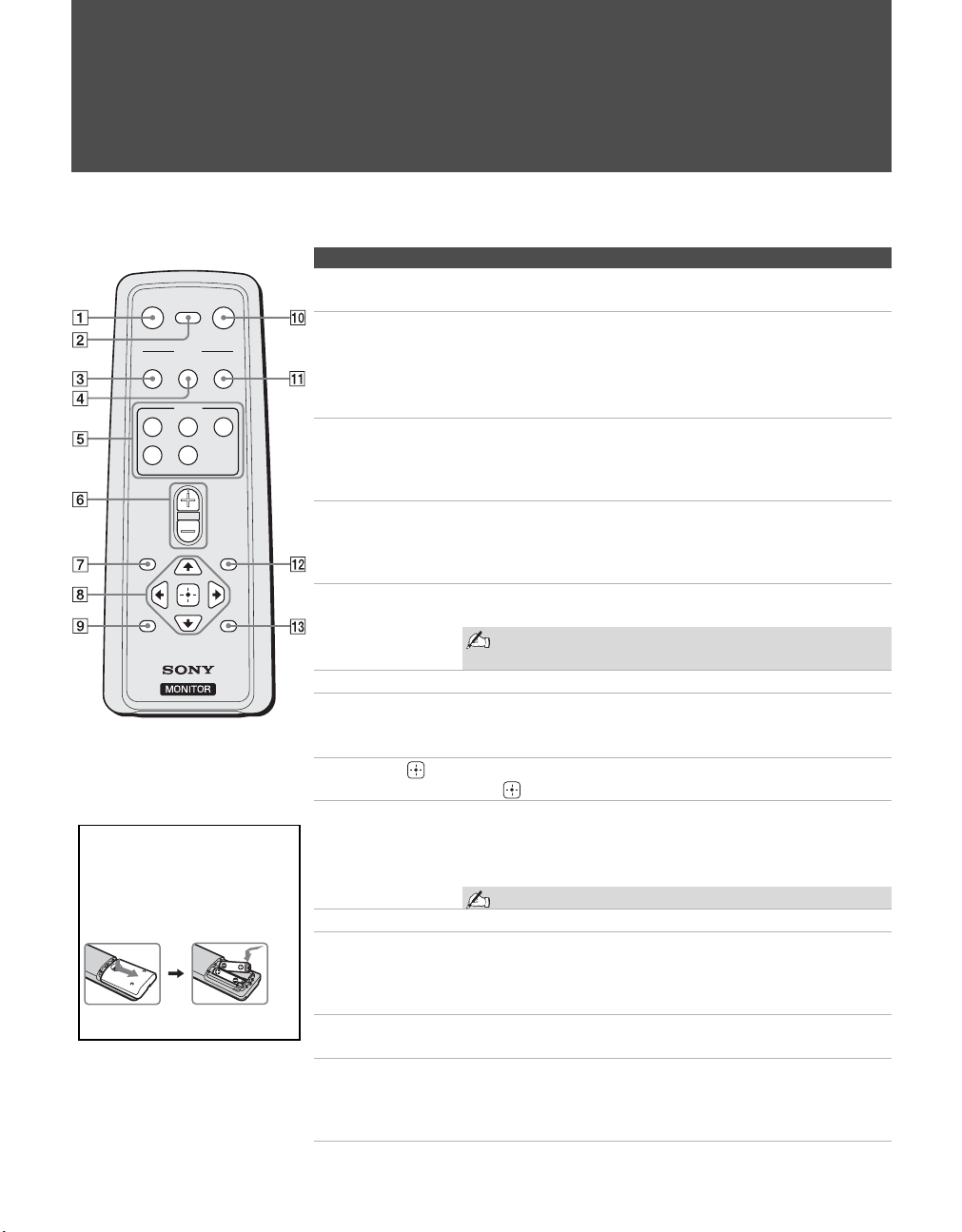
Button Description
1 MUTING Press to mute the sound. Press again or press VOL + to restore
the sound.
2 DISPLAY Press once to display the current Video Input number and
Wide Mode settings. The OSD (on screen display) will be
canceled after a few seconds or press again to immediately
cancel the display. If Sleep Timer is set, the remaining time
for Sleep Timer can be displayed by pressing DISPLAY.
3 SOUND Press repeatedly to cycle through the sound modes: Dynamic,
Standard, SRS, Effect Off. The sound modes can be also
accessed in the Sound settings. See “Selecting Sound
Options” on page 35.
4 PICTURE Press repeatedly to cycle through the available picture modes:
Vivid, Standard, Custom. The picture modes can be also
accessed in the Picture settings. See “Selecting Picture
Options” on page 33.
5 INPUT
V1 to V5
Press to select the external equipment connected to the unit’s
inputs.
See page 40 on setting up the video input labels,
including skip function.
6 VOL +/– Press to adjust the volume.
7 POWER
SAVING
Press repeatedly to cycle through the power saving modes: Off,
Low, High, Picture Off. The power saving modes can be also
accessed in the Setup settings. See Power Saving on page 41.
8 V/v/B/b/ Press V/v/B/b to move the on-screen cursor. To select an item,
press .
9 FREEZE Press to freeze the picture. The current program appears in the
sub screen when freeze is selected. Press repeatedly to restore
the picture. You can use this feature to write down information
such as phone numbers, recipes, etc.
Some functions will not be available in freeze.
0 POWER Press to turn on and off the unit.
qa WIDE Press repeatedly to cycle through the wide screen mode
settings: Wide Zoom, Normal, Full, Zoom. The wide screen
mode settings can be also accessed in the Screen settings. See
“Selecting Screen Options” on page 36.
qs MENU Press to navigate to unit functions. See “Using the Settings” on
page 32.
qd SLEEP Press repeatedly until the unit displays the time in minutes (15,
30, 45, 60, 90 or 120) that you want the unit to remain on
before shutting off. To cancel Sleep Timer, press SLEEP
repeatedly until Sleep Timer : Off appears.
V1
V2 V3
V4 V5
MUTING DISPLAY
SOUND
POWER
SAVING
MENU
VOL
PICTURE
MODE
INPUT
WIDE
POWER
SLEEPFREEZE
z The VOL + button has a
tactile dot. Use it as a
reference when operating
the unit.
Insert two size AA batteries
(supplied) by matching the e
and E on the batteries to the
diagram inside the remote
control’s battery compartment.
“Be sure to insert the E first.”
01US02WAR-UC.book Page 28 Monday, December 19, 2005 1:58 PM
Using the Unit
29
Using the Unit
KLV-32U100M
2-668-009-13(1)
G:\#Sagyo\SONY\09 TV\kaihan KLV-
32U100M\1219_KLV32U100M_rev\2668009131\2668009131 KLV-
32U100M_US\01US05REM.fm
masterpage:3 columns Right
Special Buttons on the Remote Control
Using the Wide
Screen Mode
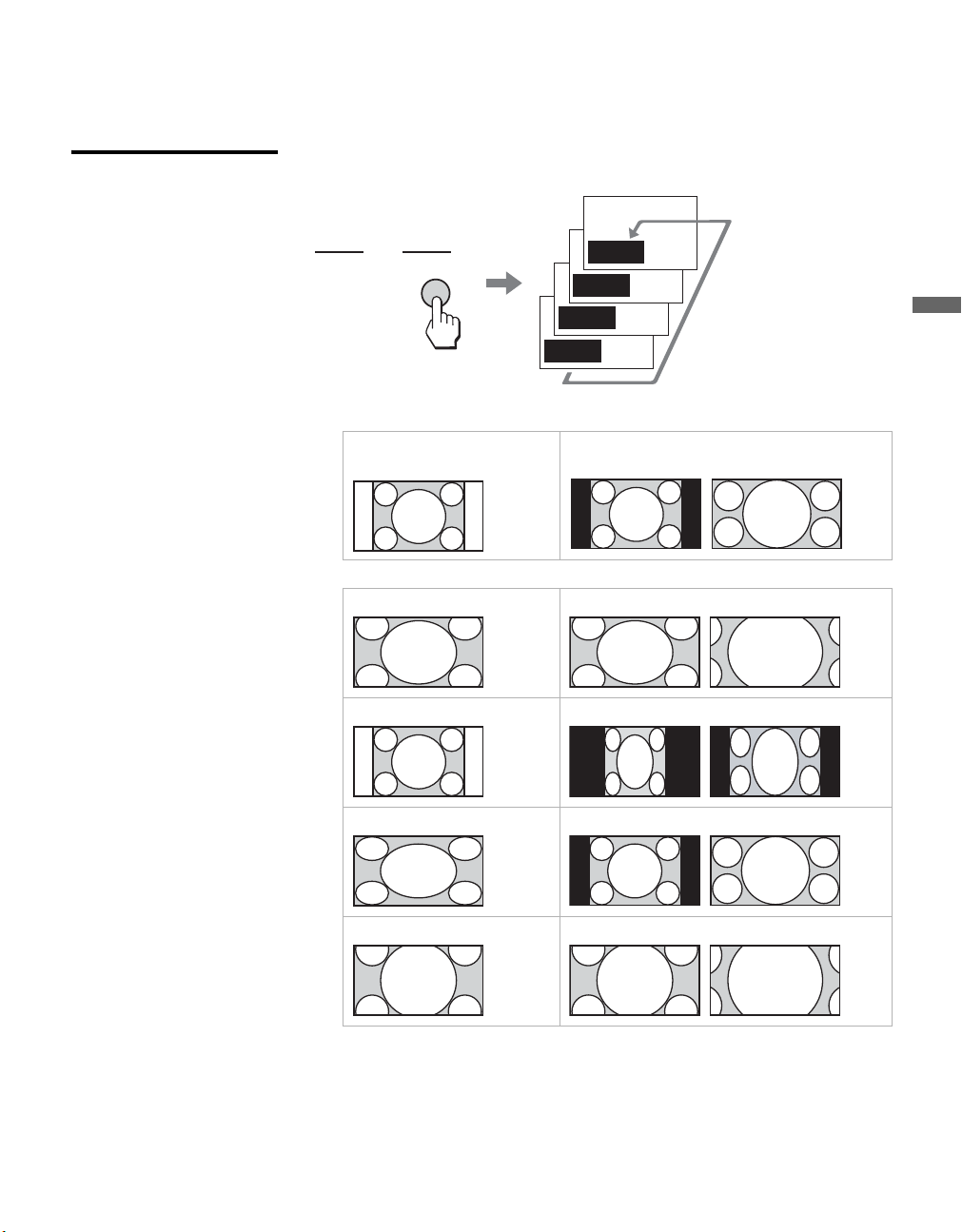
You can change the wide screen mode settings.
Changing the wide screen mode
4:3 Original source
Standard definition source
16:9 Original source
High definition source
mm
Wide Zoom Wide Zoom
Normal Normal
Full Full
Zoom Zoom
Wide Mode :
Wide Zoom
Wide Mode :
Normal
Wide Mode :
Full
Wide Mode :
Zoom
MODE
WIDE
z You can also access the
Wide Mode settings in the
Screen settings. For
details, see page 36.
01US02WAR-UC.book Page 29 Monday, December 19, 2005 1:58 PM
Using the Unit
30
KLV-32U100M
2-668-009-13(1)
G:\#Sagyo\SONY\09 TV\kaihan KLV-
32U100M\1219_KLV32U100M_rev\2668009131\2668009131 KLV-
32U100M_US\01US05REM.fm
masterpage:3 columns Right
Using the Freeze
Function
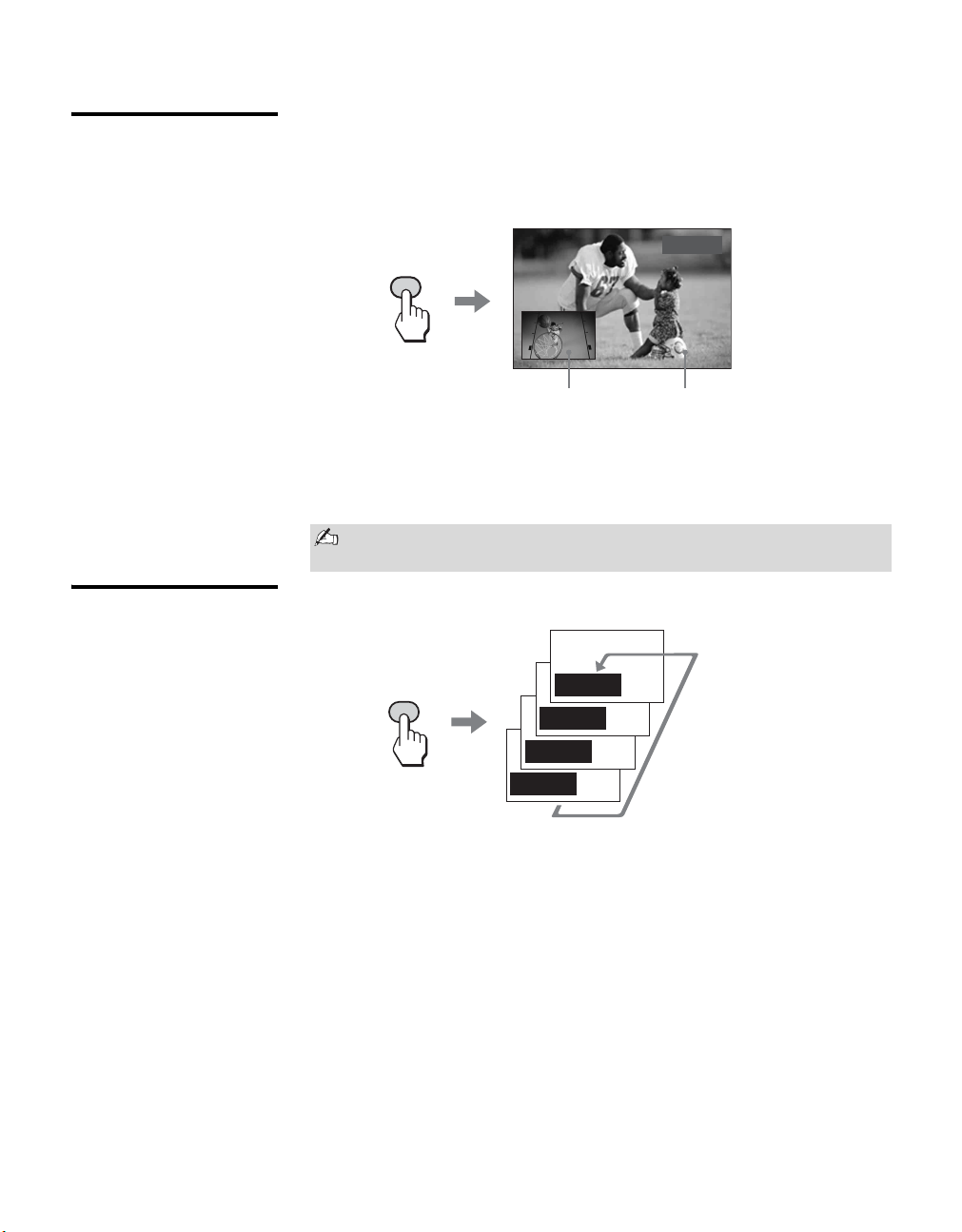
You can use this feature to write down information such as phone numbers,
recipes, etc. When you press the button once, the current screen is frozen
and the sub screen appears. When you press the button again, only the frozen
screen is displayed; when you press it a third time, the normal screen returns.
To cancel the Freeze function mode
Press FREEZE until the normal screen appears.
Using the Power
Saving Function
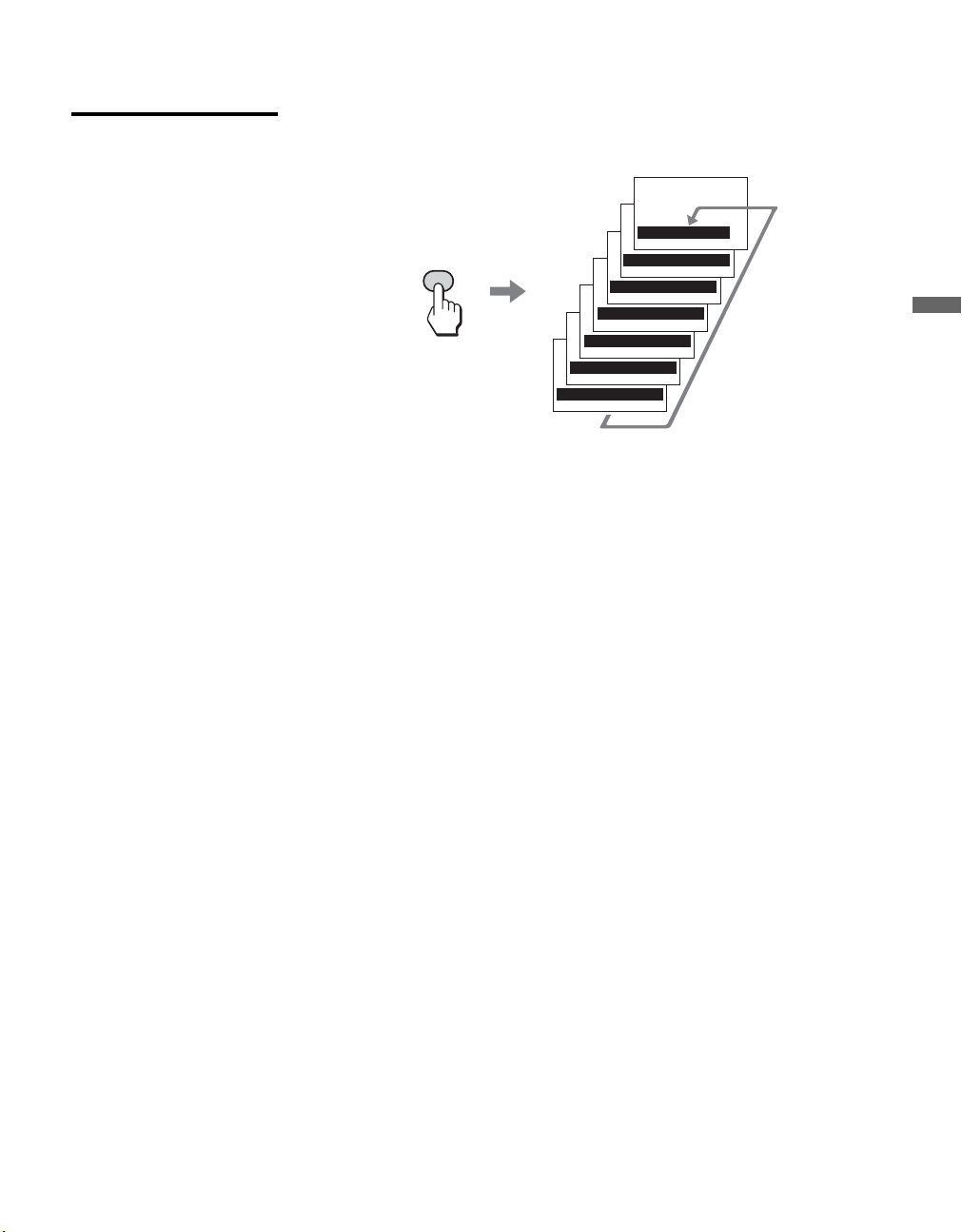
You can reduce the power consumption of the unit.
To cancel the Power Saving mode
Press POWER SAVING repeatedly until “Power Saving: Off” appears.
With Freeze function active, some functions are unavailable, such as
MENU.
z
While the picture is
frozen, the sound
continues to be output
normally.
z The wide format signal
will be squeezed in the
sub screen.
FREEZE
Freeze
Frozen pictureCurrent program
Move the sub screen
with V v B b.
Power Saving :
Picture Off
Power Saving :
High
Power Saving :
Low
Power Saving :
Off
POWER
SAVING
z
If you turn off the unit when
the Power Saving mode is
on, the mode stays on next
time you turn on the unit
except Picture Off.
z You can set the Power
Saving mode to on using
the settings screen.
Select Power Saving in
the Setup settings, then
set it to Off, Low or High.
z When Picture Off is
selected, the PIC
OFF/TIMER LED lights in
green.
01US02WAR-UC.book Page 30 Monday, December 19, 2005 1:58 PM
Using the Unit
31
Using the Unit
KLV-32U100M
2-668-009-13(1)
G:\#Sagyo\SONY\09 TV\kaihan KLV-
32U100M\1219_KLV32U100M_rev\2668009131\2668009131 KLV-
32U100M_US\01US05REM.fm
masterpage:3 columns Right
Using the Sleep
Function
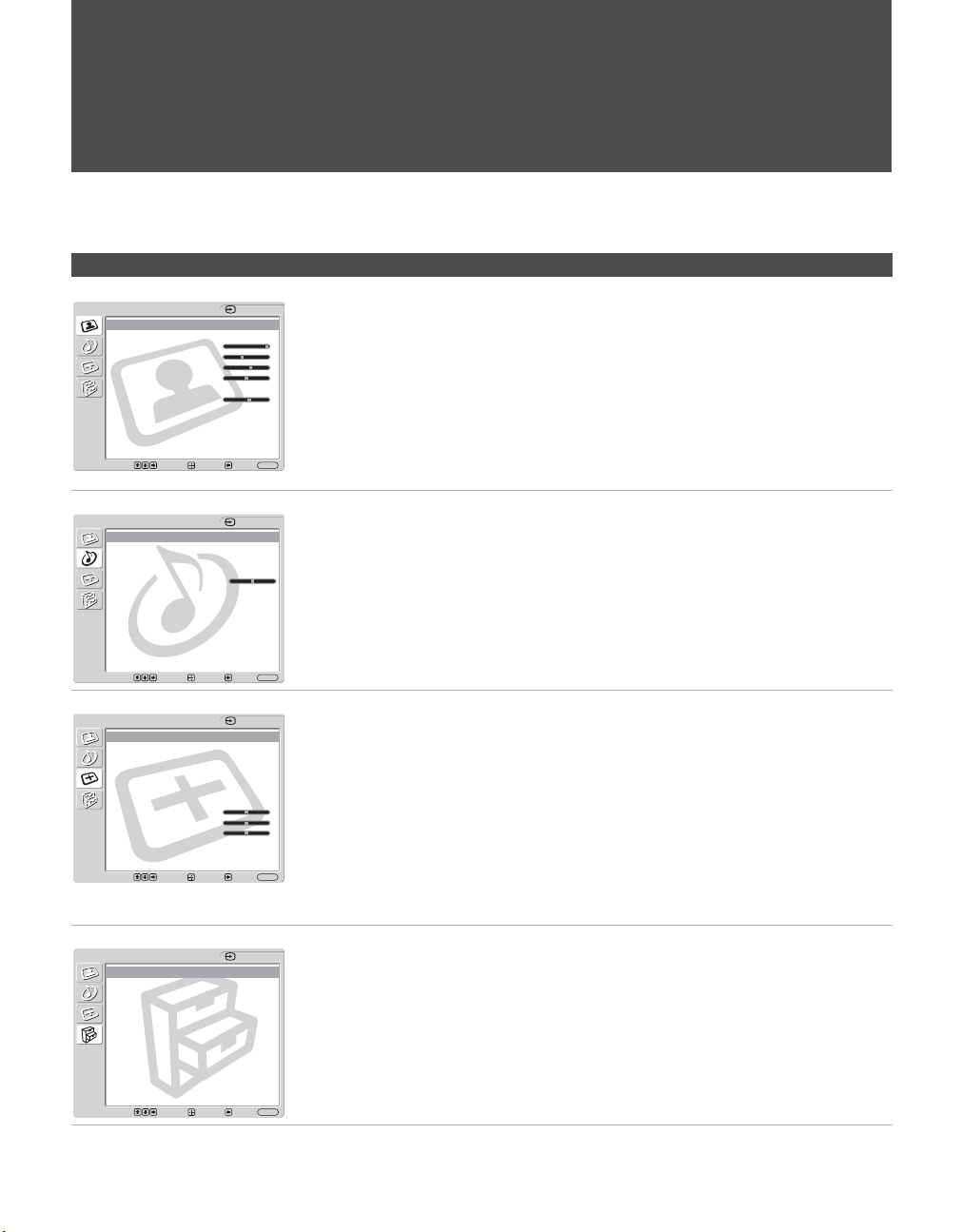
You can set the unit to turn off automatically after a predetermined period of
time (15, 30, 45, 60, 90 or 120 minutes).
While Sleep Timer is activated, the PIC OFF/TIMER LED on the unit
lights up in orange.
To cancel Sleep Timer
Press SLEEP repeatedly until “Sleep Timer : Off” appears or turn the unit
power to off then turn on the unit again.
Sleep Timer : 15 min
Sleep Timer : 30 min
Sleep Timer : 45 min
Sleep Timer : 60 min
Sleep Timer : 90 min
Sleep Timer : 120 min
Sleep Timer : Off
SLEEP
z
If you turn the unit off, and
then turn it on again,
Sleep Timer returns to
“Sleep Timer : Off.”
z “Sleep Timer: Power will
be turned off” appears
one minute before the unit
shuts off. This message
may not appear if you are
performing other
operations in the settings.
z You can set Sleep Timer
to on using the Setup
settings. Select Sleep
Timer in the Setup
settings, then set it to
15 min, 30 min, 45 min,
60 min, 90 min, 120 min
or Off.
01US02WAR-UC.book Page 31 Monday, December 19, 2005 1:58 PM
32
KLV-32U100M
2-668-009-13(1)
G:\#Sagyo\SONY\09 TV\kaihan KLV-
32U100M\1219_KLV32U100M_rev\2668009131\2668009131 KLV-
32U100M_US\01US06MEN.fm
masterpage:3 columns Right
Using the Settings
Overview of the Settings
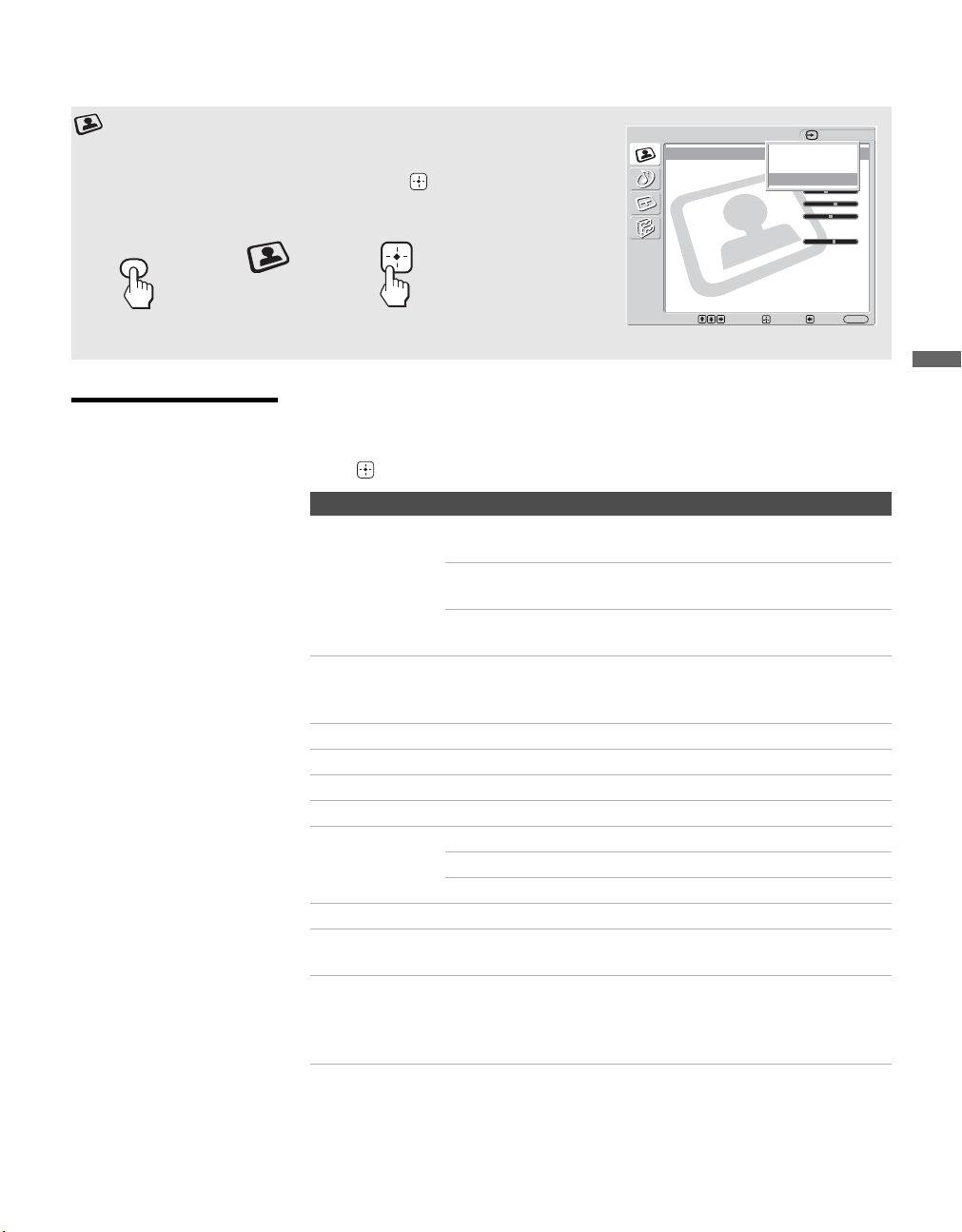
The Settings provides you access to the following features:
* Buttons displayed at the bottom of the screen may not work, depending on settings.
Settings Allows you to set/change
Picture Picture Mode (page 33)
Picture Mode Reset (page 33)
Picture (page 33)
Brightness (page 33)
Color (page 33)
Hue (page 33)
Color Temperature (page 33)
Sharpness (page 33)
Noise Reduction (page 33)
CineMotion (page 33)
Sound
Sound Mode (page 35)
Sound Mode Reset (page 35)
Tre ble (page 35)
Bass (page 35)
Balance (page 35)
Screen
Wide Mode (page 36)
Auto Wide (page 36)
4:3 Default (page 36)
Display Area (page 37)
Auto Adjust (page 38)
Phase (page 38)
Pitch (page 38)
Horizontal Center (page 37)
Vertical Center (page 37)
Vertical Size (page 37)
Reset (page 38)
Setup
Language (page 40)
Label Video Inputs (page 40)
Sleep Timer (page 40)
Power Saving (page 41)
Picture
Picture Mode: Custom
Picture Mode Reset
Picture: Max
Brightness: 40
Color: 60
Hue: 0
Color Temperature:
Cool
Sharpness: 18
Noise Reduction: On
CineMotion: Auto
Select: Exit:
Back:
Enter:
Video 1
MENU
Select: Exit:
Back:
Enter:
MENU
Sound Mode: Dynamic
Sound Mode Reset
Treble:
Bass:
Balance: Center
Sound
Video 1
Screen
Wide Mode: Wide Zoom
Auto Wide: On
4:3 Default: Wide Zoom
Display Area: Normal
Auto Adjust:
Phase:
Pitch:
Horizontal Center: 0
Vertical Center: 0
Vertical Size: 0
Reset:
Video 1
Select: Exit:
Back:
Enter:
MENU
Language: English
Label Video Inputs
Sleep Timer Off
Power Saving: Off
Setup
Video 1
Select: Exit:
Back:
Enter:
MENU
01US02WAR-UC.book Page 32 Monday, December 19, 2005 1:58 PM
Using the Settings
33
Using the Settings
KLV-32U100M
2-668-009-13(1)
G:\#Sagyo\SONY\09 TV\kaihan KLV-
32U100M\1219_KLV32U100M_rev\2668009131\2668009131 KLV-
32U100M_US\01US06MEN.fm
masterpage:3 columns Right
Selecting Picture
Options
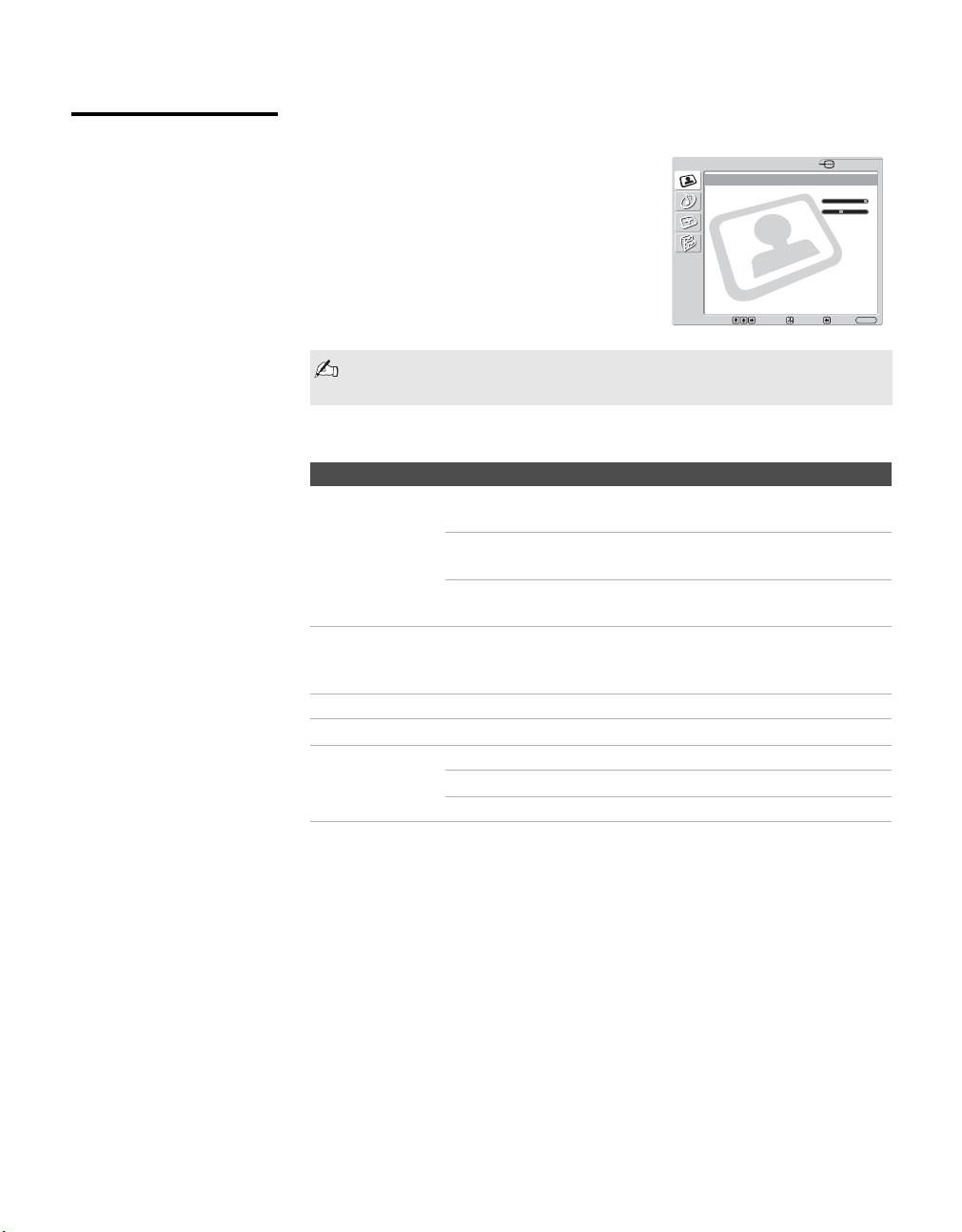
The Picture settings includes the following options:
To highlight an option and to change settings, press VvB b.
Press to confirm the selection.
Using the Picture Settings
To select the Picture settings
1. Press MENU 2. Press V v to
highlight
Picture
3. Press or b
to select
To exit the Picture settings, press MENU.
Picture
Picture Mode: Vivid
Picture Mode Reset
Picture: Max
Brightness: 40
Color: 60
Hue: 0
Color Temperature:
Cool
Sharpness: 18
Noise Reduction: On
CineMotion: Auto
Select: Exit:
Back:
Enter:
Video 1
MENU
Vivid
Standard
Custom
MENU
Option Description
Picture Mode
Customized
picture viewing
Vivid Select for enhanced picture contrast and
sharpness.
Standard Select for standard picture settings.
Recommended for home entertainment.
Custom Select for professional unit like appearance
settings.
Picture Mode
Reset
Reset all settings and adjustments to the default setting for each
Picture Mode (Vivid, Standard, Custom) (except for the
options grayed out).
Picture Adjust to increase or decrease picture contrast.
Brightness Adjust to brighten or darken the picture.
Color Adjust to increase or decrease color intensity.
Hue Adjust to increase or decrease the green tones.
Color
Temperature
White adjustment
Cool Select to give the white colors a blue tint.
Neutral Select to give the white colors a neutral tint.
Warm Select to give the white colors a red tint.
Sharpness Adjust to sharpen or soften the picture.
Noise Reduction Select to reduce the noise level of connected equipment. Select
from On and Off.
CineMotion Select Auto to optimize the screen display automatically
detecting film content and applying a reverse 3-2 pull down
process. Moving picture will appear clearer and more natural
looking. Select Off to disable the detection.
z To change from one
Picture Mode to another,
use PICTURE on the
remote control.
z You can alter the Picture
Mode options (Vivid,
Standard, Custom) for
each video input.
z You can alter the Picture
settings (Picture,
Brightness, Color, etc.) for
each Mode.
z Color, Hue, Sharpness,
Noise Reduction and
CineMotion are not
available for PC input.
(Continued)
01US02WAR-UC.book Page 33 Monday, December 19, 2005 1:58 PM
Using the Settings
34
KLV-32U100M
2-668-009-13(1)
G:\#Sagyo\SONY\09 TV\kaihan KLV-
32U100M\1219_KLV32U100M_rev\2668009131\2668009131 KLV-
32U100M_US\01US06MEN.fm
masterpage:3 columns Right
Selecting PC Picture
Options
To display the PC screen:
Press V5 on the remote control, or press
INPUT repeatedly on the top panel until
Video 5 (PC) appears.
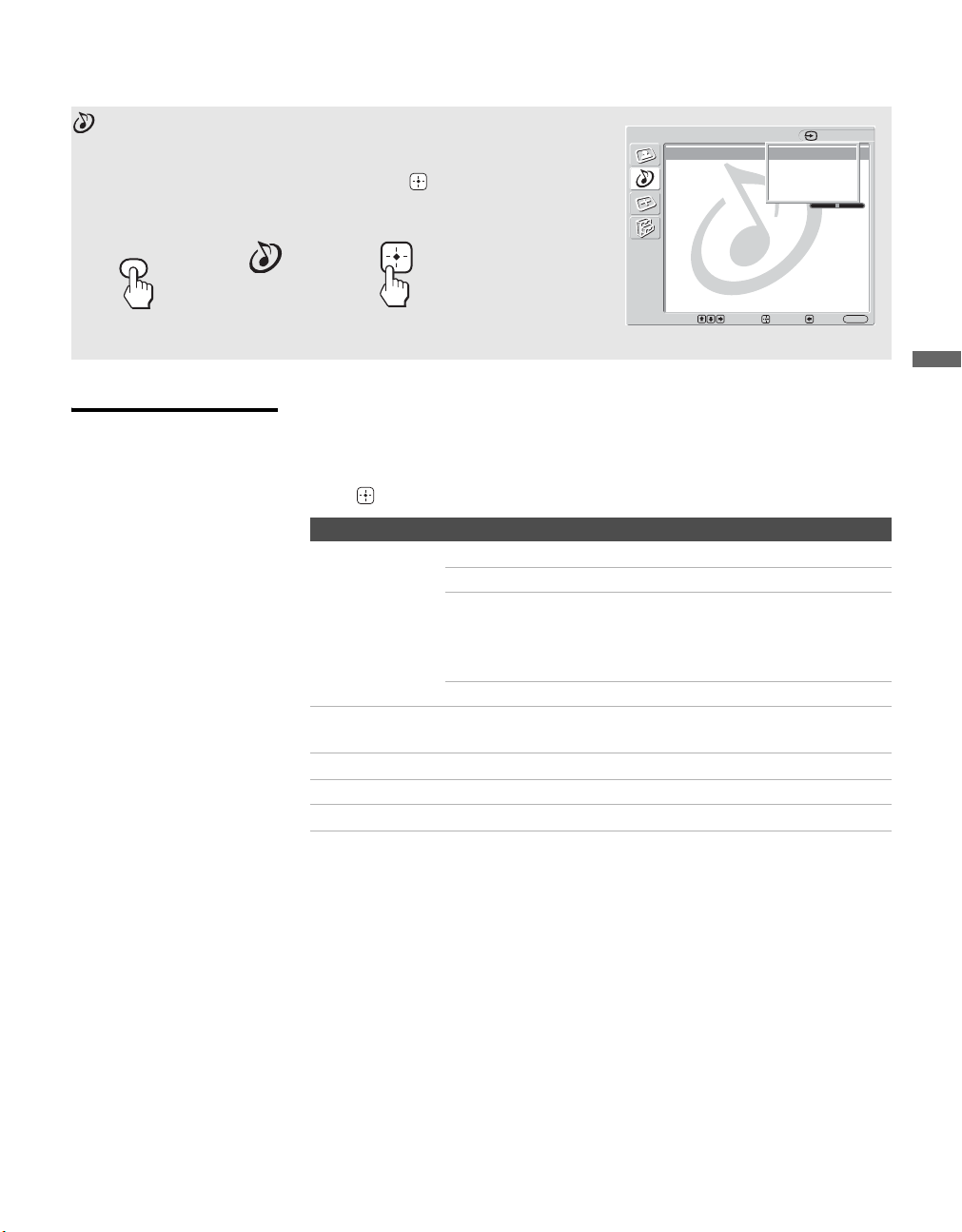
The PC Input Picture setting includes the following options:
You can change the settings for the PC input while the unit is displaying
the PC screen.
Option Description
Picture Mode
Customized
picture viewing
Vivid Select for enhanced picture contrast and
sharpness.
Standard Select for standard picture settings.
Recommended for home entertainment.
Custom Select for professional unit like appearance
settings.
Picture Mode
Reset
Reset all settings and adjustments to the default setting for each
Picture Mode (Vivid, Standard, Custom) (except for the
options grayed out).
Picture Adjust to increase or decrease picture contrast.
Brightness Adjust to brighten or darken the picture.
Color
Temperature
Cool Select to give the white colors a blue tint.
Neutral Select to give the white colors a neutral tint.
Warm Select to give the white colors a red tint.
Picture
Picture Mode: Vivid
Picture Mode Reset
Picture: Max
Brightness: 40
Color:
Hue:
Color Temperature:
Neutral
Sharpness:
Noise Reduction:
CineMotion:
Video 5
Select: Exit:
Back:
Enter:
MENU
01US02WAR-UC.book Page 34 Monday, December 19, 2005 1:58 PM
Using the Settings
35
Using the Settings
KLV-32U100M
2-668-009-13(1)
G:\#Sagyo\SONY\09 TV\kaihan KLV-
32U100M\1219_KLV32U100M_rev\2668009131\2668009131 KLV-
32U100M_US\01US06MEN.fm
masterpage:3 columns Right
Selecting Sound
Options
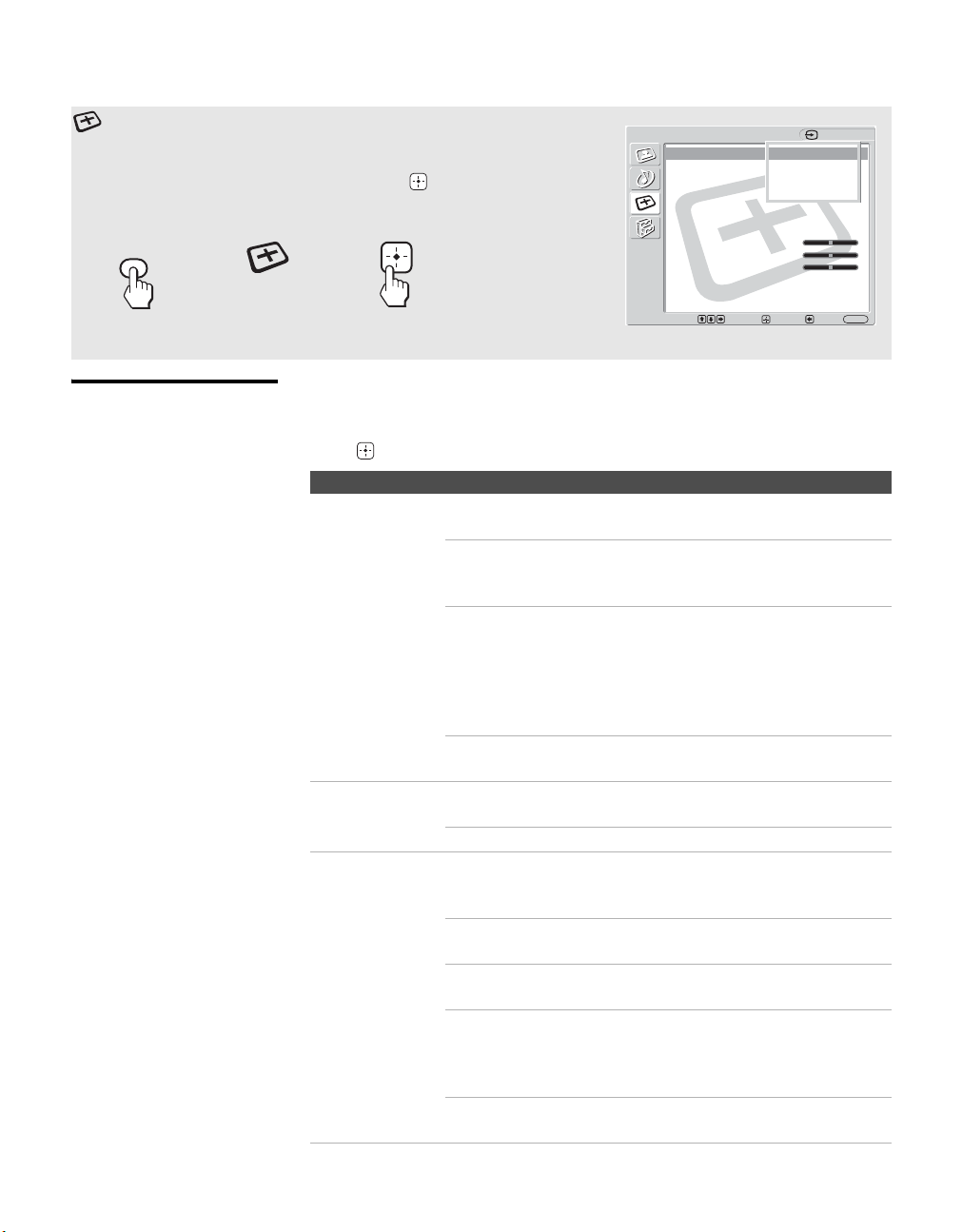
The Sound settings includes the following options:
To highlight an option and to change settings, press VvB b.
Press to confirm the selection.
*Available when Effect Off is selected in Sound Mode.
Using the Sound Settings
To select the Sound settings
1. Press MENU 2. Press V v to
highlight
Sound
3. Press or b
to select
To exit the Sound settings, press MENU.
Sound Mode: Dynamic
Sound Mode Reset
Treble:
Bass:
Balance: Center
Sound
Video 1
Dynamic
Standard
SRS
Effect Off
Select: Exit:
Back:
Enter:
MENU
MENU
Option Description
Sound Mode
Customized
sound listening
Dynamic Select to enhance treble and bass.
Standard Flat setting.
SRS Provides a panoramic stereo audio image by
producing deep and rich bass tones and clear
treble tones, enabling you to enjoy powerful
sound effects like those in a movie theater.
Effect Off Normal stereo or mono reception.
Sound Mode
Reset
Reset the following settings; Treble, Bass and Balance to the
default setting.
Tr e bl e * Adjust to increase or decrease higher-pitched sounds.
Bass* Adjust to increase or decrease lower-pitched sounds.
Balance Adjust to emphasize left or right speaker balance.
z To change from one Sound
Mode option to another,
use SOUND on the remote
control.
01US02WAR-UC.book Page 35 Monday, December 19, 2005 1:58 PM
Using the Settings
36
KLV-32U100M
2-668-009-13(1)
G:\#Sagyo\SONY\09 TV\kaihan KLV-
32U100M\1219_KLV32U100M_rev\2668009131\2668009131 KLV-
32U100M_US\01US06MEN.fm
masterpage:3 columns Right
Selecting Screen
Options
The Screen settings includes the following options:
To highlight an option and to change settings, press VvB b.
Press to confirm the selection.
Using the Screen Settings
To select the Screen settings
1. Press MENU 2. Press V v to
highlight
Screen
3. Press or b
to select
To exit the Screen settings, press MENU.
Screen
Wide Mode: Wide Zoom
Auto Wide: On
4:3 Default: Wide Zoom
Display Area: Normal
Auto Adjust:
Phase:
Pitch:
Horizontal Center: 0
Vertical Center: 0
Vertical Size: 0
Reset:
Video 1
Wide Zoom
Normal
Full
Zoom
Select: Exit:
Back:
Enter:
MENU
MENU
Option Description
Wide Mode
Select a Wide
Mode to use for
4:3 sources
Wide Zoom Select to enlarge to fill screen with minimum
distortion.
Normal Select to display 4:3 picture in original size
when the original source is 4:3 (Standard
definition source).
Full Select to enlarge the original picture
horizontally to fill the screen when the original
source is 4:3 (Standard definition source). When
the original source is 16:9 (High definition
source), select this mode to display 16:9 picture
in original size.
Zoom Select to enlarge the original picture without
distorting the aspect ratio.
Auto Wide On Select to detect the image and change it
automatically to the appropriate screen mode.
Off The screen mode does not change automatically.
4:3 Default
Select the default
Screen Mode to
use for 4:3
sources
Wide Zoom Select to enlarge the 4:3 picture to fill the 16:9
screen, keeping the original image as much as
possible.
Normal Select to return the 4:3 picture to its original
size.
Full Select to enlarge the 4:3 picture horizontally
only, to fill the 16:9 screen.
Zoom Select to enlarge the 4:3 picture horizontally and
vertically to an equal aspect ratio that fills the
16:9 screen. Useful for watching Letterbox
movies.
Off Select to continue using the current Wide Screen
Mode setting when the input is changed.
z To change from one Wide
Mode option to another,
use WIDE on the remote
control.
z Select Zoom in the Wide
Mode option to display
movies and other content
on DVD, using the entire
viewable area of the
screen.
z
For Wide Zoom and Zoom
modes, you can adjust the
vertical position of the
picture. For details, see
page 37.
z 4:3 Default functions only
when the unit receives 480i
or 480p signals.
z If 4:3 Default option is set
to anything but Off, the
Wide Mode setting
changes only for the
current input. When you
change inputs, Wide Mode
is automatically replaced
with the 4:3 Default setting
for 4:3 sources. To retain
the current Wide Mode
setting as inputs are
changed, set 4:3 Default to
Off.
01US02WAR-UC.book Page 36 Monday, December 19, 2005 1:58 PM
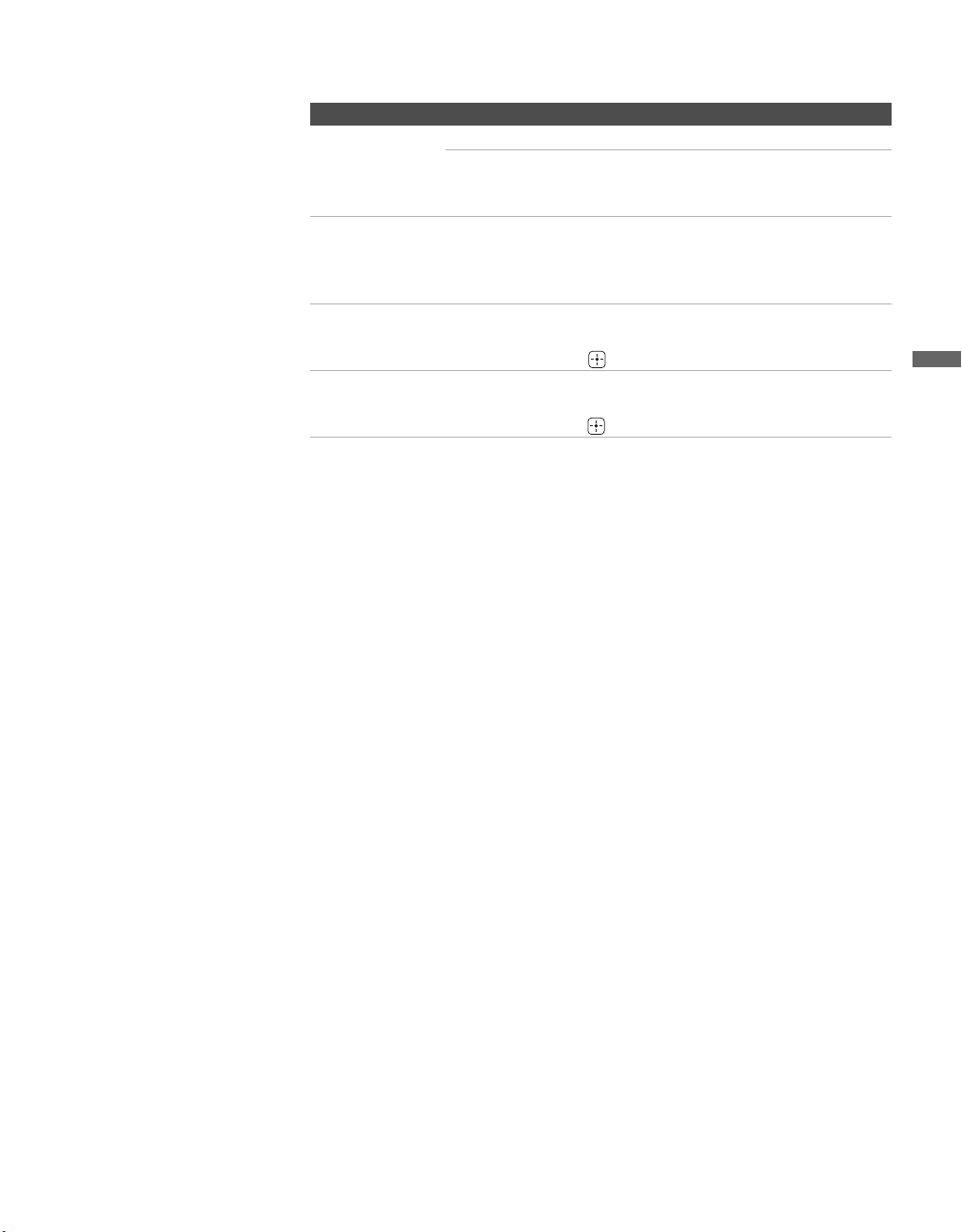
Using the Settings
37
Using the Settings
KLV-32U100M
2-668-009-13(1)
G:\#Sagyo\SONY\09 TV\kaihan KLV-
32U100M\1219_KLV32U100M_rev\2668009131\2668009131 KLV-
32U100M_US\01US06MEN.fm
masterpage:3 columns Right
Display Area Normal Displays a standard size picture.
-1/-2 Allows you to adjust the viewable picture area
size. This is useful for viewing ticker tape or
banners at the top or bottom of the screen.
Horizontal
Center
Allows you to move the position of the picture left and right in
the window. This function allows for horizontal adjustment of
the picture being displayed. (Available only in Wide Zoom and
Zoom modes.)
Vertical Center Allows you to move the position of the picture up and down in
the window. Available only in Wide Zoom and Zoom modes.
Press V/v and press to choose a correction.
Vertical Size Allows you to adjust the vertical size of the picture. (Available
only in Wide Zoom and Zoom modes.)
Press V/v and press to choose correction.
Option Description
z
Auto Wide, 4:3 Default,
Display Area and Vertical
Size are not available for
PC Input.
z Horizontal Center feature
is useful if unit is
connected to game
equipment.
(Continued)
01US02WAR-UC.book Page 37 Monday, December 19, 2005 1:58 PM
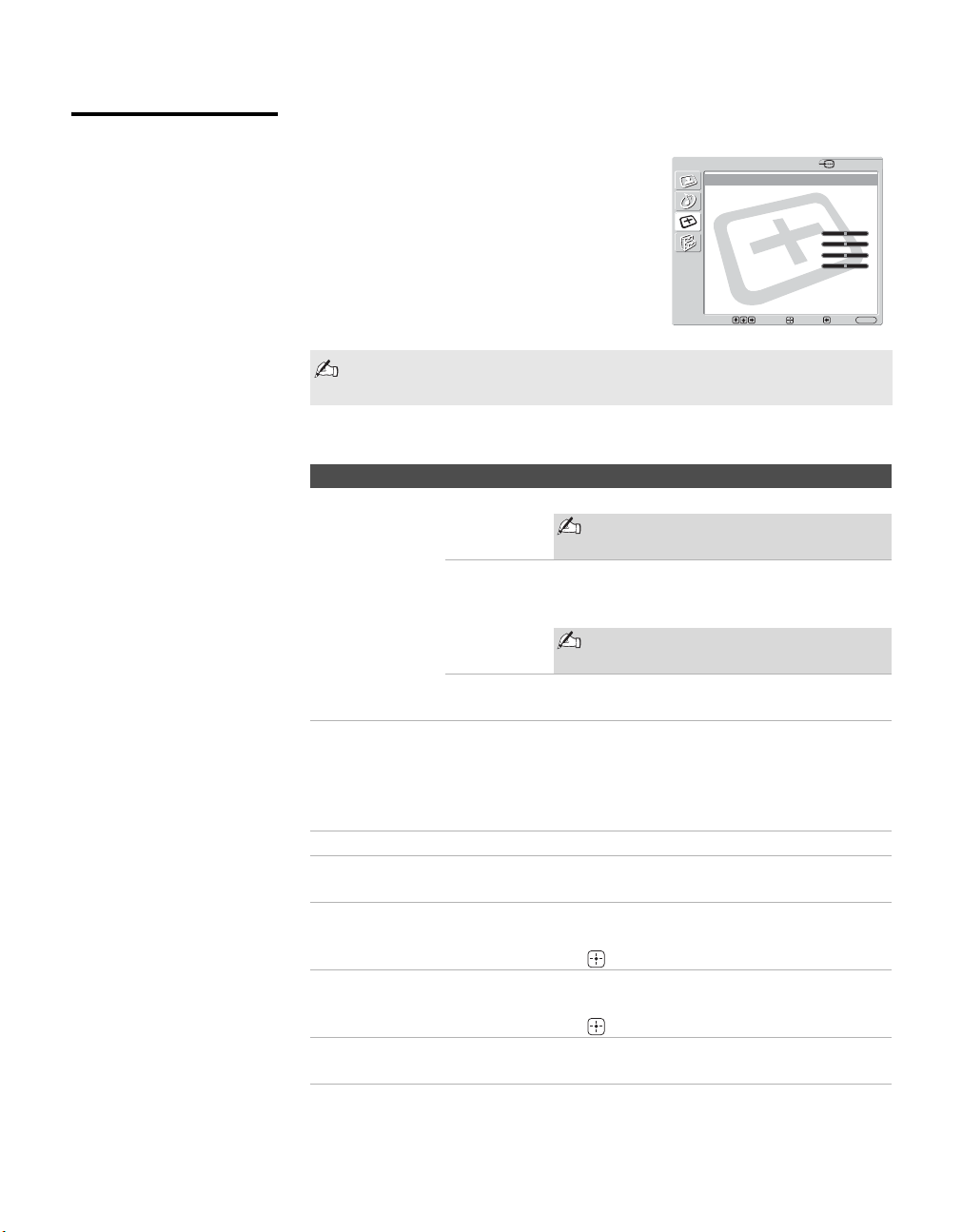
Using the Settings
38
KLV-32U100M
2-668-009-13(1)
G:\#Sagyo\SONY\09 TV\kaihan KLV-
32U100M\1219_KLV32U100M_rev\2668009131\2668009131 KLV-
32U100M_US\01US06MEN.fm
masterpage:3 columns Right
Selecting PC Screen
Options
To display the PC screen:
Press V5 on the remote control, or press
INPUT repeatedly on the top panel until
Video 5 (PC) appears.
The PC Input Screen setting includes the following options:
You can change the settings for the PC input while the unit is displaying
the PC screen.
Option Description
Wide Mode Normal Select to display the picture in its original size.
A black frame will appear on the
surrounding of the picture.
Full 1 Select to enlarge the picture to fill the display
area, keeping its original horizontal-to-vertical
aspect ratio.
A black frame will appear on the
surrounding of the picture.
Full 2 Select to enlarge the picture to fill the display
area.
Auto Adjust Select to automatically adjust the display position and phase of
the picture when the unit receives an input signal from the
connected PC.
Note that Auto Adjust may not work well with certain input
signals. In such cases, manually adjust the options below.
Phase Select to adjust the phase when the screen flickers.
Pitch Select to adjust the pitch when the picture has unwanted
vertical stripes.
Horizontal
Center
Select to adjust the horizontal position of the picture.
Allows you to move the picture left and right in the window.
Press V/v and press to choose a correction.
Vertical Center Select to adjust the vertical position of the picture.
Allows you to move the picture up and down in the window.
Press V/v and press to choose a correction.
Reset Clear Phase, Pitch, Horizontal Center and Vertical Center
adjustments you made to the factory settings.
Screen
Wide Mode: Normal
Auto Wide:
4:3 Default:
Display Area:
Auto Adjust:
Phase: 0
Pitch: 0
Horizontal Center: 0
Vertical Center: 0
Vertical Size:
Reset:
Select: Exit:
Back:
Enter:
MENU
Video 5
01US02WAR-UC.book Page 38 Monday, December 19, 2005 1:58 PM
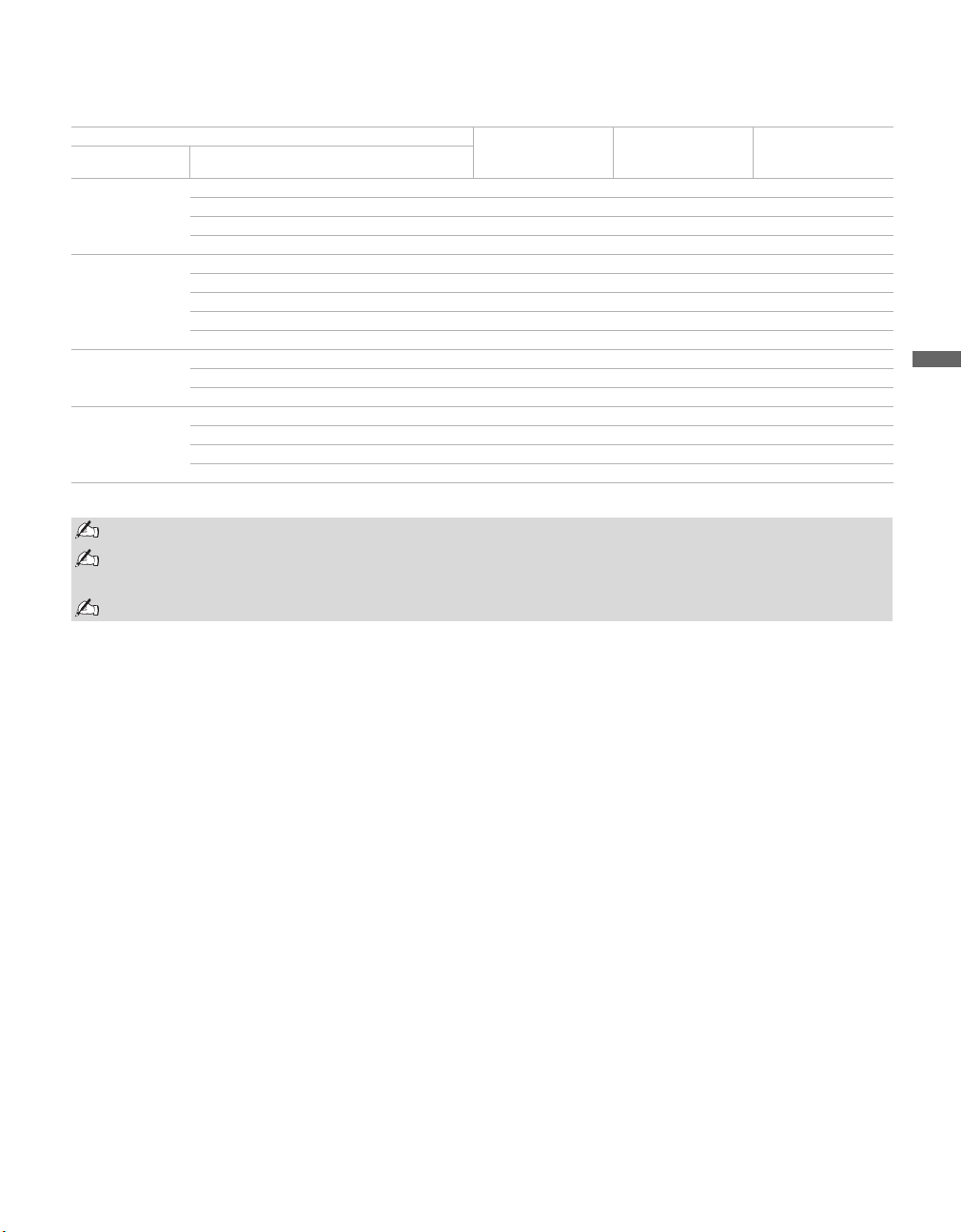
Using the Settings
39
Using the Settings
KLV-32U100M
2-668-009-13(1)
G:\#Sagyo\SONY\09 TV\kaihan KLV-
32U100M\1219_KLV32U100M_rev\2668009131\2668009131 KLV-
32U100M_US\01US06MEN.fm
masterpage:3 columns Right
PC Input Signal Compatibility Chart
*: Corresponding to the VGA signal
Resolution
Horizontal frequency
(kHz)
Vertical frequency
(Hz)
VESA standard
Signals Horizontal
(Pixel)
× Vertical
(Line)
VGA 640 × 480 31.5 60 –*
640 × 480 37.9 72 ✔
640 × 480 37.5 75 ✔
720 × 400 31.5 70 –*
SVGA 800 × 600 35.2 56 ✔
800 × 600 37.9 60 ✔
800 × 600 46.9 75 ✔
800 × 600 48.1 72 ✔
848 × 480 31.0 60 ✔
XGA 1024 × 768 48.4 60 ✔
1024 × 768 56.5 70 ✔
1024 × 768 60 75 ✔
WXGA 1280 × 768 47.4 60 ✔
1280 × 768 47.8 60 ✔
1280 × 768 60.3 75 ✔
1360 × 768 47.7 60 ✔
This unit does not support Sync on Green or Composite Sync.
If a signal other than in the above chart is input, it may not be displayed properly or may not be displayed
as you set.
Using the Vertical frequency (Hz) of the personal computer at 60 is recommended.
01US02WAR-UC.book Page 39 Monday, December 19, 2005 1:58 PM
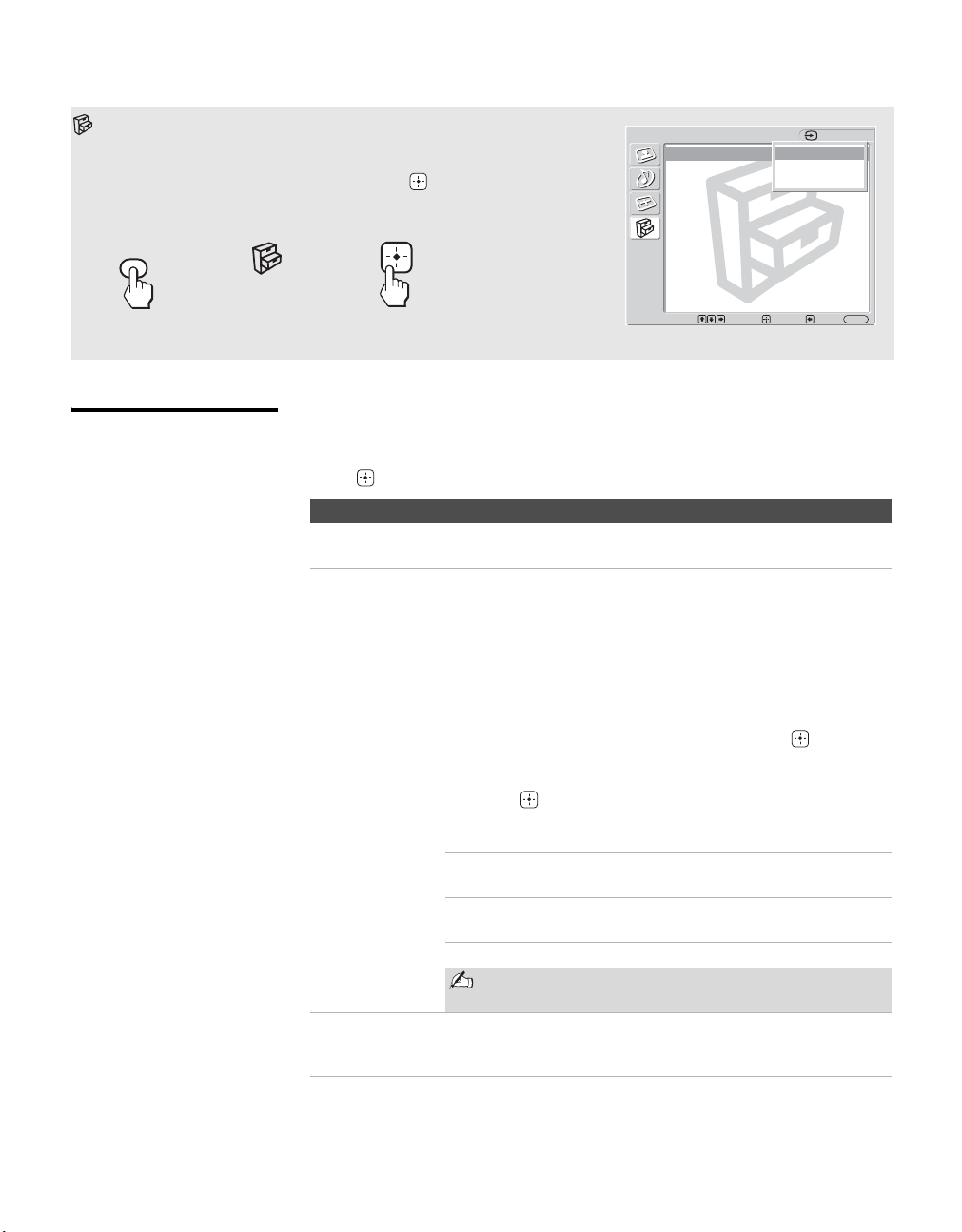
Using the Settings
40
KLV-32U100M
2-668-009-13(1)
G:\#Sagyo\SONY\09 TV\kaihan KLV-
32U100M\1219_KLV32U100M_rev\2668009131\2668009131 KLV-
32U100M_US\01US06MEN.fm
masterpage:3 columns Right
Selecting Setup
Options
The Setup settings includes the following options:
To highlight an option and to change settings, press VvB b.
Press to confirm the selection.
Using the Setup Settings
To select the Setup settings
1. Press MENU 2. Press V v to
highlight
Setup
3. Press or b
to select
To exit the Setup settings, press MENU.
Language: English
Label Video Inputs
Sleep Timer Off
Power Saving: Off
Setup
Video 1
English
Español
Français
Select: Exit:
Back:
Enter:
MENU
MENU
Option Description
Language Select to display all on-screen Settings in your language of
choice: English, Español, Français.
Label Video
Inputs
Allows you to identify A/V equipment you connected to the
unit, such as a VCR, DVD, etc. For example, if you have a DVD
player connected to the VIDEO 3 jack, you can select the label
DVD for the VIDEO 3 input. Then when you press V3 on the
remote control or press INPUT repeatedly on the top panel to
select Video 3, the video label you assigned to that input
appears on the screen.
1 Press V/v to highlight the video input (VIDEO 1-5) to
which you want to assign a label. Then press to select
the input.
2 Press V/v to highlight one of the displayed labels. Then
press to select the label.
You can select from the following labels for each input:
Video 1-2 Video 1-2, VHS, DVD, Satellite, Cable Box,
8mm, Game, Skip
Video 3-4 Video 3-4, VHS, DVD, Satellite, Cable Box,
Game, Skip
Video 5 Video 5, PC, Skip
If you select Skip, your unit skips this input when you
press INPUT on the top panel.
Sleep Timer Set the time in minutes (15 minutes, 30 minutes,
45 minutes, 60 minutes, 90 minutes, 120 minutes, or Off) that
you want the unit to remain on before shutting off automatically.
z The Skip label is useful for
inputs to which no
equipment is connected.
01US02WAR-UC.book Page 40 Monday, December 19, 2005 1:58 PM
Using the Settings
41
Using the Settings
KLV-32U100M
2-668-009-13(1)
G:\#Sagyo\SONY\09 TV\kaihan KLV-
32U100M\1219_KLV32U100M_rev\2668009131\2668009131 KLV-
32U100M_US\01US06MEN.fm
masterpage:3 columns Right
Power Saving Off Select to view picture without the benefit of
Power Saving.
Low/High Select to view picture with reduced power
consumption.
It also enhances the black level.
Picture Off Select to turn off the picture. Audio stays on
with your selected volume setting.
Option Description
z To change from one
Power Saving option to
another, use POWER
SAVING on the remote
control.
01US02WAR-UC.book Page 41 Monday, December 19, 2005 1:58 PM
42
KLV-32U100M
2-668-009-13(1)
G:\#Sagyo\SONY\09 TV\kaihan KLV-
32U100M\1219_KLV32U100M_rev\2668009131\2668009131 KLV-
32U100M_US\01US07OTH.fm
masterpage:3 columns Right
Other Information
Troubleshooting
Problem Possible Remedies
No picture.
No picture. ❑ Check Power Saving settings (page 41).
The unit turns off automatically. ❑ Check if Sleep Timer is activated (pages 31, 40).
No picture from some video
sources.
❑ Check the connection between the video equipment and the unit.
❑ Press V1 to V5 on the remote control (page 28) or press INPUT repeatedly
on the top panel (page 13).
Poor picture.
No color/Dark picture/The
picture is too bright/Color is not
correct
❑ Press PICTURE to select the desired Picture mode (pages 28).
❑ Adjust the Picture Mode options in the Picture settings (page 33).
Noisy picture. ❑ Keep the set-top box/VCR antenna cable away from other connecting cords.
❑ Do not use 300-ohm twin lead cables as interference may occur.
No sound/Noisy sound.
Good picture, no sound. ❑ Check the volume control.
❑ Press MUTING or VOL + so that “Muting” disappears from the screen
(page 28).
❑ Disconnect your headphones.
Audio noise. ❑ Keep the set-top box/VCR antenna cable away from other connecting cords.
Striped noise during
playback/recording of a VCR.
❑ This is caused by video head interference. Keep your VCR away from the
unit.
❑ Leave a space of 30 cm (11 7/8 inches) between your VCR and the unit to
avoid noise.
❑ Avoid installing your VCR in front of the unit or at the side of the unit.
Wide Screen Mode changes
automatically.
❑ The current Wide Screen Mode setting is automatically replaced with the
4:3 Default setting when you change the video input, if 4:3 Default in the
Screen settings is set to other than Off. If you want to lock in the Wide
Screen Mode selected with the WIDE button, set 4:3 Default to Off in the
Screen settings (page 36).
Remote control does not operate. ❑ Check the polarity of the batteries or replace the batteries.
❑ Point the remote control at the remote control sensor of the unit.
❑ Fluorescent lamps can interfere with remote control operation; try turning
off the fluorescent lamps.
❑ Keep the remote control sensor area clear from obstacles.
01US02WAR-UC.book Page 42 Monday, December 19, 2005 1:58 PM
Other Information
43
KLV-32U100M
2-668-009-13(1)
G:\#Sagyo\SONY\09 TV\kaihan KLV-
32U100M\1219_KLV32U100M_rev\2668009131\2668009131 KLV-
32U100M_US\01US07OTH.fm
masterpage:3 columns Right
Other Information
Contacting Sony
If, after reading the following instructions, you have additional questions related to the use of your Sony
®
unit, please call one of the following numbers.
Customers in the continental United States contact the Direct Response Center at:
1-800-222-SONY (7669)
or visit http://www.sony.com/TVsupport
Customers in Canada contact the Customer Relations Center at:
1-877-899-SONY (7669)
or visit http://www.sony.com/TVsupport
01US02WAR-UC.book Page 43 Monday, December 19, 2005 1:58 PM
Other Information
44
KLV-32U100M
2-668-009-13(1)
G:\#Sagyo\SONY\09 TV\kaihan KLV-
32U100M\1219_KLV32U100M_rev\2668009131\2668009131 KLV-
32U100M_US\01US07OTH.fm
masterpage:3 columns Right
Specifications
Screen size (measured diagonally):
KLV-32U100M: 32 inches
KLV-40U100M: 40 inches
Panel System:
LCD (Liquid Crystal Display) Panel
Display resolution (horizontal × vertical):
1,366 dots × 768 lines
VIDEO IN 1/2 (NTSC Video Standard):
S VIDEO (4-pin mini DIN):
Y: 1.0 Vp-p, 75 ohms unbalanced, sync
negative
C: 0.286 Vp-p (Burst signal), 75 ohms
VIDEO: 1 Vp-p, 75 ohms unbalanced, sync negative
AUDIO: 500 mVrms (100% modulation)
Impedance: 47 kilohms
HD/DVD IN 3:
YPBPR (Component Video):
Y: 1.0 Vp-p, 75 ohms unbalanced, sync
negative
P
B: 0.7 Vp-p, 75 ohms
P
R: 0.7 Vp-p, 75 ohms
Signal format: 480i, 480p, 720p, 1080i
AUDIO: 500 mVrms (100% modulation)
Impedance: 47 kilohms
HDMI IN 4:
HDMI: Video: 480i, 480p, 720p, 1080i
Audio:Two channel linear PCM 32, 44.1
and 48 kHz, 16, 20 and 24 bits
AUDIO: 500 mVrms (100% modulation)
Impedance: 47 kilohms
PC IN 5:
D-sub 15-pin, analog RGB, 0.7 Vp-p, 75 ohms, positive
See the PC Input Signal Compatibility Chart on page 39
PC AUDIO INPUT:
Stereo mini jack, 500m Vrms, 47 kilohms
Headphones:
Stereo mini jack
Impedance: 16 ohms
Speaker:
Full range: 4 × 20 cm (1
5
/8 × 7
7
/8 inches) (2)
Speaker output:
10 W + 10 W
Power requirement:
120 V AC, 60 Hz
Power consumption:
In use: KLV-32U100M: 150 W
KLV-40U100M: 220 W
In standby: Less than 1 W
Dimensions (W/H/D):
KLV-32U100M: (with stand) 798 × 580 × 220 mm
(31
1
/2 × 22
7
/8 × 8
3
/4 inches)
(without stand) 798 × 548 × 120 mm
(31
1
/2 × 21
5
/8 × 4
3
/4 inches)
KLV-40U100M: (with stand) 989 × 685 × 270 mm
(39 × 27 × 10
3
/4 inches)
(without stand) 989 × 653 × 127 mm
(39 × 25
3
/4 × 5 inches)
Mass:
KLV-32U100M: (with stand) 17.5 kg (38 lb. 10 oz.)
(without stand) 15.5 kg (34 lb. 3 oz.)
KLV-40U100M: (with stand) 29 kg (63 lb. 15 oz.)
(without stand) 25 kg (55 lb. 2 oz.)
Supplied accessories:
Remote control RM-YA004 (1)
Size AA batteries (2)
AC power cord (1)
HD15-HD15 cable (1)
Support belt (1), securing screw (1) and wood screw (1)
Operating Instructions (1)
Quick Setup Guide (1)
Leaflet (Installing the Wall-Mount Bracket, KLV-32U100M
only) (1)
Warranty Card (1)
Optional accessories:
Headphones plug adaptor
Connecting cables
Wall-Mount Bracket SU-WL31 (KLV-32U100M)
SU-WL51 (KLV-40U100M)
Design and specifications are subject to change
without notice.
Select the desired mounting angle from 0, 5,
10 or 15 degrees for these models.
Optional accessories’ availability may depend
on its stock.
01US02WAR-UC.book Page 44 Monday, December 19, 2005 1:58 PM

45
KLV-32U100M
2-668-009-13(1)
G:\#Sagyo\SONY\09 TV\kaihan
KLV-32U100M\1219_KLV32U100M_rev\2668009131\2668009131
KLV-32U100M_US\01US08IX.fm
masterpage:3 columns Right
Index
4:3 Default 36
A
AC IN 16
Auto Adjust 38
Auto Wide 36
B
Balance 35
Bass 35
Brightness 33, 34
C
CineMotion 10, 33
Color 33
Color Temperature 33, 34
Connections
Camcorder or video game
equipment 27
DVD player 22
DVI-HDTV-equipped device
25
HD equipment 20
HDMI-equipped device 24
Personal computer 26
Satellite receiver 18
VCR and cable 19
D
Display Area 37
DISPLAY button 28
F
Freeze 30
FREEZE button 28
H
HD/DVD IN jack (1080i/720p/
480p/480i) 15
HDMI IN jack 16
Headphones jack 13
High-Definition Multimedia
Interface (HDMI) 10
Horizontal Center 37, 38
Hue 33
I
Infrared Receiver (IR) 14
INPUT 13
INPUT button 28
L
Label Video Inputs 40
Language 40
M
MENU 13
MENU button 28
MUTING button 28
N
Noise Reduction 33
P, Q
PC IN 16
Phase 38
PIC OFF/TIMER LED 13
Picture 33, 34
PICTURE button 28
Picture Mode 33, 34
Picture Mode Reset 33, 34
Pitch 38
POWER button 13, 28
POWER LED 14
Power Saving 30, 41
POWER SAVING button 28
R
Reset 38
S
S VIDEO jack 15
Settings
Picture 32, 33
Screen 32, 36
Setup 32, 40
Sound 32, 35
Sharpness 33
Sleep 31
SLEEP button 28
Sleep Timer 40
SOUND button 28
Sound Mode 35
Sound Mode Reset 35
STANDBY LED 14
Support Belt 11
T, U
Treble 35
Troubleshooting 42
turning on/off the unit 13
V
Vertical Center 37, 38
Vertical Size 37
VIDEO/AUDIO (L/R) jacks 15
VOL button 13, 28
W, X, Y
WIDE button 28
Wide Mode 36, 38
Wide Screen Mode 10, 29
01US02WAR-UC.book Page 45 Monday, December 19, 2005 1:58 PM

KLV-32U100M
2-668-009-13(1)
G:\#Sagyo\SONY\09 TV\kaihan
KLV-32U100M\1219_KLV32U100M_rev\2668009131\2668009131
KLV-32U100M_US\01US08IX.fm
masterpage:3 columns Right
01US02WAR-UC.book Page 46 Monday, December 19, 2005 1:58 PM

KLV-32U100M
2-668-009-13(1)
G:\#Sagyo\SONY\09 TV\kaihan
KLV-32U100M\1219_KLV32U100M_rev\2668009131\2668009131
KLV-32U100M_US\01US08IX.fm
masterpage:3 columns Right
01US02WAR-UC.book Page 47 Monday, December 19, 2005 1:58 PM
KLV-32U100M
2-668-009-13(1)
G:\#Sagyo\SONY\09 TV\kaihan KLV-
32U100M\1219_KLV32U100M_rev\2668009131\2668009131 KLV-
32U100M_US\00USBCO.fm
masterpage:Right
Printed in China
01US02WAR-UC.book Page 48 Monday, December 19, 2005 1:58 PM