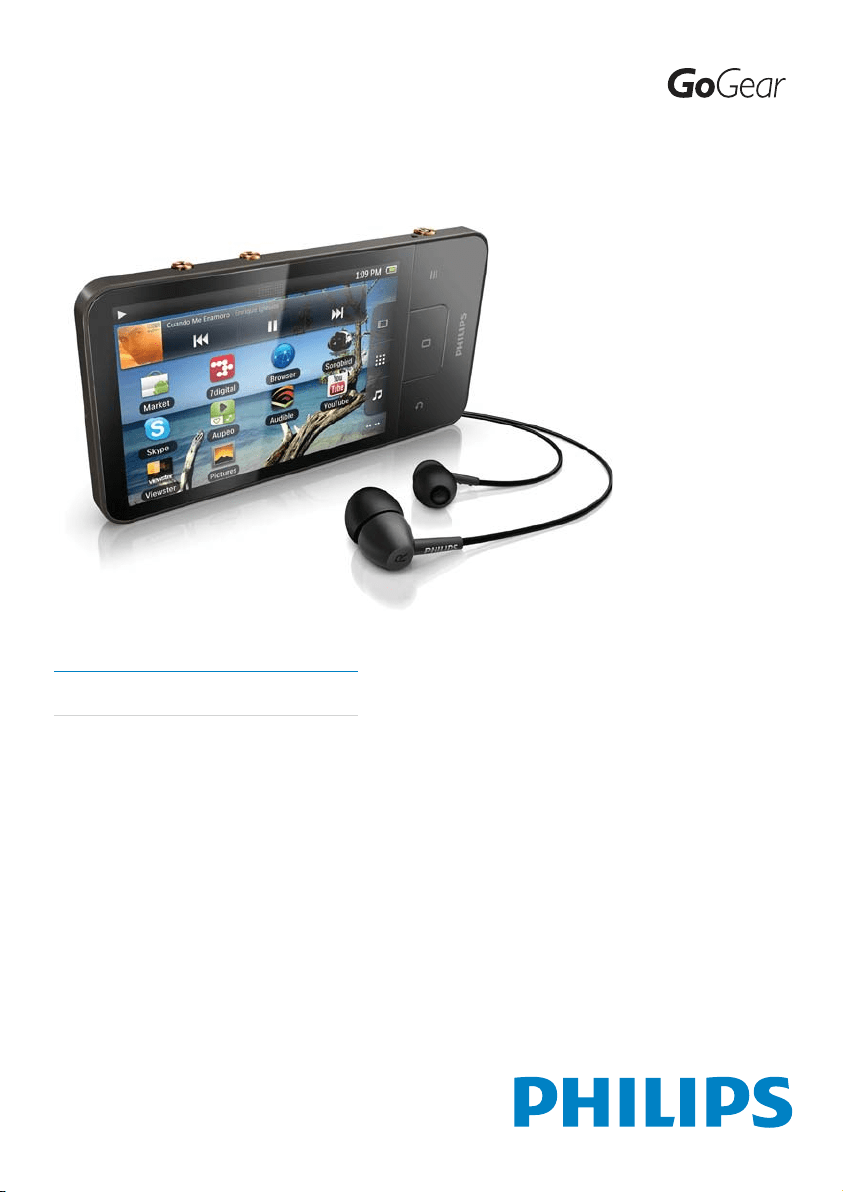
Register your product and get support at
www.philips.com/welcome
EN User manual
SA3CNT08
SA3CNT16
SA3CNT32


3EN
Transfer content from your PC 24
Drag and drop in Windows Explorer 24
Sync through Philips Songbird 24
Folder view 27
)LQGÀOHV
0DQDJHÀOHV
6KDUHÀOHV
6 Search on the device 29
Use the quick search box 29
Select search options 29
Voice search 29
7 Music and videos 30
Play music from Philips Songbird 30
Philips sound options 30
Browse the music library 30
Play music 31
Connect to online services 32
Switch between screens 33
Playlists 33
Play videos from Philips Songbird 34
Philips sound options 34
Browse the videos library 34
Play videos 34
8 Gallery 35
Browse the library 35
Play videos 35
Select play options 35
Select sound options 35
Play pictures 35
Crop pictures 36
Set a picture as wallpaper 36
Delete pictures 36
9 Browser 37
Add a bookmark 37
10 Maps 38
Find my location 38
Search for places 38
Directions 38
Contents
1 Important safety information 6
General maintenance 6
Recycling the product 8
2 Your new device 10
What’s in the box 10
PC software loaded on the device 10
Files loaded on the device 10
3 Get started 11
Charge power 11
Switch the device on or off 11
Select USB connection modes 11
Switch to the airplane mode 12
Switch to the silent mode 12
4 Overview 13
Controls 13
Home screen 13
Navigate on the Home screen 14
6WDWXVEDUDQGQRWLÀFDWLRQSXOOGRZQOLVW
Power control widget 15
Music widget 15
Customize the Home screen 15
Screens 17
Rotate the screen 17
Lock/ unlock the screen 17
Text entry 18
Select options for text entry 18
Use the Android keyboard to enter text 18
Use Google Pinyin to enter text 19
Edit text 20
5 Get content on the device 21
Get content from the Internet 21
Connect to the Internet 21
Market 22
Install applications 22
Manage applications 23
Sync data 23

4 EN
18 Calculator 53
19 Use the device in corporate networks 54
Install secure credentials 54
Set up your Microsoft Exchange account 54
Add VPN 54
20 Settings 56
Airplane mode 56
:L)LVHWWLQJV
1HWZRUNQRWLÀFDWLRQ
$GG:L)LQHWZRUN
Advanced settings 57
Bluetooth settings 57
Tethering 58
VPN settings 58
Sound 58
Display 59
XEC DLS Control 59
*VHQVRUFDOLEUDWLRQ
Location & security 59
Use wireless networks 59
Set up screen unlock 59
Visible password 59
Select device administrators 60
Credential storage 60
Applications 60
Unknown sources 60
Manage applications 60
Running services 60
Battery use 60
Accounts & Sync 61
Privacy 61
Storage 61
Language & keyboard 61
Select language 61
User dictionary 61
Android keyboard 61
Voice input & output 62
Accessibility 62
Date & time 62
Automatic setting 62
Manual setting 63
Places 39
View the map 39
Navigation 40
Share locations with friends 40
Join Latitude 40
Add friends 40
Get the locations of friends 40
Share your location to friends 41
11 Google Mail 42
12 Email 43
Set up your email account 43
Check your email messages 43
Check one combined mailbox 43
Check messages by account 44
Check starred messages 44
Check unread messages 44
Compose email messages 44
Organize email messages 45
13 Bluetooth 46
Connect with Bluetooth devices 46
6HQGRUUHFHLYHÀOHVWKURXJK%OXHWRRWK
Listen to music through stereo Bluetooth
headphones 47
14 Calendar 48
Add events to the calendar 48
Select your options for the reminders 48
View the calendar 48
Edit an event 49
15 FM radio 50
Tune in to radio stations 50
Store preset stations 50
16 Recordings 51
Voice recordings 51
FM radio recording 51
Play recordings 51
Share recordings 51
17 Alarm clock 52

5EN
Need help?
Please visit
www.philips.com/welcome
where you can access a full set of supporting
materials such as the user manual, the latest
software updates, and answers to frequently
asked questions.
Information 63
Philips 63
Registration 63
Upgrade 64
&KHFNIRUÀUPZDUHXSGDWH
8SGDWHWKHÀUPZDUHRQWKHGHYLFH
22 Technical data 66
PC system requirements 67
23 Customer care information of service
partners 68
6
Hearing Safety
Listen at a moderate volume:
Using headphones at a high volume can impair
your hearing. This product can produce sounds
in decibel ranges that may cause hearing loss for
a normal person, even for exposure less than
a minute. The higher decibel ranges are offered
for those that may have already experienced
some hearing loss.
Sound can be deceiving. Over time your hearing
‘comfort level’ adapts to higher volumes of
sound. So after prolonged listening, what sounds
‘normal’ can actually be loud and harmful to
your hearing. To guard against this, set your
volume to a safe level before your hearing
adapts and leave it there.
To establish a safe volume level:
Set your volume control at a low setting.
Slowly increase the sound until you can hear it
comfortably and clearly, without distortion.
Listen for reasonable periods of time:
Prolonged exposure to sound, even at normally
‘safe’ levels, can also cause hearing loss.
Be sure to use your equipment reasonably and
take appropriate breaks.
Be sure to observe the following guidelines
when using your headphones.
Listen at reasonable volumes for reasonable
periods of time.
Be careful not to adjust the volume as your
hearing adapts.
Do not turn up the volume so high that you
can’t hear what’s around you.
You should use caution or temporarily
discontinue use in potentially hazardous
situations.
Do not use headphones while operating a
motorized vehicle, cycling, skateboarding, etc.; it
PD\FUHDWHDWUDIÀFKD]DUGDQGLVLOOHJDOLQPDQ\
areas.
1 Important safety
information
General maintenance
The translation of this document is for
reference only.
In the event of any inconsistency between the
English version and the translated version, the
English version shall prevail.
Caution
To avoid damage or malfunction:
Do not expose the product to excessive heat caused
by heating equipment or direct sunlight.
Do not drop the product or allow objects to fall on
your player.
Do not allow the product to be submerged in
water. Do not expose headphone socket or battery
compartment to water, as water entering the set may
cause major damage.
Active mobile phones in the vicinity may cause
interference.
%DFNXS\RXUÀOHV(QVXUHWKDW\RXUHWDLQWKHRULJLQDO
ÀOHV\RXKDYHGRZQORDGHGWR\RXUGHYLFH3KLOLSVLVQRW
responsible for any loss of data if the product becomes
damaged or not readable / legible.
0DQDJHWUDQVIHUGHOHWHHWF\RXUPXVLFÀOHVRQO\ZLWK
the supplied music software to avoid problems.
Do not use any cleaning agents containing alcohol,
ammonia, benzene, or abrasives as these may harm the
product.
About operating and storage temperatures
Operate in a place where temperature is
always between 0 and 35ºC (32 to 95ºF)
Store in a place where temperature is
DOZD\VEHWZHHQDQG&WR
113ºF).
Battery life may be shortened in low
temperature conditions.
Replacement parts/accessories:
Visit www.philips.com/support to order
replacement parts/accessories.
EN
7
owner of the work. Such instruction may
state that no further copies shall be made.
Video streams may include copy protection
technology that prohibits further copying. For
such situations the recording function will not
ZRUNDQG\RXZLOOEHQRWLÀHGZLWKDPHVVDJH
Data logging
Philips is committed to improving the quality
of your product and enhancing the Philips user
H[SHULHQFH7RXQGHUVWDQGWKHXVDJHSURÀOHRI
this device, this device logs some info / data to
WKHQRQYRODWLOHPHPRU\UHJLRQRIWKHGHYLFH
These data are used to identify and detect
any failures or problems you as a user may
experience while using the device. The data
stored, for example, will be the duration of
playback in music mode, duration of playback
in turner mode, how many times battery low
was encountered, etc. The data stored do not
reveal the content or media used on the device
or the source of downloads. The data stored on
the device are retrieved and used ONLY if the
user returns the device to the Philips service
center and ONLY to simplify error detection
and prevention. The data stored shall be made
DYDLODEOHWRXVHURQXVHU·VÀUVWUHTXHVW
This product is partly based on Open
Source software. The license text and
acknowledgment can be retrieved from
the device under
> Information > Legal
information.
Philips Electronics Hong Kong Ltd. hereby offers
to deliver, upon request, a copy of the complete
corresponding source code for the copyrighted
open source software packages used in this
product for which such offer is requested by
the respective licenses.
This offer is valid up to three years after
product purchase to anyone in receipt of this
information. To obtain source code, please
contact [email protected]. If you prefer
not to use email or if you do not receive
FRQÀUPDWLRQUHFHLSWZLWKLQDZHHNDIWHUPDLOLQJ
to this email address, please write to “Open
Source Team, Philips Intellectual Property &
0RGLÀFDWLRQV
0RGLÀFDWLRQVQRWDXWKRUL]HGE\WKH
manufacturer may void user’s authority to
operate the product.
Copyright information
All other brands and product names are
trademarks of their respective companies or
organizations.
Unauthorized duplication of any recordings
whether downloaded from the Internet or
made from audio CDs is a violation of copyright
laws and international treaties.
7KHPDNLQJRIXQDXWKRUL]HGFRSLHVRIFRS\
protected material, including computer
SURJUDPVÀOHVEURDGFDVWVDQGVRXQG
recordings, may be an infringement of
copyrights and constitute a criminal offense.
This equipment should not be used for such
purposes.
The Windows Media and the Windows logo are
registered trademarks of Microsoft Corporation
in the United States and/or other countries.
Be responsible! Respect copyrights.
Philips respects the intellectual property of
others, and we ask our users to do the same.
Multimedia content on the internet may have
been created and/or distributed without the
original copyright owner’s authorization.
Copying or distributing unauthorized content
may violate copyright laws in various countries
including yours.
Compliance with copyright laws remains your
responsibility.
The recording and transfer to the portable
player of video streams downloaded to your
computer is intended only for use with public
domain or properly licensed content. You
may only use such content for your private,
QRQFRPPHUFLDOXVHDQGVKDOOUHVSHFWHYHQWXDO
copyright instructions provided by the copyright
EN
8
Recycling the product
Your product is designed and manufactured
with high quality materials and components,
which can be recycled and reused.
:KHQ\RXVHHWKHFURVVHGRXWZKHHO
bin symbol attached to a product, it
means the product is covered by the
European Directive 2002/96/EC:
Never dispose of your product with
other household waste. Please inform
yourself about the local rules on the separate
collection of electrical and electronic products.
The correct disposal of your old product helps
prevent potentially negative consequences on
the environment and human health.
Warning
5HPRYDORIWKHEXLOWLQEDWWHU\LQYDOLGDWHVWKHZDUUDQW\
and can destroy the product.
The following removal and disposal instructions are
steps that are to be performed at the end of the
product’s life only.
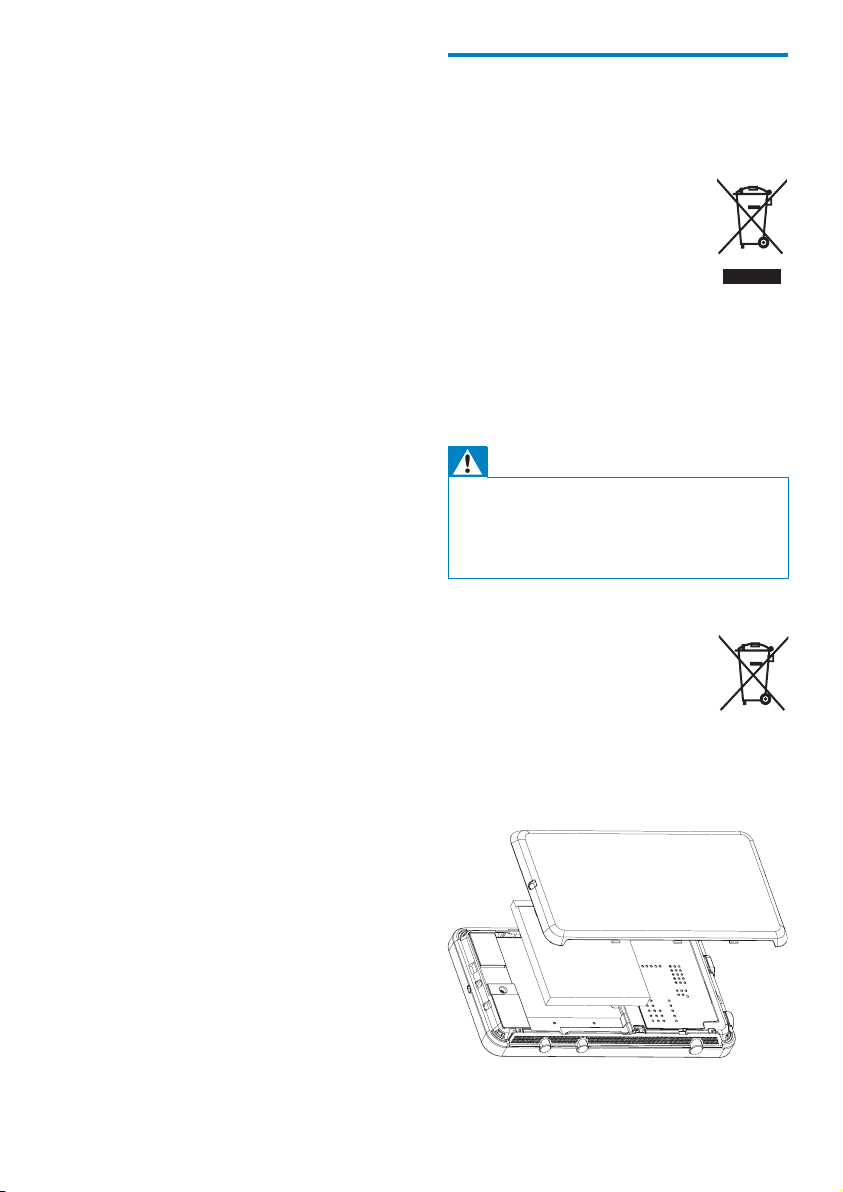
<RXUSURGXFWFRQWDLQVDEXLOWLQ
rechargeable battery covered by
the European Directive 2006/66/EC,
which cannot be disposed of with
normal household waste.
To safeguard the functionality and safety of
\RXUSURGXFWWDNH\RXUSURGXFWWRDQRIÀFLDO
collection point or service center where a
professional can remove the battery as shown:
Standards, P.O. Box 220, 5600 AE Eindhoven,
The Netherlands.” If you do not receive timely
FRQÀUPDWLRQRI\RXUOHWWHUSOHDVHHPDLOWRWKH
email address above.
© 2009, Xiph.Org Foundation
Redistribution and use in source and binary
IRUPVZLWKRUZLWKRXWPRGLÀFDWLRQDUH
permitted provided that the following
conditions are met:
Redistributions of source code must retain
the above copyright notice, this list of
conditions and the following disclaimer.
Redistributions in binary form must
reproduce the above copyright notice,
this list of conditions and the following
disclaimer in the documentation and/
or other materials provided with the
distribution.
Neither the name of the Xiph.
org Foundation nor the names of its
contributors may be used to endorse
or promote products derived from this
VRIWZDUHZLWKRXWVSHFLÀFSULRUZULWWHQ
permission.
This software is provided by the copyright
holders and contributors “as is” and any express
or implied warranties, including, but not limited
to, the implied warranties of merchantability and
ÀWQHVVIRUDSDUWLFXODUSXUSRVHDUHGLVFODLPHG
In no event shall the foundation or contributors
be liable for any direct, indirect, incidental,
special, exemplary, or consequential damages
(including, but not limited to, procurement of
substitute goods or services; loss of use, data,
RUSURÀWVRUEXVLQHVVLQWHUUXSWLRQKRZHYHU
caused and on any theory of liability, whether
in contract, strict liability, or tort (including
negligence or otherwise) arising in any way out
of the use of this software, even if advised of
the possibility of such damage
EN
9
Please inform yourself about the local rules on
separate collection of batteries. The correct
disposal of batteries helps prevent potentially
negative consequences on the environment and
human health.
Notice for the European Union
This product complies with the radio
interference requirements of the European
Union.
This product complies with the requirement of
the 1999/5/EC directive.
1588
EN
10
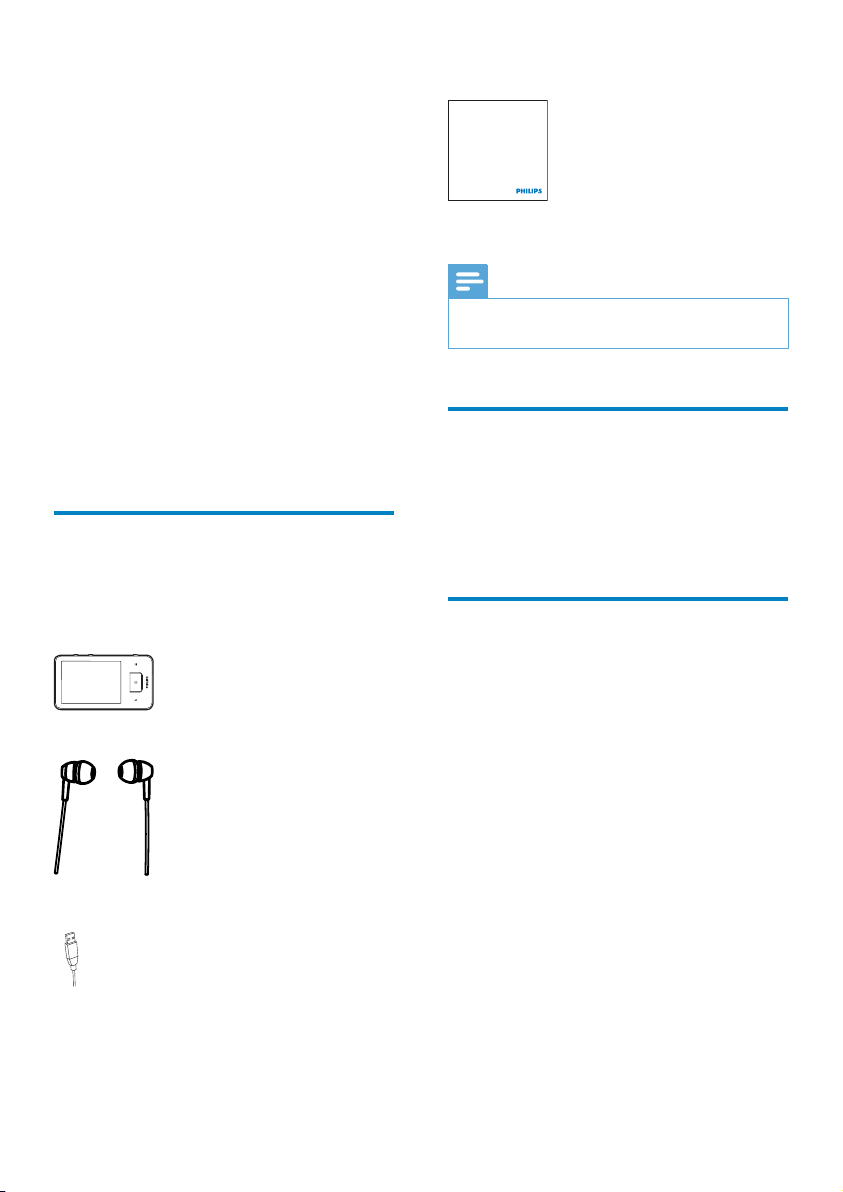
Quick start guide
3DUWQHUVOHDÁHW
Note
The images serve as reference only. Philips reserves the
right to change color/design without notice.
PC software loaded on the
device
Connect comes with the following PC software:
Philips Songbird (helps you manage your
media library on a PC and the device).
Files loaded on the device
7KHIROORZLQJÀOHVDUHORDGHGRQConnect:
User manual
Philips GoGear audio player
Quick start guide
2 Your new device
On Connect, you can do the following:
$FFHVVWKH,QWHUQHWWKURXJK:L)L
Access thousands of applications and
games in the Android Market;
Access online services, such as music and
videos, audiobooks internet radio, internet
calls, social networking services, maps, and
other services;
6KDUHPHGLDÀOHVWKURXJK%OXHWRRWKRU
email;
Sync Connect with your PC media library;
Play music;
Watch videos;
View pictures;
Listen to the FM radio.
What’s in the box
Make sure that you have received the following
items:
Connect
Earphones
USB cable
EN
11
Select USB connection modes
Switch on the device and connect it to a PC. A
SRSXSVFUHHQLVGLVSOD\HGIRU\RXWRVHOHFWD
connection mode:
Charge only mode
By default, the device is connected to a PC in
WKHFKDUJHRQO\PRGH,QWKLVPRGHPHGLDÀOHV
can play when you charge power.
Press
or WRH[LWWKHSRSXSVFUHHQ
USB storage mode
7RFRS\V\QFRUPRYHÀOHVEHWZHHQD3&DQG
the device, select the USB storage mode. When
you switch on the USB storage mode, you
FDQQRWSOD\PHGLDÀOHVRQConnect.
2QWKHSRSXSVFUHHQWDSTurn on USB
storage or Turn off USB storage.
USB debugging mode
You can use the mode for your development of
Android applications. In this mode, the device
can communicate with the PC through the USB
cable.
To switch on the USB debugging mode,
1 From the Home screen, go to >
Applications.
2 In Development, select USB debugging.
» If the function is enabled, the tick box
is selected.
3 Get started
Charge power
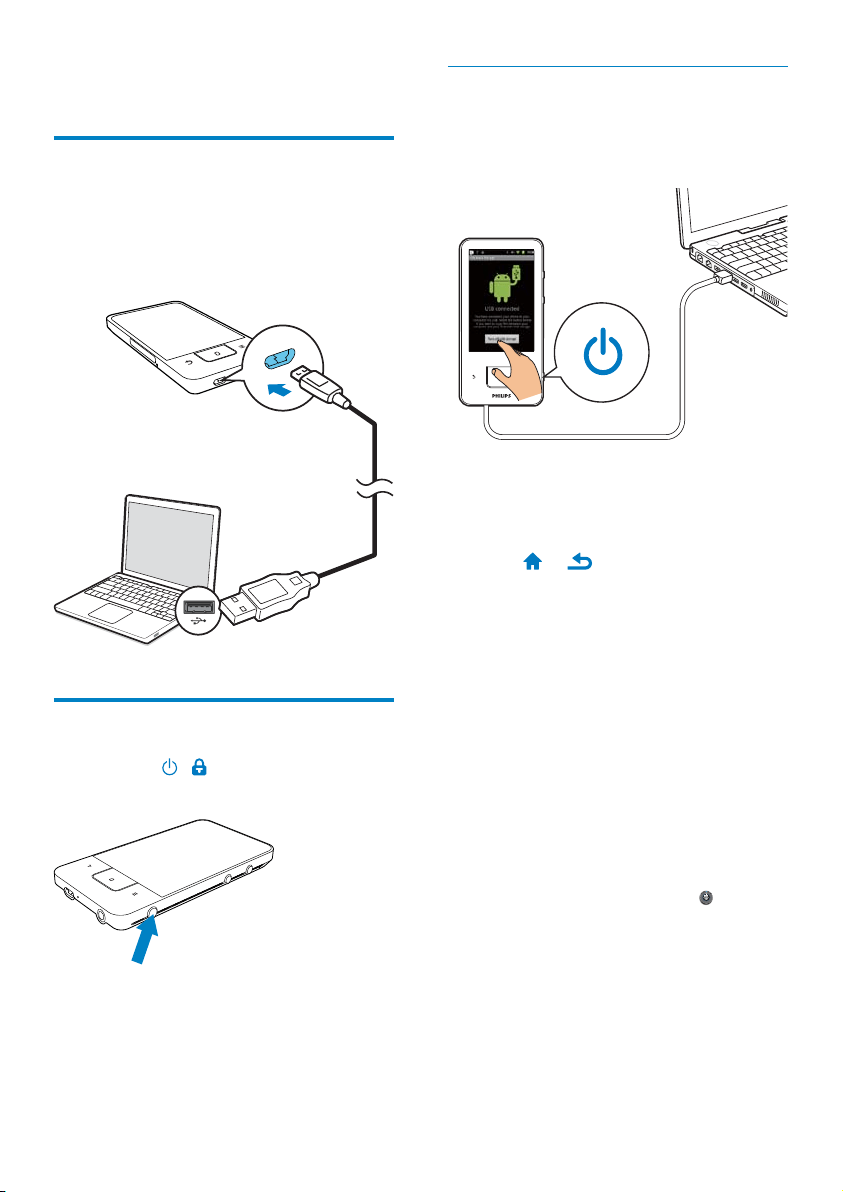
ConnectKDVDEXLOWLQEDWWHU\WKDWFDQEH
charged through the USB port of a computer.
By using the USB cable, connect the device to
a PC.
Switch the device on or off
Press and hold / to switch on or off the
device.
EN

12
Switch between the USB storage mode and
USB debugging mode
1 Drag down the status bar.
2 ,QWKHSXOOGRZQOLVWVHOHFWUSB connected
or USB debugging connected.
3 2QWKHSRSXSVFUHHQVHOHFW\RXURSWLRQV
Switch to the airplane mode
Switch on the airplane mode when:
\RXQHHGWRGLVDEOHWKHDFFHVVWR:L)LRU
Bluetooth for safety purposes, such as on
an airplane.
1 When the device is on, press and hold /
XQWLOWKHSRSXSVFUHHQLVGLVSOD\HG
» If necessary, unlock the screen before
you press and hold the button.
2 2QWKHSRSXSVFUHHQWDSAirplane mode
to switch on or off the mode.
Switch to the silent mode
In the silent mode, you mute the voice output
of the device except for the media play and
alarms.
1 When the device is on, press and hold /
XQWLOWKHSRSXSVFUHHQLVGLVSOD\HG
» If necessary, unlock the screen before
you press and hold the button.
2 2QWKHSRSXSVFUHHQWDSSilent mode to
switch on or off the mode.
EN
13
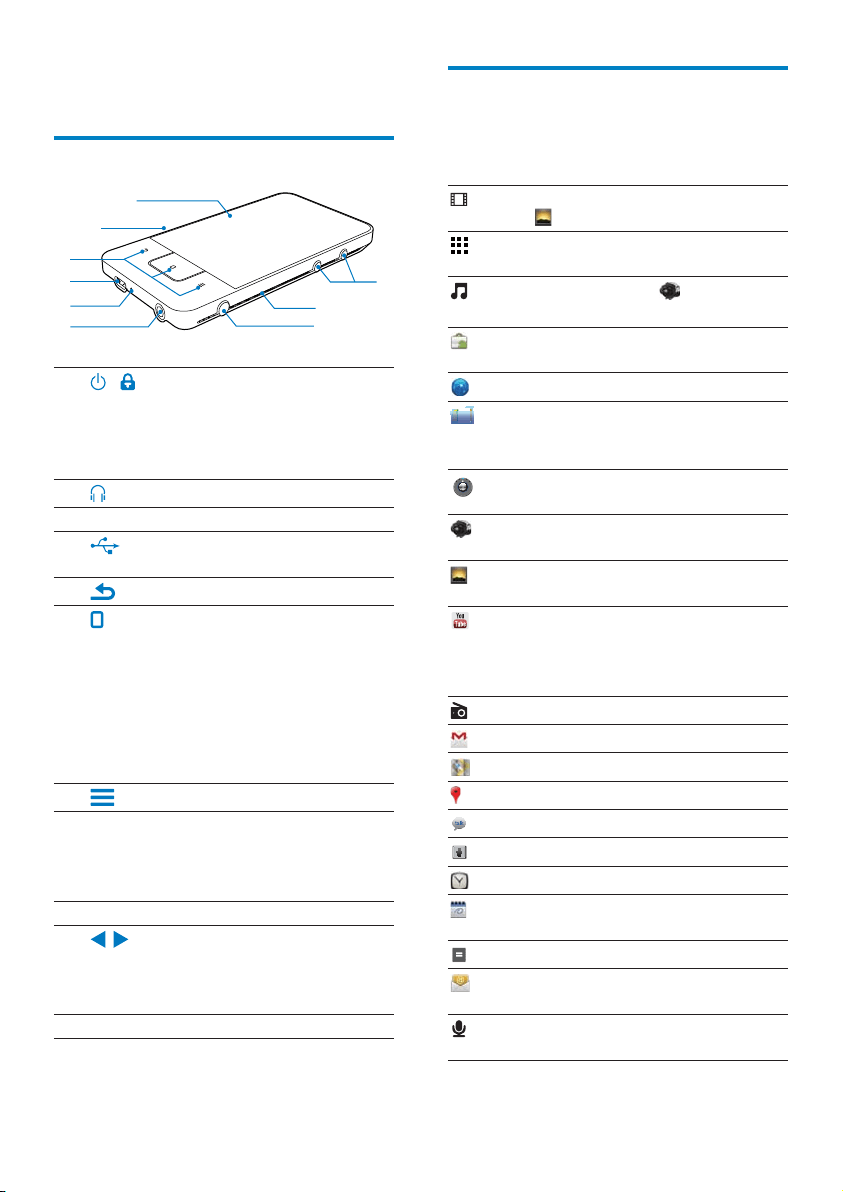
Home screen
From the Home screen, tap the icons to access
applications.
Videos/ pictures: Play videos/ pictures
from
.
Applications: List all applications in
alphabetical order.
Music: Play music from Philips
Songbird .
Market: Download different applications,
games, and others.
Browser: Browse Web pages.
)ROGHUYLHZ%URZVHWKHÀOHVIROGHUV
on the device, install applications, and
PDQDJHÀOHV
Settings: Customize the settings of
Connect
Philips Songbird: Play music and videos
through Philips Songbird.
Gallery: View pictures and videos that
you store on Connect.
YouTube: Online video services
Stream videos from the online video
libraries, or upload your videos and
pictures online.
Radio: Play the FM radio.
Google Mail
Google Maps
Places: Place search service of Google
Talk: Instant messaging service of Google
Voice search: Search by voice
Alarm clock: Set the alarm clock.
Calendar: Sync your calendar, add events,
and set reminders for your events.
Calculator
Email: Set up your email account on the
device.
Recordings: Make and play sound
recordings.
4 Overview
Controls
1
/
Press and hold: switch on or off
the device
Press: lock/unlock the screen; To
unlock the screen, drag the slider
on the screen.
2
PPKHDGSKRQHFRQQHFWRU
3 MIC Microphone
4
USB connector for power
charge and data transfer
5
Back one level
Press: unlock the screen; To
unlock the screen, drag the slider
on the screen.
Press: return to the Home
screen;
Press and hold: display
applications that you have
launched recently.
Show options menu
6 RESET Press the hole by using the tip of
a ball pen when the screen does
not respond to the pressing of
keys.
7 Touch screen
8
,
Press: increase/decrease the
volume.
Press and hold: increase/
decrease fast.
9 Speaker
h
f
g
i
a
e
b
c
d
EN
14
To go back to previous screens,
Press
repeatedly.
To return to the Home screen,
Press
.
6WDWXVEDUDQGQRWLÀFDWLRQSXOOGRZQ
list
Status bar
The status bar is at the top of the screen. Event
icons are displayed on the bar.
Over the Internet, use the applications to enjoy
the services of our partners.
7 digital: Music shop (pay per
download)
Get help from:
http://www.7digital.com/help
VIEWSTER VIEWSTER: video on demand
service
Get help from:
http://viewster.com/help.aspx
AUPEO!: Personalized internet
radio
Get help from:
https://www.aupeo.com/faq
Audible: Audiobook
Get help from:
http://www.audible.com/
helpcenter/http://mobile.audible.
com/faqAndroid.htm
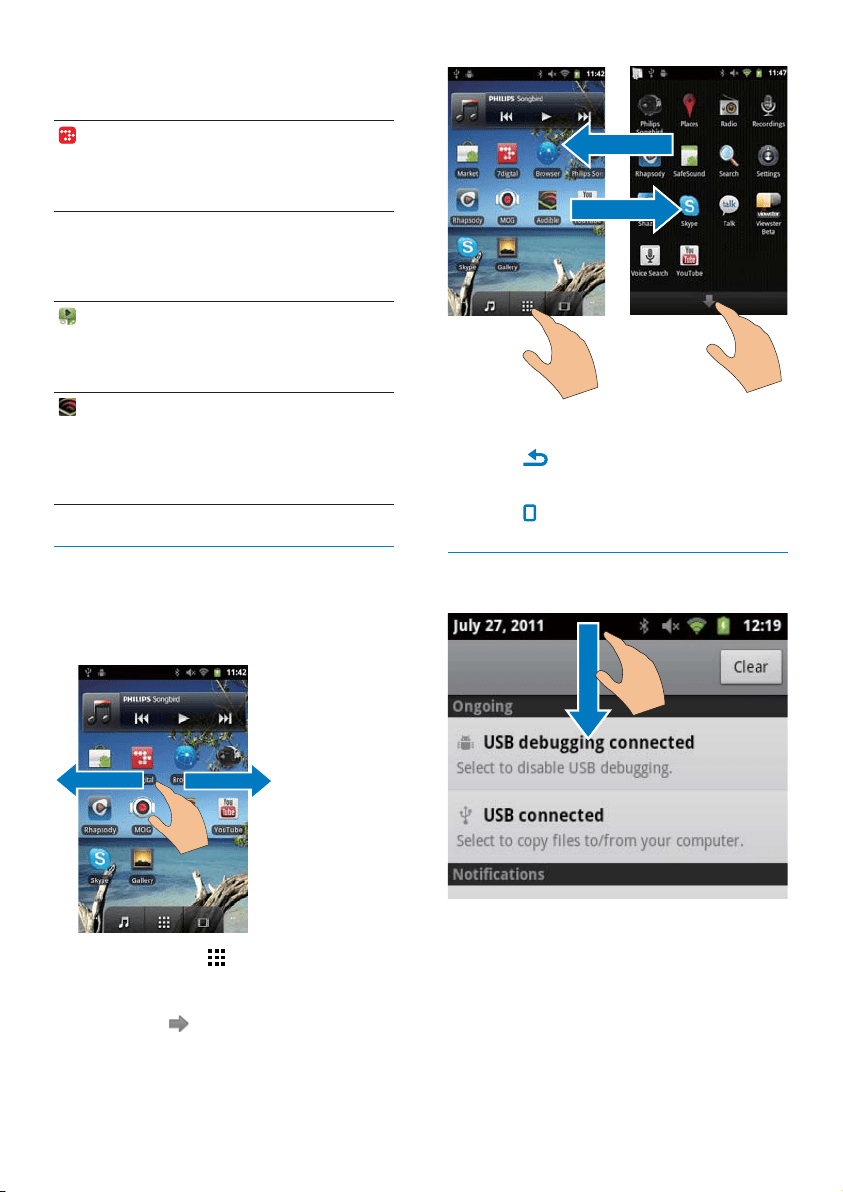
Navigate on the Home screen
1DYLJDWHRQWKH+RPHVFUHHQWRÀQGDQ
application:
Swipe left/ right to select a page;
Alternatively, tap to open the list of
applications that are sorted in alphabetical
order. Swipe up/ down to scroll through
the list. Tap
to close the list.
EN
15
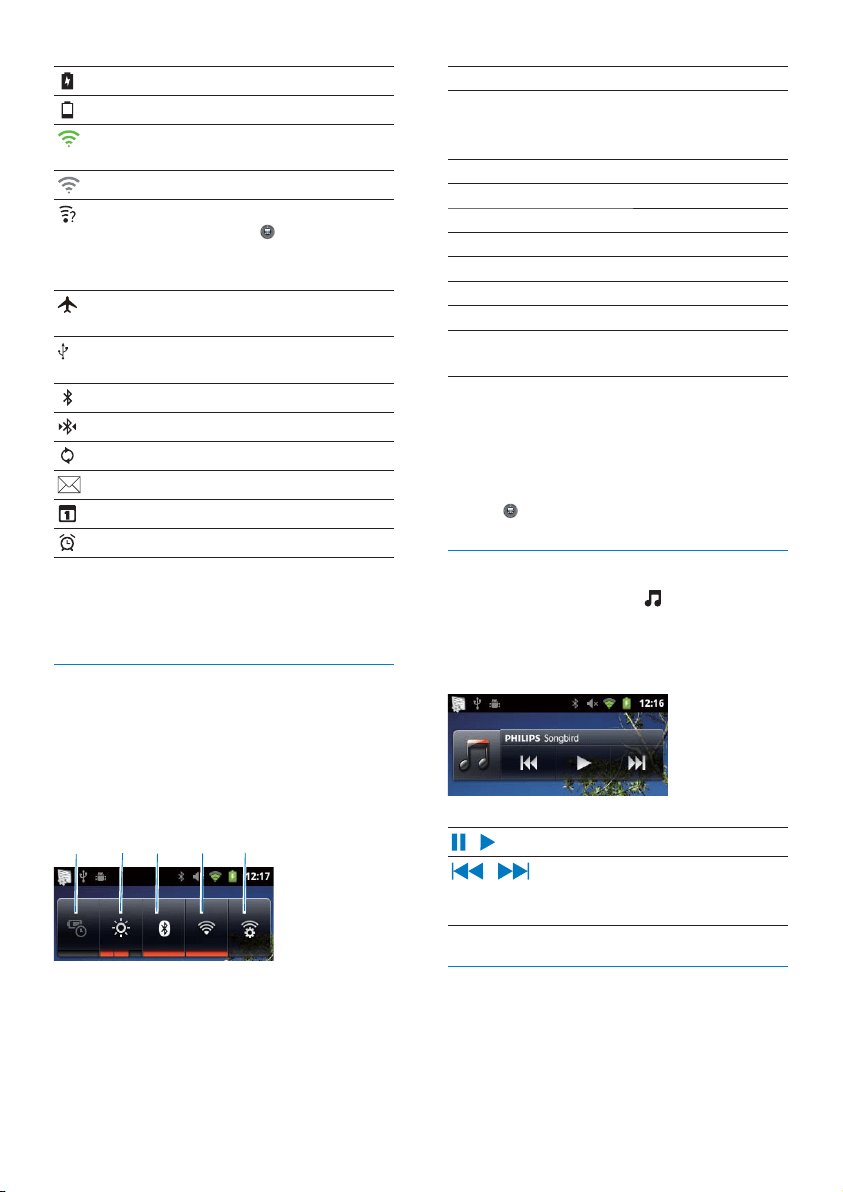
1 power saver
6ZLWFKRII:L)L%OXHWRRWKRUWXUQGRZQ
the screen brightness when the battery
is low.
2 screen brightness control
Changes the brightness of the screen.
3 Bluetooth on/ off
Switches on or off the Bluetooth function.
4 :L)LRQRII
6ZLWFKHVRQRURIIWKH:L)LIXQFWLRQ
5 :L)LVHWWLQJV
6HDUFKHVIRUDYDLODEOH:L)LQHWZRUNV
Connects to a selected network.
To conserve battery power and increase the
play time, do the following on the device:
Use the power control widget to switch off
the functions when they are unnecessary;
6HWWKHVFUHHQRIIWLPHUWRDORZYDOXHJR
to
> Display > Screen timeout).
Music widget
When you play music from , use the music
widget to control the music play from the
Home screen.
2QWKH+RPHVFUHHQÀQGWKHPXVLFZLGJHW
/
Tap to pause/resume play.
/
Tap to skip songs;
Hold to search within current
song.
Customize the Home screen
By customizing the Home screen, you can
add widgets and shortcuts to access
functions quickly;
Battery fully charged
Empty battery
&RQQHFWHGWRD:L)LQHWZRUNDQG
Google services
&RQQHFWHGWRD:L)LQHWZRUN
2SHQ:L)LQHWZRUNDYDLODEOH7RJHW
WKHQRWLÀFDWLRQJRWR
> Wireless &
networks > :L)LVHWWLQJV, and tap to
select 1HWZRUNQRWLÀFDWLRQ.
$LUSODQHPRGHRQ$FFHVVWR:L)LDQG
Bluetooth disabled
Mounted onto the computer through
the USB connector.
Bluetooth on
Connected to another Bluetooth device
Data sync in progress
Email received
Calendar reminder on
Alarm clock set and switched on
1RWLÀFDWLRQSXOOGRZQOLVW
Drag down the status bar to view the
QRWLÀFDWLRQSXOOGRZQOLVW
Power control widget
Widgets allow you to access functions quickly
on the Home screen.
2QWKH+RPHVFUHHQVZLSHOHIWULJKWWRÀQG
the power control widget. Tap the icon to
switch on or off the functions.
a
b
c
d
e
EN
16
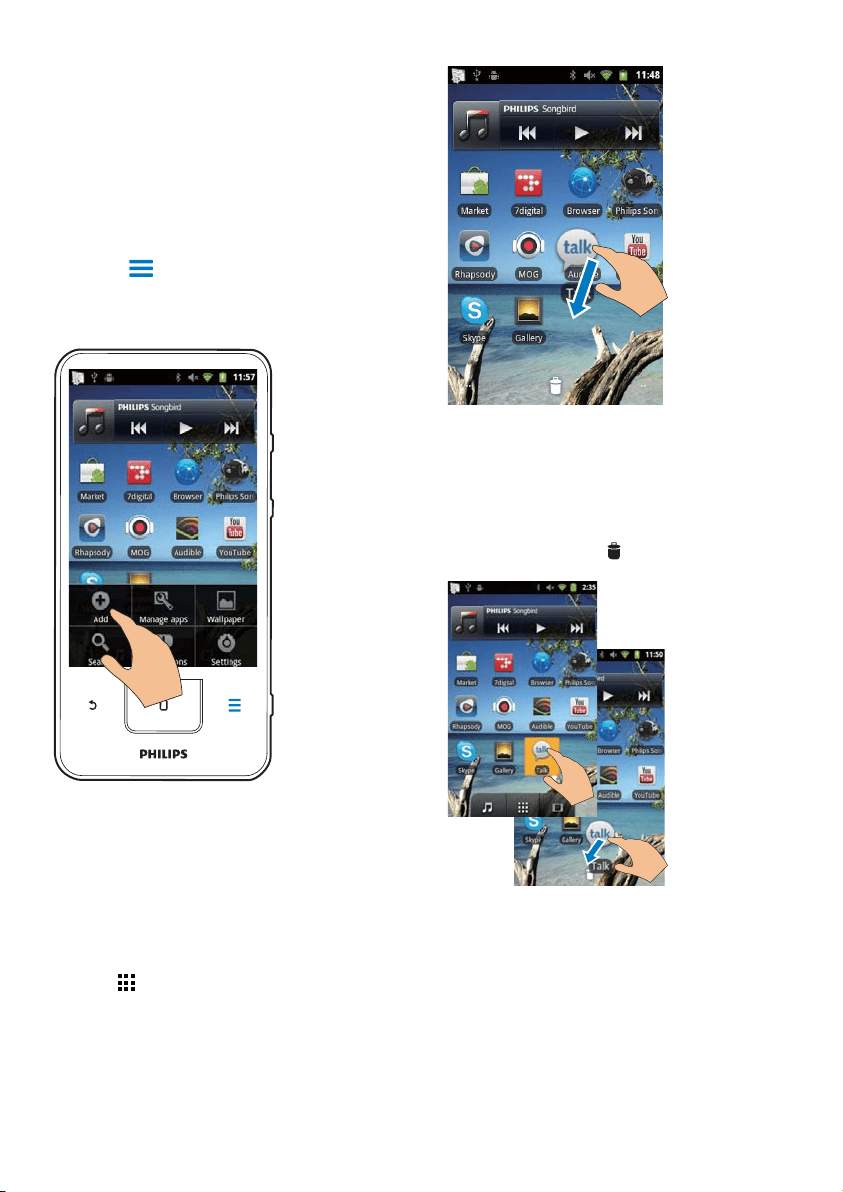
Rearrange icons
You can rearrange icons on the page by deleting
or relocating the icons.
To delete icons,
1 Tap and hold an icon to unlock.
2 Drag the icon to .
To relocate icons,
1 Tap and hold an icon to unlock.
2 Drag the icon to a space on the page.
3 Release the icon.
» The icon moves to the space.
Use folders to organize icons
1 Create a folder:
rearrange applications, widgets, and
shortcuts on the pages;
organize applications as needed.
Add widgets or shortcuts
With widgets or shortcuts, you can access
functions quickly.
1 Swipe left/ right to select a page.
0DNHVXUHWKDWWKHSDJHLVQ·WÀOOHG
2 Press and select Add.
» A list of options is displayed on the
SRSXSVFUHHQ
3 Tap to select your options to create a
shortcut or widget.
» The shortcut or widget is added to the
selected page.
Add icons
1 Swipe left/ right to select a page.
0DNHVXUHWKDWWKHSDJHLVQ·WÀOOHG
2 Tap to open the list of application icons.
3 Tap and hold an icon until the page is
displayed.
4 Drag the icon to a space.
» The icon is added to the selected page.
EN
17
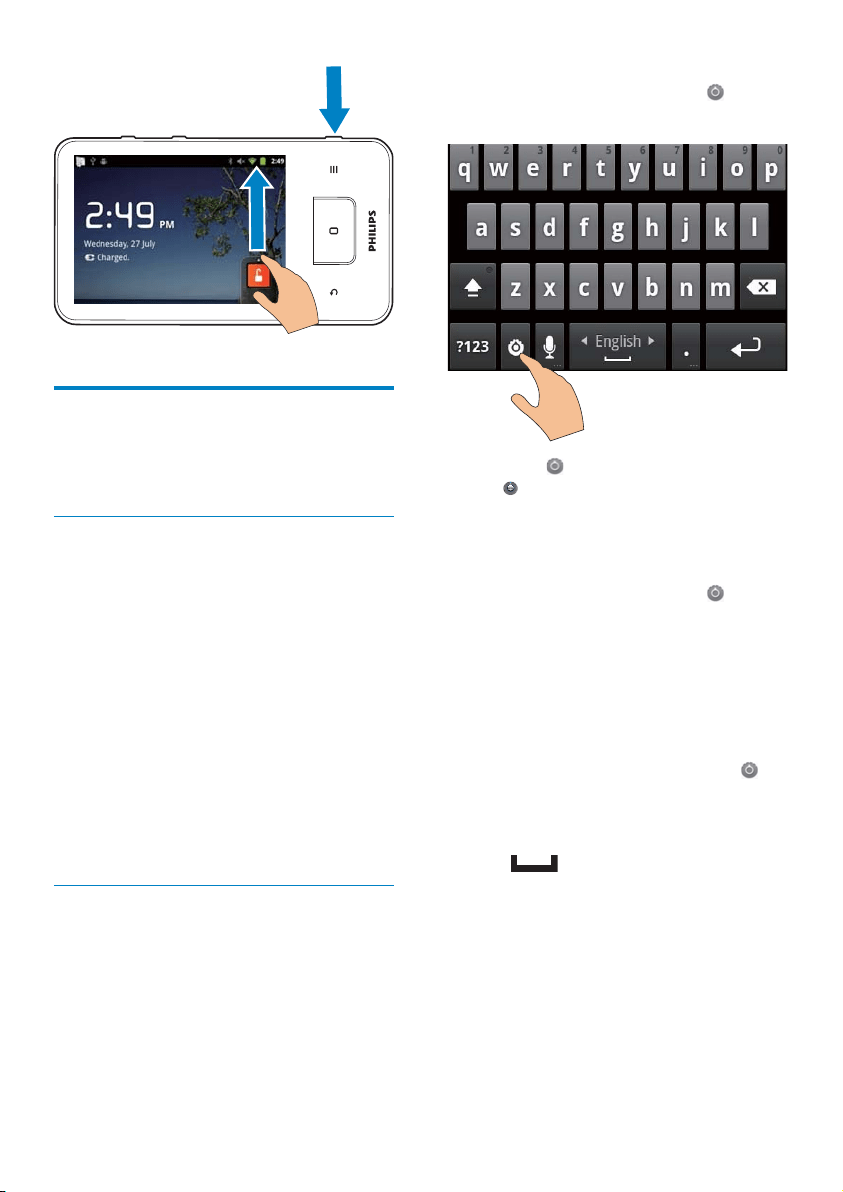
Lock/ unlock the screen
By locking the screen, you can lock all the
touch controls on the screen. Thus, undesired
operations are prevented.
Auto lock
After a time duration, the screen dims and is
locked automatically. To set the time duration,
go to
> Display > Screen timeout.
To lock the screen manually
Press
/ .
To unlock the screen
1 Press / .
Alternatively, press
.
2 Drag the slider on the screen.
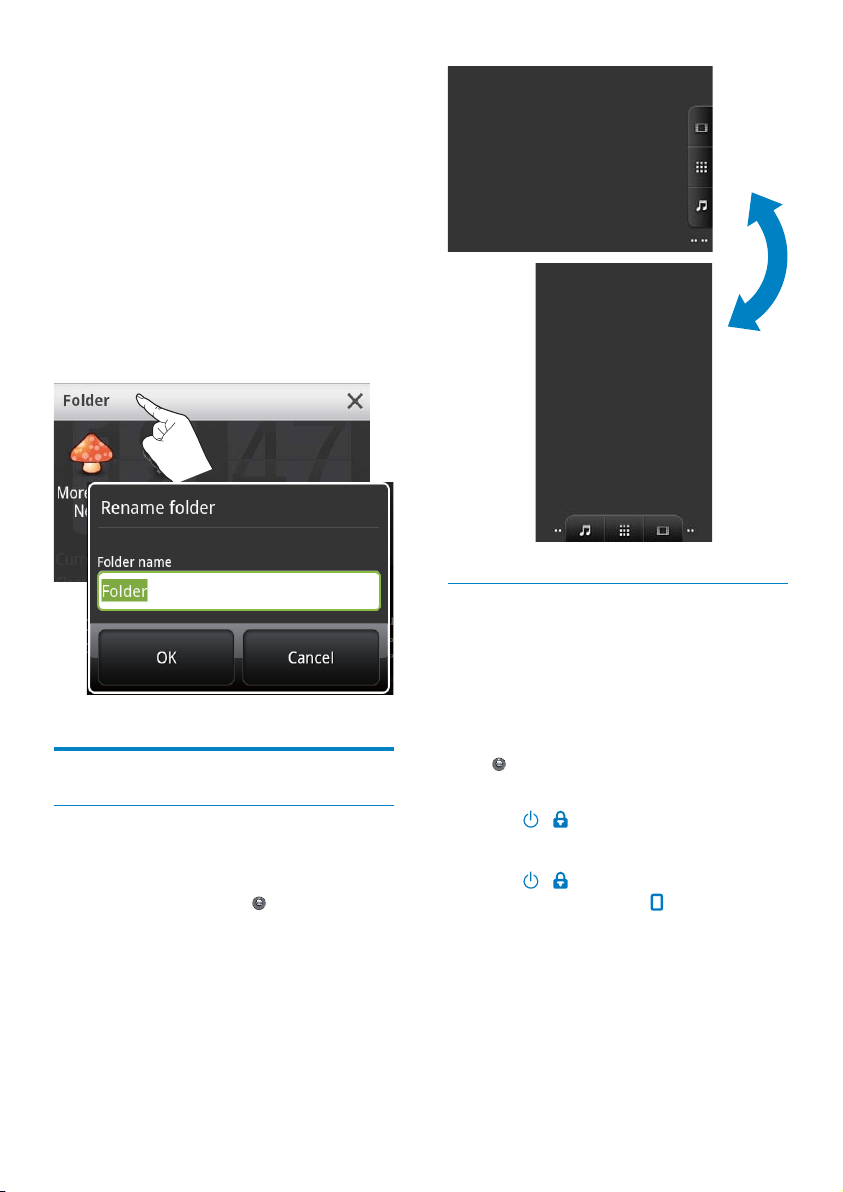
Hold a space on a page.
» A list of options is displayed on
WKHSRSXSVFUHHQ
Tap the options to create a folder.
» A folder is created on the page.
2 Drag icons to the folder:
Hold an icon to unlock;
Drag the icon to the folder.
3 To rename the folder:
Tap to open the folder;
Hold the folder name bar until the
onscreen keyboard is displayed;
Enter the folder name.
Screens
Rotate the screen
To select the landscape or portrait view,
1 Make sure that you have switched on
$XWRURWDWHVFUHHQ in
> Display.
2 Rotate the screen left/ right.
EN
18
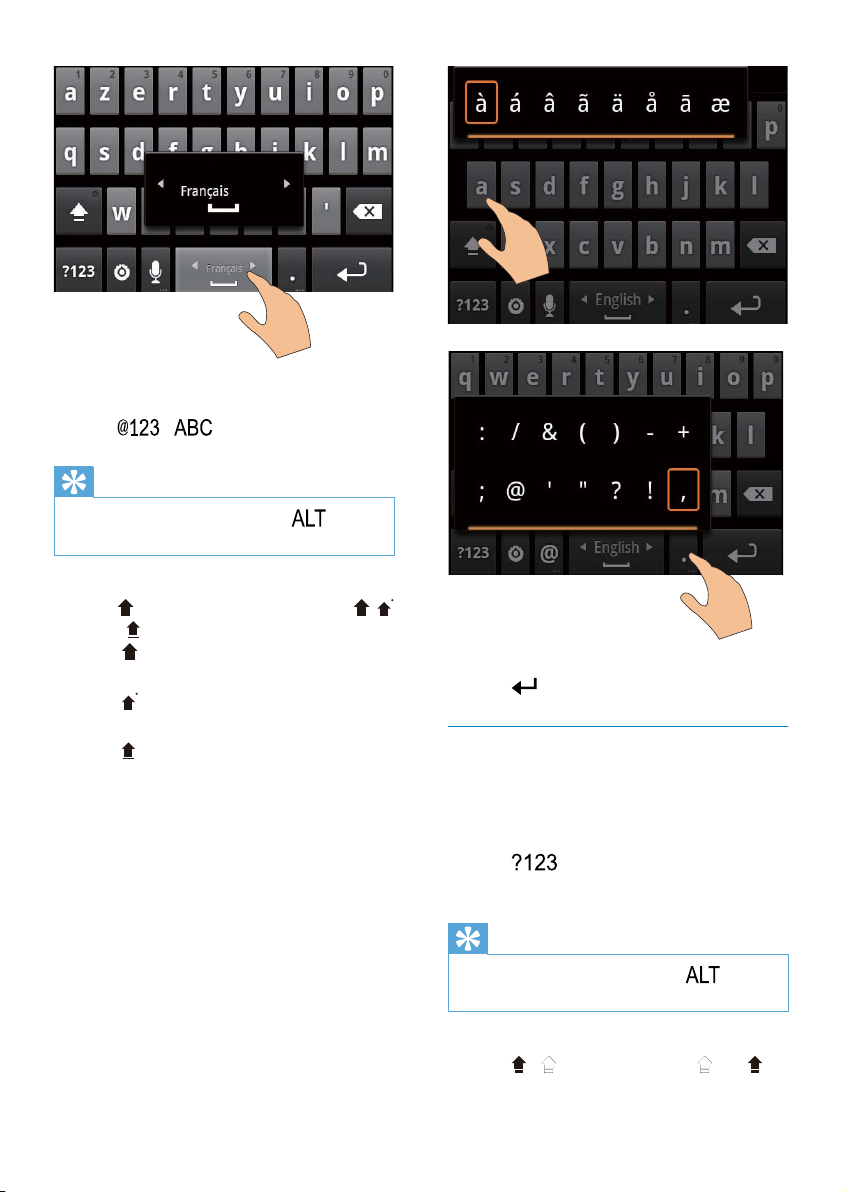
To select keyboard settings or input methods,
On the onscreen keyboard, tap
and
select Android keyboard settings.
To show on the on screen keyboard, go
to
> Language & keyboard > Android
keyboard.Select Show settings key.
To display word suggestions during your text
entry,
1 On the onscreen keyboard, tap >
Android keyboard settings.
2 Select Show suggestions.
To switch between the selected input
languages,
1 Add to the option list the languages that
you often use.
On the onscreen keyboard, tap
> Android keyboard. Select Input
languages.
Tap the checkbox to select languages.
2 On , swipe left/ right to select a
language.
Text entry
With the onscreen keyboard, you can enter
text in multiple languages.
Select options for text entry
Select input methods
3UHVVDQGKROGWKHWH[WER[XQWLOWKHSRS
screen is displayed.
» You can select the following input
methods:
Android keyboard: for multiple languages other
than Chinese
Google Pinyin: for Chinese Pinyin input and
English input
Select keyboard layout
To use a larger or smaller onscreen keyboard,
turn the device to the landscape or portrait
view.
Use the Android keyboard to enter
text
1 Tap the text box to start text entry.
» The onscreen keyboard is displayed.
2 Tap keys to enter text.
3 To select a word suggestion,
Swipe left/ right to see more options;
Tap the selected option.
EN
19
To move to the next line,
Tap
.
Use Google Pinyin to enter text
Select the text entry mode
On the keyboard, tap
Ё᭛
/
㣅᭛
to
switch between Chinese Pinyin and English
input;
Tap
to enter or exit the entry mode
for numbers/ symbols.
Tip
On the numeric/symbol keyboard, tap to switch
between numbers/symbols and more symbol choices.
To switch between upper and lower cases,
Tap
/ to switch between and .
To switch between letters and numbers/
symbols,
Tap
/ .
Tip
On the numeric/symbol keyboard, tap to switch
between numbers/symbols and more symbol choices.
To switch between upper and lower cases,
Tap
repeatedly to switch between ,
, and .
»
: The next letter you enter is in
upper case.
»
: All letters you enter are in upper
case.
»
: All letters you enter are in lower
case.
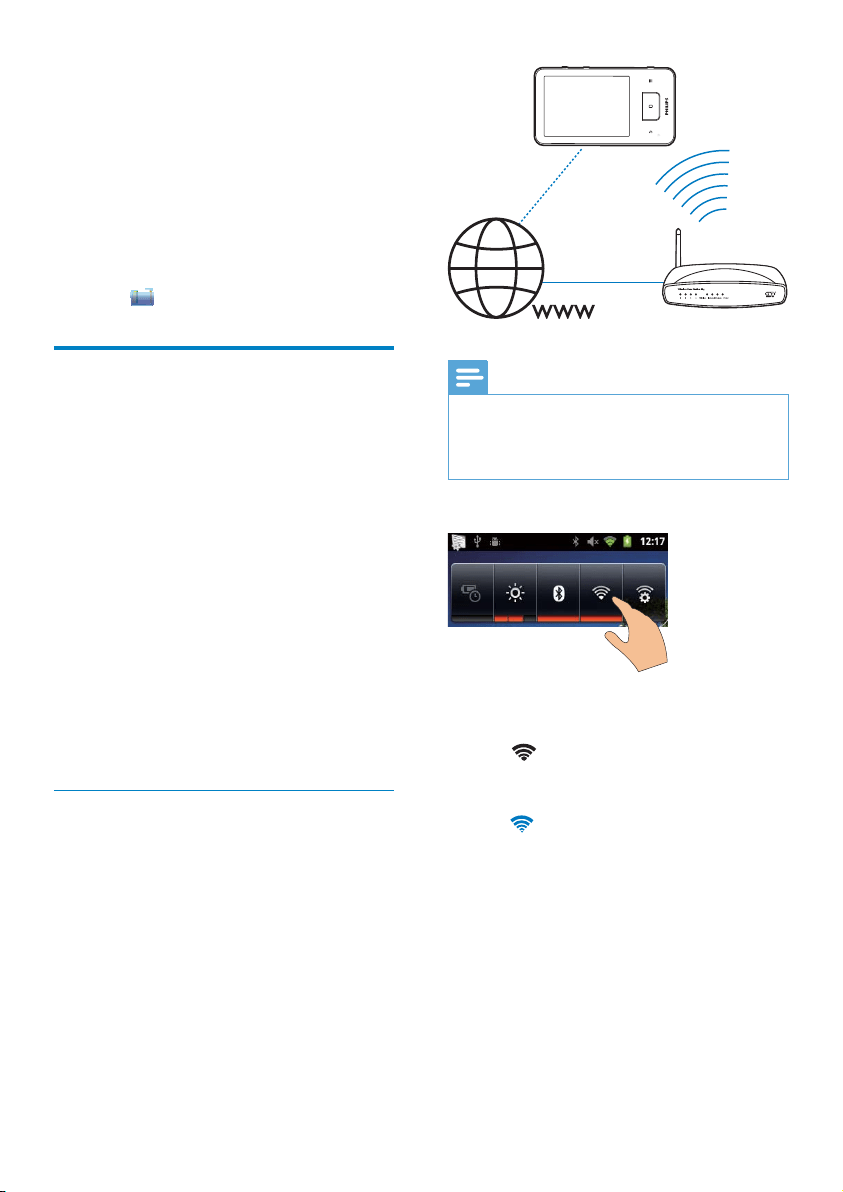
To get more choices for letters and symbols,
Tap and hold a letter or symbol button
XQWLOWKHSRSXSVFUHHQLVGLVSOD\HG
EN

20
» : Letters you enter are in upper
case.
»
: Letters you enter are in lower
case.
To move to the next line
Tap
.
To delete the entry before the cursor,
Tap
.
Edit text
You can cut, copy, and paste the text that you
have entered.
Select the text
1 Select the start position:
7DSDQGKROGWKHWH[WXQWLOWKHSRS
screen is displayed.
» ,QWKHSRSXSVFUHHQRSWLRQVDUH
displayed: Select word, Select all.
2 Tap Select word.
» Current word is selected, with marks
for start and end positions.
» Tap Select all to select all the text.
3 Drag the marks to select or change the
start/ end positions.
Copy or cut the text
1 Tap and hold the selected text until the
SRSVFUHHQLVGLVSOD\HG
» ,QWKHSRSXSVFUHHQRSWLRQVDUH
displayed: Copy, Cut.
2 Tap Copy or Cut.
» The selected text is copied or cut.
Paste the text
1 Put the cursor in a position.
2 7DSDQGKROGWKHSRVLWLRQXQWLOWKHSRS
screen is displayed.
» ,QWKHSRSXSVFUHHQWKHRSWLRQPaste
is displayed.
» 3 Tap Paste.The text is pasted in the
selected position.
EN
21
Note
Make sure that the router connects to the Internet
GLUHFWO\DQGQRGLDOXSLVUHTXLUHGRQWKHFRPSXWHU
%HIRUH\RXVWDUWD:L)LFRQQHFWLRQKDYHWKH
encryption key to your router ready.
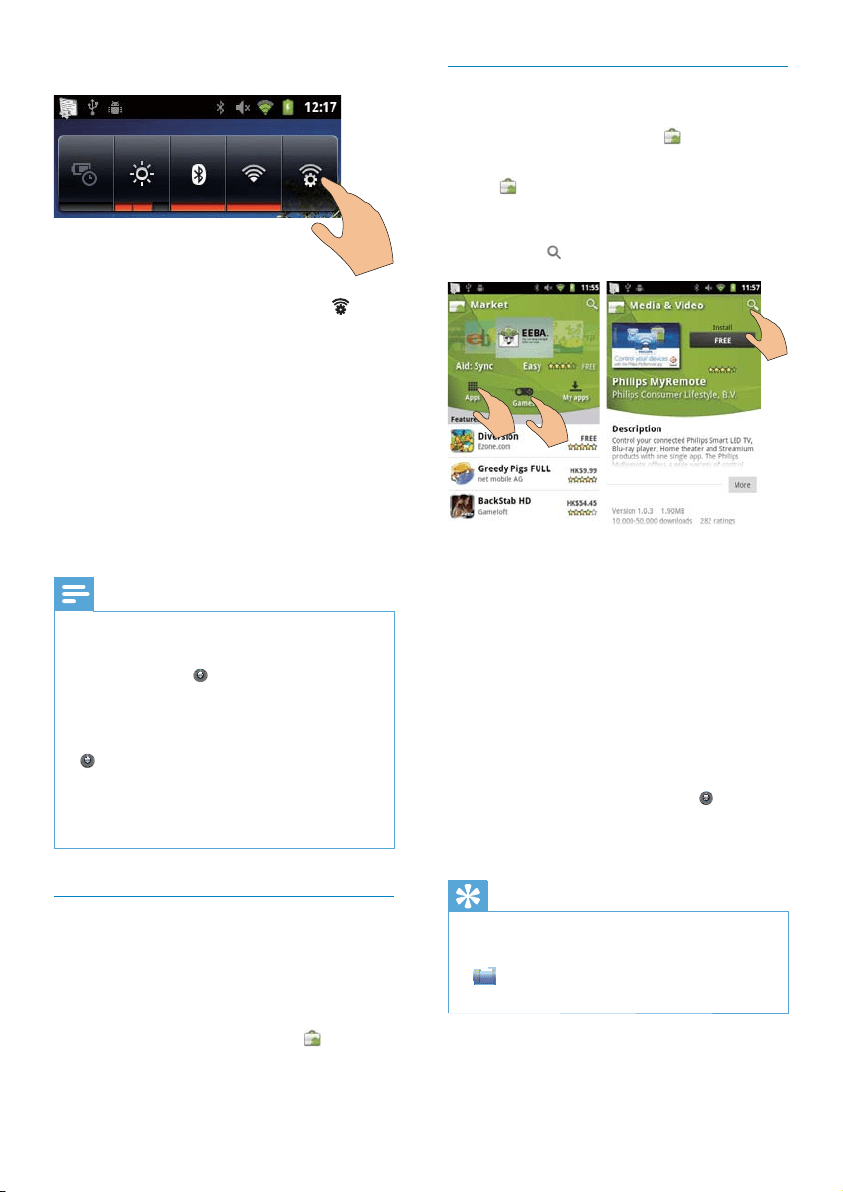
7RFRQQHFWWRD:L)LQHWZRUN
1 From the Home screen, swipe left/ right to
select the power control widget.
2 Tap WRVZLWFKRQWKH:L)LIXQFWLRQ
» The device starts connecting to the
previously connected network.
»
is displayed in the status bar when
WKH:L)LFRQQHFWLRQLVFRPSOHWHG
successfully.
5 Get content on
the device
On Connect, you can get content:
IURPWKH,QWHUQHWWKURXJK:L)L
from your PC through the USB cable.
To check the content onConnect,
go to
from the Home screen.
Get content from the
Internet
Over the Internet, you can do the following on
Connect:
From the Android Market, download
different applications, games, music, videos,
and others;
Access online services through online
applications that are installed on Connect,
such as Google Search, Maps, Calendar,
Google Mail, Talk, YouTube, and Skype;
Stream or download music, audiobooks,
videos, radio programs, or other audio/
video content from the Internet through
the applications, such as 7 digital,
VIEWSTER, Audible, AUPEO!;
Browse websites.
Connect to the Internet
Connect Connect to a wireless router (Access
Point). You can connect Connect to the
network that is built around the router.
EN
22
Install applications
Install applications from the Market
From the Home screen, go to
. You can
download and install applications and games.
1 In , search for an application as needed:
Tap Apps or Games for search by
category;
Tap
for keyword search.
2 Download the application:
7DSWKHDSSOLFDWLRQ&RQÀUPDV
needed.
» When the downloading is
complete, installation starts
automatically.
» 'UDJGRZQWKHVWDWXVEDUWRÀQG
the status.
To install applications from sources other than
the Market,
From the Home screen, go to
>
Applications. Tap to switch on Unknown
sources.
Tip
On the device, you can also install the applications that
you transfer from PCs through the USB cable (see
‘Drag and drop in Windows Explorer’ on page 24). In
ÀQGWKHDSSOLFDWLRQDQGWDSWKHRSWLRQWRVWDUW
installation.
7RVZLWFKWRDQRWKHU:L)LQHWZRUN
1 On the power control widget, tap to
VHOHFW\RXU:L)LVHWWLQJV
» <RXVHHDOLVWRI:L)LQHWZRUNVLQ
range, and previously connected
networks (if the networks are
remembered).
2 Connect Connect to a network:
,QWKHOLVWRI:L)LQHWZRUNVWDSWKH
selected one;
(QWHUWKHHQFU\SWLRQNH\LQWKHSRS
up text box.
Note
,I0$&DGGUHVVÀOWHULQJLVHQDEOHGRQ\RXUURXWHUDGG
the MAC address of Connect to the list of devices
WKDWDUHDOORZHGWRMRLQWKHQHWZRUN7RÀQGWKH:L)L
MAC address, go to
> Information > Status on the
Home screen.
If you have disabled SSID broadcasting or hidden the
6HUYLFH6HW,GHQWLÀHU66,'RIWKHURXWHUPDQXDOO\
enter the SSID or public name for the network. Go to
> :L)LVHWWLQJV >$GG:L)LQHWZRUN.
,IWKH'+&3'\QDPLF+RVW&RQÀJXUDWLRQ3URWRFRO
is unavailable or disabled on the router, manually enter
the IP address of Connect (see ‘Advanced settings’ on
page 57).
Market
Create or log in to your Google account
With your Google account, you can access,
download, or update applications, such as
Google Mail, Talk, YouTube, Maps.
1 From the Home screen, go to .
2 Follow onscreen instructions to create or
log in to your Google account.
EN
23
Sync data
Select your sync options for online applications.
Auto sync
With Auto sync, you can sync data when the
applications are not running, for example, email,
calendar, or information.
1 From the Home screen, go to >
Accounts & sync settings.
2 Switch on Background data and $XWR
sync.
» If the function is enabled, the tick box
is selected.
Tip
To conserve battery power, switch off Background data
if the function is unnecessary.
$XWRV\QF is disabled when you switch off Background
data.
Select auto sync options
1 Switch on $XWRV\QF.
Make sure that you have switched on
Background data.
» Under Manage accounts, a list of
existing data accounts is displayed.
2 Tap an account to view the sync options.
3 Tap to select the data to be synced (such
as calendar, mail).
Manual sync
If you have switched off auto sync, you can
manually sync the data as needed.
1 Under Manage accounts, tap an account.
» A list of sync options is displayed.
2 Tap to select the data to be synced (such
as calendar, mail).
3 Tap Sync now.
Tip
To sync the data manually, you can also press and
select Refresh in the application.
Manage applications
You can manage the applications on the device,
for example, install/ uninstall applications, stop
running applications, or select other options.
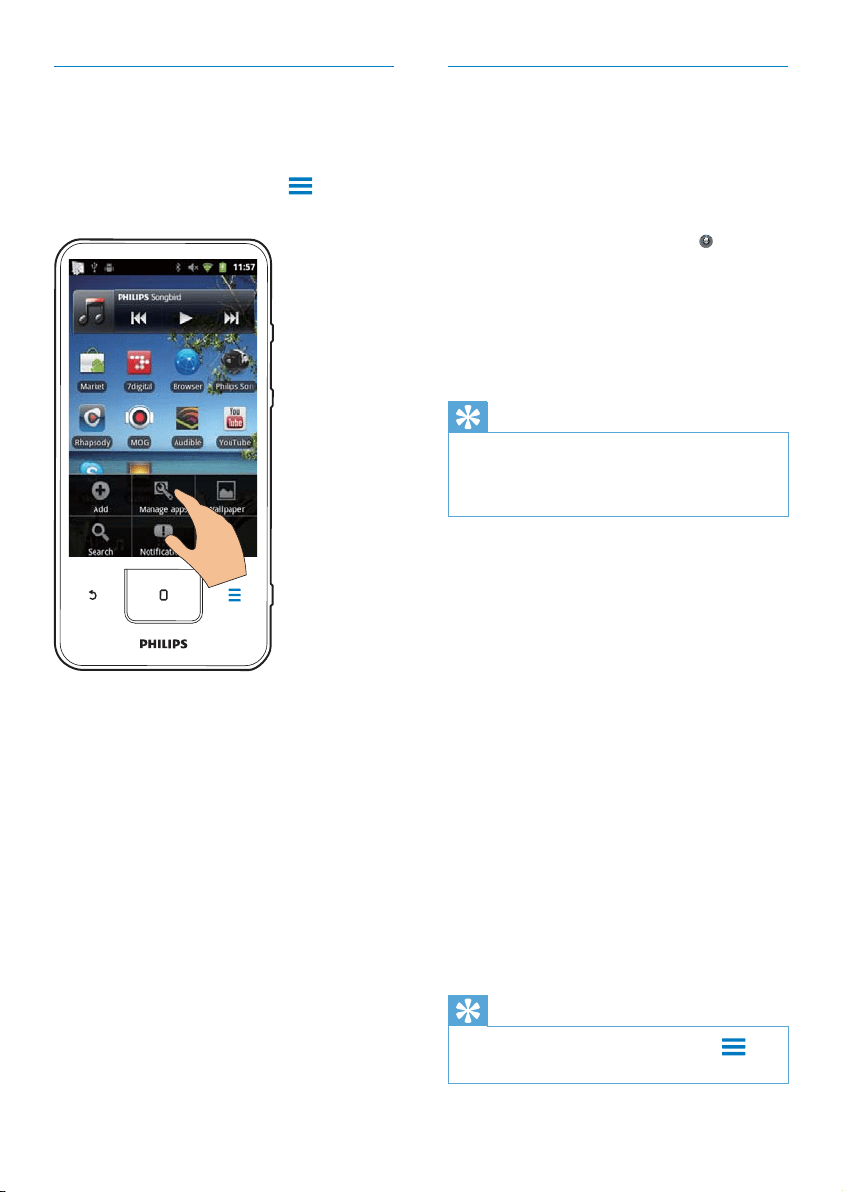
1 On the Home screen, press and select
Manage applications:
In DownloadedÀQGWKHDSSOLFDWLRQV
that you have downloaded from the
Market or other sources.
In RunningÀQGWKHDSSOLFDWLRQVWKDW
are running on the device.
In AllÀQGDOOWKHDSSOLFDWLRQVWKDW\RX
have installed on the device.
2 Tap an application.
» Options and information are displayed.
3 Tap to select an option.
EN
24
Note
When you switch on the USB storage mode, you
FDQQRWSOD\PHGLDÀOHVRQConnect7RSOD\PHGLDÀOHV
on the device, switch off the USB storage mode.
2UJDQL]HÀOHVE\ÀOHIROGHU
<RXFDQRUJDQL]HSKRWRVRURWKHUÀOHVLQ
folders.
2UJDQL]HPHGLDÀOHVE\ÀOHLQIRUPDWLRQ
,IWKHPHGLDÀOHVFRQWDLQÀOHLQIRUPDWLRQ
(meta tag or ID3 tag), you can sort the
ÀOHVE\WLWOHDUWLVWDOEXPRUJHQUHRQWKH
device. To edit the information, use media
management software, such as Windows
Media Player 11 or Philips Songbird.
Sync through Philips Songbird
Through Philips Songbird, you can sync music,
video, or photos from a PC to the device. The
V\QFSURFHVVDOORZVPHGLDÀOHVWREHFRQYHUWHG
to the formats playable on the device.
Install Philips Songbird
1 Connect the device to a PC by using the
USB cable.
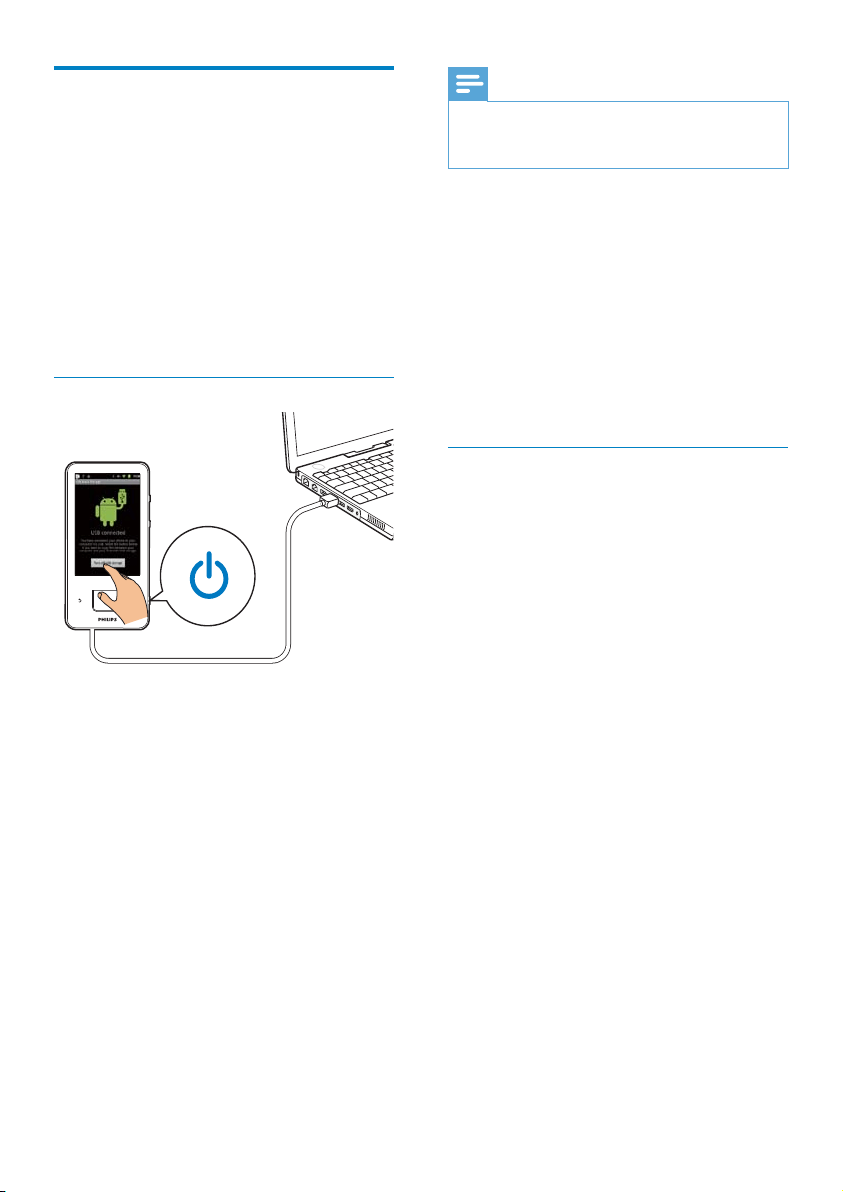
2 On the device, switch on the USB storage:
2QWKHSRSXSVFUHHQWDSTurn on
USB storage.
3 On the PC, select My Computer
(Windows XP / Windows 2000) /
Computer (Windows Vista / Windows 7).
» The Philips Songbird setup. exe is
displayed.
4 To start installation, double click the setup.
exe.
Import media intoPhilips Songbird
7KHÀUVWWLPH\RXODXQFKPhilips Songbird on
a PC, do the following as prompted to import
H[LVWLQJPHGLDÀOHVLQWRPhilips Songbird:
Select the iTunes media folder to import
an existing iTunes library;
Select your media folder to search and
LPSRUWWKHH[LVWLQJPHGLDÀOHV
Transfer content from your
PC
Connect the device to a PC through the USB
cable. Do the following to transfer applications
RUPHGLDÀOHVIURP\RXU3&WRWKHGHYLFH
In Windows Explorer, drag and drop
DSSOLFDWLRQVRUPHGLDÀOHVIURP\RXU3&WR
the device;
Install Philips Songbird from the device.
Sync Connect with your PC media library
through Philips Songbird.
Drag and drop in Windows Explorer
1 Connect the device to a PC by using the
USB cable.
Make sure that you have switched on
the device.
2 On the device, switch on the USB storage:
2QWKHSRSXSVFUHHQWDSTurn on
USB storage.
3 On the PC, under My Computer or
Computer,
ÀQGConnect;
ÀQGÀOHVIROGHUV
4 )URPWKH3&GUDJDQGGURSÀOHVIROGHUV
to the Connect.
EN
25
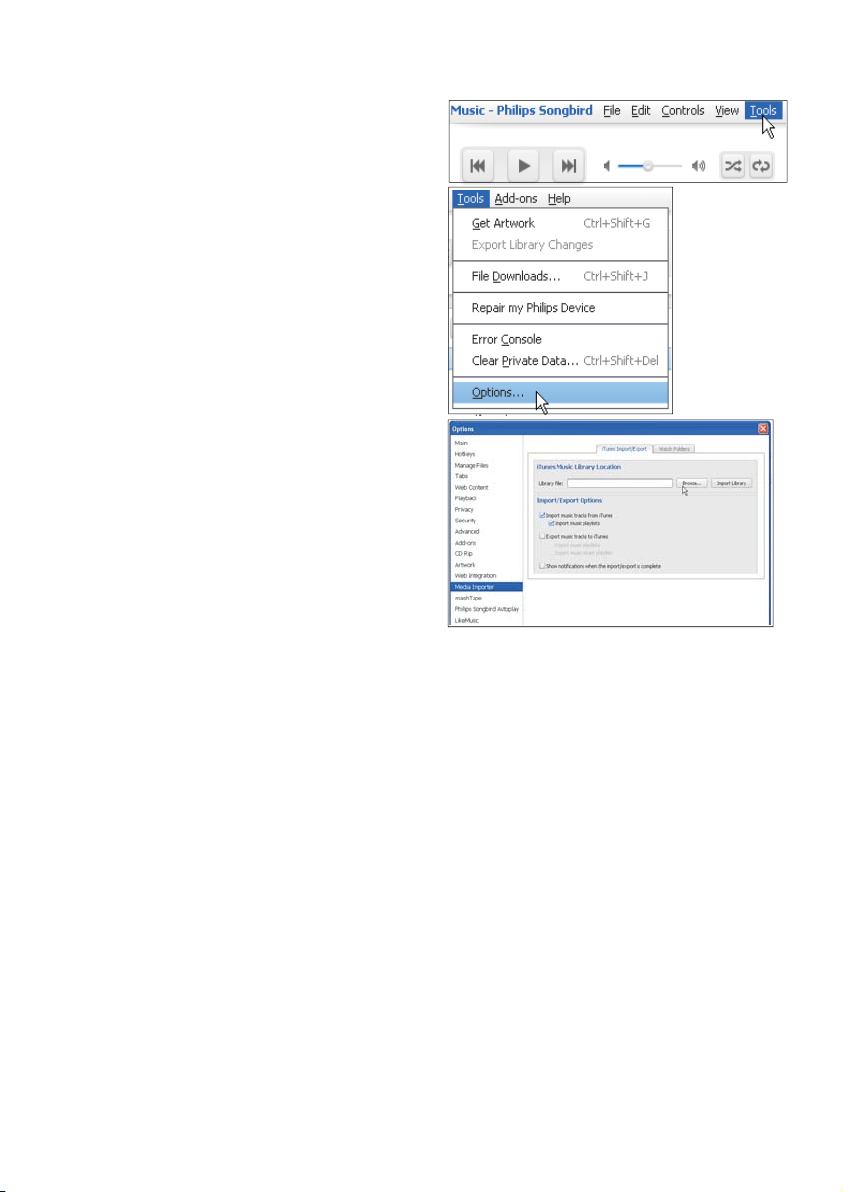
To set iTunes media folder,
1 On Philips Songbird, go to Tools >
Options...
2 Select Media Importer, and then the
iTunes Importer tab.
3 Verify your library location and options.
4 Click the Import Library button next to
the library location.
» The software imports the iTunes
library into Philips Songbird.
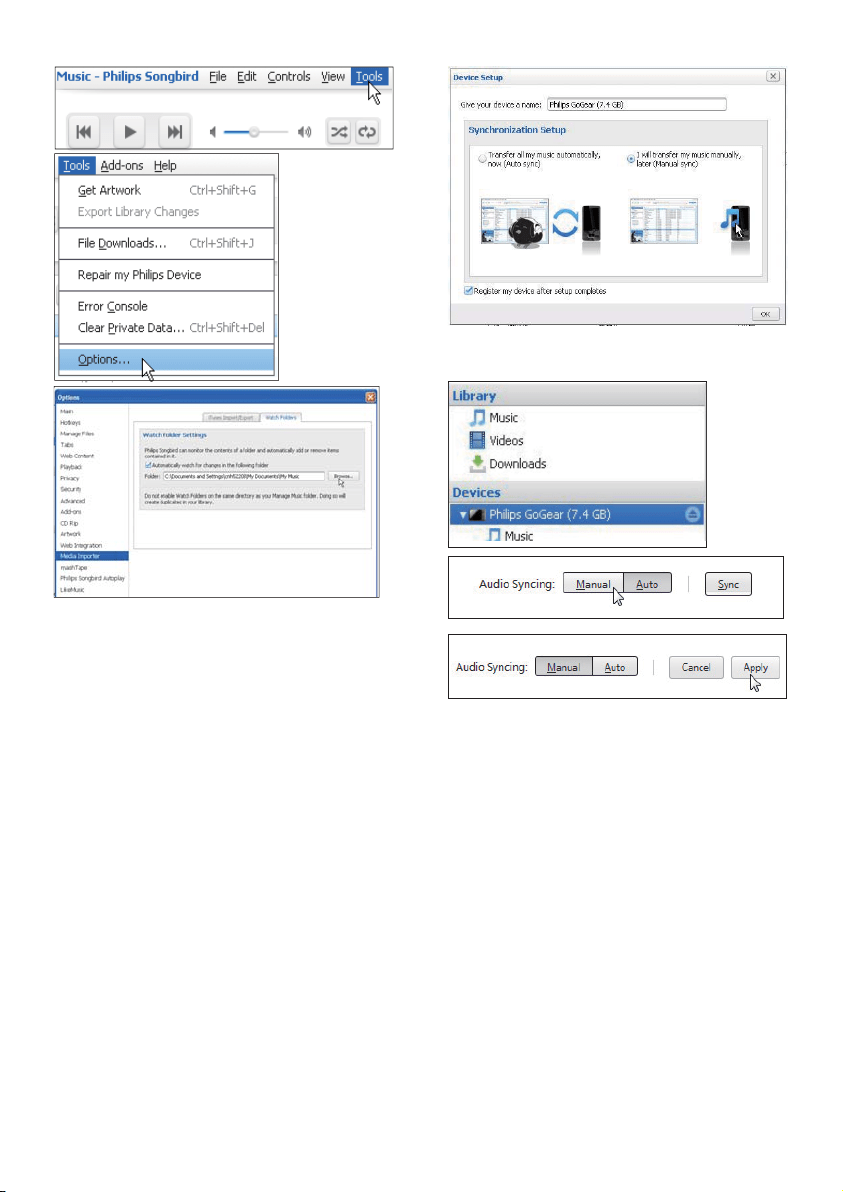
To set the watch folder,
In Philips Songbird, set the watch folder as
follows:
» The media folder is set as the watch
folder of Philips Songbird.
EN
26
To change sync settings later,
1 Select the device under Devices.
2 Select Manual or Auto.
3 7RFRQÀUPWKHRSWLRQFOLFNApply.
Auto sync
If you have selected auto sync, auto sync
starts automatically when you connect the
device to a PC;
Alternatively, select the device under
Devices, and click Sync.
Manual Syn
To transfer selected playlists manually,
1 Select Tools > Options.
2 In Options, select Media Importer. Then,
select the Watch Folders tab.
3 In Watch Folders, tick the checkbox as
shown.
4 Click Browse, and select the central folder
(e.g.D:\Songbird media) as the watch
folder.
» In Philips SongbirdPHGLDÀOHVDUH
added or removed as they are in the
central music folder.
Sync throughPhilips Songbird
7KHÀUVWWLPH\RXFRQQHFWWKHGHYLFHWRPhilips
Songbird, select auto sync or manual sync for
the device.
On the device, make sure that you have
switched on the USB storage mode (see ‘Select
USB connection modes’ on page 11).
EN
27
Folder view
With \RXFDQÀQGDQGPDQDJHÀOHVRQWKH
internal memory of the device.
)LQGÀOHV
From the Home screen, tap <RXFDQÀQG
ÀOHVWKDW\RXVWRUHRQWKHLQWHUQDOPHPRU\RI
Connect.
0DQDJHÀOHV
In \RXFDQGRWKHIROORZLQJWRPDQDJHÀOHV
'HOHWHÀOHVIROGHUVIURPWKHLQWHUQDO
memory.
7RGHOHWHÀOHVIROGHUV
1 2QWKHVFUHHQRIÀOHVIROGHUVSUHVV
and select Delete.
» A list of checkboxes is displayed next
WRWKHÀOHVIROGHUV
2 Tap the checkboxes to select or deselect
ÀOHVIROGHUV
3 6HOHFW\RXURSWLRQVDQGFRQÀUPDV
prompted.
6KDUHÀOHV
In \RXFDQVKDUHÀOHVWKURXJK%OXHWRRWK
1 2QWKHVFUHHQRIÀOHOLVWSUHVV > Send
via BT.
» A list of checkboxes is displayed next
WRWKHÀOHV
2 Tap the checkboxes to select or deselect
ÀOHV&RQÀUPDVSURPSWHG
3 On Connect, pair with a Bluetooth device:
Tap Scan for devicesWRÀQGDQGSDLU
with the device.
Alternatively, tap a paired device to
start sending.
» When Connect is connected
to the Bluetooth device,
is
displayed on the screen.
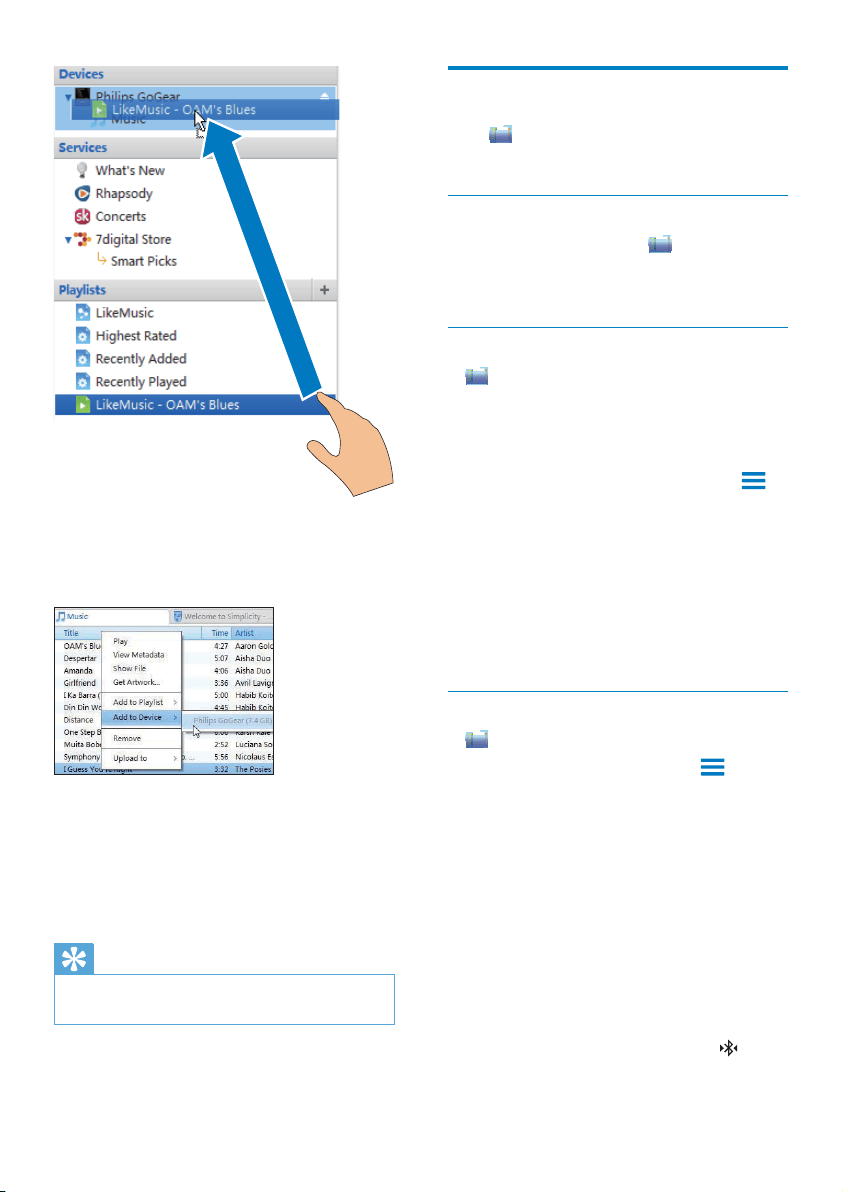
1 Select playlists.
2 Drag and drop the playlists to Connect.
7RWUDQVIHUVHOHFWHGPHGLDÀOHVPDQXDOO\
1 On the Content pane, right click on a
VHOHFWHGPHGLDÀOH
2 Select Add to Device > Connect.
» 6HOHFWHGÀOHVDUHWUDQVIHUUHGWR
Connect.
Tip
7RVHOHFWPXOWLSOHÀOHVDWWKHVDPHWLPHKROGGRZQWKH
Ctrl button when you click options.
EN

28
4 2QWKH%OXHWRRWKGHYLFHUHFHLYHWKHÀOHV
&RQÀUPDVSURPSWHG
6DYHWKHÀOHVDVSURPSWHG
EN
29
Select search options
You can select your options for the search
through the quick search box.
1 Tap the search box or .
2 Press > Search settings.
3 Tap to select an option.
» If the function is enabled, the tick box
is selected.
Google Search: Select options for the Google
Search in the Web.
Searchable items: Select the items that you can
search for on the device.
Clear search shortcuts: Clear the shortcuts
to previously selected search results. Such
shortcuts are displayed under the quick search
box.
Voice search
Use Google Voice Search to search by voice.
Note
The Voice Search is available in some languages.
1 Make sure that you have connected
Connectto the Internet.
2 From the Home screen, swipe to .
Alternatively, swipe to the quick
search box. Tap
.
3 Start the search:
Speak out the keyword for the search.
6 Search on the
device
With the quick search box of Google Search,
you can
search the web; or/ and
search the device for applications and
contacts of your Google Mail.
Use the quick search box
Go to Google Search from the Home screen.
Use the quick search box to search the Web, or
search the device for the installed applications
or contacts of your Google Mail.
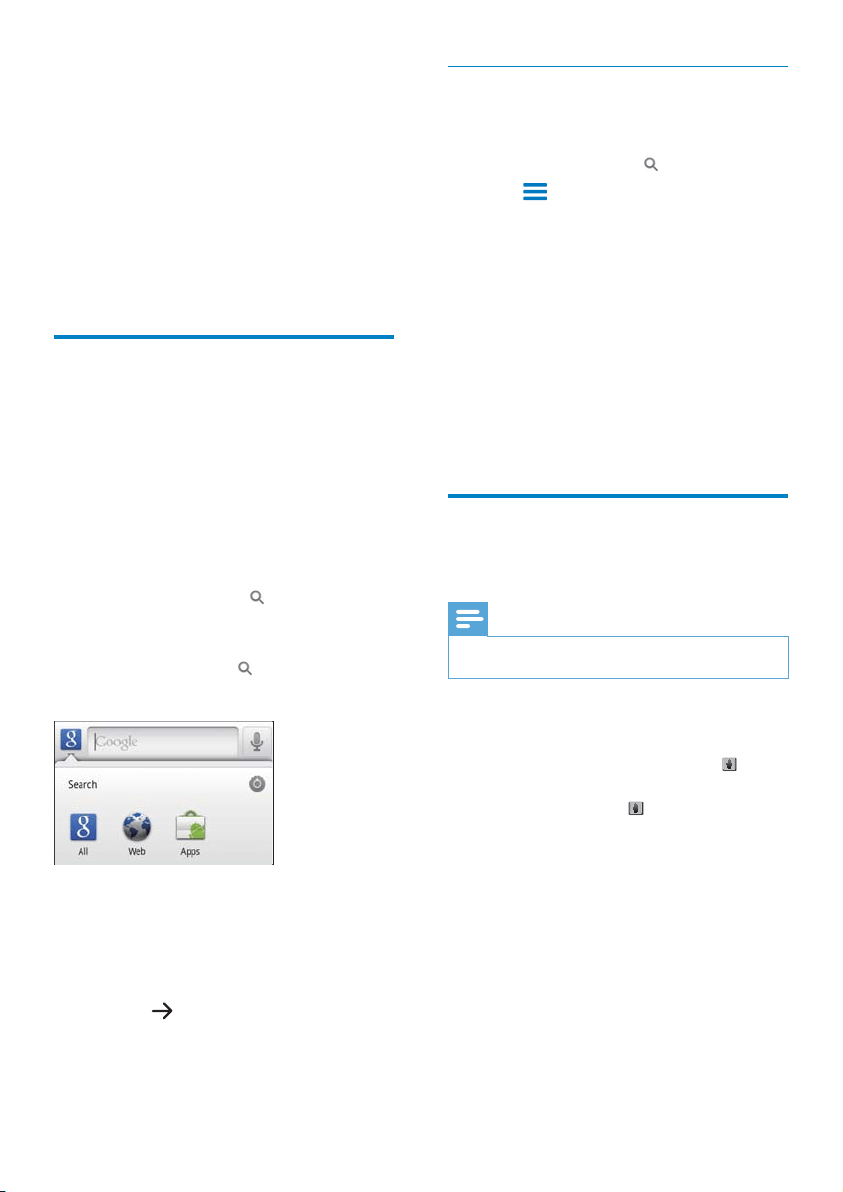
1 Make sure that you have connected the
device to the Internet.
2 On the Home screen, swipe to the quick
search box.
3 Tap the search box or .
4 Select the search option:
6HOHFWDQRSWLRQLQWKHGURSGRZQOLVW
If necessary, tap
WRVKRZWKHGURS
down list.
5 Start the search:
Tap the search box;
» The onscreen keyboard is
displayed.
Enter your keyword for search;
Tap
to start search.
EN
30
Browse the music library
Find music by song information
2QWKHOLEUDU\VFUHHQÀQGPXVLFE\DUWLVWVRQJ
title, or album.
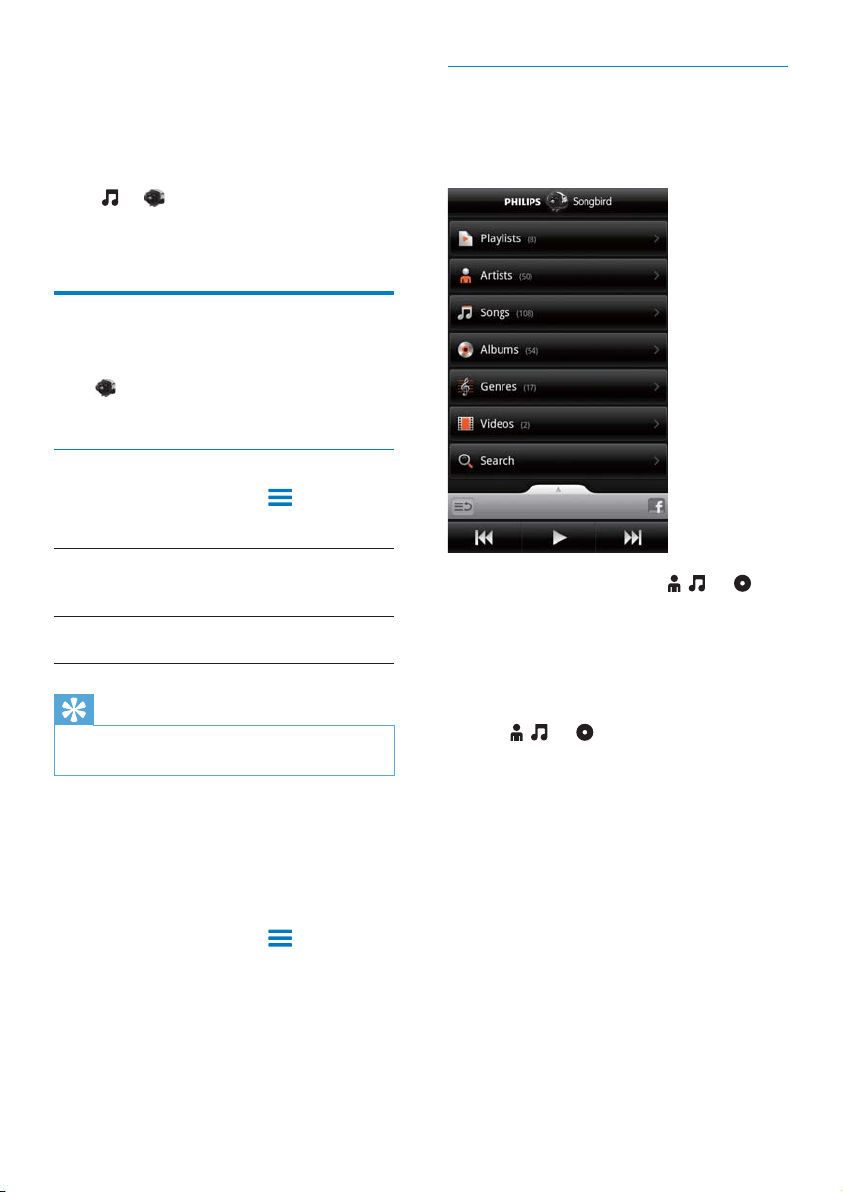
1 On the library screen, tap , , or to
sort the library as needed.
» The music library is sorted by the song
information in alphabetical order.
» When you sort the library by album,
the available album art is displayed.
2 On , , or , use Superscroll to
search for items that start with a selected
alphabet:
7 Music and
videos
Go to or Philips Songbird to play music
and videos from the media library on the
device.
Play music from Philips
Songbird
With Philips Songbird, you can select Philips
sound options for your music play.
Philips sound options
In Philips Songbird, press and select
[Settings] > [Philips Sound Options].
[FullSound] Restore the sonic details that
music compression loses
(such as MP3, WMA).
[Sound
Personalization]
Drag on the screen to select
sound settings.
Tip
When you select one of [FullSound] and [Sound
Personalization], you switch off another.
To select play options on the stereo Bluetooth
headphones,
When you listen to music through stereo
Bluetooth headphones, you can select play
options by using the controls on the Bluetooth
headphones.
In Philips Songbird, press
and select
[Settings] > [Headset controls].
EN
31
Find music by playlist
On the device, you can create a playlist for
songs that you want to play together.
On the library screen, tap
WRÀQGD
playlist as needed.
Play music
1 ,QWKHPXVLFOLEUDU\EURZVHWRÀQGPXVLF
2 To start play, tap next to an artist, album,
song, genre, or playlist.
» You start to play the artist, album, song,
genre, or playlist.
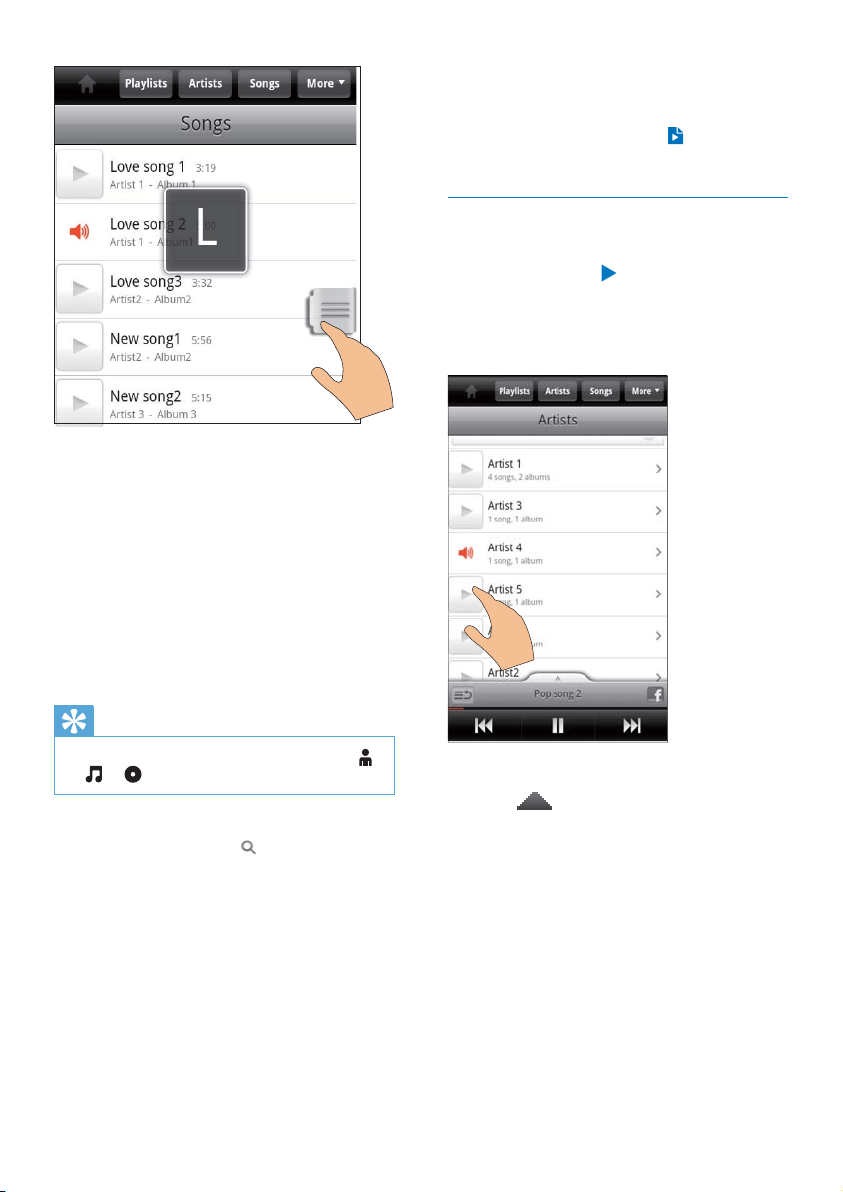
To show or hide the play screen,
drag
up/ down.
In the list of items, swipe up/ down;
» The slider is displayed.
Press and hold the slider.
» ,QWKHSRSXSWH[WER[FXUUHQW
alphabet is displayed.
To select an alphabet, drag the slider
up/ down until you reach the alphabet.
» At the top of the list, you see
WKHÀUVWLWHPWKDWVWDUWVZLWKWKH
alphabet.
Tip
Superscroll is available in a long list of items under
, , or .
Find music by keyword
On the library screen, tap
to enter the
keyword in the quick search box.
Find music by genre
On the device, you can browse the library by
genre, such as pop, rock, and blues. Edit the
song information through media management
software on a PC, for example, Windows
Media Player 11 and Philips Songbird.
On the library screen, tap the genre button
WRÀQGDJHQUHDVQHHGHG
EN
32
To switch off the lock screen,
In Philips Songbird, press
and deselect
[Lock screen widget].
Connect to online services
With Philips Songbird, you can connect to
online services during music play.
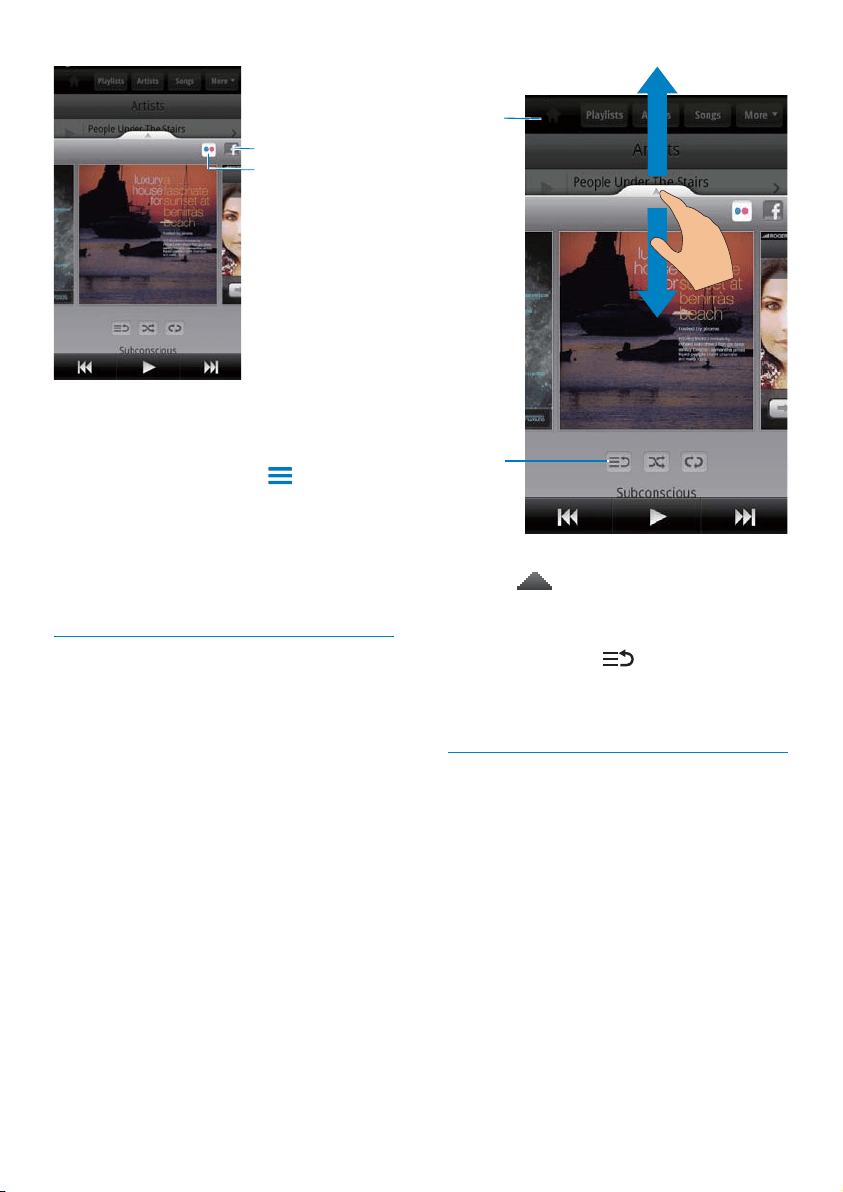
Stream photos fromFlickr
Flickr can stream available photos of current
artist to the device.
1 Make sure that you have connected the
device to the Internet.
2 On the play screen, tap the button 2 to
switch on Flickr.
» Available photos are streamed to
current song.
Tell friends what songs you like
throughFacebook
On the play screen, tap the button 1.
To select play options on the play screen,
Tap to return to the list of items
Tap to play all songs in current
folder in random order.
Tap once or more to select repeat
options:
Repeat all: Tap to repeat all songs
in current folder.
Repeat one: Tap to repeat current
song.
/
Tap to pause/resume play.
/
Tap to skip songs;
Hold to fast forward or rewind
within current song.
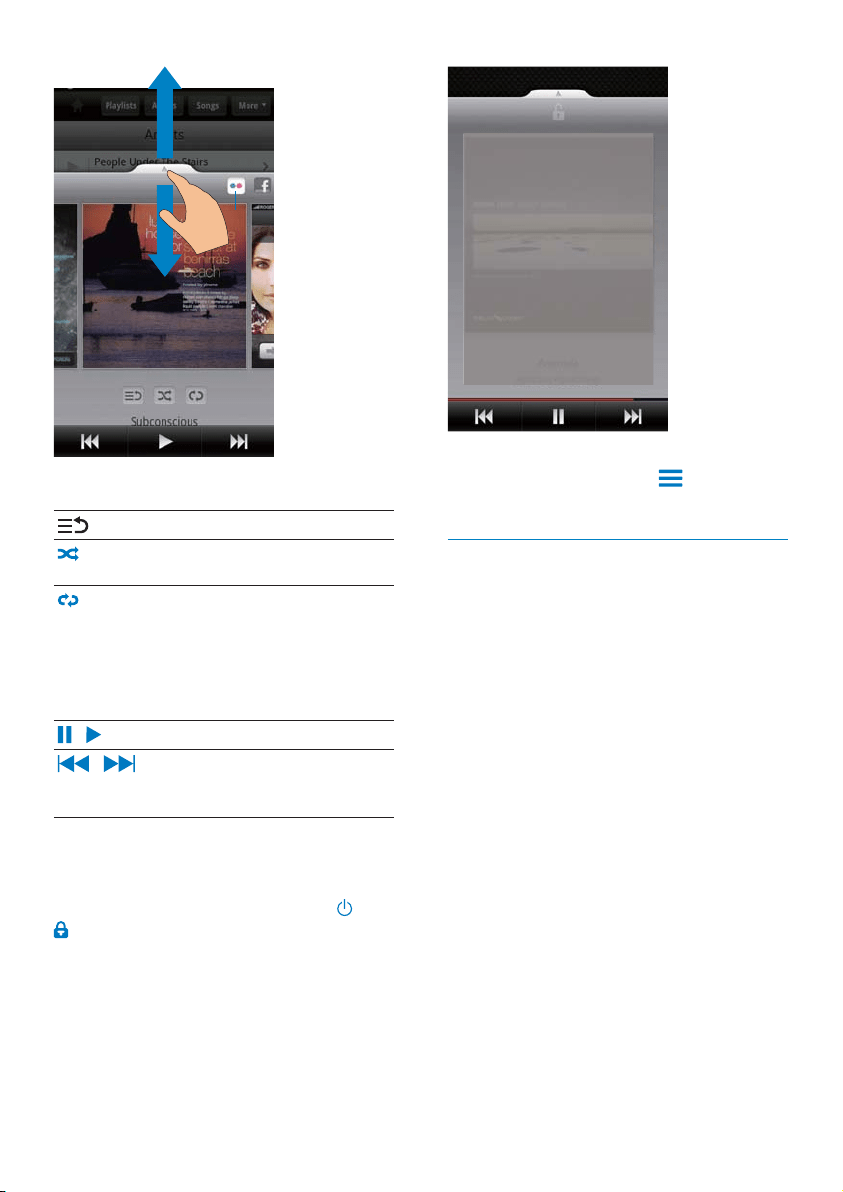
Use the play screen as lock screen,
During music play, the screen is locked
automatically after a certain time duration. With
the play screen set as lock screen, press
/
and you can select play options on the lock
screen.
EN
33
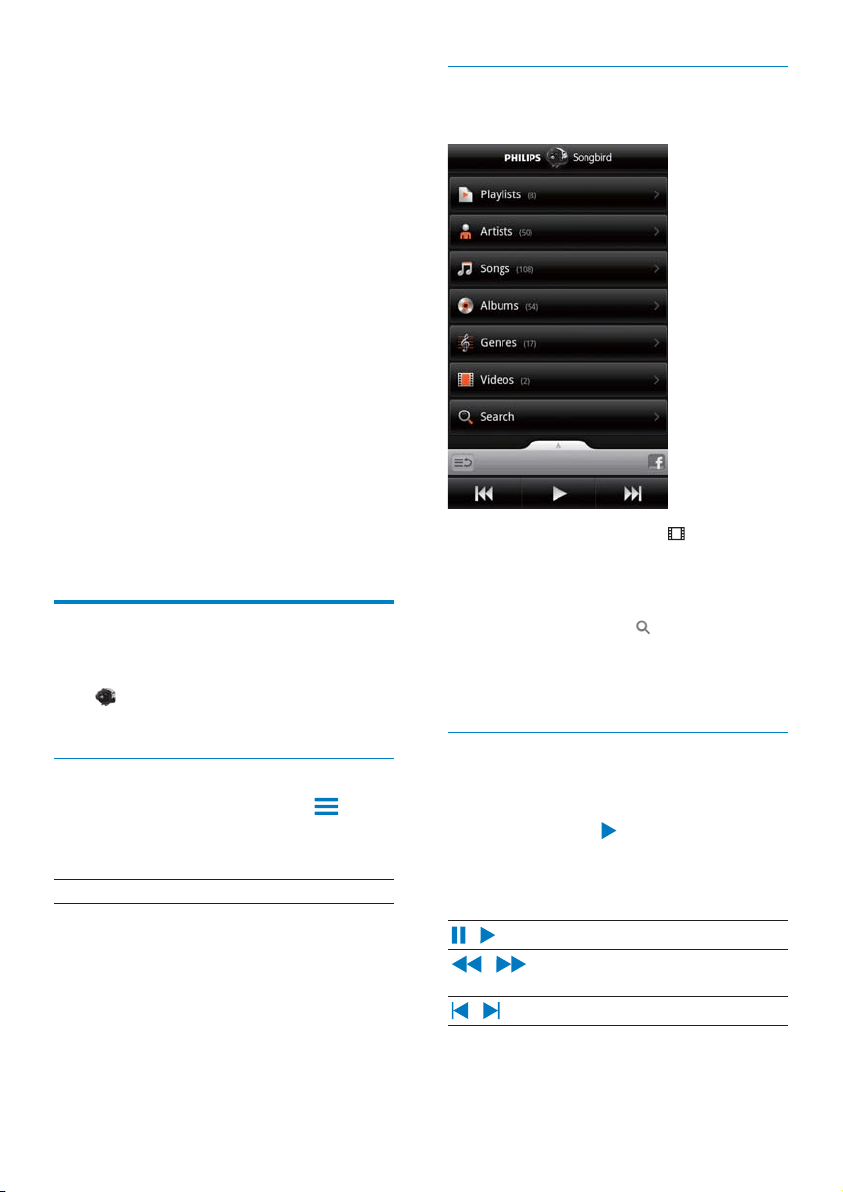
To show or hide the play screen,
drag
up/ down.
To return to the list of items on the play
screen,
tap the button 3
.
To return to the library screen,
tap the button 4.
Playlists
You can create a playlist for songs that you want
to play together.
Add songs to a playlist
1 On the library screen, select an artist,
album, song, or genre.
2 Tap and hold the artist, album, song, or
JHQUHXQWLOWKHSRSXSVFUHHQLVGLVSOD\HG
Tap [Add to playlist...].
3 Select or create a playlist.
» The selected song, or all the songs
under an artist, album, or genre are
added to the playlist.
c
d
Scrobble song information toLast .fm
To scrobble to Last .fm the songs you listen to
on Connect,
1 In Philips Songbird, press and select
[Last.fm scrobbling].
» If the function is enabled, the tick box
is selected.
2 During the music play, make sure that you
have connected the device to the Internet.
Switch between screens
In Philips Songbird, do the following to switch
between the library screen, play screen, and list
of items:
a
b
EN
34
Browse the videos library
Find videos by title
On the library screen, tap .
» The videos library is sorted by the title
in alphabetical order.
Find videos by keyword
On the library screen, tap
to enter the
keyword in the quick search box.
Alternatively, tap the search box in the
videos library.
Play videos
1 ,QWKHYLGHRVOLEUDU\EURZVHWRÀQGD
video.
2 To start play, tap next to the video.
» You start to play the video.
To select play options on the play screen,
/
Tap to pause/resume play.
/
Hold to fast forward or
rewind within current song.
/
Tap to skip songs.
Rename a playlist
1 Select a playlist.
2 7DSDQGKROGWKHSOD\OLVWXQWLOWKHSRSXS
screen is displayed. Tap [Rename].
» The onscreen keyboard is displayed.
3 Edit the name of the playlist.
» The playlist is renamed.
Remove a song from the playlist
1 In a playlist, select or play a song.
2 7DSDQGKROGWKHVRQJXQWLOWKHSRSXS
screen is displayed. Tap [Remove from
playlist].
» The selected song is removed from the
playlist.
Delete a playlist
1 Select a playlist.
2 7DSDQGKROGWKHSOD\OLVWXQWLOWKHSRSXS
screen is displayed. Tap [Delete].
» The playlist is deleted.
Play videos from Philips
Songbird
With Philips Songbird, you can select Philips
sound options for your video play.
Philips sound options
On the video play screen, press
and select [Settings] > [Philips Sound
Options].
Surround Sound Surround sound effect
EN
35
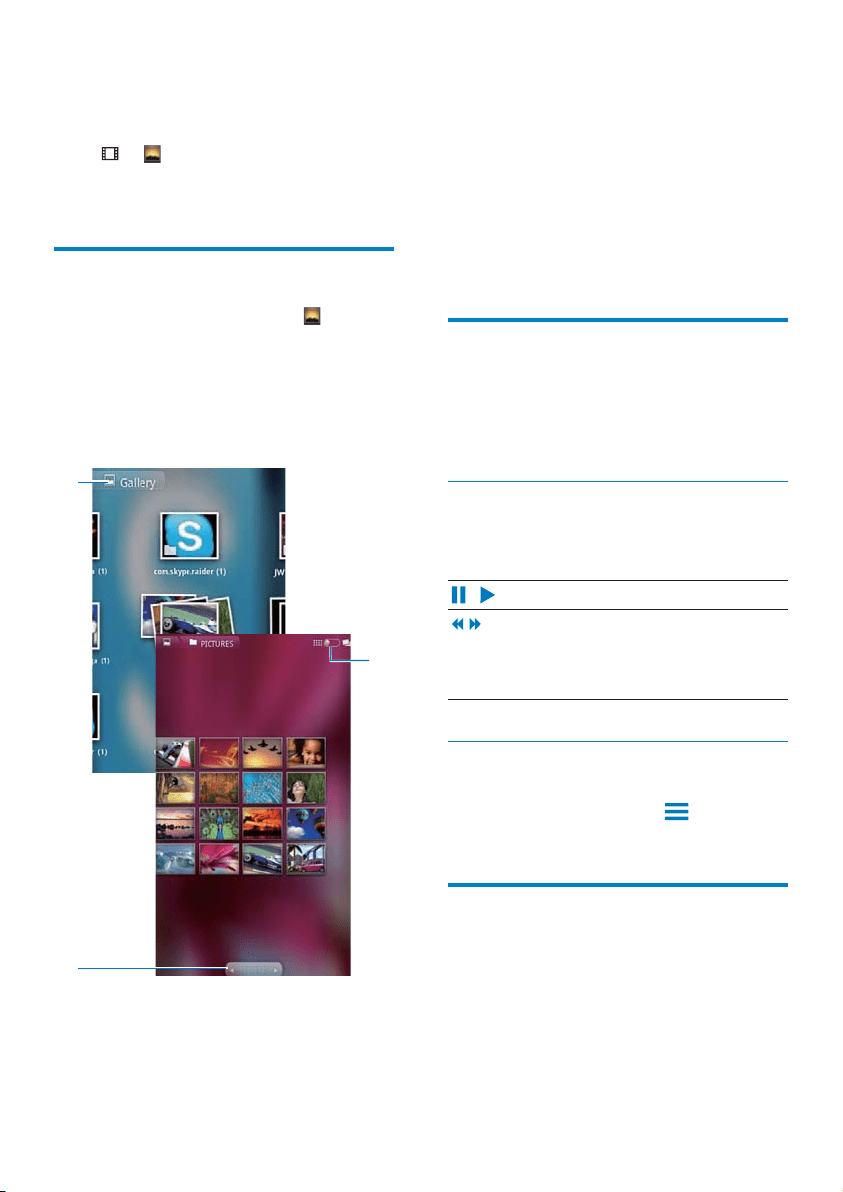
To browse through the pictures or videos,
Swipe left/ right on the screen; or
Tap the buttons 1 to move to the pictures
or videos on the previous or next page.
To list pictures or videos as thumbnails or in
stacks by date,
Drag the button 2.
To go to the main menu of Gallery,
Tap the button 3.
Play videos
1
,QWKHYLGHROLEUDU\EURZVHWRÀQGDYLGHR
2 Tap a video to start play.
» The play screen is displayed.
Select play options
On the play screen, tap icons to select play
options:
/
Tap to pause/resume play.
Hold to search backward or
forward.
Alternatively, drag the progress bar
to search within the video.
Select sound options
Select sound settings
On the play screen, press
to select/
deselect Surround Sound.
Play pictures
Tap a picture to start play.
» The play screen is displayed.
8 Gallery
Go to or to play:
videos/ pictures that you store on the
device.
Browse the library
1
From the Home screen, go to .
» Pictures and videos folders are
displayed.
2 Tap a folder.
» Pictures and videos in the folder are
displayed.
c
a
b
EN
36
1 Play a picture (see ‘Play pictures’ on page
35).
2 On the play screen, tap the onscreen
button Menu and select More.
3 Tap Crop.
» A cropping frame is displayed.
4 Within the cropping frame, select an area
that you want to keep:
Swipe left/ right to select the area;
To enlarge/ reduce the area in
proportion, drag a corner of the
frame;
To enlarge/ reduce the area as
needed, drag the edges of the frame.
5 Tap Save.
» You save the cropped version.
Set a picture as wallpaper
You can set a picture as the wallpaper of the
Home screen.
1 Play a picture (see ‘Play pictures’ on page
35).
2 On the play screen, tap the onscreen
button Menu and select More.
3 Tap Set as and select Wallpaper.
4 Crop the picture as prompted.
Delete pictures
1 Play a picture (see ‘Play pictures’ on page
35).
2 On the play screen, tap the onscreen
button Menu and select Delete.
» You delete current picture.
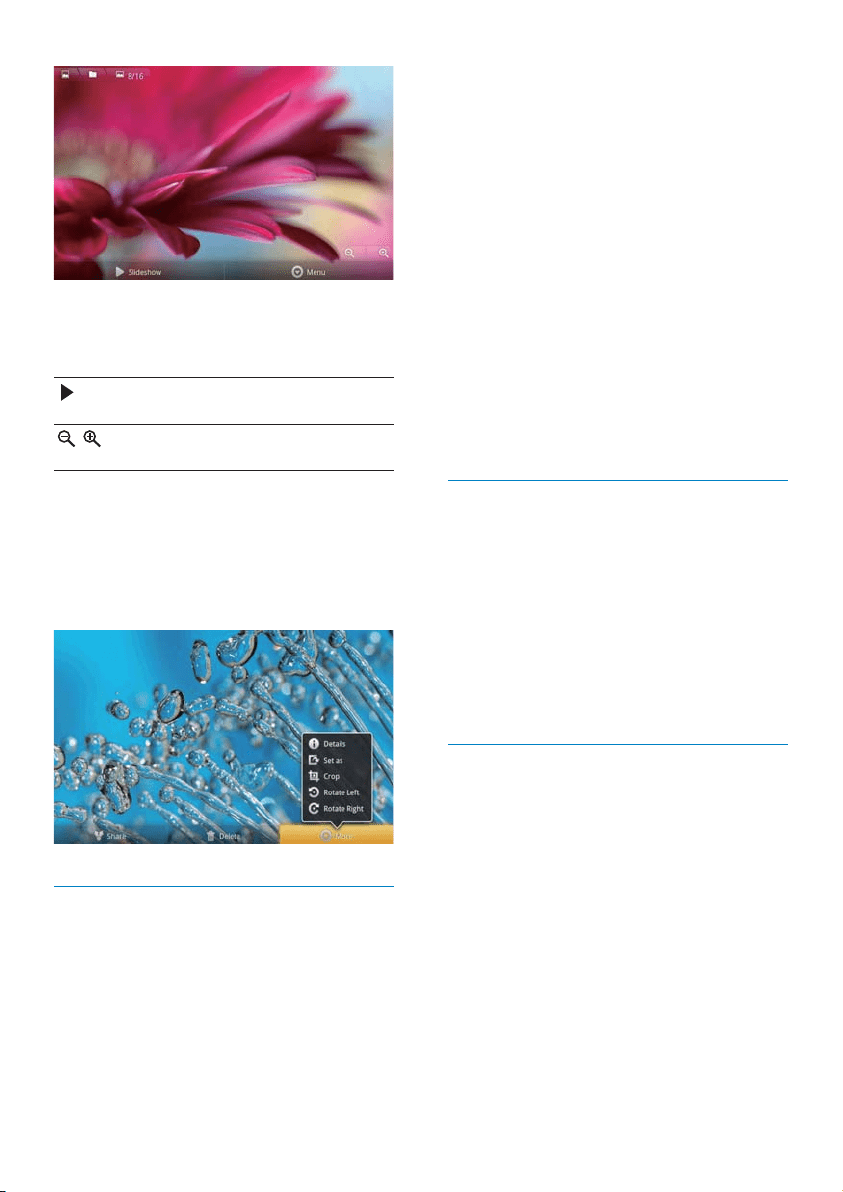
To select play options on the play screen,
If necessary, tap the screen to display the
onscreen buttons.
Tap to start slideshow. You can
play pictures one by one.
,
Tap to zoom out or in the
picture.
To rotate the picture,
1 On the play screen, tap the onscreen
button Menu and select More.
» $SRSXSOLVWRIRSWLRQVLVGLVSOD\HG
2 Tap Rotate Left or Rotate Right.
Crop pictures
By cropping a picture, you can reduce its size.
Edit or crop a picture when:
you share the picture through email,
Bluetooth, or social networking services; or
you set the picture as wallpaper.
EN

37
9 Browser
With , you can browse Web pages.
1 From the Home screen, tap .
2 Tap the text box to start text entry.
» The onscreen keyboard is displayed.
3 Enter a web address.
4 On the onscreen keyboard, tap Go.
To open a new web page,
On the screen of web page, press
and
select New window.
» You can go to another Web page.
To switch between screens
1 On the screen of web page, press and
select Windows.
2 Tap the selected Web page.
Add a bookmark
Add a bookmark. You can quickly access a
visited Web page.
1 Go to a Web page.
2 Press , and select More > Add
bookmark.
» $SRSXSVFUHHQLVGLVSOD\HG
3 Edit the name and web address.
» A bookmark is added to the Web
page.
To go to a bookmarked Web page
1 From the Home screen, tap .
2 Press > Bookmarks to select a
bookmark.
» You go to the bookmarked Web page.
EN
38
Search for places
In \RXFDQJHWGLUHFWLRQVIRUDVSHFLÀFSODFH
or a certain kind of places.
Directions
With Directions, you can get directions for a
VSHFLÀFSODFH
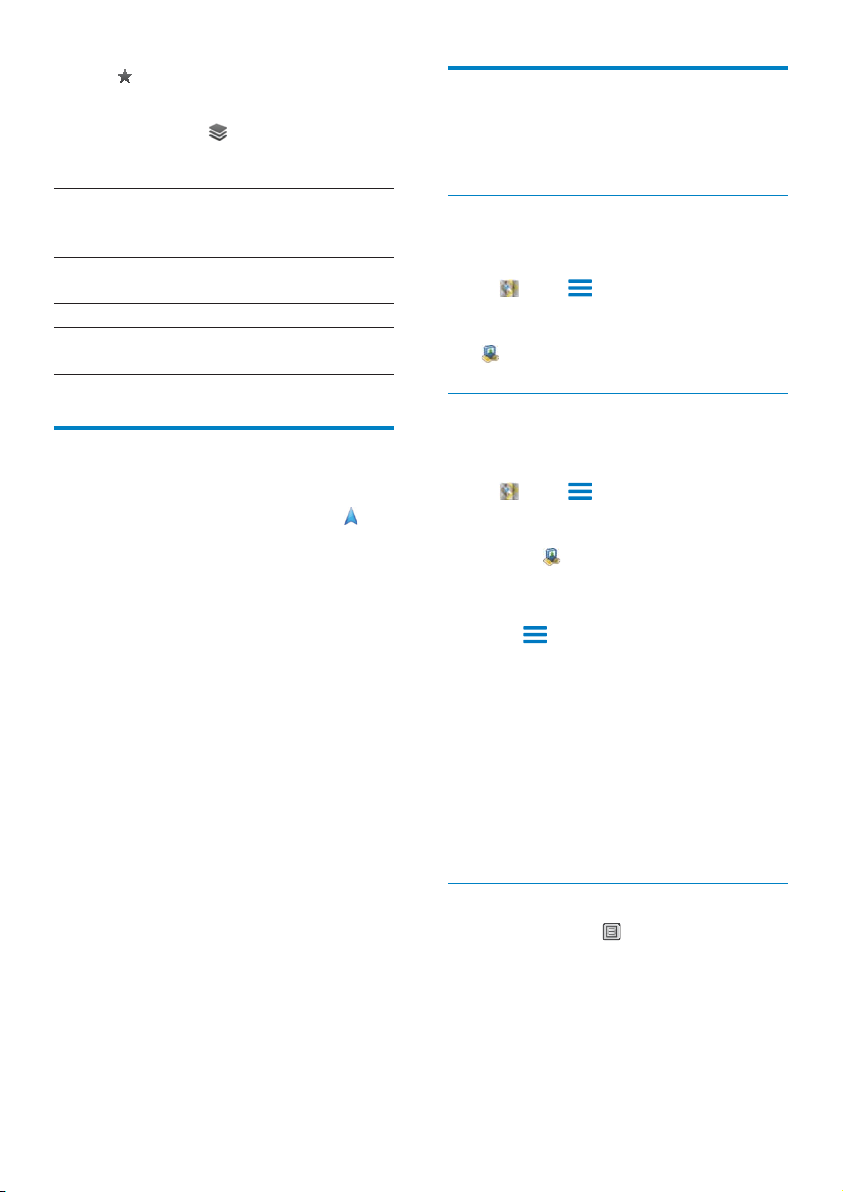
1 In , tap the quick search box on the map.
Or, press
and select .
» The onscreen keyboard is
displayed.
2 Enter the search item.
» The search results are displayed on
the map.
3 Tap a search result.
» An information page is displayed for
the destination.
10 Maps
From the Home screen, go to . You can
use the MapsVHUYLFHVRYHU:L)LQHWZRUNV
including My location, Directions, Places,
Navigation, Latitude.
To use the Maps services,
1 Make sure that you access the Maps
VHUYLFHVRYHU:L)LQHWZRUNV
From the Home screen, go to
>
Location & security > Use wireless
networks. Tap to switch on the
function.
» If the function is enabled, the tick
box is selected.
2 Make sure that you have connected the
GHYLFHWRD:L)LQHWZRUN
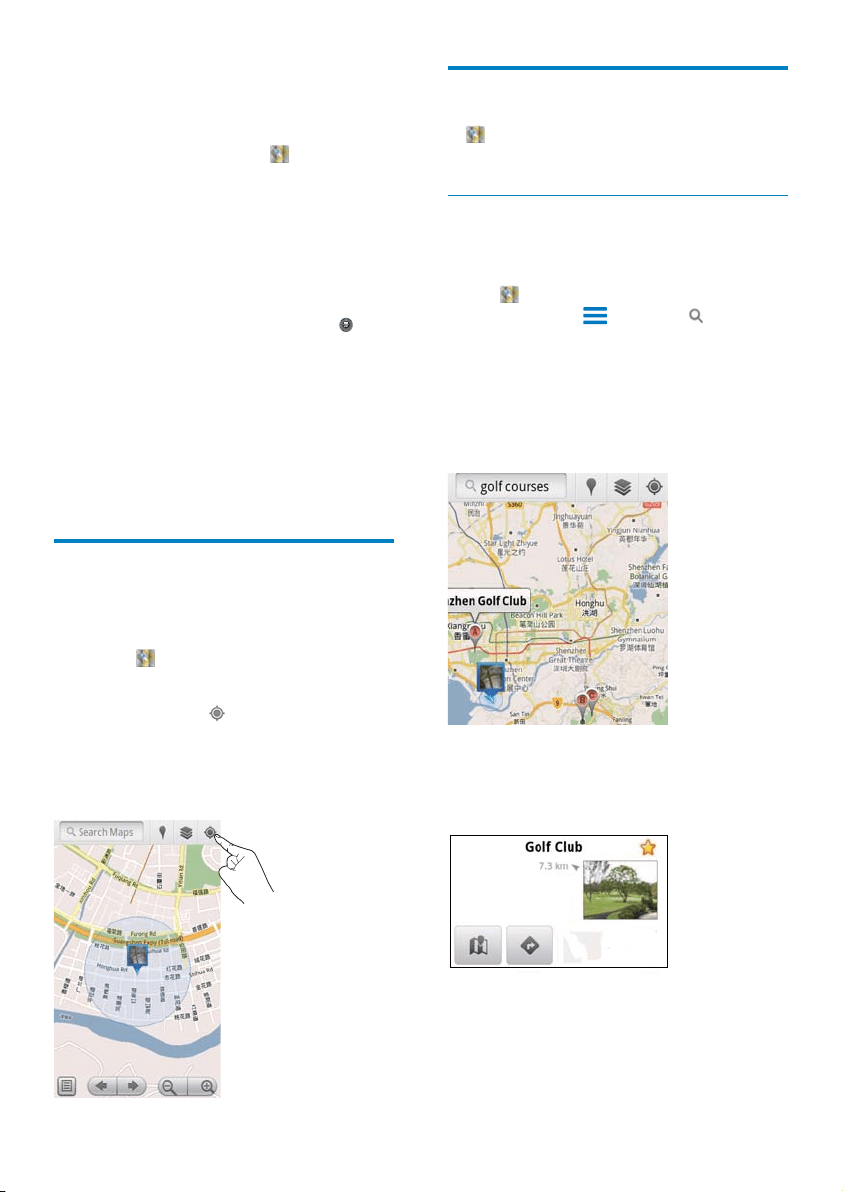
Find my location
With My location, you display your current
location on the map.
1 Go to .
» A map is displayed.
2 On the map, tap .
» Your location is updated on the map.
» A blue arrow indicates your
approximate location on the map.
EN

39
2 Tap a kind of places.
» The search results are displayed.
3 Tap a search result.
» An information page is displayed for
the destination.
4 On the information page, tap to select
your options:
: Tap to get the directions of the
destination. To select another means
RIWUDQVSRUWDWLRQWDSWKHSXOOGRZQ
menu.
: Tap to display the destination on
the map.
: Tap to add star to the destination.
View the map
Add star to locations
7RÀQGORFDWLRQVTXLFNO\RQWKHPDSDGGVWDUWR
the ones that you often use.
1 On the map, tap and hold a location.
» $SRSXSER[DSSHDUVWRORDGWKH
address.
2 7DSWKHSRSXSDGGUHVVER[
Tap a search result.
» An information page is displayed
for the destination.
4 On the information page, tap to select
your options:
: Tap to get the directions of the
destination.
: Tap to display the destination on
the map.
: Tap to add star to the destination.
Alternatively,
1 On the map, press and select
Directions.
2 Select your means of transportation, by car,
bus, or walking.
3 Select the starting and ending places:
Use My Location as the starting place.
To use another option, tap
next to
the text box.
Search for the starting and ending
places. To use another option, tap
next to the text box.
4 Tap Go.
Places
With Places, you search for a certain kind
of places near your location, such as hotels,
restaurants, gas stations, and ATMs.
1 In , tap on the map.
Or, From the Home screen, tap
from the list of options.
» A list of places is displayed.
EN
40
Share locations with friends
Use Latitude to share location information with
your friends.
Join Latitude
7KHÀUVWWLPH\RXODXQFKLatitude, use your
account of Google Mail to log in.
In
, press and select Join Latitude on
the map.
Alternatively, from the Home screen, tap
Latitude.
Add friends
After you join Latitude, add friends on the
Latitude screen.
1 In , press and select Latitude on the
map.
Alternatively, from the Home screen,
tap
Latitude.
» A list of Latitude friends is
displayed.
2 Press and select Add friends:
Add from your contacts of Google
Mail; or
Enter an email address in the text box.
» An email message is sent to the
contact.
» If your friend is a Latitude user
and accepts the invitation, you can
share location information with
the friend.
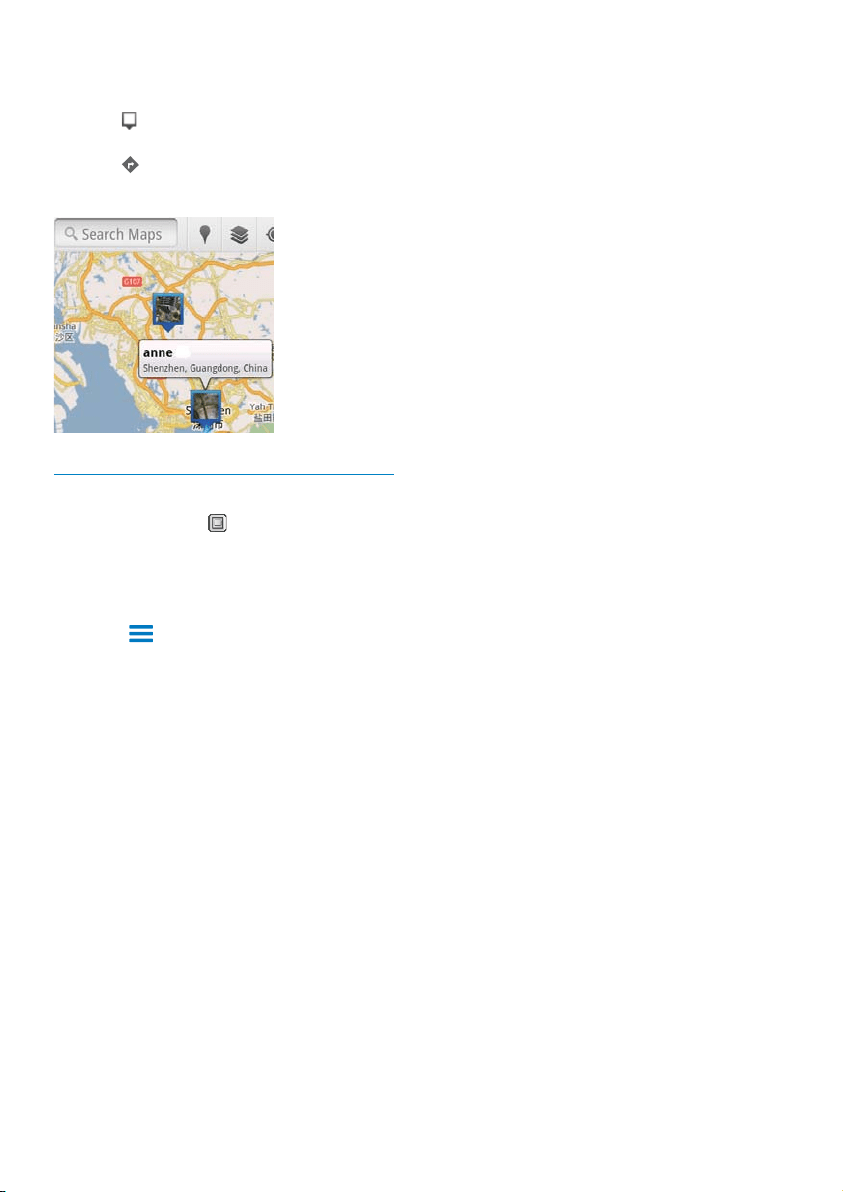
Get the locations of friends
1 On the map, tap .
» A list of Latitude friends is displayed.
2 Tap a friend.
» An information page is displayed.
3 Tap .
Select views
On the map, tap
.
» You can select a view.
7UDIÀFYLHZ Use green, yellow, or red colors
WRPDUNUHDOWLPHWUDIÀFDORQJ
the route.
Satellite
view:
Display the route in a 3D
satellite view.
Terrain view: Display the surface features.
Latitude: Display the Latitude contacts on
the map.
Navigation
Use Navigation to search for and navigate to
destinations. From the Home screen, tap
from the list of options.
Search for a destination
1 Select your means of transportation, by car,
bus, or walking.
2 Do one of the following to search for a
destination:
Type the name of the destination;
Speak the name of the destination;
Find the contact that shares location
information to you through Latitude;
or
Search among places that you have
added a star to.
Navigate to a destination
1 In the list of search results, tap a
destination.
2 Select the option to navigate to the
destination.
To display the route on the map,
select the option.
EN
41
3 On the information page, tap to select
your options:
: Tap to display the location of the
friend on the map.
: Tap to get the directions of the
friend.
Share your location to friends
1 On the map, tap .
» A list of Latitude friends is displayed.
2 Tap your name.
» An information page is displayed.
3 Press and select Privacy:
share your automatically updated
location;
share your manually selected location;
or
hide your location.
To change how you share the location to a
certain friend,
1 On the list of Latitude friends, tap a friend.
» An information page is displayed.
2 Tap Sharing options to select an option:
share the best available location;
share the city level location; or
hide your location from this friend.
EN

42
1 On the screen of mail list, press >
More. Select Settings to switch on Batch
operations.
» The tick box is highlighted if the
function is enabled on the Connect.
2 On the screen of mail list, tap the tick box
to select a message.
» $SRSXSRSWLRQVOLVWDSSHDUV
3 Tap the tick box to select messages.
4 2QWKHSRSXSRSWLRQVOLVWWDS\RXU
option.
» The archived messages are saved
under the All Mail label.
6HOHFWQRWLÀFDWLRQRSWLRQV
<RXFDQVHOHFWKRZ\RXDUHQRWLÀHGZKHQ
messages arrive.
1 On the screen of mail list, press >
More. Select Settings.
2 7DSWRVHOHFW\RXUQRWLÀFDWLRQRSWLRQV
Email
QRWLÀFDWLRQV
1RWLÀFDWLRQVDUHGLVSOD\HG
in the top status bar when
messages arrive;
Select
ringtone
Select ringtone for email
QRWLÀFDWLRQ
Select sync options
You can select the time duration for the
messages to be synced, and which label to be
synced.
On the screen of mail list, press
>
More. Select Labels.
11 Google Mail
Log in to your account of Google Mail to check
email.
From the Home screen, go to
.
Check mail by label
On the screen of mail list, press
> Go
to labels to check messages by label, for
example, Inbox, Sent, All Mail.
Compose mail
On the screen of mail list, press
>
Compose.
To add signature each time you send a message
On the screen of mail list, press
>
More. Select Settings > Signature to edit
your signature.
Use more than one account in Google Mail
On the screen of mail list, press
>
Accounts > Add account.
To check mail by account
On the screen of mail list, press
>
Accounts. Tap an account to check the
messages under the account.
Mark your mail
You can mark your messages in the following
ways:
Change the label of the message;
Add star to the message;
Mark the message as unread.
When you read mail, press
and select your
options.
Organize your mail
You can organize your messages in the following
ways:
Put relevant messages under the same
label;
Archive old messages;
Delete messages as needed.
EN

43
To select your options for the accounts,
1 On the screen of account list, tap and hold
an account.
» $SRSXSVFUHHQLVGLVSOD\HG
2 Tap Account settings.
Check your email messages
You can check your email messages in the
following ways:
Check one combined mailbox;
Check messages by account;
Check starred messages;
Check unread messages.
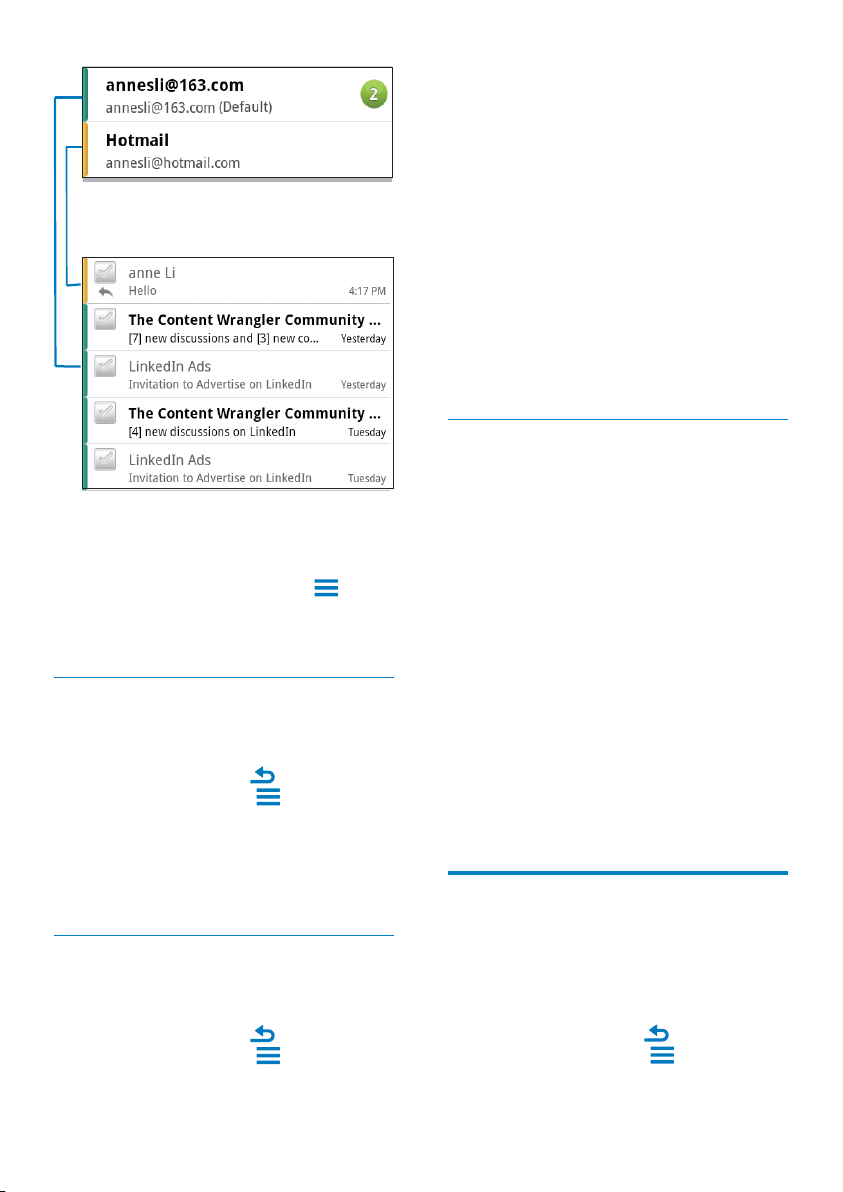
Check one combined mailbox
From one combined mailbox, you can check
messages from different accounts.
1 From the Home screen, go to .
2 On the screen of account list, tap
Combined Inbox.
To go to the screen of account list,
press
repeatedly;
Alternatively, press
and select
Accounts.
» Different colors are used to
mark the messages from different
accounts.
12 Email
On Connect, you can receive and send email as
you do on a computer. Do the following:
Set up your email accounts on the player.
Set up your email account
On Connect, set up your email accounts in the
following ways:
Set up your POP3 or IMAP mail accounts,
or
Set up your Microsoft Exchange account to
access your Exchange mailbox at work.
Set up your POP3/ IMAP account
1 From the Home screen, go to .
2 Set up your email account:
Enter the information about your
account;
Select pop3 or IMAP account.
3 Follow the onscreen instructions to
complete the setup.
Consult your email service provider
for the setup information, such as the
outgoing server, incoming server.
To add an account,
1 Go to the screen of account list:
If necessary, press
repeatedly.
Alternatively, press
and select
Accounts on the screen of mail list.
2 On the screen of account list, press
and select Add account.
To remove an account,
1 On the screen of account list, tap and hold
an account.
» $SRSXSVFUHHQLVGLVSOD\HG
2 Tap Remove account.
EN
44
2 Tap Starred.
» Starred messages from all the accounts
are displayed.
To add star to a message,
On the screen of mail list, tap the star next
to the message.
» For a starred message, the star is
selected.
Alternatively,
1 On the screen of mail list, tap the tick
boxes next to the messages.
» The tick boxes are selected.
2 Tap the option at the base of the screen.
Check unread messages
To check the unread messages,
On the screen of mail list, the unread
messages are highlighted.
To mark the selected messages as read or
unread,
1 On the screen of mail list, tap the tick
boxes next to the messages.
» The tick boxes are selected.
2 Tap the option at the base of the screen.
Alternatively,
1 On the screen of mail list, tap and hold a
message.
» An option list is displayed.
2 Tap the option to mark the message as
read or unread.
Compose email messages
To compose new messages,
1 To select the account that you use to send
the message, go to the screen of account
list:
If necessary, press
repeatedly.
Alternatively, press
and select
Accounts on the screen of mail list.
To switch to another folder,
You can check the messages in different folders,
such as Inbox, Sent, Drafts, and Outbox.
1 On the screen of mail list, press and
select Folders.
2 Tap the selected folder.
Check messages by account
To check messages from a single account,
1 Go to the screen of account list:
If necessary, press
repeatedly.
Alternatively, press
and select
Accounts on the screen of mail list.
2 Tap the selected account.
» Messages from the account are
displayed.
Check starred messages
To check starred messages,
1 Go to the screen of account list:
If necessary, press
repeatedly.
Alternatively, press
and select
Accounts on the screen of mail list.
EN

45
2 On the screen of mail list, press and
select Compose.
» The screen is displayed for you to
compose a message.
3 To select options, press .
To reply to current message,
1 On the screen of mail list, tap to read the
selected message.
» The content of the message is
displayed.
2 Tap the option on the screen.
To forward current message,
When you read a message, press
and
select Forward.
To add your signature to your outgoing
messages,
1 On the screen of mail list, press and
select Account settings.
2 To edit your signature, select Signature.
Organize email messages
To delete current message,
When you read the message, tap the
onscreen button.
To delete the selected messages,
1 On the screen of mail list, tap the tick
boxes next to the messages.
» The tick boxes are selected.
2 Tap the option at the base of the screen.
EN

46
» The device is displayed under
Scan for devices after it is
discovered.
3 Pair with the device:
On Connect, tap the device, and
enter the passcode as prompted;
On the device, enter the passcode as
prompted.
» A message is displayed when the
pairing is complete.
Get connectedby another Bluetooth device
1 On Connect, make sure that Connect is
discoverable by another Bluetooth device:
From the Home screen, tap
>
Wireless & networks > Bluetooth
settings;
If necessary, tap to switch on
Bluetooth;
» If the function is enabled, the tick
box is selected.
Tap Discoverable.
» Connect is discoverable for 120
seconds.
2 On the Bluetooth device, search for and
pair with Connect.
For information about the steps,
consult the user manual of the
Bluetooth device.
6HQGRUUHFHLYHÀOHVWKURXJK
Bluetooth
6HQGÀOHVWRDQRWKHU%OXHWRRWKGHYLFH
1 Make sure that
you have paired Connect with the
Bluetooth device;
on Connect and Bluetooth device,
Bluetooth is on.
2 On ConnectVHQGÀOHVYLD%OXHWRRWK
On the library or play screen, press
> Send via BT or Share. Select
the option for transfer via Bluetooth;
13 Bluetooth
Through Bluetooth, you can do the following
wirelessly on Connect:
5HFHLYHRUVHQGÀOHVIURPRUWRDQRWKHU
connected Bluetooth device;
/LVWHQWRDXGLRÀOHVWKURXJKVWHUHR
Bluetooth headphones.
Connect with Bluetooth
devices
You can connect Connect with Bluetooth
devices in the following ways:
Connect another Bluetooth device;
Get connected by another Bluetooth
device.
Tip
Before the connection, consult the user manual of the
Bluetooth device to get its Bluetooth pairing passcode.
Or, try 0000 or 1234.
Connect another Bluetooth device
1 On the Bluetooth device, make sure that
the device is discoverable by another
Bluetooth device.
Consult the user manual of the
Bluetooth device for information.
2 On Connect, search for the Bluetooth
device:
From the Home screen, tap
>
Wireless & networks > Bluetooth
settings;
If necessary, tap to switch on
Bluetooth;
» If the function is enabled, the tick
box is selected.
»
is displayed on the status bar.
Tap Scan for devices.
EN

47
2QWKHÀOHOLVWWDSWRVHOHFWÀOHV
Tap the paired device to start sending.
» When Connect is connected
to the Bluetooth device,
is
displayed on the screen.
3 2QWKH%OXHWRRWKGHYLFHUHFHLYHWKHÀOHV
&RQÀUPDVSURPSWHG
6DYHWKHÀOHVDVSURPSWHG
5HFHLYHÀOHVIURPDQRWKHU%OXHWRRWKGHYLFH
1 Make sure that
you have paired Connect with the
Bluetooth device;
on Connectand Bluetooth device,
Bluetooth is on.
2 2QWKH%OXHWRRWKGHYLFHVHQGÀOHVWR
Connect through Bluetooth.
» When Connect is connected to the
Bluetooth device,
is displayed on
the screen.
3 On the ConnectUHFHLYHWKHÀOHV
&RQÀUPDVSURPSWHG
» In
, a folder bluetooth is
FUHDWHGIRUWKHUHFHLYHGÀOHV
Listen to music through
stereo Bluetooth headphones
Connect the stereo Bluetooth headphones
Follow the steps under”Connect another
Bluetooth device”.
» After successful connection,
is
displayed .
» Next time you switch on Bluetooth
on the devices, the Bluetooth
connection is established automatically.
Listen to music through the stereo Bluetooth
headphones
Play music on the Connect.
» You listen to the music through the
connected Bluetooth headphones.
EN

48
Select your options for the reminders
On the calendar screen, press and select
More > Settings > Reminder settings.
7RXVHWKHVWDWXVEDUQRWLÀFDWLRQ
1 6ZLWFKRQWKHVWDWXVEDUQRWLÀFDWLRQ
In Reminder settings, tap
next
to 6HWDOHUWVQRWLÀFDWLRQV;
Select 6WDWXVEDUQRWLÀFDWLRQ.
» At the set reminder time,
is
displayed on the status bar.
» Drag down the status bar to
view the event details in the
QRWLÀFDWLRQSXOOGRZQOLVW
To use the alert,
1 Switch on the alert:
In Reminder settings, tap
next
to 6HWDOHUWVQRWLÀFDWLRQV;
Select Alerts.
2 Select the ringtone:
In Reminder settings, tap
next
to Select ringtone;
Select a ringtone.
» At the set reminder time, the
alert sounds.
View the calendar
You can view calendar by day, week, month, or
agenda.
Month view
1 On the calendar screen, press and
select the option for month view.
2 To select a month, swipe up/ down.
Week view
1 To go to the week view,
In the month view, tap a date in the
week. press
and select the option
for week view.
In the day view, press
and select
the option for week view.
2 To select a week, swipe left/ right.
14 Calendar
On the device, you can sync the calendar with:
your Google Calendar on the web;
the calendar of your Microsoft Exchange
account (see ‘Use the device in corporate
networks’ on page 54).
Add events to the calendar
1
From the Home screen, go to .
2 On the calendar screen, press and
select More > New event.
Alternatively, tap and hold a date or
time duration on the calendar. On the
SRSXSVHOHFWNew event.
3 Add an event:
Tap the text boxes to edit the event,
including the topic, time and location.
4 If necessary, set a reminder to have
yourself reminded:
Tap the button 1 toselect the
repetition options for the reminder,
RQHWLPHGDLO\ZHHNO\PRQWKO\RU
yearly.
Tap the button 2 to set the reminder
time, a period before the scheduled
time of the event.
5 7DSWKHRQVFUHHQEXWWRQWRFRQÀUP
a
b
EN

49
Day view
In the month or week view, tap a date.
» The calendar is sorted by event.
Agenda view
On the calendar screen, press
>
Agenda.
» A list of events is displayed.
Edit an event
1
In , tap an event to view the details.
2 On the screen of event details, you can do
the following:
To edit the event, press
and select
Edit event;
To delete the event, press
and
select Delete event.
EN
50
Manual tune
Use Manual tune to tune into a frequency or
station.
1 From the Home screen, go to .
» The last played station starts to play.
2 On the radio play screen, swipe left/ right
on the frequency bar.
» You tune in to the next available
station from current frequency.
Store preset stations
On Connect, you can store up to 20 preset
stations.
1 Tune in to a radio station.
2 On the radio play screen, press and
select Save preset.
» The preset station is displayed on the
list of presets.
3 Drag the preset to a selected location.
15 FM radio
Note
Always plug in the supplied headphones when tuning
into radio stations. The headphones double as antenna.
For better reception, move the headphone cable in
different directions.
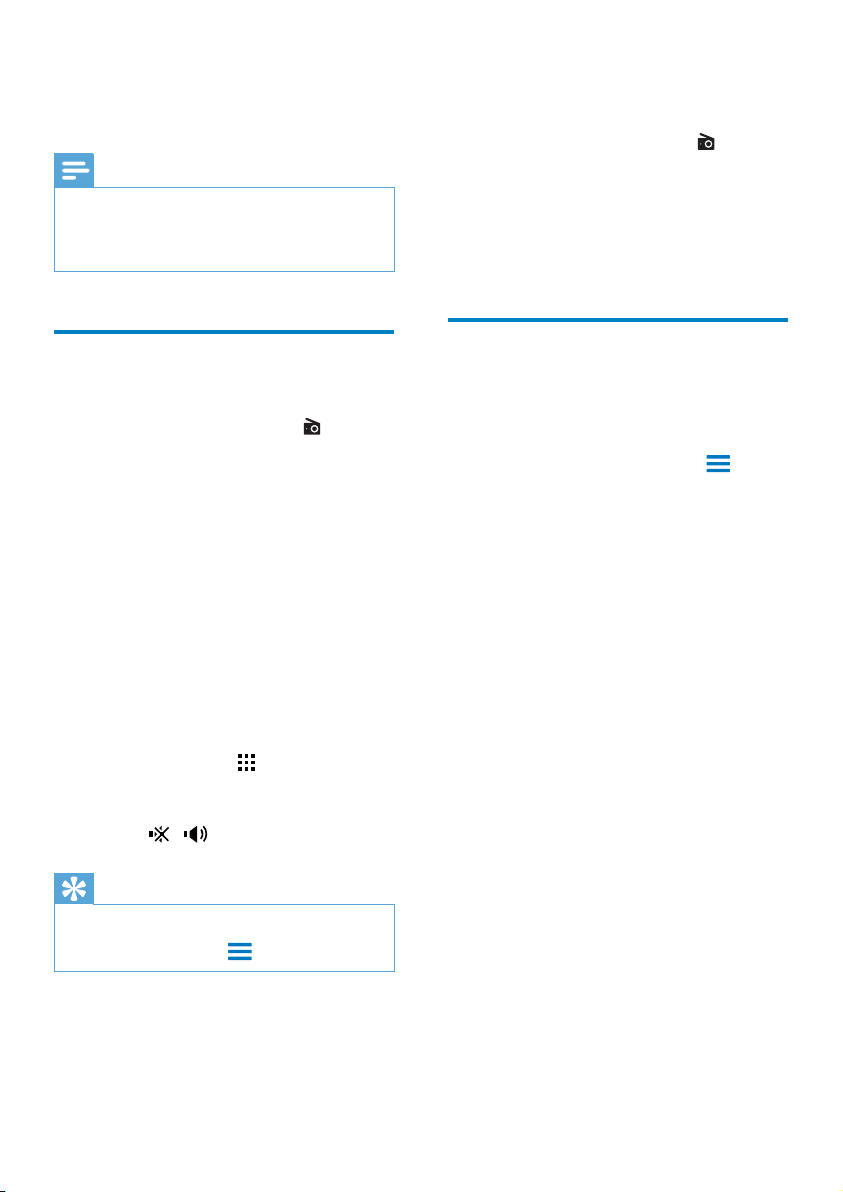
Tune in to radio stations
Auto tune
1 From the Home screen, go to .
» The last played station starts to play.
» 7KHÀUVWWLPH\RXWXQHLQWRWKH
radio, auto tune starts automatically.
» Up to 20 available stations are stored
as presets. Tap to play a preset station.
2 Rotate the screen to landscape or portrait
view:
Landscape view: radio play screen
Portrait view: list of presets
3 On the radio play screen, to select a preset
station,
swipe left/ right to switch to next/
previous preset station;
alternatively, tap
to go to the list of
presets.
4 To mute/ unmute the radio,
tap
/ on the radio play screen.
Tip
When you move to a new place (such as a new city or
country), restart auto tune for better reception.
To restart auto tune, press and select Auto tune.
EN
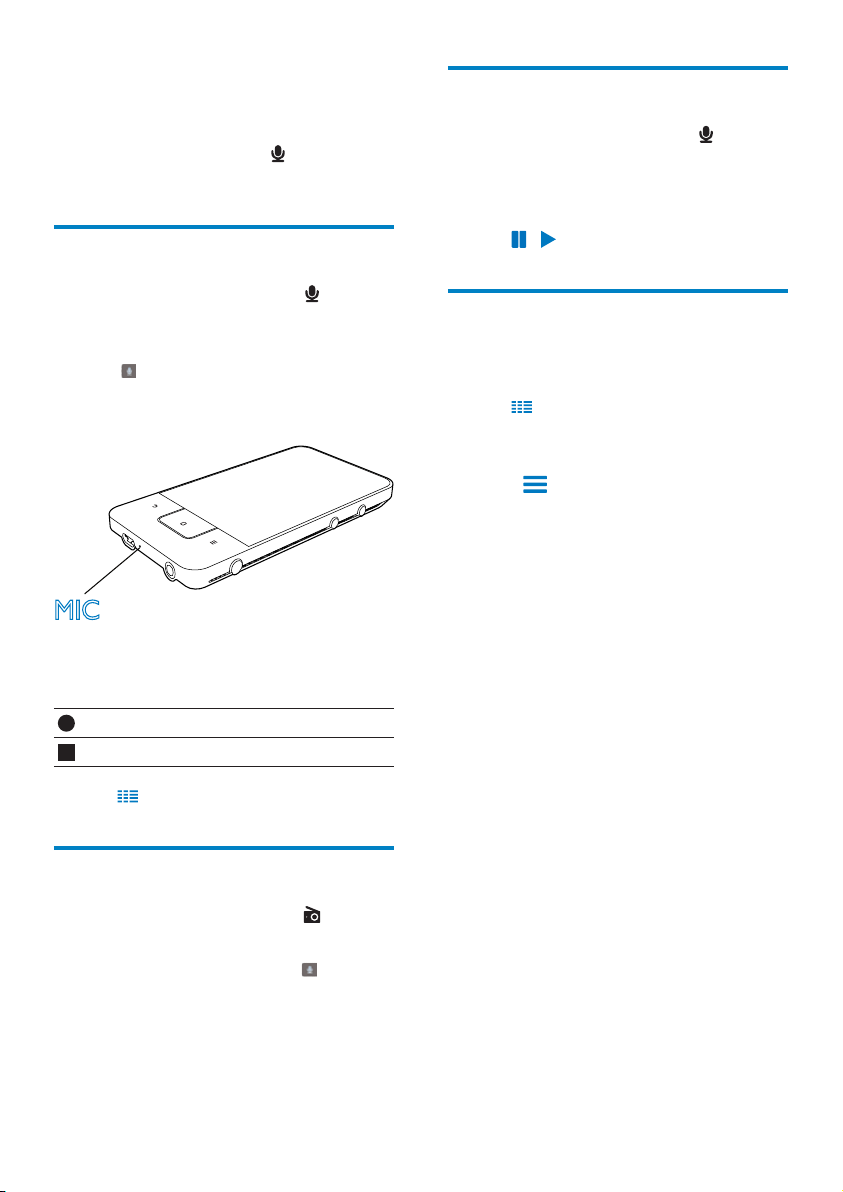
51
Play recordings
1
From the Home screen, go to .
» In the recordings library, existing
recordings are displayed.
2 Tap a recording to start play.
3 Tap / to pause/resume play.
Share recordings
You can share recordings through the Internet
or Bluetooth.
1 Tap to switch to the recordings library.
» In the recordings library, existing
recordings are displayed.
2 Press , and select Share.
3 Tap to select options.
4 Follow the onscreen instructions to send
VHOHFWHGÀOHV
16 Recordings
From the Home screen, go to to make and
play sound recordings.
Voice recordings
1
From the Home screen, go to .
» In the recordings library, existing
recordings are displayed.
2 Tap to switch to the recording screen.
3 Make sure that the microphone is close to
the sound source to be recorded.
4 Do the following to start, pause, or stop
recording.
Tap to start recording.
Tap to stop recording.
5 Tap to switch to the recordings library.
FM radio recording
1
From the Home screen, go to .
2 Tune in to a radio station.
3 On the radio play screen, tap .
» The recording screen is displayed.
4 Follow Step 4 and 5 under Voice
recording.
MIC
EN

52
17 Alarm clock
On the player, you can set alarms.
Set an alarm
1 Make sure that you have set the clock time
(see ‘Date 62).
2 From the Home screen, tap . Tap .
3 To set an alarm clock,
To add an alarm, tap Add alarm.
To change an alarm, tap the preset
alarm time.
4 6HOHFW\RXURSWLRQ&RQÀUPDVSURPSWHG
Time Set the alarm time.
Ringtone Select the ringtone for the
alarm, silence, buzzer, or
ringtone.
Repeat Select how the alarm repeats.
Label Add description for the alarm.
Switch an alarm on or off
In
> , tap the tick box next to the set
alarm time.
» If the function is enabled, the tick box
is selected.
» When you switch on the alarm,
is
displayed on the status bar.
Use the alarm
At the set alarm time, the alarm sounds and
QRWLÀFDWLRQLVGLVSOD\HGRQWKHVWDWXVEDU'UDJ
down the status bar to view the details.
To interrupt the alarm, tap Snooze.
» The alarm sounds 10 minutes later.
To stop the alarm, tap Dismiss.
» The alarm repeats at the next set
alarm time.
EN

53
18 Calculator
From the Home screen, tap to use the
calculator.
1 Enter numbers and mathematic operators:
Use the onscreen keyboard for entry;
Swipe left to use more mathematic
functions.
2 Tap = to start calculation.
To clear entries,
1 Tap to put the cursor behind the entry
where you start to clear.
2 Tap CLEAR repeatedly.
Entries before the cursor are cleared.
To clear all the entries, tap and hold
CLEAR.
EN
54
2 In , select Location & security > Use
secure credentials.
» On the device, you allow the
applications to use the secure
credentials.
Set up your Microsoft
Exchange account
1
From the Home screen, go to .
2 Set up your email account:
Enter the information about your
account, and select Exchange as the
account type.
If you have set up other email
accounts, press
and select Add
account on the screen of account list.
3 Follow the onscreen instructions to
complete the setup.
For the server address, enter the web
address for your Outlook web access,
for example, owa.company name.com
or mail. company name.com/owa.
For other setup information, such as
domain name, user name, check with
your system administrator.
Note
The device can work with Microsft Exchange 2003
and 2007.
Add VPN
Virtual private network (VPN) allows you to
connect to private networks through secure
access.
Sometimes, you need VPN access to connect to
corporate networks.
19 Use the device
in corporate
networks
You can use Connect in corporate networks.
Install the secure credentials or security
FHUWLÀFDWHVEHIRUH\RXDFFHVVFRUSRUDWH
networks.
The access to corporate network may allow
you to set up your Microsoft Exchange account
and add VPN on the device. With the Microsoft
Exchange account, you can access your
exchange mailbox at work.
Install secure credentials
Ask your network administrator for secure
FUHGHQWLDOVRUVHFXULW\FHUWLÀFDWHV
To install the secure credentials,
1 0DNHVXUHWKDW\RXWUDQVIHUWKHÀOHVRI
secure credentials from the PC to the
device (see ‘Drag and drop in Windows
Explorer’ on page 24).
Note
On Connect, make sure that the secure credentials are
saved to the root directory, instead of under a folder.
2 Install the secure credentials:
From the Home screen, go to
>
Location & security > Install from
USB storage;
7DSWKHÀOHWRVWDUWLQVWDOODWLRQ
Set the password and name for the
credentials as prompted.
To apply the secure credentials,
1 Make sure that you have set the password
to the credential storage.
In
, select Location & security >
Set password.
EN

55
To add VPN on the device
1 Ask your network administrator for the
FRQÀJXUDWLRQLQIRUPDWLRQ
2 From the Home screen, go to >
Wireless & networks > VPN settings >
Add VPN.
3 &RQÀJXUHWKH931DVSURPSWHG
4 Install the secure credentials as needed
(see ‘Install secure credentials’ on page 54).
To connect to the VPN,
1 Make sure that you have connected
Connect to the Internet.
2 From the Home screen, go to >
Wireless & networks > VPN settings.
» A list of VPNs is displayed.
3 Tap the VPN to start connection.
EN
56
Note
If you have disabled SSID broadcasting or hidden the
6HUYLFH6HW,GHQWLÀHU66,'RIWKHURXWHUPDQXDOO\
enter the SSID or public name for the network.
,IWKH'+&3'\QDPLF+RVW&RQÀJXUDWLRQ3URWRFRO
is unavailable or disabled on the router, manually enter
the IP address of Connect (see ‘Advanced settings’ on
page 57).
7RUHIUHVKWKHOLVWRI:L)LQHWZRUNV
In Wireless & networks > :L)LVHWWLQJV,
press
and select Scan.
1HWZRUNQRWLÀFDWLRQ
Switch on 1HWZRUNQRWLÀFDWLRQ. On the
status bar,
LVGLVSOD\HGZKHQDQRSHQ:L)L
network is available.
$GG:L)LQHWZRUN
Enter SSID manually
66,'6HUYLFH6HW,GHQWLÀHULVWKHQDPHRID
router. By the name, the router is recognized by
RWKHU:L)LGHYLFHV,I\RXKDYHKLGGHQWKH66,'
of the router (for example, disable the SSID
broadcasting), the router is invisible in the list of
available networks. To connect Connect to the
router, enter the SSID of the router manually
before you search for available networks on the
Connect.
1 In :L)LVHWWLQJV, select $GG:L)L
network.
2 Enter the SSID of the router.
» The Connect starts searching for the
network.
» <RXFDQÀQGWKHQHWZRUNLQWKHOLVWRI
networks.
3 Connect Connect to the network.
»
is displayed in the status bar when
WKH:L)LFRQQHFWLRQLVFRPSOHWHG
successfully.
20 Settings
From the Home screen, go to to select your
settings.
Swipe up or down to scroll through lists of
options. Tap an option to select it;
Tap
to go to the Home screen;
Tap
to go to the previous screen.
Airplane mode
In Wireless & networks > Airplane mode,
GLVDEOHRUHQDEOHWKHDFFHVVWR:L)LRU
Bluetooth.
Switch on the airplane mode when:
\RXQHHGWRGLVDEOHWKHDFFHVVWR:L)LRU
Bluetooth for safety purposes, such as on
an airplane.
:L)LVHWWLQJV
In Wireless & networks > :L)LVHWWLQJV,
VHOHFW\RXU:L)LVHWWLQJVRQWKHGHYLFH
1 If necessary, tap :L)L.
» If the function is enabled, the tick box
is selected.
» <RXVHHDOLVWRI:L)LQHWZRUNVLQ
range, and previously connected
networks (if the networks are
remembered).
2 Connect Connect to a network:
,QWKHOLVWRI:L)LQHWZRUNVWDSWKH
selected one;
,QWKHSRSXSWH[WER[HQWHUWKH
encryption key.
EN
57
IP address Assign an IP address and subnet
mask for Connect on the network.
Make sure that you don’t enter an
IP address that is already assigned
to a computer/device on the
network.
Gateway,
Netmask
Fill in the gateway and netmask
of the network that Connect is
connected to.
DNS1,
DNS2
DNS (Domain Name Service) is
provided by your Internet Service
Provider (ISP), or is the IP settings
of the router that connects to the
Internet.
Bluetooth settings
In > Wireless & networks > Bluetooth
settings, manage your Bluetooth settings.
Bluetooth
Tap Bluetooth to switch on/ off the
function.
Device name
By device name, the Connect is found on
another Bluetooth device during Bluetooth
pairing and connection.
1 In Device name, tap to show the text box.
2 Tap the text box to enter device name.
» The onscreen keyboard is displayed.
3 Enter the device name.
Discoverable
When Discoverable is on, Connect
isdiscoverable for some time on other
Bluetooth devices. Make Connect discoverable
when it is to be connected on another
Bluetooth device.
Tap Discoverable to switch on or off the
function.
» If the function is enabled, the tick box
is selected.
» On another Bluetooth device, you can
scan for Connect.
Advanced settings
Enter the IP address manually
1 In :L)LVHWWLQJV, press and select
Advanced > Use static IP.
If necessary, tap Use static IP to
switch on the function.
» If the function is enabled, the tick
box is selected.
2 In IP settings, assign an IP address manually.
Enter an IP address that allows the
device to be in the same subnet
as the router. For example, if the
router has IP address: 192.168.1.1,
Subnet mask: 255.255.255.000; Then,
enter the following on the device: IP
address: 192.168.1.XX (where XX
denotes a number), Subnet mask:
255.255.255.000.
» The Connect starts connecting
to the networking by using the IP
address.
»
is displayed in the status bar
ZKHQWKH:L)LFRQQHFWLRQLV
completed successfully.
Note
If the DHCP is available on the router, Auto IP is used
for Connect instead.
Make sure that you don’t enter an IP address that is
already assigned to a computer/device on the network.
Other advanced settings
In some networking environment, select
advanced settings for Connect.
1 In :L)LVHWWLQJV, press and select
Advanced.
If necessary, tap Use static IP to
switch on the function.
» If the function is enabled, the tick
box is selected.
2 'HÀQHWKHVHWWLQJVDVQHFHVVDU\
EN
58
» If the function is enabled, the tick box
is selected.
3 Connect the device to the PC through the
USB cable.
» 2QWKH3&DSRSXSVFUHHQLV
displayed for installation.
4 ,QVWDOOWKHGRZQORDGHGFRQÀJXUDWLRQÀOHDV
prompted (see Step 1).
5 On the device, connect to the Internet
WKURXJK:L)L
» On the PC, you can share the internet
connection from the device.
VPN settings
Use VPN settings to access private networks,
such as corporate networks (see ‘Use the
device in corporate networks’ on page 54).
Sound
In Sound, select sound settings for your device.
Volume settings
Silent
mode
Mute or unmute sound output
except for media play or alarms.
Volume Drag the slider to select the
volume level for media and alarm.
6RXQGVHWWLQJVIRUQRWLÀFDWLRQ
1RWLÀFDWLRQULQJWRQHVRXQGVZKHQDQHZHYHQW
occurs. Drag down the status bar to see the
LQIRUPDWLRQIURPWKHQRWLÀFDWLRQSXOOGRZQOLVW
1RWLÀFDWLRQ
ringtone
6HWDQDXGLRÀOHDVULQJWRQH
Key stroke feedback
Audible
selection
Sounds play when you tap on
the screen.
Screen lock
sounds
Sounds play when you lock/
unlock the screen.
Tip
To connect to Connect on a Bluetooth device, consult
the user manual of the Bluetooth device.
Scan for devices
To connect another Bluetooth device on
Connect, scan for the Bluetooth device on
Connect.
Tip
Before the connection, consult the user manual of the
Bluetooth device to get its Bluetooth pairing passcode.
Or, try 0000 or 1234.
1 On the Bluetooth device, make sure
that the device is discoverable by other
Bluetooth devices.
Consult the user manual of
the Bluetooth device for more
information.
2 On Connect, tap Scan for devices to
search for the device.
» The device appears under Scan for
devices when it is discovered by the
Connect.
3 Connect the device on the Connect:
On the Connect, tap the device to
start pairing:
2QWKHSRSXSWH[WER[HQWHUWKH
passcode to the device.
» After successful connection,
is
displayed.
Tethering
With the tethering function, you can share the
internet connection of the device to a PC. Thus,
WKHGHYLFHFDQZRUNDVD:L)LKRWVSRW
1 2QWKH3&GRZQORDGWKHFRQÀJXUDWLRQÀOH
from http://www.android.com/tether#usb.
2 On the device, select Wireless &
networks > Tethering.
EN
59
Location & security
Use wireless networks
In Location & security, switch on or off
Use wireless networks.
» If the function is enabled, the tick box
is selected.
» You can allow or disallow your
*location information to be used
in online location services, such as
Maps, or other relevant services and
applications.
Tip
*The location information is based on the IP address
WKDWLVDVVLJQHGWRWKHGHYLFHLQWKH:L)LQHWZRUN
Set up screen unlock
By default, to unlock the screen of Connect,
press
/ and then, drag the slider to open
the lock.
In Set up screen lock, you can set a pattern, pin,
or password as the unlock security. To unlock
the screen, such unlock security is required.
None no unlock security is required.
Pattern Set a pattern as the unlock
security.
PIN Set a PIN that consists of
numbers.
Password Set a password that consists of a
combination of numbers, letters,
and symbols.
Visible password
Your password consists of several characters. To
make sure that you have entered the characters
correctly, show the characters as you type the
password. Switch Visible password on or off as
needed.
Tap the tick box.
» If the function is enabled, the tick box
is selected.
Display
In Display, select your display settings:
Brightness Drag the slider to change the
display brightness.
$XWR
rotate
screen
Switch on/ off the screen rotation
between the landscape and
portrait views.
Animation Select whether to show animation
when you open or close screens.
Screen
timeout
After the selected time
duration, the screen switches
off automatically. To save battery
power, select a low value.
XEC DLS Control
With eXtreme Energy Conservation Dynamic
Luminance Scaling (XEC DLS), the display
brightness of Connect can be adjusted
automatically to save power.
Tap XEC DLS Control to select your
options.
*VHQVRUFDOLEUDWLRQ
The G sensor allows you to switch between the
landscape and portrait views on the Connect.
With the G sensor calibrated, Connect can
precisely response to the screen rotation, and
switch between the landscape and portrait
views.
1 Tap *6HQVRU&DOLEUDWLRQ to start
calibration.
2 Follow onscreen instructions to complete
calibration.
EN
60
Unknown sources
On Connect, you can install applications that
you download from the Market, or from
sources other than the Market.
For the applications from sources other
than the Market, tap Unknown sources to
allow the installation on Connect.
Manage applications
In Manage applications, manage the applications
on the device. You can install/ uninstall
applications, or select other options.
1 Find the applications:
In DownloadedÀQGWKHDSSOLFDWLRQV
that you have downloaded from the
Market, or other sources.
In RunningÀQGWKHDSSOLFDWLRQVWKDW
are running on the device.
In AllÀQGDOOWKHDSSOLFDWLRQVWKDW\RX
have installed on the device.
2 Tap an application.
» Options and information are displayed.
3 Tap to select an option.
To install applications that you transfer from
PCs through the USB cable,
1 From the Home screen, go to .
2 Find the application and tap the option to
start installation.
Running services
In Running services, check the running services
on the device. If necessary, tap to stop a service.
Battery use
In Battery use, check the battery use by
applications.
Select device administrators
Applications in corporate networks require the
rights of device administrator, such as the email
and calendar under your Microsoft Exchange
account.
Before you uninstall such an application, disable
the rights of device administrator.
In Select device administrator, tap an
application.
» The rights of device administrator are
disabled.
» You cannot sync data for the
application.
Credential storage
In wireless connections, you need the secure
credentials when:
you access a web server that requires login
credentials, or you connect to corporate
networks.
In Location & security > Credential storage,
select the following options:
Use secure
credentials
Allow the applications to use the
secure credentials. Make sure
that you have set the password
to the credential storage.
Install
from USB
storage
Install the secure credentials
from the device (see ‘Install
secure credentials’ on page 54).
Set
password
Set or change the password to
the credential storage.
Clear
storage
Clear all the credentials and
the password to the credential
storage.
Applications
In Applications, manage the applications you
installed on Connect.
EN
61
User dictionary
In User dictionary, add or remove words
or phrases to/ from the user dictionary. You
can customize the word suggestions that are
GLVSOD\HGRQWKHSRSXSVFUHHQGXULQJ\RXU
text entry on the Android keyboard.
To add a word or phrase,
Press
to add a word or phrase.
To edit or delete a word or phrase,
1 Tap on the word or phrase.
» $SRSXSVFUHHQLVGLVSOD\HG
2 Edit or delete the word or phrase.
Android keyboard
In Android keyboard, select your options for
the text entry through the onscreen keyboard.
Tap the tick box to select the option.
» If the function is enabled, the tick box
is selected.
Android keyboard settings
Sound on key
press
Key sounds for each press on
the onscreen keyboard.
Popup on key
press
)RUWKHSUHVVRQDNH\SRSXS
of the letter is displayed.
Touch to
correct
words
Underline the difference
between the words entered
and the words suggested.
$XWR
capitalization
7KHÀUVWOHWWHULQDQHZ
sentence is capitalized.
Show settings
key
Show or hide the settings key
in the Android keyboard.
Voice input Select where to locate the
voice input key
, on the main
keyboard or symbols keyboard.
Input
languages
Select languages that you can
switch between during text
entry.
Accounts & Sync
In Accounts & sync, select how data are synced
in applications.
Background
data
Sync data when the applications
are not running.
$XWRV\QF Sync data automatically as
scheduled.
Manage
accounts
Select accounts for auto sync or
sync in the background. Or, sync
the accounts manually.
Tip
$XWRV\QFis disabled when you switch off Background
data.
Privacy
In Privacy > Factory data reset, you can erase
all the data that you have stored on the internal
memory of the player.
Storage
In Storage, learn the space information about
the internal memory of your Connect.
Language & keyboard
Select language
In Select language, select the language for the
onscreen instructions of Connect.
EN

62
Accessibility
With the accessibility function, actions on the
screen of the device are read out through
WKHWH[WWRVSHHFKWHFKQRORJ\VXFKDVWKH
taps, selection of menu items. For people who
cannot read the screen clearly, the function
allows them to use the device in an easier way.
Install the accessibility applications
From the Market, download an application,
such as Talkback. Install the application on
your device.
Use the accessibility function
1 Select Accessibility.
» If the function is enabled, the tick box
is selected.
2 Select an accessibility application that you
have installed.
3 Select your options for voice output (see
‘Voice input 62).
Date & time
Automatic setting
Over the Internet, you can sync the date and
time on Connect from Philips online services
(see ‘Philips’ on page 63).
To switch on the automatic clock setting,
1 In Date & time, tap to switch on
Automatic.
» If the function is enabled, the tick box
is selected.
2 In Select time zone, select your current
time zone.
3 In 8VHKRXUIRUPDWand Select date
format, select your options for time and
date display.
Word suggestion settings
4XLFNÀ[HV Common spelling errors are
corrected automatically.
Show
suggestions
Previously entered words are
GLVSOD\HGLQWKHSRSXSVFUHHQ
during text entry.
$XWR
complete
Tap
or punctuation to
select the highlighted word and
complete text entry.
Voice input & output
In Voice input & output, select your options for:
the text entry through the voice input key
on the Android keyboard;
voice output for the accessibility function
on the device (see ‘Accessibility’ on page
62).
Voice input:
In Voice recognizer settings, select your options
for voice recognition, such as language.
Voice output:
Install voice data
Download from the Marketthe voice data for
speech synthesis.
1 Connect the device to the Internet.
2 In 7H[WWRVSHHFKVHWWLQJV, tap Install voice
data.
» Search for and download the voice
data.
Select your options for the voice output
1 In Language, select a language as needed.
2 In Speech rate, select a speed at which the
text is read, normal, fast, or slow.
3 Tap Listen to an example.
» Your options are used to play the
demo of speech synthesis.
Use your option for voice output
Tap Always use my settings.
» If the function is enabled, the tick box
is selected.
EN
63
Registration
ID
Display the registration ID that
you use to register Connect with
www.philips.com/welcome.
Model
number
Model no. of Connect
Android
version
Firmware version of the Android
platform that the deviceis
running on
Build
number
Software version of Connect
Philips
On Connect, you can access Philips online
services over the Internet, such as registration,
GDWHDQGWLPHDQGÀUPZDUHXSJUDGH
Registration
RegisterConnect
To register Connect with www.philips.com/
welcome, use an email address as your account.
Then, complete the registration through the
Web page link that you received in the email.
1 Make sure that you have connected the
device to the Internet.
2 To register Connect,
select Philips > [Registration] >
[Register];
Enter your valid email address;
» You receive an email message
from [email protected].
Use the Web page link in the email to
complete registration.
Check registration information
You can check whether you have registered
your Connect, whether you have completed
the registration, and what account you have
used for registration.
Tap [Registration] > [Registration
information].
Manual setting
1 In Date & time, tap to switch off
Automatic.
» If the function is disabled, the tick box
is deselected.
2 Tap to set time, date, and time zone in Set
date, Set time zone, and Set time.
To select the digits, tap or hold
, .
Information
In Information, learn the status and information
about your Connect.
System
updates
Check for the system updates
of Connect. Make sure that you
have connected the device to
the Internet.
Status
Battery
status
Display power charging status.
Battery level Display remaining power by
percentage.
:L)L0$&
address
'LVSOD\WKHXQLTXHLGHQWLÀHU
that is assigned to the network
adapter of Connect.
,I0$&DGGUHVVÀOWHULQJLV
enabled on your router, add the
MAC address of Connect to the
list of devices that are allowed to
join the network.
Bluetooth
address
Display the Bluetooth address
of Connect when the Bluetooth
function is switched on.
Up time Display how long the devicehas
been switched on.
Battery use Display the power consumption
by each running application.
Legal
information
Legal information for Connect
EN
64
UnregisterConnect
To use another email address as your account
with www.philips.com/welcome, you can
unregister Connect.
1 Tap [Registration] > [UnRegister].
2 &RQÀUPDVSURPSWHG
Upgrade
1 Make sure that you have connected the
device to the Internet.
2 Tap [Upgrade].
» The device starts to check for the
ÀUPZDUHXSGDWH
» Downloading and installation of the
ÀUPZDUHXSGDWHVWDUWDXWRPDWLFDOO\
Note
.HHSWKHGHYLFHSRZHUHGRQEHIRUHWKHÀUPZDUH
update is complete.
EN

65
21 Check for
firmware update
If the Connect LVFRQQHFWHGWR:L)L\RXFDQ
UHFHLYHQRWLÀFDWLRQVDERXWÀUPZDUHXSGDWHV
Drag down the top status bar to check
QRWLÀFDWLRQV
<RXFDQXSGDWHWKHÀUPZDUHRIConnect on
the device.
8SGDWHWKHÀUPZDUHRQWKH
device
On Connect\RXFDQXSGDWHWKHÀUPZDUH
through Philips online services over the Internet
(see ‘Upgrade’ on page 64).
EN

66
Audio playback
Supported formats:
:$9
03
:0$XQSURWHFWHG
$XGLEOHDD[
$$&PDXQSURWHFWHG
5HDO$XGLRUDUDP
2**9RUELV
2**)ODF
$3(
*33
$051%PRQR$05:%VWHUHR
0,',7\SHDQGPLG[PIP[PI
RTTTL/RTX (.rtttl, .rtx), OTA (.ota), and
iMelody(.imy)
Audio capturing
$051%
%LWUDWHWRNESV
6DPSOLQJUDWHN+]
)LOHVXSSRUWHG*33JS
6SHFLÀHG
%LWUDWHNESV
6DPSOLQJUDWHN+]
)LOHIRUPDW03
%XLOWLQPLFURSKRQHPRQR
Video playback
Supported formats:
:09ZPYDYLXQSURWHFWHG
03(*DYL
03(*
+JSSPS
+6RUUHQVRQ
2Q93
)/9VXSSRUWHGIRUWKH,QWHUQHWVWUHDPLQJ
Still picture playback
Supported formats:
-3(*
%03
31*
*,)
FM radio
$XWRPDQXDOWXQLQJ
SUHVHWV
22 Technical data
Power
3RZHUVXSSO\P$K/LLRQSRO\PHU
internal rechargeable battery
Play time¹
$XGLRKRXUV
9LGHRKRXUV
Display
7\SH/&'7RXFKVHQVLWLYHVFUHHQ
Diagonal screen size (inch): 3.2
Resolution: 480 x 320 pixels (HVGA), 262K
colors
Aspect ratio: 3:2
Platform
Android™ 2.3
Software
3KLOLSV6RQJELUGWRWUDQVIHUPHGLDÀOHV
Connectivity
Headphone: 3.5 mm
USB: 2.0 High speed
:LUHOHVV/$1:L)LEJQ
Bluetooth
%OXHWRRWKSURÀOHV$'3$95&32EMHFW
SXVKSURÀOH
%OXHWRRWKYHUVLRQ('5
Sound
Channel separation: > 45 dB
)UHTXHQF\5HVSRQVH+]
Output power: 2 x 2.4 mW
Signal to noise ratio: > 83 dB
EN
67
Storage media
%XLOWLQPHPRU\FDSDFLW\ô
SA3CNT08 8 GB NAND Flash
SA3CNT16 16 GB NAND Flash
SA3CNT32 32 GB NAND Flash
Preloaded applications
Android Market™
YouTube™
Web browser
Google Search
Google Voice Search
Google Mail
Google Talk™
Google Maps™
Google Latitude™
Google Places™
Google Navigation
Google Calendar™
Alarm clock
Calculator
Note
¹ Rechargeable batteries have a limited number of
charge cycles. Battery life and number of charge cycles
vary by use and settings.
ô*% ELOOLRQE\WHVDYDLODEOHVWRUDJHFDSDFLW\LVOHVV
Full memory capacity may not be available as some
memory is reserved for the device. Storage capacity
is based on 4 minutes per song and 128 kbps MP3
encoding.
PC system requirements
Windows
®
;363RUDERYH9LVWD
ELWELW
Pentium III 800 MHz processor or higher
512 MB RAM
500 MB hard disk space
Internet connection
Windows
®
Internet Explorer 6.0 or later
USB port
EN

68
23 Customer care
information of
service partners
7 digital
With 7 digital Music Store app you can discover,
buy and listen to music anywhere. Its slick
LQWHUIDFHLVVLPSOHWRXVHVR\RX·OOÀQGLW·VWKH
perfect complement to your GoGear. In fact, it’s
DOUHDG\SUHLQVWDOOHGRQ\RXU03GHYLFH²DOO
you need to do is click on the 7digital logo and
start listening.
Frequently Asked Questions (FAQ)
http://www.7digital.com/help
AUPEO!
AUPEO! Personal Radio is the free and easy
way to discover music you’re sure to love and
enjoy over 100 Stations covering all styles
DOZD\VDYDLODEOHRQWKHZHEDVDQDSS
everywhere.
Frequently Asked Questions (FAQ)
https://www.aupeo.com/faq
VIEWSTER
The VIEWSTER app turns your Philips GoGear
into a premium entertainment device. Choose
from our wide range of movies, series and clips
to make each way a thrilling trip. Simply log in
DQGSUHVVSOD\²ZKHQDQGZKHUHYHU\RXZDQW
Frequently Asked Questions (FAQ)
http://viewster.com/help.aspx
Audible
Audible.com features digital audiobooks and
more.
Frequently Asked Questions (FAQ)
http://mobile.audible.com/faqAndroid.htm
EN

69EN

© 2012 Koninklijke Philips Electronics N.V.
All rights reserved.
SA3CNT_UM_02_V1.1_WK1228.3