
M1+
Portable Cinema
User Guide
Model No. VS17337
IMPORTANT: Please read this User Guide to obtain important information on installing
and using your product in a safe manner, as well as registering your product for future
service. Warranty information contained in this User Guide will describe your limited
coverage from ViewSonic Corporation, which is also found on our web site at http://
www.viewsonic.com in English, or in specic languages using the Regional selection
box in the upper right corner of our website. “Antes de operar su equipo lea cu
idadosamente las instrucciones en este manual”

i
Compliance Information
FCC Statement
This device complies with part 15 of FCC Rules. Operation is subject to the follow-
ing two conditions: (1) this device may not cause harmful interference, and (2) this
device must accept any interference received, including interference that may cause
undesired operation.
This equipment has been tested and found to comply with the limits for a Class B
digital device, pursuant to part 15 of the FCC Rules. These limits are designed to
provide reasonable protection against harmful interference in a residential installa-
tion. This equipment generates, uses, and can radiate radio frequency energy, and
if not installed and used in accordance with the instructions, may cause harmful
interference to radio communications. However, there is no guarantee that interfer-
ence will not occur in a particular installation. If this equipment does cause harmful
interference to radio or television reception, which can be determined by turning the
equipment o and on, the user is encouraged to try to correct the interference by one
or more of the following measures:
y Reorient or relocate the receiving antenna.
y Increase the separation between the equipment and receiver.
y Connect the equipment into an outlet on a circuit dierent from that to which the
receiver is connected.
y Consult the dealer or an experienced radio/TV technician for help.
Warning: You are cautioned that changes or modications not expressly approved
by the party responsible for compliance could void your authority to operate the
equipment.
The device for the band 5150-5250 MHz is only for indoor usage to reduce potential
for harmful interference to co-channel mobile satellite systems.
les dispositifs fonctionnant dans la bande 5150-5250 MHz sont réservés uniquement
pour une utilisation à l’intérieur an de réduire les risques de brouillage préjudiciable
aux systèmes de satellites mobiles utilisant les mêmes canaux.

ii
For Canada
RF regulatory statement
This device contains licence-exempt transmitter(s)/receiver(s) that comply with Innovation, Science
and Economic Development Canada’s licence-exempt RSS(s). Operation is subject to the following
two conditions:
(1) This device may not cause interference.
(2) This device must accept any interference, including interference that may cause undesired op-
eration of the device.
L’émetteur/récepteur exempt de licence contenu dans le présent appareil est conforme aux CNR
d’Innovation, Sciences et Développement économique Canada applicables aux appareils radio ex-
empts de licence. L’exploitation est autorisée aux deux conditions suivantes :
1. L’appareil ne doit pas produire de brouillage;
2. L’appareil doit accepter tout brouillage radioélectrique subi, même si le brouillage est suscep-
tible d’en compromettre le fonctionnement.
RF exposure statement:
IC Radiation Exposure Statement
This equipment complies with IC RSS-102 radiation exposure limit set forth for an uncontrolled envi-
ronment. This equipment should be installed and operated with minimum distance 20cm between the
radiator and your body.
Déclaration d’exposition à la radiation : Cet équipement respecte les limites d’exposition aux ray-
onnements IC dénies pour un environnement non contrôlé. Cet équipement doit être installé et mis
en marche à une distance minimale de 20 cm qui sépare l’élément rayonnant de votre corps.
L’émetteur ne doit ni être utilisé avec une autre antenne ou un autre émetteur ni se trouver à leur
proximité.
CAN ICES-3 (B)/NMB-3(B)
CE Conformity for European Countries
The device complies with the EMC Directive 2014/30/EU and Low Voltage Directive
2014/35/EU. and Ecodesign Directive
2009/125 / EC.

iii
Following information is only for EU-member states:
The mark is in compliance with the Waste Electrical and Electronic Equip-
ment Directive 2012/19/EU (WEEE).
The mark indicates the requirement NOT to dispose the equipment includ-
ing any spent or discarded batteries or accumulators as unsorted municipal
waste, but use the return and collection systems available.
If the batteries, accumulators and button cells included with this equipment,
display the chemical symbol Hg, Cd, or Pb, then it means that the battery
has a heavy metal content of more than 0.0005% Mercury or more than,
0.002% Cadmium, or more than 0.004% Lead. Follow directive (2006/66 /
EC) for battery disposal instructions.
Important Safety Instructions
1. Read these instructions.
2. Keep these instructions.
3. Heed all warnings.
4. Follow all instructions.
5. Do not use this unit near water.
6. Clean with a soft, dry cloth.
7. Do not block any ventilation openings. Install the unit in accordance
with the manufacturer’s instructions.
8. Do not install near any heat sources such as radiators, heat regis-
ters, stoves,
or other devices (including ampliers) that produce heat.
9. Do not defeat the safety purpose of the polarized or grounding-type plug. A
polarized plug has two blades with one wider than the other. A grounding type
plug has two blades and a third grounding prong. The wide blade and the third
prong are provided for your safety. If the provided plug does not t into your
outlet, consult an electrician for replacement of the obsolete outlet.
10. Protect the power cord from being walked on or pinched particularly at plugs.
Convenience receptacles and the point where they exit from the unit. Be sure
that the power outlet is located near the unit so that it is easily accessible.
11. Only use attachments/accessories specied by the manufacturer.
12. Use only with the cart, stand, tripod, bracket, or table specied by the
manufacturer, or sold with the unit. When a cart is used, use caution when
moving the cart/unit combination to avoid injury from tipping over.
13. Unplug this unit when unused for long periods of time.
14. Refer all servicing to qualied service personnel. Servicing is required when the
unit has been damaged in any way, such as: if the power-supply cord or plug is
damaged, if liquid is spilled onto or objects fall into the unit, if the unit is exposed
to rain or moisture, or if the unit does not operate normally or has been dropped.
iv
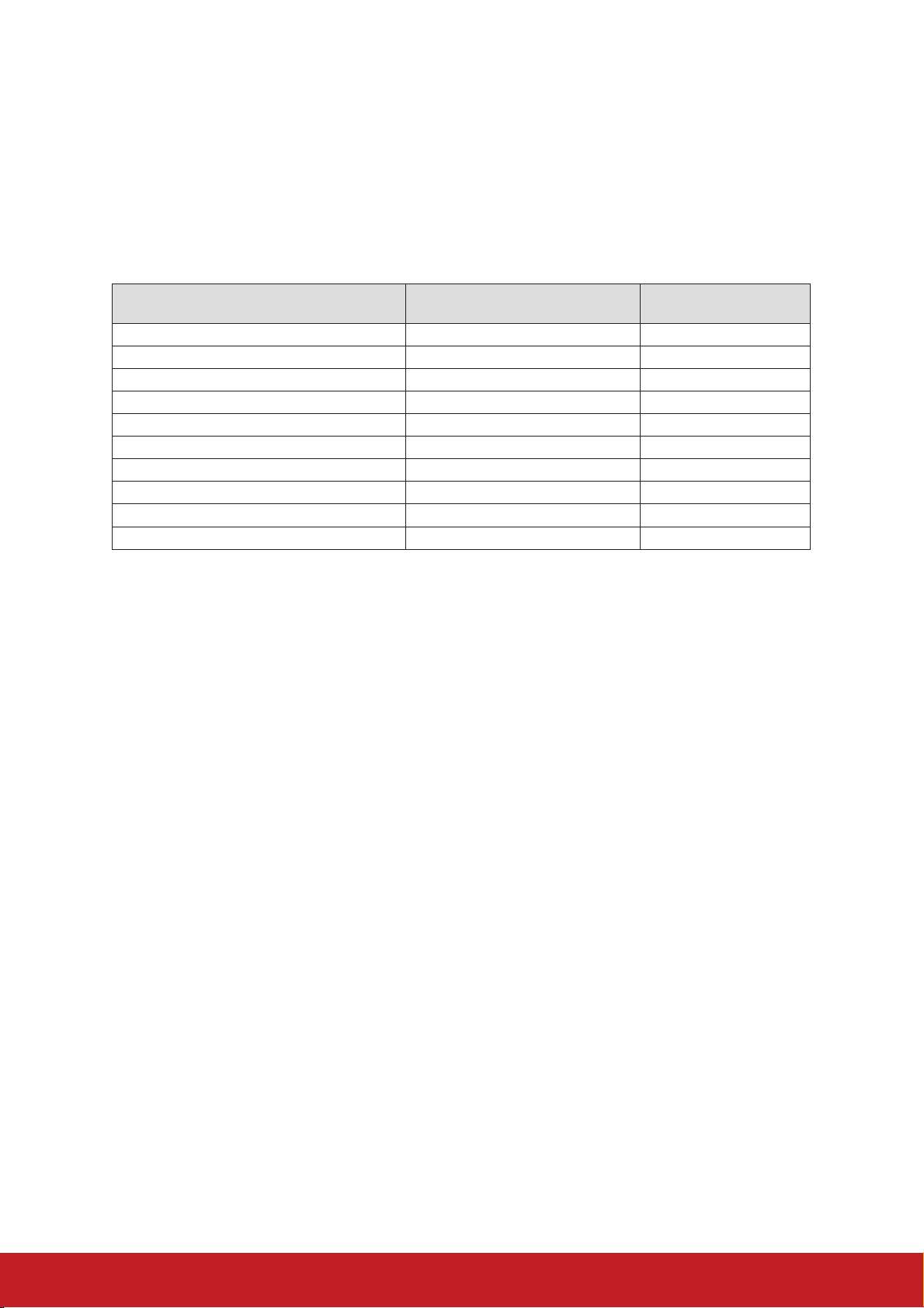
Declaration of RoHS2 Compliance
This product has been designed and manufactured in compliance with Directive
2011/65/EU of the European Parliament and the Council on restriction of the use
of certain hazardous substances in electrical and electronic equipment (RoHS2
Directive) and is deemed to comply with the maximum concentration values issued
by the European Technical Adaptation Committee (TAC) as shown below:
Substance
Proposed Maximum
Concentration
Actual Concentration
Lead (Pb) 0.1% < 0.1%
Mercury (Hg) 0.1% < 0.1%
Cadmium (Cd) 0.01% < 0.01%
Hexavalent Chromium (Cr
6+
) 0.1% < 0.1%
Polybrominated biphenyls (PBB) 0.1% < 0.1%
Polybrominated diphenyl ethers (PBDE) 0.1% < 0.1%
Bis(2-ethylhexyl) phthalate (DEHP) 0.1% < 0.1%
Butyl benzyl phthalate (BBP) 0.1% < 0.1%
Dibutyl phthalate (DBP) 0.1% < 0.1%
Diisobutyl phthalate (DIBP) 0.1% < 0.1%
Certain components of products as stated above are exempted under the Annex III
of the RoHS2 Directives as noted below:
Examples of exempted components are:
1. Lead in glass of cathode ray tubes.
2. Lead in glass of uorescent tubes not exceeding 0.2% by weight.
3. Lead as an alloying element in aluminium containing up to 0.4% lead by weight.
4. Copper alloy containing up to 4% lead by weight.
5. Lead in high melting temperature type solders (i.e. lead-based alloys containing
85% by weight or more lead).
6. Electrical and electronic components containing lead in a glass or ceramic other
than dielectric ceramic in capacitors, e.g. piezoelectronic devices, or in a glass or
ceramic matrix compound.

v
Copyright Information
Copyright © ViewSonic
®
Corporation, 2019. All rights reserved.
Macintosh and Power Macintosh are registered trademarks of Apple Inc.
Microsoft, Windows, Windows NT, and the Windows logo are registered trademarks
of Microsoft Corporation in the United States and other countries.
ViewSonic, the three birds logo, OnView, ViewMatch, and ViewMeter are registered
trademarks of ViewSonic Corporation.
VESA is a registered trademark of the Video Electronics Standards Association.
DPMS and DDC are trademarks of VESA.
PS/2, VGA and XGA are registered trademarks of International Business Machines
Corporation.
Disclaimer: ViewSonic Corporation shall not be liable for technical or editorial errors
or omissions contained herein; nor for incidental or consequential damages resulting
from furnishing this material, or the performance or use of this product.
In the interest of continuing product improvement, ViewSonic Corporation reserves
the right to change product specications without notice. Information in this docu-
ment may change without notice.
No part of this document may be copied, reproduced, or transmitted by any means,
for any purpose without prior written permission from ViewSonic Corporation.
Product Registration
To fulfill possible future product needs, and to receive additional product information
as it becomes available, please visit your region section on ViewSonic’s website to
register your product online.
The ViewSonic CD also provides an opportunity for you to print the product
registration form. Upon completion, please mail or fax to a respective ViewSonic
office. To find your registration form, use the directory “:\CD\Registration”.
Registering your product will best prepare you for future customer service needs.
Please print this user guide and fill the information in the “For Your Records” section.
For additional information, please see the “Customer Support” section in this guide.
For Your Records
Product Name:
M1+
ViewSonic LED Projector
Model Number: VS17337
Document Number: M1+_UG_ENG Rev. 1A 03-26-19
Serial Number: ________________________________________
Purchase Date: ________________________________________
Product disposal at end of product life
ViewSonic respects the environment and is committed to working and living green.
Thank you for being part of Smarter, Greener Computing. Please visit ViewSonic
website to learn more.
USA & Canada: http://www.viewsonic.com/company/green/recycle-program/
Europe: http://www.viewsoniceurope.com/eu/support/call-desk/
Taiwan: http://recycle.epa.gov.tw

vi
Table of Contents
Introduction ........................................................................ 1
Projector features .................................................................................................................1
Shipping contents ............................................................. 2
Package Overview................................................................................................................2
Product Overview .................................................................................................................3
Controls and functions .................................................... 4
Setting up .......................................................................... 7
Power On/O ........................................................................................................................8
Mount the Projector ........................................................................................................... 10
Open the smart stand and adjust the focus ring ................................................................. 11
Adjust Projected Image ..................................................................................................... 12
Positioning your projector .............................................. 13
Using the menus................................................................................................................ 14
Adjusting your projector’s settings ..................................................................................... 16
Connect the projector to your device ................................................................................. 17
Dierent menu options ...................................................................................................... 18
M1+ FW Upgrade .............................................................................................................. 20
Wallpaper .......................................................................................................................... 21
Image Settings................................................................................................................... 21
About the aspect ratio........................................................................................................ 22
Auto Keystone ................................................................................................................... 23
V Keystone ........................................................................................................................ 23
Brightness.......................................................................................................................... 23
Contrast ............................................................................................................................. 23
Projector Position .............................................................................................................. 24
Harman Kardon - Adjusting the audio settings .................................................................. 25
Muting the Sound .............................................................................................................. 25
Adjusting the Sound level .................................................................................................. 25

vii
Adjusting the Audio Mode .................................................................................................. 26
Adjusting the Light source settings .................................................................................... 26
Reset All Settings .............................................................................................................. 27
Eye Protection ................................................................................................................... 27
Viewing dierent le .......................................................................................................... 27
Using the 3D function ........................................................................................................ 31
OSD Menu System ............................................................................................................ 42
Specication sheet ............................................................................................................ 44
HDMI Support Video Timing .............................................................................................. 46
HDMI Support PC Timing .................................................................................................. 47
3D Support Timing ............................................................................................................. 48
USB-C Support Timing ...................................................................................................... 49

1
Introduction
Projector features
The Portable Cinema providing users with high-performance LED projection and a user-
friendly design to deliver high reliability and ease of use.
Some of the features may not be available on your projector. Actual performance may
vary and subject to model specications.
• 360 degree smart stand enable instant Power ON / OFF (with Lens cover function).
• Auto keystone to correct distorted image automatically.
• Eye Protection function avoiding objects get close to the direct light from optical
engine (30cm distance / 30 degree).
• USB-C for video transmission and power supply.
• Embedded battery for easy outdoor projection (up to 6 hours).
• Switchable light source mode to extend your battery usage hours.
• 16GB internal storage ( Max. 12GB available storage for users).
• User-friendly UI design for easy navigation.
• Music mode enables users to enjoy music without projection image.
• Short throw lens design to allow 1.6m distance to project 60” screen size.
• LED light source with excellent light source life (30,000 hrs).
• Supports 3D display.
• Color modes providing choices for dierent projection purposes.
• Multi-language On-Screen Display (OSD) menus.
The apparent brightness of the projected image will vary depending on the ambient lighting
conditions, selected input signal contrast/brightness settings, and is directly proportional to
projection distance.
2
Shipping contents
Package Overview
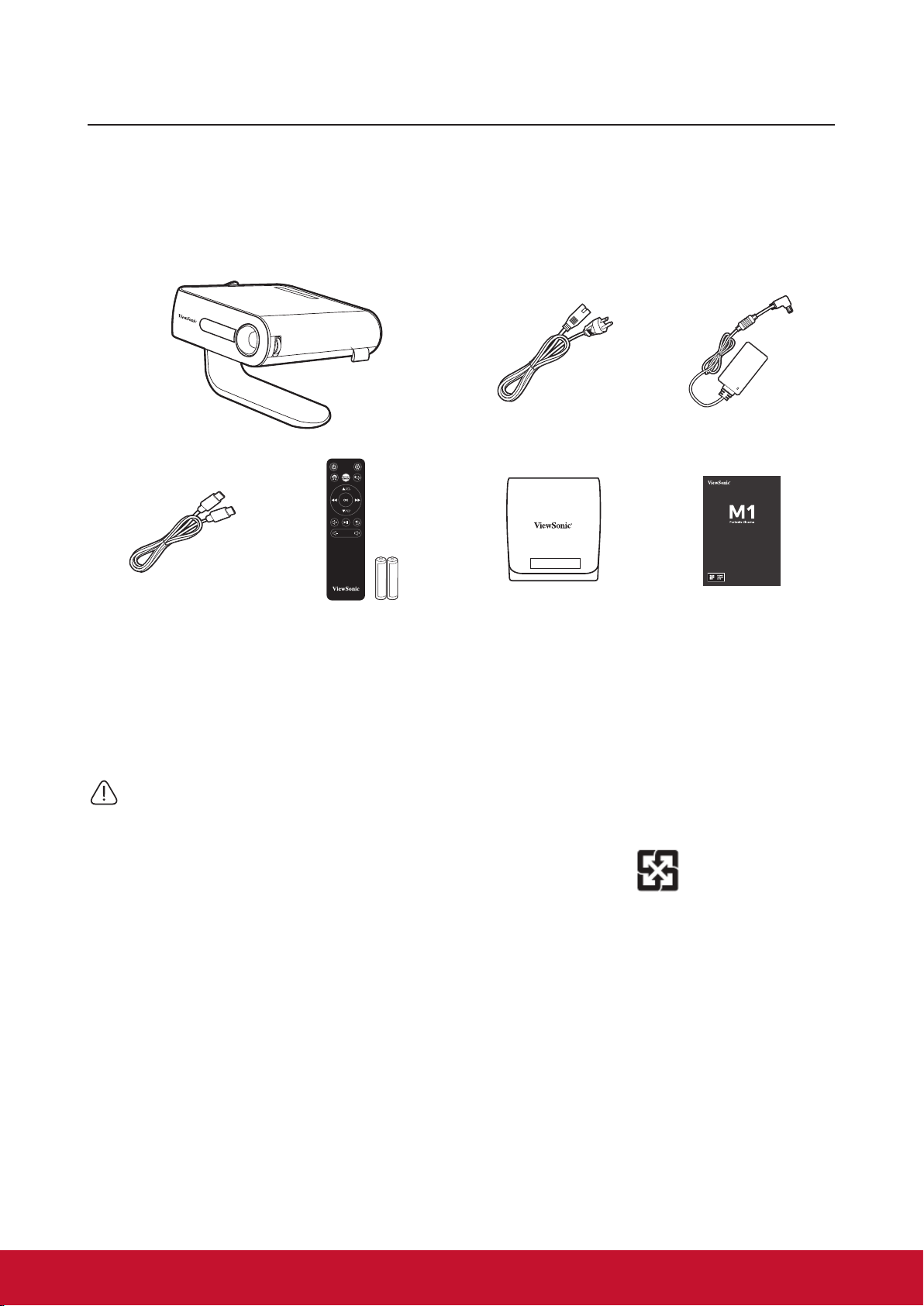
Carefully unpack and verify that you have all of the items shown below. If any of these
items are missing, please contact your place of purchase.
Quick Start Guide
Quick Start Guide
Quick Start Guide
Projector AC Power Cord AC Power Adapter
Quick Start Guide
Quick Start Guide
Quick Start Guide
Quick Start Guide
USB-C Cable (1M) Remote Control (with batteries) Soft Carrying Bag Quick Start Guide
Others
• Warranty Card (for specic regions ONLY)
NOTES
• Due to dierent applications in each Country, some regions may have dierent accessories..
• Make sure to properly discard the used batteries according to local regulations.
3
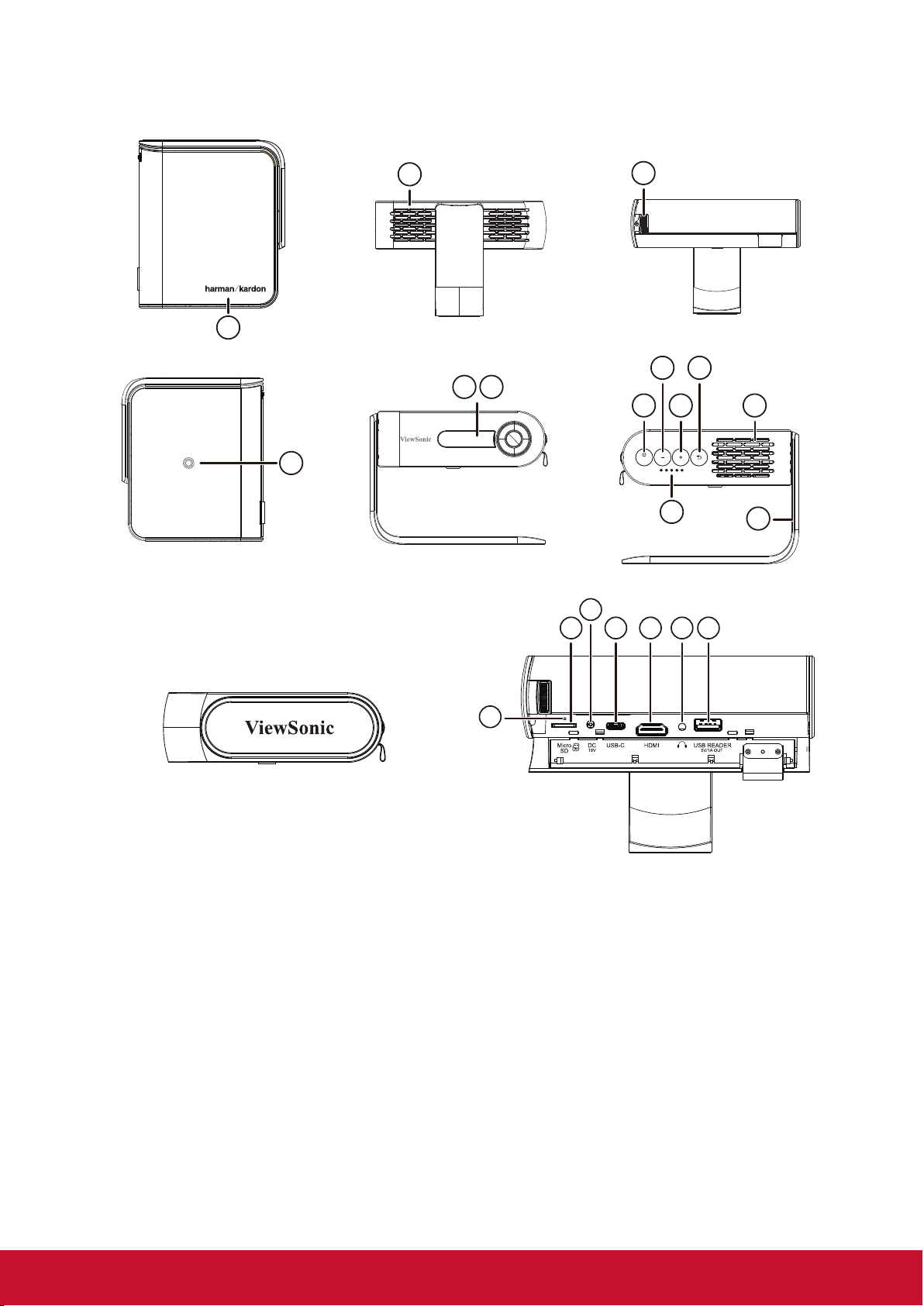
Product Overview
ENTER
1
2
5 6 7
8 10
19
1513 16 17 18
9
12
11
20
3
4
14
ENTER
1
2
5 6 7
8 10
19
1513 16 17 18
9
12
11
20
3
4
14
ENTER
1
2
5 6 7
8 10
19
1513 16 17 18
9
12
11
20
3
4
14
ENTER
1
2
5 6 7
8 10
19
1513 16 17 18
9
12
11
20
3
4
14
ENTER
1
2
5 6
7
8 10
19
1513 16 17 18
9
12
11
20
3
4
14
ENTER
1
2
5 6
7
8 10
19
1513 16 17 18
9
12
11
20
3
4
14
ENTER
1
2
5 6 7
8 10
19
1513 16 17 18
9
12
11
20
3
4
14
ENTER
1
2
5 6 7
8 10
19
1513 16 17 18
9
12
11
20
3
4
14
1. Speaker
2. Ventilation
3. Focus Ring
4. Tripod hole
5. IR receiver
6. Eye Protection sensor
7. Enter / Power button
8. Volume - / Down
9. Volume + / Up
10. Return
11. Battery indicator
12. Speaker PR
13. Micro SD
14. DC in
15. USB-C
16. HDMI port
17. Headphone
18. USB Reader (5V1A out)
19. Reset button**
20. 360 degree smart stand
** Insert a paper clip into the reset button to restart the projector if system freezing.
4
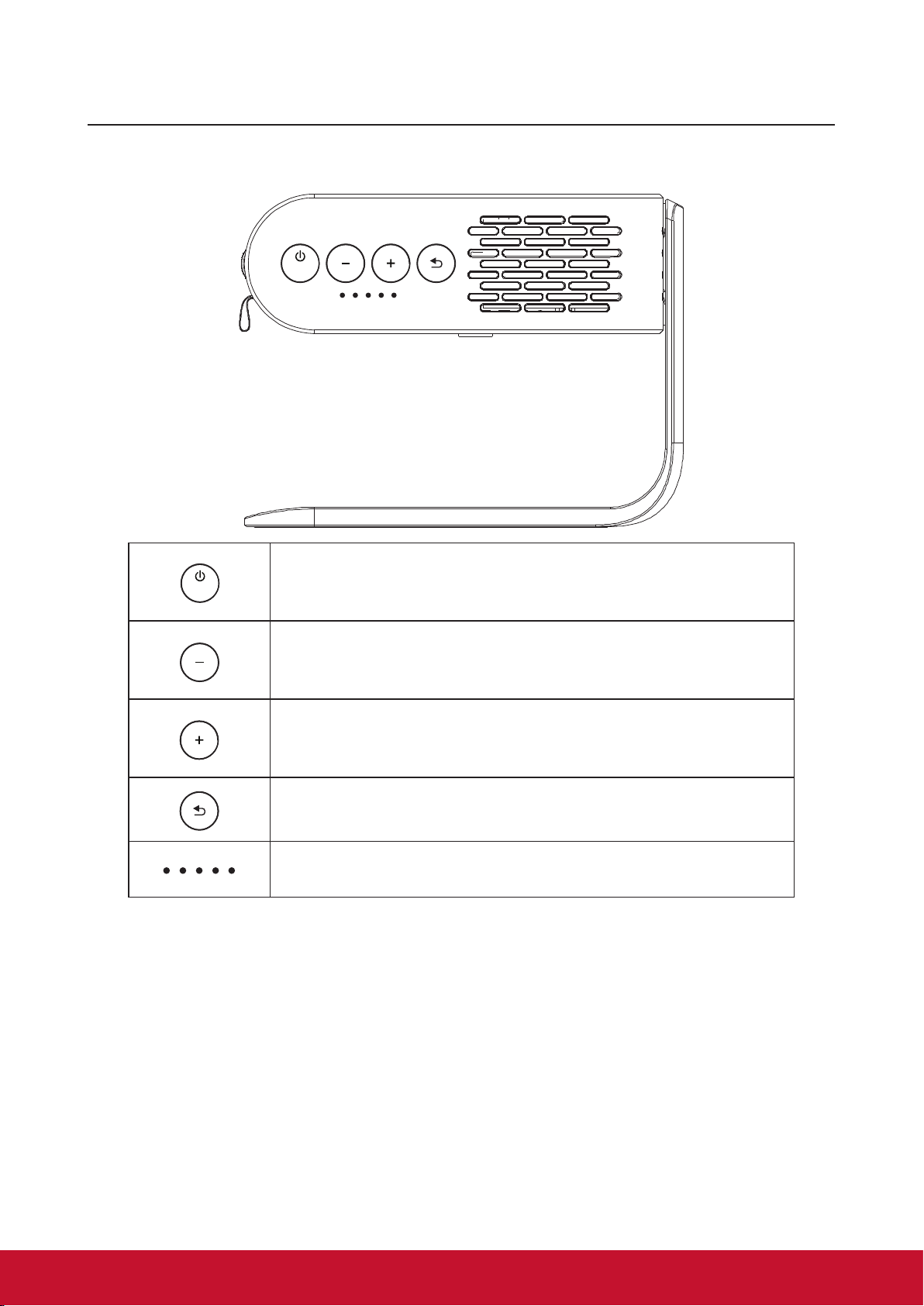
Controls and functions
Projector
ENTER
ENTER
Power / Enter
- Press 3 seconds to power on/o the projector
- Enacts the selected On-Screen Display(OSD) menu item.
ENTER
Volume down
- Decrease the volume level.
- Down
ENTER
Volume up
- Increase the volume level.
- Up
ENTER
Return
- Return to the previous stage/level
ENTER
Battery indicator light
- Indicates the status of the embedded battery.
5
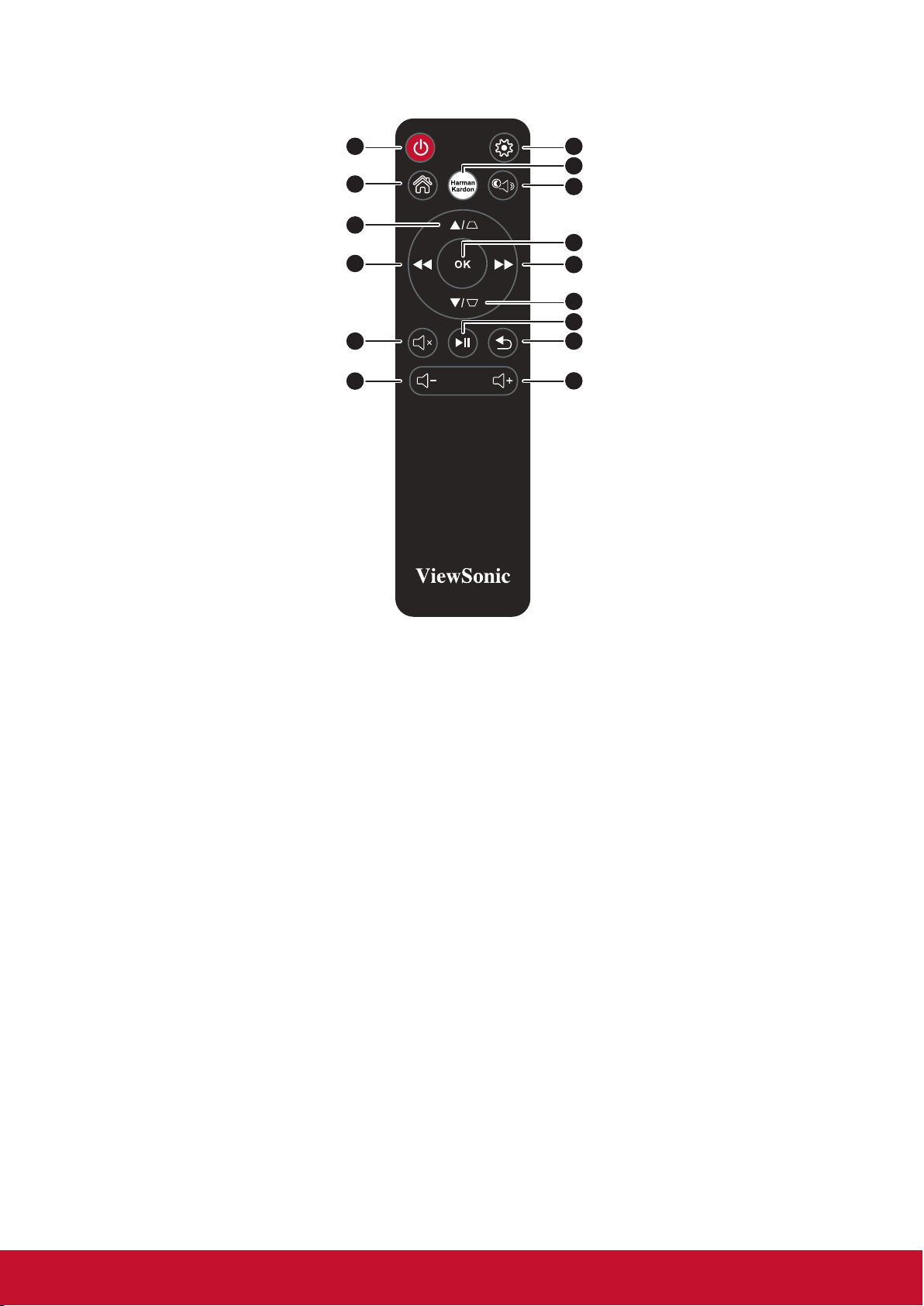
Remote Control
1
3
6
9
11
15
2
4
5
7
10
8
12
14
13
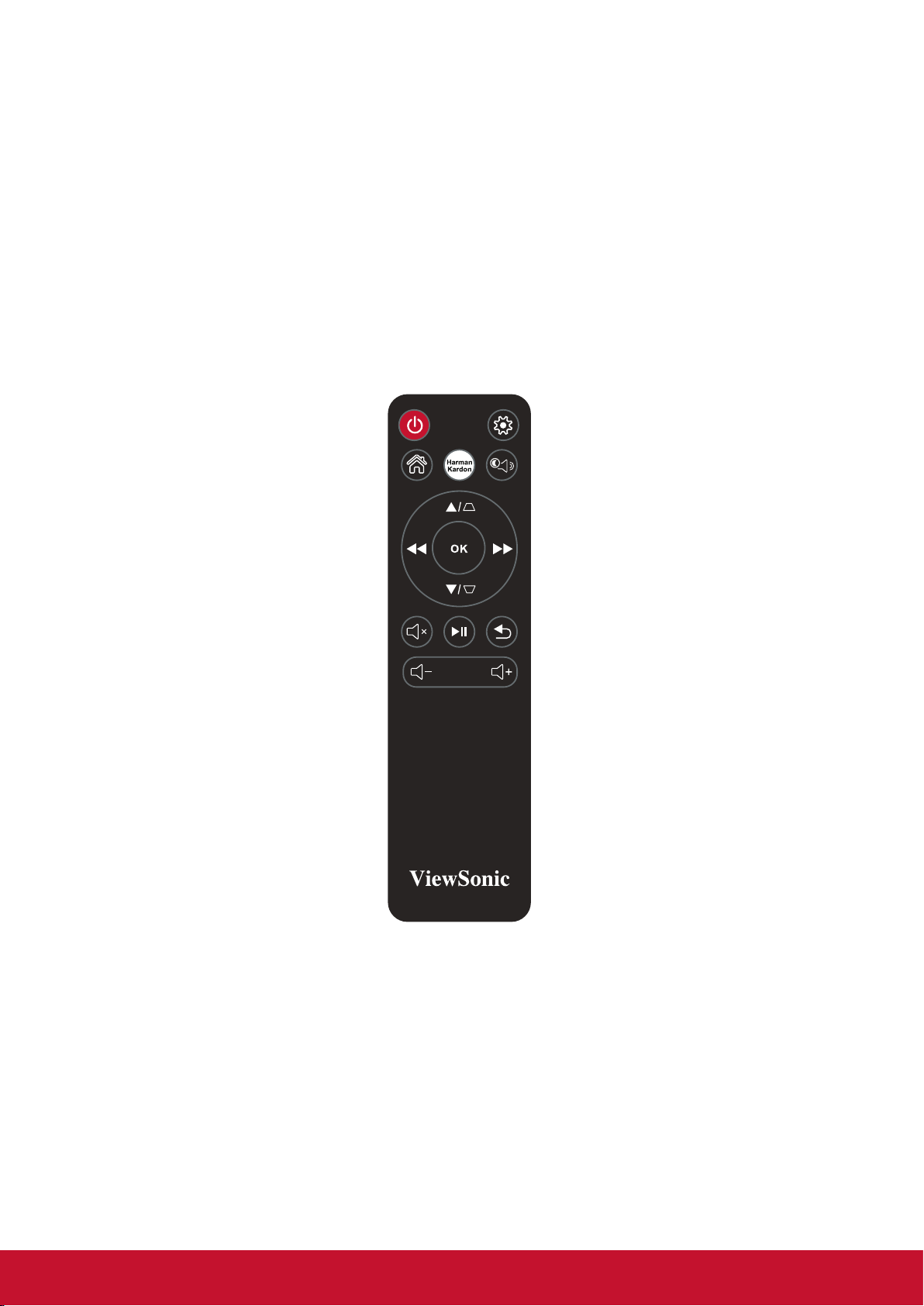
1. Power button
2. Settings
3. Home
4. Harman Kardon Settings
5. Bluetooth Mode
6. UP / KEYSTONE
7. OK
8. DOWN / KEYSTONE
9. LEFT / BACKWARD
10. RIGHT / FORWARD
11. MUTE
12. PLAY / PAUSE
13. RETURN
14. Volume Up
15. Volume Down
Remote control eectiverange
Refer to the illustration about the location of the Infra-Red (IR) remote control sensor(s).
The remote control must be held at an angle within 30 degrees perpendicular to the
projector’s IR remote control sensor(s) to function correctly. The distance between the
remote control and the sensor(s) should not exceed 8 meters (~26 feet).
Make sure that there are no obstacles between the remote control and the III sensor(s) on
the projector that might obstnict the infra-red beam.
6
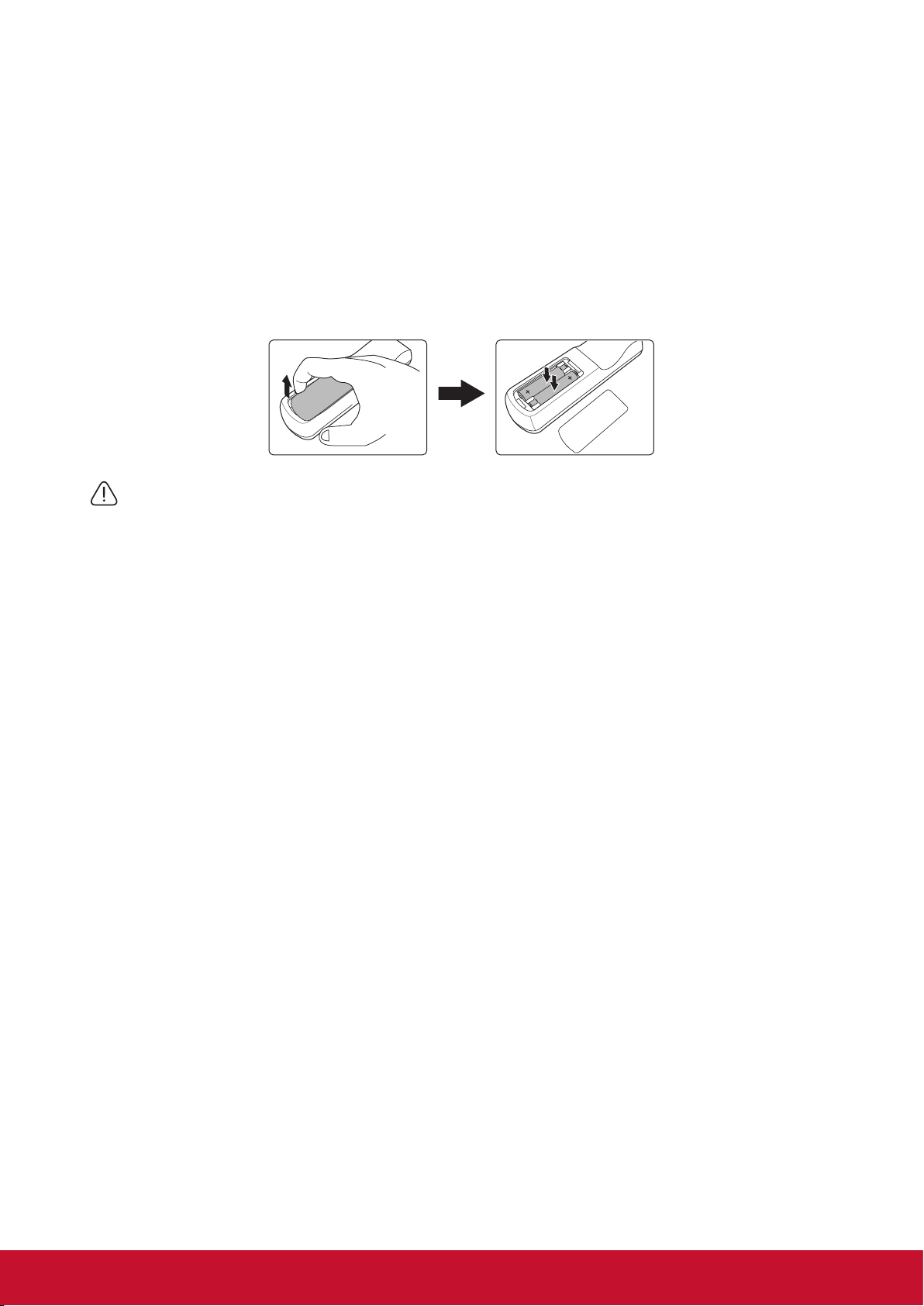
Replacing the remote control battery
1. To open the battery cover, turn the remote control over to view its back, open the
cover in the direction of the arrow as illustrated.
2. Remove any existing batteries (if necessary) and install two AAA batteries observing
the battery polarities as indicated in the base of the battery compartment. Positive (+)
goes to positive and negative (-) goes to negative.
3. Ret the cover by aligning it with the base and pushing it back down into position.
Stop when it clicks into place.
Warning
• Avoid leaving the remote control and batteries in an excessive heat or humid environment like the kitchen,
bathroom, sauna, sunroom or in a closed car.
• Replace only with the same or equivalent type recommended by the battery manufacturer.
• Dispose of the used batteries according to the manufacturer’s instructions and local environment regulations
for your region.
• Never throw the batteries into a re. There may be danger of an explosion.
• If the batteries are drained or if you will not be using the remote control for an extended period of time, remove
the batteries to avoid damage to the remote control from possible battery leakage.

7
Setting up
Operating your projector
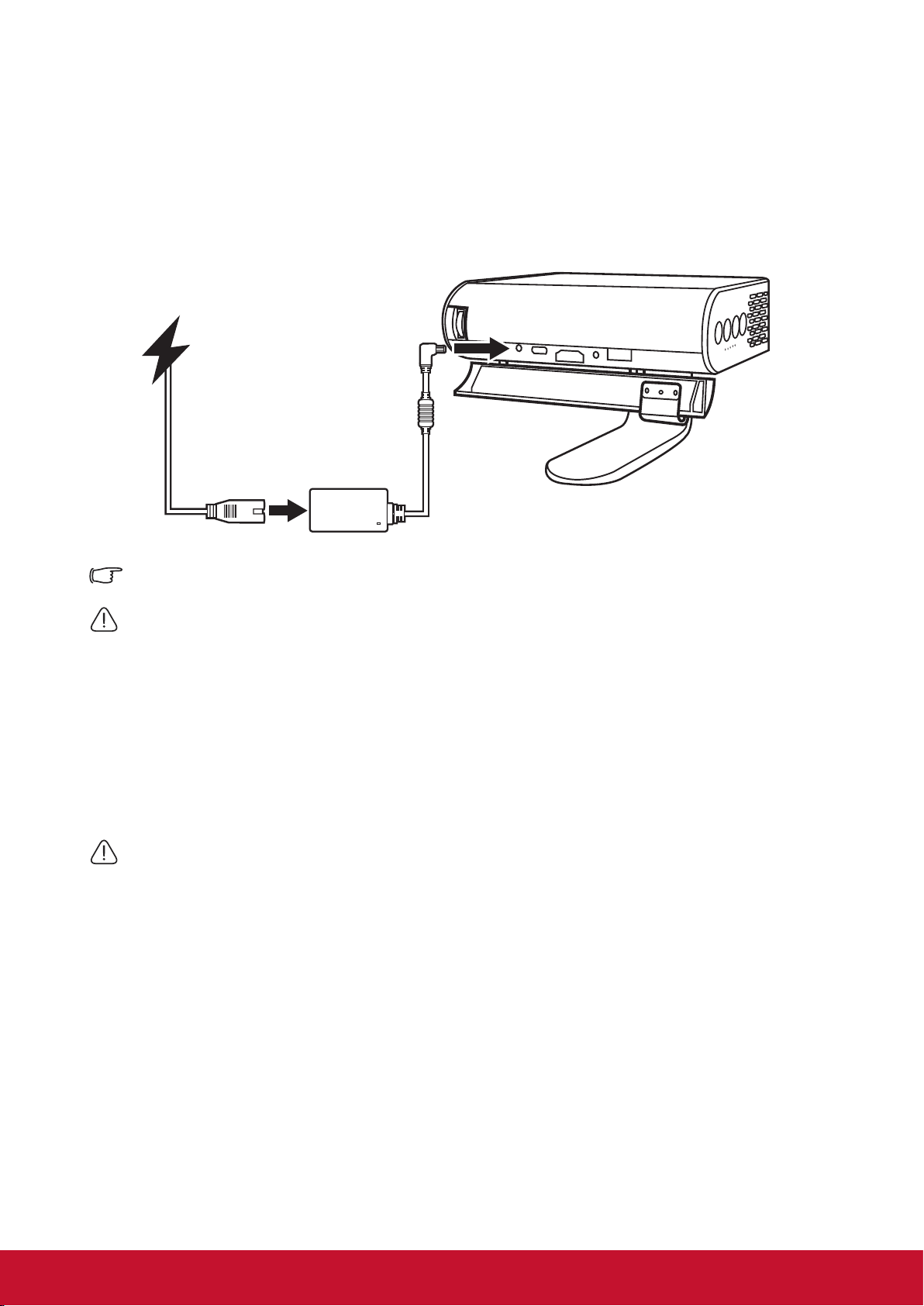
This portable projector allows you to plug and play your devices so you can easily open
multimedia les and hear audio straight from it’s built-in Harman Kardon speakers.
For your safety and to maintain the quailty of this unit, refer to the following steps when
operating your Projector.
8
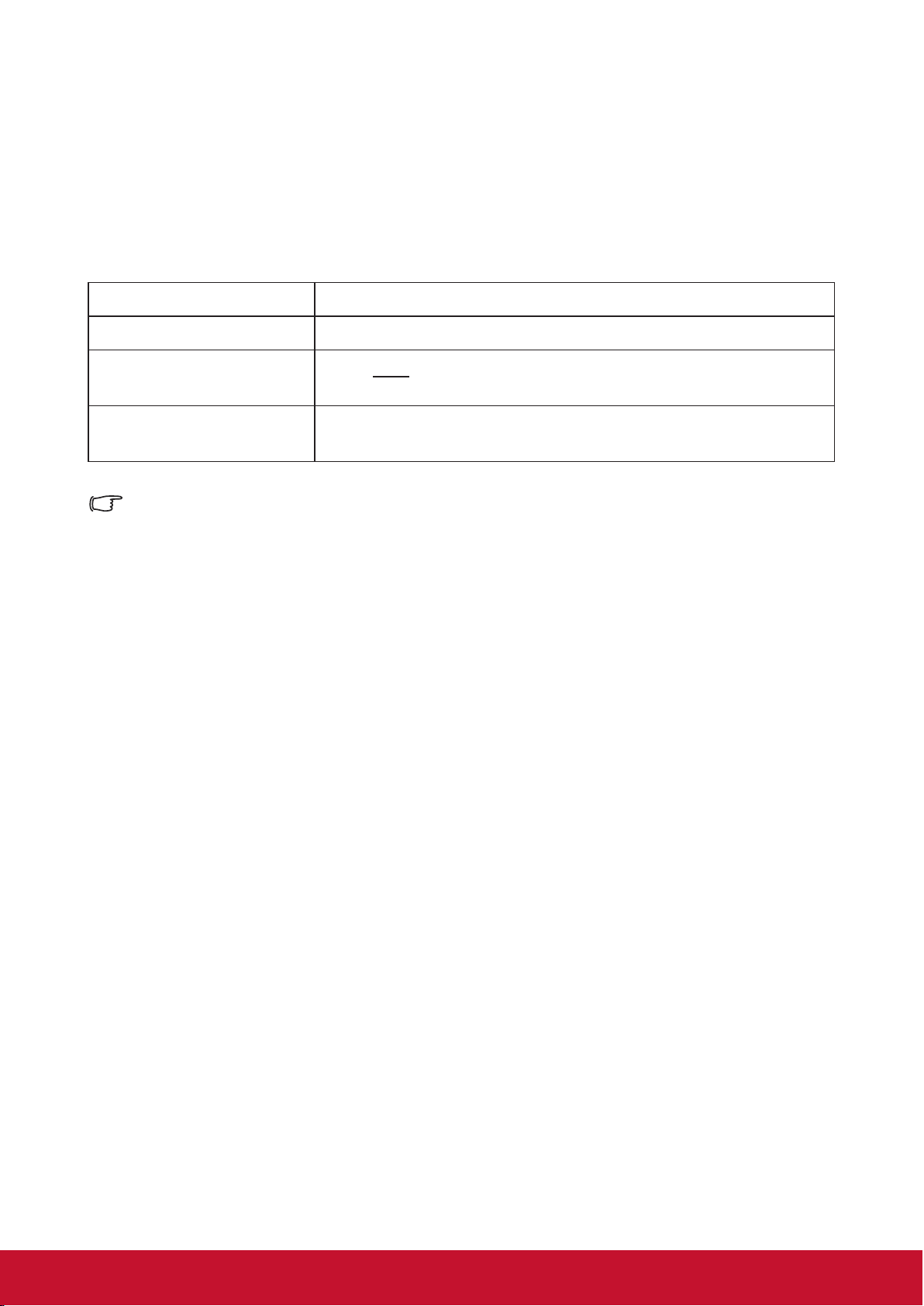
Power On/O
Using power cord
1. Connect the power cord to the power adapter.
2. Connect the AC power cord to a power source
3. Connect the DC power connector to your projector.
Charge the projector for 4.5 hours before using it in battery mode for the rst time.
IMPORTANT!
• Use only the bundled power adapter to change the battery pack and supply power to your LED projector.
• Ensure that your LED projector is connected to the power adapter before turning it on for the rst time.We
strongly recommend that you use a grounded wall socket while using your LED projector on power adapter
mode.
• The socket outlet must be easily accessible and near your LED projector.
• To disconnect your LED projector from its main power supply, unplug your LED projector from the power
socket.
Warning
Read the following precautions for your LED projector’s battery.
• The battery used in this device may present a risk of re or chemical burn if removed or disassembled.
• Follow the warning labels for your personal safety. • Risk of explosion if battery is replaced by an incorrect
type.
• Do not dispose of in re. • Never attempt to short-circuit your LED projector’s battery.
• Never attempt to dissemble and reassemble the battery.
• Discontinue usage if leakage is found. • The battery and its components must be recycled or disposed of
properly.
• Keep the battery and other small components away from children,
9
Using The Battery
Warning message is displayed when the battery is running out.
As your battery is low, the projector will be turned o in a minute.
If the screen shows a low battery message, be sure to charge the battery.
Battery using time information
Status Time and Display
Charging About 4.5 hours
Usage Hours
Up to 6hrs battery life (with Battery Saving mode and without
USB power supply)
Battery Level indicator
(Charging)
• During charging: Power button with Red LED light up
• Full charge: Power button with White LED light up
There will be a very low power consumption during standby mode, suggest to full charge the
battery before usage every time.
10
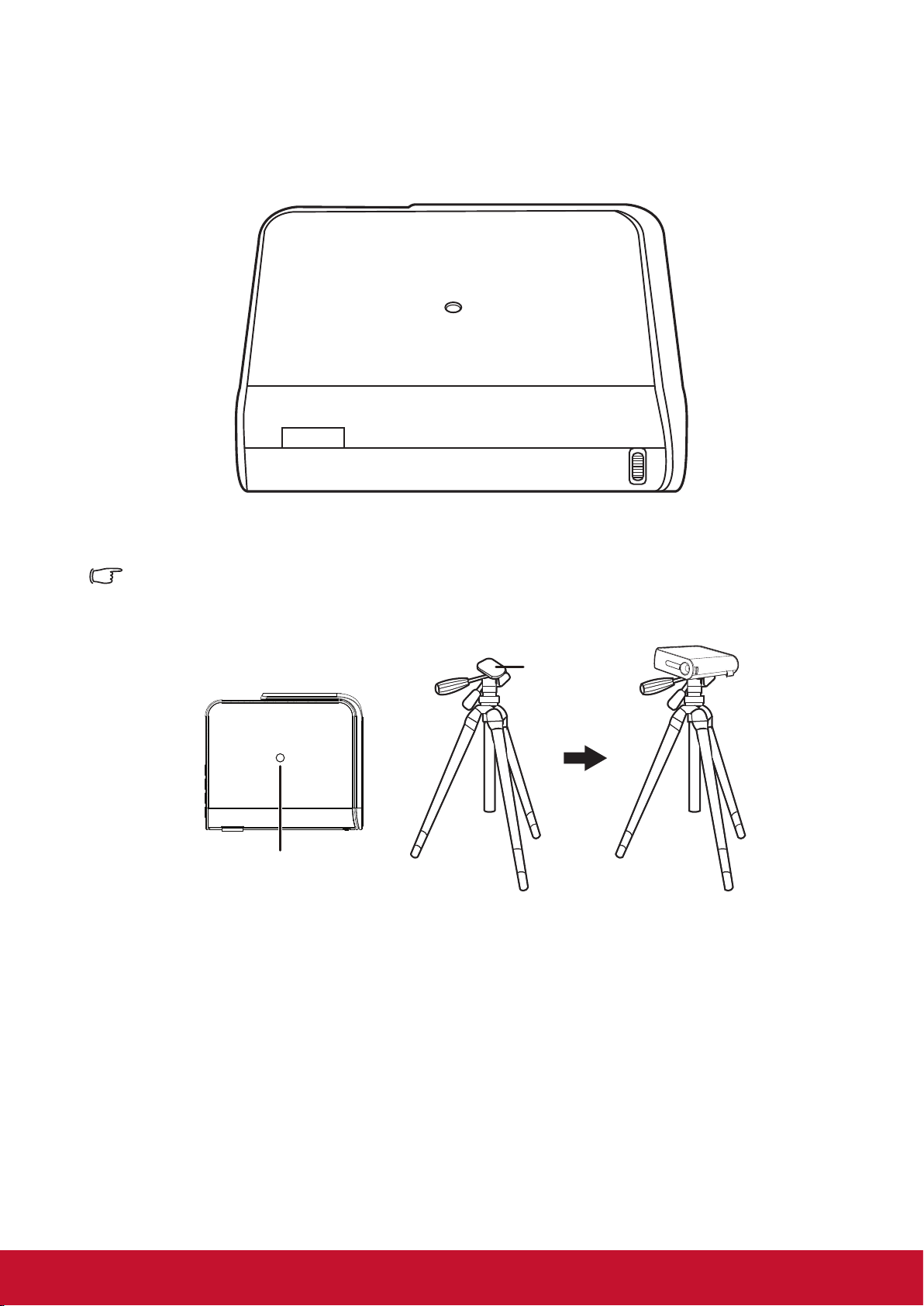
Mount the Projector
Screw a standard tripod into the screw hole on the projector.
The tripod is not included.
+
Bottom side of the
projector
Bolt used to
attach the
projector
The projector is
connected to this part
Tripod
11
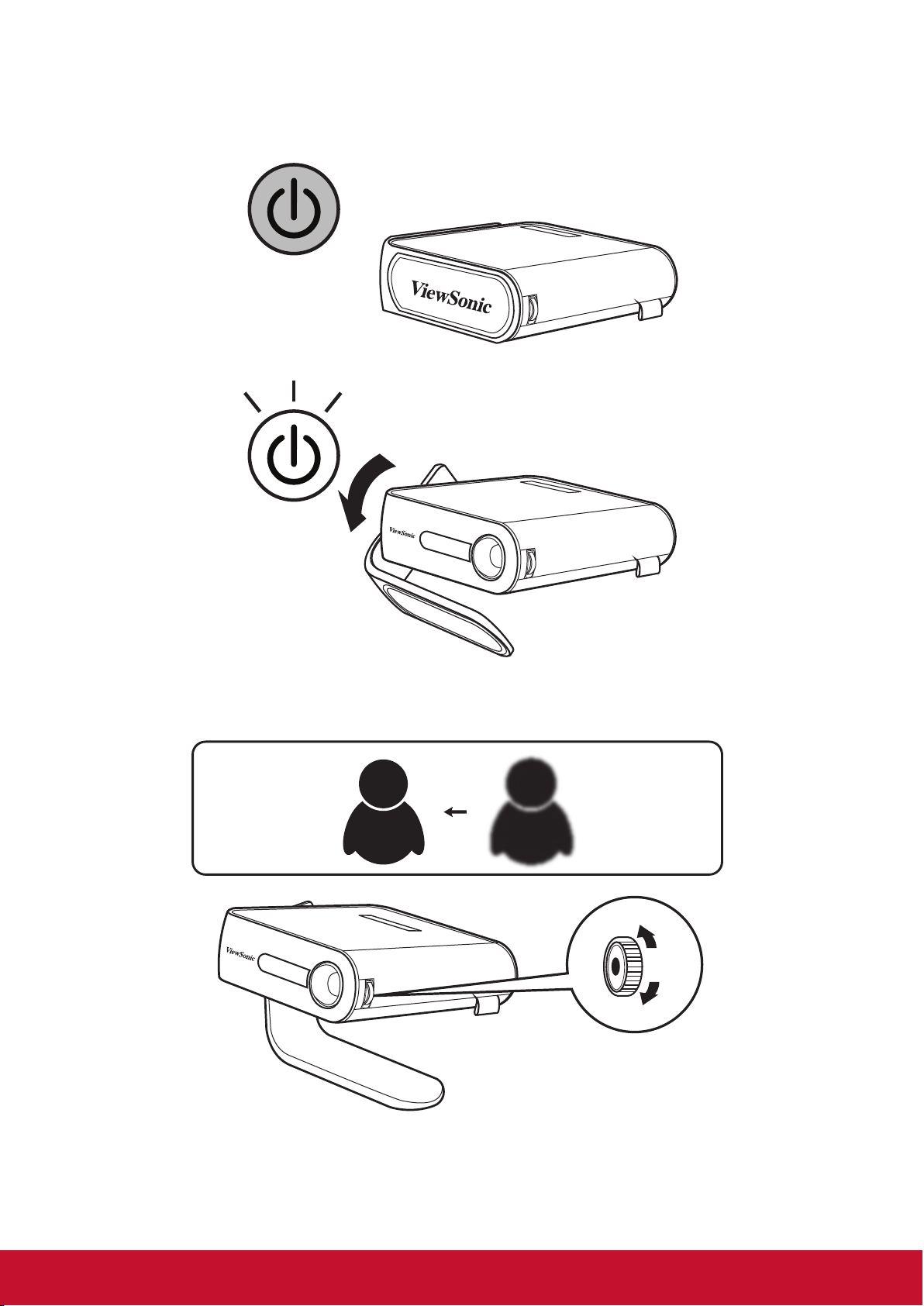
Open the smart stand and adjust the focus ring
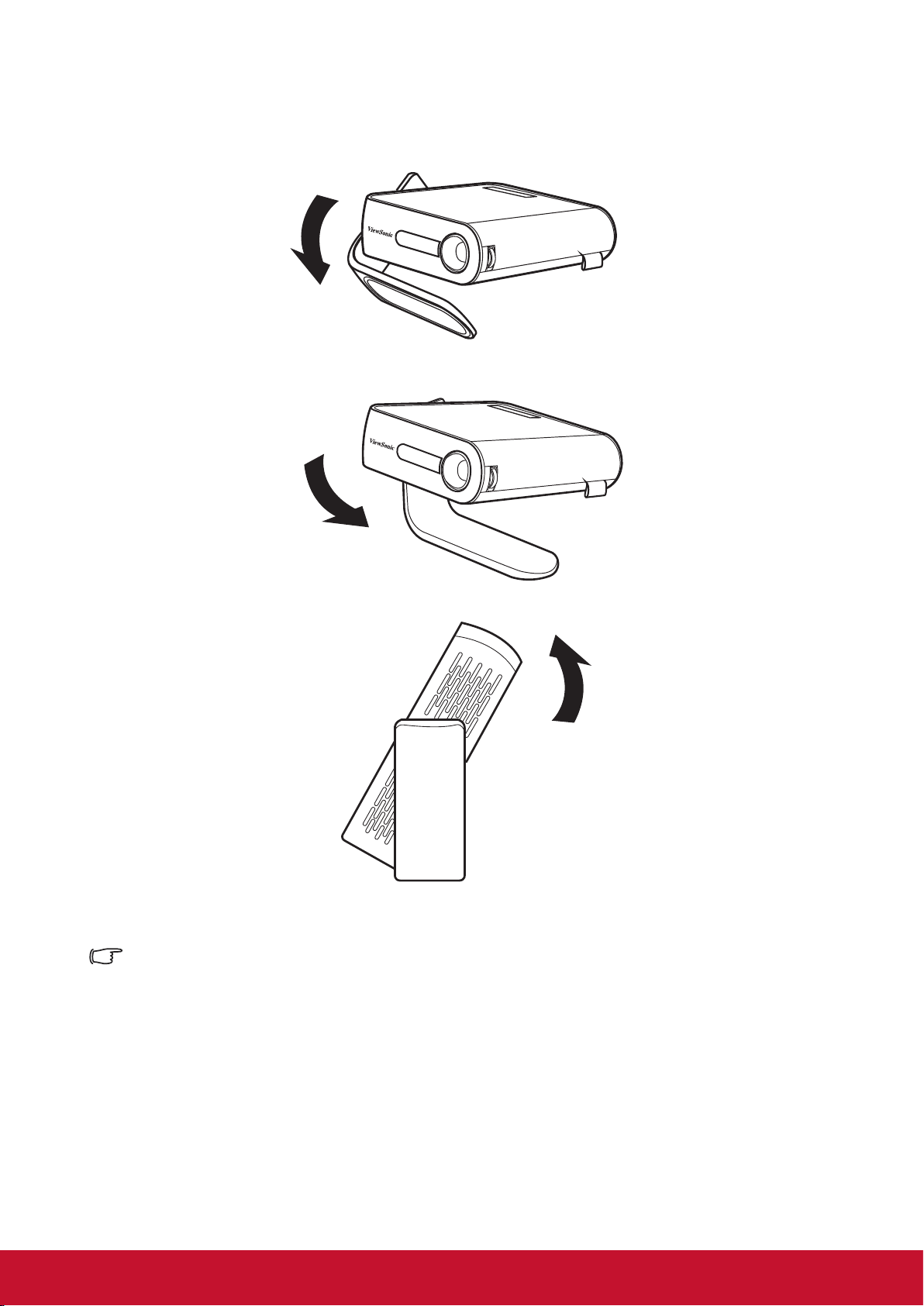
• Open the smart stand by moving its lens cover down
• Adjust the image focus of the projection onscreen by moving the focus ring up and
down.
12
Adjust Projected Image
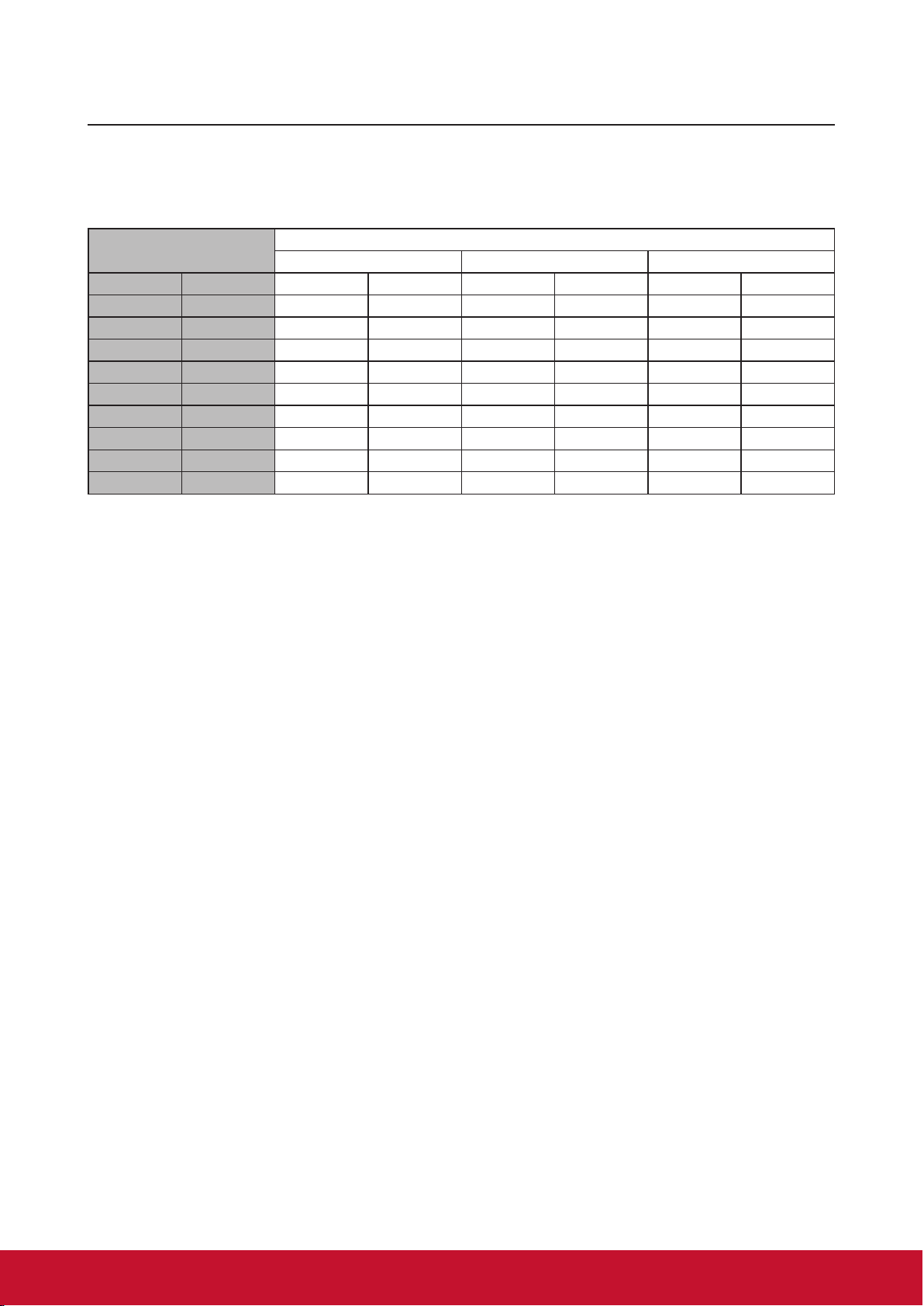
The projector is equipped with a smart stand for adjusting the projected image
Using Auto Keystone to adjust image (refer to details in Page 29)
13
Positioning your projector
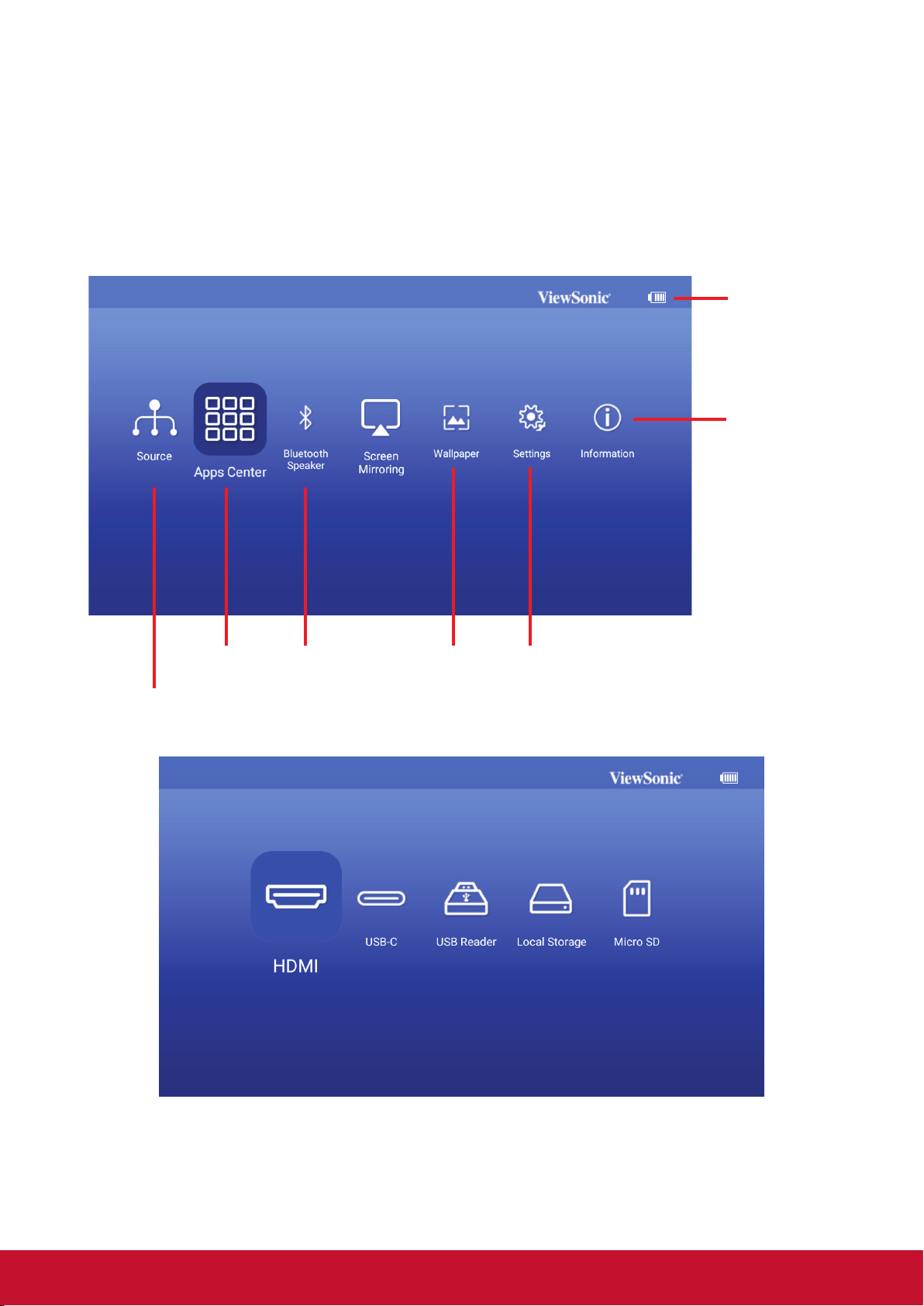
Screen size and projection distance table
Adjust the LED projector’s distance from the screen using the below table:
(a) Screen Size
16:9 image on a 16:9 Screen
(b) Image Width (c) Image height (d) Projection Distance
inch mm inch mm inch mm inch mm
24 610 21 531 12 299 25 637
30 762 26 664 15 373 31 796
40 1016 35 885 20 498 42 1062
50 1270 44 1106 25 622 52 1327
60 1524 52 1327 29 747 63 1593
70 1778 61 1549 34 871 73 1858
80 2032 70 1770 39 996 84 2124
90 2286 78 1991 44 1120 94 2389
100 2540 87 2212 49 1245 105 2655
14
Using the menus
The projector is equipped with On-Screen Display (OSD) menus for making various
adjustments and settings.
The OSD screenshots below are for reference only, and may dier from the actual design.
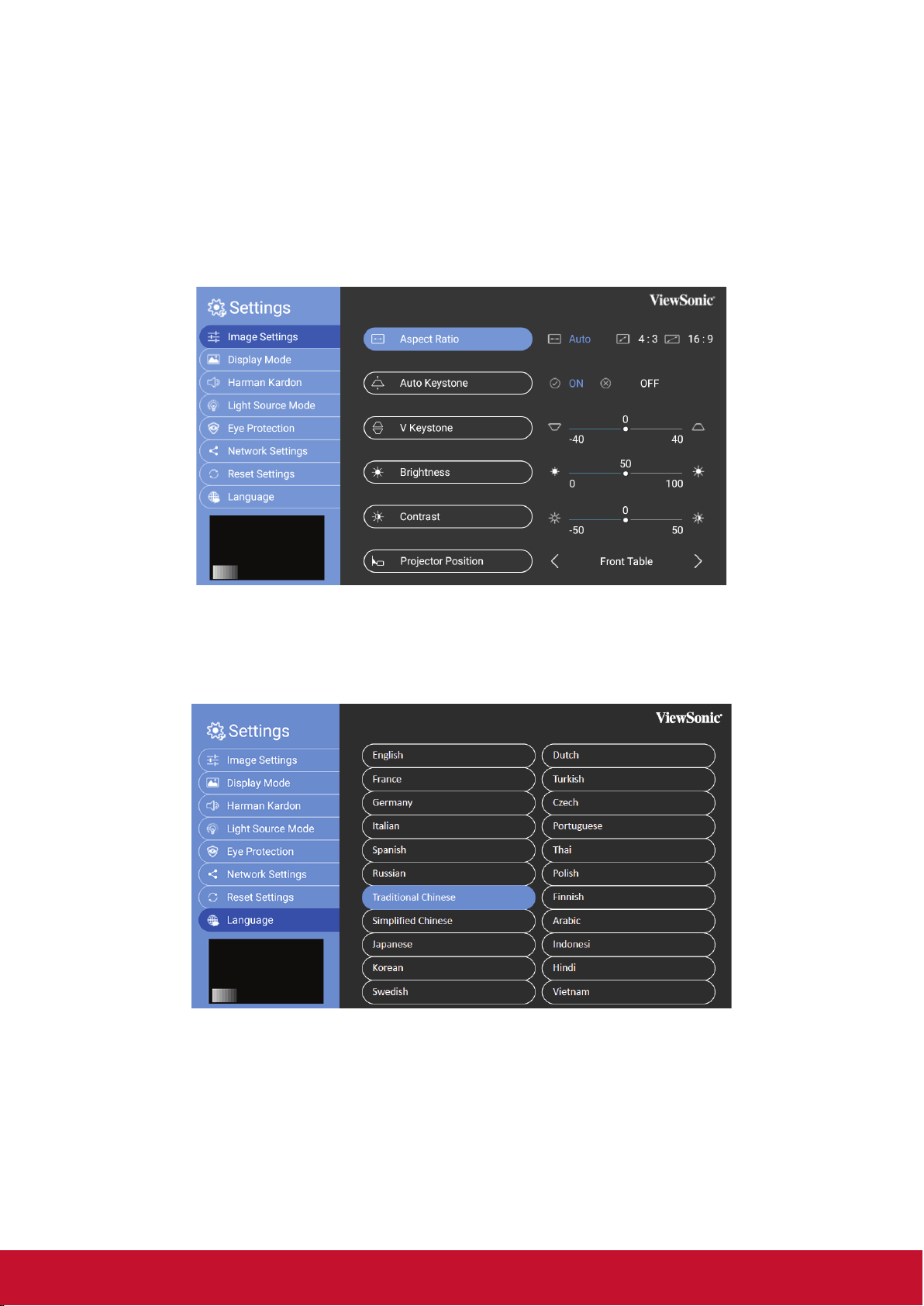
Below is the overview of the OSD menu.
Wallpaper Settings
Information
Bluetooth
Speaker
AppsCenter
Battery
indicator
Source
15
Launch the onscreen display by opening the smart stand of your projector
OSD menus will be shown after ViewSonic start up screen.
To use the OSD menus, please select your language rst.
1. Press Settings button on remote to turn the OSD setting page on
2. Use < / > to highlight the Settings menu.
3. Press ▼ to highlight language and press to select a preferred Language.
4. Press OK to save the settings
5. Press Return / Home button to leave or return to Home page.
16
Adjusting your projector’s settings
Refer to the following steps when accessing the onscreen display menu options to adjust
your projector settings:
1. Launch the onscreen display menu
2. Press< / >to select the menu option you would like to access
3. Press < / > to adjust the settings according to your preference.
4. Press OK to save the new settings.
5. Press settings to go back the settings page
6. Press Home to go back to the home page
1
3
6
9
11
15
2
4
5
7
10
8
12
14
13

17
Connect the projector to your device
1
3
2
4
5
1. Please use the supplied USB-C cable to make sure the compatibility.
2. Please make sure your USB-C device can support video transmission
1
Micro SD
- SDHC (up to 32GB)
- FAT32 / NTFS
2 USB-C
3
HDMI
- iPhone/iPad need to buy additional
adapter, to avoid compatible issue,
please use Apple authorized accessories
4
USB Reader
- FAT32 / NTFS
- Hard disk support up to 1TB
5 USB Power Supply (5V1A)

18
Dierent menu options
Switching input signal
Dierent input signals can be used to connect with the projector.
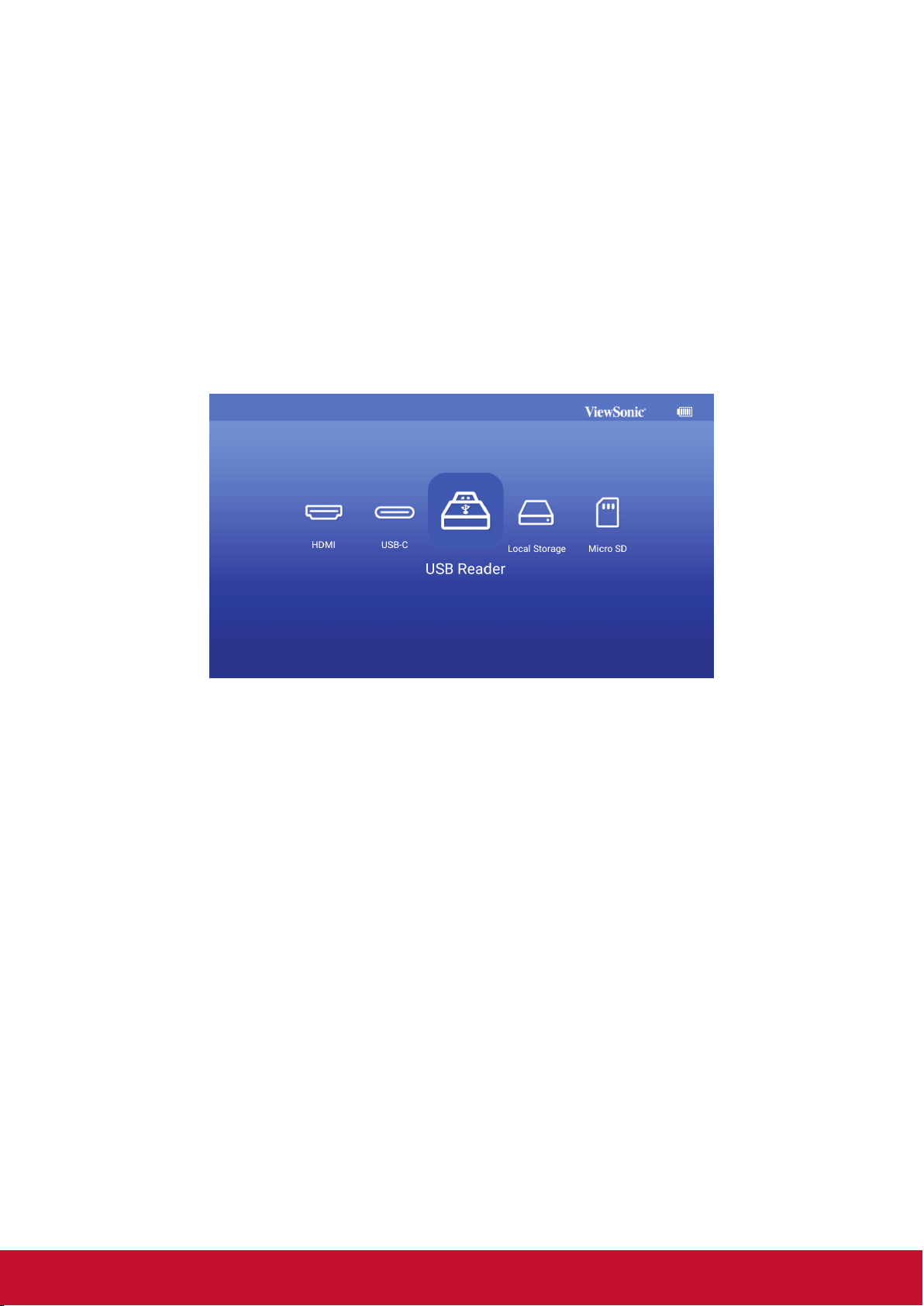
1. Dierent source is shown on the OSD homepage.
2. Press < / > until your desire signal is selected and press OK.
Once detected, the selected source information will be displayed on the screen for
seconds.
HDMI 1.4 / HDCP 1.4 support timing:
480i
480p
576i
576p
720/50p
720/60p
1080/24P
1080/25P
1080/30P
1080/50i
1080/60i
1080/50P
1080/60P
19
USB C Conditions:
• Using Power adapter: Video & Data trasmission / Power Supply
• Using Embedded battery: Video & Data transmission
USB Reader
• Flash Drive support up to 128GB
• Format: FAT32 / NTFS
• Hard disk support up to 1TB
• FW update
20
M1+ FW Upgrade
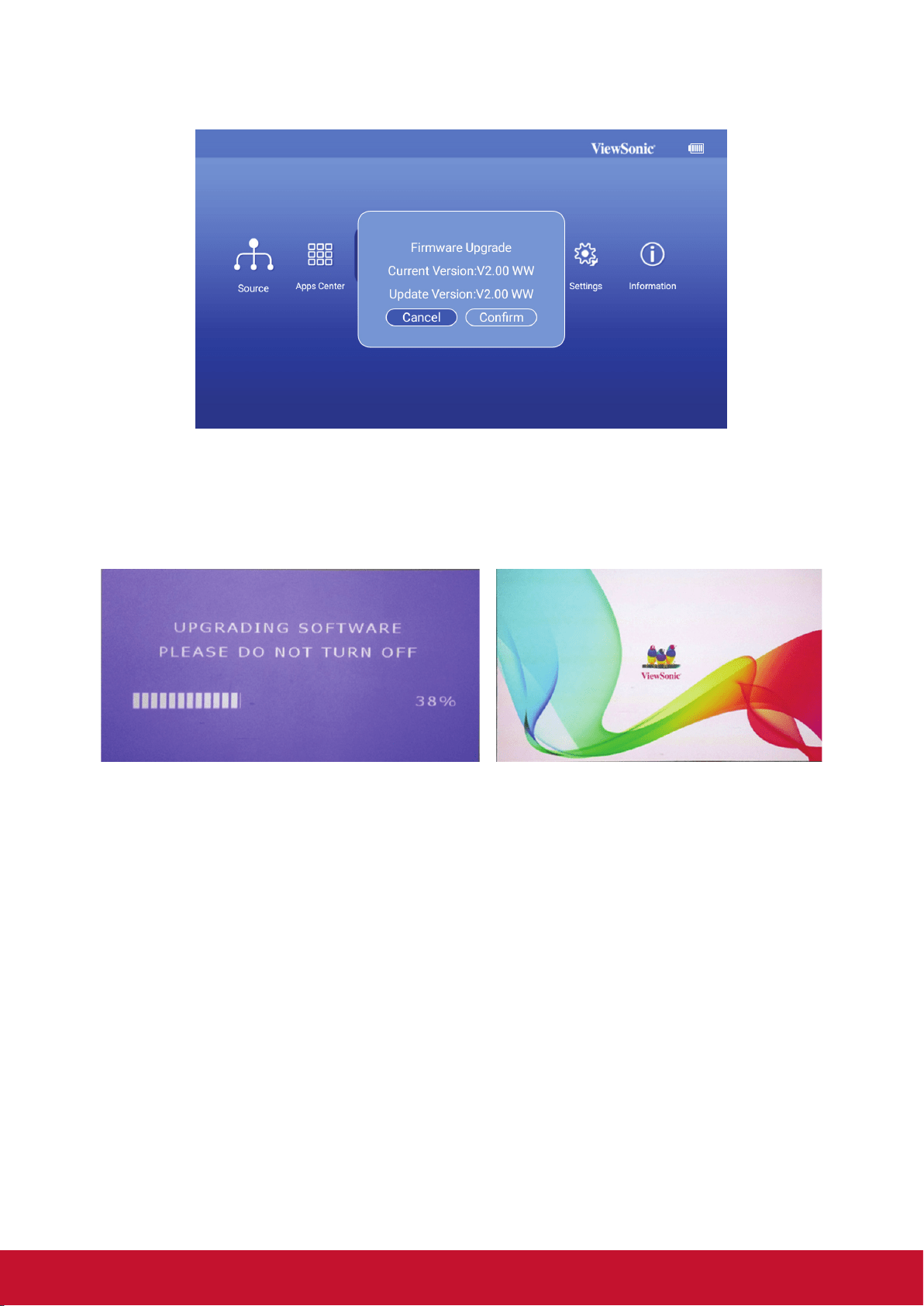
1. Copy FW “MstarUpgrade.bin and M1+.bin)” to FAT32 USB from ViewSonic website
2. Power on the projector
3. Plug in USB with new FW (USB Format: FAT32)
4. Auto detect and pop up FW upgrade conrmation message
5. Click “Conrm”
6. Page with the loading bar will be appeared
7. After reached 100%, will return to ViewSonic start up screen for loading again
8. The whole upgrading process will take around 5~10 mins
9. After nishing the process, will return to the Home page
21
Wallpaper
Select this menu option to change the OSD wallpaper.
You may select your preferred picture from the pre-installed wallpaper collection.
GO to Wallpaper > choose selected wallpaper and press OK
Wallpaper example:
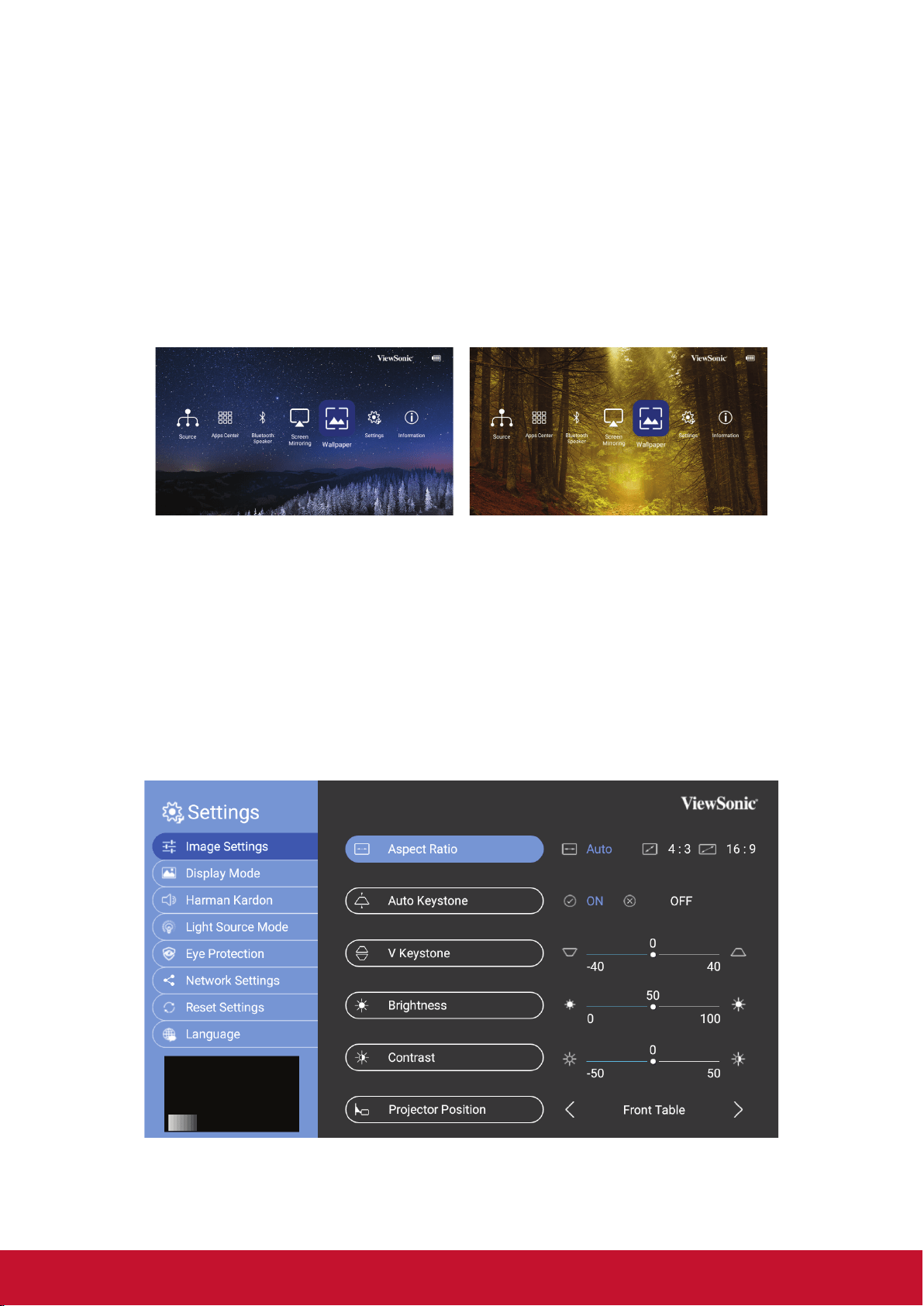
Image Settings
Aspect Ratio
Go to Settings > Image Settings > Aspect Ratio
Press < / > to select an aspect ratio to suit the format of the video signal and your
display requirements, and press OK.
22
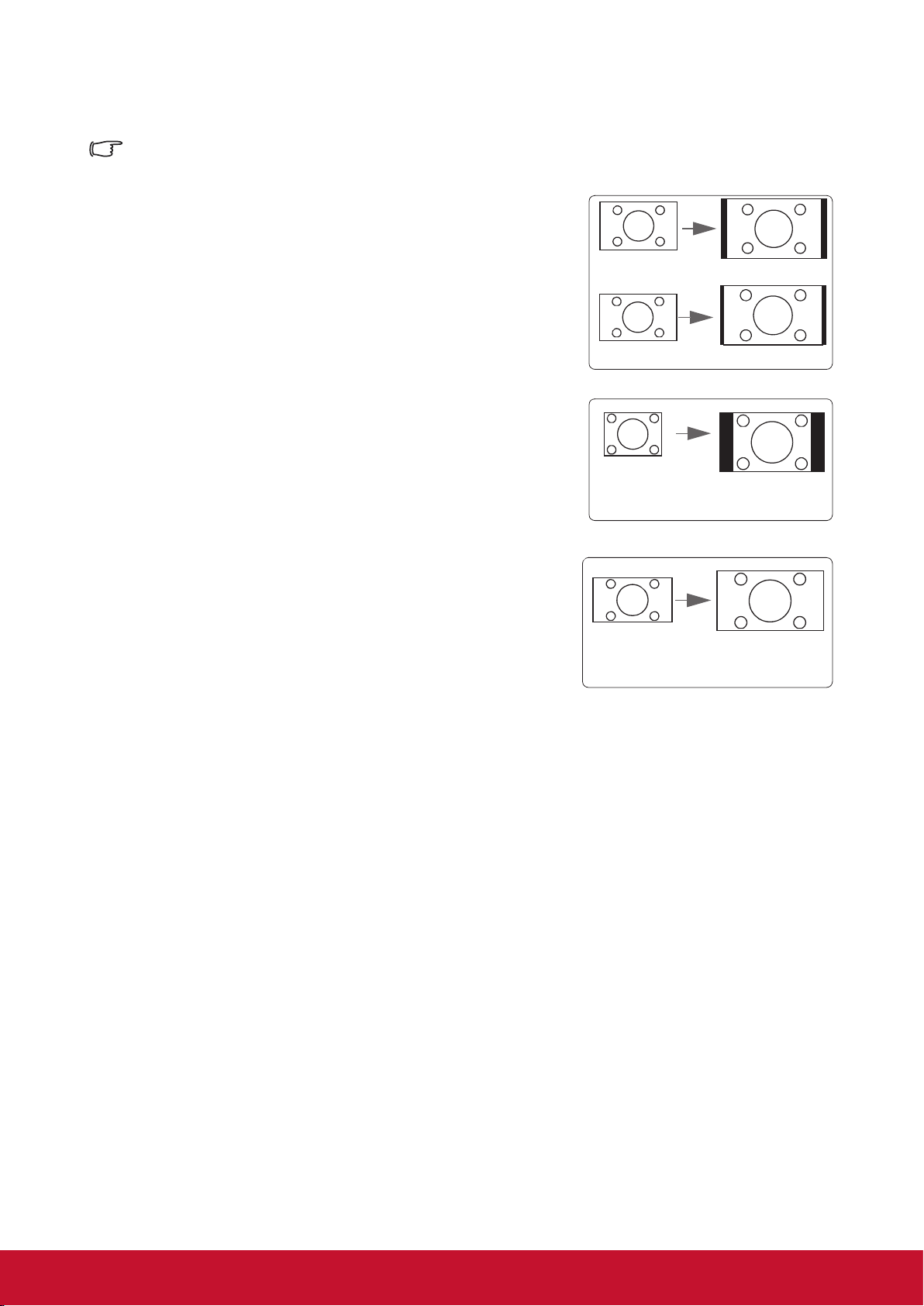
About the aspect ratio
In the picture below, the black portions are inactive areas and the white portions are active
areas. OSD menus can be displayed on those unused black areas.
1. Auto: Proportional scaling of an image to t the
projector’s natural resolution in its horizontal
width. This is suitable where the incoming image
is neither in 4:3 nor 16:9 aspect ratios but where
you want to make most use of the screen without
altering the image’s aspect ratio.
Image 16:10
Image 16:9
2. 4:3: Scales a picture so that it is displayed in the
center of the screen with a 4:3 aspect ratio. This
is most suitable for 4:3 pictures such as those for
computer monitors, standard denition TV, and
4:3 aspect DVD movies as these can be displayed
without aspect alteration.
Image 4:3
3. 16:9: Scales a picture so that it is displayed
in the center of the screen with a 16:9 aspect
ratio. This is most suitable for images which are
already in a 16:9 aspect such as high denition
TV because as these can be displayed without
aspect alteration.
Image 16:9
23
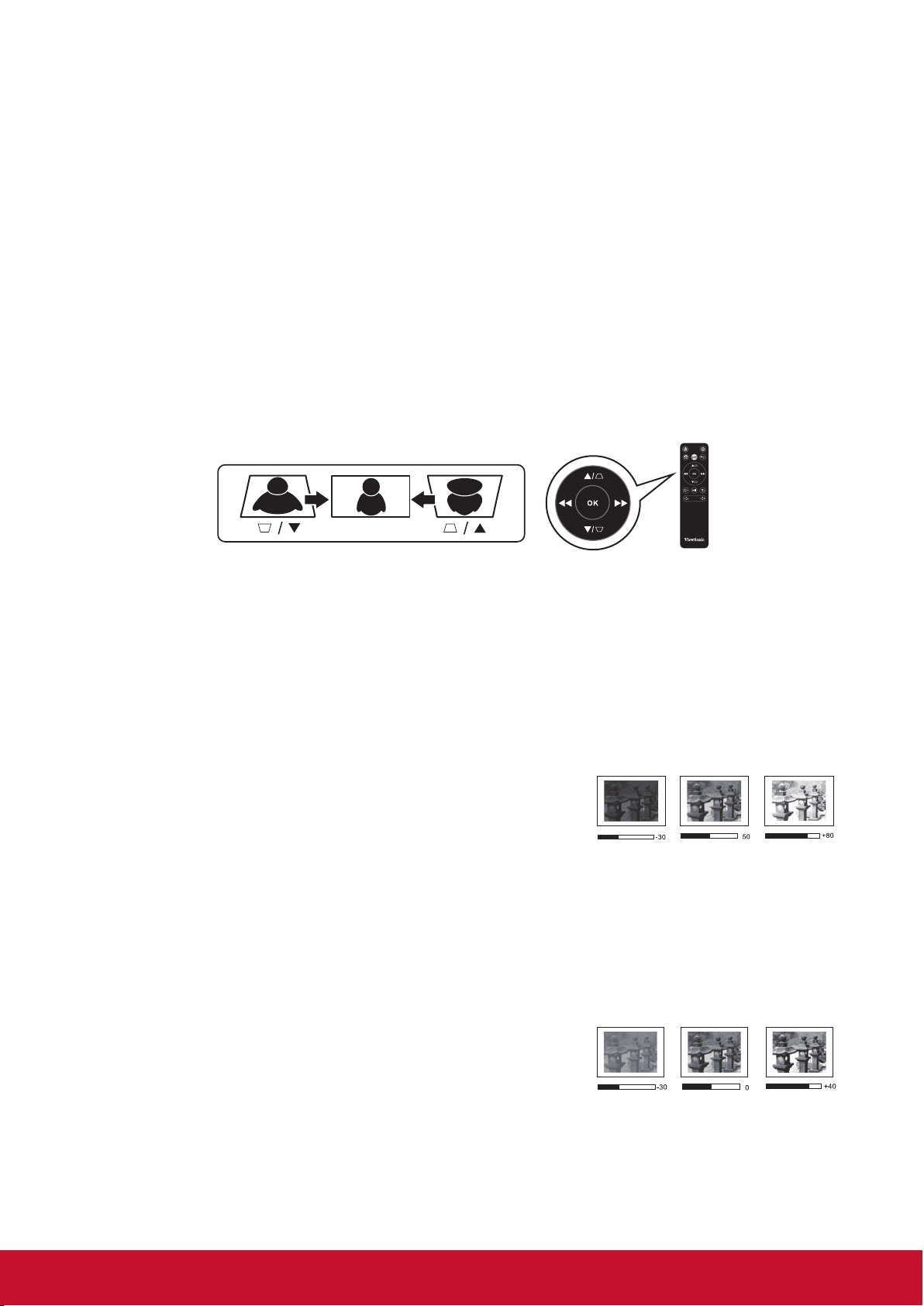
Auto Keystone
Auto Keystone provides a rectangular screen image by automatically adjusting the
Keystone number when there is a trapezoidal screen image caused by tilting of the
projector.
Go to Settings > Image Settings > Auto Keystone
Press < / > to select:
• ON: Automatically adjusts the Keystone number.
• OFF: Manually adjusts the Keystone number.
V Keystone
To prevent the screen image from becoming trapezoidal, Keystone adjusts the top and
bottom width of the image if the projector is not set at a right angle to the screen.
Go to Settings > Image Settings > V Keystone
Press < / > to adjust keystone, keystone can be adjusted from -40 to 40.
Press OK when nished.
If available, you can press keystone buttons on the remote control to adjust the projector’s
keystone.
Brightness
The higher the value, the brighter the image. And lower the
setting, darker the image. Adjusting this control so the black
areas of the image to appear just as black and that detail in
the dark areas is visible.
Go to Settings > Image Settings > Brightness
Press < / > to adjust brightness, brightness can be adjusted from 0 to 100.
Press OK when nished.
Contrast
The higher the value, the greater the contrast. Use this to
set the peak white level after you have previously adjusted
the Brightness setting to suit your selected input and viewing
environment.
Go to Settings > Image Settings> Contrast
Press < / > to adjust contrast, contrast can be adjusted from -50 to 50.
Press OK when nished.
24
Projector Position
Personal preference and room layout will decide the installation location.
Go to Settings > Image Settings> Projector Position
Press < / > to adjust position.
Press OK when nished.
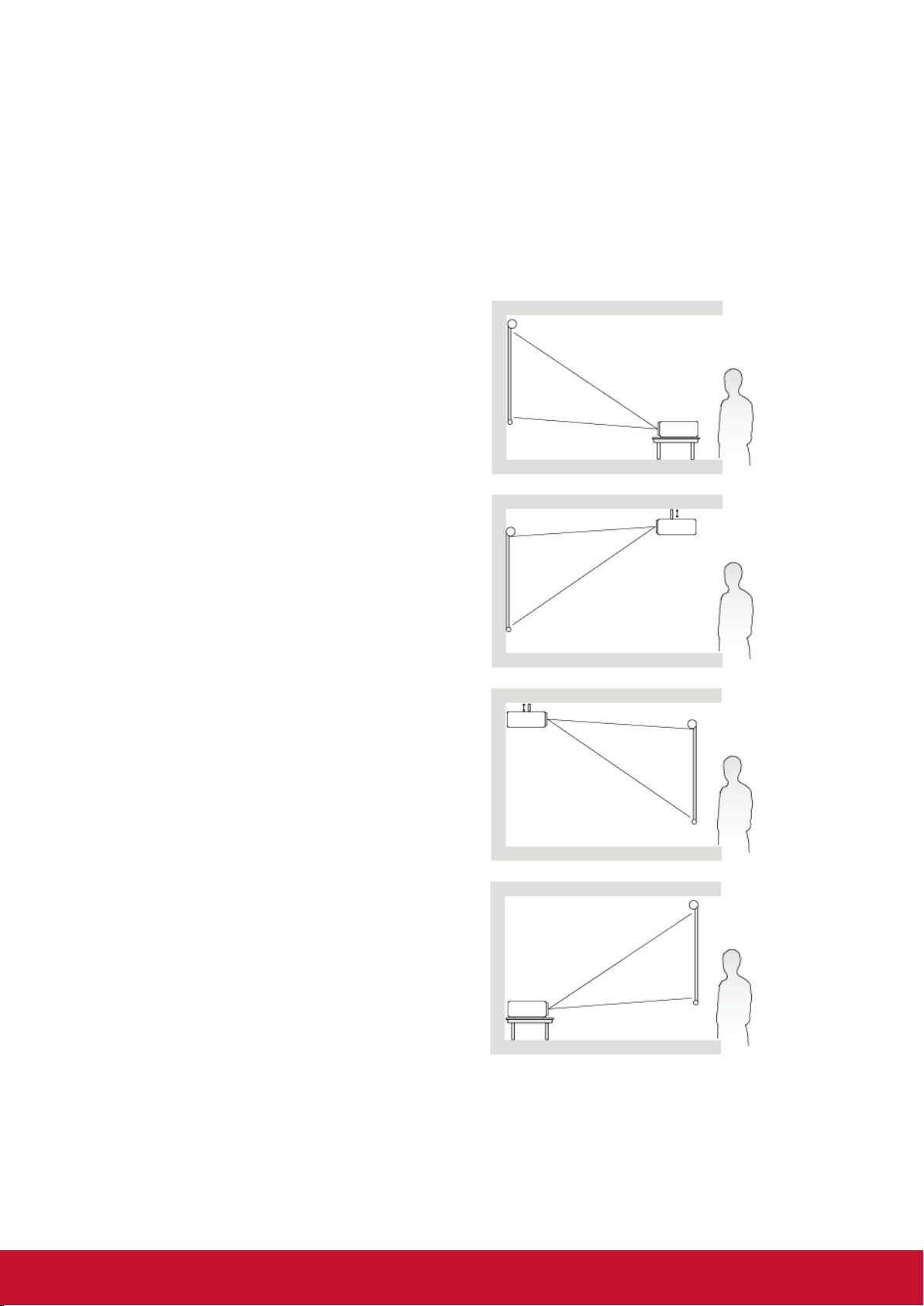
The projector is designed to be installed in one of the following locations:
1. Front Table
The projector is placed near the oor in front
of the screen.
2. Front Ceiling
The projector is suspeneded upside-down
from the ceiling in front of the screen.
3. Rear Ceiling
The projector is suspended upside-down from
the ceiling behind the screen.
NOTT: A special rear projection screen is
required.
4. Rear Table
The projector is placed near the oor behind
the screen.
NOTT: A special rear projection screen is
required.
25
Optimizing the image
Select the Display Mode
The projector is preset with several predened picture modes so that you can choose one
to suit your operating environment and input signal picture type.
To select an operation mode that suits your need, you can follow one of the following
steps.
Go to Settings > Display Mode
Press up / down to select a desired mode.
Press OK when nished.
Display Mode
Mode
Brightest
Maximizes the brightness of the projected image.
This mode is suitable for environments where high
brightness is required, such as using the projector in
well lit rooms.
Standard
Displays images in standard levels of contrast,
brightness, and sharpness.
Theater Optimizes the image for movie.
Harman Kardon - Adjusting the audio settings
The sound adjustments made as below will have an eect on the projector speaker.
Muting the Sound
Go to Settings > Harman Kardon > MUTE
Press < / > to adjust ON / OFF.
Press OK when nished.
If available, you can press on the remote control to toggle the projector audio between on
and o.
Adjusting the Sound level
Go to Settings > Harman Kardon > Audio Volume
Press < / > to adjust volume, volume can be adjusted from 0 to 20.
Press OK when nished.
If available, you can press or on the remote control to adjust the projector’s sound level.
26
Adjusting the Audio Mode
Go to Settings > Harman Kardon > Audio Mode
Press up / down to select a desired mode.
Press OK when nished.
Sound Mode
Mode
Movie
Sets audio optimized for a specic genre.Bass Booster
Instrumental
If available, you can press Harman Kardon on the remote control to adjust the projector’s
sound mode.
Adjusting the Light source settings
Go to Settings > Light Source Mode
Press up / down to select a desired mode.
Press OK when nished.
To keep the projection playtime as long as possible, you can do the following settings via
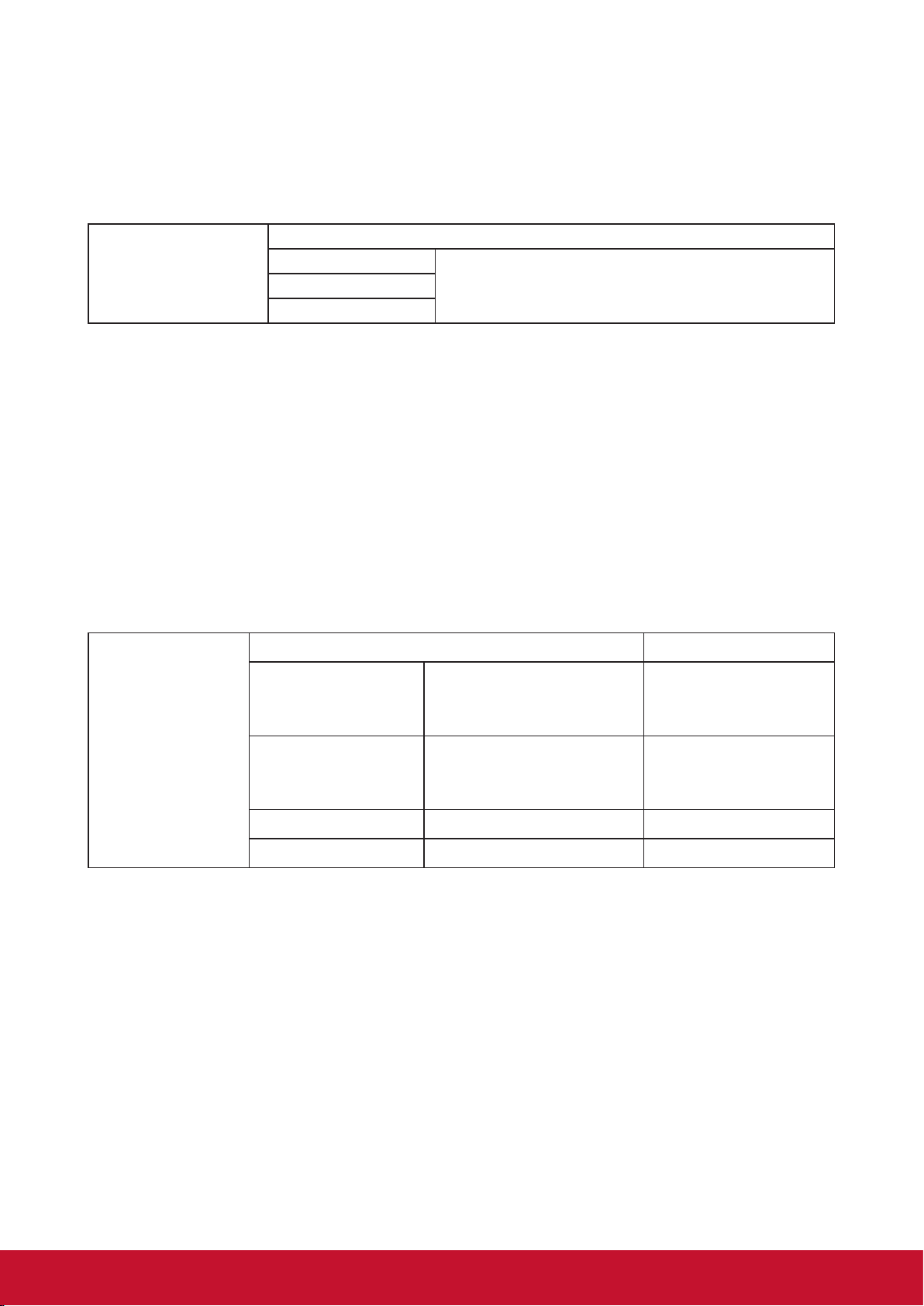
the OSD menu.
Light Source
Mode
Mode Playtime for Battery
Full
• Default mode when
connecting with power
adapter
2.5 hours
Eco
• Default mode when
using with embedded
battery.
3 hours
Extended Eco 4 hours
Battery Saving 6 hours
Using Battery Saving mode reduces system noise and power consumption. If the Battery
saving mode is selected, the light output will be reduced and result in darker projected
pictures.
27
Reset All Settings
Returns all settings to the factory preset values.
The following settings will still remain: Language, Keystone, Go to Settings > Reset
Settings > All Settings
Press < / > to select Reset / Cancel.
Press OK when nished.
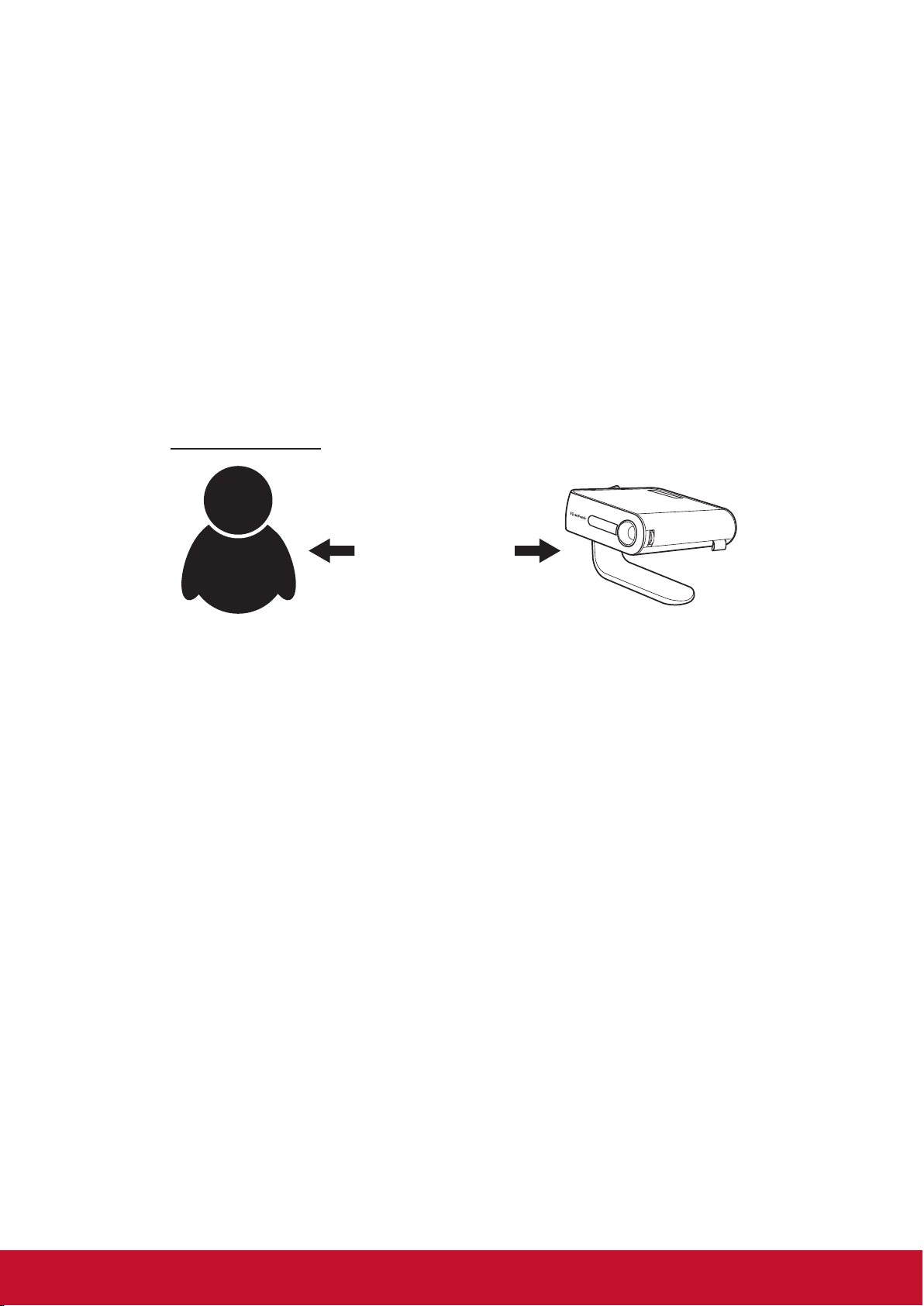
Eye Protection
To protect children’s eye on direct light damage, when an object get closer to the lens, and
will automatically turn to a blank image
Distance: 30cm / 30 degree between the lens and the object
30cm /30 degree
Object
Go to Settings > Eye Protection
Press < / > to select sensor ON / OFF.
Press OK when nished.
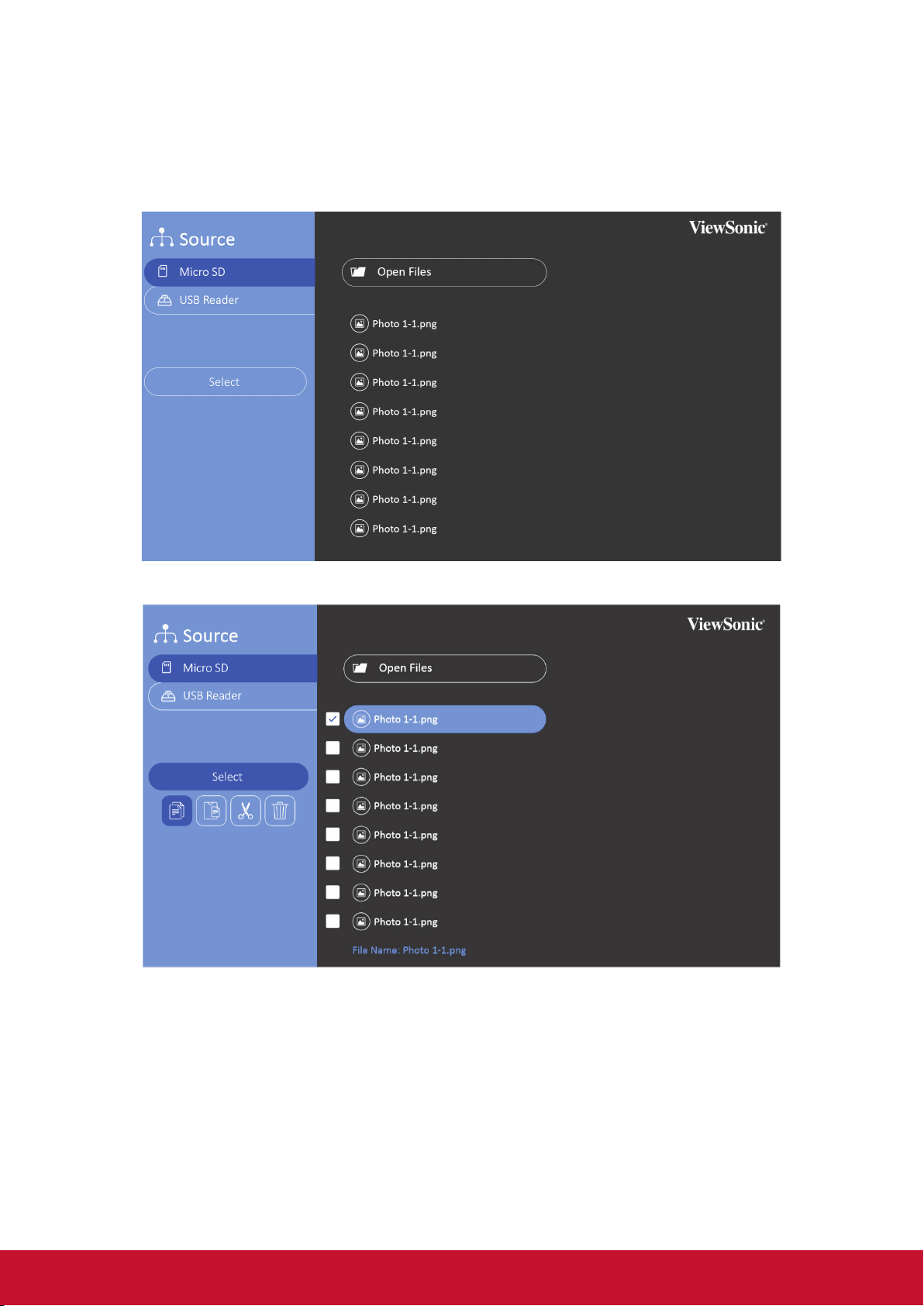
Viewing dierent le
Go to Homepage > selected input source
Connect a device:
• USB Reader
• Local Storage
• Micro SD
Use up and down, </> button to select the le you want and press the OK button
28
For single le: Press OK when nished.
For multiple les: Click “Select”, boxes will be appeared in front of each le, press OK
and up/down to select multiple les. Then select Copy / Paste / Cut/ Delete under “Select”
button. Go to Homepage and select your sources again, Paste your selected les on your
desired location.
- Photo: Slide show supported
- Video: Repeat supported
- Music: Repeat / shue supported
29
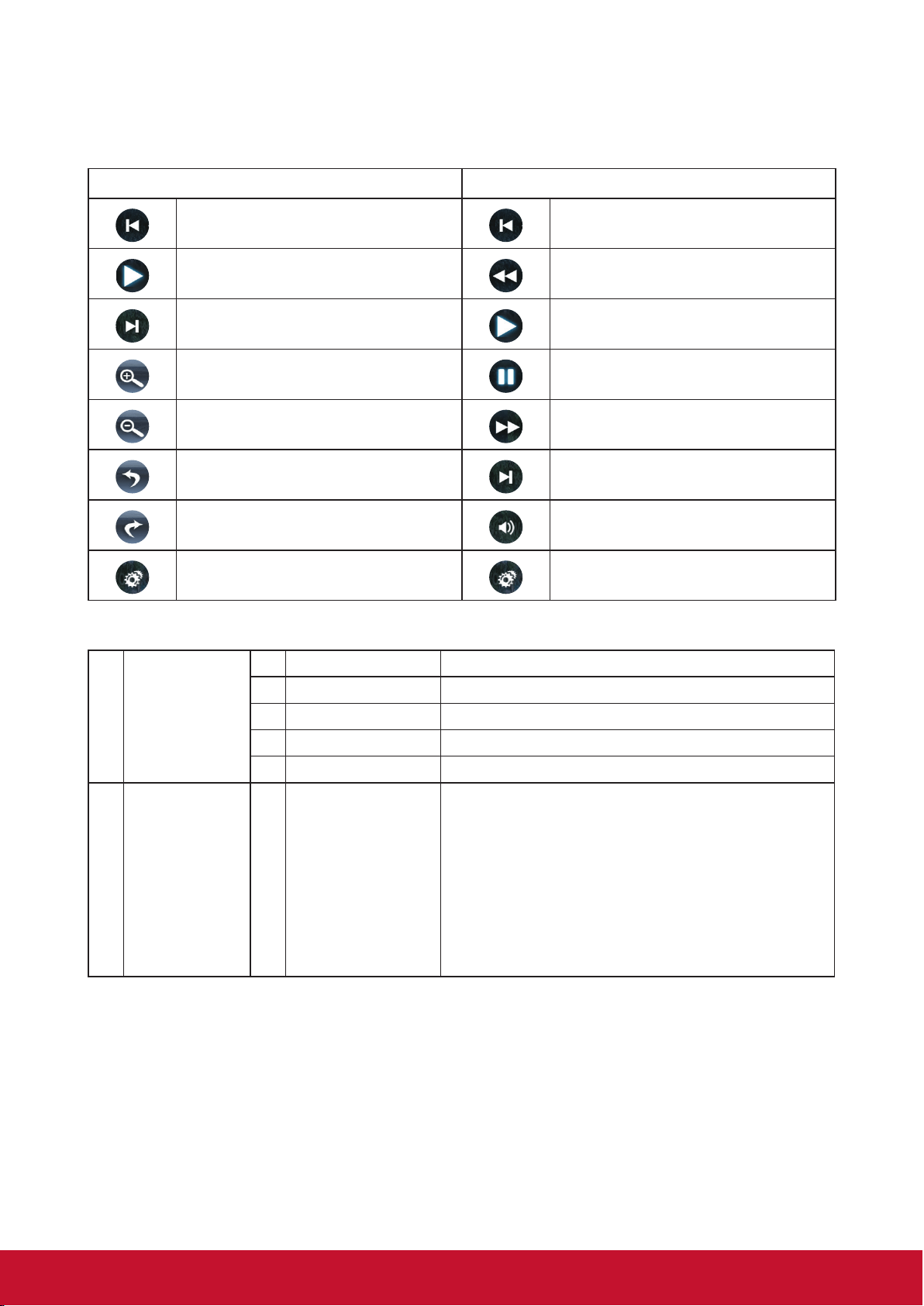
Press OK on remote control or Enter on keypad to show the control bar when playing
video / music / photo.
Control playback by using the following buttons.
Picture Video
Backward Backward
Play Fast backward
Next Play
Zoom in Pause
Zoom out Fast Forward
Rotate (left) Next
Rotate (right) Volume Control
Others (including 3D settings) Others (including 3D settings)
Oce support format
I.
Document
viewing function
Items Indicators
1 doc/docx Able to open and read documents in doc/docx
2 xls/xlsx Able to open and read documents in xls/xlsx
3 ppt/pptx Able to open and read documents in ppt/pptx
4 Pdf Able to open and read documents in pdf
II.
Supporting
Interface
Language
1
Supporting Interface
44 languages
English, Simplied Chinese, Chinese (TW), Chinese
(HK), Spanish (LA), French (EU), PT (EU), PT (BR),
German, Russian, Italian, Swedish, Spanish (EU),
Korean, Arabic, Farsi, Serbian, Bosnian, Macedonian,
Bulgarian, Ukrainian, Greek, Norwegian, Danish,
Czech, Hungarian, Slovak, Polish, Romanian,
Finnish, Estonian, Latvian, Lithuanian, British English,
Slovenian, Croatian, Turkish, Vietnamese, Bahasa
Indonesia, Dutch, Malay, Thai, Hindi, Hebrew,
Burmese, Catalan.
Tips for using USB reader:
- Some USB storage devices may not work or may work incorrectly.
- If you use a USB extension cable, the USB device may not be recognized or may not work properly.
- Use only USB storage devices formatted with the Windows FAT32 or NTFS le system.
- If the le size is too large or users moving too fast to next page, it will take some time for le loading.
- Data in USB storage device can be damaged so be sure to back up important les. Data maintenance is
the user’s responsibility and the manufacturer is not responsible for data loss.

30
Multimedia support format
Extension Codec
.xvid
.avi
Video Xvid, H.264
Audio MP3
.mp4
.m4v
.mov
Video H.264/MPEG 4
Audio AAC
.mkv Video H.264
.ts
.trp
.tp
.mts
.m2ts
Video H.264, MPEG2
Audio MP3/AAC
.vob
Video MPEG1, MPEG2
Audio DVD-LPCM
.mpg Video MPEG1

31
Using the 3D function
This portable cinema features 3D function which enables you to enjoy 3D movies, videos,
and sporting events in a more realistic way by presenting the depth of the images. You
need to wear a pair of 3D glasses to view 3D images.
If the 3D signal is input from an HDMI 1.4a compatible device, the portable cinema detects
the signal for 3D Sync information and once detected, it projects images in 3D format
automatically.
To activate 3D functions:
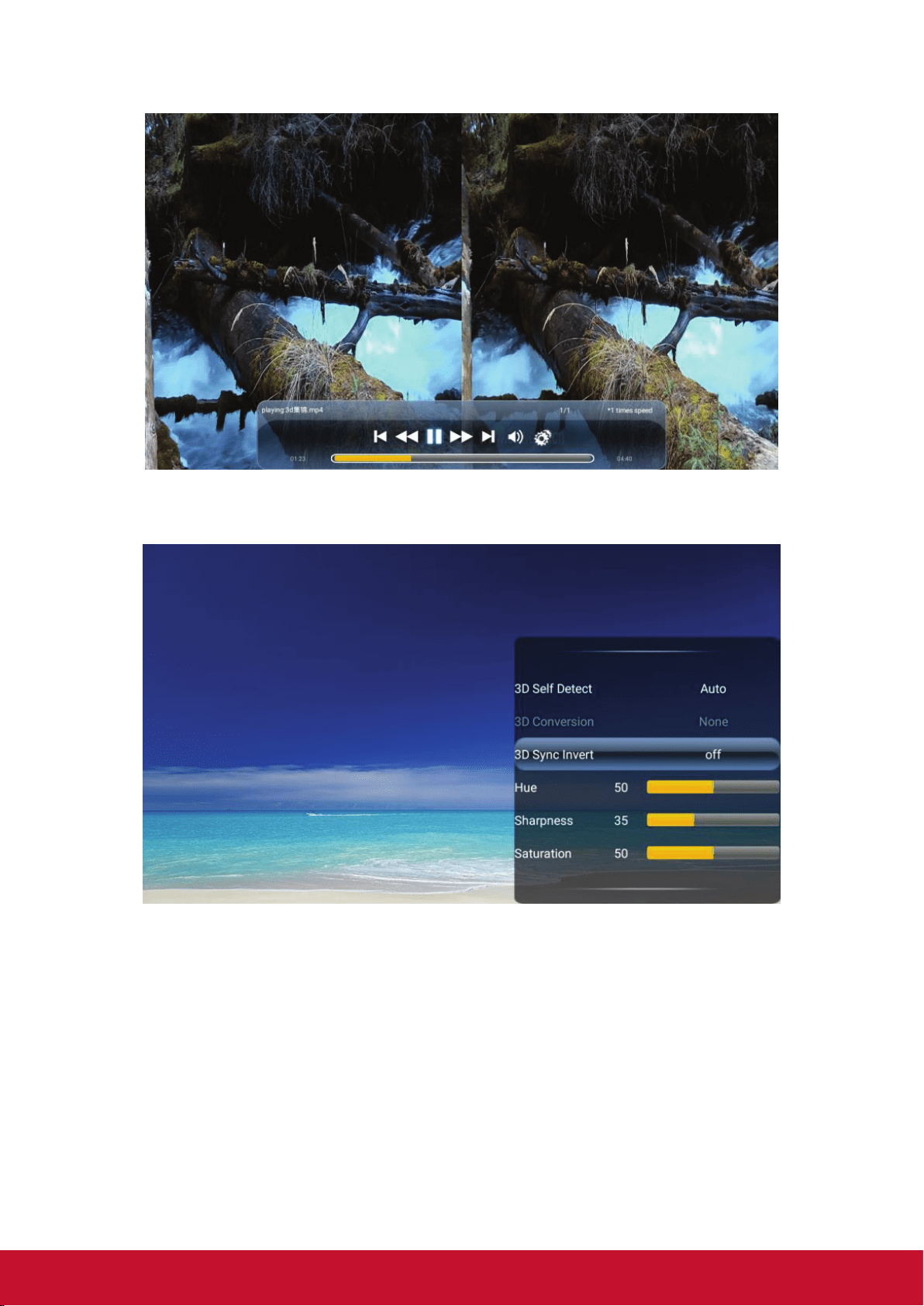
1. Press OK, video control bar will pop up when playing videos
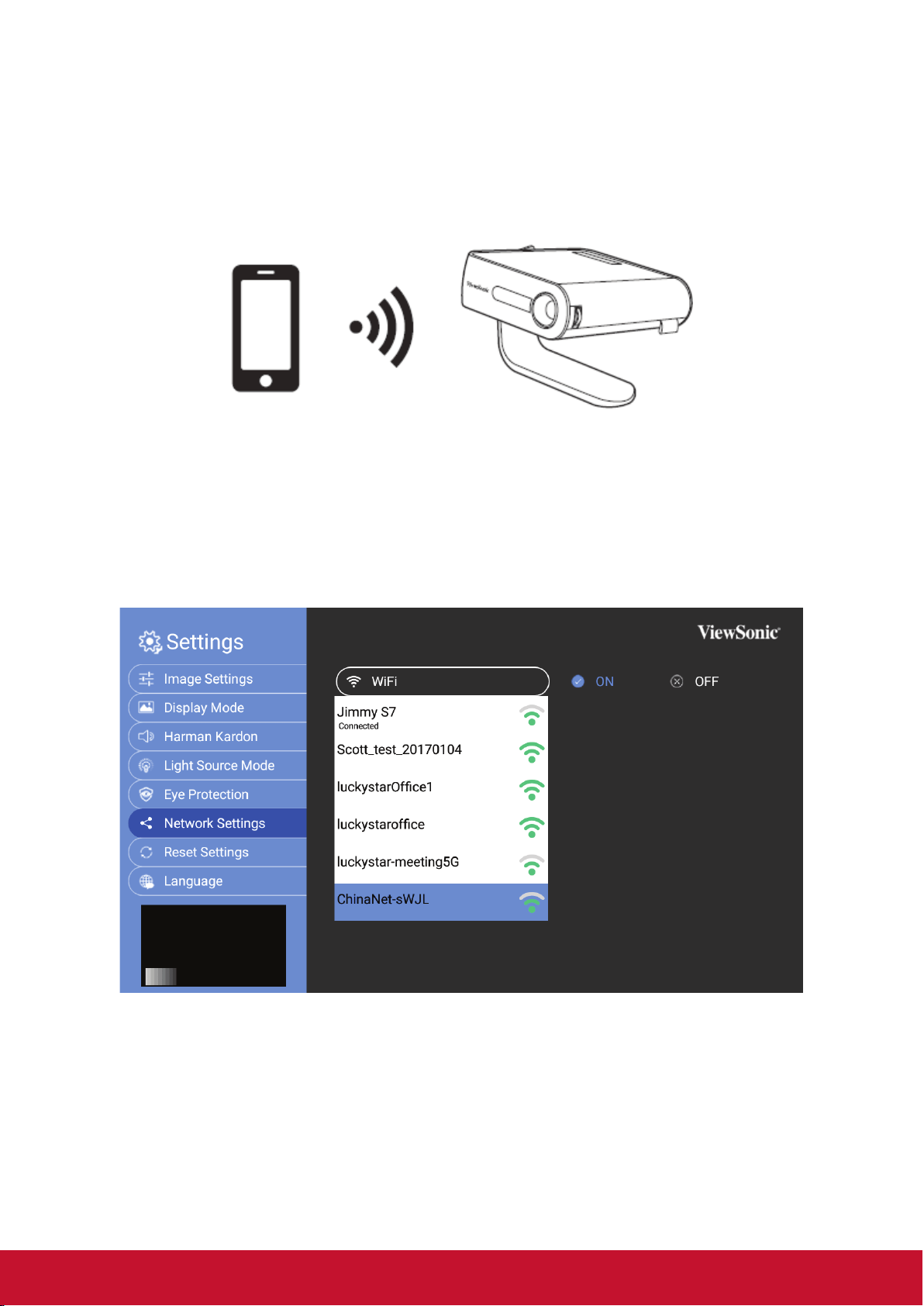
2. Select the 3D settings icon, the 3D Settings menu is displayed in the right bottom
corner.
3. Highlight 3D self detect and change to Auto.
When the 3D Sync function is on:
• The brightness level of the projected image will decrease.
• The Color Mode cannot be adjusted.
If you discover the inversion of the 3D image depth, set the 3D Sync Invert function to ON
to correct the problem.
32
Video Control Menu
3D OSD menu
33
Wireless Screen Mirroring
Screen Mirroring provides a wireless connection for users to mirror the screen on their
personal iOS or Android smart device.
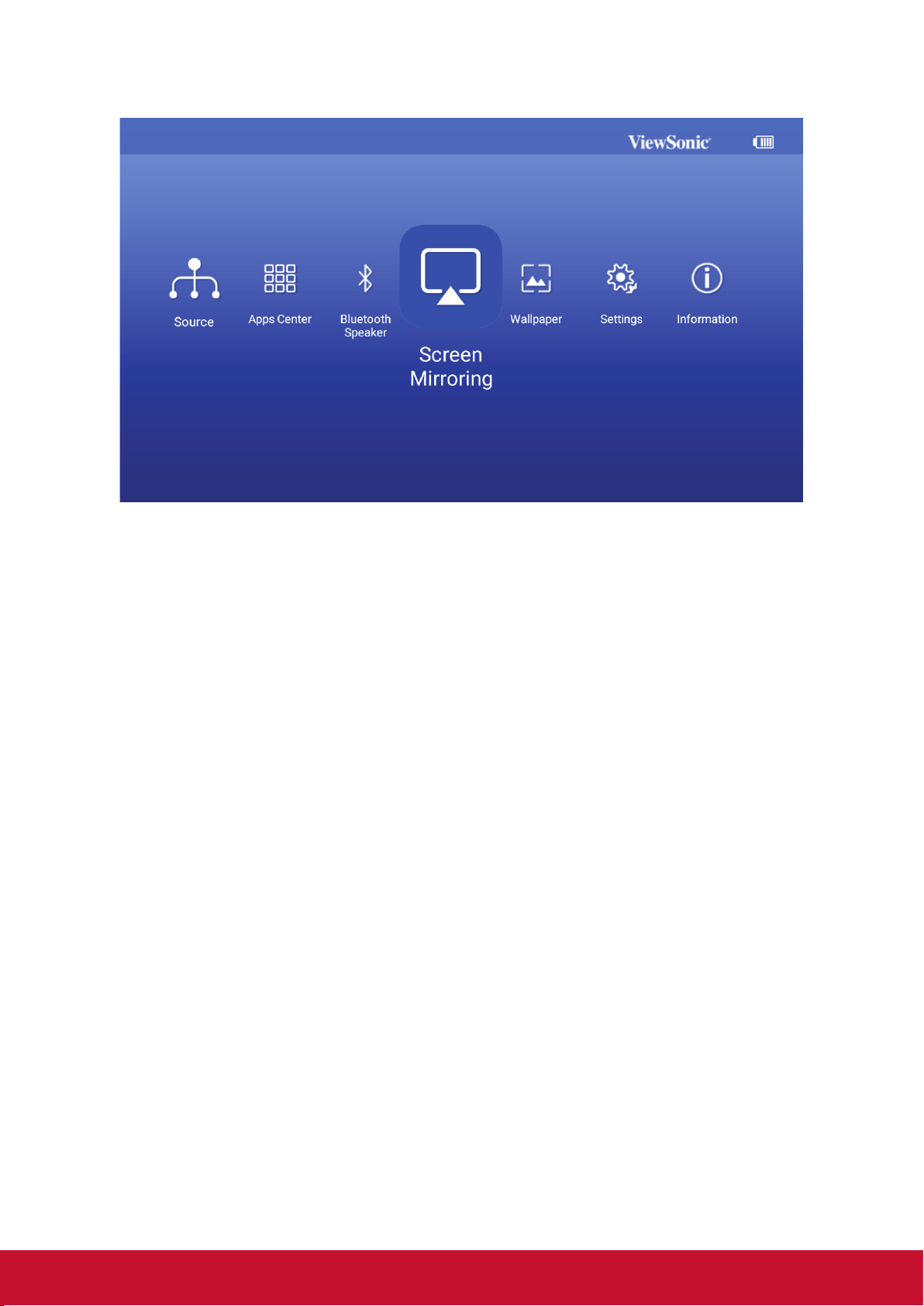
To use Screen Mirroring:
1. Open the M1+ Sengs, and go to: > Wi-Fi > On.
2. Connect the M1+ to your wireless router.
Ensure your device is connected to the same network as the
projector.
34
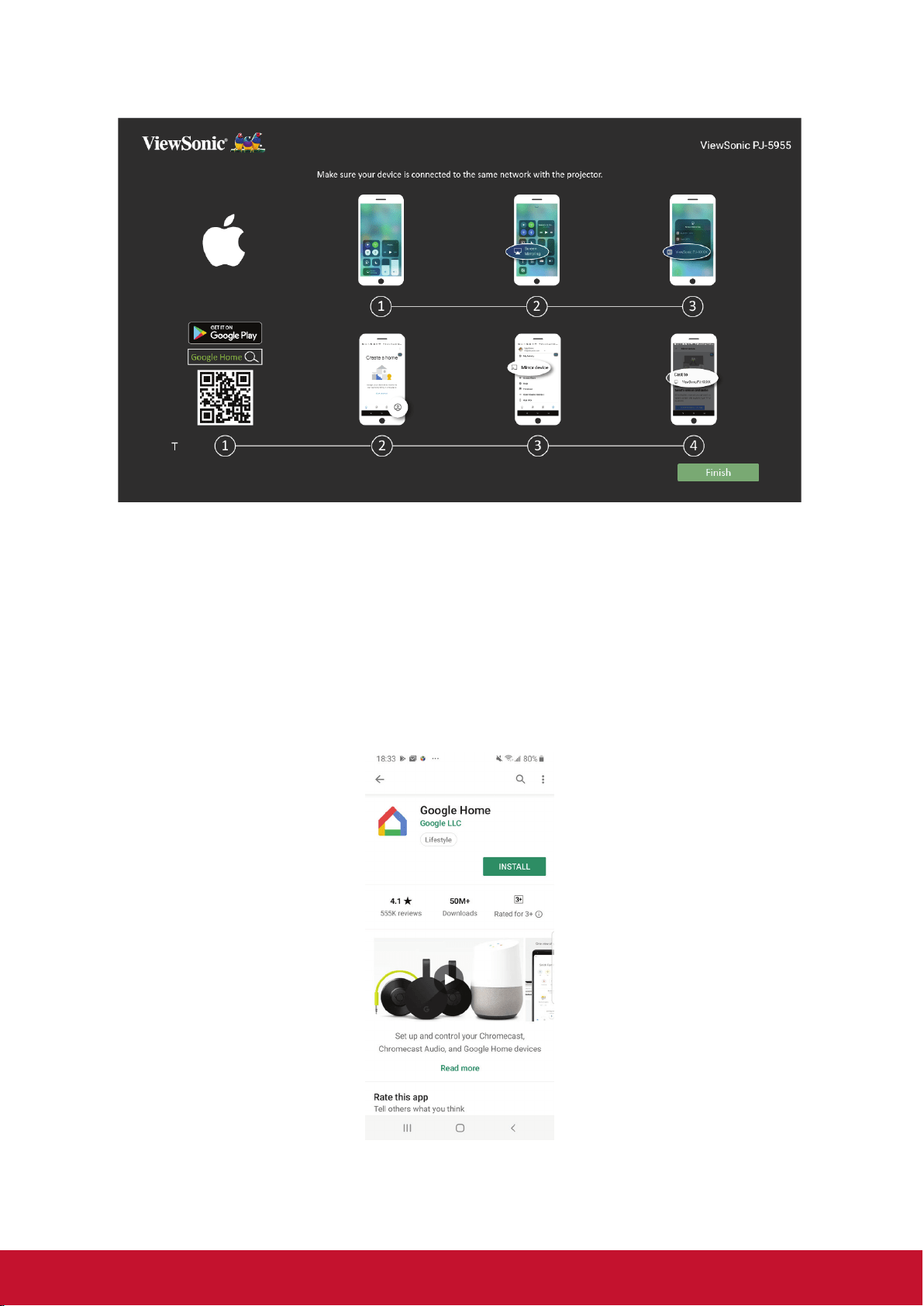
3. On the Home Screen, select Screen Mirroring.
35
4. Once inside the Screen Mirroring menu, follow the below direcons:
For iOS:
1. Access the drop down control menu.
2. Select the “Screen Mirroring” icon.
3. Choose the “ViewSonic PJ-XXXX”.
For Android:
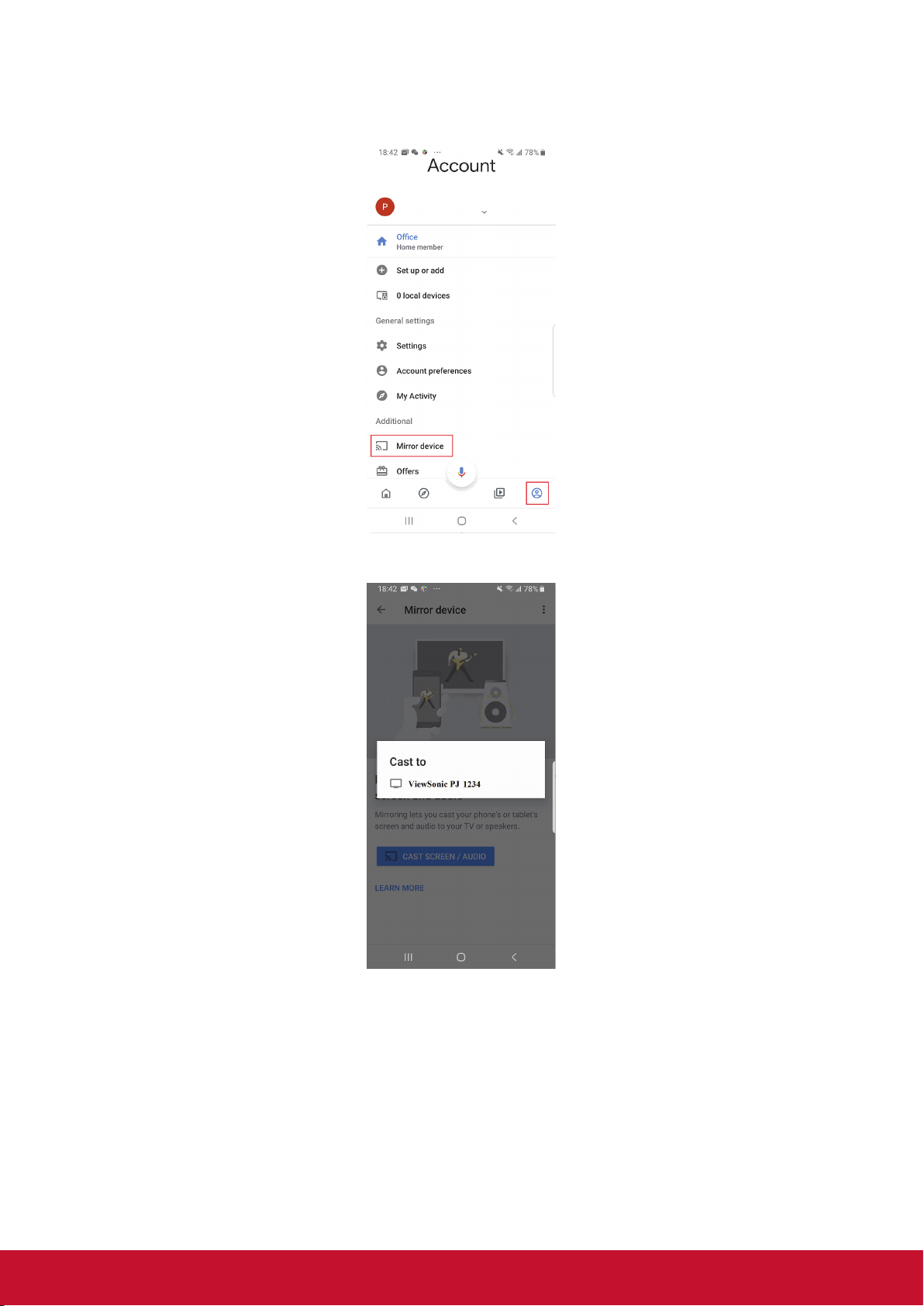
1. Download and install the “Google Home” applicaon and open it.
36
2. Select the Account icon at the lower-right corner of the screen, and select
“Mirror Device”.
3. Choose the “ViewSonic PJ-XXXX” to start Screen Mirroring.
• Ensure your network environment is working normally.
• Wireless network quality will aect performance.
• 5Ghz Wi-Fi connecon is preferred and beer than 2.4Ghz.
• The NetFlix App is not supported.
• you can nd the device name on the UI top right corner.

37
Using the Bluetooth Speaker
The projector is equipped with a Bluetooth speaker that allows the user to connect their
device wirelessly for audio playback.
To connect and pair your device:
1. On the Home Screen, select Bluetooth Speaker.
2. When prompted, select “Conrm”.
38
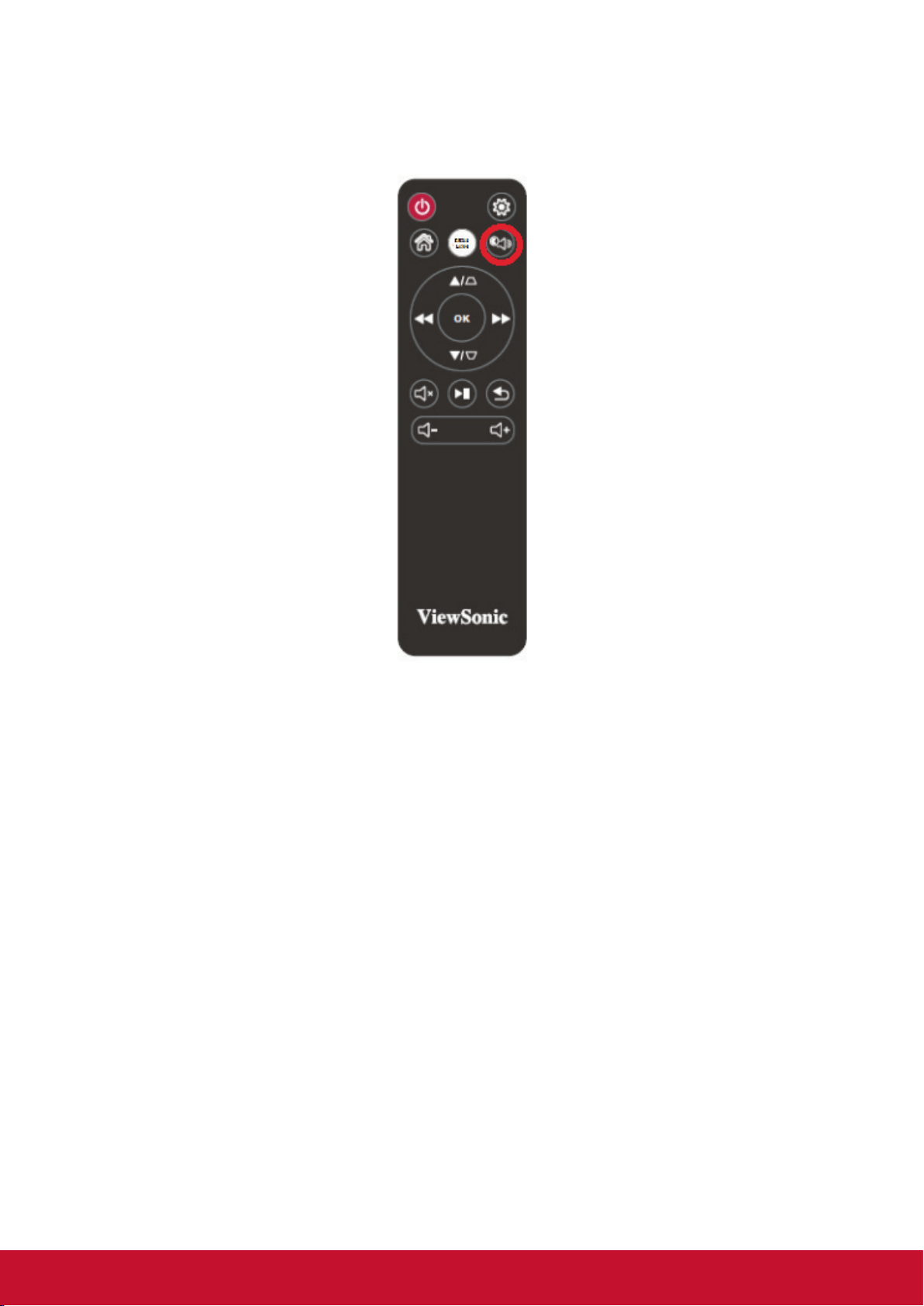
3. Addionally, you can also use the remote control to acvate the Bluetooth
Speaker.
39
Apps Center
View, launch, and uninstall Apps.
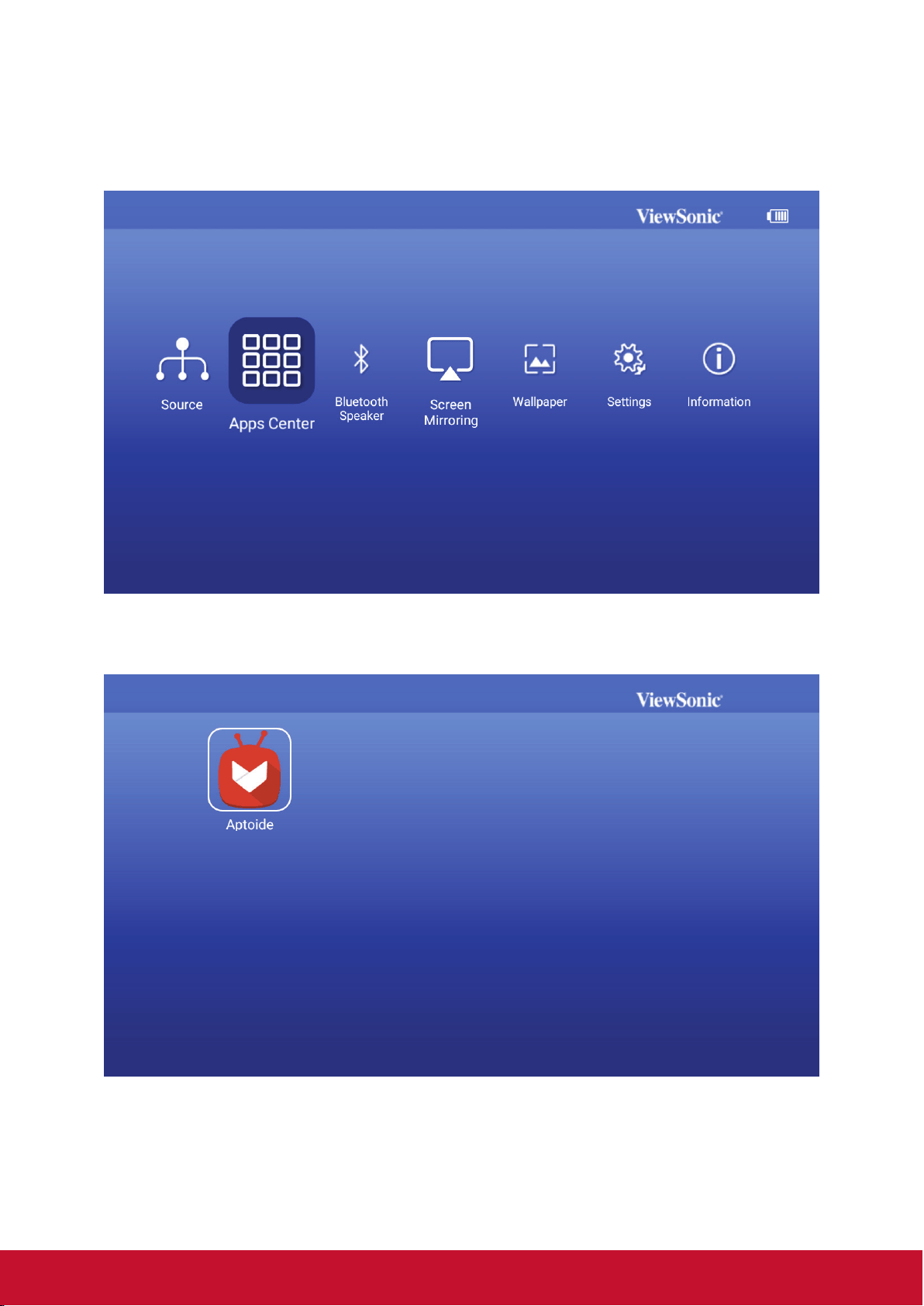
4. To view your Apps, select: Home > Apps Center.
5. Use the direcon buons to select the desired App. Then press OK on the
remote control to launch the App.
Press the Home buon on the remote control to return to the Home
Screen at anyme.
40
To Uninstall Apps
1. Open the Apps Center by selecng: Home > Apps Center.
2. Use the direconal buons to select the desired App.
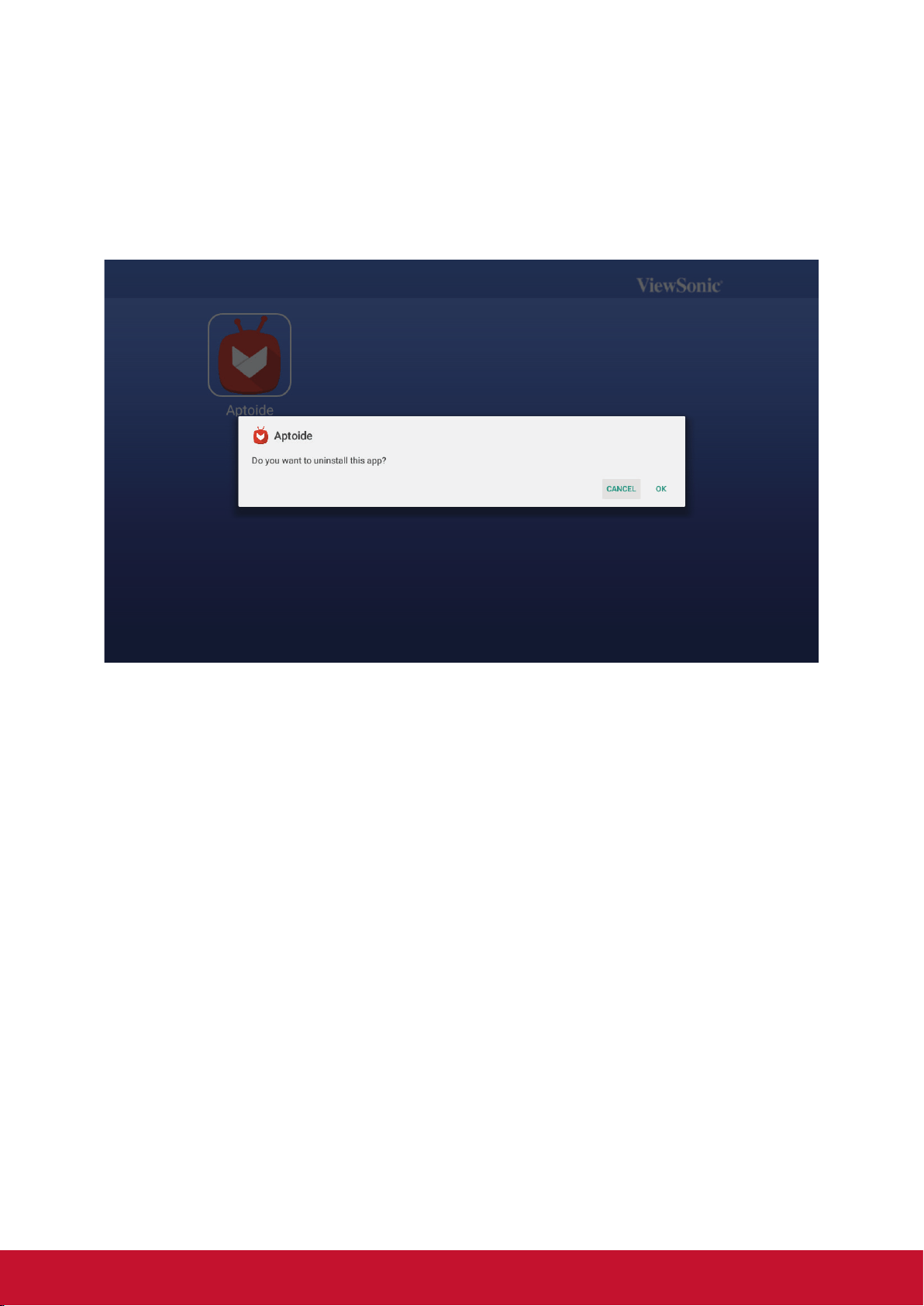
3. Press and hold OK on the remote control for three (3) seconds. The below
dialogue box will appear:
4. Select OK to uninstall the App.
Press the Home buon on the remote control to return to the Home
Screen at anyme.
41
Aptoide
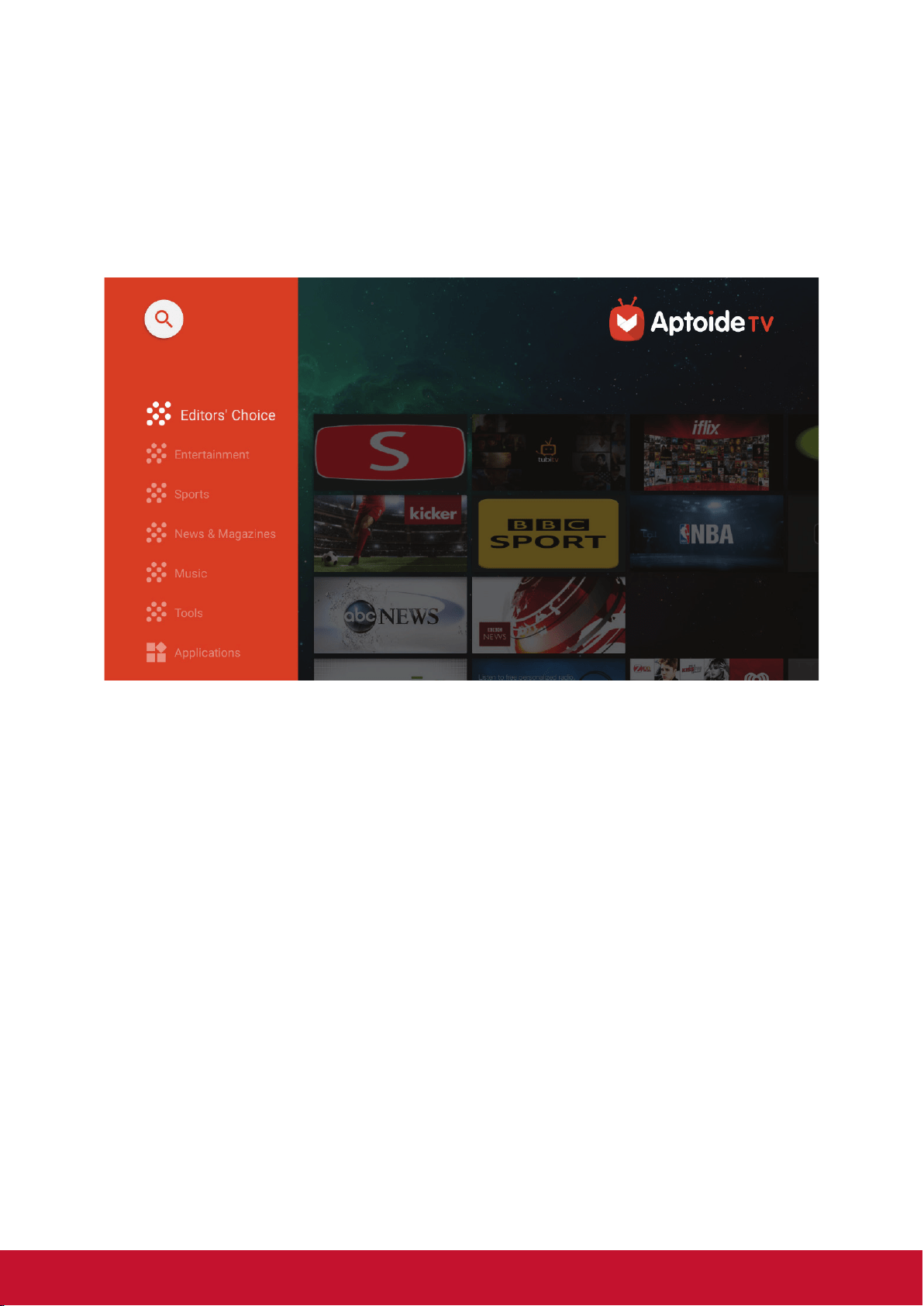
The projector is pre-loaded with the Aptoide store, which allows users to download and
install dierent Apps.
5. Select: Home > Apps Center > Aptoide.
6. Use the direcon buons to navigate the menu opons. When you nd your
App, press the OK buon to install the App.
• Users can install third-party Apps by .apk le via USB. However, some
third-party Apps may have compability issues.
• It is recommended that both Applicaon (App) and Local storage
capacity not be less than 1 GB in order to ensure smooth operaon.
• 4 GB of App system storage is provided.
• APPs not pre-loaded by ViewSonic may not be compable or work
properly.
• Some APPs may require a Keyboard and Mouse.
• Some APPs may be Region-Specic.
42
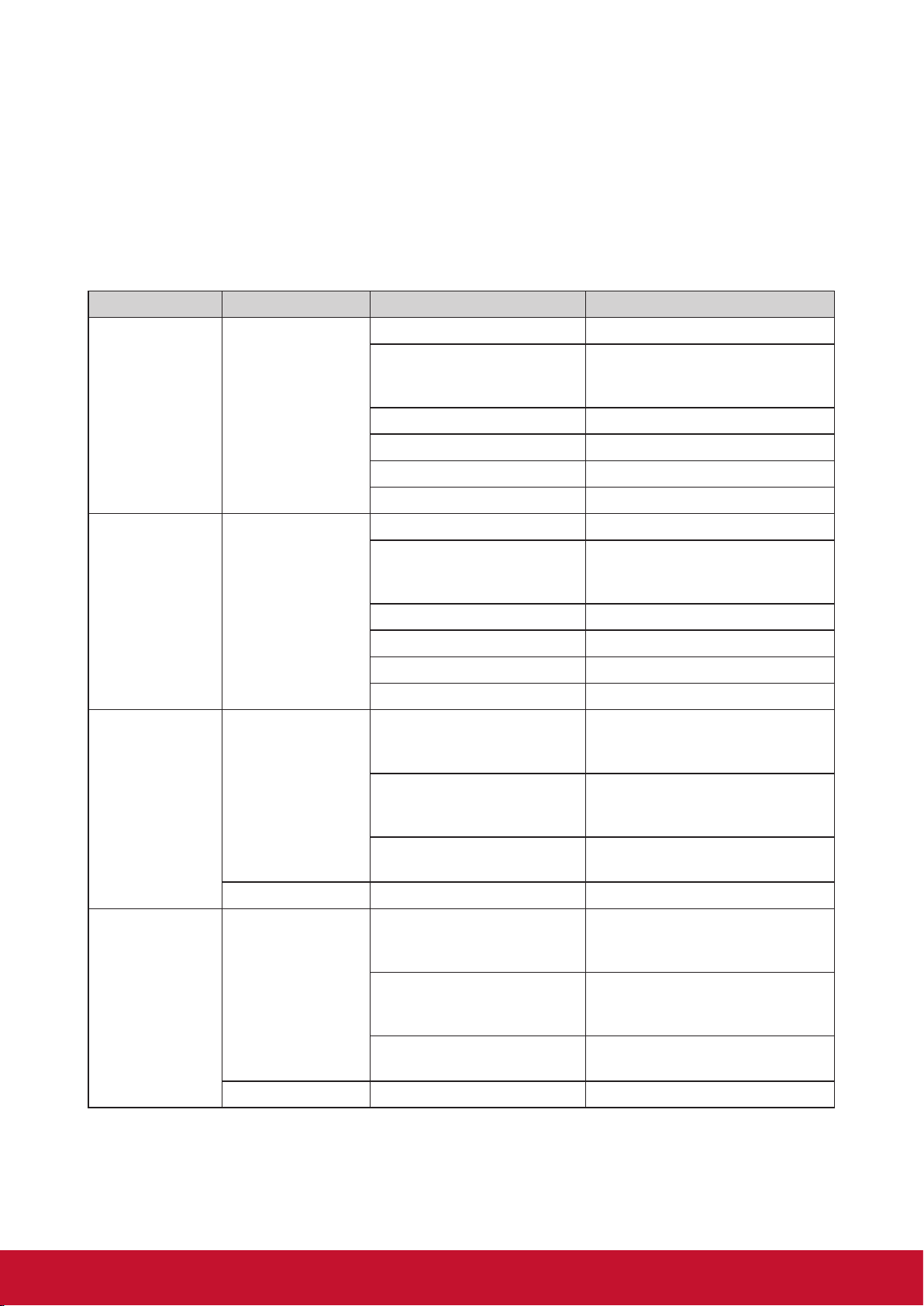
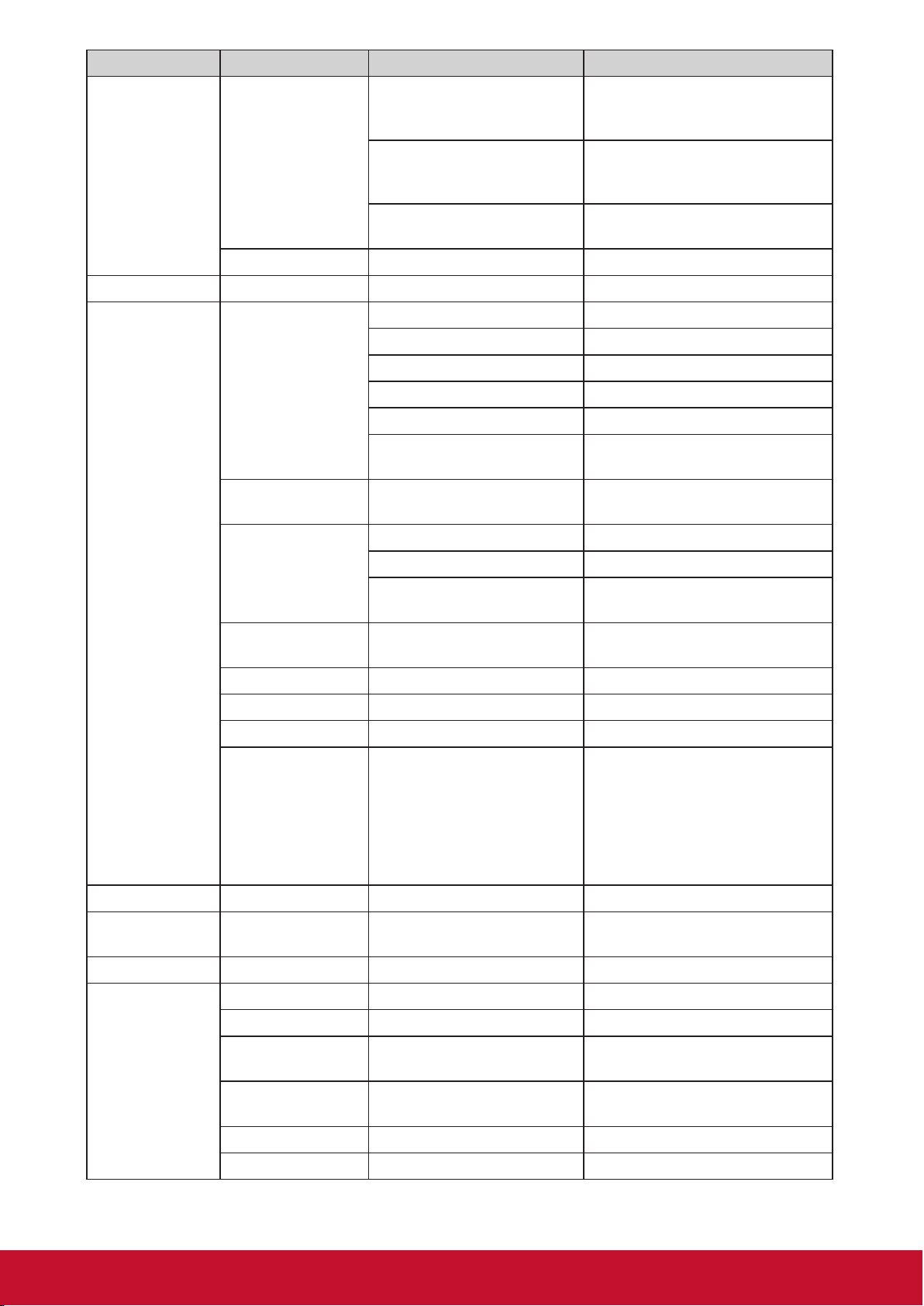
OSD Menu System
Menu system
Please note that the on-screen display (OSD) menus vary according to the signal type
selected.
The menu items are available when the projector detects at least one valid signal. If there
is no equipment connected to the projector or no signal detected, limited menu items are
accessible.
Source Main Menu Sub-menu Options
HDMI
3D Self Detect Manual / Auto
3D Conversion
None / Side by Side / Top &
Bottom / Frame Packing / Frame
sequential / Line alternative
3D Sync Invert ON / OFF
Hue Range : 0 ~ 100
Sharpness Range : 0 ~ 100
Saturation Range : 0 ~ 100
USB-C
3D Self Detect Manual / Auto
3D Conversion
None / Side by Side / Top &
Bottom / Frame Packing / Frame
sequential / Line alternative
3D Sync Invert ON / OFF
Hue Range : 0 ~ 100
Sharpness Range : 0 ~ 100
Saturation Range : 0 ~ 100
USB Reader
Play
Video Control Bar
(appear with icon)
Backwards / Forward / Fast
backwards / Fast Forward / Play /
Pause / Volume / settings
Photos Control Bar
(appear with icon)
Backwards / Play / Forward /
Zoom in / Zoom out / Rotate /
settings
Music Control Bar
(appear with icon)
Backwards / Play / Forward /
Repeat / Shue
Select Copy / Paste / Cut / Delete
Local storage
Play
Video Control Bar
(appear with icon)
Backwards / Forward / Fast
backwards / Fast Forward / Play /
Pause / Volume / settings
Photos Control Bar
(appear with icon)
Backwards / Play / Forward /
Zoom in / Zoom out / Rotate /
settings
Music Control Bar
(appear with icon)
Backwards / Play / Forward /
Repeat / Shue
Select Copy / Paste / Cut / Delete
43
Source Main Menu Sub-menu Options
Micro SD
Play
Video Control Bar
(appear with icon)
Backwards / Forward / Fast
backwards / Fast Forward / Play /
Pause / Volume / settings
Photos Control Bar
(appear with icon)
Backwards / Play / Forward /
Zoom in / Zoom out / Rotate /
settings
Music Control Bar
(appear with icon)
Backwards / Play / Forward /
Repeat / Shue
Select Copy / Paste / Cut / Delete
Screen Mirroring
Settings
Image Settings
Aspect Ratio Auto / 4:3 / 16:9
Auto Keystone ON / OFF
V Keystone V Range: +40 ~ -40 (0)
Brightness Range: 0 ~ 100
Contrast Range: -50 ~ 50
Projectro Position
Front Table / Rear Table / Front
Ceiling / Rear Ceiling
Display Mode
Brightest / Standard /
Theater
Harman Kardon
Mute ON / OFF
Audio Volume Range; 0 ~ 20 (10)
Audio Mode
Movie / Bass Booster /
Instrumental
Light Source Mode
Full / Eco / Extended Eco /
Battery Saving
Eye Protection ON / OFF
Network Settings WiFi ON / OFF
Reset Settings All Reset Reset / Cancel
Language
English/ France / Germany/
Italian/ Spanish/ Russian/
繁體中文/ 简体中文/ 日本
語/ 한국어/ Swedish/ Dutch/
Turkish/ Czech/ Portuguese/
Thai/ Polish/ Finnish/Arabic/
Indonesi/ Hindi/ Vietnam
AppsCenter
Bluetooth
Speaker
Wallpaper
Information
Color Mode
Light Source Mode
Local storage
capacity
App Storage Of
Local
Bluetooth
Firmware Version
NOTE: The info of WiFi/IP/MAC can be shown at information page.
44
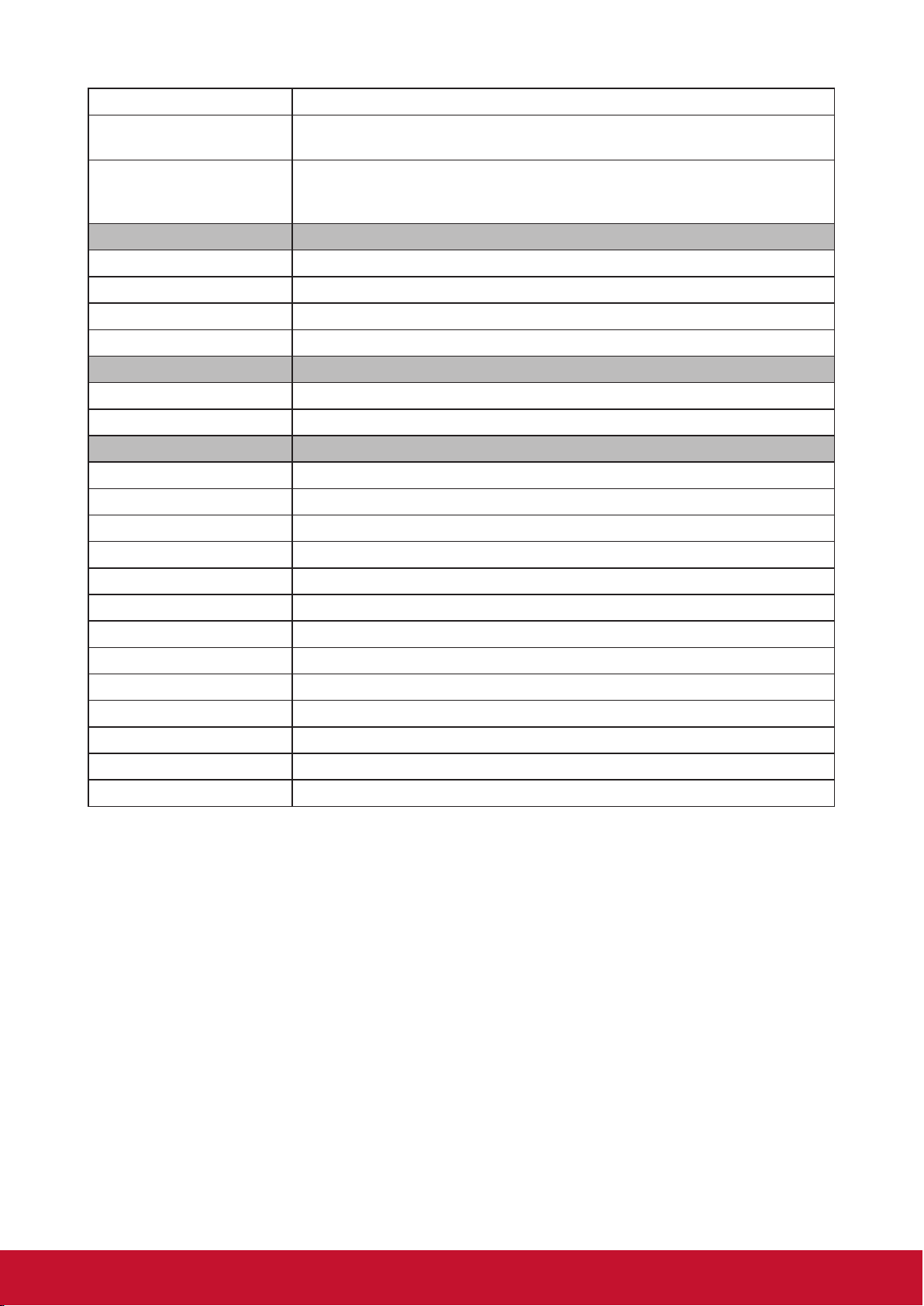
Specication sheet
Specication
Projection system DLP
TM
0.2” WVGA
Native Resolution 854x480
Brightness 300 LED Lumens
Contrast Ratio 120000:1
Display Color 1.07 Billion Colors
Light Source LED
Light source life
(Nor/SuperEco)
30000 hours
Lamp Watt 10W RGB LED
Lens F=1.7, f=5.5mm
Projection Oset 100%+/-5%
Throw Ratio 1.2
Image size 24"-100"
Throw Distance 38”@1m
Keystone +/- 40° (Vertical)
Optical Zoom Fixed
Audible Noise (Eco) 25dB
Local storage
Total 16GB
(12GB available storage)
Resolution Support VGA(640 x 480) to FullHD(1920 x 1080)
HDTV Compatibility 480i, 480p, 576i, 576p, 720p, 1080i, 1080p
Horizontal Frequency 15h~135kHz
Vertical Scan Rate 23~120Hz
Input
HDMI / HDCP 1 (HDMI 1.4 / HDCP 1.4)
SD Card Micro SD (Support up to 32GB, SDHC)
USB-C 1 (5V/ 2A)
WiFi 1
Bluetooth 1
Output
Audio out (3.5mm) 1
Speaker 3W Cube x 2
USB type A (Power) 1 (5V/ 1A)
Others
Power Supply Voltage
19.V
3.42A
(Adapter Input 100-240V @ 50/60 Hz)
Power Consumption
45W@100VAC
Standby: <0.5W
Operating Temperature 0~40°C
Carton Color
45
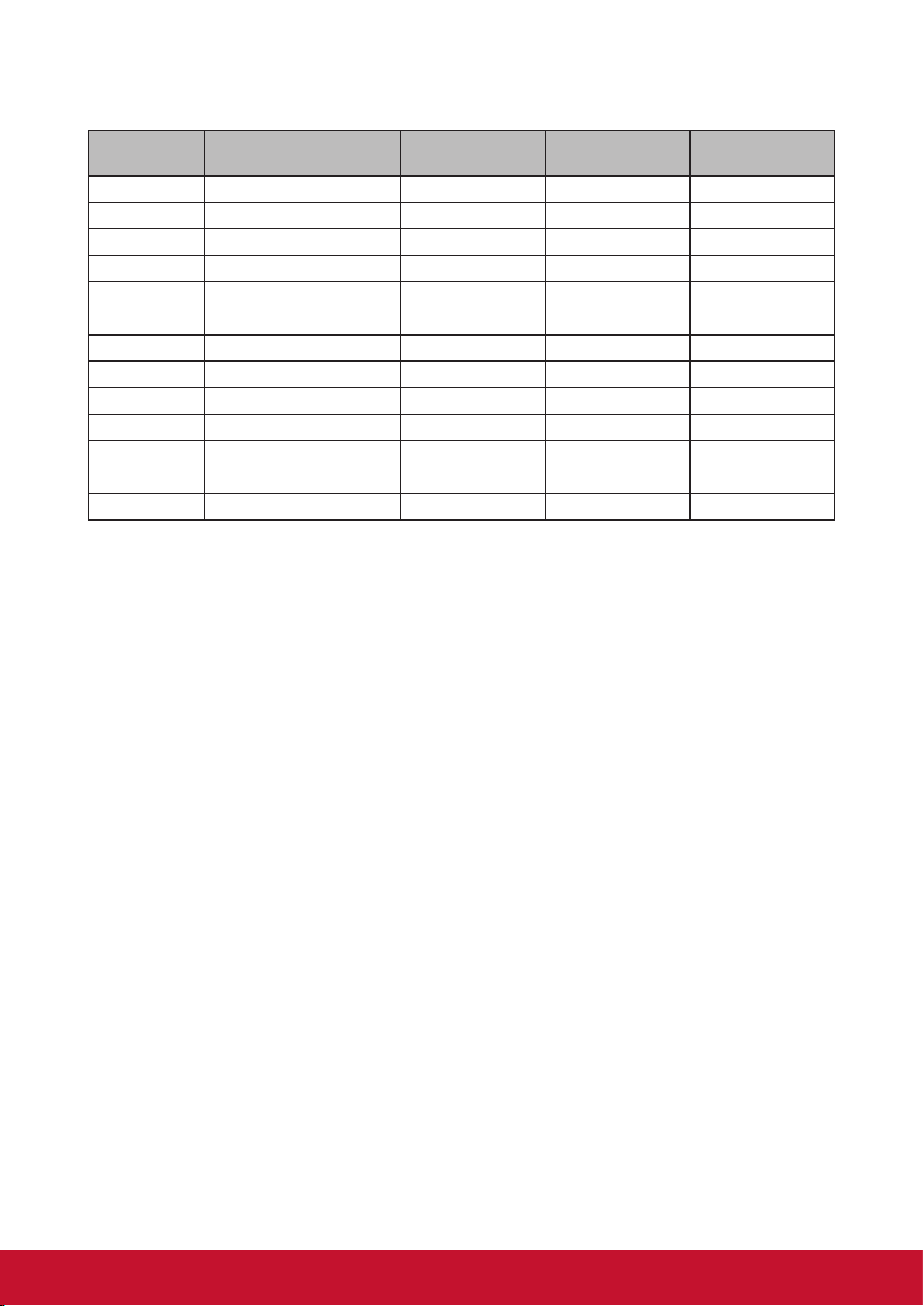
Net Weight 0.75kg
Dimensions (WxDxH) w/
adjustment foot
146x126x40mm
Language
English, French, Spanish, Thai, Korean, German, Italian, Russian, Swedish,
Dutch, Polish, Czech, T-Chinese, S-Chinese, Japanese, Turkish,
Portuguese, Finnish, Indonesian, India, Arabic, Vietnamese, Greek
Standard Accessory
Power Cord 1
Remote Control 1
QSG 1
USB-C Cable 1 (1m)
Optional Accessory
Warranty Card Yes (for specic regions only)
Carry Bag 1
Feature Map
SuperColor ●
3D Blu-ray ●
3D Ready ●
SonicExpert ●
SonicMode ●
360° Tilt Angle Projection ●
Porait mode ●
Auto V Keystone ●
USB Reader ●
Quick Power On ●
Quick Power O ●
Eye Protection ●
Wireless screen mirroring ●
46
HDMI Support Video Timing
Timing Resolution
Horizontal
frequency (KHz)
Vertical
frequency (Hz)
Dot Clock
Frequency (MHz)
480i 720(1440) x 480 15.73 59.94 27
480p 720 x 480 31.47 59.94 27
576i 720(1440) x 576 15.63 50 27
576p 720 x 576 31.25 50 27
720/50p 1280 x 720 37.5 50 74.25
720/60p 1280 x 720 45.00 60 74.25
1080/24P 1920 x 1080 27 24 74.25
1080/25P 1920 x 1080 28.13 25 74.25
1080/30P 1920 x 1080 33.75 30 74.25
1080/50i 1920 x 1080 28.13 50 74.25
1080/60i 1920 x 1080 33.75 60 74.25
1080/50P 1920 x 1080 56.25 50 148.5
1080/60P 1920 x 1080 67.5 60 148.5

47
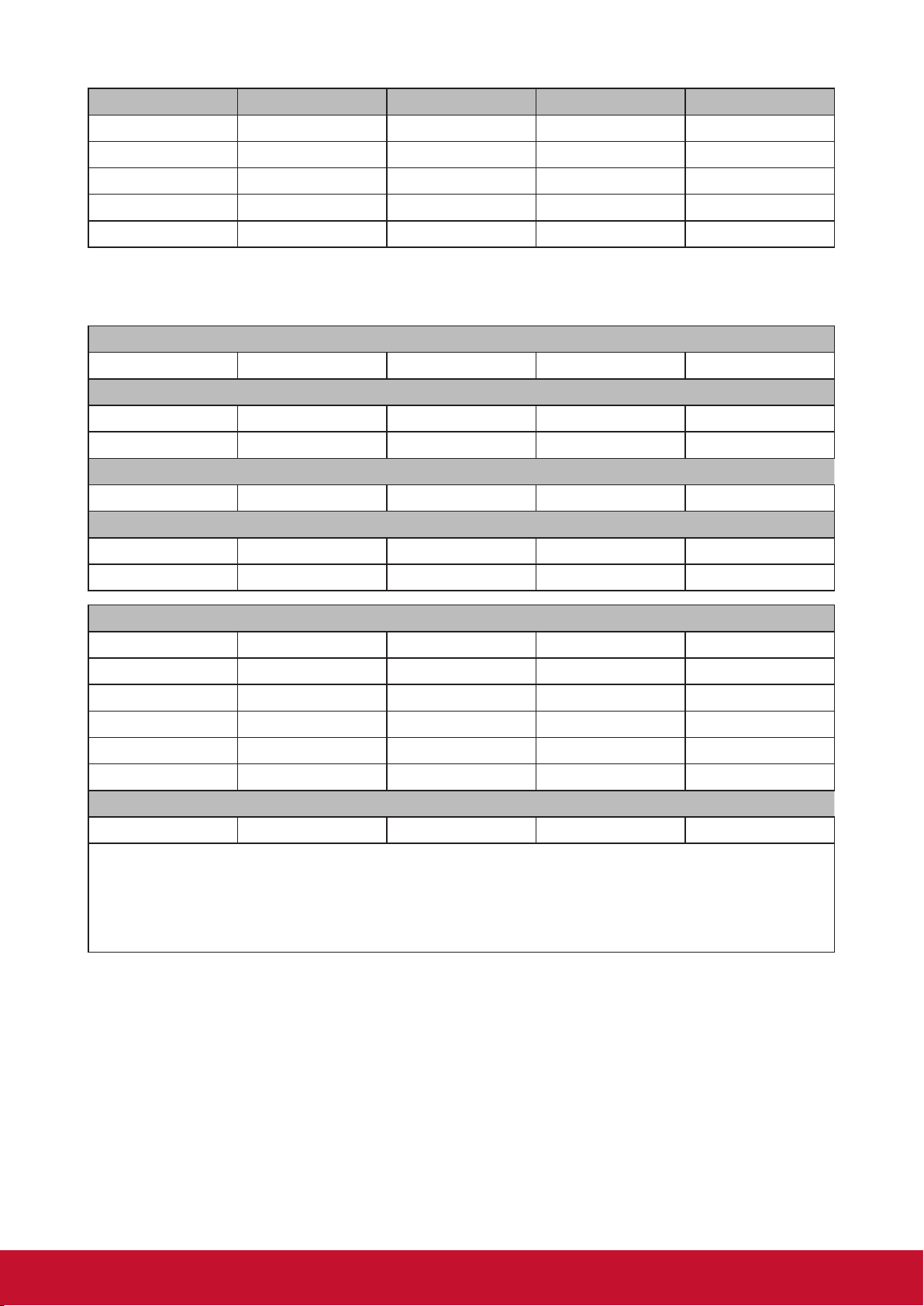
HDMI Support PC Timing
Resolution Mode Refresh rate (Hz) H-frequency (kHz) Clock (MHz)
640 x 480
VGA_60 59.940 31.469 25.175
VGA_72 72.809 37.861 31.500
VGA_75 75.000 37.500 31.500
VGA_85 85.008 43.269 36.000
VGA_120 119.518 61.910 52.500
720 x 400 720x400_70 70.087 31.469 28.3221
800 x 600
SVGA_56 56.250 35.156 36.000
SVGA_60 60.317 37.879 40.000
SVGA_72 72.188 48.077 50.000
SVGA_75 75.000 46.875 49.500
SVGA_85 85.061 53.674 56.250
SVGA_120 119.854 77.425 83.000
1024 x 768
XGA_60 60.004 65.000 65.000
XGA_70 70.069 75.000 75.000
XGA_75 75.029 78.750 78.750
XGA_85 84.997 94.500 94.500
XGA_120 119.804 137.750 137.750
1152 x 864 1152 x 864_75 75.00 67.500 108.000
1280 x 768
1280 x 768_60 60 47.396 68.25
1280 x 768_60 59.870 47.776 79.5
1280 x 768_75 74.893 60.289 102.25
1280 x 768_85 84.837 68.633 117.50
1280 x 800
WXGA_60 59.810 49.702 83.500
WXGA_75 74.934 62.795 106.500
WXGA_85 84.880 71.554 122.500
1280 x 1024
SXGA_60 60.020 63.981 108.000
SXGA_75 75.025 79.976 135.000
SXGA_85 85.024 91.146 157.500
1280 x 960
1280 x 960_60 60.000 60.000 108
1280 x 960_85 85.002 85.938 148.500
1360 x 768 1360 x 768_60 60.015 47.712 85.500
1366 x768 1366 x 768_60
1440 x 900
WXGA+_60 60 55.469 88.75
WXGA+_60 59.887 55.935 106.500
WXGA+_75 74.984 70.635 136.75
WXGA+_85 84.842 80.430 157.000
1400X1050 SXGA+_60 59.978 65.317 121.750
1600x1200 UXGA 60.000 75.000 162.000
1680 x 1050 1680x1050_60
59.883 64.674 119.000
59.954 65.290 146.250
48
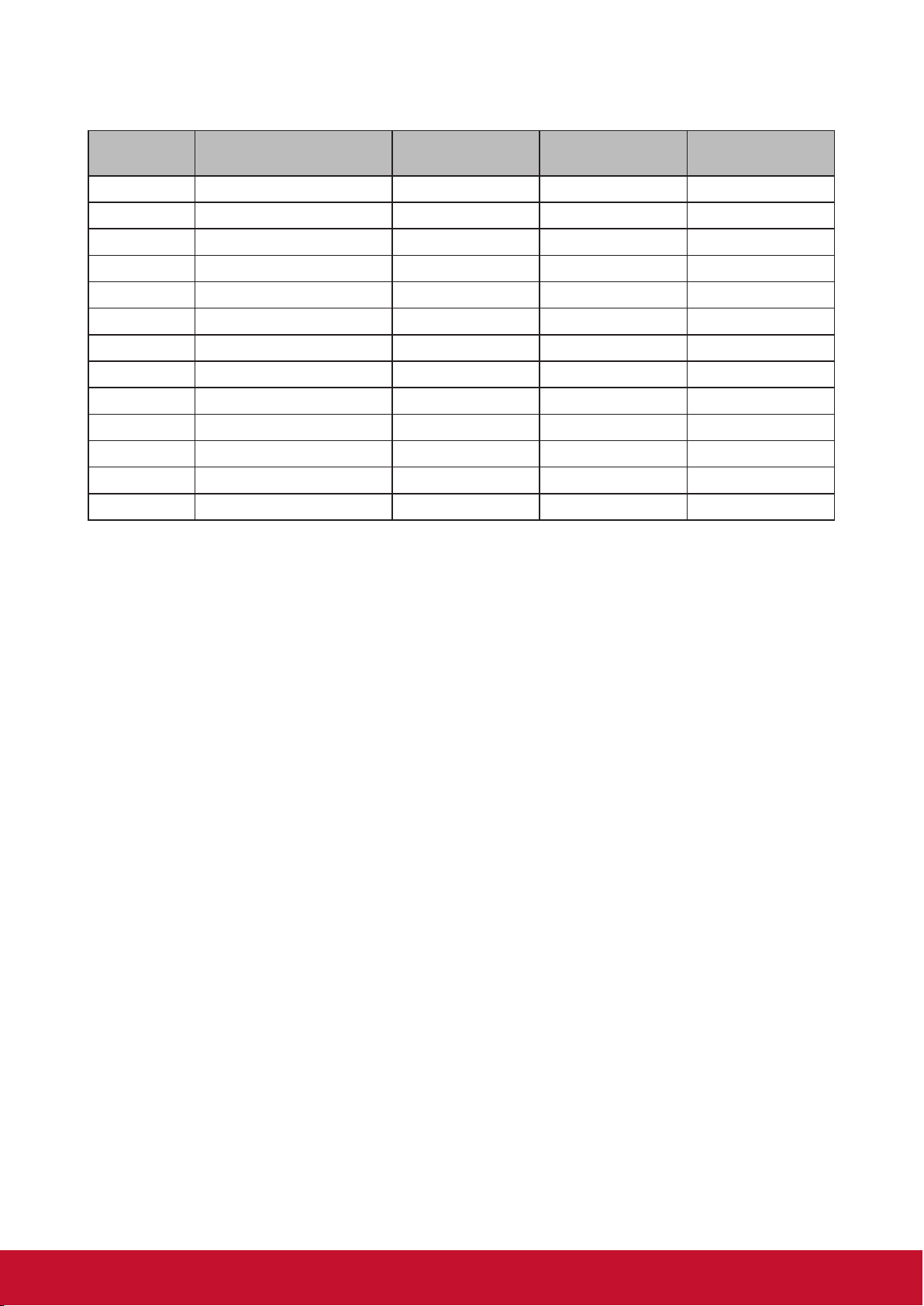
Resolution Mode Refresh rate (Hz) H-frequency (kHz) Clock (MHz)
1920 x 1200 1920x1200_60 59.950 74.038 154.000
640x480@67Hz MAC13 66.667 35.000 30.240
832x624@75Hz MAC16 74.546 49.722 57.280
1024x768@75Hz MAC19 75.020 60.241 80.000
1152x870@75Hz MAC21 75.06 68.68 100.00
3D Support Timing
HDMI/DP 3D (BlueRay3D with info frame)
Signal Resolution (dots) Aspect Ratio Refresh Rate (Hz) Support
Frame packing
1080p 1920 x 1080 16:9 23.98/24 Yes
720p 1280 x 720 16:9 50/59.94/60 Yes
Side by side
1080i 1920 x 1080 16:9 50/59.94/60 Yes
Top and Bottom
1080p 1920 x 1080 16:9 23.98/24 Yes
720p 1280 x 720 16:9 50/59.94/60 Yes
3D (HDMI/USB C) manual setting
Signal Resolution (dots) Aspect Ratio Refresh Rate (Hz) Support
SVGA 800 x 600 4:3 60* / 120** Yes
XGA 1024 x 768 4:3 60* / 120** Yes
HD 1280 x 720 16:9 60* / 120** Yes
WXGA 1280 x 800 16:9 60* / 120** Yes
HDTV (1080p) 1920 x 1080 16:9 60 Yes
for Video Signal
SDTV (480i)*** 720 x 480 4:3 / 16:9 60 No
Note:
* 60Hz signals are supported for side by side, top and bottom, frame sequential
** 120 Hz signals are support for frame sequential only
*** Video signal (SDTV 480i) is support for frame sequential only
49
USB-C Support Timing
Timing Resolution
Horizontal
frequency (KHz)
Vertical
frequency (Hz)
Dot Clock
Frequency (MHz)
480i 720 (1440) x 480 15.73 59.94 27
480p 720 x 480 31.47 59.94 27
576i 720 (1440) x 576 15.63 50 27
576p 720 x 576 31.25 50 27
720/50p 1280 x 720 37.5 50 74.25
720/60p 1280 x 720 45.00 60 74.25
1080/24P 1920 x 1080 27 24 74.25
1080/25P 1920 x 1080 28.13 25 74.25
1080/30P 1920 x 1080 33.75 30 74.25
1080/50i 1920 x 1080 28.13 50 74.25
1080/60i 1920 x 1080 33.75 60 74.25
1080/50P 1920 x 1080 56.25 50 148.5
1080/60P 1920 x 1080 67.5 60 148.5
Customer Support
For technical support or product service, see the table below or contact your reseller.
Note: You will need the product serial number.
Country/ Region Website Country/ Region Website
Asia Pacic & Africa
Australia www.viewsonic.com/au/ Bangladesh www.viewsonic.com/bd/
中国 (China)
www.viewsonic.com.cn
香港 (繁體中文)
www.viewsonic.com/hk/
Hong Kong (English) www.viewsonic.com/hk-en/ India www.viewsonic.com/in/
Indonesia www.viewsonic.com/id/ Israel www.viewsonic.com/il/
日本 (Japan)
www.viewsonic.com/jp/ Korea www.viewsonic.com/kr/
Malaysia www.viewsonic.com/my/ Middle East www.viewsonic.com/me/
Myanmar www.viewsonic.com/mm/ Nepal www.viewsonic.com/np/
New Zealand www.viewsonic.com/nz/ Pakistan www.viewsonic.com/pk/
Philippines www.viewsonic.com/ph/ Singapore www.viewsonic.com/sg/
臺灣 (Taiwan)
www.viewsonic.com/tw/
ประเทศไทย
www.viewsonic.com/th/
Việt Nam
www.viewsonic.com/vn/
South Africa &
Maurius
www.viewsonic.com/za/
Americas
United States www.viewsonic.com/us Canada www.viewsonic.com/us
Lan America www.viewsonic.com/la
Europe
Europe www.viewsonic.com/eu/ France www.viewsonic.com/fr/
Deutschland www.viewsonic.com/de/ Қазақстан www.viewsonic.com/kz/
Россия www.viewsonic.com/ru/ España www.viewsonic.com/es/
Türkiye www.viewsonic.com/tr/ Україна www.viewsonic.com/ua/
United Kingdom www.viewsonic.com/uk/
50

Limited Warranty
ViewSonic
®
Projector
What the warranty covers:
ViewSonic warrants its products to be free from defects in material and
workmanship, under normal use, during the warranty period. If a product proves to
be defective in material or workmanship during the warranty period, ViewSonic will,
at its sole option, repair or replace the product with a like product. Replacement
product or parts may include remanufactured or refurbished parts or components.
For warranty in North and South American, please visit the following web site for
warranty information, https://www.viewsonic.com/us/support/limited-warranties/
standard-warranty
For other regions:
Limited One (1) year General Warranty
ViewSonic’s standard warranty period is one (1) year for any product model in any
country, unless a longer warranty period is specied and provided by ViewSonic .
Please refer to the ViewSonic website in your country to check the local terms and
model variants, and see if the product model in your country is eligible for a longer
warranty period.
Limited One (1) year Heavy Usage Warranty:
Under heavy usage settings, where a projector’s use includes more than fourteen
(14) hours average daily usage, North and South America: One (1) year warranty
for all parts excluding the Light Source, one (1) year for labor, and ninety (90) days
for the original Light Source from the date of the rst consumer purchase; Europe:
One (1) year warranty for all parts excluding the Light Source, one (1) year for labor,
and ninety (90) days for the original Light Source from the date of the rst consumer
purchase.
Other regions or countries: Please check with your local dealer or local ViewSonic
oce for the warranty information.
Light Source warranty subject to terms and conditions, verication and approval.
Applies to manufacturer’s installed Light Source only. All accessory Light Source
purchased separately are warranted for 90 days.
Who the warranty protects:
This warranty is valid only for the rst consumer purchaser.
What the warranty does not cover:
1. Any product on which the serial number has been defaced, modied or removed.
2. Damage, deterioration, failure, or malfunction resulting from:
a. Accident, abuse, misuse, neglect, re, water, lightning, or other acts of nature,
improper maintenance, unauthorized product modication, or failure to follow
instructions supplied with the product.
b. Operation outside of product specications.
c. Operation of the product for other than the normal intended use or not under
normal conditions.
d. Repair or attempted repair by anyone not authorized by ViewSonic.
e. Any damage of the product due to shipment.
f. Removal or installation of the product.
51

g. Causes external to the product, such as electric power uctuations or failure.
h. Use of supplies or parts not meeting ViewSonic’s specications.
i. Normal wear and tear.
j. Any other cause which does not relate to a product defect.
3. Removal, installation, and set-up service charges.
How to get service:
1. For information about receiving service under warranty, contact ViewSonic
Customer Support (please refer to “Customer Support” page). You will need to
provide your product’s serial number.
2. To obtain warranted service, you will be required to provide (a) the original dated
sales slip, (b) your name, (c) your address, (d) a description of the problem, and
(e) the serial number of the product.
3. Take or ship the product freight prepaid in the original container to an authorized
ViewSonic service center or ViewSonic.
4. For additional information or the name of the nearest ViewSonic service center,
contact ViewSonic.
Limitation of implied warranties:
There are no warranties, express or implied, which extend beyond the description
contained herein including the implied warranty of merchantability and tness for a
particular purpose.
Exclusion of damages:
ViewSonic’s liability is limited to the cost of repair or replacement of the product.
ViewSonic shall not be liable for:
1. Damage to other property caused by any defects in the product, damages based
upon inconvenience, loss of use of the product, loss of time, loss of prots, loss of
business opportunity, loss of goodwill, interference with business relationships, or
other commercial loss, even if advised of the possibility of such damages.
2. Any other damages, whether incidental, consequential or otherwise.
3. Any claim against the customer by any other party.
Eect of local law:
This warranty gives you specic legal rights, and you may also have other rights
which vary from local authority. Some local governances do not allow limitations on
implied warranties and/or do not allow the exclusion of incidental or consequential
damages, so the above limitations and exclusions may not apply to you.
Sales outside the U.S.A. and Canada:
For warranty information and service on ViewSonic products sold outside of the
U.S.A. and Canada, contact ViewSonic or your local ViewSonic dealer.
The warranty period for this product in mainland China (Hong Kong, Macao and
Taiwan Excluded) is subject to the terms and conditions of the Maintenance
Guarantee Card.
For users in Europe and Russia, full details of warranty provided can be found in
www.viewsoniceurope.com under Support/Warranty Information.
Projector Warranty Term Template In UG
VSC_TEMP_2005
52

Mexico Limited Warranty
ViewSonic
®
Projector
What the warranty covers:
ViewSonic warrants its products to be free from defects in material and workmanship, under normal
use, during the warranty period. If a product proves to be defective in material or workmanship during
the warranty period, ViewSonic will, at its sole option, repair or replace the product with a like product.
Replacement product or parts may include remanufactured or refurbished parts or components &
accessories.
How long the warranty is eective:
ViewSonic’s standard warranty period is one (1) year for any product model in any country, unless
a longer warranty period is specied and provided by ViewSonic . Please refer to the ViewSonic
website in your country to check the local terms and model variants, and see if the product model in
your country is eligible for a longer warranty period.
Who the warranty protects:
This warranty is valid only for the rst consumer purchaser.
What the warranty does not cover:
1. Any product on which the serial number has been defaced, modied or removed.
2. Damage, deterioration or malfunction resulting from:
a. Accident, misuse, neglect, re, water, lightning, or other acts of nature, unauthorized product
modication, unauthorized attempted repair, or failure to follow instructions supplied with the
product.
b. Any damage of the product due to shipment.
c. Causes external to the product, such as electrical power uctuations or failure.
d. Use of supplies or parts not meeting ViewSonic’s specications.
e. Normal wear and tear.
f. Any other cause which does not relate to a product defect.
3. Any product exhibiting a condition commonly known as “image burn-in” which results when a static
image is displayed on the product for an extended period of time.
4. Removal, installation, insurance, and set-up service charges.
How to get service:
For information about receiving service under warranty, contact ViewSonic Customer Support (Please
refer to the attached Customer Support page). You will need to provide your product’s serial number,
so please record the product information in the space provided below on your purchase for your future
use. Please retain your receipt of proof of purchase to support your warranty claim.
For Your Records
Product Name: ________________________ Model Number: ____________________________
Document Number: ____________________ Serial Number: ____________________________
Purchase Date: ________________________ Extended Warranty Purchase? _____________(Y/N)
If so, what date does warranty expire? __________
1. To obtain warranty service, you will be required to provide (a) the original dated sales slip, (b) your
name, (c) your address, (d) a description of the problem, and (e) the serial number of the product.
2. Take or ship the product in the original container packaging to an authorized ViewSonic service
center.
3. Round trip transportation costs for in-warranty products will be paid by ViewSonic.
Limitation of implied warranties:
There are no warranties, express or implied, which extend beyond the description contained herein
including the implied warranty of merchantability and tness for a particular purpose.
Exclusion of damages:
ViewSonic’s liability is limited to the cost of repair or replacement of the product. ViewSonic shall not
be liable for:
1. Damage to other property caused by any defects in the product, damages based upon
inconvenience, loss of use of the product, loss of time, loss of prots, loss of business opportunity,
loss of goodwill, interference with business relationships, or other commercial loss, even if advised
of the possibility of such damages.
2. Any other damages, whether incidental, consequential or otherwise.
3. Any claim against the customer by any other party.
4. Repair or attempted repair by anyone not authorized by ViewSonic.
53
Contact Information for Sales & Authorized Service (Centro Autorizado de Servicio) within Mexico:
Name, address, of manufacturer and importers:
México, Av. de la Palma #8 Piso 2 Despacho 203, Corporativo Interpalmas,
Col. San Fernando Huixquilucan, Estado de México
Tel: (55) 3605-1099 http://www.viewsonic.com/la/soporte/index.htm
NÚMERO GRATIS DE ASISTENCIA TÉCNICA PARA TODO MÉXICO: 001.866.823.2004
Hermosillo:
Distribuciones y Servicios Computacionales SA de CV.
Calle Juarez 284 local 2
Col. Bugambilias C.P: 83140
Tel: 01-66-22-14-9005
E-Mail: [email protected]
Villahermosa:
Compumantenimietnos Garantizados, S.A. de C.V.
AV. GREGORIO MENDEZ #1504
COL, FLORIDA C.P. 86040
Tel: 01 (993) 3 52 00 47 / 3522074 / 3 52 20 09
E-Mail: compumantenimientos@prodigy.net.mx
Puebla, Pue. (Matriz):
RENTA Y DATOS, S.A. DE C.V. Domicilio:
29 SUR 721 COL. LA PAZ
72160 PUEBLA, PUE.
Tel: 01(52).222.891.55.77 CON 10 LINEAS
E-Mail: [email protected]
Veracruz, Ver.:
CONEXION Y DESARROLLO, S.A DE C.V. Av. Americas # 419
ENTRE PINZÓN Y ALVARADO
Fracc. Reforma C.P. 91919
Tel: 01-22-91-00-31-67
E-Mail: [email protected]
Chihuahua
Soluciones Globales en Computación
C. Magisterio # 3321 Col. Magisterial
Chihuahua, Chih.
Tel: 4136954
E-Mail: [email protected]
Cuernavaca
Compusupport de Cuernavaca SA de CV
Francisco Leyva # 178 Col. Miguel Hidalgo
C.P. 62040, Cuernavaca Morelos
Tel: 01 777 3180579 / 01 777 3124014
E-Mail: [email protected]
Distrito Federal:
QPLUS, S.A. de C.V.
Av. Coyoacán 931
Col. Del Valle 03100, México, D.F.
Tel: 01(52)55-50-00-27-35
E-Mail : [email protected]
Guadalajara, Jal.:
SERVICRECE, S.A. de C.V.
Av. Niños Héroes # 2281
Col. Arcos Sur, Sector Juárez
44170, Guadalajara, Jalisco
Tel: 01(52)33-36-15-15-43
E-Mail: [email protected]
Guerrero Acapulco
GS Computación (Grupo Sesicomp)
Progreso #6-A, Colo Centro
39300 Acapulco, Guerrero
Tel: 744-48-32627
Monterrey:
Global Product Services
Mar Caribe # 1987, Esquina con Golfo Pérsico
Fracc. Bernardo Reyes, CP 64280
Monterrey N.L. México
Tel: 8129-5103
E-Mail: [email protected]
MERIDA:
ELECTROSER
Av Reforma No. 403Gx39 y 41
Mérida, Yucatán, México CP97000
Tel: (52) 999-925-1916
E-Mail: [email protected]
Oaxaca, Oax.:
CENTRO DE DISTRIBUCION Y
SERVICIO, S.A. de C.V.
Murguía # 708 P.A., Col. Centro, 68000, Oaxaca
Tel: 01(52)95-15-15-22-22
Fax: 01(52)95-15-13-67-00
E-Mail. [email protected]
Tijuana:
STD
Av Ferrocarril Sonora #3780 L-C
Col 20 de Noviembre
Tijuana, Mexico
FOR USA SUPPORT:
ViewSonic Corporation
14035 Pipeline Ave. Chino, CA 91710, USA
Tel: 800-688-6688
E-Mail: http://www.viewsonic.com
Projector Mexico Warranty Term Template In UG
VSC_TEMP_2006
54