
VAIO Notebook Computer
User Guide
PCG-F150/PCG-F160/PCG-F180/PCG-F190
®
®

Notice to Users
© 1999 Sony Electronics Inc. All rights
reserved. This manual and the software
described herein, in whole or in part, may
not be reproduced, translated, or reduced
to any machine-readable form without
prior written approval.
SONY ELECTRONICS INC. PROVIDES
NO WARRANTY WITH REGARD TO
THIS MANUAL, THE SOFTWARE, OR
OTHER INFORMATION CONTAINED
HEREIN AND HEREBY EXPRESSLY
DISCLAIMS ANY IMPLIED
WARRANTIES OF MERCHANTABILITY
OR FITNESS FOR ANY PARTICULAR
PURPOSE WITH REGARD TO THIS
MANUAL, THE SOFTWARE, OR SUCH
OTHER INFORMATION. IN NO EVENT
SHALL SONY ELECTRONICS INC. BE
LIABLE FOR ANY INCIDENTAL,
CONSEQUENTIAL, OR SPECIAL
DAMAGES, WHETHER BASED ON
TORT, CONTRACT, OR OTHERWISE,
ARISING OUT OF OR IN CONNECTION
WITH THIS MANUAL, THE SOFTWARE,
OR OTHER INFORMATION
CONTAINED HEREIN OR THE USE
THEREOF.
Sony Electronics Inc. reserves the right to
make any modification to this manual or
the information contained herein at any
time without notice. The software
described herein is governed by the terms
of a separate user license agreement.
This product contains software owned by
Sony and licensed by third parties. Use of
such software is subject to the terms and
conditions of license agreements enclosed
with this product. Some of the software
may not be transported or used outside the
United States. Software specifications are
subject to change without notice and may
not necessarily be identical to current retail
versions.
Updates and additions to software may
require an additional charge. Subscriptions
to online service providers may require a
fee and credit card information. Financial
services may require prior arrangements
with participating financial institutions.
As an
E
NERGY
S
TAR
Partner, Sony Corporation
has determined that this
product meets the
E
NERGY
S
TAR guidelines for energy
efficiency.
The International
E
NERGY
S
TAR Office
Equipment Program is an international
program that promotes energy saving
through the use of computers and other
office equipment. The program backs the
development and dissemination of
products with functions that effectively
reduce energy consumption. It is an open
system in which business proprietors can
participate voluntarily. The targeted
products are office equipment such as
computers, displays, printers, facsimiles
and copiers. Their standards and logos are
uniform among participating nations.
E
NERGY
S
TAR is a U.S. registered mark.
Sony, i.LINK, VAIO and the VAIO logo are
trademarks of Sony Corporation.
Windows, Windows NT, and the Windows
98 logo are registered trademarks of
Microsoft Corporation. Intel, MMX, and
Pentium are trademarks of Intel
Corporation.
All other trademarks are trademarks of
their respective owners.
Safety Information
Owner’s Record
The model number and serial number are
located on the bottom of your Sony VAIO
Notebook Computer. Record the serial
number in the space provided here. Refer
to the model and serial number when you
call your Sony Service Center.
Model Number: PCG-F150/PCG-F160/
PCG-F180/PCG-F190
Serial Number:________________________
❏
To prevent fire or shock hazard, do
not expose your notebook computer
to rain or moisture.
❏
To avoid electrical shock, do not open
the cabinet. Refer servicing to
qualified personnel only.
❏
Never install modem or telephone
wiring during a lightning storm.
❏
Never install telephone jacks in wet
locations unless the jack is specifically
designed for wet locations.
❏
Never touch uninsulated telephone
wire or terminals unless the telephone
line has been disconnected at the
network interface.
❏
Use caution when installing or
modifying telephone lines.
❏
Avoid using the modem during an
electrical storm.
❏
Do not use the modem or a telephone
to report a gas leak in the vicinity of
the leak.
❏
A socket outlet should be as close as
possible to the unit and easily
accessible.
❏
Pour prévenir tout risque d’incendie
ou d’électrocution, garder cet appareil
à l’abri de la pluie et de l’humidité.
❏
Pour prévenir tout risque
d’électrocution, ne pas ouvir le châssis
de cet appareil et ne confier son
entretien qu’à une personne qualifiée.
❏
L’appareil doit être le plus près
possible d’une prise murale pour en
faciliter l’accès.
Regulatory Information
This equipment has been tested and found
to comply with the limits for a Class B
digital device, pursuant to Part 15 of the
Rules. These limits are designed to provide
reasonable protection against harmful
interference in a residential installation.
This equipment generates, uses, and can
radiate radio frequency energy and, if not
installed and used in accordance with the
instructions, may cause harmful
interference to radio communications.
!
The laser beam used in the DVD-
ROM drive unit is harmful to the
eyes. Do not attempt to
disassemble the cabinet. Refer
servicing to qualified personnel
only.
WARNING
AVERTISSEMENT
Declaration of Conformity
Trade Name: SONY
Model No: PCG-F150/PCG-F160/
PCG-F180/PCG-F190
Responsible Party:
Sony Electronics Inc.
Address:
1 Sony Drive
Park Ridge, NJ 07656
Telephone No.: 201-930-6970
This device complies with Part 15 of
the FCC rules. Operation is subject
to the following two conditions: (1)
This device may not cause harmful
interference, and (2) this device
must accept any interference
received, including any interference
that may cause undesired operation.

However, there is no guarantee that
interference will not occur in a particular
installation. If this equipment does cause
harmful interference to radio or television
reception, which can be determined by
turning the equipment off and on, the user
is encouraged to try to correct the
interference by one or more of the
following measures:
❏
Reorient or relocate the receiving
antenna.
❏
Increase the separation between the
equipment and the receiver.
❏
Connect the equipment into an outlet
on a circuit different from that to
which the receiver is connected.
❏
Consult the dealer or an experienced
radio/TV technician for help.
You are cautioned that any changes or
modifications not expressly approved in
this manual could void your authority to
operate this equipment.
Only peripherals (computer input/output
devices, terminals, printers, etc.) that
comply with FCC Class B limits may be
attached to this computer product.
Operation with non-compliant peripherals
is likely to result in interference to radio
and television reception.
All cables used to connect peripherals must
be shielded and grounded. Operation with
cables, connected to peripherals, that are
not shielded and grounded, may result in
interference to radio and television
reception.
FCC Part 68
This equipment complies with Part 68 of
the FCC rules. On the bottom of this
equipment is a label that contains, among
other information, the FCC equivalence
number (REN) for this equipment. If
requested, this information must be
provided to the telephone company.
This modem uses the USOC RJ-11
telephone jack.
The REN is used to determine the quantity
of devices which may be connected to the
telephone line. Excessive RENs on the
telephone line may result in the devices not
ringing in response to an incoming call. In
most, but not all areas, the sum of the RENs
should not exceed five (5.0). To be certain of
the number of devices that may be
connected to the line, as determined by the
total RENs, contact the telephone company
to determine the maximum REN for the
calling area.
If the terminal equipment (Notebook
Computer PCG-F150/PCG-F160/
PCG-F180/PCG-F190) causes harm to the
telephone network, the telephone company
will notify you in advance that temporary
discontinuance of service may be required.
But if advance notice is not practical, the
telephone company will notify the
customer as soon as possible. Also, you
will be advised of your right to file a
complaint with the FCC if you believe it is
necessary.
The telephone company may make
changes in its facilities, equipment,
operations or procedures that could affect
the operations of the equipment. If this
happens, the telephone company will
provide advance notice in order for you to
make the necessary modifications in order
to maintain uninterrupted service.
If trouble is experienced with this
equipment (Notebook Computer
PCG-F150/PCG-F160/PCG-F180/
PCG-F190), please contact 1-888-4SONYPC
(1-888-476-6972), or write to the Sony
Customer Information Center, One Sony
Drive, Park Ridge, NJ 07656 for repair and/or
warranty information. If the trouble is
causing harm to the telephone network, the
telephone company may request that you
remove the equipment from the network
until the problem is resolved.
Repair of this equipment should be made
only by a Sony Service Center or Sony
authorized agent. For the Sony Service

Center nearest you, call 1-888-4SONYPC
(1-888-476-6972).
This equipment cannot be used on public
coin service provided by the telephone
company. Connection to Party Line Service
is subject to state and possible provincial
tariffs. (Contact the state or provincial
utility service commission, public service
commission or corporation commission for
information.)
Telephone Consumer
Protection Act of 1991
(United States)
The Telephone Consumer Protection Act of
1991 makes it unlawful for any person to
use a computer or other electronic device to
send any message via a telephone facsimile
machine unless such message clearly
contains, in a margin at the top or bottom
of each transmitted page or on the first
page of the transmission, the date and time
it is sent and an identification of the
business, other entity, or individual
sending the message, and the telephone
number of the sending machine or such
business, other entity, or individual.
In order to program this information into
your facsimile machine, see your fax
software documentation.
Telephone Consumer
Guidelines (Canada)
Please refer to your telephone directory
under ‘Privacy Issues’ and/or ‘Terms of
Service.’ For more detailed information
please contact:
CRTC
Terrasses de la Chaudiére, Tour centrale
1 promenade du Portage, 5 étage Hull PQ
K1A 0N2.
This Class B digital apparatus complies
with Canadian ICES-003.
Cet àppareil numérique de la classe B est
conforme à la norme NMB-003 du Canada.
DISPOSAL OF LITHIUM ION
BATTERY
You can return your unwanted lithium ion
batteries to your nearest Sony Service
Center or Factory Service Center.
For the Sony Service Center nearest you
call 1-888-476-6972 in the United States or
1-800-961-7669 in Canada
.
✍
In some areas the disposal of lithium ion
batteries in household or business trash
may be prohibited.
!
Do not handle damaged or leaking
lithium ion batteries.
!
Ne pas manipuler les batteries au
lithium-ion qui fuient ou sont
endommagées.
!
Danger of explosion if battery is
incorrectly replaced. Replace only
with the same or equivalent type
recommended by the
manufacturer. Discard used
batteries according to the
manufacturer’s instructions.
!
Une batterie non conforme
présente un danger d'explosion. La
remplacer seulement par une
batterie identique ou de type
équivalent recommandé par le
fabricant. Évacuer les batteries
usées selon les directives du
fabricant.

INDUSTRY CANADA NOTICE
NOTICE: The Industry Canada label
identifies certified equipment. This
certification means that the equipment
meets certain telecommunications network
protective, operational and safety
requirements as prescribed in the
appropriate Terminal Equipment Technical
Requirements document(s). The
Department does not guarantee the
equipment will operate to the user’s
satisfaction.
Before installing this equipment, users
should ensure that it is permissible to be
connected to the facilities of the local
telecommunications company. The
equipment must also be installed using an
acceptable method of connection.
The customer should be aware that
compliance with the above conditions may
not prevent degradation of service in some
situations.
Repairs to certified equipment should be
coordinated by a representative designated
by the supplier. Equipment malfunctions
or any repairs or alterations made by the
user to this equipment may give the
telecommunications company cause to
request that the user disconnect the
equipment.
Users should ensure for their own
protection that the electrical ground
connections of the power utility, telephone
lines and internal metallic water pipe
system, if present, are connected together.
This precaution may be particularly
important in rural areas.
Caution: Users should not attempt to make
such connections themselves, but should
contact the appropriate electric inspection
authority, or electrician, as appropriate.
NOTICE: The Ringer Equivalence Number
(REN) assigned to each terminal device
provides an indication of the maximum
number of terminals allowed to be
connected to a telephone interface. The
termination on an interface may consist of
any combination of devices subject only to
the requirement that the sum of the Ringer
Equivalence Numbers of all the devices
does not exceed 5. The Ringer Equivalence
Number for this equipment is 0.4.
AVIS DE L’INDUSTRIE
CANADA
AVIS: L’étiquette d’Industrie Canada
identifie le matériel homologué.
Cette étiquette certifie que le matériel est
conforme aux normes de protection,
d’exploitation et de sécurité des réseaux de
télécommunications, comme le prescrivent
les documents concernant les exigences
techniques relatives au matériel terminal.
Le Ministère n’assure toutefois pas que le
matériel fonctionnera à la satisfaction de
l’utilisateur.
Avant d’installer ce matériel, l’utilisateur
doit s’assurer qu’il est permis de le
raccorder aux installations de l’entreprise
locale de télécommunication. Le matériel
doit également être installé en suivant une
méthode acceptée de raccordement.
L’abonné ne doit pas oublier qu’il est
!
The battery pack used in this
device may present a fire or
chemical burn hazard if mistreated.
Do not disassemble, heat above
212
°
F (100
°
C) or incinerate.
Dispose of used battery promptly.
Keep away from children.
!
La manutention incorrecte du
module de batterie de cet appareil
présente un risque d'incendie ou
de brûlures chimiques. Ne pas
démonter, incinérer ou exposer à
une température de plus de 100°C.
Évacuer promptement la batterie
usée. Garder hors de portée des
enfants.

possible que la conformité aux conditions
énoncées ci-dessus n’empêche pas la
dégradation du service dans certaines
situations.
Les réparations de matériel homologué
doivent être coordonnées par un
représentant désigné par le fournisseur.
L’entreprise de télécommunications peut
demander à l’utilisateur de débrancher un
appareil à la suite de réparations ou de
modifications effectuées par l’utilisateur ou
à cause de mauvais fonctionnement.
Pour sa propre protection, l’utilisateur doit
s’assurer que tous les fils de mise à la terre
de la source d’énergie électrique, des lignes
téléphoniques et des canalisations d’eau
métalliques, s’il y en a, sont raccordés
ensemble. Cette précaution est
particulièrement importante dans les
régions rurales.
Avertissement: L’utilisateur ne doit pas
tenter de faire ces raccordements lui-même;
il doit avoir recours à un service
d’inspection des installations électriques,
ou à un électricien, selon le cas.
AVIS: L’indice d’équivalence de la sonnerie
(IES) assigné à chaque dispositif terminal
indique le nombre maximal de terminaux
qui peuvent être raccordés à une interface.
La terminaison d’une interface
téléphonique peut consister en une
combination de quelques dispositifs, à la
seule condition que la somme d’indices
d’équivalence de la sonnerie de tous les
dispositifs n’excède pas 5.


ix
Contents
Welcome
Ergonomic Considerations.............................................................2
Using Your Notebook Computer
Locating the Controls and Connectors.........................................5
Connecting a Power Source ...........................................................9
Starting Your Computer ...............................................................14
Shutting Down Your Computer..................................................15
Registering Windows
®
98.............................................................16
Registering Your Computer.........................................................17
Using the Keyboard.......................................................................18
Using the Touchpad......................................................................24
Using the Floppy Disk Drive .......................................................25
Using the DVD-ROM/CD-ROM Drive......................................27
Using PC Cards..............................................................................29
Using Infrared Communication Devices....................................32
Using Power Saving Modes.........................................................34
Using a Second Battery Pack........................................................36
Using the Weight Saver ................................................................38

VAIO Notebook Computer User Guide
x
Connecting Peripheral Devices
Connecting a Phone Line ..............................................................42
Connecting the Port Replicator....................................................43
Connecting a Printer......................................................................47
Connecting an External Display...................................................48
Connecting an External Mouse or Keyboard.............................51
Connecting External Speakers......................................................52
Connecting an External Microphone...........................................53
Connecting a Digital Still Camera or Other Serial Device .......54
Connecting a Digital Video Camera Recorder...........................55
Connecting a Universal Serial Bus (USB) Device ......................56
Customizing Your Notebook Computer
Displaying the Sony Notebook Setup Screen.............................57
Controlling Power Management..................................................59
Displaying Battery Information ...................................................62
Selecting the Display Mode ..........................................................65
Starting Your Favorite Software with Programmable Power
Key (PPK) Setup .............................................................................69
Using the Dual Display Function.................................................71
Getting Help
Troubleshooting .............................................................................75
Replacing the Internal Backup Battery........................................82
Using the System and Application Recovery CDs....................84
Notes on Use......................................................................87
Limited Warranty Statement............................................93
Index...................................................................................99

1
Welcome
Congratulations on your purchase of the Sony VAIO Notebook
Computer. Sony has combined leading-edge technology in audio, video,
computing, and communications to provide you with state-of-the-art
personal computing.
About the User Guide
The User Guide offers a quick introduction and reference to your Sony
Notebook computer.
❑ Using Your VAIO Notebook Computer shows you how to use the
standard components of your system.
❑ Connecting Peripheral Devices explains how you can add
functionality by connecting various peripherals.
❑ Getting Help explains the support options available to you and
offers basic troubleshooting tips.
❑ Notes on Use provides facts and advice about using your notebook
computer.
❑ Limited Warranty Statement provides your product warranty
statement and explains how to extend your warranty for an
additional nine months.
The online User Guide is included with your computer as an electronic
document. It includes additional information on using the Sony software
products that are installed on your computer and how to customize your
Sony notebook computer.
VAIO Notebook Computer User Guide
2
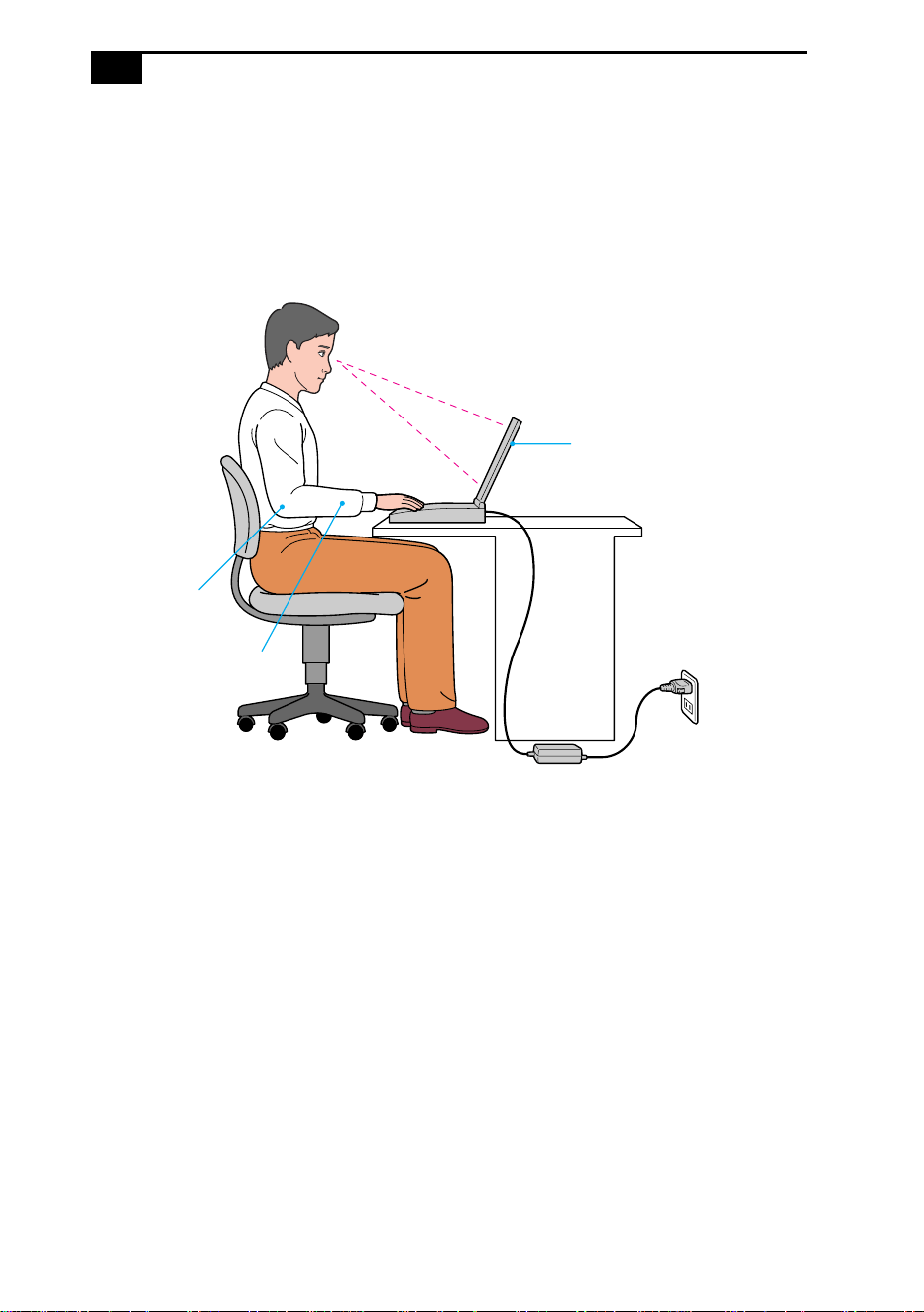
Ergonomic Considerations
You will be using your notebook computer as a portable device in a
variety of environments. Whenever possible, you should attempt to
apply the following ergonomic considerations to both stationary and
portable environments.
❑ Position of your computer – Place the computer directly in front of
you as you work. Keep your forearms horizontal, with your wrists in
a neutral, comfortable position while using the keyboard, touchpad,
or external mouse. Let your upper arms hang naturally at your sides.
Take breaks during sessions with your computer. Excessive use of the
computer may strain muscles or tendons.
❑ Furniture and posture – Sit in a chair with good back support and
armrests. Adjust the level of the chair so your feet are flat on the floor.
A footrest may make you more comfortable. Sit in a relaxed, upright
posture and avoid slouching forward or leaning far backward.
❑ Viewing angle of the computer’s display – Use the display’s tilting
feature to find the best position. You can reduce eye strain and muscle
fatigue by adjusting the tilt of the display to the proper position.
Adjust the brightness setting of the display also.
Computer positioned
directly in front of you
Wrists relaxed
and flat
Arms at desk
level

Welcome
3
❑ Lighting – Choose a location where windows and lights do not create
glare and reflection on the display. Use indirect lighting to avoid
bright spots on the display. You can also purchase accessories for
your display that help reduce glare. Proper lighting adds to your
comfort and work effectiveness.
❑ Tilt stand – You use the tilt stand to place the computer at an angle
that allows comfortable typing.
❑ Placement of an external display – When using an external display,
set the display at a comfortable viewing distance. Make sure the
display screen is at eye level or slightly lower when you are sitting in
front of the monitor.

4
5
Using Your Notebook
Computer
This section describes how to start using your computer and how to use
your computer’s internal and external devices, such as the touchpad,
floppy disk drive, and DVD-ROM/CD-ROM drive.
Locating the Controls and Connectors
Front
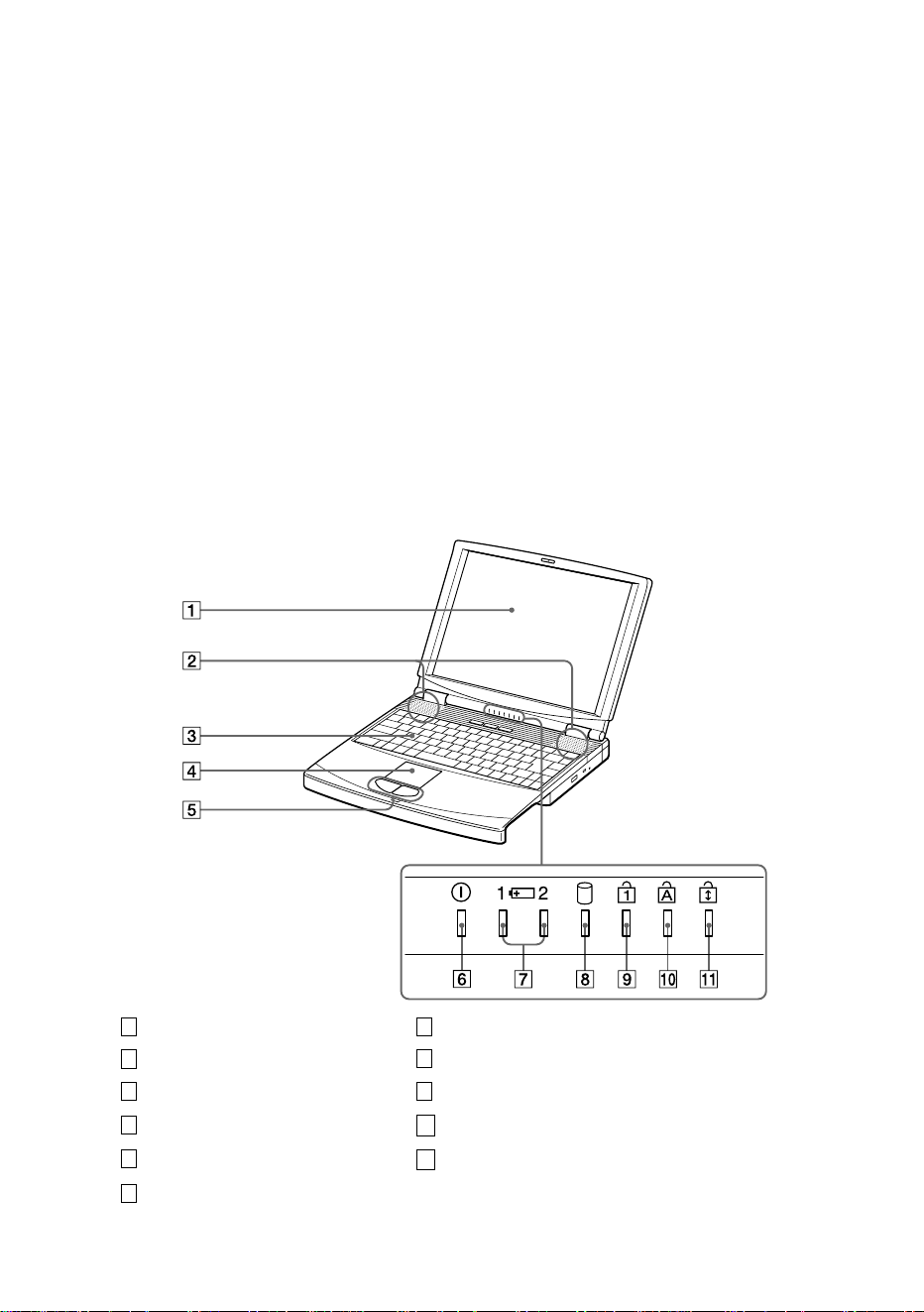
LCD screen (pages 22, 87) Battery 1 and 2 indicators (pages 11, 21)
Speakers (pages 22, 52) Hard disk drive indicator (page 21)
Keyboard (page 18) Num Lock indicator (page 21)
Touchpad (page 24) Caps Lock indicator (page 21)
Left/right buttons (page 24) Scroll Lock indicator (page 21)
Power indicator (page 11)
1
7
2
8
3
9
4
10
5
11
6
Using Your Notebook Computer
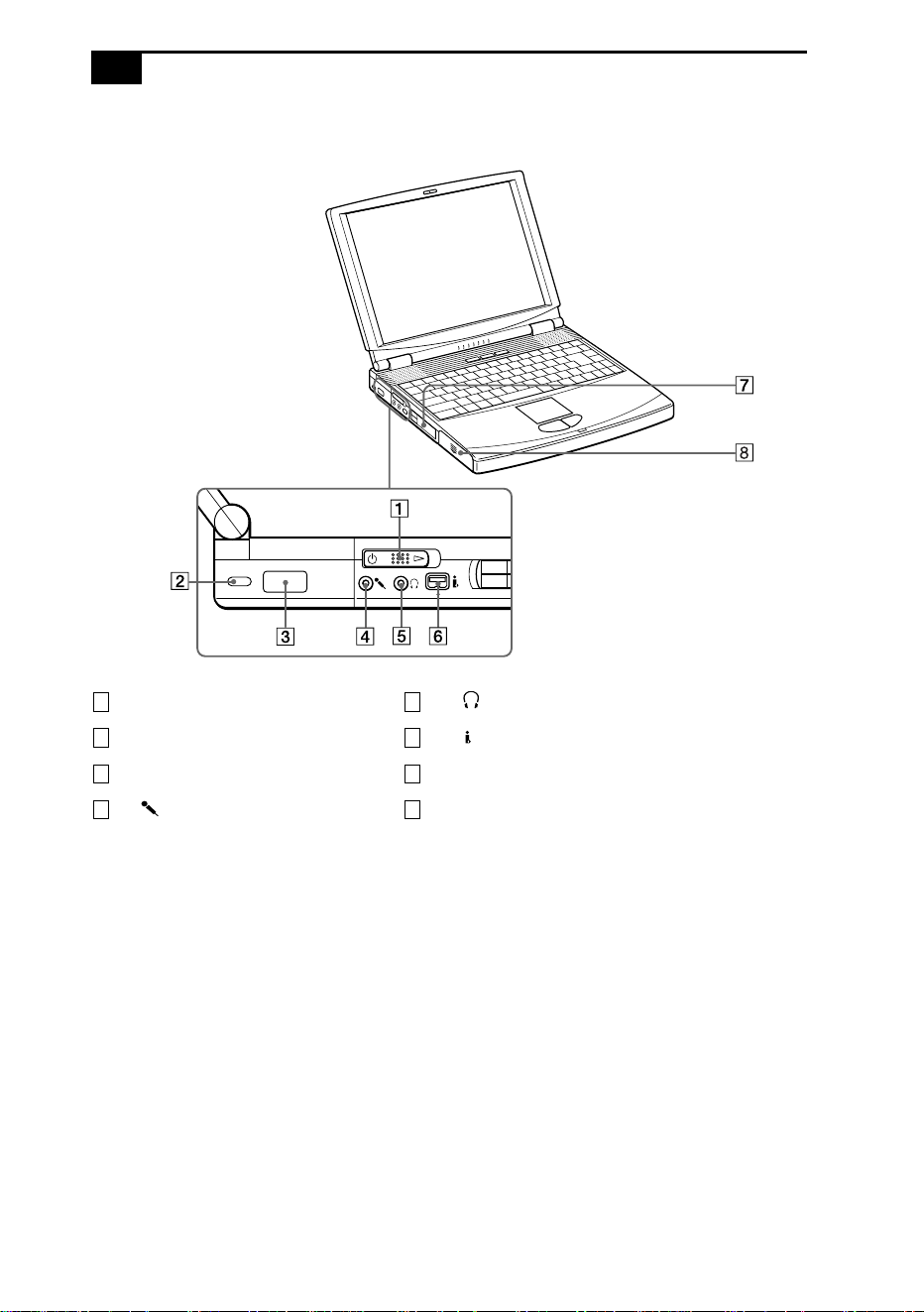
7
Right
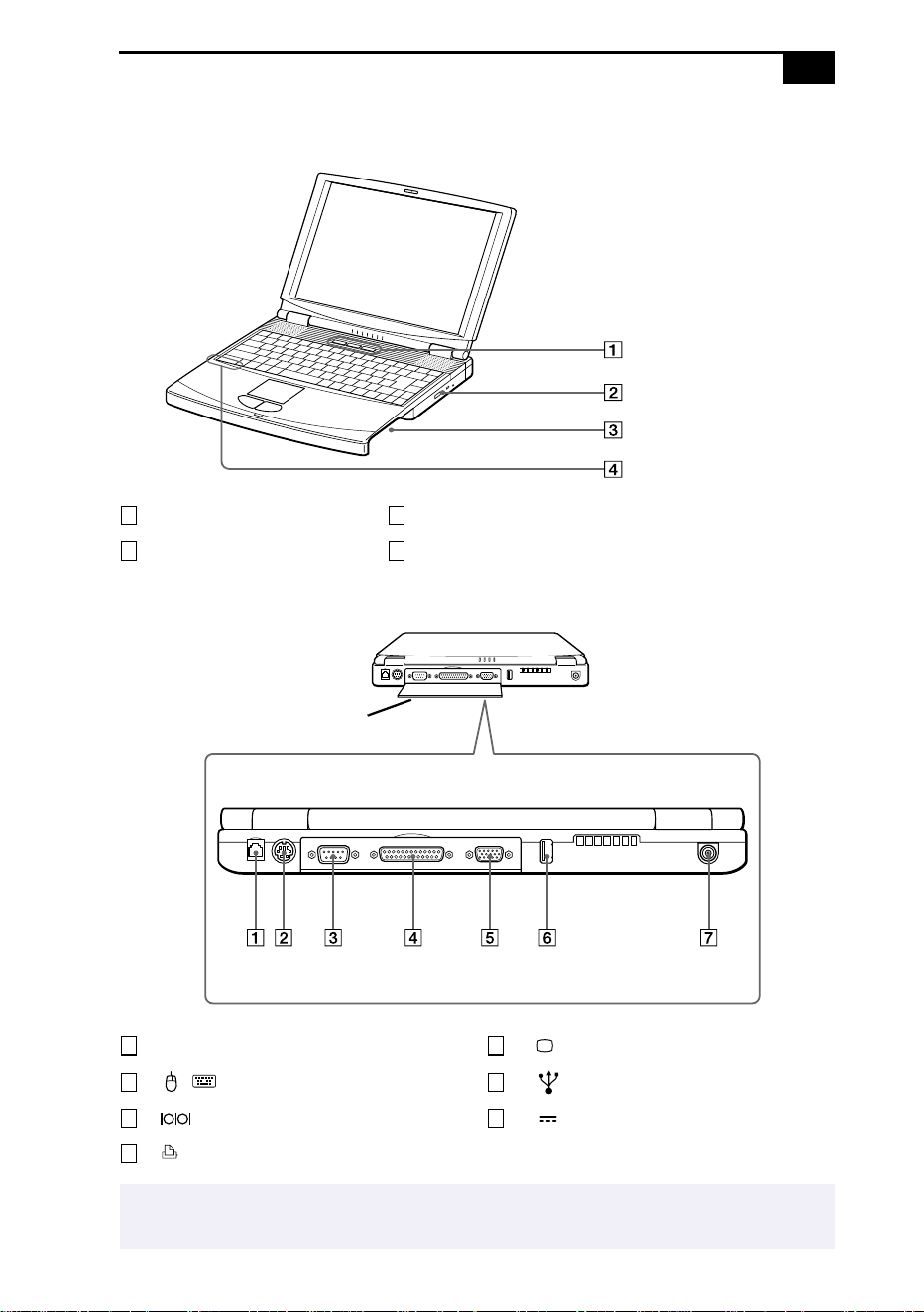
Back
PPK buttons (page 69) Drive bay (pages 25, 36, 38)
DVD-ROM/CD-ROM drive (page 27) Internal microphone
Phone line jack (page 42)
Monitor connector (page 48)
/ Mouse/Keyboard connector (page 51)
USB connector (page 56)
Serial connector (page 54)
DC In connector (page 9)
Printer connector (page 47)
✍
There is a ventilation slot located between the USB connector and the DC In connector. Do
not cover the ventilation slot when your computer is on.
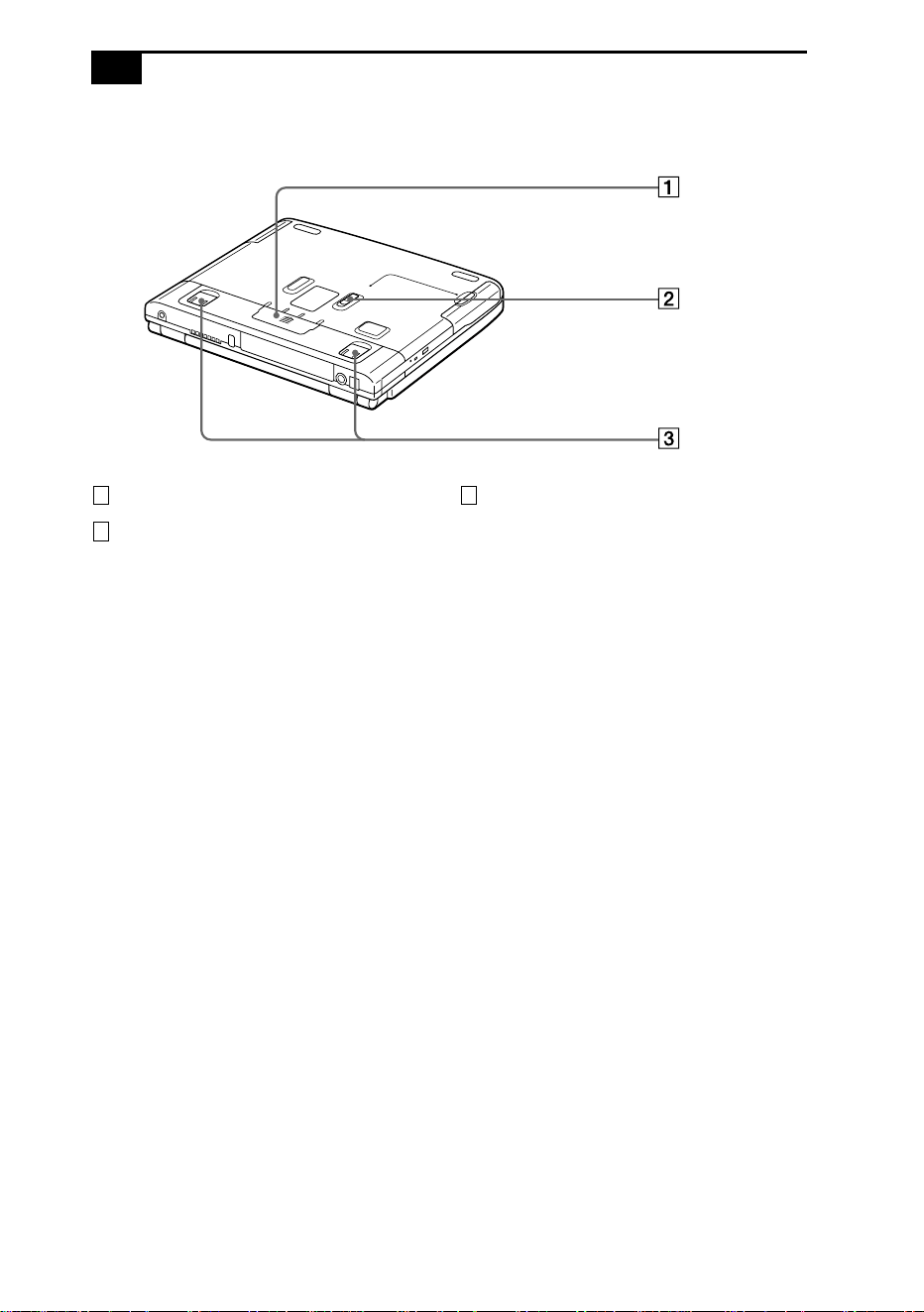
1 3
2 4
cover
1
5
2
6
3
7
4
Using Your Notebook Computer
9
Connecting a Power Source
You can use either AC power or a rechargeable battery pack as a power
source.
Using the AC Adapter
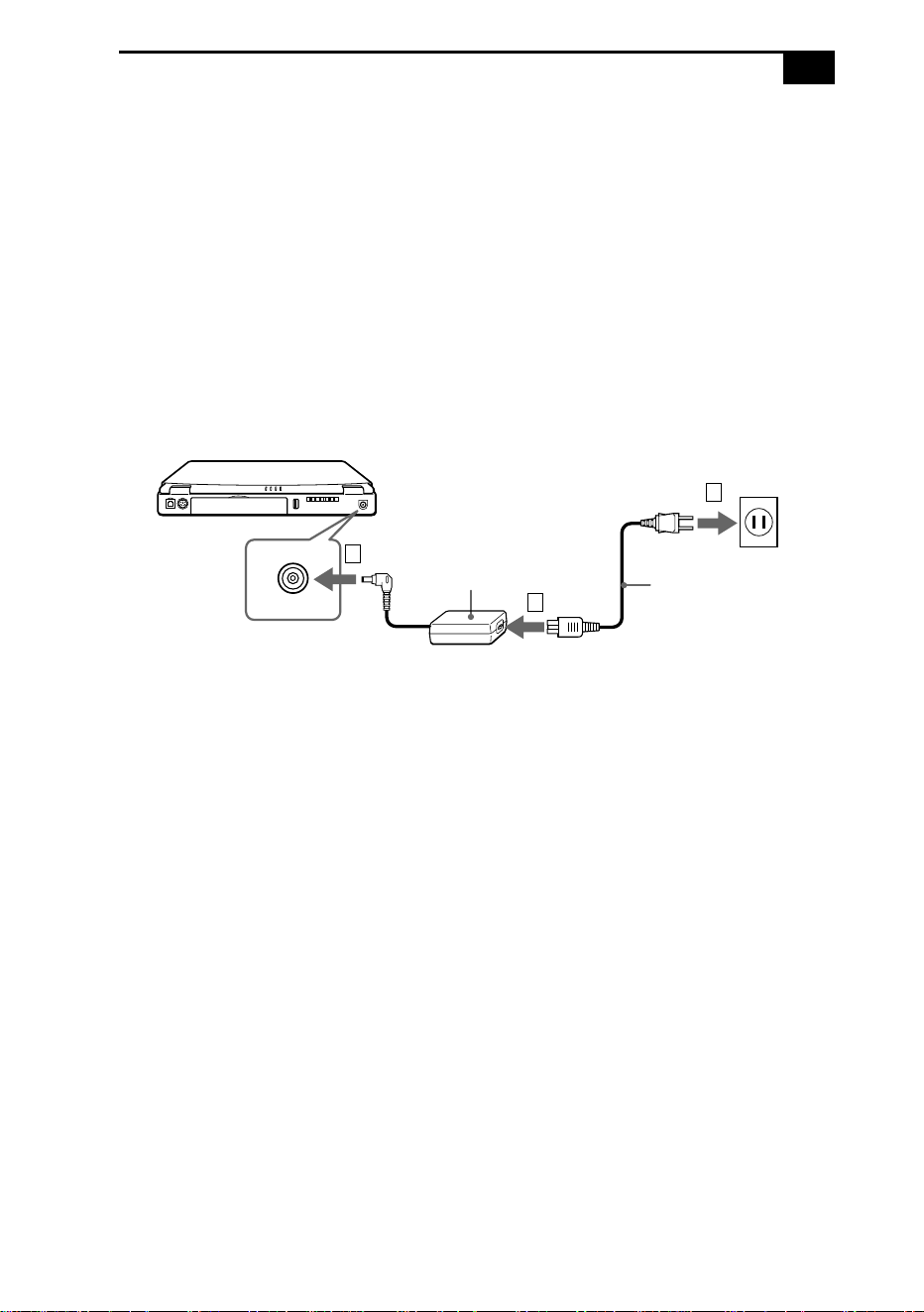
1
Plug the cable attached to the AC adapter into the DC In connector on
the computer.
2
Plug one end of the power cord into the AC adapter.
3
Plug the other end of the power cord into an AC outlet.
Notebook computer
DC In
AC adapter
(supplied)
Power cord (supplied)
1
2
3
VAIO Notebook Computer User Guide
10
Using Battery Power
You can use one or two battery packs as a source of power. The second
battery pack inserts into the drive bay on the right side of the computer.
(See “Using Power Saving Modes” on page 34.) Additional battery packs
are available as a separate option.
The battery pack that comes with your computer is not fully charged at
the time of purchase. Follow the steps below to insert and charge the
battery pack.
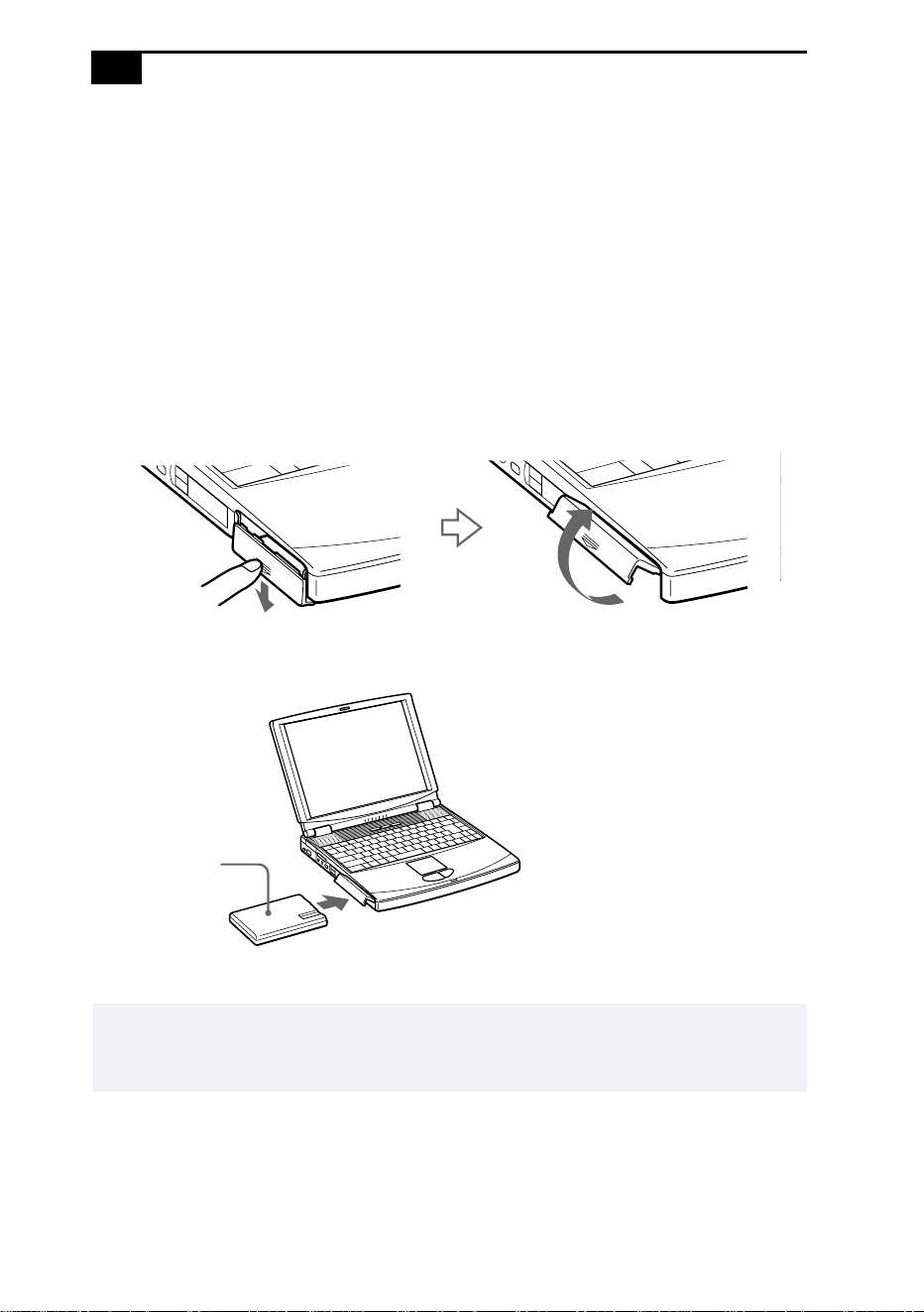
To insert the battery pack
1
Open the cover of the battery bay.
2
Insert the battery pack into the battery bay on the left side of the
computer.
3
Close the cover of the battery bay until it clicks.
✍
When attaching your computer to the port replicator, do not attempt to insert or remove the
battery pack. Lifting and turning the computer with an attached docking station could
cause a temporary loss of power.
Battery pack
(supplied)
Label side facing down
Using Your Notebook Computer
11
To charge the battery pack
1
Connect the AC adapter to the computer.
2
Insert the battery pack.
The computer automatically charges the battery (the battery indicator
light flashes in a double blink pattern as the battery charges). When the
battery is 85 percent full, the battery indicator light turns off. This
process takes approximately two hours. To charge the battery
completely, continue charging for an additional hour. See “Displaying
Detailed Battery Information” on page 63 for information on checking
the battery life.
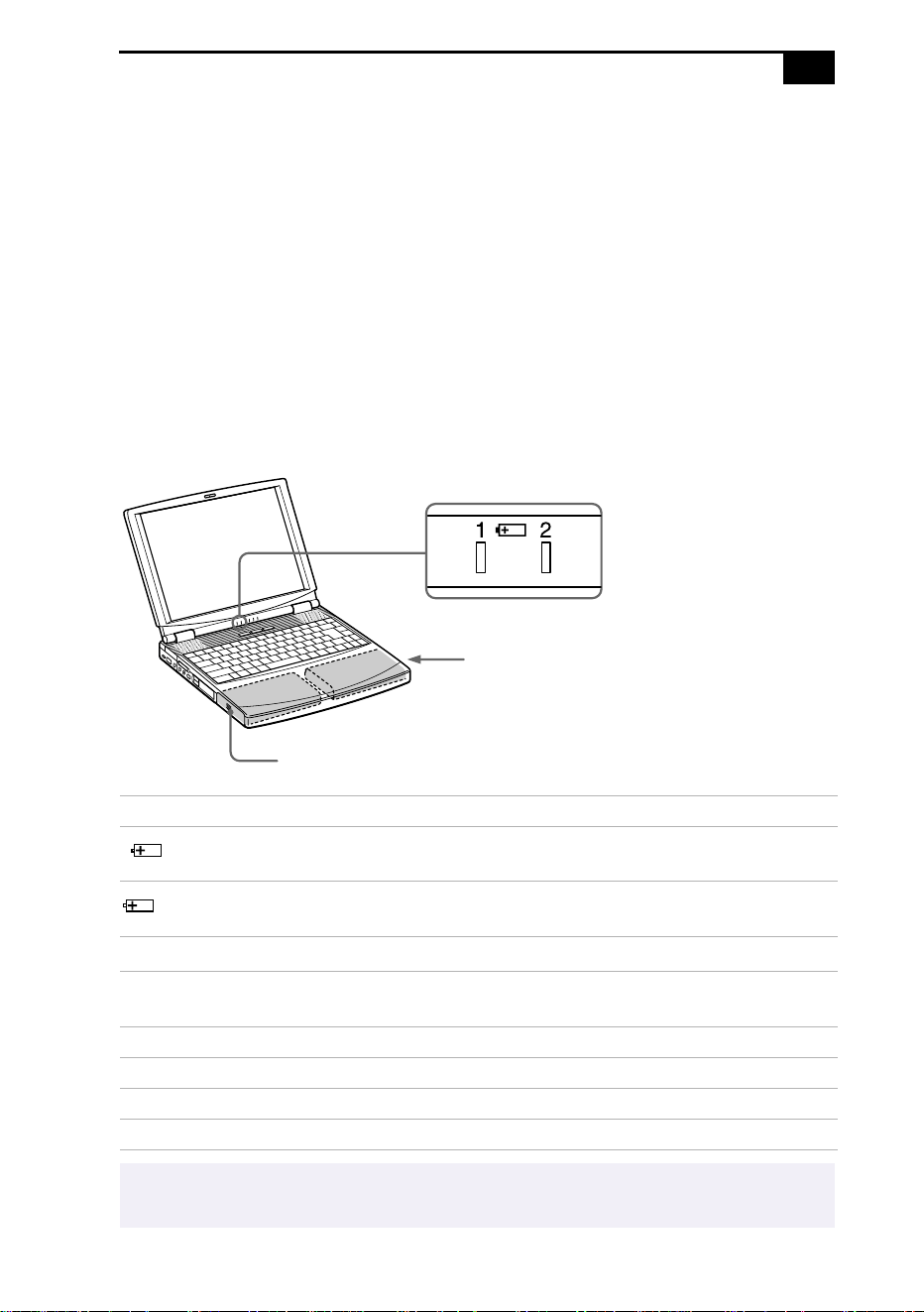
There are two battery indicator lights on the computer:
Battery Indicator Meaning
1
Indicates the status of the battery pack in the battery bay
on the left side of the computer.
2
Indicates the status of the battery pack in the drive bay on
the right side of the computer.
Battery Indicator
Light Status Meaning
On The computer is using battery power.
Single blink The battery is running out of power.
Double blink The battery is charging.
Off The computer is using AC power.
✍
To determine the amount of time the battery lasts, see “Displaying Battery Information” on
page 62.
Battery indicators
Battery pack (supplied)
Secondary battery pack
(not supplied)

VAIO Notebook Computer User Guide
12
To remove the battery pack
1
Open the cover of the battery bay.
2
Pull out the battery pack.
When the battery is running out of power, both the battery and power indicators blink.
When the computer is directly connected to AC power and has a battery pack in the battery
bay, it uses power from the AC outlet.
See “Using a Second Battery Pack” on page 36 for information on installing and charging a
battery pack in the drive bay.
Keep the battery pack in the computer while it is directly connected to AC power. The
battery pack continues to charge while you are using the computer.
If the battery level falls below 10%, you should either attach the AC adapter to recharge the
battery or shut down your computer and insert a fully charged battery.
You can extend battery life by changing the power management modes in the PowerPanel
utility. See “Using Power Saving Modes” on page 34.
The battery pack supplied with your computer is a lithium ion battery and can be recharged
at any time. Charging a partially discharged battery does not affect battery life.
The battery indicator light is on while you use the battery pack as a power source. When
battery life is nearly depleted, the battery indicator starts flashing.
For some software applications and some peripheral devices, your computer may not enter
System Hibernation mode when the battery life is low. To avoid loss of data when using
battery power, you should save your data frequently and manually activate a power
management mode, such as System Suspend or System Hibernation.

Using Your Notebook Computer
13
3
Close the cover of the battery bay.
!
You may lose data if you remove the battery pack while the computer is on and
not connected to the AC adapter or if you remove the battery while the
computer is in System Suspend mode.

VAIO Notebook Computer User Guide
14
Starting Your Computer
1
Slide the LCD lock lever in the direction of the arrow, and lift the
cover.
2
Slide the power switch on the left side toward the front of the
computer until the green power indicator light turns on.
3
If necessary, adjust the brightness controls for the LCD display. To
decrease the brightness, press Fn+F5 and then the down or left arrow
key. To increase the brightness, press Fn+F5 and then the up or right
arrow key.
✍
If you hold the power switch in the On position for more than four seconds, the
computer turns off.
LCD lock lever
Power switch
Power indicator
Using Your Notebook Computer
15
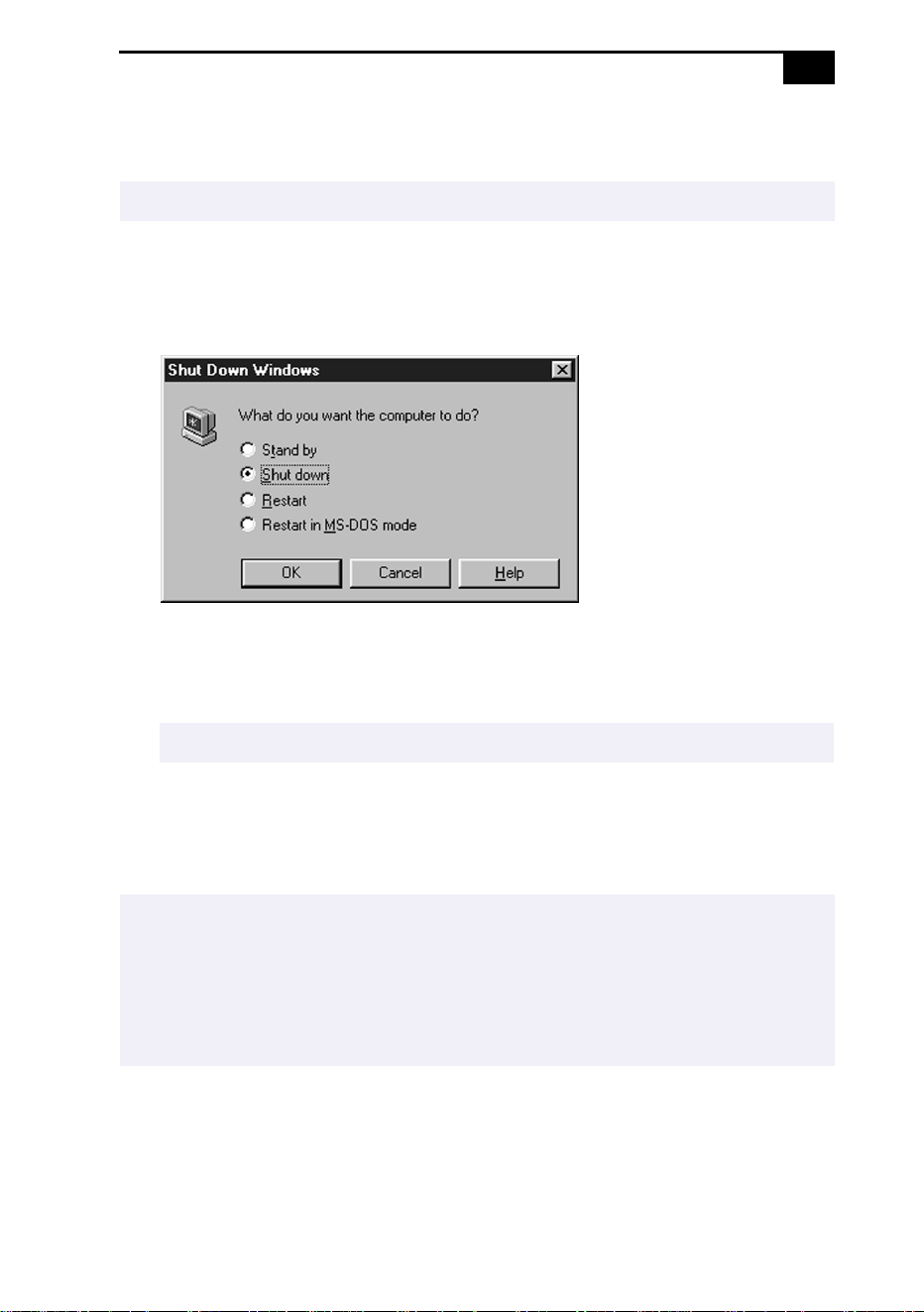
Shutting Down Your Computer
1
Click the Start button on the Windows 98 taskbar.
2
Click Shut Down at the bottom of the Start menu to display the Shut
Down Windows dialog box.
3
Select Shut down.
4
Click OK.
5
Wait for your computer to turn off automatically. The power indicator
(green) turns off.
6
Turn off any peripherals connected to your computer.
!
To avoid potential loss of data, follow these steps to shut down your computer.
✍
Respond to any prompts warning you to save documents.
✍
If you are unable to shut down your computer using the steps described above, press the
Ctrl+Alt+Delete keys at the same time to restart the computer. If you are unable to restart
the computer in this way, you can slide the power switch forward and hold for four seconds.
This operation may result in data loss.
During a period of inactivity, you can conserve battery life by using System Suspend mode.
See “Controlling Power Management” on page 59.

VAIO Notebook Computer User Guide
16
Registering Windows
®
98
The first time you turn on your computer, you need to complete a few
steps to register and configure the Windows 98 software that is already
installed.
The on-screen instructions guide you through the registration and
configuration process. The following is an overview of the process.
1
Gathering information:
❑ Enter your name.
❑ Read and accept the License Agreement.
❑ Enter your Certificate of Authenticity number located on the
cover of the Microsoft Windows 98
Getting Started
manual.
2
Windows 98 setup:
Click the Finish button on the Windows 98 Setup Wizard screen.
3
Selecting your computer settings:
If necessary, change the Time Zone, Date and Time on the Date/Time
Properties screen.
4
Registering your computer:
For details on registering your computer, see “Registering Your
Computer” on page 17. You can also sign up for your 100 free hours
of Internet service at this time.
5
Learning about Windows 98:
If you wish, take the tour of Windows 98.
✍
You must register Windows 98 before you can use the computer.

Using Your Notebook Computer
17
Registering Your Computer
You can take advantage of Sony’s commitment to quality customer
support and receive the following benefits by registering your computer
with Sony.
❑ Sony Customer Support – Talk to a Support Representative to
troubleshoot problems you may be having with your computer.
❑ Extended Limited Warranty – Protect your investment. Extend your
Warranty nine months for a total of 12 months from the original date
of purchase when you register your computer.
❑ Express service – Provides convenient resolution of problems.
❑ Free Internet access – Use the Internet for up to 100 free hours when
you sign up with GTE (no credit card necessary). Free access expires
100 hours or 60 days after signing up, whichever occurs first.
If you have not already registered, follow these steps to use your
notebook computer’s online registration service.
1
Click the Sony VAIO Registration icon on the VAIO desktop.
2
Enter the information requested on the first online registration form.
Press the Tab key to move from box to box.
3
Click the Next button to advance to the next form.
4
Complete the remaining forms by clicking the Next button each time
you complete a form.
The computer automatically transfers your registration information using
your built-in modem and a toll-free telephone number.
✍
You must connect your phone line before using any online services, including the online
registration service. See “Connecting a Phone Line” on page 42.
VAIO Notebook Computer User Guide
18
Using the Keyboard
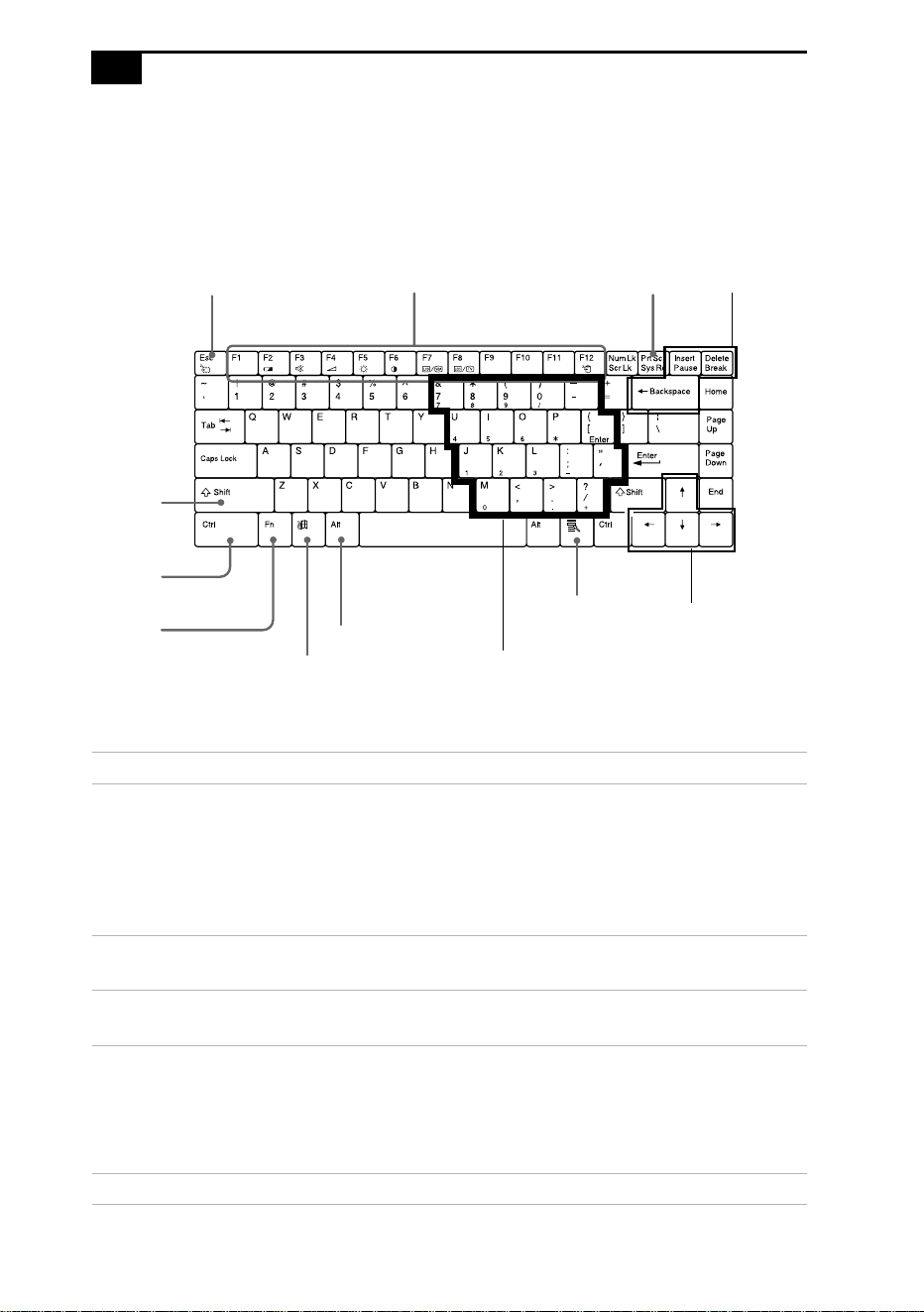
Your keyboard is very similar to a typewriter’s, but the keyboard has
additional keys that perform specific computer-related tasks.
Key Description
Numeric keypad
area
Contains the keys found on a typical calculator. Use the
numeric keypad area to type numbers or to perform
mathematical calculations such as addition and
subtraction. Note that you must press the Num Lock key
to activate the numeric keypad. (When you do so, the
Num Lock light will be on.)
Navigation keys Several keys are devoted to moving the cursor on the
screen.
Correction keys The Insert, Back Space, and Delete keys enable you to
make corrections in your documents.
Function keys The twelve function keys along the top of the keyboard
are used to perform designated tasks. For example, in
many applications, F1 is the Help key. The task associated
with each function key may vary from one application to
the next.
Escape key The Esc (Escape) key is used to cancel commands.
US
Escape Key Function keys Print Screen key
Shift key
Ctrl key
Fn key
Windows 98 key
Alt key
Applications key
Numeric keypad area
Navigation
keys
Correction
keys

Using Your Notebook Computer
19
Print Screen key The Print Screen key takes an electronic snapshot of the
screen and places it in the Windows Clipboard. You can
then paste the screen shot into a document and print it.
Operator keys Several keys are always used with at least one other key:
Ctrl, Alt, and Shift. When held down with another key,
the Ctrl (Control) and Alt (Alternate) keys offer another
way to give commands. For example, in many
applications, instead of choosing the Save command from
a menu, you can hold down Ctrl and press S (referred to
as Ctrl+S). The Shift key operates the same way as on a
typewriter; it is used to produce capital letters or special
symbols such as @ and $.
Windows 98 key The key with the Windows logo displays the Windows 98
Start menu; it is the equivalent of clicking the Start button
on the taskbar. See “Combinations and Functions with
the Windows 98 Key” on page 20.
Fn key The Fn key is used in combination with other keys to
issue commands. See “Combinations and Functions with
the Fn Key” on page 22.
Applications key The Applications key displays a shortcut menu of
context-sensitive choices. Pressing this key is the
equivalent of clicking the right mouse button.
Key Description

VAIO Notebook Computer User Guide
20
Combinations and Functions with the Windows 98 Key
Combination Function
+ F1 Displays Windows Help.
+ Tab Switches the selected button on the taskbar.
+ E Displays Windows Explorer.
+ F Displays the Windows Find: All Files window to find
a file or folder. This is the equivalent of selecting Find
and then Files or Folders from the Start menu.
+ Ctrl + F Displays the Windows Find: Computer window
where you can locate other computers. This is the
equivalent of selecting Find and then Computer from
the Start menu.
+ M Minimizes all displayed windows.
Shift + + M Returns all minimized windows to their previous
size.
+ R Displays the Run window. This is the equivalent of
selecting Run from the Start menu.
Fn + + Insert Displays the Properties window. This is the
equivalent of double-clicking the System icon in the
Control Panel.

Using Your Notebook Computer
21
Indicators
Indicator Function
Power Light is green when the power to the computer is turned
on. Light is red in System Idle mode, and flashes red in
System Suspend mode. Turns off when the computer is
in System Hibernation mode or powered off.
Battery 1 Indicates the status of the battery inserted in the battery
bay on the left side of the computer.
Battery 2 Indicates the status of the battery inserted in the drive
bay on the right side of the computer.
Hard disk Lights when data is being read from or written to the
hard drive. Do not enter System Suspend mode or turn
off the computer when this indicator light is on.
Light On Off
Num Lock The number keys in the
numeric keypad are active.
The alphanumeric character
keys in the keypad area are
active.
Caps Lock The letters appear in
uppercase as you type. The
Shift key lowers the case of
typed letters when Caps
Lock is on.
Letters appear in lower case as
you type (unless you hold
down the Shift key).
Scroll Lock The screen scrolls differently.
(Exactly how it scrolls
depends on the specific
application. It has no effect in
many applications.)
Information moves across the
display normally.
1
2
VAIO Notebook Computer User Guide
22
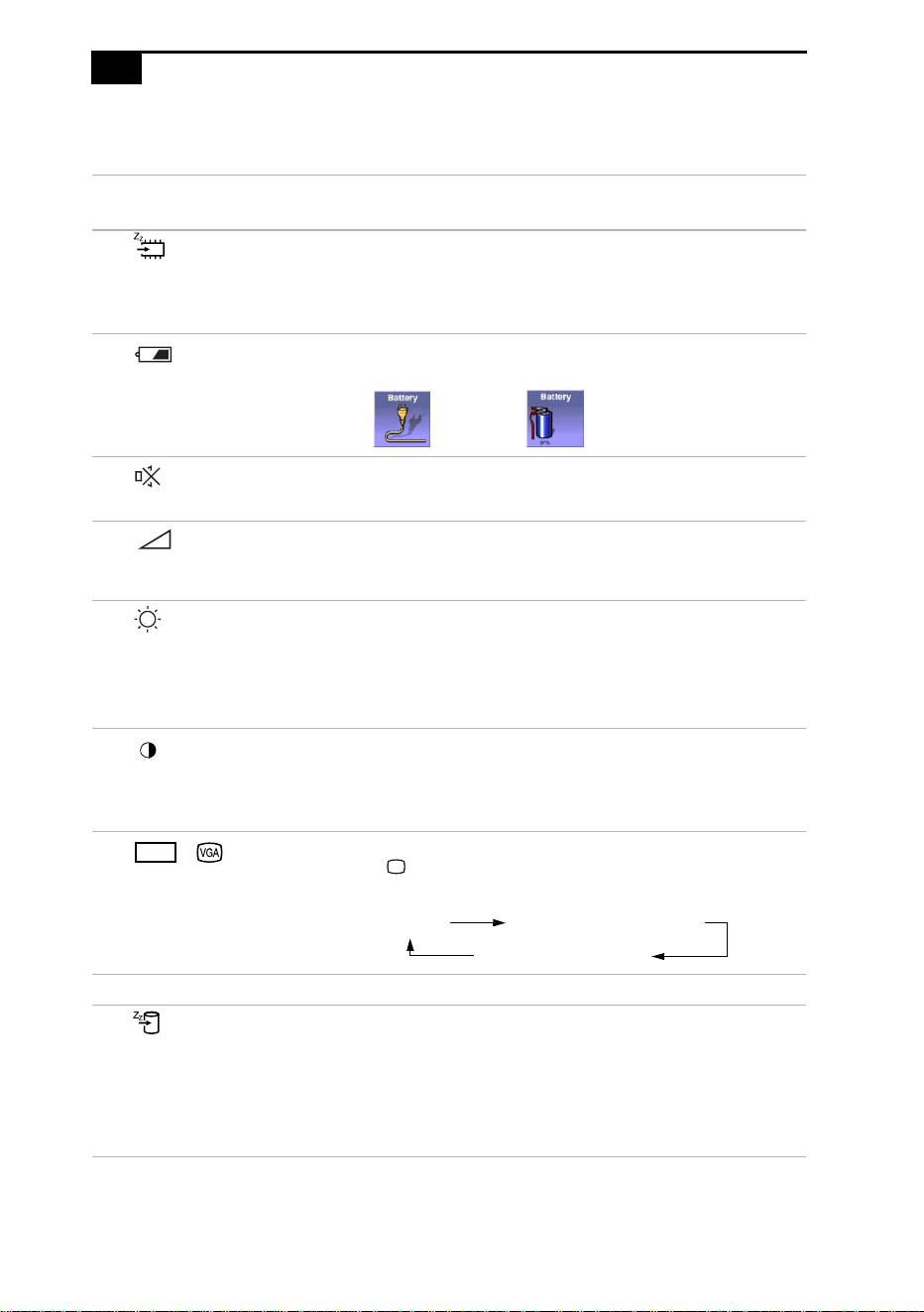
Combinations and Functions with the Fn Key
Combinations/
Feature
Function
Fn+ (ESC)
System Suspend
Puts the system into System Suspend mode, a power
management state. To return the system to the active
state, press any key or press the power switch on your
computer.
Fn+ (F2)
Display power source
status
Displays the power source status, as in the example
below:
Fn+ (F3)
Mute On/Off
Toggles the built-in speaker off and on.
Fn+ (F4)
Speaker volume
Adjusts the built-in speaker volume.
To increase volume, press Fn+F4, then or
➜
.
To decrease volume, press Fn+F4, then or .
Fn+ (F5)
Brightness control
Adjusts the brightness of the LCD.
To increase light intensity, press Fn+F5 and then or
➜
.
To decrease light intensity, press Fn+F5 and then or
.
Fn+ (F6)
Contrast control
Contrast control display.
*
Adjusts the contrast. To increase the contrast, press
Fn+F6, then or
➜
.
To decrease contrast, press Fn+F6, then or .
Fn+ / (F7)
Switch to the
external monitor/LCD
Toggles through the LCD, external display (connected
to the Monitor connector) and both LCD and
external display.
Fn+F8 Not available on this model.
Fn+ (F12)
System Hibernation
Provides for the lowest level of power consumption.
When you execute this command, the state of the
system and state of the peripheral devices are written
to the hard disk and the system power is turned off. To
return the system to the originals state, use the power
switch to turn on power.
Using AC
power
Charging a
battery pack
➜
➜
➜
➜
➜
➜
➜
➜
➜
LCD
Only LCD
LCD and external display
Only external display

Using Your Notebook Computer
23
Fn+E
Eject DVD-ROM/
CD-ROM
Ejects the DVD-ROM/CD-ROM drive.
†
Fn+D
Video standby
Turns off the LCD in order to save power. To turn the
LCD back on, press any key.
Fn+F
Change the display size
Zooms the display size in or out when the display is
set to a low resolution.
Fn+S
System Idle
Puts the system into System Idle mode, a power
management state. To return the system to the active
state, press any key.
* The Fn+F6 (contrast control) function is available on model PCG-150 only.
† The DVD-ROM drive is available on models PCG-F180/PCG-F190. The CD-ROM drive is available on
models PCG-F150/PCG-F160.
✍
Some functions are not available until Windows launches.
Combinations/
Feature
Function
VAIO Notebook Computer User Guide
24
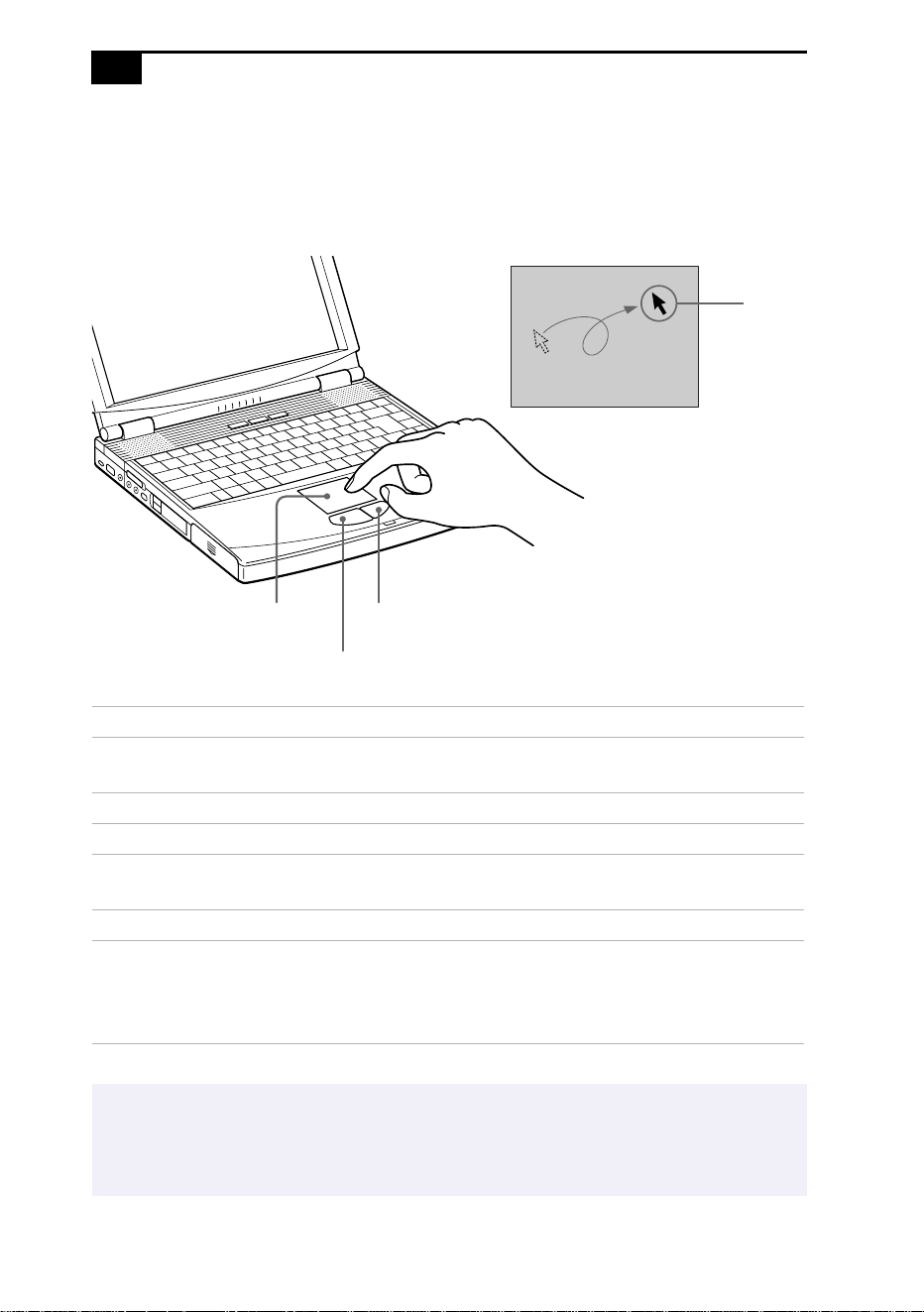
Using the Touchpad
The keyboard contains a cursor-pointing device called a touchpad. You
can point to, select, drag, and scroll objects on the screen using the built-in
touchpad.
Action Description
Point Slide one finger on the touchpad to place the pointer on an item
or object.
Click Press the left button once.
Double-click Press the left button twice.
Right-click Press the right button once. In many applications, this action
displays a shortcut menu of context-sensitive choices.
Drag Slide one finger while pressing the left button.
Scroll Move your finger along the right edge of the touchpad to scroll
vertically. Move your finger along the bottom to scroll
horizontally. (The scroll function is available only with
applications that support a touchpad scroll feature.)
✍
See Mouse Help for information on touchpad features, such as clicking both buttons
simultaneously, adjusting touchpad speed, and Easy Launcher functions. To access Mouse
Help, press the Start button, select Settings, and then select Control Panel. Click the Mouse
icon in the Control Panel and click the Help button.
Pointer
Right button
Left button
Touchpad
Using Your Notebook Computer
25
Using the Floppy Disk Drive
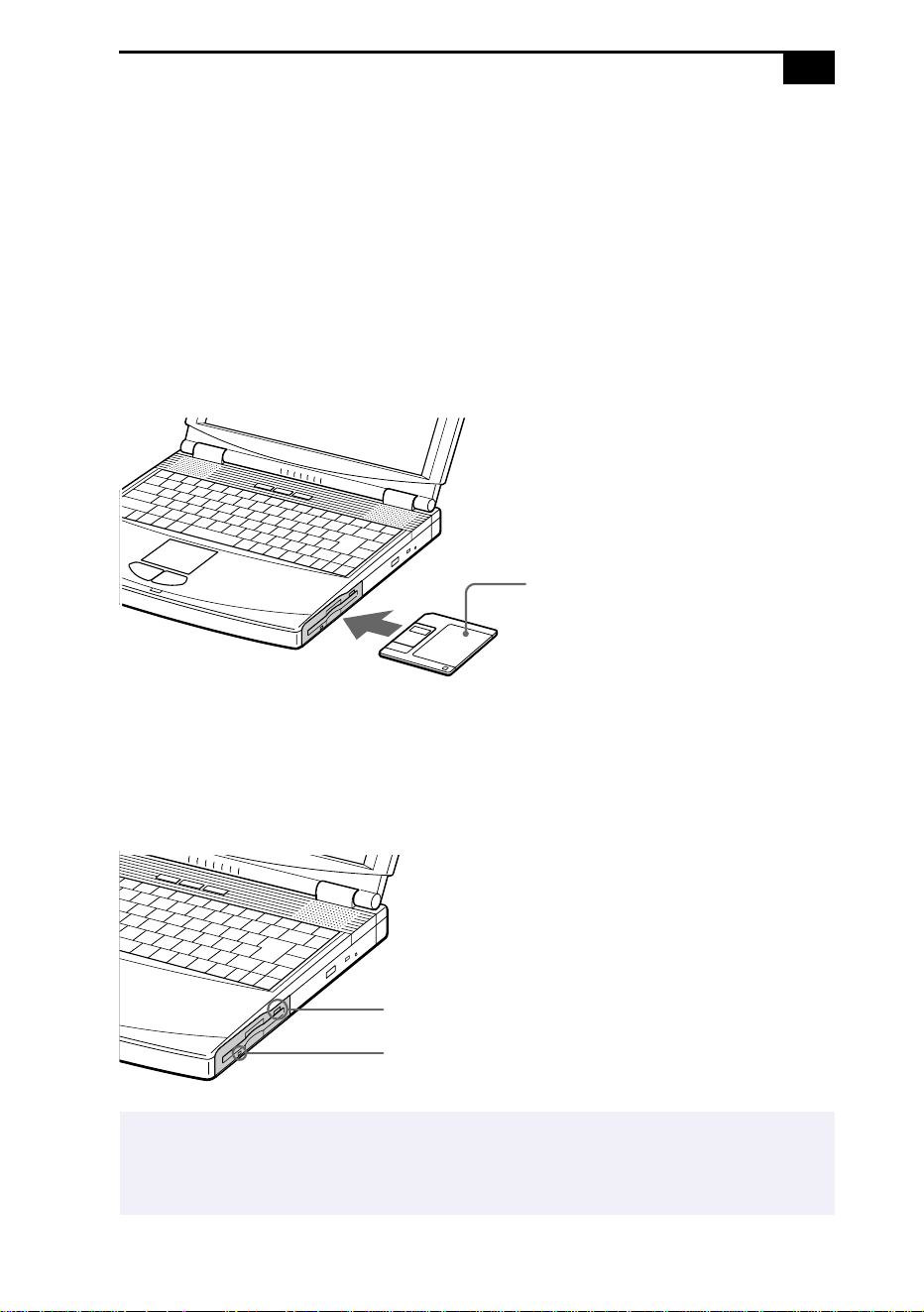
The computer comes with the floppy disk drive in the drive bay.
To insert a diskette
1
Hold the diskette with the label side facing up.
2
Gently push the diskette into the drive until it clicks into place.
To remove a diskette
❑ When you finish using the diskette, wait until the LED indicator
turns off and then press the Eject button to remove the diskette.
✍
Do not press the Eject button when the LED indicator is turned on. Otherwise, data may be lost.
If you have difficulty removing a diskette from the floppy disk drive, remove the floppy disk
drive from the drive bay.
Floppy disk drive
Diskette
Eject button
LED indicator
VAIO Notebook Computer User Guide
26
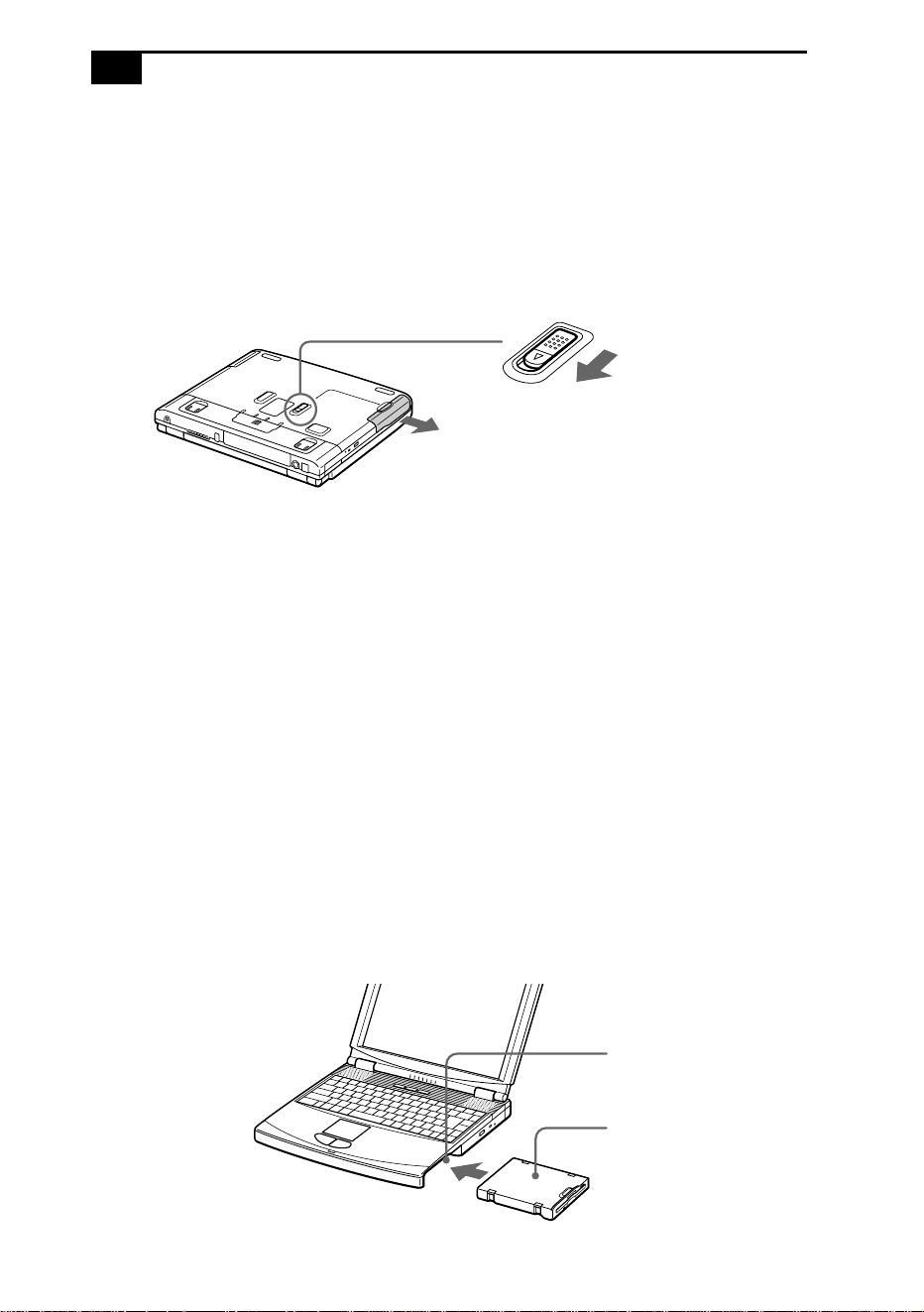
To remove the floppy disk drive
1
Turn off the computer.
2
There is a RELEASE lever on the bottom of the computer. Slide this
lever in the direction of the arrow.
3
Slide the drive out of the drive bay.
4
Insert the weight saver. See “Using the Weight Saver” on page 38.
To reinsert the floppy disk drive
1
Turn off the computer.
2
If another device is in the drive bay, remove the device. See “To
remove the floppy disk drive” on page 26 or “To remove the second
battery pack” on page 37.
3
Insert the floppy disk drive into the drive bay with the VAIO label
facing up. Continue pushing the drive into the bay until the
RELEASE lever locks into place.
Drive RELEASE lever on bottom
Drive bay
Floppy disk drive
Using Your Notebook Computer
27
Using the DVD-ROM
/
CD-ROM Drive
Your computer comes with a DVD-ROM drive (models PCG-F180/F190)
or CD-ROM drive (models PCG-F150/F160). If your computer is
equipped with a DVD-ROM drive, you can play both DVD-ROMs and
CD-ROMs.
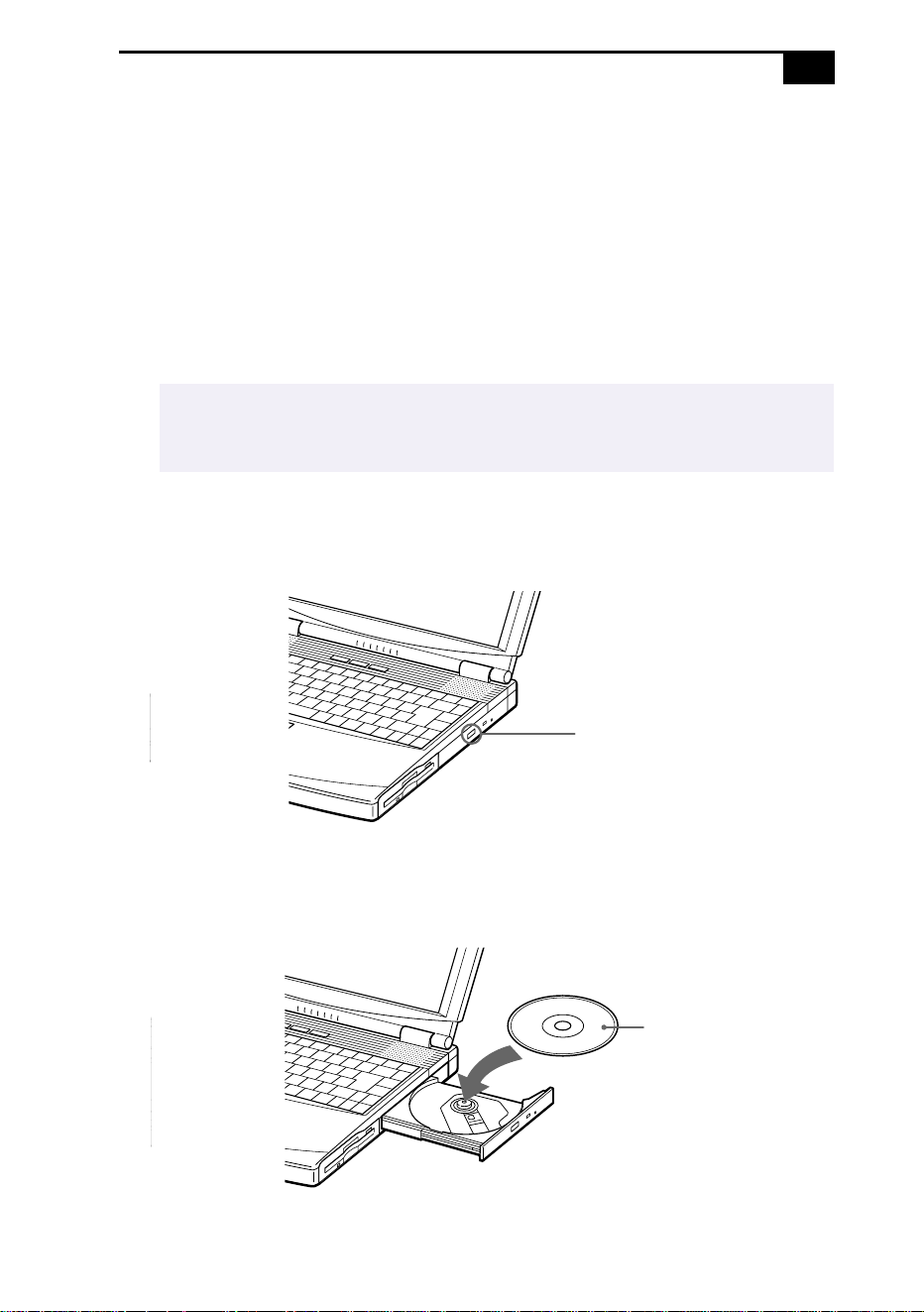
To insert a disc
1
Turn on the computer.
2
Press the Eject button to open the DVD-ROM/CD-ROM drive.
The tray slides out.
3
Place a DVD-ROM/CD-ROM in the tray with the label side facing
up. For DVD-ROMs, which can be played on both sides, the side of
the disc facing up is the side that plays. Push the disc onto the hub
until the disc clicks into place.
✍
When the computer is in
S
ystem
S
uspend or
S
ystem Hibernation mode, you cannot
insert a disc. See “Controlling Power Management” on page 59 for more information
on System Suspend and System Hibernation modes.
Eject button
Label side facing up
VAIO Notebook Computer User Guide
28
4
Close the tray by pushing it gently.
To play DVD-ROMs
To achieve optimum performance when playing DVD-ROMs, you should
use the following recommendations: Your computer should not
be connected to the port replicator while playing DVD movies or using
DVD applications. Close any open applications before playing a
DVD-ROM movie. The DVD player automatically adjusts the screen
properties when you play a DVD movie. Depending on the display setup
properties you have selected, you may need to use the Fn + F command
to expand the movie to full screen size.
✍
Be sure to seat the disc firmly over the DVD-ROM/CD-ROM drive hub fingers. If you do not
seat the disc firmly, you could damage your DVD-ROM/CD-ROM drive and you may not be
able to open the tray.
When you finish using a disc, wait until the LED indicator turns off, then press the Eject
button to remove the disc.
When the computer is in System Suspend or System Hibernation mode, you cannot remove
a disc. See “Controlling Power Management” on page 59 for more information about
System Suspend and System Hibernation modes.
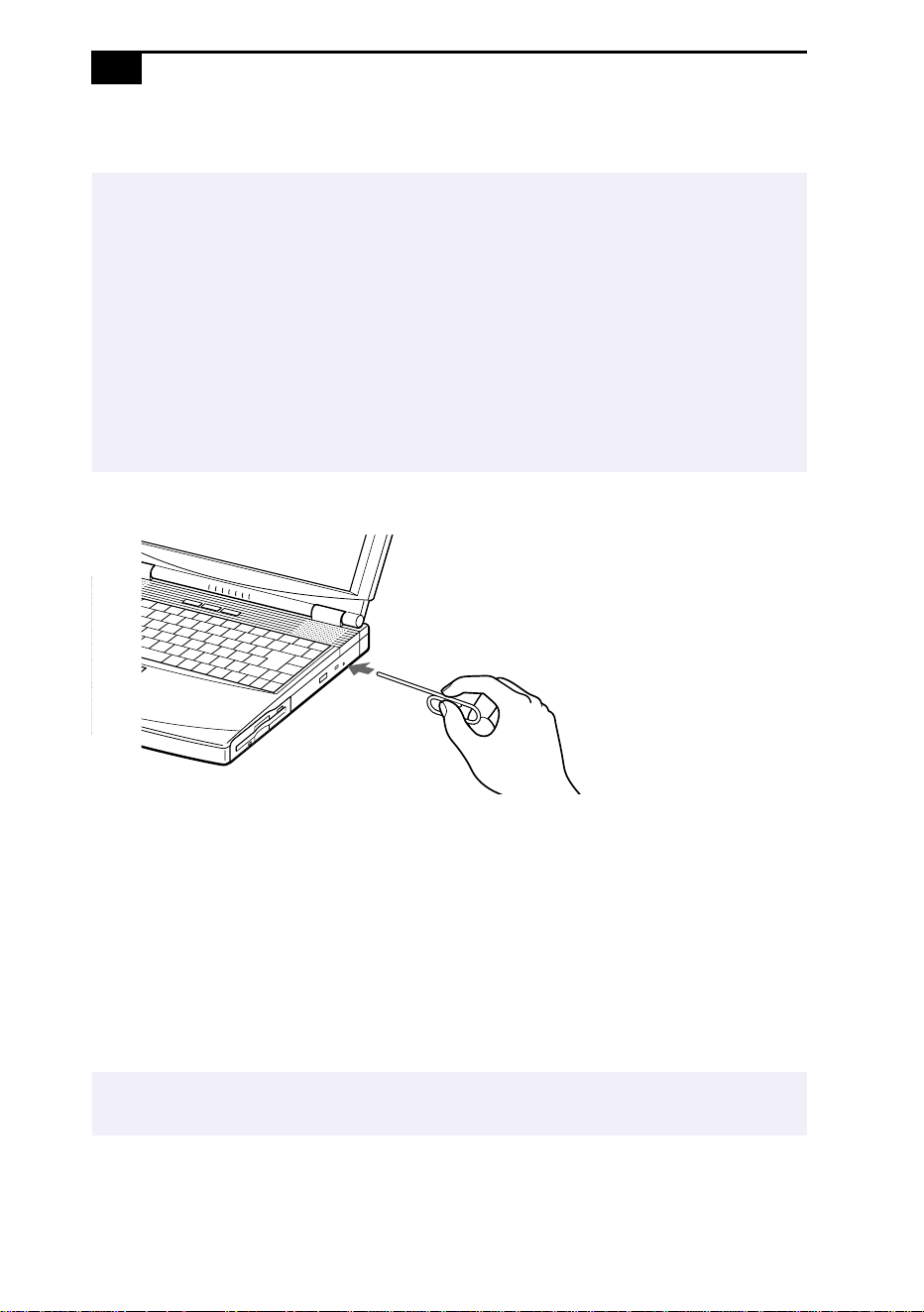
If the disc does not come out when you press the Eject button, turn off the computer and
insert a thin, pointed object into the manual eject hole.
✍
When playing DVD movies on battery power, set the power management profile to
Maximum Performance. With other profiles, the movies are choppy.
Using Your Notebook Computer
29
Using PC Cards
Your computer includes two PC card slots. PC cards allow you to connect
portable external devices such as another hard disk drive, or to connect a
network.
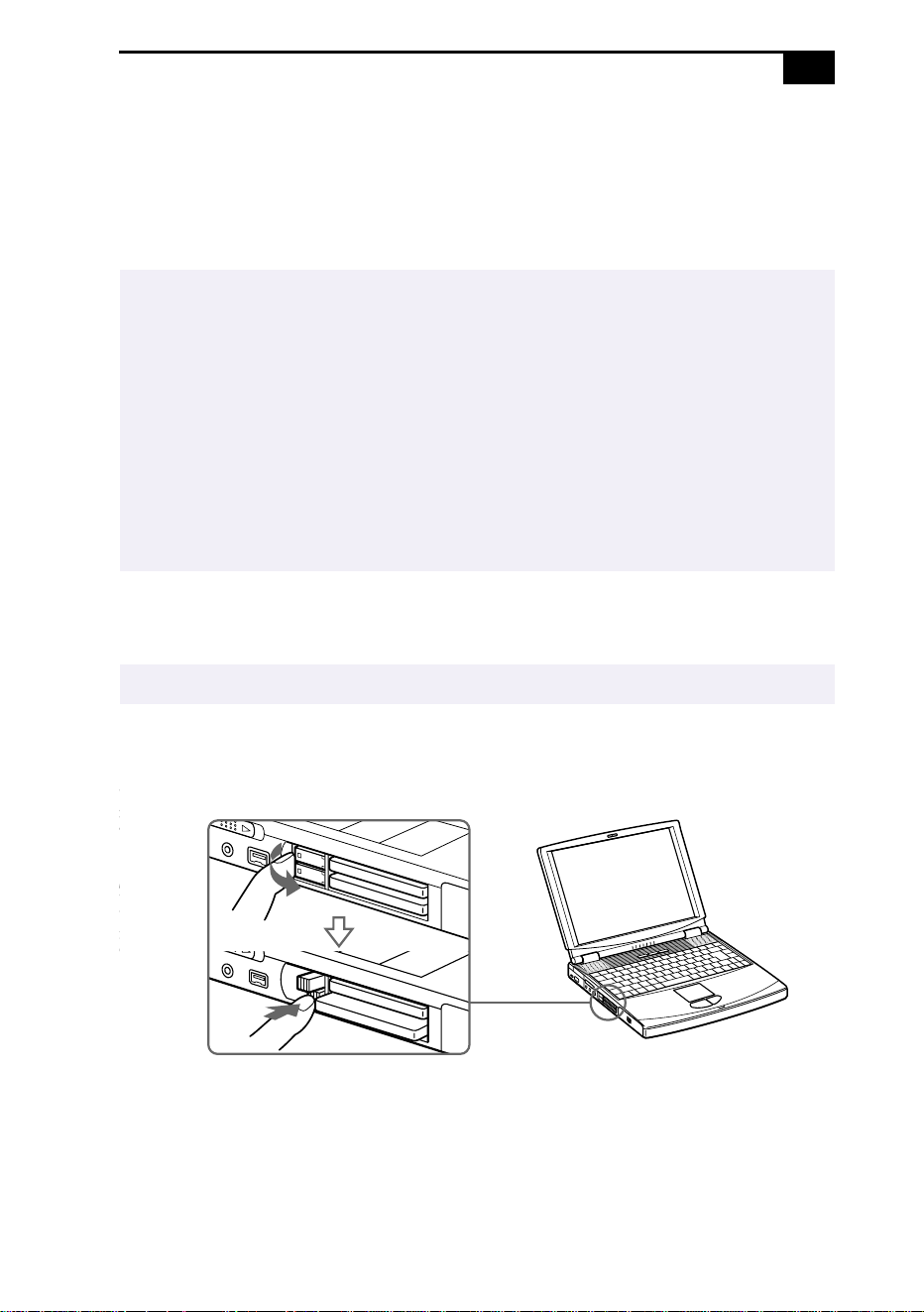
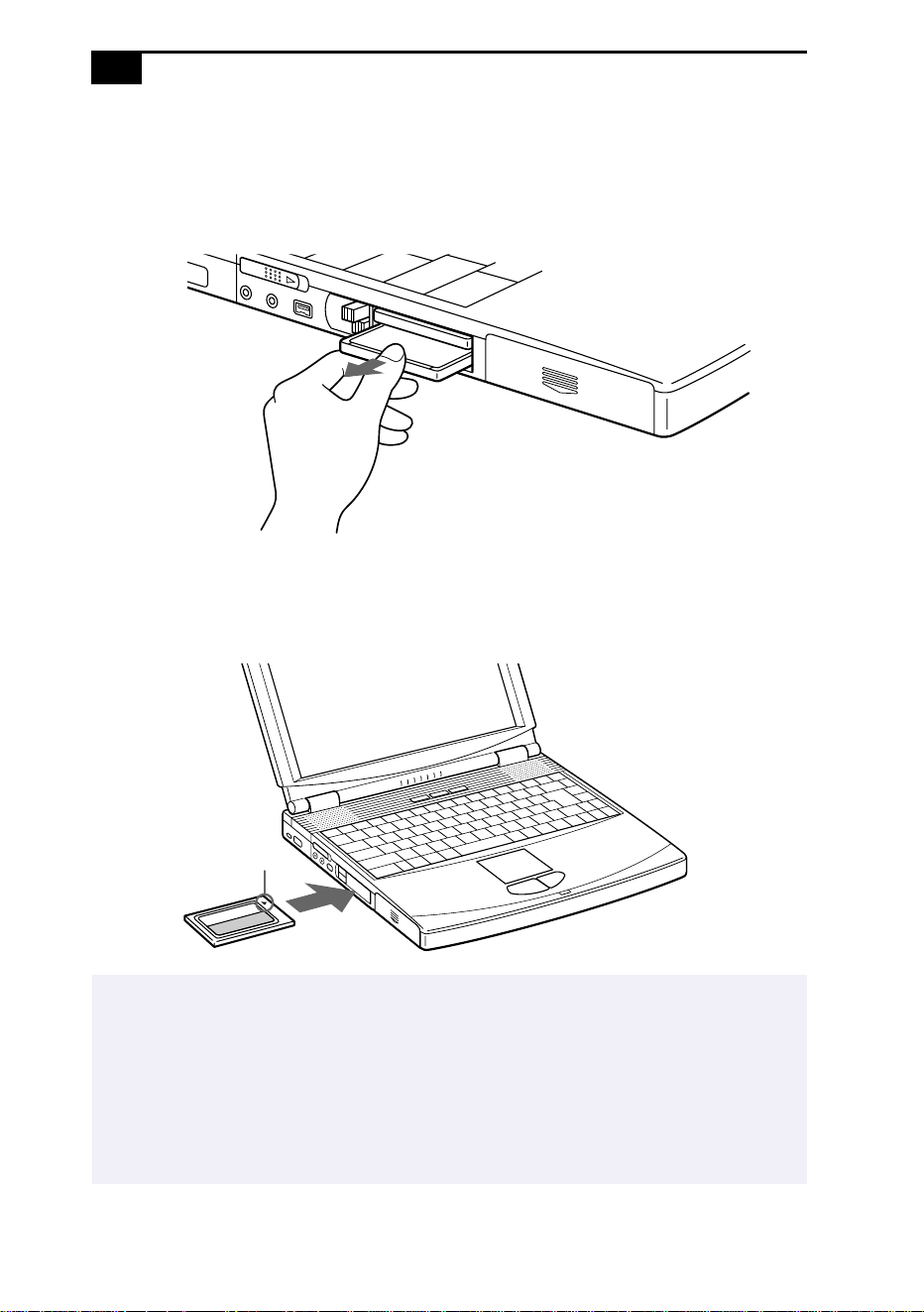
To insert a PC card
Use the lower slot for Type III PC cards.
1
Pull the PC card release button up away from the computer and push
it in toward the computer.
✍
The PC card slots can accommodate (at the same time) two Type I, two Type II, or one Type
III PC card. These slots are compatible with Card Bus.
Some PC cards may require that you disable idle devices when using the PC card. You can
use Sony Notebook Setup to disable devices. See “Displaying the Sony Notebook Setup
Screen” on page 57 for details.
Be sure to use the most recent software driver provided by the PC card manufacturer.
If an “!” mark appears on the Device Manager tab in the System Properties dialog box,
remove the software driver and then reinstall it.
You may not be able to use some PC cards or some functions of the PC card with this
computer.
✍
You do not need to shut down the computer before inserting or removing a PC card.
VAIO Notebook Computer User Guide
30
2
Remove the PC card slot protector.
When you use a Type III PC card, you need to remove both the top
and bottom PC card slot protectors.
3
Insert the PC card into the PC card slot, front label facing up. Gently
push the card into the slot until the card is fixed into the connector.
The release button comes out.
✍
Do not force a card into the slot. It may damage the connector pins. If you have difficulty
inserting a card, check that you are inserting the card with the correct orientation. See the
manual that came with your PC card for more information on use.
For some PC cards, if you alternate between normal power operation and the System
Suspend or System Hibernation power management modes while the card is inserted, you
may find that a device connected to your system is not recognized. Reboot your system to
correct the problem.
PC card

Using Your Notebook Computer
31
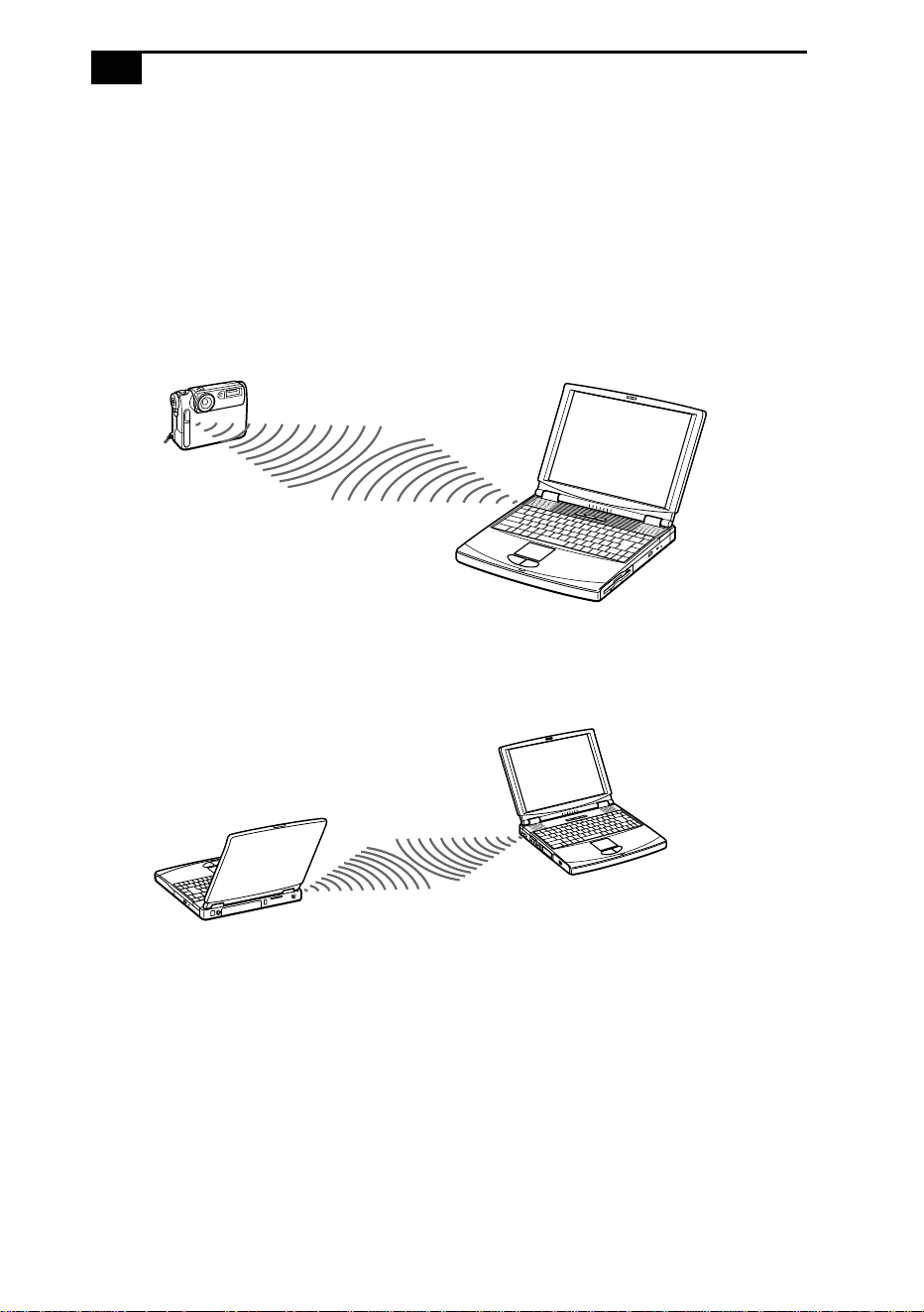
To remove a PC card
1
Close any applications that are using the PC card.
2
Click the PC card icon in the taskbar and close the card.
3
Pull the PC card release button up and press it in toward the
computer.
4
Gently grasp the card and pull it out.
5
Insert the PC card slot protector back into the empty slot.
VAIO Notebook Computer User Guide
32
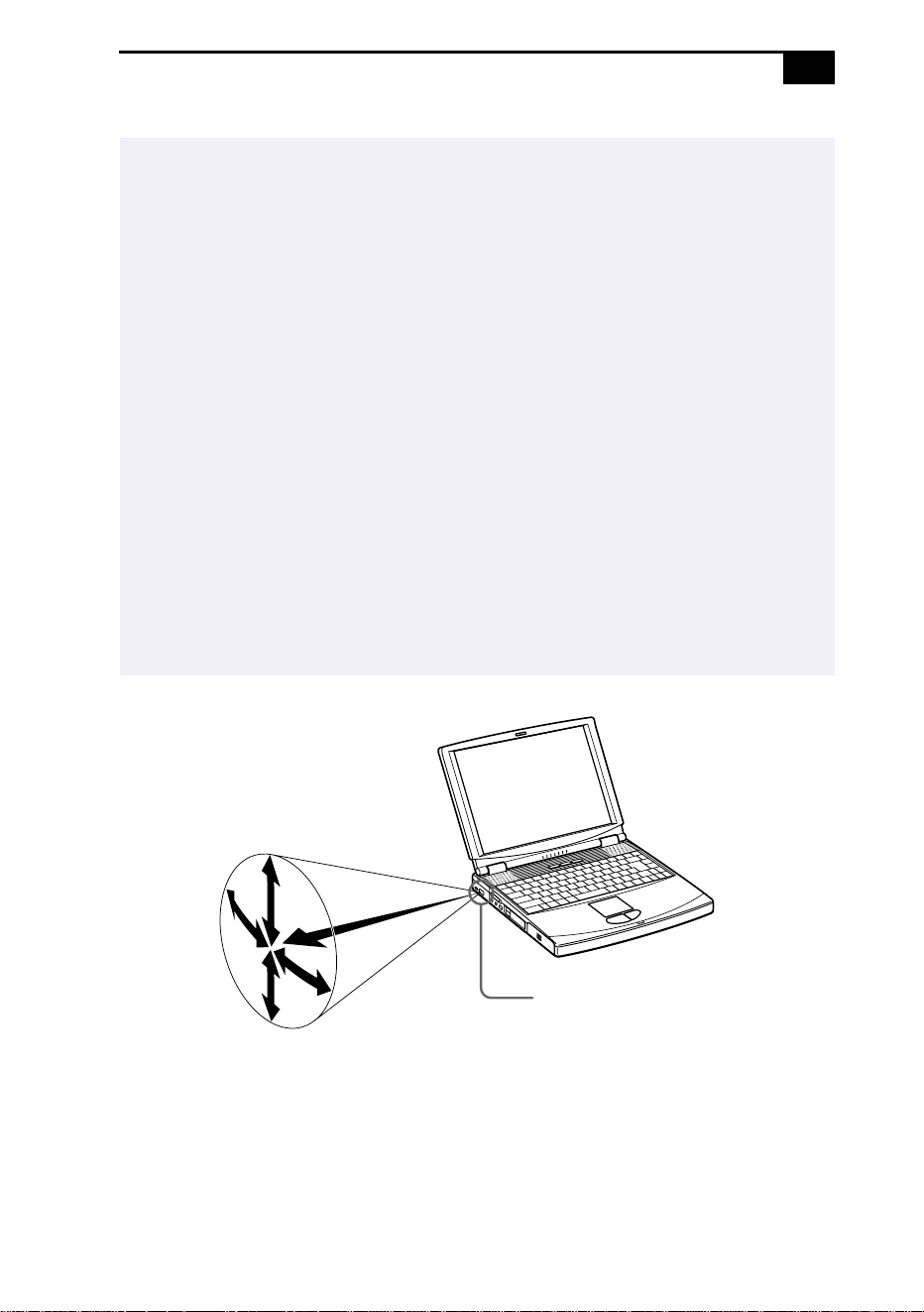
Using Infrared Communication Devices
Your computer includes an infrared port, located on the left side. You can
use this port to communicate with other infrared-equipped devices with
compatible protocols, such as a digital still camera or other computers.
To use infrared communication with a digital still camera
Align the infrared ports on the computer and the digital camera so that
they are in a direct line.
To use infrared communication with another computer
Align the infrared ports on the two computers so that they are in a direct
line.
Infrared port
Using Your Notebook Computer
33
✍
Infrared communication capability can be turned on and off. By default, it is not enabled
when your system is shipped. To enable infrared use, click the infrared icon in the Windows
Control Panel and select the Enable infrared communication checkbox on the Options tab.
You can disable infrared communication when you are not using it to conserve battery life.
Use the infrared icon in the Windows
Control Panel to enable and disable infrared
communication. Do not use the icon in the taskbar.
Check the Status tag of the Infrared Monitor in the Windows Control Panel to determine if
the infrared device is detected.
If the two devices are too far apart or too close together, data transfer may be interrupted or
there may be noise in the transmission.
Do not cover the infrared ports with your hand or any other object.
Avoid direct sunlight, fluorescent light, or flashing incandescent light near the infrared
ports.
See the manual that came with your digital still camera or other infrared communication
device for more information on installation and use.
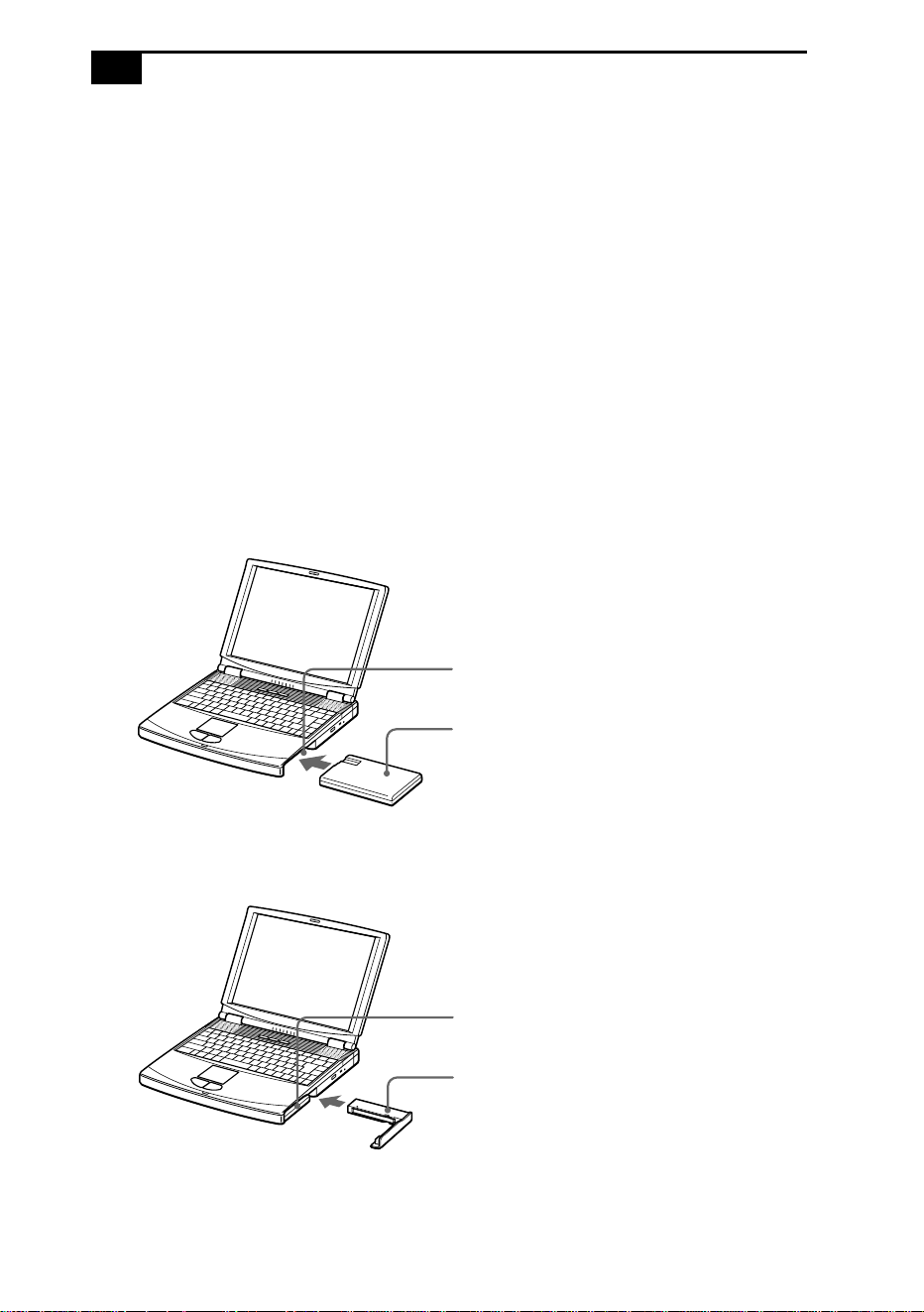
The active area of infrared transmission extends about 39
3
/
8
inches (1 meter) with a radius
of 15 degrees.
Infrared port
3
9
3
/
8
i
n
c
h
e
s
(
1
m
)
15
degrees

VAIO Notebook Computer User Guide
34
Using Power Saving Modes
When you use a battery as the source of power for your computer, you
can take advantage of power management settings to conserve battery
life. In addition to the normal operating mode, which allows you to turn
off specific devices, your computer has three distinct power saving
modes: System Idle, System Suspend, and System Hibernation. When
using battery power, you should be aware that the computer
automatically enters System Hibernation mode when the remaining
battery charge drops below 7 percent, regardless of the power
management setting you select.
Normal Mode
This is the normal state of your computer when it is in use. The green
power indicator light is on in this mode. To save power, you can turn off a
specific device such as the LCD or the hard disk.
System Idle Mode
This mode is convenient if you do not need to use your computer for a
brief period. The hard disk and video display enter a low power state,
and the CPU clock and processor stop. The power indicator light is red in
this mode.
To activate System Idle mode
Press Fn+S, or use the PowerPanel utility.
To return to normal mode
Press any key. Note that resuming from System Idle using the touchpad or
mouse is not possible. You must press a key, a PPK, or the power switch.
✍
If the battery level falls below 10 percent, you should either attach the AC adapter to
recharge the battery or shut down your computer and insert a fully charged battery.

Using Your Notebook Computer
35
System Suspend Mode
The computer saves the current state of the system in RAM and switches
off power to the CPU. The red power indicator light flashes in this mode.
To activate System Suspend mode
Press Fn+Esc, or slide the power switch forward and release it
immediately. You can also use the PowerPanel utility to enter System
Suspend mode.
To return to normal mode
Press any key.
System Hibernation Mode
The state of the system is saved on the hard drive and power is turned off.
The power indicator light is off in this mode.
To activate System Hibernation mode
Press Fn+F12. The “Save to Disk Manager” screen appears, and then the
computer enters System Hibernation mode. You can also use the
PowerPanel utility to enter System Hibernation mode.
To return to normal mode
Turn on the computer by sliding the power switch forward. The
computer returns to its previous state.
❑ Time to return to normal mode
System Idle requires less time than System Suspend, and System
Suspend requires less time than System Hibernation.
❑ Power consumption
System Idle uses more power than System Suspend, and System
Suspend uses more power than System Hibernation.
✍
When returning from System Hibernation mode, the system status stored on the hard disk is
erased and the computer starts normally if you slide the power switch forward and hold for
more than four seconds.
VAIO Notebook Computer User Guide
36
Using a Second Battery Pack
You can purchase a second rechargeable battery pack. With two battery
packs, you can extend the time that you use your computer with battery
power. When using two battery packs, the battery pack you insert first
charges first. The battery pack you insert second charges when the first
battery pack is 85 percent full. You can monitor which battery pack is
charging by observing the battery indicator lights.
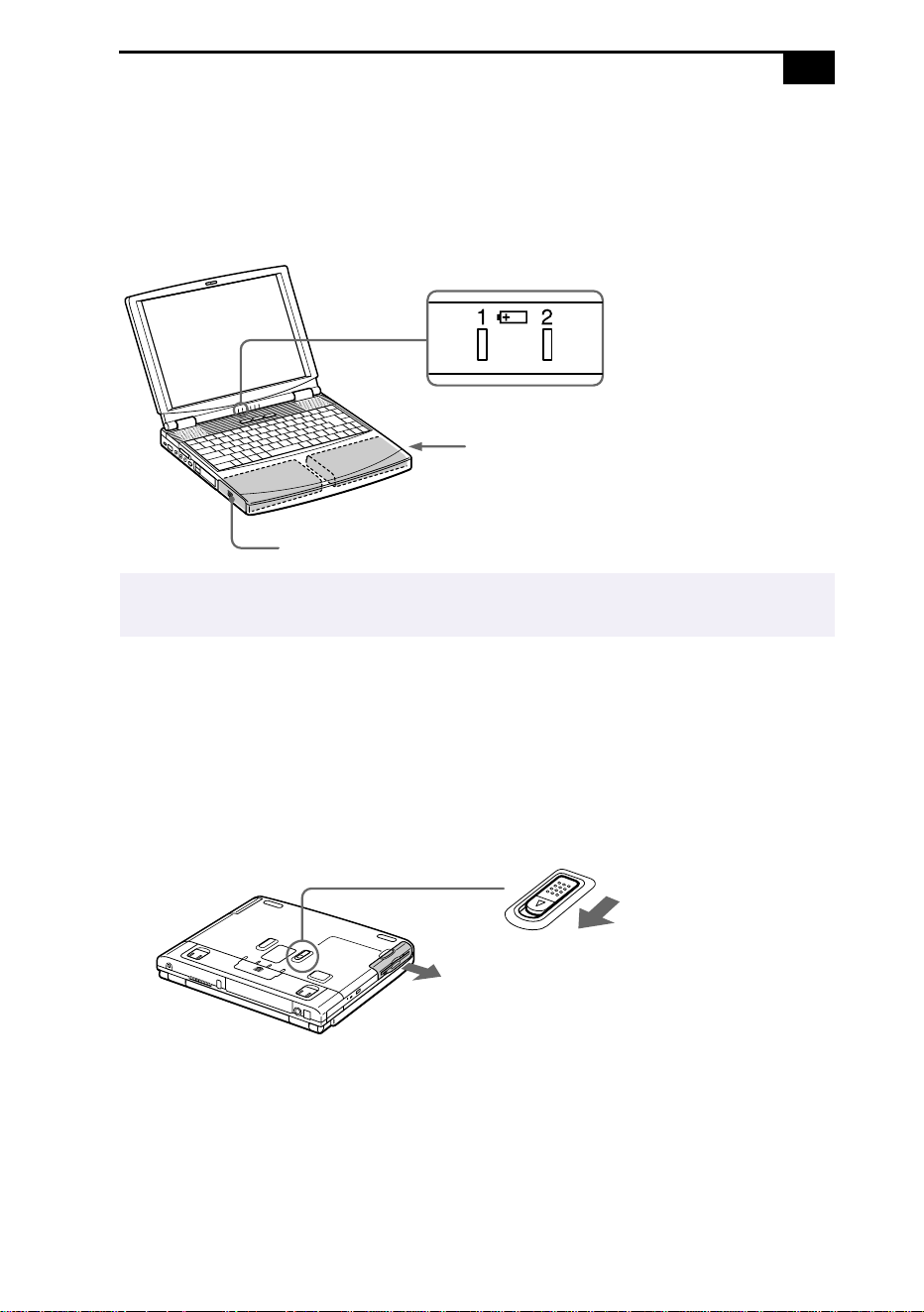
To insert a second battery pack
1
If another device is in the drive bay, remove the device. See “To
remove the floppy disk drive” on page 26.
2
Insert the battery pack into the drive bay.
If the battery is being used, the battery 2 indicator light turns on.
3
Attach the weight saver to the computer to stabilize the battery pack.
See also “Using the Weight Saver” on page 38.
Battery pack
Drive bay
Label side facing down
Battery pack
Weight saver
Using Your Notebook Computer
37
To charge the second battery pack
Keep the battery pack in the computer while it is connected to AC power.
The battery indicator flashes while the battery is charging. See also “To
charge the battery pack” on page 11 for more information.
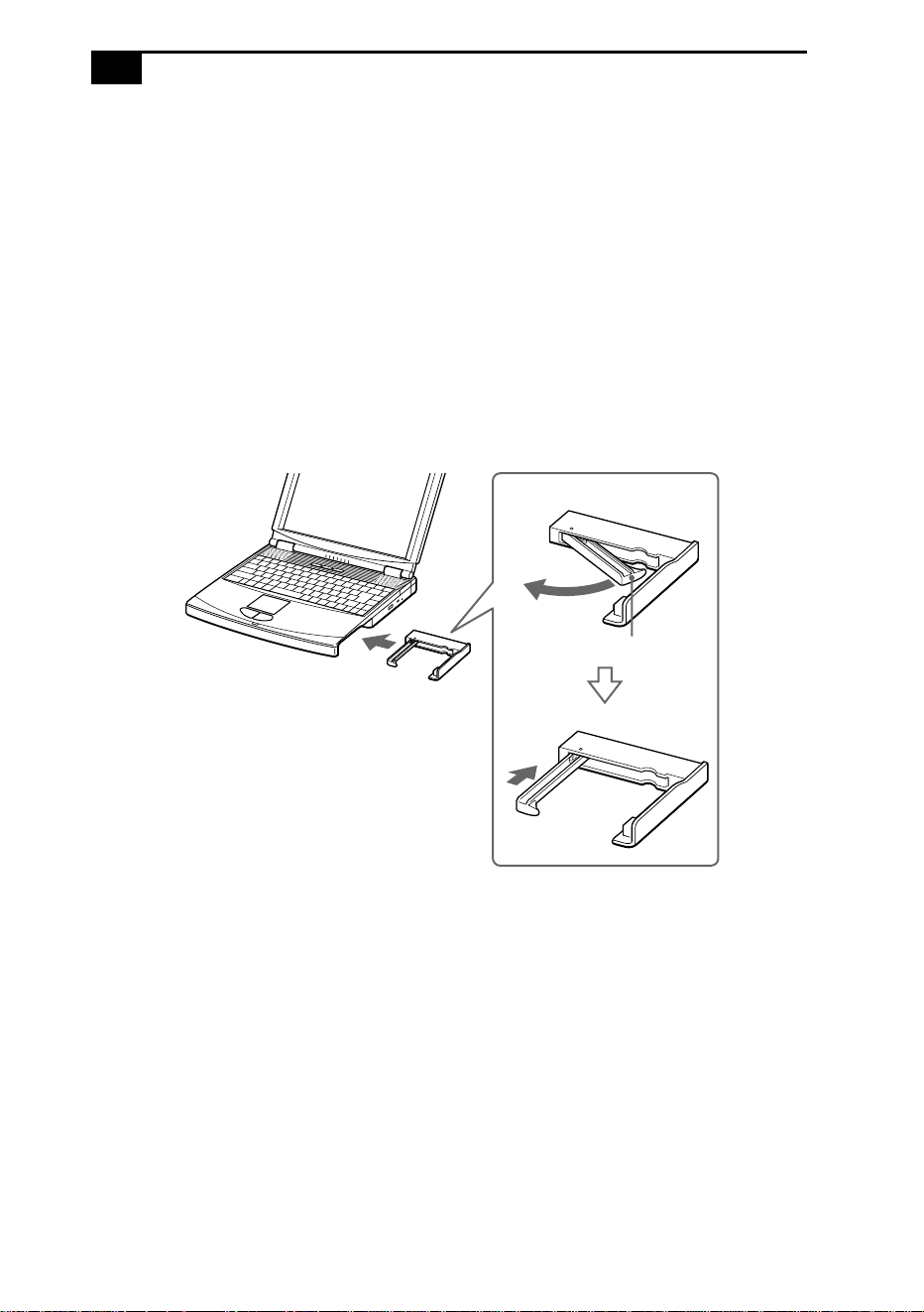
To remove the second battery pack
1
There is a Release lever on the bottom of the weight saver. To remove
the battery pack, slide this lever in the direction of arrow 1, then slide
the RELEASE lever on the bottom of the computer in the direction of
arrow 2.
2
Remove the weight saver, and then pull out the battery pack.
3
Reinsert the weight saver. See “Using the Weight Saver” on page 38.
✍
To determine the amount of time the battery lasts, see “Displaying Battery Information” on
page 62.
Second battery pack
(not supplied)
Battery indicators
Battery pack (supplied)
Arrow 1: Weight saver Release lever
Arrow 2: RELEASE lever
VAIO Notebook Computer User Guide
38
Using the Weight Saver
The weight saver protects the drive bay when it is empty.
To attach the weight saver
1
If another device is in the drive bay, remove the device. See “To
remove the floppy disk drive” on page 26 or “To remove the second
battery pack” on page 37.
2
Fold out the hinged arm of the weight saver and then push on the
hinged arm to lock it into place. Slide the weight saver in the
direction of the arrow until it clicks.
3
Manually lock the weight saver’s RELEASE lever.
Weight saver (supplied)

Using Your Notebook Computer
39
To remove the Weight Saver
1
There is a release lever on the bottom of the weight saver. To remove
the weight saver, slide this lever in the direction of arrow 1, then slide
the RELEASE lever on the bottom of the computer in the direction of
arrow 2.
2
After removing the weight saver, pull out the weight saver’s hinged
arm and fold it into the weight saver.
Arrow 1: Weight saver Release lever
Arrow 2: RELEASE lever

40

41
Connecting Peripheral Devices
You can add functionality to your computer by connecting any of these
peripherals:
❑ Phone line (page 42)
❑ Port replicator (page 43)
❑ Printer (page 47)
❑ External display (page 48)
❑ External mouse or keyboard (page 51)
❑ External speakers (page 52)
❑ External microphone (page 53)
❑ Digital still camera or other serial device (page 54)
❑ Digital video camera recorder (page 55)
❑ Universal Serial Bus (USB) device (page 56)
✍
Before you connect peripherals, turn off the computer and all peripherals.
Connect the power cord only after connecting all cables.
Turn on the computer only after turning on all peripherals.
VAIO Notebook Computer User Guide
42
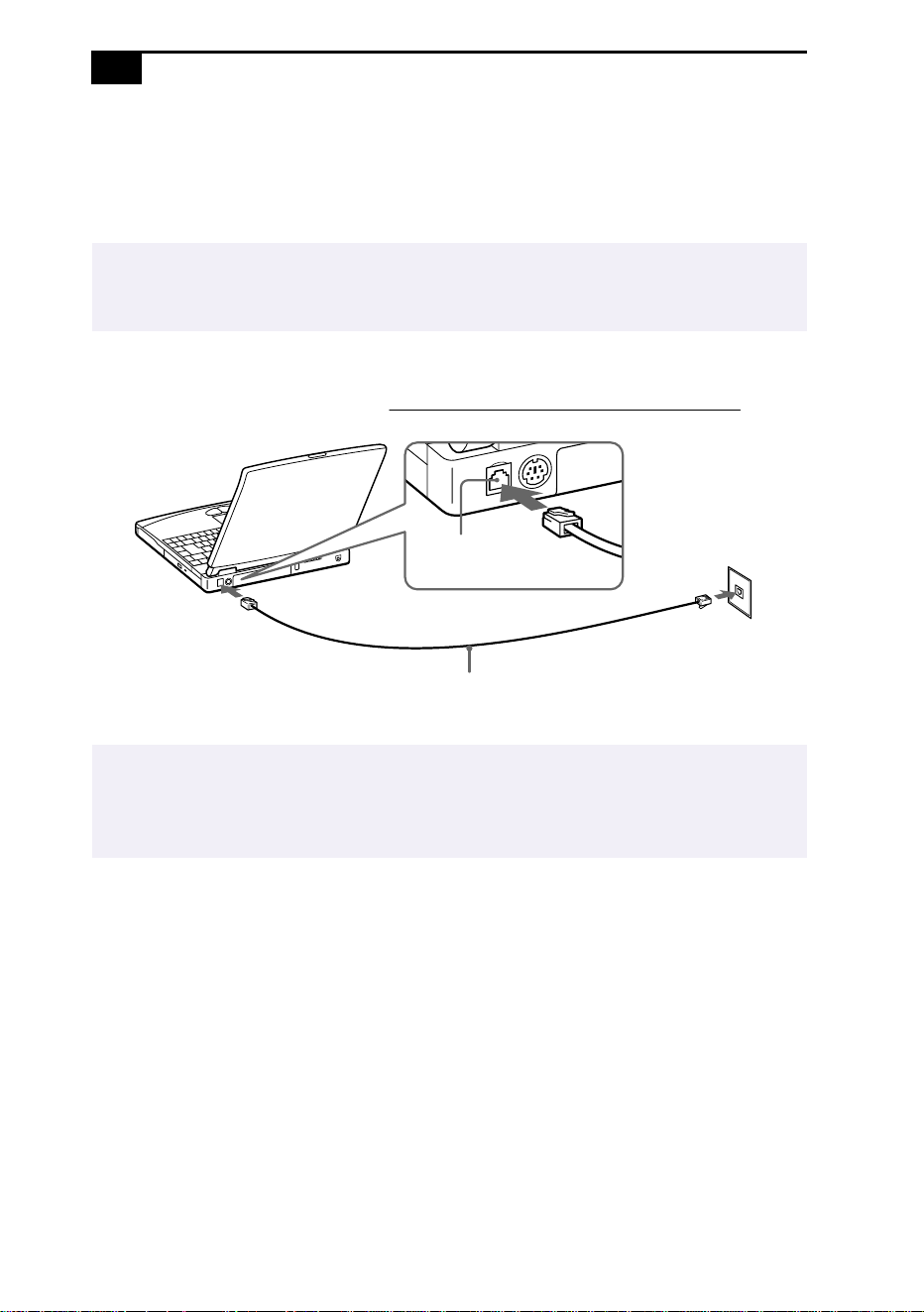
Connecting a Phone Line
You need to connect a phone line to take advantage of online services and
the Internet.
1
Plug one end of the phone cable into the phone line jack on the
computer.
2
Plug the other end into the wall jack.
✍
In order to register your Sony VAIO Notebook Computer, register your software online, and
use Sony Customer Support, you must connect to a phone line. You must register your
computer to receive the extended warranty.
✍
Your computer does not work with party lines, cannot be connected to a coin-operated
telephone, and may not work with multiple phone lines or a private branch exchange (PBX).
Some of these connections might result in excess electrical current and could cause a
malfunction in the internal modem.
Phone line jack
Phone cable (not supplied)
Phone line jack

Connecting Peripheral Devices
43
Connecting the Port Replicator
Your notebook computer supports the use of an optional port replicator.
Attaching a port replicator enables you to connect additional peripherals
to your computer.
Network (Ethernet)
USB (page 56)
Monitor (page 48) Printer (page 47)
Serial (page 54)
DC In (page 9)
/ Mouse/Keyboard (page 51)
✍
The port replicator can be powered only with an AC power adapter. Do not remove the AC
adapter from the port replicator or the AC outlet while using the port replicator; this may
cause data damage or hardware malfunctions.
When using the port replicator for the first time, install the driver supplied with the port
replicator. When installation is complete, a message appears asking if you want to change
the system setup. Click Yes, then reboot your computer.
1
5
2
6
3
7
4
VAIO Notebook Computer User Guide
44
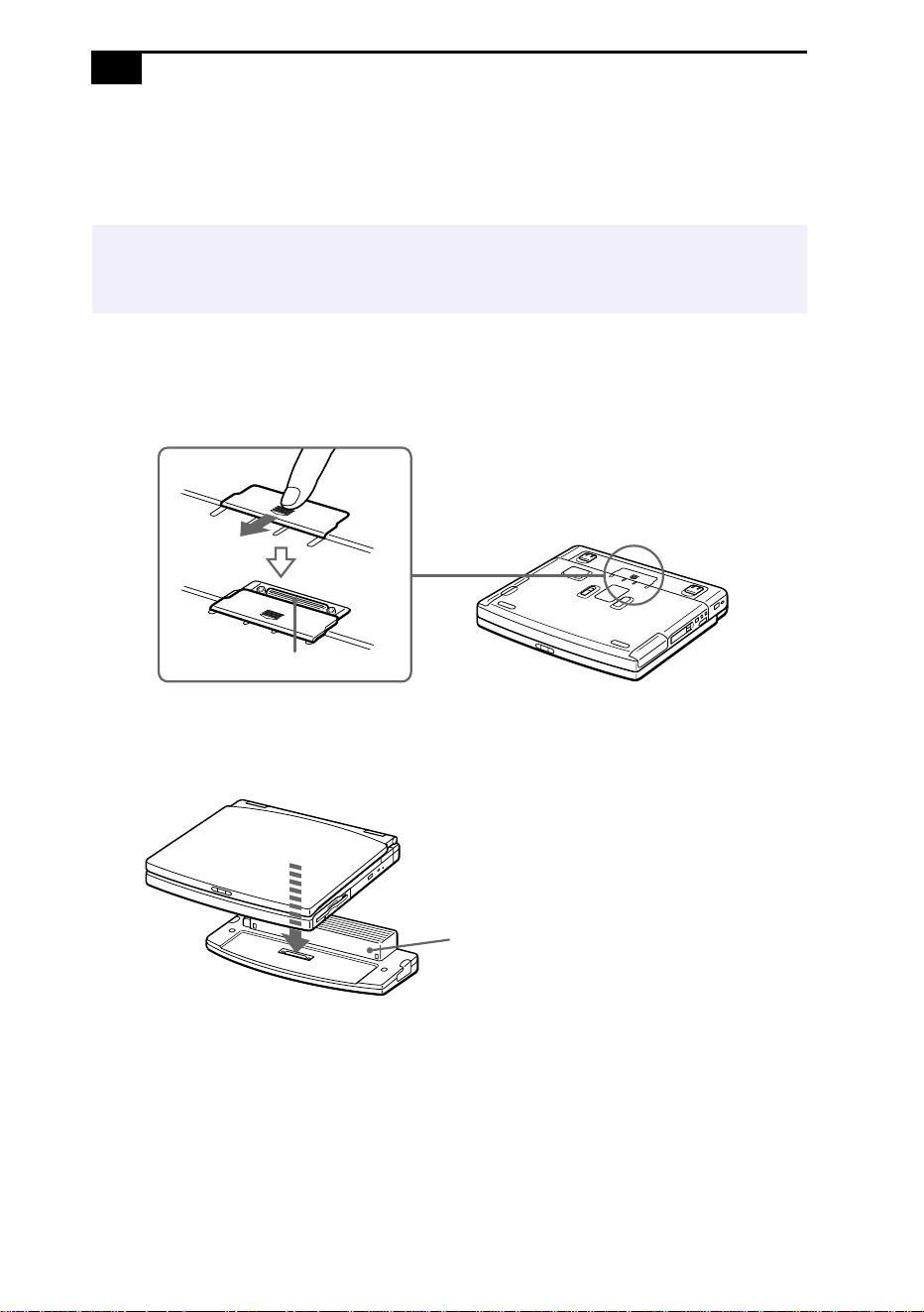
To attach your computer to the port replicator
To supply power to your computer while it is connected to the port
replicator, you can connect the AC adapter directly to the port replicator.
1
Turn off your computer and disconnect all peripherals.
2
On the bottom of the computer, lift the port replicator connector
cover.
3
Attach the bottom of the computer to the port replicator connector
until it clicks.
✍
When attaching your computer to the port replicator, do not attempt to insert or remove the
battery pack. Lifting and turning the computer with an attached port replicator could cause
a temporary loss of power.
Port replicator connector
Notebook computer
Port replicator

Connecting Peripheral Devices
45
4
Plug the cable attached to the AC adapter into the
DC IN
connector on
the port replicator. Plug the power cord into the AC adapter and an
AC outlet.
The power indicator light turns green.
5
Turn on the computer.
✍
Use the AC adapter that comes with your computer or the optional Sony PCGA-AC71
adapter.
AC adapter
Power cord
Port replicator connector
Power
Release lever
VAIO Notebook Computer User Guide
46
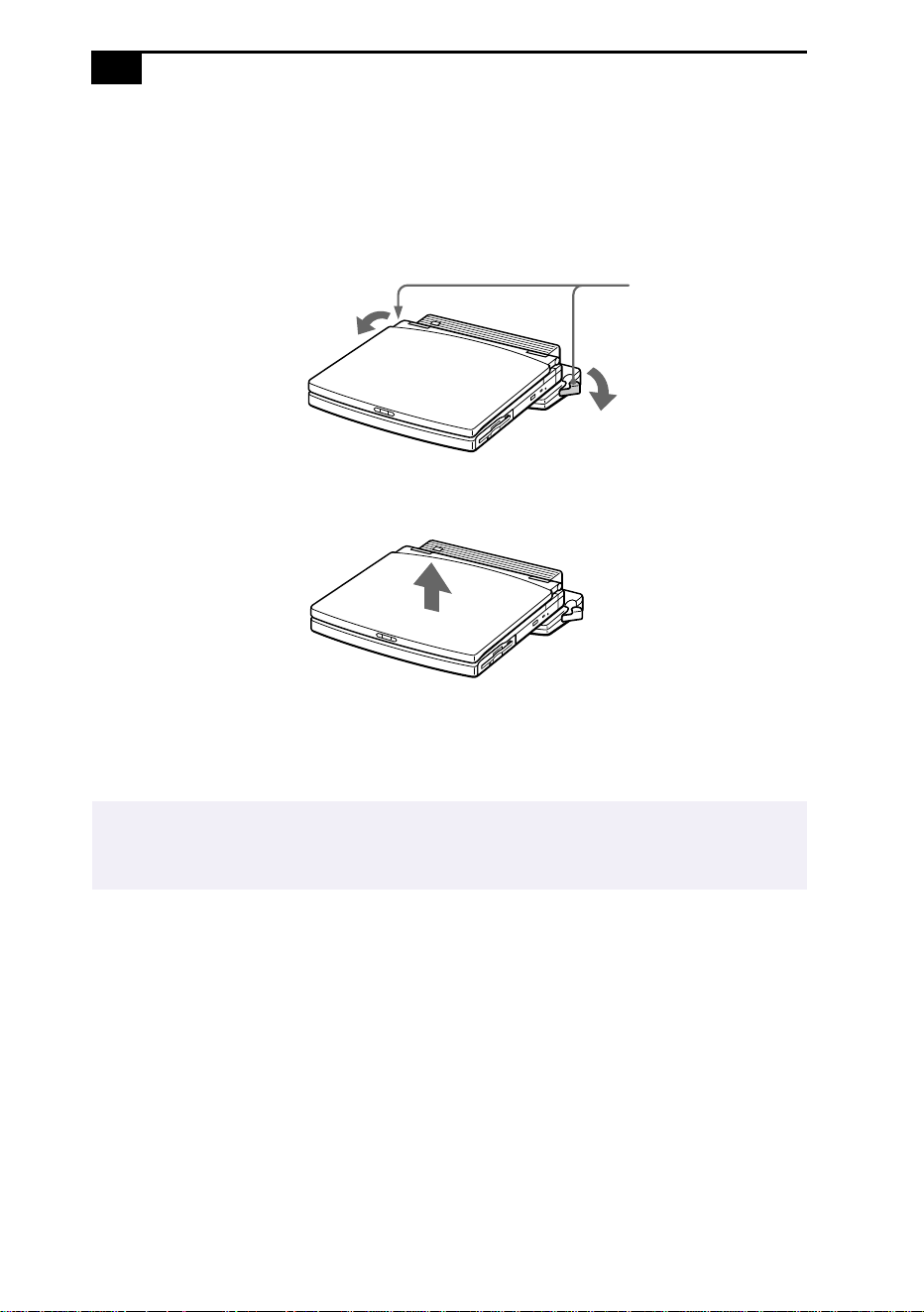
To remove your computer from the port replicator when the power is off
1
Turn off your computer and the connected peripherals.
2
Pull the levers on each side of the port replicator to disengage the
computer from the port replicator.
3
Lift the computer away from the port replicator.
4
Close the port replicator connector cover on the bottom of your
computer.
.
✍
It is extremely important to close the port replicator connector cover after removing your
computer from the port replicator. If the cover is left open, dirt may get inside and damage
the computer.
Lever

Connecting Peripheral Devices
47
Connecting a Printer
You can connect a Windows 98-compatible printer to your computer to
print documents.
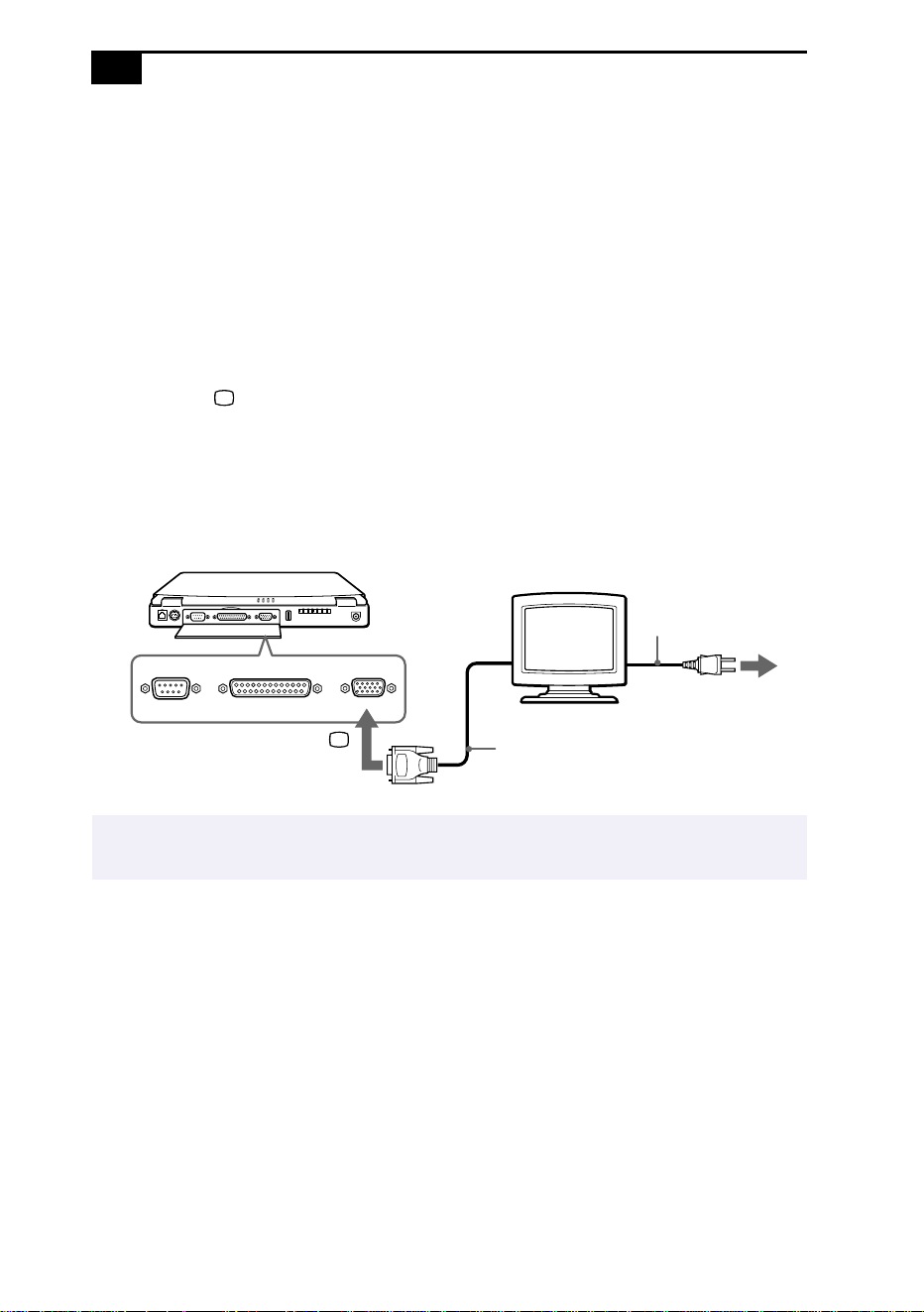
To connect a printer
❑ Use the symbol to locate the Printer connector. Plug the printer
cable (supplied with the printer) into this port on the computer.
✍
See the manual that came with your printer for more information on installation and use.
Before using the printer, you may need to change the Printer setting in the Sony Notebook
Setup software. See “Displaying the Sony Notebook Setup Screen” on page 57.
Printer
Power cord
Printer cable
(supplied with the printer)
to
Printer
VAIO Notebook Computer User Guide
48
Connecting an External Display
You can connect an external display to your notebook computer. For
example, you can use the computer with any of the following:
❑ Computer display (monitor) (page 48)
❑ Multimedia computer display (page 49)
❑ Projector (page 50)
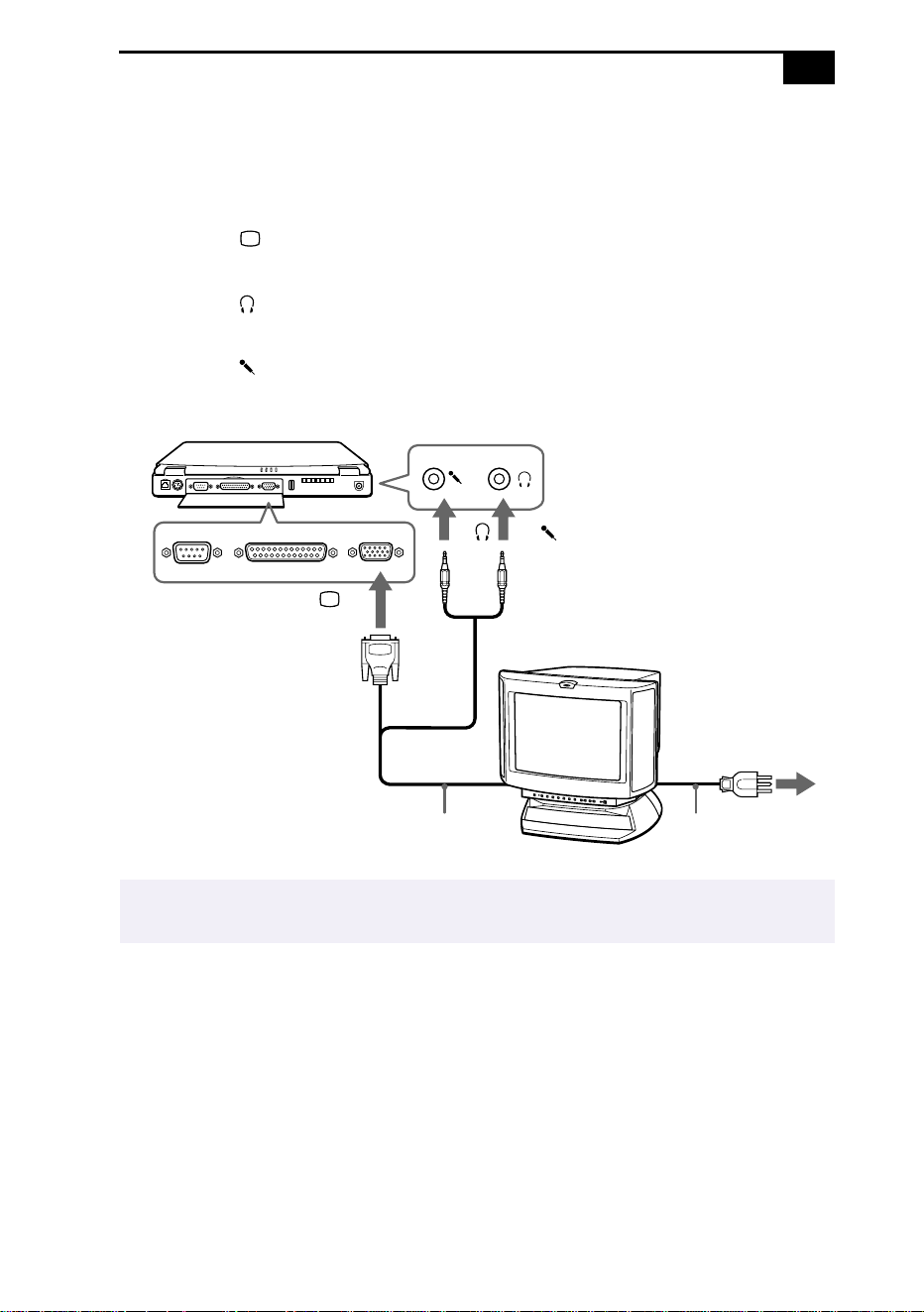
To connect a computer display
❑ Use the symbol on the back of the computer to locate the Monitor
connector. Plug the display cable (not supplied) into this connector on
the back of the computer.
❑ If necessary, plug one end of the display power cord into the display,
and the other end into an AC outlet.
✍
See the manual that came with your computer display for more information on installation
and use.
Computer display
Power cord
to
Display cable (not supplied)
Monitor
Connecting Peripheral Devices
49
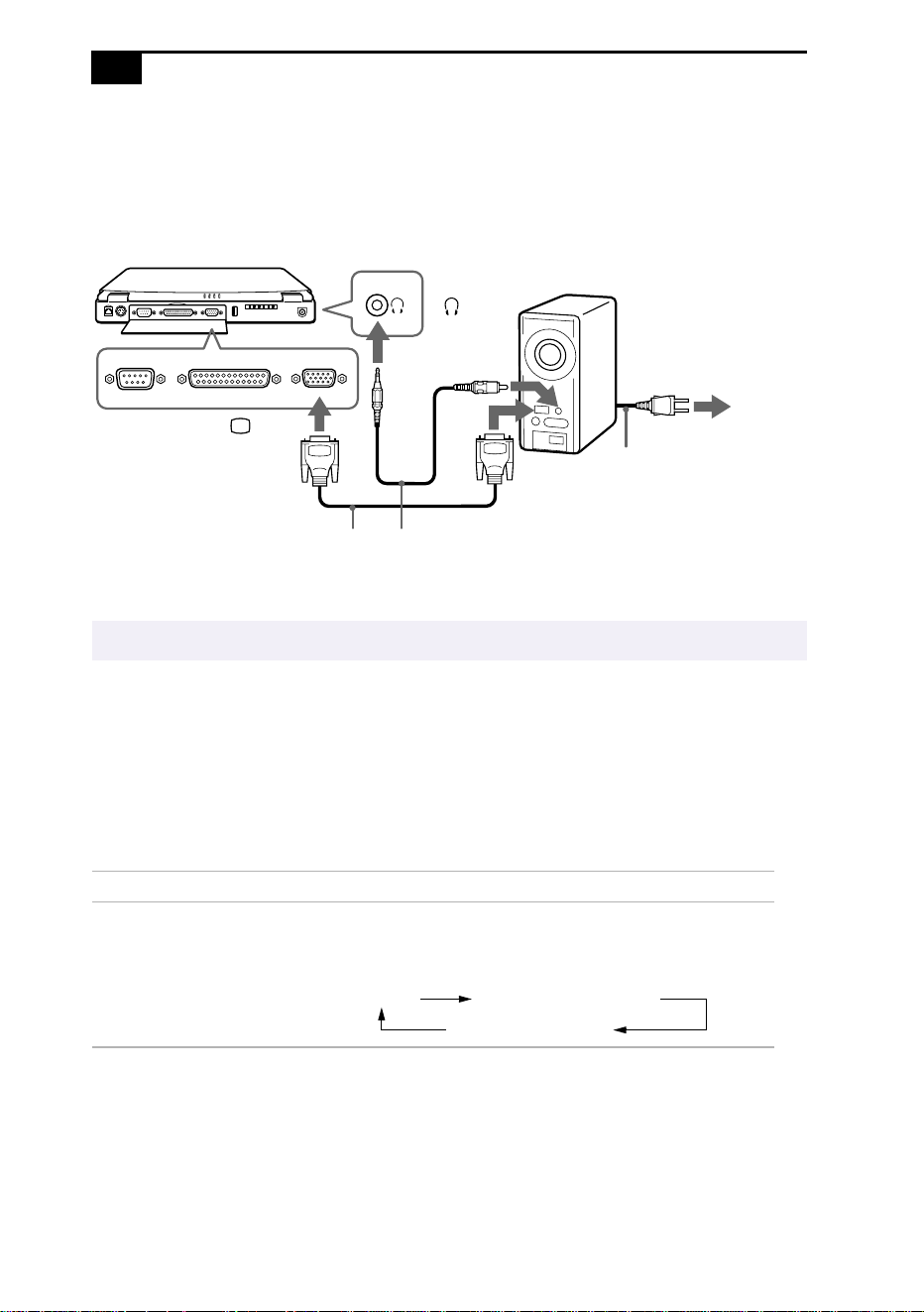
To connect a multimedia computer display
You can connect the notebook computer to a multimedia computer
display that includes built-in speakers and a microphone.
1
Use the symbol to locate the Monitor connector. Plug the display
cable into this connector.
2
Use the symbol to locate the Headphone connector. Plug the
speaker cable into this connector.
3
Use the symbol to locate the Microphone connector. Plug the
microphone cable into this connector.
✍
See the manual that came with your multimedia computer display for more information on
installation and use.
Multimedia
computer display
Power cordDisplay cable
to
Monitor
to
to
VAIO Notebook Computer User Guide
50
To connect a projector
You can use a projector, such as the Sony LCD Projector, as an external
display.
To select a display
When you connect an external display to the monitor connector, you can
toggle the output among the Liquid Crystal Display (LCD), the external
monitor, or both devices.
Use the
Fn+F7
keys to select a display. See also “Selecting the Display
Mode” on page 65 for more information.
✍
See the manual that came with your projector for more information on installation and use.
To Press Result
Switch to an
external
display
Fn+F7 Toggles among the LCD, the external display
connected to the Monitor connector, and both
the LCD and external display.
Projector
Power cord
Audio cable (not supplied)
RGB signal cable
to
Monitor
to
Only LCD
LCD and external display
Only external display

Connecting Peripheral Devices
51
Connecting an External Mouse or Keyboard
You can connect an external mouse or keyboard to the computer by
plugging the mouse or keyboard into the / Mouse/Keyboard
connector. To connect both a mouse and keyboard at the same time, you
must use the port replicator. Connect the keyboard to the / Mouse/
Keyboard connector, and the mouse to the
Serial connector of the
port replicator. The Mouse/Keyboard connector requires a PS/2
®
-style
plug or adapter.
To connect an external mouse or keyboard
❑ Use the / symbol to locate the Mouse/Keyboard connector.
Plug the keyboard cable or mouse cable into this connector with
the mark facing up.
✍
See “Using the Keyboard” on page 18 for more information on using the keyboard.
See the manual that came with your mouse or keyboard for more information on
installation and use.
Before you connect or disconnect the mouse or keyboard, turn off the computer.
Before connecting a mouse to the Serial port, make sure the mouse is compatible with a
serial port.
➠
Mouse
or
Keyboard
to
/
Mouse/Keyboard
VAIO Notebook Computer User Guide
52
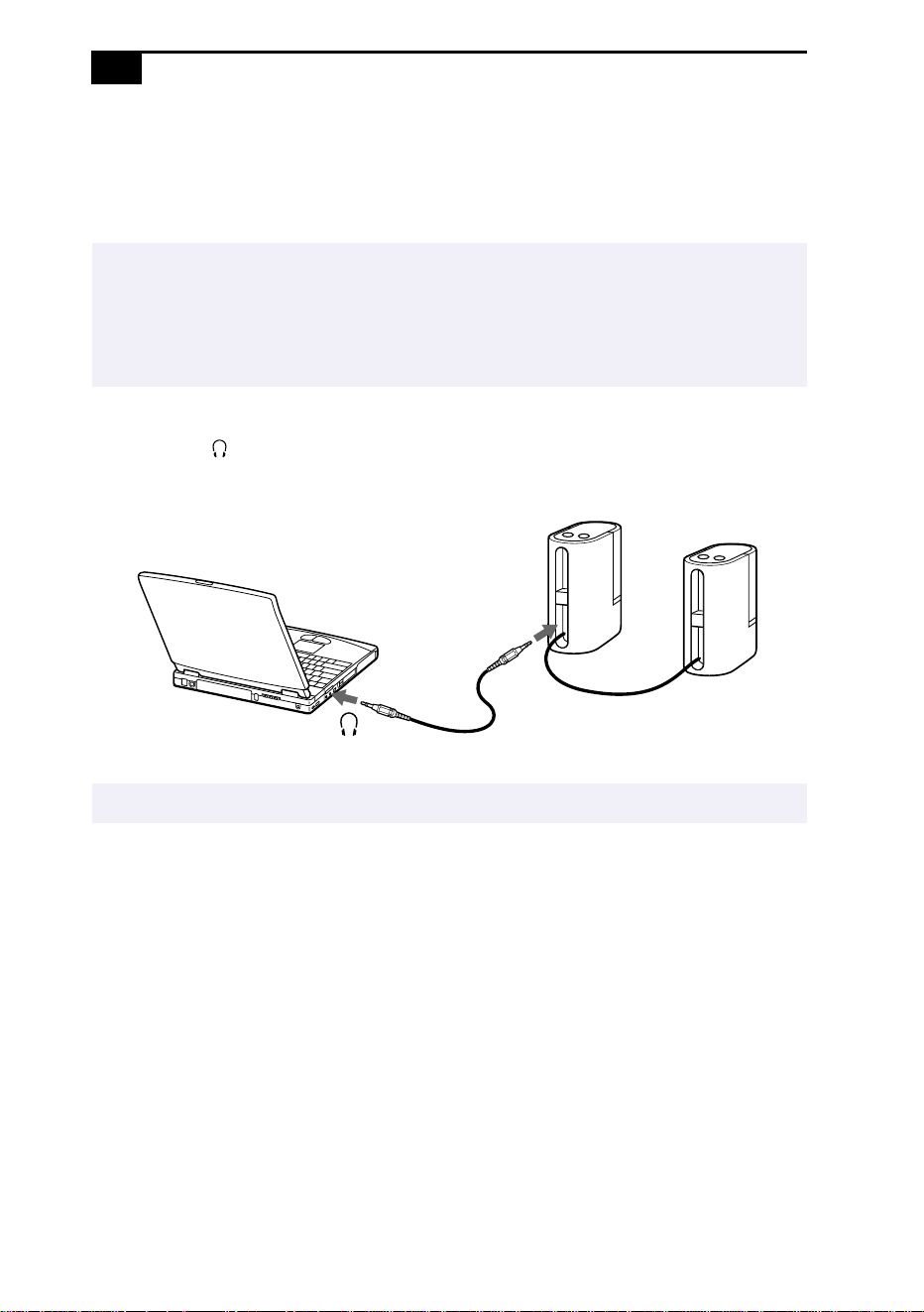
Connecting External Speakers
You can enhance the sound quality of your computer by connecting
external speakers.
To connect external speakers
❑ Use the symbol to locate the Headphone connector. Plug the
speaker cable into this connector.
✍
Make sure your speakers are designed for computer use.
Turn down the volume of the speakers before you turn them on.
Do not place diskettes on the speakers; the speakers’ magnetic field may damage the data
on the diskettes.
✍
See the manual that came with your speakers for more information on installation and use.
Speakers
Speaker cable
(supplied with speakers)
to
Headphone
Connecting Peripheral Devices
53
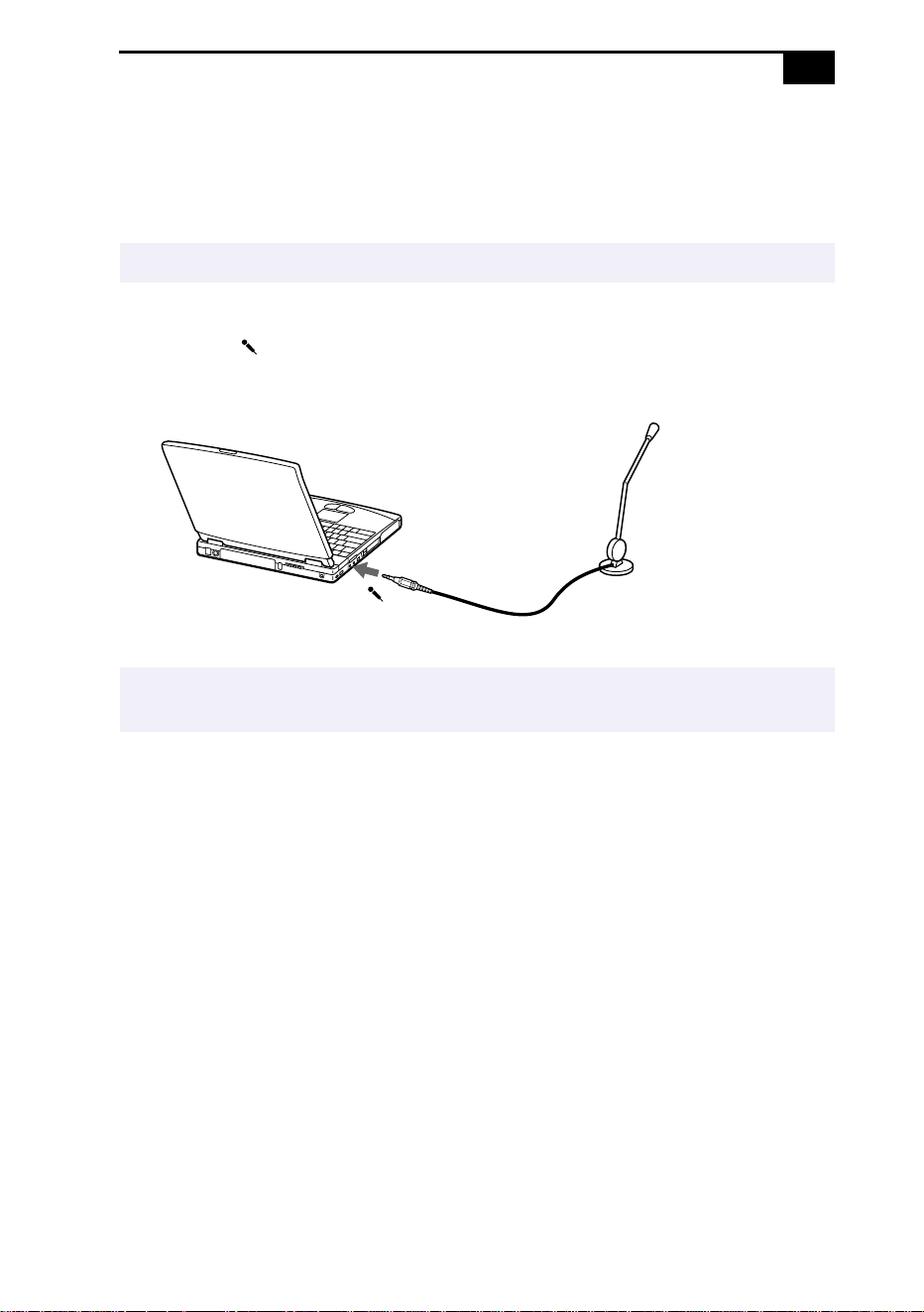
Connecting an External Microphone
You can enhance the quality of sound input by using an external
microphone.
To connect an external microphone
❑ Use the to locate the Microphone connector. Plug the microphone
cable into this connector.
✍
Make sure your microphone is designed for computer use.
✍
See the manual that came with your microphone for more information on installation and
use.
Microphone
to
Microphone
VAIO Notebook Computer User Guide
54
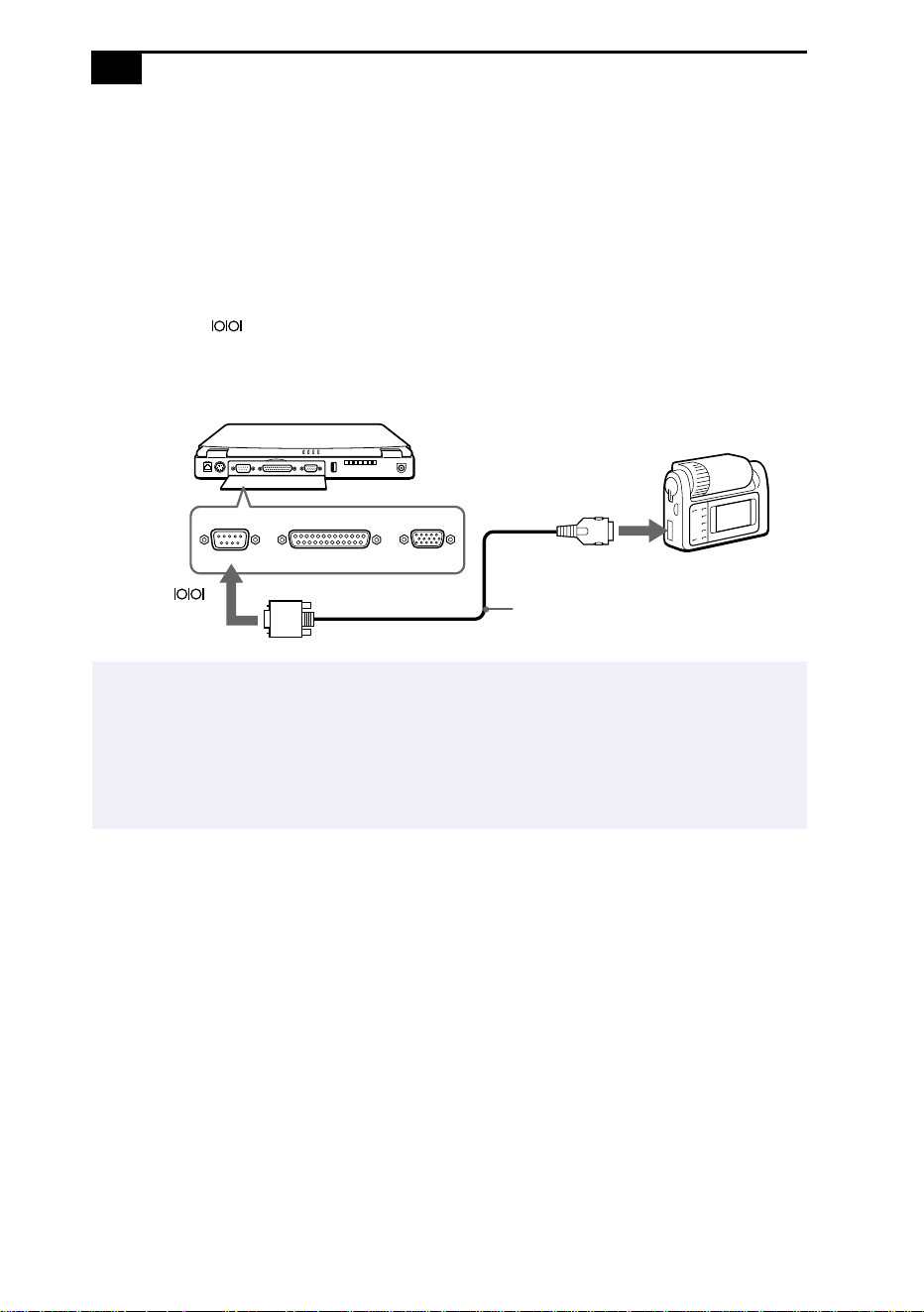
Connecting a Digital Still Camera
or Other Serial Device
You can connect other computer peripherals, such as the Sony Digital Still
Camera, to the Serial connector on your computer.
To connect a digital still camera
❑ Use the symbol to locate the Serial connector. Plug the connecting
cable (not supplied) into this port on the computer and into the
Digital I/O connector on the digital still camera.
✍
The Sony Digital Still Camera is pictured; you may need to connect your camera differently.
See the manual that came with your digital camera or other serial device for more
information on installation and use.
If you use a digital camera that has an infrared data communication system or other infrared
communication device, see “Using Infrared Communication Devices” on page 32.
Digital still camera
to Digital I/O
Connecting cable
to
Serial
(not supplied)

Connecting Peripheral Devices
55
Connecting a Digital Video Camera Recorder
You can connect a digital video camera recorder to the S200 i.LINK™
(IEEE 1394) connector.
To connect a digital video camera recorder
❑ Plug one end of the i.LINK cable (not supplied) into the i.LINK
connector on the left side of the computer and the other end into the
DV In/Out connector on the digital video camera recorder.
✍
The Sony digital video camera recorder (DCR-PC7) is pictured; you may need to connect
your camera differently.
On Sony digital video cameras, connectors labeled “DV In/Out” or “i.LINK” are i.LINK-
compatible.
See the manual that came with your digital video camera recorder for more information on
installation and use.
Do not connect more than one digital video camera at a time. The software supplied with
your computer will not recognize multiple cameras.
The i.LINK connector on the computer does not supply power to external devices. If the
external device requires power from the i.LINK connector, you cannot use the device with
the computer.
The computer supports transfer rates up to 200 Mbps; however, the actual transfer rate is
the lowest transfer rate of the external device.
The i.LINK features available may vary depending on the software applications you use. See
the documentation that came with your software for more information.
Digital video
camera recorder
i.LINK cable
to i.LINK
to DV In/Out
(not supplied)
VAIO Notebook Computer User Guide
56
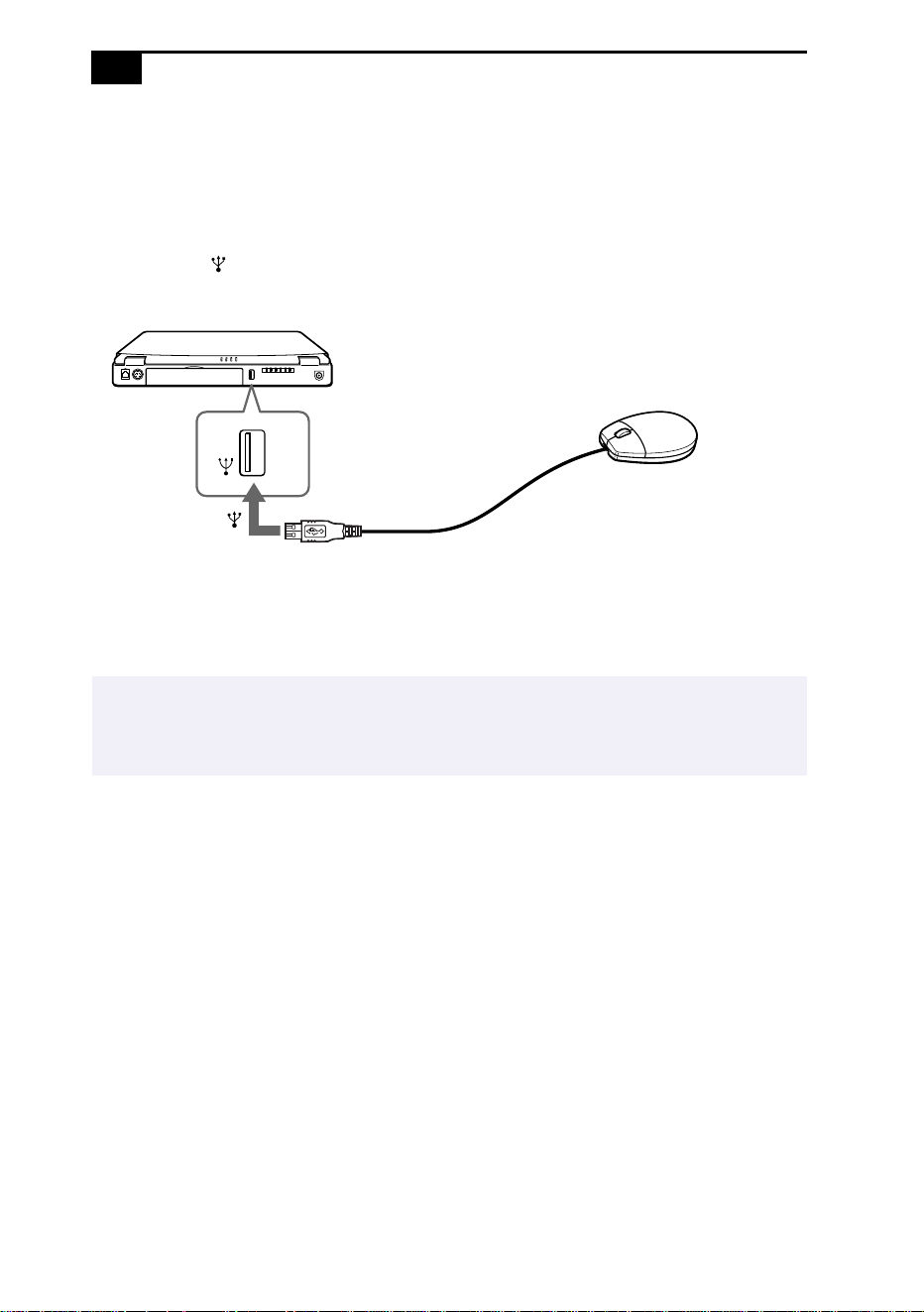
Connecting a Universal Serial Bus (USB) Device
You can connect a USB device to your computer.
To connect a USB device
❑ Use the symbol to locate the USB connector. Plug one end of the
USB cable into this port and the other end into the USB device.
You can use the optional Sony USB mouse PCGA-UMS1 with this
computer. The USB mouse software driver is preinstalled in the
computer. Therefore you only need to plug the USB mouse into the USB
connector.
✍
See the manual that came with your USB device for more information on installation and
use.
to
USB device
USB
USB connecting cable
(not supplied)

57
Customizing Your
Notebook Computer
You can customize the settings of your notebook computer. The following
sections briefly describe how to change your computer’s default settings.
You can also refer to the Sony Notebook Setup Help for more detailed
information.
Displaying the Sony Notebook Setup Screen
To display the Sony Notebook Setup screen:
1
Click the Start button on the Windows 98 taskbar.
2
Point to VAIO and click Sony Notebook Setup.
3
Select the tab for the item you want to change. See “Notebook Setup
Tabs” on page 58.
4
After you finish, click OK.

VAIO Notebook Computer User Guide
58
Notebook Setup Tabs
Tab Description
About This Computer Display system information, including memory
capacity, serial number, and BIOS version.
Audio Change the volume of the sounds that play while the
operating system is loading.
Printer Select printer port mode settings.
Power On
Device Sequence
Select the order of drives and devices from which
you want to load the operating system. You can
specify the hard drive as well as other drives
inserted into your computer.
Touchpad When you connect an optional mouse to the Serial
port of your computer, you can make your touchpad
inactive. You can also customize the settings of your
mouse using the mouse utility.
Power On Password Set the password to secure your computer.
Enable Ports Change the hardware resources such as I/O address,
IRQ, or DMA depending on the optional hardware
or software you use. Disabling ports releases
resources to the system. To change the serial or
infrared settings, click Advanced on the Basic/
Advanced tab.
Basic/Advanced Toggle between Advanced mode (additional screens
with advanced settings) and Basic mode of display.
Advanced mode includes Serial, Infrared, and View
Resources tabs.
✍
For more information about each option, click Help on the Sony Notebook Setup screen to
display the Help file.

Customizing Your Notebook Computer
59
Controlling Power Management
The PowerPanel utility allows you to control the power management of
your notebook computer and provides key information about system
activity and battery life. The following sections briefly describe how to
conserve your computer’s battery power. You can also refer to the
PowerPanel Help for more detailed information.
Power Management Profiles
PowerPanel provides several predefined power management profiles.
Each profile consists of a group of specific power management settings
that are designed to meet specific power management goals—ranging
from maximum power management to no power management. You can
change the settings for any of the predefined profiles or you can create
your own profile to suit your portable computing needs. The predefined
profiles are:
Icon Description
Maximum Performance
–
Provides the best system performance
while still conserving power.
Maximum Battery Life
–
Provides power saving features to give
you maximum battery life and good performance. It slows the
computer and puts it into System Suspend mode after a specified
time period.
Disable Power Management
–
Turns off all power management
features such as System Suspend and System Hibernation modes.
AC Power
–
The power management state when AC power is in
use. Similar to the Power Management Off setting. PowerPanel
automatically loads the AC profile unless you disable this feature.
Games
–
Disables the display and the Hard Disk Standby timer.
Presentation
–
Keeps the display on at all times while it conserves
power. This option is ideal for slide show presentations. You can
establish settings for LCD (Video) Standby, Hard Disk Standby, and
System Suspend to optimize power management for your system.
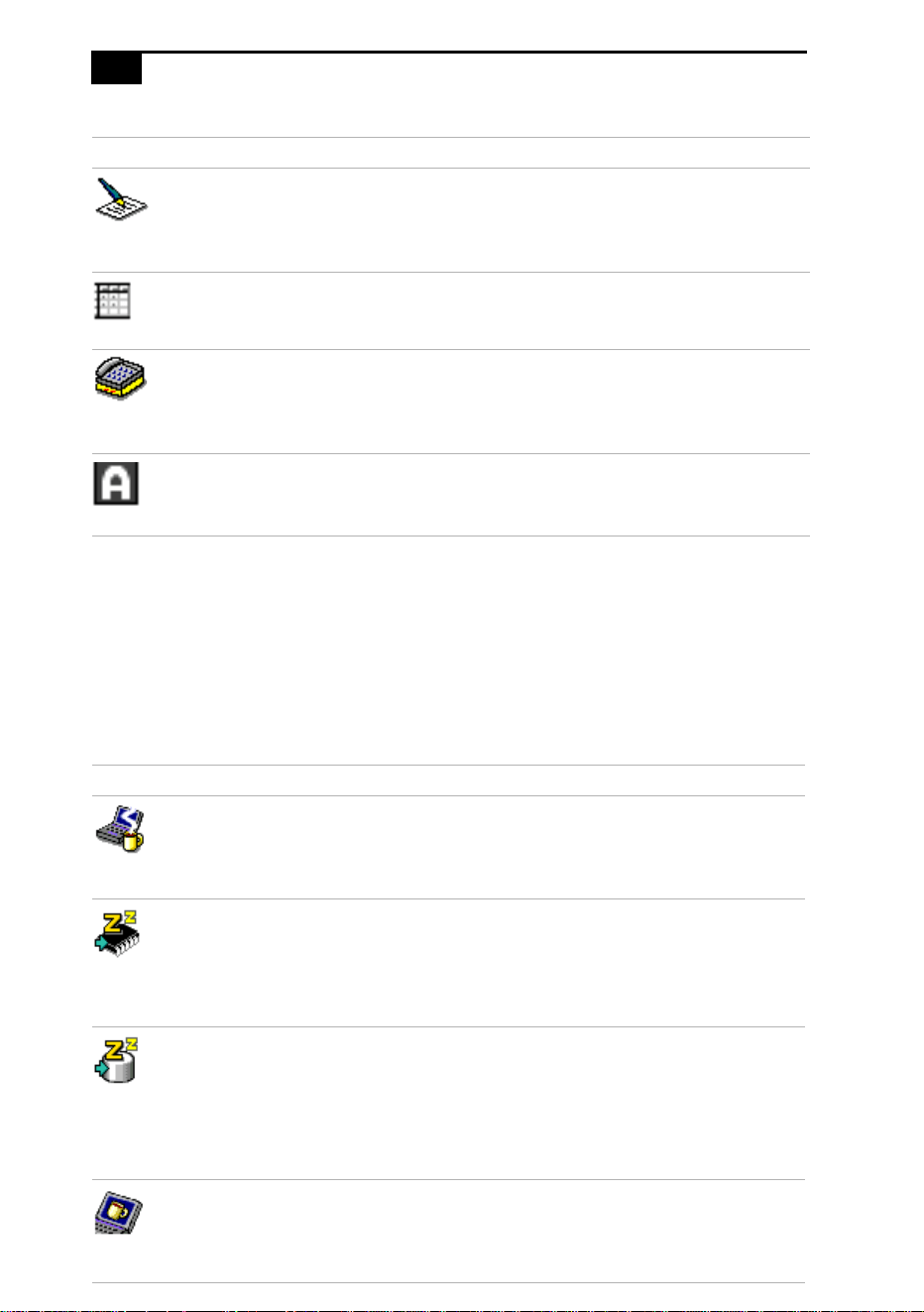
VAIO Notebook Computer User Guide
60
Power Management Commands
PowerPanel also provides power management commands that you can
use to activate specific power management functions and to control
power for a specific device. You might use these commands when you
want to override a profile setting or initiate an immediate action, such as
putting the system into Video Standby mode before the Video Standby
timer expires.
Word Processing
–
Optimizes power management with longer
timeouts on the hard disk and display screen. You can also establish
settings for LCD (Video) Standby, Hard Disk Standby, and System
Suspend to optimize power management for your system.
Spreadsheet
–
Optimizes performance and power requirements for
spreadsheet applications such as Microsoft Excel.
®
Communications
–
Extends battery life by initiating a quick display
timeout. The Internal modem remains powered. You can also
establish settings for LCD (Video) Standby, Hard Disk Standby, and
System Suspend to optimize power management for your system.
Automatic Profile Selection
–
Automatically switches to a profile
suitable for active applications.
Icon Description
System Idle
– Puts the system into Idle mode, a state of low power
consumption. This state stops the CPU clock and puts all
peripherals into low power mode. To return the system to the active
state, press any key or power switch on your system.
System Suspend
– Puts the system into System Suspend mode, a
power management state that saves the state of the system and
peripheral devices in memory (RAM). Power consumption reduces
to a minimum, and the system remains on. To return the system to
the active state, press any key or the power switch on your computer.
System Hibernation –
Provides for the lowest level of power
consumption. The system writes the state of the system and
peripheral devices to the hard disk and turns off the system power.
To return the system to the original state, use the power switch to
turn on power. The system saves the data in the Save to Disk
Partition on the hard drive.
LCD (Video) Standby
–
Turns off the LCD to save power. If you
turn off the Video Standby timer, the display remains active except
when the system enters System Suspend mode. The video display
system is one of the largest consumers of power in the system.
Icon Description
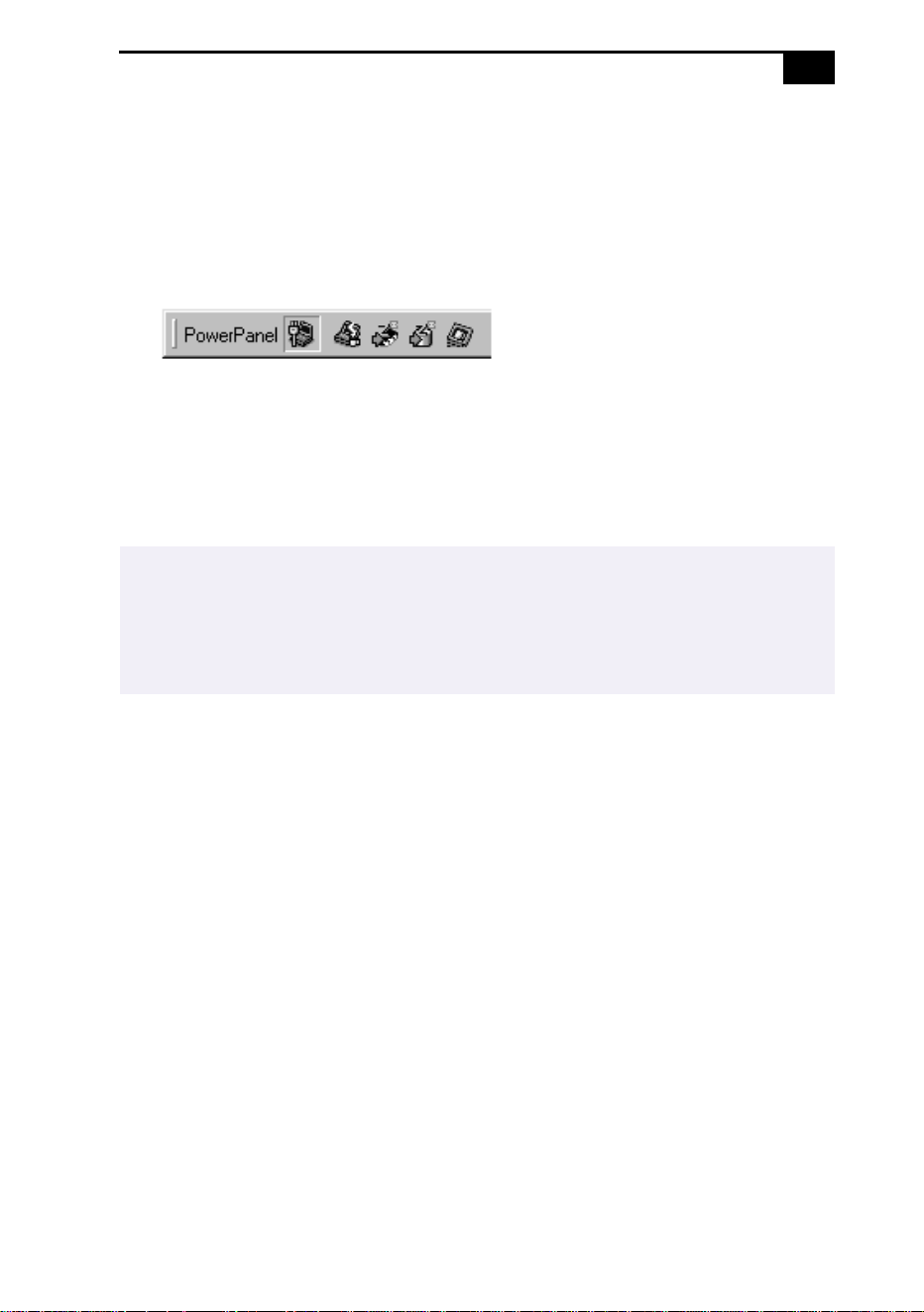
Customizing Your Notebook Computer
61
To activate PowerPanel
When you start your computer, the PowerPanel toolbar appears along
the right edge of the screen by default. If the toolbar does not appear,
right-click the taskbar at the bottom of the screen. Select Toolbar from
the pop-up menu, then click PowerPanel. The PowerPanel appears on
the taskbar.
The Current Profile icon appears on the PowerPanel toolbar. To change
the profile, click the profile icon, then select a profile from the list of
profiles.
To select the power management command, click the power management
button you want to set.
To customize the power management settings
You can change the power management settings, such as the system timer
and brightness of the screen.
1
Click the profile icon on the PowerPanel toolbar.
2
Select Edit Profile from the menu.
3
Click a profile for which you want to change the setting.
4
Double-click an item for which you want to change the setting.
5
Click a desired setting.
6
Click the File menu, then click Save.
7
Click the File menu, then click Close.
✍
Refer to the PowerPanel Help for information on customizing the PowerPanel toolbars.
When you use the battery pack to power your computer, your system selects the Maximum
Battery Life power management profile by default. If you select a different power
management profile while using battery power, that profile is selected automatically the
next time you use the battery pack to power your computer.
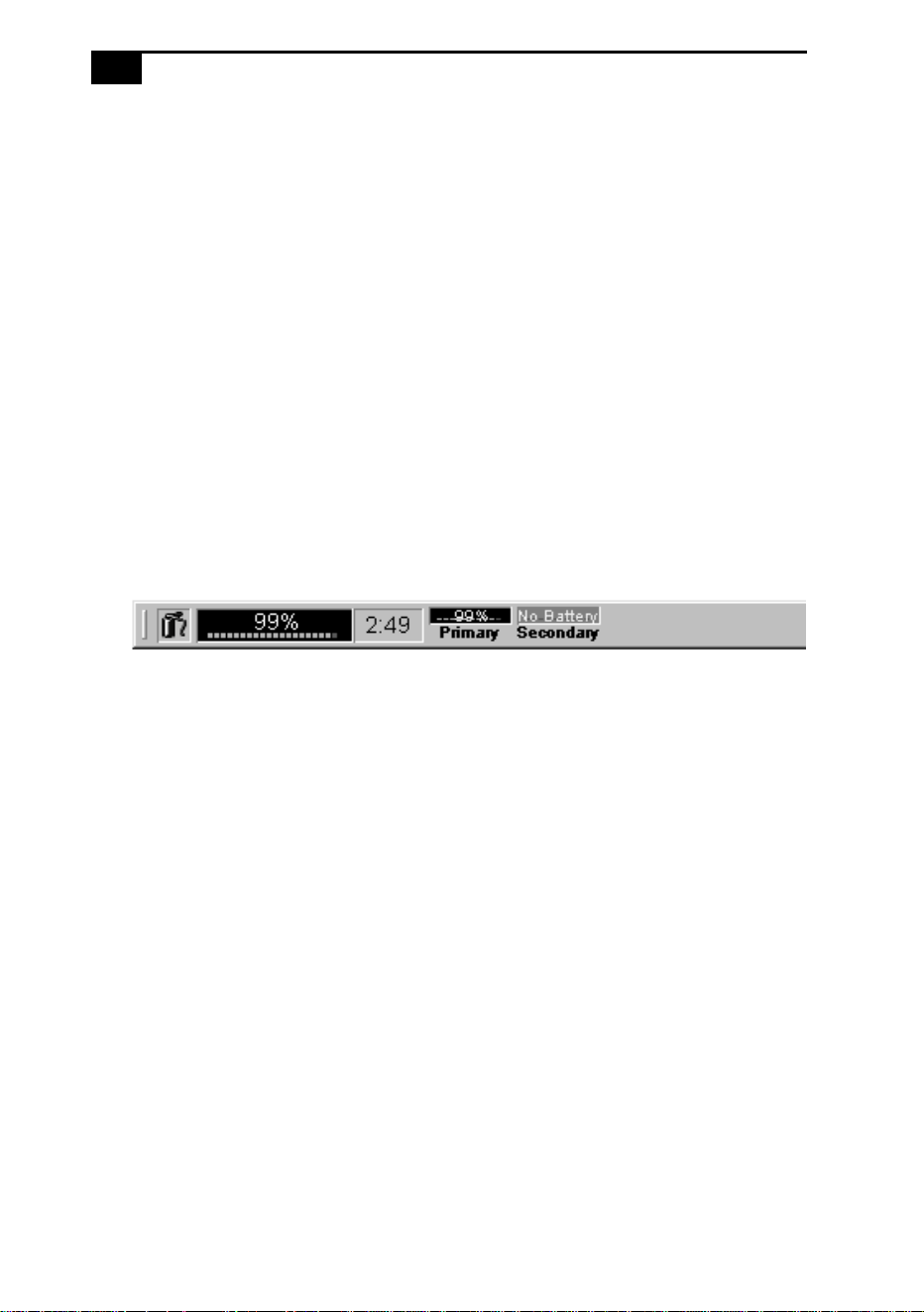
VAIO Notebook Computer User Guide
62
Displaying Battery Information
You can display detailed information for each of the batteries in your
computer. The following sections briefly describe how to display your
computer’s general battery information. You can also refer to the
BatteryScope Help for more detailed information.
Activating BatteryScope
To activate BatteryScope
When you start your computer, the BatteryScope toolbar appears along
the right edge of the screen by default. If the toolbar does not appear,
right-click the taskbar at the bottom of the screen. Select Toolbar from the
pop-up menu, then click BatteryScope. The BatteryScope appears on the
taskbar.
You can also view battery gauges on the shared PowerPanel and
BatteryScope toolbar.
❑ Percentage indicator
Displays the percentage of the remaining capacity.
❑ Time indicator
Displays estimated time (hours/minutes) remaining before the
battery fully drains, also referred to as the time-to-empty.
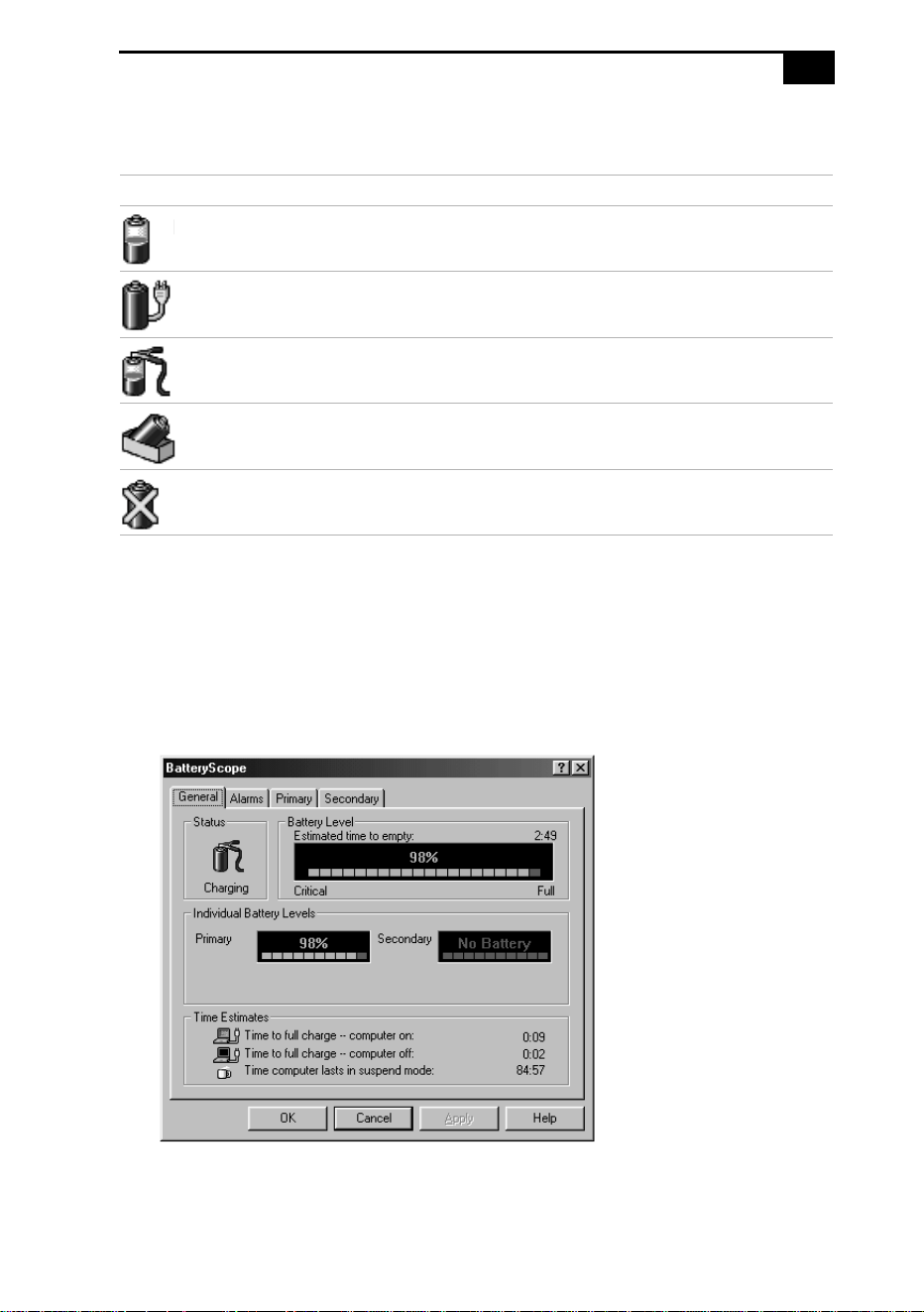
Customizing Your Notebook Computer
63
Battery Icon Descriptions
Displaying Detailed Battery Information
You can obtain detailed information about the batteries.
❑ Click the battery icon on the taskbar to display the BatteryScope
window.
The screen appears displaying the General tab, which contains
information such as the estimated time-to-empty and charging time.
Battery icon Battery status
Discharging
Fully charged
Charging
Not in use
No battery

VAIO Notebook Computer User Guide
64
To display information on individual batteries
1
Click the Primary battery tab to display information for the battery in
the bay on the left side.
2
Click the Secondary battery tab to display information for the battery
in the bay on the right side.
You can display the information about each battery, such as estimated
time-to-empty, manufacturer, capacity, and other information.
To customize the BatteryScope toolbar and alarm system
You can customize the BatteryScope toolbar to suit your portable
computing needs, including modifications to the alarm settings. Refer to
the BatteryScope Help for more information.
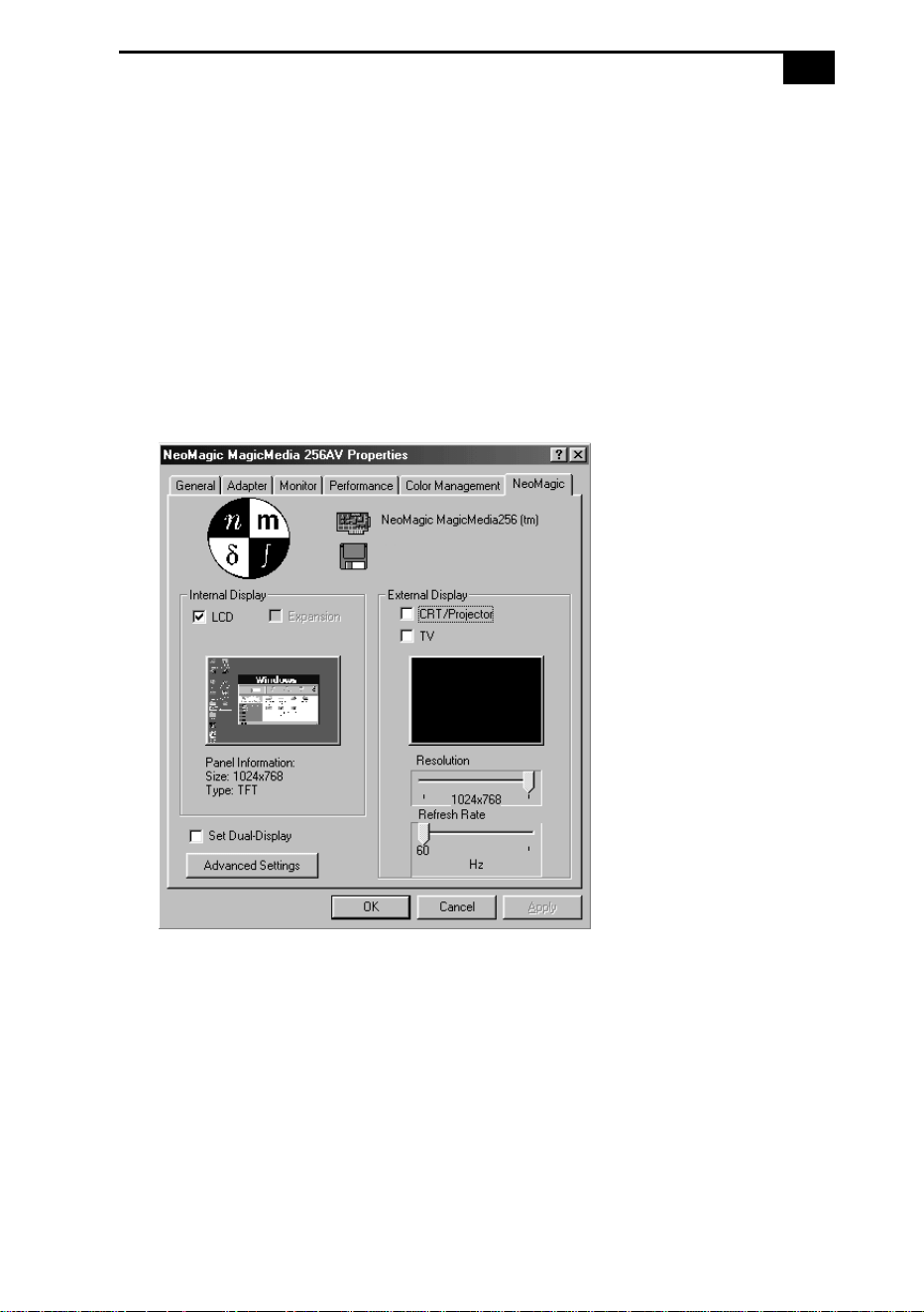
Customizing Your Notebook Computer
65
Selecting the Display Mode
When you connect an external display, you can toggle the display mode
between the LCD on your computer and external displays.
1
Click the Start button on the Windows 98 taskbar.
2
Point to Settings and click Control Panel.
3
Click Display.
4
Click the Settings tab, then click the Advanced button.
5
Click the NeoMagic
®
tab.

VAIO Notebook Computer User Guide
66
6
Select the type of display:
7
Click OK. If you have made changes, the System settings change
dialog box appears. Select Yes to restart Windows.
8
If you have not made changes, click OK to close the Display
Properties screen.
External
(CRT/Projector)
Displays an external computer display or RGB
connected projector that is connected to the
Monitor connector on your computer.
Internal (LCD) Displays the LCD of your computer.
✍
You can turn off the computer's LCD display by removing the checkmark from the LCD
option under Internal Display.
If you select CRT/Projector and turn off the LCD, you can use the Refresh Rate slider to
change the display's horizontal frequency. This setting can be made only for CRT display.
If you select Independent Display Timing (see page 67), you can change both the
resolution and the refresh rate.
✍
Depending on the types of computer displays and projectors you are using, you may not be
able to display the computer's LCD and external display simultaneously.
Customizing Your Notebook Computer
67
Using a CRT or Projector
When you select CRT/Projector as the display mode, you can make
additional settings, described as follows:
1
After selecting CRT/Projector as the type of external display (step 6
on page 66), click Advanced Settings.
2
Click the External Display Options tab.
3
Select the following options:
External Display Device:
Monitor Settings:
Projector Settings:
4
Click OK.
CRT Connects with the external computer display.
Projector Connects with the projector.
Independent
Display Timing
Click to place a checkmark when you want to set
the resolution and refresh rate differently from
the computer's LCD. To change the resolution
and refresh rate, see the notes to step 6 on
page 66.
Type Select the projector's resolution from the drop-
down box.
✍
You cannot select Independent Display Timing when the display is set to True Color (24 bit).

VAIO Notebook Computer User Guide
68
Display Specifications
LCD Display Mode
* Achieved by graphic accelerator's dithering function
External Display Mode
Resolution Number of colors
1024 x 768 65,536* (PCG-F150); 16,770,000* (PCG-F160/180/190)
800 x 600 16,770,000*
640 x 480 16,770,000*
Resolution Number of colors
1280 x 1024 256
1024 x 768 16,770,000
800 x 600 16,770,000
640 x 480 16,770,000

Customizing Your Notebook Computer
69
Starting Your Favorite Software with
Programmable Power Key (PPK) Setup
The PPK Setup software enables you to start your favorite software by
simply pressing the Programmable Power Keys. This section briefly
describes how to use the Programmable Power Keys. You can also refer to
the PPK Setup Help for more detailed information.
Programmable Power Keys
Your computer has three Programmable Power Keys, which are set to
activate as follows by default:
To use the PPK Setup window:
1
Double-click the PPK Setup icon on the taskbar. The PPK Setup
window appears.
2
Click a Programmable Power Key tab for the Programmable Power
Key you want to use.
3
Click the combination of keys you want to use.
4
Select “Select from the registered files list,” then click Next.
5
Select a desired setting, then click OK.
6
Click OK.
Press: To activate:
P1
VAIO demo
P2
The e-mail software
P3
System Suspend mode
*
* When power is off, pressing this key turns your computer on.
✍
You can change PPK launch files, select files not currently registered, or disable the PPK.
Refer to the PPK Help for more detailed information.
Programmable
Power Keys

VAIO Notebook Computer User Guide
70
Using the internal Timer:
You can use the internal Timer to start software at a specific time. You can
use this feature when the computer is on or in System Suspend mode.
✍
When selecting software that uses a phone line: The computer may not be able to
disconnect the phone line due to communication and server conditions. Be sure to monitor
the status of the software when running PPK Setup, and manually disconnect the phone line
if you notice a malfunction. Furthermore, when using the Timer to start the software, it is
advised that you set the computer to enter System Suspend or System Hibernation mode
after a certain time. This allows the computer to disconnect the phone line if the computer
fails to disconnect the line normally. However, the computer cannot disconnect the phone
line when it enters System Suspend mode if the internal modem ring resume is set to On.

Customizing Your Notebook Computer
71
Using the Dual Display Function
The dual display function allows you to distribute portions of your
desktop across separate displays. For example, if you have an external
monitor attached to the monitor connector, your LCD display and the
monitor can function as a single desktop. You can move the cursor off one
display and onto the other. This allows you to drag objects, such as an
open application window or a toolbar, from one display to the other. This
configuration of a single desktop distributed across separate displays is
referred to as a virtual desktop.
Selecting dual display mode
You must restart Windows to use dual display mode. Save your work and
close any open applications before changing to dual display mode, then
follow these steps:
1
Click the Start button on the Windows 98 taskbar.
2
Point to Settings and click Control Panel.
3
Click the Display icon.
4
Click the Settings tab.
5
Click the Advanced button.
6
Click the NeoMagic tab.
Virtual desktop
External monitor
Your LCD display

VAIO Notebook Computer User Guide
72
7
Check the Set Dual-Display option and click OK. The System Settings
Change dialog box appears.
8
Click Yes to restart your system.
9
Repeat steps 1 to 3 to display the Display Properties screen.
10
Click the display icon number 2.
11
Click Yes.
12
Click OK.
Setting the colors and resolution for each display
You can set the display colors and resolution for each display that is part
of a virtual desktop.
Follow steps 1 to 4 above to display the Display Properties screen. Select
the display you wish to change (1 or 2) by clicking on the icon of the
display. You can change colors by selecting an option from the Colors list.
Use the slider in the Screen area to change the resolution. Click OK or
Apply. Click OK to confirm that you want to make the changes.
Customizing the virtual desktop
You can customize dual display mode by changing the position of the two
desktops that comprise the virtual desktop.
In the Display Properties screen, drag the icons of display 1 or display 2,
moving them to a new position relative to each other. The two display
icons must be connected to create a virtual desktop. Click OK to apply the
change.
Releasing the dual display setting
You must restart Windows to return to single display mode. Save your
work and close any open applications before returning to single display
mode. Follow the steps in the section above on Selecting dual display
mode. In step 7, remove the check from the Set Dual-Display option. You
must restart Windows before the change takes effect.

73
Getting Help
Sony provides several support options for your Sony computer. When
you have questions about your computer and the preinstalled software,
check these sources for answers, in the following sequence:
1
VAIO Notebook
Computer
Read Me First
Contains a complete list of the items that ship with
your computer, product specifications, software
support information, and the most up-to-date
information on using your computer.
2
VAIO Notebook
Computer User
Guide
Explains how to use your notebook computer and
connect peripheral devices.
3
Online User
Guide
This electronic version of the
User Guide
contains
additional information on the preinstalled software
titles. You can access this guide from the Windows
Start menu by selecting Programs/VAIO/
Documentation.
4
Manuals and
online help files
that may
accompany your
preinstalled
software
Most of the manuals for preinstalled software are
located on your hard disk drive as online help files.
You can access the online help files from the Help
menu in the specific application. A printed manual is
available for some applications.
5
Knowledge
Database
Provides instant access to information on commonly
encountered problems. Enter a description of your
problem and the Knowledge Database searches for
the corresponding solutions online. You can access
the Sony Knowledge Database at:
http://www.sony.com/pcsupport/

VAIO Notebook Computer User Guide
74
6
Sony
Fax-on-Demand
This service provides you with answers to commonly
asked questions. You can use this automated service
to request a list of available topics and then select the
topics that you want to receive. To contact the Sony
fax-on-demand service, call 1-888-4SONYPC
(1-888-476-6972). (Requires a fax machine or your
fax software.)
7
Calling Sony
Customer
Support
You can call and speak with a Sony Customer
Support Representative without using your
computer by calling 1-888-4SONYPC
(1-888-476-6972). Software support is available free of
charge for 90 days after the original date of purchase.

Getting Help
75
Troubleshooting
This section describes how to solve common problems you may
encounter when using your computer. Many problems have simple
solutions, so try these suggestions before you call Sony Customer
Support.
My computer does not start
❑
Check that the computer is plugged into a power source and that it is
turned on. Check that the power indicator on the front panel of the
computer indicates that the power is on.
❑ Check that the battery packs are inserted properly and that they are
charged.
❑ Make sure there is no diskette in the floppy disk drive.
❑ Confirm that the power cord and all cables are connected firmly, as
described in “Connecting Peripheral Devices” on page 41.
❑ If you plugged the computer into a power strip or UPS, make sure the
power strip or UPS is turned on and working.
❑ If you are using an external display, check that it is plugged into a
power source and turned on. Check that the brightness and contrast
controls are adjusted correctly. See the manual that came with your
display for details.
❑ Moisture condensation may have occurred. Do not use the computer
for at least one hour and then turn on the computer.
❑ Your computer’s internal backup battery may be low on power.
Change the backup battery located on the bottom of your computer,
following the procedure in “Replacing the Internal Backup Battery”
on page 82.
When I turn on my computer, the message “Operating system not found”
appears and Windows does not start
❑
Check the floppy disk drive to see if a non-bootable diskette is in the
drive.
❑ If a non-bootable diskette is in the drive, turn off the computer,
remove the diskette, and then turn on the computer again. Confirm
✍
When you reconnect devices be sure to turn off the computer as described in “Shutting
Down Your Computer” on page 15. Turning off the computer using other methods may
result in data loss.

VAIO Notebook Computer User Guide
76
that Windows starts properly. If Windows still does not start, follow
the procedure below to initialize the BIOS.
❑ If the floppy disk drive is empty, follow the steps below to initialize
the BIOS:
1
Remove any peripheral devices connected to the computer.
2
Turn the computer off and then turn it on again.
3
Turn on the computer and press the F2 key when the Sony logo appears.
The BIOS setup menu screen appears.
4
Press the arrow keys to select the Exit menu.
5
Press the arrow keys to select Get Default Values and then press the Enter
key. The message “Load default configuration now?” appears.
6
Check that [Yes] is selected, then press the Enter key.
7
Press the arrow keys to select Exit (Save Changes) and then press the Enter
key. The message “Save configuration changes and exit now?” appears.
8
Check that [Yes] is selected, then press the Enter key. The computer
restarts.
If your computer still displays the message “Operating system not
found” and Windows does not start, contact Sony Customer Support.
My LCD does not display anything
❑ Check that the computer is plugged into a power source and that it is
turned on. Check that the power indicator on the front panel of the
computer is on.
❑ Check that the battery packs are inserted properly and that they are
charged.
❑ The computer may be in LCD (Video) Standby mode. Press any key
to activate the display.
The screen image on my external display is not centered or sized properly
Use the controls on your external display to adjust the image. See the
manual supplied with your display for more information.
My computer “locks up”
❑
Try restarting the computer. On the Windows taskbar, click the Start
button, click Shut Down, and then click Restart the computer.
❑ If you cannot restart as described in the preceding step, you can
restart the computer by pressing Ctrl+Alt+Delete.

Getting Help
77
❑ If the previous step does not work, slide the power switch toward the
front and hold it for at least four seconds. This turns off the power.
❑ If your computer locks up while playing a DVD-ROM/CD-ROM,
stop the DVD-ROM/CD-ROM, and restart the computer by pressing
Ctrl+Alt+Delete.
My software program “locks up” or crashes
Contact the software publisher or designated provider for technical
support. See the online version of Read Me First for a complete list of
phone numbers.
My DVD-ROM drive tray does not open
❑ Make sure the computer is turned on.
❑ Press the Eject button on the DVD-ROM/CD-ROM drive.
❑ If the Eject button does not work, you can open the tray by inserting a
sharp, pointed object into the hole to the right of the Eject button.
I cannot play a CD-ROM
❑ Make sure the label of the CD-ROM is facing up.
❑ If the CD-ROM requires software, make sure the software is installed
according to the program’s instructions.
❑ Moisture condensation may have occurred. Leave the computer for at
least 1 hour while the computer is turned on.
❑ Clean the CD-ROM.
❑ Check the speaker volume.
I cannot play a DVD-ROM
❑
If a region code warning appears when you are using the DVD
player, it could be that the DVD-ROM you are trying to play is
incompatible with the DVD-ROM drive in your notebook computer.
The region code is listed on the disc’s packaging.
❑ If you hear audio but cannot see video, your computer’s video
resolution may be set too high. For best results, change the Windows
Control Panel/Display/Settings to 800 x 600 using 256 colors.
✍
Pressing Ctrl+Alt+Delete may result in data loss in files that are currently open.

VAIO Notebook Computer User Guide
78
❑ If you see video but cannot hear audio, check all of the following:
Make sure your DVD player’s mute setting is off. Check the master
volume setting in the audio Mixer. If you have connected speakers
externally, check the volume settings in your computer speakers and
check the connections between your speakers and the computer.
Check the Windows Control Panel/System/Device Manager to see
that the drivers are installed properly.
❑ A dirty or damaged disc may cause the computer to “hang” while it
tries to read the disc. If necessary, reboot the computer, remove the
disc, and then check that it is not dirty or damaged. For cleaning
instructions, see “On Cleaning CD-ROMs and DVD-ROMs” on
page 90.
When I click an application icon a message appears, such as “You must insert
the application CD into your CD-ROM drive,” and the software does not start
❑
Some titles require specific files that are located on the application’s
CD-ROM. Insert the disc and try starting the program again.
❑ Make sure you place the disc in the tray with the label side facing up.
My floppy disk drive cannot write to a diskette
❑
If the diskette is write-protected, disable the write-protect feature or
use a diskette that is not write-protected.
❑ Check that the diskette is properly inserted into the floppy disk drive.
My speakers have no sound
❑ If the built-in speakers are turned off, press Fn+F3 to turn on the
speakers.
❑ If the speaker volume is turned to the minimum, press Fn+F4, and
then press
or
➜
to increase the volume.
❑ If your computer is powered by batteries, check that the battery packs
are inserted properly and that they are charged.
❑ If you are using an application that has its own volume control, check
that the volume is turned up.
❑ Check the volume controls in Windows 98.
❑ If you connect external speakers, check that the speakers are properly
connected and the volume is turned up. If the speakers have a mute
button, make sure it is off. If the speakers are powered by batteries,
check that the batteries are inserted properly and that they are
charged.
➜

Getting Help
79
❑ If you have connected an audio cable to the Headphone connector,
disconnect the cable.
My modem does not work
❑ Check that the phone line is plugged into the line jack. See
“Connecting a Phone Line” on page 42 for details.
❑ Check that the phone line is working. You can check the line by
plugging in an ordinary phone and listening for a dial tone.
❑ Check that the phone number the program is dialing is correct.
❑ Check that the software you are using is compatible with the
notebook computer modem. (All preinstalled programs are
compatible.) Call the software publisher or Sony Customer Support.
My modem connection is slow
The computer’s modem uses K56flex
™
technology and V.90 capability.
Many factors influence modem connection speed, including telephone
line noise or compatibility with telephone equipment (such as fax
machines or other modems). If you think your modem is not connecting
properly to other PC-based modems, fax machines, or your Internet
Service Provider, check the following:
❑ Have your phone company check that your phone line is free from
any line noise.
❑ If your problem is fax-related, check that there are no problems with
the fax machine you are calling and that it is compatible with fax
modems.
❑ If you are having a problem connecting with your Internet Service
Provider, check that the ISP is not experiencing technical problems.
❑ If you have a second phone line available, try connecting the modem
to that line.
My microphone does not work
If you are using an external microphone, check that the microphone is
plugged into the Microphone connector. See “Connecting an External
Microphone” on page 53 for details.
My mouse does not work
❑ If you are using an external mouse, check that the mouse is plugged
into the mouse connector. See “Connecting an External Mouse or
Keyboard” on page 51 for details.

VAIO Notebook Computer User Guide
80
❑ If you connected an external mouse while your computer is on, you
must restart your computer.
❑ If you are using an optional Sony USB mouse PCGA-UMS1, check
that the mouse is plugged into the USB connector.
My touchpad does not work
You may have disabled the touchpad while no mouse was connected to
the computer. If so, you must restart the computer to make the touchpad
work again.
I cannot use DV devices. The message “DV equipment seems to be
disconnected or turned off” appears.
❑
Check that the DV device is turned on and that the cables are
properly connected.
❑ If you are using multiple i.LINK devices, the combination of the
connected devices may cause unstable operation. In this case, turn off
the power to all connected devices and disconnect unused devices.
Check the connection, then turn on the power again.
My touchpad interprets a single tap as a double-click
Click the Mouse icon in the Control Panel and then change the button
assignments in the Mouse Properties dialog box. One of the buttons is
assigned to the double-click action.
My computer does not shut down
It is best to shut down your computer using the Shut Down command on
the Windows 98 Start menu. Using other methods, including those listed
here, may result in loss of unsaved data. If the Shut Down command does
not work properly, follow these steps:
❑ Restart the computer by pressing Ctrl+Alt+Delete. If this does not
work, slide the power switch forward and hold it for at least four
seconds to turn off the power.
❑ Unplug the computer from the AC adapter and remove the battery
pack from your computer.

Getting Help
81
My PC card is not working
❑
Make sure the PC card is compatible with Windows 98.
❑ Use the Sony Notebook Setup utility to disable devices you are not
currently using.
The sound of my computer’s fan is too loud
Use the PowerPanel utility to change the Thermal Control Strategy
setting to Quiet. This setting slows down the CPU speed. See the
PowerPanel Help for more information.
I cannot print
The default setting for the printer port mode is correct for most printers.
If you cannot print, try changing the printer port mode. In Sony
Notebook Setup, select the Printer tab. If the printer port mode is set to
ECP, change it to bi-directional. If the printer port mode is set to
bi-directional, change it to ECP. See “Displaying the Sony Notebook
Setup Screen” on page 57 for details on using Sony Notebook Setup.
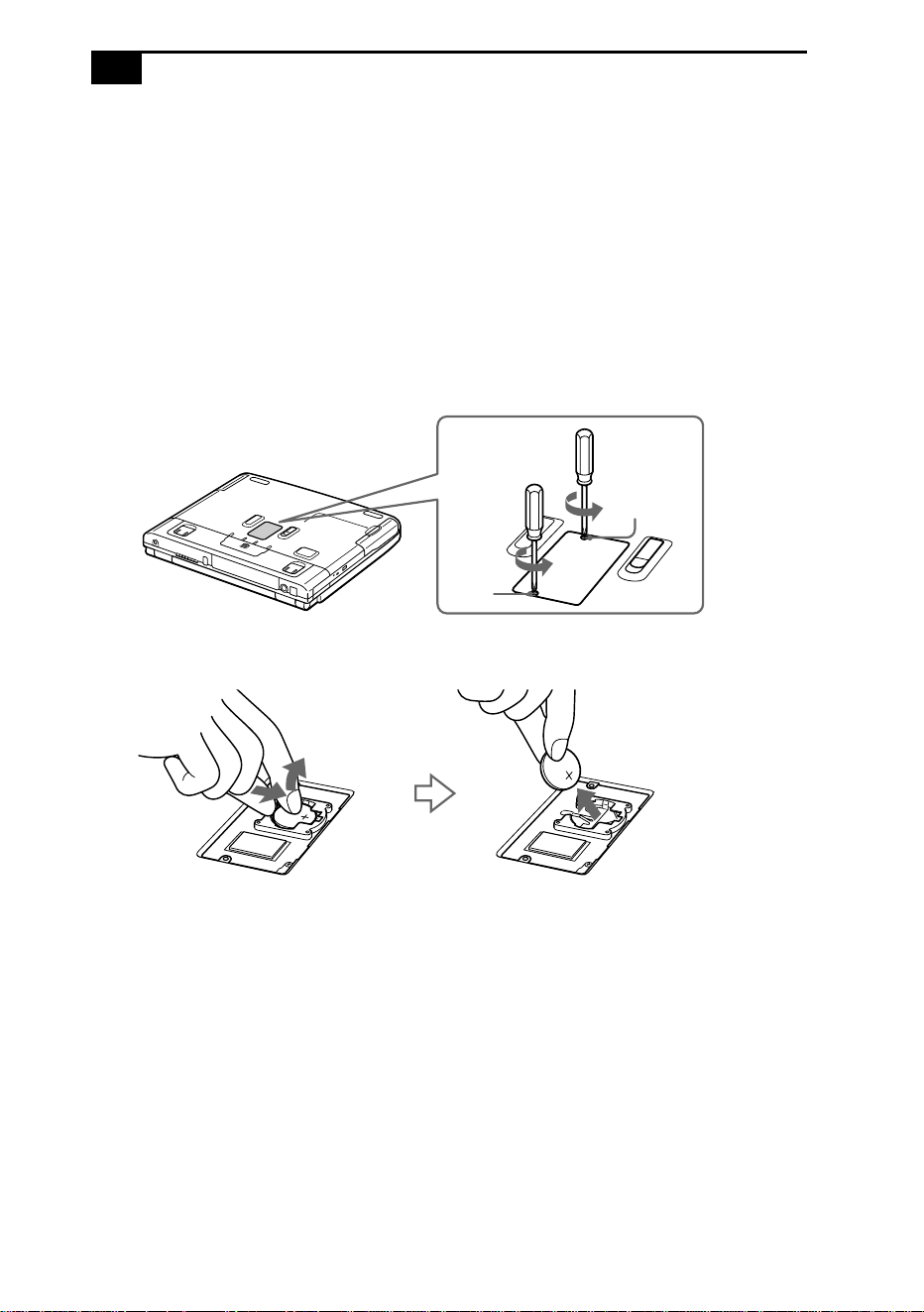
VAIO Notebook Computer User Guide
82
Replacing the Internal Backup Battery
The backup battery will last about three years. When the battery is low
on power, replace it with a Sony lithium battery CR2025 or compatible.
To replace the backup battery
1
Turn off the computer and connected devices, then unplug all the
cables.
2
Unscrew the battery cover to open it.
3
Remove the battery.
4
Insert a new battery and close the cover.
Follow the procedure below to set the clock.
To set date and time
After replacing the backup battery, be sure to set the time as follows:
1
Turn on the computer.
The message “Press <F1> to resume, <F2> to Setup” appears at the
bottom of the display.
2
Press F2.
The BIOS Setup menu starts.
Screw 1
Screw 2

Getting Help
83
3
Set the date (month/day/year).
Press Enter to move to the next item. To enter 01/31/1999, for
example, follow these steps: Type 1, press Enter, type 31, press Enter,
type 1999, then press Enter.
4
Press to select System Time, then set the time
(hour:minute:second).
Press Enter to move to the next item.
5
Press ➜ to select Exit, then press to select Get Default Values.
The message “Load default configuration now?” appears.
6
Make sure that Yes is selected and press Enter.
If No is selected, press to select Yes.
7
Select Exit (Save Changes), then press Enter.
The message “Save configuration changes and exit now?” appears.
8
Make sure that Yes is selected and press Enter.
The computer restarts.
➜
➜
➜

VAIO Notebook Computer User Guide
84
Using the System and Application
Recovery CDs
The following sections describe how to use the System Recovery and
Application Recovery utilities.
Using the System Recovery CD(s)
You can reinstall software titles that shipped with your computer if they
are corrupted or accidentally erased. You may not need to recover the
entire contents of your hard drive. If you experience a problem with your
computer, reinstalling an individual device driver or software title may
correct the problem. Use the Application Recovery CD(s) to reinstall
individual applications or device drivers. See “Using the Application
Recovery CD(s)” on page 86.
The System Recovery CD contains a backup copy of all the software
originally installed on your hard disk drive. It can be used only to
recover the hard disk of the notebook computer you purchased.
The System Recovery utility gives you three options:
❑ Full Restore without Format restores all the software titles that
originally came with your computer without formatting the hard
disk.
❑ Full Restore with Format formats the hard disk drive and then
restores all the original software.
❑ Operating System Only restores the Windows 98 operating system,
the notebook computer utility programs, and the device drivers that
shipped with your computer.
!
If you choose the Full Restore with Format or Operating System Only option,
your hard disk will be formatted, which removes all the information on the
hard disk drive. You will lose any software you have installed and any other
files you have created since you started to use your computer. This means you
will have to reinstall any applications that were not included with the
computer when you purchased it. If you choose the Full Restore without
Format option, you may need to reinstall applications that were not included
with the computer when you purchased it. If you have any questions on using
the System Recovery CD, contact Sony Customer Support.

Getting Help
85
To use the System Recovery CD(s)
1
Insert the Sony System Recovery CD in the DVD-ROM/CD-ROM
drive.
2
Shut down your computer as described in “Shutting Down Your
Computer” on page 15.
3
Wait four seconds and turn on your computer.
4
Click OK to signify you have read and accept the Microsoft End-User
License Agreement.
5
When the System Recovery menu appears, follow the on-screen
instructions to complete the recovery process.
If your computer does not start from the Recovery CD
1
Slide the power switch forward and hold it for more than four
seconds to turn off the computer.
2
Turn on the computer. When the Sony logo is displayed, press the F2
key. The BIOS setup menu screen appears.
3
Press the arrow keys to select the Exit menu.
4
Press the arrow keys to select Get Default Values and then press the
Enter key. The message “Load default configuration now?” appears.
5
Check that [Yes] is selected, then press the Enter key.
6
Press the arrow keys to select Exit (Save Changes) and then press the
Enter key. The message “Save configuration changes and exit now?”
appears.
✍
You need to complete the Windows 98 registration process when you use the System
Recovery CD. Make sure you have the product ID number located on the cover of your
Microsoft Windows 98 “Getting Started” manual. You will need this number to complete
the recovery process.
✍
The System recovery utility boots from the DVD-ROM/CD-ROM drive. It must be in the DVD-
ROM/CD-ROM drive when you turn on the computer.
✍
Your system may include one or two System Recovery CDs. If you have two System Recovery
CDs, insert the first CD to run the System Recovery program. You are prompted to insert the
second CD once the information from the first CD has been installed.
The recovery process takes from 30 to 60 minutes to complete.

VAIO Notebook Computer User Guide
86
7
Check that [Yes] is selected, then press the Enter key. The computer
restarts from the Recovery CD.
Using the Application Recovery CD(s)
The Application Recovery CD(s) allows you to reinstall individual
applications and device drivers if they are corrupted or accidentally
erased. Reinstalling an individual device driver or software title may
correct a problem you are experiencing with your computer, and you may
not need to recover the entire contents of your hard drive. If you do need
to reinstall all the software titles that shipped with your computer, use the
System Recovery CD(s). See “Using the System Recovery CD(s)” on
page 84.
You can also use the Application Recovery CD to install Windows NT
®
Workstation 4.0 drivers on your computer.
To use the Application Recovery CD(s)
1
Turn on your computer. If your computer is already on, close all
applications.
2
When the Windows desktop appears, insert the Sony Application
Recovery CD in the DVD-ROM/CD-ROM drive. The Application
Recovery utility loads automatically.
3
When the Application Recovery menu appears, select the icon for the
application you want to restore and then follow the on-screen
instructions to complete the recovery process.
✍
You must be in Windows to run the Application Recovery CD. The application will not run
from DOS. If you have any questions on using the Application Recovery CD, contact Sony
Customer Support.
✍
Your system may include one or two Application Recovery CDs. If you have two Application
Recovery CDs, insert the first CD to run the Application Recovery program. You may be
prompted to insert the second CD, depending on the application you wish to restore.
For a list of the contents of the Application Recovery CD(s), see the online version of
Read
Me First.

87
Notes on Use
This section describes safety guidelines and precautions to help protect
your computer from potential damage.
On Handling the LCD Screen
❑ Do not leave the LCD facing the sun as it can damage the LCD. Be
careful when using the computer near a window.
❑ Do not scratch the LCD or exert pressure on it. This could cause
malfunction.
❑ Using the computer in low temperature conditions may produce a
residual image on the screen. This is not a malfunction. When the
computer returns to normal temperature, the screen returns to
normal.
❑ A residual image may appear on the screen if the same image is
displayed for a lengthy period of time. The residual image disappears
in a while. You can use a screen saver to prevent residual images.
❑ The screen becomes warm during operation. This is normal and does
not indicate a malfunction.
❑ The LCD is manufactured using high-precision technology. You may,
however, see tiny black points and/or bright points (red, blue, or
green) that continuously appear on the LCD. This is a normal result
of the manufacturing process and does not indicate a malfunction.
On the Power Source
❑ Your computer operates on 100V-240V AC 50/60 Hz.
❑ Do not share the AC outlet with other power-consuming equipment,
such as a copy machine or shredder.
❑ You can purchase a power strip with a surge protector. This device
prevents damage to your computer caused by sudden power surges
such as those that may occur during an electrical storm.
❑ Do not place heavy objects on the power cord.

VAIO Notebook Computer User Guide
88
❑ To disconnect the cord, pull it out by the plug. Never pull the cord
itself.
❑ Unplug your computer from the wall outlet if you will not be using
the computer for a long time.
❑ When the AC adapter is not used, unplug it from the AC outlet.
❑ Use only the AC adapter supplied. Do not use any other AC adapter.
On Handling
❑ Clean the cabinet with a soft, dry cloth or a soft cloth lightly
moistened with a mild detergent solution. Do not use any type of
abrasive pad, scouring powder, or solvent such as alcohol or benzine,
as these may damage the finish of your computer.
❑ Should any solid object or liquid fall into the computer, shut down
your computer and then unplug it. You may want to have the
computer checked by qualified personnel before operating it any
further.
❑ Do not drop the computer or place heavy objects on top of the
computer.
On Installation
❑ Do not place your computer in a location subject to:
❑ Heat sources, such as radiators or air ducts
❑ Direct sunlight
❑ Excessive dust
❑ Moisture or rain
❑ Mechanical vibration or shock
❑ Strong magnets or speakers that are not magnetically shielded
❑ Ambient temperature of more than 95º F (35º C) or less than
50º F (10º C)
❑ High humidity
❑ Do not place electronic equipment near your computer. The
computer’s electromagnetic field may cause a malfunction.
❑ Provide adequate air circulation to prevent internal heat buildup. Do
not place your computer on porous surfaces such as rugs or blankets,
or near materials such as curtains or draperies that may block its
ventilation slots. Leave a space of at least 8 inches behind the back
panel of the computer.

Notes on Use
89
❑ The computer uses high-frequency radio signals and may cause
interference to radio or TV reception. Should this occur, relocate the
computer a suitable distance away from the set.
❑ Use only specified peripheral equipment and interface cables;
otherwise, problems may result.
❑ Do not use cut or damaged connection cables.
❑ Your computer will not work with party lines, cannot be connected to
a coin-operated telephone, and may not work with multiple phone
lines or a private branch exchange (PBX).
❑ If the telephone company makes a service call to your home or office
and determines that your computer is responsible for a problem, the
telephone company may bill you for the service call. Also, if you do
not disconnect your computer when it is adversely affecting the
telephone line, the telephone company has the right to disconnect
your service until you correct the problem.
On Moisture Condensation
If the computer is brought directly from a cold location to a warm one,
moisture may condense inside your computer. In this case, allow at least
an hour before turning on your computer. If any problems occur, unplug
your computer, and contact your Sony Service Center.
On Handling Diskettes
❑ Do not open the shutter manually and touch the surface of the
diskette.
❑ Keep diskettes away from magnets.
❑ Keep diskettes away from direct sunlight and other heat sources.
On Handling CD-ROMs and DVD-ROMs
❑
Do not touch the surface of the disc.
❑ Do not drop or bend the disc.

VAIO Notebook Computer User Guide
90
On Cleaning CD-ROMs and DVD-ROMs
❑
Fingerprints and dust on the surface of a disc may cause read errors.
Proper care of the disc is essential to maintain its reliability. Do not
use solvents such as benzine, thinner, commercially available cleaners
or anti-static spray, as they may cause damage to the disc.
❑ For normal cleaning, hold the disc by its edge and use a soft cloth to
wipe the surface from the center out.
❑ If the disc is badly soiled, moisten a soft cloth with water, wring it out
well, and use it to wipe the surface of the disc from the center out.
Wipe off any remaining moisture with a dry soft cloth.
On Using Batteries
❑ Never leave the battery pack in temperatures above 140
°
F (60
°
C),
such as under direct sunlight or in a car parked in the sun.
❑ Battery life is shorter in a cold environment. This is due to decreased
battery efficiency at low temperatures.
❑ Charge the batteries at temperatures between 50
°
F and 80
°
F (10
°
C
to 30
°
C). Lower temperatures require a longer charging time.
❑ While the battery is in use or being discharged, the battery pack heats
up. This is normal and is not cause for concern.
❑ Keep the battery pack away from all sources of heat.
❑ Keep the battery pack dry.
❑ Do not open or try to disassemble the battery pack.
❑ Do not expose the battery pack to any mechanical shock.
❑ If you are not using the computer for an extended period of time,
remove the battery pack from the computer to prevent damage to the
battery.
❑ If, after fully charging the battery pack, the battery power is still low,
the battery pack may be reaching the end of its life and should be
replaced.
❑ You do not need to discharge the battery before recharging.
❑ If you have not used the battery pack for a considerable amount of
time, recharge the battery.

Notes on Use
91
On Maintenance
❑
Make sure to disconnect the power cord before cleaning the
computer.
❑ Avoid rubbing the LCD screen as this can damage the screen. Use a
soft, dry cloth to wipe the LCD screen.
❑ Clean the computer with a soft cloth lightly moistened with a mild
detergent solution. Do not use any type of abrasive pad, scouring
powder or solvent, such as alcohol or benzine.

VAIO Notebook Computer User Guide
92
Adding Memory
In the future, you may want to install memory modules to expand the
functionality of your computer. You can increase memory to 192 MB
(160 MB if you purchased model PCG-F150) by installing optional
memory modules. To upgrade memory, contact your nearest Sony
Authorized Service Center. For the location of a service center near
you, call 1-888-4SONYPC.

93
Limited Warranty Statement
Notebook Computer Warranty
The limited warranty on your VAIO Notebook computer covers parts and
labor against defects in material or workmanship for a period of three
months from the original date of purchase. You can extend the warranty
period for an additional nine months by registering your computer. See
“Registering Your Computer” on page 17. Once you register your
computer, the limited warranty period is twelve months from the original
date of purchase.
There is a separate warranty for the battery included with your computer.
See “Battery Limited Warranty” on page 97.
For the purpose of this Limited Warranty “SONY” means SONY ELECTRONICS INC. for Products
purchased in the United States of America and Sony of Canada Ltd. for Products purchased in Canada.
SONY warrants this computer hardware product (“the Product”) against defects in material or
workmanship as follows:
1. Labor: For a period of ninety (90) calendar days from the original date of purchase from SONY or a
SONY authorized reseller, SONY will repair defects in material or workmanship in the Product at no
charge, or pay the associated labor charges to a SONY authorized personal computer service facility. The
ninety (90) day warranty period is extendible only to the original purchaser, for an additional period of
nine (9) months, for a total of twelve (12) months from date of purchase when the Product is registered
electronically prior to the expiry of ninety (90) days from the original date of purchase. After the
applicable period you must pay for all labor charges.
2. Parts: For a period of ninety (90) calendar days from the original date of purchase from SONY or a
SONY authorized reseller, SONY will supply, at no charge, new or rebuilt, at SONY’s option, replacement
parts in exchange for defective parts. Any replacement parts will be warranted for the remainder of the
original warranty period or ninety (90) calendar days from installation by SONY’s authorized personal
computer service facility, whichever is longer. The ninety (90) day warranty period is extendible only to
the original purchaser, for an additional period of nine (9) months, for a total of twelve (12) months from
date of purchase when the Product is registered electronically prior to the expiry of ninety (90) days from
the original date of purchase. All defective parts replaced under this Limited Warranty will become the
property of SONY.
This Limited Warranty covers only the hardware components packaged with the Product. It does not
cover technical assistance for hardware or software usage and it does not cover any software products
whether or not contained in the Product; SONY excludes all warranties express or implied in respect of
any software provided with the product and any such software is provided “AS IS” unless expressly
provided for in any enclosed software limited warranty. Please refer to the End User License Agreements
included with the Product for your rights and obligations with respect to the software.

VAIO Notebook Computer User Guide
94
This Limited Warranty is non-transferable. Proof of purchase in the form of a bill of sale (which is
evidence that the Product is within the warranty period) must be presented to obtain warranty service. In
addition, if replacement parts are required and you wish to receive the most expedient service available,
you will be required to provide SONY with a credit card authorization to bill your credit card in the event
you fail to return the original parts in the postage-paid envelope we provide. The credit card will only be
charged for SONY’s list price for the part if the original part has not been returned within thirty (30) days.
In respect of certain components you may be entitled to express warranty service during the warranty
period, subject to certain restrictions. Please contact SONY as indicated below for further information.
With respect to all service provided, it is your responsibility prior to Product service to backup the
contents of your hard drive, including any data you have stored or software you have installed on the
hard drive. It is likely that the contents of your hard drive will be lost or reformatted in the course of
service and SONY will not be responsible for any damage to or loss of any programs, data or other
information stored on any media or any part of any Product serviced hereunder or any consequential
damages resulting therefrom.
IF DURING THE REPAIR OF THE PRODUCT THE CONTENTS OF THE HARD DRIVE ARE ALTERED,
DELETED, OR IN ANY WAY MODIFIED, SONY IS NOT RESPONSIBLE WHATSOEVER. YOUR
PRODUCT WILL BE RETURNED TO YOU CONFIGURED AS ORIGINALLY PURCHASED (SUBJECT
TO AVAILABILITY OF SOFTWARE).
Be sure to remove all third party hardware, software, features, parts, options, alterations, and attachments
not warranted by SONY prior to sending the Product to SONY for service. SONY is not liable for any loss
or damage to these items.
This Limited Warranty does not cover any consumable items (such as batteries) supplied with this
Product; cosmetic damages; damage or loss to any software programs, data, or removable storage media;
or damage due to (1) acts of God, accident, misuse, abuse, negligence, commercial use or modifications of
this Product; (2) improper operation or maintenance of this Product; (3) connection to improper voltage
supply; or (4) attempted repair by any party other than a SONY authorized personal computer service
facility. This Limited Warranty does not apply when the malfunction results from the use of this Product
in conjunction with accessories, products or ancillary or peripheral equipment, or where it is determined
by SONY that there is no fault with this Product itself. This Limited Warranty is valid only in the United
States of America and Canada. This Limited Warranty is invalid if the factory applied serial number has
been altered or removed from the Product.
Repair or replacement of defective parts or hardware as provided under this Limited Warranty is the
exclusive remedy of the consumer. SONY SHALL NOT BE LIABLE FOR ANY INCIDENTAL OR
CONSEQUENTIAL DAMAGES OR OTHER DAMAGES INCLUDING BUT NOT LIMITED TO, LOSS
OF PROFITS, LOSS OF REVENUE, LOSS OF DATA, LOSS OF USE OF THE PRODUCT OR ANY
ASSOCIATED EQUIPMENT, DOWN TIME AND PURCHASER’S TIME. FOR BREACH OF ANY
EXPRESS OR IMPLIED WARRANTY, BREACH OF CONTRACT, NEGLIGENCE, STRICT LIABILITY OR
ANY OTHER LEGAL THEORY RELATED TO THIS PRODUCT. EXCEPT TO THE EXTENT
PROHIBITED BY APPLICABLE LAW, ANY IMPLIED WARRANTY OF MERCHANTABILITY OR
FITNESS FOR A PARTICULAR PURPOSE ON THIS PRODUCT IS LIMITED IN DURATION TO THE
DURATION OF THIS WARRANTY.
Some states or provinces do not allow the exclusion or limitation of incidental or consequential damages,
or allow limitations on how long an implied warranty lasts, so the above limitations or exclusions may
not apply to you. This Limited Warranty gives you specific legal rights, and you may have other rights
which vary from state to state, or province to province.
Technical Support: Although technical support is not provided free of charge under this Limited
Warranty, SONY has established a telephone number for technical support. Charges may apply for
technical support, unless and to the extent that free technical support for a limited period is provided in
writing as a feature of your Product. Prior to placing your call, please have available the model and serial
number for your Product, date of purchase, a list of all options installed in your Product and a detailed
description of the problem.

Limited Warranty Statement
95
For Product support, online knowledge base, frequently asked questions, and free updates via the
Internet: http://www.sony.com/pcsupport/
For Product information, service assistance, resolution of a service problem, or technical assistance, call:
1-888-4SONYPC (476-6972).
Save this for future reference.
© 1998 Sony Electronics Inc. and Sony of Canada Ltd. Reproduction in whole or in part without written
permission is prohibited. All rights reserved. SONY is a registered trademark of Sony.
GARANTIE RESTREINTE
SONY DU CANADA LTÉE (“SONY”) garantit comme suit ce Produit d’ordinateur (“le Produit”) contre
tous vices de matières premières et de fabrication :
1. Main-d’oeuvre : Pendant une période de quatre-vingt-dix (90) jours à compter de la date d’achat
originale chez SONY ou chez un de ses revendeurs autorisés, SONY réparera le Produit à ses frais ou en
remboursera les frais de main-d’oeuvre au centre de réparation d’ordinateur personnel autorisé SONY.
La période de garantie de quatre-vingt-dix (90) jours peut être prolongée au bénéfice de l’acheteur
original pour une période additionnelle de neuf (9) mois, soit un total de douze (12) mois à compter de la
date d’achat, lorsque le Produit est enregistré électroniquement. Après la période applicable, l’acheteur
doit payer tous les frais de main-d’oeuvre.
2. Pièces : Pendant une période de quatre-vingt-dix (90) jours à compter de la date d’achat originale chez
SONY ou chez un de ses revendeurs autorisés, SONY fournira à ses frais des pièces de rechange neuves
ou reconstruites, à sa discrétion, en échange des pièces défectueuses. Ces pièces de remplacement seront
garanties pour le reste de la période originale de garantie ou pour quatre-vingt-dix (90) jours à compter
de leur installation par un centre de service d’ordinateur personnel autorisé SONY, au plus long des deux
termes. La période de garantie de quatre-vingt-dix (90) jours peut être prolongée au bénéfice de
l’acheteur original pour une période additionnelle de neuf (9) mois, soit un total de douze (12) mois à
compter de la date d’achat, lorsque le Produit est enregistré électroniquement. Toutes les pièces
défectueuses remplacées au titre de cette garantie restreinte deviennent la propriété de SONY.
Cette garantie restreinte couvre uniquement les composants physiques emballés avec le Produit. Elle
n’inclut pas l’assistance technique en rapport avec l’utilisation du matériel ou du logiciel et ne couvre
aucun logiciel, qu’il soit ou non fourni avec le Produit. Les logiciels sont fournis “TELS QUELS” à moins
d’être expressément couverts par une autre garantie restreinte spécifique. Veuillez vous reporter aux
Contrats de licence d’utilisation accompagnant le Produit quant à vos obligations en rapport avec les
logiciels.
Cette garantie restreinte est incessible.
Pour vous prévaloir du service au titre de la garantie, vous devrez présenter une preuve d’achat sous
forme de facture de vente attestant que le Produit est couvert par la garantie en vigueur. Par ailleurs, si
des pièces doivent être remplacées et que vous désirez obtenir le service le plus rapide possible, vous
devrez fournir à SONY une autorisation lui permettant d’en porter le montant à votre carte de crédit
advenant que vous négligiez de retourner les pièces originales dans l’enveloppe affranchie qui vous est
fournie. Seul le prix courant de SONY pour cette pièce sera porté à votre carte de crédit si la pièce ne lui
est pas retournée dans un délai de trente (30) jours.
Vous pouvez avoir droit au service de garantie exprès durant la période de garantie, sous réserve de
certaines restrictions. Pour tout renseignement, veuillez communiquer avec SONY de la façon indiquée
ci-après.
Vous avez l’entière responsabilité de faire une copie de sauvegarde du contenu du disque dur, incluant
toute donnée en mémoire ou tout logiciel que vous y avez installé. Il est fort probable que le contenu du
disque dur sera reformaté ou perdu en cours de service et SONY ne pourra être tenue responsable
d’aucun dommage ni de la perte des programmes, des données ou de toute autre information gardée en
mémoire sur tout support d’information ou sur toute partie de tout Produit en réparation.
SI, DURANT LA RÉPARATION DU PRODUIT, LE CONTENU DU DISQUE DUR EST ALTÉRÉ,
SUPPRIMÉ OU MODIFIÉ, SONY N’EN SERA AUCUNEMENT RESPONSABLE. LE PRODUIT VOUS
SERA RETOURNÉ TEL QU’IL ÉTAIT CONFIGURÉ QUAND VOUS L’AVEZ ACHETÉ (SOUS RÉSERVE
DE LA DISPONIBILITÉ DU LOGICIEL).

VAIO Notebook Computer User Guide
96
Avant d’envoyer le Produit à SONY pour le faire réparer, assurez-vous d’en retirer tous produits de tierce
partie, logiciels, caractéristiques, pièces, options, altérations et accessoires non garantis par SONY car
SONY n’est pas responsable de la perte ou de l’endommagement de ces articles.
Cette garantie restreinte exclut les articles consommables (comme les batteries) fournis avec le Produit ;
les dommages cosmétiques ; l’endommagement ou la perte des logiciels, données et supports
informatiques amovibles ; les dommages dus à 1) un cas fortuit, un accident, une mauvaise utilisation, un
abus, une négligence, une utilisation commerciale ou une modification du Produit ; 2) l’utilisation ou
l’entretien incorrect du Produit ; 3) le branchement à une source électrique non conforme ; ou 4) toute
tentative de réparation par tout autre qu’un centre de service d’ordinateur personnel autorisé SONY.
Cette garantie restreinte ne s’applique pas si la défectuosité est causée par l’utilisation du Produit en
conjonction avec des accessoires, articles ou équipements périphériques ou connexes, ou si SONY
détermine que le Produit lui-même ne comporte aucun défaut. Cette garantie restreinte n’est valide qu’au
Canada.
Cette garantie restreinte est nulle si le numéro de série appliqué en usine a été modifié ou enlevé du
Produit.
La réparation ou le remplacement du matériel ou des pièces défectueuses tel que prévu au titre de cette
garantie est le seul recours de l’acheteur. SONY NE SERA AUCUNEMENT RESPONSABLE DE TOUT
DOMMAGE INDIRECT OU CONSÉCUTIF POUR DÉROGATION À TOUTE GARANTIE EXPRESSE
OU TACITE, RUPTURE DE CONTRAT, NÉGLIGENCE, RESPONSABILITÉ STRICTE OU TOUTE
AUTRE THÉORIE JURIDIQUE EN RAPPORT AVEC CE PRODUIT. DE TELS DOMMAGES INCLUENT,
ENTRE AUTRES, LE TEMPS DE L’ACHETEUR, LA PERTE DE PRODUCTIVITÉ, DE REVENUS ET DE
PROFITS, ET LA PERTE DE DONNÉES OU D’UTILISATION DU PRODUIT OU DE TOUT
ÉQUIPEMENT CONNEXE. SAUF DANS LA LIMITE OÙ LA LOI APPLICABLE L’INTERDIT, TOUTE
GARANTIE TACITE DE VALEUR MARCHANDE OU DE CONVENANCE À UNE FIN PARTICULIÈRE
DE CE PRODUIT EST RESTREINTE DANS SA DURÉE À LA DURÉE DE CETTE GARANTIE.
Certaines provinces ne permettent pas l’exclusion ou la restriction des dommages accidentels ou indirects
et n’admettent pas de limites quant à la durée d’une garantie tacite, de sorte que les exclusions/
restrictions exprimées ci-dessus peuvent ne pas s’appliquer. Cette garantie vous donne des droits
spécifiques et vous pouvez en avoir d’autres qui varient selon la province.
Soutien technique : Bien que le soutien technique ne soit pas offert gratuitement au titre de cette garantie
restreinte, SONY a prévu une ligne téléphonique à cet effet. Des frais peuvent être exigés à moins que le
soutien technique gratuit et temporaire ne soit expressément indiqué par écrit comme caractéristique de
votre Produit. Avant de placer l’appel, assurez-vous d’avoir les numéros de modèle et de série du
Produit, la date d’achat, la liste des options qui y sont installées et une description détaillée du problème.
Vous trouverez sur l’Internet un appui direct, une base de renseignements, une foire aux questions et des
mises à jour gratuites sous http://www.sony.com/pcsupport/
Pour de l’information sur les produits, de l’aide avec le service, la résolution de problèmes de service ou
pour une aide technique, veuillez composer le 1-888-4SONYPC (476-6972).
À conserver pour référence future.
©1998 Sony du Canada Ltée. Reproduction partielle ou complète interdite sans autorisation écrite
préalable. Tous droits réservés. SONY est une marque déposée de Sony.

Limited Warranty Statement
97
Battery Limited Warranty
The limited warranty on the battery included with your Sony VAIO
Notebook Computer covers defects in material or workmanship for a
period of 30 days from the original date of purchase. This warranty is not
extendible.
For the purposes of this Limited Warranty, “SONY” means Sony Electronics Inc. for Products purchased
in the United States of America and Sony of Canada Ltd. for Products purchased in Canada. Sony
warrants this Product against defects in material or workmanship for thirty (30) days from your purchase
date. If this Product is determined to be defective, SONY will replace the Product at no charge to you.
This Limited Warranty contains your exclusive remedy. SONY shall not be liable for any incidental or
consequential damages for breach of any express or implied warranty on this product. Some states and
provinces do not allow the exclusion or limitation of incidental or consequential damages, so the above
limitation or exclusion may not apply to you. This warranty gives you specific legal rights which vary
from state to state or province to province. For information on obtaining warranty service, please call
SONY at 1-888-4SONYPC (1-888-476-6972).
GARANTIE RESTREINTE
Au titre de cette garantie restreinte, “SONY” signifie Sony du Canada Ltée pour les produits achetés au
Canada et Sony Electronics Inc. pour les produits achetés aux États-Unis. SONY garantit ce produit contre
tous vices de matières premières et de fabrication pour trente (30) jours à compter de la date d’achat. Si ce
produit est reconnu défectueux, SONY le remplacera à ses frais. Cette garantie restreinte est votre seul
recours. SONY ne sera aucunement responsable de tout dommage indirect ou consécutif pour dérogation
à toute garantie tacite ou expresse sur ce produit. Certaines provinces ne permettent pas l’exclusion ou la
restriction des dommages accidentels ou indirects, de sorte que les exclusions/restrictions exprimées ci-
dessus peuvent ne pas s’appliquer. Cette garantie vous donne des droits spécifiques et vous pouvez en
avoir d’autres qui varient selon la province. Pour de l’information sur le service au titre de la garantie,
veuillez appeler Sony au 1-888-4SONYPC (1-888-476-6972).

98

99
Index
A
About This Computer tab
58
AC adapter
5
,
9
AC power
9
AC Profile power setting
59
accessing online support
16
adding
hardware
41
memory
92
peripherals
41
printers
47
adjusting
brightness
14
,
22
contrast
22
air circulation
88
Alt key
19
Application Recovery CD
86
Applications key
19
attaching port replicator
44
Audio tab
58
B
Basic/Advanced tab
58
battery packs
5
,
10
,
90
charge status icons
63
charging
11
,
37
indicator light status
11
indicator lights
5
,
11
,
21
,
36
inserting
10
inserting into battery bay
10
loading
10
power status
11
rechargeable
9
removing
12
,
36
,
37
BatteryScope utility
62
,
64
brightness
adjusting
14
,
22
built-in speakers
5
See also speakers
22
buttons
Eject
27
,
28
Finish
16
left
5
right
5
Start (Windows 98)
15
,
57
C
cables
phone
5
power cord
9
cameras
digital video recorder
55
Sony Digital Still
54
canceling commands
19
Caps Lock
5
indicator light
21
CD-ROM/DVD-ROM discs
cleaning
90
ejecting
28
handling
89
,
90
inserting
27
troubleshooting
77
CD-ROM/DVD-ROM drive
closing tray
28
opening tray
27
using
27
charge status indicator light
11
charging battery packs
11
,
37
choosing
power source
10

VAIO Notebook Computer User Guide
100
cleaning computer
88
coin-operated telephones
42
computer
73
cleaning
88
condensation
89
customizing
57
lithium ion battery
v
setting up
5
setup screen
57
starting
14
troubleshooting
75
,
76
,
77
connecting
coin-operated telephones
42
digital still camera
54
digital video recorder
55
external keyboard
43
,
51
external mouse
51
external speakers
52
hard drives
29
keyboard
51
microphone
53
monitor
43
,
48
mouse
43
multimedia computer display
49
multiple phone lines
42
network
29
,
43
party phone lines
42
PBX
42
phone line
42
port replicator
43
,
44
power source
9
printer
47
projector
50
serial device
54
USB device
56
weight saver
38
connectors
DC In
9
,
43
headphone
6
i.LINK
6
infrared
32
keyboard
5
,
7
,
43
Line In
6
microphone
6
monitor
43
mouse
7
,
43
network
43
Printer
7
,
47
printer
47
Serial port
43
USB
7
,
43
contrast
adjusting
22
correction keys
18
,
19
Ctrl key
19
cursor-movement keys
19
customer assistance
support options
73
customizing your computer
57
D
DC In
9
,
43
digital still camera
32
connecting
54
digital video camera
55
disconnecting port replicator
46
diskettes
ejecting
25
handling
89
inserting into drive
25
troubleshooting
78
display
dual display
71
mode
65
options
50
See also monitor
selecting
50
disposal of lithium ion battery
v
drives
floppy disk
5
installing additional hard disk
29
dual display function
71
DV In/Out
55
DVD-ROM drive tray
troubleshooting
77
DVD-ROM/CD-ROM discs
troubleshooting
77
E
Eject button
25
,
27
,
28
ejecting
battery packs
37

Index
101
CD-ROM/DVD-ROM discs
28
diskettes
25
weight saver
39
electronic
documentation
73
Enable Ports tab
58
ergonomic considerations
2
,
3
Escape key
18
Express Service technical support
17
external devices
display
3
,
50
See also monitor
keyboard
51
mouse
51
speakers
22
,
52
F
faxes
laws governing
v
Finish button
16
floppy disk drive
5
cable
5
disconnecting
26
troubleshooting
78
Fn
23
Fn key
19
combination commands
22
function keys
18
,
19
G
glare
2
H
handling
audio CDs
90
CD-ROM/DVD-ROM discs
89
,
90
diskettes
89
hard drives
indicator light
5
,
21
installing additional
29
hardware
online support
73
headphone
5
connector
6
headphones
49
Help
Mouseware
24
help
73
I
i.LINK
6
,
55
IEEE 1394
55
indicator lights
21
battery
5
,
11
,
21
,
36
Caps Lock
5
,
21
charge status
11
hard drive
5
,
21
Num Lock
5
,
21
power
5
Scroll Lock
5
,
21
infrared communication devices
32
other computers
32
infrared port
32
infrared transmission
active distance
33
troubleshooting
33
input devices
iv
Insert key
19
inserting
battery pack
10
CD-ROM/DVD-ROM discs
27
diskettes into drive
25
installing
hard drives
29
hardware
41
memory
92
peripherals
41
interference
iv
,
88
internal microphone
7
internal speakers
See speakers
K
Kensington Security Cable Lock
6
keyboard
19
,
43
connecting
51
connector
5
,
7
,
51
L
LCD
87
lock lever
14
reducing glare
2

VAIO Notebook Computer User Guide
102
selecting to display output
50
troubleshooting
76
left button
5
lever
LCD
14
weight saver release
37
lighting
2
Limited Warranty
93
Limited Warranty card
17
Line In
6
Liquid Crystal Display screen
See LCD
lithium ion battery
disposal
v
safety precautions
v
loading
battery pack
10
location for computer
2
lock
6
M
maintenance
88
,
91
Maximum Battery Life power setting
59
Maximum Performance power setting
59
memory module
installing
92
microphone
6
connecting
53
connector
49
internal
7
troubleshooting
79
modem
laws governing
v
troubleshooting
79
moisture condensation
89
monitor
7
,
43
connecting
48
connector
49
selecting
50
switching among
22
mouse
connecting
51
connector
7
troubleshooting
79
Mouse Properties screen
24
Mouseware
accessing help
24
features
24
multimedia computer display
49
multiple phone lines
42
N
navigation keys
18
,
19
network
connecting
29
connector
43
port replicator
43
Notebook Computer
5
Notebook Setup tabs
58
Num Lock
5
indicator light
21
numeric keypad area
18
O
online
help
73
opening
CD_ROM/DVD-ROM drive tray
27
operator keys
19
output devices
iv
adding
47
P
party phone lines
42
PBX
42
PC card
inserting
29
release button
29
removing
31
slot protector
30
slots
29
troubleshooting
81
Type III
29
phone
cable
5
connecting line
42
jack
42
laws governing
v
port replicator

Index
103
connecting
43
,
44
disconnecting
46
lever
46
network
43
power
21
cord
9
indicator light
5
switch
6
,
14
power management
settings
59
Power Management Off power setting
59
Power On
Device Sequence tab
58
Password tab
58
power saving modes
34
System Hibernation
22
,
35
System Idle
23
,
34
System Suspend
35
Video Standby
23
power setting
AC Profile
59
Maximum Battery Life
59
Maximum Performance
59
Power Management Off
59
System Hibernation
60
System Suspend
60
Video Standby
60
power sources
10
,
87
connecting
9
PowerPanel
activating
61
customizing toolbar
59
,
60
precautions
88
Print Screen key
19
printer
7
connecting
43
,
47
connector
47
port
47
Printer connector
7
,
43
,
47
Printer tab
58
projector
50
R
radio interference
iv
,
88
rechargeable battery packs
9
,
10
recharging battery packs
11
Recovery CD
86
registering
Windows 98
16
your computer
17
regulatory information
iii
removing
battery packs
12
diskettes
25
floppy disk drive
26
replacing
battery packs
36
restoring data
86
right button
5
S
screen
See LCD
Scroll Lock
5
indicator light
21
second battery pack
10
,
36
selecting
display
50
LCD
50
monitor
50
power source
10
Serial connector
43
,
54
serial devices
connecting
54
digital still camera
54
setting up
Windows 98
16
setting up your PC
support
73
setup screen
About This Computer tab
58
Audio tab
58
Basic/Advanced tab
58
displaying
57
Enable Ports tab
58
Power On Device Sequence tab
58
Power On Password tab
58
Printer tab
58
Touchpad tab
58
setup tabs
58
Shift key
19

VAIO Notebook Computer User Guide
104
Shut Down Windows dialog box
15
Sony Customer Support
74
Sony Fax-on-Demand service
74
Sony Notebook Setup screen
57
speakers
5
built-in
5
external
52
switching
22
troubleshooting
78
volume
22
Start button
15
,
57
starting
computer
14
startup problems
15
switching
display
22
monitor
22
System Hibernation mode
22
,
35
,
60
System Idle mode
23
,
34
System Suspend mode
22
,
35
,
60
T
technical support
support options
73
touchpad
5
,
24
Touchpad tab
58
troubleshooting
75
startup
15
,
75
turning on
computer
14
TV
interference
iv
,
88
U
USB
connecting
56
connector
7
,
43
,
56
mouse
56
V
ventilation
88
video camera
55
Video Standby mode
23
W
warranty
17
,
93
weight saver
attaching
36
connecting
38
fold-out arm
38
removing
39
Windows 98
Certificate of Authenticity
16
Control Panel
33
Explorer
20
Find window
20
Finish button
16
help
20
key
19
key combinations
20
License Agreement
16
registering
16
setup
16
Setup Wizard screen
16
Start button
15
taskbar
15
,
76