35
MODEL
YO
-
290
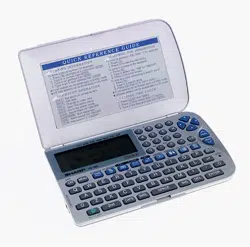
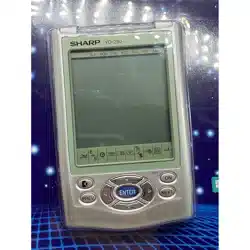
ELECTRONIC ORGANIZER
OPERATION MANUAL
Instrucciones abreviadas en españ ol
CONTENTS
Using the Organizer for the First Time ................................................ 1
Auto Power Off Function .............................................................. 2
Backlight ....................................................................................... 2
Adjusting the LCD Contrast ......................................................... 2
Turning the key sound On and Off ............................................... 2
Memory Check ............................................................................. 2
Display Symbols and Part Names ...................................................... 3
Entering Characters ............................................................................ 5
Built-in Calendar and Clock ................................................................ 6
Clock Mode .......................................................................................... 6
Alarm ................................................................................................... 8
Telephone Mode .................................................................................. 9
Calendar Mode .................................................................................. 11
Schedule Mode ................................................................................. 12
Anniversary Mode ............................................................................. 14
To Do Mode ....................................................................................... 15
Memo Mode ....................................................................................... 17
Expense Mode ................................................................................... 18
Editing Listings .................................................................................. 20
Deleting Listings ................................................................................ 20
Word Translator Mode ....................................................................... 21
Calculator Mode ................................................................................ 22
Conversion Mode .............................................................................. 23
Secret Function ................................................................................. 25
Game Mode ....................................................................................... 26
Battery Replacement ......................................................................... 28
Specifications .................................................................................... 29
Appendices ........................................................................................ 31
Instrucciones abreviadas en espanõ l ............................................. S-1
yo290e_u1u 02.5.17, 0:31 PM35
36
NOTICE
• SHARP strongly recommends that separate permanent written records be kept of all important data. Data may be lost or altered in virtually any
electronic memory product under certain circumstances. Therefore, SHARP assumes no responsibility for data lost or otherwise rendered
unusable whether as a result of improper use, repairs, defects, battery replacement, use after the specified battery life has expired, or any other
cause.
• SHARP assumes no responsibility, directly or indirectly, for financial losses or claims from third persons resulting from the use of this product and
any of its functions, such as stolen credit card numbers, the loss of or alteration of stored data, etc.
• The information provided in this manual is subject to change without notice.
CAUTIONS
• Do not carry the Organizer in the back pocket of slacks or trousers.
• Do not drop the Organizer or apply excessive force to it.
• Do not subject the Organizer to extreme temperatures.
• Since this product is not waterproof, do not use it or store it where fluids can splash onto it. Raindrops, water spray, juice, coffee, steam,
perspiration, etc. will also cause malfunction.
• Clean only with a soft, dry cloth.
• Use only a SHARP approved service facility.
NOTES
• All company and/or product names are trademarks and/or registered trademarks of their respective manufactures.
yo290e_u1u 02.5.17, 0:31 PM36
1
Using the Organizer for the First Time
Be sure to perform the following operations before using the Organizer
for the first time.
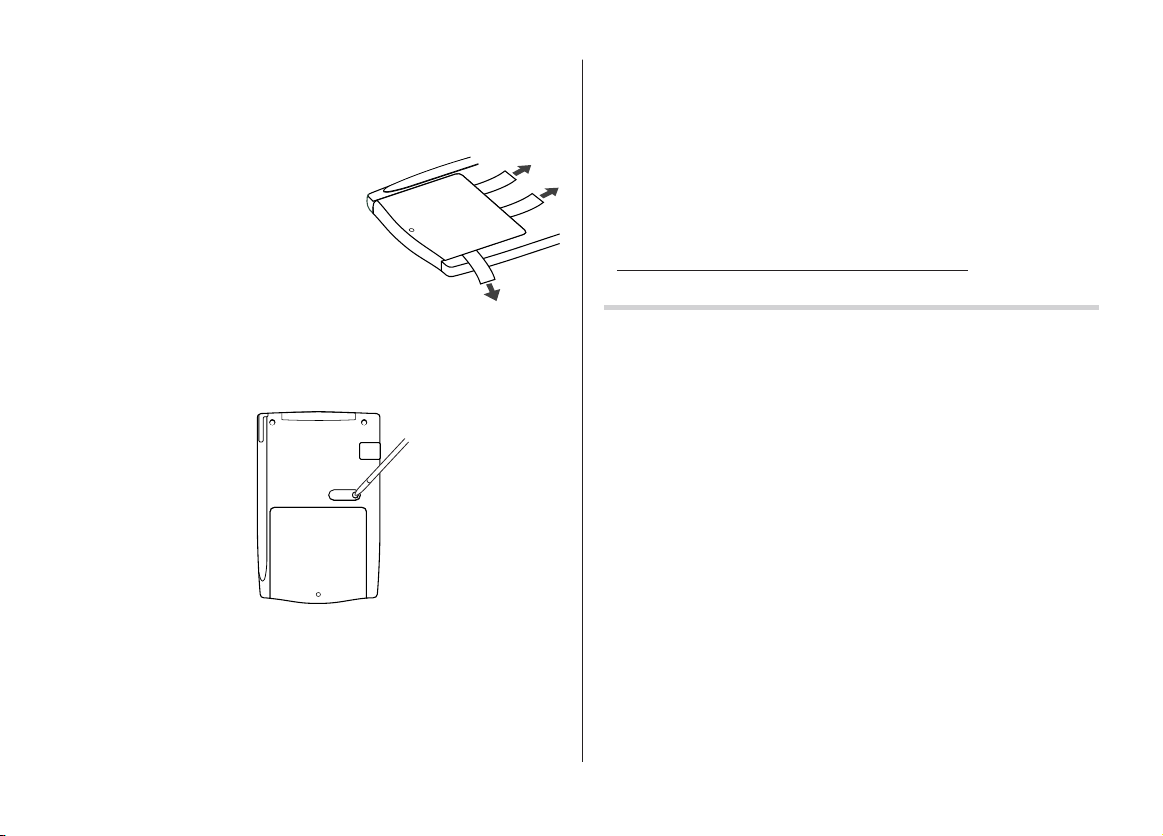
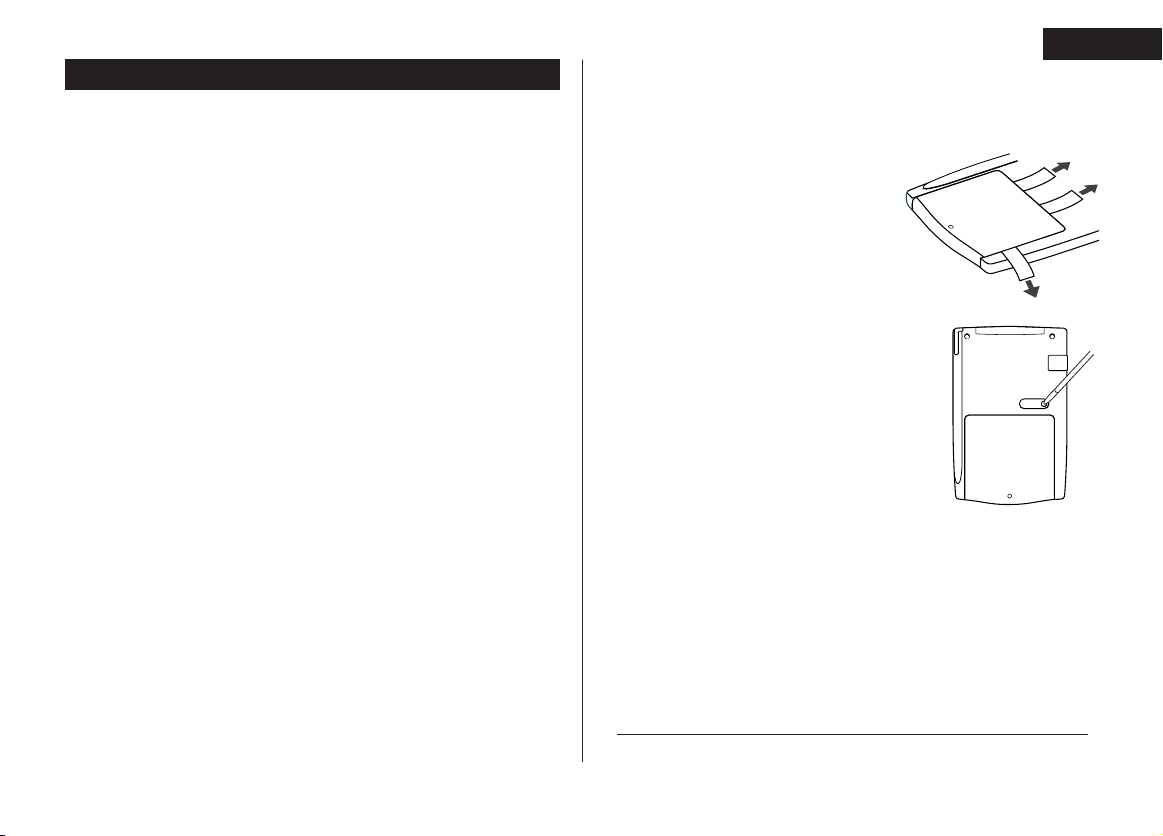
1. Pull out the battery insulation sheets
from the battery compartment on the
back of the unit.
The Organizer starts operation.
(The battery insulation sheets were
inserted at the factory to prevent
battery wear.)
2. Press the RESET switch.
A message, “RESET?” is displayed.
3. Tap
f
, then
x
.
To tap the touch keys, use the touch pen (included in the package).
The message will appear as “RESET!”.
The Organizer is now initialized. Proceed to set the date and time of
the clock (see page 6).
Note:
• Press the RESET switch using the stylus or similar object.
Do not use an object with a breakable or sharp tip.
If a malfunction occurs under abnormal conditions
If the Organizer is subjected to strong extraneous electrical noise or
shock during use, on rare occasions, all the functions will not work
properly and data may be displayed incorrectly. In such cases, follow
the procedures as shown below.
1. Press the RESET switch.
2. When a message, "RESET?" is displayed, press any key EXCEPT
FOR
f
or
x
.
If the first procedure doesn't work, follow the next procedure to
initialize the Organizer's memory. In this case, all the stored data will
be deleted.
1. Press the RESET switch.
2. When a message, "RESET?" is displayed, tap
f
, then press
x
.
RESET
yo290e_u1u 02.5.17, 0:30 PM1
2
Auto Power Off Function
When none of the keys has been pressed or tapped for approxi-
mately 7 minutes, the Organizer automatically turns the power off to
save the operating batteries.
Backlight
The Backlight allows you to view the display and use the Organizer
even in low-light conditions. Pressing
z
once illuminates
the display for as long as you continue to use the Organizer; if no
key activities are detected within the specified interval, it will be
turned off automatically.
• To turn the Backlight off, press
z
again.
• The Backlight may remain on for less than the preset interval or it
may not function if the battery level is low.
• The Backlight does not function in the PC Link mode.
Do not use the Backlight unnecessarily.
• Since the Backlight drains power from the backlight battery,
excessive use of the Backlight will significantly reduce the life of
your battery.
Setting up the Backlight
• The Backlight can be set to turn off at a specified interval.
1. Tap
!
, select "BL TIME SET" by using
k
or
m
, and press
x
.
2. By using
k
or
m
, select a desired interval (10, 20, or 30
seconds) and press
x
.
Adjusting the LCD Contrast
1. Tap
!
, select "LCD CONTRAST" by using
k
or
m
, and press
x
.
2. Press
k
or
m
to darken/lighten the display (within 1 through 8).
3. When done, press
x
.
Turning the key sound On and Off
1. Tap
!
, select "KEY TONE" by using
k
or
m
, and press
x
.
2. Select the key sound function on/off by using
k
or
m
.
3. When done, press
x
.
Memory Check
Tap
!
, select "MEMORY CHECK" by using
k
or
m
, and press
x
.
The memory check display will appear and indicate the remaining
memory space.
The previous screen will appear after 2 seconds.
yo290e_u1u 02.5.17, 0:30 PM2

3
2
2
nd
function: Indicates that
f
has been activated.
Daily Alarm: The Daily Alarm is ON and is set to go off at the
specified time every day.
B
Low Battery sign: Indicates that the battery level is extremely
low. (Replace the operating batteries with new ones
immediately.)
Secret sign: Secret function is in effect.
(Listings cannot be recalled without a password.)
• The display examples in this manual show only the symbols required
for each explanation.
Display Symbols and Part Names
Display Symbols
Hourly Alarm: The Hourly Alarm is ON and will sound every
hour.
Schedule sign: Appears when the Home clock time reaches a
Reminder time or a Start time of a schedule listing. Disap-
pears when the time reaches the End time of the listing.
Anniversary sign: Appears when a special day will arrive
within days as set in Anniversary Reminder.
>
UP sign: More information exists above the current display.
(Press
k
.)
<
DOWN sign: More information exists below the current display.
(Press
m
.)
C
CAPS LOCK sign: Capital (uppercase) letters will be entered.
To enter small (lowercase) letters, tap
$
to turn “CAPS”
off.
b
Beep sound: Key touch sound (beep) is ON.
E
EDIT mode: The listing on the display can be edited.
yo290e_u1u 02.5.17, 0:30 PM3
4
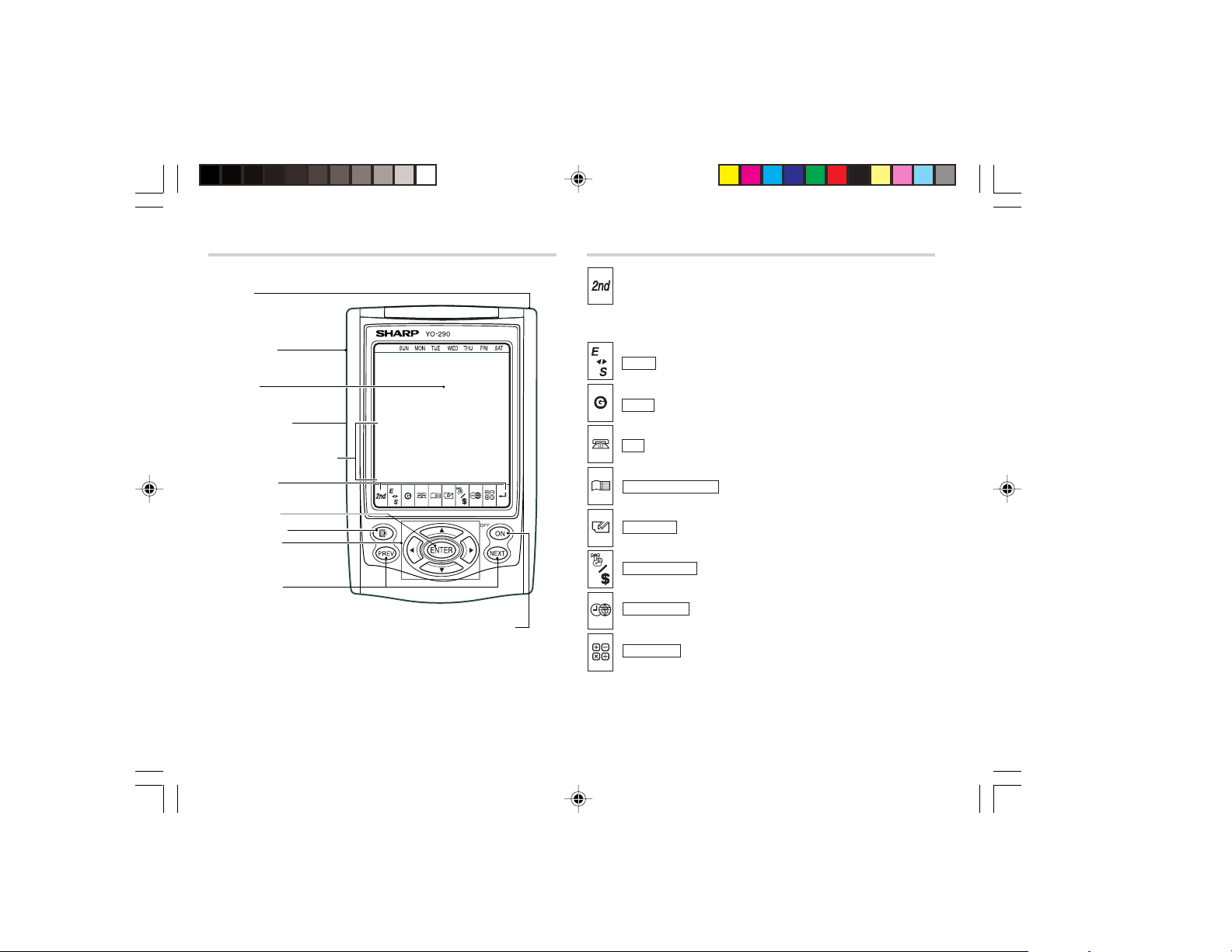
Part Names Key Assignments
: 2nd Function key
Activates the second function specifically assigned to the next
key tapped.
(
E
;
:
S
): English-Spanish dictionary key
(
GAME
): Game mode key
(
TEL
): Telephone mode key
(
SCHEDULE
/
CALENDAR
): Schedule/Calendar mode key
(
MEMO/ANN
): Memo/Anniversary mode key
(
TO DO/
EXPENSE
): To Do/Expense mode key
(
CLOCK/
ALARM
): Home Clock/World Clock/Alarm mode key
(
CALC/CONV
): Calculation/Conversion mode key
• In this manual, these Mode keys are represented with icons in parentheses.
Option port
Stylus
Display
RESET switch
(on the back of the unit)
Touch Keyboard section
Mode keys
ENTER key
Backlight key
Power ON/OFF key
Cursor keys
Search keys
yo290e_u1u 02.5.17, 0:31 PM4
5
Entering Characters
Moving the Cursor
Move the cursor by pressing
j
,
l
,
k
, or
m
.
Entering Characters
Entering letters and numbers
The initial setting for entering letters is small (lowercase) letters. To
enter capital (uppercase) letters, turn “CAPS” on by tapping
$
.
Other characters
Tap
s
to display the symbol entry mode, allowing a total of 32
symbols and characters to be selected. To select the desired
symbol/special character, tap
s
the appropriate number of
times at the position where you would like to insert it.
Characters assigned to
s
:
Making Corrections
1. Inserting or Overwriting characters
Tap
i
, once or twice, to insert or overwrite characters.
2. Deleting characters
c
can be used for deletion of data in Calculator mode and Rate
figure in Conversion mode.
d
can be used for deletion of characters.
d
can also be used to delete listings.
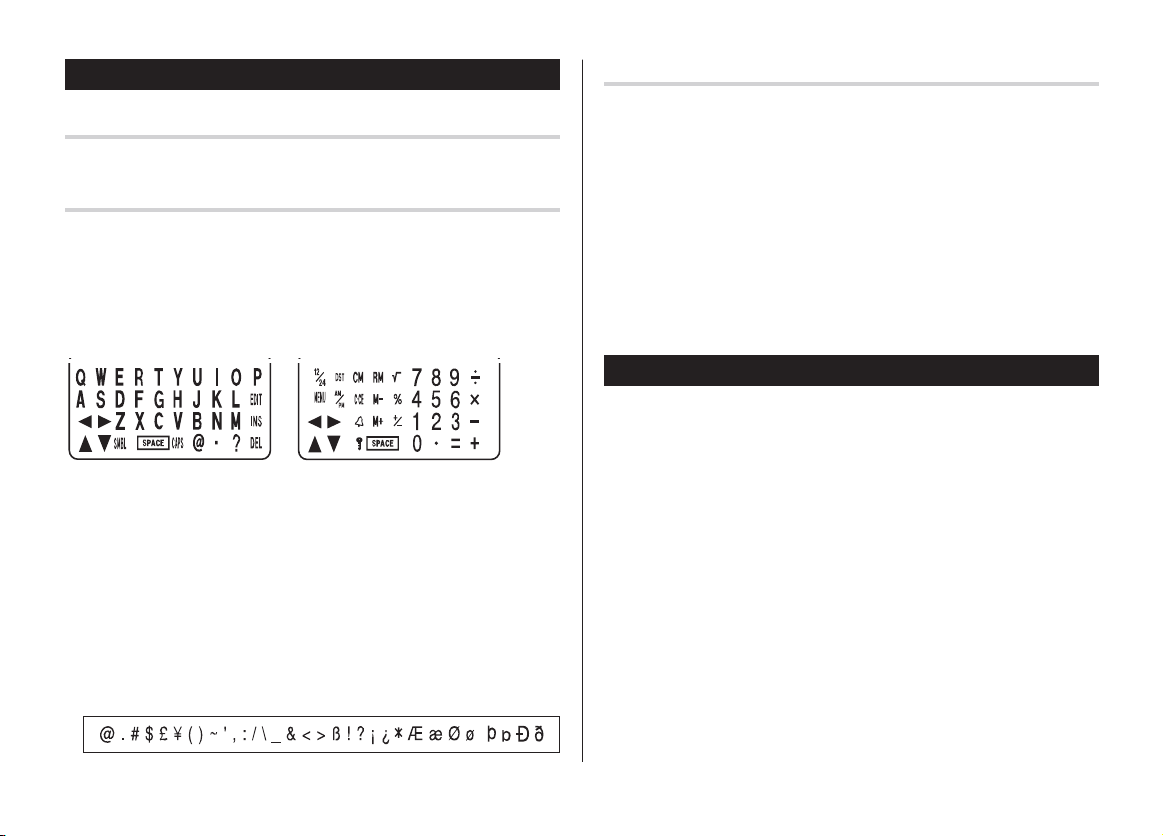
Touch Keyboard
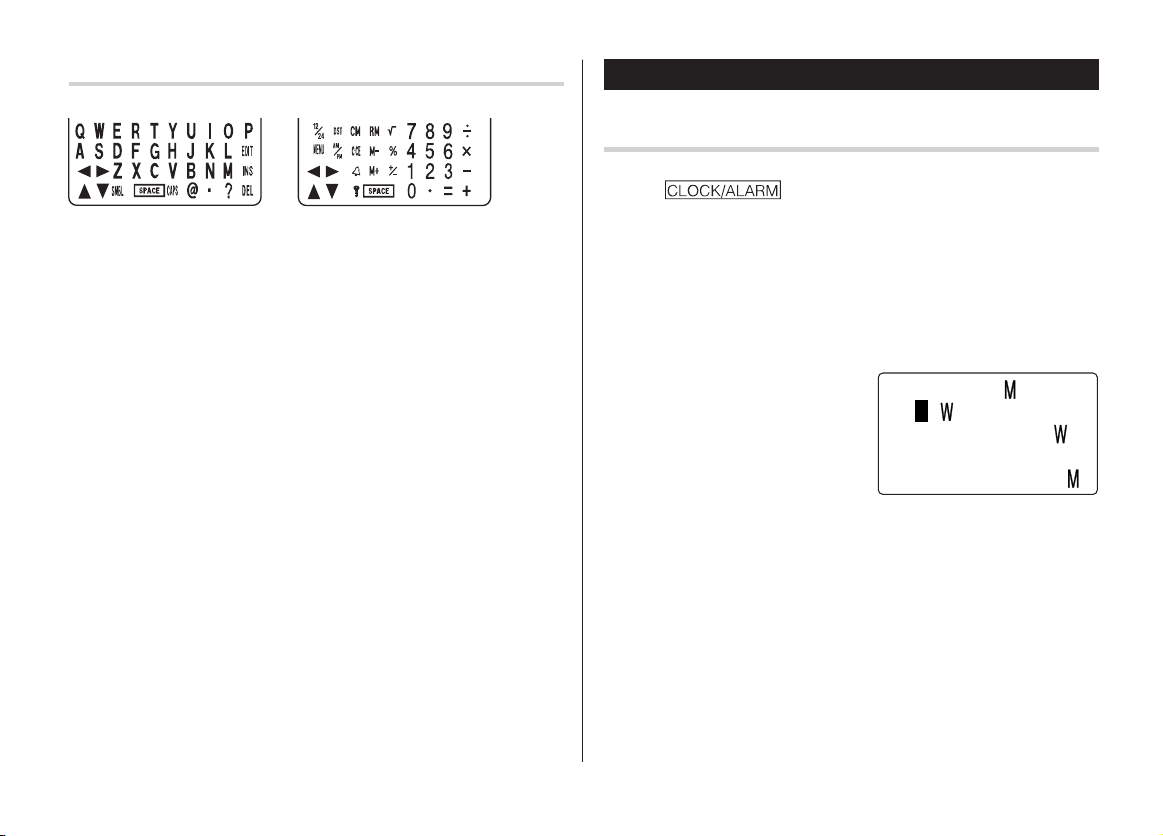
Alphabet entry mode Number entry mode
• Each time
f
is tapped, the touch keyboard switches between the
Alphabet entry mode and the Number entry mode.
To tap the touch keys, use the stylus (included in the package).
• Tap towards the center of each key.
Loop Function
Right after the power is turned on, function modes can be browsed
through; every time
<
key is pressed, the function modes will
sequentially be displayed as below:
Home Clock
➠
World Clock
➠
Personal
➠
Business
➠
Other
➠
Schedule
➠
Memo
➠
...
Pressing the
>
key will display the above menus in the reversed
order.
Press
x
to select a desired mode; the Organizer will then escape
from the Loop function.
yo290e_u1u 02.5.22, 9:52 AM5

6
Built-in Calendar and Clock
Precautions
• Calendar, Schedule, Expense, and Clock modes allow you to
enter the desired date and time between Jan. 1, 1950 and Dec.
31, 2150.
• If an attempt is made to store an invalid time or date, you will not
be able to move the cursor to date entering, or store the time and
date by pressing
x
. Enter the correct value and press
x
again.
• The Organizer has 43 cities according to the time zones (see
page 31).
Clock Mode
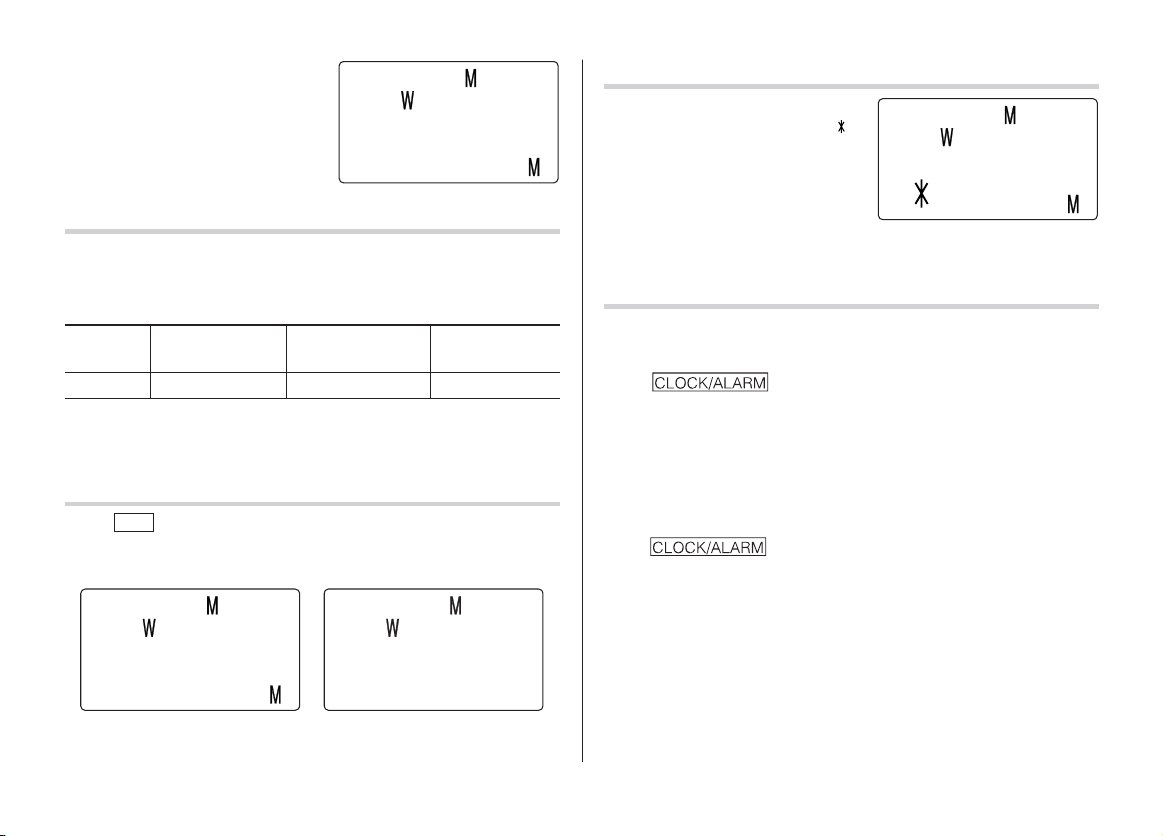
The Organizer has both Home Clock and World Clock modes. The
display switches between Home and World clock each time
is tapped.
Home Clock Mode
World Clock Mode
Setting the Home Clock
1. If the display is in other mode or World Clock mode, tap
to enter the Home Clock mode.
Note:
• During the period of the Daylight Saving Time (summer time), set the
DST ON beforehand as described on page 7, "Setting Daylight
Saving Time ON/OFF".
2. Tap
e
.
The Organizer will enter the clock setting mode.
3. Select your Home city using
<
or
>
.
City names can be edited, if
necessary.
4. Press
m
to move the cursor to the
Month position.
5. Enter the appropriate month.
Enter the day and then year in the
same way.
6. Press
m
to move the cursor to
the Hour position.
7. Enter the appropriate hour.
8. Enter the minutes and seconds in the same manner.
9. Select AM or PM using
(
.
<
H
O
E
>
NE Y
O
RK
1
–
1
–
2003 ED
12
:
00
:
00
A
L
O
N
ON
1
–
1
–
D
2003 ED
5
:
00
:
00
A
<
O
RLD
>
<
H
O
E
>
NE Y
O
RK
01
–
01
–
2003
12
:
05
:
35
A
ED
<
H
O
E
>
3
NE Y
O
RK
01
–
01
–
200
12
:
05
:
35
A
ED
<
H
O
E
>
3
NE Y
O
RK
01
–
24
–
200
12
:
05
:
35
A
ED
yo290e_u1u 02.5.17, 0:31 PM6
7
10
.Press
x
to set the Clock.
The clock starts from exactly the
set time.
Selecting the date format (Default: Month-Day-Year)
1. Tap
!
, select "DATE FORMAT" by using
k
or
m
, and press
x
.
2. Select the desired date format by using
k
or
m
, and press
x
.
Mode Month-Day-Year Year-Month-Day Day-Month-Year
(MM-DD-YYYY) (YYYY-MM-DD) (DD-MM-YYYY)
Jan 24,2003
01-24-2003 2003-01-24 24-01-2003
Note:
• The selected date format affects each mode in the Organizer.
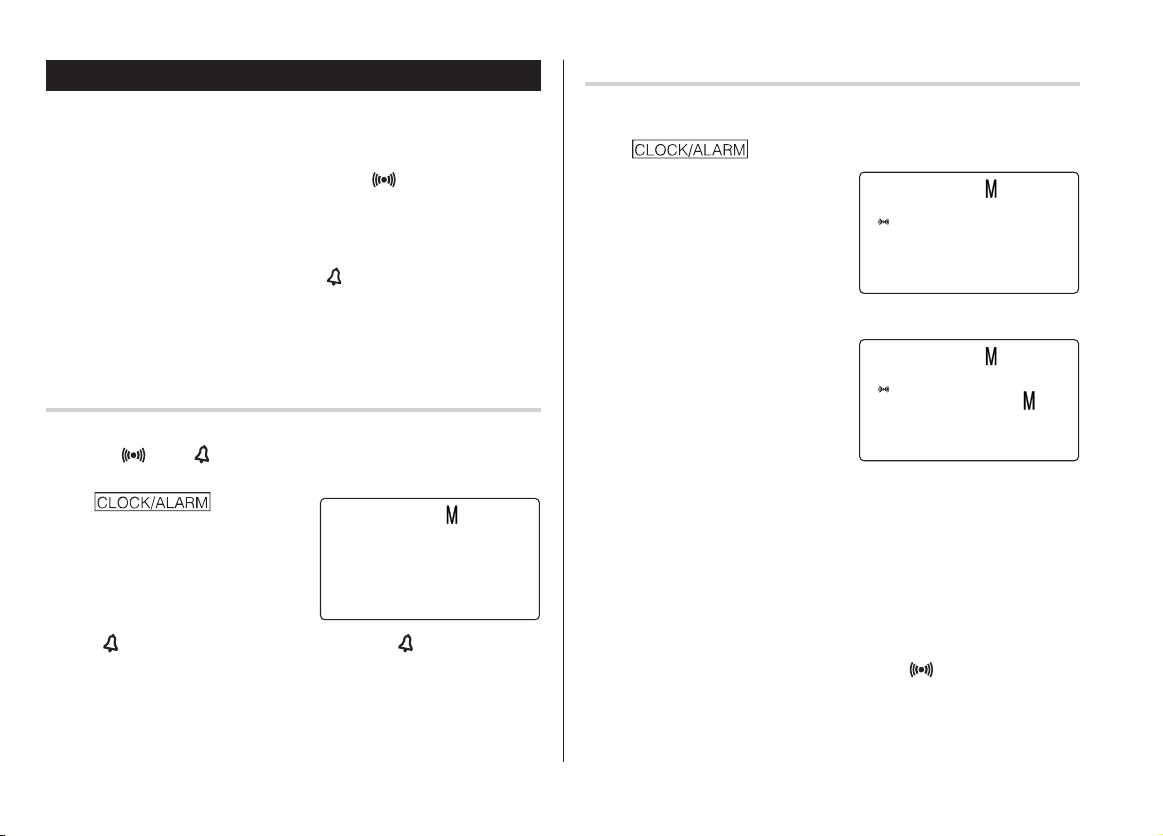
Selecting the 12- or 24-hour time system (Default: 12 hour)
1. Tap
12/24
the appropriate number of times to select the 12 hour or
24 hour system.
12 hour 24 hour
In the 12-hour system, 12:00 AM: midnight, 12:00 PM: noon.
Setting Daylight Saving Time (DST: Summer time) ON/OFF
1. Tap
C
once to switch the DST
setting. When the DST is ON, “ ”
appears.
Changing the World Clock city to the Home Clock city
A different city in another time zone can be set as the home city at will,
without adjusting the stored correct time.
1. Tap once or twice to display the World clock.
2. To set the new home city, select the desired city by using
<
or
>
.
3. Tap
e
to change the cities between the Home and the World
clocks.
• The previous home city is now set as the world city.
4. Tap to check the home city.
• The selected city in step 2 is now set as the home city.
<
H
O
E
>
NE Y
O
RK
1
–
24
–
2003
10
:
16
:
15
A
FR I
<
H
O
E
>
NE Y
O
RK
1
–
24
–
2003
3
:
23
:
17
P
FR I
<
H
O
E
>
NE Y
O
RK
1
–
24
–
2003 FR I
15
:
23
:
17
<
H
O
E
3
>
NE Y
O
RK
8
–
12
–
200 TUE
9
:
43
:
21
A
yo290e_u1u 02.5.17, 0:31 PM7
8
Alarm
The Organizer has 3 kinds of alarm:
1. Daily Alarm.......... Sounds every day at the specified time(for
approx. 1 minute), when " " is displayed.
Up to 3 alarms can be set separately (Alarm1,
Alarm2, and Alarm3).
2. Hourly Alarm........Sounds every hour precisely (every time minutes
reach "00"), when " " is displayed.
3. Schedule Alarm... Sounds at the specified times of schedule listings
(see page 12).
Press any key to stop the Alarm sounding.
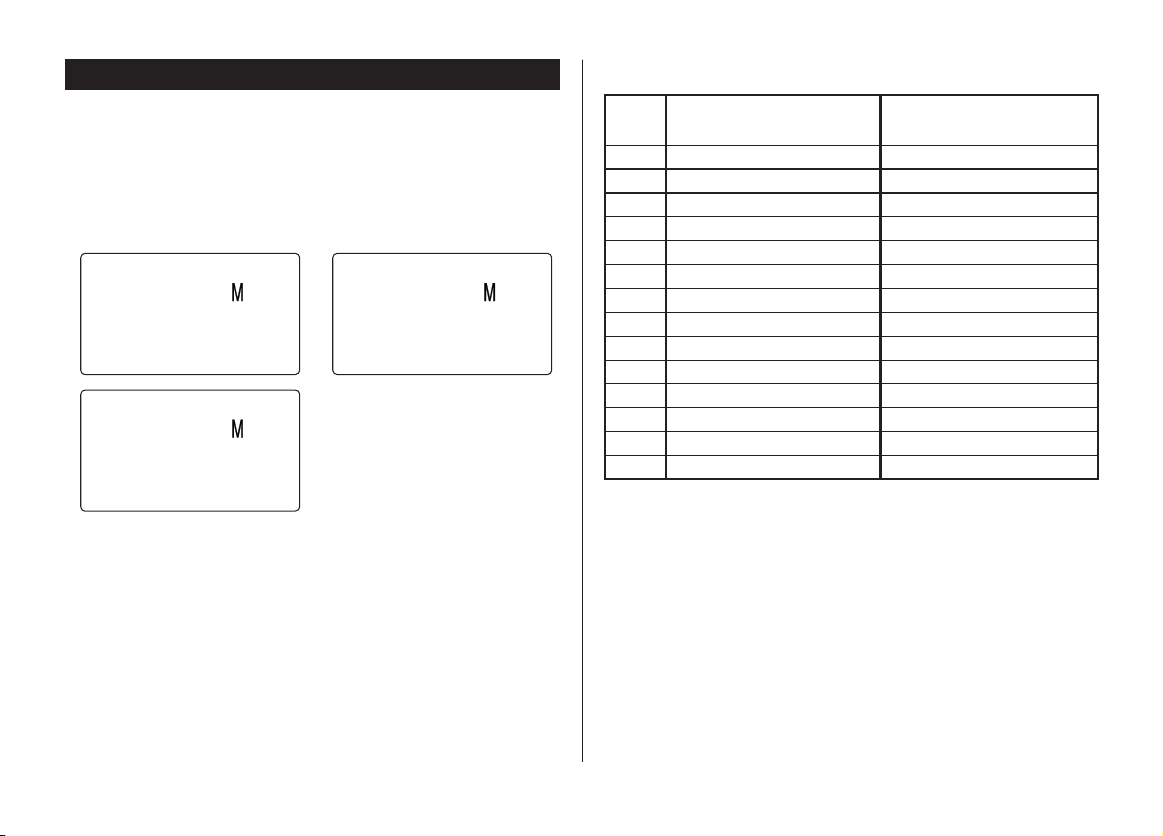
Turning the Daily and Hourly Alarms ON/OFF
The Daily and Hourly Alarms can sound when the respective
symbols (" " and " ") are displayed.
1. Tap once twice,
or three times.
The Alarm display will appear.
2. Tap " " appropriate times. Each time you tap " ", the combination
of symbols switches.
Note:
• Alarms will sound even when the Organizer is turned off.
<
ALAR 1
>
– –
:
– –
Setting the Daily Alarm time
Set up the Daily Alarm to go off at a specified time.
1. Tap once, twice, or three times.
The Alarm display will appear.
2. Press
<
or
>
to select
the Alarm1, Alarm2, or Alarm3.
3. Press
j
or
l
to turn on the Alarm.
(The display differs between the
12 hour and 24 hour systems.)
4. Tap
e
to specify the time.
5. Enter the desired time.
6. Press
x
.
Note:
• You can turn the respective alarms (Alarms 1 to 3) ON/OFF. Display
the desired Alarm following the above steps 1 and 2, then press
j
or
l
to display the time (ON) or to hide the time (OFF). When turned
off, the Alarm will not sound even when the " " is displayed.
<
ALAR 3
>
:
12 00 A
<
ALAR 3
>
– –
:
– –
(Alarm3 is OFF)
(Alarm3 is ON)
yo290e_u1u 02.5.17, 1:16 PM8
9
Telephone Mode
There are three telephone listing categories, Business, Personal,
and Others. Each listing can be simply classified for easy access to
the data.
Tap
v
, select the desired category by using
k
or
m
, and press
x
.
Maximum number of
Field Name alphanumeric characters
1 Last name: 48
2 First name: 48
3 Company: 96
4 Home#: 48
5 Office#: 48
6 Fax#: 48
7 Mobile#: 48
8 E-mail: 48
9 Address: 96
10 City: 48
11 State: 48
12 Zip code: 48
13 Country: 48
14 Note: 96
Each entry has the following 14 fields.
<
BUS I NESS
>
SEAR
C
H NA E?
<
PERS
O
NAL
>
SEAR
C
H NA E?
<
O
THERS
>
SEAR
C
H NA E?
yo290e_u1u 02.5.17, 0:31 PM9

10
Entry
<Example>
1. Tap
v
, and select “BUSINESS”,
then press
x
.
The Business search display will
appear.
2. Tap
e
.
The display will change to the
record input mode.
3. Enter the Last name.
For example, “Smith”.
4. Press
m
, then enter the First name. For example, “John”.
5. Press
m
to move the cursor to the Company field and enter “ABC
International Co.”.
6. Press
m
to move the cursor to the Home # field.
7. Enter “585-4280”.
8. Press
m
to move the cursor to the Office # field and enter “619-542-
7320”.
9. Enter each field in the same manner.
10.
At the Note field, press
x
to store the telephone listing.
The Business search display will appear.
<
BUS I NESS
>
SEAR
C
H NA E?
<
BUS I NESS
>
LAST NA E
:
0
F I RST NA E
:
C
O
PANY
:
yo290e_u1u 02.5.17, 0:31 PM10
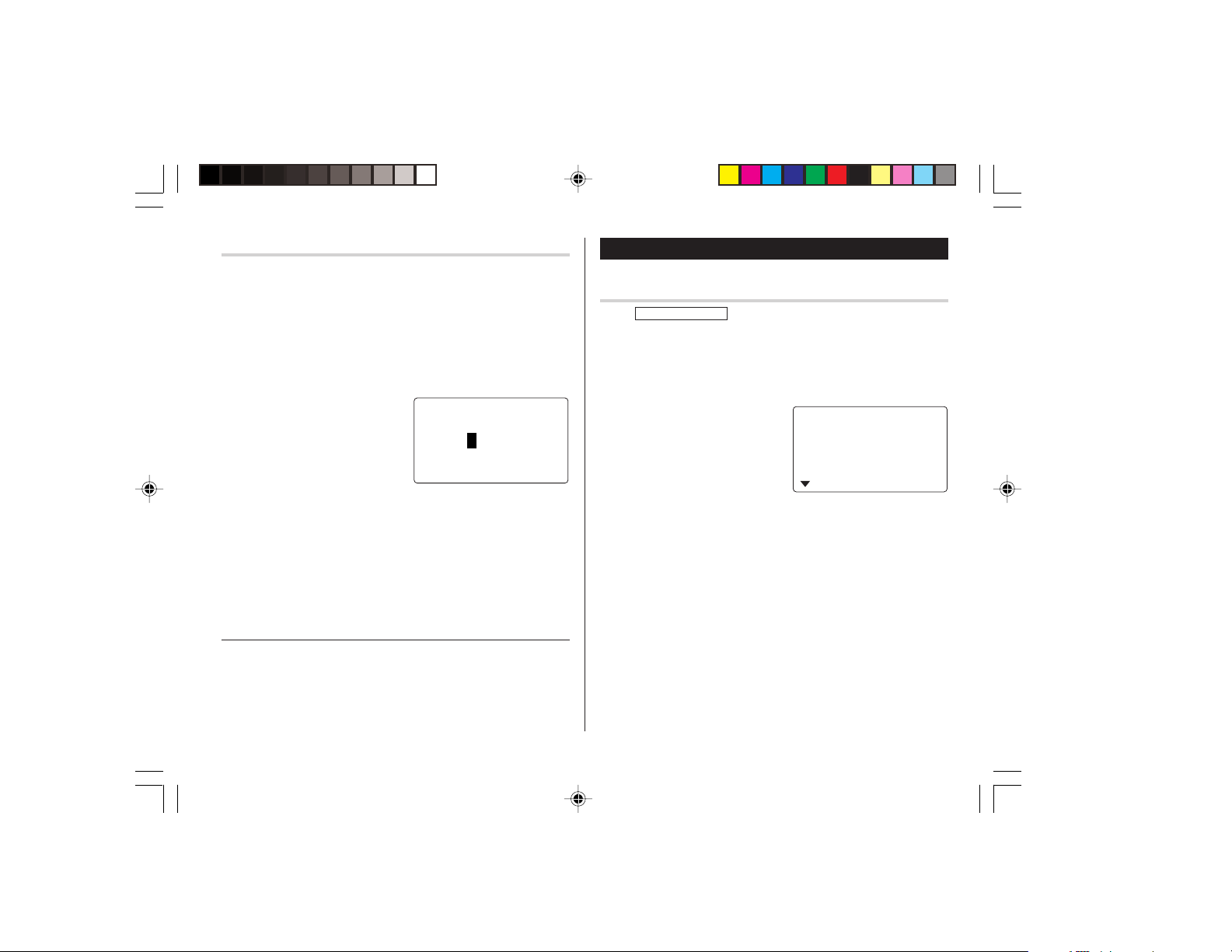
11
Search
Last Name Alphabetical Search
1. Tap
v
and select the Category by using
k
or
m
key, then press
x
.
The search display will appear.
2. Press
<
or
>
to search for the target listing in alphabetical
order.
Last Name Direct Search
1. Tap
v
and select the Category
(Business, in this example) by
using
k
or
m
key, then press
x
.
The search display will appear.
2. Enter some of the last name letters in order.
Up to 10 letters can be entered.
3. Press
x
to search for the target listing.
If there is no data matched, “NOT FOUND!” will appear, and then
the screen will return to the initial display.
See also
Entering Characters ................................................... 5
Editing Listings ......................................................... 20
Deleting Listings ....................................................... 20
Calendar Mode
Navigating the Monthly Calendar Display
1. Tap
CALENDAR/SCHEDULE
once or twice to enter the Calendar mode.
The monthly calendar of the current month will appear.
The current day will be flashing.
Navigate the calendar using the following keys:
<
>
: displays the following or previous month.
j
: Go to previous day
l
: Go to next day
k
: Go to the previous week
m
: Go to the next week
•
j
,
l
,
k
and
m
cursors can move only within the month
displayed.
<
BUS I NESS
>
SEAR
C
H NA E?
s i s
8
–
2003
1 2
3 4 5 6 7 8 9
10 11 12 13 14 15 16
17 18 19 20 21 22 23
yo290e_u1u 02.5.17, 0:31 PM11
12
Schedule Mode
Entry
<Example>
A project meeting will be held from 10:00 AM to 11:00 AM on
September 11, 2003
1. Tap
CALENDAR/SCHEDULE
once or
twice to enter the Schedule mode.
The Schedule search display will
appear.
The current date will be displayed and the cursor at the first number
flashes.
The first number depends on your Date Format selection. These
examples are in the MM-DD-YYYY format.
2. Tap
e
. The Schedule entry
display will appear. Enter 09 for
month.
3. Enter the target day/year in the
same manner.
4. Press
m
, and enter 10:00AM for
Start time.
Directly go to the target month
1. At the Calendar mode, tap
=
.
Date input screen will appear.
2. Enter the target date.
3. Press
x
.
The monthly calendar of the target
date will appear.
Note:
• In the Calendar mode, monthly calendars from January 1950
to December 2150 are available.
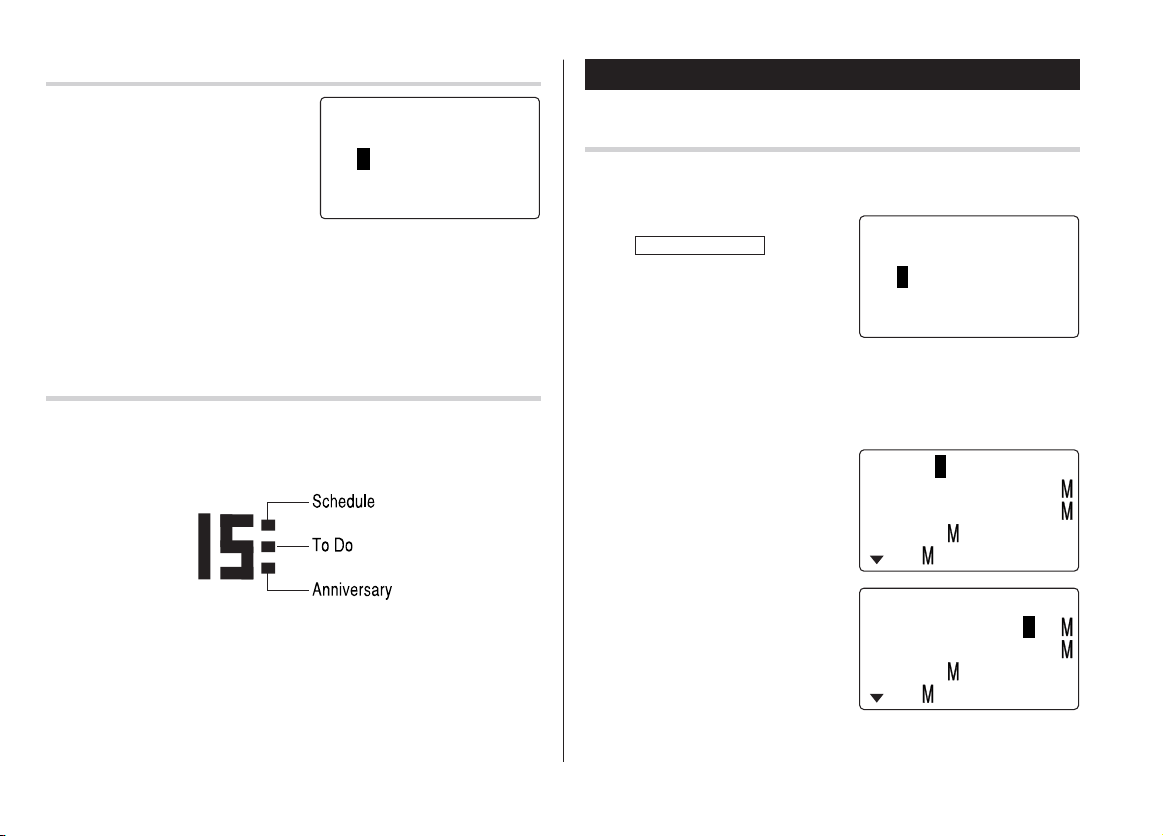
Confirmation of the Schedule, To Do, and Anniversary
Mode entries
You can see the dates to which you assigned a Schedule, To Do or
Anniversary on the monthly calendar display.
The indication marks are displayed as follows:
<
C
ALENDAR
>
SEAR
C
H DATE?
08
–
12
–
2003
<
S
C
HEDULE
>
SEAR
C
H DATE?
08
–
12
–
2003
09
–
12
–
2003
START
:
05
:
54 P
END
:
05
:
54 P
ALAR
:
<
YES
>
RE I NDER
:
09
–
11
–
2003
START
:
10
:
00 A
END
:
05
:
54 P
ALAR
:
<
YES
>
RE I NDER
:
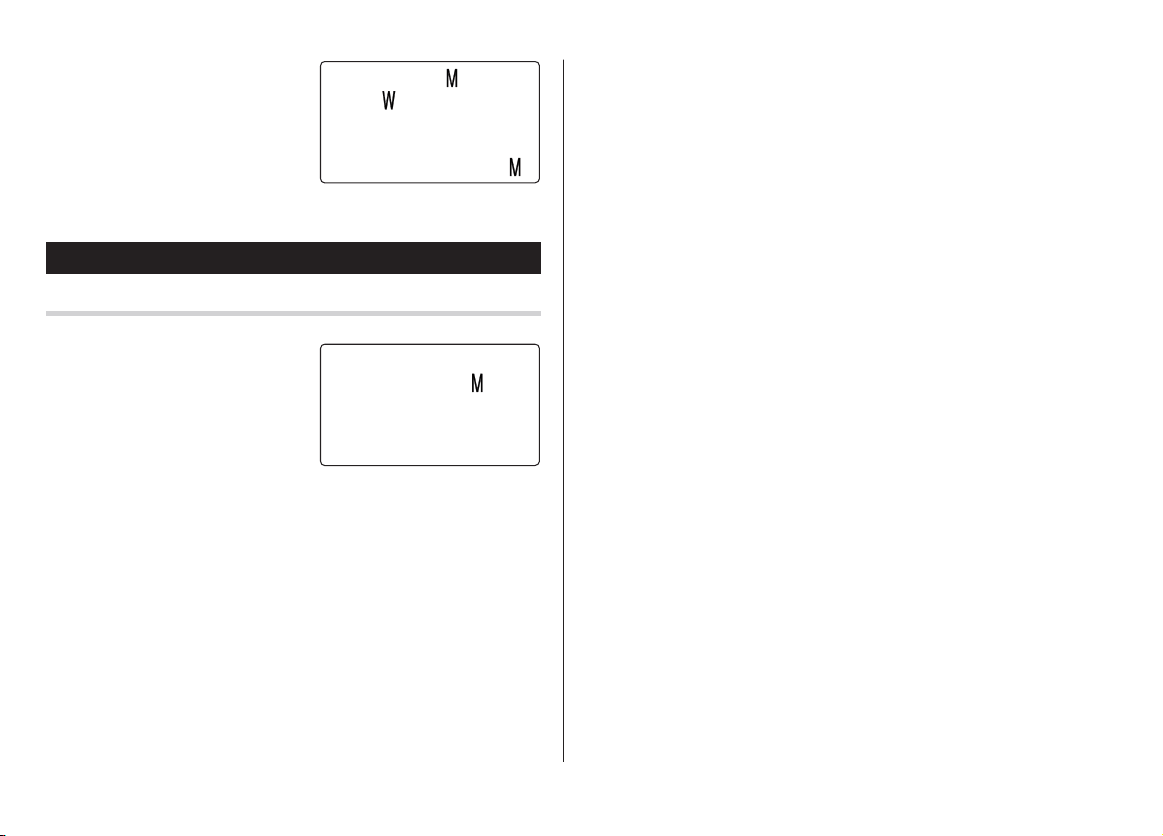
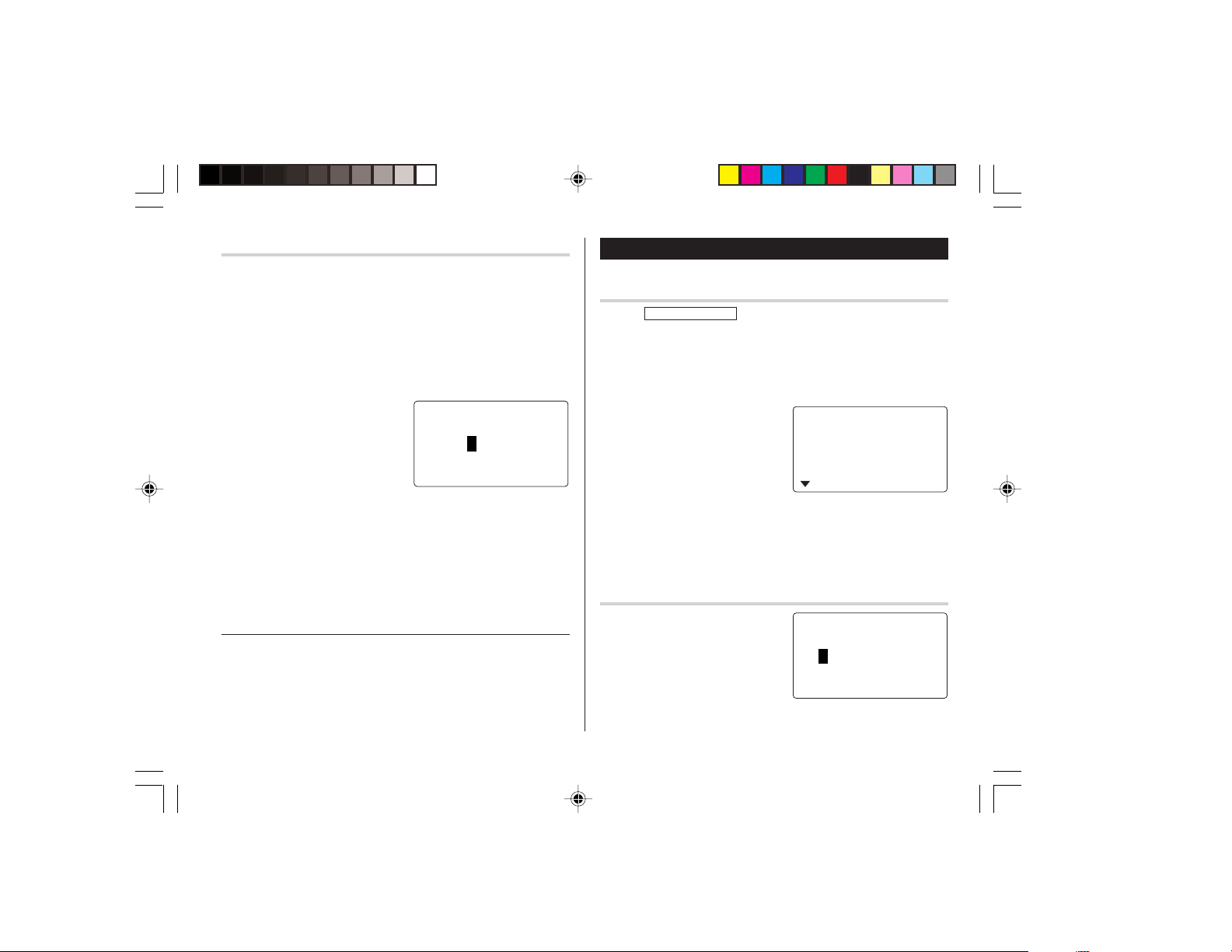
yo290e_u1u 02.5.17, 0:31 PM12

13
5. Press
m
.
The End time will automatically change to 30 minutes after the Start
time. (However, the End time will remain within the specified day.)
6. Enter 11:00AM for the End time, and press
m
.
7. Press
<
or
>
to select
“Yes” or “No” for Alarm setting, and
press
m
.
If you select “Yes”, the Schedule
Alarm will sound at the time set in
Reminder minutes before the Start time. If you select “No”, Schedule
Alarm will not sound.
Note:
• If you select “No” in step 7, “PLAN”
will appear instead.
Go step 9 to continue.
8. Enter the appropriate time for
Reminder and press
m
.
Schedule Alarm will sound at the
entered time before the Start time.
You can select any number from
00 to 99.
Note:
• Enter the number in two-digit format.
9. Enter the name of the scheduled item into the PLAN field. (Project
meeting).
Up to 96 alphanumeric characters can be entered.
10.
Press
x
to store the schedule listing.
Note:
• When the Home clock time reaches a Reminder time, the Schedule
Alarm will sound for approx. 30 seconds even while the power is
turned off. Press any key to stop the Alarm sounding. When
x
is pressed, the listing can be seen in detail in the Schedule mode.
Search
Search today’s schedule
1. Tap
CALENDAR/SCHEDULE
once or twice to enter the Schedule mode.
2. Tap
<
or
>
to search for
the target schedule listing.
The listings stored in the
Organizer will be displayed in
chronological order.
START
:
10
:
00 A
END
:
11
:
00 A
ALAR
:
<
YES
>
RE I NDER
:
00 I N . BEF
O
RE
END
:
11
:
00 A
ALAR
:
<
N
O
>
RE I NDER
:
00 I N . BEF
O
RE
PLAN
:
0
– – – – –
END
:
11
:
0
S
0 A
ALAR
:
<
YE
>
RE I NDER
:
05 I N . BEF
O
RE
PLAN
:
0
8
–
12
–
2003
START
:
12
:
15 P
END
:
12
:
45 P
ALAR
:
YES
RE I NDER
:
yo290e_u1u 02.5.17, 0:31 PM13
14
Anniversary Mode
In Anniversary mode, you can specify the month and day (such as
wedding anniversaries and birthdays).
Once data is stored as an anniversary, a flag appears on the date
set in the calendar (see page 12). And when within the specified
period, the anniversary sign will appear.
The maximum number of characters for each description is 96
alphanumeric characters.
Entry
<Example>
“Nancy’s Birthday” is on February 12th.
1. Tap
;
once or twice to
enter the Anniversary mode.
2. Tap
e
.
The Anniversary entry display will
be displayed and Date will appear.
3. Enter the date, 02 for month and
12 for day.
4. Press
m
.
Reminder date will be flashing.
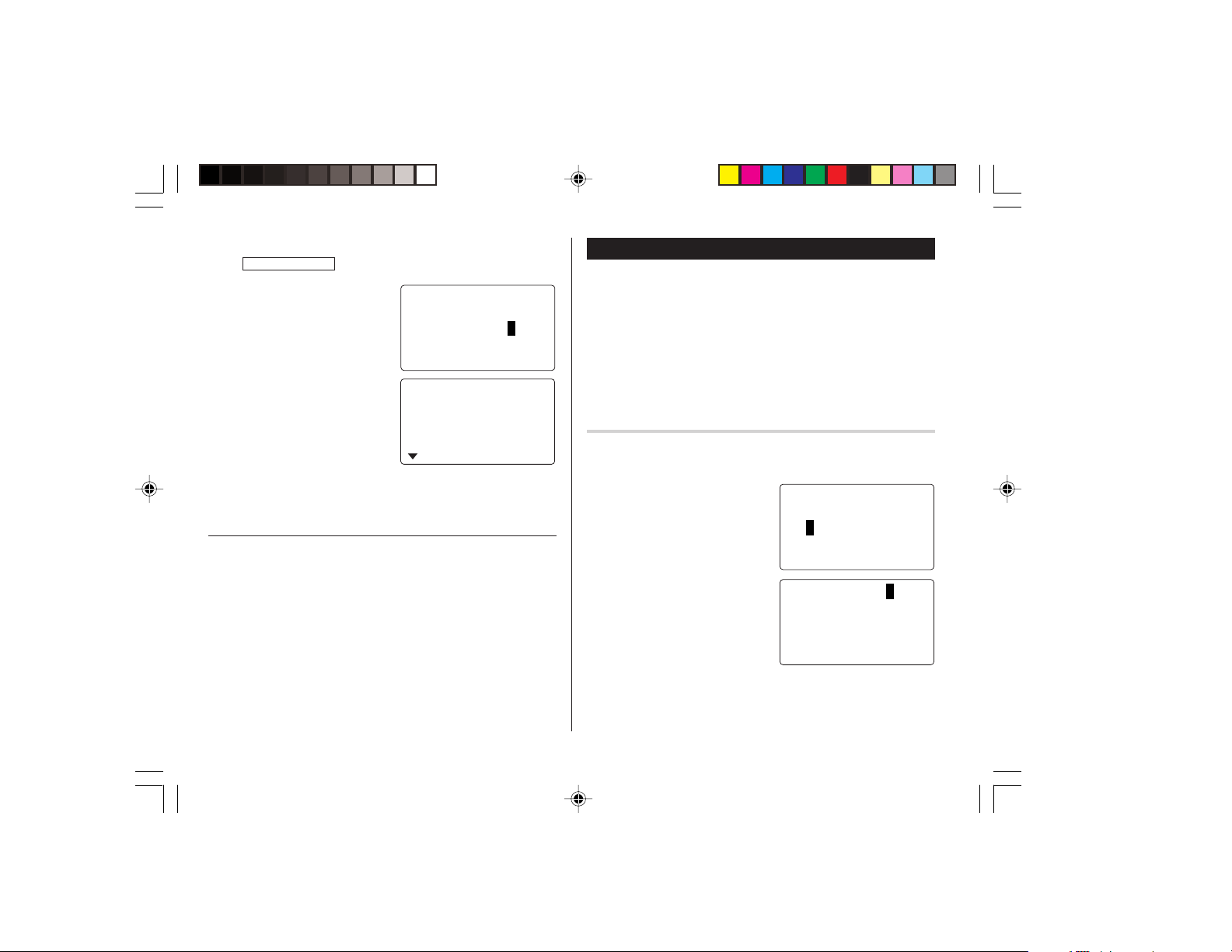
Date search
1. Tap
CALENDAR/SCHEDULE
once or twice to enter the Schedule mode.
2. Set the desired date.
Select the month, day and year
field, and enter the desired
number.
3. Press
x
to search for the
target schedule listing of the
specific date.
Pressing
<
or
>
can
display the listings on that day.
See also
Entering Characters ................................................... 5
Editing Listings ......................................................... 20
Deleting Listings ....................................................... 20
<
S
C
HEDULE
>
SEAR
C
H DATE?
09
–
11
–
2003
9
–
11
–
2003
START
:
10
:
00 A
END
:
11
:
00 A
ALAR
:
YES
RE I NDER
:
<
ANN I VERSARY
>
SEAR
C
H DATE?
08
–
12
DATE
:
02
–
12
5 DAYS
DES
C
R I PT I
RE I NDER
:
BEF
O
R
O
N
:
E
yo290e_u1u 02.5.17, 0:31 PM14
15
5. Enter the Reminder date from 0 to 9.
6. Press
m
.
7. Enter “Nancy’s Birthday”.
8. Press
x
to store the anniversary listing.
The anniversary sign (
A
) will not appear until the day is set in
Reminder.
Search
Sequential search
1. Tap
;
once or twice to enter the Anniversary mode.
2. Press
<
or
>
to search for the listing.
Date search
Enter the date to go to the target date in the above step 2 and then
press
x
.
See also
Entering Characters ................................................... 5
Editing Listings ......................................................... 20
Deleting Listings ....................................................... 20
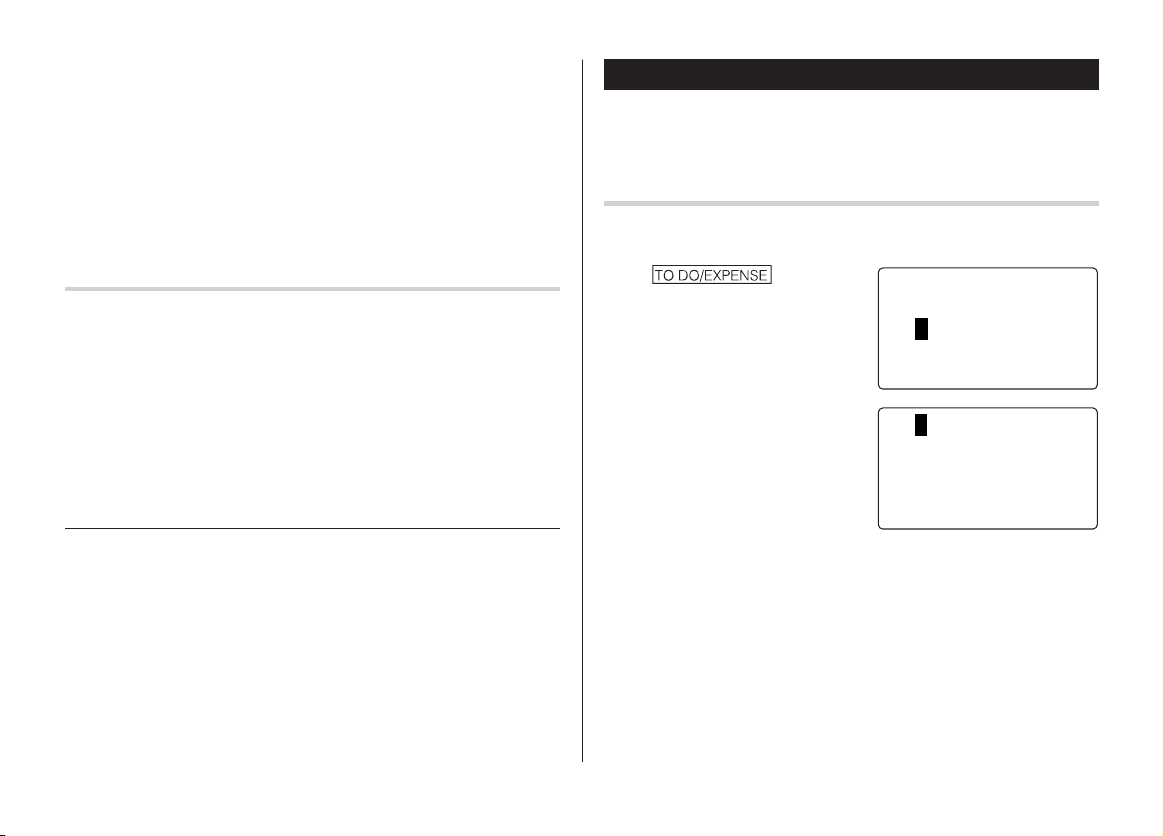
To Do Mode
In the To Do mode, you can store your important To Do items with a
priority index.
Entry
<Example>
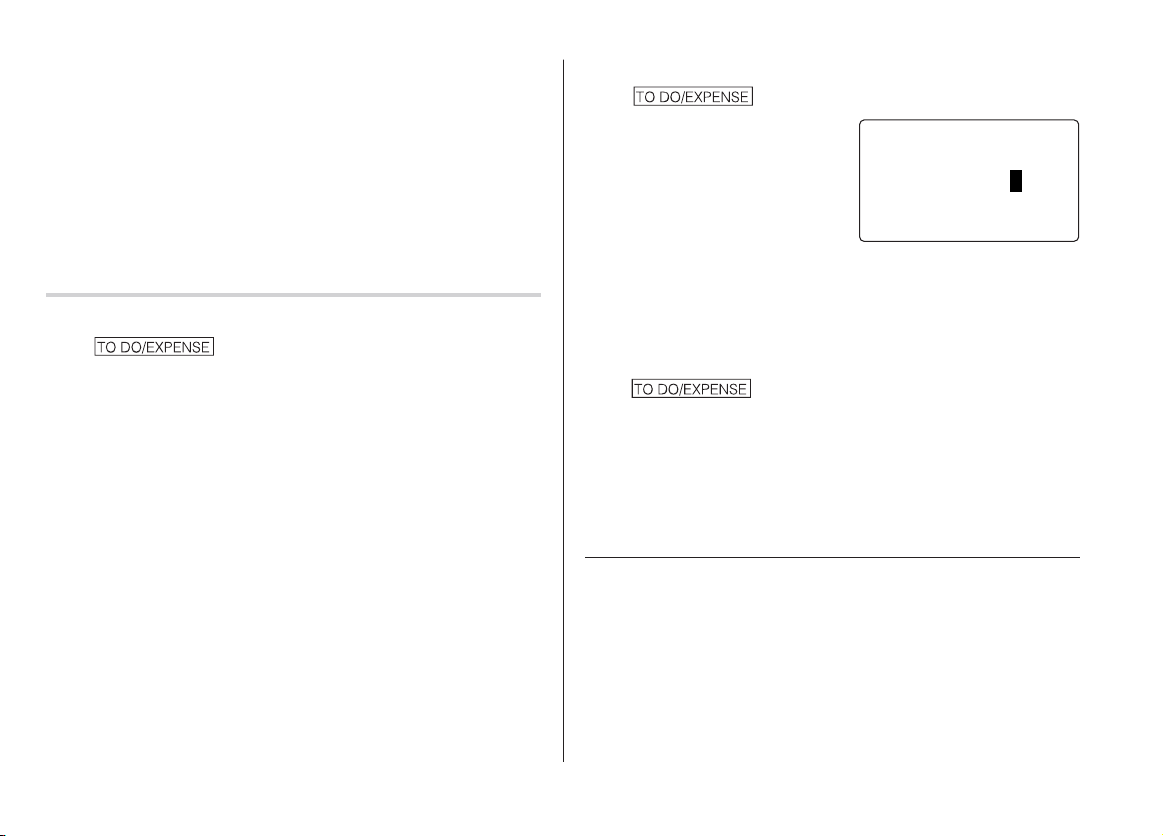
You have to visit the HK Exhibition by December 10, 2003.
1. Tap once or
twice to enter the To Do mode.
2. Tap
e
.
The To Do entry display will
appear.
3. Enter 12 into the month field and enter 10 and 2003 respectively.
4. Press
m
and select the Priority number from 1 (High) to 9 (Low)
using
<
or
>
(or enter the number), then press
m
.
<
T
O
D
O
>
SEAR
C
H
D
ATE?
08
–
12
–
2003
08
–
12
–
2003
>
PR I
O
R I TY
:
<
1
<
PEND I N
G
>
DES
C
R I PT I
O
N
:
yo290e_u1u 02.5.17, 0:31 PM15
16
Date search
1. Tap once or twice to enter the To Do mode.
2. Select the month, day or year
field, and enter the desired date.
3. Press
x
to search for the target To Do listing of the specific
date.
DONE Completed Items
1. Tap once or twice to enter the To Do mode.
2. Press
<
or
>
to select the To Do items.
3. Tap
e
m
m
to enter the status field.
4. Press
<
or
>
to select "DONE", then press
x
.
See also
Entering Characters ................................................... 5
Editing Listings ......................................................... 20
Deleting Listings ....................................................... 20
5. Press
m
to let the status as "PENDING".
6. In the description field, enter what you have to do by the target day.
Enter “Visit HK Exhibition”.
Up to 96 alphanumeric characters can be entered.
7. Press
x
to store the To Do listing.
Search
Sequential search
1. Tap once or twice to enter the To Do mode.
2. Press
<
or
>
to search for the target To Do listing.
The To Do listings are stored in order of their date, pending/done
status, and priorities.
<
T
O
D
O
>
SEAR
C
H
D
ATE?
12
–
10
–
2003
yo290e_u1u 02.5.17, 0:31 PM16
17
Memo Mode
You can store memos using the Memo mode. Up to 96 alphanu-
meric characters can be entered per one listing.
Entry
<Example>
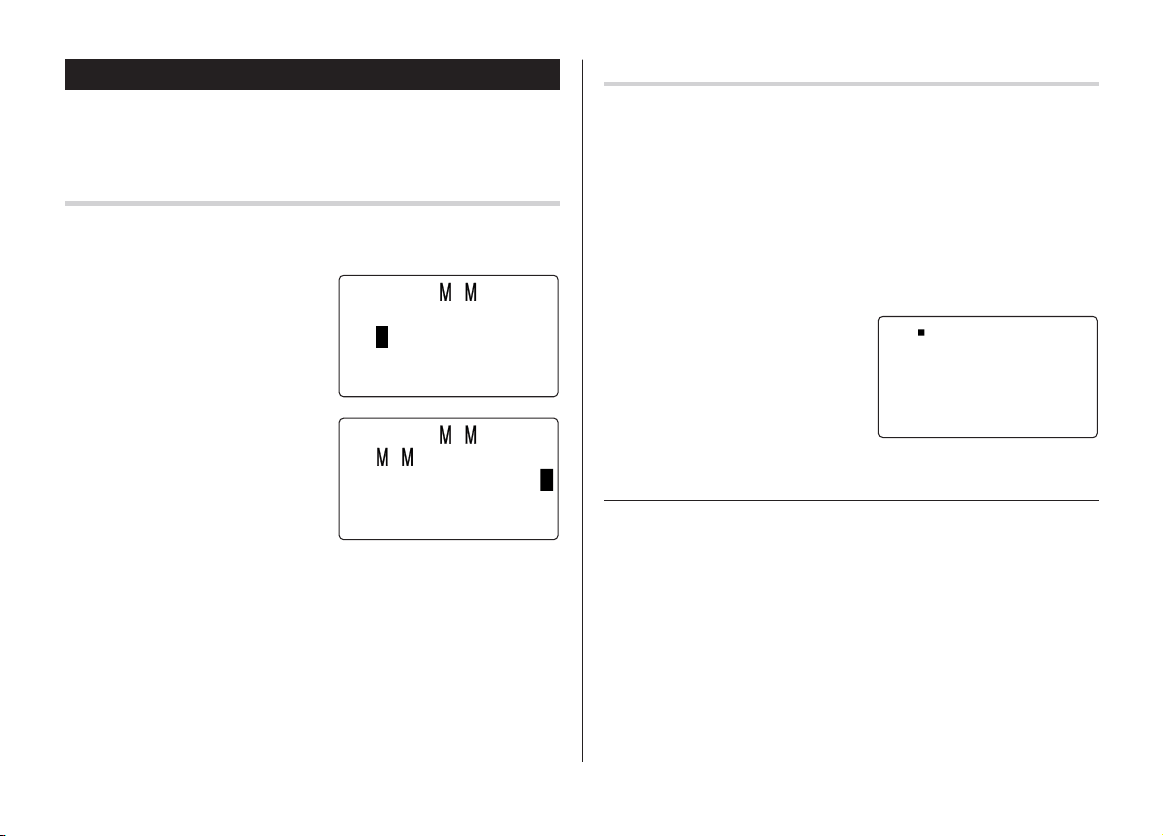
Enter your passport number: 12AB34567
1. Tap
;
once or twice to
enter the Memo mode.
2. Tap
e
and enter as follows.
Passport No. 12AB34567
3. Press
x
to store the memo listing.
Search
Sequential Search
1. Tap
;
once or twice to enter the Memo mode.
The Memo mode search display will appear.
2. Press
<
or
>
to search for the listing.
Direct Search
1. Tap
;
once or twice to enter the Memo mode.
The search display will appear.
2. Enter the first letter(s) of the
desired memo (ex. “pass”).
Up to 10 letters can be entered.
3. Press
x
to search for the
target listing.
See also
Entering Characters ................................................... 5
Editing Listings ......................................................... 20
Deleting Listings ....................................................... 20
<
E
O
>
?
F
SEAR
C
H
Pa s po r t
567
No .
2AB34
s
1
<
E
O
>
E
O
:
Pa
A
s s po
5
r t
No . 12 B3 4 67A
yo290e_u1u 02.5.17, 0:31 PM17
18
Expense Mode
The Expense record function is an easy-to-use method of tracking
personal and business expense information. The Expense Report
allows you to see the total expenses for a single day or for a certain
period.
1 Expense: Item-by-item expense entry and view mode
2 Report: Display the total expenses for a single day or
a certain period
3 Category: Assign a new category name (up to 7
characters for each)
Entry
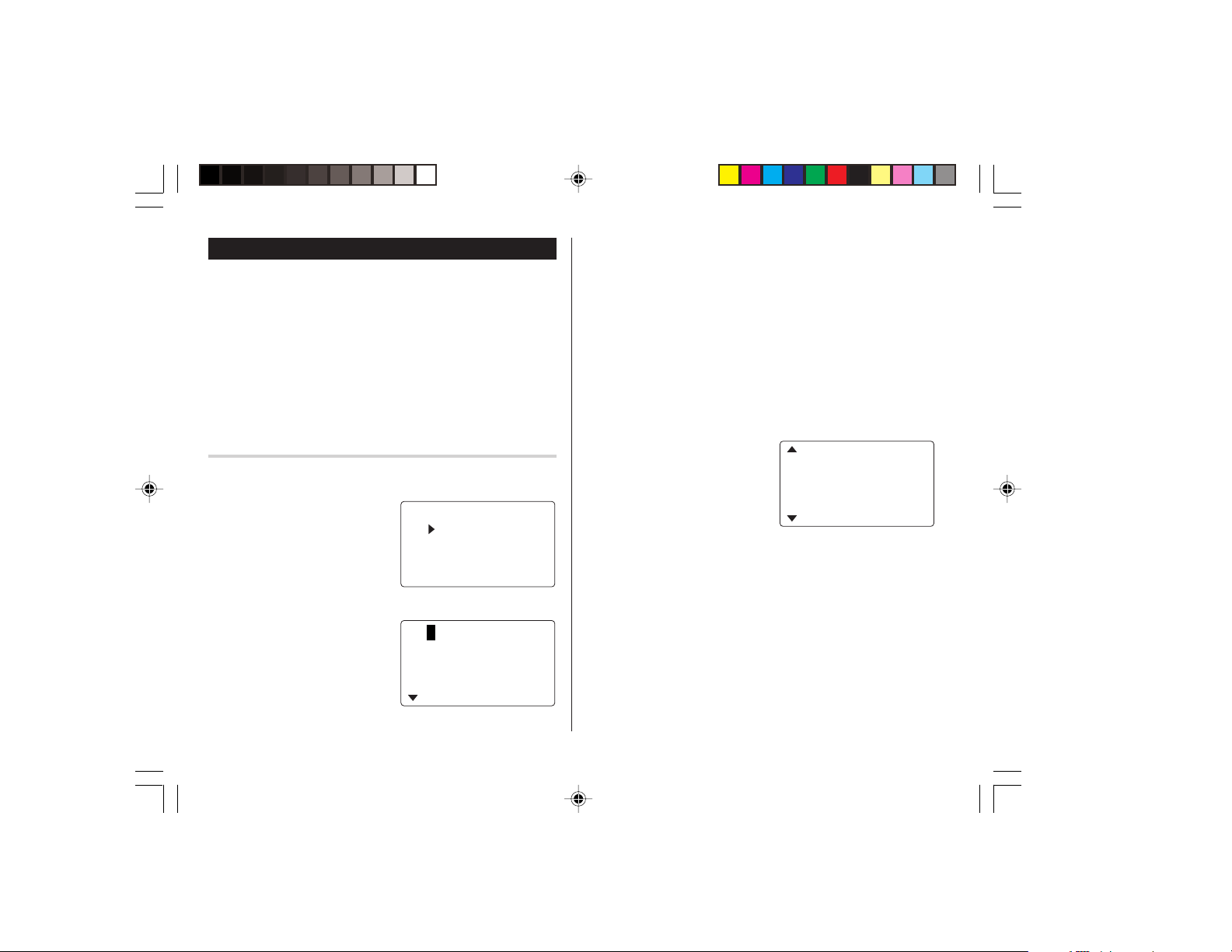
<Example>
The date is August 18, 2003.
You bought flight tickets for a
business trip costing $1200.
1. Tap once or
twice to enter the Expense mode.
2. Press
k
or
m
to select "EXPENSE", then press
x
.
The Expense search display will
appear.
3. Tap
e
.
The Expense record entry display
will appear. The current date will
be displayed.
The first number depends on your Date Format selection. These
examples are in the MM-DD-YYYY format.
4. Enter the date, if necessary.
5. Press
m
.
6. Select the expense category using
<
or
>
.
There are 8 preset categories to select.
Meals
➠
Hotel
➠
Car
➠
Phone
➠
Fares
➠
(Enter’t ) Entertainment
➠
Tips
➠
(Misc) Miscellaneous
➠
...
7. Press
m
, and enter 1200.
Up to 12 digits can be entered.
8. Press
m
.
9. Select the payment using
<
or
>
.
There are 4 preset payment
systems to select.
Cash
➠
Check
➠
Card
➠
Others
➠
...
<
E PENS
E
>
X
G
O
RYE
REP
O
R
CAT
E PENS
T
E
X
08
–
18
–
2003
C
ATE
GO
RY
:
<
ea l s
>
A
O
UNT
:
0 .
<
Fa r e
12
s
.
>
<
C
HE
C
K
>
PAY EN
A
O
UNT
:
T
:
00
yo290e_u1u 02.5.17, 0:31 PM18
19
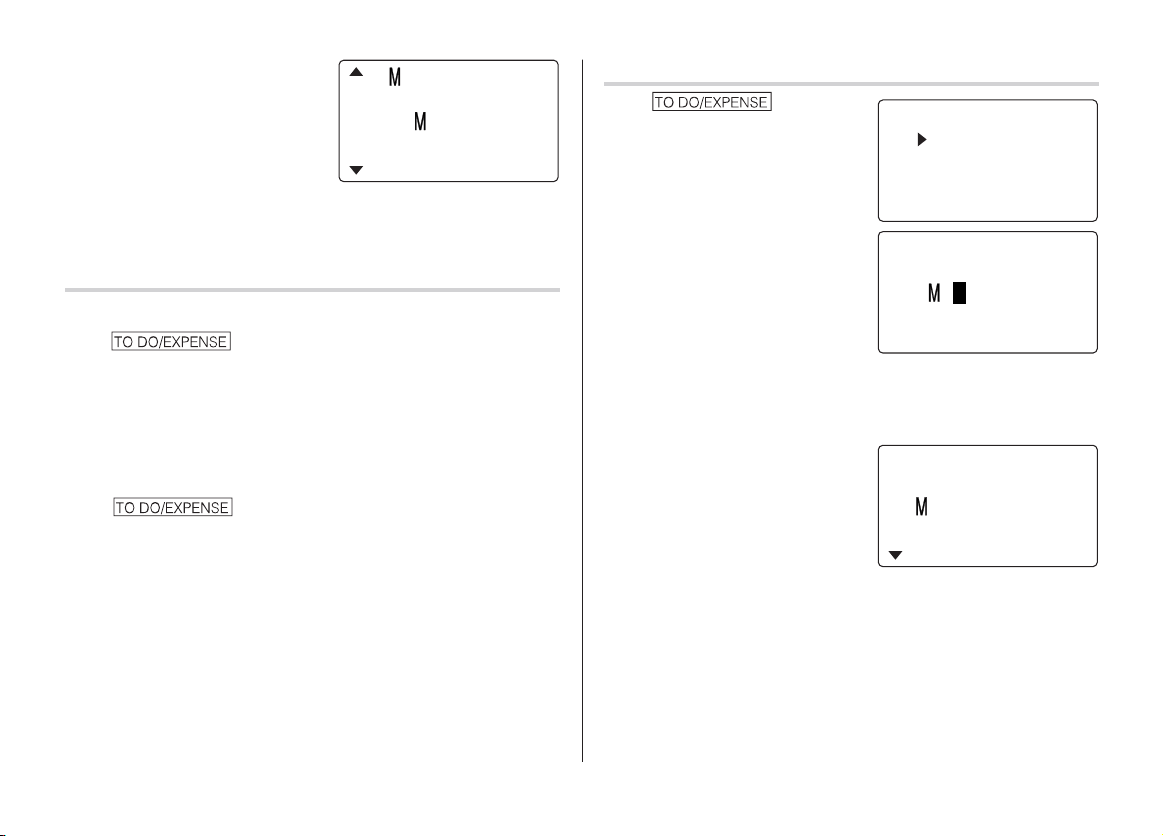
10.
Press
m
, and select “YES” or
“NO” using
<
or
>
in the
“RECEIPT” field.
11.
Press
m
, and enter “Flight ticket” in the “MEMO” field.
12.
Press
x
to store the data.
Recall
Sequential Search
1. Tap once or twice to enter the Expense mode.
2. Press
k
or
m
to select "EXPENSE", then press
x
.
The Expense search display will appear.
3. Press
<
to view the next record,
>
to view the previous
record.
Date Search
1. Tap once or twice to enter the Expense mode.
2. Press
k
or
m
to select "EXPENSE", then press
x
.
The Expense search display will appear.
3. Enter the date you wish to search.
4. Press
x
.
Scroll the page using
k
or
m
.
Summary Report
1. Tap once or
twice to enter the Expense mode.
2. Press
k
or
m
to select "RE-
PORT", then press
x
.
3. Enter the first date from you wish
to summarize the expense. (July
10, 2003)
4. Press
m
to move the cursor to the last date.
5. Enter the last date at you wish to summarize the expense. (August
10, 2003)
6. Press
x
.
Total amount report during the
period will be displayed.
Scroll the page using
k
or
m
.
A
O
UNT
:
1200 .
PAY ENT
:
<
C
HECK
>
RE
C
E I PT
:
<
YES
>
<
E PENS
E
>
X
G
O
RYE
REP
O
R
CAT
E PENS
T
E
X
<
EXPENSE
>
– –
REP
O
RT
– –
F
:
08
–
18
–
2003
T
O
:
08
–
18
–
2003
T
O
TAL
443 .
.
5
ea l s
53 5
H
o t
e l
yo290e_u1u 02.5.17, 0:31 PM19

20
Edit the Category
You can change the category name for your convenience.
1. Tap once or twice to enter the Expense mode.
2. Press
k
or
m
to select
"CATEGORY", then press
x
.
The edit category display will
appear.
3. Select the category you wish to
change using
k
or
m
.
4. Tap
e
.
5. Delete the preset category name using
d
.
6. Enter the new category name. (e.g. Books)
Up to 7 characters can be entered for the category name.
7. Press
x
. Repeat the steps 3 to 7, if necessary.
8. Press
x
.
All the revisions are stored.
Note:
• Entries previously stored under the former category will appear
under the new category after the revisions are made.
See also
Entering Characters ................................................... 5
Editing Listings ......................................................... 20
Deleting Listings ....................................................... 20
Editing Listings
Edit
1. Recall a listing in the desired mode.
2. Tap
e
.
The display will change to the edit mode.
3. Edit the data.
j
l
k
m
: move the cursor to left, right, up or down, respectively
d
: can be used to delete characters
i
:
changes between the INSERT mode and the OVERWRITE mode
4. Press
x
to store.
Deleting Listings
Delete
1. Recall a listing in the desired mode.
2. Tap
d
.
The confirmation display will appear.
• To cancel deleting, tap
f
.
3. Press
x
to delete the listing.
ED I T CATE
G
O
RY
ea l s
Ho t e l
Ca r
Ph o ne
yo290e_u1u 02.5.17, 0:31 PM20
21
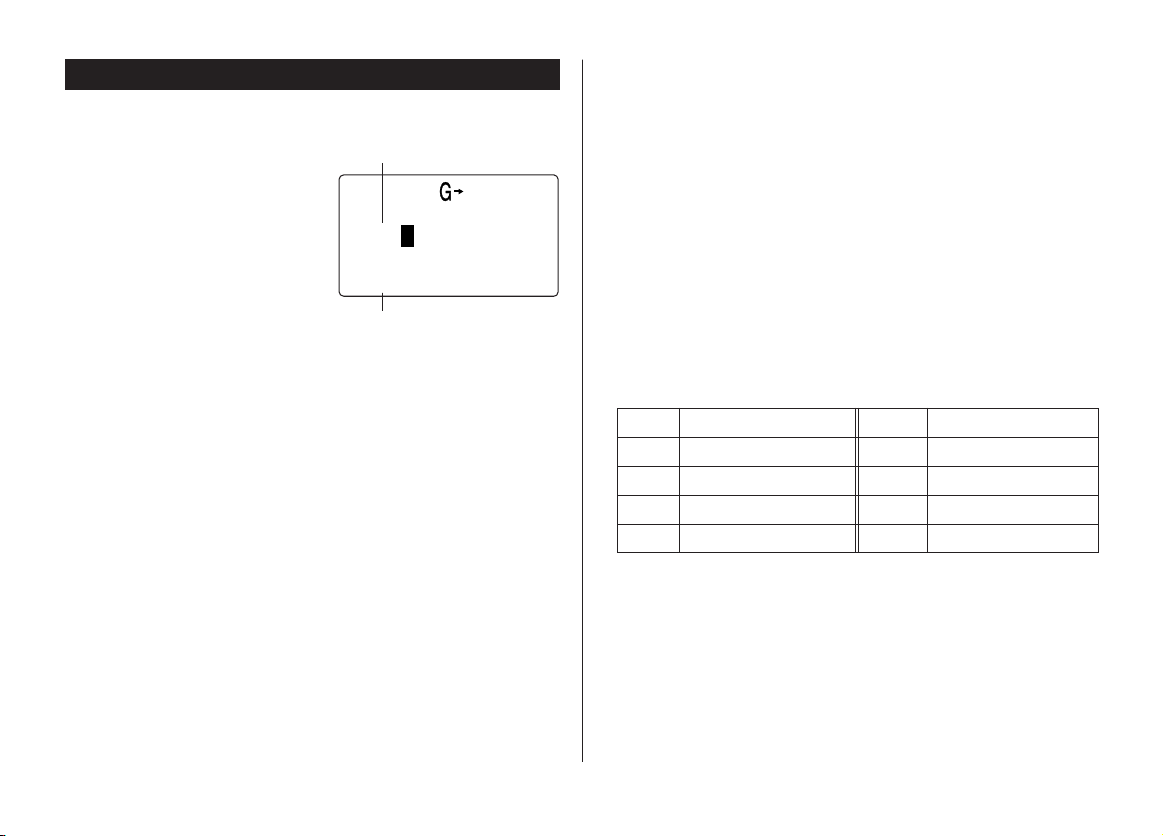
Word Translator Mode
This device offers an English-Spanish bi-directional word translator
function.
1. Tap
]
to enter the English
→
Spanish translation mode.
Tap
]
twice to enter
Spanish
→
English mode.
2. Enter the desired source word
and press
x
.
The matching English or
Spanish word will then be displayed.
• When the small symbol “
;
” or “
:
” is turned on, more letters exist.
To view the remaining letters of long words that cannot be
accommodated on the screen, use
j
or
l
to scroll.
• If there is no matching word, “NOT FOUND!” is displayed. The word
next in alphabetical order will then be displayed.
• Press
<
or
>
to scroll through the word list, or enter a new
word using the keyboard, and press
x
for another search.
Notes:
• Indications are set as follows:
(Am): American English
(Br): British English
(adj): Adjective
(adv): Adverb
(n): Noun
(pron): Pronoun
(v): Verb
(f.): Feminine form
(m.): Masculine form
• Sometimes, two identical words may appear in the word list.
• Enter European characters and spaces correctly. Otherwise, the unit
may not be able to complete the search.
• In the Spanish field, you can enter the following letters. Press
respective letter key repeatedly after tapping
s
.
• Activate “CAPS” ON to enter capitalized letters.
<
EN SPA
>
E
:
1
S
:
English field
Spanish field
Key Letters Key Letters
A á à â ä N ñ
C ç O ó ò ô ö
E é è ê ë U ú ù û ü
I í ì î ï Y ´y ÿ
yo290e_u1u 02.5.17, 0:31 PM21
22
Calculator Mode
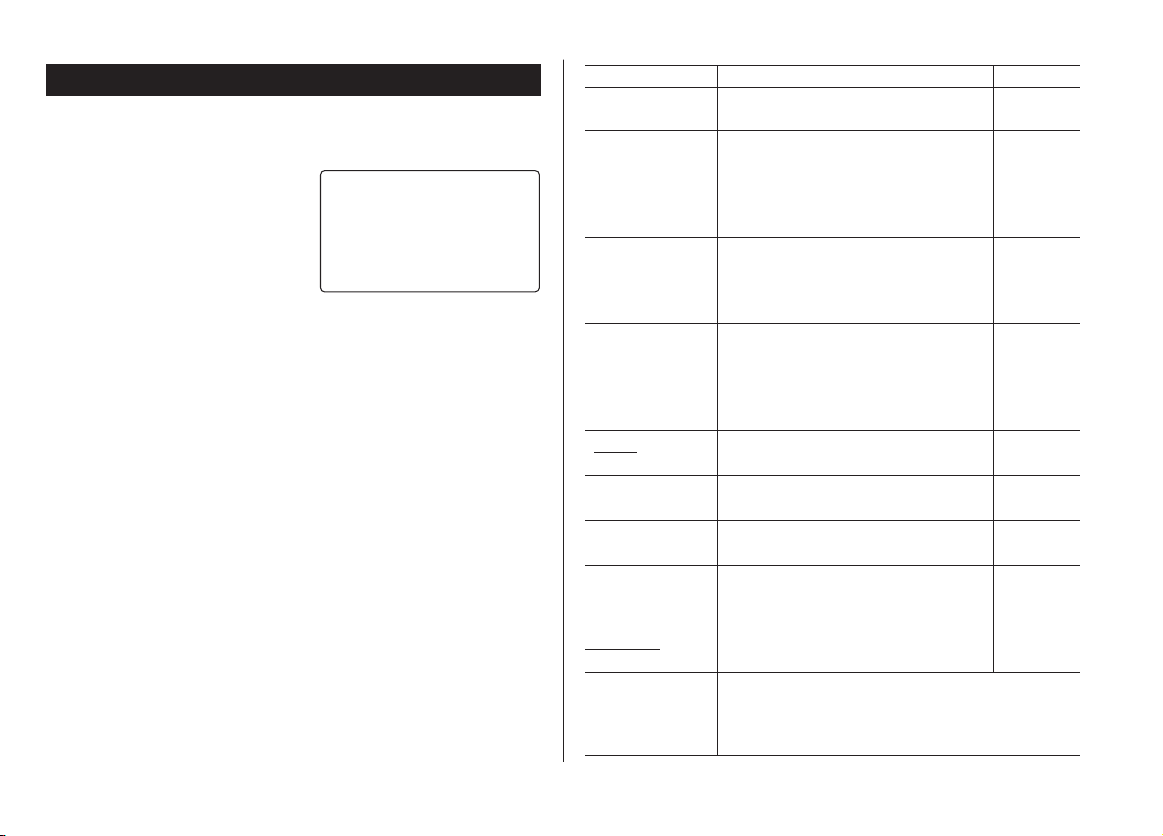
The Organizer’s built-in calculator can perform arithmetic calcula-
tions in up to 12 digits.
Calculator mode is selected by
tapping
q
the
appropriate number of times.
Each time you press the key, the
display switches as follows:
Calculation mode
➠
Currency Conversion mode
➠
Metric Conversion mode
➠
...
Before performing any calculations, tap
c
twice to clear the
display.
• An error occurs if the integer section of the calculation result
exceeds 12 digits, if the memory exceeds 12 digits, or a number
is divided by zero. (“E” is displayed.)
Tap
c
to clear the error message.
Example Operation Display
Mixed calculation
(–24+2) ÷ 4=
-
24
+
2
/
4
=
–5.5
Constant/repeat calculation
The second figure is a constant value
(
+
addition,
-
subtraction,
/
division)
34 + 57 = 34
+
57
=
91.
45 + 57 = 45
=
102.
The first figure is a constant value
(
*
multiplication)
68 x 25 = 68
*
25
=
1700.
68 x 40 = 40
=
2720.
Percentage
10% of 200 200
*
10
I
20.
Percentage 9 of 36
9
/
36
I
25.
10% mark-up 200
+
10
I
220.
20% discount 200
-
20
I
160.
Root
√
25 – 9 25
-
9
=
O
4.
A
n
4
3
4
*
=
=
64.
Unit division
1/8 8
/
=
0.125
Memory function
25 x 5 =
R
25
*
5
U
M 125.
–) 84 ÷ 3 = 84
/
3
Y
M 28.
+) 68 +17 68
+
17
U
M 85.
(Total) =
T
M 182.
123456789098 x
145 = 123456789098
*
145
=
17901234419210
E
17.9012344192
(17.9012344192 x 10
12
= 17901234419200)
O .
<
C
AL
C
ULAT
O
R
>
yo290e_u1u 02.5.17, 0:31 PM22
23
Conversion Mode
Each time you tap
q
, the display switches as follows:
Calculation mode
➠
Currency Conversion mode
➠
Metric Conversion mode
➠
...
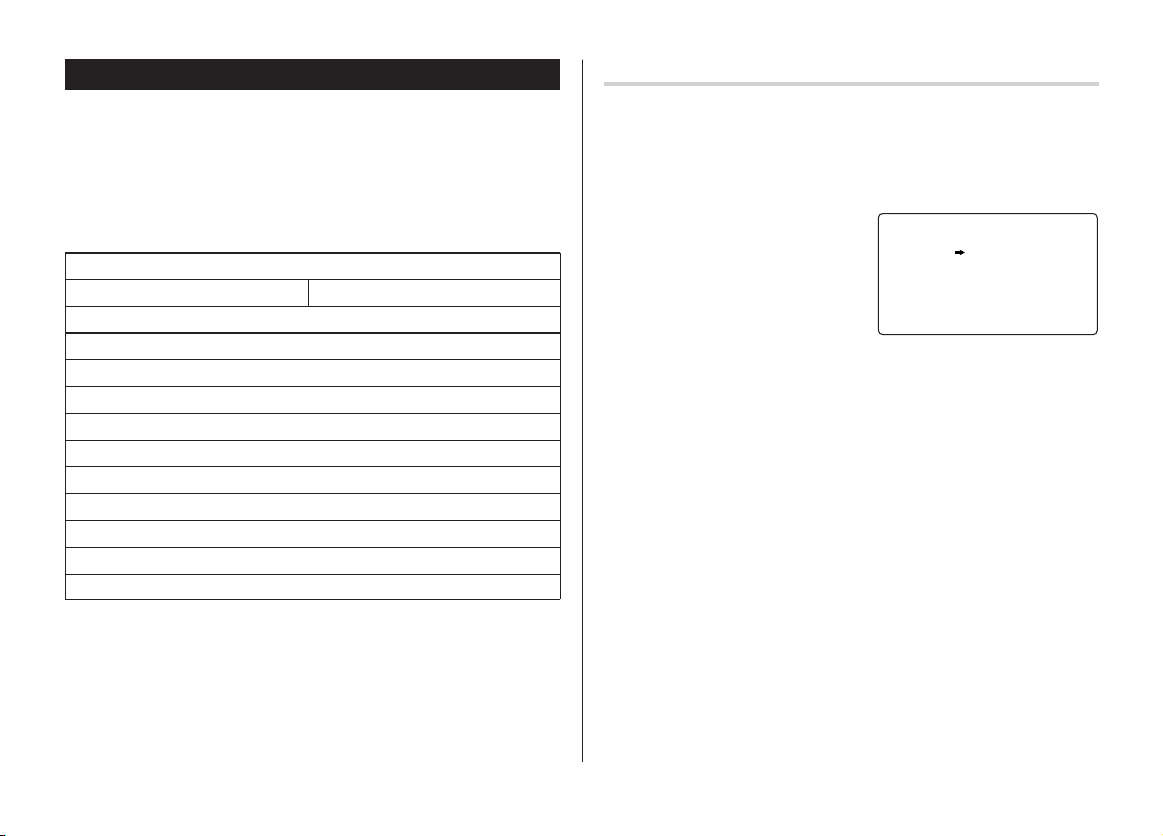
Conversion Table
Conversion Pattern
Unit 1 Unit 2
5 currency conversions are available.
Metric Conversion Patterns
inch
⇔
centimeter (cm)
yard
⇔
meter (m)
mile
⇔
kilometer (km)
Fahrenheit (°F)
⇔
Celsius (°C)
feet
⇔
meter (m)
ounce (oz)
⇔
gram (g)
pound (lb)
⇔
kilogram (kg)
US gallon (gal)
⇔
liter (l US)
UK gallon (gal)
⇔
liter (l UK)
Currency Conversion Mode
Currency conversion has 5 stages of programmable conversion.
Each stage is capable of 12-digit calculation.
Setting a new currency conversion rate
<Example> Set the following rate: £1 = $1.45
1. Tap
q
the appropriate
number of times to select the
Currency Conversion mode.
2. Press
<
or
>
to select
the appropriate currency
conversion stage.
3. Tap
e
.
The setting mode will appear.
The preset currency names can be renamed here.
4. Rename the left currency if necessary, then press
l
.
Note:
• Up to 4 characters can be entered for the name of the currency
unit.
5. Rename the right currency if necessary, then press
m
.
<
C
URREN
C
Y
>
C
AD U
=
SD
RATE
1
.
Note:
• The conversion result may have a slight calculation error as a result
of rounding off the number. Use the result for reference only.
yo290e_u1u 02.5.17, 0:31 PM23
24
6. Enter the rate; 1.45.
Up to 12 numeric characters can
be entered for the rate.
If you need to clear the rate
number, tap
c
.
7. Press
x
to store the setting.
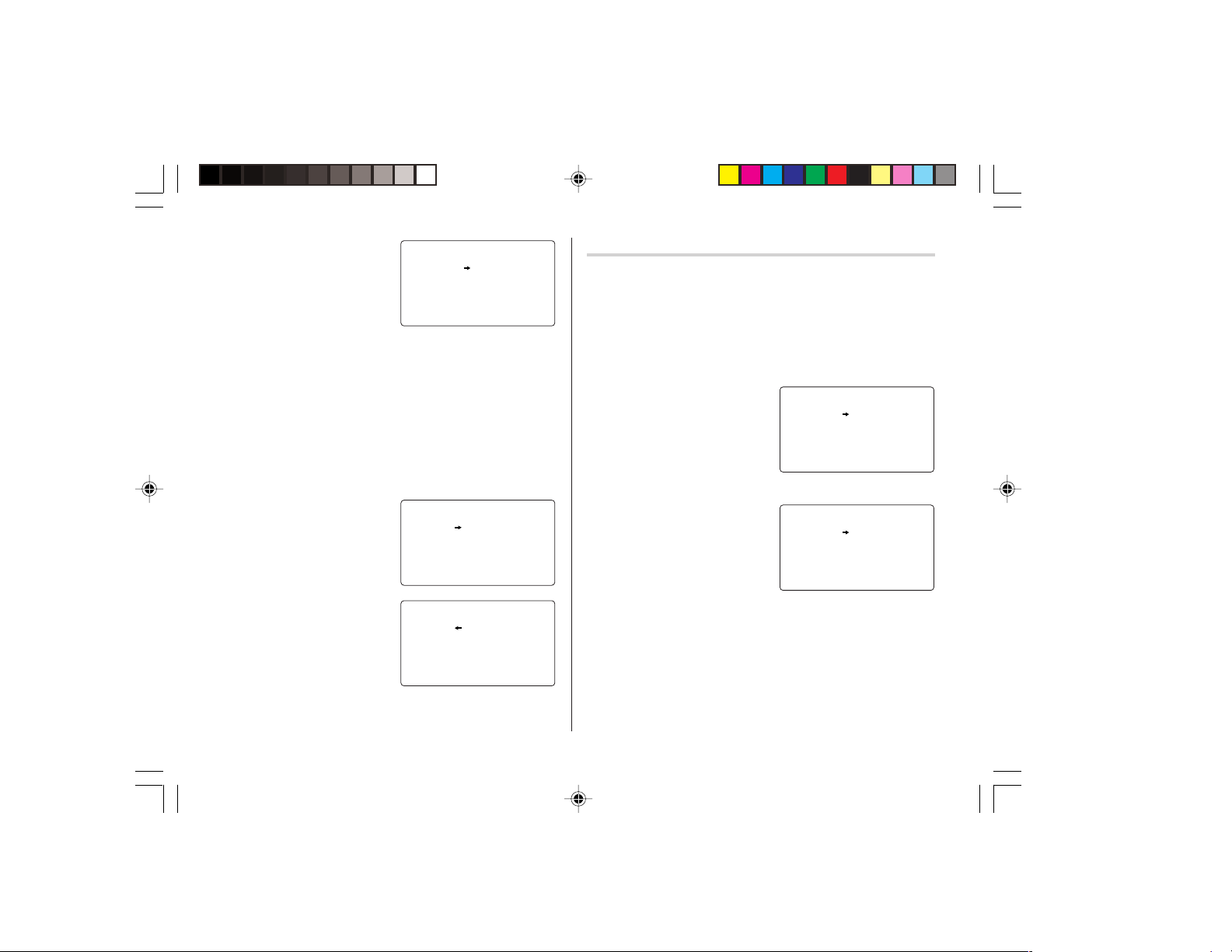
Currency conversion
Be sure to set the rate before starting a conversion.
<e.g. £
➠
$>
1. Tap
q
the appropriate number of times to select the
Currency Conversion mode.
2. Press
<
or
>
to select the appropriate currency conversion
stage.
3. Enter the amount. (e.g. £50)
4. Press
l
.
(£50=approx. $72.5)
<e.g. $
➠
£>
5. Enter the amount. (e.g. $120)
6. Press
j
.
($120=approx. £82.76)
Use
j
or
l
to change the
conversion direction.
Tap
c
to clear the calculation
result.
Metric Conversion Mode
Metric conversion is capable of 12-digit calculation.
Convert metric unit
<Example>
Calculate 68°F to °C
1. Tap
q
the appropriate number of times to select the
Metric Conversion mode.
2. Tap
<
or
>
to select the
appropriate conversion stage.
3. Enter the amount, “68”.
4. Press
l
.
(68°F=approx. 20°C)
Tap
c
to clear the calculation
result.
<
C
URREN
C
Y
>
G
BP USD
RATE
1
. 45
=
<
C
URREN
C
Y
>
G
BP USD
27 . 5
50 .
<
C
URREN
C
Y
>
G
BP USD
86 96
201 .
2 .8 758620
<
ETR I
C
>
°
F
°
C
5
x
/ 9
(
F
–
32
)
RATE
=
<
ETR I
C
>
°
F
°
C
20 .
68 .
yo290e_u1u 02.5.17, 0:31 PM24
25
Secret Function
The Secret function allows you to protect listings with a password,
so that no unauthorized person can reach them.
You can use up to a 6 characters as its password.
Registering a Password
As a safeguard, make a written record of the password. Also, be aware
that the password is case-sensitive.
1. Tap
(secret) in the Home Clock
mode.
The password entry display will
appear.
2. Enter the characters you wish to use.
3. Press
x
.
4. When the display "RECONFIRM!" appears, reenter the password,
then press
x
. The Secret function will be turned on.
Changing the Password
1. In the Home Clock mode, tap
(secret).
The password entry display will appear.
2. Enter the current password.
3. Press
x
. The Secret function setting display will appear.
4. Select “EDIT PASSWORD” by
using
k
or
m
, then press
x
.
5. Enter a new password.
6. Press
x
.
7. When the screen "RECONFIRM!" appears, reenter the password,
then press
x
.
Turning the Secret Function Off
1. In the Home Clock mode, tap
(secret).
The password entry display will appear.
2. Enter the current password, then press
x
.
3. Select "
UNLOCK DATA
" by using
k
or
m
, then press
x
.
"
UNLOCK DATA
?" will be displayed.
4. Press
x
to delete the password and to turn the Secret
function off.
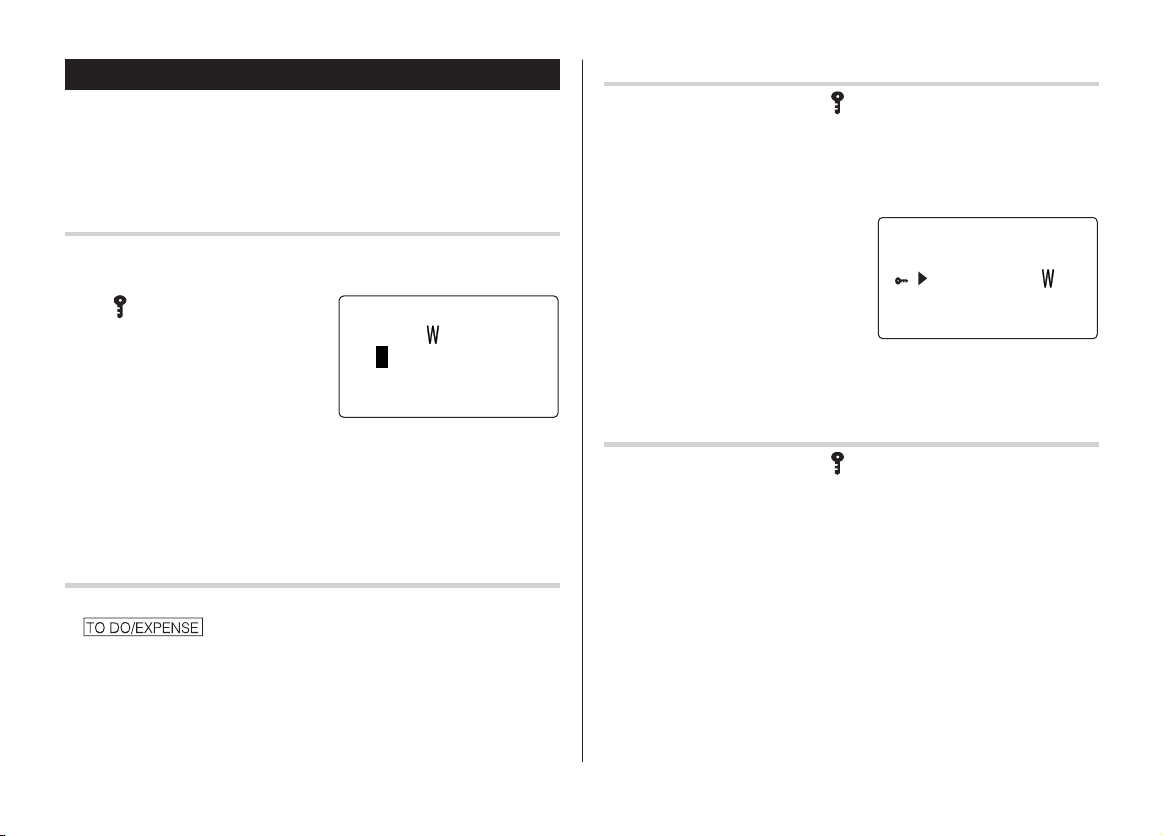
<
SE
C
RET
>
PASS
O
RD
:
0
<
SE
C
RET
>
PASS
O
RDED I T
UNL
OC
K DATA
Accessing listings
If the Secret function is on, when you press
v
,
;
,
or you enter the Schedule mode etc., the
password entry display will appear.
1.
Enter the password, then press
x
.
Be aware that the password is case-sensitive.
The screen of the target mode will be displayed.
yo290e_u1u 02.5.17, 0:31 PM25
26
Game Mode
Tap
_
once or twice to play the game “BLACKJACK” or “ALPHA
ATTACK”.
Each time you tap
_
, the display switches between “BLACKJACK”
and “ALPHA ATTACK”.
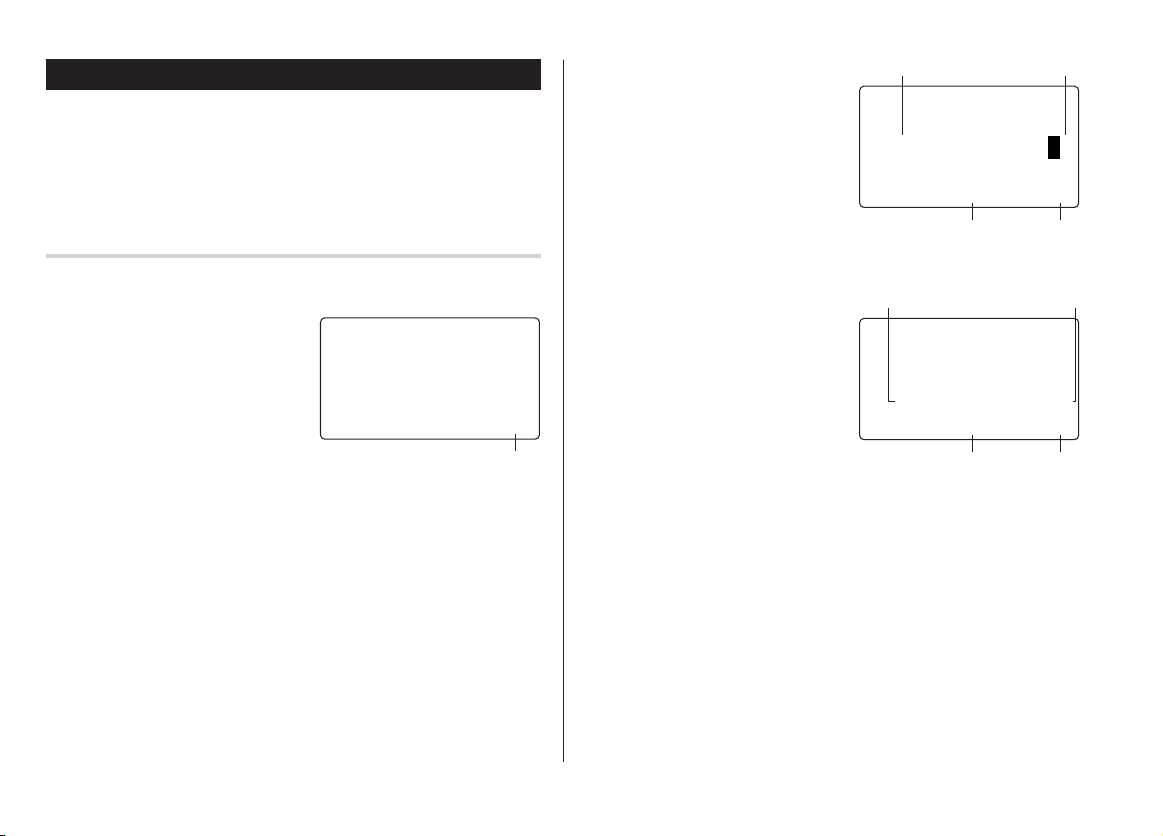
BLACKJACK (Twenty-one)
Make your “hand” (the total of the numbers on the cards) close to 21,
without going over 21.
1. Tap
_
once or twice to
display the following Game
mode screen.
2. Press
x
to start a game.
The left 2 cards are dealt for
you. (One is faced up and the
other is faced down.)
3. Agree the left-displayed flashing maximum bet (up to 10) or enter
the fewer bet.
4. Tap
@
to see your hand.
Each time you tap
@
, a new
card is dealt.
• “J”, “Q”, and “K” are counted as
10.
• “A” can be counted as 1 or 11.
• When first 2 cards are “A” and
a face card (“J”, “Q”, or “K”),
your hand is “BLACKJACK”.
5. Press
x
to stop being dealt
and hold your hand. The dealer’s
hand and the results are
displayed.
• When you win, your total
flashes and your bet is
doubled.
• When you win with “BLACK-
JACK”, your bet is tripled.
6. Press
x
and display the Game mode screen.
• When you have no more chips to bet, the game is over.
• To quit the game, tap any mode key. Your chips are stored for the
next time.
<
BLA
C
KJ
Your chips
A
C
K
>
30
<
BLA
C
KJA
C
K
>
J 2 8 04
10 20
Your chipsYour bet
The dealer’s handYour hand
<
BLA
C
KJA
C
K
>
J 2 8 32K4
20 19
20 20
Your chipsYour bet
The dealer’s totalYour total
yo290e_u1u 02.5.17, 0:31 PM26
27
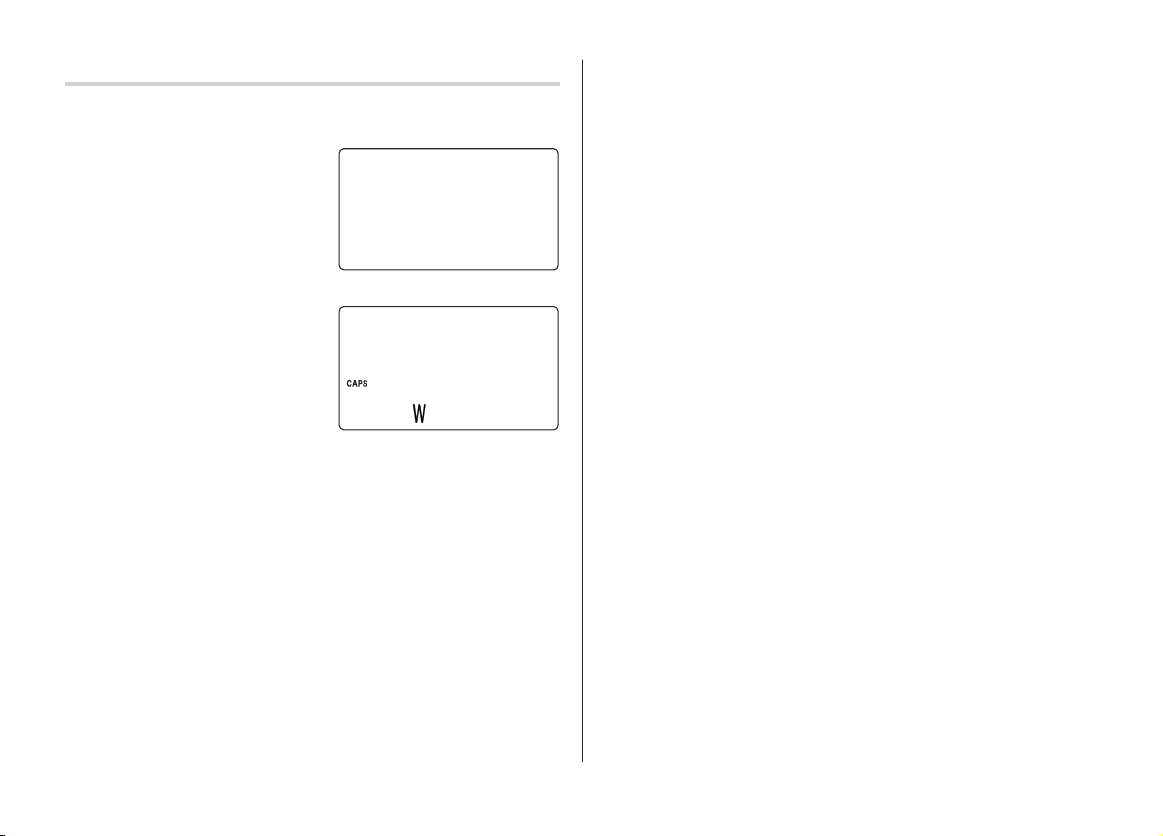
ALPHA ATTACK
Type in characters (A to Z) displayed on the bottom line to clear them.
The game is divided into 20 levels in speed.
1. Tap
_
once or twice to
display the following Game
mode screen.
2. Press
<
/
>
to select
the level.
• 01: slow, 20: fast
3. Press
x
to start a game.
4. Tap the same key as the first character at the left end of the bottom
line. (In this case, tap keys in the order: E
→
Y
→
K
→
W.)
• Tapping the correct keys in the correct order deletes the
characters.
• When 12 characters are displayed in each level, the game
continues in the faster level (up to 20).
• When no more characters can be displayed, the game is over.
The Game mode screen with the level when the game is over is
displayed.
• To quit the game, tap any mode key.
ALPH
A
ATTA
C
<
K
>
LEVEL
:
01
ALPH
A
ATTA
C
<
K
>
LEVEL
:
03
EYK
yo290e_u1u 02.5.22, 9:54 AM27
28
Battery Replacement
Batteries used
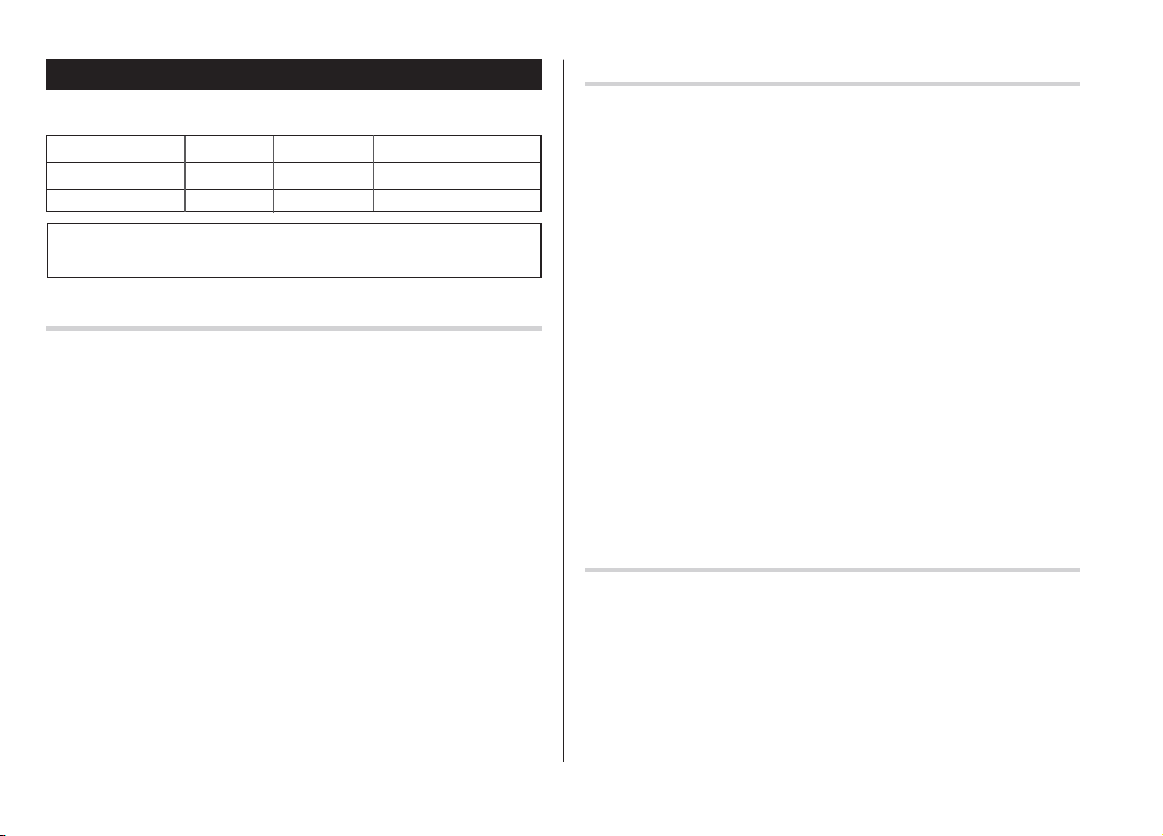
Type Model Quantity Use
Lithium battery CR2032 2 Unit operation
Lithium battery CR2032 1 Backlighting
• Be sure to write down any important information stored in the
memory before replacing the batteries.
Precautions
Since improper use of the batteries may cause leakage or
explosion, strictly observe the following instructions:
• If fluid from a leaking battery accidentally gets into your eyes, it
may result in serious injury. Should this occur, flush your eyes
with clean water and consult a physician immediately.
• Should fluid from a leaking battery come into contact with your
skin or clothes, immediately wash with clean water.
• If the Organizer will not be used for an extended period of time, to
avoid damaging the Organizer remove batteries and store in a
safe place.
• Do not leave exhausted batteries inside the Organizer.
• Do not use different types of batteries or partially used batteries.
• Insert the battery with its positive side (+) correctly orientated.
• Never throw batteries into a fire because they might explode.
• Keep batteries out of reach of children.
• When batteries become near exhaustion, remove them from the
Organizer immediately to avoid battery leakage and corrosion
inside the Organizer.
Because the batteries in the Organizer were installed at the factory,
they may become exhausted before the specified expiration time is
reached.
Operating Batteries Replacement
Battery replacement time
When “
B
” is displayed, immediately replace the operating
batteries with new ones. Follow the steps on page 29.
The operating battery holders are indicated as "For OPERA-
TION" under the battery holder cover.
If the battery level is low, the alarm may not sound, or similarly the
Backlight may not function or remain on for less than the set
interval. Continued use of the Organizer with low batteries can alter
or clear the memory contents. Memory contents may be lost if the
batteries are improperly replaced or if the following instructions are
disregarded.
Caution:
• PC-LINK may not be available when the battery level is low.
• Expense Report (Summary Report) may not be available when the
battery level is low.
• Under the low battery condition, new data entry and editing of
existing data may not be performed in some modes. Also Clock and
other settings may not be made.
Backlight Battery Replacement
When the Backlight cannot be turned on (except when “
B
” is
displayed or the Organizer is in the PC Link mode), replace the
backlight battery. Follow the steps on page 29.
The backlight battery holder is indicated as "For Back Light"
under the battery holder cover.
yo290e_u1u 02.5.17, 0:31 PM28

29
Replacing the batteries
• Make sure the power is turned off before replacing the batteries.
• Do not press
o
until the battery replacement procedure is
completed.
1. Press
o
to turn the power off.
2. Loosen the screw (turn counterclockwise) and
remove the battery holder cover on the back
of the unit.
3. Remove one used battery using a ball-point
pen or similar object.
• Do not use a mechanical pencil or sharp
pointed object.
4. Install one new battery with the positive side
(+) facing up.
5. Repeat step 3 and 4 for replacing each
batteries, if necessary.
6. Replace the holder cover and secure with the
screw.
7. The power will be turned on 2 to 3 seconds after
o
is pressed.
8. Set the clock to the correct time.
Caution:
• Clock settings and/or other settings and listings may be lost when
batteries are removed for a long time. Replace the batteries as
quickly as possible.
• Make sure to confirm all settings are set correctly after replacing the
batteries.
Specifications
Model: YO-290
Product name: Electronic Organizer
Display: 14 columns x 5 lines with the Backlight
Memory capacity: 768 KB, Flash memory
User area: Approx. 754 KB
A) In case of telephone listings only:
Max. 290 listings
B) Other listings:
Max. 4000 listings (2000 per each)
Listings can be stored until the total of both
types (A and B) reaches 754 KB
Clock mode
Accuracy: ±60 seconds/month (at 25°C/77°F)
Display: Year, month, day, day of the week, hour, minute,
second, AM/PM, city name
Clock system: 12-hour/24-hour format (switchable), 3 types of
date format (switchable), World clock function,
daylight saving time/summer time display
function, daily/hourly/schedule alarm function
Telephone mode: Entry and recall of Last name, First name,
Company, Home#, Office#, Fax#, Mobile#,
E-mail, Address, City, State, Zip code, Country,
Note
Calendar mode: From Jan.,1950 to Dec., 2150, Confirmation of
the Schedule, To Do, and Anniversary mode
entries can be made by the indication marks
seen on the right side of the date
R
E
S
E
T
R
E
S
E
T
R
E
S
E
T
0 . 1 2 3 4 5 6 7 8 9
0 . 1 2 3 4 5 6 7 8 9
yo290e_u1u 02.5.17, 1:16 PM29

30
Schedule mode: Entry and recall of schedule (year, month, day,
hour and minute), schedule alarm and
Description
Anniversary mode: Entry and recall of month, day and description
of anniversaries
To Do mode: Entry and recall of To Do listings (Due Date,
Priority and Description)
Memo mode: Entry and recall of memo listings
Expense mode: Entry and recall of Expense listings (Date,
Category, Amount, Payment, Receipt and
Memo) and Summary Report during a specified
period to display the total amount spent in a
preset category, Meals, Hotel, Car, Phone,
Fares, Entertainment, Tips and Miscellaneous,
that can be changed with the selection of edit
Category.
Word translator mode:
English from/to Spanish, approx. 10000 words
for each language
Calculator mode:
12 digits (with calculation status symbol) Addition,
subtraction, multiplication, division, percentage,
square root, memory calculation, etc.
Currency/Unit conversion mode:
12 digits, 14 combinations of currencies (5) and
metric (9) conversions
Game mode: 2 games
Secret function: Protects listings with a password
Power consumption:
0.05 W
Operating temperature
:
0°C ~ 40°C (32°F ~ 104°F)
Power supply:
Operating battery: 3.0V ...
–
(DC) (Lithium battery CR2032 x 2)
Backlight battery: 3.0V ...
–
(DC) (Lithium battery CR2032 x 1)
Auto Power Off Function:
Approx. 7 minutes
Battery life:
Operating batteries (at 25°C/77°F)
• Approx. 2400 hours
When data is continuously displayed.
• Approx. 1600 hours
When data is searched for 5 minutes and displayed for
55 minutes per hourly use.
• Approx. 2 year
When turned off and the clock is running.
Backlight battery (at 25°C/77°F)
• Approx. 4000 times
When the Backlight is turned on for 10 seconds and
turned off for 50 seconds per minute.
Weight: Approx. 105 g (0.23 lb.) (Including batteries)
Dimensions:
69.8 mm (W) x 109.3 mm (D) x 15.3 mm (H)
2-3/4" (W) x 4-5/16" (D) x 19/32" (H)
Accessories: 3 lithium batteries (installed), one 3.5" floppy disk,
PC interface cable, operation manual, stylus
0 . 1 2 3 4 5 6 7 8 9
0 . 1 2 3 4 5 6 7 8 9
yo290e_u1u 02.5.17, 0:31 PM30

31
Appendices
A. Names and zone numbers of the cities in the clock
Zone No. City
0 TONGA
1 AUCKLAND
WELLINGTON
2 NOUMEA
3 GUAM
SYDNEY
3. 3 ADELAIDE
4 TOKYO
5 SINGAPORE
HONG KONG
BEIJING
6 BANGKOK
6. 3 YANGON
7 DHAKA
7. 3 DELHI
8 KARACHI
8. 3 KABUL
9 DUBAI
9. 3 TEHRAN
10 RIYADH
MOSCOW
Zone No. City
11 CAIRO
HELSINKI
12 BARCELONA
AMSTERDAM
ROME
BERLIN
PARIS
13 LISBON
LONDON
14 AZORES ISLANDS
15 ––––––
MID ATLANTIC
16 RIO DE JANEIRO
17 CARACAS
18 TORONTO
NEW YORK
19 CHICAGO
20 DENVER
21 LOS ANGELES
22 ANCHORAGE
23 HONOLULU
24 MIDWAY ISLANDS
B. Using the PC Link mode
Exchanging Data with a PC
With the PC Link software and cable, data can be
exchanged between the Organizer and a PC.
To set up the Organizer for use with the PC Link:
1. Turn off your PC and the Organizer.
2. Connect the Organizer and the PC. (See the PC Link
manual for details.)
3. Turn on your PC and the Organizer.
4. Tap
!
, select "PC LINK" by using
k
or
m
, and press
x
.
Your Organizer is now ready for data transferring (the PC
Link mode). Consult the PC Link manual regarding
subsequent data transferring procedures.
Note:
• To exit the PC Link mode, press
o
at any time. Be noted
that under the PC Link mode, the Organizer will consume
extra power out of the operating battery while setting the
Auto Power Off function deactivated. If the PC Link mode
is entered by mistake, make sure to leave the PC Link
mode by pressing
o
to conserve the battery power.
yo290e_u1u 02.5.17, 0:31 PM31
32
Declaration of Conformity
Electronic Organizer : YO-290
This device complies with Part 15 of the FCC Rules. Operation is subject
to the following two conditions: (1) This device may not cause harmful
interference, and (2) this device must accept any interference received,
including interference that may cause undesired operation.
Responsible Party:
SHARP ELECTRONICS CORPORATION
Sharp Plaza, Mahwah, New Jersey 07430-1163
TEL: 1-800-BE-SHARP
Tested To Comply With FCC Standards
FOR HOME OR OFFICE USE
WARNING – FCC Regulations state that any unauthorized changes or
modifications to this equipment not expressly approved by the manufac-
turer could void the user's authority to operate this equipment.
Note: This equipment has been tested and found to comply with the limits
for a Class B digital device, pursuant to Part 15 of the FCC Rules.
These limits are designed to provide reasonable protection against
harmful interference in a residential installation. This equipment
generates, uses, and can radiate radio frequency energy and, if not
installed and used in accordance with the instructions, may cause harmful
interference to radio communications.
However, there is no guarantee that interference will not occur in a
particular installation. If this equipment does cause harmful interference
to radio or television reception, which can be determined by turning the
equipment off and on, the user is encouraged to try to correct the
interference by one or more of the following measures:
– Reorient or relocate the receiving antenna.
– Increase the separation between the equipment and receiver.
– Connect the equipment into an outlet on a circuit different from that to
which the receiver is connected.
– Consult the dealer or an experienced radio/TV technician for help.
Note: A shielded interface cable is required to ensure compliance with
FCC regulations for Class B certification.
PRODUCT SUPPORT
If you have read the ORGANIZER operation manual, but you still require
product support, you can:
Call a SHARP Customer Assistance Center
630-378-3590
(7am to 7pm CST M – F)
Visit our Web Site
http://www.sharpusa.com
Send an E-mail
pdasupport@sharpsec.com
Write to our Customer Assistance Center
SHARP Electronics Corp.
Customer Assistance Center
Att: WIZARD HELP
1300 Naperville Drive
Romeoville, IL 60446
yo290e_u1u 02.5.17, 0:31 PM32
S-1
Empleo del Organizador por primera vez
Asegú rese de realizar las operaciones siguientes antes de emplear el
Organizador por primera vez.
1. Saque las hojas de aislamiento de las
pilas del compartimiento de las pilas
situado en la parte posterior de la
unidad.
El Organizador empieza a funcionar.
(Las hojas de aislamiento de las pilas
fueron insertadas en la fá brica para
impedir que se agoten las pilas.)
2. Pulse el interruptor RESET.
Se visualizará el mensaje “RESET?”.
RESET
3. Pulse
f
, y luego
x
.
Para pulsar las teclas tá ctiles, emplee el lapicero (incluido en el
paquete).
Aparecerá el mensaje “RESET!”.
El Organizador se inicializará ahora. Ponga la fecha y la hora en el
reloj (consulte la pá gina S-3).
Nota
• Pulse el interruptor RESET con el lapicero incorporado o con un
objeto similar.
No utilice un objeto cuya punta pueda romperse o esté muy afilada.
ÍNDICE
Empleo del organizador por primera vez ................................... S-1
Funció n de desconexió n automá tica ....................................... S-2
Luz de fondo ............................................................................ S-2
Ajuste del contraste de LCD .................................................... S-2
Activació n y desactivació n del sonido de las teclas ............... S-2
Comprobació n de la memoria ................................................. S-2
Teclado tá ctil ............................................................................ S-3
Modo de reloj ........................................................................... S-3
Modo de telé fono ..................................................................... S-4
Modo de calendario ................................................................. S-5
Modo de programa de actividades .......................................... S-6
Modo de aniversario ................................................................ S-8
Modo de cosas a hacer (“To Do”) ............................................ S-8
Modo de apuntes ................................................................... S-10
Modo de gastos ...................................................................... S-11
Edició n de los listas ............................................................... S-12
Borrado de los listas .............................................................. S-12
Modo del traductor de palabras ............................................. S-13
Modo de conversió n ............................................................... S-14
Modo de juego ....................................................................... S-15
Reemplazo de las pilas .......................................................... S-16
Instrucciones abreviadas en españ ol
ESPAÑ OL
yo290s_u1u 02.5.17, 8:34 PM1
S-2
2. Utilizando
k
o
m
, seleccione un intervalo de tiempo deseado
(10, 20 o 30 segundos) y pulse
x
.
Ajuste del contraste de LCD
1. Pulse
!
, seleccione “LCD CONTRAST”
utilizando
k
o
m
, y pulse
x
.
2. Pulse
k
o
m
para oscurecer/iluminar el visualizador (entre 1 y
8).
3. Cuando termine, pulse
x
.
Activació n y desactivación del sonido de las teclas
1. Pulse
!
, seleccione “KEY TONE”
utilizando
k
o
m
, y pulse
x
.
2. Seleccione la activació n/desactivació n de la funció n de sonido de
las teclas utilizando
k
o
m
.
3. Cuando termine, pulse
x
.
Comprobación de la memoria
Pulse
!
, seleccione “MEMORY CHECK”
utilizando
k
o
m
, y pulse
x
.
La visualizació n de verificació n de la memoria aparecerá e indicará
el espacio que queda libre en la memoria.
La pantalla anterior aparecerá despué s de transcurridos 2
segundos.
Funció n de desconexió n automá tica
Cuando ninguna de las teclas haya sido pulsada durante
aproximadamente 7 minutos, el Organizador desconectará
automá ticamente la alimentació n para ahorrar energía de las pilas
de funcionamiento.
Luz de fondo
La luz de fondo le permitirá ver el visualizador y utilizar el
Organizador incluso en condiciones de baja iluminació n. Al pulsar
z
una vez se ilumina el visualizador durante tanto tiempo
como se utiliza el Organizador; si no se detecta ninguna actividad
de las teclas dentro del intervalo especificado, el Organizador se
apagará automá ticamente.
• Para apagar la luz de fondo, vuelva a pulsar
z
.
• La luz de fondo puede permanecer encendida durante menos
tiempo del preajustado o puede no funcionar si el nivel de las
pilas está bajo.
• La luz de fondo no funciona en el modo PC Link.
No utilice innecesariamente la luz de fondo.
• Dado que la luz de fondo consume energía de las pilas de
funcionamiento, su abuso podrá reducir considerablemente la
duració n de sus pilas.
Apagado de la luz de fondo
• La luz de fondo puede ajustarse para que se apague una vez
transcurrido un intervalo especificado.
1. Pulse
!
, seleccione "BL TIME SET"
utilizando
k
o
m
, y pulse
x
.
yo290s_u1u 02.5.17, 6:01 PM2
S-3
Modo de reloj
Ajuste del reloj local
1. Si el visualizador está en otro modo o en el modo del reloj mundial,
pulse para entrar en el modo del reloj local.
Nota:
• Durante el periodo de la hora de verano, ponga de antemano DST
(horario de verano) en ON. Pulse
C
una vez para conmutar el
ajuste de la DST.
2. Pulse
e
.
El Organizador entrará en el modo de ajuste del reloj.
3. Seleccione su ciudad de residencia
utilizando
<
o
>
.
4. Pulse
m
para mover el cursor a la posició n Month.
5. Introduzca el mes apropiado.
Introduzca de la misma forma el día y luego el añ o.
6. Pulse
m
para mover el cursor a la posició n Hour.
7. Introduzca la hora apropiada.
8. Introduzca de la misma forma los minutos y luego los segundos.
9. Seleccione AM o PM utilizando
(
.
<
H
O
E
>
NE Y
O
RK
01
–
01
–
2003
12
:
0 5
:
3 5
A
ED
Teclado tá ctil
Modo de introducció n de letras Modo de introducció n de nú meros
• Cada vez que se pulse
f
, el teclado tá ctil cambiará entre el modo
de introducció n de letras y el modo de introducció n de nú meros.
Para pulsar las teclas tá ctiles, utilice el lapicero (incluido en el
paquete).
• Pulse sobre el centro de cada tecla.
yo290s_u1u 02.5.17, 6:01 PM3
S-4
6. Pulse
m
para mover el cursor al campo Home #.
7. Introduzca “585-4280”.
8. Pulse
m
para mover el cursor al campo Office # e introduzca “619-
542-7320”.
9. Entre en cada campo de la misma forma.
10.
En el campo Notes, pulse
x
para guardar las listas de
telé fonos.
Aparecerá la visualizació n de bú squeda Business.
10
.Pulse
x
para ajustar el
reloj.
El reloj empieza exactamente a
partir de la hora ajustada.
<
H
O
E
>
NE Y
O
RK
1
–
24
–
2003
1 0
:
16
:
15
A
FR I
Entrada
<Ejemplo>
1. Pulse
v
, seleccione “BUSI-
NESS”, y luego pulse
x
.
2. Pulse
e
.
El visualizador cambiará al modo de introducció n de registro.
3. Introduzca el apellido.
Por ejemplo, “Smith”.
4. Pulse
m
y luego introduzca el nombre. Por ejemplo, “John”.
5. Pulse
m
para mover el cursor al campo de las compañ ías e
introduzca “ABC International Co.”
Modo de telé fono
<
BUS I NESS
>
SEAR
C
H NA E?
yo290s_u1u 02.5.17, 6:01 PM4
S-5
Consulte tambié n
Edició n de listas ................................................... S-12
Borrado de listas .................................................. S-12
Modo de calendario
Navegació n en la visualización del calendario mensual
1. Pulse
CALENDAR/SCHEDULE
una o dos veces para entrar en el modo
de calendario.
Aparecerá el calendario mensual del mes actual.
Parpadeará el día actual.
Navegue por el calendario utilizando las teclas siguientes:
<
>
: visualiza el mes
posterior o anterior.
j
: Vaya al día anterior
l
: Vaya el día siguiente
k
: Vaya a la semana anterior
m
: Vaya a la semana siguiente
• Los cursores
j
,
l
,
k
y
m
só lo se pueden mover dentro del
mes visualizado.
<
BUS I NESS
>
SEAR
C
H NA E?
s i s
8
–
2003
1 2
3 4 5 6 7 8 9
10 11 12 13 14 15 16
17 18 19 20 21 22 23
Bú squeda
Búsqueda alfabé tica del apellido
1. Pulse
v
y seleccione la categoría utilizando la tecla
k
o
m
,
luego pulse
x
.
Aparecerá la visualizació n de bú squeda.
2. Pulse
<
o
>
para buscar en orden alfabé tico la lista
deseada.
Búsqueda directa del apellido
1. Pulse
v
y seleccione la
categoría (Business, en este
ejemplo) utilizando la tecla
k
o
m
, luego pulse
x
.
Aparecerá la visualizació n de
bú squeda.
2. Introduzca en orden algunas de las letras del apellido.
Se puede introducir un má ximo de 10 letras.
3. Pulse
x
para buscar la lista deseada.
Si no hay datos que coincidan aparecerá “NOT FOUND!”, y la
pantalla volverá luego a la visualizació n inicial.
Vaya directamente al mes deseado
1. En el modo de calendario, pulse
=
.
Aparecerá la pantalla de
introducció n de la fecha.
2. Introduzca la fecha deseada.
<
C
ALENDAR
>
SEAR
C
H DATE?
08
–
12
–
2003
yo290s_u1u 02.5.17, 6:01 PM5
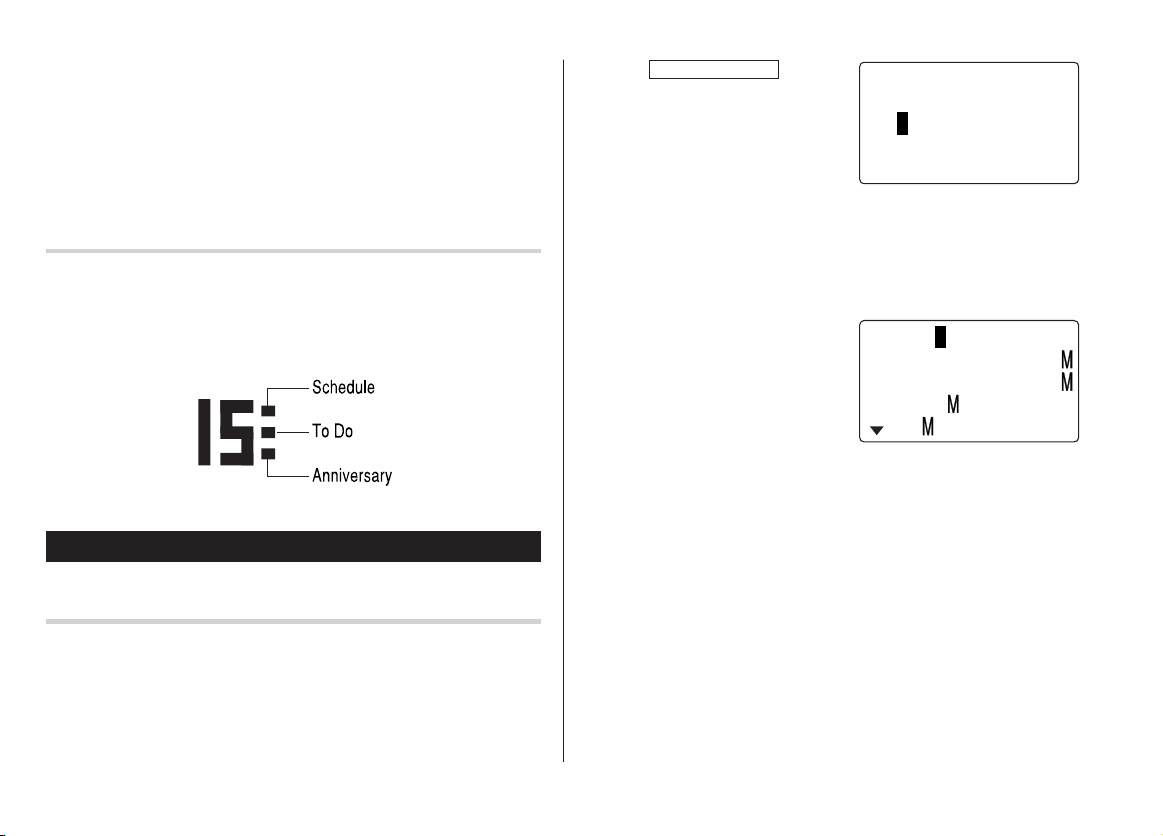
S-6
1. Pulse
CALENDAR/SCHEDULE
una o
dos veces para entrar en el modo
de programa de actividades.
Aparecerá la visualizació n de
bú squeda del programa de
actividades.
La fecha actual se visualizará y el cursor situado en el primer
nú mero parpadeará .
El primer nú mero depende de su elecció n del formato de la fecha.
Estos ejemplos está n en el formato MM-DD-AAAA.
2. Pulse
e
. Aparecerá la
visualizació n de introducció n del
programa de actividades.
Introduzca 09 para el mes.
3. Introduzca el día/añ o deseado de la misma forma.
4. Pulse
m
, e introduzca 10:00AM para la hora de inicio.
5. Pulse
m
.
La hora de finalizació n cambiará automá ticamente a 30 minutos
despué s de la hora de inicio. (Sin embargo, la hora de finalizació n
permanecerá dentro del día especificado.)
6. Introduzca 11:00 AM para la hora de finalizació n y pulse
m
.
<
S
C
HEDULE
>
SEAR
C
H DATE?
08
–
12
–
2003
09
–
12
–
2003
START
:
05
:
54 P
END
:
05
:
54 P
ALAR
:
<
YES
>
RE I NDER
:
3. Pulse
x
.
Aparecerá el calendario mensual de la fecha deseada.
Nota:
• En el modo de calendario se encontrará n disponibles los calendarios
mensuales de enero de 1950 a diciembre de 2150.
Confirmació n de las entradas de los modos de programa
de actividades, cosas a hacer y aniversario
En la visualizació n del calendario mensual usted puede ver las
fechas a las que ha asignado un programa de actividades, cosas a
hacer o un aniversario.
Las marcas de indicació n se visualizan de la forma siguiente:
Modo de programa de actividades
Entrada
<Ejemplo>
El 11 de septiembre de 2003 se celebrará una reunió n de las 10:00
AM a las 11:00 AM.
yo290s_u1u 02.5.17, 6:01 PM6
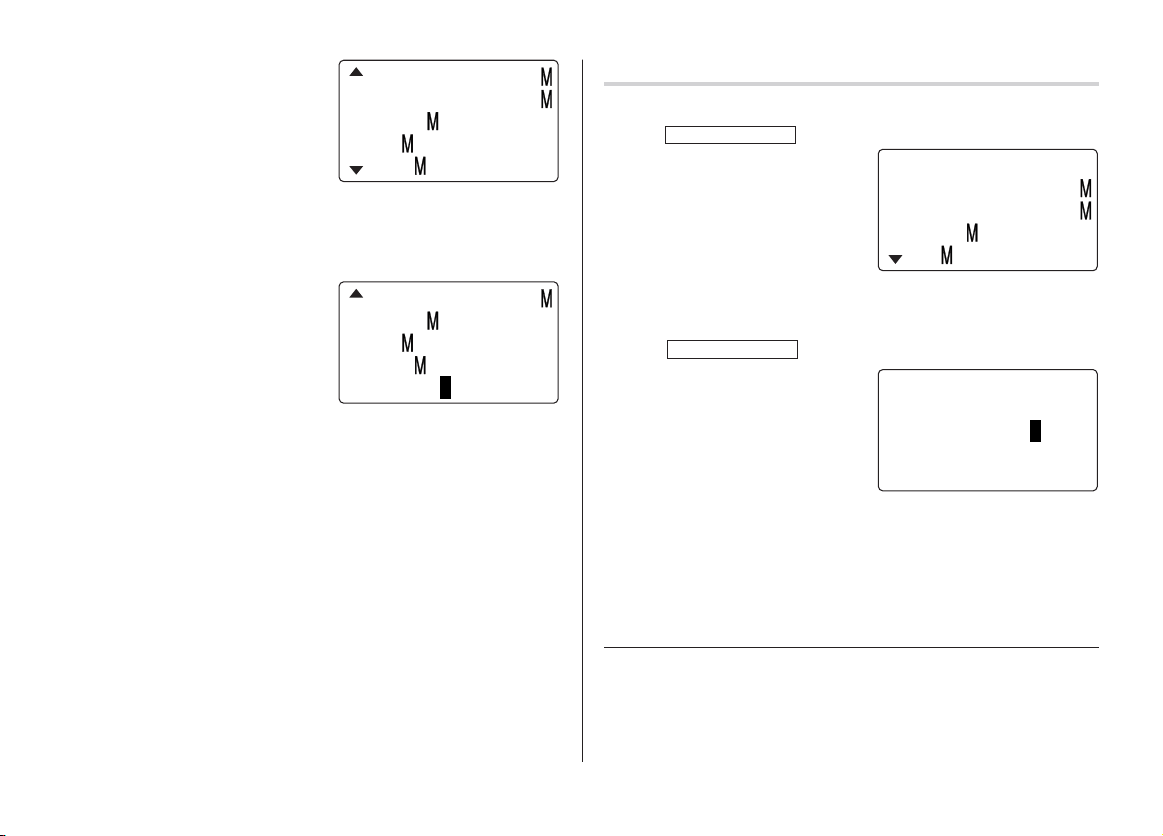
S-7
7. Pulse
<
o
>
para
seleccionar “Yes” o “No” para el
ajuste de la alarma y pulse
m
.
Si usted selecciona “Yes”, la
alarma del programa de
actividades sonará al llegar al
comienzo del tiempo restante establecido para antes de la hora de
inicio. Si selecciona “No”, la alarma del programa de actividades no
sonará .
Nota:
• Si selecciona “No” en el paso 7,
aparecerá “PLAN”.
Vaya al paso 9 para continuar.
8. Introduzca el tiempo apropiado para el tiempo restante y pulse
m
.
La alarma del programa de actividades sonará al llegar al comienzo
del tiempo restante introducido para antes de la hora de inicio.
Usted puede seleccionar cualquier nú mero del 00 al 99.
Nota:
• Introduzca el nú mero en el formato de dos dígitos.
9. Introduzca el nombre del elemento programado en el campo.
(Encuentro).
Puede introducir un má ximo de 96 caracteres alfanumé ricos.
10.
Pulse
x
para guardar la lista de programas de actividades.
Bú squeda
Bú squeda del programa de actividades para hoy
1. Pulse
CALENDAR/SCHEDULE
una o dos veces para entrar en el modo
de programa de actividades.
2. Pulse
<
o
>
para buscar
la lista del programas de
actividades deseada.
Las listas guardadas en el
Organizador se visualizará n en orden cronoló gico.
START
:
10
:
00 A
END
:
11
:
00 A
ALAR
:
<
YES
>
RE I NDER
:
00 I N . BEF
O
RE
END
:
11
:
00 A
ALAR
:
<
N
O
>
RE I NDER
:
00 I N . BEF
O
RE
PLAN
:
0
– – – – –
8
–
12
–
2003
START
:
12
:
15 P
END
:
12
:
45 P
ALAR
:
YES
RE I NDER
:
Bú squeda de fecha
1. Pulse
CALENDAR/SCHEDULE
una o dos veces para entrar en el modo
de programa de actividades.
2. Ponga la fecha deseada.
Seleccione el campo del mes, día
y añ o, e introduzca el nú mero
deseado.
<
S
C
HEDULE
>
SEAR
C
H DATE?
09
–
11
–
2003
3. Pulse
x
para buscar la lista de programas de actividades
deseada de la fecha especificada.
Al pulsar
<
o
>
se pueden visualizar las listas de ese día.
Consulte tambié n
Edició n de listas ................................................... S-12
Borrado de listas .................................................. S-12
yo290s_u1u 02.5.17, 6:01 PM7
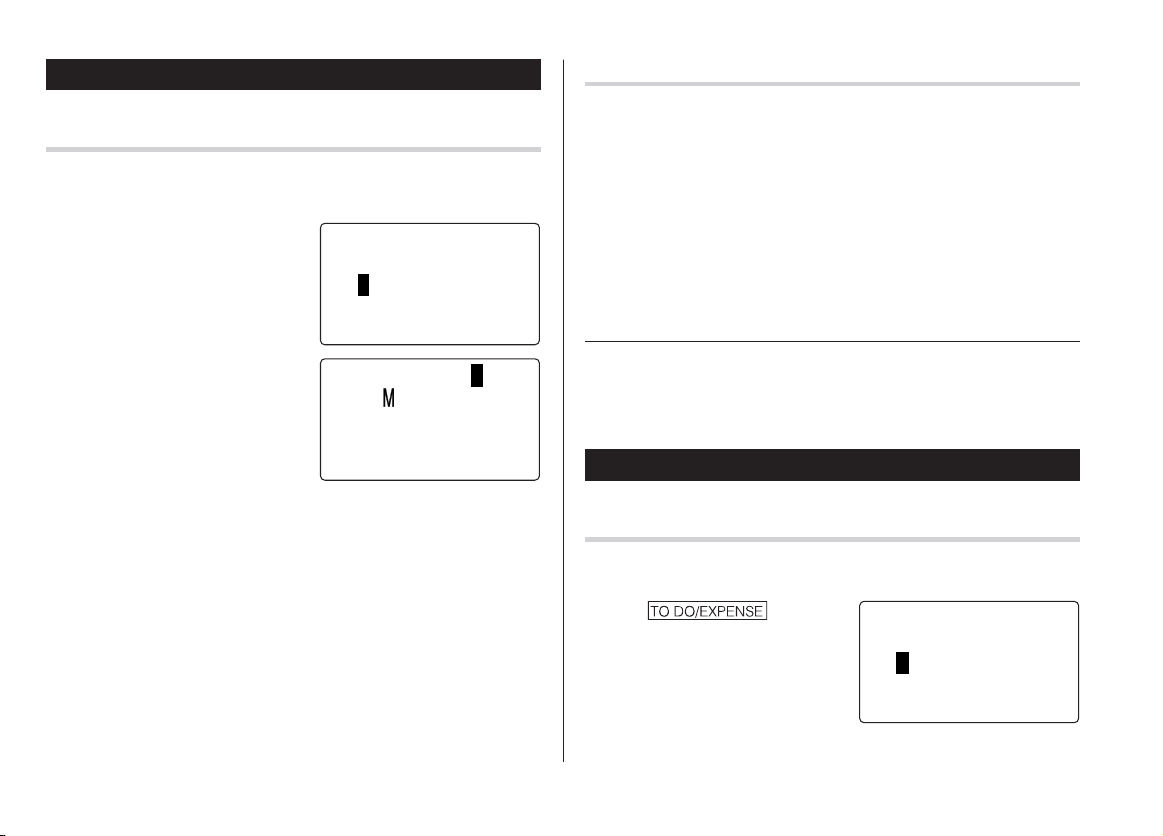
S-8
5. Introduzca la fecha del recordador de 0 a 9.
6. Pulse
m
.
7. Introduzca “Nancy’s Birthday”.
8. Pulse
x
para guardar la lista de aniversario.
El signo de aniversario (
A
) no aparecerá hasta que se ponga el
día en el recordador.
Modo de cosas a hacer
Entrada
<Ejemplo>
Usted tiene que visitar HK Exhibition el 10 de diciembre de 2003.
1. Pulse una o dos
veces para entrar en el modo de
cosas a hacer.
<
T
O
D
O
>
SEAR
C
H
D
ATE?
08
–
12
–
2003
Modo de aniversario
Entrada
<Ejemplo>
“Nancy’s Birthday” el 12 de febrero.
1. Pulse
;
una o dos
veces para entrar en el modo de
aniversario.
2. Pulse
e
.
Aparecerá la visualizació n de
introducció n de aniversario.
3. Introduzca la fecha, 02 para el
mes y 12 para el día.
4. Pulse
m
.
La fecha del recordador
parpadeará .
<
ANN I VERSARY
>
SEAR
C
H DATE?
08
–
12
DATE
:
02
–
12
5 DAYS
DES
C
R I PT I
RE I NDER
:
BEF
O
R
O
N
:
E
Bú squeda
Bú squeda secuencial
1. Pulse
;
una o dos veces para entrar en el modo de
aniversario.
2. Pulse
<
o
>
para buscar las listas.
Bú squeda de fechas
Introduzca la fecha para ir a la fecha deseada en el paso 2 de arriba y
luego pulse
x
.
Consulte tambié n
Edició n de listas ................................................... S-12
Borrado de listas .................................................. S-12
yo290s_u1u 02.5.17, 6:01 PM8
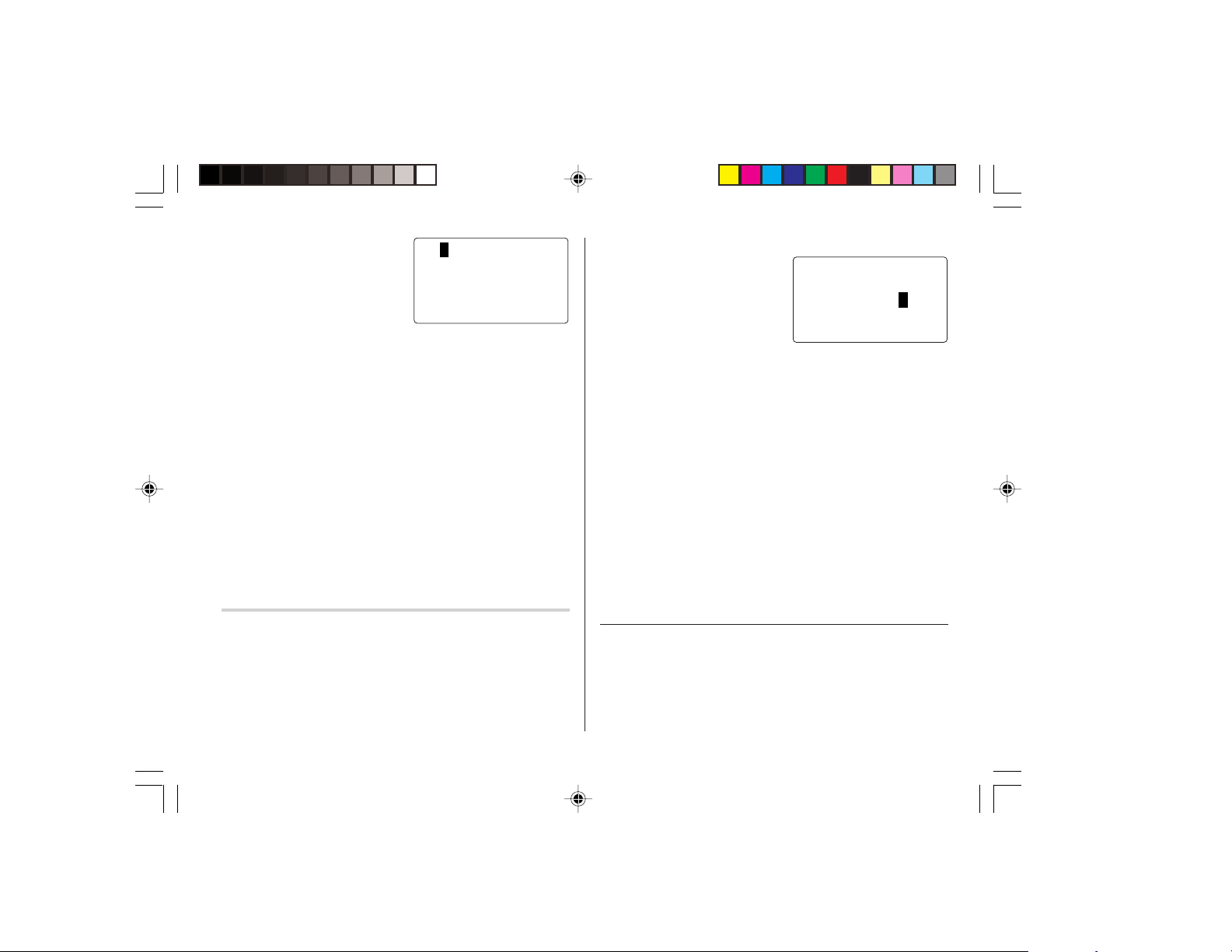
S-9
08
–
12
–
2003
>
PR I
O
R I TY
:
<
1
<
PEND I N
G
>
DES
C
R I PT I
O
N
:
5. Pulse
m
para dejar el estado como “PENDING”.
6. En el campo de descripció n, introduzca lo que tiene que hacer para
el día deseado.
Introduzca “Visit HK Exhibition”.
Puede introducir un má ximo de 96 caracteres alfanumé ricos.
7. Pulse
x
para guardar la lista de cosas a hacer.
Bú squeda
Búsqueda secuencial
1. Pulse una o dos veces para entrar en el modo de
cosas a hacer.
2. Pulse
<
o
>
para buscar la lista de cosas a hacer
deseada.
2. Pulse
e
.
Aparecerá la visualizació n de
cosas a hacer.
3. Introduzca 12 en el campo del mes y luego introduzca 10 y 2003
respectivamente.
4. Pulse
m
y seleccione el nú mero de prioridad, desde 1 (alta) a 9
(baja) utilizando
<
o
>
(o introduzca el nú mero), y luego
pulse
m
.
Búsqueda de fecha
1. Pulse una o dos
veces para entrar en el modo de
cosas a hacer.
2. Seleccione el campo del mes, el
día o el añ o y luego introduzca la
fecha deseada.
3. Pulse
x
para buscar la lista de cosas a hacer deseada de una
fecha especificada.
DONE Elementos completados
1. Pulse una o dos veces para entrar en el modo de
cosas a hacer.
2. Pulse
<
o
>
para seleccionar los elementos de cosas a
hacer.
3. Pulse
e
m
m
para entrar en el campo de estado.
4. Pulse
<
o
>
para seleccionar “DONE”, y luego pulse
x
.
Consulte tambié n
Edició n de listas ................................................... S-12
Borrado de listas .................................................. S-12
<
T
O
D
O
>
SEAR
C
H
D
ATE?
12
–
10
–
2003
yo290s_u1u 02.5.17, 6:01 PM9
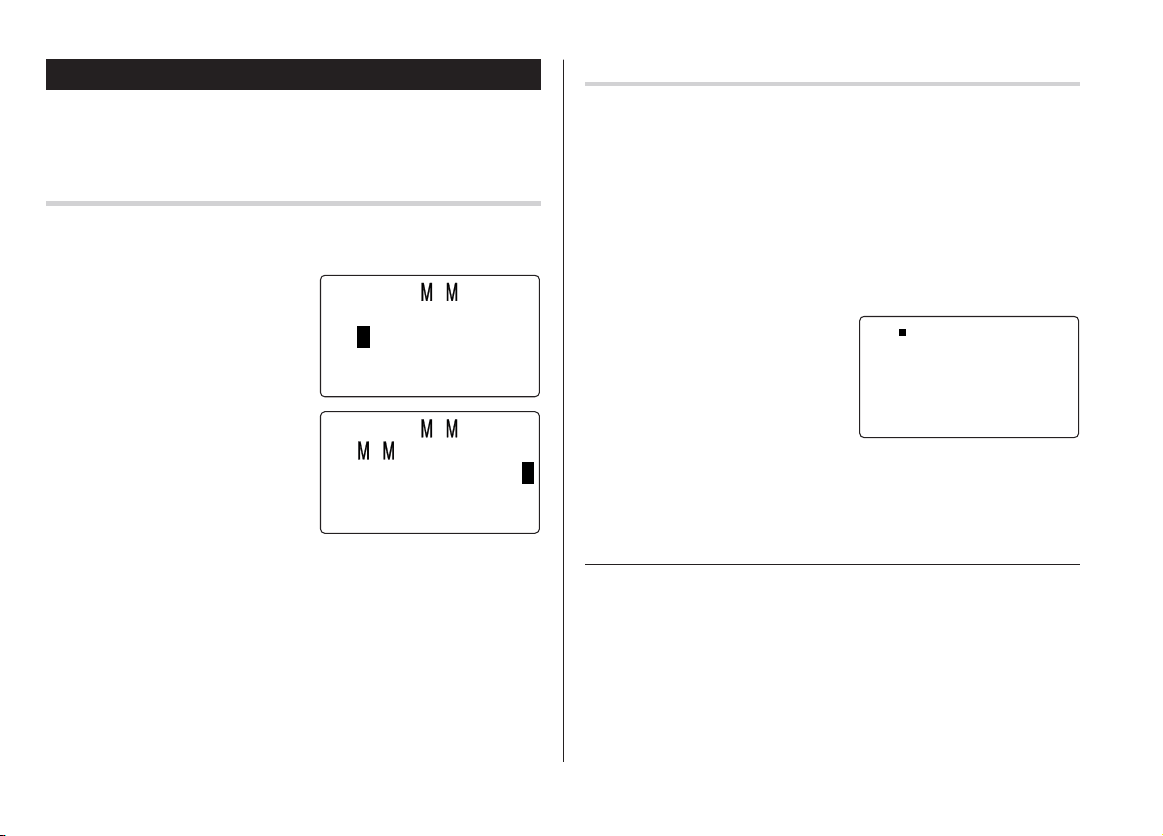
S-10
Modo de apuntes
Puede guardar apuntes empleando el modo de apuntes. Se puede
introducir un má ximo de 96 caracteres alfanumé ricos por lista.
Entrada
<Ejemplo>
Introduzca su nú mero de pasaporte: 12AB34567
1. Pulse
;
una o dos
veces para entrar en el modo de
apuntes.
2. Pulse
e
e introduzca lo
siguiente.
Passport No. 12AB34567
3. Pulse
x
para guardar la lista de apuntes.
Bú squeda
Bú squeda secuencial
1. Pulse
;
una o dos veces para entrar en el modo de
apuntes.
Aparecerá la visualizació n de bú squeda del modo de apuntes.
2. Pulse
<
o
>
para buscar las listas.
Bú squeda directa
1. Pulse
;
una o dos veces para entrar en el modo de
apuntes.
Aparecerá la visualizació n de
bú squeda.
2. Introduzca la(s) primera(s) letra(s)
del apunte deseado (ej. “pasa”).
Se puede introducir un má ximo de
10 letras.
3. Pulse
x
para buscar la lista deseada.
Consulte tambié n
Edició n de listas ................................................... S-12
Borrado de listas .................................................. S-12
<
E
O
>
?
F
SEAR
C
H
<
E
O
>
E
O
:
Pa
A
s s p o
5
r t
No . 12 B34 6 7A
Pa s po r t
567
No .
2AB34
s
1
yo290s_u1u 02.5.17, 8:12 PM10
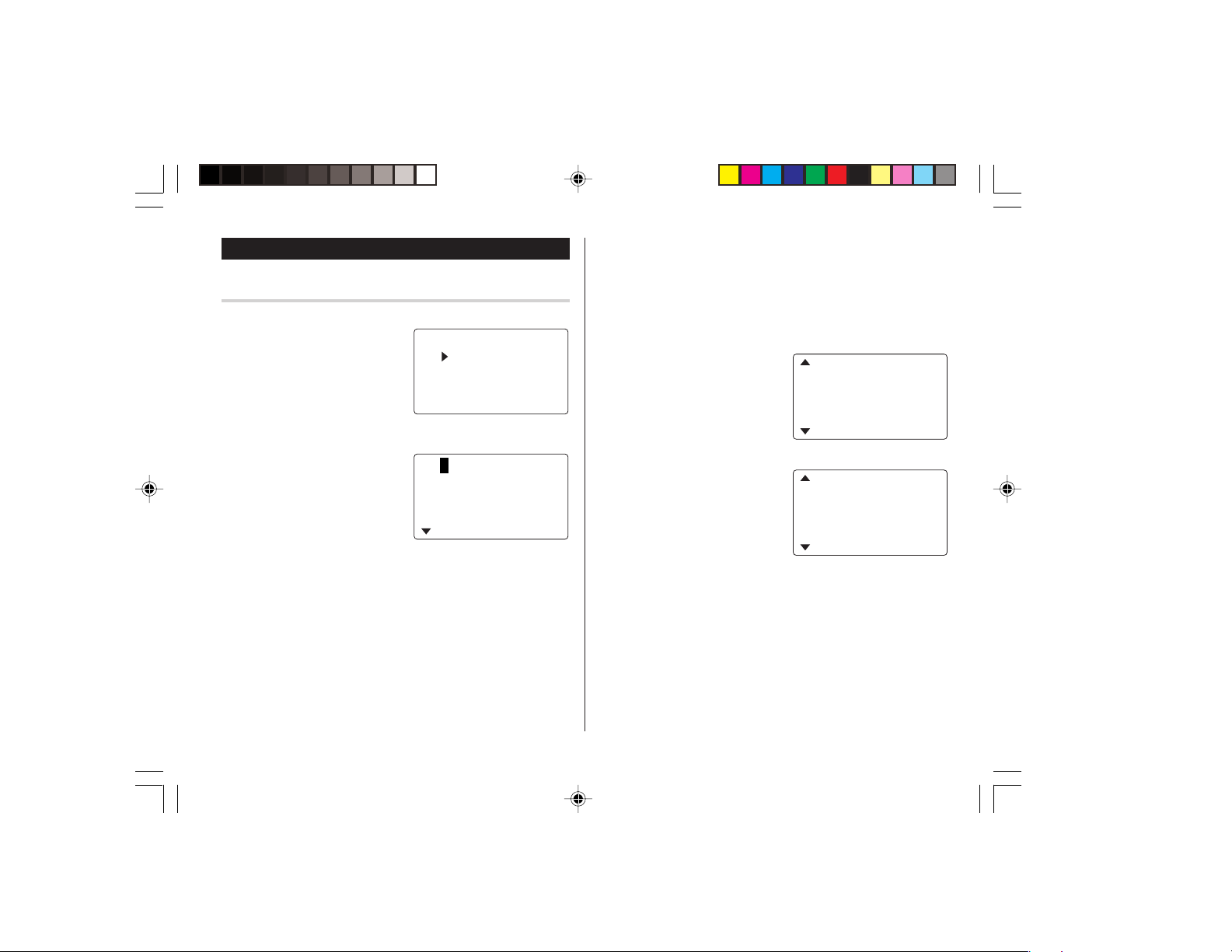
S-11
<
E PENS
E
>
X
G
O
RYE
REP
O
R
CAT
E PENS
T
E
X
08
–
18
–
2003
C
ATE
GO
RY
:
<
ea l s
>
A
O
UNT
:
0 .
Modo de gastos
Entrada
<Ejemplo>
La fecha es 18 de agosto de
2003.
Usted adquirió billetes de avió n
por un importe de 1200 $ para un
viaje de negocios.
1. Pulse una o dos
veces para entrar en el modo de gastos.
2. Pulse
k
o
m
para seleccionar
“EXPENSE”, y luego pulse
x
.
Aparecerá la visualizació n de
bú squeda de gastos.
3. Pulse
e
.
El primer nú mero depende de su elecció n del formato de la fecha.
Estos ejemplos está n en el formato MM-DD-AAAA.
4. Introduzca la fecha si es necesario.
5. Pulse
m
.
10.
Pulse
m
, y seleccione “YES” o
“NO” utilizando
<
o
>
en
el campo “RECEIPT”.
11.
Pulse
m
, e introduzca “Flight ticket” en el campo “MEMO”.
12.
Pulse
x
para guardar los datos.
A
O
UNT
:
1200 .
PAY ENT
:
<
C
HECK
>
RE
C
E I PT
:
<
YES
>
6. Seleccione la categoría de gastos utilizando
<
o
>
.
Hay 8 categorías preajustadas para elegir.
Meals
➠
Hotel
➠
Car
➠
Phone
➠
Fares
➠
(Enter’t ) Entertainment
➠
Tips
➠
(Misc) Miscellaneous
➠
...
7. Pulse
m
e introduzca 1200.
Se puede introducir un má ximo de 12 dígitos.
8. Pulse
m
.
9. Seleccione el pago utilizando
<
o
>
.
Hay 4 sistemas de pago
preajustados para elegir.
Cash
➠
Check
➠
Card
➠
Others
➠
...
<
Fa r e
12
s
.
>
<
C
HE
C
K
>
PAY EN
A
O
UNT
:
T
:
00
yo290s_u1u 02.5.17, 6:01 PM11

S-12
Recuperación
Búsqueda secuencial
1. Pulse una o dos veces para entrar en el modo de
gastos.
2. Pulse
k
o
m
para seleccionar “EXPENSE”, y luego pulse
x
.
Aparecerá la visualizació n de bú squeda de gastos.
3. Pulse
<
para ver el siguiente registro, o
>
para ver el
registro anterior.
Consulte tambié n
Edició n de listas ................................................... S-12
Borrado de listas .................................................. S-12
Edició n de listas
1. Edició n
1. Recupere una lista en el modo deseado.
2. Pulse
e
.
La visualizació n cambiará al modo de edició n.
3. Edite los datos.
j
l
k
m
: mueve el cursor a la izquierda, derecha, arriba o abajo
respectivamente.
d
: se puede utilizar para borrar caracteres.
i
: cambia entre el modo INSERT y el modo OVERWRITE.
4. Pulse
x
para guardar.
Borrado de listas
Borrado
1. Recupere una lista en el modo deseado.
2. Pulse
d
.
Aparecerá la visualizació n de confirmació n.
• Para cancelar el borrado, pulse
f
.
3. Pulse
x
para borrar la lista.
yo290s_u1u 02.5.17, 6:01 PM12
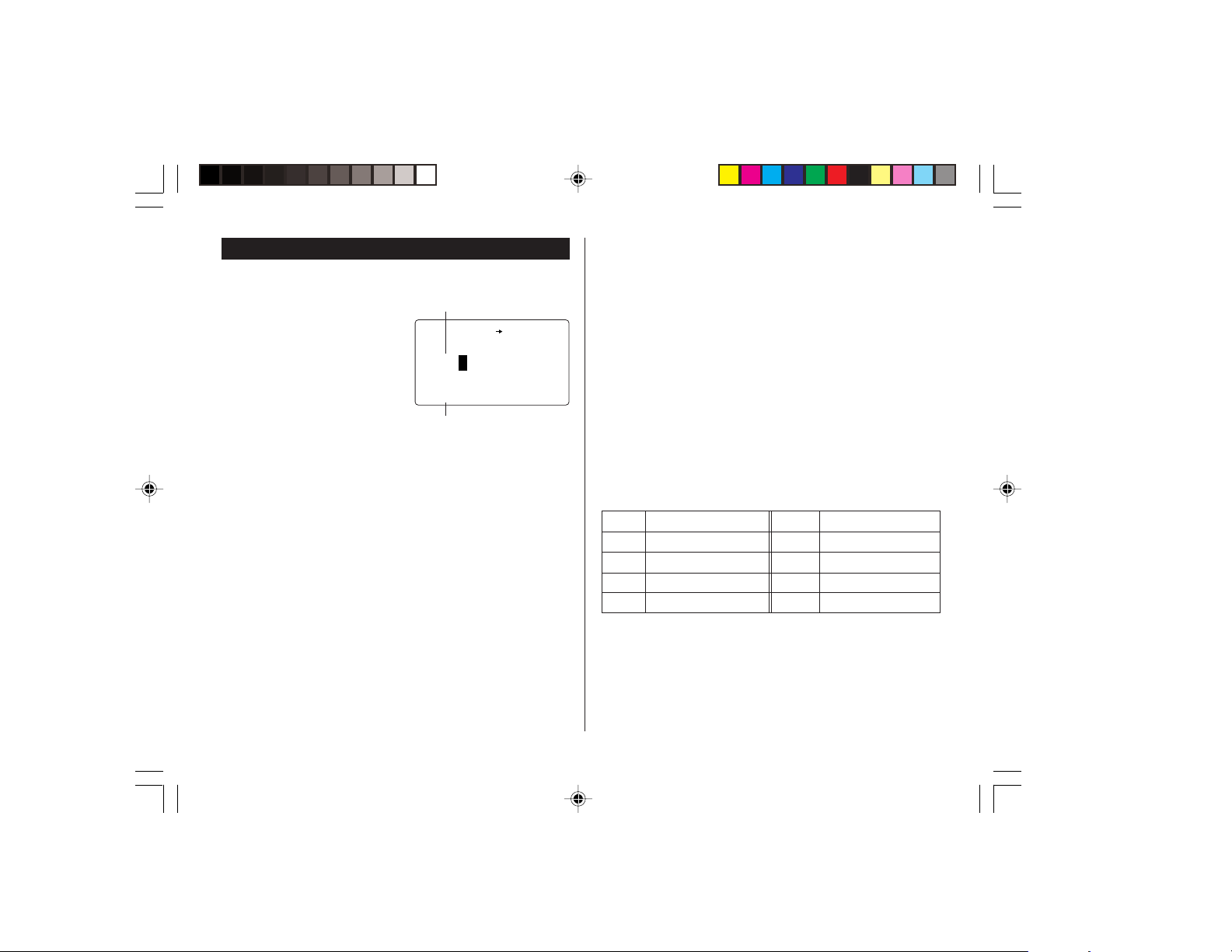
S-13
Modo del traductor de palabras
Este aparato ofrece una funció n de traducció n de inglé s a españ ol y
viceversa.
1. Pulse
]
para entrar en el
modo de traducció n de inglé s
→
españ ol.
Pulse
]
dos veces para
entrar en el modo de traducció n
de españ ol
→
inglé s.
2. Introduzca la palabra que
desee traducir y pulse
x
.
Luego se visualizará la correspondiente palabra inglesa o españ ola.
• Cuando se encienda el pequeñ o símbolo “
;
” o “
:
”, esto indicará
que existen má s letras. Para ver las letras restantes de palabras
largas que no caben en la pantalla, utilice
j
o
l
para desplazar la
palabra.
• Si no se encuentra la palabra correspondiente se visualiza “NOT
FOUND!”. Luego se visualizará la siguiente palabra en orden
alfabé tico.
• Pulse
<
o
>
para desplazarse por la lista de palabras, o
introduzca una palabra nueva utilizando el teclado, y pulse
x
para hacer otra bú squeda.
<
EN SPA
>
E
:
1
S
:
Campo del inglé s
Campo del españ ol
Notas:
• Las abreviaturas indican lo siguiente:
(Am): Inglé s americano
(Br): Inglé s britá nico
(adj): Adjetivo
(adv): Adverbio
(n): Nombre
(pron): Pronombre
(v): Verbo
(f.): Gé nero femenino
(m.): Gé nero masculino
• Algunas veces es posible que aparezcan dos palabras idé nticas en
la lista de palabras.
• Introduzca correctamente los caracteres europeos y los espacios.
De otra forma, la unidad tal vez no pueda realizar la bú squeda.
• En el campo del españ ol, usted podrá introducir las letras
siguientes. Pulse repetidamente la tecla de la letra respectiva
despué s de pulsar
s
.
• Active “CAPS” para introducir letras mayú sculas.
Tecla Letras Tecla Letras
A á à â ä N ñ
C ç O ó ò ô ö
E é è ê ë U ú ù û ü
I í ì î ï Y ´y ÿ
yo290s_u1u 02.5.17, 6:01 PM13
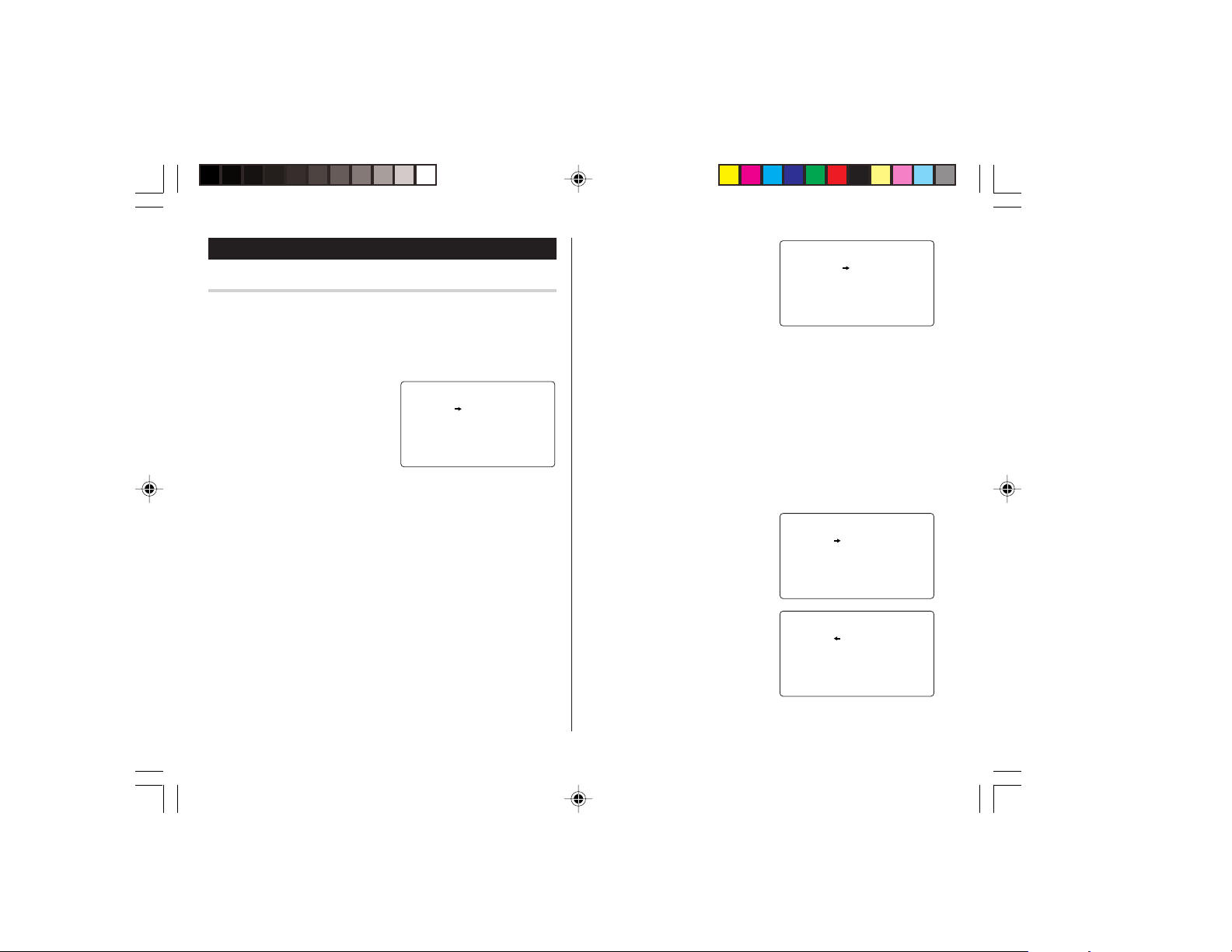
S-14
Modo de conversió n
Modo de conversión de divisas
La conversió n de divisas tiene 5 etapas de conversió n programable.
Cada etapa es capaz de hacer cá lculos con 12 dígitos.
Ajuste de una nueva tasa de conversió n de divisas
<Ejemplo> Ajuste de la tasa siguiente: £1 = $1,45
1. Pulse
q
el nú mero
apropiado de veces para
seleccionar el modo de
conversió n de divisas.
2. Pulse
<
o
>
para
seleccionar la etapa de
conversió n de divisas apropiada.
3. Pulse
e
.
Aparecerá el modo de ajuste.
Los nombres de divisas preajustados se pueden cambiar aquí.
4. Cambie el nombre de la divisa de la izquierda si es necesario, y
luego pulse
l
.
Nota:
• Para el nombre de la unidad de divisa se puede introducir un
má ximo de 4 caracteres.
5. Cambie el nombre de la divisa de la derecha si es necesario, y
luego pulse
m
.
<
C
URREN
C
Y
>
C
AD U
=
SD
RATE
1
.
6. Introduzca la tasa; 1,45.
Para la tasa se puede introducir
un má ximo de 12 caracteres
alfanumé ricos.
Si necesita borrar el nú mero de la
tasa, pulse
c
.
7. Pulse
x
para almacenar el ajuste.
Conversión de divisas
Asegú rese de ajustar la tasa antes de iniciar una conversió n.
<Ej. £
➠
$>
1. Pulse
q
el nú mero apropiado de veces para seleccionar
el modo de conversió n de divisas.
2. Pulse
<
o
>
para seleccionar la etapa de conversió n de
divisas apropiada.
3. Introduzca la cantidad. (Ej. £50)
4. Pulse
l
.
(£50 = $72,5 aproximadamente)
<Ej. $
➠
£>
5. Introduzca la cantidad. (Ej. $120)
6. Pulse
j
.
($120 = £82,76
aproximadamente)
Utilice
j
o
l
para cambiar la
direcció n de conversió n.
Pulse
c
para borrar el resultado del cá lculo.
<
C
URREN
C
Y
>
G
BP USD
RATE
1
. 4 5
=
<
C
URREN
C
Y
>
G
BP USD
27 . 5
50 .
<
C
URREN
C
Y
>
G
BP USD
86 9 6
201 .
2 .8 7 5 8 6 2 0
yo290s_u1u 02.5.17, 6:01 PM14
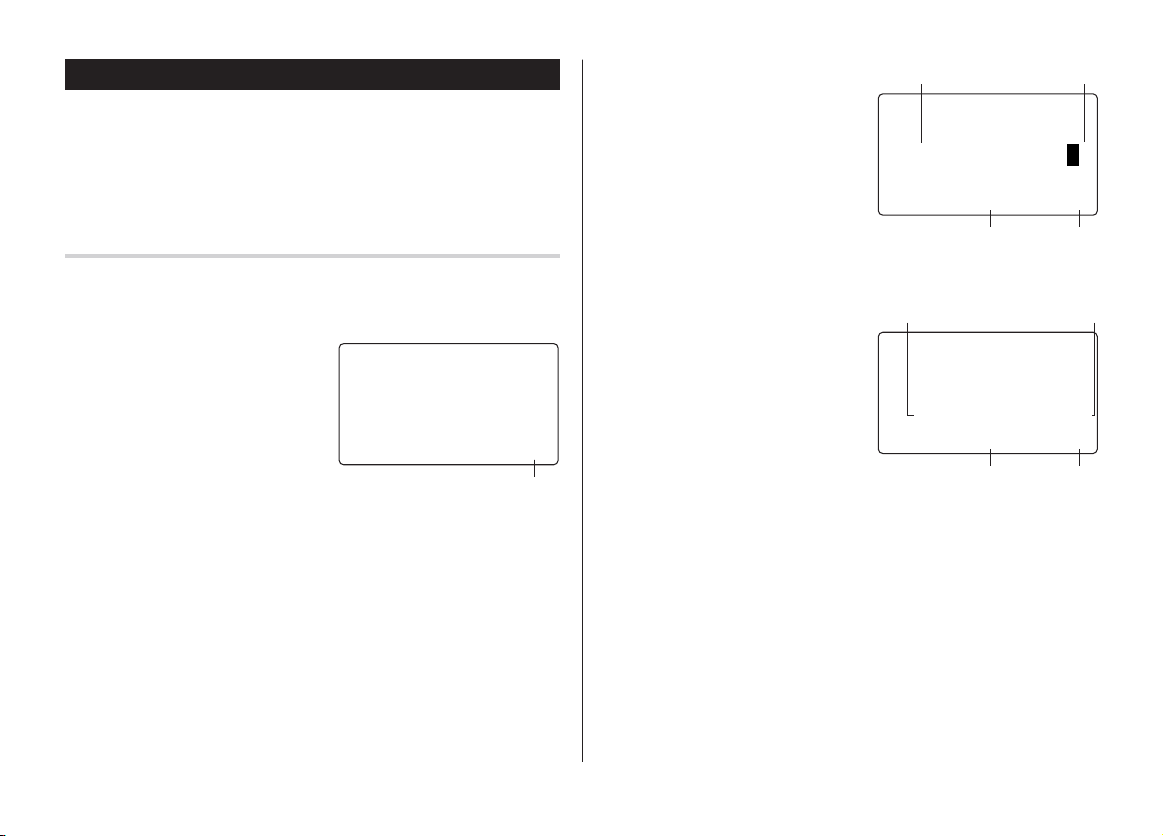
S-15
Modo de juego
Pulse
_
una o dos veces para reproducir el juego “BLACKJACK”
o “ALPHA ATTACK”.
Cada vez que usted pulse
_
, la visualizació n cambiará entre
“BLACKJACK” y “ALPHA ATTACK”.
BLACKJACK (Veintiuno)
Procure que su “mano” (la suma total de los nú meros
correspondientes a sus cartas) sea 21 o se aproxime a este nú mero,
pero sin rebasarlo.
1. Pulse
_
una o dos veces
para visualizar la pantalla del
modo de juego siguiente.
2. Pulse
x
para empezar un
juego. Las 2 cartas de la
izquierda son para usted. (Una
de ellas descubierta y la otra tapada.)
3. Acepte la apuesta má xima que se visualiza parpadeando a la
izquierda (un má ximo de 10) o introduzca una apuesta inferior.
<
BLA
C
KJ
Sus fichas
A
C
K
>
30
4. Pulse
@
para ver su mano.
Cada vez que pulsa
@
, se
le entrega una carta nueva.
• ”J”, “Q” y “K” cuentan como 10.
• ”A” puede contar como 1 o
como 11.
• Cuando las 2 primeras cartas
sean “A” y una carta de figura
(“J”, “Q” o “K”), su mano será “BLACKJACK”.
5. Pulse
x
para no recibir má s
cartas y quedarse plantado. A
continuació n se verá la mano de
quien reparte las cartas y los
resultados.
• Cuando usted gane, su total
parpadeará y su apuesta se
doblará .
• Cuando usted gane con “BLACKJACK”, su apuesta se triplicará .
6. Pulse
x
y visualice la pantalla del modo de juego.
• El juego terminará cuando usted no tenga má s fichas para
apostar.
• Pulse cualquier tecla de modo para abandonar el juego. Sus
fichas quedará n guardadas par la pró xima vez.
<
BLA
C
KJA
C
K
>
J 28 04
10 20
Sus fichasSu apuesta
La mano de quien
reparte cartas
Su mano
<
BLA
C
KJA
C
K
>
J 28 32K4
20 19
20 20
Sus fichasSu apuesta
El total de quien
reparte cartas
Su total
yo290s_u1u 02.5.17, 6:01 PM15
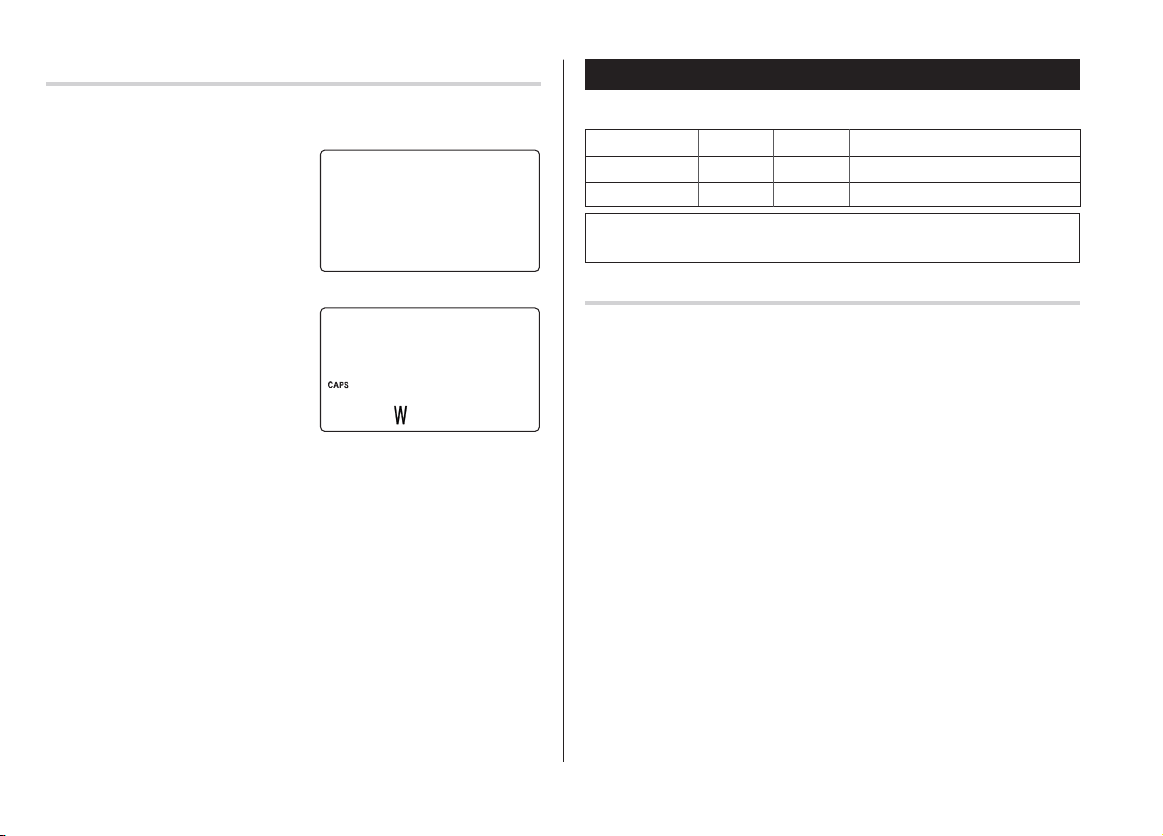
S-16
ALPHA ATTACK
Escriba los caracteres (A a Z) visualizados en la línea del fondo para
borrarlos. El juego se divide en 20 niveles de velocidad.
1. Pulse
_
una o dos veces
para visualizar la pantalla del
modo de juego siguiente.
2. Pulse
<
/
>
para
seleccionar el nivel.
• 01: lento, 20: rá pido
3. Pulse
x
para iniciar un
juego.
4. Pulse la tecla correspondiente al
primer cará cter del extremo
izquierdo de la línea del fondo.
(En este caso, pulse las teclas en el orden siguiente: E
→
Y
→
K
→
W.)
• Al pulsar las teclas correctas en el orden correcto se van
borrando los caracteres.
• Cuando se visualicen 12 caracteres en cada nivel, el juego
continuará a un nivel má s rá pido (hasta alcanzar el 20).
• El juego terminará cuando no se puedan visualizar má s
caracteres. Entonces se visualizará la pantalla del modo de
juego mostrando el nivel con el que finalizó el juego.
• Para abandonar el juego, pulse o cualquier tecla de modo.
ALPH
A
ATTA
C
<
K
>
LEVEL
:
01
ALPH
A
ATTA
C
<
K
>
LEVEL
:
03
EYK
Reemplazo de las pilas
Pilas utilizadas
Tipo Modelo Calidad Uso
Pilas de litio CR2032 2 Funcionamiento de la unidad
Pilas de litio CR2032 1 Luz de fondo
• Cerció rese de escribir la informació n importante almacenada en
la memoria antes de reemplazar las pilas.
Precauciones
Como el uso inapropiado de las pilas puede producir fugas o
explosió n, observe al pie de la letra las instrucciones siguientes:
• El líquido de una pila con pé rdida que entre por accidente en un
ojo puede causar una lesió n muy grave. En este caso, lave el ojo
con agua limpia y consulte inmediatamente a un mé dico.
• Si el líquido de una pila con pé rdida entra en contacto con su piel
o sus ropas, lave inmediatamente la parte afectada con agua
limpia.
• Si el producto no va a ser utilizado durante algú n tiempo, para
evitar los dañ os que las pilas con perdidas puedan causar a la
unidad, retírelas y guá rdelas en un lugar seguro.
• No deje pilas agotadas dentro del producto.
• No instale pilas usadas parcialmente, y asegú rese de no mezclar
pilas de tipos diferentes.
• Inserte la pila con su lado positivo (+) colocado correctamente.
• No tire nunca las pilas al fuego porque podrían explotar.
• Mantenga las pilas alejadas del alcance de los niñ os.
• Cuando las pilas esté n a punto de agotarse, extrá igalas
inmediatamente del Organizador para evitar que se fugue su
electrolito, lo que podría causar la corrosió n de dicho
Organizador.
Debido a que las pilas entregadas con el Organizador han sido
instaladas en fá brica, é stas pueden descargarse antes de
transcurrir el tiempo de duració n especificado.
yo290s_u1u 02.5.22, 9:57 AM16
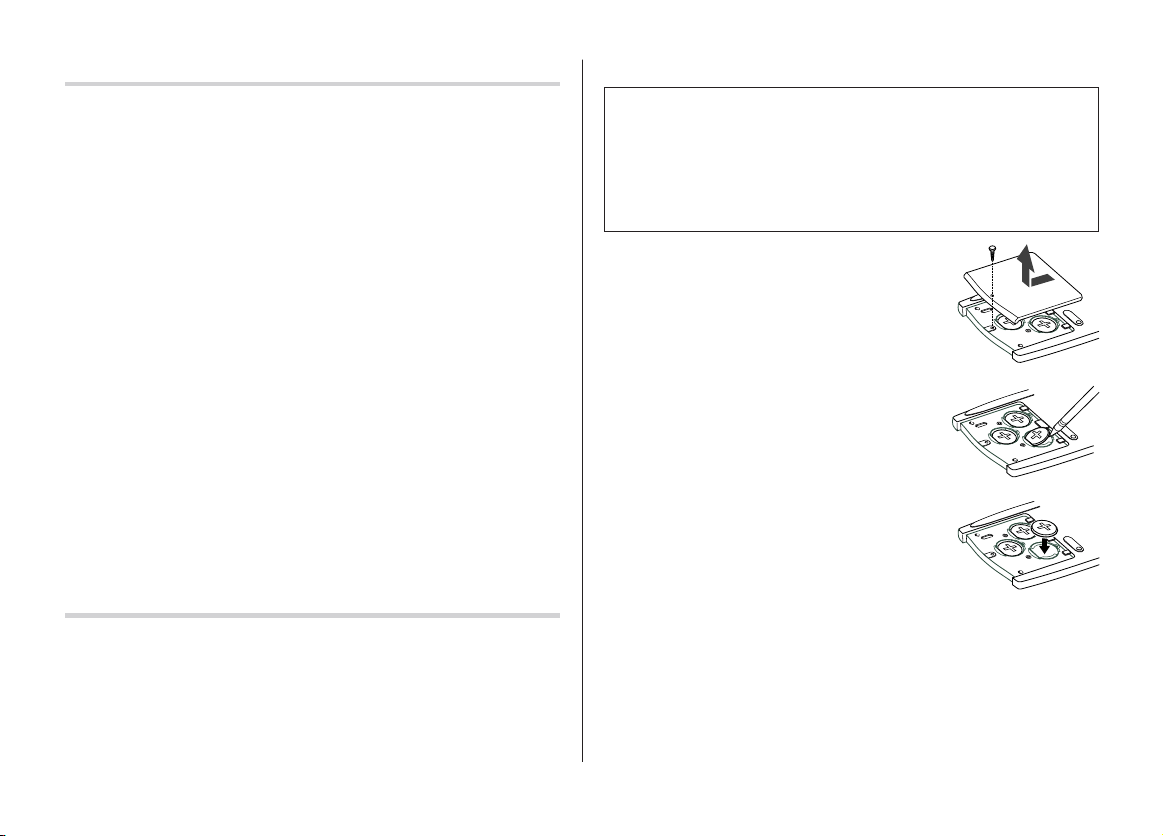
S-17
Cambio de las pilas de funcionamiento
Intervalo de cambio de las pilas
Cuando se visualice “
B
”, reemplace inmediatamente las pilas
por otras nuevas.
Los portapilas de las pilas de funcionamiento se indican
mediante las palabras "For OPERATION" que se encuentran
debajo de las cubiertas de los portapilas.
Si el nivel de las pilas es bajo, la luz de fondo no funcionará , o
permanecerá activada durante menos tiempo del ajustado. La
utilizació n prolongada del Organizador con las pilas dé biles puede
alterar o borrar el contenido de la memoria. El contenido de la
memoria puede perderse si reemplaza inadecuadamente las pilas o
si no toma en cuenta las instrucciones siguientes.
Precaució n:
• PC-LINK puede no estar disponible si las pilas está n dé biles.
• Cuando el nivel de las pilas sea bajo quizá s no pueda utilizar el
informe de gastos (informe resumido)
• Con las pilas dé biles, la introducció n de nuevos datos y la
edició n de los existentes puede resultar imposible en algunos
modos. Ademá s, quizá s resulte imposible ajustar el reloj.
Cambio de la pila de la luz de fondo
Cuando la pila de la luz de fondo no pueda encenderse (excepto
cuando se visualice “
B
” o el Organizador esté en el modo PC
Link), cambie la pila. Siga los pasos de la pá gina S-17.
El portapila de la pila de la luz de fondo se indica mediante las
palabras "For Back Light" que se encuentran debajo de la
cubierta del portapilas.
Cambio de las pilas
• Asegú rese de desconectar la alimentació n antes de cambiar las
pilas.
• No presione
o
hasta despué s de haber finalizado el
procedimiento de reemplazo de las pilas.
• No reemplace las pilas de una vez.
Reemplá celas una tras otra.
1. Pulse
o
para desconectar la alimentació n.
2. Afloje el tornillo (girá ndolo hacia la izquierda)
y extraiga la tapa de las pilas de la parte
posterior de la unidad.
3. Retire una pila usada con un bolígrafo u otro
objeto similar.
• No emplee un lá piz mecá nico ni un objeto
puntiagudo.
4. Instale una nueva pila con el lado positivo
(+) encarado hacia arriba.
5. Repita los pasos 3 y 4 para reemplazar cada
pila en caso de ser necesario.
6. Vuelva a instalar la tapa del compartimiento
de las pilas y asegú rela con el tornillo.
7. La alimentació n se conectará 2 a 3 segudos despué s de pulsar ON.
8. Ajuste el reloj a la hora correcta.
Precaució n:
• Los ajustes del reloj pueden perderse cuando extraiga las pilas
durante mucho tiempo.
• Confirme si todos los ajustes está n realizados correctamente
despué s de haber cambiado las pilas.
R
E
S
E
T
R
E
S
E
T
R
E
S
E
T
yo290s_u1u 02.5.17, 8:13 PM17

32
MEMO
yo290e_020514 02.5.14, 1:11 PM32
32
MEMO
yo290e_020514 02.5.14, 1:11 PM32
32
MEMO
yo290e_020514 02.5.14, 1:11 PM32
33
LIMITED WARRANTY
SHARP ELECTRONICS CORPORATION warrants to the first consumer
purchaser that this Sharp brand product (the “Product”), when shipped
in its original container, will be free from defective workmanship and materials,
and agrees that i t will, at its optio n, e ither re pai r th e defe ct or
replace the defective Product or part thereof with a new or remanufactured
equivalent at no charge to the purchaser for parts or labor for the period(s)
set forth below.
This warranty does not apply to any appearance items of the Product nor
to the additional excluded item(s) set forth below nor to any Product the
exterior of which has been damaged or defaced, which has been subjected
to improper voltage or other misuse, abnormal service or handling, or
which has been alte red or mo dif ied in design or construction.
In order to enforce the rights under this limited warranty, the purchaser
should follow the steps set forth below and provide proof of purchase to
the servicer.
The limited warranty described herein is in addition to whatever implied
warranties may be grante d t o purchas ers by law. ALL IMPLI ED
WAR RANTIES INCLUDI NG THE WARRANTI ES OF
MERCHANTABILITY AND FITNESS FOR USE ARE LIMITED TO THE
PERIOD(S) FROM THE DATE OF PURCHASE SET FORTH BELOW.
Some states do not allow limitations on how long an implied warranty
lasts, so the above limitation may not apply to you.
Neither the sales personnel of the seller nor any other person is authorized
to make any warranties other than those described herein, or to extend
the duration of any warranties beyond the time period described herein
on behalf of Sharp.
The warranties described herein shall be the sole and exclusive warranties
granted by Sharp and shall be the sole and exclusive remedy available
to the purchaser. Correction of defects, in the manner and for the period
of time described herein, shall constitute complete fulfillment of all liabilities
and responsibilities of Sharp to the purchaser with respect to the Product,
and shall constitute full satisfaction of all claims, whether based on
contract, negligence, strict liability or otherwise. In no event shall Sharp
be liable, or in any way responsible, for any damages or defects in the
Product which were caused by repairs or attempted repairs performed
by anyone other than an authorized servicer. Nor shall Sharp be liable or
in any way responsible for any incidental or consequential economic or
property damage. Some states do not allow the exclusion of incidental
or consequential damages, so the above exclusion may not apply to you.
THIS WARRANTY GIVES YOU SPECIFIC LEGAL RIGHTS. YOU MAY
ALSO HAVE OTHER RIGHTS WHICH VARY FROM STATE TO STATE.
Your Product : Electronic Organizer
Warranty Period for this One (1) year parts and labor from date
Product : of purchase.
Additional Items Excluded Any co nsum able items such as paper,
from Warranty Coverage : maintenance cartr idge, i nk c artridges
suppli ed with t he Pr oduc t o r to any
equ ipme nt or any hardware , soft ware,
firmware, fluorescent lamp, power cords,
covers, rubber parts, or peripherals other
than the Product.
Where to Obtain Service : At a Sharp Authorized Servicer located
in the United States. To find o ut th e
location of the nearest Sharp Authorized
Servicer, call Sharp toll free at 1-800-BE-
SHARP.
What to do to Obtain Service : Ship (prepaid) or carry in your Product to
a Sharp Authorized Servicer. Be sure to
have proof of purchase available. If you
ship or mail the Product, be sure it is
packaged carefully.
TO OBTAIN SUPPLY, ACCESSORY OR PRODUCT INFORMATION, CALL 1-800-BE-SHARP.
yo290e_u1u 02.5.20, 11:19 AM33

34
SHARP ELECTRONICS CORPORATION
Sharp Plaza, Mahwah, New Jersey 07430-1163
PRINTED IN CHINA/IMPRESO EN CHINA
02EGK (TINSE0551EHZZ)
yo290e_u1u 02.5.17, 0:31 PM34