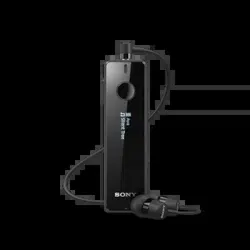

User guide
Smart Bluetooth
®
Handset
SBH52

Contents
Smart Bluetooth® Handset User guide.............................................3
Introduction.......................................................................................3
Basics.................................................................................................5
Getting started.................................................................................. 7
Using your handset...........................................................................8
Legal information.............................................................................11
2
Smart Bluetooth® Handset User guide
Introduction
Function overview
Your Stereo Bluetooth® Handset SBH52 is designed to make life more convenient
when you're on the go. You can use it together with an Android™ powered device
such as a phone or tablet, or with a non-Android device that supports Bluetooth®,
for example, a phone, a computer or a music player. When paired with a
compatible device, you can use your Bluetooth® handset to perform some or all of
the following actions:
• Handle incoming calls, for example, answer or reject an incoming call.
• Stream music from a music-playing device.
• Make a call directly from the Bluetooth® handset call log*.
• Display event notifications such as text messages, emails, calendar event
reminders, and updates from social networking services*.
• Get event notifications read out loud*.
• Perform other basic tasks, for example, indicate the time.
You can also use the Bluetooth® handset as a standalone FM radio when it's
connected to a set of wired headphones (which function as an antenna).
* For these functions to work, you must use an Android™ device that supports the
relevant functions, for example, call handling and messaging. Also, you must have
the Smart Connect and Stereo Bluetooth® Handset SBH52 applications installed on
the Android™ device.
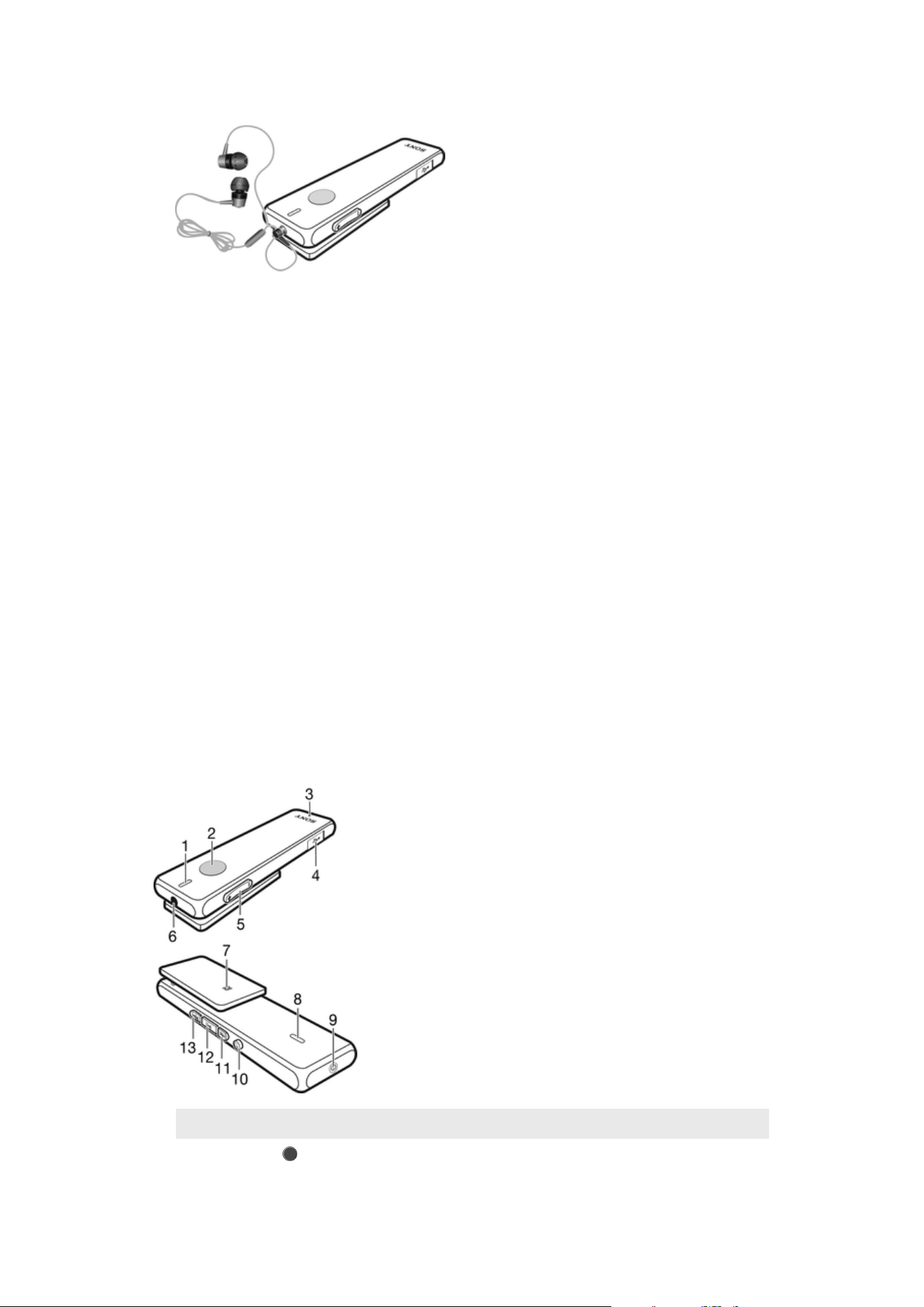
Hardware overview
1
Front speaker
2
Action key Press to answer incoming calls.
Press and hold down to reject incoming calls.
3
This is an internet version of this publication. © Print only for private use.
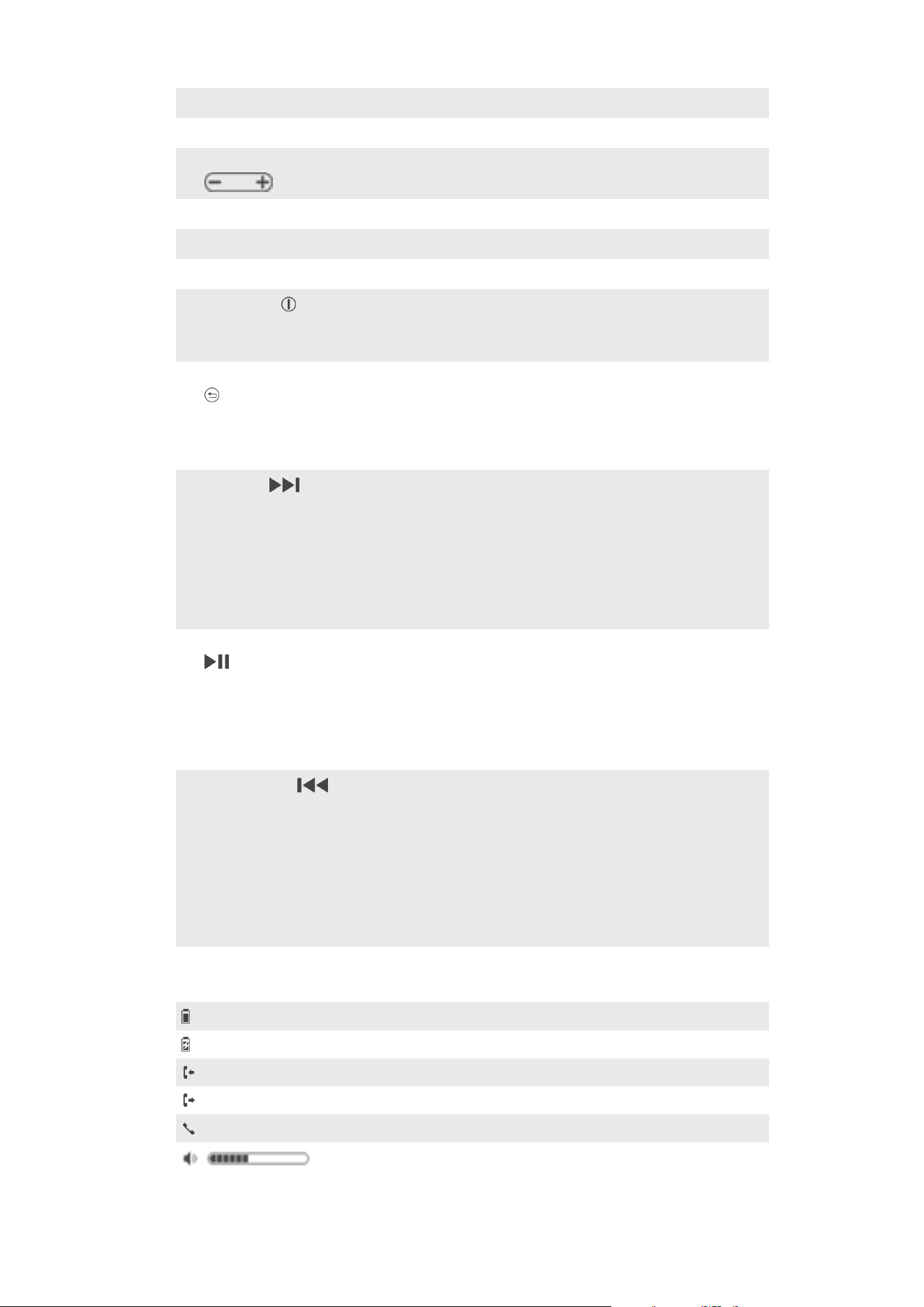
3
Microphone
4
Micro USB port Insert the cable for charging the battery.
5
Volume key Press up or down to adjust the volume.
6
Handset jack 3.5 mm input for wired headphones.
7
NFC detection area Touch other devices to this area during NFC transactions.
8
Back speaker
9
Power key Press and hold down to turn the handset on or o.
When the handset is turned o, press for 15 seconds to
reset it.
10
Back key/Menu key Press to:
• Open or close the menu.
• Go back one step.
• Switch between loudspeaker and ear speaker mode
during a call.
11
Next key Press to go:
• To the next menu item.
• To the next track.
• Up the FM frequency band in increments of 0.1 MHz.
Press and hold down to:
• Move up the frequency band to search for a radio
channel.
12
Play key/Select key Press to:
• Play or pause the current media file.
• Select menu items.
• View new event notifications.
Press and hold down to:
• Mute the microphone during a call.
13
Previous key Press to go:
• To the previous menu item.
• To the previous track.
• Down the FM frequency band in increments of 0.1
MHz.
Press and hold down to:
• Move down the frequency band to search for a
channel.
Status icon overview
Battery charge level
Battery is charging
Incoming call
Outgoing call
Ongoing call
Volume level indicator
4
This is an internet version of this publication. © Print only for private use.
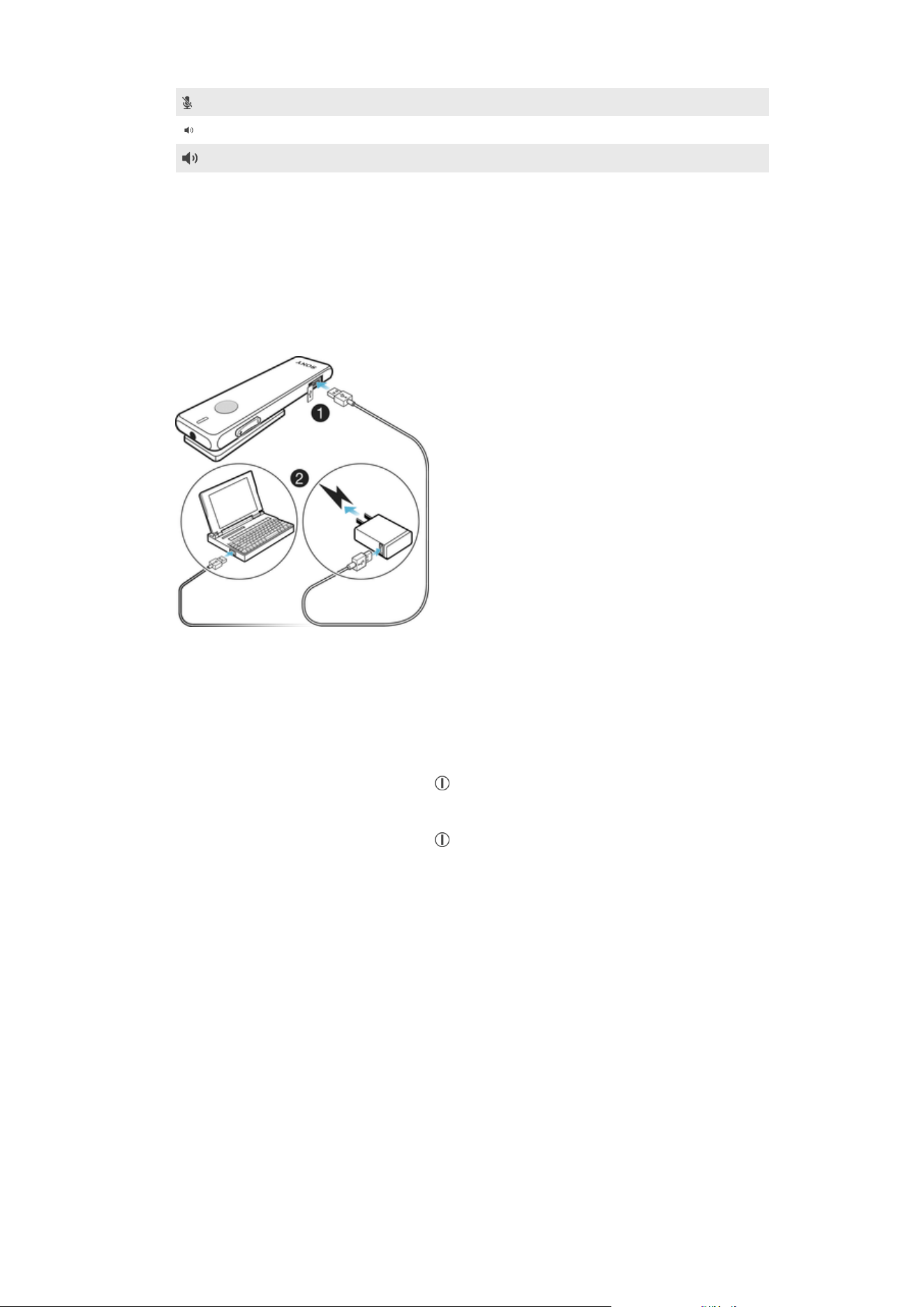
The microphone is muted
Ear speaker mode is activated
Loudspeaker mode is activated
Basics
Charging the handset
Before using the Smart Bluetooth® Handset SBH52 for the first time, you need to
charge it for approximately 2.5 hours. Sony chargers are recommended.
To charge the handset
1 Plug one end of the USB cable into the charger or into the USB port of a
computer.
2 Plug the other end of the cable into the Micro USB port of your handset.
Turning the handset on and o
To turn on the handset
• Press and hold down the power key
until the display turns on.
To turn o the handset
• Press and hold down the power key
until the display turns o.
Turning on the display
The display on your Smart Bluetooth® Handset SBH52 turns o after a short period
of time if you don't use it. This saves power and protects your personal
information.
To activate the display
• Press any key on the handset.
Adjusting the volume
To change the call or music volume
• During a call, or when listening to music, press the Volume key up or down.
Menu options
The following menu options are available on your Bluetooth® handset:
5
This is an internet version of this publication. © Print only for private use.
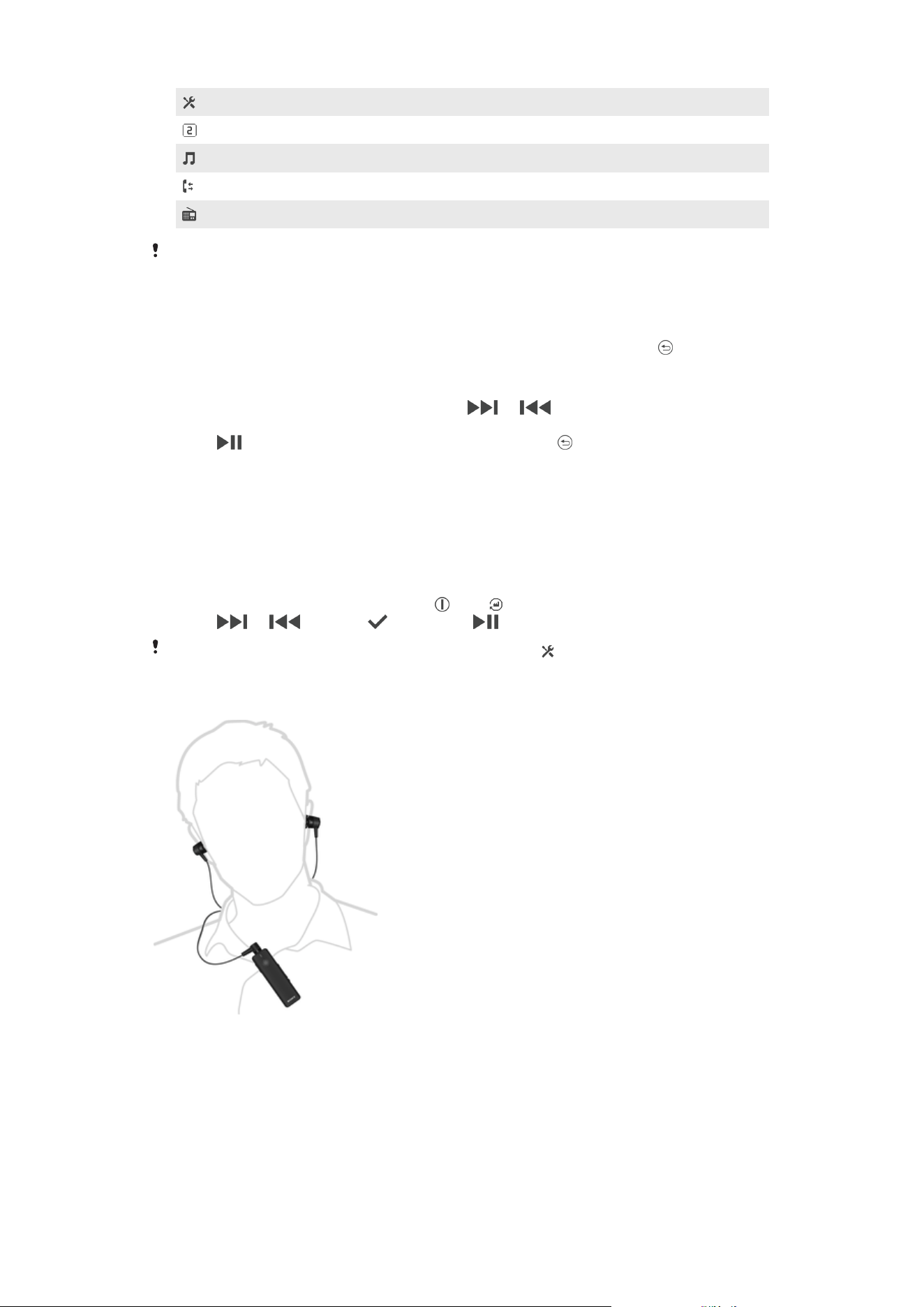
Edit settings
View new events
Play music from a compatible device
View the call log
Play the FM radio
The new events icon and the call log icon only appear when your handset is paired and
connected to an Android™ device on which the Smart Bluetooth® Handset SBH52
application is installed.
To open the menu
• Press any key to turn on the Bluetooth® handset display, then press
.
To navigate the menu
1 After you open the handset menu, press or to navigate the
dierent menu options.
2 Press
to open the selected menu option, or press to go back one step.
Resetting the handset
Reset the handset if it behaves unexpectedly. All information about paired devices
gets deleted when you reset the handset.
To reset the handset
1 Make sure that the handset is turned o.
2 Press and hold down the power key
until appears on the display.
3 Press or to select , then press .
You can also access the factory reset option by selecting
.
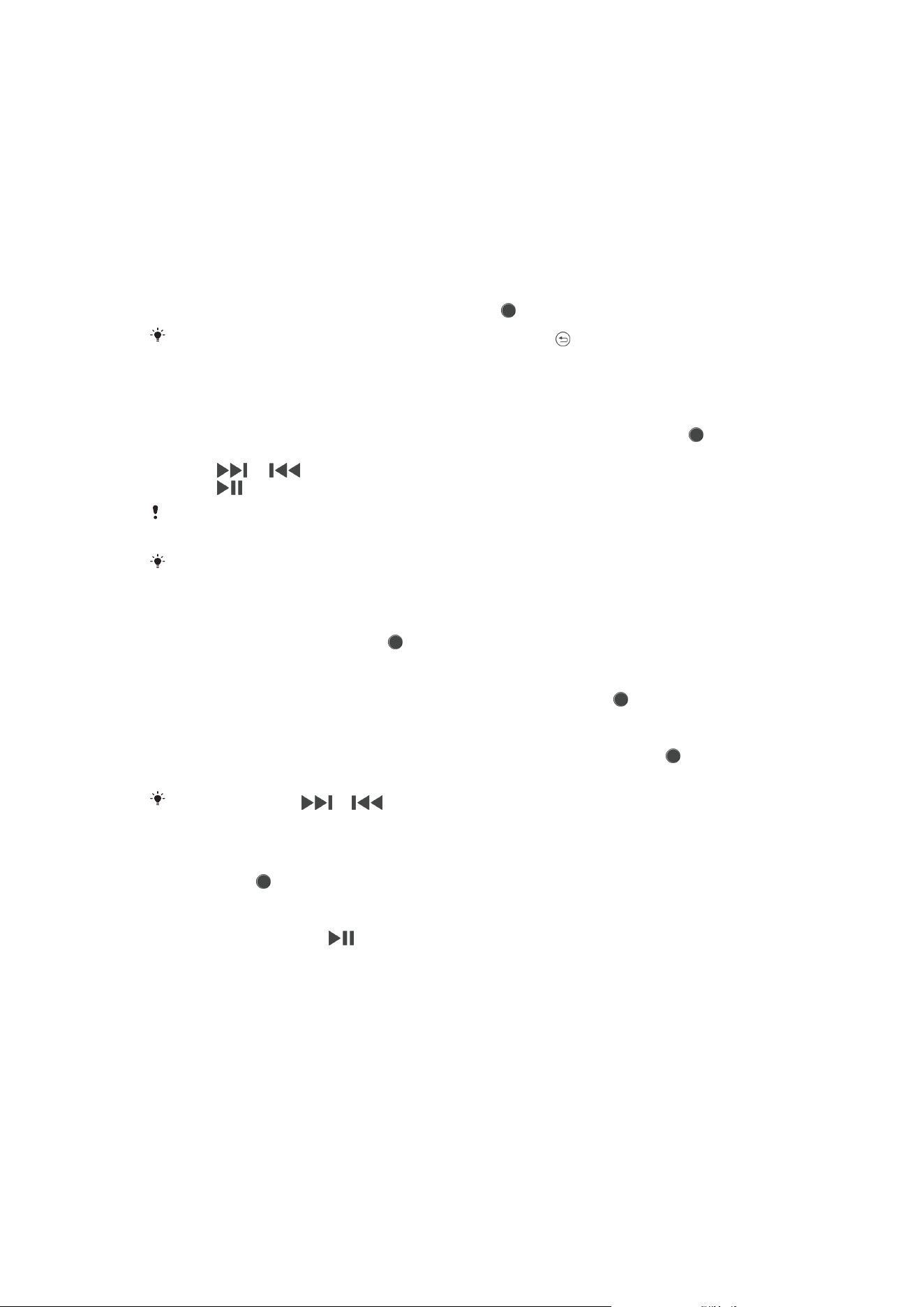
Wearing instruction
To get the best performance from the SBH52 when using it outdoors, it is
recommended that you carry your phone on the same side of your body as the
Bluetooth® unit.
6
This is an internet version of this publication. © Print only for private use.

Getting started
Preparing to use your handset with an Android™ device
Before you can start using your Bluetooth® handset with an Android™ device, you
need to do the following:
• Install the Smart Connect application on the Android™ device.
• Pair the handset with the Android™ device manually (using Bluetooth®) or
automatically (using NFC).
• Install the Smart Bluetooth® Handset SBH52 application on the Android™ device.
• Install extra applications from Google Play™ on the Android™ device to optimise
the functionality of your Bluetooth® handset.
The Smart Connect application is pre-installed on all Android devices from Sony Mobile at
purchase.
To install the Smart Connect application on an Android™ device
1 From the main application menu of your Android™ device, find and tap Play
Store to open the Google Play™ application.
2 Tap the search icon at the top right corner and enter "Smart Connect" in the
search field, then tap the search icon again.
3 Tap Smart Connect.
4 Tap Download, then tap Accept & Download.
5 Follow the instructions that appear on the screen of your Android™ device to
install the application.
You can only install the Smart Connect application on an Android™ device, for example, a
phone or a tablet.
To manually pair your handset with an Android™ device
1 Android™ device: Make sure the Bluetooth® function is turned on.
2 Turn o your handset.
3 Handset: Press and hold down the power key
until the Bluetooth® icon
appears.
4 Android™ device: Scan for Bluetooth® devices, then select Smart Bluetooth®
Handset SBH52 in the list of available devices.
5 Android™ device: Follow the pairing instructions that appear on the screen.
The handset automatically enters paring mode when it's powered on for the first time.
To manually pair your handset with a second Android™ device
1 Make sure the first Android™ device is paired properly with the handset.
2 Handset: Press and hold down the power key until the Bluetooth® icon
appears.
3 Android™ device: Turn on the Bluetooth® function and scan for Bluetooth®
devices, then select Smart Bluetooth® Handset SBH52 in the list of available
devices.
4 Android™ device: Follow the pairing instructions that appear on the screen.
To automatically pair your handset with an Android™ device
7
This is an internet version of this publication. © Print only for private use.

1 Android™ device: Make sure that the NFC function is turned on and that the
screen is active and unlocked.
2 Place the Android™ device over your Bluetooth® handset so that the NFC
detection area of each device touches the other. Your handset doesn't need
to be turned on.
3 Android™ device: Follow the pairing instructions that appear.
The device used in this illustration is for illustration purposes only and may not accurately
depict the actual device used.
To automatically pair your handset with a second Android™ device
1 Make sure the first Android™ device is paired properly with the handset.
2 Android™ device: Make sure that the NFC function is turned on and that the
screen is active and unlocked.
3 Place the Android™ device over your Bluetooth® handset so that the NFC
detection area of each device touches the other. Your handset doesn't need
to be turned on.
4 Android™ device: Follow the pairing instructions that appear.
To install the Smart Bluetooth® Handset SBH52 application
1 Make sure you have the Smart Connect application installed on your
Android™ device.
2 Pair the handset with your Android™ device.
3 Android™ device: Follow the instructions that appear on the screen to
install the Smart Bluetooth® Handset SBH52 application.
To download and install new applications for your handset
1 Android™ device: From the main application menu, find and tap Smart
Connect > SBH52 > New events.
2 Tap Search for applications, or tap an application name under MY
APPLICATIONS.
3 Follow the instructions that appear on the screen to download and install
the application that you selected.
Preparing to use your handset with a non-Android™ device
Before you can start using your handset with a non-Android™ device that supports
Bluetooth®, you need to do one of the following:
• Pair the handset with the other device manually (using Bluetooth technology).
• Pair the handset with the other device automatically (using NFC technology).
To manually pair your handset with a non-Android device
• Follow the same procedure used to manually pair the handset with a regular
Android device.
To automatically pair your handset with a non-Android device
• Follow the same procedure used to automatically pair your handset with a
regular Android device.
Using your handset
Using your handset to handle phone calls
Use your Bluetooth® handset to handle incoming calls, for example, to answer or
reject a call. The phone number of the caller is shown on the handset display. If
you are using the handset with an Android™ device, the name of the caller is also
displayed when the caller is saved as a contact on the Android™ device. When the
wired headphones are not connected to the handset, you can use the loudspeaker
to answer calls. You can also use the handset call log to make calls.
8
This is an internet version of this publication. © Print only for private use.
Improving sound quality
The Stereo Bluetooth® Handset SBH52 supports HD Voice, which improves sound
quality in voice calls. The function is available in the Smart Bluetooth® Handset
SBH52 application on your Android device. For the function to work, the operator
network must also support HD voice.
To activate the HD Voice function
• In the Smart Bluetooth® Handset SBH52 application, tap Call Handling and
mark the HD Voice checkbox.
To answer a call with the handset
• When you hear an incoming call signal, press
.
If you unplug the headphones during a call, you can press
to switch the sound to the
loudspeaker. If you plug in the headphones back in, the sound automatically switches back
to the headphones.
To make a call from the call log on the handset
1 Press any key to turn on the handset display, then press and hold down to
open the call log.
2 Press
or to select the contact or number that you want to call, then
press to make the call.
To access the call log directly from your handset, you must have the Smart Bluetooth®
Handset SBH52 application installed on the connected Android™ device.
If you want to get better sound quality during calls, try using the HD Voice function, which
is activated from the Smart Bluetooth® Handset SBH52 application.
To end a call
• During an ongoing call, press .
To reject a call
• When you hear an incoming call signal, press and hold down
.
To answer a second call
• When you hear an incoming call signal during an ongoing call, press
. The
ongoing call is put on hold.
You can also press
or to switch to another call and put the current call on hold.
To reject a second call
• When you hear an incoming call signal during an ongoing call, press and
hold down
.
To mute the microphone during a call
• Press and hold down
.
Using your handset to play music
When your handset is paired with another Bluetooth® compatible device, you can
play music from that device via your handset using either a set of headphones or
the loudspeaker. Or you can use the handset as a standalone radio when
headphones are connected. Before you start listening to music, you must select a
music source.
9
This is an internet version of this publication. © Print only for private use.

To play music from another device
1 Make sure the music player application is open on the other device.
2 Turn on your handset.
3 Press to open the menu.
4 Press or so that becomes selected.
5 To play the current track, press .
To move between tracks
• Press or .
To fast forward or rewind a music track
• Press and hold down
or to fast forward or rewind until you reach
the desired position.
To listen to the FM radio
1 Make sure that headphones are connected to your handset.
2 Turn on the handset.
3 Press
to open the menu.
4 Press or so that becomes selected.
5 Press .
To search for a radio channel
• While you are listening to the FM radio, press and hold down
or .
To change the radio frequency manually
• While you are listening to the FM radio, press
or to move up or
down by increments of 100kHz.
Using your handset with two devices simultaneously
Your Bluetooth® handset has two dierent connection modes: Multipoint mode
and Singlepoint mode. Multipoint mode helps you manage two connections at the
same time, for example, it lets you handle calls from one device and play music
from another. You must switch to Multipoint mode manually after you pair your
handset with a second device successfully. If you stop using one of the two
devices, you should switch manually to Singlepoint mode.
Your handset remembers both paired devices. You can reconnect previously paired
devices easily by switching back to Multipoint mode from Singlepoint mode. A
previously paired device can then be detected automatically.
If your handset is paired with two Android™ devices, you must select one of them
as the primary device for viewing event notifications and handling calls on the
handset.
You can only connect to a maximum of two devices in Multipoint mode. If you pair the
handset with a third device, the first paired device gets removed from the memory of the
handset.
To switch between Multipoint and Singlepoint modes
1 Make sure that your handset is connected to two Bluetooth® compatible
devices.
2 Press
to open the menu.
3 Press
or to select , then press .
4 Press or to select , then press .
5 Press
or to select an option, then press .
10
This is an internet version of this publication. © Print only for private use.

To select a device as the primary device
1 Press to open the menu.
2 Press or to select , then press .
3 Press or to select , then press .
4 Press or to highlight the icon representing the device that you want
to set as the primary device, then press .
Using your handset to view event notifications
You can receive the following kinds of notifications from a paired Android™ device
on the display of your handset:
• Text messages.
• Email.
• Calendar event reminders.
• Updates from social networking services, such as Facebook™ and Twitter™.
You must first install the relevant text message, email, calendar and social networking
applications for the handset on your Android™ device in order for the functionality
described above to work. For more detailed information, see
To download and install new
applications for your handset
.
To view event notifications on the handset
• When a notification arrives, press .
Using the Text to speech function
When notifications arrive on your Android™ device, you can choose to have the
related event information read out loud to you on the handset. For example, you
can listen to email, text messages, or calendar reminders. If the event information
contains text, this text is displayed on the handset at the same time as it's read
aloud. To use the Text to speech function, you must first turn it on using the Smart
Connect application.
The device that you have paired with your handset must support Text to speech
functionality. The Text to speech function does not support all languages.
To turn on the Text to speech function
1 From the main application menu of your Android™ device, find and tap
Smart Connect > SBH52 > Settings > Text to speech.
2 Mark the Text to speech checkbox.
To select a language for the Text to speech function
1 From the main application menu of your Android™ device, find and tap
Smart Connect > SBH52 > Settings > Text to speech.
2 Tap Language, then select an option.
Legal information
SonySBH52
Prior to use, please read the
Important information
leaflet separately provided.
This User guide is published by Sony Mobile Communications AB or its local aliated company, without any
warranty. Improvements and changes to this User guide necessitated by typographical errors, inaccuracies
of current information, or improvements to programs and/or equipment, may be made by Sony Mobile
Communications AB at any time and without notice. Such changes will, however, be incorporated into new
editions of this User guide.
All rights reserved.
©2013 Sony Mobile Communications AB.
Publication number: 1277-5545.2
11
This is an internet version of this publication. © Print only for private use.
Interoperability and compatibility among Bluetooth® devices varies. Device generally supports products
utilizing Bluetooth spec. 1.2 or higher, and Headset or Handsfree profile.
Sony is the trademark or registered trademark of Sony Corporation. Bluetooth is the trademark of the
Bluetooth (SIG) Inc. and is used under license. All other marks are the property of their respective owners.
All rights reserved.
All product and company names mentioned herein are the trademarks or registered trademarks of their
respective owners. Any rights not expressly granted herein are reserved. All other trademarks are property
of their respective owners.
Visit
www.sonymobile.com
for more information.
All illustrations are for illustration only and may not accurately depict the actual accessory.
Declaration of Conformity forSBH52
We, Sony Mobile Communications AB of
Nya Vattentornet
SE-221 88 Lund, Sweden
declare under our sole responsibility that our product
Sony type RD-0060
and in combination with our accessories, to which this declaration relates is in
conformity with the appropriate standards EN 300 328:V1.7.1, EN 301 489-7:V1.3.1,
EN 301 489-17:V2.1.1, EN 301 489-3:V1.4.1 and EN 60 950-1:
2006+A11:2009+A1:2010+A12:2011 following the provisions of, Radio Equipment
and Telecommunication Terminal Equipment directive 1999/5/EC.
Lund, June 2013
Anders Grynge
Director, Head of Global Type Approval
We fulfil the requirements of the R&TTE Directive (1999/5/EC).
FCC Statement
This device complies with Part 15 of the FCC rules. Operation is subject to the following two conditions: (1)
This device may not cause harmful interference, and (2) This device must accept any interference received,
including interference that may cause undesired operation.
Any change or modification not expressly approved by Sony may void the user's authority to operate the
equipment.
This equipment has been tested and found to comply with the limits for a Class B digital device, pursuant to
Part 15 of the FCC Rules. These limits are designed to provide reasonable protection against harmful
interference in a residential installation. This equipment generates, uses and can radiate radio frequency
energy and, if not installed and used in accordance with the instructions, may cause harmful interference to
radio communications. However, there is no guarantee that interference will not occur in a particular
installation.
If this equipment does cause harmful interference to radio or television reception, which can be determined
by turning the equipment o and on, the user is encouraged to try to correct the interference by one or
more of the following measures:
• Reorient or relocate the receiving antenna.
• Increase the separation between the equipment and receiver.
• Connect the equipment into an outlet on a circuit dierent from that to which the receiver is connected.
• Consult the dealer or an experienced radio/TV technician for help.
Industry Canada Statement
This device complies with RSS-210 of Industry Canada.
Operation is subject to the following two conditions: (1) this device may not cause interference, and (2) this
device must accept any interference, including interference that may cause undesired operation of the
device.
This Class B digital apparatus complies with Canadian ICES-003.
Cet appareil numérique de la classe B est conforme à la norme NMB-003 du Canada.
Avis d’industrie Canada
Le présent appareil est conforme aux CNR d'Industrie Canada applicables aux appareils radio exempts de
licence.
12
This is an internet version of this publication. © Print only for private use.

L'exploitation est autorisée aux deux conditions suivantes: (1) l'appareil ne doit pas produire de brouillage,
et, and (2) l'utilisateur de l'appareil doit accepter tout brouillage radioélectrique subi, même si le brouillage
est susceptible d'en compromettre le fonctionnement.
Cet appareil numérique de la classe B est conforme à la norme NMB-003 du Canada.
Les dispositifs fonctionnant dans la bande 5150-5250 MHz sont réservés uniquement pour une utilisation à
l’intérieur afin de réduire les risques de brouillage préjudiciable aux systèmes de satellites mobiles utilisant
les mêmes canaux. Le gain maximal d’antenne permis pour les dispositifs utilisant les bandes 5250-5350
MHz et 5470-5725 MHz doit se conformer à la limite de p.i.r.e. Le gain maximal d’antenne permis (pour les
dispositifs utilisant la bande 5725-5825 MHz) doit se conformer à la limite de p.i.r.e. spécifiée pour
l’exploitation point à point et non point à point, selon le cas. De plus, les utilisateurs devraient aussi être
avisés que les utilisateurs de radars de haute puissance sont désignés utilisateurs principaux (c.-à-d., qu’ils
ont la priorité) pour les bandes 5 250-5 350 MHz et 5 650-5 850 MHz et que ces radars pourraient causer du
brouillage et/ou des dommages aux dispositifs LAN-EL.
13
This is an internet version of this publication. © Print only for private use.