Need help fast?
Read your Quick Use Guide and/or
Owner s Manual first for quick tips
that make using your Philips product
more enjoyable.
If you have read your instructions
and still need assistance,
You may access our online help at
www.usasupport.philips.com
or call
1-888-PHILIPS(744-5477)
while with your product
(and Model / Serial number)
Enter below the Serial No. which is located
on the rear of the cabinet. Retain this
information for future reference.
Model No.
Serial No.
For Customer Use
Thank you for choosing Philips.
User Manual
27PT9007D
,
Return your Product Registration card today
to get the very most from your purchase.
Complete and return your Product Registration Card at once to ensure:
Proof of
Purchase
Product Safety
Notification
Additional Benefits
of Product Ownership
Returning the enclosed card guarantees
that your date of purchase will be on
file, so no additional paperwork will be
required from you to obtain warranty
service.
By registering your product, you ll
receive notification - directly from the
manufacturer - in the rare case of a
product recall or safety defect.
Registering your product guarantees that
saving offers.
you ll receive all of the privileges to which
you re entitled, including special money-
Congratulations on your purchase,
Dear PHILIPS product owner:
Thank you for your confidence in PHILIPS. You ve selected one
of the best-built, best-backed products available today. We ll do
everything in our power to keep you happy with your purchase for
many years to come.
As a member of the PHILIPS family , you re entitled to protection
by one of the most comprehensive warranties and outstanding
service networks in the industry. What s more, your purchase
guarantees you ll receive all the information and special offers
for which you qualify, plus easy access to accessories from our
convenient home shopping network.
Most importantly, you can count on our uncompromising
commitment to your total satisfaction.
All of this is our way of saying welcome - and thanks for investing in
a PHILIPS product.
P.S. To get the most from your PHILIPS purchase,
be sure to complete and return your Product
Registration Card at once.
Know these
Symbols
This bolt of lightning indicates
uninsulated material within your unit
may cause an electrical shock. For the safety
of everyone in your household, please do not
remove product covering.
The exclamation point calls attention
to features for which you should
read the enclosed literature closely to
prevent operating and maintenance problems.
WARNING: To reduce the risk of fire or
electric shock, this apparatus should not be
exposed to rain or moisture and objects filled
with liquids, such as vases, should not be
placed on this apparatus.
CAUTION: To prevent electric shock,
match wide blade of plug to wide slot, fully
insert.
ATTENTION: Pour eviter les choc
electriques, introduce la lame la plus large de
la fiche dans la bome correspondante de la
prise et pousser jusqu au fond.
Visit our World Wide Web Site at http://www.usasupport.philips.com
,
,
and welcome to the family!
,,
,,
,
,
,,
,,
,
,
,
,,
,,
,,
,,
,
2
Do not block any of the ventilation openings. Install in accordance
with the manufacturer s instructions.
Do not install near any heat sources such as radiators, heat
registers, stoves, or other apparatus (including amplifiers) that
produce heat.
Do not defeat the safety purpose of the polarized or grounding-
type plug. A polarized plug has two blades with one wider than the
other. A grounding type plug has two blades and a third grounding
prong. The wide blade or third prong are provided for your safety.
When the provided plug does not fit into your outlet, consult an
electrician for replacement of the obsolete outlet.
Protect the power cord from being walked on or pinched
particularly at plugs, convenience receptacles, and the point where
they exit from the apparatus.
Only use attachments/accessories specified by the manufacturer.
Use only with a cart, stand, tripod, bracket or table
specified by the manufacturer, or sold with the TV.
When a cart is used, use caution when moving
the cart/TV combination to avoid injury from tip-over.
Unplug this TV during lightning storms or when unused for long
periods of time.
Refer all servicing to qualified service personnel. Servicing is
required when the TV has been damaged in any way, such as
power-supply cord or plug is damaged, liquid has been spilled or
objects have fallen into the TV, the TV has been exposed to rain
or moisture, does not operate normally, or has been dropped.
This product may contain lead and mercury. Disposal of these
materials may be regulated due to environmental considerations.
For disposal or recycling information, please contact your local
authorities or the Electronic Industries Alliance: www.eiae.org
Damage Requiring Service - The TV should be serviced by qualified
service personnel when:
The power supply cord or the plug has been damaged; or
1.
Read these instructions.
2.
Keep these instructions.
3.
Heed all warnings.
4.
Follow all instructions.
5.
6.
Clean only with a dry cloth.
7.
8.
9.
10.
11.
12.
13.
14.
15.
16.
Objects have fallen, or liquid has been spilled into the TV; or
B.
C.
The TV has been exposed to rain; or
A.
D.
The TV does not appear to operate normally or exhibits a
marked change in performance; or
E.
The TV has been dropped, or the enclosure damaged.
17.
Tilt/Stability - All televisions must comply with recommended
international global safety standards for tilt and stability properties
of its cabinet design.
Do not compromise these design standards by applying excessive
pull force to the front, or top, of the cabinet, which could ultimately
overturn the product.
Also, do not endanger yourself, or children, by placing electronic
equipment/toys on the top of the cabinet. Such items could
unsuspectingly fall from the top of the set and cause product
damage and/or personal injury.
18.
Wall or Ceiling Mounting - The TV should be mounted to a
wall or ceiling only as recommended by the manufacturer.
19.
Power Lines - An outdoor antenna should be located away from
power lines.
20.
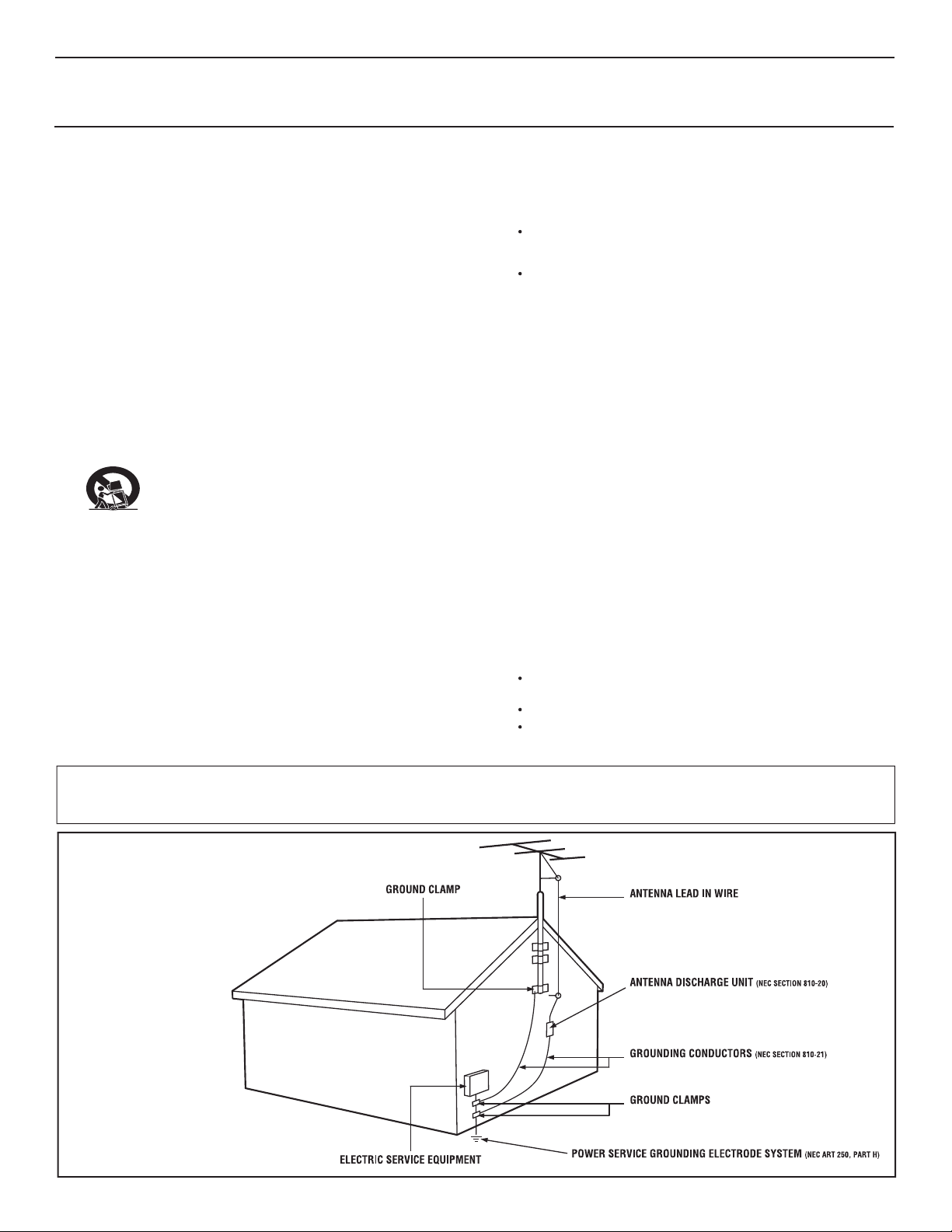
Outdoor Antenna Grounding - If an outside antenna is
connected to the receiver, be sure the antenna system is grounded so
as to provide some protection against voltage surges and built up static
charges.
Section 810 of the National Electrical Code,ANSI/NFPA No. 70-
1984, provides information with respect to proper grounding of
the mast and supporting structure, grounding of the lead-in wire to
an antenna discharge unit, size of grounding connectors, location
of antenna-discharge unit, connection to grounding electrodes, and
requirements for the grounding electrode. See Figure below.
IMPORTANT SAFETY INSTRUCTIONS
Read before operating equipment
21.
Object and Liquid Entry - Care should be taken so that
objects do not fall and liquids are not spilled into the enclosure
through openings.
a) Warning: To reduce the risk of fire or electric shock, this
apparatus should not be exposed to rain or moisture and objects
filled with liquids, such as vases, should not be placed on this
apparatus.
22.
Battery Usage CAUTION - To prevent battery leakage that
may result in bodily injury, property damage, or damage to the unit:
Install all batteries correctly, with + and - aligned as marked on
the unit.
Do not mix batteries (old and new or carbon and alkaline, etc.).
Remove batteries when the unit is not used for a long time.
Note to the CATV system installer: This reminder is provided to call the Cable TV system installer's attention to Article 820-40 of the NEC
that provides guidelines for proper grounding and, in particular, specifies that the cable ground shall be connected to the grounding system of the
building, as close to the point of cable entry as practical.
Example of Antenna Grounding
as per NEC - National Electrical Code
3
Do not use this apparatus near water.
,
CONTENTS
FEATURES
INTRODUCTION
Welcome/Registration of Your TV
Safety/Precautions
A Guide to Digital TV
Quick Tips Before You Start
GETTING STARTED
Description of Remote Control Buttons
Basic TV and Remote Control Operation
First Time You Turn On The TV
INSTALLATION MENU
Auto Channel Search
How To Use The Language Control
How To Use The Signal Type Control
Channel Edit & Name
Favorite List
Time Zone
Daylight Saving
Picture Menu Controls
Understanding Parental Controls
Activate Parental Control
Movie Ratings
Analog Closed Caption Controls
How To Use The Zoom Control
Information Banner
FEATURES MENU
OTHER FEATURES
IMPORTANT INFORMATION
Glossary
Troubleshooting Tips
Cleaning and Care
Specifications
Limited Warranty
Index
4
2
2/3
5
5
6
7
8
9
10
11
12
13
14
15
24
24
16
17
18
19
26
28
29
30
31-32
33
34
35
36
TV Ratings
Unrated and No Rating
20
Downloadable V-chip
22
How To Use The Time Menu Controls
23
Sound Menu Controls
Block Channel
20
Child Lock
21
Change Password
21
TV Switching Off
25
Update Clock
25
Digital Closed Caption Controls
27
TV Switching Off automatically turns OFF the TV after a set
amount of time that you have chosen (Pg. 25)
Channel Edit & Name Lets you skip or unskip channels from
the selection cycle with CH+/CH-. Also, Channel Edit allows you
to give a name to a certain channel (Pg. 12).
Update Clock makes the clock of the TV be consistent with
the time extracted from the current channel in Digital mode.
(Pg. 25).
Auto Off turns the TV off automatically when no signal has been
received for 15 minutes. TV Switching Off will appear during the
last minute before the TV switches off. If there is any operation
done during the last minute, the Auto Off will be cancelled and
will reinitialize the countdown to 15 minutes again.
,,
,,
Audio Volume Leveler (AVL) Control keeps the TV sound at
an even level. Differences in volume levels during commercial
breaks are reduced, making for a more consistent, comfortable
sound for your listening pleasure (Pg. 15).
Parental Control lets you block programs from viewing with
content not suitable for children or with restricted TV ratings
(Pg. 17-22).
Closed Caption allows you to read TV program dialogue or
voice conversations as onscreen text. (Pg. 26-27).
Digital Audio allows you to switch to another audio language
when it is available. This is only for programs that are shown in
more than one audio language (Pg. 15).
As an Energy Star Partner, Philips Consumer
Electronics has determined this product meets
the Energy Star guidelines for energy efficiency
Energy Star is a U.S. registered marek. Using
products with the Energy Star label can save energy. Saving
energy reduces air pollution and lowers utility bills.
Manufactured under license from Dolby
Laboratories. Dolby and the double-D symbol
are trademarks of Dolby Laboratories.
,,
,,

5
A GUIDE TO DIGITAL TV
What is Digital Television (DTV)?
Digital Television (DTV)
is a relatively new type of broadcasting that promises to transform television viewing into a whole
new experience. Digital technology is used to capture images and sound to deliver a better picture quality.
There are many levels of digital television quality. The most common are:
Standard Definition TV (SDTV)
SDTV is the basic level of quality display and resolution for both analog and digital. Transmission of SDTV can be in the
traditional (4:3) or widescreen (16:9) format.
Enhanced Definition TV (EDTV)
EDTV is better in picture quality than analog television. The formats for EDTV are 480p widescreen (16:9) or traditional
(4:3). EDTV is in the middle range quality between SDTV and HDTV.
High Definition TV (HDTV)
HDTV has the highest quality for digital broadcast formats. Its resolution is widescreen format (16:9). Combined with
digitally enhanced sound technology, HDTV sets new standards for sound and picture quality in television.
Difference between Digital and Analog?
Digital Television is a more flexible and efficient technology than the analog broadcast system. Analog broadcasts can only
provide one program at a time. Digital television can broadcast a high definition program or more than one standard definition
program at the same time. With Digital television you can receive information of programs through the Information Banner.
This information is provided by the broadcaster.
QUICK TIPS BEFORE YOU START
Accessories List:
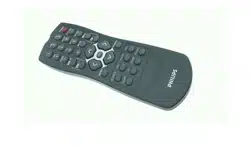
1 Remote Control
2 AA batteries
1 User Manual
1 Warranty card
Pressing the Ana/Dig button on the remote control toggles the TV between Digital and Analog Mode.
When the TV is powered on for the first time you will be prompted to auto install the TV in order to receive the channels
that are broadcasted locally.
Auto installation may take 20 to 40 minutes depending on the number of channels that are transmitted by the cable provider
or broadcaster.
When in Digital Mode an audio only (without video picture) signal is received from the broadcaster, AUDIO ONLY will
appear on the TV screen.
,,
,,
When the TV is not receiving any signal from the antenna / cable, NO SIGNAL will appear on the TV screen. This can be
caused by the antenna /cable not being plugged in correctly or when the wrong tuner mode is selected.
When no transmission is received from the broadcaster, NO PROGRAM will appear on the TV screen.
You will not be able to receive pay channels when using direct antenna/ cable connection to the television.
When the set-top box is connected to the television using coaxial cable, it is necessary to auto-program the television for
the signal channel (3 or 4) that the set-top box outputs and change the channels at the set-top box to view the program.
When the set-top box is connected to the television using AV connection, select the television input source for the
set-top box to view the program and change the channels at the set-top box to view the program.
1
2
3
4
5
6
7
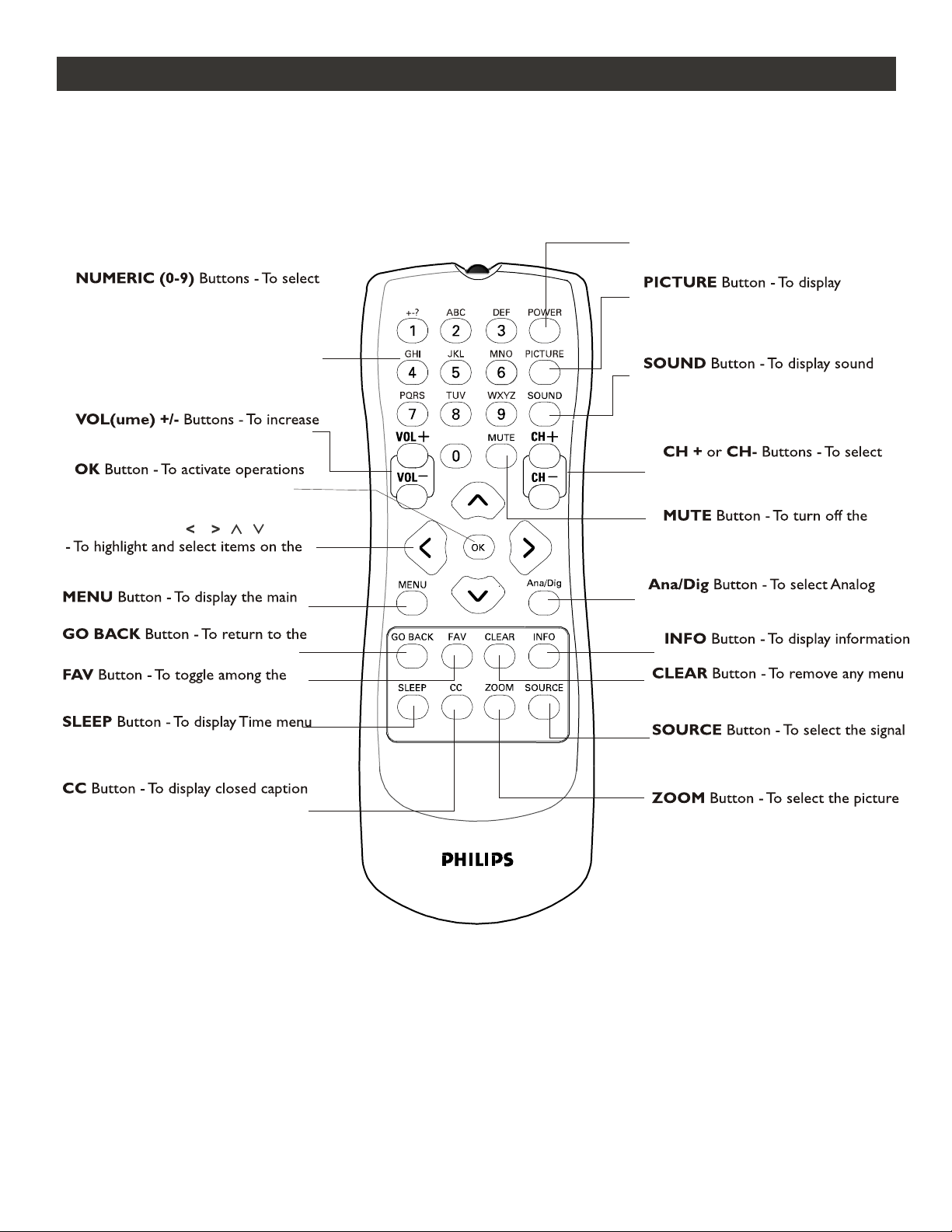
DESCRIPTION OF REMOTE CONTROL BUTTONS
TV channels or enter values in the on-
screen menu. For single channel entries,
press the numbered button for the chan-
nel you desire. The TV will pause for a
second or two before changing to the
chosen channel.
or decrease the TV sound level.
POWER Button - Press to turn the
TV On or put on Standby mode.
Picture Preset menu.
menu directly.
sound from the TV.
channels in ascending or descending
order.
Cursor Buttons ( , , , )
TV onscreen menu.
in the onscreen menu and to
activate the channel list.
or Digital mode.
menu.
previous channel or menu.
favorite channels
banner
or display from the screen and return
you to normal TV viewing.
directly
submenu directly
source (the last-viewed analog TV, the last-
viewed digital TV, AV, CVI, SIDE or SVHS)
6
format mode
H
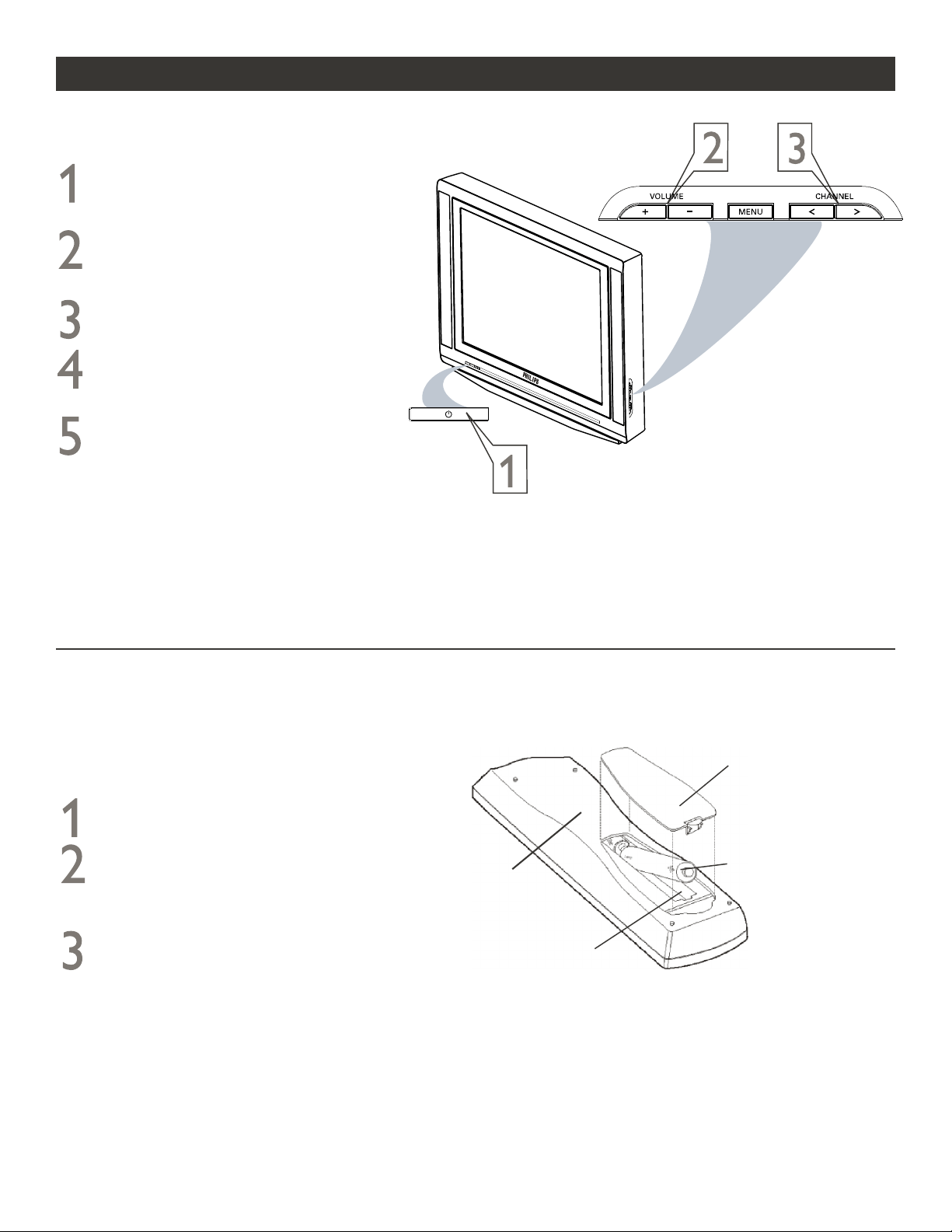
BASIC TV AND REMOTE CONTROL OPERATION
Press POWER button on the TV to turn it
on.
Press the VOLUME + to increase the
sound level and VOLUME - to lower the
sound level.
Press CHANNEL + or - to select TV
channels.
Point the remote control towards the
remote sensor window on the front of the
TV when using the remote control.
Press MENU button on the remote to
display the onscreen menu.
Remove the battery compartment lid on the
back of the remote control.
Insert two AA-sized batteries into the battery
compartment, making sure the positive + and
negative - polarity line up correctly as indicated
inside the case.
Close the battery lid.
REMOTE CONTROL
ow to load the supplied batteries into the remote
control.
2 AA-sized batteries
Battery compartment
Battery compartment lid
Back of Remote
7
T
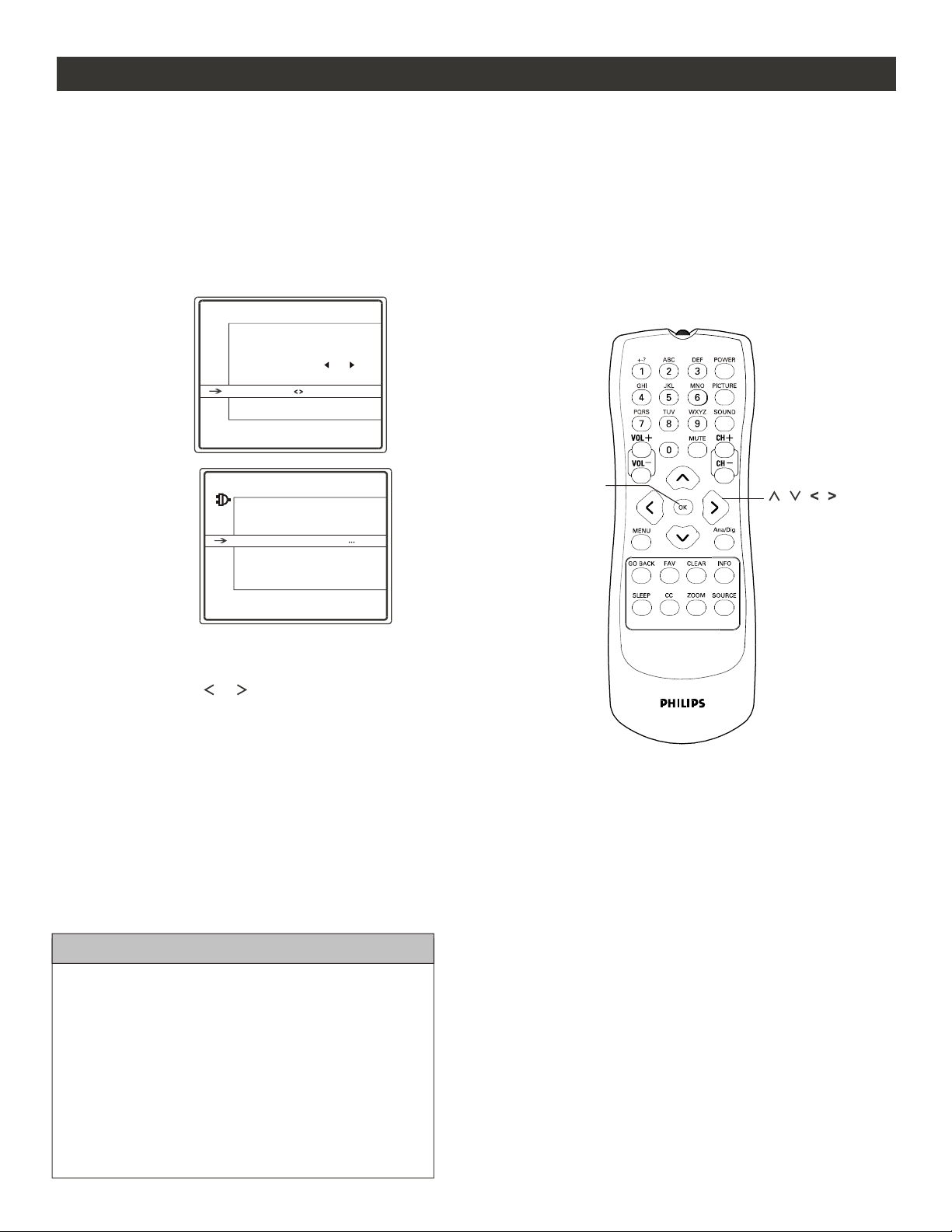
FIRST TIME YOU TURN ON THE TV
HELPFUL HINTS
ANTENNA : If you have an off-air or roof-top
antenna, select Antenna.
CABLE : If you have subscribed to cable signal from
any cable company, or you are receiving free-to-air
cable channels through your wall connection select
Cable.
The first-time installation will install both Digital
and Analog channels.
Please connect Antenna or
Cable to TV.
Select TV signal by or
arrow key and press ok
Press OK to launch the Auto
Channel Search.
Follow the instructions on this screen to start auto installation:
Press CURSOR or to select Antenna or Cable.
Press OK button to confirm and start auto installation.
8
VIRGIN MODE
Signal Type Antenna
AUTO CHANNEL SEARCH
Go Back
Signal Type Antenna
Analog Channel 69
Search percent 83
Digital Channel 4
Start Running
Installation may take about
30 min.
OK
he first time you turn on the new TV set, you will see a screen that helps you to auto install the programs. Auto
installation starts with the analogue channels followed by the digital channels. The time taken for installation
depends on the number of channels available. You can stop the first auto installation by pressing the POWER
button on the remote cont
rol. The auto installation is stopped and the TV goes into standby mode. Any channels
that have already been found are stored.
Note : This screen will only appear the first time you turn on the TV. If you wish to auto install programs later,
please follow the procedure on the next page (page 9).
ou can auto install programs on your TV. This makes it easy for you to select only the TV stations in your area
when the CHANNEL (+) or (-) buttons are pressed.
Y
AUTO CHANNEL SEARCH
Follow these steps for Digital Mode and Analog Mode.
Complete the antenna or cable signal connection
before activating AUTO CHANN
EL SEARCH.
See How to make the best connection guide for
details.
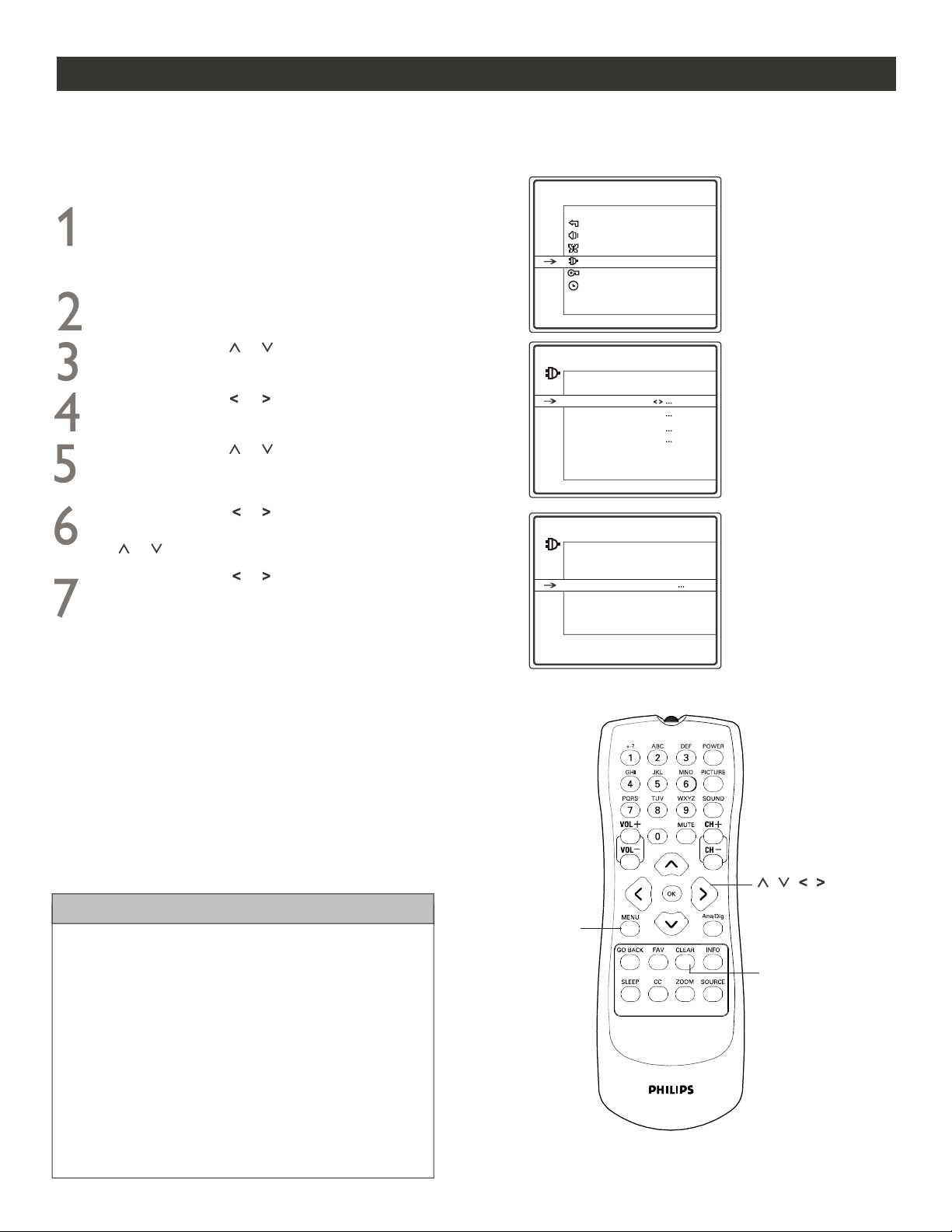
Press MENU button on the remote control to
display onscreen menu.
Press CURSOR or to scroll through the
onscreen menu until you see Setup highlighted.
Press CURSOR or to display the SETUP menu
features.
Press CURSOR or to scroll through the
setup features until you see
Auto Channel Search
highlighted.
Press CURSOR or to display the AUTO
CHANNE
L SEARCH menu features. Use CURSOR
or to highlight Start.
Press CURSOR or and auto channel search will
begin.
ter all available Analog channels have been searched,
auto installation starts searching Digital channels.
This may take some time
depending on the number of channels available. During
searching, pressing CLEAR on the remote control will
stop the process but with all already found channels
kept.
When searching completes, the CHANNEL EDIT
AND NAME menu will appear on the screen.
Auto installation starts from Analog chann
els.
Af
Search percent line just indicates
the process of
Digital channel search.
HELPFUL HINTS
When Cable is selected, channels 1 to 135 are available
in Digital Mode and channels 1 to 125 are available in
Analog Mode.
When Antenna is selected, channels 2 to 69 are
available for both Digital and Analog Modes.
When you are in Digital Mode, channel numbers will be
displayed as 1-2, or 2-35 etc.
Whether you selected either Cable or Antenna mode,
both Digital and Analog channels will be installed.
9
MAIN MENU
AUTO CHANNEL SEARCH
Exit
Sound
Picture
Setup
Parental Control
Time
SETUP
Go Back
Auto Ch. Search
Channel Edit & Name
Closed Caption
Favorite List
Language English...
Format 4:3
Go Back
Signal Type Antenna
Analog Channel 69
Search percent 83
Digital Channel 4
Start Running
Installation may take about
30 min.
MENU
CLEAR
,,
,,
HOW TO USE THE LANGUAGE CONTROL
Follow these steps for Digital Mode and Analog Mode.
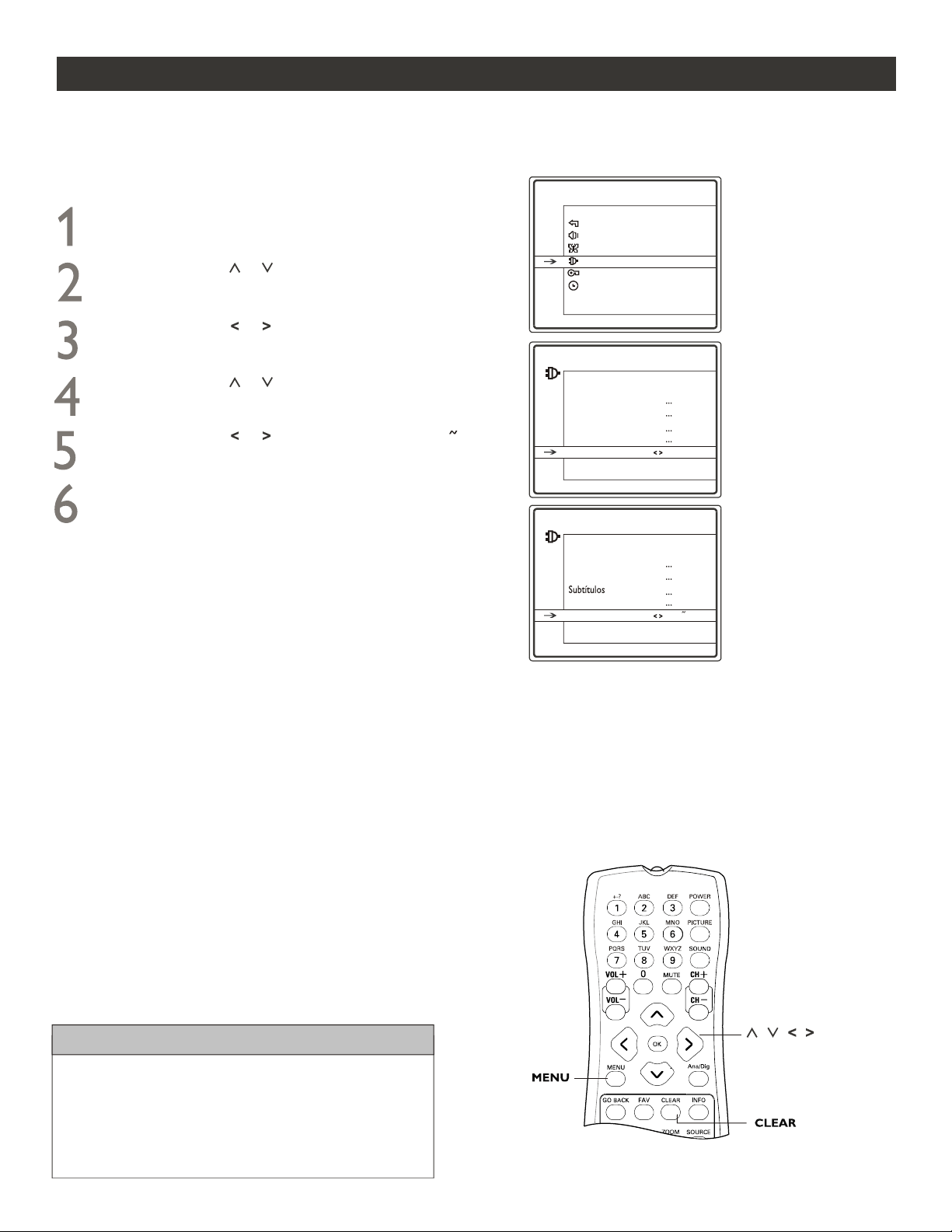
Press MENU button on the remote control to
display onscreen menu.
Press CURSOR or to scroll through the
onscreen menu until you see Setup highlighted.
Press CURSOR or to display the SETUP menu
features.
Press CURSOR or to scroll through the
setup features until you see Language highlighted.
Press CURSOR or to select English or Espanol.
H ELPFUL HINTS
The Language control only makes the TV onscreen
Menu items appear in English or Spanish text.
It does not change the other onscreen text languages
such as Closed Caption (CC).
When finished, press CLEAR button to clear the
menu from the TV screen.
10
MAIN MENU
Exit
Sound
Picture
Setup
Parental Control
Time
SETUP
Go Back
Auto Ch. Search
Channel Edit & Name
Closed Caption
Favorite List
Language English...
Format 4:3
INSTALACION
Regresar
Autoinstal.
Editar Canal y nombre
Favritos Lista
Idioma Espanol...
Formato 4:3
or Spanish speaking TV owners an onscreen language option is present. With the language control you can set the
TV s onscreen menu to be shown in English or Spanish.
F
,
HOW TO USE THE SIGNAL TYPE CONTROL
Follow these steps for Digital Mode and Analog Mode.
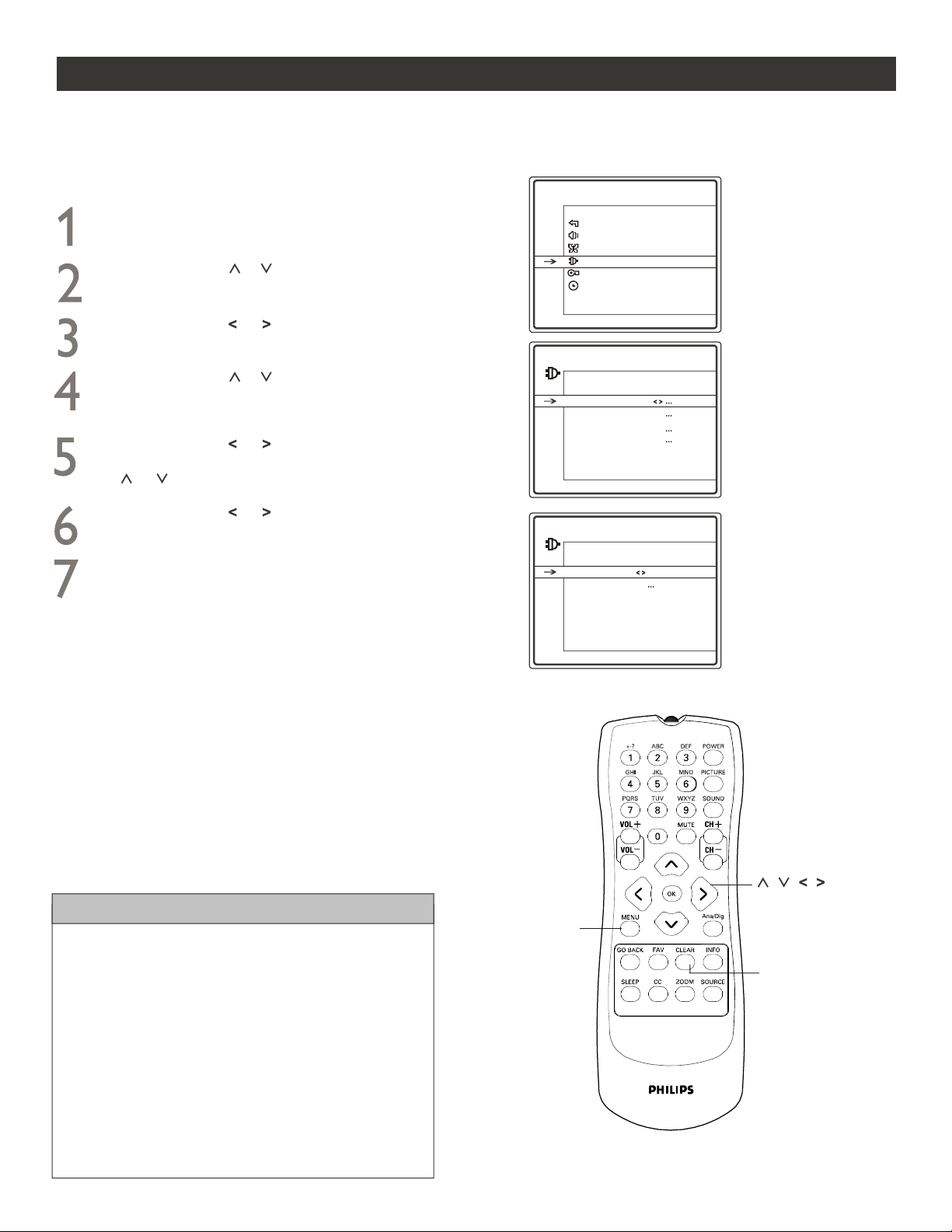
Press MENU button on the remote control to
display onscreen menu.
Press CURSOR or to scroll through the
onscreen menu until you see Setup highlighted.
Press CURSOR or to display the SETUP menu
features.
Press CURSOR or to scroll through the
setup features until you see Auto Channel Search
highlighted.
Press CURSOR or to display the AUTO
CHANNEL SEARCH menu features. Use CURSOR
or to highlight Signal Type.
Press CURSOR or to toggle between Antenna
and Cable.
he SIGNAL TYPE control lets you change the TV input signal to ANTENNA or CABLE mode. It is important
that you know which type of signal to look for (Cable or Antenna).
T
When finished, press CLEAR button to clear the
menu from the TV screen.
HELPFUL HINTS
When Cable is selected, channels 1 to 135 are available
in Digital Mode and channels 1 to 125 are available in
Analog Mode.
When Antenna is selected, channels 2 to 69 are
available for both Digital and Analog Modes.
When you are in Digital Mode, channel numbers will be
displayed as 1-2, or 1-3 etc.
Whether you selected either Cable or Antenna mode,
both Digital and Analog channels will be installed.
11
MAIN MENU
AUTO CHANNEL SEARCH
Exit
Sound
Picture
Setup
Parental Control
Time
SETUP
Go Back
Auto Ch. Search
Channel Edit & Name
Closed Caption
Favorite List
Language English...
Format 4:3
Go Back
Signal Type Antenna
Analog Channel 69
Search percent 83
Digital Channel 4
Start
MENU
CLEAR
CHANNEL EDIT & NAME
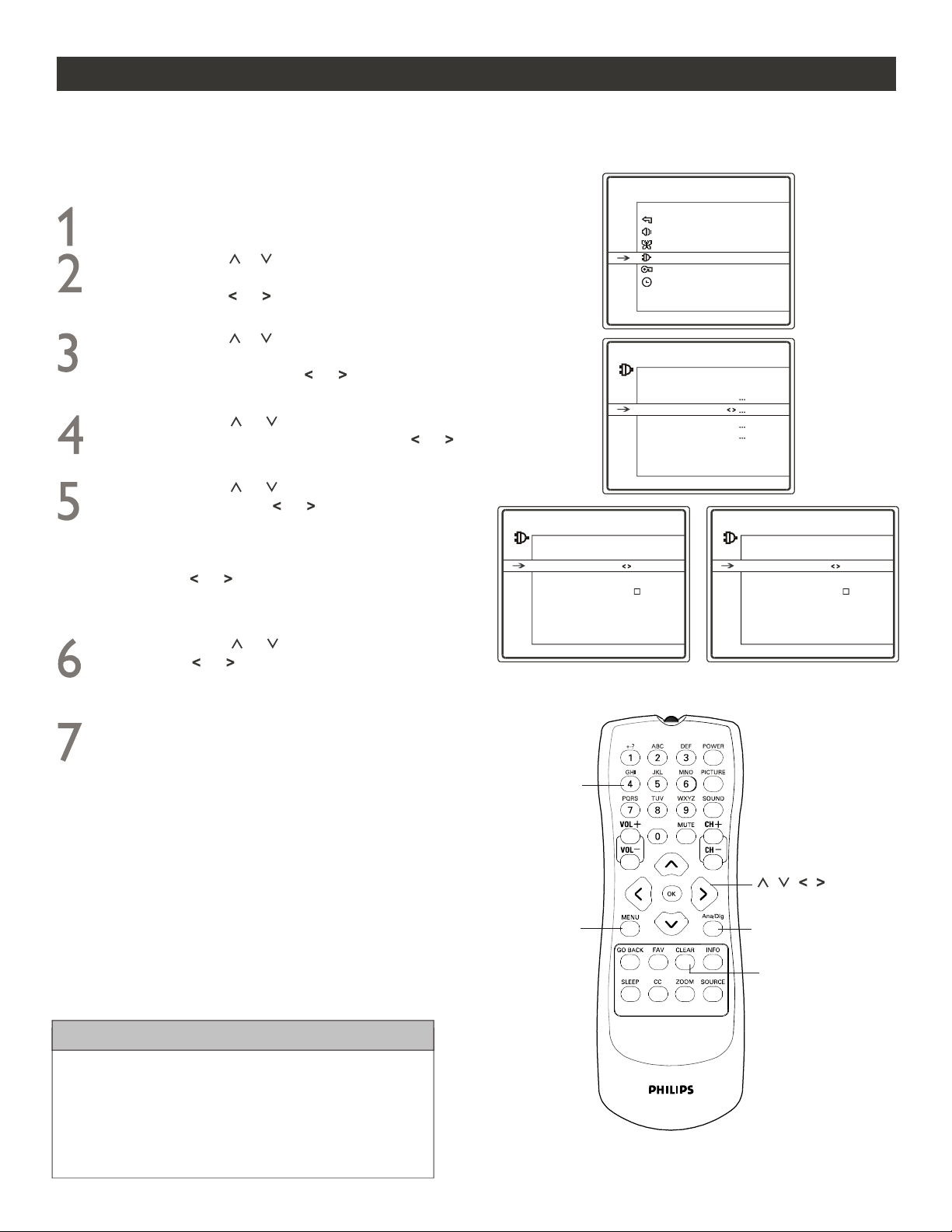
hannel Edit & Name allows you to skip or not a channel and assign a name to the channel.
C
Follow these steps for Digital Mode and Analog Mode.
Press MENU button on the remote control to
display onscreen menu.
Press CURSOR or to scroll through the
onscreen menu until you see Setup highlighted.
Press CURSOR or to display the SETUP menu
features.
Press CURSOR or to scroll through the setup
features until you see Channel Edit & Name
highlighted. Press CURSOR or to display its
features.
Press CURSOR or to highlight Channel. Use
NUMERIC buttons to enter or CURSOR or
to select a channel No..
Press CURSOR or to highlight Channel
Name. Use CURSOR or to move the cursor
left or right and press NUMERIC buttons to enter
the name. The name can have six letters at most.
If you want to clear the channel name, you can use
CURSOR or to move the cursor to each block
and press digit 1 button to see the block highlighted
red and clear the corresponding character.
Press CURSOR or to highlight Skip. Use
CURSOR or check or uncheck. If checked,
the channel will be skipped while scrolling channels
with CH+/CH-.
When finished, press CLEAR button to clear the
menu from the TV screen.
HELPFUL HINTS
It is important to auto install the TV (refer to page 9)
before you try to Edit the Channels.
Press Ana/Dig button on the remote control to toggle
between Digital and Analog Mode.
12
Digital Mode Analog Mode
MAIN MENU
Exit
Sound
Picture
Setup
Parental Control
Time
SETUP
Go Back
Auto Ch. Search
Channel Edit & Name
Closed Caption
Favorite List
Language English...
Format 4:3
CHANNEL EDIT AND NAME
Go Back
Channel 2-35
Channel Name
Skip
CHANNEL EDIT AND NAME
Go Back
Channel 2
Channel Name
Skip
NUMERIC
MENU
CLEAR
Ana/Dig
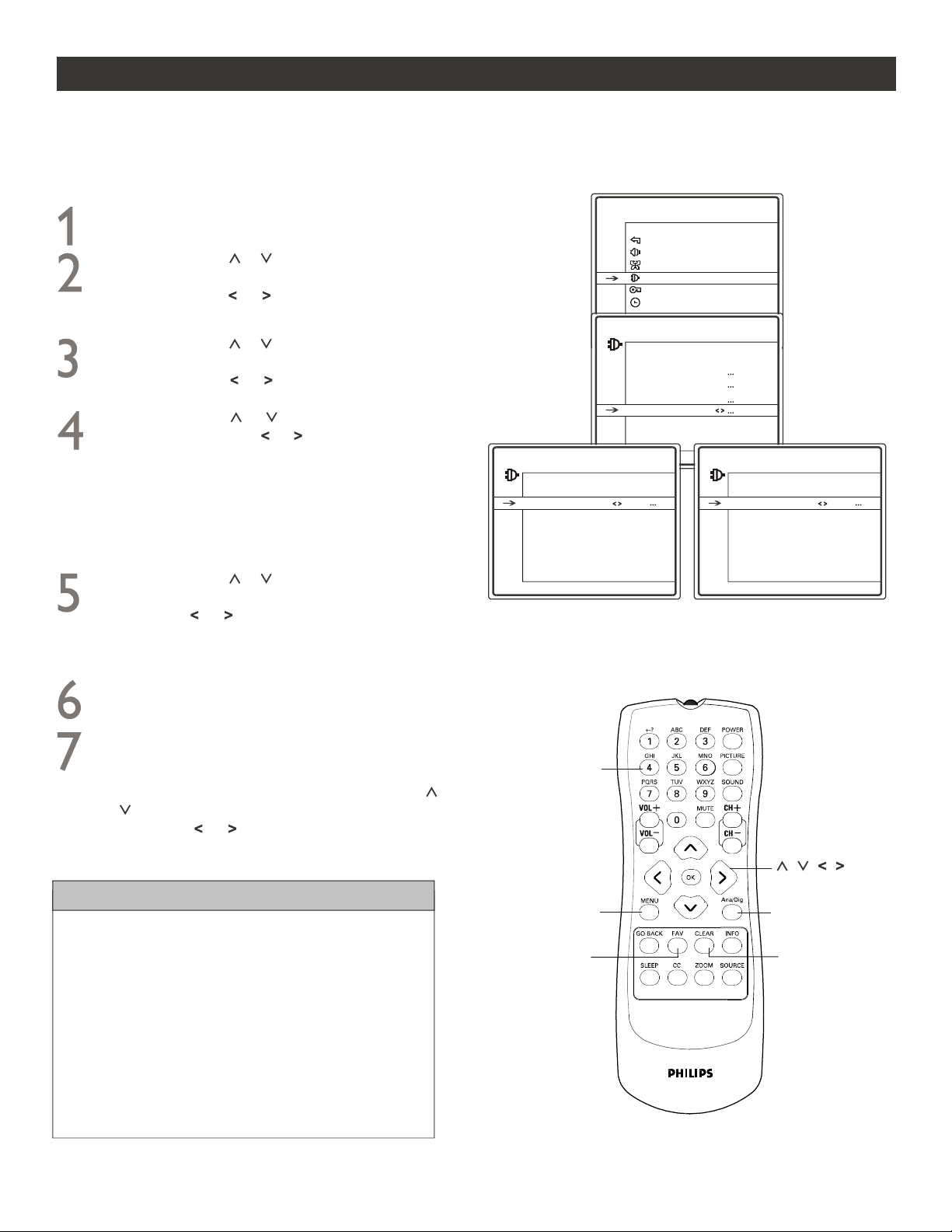
FAVORITE LIST
avorite List allows you to set up to 6 channels to your favorite in Digital mode or Analog mode each. By pressing
FAV button repeatedly, you can easily access all the favorite channels you have set.
F
Press MENU button on the remote control to
display onscreen menu.
Press CURSOR or to scroll through the
onscreen menu until you see Setup highlighted.
Press CURSOR or to display the SETUP menu
features.
Press CURSOR or to scroll through the setup
features until you see Favorite List highlighted.
Press CURSOR or to display its features.
Press CURSOR or to highlight Signal Source
and Press CURSOR or to select Analog or
Digital. When Analog is selected as the signal
source, the TV is switched to Analog mode and you
can set up to 6 analog favorite channels. When Digital
is selected as the signal source, the TV is switched to
Digital mode and you can set up to 6 digital favorite
channel.
HELPFUL HINTS
Press Ana/Dig button on the remote to switch between
Digital and Analog Mode.
When finished, press CLEAR button to clear the
menu from the TV screen.
Press FAV button repeatedly to go to the favorite
channels you have set. If you want to cancel one or
two channels from the favortie channel cycle, just go
back to FAVORITE LIST menu. Use CURSOR or
to highlight the corresponding favorites and press
CURSOR or to select .None
Follow these steps for Digital Mode and Analog Mode.
When you are in Digital mode, you can only set Digital
favorite channels. And in Digital mode, you can only
access the Digital favorite channels.
When you are in Analog mode, you can only set Analog
favorite channels. And in Analog mode, you can only
access the Analog favorite channels.
13
MAIN MENU
Exit
Sound
Picture
Setup
Parental Control
Time
SETUP
Go Back
Auto Ch. Search
Channel Edit & Name
Closed Caption
Favorite List
Language English...
Format 4:3
FAVORITE LIST
Go Back
FAV. 1 70 HGTV
FAV. 2 28 WTH
FAV. 3 75 CNN
FAV. 4 38
FAV. 5 28 NICK
FAV. 6 88 DISN
Signal Source Analog
FAVORITE LIST
Go Back
FAV. 1 13-1 NBC
FAV. 2 8-3 WTH
FAV. 3 79-4 CBS
FAV. 4 5-2
FAV. 5 17-3 WTR
FAV. 6 28-1 IND
Signal Source Digital
Press CURSOR or to highlight any FAV., and
use NUMERIC buttons to enter or press
CURSOR or to select a channel No. for each
Favorite. If the channel is named, its name will be
displayed simultaneously.
Digital Mode Analog Mode
NUMERIC
MENU
CLEAR
Ana/Dig
FAV
MENU
CLEAR
Ana/Dig
PICTURE
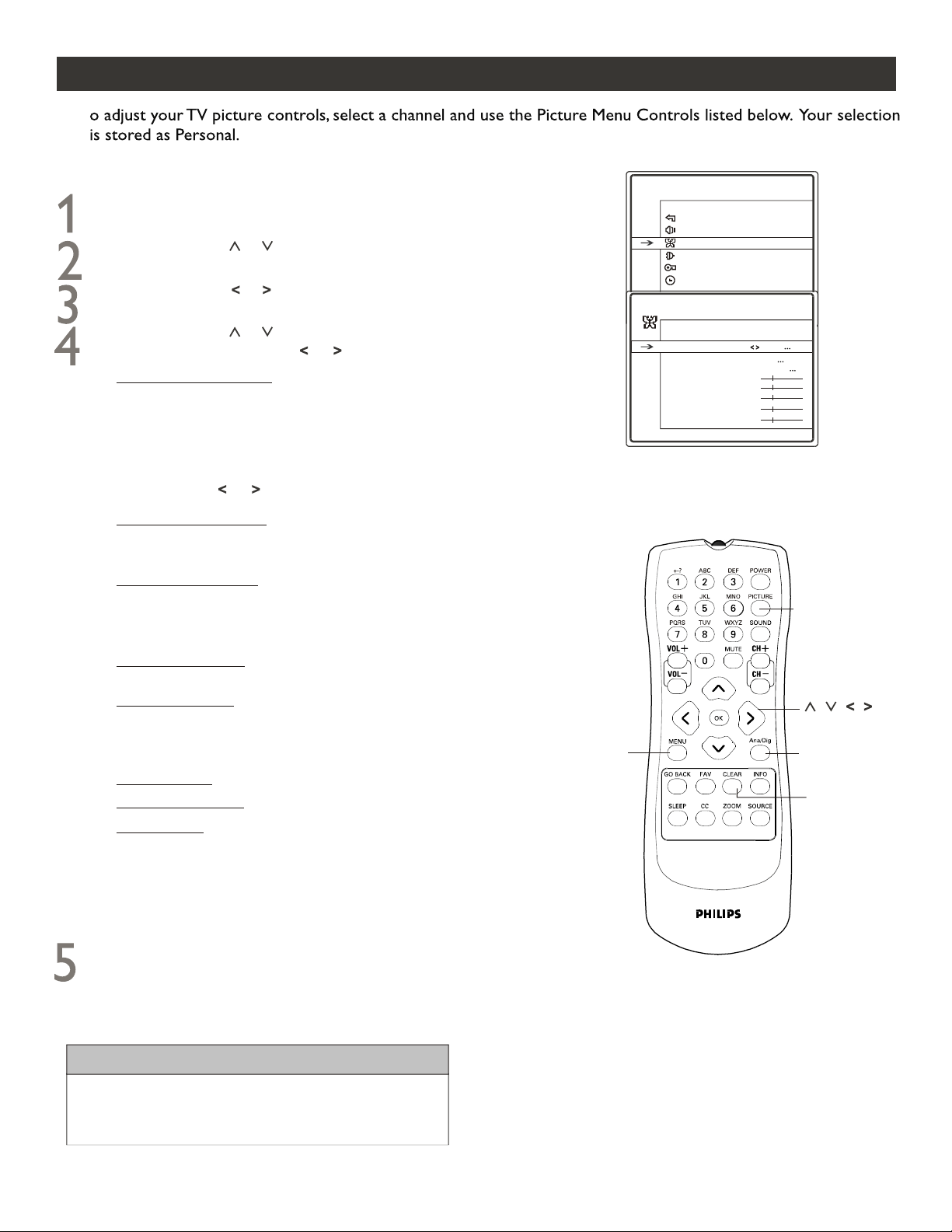
PICTURE MENU CONTROLS
T
Follow these steps for Digital Mode and Analog Mode.
Press MENU button on the remote control to
display onscreen menu.
Press CURSOR or to scroll through the
onscreen menu until you see Picture highlighted.
Press CURSOR or to display the PICTURE menu
features.
Press CURSOR or to scroll through the picture
features and use CURSOR or to adjus
t:
Color Control - to add or remove color.
Brightness Control - until the darkest parts of the
picture are as bright as you want.
Contrast Control - to increase or decrease the
difference between the black portions and white portions
of the picture. When contrast is increased, it helps to
sharpen the picture quality.
,,
,,
Sharpness Control - to improve sharpness in the picture.
Tint Control - to adjust natural skin tones in the
picture quality.
This option is adjustable only for NTSC
signals.
Picture Preset Control - to select a video setting from
Sports, Weak Signal, Multimedia, Movies or
Personal to enhance the current program source or
content.
Color Temp. Control - to select Normal, Warm ,
or Cool picture preferences. For Normal, whites will
maintain their whiteness; Cool will make the white
bluish; and
Warm will make the whites reddish.
When finished, press CLEAR button to clear the
menu from the TV screen.
HELPFUL HINTS
Press Ana/Dig button on the remote to switch between
Digital and Analog Mode.
14
MAIN MENU
Exit
Sound
Picture
Setup
Parental Control
Time
PICTURE
Go Back
Picture Preset Sports
Pict. Enhanc. High
Color Temp. Normal
Brightness
Contrast
Color
Sharpness
Tint
Pict. Enhanc. Control - to improve unstable or poor
quality video pictures.
The options include: Off, Middle
and High.
NOTE: An alternative way of adjusting Picture Preset
is by pressing PICTURE button to display a menu and
use CURSOR or to toggle among the five settings.
NOTE: The way you choose to set the Picture Menu
controls will become your personal setting.
MAIN MENU
Exit
Sound
Picture
Setup
Parental Control
Time
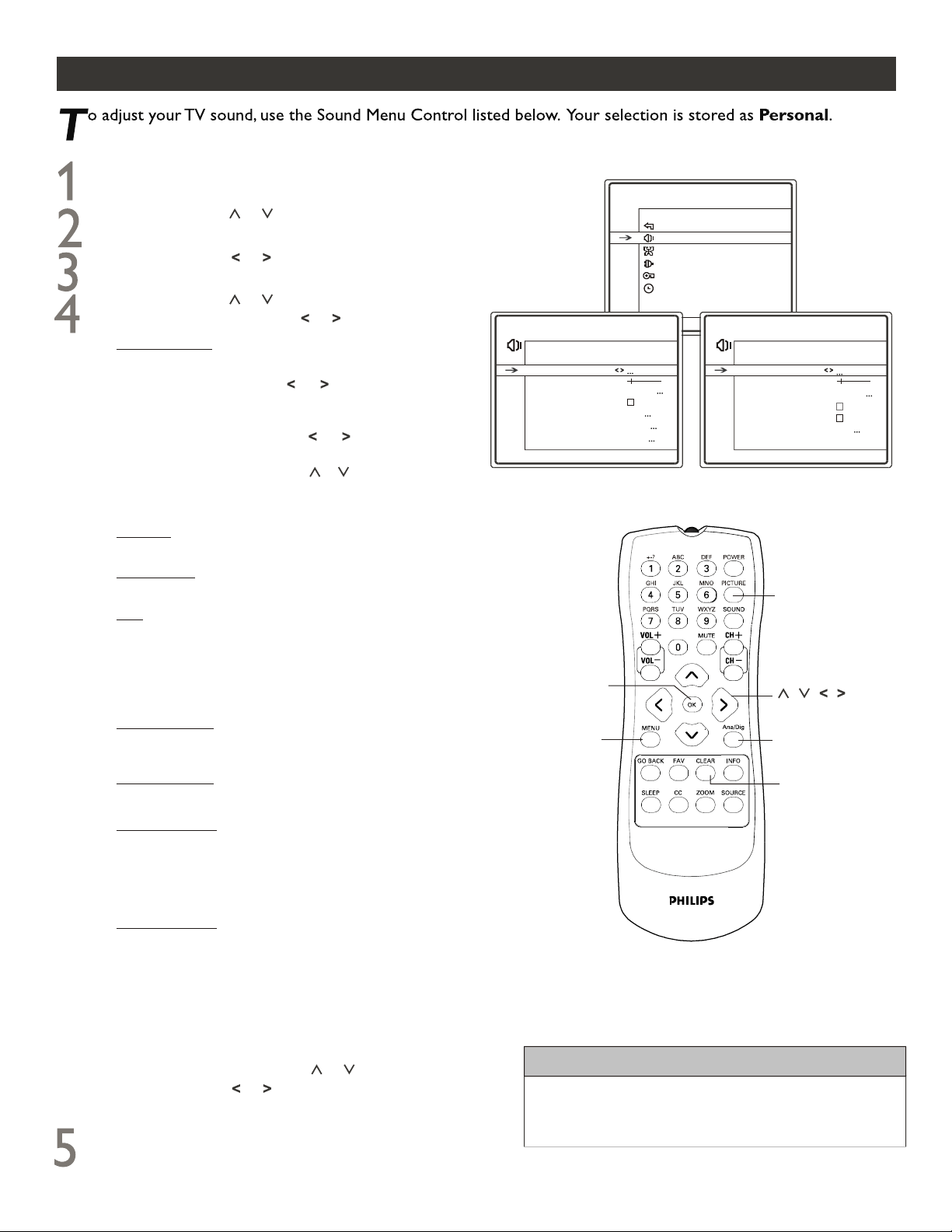
SOUND MENU CONTROLS
Digital Mode Analog Mode
Press MENU button on the remote control to display
onscreen menu.
Press CURSOR or to scroll through the onscreen
menu until you see Sound highlighted.
Press CURSOR or to display the SOUND menu
features.
Press CURSOR or to scroll through the sound
features and use CURSOR or to adjust
Tone Control- allows you to select your desired sound
mode and adjust the equalizer sliders.
Preset- use CURSOR or to select one from
Personal, Music, Theater or Voice as your
desired sound mode.
Equalizer- use CURSOR or to highlight the
range you want to adjust: 100Hz, 300Hz, 1KHz, 3KHz
or 8KHz. Press CURSOR or to adjust.
When finished, press OK to exit back to TONE
CONTROL menu.
Balance- to change the audio output from the right or
left speaker.
Sound Type- to select a sound type from the available
audio types: Mono, Stereo or Enhanced.
SAP- exists only in Analog mode. Secondary Audio
Programming is sent as a third audio channel.
When
checked, a SAP signal can be heard apart from the current
TV program sound.
Auto Vol Level- when checked, to level out the sound
being heard when sudden change in volume occurs during
commercial breaks or channel changes.
NOTE: If SAP is not present on a selected show, this line
will be greyed-out.
Audio Output- to select Fixed or Variable audio output
from the AV out jacks.
Def. Language- exists only in Digital mode. To select a
language you prefer for dialog on digital channels. If the
language is being broadcast with a program, the TV will
play it. Otherwise, the TV will play the defa
ult audio for
the program.
Cur. Language- exists only in Digital mode. To select a
language you prefer for the program you are watching
If the language is being broadcast, it becomes preferred
for all digital channels until you turn the TV off.
Otherwise, the TV will play the default audio for the
program.
When finished, press CLEAR button to clear the menu
from the TV screen.
HELPFUL HINTS
Press Ana/Dig button on the remote to switch between
Digital and Analog Mode.
15
SOUND
Go Back
Tone Control
Balance
Sound Type STEREO
Auto Vol Le vel
Audio Output Fixed
Def. Language Spanish
Cur. Language English
SOUND
Go Back
Balance
Sound Type STEREO
SAP
Auto Vol Le vel
Audio Output Fixed
PICTURE
MENU
CLEAR
Ana/Dig
OK
-
1
2
-
1
2
Tone Control
NOTE: An alternative way of adjusting Def. Language and
Cur. Language is by pressing PICTURE button to display
a menu. Then use CURSOR or to highlight either and
press CURSOR or to adjust.

UNDERSTANDING PARENTAL CONTROLS
arental control is a feature that lets the TV receive and process data sent by broadcasters or other program
providers with program content advisory.
When programmed by the viewer, a TV with Parental Control can
respond to the content advisory and block program content that may be found objectionable (such as offensive
language, violence, sexual situations, etc.).
This feature is useful for adults to prevent certain types of programs
from being viewed by children.
P
Parental control offers the following features to choose from:
Lock - Is a master switch for parental control. When checked, all blocking/censoring you have set is enabled.
Otherwise, if unchecked, all blocking is disabled.
,,
,,
Child Lock - When checked, the front panel of the TV is locked and the TV can be operated by the remote control
only.
Change Passwd. - allows you to change password anytime.
MOVIE RATINGS
G: General Audience - All ages admitted. Suitable for all
ages.
PG: Parental Guidance Suggested - Contains material
unsuitable for younger children.
PG-13: Parents Strongly Cautioned - Contains material
unsuitable for children under the age of 13.
R: Restricted - Suitable for adults above 17 years of age
only.
NC-17: - No one under the age of 17 will be admitted.
X: Adults Only - Contains one or more of the following:
very graphic violence, very graphic and explicit or indecent
sexual acts, very coarse and intensely suggestive language.
TV RATINGS
TV-Y: Designed for a very young audience, including
children ages 2-6
TV-Y7: Contains Fantasy Violence (FV). Appropriate for
children age 7 and above who have acquired the
development skills needed to distinguish between
make-believe and reality.
TV-G: Suitable for most audiences. Contains little or
no violence, no strong language, and little or no sexual
dialogue or situations.
TV-PG: Contains material unsuitable for younger
children. Could contain moderate violence (V), some
sexual situations (S), infrequent coarse language (L), or
some suggestive dialogue (D).
TV-14: Contains some material unsuitable for children
under 14 years of age. Contains one or more of the
following: intense vio
lence (V), intense sexual situations
(S), strong coarse lan
guage (L), or intensely suggestive
dialogue (D).
TV-MA: Viewed by adults and therefore may be
unsuitable for children under 17. Contains one or more
of the following: graphic violence (V), explicit sexual
situations (S), or crude indecent language(L).
HELPFUL HINTS
Neither the V-chip settings nor the password you set will
be reset by running AUTO CHANNEL SEARCH.
16
NOTE: All the above features are available in both Digital mode and Analog mode. Whether they are activated in
either Digital mode or Analog mod
e, they work in both modes.
USA V-Chip - allows you to block programs by ratings. Within its submenu, you can use a certain rating like Movie
Ratings, TV Ratings, Unrated or No Rating.
Movie Ratings - Certain blocking options exist which will block programming based on ratings patterned by
the Motion Pictu
res Association of America (MPAA).
TV Ratings - Like the Movie Ratings, programs can be blocked from viewing using standard TV ratings set by
TV broadcasters.
Unrated / No Rating - All programs with no content advisory data can be blocked if Unrated / No Rating
is set to .
Block CH - allows you to block channels.
Downloadable V-chip - Lets you lock or unlock the programs with a new, different rating region code of 0x05
defined by extension or replacement of the content advisory system in the U.S. This feature is only available in Digital
mode and when there is a .
There is a Reset option coming along, which allows you to
clear all limits you set on downloadable V-chip ratings.
regional ratings table available
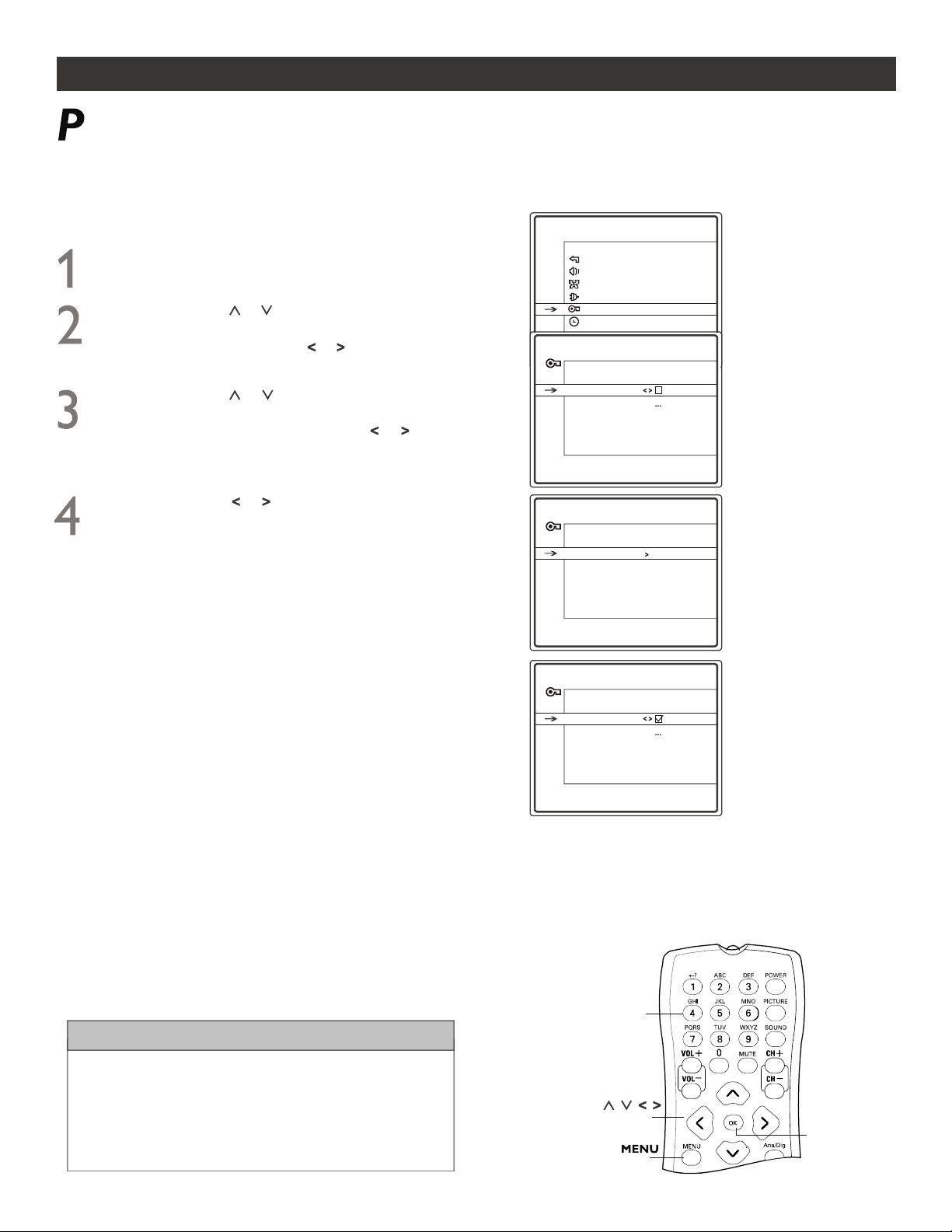
ACTIVATE PARENTAL CONTROL
Follow these steps for Digital Mode and Analog Mode.
Press MENU button on the remote control to
display onscreen menu.
Press CURSOR or to scroll through the
onscreen menu until you see Parental Control
highlighted. Press CURSOR or to display
the PARENTAL CONTROL menu.
Press CURSOR or to scroll through
PARENTAL CONTROL features until you
see Lock highlighted. Press CURSOR or
to check. Then the PASSWORD menu appears
to prompt you to create password.
Press CURSOR or followed by the
NUMERIC buttons on the remote control to
enter a four-digit password. You are required to
input twice so as to confirm the password.
HELPFUL HINTS
If you forget the password, you can reset it with key
combinations:
Put the TV to Standby mode first, then press the VOL-
button on the front panel and the Clear button on the
remote control at the same time and hold them for 5
seconds.
Lock option is a master switch for activating Parental
Control. Parental Control cannot take effect unless the
lock option is checked.
NOTE: Remember this code which you have set.
You can use this code to access the Parental Control
features in both Digital and Analog mode.
17
MAIN MENU
Exit
Sound
Picture
Setup
Parental Control
Time
PARENTAL CONTROL
Go Back
Lock
Settings
Change Passwd.
Par. Controls are not active!
PASSWORD
Go Back
Password
----
Enter Password
PARENTAL CONTROL
Go Back
Lock
Settings
Change Passwd.
Par. Controls are active!
,,
,,
Once a password is set, the Parental Control menu
and Time menu are protected. That is, every time you
want to enter Parental Control menu or Time menu,
you are prompted to enter password. If you enter a
wrong password, Incorrect Password. Try again.
will appear at the help line. Only with a correct pass-
word, you have access to these two menus.
,,
,,
OK
NUMERIC
arental control allows you to block out any channels. A channel blocked by the Parental Control cannot be viewed
until a correct password is used to unblock the channel for viewing. Parental control is defaulted without password
protection. The first time you use the TV, create a password to activate Parental Control.
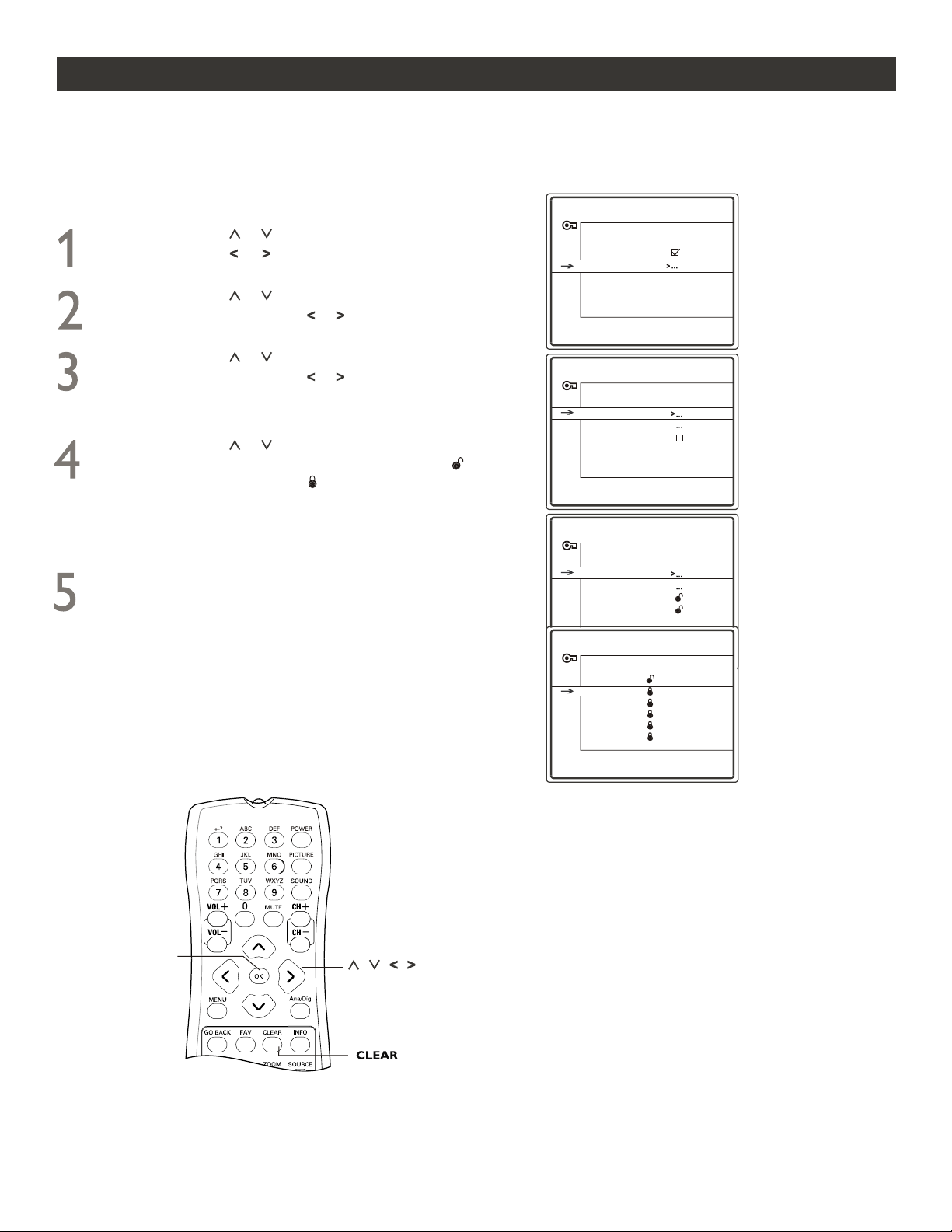
MOVIE RATINGS
he parental control feature can block programs based on the Movie Industry ratings. Once you have entered your
password, the Parental Control features are displayed on the screen.
T
Press CURSOR or to highlight any of the Movie
Ratings options. When highlighted, press OK to set
(which will allow viewing) or (which will allow
blocking).
Press CURSOR or until you see USA V-chip
highlighted. Press CURSOR or to display the
USA V-CHIP menu.
Press CURSOR or until you see Movie Ratings
highlighted. Press CURSOR or to display the
MOVIE RATING LIMIT menu. It includes the six options:
G, PG, PG-13, R, NC-17 and X.
NOTE: If Parental Control is activated while a TV program
with the rating locked in the MOVIE RATING LIMIT menu
is received for the current channel, a message will appear to
tell you to press OK to enter the password to temporarily
deactivate Parental Control.
18
When finished, press CLEAR button to clear the
menu from the TV screen.
NOTE: Locking a lower rating automatically locks all
the higher ratings.
Press CURSOR or until you see Settings highlighted.
Press CURSOR or to display the PARENTAL
CONTROL SETTINGS menu.
OK
PARENTAL CONTROL SETTINGS
Go Back
USA V-Chip
Block CH
ChildLock
USA V-CHIP
Go Back
Movie Ratings
TV Ratings
Unrated
No Rating
PARENTAL CONTROL
Go Back
Lock
Settings
Change Passwd.
Par. Controls are active!
MOVIE RATING LIMIT
Go Back
G
PG
PG-13
R
NC-17
X
Press OK to view/block movies
with this rating.
NOTE: the following menu illustrations are given for Analog mode only.
Follow these steps for Digital Mode and Analog Mode.
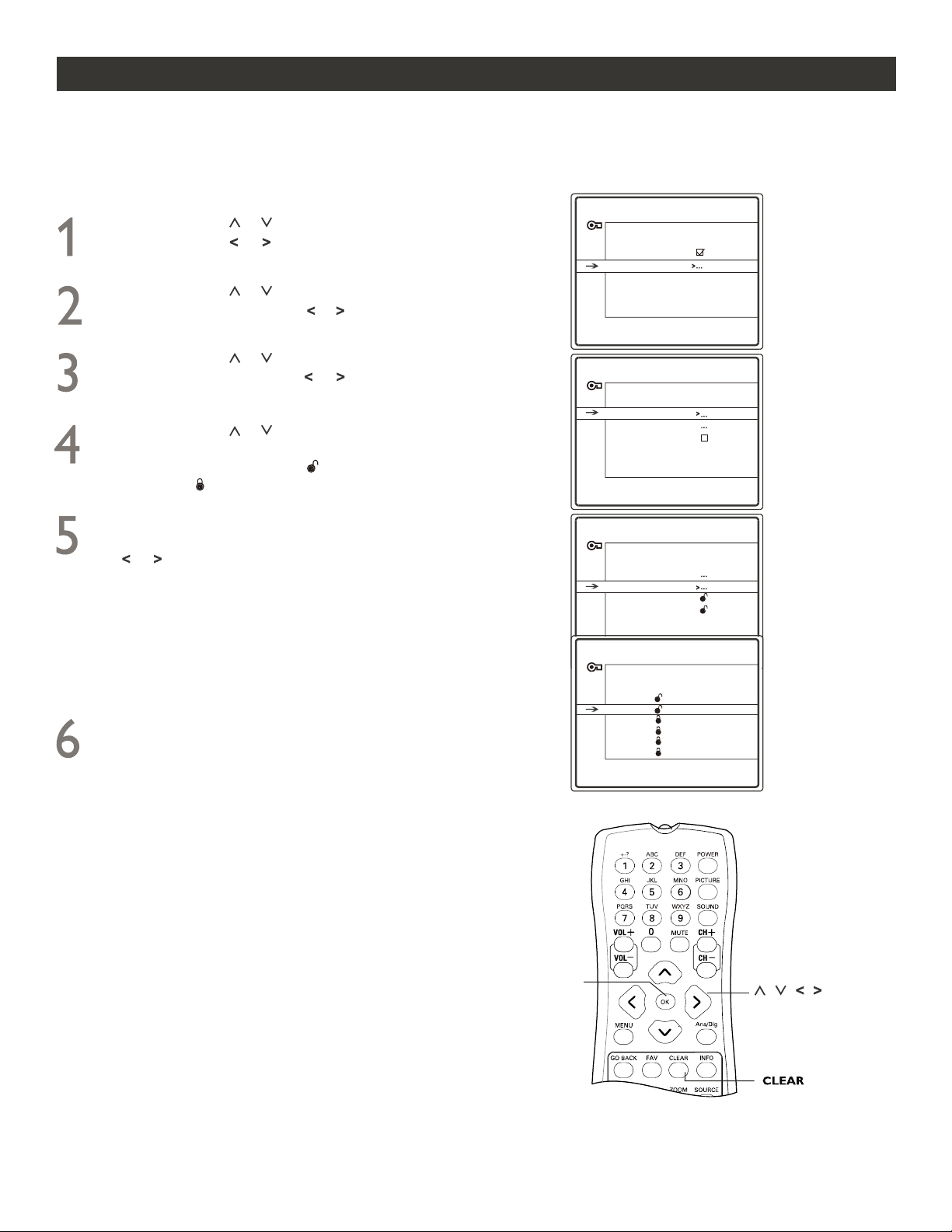
TV RATINGS
he parental control feature can block programs based on the TV Industry ratings. Once you have entered your
password, the Parental Control features are displayed on the screen.
T
Follow these steps for Digital Mode and Analog Mode.
Press CURSOR or until you see USA V-Chip
highlighted. Press CURSOR or to display the USA
V-CHIP menu.
NOTE: If Parental Control is activated while a TV program
with the rating loc
ked in the TV RATING LIMIT menu is
received for the current channel, a message will appear to
tell you to press OK to enter the password to temporarily
deactivate Parental Control.
When finished, press CLEAR button to clear the menu
from the TV screen.
Press CURSOR or to highlight any rating option
( TV-Y, TV-Y7, TV-G, TV-PG, TV-14 or TV-MA). When
highlighted, press OK to set (which will allow
viewing) or (which will allow blocking).
The TV-Y7, TV-PG, TV-14 and TV-MA each includes
different content themes: D, L, S, V or FV. Press CURSOR
or to select one and press OK to set V (which
will allow viewing) or B (which will allow blocking).
Press CURSOR or until you see TV Ratings
highlighted. Press CURSOR or to display the TV
RATING LIMIT menu.
NOTE: Locking a lower rating automatically locks all the
higher ratings. Locking a content of a given lower rating
automatically locks all the higher ratings for the same
content. For a given r
ating, so long as one content is
unlocked, this rating is viewable and only the locked
sub-rating is not viewable.
19
Press CURSOR or until you see Settings highlighted.
Press CURSOR or to display the PARENTAL
CONTROL SETTINGS menu.
OK
PARENTAL CONTROL SETTINGS
Go Back
USA V-Chip
Block CH
ChildLock
PARENTAL CONTROL
Go Back
Lock
Settings
Change Passwd.
Par. Controls are active!
USA V-CHIP
Go Back
Movie Ratings
TV Ratings
Unrated
No Rating
TV RATING LIMIT
Go Back
TV-Y
TV-Y7
TV-G
TV-PG
TV-14
TV-MA
Status
D L
S
V FV
B B B B
B B B B
B B B
V
Press OK to view/block prog.
with this rating.
NOTE: the following menu illustrations are given for Analog mode only.
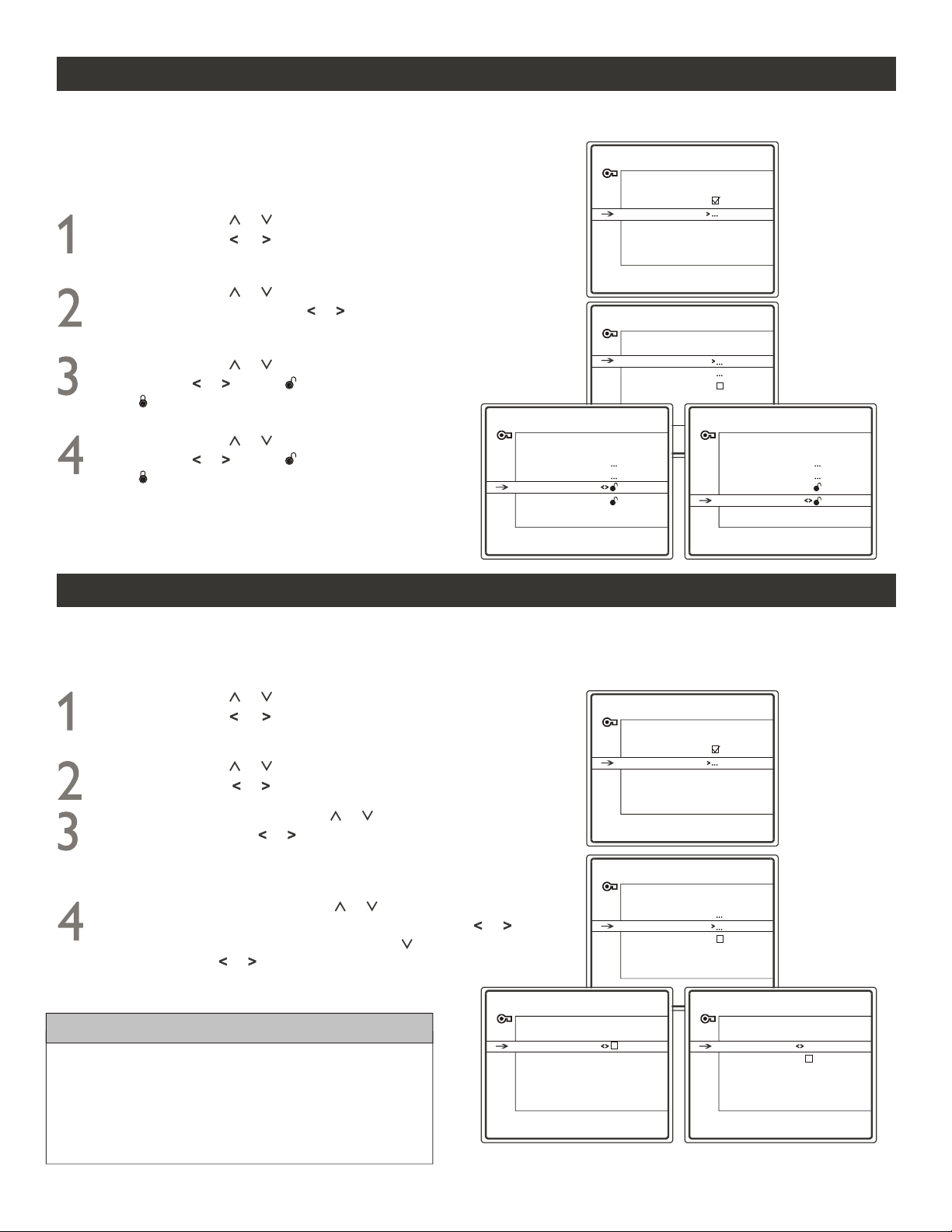
PARENTAL CONTROL SETTINGS
Go Back
USA V-Chip
Block CH
ChildLock
BLOCK CHANNEL
20
arental Control allows you to block channels. In digital mode you can block all channels while in analog mode you
can block any channels you select. Once you have entered your password, the Parental Control features are
displayed on the screen.
P
In digital mode, press CURSOR or to highlight Block all
and press CURSOR or to check or uncheck. Once
checked, Lock appears on the screen and all digital channels
are blocked..
BLOCK CH
Go Back
Block all
BLOCK CH
Go Back
Select CH 2
Lock
Digital Mode Analog Mode
PARENTAL CONTROL
Go Back
Lock
Settings
Change Passwd.
Par. Controls are active!
Press CURSOR or until you see Settings highlighted.
Press CURSOR or to display the PARENTAL CONTROL
SETTINGS menu.
Press CURSOR or until you see Block CH highlighted.
Press CURSOR or to display BLOCK CH menu.
,,
,,
In analog mode, press CURSOR or to highlight Select CH
and press NUMERIC buttons to enter or CURSOR or to
select a channel No.. Then press CURSOR to select Lock and
use CURSOR or to check or uncheck. Once checked, Lock
appears on the screen.
,,
,,
HELPFUL HINTS
Only when Parental Control is activated, that is, the Lock
option in PARENTAL CONTROL menu is checked, Block
Ch feature can take effect. In digital mode, if the Lock
option is unchecked, Block all can not be unchecked or
checked.
UNRATED AND NO RATING
he parental control feature can block programs with no content advisory data. Once you have entered your
password, the Parental Control features are displayed on the screen.
T
Press CURSOR or to highlight Unrated. Press
CURSOR or to set (which will allow viewing)
or (which will allow blocking).
Press CURSOR or to highlight No Rating. Press
CURSOR or to set (which will allow viewing)
or (which will allow blocking).
PARENTAL CONTROL SETTINGS
Go Back
USA V-Chip
Block CH
ChildLock
PARENTAL CONTROL
Go Back
Lock
Settings
Change Passwd.
Par. Controls are active!
USA V-CHIP
Go Back
Movie Ratings
TV Ratings
Unrated
No Rating
USA V-CHIP
Go Back
Movie Ratings
TV Ratings
Unrated
No Rating
Press CURSOR or until you see Settings highlighted.
Press CURSOR or to display the PARENTAL
CONTROL SETTINGS menu.
Press CURSOR or until you see USA V-Chip
highlighted. Press CURSOR or to display USA
V-CHIP menu.
Follow these steps for Digital Mode and Analog Mode.
NOTE: the following menu illustrations are given for Analog mode only.
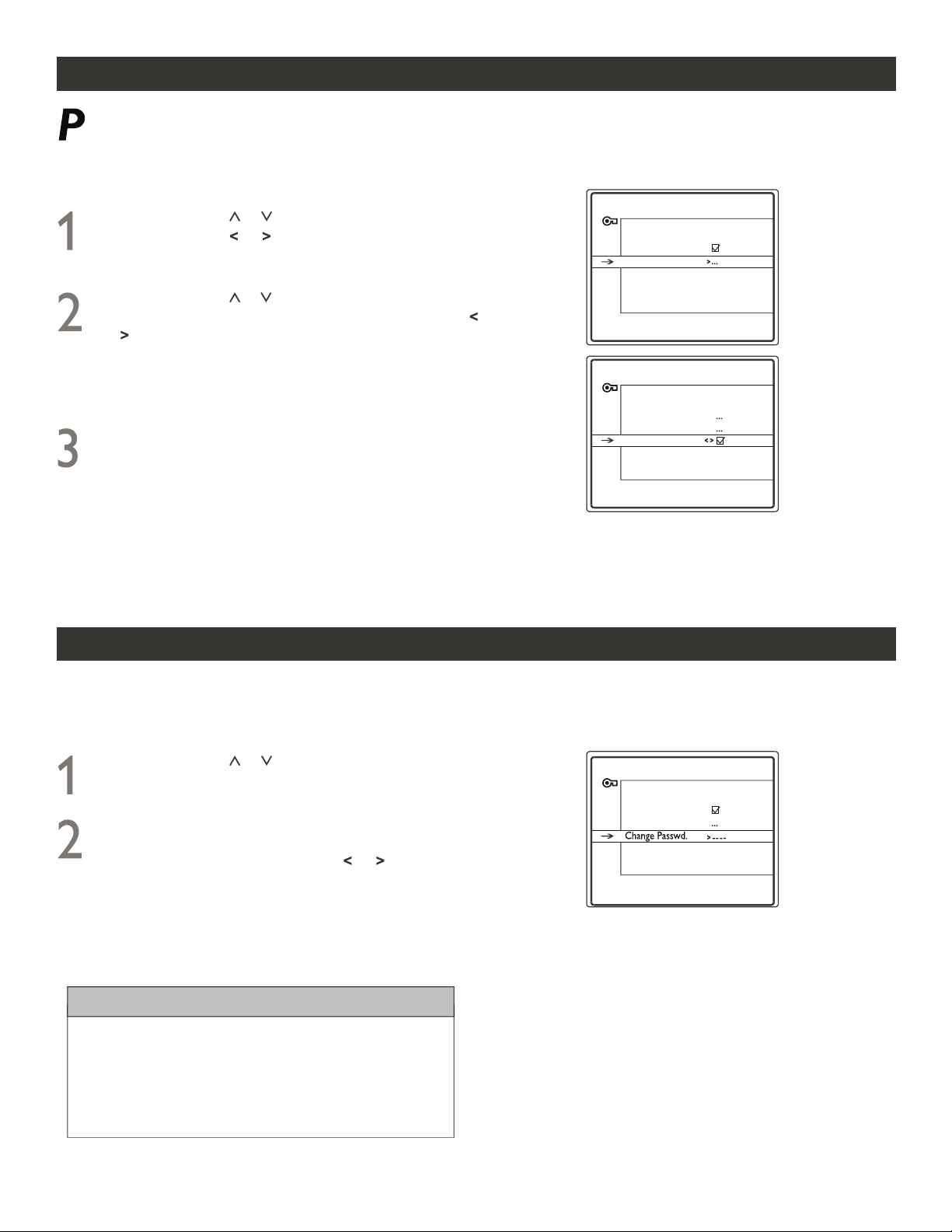
CHILD LOCK
arental control includes a Child Lock feature. This option allows you to enable or disable the buttons on the
front panel of TV. When the buttons on the front panel are disabled, you can operate the TV with the remote
control only. Once you have entered your password, the Parental Control features are displayed on the screen.
CHANGE PASSWORD
Press CURSOR or to highlight ChildLock. If you want
to lock the buttons on the front panel, use CURSOR or
to check the box. Then the message Front Panel
Blocked! Press any key to remove this message.
will appear when any button on the front panel is pressed.
And you can operate the TV with the remote control only.
,,
,,
When finished, press CLEAR button to clear the
menu from the TV screen.
PARENTAL CONTROL SETTINGS
Go Back
USA V-Chip
Block CH
ChildLock
PARENTAL CONTROL
Go Back
Lock
Settings
Change Passwd.
Par. Controls are active!
Press CURSOR or until you see Settings highlighted.
Press CURSOR or to display the PARENTAL
CONTROL SETTINGS menu.
ou can change password at any time. Once you have entered your password, the Parental Control features are
displayed on the screen.
Y
PARENTAL CONTROL
Go Back
Lock
Settings
Enter New Password
Press CURSOR or until you see Change Passwd.
Highlighted.
Press NUMERIC buttons to enter a new password. You
have to enter the new password twice so that it can be
confirmed. You can use CURSOR or to clear what
you entered and re-enter.
NOTE: Remember this code which you have set.
You can use this code to access the Parental Control
features in both Digital and Analog mode.
HELPFUL HINTS
If you forget the password, you can reset it with key
combinations:
Put the TV to Standby mode first, then press the VOL-
button on the front panel and the Clear button on the
remote control at the same time and hold them for 5
seconds.
21
NOTE: the following menu illustrations are given for Analog mode only.
DOWNLOADABLE V-CHIP
22
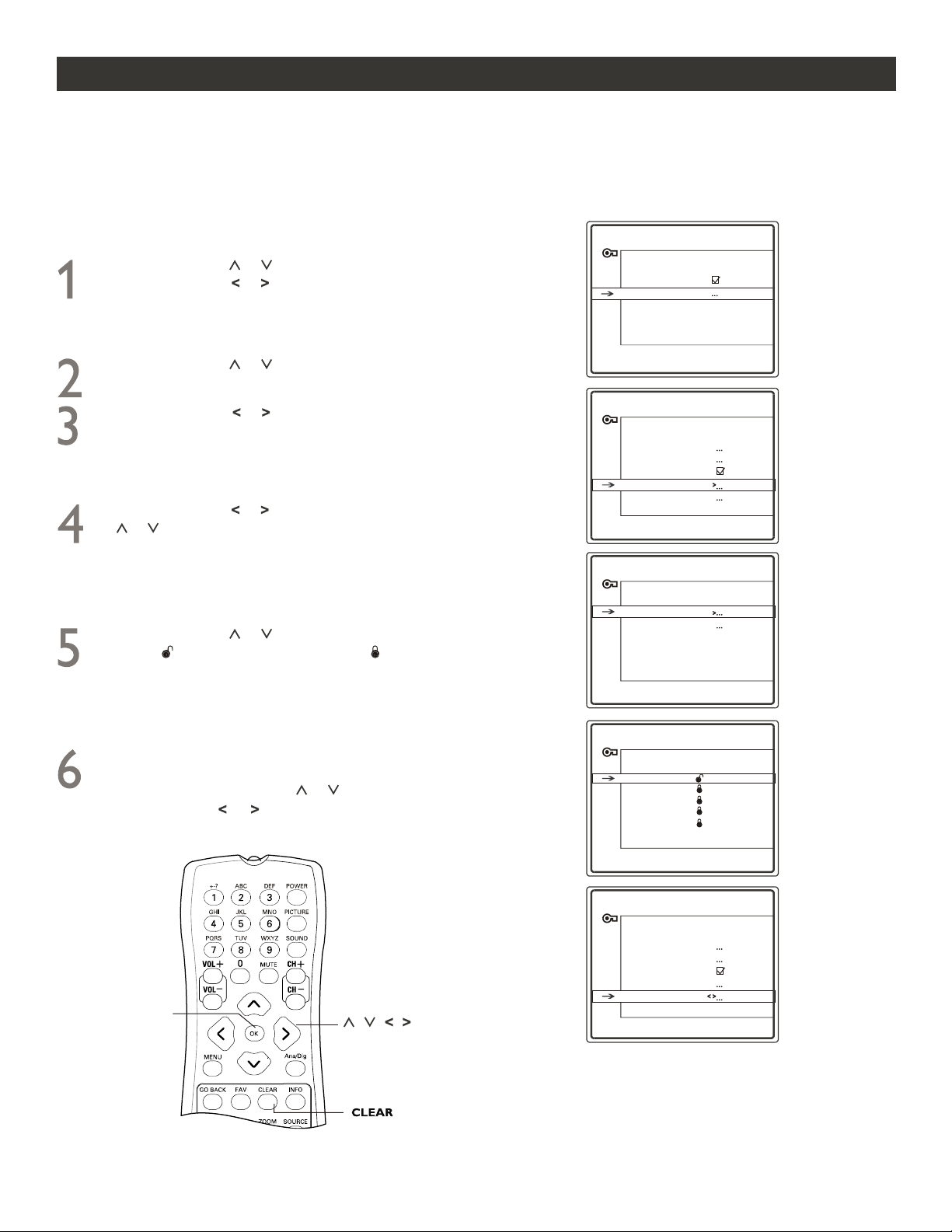
Press CURSOR or to highlight Moon region. Every
time only one downloadable
V--chip name will be displayed.
NOTE: If the ratings are graduated, locking a lower rating
automatically locks all the higher ratings.
PARENTAL CONTROL SETTINGS
Go Back
USA V-Chip
Block CH
ChildLock
Moon region
Reset
PARENTAL CONTROL
Go Back
Lock
Settings
Change Passwd.
Par. Controls are active!
Press CURSOR or until you see Settings highlighted.
Press CURSOR or to
display the PARENTAL CONTROL
SETTINGS submenu. You can see there is a new item below
ChildLock, whose name is ex
tracted from the current signal
stream.
MOON REGION
Go Back
Humor Level
Intelligence
Page 1 of 1
HUMOR LEVEL
Go Back
DH
MH
H
VH
EH
Page 1 of 1
Press OK to view/block prog.
DH.
Press CURSOR or to display MOON REGION menu,
which lists all items this kind of downlo
adable V-chip contains.
The amount and each corresponding name are dependent on
the signal received. Every page can display 8 items at most. If
there are more than 8 items, they will be di
splayed multi-paged.
Press CURSOR or to highlight one rating and press OK
to set (which will allow viewing) or (which will allow
blocking).
PARENTAL CONTROL SETTINGS
Go Back
USA V-Chip
Block CH
ChildLock
Moon region
Reset
If you want to clear limits you set on the downloadable V-chip
ratings, just go to the PARENTAL CONTROL SETTINGS
menu and press CURSOR or to highlight Reset
. Then
use CURSOR or to clear all limits.
Press OK to set limits for
Humor Level.
Press OK to set limits for
Moon region.
his TV supports downloadable V-chip which allows you to block programs with a new, different rating region code
of 0x05. This feature is ONLY available in Digital mode and if the stream contains the regional
ratings table.
T
If you are watching a digital signal with a , you can
follow the procedures below. Once you
have entered your password,
the Parental Control features are displayed on the screen.
regional ratings table
OK
Press CURSOR or to select a page and press CURSOR
or to highlight one item, i.e. Humor Level. Press OK to enter
its submenu and see all the ratings it contains. The amount of
ratings and their names are dependent on the signal stream
received. Every page can display 8 ratings a
t most. If the item
contains more than 8 ratings, they will be displayed multi-paged.
MAIN MENU
Exit
Sound
Picture
Setup
Parental Control
Time
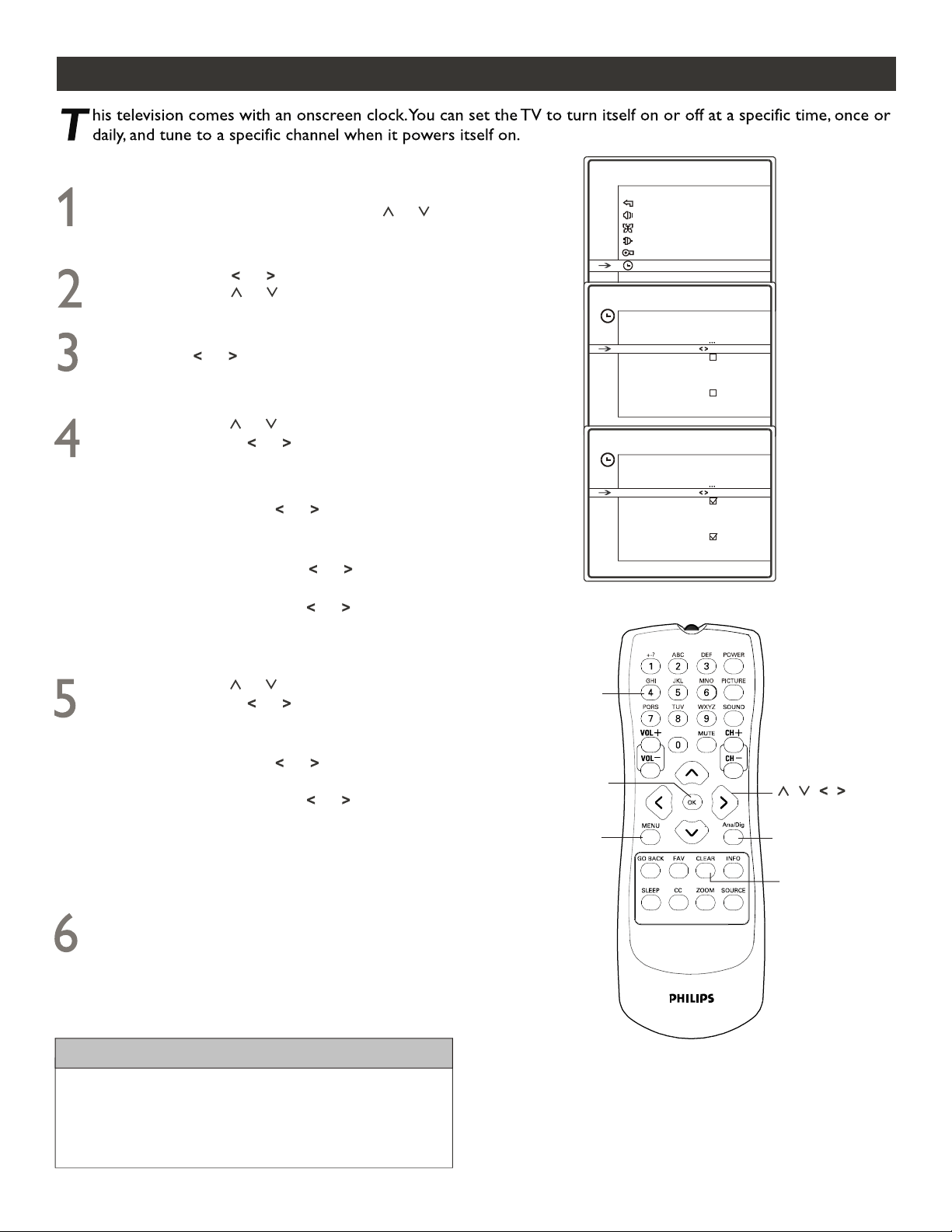
HOW TO USE THE TIME MENU CONTROLS
Follow these steps for Digital Mode and Analog Mode.
Press MENU button on the remote control to
display onscreen menu. Press CURSOR or
to scroll through the onscreen menu until you see
Time highlighted.
Press CURSOR or to display the TIME menu.
Press CURSOR or to scroll through the time
features until you see Time highlighted.
Press NUMERIC buttons to enter a time or press
CURSOR or to select a time. Press OK to
toggle between AM and PM. Once a specific time is set,
you can set Wake-Up Timer and Turn-Off Timer.
Press CURSOR or to highlight Wake-Up Timer
and use CURSOR or to check. When checked,
its relative options can be set:
Wake-Up Time - Use the NUMERIC buttons to enter
a time or use CURSOR or to select a time. Press
OK to toggle between AM and PM.
When finished, press CLEAR button to clear the menu
from the TV screen.
HELPFUL HINTS
23
Press Ana/Dig button on the remote to switch between
Digital and Analog Mode.
If there is a loss of power, the time set for Time will be
lost and must be re-entered.
NOTE: TV Switching Off will appear during the last
minute before the TV switches off.
,,
,,
Wake-Up Ch - Use the NUMERIC buttons to enter a
channel No. or use CURSOR or to select a channel
No..
Recurrence - Use CURSOR or to select Once or
Daily.
Press CURSOR or to highlight Turn-Off Timer
and use CURSOR or to check. When checked,
its relative options can be set:
Wake-Up Timer can turn the TV on according as set above.
Turn-Off Time - Use the NUMERIC buttons to enter
a time or use CURSOR or to select a time. Press
OK to toggle between AM and PM.
Recurrence - Use CURSOR or to select Once or
Daily.
Turn-Off Timer can turn the TV off according as set above.
TIME
Go Back
TV Switching Off
Time Zone
Time
:
----
Wake-Up Timer
Wake-Up Time
:
----
Wake-Up Ch
Recurrence Once
Turn-Off Timer
Turn-Off Time
:
----
Recurrence Once
TIME
Go Back
TV Switching Off
Time Zone
Time
:
0853am
Wake-Up Timer
Wake-Up Time
08
:
00am
Wake-Up Ch 05
Recurrence Once
Turn-Off Timer
Turn-Off Time 10
:
30am
Recurrence Once
NUMERIC
MENU
CLEAR
Ana/Dig
OK
MAIN MENU
Exit
Sound
Picture
Setup
Parental Control
Time
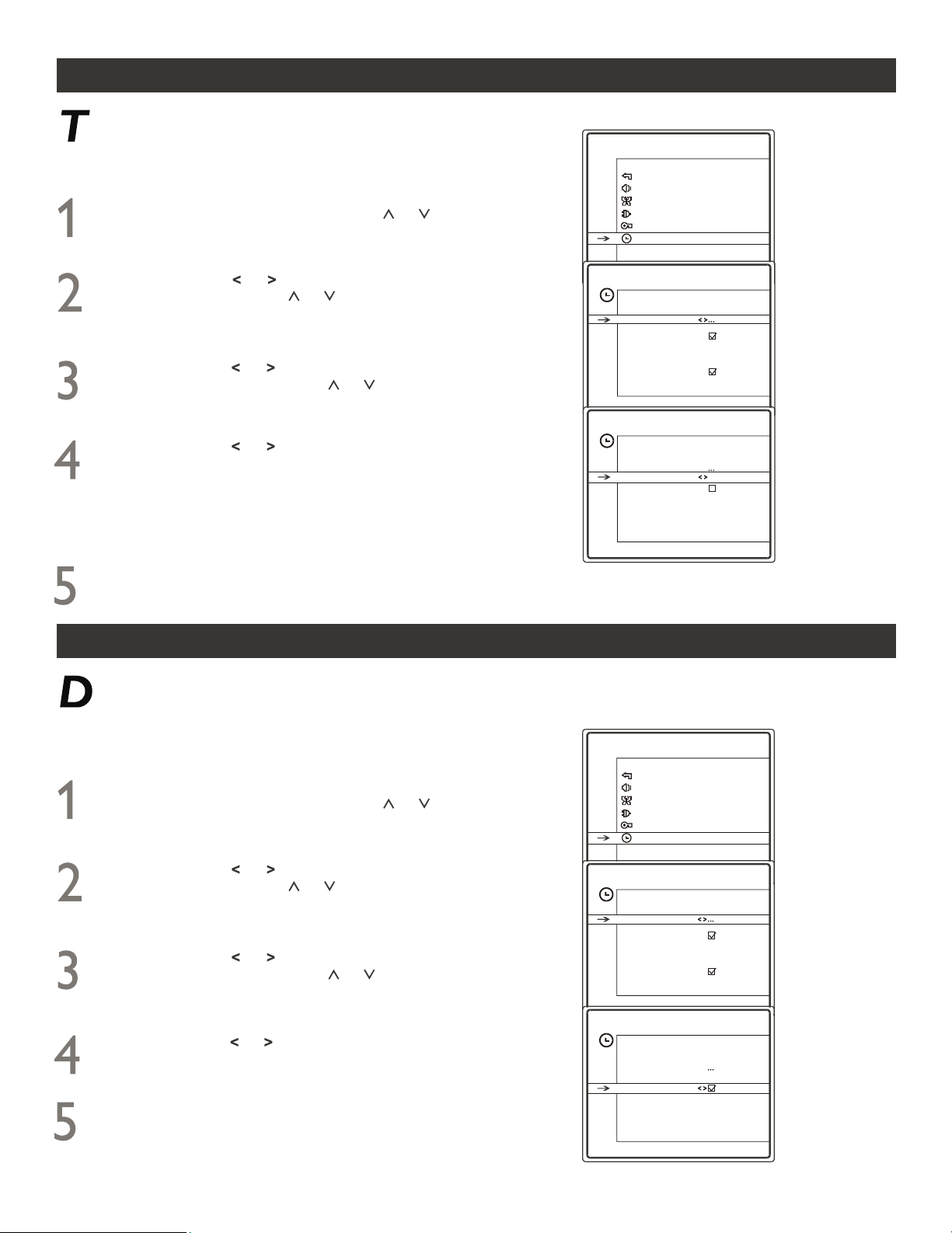
TIME ZONE
his feature allows you to select the time zone you are in. However, this feature can work only after you set a time
(refer to the previous p
age).
Follow these steps for Digital Mode and Analog Mode.
Press MENU button on the remote control to
display onscreen menu. Press CURSOR or to
scroll through the onscr
een menu until you see
Time highlighted.
Press CURSOR or to display the TIME menu
features. Press CURSOR or t
o scroll through
the time features until you see Time Zone
highlighted.
Press CURSOR or repeatedly to select the Time
Zone you
are in. Choices include Central, Eastern,
Atlantic
, Hawaii, Alaska, Pacific and Mountain.
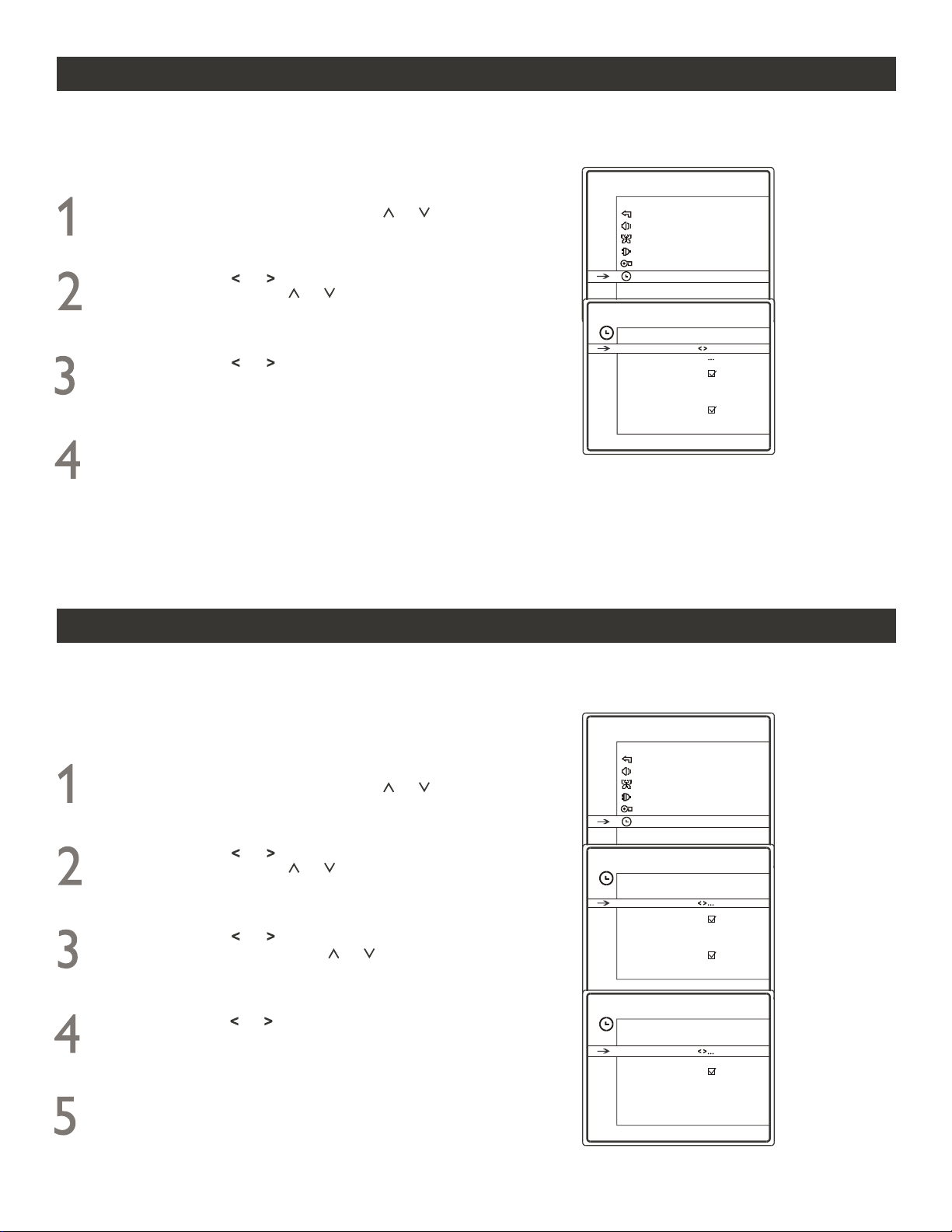
DAYLIGHT SAVING
aylight saving feature allows you to adjust the timer on the TV an hour ahead of the official standard time.
However,
this feature can work only after you set a time (refer to the previous page).
Follow these steps for Digital Mode and Analog Mode.
Press CURSOR or to check or uncheck. When
Daylight Sav is checked, the time
r on the TV will
display One h
our ahead of the actual time.
When finished, press CLEAR button to clear the menu
from the TV screen.
When finished, press CLEAR button to clear the menu
from the TV screen.
24
TIME
Go Back
TV Switching Off
Time Zone
Time
:
0853am
Wake-Up Timer
Wake-Up Time
08
:
00am
Wake-Up Ch 05
Recurrence Once
Turn-Off Timer
Turn-Off Time 10
:
30am
Recurrence Once
TIME ZONE MENU
Go Back
Update Clock
Time Zone Hawaii
Daylight Sav
Time
:
0853am
Press CURSOR or to display the TIME ZONE
menu features. Press CURSOR or to scroll
through the time features until you see Time Zone
highlighted.
NOTE: The time displayed at Time line is the same as
you set (see the previous page) and will change with
different time zone selected.
Press MENU button on the remote control to
display onscreen menu. Press CURSOR or to
scroll through the onscreen menu until you see
Time highlighted.
Press CURSOR or to display the TIME menu
features. Press CURSOR or t
o scroll through
the time features until you see Time Zone
highlighted.
Press CURSOR or to display the TIME ZONE
menu features. Press CURSOR or to scroll
through the time features until you see Daylight Sav
highlighted.
MAIN MENU
Exit
Sound
Picture
Setup
Parental Control
Time
TIME
Go Back
TV Switching Off
Time Zone
Time
:
0853am
Wake-Up Timer
Wake-Up Time
08
:
00am
Wake-Up Ch 05
Recurrence Once
Turn-Off Timer
Turn-Off Time 10
:
30am
Recurrence Once
TIME ZONE MENU
Go Back
Update Clock
Time Zone Hawaii
Daylight Sav
Time
:
0953am
TV SWITCHING OFF
he TV Switching Off feature allows you to set a timer to automatically turn the TV off after a period of time you
choose - ranging from 15 minutes up to 4 hours in 15 minute intervals.
T
Follow these steps for Digital Mode and Analog Mode.
When finished, press CLEAR button to clear the menu
from the TV screen.
NOTE: TV Switching Off will appear during the last
minute before the TV switches off.
,,
,,
MAIN MENU
Exit
Sound
Picture
Setup
Parental Control
Time
TIME
Go Back
TV Switching Off
:4
00 5
Time Zone
Time
:
0853am
Wake-Up Timer
Wake-Up Time
08
:
00am
Wake-Up Ch 05
Recurrence Once
Turn-Off Timer
Turn-Off Time 10
:
30am
Recurrence Once
Press MENU button on the remote control to
display onscreen menu. Press CURSOR or to
scroll through the onscreen menu until you see
Time highlighted.
Press CURSOR or to display the TIME menu
features. Press CURSOR or to scroll through
the time features until you see TV Switching Off
highlighted.
Press CURSOR or to select a time. You can set
a time from 15 minutes up to 4 hours at most. The TV
will automatically switches off after the time you set.
If you select Off
, this feature turns off.
UPDATE CLOCK
pdate Clock feature allows you to update the TV timer and set the time to that on the current digital channel.
This feature only works in Digital mode.
U
Follow these steps for Digital Mode.
Press CURSOR or to execute updating. During
the process, Update Clock appears. When it
disappears, time updating is done and TV timer is
updated.
When finished, press CLEAR button to clear the
menu from the TV screen.
Press MENU button on the remote control to
display onscreen menu. Press CURSOR or to
scroll through the onscreen menu until you see
Time highlighted.
Press CURSOR or to display the TIME menu
features. Press CURSOR or to scroll through
the time features until you see Time Zone
highlighted.
Press CURSOR or to display the TIME ZONE
menu features. Press CURSOR or to scroll
through the time features until you see Update Clock
highlighted.
MAIN MENU
Exit
Sound
Picture
Setup
Parental Control
Time
TIME
Go Back
TV Switching Off
Time Zone
Time
:
0853am
Wake-Up Timer
Wake-Up Time
08
:
00am
Wake-Up Ch 05
Recurrence Once
Turn-Off Timer
Turn-Off Time 10
:
30am
Recurrence Once
TIME ZONE MENU
Go Back
Update Clock
Time Zone Hawaii
Daylight Sav
Time
:
0953am
25
,,
,,
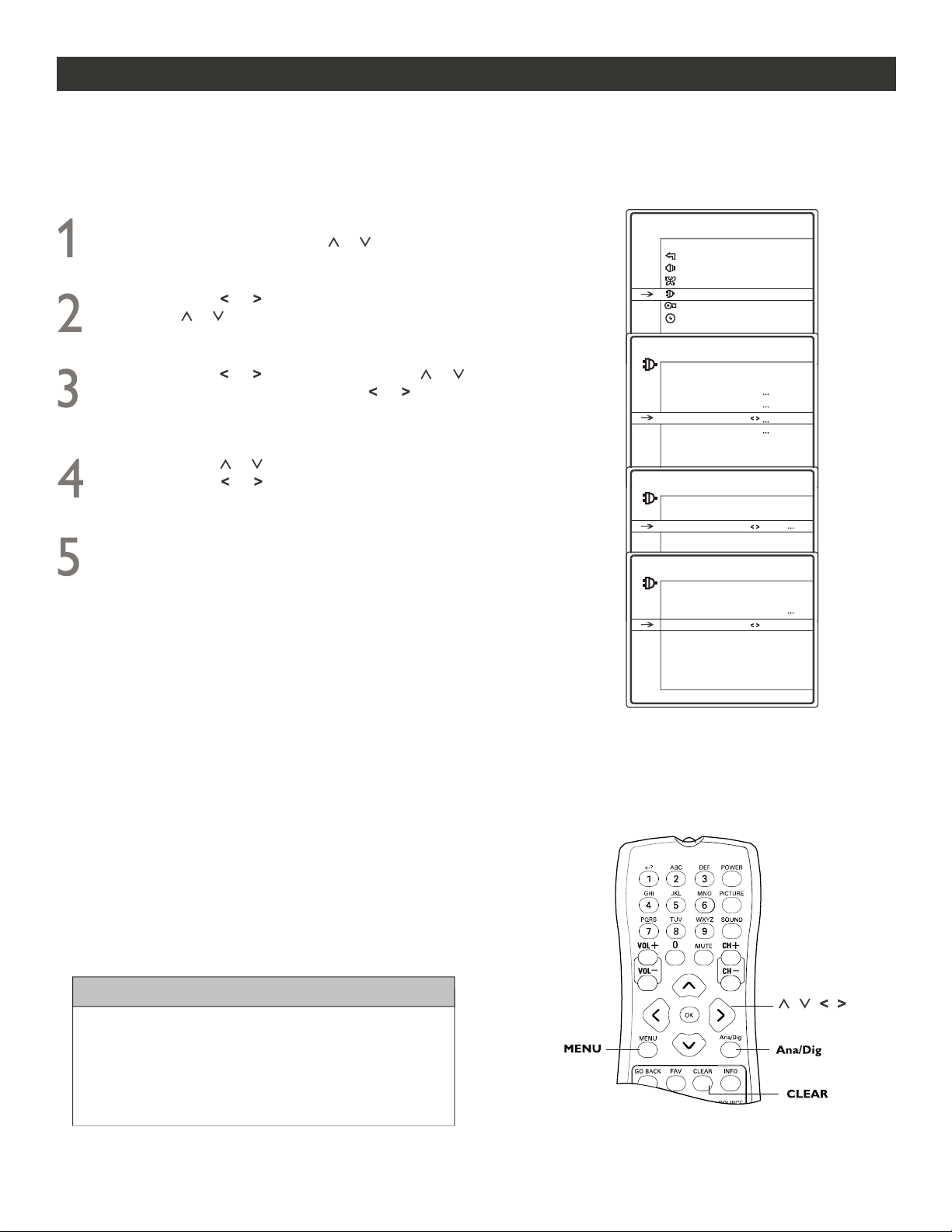
ANALOG CLOSED CAPTION CONTROLS
any Analog programs are encoded with closed-captioning information. The Analog Closed Caption feature lets
you display the audio portion of a program as text on the TV screen.
M
Press CURSOR or followed by CURSOR or to
highlight CC Display. Press CURSOR or to select
Muted=On, On or Off. When On or Muted=On is selected,
Ana. CC Type line appears.
When finished, press CLEAR button to clear the menu from
the TV screen.
Follow these steps for Analog Mode.
Press CURSOR or to highlight Ana. CC Type. And
press CURSOR or to select one from CC1, CC2, CC3,
CC4,T1, T2, T3 and T4.
HELPFUL HINTS
An alternative way of entering closed caption submenu
is by pressing the CC button on the remote control.
Press Ana/Dig button on the remote control to toggle
between Digital and Analog Mode.
MAIN MENU
Exit
Sound
Picture
Setup
Parental Control
Time
SETUP
Go Back
Auto Ch. Search
Channel Edit & Name
Closed Caption
Favorite List
Language English...
Format 4:3
CLOSED CAPTION
Go Back
CC Display Off
CLOSED CAPTION
Go Back
Ana. CC Type CC1
CC Display On
Press MENU button on the remote control to display
onscreen menu. Press CURSOR or to scroll through
the onscreen menu until you see Setup highlighted.
Press CURSOR or to display SETUP menu. Press
CURSOR or to scroll through the setup features until
you see Closed Caption highlighted.
26
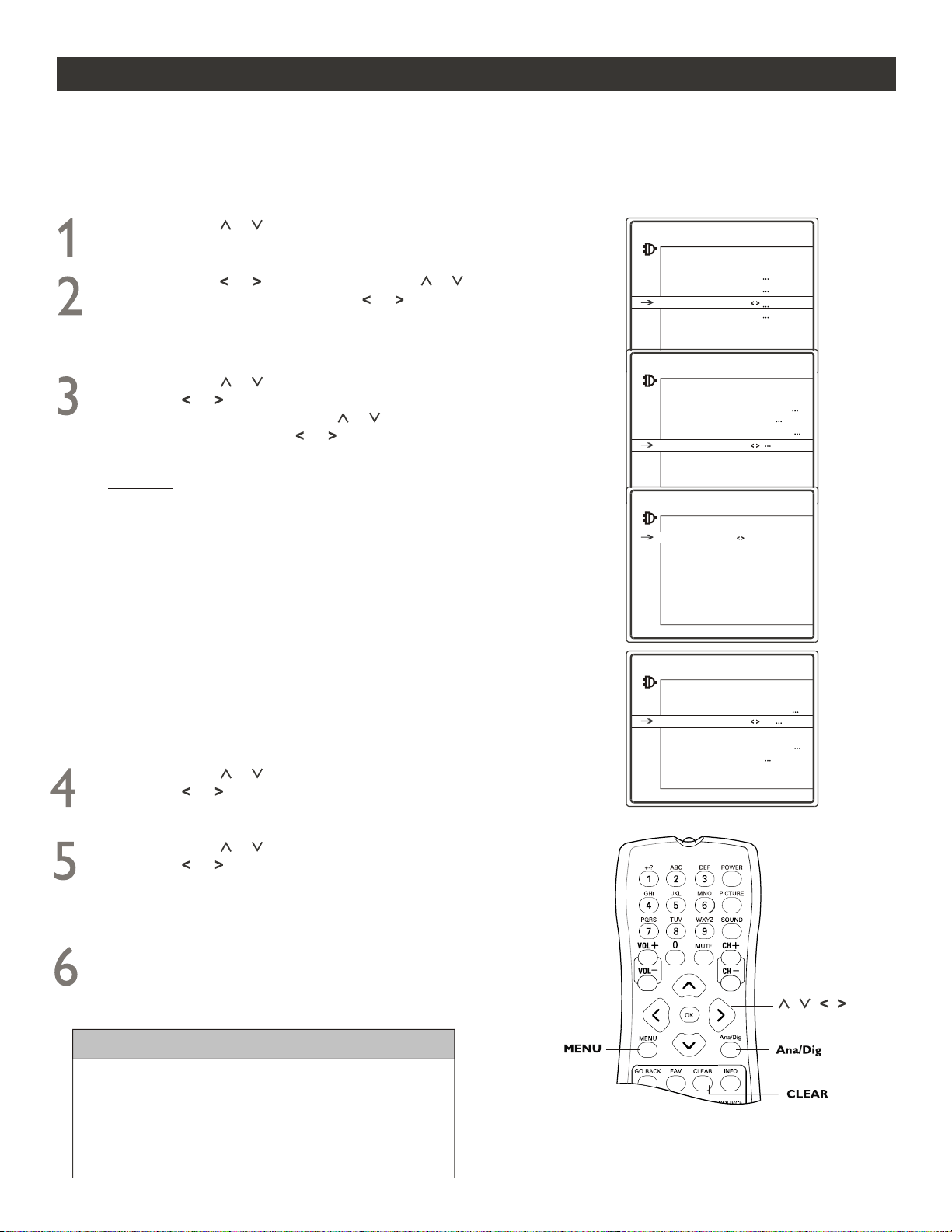
DIGITAL CLOSED CAPTION CONTROLS
any Digital programs are encoded with closed-captioning information. The Digital Closed Caption feature lets
you display the audio portion of a program as text on the TV screen.
M
Follow these steps for Digital Mode.
Press CURSOR or to scroll through the SETUP menu
until you see Closed Caption highlighted.
Press CURSOR or followed by CURSOR or to
highlight CC Preset. Press CURSOR or to select
Default or Custom. If Default is selected, all closed caption
styles can not be changed. If you want to change the styles,
select Custom.
CC Size - Standard, Large or Small for CC text
CC Font - ScreenSerMn, ScreenSerif, ScreenSanMn,
Screen Sans, Ashley, Floridian or Plate Gothic for CC text
CC Opacity - Flashing, Solid, Transp. or Translu. for CC text
CC Color - White, Black, Red, Green, Blue, Yellow, Magenta,
or Cyan for CC text
Bkgrnd Color - White, Black, Red, Green, Blue, Yellow,
Magenta, or Cyan for CC background
Bkgrnd Opacity - Flashing, Solid, Transp. or Translu. for CC
background
Edge Effect - None, Raised or Depressed.
Edge Color - White, Black, Red, Green, Blue, Yellow, Magenta,
or Cyan for CC text
HELPFUL HINTS
An alternative way of entering closed caption submenu
is by pressing the CC button on the remote control.
Press Ana/Dig button on the remote control to toggle
between Digital and Analog Mode.
When finished, press CLEAR button to clear the menu
from the TV screen.
27
SETUP
Go Back
Auto Ch. Search
Channel Edit & Name
Closed Caption
Favorite List
Language English...
Format 4:3
CLOSED CAPTION
Go Back
CC Display Off
CC Preset Custom
Dig. CC Type Service1
Dig. CC Style
Press CURSOR or to highlight Dig. CC Type. Press
CURSOR or to select one from Service 1, Service 2,
Service 3, Service 4, Service 5 and Service 6.
CLOSED CAPTION
Go Back
CC Display On
CC Preset Custom
Dig. CC Type Service1
Dig. CC Style
Press CURSOR or to highlight Dig. CC Style. Press
CURSOR or to display DIGITAL CC STYLE menu.
Within this menu, press CURSOR or to highlight each
option and Press CURSOR or to adjust. All the
adjustments will be stored as Default.
Ana. CC Type CC1
DIGITAL CC STYLE
Go Back
CC Opacity Transp.
CC Font ScreenSerif
CC Size Large
CC Color White
Bkgrnd. Color Yellow
Bkgrnd. Opacity Solid
Edge Effect Raised
Edge Color Red
NOTE: If Edge Effect is set to None, Edge Color won t
take effect.
,
Press CURSOR or to highlight CC Display. Press
CURSOR or to select Muted=On, On or Off. When
On or Muted=On is selected, Ana. CC Type line appears.
Then you can select a setting for Analog closed caption (see
the previous page).
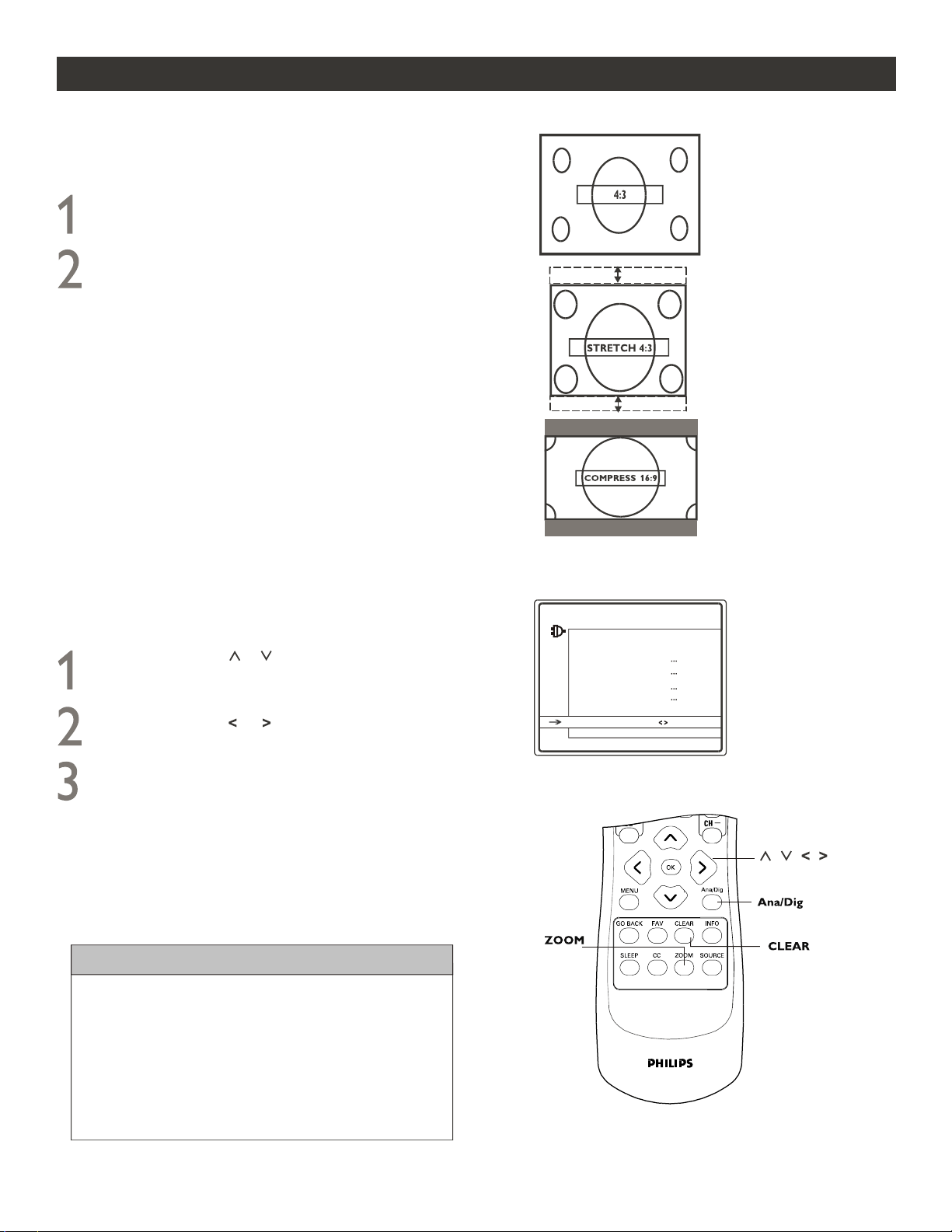
HOW TO USE ZOOM CONTROL
28
he Zoom Control feature allows you to select the picture format mode.
T
Press ZOOM button on the remote control once
to display the current picture format mode.
Press ZOOM button repeatedly on the remote
control to select one of the screen format options.
In Digital mode, press ZOOM to toggle among 4:3,
and .
In Analog mode, press ZOOM to toggle between 4:3
and 16:9.
Stretch 4:3 Compress 16:9
4:3 Shows picture in 4:3 aspect ratio format.
Stretch 4:3 Expands the picture vertically.
Compress 16:9
(Same as 16:9)
Expands the picture horizontally delivering a
home-cinema experience. You will see two
black borders at the top and bottom of the
screen.
Selecting a Picture Format Using the Remote Control
Picture Format Modes
HELPFUL HINTS
In Digital mode, Picture Format Mode only can be
activated when you are watching 16:9 programs. For
other signals, pressing ZOOM will display Function
not available and in SETUP menu, Format line is
greyed-out.
Press Ana/Dig button on the remote control to toggle
between Digital and Analog mode.
,,
,,
SETUP
Go Back
Auto Ch. Search
Channel Edit & Name
Closed Caption
Favorite List
Language English...
Format 4:3
In addition, you can change picture format mode in SETUP
menu.
Press CURSOR or to scroll through the SETUP
menu until you see Format highlighted.
Press CURSOR or to select a picture format.
When finished, press CLEAR button to clear the
menu from the TV screen.
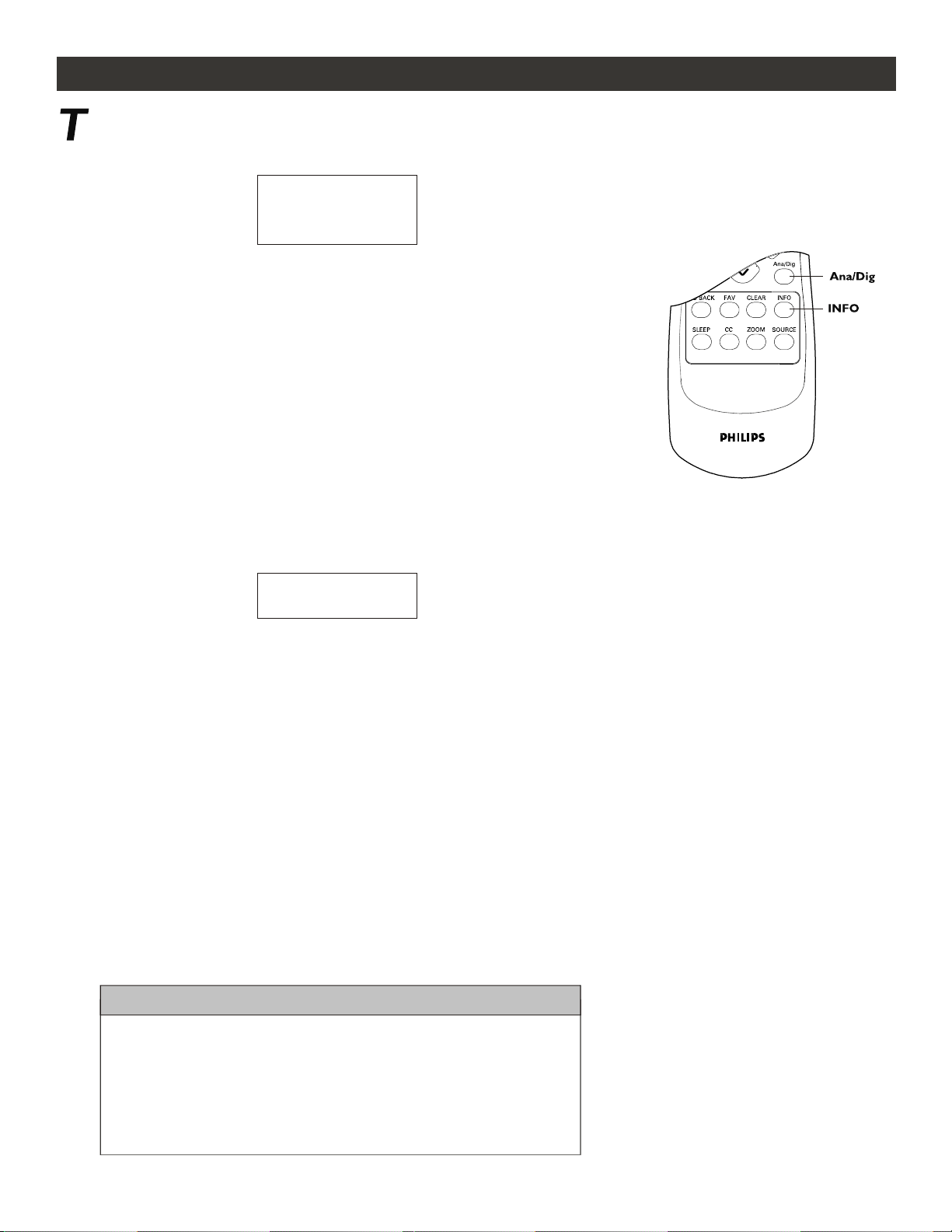
INFORMATION BANNER
he Channel Banner displays information of the program that is being transmitted by broadcasters. By pressing
INFO button on the remote control, you can see Information Banner appear on the screen. Digital information
banner is different from that for Analog. See the descriptions below:
1-1 Flower 11:20 AM
9:00AM 12:00AM Unrated
HD Stereo
program name
Information Banner
In Digital Mode
HELPFUL HINTS
Analog: to indicate TV is in Analog mode.
1-1 Flower: displays the digital channel no. and name
Information Banner
In Analog Mode
11:20 AM: displays the current time as set in time menu.
9:00 AM: displays the start time of the currently-viewed program
12:00 AM: displays the stop time of the currently-viewed program
Unrated: to indicate rating and content theme of the currently-viewed program
HD: displayed if the feature of high definition is available with the program;
otherwise, display SD.
Stereo: to indicate the sound mode of the currently-viewed program. It may be
Mono, Stereo, Mono+SAP or Stereo+SAP according to the program itself.
Press Ana/Dig button on the remote to switch between Digital and
Analog Mode.
If No Program Information appears on the screen when the INFO
button on the remote control is pressed, it means the broadcaster is
not providing any information.
NOTE: The information banner is time out. Or you can remove
the information banner from the screen by pressing CLEAR
button on the remote control.
29
,,
,,
10 Rain 11:20 AM
Unrated
Analog Stereo
10 Rain: displays the analog channel no. and name
Unrated: to indicate rating and content theme of the currently-viewed program
Stereo: to indicate the sound mode of the currently-viewed program. It may be
Stereo or Mono according to the program itself. If the program is Multi Audio
languages, display Multi.
11:20 AM: displays the current time as set in time menu.
The information on the Information Banner is transmitted by the
broadcaster. The quality and accuracy of the information depend on the
broadcaster. You might see a difference in broadcast time if the
broadcaster is from a different time zone.
30
GLOSSARY
Aspect Ratio
Audio Video (A/V)
ATSC
CVBS
DTV
The ratio between the width and height of the TV picture on the screen. In a normal TV set the aspect ratio is 4
to 3 (4:3). The aspect ratio in HDTV is 16:9, which resembles the aspect ratio in a movie theatre (Widescreen).
New TV systems support both 4:3 and 16:9 aspect ratio and can automatically switch between them.
A term often used when discussing a channel on a TV receiver or on video equipment, which has been
especially designed to accept VCR audio-video signal. The A/V channel automatically activates special circuitry
within the TV set to prevent picture distortion and skewing. It is also used for audio-video processors, which
handle both types of signal.
ATSC: Advance Television Systems Committee. Formed to establish technical standards for advanced
television systems, including digital high definition television (HDTV).
Composite Video Baseband Signal. In broadcast television this refers to the video signal.
including the colour information and syncs.
Digital television. Generic term that refers to all digital television formats, including high-definition television
(HDTV) and standard-definition television (SDTV).
Digital Tuner
A digital tuner serves as the decoder required to receive and display digital broadcasts. It can be included inside TV sets or
via a set-top box.
HDTV
The generally agreed upon definition of HDTV is approximately twice the vertical and horizontal picture resolution of today s
NTSC TV, which essentially makes the picture twice as sharp. HDTV also has a screen ratio of 16:9. HDTV offers reduced
motion artifacts (i.e. ghosting, dot crawl), and offers 5.1 independent channels of CD-quality stereo surround sound,(also
referred to as AC-3).
,
NTSC National Television System Committee. The organization that developed the analog television standard currently in use in the
U.S., Canada, and Japan. Now generally used to refer to that standard. The NTSC standard combines blue, red and green
signals modulated as an AM signal with an FM signal for audio.
Progressive Scan In Progressive Scanning all the horizontal scan lines are scanned on to the screen at one time. The Digital TV and HDTV
standards accept both Interlaced Scan and Progressive Scan broadcast and display methods.
Resolution Resolution: A measurement of the finest (smallest) detail that is visible in a video image. TV resolutions may be expressed as
number of pixels in an image, or more commonly as Total Number of (horizontally scanned) Lines used to create the image.
Standard Digital TV Resolutions:
SDTV: 480i - The picture is 704x480 pixels, 480p - The picture is 704x480 pixels.
HDTV: 720p - The picture is 1280x720 pixels, 1080i - The picture is 1920x1080 pixels, 1080p - The picture is 1920x1080 pixels.
31
TROUBLESHOOTING TIPS
Parental Control
Check the List of Symptoms and Suggested Steps To Take before requesting Service. You may be able to solve the problem yourself.
If you face problems connecting the TV to external devices, please refer to the User Guide of the external device or call their service centers
for help. Charges for TV installation and adjustments of customer controls are not covered under your warranty.
Installation
Can t get the AV
channels on the TV
screen.
,
Press the SOURCE button on the remote control repeatedly to select the desired AV channels.
Installation
TV displays wrong
channel or no
channels above 13
Go to SOURCE TYPE in the television menu and select the correct signal source, then perform
the automatic installation again. (Refer to page 11).
Go to SOURCE TYPE in the television menu and select the correct signal source, then perform
the automatic installation again. (Refer to page 11).
Installation
Channel numbers
do not follow the
channel number
of the programs.
You are in Digital Mode. Press Ana/Dig button on the remote control to toggle between Digital
and Analog mode.
Channel numbers
look different. Eg.
23-1, 45-3 etc.
Installation
SYMPTOMS SUGGESTED STEPS TO TAKE
Auto installation is
taking too long.
Installation
Auto installation may take 20 to 40 minutes depending on the number of channels that are available.
Cannot set
favorite channels
in Favorite List.
Installation
1. You may not have completed auto installation. Do an auto installation again (refer to page 9).
2. You may have chosen the wrong SOURCE TYPE. Go to SOURCE TYPE in the TV menu and
select the correct signal source, then perform the auto installation again (refer to page 11).
Unable to
change Parental
Control password.
You can change the Parental Control password via the helpful hint (refer to page 17).
Closed Caption
Closed Caption
text does not
appear.
Closed Caption text takes a while to appear. If Closed Caption text still does not appear, go to
Closed Caption menu to switch to another Closed Caption channel (refer to page 26-27).
Digital Audio
Unable to switch
to another audio
language.
You can only select different audio languages when the program is broadcasted in different audio
language (refer to page 15).
Zoom Control
Unable to change
picture format.
Picture Format Mode only can be activated when you are watching 16:9 Digital programs (refer
to page 28).
Information
Banner
No Program
Information
appears on the TV
screen.
,,
,,
Information is broadcaster dependent. If the broadcaster does not provide any information. No
Information will be displayed when the INFO button on the remote control is
pressed (refer to page 29).
Program
,,
,,
32
TROUBLESHOOTING TIPS
Settings
Error messages
appear on the
screen of TV:
Check that the antenna / cable is connected properly and that you have selected the correct
source type (refer to page 11).
SYMPTOMS SUGGESTED STEPS TO TAKE
No Signal
No Program
There could be temporarily no transmission on the selected channel. When transmission is
resumed or when available, your TV will receive it.
Audio Only
The current channel has only audio transmission.
Sound
Sound
Sound is not in
Stereo.
This could be due to any of the following reasons:
1. Not all transmitted broadcasts by the cable or broadcast stations are in STEREO. Try checking
with several major network stations to be sure that the station you selected is in STEREO.
2. When using an AV input, the television will not display STEREO even though it is producing
stereo sound.
Disturbing sound
(such as buzzing,
clicking, cracking,
humming, whistling
etc.)
It is normal to hear a disturbing sound (such as buzzing, clicking, cracking, humming, whistling, etc)
from a distance less than 2 meters (6 feet) with the television sound muted.
If problem occurs on one channel, you may have a signal problem. Please contact the cable provider
or local broadcaster regarding the specific channel.
General
No power to the
TV
Check the TV power cord. Unplug the power cord from the TV, wait 10 seconds, then reinsert
the plug into your wall outlet. Power On the TV again.
Plug the power cord directly to the wall socket and not via an extension cord.
If you need to use an extension cord, check that the fuse on the AC power strip is not blown.
General
TV is not
responding to
Remote Control
Ensure the batteries are inserted into the remote control according to the illustration in the
battery compartment (refer to page 7).
Reset the TV by disconnecting the power plug from the wall outlet for 10 seconds and then
reconnecting it again.
General
No picture to the
TV
Check antenna connections. Are they properly secured to the TV ANT 75 ohm plug?
Check the SOURCE TYPE control for the correct tuner setting.
Try running the Auto Channel Search feature to find all available channels (refer to page 9).
Press the SOURCE button on the remote control to make sure the correct signal source is
selected ( AV, CVI, SIDE, SVHS, Current Channel, etc.).
General
TV displays white
lines in letterbox
when viewing a
DVD disc.
Some DVD discs are encoded with as much as 30% more video information to give the best
possible picture quality. With the DVD player in the 16:9 picture format, the playback of this
type of disc with extra video information can produce a number of small white lines in the
upper portion of the black letterbox area. With some of these discs, this problem is inherent
and does not require a service call.

33
WARNING
Concerning stationary images on the TV Screen:
Do not leave stationary or letterbox images on screen for
extended periods of time. This can cause uneven picture-tube
CLEANING AND CARE
Normal use of the TV should involve the showing of pictures
that contain constantly moving and changing images that fill the
screen. Be careful not to leave nonmoving images on screen
for extended periods of time, or to display the same images
on screen too frequently, because subtle ghost images can be
left on the screen. Sources of stationary images may be DVD
disks, laser disks, video games, cd-i disks, videotapes, digital
television boxes, broadcast channels, cable channels, satellite
channels, and others. Here are some examples of stationary
images (this is not an all-inclusive list; you may encounter
others in your viewing):
DVD menus
listings of DVD disk content.
Letterbox black bars
shown at the top and bottom of the
TV screen when a wide screen (16:9) movie is viewed on a
TV with standard (4:3) aspect ratio.
Video-game images and scoreboards.
Television station logos
present a problem if they are
bright and stationary; moving or low-contrast graphics are
less likely to cause uneven aging of the picture tube.
Stock-market tickers
presented at the bottom of the TV
screen.
Shopping channel logos and pricing displays
bright and
shown constantly or repeatedly in the same location on the
TV screen.
Placement of the TV
To avoid cabinet warping, cabinet color changes, and
increased chance of set failure, do not place the TV where
temperatures can become excessively hot, for example, in
direct sunlight or near a heating appliance.
Be sure to allow a free flow of air to and from the perfo-
rated back cover of the set.
Cleaning
To avoid possible shock hazard, unplug the TV from the
Electrical outlet before cleaning.
Regularly dust the TV with a dry, nonscratching duster to
keep the TV clean.
When cleaning the TV, take care not to scratch or damage
the screen surface. Avoid using anything abrasive. Do not
use household cleaners. Wipe the front screen with a
clean cloth dampened with water. Use even, easy, vertical
strokes when cleaning.
Gently wipe the cabinet surfaces with a clean cloth or
sponge dampened in a solution of cool, clear water and a
mild soap or detergent. Use a clean, dry cloth to dry the
wiped surfaces.
Occasionally vacuum the ventilation holes or slots in the
back cover of the set.
Never use thinners, insecticide sprays, or other chemicals on
or near the cabinet, as they might cause permanent damage
of the cabinet finish.
aging.
SPECIFICATIONS
ON SCREEN DISPLAY
LANGUAGES
CONNECTIVITY
Rear
CONVENIENCE
SOUND
Side
Voltage (V)
Frequency (Hz)
Approx. consumption (W)
ELECTRICAL INFORMATION
WEIGHT & DIMENSIONS :
Weight (incl. Packaging) :
Weight (excl. Packaging) :
Visible diagonal / screen size :
Sound Power (Output RMS)
PICTURE / DISPLAY
Aspect ratio :
Picture Display
Picture Enhancement
English and Spanish
Specifications and information are subject to change without notice.
2 x 2w
27PT9007D
4 : 3
27 Real Flat Picture Tube
2D Comb Filter
Auto Picture (5 modes)
Tint, Color, Sharpness,
Color Temperature Control
Auto Install
Easy toggle Digital / Analog modes
Closed Caption teletext
Parental Lock
Sleep Timer
Clock
Component Video In (Y Pb Pr)
Composite Video In (CVBS)
Audio L/R In
Audio/ Video Out (Cinch)
Composite Video In (CVBS)
S-video(SVHS)
49 kg / 105.9 lbs
44 kg / 94.8 lbs
34
27 inch / 68.6 cm
120V
60Hz
102W
Sound Enhancement Auto Sound (4 modes)
Balance, Equalizer

Philips, P.O. Box 520890, Miami, FL 33152 (402) 536-4171
90 Days Labor & One (1) Year Parts & Two (2) Years Display
PHILIPS LIMITED WARRANTY
PHILIPS CONSUMER ELECTRONICS warrants this
product against defect in material or workmanship, subject to
any conditions set forth as follows:
PROOF OF PURCHASE: You must have proof of the date
of purchase to receive warranted repair on the product. A sales
receipt or other document showing the product and the date
that you purchased the product as well as the authorized retail-
er included, is considered such proof.
COVERAGE:
(If the product is determined to be defective)
LABOR: For a period of ninety (90) days from the date of pur-
chase, Philips will repair or replace the product, at its option, at
no charge, or pay the labor charges to any Philips authorized
repair facility. After the period of ninety (90) days, Philips will
no longer be responsible for charges incurred.
PARTS: For a period of one (1) year from the date of purchase,
Philips will supply at no charge, new or rebuilt replacement
parts in exchange for defective parts. Philips authorized service
centers will provide removal and installation of the part under
the specified labor warranty.
DISPLAY: For a period of two (2) years from the date of pur-
chase, Philips will supply, at no charge, a new or rebuilt active
display device in exchange for the defective display. Philips
authorized service centers will provide removal and installation
of the parts under the specified labor warranty.
EXCLUDED FROM WARRANTY COVERAGE
Your warranty does not cover:
• Labor charges for installation or setup of the product, adjust-
ment of customer controls on the product, and installation
or repair of antenna systems outside of the product.
• Product repair and/or part replacement because of improper
installation, connections to improper voltage supply, abuse,
neglect, misuse, accident, unauthorized repair or other cause
not within the control of Philips.
• A product that requires modification or adaptation to enable
it to operate in any country other than the country for
which it was designed, manufactured, approved and/or
authorized, or repair of products damaged by these modifica-
tions.
• Damage occurring to product during shipping when improp-
erly packaged or cost associated with packaging.
• Product lost in shipment and no signature verification of
receipt can be provided.
• A product used for commercial or institutional purposes
(including but not limited to rental purposes).
• Products sold AS IS or RENEWED.
TO OBTAIN WARRANTY SERVICE IN THE U.S.A.,
PUERTO RICO, OR U.S. VIRGIN ISLANDS…
Contact Philips Customer Care Center at:
1-800-531-0039
TO OBTAIN WARRANTY SERVICE IN CANADA…
1-800-661-6162 (French Speaking)
1-800-531-0039 (English or Spanish Speaking)
REPAIR OR REPLACEMENT AS PROVIDED UNDER THIS
WARRANTY IS THE EXCLUSIVE REMEDY FOR THE CON-
SUMER. PHILIPS SHALL NOT BE LIABLE FOR ANY INCIDEN-
TAL OR CONSEQUENTIAL DAMAGES FOR BREACH OF
ANY EXPRESS OR IMPLIED WARRANTY ON THIS PROD-
UCT. EXCEPT TO THE EXTENT PROHIBITED BY APPLICA-
BLE LAW, ANY IMPLIED WARRANTY OF MERCHANTABILI-
TY OR FITNESS FOR A PARTICULAR PURPOSE ON THIS
PRODUCT IS LIMITED IN DURATION TO THE DURATION
OF THIS WARRANTY.
Some states do not allow the exclusions or limitation of inci-
dental or consequential damages, or allow limitations on how
long an implied warranty lasts, so the above limitations or
exclusions may not apply to you. In addition, if you enter into a
service contract agreement with the PHILIPS partnership within
ninety (90) days of the date of sale, the limitation on how long
an implied warranty lasts does not apply.
EL6588E001 / 01-04
This warranty gives you specific legal rights. You may have other rights which vary from state/province to state/province.
35

INDEX
Parental Controls
Accessories List 5
Auto Channel Search
9
Auto Volume Leveller Control
15
Basic TV and Remote Control Operation
7
Channel Edit & Name
12
Cleaning and Care
33
Closed captioning in Analog Mode
26
Closed captioning in Digital Mode
27
Brightness Control
16
Color Control
14
Feature Highlights
4
Glossary
30
Guide to Digital TV
5
Favorite List
13
First Time You Turn On The TV
8
Index
36
Information Banner
29
Language Control
10
Picture Control
14
Quick Tips
5
Registration of TV Information
2
Safety / Precautions
2/3
Sharpness Control
14
Second Audio Programming
15
Specifications
34
Timer Controls
Time Zone
24
Turn-Off Timer Control
23
Wake-Up Timer Control
23
Tint Control
14
Troubleshooting
31-32
Signal Type Control
11
Warranty (Limited)
35
36
Zoom Control
28
Movie Ratings 18
Time Setting Control
23
Daylight Saving
24
TV Switching Off Control
23
Balance Control 15
Sound Type Control
15
Sound Preset Control
15
Digital Audio Control
15
Activate Parental Control
17
Downloadable V-chip
22
Unrated and No Rating
20
Block Channel
20
Child Lock
21
Change Password
21
TV Ratings
19
Update Clock
25
Color Temperature Control
14
37

