3-081-414-11(1)
©2003 Sony Corporation
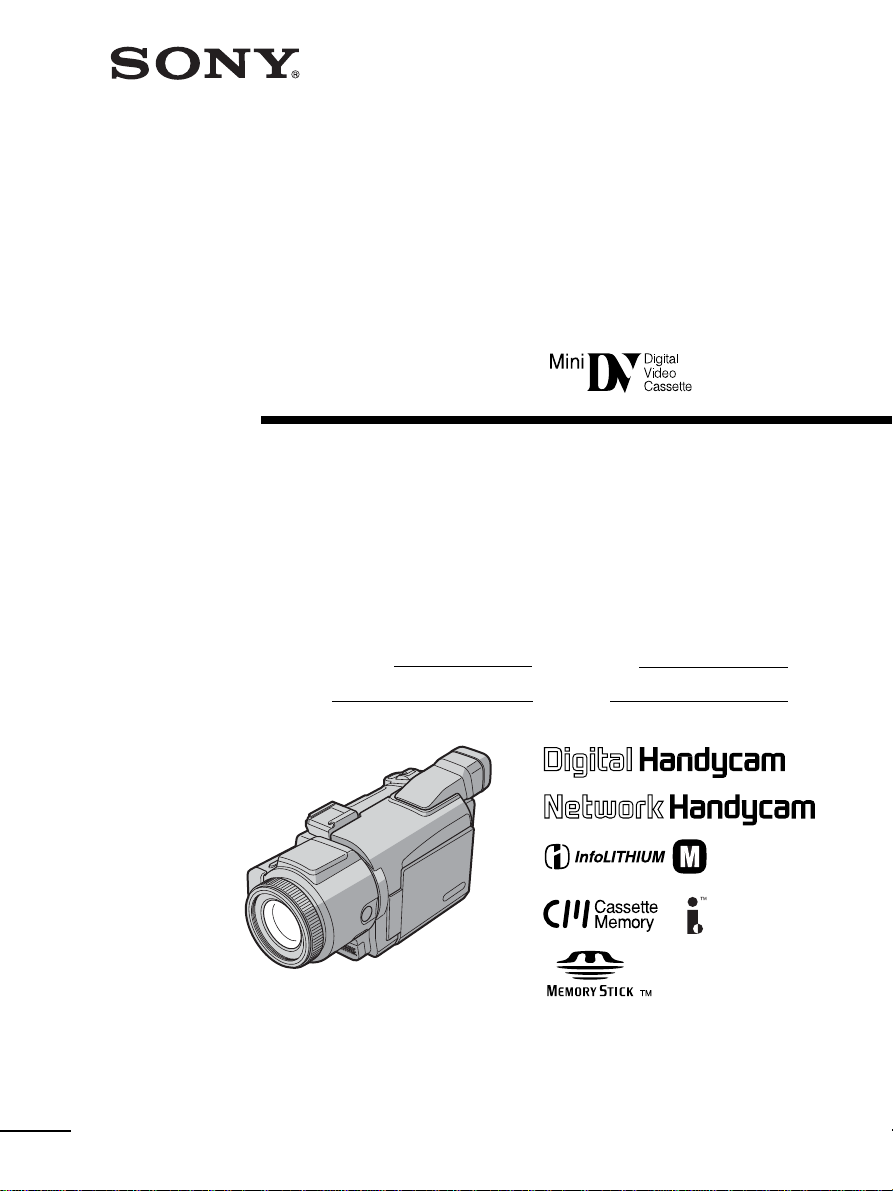
Operating Instructions
Before operating the unit, please read this manual thoroughly,
and retain it for future reference.
Owner’s Record
The model and serial numbers are located on the bottom. Record the
serial number in the space provided below. Refer to these numbers
whenever you call upon your Sony dealer regarding this product.
DCR-TRV60/TRV70
Digital
Video Camera
Recorder
Model No. DCR-TRV Model No. AC-
Serial No. Serial No.
SERIES
TM
DCR-TRV70
2
Welcome!
Congratulations on your purchase of this Sony Handycam. With your Handycam, you can
capture life’s precious moments with superior picture and sound quality. Your Handycam is
loaded with advanced features, but at the same time it is very easy to use. You will soon be
producing home video that you can enjoy for years to come.
WARNING
To prevent fire or shock hazard, do
not expose the unit to rain or
moisture.
CAUTION
The use of optical instruments with this
product will increase eye hazard. As the laser
beam used in this Handycam is harmful to
eyes, do not attempt to disassemble the
cabinet.
Refer servicing to qualified personnel only.
Notice
If static electricity or electromagnetism causes
data transfer to discontinue midway (fail),
restart the application or disconnect and
connect the USB cable again.
This symbol is intended to
alert the user to the presence
of uninsulated “dangerous
voltage” within the product’s
enclosure that may be of
sufficient magnitude to
constitute a risk of electric
shock to persons.
This symbol is intended to
alert the user to the presence
of important operating and
maintenance (servicing)
instructions in the literature
accompanying the appliance.
For customers in the U.S.A.
and CANADA
CAUTION
TO PREVENT ELECTRIC SHOCK, MATCH
WIDE BLADE OF PLUG TO WIDE SLOT,
FULLY INSERT.
RECYCLING LITHIUM-ION BATTERIES
Lithium-Ion batteries are
recyclable.
You can help preserve our
environment by returning
your used rechargeable
batteries to the collection and
recycling location nearest you.
For more information regarding recycling of
rechargeable batteries, call toll free 1-800-822-
8837, or visit http://www.rbrc.org/
Caution: Do not handle damaged or leaking
Lithium-Ion batteries.
“Memory Stick”
This device complies with Part 15 of the FCC
Rules. Operation is subject to the following
two conditions: (1) This device may not cause
harmful interference, and (2) this device must
accept any interference received, including
interference that may cause undesired
operation.
This Class B digital apparatus complies with
Canadian ICES-003.

3
CAUTION
You are cautioned that any changes or
modifications not expressly approved in this
manual could void your authority to operate
this equipment.
Note:
This equipment has been tested and found to
comply with the limits for a Class B digital
device, pursuant to Part 15 of the FCC Rules.
These limits are designed to provide
reasonable protection against harmful
interference in a residential installation. This
equipment generates, uses, and can radiate
radio frequency energy and, if not installed
and used in accordance with the instructions,
may cause harmful interference to radio
communications. However, there is no
guarantee that interference will not occur in a
particular installation. If this equipment does
cause harmful interference to radio or
television reception, which can be determined
by turning the equipment off and on, the user
is encouraged to try to correct the interference
by one or more of the following measures:
— Reorient or relocate the receiving antenna.
— Increase the separation between the
equipment and receiver.
— Connect the equipment into an outlet on a
circuit different from that to which the
receiver is connected.
— Consult the dealer or an experienced
radio/TV technician for help.
The supplied interface cable must be used with
the equipment in order to comply with the
limits for a digital device pursuant to Subpart
B of Part 15 of FCC Rules.
For customers in the U.S.A.
If you have any questions about this product,
you may call:
Sony Customer Information Center 1-800-222-
SONY (7669)
The number below is for the FCC related
matters only.
Regulatory Information
Declaration of Conformity
Trade Name: SONY
Model No.: DCR-TRV70
Responsible Party: Sony Electronics Inc.
Address: 680 Kinderkamack
Road, Oradell,
NJ07649 U.S.A.
Telephone No.: 201-930-6972
This device complies with Part 15 of the
FCC Rules. Operation is subject to the
following two conditions: (1) This device
may not cause harmful interference, and
(2)this device must accept any interference
received, including interference that may
cause undesired operation.
4
Main Features
Recording moving pictures
or still images, and playing
them back
•Recording moving pictures on a
tape (p. 25)
•Playing back a tape (p. 39)
•Recording still images on a
“Memory Stick” (p. 46, 109)
•Recording moving pictures on a
“Memory Stick” (p. 122)
•Viewing still images recorded on
the “Memory Stick” (p.130)
•Viewing moving pictures recorded
on the “Memory Stick” (p. 132)
Capturing images on the
computer
•Viewing moving pictures recorded on
the tape using the USB cable (p. 156)
•Viewing images recorded on the
“Memory Stick” using the USB cable
(p. 163, 168)
•Capturing images on the computer
from your camcorder using the USB
cable (p. 158)
•Converting an analog signal to
digital to capture images onto the
computer (p. 169)
4
Main Features

Getting Started
5
Main Features
5
Other uses
Functions for adjusting exposure during recording
•Back light (p. 34)
•NightShot/Super NightShot/Color Slow Shutter (p. 34)
•PROGRAM AE (p. 59)
•Manual exposure (p. 61)
•Flexible Spot Meter (p. 62)
•Recording images with the flash (p. 113)
Functions for giving images more impact
•Digital zoom (p. 33)
The default setting is OFF. (To zoom greater than 10×,
select the digital zoom power in D ZOOM in the menu settings.)
•Fader (p. 52)
•Picture effect (p. 55)
•Digital effect (p. 56)
•Title (p. 97)
•MEMORY MIX (p. 118)
Functions for giving a natural appearance to your recordings
•PROGRAM AE (p. 59)
– SPORTS
– LANDSCAPE
•Manual focus (p. 63)
•Expanded focus (p. 63)
•Spot Focus (p. 65)
Functions for using after recording
•End search/Edit search/Rec Review (p. 37)
•Data code (p. 40)
•Tape PB ZOOM/Memory PB ZOOM (p. 73, 135)
•Zero set memory (p. 74)
•Title search (p. 75)
•Digital program editing (p. 80, 127)
Main Features
Accessing the Internet via a
USB device (optional) that
supports your camcorder
(DCR-TRV70 only)
Accessing the Internet, sending/
receiving your e-mail. For details,
refer to the Network Function/
Application Operating Instructions
supplied with your camcorder.
(DCR-TRV70 only) (p. 171)

6
Table of contents
Main Features...................................... 4
Quick Start Guide
– Recording on a tape ............................. 8
– Recording on a “Memory Stick” ...... 10
Getting Started
Using this manual ................................. 12
Checking supplied accessories............ 14
Step 1 Preparing the power source..... 15
Installing or removing the battery
pack............................................ 15
Charging the battery pack............. 16
Connecting to a wall outlet ........... 19
Step 2 Setting the date and time ......... 20
Step 3 Using the touch panel ............... 23
Recording – Basics
Recording a picture............................... 25
Shooting backlit subjects
– Back light function................ 34
Shooting in the dark
– NightShot/Super NightShot/
Color Slow Shutter .................. 34
Checking recordings
– End search/Edit search/Rec
Review ............................................. 37
Playback – Basics
Playing back a tape ............................... 39
To display the screen indicators
– Display function ................... 40
Viewing a recording on the TV........... 44
Advanced Recording
Operations
Recording still images on a “Memory
Stick” during tape recording
standby or tape recording ............. 46
Self-timer recording .............................. 48
Adjusting the white balance manually
........................................................... 49
Using the wide mode ........................... 50
Using the fader function ...................... 52
Using special effects – Picture effect .. 55
Using special effects – Digital effect ... 56
Using PROGRAM AE .......................... 59
Adjusting the exposure manually ...... 61
Using the spot light-metering function
– Flexible Spot Meter ..................... 62
Focusing manually................................ 63
Using the spot focus function
– Spot Focus .................................... 65
Interval Recording ................................ 66
Frame by frame recording
– Frame recording .......................... 67
Recording with all the pixels
– Progressive Recording Mode .... 68
Using the viewfinder ............................ 69
Advanced Playback
Operations
Playing back a tape with picture effect
........................................................... 71
Playing back a tape with digital effect
........................................................... 72
Enlarging images recorded on the tape
– Tape PB ZOOM ........................... 73
Quickly locating a scene
– Zero set memory ......................... 74
Searching the boundaries of the
recorded tape by title
– Title search ................................... 75
Searching a recording by date
– Date search ................................... 76
Editing
Dubbing a tape ...................................... 78
Dubbing only desired scenes
– Digital program editing (on a tape)
........................................................... 80
Recording video or TV programs ....... 89
Inserting a scene from a VCR
– Insert editing ................................ 91
Audio dubbing ...................................... 93
Superimposing a title on a cassette with
Cassette Memory ............................ 97
Making your own titles ........................ 99
Labeling a cassette with Cassette
Memory ......................................... 100
Erasing all the data in Cassette Memory
......................................................... 101
“Memory Stick” Operations
Using a “Memory Stick”
– Introduction ............................... 102
Selecting the quality and size of image
data ................................................. 105
Recording still images on a “Memory
Stick”
– Memory Photo recording ......... 109

Getting Started
7
Table of contents
Recording an image from a tape as a still
image .............................................. 116
Superimposing a still image in the
“Memory Stick” on an image
– MEMORY MIX .......................... 118
Interval Photo Recording................... 121
Recording moving pictures on a
“Memory Stick”
– MPEG MOVIE recording ......... 122
Self-timer recording ............................ 124
Recording a picture from a tape as a
moving picture ............................. 125
Recording edited pictures from a tape as
a moving picture
– Digital program editing
(on a “Memory Stick”)................. 127
Changing the recording folder.......... 129
Viewing a still image
– Memory Photo playback .......... 130
Viewing a moving picture
– MPEG MOVIE playback .......... 132
Choosing the playback folder ........... 134
Enlarging still images recorded on a
“Memory Stick”
– Memory PB ZOOM ................... 135
Playing back images continuously
– Slide show .................................. 136
Preventing accidental erasure
– Image protection........................ 137
Deleting images
– DELETE ...................................... 138
Changing the image size
– Resize .......................................... 141
Writing a print mark
– Print mark................................... 142
Viewing images with your
computer
Viewing images with a computer
– Introduction ............................... 143
Connecting your camcorder to a
computer using the USB cable
(For Windows users).................... 146
Viewing pictures recorded on the tape
on a computer
– USB Streaming
(For Windows users).................... 156
Viewing images recorded on the
“Memory Stick” on a computer
(For Windows users).................... 163
Connecting your camcorder to a
computer using the USB cable
(For Macintosh users) .................. 166
Viewing images recorded on “Memory
Stick” on a computer
(For Macintosh users) .................. 168
Capturing images from an analog video
unit on a computer
– Signal convert function............. 169
Using the Network function
(DCR-TRV70 only)
Accessing the network ....................... 171
For details, refer to the Network
Function/Application Operating
Instructions supplied with your
camcorder.
Customizing Your Camcorder
Changing the menu settings.............. 172
Troubleshooting
Types of trouble and how to correct
trouble ............................................ 183
Self-diagnosis display......................... 191
Warning indicators ............................. 192
Warning messages .............................. 193
Additional Information
Usable cassettes ................................... 194
About the “InfoLITHIUM” battery pack
......................................................... 197
About i.LINK ....................................... 199
Using your camcorder abroad .......... 201
Maintenance information and
precautions .................................... 202
Specifications ....................................... 208
Quick Reference
Identifying parts and controls........... 210
Index ..................................................... 218
Quick Start Guide
8
Quick Start Guide – Recording on a tape
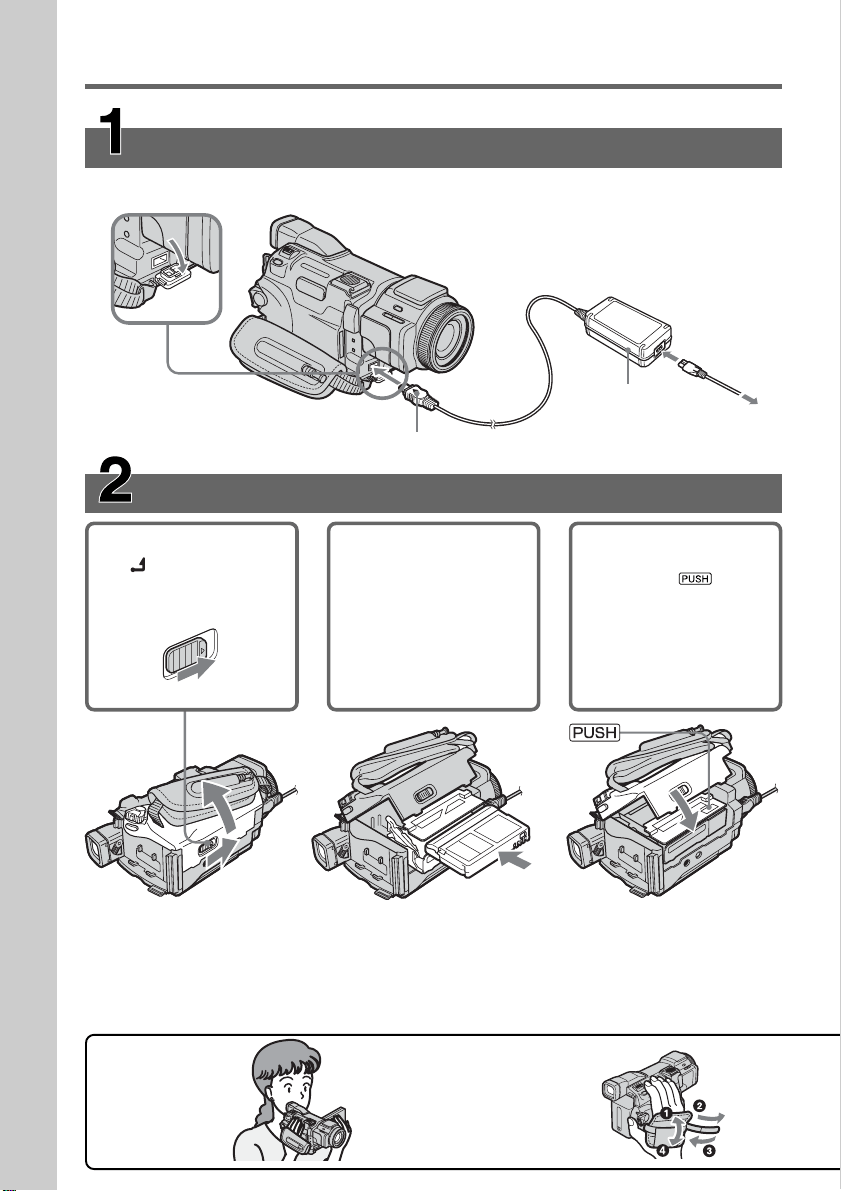
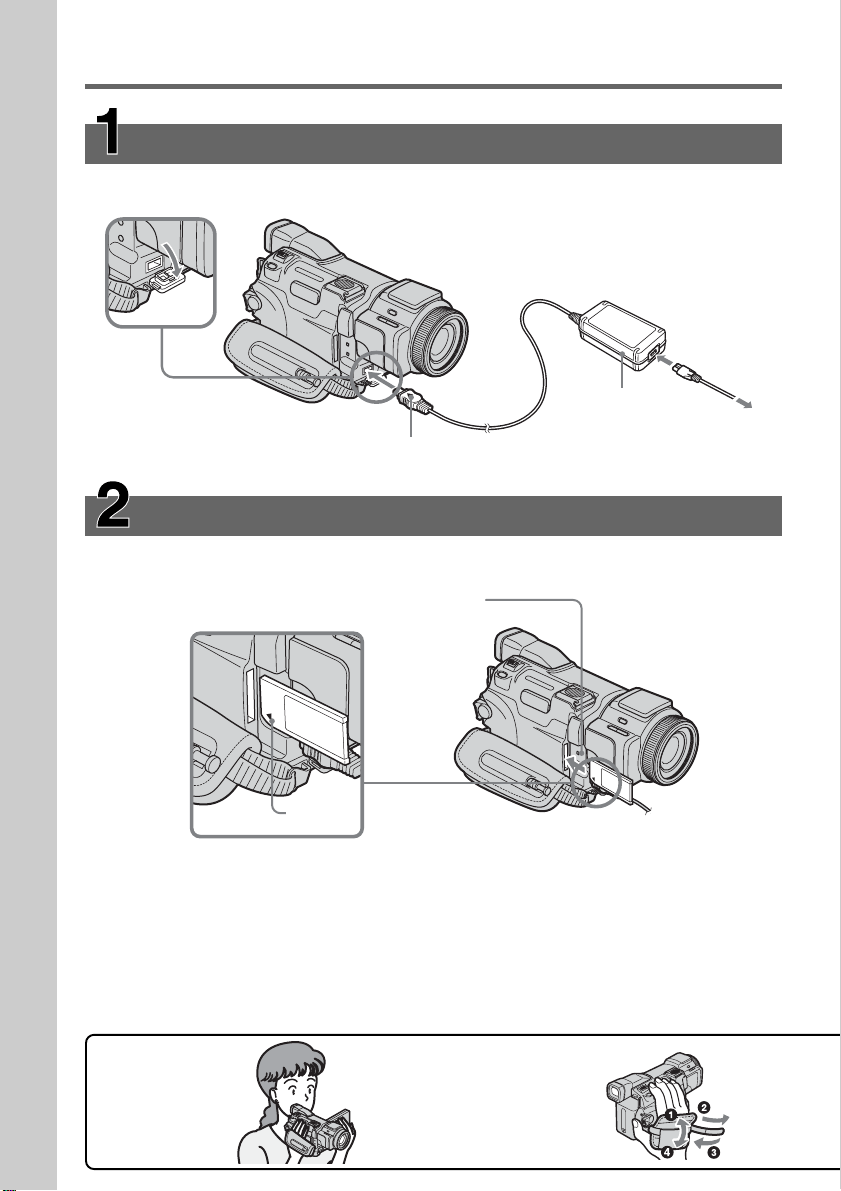
Connecting the power cord
Use the battery pack when using your camcorder outdoors (p. 15).
To eject the cassette
Follow the procedure above, and take out the cassette after the cassette compartment
opens completely in Step 2.
Note
Do not press the cassette compartment down forcibly. Doing so may cause a
malfunction.
Inserting a cassette
1 Slide OPEN/Z EJECT
in the direction of
the arrow to open the
lid.
2 Push the center of the
cassette back to insert
the cassette. Insert the
cassette into the
cassette compartment
with the window
facing up.
3 Close the cassette
compartment by
pressing on the
cassette
compartment.
After the cassette
compartment goes
down completely,
close the lid until it
clicks.
1
2
3
Open the DC IN
jack cover.
AC Adaptor
(supplied)
Connect the plug with its v
mark facing up.
Fastening the grip belt
Fasten the grip belt firmly.
How to hold
your camcorder
Quick Start Guide
9
Quick Start Guide
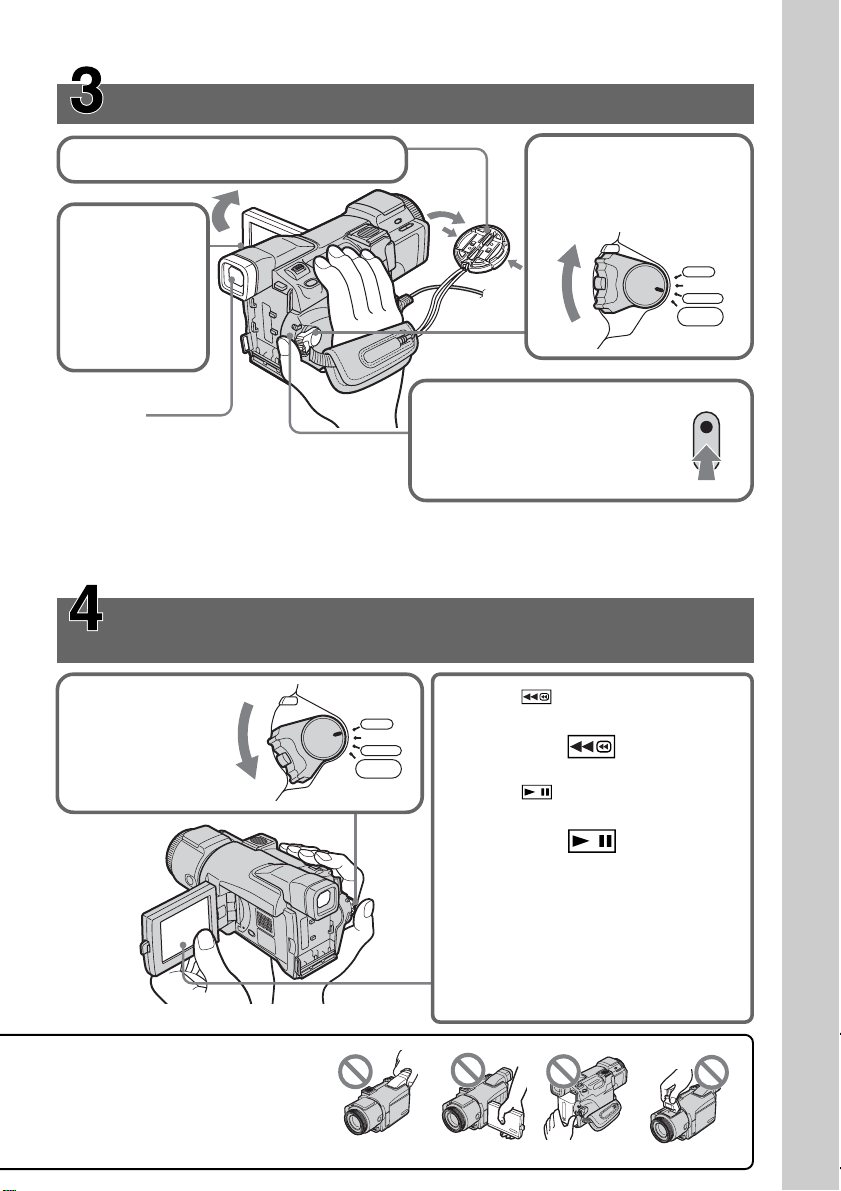
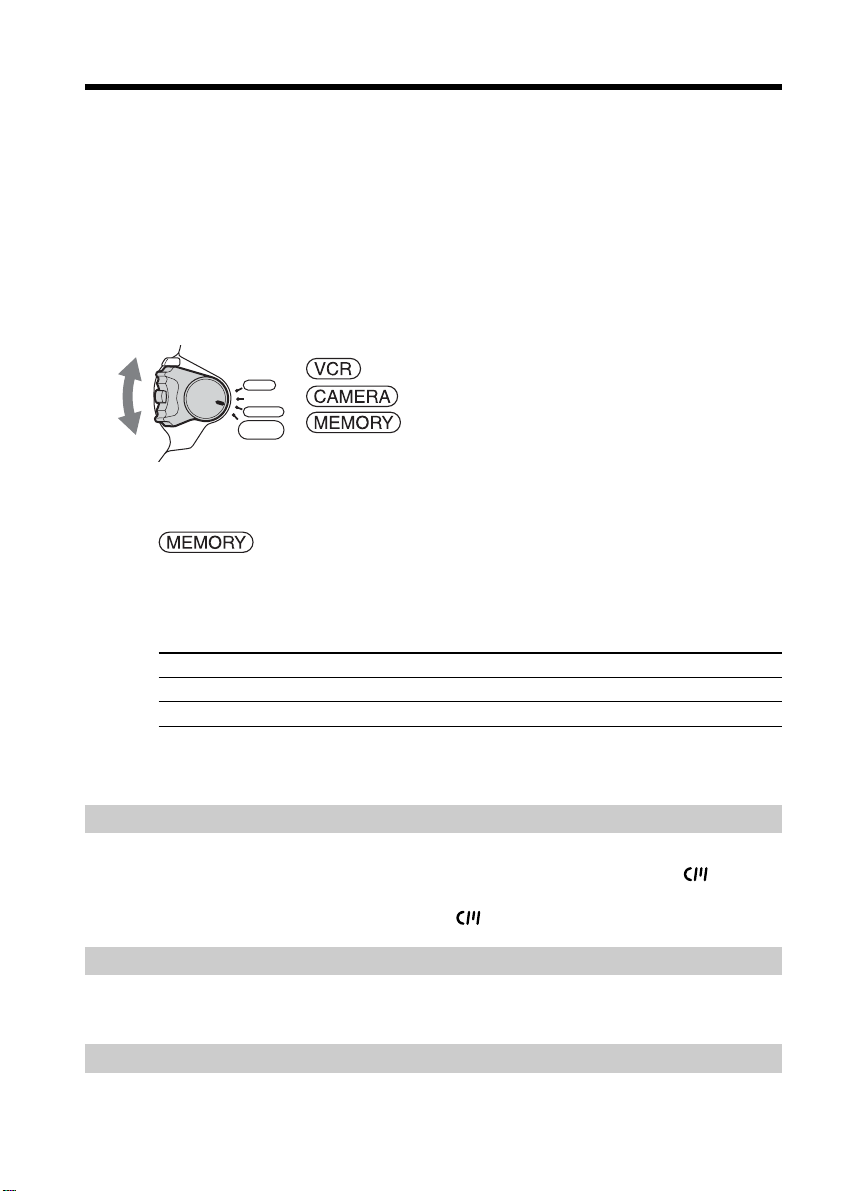
Recording a picture on a tape (p. 25)
Monitoring the playback picture on the LCD
screen (p. 39)
When you purchase your camcorder, the date and time are not set for the clock. If you want to
record the date and time for a picture, set the clock setting before recording (p. 20).
2Set the POWER switch
to CAMERA while
pressing the small
green button.
4Press START/STOP. Your
camcorder starts recording. To
stop recording, press START/
STOP again.
1Remove the lens cap.
3Press OPEN
to open the
LCD panel.
The picture
appears on
the screen.
Viewfinder
When the LCD panel is closed,
use the viewfinder with your eye
against the eyecup.
Adjust the viewfinder lens to
your eyesight (p. 31).
1Set the POWER
switch to VCR
while pressing the
small green button.
3Press on the touch panel to
start playback.
Note
When using the touch panel, press
operation buttons lightly with your
finger or the supplied stylus (DCR-
TRV70 only) supporting the LCD panel
from the back side of it. Do not press
the LCD screen with sharp-pointed
objects other than the supplied stylus
(DCR-TRV70 only).
2Press on the touch panel to
rewind the tape.
VCR
MEMORY/
NETWORK
CAMERA
OFF(CHG)
POWER
VCR
MEMORY/
NETWORK
CAMERA
OFF(CHG)
POWER
Do not pick up your camcorder
by holding parts as illustrated.
Viewfinder FlashLCD panel Battery pack
Quick Start Guide
10
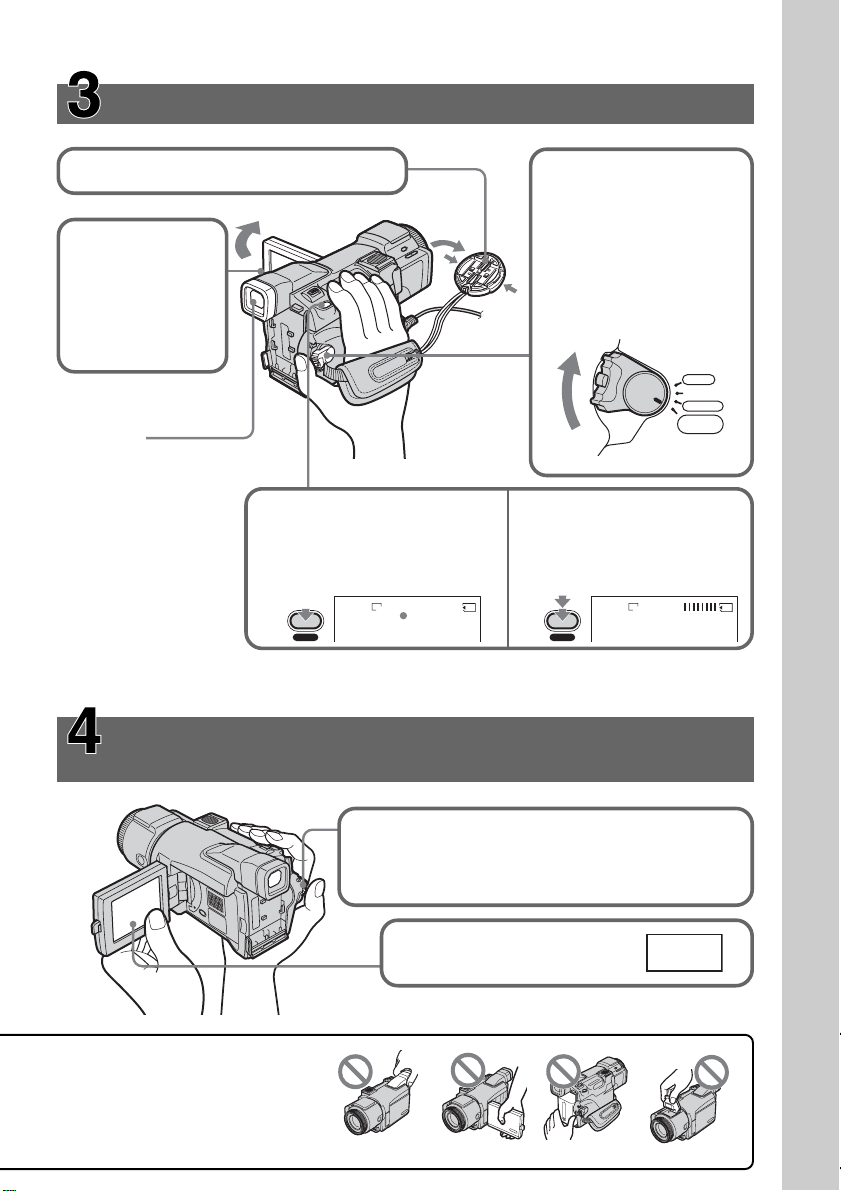
Inserting a “Memory Stick” (p. 104)
Insert a “Memory Stick” in the “Memory Stick” slot as far as it can go with the b mark
facing out as illustrated.
While the access lamp is lit or flashing
Do not shake or knock your camcorder because your camcorder is reading the data
from the “Memory Stick” or recording the data on the “Memory Stick.” Do not turn the
power off, eject the “Memory Stick” or remove the battery pack. Otherwise, image data
may become damaged.
Quick Start Guide – Recording on a “Memory Stick”
Connecting the power cord
Use the battery pack when using your camcorder outdoors (p. 15).
Access lamp
Press the “Memory Stick”
once lightly to eject it.
Connect the plug with its v
mark facing up.
1
2
3
Open the DC IN
jack cover.
AC Adaptor
(supplied)
b mark
Fastening the grip belt
Fasten the grip belt firmly.
How to hold
your camcorder
Quick Start Guide
11
Recording still images on a “Memory Stick”
(p. 109)
Monitoring the playback still image on the LCD
screen (p. 130)
1Set the POWER switch to MEMORY while
pressing the small green button.
Make sure that the LOCK switch is set to the left
(unlock) position.
2Press PLAY. The last
recorded image is displayed.
When you purchase your camcorder, the date and time are not set for the clock. If you want to
record the date and time for a picture, set the clock setting before recording (p. 20).
3Press OPEN to
open the LCD
panel.
The picture
appears on the
screen.
1Remove the lens cap (p. 25). 2Set the POWER switch
to MEMORY while
pressing the small green
button.
Make sure that the
LOCK switch is set to
the left (unlock)
position.
4Keep pressing PHOTO lightly.
When the green z mark stops
flashing, then lights up, you
can record a still image.
5Press PHOTO deeply.
The image while pressing
the button deeply is
recorded on the “Memory
Stick.”
Viewfinder
When the LCD panel is
closed, use the viewfinder
with your eye against the
eyecup.
Adjust the viewfinder
lens to your eyesight
(p. 31).
VCR
MEMORY/
NETWORK
CAMERA
OFF(CHG)
PO
W
E
R
12
FINE
1600
PHOTO
FINE
1600
PHOTO
PLAY
Do not pick up your camcorder
by holding parts as illustrated.
Viewfinder FlashLCD panel Battery pack
12
— Getting Started —
Using this manual
The instructions in this manual are for the two models listed in the table below. Before
you start reading this manual and operating your camcorder, check the model number
by looking at the bottom of your camcorder. The DCR-TRV70 is the model used for
illustration purposes. Otherwise, the model name is indicated in the illustrations. Any
differences in operation are clearly indicated in the text, for example, “DCR-TRV70
only.”
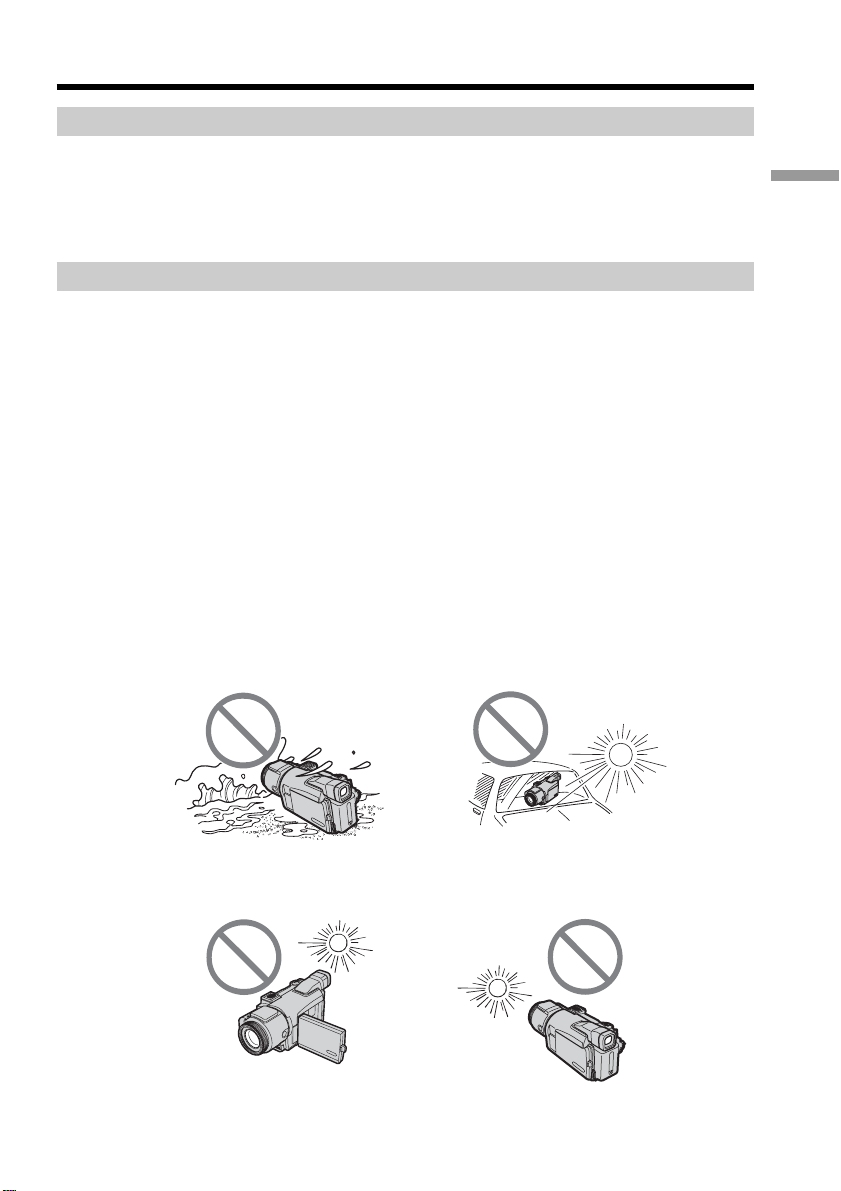
As you read through this manual, buttons and settings on your camcorder are shown in
capital letters.
After “Advanced Recording Operations” section of this manual, position of the POWER
switch is shown by the icons below.
: Set the POWER switch to VCR.
: Set the POWER switch to CAMERA.
: Set the POWER switch to MEMORY/NETWORK
(DCR-TRV70 only).
DCR-TRV70 only
The MEMORY/NETWORK position of the POWER switch is shown as MEMORY or
in this manual.
When you carry out an operation, you can hear a beep to indicate that the operation is
being carried out.
Types of differences
DCR- TRV60 TRV70
Mark on the POWER switch MEMORY MEMORY/NETWORK
Network function — z
z Provided
— Not provided
Note on Cassette Memory
Your camcorder is based on the DV format. You can use only mini DV cassettes on your
camcorder. We recommend that you use a cassette with Cassette Memory .
Cassettes with Cassette Memory have the (Cassette Memory) mark.
Note on TV color systems
TV color systems differ depending on the country or area. To view your recordings on a
TV, you need an NTSC system-based TV.
Copyright precautions
Television programs, films, video tapes, and other materials may be copyrighted.
Unauthorized recording of such materials may be contrary to the copyright laws.
VCR
MEMORY/
NETWORK
CAMERA
OFF(CHG)
POWER
Getting Started
13
Using this manual
Precautions on connecting with other equipment
When connecting your camcorder to another equipment such as the VCR or the
computer with the USB cable or i.LINK cable, be sure to confirm the insert direction of
the connector plug before connecting your camcorder to another equipment. If you
insert the connector plug forcibly in the wrong direction, the terminal area may break.
This may cause a malfunction of your camcorder.
Precautions on camcorder care
Lens and LCD screen/finder (on mounted models only)
•The LCD screen and the finder are manufactured using extremely high-precision
technology, so over 99.99% of the pixels are operational for effective use.
However, there may be some tiny black points and/or bright points (white, red,
blue or green in color) that constantly appear on the LCD screen and the finder.
These points are normal in the manufacturing process and do not affect the
recording in any way.
•Do not let your camcorder get wet. Keep your camcorder away from rain and sea
water. Letting your camcorder get wet may cause your camcorder to malfunction.
Sometimes this malfunction cannot be repaired [a].
•Never leave your camcorder exposed to temperatures above 60°C (140°F), such as in a
car parked in the sun or under direct sunlight [b].
•Be careful when placing the camera near a window or outdoors. Exposing the LCD
screen, the finder or the lens to direct sunlight for long periods may cause
malfunctions [c].
•Do not directly shoot the sun. Doing so might cause your camcorder to malfunction.
Take pictures of the sun in low light conditions such as dusk [d].
[a][b]
[c][d]
14
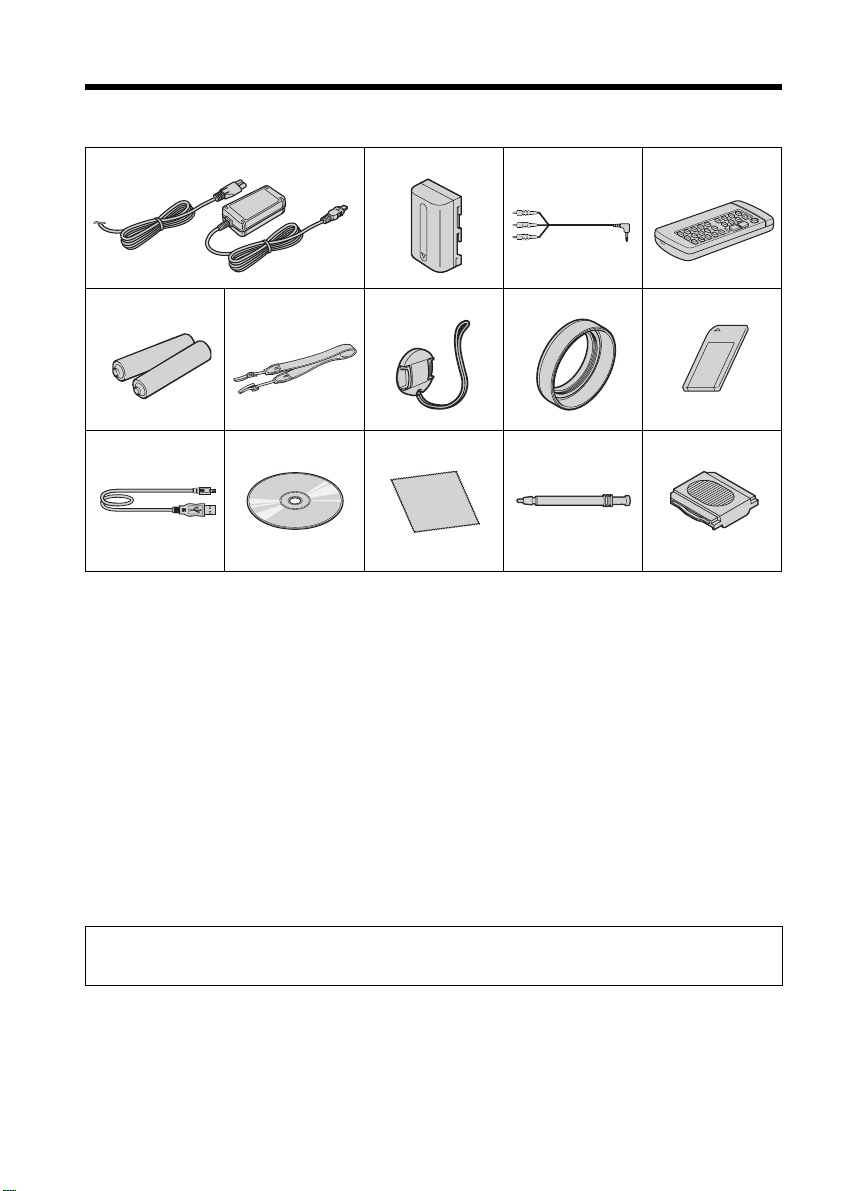
Checking supplied accessories
Make sure that the following accessories are supplied with your camcorder.
1 AC-L15A/L15B AC Adaptor (1), power
cord (1) (p. 16)
2 NP-FM50 rechargeable battery pack
(1) (p. 15, 16)
3 A/V connecting cable (1) (p. 44)
4 Wireless Remote Commander (1)
(p. 215)
5 Size AA (R6) battery for Remote
Commander (2) (p. 216)
6 Shoulder strap (1)
Contents of the recording cannot be compensated if recording or playback is not made due to a
malfunction of the camcorder, storage media, etc.
7 Lens cap (1) (p. 25)
8 Lens hood (1) (p. 32)
9 “Memory Stick” (1) (p. 102)
0 USB cable (1) (p. 143)
qa CD-ROM (SPVD-010 USB Driver) (1)
(p. 148)
qs Cleaning cloth (1) (p. 203)
qd Stylus (1) (DCR-TRV70 only) (p. 171)
qf Shoe cover (1) (p. 94)
9
1
4
q;
5
qa
6
qs
2
7
qd
3
8
qf
15
Getting Started
Step 1 Preparing the power source
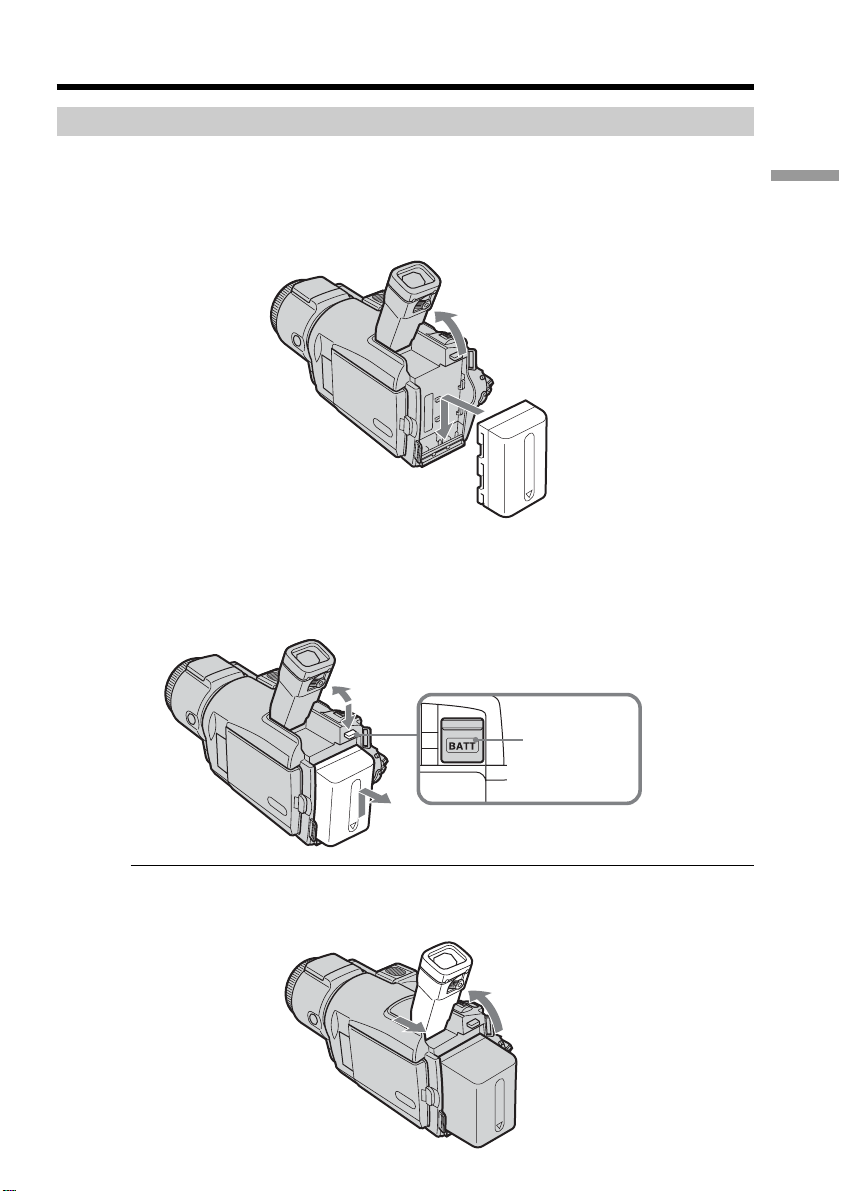
Installing or removing the battery pack
Be sure to set the POWER switch to OFF (CHG) before installing, removing or
exchanging the battery pack.
(1) Lift up the viewfinder.
(2) Slide the battery pack down until it clicks.
To remove the battery pack
(1) Lift up the viewfinder.
(2) Slide the battery pack out in the direction of the arrow while pressing BATT
down.
If you use the large capacity battery pack
If you install the NP-FM70/QM71/QM71D/FM91/QM91/QM91D battery pack on your
camcorder, extend and lift up the viewfinder and adjust the angle of it.
1
2
2
1
2
BATT release
button
16
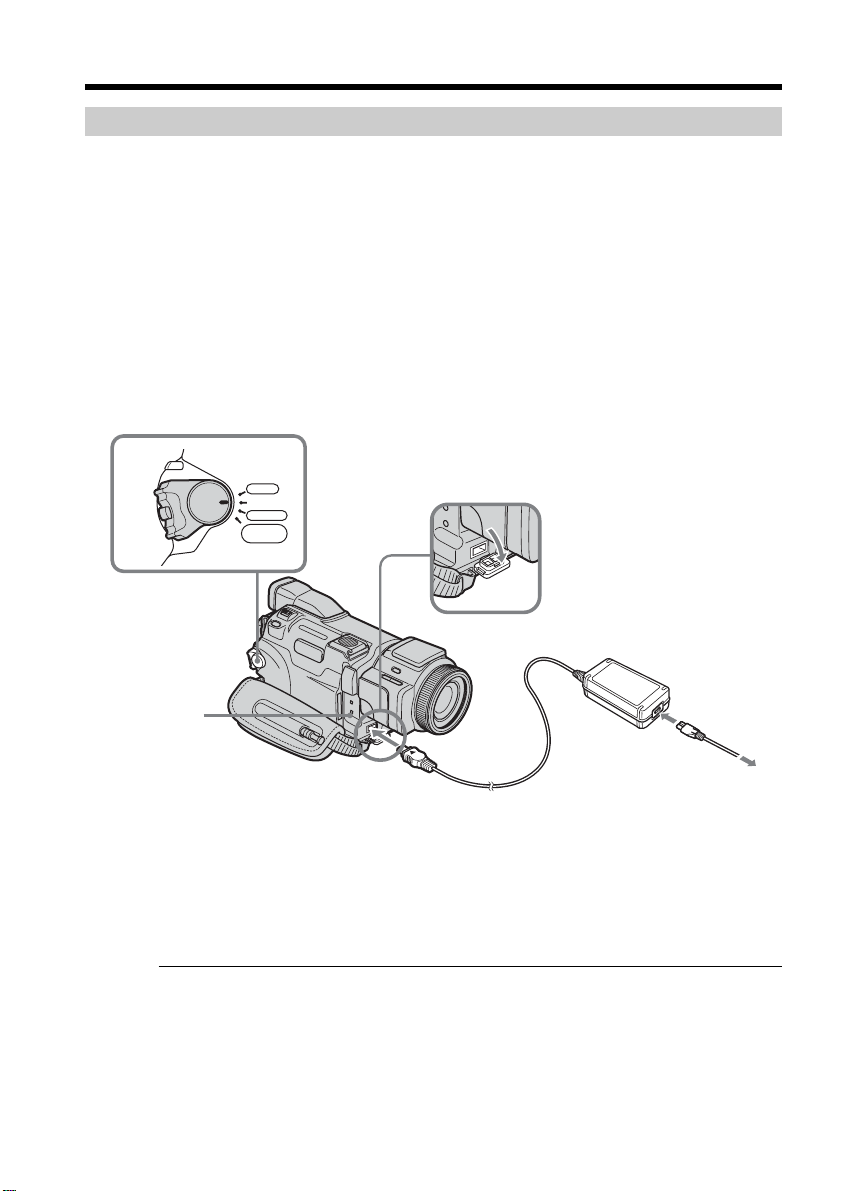
Charging the battery pack
Use the battery pack after charging it for your camcorder.
Your camcorder operates only with the “InfoLITHIUM” battery pack (M series).
See page 197 for details on “InfoLITHIUM” battery pack.
(1) Install the battery pack on your camcorder.
(2) Connect the AC Adaptor supplied with your camcorder to the DC IN jack with
the DC plug’s v mark facing up.
(3) Connect the power cord to the AC Adaptor.
(4) Connect the power cord to a wall outlet.
(5) Set the POWER switch to OFF (CHG). Charging begins. The CHARGE lamp
lights up. When charging is completed, the CHARGE lamp turns off (full
charge).
After charging the battery pack
Disconnect the AC Adaptor from the DC IN jack on your camcorder.
Note
Prevent metallic objects from coming into contact with the metal parts of the DC plug of
the AC Adaptor. This may cause a short-circuit, damaging the AC Adaptor.
When you use the AC Adaptor
Place the AC Adaptor near a wall outlet. While using the AC Adaptor, if any trouble
occurs with this unit, disconnect the plug from a wall outlet as soon as possible to cut
off the power.
Step 1 Preparing the power source
3
2
5
VCR
MEMORY/
NETWORK
CAMERA
OFF(CHG)
POWER
CHARGE lamp

17
Getting Started
Step 1 Preparing the power source
Note on the CHARGE lamp
The CHARGE lamp flashes in the following cases:
– The battery pack is not properly installed.
– Something is wrong with the battery pack.
Charging time
Battery pack Full charge
NP-FM50 (supplied) 150
NP-FM70 240
NP-QM71/QM71D 260
NP-FM91/QM91/QM91D 360
Approximate minutes at 25°C (77°F) to charge an empty battery pack
The charging time may increase if the battery’s temperature is extremely high or low
because of the ambient temperature.
Recording time
Recording with Recording with
Battery pack the viewfinder the LCD screen
Continuous Typical* Continuous Typical*
NP-FM50 (supplied) 125 70 105 60
NP-FM70 265 155 220 130
NP-QM71/QM71D 305 180 255 150
NP-FM91/QM91/QM91D 465 270 390 230
Approximate minutes when you use a fully charged battery pack
* Approximate number of minutes when recording while you repeat recording start/
stop, zooming and turning the power on/off. The actual battery life may be shorter.
Playing time
Battery pack
Playing time Playing time
with the LCD panel closed on the LCD screen
NP-FM50 (supplied) 220 160
NP-FM70 450 335
NP-QM71/QM71D 530 390
NP-FM91/QM91/QM91D 785 585
Approximate minutes when you use a fully charged battery pack
Note
Approximate recording time and continuous playing time at 25°C (77°F). The battery
life will be shorter if you use your camcorder in a cold environment.
18
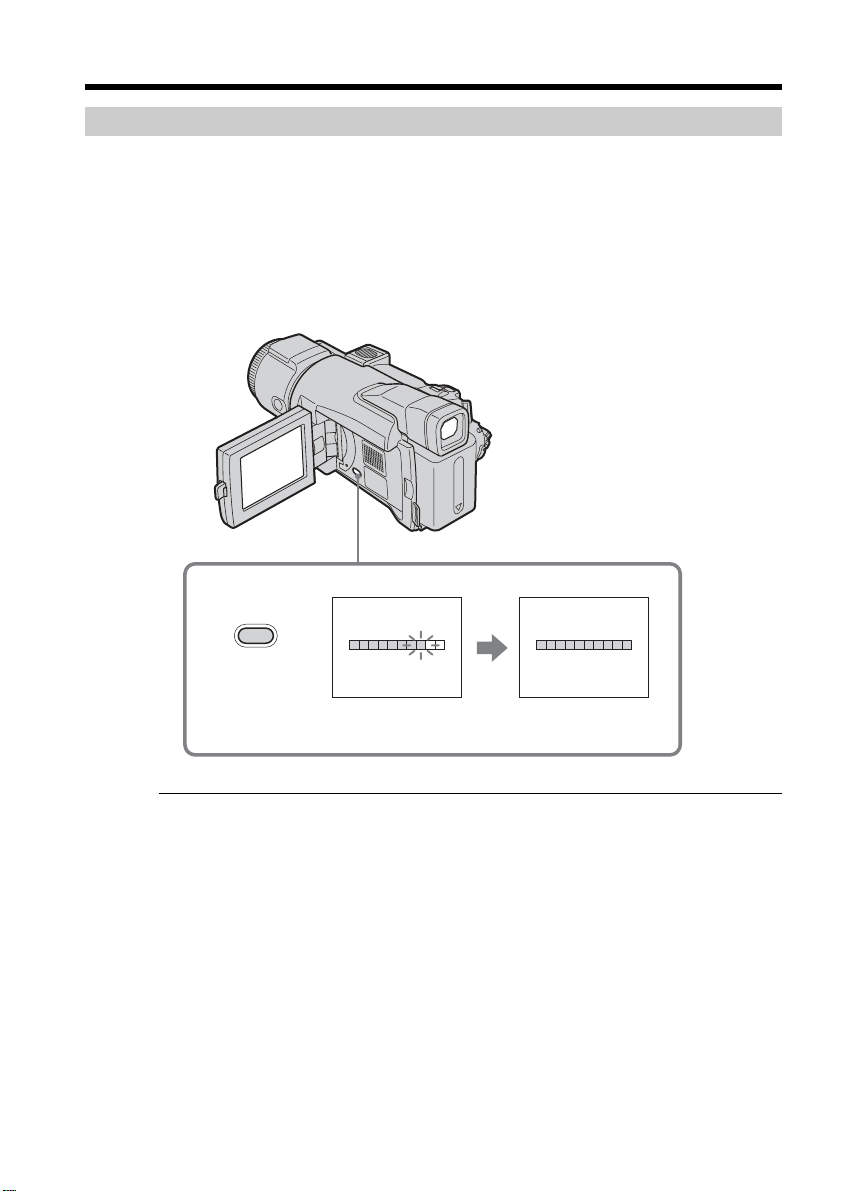
Checking the status of the battery pack – Battery Info
(1) Set the POWER switch to OFF (CHG).
(2) Press OPEN to open the LCD panel.
(3) Press DISPLAY/BATT INFO.
The battery charge level (the percentage of the current remaining battery time
to the recording time when fully charged) and remaining battery time when
using the LCD screen or viewfinder are displayed for about seven seconds.
If you keep pressing DISPLAY/BATT INFO, the indicator is displayed for
about 20 seconds.
Note
The BATT INFO indicator may not be displayed in the following cases:
– The battery pack is not properly installed.
– Something is wrong with the battery pack.
– The battery is discharged completely.
Battery Info
The number displayed as Battery Info is the approximate recording time.
While the remaining battery time is being calculated
“CALCULATING BATTERY INFO...” is displayed.
Step 1 Preparing the power source
BATTERY INFO
BATTERY CHARGE LEVEL
REC TIME AVAILABLE
LCD SCREEN
VIEWFINDER
:
:
80
100
min
min
0%
50%
BATTERY INFO
BATTERY CHARGE LEVEL
REC TIME AVAILABLE
LCD SCREEN
VIEWFINDER
:
:
105
125
min
min
0% 50% 100%
DISPLAY/
BATT INFO
3
100%
During charging
Fully charged

19
Getting Started
Connecting to a wall outlet
Connect your camcorder to a wall outlet the way described in “Charging the battery
pack” on page 16. You can go on using your camcorder without fear of the battery
running out.
PRECAUTION
The set is not disconnected from the AC power source (house current) as long as it is
connected to the wall outlet, even if the set itself has been turned off.
Notes
•The AC Adaptor can supply power from a wall outlet even if the battery pack is
attached to your camcorder.
•The DC IN jack has “source priority.” This means that the battery pack cannot supply
any power if the power cord is connected to the DC IN jack, even when the power
cord is not plugged into a wall outlet.
Step 1 Preparing the power source
20
Step 2 Setting the date and time
Set the date and time when you use your camcorder for the first time. The “CLOCK
SET” indicator will appear each time you set the POWER switch to CAMERA or
MEMORY unless you set the date and time settings.
If you do not set the date and time, “--- -- ----” and “--:--:--” are recorded on the tape or
the “Memory Stick” as the data code.
If you do not use your camcorder for about three months, the date and time settings
may be cleared from memory (bars may appear) because the built-in rechargeable
battery installed in your camcorder will have been discharged (p. 204). In this case,
charge the built-in rechargeable battery, then set your area, the daylight saving time
(DST*), the year, the month, the day, the hour and the minute.
* Instead of DST, SUMMERTIME is displayed on the screen for some models.
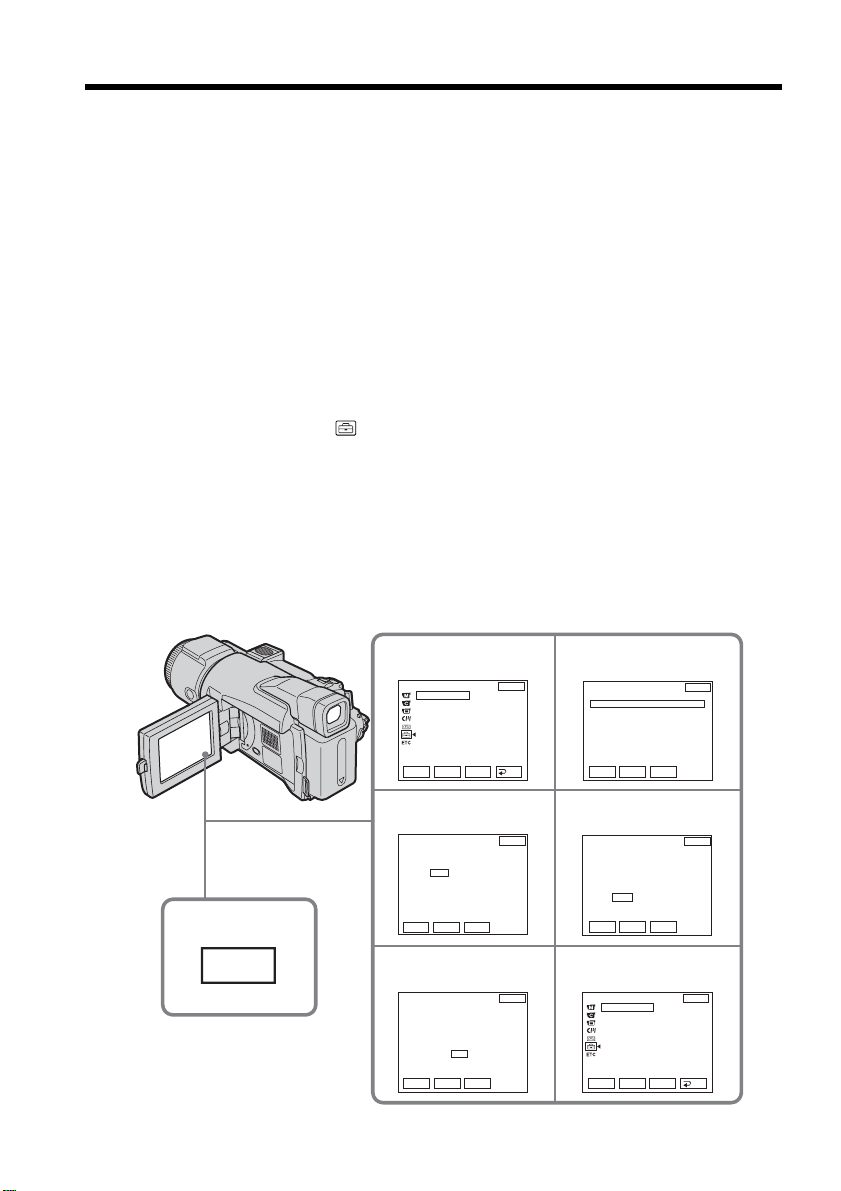
(1) Set the POWER switch to CAMERA or MEMORY.
(2) Press OPEN to open the LCD panel.
(3) Press FN (Function) to display PAGE1 (p. 23).
(4) Press MENU.
(5) Press r/R to select
, then press EXEC.
(6) Press r/R to select CLOCK SET, then press EXEC.
(7) Press r/R to select your area, then press EXEC.
(8) Press r/R to select whether your area is in the daylight saving time or not,
then press EXEC.
(9) Press r/R to select a desired year, then press EXEC.
(10) Set the month, day and hour with the same procedure as Step 8.
(11) Press r/R to set the minute, then press EXEC by the time signal. The clock
starts to move.
5
9
6
SETUP MENU
CLOCK SET
USB STREAM
LANGUAGE
DEMO MODE
11
EXIT
RET.
EXEC
Rr
EXEC
Rr
EXEC
Rr
––:––:––
7
8
EXEC
Rr
EXEC
Rr
SETUP MENU
CLOCK SET
USB STREAM
LANGUAGE
DEMO MODE
EXIT
RET.
EXEC
Rr
JUL 4 2003
5:30:00 PM
EXIT
EXIT
EXIT
EXIT
DST OFF
DATE Y M D
GMT +0.0
Lisbon, London
CLOCK SET
AREA 1
R
r
– – – – – – – – – – – : – –
CLOCK SET
AREA26
GMT –5.0
New York, Bogota
DST OFF
ON
DATE Y M D
– – – – – – – – – – – : – –
RRRRR
rrrrr
GMT –5.0
New York, Bogota
DST OFF
DATE Y M D
CLOCK SET
AREA26
2003 JAN 1 12 : 00 AM
RR
rr
GMT –5.0
New York, Bogota
DST OFF
DATE Y M D
CLOCK SET
AREA26
2003 JAN 1 12 : 00 AM
3
FN
RR
r
r
R
r

21
Getting Started
To return to FN (Function)
Press EXIT.
When using your camcorder abroad
Set the clock to the local time (p. 22).
If you use your camcorder in an area where daylight saving time is used
Set DST SET in to ON in the menu settings.
Note on the time indicator
The internal clock of your camcorder operates on a 12-hour cycle.
•12:00 AM stands for midnight.
•12:00 PM stands for noon.
Step 2 Setting the date and time
22
Simple setting of clock by time difference
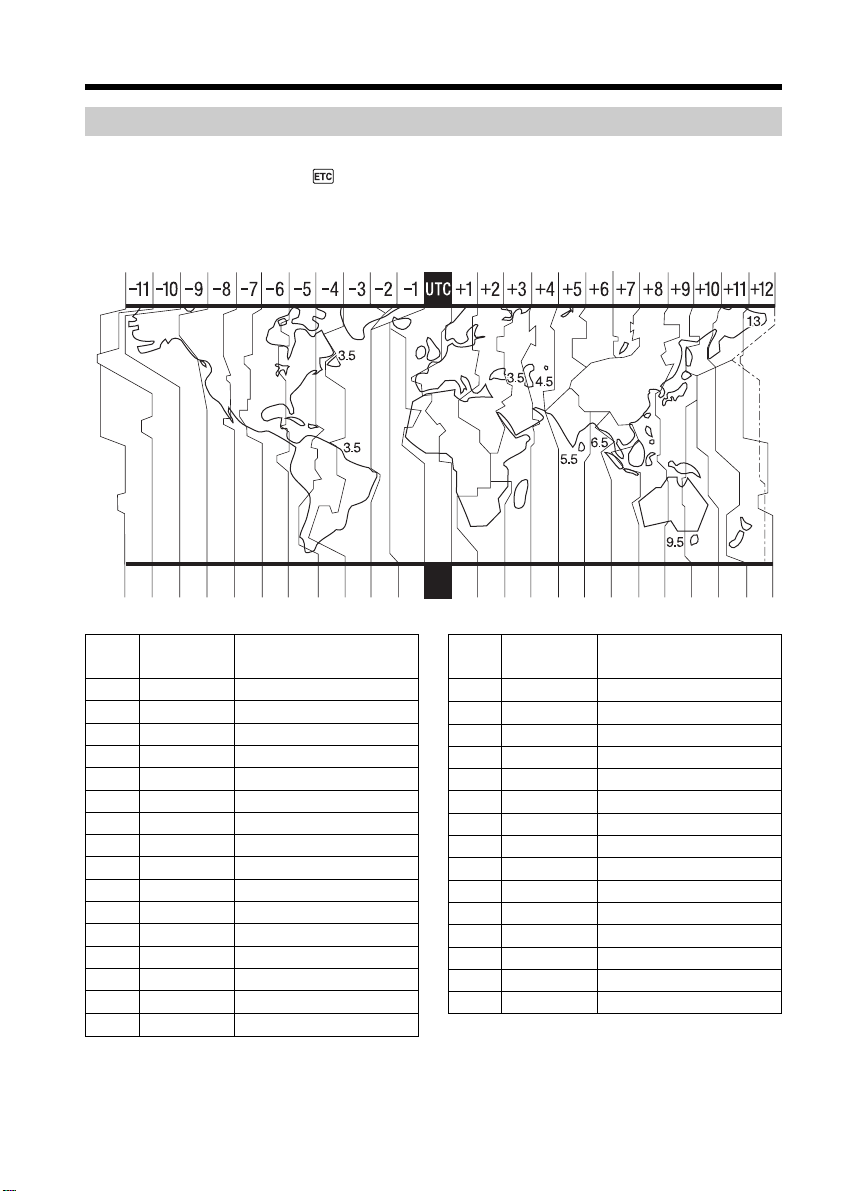
You can easily set the clock to the local time by setting a time difference. Select AREA
SET and DST SET* in in the menu settings.
See page 181 for details.
* Instead of DST, SUMMERTIME is displayed on the screen for some models.
World time difference
Step 2 Setting the date and time
Lisbon, London
Berlin, Paris
Helsinki, Cairo
Moscow, Nairobi
Tehran
Abu Dhabi, Baku
Kabul
Karachi, Islamabad
Calcutta, New Delhi
Almaty, Dhaka
Rangoon
Bangkok, Jakarta
HongKong, Singapore
Seoul, Tokyo
Adelaide, Darwin
Melbourne, Sydney
Area Time-zone
Area setting
code differences
1
2
3
4
5
6
7
8
9
10
11
12
13
14
15
16
GMT
+01:00
+02:00
+03:00
+03:30
+04:00
+04:30
+05:00
+05:30
+06:00
+06:30
+07:00
+08:00
+09:00
+09:30
+10:00
Area Time-zone
Area setting
code differences
17
18
19
20
21
22
23
24
25
26
27
28
29
30
31
+11:00
+12:00
–12:00
–11:00
–10:00
–09:00
–08:00
–07:00
–06:00
–05:00
–04:00
–03:30
–03:00
–02:00
–01:00
Solomon Is.
Fiji, Wellington
Eniwetok, Kwajalein
Midway Is., Samoa
Hawaii
Alaska
LosAngeles, Tijuana
Denver, Arizona
Chicago, MexicoCity
New York, Bogota
Santiago
St. John’s
Brasilia, Montevideo
Fernando de Noronha
Azores
19202122232425 26 27293031 1 2346810121314161718
23
Getting Started
Your camcorder has operation buttons on the LCD screen.
Touch the LCD screen directly with your finger or the supplied stylus (DCR-TRV70
only) to operate each function.
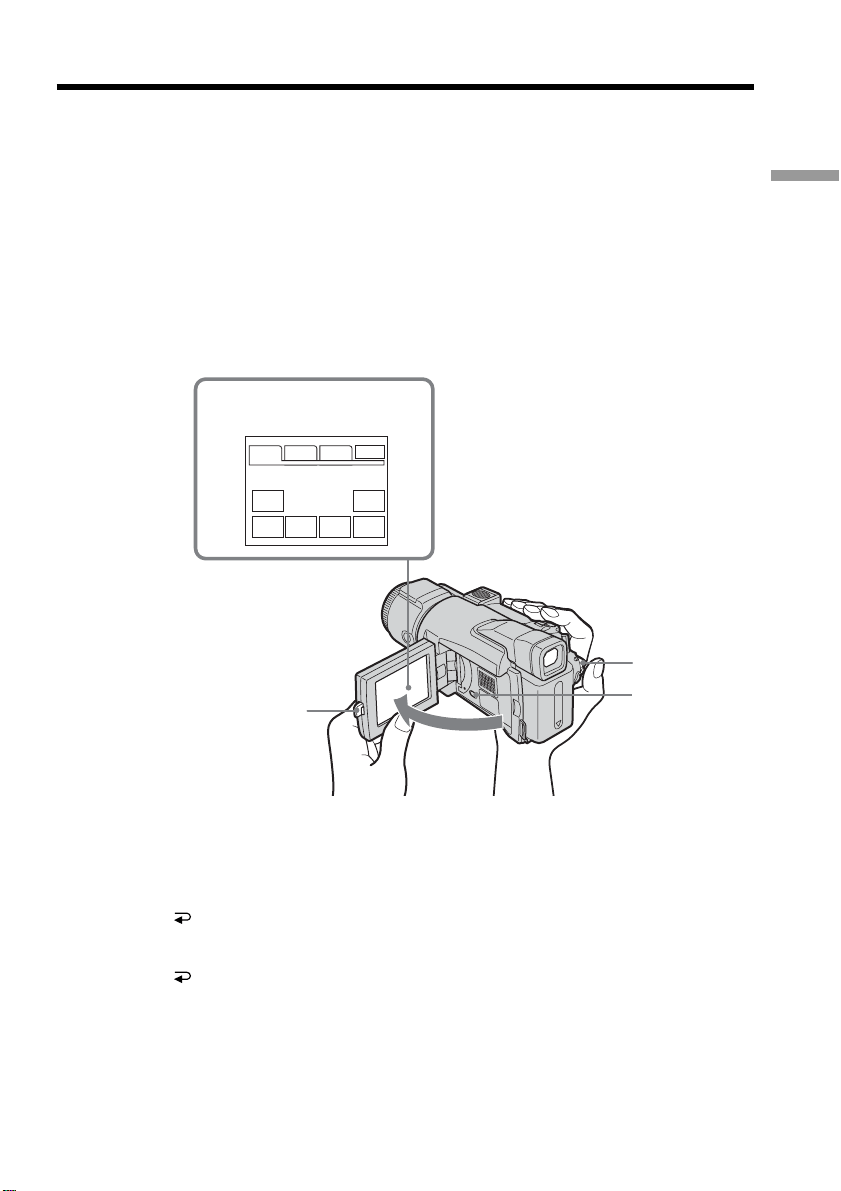
(1) Set the POWER switch to CAMERA to record, VCR to play back or MEMORY
to use a “Memory Stick.”
(2) Press OPEN to open the LCD panel.
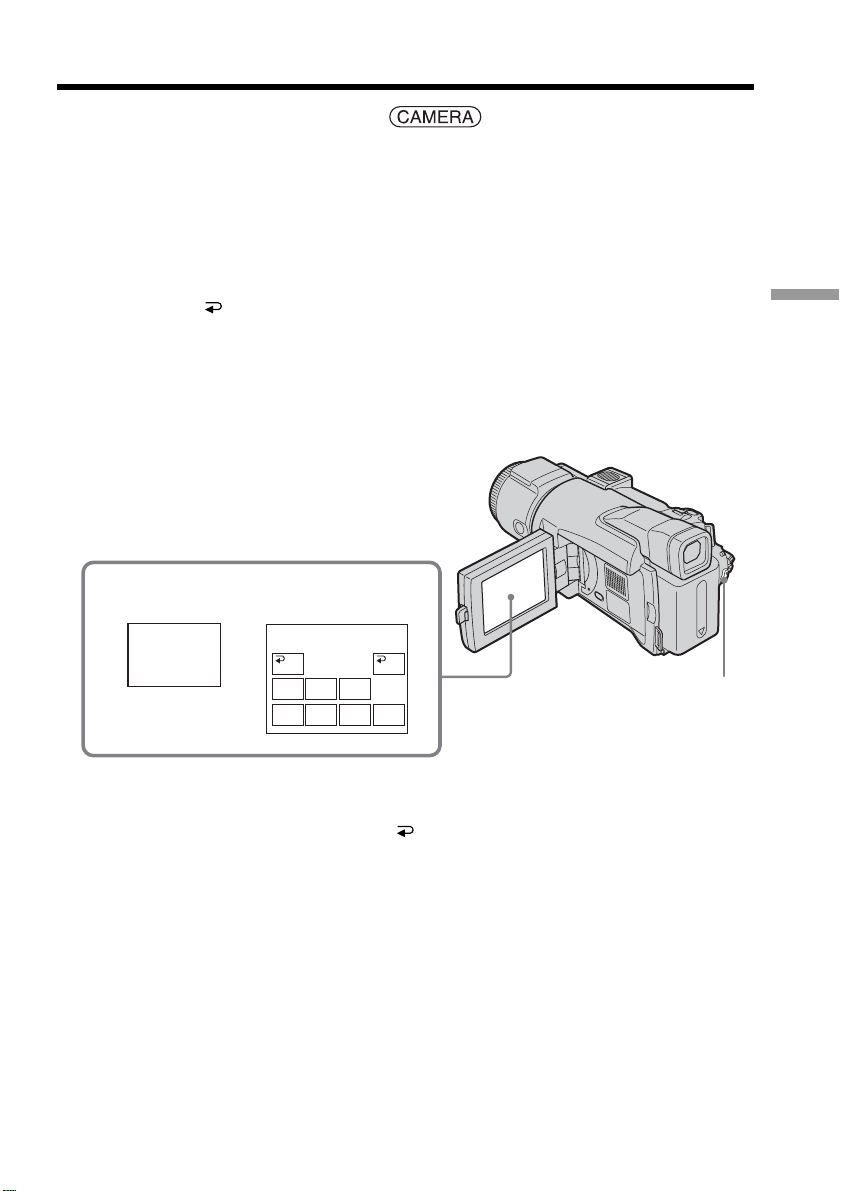
(3) Press FN. Operation buttons on PAGE1 are displayed on the LCD screen.
(4) Press PAGE2/PAGE3 to display PAGE2/PAGE3. Operation buttons on
PAGE2/PAGE3 are displayed on the LCD screen.
(5) Press a desired operation item. See relevant pages of this manual for each
function.
To return to FN
Press EXIT.
To execute settings
Press OK. The display returns to PAGE1/PAGE2/PAGE3.
To cancel settings
Press OFF. The display returns to PAGE1/PAGE2/PAGE3.
To make screen indicators disappear
Press DISPLAY/BATT INFO.
Step 3 Using the touch panel
2
1
3
SPOT
METER
MENU
SPOT
FOCUS
FADER
END
SCH
EXPO-
SURE
PAGE1 PAGE2 PAGE3
EXIT
When the POWER switch
is set to CAMERA
DISPLAY/BATT
INFO
24
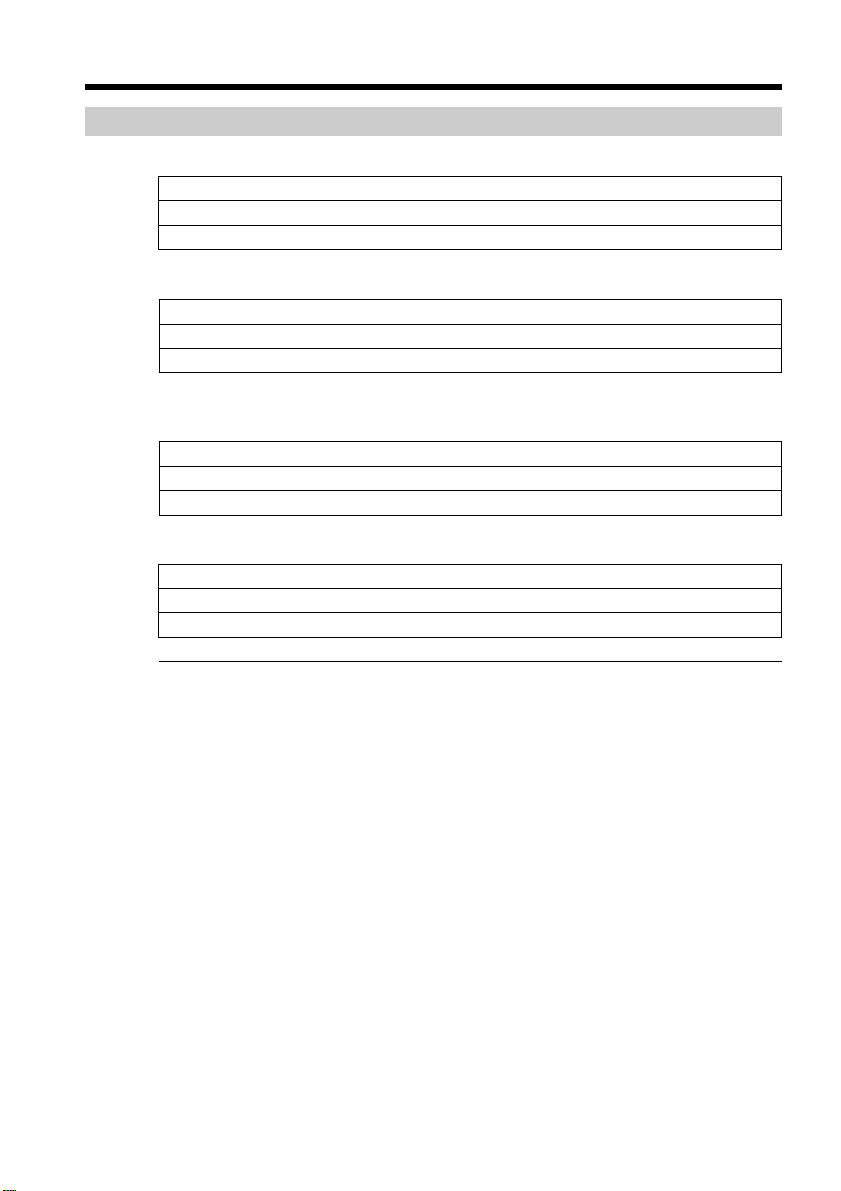
Operation buttons on each display
When the POWER switch is set to CAMERA
PAGE1 SPOT FOCUS, MENU, FADER, END SCH, SPOT METER, EXPOSURE
PAGE2 SELFTIMER, DIG EFFT, LCD BRT, VOL, MEM MIX
PAGE3 SUPER NS, COLOR SLW S, PRGRE REC
When the POWER switch is set to VCR
PAGE1 MENU, LCD BRT, VOL, END SCH
PAGE2 PB ZOOM, DIG EFFT, DATA CODE
PAGE3 V SPD PLAY, A DUB CTRL, REC CTRL
When the POWER switch is set to MEMORY
During memory camera
PAGE1 SPOT FOCUS, MENU, PLAY, PB FOLDR, SPOT METER, EXPOSURE
PAGE2 SELFTIMER, PLAY, MEM MIX
PAGE3 LCD BRT, PLAY, VOL
During memory playback
PAGE1 MENU, CAM, PB FOLDR, DEL
PAGE2 PB ZOOM, CAM, RESIZE, DATA CODE
PAGE3 LCD BRT, CAM, VOL
Notes
•When using the touch panel, press operation buttons lightly with your finger or the
supplied stylus (DCR-TRV70 only) supporting the LCD panel from the back side of it.
•Do not press the LCD screen with sharp-pointed objects other than the supplied
stylus. (DCR-TRV70 only)
•Do not press the LCD screen too hard.
•Do not touch the LCD screen with wet hands.
•If FN is not on the LCD screen, touch the LCD screen lightly to make it appear. You
can control the display with DISPLAY/BATT INFO on your camcorder.
While executing each item
The green bar appears above the item.
If the items are not available
The color of the items changes to gray.
Touch panel
You can operate with the touch panel using the viewfinder (p. 69).
Step 3 Using the touch panel
25
Recording – Basics
Follow the procedures in “Step 1” and “Step 2” (p. 15 to 22) beforehand.
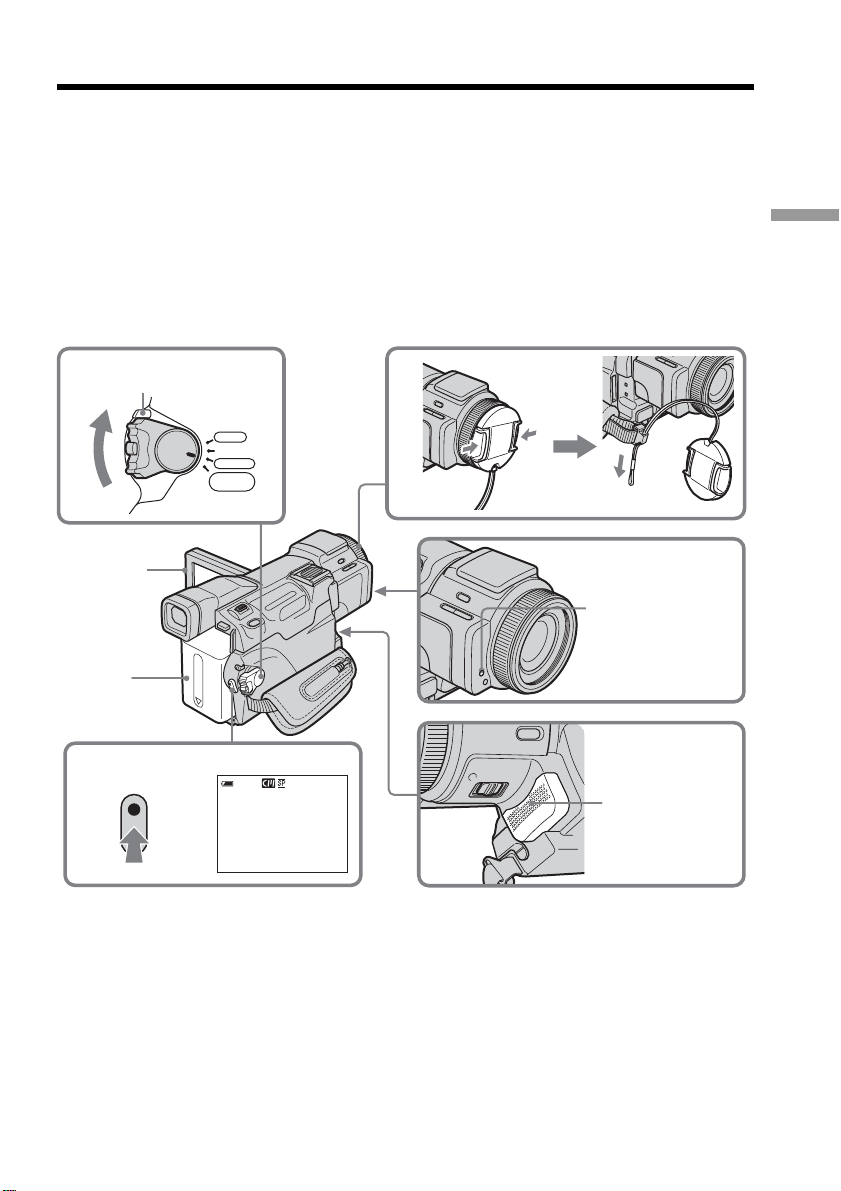
(1) Remove the lens cap and pull the lens cap string to fix it.
(2) Prepare the power source (p. 15 to 19) and insert a cassette (p. 8).
(3) Set the POWER switch to CAMERA while pressing the small green button.
This sets your camcorder to standby.
(4) Press OPEN to open the LCD panel. The picture appears on the screen.
(5) Press START/STOP. Your camcorder starts recording. The REC indicator
appears. The camera recording lamp located on the front of your camcorder
lights up. To stop recording, press START/STOP again.
Self-timer recording
If you record with the self-timer, your camcorder automatically starts recording on a
tape after counting down for about 10 seconds. See page 48 for details.
— Recording – Basics —
Recording a picture
5
2
4
50min
REC
0:00:01
3
VCR
MEMORY/
NETWORK
CAMERA
OFF(CHG)
POWER
1
LOCK switch
Microphone
Camera recording
lamp

26
Note on recording
Your camcorder records and plays back in the SP (standard play) mode and in the LP
(long play) mode. Select SP or LP in in the menu settings (p. 179). In the LP mode,
you can record 1.5 times as long as in the SP mode.
When you record a tape in the LP mode on your camcorder, we recommend playing
back the tape on your camcorder.
To enable smooth transition
Transition between the last scene you recorded and the next scene is smooth as long as
you do not eject the cassette even if you turn off your camcorder.
However, check the following:
– Do not mix recordings in the SP mode and in the LP mode on one tape.
– When you change the battery pack, set the POWER switch to OFF (CHG).
Notes
•The recording data (date/time or various settings when recorded) is not displayed
during recording. However, it is recorded automatically on the tape. To display the
recording data, press DATA CODE during playback. You can also use the Remote
Commander for this operation (p. 40).
•Be careful not to touch the microphone.
If you leave your camcorder in standby for five minutes while the cassette is
inserted
Your camcorder automatically turns off. This is to save battery power and to prevent
the battery pack and tape from wearing. To return to standby, set the POWER switch to
OFF (CHG) and then back to CAMERA. However, your camcorder does not turn off
automatically while the cassette is not inserted.
When you record in the SP mode and in the LP mode on one tape or you record in
the LP mode
•The transition between scenes may not be smooth.
•The playback picture may be distorted or the time code may not be written properly
between scenes.
Note on the LOCK switch
When you set the LOCK switch to the right, the POWER switch can no longer be set to
MEMORY accidentally. The LOCK switch is set to the left as the default setting.
Recording a picture
27
Recording – Basics
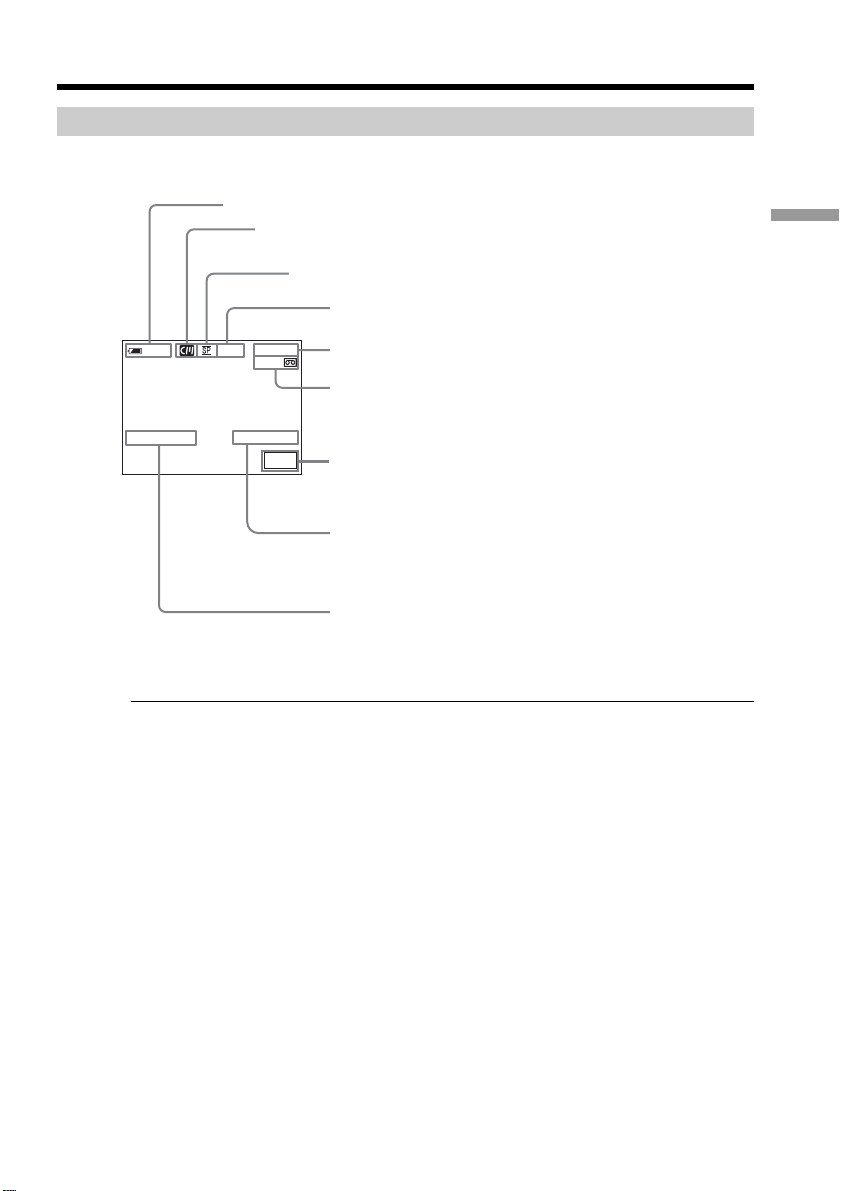
Indicators displayed during recording
Indicators are not recorded on the tape.
Remaining battery time indicator during recording
The remaining battery time indicator roughly indicates the continuous recording time.
The indicator may not be correct, depending on the conditions in which you are
recording. When you close the LCD panel and open it again, it takes about one minute
for the correct remaining battery time in minutes to be displayed.
Time code
The time code indicates the recording or playback time, “0:00:00” (hours : minutes :
seconds) in CAMERA and “0:00:00:00” (hours : minutes : seconds : frames) in VCR.
You cannot rewrite only the time code.
Recording data
The recording data (date/time or various settings when recorded) is not displayed
during recording. However, it is recorded automatically on the tape. To display the
recording data, press DATA CODE during playback. You can also use the Remote
Commander for this operation (p. 40).
Recording a picture
0:00:01
45min
50
min
REC
JUL 4 2003
12:05:56PM
FN
Recording mode
Cassette Memory
This appears when using a cassette with Cassette Memory.
Time
The time is displayed about five seconds after the
power is turned on.
Date
The date is displayed about five seconds after the
power is turned on.
STBY/REC
Remaining battery time
Time code/Tape counter
Remaining tape
This appears after you insert a cassette.
FN button
Press this button to display operation buttons on the
LCD screen.
28
Recording a picture
After recording
(1) Set the POWER switch to OFF (CHG).
(2) Close the LCD panel.
(3) Eject the cassette.
(4) Remove the power source.
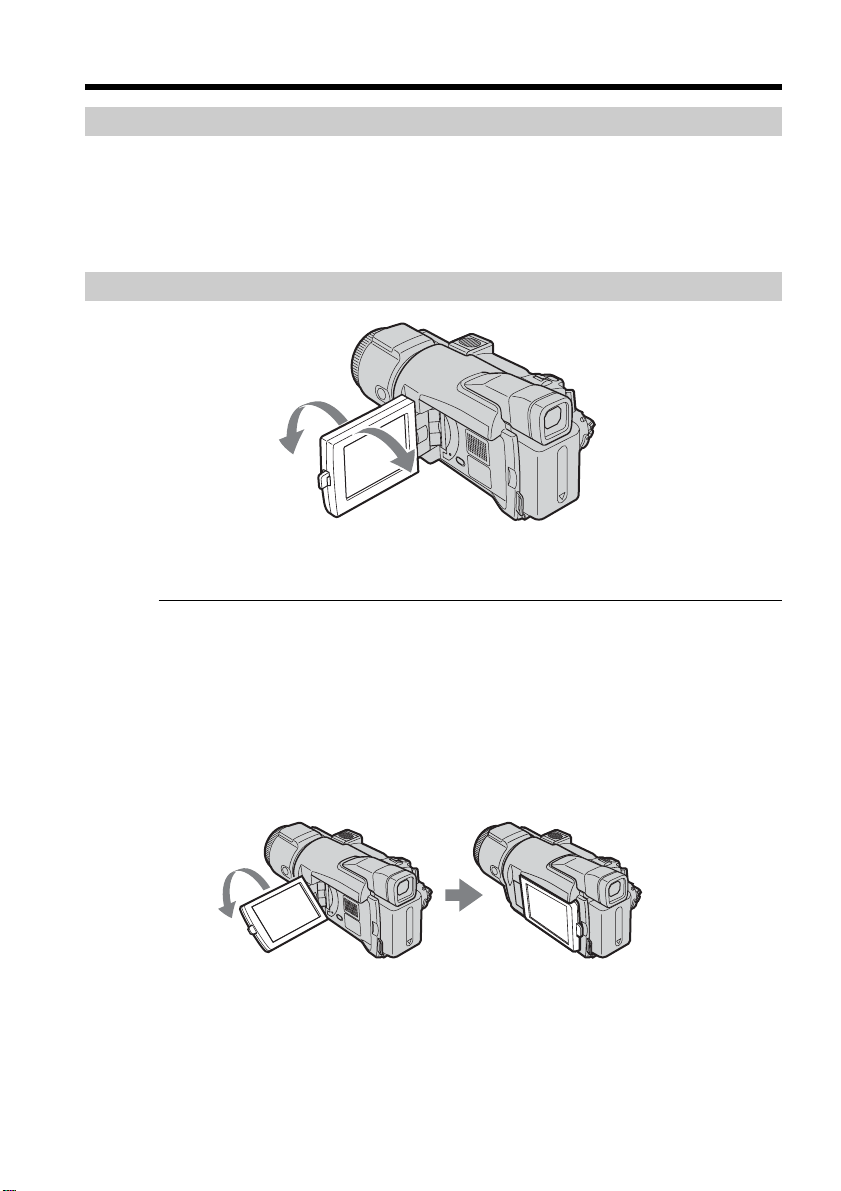
Adjusting the LCD screen
When you adjust the angle of the LCD panel, make sure if the LCD panel is opened up
to 90 degrees.
Notes
•When using the LCD screen except in the mirror mode, the viewfinder automatically
turns off.
•When you turn the LCD panel over and move it back to your camcorder body with
the LCD screen facing out during recording or recording standby, the brightness of
the LCD screen is fix to BRT NORMAL.
When monitoring on the LCD screen
You can turn the LCD panel over and move it back to your camcorder body with the
LCD screen facing out.
180°
90°
29
Recording – Basics
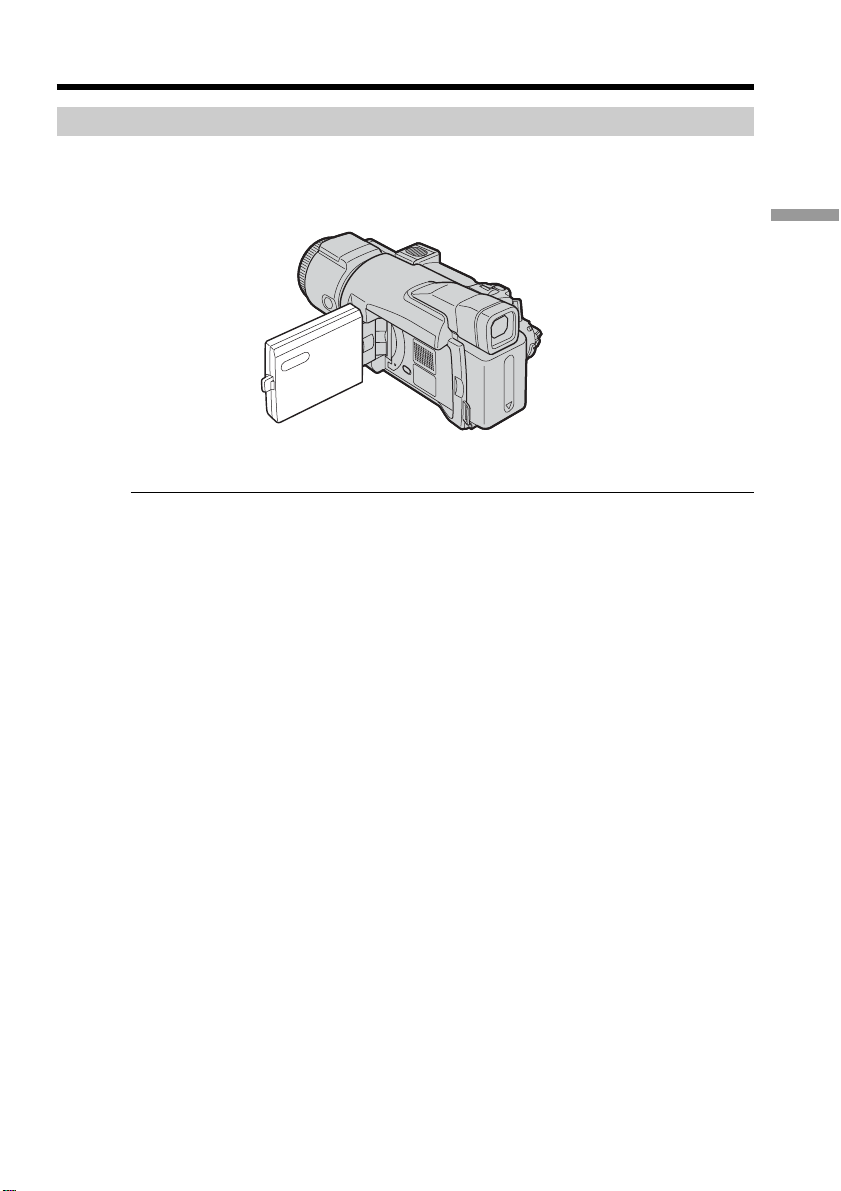
Shooting with the mirror mode
This feature allows the camera subject to view him-or herself on the LCD screen.
The subject uses this feature to check his or her own image on the LCD screen while you
look at the subject in the viewfinder.
Picture in the mirror mode
The picture on the LCD screen is a mirror-image. However, the picture will be normal
when recorded.
Recording a picture
30
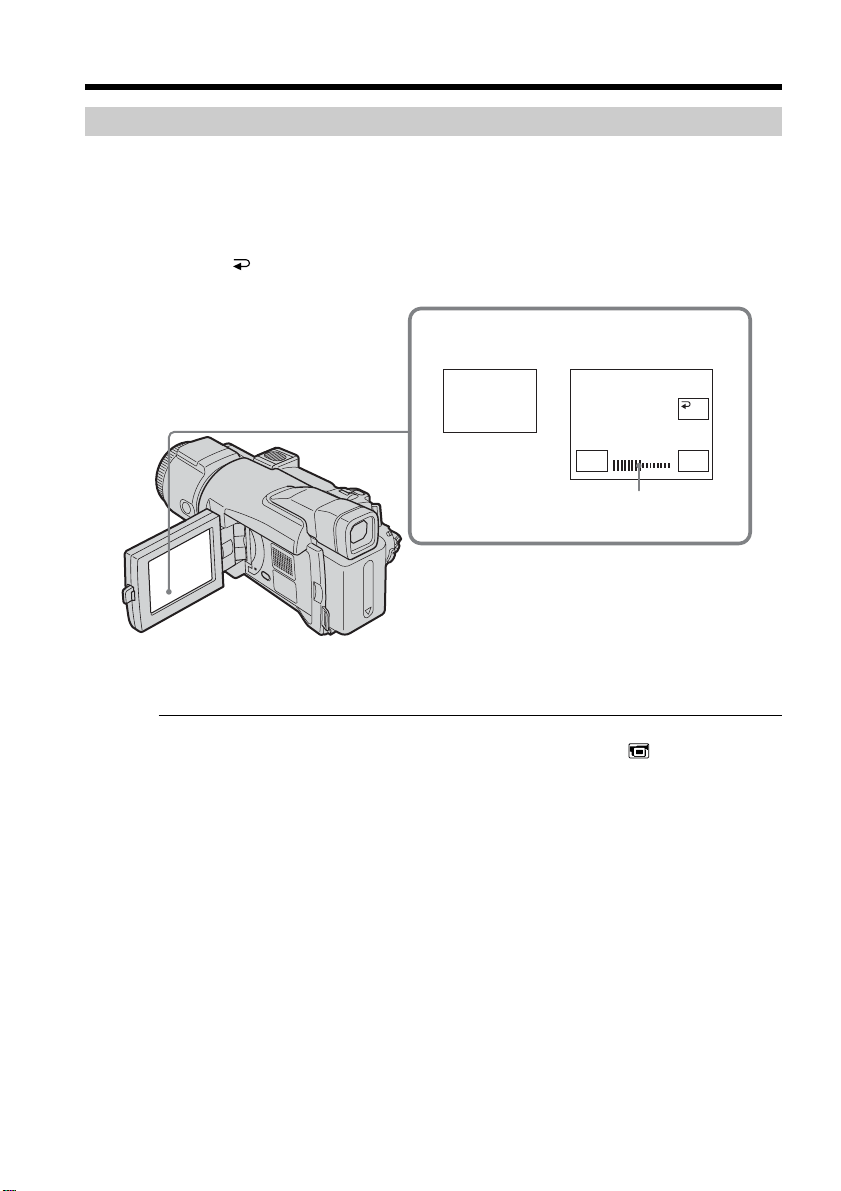
Adjusting the brightness of the LCD screen
(1) When the POWER switch is set to CAMERA, press FN and select PAGE2.
When the POWER switch is set to VCR, press FN to display PAGE1.
When the POWER switch is set to MEMORY, press FN and select PAGE3.
(2) Press LCD BRT. The screen to adjust the brightness of the LCD screen appears.
(3) Adjust the brightness of the LCD screen using – (to dim)/+ (to brighten).
(4) Press
OK to return to PAGE1/PAGE2/PAGE3 in Step 1.
To return to FN
Press EXIT.
LCD screen backlight
You can change the brightness of the backlight. Select LCD B.L. in in the menu
settings when using the battery pack (p. 175).
Even if you adjust LCD BRT or LCD B.L.
The recorded picture will not be affected.
Recording a picture
2,3
LCD
BRT
LCD BRT
–+
OK
The bar indicator
31
Recording – Basics
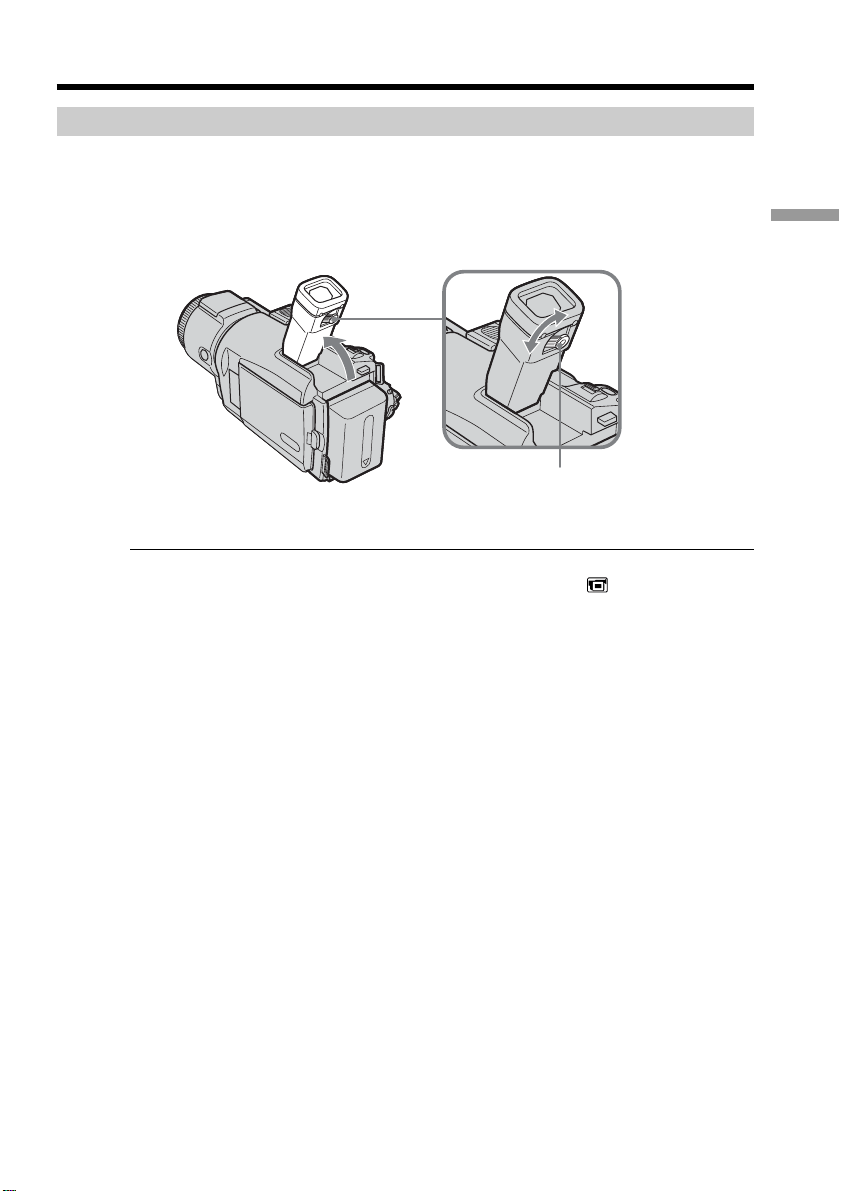
Adjusting the viewfinder
If you record pictures with the LCD panel closed, check the picture with the viewfinder.
Adjust the viewfinder lens to your eyesight so that the images in the viewfinder come
into sharp focus.
Lift up the viewfinder and move the viewfinder lens adjustment lever.
Viewfinder backlight
You can change the brightness of the backlight. Select VF B.L. in in the menu
settings when using the battery pack (p. 175).
Even if you adjust VF B.L.
The recorded picture will not be affected.
Using the viewfinder during recording is recommended in the following cases:
– When checking images on the LCD screen is difficult.
– When you fear the battery running out.
Recording a picture
The viewfinder lens
adjustment lever
32
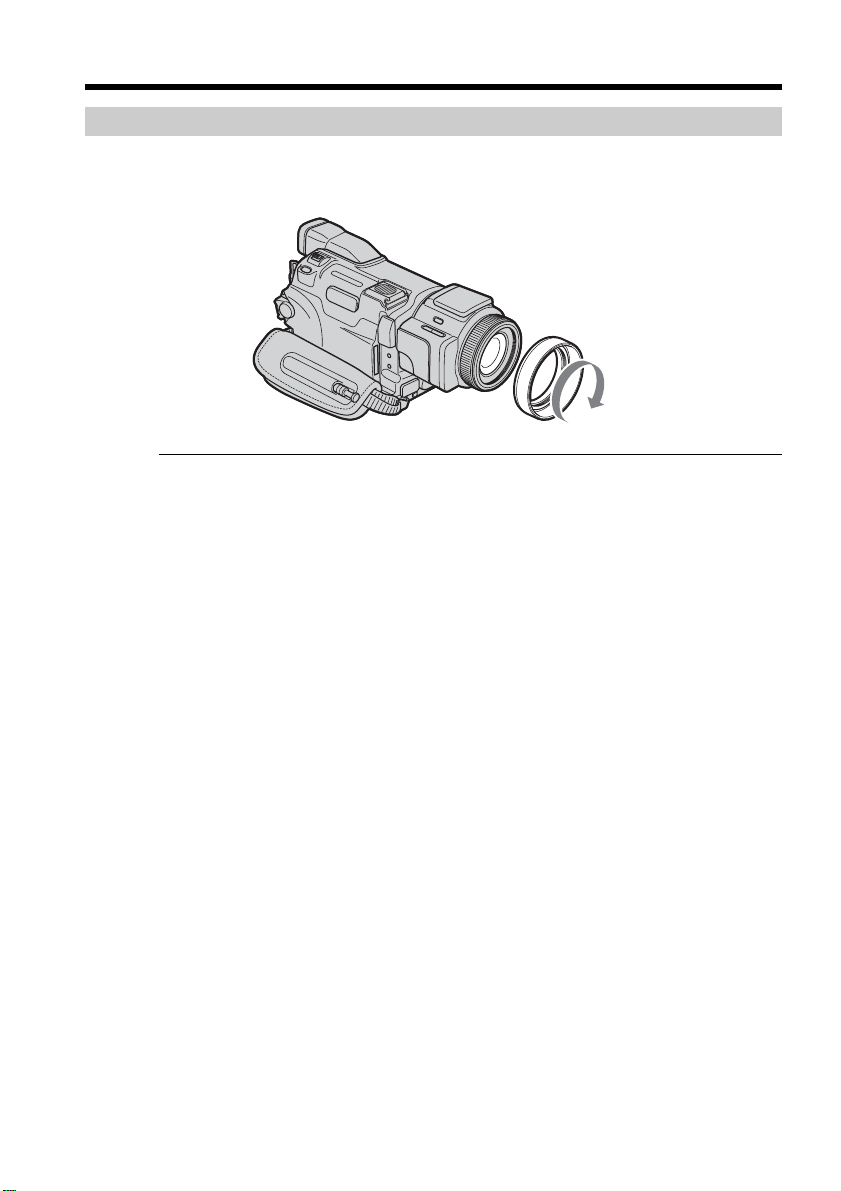
Attaching the supplied lens hood
To record fine pictures under strong light, we recommend attaching the lens hood. Also
the lens cap can be attached even with the lens hood on.
Note
You cannot attach filters or other objects onto the lens hood.
If you forcibly attach these objects onto the lens hood, you will no longer be able to
remove filters or other objects from the hood.
When you use the filter (optional)
The shadow of the lens hood may appear in the corners of the screen.
Recording a picture
33
Recording – Basics
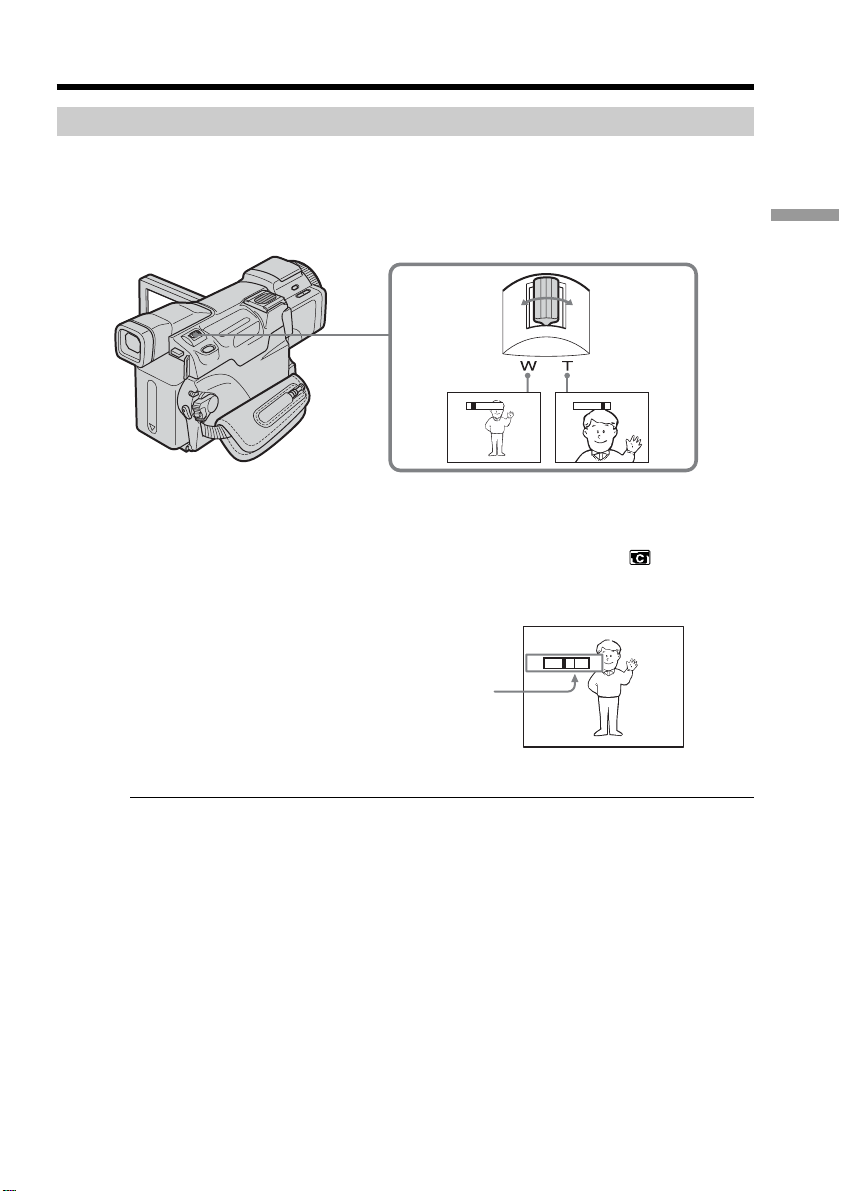
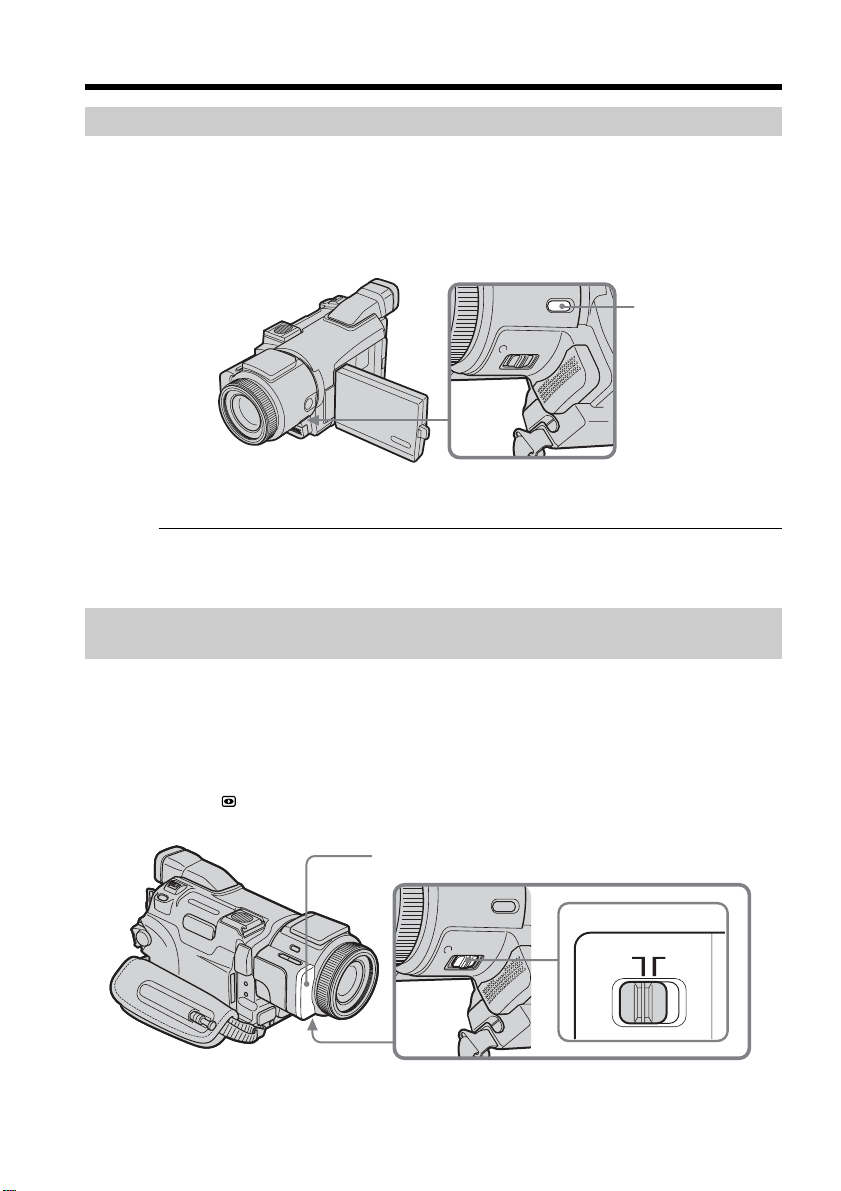
Using the zoom feature
Move the power zoom lever a little for a slower zoom. Move it further for a faster zoom.
Using the zoom sparingly results in better-looking recordings.
W: Wide-angle (The subject appears farther away.)
T: Telephoto (The subject appears closer.)
To use zoom greater than 10×
Zoom greater than 10× is performed digitally. Digital zoom can be set to 20× or 120×.
To activate digital zoom, select the digital zoom power in D ZOOM in in the menu
settings (p. 174). The digital zoom is set to OFF as a default setting.
The picture quality deteriorates because the picture is processed digitally.
When you shoot close to a subject
If you cannot get a sharp focus, move the power zoom lever to the “W” side until the
focus is sharp. You can shoot a subject that is at least about 80 cm (about 2 5/8 feet)
away from the lens surface in the telephoto position, or about 1 cm (about 1/2 inch)
away in the wide-angle position.
When the POWER switch is set to MEMORY
You cannot use the digital zoom.
Recording a picture
The right side of the bar shows the digital zooming
zone.
The digital zooming zone appears when you select
the digital zoom power in the menu settings.
T
W
T
W
TW
34
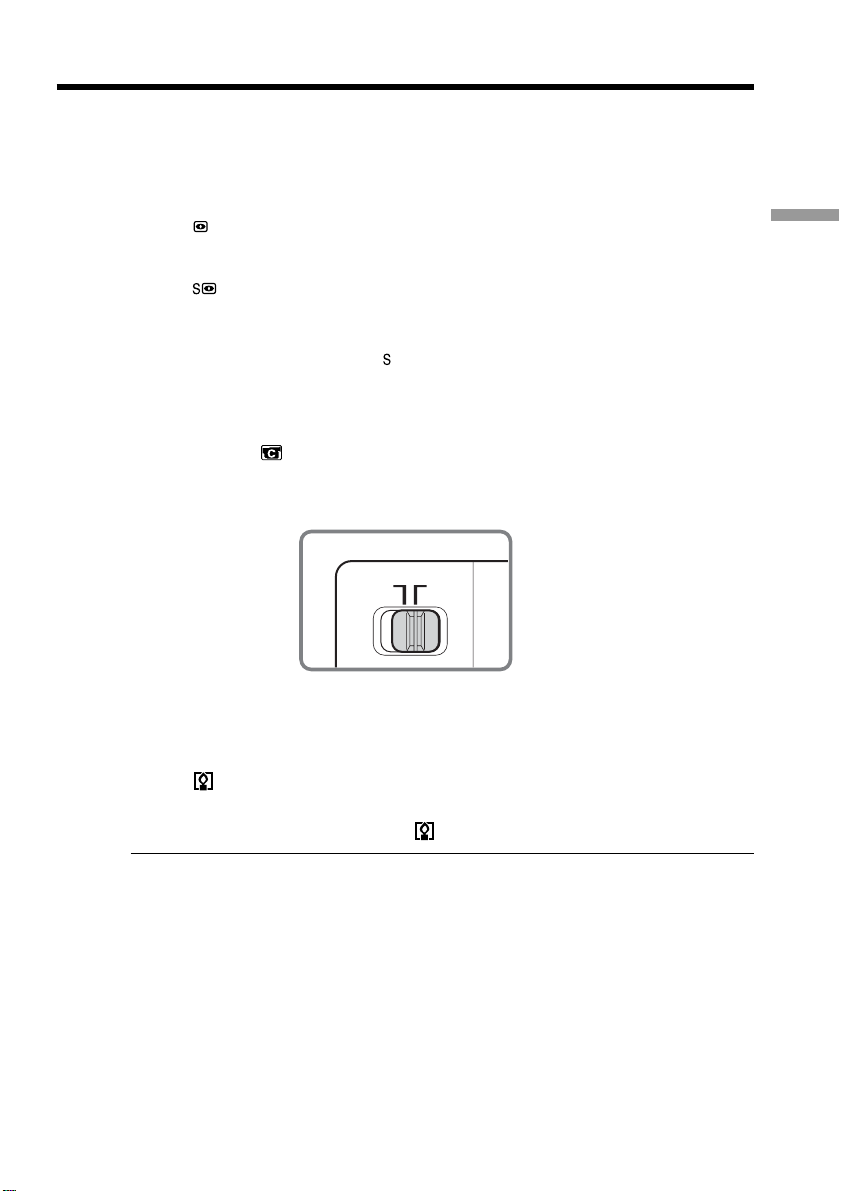
Shooting backlit subjects – Back light function
When you shoot a subject with the light source behind the subject or a subject with a
light background, use the back light function.
(1) Set the POWER switch to CAMERA or MEMORY.
(2) Press BACK LIGHT.
The . indicator appears on the screen.
To cancel the back light function
Press BACK LIGHT again.
When shooting backlit subjects
If you set EXPOSURE to MANUAL (p. 61) or select SPOT METER (p. 62), the back light
function will be canceled.
Shooting in the dark
– NightShot/Super NightShot/Color Slow Shutter
Using NightShot
NightShot enables you to shoot a subject in the night or in a dark place.
When using NightShot, the picture may be recorded in incorrect or unnatural colors.
(1) Set the POWER switch to CAMERA or MEMORY.
(2) Slide NIGHTSHOT to ON.
The
and ”NIGHTSHOT” indicators flash on the screen.
To cancel NightShot
Slide NIGHTSHOT to OFF.
Recording a picture
BACK LIGHT
NIGHTSHOT
ON OFF
Infrared rays (NightShot Light) emitter
35
Recording – Basics
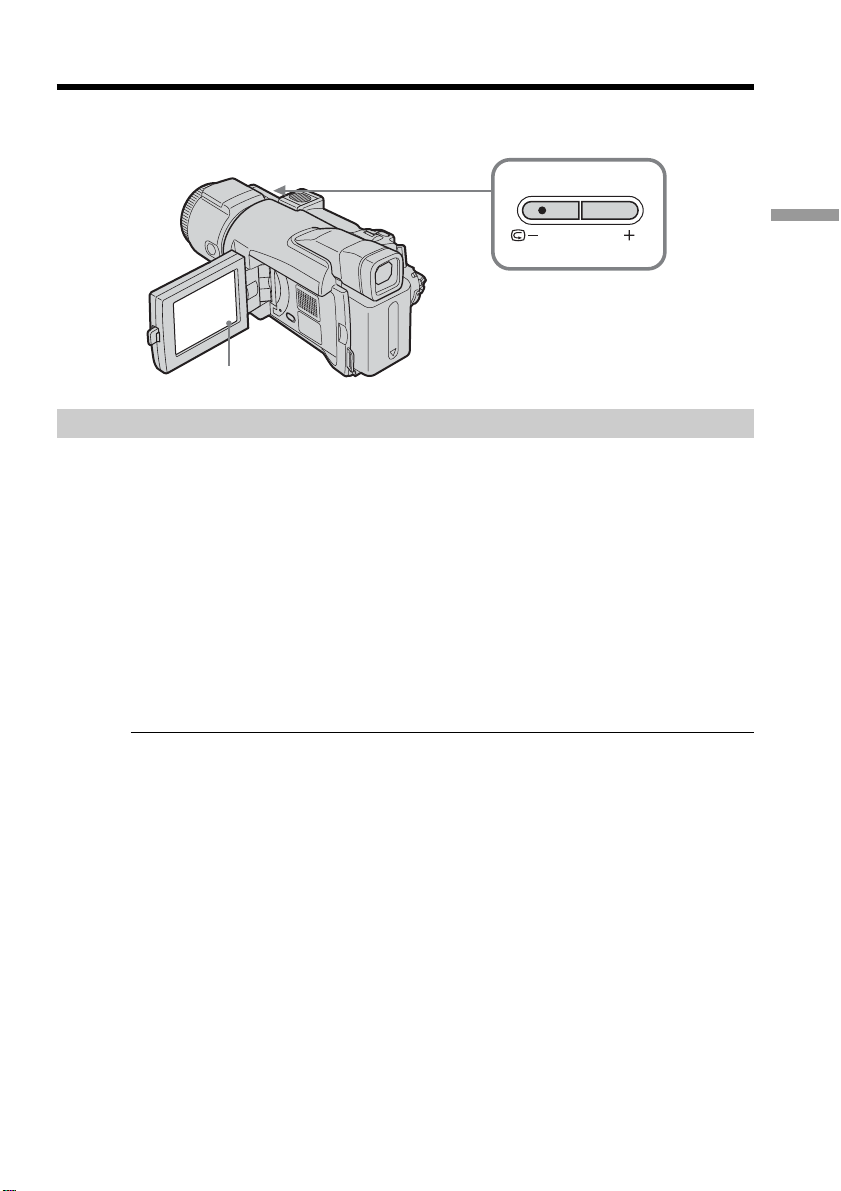
Using Super NightShot
Super NightShot makes subjects more than 16 times brighter than those recorded using
NightShot.
(1) Set the POWER switch to CAMERA.
(2) Slide NIGHTSHOT to ON.
The
and ”NIGHTSHOT” indicators flash on the screen.
(3) Press FN and select PAGE3.
(4) Press SUPER NS.
The
indicator lights up on the screen.
(5) Press EXIT to return to FN.
To cancel Super NightShot
Press SUPER NS again to make the indicator disappear. To cancel NightShot, slide
NIGHTSHOT to OFF.
Using the NightShot Light
The picture will be clearer with the NightShot Light on. To enable the NightShot Light,
set N.S. LIGHT in to ON in the menu settings. (The default setting is ON.)
Using Color Slow Shutter
Color Slow Shutter enables you to record color images in a dim place.
(1) Set the POWER switch to CAMERA.
(2) Slide NIGHTSHOT to OFF.
(3) Press FN and select PAGE3.
(4) Press COLOR SLW S.
The
indicator lights up on the screen.
To cancel Color Slow Shutter
Press COLOR SLW S again to make the indicator disappear.
Notes
•Do not use NightShot in bright places (e.g. the outdoors in the daytime). This may
cause a malfunction.
•While recording using the NightShot Light, attaching the lens hood may block the
NightShot Light. Remove the lens hood when you use the NightShot Light.
•If focusing is difficult while recording using NightShot, focus manually.
•While recording using the NightShot Light, do not obstruct the Infrared rays
(NightShot Light) emitter with your fingers.
Recording a picture
NIGHTSHOT
ON OFF

36
Recording a picture
While using NightShot, you cannot use the following functions:
– White balance
– PROGRAM AE
(The indicator flashes.)
– Manual exposure
– Flexible Spot Meter
– HOLOGRAM AF
While using Super NightShot or Color Slow Shutter
The shutter speed is automatically adjusted depending on the brightness. At this time,
the motion of the picture may slow down.
While using Super NightShot, you cannot use the following functions:
– White balance
– Fader
– Digital effect
– PROGRAM AE
– Manual exposure
– Flexible Spot Meter
– Recording with the flash
– Progressive Recording Mode
When the POWER switch is set to MEMORY
You cannot use the following functions:
– Super NightShot
– Color Slow Shutter
NightShot Light
•Invisible infrared beams of light are used for the NightShot Light. The maximum
shooting distance using the NightShot Light is about 3 m (10 feet).
•Attaching the lens hood (supplied) or a conversion lens (optional) may obstruct the
infrared rays.
While using Color Slow Shutter, you cannot use the following functions:
– Fader
– Digital effect
– PROGRAM AE
– Manual exposure
– Flexible Spot Meter
– Recording with the flash
– Progressive Recording Mode
In total darkness
Color Slow Shutter may not work normally.
37
Recording – Basics
You can use these buttons to check the recorded picture or shoot so that the transition
between the last recorded scene and the next scene you record is smooth.
End search
You can go to the end of the recorded section after you record.
(1) Set the POWER switch to CAMERA.
(2) Press FN to display PAGE1.
(3) Press END SCH.
The last five seconds of the recorded section is played back and your
camcorder returns to standby.
To return to FN
Press EXIT.
To cancel end search
Press END SCH again.
End search
When you use a cassette without Cassette Memory, End search does not work once you
eject the cassette after you have recorded on the tape. If you use a cassette with Cassette
Memory, End search works even once you eject the cassette.
If the tape has a blank portion between recorded portions
End search may not work correctly.
Checking recordings
– End search/Edit search/Rec Review
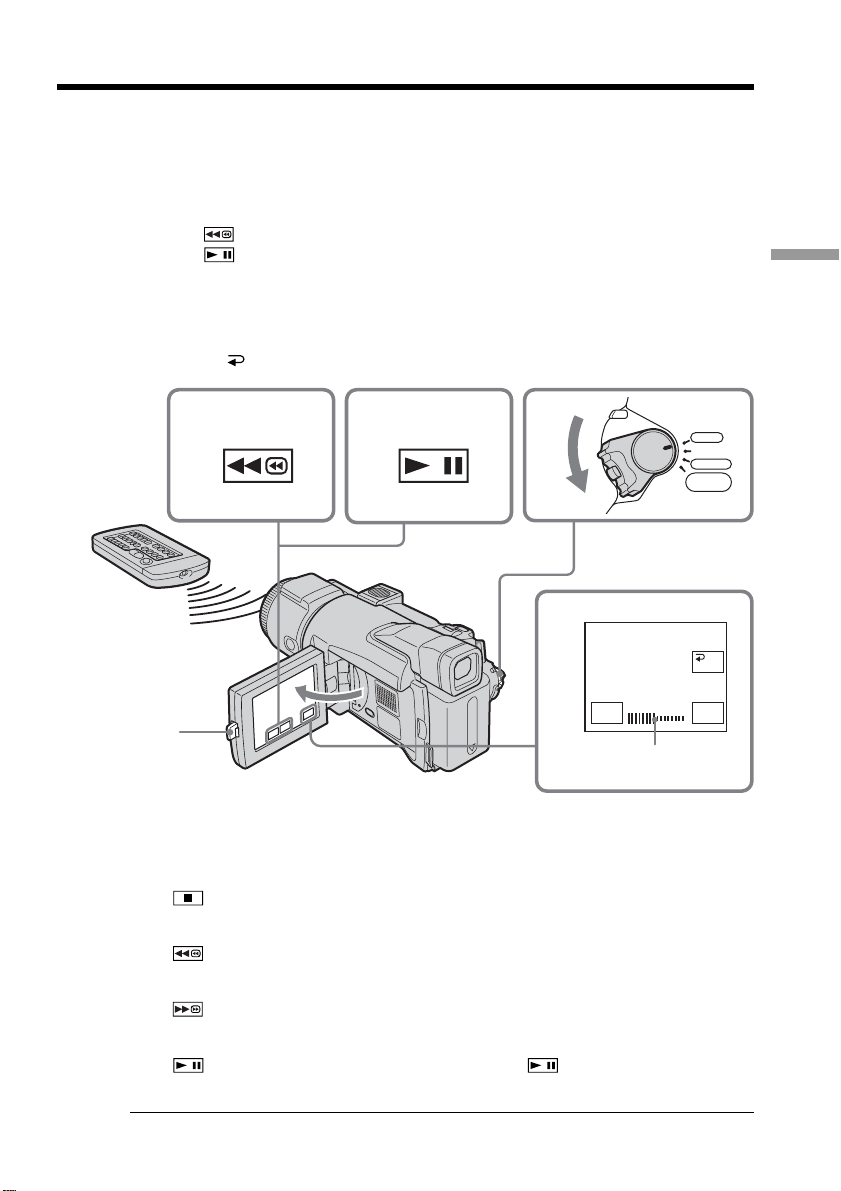
EDITSEARCH
FN

38
Edit search
You can search for the next recording start point. You cannot monitor the sound.
(1) Set the POWER switch to CAMERA.
(2) Hold down EDITSEARCH. The recorded portion is played back.
Release EDITSEARCH to stop playback. If you press START/STOP, recording
begins from the point you released EDITSEARCH.
7 – :To go backwards
+ :To go forwards
Rec Review
You can check the last recorded section.
(1) Set the POWER switch to CAMERA.
(2) Press the 7 – side of EDITSEARCH momentarily.
The section at which you have stopped recording most recently is played back
for a few seconds, and then your camcorder returns to standby.
Checking recordings – End search/Edit search/Rec Review
39
Playback – Basics
You can monitor the recorded tape on the LCD screen. If you close the LCD panel, you
can monitor the playback picture in the viewfinder. You can also control playback using
the Remote Commander supplied with your camcorder.
(1) Set the POWER switch to VCR while pressing the small green button.
(2) Press OPEN to open the LCD panel.
(3) Press
to rewind the tape.
(4) Press
to start playback.
(5) Adjust the volume following the steps below.
1 Press FN to display PAGE1.
2 Press VOL. The screen to adjust the volume appears.
3 Press – (to turn down the volume)/+ (to turn up the volume).
4 Press
OK to return to PAGE1.
To return to FN
Press EXIT.
To stop playback
Press in the stop state.
To rewind the tape
Press in the stop state.
To fastforward the tape
Press in the stop state.
To view a still image (playback pause)
Press during playback. To resume playback, press again. When playback
pause lasts for about five minutes, your camcorder automatically enters the stop state.
If you leave the power on for a long time
Your camcorder gets warm. This is not a malfunction.
— Playback – Basics —
Playing back a tape
4
3
1
5
2
VOL
–+
OK
VCR
MEMORY/
NETWORK
CAMERA
OFF(CHG)
POW
E
R
The bar indicator
40
To display the screen indicators – Display function
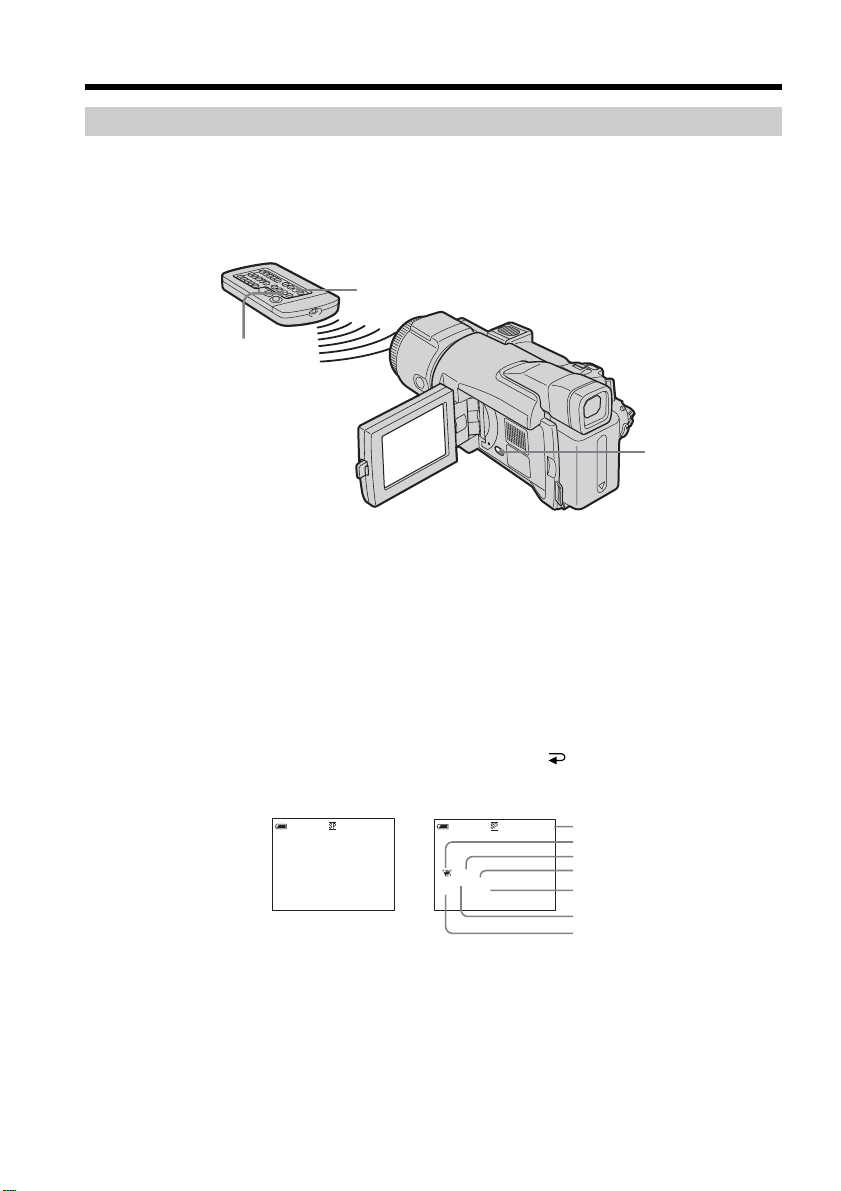
Press DISPLAY/BATT INFO on your camcorder or DISPLAY on the Remote
Commander supplied with your camcorder.
The indicators disappear from the screen.
To make the indicators appear, press DISPLAY/BATT INFO or DISPLAY on the
Remote Commander again.
About date/time and various settings
Your camcorder automatically records not only images on the tape but also the
recording data (date/time or various settings when recorded) (Data code).
Follow the steps below to display the data code using the touch panel or the Remote
Commander.
Using the touch panel
(1) Set the POWER switch to VCR, then play back the tape.
(2) During playback, press FN and select PAGE2.
(3) Press DATA CODE.
(4) Select CAM DATA or DATE DATA, then press
OK.
(5) Press EXIT.
[a] Time code/Tape counter
[b] SteadyShot off
[c] Exposure
[d] White balance
[e] Gain
[f] Shutter speed
[g] Aperture value
Playing back a tape
Date/time Various settings
DISPLAY/
BATT INFO
DATA CODE
DISPLAY
JUL 4 2003
12:05:56 PM
50min
0:00:23:01
AUTO
50min
0:00:23:01
6
0
AWB
F1.8
9
dB
[a]
[b]
[c]
[d]
[e]
[f]
[g]

41
Playback – Basics
Using the Remote Commander
Press DATA CODE on the Remote Commander during playback.
The display changes as follows each time you press DATA CODE:
date/time t various settings (SteadyShot off, exposure, white balance, gain,
shutter speed, aperture value) t (no indicator)
To not display the various settings
Set DATA CODE in to DATE in the menu settings (p. 181).
The display changes as follows each time you press DATA CODE on the Remote
Commander:
date/time y (no indicator)
Various settings
Various settings show your camcorder’s recording information when you recorded.
During recording, the various settings are not displayed.
When you use data code, bars (-- -- --) appear if:
–A blank portion of the tape is being played back.
– The tape is unreadable due to tape damage or noise.
– The tape was recorded by a camcorder without the date and time set.
Data code
When you connect your camcorder to a TV, the data code also appears on the TV
screen.
Playing back a tape
42
Playing back a tape
Various playback modes
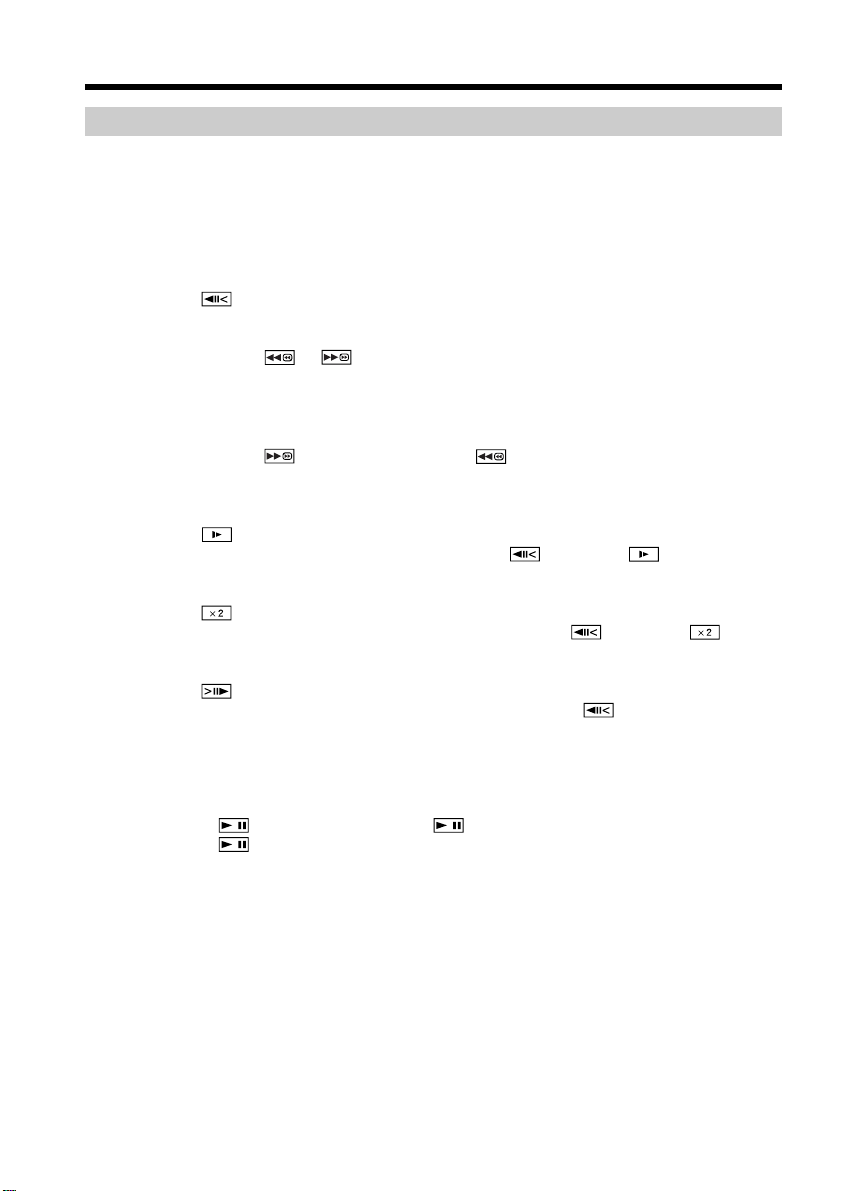
To operate video control buttons, set the POWER switch to VCR.
Using the touch panel
(1) Press FN and select PAGE3.
(2) Press V SPD PLAY to display video control buttons.
To change the playback direction
Press during playback to reverse the playback direction.*
To locate a scene while monitoring the picture (picture search)
Keep pressing or during playback. To resume normal playback, release the
button.
To monitor the high-speed picture while fastforwarding or
rewinding the tape (skip scan)
Keep pressing while fastforwarding or while rewinding the tape. To resume
fastforwarding or rewinding, release the button.
To view the picture at slow speed (slow playback)
Press during playback.*
For slow playback in the reverse direction, press , then press .*
To view the picture at double speed
Press during playback.*
For double speed playback in the reverse direction, press , then press .*
To view the picture frame-by-frame
Press during playback pause.**
For frame-by-frame playback in the reverse direction, press .**
To search the last recorded scene (END SEARCH)
Press END SCH on PAGE1 in the stop state. The last five seconds of the recorded
section is played back, then your camcorder stops.
* Press to pause playback. Press to resume normal playback.
** Press to resume normal playback.

43
Playback – Basics
Video control buttons
Marks on your camcorder are different from those on the Remote Commander supplied
with your camcorder.
On your camcorder:
To play back or pause the tape
To stop the tape
To rewind the tape
To fastforward the tape
To play back the tape slowly
To forward one frame at a time
To rewind one frame at a time
To play back the tape at double speed
On the Remote Commander:
N To play back the tape
X To pause the tape
x To stop the tape
m To rewind the tape
M To fastforward the tape
y To play back the tape slowly
C To forward one frame at a time
c To rewind one frame at a time
×2 To play back the tape at double speed
In the various playback modes
•Sound is muted.
•The previous picture may remain as a mosaic image during playback.
When you play back the tape in reverse
Horizontal noise may appear at the center, or the top and bottom of the screen. This is
not a malfunction.
Slow playback
Slow playback can be performed smoothly on your camcorder. However, this function
does not work for an output signal from the DV Interface.
Playing back a tape
44
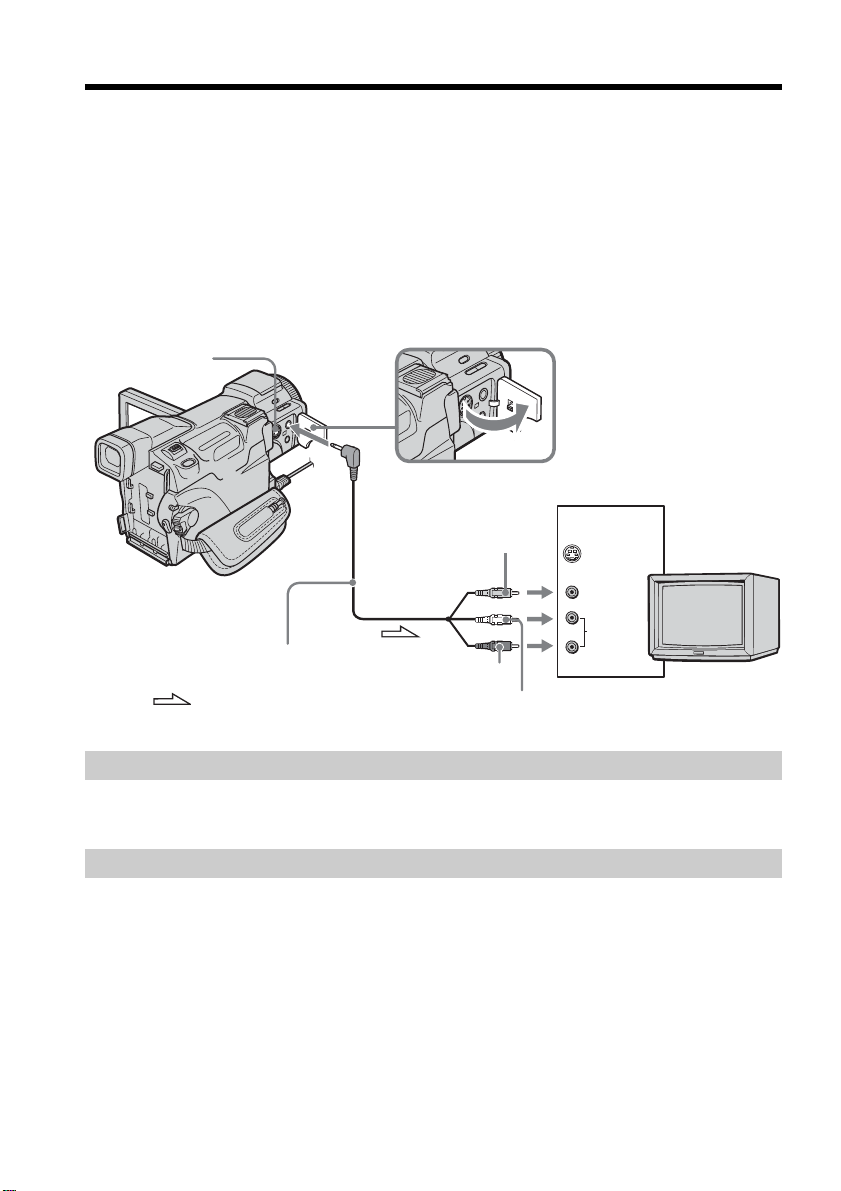
Connect your camcorder to the TV with the A/V connecting cable supplied with your
camcorder to watch the playback pictures on the TV screen. You can operate the video
control buttons in the same way as when you view playback pictures on the LCD
screen.
When viewing the playback picture on the TV screen, we recommend that you power
your camcorder from a wall outlet using the AC Adaptor. Refer to the operating
instructions of your TV.
Open the jack cover. Connect your camcorder to the TV with the A/V connecting cable.
Then set the TV/VCR selector on the TV to VCR to be able to view images from your
camcorder.
If your TV is already connected to the VCR
Connect your camcorder to the LINE IN input on the VCR with the A/V connecting
cable supplied with your camcorder. Set the input selector on the VCR to LINE.
If your TV or VCR is a monaural type
Connect the yellow plug of the A/V connecting cable to the video input jack and the
white or the red plug to the audio input jack on the VCR or the TV.
If you connect the white plug, the sound is L (left) signal. If you connect the red plug,
the sound is R (right) signal.
Viewing a recording on the TV
TV
S VIDEO
VIDEO
AUDIO
IN
S VIDEO
AUDIO/
VIDEO
Yellow
Red
White
: Signal flow
A/V connecting cable
(supplied)

45
Playback – Basics
If the equipment to be connected has an S video jack
•Pictures can be reproduced more faithfully by using an S video cable (optional). With
this connection, you do not need to connect the yellow (video) plug of the A/V
connecting cable.
Connect the S video cable (optional) to the S video jacks on both your camcorder and
the equipment to be connected.
This connection produces higher quality DV format pictures.
•The sound is not output on the other equipment if your camcorder is connected with
an S video cable (optional) only. Use the A/V connecting cable along with an S video
cable.
To display the screen indicators on the TV
Set DISPLAY in to V-OUT/LCD in the menu settings (p. 181). To make the screen
indicators disappear, press DISPLAY/BATT INFO on your camcorder.
Viewing a recording on the TV
46
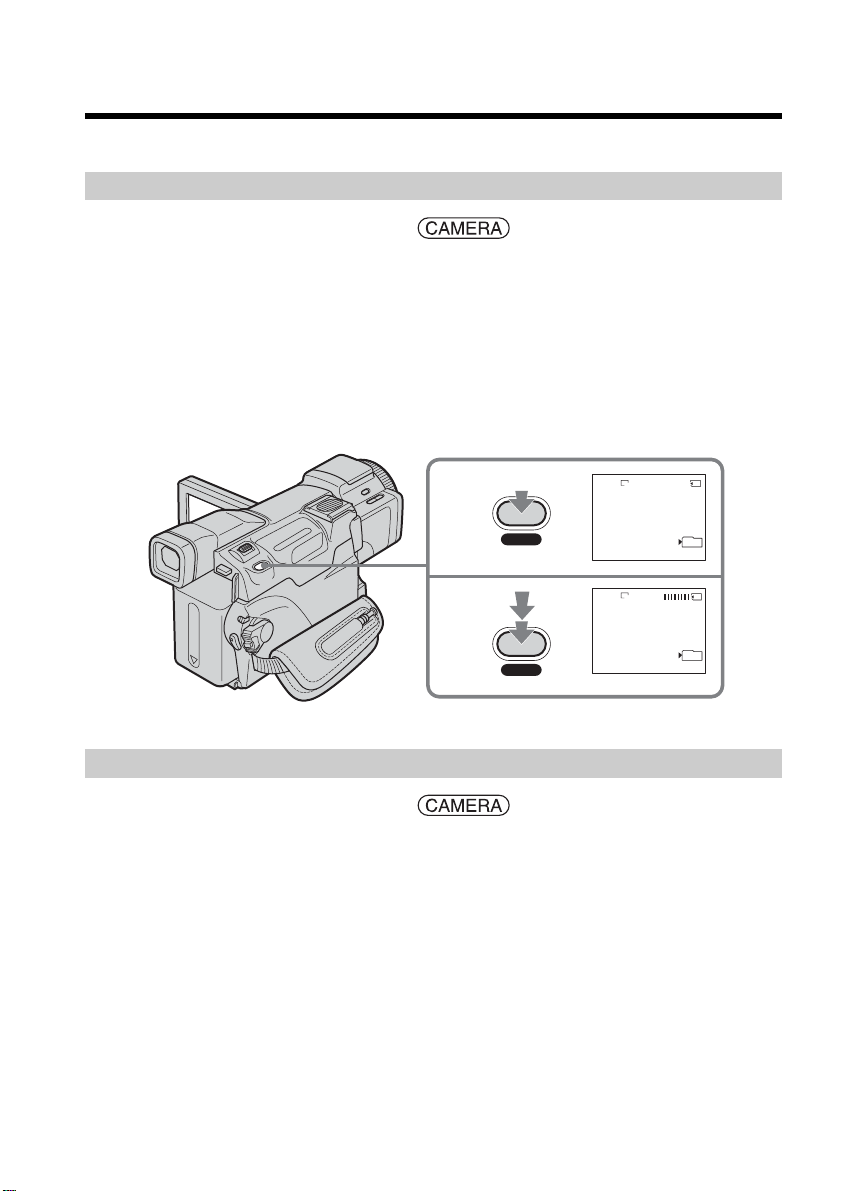
Insert a “Memory Stick” into your camcorder beforehand.
During tape recording standby
The POWER switch should be set to .
(1) Keep pressing PHOTO lightly until a still image appears. The CAPTURE
indicator appears. Recording does not start yet. To change the still image,
release PHOTO, select a still image again, and then press and hold PHOTO
lightly.
(2) Press PHOTO deeply.
Recording is complete when the bar scroll indicator disappears.
The image displayed on the screen when you press PHOTO deeply is recorded
in the currently displayed folder (p. 129) in the “Memory Stick.”
During tape recording
The POWER switch should be set to .
Press PHOTO deeply.
The image displayed on the screen when you press PHOTO deeply is recorded on the
“Memory Stick.”
Recording on the “Memory Stick” is complete when the bar scroll indicator disappears.
— Advanced Recording Operations —
Recording still images on a “Memory Stick”
during tape recording standby or tape recording
1
2
12
CAPTURE
FINE
640
FINE
640
101
101
PHOTO
PHOTO

47
Advanced Recording Operations
Note
You cannot record still images on the “Memory Stick” during following operations
(The indicator flashes):
– End search
– Wide mode
– While using BOUNCE
– Progressive Recording Mode
– MEMORY MIX
“Memory Stick”
See page 102 for details.
Still images
•Image size is automatically set to 640 × 480.
•If the POWER switch is set to CAMERA, image quality cannot be changed. The image
quality when you have set the POWER switch to MEMORY is used (p. 105).
•When recording images with a higher quality, we recommend using the Memory
Photo recording (p. 109).
While and after recording still images on the “Memory Stick”
Your camcorder continues recording on the tape.
When you press PHOTO on the Remote Commander
Your camcorder immediately records the image that is on the screen when you press
the button.
To record still images on a “Memory Stick” during tape recording
You cannot check an image on the screen by pressing PHOTO lightly. The image when
you press PHOTO will be recorded on the “Memory Stick.”
Title
You cannot record the titles.
Self-timer recording
During recording standby, you can record still images on the “Memory Stick” with the
self-timer. See page 48 for details.
Recording with the flash
During recording standby, you can record still images on the “Memory Stick” with the
flash. See page 113 for details.
Recording still images on a “Memory Stick” during tape recording
standby or tape recording
48
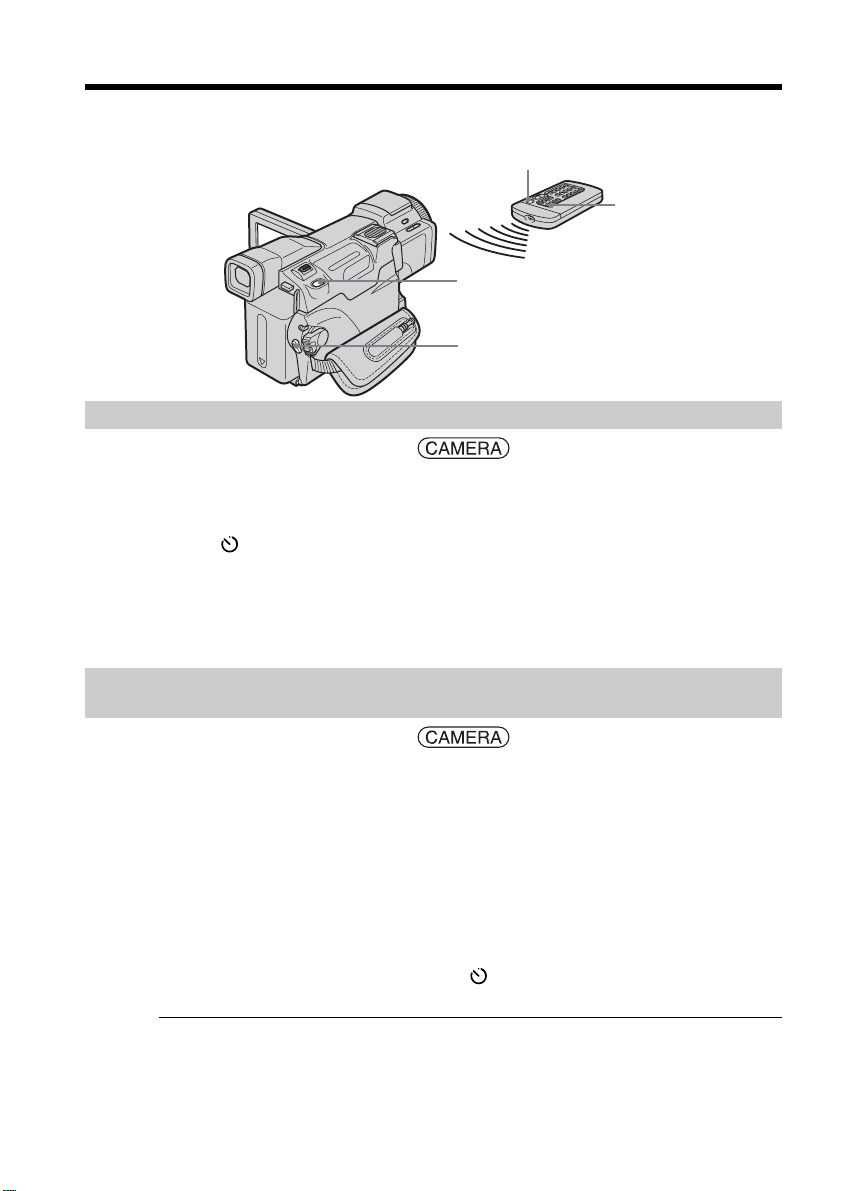
You can record still images or moving pictures using the self-timer. You can also use the
Remote Commander for this operation.
Recording on a tape
The POWER switch should be set to .
Operate by touching the panel.
(1) During standby, press FN and select PAGE2.
(2) Press SELFTIMER.
The
(self-timer) indicator appears on the screen.
(3) Press EXIT to return to FN.
(4) Press START/STOP.
The self-timer starts counting down from about 10 while beeping. In the last
two seconds of the countdown, the beep gets faster, then recording starts
automatically.
Recording still images on a “Memory Stick” during recording
standby
The POWER switch should be set to .
Operate by touching the panel.
(1) Follow Step 1 to 3 in “Recording on a tape.”
(2) Press PHOTO deeply.
The self-timer starts counting down from about 10 while beeping. In the last
two seconds of the countdown, the beep gets faster, then recording starts
automatically.
To stop the countdown during recording on the tape
Press START/STOP. To restart the countdown, press START/STOP again.
To cancel the self-timer
During standby, press SELFTIMER and the (self-timer) indicator disappears from
the screen. You cannot cancel the self-timer using the Remote Commander.
When the self-timer recording is finished
The self-timer is automatically canceled.
Self-timer recording
You can record using the self-timer only during recording standby.
When the POWER switch is set to MEMORY
You can also record still images on the “Memory Stick” with the self-timer (p. 124).
Self-timer recording
START/STOP
PHOTO
START/STOP
PHOTO
49
Advanced Recording Operations
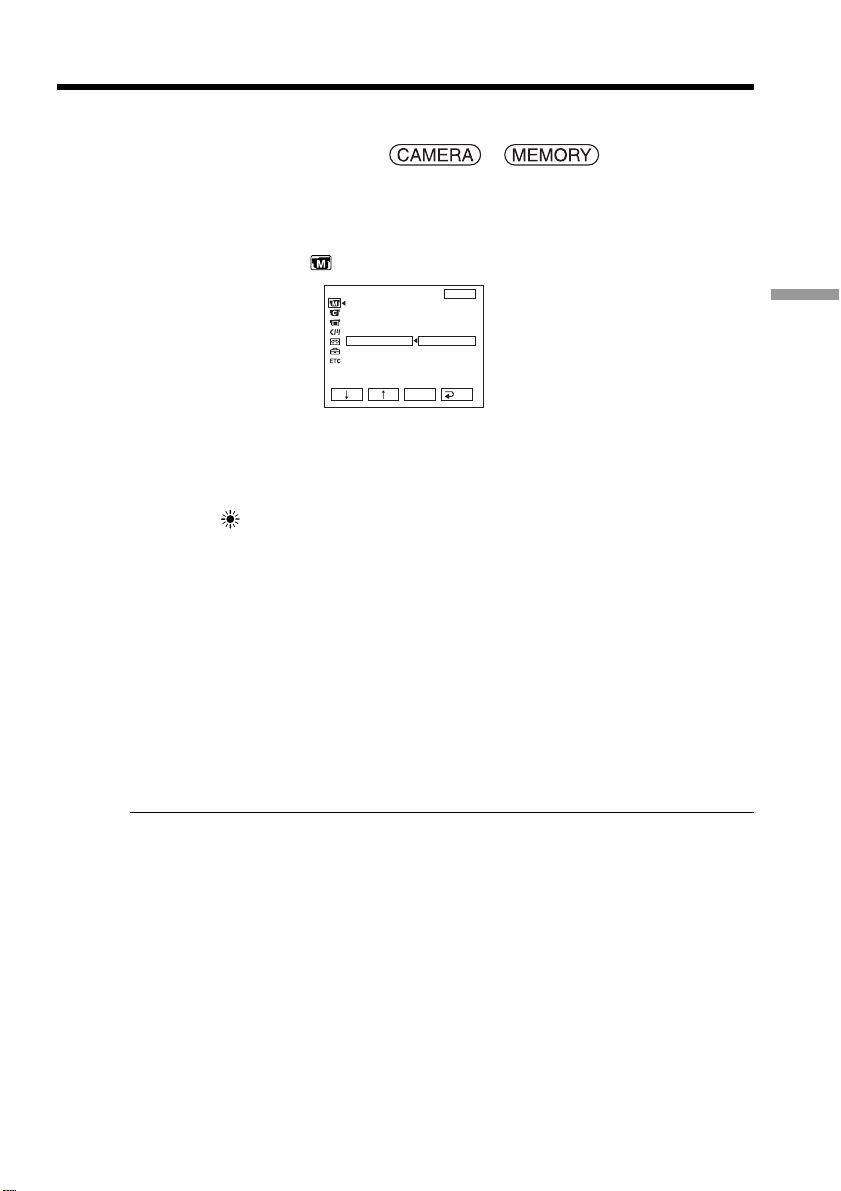
Normally the white balance is automatically adjusted.
The POWER switch should be set to or .
Operate by touching the panel.
(1) Press FN to display PAGE1.
(2) Press MENU.
(3) Select WHT BAL in
, then press EXEC.
(4) Select a desired mode, then press EXEC.
HOLD:
When recording a single-colored subject or background.
OUTDOOR ( ):
•When recording a sunset/sunrise, just after sunset, just before sunrise, neon signs, or
fireworks.
•Under daylight fluorescent lamps
INDOOR (n):
•When lighting conditions change quickly.
•In too bright places such as photography studios
•Under sodium lamps or mercury lamps
To return to FN
Press EXIT.
To return to the automatic white balance
Set WHT BAL to AUTO.
If the picture is being taken in a studio lit by TV lighting
We recommend that you record in the INDOOR mode.
When you record under fluorescent lighting
Select AUTO or HOLD.
Your camcorder may not adjust the white balance correctly in the INDOOR mode.
In the AUTO mode
Point your camcorder at the white subject for about 10 seconds after setting the POWER
switch to CAMERA to get better adjustment when:
– You remove the battery pack for replacement.
– You bring your camcorder outdoors from the interior of a house holding the exposure,
or vice versa.
In the HOLD mode
Set WHT BAL to AUTO and reset to HOLD after few seconds when:
– You change the mode of PROGRAM AE.
– You bring your camcorder outdoors from the interior of a house, or vice versa.
Adjusting the white balance manually
MANUAL SET
PROGRAM AE
P EFFECT
RED EYE R
FLASH LVL
WHT BAL
SHARPNESS
AUTO SHTR
EXIT
RET.
EXEC
AUTO
HOLD
OUTDOOR
INDOOR
50
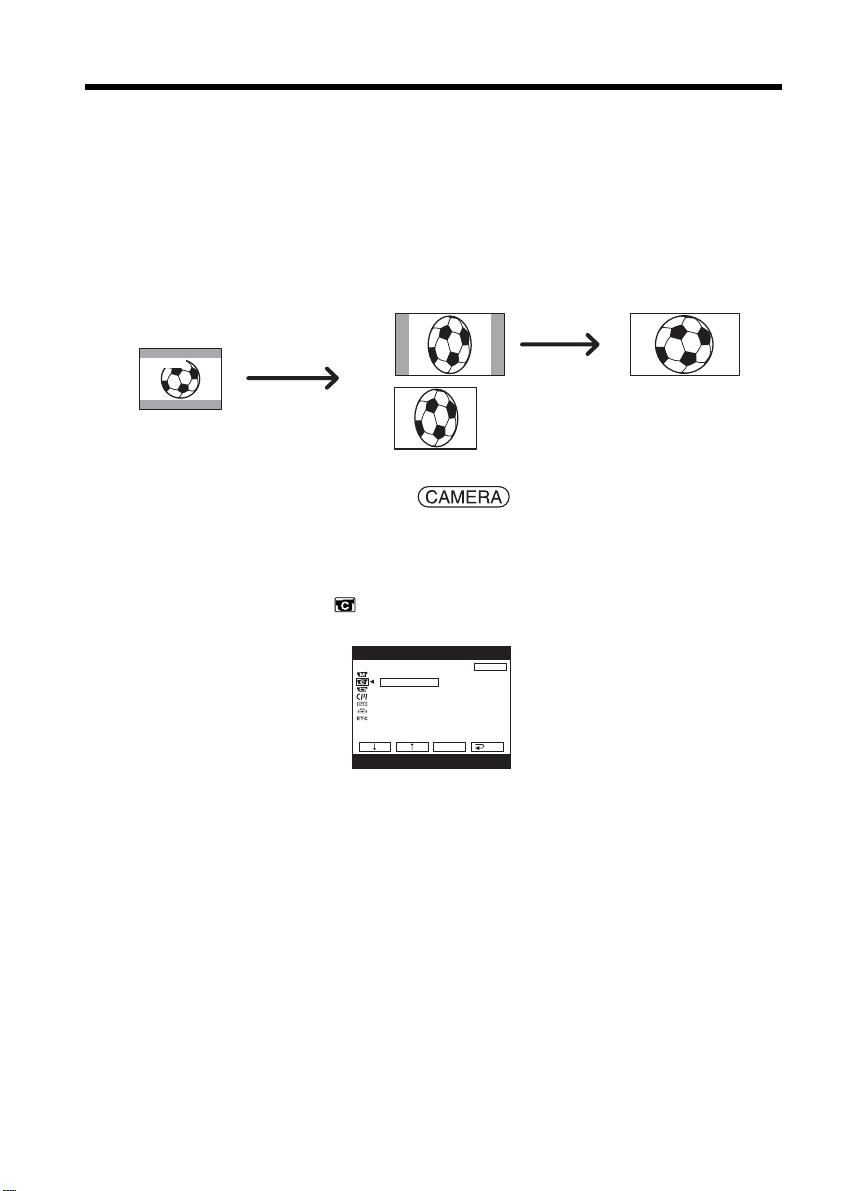
You can enjoy recording with wider angles compared to the normal tape recording
while the power zoom lever is moved to the “W” side.
You can record a 16:9 wide picture to watch on a 16:9 wide-screen TV (16:9WIDE).
Black bands appear on the screen during recording in the 16:9WIDE mode [a]. The
picture during playing back in the 4:3 mode on a wide-screen TV [b] or a normal TV
[c]* is compressed in the widthwise direction. If you set the screen mode of the wide-
screen TV to the full mode, you can watch pictures of normal images [d].
* The picture played back in the wide mode on a normal TV appears the same as the
picture played back in the wide mode on your camcorder [a].
The POWER switch should be set to .
Operate by touching the panel.
(1) During recording standby, press FN to display PAGE1.
(2) Press MENU.
(3) Select 16:9WIDE in
, then press EXEC.
(4) Select ON, then press EXEC.
To return to FN
Press EXIT.
To cancel the wide mode
Set 16:9WIDE to OFF.
Using the wide mode
[a]
16:9
WIDE
[c]
[b] [d]
D ZOOM
16:9WIDE
STEADYSHOT
N. S. LIGHT
EXIT
RET.
EXEC
ON
CAMERA SET

51
Advanced Recording Operations
Notes
•In the wide mode, you cannot operate the following functions:
– Recording still images on the “Memory Stick” during tape recording or tape
recording standby
– BOUNCE
– OLD MOVIE
– Progressive Recording Mode
•Pictures recorded in the wide mode on the tape cannot be changed to normal size.
Connection for a TV
Pictures recorded in the 16:9WIDE mode automatically appear on the TV screen at full
size when:
– You connect your camcorder to a TV compatible with the video ID (ID-1/ID-2)
system.
– You connect your camcorder to the S video jack on a TV.
ID-1 system
The ID-1 system sends aspect ratio information (16:9, 4:3, or letter box) with video
signals. If you connect a TV compatible with the ID-1 system, the screen size is
automatically selected.
ID-2 system
The ID-2 system sends a copyright protection signal with ID-1 signals inserted between
video signals when you connect your camcorder to other equipment using the A/V
connecting cable.
Using the wide mode
52
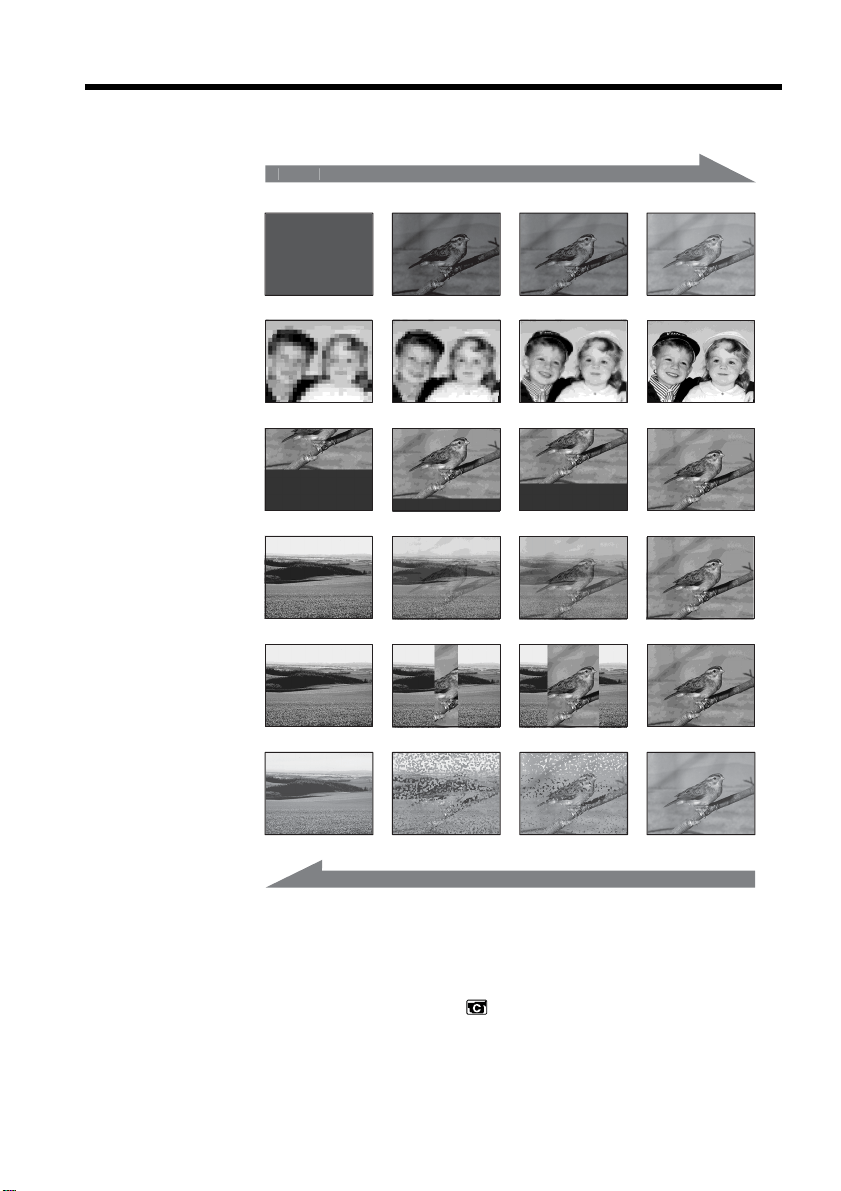
You can fade in or out to give your recording a professional appearance.
MONOTONE
When fading in, the picture gradually changes from black-and-white to color.
When fading out, the picture gradually changes from color to black-and-white.
1)
You can use BOUNCE when D ZOOM in is set to OFF in the menu settings.
2)
You can fade in only.
Using the fader function
NORM. FADER
(normal)
MOSC. FADER
(mosaic)
BOUNCE
1) 2)
OVERLAP
2)
WIPE
2)
DOT
2)
[
a
]
RE
C
S
TB
Y
RE
C
S
TB
Y
[
b
]
53
Advanced Recording Operations
The POWER switch should be set to .
Operate by touching the panel.
(1) When fading in [a]
Press FN to display PAGE1 during recording standby.
When fading out [b]
Press FN to display PAGE1 during recording.
(2) Press FADER. The screen to select the fader mode appears.
(3) Press a desired mode.
(4) Press
OK to return to PAGE1.
(5) Press EXIT to return to FN.
The fader indicator you selected flashes.
(6) Press START/STOP.
After the fade in/out is carried out, your camcorder automatically returns to
the normal mode.
To cancel the fade in/out
Before pressing START/STOP, press OFF on the FADER screen to return to PAGE1.
Using the fader function
FADER
MOSC.
FADER
NORM.
FADER
OFF OK
MONO–
TONE
BOUN–
CE
DOTW
I
PE
OVER–
LAP
2
FADER
START/STOP

54
Using the fader function
Note
You cannot use the following functions while using fader. Also, you cannot use fader
while using following functions:
– Super NightShot
– Color Slow Shutter
– Digital effect
– Recording with the flash
– Interval Recording
– Frame recording
When you select OVERLAP, WIPE or DOT
Your camcorder automatically stores the image recorded on the tape. As the image is
being stored, the image on the screen disappears.
While using BOUNCE, you cannot use the following functions:
– Zoom
– Picture effect
– PROGRAM AE
– Manual exposure
– Flexible Spot Meter
– Manual focus
– Recording still images on the “Memory Stick”
Note on the BOUNCE mode
You cannot select BOUNCE in the followings:
– When D ZOOM is activated in the menu settings.
– Wide mode
– Picture effect
– PROGRAM AE
– Progressive Recording Mode
55
Advanced Recording Operations
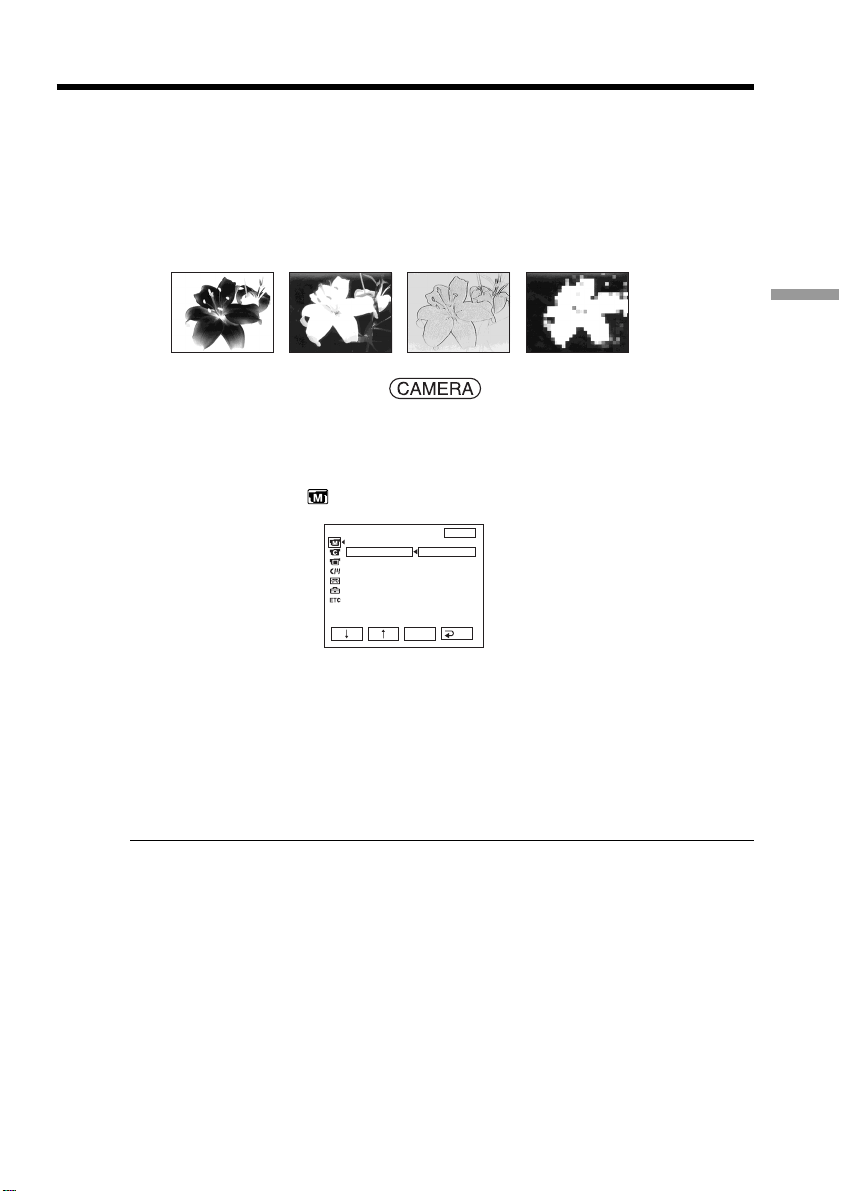
NEG. ART [a] : The color and brightness of the picture are reversed.
SEPIA : The picture appears in sepia.
B&W : The picture appears in monochrome (black-and-white).
SOLARIZE [b] : The picture looks like as an illustration with strong contrast.
PASTEL [c] : The picture looks like a pale pastel drawing.
MOSAIC [d] : The picture appears mosaic-patterned.
The POWER switch should be set to .
Operate by touching the panel.
(1) Press FN to display PAGE1.
(2) Press MENU.
(3) Select P EFFECT in
, then press EXEC.
(4) Select a desired mode, then press EXEC.
To return to FN
Press EXIT.
To cancel picture effect
Set P EFFECT to OFF.
Note
While using picture effect, you cannot use following functions:
– BOUNCE
– OLD MOVIE
Using special effects – Picture effect
[a] [b] [c] [d]
MANUAL SET
PROGRAM AE
P EFFECT
RED EYE R
FLASH LVL
WHT BAL
SHARPNESS
AUTO SHTR
EXIT
RET.
EXEC
OFF
NEG. ART
SEPIA
B&W
SOLARIZE
PASTEL
MOSAIC
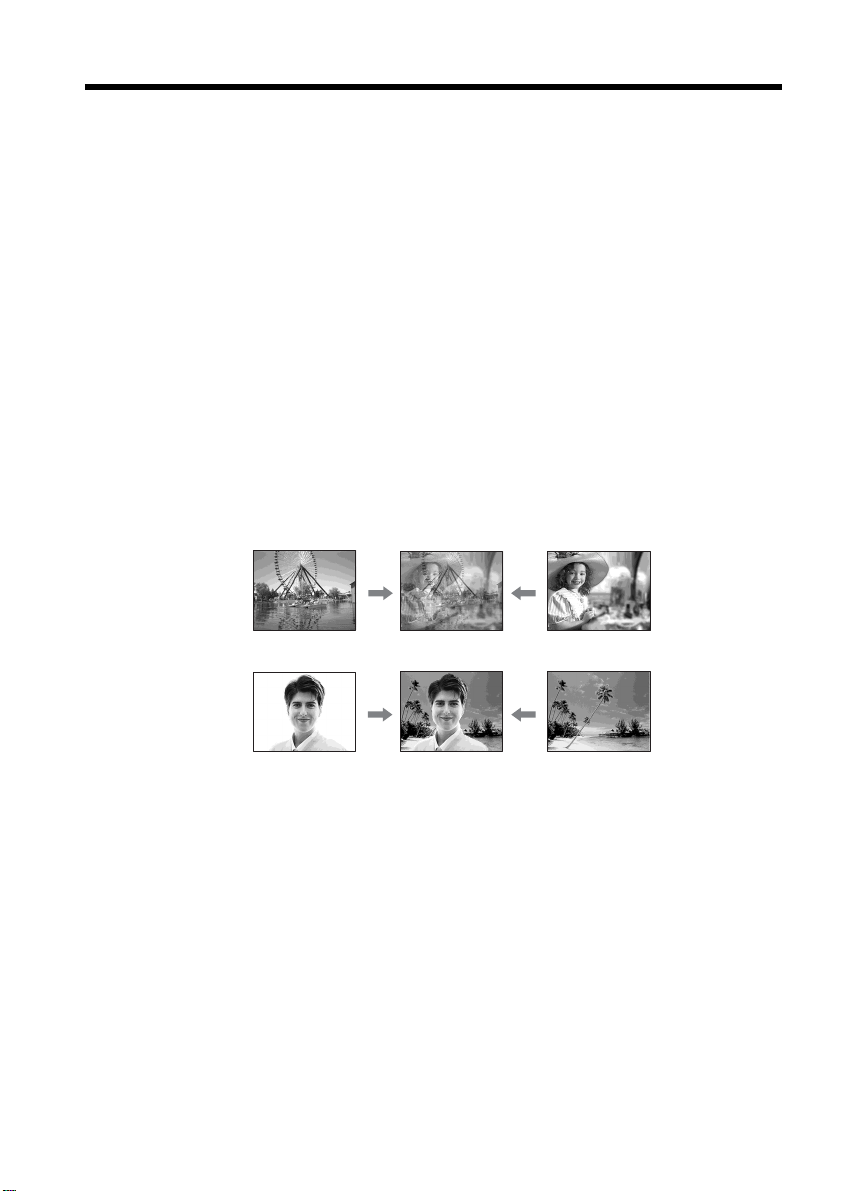
56
Using special effects – Digital effect
SLOW SHTR (slow shutter)
You can slow down the shutter speed. The SLOW SHTR mode is suitable for shooting a
subject in a dark place more brightly.
STILL
You can record a still image so that it is superimposed on a moving picture.
OLD MOVIE
You can add an old movie type atmosphere to pictures. Your camcorder automatically
sets the 16:9WIDE mode to ON, picture effect to SEPIA, and sets the appropriate shutter
speed.
FLASH (flash motion)
You can record still images successively at regular intervals.
LUMI. (luminance key)
You can swap the brighter area in a still image with a moving picture.
TRAIL
You can record a picture so that an incidental image like a trail is left.
STILL
LUMI.
Still image Moving picture
Still image Moving picture
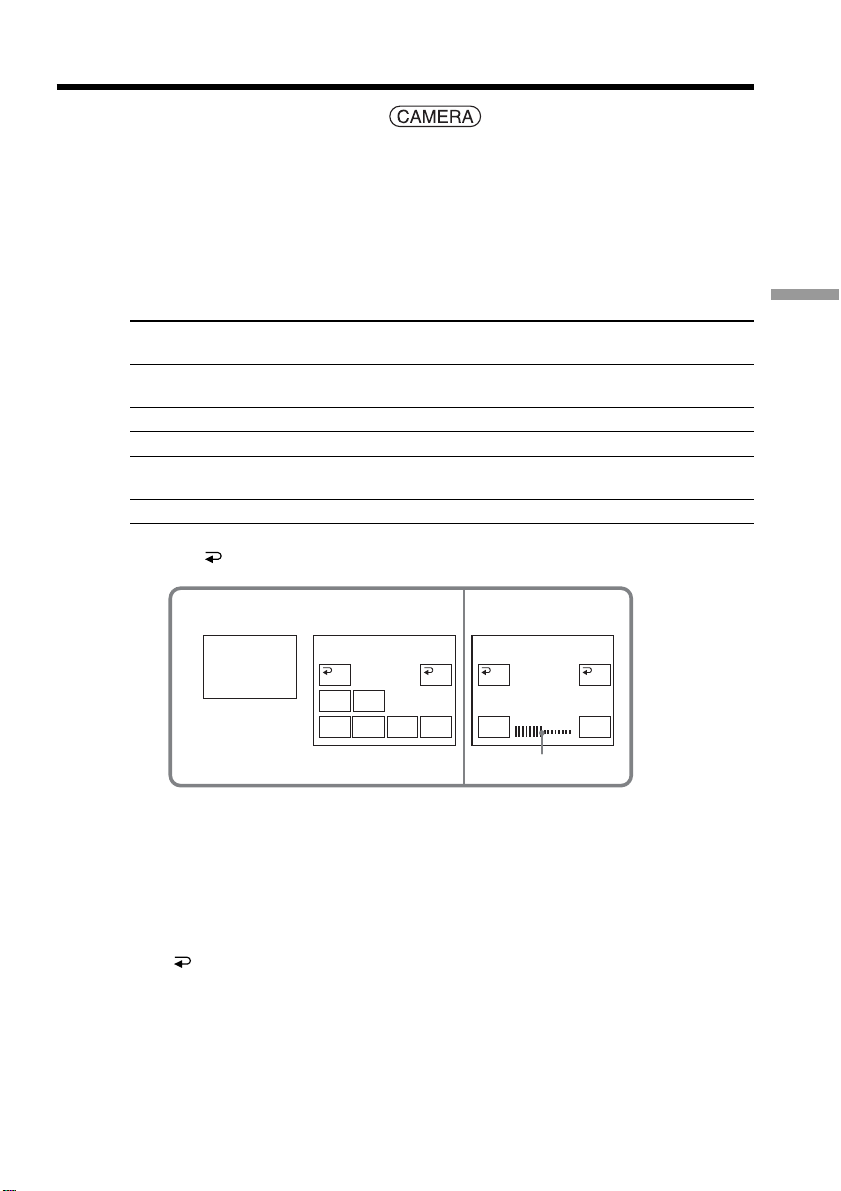
57
Advanced Recording Operations
The POWER switch should be set to .
Operate by touching the panel.
(1) Press FN and select PAGE2.
(2) Press DIG EFFT. The screen to select a digital effect is displayed.
(3) Press a desired mode. When you select STILL or LUMI., the still image when
you have selected the mode is stored in memory.
(4) Press – (to decrease the effect)/+ (to increase the effect) to adjust the effect.
Items to adjust
SLOW SHTR Shutter speed. The larger the shutter speed number, the slower the
shutter speed.
STILL The rate of the still image you want to superimpose on the moving
picture
OLD MOVIE No adjustment necessary
FLASH The interval of frame by frame playback
LUMI. The color scheme of the area in the still image which is to be swapped
with a moving picture
TRAIL The vanishing time of the incidental image
(5) Press OK to return to PAGE2.
To return to FN
Press EXIT.
To cancel digital effect
Press OFF on the DIG EFFT screen to return to PAGE2.
Using special effects – Digital effect
[a] The bar appears when setting the following digital
effect modes: STILL, FLASH, LUMI., TRAIL.
2 4
LUMI.
–+
OK
OFF
DIG
EFFT
DIG EFFT DIG EFFT
STILL
SLOW
SHTR
OLD
MOVIE
OFF OK
LUMI.FLASH TRAIL
[a]

58
Using special effects – Digital effect
Shutter speed
Shutter speed number Shutter speed
SLOW SHTR 1 1/30
SLOW SHTR 2 1/15
SLOW SHTR 3 1/8
SLOW SHTR 4 1/4
Notes
•While using digital effect, you cannot use the following functions:
– Super NightShot
– Color Slow Shutter
– Fader
•PROGRAM AE does not work in the SLOW SHTR mode.
•The following functions do not work in the OLD MOVIE mode:
– Wide mode
– Picture effect
– PROGRAM AE
When recording in the SLOW SHTR mode
Autofocus may not be effective. Focus manually using a tripod.
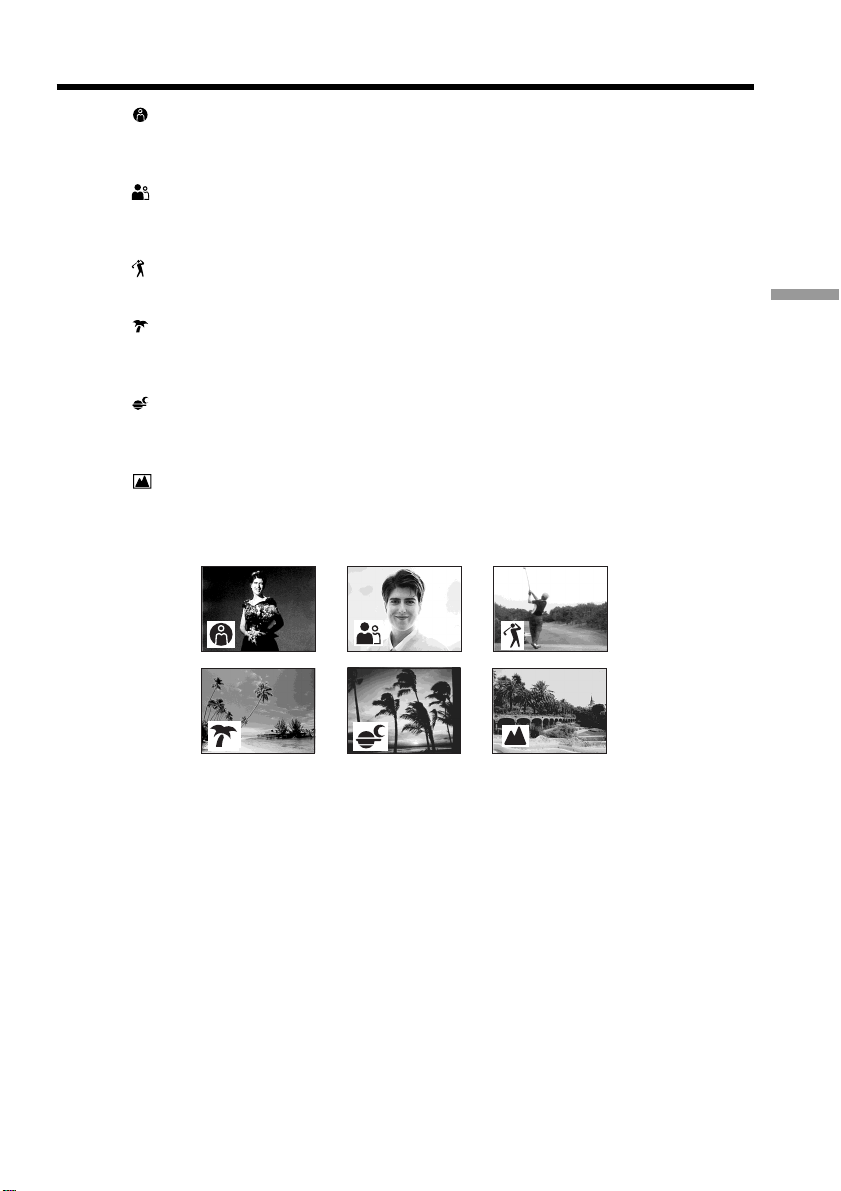
59
Advanced Recording Operations
SPOTLIGHT *
This mode prevents people’s faces, for example, from appearing excessively white
when shooting subjects lit by strong light in the theater.
PORTRAIT (soft portrait)
This mode brings out the subject while creating a soft background for subjects such as
people or flowers.
SPORTS (sports lesson) *
This mode minimizes shake on fast-moving subjects such as in tennis or golf.
BEACH&SKI *
This mode prevents people’s faces from appearing dark in strong light or reflected light,
such as at a beach in midsummer or on a ski slope.
SUNSETMOON (sunset & moon) **
This mode allows you to maintain atmosphere when you are recording sunsets, general
night views, fireworks displays and neon signs.
LANDSCAPE **
This mode is for when you are recording distant subjects such as mountains. Also it
prevents your camcorder from focusing on glass or metal mesh in windows when you
are recording a subject behind glass or a screen.
* Your camcorder focuses only on subjects in the middle to far distance.
** Your camcorder focuses only on distant subject.
Using PROGRAM AE
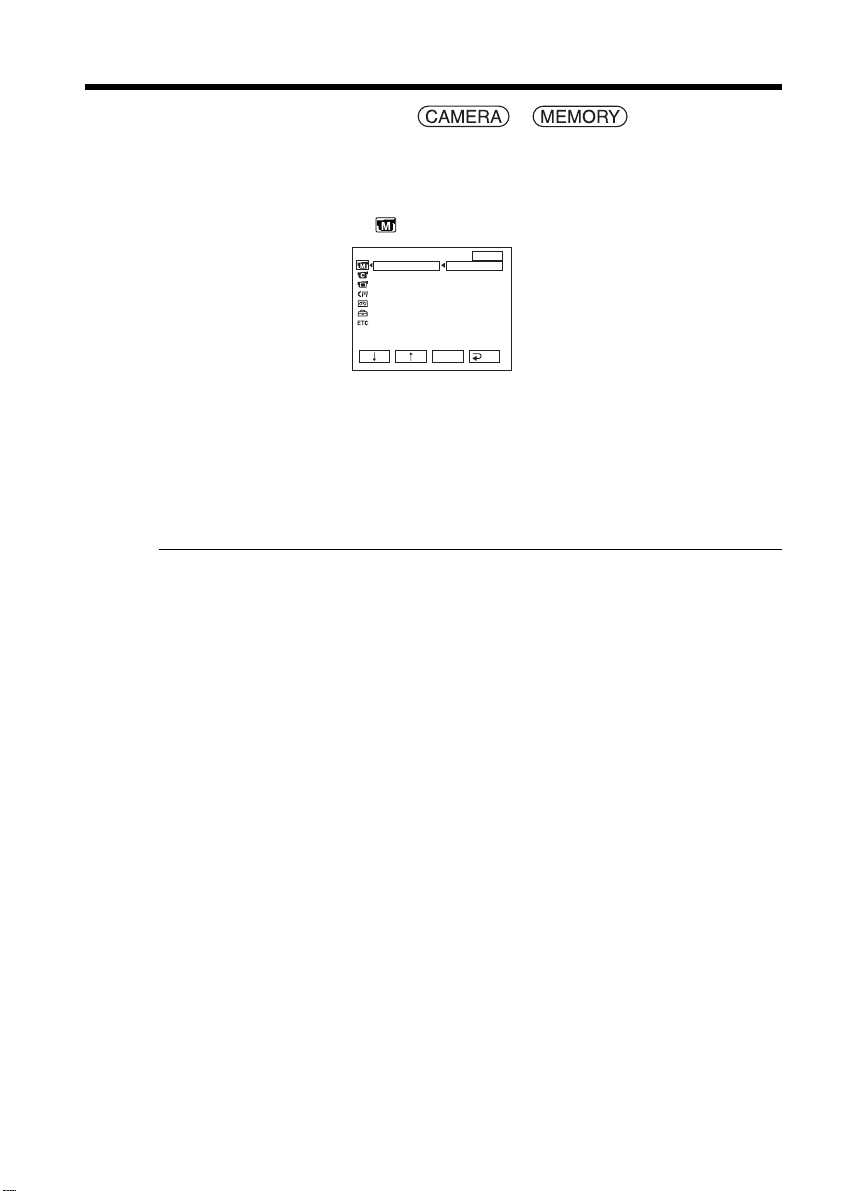
60
The POWER switch should be set to or .
Operate by touching the panel.
(1) Press FN to display PAGE1.
(2) Press MENU.
(3) Select PROGRAM AE in
, then press EXEC.
(4) Select a desired mode, then press EXEC.
To return to FN
Press EXIT.
To cancel PROGRAM AE
Set PROGRAM AE to AUTO.
Notes
•The following functions do not work while using PROGRAM AE:
– Color Slow Shutter
– BOUNCE
– SLOW SHTR
– OLD MOVIE
– Spot Focus
•PROGRAM AE does not work in the following cases (The indicator flashes):
– NightShot
– To record images on the “Memory Stick” using MEMORY MIX
•When you set the POWER switch to MEMORY, the SPORTS mode does not work.
(The indicator flashes.)
Using PROGRAM AE
MANUAL SET
PROGRAM AE
P EFFECT
RED EYE R
FLASH LVL
WHT BAL
SHARPNESS
AUTO SHTR
EXIT
RET.
EXEC
AUTO
SPOTLIGHT
PORTRAIT
SPORTS
BEACH&SKI
SUNSETMOON
LANDSCAPE
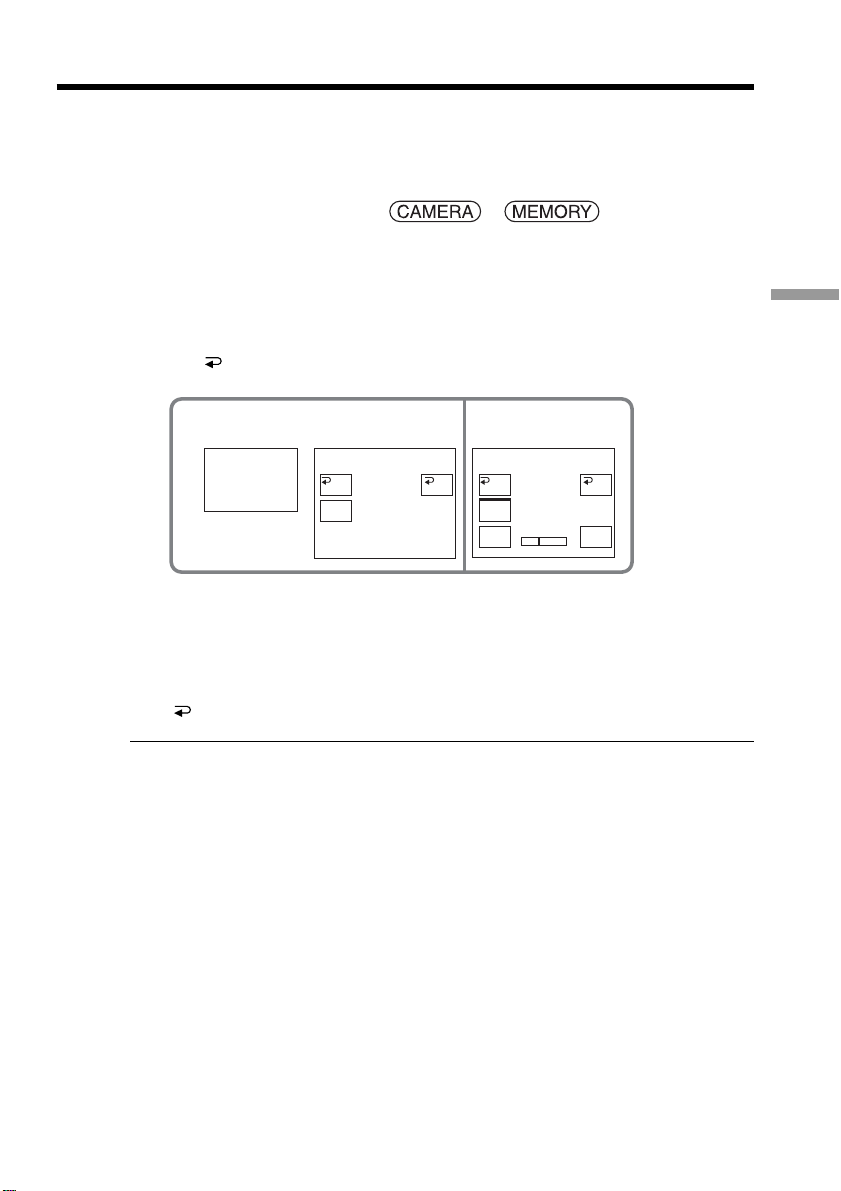
61
Advanced Recording Operations
Adjust the exposure manually in the following cases:
– When you need a fine adjustment for backlit subjects.
– When the subject is too bright against the background.
– When recording dark pictures (e.g. night scenes) faithfully.
The POWER switch should be set to or .
Operate by touching the panel.
(1) Press FN to display PAGE1.
(2) Press EXPOSURE. The screen to adjust the exposure appears.
(3) Press MANUAL.
(4) Adjust the exposure using – (to dim) /+ (to brighten).
(5) Press
OK to return to PAGE1.
To return to FN
Press EXIT.
To return to the automatic exposure
Press AUTO on the EXPOSURE screen to return to PAGE1.
Note
When you adjust the exposure manually, the following functions do not work:
– Back light
– Color Slow Shutter
Adjusting the exposure manually
24
EXPO–
SURE
MANU–
AL
AUTO AUTO
EXPOSURE
OK
–+
MANU–
AL
EXPOSURE
–+
OK
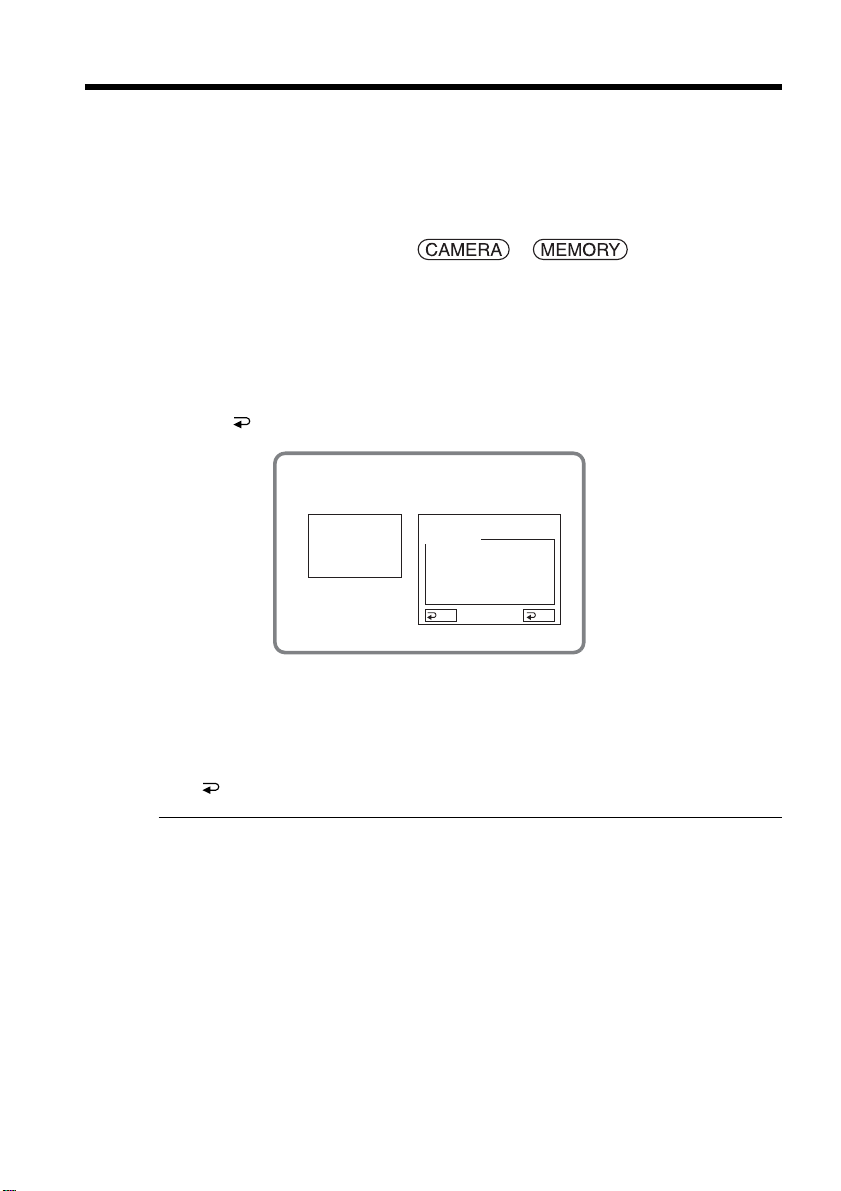
62
You can take a picture with the appropriate exposure automatically adjusted for just the
point you want to focus on and with its exposure fixed.
Use Flexible Spot Meter in the following cases:
– The subject is backlit.
– When there is strong contrast between the subject and background such as with a
subject that is on stage and lit by a spotlight.
The POWER switch should be set to or .
Operate by touching the panel.
(1) Press FN to display PAGE1.
(2) Press SPOT METER. The SPOT METER screen appears.
(3) Press the desired area in the frame on the screen.
The SPOT METER indicator flashes on the screen. The exposure of the point
you selected is adjusted.
(4) Press
OK to return to PAGE1.
To return to FN
Press EXIT.
To return to the automatic exposure
Press AUTO in the SPOT METER screen to return to PAGE1.
Note
The following functions do not work while using Flexible Spot Meter:
– Back light
– Color Slow Shutter
– Spot focus
Using the spot light-metering function
– Flexible Spot Meter
2
SPOT
METER
OK
AUTO
SPOT METER
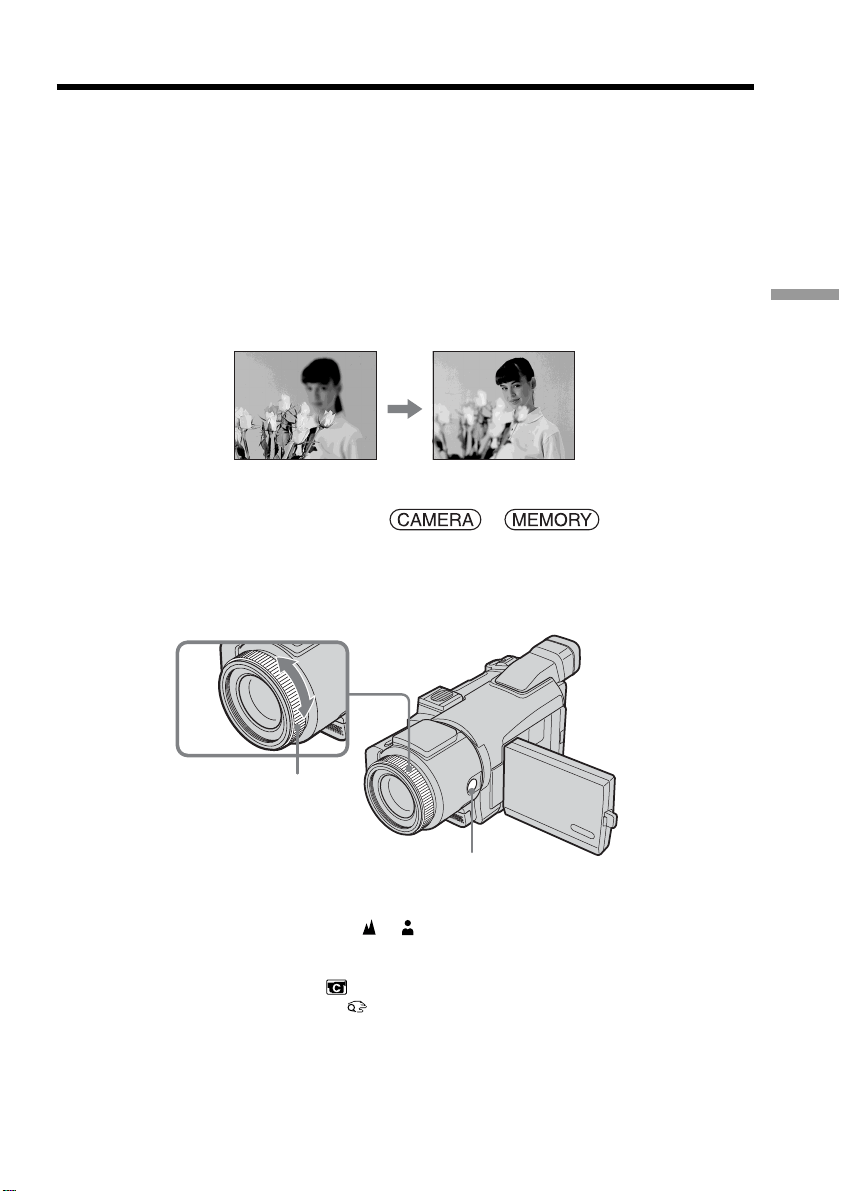
63
Advanced Recording Operations
You can gain better results by manually adjusting the focus in the following cases.
Normally, focus is automatically adjusted.
When the POWER switch is set to MEMORY, you can adjust the focus manually with
the image enlarged to twice the size (Expanded focus).
Adjust the focus manually in the following cases:
•The autofocus mode is not effective when shooting:
– Subjects through glass coated with water droplets
– Horizontal stripes
– Subjects with little contrast with backgrounds such as walls or the sky
•Shooting a stationary subject when using a tripod.
•When you want to change the focus from a subject in the foreground to a subject in
the background.
The POWER switch should be set to or .
(1) Press FOCUS.
The 9 (focus) indicator appears on the screen.
(2) Turn the focus ring to sharpen focus.
To return to the autofocus
Press FOCUS to turn off the 9, or indicator.
About expanded focus
If you set EXPANDED F in to ON in the menu settings (p. 174) when the POWER
switch is set to MEMORY, the (expanded focus) indicator appears. At this time the
image is enlarged to approximately twice the size. The focal distance information is also
displayed. After adjustment is complete, the image returns to its original size
automatically.
Focusing manually
2
FOCUS
Focus ring

64
Focusing manually
To focus precisely
It is easier to focus on the subject if you adjust the zoom to shoot at the “W” (wide-
angle) position after focusing at the “T” (telephoto) position.
When you shoot close to the subject
Focus at the end of the “W” (wide-angle) position.
9 changes as follows:
when recording a distant subject.
when the subject is too close to focus on.
Focal distance information is displayed for about three seconds on the screen in
the following cases:
– When switching the focus adjustment mode from autofocus to manual.
– When turning the focus ring.
Focal distance information
You cannot get correct information if you have attached a conversion lens (optional) to
your camcorder.
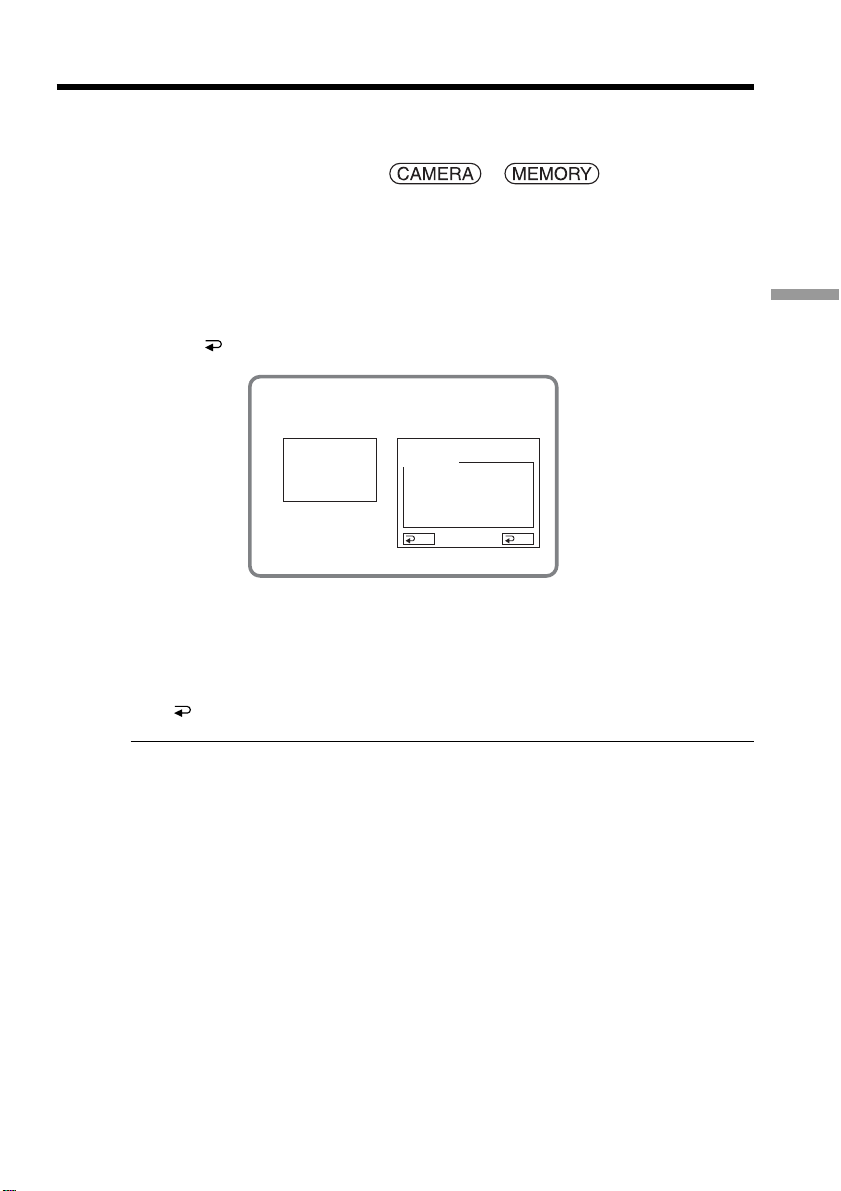
65
Advanced Recording Operations
You can take a picture with the appropriate focus automatically adjusted for just the
point you want to focus on and with its focus fixed.
The POWER switch should be set to or .
Operate by touching the panel.
(1) Press FN to display PAGE1.
(2) Press SPOT FOCUS. The SPOT FOCUS screen appears.
(3) Press the desired area in the frame on the screen.
The SPOT FOCUS indicator flashes on the screen. The focus of the point you
selected is adjusted.
(4) Press
OK to return to PAGE1.
To return to FN
Press EXIT.
To return to the autofocus
Press AUTO in the SPOT FOCUS screen to return to PAGE1.
Notes
•The back light function does not work while using Spot Focus.
•You cannot use Spot Focus while using PROGRAM AE.
Focal distance information
It is not displayed on the screen.
Using the spot focus function – Spot Focus
OK
AUTO
2
SPOT
FOCUS
SPOT FOCUS
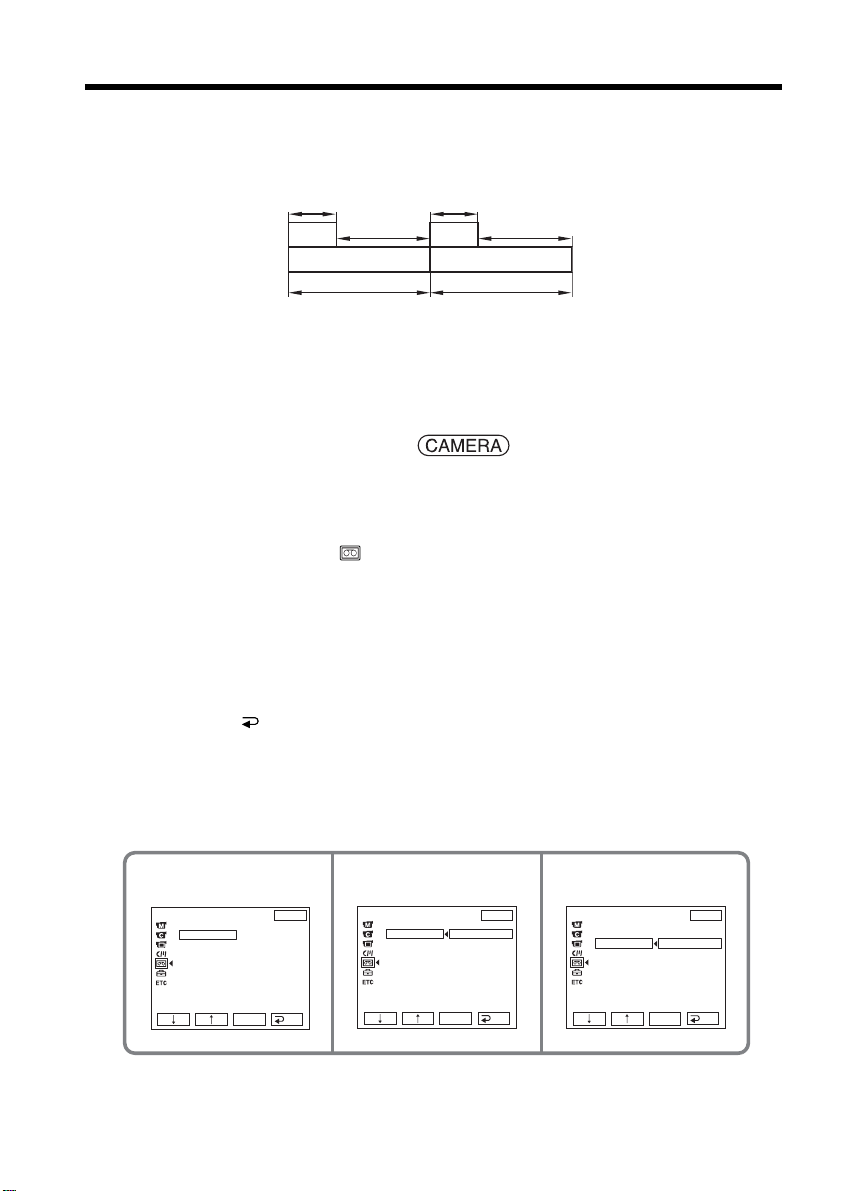
66
You can make a time-lapse recording by setting your camcorder to automatically record
and switch to standby sequentially. You can achieve an excellent recording for
flowering, emergence of insects, etc. with this function.
[a] REC TIME
[b] INTERVAL
There may be a discrepancy in recording time of up to +/– six frames from the selected
time.
The POWER switch should be set to .
Operate by touching the panel.
(1) Press FN to display PAGE1.
(2) Press MENU.
(3) Select INT. REC in
, then press EXEC.
(4) Select SET, then press EXEC.
(5) Select INTERVAL, then press EXEC.
(6) Select a desired interval time, then press EXEC.
The time: 30SEC y 1MIN y 5MIN y 10MIN
(7) Select REC TIME, then press EXEC.
(8) Select a desired recording time, then press EXEC.
The time: 0.5SEC y 1SEC y 1.5SEC y 2SEC
(9) Press
RET.
(10) Set INT. REC to ON, then press EXEC.
(11) Press EXIT to return to FN.
The INTERVAL TAPE indicator flashes on the screen.
(12) Press START/STOP to start Interval Recording.
The INTERVAL TAPE indicator lights up during Interval Recording.
To cancel Interval Recording
Set INT. REC to OFF.
Interval Recording
Example
[a][a]
[b][b]
TAPE SET
I
NT. REC
I
NTERVAL
REC T
I
ME
30SEC
TAPE SET
I
NT. REC
I
NTERVAL
REC T
I
ME
30SEC
1M
I
N
5M
I
N
10M
I
N
TAPE SET
I
NT. REC
I
NTERVAL
REC T
I
ME
0
.
5SEC
1SEC
1
.
5SEC
2SEC
EXIT
RET.
EXEC
EXIT
RET.
EXEC
EXIT
RET.
EXEC
457
1 s 1 s
9 min 59 s 9 min 59 s
10 min 10 min
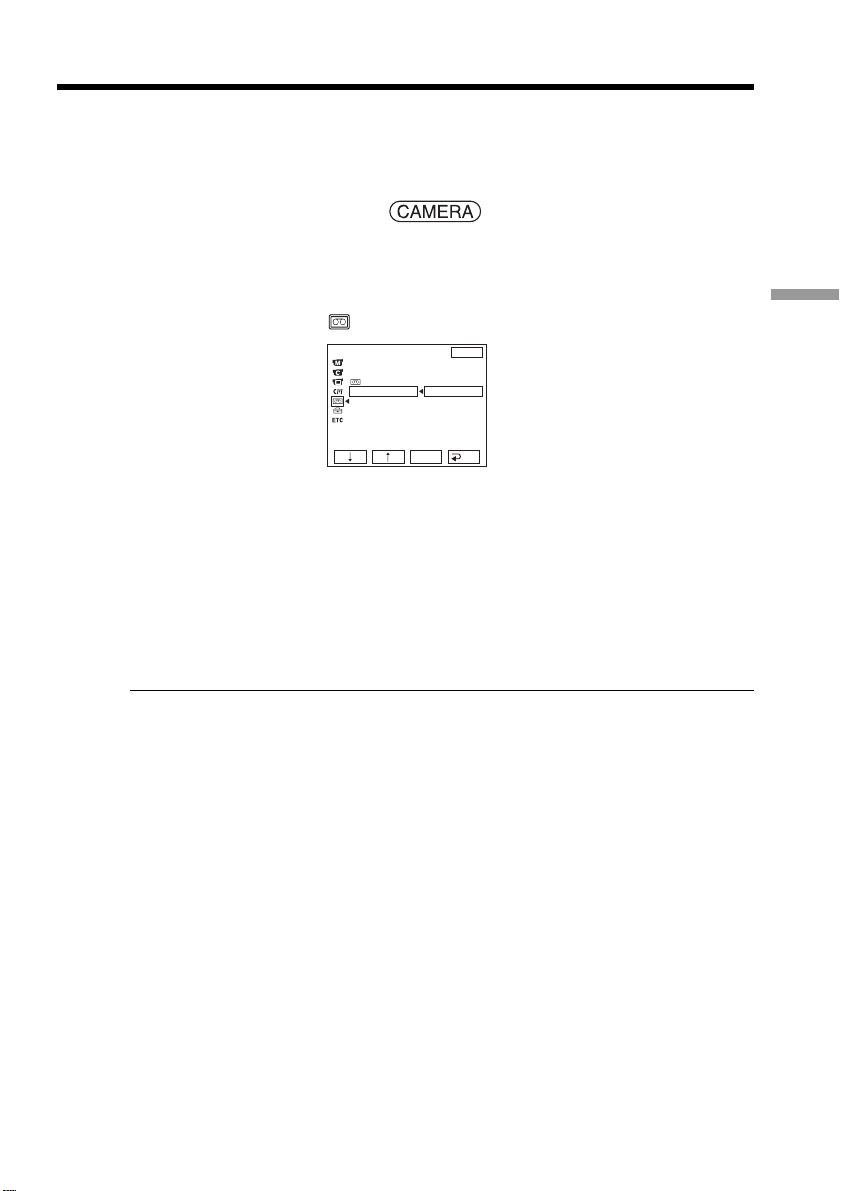
67
Advanced Recording Operations
You can make a recording with a stop-motion animated effect using frame recording.
To create this effect, alternately move the subject a little and make frame recording. We
recommend that you use a tripod, and operate your camcorder using the Remote
Commander after Step 6 to prevent camera shake.
The POWER switch should be set to .
Operate by touching the panel.
(1) Press FN to display PAGE1.
(2) Press MENU.
(3) Select FRAME REC in
, then press EXEC.
(4) Select ON, then press EXEC.
(5) Press EXIT to return to FN.
The FRAME REC indicator lights up.
(6) Press START/STOP to start frame recording. Your camcorder makes a
recording for about six frames, and returns to recording standby.
(7) Move the subject, and repeat Step 6.
To cancel frame recording
Set FRAME REC to OFF.
Note
The remaining tape time is not indicated correctly if you use frame recording
continuously.
When using frame recording
The last recorded frame is longer than other frames.
Frame by frame recording
– Frame recording
TAPE SET
REC MODE
AUDIO MODE
REMAIN
FRAME REC
I NT. REC
EXIT
RET.
EXEC
OFF
ON
68
Recording with all the pixels
– Progressive Recording Mode
To import moving pictures to your computer to view still images, we recommend you
record in Progressive Recording Mode. To use Progressive Recording Mode, follow the
procedure below. Still images produced this way are more stable than those recorded
on a tape in normal mode, and thus are more suitable for analyzing high-speed action
such as sports scenes. (Since your camcorder takes in an image every 1/30 of a second
in Progressive Recording Mode, moving pictures recorded in this mode may be subject
to too much jitter. To view moving pictures, we recommend recording in normal
mode.)
The POWER switch should be set to .
Operate by touching the panel.
(1) Press FN and select PAGE3.
(2) Press PRGRE REC.
To cancel the Progressive Recording Mode
Press PRGRE REC again.
To return to FN
Press EXIT.
Note on the Progressive Recording Mode
The normal TV broadcast divides the screen into two finer fields and displays them in
turns every 1/60 of a second. Thus, the actual image displayed in an instant covers only
half of the apparent image area. Displaying the whole image simultaneously on a full
screen is called displaying with all the pixels. In this function the picture is clearer than
one in normal function, but moving objects appear jerky since the picture is read/
output every about 1/30 second.
When recording under fluorescent light
When recording in the Progressive Recording Mode under fluorescent light or light
bulb, a rare phenomenon may happen in which the screen lights up brightly (Flicker
phenomenon). This is not a malfunction. If you want to stop this phenomenon, cancel
the Progressive Recording Mode.
When you record with Progressive Recording Mode
The angle of view is slightly larger than normal recording.
While in Progressive Recording Mode, you cannot use the following functions:
– Digital Zoom
– Wide mode
– BOUNCE
– Slow Shutter
– OLD MOVIE
– Recording still images on a “Memory Stick” during tape recording standby or tape
recording
– SteadyShot
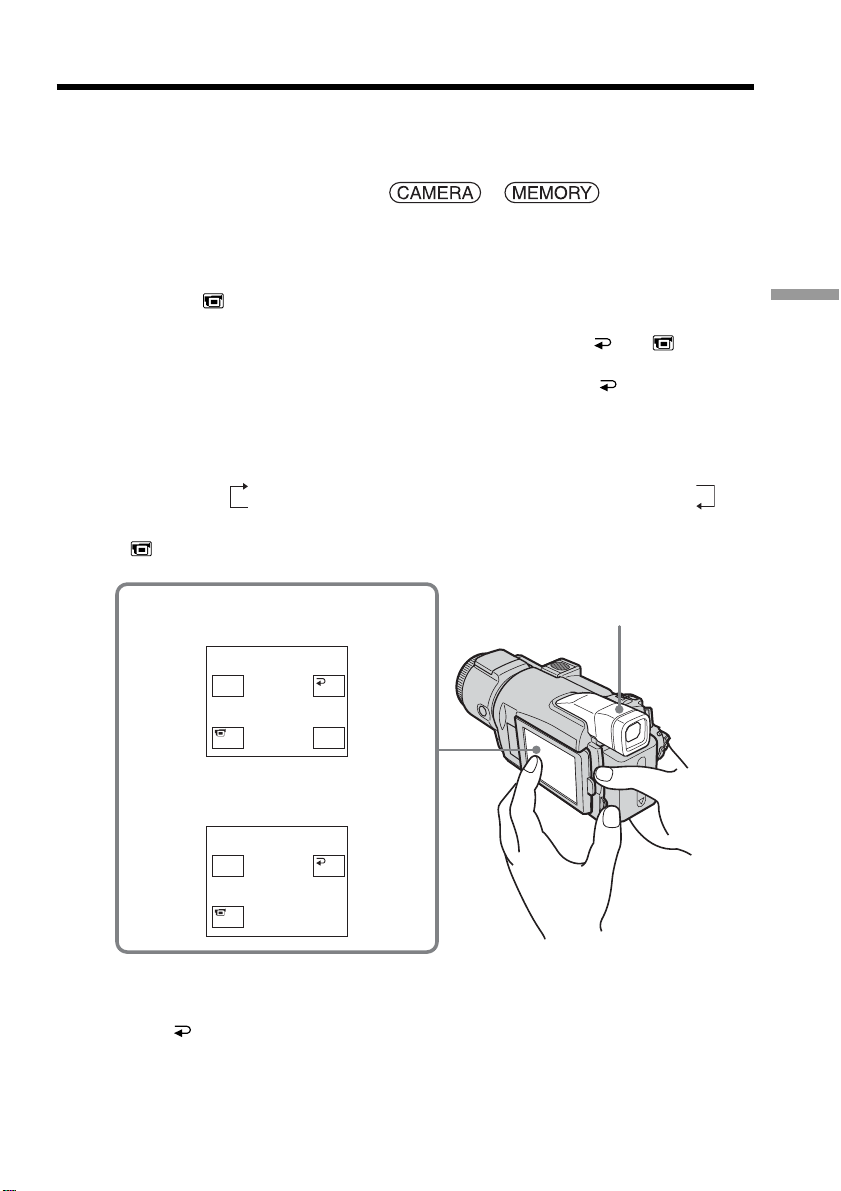
69
Advanced Recording Operations
Turn the LCD panel over and move it back to your camcorder body with the LCD
screen facing out. You can operate with the touch panel using the viewfinder.
Use the viewfinder when operating camera brightness and fader on the touch panel.
The POWER switch should be set to or .
Operate by touching the panel.
(1) Turn the LCD panel over and move it back to your camcorder body with the
LCD screen facing out.
(2) Press
OFF. The PANEL OFF indicator appears on the screen.
(3) Press OK. The LCD screen is turned off.
(4) Using the viewfinder, press the LCD screen. EXPOSURE,
OK, ON and
FADER (only when the POWER switch is set to CAMERA) appear.
(5) Press the LCD screen and select a desired item, then press
OK.
EXPOSURE: Adjust the exposure by pressing –/+.
FADER: Press FADER repeatedly until a desired fader mode appears.
The indicator changes as follows:
FADER t M. FADER t BOUNCE t MONOTONE
(no indicator) T DOT T WIPE T OVERLAP
ON: The LCD screen lights up.
To make the buttons on the LCD screen disappear
Press OK.
Using the viewfinder
When the POWER
switch is set to CAMERA
When the POWER
switch is set to MEMORY
Viewfinder
4
ON
OK
EXPO–
SURE
EXPO–
SURE
OK
ON FADER

70
Using the viewfinder
Note
When the POWER switch is set to VCR or during memory playback, you cannot
operate with the touch panel using the viewfinder.
To operate the items that do not appear
Set the LCD panel back to the normal position. Operate the items using the LCD screen.
Available recording time
This is the time when you record pictures using the viewfinder (p. 17).
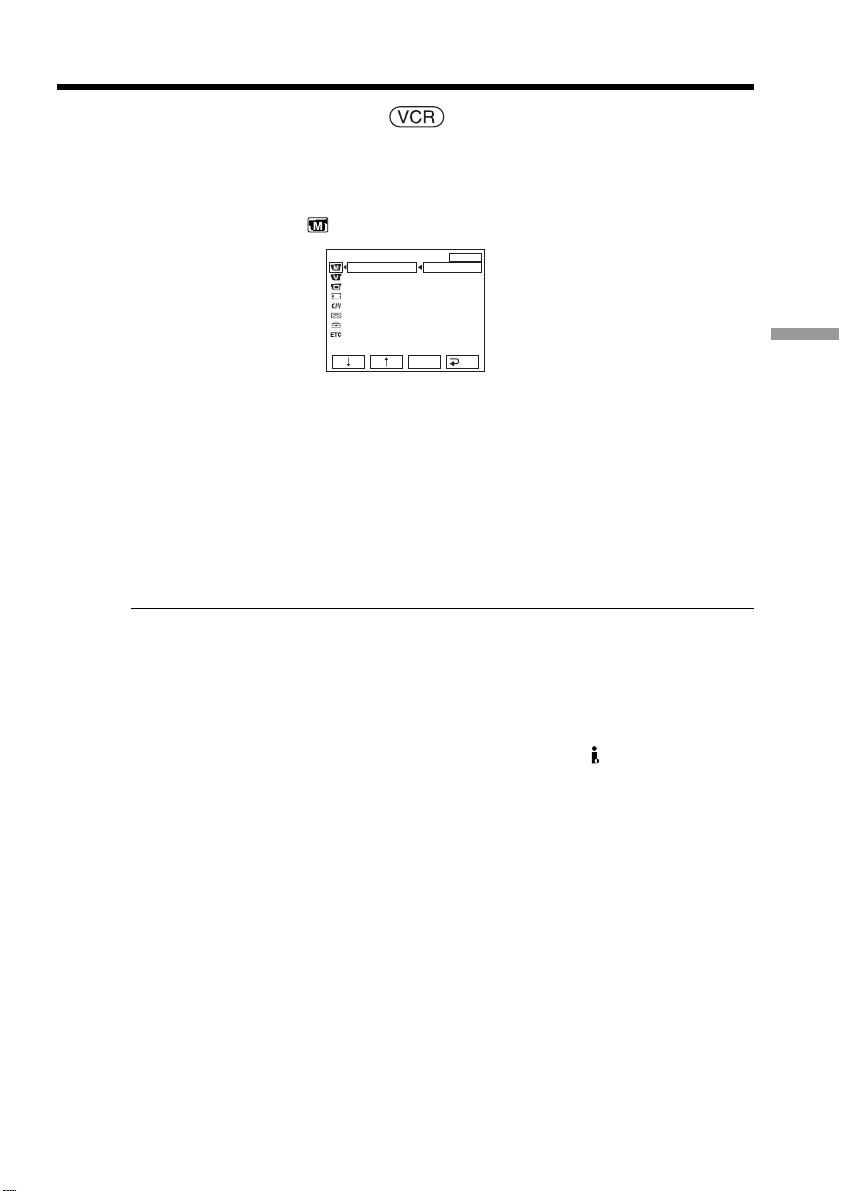
71
Advanced Playback Operations
The POWER switch should be set to .
Operate by touching the panel.
(1) During playback or playback pause, press FN to display PAGE1.
(2) Press MENU.
(3) Select P EFFECT in
, then press EXEC.
(4) Select a desired mode, then press EXEC.
You can use NEG. ART, SEPIA, B&W and SOLARIZE.
See page 55 for details on each mode.
To return to FN
Press EXIT.
To cancel picture effect
Set P EFFECT to OFF.
Notes
•You cannot process externally input scenes using picture effect.
•You cannot record images processed with picture effect on the tape on your
camcorder. Record the processed images on the “Memory Stick” (p. 116, 125), or on a
VCR using your camcorder as a player.
Pictures processed with picture effect
Pictures processed with picture effect are not output through the DV Interface.
— Advanced Playback Operations —
Playing back a tape with picture effect
MANUAL SET
P EFFECT
EXIT
RET.
EXEC
OFF
NEG. ART
SEPIA
B&W
SOLARIZE
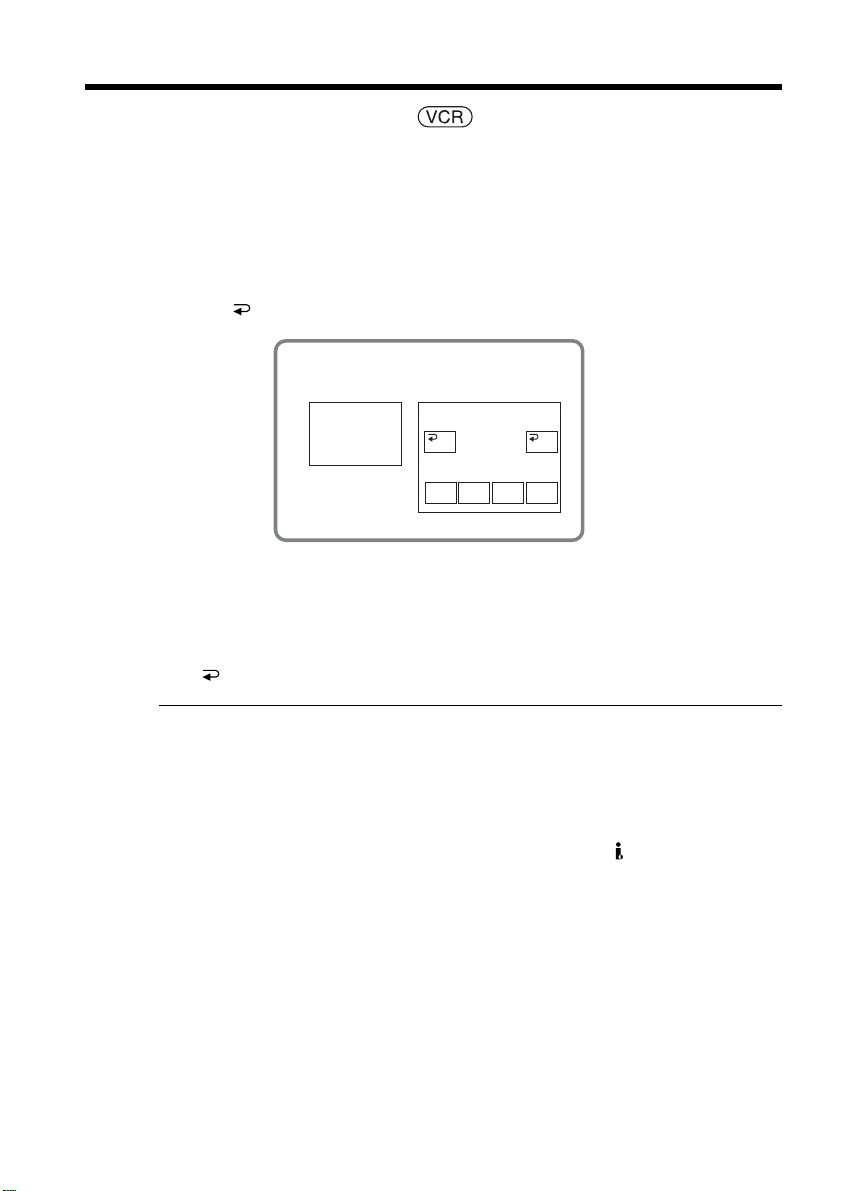
72
The POWER switch should be set to .
Operate by touching the panel.
(1) During playback or playback pause, press FN and select PAGE2.
(2) Press DIG EFFT. The screen to select a digital effect is displayed.
(3) Select a desired mode. You can use STILL, FLASH, LUMI. and TRAIL.
See pages 56, 57 for details on each mode. When you select STILL or LUMI.,
the picture where you select the mode is stored in memory as a still image.
(4) Press –/+ to adjust the effect.
(5) Press
OK to return to PAGE2.
To return to FN
Press EXIT.
To cancel digital effect
Press OFF to return to PAGE2.
Notes
•You cannot process externally input scenes using digital effect.
•You cannot record images processed with digital effect on the tape on your
camcorder. Record the processed images on the “Memory Stick” (p. 116, 125), or on a
VCR using your camcorder as a player.
Pictures processed with digital effect
Pictures processed with digital effect are not output through the DV Interface.
Playing back a tape with digital effect
2
DIG
EFFT
OKOFF
STILL FLASH
LUMI. TRAIL
DIG EFFT
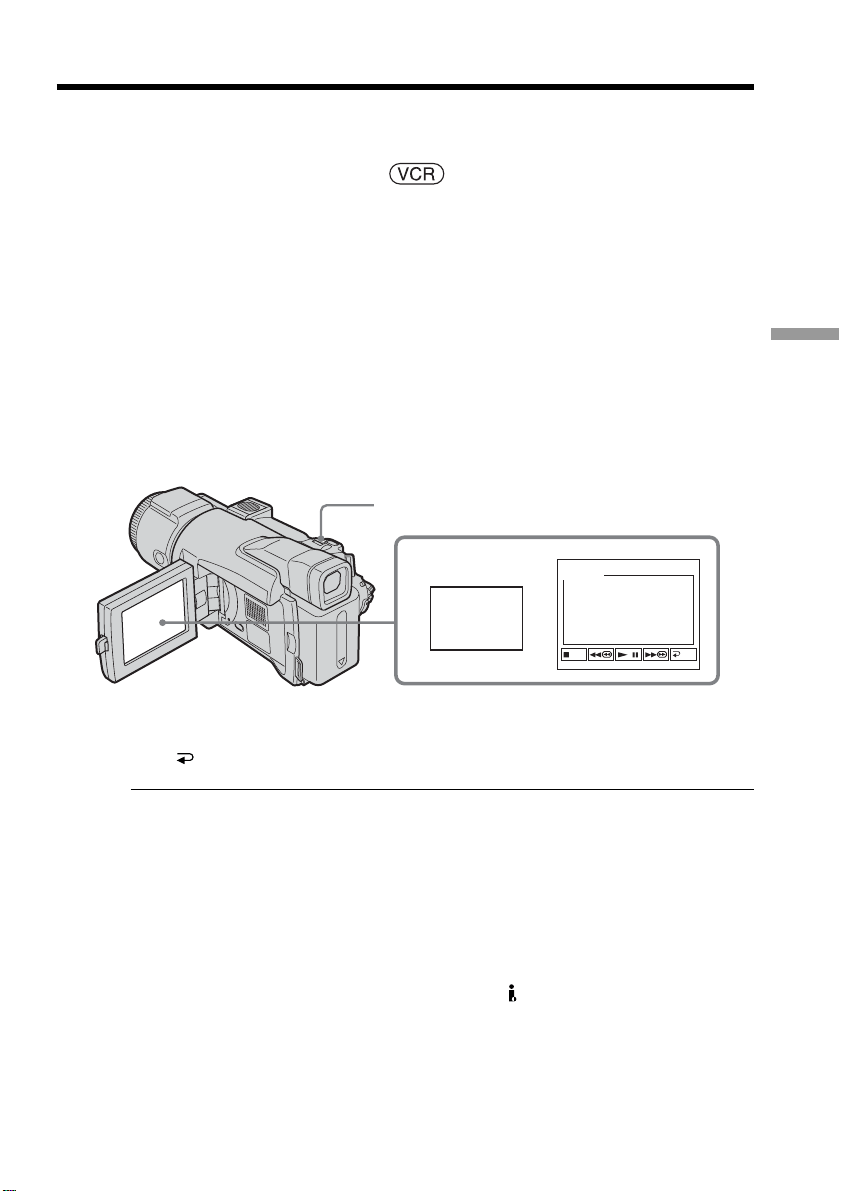
73
Advanced Playback Operations
Besides the operation described here, your camcorder can enlarge still images recorded
on the “Memory Stick” (p. 135).
The POWER switch should be set to .
Operate by touching the panel.
(1) During playback or playback pause, press FN and select PAGE2.
(2) Press PB ZOOM. The PB ZOOM screen appears.
(3) Press the area you want to enlarge in the frame.
The area you have pressed moves to the center of the screen, and the playback
image is enlarged to approximately at twice the size. If you press another area
again, the area moves to the center of the screen.
(4) Adjust the zoom ratio by the power zoom lever.
You can select the zoom ratio from approximately 1.1 times up to five times its
size.
W:To decrease the zoom ratio
T:To increase the zoom ratio
To cancel tape PB ZOOM
Press END.
Notes
•You cannot process externally input scenes using tape PB ZOOM with your
camcorder.
•You cannot record images processed with tape PB ZOOM on the tape on your
camcorder. Record the processed images on a “Memory Stick” (p. 116) or on a VCR
using your camcorder as a player.
•You cannot record moving pictures processed with tape PB ZOOM on the “Memory
Stick” on your camcorder.
Images in tape PB ZOOM
Images in tape PB ZOOM are not output through the DV Interface.
In tape PB ZOOM
If you press DISPLAY/BATT INFO, the frame on the PB ZOOM screen disappears. You
cannot move the part you have pressed to the center of the screen.
Edge of the image
The edge of the image cannot be displayed at the center of the screen.
Enlarging images recorded on the tape
– Tape PB ZOOM
2
PB
ZOOM
END
PB ZOOM
Power zoom lever
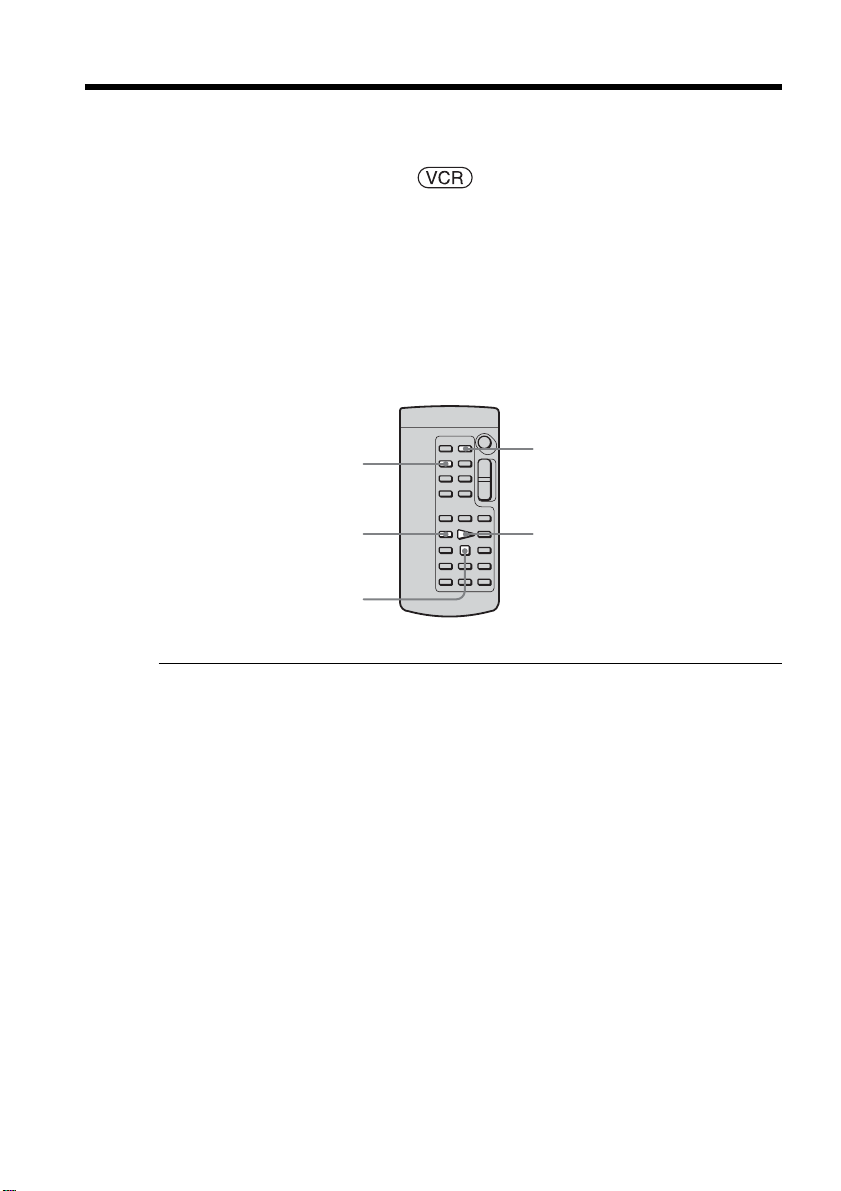
74
Your camcorder automatically searches for a desired scene having the tape counter
value of “0:00:00”. Use the Remote Commander for this operation.
The POWER switch should be set to .
(1) During playback, press ZERO SET MEMORY on the Remote Commander at
the point you want to locate later. The tape counter shows “0:00:00”, then starts
counting. If the indicators do not appear, press DISPLAY. The ZERO SET
MEMORY indicator flashes.
(2) Press x when you want to stop playback.
(3) Press m to rewind the tape to the tape counter’s zero point. The tape stops
automatically when the tape counter reaches approximately zero.
(4) Press N. Playback starts from the counter’s zero point.
Notes
•When you press ZERO SET MEMORY before rewinding the tape, the zero set memory
function will be canceled.
•There may be a discrepancy of several seconds between the time code and the tape
counter.
•The ZERO SET MEMORY indicator disappears when you press FN.
If the tape has a blank portion between recorded portions
The zero set memory function may not work correctly.
Quickly locating a scene
– Zero set memory
ZERO SET MEMORY
N
DISPLAY
m
x
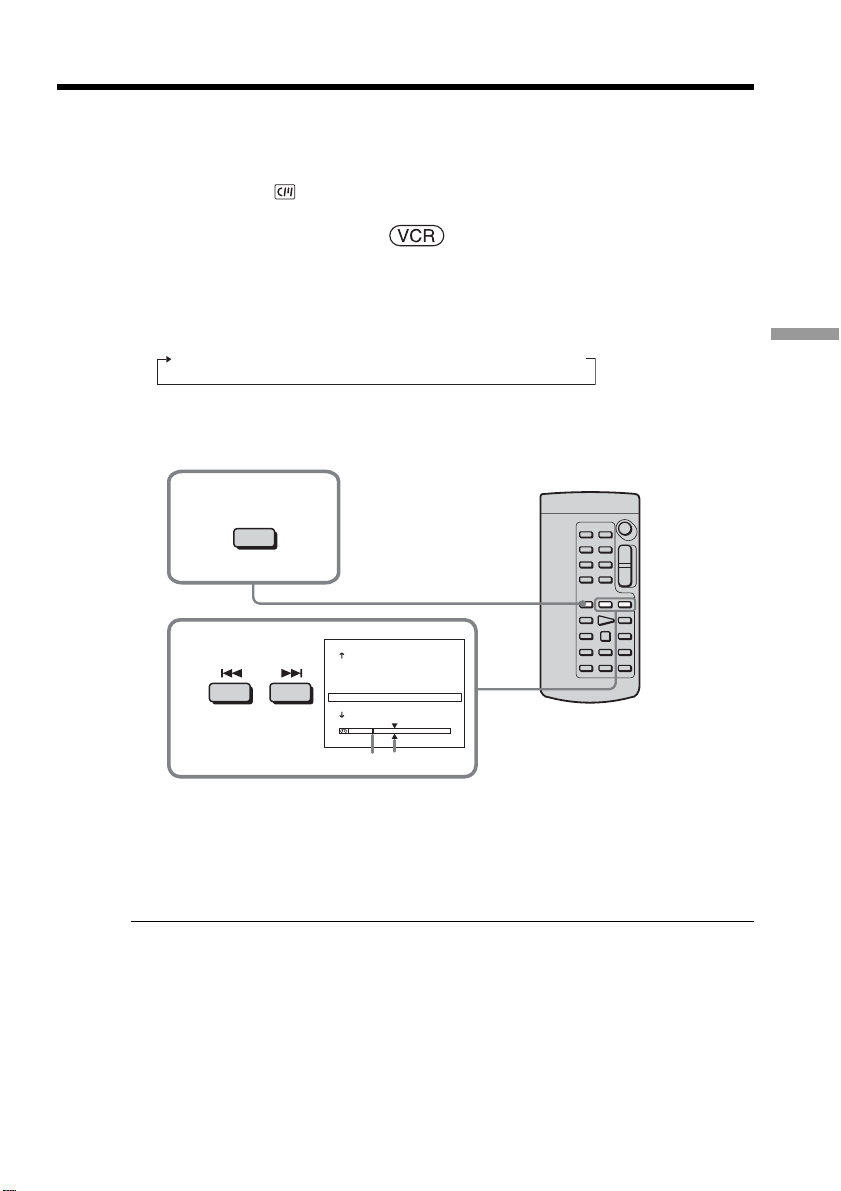
75
Advanced Playback Operations
Use a cassette with Cassette Memory for this operation.
Use the Remote Commander for this operation.
Before operation
Set CM SEARCH in to ON in the menu settings. (The default setting is ON.)
The POWER switch should be set to .
(1) Press SEARCH MODE on the Remote Commander until the TITLE SEARCH
indicator appears.
The TITLE SEARCH screen appears.
The indicator changes as follows:
TITLE SEARCH t DATE SEARCH t (no indicator)
(2) Press . or > on the Remote Commander to select the title for playback.
Your camcorder automatically starts playback of the scene having the title that
you selected.
[a] Actual point you are trying to search for
[b] Present point on the tape
To cancel searching
Press x on the Remote Commander.
If the tape has a blank portion between recorded portions
Title search may not work correctly.
To superimpose a title
See page 97.
Searching the boundaries of the recorded
tape by title – Title search
1
SEARCH
MODE
2
TITLE SEARCH
3 HAPPY NEW YEAR!
4 PRESENT
5 GOOD MORNING
6 WEDDING
7 NIGHT
8 BASEBALL
[b][a]
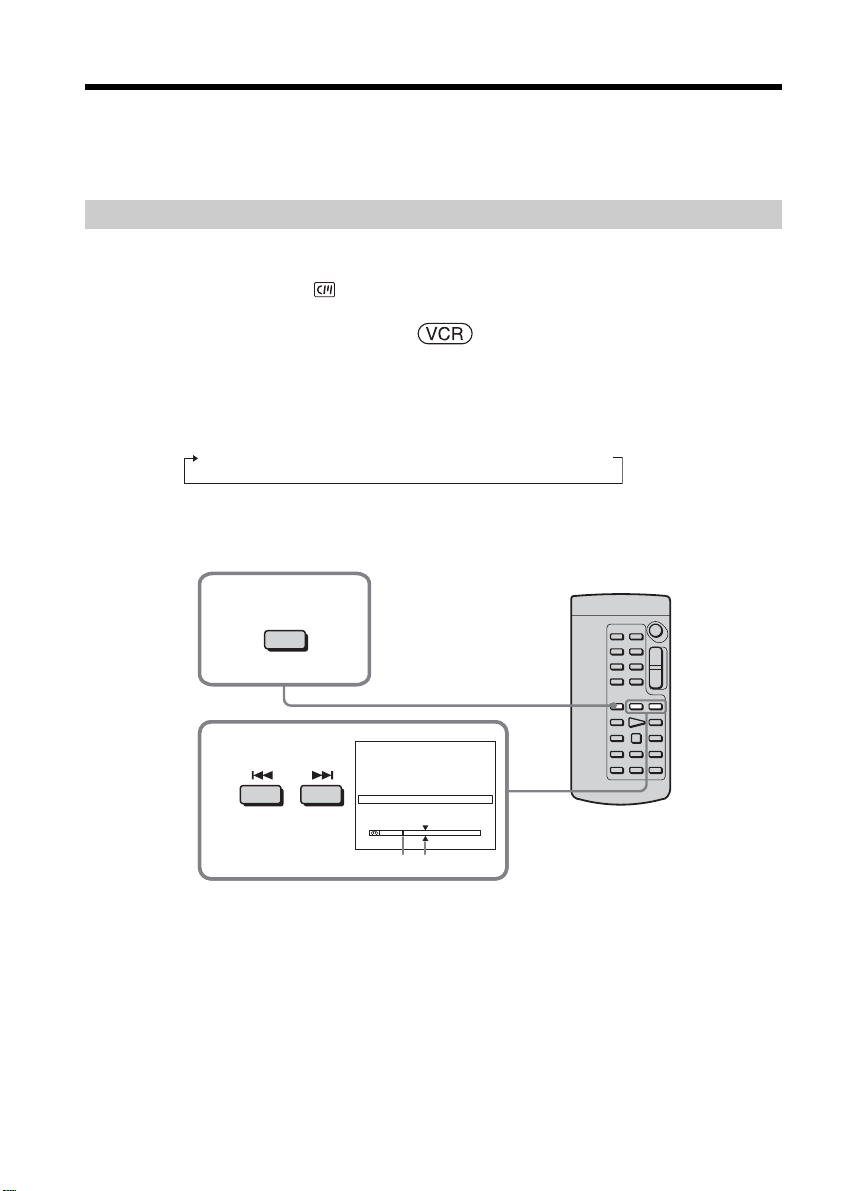
76
When you search for the date by using Cassette Memory, cue the tape by selecting the
recording date on the screen.
When you search for the date without using Cassette Memory, cue the tape to changing
point of recording date. Use the Remote Commander for this operation.
Searching for the date by using Cassette Memory
Before operation
•You can use this function only when playing back a cassette with Cassette Memory.
•Set CM SEARCH in to ON in the menu settings. (The default setting is ON.)
The POWER switch should be set to .
(1) Press SEARCH MODE on the Remote Commander repeatedly until the DATE
SEARCH indicator appears.
The DATE SEARCH screen appears.
The indicator changes as follows:
TITLE SEARCH t DATE SEARCH t (no indicator)
(2) Press . or > on the Remote Commander to select the date for playback.
Your camcorder automatically starts playback at the beginning of the selected
date.
[a] Actual point you are trying to search for
[b] Present point on the tape
To cancel searching
Press x on the Remote Commander.
Searching a recording by date
– Date search
2
1
DATE SEARCH
1 SEP / 5 / 03
2 SEP / 6 / 03
3 DEC / 24 / 03
4 JAN / 1 / 04
5 FEB / 11 / 04
6 APR / 29 / 04
SEARCH
MODE
[b] [a]
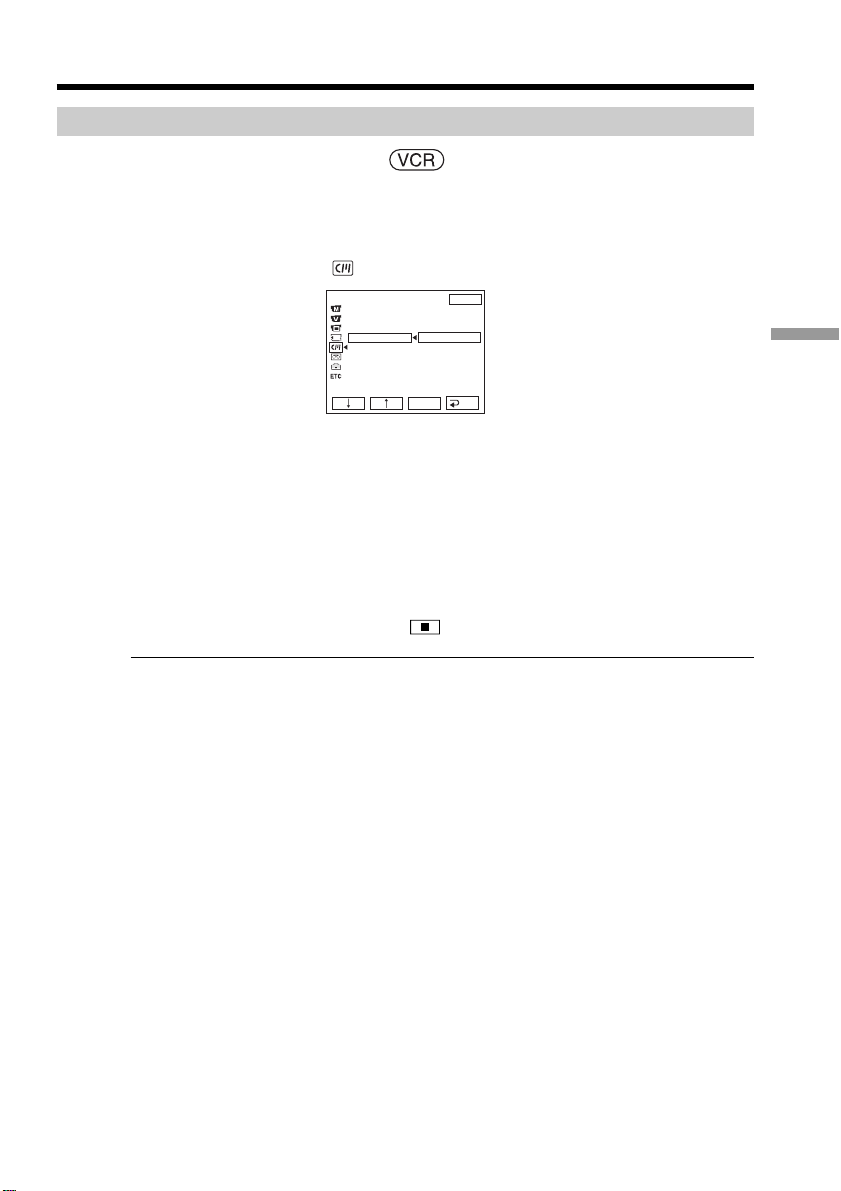
77
Advanced Playback Operations
Searching for the date without using Cassette Memory
The POWER switch should be set to .
Operate by touching the panel.
(1) Press FN to display PAGE1.
(2) Press MENU.
(3) Select CM SEARCH in
, then press EXEC.
(4) Select OFF, then press EXEC.
(5) Press SEARCH MODE on the Remote Commander until the DATE SEARCH
indicator appears.
(6) Press . on the Remote Commander to search for the previous date or press
> on the Remote Commander to search for the next date. Your camcorder
automatically starts playback at the point where the date changes. Each time
you press . or >, your camcorder searches for the previous or next date.
To cancel searching
Press x on the Remote Commander or on your camcorder.
Note
If one day’s recording is less than two minutes, your camcorder may not accurately find
the point where the recording date changes.
If the tape has a blank portion between recorded portions
Date search may not work correctly.
Cassette Memory
The cassette with Cassette Memory can hold six recording date data. If you search the
date among seven or more data, see “Searching for the date without using Cassette
Memory.”
Searching a recording by date – Date search
CM SET
TITLE
TITLEERASE
TITLE DSPL
CM SEARCH
TAPE T I TLE
ERASE ALL
EXIT
RET.
EXEC
ON
OFF
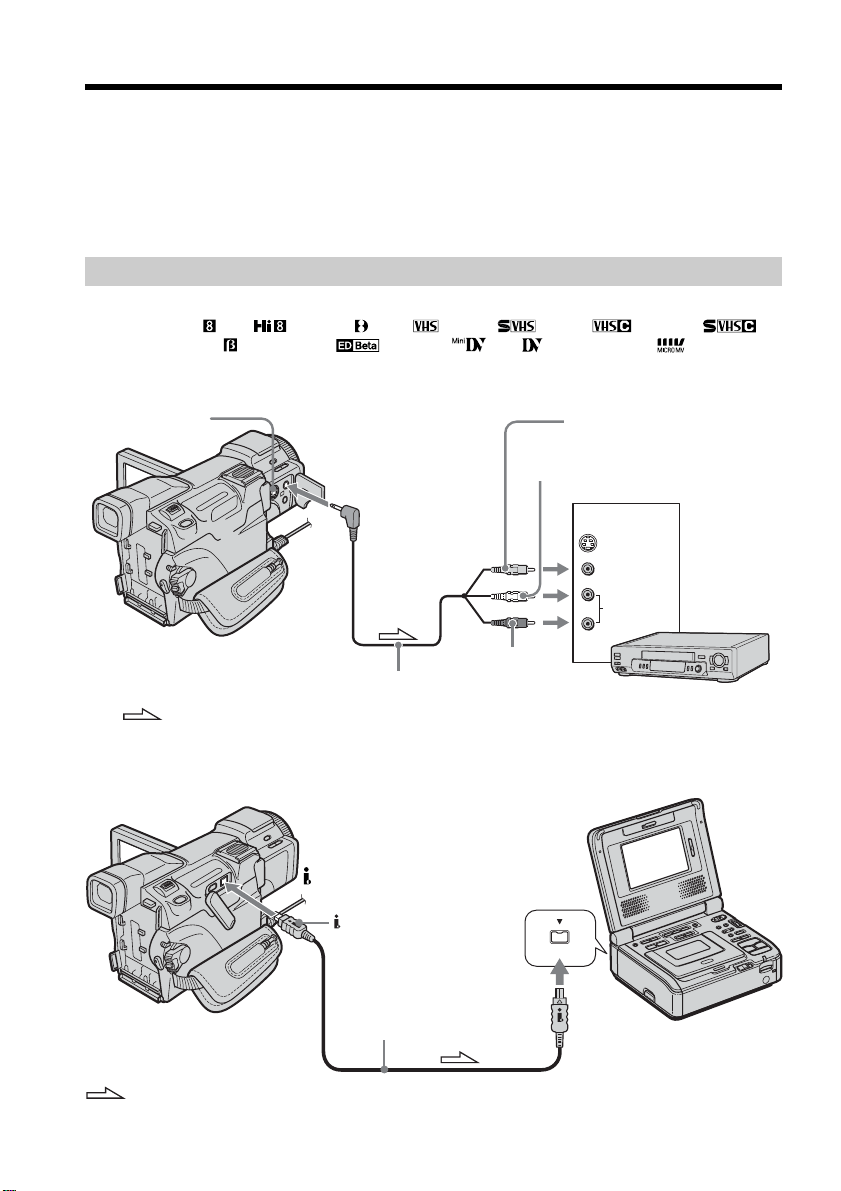
78
You can dub or edit on the VCR connected to your camcorder using your camcorder as
a player.
You can connect either the A/V connecting cable (supplied) or i.LINK cable (optional).
If you connect with the i.LINK cable (optional), video and audio signals are transmitted
in digital form for high-quality editing.
Titles, screen indicators, Cassette Memory contents, and letters on the “Memory Stick”
index screen cannot be recorded.
Connecting to the VCR
You can edit on VCRs that support the following systems:
8 mm , Hi8 , Digital8 , VHS , S-VHS , VHSC , S-VHSC ,
Betamax , ED Betamax , mini DV , DV or MICRO MV .
Connecting with the A/V connecting cable
Connecting with the i.LINK cable
— Editing —
Dubbing a tape
VIDEO
AUDIO
IN
S VIDEO
S VIDEO
AUDIO/
VIDEO
A/V connecting cable (supplied)
Yellow
White
Red
: Signal flow
VCR
i.LINK
DV Interface
i.LINK cable (optional)
: Signal flow

79
Editing
Dubbing a tape
If your VCR is a monaural type
Connect the yellow plug of the A/V connecting cable to the video input jack and the
white or the red plug to the audio input jack on the VCR. When the white plug is
connected, the left channel audio is output, and when the red plug is connected, the
right channel audio is output.
If your VCR has an S VIDEO jack
See page 45 for details.
About the i.LINK connecting
See page 199 for details.
Pictures processed with picture effect, digital effect or PB ZOOM
These are not output through the DV Interface.
If you connect with the i.LINK cable
You cannot record the picture or the sound separately.
Dubbing a tape
When connecting with the A/V connecting cable
•Set DISPLAY in to LCD in the menu settings. (The default setting is LCD.)
•Press the following buttons to make the indicator disappear so that they will not be
superimposed on the edited tape:
On your camcorder:
DISPLAY/BATT INFO, DATA CODE
On the Remote Commander:
DISPLAY, DATA CODE, SEARCH MODE
The POWER switch should be set to .
(1) Insert a blank tape (or a tape you want to record over) into the VCR, and insert
the recorded tape into your camcorder.
(2) Prepare the VCR for recording. If your VCR has an input selector, set it to the
input mode.
Refer to the operating instructions of the VCR.
(3) Play back the recorded tape on your camcorder.
(4) Start recording on the VCR.
Refer to the operating instructions of your VCR.
When you have finished dubbing the tape
Press x on both your camcorder and the VCR.
If you record a paused playback picture
•The recorded picture becomes rough with the DV Interface.
•The picture may jitter when you play back the picture using other video equipment.
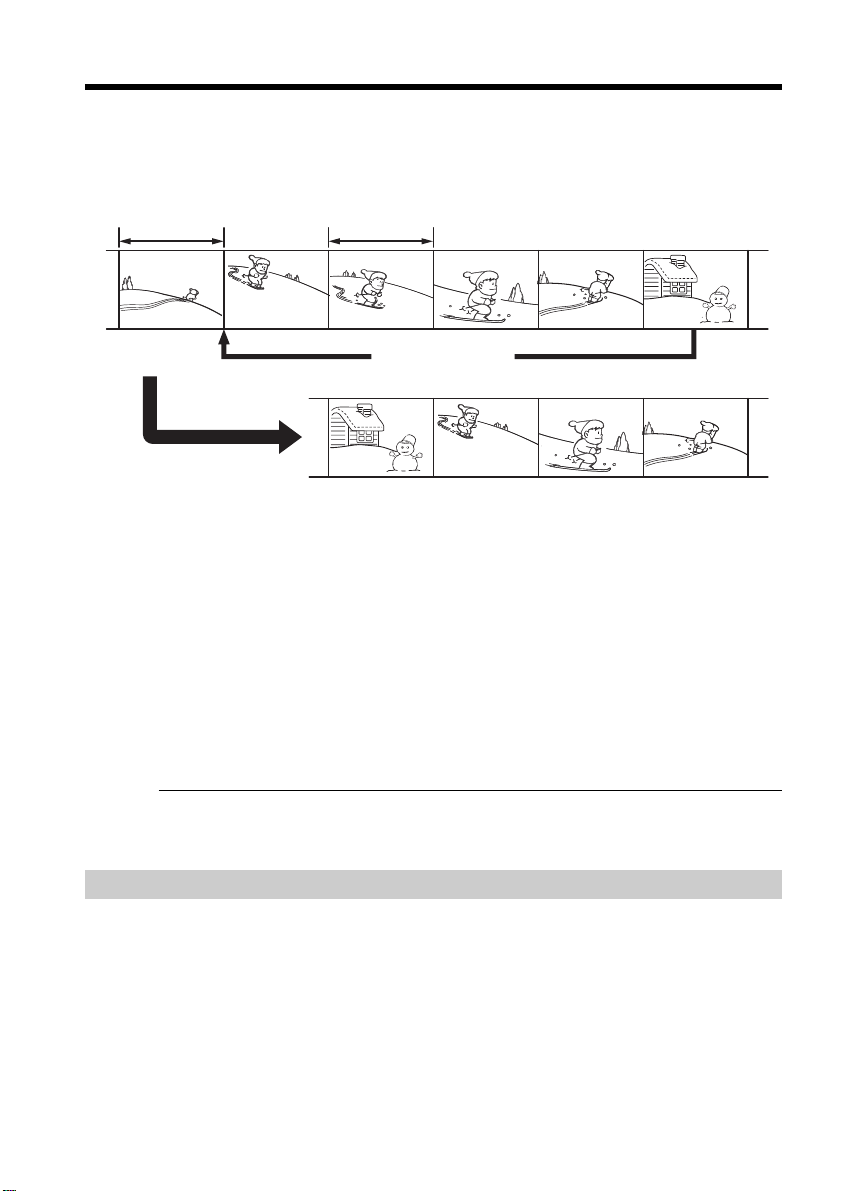
80
You can duplicate selected scenes (programs) for editing onto another tape without
operating the VCR.
Scenes can be selected by frame. You can set up to 20 programs.
Your camcorder can dub on a “Memory Stick.” See page 127 for details.
Before operating Digital program editing having the tape
recorded on other equipment
Step 1 Connecting to the VCR.
Step 2 Setting the VCR for operation (p. 81).
Step 3 Adjusting the synchronization of the VCR (p. 84).
When you dub using the same VCR again, you can skip Step 2 and 3.
Using Digital program editing having the tape recorded on
other equipment
Operation 1 Making a program (p. 86).
Operation 2 Performing the program (Dubbing on the tape) (p. 88).
Note
When editing digital video, the operation signals to the VCR cannot be sent with the
LANC jack.
Step 1: Connecting to the VCR
You can connect either the A/V connecting cable or the i.LINK cable.
Connect the devices as illustrated on page 78.
Dubbing only desired scenes
– Digital program editing (on a tape)
Unwanted
scene
Unwanted
scene
Switch the order
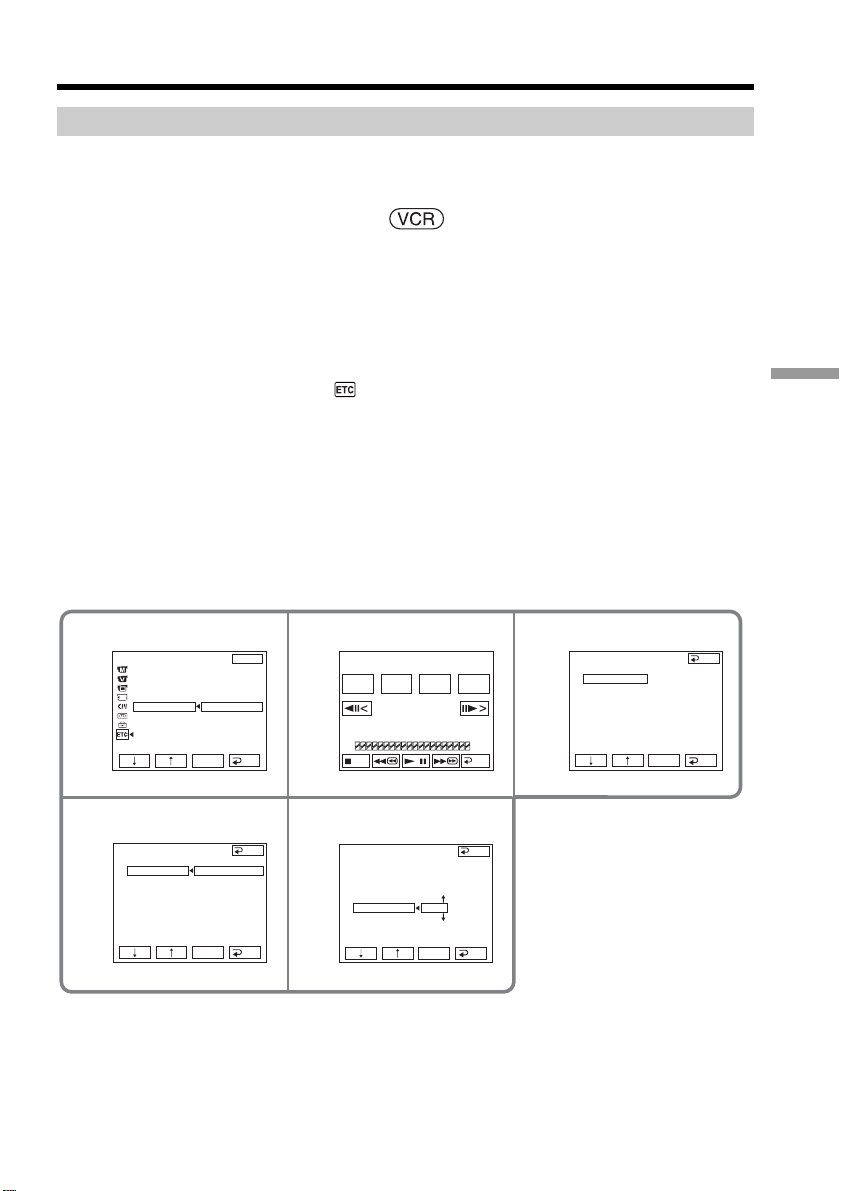
81
Editing
Dubbing only desired scenes – Digital program editing (on a tape)
Step 2: Setting the VCR for operation
When connecting with the A/V connecting cable, your camcorder sends the control
signal by infrared rays to the remote sensor on the VCR.
The POWER switch should be set to .
Operate by touching the panel.
(1) Turn the power of the connected VCR on.
If your VCR has an input selector, set it to the input mode. When you connect
a video camera recorder, set its power switch to VCR/VTR.
(2) Press FN to display PAGE1.
(3) Press MENU.
(4) Select VIDEO EDIT in
, then press EXEC.
(5) Select TAPE, then press EXEC.
(6) Press EDIT SET.
(7) Select CONTROL, then press EXEC.
(8) When connecting with the A/V connecting cable, select IR, then press EXEC.
When connecting with the i.LINK cable, select i.LINK, press EXEC, then go to
“Step 3: Adjusting the synchronization of the VCR” on page 84.
(9) Select IR SETUP, then press EXEC.
(10) Select the IR SETUP code of your VCR, then press EXEC. Check the code in
“About the IR SETUP code” (p. 83).
45
79
6
VIDEO EDI T
ED I T SET
CONTROL
ADJ TEST
”CUT
-
I
N”
”CUT
-OUT”
I
R SETUP
PAUSEMODE
I
R TEST
END
RET.
EXEC
I
R
VIDEO EDI T
ED I T SET
CONTROL
ADJ TEST
”CUT
-
I
N”
”CUT
-OUT”
I
R SETUP
PAUSEMODE
I
R TEST
RET.
EXEC
3
VIDEO EDI T
ED I T SET
CONTROL
ADJ TEST
”CUT
-
I
N”
”CUT
-OUT”
I
R SETUP
PAUSEMODE
I
R TEST
RET.
EXEC
I
R
i. L
I
NK
END
0:32:30:14
TOTAL
SCENE
0:00:00:00
0
V I DEO ED I T
MARK
I
N
START
ED I T
SET
UNDO
END
OTHERS
DATA CODE
BEEP
COMMANDER
D
I
SPL AY
V
I
DEO ED
I
T
EXIT
RET.
EXEC
RETURN
TAPE
MEMORY
END
(continued on the following page)
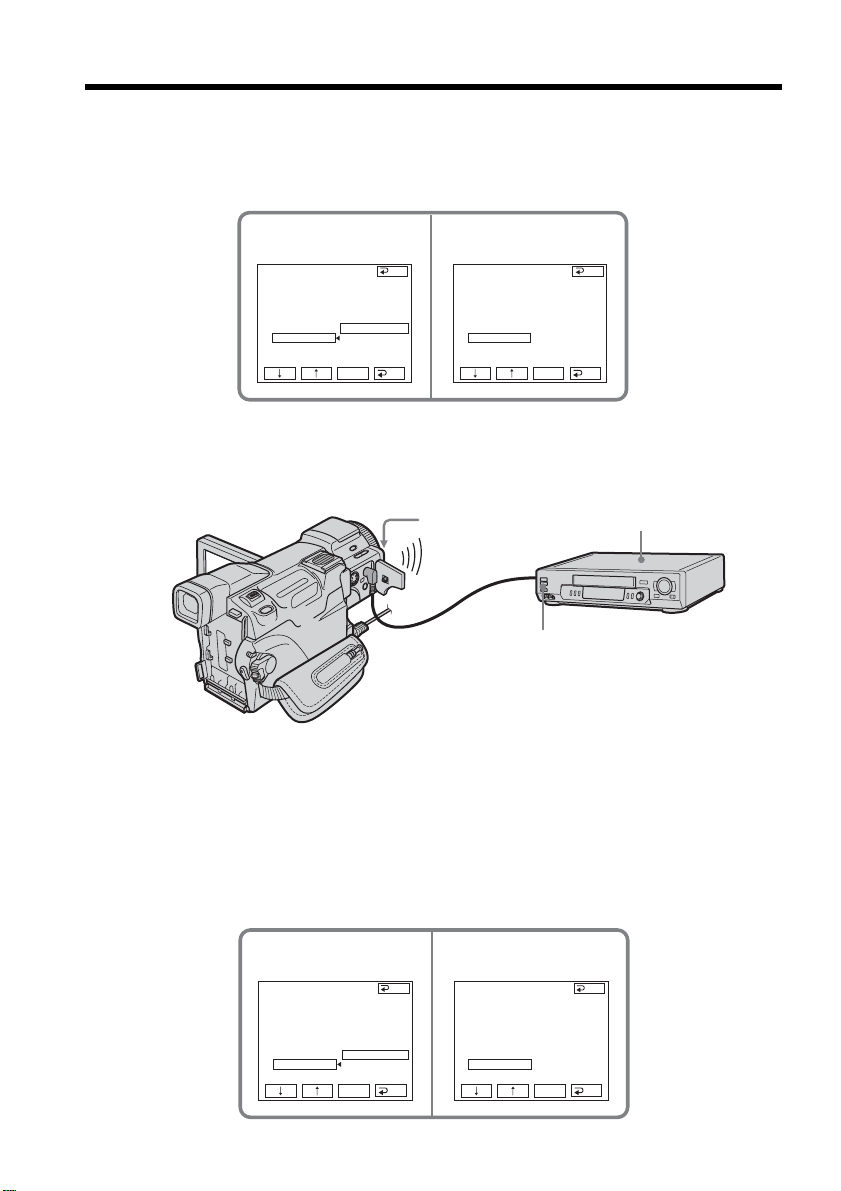
82
(11) Select PAUSEMODE, then press EXEC.
(12) Select the mode to cancel recording pause on the VCR, then press EXEC.
The correct button depends on your VCR.
Refer to the operating instructions of your VCR.
(13) Locate the infrared rays emitter of your camcorder and face it towards the
remote sensor of the VCR about 30 cm (12 in.) apart.
Do not put any obstacles between the both equipment.
(14) Insert a recordable tape into the VCR, then set the VCR to recording
pause.
(15) Select IR TEST, then press EXEC.
(16) Select EXECUTE, then press EXEC.
If the VCR starts recording, the setting is correct.
The indicator you selected to cancel recording pause on the VCR flashes
on the screen. When finished, the indicator changes to COMPLETE.
Dubbing only desired scenes – Digital program editing (on a tape)
VIDEO EDI T
ED I T SET
CONTROL
ADJ TEST
”CUT
-
I
N”
”CUT
-OUT”
I
R SETUP
PAUSEMODE
I
R TEST
RET.
EXEC
PAUSE
END
VIDEO EDI T
ED I T SET
CONTROL
ADJ TEST
”CUT
-
I
N”
”CUT
-OUT”
I
R SETUP
PAUSEMODE
I
R TEST
RET.
EXEC
PAUSE
REC
PB
END
11 12
VCR
Remote sensor
Infrared rays emitter
15 16
VIDEO EDI T
ED I T SET
CONTROL
ADJ TEST
”CUT
-
I
N”
”CUT
-OUT”
I
R SETUP
PAUSEMODE
I
R TEST
RET.
EXEC
ENGAGE
REC PAUSE
RETURN
EXECUTE
VIDEO EDI T
ED I T SET
CONTROL
ADJ TEST
”CUT
-
I
N”
”CUT
-OUT”
I
R SETUP
PAUSEMODE
I
R TEST
RET.
EXEC
COMPLETE
END
END

83
Editing
When the VCR does not operate correctly
•After checking the code in “About the IR SETUP code,” set the IR SETUP or the
PAUSEMODE again.
•Place your camcorder at least 30 cm (12 in.) away from the VCR.
•Refer to the operating instructions of your VCR.
Note
When you connect with the i.LINK cable, you may not be able to operate the dubbing
function correctly, depending on the VCR.
Set CONTROL to IR in the menu settings of your camcorder.
About the IR SETUP code
The IR SETUP code is stored in the memory of your camcorder. Be sure to set the
correct code, depending on your VCR. Default setting is code number 3.
Note on the IR SETUP code
Digital program editing is not possible if the VCR does not support IR SETUP codes.
Dubbing only desired scenes – Digital program editing (on a tape)
Brand IR SETUP code
Sony 1, 2, 3, 4, 5, 6
Admiral (M. Wards) 89
Aiwa 47, 54, 80
Akai 49, 51
Audio Dynamic 21, 35
Bell&Howell 36
(M. Wards)
Broksonic 21, 70, 82
Canon 77, 78
Citizen 47
Craig 47, 73
Curtis Mathis 8, 77, 80
Daewoo 26, 40, 77
DBX 21, 33, 35
Dimensia 8
Emerson 26, 48, 59, 70, 80, 81, 82
Fisher 36, 37, 44, 45
Funai 80
General Electric 8, 32*, 77, 94*, 101
Goldstar/LG 47
GO VIDEO 71
Hitachi 8, 42, 78
HQ 40
Instant Replay 77, 78
JC Penny 8, 21, 33, 35, 36, 42, 77
JVC 12, 13, 14, 21, 33, 35
Kenwood 21, 33, 35, 47
LXI (Sears) 36, 37, 42, 44, 45, 47, 49, 80
Magnavox 17, 77, 78, 83
Marantz 21, 33, 35
Marta 47
Memorex 37, 77
Minolta 8, 42
* TV/VCR component
Brand IR SETUP code
Mitsubishi/MGA 22, 23, 24, 28, 29
Multitech 23, 32, 80
NEC 21, 33, 35
Olympic 77, 78
Optimus 22
Orion 60
Panasonic 16, 17, 77, 78
Pentax 8, 42
Philco 26, 70, 77, 78
Philips 47, 77, 78, 83
Pioneer 78
Quasar 6, 16, 17, 77, 78
RCA/PROSCAN 7, 8, 16, 40, 41, 42, 77, 78, 78*,
83, 101
Realistic 22, 36, 37, 77, 80, 88
Sansui 21
Singer 73
Samsung 24, 24*, 32, 32*, 41, 94, 94*
Sanyo 26, 36, 37, 47
Scott 22, 23, 24, 28, 32, 37, 40, 41
Sharp 88, 89
Shintom 73
Signature 2000 80, 89
Sylvania 77, 78, 80, 83
Symphonic 80
Tashiro 47
Tatung 21, 33, 35
Teac 21, 33, 35, 80
Technics 77, 78
Toshiba 7, 40, 49
Wards 37, 47, 88, 89, 95
Yamaha 21, 33, 35, 36
Zenith 95

84
Dubbing only desired scenes – Digital program editing (on a tape)
Step 3: Adjusting the synchronization of the VCR
You can adjust the synchronization of your camcorder and the VCR.
Prepare a pen and paper for notes.
Before operation, eject the cassette from your camcorder (if inserted).
The POWER switch should be set to .
Operate by touching the panel.
(1) Insert a recordable cassette into the VCR, then set the VCR to recording
pause.
When you select i.LINK in CONTROL, recording pause is not necessary.
(2) Select ADJ TEST, then press EXEC.
(3) Select EXECUTE, then press EXEC.
IN and OUT are recorded on an image for five times each to calculate the
number values for adjusting the synchronization.
The EXECUTING indicator flashes on the screen. When finished, the
indicator changes to COMPLETE.
(4) Rewind the tape in the VCR, then start slow playback.
Five opening number of each IN, and closing number of each OUT appear.
Take a note of the opening number value of each IN and the closing number
value of each OUT.
(5) Calculate the average of five opening number values of IN, and the average
of five closing number values of each OUT.
(6) Select ”CUT-IN”, then press EXEC.
(7) Select the average number value of IN, then press EXEC.
The calculated start position for recording is set.
(8) Select ”CUT-OUT”, then press EXEC.
(9) Select the average number value of OUT, then press EXEC.
The calculated stop position for recording is set.
(10) Press
RET. to execute.
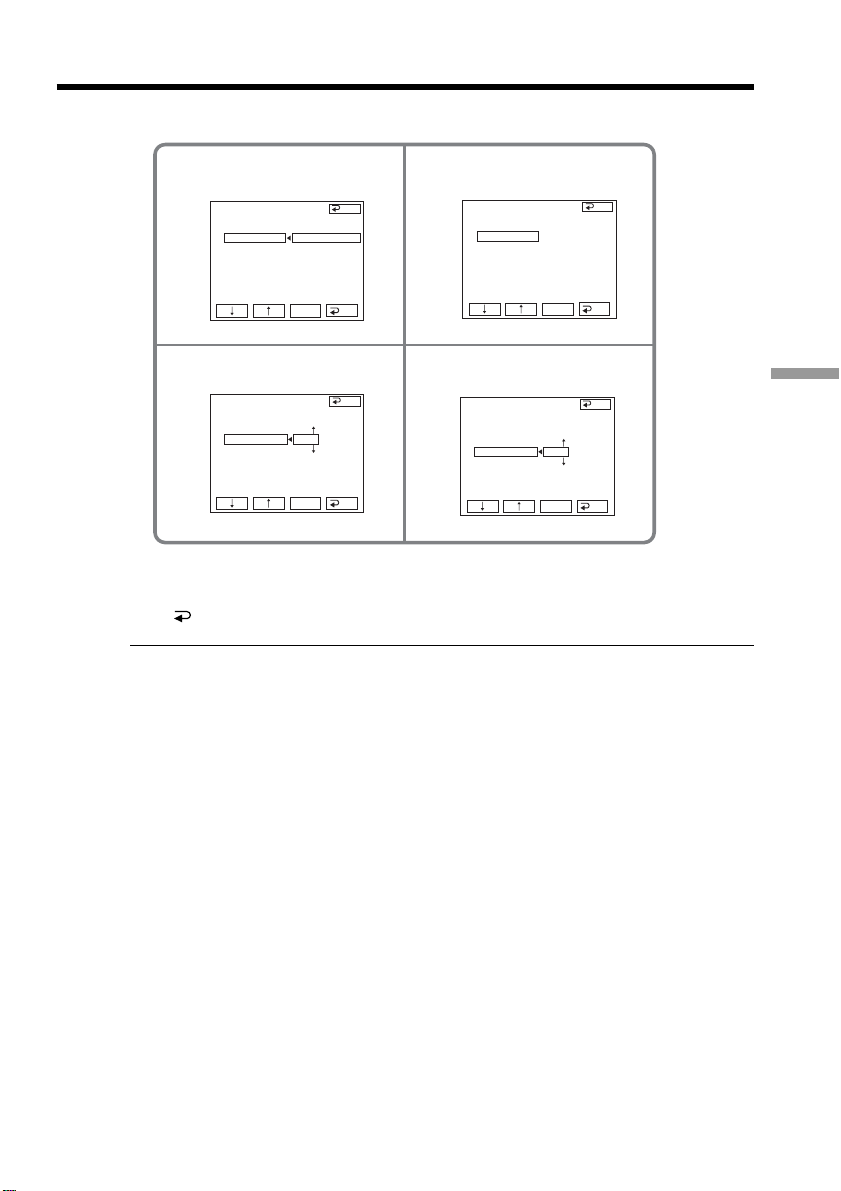
85
Editing
Dubbing only desired scenes – Digital program editing (on a tape)
To return to FN
Press END to return to PAGE1, then press EXIT.
Notes
•When you complete “Step 3 : Adjusting the synchronization of the VCR,” the image
used to adjust the synchronization is recorded for about 50 seconds.
•If you start recording from the very beginning of the tape, the first few seconds of the
tape may not be recorded properly. Be sure to allow about 10 seconds’ lead before
starting recording.
•When the recording unit cannot be operated properly with the i.LINK cable, leave the
connection as it is, and make the A/V connecting cable settings (p. 81). Video and
audio are sent by digital signals.
23
6
8
VIDEO EDI T
ED I T SET
CONTROL
ADJ TEST
”CUT
-
I
N”
”CUT
-OUT”
I
R SETUP
PAUSEMODE
I
R TEST
RET.
EXEC
RETURN
EXECUTE
ENGAGE
REC PAUSE
END
VIDEO EDI T
ED I T SET
CONTROL
ADJ TEST
”CUT
-
I
N”
”CUT
-OUT”
I
R SETUP
PAUSEMODE
I
R TEST
RET.
EXEC
0
VIDEO EDI T
ED I T SET
CONTROL
ADJ TEST
”CUT
-
I
N”
”CUT
-OUT”
I
R SETUP
PAUSEMODE
I
R TEST
RET.
EXEC
0
END
END
VIDEO EDI T
ED I T SET
CONTROL
ADJ TEST
”CUT
-
I
N”
”CUT
-OUT”
I
R SETUP
PAUSEMODE
I
R TEST
RET.
EXEC
COMPLETE
END
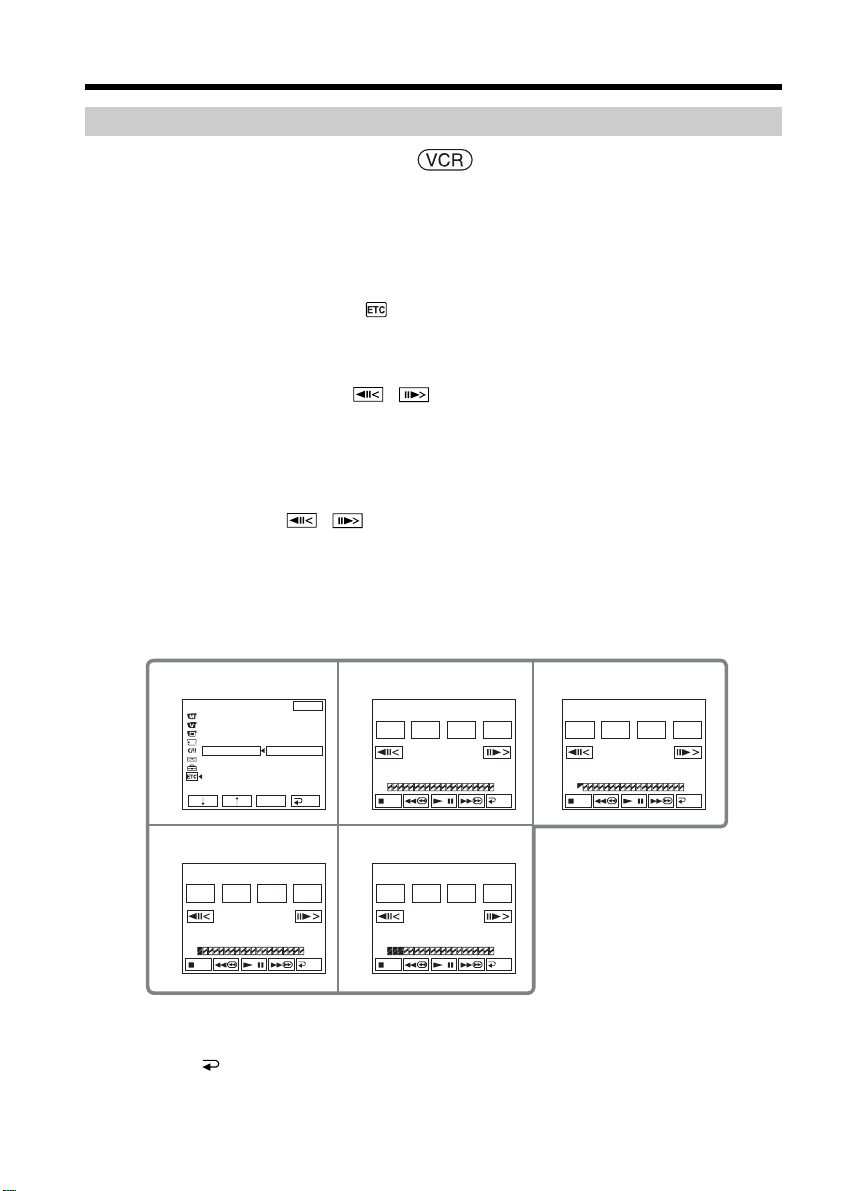
86
Operation 1: Making a Program
The POWER switch should be set to .
Operate by touching the panel.
(1) Insert the cassette for playback into your camcorder, and insert a cassette for
recording into the VCR.
(2) Press FN to display PAGE1.
(3) Press MENU.
(4) Select VIDEO EDIT in
, then press EXEC.
(5) Select TAPE, then press EXEC.
(6) Search for the beginning of the first scene you want to insert using the video
control buttons on the screen, then pause playback. You can fine-adjust one
frame at a time with
/ .
(7) Press MARK IN on the screen or MARK on the Remote Commander.
The IN point of the first program is set, and the upper part of the program
mark changes to light blue.
(8) Search for the end of the first scene you want to insert using the video control
buttons on the screen, then pause playback. You can fine-adjust one frame at
a time with
/ .
(9) Press MARK OUT on the screen or MARK on the Remote Commander.
The OUT point of the first program is set, then the lower part of the program
mark changes to light blue.
(10) Repeat Step 6 to 9.
You can set up to 20 programs in maximum.
To finish making programs
Press END.
The program is stored in memory until the tape is ejected.
Dubbing only desired scenes – Digital program editing (on a tape)
7
910
45
ED I T
SET
UNDO
0:10:01:23
TOTAL
SCENE
0:00:47:12
3
V I DEO ED I T
MARK
I N
START
END
ED I T
SET
UNDO
0:09:07:06
TOTAL
SCENE
0:00:13:00
1
V I DEO ED I T
MARK
I N
START
END
ED I T
SET
UNDO
0:08:55:06
TOTAL
SCENE
0:00:00:00
0
V I DEO ED I T
MARK
OUT
START
END
0:32:30:14
TOTAL
SCENE
0:00:00:00
0
V I DEO ED I T
MARK
I
N
START
ED I T
SET
UNDO
END
OTHERS
DATA CODE
BEEP
COMMANDER
D
I
SPLAY
V
I
DEO ED
I
T
EXIT
RET.
EXEC
RETURN
TAPE
MEMORY

87
Editing
Dubbing only desired scenes – Digital program editing (on a tape)
Note
You cannot operate recording during Digital program editing.
On a blank portion of the tape
You cannot set IN or OUT.
If there is a blank portion between the IN point and the OUT point on the tape
The total time may not be displayed correctly.
Erasing the program you have set
Erase OUT mark first, and then IN mark of the last set program.
(1) Press UNDO.
(2) Press ERASE 1 MARK. The last set program mark flashes, then the DELETE ?
indicator appears.
(3) Press EXEC. The last set program is deleted.
To cancel erasing
Press CANCEL in Step 3.
Erasing all programs
(1) Follow Step 2 to 5 on page 86.
(2) Press UNDO.
(3) Press ERASE ALL. All the set program marks flash, then the DELETE ?
indicator appears.
(4) Press EXEC. All the set programs are deleted.
To cancel erasing all programs
Press CANCEL in Step 4.
88
Dubbing only desired scenes – Digital program editing (on a tape)
Operation 2: Performing the program (Dubbing on the tape)
The POWER switch should be set to .
Operate by touching the panel.
(1) When you use a digital video camera recorder, set its power switch to VCR/
VTR.
(2) Make sure your camcorder and the VCR are connected, and that the VCR is set
to recording pause.
When you use the i.LINK cable, this procedure is not necessary.
(3) Press FN to display PAGE1.
(4) Press MENU.
(5) Select VIDEO EDIT in
, then press EXEC.
(6) Select TAPE, then press EXEC.
(7) Press START.
(8) Press EXEC.
Your camcorder searches for the beginning of the first program, then dubbing
starts.
The program mark flashes.
The SEARCH indicator appears during search, and the EDITING indicator
appears during edit on the screen.
When dubbing ends, your camcorder and the VCR automatically stop.
To cancel dubbing during edit
Press CANCEL.
To end Digital program editing
Your camcorder stops when dubbing is complete. Then the display returns to VIDEO
EDIT in the menu settings.
Press END to end the video edit function.
When the program has not been set
You cannot press START.
You cannot record on the VCR in the following
Indicator Cause
No indicator •The write-protect tab on the cassette is set to lock.
•The IR SETUP code is not correct. (When IR is
selected.)
•The button to cancel recording pause is not
correct. (When IR is selected.)
CHECK ”i.LINK” & REC STATUS •i.LINK is selected but the i.LINK cable is not
connected.
•The power of the connected VCR is not turned
on. (When i.LINK is selected.)
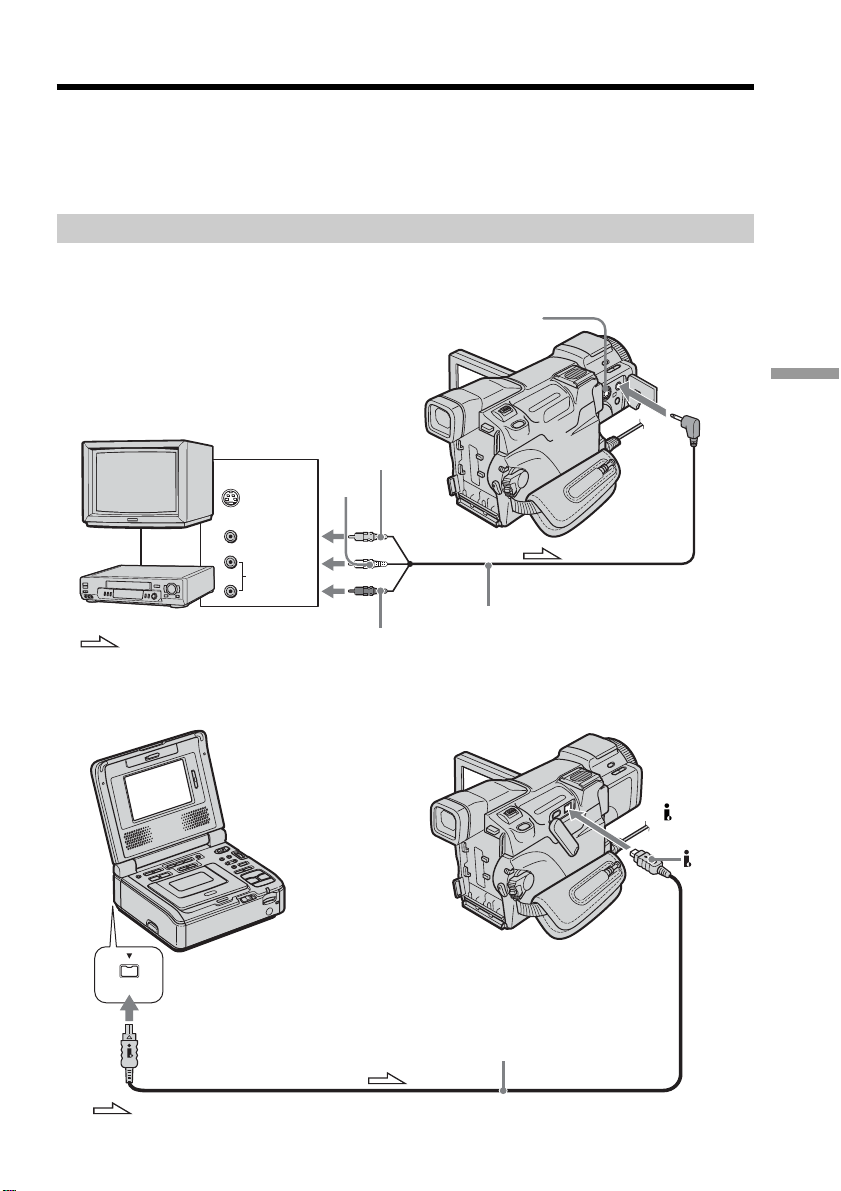
89
Editing
You can record a tape from another VCR or a TV program from a TV that has video/
audio outputs. Use your camcorder as a recorder. You can connect either the A/V
connecting cable (supplied) or i.LINK cable (optional).
If you connect with the i.LINK cable (optional), video and audio signals are transmitted
in digital form for high-quality editing.
Connecting to the VCR or the TV
Connecting with the A/V connecting cable
Connecting with the i.LINK cable
Recording video or TV programs
AUDIO/
VIDEO
S VIDEO
VIDEO
AUDIO
OUT
S VIDEO
: Signal flow
White
Red
A/V connecting cable (supplied)
TV
VCR
Yellow
i.LINK
DV
Interface
: Signal flow
i.LINK cable (optional)
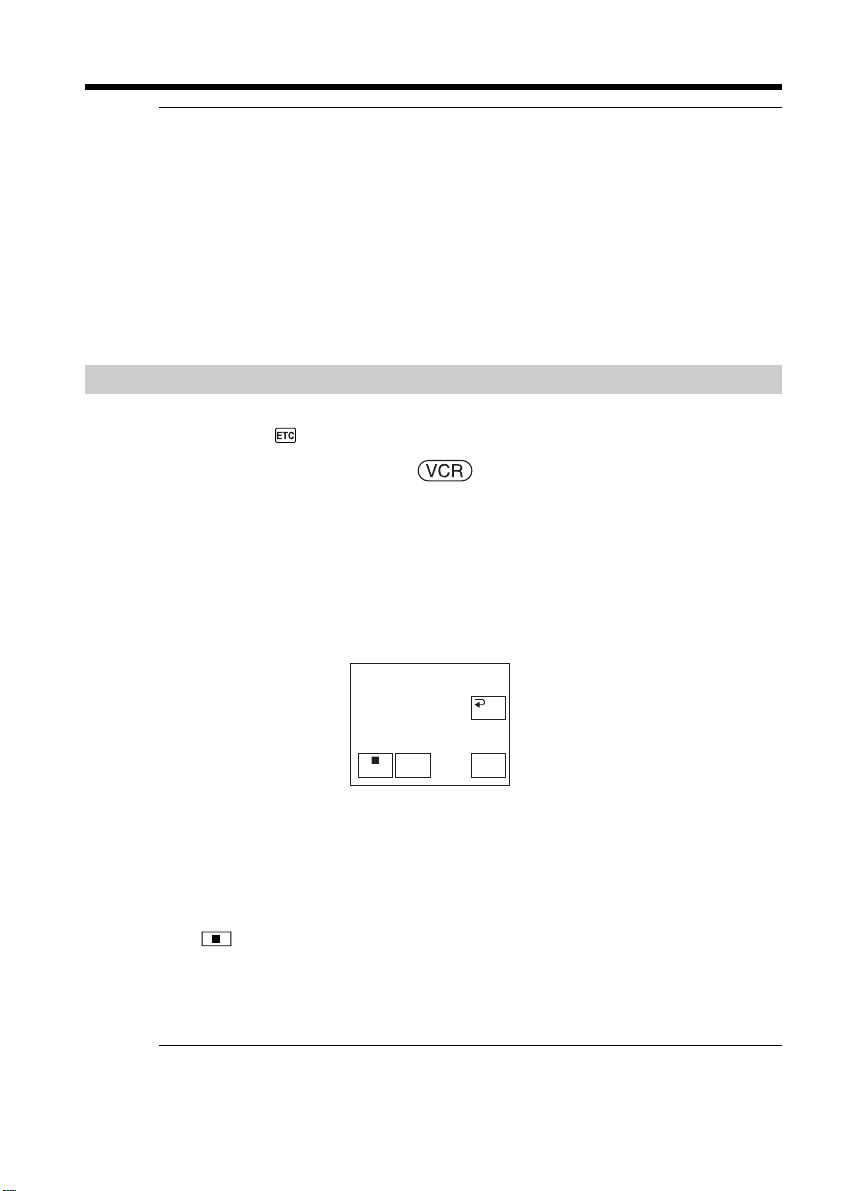
90
Recording video or TV programs
If your VCR is a monaural type
Connect the yellow plug of the A/V connecting cable to the video input jack and the
white or the red plug to the audio input jack on the VCR or the TV. When the white
plug is connected, the left channel audio is output, and when the red plug is connected,
the right channel audio is output.
If your VCR has an S video jack
See page 45 for details.
When using the i.LINK cable
•Before recording, make sure if the DV IN indicator appears on the screen. The DV IN
indicator may appear on both equipment.
•You cannot record the picture or the sound separately.
Recording video or TV programs
When connecting with the A/V connecting cable
Set DISPLAY in to LCD in the menu settings. (The default setting is LCD.)
The POWER switch should be set to .
Operate by touching the panel.
(1) Insert a blank tape (or a tape you want to record over) into your camcorder. If
you are recording from the tape on the VCR, insert the recorded tape into the
VCR.
(2) Set your camcorder to recording pause.
1 Press FN and select PAGE3.
2 Press REC CTRL.
3 Press REC PAUSE.
(3) Press N on the VCR to start playback if you record from the tape on the VCR.
Select a TV program if you record from a TV. The picture from the playback
side appears on the screen.
(4) Press REC START at the scene where you want to start recording from.
When you have finished dubbing the tape
Press on your camcorder, and then press the stop button on the VCR.
Using the Remote Commander
In Step 2, press z REC and MARK simultaneously, then immediately press X. In Step
4, press X at the scene where you want to start recording from.
Note on the Remote Commander
Your camcorder works in the commander mode VTR 2. Commander modes 1, 2 and 3
are used to distinguish your camcorder from other Sony VCRs to avoid erroneous
remote control operation. If you use another Sony VCR in the commander mode VTR 2,
we recommend changing the commander mode or covering the sensor of the VCR with
black paper.
REC
PAUSE
REC CTRL
RET.
REC
START
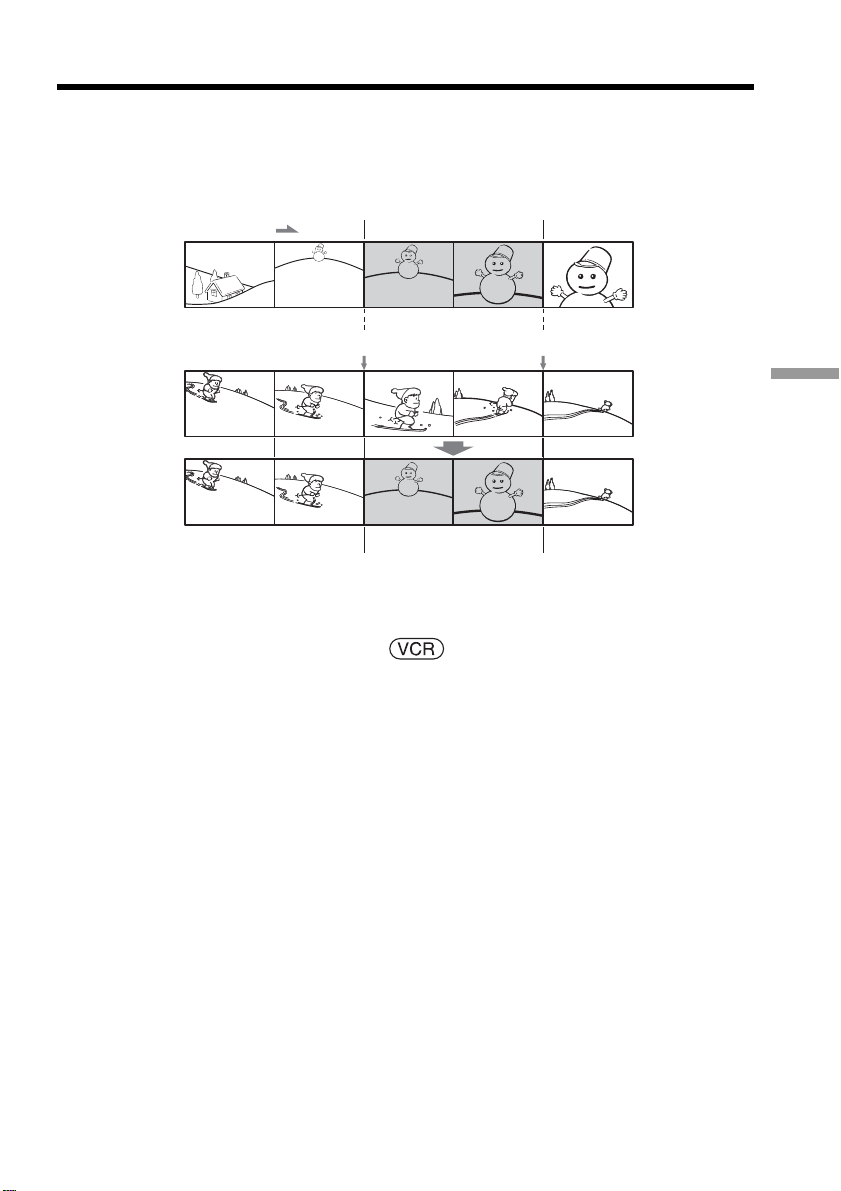
91
Editing
You can insert a new scene with sound from a VCR onto your originally recorded tape
by specifying the insert start and end points. Use the Remote Commander for this
operation.
Connections are the same as on page 89. Insert the cassette containing the desired scene
to insert into the VCR.
[A]The tape that contains the scene to be inserted
[B] The tape before editing
[C] The tape after editing
The POWER switch should be set to .
Operate by touching the panel.
(1) On the VCR, locate just before the insert start point [a], then set the VCR to
playback pause.
(2) On your camcorder, locate the insert end point [c], then set it to playback
pause.
(3) Press ZERO SET MEMORY on the Remote Commander. The ZERO SET
MEMORY indicator flashes and the end point of the insert is stored in memory.
The tape counter shows “0:00:00”.
(4) On your camcorder, locate the insert start point [b] and set your camcorder to
recording pause.
1 Press FN and select PAGE3.
2 Press REC CTRL.
3 Press REC PAUSE.
(5) First press X on the VCR, and after a few seconds press REC START on your
camcorder to start inserting the new scene with sound.
Inserting automatically stops near the zero point on the tape counter. Your
camcorder automatically stops recording and the zero point set with ZERO
SET MEMORY is cleared from memory.
Inserting a scene from a VCR
– Insert editing
[a]
[b][c]
[A]
[B]
[C]
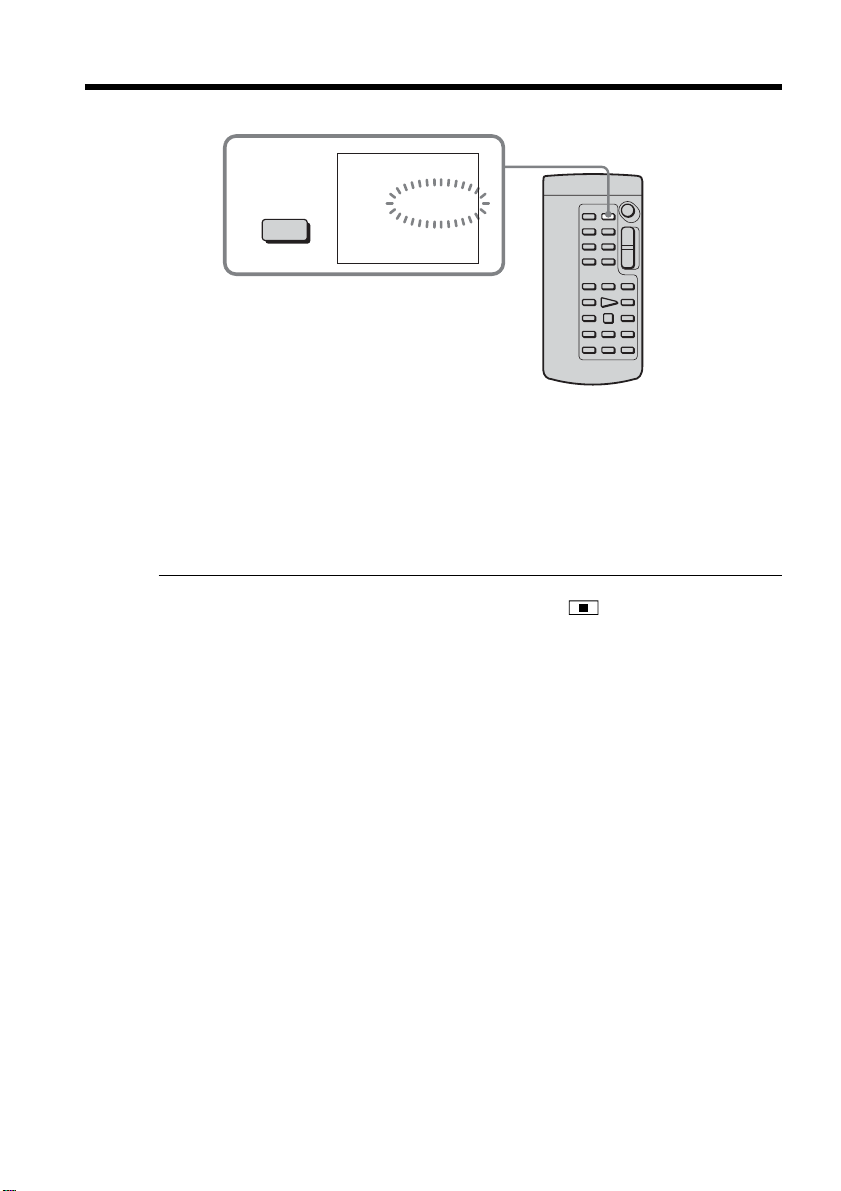
92
To change the insert end point
Press ZERO SET MEMORY on the Remote Commander again after Step 4 to erase the
ZERO SET MEMORY indicator and begin from Step 2.
Using the Remote Commander
In Step 4, press z REC and MARK simultaneously, then immediately press X. In Step
5, press X at the scene where you want to start recording from.
To insert a scene without setting the insert end point
Skip Step 2 and 3. Press x on the Remote Commander or on your camcorder
when you want to stop inserting.
Inserting a scene from a VCR – Insert editing
3
ZERO SET
MEMORY
0:00:00
ZERO SET
MEMORY
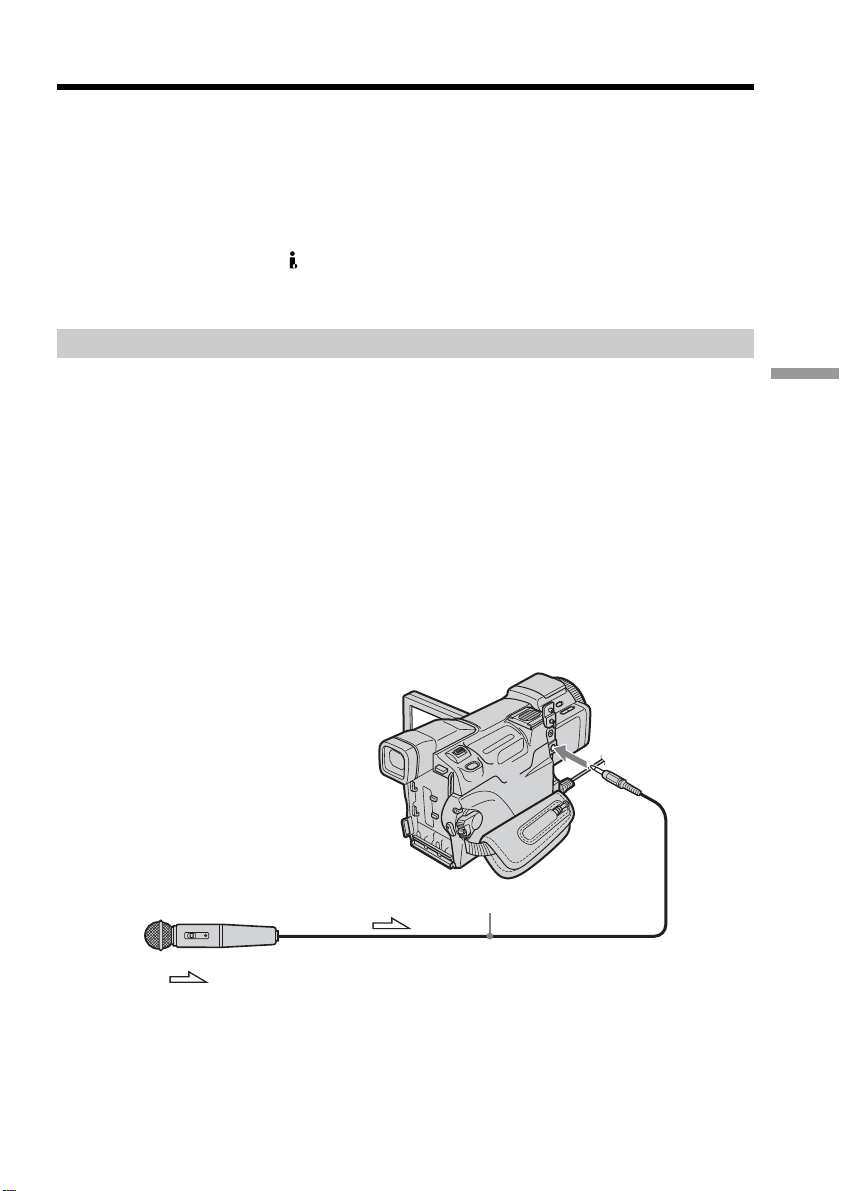
93
Editing
You can record additional audio to the original sound on the tape by connecting audio
equipment or a microphone. If you connect the audio equipment, you can add sound to
your tape already recorded in the 12-bit mode by specifying start and end points. The
original sound will not be erased.
You cannot dub audio in the following cases:
•The tape recorded in the 16-bit mode
•The tape recorded in the LP mode
•Connecting with the DV Interface
•The blank portions of the tape
•When the write-protect tab of the cassette is set to lock.
Preparing for audio dubbing
You can record additional audio in the following:
• Dubbing with the built-in microphone
• Connecting the microphone (optional) to the MIC jack
• Connecting the microphone (optional) to the intelligent accessory shoe
• Connecting the A/V connecting cable to the AUDIO/VIDEO jack
The audio input to be recorded takes precedence over others in the following order:
•MIC jack
•Intelligent accessory shoe
•AUDIO/VIDEO jack
•Built-in microphone
Dubbing with the built-in microphone
No connection is necessary.
Connecting the microphone (optional) to the MIC jack
You can check the recorded picture and sound by connecting the AUDIO/VIDEO jack
to a TV.
The recorded sound is not output from a speaker. Check the sound by using the
headphones or a TV.
Audio dubbing
MIC (PLUG IN
POWER) jack
: Signal flow
Microphone (optional)
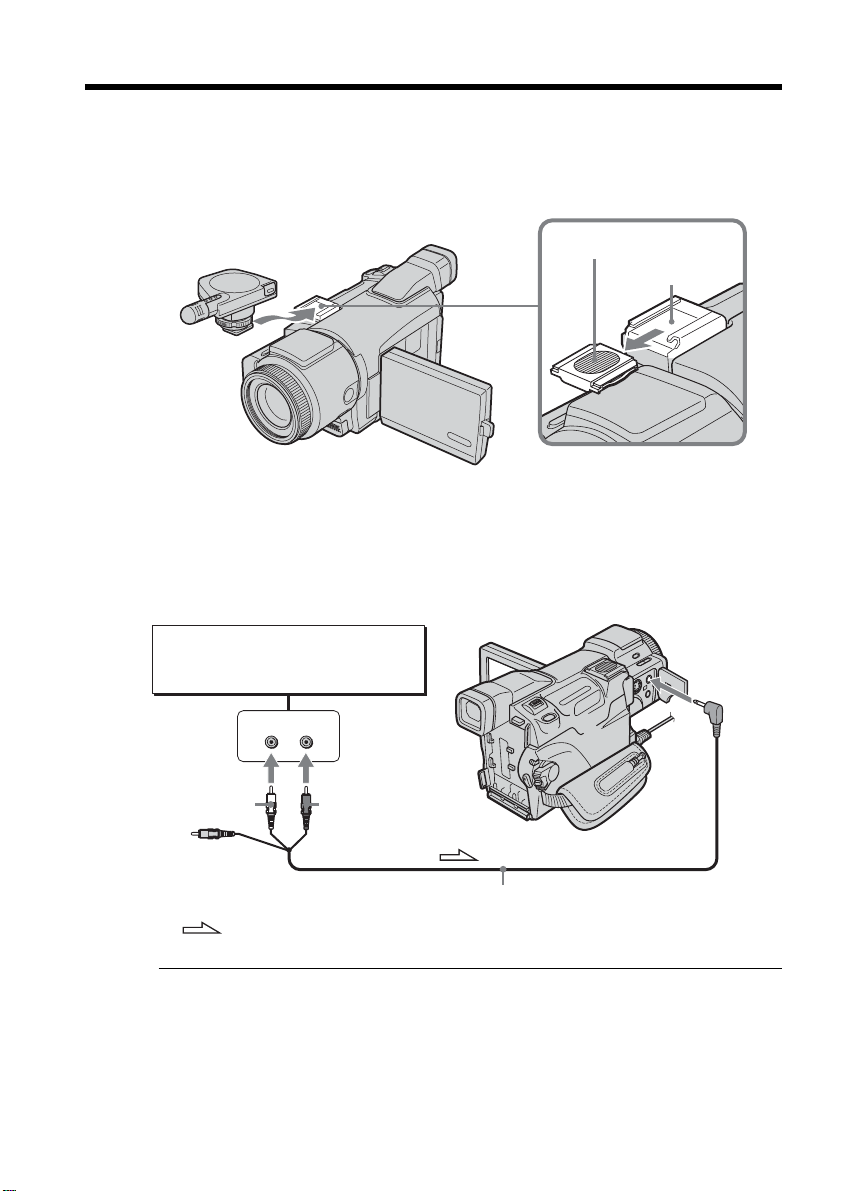
94
Connecting the microphone (optional) to the intelligent
accessory shoe
Slide the shoe cover to remove it. Then, connect the external microphone (optional) to
the intelligent accessory shoe.
Connecting the A/V connecting cable to the AUDIO/VIDEO jack
Note
When dubbing with the AUDIO/VIDEO jack or the built-in microphone, pictures are
not output through the S VIDEO jack or AUDIO/VIDEO jack. Check the recorded
picture on the screen. You can check the recorded sound by using headphones.
Audio dubbing
Microphone (optional)
Intelligent
accessory
shoe
Shoe cover
LINE OUT
L
R
AUDIO
/
VIDEO
AUDIO R
Audio equipment
: Signal flow
White Red
A/V connecting cable (supplied)
AUDIO L
Do not connect the
video (yellow) plug.
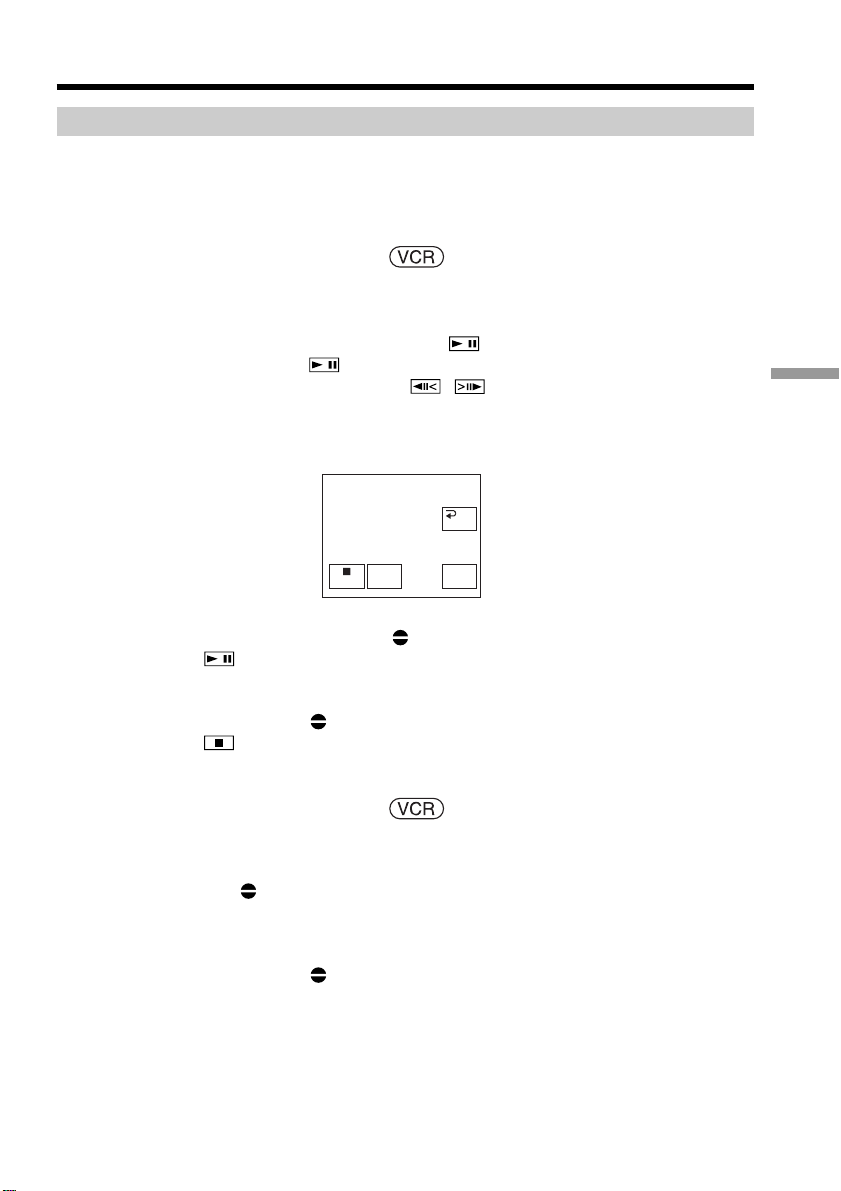
95
Editing
Adding audio on the recorded tape
Choose a connection mentioned on pages 93, 94, and connect the audio equipment or
the microphone to your camcorder. Then follow the procedure below using the touch
panel or the Remote Commander supplied with your camcorder.
Using the touch panel
The POWER switch should be set to .
Operate by touching the panel.
(1) Insert the recorded tape into your camcorder.
(2) Locate the recording start point. Press
to start playing back. To pause
playing back, press
at the recording start point. You can fine adjust the
recording start point by pressing
/ on the Remote Commander.
(3) Press FN and select PAGE3.
(4) Press A DUB CTRL.
The A DUB CTRL screen appears.
(5) Press AUDIO DUB. The green
X indicator appears on the screen.
(6) Press
on your camcorder and at the same time start playing back the
audio you want to record.
The new sound is recorded in stereo 2 (ST2) during playback. While recording
new sound, the red
indicator appears on the screen.
(7) Press
on your camcorder at the point where you want to stop recording.
Using the Remote commander
The POWER switch should be set to .
(1) Follow Step 1 and 2 in “Using the touch panel.”
(2) Press AUDIO DUB on the Remote Commander.
The green
X indicator appears on the screen.
(3) Press X on the Remote Commander and at the same time start playing back
the audio you want to record.
The new sound is recorded in stereo 2 (ST2) during playback. While recording
new sound, the red
indicator appears on the screen.
(4) Press x on the Remote Commander at the point where you want to stop
recording.
Audio dubbing
N
X
A DUB CTRL
RET.
AUDIO
DUB
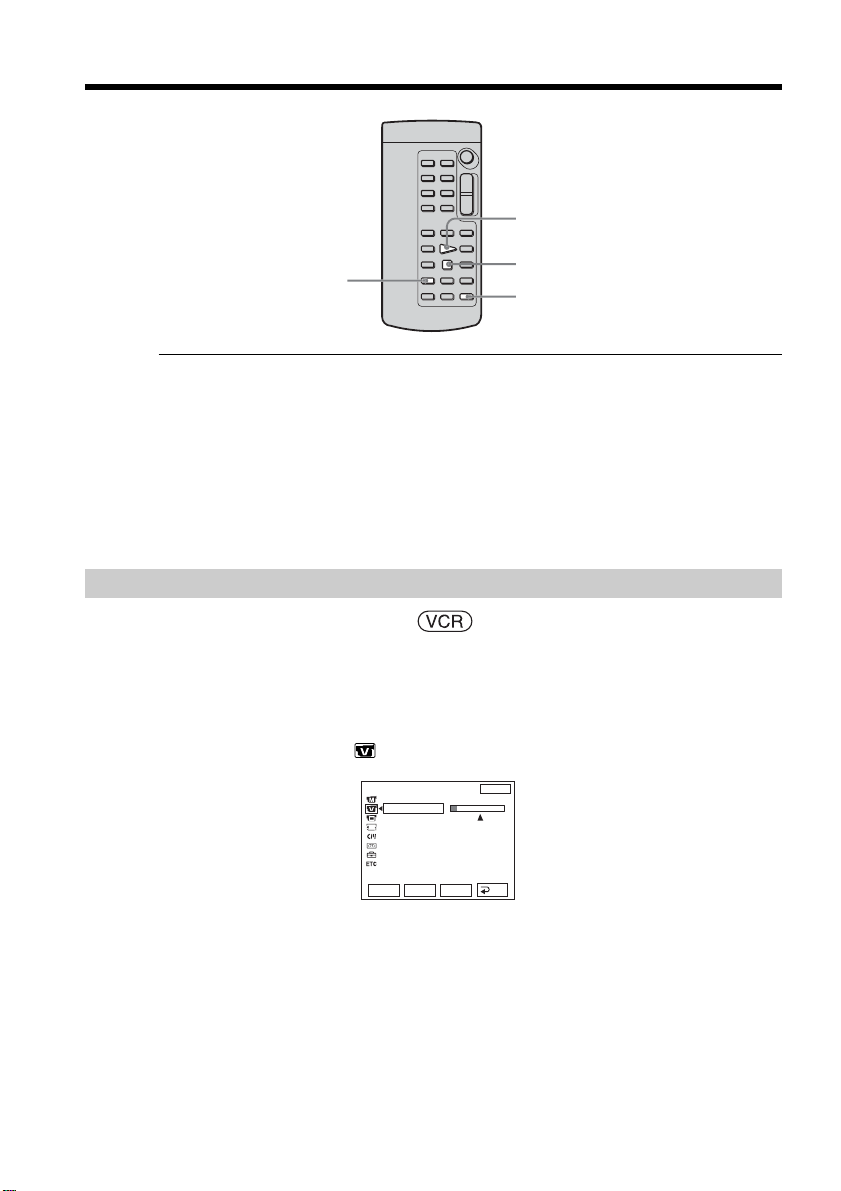
96
Audio dubbing
To add new sound more precisely
Press ZERO SET MEMORY at the point where you want to stop recording later during
playback.
Follow Step 2 in “Using the touch panel” on page 95. Recording automatically stops at
the point where ZERO SET MEMORY was pressed.
We recommend that you add new sound on the tape recorded with your
camcorder
If you add new sound on the tape recorded with another camcorder (including another
DCR-TRV60/TRV70), the sound quality may become worse.
Monitoring the new recorded sound
The POWER switch should be set to .
Operate by touching the panel.
(1) Play back the tape on which you added audio.
(2) Press FN to display PAGE1.
(3) Press MENU.
(4) Select AUDIO MIX in
, then press EXEC.
(5) Press r/R to adjust the balance between the original sound (ST1) and the new
sound (ST2), then press EXEC.
About five minutes after you disconnect the power source or remove the
battery pack, the setting of AUDIO MIX returns to the original sound (ST1)
only. The default setting is original sound only.
VCR SET
H i F i SOUND
AUD
I
O M
I
X
A
/
VcDV OUT
ST1 ST2
EXIT
RET.
EXEC
Rr
AUDIO DUB
x
X
N
97
Editing
One cassette can have up to about 20 titles, with each title comprising five characters.
However, if Cassette Memory is full with date and cassette label data, one cassette can
have only up to about 11 titles each comprising five characters.
Cassette Memory capacity is as follows:
– Six date data (maximum)
– One cassette label (maximum)
The POWER switch should be set to or .
Operate by touching the panel.
(1) Insert a cassette with Cassette Memory.
(2) During standby, recording, playback or playback pause, press FN to display
PAGE1.
(3) Press MENU.
(4) Select TITLE in
, then press EXEC.
(5) Select
, then press EXEC.
(6) Select a desired title, then press EXEC. The title appears on the screen.
(7) If necessary, change the color, size, or position by pressing COLOR, SIZE,
POS r or POS R.
(8) Press TITLE OK.
(9) Press SAVE TITLE.
During playback, playback pause or recording:
The TITLE SAVE indicator is displayed on the screen for about five seconds
and the title is set.
During recording standby:
The TITLE indicator appears. And when you press START/STOP to start
recording, the TITLE SAVE indicator is displayed on the screen for about five
seconds and the title is set.
To use the custom title
If you want to use the custom title, select in Step 5.
Superimposing a title on a cassette with
Cassette Memory
VACATION
5 6
VACATION
COLOR
RET.
POS rSIZE
TITLE
OK
EXIT
POS R
PRESET TITLE
HELLO!
HAPPY BIRTHDAY
HAPPY HOLIDAYS
CONGRATULATIONS!
OUR SWEET BABY
WEDDING
VACATION
THE END
EXIT
RET.
EXEC
Rr
98
The titles superimposed with your camcorder
•They are displayed only by the DV format video equipment with the index titler
function.
•The point you superimposed the title may be detected as an index signal when
searching a recording with another video equipment.
To not display title
Set TITLE DSPL in to OFF in the menu settings (p. 178).
Title setting
•The title color changes as follows:
WHITE t YELLOW t VIOLET t RED t CYAN t GREEN t BLUE
•The title size changes as follows:
SMALL y LARGE
You cannot input 13 characters or more in LARGE size.
•The title position changes as follows:
If you select the title size SMALL, you have nine choices for the title position.
If you select the title size LARGE, you have eight choices for the title position.
Erasing a title
The POWER switch should be set to or .
Operate by touching the panel.
(1) Press FN to display PAGE1.
(2) Press MENU.
(3) Select TITLEERASE in
, then press EXEC. The TITLE ERASE screen
appears.
(4) Select the title you want to erase, then press EXEC.
The ERASE OK? indicator appears.
(5) Make sure the title is the one you want to erase, then press OK.
The ERASING indicator flashes on the screen.
When the title is erased, the COMPLETE indicator appears.
To return to FN
Press EXIT.
To cancel erasing
Press CANCEL in Step 5.
Superimposing a title on a cassette with Cassette Memory
3 4
T
I
TLE ERASE
1 HELLO
!
2 CONGRATULAT
I
ONS
!
3 HAPPY NEW YEAR
!
4 PRESENT
5 GOOD MORN
I
NG
6 WEDD
I
NG
T
I
TLE ERASE
4
PRESENT
END
EXEC
Rr
ERASE OK?
OK
CAN–
CEL
99
Editing
You can make up to two titles and store them in the memory of your camcorder. Each
title can have up to 20 characters.
The POWER switch should be set to or .
Operate by touching the panel.
(1) Press FN to display PAGE1.
(2) Press MENU.
(3) Select TITLE in
, then press EXEC.
(4) Select
, then press EXEC.
(5) Select CUSTOM1 SET or CUSTOM2 SET, then press EXEC.
(6) Select a desired character. Repeat pressing a key to select a desired character
on the key.
(7) Press c to move
for the next character. Repeat the same procedure as Step 6
and 7 to complete your title.
(8) Press SET. The title is stored in memory.
To return to FN
Press EXIT.
To change a title you have stored
In Step 5, select CUSTOM1 SET or CUSTOM2 SET, depending on which title you want
to change, then press EXEC and enter a new title as desired.
If you take five minutes or longer to enter characters during tape recording
standby with the cassette inserted in your camcorder
The power automatically goes off. The characters you have entered remain stored in
memory. Set the POWER switch to OFF (CHG) once and then to CAMERA again, then
start again from Step 1.
We recommend setting the POWER switch to VCR or removing the cassette so that
your camcorder does not automatically turn off while you are entering title characters.
To erase the character
Press C. The last character is erased.
To enter a space
Press c.
Making your own titles
TITLE SET
CUSTOM1 SET
CUSTOM2 SET
EXIT
RET.
EXEC
Rr
&?
!
ABC DEF
T t
678
90
123
45
MNO
J
KLGH
I
SET
’ . ,
/
–
WXY
Z
TUVPQR
S
[
____________________
]
EXIT
TITLE SET
&?
!
ABC DEF
T t
678
90
123
45
MNO
J
KLGH
I
SET
’ . ,
/
–
WXY
Z
TUVPQR
S
[
PARTY
______________
]
EXIT
TITLE SET
457
100
The label can consist of up to 10 characters and is stored in Cassette Memory. When you
insert the labeled cassette and set the POWER switch to CAMERA or VCR, the label is
displayed for about five seconds.
The POWER switch should be set to or .
Operate by touching the panel.
(1) Insert a cassette with Cassette Memory you want to label.
(2) Press FN to display PAGE1.
(3) Press MENU.
(4) Select TAPE TITLE in
, then press EXEC.
(5) Select a desired character. Repeat pressing a key to select a desired character
on the key.
(6) Press c to move
for the next character. Repeat the same procedure as Step 5
and 6 to complete the label.
(7) Press SET. The label is stored in memory.
To return to FN
Press EXIT.
To erase the label you have made
Select C in Step 5 to erase the label, then press SET.
To change the label you have made
Insert the cassette for which you want to change the label, and operate in the same way
to make a new label.
If you have superimposed titles in the cassette
When the label appears, up to four titles also appear.
To erase the character
Press C. The last character is erased.
To enter a space
Press c.
Labeling a cassette with Cassette Memory
456
&?
!
ABC DEF
T t
678
90
123
45
MNO
J
KLGH
I
SET
’ . ,
/
–
WXY
Z
TUVPQR
S
[
G
_________
]
EXIT
TAPE TITLE
&?
!
ABC DEF
T t
678
90
123
45
MNO
J
KLGH
I
SET
’ . ,
/
–
WXY
Z
TUVPQR
S
[
GRADU
____
]
EXIT
TAPE TITLE
&?
!
ABC DEF
T t
678
90
123
45
MNO
J
KLGH
I
SET
’ . ,
/
–
WXY
Z
TUVPQR
S
[
__________
]
EXIT
TAPE TITLE
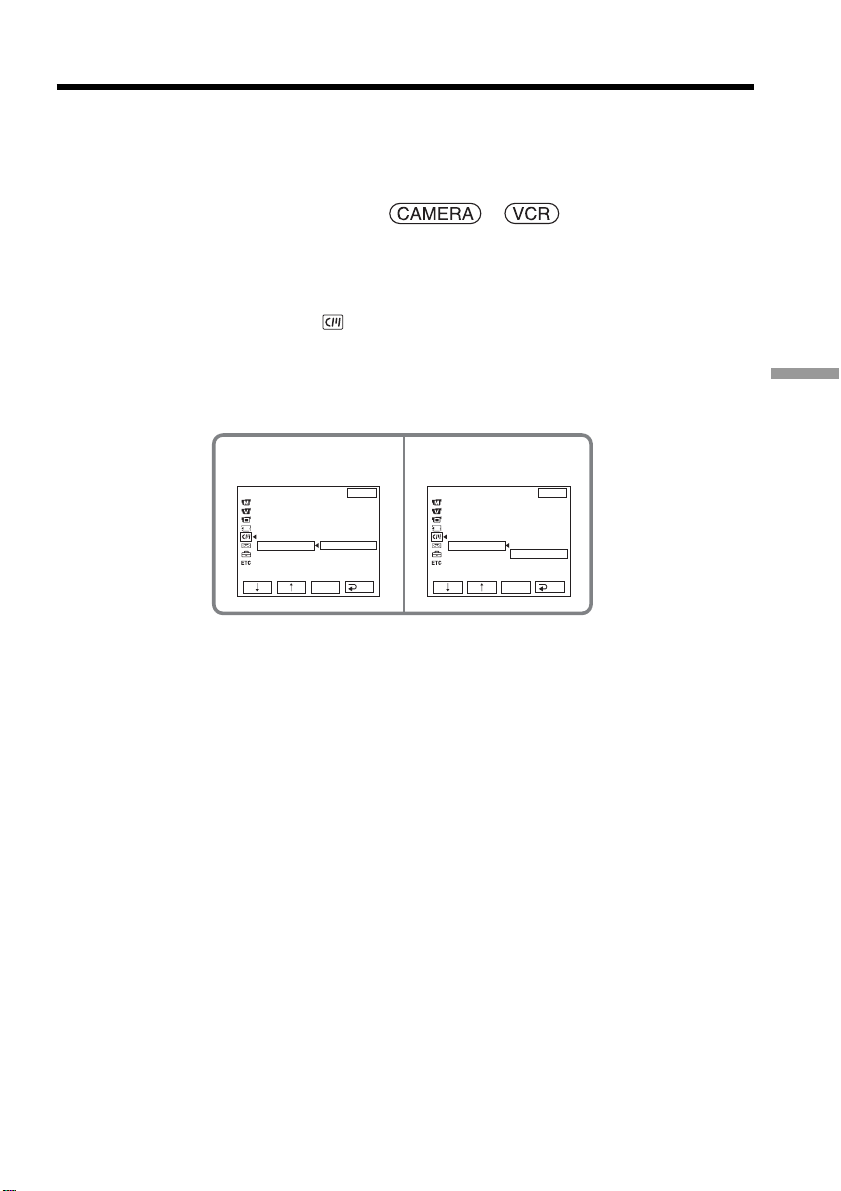
101
Editing
Erasing all the data in Cassette Memory
The following data saved in Cassette Memory can be completely erased at once:
– Date data
– Title data
– Cassette label
The POWER switch should be set to or .
Operate by touching the panel.
(1) Press FN to display PAGE1.
(2) Press MENU.
(3) Select ERASE ALL in
, then press EXEC.
(4) Select OK, then press EXEC.
The OK indicator changes to EXECUTE.
(5) Select EXECUTE, then press EXEC. The ERASING indicator flashes on the
screen. When erasing is complete, the COMPLETE indicator appears.
To return to FN
Press EXIT.
To cancel erasing
Select RETURN in Step 5, then press EXEC.
34
CM SET
TITLE
TITLEERASE
TITLE DSPL
CM SEARCH
TAPE TITLE
ERASE ALL
EXIT
RET.
EXEC
RETURN
OK
CM SET
TITLE
TITLEERASE
TITLE DSPL
CM SEARCH
TAPE TITLE
ERASE ALL
EXIT
RET.
EXEC
RETURN
EXECUTE
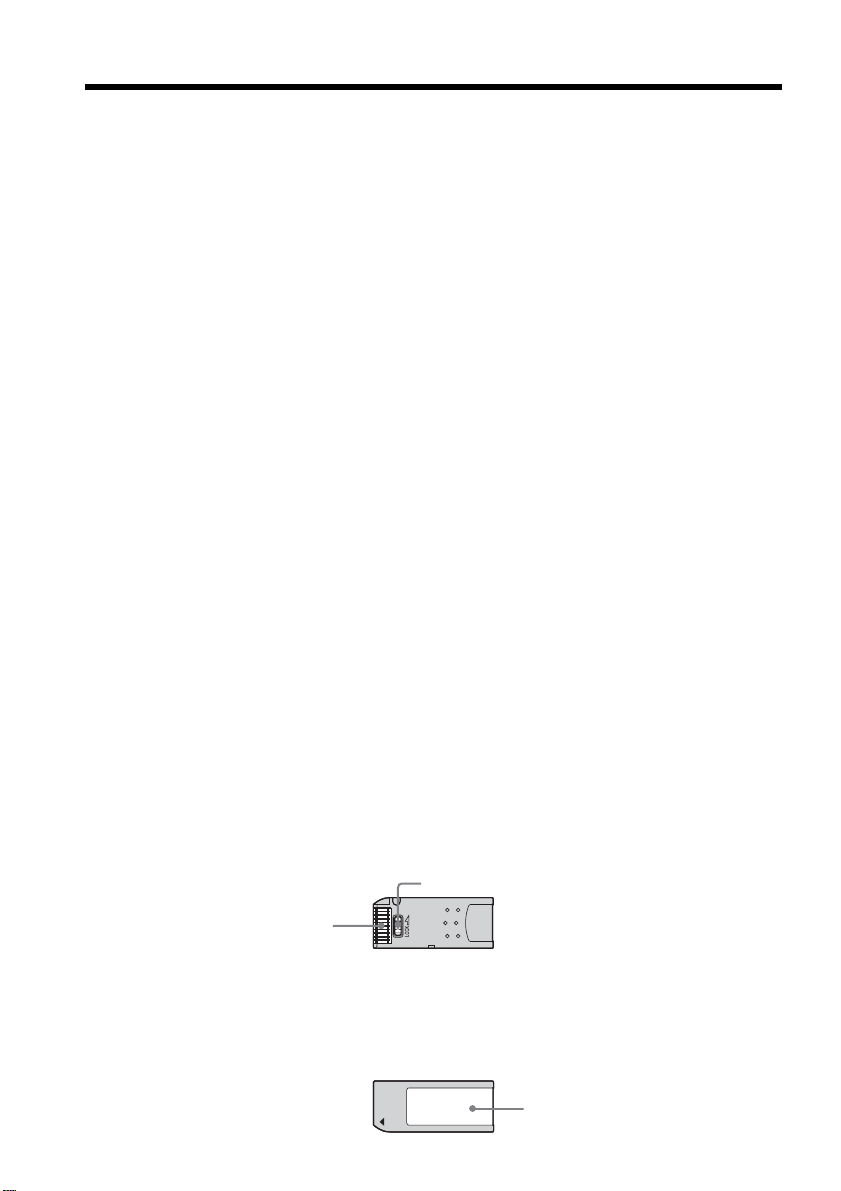
102
The “Memory Stick” is a new light and small recording media which, despite of the
size, can store greater data than a floppy disk.
In addition to exchanging data between “Memory Stick” compatible equipment, you
can also use a “Memory Stick” to store data as a type of detachable external recording
media.
There are two types of “Memory Stick”: an ordinary “Memory Stick” and a “MagicGate
Memory Stick” that is equipped with the MagicGate*
1)
copyright protection technology.
You can use both types of “Memory Stick” with your camcorder. However, because
your camcorder does not support the MagicGate standards, data recorded with your
camcorder is not subject to MagicGate copyright protection.
In addition, you can also use “Memory Stick Duo” or “Memory Stick PRO” with your
camcorder.
All “Memory Stick” media operations are not necessarily guaranteed.
*
1)
MagicGate is copyright protection technology that uses encryption technology.
File format
Still image (JPEG)
Your camcorder compresses and records image data in the JPEG (Joint Photographic
Experts Group) format. The file extension is .JPG.
Exif *
2)
ver.2.2 JPEG compliant, DPOF compatible.
*
2)
Exif: Exif is a file format for still images, established by the Japan Electronics and
Information Technology Industries Association(JEITA). Files in this format can
have additional information such as your camcorder’s setting information at the
time of recording.
Moving picture (MPEG)
Your camcorder compresses and records picture data in the MPEG (Moving Picture
Experts Group) format. The file extension is .MPG.
Typical image data file name
Still image
101-0001: This file name appears on the screen of your camcorder.
DSC00001.JPG: This file name appears on the display of a computer.
Moving picture
MOV00001: This file name appears on the screen of your camcorder.
MOV00001.MPG: This file name appears on the display of a computer.
To prevent from erasing images accidentally
Rear part of the “Memory Stick”
Slide the write-protect tab on the “Memory Stick” to LOCK.
The position and shape of the write-protect tab may be different depending on the
model. A certain model doesn't have a write-protect tab on it.
Notes on the “Memory Stick”
Labeling position
Affix its label on the labeling position.
Be sure not to affix any labels other than the dedicated one on the “Memory
Stick.”
— “Memory Stick” Operations —
Using a “Memory Stick” – Introduction
Terminal
Write-protect tab
Labeling position

103
“Memory Stick” Operations
Using a “Memory Stick” – Introduction
Image data may be damaged in the following cases. We cannot compensate for
the damaged image data.
– If you eject the “Memory Stick,” turn the power off on your camcorder or remove
the battery pack for replacement while your camcorder is reading or writing image
files on the “Memory Stick” (while the access lamp is lit or flashing).
– If you use the “Memory Stick” near magnets or magnetic fields such as those of
speakers and a TV.
We recommend backing up important data on the hard disk of a computer.
On handling
•When you carry or store the “Memory Stick,” put it in its case.
•Prevent metallic objects or your finger from coming into contact with the metal parts
of the connecting section.
•Do not bend, drop or apply strong shock to the “Memory Stick.”
•Do not disassemble or modify the “Memory Stick.”
•Do not let the “Memory Stick” get wet.
On location for use
Do not use or keep the “Memory Stick” in locations that are:
– Extremely hot such as in a car parked in the sun or under the scorching sun
– Under direct sunlight
– Very humid or subject to corrosive gases
Notes on using the “Memory Stick Duo” (optional)
•Be sure to insert the “Memory Stick Duo” into the “Memory Stick Duo” Adaptor
when using the “Memory Stick Duo” with your camcorder.
•Make sure you insert the “Memory Stick Duo” in the proper direction. Inserting it the
wrong way may cause a malfunction.
•Do not insert the “Memory Stick Duo” not inserted into the “Memory Stick Duo”
Adapter into the “Memory Stick”-compatible unit. This may cause a malfunction of
the unit.
Note on using the “Memory Stick PRO” (optional)
The “Memory Stick PRO” with a capacity up to 1 GB can be used with this camcorder.
The “Memory Stick” formatted by a computer
The “Memory Stick” formatted by Windows OS or Macintosh computers do not have a
guaranteed compatibility with your camcorder.
Notes on image data compatibility
•Image data files recorded on the “Memory Stick” by your camcorder conform with the
Design Rule for Camera File Systems universal standard established by the JEITA
(Japan Electronics and Information Technology Industries Association).
On your camcorder, you cannot play back still images recorded on other equipment
(DCR-TRV890E/TRV900/TRV900E or DSC-D700/D770) that does not conform to this
universal standard. (These models are not sold in some areas.)
•If you cannot use the “Memory Stick” that is used with other equipment, format it
with your camcorder (p. 177). Note that formatting erases all information on the
“Memory Stick.”
•You may not be able to play back images recorded on your camcorder depending on
the equipment you attempt to use for playback.
•You may not be able to play back images with your camcorder:
– When playing back image data modified on your computer.
– When playing back image data shot with other equipment.
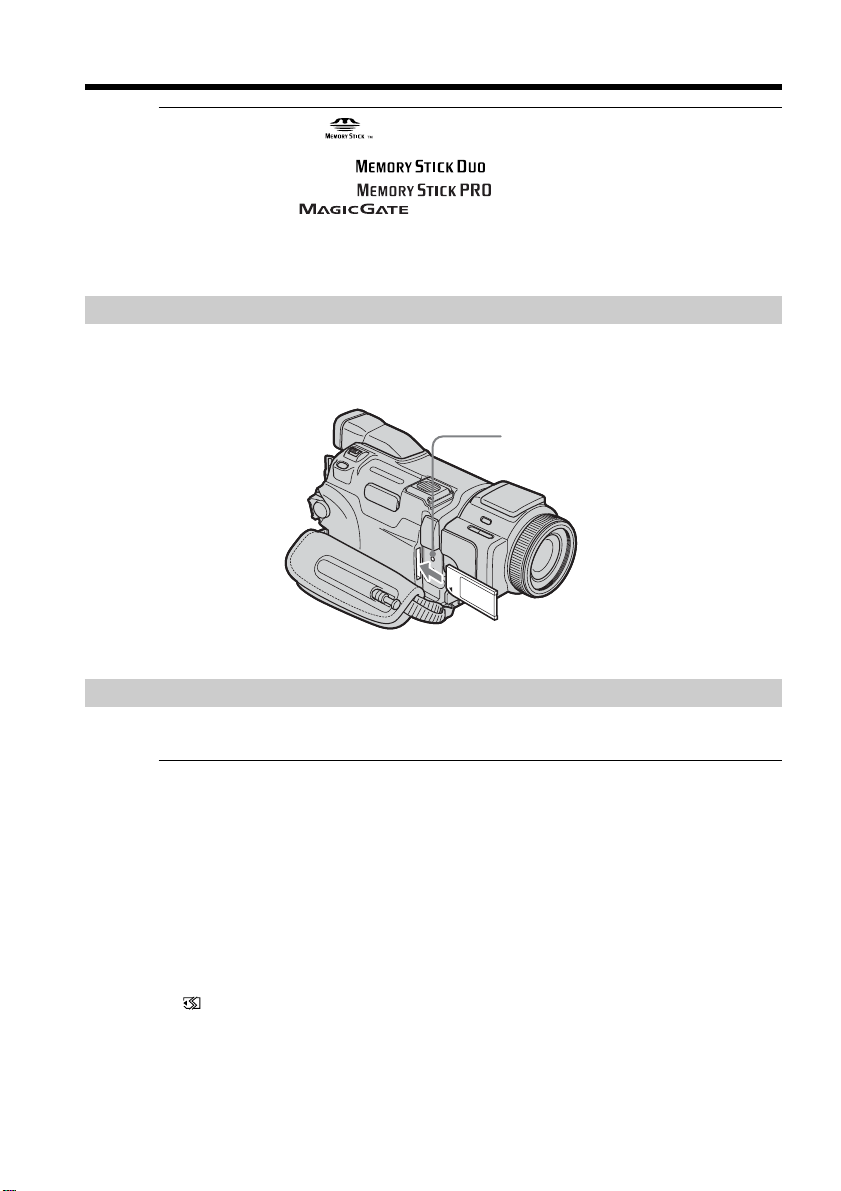
104
•The “Memory Stick”, and “MagicGate Memory Stick” are trademarks of Sony
Corporation.
•“Memory Stick Duo” and are trademarks of Sony Corporation.
•“Memory Stick PRO” and are trademarks of Sony Corporation.
•“MagicGate” and are trademarks of Sony Corporation.
•All other product names mentioned herein may be the trademarks or registered
trademarks of their respective companies.
Furthermore, “™” and “®” are not mentioned in each case in this manual.
Inserting a “Memory Stick”
Insert a “Memory Stick” in the “Memory Stick” slot as far as it can go with the b mark
facing out as illustrated.
Ejecting a “Memory Stick”
Press a “Memory Stick” once lightly.
Notes
•If you insert a “Memory Stick” forcibly in the opposite direction, the “Memory Stick”
slot may be damaged.
•Do not insert anything other than a “Memory Stick” into the “Memory Stick” slot.
This may cause a malfunction.
While the access lamp is lit or flashing
Do not shake or knock your camcorder because your camcorder is reading the data
from the “Memory Stick” or writing the data on the “Memory Stick.” Do not turn the
power off, eject the “Memory Stick” or remove the battery pack. Otherwise, image data
may become damaged.
If “ MEMORY STICK ERROR” appears
Reinsert the “Memory Stick” a few times. The “Memory Stick” may be damaged if the
indicator still appears. If this occurs, use another “Memory Stick.”
Using a “Memory Stick” – Introduction
Access lamp
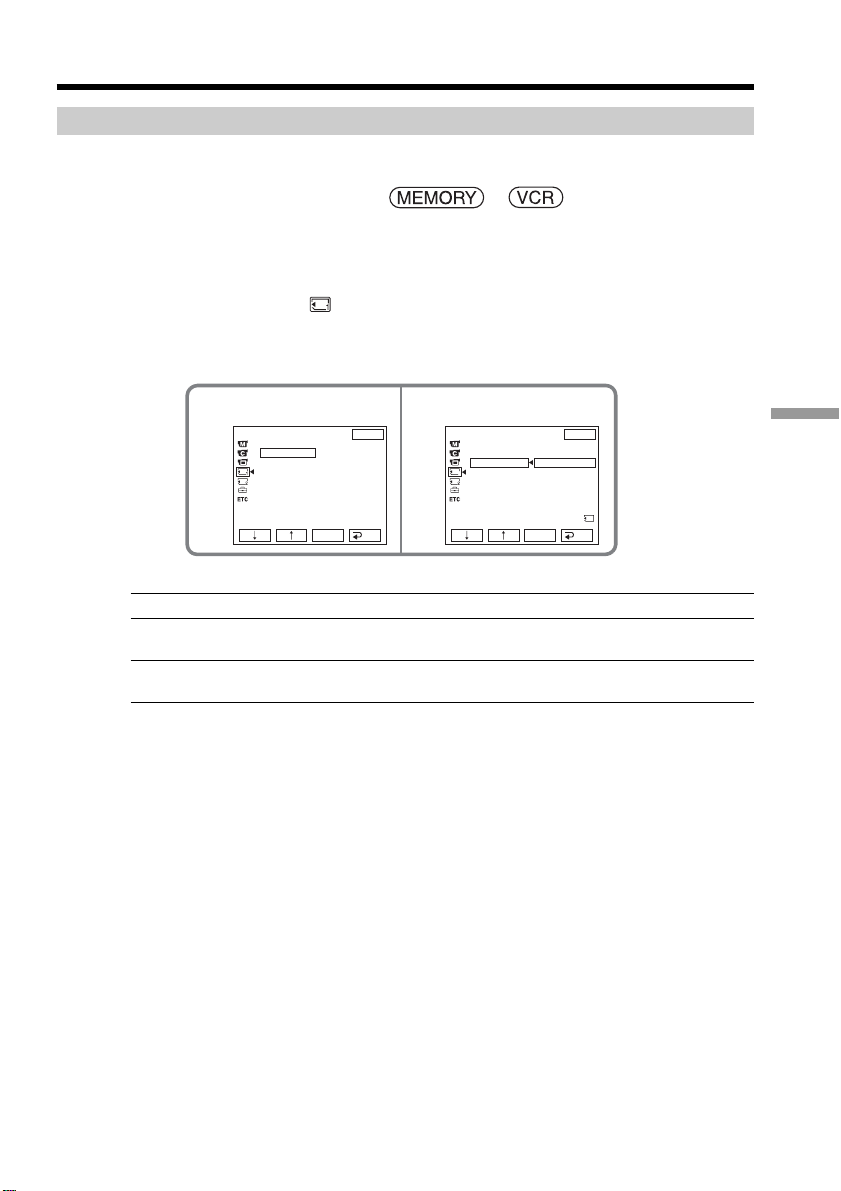
105
“Memory Stick” Operations
Selecting the still image quality
The default setting is FINE.
The POWER switch should be set to or .
Operate by touching the panel.
(1) Press FN to display PAGE1.
(2) Press MENU.
(3) Select STILL SET in
, then press EXEC.
(4) Select QUALITY, then press EXEC.
(5) Select a desired image quality, then press EXEC.
Setting Meaning
FINE (FINE) Use this mode when you want to record high quality
images. Fine images are compressed to about 1/4.
STANDARD (STD) This is the standard image quality. Standard images are
compressed to about 1/10.
To return to FN
Press EXIT.
Selecting the quality and size of image
data
3
MEM SET 1
STILL SET
BURST
QUALITY
IMAGESIZE
OFF
EXIT
RET.
EXEC
4
MEM SET 1
STILL SET
BURST
QUALITY
IMAGESIZE
EXIT
RET.
EXEC
FINE
STANDARD
REMAIN
8
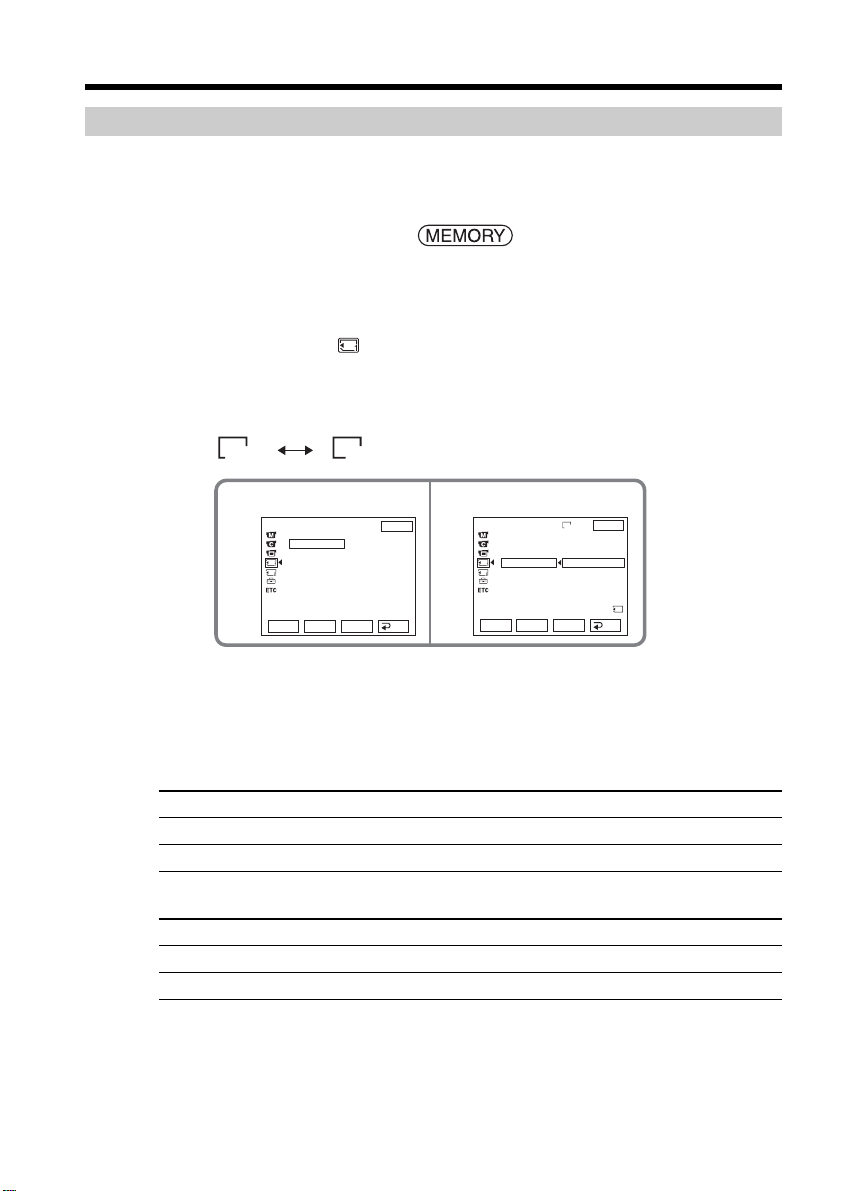
106
Selecting the still image size
You can select image size 1600 × 1200 or 640 × 480. (When the POWER switch is set to
CAMERA or VCR, the image size is automatically set to 640 × 480.)
The default setting is 1600 × 1200.
The POWER switch should be set to .
Operate by touching the panel.
(1) Press FN to display PAGE1.
(2) Press MENU.
(3) Select STILL SET in
, then press EXEC.
(4) Select IMAGESIZE, then press EXEC.
(5) Select a desired image size, then press EXEC.
The indicator changes as follow:
1600 640
Memory capacity of still images
Recorded images are compressed in the JPEG format before being stored in memory.
The memory capacity allotted to each still image varies depending on the selected
image quality and image size. Details are shown in the table below.
1600 × 1200 image size
Image quality Memory capacity
FINE About 960 KB
STANDARD About 420 KB
640 × 480 image size
Image quality Memory capacity
FINE About 150 KB
STANDARD About 60 KB
34
RET.
EXEC
Rr
EXIT
EXIT
1600
MEM SET 1
STILL SET
BURST
QUALITY
IMAGESIZE 1600 × 1200
640 × 480
REMAI N
8
RET.
EXEC
Rr
MEM SET 1
STILL SET
BURST
QUALITY
IMAGESIZE
OFF
Selecting the quality and size of image data
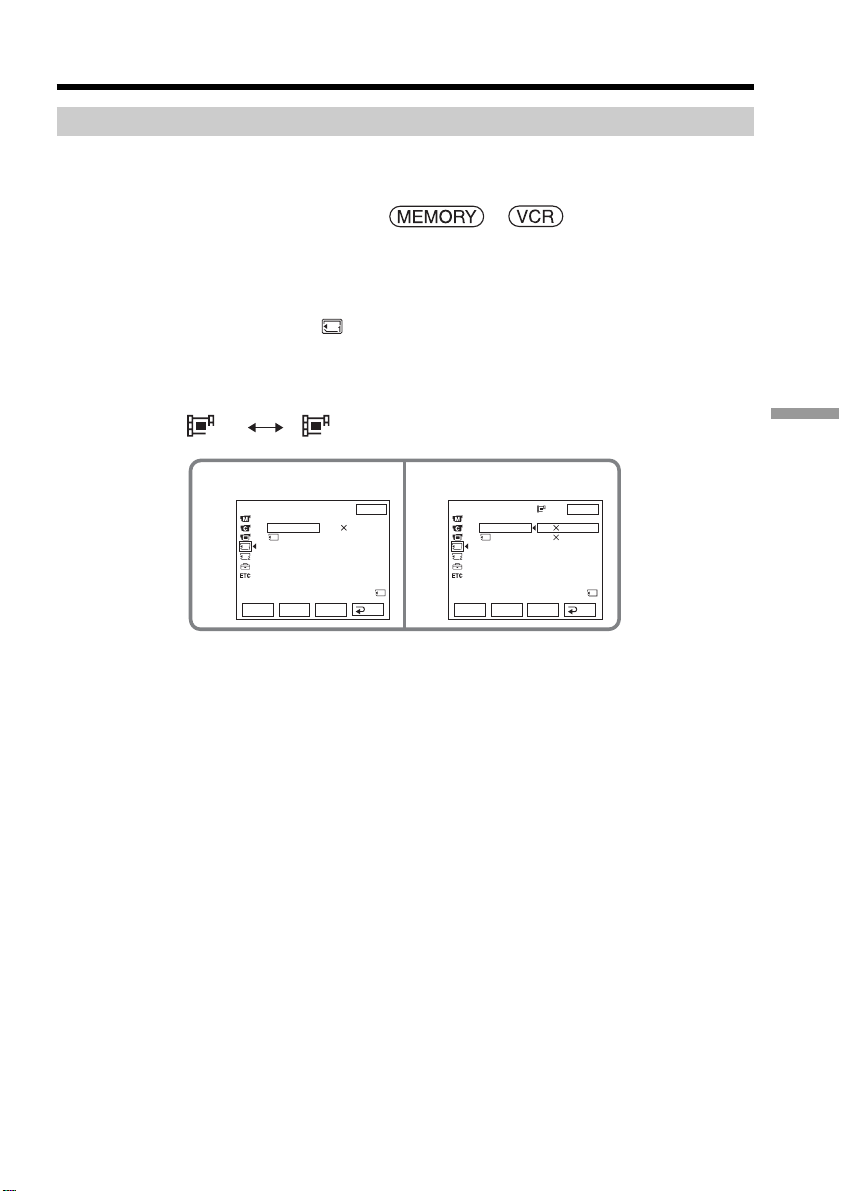
107
“Memory Stick” Operations
Selecting the moving picture size
You can select picture size 320 × 240 or 160 × 112.
The default setting is 320 × 240.
The POWER switch should be set to or .
Operate by touching the panel.
(1) Press FN to display PAGE1.
(2) Press MENU.
(3) Select MOVIE SET in
, then press EXEC.
(4) Select IMAGESIZE, then press EXEC.
(5) Select a desired image size, then press EXEC.
The indicator changes as follows:
320 160
34
320
EXIT
RET.
EXEC
Rr
EXIT
RET.
EXEC
Rr
MEM SET 1
MOVIE SET
IMAGESIZE
REMAIN
MEM SET 1
MOVIE SET
IMAGESIZE
REMAIN
320 240
320 240
160 112
REMAIN
30sec
REMAIN
30sec
Selecting the quality and size of image data
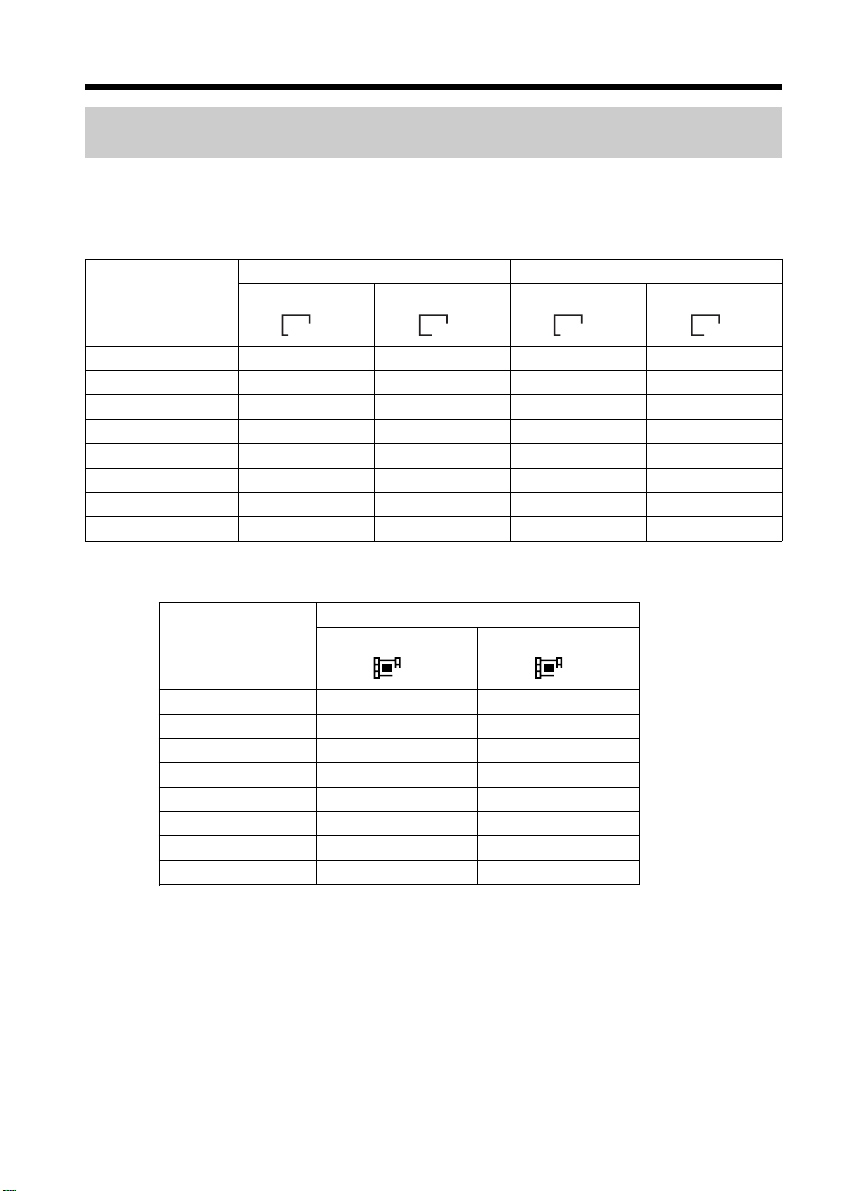
108
Approximate number of still images and time of moving pictures
you can record on a “Memory Stick”
The number of still images and time of moving pictures you can record vary depending
on which image quality and image size you select and the complexity of the subject.
Still images
Moving pictures
The table shows approximate number of still images and time of moving pictures you
can record on a “Memory Stick” formatted with your camcorder.
FINE STANDARD
Type of the 1600 × 1200 640 × 480 1600 × 1200 640 × 480
“Memory Stick”
1600
640
1600
640
8 MB (supplied) 8 50 18 120
16 MB 16 96 37 240
32 MB 32 190 75 485
64 MB 65 390 150 980
128 MB 130 780 300 1970
256 MB (MSX-256) 235 1400 540 3550
512 MB (MSX-512) 480 2850 1100 7200
1 GB (MSX-1G) 980 5900 2250 14500
Selecting the quality and size of image data
Image size
Type of the 320 × 240 160 × 112
“Memory Stick”
320 160
8 MB (supplied) 1 min 20 s 5 min 20 s
16 MB 2 min 40 s 10 min 40 s
32 MB 5 min 20 s 21 min 20 s
64 MB 10 min 40 s 42 min 40 s
128 MB 21 min 20 s 1 h 25 min 20 s
256 MB (MSX-256) 42 min 40 s 2 h 50 min 40 s
512 MB (MSX-512) 1 h 25 min 20 s 5 h 41 min 20 s
1 GB (MSX-1G) 2 h 50 min 40 s 11 h 22 min 40 s
(Unit: Image)
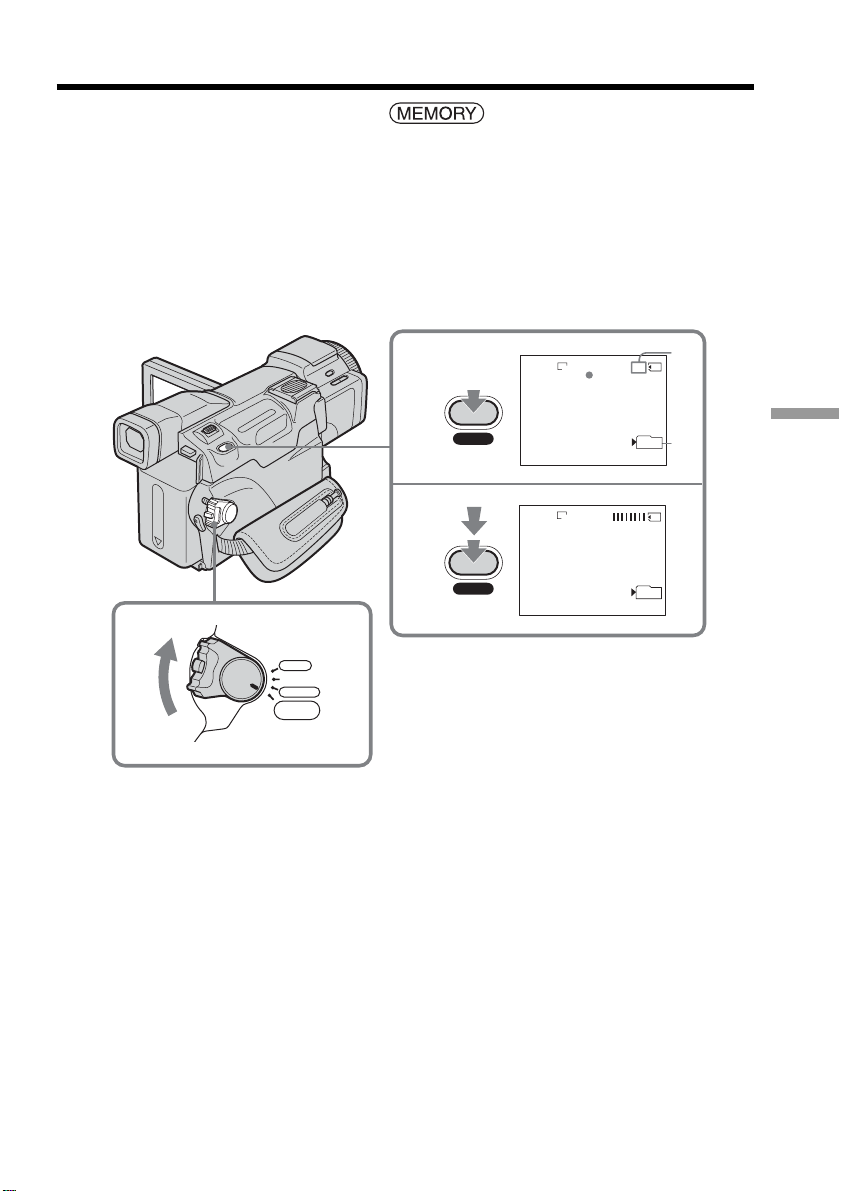
109
“Memory Stick” Operations
The POWER switch should be set to .
(1) Keep pressing PHOTO lightly and check the image. The green z indicator
stops flashing, then lights up. The brightness of the image and the focus are
adjusted, being targeted for the middle of the image, and are fixed. Recording
does not start yet.
(2) Press PHOTO deeply.
Recording is complete when the bar scroll indicator disappears.
The image displayed on the screen when you press PHOTO deeply is recorded
on the “Memory Stick.”
[a] Approximate number of images that can be recorded on the “Memory Stick” *
[b] Number of the folder currently used for recording
* The indication of the number of recordable still images
Depending on the image quality setting and the complexity of the subject, the indication
of the remaining number of recordable still images may not change even after you
record an image.
When the remaining number is greater than 9999, the >9999 indicator appears on the
screen.
Recording still images on a “Memory
Stick” – Memory Photo recording
1
/ 8
FINE
1600
[a]
[b]
2
FINE
1600
101
101
PHOTO
PHOTO
VCR
MEMORY/
NETWORK
CAMERA
OFF(CHG)
POW
ER
POWER switch

110
You can record still images on a “Memory Stick” during tape recording or tape
recording standby
See page 46 for details.
When the POWER switch is set to MEMORY
The following functions do not work:
– Digital zoom
– Super NightShot
– Color Slow Shutter
– Wide mode
– Fader
– Picture effect
– Digital effect
– SPORTS of PROGRAM AE (The indicator flashes.)
– Title
– SteadyShot
While saving a still image data
You cannot turn off the power or press PHOTO.
When you press PHOTO on the Remote Commander
Your camcorder immediately records the image that is on the screen when you press
the button.
When you press PHOTO lightly in Step 1
The image momentarily flickers. This is not a malfunction.
Recording data
The recording data (date/time or various settings when recorded) is not displayed
during recording. However, it is recorded automatically onto the “Memory Stick.” To
display the recording data, press DATA CODE during playback. You can also use the
Remote Commander for this operation (p. 40).
If you record still images when the POWER switch is set to MEMORY
The angle of view is slightly larger compared with the angle of view when the POWER
switch is set to CAMERA.
Recording still images on a “Memory Stick”
– Memory Photo recording
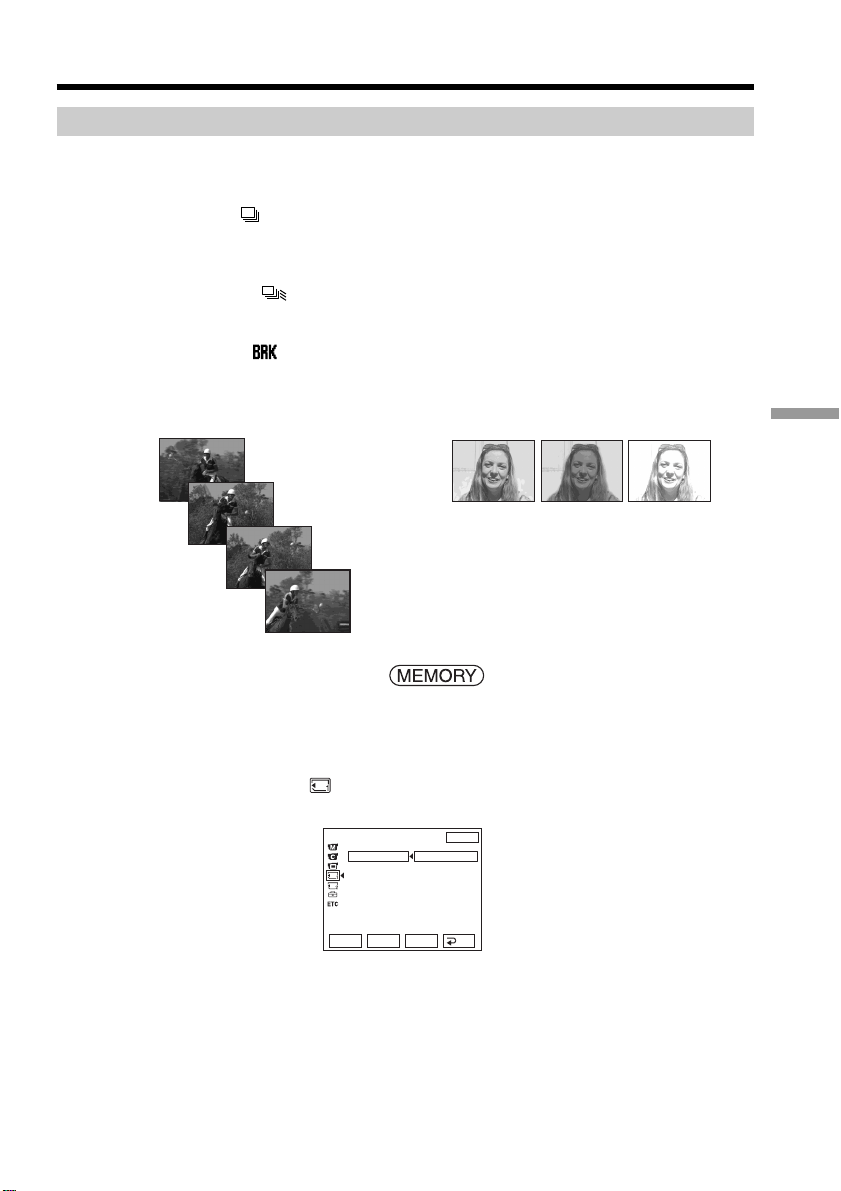
111
“Memory Stick” Operations
Recording images continuously
You can record still images continuously. Before recording, select one of the three
modes described below in the menu settings.
NORMAL [a] ( )
Your camcorder shoots up to four still images in 1600 × 1200 size or 25 still images in
640 × 480 size at about 0.5 sec intervals.
HIGH SPEED [a] ( )
Your camcorder shoots up to 32 still images in 640 × 480 size at about 0.07 sec intervals.
EXP BRKTG [b] ( )
Your camcorder automatically shoots three images at about 0.5 sec intervals at different
exposures.
The POWER switch should be set to .
Operate by touching the panel.
(1) Press FN to display PAGE1.
(2) Press MENU.
(3) Select STILL SET in
, then press EXEC.
(4) Select BURST, then press EXEC.
(5) Select a desired mode, then press EXEC.
(6) Press EXIT to make the menu display disappear.
(7) Press PHOTO deeply.
Recording still images on a “Memory Stick”
– Memory Photo recording
[a] [b]
EXIT
RET.
EXEC
STILL SET
BURST
QUALITY
IMAGESIZE
MEM SET 1
Rr
OFF
NORMAL
HIGH SPEED
EXP BRKTG

112
The number of still images in continuous shooting
The number of still images you can shoot continuously varies depending on the image
size and the capacity of the “Memory Stick.”
While recording images continuously
The flash does not work.
When shooting with the self-timer or the Remote Commander
Your camcorder automatically records up to the maximum number of still images.
When HIGH SPEED is selected
Flickering or changes in color may occur.
If remaining capacity on the “Memory Stick” is less than for three images
EXP BRKTG does not work. “ FULL” appears when you press PHOTO.
The effect of EXP BRKTG
The effect of EXP BRKTG may not be noticeable on the screen.
We recommend viewing images on the TV or the computer to check the effect.
When NORMAL or HIGH SPEED is selected
Recording continues up to the maximum number of still images while pressing PHOTO
deeply.
Recording still images on a “Memory Stick”
– Memory Photo recording
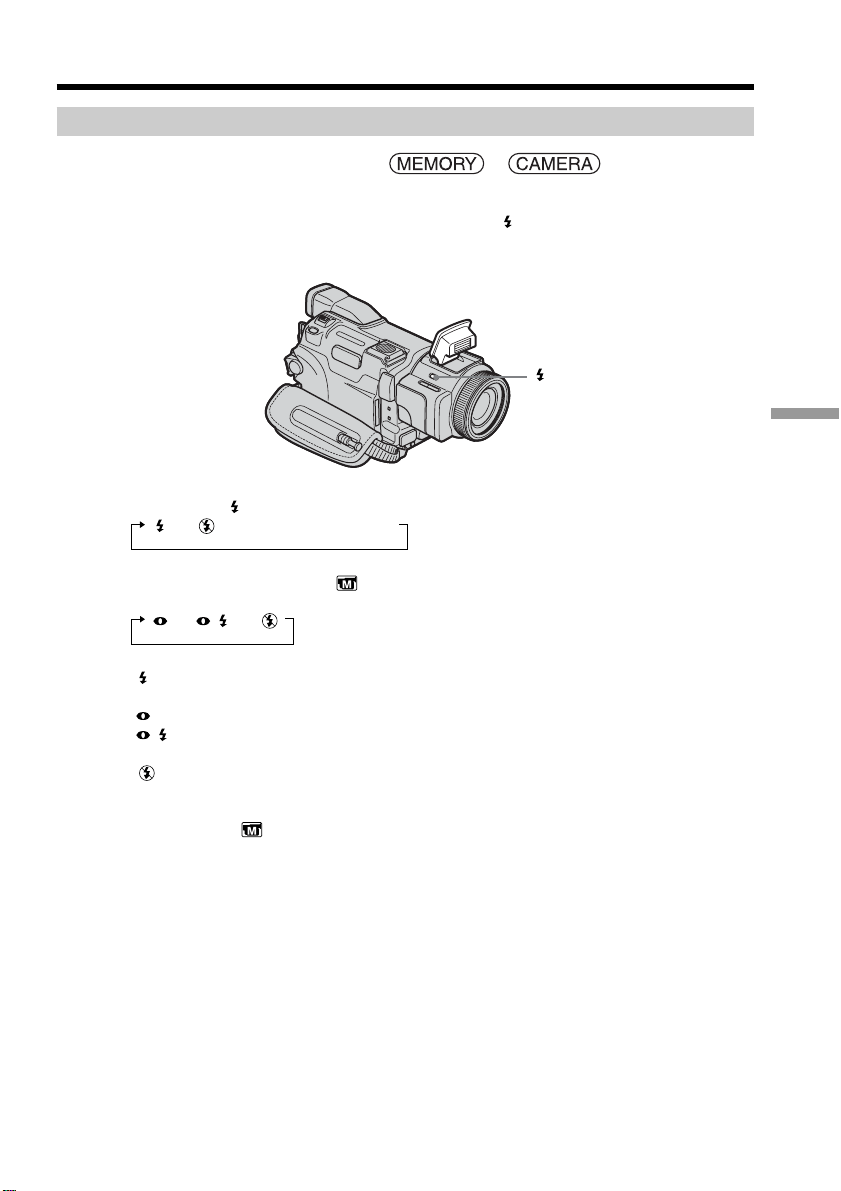
113
“Memory Stick” Operations
Recording images with the flash
The POWER switch should be set to or .
If you press PHOTO, the flash automatically pops up to strobe. The default setting is
auto (no indicator). To change the flash mode, press (flash) repeatedly until the flash
mode indicator appears on the screen. You cannot use this function while recording
moving pictures.
Each press of (flash) changes the indicator as follows:
t t AUTO (No indicator)
When you set RED EYE R in to ON in the menu settings, the indicator changes as
follows:
t t
Forced flash: The flash fires regardless of the surrounding
brightness.
Auto red-eye reduction: The flash fires before recording to reduce the red-eye.
Forced red-eye reduction: The flash fires before recording to reduce the red-eye
regardless of the surrounding brightness.
No flash: The flash does not fire.
The flash is automatically adjusted to the appropriate brightness. You can also change
FLASH LVL in to the desired brightness in the menu settings. Try recording various
images to find the most appropriate setting for FLASH LVL.
(flash)
Recording still images on a “Memory Stick”
– Memory Photo recording

114
Notes
•Remove dirt from the surface of the flash if it is dirty. If the surface of the flash is
shaded or caked with dirt heated by strobing, the flash may not be able to give off a
sufficient amount of light.
•The recommended shooting distance using the built-in flash is 0.3 m to 2.5 m (31/32
feet to 8 1/3 feet).
•Attaching the lens hood (supplied) or a conversion lens (optional) may cause their
shadow to appear.
•You cannot use an external flash (optional) and the built-in flash at the same time.
•Auto red-eye reduction ( ) and Forced red-eye reduction ( ) may not produce the
desired effect depending on individual differences, the distance to the subject, the
subject not looking at the pre-recording flash or other conditions.
•The flash effect cannot be obtained easily when you use forced flash in a bright
location.
•When recording with the flash, it takes longer to prepare for the next shooting. This is
because your camcorder starts to charge power for firing after the flash pops up.
•The flash charge lamp flashes while the power for firing is being charged. After
charging is completed, the flash charge lamp lights up.
•If it is not easy to focus on a subject automatically, for example, when recording in the
dark, use HOLOGRAM AF (p. 115) or the focal distance information (p. 63) for
focusing manually.
•When the flash pops up, it may be up against the accessory attached to the intelligent
accessory shoe depending on the accessory used together. In this case, set the built-in
flash to (No flash). When you are using the external flash, the built-in flash will not
pop up.
The flash does not fire even if you select auto and (auto red-eye reduction)
during the following operations:
– NightShot
– SPOTLIGHT of PROGRAM AE
– SUNSETMOON of PROGRAM AE
– LANDSCAPE of PROGRAM AE
– Manual exposure
– Flexible Spot Meter
While recording images continuously
The flash does not work.
Recording still images on a “Memory Stick”
– Memory Photo recording
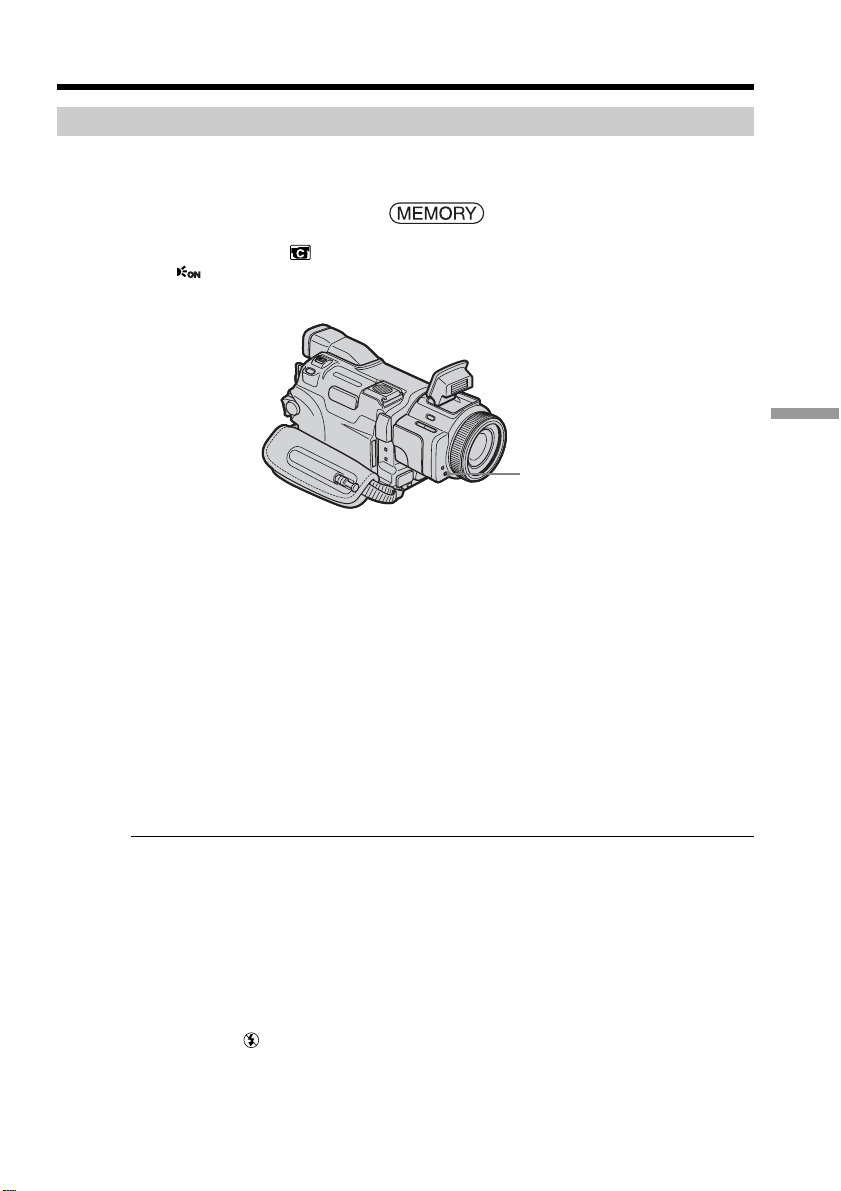
115
“Memory Stick” Operations
Shooting with an auxiliary light – HOLOGRAM AF
The HOLOGRAM AF is an auxiliary light source used for focusing on subjects in dark
places.
The POWER switch should be set to .
Set HOLOGRAM F in to AUTO in the menu settings. (The default setting is AUTO.)
When appears on the screen in a dark place, press PHOTO lightly. Then the
HOLOGRAM AF emitter automatically emits auxiliary light until the subject is focused.
About HOLOGRAM AF
“HOLOGRAM AF (Auto-Focus),” an application of laser holograms, is an AF optical
system that enables still image shooting in dark places. Having gentler radiation than
conventional high-brightness LEDs or lamps, the system satisfies Laser Class 1 (*)
specification and thus maintains higher safety for human eyes.
No safety problems will be caused by directly looking into the HOLOGRAM AF emitter
at a close range. However, it is not recommended to do so, because you may experience
such effects like several minutes of image residual and dazzling, that you encounter
after looking into a flashlight.
* HOLOGRAM AF satisfies Class 1(time base 30,000 seconds), specified in all of JIS
(Japan), IEC(EU), and FDA(US) industry standards.
Complying with these standards ensures that the laser product is safe, under a
condition that a human looks at the laser light either directly or even through a lens
for 30,000 seconds.
Notes
•Attaching a conversion lens (optional) may obstruct the HOLOGRAM AF light and
make focusing difficult.
•If enough light does not reach the subject even if the HOLOGRAM AF emitter emits
light (recommended shooting distance is up to 2.5 m (8 1/3 feet)), the subject will not
be focused.
The HOLOGRAM AF does not emit light in the following cases:
– When the POWER switch is set to CAMERA.
– NightShot
– Flash is set to (no flash).
– SUNSETMOON of PROGRAM AE
– LANDSCAPE of PROGRAM AE
– Manual focus
– Spot Focus
– Continuous photo recording
HOLOGRAM AF emitter
Recording still images on a “Memory Stick”
– Memory Photo recording
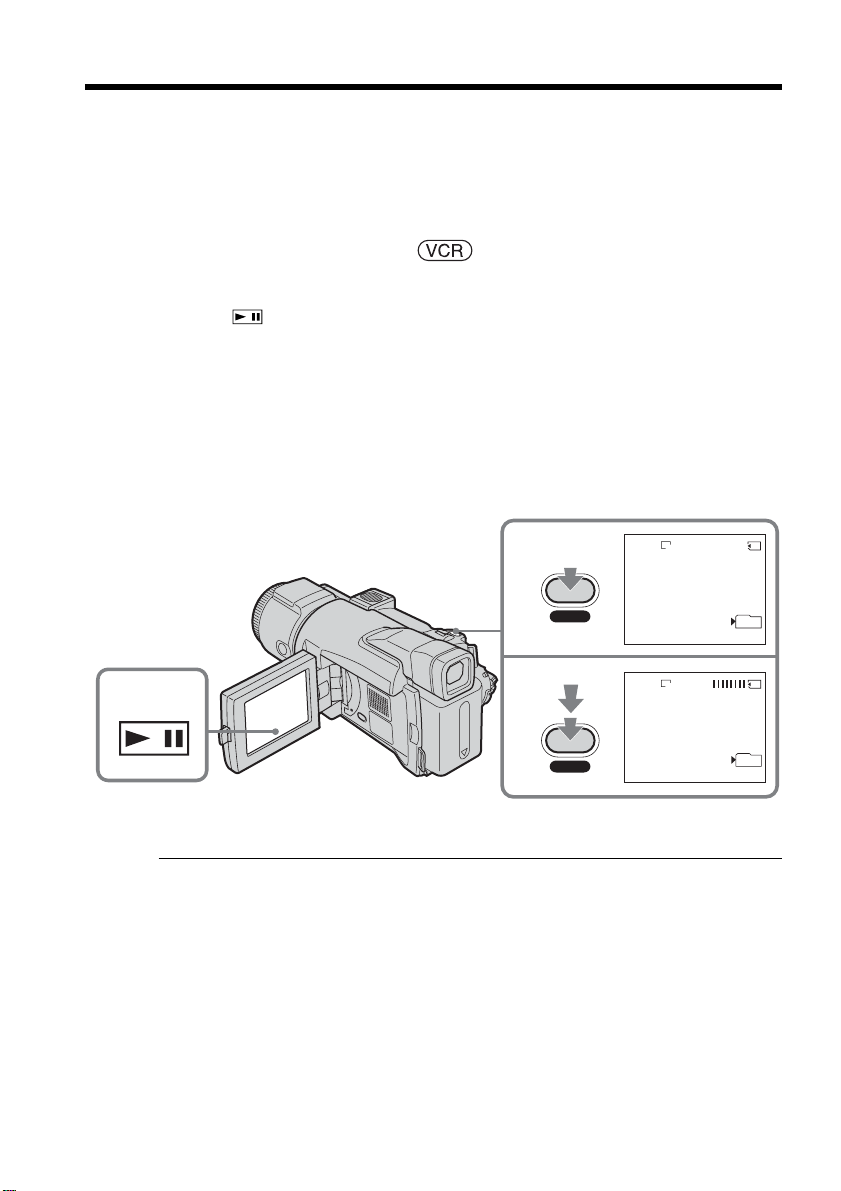
116
Your camcorder can read moving picture data recorded on a tape and record it as a still
image on a “Memory Stick.”
Image size is automatically set to 640 × 480.
Before operation
Insert a “Memory Stick” and the recorded tape into your camcorder.
The POWER switch should be set to .
Operate by touching the panel.
(1) Press . The picture recorded on the tape is played back.
(2) Keep pressing PHOTO lightly and check the image. The picture from the tape
freezes and the CAPTURE indicator appears on the screen. Recording does not
start yet.
To change the selected image, release PHOTO, select a still image again, and
then press and hold PHOTO lightly.
(3) Press PHOTO deeply. Recording is complete when the bar scroll indicator
disappears. The image displayed on the screen when you press PHOTO deeply
is recorded on the “Memory Stick.”
Sound recorded on the tape
You cannot record audio from the tape.
Title recorded on the tape
You cannot record the titles.
Data codes recorded on the tape
Data Codes recorded on the tape cannot be recorded on the “Memory Stick.” The date/
time when it is recorded on the “Memory Stick” is recorded. Various settings are not
recorded.
When you press PHOTO on the Remote Commander
Your camcorder immediately records the image that is on the screen when you press
the button.
Recording an image from a tape as a still
image
1
2
3
12
CAPTURE
FINE
640
FINE
640
101
101
PHOTO
PHOTO

117
“Memory Stick” Operations
Recording a still image from other equipment
You can use either the A/V connecting cable or the i.LINK cable. Connect the
equipment as illustrated on page 89.
When connecting with the A/V connecting cable, set DISPLAY in to LCD in the
menu settings. (The default setting is LCD.)
The POWER switch should be set to .
(1) Play back the recorded tape on the VCR, or turn the TV on to see a desired
program.
The image from the other equipment is displayed on the screen.
(2) At the point where you want to record, follow Step 2 and 3 on page 116.
Note
Images may not be imported properly or distorted images may be recorded when you
record from the tape repeatedly used for dubbing and the recording state is poor.
Recording an image from tape as a still image
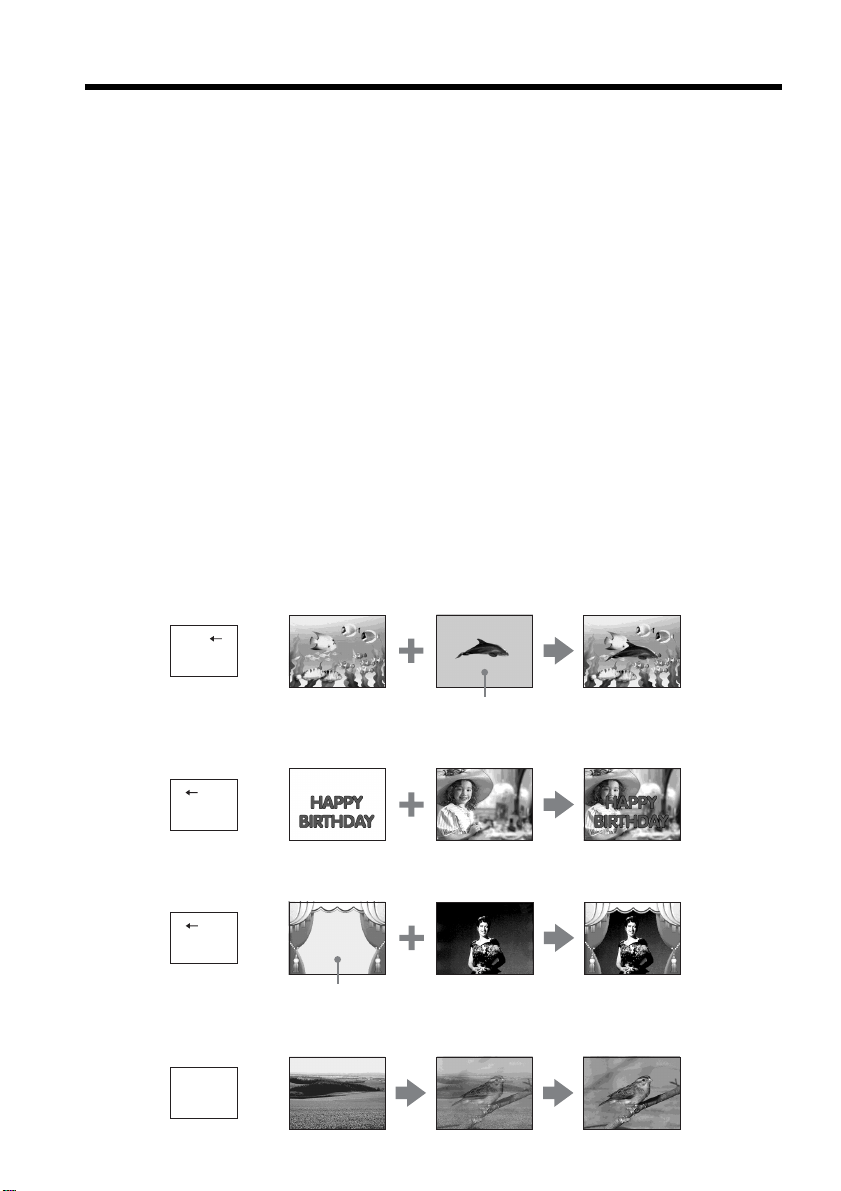
118
You can superimpose a still image you have recorded on the “Memory Stick” on top of
the moving picture you are recording. You cannot superimpose a still image on the
tape on which you have already finished recording. You can record the
superimposed images on a tape or a “Memory Stick.” However, you can record only
superimposed still images on a “Memory Stick.”
C. CHROM (Camera Chroma key)
You can superimpose a moving picture on top of a still image such as an image which
can be used as background. Shoot the subject against a blue background. Only the blue
area of the moving picture will be swapped with a still image.
M. LUMI (Memory Luminance key)
You can swap the brighter area of a still image (such as a handwritten illustration or a
title) with a moving picture. To use this function, we recommend recording a title on
the “Memory Stick” before a trip or event.
M. CHROM (Memory Chroma key)
You can swap only the blue area of a still image such as an illustration or a frame with a
moving picture.
M. OVERLAP (Memory Overlap)
You can make a moving picture you are recording with your camcorder fade in on top
of a still image recorded on the “Memory Stick.” You can use M.OVERLAP only when
the POWER switch is set to CAMERA.
Superimposing a still image in the “Memory
Stick” on an image – MEMORY MIX
M. CHROM Still image Moving picture
M C A M
C H R O
M
Blue
M. LUMI Still image Moving picture
M C A M
L U M
I
C. CHROM Still image Moving picture
C A M M
C H R O
M
Blue
M. OVERLAP
Still image Moving picture
O V E R –
L A P
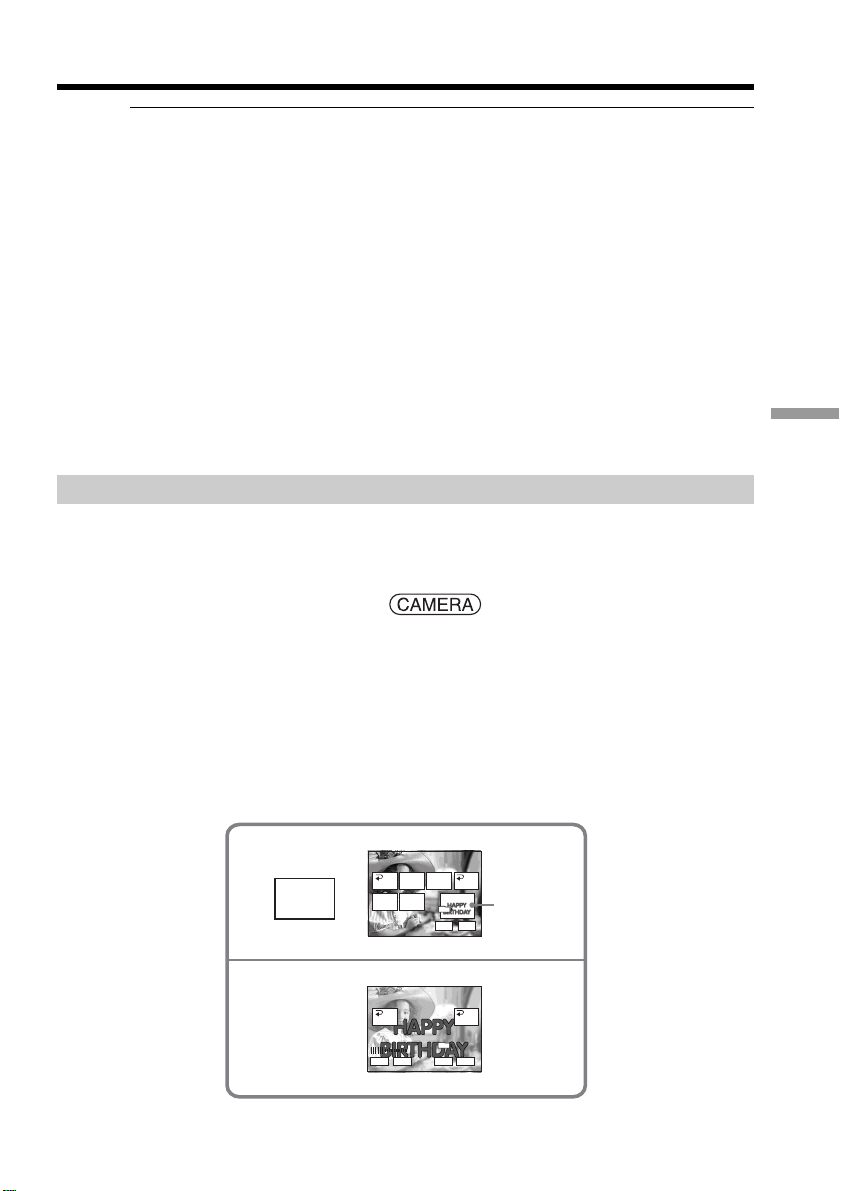
119
“Memory Stick” Operations
2
4
MEM
M
I
X
101–0001
+–
MEM MIX
MCCAM
LUMI
OVER–
LAP
OFF OK
MCCAM
CHROM
CAMCM
CHROM
M. LUMI
101–0001
+–
MEM MIX
OFF OK
+–
101
101
Still image
Notes
•You cannot use MEMORY MIX for moving pictures recorded on a “Memory Stick.”
•When the overlapping still image has a large amount of white, the thumbnail image of
the picture may not be clear.
•When you use MEMORY MIX in the mirror mode (p. 29), the picture on the LCD
screen appears normally without being mirror-reversed.
Image data modified with your computer
You may not be able to play back the images modified with your computer on your
camcorder.
The “Memory Stick” supplied with your camcorder stores 20 images:
– For M. CHROM: 18 images (such as a frame) 101-0001~101-0018
– For C. CHROM: two images (such as a background) 101-0019~101-0020
Sample images
Sample images stored in the “Memory Stick” supplied with your camcorder are
protected (p. 137).
Recording a superimposed image on a tape
Before operation
•Insert the “Memory Stick” containing still images into your camcorder.
•Insert a tape for recording into your camcorder.
The POWER switch should be set to .
Operate by touching the panel.
(1) Press FN and select PAGE2.
(2) Press MEM MIX. The image recorded on the “Memory Stick” appears on the
right lower part of the screen.
(3) Press – (to see the previous image)/+ (to see the next image) on the right lower
corner of the screen to select the still image that you want to superimpose.
(4) Press a desired mode. The still image is superimposed on the moving picture
during recording standby.
Superimposing a still image in the “Memory Stick” on an image
– MEMORY MIX
(continued on the following page)

120
Superimposing a still image in the “Memory Stick” on an image
– MEMORY MIX
(5) Press –/+ on the left lower corner of the screen to adjust the effect, then press
OK to return to PAGE2.
C. CHROM – The color (blue) scheme of the area in the moving image
which is to be swapped with a still picture
M. LUMI – The color (bright) scheme of the area in the still image which
is to be swapped with a moving picture
M. CHROM – The color (blue) scheme of the area in the still image which is
to be swapped with a moving picture
M. OVERLAP – No adjustment necessary
You can use M.OVERLAP only when the POWER switch is
set to CAMERA.
(6) Press EXIT to return to FN.
(7) Press START/STOP to start recording.
To change the still image to be superimposed
Press –/+ on the right lower corner before Step 5.
To cancel MEMORY MIX
Press OFF to return to PAGE2.
Note
In Step 4, you cannot reselect the mode. Press OFF to return to PAGE2.
When you select M. OVERLAP
You cannot change the still image or the mode.
During recording
You cannot change the mode.
To record still images as-is to the tape
Press –/+ on the left lower corner of the screen in the M. LUMI mode and keep going
until the bar display on the right is full.
Recording a superimposed image on a “Memory Stick” as a still
image
Before operation
Insert the “Memory Stick” containing still images into your camcorder.
Image size of still images is automatically set to 640 × 480.
The POWER switch should be set to .
Operate by touching the panel.
(1) Follow Step 1 to 6 on pages 119, 120.
(2) Press PHOTO deeply to start recording.
Recording is complete when the bar scroll indicator disappears. The image
displayed on the screen when you press PHOTO deeply is recorded on the
“Memory Stick.”
To cancel MEMORY MIX
Press OFF to return to PAGE2.
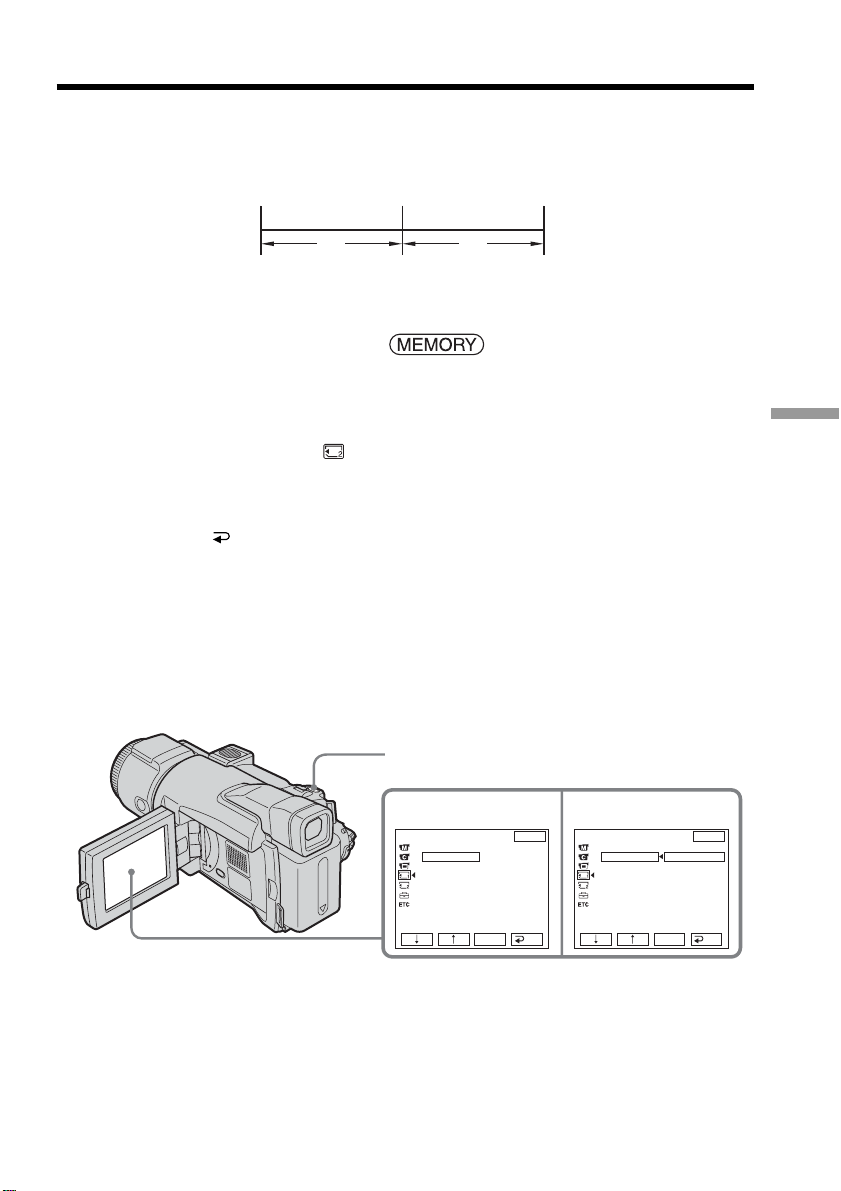
121
“Memory Stick” Operations
You can make a time-lapse recording by setting the camcorder to automatically record
still images.
The POWER switch should be set to .
Operate by touching the panel.
(1) Press FN to display PAGE1.
(2) Press MENU.
(3) Select INT. R-STL in
, then press EXEC.
(4) Select SET, then press EXEC.
(5) Select INTERVAL, then press EXEC.
(6) Select a desired interval time, then press EXEC.
(7) Press
RET.
(8) Set INT.R-STL to ON, then press EXEC.
(9) Press EXIT to return to FN.
The INTERVAL MEM STILL indicator flashes on the screen.
(10) Press PHOTO deeply.
Interval Photo Recording starts.
The INTERVAL MEM STILL indicator lights up on the screen during Interval
Photo Recording.
To cancel Interval Photo Recording
Set INT. R-STL to OFF.
Interval Photo Recording
[a] Memory Photo recording
[b] INTERVAL
[b]
[b]
[a][a][a]
45
MEM SET 2
INT. R -STL
INTERVAL
EXIT
RET.
EXEC
1MIN
5MIN
10MIN
MEM SET 2
INT. R -STL
INTERVAL
EXIT
RET.
EXEC
1MIN
PHOTO
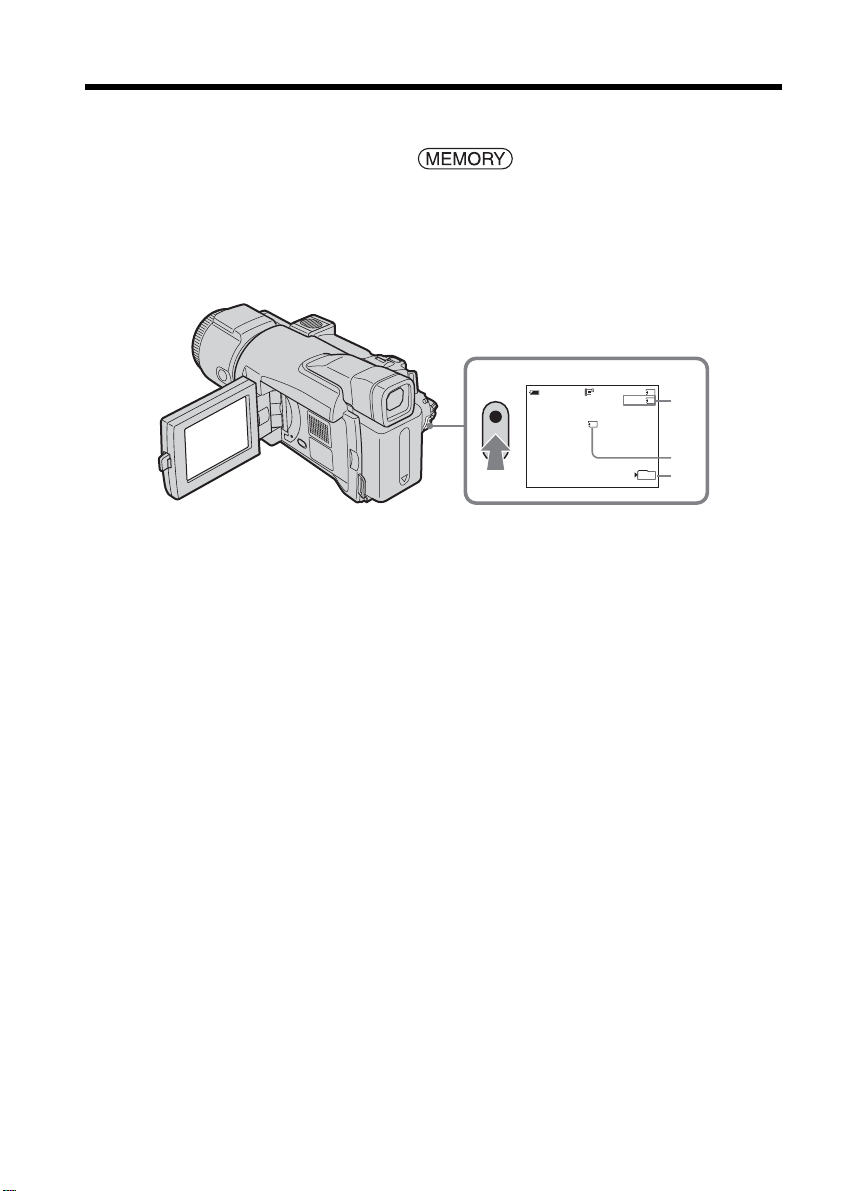
122
You can record moving pictures with sound on a “Memory Stick” (MPEG MOVIE EX).
The POWER switch should be set to .
Press START/STOP.
Your camcorder starts recording. The camera recording lamp located on the front of
your camcorder lights up.
The picture and sound are recorded up to the remaining capacity of the “Memory
Stick.” For details on recording time, see page 108.
To stop recording
Press START/STOP.
Recording moving pictures on a “Memory
Stick” – MPEG MOVIE recording
[a] Available recording time on the “Memory Stick”
[b] This indicator is displayed for about five seconds after pressing START/STOP. This
indicator is not recorded.
[c] Number of the folder currently used for recording
320
50min REC
15sec
BBB
0:00:00
[b]
[a]
[c]
101

123
“Memory Stick” Operations
Note
Sound is recorded in monaural.
When the POWER switch is set to MEMORY
The following functions do not work:
– Digital zoom
– Super NightShot
– Color Slow Shutter
– Wide mode
– Fader
– Picture effect
– Digital effect
– SPORTS of PROGRAM AE (The indicator flashes.)
– Title
– SteadyShot
When using an external flash (optional)
Turn the power of the external flash off when recording moving pictures on the
“Memory Stick.” Otherwise, the charging sound of the flash may be recorded.
Recording date/time
The date/time is not displayed during recording. However, it is automatically recorded
onto the “Memory Stick.” To display the recording date/time, press DATA CODE
during playback. Various settings cannot be recorded (p. 40).
Self-timer recording
You can record moving pictures on the “Memory Stick” with the self-timer. See page
124 for details.
Recording moving pictures on a “Memory Stick”
– MPEG MOVIE recording
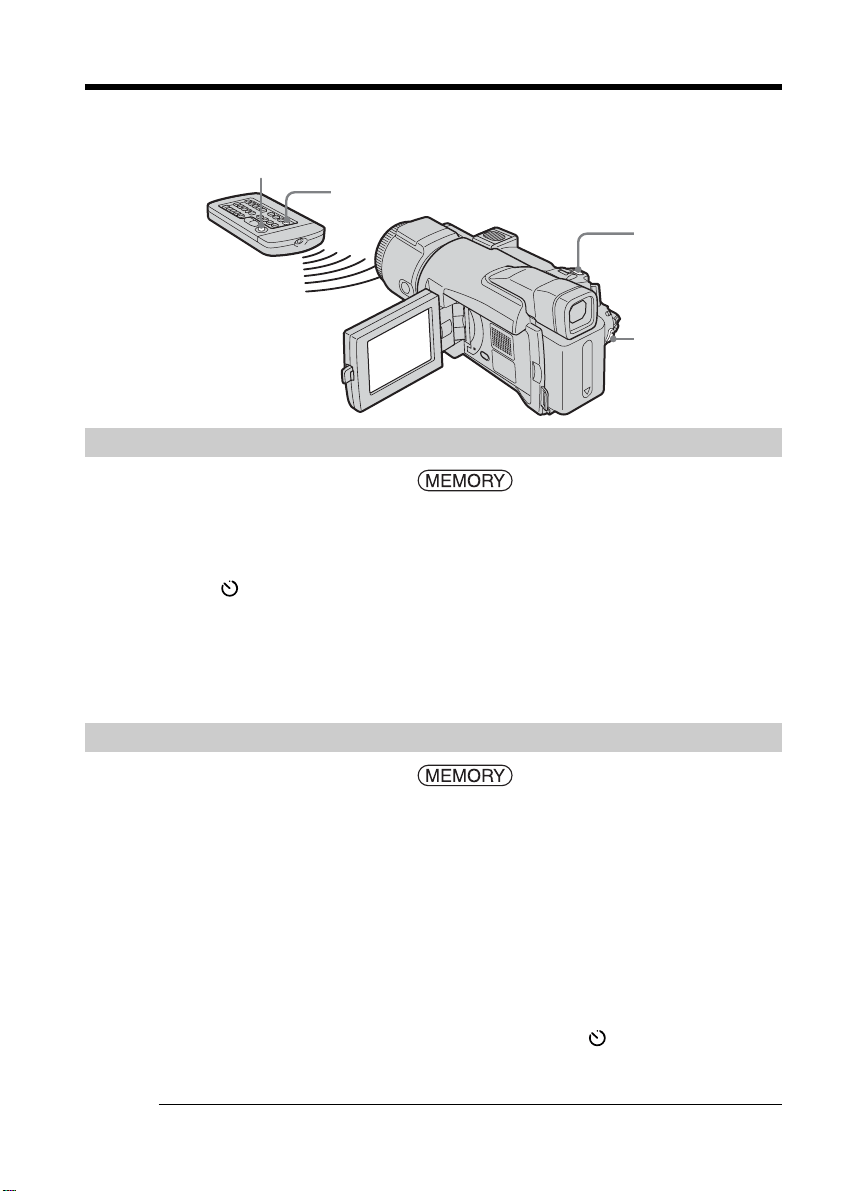
124
You can record still images and moving pictures on a “Memory Stick” with the self-
timer. You can also use the Remote Commander for this operation.
Recording a still image
The POWER switch should be set to .
Operate by touching the panel.
(1) Press FN and select PAGE2.
(2) Press SELFTIMER.
The
(self-timer) indicator appears on the screen.
(3) Press EXIT to return to FN.
(4) Press PHOTO deeply.
The self-timer starts counting down from about 10 with a beep. In the last two
seconds of the countdown, the beep gets faster, then recording starts
automatically.
Recording a moving picture
The POWER switch should be set to .
Operate by touching the panel.
(1) Follow Step 1 and 3 in “Recording a still image.”
(2) Press START/STOP.
The self-timer starts counting down from about 10 with a beep. In the last two
seconds of the countdown, the beep gets faster, then recording starts
automatically.
To stop the countdown while recording a moving picture
Press START/STOP. To restart the countdown, press START/STOP again.
To cancel the self-timer
With your camcorder in standby, press SELFTIMER and the (self-timer) indicator
disappears from the screen. You cannot cancel the self-timer using the Remote
Commander.
When self-timer recording is finished
The self-timer is automatically canceled.
Self-timer recording
PHOTO
START/STOP
PHOTO
START/STOP
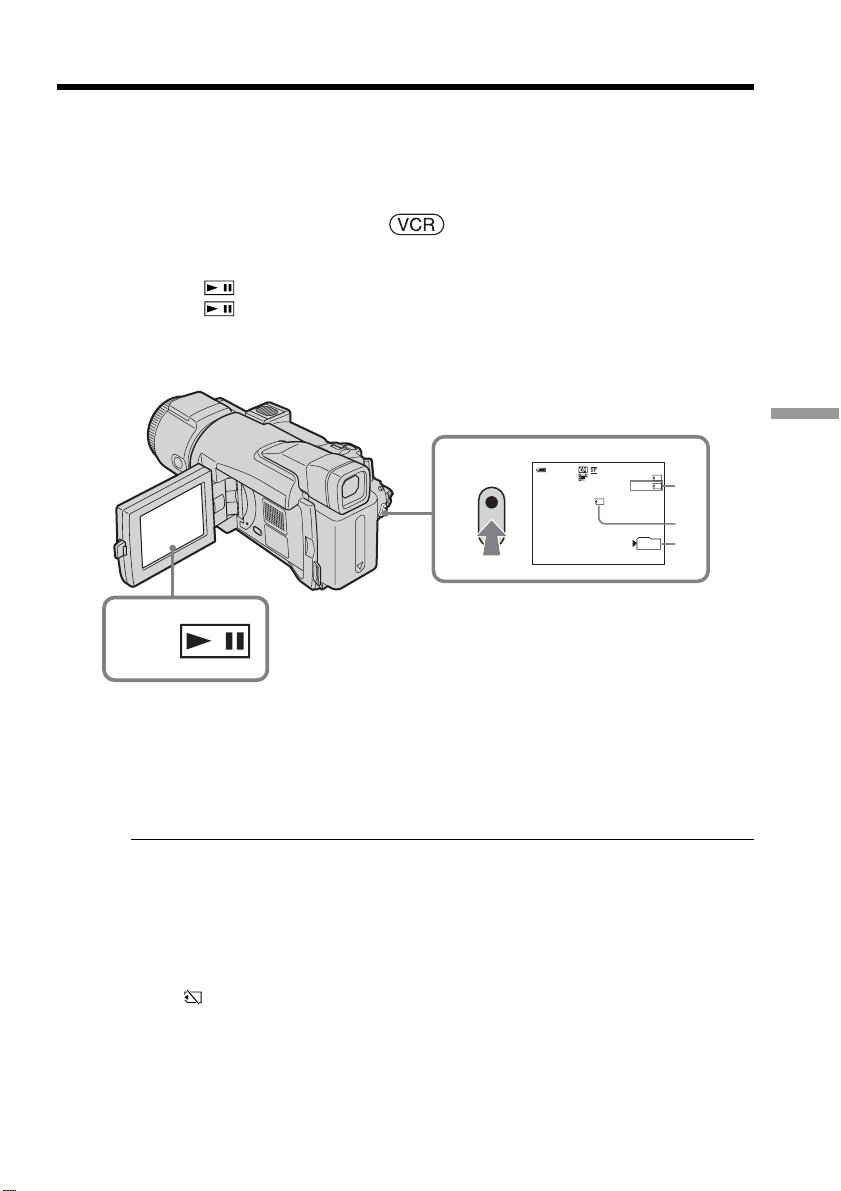
125
“Memory Stick” Operations
Recording a picture from a tape as a
moving picture
Your camcorder can read moving picture data recorded on a tape and record it as a
moving picture on a “Memory Stick.”
Before operation
Insert the recorded tape and a “Memory Stick” into your camcorder.
The POWER switch should be set to .
Operate by touching the panel.
(1) Press . The picture recorded on the tape is played back.
(2) Press
again to pause playback at the scene where you want to start
recording from.
(3) Press START/STOP. Images and sound are recorded on the “Memory Stick.”
For details on recording time, see page 108.
To stop recording
Press START/STOP.
Notes
•Sound recorded in 48 kHz is converted to 32 kHz sound when recording images from
a tape to a “Memory Stick.”
•Sound recorded in stereo is converted to monaural sound when recording from a tape.
Titles recorded on the tape
You cannot record the titles.
If the “ AUDIO ERROR” indicator appears
Sound that cannot be recorded by your camcorder has been recorded. Connect the A/V
connecting cable to input images from the external equipment used to play back the
image (p. 89).
Data Codes recorded on the tape
Data Codes recorded on the tape cannot be recorded on the “Memory Stick.”
The date/time when it is recorded on the “Memory Stick” is recorded. Various settings
are not recorded.
[a] Available recording time on the “Memory Stick”
[b] This indicator is displayed for about five seconds after pressing START/STOP. This
indicator is not recorded.
[c] Number of the folder currently used for recording
3
320
50min
REC
BBB
N
1,2
15sec
0:00:03
0:15:42:43
[b]
[a]
[c]
101

126
Recording a moving picture from other equipment
You can use either the A/V connecting cable or i.LINK cable.
Connect the equipment as illustrated on page 89.
When connecting with the A/V connecting cable, set DISPLAY in to LCD in the
menu settings. (The default setting is LCD.)
The POWER switch should be set to .
(1) Play back the recorded tape on the VCR, or turn the TV on to see a desired
program.
The image from the other equipment is displayed on the LCD screen or in the
viewfinder.
(2) Press START/STOP at the scene where you want to start recording from.
Note
Recording may abort unexpectedly or distorted images may be recorded in the
following cases:
– When there is a blank portion on the tape.
– When recording from the tape repeatedly used for dubbing and the recording state is
poor.
– When the input signal is cut off.
Recording a picture from a tape as a moving picture
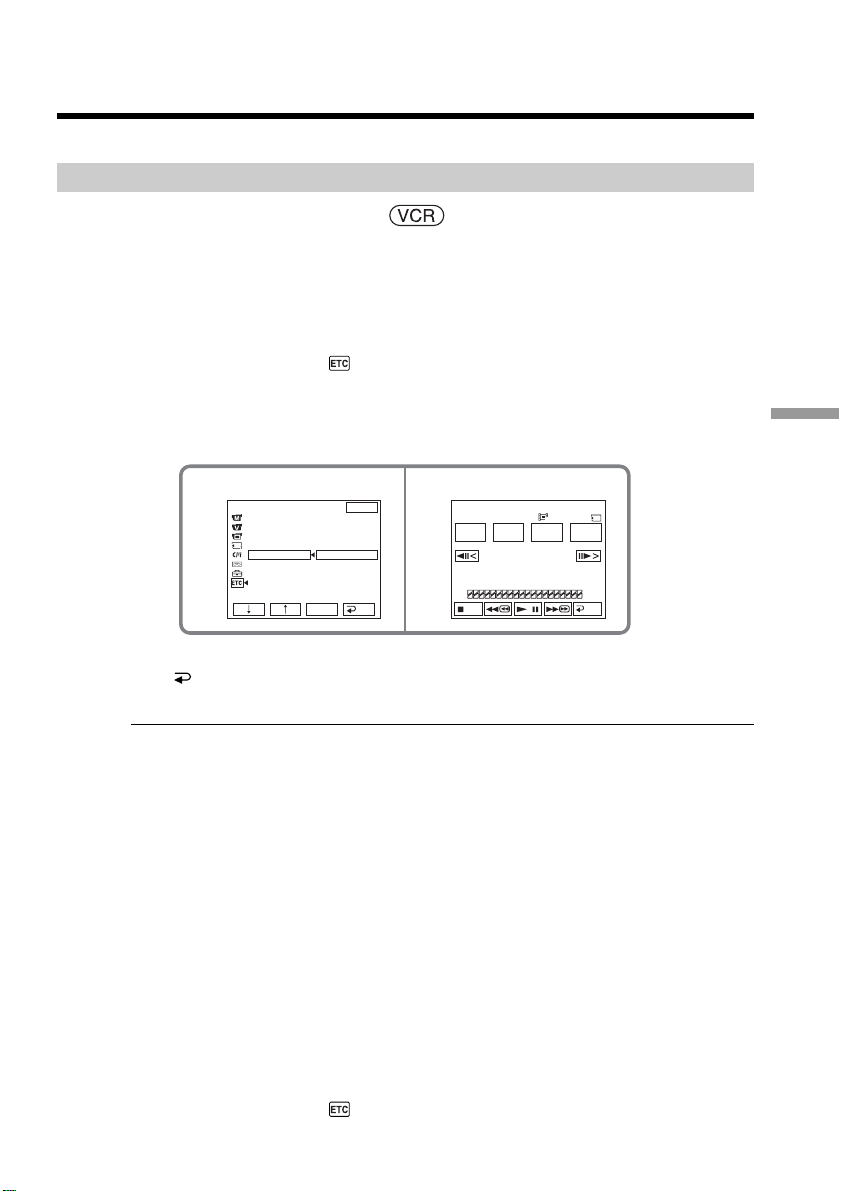
127
“Memory Stick” Operations
You can duplicate selected scenes (programs) for editing onto a “Memory Stick.”
Making a program
The POWER switch should be set to .
Operate by touching the panel.
(1) Insert the tape for playback, and a “Memory Stick” for recording into your
camcorder.
(2) Press FN to display PAGE1.
(3) Press MENU.
(4) Select VIDEO EDIT in
, then press EXEC.
(5) Select MEMORY, then press EXEC.
(6) Repeat pressing IMAGESIZE to select a desired size. The image size changes
each time you press IMAGESIZE.
(7) Follow Step 6 to 10 on page 86.
To finish making a program
Press END.
The program is stored in memory until the tape is ejected.
Notes
•You cannot dub the titles, display indicators or the contents of Cassette Memory.
•You cannot operate recording during Digital program editing on the “Memory Stick.”
On a blank portion of the tape
You cannot set IN or OUT.
If there is a blank portion between the IN point and the OUT point on the tape
The total time may not be displayed correctly.
While making a program
If you eject the cassette, the NOT READY indicator appears on the screen. The program
will be erased.
Erasing the program you have set
See “Erasing the program you have set” on page 87.
Erasing all programs
(1) Press FN to display PAGE1.
(2) Press MENU.
(3) Select VIDEO EDIT in
, then press EXEC.
(4) Select MEMORY, then press EXEC.
(5) Follow Step 2 to 4 on page 87.
Recording edited pictures from a tape as
a moving picture – Digital program
editing (on a “Memory Stick”)
45
OTHERS
DATA CODE
BEEP
COMMANDER
DISPLAY
V
I
DEO ED
I
T
EXIT
RET.
EXEC
0:32:30:14
TOTAL
SCENE
0:00:00
0
V I DEO ED I T
MARK
I
N
START
IMAGE
SIZE
UNDO
END
RETURN
TAPE
MEMORY
320
15sec

128
Recording edited pictures from a tape as a moving picture
– Digital program editing (on a “Memory Stick”)
Performing the program (Dubbing on a “Memory Stick”)
The POWER switch should be set to .
Operate by touching the panel.
(1) Press FN to display PAGE1.
(2) Press MENU.
(3) Select VIDEO EDIT in
, then press EXEC.
(4) Select MEMORY, then press EXEC.
(5) Press START.
(6) Press EXEC.
Your camcorder searches for the beginning of the first program, then starts
dubbing.
The program mark flashes.
The SEARCH indicator appears during search, the EDITING indicator appears
while storing data in your camcorder, and the REC indicator appears on the
screen during dubbing on the “Memory Stick.”
When dubbing ends, your camcorder automatically stops.
To stop dubbing
Press CANCEL.
The program you have made is recorded on the “Memory Stick” up to the point where
you press CANCEL.
To end Digital program editing
Your camcorder stops when dubbing ends. Then the display returns to VIDEO EDIT in
the menu settings.
Press END to end Digital program editing function.
Note
Recording may abort unexpectedly or distorted images may be recorded in the
following cases:
– When there is a blank portion on the tape.
– When recording from the tape repeatedly used for dubbing and the recording state is
poor.
The NOT READY indicator appears on the screen when:
– The program to operate Digital program editing has not been made.
– The “Memory Stick” is not inserted.
– The write-protect tab on the “Memory Stick” is set to LOCK.
When the available recording time of the “Memory Stick” is not enough
The LOW MEMORY indicator appears on the screen. However, you can record pictures
up to the time indicated.
When the program has not been set
You cannot press START.
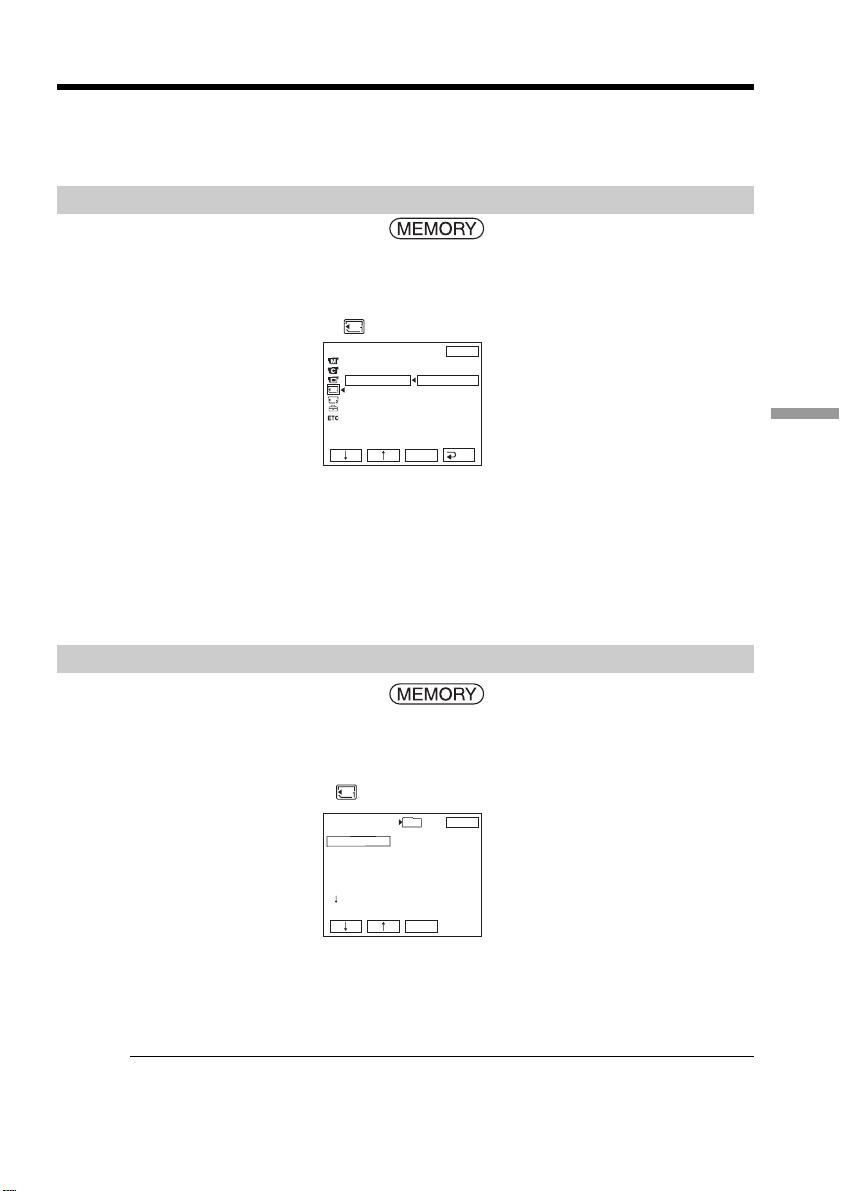
129
“Memory Stick” Operations
Changing the recording folder
You can create multiple folders up to “999MSDCF” in a “Memory Stick.”
When you have recorded a lot of image files on the “Memory Stick,” you can assort the
files using multiple folders for your convenience.
The “101MSDCF” folder is set for the recording folder as the default setting.
Creating a new folder
The POWER switch should be set to .
Operate by touching the panel.
(1) Press FN to display PAGE1.
(2) Press MENU.
(3) Select NEW FOLDER in
, then press EXEC.
(4) Select ADD, then press EXEC. A new folder is created. The maximum
number+1 is assigned for the newly created folder. A newly created folder is
automatically set for the recording folder.
To return to FN
Press EXIT.
To cancel creating a new folder
Select RETURN in Step 4, then press EXEC.
Choosing the recording folder
The POWER switch should be set to .
Operate by touching the panel.
(1) Press FN to display PAGE1.
(2) Press MENU.
(3) Select REC FOLDER in
, then press EXEC.
(4) Press r (to move to the next folder) /R (to move to the previous folder) to select
a folder you want to use for recording, then press EXEC.
To return to FN
Press EXIT.
Notes
•Up to 9999 image files can be recorded in each folder. When a folder is full, a new
folder is automatically created.
•Once a folder is created, it cannot be deleted with your camcorder.
•The more folders you have created, the less the remaining capacity of the “Memory
Stick” becomes.
MEM SET 1
STILL SET
MOVIE SET
NEW FOLDER
REC FOLDER
FILE NO.
EXIT
RET.
EXEC
ADD
RETURN
ADD FOLDER
102MSDCF
REC FOLDER
101MSDCF
102MSDCF
103MSDCF
104MSDCF
105MSDCF
106MSDCF
EXIT
EXEC
DATE:
JUL 4 2003
12:24:24PM
FILES:
40
101
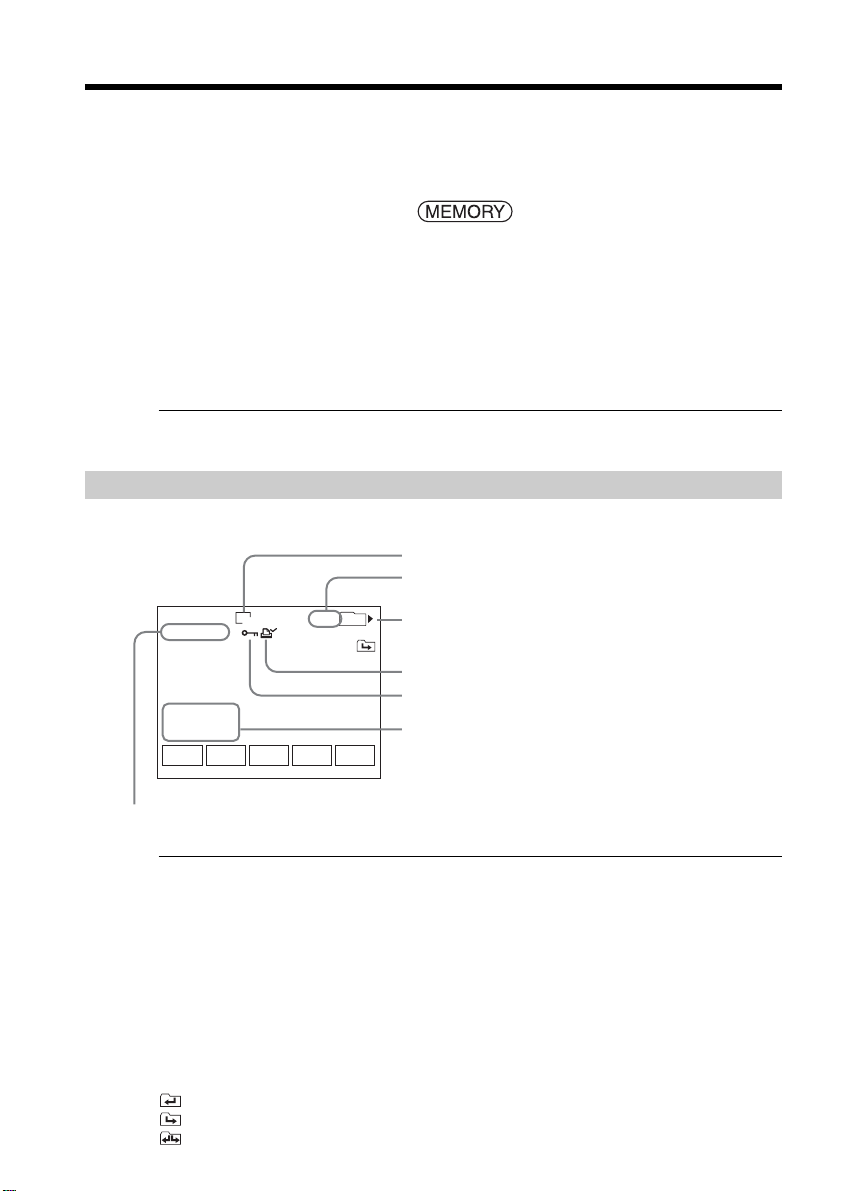
130
You can view the still images recorded on the “Memory Stick.” And furthermore, you
can play back six images including moving pictures at a time arranged in the order of
recording on the “Memory Stick” by selecting the index screen. You can also use the
Remote Commander for this operation.
The POWER switch should be set to .
Operate by touching the panel.
(1) Press PLAY. The last recorded image is displayed.
(2) Press – (to see the previous image)/+ (to see the next image) on your
camcorder to select a desired still image.
To cancel Memory Photo playback
Press CAM.
When no file is in the folder
The “NO FILE AVAILABLE” indicator appears.
Screen indicators during still image playback
To make screen indicators disappear, press DISPLAY/BATT INFO.
Recording data
To display the recording data (date/time or various settings when recorded), press
DATA CODE during playback. You can also use the Remote Commander for this
operation (p. 40).
Notes on the data file number
•The folder number may not appear and only the file name may appear if the structure
of the folder does not conform to the DCF standard.
•The file name flashes on the screen if the file is corrupted or the file is unreadable.
When a “Memory Stick” contains multiple folders
The following icons appear on the screen on the first or last images in a current folder.
: You can move to the previous folder.
: You can move to the next folder.
: You can move to both the previous and the next folders.
Viewing a still image
– Memory Photo playback
6/6
101–0006
1600
101
JUL 4 2003
12:05:56 PM
FNINDEXCAM
+–
MEMORY PLAY
Image number/Total number of recorded images
in the current playback folder
Image size
Data file number
Protect
Print mark
Recording date/time/Various settings
Playback folder
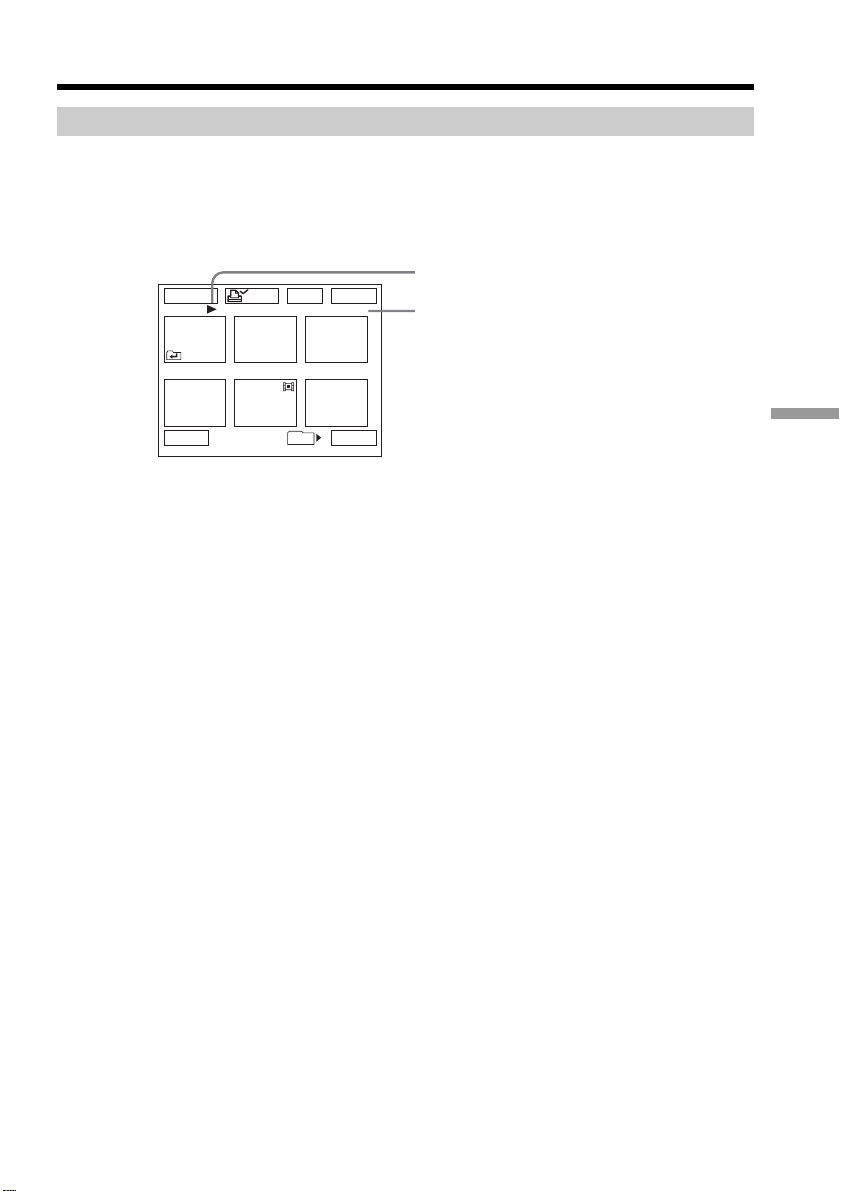
131
“Memory Stick” Operations
Playing back six recorded images at a time (index screen)
This function is especially useful when searching for a particular image.
Press INDEX to display the index screen.
A red B mark appears above the image that appeared on the full screen before changing
to the index screen mode.
T : To display the previous six images
t : To display the next six images
To return to FN
Press EXIT.
To return to the normal playback screen (single screen)
Press the image you want to display.
Viewing a still image – Memory Photo playback
1 / 40
123
456
EXITDEL
MARK
-
MARK
T t
101
B mark
This number indicates the order
in which images are recorded on
the “Memory Stick.”
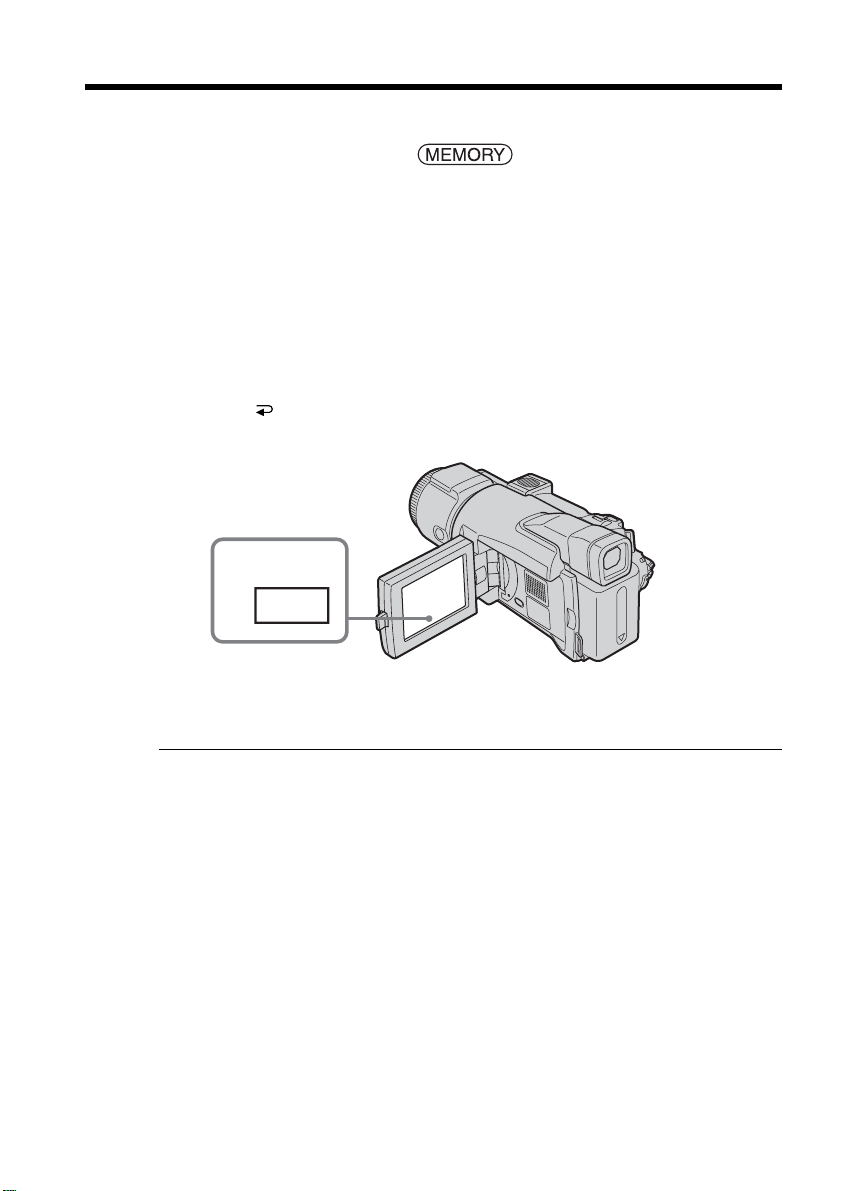
132
You can view moving pictures recorded on the “Memory Stick.”
The POWER switch should be set to .
Operate by touching the panel.
(1) Press PLAY. The last recorded image appears.
(2) Press – (to see the previous picture)/+ (to see the next picture) to select a
desired moving picture.
(3) Press MPEG N X to start playback.
(4) Adjust the volume following the steps below.
1 Press FN and select PAGE3.
2 Press VOL. The screen to adjust the volume appears.
3 Press – (to turn down the volume)/+ (to turn up the volume) to adjust the
volume.
4 Press
OK to return to PAGE3.
5 Press EXIT to return to FN.
To cancel MPEG MOVIE playback
Press MPEG N X.
When no file is in the folder
The “NO FILE AVAILABLE” indicator appears.
Viewing a moving picture
– MPEG MOVIE playback
1
PLAY
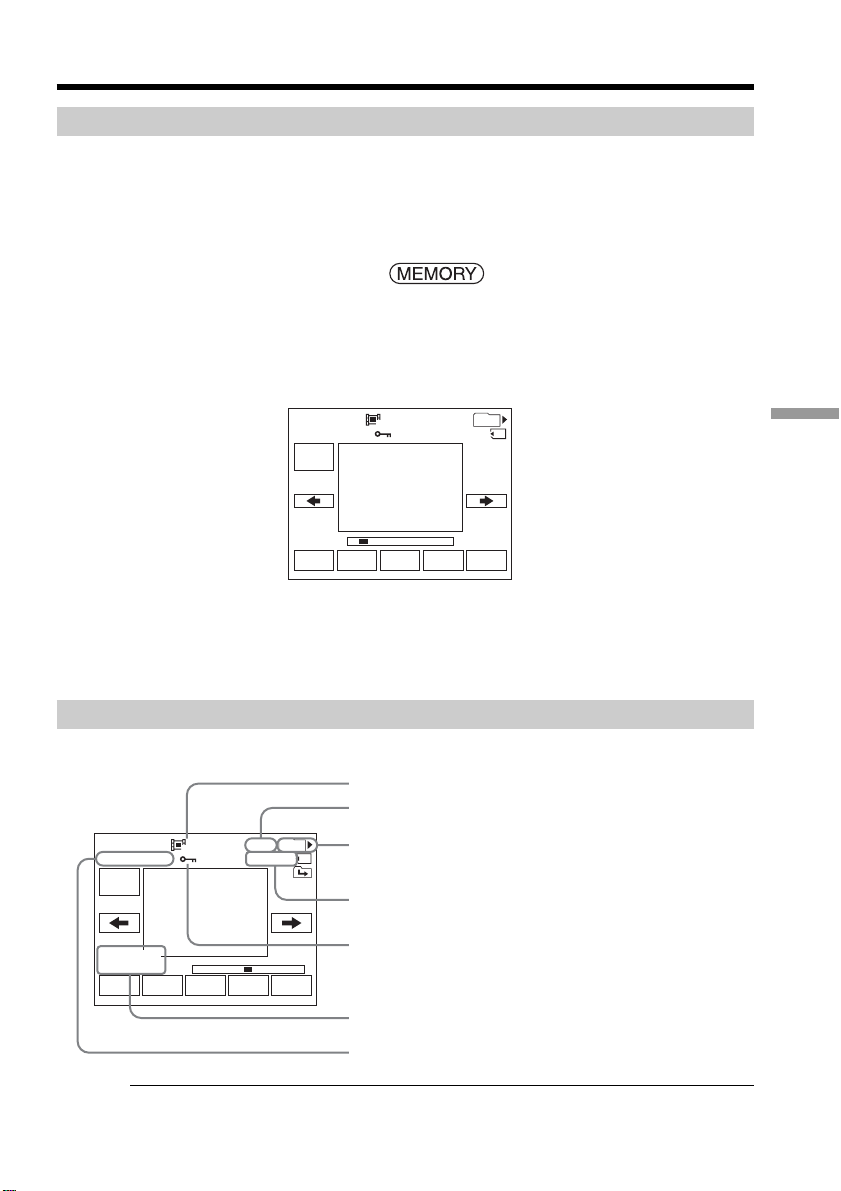
133
“Memory Stick” Operations
Playing back a moving picture from a desired part
The moving picture recorded on the “Memory Stick” is divided into multiple parts.
You can select one of them and start playing back the picture from the scene you want
to see. The moving picture is divided into up to 60 parts. The number of divided parts
differs depending on recording time. When the recording time is extremely short, the
moving picture is not divided.
The POWER switch should be set to .
Operate by touching the panel.
(1) Follow Step 1 and 2 on page 132.
(2) Press < (to see the previous part)/, (to see the next part) to select the part
you want to play back.
(3) Follow Step 3 and 4 on page 132.
To cancel MPEG MOVIE playback
Press MPEG N X.
Screen indicators during moving picture playback
To make screen indicators appear or disappear, press DISPLAY/BATT INFO.
Recording date/time
To display the recording date/time, press DATA CODE during playback. You can also
use the Remote Commander for this operation (p. 40).
Viewing a moving picture – MPEG MOVIE playback
FN
MPEG
N X
INDEXCAM
+–
320
0
:
00
:
03MOV00001
1/20
101
FN
MPEG
N X
INDEXCAM
+–
320
M O V
0 0 0 0 6
6 /
6
0:00:12
101
JUL 4 2003
12:05:56 PM
Picture number/Total number of recorded pictures in
the current playback folder
Image size
Data file number
Protect
Memory playback time
Recording date/time (Various settings appear as
“– – –”.)
Playback folder
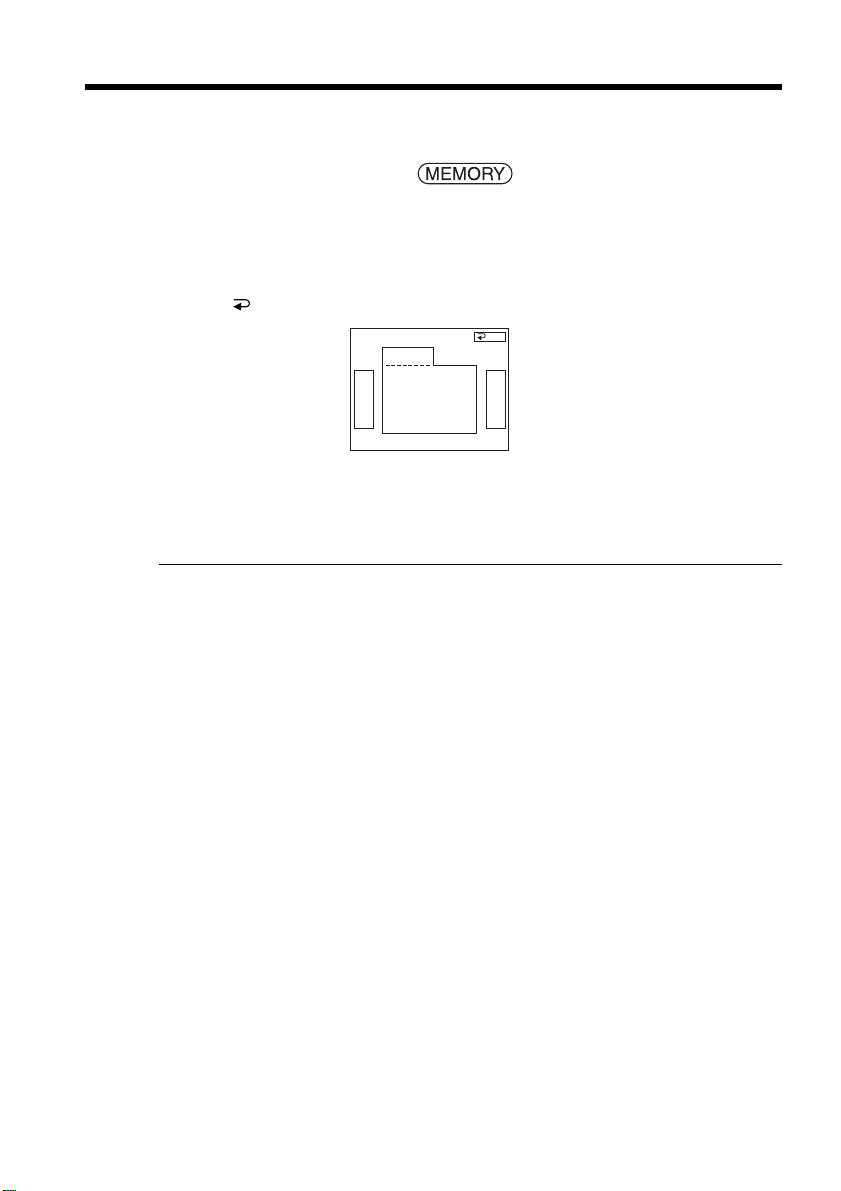
134
You can change the folder currently chosen for playback. The currently chosen folder is
displayed in the upper right on the screen.
The POWER switch should be set to .
Operate by touching the panel.
(1) Press FN to display to PAGE1.
(2) Press PB FOLDR.
(3) Press –/+ to select the folder number you want to choose for playback, then
press
END to return to PAGE1.
–:To select the previous folder
+:To select the next folder
(4) Press EXIT. The images in the playback folder are played back.
Note
Your camcorder does not recognize folder names created or changed on the computer.
Current playback folder
The current playback folder is valid until the next recording is made. Once you record
an image, the current recording folder becomes the current playback folder.
Choosing the playback folder
PB FOLDER
101
FOLDER NAME :
101MSDCF
DATE :
JUL 4 2003
12:24:24PM
FILES: 40
END
+–
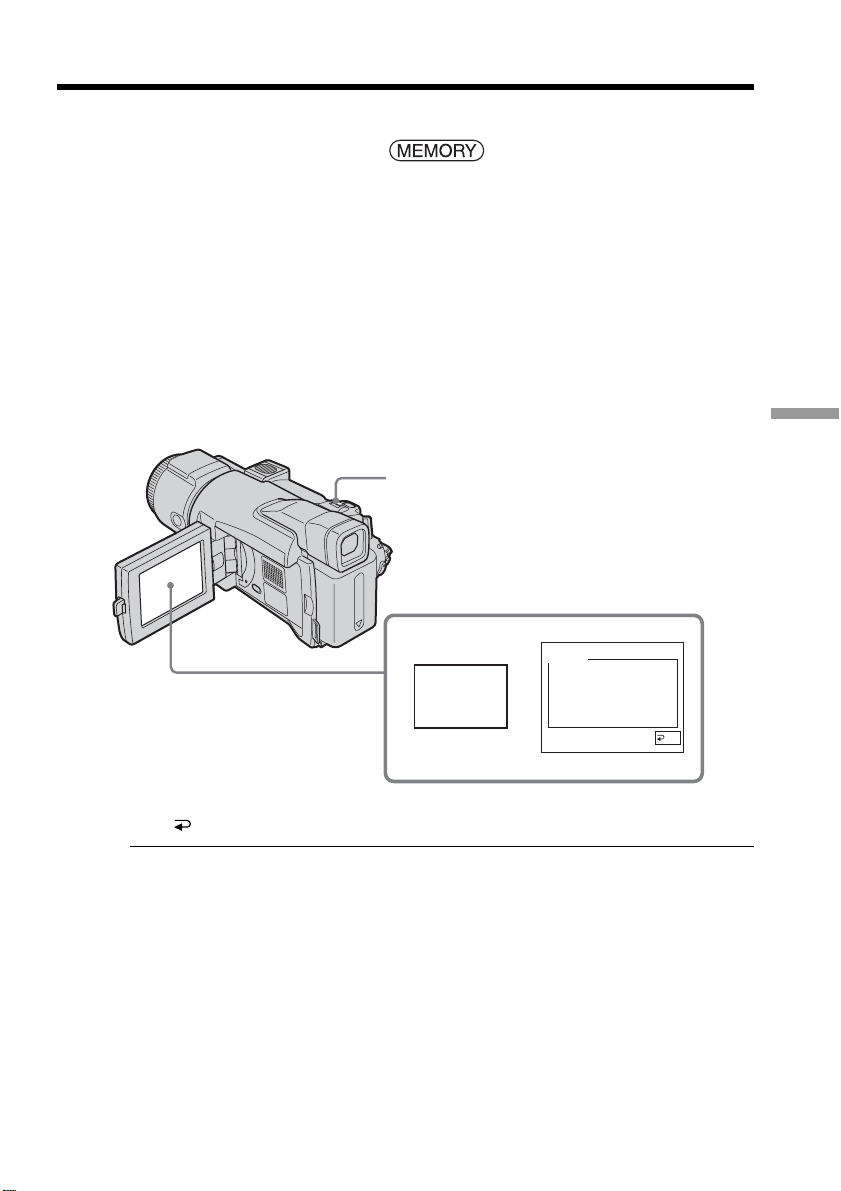
135
“Memory Stick” Operations
You can enlarge still images on the screen and view a desired part of them.
The POWER switch should be set to .
Operate by touching the panel.
(1) Play back the image to enlarge in the frame.
(2) Press FN and select PAGE2.
(3) Press PB ZOOM. The PB ZOOM screen appears.
(4) Press the area you want to enlarge in the frame.
The area you have pressed moves to the center of the screen, and the playback
image is enlarged to approximately at twice the size. If you press another area
again, the area moves to the center of the screen.
(5) Adjust the zoom ratio by the power zoom lever.
You can select the image from approximately 1.1 times up to five times its size.
W: To decrease the zoom ratio
T:To increase the zoom ratio
To cancel memory PB ZOOM
Press END.
Memory PB ZOOM is canceled when you press the following buttons on the
Remote Commander:
– MEMORY PLAY
– MEMORY INDEX
– MEMORY +/–
In memory PB ZOOM
If you press DISPLAY/BATT INFO, the frame on the memory PB ZOOM screen
disappears. You cannot move the part you have pressed to the center of the screen.
Edge of the image
The edge of the image cannot be displayed at the center of the screen.
Moving pictures recorded on the “Memory Stick”
Memory PB ZOOM does not work.
To record images processed with memory PB ZOOM on the “Memory Stick”
Press PHOTO to record images during display. The image size is 640 × 480.
Enlarging still images recorded on a
“Memory Stick” – Memory PB ZOOM
3
PB
ZOOM
END
PB ZOOM
MEMORY PLAY
Power zoom lever
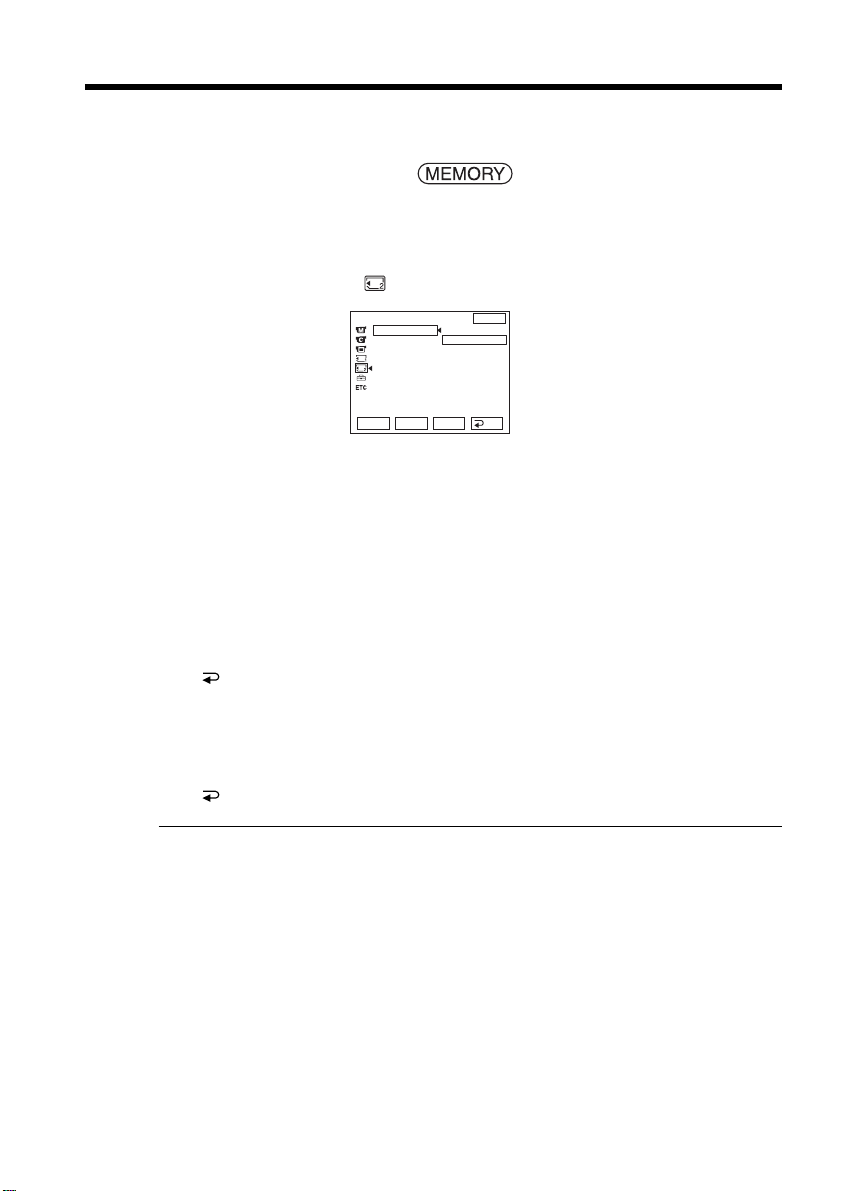
136
You can play back all the images in the “Memory Stick” or in the specified folder using
Slide show.
The POWER switch should be set to .
Operate by touching the panel.
(1) Press FN to display PAGE1.
(2) Press MENU.
(3) Select SLIDE SHOW in
, then press EXEC.
(4) Select ALL FILES or FOLDER sss *, then press EXEC.
ALL FILES : To play back all the images in the “Memory Stick”
FOLDER sss *: To play back all the images in the folder selected with PB
FOLDER
* The folder number is displayed in the sss.
(5) Press START. Your camcorder plays back the images recorded on the
“Memory Stick” in sequence. When all the images have been played back, slide
show automatically stops and the first image is displayed on the screen.
To cancel slide show
Press END.
To pause slide show
Press PAUSE.
To return to FN
Press END to return to PAGE1, then press EXIT.
To start slide show from a particular image
Select a desired image using –/+ buttons before Step 5.
Playing back images continuously
– Slide show
SL
I
DE SHOW
INT. R –STL
DELETE ALL
FORMAT
RETURN
ALL FILES
FOLDER 101
MEM SET 2
EXIT
RET.
EXEC
Rr
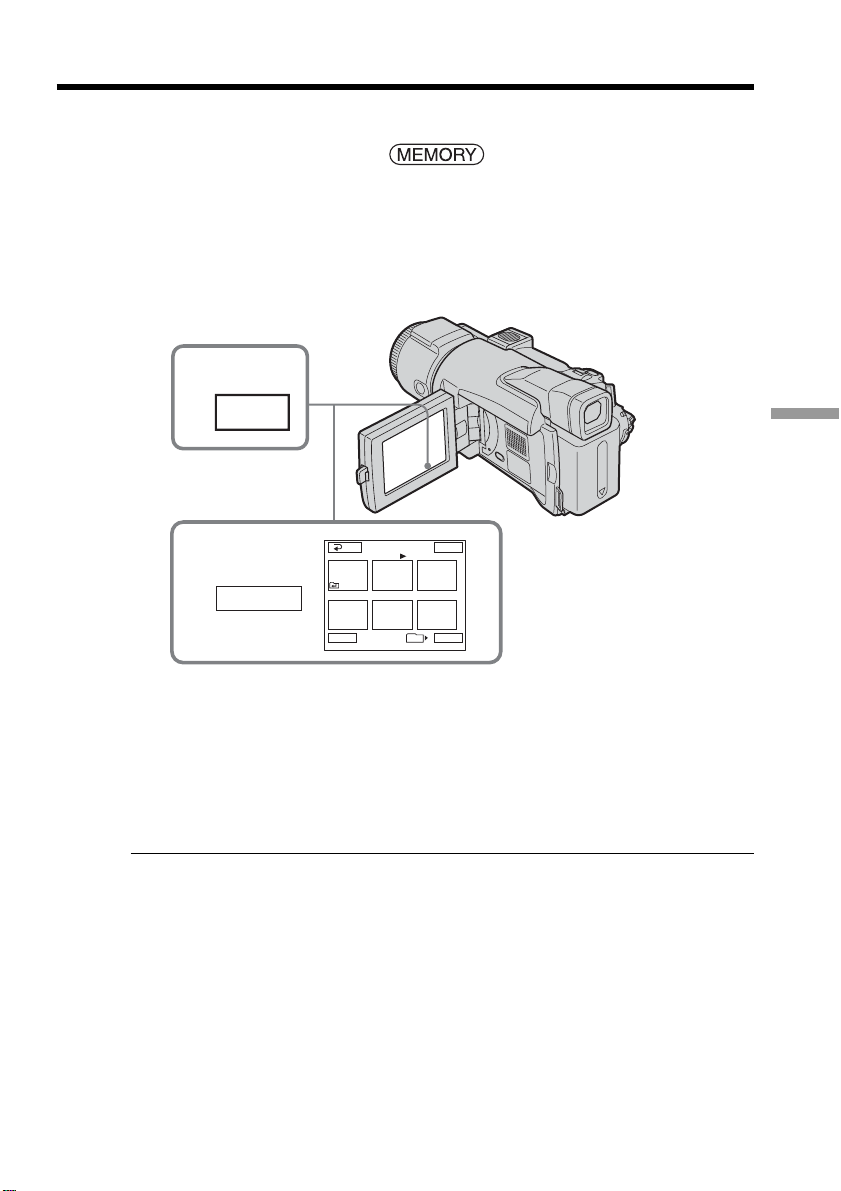
137
“Memory Stick” Operations
To prevent accidental erasure of important images, you can protect selected images.
The POWER switch should be set to .
Operate by touching the panel.
(1) Press INDEX.
(2) Press - MARK. The screen to protect the image appears.
(3) Press the image you want to protect. A - indicator appears above the
protected image.
To return to FN
Press EXIT.
To cancel image protection
Press the image you want to cancel image protection in Step 3 again.
The - indicator disappears from the image.
Note
Formatting erases all information on the “Memory Stick,” including the protected
image data. Check the contents of the “Memory Stick” before formatting.
If the write-protect tab on the “Memory Stick” is set to LOCK
You cannot set or cancel protection on images.
Preventing accidental erasure
– Image protection
101
1
INDEX
2,3
123
45
6
EXIT
RET.
-
MARK
-
2 / 40
T t
-
MARK
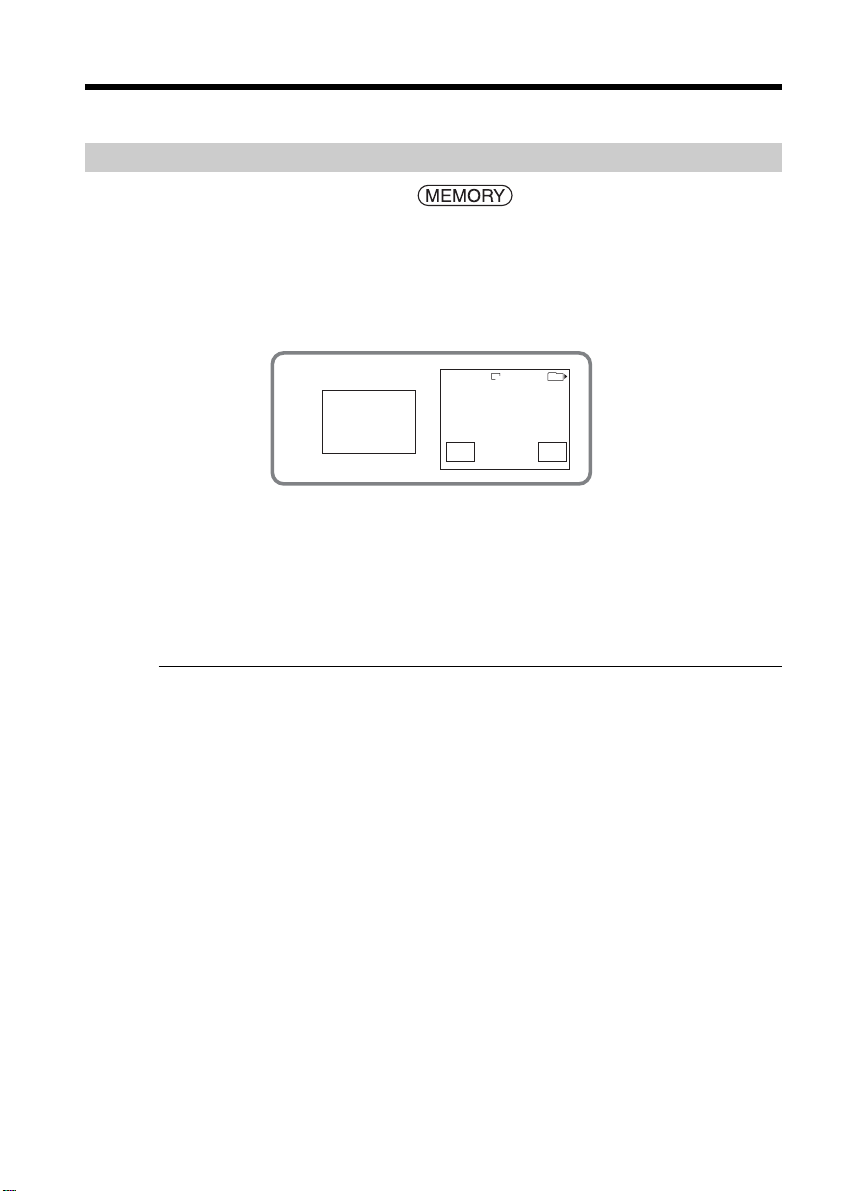
138
You can delete all the images or selected images.
Deleting selected images
The POWER switch should be set to .
Operate by touching the panel.
(1) Play back the image you want to delete.
(2) Press FN to display PAGE1.
(3) Press DEL. The DELETE? indicator appears on the screen.
(4) Press OK. The selected image is deleted.
To return to FN
Press EXIT.
To cancel deleting an image
Press CANCEL in Step 4.
Notes
•To delete a protected image, first cancel image protection.
•Once you delete an image, you cannot restore it. Check the images to delete carefully
before deleting them.
If the write-protect tab on the “Memory Stick” is set to LOCK
You cannot delete images.
Deleting images – DELETE
3
DEL
DELETE
101–0003
DELETE?
OK
CAN–
CEL
3/40
101
1600
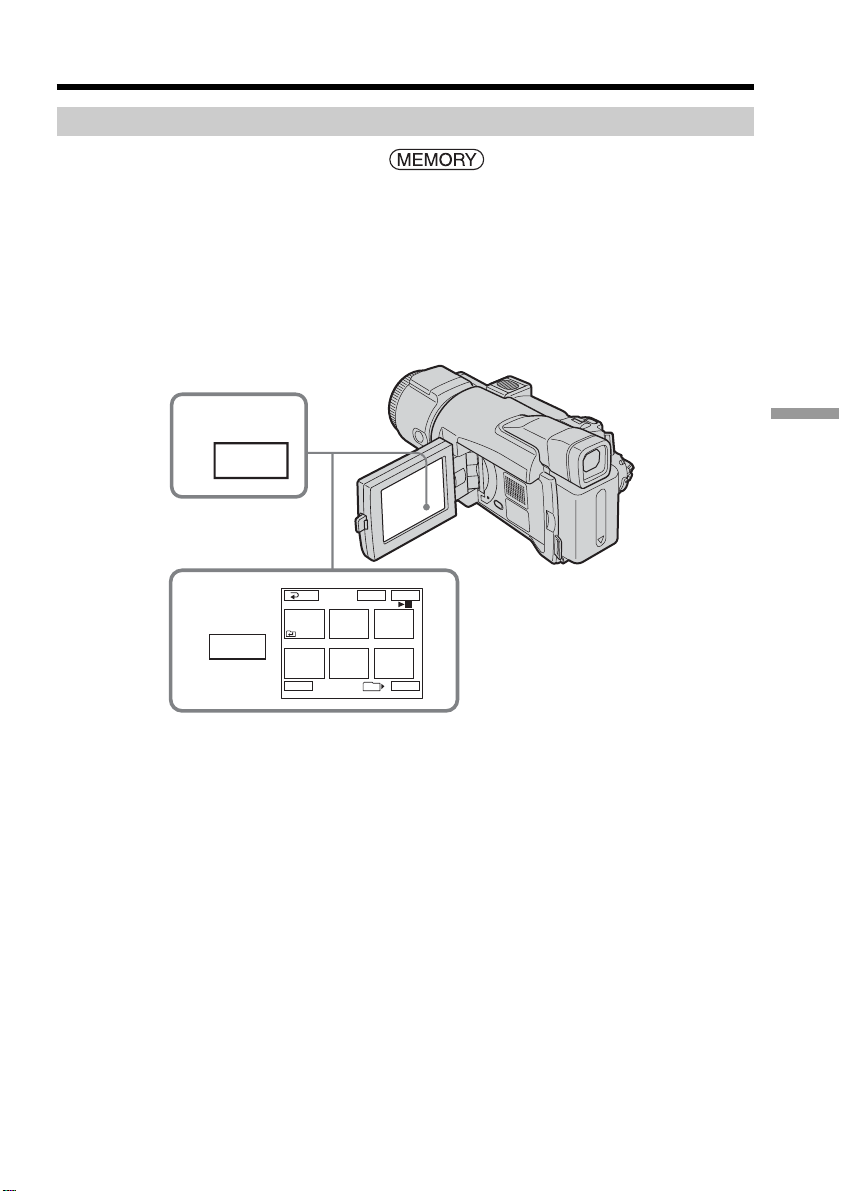
139
“Memory Stick” Operations
Deleting selected images on the index screen
The POWER switch should be set to .
Operate by touching the panel.
(1) Press INDEX.
(2) Press DEL. Then press the image you want to delete. The number of the
selected image is highlighted.
You can specify and delete up to a hundred image files at once.
(3) Press EXEC. The DELETE? indicator appears on the screen.
(4) Press OK. The selected images are deleted.
To return to FN
Press EXIT.
To cancel deleting an image
Press CANCEL in Step 4.
Deleting images – DELETE
1
INDEX
2
1
3
2
45
6
EXITDEL EXEC
DEL
Tt
RET.
101
3 / 40
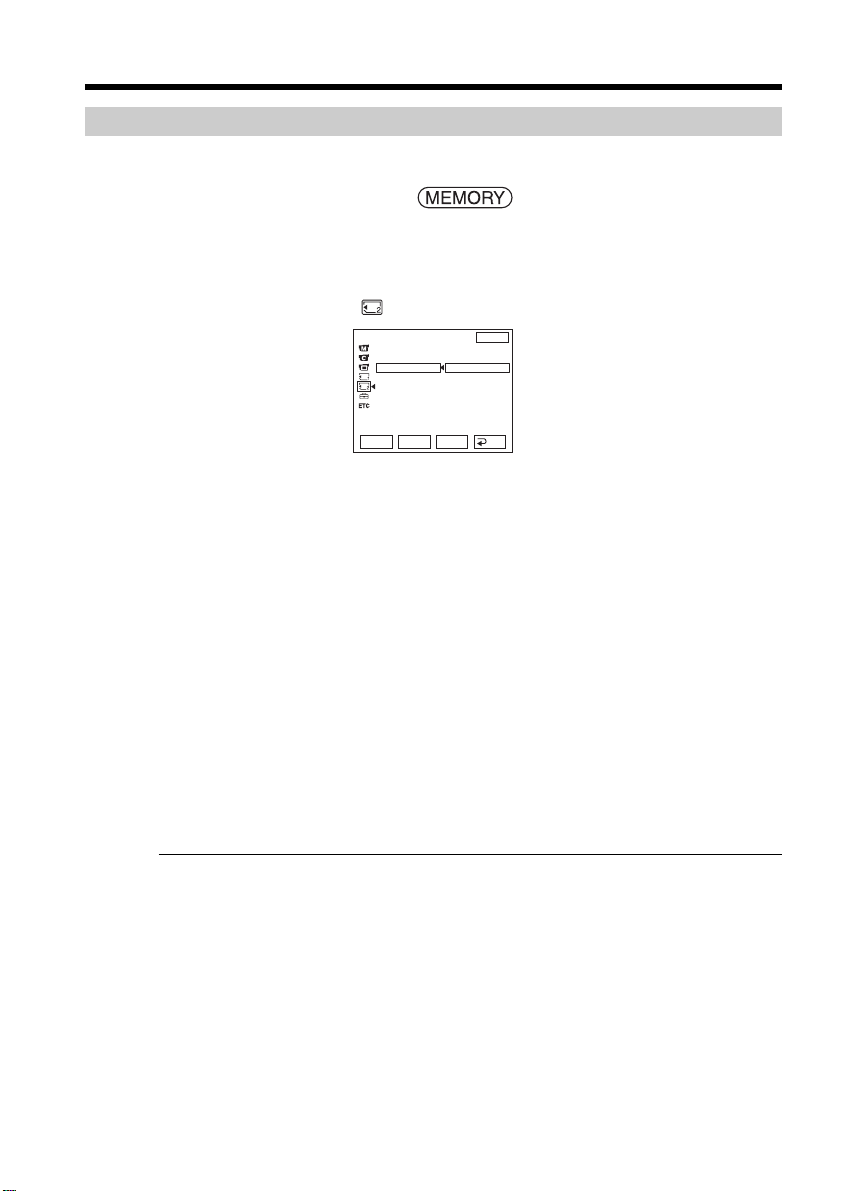
140
Deleting all the images
You can delete all the unprotected images in the “Memory Stick.”
The POWER switch should be set to .
Operate by touching the panel.
(1) Press FN to display PAGE1.
(2) Press MENU.
(3) Select DELETE ALL in
, then press EXEC.
(4) Select ALL FILES or FOLDER sss *, then press EXEC.
ALL FILES: To delete all the images in the “Memory Stick”
FOLDER sss *:To delete all the images in the folder selected with PB
FOLDER
* The folder number is displayed in the sss.
(5) Select OK, then press EXEC.
OK changes to EXECUTE.
(6) Select EXECUTE, then press EXEC.
The DELETING indicator appears, then flashes on the screen.
When all the unprotected images are deleted, the COMPLETE indicator
appears.
To return to FN
Press EXIT.
To cancel deleting all the images in the “Memory Stick”
Select RETURN in Step 5 or 6, then press EXEC.
While the DELETING indicator appears
Do not turn the POWER switch to other positions or press any buttons.
Even if you delete all the images
You cannot delete the folders.
Deleting images – DELETE
SL
I
DE SHOW
INT. R –STL
DELETE ALL
FORMAT
RETURN
ALL FILES
FOLDER 101
MEM SET 2
EXIT
RET.
EXEC
Rr
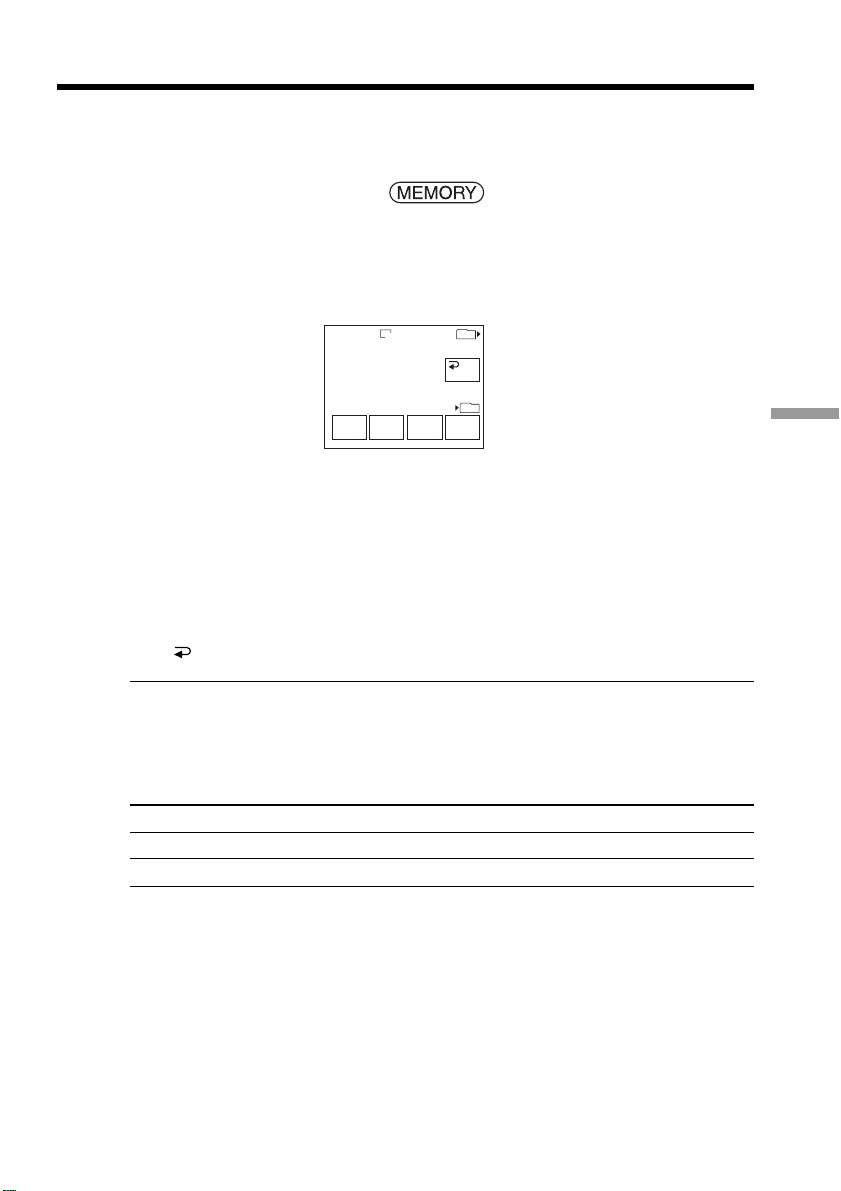
141
“Memory Stick” Operations
Changing the image size – Resize
You can change the size of recorded still images to 640 × 480 or 320 × 240. Use this
function when you reduce the size of the image file to attach it to an e-mail. The original
image is retained even after resizing.
The POWER switch should be set to .
Operate by touching the panel.
(1) During memory playback, press FN and select PAGE2.
(2) Press RESIZE.
The RESIZE screen appears.
(3) Press 640 × 480 or 320 × 240.
The image is recorded as the most recent file in the currently chosen recording
folder.
To change still images
Press –/+ before Step 3.
To return to FN
Press END to return to PAGE2, then press EXIT.
Notes
•You cannot resize the picture recorded with MPEG MOVIE recording.
•You may not be able to resize image files recorded on other equipment.
•When resizing the image file, you cannot specify FINE or STANDARD for it.
Memory capacity of still images after resizing
Image size Memory capacity
640 × 480 About 150 KB
320 × 240 About 16 KB
3/40
1600
–+
RESIZE
END
320 ×
240
640 ×
480
101
101
101–0003
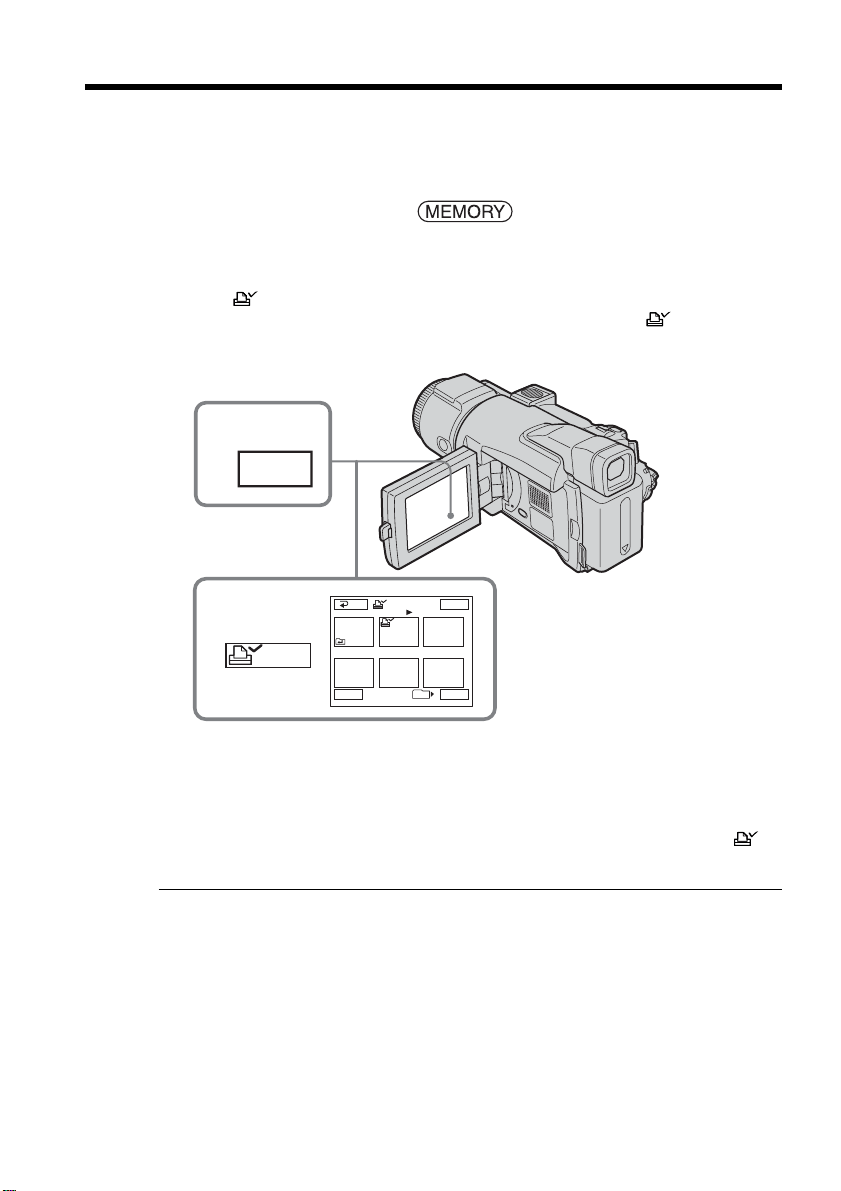
142
This function is useful for printing out still images later.
(You cannot specify the number for printouts.)
Your camcorder conforms with the DPOF (Digital Print Order Format) standard for
specifying still images to print out.
The POWER switch should be set to .
Operate by touching the panel.
(1) Press INDEX.
(2) Press
MARK. The screen to write a print mark appears.
(3) Press the image for which you want to write a print mark. A
appears
above the selected image.
To return to FN
Press EXIT.
To cancel writing print marks
Press the image for which you want to cancel the print mark in Step 3 again. The
disappears from the image.
If the write-protect tab on the “Memory Stick” is set to LOCK
You cannot write or cancel print marks on still images.
Moving pictures
You cannot write print marks on moving pictures.
Writing a print mark – Print mark
1
INDEX
2,3
123
45
6
EXIT
MARK
MARK
Tt
RET.
101
2 / 40
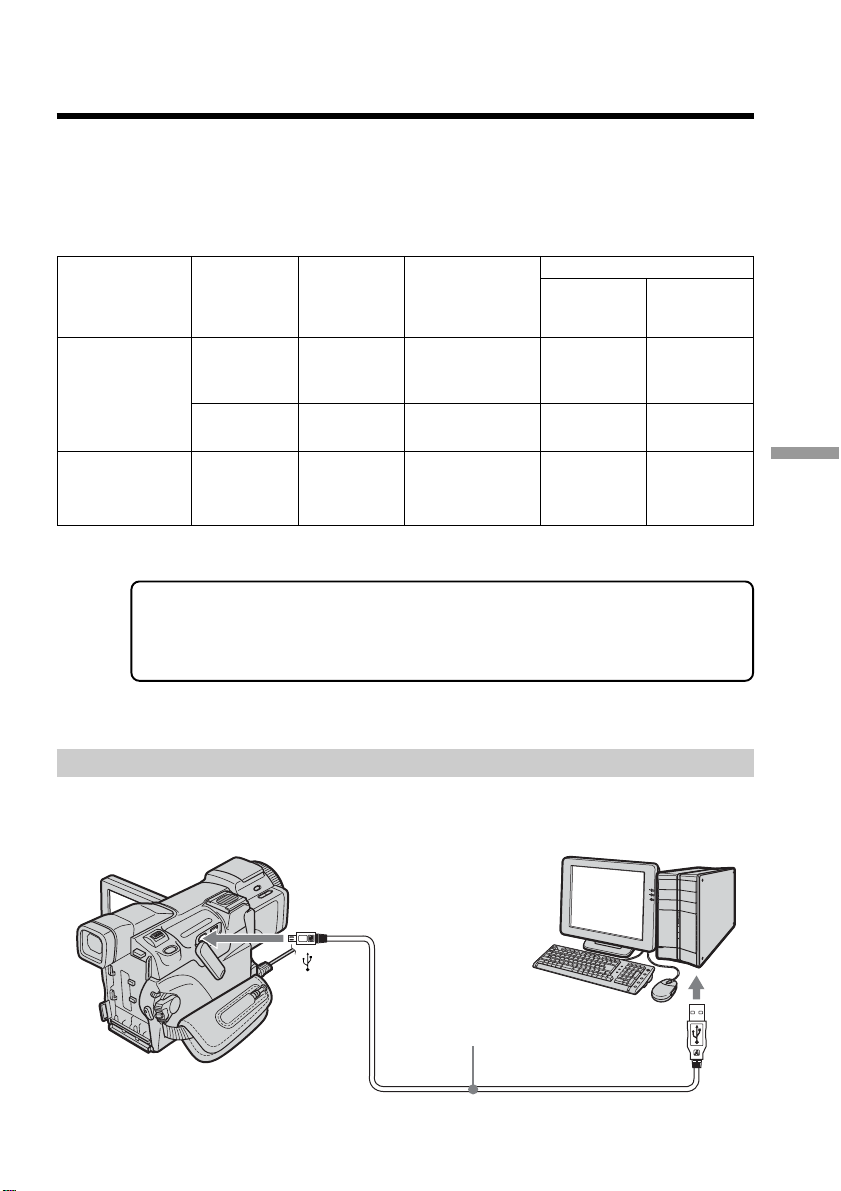
143
Viewing images with your computer
— Viewing images with your computer —
Viewing images with a computer
– Introduction
There are following ways of connecting your camcorder to a computer in order to view
images saved on the “Memory Stick” or recorded on the tape on a computer.
To view images on a computer which has a “Memory Stick” slot, first eject the
“Memory Stick” from your camcorder and then insert it into your computer’s “Memory
Stick” slot.
When connecting to a computer with the USB port, complete installation of the
USB driver before connecting your camcorder to the computer. If you connect
your camcorder to the computer first, you will not be able to install the USB
driver correctly.
For details about the computer’s ports and editing software, contact the computer
manufacturer.
Viewing pictures recorded on the tape
When connecting to a computer with the USB port
See page 146 for details.
USB port
(USB)
jack
USB cable (supplied)
Insert the plug to the end.
Camcorder
connection
jack
Connection
cable
Computer
environment
requirements
Reference pages
For
Windows
Users
For
Macintosh
Users
Tape image/live
from your
camcorder
“Memory Stick”
image
USB jack
USB jack
USB cable
(supplied)
DV Interface
i.LINK cable
(optional)
USB port,
editing software
USB cable
(supplied)
DV port,
editing software
USB port,
editing software
146 – 148
150 – 151
156 – 162
144
146 – 150
152
163 – 165
–
–
166 – 168
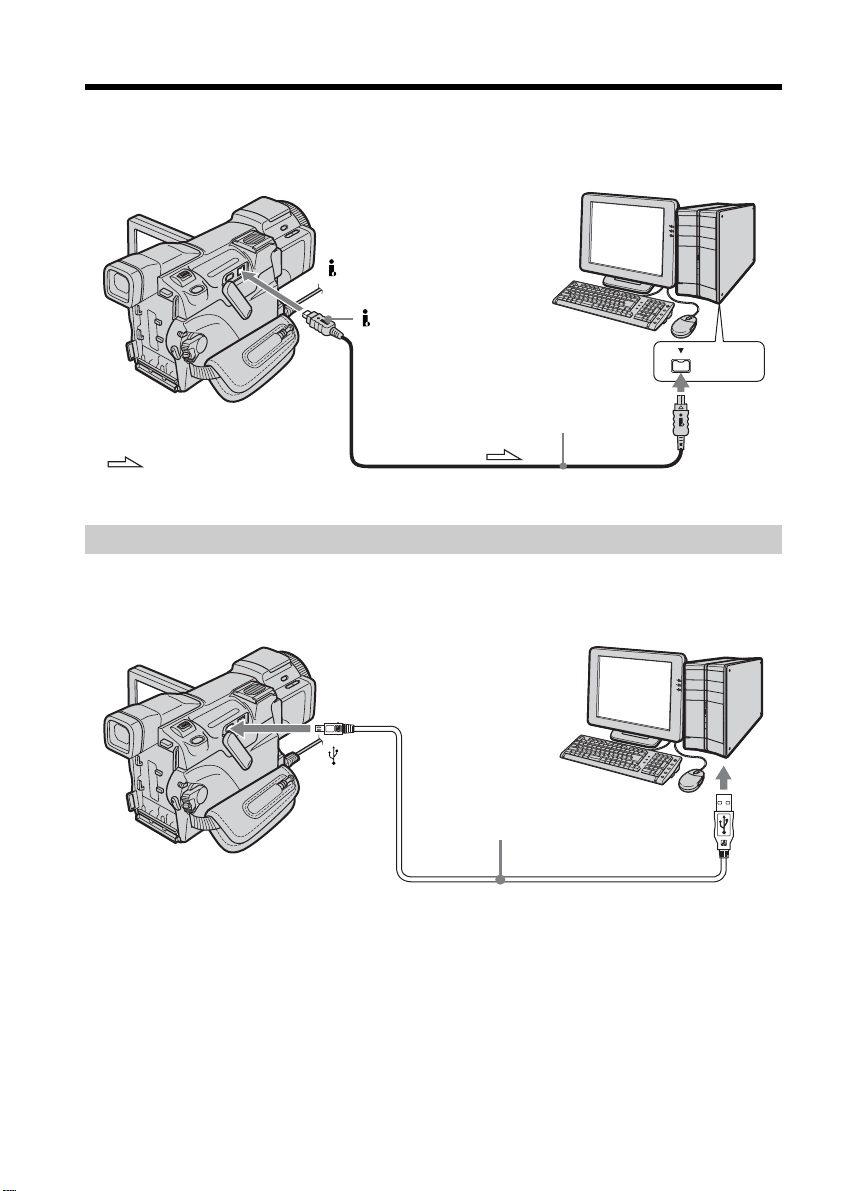
144
When connecting to a computer with the DV port
The computer must have a DV port and editing software installed that can process
video signals.
Viewing images recorded on the “Memory Stick”
When connecting to a computer with the USB port
See page 147 when using Windows and page 166 when using Macintosh.
You can also use a “Memory Stick” Reader/Writer (optional).
When connecting to a computer without a USB port
Use an optional floppy disk adaptor for “Memory Stick” or a PC card adaptor for
“Memory Stick.”
When purchasing an accessory, check its catalog beforehand for the recommended
operating environment.
Viewing images with a computer – Introduction
: Signal flow
DV Interface
i.LINK cable (optional)
i.LINK
USB port
USB cable (supplied)
Insert the plug to the end.
(USB)
jack

145
Viewing images with your computer
Viewing images with a computer – Introduction
Notes on using your computer
“Memory Stick”
•“Memory Stick” operations on your camcorder cannot be assured if a “Memory Stick”
formatted on your computer is used on your camcorder, or if the “Memory Stick” in
your camcorder was formatted from your computer when the USB cable was
connected.
•Do not compress the data on the “Memory Stick.” Compressed files cannot be played
back on your camcorder.
Software
•Depending on your application software, the file size may increase when you open a
still image file.
•When you load an image modified using retouching software from your computer to
your camcorder or when you directly modify the image on your camcorder, the image
format may be different and a file error indicator may appear and you may be unable
to open the file.
Communications with your computer
Communications between your camcorder and your computer may not recover even
after your computer recovers from Suspend status by its Suspend/Resume function or
from Sleep status.

146
Complete installation of the USB driver before connecting your camcorder to
a computer. If you connect your camcorder to a computer first, you will not
be able to install the USB driver correctly.
When connecting to a computer with the USB port
You must install a USB driver onto the computer in order to connect your camcorder to
the computer’s USB port. The USB driver can be found on the CD-ROM supplied, along
with the application software required for viewing images.
If you connect your camcorder and your computer using the USB cable, you can view
pictures live from your camcorder and pictures recorded on the tape on a computer
(USB Streaming function).
Furthermore, if you download pictures from your camcorder to a computer, you can
process or edit them in image processing software and attach them to e-mail.
You can view images recorded on the “Memory Stick” on a computer.
Recommended computer usage environment when connecting
with the USB cable and viewing tape pictures on a computer
OS:
Microsoft Windows 98SE, Windows Me, Windows 2000 Professional, Windows XP
Home Edition or Windows XP Professional
Standard installation is required.
However, operation is not assured if the above environment is an upgraded OS.
You cannot hear sound if your computer is running Windows 98, but you can read still
images.
CPU:
Minimum 500 MHz Intel Pentium III or faster (800 MHz or faster recommended)
Application:
DirectX 8.0a or later
Sound system:
16 bit stereo sound card and stereo speakers
Memory:
64 MB or more
Hard disk:
Available memory required for installation:
at least 250 MB
Available hard disk memory recommended:
at least 1 GB (depending on the size of the image files edited)
Display:
4 MB VRAM video card, Minimum 800 × 600 dot High color (16 bit color, 65,000 colors),
Direct Draw display driver capability (At 800 × 600 dot or less, 256 colors and less, this
product will not operate correctly.)
Others:
This product is based on DirectX technology, so it is necessary to install DirectX.
To create a Video CD, a CD-R drive is needed.
The USB port must be provided as standard.
You cannot use this function in the Macintosh environment.
Connecting your camcorder to a
computer using the USB cable
(For Windows users)

147
Viewing images with your computer
Recommended computer usage environment when connecting
with USB cable and viewing the “Memory Stick” images on a
computer
Recommended Windows environment
OS:
Microsoft Windows 98, Windows 98SE, Windows Me, Windows 2000 Professional,
Windows XP Home Edition or Windows XP Professional
Standard installation is required.
However, operation is not assured if the above environment is an upgraded OS.
CPU:
MMX Pentium 200 MHz or faster
Display:
Minimum 800 × 600 dot High color (16 bit color, 65,000 colors). (At 800 × 600 dot or less,
256 colors or less, the screen for installing USB driver is not displayed.)
Others:
The USB connector must be provided as standard.
Windows Media Player must be installed (to play back moving pictures).
Notes
•Operations are not guaranteed for the Windows environment if you connect two or
more USB equipment to a single computer at the same time, or when using a hub.
•Some equipment may not operate depending on the type of USB equipment that is
used simultaneously.
•Operations are not guaranteed for all the recommended computer environments
mentioned above.
•Windows and Windows Media are registered trademarks of Microsoft Corporation in
the United States and/or other countries.
•Pentium is a trademark or registered trademark of Intel Corporation.
•All other product names mentioned herein may be the trademarks or registered
trademarks of their respective companies. Furthermore, “
TM
” and “®” are not
mentioned in each case in this manual.
Connecting your camcorder to a computer using the USB cable
(For Windows users)
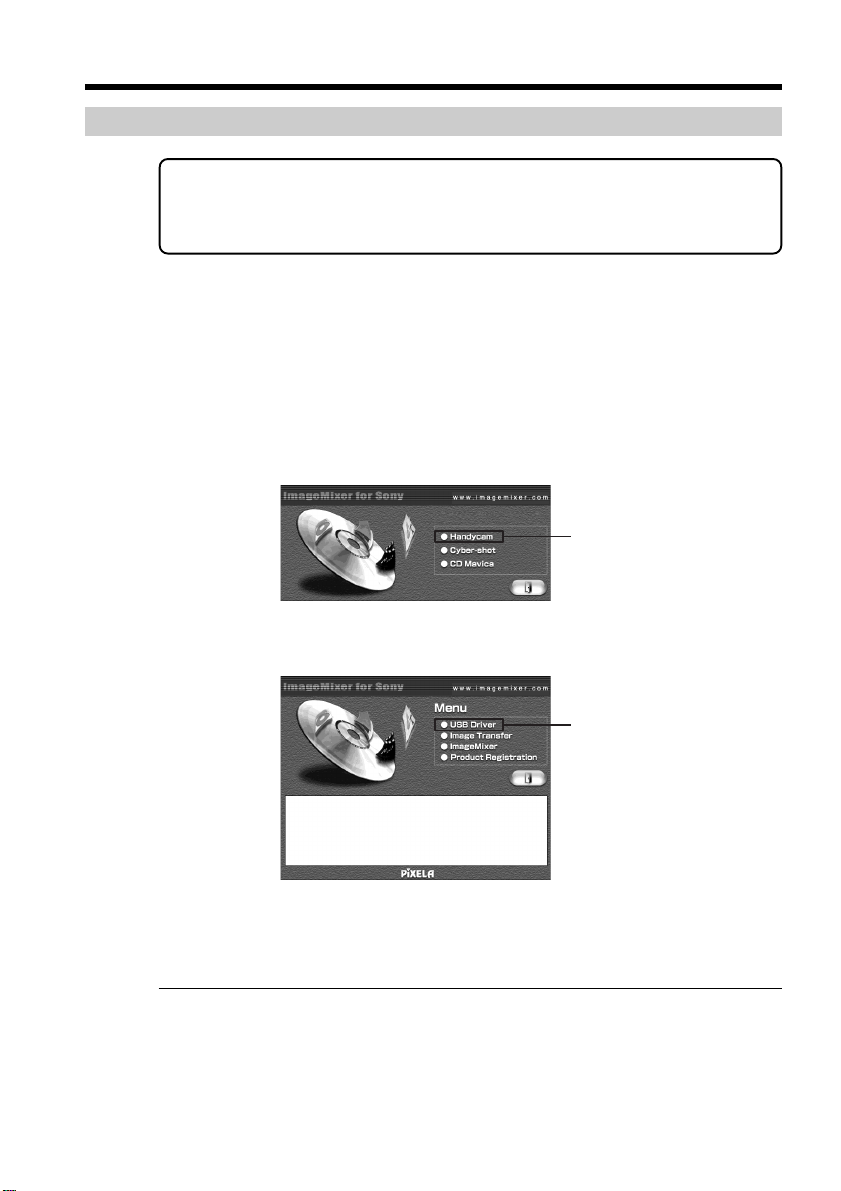
148
Installing the USB driver
Start the following operation without connecting the USB cable to
the computer.
Connect the USB cable according to “Making the computer recognize
your camcorder”.
If you are using Windows 2000, log in with permission of administrators.
If you are using Windows XP, log in with permission of computer administrators.
(1) Turn on a computer and allow Windows to load. If you have been using the
computer, close all software.
(2) Insert the supplied CD-ROM in the CD-ROM drive of the computer. The
application software starts up.
If the screen does not appear, double-click “My Computer” and then
“ImageMixer” (CD-ROM Drive).
(3) Select “Handycam” on the screen.
The title screen appears.
(4) Move the cursor to “USB Driver” and click. This starts USB driver installation.
(5) Follow the on-screen messages to install the USB driver.
(6) Remove the CD-ROM, then restart the computer and follow the on-screen
messages.
Notes
•If you connect the USB cable before USB driver installation is complete, the USB driver
will not be properly registered. Carry out installation again following the on-screen
messages.
•The title screen is not displayed if the screen size of the computer is set to less than
800 × 600 dots and 256 colors or less. See pages 146, 147 about the recommended
computer environment.
Connecting your camcorder to a computer using the USB cable
(For Windows users)
Click
Click
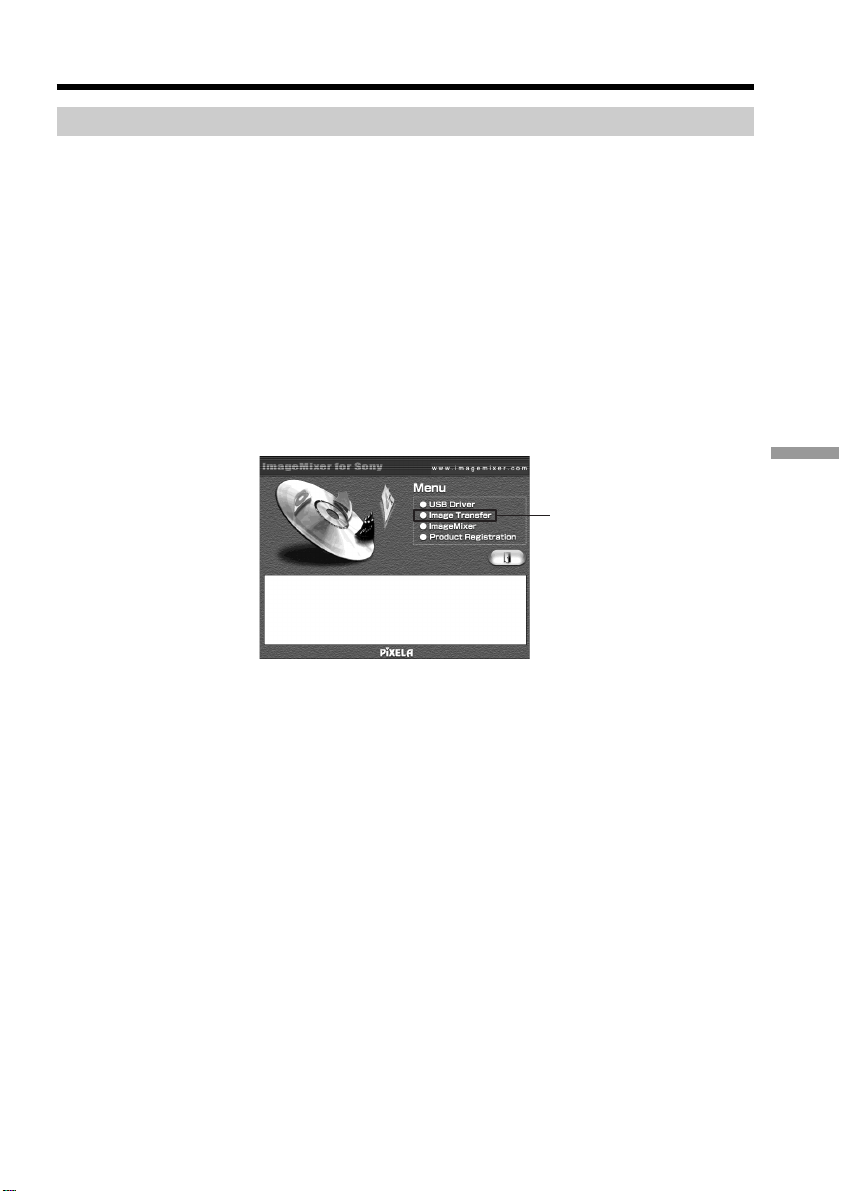
149
Viewing images with your computer
Installing Image Transfer
Make sure USB driver installation is complete.
This function enables image data recorded on the “Memory Stick” to be automatically
transferred (copied) to your computer.
If you are using Windows 2000, log in with permission of administrators.
If you are using Windows XP, log in with permission of computer administrators.
(1) Turn on your computer and allow Windows to load. If you have been using
the computer, close all software.
(2) Insert the supplied CD-ROM in the CD-ROM drive of the computer. The
application software starts up.
(3) Select “Handycam” on the screen.
The title screen appears.
(4) Move the cursor to “Image Transfer” and click.
The Install Wizard program starts up and the “Choose Setup Language”
screen appears.
(5) Select the language for installation.
(6) Follow the on-screen messages.
The installation screen disappears when installation is complete.
Connecting your camcorder to a computer using the USB cable
(For Windows users)
Click
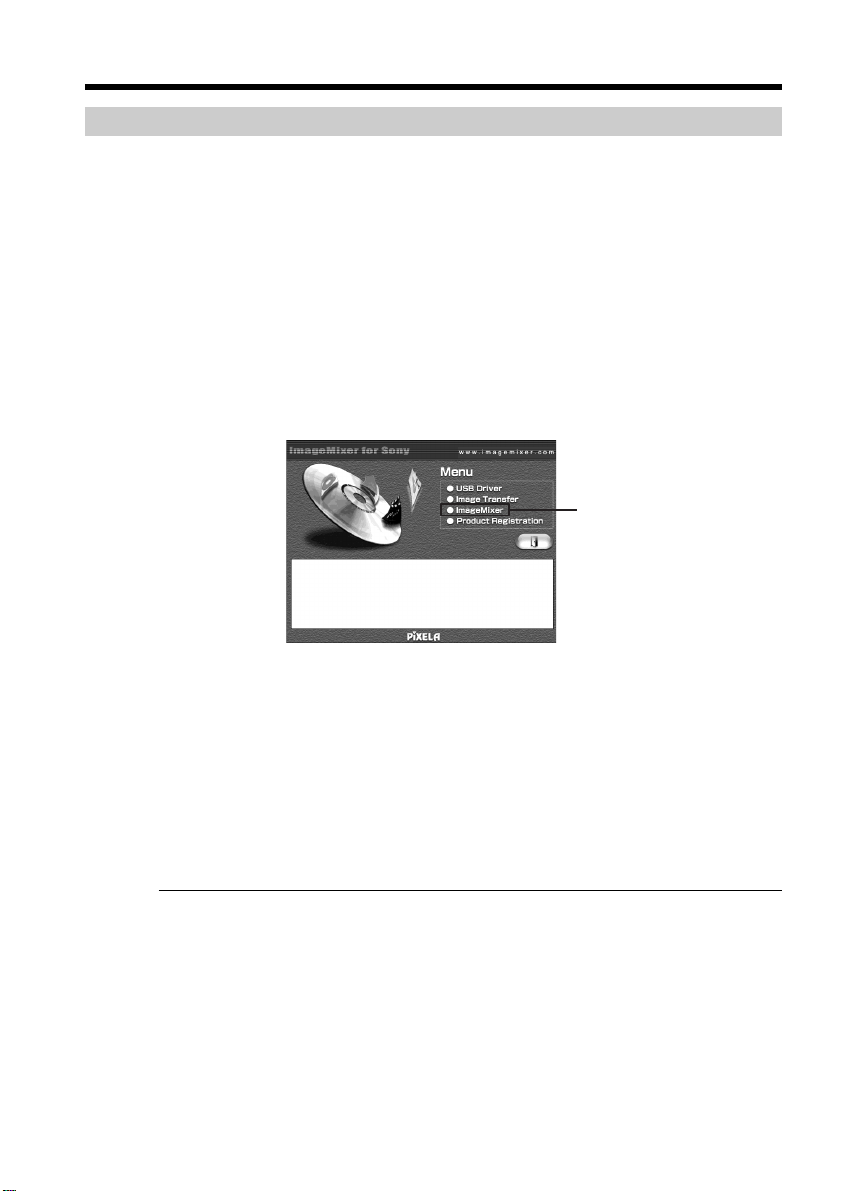
150
Connecting your camcorder to a computer using the USB cable
(For Windows users)
Installing ImageMixer
Make sure USB driver installation is complete.
“ImageMixer Ver.1.5 for Sony” is an application that can capture or edit images, or
create video CDs.
To install and use this software in Windows 2000, you must be authorized as
administrators. For Windows XP, you must be authorized as computer administrators.
(1) Turn on a computer and allow Windows to load. If you have been using the
computer, close all software.
(2) Insert the supplied CD-ROM into the CD-ROM drive of the computer.
The application software starts up.
(3) Select “Handycam” on the screen.
The title screen appears.
(4) Move the cursor to “ImageMixer” and click.
The Install Wizard program starts up and the “Choose Setup Language”
screen appears.
(5) Select the language for installation.
(6) Follow the on-screen messages.
The installation screen disappears when installation is complete.
(7) Follow the on-screen messages to install Win ASPI. (Only for Windows 2000,
Windows XP users)
(8) If DirectX 8.0a or later is not installed on the computer, continue installation
after installing ImageMixer.
Follow the on-screen messages to install DirectX 8.0a. After installation is
complete, restart the computer.
MEMORY MIX Album
Once “ImageMixer” is installed, the MEMORY MIX album is created in “Album” of
“ImageMixer” and sample images are stored in it.
Those sample images can be transferred from the MEMORY MIX album to a “Memory
Stick” so that they can be used in MEMORY MIX (p. 118).
For details on the operation procedure, refer to the on-line help.
Replacing Win ASPI
To be able to use the ImageMixer CD writing function, you need to install Win ASPI. If
a different writing application was previously installed, its writing function may not
work correctly. If that happens, reinstall the original application and replace Win ASPI.
Note that the ImageMixer CD writing function may not work properly.
Click
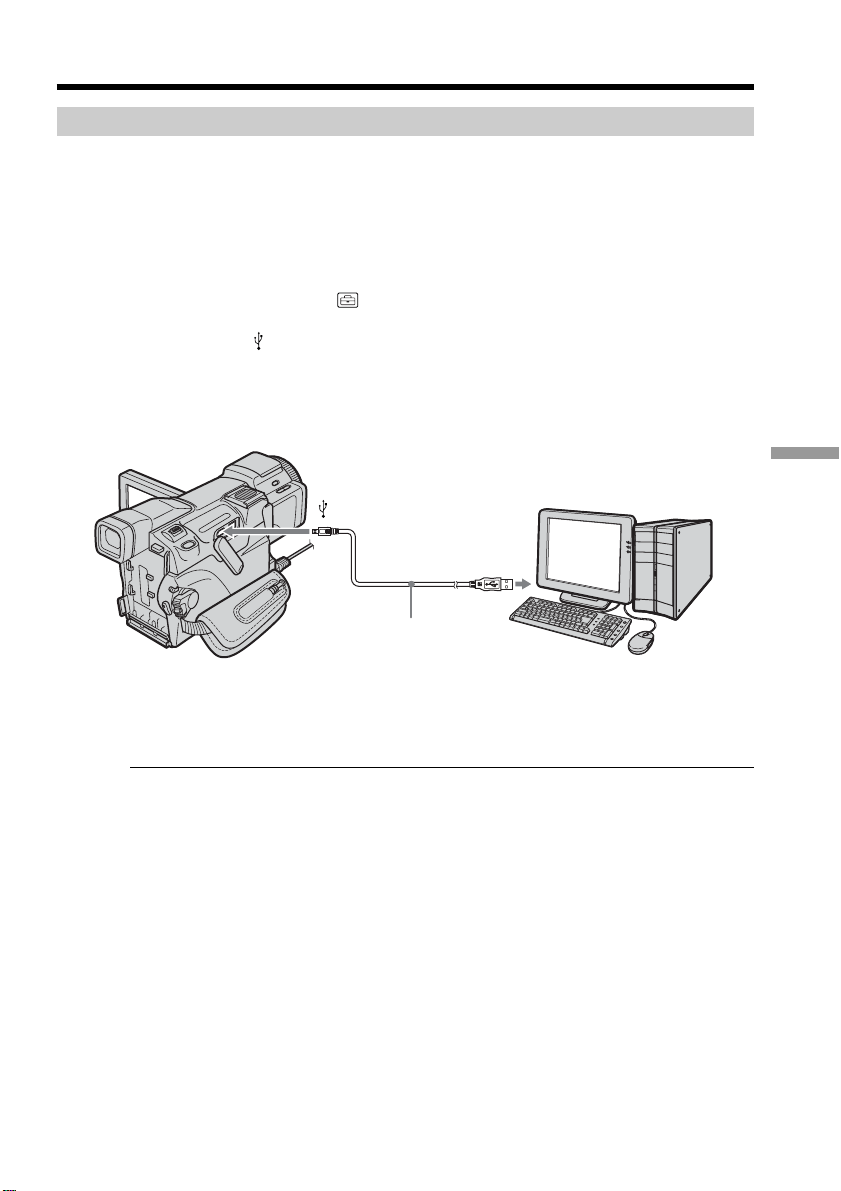
151
Viewing images with your computer
Making the computer recognize your camcorder
If you are using Windows 2000, log in with permission of administrators.
If you are using Windows XP, log in with permission of computer administrators.
Viewing picture recorded on the tape
(1) Connect the AC Adaptor, then set the POWER switch to VCR.
(2) Press FN to display PAGE1.
(3) Press MENU.
(4) Select USB STREAM in
, then press EXEC.
(5) Select ON, then press EXEC.
(6) Connect the
(USB) jack on your camcorder to the USB port on the computer
using the supplied USB cable.
The computer recognizes your camcorder, and the Windows Add Hardware
Wizard starts.
(7) Follow the on-screen messages so that the Add Hardware Wizard recognizes
that the USB drivers have been installed. Be sure to allow the installation to
complete without interrupting it.
For Windows 2000, Windows XP users
When the dialogue box prompting you to confirm the digital signature appears, select
“Yes” if you use Windows 2000 or select “Continue Anyway” if you use Windows XP.
Connecting your camcorder to a computer using the USB cable
(For Windows users)
USB port
USB cable (supplied)
(USB) jack
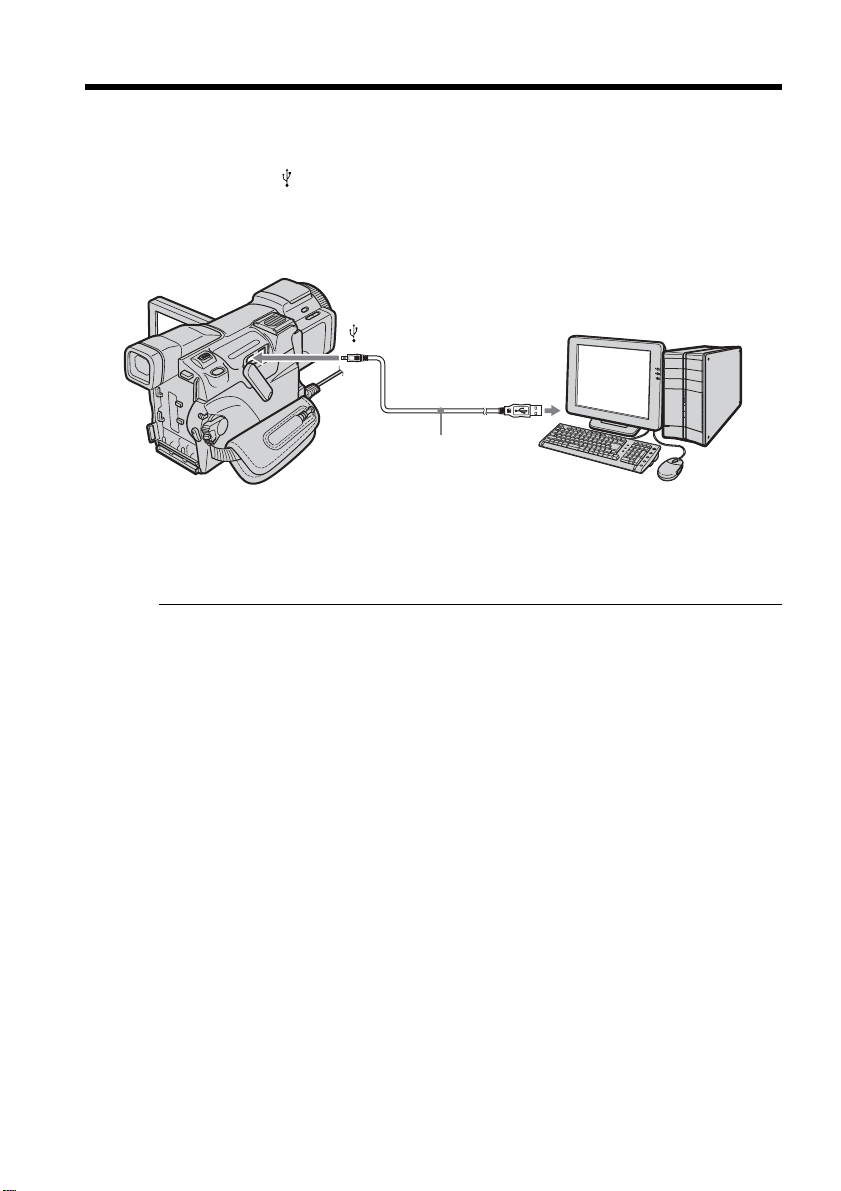
152
Connecting your camcorder to a computer using the USB cable
(For Windows users)
Viewing images recorded on the “Memory Stick”
(1) Insert the “Memory Stick” into your camcorder.
(2) Connect the AC Adaptor, then set the POWER switch to MEMORY.
(3) Connect the
(USB) jack on your camcorder to the USB port on the computer
using the supplied USB cable.
The USB MODE indicator appears on the LCD screen of your camcorder. The
computer recognizes your camcorder, and the Add Hardware Wizard starts.
(4) Follow the on-screen messages so that the Add Hardware Wizard recognizes
that the USB drivers have been installed. The Add Hardware Wizard starts
two times because two different USB drivers are installed. Be sure to allow the
installation to complete without interrupting it.
You cannot install the USB driver if the “Memory Stick” is not in your camcorder
Be sure to insert the “Memory Stick” into your camcorder before installing the USB
driver.
USB port
USB cable (supplied)
(USB) jack
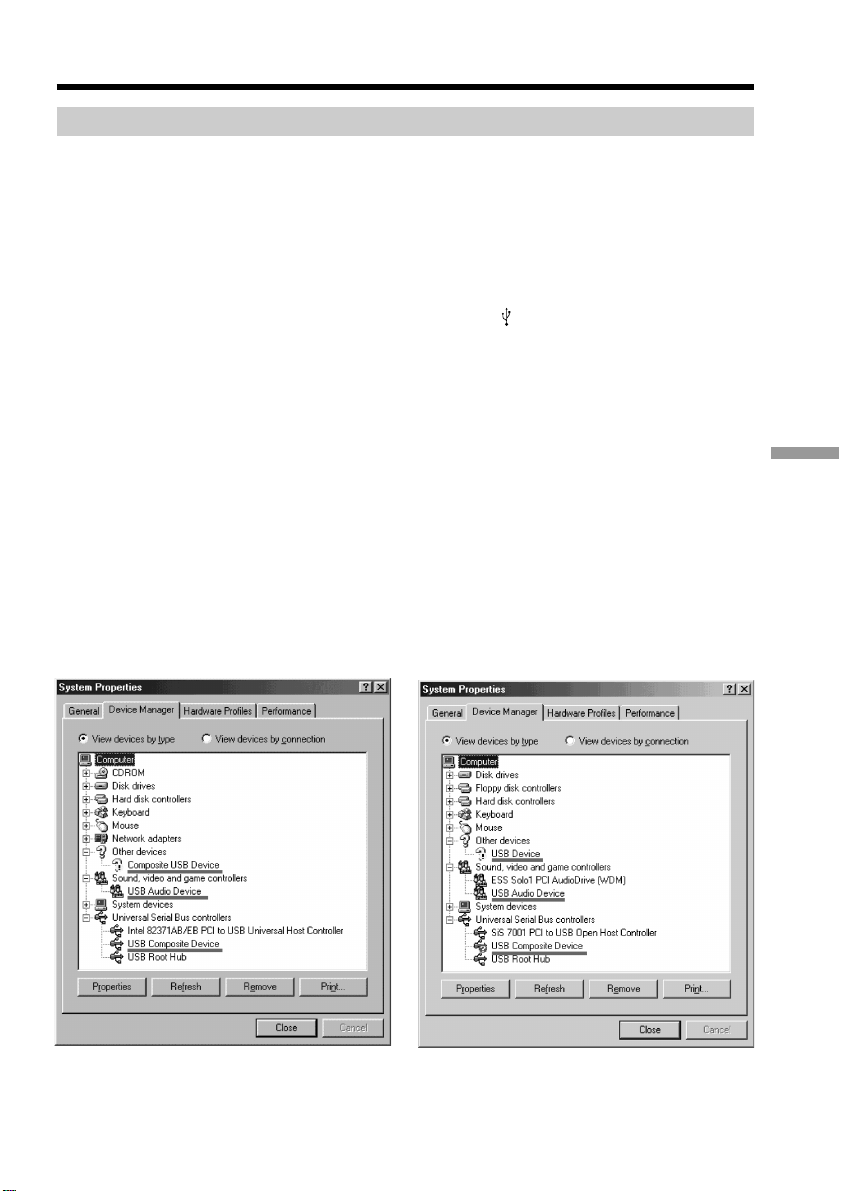
153
Viewing images with your computer
Connecting your camcorder to a computer using the USB cable
(For Windows users)
If you cannot install the USB driver
The USB driver has been registered incorrectly as a computer was connected to your
camcorder before installation of the USB driver was completed. Follow the procedure
below to correctly install the USB driver.
Viewing pictures recorded on the tape
Step 1: Uninstall the incorrect USB driver
1 Turn on the computer and allow Windows to load.
2 Connect the AC Adaptor, and set the POWER switch to VCR.
3 Connect the USB port on the computer to the
(USB) jack on your camcorder
using the supplied USB cable.
4 Open the computer’s “Device Manager.”
Windows XP:
Select “Start” t “Control Panel” t “System” t “Hardware,” and click the
“Device Manager” button.
If there is no “System” inside “Pick a category” after clicking “Control Panel,”
click “Switch to classic view” instead.
Windows 2000:
Select “My Computer” t “Control Panel” t “System” t “Hardware” tab,
and click the “Device Manager” button.
Windows 98SE/Windows Me:
Select “My Computer” t “Control Panel” t “System,” and click “Device
Manager.”
5 Select and delete the underlined devices below.
Windows 98SE
Windows Me
(continued on the following page)
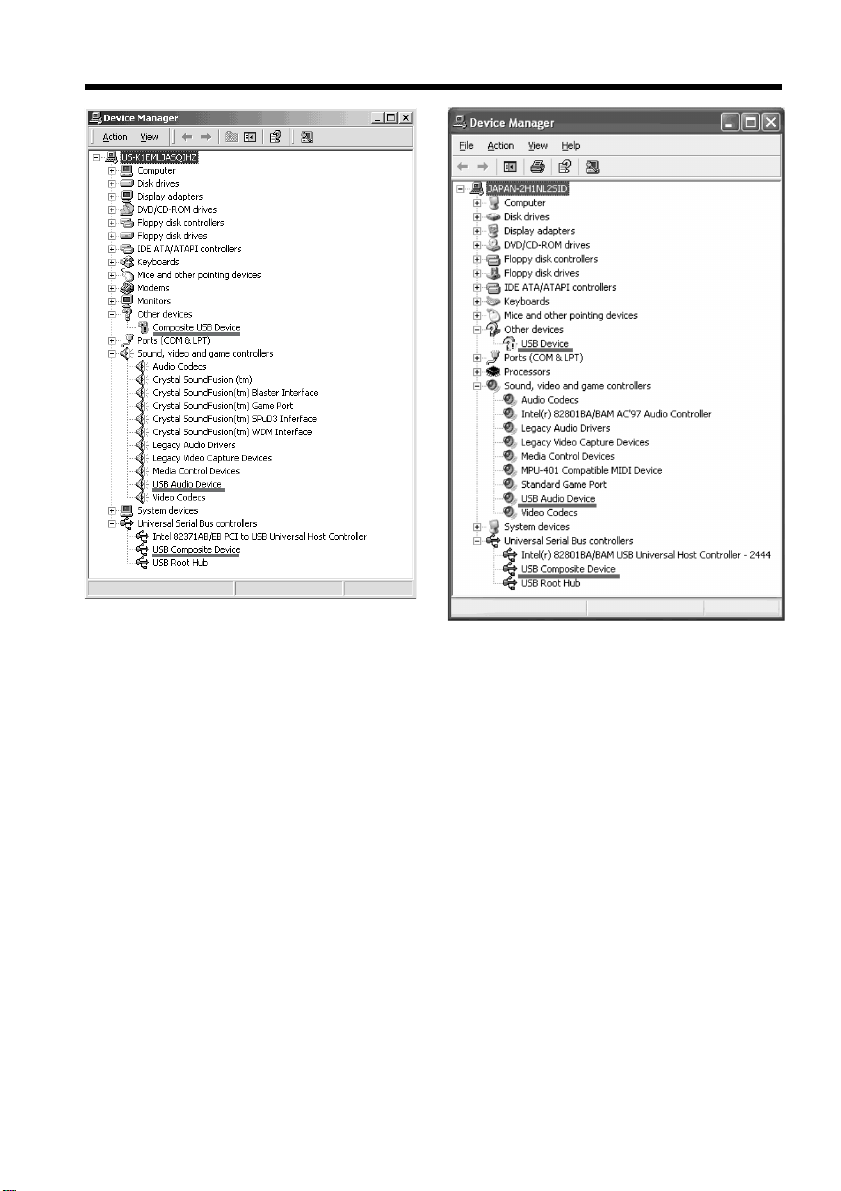
154
Connecting your camcorder to a computer using the USB cable
(For Windows users)
Windows 2000
Windows XP
6 Set the POWER switch to OFF (CHG) on your camcorder, then disconnect the
USB cable.
7 Restart the computer.
Step 2: Install the USB driver on the supplied CD-ROM
Follow the entire procedure in “Installing the USB driver” on page 148.

155
Viewing images with your computer
Viewing images recorded on the “Memory Stick”
Step1: Uninstall the incorrect USB driver
1 Turn on the computer and allow Windows to load.
2 Insert the “Memory Stick” into your camcorder.
3 Connect the AC Adaptor and set the POWER switch to MEMORY.
4 Connect the USB port on the computer to the
(USB) jack on your camcorder
using the supplied USB cable.
5 Open the computer’s “Device Manager.”
Windows XP:
Select “Start” t “Control Panel” t “System” t “Hardware,” and click the
“Device Manager” button.
If there is no “System” inside “Pick a category” after clicking “Control Panel,”
click “Switch to classic view” instead.
Windows 2000:
Select “My Computer” t “Control Panel” t “System” t “Hardware,” and
click the “Device Manager” button.
Other OS:
Select “My Computer” t “Control Panel” t “System,” and click “Device
Manager.”
6 Select “Other devices.”
Select the device prefixed with the “?” mark and delete.
Ex: (?)Sony Handycam
7 Set the POWER switch to OFF (CHG) on your camcorder, then disconnect the
USB cable.
8 Restart the computer.
Step2: Install the USB driver on the supplied CD-ROM
Follow the entire procedure in “Installing the USB driver” on page 148.
Connecting your camcorder to a computer using the USB cable
(For Windows users)
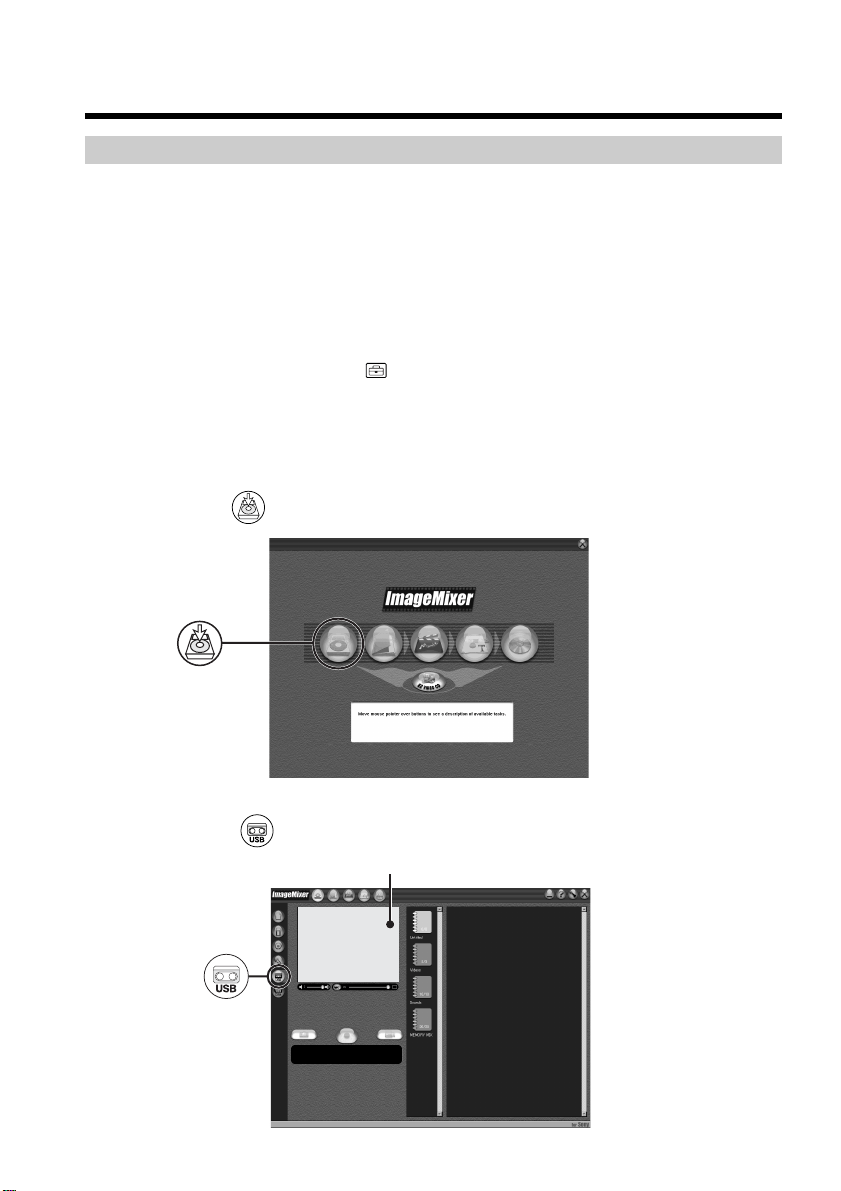
156
Viewing pictures recorded on the tape on
a computer
– USB Streaming (For Windows users)
Capturing images with “ImageMixer Ver.1.5 for Sony”
You need to install the USB driver and ImageMixer to view images recorded on the tape
on a computer (p. 148, 150).
Viewing pictures recorded on the tape
(1) Turn on the computer and allow Windows to load.
(2) Connect the AC Adaptor, then insert the cassette into your camcorder.
(3) Set the POWER switch to VCR.
(4) Press FN to display PAGE1.
(5) Press MENU to display the menu.
(6) Select USB STREAM in
, then press EXEC.
(7) Select ON, then press EXEC.
(8) Select “Start” t “Programs” t “PIXELA” t “ImageMixer” t “ImageMixer
Ver.1.5 for Sony.”
The “ImageMixer Ver.1.5 for Sony” startup screen appears on the computer.
The title screen appears.
(9) Click
on the screen.
(10) Click
.
Monitor window
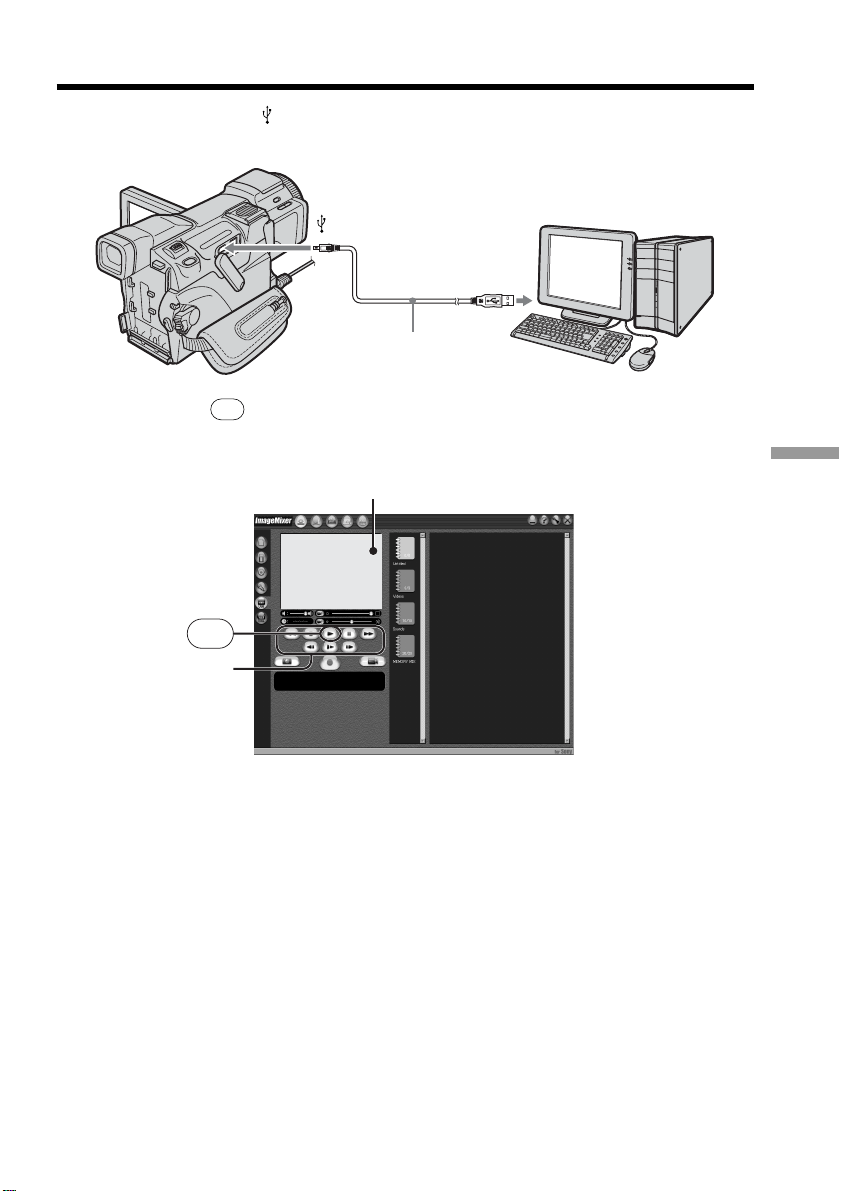
157
Viewing images with your computer
(11) Connect the (USB) jack on your camcorder to the USB port on the computer
using the supplied USB cable.
(12) Click
N
to start playback.
You can control video operations with the buttons on the screen.
The picture from the tape appears on the monitor window on the computer.
Viewing pictures live from your camcorder
(1) Follow Step 1 and 2 on page 156.
(2) Set the POWER switch to CAMERA.
(3) Follow Step 4 to 11 on pages 156, 157.
The picture from your camcorder appears on the monitor window on the
computer.
Viewing pictures recorded on the tape on a computer
– USB Streaming (For Windows users)
USB port
USB cable (supplied)
(USB) jack
N
Monitor window
Video control buttons
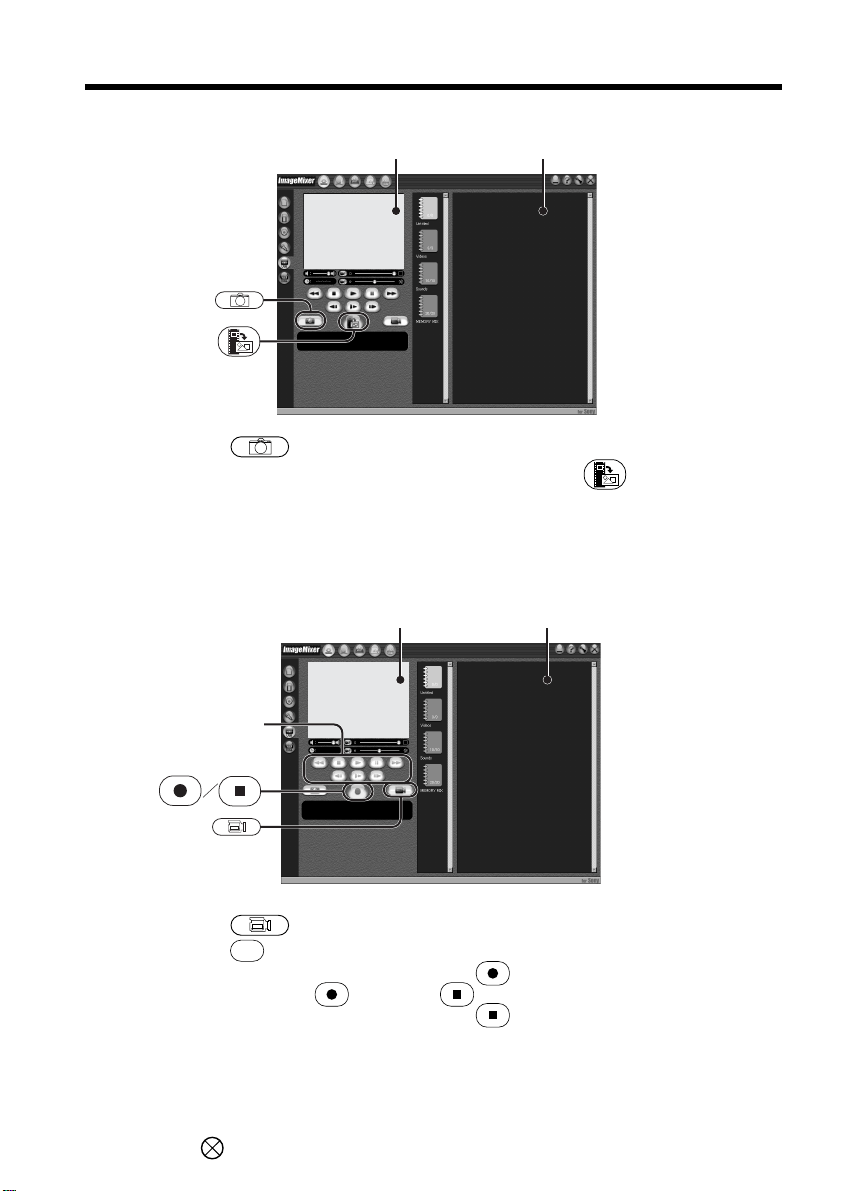
158
Viewing pictures recorded on the tape on a computer
– USB Streaming (For Windows users)
Capturing still images
(1) Click .
(2) Looking at the monitor window, move the cursor to
and click it at the
point you want to capture.
The still image on the screen is captured.
Captured images appear in the thumbnail list window.
Capturing moving pictures
(1) Click .
(2) Click
N
to start playback.
(3) Looking at the monitor window, click
at the first scene of the movie you
want to capture.
changes to .
(4) Looking at the monitor window, click
at the last scene you want to
capture.
The moving picture is captured. The captured images appear in the thumbnail
list window.
To close “ImageMixer”
Click in the upper right corner of the screen.
Monitor window Thumbnail list window
Monitor window
Thumbnail list window
Video control buttons

159
Viewing images with your computer
Viewing pictures recorded on the tape on a computer
– USB Streaming (For Windows users)
Notes
•When you view images on a computer with the USB connection, the following may
occur. This is not a malfunction.
– The image shakes up and down.
– Some images are not displayed correctly due to noise, etc.
– Some images are displayed with the cracking noise.
– Images of different color systems to that of your camcorder are not displayed
correctly.
•When your camcorder is in standby with a cassette inserted, it turns off automatically
after five minutes.
•We recommend setting DEMO MODE to OFF in the menu settings when your
camcorder is in standby, and no cassette is inserted.
•Indicators on the screen of your camcorder do not appear on images that are captured
into the computer.
•If you capture a fast moving picture, the picture in the monitor window may not move
smoothly. You can make the picture move more smoothly by adjusting the slider
located just under the right bottom of the monitor window, although this reduces the
picture quality.
•You cannot carry out any “Memory Stick” operations during the USB streaming.
If image data cannot be transferred by the USB connection
The USB driver has been registered incorrectly as the computer was connected to your
camcorder before installation of the USB driver was complete. Reinstall the USB driver
following the procedure on page 153.
If any trouble occurs
Close all running applications, then restart the computer.
Carry out the following operations after quitting the application:
– Disconnect the USB cable.
– Turn the POWER switch to another position on your camcorder.
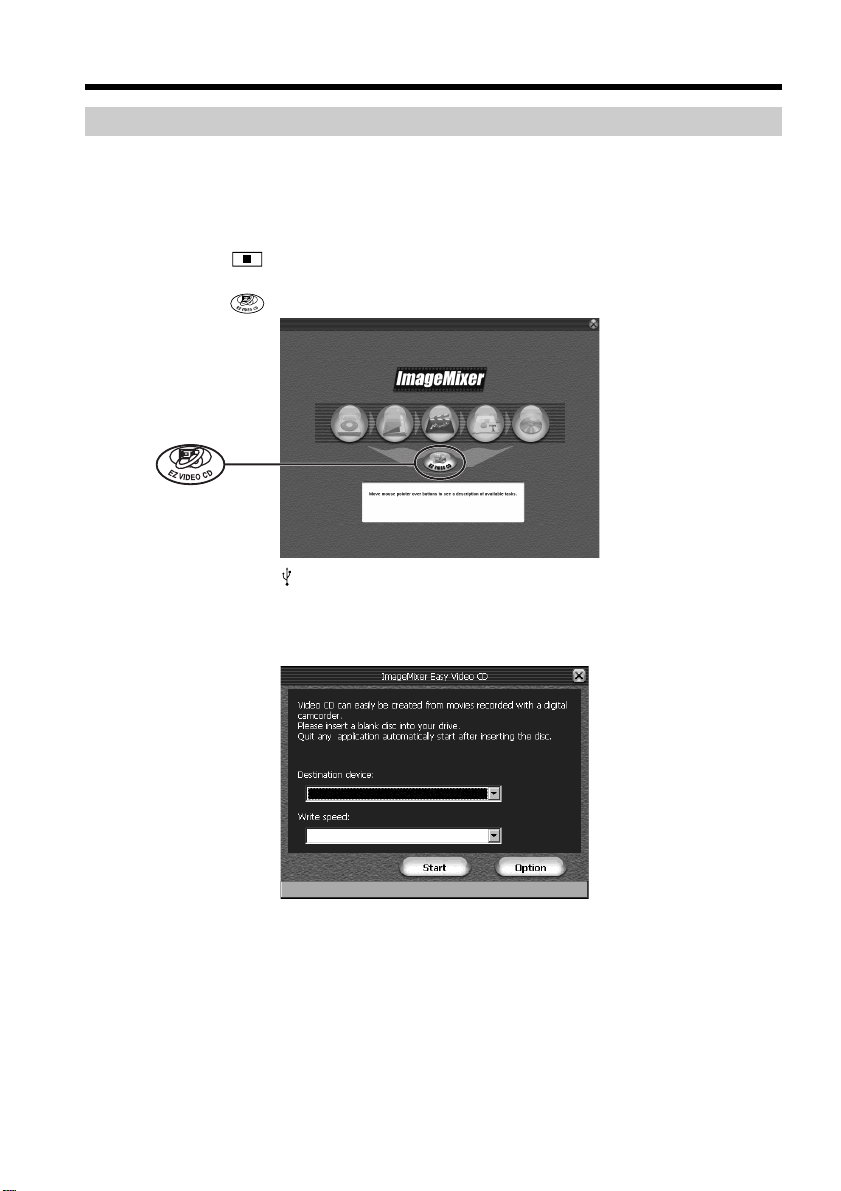
160
Making Video CDs – Easy Video CD
This function makes it simple to create a video CD by capturing images recorded on the
tape or images live from your camcorder.
Capturing images recorded on the tape onto a CD-R
(1) Follow Step 1 to 8 on page 156.
(2) Press
after choosing the point on the tape from which you want to
capture images onto the CD-R.
(3) Click
.
(4) Connect the
(USB) jack on your camcorder to the USB port on the computer
using the supplied USB cable.
(5) Insert a new CD-R in the CD-R drive of the computer.
(6) Click “Start.”
The tape is automatically played back. Easy Video CD automatically begins to
capture images onto the CD-R to create a Video CD.
(7) After the “Video CD successfully created.” message appears, click “Quit.”
Viewing pictures recorded on the tape on a computer
– USB Streaming (For Windows users)
161
Viewing images with your computer
Viewing pictures recorded on the tape on a computer
– USB Streaming (For Windows users)
Capturing images live from your camcorder onto a CD-R
Eject the cassette beforehand if inserted. If the cassette is inserted, your camcorder
automatically turns off when it has been in recording standby for more than five
minutes.
(1) Follow Step 1 and 2 on page 156.
(2) Set the POWER switch to CAMERA on your camcorder.
(3) Follow Step 4 to 8 on page 156.
(4) Follow Step 3 to 7 in “Capturing images recorded on the tape onto a CD-R” on
page 160.
Notes
•A computer equipped with a CD-R drive is required.
•Do not press any buttons on your camcorder while creating a video CD. If you press
, images on the tape are recorded on the video CD up to the point where you
have pressed and Easy Video CD quits.
•Once you have created a video CD, you cannot add any images onto the CD.
•On the “Option” screen, select the hard disk that has enough space (more than about
6 GB) for the “Location of work folder.”
Playing back a video CD
You can play back the video CD you made on a DVD player or on a computer equipped
with a DVD drive.
To play back a Video CD on the computer, application software that supports a Video
CD needs to be installed in it.
You can play back a Video CD using the Windows Media Player. However, you may
not be able to play back a Video CD depending on your computer environment
including Operating Systems or hardware. Menu functions of the Windows Media
Player do not function.
(1) Start up the Windows Media Player.
Windows XP:
Select “Start” t “All Programs” t “Accessories” t “Entertainment,” and
click the “Windows Media Player.”
Other Operating Systems:
Select “Start” t “Programs” t “Accessories” t “Entertainment,” and click
the “Windows Media Player.”
(2) Select “My computer” t “CD-R,” and click “MPEGAV” folder, then drag and
drop the moving picture file “sss*.DAT” onto the screen of the Windows
Media Player. The moving picture is played back.
* The file number is displayed in the sss.
Maximum recording time on a video CD is about one hour.
Easy Video CD divides the images to be captured into about 4 GB and captures each of
the divided files every ten minutes due to the specifications of the AVI format. A few
seconds of images may drop out at the jointed part between the divided files when
playing back the recorded files.

162
Seeing the on-line help (operating instructions) of ImageMixer
A “ImageMixer Ver.1.5 for Sony” on-line help site is available where you can find the
detailed operating method of “ImageMixer Ver.1.5 for Sony.”
(1) Click located in the upper-right corner of the screen.
The ImageMixer’s Manual screen appears.
(2) You can find the information you need from the list of contents.
To close the on-line help
Click at the top right of the screen.
If you have any questions about ImageMixer
“ImageMixer Ver.1.5 for Sony” is the product of PIXELA corporation. For details, refer
to the operating instructions of the CD-ROM supplied with your camcorder.
Viewing pictures recorded on the tape on a computer
– USB Streaming (For Windows users)
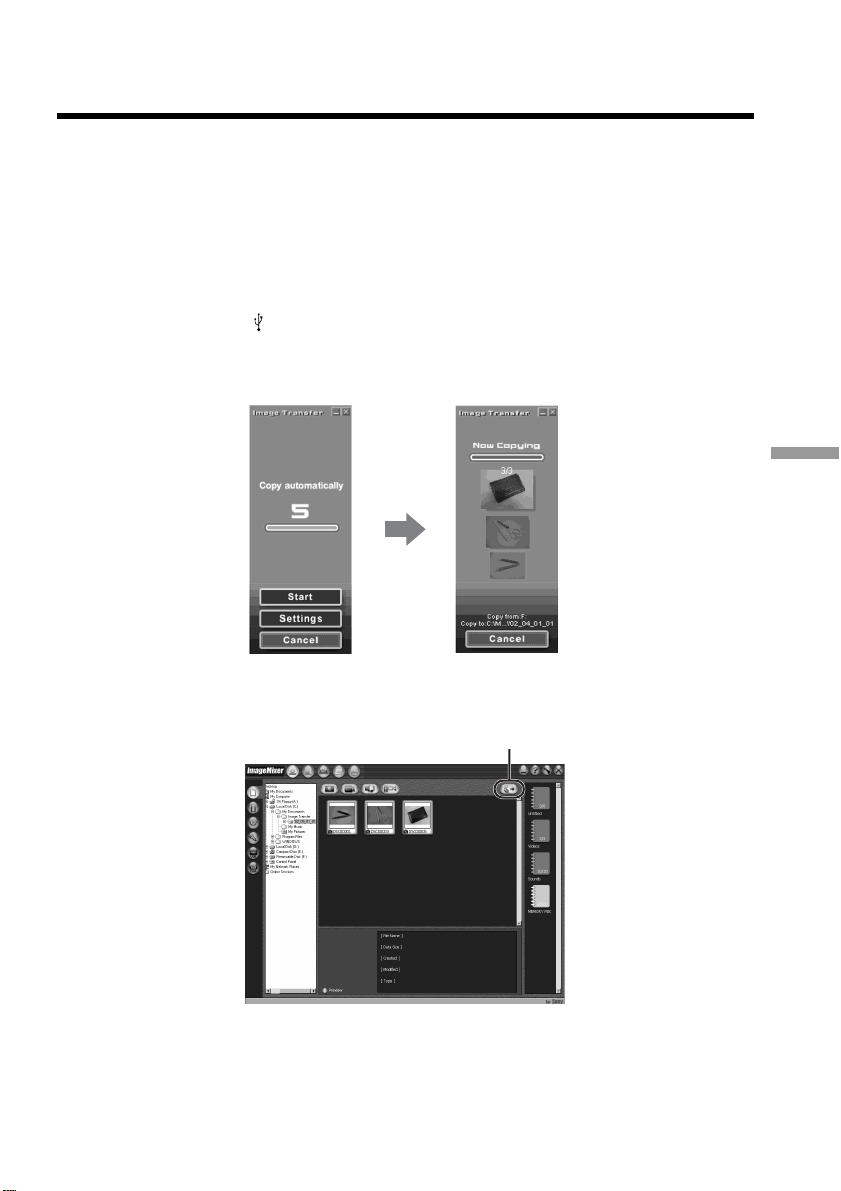
163
Viewing images with your computer
Viewing images recorded on the
“Memory Stick” on a computer
(For Windows users)
The image data recorded on the “Memory Stick” is automatically transferred (copied) to
a computer with Image Transfer. You can view images with ImageMixer.
You need to install the USB driver and Image Transfer to view the “Memory Stick”
images on a computer (p. 148, 149).
(1) Turn on the computer and allow Windows to load.
(2) Insert the “Memory Stick” into your camcorder, then connect the AC Adaptor
to you camcorder.
(3) Set the POWER switch to MEMORY.
(4) Connect the
(USB) jack on your camcorder to the USB port on the computer
using the supplied USB cable.
(5) Image Transfer automatically starts up and the transfer of image data begins.
(6) ImageMixer automatically starts up, enabling you to view the copied image.
(7) Select an album and the image, then press the import button. The image is
added to your album, and you can edit the image.
Import button
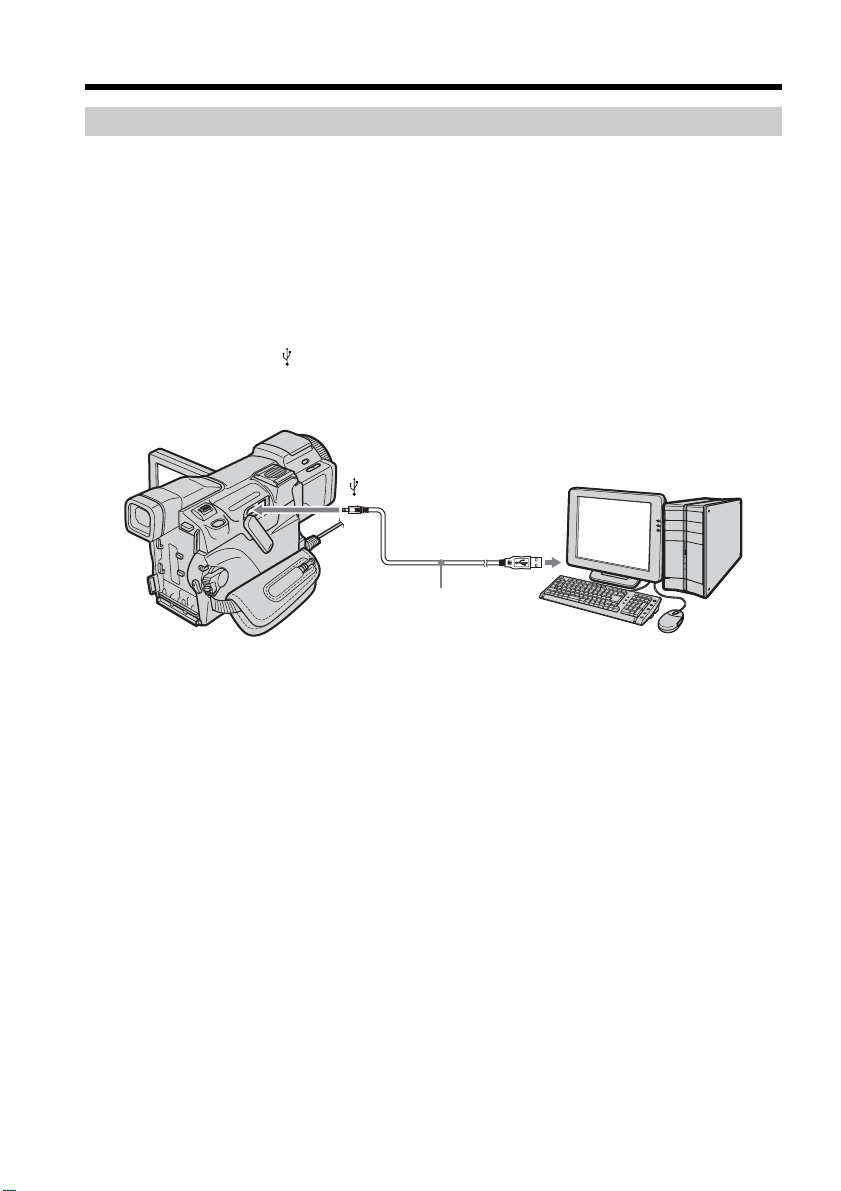
164
Viewing images without Image Transfer
Before operation
•You need to install the USB driver to view the “Memory Stick” images on a computer
(p. 148).
•An application such as Windows Media Player must be installed to play back moving
pictures in Windows environment.
(1) Turn on the computer and allow Windows to load.
(2) Insert the “Memory Stick” into your camcorder, then connect the AC Adaptor
to your camcorder.
(3) Set the POWER switch to MEMORY.
(4) Connect the
(USB) jack on your camcorder to the USB port on the computer
using the supplied USB cable.
The USB MODE indicator appears on the screen of your camcorder.
(5) Open “My Computer” on Windows and double-click the newly recognized
drive (Example: “Removable Disk (F:)”).
The folders inside the “Memory Stick” appear.
(6) Double-click a desired image file after opening the folders in the following
order.
“DCIM” folder t “sss MSDCF” folder
1)
t Image file
2)
See “Image file storage destinations and image files” (p. 165), for the details on
the folder and file name.
1)
sss stands for any number (within the range) from 101 to 999.
2)
Copying a file to the hard disk of the computer before viewing it is
recommended. If you play back the file directly from the “Memory Stick,”
the image and sound may be damaged.
Viewing images recorded on the “Memory Stick” on a computer
(For Windows users)
USB port
USB cable (supplied)
(USB) jack
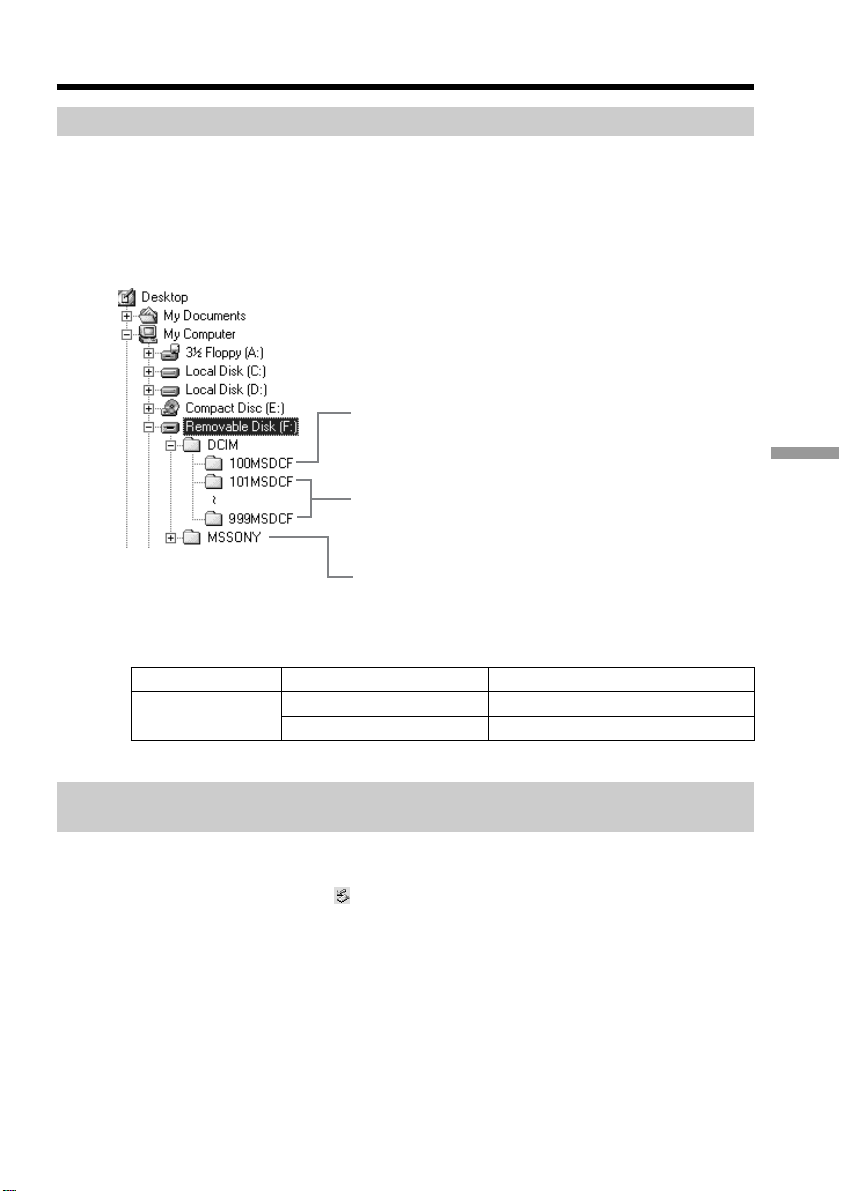
165
Viewing images with your computer
Image file storage destinations and image files
Image files recorded with your camcorder are grouped in folders.
The meanings of the file names are as follows. ssss stands for any number within
the range from 0001 to 9999.
For Windows Me users
(When your camcorder is recognized as the drive [F:])
Folder File Meaning
101MSDCF DSC0ssss.JPG Still image file
(up to 999MSDCF) MOV0ssss.MPG
Moving picture file
Disconnect the USB cable and eject the “Memory Stick” or set
the POWER switch to OFF (CHG)
For Windows 2000, Windows Me, Windows XP users
(1) Move the cursor to the “Unplug or Eject Hardware” on the Task Tray and
click it to cancel the applicable drive.
(2) After the “Safe to remove” message appears, disconnect the USB cable and
eject the “Memory Stick” or set the POWER switch to OFF (CHG).
Viewing images recorded on the “Memory Stick” on a computer
(For Windows users)
Folder containing image files recorded using
other camcorders without the folder creation
function (for playback only)
Folder containing image files recorded with your
camcorder
When no new folders have been created, there
is only “101MSDCF.”
Folder containing moving picture data recorded
using other camcorders without the folder
creation function (for playback only)

166
Connecting your camcorder to a
computer using the USB cable
(For Macintosh users)
When connecting to a computer with the USB cable
You must install a USB driver onto a computer in order to connect your camcorder to
the computer’s USB port. The USB driver can be found on the CD-ROM supplied, along
with the application software required for viewing images.
Recommended Macintosh environment
Mac OS 8.5.1/8.6/9.0/9.1/9.2 or Mac OS X (v10.0/v10.1/v10.2) standard installation is
required.
However, note that the update to Mac OS 9.0/9.1 should be used for the following
models.
•iMac with the Mac OS 8.6 standard installation and a slot loading type CD-ROM drive
•iBook or Power Mac G4 with the Mac OS 8.6 standard installation
The USB port must be provided as standard.
QuickTime 3.0 or newer must be installed to play back moving pictures.
Notes
•Operations are not guaranteed for the Macintosh environment if you connect two or
more USB equipment to a single computer at the same time, or when using a hub.
•Some equipment may not operate depending on the type of USB equipment that is
used simultaneously.
•Operations are not guaranteed for all the recommended computer environments
mentioned above.
•Macintosh and Mac OS, iBook, Power Mac or QuickTime are trademarks of Apple
Computer Inc.
•All other product names mentioned herein may be the trademarks or registered
trademarks of their respective companies. Furthermore, “
TM
” and “®” are not
mentioned in each case in this manual.
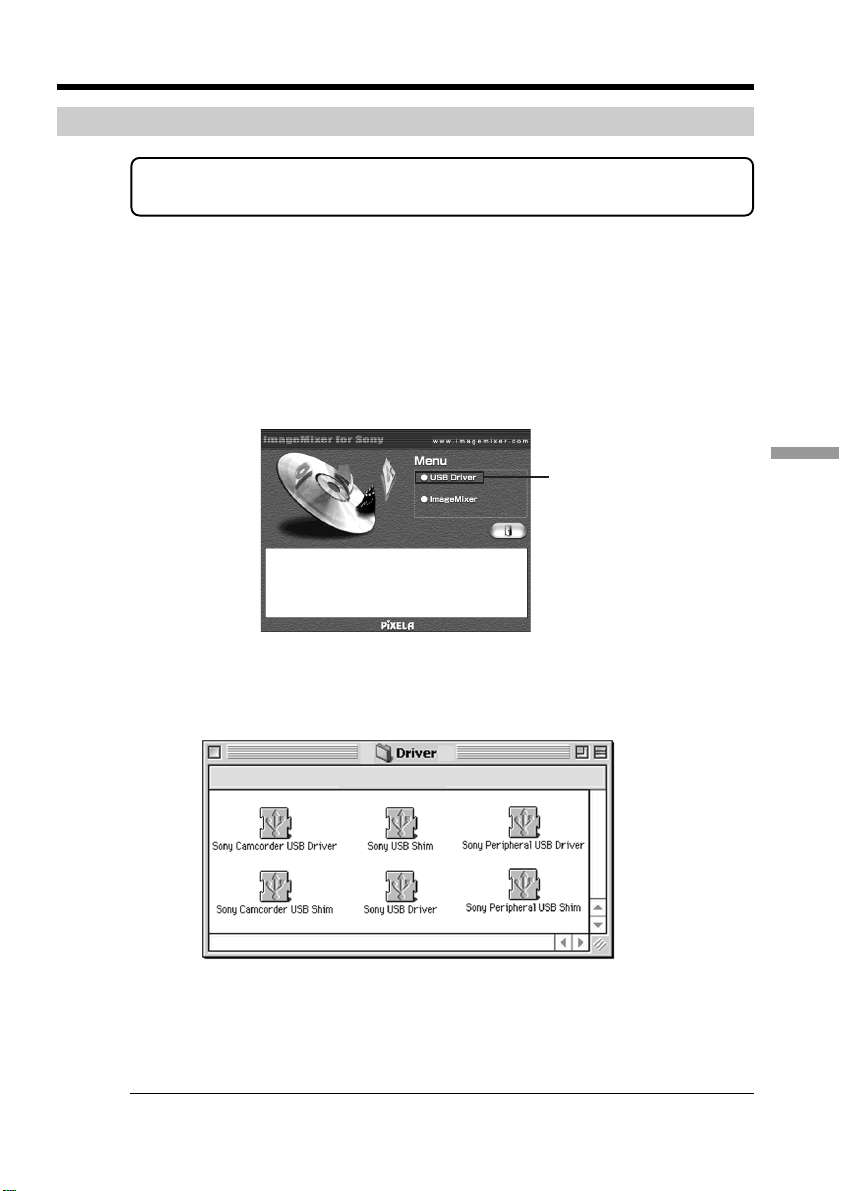
167
Viewing images with your computer
Installing the USB driver
Do not connect the USB cable to a computer before installation of the USB
driver is complete.
For Mac OS 8.5.1/8.6/9.0 users
(1) Turn on the computer and allow the Mac OS to load. If you have been using
the computer, close all software.
(2) Insert the supplied CD-ROM in the CD-ROM drive of the computer.
The application software screen appears.
(3) Select “Handycam” on the screen.
The title screen appears.
(4) Click “USB Driver” to open the folder containing the six files related to
“Driver.”
(5) Select the following two files, and drag and drop them into the System Folder.
•Sony Camcorder USB Driver
•Sony Camcorder USB Shim
(6) When the message appears, click “OK.”
The USB driver is installed on the computer.
(7) Eject the CD-ROM from the computer.
(8) Restart the computer.
For Mac OS 9.1/9.2/Mac OS X (v10.0/v10.1/v10.2)
The USB driver needs not be installed. Your camcorder is automatically recognized as a
drive just by connecting your Mac using the USB cable.
Connecting your camcorder to a computer using the USB cable
(For Macintosh users)
Click

168
Viewing images recorded on “Memory
Stick” on a computer
(For Macintosh users)
Viewing images
Before operation
•You need to install the USB driver to view the “Memory Stick” images on a computer
(p. 167).
•QuickTime 3.0 or newer must be installed to play back moving pictures.
(1) Turn on the computer and allow Mac OS to load.
(2) Insert the “Memory Stick” into your camcorder, then connect the AC Adaptor
to your camcorder.
(3) Set the POWER switch to MEMORY.
(4) Connect the
(USB) jack on your camcorder to the USB port on the computer
using the supplied USB cable.
The USB MODE indicator appears on the screen of your camcorder.
(5) Double-click the “Memory Stick” icon on the desktop.
The folders inside the “Memory Stick” are displayed.
(6) Double-click a desired image file after opening the folders in the following
order.
“DCIM” folder t “sss MSDCF” folder
1)
t Image file
2)
1)
sss stands for any number (within the range) from 101 to 999.
2)
Copying a file to the hard disk of the computer before viewing it is
recommended. If you play back the file directly from the “Memory Stick,”
the image and sound may be damaged.
Disconnect the USB cable and eject the “Memory Stick” or set
the POWER switch to OFF (CHG)
(1) Close all running applications.
Make sure that the “Memory Stick” access lamp of your camcorder is not lit.
(2) Drag the “Memory Stick” icon into the “Trash.” Alternatively, select the
“Memory Stick” icon by clicking on it, then select “Eject disk” from the
“Special” menu at the top left of the screen.
(3) Disconnect the USB cable and eject the “Memory Stick” or set the POWER
switch to OFF (CHG).
For Mac OS X (v10.0) users
Shut down the computer, then disconnect the USB cable and eject the “Memory Stick”
or set the POWER switch to OFF (CHG).
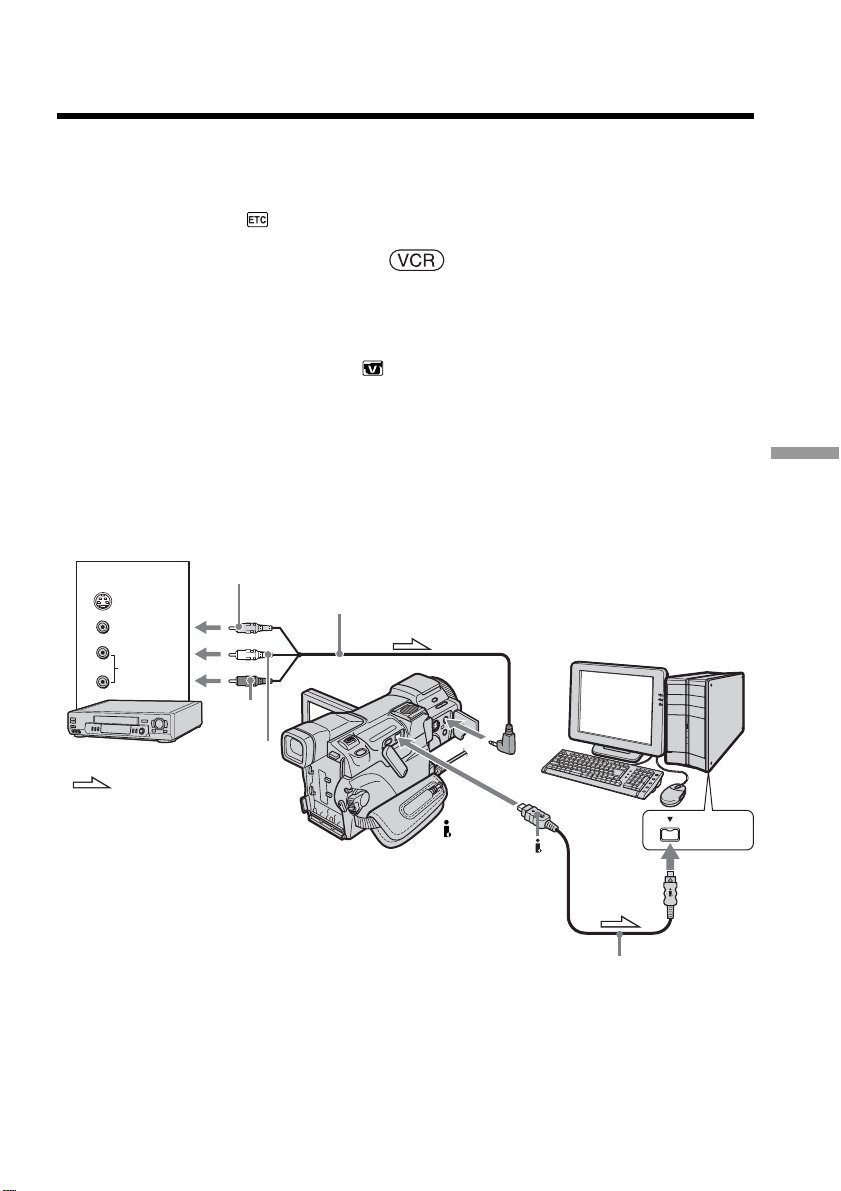
169
Viewing images with your computer
Capturing images from an analog video
unit on a computer
– Signal convert function
You can capture images and sound from an analog video unit connected to a computer
which has the DV port via your camcorder.
Before operation
Set DISPLAY in to LCD in the menu settings. (The default setting is LCD.)
The POWER switch should be set to .
Operate by touching the panel.
(1) Press FN to display PAGE1.
(2) Press MENU.
(3) Select A/V t DV OUT in
, then press EXEC.
(4) Select ON, then press EXEC.
(5) Start playback on the analog video unit.
(6) Start capturing procedures on the computer.
The operation procedures depend on the computer and the software you are
using.
For details of how to capture images, refer to the operating instructions of the
computer and software.
After capturing images and sound
Stop capturing procedures on the computer, and stop playback on the analog video
unit.
VIDEO
AUDIO
S VIDEO
OUT
: Signal flow
AUDIO/
VIDEO
White
Red
i.LINK cable (optional)
DV
Interface
i.LINK
A/V connecting cable (supplied)
Yellow
VCR

170
Notes
•You need the software and computer that support the exchange of digital video
signals.
•Depending on the condition of the analog video signals, the computer may not be able
to output the images correctly when you convert video signals to digital video signals
via your camcorder. Depending on the analog video unit, the image may contain noise
or incorrect colors.
•You cannot record or capture the video output via your camcorder when the video
tapes include copyright protection signals such as the ID-2 system.
If the computer has a USB port
You can connect using a USB cable, but images may not be transferred smoothly.
If your VCR has an S video jack
Pictures can be reproduced more faithfully by using an S video cable (optional).
With this connection, you do not need to connect the yellow (video) plug of the A/V
connecting cable.
Connect an S video cable (optional) to the S video jacks of both your camcorder and the
VCR.
Capturing images from an analog video unit on a computer
– Signal convert function
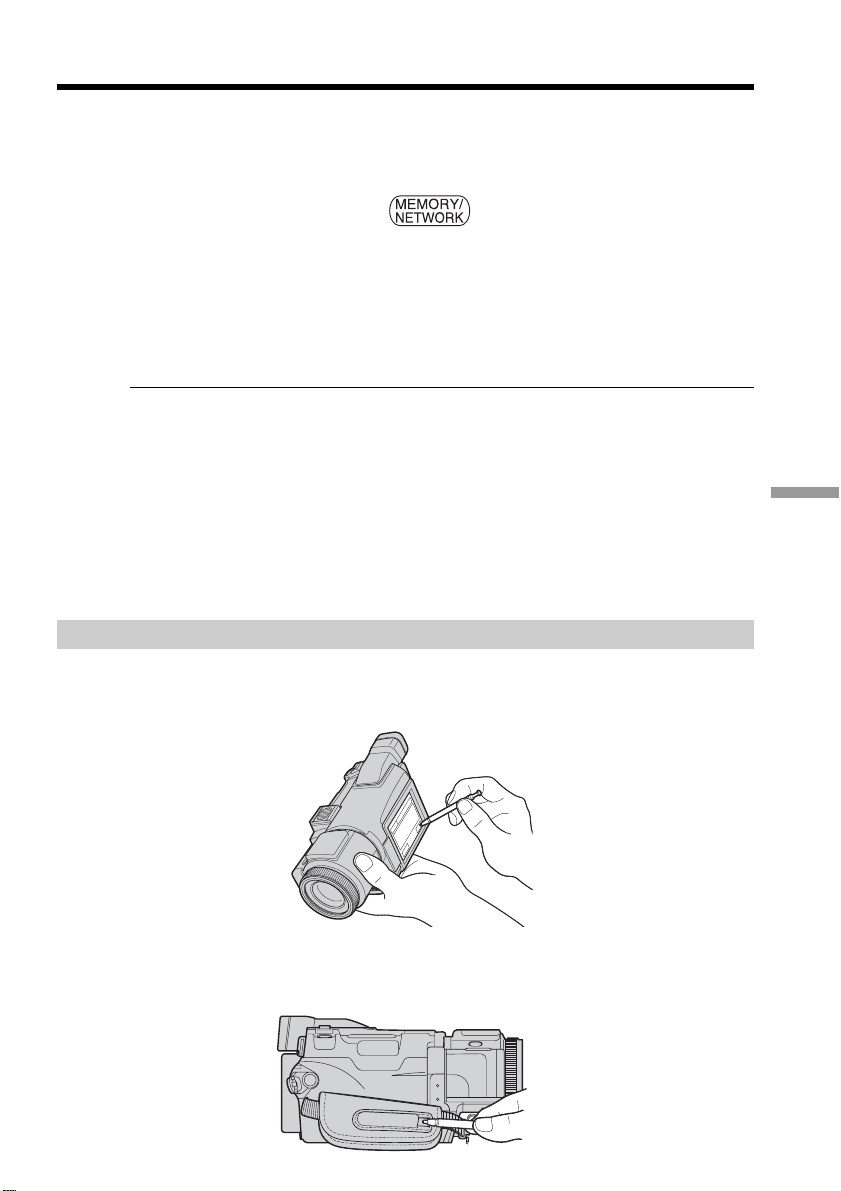
171
Using the Network function
– DCR-TRV70 only
You can access the Internet using a USB device that complies with your camcorder.
Once the access is made, you can view a Web page, send/receive your e-mail, etc. This
section describes only how to open the network menu.
The POWER switch should be set to .
Operate by touching the panel with the stylus.
Press NETWORK.
The network menu appears.
For details, refer to the Network Function/Application Operating Instructions supplied
with your camcorder.
Note
•Make sure that your camcorder is in standby with the POWER switch set to
MEMORY/NETWORK.
•Do not remove the power source while operating the network functions or your
network settings may be erased. Also, close the network function before you turn the
POWER switch.
On trademarks
All product names mentioned herein may be the trademarks or registered trademarks
of their respective companies. Furthermore, “
TM
” and “®” are not mentioned in each
case in this manual.
How to hold your camcorder when operating network functions
Hold your camcorder with your hand through the grip belt to keep from dropping it.
The operation buttons needed for network functions are displayed on the LCD screen.
Press the buttons with the supplied stylus.
After using the stylus
Put it back in the stylus holder. Hold the stylus correctly as illustrated and insert it until
it clicks.
— Using the Network function —
Accessing the network
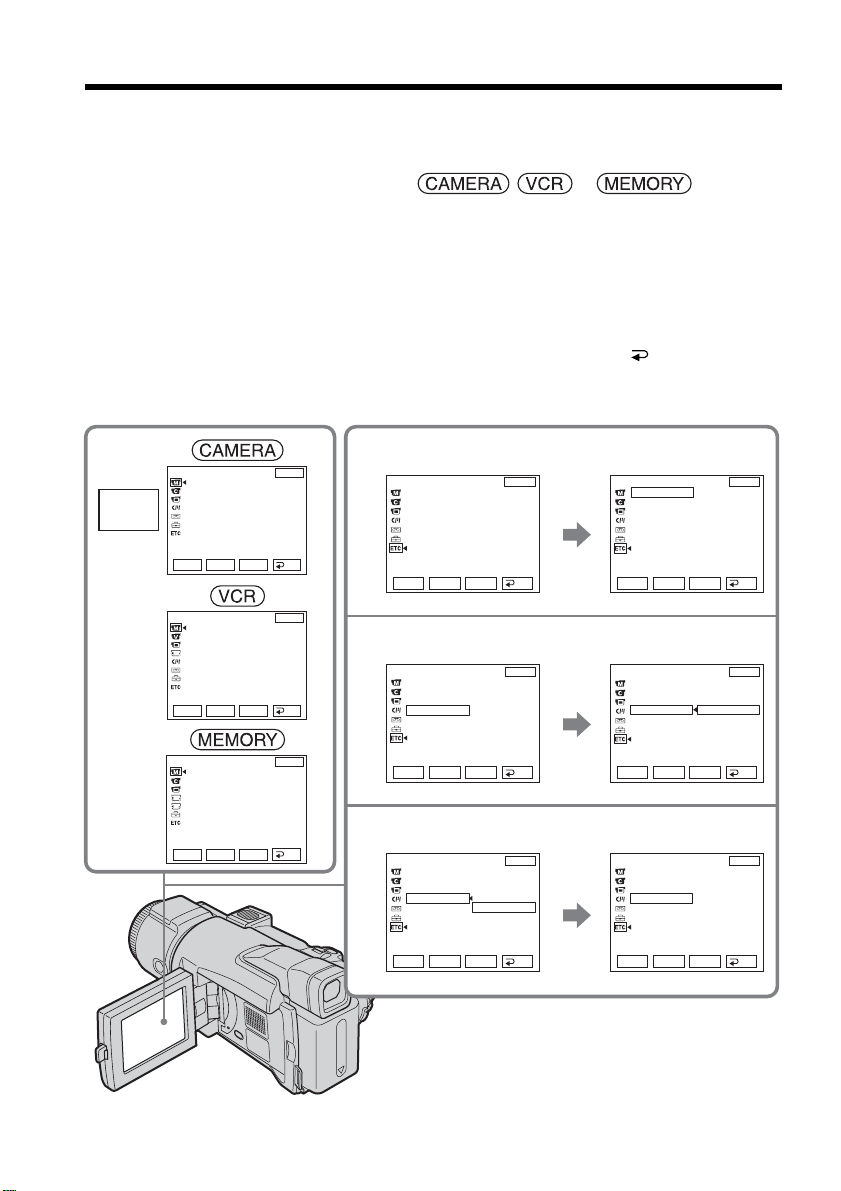
172
To change the mode settings in the menu settings, select the menu items with r/R . The
default settings can be partially changed. First, select the icon, then the menu item and
the mode setting.
The POWER switch should be set to , or .
Operate by touching the panel.
(1) Press FN to display PAGE1.
(2) Press MENU.
(3) Press r/R to select a desired icon, then press EXEC.
(4) Press r/R to select a desired item, then press EXEC.
(5) Press r/R to select a desired setting, then press EXEC.
(6) Repeat Step 3 to 5 if you want to change other items. Press
RET. to return to
Step 3.
For details, see “Selecting the mode setting of each item” (p. 173).
To return to FN
Press EXIT.
— Customizing Your Camcorder —
Changing the menu settings
2
3
4
5
MANUAL SET
PROGRAM AE
RED EYE R
FLASH LVL
WHT BAL
SHARPNESS
OTHERS
AREA SET
DST SET
BEEP
COMMANDER
DISPLAY
REC LAMP
ON
OFF
EXIT
RET.
EXEC
Rr
EXIT
MENU
OTHERS
AREA SET
DST SET
BEEP
COMMANDER
DISPLAY
REC LAMP
OTHERS
AREA SET
DST SET
BEEP
COMMANDER
DISPLAY
REC LAMP
ON
OTHERS
AREA SET
DST SET
BEEP
COMMANDER
DISPLAY
REC LAMP
OFF
EXIT
EXIT
EXIT
OTHERS
AREA SET
DST SET
BEEP
COMMANDER
DISPLAY
REC LAMP
AREA 26
NewYork
Bogota
GMT -5.0
JUL
4 2003
12 : 24 : 24
EXIT
OTHERS
AREA SET
DST SET
BEEP
COMMANDER
DISPLAY
REC LAMP
ON
OFF
EXIT
MANUAL SET
PROGRAM AE
P EFFECT
RED EYE R
FLASH LVL
WHT BAL
SHARPNESS
AUTO SHTR
EXIT
RET.
EXEC
Rr
MANUAL SET
P EFFECT
EXIT
RET.
EXEC
Rr
RET.
EXEC
Rr
RET.
EXEC
Rr
RET.
EXEC
Rr
RET.
EXEC
Rr
RET.
EXEC
Rr
RET.
EXEC
Rr
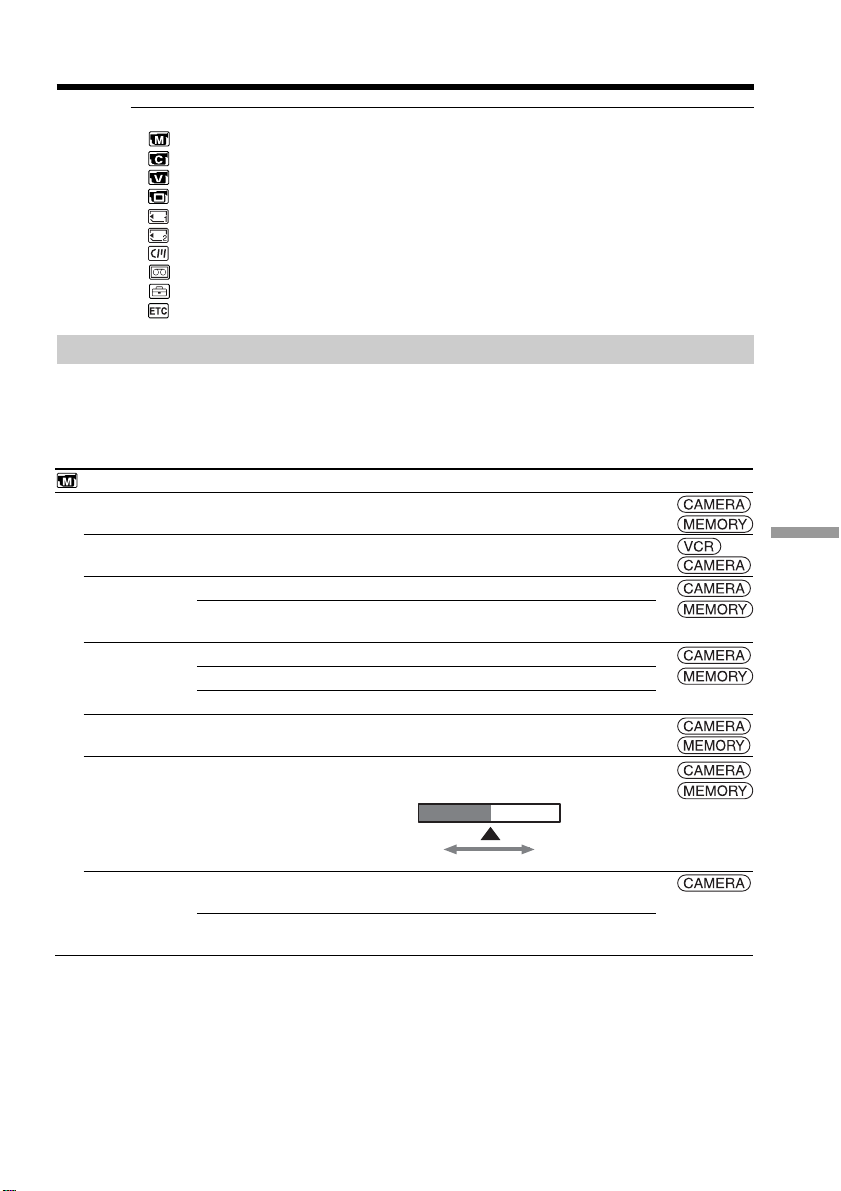
173
Customizing Your Camcorder
Changing the menu settings
Icon/item
MANUAL SET
PROGRAM AE
P EFFECT
RED EYE R
FLASH LVL
WHT BAL
SHARPNESS
AUTO SHTR
Mode
——
——
z OFF
ON
HIGH
z NORMAL
LOW
——
——
z ON
OFF
Meaning
To suit your specific shooting requirement (p. 59)
To add special effects like those in movies or on
the TV to images (p. 55, 71)
Red-eye reduction does not function.
Preliminary flash before recording prevents red-
eye.
To make the flash level higher than normal
To use the normal setting
To make the flash level lower than normal
To adjust the white balance (p. 49)
To adjust the sharpness of the image outline with
R/r
To automatically activate the electronic shutter*
when shooting in bright conditions
To not automatically activate the electronic
shutter* even when shooting in bright conditions
POWER
switch
* About the electronic shutter
The electronic shutter is the function used to adjust the shutter speed electrically.
Note on FLASH LVL and RED EYE R
You cannot adjust FLASH LVL and RED EYE R if the external flash (optional) is not
compatible.
Selecting the mode setting of each item z is the default setting.
Menu items differ depending on the position of the POWER switch.
The screen shows only the items you can operate at the moment.
Menu items are displayed as the following icons:
MANUAL SET
CAMERA SET
VCR SET
LCD/VF SET
MEM SET 1
MEM SET 2
CM SET
TAPE SET
SETUP MENU
OTHERS
To soften To sharpen
(continued on the following page)
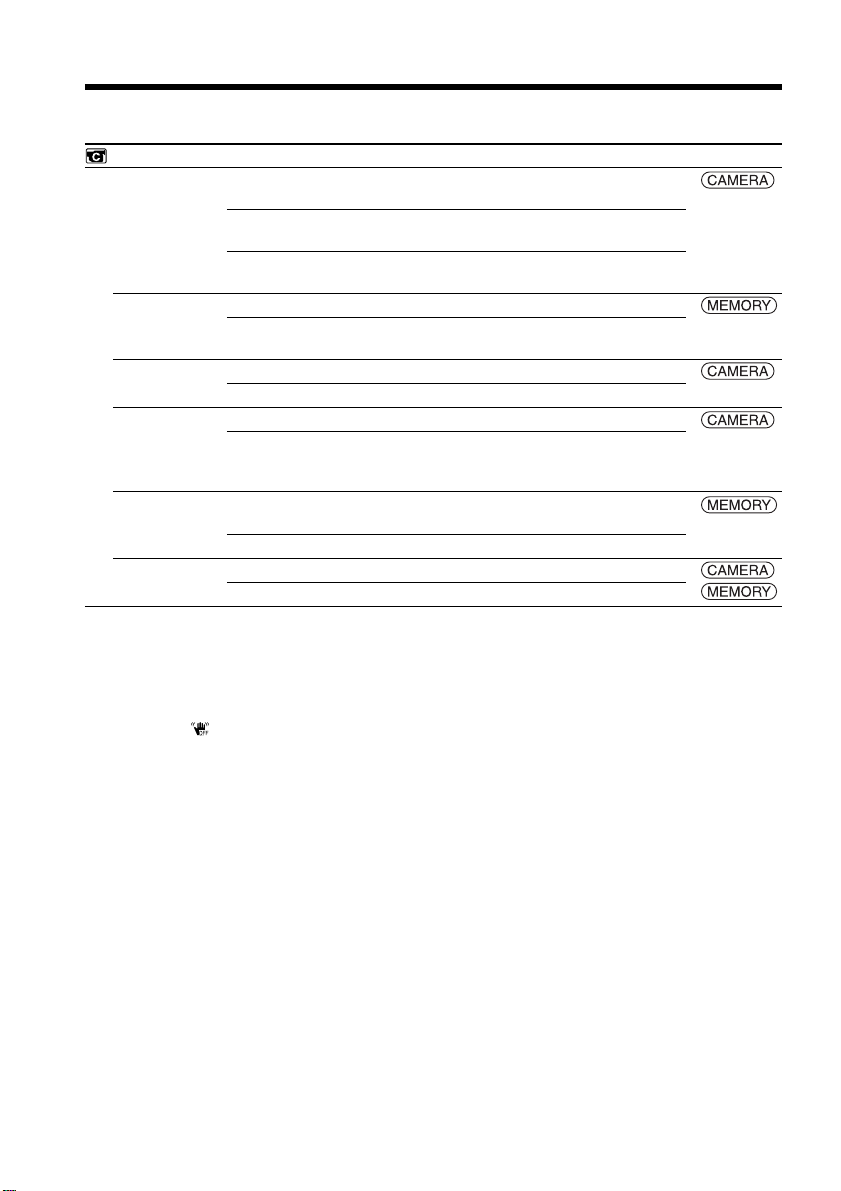
174
Notes on SteadyShot
•SteadyShot will not correct excessive camera-shake.
•Attachment of a conversion lens (optional) may influence SteadyShot.
If you cancel SteadyShot
The (SteadyShot off) indicator appears. Your camcorder prevents excessive
compensation for camera-shake.
Icon/item
CAMERA SET
D ZOOM
EXPANDED F
16:9WIDE
STEADYSHOT
HOLOGRAM F
N.S. LIGHT
Mode
z OFF
20×
120×
z OFF
ON
z OFF
ON
z ON
OFF
z AUTO
OFF
z ON
OFF
Meaning
To deactivate the digital zoom. Up to 10× zoom is
performed.
To activate the digital zoom. More than 10× to 20×
zoom is performed digitally (p. 33).
To activate the digital zoom. More than 10× to
120× zoom is performed digitally.
To deactivate the expanded focus
While focusing manually, the center of the screen
is displayed at twice the size (p. 63).
To not record a 16:9 wide picture
To record a 16:9 wide picture (p. 50)
To compensate for camera-shake
To cancel SteadyShot. Natural pictures are
produced when shooting a stationary subject with
a tripod.
The HOLOGRAM AF emits light when focusing
on subjects is difficult in dark places (p. 115).
The HOLOGRAM AF does not emit light.
To use the NightShot Light (p. 35)
To cancel the NightShot Light
POWER
switch
Changing the menu settings
175
Customizing Your Camcorder
Icon/item
VCR SET
HiFi SOUND
AUDIO MIX
A/V t DV OUT
LCD/VF SET
LCD B.L.
LCD COLOR
VF B.L.
Mode
z STEREO
1
2
——
z OFF
ON
z
BRT NORMAL
BRIGHT
——
z
BRT NORMAL
BRIGHT
Changing the menu settings
Notes on LCD B.L. and VF B.L.
•When you select BRIGHT, battery life is reduced by about 10 percent during
recording.
•When you use power sources other than the battery pack, BRIGHT is automatically
selected.
Even if you adjust LCD B.L., LCD COLOR and VF B.L.
The recorded picture will not be affected.
Meaning
To play back a stereo tape or dual sound track
tape with main and sub sound (p. 195)
To play back the stereo tape with the left sound or
a dual sound track tape with main sound
To play back a stereo tape with the right sound or
a dual sound track tape with sub sound
To adjust the balance between stereo 1 and stereo
2 (p. 96)
To output digital images and sound in analog
format using your camcorder
To output analog images and sound in digital
format using your camcorder (p. 169)
To set the brightness on the LCD screen to normal
To brighten the LCD screen
To adjust the color on the LCD screen with r/R
To set the brightness on the viewfinder screen to
normal
To brighten the viewfinder screen
POWER
switch
ST1 ST2
Low intensity
High intensity
(continued on the following page)
176
Changing the menu settings
Icon/item
MEM SET 1
STILL SET
BURST
QUALITY
IMAGESIZE
MOVIE SET
IMAGESIZE
REMAIN
NEW FOLDER
REC FOLDER
FILE NO.
Mode
z OFF
NORMAL
HIGH SPEED
EXP BRKTG
z FINE
STANDARD
z 1600 × 1200
640 × 480
z 320 × 240
160 × 112
z AUTO
ON
z ADD
RETURN
——
z SERIES
RESET
Meaning
To not record continuously
To record from 4 to 25 images continuously
(p. 111)
To record up to 32 images continuously fast
To record three images continuously with
different exposure
To record still images in the fine image quality
(p. 105)
To record still images in the standard image
quality
To record still images in 1600 × 1200 size (p. 106)
To record still images in 640 × 480 size
To record moving pictures in 320 × 240 size (p. 107)
To record moving pictures in 160 × 112 size
To display the remaining capacity of the
“Memory Stick” in the following cases:
•For about five seconds after setting the POWER
switch to MEMORY or VCR and inserting a
“Memory Stick”
•When the remaining capacity of the “Memory
Stick” is less than two minutes after setting the
POWER switch to MEMORY
•For about five seconds from the start of moving
picture recording
•For about five seconds after completing moving
picture recording
To always display the remaining capacity of the
“Memory Stick”
To create a new folder (p.129)
To cancel creating a new folder
To choose the recording folder (p. 129)
To assign file numbers in sequence even if the
“Memory Stick” is changed. The file number is
reset to 0001, however, when a new folder is
created or the recording folder is changed.
To reset the file number to 0001 each time the
“Memory Stick” is changed.
POWER
switch
When you select image quality
The number of images you can shoot in the currently selected image quality appears on
the screen.
177
Customizing Your Camcorder
Changing the menu settings
Icon/item
MEM SET 2
SLIDE SHOW
INT. R -STL
DELETE ALL
FORMAT
Mode
RETURN
z ALL FILES
FOLDER sss*
ON
z OFF
SET
z RETURN
ALL FILES
FOLDER sss*
z RETURN
OK
Meaning
To cancel slide show
To execute slide show by playing back all the
images on the “Memory Stick” (p. 136)
To execute slide show by playing back all the
images in the selected playback folder
To activate Interval Photo Recording (p. 121)
To deactivate Interval Photo Recording
To set INTERVAL for Interval Photo Recording
To cancel deleting all the image
To delete all the unprotected images (p. 140)
To delete all the images in the selected playback
folder
To cancel formatting
To format the inserted “Memory Stick” (p. 103)
Formatting erases all information on the
“Memory Stick.”
Check the contents of the “Memory Stick” before
formatting.
1. Select FORMAT, then press EXEC.
2. Select OK, then press EXEC.
3. After the EXECUTE indicator appears, press
EXEC.
The FORMATTING indicator flashes while
formatting.
The COMPLETE indicator appears when
formatting is complete.
POWER
switch
* The folder number is displayed in the sss.
Notes on formatting
•Do not do any of the following while the FORMATTING indicator is displayed:
– Turn the POWER switch to other positions.
– Operate buttons.
– Eject the “Memory Stick.”
•The “Memory Stick” supplied with your camcorder has been formatted at factory.
Formatting the “Memory Stick” with your camcorder is not required.
•You cannot format the “Memory Stick” if the write-protect tab on the “Memory Stick”
is set to LOCK.
•Format the “Memory Stick” if the “ FORMAT ERROR” indicator appears.
•Formatting erases sample images on the supplied “Memory Stick.”
•Formatting erases protected image data on the “Memory Stick.”
•Formatting erases newly created folders as well.
(continued on the following page)
178
Changing the menu settings
Icon/item
CM SET
TITLE
TITLEERASE
TITLE DSPL
CM SEARCH
TAPE TITLE
ERASE ALL
Mode
——
——
z ON
OFF
z ON
OFF
——
z RETURN
OK
Meaning
To superimpose a title or make your own title
(p. 97, 99)
To erase the title you have superimposed (p. 98)
To display the title you have superimposed
To not display the title (p. 98)
To search using Cassette Memory (p. 75, 76)
To search without using Cassette Memory
To label the cassette (p. 100)
To cancel erasing all
To erase all the data in Cassette Memory (p. 101)
POWER
switch
179
Customizing Your Camcorder
Icon/item
TAPE SET
REC MODE
AUDIO MODE
qREMAIN
FRAME REC
INT. REC
Mode
z SP
LP
z 12BIT
16BIT
z AUTO
ON
z OFF
ON
ON
z OFF
SET
Meaning
To record in the SP (Standard Play) mode
To increase the recording time to 1.5 times the SP
mode
To record in the 12-bit mode (two stereo sounds)
To record in the 16-bit mode (the one stereo sound
with high quality)
To display the remaining tape indicator:
•For about eight seconds after the POWER
switch is set to VCR or CAMERA with the
cassette inserted, and your camcorder calculates
the remaining amount of tape
•For about eight seconds after the POWER
switch is set to VCR and is pressed
To always display the remaining tape indicator
To deactivate frame recording
To activate frame recording (p. 67)
To activate Interval Recording (p. 66)
To deactivate Interval Recording
To set INTERVAL and REC TIME for Interval
Recording
POWER
switch
Notes on the LP mode
•When you record the tape in the LP mode on your camcorder, we recommend playing
back the tape on your camcorder. When you play back the tape on other camcorders
or VCRs, mosaic noise may occur in pictures or sound.
•When you record in the LP mode, we recommend using a Sony Excellence/Master
mini DV cassette so that you can get the most out of your camcorder.
•You cannot make audio dubbing on the tape recorded in the LP mode. Use the SP
mode for the tape to be audio dubbed.
•When you mix recordings in the SP mode and in the LP mode on one tape, the
playback picture may be distorted or the time code may not be written properly
between scenes.
Notes on AUDIO MODE
•You cannot dub audio sound on the tape recorded in the 16-bit mode.
•When playing back the tape recorded in the 16-bit mode, you cannot adjust the
balance in AUDIO MIX.
Changing the menu settings
(continued on the following page)
180
Changing the menu settings
Icon/item
SETUP MENU
CLOCK SET
USB STREAM
LANGUAGE
DEMO MODE
Meaning
To set the date or time (p. 20)
To deactivate the USB Streaming function
To activate the USB Streaming function
To display the information indicators in English:
min, REC, STBY, START, etc.
To display the information indicators in French
To display the information indicators in Spanish
To display the information indicators in
Portuguese
To display the information indicators in Chinese
To display the information indicators in Korean
To make the demonstration appear
To cancel the demonstration mode
POWER
switchMode
——
z OFF
ON
z ENGLISH
FRANÇAIS
ESPAÑOL
PORTUGUÊS
z ON
OFF
Notes on DEMO MODE
•You cannot select DEMO MODE when a cassette or a “Memory Stick” is inserted in
your camcorder.
•When NIGHTSHOT switch is set to ON, the ”NIGHTSHOT” indicator appears on the
screen and you cannot select DEMO MODE in the menu settings.
•If you press the touch panel during the demonstration, the demonstration stops for a
while, then it starts again after about 10 minutes.
•DEMO MODE is set to STBY (Standby) at the default setting and the demonstration
starts about 10 minutes after you set the POWER switch to CAMERA without a
cassette or a “Memory Stick” inserted.
To cancel the demonstration, insert a cassette or a “Memory Stick”, set the POWER
switch to other than CAMERA, or set DEMO MODE to OFF. To set DEMO MODE to
STBY (Standby) again, set it to ON in the menu settings, set the POWER switch to
OFF (CHG), then back to CAMERA.
181
Customizing Your Camcorder
Icon/item
OTHERS
DATA CODE
(On the Remote
Commander)
AREA SET
DST SET*
BEEP
COMMANDER
DISPLAY
Meaning
To display date, time and various settings during
playback when you press DATA CODE on the
Remote Commander (p. 40)
To display date and time during playback when
you press DATA CODE on the Remote
Commander
Temporarily change the area where you are using
your camcorder
Not during daylight saving time
During daylight saving time
To output the melody when you start/stop
recording or when an unusual condition occurs
on your camcorder
To output the beep instead of the melody
To cancel melody, the beep sound and shutter
sound
To activate the Remote Commander supplied
with your camcorder
To deactivate the Remote Commander to avoid
remote control misoperation caused by other
VCR’s remote control
To show the display on the LCD screen and in the
viewfinder
To show the display on the TV screen, LCD screen
and in the viewfinder
POWER
switch
Mode
z DATE/CAM
DATE
——
z OFF
ON
z MELODY
NORMAL
OFF
z ON
OFF
z LCD
V-OUT/LCD
Changing the menu settings
* Instead of DST, SUMMERTIME appears on the screen for some models.
Note
If you press DISPLAY/BATT INFO with DISPLAY set to V-OUT/LCD in the menu
settings, the picture from a TV or VCR will not appear on the LCD screen even when
your camcorder is connected to the output jacks on the TV or VCR.
(continued on the following page)

182
When recording a close subject
When REC LAMP is set to ON, the red camera recording lamp on the front of your
camcorder may reflect on the subject if it is close. In this case, we recommend you set
REC LAMP to OFF.
In more than five minutes after removing the power source
The PROGRAM AE, FLASH LVL, AUDIO MIX, WHT BAL, HiFi SOUND and
COMMANDER items are returned to their default settings.
Other menu items are held in memory even when the power source is removed.
Changing the menu settings
Icon/item
OTHERS
REC LAMP
VIDEO EDIT
Meaning
To light up the camera recording lamp at the front
of your camcorder during recording
To turn the camera recording lamp off so that the
person is not aware of the recording
To cancel Digital program editing
To make programs and perform Digital program
editing on the tape on the other VCR (p. 80)
To make programs and perform Digital program
editing on the “Memory Stick” (p. 127)
POWER
switch
Mode
z ON
OFF
z RETURN
TAPE
MEMORY

183
Troubleshooting
If you run into any problem using your camcorder, use the following table to
troubleshoot the problem. If the problem persists, remove the power source and contact
your Sony dealer. If “C:ss:ss” appears on the screen, the self-diagnosis display
function has activated. See page 191.
During recording
Symptom Cause and/or Corrective Actions
• The POWER switch is not set to CAMERA.
c Set it to CAMERA (p. 25).
• Your camcorder automatically turns off to prevent the
battery pack from running out and to protect the tape
when your camcorder has been in recording standby for
more than five minutes.
c Set the POWER switch to OFF (CHG) and then to
CAMERA.
• The tape has run out.
c Rewind the tape or insert a new one (p. 8, 39).
• The write-protect tab is set to SAVE >.
c Use a new cassette or slide the tab (p. 8, 195).
• The tape is stuck to the drum (moisture condensation).
c Remove the cassette and leave your camcorder for at
least one hour to acclimatize (p. 202).
• Your camcorder automatically turns off to prevent the
battery pack from running out and to protect the tape
when your camcorder has been in recording standby for
more than five minutes.
c Set the POWER switch to OFF (CHG) and then to
CAMERA.
• The battery pack is dead or nearly dead.
c Install a fully charged battery pack.
• The viewfinder lens is not adjusted.
c Adjust the viewfinder lens (p. 31).
• STEADYSHOT in is set to OFF in the menu settings.
c Set it to ON (p. 174).
• The setting is the manual focus.
c Press FOCUS to enable the autofocus (p. 63).
• Shooting conditions are not suitable for autofocus.
c Adjust the focus manually (p. 63).
• The LCD panel is open.
c Close the LCD panel (p. 28).
• The contrast between the subject and background is too
high. This is not a malfunction.
START/STOP does not operate.
The power goes off.
The picture in the viewfinder is not
clear.
SteadyShot does not work.
The autofocusing function does not
work.
The picture does not appear in the
viewfinder.
A vertical band appears when you
shoot a subject such as lights or a
candle flame against a dark
background.
— Troubleshooting —
Types of trouble and how to correct trouble
(continued on the following page)
184
Types of trouble and how to correct trouble
Symptom Cause and/or Corrective Actions
• This is not a malfunction.
• SLOW SHTR, Super NightShot or Color Slow Shutter is
activated. This is not a malfunction.
• If about 10 minutes elapse after you set the POWER switch
to CAMERA or DEMO MODE is set to ON in the menu
settings without a cassette or a “Memory Stick” inserted,
your camcorder automatically starts the demonstration.
c Insert a cassette or a “Memory Stick” or press the LCD
screen. The demonstration stops. You can also set
DEMO MODE to OFF in the menu settings (p. 180).
• NIGHTSHOT is slid to ON.
c Slide it to OFF (p. 34).
• NIGHTSHOT is slid to ON in a bright place.
c Slide it to OFF (p. 34).
• The back light function is active.
c Set it off (p. 34).
• BEEP in is set to OFF in the menu settings.
c Set it to MELODY or NORMAL (p. 181).
c Set STEADYSHOT in to OFF in the menu settings
(p. 174).
• The power of the external flash (optional) is off or the
power source is not installed.
c Turn on the external flash (optional) or install the power
source.
• Two or more external flashes (optional) are attached.
c Only one external flash (optional) can be attached.
• These phenomena appear if you are recording in the soft
portrait or sports lesson mode of PROGRAM AE under a
discharge tube such as a fluorescent lamp, sodium lamp or
mercury lamp. This is not a malfunction.
c Set PROGRAM AE to AUTO in the menu settings.
A vertical band appears when you
shoot a very bright subject.
Some tiny spots in white, red, blue or
green appear on the screen.
An unknown picture appears on the
screen.
The picture is recorded in incorrect or
unnatural colors.
Picture appears too bright, and the
subject does not appear on the
screen.
The click of the shutter does not
sound.
Black bands appear when you record
a TV screen or computer screen.
An external flash (optional) does not
work.
Flickering or changes in color occurs.
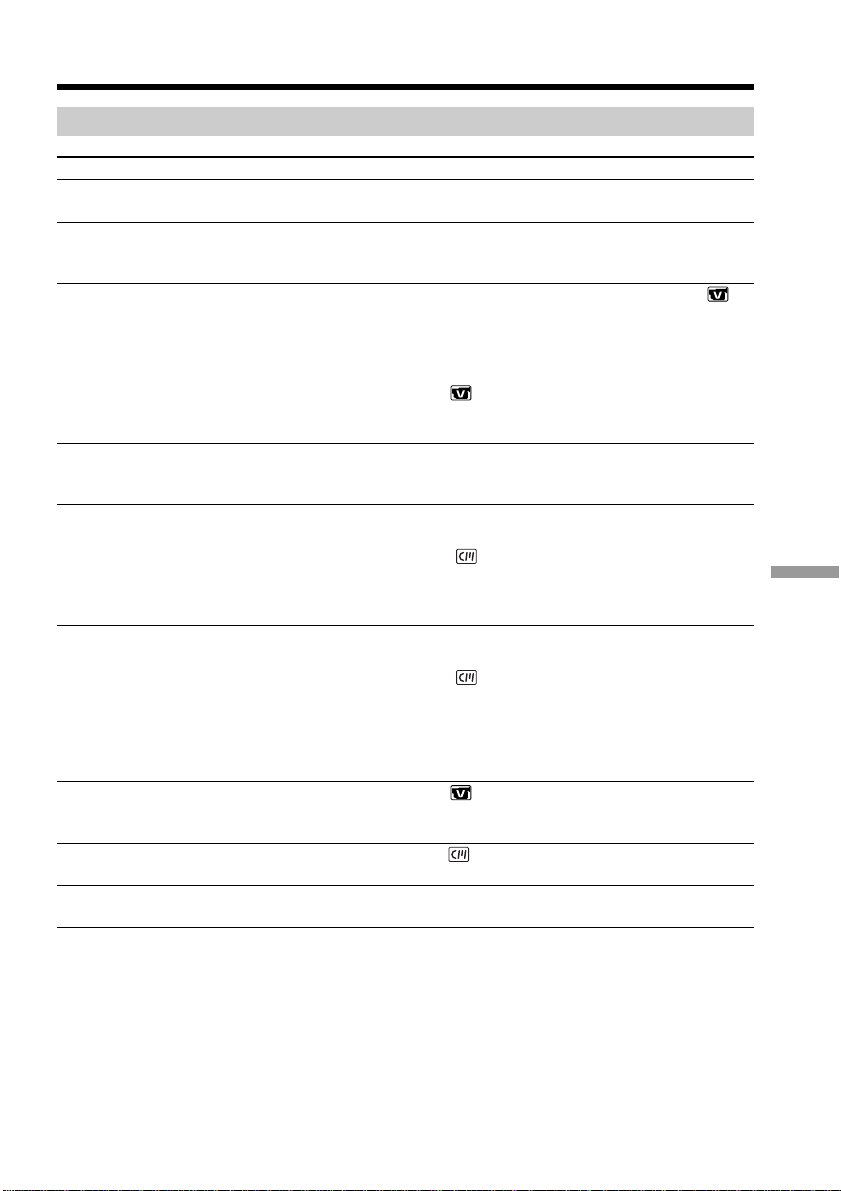
185
Troubleshooting
During playback
Symptom Cause and/or Corrective Actions
• The cassette has run out of the tape.
c Rewind the tape (p. 39).
• The video head may be dirty.
c Clean the head using the cleaning cassette (optional)
(p. 203).
• The stereo tape is played back with HiFi SOUND in
set to 2 in the menu settings.
c Set HiFi SOUND to STEREO (p. 175).
• Volume is turned to minimum.
c Turn up the volume (p. 39).
• AUDIO MIX in is set to the ST2 side in the menu
settings.
c Adjust AUDIO MIX (p. 175).
• The video head may be dirty.
c Clean the head using the cleaning cassette (optional)
(p. 203).
• The cassette has no Cassette Memory.
c Use a cassette with Cassette Memory (p. 76).
• CM SEARCH in is set to OFF in the menu settings.
c Set it to ON (p. 178).
• The tape has a blank portion between recorded portions
(p. 77).
• The cassette has no Cassette Memory.
c Use a cassette with Cassette Memory (p. 75).
• CM SEARCH in is set to OFF in the menu settings.
c Set it to ON (p. 178).
• There is no title in the tape.
c Superimpose the titles (p. 97).
• The tape has a blank portion between recorded portions
(p. 75).
• AUDIO MIX in is set to the ST1 side in the menu
settings.
c Adjust AUDIO MIX (p. 175).
• TITLE DSPL in is set to OFF in the menu settings.
c Set it to ON (p. 178).
• The tape was recorded in a TV color system other than
that of your camcorder.
The playback button does not work.
There are horizontal lines on the
picture or the playback picture is not
clear or does not appear.
No sound or only a low sound is
heard when playing back the tape.
The sound breaks off.
Displaying the record date, Date
search does not work.
Title search does not work.
New sound added to the recorded
tape is not heard.
The title is not displayed.
Noises appear and “PAL” is
displayed on the screen.
Types of trouble and how to correct trouble
(continued on the following page)
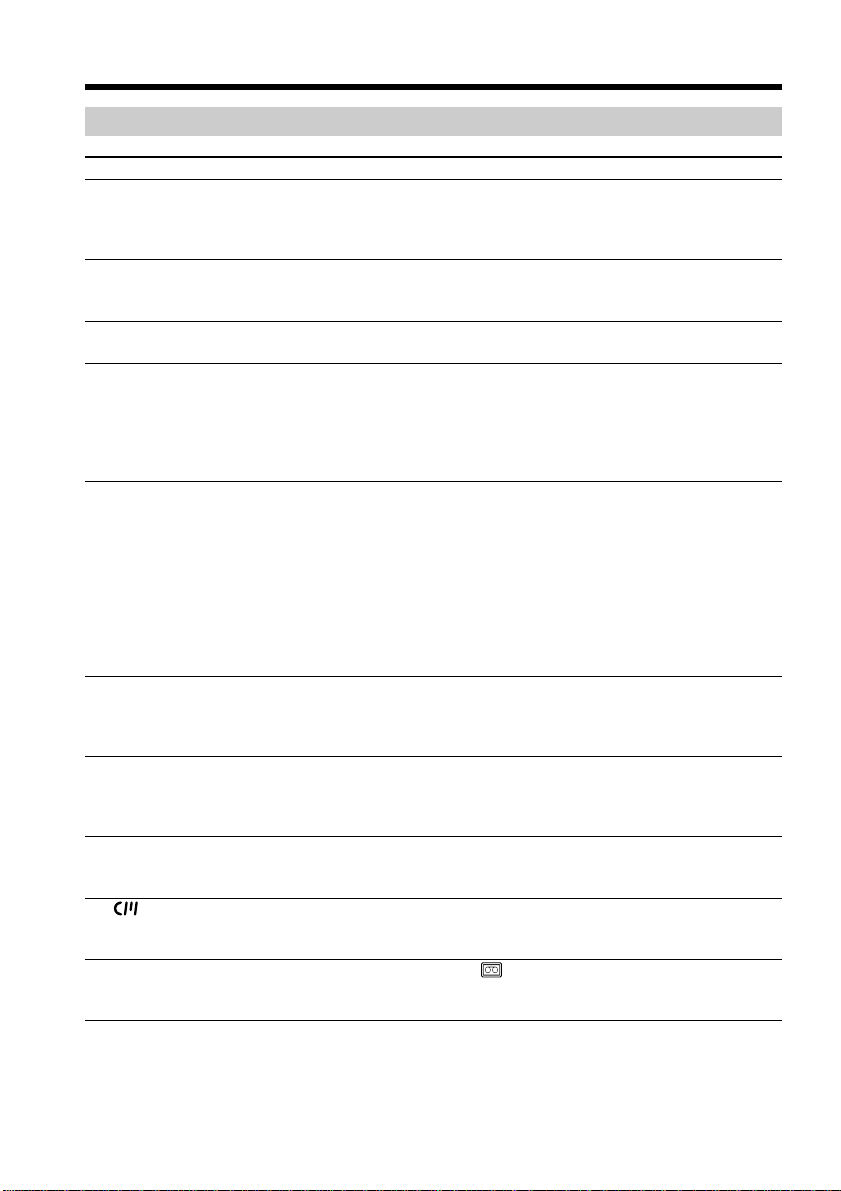
186
During recording and playback
Symptom Cause and/or Corrective Actions
• The battery pack is not installed, or is dead or nearly dead.
c Install a charged battery pack (p. 15, 16).
• The AC Adaptor is not connected to a wall outlet.
c Connect the AC Adaptor to a wall outlet (p. 16).
• The cassette was ejected after recording when using a
cassette without Cassette Memory (p. 37).
• You have not recorded on the new cassette yet (p. 37).
• The tape has a blank portion in the beginning or middle
(p. 37).
• The temperature of the environment is too low.
• The battery pack is not fully charged.
c Charge the battery pack fully again (p. 16).
• The battery pack is completely dead, and cannot be
recharged.
c Replace with a new battery pack (p. 15).
• You have used the battery pack in an extremely hot or
cold environment for a long time.
• The battery pack is completely dead, and cannot be
recharged.
c Replace with a new battery pack (p. 15).
• The battery pack is not fully charged.
c Install a fully charged battery pack (p. 15, 16).
•A deviation has occurred in the remaining battery time.
c Charge the battery pack fully again so that the indication
on the remaining battery time is correct (p. 16).
•A deviation has occurred in the remaining battery time.
c Charge the battery pack fully again so that the indication
on the remaining battery time is correct (p. 16).
• The power source is disconnected.
c Connect it firmly (p. 15, 16).
• The battery pack is dead.
c Use a charged battery pack (p. 15, 16).
• Moisture condensation has occurred.
c Remove the cassette and leave your camcorder for at
least one hour to acclimatize (p. 202).
• The gold-plated connector of the tape is dirty or dusty.
c Clean the gold-plated connector (p. 196).
• q REMAIN in is set to AUTO in the menu settings.
c Set it to ON to always display the remaining tape
indicator (p. 179).
The power does not turn on.
End search does not work.
End search does not work correctly.
The battery pack is quickly
discharged.
The remaining battery time indicator
does not indicate the correct time.
The power goes off although the
remaining battery time indicator
indicates that the battery pack has
enough power to operate.
The cassette cannot be ejected from
the compartment.
The % and Z indicators flash and no
functions except for cassette ejection
work.
The indicator does not appear
when using a cassette with Cassette
Memory.
The remaining tape indicator is not
displayed.
Types of trouble and how to correct trouble

187
Troubleshooting
When operating using the “Memory Stick”
Symptom Cause and/or Corrective Actions
• The POWER switch is not set to MEMORY.
c Set it to MEMORY (p. 11).
• The “Memory Stick” is not inserted.
c Insert a “Memory Stick” (p. 104).
• The “Memory Stick” has already been recorded to its full
capacity.
c Delete unnecessary images and record again (p. 138).
• The “Memory Stick” formatted incorrectly is inserted.
c Format the “Memory Stick” using your camcorder or
use another “Memory Stick” (p. 104, 177).
• The write-protect tab on the “Memory Stick” is set to
LOCK.
c Release the lock (p. 102).
• You cannot record data in the 100MSDCF folder. It is only
for playing back data.
• If the HOLOGRAM AF light reaches the subject, the focus
is automatically adjusted.
c Wipe the HOLOGRAM AF emitter with a dry cloth.
• The image is protected.
c Cancel image protection (p. 137).
• The write-protect tab on the “Memory Stick” is set to
LOCK.
c Release the lock (p. 102).
• You are trying to delete more than a hundred image files
at once.
c You can select up to a hundred image files to delete on
the index screen.
• The write-protect tab on the “Memory Stick” is set to
LOCK.
c Release the lock (p. 102).
• The write-protect tab on the “Memory Stick” is set to
LOCK.
c Release the lock (p. 102).
• The write-protect tab on the “Memory Stick” is set to
LOCK.
c Release the lock (p. 102).
• The index screen does not appear.
c Press INDEX to display the index screen, then protect
the image (p. 137).
Operations on the “Memory Stick”
do not function.
Recording does not function.
The HOLOGRAM AF light from the
HOLOGRAM AF emitter deviates
from the center of the image.
The HOLOGRAM AF light from the
HOLOGRAM AF emitter is blurred
and adjusting the focus is difficult.
The image cannot be deleted.
You cannot format the “Memory
Stick.”
Deleting all the images cannot be
carried out.
You cannot protect the image.
Types of trouble and how to correct trouble
(continued on the following page)

188
Types of trouble and how to correct trouble
Symptom Cause and/or Corrective Actions
• The write-protect tab on the “Memory Stick” is set to
LOCK.
c Release the lock (p. 102).
• The index screen does not appear.
c Press INDEX to display the index screen, then write a
print mark (p. 142).
• You are trying to write a print mark on a moving picture.
c Print marks cannot be written on a moving picture
(p. 142).
•A print mark is written on 999 files.
c A print mark can only be written on up to 999 files.
• The image files recorded on other equipment may not be
resized.
• You may not be able to play back images in actual size
when you try to play back images recorded by other
equipment. This is not a malfunction.
• Your camcorder may not be able to playback the following
image files:
– Image files in the folder with its name modified with the
computer
– Image files with their names modified with the
computer
– Image files processed with the computer
• If you record images with any other equipment, the
images may not be played back normally on your
camcorder.
You cannot write a print mark on the
still image.
You cannot resize the image file.
You cannot play back images in
actual size.
You cannot play back image data.

189
Troubleshooting
Others
Symptom Cause and/or Corrective Actions
• The cassette has no Cassette Memory.
c Use a cassette with Cassette Memory (p. 97).
• The Cassette Memory is full.
c Erase unnecessary titles (p. 98).
• The cassette is set to prevent accidental erasure.
c Slide the write-protect tab to REC . (p. 195).
• The tape has a blank portion between recorded portions.
c Superimpose the title to the recorded position (p. 97).
•The cassette is set to prevent accidental erasure.
c Slide the write-protect tab to REC . (p. 195).
• The cassette has no Cassette Memory.
c Use a cassette with Cassette Memory (p. 100).
• The Cassette Memory is full.
c Erase unwanted data (p. 100).
• The tape is set to prevent accidental erasure.
c Slide the write-protect tab to REC . (p. 195).
• The input selector on the VCR is not set correctly.
c Set the selector correctly, then check the connection
between the VCR and your camcorder (p. 81).
• Your camcorder is connected to the DV equipment of
other than Sony using the i.LINK cable.
c Set it to IR (p. 81).
• Setting a program on a blank portion of the tape is
attempted.
c Set the program again on a recorded portion (p. 87).
• The synchronization of your camcorder and the VCR is
not adjusted.
c Adjust the synchronization of the VCR (p. 84).
• The IR SETUP code is not correct.
c Set the correct code (p. 83).
• Setting a program on a blank portion of the tape is
attempted.
c Set the program again on a recorded portion (p. 127).
• COMMANDER in is set to OFF in the menu settings.
c Set it to ON (p. 181).
• Something is blocking the infrared rays.
c Remove the obstacle.
• The batteries are inserted in the battery holder with the + –
polarities incorrectly matching the + – marks.
c Insert the batteries with the correct polarity (p. 216).
• The batteries are dead.
c Insert new ones (p. 216).
• DISPLAY is set to V-OUT/LCD in in the menu
settings.
c Set it to LCD (p. 181).
A title is not recorded.
The title cannot be deleted.
A cassette label is not recorded.
Digital program editing on the tape
does not function.
Digital program editing on the
“Memory Stick” does not function.
The Remote Commander supplied
with your camcorder does not work.
The picture from a TV or VCR does
not appear even when your
camcorder is connected to the
outputs on the TV or VCR.
Types of trouble and how to correct trouble
(continued on the following page)

190
Symptom Cause and/or Corrective Actions
• Moisture condensation has occurred.
c Remove the cassette and leave your camcorder for at
least one hour to acclimatize (p. 202).
• Some troubles have occurred in your camcorder.
c Remove the cassette and insert it again, then operate
your camcorder.
c Disconnect the AC Adaptor from a wall outlet or
remove the battery pack, then reconnect it in about one
minute. Turn the power on. If the functions still do not
work, press the RESET button using a sharp-pointed
object. (If you press the RESET button, all the settings
(DCR-TRV70: except the network settings) including the
date and time return to the default) (p. 15, 16, 211).
• This is because some functions use a linear mechanism.
This is not a malfunction.
• Charging the battery pack is completed.
• The battery pack is not properly installed.
c Install it properly (p. 15).
• The POWER switch is not set to OFF (CHG).
c Set it to OFF (CHG) (p. 16).
c Charge the battery pack fully again (p. 16).
• The battery pack is not properly installed.
c Install it properly (p. 15).
• Something is wrong with the battery pack.
c If the symptom persists, disconnect the plug from the
wall outlet as soon as possible to cut off the power, and
contact your Sony dealer or local authorized Sony
service facility.
• DISPLAY/BATT INFO is pressed.
c Press the LCD screen lightly.
c Press DISPLAY/BATT INFO on your camcorder or
DISPLAY on the Remote Commander (p. 40).
c Adjust the screen (CALIBRATION) (p. 204).
• The USB cable was connected before installation of the
USB driver was complete.
c Uninstall the USB driver and reinstall the USB driver
(p. 148, 153).
• USB STREAM in is set to OFF in the menu settings.
c Set it to ON (p. 180).
• Your camcorder is on the point of falling into moisture
condensation (p. 202).
c Remove the battery pack, then install it again (p. 15).
The melody or beep sounds for
five seconds.
No function works though the power
is on.
When you set the POWER switch to
VCR or OFF (CHG), if you move
your camcorder, you may hear a
clattering sound from inside your
camcorder.
While charging the battery pack, the
CHARGE (charge) lamp is not lit.
You cannot charge the battery pack.
The power runs out quickly, even
though the remaining battery time
indicator is full.
While charging the battery pack, the
CHARGE (charge) lamp flashes.
The buttons do not appear on the
touch panel.
The buttons on the LCD screen do
not work.
Image data cannot be transferred to
your computer via the USB
connection.
The cassette cannot be ejected even if
the cassette lid is open.
The cassette cannot be ejected.
Types of trouble and how to correct trouble
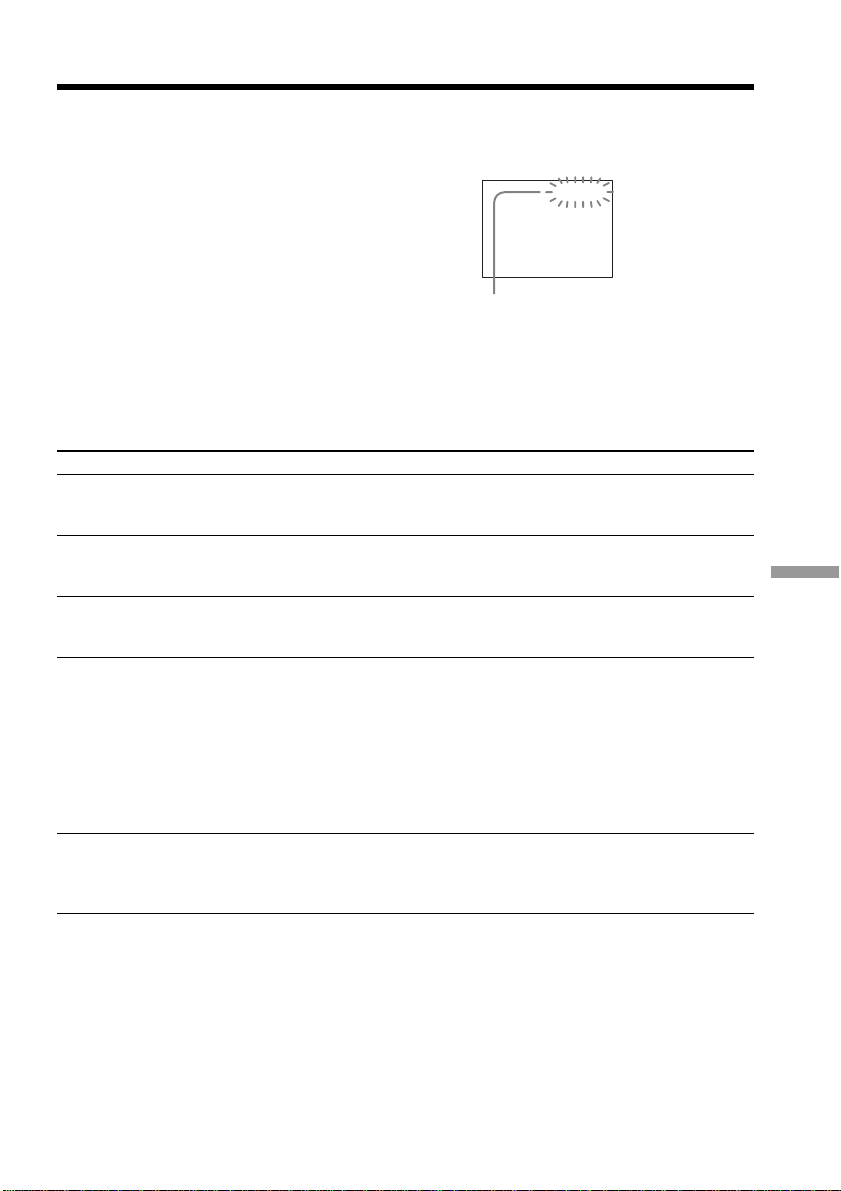
191
Troubleshooting
C:21:00
Self-diagnosis display
5-digit display Cause and/or Corrective Actions
• You are using a battery pack that is not an
“InfoLITHIUM” battery pack.
c Use an “InfoLITHIUM” battery pack (p. 197).
• Moisture condensation has occurred.
c Eject the cassette and leave your camcorder for at least
one hour to acclimatize (p. 202).
• The video heads are dirty.
c Clean the heads using the cleaning cassette (optional)
(p. 203).
•A malfunction other than the above that you can service
has occurred.
c Eject the cassette and insert it again, then operate your
camcorder. Do not perform this operation if moisture
starts to condense (p. 202).
c Disconnect the power cord of the AC Adaptor or
remove the battery pack. After reconnecting the power
source, operate your camcorder.
c Replace the cassette.
•A malfunction that you cannot service has occurred.
c Contact your Sony dealer or local authorized Sony
service facility and inform them of the 5-digit code.
(e.g. E:61:10)
If you are unable to rectify the problem even if you try corrective actions a few times,
contact your Sony dealer or local authorized Sony service facility.
Your camcorder has a self-diagnosis display
function.
This function displays the current state of
your camcorder as a 5-digit code (a
combination of a letter and figures) on the
LCD screen or in the viewfinder. If a 5-digit
code appears, check the following list of
codes. The last two digits (indicated by ss)
differ depending on the state of your
camcorder.
LCD screen or viewfinder
Self-diagnosis display
•C:ss:ss
You can service your camcorder
yourself.
•E:ss:ss
Contact your Sony dealer or local
authorized Sony service facility.
C:04:ss
C:21:ss
C:22:ss
C:31:ss
C:32:ss
E:20:ss
E:61:ss
E:62:ss
E:91:ss

192
Warning indicators
101-0001 Warning indicator pertaining to
files
Slow flashing:
•The file is corrupted.
•The file is unreadable.
•You are trying to carry out MEMORY MIX
on a moving picture (p. 118).
C:21:00 Self-diagnosis display (p. 191)
E The battery pack is dead or nearly dead
Slow flashing:
•The battery pack is nearly dead.
Depending on the operating conditions,
environmental or battery conditions, the E
indicator may flash, even if there are
approximately five to 10 minutes
remaining.
% Moisture condensation has occurred *
Fast flashing:
•Eject the cassette, set the POWER switch to
OFF (CHG), and leave it for about one hour
with the cassette lid open (p. 202).
Warning indicator pertaining to
Cassette Memory *
Slow flashing:
•No cassette with Cassette Memory is
inserted (p. 194).
Warning indicator
pertaining
to the
“Memory Stick”
Slow flashing:
•No “Memory Stick” is inserted.
Fast flashing:
•The image cannot be recorded on the
“Memory Stick.”*
Warning indicator pertaining to the
“Memory Stick” formatting*
Fast flashing:
•The “Memory Stick” data is corrupted
(p. 102).
•The “Memory Stick” is not formatted
correctly (p. 177).
If indicators appear on the screen, check the following:
See the page in parentheses “( )” for details.
Warning indicator pertaining to
incompatible “Memory Stick”*
Slow flashing:
•An incompatible “Memory Stick” is
inserted.
Q Warning indicator pertaining to the
tape
Slow flashing:
•The tape is near the end.
•No cassette is inserted.*
•The write-protect tab of the cassette is set to
SAVE > (p. 195).*
Fast flashing:
•The tape has run out.*
Z You need to eject the cassette*
Slow flashing:
•The write-protect tab on the cassette is set
to SAVE > (p. 195).
Fast flashing:
•Moisture condensation has occurred
(p. 202).
•The tape has run out.
•The self-diagnosis display code is displayed
(p. 191).
- The image is protected*
Slow flashing:
•The image is protected (p. 137).
Warning indicator pertaining to the flash
Slow flashing:
•During charging
Fast flashing:
•The self-diagnosis display code is displayed
(p. 191).*
•There is something wrong with the built-in
flash or the external flash (optional).
Warning indicator pertaining to still
image recording
Slow flashing:
•The still image cannot be recorded on the
“Memory Stick” in the current operating
conditions (p. 47).
* You hear the melody or beep sound.

193
Troubleshooting
If messages appear on the screen, check the following. See the page in parentheses
“( )” for details.
• CLOCK SET Set the date and time (p. 20).
• FOR ”InfoLITHIUM” Use an “InfoLITHIUM” battery pack (p. 197).
BATTERY ONLY
• CLEANING CASSETTE The video heads are dirty (p. 203).
The x indicator and “ CLEANING CASSETTE“ message
appear one after another on the screen.
• COPY INHIBIT You tried to record a picture that has a copyright control signal
(p. 194). *
• FULL The Cassette Memory is full. *
• 16BIT AUDIO MODE is set to 16BIT. You cannot dub new sound
(p. 179). *
• REC MODE REC MODE is set to LP. * You cannot dub new sound (p. 179).
You cannot dub new sound on the tape recorded in a TV color
system other than that of your camcorder.
• TAPE There is no recorded portion on the tape. * You cannot dub new
sound.
• ”i.LINK” CABLE The i.LINK cable is connected. You cannot dub new sound
(p. 93). *
• FULL The “Memory Stick” is full (p. 112). *
• -
The write-protect tab on the “Memory Stick” is set to LOCK
(p. 102).
*
• NO FILE No image is recorded or there is no recognizable file on the
“Memory Stick”. *
• NO MEMORY STICK No “Memory Stick” is inserted.
*
• AUDIO ERROR You are trying to record an image with sound that cannot be
recorded by your camcorder on the “Memory Stick” (p. 125).
*
• MEMORY STICK ERROR The “Memory Stick” data is corrupted (p. 104).
*
• FORMAT ERROR The “Memory Stick” is not recognized (p. 177).
*
Check the format.
• PLAY ERROR The image is distorted and cannot be played back.
* Reinsert the
“Memory Stick.”
• REC ERROR Turn the POWER switch on again. *
• INCOMPATIBLE The “Memory Stick” inserted is not compatible
MEMORY STICK with your camcorder.
*
• READ-ONLY MEMORY STICK A read-only “Memory Stick” is inserted.
*
• Q Z TAPE END The tape has reached the end of the tape.
*
• Q NO TAPE Insert a cassette.
*
• DELETING You press PHOTO on your camcorder while deleting data in
the “Memory Stick.”
*
• FORMATTING You press PHOTO on your camcorder while formatting the
“Memory Stick.”
*
• FOLDER NO.FULL You have reached the maximum of folders that can be created.
• USB STREAMING ON GOING Your camcorder is performing the USB Streaming function.
• NOW CHARGING Charging the built-in flash or an external flash (optional) does
not work correctly.
*
* You hear the melody or beep sound.
DCR-TRV70 only
Refer to the Network Function/Application Operating Instructions supplied with your camcorder
about warning messages in the network function.
Warning messages
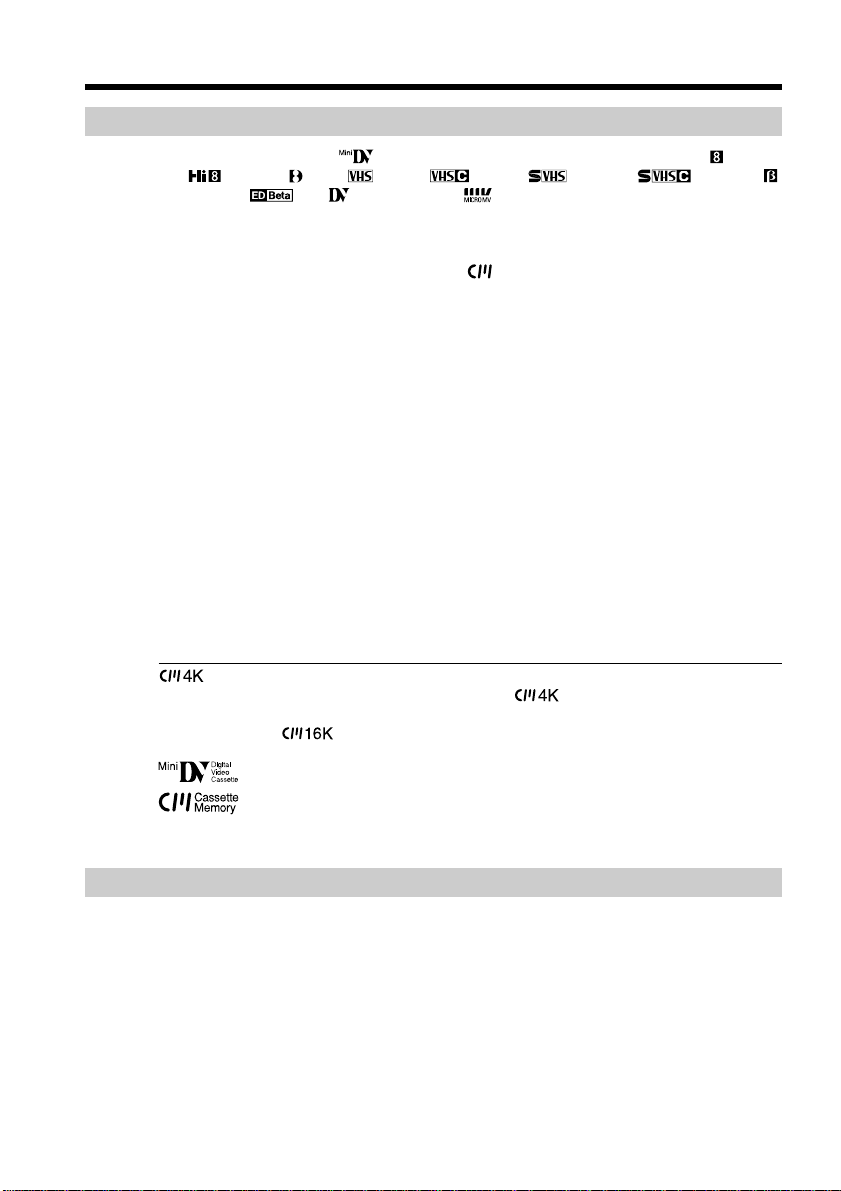
194
— Additional Information —
Usable cassettes
Selecting cassette types
You can use the mini DV cassette only.* You cannot use any other 8 mm ,
Hi8 , Digital8 , VHS , VHSC , S-VHS , S-VHSC , Betamax ,
ED Betamax , DV or MICRO MV cassette.
* There are two types of mini DV cassettes: with Cassette Memory and without Cassette
Memory.
Cassettes with Cassette Memory have the (Cassette Memory) mark.
We recommend that you use cassettes with Cassette Memory.
IC memory is mounted on this type of cassette. Your camcorder can read and write
data such as dates of recording or titles, etc. to this memory.
The functions using the Cassette Memory require successive signals recorded on the
tape. If the tape has a blank portion at the beginning or between recorded portions,
titles may not be displayed properly or the search functions may not work properly.
Perform the following to prevent a blank portion from being made on the tape.
Press END SCH to go to the end of the recorded portion before you begin the next
recording if you operate the following:
– You have ejected the cassette during recording.
– You have played back the tape.
– You have used Edit search.
If there is a blank portion or discontinuous signals on your tape, re-record from the
beginning to the end of the tape as described above.
The same result may occur when you record using a digital video camera recorder
that doesn't support Cassette Memory on the tape already recorded on the Cassette
Memory-compatible digital video camera recorder.
mark on the cassette
The memory capacity of the cassette marked with is 4K bits. Your camcorder can
accommodate cassettes having a memory capacity of up to 16K bits. 16K bits cassette
are marked with .
This is the Mini DV mark.
This is the Cassette Memory mark.
These are trademarks.
Copyright signal
When you play back
If the tape you play back on your camcorder contains copyright signals, you cannot
copy it with another video camera connected to your camcorder.
When you record
You cannot record software on your camcorder that contains copyright control
signals for copyright protection of software.
The COPY INHIBIT indicator appears on the screen, or on the TV screen if you try to
record such software. Your camcorder does not record copyright control signals on the
tape when it records.
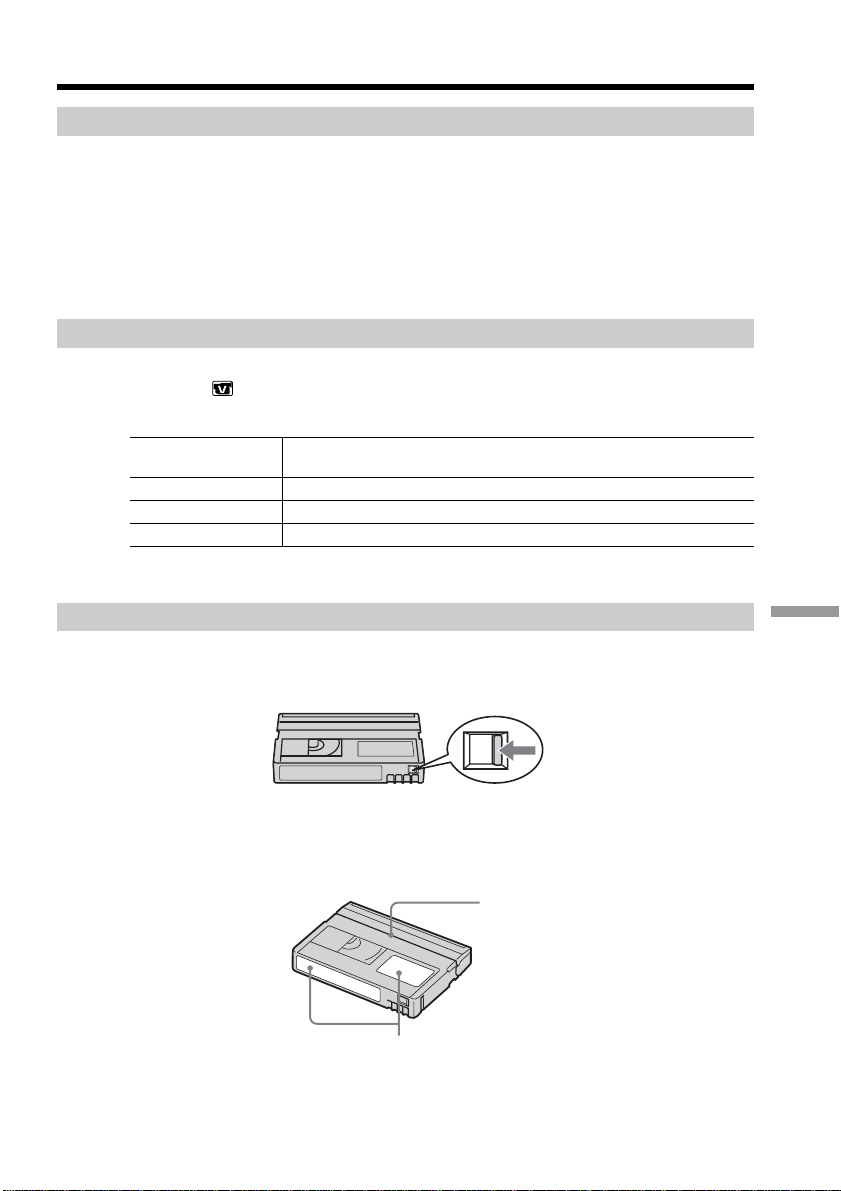
195
Additional Information
Audio mode
12-bit mode:The original sound can be recorded in stereo 1, and the new sound in
stereo 2 in 32 kHz. The balance between stereo 1 and stereo 2 can be
adjusted by selecting AUDIO MIX in the menu settings during playback.
Both sounds can be played back.
16-bit mode:A new sound cannot be recorded but the original sound can be recorded in
high quality. Moreover, your camcorder can also play back sound recorded
in 32 kHz, 44.1 kHz or 48 kHz. When playing back the tape recorded in the
16-bit mode, the 16BIT indicator appears on the screen.
When you play back a dual sound track tape
When you play back a dual sound track tape recorded in a stereo system, set HiFi
SOUND in to a desired mode in the menu settings (p. 175).
Sound from speaker
HiFi Sound Mode Playing back the stereo tape
Playing back the dual
sound track tape
STEREO Stereo Main sound and sub sound
1 Lch Main sound
2 Rch Sub sound
You cannot record dual sound programs on your camcorder.
Notes on the cassette
To prevent accidental erasure
Slide the write-protect tab on the cassette to SAVE >.
When affixing a label on the cassette
Be sure to affix a label only on the locations as illustrated below [a] so as not to cause
malfunction of your camcorder.
After using the cassette
Rewind the tape to the beginning, put the cassette in its case, and store it in an upright
position.
Usable cassettes
[a]
Do not affix a label along this
border.
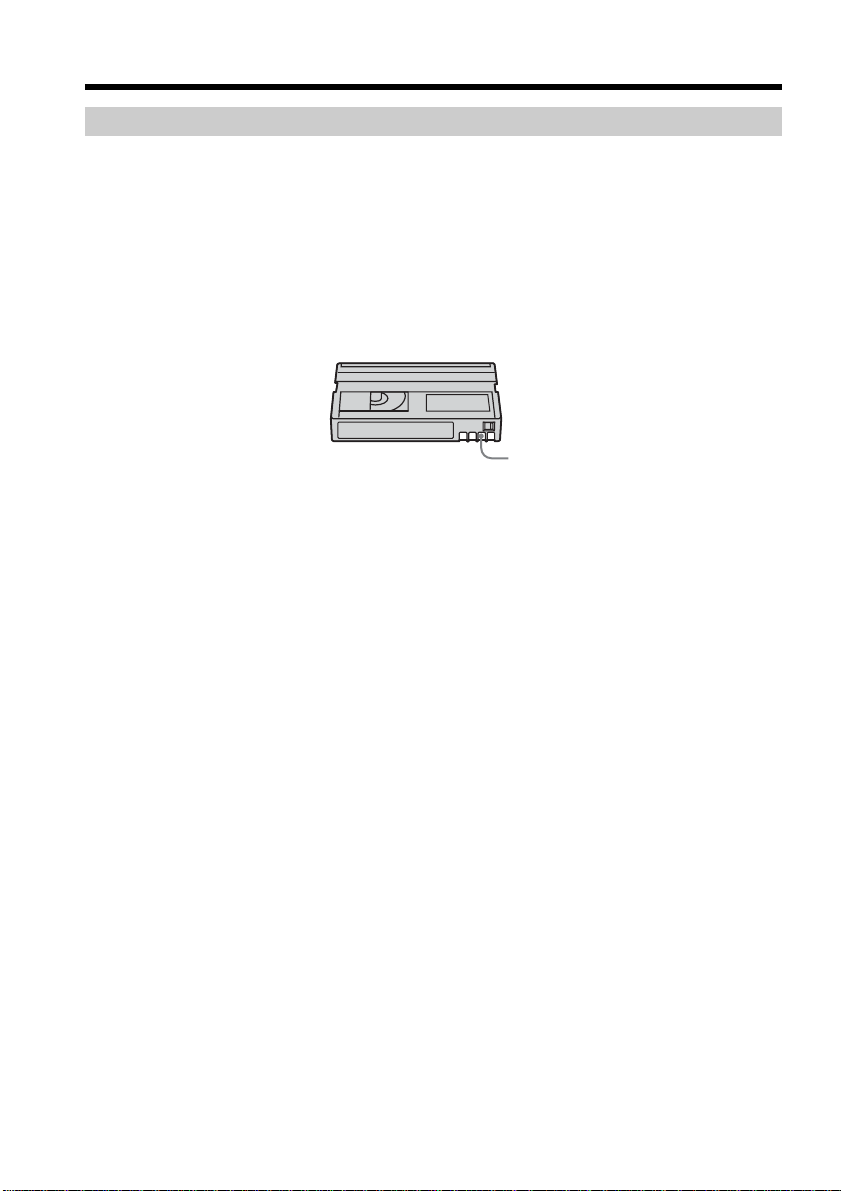
196
Usable cassettes
When the Cassette Memory function does not work
Reinsert a cassette. The gold-plated connector of mini DV cassettes may be dirty or
dusty.
Cleaning the gold-plated connector
If the gold-plated connector on the cassette is dirty or dusty, the remaining tape
indicator sometimes does not appear correctly, and you may not be able to operate
functions using Cassette Memory.
Clean up the gold-plated connector with a cotton-wool swab, about every 10 times
ejection of a cassette. [b]
[b]

197
Additional Information
About the “InfoLITHIUM” battery pack
This unit is compatible with the “InfoLITHIUM” battery pack (M series). Your
camcorder operates only with the “InfoLITHIUM” battery pack. “InfoLITHIUM” M
series battery packs have the
SERIES
TM
mark.
What is the “InfoLITHIUM” battery pack?
The “InfoLITHIUM” battery pack is a lithium-ion battery pack that has functions for
communicating information related to operating conditions between your camcorder
and an optional AC adaptor/charger.
The “InfoLITHIUM” battery pack calculates the power consumption according to the
operating conditions of your camcorder, and displays the remaining battery time in
minutes. With an AC adaptor/charger (optional), the remaining battery time and
charging time appear.
Charging the battery pack
•Be sure to charge the battery pack before you start using your camcorder.
•We recommend charging the battery pack in an ambient temperature of between
10°C to 30°C (50°F to 86°F) until the CHARGE (charge) lamp turns off. If you charge
the battery outside of this temperature range, you may not be able to efficiently charge
the battery pack.
•After charging is complete, either disconnect the cable from the DC IN jack on your
camcorder or remove the battery pack.
Effective use of the battery pack
•Battery pack performance decreases in 10°C (50°F) or below surroundings. So, the
time that the battery pack can be used becomes shorter. We recommend the following
to ensure longer battery pack use:
– Put the battery pack in a pocket to warm it up, and insert it in your camcorder
immediately before you start taking shots.
– Use the large capacity battery pack
(NP-FM70/QM71/QM71D/FM91/QM91/QM91D, optional).
•Frequently using the LCD screen or frequently operating playback, fast forward or
rewind wears out the battery pack faster. We recommend using the large capacity
battery pack (NP-FM70/QM71/QM71D/FM91/QM91/QM91D, optional).
•Be sure to set the POWER switch to OFF (CHG) when not taking shots or playing back
on your camcorder. The battery pack is also consumed when your camcorder is
during tape recording standby or playback pause.
•Have spare battery packs handy for two or three times the expected recording time,
and make trial recordings before taking the actual recording.
•Do not expose the battery pack to water. The battery pack is not water resistant.
Remaining battery time indicator
•If the power goes off although the remaining battery time indicator indicates that the
battery pack has enough power to operate, charge the battery pack fully again so that
the indication on the remaining battery time is correct. Note, however, that the correct
battery indication sometimes will not be restored if it is used in high temperatures for
a long time or left in a fully charged state, or the battery pack is frequently used.
Regard the remaining battery time indication as the approximate shooting time.
•The E mark indicating that there is little remaining battery time sometimes flashes
depending on the operating conditions or ambient temperature and environment even
if the remaining battery time is about five to 10 minutes.

198
About the “InfoLITHIUM” battery pack
How to store the battery pack
•If the battery pack is not used for a long time, do the following procedure once per
year to maintain the proper function.
1. Fully charge the battery pack.
2. Use the battery pack up on your camcorder.
3. Remove the battery pack from your camcorder and store it in a dry, cool place.
•To use the battery pack up on your camcorder, leave your camcorder in tape
recording standby until the power goes off without a cassette inserted.
Battery life
•The battery life is limited. Battery capacity drops little by little as you use it more and
more, and as time passes. When the available battery time is shortened considerably, a
probable cause is that the battery pack has reached the end of its life. Please buy a new
battery pack.
•The battery life varies depending on how it is stored and operating conditions and
environment for each battery pack.
Disposaling of the battery pack
Certain countries or areas may regulate disposal of the battery pack used to power this
product. Please consult with your local authority.
“InfoLITHIUM” is a trademark of Sony Corporation.

199
Additional Information
The DV Interface on this unit is an i.LINK-compliant DV Interface. This section
describes the i.LINK standard and its features.
What is i.LINK?
i.LINK is a digital serial interface for handling digital video, digital audio and other
data in two directions between equipment having the i.LINK, and for controlling other
equipment.
i.LINK-compatible equipment can be connected by a single i.LINK cable. Possible
applications are operations and data transactions with various digital AV equipment.
When two or more i.LINK-compatible equipment are connected to this unit in a daisy
chain, operations and data transactions are possible with not only the equipment that
this unit is connected to but also with other devices via the directly connected
equipment.
Note, however, that the method of operation sometimes varies according to the
characteristics and specifications of the equipment to be connected, and that operations
and data transactions are sometimes not possible on some connected equipment.
Note
Normally, only one piece of equipment can be connected to this unit by the i.LINK
cable. When connecting this unit to i.LINK-compatible equipment having two or more
DV Interfaces, refer to the operating instructions of the equipment to be connected.
About the name “i.LINK”
i.LINK is a more familiar term for IEEE 1394 data transport bus proposed by Sony, and
is a trademark approved by many corporations.
IEEE 1394 is an international standard standardized by the Institute of Electrical and
Electronics Engineers.
i.LINK Baud rate
i.LINK’s maximum baud rate varies according to the equipment. Three maximum baud
rates are defined:
S100 (approx. 100 Mbps*)
S200 (approx. 200 Mbps)
S400 (approx. 400 Mbps)
The baud rate is listed under “Specifications” in the operating instructions of each
equipment. It is also indicated near the i.LINK on some equipment.
The maximum baud rate of equipment on which it is not indicated such as this unit is
“S100.”
When units are connected to equipment having a different maximum baud rate, the
baud rate sometimes differs from the indicated baud rate.
*What is Mbps?
Mbps stands for megabits per second, or the amount of data that can be sent or received
in one second. For example, a baud rate of 100 Mbps means that 100 megabits of data
can be sent in one second.
About i.LINK

200
i.LINK functions on this unit
For details on how to dub when this unit is connected to other video equipment having
DV Interface, see pages 78, 89.
This unit can also be connected to other i.LINK (DV Interface) compatible equipment
made by Sony (e.g. VAIO series personal computer) other than video equipment.
Before connecting this unit to your computer, make sure that application software
supported by this unit is already installed on your computer.
Beware that some of the video equipment such as the Digital Televisions, the DVD
recorders/players or the MICROMV recorders/players are equipped with the i.LINK
jack but not comapatible with the DV equipment. Be sure to confirm whether the
equipment is compatible with the DV equipment or not before connecting your
camcorder to it.
For details on precautions when connecting this unit, also refer to the operating
instructions for the equipment to be connected.
Required i.LINK Cable
Use the Sony i.LINK 4-pin-to-4-pin cable (during DV dubbing).
i.LINK and are trademarks.
About i.LINK
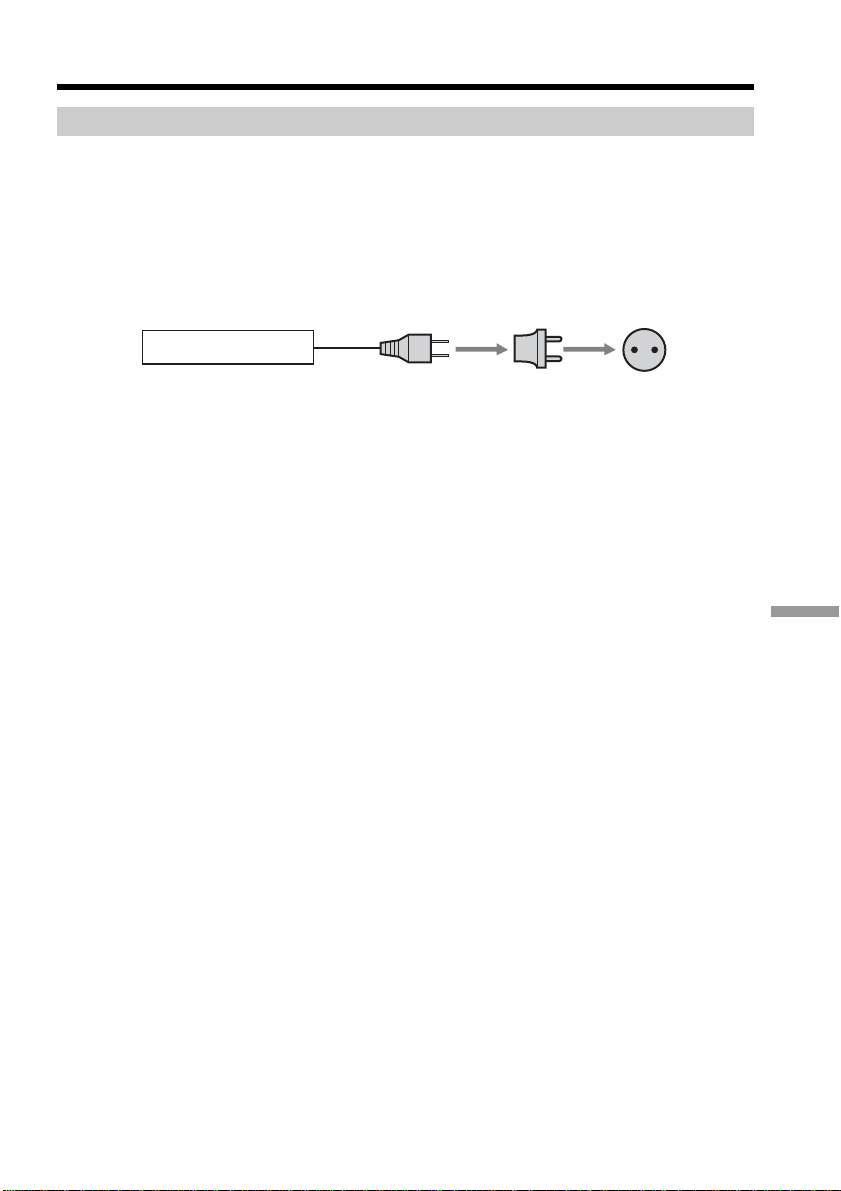
Additional Information
201
Using your camcorder abroad
Using your camcorder abroad
For details on using the Network function abroad, refer to the operating instructions
supplied with the USB device (optional) (DCR-TRV70 only).
You can use your camcorder in any country or area with the AC Adaptor supplied with
your camcorder within 100 V to 240 V AC, 50/60 Hz.
Use a commercially available AC plug adaptor [a], if necessary, depending on the
design of the wall outlet [b].
Your camcorder is an NTSC system-based camcorder. If you want to view the playback
picture on a TV, it must be an NTSC system-based TV with the AUDIO/VIDEO input
jack.
The following shows TV color systems used overseas.
NTSC system
Bahama Islands, Bolivia, Canada, Central America, Chile, Colombia, Ecuador, Guyana,
Jamaica, Japan, Korea, Mexico, Peru, Surinam, Taiwan, the Philippines, the U.S.A.,
Venezuela, etc.
PAL system
Australia, Austria, Belgium, China, Czech Republic, Denmark, Finland, Germany,
Holland, Hong Kong, Hungary, Italy, Kuwait, Malaysia, New Zealand, Norway,
Poland, Portugal, Singapore, Slovak Republic, Spain, Sweden, Switzerland, Thailand,
United Kingdom, etc.
PAL-M system
Brazil
PAL-N system
Argentina, Paraguay, Uruguay
SECAM system
Bulgaria, France, Guiana, Iran, Iraq, Monaco, Russia, Ukraine, etc.
[b][a]
AC-L15A/L15B

202
Maintenance information and precautions
Moisture condensation
If your camcorder is brought directly from a cold place to a warm place, moisture may
condense inside your camcorder, on the surface of the tape, or on the lens. In this state,
the tape may stick to the head drum and be damaged or your camcorder may not
operate correctly. If there is moisture inside your camcorder, the beep sounds and the %
indicator flashes. The Z indicator flashes at the same time while the cassette is inserted
in your camcorder. If moisture condenses on the lens, the indicator will not appear.
If moisture condensation has occurred
None of the functions except cassette ejection will work. Eject the cassette, turn off your
camcorder, and leave it for about one hour with the cassette lid open. Your camcorder
can be used again if the % or Z indicator does not appear when the power is turned on
again.
If moisture starts to condense, your camcorder sometimes cannot detect condensation.
If this happens, the cassette is sometimes not ejected for 10 seconds after the cassette lid
is opened. This is not a malfunction. Do not close the cassette lid until the cassette is
ejected.
Note on moisture condensation
Moisture may condense when you bring your camcorder from a cold place into a warm
place (or vice versa) or when you use your camcorder in a hot place as follows:
– You bring your camcorder from a ski slope into a place warmed up by a heating
device.
– You bring your camcorder from an air-conditioned car or room into a hot place
outside.
– You use your camcorder after a squall or a shower.
– You use your camcorder in a high temperature and humidity place.
How to prevent moisture condensation
When you bring your camcorder from a cold place into a warm place, put your
camcorder in a plastic bag and tightly seal it. Remove the bag when the air temperature
inside the plastic bag has reached the surrounding temperature (after about one hour).
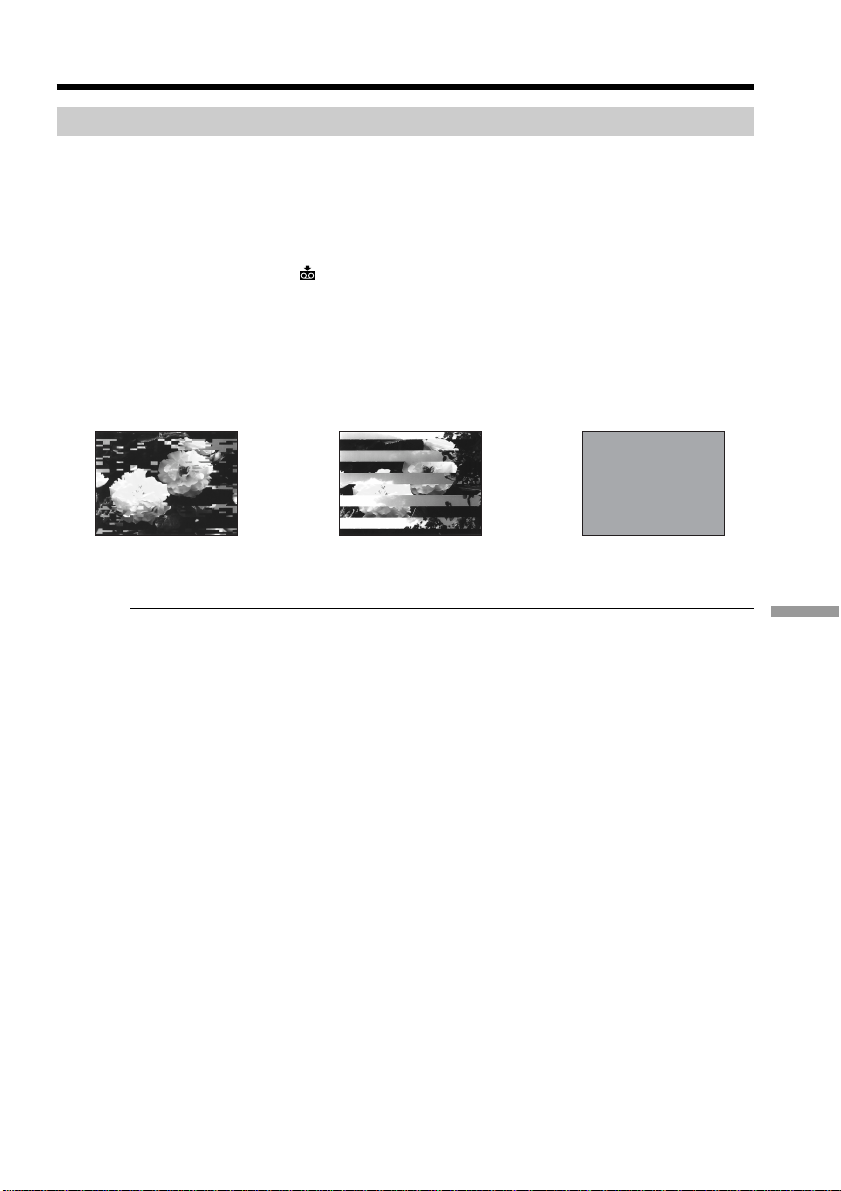
Additional Information
203
Maintenance information
Cleaning the video head
To ensure normal recording and clear pictures, clean the video head. The video head
may be dirty when:
– Mosaic-pattern noise appears on the playback picture.
– Playback pictures do not move.
– Playback pictures do not appear or the sound breaks off.
– The x indicator and “ CLEANING CASSETTE” message appear one after another
or the x indicator flashes on the screen during recording.
If the above problem, [a], [b] or [c] occurs, clean the video heads for 10 seconds with
the Sony DVM-12CLD cleaning cassette (optional). Check the picture and if the above
problem persists, repeat cleaning.
If the video heads get dirtier, the entire screen becomes blue [c].
Note on the video head
The video head suffers from wear after long use. If you cannot obtain a clear image
even after using a cleaning cassette, it might be because the video head is worn. Please
contact your Sony dealer or local authorized Sony service facility to have the video head
replaced.
Cleaning the LCD screen
If fingerprints or dust make the LCD screen dirty, we recommend using the cleaning
cloth (supplied) to clean the LCD screen. When you use the LCD Cleaning Kit
(optional), do not apply the cleaning liquid directly to the LCD screen. Clean the LCD
screen with cleaning paper moistened with the liquid.
Maintenance information and precautions
[a] [b] [c]
204
Charging the built-in rechargeable battery
Your camcorder has a built-in rechargeable battery so that the date, time and other
settings are retained even when the POWER switch is set to OFF (CHG). The built-in
rechargeable battery is always charged as long as you are using your camcorder. The
battery, however, will get discharged gradually if you do not use your camcorder. It
will be completely discharged in about three months if you do not use your
camcorder at all. Even if the built-in rechargeable battery is not charged, it will not
affect your camcorder operation. To retain the date and time, etc., charge the battery if
the battery is discharged.
Charging the built-in rechargeable battery
•Connect your camcorder to the house current using the AC Adaptor supplied with
your camcorder, and leave your camcorder with the POWER switch set to OFF (CHG)
for more than 24 hours.
•Or install the fully charged rechargeable battery pack on your camcorder, and leave
your camcorder with the POWER switch set to OFF (CHG) for more than 24 hours.
Adjusting the LCD screen (CALIBRATION)
The buttons on the touch panel may not work correctly. If this happens, follow the
procedure below.
We recommend connecting your camcorder to the house current using the AC Adaptor
supplied with your camcorder during the operation.
(1) Set the POWER switch to OFF (CHG).
(2) Eject the tape from your camcorder, then disconnect any connecting cable from
your camcorder.
(3) Set the POWER switch to VCR while pressing DISPLAY/BATT INFO on your
camcorder, then keep pressing DISPLAY/BATT INFO for about five seconds.
(4) Touch
displayed on the screen with your finger or the supplied stylus
(DCR-TRV70 only).
The position of
changes.
Notes
•If you do not press the right spot, start from Step 4 again.
•You cannot calibrate the LCD screen when you rotate the LCD panel and set the LCD
screen facing out.
Maintenance information and precautions
CALIBRATE

Additional Information
205
Precautions
Camcorder operation
•Operate your camcorder on 7.2 V (battery pack) or 8.4 V (AC Adaptor).
•For DC or AC operation, use the accessories recommended in these operating
instructions.
•If any solid object or liquid get inside the casing, unplug your camcorder and have it
checked by a Sony dealer before operating it any further.
•Avoid rough handling or mechanical shock. Be particularly careful of the lens.
•Keep the POWER switch set to OFF (CHG) when you are not using your camcorder.
•Do not wrap your camcorder with a towel, for example, and operate it. Doing so
might cause heat to build up inside.
•Keep your camcorder away from strong magnetic fields or mechanical vibration.
•Do not press the LCD screen with sharp-pointed objects other than the supplied
stylus. (DCR-TRV70 only)
•If your camcorder is used in a cold place, a residual image may appear on the LCD
screen. This is not a malfunction.
•While using your camcorder, the back of the LCD screen may heat up. This is not a
malfunction.
On handling the tape
•Do not insert anything into the small holes on the rear of the cassette. These holes are
used to sense the type and thickness of the tape and if the recording tab is in or out.
•Do not open the tape protect cover or touch the tape.
•Avoid touching or damaging the terminals. To remove dust, clean the terminals with
a soft cloth.
Camcorder care
•Eject the cassette, and periodically turn on the power, operate the CAMERA and VCR
sections and play back a tape for about three minutes when your camcorder is not to
be used for a long time.
•Clean the lens with a soft brush to remove dust. If there are fingerprints on the lens,
remove them with a soft cloth.
•Clean your camcorder body with a dry soft cloth, or a soft cloth lightly moistened
with a mild detergent solution. Do not use any type of solvent which may damage the
finish.
•Do not let sand get into your camcorder. When you use your camcorder on a sandy
beach or in a dusty place, protect it from the sand or dust. Sand or dust may cause
your camcorder to malfunction, and sometimes this malfunction cannot be repaired.
Maintenance information and precautions

206
AC Adaptor
•Unplug the unit from a wall outlet when you are not using the unit for a long time. To
disconnect the power cord, pull it out by the plug. Never pull the power cord itself.
•Do not operate the unit with a damaged cord or if the unit has been dropped or
damaged.
•Do not bend the power cord forcibly, or place a heavy object on it. This will damage
the cord and may cause fire or electrical shock.
•Prevent metallic objects from coming into contact with the metal parts of the
connecting section. If this happens, a short may occur and the unit may be damaged.
•Always keep metal contacts clean.
•Do not disassemble the unit.
•Do not apply mechanical shock or drop the unit.
•While the unit is in use, particularly during charging, keep it away from AM receivers
and video equipment. AM receivers and video equipment disturb AM reception and
video operation.
•The unit becomes warm during use. This is not a malfunction.
•Do not place the unit in locations that are:
– Extremely hot or cold
– Dusty or dirty
– Very humid
– Vibrating
About care and storage of the lens
•Wipe the surface of the lens clean with a soft cloth in the following instances:
– When there are fingerprints on the lens surface.
– In hot or humid locations
– When the lens is used in environments such as the seaside.
•Store the lens in a well-ventilated location subject to little dirt or dust.
To prevent mold from occurring, periodically perform the above.
We recommend turning on and operating your camcorder about once per month to
keep your camcorder in an optimum state for a long time.
Rechargeable battery pack
•Use only the specified charger or video equipment with the charging function.
•To prevent an accident from a short circuit, do not allow metal objects to come into
contact with the battery terminals.
•Keep the rechargeable battery pack away from fire.
•Never expose the rechargeable battery pack to temperatures above 60°C (140°F), such
as in a car parked in the sun or under direct sunlight.
•Store the rechargeable battery pack in a cool, dry place.
•Do not expose the rechargeable battery pack to any mechanical shock.
•Do not disassemble nor modify the rechargeable battery pack.
•Install the rechargeable battery pack to the video equipment securely.
•Charging while some capacity remains does not affect the original battery capacity.
Maintenance information and precautions

Additional Information
207
Maintenance information and precautions
Note on dry batteries
To avoid possible damage from battery leakage or corrosion, observe the following:
– Be sure to insert the batteries with the + – polarities matched to the + – marks in the
battery compartment.
– Dry batteries are not rechargeable.
– Do not use a combination of new and old batteries.
– Do not use different types of batteries.
– Current flows from batteries when you are not using them for a long time.
– Do not use leaking batteries.
If batteries are leaking
•Wipe off the liquid in the battery compartment carefully before replacing the batteries.
•If you touch the liquid, wash it off with water.
•If the liquid get into your eyes, wash your eyes with a lot of water and then consult a
doctor.
If any problem occurs, unplug your camcorder and contact your nearest Sony dealer.

208
Specifications
Video camera
recorder
System
Video recording system
2 rotary heads
Helical scanning system
Audio recording system
Rotary heads, PCM system
Quantization: 12 bits (Fs 32 kHz,
stereo 1, stereo 2), 16 bits
(Fs 48 kHz, stereo)
Video signal
NTSC color, EIA standards
Usable cassette
Mini DV cassette with the
mark printed
Tape speed
SP: Approx. 18.81 mm/s
LP: Approx. 12.56 mm/s
Recording/playback time
(using cassette DVM60)
SP: 1 hour
LP: 1.5 hours
Fastforward/rewind time
(using cassette DVM60)
Approx. 2 min. and 40 seconds
Viewfinder
Electric viewfinder (color)
Image device
5.0 mm (1/3.6 type) CCD (Charge
Coupled Device)
Gross: Approx. 2 110 000 pixels
Effective (still):
Approx. 1 920 000 pixels
Effective (moving):
Approx. 1 080 000 pixels
Lens
Carl Zeiss Vario-Sonnar T*
Combined power zoom lens
Filter diameter: 37 mm
(1 1/2 in.)
10× (Optical), 120× (Digital)
F = 1.8 ~ 2.1
Focal length
4.5 – 45 mm (3/16 – 1 13/16 in.)
When converted to a 35 mm still
camera
In CAMERA:
52 – 520 mm (2 1/8 – 20 1/2 in.)
In MEMORY:
39 – 390 mm (1 9/16 – 15 3/8 in.)
Color temperature
Auto, HOLD, INDOOR (3 200 K),
OUTDOOR (5 800 K)
Minimum illumination
7 lx (lux) (F 1.8)
0 lx (lux) (in the NightShot mode)*
* Objects unable to be seen due to
the dark can be shot with
infrared lighting.
Input/Output connectors
S video input/output
4-pin mini DIN
Luminance signal: 1 Vp-p,
75 Ω (ohms), unbalanced
Chrominance signal: 0.286 Vp-p,
75 Ω (ohms), unbalanced
Audio/Video input/output
AV MINI JACK, 1 Vp-p,
75 Ω (ohms), unbalanced
327 mV, (at output impedance
more than 47 kΩ (kilohms))
Output impedance with less than
2.2 kΩ (kilohms)/Stereo minijack
(ø 3.5 mm)
Input impedance more than
47 kΩ (kilohms)
DV input/output
4-pin connector
Headphone jack
Stereo minijack (ø 3.5 mm)
LANC jack
Stereo mini-minijack (ø 2.5 mm)
USB jack
DCR-TRV60:
mini-B
DCR-TRV70:
mini-AB
MIC jack
Minijack, 0.388 mV low impedance
with 2.5 to 3.0 V DC, output
impedance 6.8 kΩ (kilohms)
(ø 3.5 mm)
Stereo type
LCD screen
Picture
6.2 cm (2.5 type)
Total dot number
211 200 (960 × 220)
General
Power requirements
7.2 V (battery pack)
8.4 V (AC Adaptor)
Average power consumption
(when using the battery pack)
During camera recording using
LCD
4.6 W
Viewfinder
3.9 W
Operating temperature
0°C to 40°C (32°F to 104°F)
Storage temperature
–20°C to + 60°C
(–4°F to + 140°F)
Dimensions (approx.)
73 × 90 × 174 mm
(2 7/8 × 3 5/8 × 6 7/8 in.) (w/h/d)
Mass (Approx.)
640 g (1 lb 6 oz)
main unit only
740 g (1 lb 10 oz)
including the rechargeable battery
pack NP-FM50, cassette DVM60
and lens cap
Supplied accessories
See page 14.

Additional Information
209
Specifications
AC Adaptor
AC-L15A/L15B
Power requirements
100 – 240 V AC, 50/60 Hz
Current consumption
0.35 – 0.18 A
Power consumption
18 W
Output voltage
DC OUT: 8.4 V, 1.5 A
Operating temperature
0°C to 40°C (32°F to 104°F)
Storage temperature
–20°C to + 60°C
(–4°F to + 140°F)
Dimensions (approx.)
56 × 31 × 100 mm
(2 1/4 × 1 1/4 × 4 in.) (w/h/d)
excluding projecting parts
Mass (approx.)
190 g (6.7 oz)
excluding power cord
Rechargeable
battery pack
NP-FM50
Maximum output voltage
DC 8.4 V
Output voltage
DC 7.2 V
Capacity
8.5 Wh (1 180 mAh)
Dimensions (approx.)
38.2 × 20.5 × 55.6 mm
(1 9/16 × 13/16 × 2 1/4 in.)
(w/h/d)
Mass (approx.)
76 g (2.7 oz)
Type
Lithium ion
“Memory Stick”
Memory
Flash memory
8 MB: MSA-8A
Operating voltage
2.7 – 3.6 V
Power consumption
Approx. 45 mA during operation
mode
Approx. 130 µA during tape
recording standby
Dimensions (approx.)
50 × 2.8 × 21.5 mm
(2 × 1/8 × 7/8 in.) (w/h/d)
Mass (approx.)
4 g (0.14 oz)
Design and specifications are
subject to change without notice.
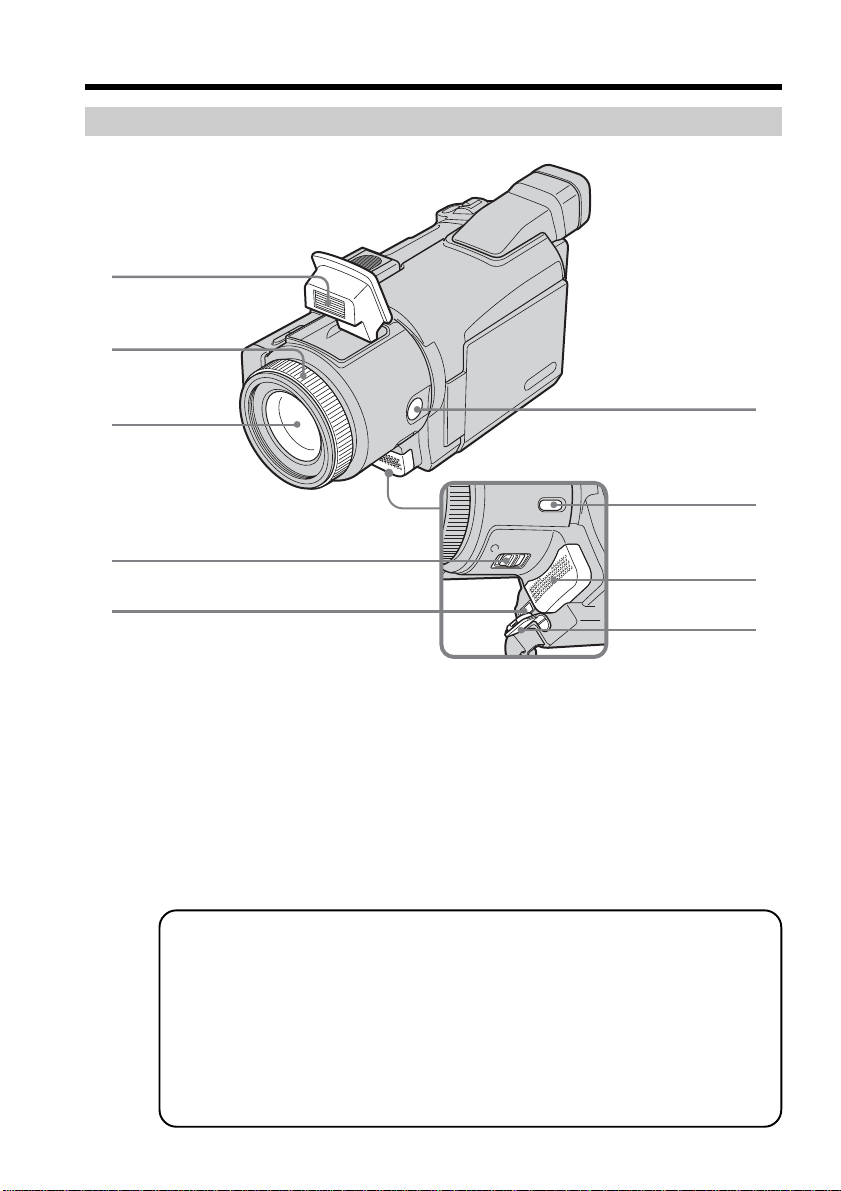
210
— Quick Reference —
Identifying parts and controls
1 Flash (p. 113)
2 Focus ring (p. 63)
3 Lens
4 NIGHTSHOT switch (p. 34)
5 DC IN jack (p. 8, 16)
Camcorder
6 FOCUS button (p. 63)
7 BACK LIGHT button (p. 34)
8 Microphone
9 DC IN jack cover
Note on the Carl Zeiss lens
Your camcorder is equipped with a Carl Zeiss lens which can reproduce fine images.
The lens for your camcorder was developed jointly by Carl Zeiss, in Germany, and
Sony Corporation. It adopts the MTF
#
measurement system for video camera and
offers a quality as the Carl Zeiss lens.
The lens for your camcorder is also T*-coated to suppress unwanted reflection and
faithfully reproduce colors.
#
MTF stands for Modulation Transfer Function.
The value number indicates the amount of light of a subject coming into the lens.
1
2
3
4
5
6
7
8
9
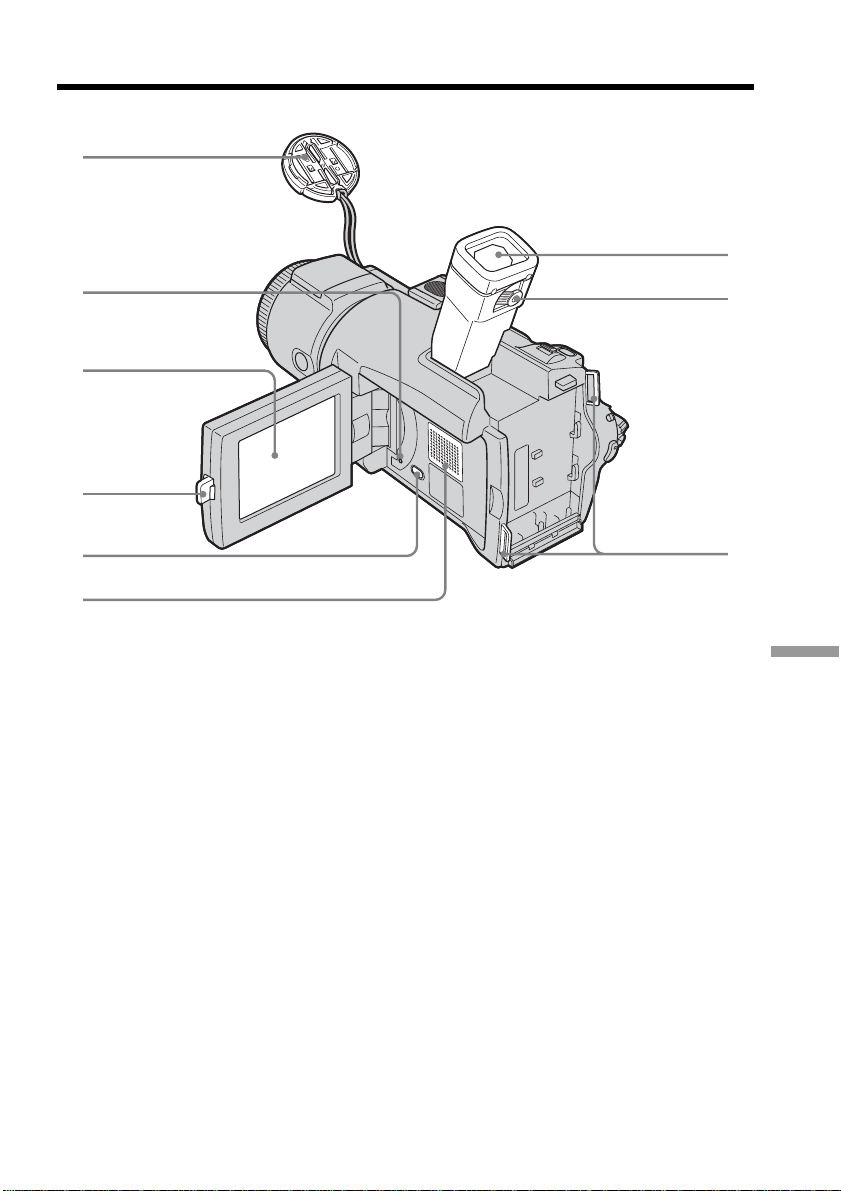
Quick Reference
211
Identifying parts and controls
0 Lens cap (p. 25)
qa RESET button
If you press RESET, all the settings
(DCR-TRV70: except the network
settings) including the date and time
return to the default.
qs LCD/Touch panel screen (p. 23)
qd OPEN button (p. 25)
qf DISPLAY/BATT INFO button (p. 18, 40)
qg Speaker
qh Viewfinder (p. 31)
qj Viewfinder lens adjustment lever
(p. 31)
qk Hooks for shoulder strap
q;
qa
qs
qd
qf
qg
qh
qj
qk
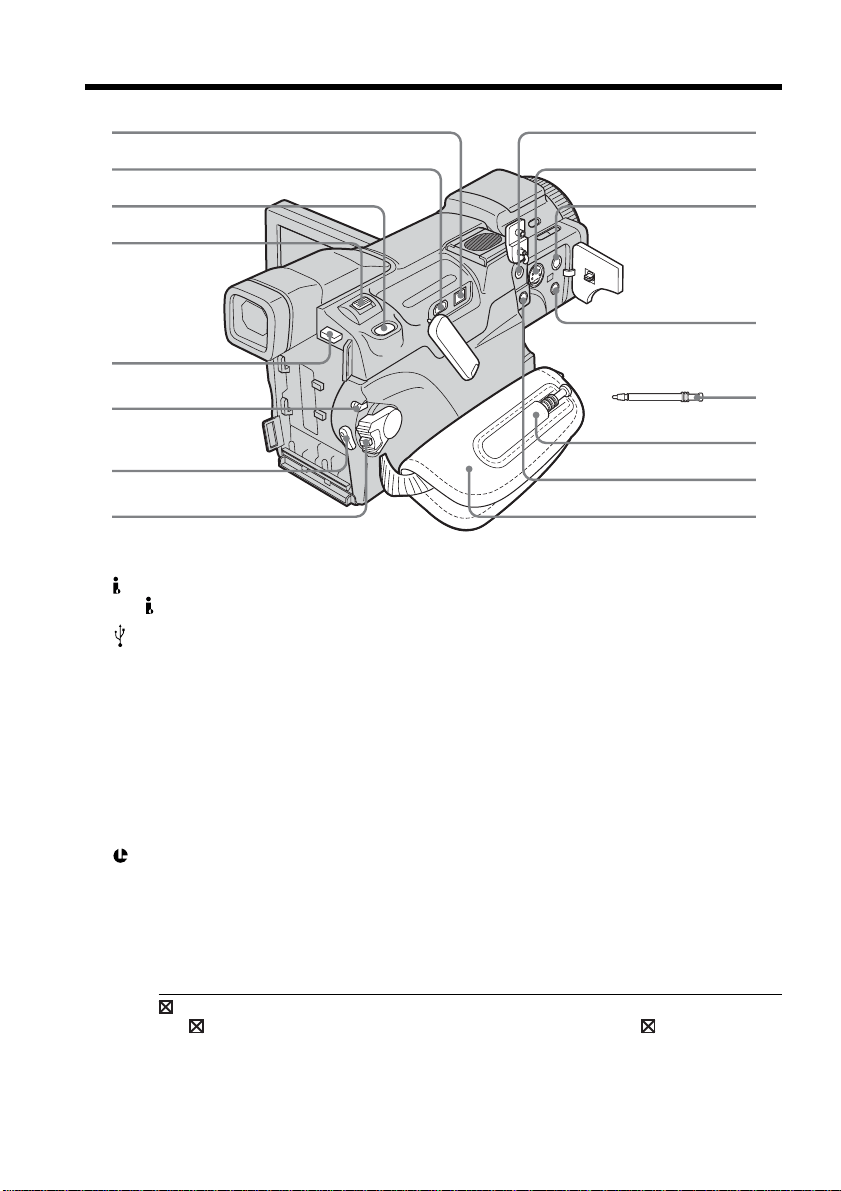
212
Identifying parts and controls
ql DV Interface (p. 78, 89, 144, 169, 199)
The
DV Interface is i.LINK compatible.
w;
(USB) jack (p. 143)
wa PHOTO button (p. 46, 109, 116)
ws Power zoom lever (p. 33, 73, 135)
wd BATT release button (p. 15)
wf LOCK switch (p. 26)
wg START/STOP button (p. 25)
wh POWER switch (p. 25)
wj
(LANC) jack (blue)
wk S VIDEO jack (p. 45, 79, 90, 170)
wl AUDIO/VIDEO jack (yellow)
(p. 44, 78, 89, 169)
e; i (headphones) jack (green)
When you use headphones, the speaker
on your camcorder is silent.
ea Stylus (DCR-TRV70 only) (p. 171)
es Stylus holder (DCR-TRV70 only)
ed MIC (PLUG IN POWER) jack (red) (p. 93)
Connect an external microphone
(optional). This jack also accepts a
“plug-in-power” microphone.
When an external microphone is
connected, it is preferred for an audio
input source.
ef Grip belt (p. 8)
ql
w;
wa
ws
wd
wf
wg
wh ef
ed
es
ea
e;
wl
wk
wj
LANC
The LANC stands for Local Application Control Bus System. The LANC control
jack is used for controlling the tape transport of video equipment and peripherals
connected to it. This jack has the same function as the jack indicated as CONTROL L or
REMOTE.
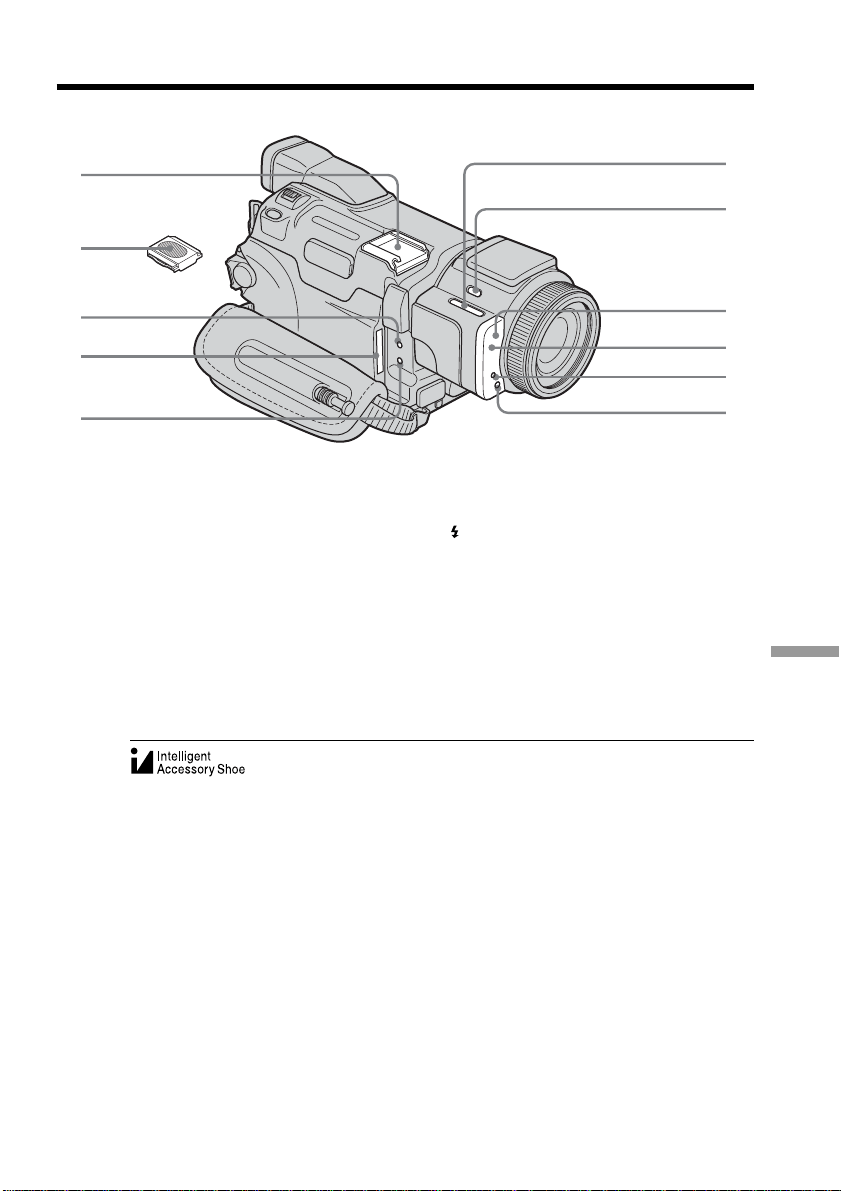
Quick Reference
213
eg Intelligent accessory shoe (p. 94)
eh Shoe cover (p. 94)
ej Access lamp (p. 10, 104)
ek “Memory Stick” slot (p. 10, 104)
el CHARGE (charge) lamp (p. 16)
Identifying parts and controls
Notes on the intelligent accessory shoe
•The intelligent accessory shoe supplies power to optional accessories such as a video
light or microphone.
•The intelligent accessory shoe is linked to the POWER switch, allowing you to turn the
power supplied by the shoe on and off. Refer to the operating instructions of the
accessory for details.
•The intelligent accessory shoe has a safety device for fixing the installed accessory
securely. To connect an accessory, press down and push it to the end, and then tighten
the screw.
•To remove an accessory, loosen the screw, and then press down and pull out the
accessory.
eg
ej
el
r;
ra
rs
rd
rf
rg
ek
eh
r; EDITSEARCH button (p. 37)
ra
(flash) button (p. 113)
rs Remote sensor
rd Infrared rays emitter (p. 34, 82)
rf Camera recording lamp (p. 25)
rg HOLOGRAM AF emitter (p. 115)
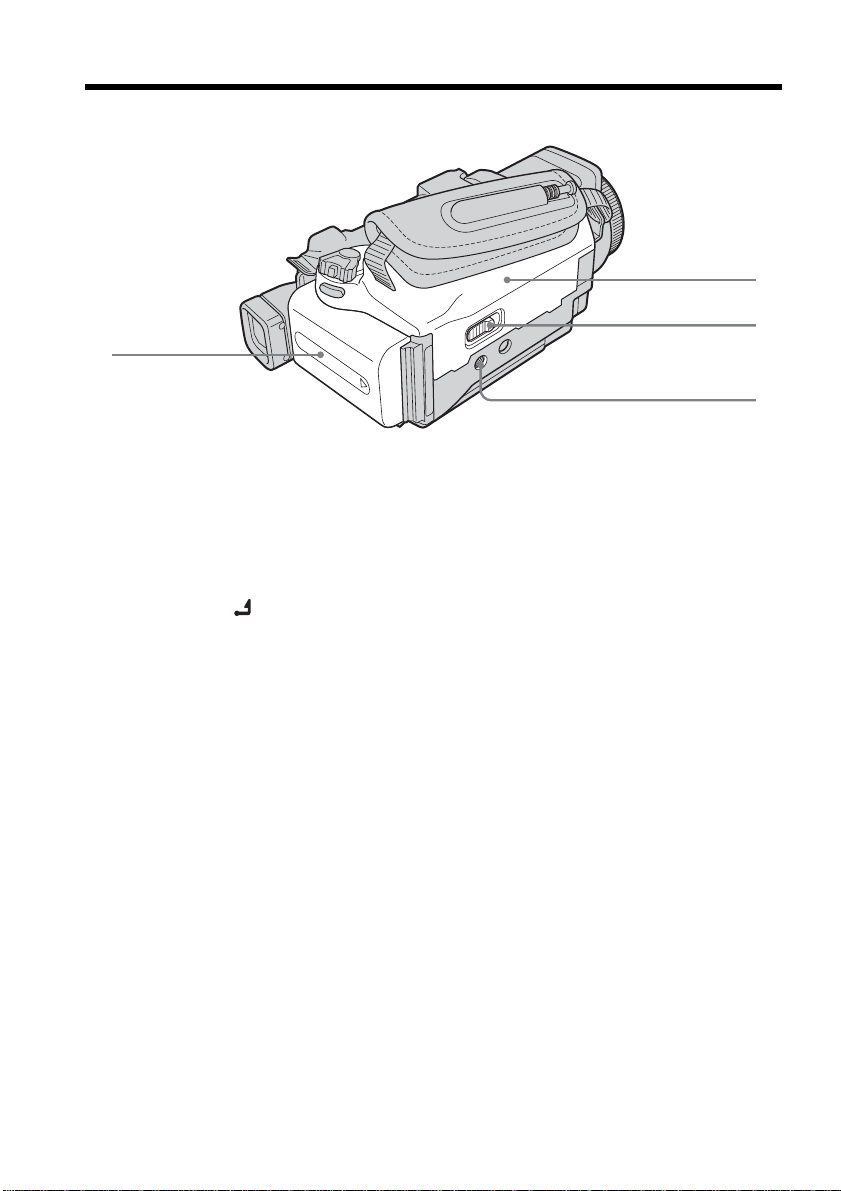
214
Identifying parts and controls
rh Battery pack (p. 15, 16)
rj Cassette compartment (p. 8)
rk OPEN/Z EJECT
lever (p. 8)
rl Tripod receptacle
Make sure that the length of the tripod
screw is less than 5.5 mm (7/32 inch).
Otherwise, you cannot attach the tripod
securely, and the screw may damage
your camcorder.
rh
rj
rk
rl
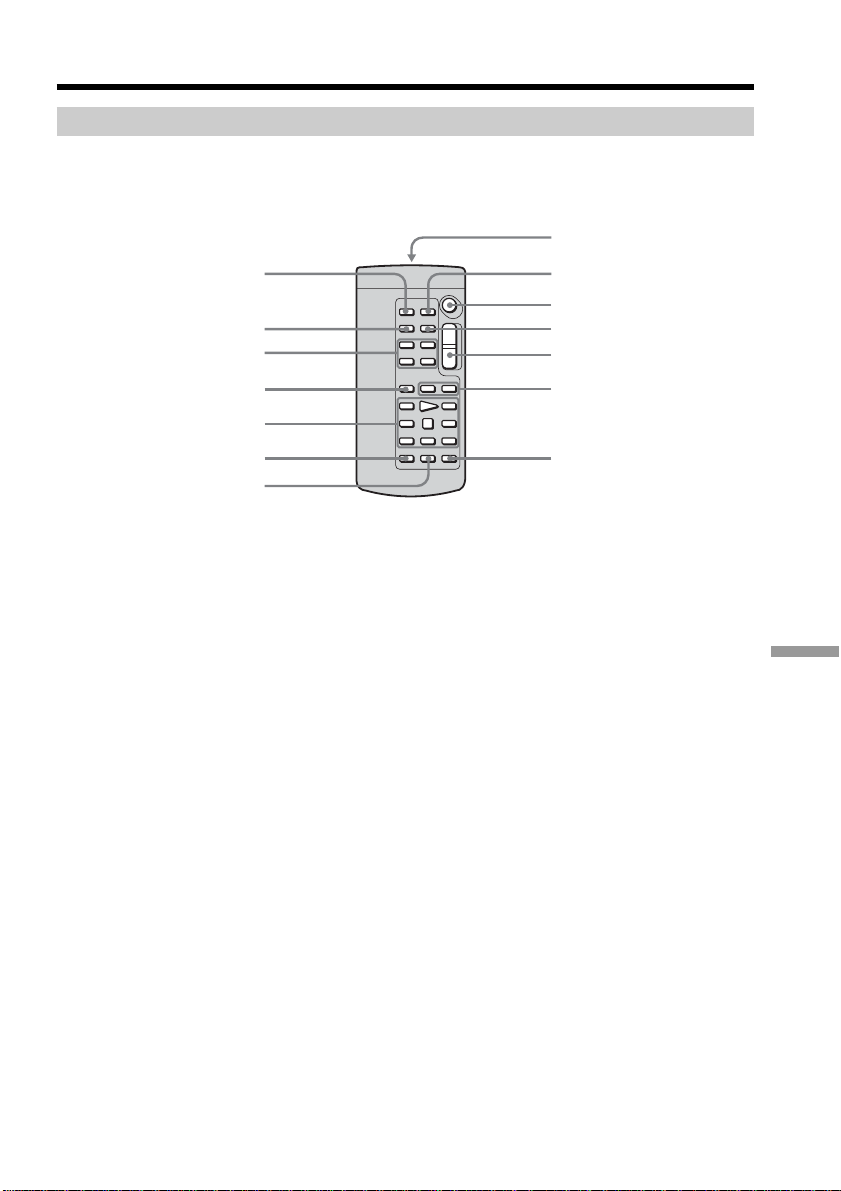
Quick Reference
215
Identifying parts and controls
Remote Commander
The buttons that have the same name on the Remote Commander as on your camcorder
function identically to the buttons on your camcorder.
1 PHOTO button (p. 46, 110, 116)
2 DISPLAY button (p. 40)
3 Memory control buttons
4 SEARCH MODE button (p. 75, 76)
5 Video control buttons (p. 43)
6 REC button (p. 90)
7 MARK button (p. 86)
8 Transmitter
Point toward the remote sensor to
control your camcorder after turning on
your camcorder.
9 ZERO SET MEMORY button (p. 74)
q; START/STOP button (p. 25)
qa DATA CODE button (p. 40)
qs Power zoom button (p. 33)
qd ./> buttons (p. 75, 76)
qf AUDIO DUB button (p. 95)
7
qf
5
4
3
2
1
qs
qd
0
qa
9
8
6
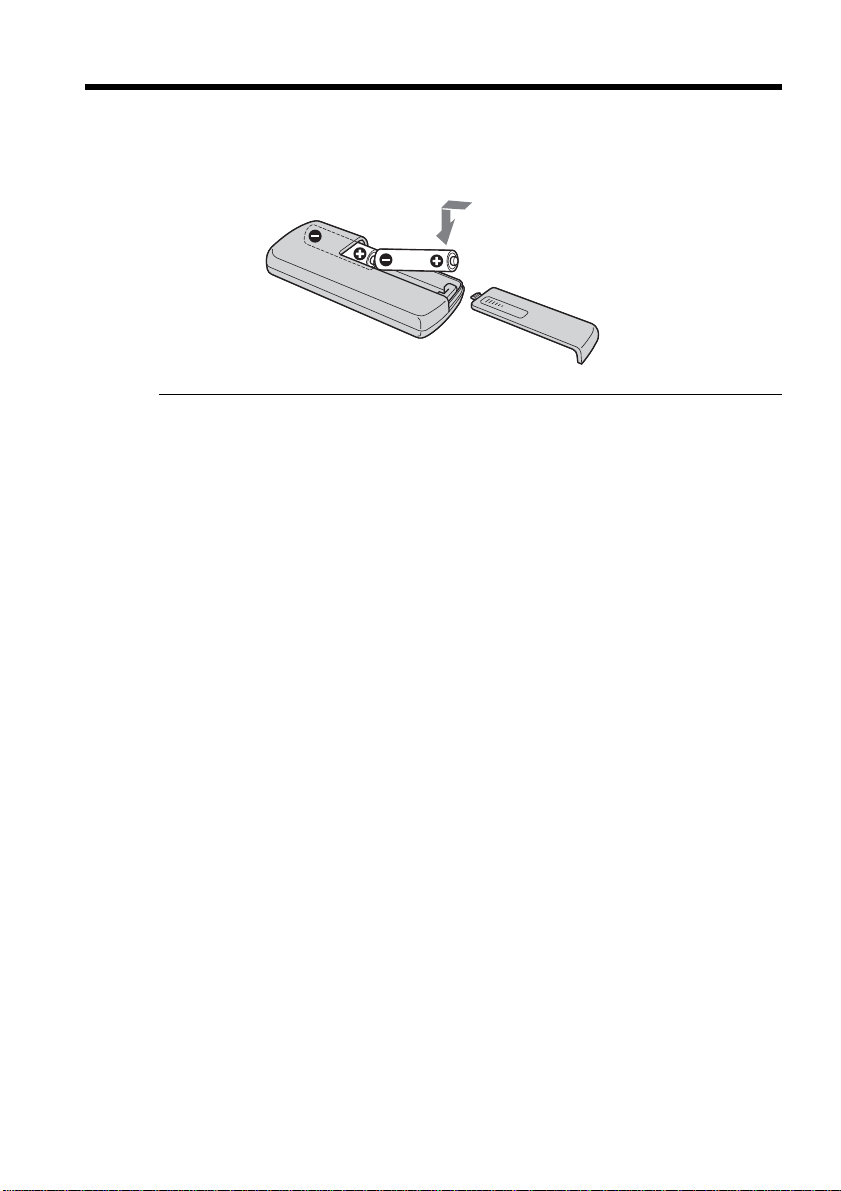
216
To prepare the Remote Commander
Insert two size AA (R6) batteries by matching the + and – on the batteries to
the + and – in the battery compartment.
Notes on the Remote Commander
•Point the remote sensor away from strong light sources such as direct sunlight or
overhead lighting. Otherwise, the Remote Commander may not function properly.
•Attaching the lens hood (supplied) or a conversion lens (optional) may obstruct the
remote sensor, and in this situation, the remote commander may not work correctly.
•Your camcorder works in the commander mode VTR 2. Commander modes 1, 2 and 3
are used to distinguish your camcorder from other Sony VCRs to avoid erroneous
remote control operation. If you use another Sony VCR in the commander mode VTR
2, we recommend changing the Commander mode or covering the sensor of the VCR
with black paper.
Identifying parts and controls
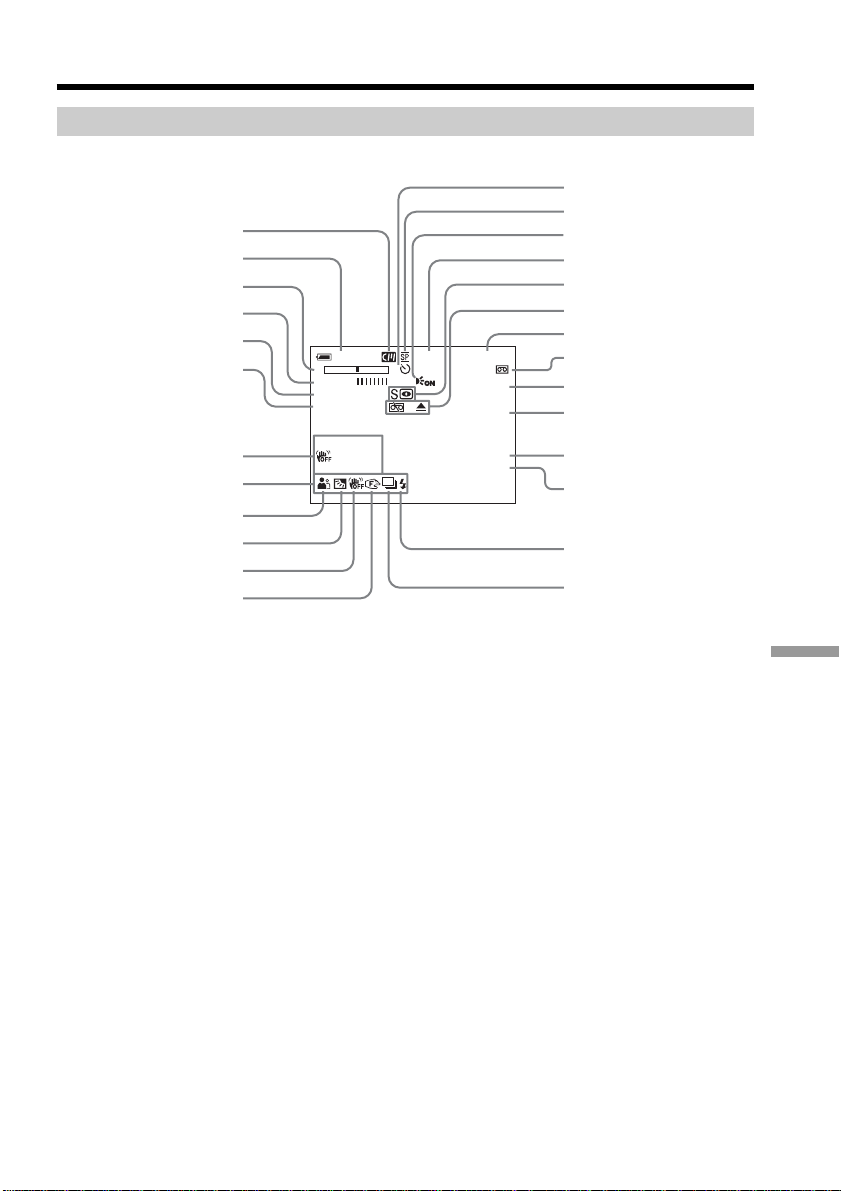
Quick Reference
217
Identifying parts and controls
Operation indicators
1 Cassette Memory (p. 12, 194)
2 Remaining battery time (p. 27)
3 Zoom (p. 33)/Exposure (p. 61)/
Data file name (p. 102)
4 Digital effect (p. 56, 72)/MEMORY MIX
(p. 118)/Fader (p. 52)
5 16:9WIDE (p. 50)
6 Picture effect (p. 55, 71)
7 Data code (p. 40)
8 Volume (p. 39)/Date (p. 27)/
Time (p. 27)
9 PROGRAM AE (p. 59)
0 Back light (p. 34)
qa SteadyShot off (p. 174)
qs Manual focus/Expanded focus (p. 63)
qd Self-timer (p. 48, 124)
qf Recording mode (p. 27)
qg HOLOGRAM AF (p. 115)
qh STBY/REC (p. 27)/Video control mode
(p. 43)/Image size (p. 106, 107)/
Image quality (p. 105)
LCD screen and Viewfinder
qj NIGHTSHOT (p. 34)/SUPER NIGHTSHOT
(p. 35)/COLOR SLOW SHUTTER (p. 35)
qk Warning (p. 192)
ql Time code (p. 27)/Tape counter
(p. 27)/Self-diagnosis (p. 191)/Photo
recording (p. 109)/Image number
(p. 130)/Playback folder (p. 134)
w; Remaining tape (p. 27)/Memory
playback (p. 130)
wa ZERO SET MEMORY (p. 74)
ws END SEARCH (p. 37)
wd A/V t DV (p. 169)/DV IN (p. 90)
wf Audio mode (p. 179)/Recording folder
(p. 129)
wg Flash (p. 113)
This indicator appears only when the
flash is in use.
wh Continuous photo recording (p. 111)
AUTO
60 AWB
F1.8 9db
0
:
12
:
34
48min
ZERO SET
MEMORY
END
SEARCH
DV IN
16BIT
50min STBY
STILL
16
:
9WIDE
NEG. ART
– +
50min STBY
6
5
4
3
2
1
9
0
qa
qs
wa
w;
ql
qk
qj
qg
qh
qf
qd
wd
wf
ws
wg
wh
7
8

218
Index
A, B
AC Adaptor ............................. 16
Adjusting the viewfinder ...... 31
Audio dubbing........................ 93
AUDIO MIX ............................ 96
AUDIO MODE...................... 179
Auto red eye reduction ........ 113
AUTO SHTR.......................... 173
A/V connecting cable
...................... 44, 78, 89, 94, 169
BACK LIGHT .......................... 34
Battery Info .............................. 18
Battery pack ............................. 15
BEEP ....................................... 181
BOUNCE.................................. 52
C, D
CALIBRATION ..................... 204
Cassette Memory ............ 12, 194
C. CHROM ............................ 118
CHARGE (charge) lamp ........ 16
Charging battery pack ........... 16
Charging built-in rechargeable
battery ................................. 204
CLEANING CASSETTE ...... 203
Clock set ................................... 20
Color Slow Shutter ................. 35
Continuous photo recording
.............................................. 111
Data code ................................. 40
Date search .............................. 76
DEMO MODE ....................... 180
Digital effect ...................... 56, 72
Digital program editing
........................................ 80, 127
DISPLAY .................................. 40
DOT .......................................... 52
Dual sound track tape .......... 195
E
Edit search ............................... 38
End search ............................... 37
Expanded focus....................... 63
EXP BRKTG ........................... 111
Exposure .................................. 61
F, G, H
Flash........................................ 113
FLASH ...................................... 56
Flexible Spot Meter................. 62
Format ............................ 103, 177
Frame recording...................... 67
Full charge ............................... 16
Grip belt ..................................... 8
i (headphone) jack .............. 212
Heads...................................... 203
HiFi SOUND ......................... 195
HIGH SPEED ........................ 111
HOLOGRAM AF .................. 115
I, J, K, L
i.LINK ..................................... 199
i.LINK cable
.................................. 78, 89, 169
Image protection ................... 137
Image quality ........................ 105
Image size ...................... 106, 107
Index screen ........................... 131
“InfoLITHIUM” battery pack
........................................ 16, 197
Infrared rays emitter ........ 34, 82
Insert editing ........................... 91
Intelligent accessory shoe
........................................ 94, 213
Interval Recording .................. 66
Interval Photo Recording
.............................................. 121
JPEG........................................ 102
Labeling a cassette ................ 100
LANC jack ............................. 212
LUMI. ....................................... 56
M, N
Main sound............................ 195
Manual focus ........................... 63
M. CHROM ........................... 118
M. LUMI ................................ 118
MEMORY MIX...................... 118
Memory PB ZOOM .............. 135
Memory Photo recording .... 109
“Memory Stick” .................... 102
“Memory Stick” capacity..... 108
Menu settings ........................ 172
Mirror mode ............................ 29
Moisture condensation ........ 202
MONOTONE .......................... 52
MOSC. FADER........................ 52
M. OVERLAP ........................ 118
MPEG ..................................... 102
Network function ................. 171
NIGHTSHOT .......................... 34
NORMAL .............................. 111
NORM. FADER ...................... 52
NTSC system ......................... 201
O, P, Q
OLD MOVIE............................ 56
OVERLAP ................................ 52
Operation indicators ............ 217
PB FOLDR.............................. 134
Picture effect ...................... 55, 71
Picture search .......................... 42
Playing time............................. 17
Print mark .............................. 142
Progressive Recording Mode ...
68
PROGRAM AE....................... 59
R
REC FOLDER ........................ 129
Recording time ........................ 17
Rec Review .............................. 38
Remaining battery time
indicator ................................ 27
Remaining tape indicator
........................................ 27, 179
Remote Commander ............ 215
Remote sensor ......................... 82
RESET ............................. 190, 211
Resize...................................... 141
S
Self-diagnosis display .......... 191
Self-timer recording ....... 48, 124
SHARPNESS ......................... 173
Signal convert function ........ 169
Skip scan .................................. 42
Slide show.............................. 136
SLOW SHTR ............................ 56
SPOT FOCUS .......................... 65
STEADYSHOT ...................... 174
Stereo tape ............................. 195
STILL ........................................ 56
Sub sound .............................. 195
Super NightShot ..................... 35
S VIDEO jack ..................... 44, 45
T, U, V
Tape counter ...................... 27, 40
Tape PB ZOOM....................... 73
Telephoto ................................. 33
Time code................................. 27
Title ........................................... 97
Title search ............................... 75
Touch panel ............................. 23
TRAIL ....................................... 56
Transition ........................... 26, 37
TV color systems ............. 12, 201
USB jack ................................. 143
USB Streaming ...................... 156
W, X, Y, Z
Warning indicators ............... 192
Warning messages ................ 193
White balance .......................... 49
Wide-angle .............................. 33
Wide mode .............................. 50
WIPE ......................................... 52
Write-protect tab ........... 102, 195
Zero set memory ..................... 74
Zoom ........................................ 33


Printed in Japan
Printed on 100% recycled paper using
VOC (Volatile Organic Compound)-free
vegetable oil based ink.
308141411