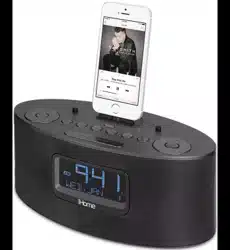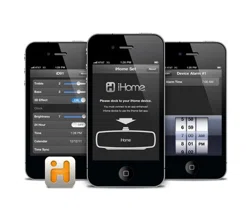

www.ihomeaudio.com/apps/
App-enhanced
Start Guide

Welcome to iHome Apps
This guide contains all the information you
need to get from setup to a great night of sleep.

iHome Sleep
Overview
Home Screen
App Alarms
Bedtime & Wakeup Settings
Sleep Stats
Overnight News
Linked Accounts
Reminders
Settings
Problems?
iHome Radio
Overview
TuneIn Channel Indexing
Syncing with iHome Sleep
Sleep and Wake to iHome Radio
Problems?
iHome Set
Overview
iHome Device Alarms
iHome Device Settings
Firmware Updates
Problems?
Troubleshooting
Common Problems
Learn More
5
7
8
10
11
13
14
15
17
18
20
22
23
24
25
28
30
31
33
34
36
39
Contents

iHome Sleep
www.ihomeaudio.com/apps/ihome_sleep/
Use independently as iOS alarm app or with iHome
solutions for charging & audio performance
We cannot ensure compatibility if you use with iHome
systems that are not app-enhanced or with other speaker docks.
iHome Sleep is a FREE music alarm clock app for iPad, iPhone, and iPod touch.
Featuring a full screen clock with reminders, iPod controls, photo backgrounds,
personalized bedtime and wakeup settings, and much more.
iHome Sleep
Music alarm clock
Choose hi-fi tones or music
playlists from your entire iPod
library
iOS Optimized
Graphics and interface is
designed for iPad and retina
display screen resolutions
Gentle Wake
Never be shocked from
your loud alarm, with Gentle
Wake your alarm increases in
volume over time
Weekday alarm
Program alarms to repeat for
any day of the week combo:
never, everyday, weekday,
weekend & custom
Sure Alarm
Alarm works even when
screen is locked
Overnight News
Wakeup to a recap of your
friend and follower messages
posted while you were
sleeping
Reminders
Never forget those little
things, available right when
you wake up
Sleep stats
Track sleep habits including
average bedtime, hours of
sleep, snooze, and more
Wake-to Radio
Purchase iHome Radio and
sync your favorite internet
radio stations to wake up to
in the morning.
SMTWTFS
Monday
15
Visit the App Store Download Launch & Enjoy!
1. Download and install iHome Sleep from the App Store
2. Launch iHome Sleep music alarm clock app
NOTE: iHome Sleep is only available for the iPad, iPhone, and iPod touch.
FREE download
Set up, download, and launch
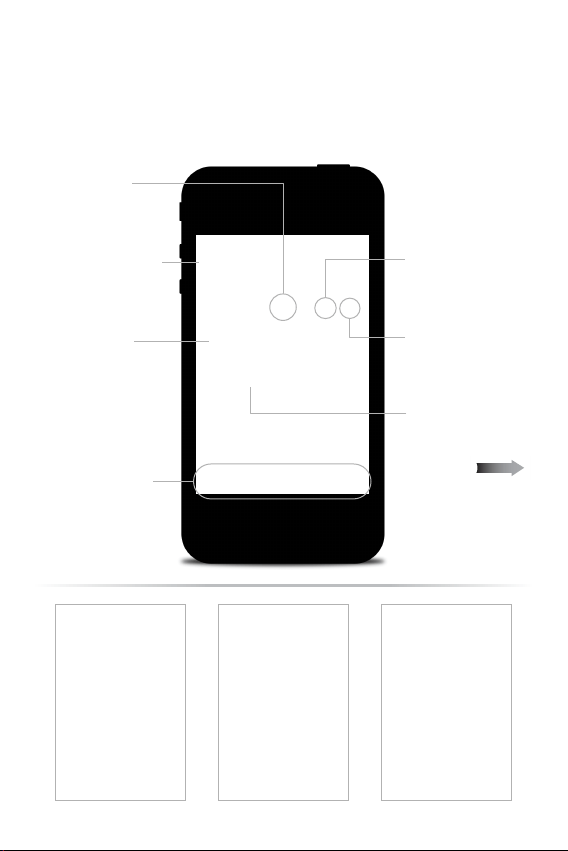
Features & Settings
Alarm icon indicates that an
alarm is ON, press to preview
next alarm
Alarm Indicator
Choose from your photos or
10 included images
Background Images
Alarm Display Mode Music Controls Sounding Alarm
set alarms, view sleep stats,
access app settings and more
Bedtime & Wakeup
Slide right to activate sleep
events and track sleep stats
Music Controls
Control your iPod music
library, tracks and playback
Sleep Countdown Timer
Always know exactly how
much time until your music
turns off before bedtime
App-enhanced
Access settings for docked
iHome app-enhanced devices
Home Screen
Launching iHome Sleep will bring you to the clock home screen
from which you can control and access all other settings
zzz
5
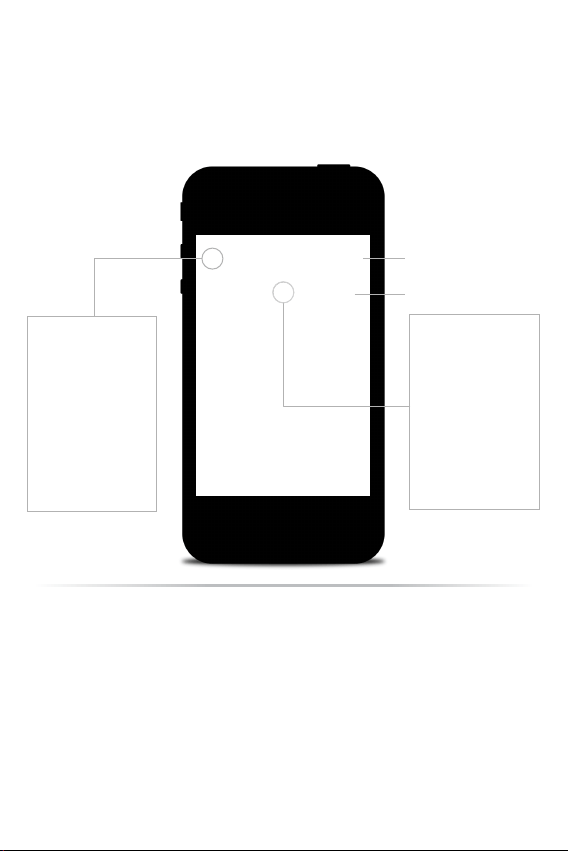
Sleep Countdown Timer
NOTE: App alarms may not sound if you do not leave iHome Sleep in the
foreground. While we do support multi-tasking, background alarms is a beta
feature of iOS4.0 (or later) and your alarm will not always sound depending on if
your iOS device is used with a charger or used with an iPod speaker system. We
recommend using app-enhanced device alarms as backups when using our app
with our app-enhanced devices.
Launching iHome Sleep will bring you to the clock home screen
from which you can control and access all other settings
App Alarms
iHome Sleep has app alarms that work independently of
app-enhanced hardware device alarms, offering more interac-
tive settings and features for you to enjoy
Create new app alarms
Turn alarms on/off
Touch to access alarm settings
Press to delete and rearrange
app alarms

Full customization allows to choose sleep-to and wake-up
sounds, bedtime and wakeup reminders, and more
Press to return to Alarm Manager
Select type: Alarm (traditional) or Nap (countdown)
Edit and name your Alarm
Set the time
Set a timer to automatically turn off your music
once you’re asleep
Select what alarm tone, music, playlist, podcast, or
favorite iHome Radio station to sleep to
Set snooze time duration
Select what alarm tone, music, playlist, podcast, or
favorite iHome Radio station to wake to
Select iOS device vibration setting for alarm
Select which days of the week you want the alarm
to sound:
(Never, Everyday, Weekday, Weekend or Custom)
Set and create ‘Reminders’ and notes to help you
remember things before you go to bed or when
you wake up in the morning
Alarm Settings
Note: Initiated by bedtime and wakeup event sliders
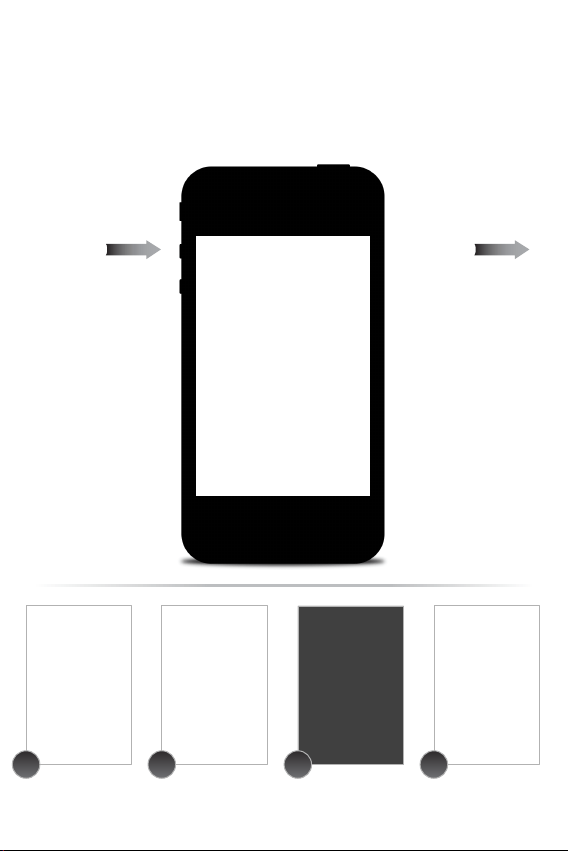
Bedtime & Wakeup Events
Bedtime Wakeup
Slide ‘Bedtime’ when you’re
ready to go to sleep...
1. Sleep Stats - starts a log of
the time you went to bed
and starts calculating sleep
duration
2. Triggers any bedtime
music profiles and playlists
you have set to fall asleep to
3. Triggers Bedtime events
- ‘Reminder’ messages
- Bedtime screen dimmer
**Note: Using the Bedtime slider
ensures correct alarm function
when app is not in running in the
foreground.
Slide ‘Wakeup’ when you’re
ready to start the day...
1. Turns off a sounding alarm
and resets it for the next
specified time
2. Sleep Stats - completes a log
of the time you woke up and
calculates sleep duration
3. TriggersWakeup eventsv
- ‘Reminder’ messages
- Overnight News
Trigger pre-configured alarm and sleep profiles to easily
manage your daily sleep cycle
Create an alarm with your
bedtime & wakeup settings
and turn it ON
Bedtime dimmer settings will
be activated to your preferred
brightness while sleeping
(control within ‘Settings’)
Slide ‘Bedtime’ when you
are ready to go to sleep
Slide ‘Wakeup’ when your alarm
is sounding and you are ready
to start your day
1 2 3 4
zzz
5
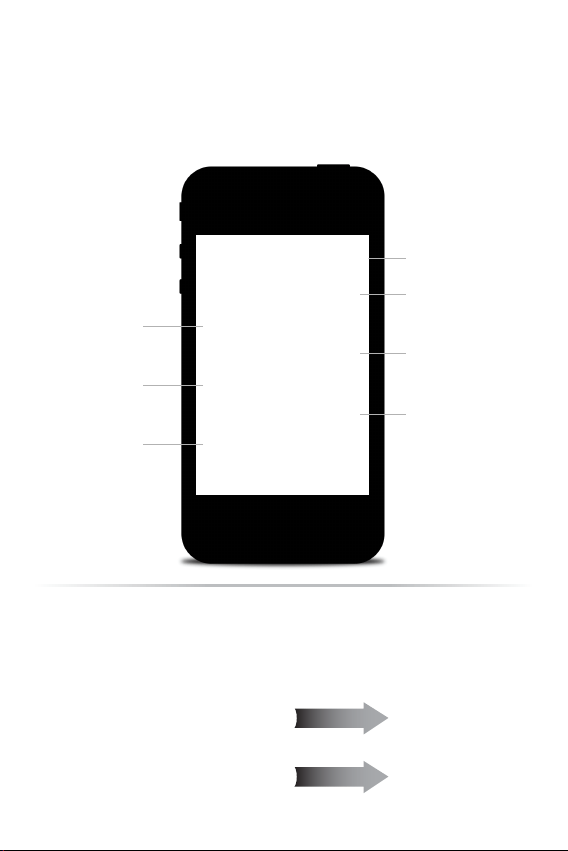
Sleep Stats
You spend a third of your life sleeping...iHome Sleep lets you
record and monitor your sleep habits over time, learning
interesting information about yourself
Slide right to switch between bedtime and wakeup event modes.
The duration between these events is used to calculate your sleep stats.
Use those sliders!
Snooze cycles averages
today, week, and month
Stats Log
detailed info on your sleep
Bedtime averages
today, week, month, and year
Sleep music data
#1 artist, album, and genre
Average hours of sleep
today, week, month, and year
Wakeup time averages
today, week, month, and year
Wakeup music data
#1 artist, album, and genre
Stats Log
You can delete individual events and erroneous data sets for
more accurate stats
NOTE: Sleep stats was designed as a simple and fun way to learn more about your own
sleep habits. We will continue to improve and refine how we calculate this data
and hope you enjoy the ability to edit and delete individual sleep events to increase the
accuracy and usefulness of the sleep stats feature.
Total hours of recorded sleep
Sleep duration
Add missed sleep events
Miss a day? No worries, simply
add bedtime and wakeup times
to increase stats accuracy
Average hours of sleep
Return to ‘Sleep Stats’
Event date
Bedtime and wakeup
Calender search shortcut
Easily search by month through
your sleep stat’s data log
Select to edit/delete data
Overnight News only supports news feeds from your Facebook & Twitter friends/followers.
In order for this feature to work you must have a valid Facebook or Twitter account and you
must input your login information under ‘Accounts’ in app settings.
Many popular blogs today, and news websites also have Twitter accounts which reflect top
stories, breaking news, and replicate the traditional function of RSS feeds. So all you have
to do is sign up for Twitter, and follow some news-based Twitter accounts!
Some of our favorites are:
@engadget, @cnn, @nytimes, @yahoonews, @bbcnews, @reuters, @tuaw
Activating Overnight News
Want to wake up to news content?
Overnight News
Wakeup to Facebook & Twitter status and news updates of what
you missed while you were sleeping
Overnight News must be ON Input your Facebook & Twitter
account information
We are always improving our products, even after purchase. By keeping up-to-date
with the latest firmware, you ensure your iHome dock will be compatible
and on the leading edge with new iOS releases and updates.
Keep your iHome dock as up-to-date as your iOS device.
Wakeup to Facebook & Twitter status and news updates of what
you missed while you were sleeping
Linked Accounts
Keep up to date on product-related updates like firmware,
access support and registration, and disable in-app
advertisements.
Reminders
When life gets hectic, it’s helpful to have a way to help you
remember the little things before you head out the door in the
morning or before you call it a night
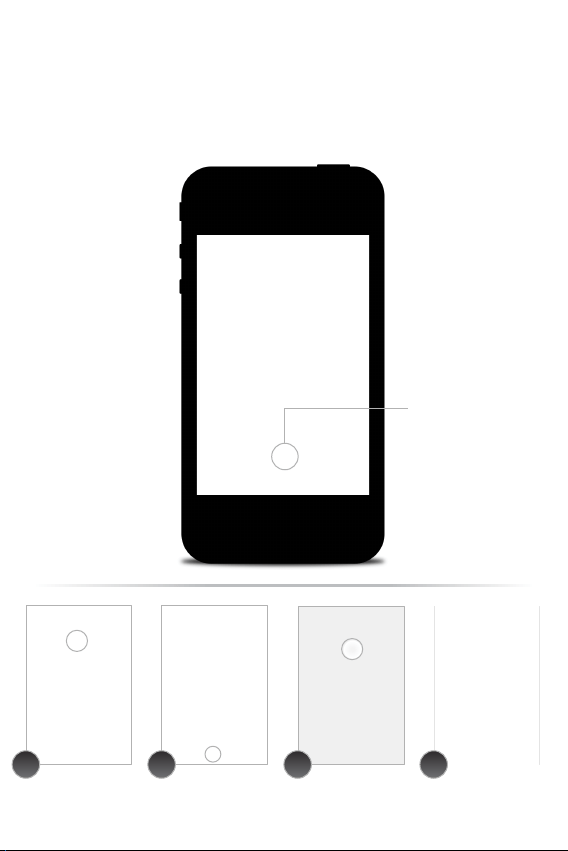
Add a new reminder
Select to show the reminder
when the alarm sounds
Create and turn on an alarm Select a reminder or press ‘+’
to create a new reminder
Within that alarm select
‘Bedtime Reminder’ or
‘Wakeup Reminder’
Reminder pop-up is initiated by
wakeup or bedtime slider and
will show your message so you
don’t forget
1 2 3 4
NOTE: iHome Sleep must be running and iOS
device docked or connected via bluetooth with
the app-enhanced device
In the morning or at night you can also use device buttons to
access and control device functions
App interface button shortcuts
Pressing SNOOZE will
function same as app snooze button
Pressing BEDTIME button will
function same as app bedtime slider
Press & hold POWER/ button 2 sec.
on App-enhanced device is same as
Pressing WAKEUP button will
function same as app wakeup slider
Pressing POWER/ button will
function same as WAKEUP button
when alarm is sounding

App Settings
View, create, and edit personal reminders
Set sleep volume for bedtime music
Slide to control your screen brightness
settings for a bedtime event
Select a custom background for the
home screen from your photo library
Turn ‘Overnight News’ feature on/off
Press to learn more about our app
or send questions and feedback to
our iHome+ apps team
Set wake volume for app alarms
Activate and select ‘Gentle Wake’ settings
(select OFF or 1-10 minute duration)
Removes any existing sleep data

iHome Radio
www.ihomeaudio.com/apps/ihome_radio/
Use independently as an internet radio app with
your iOS device or with iHome Speaker Docks
for charging & audio performance
A Wi-Fi network is recommended to ensure the
best station reception available

Internet radio music app for iPhone and iPod touch.
Purchase and download today to enjoy thousands of radio stations no matter
where you live.
iHome Radio
Thousand of Internet
Radio Stations
Connects you to tens of
thousands of internet music,
talk, sports and news stations
from around the world
Add Radio to Any
Speaker
Add endless radio music to any
iHome speaker solution. Simply
launch iHome Radio and let the
party begin.
iOS 4.0 Optimized
Multi-tasking background
audio support allows you to
listen to your app while surfing
the web, playing games, and
more
TuneIn
Using TuneIn® for channel
indexing, iHome Radio can sync
with a user's presets stored on
TuneIn.com.
iHome App-enhanced
Listen to radio on-the-go as
well as on any iHome
app-enhanced product.
Sync with iHome
Sleep
Wake to your favorite music,
talk, sports, and news iHome
Radio stations
Visit the App Store Download Launch & Enjoy!
1. Download and install iHome Radio from the App Store
2. Launch iHome Radio internet radio app
NOTE: iHome Radio is designed for iPhone and iPod Touch with iOS 4.0 or above
Set up, download, and launch
pay to download
NOTE: iHome Radio currently supports TuneIn-listed stations in the
MP3, AAC, and QT formats only. Stations with formats other than MP3,
AAC, and QT will NOT sync as favorites with TuneIn.com.
TuneIn channel indexing
iHome Radio uses TuneIn for channel indexing and allows you
to sync with user presets stored on TuneIn.com
You must have both iHome Radio
and iHome Sleep
Select
‘Send favorites to iHome Sleep’
Launch iHome Radio and
access ‘Favorites’
iHome Sleep will be launched
and a pop-up message will
confirm that your favorites
were successfully synced
1 2 3 4
NOTE: You can only sync
stations already saved in
‘Favorites’ prior to
syncronization. If you add
favorite stations after you
sync, they will not be
selectable from iHome
Sleep until you sync
again.
Syncing with iHome Sleep
Syncing is easy and allows you to sleep and wake to your
favorite iHome Radio internet stations!
NOTE: You can only sync
stations already saved in
‘Favorites’ prior to
syncronization. If you add
favorite stations after you
sync, they will not be
selectable from iHome
Sleep until you sync
again.
Launch iHome Sleep and
edit an active alarm
Select ‘Radio’ as sourceSelect Sleep-to or Wake-to
to alter the
Select from your list of synced
stations to sleep or wake to
1 2 3 4
Sleep and wake to iHome Radio
Once your favorite internet radio stations are synced, all you
have to do is select ‘Radio’ for your bedtime or wakeup sounds
with iHome Sleep app alarms

Problems?
If you are experiencing problems with iHome Radio, try these
quick steps:
• Close and restart app. For iPod touch, iPhone, or iPad running
4.1 or later, this means closing the app by double pressing the iOS
device’s home button to bring into view all the apps that are
active, scroll to app, press & hold app icon and select “-“ to close.
• Update app on the App Store. Visit the App Store to see if there
is an update available for your app. Update if needed.
• Upgrade the software on your iPad/iPhone/iPod to the latest
version by connecting it to a computer with iTunes installed and
checking through iTunes that your unit has the most recent
software. Update if needed.
• Reset your iPad/iPhone or iPod. The process can differ depend-
ing on your model. Please see the user manual or the Apple web
site for details. Typically, holding the sleep button and the home
button on a newer iPad, iPhone or iPod will reset it.
• If all else fails, delete and re-download the app. Sometimes an
application has problems while installing or updating and it is
necessary to delete the app and try it again. Please note, your
iTunes account will not be billed again for an app your have
already purchased.
If these steps do not solve your issue, keep reading on the next
page.

If you are experiencing problems with iHome Radio, try these
quick steps:
• Close and restart app. For iPod touch, iPhone, or iPad running
4.1 or later, this means closing the app by double pressing the iOS
device’s home button to bring into view all the apps that are
active, scroll to app, press & hold app icon and select “-“ to close.
• Update app on the App Store. Visit the App Store to see if there
is an update available for your app. Update if needed.
• Upgrade the software on your iPad/iPhone/iPod to the latest
version by connecting it to a computer with iTunes installed and
checking through iTunes that your unit has the most recent
software. Update if needed.
• Reset your iPad/iPhone or iPod. The process can differ depend-
ing on your model. Please see the user manual or the Apple web
site for details. Typically, holding the sleep button and the home
button on a newer iPad, iPhone or iPod will reset it.
• If all else fails, delete and re-download the app. Sometimes an
application has problems while installing or updating and it is
necessary to delete the app and try it again. Please note, your
iTunes account will not be billed again for an app your have
already purchased.
If these steps do not solve your issue, keep reading on the next
page.
Problems continued...
Still having an issue?
• Multi-tasking audio - iHome Radio requires iOS 4.1 or later in
order to support multi-tasking background audio support that
allows you to listen to internet radio while surfing the web or
using other apps.
• iPad - iHome Sleep is primarily designed for use on the iPhone
and iPod touch. While you can download to an iPad running
iOS4.2 or later, the interface is not optimized for iPad screen
resolution.
• Poor Station Reception - We recommend using a Wi-Fi network
and selecting stations with the greatest signal strength available
when using iHome Radio. Station reception is affected by the
strength of your iPhone’s data connection, the Wi-Fi network
connection, the bandwith of the selected internet radio station,
and issues with TuneIn’s indexing. Visit ww.TuneIn.com for issues
with available stations.
• Doesn’t support my local AM/FM broadcast radio station -
iHome Radio currently supports TuneIn-listed internet radio
stations in the MP3, AAC, and QT formats only. Visit
www.TuneIn.com for station listings. In the US, many popular local
radio stations owned by Clear Channel are only available via the
free iHeartRadio app.
If these steps do not solve your issue:
skip to: Troubleshooting
visit us at: www.ihomeaudio.com/support

iHome Set
www.ihomeaudio.com/apps/
Dock with any app-enhanced iHome speaker
system and enjoy full control from the convenience
of your iOS device

Firmware Updates
Make sure your iHome
is always up-to-date by
installing the latest firmware.
Wireless Control
Harness your iHome’s wireless
Bluetooth connection to control
all settings from a distance
iHome App-enhanced
Easily change any setting on
your iHome, either docked or
via Bluetooth (if available)
Enhanced integration with your iHome docking system.
Updatable firmware for your unit.
Free download from the App Store.
iHome Set
You can only access App-enhanced device
alarms and hardware settings when this icon is
displayed.
Visit the App Store Download Launch & Enjoy!
1. Download and install iHome Set from the App Store
2. Launch iHome Set app
NOTE: iHome Set is designed for iPhone and iPod Touch with iOS 4.0 or above
Set up, download, and launch
FREE download
Docking your iPad, iPhone or iPod touch to an App-enhanced
alarm clock when iHome Set is running will bring into view the
all available editable settings.
Press to view and change device alarm settings.
iHome device alarms are not subject to iOS app
alarm system and connections errors, acting as
backup alarms that will sound no matter what to
make sure you are up in the morning
Device Alarm Settings
App-enhanced Device Alarms
You can only access App-enhanced device
alarms and hardware settings when this icon is
displayed.
App Connection
iA100

When connected to your iHome with iHome Set, you are free to
change almost any setting, right from your iOS device.
App-enhanced Device Settings
Press to return to Alarm Manager
Power your iHome device on or off
Switch audio modes
Enable radio tuning function
Adjust volume
Set Alarm #1
Set Alarm #2
Alter snooze duration
Turn nap timer on / off
Alter nap duration
Nap time remaining
Turn sleep timer on / off
Alter sleep duration
Sleep time remaining

When connected to your iHome with iHome Set, you are free to
change almost any setting, right from your iOS device.
When connected to your iHome with iHome Set, you are free to
change almost any setting, right from your iOS device.
App-enhanced Device Settings (continued)
Set treble output level
Set bass output level
Turn 3D audio effect on or off
Alter display brightness
Turn on/off 24 hour clock
Set current time
Set calendar date
Sync unit time with iPhone
Check for new firmware updates
The app-enhanced device will beep twice when firmware is done being updated.
If firmare update is unsuccessful, repeat steps 1, 3 and 4 (below).
NOTE: iOS device must be docked to update your device’s firmware. iA5 and
other iHome systems that are not app-enhanced are not firmware upgradeable.
If you have the latest firmware, app will show that your firmware is up to date.
WARNING: Do not undock your iOS device while installing your firmware update.
Doing so may require you to unplug the AC adaptor and remove battery backup
to restore to default firmware programming.
Many iHome app-enhanced products let you update the unit's
firmware using iHome Sleep to ensure your product is function-
ing as intended
Firmware Updates
Select ‘Search for Update’ once
docked on an iHome product
If a firmware update is available,
select ‘Upgrade’
If your firmware is up to date,
there is no further action needed.
Do not remove your device during
the update. A popup will appear when
complete.
1 2 3 4
When connected to your iHome with iHome Set, you are free to
change almost any setting, right from your iOS device.
App-enhanced Device Settings (continued)

Troubleshooting
www.ihomeaudio.com/
© SDI Technologies Inc. All rights reserved.
iHome and the iHome Sleep logo are trademarks of
SDI Technologies Inc., registered in the U.S. and other countries.

Troubleshooting
1. My app is crashing:
Crashes can happen for reasons in and out of our control.
Sometimes they just happen, and you can reload the app, and
never see it again.
If your app is crashing, there are three methods for fixing the
problem.
A) Update the Firmware of your iOS device.
B) Update app on the App Store.
C) Delete & re-download the app.
Sometimes there is an error with a file download, during
installation, or when updating an app. When this happens the
only way to fix it is by deleting and re-downloading the app.
You will lose all the data programmed and stored in the app if
deleted.
2. Overnight News doesn’t work:
Overnight News only supports news feeds from your
Facebook & Twitter friends/followers. In order for this feature
to work you must have a valid Facebook or Twitter account
and you must input your login information under ‘Accounts’ in
app settings. We use Facebook Connect and Twitter client
servers and do not store or share user passwords or account
information.
Firmware Updates
Make sure your iHome
is always up-to-date by
installing the latest firmware.
Wireless Control
Harness your iHome’s wireless
Bluetooth connection to control
all settings from a distance
iHome App-enhanced
Easily change any setting on
your iHome, either docked or
via Bluetooth (if available)

3. My alarm did not sound at the specified time:
A. iOS4.0 Multi-tasking limitation for Background Alarms -
App alarms may not sound if you do not leave iHome Sleep in
the foreground. While we do support iOS 4.0 multi-tasking,
background alarms is a beta feature and your alarm will not
always sound depending on if your iOS device is used with a
charger or used with an iPod speaker system. When iHome
Sleep is used in the background the alarm is limited to a single
minute of push notification alerts. To ensure the most reliable
alarms we recommend using app-enhanced device alarms or
keep iHome Sleep in the foreground.
Please note: In iOS5, locking the screen will also puse iHome
Sleep to the background. If you slide ‘Bedtime’ before locking
the screen your alarm sound will still function.
B. Silent Alarm or Volume - Make sure that the alarm is not set
to Silent or that the volume of the iOS device is not set at 0
C. Improper Setup - iPhone is not docked properly or iHome
App-enhanced system’s AC adaptor is not plugged into a
working outlet or into the power jack on back of unit.
D. non iHome App-enhanced Speaker Docks - If you dock
your iPod or iPhone into a speaker dock overnight that is not
an App-enhanced iHome sstem, the speaker dock must be
powered ON all night to hear your alarms in the morning.
Because of Apple requirements for devices that both charge
and play audio, the iPod/iPhone/iPad’s built-in speaker is
deactivated and will cause your alarm not to sound if you do...

...not leave the power ON. This is another reason why we
suggest customer’s use iHome App-enhanced Speaker
Systems to make sure you don't have to remember to leave
the power on before going to bed.
4. iHome+apps iOS device support:
The iHome Sleep App only works with iPad, iPhone and iPod
touch running iOS 4.1 or later. It will not work with iPhone 1G,
iTouch 1G, nano, shuffle, or the iPod classic.

Learn More
For more questions or to learn more visit us online at
www.ihomeaudio.com
© SDI Technologies Inc. All rights reserved. iHome, the iHome Radio, and the
iHome Sleep logo are trademarks of SDI Technologies Inc., registered in the
U.S. and other countries.

Many iHome app-enhanced products let you update the unit's
firmware using iHome Sleep to ensure your product is function-
ing as intended
Problems?
If you are experiencing problems with your iHome device, try
these quick steps:
• Upgrade the software on your iPad, iPhone or iPod to the latest
version by connecting it to a computer with iTunes installed and
checking through iTunes that your unit has the most recent
software. Update if needed.
• Reset your iPad/iPhone/iPod. The process can differ depending
on your model. Please see the user manual or the Apple web site
for details. Typically, holding the sleep button and the home
button on a newer iPad, iPhone or iPod will reset it.
• Upgrade the firmware on your iHome unit to the latest version
by connecting it to a iPad, iPhone or iPod touch with our iHome
Set app installed, select Search for Update under ‘Firmware Update’
and check that your unit has the most recent software. Update if
needed. Only iHome app-enhanced models support firmware
updates.
• Reset your iHome unit. Remove backup batteries and unplug
the unit from the power source. Leave the unit for about 15
minutes to ensure that all electronic charges have dissipated from
the unit. Replace batteries and reconnect to power source. For
units with a reset port or button, press the reset button or insert a
paper clip or similar into the reset port then release/remove.
If these steps do not solve your issue, keep reading or:
visit us at: www.ihomeaudio.com/support
call a customer service representative at 1-800-288-2792

Problems?
If you are experiencing problems with iHome Sleep, try these
quick steps:
• Close and restart app. For iPod touch, iPhone, or iPad running
4.1 or later, this means closing the app by double pressing the iOS
device’s home button to bring into view all the apps that are
active, scroll to app, press & hold app icon and select “-“ to close.
• Update app on the App Store. Visit the App Store to see if there
is an update available for your app. Update if needed.
• Upgrade the software on your iPad/iPhone/iPod to the latest
version by connecting it to a computer with iTunes installed and
checking through iTunes that your unit has the most recent
software. Update if needed.
• Reset your iPad/iPhone or iPod. The process can differ depend
ing on your model. Please see the user manual or the Apple web
site for details. Typically, holding the sleep button and the home
button on a newer iPad, iPhone or iPod will reset it.
• If all else fails, delete and re-download the app. Sometimes an
application has problems while installing or updating and it is
necessary to delete the app and try it again. Please note that sleep
stats and alarm settings will be lost when deleted.
If these steps do not solve your issue:
skip to: Troubleshooting
visit us at: www.ihomeaudio.com/support