EN
PPX3614
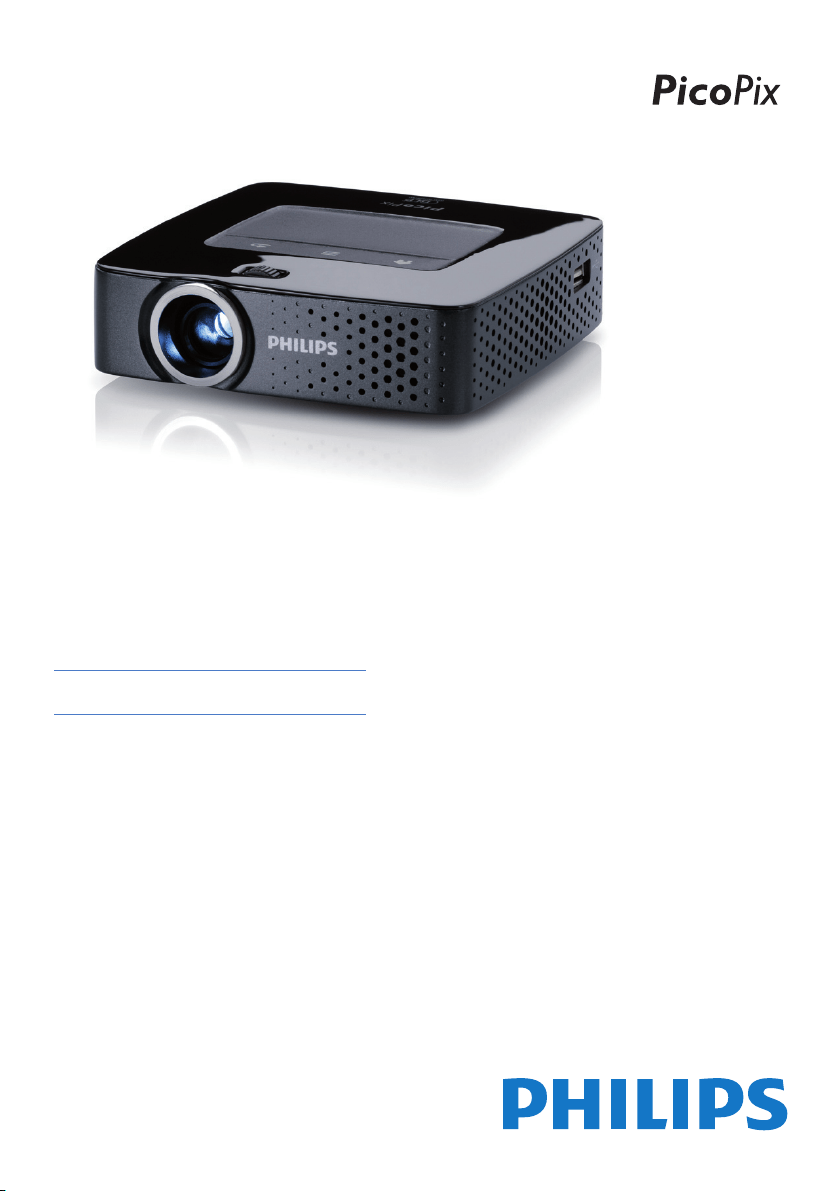
User Manual
Register your product and get support at
www.philips.com/welcome

1 Philips · PPX3614
Table of Contents
Overview ................................................... 2
Dear Customer ................................................................... 2
About this User Manual ..................................................... 2
What's in the Box ............................................................... 2
Product Highlights .............................................................. 2
1 General Safety Information................ 3
Setting up the Device ......................................................... 3
Repairs ................................................................................... 3
Power Supply ....................................................................... 4
Wireless Network (WLAN) ............................................ 4
2 Overview............................................... 5
Top of the Device ............................................................... 5
Bottom of the Device ........................................................ 5
Side View ............................................................................... 5
Pico Station ........................................................................... 6
Touchpad / Gestures .......................................................... 7
Remote Control .................................................................. 9
Overview of the Menu Functions ................................. 10
Symbols in the Statusbar ................................................ 10
3 Initial Operation ................................ 11
Setting up the Device ...................................................... 11
Connect Power Supply / Charge Battery ................... 11
Instal
ling or Changing the Batteries of the Remote
Control ............................................................................... 11
Using the Remote Control ............................................ 12
Initial Installation ............................................................... 13
4 Connect to the Playback Device ...... 14
Connecting to Devices with HDMI Output .............. 14
Connecting to an iPhone/iPad/iPod ............................. 14
Connecting to a Computer (VGA) .............................. 15
Connecting Using an Audio/Video (CVBS) Adapter
Cable ................................................................................... 15
Connecting using Component-Video (YPbPr/YUV)
Cable ................................................................................... 16
Directly Connecting Projector to Computer using
WLAN (WiFi Streaming) ............................................... 17
Connecting the headphones .......................................... 17
5 Memory............................................... 18
Inserting a Memory Card ............................................... 18
Connecting USB Storage Medium ................................ 18
Connect to a Computer (USB) .................................... 19
6 Wireless Network (WLAN) ............. 20
Switching Wireless Networking (WLAN) on/off ..... 20
Setting up a Wireless Network (WLAN) .................. 20
Setting up a Wireless Network (WLAN) Using the
Wizard ................................................................................ 21
Digital Living Network Alliance (DLNA) ................... 21
7 Media Playback................................... 22
Video playback .................................................................. 22
Photo Playback ................................................................. 23
Music Playback .................................................................. 24
Office Playback (YOZO Office) ................................... 25
Managing Files ................................................................... 25
8 Digital TV Playback........................... 27
Connecting the Aerial ..................................................... 27
First Playback ..................................................................... 28
Television ............................................................................ 29
9 Android............................................... 30
Calling Android ................................................................. 30
Exiting Android ................................................................. 30
Resetting Android ............................................................ 30
Installing Android-Apps ................................................... 30
Adjust Browser Mode ..................................................... 32
10 Settings............................................... 34
Overview of the Menu Functions ................................. 34
11 Service ................................................ 36
Care Instructions for the Battery ................................. 36
Battery deep discharge .................................................... 36
Cleaning .............................................................................. 37
Device Overheated .......................................................... 37
Update Firmware with Memory Card ......................... 37
Troubleshooting ................................................................ 38
12 Appendix ............................................ 40
Technical Data ................................................................... 40
Accessories ........................................................................ 40
2
Overview
Dear Customer
Thank you for purchasing our Pocket Projector.
We hope you enjoy your device and its many functions!
About this User Manual
With the installation guide on the following pages, you
can start using your device quickly and easily. Detailed
descriptions can be found in the following sections of
this user manual.
Read the entire user manual carefully. Follow all safety
instructions in order to
ensure proper operation of
your device. The manufacturer accepts no liability if
these instructions are not followed.
Symbols Used
Troubleshooting
This symbol designates tips that will help you
to use your device more effectively and easily.
Damage to the Device or Loss of Data!
This symbol gives warning of damage to the
device and possible loss of data. This damage
can result from improper handling.
Danger to Persons!
This symbol gives warning of danger to per-
sons. Physical injury or damage can result
from improper handling.
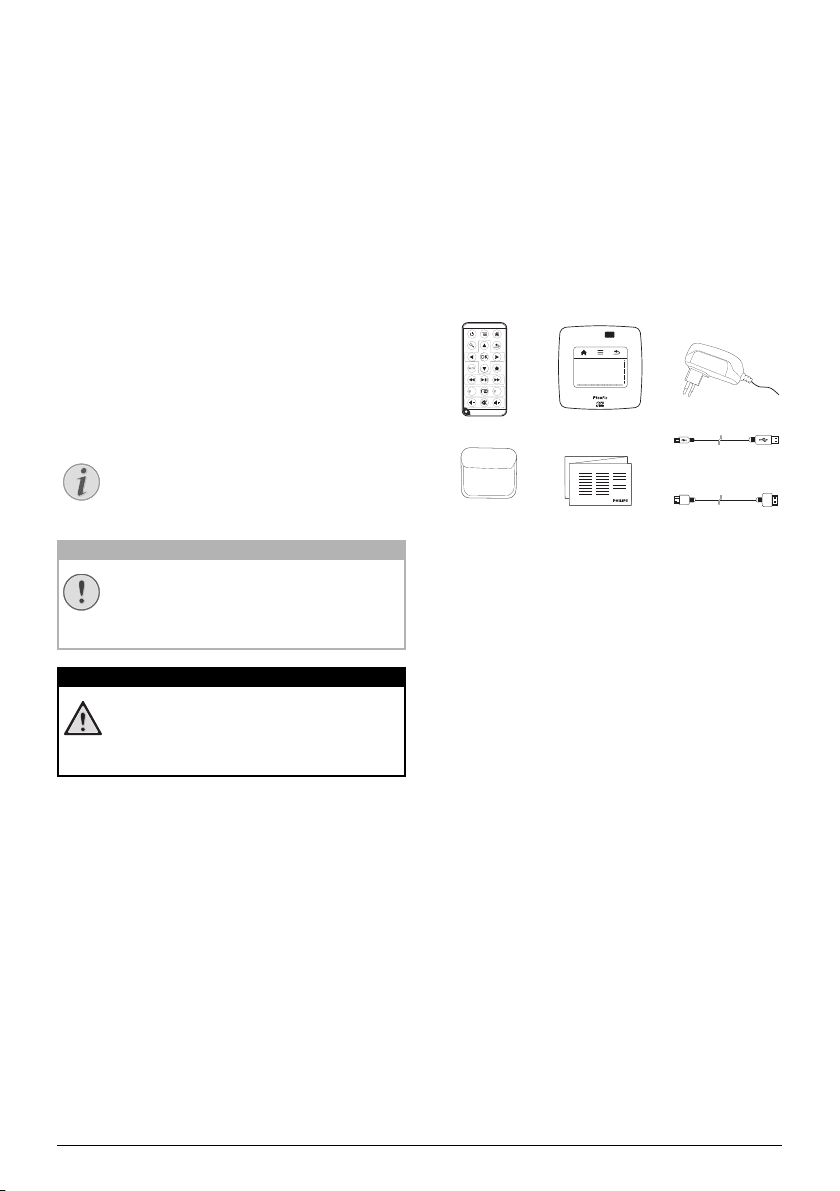
What's in the Box
1 – Remote Control
2 – PicoPix Projector
3 – Power supply
4 – USB cable
5 – HDMI cable
6 – Quic
k Start Guide
7 – Pouch
d
e
f
g
b
c
a
Product Highlights
Connecting to devices with HDMI output
With the HDMI to mini HDMI cable you can connect
the projector to a computer or laptop (see also Con-
nect to the Playback Device, page 14).
Directly connecting projector to compu-
ter using WLAN (WiFi streaming)
With the software PicoPixWlink you can connect the
projector to a computer or a laptop over your wireless
network. For this purpose, both devices must be con-
nected to the same wireless network (see also Directly
Connecting Projector to Computer using WLAN (WiFi
Streaming), page 17).
Office playback (YOZO Office)
You can display documents with YOZO Office (see also
Office Playback (YOZO Office), page 25).
Notice
CAUTION!
DANGER!

3 Philips · PPX3614
1 General Safety Information
Do not make any changes or settings that are not
described in this user manual. Physical injury or damage
to the device or loss of data can result from improper
handling. Take note of all warning and safety notes indi-
cated.
Setting up the Device
The unit is for indoor use only. The device should be
placed securely on a stable, flat surface. Position all
cables in such a way that no one will stumble on them,
thus avoiding possible injuries to persons or damage to
the device itself.
Do not plug in the device in moist rooms. Never touch
the mains cable or the ma
ins connection with wet
hands.
The device must have sufficient ventilation and may
not
be covered. Do not put your device in closed cabinets
or boxes.
Do not place the machine on soft surfaces such as table-
cloths or carpets and do not cover the ventilation slits.
Otherwise the device could ov
erheat or catch fire.
Protect the device against direct sunlight, heat, large
temperature fluctuations and moistu
re. Do not place
the device in the vicinity of heaters or air conditioners.
Observe the information on temperature and humidity
in the technical data.
When the device is running for
a long period
of time,
the surface becomes hot and a warning symbol appears
on the projection (see also Symbols in the Statusbar,
page 10). The device behaves as follows:
1 The fan turns to maximum level.
2 At maximum level of brightness the overheat symbol
appears in the status bar and th
e device turns auto-
matically to minimum level of brightness.
3 At minimal level of brightness the overheat symbo
l
shows for three seconds in the middle of the screen.
Then the device turns off automatically.
After the device has cooled down, you can continue
playback.
Do not allow liquids to enter into the device. Switch off
the device and disconnect it from
the mains supply if liq-
uids or foreign substances end up inside the device.
Have the unit inspected by a te
chnical service depart-
ment.
Always handle the unit with care. Avoid touching the
lens. Never place heavy or sharp objects on the
projec-
tor or the power cable.
If the projector gets too hot or emits smoke, shut it
down immed
iately and unplug the power cable. Arrange
for your device to be investigated by a technical service
centre. To prevent the spread of fire, open flames
should be kept away from the device.
Under the following conditions, a layer of moisture can
appear inside the
device which can lead to malfunctions:
• if the device is moved from a cold to a warm
area;
• after a cold room i
s heated;
• when this device is placed in a damp room.
Proceed as follows to avoid any moisture build-up:
1 Seal this device in a plastic bag before moving it to
another room,
in order for it to adapt to room con-
ditions.
2 Wait one to two
hours before you take the devi
ce
out of the plastic bag.
The device should not be used in a very dusty environ-
ment. Dust particles and other foreign objects may
damage
the unit.
Do not expose the device to extreme vibrations. It may
damage the internal components.
Do not allow children to handle the device without
supervision. The packing materials should be kept out of
the hands of children.
Repairs
Do not repair the device yourself. Improper mainte-
nance can result in injuries or damage to the device.
Your device must be repaired by
an authorised service
centre.
Find details of authorised service centres on the war-
ranty card.
Do not remove the type label from your device; this
would void
the warranty.
General Safety Information 4
Power Supply
Use only the enclosed power adapter (see chapter Appen-
dix / Technical Data). Check whether the mains voltage of
the power supply matches t
he mains voltage available at
the setup location. This equipment complies with the volt-
age type specified on the unit.
The capacity of the battery diminishes with time. If the
device functions only with the power supply, the battery
is defective. Contact an authorised service centre to
replace the battery.
Do not try to replace the battery yourself. Incorrect
handling of the batt
ery or using the wrong type of bat-
tery can cause damage to the device or cause injury.
Risk of explosion with incorrect type of
batteries
Do not try to replace the battery yourself.
There is a risk of explosion if the incor-
rect battery type is used.
Switch the device on or off using the power switch
before removing the power supply from the socket.
Turn off the device and remove it fro
m the power sup-
ply before cleaning the surface. Use a soft, lint-f
ree
cloth. Never use liquid, gaseous or easily flammable
cleansers (sprays, abrasives, polishes, alcohol). Do not
allow any moisture to reach the interior of the device.
High Power LED
This device is equipped with an high power
LED (Light Emitting Diode), which emits very
bright light. Do not look directly into the pro-
jector lens. This could cause eye irritation or
damage.
Danger of hearing damage
Do not use the device over a longer time at
high volume – especially when using head-
phones. This could lead to the risks of hearing
da
mage.
Wireless Network (WLAN)
The functioning of security systems, medical equipment
or sensitive devices can be disrupted by the transmis-
sion power of the device. Observe any usage regula-
tions (or restrictions) in the vicinity of such equipment.
The use
of this device can affect the operati
on of insuf-
ficiently shielded medical devices and hearing ai
ds and
pacemakers through the release of high frequency radi-
ation. Also consult a doctor or the manufacturer of the
me
dical device to est
ablish whether these are suffi-
ciently shielded from external high frequency radiation.
DANGER!
DANGER!
DANGER!
5 Philips · PPX3614
2Overview
Top of the Device
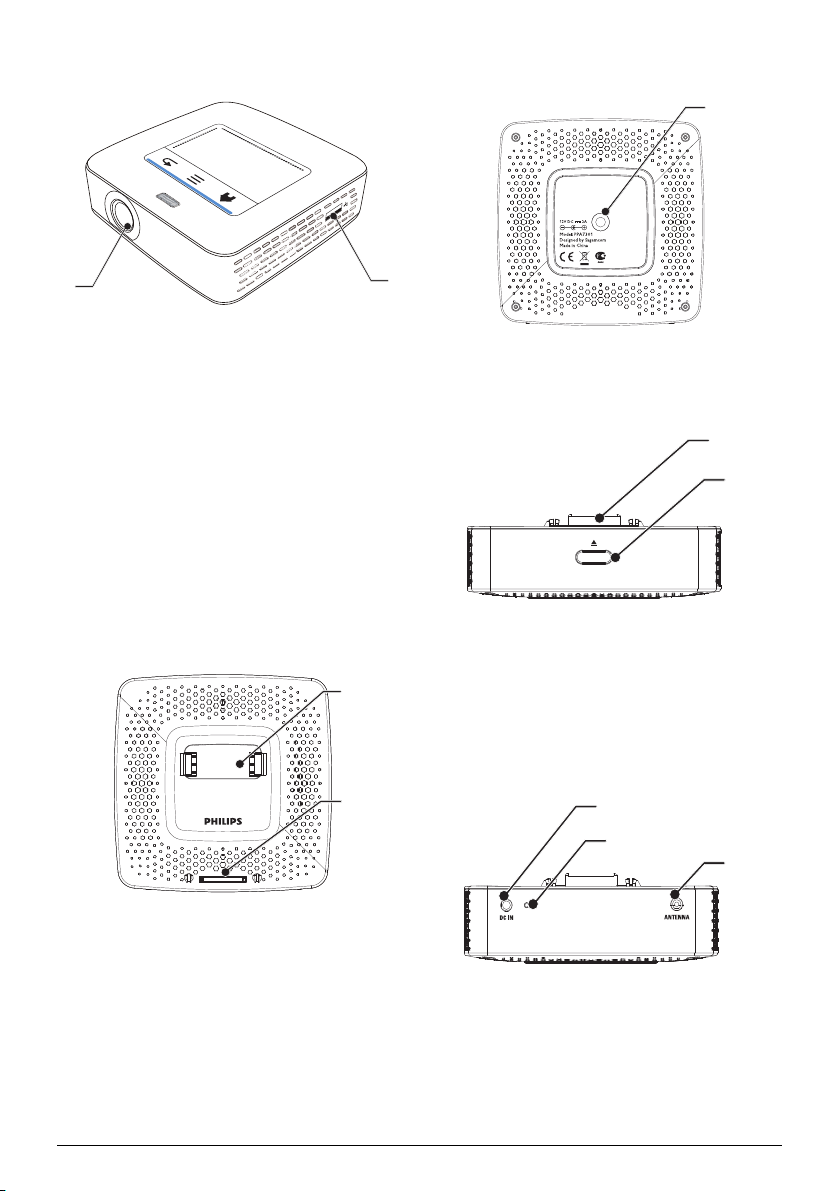
1 – Touchpad for navigation and operation of the
mouse pointer (see also Touchpad / Gestures, page 7)
2 – LED status bar
Blue: de
vice switched on / device in standby
Off: device off
3 – Focus wheel for image sharpness.
Note that the distance to the projection sur-
face must be a minimum of 0.5 meters and a
maximum of 5 meter
s. If the Pocket Projector
is located outside of this range, it will not be
possible to focus the image. Turn the focus
wheel carefully so as to avoid damaging the
lens.
c
a
b
Bottom of the Device
1 – Pico Station connection socket
2 – Tripod socket
3 – Pico Station port
b
c
a
Side View
1 – Reset hole
The Pocket Projector is unresponsive or hung up: insert
a slim, poi
nty object into the reset hole to trigger a
hardware reset.
2 – Battery status monitor
Charge indicator with connecte
d power supply:
red: Charging battery
Green: battery is fully charged
3 Ã – On/Off switch
4 / – A/V port for a playback device
5 – Remote-control signal receiver
6 Ï – Audio output – headphone connection or con-
nection for extern
al speakers
7 – HDMI port for a playback device
(with
adapter cable)
8 /
– Memory car
d slot (SD/SDHC/SDXC/
MMC)
9 ý – USB port for connection to a computer (data
exchange)
– Power
supply port
VGA
Y-Pb-Pr
HDMI
j
i
h
g
e
d
c
b
a
f
Notice
Overview 6
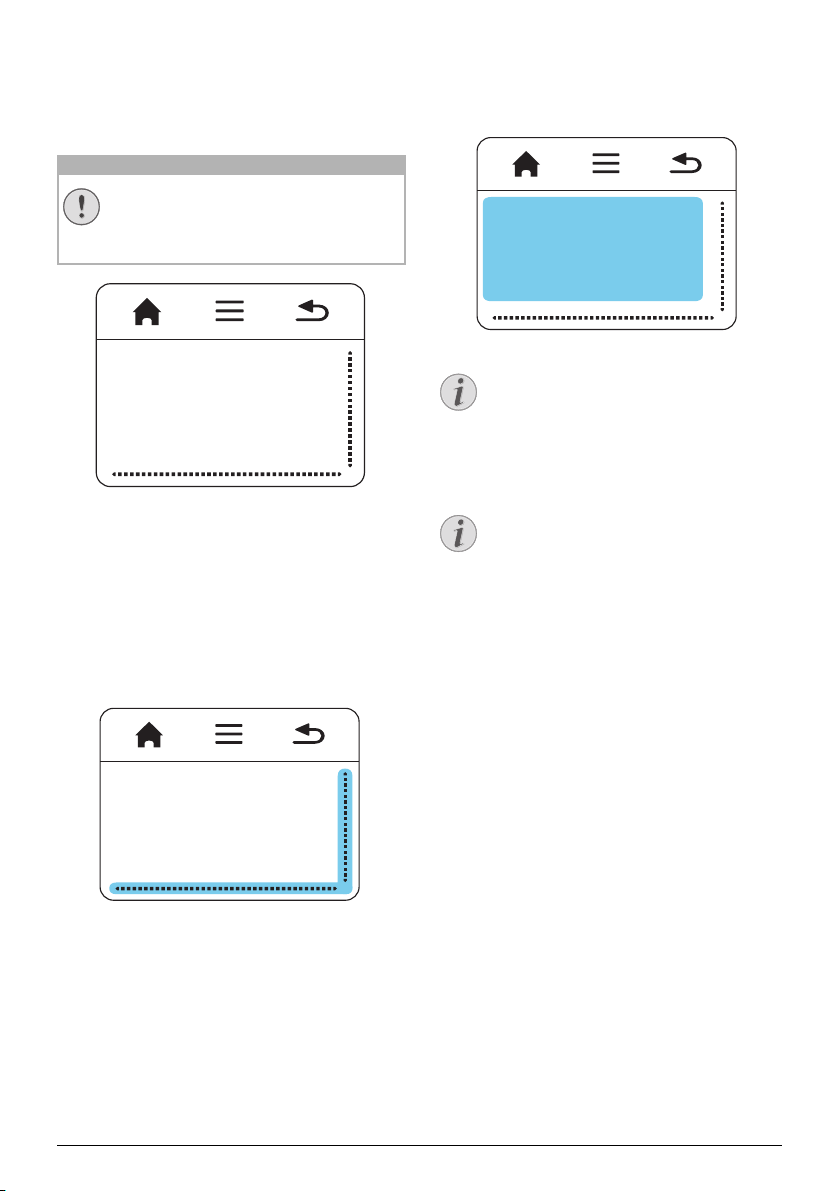
1 ý – USB port for a USB storage medium, DVB-T
stick, mouse or keyboard.
2 – Lens
b
a
Pico Station
(not included)
The Pico Station docking station has its own batt
ery,
with which you can extend the replay time of the device.
The inbuilt speakers ensure improved sound quality
during playback. The Pico Station has a DVB-T adapter
so that you can directly connect a DVB-T adapter.
Available as accessories
Pico Station with battery and speakers
................................................ PPA7300 / 253529749
Pico Station with battery, speakers and DVB-T adapter
................................................. PPA7301 / 253532895
Top of the Device
1 – PicoPix coennction socket
2 – PicoPix port
b
a
Bottom of the Device
1 – Tripod socket
a
Front View
1 – PicoPix port
2 – Eject button
a
b
Rear View
1 – Power supply port
2 – Battery status monitor
red: battery empty
Charge ind
icator with connected power supply:
red: Charging battery
Green: battery is fully charged
3 – Aerial socket
c
b
a
7 Philips · PPX3614
Touchpad / Gestures
The touchpad is a touch-sensitive surface. Touch the
touchpad with one or more fingers to move the cursor,
navigate in the menu, select menu options or carry out
other actions.
Ballpoint Pens!
Do not use a ball-point pen or other objects
to operate the touchpad. Hard and sharp
objects may damage the touchpad.
– Calling the main menu
} – Calling the menu
| – One menu step back, one directory level back /
cancelling functions
Navigation Area / Scrolling Area
Swipe up and down on the right edge of the touchpad
to use vertical scroll.
Swipe left and right on the bottom edge of the touchpad
to use horizontal scroll.
Input Area
The input area is limited by the navigation area/scrolling
area. You can control the cursor using gestures in the
input area.
Hidden Cursor
After a short time, the cursor fades out. Move
the cursor using a brief gesture in the input
area to reveal the cursor before you call a
function by tapping/clicking.
Connecting a USB Mouse
You can connect a USB mouse to the USB
port on the side of the device.
Gestures
Simple gestures, which you carry out on the touchpad
for quick navigation. Most gestures are carried out with
one or two fingers. Carry out the gestures using your
fingertips.
Move cursor – Swipe over the input area,
to move the
cursor. The gesture involves swiping the surface of the
touchpad with the fingertip without exerting any pres-
sure.
Tap / click – Tap briefly in the input area to confirm an
entry. After tapping remove your finger from
the touch-
pad. The reaction occurs after you have lifted your fin-
ger. T
he click is executed at the point where the cursor
is located, even if
the cursor is hidden.
CAUTION!
Notice
Notice

9 Philips · PPX3614
Remote Control
B – Switches the device hibernation mode
– Call the menu
u – Call the main
menu
v – Call the search menu
¿ – One menu step back, one directory level back /
cance
lling a function
w – Switch to the
external vide
o input HDMI, ,
or
VGA
x – DVB-T mode: change to favourites
1
Navigation keys
à – Confirms selection
/, À/Á – Navigation keys / navigate t
he menu /
modify settings
/ –
Modify settings / during music playback select
previous, next title
À/Á – During music playback adjust volume level /
during video playback review
, cue
2
Playback keys
: – Rewind
T – Start / stop playback
; – Fast-forward
3
DVB-T keys
z – Select previous channel
y – Call electronic program guide
{ – Select the next channel
4
Volume keys
– Decrease the volume
– Mute the sound
– Increase the volume
Overview 10
Overview of the Menu
Functions
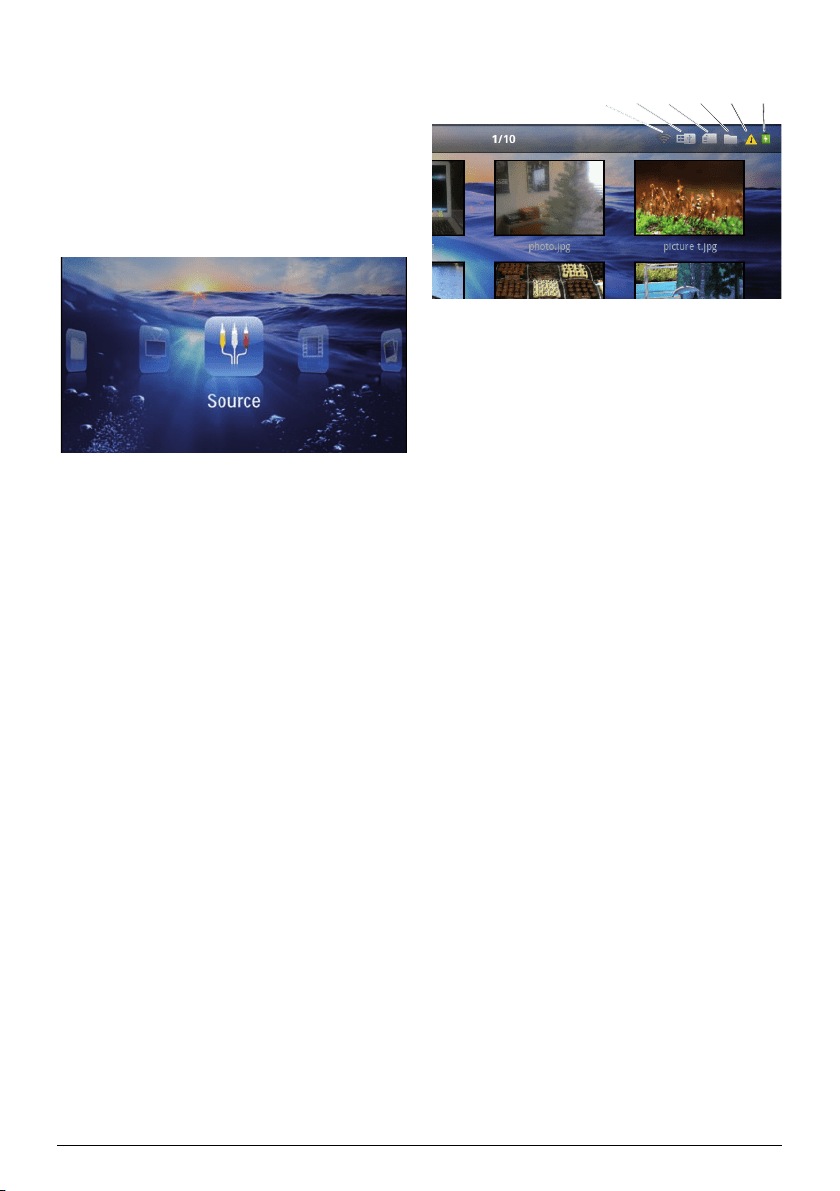
1 After switching on the device the main menu
appears.
2 Select the desired menu using the navigation keys
À/Á.
3 Conf
irm with à.
4 By pressing the
u key you will return to the main
menu.
Source – Switch to the external video input HDMI,
, or VGA
Videos – Se
lecting files for video playback
Pictur
es – Selecting files
for the slideshow
Music – Selecting music files for playback
Android – Call
the androi
d operating system
Settings – Configure settings for playback and for
the device
Fold
er View –
Selecting files for Playback. Copy or
Delete Files (Mark the files with Á and confirm
using à).
Digital TV – Te
levision
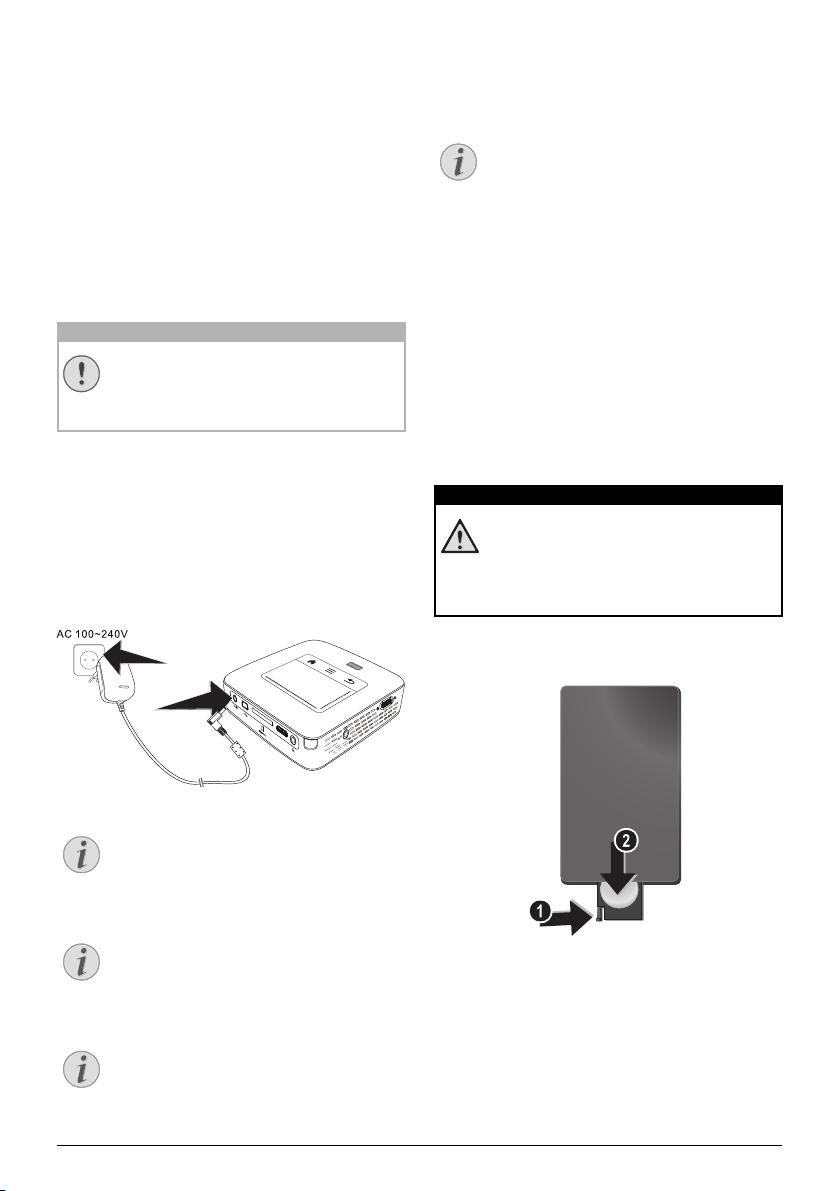
Symbols in the Statusbar
123456
1 – WLAN status display
2 – USB storage medium
3 – Memory card
4 – Internal memory
5 – Overheat symbol
6 – Charge level of the internal battery. The icon will
be red, when the battery need
s to be recharged.
11 Philips · PPX3614
3 Initial Operation
Setting up the Device
You can position the device so that it lies flat on a table
in front of the projection surface; it is not necessary to
tilt it towards the projection surface. The device com-
pensates for the distortion from the slanted projection
(pincushion distortion).
Connect Power Supply /
Charge Battery
Mains Voltage at the Site of Installation!
Check whether the mains voltage of the
power supply matches the mains voltage avail-
able at the setup location.
1 Insert the small plug of the power supply into the
socket on the rear side o
f your device.
2 Plug the power supply into the mains.
3 During the charging process, the indi
cator light on
the side of the device will be red. When the battery
is fully charged, it will turn green.
4 Char
ge the built-in battery completely be
fore using
for the first time. This will prolong the life of the bat-
tery.
VGA
Y-Pb-Pr
HDMI
Pico Station
The battery of the Pico Station will not be
charged while the projector is in use.
Charging via Pico Station
The battery of the projector will not be
charged while the projector is in use.
Operate via Pico Station
The battery of the Pocket Projector is empty:
Connect the Pico Station to use the Pocket
Projector.
Battery Empty
The battery of the Pocket Projector is empty:
Connect the Pico Station or the power supply
to use the Pocket Projector.
Connect the power supply to the Pocket Pro-
jector or the Pico Station
to recharge the bat-
ter
y.
Disconnect the power supply only if the
Pocket Pr
ojector is suffici
ently charged. Oth-
erwise the Pocket Projector turns off.
Installing or Changing the
Batteries of the Remote
Control
Risk of Explosion with Incorrect Type of
Batteries
Only use the CR 2025 type battery.
There is a risk of explosion if the incor-
rect battery type is used.
1 To access the battery, disengage the locking mecha-
nism (1) and slide out the battery compartment
(2).
CAUTION!
Notice
Notice
Notice
Notice
DANGER!
Initial Operation 12
2 Insert the new batteries into the battery compart-
ment with the positive and negative poles as shown
on the back of the re
mote control. Make sure the
polarities(+ and -) are aligned correctly.
3 Push the battery compartment back into the remote
control until the locking mechanism engages.
Normally the batteries will last for around
one year. If the remote control stops working,
please replace the batteries. If the device is
not used for a long time, take out the batter
-
ies. This will prevent leakage and possible
damage to th
e remote control.
The used batteries should be disposed of
according to the recycling regulatio
ns of your
country.
Using the Remote Control
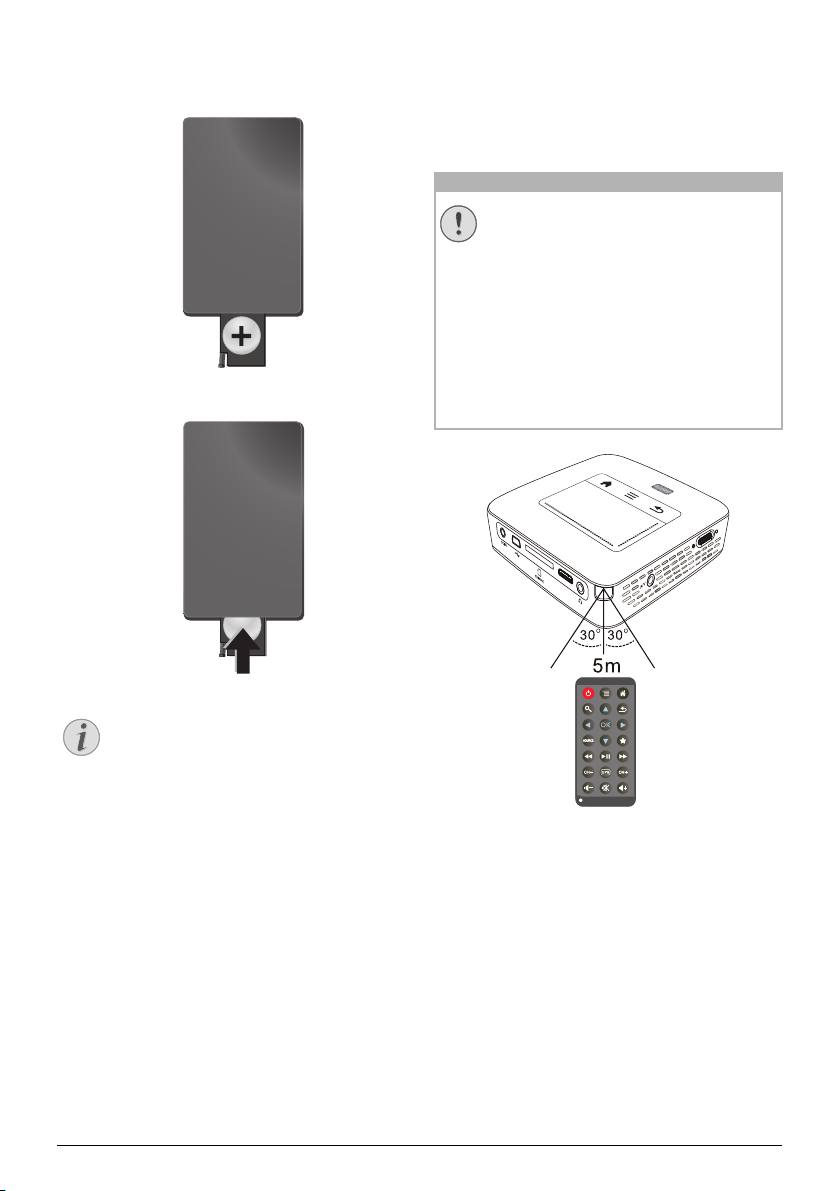
Point the remote control at the remote sensor on the
back of the device. The remote can be used within an
angle of 60 degrees and up to 5 meters from the device.
When using the remote control, no obstacle should be
placed between the remote control and remote sensor.
VGA
Y-Pb-Pr
HDMI
Notice
CAUTION!
• The improper use of batteries can lead
to overheating, explosion, risk of fire
and injury. Leaking batteries can possibly
damage the remote control.
• Never expose the remote control to
direct sunlight.
• Avoid deforming, dismantling or charg-
ing the batteries.
• Avoid exposure to open fire and water.
• Replace empty batteries immediately.
• Remove the battery from the remote
control if not in use for long periods of
time.

13 Philips · PPX3614
Initial Installation
1 Push for about 3 seconds the on/off switch on the
side to turn the device on.
2 Turn
the device towards a suitable projection sur-
face o
r wall. Note that the distance to the projection
surface must be a minimum of
0.5 meters and a max-
imum of 5 meters. Make sure the projector is in a
secure position.
3 Use the focus
wheel on the top to adjust the image
sharpness.
4 Select the desired menu language using /.
5 Confirm with à.
The Main Menu Appears Instead of
the Language Selection
The device has already been installed. In
order to change the menu language, pro-
ceed as follows:
1 Use t
he navigation keys to select Set-
tings.
2 Confirm with à.
3 Select with / Language.
4 Confir
m with à.
5 Select the desired language with /.
6 Confirm with à.
7 Exit with ¿.
Notice
Connect to the Playback Device 14
4 Connect to the Playback Device
Only use the supplied cable or cables that are available
as accessories to connect the projector.
Supplied cables
HDMI cable
USB cable
Cables available as accessories
Component Video Cable YUV / YPbPr
.............................................. (PPA1210 / 253447083)
Video-(CVBS) cable ................... (PPA1320 / 253526178)
VGA cable ................................... (PPA1250 / 253447070)
iPhone/iPad/iPod-HDMI cable . (PPA1280 / 253447091)
iPhone/iPad/iPod-A/V cable...... (PPA1160 / 253372471)
MHL cable .................................... (PPA1240 / 253520048)
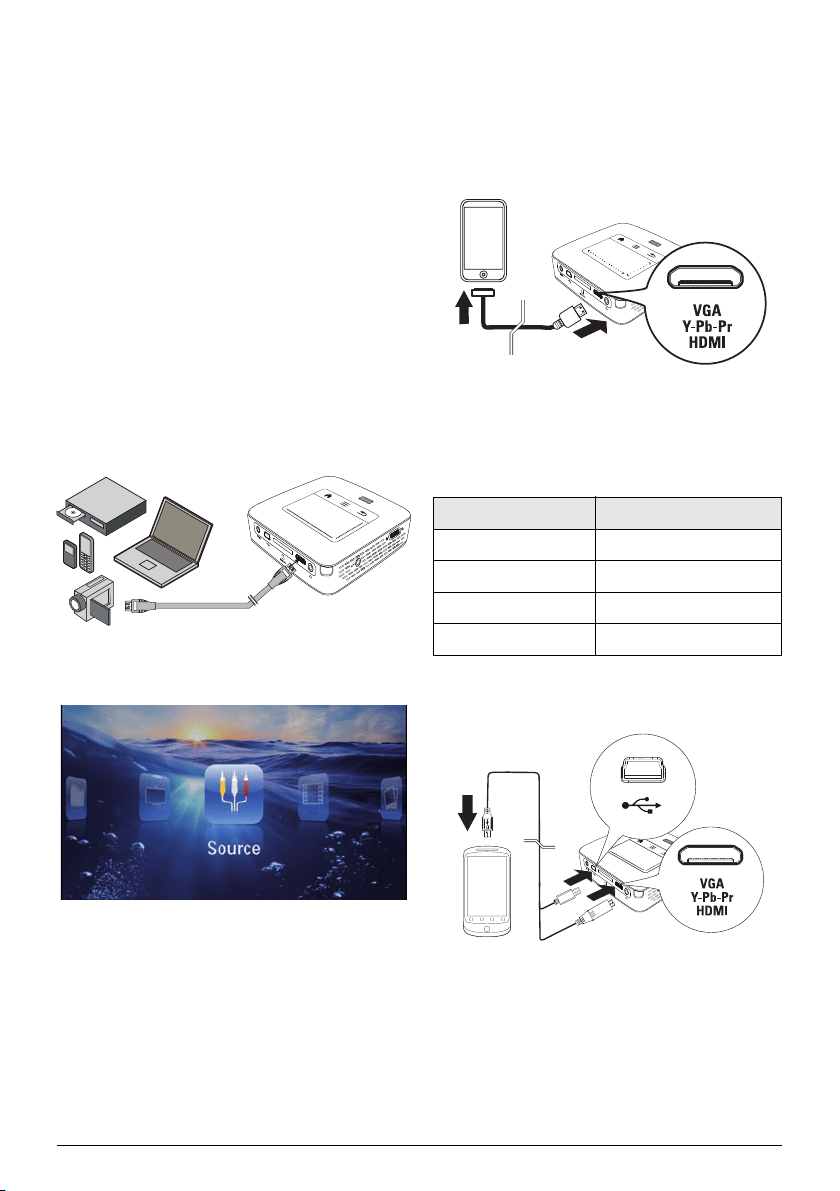
Connecting to Devices with
HDMI Output
Use the HDMI to mini HDMI cable to connect the pro-
jector to a computer or laptop.
VGA
Y-Pb-Pr
HDMI
1 Switch the device on using the on/off switch on the
side.
2 After the initial screen the main menu appears.
3 Select Menu > Source and switch to HDMI.
4 Connect the HDMI cable to the projector's HDMI
socket.
5 Conne
c
t the cable to the mini-HDMI socket of the
playback device.
Connecting to an iPhone/
iPad/iPod
Use the iPhone/iPad/iPod-HDMI cable (not supplied) to
connect the projector to an iPhone/iPad/iPod.
VGA
Y-Pb-Pr
HDMI
1 Select Menu > Source and switch to Component.
2 Connect the cable to the projector's HDMI socket.
3 Connect
the cable to the playback device.
Supported devices
All devices with 30-pin dock connector are supported.
Device Generation
iPod nano up to generation 6
iPod touch up to generation 4
iPhone up to generation 4
iPad up to generation 2
Connecting to Smartphone
Use the HML cable (not supplied) to connect the pro-
jector to a smartphone.
VGA
Y-Pb-Pr
HDMI
1 Select Menu > Source and switch to HDMI.
2 Connect the cable to the projector's HDMI and ý
socket
s.
3 Connect
the cable to the playback device.

15 Philips · PPX3614
Connecting to a Computer
(VGA)
Many laptops do not activate the external
video output automatically when you connect
a second display such as a projector. Check
your laptop's manual to find out how to acti
-
vate the external video output.
Use the VGA cable (not included) to connect the pro-
jector to a computer, laptop, or some PDAs. The pro-
jector supports the following resolutions: VGA/SVGA/
XGA. For best
results, set the computer's resolution to
SVGA (800x600).
VGA
Y-Pb-Pr
HDMI
1 Connect the VGA cable to the projector's HDMI
socket.
2 Connect the VGA plug to the VGA socket of the
computer and th
e audio plug to the computer's
audio output.
3 Ad
just the computer's resolution to the correct set-
ting and switch the V
GA signal to an external moni-
tor. The following resolutions are supported:
Resolution Image
refresh rate
VGA 640 x 480 60 Hz
SVGA 800 x 600 60 Hz
XGA 1024 x 768 60 Hz
WXGA 1280 x 768 60 Hz
FULL HD 1920 x 1080 60 Hz
Screen Resolution
You can obtain the best results with the
800¦×¦600 (60Hz) resolution.
4 Sel
ect Menu > Source and swit
ch to VGA.
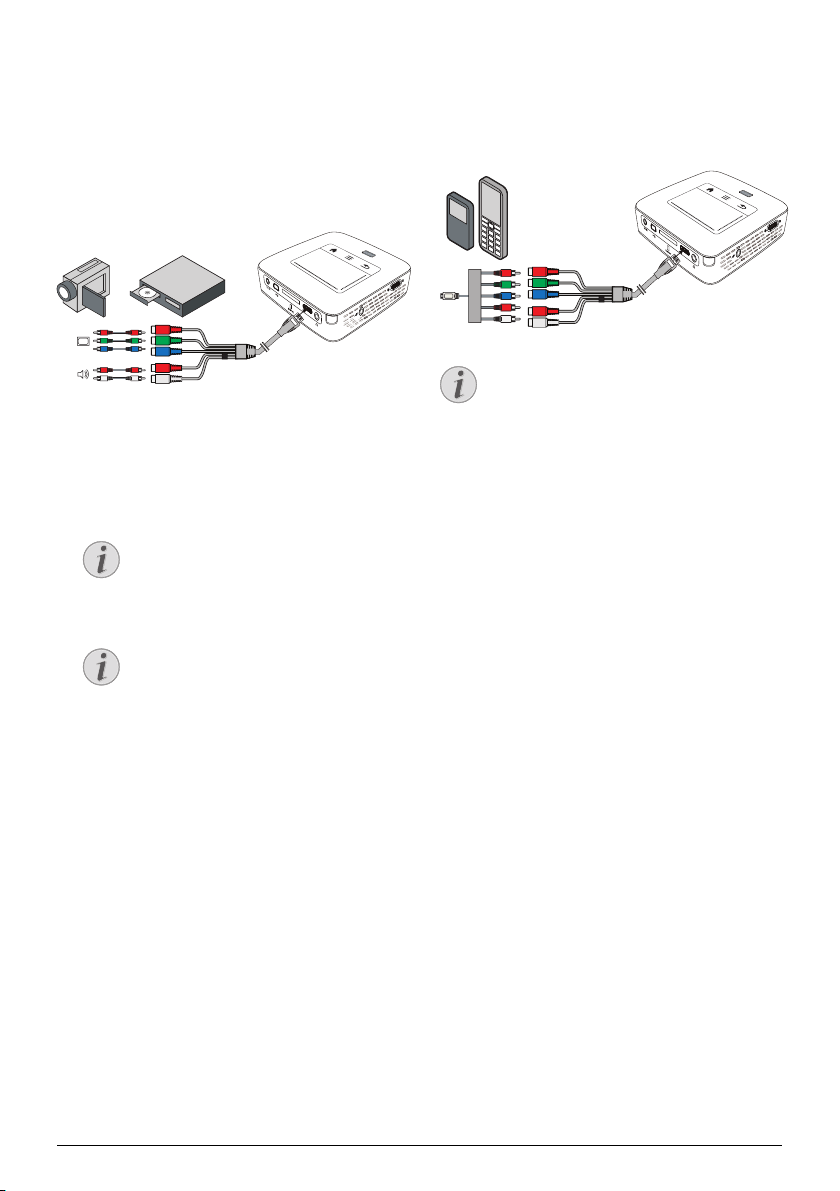
Connecting Using an Audio/
Video (CVBS) Adapter
Cable
Use the projector's audio/video adapter cable (A/V
cable) (not included) to connect camcorders, DVD
players or digital cameras. The jacks for these devices
are yellow (video), red (audio right) and white (audio
left).
VGA
Y-Pb-Pr
HDMI
1 Connect the supplied A/V cable to the socket of
the projector.
2 Connect the video device's audio/vide
o sockets to
the A/V cable using a conventional composite video
(RCA) cable.
3 Select Menu > Source and swit
ch to AV.
Connecting to mobile multimedia devices
Some video devices (e.g.: pocket multimedia players, ...)
require specific connection cables. There are either
supplied with the device or acquired from the manufac-
turer of the multimedia device. Please note that only the
original ca
bles from the device manufacturer may func-
tion.
VGA
Y-Pb-Pr
HDMI
Switching to the Multimedia Device Sig-
nal Output
See the multimedia device instruction manual
to find out how to switch the signal output to
this jack.
Notice
Notice
Notice
Connect to the Playback Device 16
Connecting using
Component-Video (YPbPr/
YUV) Cable
Please use this type of connection to obtain the highest
possible image quality. This cable is available as an acces-
sory. The device jacks have the
colours green (Y), blue
(U/P
b), red (V/Pr) for the video signal and red (audio
right) and white (audio left) for the audio signal.
VGA
Y-Pb-Pr
HDMI
1 Connect the video component cable (accessory) to
the projector's HDMI socket.
2 Co
nnect the video device's appropriate coloured
sockets to
the component video cable of the projec-
tor using a conventional component video (RCA)
ca
ble.
YCbCr
Note that the YPbPr outlets are labelled
YCbCr on some devices.
Two Red Phono (RCA) Connectors
When connecting, note that there are two
red phono (RCA) connectors on the cable.
One is for the right audio signal and the
other for the V/Pr element of the compo-
nent video signal. If these two connectors
a
re insert
ed incorrectly, the projected
image appears green and the audio signal
for the right speaker will not work.
3 Select Menu > Source and swi
tch to Component.
Connecting to mobile multimedia devices
Some video devices (e.g.: pocket multimedia players, ...)
require specific connection cables. There are either
supplied with the device or acquired from the manufac-
turer of the multimedia device. Please note that only the
original c
ables from the device manufacturer may func-
tion.
VGA
Y-Pb-Pr
HDMI
Switching to the Multimedia Device Sig-
nal Output
See the multimedia device instruction manual
to find out how to switch the signal output to
this jack.
Notice
Notice
Notice
17 Philips · PPX3614
Directly Connecting
Projector to Computer using
WLAN (WiFi Streaming)
With the software PicoPixWlink you can connect the
projector to a computer or a laptop over your wireless
network. For this purpose, both devices must be con-
nected to the same wireless network.
1 Install the PicoPixWlink software (allready pre
installed on the projector)
on your computer (see
also Connect to a Computer (USB), page 19).
2 Connect the device with the wireless network (see
also Wireless Ne
twork (WLAN), page 20).
3 Sta
rt PicoPixWlink (PicoPix Viewer) on your com-
puter.
4 Cl
ick the PicoPixWlink icon in the
notification area
and start the manager window.
You are now able to search for projectors in the net-
work (Search WIFI projector) and start the projection
(Start projection).
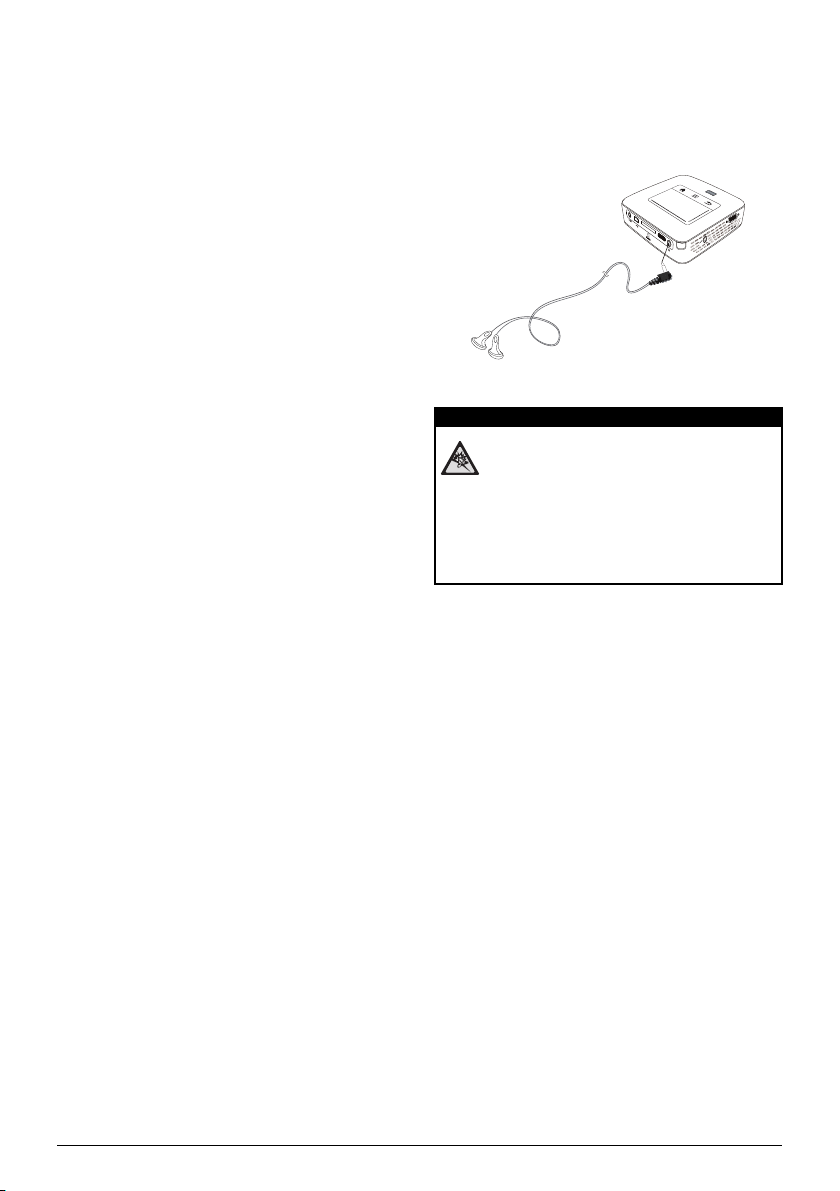
Connecting the headphones
1 Before connecting the headphones, turn down the
volume on the device.
2 Connect
the headphones to the projector's head-
phone slot. The d
evice speakers deactivate automat-
ically when the headphones are connected.
VGA
Y-Pb-Pr
HDMI
3 After connecting the headphones, increase the vol-
ume to a comfortable level.
Danger of Hearing Damage
Do not use the device over a longer time at
high volume – especially when using head-
phones. This could lead to the risks of hearing
damage. Befo
re connecting the headphone
s,
turn down the volume on the device. After
connecting the headphones, increase the vol-
ume to a comfortable level.
DANGER!
Memory 18
5Memory
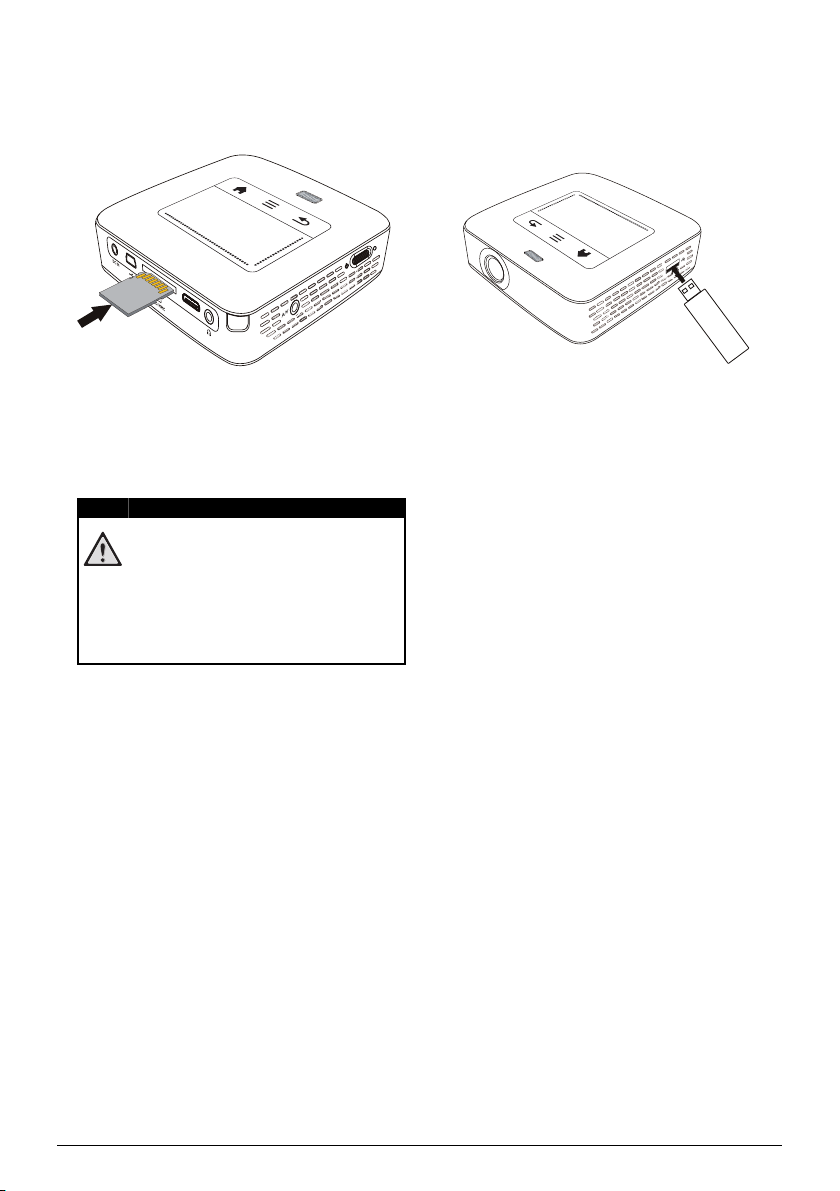
Inserting a Memory Card
VGA
Y-Pb-Pr
HDMI
1 Insert a memory card with the contacts facing
upwards into the / slot at the back of the
device. Your device supports the following memory
cards: SD/SDHC/SDXC/MMC.
2 Insert the memory card into the slot unt
il it snaps
into position.
Inserting a Memory Card!
Never pull out the memory card while the
device is accessing it. This could cause data
to be damaged or lost.
Switch the device off in order to make sure
that the device does
not access the mem-
ory card.
3 Press lightly on the memory card to remove it.
4 The memory card is ejected.
Connecting USB Storage
Medium
1 Connect the USB storage medium to the USB port
on the side of the device.
DANGER!
19 Philips · PPX3614
Connect to a Computer
(USB)
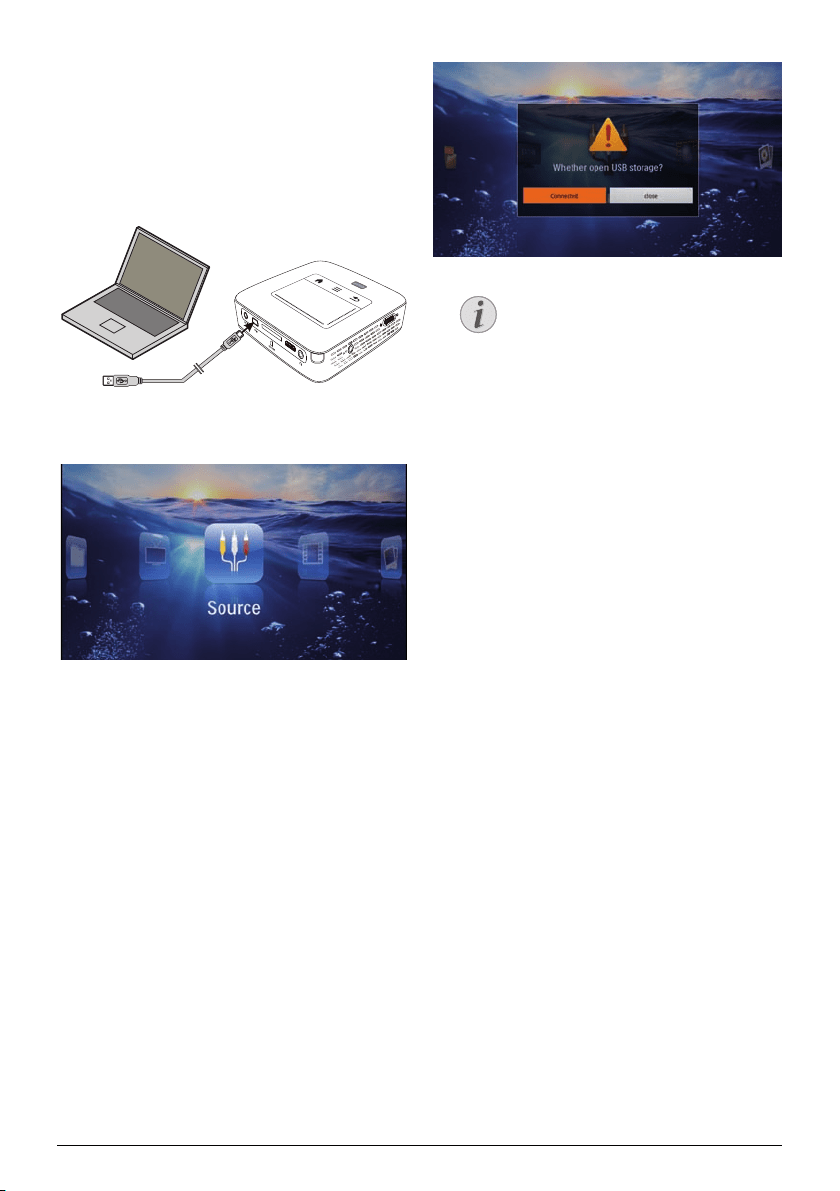
You can use the USB cable to connect the Pocket
Project to a computer. In this way, you are able to copy
files back and forth between the internal memory, an
inserted memory card and the computer. You can also
delete the files. You can playback the files saved on the
Pocket Projector on your computer.
VGA
Y-Pb-Pr
HDMI
1 Switch the device on using the on/off switch on the
side.
2 After the initial screen the main menu appears.
3 Connect the mini-USB port to the Pocket Projector
and the USB socket to the computer.
4 A
confirmation screen appears when the devices are
connected successfully.
5 Confirm to enable the connectio
n.
Successful Connection
You cannot use the memory for media
playback when the Pocket Projector is
connected to a computer via USB. Use
WiFi Streaming instead (see also Directly
Connecting Projector to Computer using
WLAN (WiFi Streaming), page 17).
6 If a memory card has been inserted, it will be dis-
played as another disk drive.
7 You can move, copy or delete data from the
compu-
ter, the memory card (if inserted) and the internal
memory.
Notice
Wireless Network (WLAN) 20
6 Wireless Network (WLAN)
In a wireless network (Wireless Local Area Network,
WLAN) at least two computers, printers or other addi-
tional devices communicate with
each other over radi
o
waves (high frequency waves). Data transmission in the
radio network is based on the standards 802.11b,
802.11g and 802.11n.
Information on Using WLAN!
The functioning of security systems, medical
equipment or sensitive devices can be dis-
rupted by the transmission power of the
device. Observe any usage regulations (or
restrictions) in t
he vicinity of such equipment.
The use of this device can affect the operation
of insuffic
iently shielded medical devices and
hearing aids and pacemakers through the
release of high frequency radiation. Also con-
sult a doctor or the manufacturer of the med-
ical device to establish whether these are suf-
ficiently shielded from external high frequency
radiati
on.
Infrastructure Wireless Network
In an infrastructure network, multiple devices commu-
nicate via a central access point (gatewa
y, router). All
data are sent to the access point (gateway, router) and
distributed from there.
Switching Wireless
Networking (WLAN) on/off
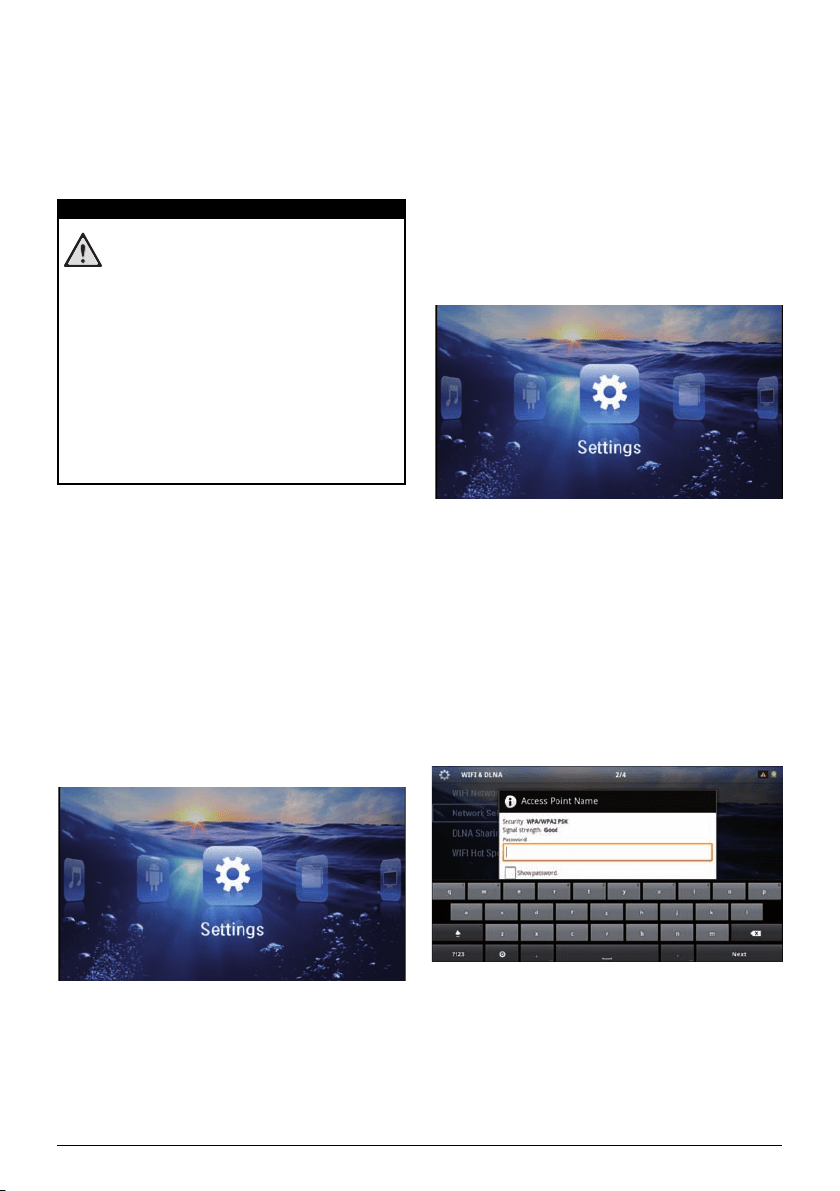
Wireless networking is deactivated by default. You have
the option of turning this function on.
1 Switch the device
on using the on/of
f switch on the
side.
2 After the initial screen the main menu appears.
3 Use the navigation keys to select Settings.
4 Confirm with à.
5 Using / select WIFI & DL
NA.
6 Confirm with à.
7 Using / select WIFI Ne
twork.
8 Confirm with à.
9 Modify the settings with /.
10 Confirm with à.
The ¿ key takes you one step
back in the menu.
Setting up a Wireless
Network (WLAN)
1 Switch the device on using the on/off switch on the
side.
2 Af
ter the initial screen the main menu appears.
3 Use the navigation keys to select Settings.
4 Confirm with à.
5 Using / select WIFI & DLNA.
6 Co
nfirm with à.
7 Using / select Network Se
lection.
8 Confirm with à.
9 Use / to select the de
sired wireless network..
10 Confirm with à.
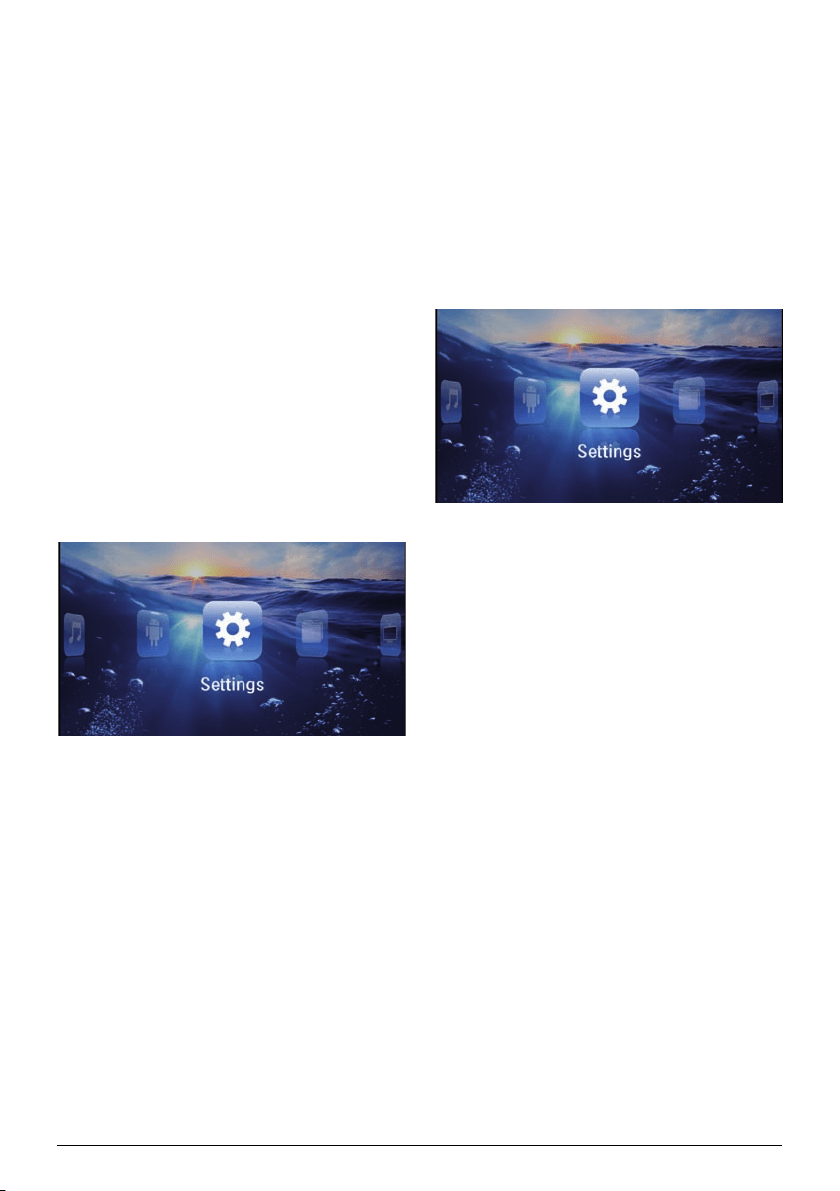
11 If your wireless network is password protected,
an
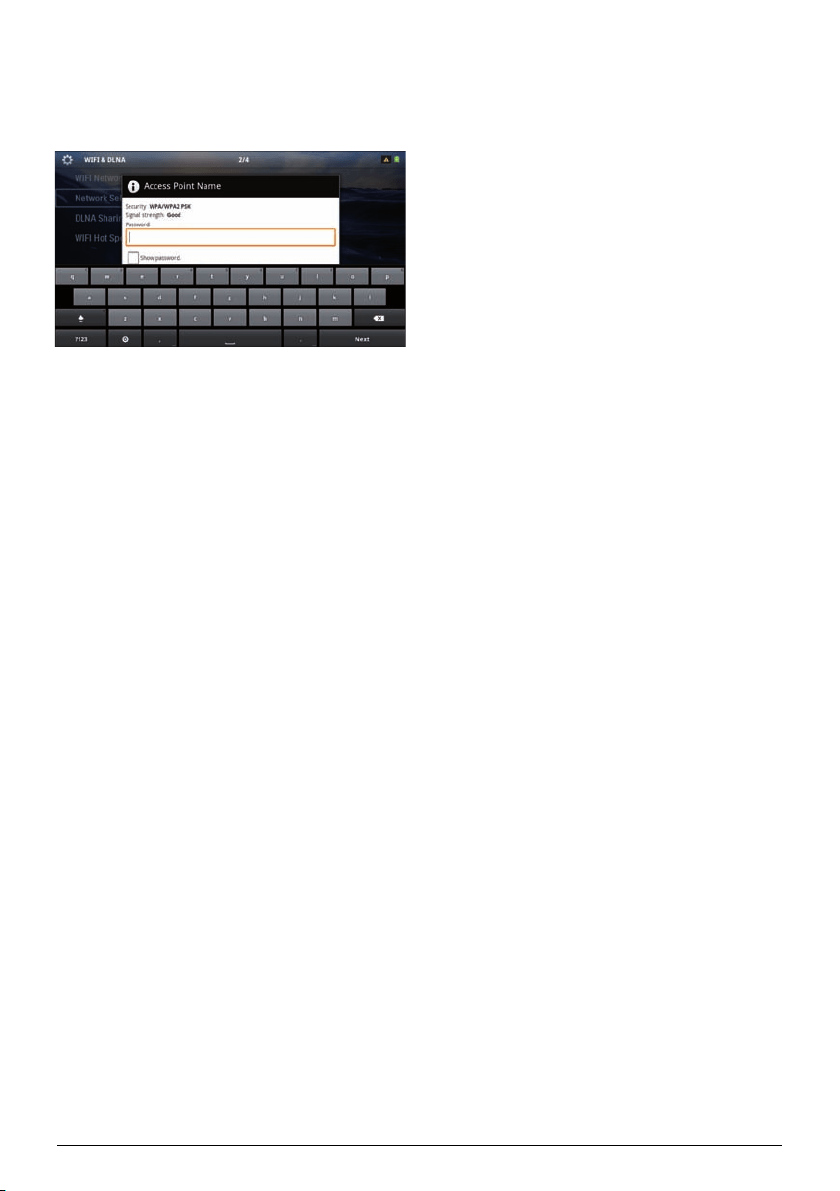
input window appears. Click in the input field (see
also Touchpad / Gestures, page 7) using the touch-
pad or a mouse.
12 Using the touchpad or a mouse enter the password
on the software keyboard.
13 Click on Connect.
The
¿ key takes you one step back in the menu.
DANGER!
21 Philips · PPX3614
Setting up a Wireless
Network (WLAN) Using the
Wizard
You can integrate your device very quickly and easily
into an existing wireless network using Wi-Fi Protected
Setup (WPS) or using a wireless network scan. Using
WPS, all important settings like network name (SSID)
are automatically configured and the connection pro-
tected with secure WPA Encryption.
Using Wi-Fi Protected Set-up
(WPS)
Using Wi-Fi Protected Setup (WPS), you can integrate
your device into an existing wireless network in two dif-
ferent ways very quickly and easily. Yo
u can act
ivate the
login with a pin code or using Push Button Configura-
tion (PBC), if your access point (Access Point, Router)
supports this method.
Using WPS with Push Button
Configuration (PBC)
1 Switch the device on using the on/off switch on the
side.
2 Af
ter the initial screen the main menu appears.
3 Use the navigation keys to select Settings.
4 Confirm with à.
5 Using / select WIFI & DLNA.
6 Conf
irm with à.
7 Using / select Network S
election.
8 Confirm with à.
9 Use / to select the de
sired wireless network..
10 Confirm with à.
11 Activate Push Button Configuration on the WLAN
access point. The WLAN access point and
device
connect automatically and create a WPA protected
connection.
Digital Living Network
Alliance (DLNA)
This device supports Digital Living Network Alliance
(DLNA). Using this standard you can quickly intercon-
nect your multimedia devices.
Switching DLNA on and off
The DLNA function is switched on by default. You have
the option of turning this function off.
1 Switch the device
on using the on/off switch on
the
side.
2 After the initial screen the main menu appears.
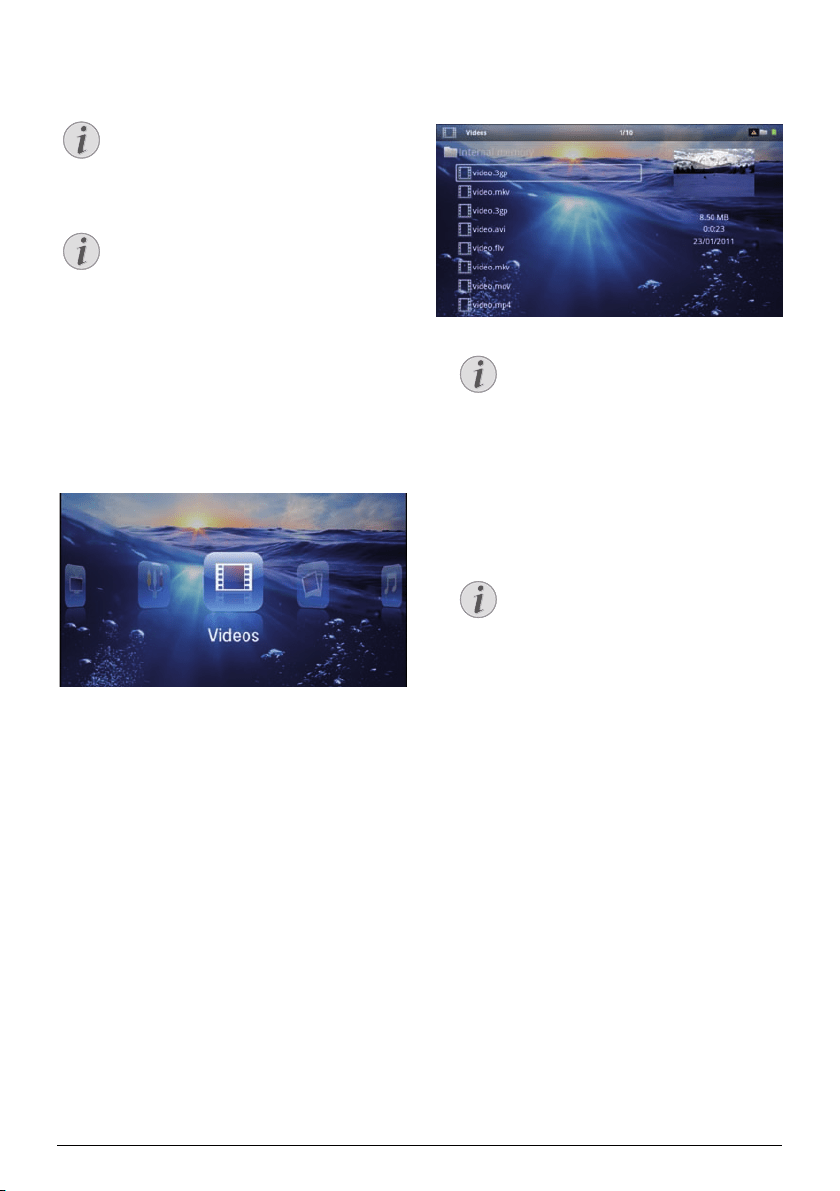
3 Use the navigation keys to select Settings.
4 Confirm with à.
5 Using / select WIFI & DLNA.
6 Conf
irm with à.
7 Using / select DLNA Sh
aring.
8 Confirm with à.
9 Modify the settings with /.
10 Confirm with à.
The ¿ key takes you one step back i
n the menu.
Play Media Using DLNA
If DLNA enabled devices are located in the connected
network, then you can access them in media playback
and file management (see also Media Playback, page 22).
DLNA Control
You can control the projector using another device (e.g.
a smartphone) using DLNA. To do this, see the instruc-
tion manual for the device in question.
Media Playback 22
7 Media Playback
Navigation Keys
All the keys shown are buttons on the remote
control.
Best Settings for Optimal Use
Read the informations on the best settings in
the chapter settings (see also Settings,
page 34) for optimal use of your device.
Video playback
Video Playback (USB/SD Card/
Internal Memory/DLNA)
1 Switch the device on using the on/off switch on the
side.
2 After the initial screen the main menu appears.
3 Use the navigation keys to select Videos.
4 Confirm with à.
5 With co
nnected memory: Using the keys /
sele
ct the internal memory, a DLNA device, the
USB storage medium or the memory card.
6 Conf
irm with à.
7 Use / to
select the vid
eo file that you wish to
play.
Displaying Video Files
Only those videos that are compatible
with the Pocket Projector will be dis-
played.
8 Press à to start playback.
9 Press ¿ to end the slid
e show and return to the
overview.
10 When yo
u press ¿ again, yo
u will return to the
main menu.
Navigation During Playback
Review / cue: Press :/; on the remote
control or À/Á on the device.
Press T to stop or continue playback.
During playback you can adjust the volume using /
on the re
mote control. Press or
repeatedly to
shut off the volume completely.
File Format
There are various video file formats as *.mov, *.avi,
*.m4v. Many of these formats function as a container
that contains the various encoded audio and video files.
MPEG-4, H.264, MP3, and AAC are all examples of
encoded audio/video files. In order to play these files,
the projector must read them and decode the audio/
video signals.
Notice
Notice
Notice
Notice
23 Philips · PPX3614
Please note that some files cannot be played as a result
of different video and audio encoders.
Supported file formats
Container Video format
*.avi, *.mov, *.mp4 MJPEG, MPEG-4, H.264
*.mkv MPEG-4, H.264
*.ts MPEG-2, H.264
*.m2ts H.264
*.3gp H.263
*.rm, *.rmvb Real video
*.dat MPEG-1
*.vob MPEG-2
*.mpg, *.mpeg MPEG-1, MPEG-2
Video Playback (Mini-HDMI
Socket)
1 Connect the audio/video output of the external
device to the Pocket Projector's socket. Use
the corresponding cable and cable adapter for this
purpose (see also Connect to the Playback Device,
page 14).
2 To find out how to deactivate the video output for
the external device,
please see the relevant instruc-
tion manual. Most often, this option is labelled "TV
out" or "TV Output" in t
he corresponding menu.
3 Start the video playback on the external device
.
4 Modify the volume with /.
Modify settings during playback
1 Press the or key.
2 Use the / keys to choose fr
om the following
settings:
Volume: Adjust volume level
Smart S
ettings: Select prede
fined settings for
brightness / contrast / colour saturation
Saturation: Adjust colour
saturation
Contrast: Adjust contrast
Brightness: Adjust bright
ness
3 Modify the setting using À/Á.
The device saves the modified se
ttin
gs automatically.
Photo Playback
1 Switch the device on using the on/off switch on the
side.
2 Af
ter the initial screen the main menu appears.
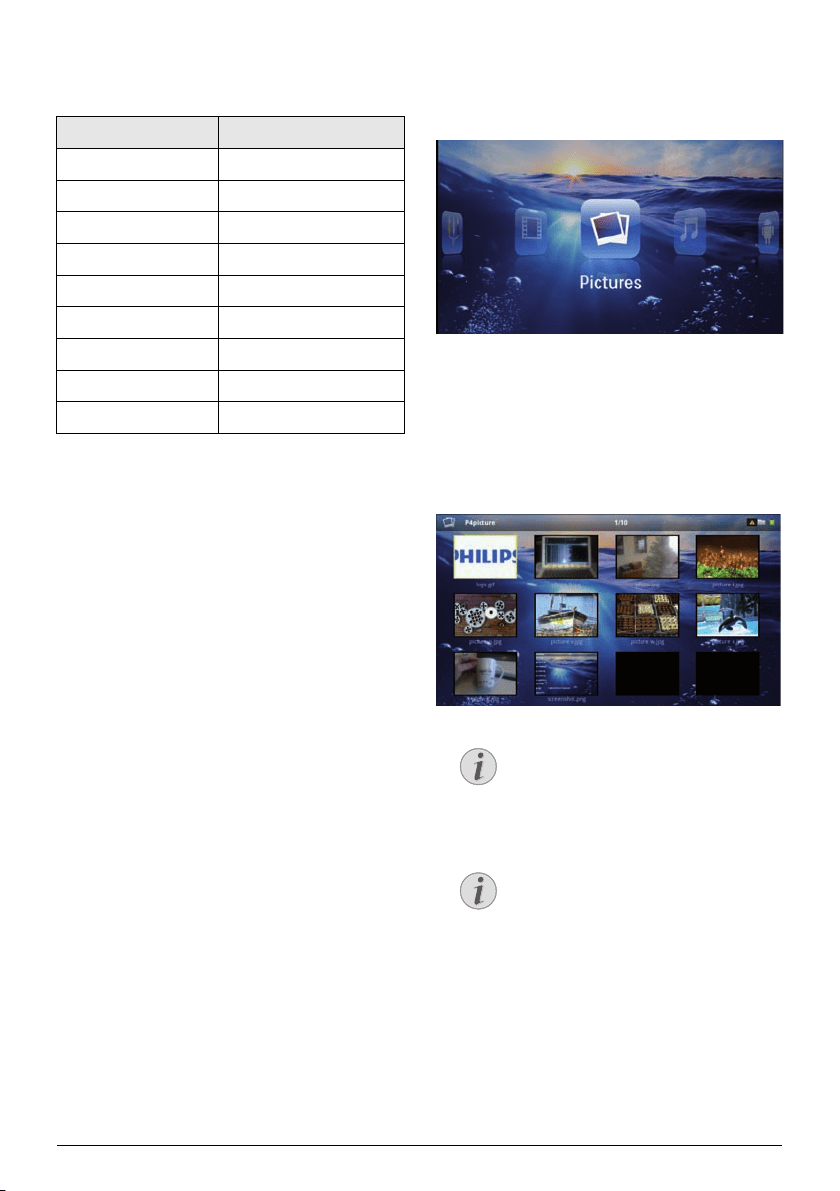
3 Use the navigation keys to select Pictures.
4 Confirm with à.
5 With connecte
d memory: Using the keys /
select
the internal memory, a DLNA device, the
USB storage medium or the memory card.
6 Confirm with à.
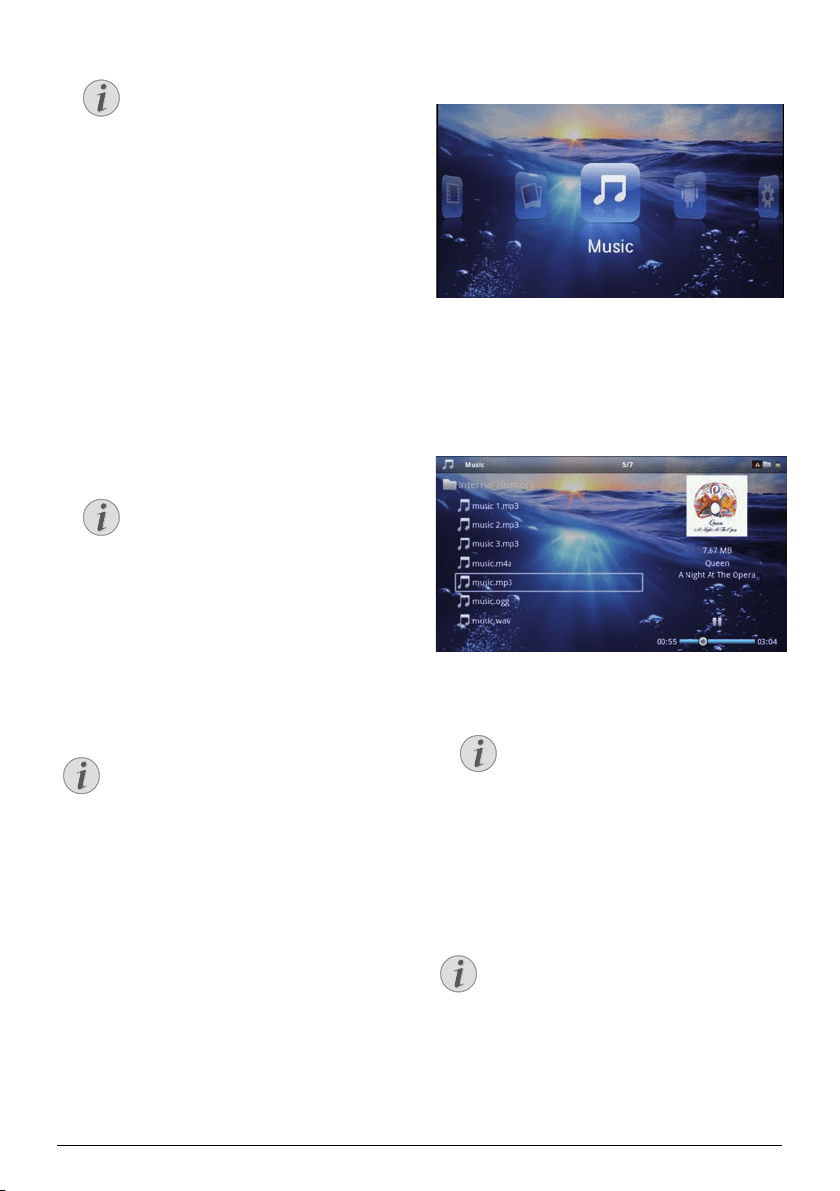
7 Miniature photos are displayed on the screen as an
overview.
Miniature View or List
In the settings, you are able to select
whether the overview will be displayed as
miniatures or in a list.
Many Photos on the Memory Card or
the USB Medium
If there are a lot of photos on the memory
card or the USB storage medium it can
take a moment before the overview
appears.
8 Use À/Á or / to select the
image that you
want to start the slide show with.
9 P
ress à to start the slid
e show.
Notice
Notice
Rotate the Image
Using your thumb contact the touchpad
and swipe with the forefinger in a circular
manner to rotate an image (see also
Touchpad / Gestures, page 7).
Media Playback 24
10 Press T to pause the slide show.
11 Press ¿ to en
d the slide show and return to the
overview.
12 When you press ¿ agai
n, you will return to the
main menu.
Slide Show with Background
Sound
1 Start the slideshow.
2 Press /, to open the menu b
ar.
3 Using À/Á select Ó.
4 Confir
m with à.
5 Use / to select the fi
le that you wish to play.
Storage Location
Only files from the internal memory/Mem-
ory Card/USB Storage Medium can be
played.
6 To start
the background sound confirm with à.
7 Press / to adjust the vol
ume level.
8 If no input is made, the menu bar is hidden after 5
seconds.
Music Playback
Switch off the Image Playback
You can turn off image playback while playing
music in order to save power (see also Music
settings, page 34). As soon as you press the
¿ key, the image reappears and the fan starts
again.
1 Switch the device
on using the on/off switc
h on the
side.
2 After the initial screen the main menu appears.
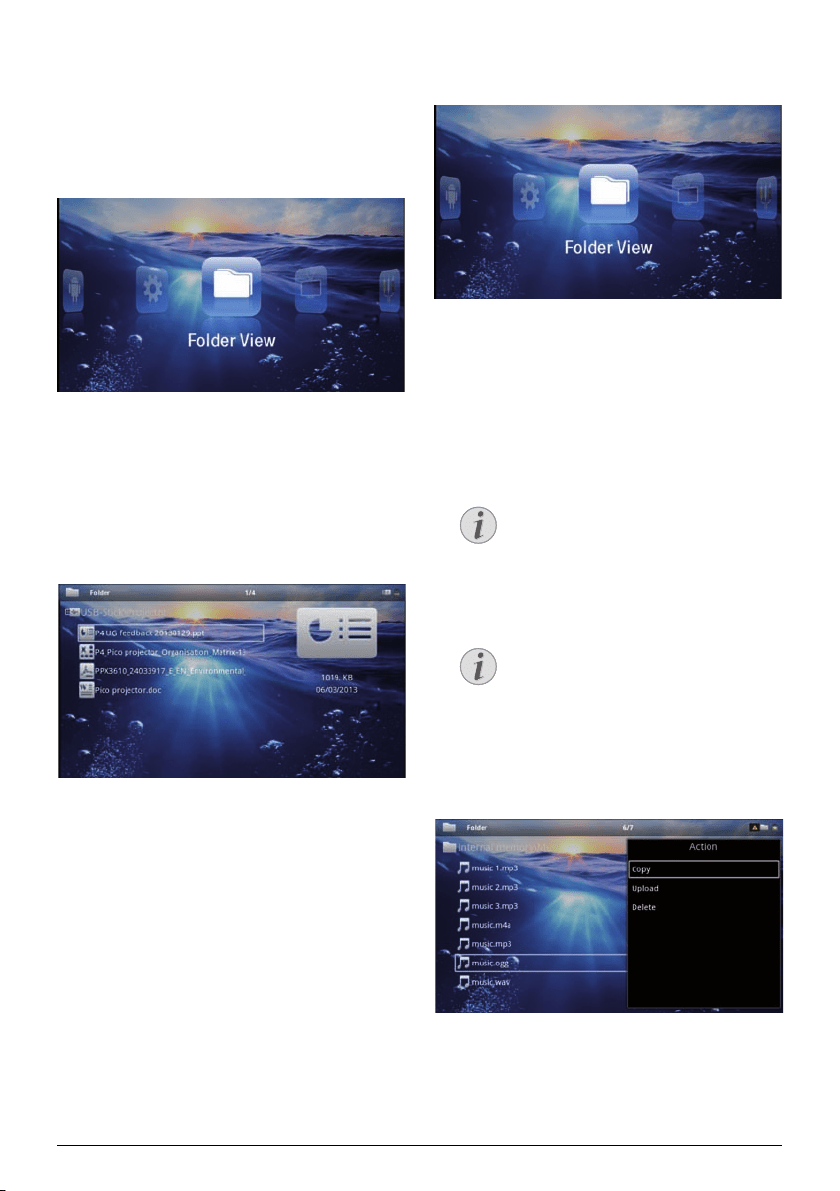
3 Use the navigation keys to select Music.
4 Confirm with à.
5 With conn
ected memory: Using the keys /
sele
ct the internal memory, a DLNA device, the
USB storage medium or the memory card.
6 Co
nfirm with à.
7 Use / to select the file
that you wish to play.
8 Press à to start playback.
9 Press T to stop or cont
inue playback.
Navigating when Image Playback is
Switched off
Press / to skip to the previous or
next song.
Press T to stop or continue playback.
Press ¿ to r
eturn to the selection.
During playback you can adjust the volume using /
on the re
mote control. Press or
repeatedly to
shut off the volume completely.
Touchpad / Gestures
Swipe left and right on the bottom edge of the
touchpad to adjust the volume.
Swipe over the touchpad with two fingers to
r
ewind and fast forward (see also Touchpad /
Gestures, page 7).
Notice
Notice
Notice
Notice
Notice
25 Philips · PPX3614
Office Playback (YOZO
Office)
You can display documents with YOZO Office.
1 Switch the device on using the on/off
switch on the
side.
2 After the initial screen the main menu appears.
3 Use the navigation keys to select Folder View.
4 Confirm with à.
5 With an inserted memory card or USB stor-
age device: Sele
ct
the inte
rnal memory, the USB
storage medium or the memory card using the keys
/.
6 Confirm with à.
7 Use / to select the file
that you want to dis-
play.
8 Press à to start the display.
9 Swipe up and down on the right edge of the touch-
pad to scroll. Use the touchpad o
r a mouse to zoom
in / zoom out the document (see also Touchpad /
Gestures, page 7).
10 Press ¿ to end the d
ispla
y and return to the over-
view.
Managing Files
Copy Files
You can copy files back and forth from the internal
memory to the connected USB storage medium or
memory card.
1 Switch the device
on using the on/off switch on
the
side.
2 After the initial screen the main menu appears.
3 Use the navigation keys to select Folder View.
4 Confirm with à.
5 With an inserted memory
card or USB stor-
age device: S
elect the inte
rnal memory, the USB
storage medium or the memory card using the keys
/.
6 Confirm with à.
7 Use / to select
the file that you want to copy.
No Files Found (0 files)
Only those files that are compatible with
the Projector will be displayed.
8 Mark the file using Á. Pressing the key a
gain dese-
lects the chose file(s).
Mark the Entire Folder
You can also mark an entire folder to copy
all files from the folder. Note that the copy
process of large folders can takes some
time.
9 Use / to select other files.
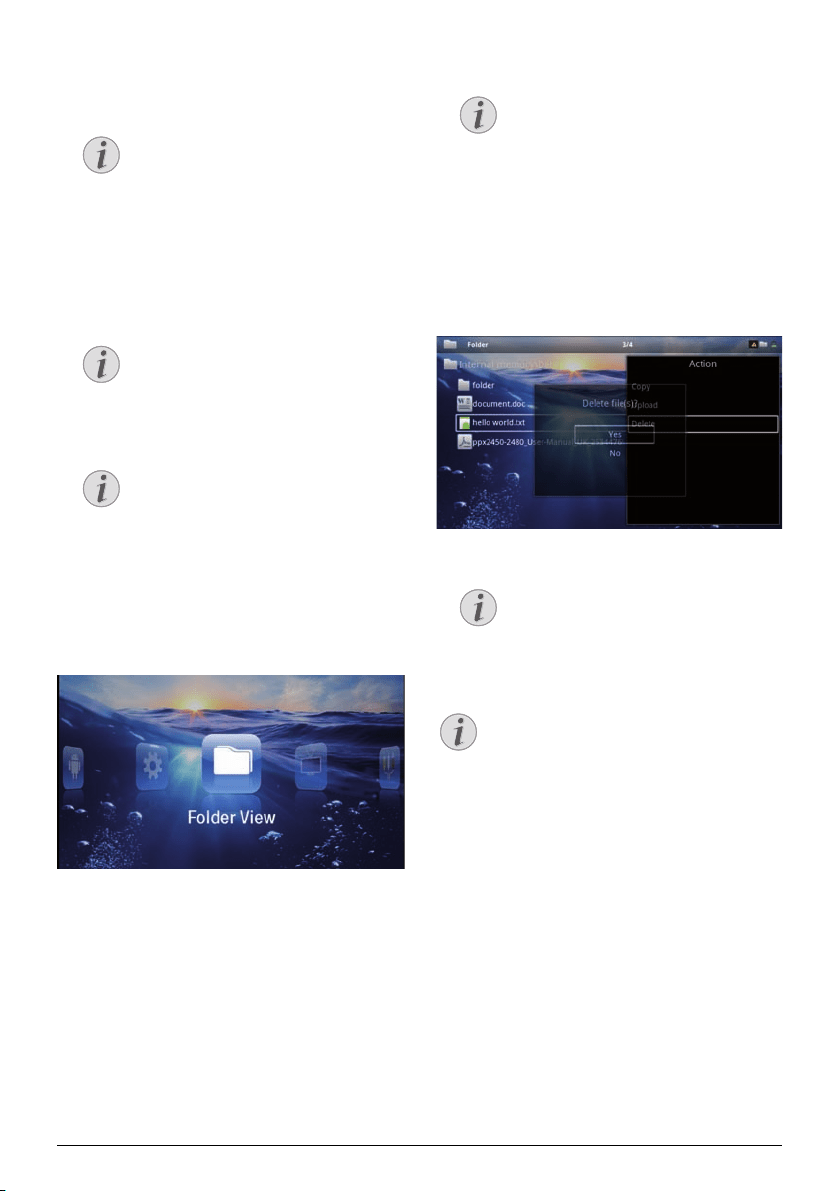
10 Press à.
11 Select
with / Copy.
12 Confirm with à.
Notice
Notice
Media Playback 26
13 Use / to select the destination memory: SD
card, internal memory or USB storage medium.
14 Confirm with à.
Files Already Exist
If the files you are copying already exist in
the target folder, you must choose
whether or not you want to overwrite
them using / and à. If you choose
not to overwrite these files, copies will be
created. The copies can be recognised by a
number added to the file names.
15 The files are copied.
Error
If errors occur during the copying process,
make sure that enough free space is availa-
ble on the medium.
Removing Storage Medium
Only remove the storage medium after the
copy process is complete.
Delete Files
You can delete files from the internal memory, the con-
nected USB storage medium or the memory card.
1 Switch the device
on using the on/of
f switch on the
side.
2 After the initial screen the main menu appears.
3 Use the navigation keys to select Folder View.
4 Confirm with à.
5 With co
nnected memory: Using the keys /
sele
ct the internal memory, a DLNA device, the
USB storage medium or the memory card.
6 Conf
irm with à.
7 Use / to select the
file that you want to delete.
No Files Found (0 files)
Only those files that are compatible with
the Projector will be displayed.
8 Ma
rk the file using Á. Pressing the key
again dese-
lects the chose file(s).
9 Use / to select other files.
10 Press à.
11 Sele
ct with / Delete.
12 Conf
irm with à.
13 Use / if you want t
o delete the files or cancel
the deletion process.
14 Confirm with à.
Error
If errors occur during the deletion proc-
ess, make sure that the storage medium is
not write-
protected.
Deleting Photos on the Memory Card
When deleting photos via the computer, note
that the photos may not be correctly dis-
played when the memory card is inserted into
the di
gital camera
again. Digital cameras
sometimes store additional information in
specific folders, including previews and orien-
tation information.
For this reason, only delete the photos using
the digita
l camera.
Notice
Notice
Notice
Notice
Notice
Notice
27 Philips · PPX3614
8 Digital TV Playback
Necessary Accessories
To be able to use the DVB-T function of your
projector, you either require the Pico Station
PPA7301 (not supplied) or the USB DVB-T
stick PPA8301 (not supplied).
You can purchase the Pico Station docking
station and th
USB DVB-T stick according to
the ordersheet.
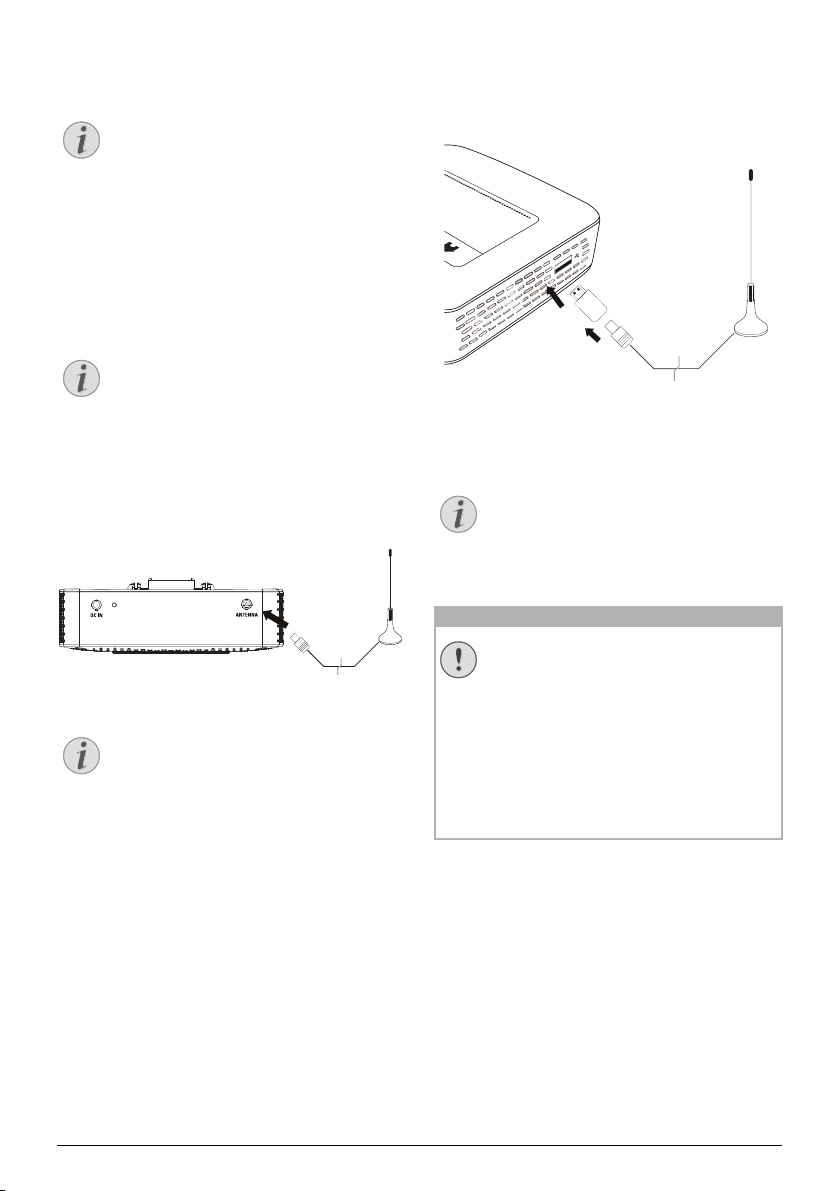
Connecting the Aerial
Aerial Size and Orientation
In some regions it is necessary to connect a
larger aerial in order to grant the reception.
In some countries it is necessary to point the
ae
rial horizonta
lly in order to grant the recep-
tion.
Connecting the Aerial to the Pico
Station PPA7301
1 Connect the aerial to the aerial socket.
Standard Definition Television
The Pico Station PPA7301 supports Standard
Definition Television (SDTV). High Definition
Television (HDTV) is not supported.
Connecting the Aerial to the USB
DVB-T Stick PPA8301
1 Connect the USB-DVB-T stick to the USB port on
the side of your projector.
2 Connect the aerial to the USB-DVB-T stick.
Standard Definition Television
The Pico StationUSB-DVB-T Stick PPA8301
supports Standard Definition Television
(SDTV). High Definition Television (HDTV) is
not supported.
Do not Remove DVB-T Stick During
Playback!
Do not pull out the DVB-T stick from the
device or remove the device from the Pico
Station (PPA7301) while you have accessed
the DVB sub menu. Preset channels may get
lost. Exit the DVB sub menu before pulling out
the DVB-T stick of the device or remove the
device from the Pico Station (PPA7301).
If the DVB-T stick is being removed during
playback you may have to restart the devi
ce.
Notice
Notice
Notice
Notice
CAUTION!
Digital TV Playback 28
First Playback
Navigation Keys
All the keys shown are buttons on the remote
control.
When the DVB-T function is first started, the automatic
channel search must be started.
1 Switch the device on using the on/of
f switch on the
side.
2 Af
ter the initial screen the main menu appears.
3 Connect the aerial (see also Connecting the Aerial,
page 27).
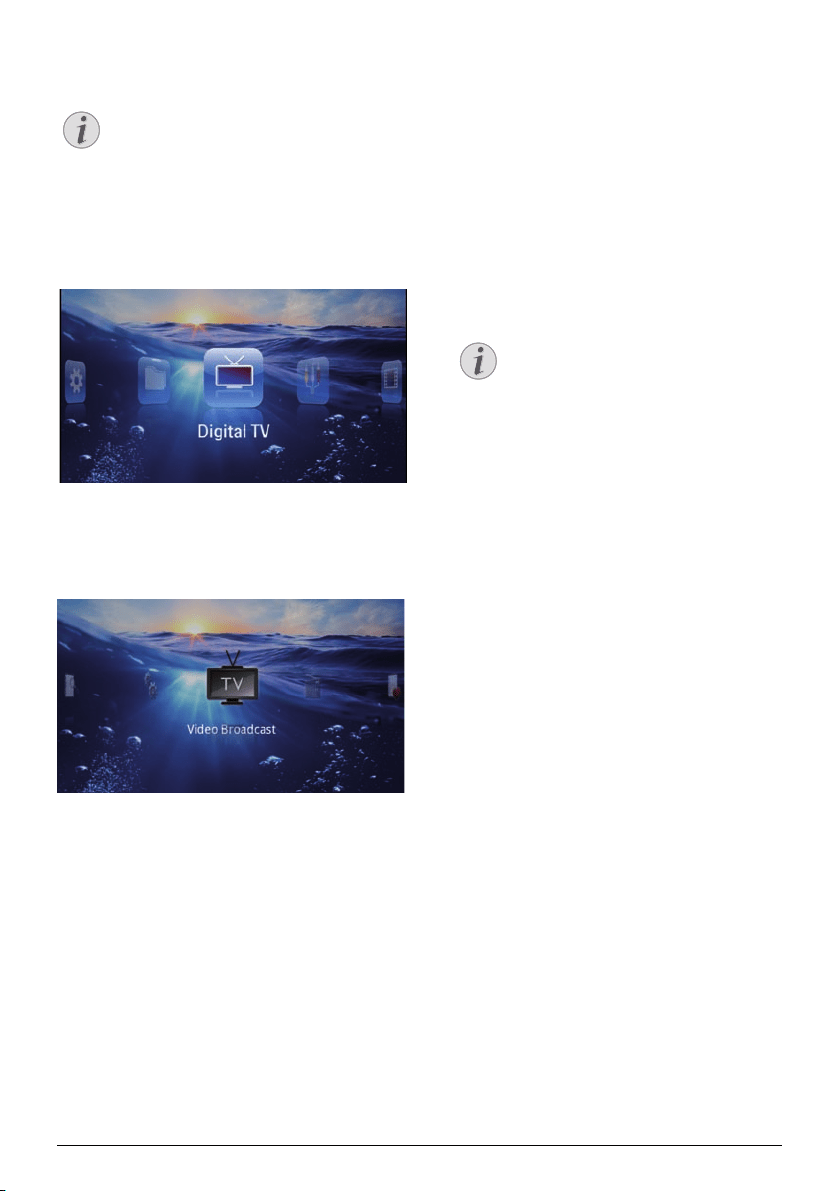
4 Use the navigation keys to select Digital T
V.
5 Confirm with à.
6 The sub menu appears.
Set Area
7 Use the navigation keys to select Utilities/Setup.
8 Confirm with à.
9 Use the navigation keys to select Area set.
10 Confirm with
à.
11 Use the navigation keys to select your area.
12 Confir
m with à.
13 Press ¿ to end the sub me
nu and return to the
overview.
Scan Channels
14 Use the navigation keys to select Scan Channels.
15 Confirm with à.
16 Use the navigation keys to select OK.
17 Confirm with à.
18 Use the navigation keys to select Auto.
19 Confirm wi
th à.
Television
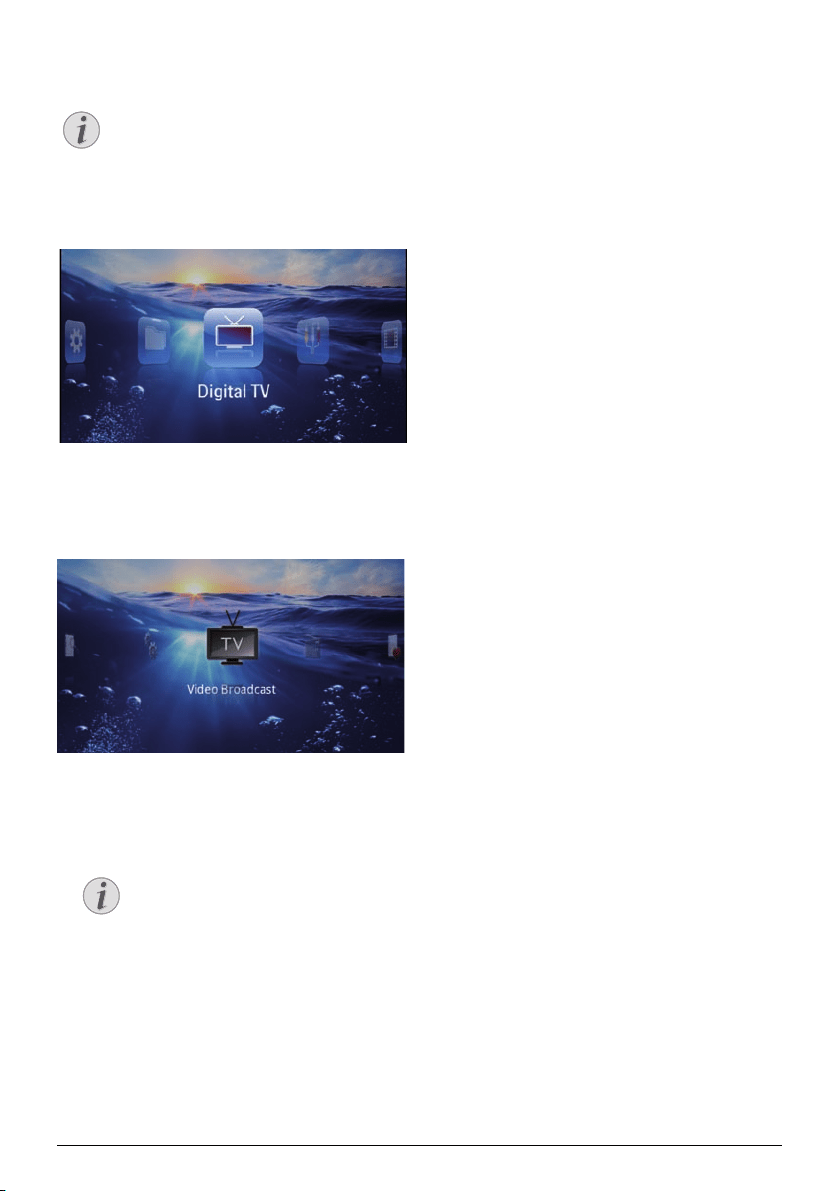
20 Use the navigation keys to select Video Broadcast.
21 Confirm with à.
22 Change the channel using z/{.
Displaying Channel Information
When changing channel, channel informa-
tion is displayed on the bottom projection
edge. The information bar is hidden
after 5
seconds.
23 Press u to en
d playback and return to the main
menu.
During playback you can adjust the volume using /
on the remote control. Press or
repeatedly to
shut off the volume completely.
Notice
Notice
29 Philips · PPX3614
Television
Navigation Keys
All the keys shown are buttons on the remote
control.
1 Switch the device on using the on/off switch on the
side.
2 After the initial screen the main menu appears.
3 Connect the aerial (see also Connecting the Aerial,
page 27).
4 Use the navigation keys to select Digital TV
.
5 Confirm with à.
6 The sub menu appears.
7 Use the navigation keys to select Video Broadcast.
8 Confirm with à.
9 The last viewed channel is played. Change the chan-
nel using z/{.
Displaying Channel Information
When changing channel, channel informa-
tion is displayed on the bottom projection
edge. The information bar
is hidden after 5
seconds.
10 Press u to end playback and return t
o the main
menu.
During playback you can adjust the volume using /
on the remote control.
Press or repeatedly to
shut off the volume completely.
Notice
Notice
Android 30
9 Android
Your Pocket Projector uses the Android operating sys-
tem.
Calling Android
1 Switch the device on using the on/off switch on the
side.
2 After the initial screen the main menu appears.
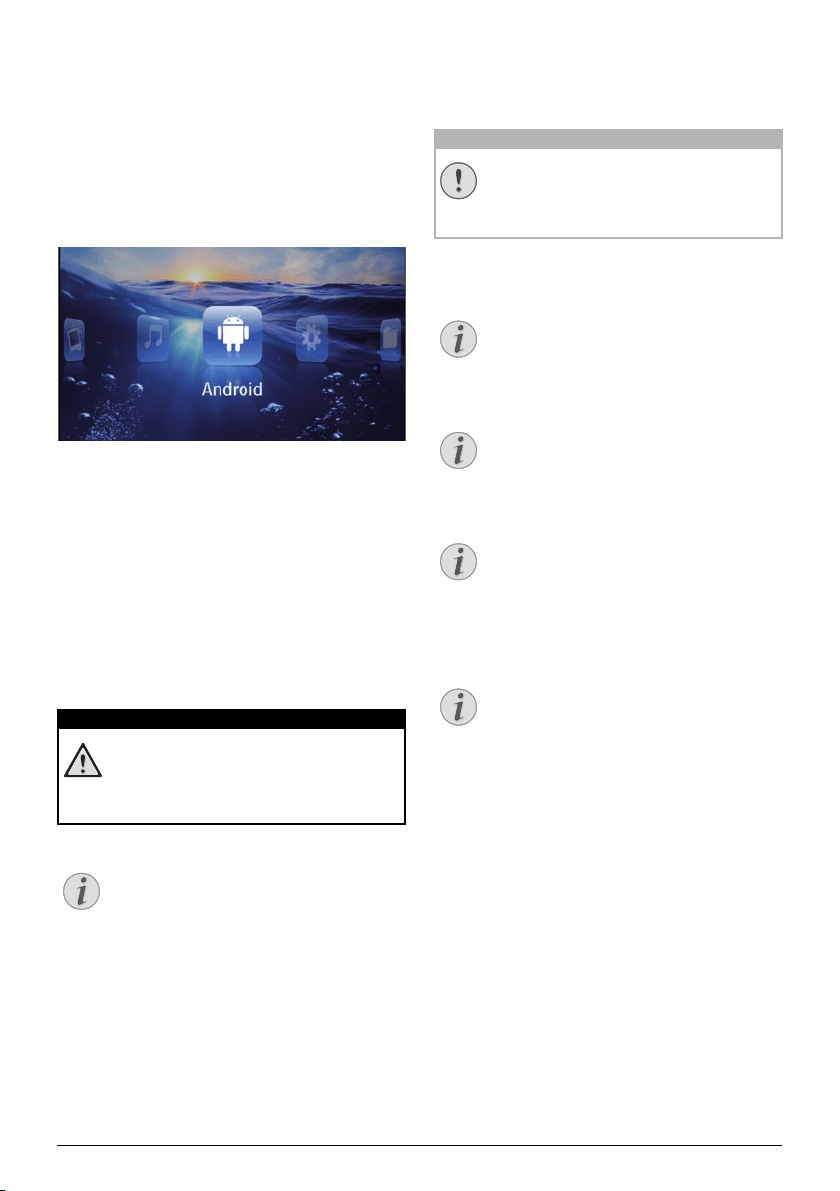
3 Use the navigation keys to select Android.
4 Confirm with à.
Exiting Android
Press the | key to return to the main menu.
Software Reset
Resetting Android
If your Pocket Projector does not work properly, a
reset to factory defaults may solve the problem in many
cases.
All Settings and Data Will be Deleted!
This procedure erases all your settings and
data that is stored on the device.
Apps need to be reinstalled.
YOZO Office
By resetting Android YOZO Office will be
deleted. The reinstallation of YOZO Office
will start automatically when connecting the
device to the internet via WiFi.
Installing Android-Apps
Trusted Sources!
Apps from third party sources may be mali-
cious. Only use installation packets from
trusted sources.
Yo
u can install other apps. Use the APK installa
tion
packets.
Compatibility
The manufacturer does not guarantee the
compatibility of third party apps.
Volume
In some apps, the volume may only be con-
trolled via the remote control.
Youtube
You need to install the latest version of the
Adobe Flash Player in order to play Youtube
videos (see also Install Adobe Flash Player,
page 31).
Calendar
There is no calendar pre-installed on the
Pocket Projector.
DANGER!
Notice
CAUTION!
Notice
Notice
Notice
Notice
31 Philips · PPX3614
Install Adobe Flash Player
You need to install the latest version of the Adobe Flash
Player in order to play Youtube videos.
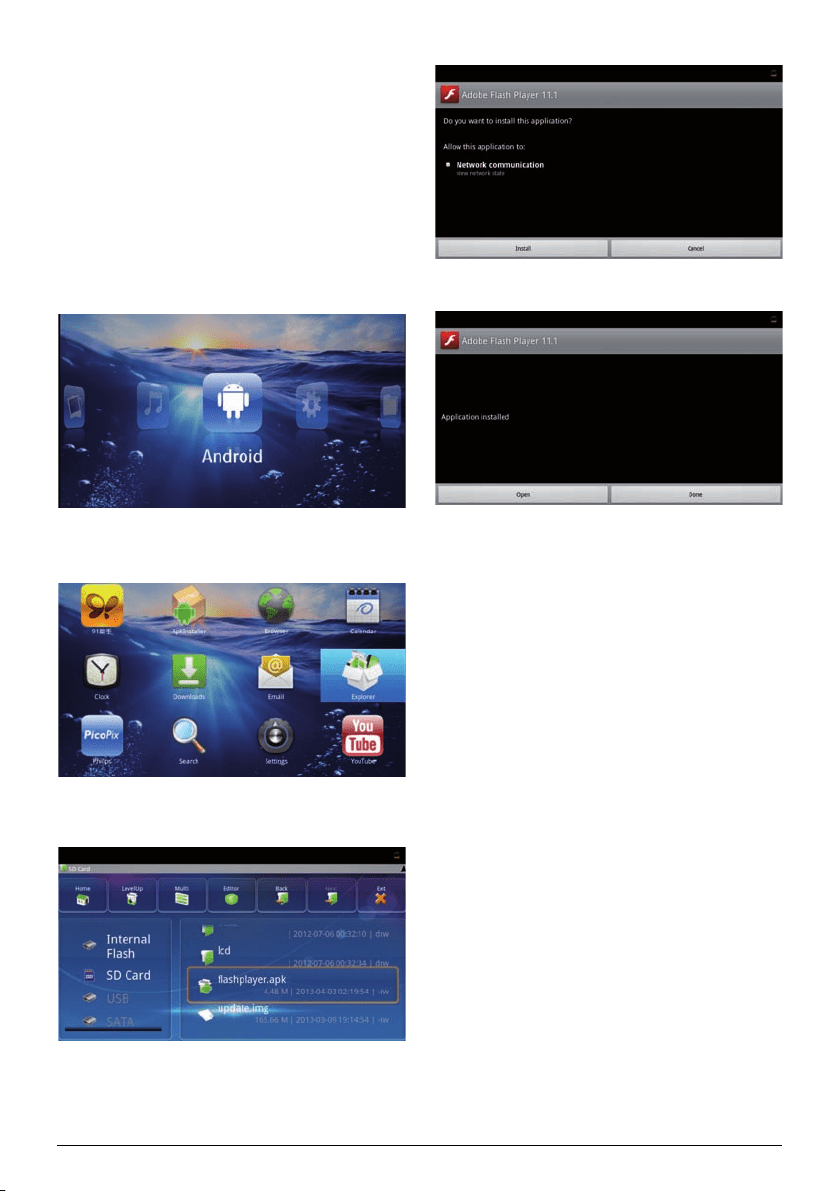
1 Do
wnload the latest version of Adobe Flash Player
installation package (fl
ashplayer.apk) for Android.
For further information visit www.philips.com/sup-
port.
2 Save the package onto a memory card.
3 Insert the memory card into the device (see also
Inse
rting a Memory Card, page 18).
4 Switch the device on using the on/off
switch on the
side.
5 Af
ter the initial screen the main menu appears.
6 Use the navigation keys to select Android.
7 Confirm with à.
8 Use the navigation keys to select Explorer.
9 Confirm with à.
10 Navigate to the memory card and select flash-
player.a
pk.
11 Press à to execute the installation package.
12 Use the navigation keys to select Install.
13 Press à to start the installation.
14 Use the navigation keys to select Done.
15 Confirm with à.
16 The latest version of Adobe Flash Player is installed.
Android 32
Adjust Browser Mode
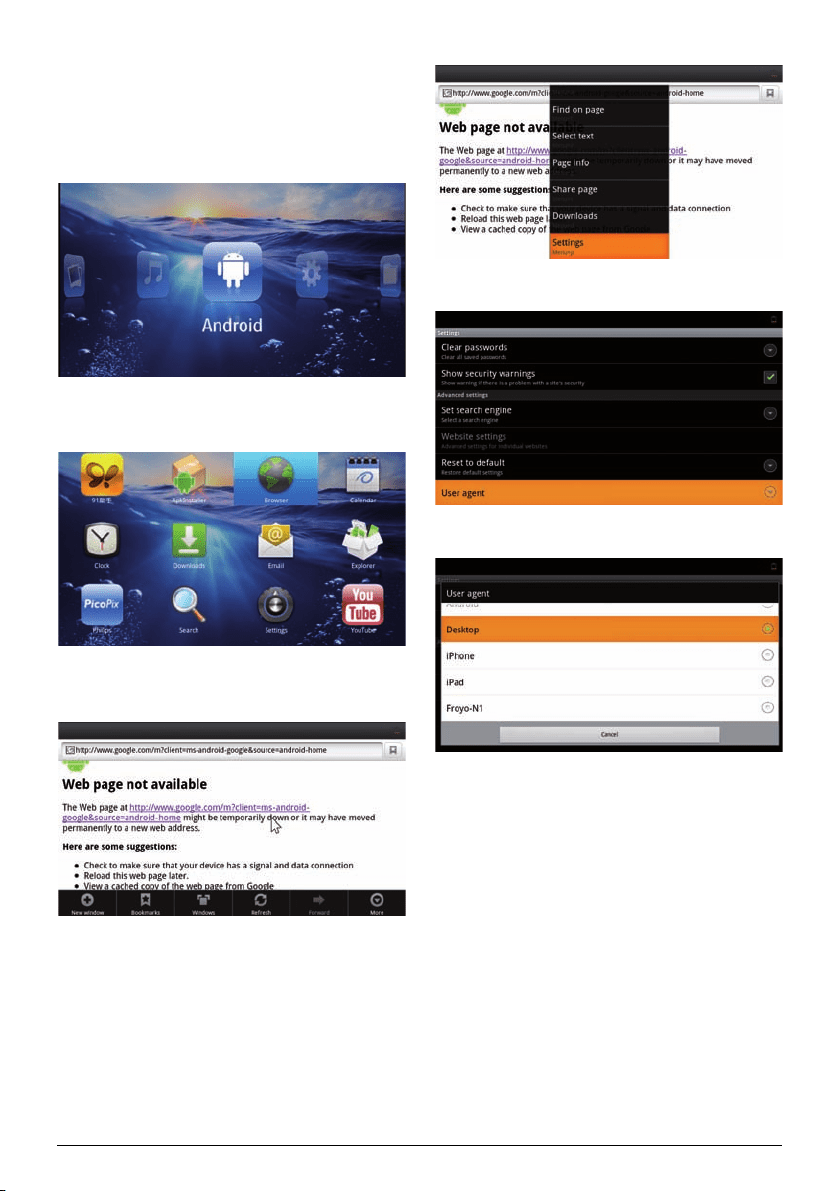
Change the browser mode to display websites contain-
ing flash elements.
1 Switch the device
on using the on/of
f switch on the
side.
2 After the initial screen the main menu appears.
3 Use the navigation keys to select Android.
4 Confirm with à.
5 Use the navigation keys to select Browser.
6 Confirm with à.
7 Press the menu key to call the
menu.
8 Use the navigation keys to select More.
9 Confirm with à.
10 Use the navigation keys to select Settings
.
11 Confirm with à.
12 Use the navigation keys to select User ag
ent.
13 Confirm with à.
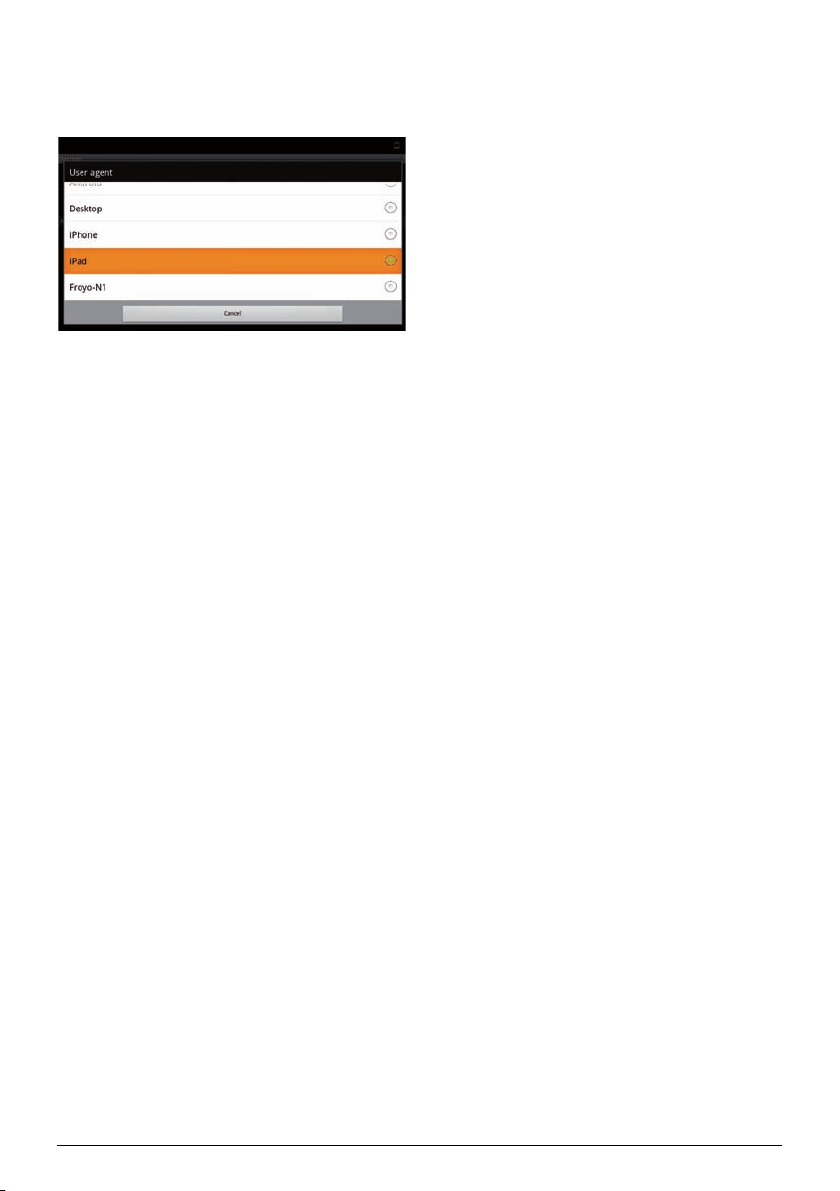
14 Use the navigation keys to select Desktop.
15 Confirm with à.
16 Websites containing flash elements can be displa
yed.
Settings 34
10 Settings
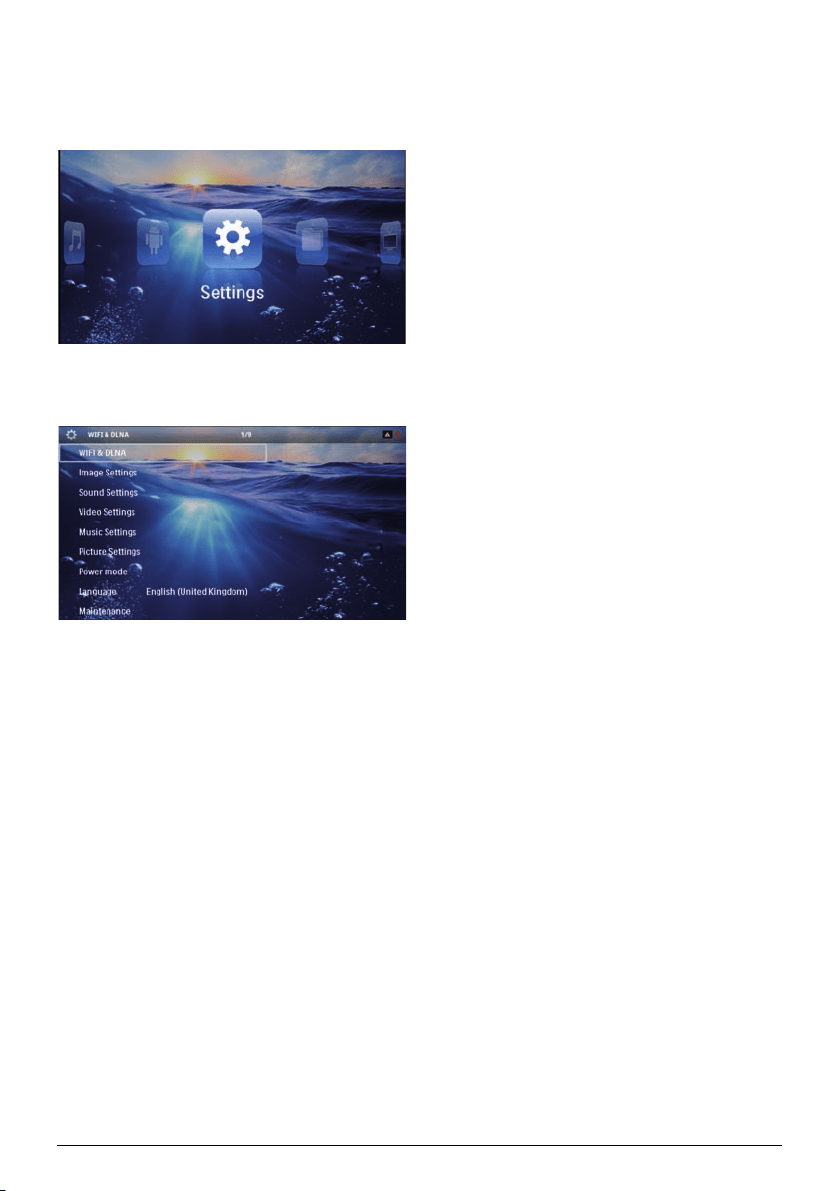
1 Switch the device on using the on/off switch on the
side.
2 After the initial screen the main menu appears.
3 Use the navigation keys to select Settings.
4 Confirm with à.
5 Use / to select fr
om the following settings.
6 Confirm with à.
7 Modify the settings using à, /,
8 Confirm with à.
The ¿ key takes you one step
back in the menu.
Overview of the Menu
Functions
WIFI & DLNA
WIFI Network – switching t
he wireless network
(WLAN) off and on
Network Selection – select the w
ireless network with
which the device is to connect
DLNA Sharing –
switchin
g DLNA off and on
WIFI Hot Spot – activate an
d deactivate WLAN teth-
ering
Image settings
Wall paper – Select background
images
Fit Screen – Convert videos and images to 4:3 resolu-
ti
on
Projection mode
Front – Normal projection; the device is located in
front of
the projection surface/screen
Rear
– Rear projection; the device is located behind
the projec
tion surface; the image is reflected hori-
zontally.
Ceiling – The
device is hangin
g from the ceiling in an
upside-down position; the image is rotated through
180 degrees.
Rear ceiling – The d
evice is located behind the
pro-
jection surface, hanging from the ceiling in an upside-
down position; t
he image is rotated through 180
degrees and reflected horizontally.
Wall color correction – Colour correction of the pro-
jected
image to adjust to coloured projection surfaces
Smart Settings –
Select predefined settings fo
r bright-
ness / contrast / colour saturation. If
you modify these
settings, the setting is switched to Manual.
Brightness – Adjust brightness
Contrast – Adjust contrast
Sound Settings:
Volume – Adjust the volume
Bass – Set the playback of the low frequencies
Trebl
e – Set the playback of the high frequencies
Key beep – Turn key tones on and
off
Vide
o settings
View –
Display all videos in a list or a corresponding
fold
er structure on the drive.
Repeat – Set the repeat type for
video files: Repeat
deactivated (Off), repeat all videos in a directory
(Directory), repeat only the current video (Movie),
repeat all videos (All).
Resume play – If this function is act
ivated, playback will
continue at the position it was last stopped. If deacti-
vated, playback will always start
at the beginning of the
video.
F
it Screen – Convert videos to 4:3 resolution
Music set
tings
View – S
how all tracks in a list or a corresponding folder
struc
ture on the drive.
Screen – Act
ivate or dea
ctivate the projection during
playback.
Repeat – Set the repeat type for music files: Repeat
deactivated (Of
f), repeat all songs in a directory (Direc-
tory), repeat only the current song (Song), repe
at all
songs (All).
Shuffle
– Activate this function for random playback.
Otherwise, playback will ta
ke place in sequence.

35 Philips · PPX3614
Picture settings
View – Display the images as a thumbnail or as a lis
t
during selection in the main menu.
Time per slide – Image vie
wing time during slide show
Repeat – Set the type of repeat for slide show photos:
Repeat off (Off), repeat all photos in the direc
tory
(Directory), repeat all stored photos (All).
Slide transition –
Set im
age transitions
Slideshow order – Play slide
show in order or ran-
domly
Power mode
Brightness mode – This function reduces
the light out-
put in order to increase the operating time for the built-
in battery. When operating from the power supply, t
he
energy saving mode is always deactivated in order to
ensure the best-possible image display.
Sleep mode – With th
is function, the projector auto-
matically shuts down after a specified period of time or
at the end of a mo
vie.
Language
Select the desired language for the menu.
Maintenance
Reset settings – R
eset settings to
factory defaults.
Firmware Update – Update Firmware
Connect for the duration of the firmware
update the power adapter.
Information – Display free space in the internal mem-
ory and information on the device (Capacity: / Free
space: / Firmware
version: / Device name: / Model:)
Notice
Service 36
11 Service
Care Instructions for the
Battery
The capacity of the battery diminishes with time. You
can prolong the life of the battery if you observe the fol-
lowing points:
• Without a power supply, the device operates
from th
e built-in battery. When the battery does
not have sufficient capacity, the device turns off.
Connect the device to the power supply.
• When the battery does not have sufficient capac-
ity, the battery symbol in the display and turns
red.
• When th
e device is running for a lo
ng period of
time,
the surface becomes hot and a warning
symbol appears on the projection (see also Sym-
bols in the Statusbar, page 10). The device
behaves as follows:
1 The fan turns to maximum level.
2 At maximum lev
el of brightness the overheat
symbol appears in the status bar and the device
turns automatically to minimum level of bright-
ness.
3 At minimal level of brightness the overheat
symbol shows for three seconds in the middle
of the screen. Then the device turns off auto-
matically.
After the device has cooled down, you can con-
tinue playback.
• Use the device at least once a week.
• Charge the battery regularly. Don’t store the
device with a co
mpletely discharged battery.
•
If the device is not used for several weeks, dis-
charge the battery a little by using the device
before storing it.
• If the de
vice only works using the USB connec-
tion or with the power supply, the battery is
defective.
• K
eep the device and the battery away from
so
urces of heat.
Do not Replace the Battery Yourself
Do not try to replace the battery yourself.
Incorrect handling of the battery or using the
wrong type of battery can cause damage to
the device or cause injury.
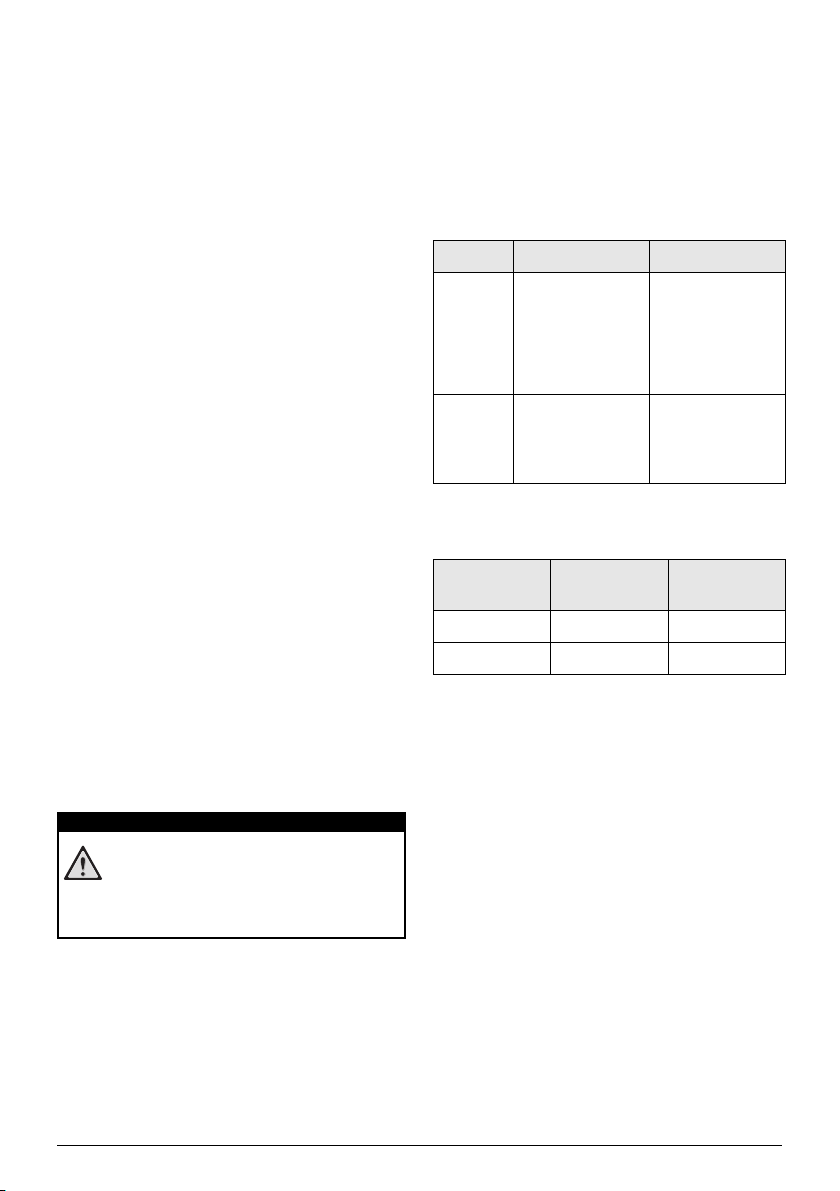
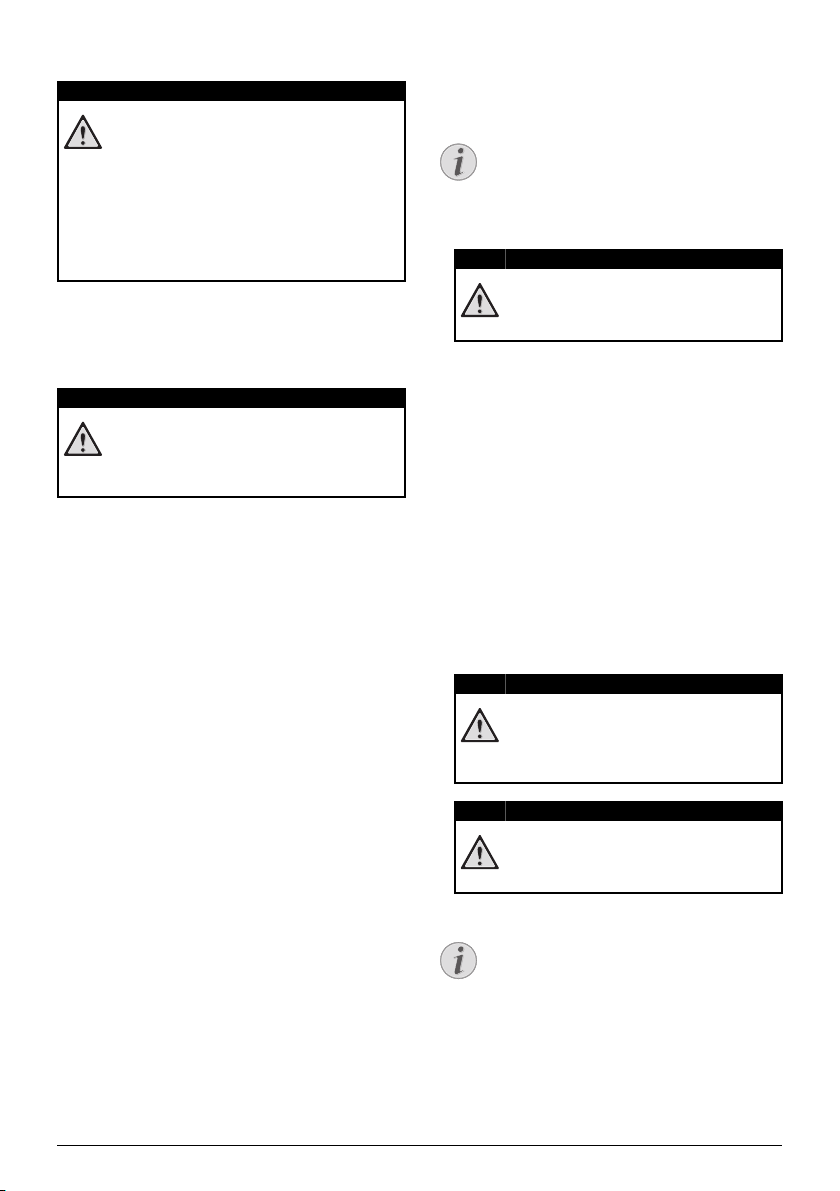
Battery deep discharge
When the battery is in deep discharge or the device is
not used for a longer period, proceed as followed:
1 Connect the device to the power supply (see also
Connect Po
wer Supply / Charge Battery, page 11).
The device behaves as follows:
Device off Device on
Connect
to a com-
puter
The indicator light
on t
he side of the
device turns red.
Slow charging
Connect to a com-
puter (see also
Connect to a Com-
puter (USB),
page 19)
No charging
Connect
to the
power
adapte
r
The indicator light
on the side of the
device turns red.
Fast charging
Device remains
turned on.
Slow charging
2 The device can be turned on and is ready to use after
approximately five minutes of
charging time.
Battery recharge time with device off
Turning on
possible
Completely
charged
Slow charging 5 minutes 10 hours
Fast charging 5 minutes 2 hours
DANGER!
37 Philips · PPX3614
Cleaning
Instructions for Cleaning!
Use a soft, lint-free cloth. Never use liquid or
easily flammable cleansers (sprays, abrasives,
polishes, alcohol, etc.). Do not allow any
moisture to reach the interior of the device.
Do not spray the device with any cleaning flu-
ids.
Wipe over the surfaces gently. Be careful that
you do not scratch the
surfaces.
Cleaning the Lens
Use a brush or lens cleaning paper for cleaning the lens
of the projector.
Do not use any Liquid Cleaning Agents
Do not use any liquid cleaning agents for
cleaning the lens, to avoid damaging the coat-
ing film on the lens.
Device Overheated
A overheat symbol appears if the device is overheated
(see also Symbols in the Statusbar, page 10). The device
behaves as follows:
1 The fan turns to maximum level.
2 At maximum level of brightness the symbol appears
in the st
atus bar and the device turns automatically
to minimum level of brightness.
3 A
t minimal level of brightness the symbol shows fo
r
three seconds in the middle of the screen. Then the
device turns off automatically.
After the device has cooled down, you can continue
playbac
k.
Update Firmware with
Memory Card
Connect for the duration of the firmware
update the power adapter
(see also Connect
Power Supply / Charge Battery, page 11).
1 Form
at the memory card in the file system FAT16 or
FAT32.
All Data will be Deleted!
This procedure erases all your data that is
stored on the memory card.
2 Save the latest firmware update file to the memory
card.
3 Insert the memory card (see also Inserting a Memo
ry
Card, page 18) and switch the device on.
4 Use the navigation keys to select Settings.
5 Co
nfirm with à.
6 Use / to select Mainte
nance.
7 Confirm with à.
8 Use / to select Fi
rmware Update.
9 Confirm with à.
10 Use / to select Install.
11 Co
nfirm with à.
12 The device turns off and on again. After around 5
minutesthe Lang
uage Selection screen appears.
The firmware update is now completed.
Inserting a Memory Card!
Never pull out the memory card while the
device is accessing it. This could cause data
to be damaged or lost.
Power!
Do nut unplug the power adapter during
the firmware update.
If an error occurs during the firmware update
process retry the procedure or contact your
dealer.
DANGER!
DANGER!
Notice
DANGER!
DANGER!
DANGER!
Notice

Service 38
Troubleshooting
Power Cycling
If a problem occurs that cannot be corrected with the
instructions in this user manual (see also the help
below), follow the steps given here.
1 Switch the device
off using the on/off switch on the
side.
2 Wait at least ten seconds.
3 Switch the device on using the on/off
switch on the
side.
4 If the problem repeats, please contac
t our technical
customer service or your retailer.
Problems Solutions
The Pocket Projector is unresponsive or hung up • Insert a slim, pointy object into the reset hole to trig-
ger a hardware reset (see also Side View, page 5)
The Pocket Projector cannot be switched on • Connect the supplied power supply to recharge the
internal ba
ttery.
No sound • Adjust the volume using the / key on the
rem
ote control.
No sound from the external connected device • Check the cables to the external device
• Set the volume on the external device
• Only the original cables from the device manufac-
turer may function
Bad sound quality with your co
mputer c
onnection • Check if the audio cable is connected to the comput-
ers headphone socket or the line-out socket.
• The volume setting on the computer should not be
too hi
gh.
Only the
initial screen appears and not the image from
the external
device
• Check if the cables are connected to the right sock-
ets.
• Please check that the external device is switched on
• Check if the video output of
the externa
l device is
switched on.
Only the initial screen appears and not the image from
the co
nnected computer
• Please check that the VGA-output of the computer
is switched on.
• Check if the resolution of the computer is set to
800x600.
Device switches turns off • When the device is running fo
r a long period of time,
the surface becomes
hot and a warning symbol
appears on the projection (see also Symbols in the
Statusbar, page 10). The device automatically turns
off when it gets too hot. After the device has cooled
down, yo
u ca
n continue playback.
• When the battery does not have sufficient capacity,
the d
evice turns of
f. Connect the device to the
power supply.
The device is connected to the power supply and
switche
s to stand-by mode
• The
battery is in deep discharge. The device can be
turned on and is ready to use after approximately
five minutes of charging time (see also Battery deep
discharge, page 36).

39 Philips · PPX3614
Devices changes from maximum level of brightness to
minimum level of brightness when the device is connect-
ed over USB to play videos.
• When the environment temperature is too high, the
devices turns automatically from maximum level of
brightness to minimum level of brightness in order to
protect the high power LED.
• Use the device with lower environment tempera-
tures.
Device cannot connect with an Andr
oid device (for ex-
ample
a mobile phone/smartphone with the Android op-
erating system) when connected via USB.
• Deactivate the function „USB
debugging“ in the set-
tings menu of your Android device before connect-
ing the Pocket Projector via USB; your Android
device sho
uld be recognized as USB storage me
dium.
Bad image or color quality when connecting with HDMI • Use the supplied HDMI cable (PPA1290). Third-
party cables may cause signal distortions.
Problems Solutions

Appendix 40
12 Appendix
Technical Data
Dimensions (L¦×¦H¦×¦W).......................105¦×¦32¦×¦105¦mm
Weight ....................................................................... 0,284¦kg
Recommended Ambient ........................................5¦–¦35¦ºC
Relative Humidity ..................15¦–¦85¦% (non-condensing)
File format................... *.mp4, *.avi, *.mov, *.mkv, *.mpg,
..................................*.mpeg, *.flv, *.ts, *.m2ts, *.3gp
Photo formats ................................. JPEG, BMP, PNG, GIF
Music formats........................................MP3, WAV, WMA
Video Standard (CVBS)................... PAL, SECAM, NTSC
Video Standard (YPbPr)....480i/p, 576i/p, 720p, 1080i/p
Video connection ................................. Mini-HDMI socket
Headphone connection..........Stereo - jack plug: 3,5¦mm
Internal speaker...................................................mono 1¦W
Internal memory......................................................... 2.5¦GB
Compatible Memory Cards ......SD/SDHC/SDXC/MMC
USB connection max. power
.........................5V, 500mA
Technology / optical
Display technology ..................................WVGA 0,3" DLP
Light source ........................................................... RGB LED
Resolution .......................................... 854¦x¦480¦Pixel¦(16:9)
Supported Resolutions..................... VGA/SVGA/WVGA
..............................................XGA/WXGA/FULL HD
Brightness (Bright Mode)........................up to 140 lumen
Contrast ratio .............................................................1000:1
Projected image size....................................... 12¦–¦120¦inch
Screen distance ...........................................0,5¦m up to 5¦m
Horizontal Scan Rate.........................................31¦–¦69¦kHz
Vertical Scan Rate ................................................ 56¦–¦85¦Hz
Power supply
Model No. ............................................................... MPA-630
Input .............................100¦–¦240V~, 50¦–¦60 Hz, max. 1A
Output ................................................................... 12V', 2A
Manufacturer ............................. Wanlida Group Co., Ltd.
Built-in rechargeable battery
Battery type .................................................................... LiPol
Capacity.........................................................1800mAh 7.4V
Charging time ..................................................................... 2¦h
Operating time................................................................... 1¦h
Operating time (ECO mode) ......................................... 2¦h
Manufacturer ................................................... Great Power
Accessories
Following accessories are available for your device:
Pico Station with battery and speakers
................................................ PPA7300
/ 253529749
Pico Station mit battery, speakers and DVB-T adapter
..................................................PPA7301 / 253532895
USB DVB-T Stick ...........................PPA8301 / 253529757
YUV/YPbPr cable ........................ PPA1210 / 253447083
Video-(CVBS) cable.......................PPA1320 / 253526178
VGA cable .................................... PPA1250 / 253447070
iPhone/iPad/iPod-HDMI cable .. PPA1280 / 253447091
iPhone/iPad/iPod-A/V cable ...... PPA1160 / 253372471
MHL cable .................................... PPA1240 / 253520048
All data are provided for refere
nce purposes only.
Sage
mcom Documents SAS reserves the right to
make any changes without prior notice.
41 Philips · PPX3614
The CE marking certifies that the product meets the
main requirements of the European Parliament and
Council directives 1999/5/CE, 2006/95/CE, 2004/108/
CE and 2009/125/CE on information technology equip-
ment, regarding safety and health of users and regarding
el
ectromagnetic interferen
ce.
The declaration of compliance can be consulted on the
site www.
picopix.philips.com.
Preservation of the environment as part of a sustainable
development plan is an essential concern of Sagemcom
D
ocuments SAS. The desire of Sagemcom Documents
SAS is to operate systems observing the environment.
The desire of Sagemcom Documents SAS is to operate
systems observing the environment and consequently it
has decided to integrate environmental performances in
the life cycle of this products, from manufacturing to
commissioning use and elimination.
Packaging: The presence of the logo (green dot)
means that a contribution is paid to an approved
national organisation to improve package recovery and
recycling infrastructures. Please respect the sorting
rules set up locally for this kind of waste.
Batteries: If your product contains batt
eries, they
must be disposed of at an appropriate collection point.
Product: The crossed-out waste bin stuck on the
product means that the product belongs to the family of
electrical and electronic equipment. In this respect, the
European regulations ask you to dispose of it selectively;
• At sales points in the event of the purchase of
similar e
quipment.
• At the collection points made
available to you
locally(drop-off centre, selective collection, etc.
).
In this way you can participate in the re-use and upgrad-
ing of Electrical and Electronic Equipment Waste, which
can have an effect on the en
vironment and human
health.
The paper and cardboard packaging used
can be dis-
posed of as recyclable paper. Have
the plastic wrapping
recycled or dispose of it in the non-recyclable waste,
de
pending on the requirements in your country.
Trademarks: The mentioned references in this man-
ual ar
e trademarks of the respective companies. The
lack of the trad
emarks É and Ë does not justify the
assumption that these dedicated terminologies are free
trademarks. Other product names used herein are for
identification purposes only and may be trademarks of
their respective owners. Sagemcom Documents SAS
disclaims any and all rights in those marks.
Neither Sagemcom Documents SAS nor its affili
ates
shall be liable to the purchaser of this product or third
parties for damages, losses, costs, or expenses incurred
by the purchaser or third parties as a result of accident,
misuse, or abuse of this product or unauthorized mod-
ifications, repairs, or alterations to this product, or fail-
ure to
strictly comply with Sagemcom Documents SAS
operating and maintenance instructions.
Sagemcom Documents SAS shall not be liable for any
da
mages or probl
ems arising from the use of any
options or any consumable materials other than those
designated as original Sagemcom Documents SAS /
PHILIPS products or Sagemcom Documents SAS /
PHILIPS approved products.
Sagemcom Documents SAS shall not be held liable for
any damage
resulting from electromagnetic interference
that occurs from the use of any interface cables other
than those designated as Sagemcom Documents SAS /
PHILIPS products.
All rights reserved. No part of this publication may be
r
eproduced, stored in a
retrieval system or transmitted
in any form or by any means, electronic, mechanical,
photocopying, recording, or otherwise, without the
prior written permission of Sagemcom Documents SAS.
The information contained herein is designed only for
use with this product. Sagemcom Documents SAS is not
responsible for any use of this information as applied to
other devices.
This user manual is a document that does not represent
a co
ntract.
Errors, printing errors and changes are reserved.
Copyright È 201
4 Sagemcom Documents SAS

Appendix 42

PPX3614
EN
253604307-C
PHILIPS and the PHILIPS’ Shield Emblem are registered trademarks of Koninklijke Philips N.V.
and are used by Sagemcom Documents SAS under license from Koninklijke Philips N.V.
È 201 Sagemcom Documents SAS
All rights reserved
Sagemcom Documents SAS
Documents Business Unit
Headquarters: CS 50001
92848 Rueil Cedex - FRANCE
Tel: +33 (0)1 57 61 10 00 · Fax: +33 (0)1 57 61 10 01
www.sagemcom.com
Nanterre