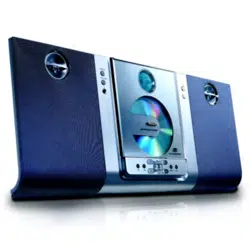
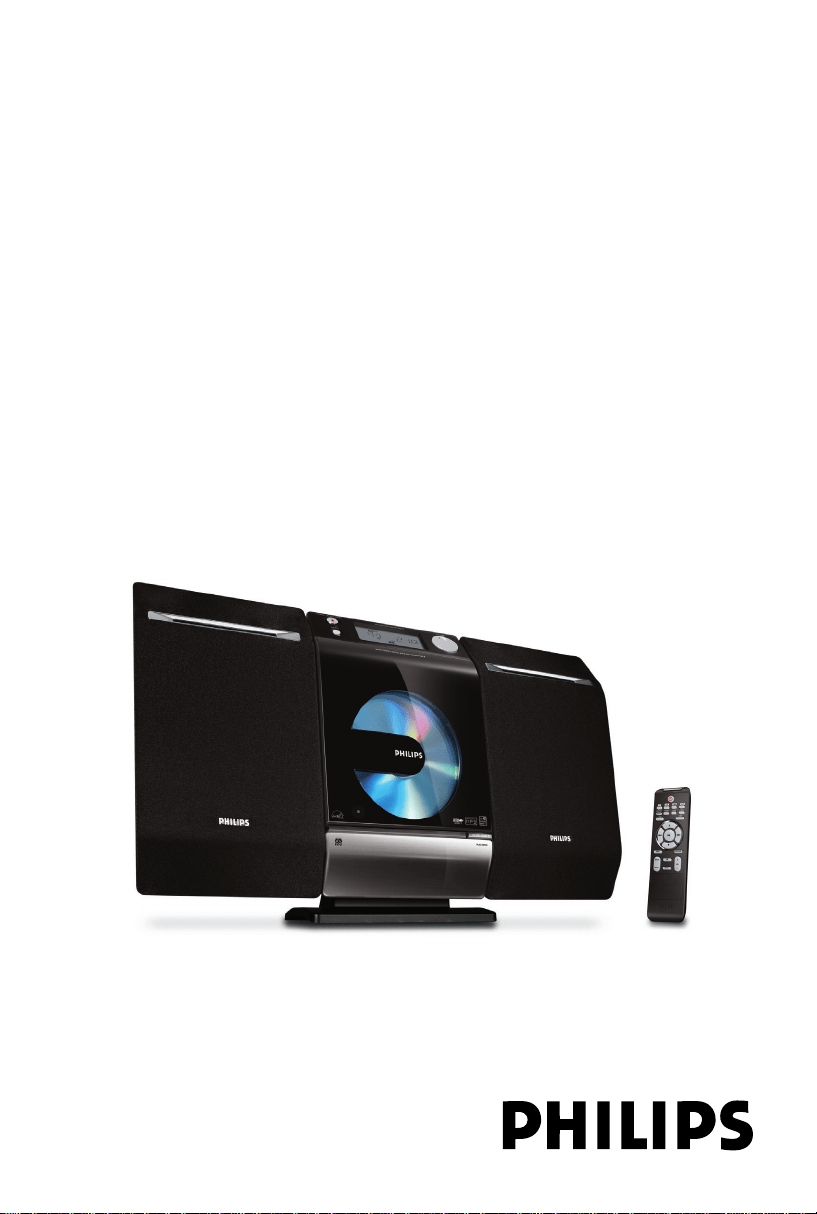
MCM277
Micro Hi-Fi System
User manual
Register your product and get support at
www.philips.com/welcome
P001-P028_MCM277_05_Eng 2008.1.17, 16:061

2
Important notes for users in the
U.K.
Mains plug
This apparatus is fitted with an approved 13
Amp plug. To change a fuse in this type of plug
proceed as follows:
1 Remove fuse cover and fuse.
2 Fix new fuse which should be a BS1362 3 Amp,
A.S.T.A. or BSI approved type.
3 Refit the fuse cover.
If the fitted plug is not suitable for your socket
outlets, it should be cut off and an appropriate
plug fitted in its place.
If the mains plug contains a fuse, this should
have a value of 3 Amp. If a plug without a fuse
is used, the fuse at the distribution board
should not be greater than 3 Amp.
Note: The severed plug must be disposed of to
avoid a possible shock hazard should it be
inserted into a 13 Amp socket elsewhere.
How to connect a plug
The wires in the mains lead are coloured with
the following code: blue = neutral (N),
brown = live (L).
¶ As these colours may not correspond with the
colour markings identifying the terminals in
your plug, proceed as follows:
– Connect the blue wire to the terminal
marked N or coloured black.
– Connect the brown wire to the terminal
marked L or coloured red.
– Do not connect either wire to the earth
terminal in the plug, marked E (or e) or
coloured green (or green and yellow).
Before replacing the plug cover, make certain
that the cord grip is clamped over the sheath
of the lead - not simply over the two wires.
Copyright in the U.K.
Recording and playback of material may
require consent. See Copyright Act 1956 and
The Performer’s Protection Acts 1958 to 1972.
CAUTION
Use of controls or adjustments or
performance of procedures other than
herein may result in hazardous
radiation exposure or other unsafe
operation.
P001-P028_MCM277_05_Eng 2008.1.17, 16:062
3
1
2
3
!
9
@
0
#
7
6
5
4
8
%
$
P001-P028_MCM277_05_Eng 2008.1.17, 16:063
4
English
Contents
General Information
Supplied accessories ............................................ 5
Environmental Information ................................ 5
Safety Information ................................................ 5
Controls
Controls on the set (illustrations on page 3) 6
Remote control .................................................... 7
Installation
Placing MCM277 ................................................... 8
Mounting stand onto the set ................................... 8
Mounting MCM277 onto walls ................................ 8
Rear connections ................................................. 9
Connecting an additional appliance................ 10
Connecting a USB device or memory card ........ 10
Connecting a non-USB device ...............................11
Using AC power ................................................. 11
Preparation
Using the remote control ................................ 12
To replace the remote controls’ battery
Setting the clock ................................................. 12
Basic Functions
Switching on/off the set and selecting functions
................................................................................ 13
Switching between Standby and ECO POWER
mode ..................................................................... 13
Auto-standby ....................................................... 13
Volume control ................................................... 13
Volume adjustment ................................................... 13
MUTE .......................................................................... 13
Sound control ..................................................... 14
DSC ............................................................................. 14
Digital Sound Control enables you to select
predefined sound settings. ............................... 14
DBB ............................................................................. 14
Displaying the clock ........................................... 14
CD
Discs for playback .............................................. 15
About MP3/ WMA ............................................. 15
Playing discs ......................................................... 15
Selecting and searching .................................... 16
Selecting a different track ....................................... 16
Finding a passage within a track during playback ..
...................................................................................... 16
Programming tracks ........................................... 17
Erasing the program .......................................... 17
Different play modes: REPEAT, SHUFFLE ...... 18
Display track information
(MP3/WMA only) ............................................... 18
Tuner
Tuning to radio stations .................................... 19
Programming radio stations ............................. 19
Autostore: Automatic programming .................. 19
Manual programming ............................................... 19
To listen to a preset station ................................... 19
RDS ....................................................................... 20
Switching through RDS information ..................... 20
Tuning to a program type (PTY) ........................... 20
Automatic clock setting via RDS .......................... 20
RDS News and Traffic
Announcement (TA) .......................................... 20
Activating the NEWS function .............................. 20
Deactivating NEWS ................................................. 20
USB
Using a USB mass storage device
By connecting a USB mass storage device to
the Hi-Fi system, you can enjoy the device’s
stored music through the powerful speakers of
Hi-Fi system. ........................................................ 21
Playing a USB mass storage device ....................... 21
Compatible USB mass storage devices ......... 21
AUX
AUX (Listening to an external source) ......... 22
Timer
Setting the timer ................................................. 23
Activating and deactivating TIMER ................. 23
SLEEP .................................................................... 23
Specifications ........................................... 24
Maintenance.............................................. 24
Tr oubleshooting .................................... 25
Appendix
How to mount your MCM277 onto walls ... 27
What’s in the supplied mounting kits ................... 27
What else you’ll need .............................................. 27
Preparation ................................................................. 27
Mounting your MCM277 ........................................27
P001-P028_MCM277_05_Eng 2008.1.17, 16:064
English
5
General Information
Congratulations on your purchase and welcome
to Philips!
To fully benefit from the support that Philips
offers, register your product at www.philips.com/
welcome.
Supplied accessories
–2 speaker boxes including 2 speaker cables
– remote control (with 1 x CR2025 battery)
– MW loop antenna
– FM wire antenna
– stand
– mounting kit
Environmental Information
All unnecessary packaging has been omitted. We
have tried to make the packaging easy to
separate into three materials: cardboard (box),
polystyrene foam (buffer) and polyethylene (bags,
protective foam sheet).
Your system consists of materials which can be
recycled and reused if disassembled by a
specialized company. Please observe the local
regulations regarding the disposal of packaging
materials, exhausted batteries and old
equipment.
Disposal of your old product
Your product is designed
and manufactured with high
quality materials and
components, which can be
recycled and reused.
When this crossed-out
wheeled bin symbol is
attached to a product it means the product is
covered by the European Directive 2002/96/EC
Please inform yourself about the local separate
collection system for electrical and electronic
products.
Please act according to your local rules and do
not dispose of your old products with your
normal household waste. The correct disposal of
your old product will help prevent potential
negative consequences for the environment and
human health.
Safety Information
● Place the system on a flat, hard and stable
surface.
● Place the system in a location with adequate
ventilation to prevent internal heat build-up in
your system. Allow at least 10 cm (4 inches)
clearance from the rear and the top of the unit
and 5 cm (2 inches) from each side.
● The ventilation should not be impeded by
covering the ventilation openings with items,
such as newspapers, table-cloths, curtains, etc.
● Do not expose the system, batteries or discs to
excessive moisture, rain, sand or heat sources
caused by heating equipment or direct sunlight.
● No naked flame sources, such as lighted candles,
should be placed on the apparatus.
● No objects filled with liquids, such as vases, shall
be placed on the apparatus.
● If the system is brought directly from a cold to a
warm location, or is placed in a very damp room,
moisture may condense on the lens of the disc
unit inside the system. Should this occur, the CD
player would not operate normally. Leave the
power on for about one hour with no disc in the
system until normal playback is possible.
● The mechanical parts of the set contain self-
lubricating bearings and must not be oiled or
lubricated.
● When the system is switched to Standby
mode, it is still consuming some power.
To disconnect the system from the
power supply completely, remove the AC
power plug from the wall socket.
P001-P028_MCM277_05_Eng 2008.1.17, 16:065
6
English
Controls
Controls on the set (illustrations
on page 3)
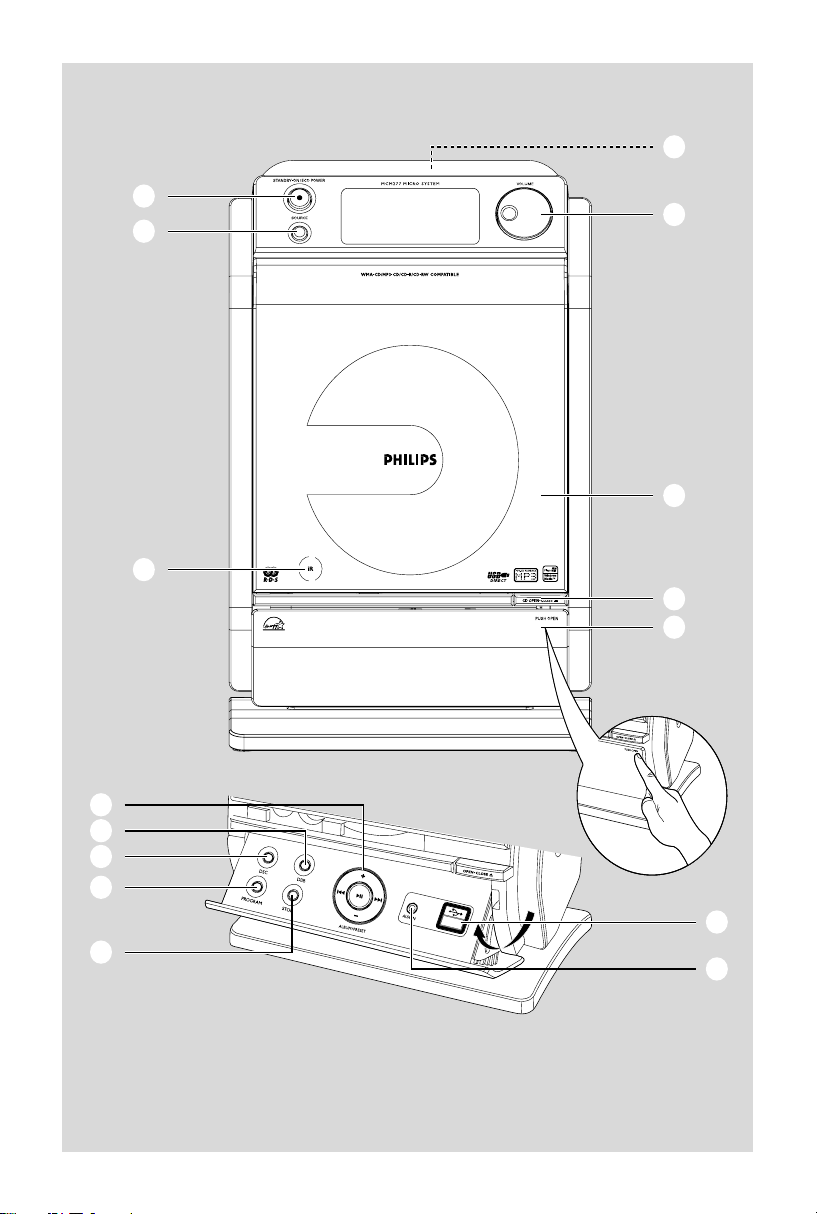
1
STANDBY-ON/ ECO POWER
– press briefly to switch the set on or off (standby/
ECO POWER);
– In standby or Eco Power mode: press and
hold to toggle between Standby and ECO
POWER mode (power-saving mode)
– Red indicator: lights up red when the set is
switched to ECO POWER mode
2 SOURCE
– selects sound source CD, USB, TUNER or
AUX
– In standby or Eco Power mode: switches the
set on and selects sound source CD, USB,
TUNER or AUX
3 IR
– sensor for the infrared remote control
Helpful hints: Always point the remote control
towards this sensor.
4 PUSH OPEN
– push to unfold or fold the control panel
5 CD OPEN • CLOSEç
– opens/closes the CD door
6 CD door
7 VOLUME
– adjusts the volume level
– Clock/Timer: adjusts the hours and minutes
8
nn
nn
n
– 3.5 mm headphone socket
Helpful hints:
– Adjust the volume to a moderate level
before you plug in the headphones.
– Connecting headphones will switch off the
speakers.
9 ALBUM/ PRESET + /-
– CD/USB: selects albums (for MP3/WMA only)
– TUNER: selects a preset radio station
4 / ¢
– CD/USB: skips or searches CD tracks/titles
backwards/forwards
– Tuner: tunes to radio stations
ÉÅ
– CD/USB: starts or pauses playback
0 DBB (Dynamic Bass Boost)
– turns the bass enhancement on/off
! DSC (Digital Sound Control)
– selects predefined sound settings: ROCK,
JAZZ, POP, CLASSIC
@ PROGRAM
– CD/USB: programs tracks
– Tuner: programs preset radio stations
# STOP
– CD/USB: stops playback; erase a program
$ AUX-IN
– connects to the AUDIO OUT jack on the
external appliance
%
– jack for the external USB mass storage device
P001-P028_MCM277_05_Eng 2008.1.17, 16:066
English
7
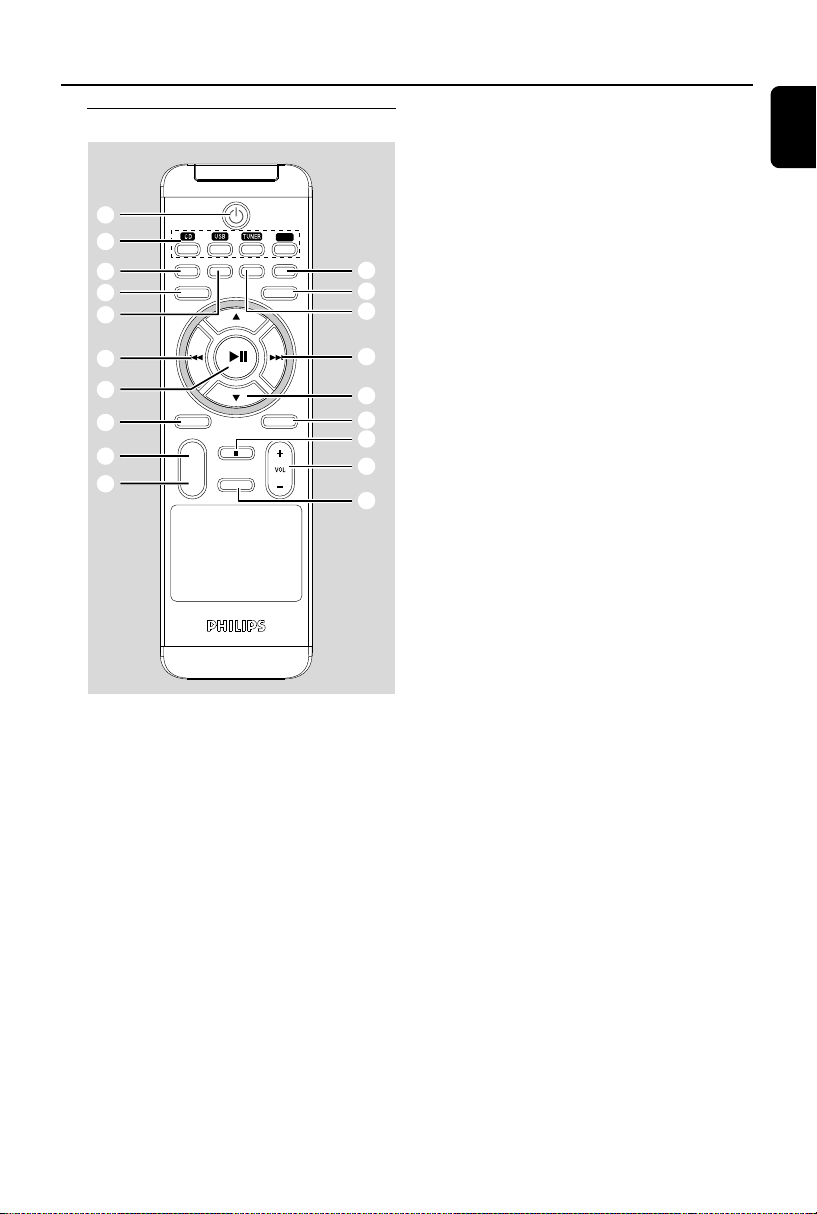
Remote control
Notes for remote control:
– First select the source you wish to
control by pressing one of the source select
keys on the remote control (for example
CD, TUNER).
– Then select the desired function (for
example
ÉÅ
,
4
,
¢
).
1
BB
BB
B
– press briefly to switch the set on or off
(standby/ECO POWER);
– In standby or Eco Power mode: press and
hold to toggle between Standby and ECO
POWER mode (power-saving mode)
2 Source buttons
USB
– selects USB source
– In standby or Eco Power mode:: switches the
set on and selects USB source.
Controls
CD
– selects CD source
– In standby or Eco Power mode:: switches the
set on and selects CD source.
TUNER
– selects TUNER source and toggles between the
wavebands: FM and MW
– In standby or Eco Power mode:: switches the
set on and selects TUNER source
AUX
– selects the audio input from an additional
connected appliance
– In standby or Eco Power mode:: switches the
set on and selects the audio input from an
additional connected appliance
3 CLOCK
– Clock: - displays the set time
– In standby mode: enters the clock setting
mode (press and hold for more than 2 seconds)
4 DSC (Digital Sound Control)
– selects predefined sound settings: ROCK,
JAZZ, POP, CLASSIC
5 TIMER
– displays the timer setting
– switches the timer on/off
– enters the timer setting mode (press and hold
for more than 2 seconds)
6 4 / ¢
– CD/USB: skips or searches CD tracks
backwards/forwards
– Tuner: tunes to radio stations
7 ÉÅ
– CD/USB: starts or pauses playback
8 PROG
– CD/USB: programs tracks
– Tuner: programs preset radio stations
9 REPEAT
– selects continuous playback
0 SHUFFLE
– selects random playback
! MUTE
– switches the sound off temporarily
AUX
DISPLAY TIMER SLEEP
CLOCK
RDS/NEWS
DBBDSC
PROG
REPEAT
SHUFFLE
MUTE
OPEN/CLOSE
*
&
^
%
6
$
@
#
!
4
8
9
6
7
5
3
1
0
2
P001-P028_MCM277_05_Eng 2008.1.17, 16:067
8
English
Controls Installation
Placing MCM277
With the detachable stand and by-packed wall
mounting kit , MCM277 allows you to place it in
two ways: on desktops with stand or on
walls without stand.
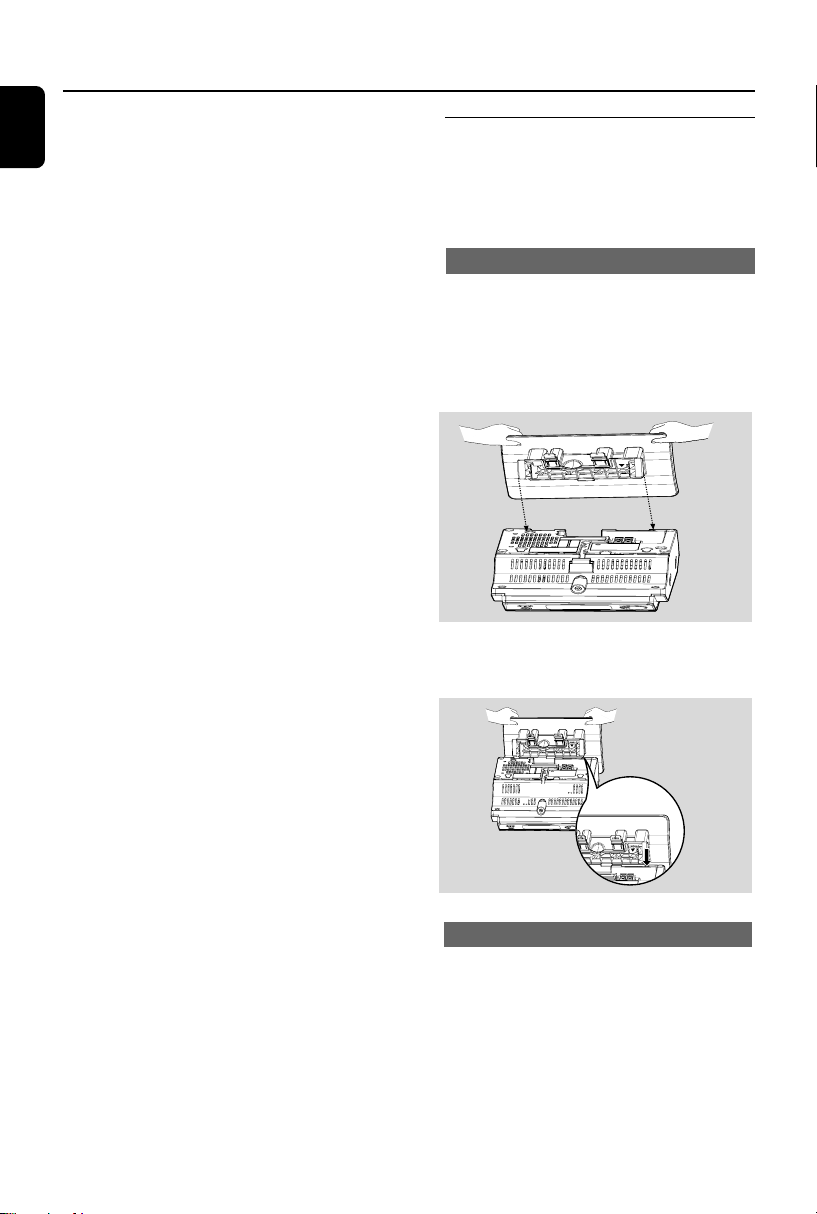
Mounting stand onto the set
MCM277 is equipped with a stand. To mount
the stand onto the set,
1 Put MCM277 on a flat and firm surface, rear side
facing up
2 As shown, align the stand to the slots at set’s
bottom, 4 FRONT facing down
PR
ES
S
F
R
O
N
T
FRONT
P
RE
SS
3 Push the stand down into the slots
➜ When the stand is in place, you will hear a
click
See Appendix: How to mount your
MCM277 onto walls to learn more about
wall mounting.
Mounting MCM277 onto walls
@ VOL +/-
– adjusts the volume level
– Clock/Timer: adjusts the hours and minutes
# 9
– CD/USB: stops playback; erase a program
$ OPEN/CLOSE
– opens/closes the CD door
% 3 / 4
– CD/USB: selects the next/previous album (for
MP3/WMA only)
– TUNER: selects a preset radio station
^ SLEEP
– set the sleep timer
& DBB (Dynamic Bass Boost)
– turns the bass enhancement on/off
* RDS/NEWS
– Tuner: selects RDS (Radio Data System)
information
– CD/USB/AUX: activates/deactivates news
P001-P028_MCM277_05_Eng 2008.1.17, 16:068
English
9
Installation
MW loop
antenna
Speaker
(left)
Speaker
(right)
FM wire
antenna
AC power cord
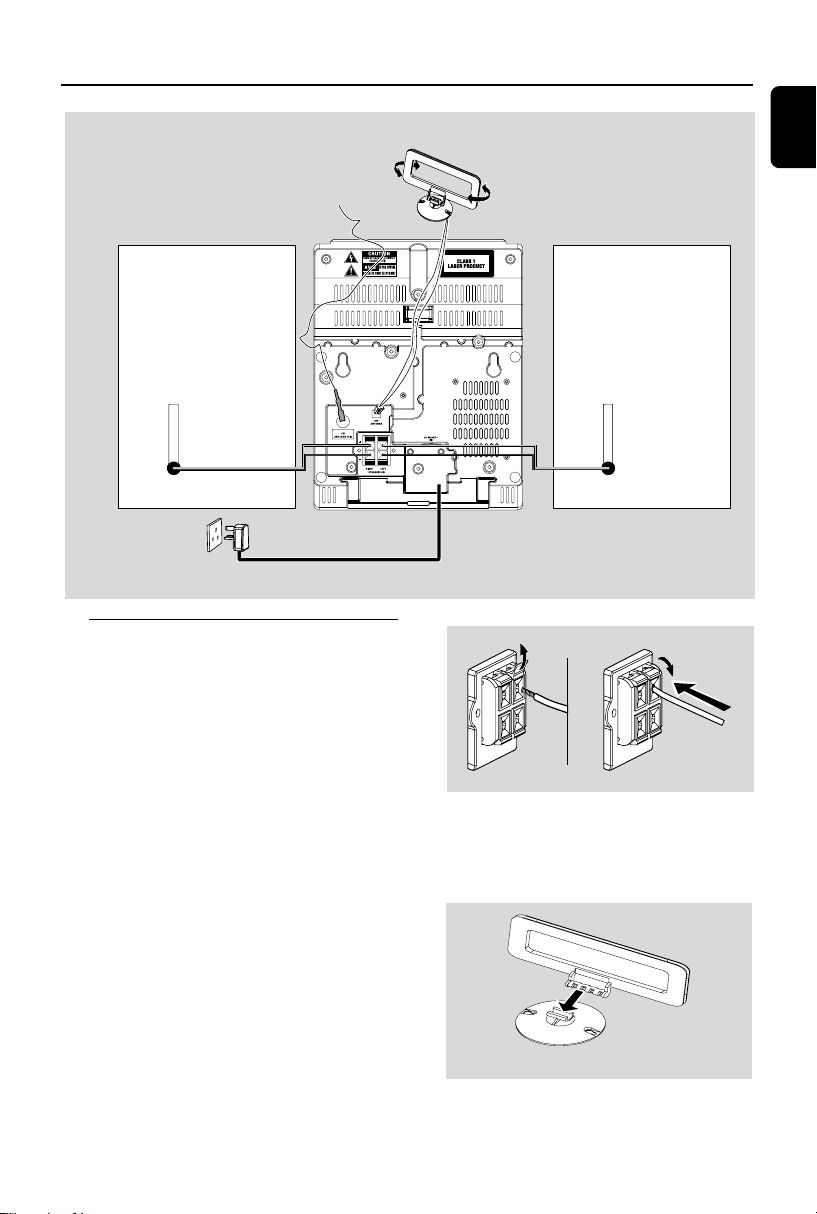
Rear connections
Warning:
– Never make or change connections with
the mains supply switched on.
– Install your set near the AC outlet and
where the AC power plug can be reached
easily.
A Speaker connections
Use the supplied speakers only. Using other
speakers can damage the set or the sound
quality will be negatively affected.
● Connect the cable of the left speaker to LEFT
(red and black) and the cable of the right
speaker to RIGHT (red and black) as follows:
a. Press the clip of the red terminal and fully
insert the stripped portion of the colored (or
marked) speaker cable into the socket, then
release the clip
b. Press the clip of the black terminal and fully
insert the stripped portion of the black (or
unmarked) speaker cable into the socket, then
release the clip
B Antenna connections
MW antenna
1 Assemble the loop antenna as shown:
P001-P028_MCM277_05_Eng 2008.1.17, 16:069
10
English
Installation
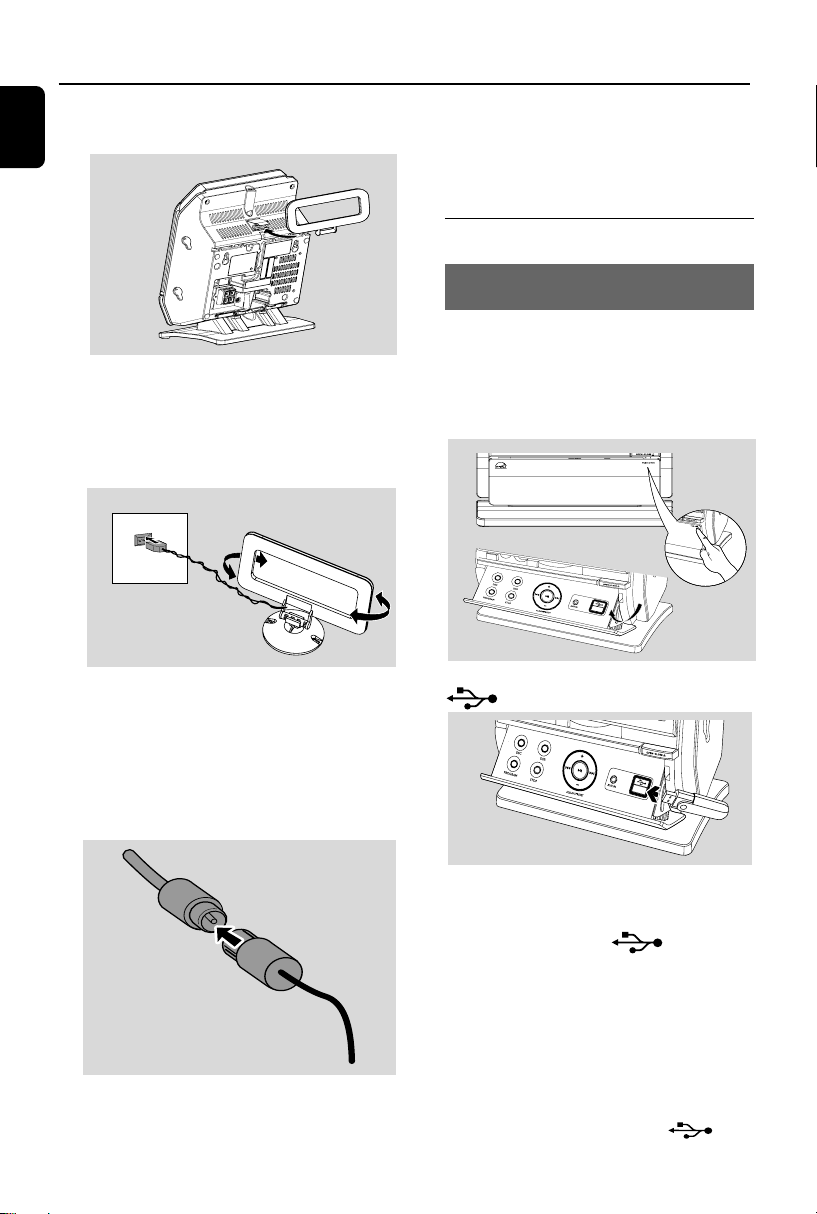
2 Fit the plug of the loop antenna to AM (MW)
ANTENNA as shown below
3 Adjust the position of the antenna for optimal
reception (as far away as possible from the TV,
VCR or other radiation sources)
FM antenna
The wire antenna supplied can only be used to
receive nearby stations. For better reception we
recommend using a cable antenna system or an
outdoor antenna.
1 Extend the wire antenna and fit it to FM
ANTENNA as shown below
AM
ANTENNA
Or
Insert the loop antenna into the slot on the set
Note: If you are using a cable antenna system or
an outdoor antenna, fit the antenna plug, instead of
the wire antenna, to FM ANTENNA .
By connecting a USB mass storage device
(including USB flash memory, USB flash players
or memory cards) to the Hi-Fi system, you can
enjoy the device’s stored music through the
powerful speakers of Hi-Fi system.
1 Check you have unfolded the control panel
2 Insert the USB device’s USB plug into the socket
on the set ‘s foldable control panel
2 Move the antenna in different positions for
optimal reception (as far away as possible from
the TV, VCR or other radiation sources)
3 Fix the antenna’s end to the wall
Connecting an additional
appliance
Connecting a USB device or memory
card
or
for the devices with USB cable:
a. Insert one plug of the USB cable (not
supplied) to the socket on the set ‘s
foldable control panel
b. Inser t the other plug of the USB cable to the
USB output terminal of the USB device
or
for the memory card:
a. Insert the memory card into a card reader
(not supplied)
b. Use a USB cable (not supplied) to connect
the card reader to the socket
on the set ‘s foldable control panel
P001-P028_MCM277_05_Eng 2008.1.17, 16:0610
English
11
Installation
Using AC power
1
Make sure all the connections have been made
before switching on the power supply
2 Connect the AC power cord to the wall socket.
This switches on the power supply
When MCM277 is switched to standby, it is still
consuming some power. To disconnect the
system from the power supply completely,
remove the power plug from the wall
socket.
The type plate is located on the rear of the
set.
For users in the U.K.: please follow the
instructions on page 2.
Warning!
To avoid overheating of the system, a safety
circuit has been built in. Therefore, your
system may switch to Standby mode
automatically under extreme conditions. If
this happens, let the system cool down
before reusing it (not available for all versions).
This product complies with the radio
interference requirements of the European
Community.
CAUTION
Visible and invisible laser radiation. If the
cover is open, do not look at the beam.
High voltage! Do not open. You run the risk
of getting an electric shock.
The machine does not contain any user-
serviceable parts.
Modification of the product could result in
hazardous radiation of EMC or other
unsafe operation.
4 Select AUX mode on the set
Helpful hints:
– Always refer to the owner’s manual of other
equipment for complete connection.
Connecting a non-USB device
It is possible to use an additional appliance, e.g.
TV, VCR or CD recorder with the set. On
MCM277, you can playback music from an
external source.
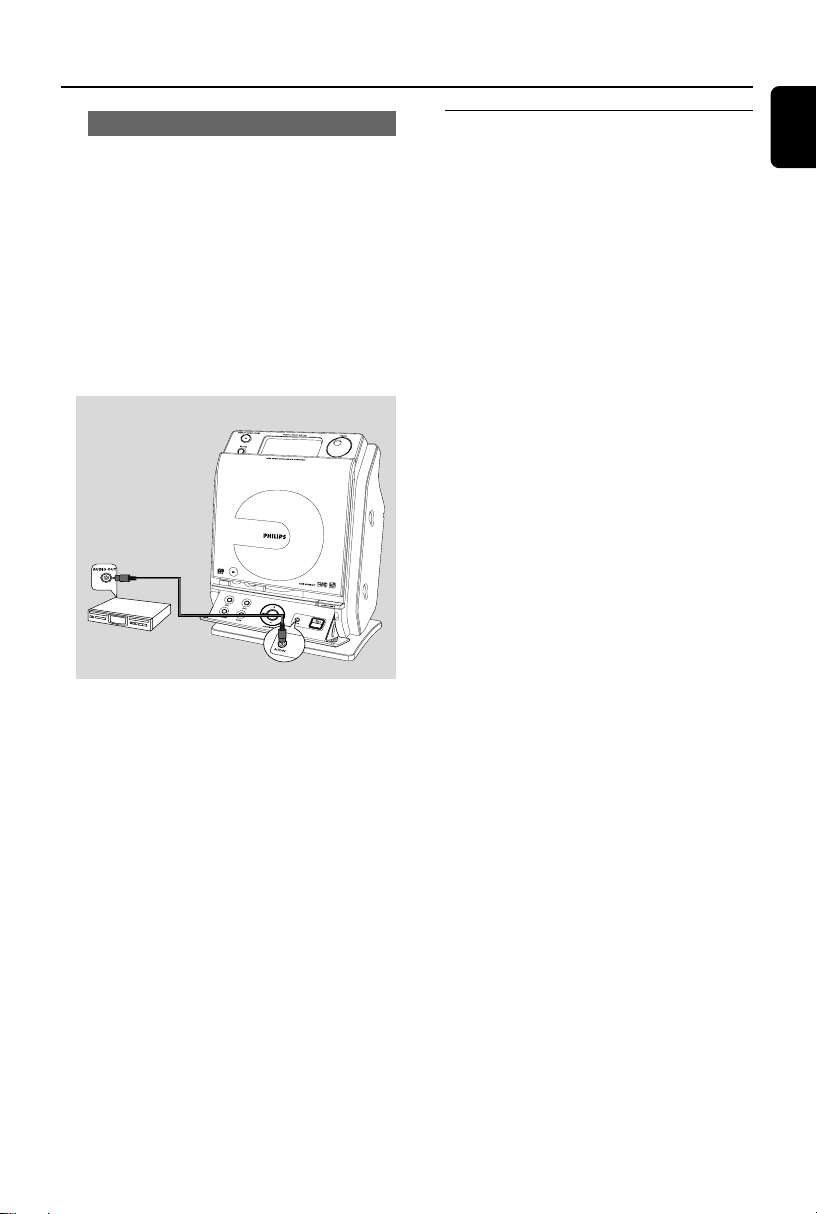
1 Follow the Step 1 under Connecting a USB
device or memory card
2 Insert one plug of the audio cable (not supplied)
to the socket AUX IN on the set ‘s foldable
control panel
3 Connect the other end of the audio cable to the
AUDIO OUT terminal of the additional
appliance
P001-P028_MCM277_05_Eng 2008.1.17, 16:0611
12
English
Preparation
Setting the clock
After connecting MCM277 to the power supply,
set the clock first.
1 Press and hold STANDBY-ON/ ECO
POWER to switch the set to Standby mode
➜ The display shows the set time
➜ -- --:-- -- flashes by default if you have not set
the clock
2 In the standby mode, press and hold DISPLAY/
CLOCK on the remote control
➜ SET CLOCK scrolls on the display
➜ 24 HR or 12 HR appears for the initial
clock setting. To select 24-hour clock or
12-hour clock,
● On the remote control, press VOL +/-
once or more (or turn VOLUME on the
set)
● On the remote control, press DISPLAY/
CLOCK to confirm
➜ The hours digits start flashing
3 Hold down or press VOL +/- repeatedly to set
the hours (or turn VOLUME on the
set)
4 Press DISPLAY/CLOCK to confirm
➜ The minutes digits start flashing
5 Hold down or press VOL +/- repeatedly to set
the minutes (or turn VOLUME on the
set)
6 Press DISPLAY/CLOCK to confirm
– To exit without storing the clock setting press
STOP 9
Helpful hints:
– The clock setting will be erased when the system
is disconnected from the power supply.
– The set will exit from the clock setting mode if
no button is pressed within 90 seconds.
–To set the clock automatically by using a time
signal which is broadcast together with the RDS
signal see chapter RDS: Automatic clock
setting via RDS.
Using the remote control
IMPORTANT!
– Remove the protective plastic tab before
using the remote control.
– Always point the remote control directly
towards IR area.
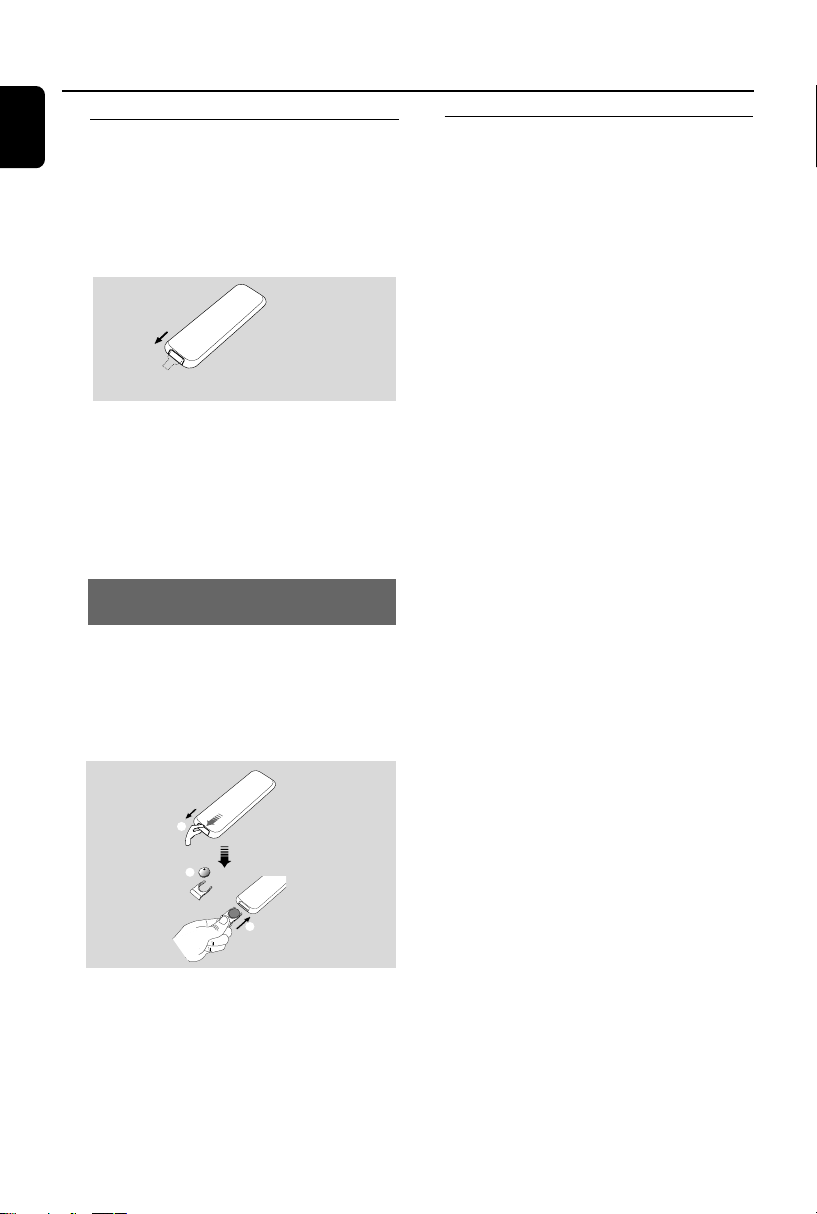
Remove the plastic protective sheet
Notes for remote control:
– First select the source you wish to
control by pressing one of the source select
keys on the remote control (for example
CD, TUNER).
– Then select the desired function (for
example
ÉÅ
,
4
,
¢
).
To replace the remote controls’
battery
1 Press and hold 1 as indicated.
2 Simultaneously, pull the battery tray at 4.
3 Remove the old battery and put a new CR2025
battery in place.
4 Put back the battery tray.
1
2
3
CR2025
CAUTION!
– Remove the battery if it is exhausted
or will not be used for a long time.
– Batteries contain chemical substances,
so they should be disposed of properly.
– Danger of explosion if battery is
incorrectly replaced. Replace only with
the same or equivalent type.
P001-P028_MCM277_05_Eng 2008.1.17, 16:0612
English
13
Basic Functions
Switching on/off the set and
selecting functions
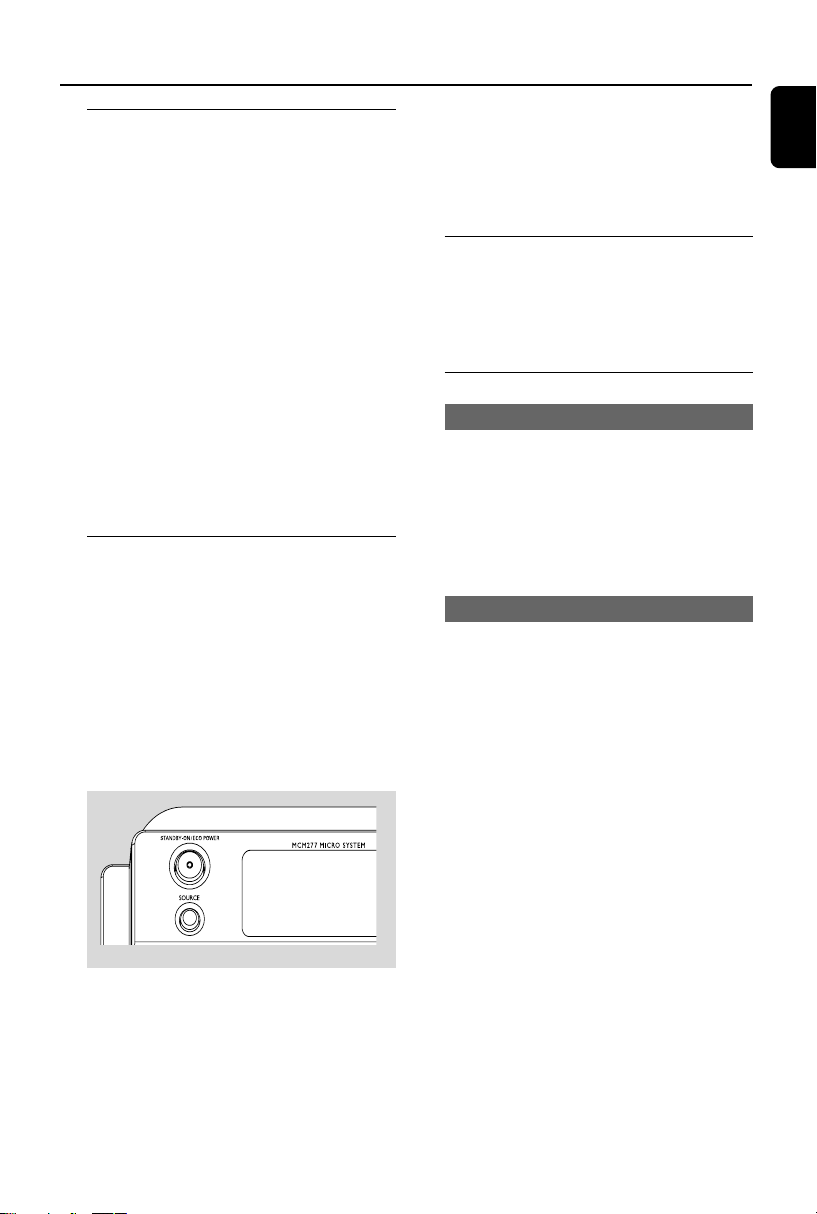
1 To switch on, press STANDBY-ON/ ECO
POWER or SOURCE on the set (or y on
the remote control)
➜ The set switches to the last source selected
OR
On the remote control, press the source button
(e.g. USB, CD, TUNER, AUX)
2 When the set is on, press STANDBY-ON/
ECO POWER to switch off (or y on the
remote control)
3 To select your function, press SOURCE once
or more on the set (or USB, CD, TUNER,
AUX on the remote control)
Helpful hints:
–You can also switch on the set by pressing
CD OPEN • CLOSE
ç
Switching between Standby and
ECO POWER mode
1 When the set is switched off, press and hold
STANDBY-ON/ ECO POWER to switch
between Standby and ECO POWER mode (or
y on the remote control)
In ECO POWER mode (power-saving mode):
➜ ECO PWR scrolls on the display
➜ The display is switched off
➜ The Red indicator lights up
In Standby mode: ➜ The clock is displayed
Helpful hints:
– In the standby/Eco power mode, the tone, sound
settings, tuner presets and the volume level (up to
a maximum volume level of 20) will be retained in
the set’s memory.
Auto-standby
When the set has reached the end of CD
playback and remains in the stop position for
more than 15 minutes, the set will switch off
automatically to save power.
Volume control
Volume adjustment
● Adjust the volume by using the VOLUME
rotary on the set or by pressing VOL +/- on the
remote control
➜ VOL and the actual value (between 1 and 31)
are displayed
➜ VOL MIN is the minimum volume level
➜ VOL MAX is the maximum volume level
MUTE
You can temporarily switch off the sound
without switching off the set.
1 Press MUTE on the remote control to switch
off the sound
➜ MUTE appears. Playback continues without
sound
2 To switch on the sound, you can:
– press MUTE again;
– adjust the volume controls;
– change source
P001-P028_MCM277_05_Eng 2008.1.17, 16:0613

14
English
Basic Functions
Sound control
DSC
Digital Sound Control enables you to select
predefined sound settings.
● Press DSC repeatedly to select the desired
sound setting: ROCK, JAZZ, POP, CLASSIC
DBB
● Press DBB (Dynamic Bass Boost) once or
more to switch bass enhancement on or off.
➜ DBB appears if DBB is activated
Displaying the clock
● During playback, press DISPLAY/CLOCK on
the remote control repeatedly to switch
between the clock display and the playback
display.
Notes:
– When playing MP3 files, you will get track
information (ID3 tag) by pressing DISPLAY/
CLOCK.
P001-P028_MCM277_05_Eng 2008.1.17, 16:0614
English
15
CD
Discs for playback
With this system, you can play
– all pre-recorded audio CDs (CDDA)
– all finalized audio CD-Rs and CD-RWs
– MP3/WMA-CDs (CD-Rs/CD-RWs with
MP3/WMA files)
IMPORTANT!
– This system is designed for regular
discs. Therefore, do not use any
accessories such as disc stabilizer rings or
disc treatment sheets, etc.
About MP3/ WMA
The music compression technology MP3
(MPEG1 Audio Layer 3) and WMA (Windows
Media Audio) significantly reduces the digital data
of an audio CD while maintaining CD quality
sound.
Windows Media Audio® is a registered
trademark of Microsoft Corporation.
Supported formats:
– Disc format ISO9660, Joliet, UDF (created on
Adaptec Direct CD) and multi-session CDs
– MP3 bit rate (data rate): 32-320 Kbps and
variable bit rate
– Director y nesting up to a maximum of 8
levels
– Max. track number plus album: 500
– WMA v9 or earlier
The system will not play or support the
following:
•Empty albums: an empty album is an album
that does not contain MP3/WMA files, and will
not be shown in the display.
• Non-suppor ted file formats are skipped. This
means that e.g.: Word documents .doc or MP3
files with extension .dlf are ignored and will not
be played.
• DRM protected WMA files
• WMA files in Lossless or VBR format
IMPORTANT!
– Make sure that the file names of MP3 files end
with .mp3.
– For DRM protected WMA files, use Windows
Media Player 10 (or later) for CD burning/
conversion. Visit www. microsoft.com for details
about Windows Media Player and WM DRM
(Windows Media Digital Rights Management).
Playing discs
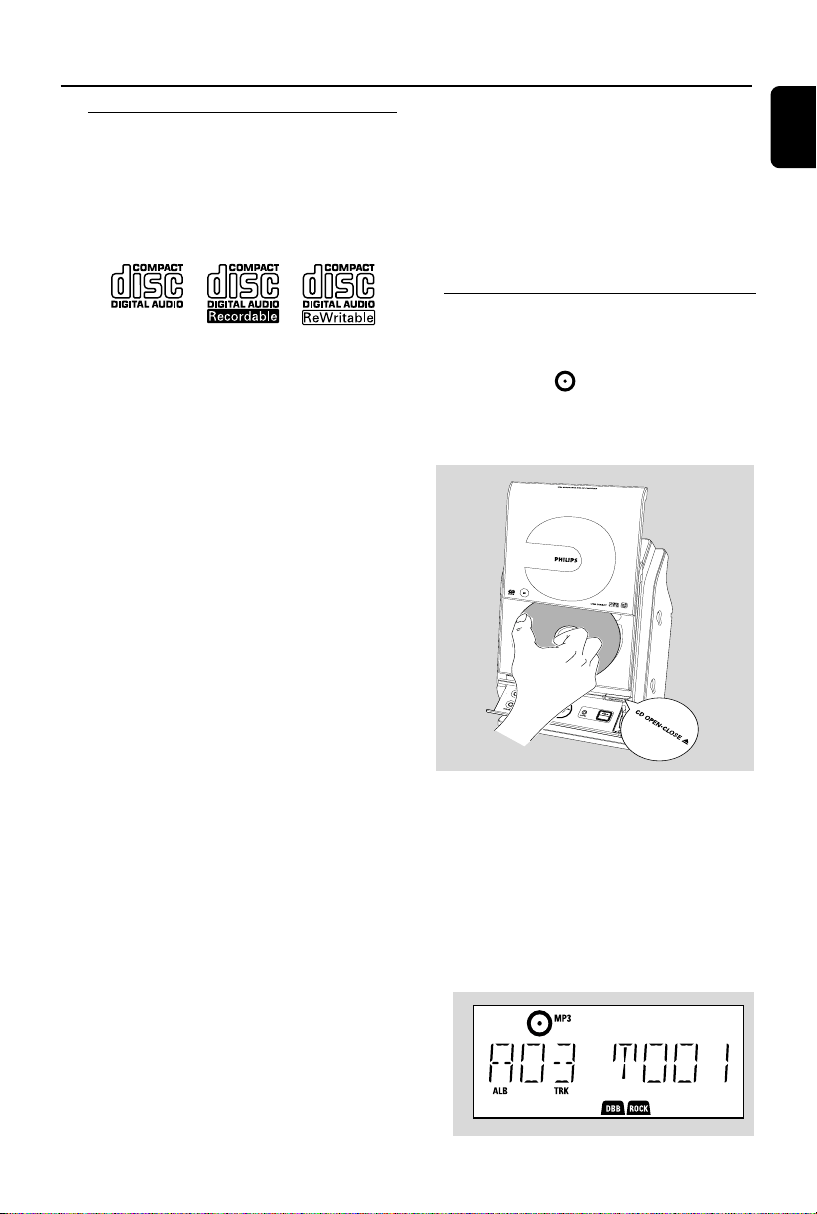
1 Press SOURCE once or more to select CD (or
CD on the remote control)
➜ The CD icon appears
2 Press CD OPEN•CLOSEç to open the CD
compartment.
➜ OPEN is displayed
3 Insert a disc with the printed side facing up.
Press CD OPEN•CLOSEç again to close the
compartment
➜ READING is displayed as the CD player scans
the contents of a disc
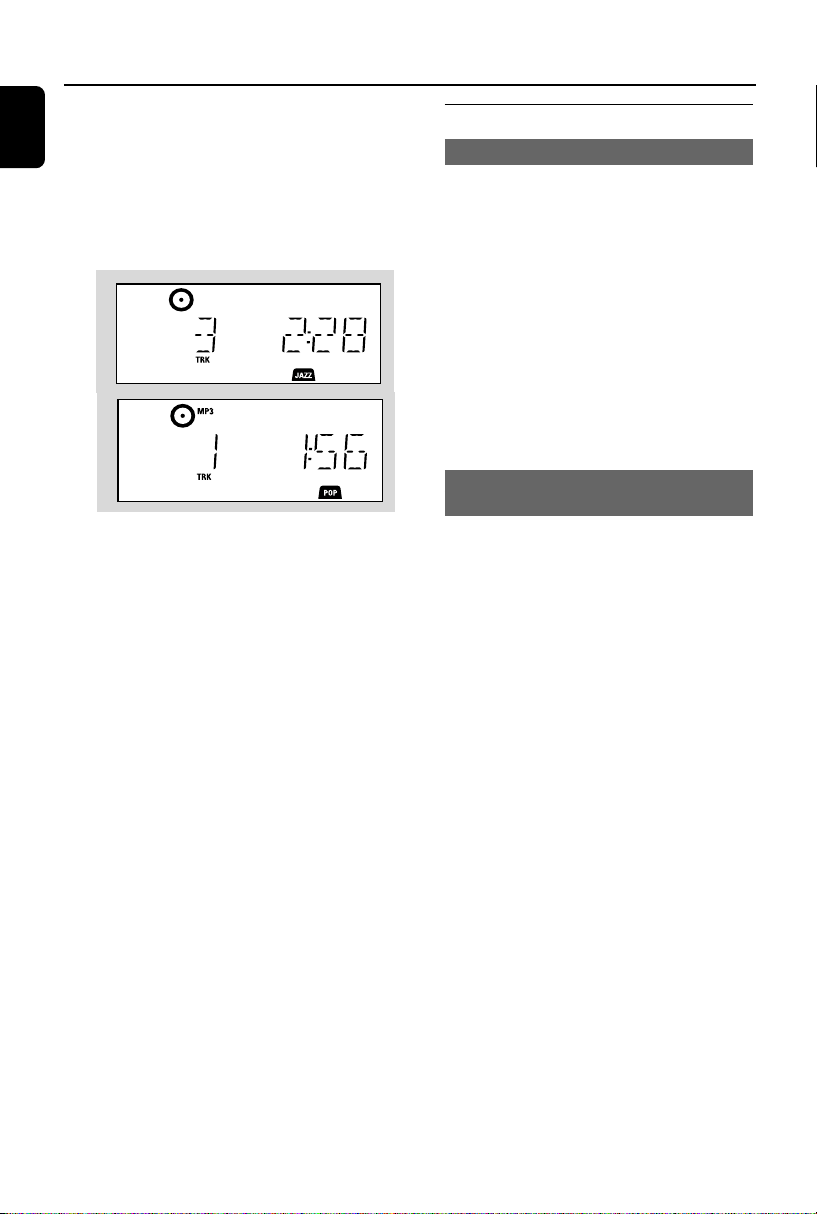
➜ Audio CD: the total number of tracks and
playing time are shown
MP3/WMA: Display shows current album
number “A x x “and current track number
“T x xx”
P001-P028_MCM277_05_Eng 2008.1.17, 16:0615
16
English
CD
Helpful hints:
– If you have not organized MP3/WMA files into
any albums on your disc, an album “00” will be
automatically assigned for all those files.
4 Press ÉÅ to start playback
➜ Display shows current track
number and elapsed playing time
5 To pause playback, pressÉÅ. To resume
playback, press the button again
6 To stop playback, press STOPÇ
Helpful hints:
CD playwill also stop when
– the CD door is opened
– the disc has reached the end
– you select another source: TUNER, USB or
AUX
Selecting and searching
Selecting a different track
● Press 4 / ¢ once or repeatedly until the
desired track number appears in the display
MP3/WMA: ➜ Tr ack information scrolls briefly
MP3/WMA:
● Press 3 / 4 once or more to select the next or
previous album
➜ Tr ack information scrolls briefly
or
● In the stop position, press 3 / 4 and 4 /
¢ to select the desired album and track
➜ MP3/WMA: Display shows current album/
track number
Finding a passage within a track
during playback
1 During playback, press and hold 4 / ¢
➜ The CD plays at a high speed
2 When you recognize the passage you want,
release 4 or ¢
➜ Normal playback resumes
P001-P028_MCM277_05_Eng 2008.1.17, 16:0616
English
17
CD
Programming tracks
You may store up to 40 tracks in the desired
sequence. If you like, store any track more than
once.
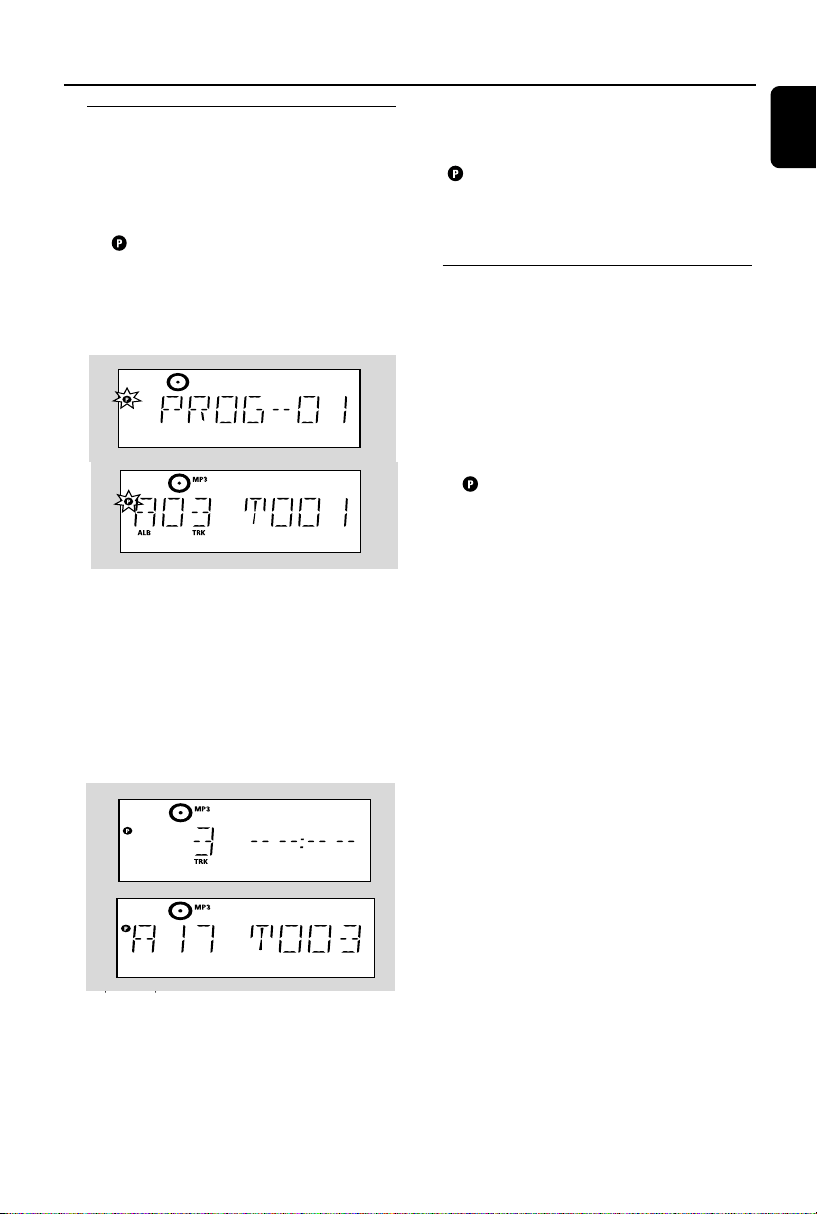
1 In the stop position, press PROG to start
programming
➜ flashes
➜ Audio CD: Display shows PROG and current
track number
MP3/WMA: Display shows current album/
track number
2 Press 4 / ¢ once or repeatedly until the
desired track number appears in the display
● MP3/WMA: press 3 / 4 and 4 / ¢ to
select the desired albumand track
3 Press PROG to confirm
➜ Display shows briefly the number of tracks
programmed
➜ Then, the display shows the track number
you just stored
4 Repeat steps 2-3 to select and store all desired
tracks.
➜ FULL is displayed if you attempt to program
more than 40 tracks
5 Press ÉÅ play the program
Helpful hints:
– The set will return to the stop position if no
button is pressed within 90 seconds.
disappears. To resume programming, press
PROG.
– MP3/WMA: When playing a program, use of
3 / 4 are void.
Erasing the program
You can erase the contents of the memory by:
● Press STOP 9
– once if in the stop position;
– twice during playback;
● Press STANDBY-ON/ ECO POWER y
● Select another sound source
● Open the CD door
➜ disappears. CLEAR scrolls
P001-P028_MCM277_05_Eng 2008.1.17, 16:0617

18
English
Different play modes: REPEAT,
SHUFFLE
REPEAT TRACK– plays the current track
continuously
REPEAT ALL– plays the entire disc/program
continuously
SHUFFLE – plays all the tracks in random order
1 During playback, press once or more REPEAT
or SHUFFLE to select play modes
2 To return to normal playback, press REPEAT or
SHUFFLE repeatedly until the various modes
are no longer displayed
Helpful hints:
– In the shuffle mode, press
¢
to select tracks.
CD
Display track information
(MP3/WMA only)
The ID3 tag is part of an MP3/WMA file and
contains various track information such as the
track´s title or the artist´s name.
● During playback, press DISPLAY/CLOCK
repeatedly on the remote control
➜ Display show title name, album name and ID3
tag information
Helpful hints:
- Complete the ID3 tag information with
your MP3/WMA encoder software before
burning the MP3/WMA-CD.
P001-P028_MCM277_05_Eng 2008.1.17, 16:0618
English
19
Tuner
Tuning to radio stations
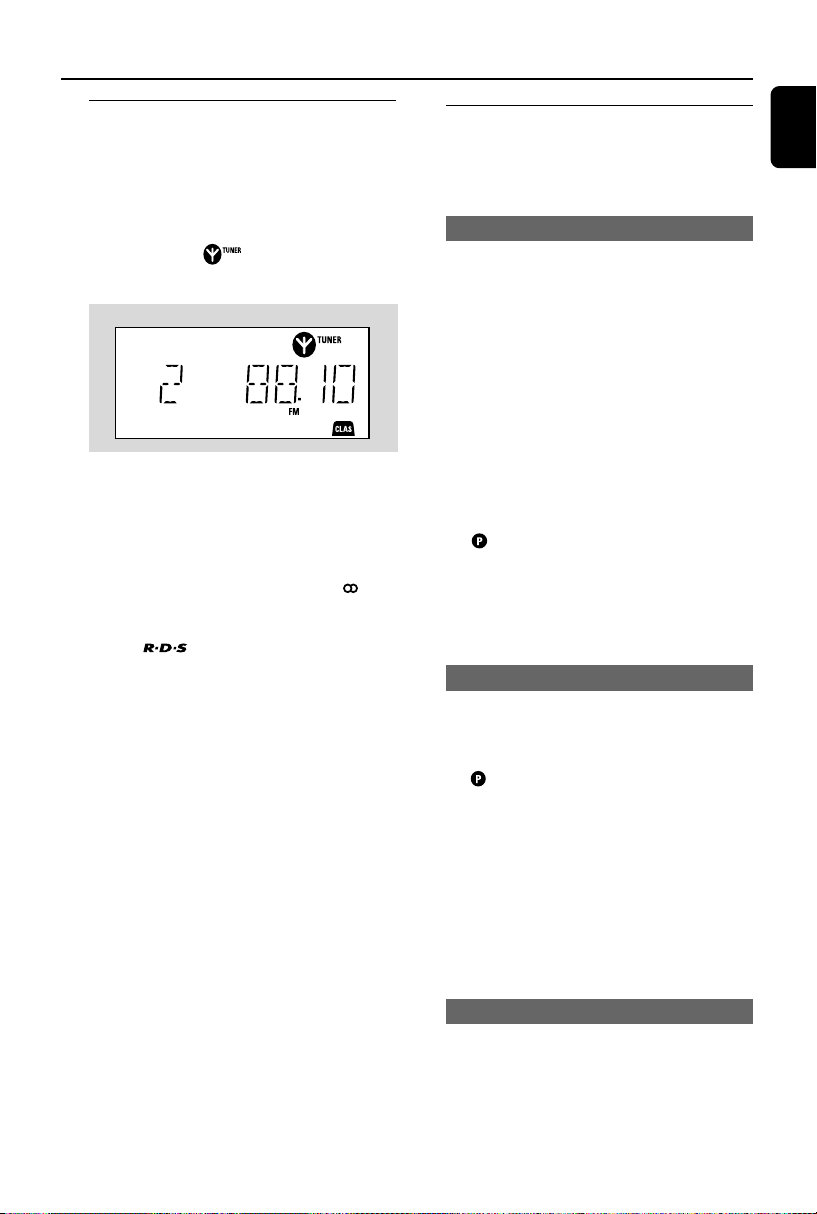
1 Press SOURCE once or more to select
TUNER (or TUNER on the remote control)
2 Press TUNER on the remote control
repeatedly to select your desired waveband, FM
or MW
➜ Display shows: , r adio station frequency,
waveband and if programmed, a preset number
3 Press and hold 4 / ¢ until SEARCH
appears
➜ The radio automatically tunes to a station
with sufficient reception. Display shows SEARCH
during automatic tuning
➜ FM: If a station is received in stereo, is
shown
➜ FM: When you are receiving an RDS station,
is shown
4 Repeat step 3 if necessary until you find the
desired station.
● To tune to a weak station, press 4 / ¢
briefly and repeatedly until you have found
optimal reception.
Programming radio stations
You can store up to a total of 40 radio stations
(FM and MW) in the memory, manually or
automatically (Autostore).
Autostore: Automatic programming
Automatic programming will start from preset 1
or a chosen preset number. From this preset
number upwards, former programmed tuner
stations will be erased. The set will only program
stations which are not in the memory already.
1 Press the 3 / 4 buttons once or more to select
the preset number where programming should
start.
Note:
– If no tuner preset number is selected, default is
preset 1 and all your presets will be erased.
2 Press and hold PROG until AUTO appears
➜ flashes
➜ Available stations are programmed: RDS
stations followed by FM stations, MW stations
(See RDS)
➜ After all stations are stored, the last preset
station will then be played
Manual programming
1 Tune to your desired station (see Tuning to
radio stations)
2 Press PROG to activate programming
➜ flashes
3 Press 3 / 4 to allocate a number from 1 to 40
to this station.
4 Press PROG to confirm
➜ Display shows the preset number, waveband
and the frequency of the preset station
5 Repeat steps 1-4 to store other stations
● You can erase a preset station by
storing another frequency in its place
To listen to a preset station
● Press the 3 / 4 buttons once or more until the
desired preset station is displayed.
P001-P028_MCM277_05_Eng 2008.1.17, 16:0619
20
English
Tuner
RDS
The feature RDS (Radio Data System) is a
service that allows FM stations to send additional
information along with the regular FM radio
signal. When you are receiving an RDS station,
and the station name are displayed.
Switching through RDS information
1 Tune to the desired RDS radio station on the
FM waveband (see Tuning to radio stations)
2 Press RDS/NEWS on the remote control
repeatedly to switch through the following
information (if available):
– Station name
– Program type (for example: News, Sport, etc.)
– Radio text messages
– Frequency
Note:
– NO PS, NO TYPE or NO TEXT is displayed if
you press RDS/NEWS and no RDS signal is
available.
Tuning to a program type (PTY)
PTY enables you to tune to a desired program
type.
1 Program RDS stations (See Programming
radio stations)
2 When tuning to an RDS station, press RDS/
NEWS on the remote control repeatedly until
the program type is displayed
3 Press 3 / 4 repeatedly to select the desired
program type
4 Press and hold 4 / ¢ until SEARCH
appears
➜ The radio tunes to a radio station
broadcasting of the program type
➜ TYPE NOT FOUND is displayed if the
program type is not available
Automatic clock setting via RDS
When the set is on, the clock can be
automatically set by a time signal broadcast
together with the RDS signal. This only works if
the RDS station is sending this time signal.
Note:
– The time signal broadcast from certain RDS
stations may not always be accurate
RDS News and Traffic
Announcement (TA)
While listening to CD, USB or AUX source, you
can activate NEWS. The set will tune to the
news/traffic announcement if the related signals
are received from a RDS station.
Activating the NEWS function
● During playback in CD, USB or AUX source,
press RDS/NEWS on the remote control
➜ NEWS appears and NEWS ON. TA ON is
displayed briefly
➜ Playback continues when the set scans for
RDS news on the FM band
➜ When news transmission is detected, the set
will switch to the news/traffic announcement
station.
➜ After the news is broadcast, the set will
switch to the last source selected
Deactivating NEWS
● Press RDS/NEWS again on the remote control
➜ NEWS disapears and NEWS OFF is displayed
briefly
P001-P028_MCM277_05_Eng 2008.1.17, 16:0620
English
21
USB
Using a USB mass storage device
By connecting a USB mass storage device to the
Hi-Fi system, you can enjoy the device’s stored
music through the powerful speakers of Hi-Fi
system.
Playing a USB mass storage device
Compatible USB mass storage devices
With the Hi-Fi system, you can use
– USB flash memory (USB 2.0 or USB1.1)
– USB flash players (USB 2.0 or USB1.1)
– memory cards (requires an additional card
reader to work with this Hi-Fi system)
Note:
– In some USB flash players (or memory
devices), the stored contents are recorded using
copyright protection technology. Such
protected contents will be unplayable on any
other devices (such as this Hi-Fi system).
Supported formats:
– USB or memory file format FAT12, FAT16,
FAT32 (sector size: 512 - 2,048 bytes)
– MP3 bit rate (data rate): 32-320 Kbps and
variable bit rate
– WMA v9 or earlier
– Directory nesting up to a maximum of 8
levels
– Number of albums/ folders: maximum 99
– Number of tracks/titles: maximum 999
– ID3 tag v2.0 or later
– File name in Uicode UTF8 (maximum length:
128 bytes)
The system will not play or support the
following:
•Empty albums: an empty album is an album
that does not contain MP3/WMA files, and will
not be shown in the display.
• Non-supported file formats are skipped. This
means that e.g.: Word documents .doc or MP3
files with extension .dlf are ignored and will not
be played.
•AAC , WAV, PCM audio files
• DRM protected WMA files
• WMA files in Lossless format
How to transfer music files from PC to a
USB mass storage device
By dragging and dropping music files, you can
easily transfer your favorite music from PC to a
USB mass storage device.
For the flash player, you can also use its music
management software for the music transfer.
However, those WMA files may be
unplayable for compatibility reasons.
How to organize your MP3/WMA files
on the USB mass storage device
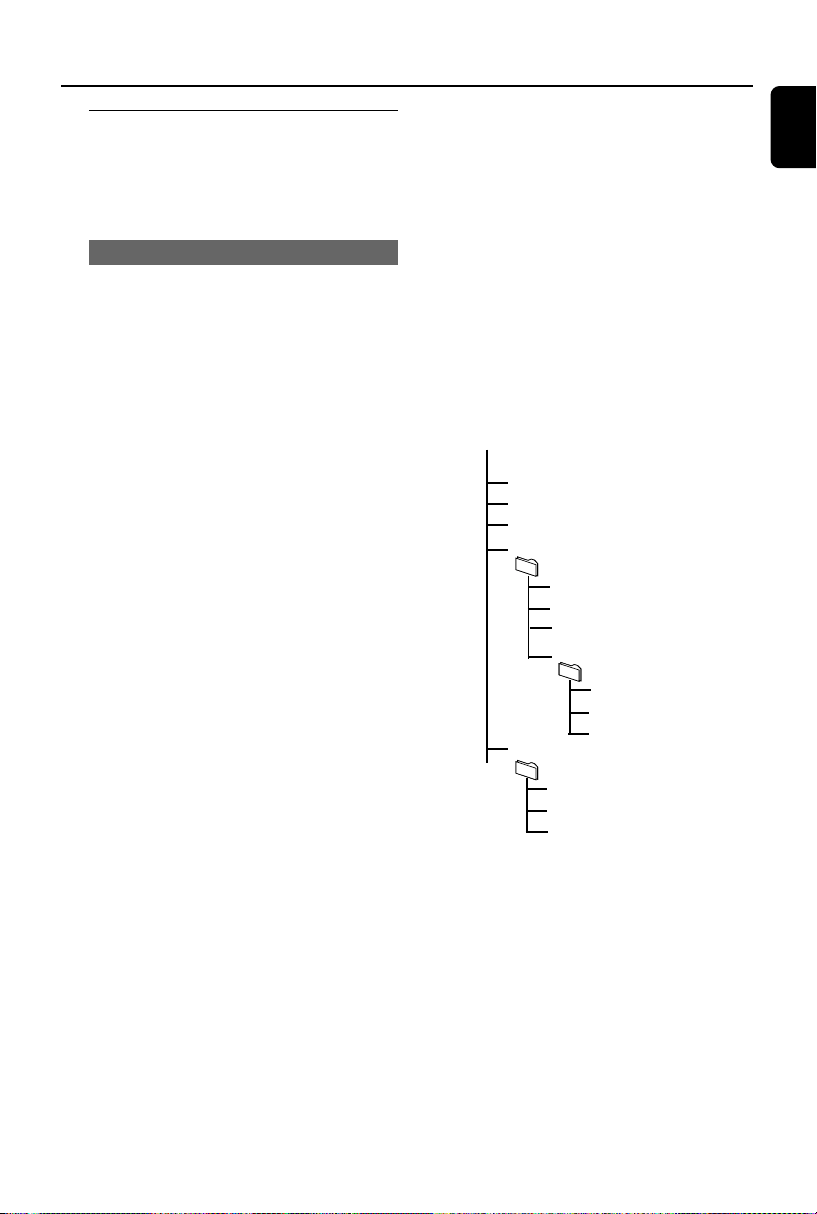
This Hi-Fi system will browse the MP3/WMA
files in the folders/sub-folders/titles order.
Example:
Root
Title 001
Title 002
Title 003
Album 01
Title 001
Title 002
Title 003
Album 02
Title 001
Title 002
Title 003
Album 03
Title 001
Title 002
Title 003
Organize your MP3/WMA files in different
folders or subfolders as required.
Note:
– If you have not organized MP3/WMA files into
any albums on your disc, an album “00” will be
automatically assigned for all those files.
– Make sure that the file names of MP3 files end
with .mp3. and the file names of WMA files end
with .wma.
– For DRM protected WMA files, use Windows
Media Player 10 (or later) for conversion. Visit www.
microsoft.com for details about Windows Media
Player and WM DRM (Windows Media Digital
Rights Management).
P001-P028_MCM277_05_Eng 2008.1.17, 16:0621
22
English
USB AUX
AUX (Listening to an external
source)
You can listen to the sound of the connected
external device through your MCM277
1 Check the external device has been properly
connected (See Installation, Connecting an
additional appliance)
2 Press SOURCE once or more to select AUX
(or AUX on the remote control)
3 To avoid noise distortion, turn down the volume
on your external device
4 Press the PLAY key on the connected device to
start playback
5 To adjust the sound and volume, use the sound
controls on your external device and the
MCM277
1 Check the USB device has been properly
connected. (See Installation: Connecting an
additional appliance)
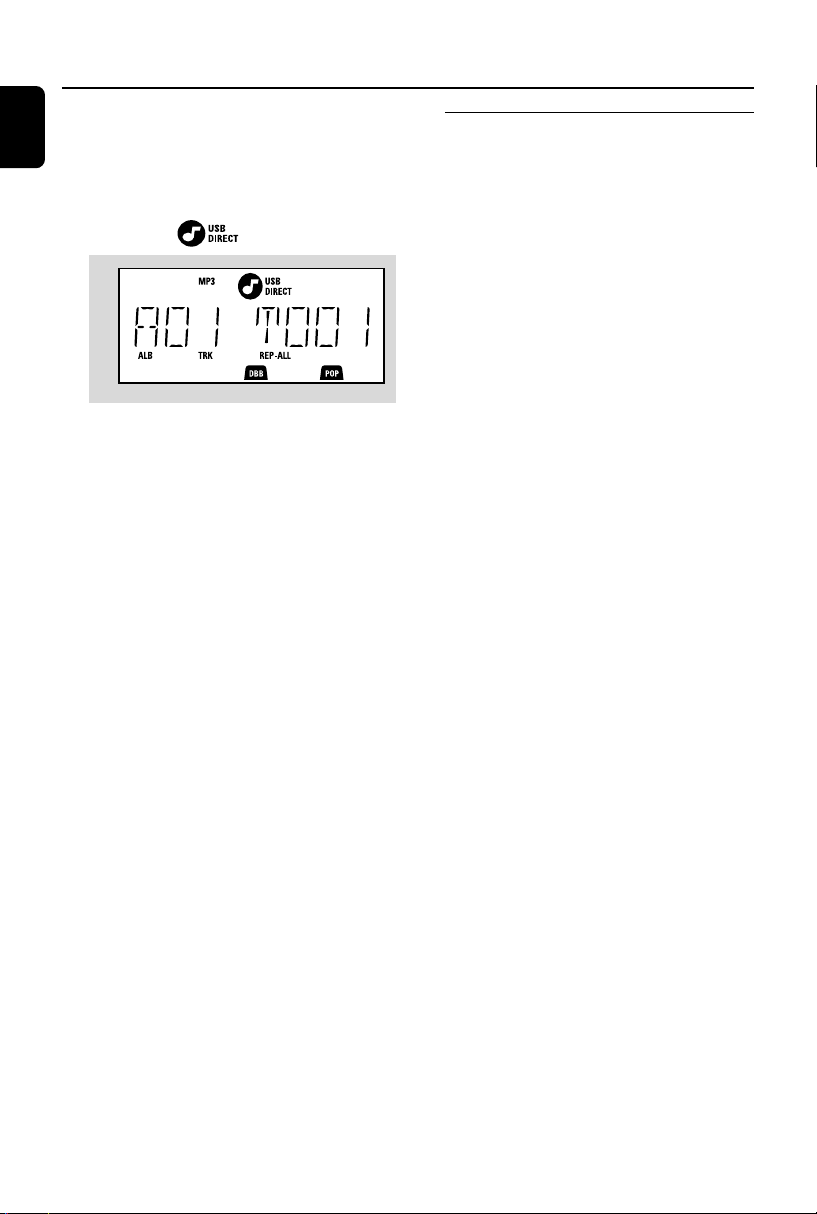
2 Press SOURCE once or more to select USB
(or USB on the remote control)
➜ The icon appears
– NO AUDIO appears if no audio file is found in
the USB device
3 Play the USB’s audio files as you do with the
albums/tracks on a CD (See CD)
Note:
–For compatibility reasons, the album/track
information may differ from what it is displayed
through flash players' music management software.
– File names or ID3 tags will be displayed as --- if
they are not in English.
P001-P028_MCM277_05_Eng 2008.1.17, 16:0622
English
23
Timer SLEEP
Setting the timer
The set can be used as an alarm clock, whereby
the selected source (CD, TUNER or USB) star ts
playback at a preset time. Make sure the
clock is set before using the timer.
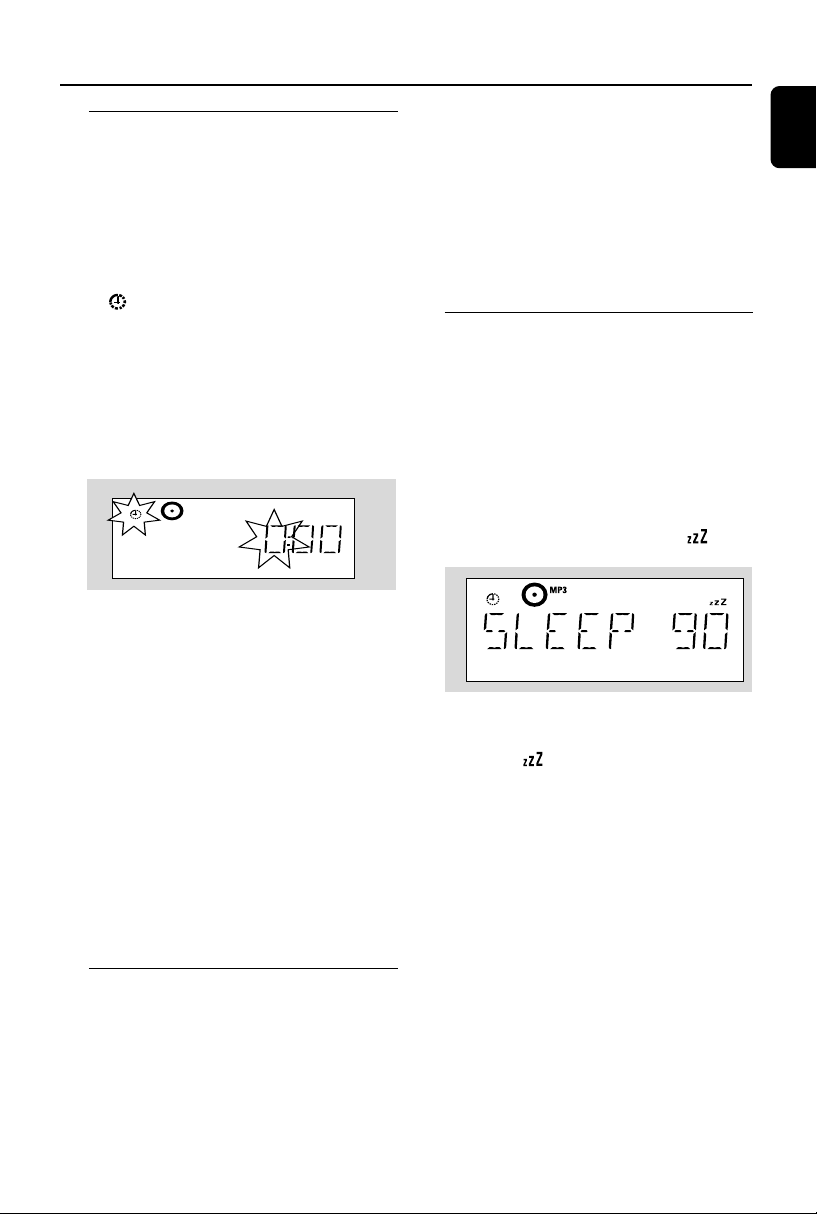
1 Press and hold TIMER on the remote control
until SET TIMER appears
➜ flashes. SELECT SOURCE scrolls
➜ Display shows current source CD, TUNER or
USB
2 Press SOURCE on the set repeatedly to select
the source (or press CD, TUNER or USB on
the remote control)
3 Press TIMER to confirm
➜ The hours digits start flashing
4 Hold down or press VOL +/- repeatedly to set
the hours (or turn VOLUME on the
set)
5 Press TIMER to confirm
➜ The minutes digits start flashing
6 Hold down or press VOL +/- repeatedly to set
the minutes (or turn VOLUME on the
set)
7 Press TIMER to confirm
➜ The timer is now set and activated
➜ At the set alarm time, the CD, TUNER or
USB will switch on (volume level: max. 20)
Note:
– The set will exit from the timer setting mode if
no button is pressed within 90 seconds.
Activating and deactivating
TIMER
● Press TIMER on the remote repeatedly to
activate or deactivate the timer.
➜ If activated, the last set source and start time
are displayed
➜ If deactivated, “TIMER OFF” appears
Helpful hints:
The timer will not work at the set time if
- the set is switched on
- the timer is deactivated
The set will switch to Tuner source
automatically if :
- no CD is inserted when the selected source is CD;
- no USB device is connected when the selected
source is USB
SLEEP
You can set a certain period of time after which
the set will switch off.
● On the remote control, press SLEEP
repeatedly to select the desired time period
options (in minutes):
➜ Display shows in sequence: Sleep 90, 75,
60, 45, 30, 15
➜ Display shows the selected option briefly and
returns to its previous status. The icon
appears
To deactivate the sleep timer, press
SLEEP again
➜ The icon disappears
or
Press STANDBY-ON/ ECO POWER to
switch off the set (or y on the remote control)
Helpful hints:
– The SLEEP function does not affect your alarm
time setting.
P001-P028_MCM277_05_Eng 2008.1.17, 16:0623
24
English
Cleaning the Cabinet
● Use a soft cloth slightly moistened with a mild
detergent solution. Do not use a solution
containing alcohol, spirits, ammonia or abrasives.
Cleaning Discs
● When a disc becomes dirty,
clean it with a cleaning cloth.
Wipe the disc from the centre
out.
● Do not use solvents such as
benzene, thinner, commercially
available cleaners, or antistatic spray intended for
analogue records.
Cleaning the disc lens
● After prolonged use, dirt or dust may
accumulate at the disc lens. To ensure good
playback quality, clean the disc lens with Philips
CD Lens Cleaner or any commercially available
cleaner. Follow the instructions supplied with
cleaner.
Maintenance
Specifications
AMPLIFIER
Output power .......................................... 2 x 5 W RMS
............................................................ 10 W + 10 W MPO
Signal-to-noise ratio ....................................... ≥ 75 dBA
Frequency response ........ 50 – 20,000 Hz, ± 3 dB
Input sensitivity AUX ....................... 0.5 V (max. 2 V)
Impedance loudspeakers ..................................... ≥ 4 Ω
Impedance headphones .................... 32 Ω -1000 Ω
......................................................................................... <0.5W
CD PLAYER
Frequency range .................................. 30 – 18000 Hz
Signal-to-noise ratio ............................................ 75 dBA
TUNER
FM wave range ................................... 87.5 – 108 MHz
MW wave range ................................ 531 – 1602 kHz
Number of presets ........................................................ 40
Antenna
FM .................................................................... 75 Ω wire
MW ......................................................... Loop antenna
SPEAKERS
Bass reflex system
Dimensions (w x h x d) ....160 x 269 x 90 (mm)
GENERAL INFORMATION
AC Power ..................................... 220 – 240 V / 50 Hz
Dimensions (w x h x d, with/without the stand)
.................. 194 x 285 x 118/194 x 269 x 90 (mm)
Weight(with/without speakers) ........... 3.8 / 2.2 kg
Standby power consumption ............................ <5 W
Eco power standby ........................................... <0.5 W
Specifications and external appearance are
subject to change without notice.
USB ................................................................... 12Mb/s, V1.1
......................................... support MP3 and WMA files
Number of albums/ folders................ maximum 99
Number of tracks/titles...................... maximum 999
USB PLAYER
P001-P028_MCM277_05_Eng 2008.1.17, 16:0624

English
25
Troubleshooting
WARNING
Under no circumstances should you try to repair the system yourself, as this will invalidate the
warranty. Do not open the system as there is a risk of electric shock.
If a fault occurs, first check the points listed below before taking the system for repair. If you
are unable to remedy a problem by following these hints, consult your dealer or Philips for
help.
“NO DISC” is displayed.
Some files on the USB device are not
displayed.
Radio reception is poor.
The system does not react when buttons
are pressed.
Sound cannot be heard or is of poor
quality.
The left and right sound outputs are
reversed.
Problem
Solution
✔ Insert a disc.
✔ Wait until the moisture condensation at the lens
has cleared.
✔ Replace or clean the disc, see “Maintenance”.
✔ Use a finalised CD-RW or a correct MP3/WMA
-CD format disc.
✔ Check if the number of folders exceeds 99 or
the number of titles exceeds 999
✔ If the signal is too weak, adjust the antenna or
connect an external antenna for better
reception.
✔ Increase the distance between the Micro HiFi
System and your TV or VCR.
✔ Remove and reconnect the AC power plug and
switch on the system again.
✔ Adjust the volume.
✔ Disconnect the headphones.
✔ Check that the speakers are connected correctly.
✔ Check if the stripped speaker wire is clamped.
✔ Make sure the MP3-CD was recorded within
32~256 kbps bit rate with sampling frequencies
at 48 kHz, 44.1 kHz or 32 kHz.
✔ Check the speaker connections and location.
P001-P028_MCM277_05_Eng 2008.1.17, 16:0625

26
English
The remote control does not function
properly.
The timer is not working.
The Clock/Timer setting is erased.
✔ Select the source (CD or TUNER, for example)
before pressing the function button (ÉÅ,4 ,
¢).
✔ Reduce the distance between the remote
control and the system.
✔ Insert the battery with its polarities
(+/– signs) aligned as indicated.
✔ Replace the battery.
✔ Point the remote control directly toward
IR sensor on the front of the system.
✔ Check the set is switched off
✔ Set the clock correctly.
✔ Press TIMER to switch on the timer.
✔ Power has been interrupted or the power cord
has been disconnected. Reset the clock/timer.
Troubleshooting
P001-P028_MCM277_05_Eng 2008.1.17, 16:0626
English
27
Appendix
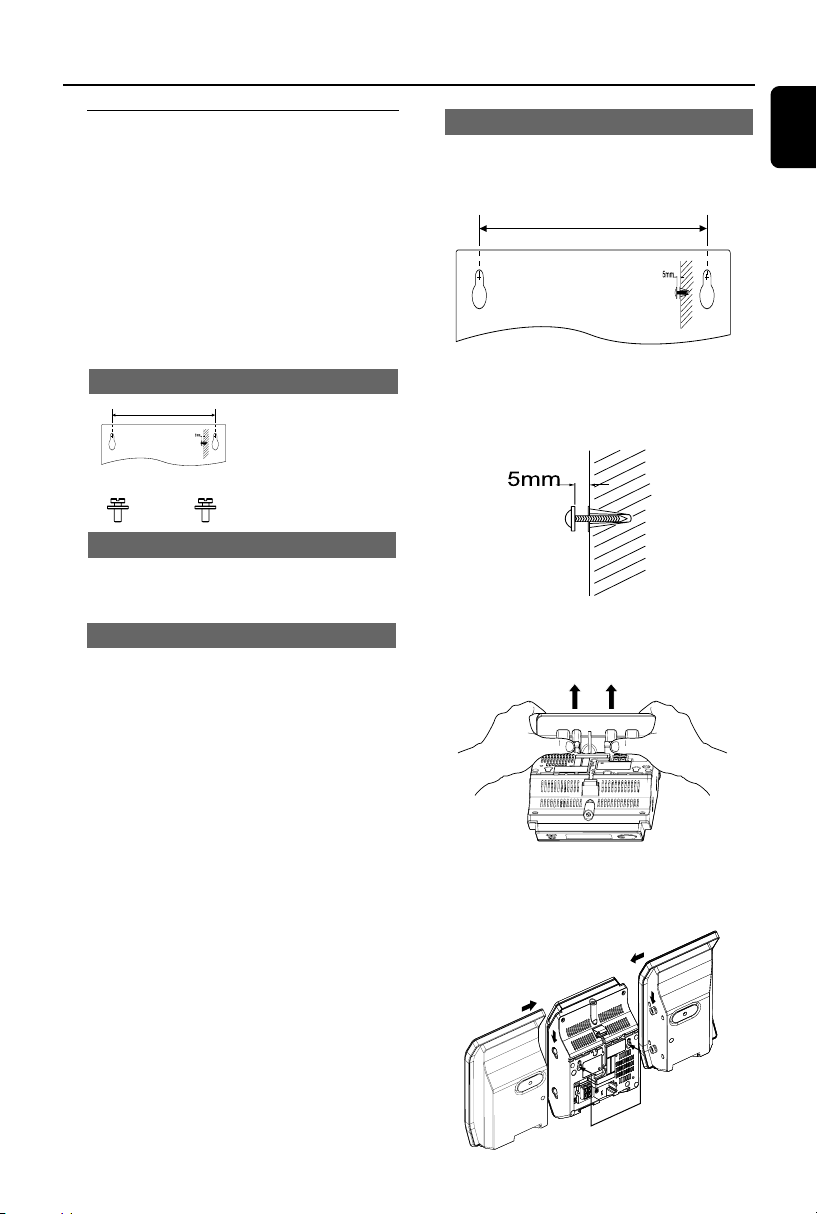
140 mm (5.51")
2 Drill two 6mm diameter holes as marked
3 Secure the dowels and screws in the holes
respectively, leaving the screws 5mm proud of
the wall
4 To detach the stand,
a. As shown, hold down the 3 PRESS buttons
b. Move out the stand to detach
PRESS
PRESS
5 Hang the unit on the fastening screws
6 As shown, hook and mount the speakers in
place
Speaker Left
Speaker R
ight
H
oles
M
ain unit
Mounting your MCM277
1 Align the template in the chosen location on a
wall. Use a pencil to mark the drilling positions
(as shown)
How to mount your MCM277
onto walls
IMPORTANT!
– The wall mounting instructions are for
the use of the qualified wall mounting
person only!
– Ask a qualified person to help you
with the wall mounting, which includes
drilling holes on the wall and
mounting the set onto walls.
2 x screws
What else you’ll need
– Drilling tools (e.g. electric drill)
Preparation
1 To find a suitable location for mounting, try
your necessary rear connections (see
the chapter Installation).
2 Ask a qualified person to help you with the
wall mounting, who should:
– to avoid unexpected damage, learn about the
piping, wiring and other relevant information
inside your walls;
– according to the drilling requirements, choose
suitable drilling tools;
– take other precautions necessary for the wall
mounting work.
What’s in the supplied mounting kits
1 x template
140 mm (5.51")
(Wall mounting
instructions)
P001-P028_MCM277_05_Eng 2008.1.17, 16:0627
English
Printed in China
MCM277
PDCC-JS/JW-0803
Meet Philips at the Internet
http://www.philips.com
P001-P028_MCM277_05_Eng 2008.1.17, 16:0628