
Once your Prime Wireless SoundBase is set up, you can access music from your devices and your favorite streaming services. You
can also enjoy full resolution Critical Listening Mode Critical Listening Mode, create a multi-room audio system, and more.
1 42 53 6
Confi gure Play-Fi App
Open the Play-Fi app and follow the
prompts to fi nish setting up your
Prime Wireless SoundBase on your
home Wi-Fi network.
Note: The Prime Wireless SoundBase may require an update before letting you stream music. The Play-Fi app will show a notifi cation and complete the update
automatically. This is normal and can take 3-5 minutes.
If your SVS Prime Wireless SoundBase is not being discovered by the Wi-Fi network, try moving it closer to your router or to a stronger signal area to establish a connection.
Also, make sure the speaker and app are both confi gured to the same Wi-Fi network in your home.
Select “Set Up Play-Fi
Device”
Choose a name for your Prime
Wireless SoundBase.
Choose “Set-Up” to confi gure
your Prime Wireless SoundBase
and Wi-Fi network.
Select new device name
from Play-Fi menu.
Enter your Wi-Fi network
password and select “Next”
Select your favorite
streaming method/service
Confi gure Play-Fi App
iOS users must go to the
“Settings” -> “Wi-Fi” and connect
to “PlayFiDevice...” like you would a
normal Wi-Fi network.
Android users skip to step 4.
Connect Prime
Wireless SoundBase
to Wi-Fi Network
to Wi-Fi Network
Once powered on, the Prime Wireless
SoundBase will automatically go
into Wi-Fi setup mode, indicated by
a rapidly blinking yellow light on the
rear panel
9
. When the blinking
light slows down, it’s ready to connect. Wi-Fi connection is
confi rmed when yellow light remains on permanently.
Start Prime
Wireless SoundBase
Wi-Fi Setup Mode
Wi-Fi Setup Mode
Search “Play-Fi” and download the
free DTS Play-Fi app to unlock the
full functionality of your SVS Prime
Wireless SoundBase.
Download Play-Fi App
Download Play-Fi App
Power Cord
Included
Accessories
Welcome!
Congratulations on bringing home the SVS Prime Wireless
SoundBase, a stunning achievement in sound quality and
home audio connectivity. We know you are eager to start
playing so this Quick Start Guide will walk you through the
various controls and connections and get you on the fast
path to enjoying high-resolution wireless streaming of your
favorite playlists and music services.
BA
Setting Up Wi-Fi and the DTS Play-Fi App
Source &
Preset Control
Rotate the knob to change the input.
Press the knob to select a preset
(after they are programmed).
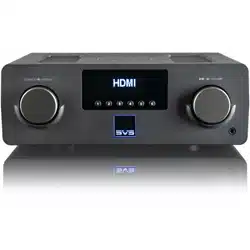
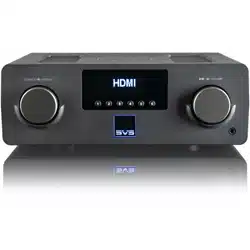
A
B
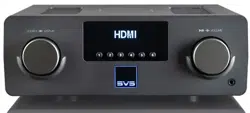
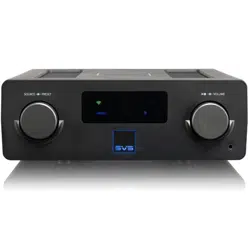
Front Panel Display
LED backlighting indicates the
selected audio source (Wi-Fi,
Bluetooth, Optical or Auxiliary) and
preset (1-6).
C
Play, Pause
& Volume Control
Rotate the knob to adjust volume.
Press the knob to pause/un-pause.
D
Headphone Output
Connect headphones for private
listening.
C D
1
1. Connect Left and Right speaker cables to +/- terminals on
your loudspeakers.
2. Connect speakers to matching Prime Wireless SoundBase
Left and Right +/- terminals
1
via bare wire, banana plugs
or spades.
Connecting Speakers to Prime Wireless SoundBase
Connecting Speakers to Prime Wireless SoundBase
1. Connect RCA interconnect to proper input on AV receiver or
Preamp Input.
2. Connect opposite end of RCA Interconnect to SVS Prime
Wireless Soundbase RCA Output
7
.
Connecting Prime Wireless SoundBase as a Source for an A/V Receiver or Preamp
Connecting Prime Wireless SoundBase as a Source for an A/V Receiver or Preamp
Left Speaker
Right Speaker
7
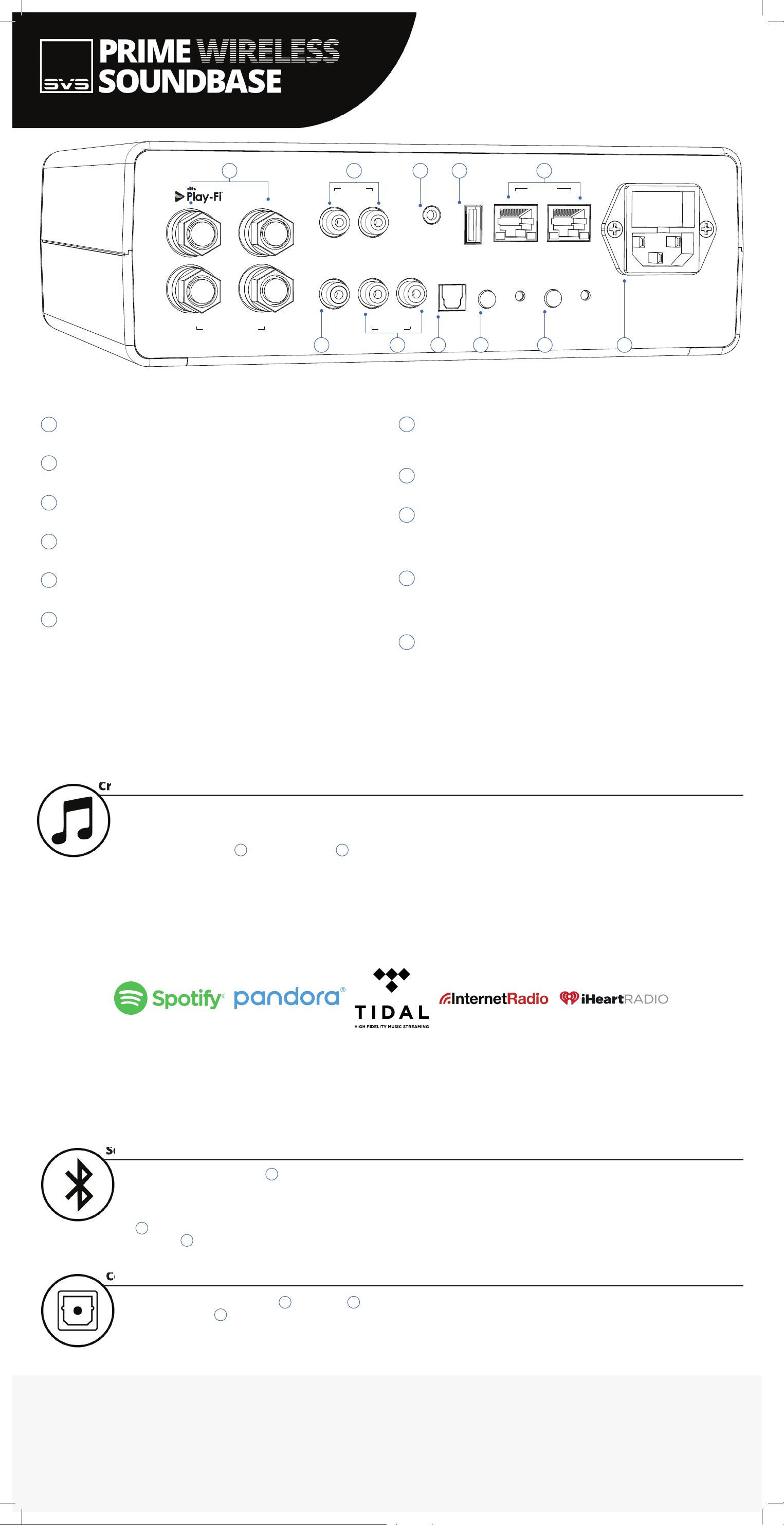
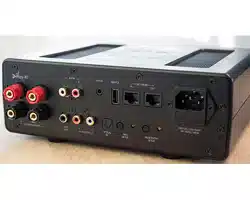
L/R Speaker Binding Posts
Connect speakers via speaker cables or wire.
L/R AUX In
Connect any stereo source that has a left and right stereo analog output.
3.5mm AUX In
Connect to headphone outputs of smartphones, tablets or other audio devices.
Service
For firmware updates and for powering or charging USB devices.
In/Out Network
Connect standard Ethernet cable for hard-wired Internet connection.
Sub Out
Add a subwoofer using standard audio interconnect cable (not included) or the
optional SVS SoundPath Wireless Kit.
SUB
OUT
L R
AUX IN
WIFI
SETUP
OPTICAL
INAUX OUT
L R
AUX IN
R L
SPEAKER OUTPUTS
SERVICE NETWORK
IN OUT
BLUETOOTH
SETUP
+
_
100-120 / 220-240V~
50 / 60Hz, 300W
L/R AUX Out
Connect Prime Wireless SoundBase as a source for an existing device like
an AV receiver or Preamp.
Optical In
Connect sources with optical digital outputs such as a TV or game console.
Wi-Fi Setup
Puts Prime Wireless SoundBase into Wi-Fi set-up mode and shows status
of wireless connection. Blinking yellow light indicates set-up mode, solid
light means it’s set-up and ready to use.
Bluetooth Setup
Puts Prime Wireless SoundBase in Bluetooth pairing mode and shows
status of Bluetooth connection. Blinking blue light indicates pairing mode,
solid light means it’s connected and ready to use.
AC Power Cord Input
3 4
6 8 9 10 11
2 5
7
1
1
2
3
4
5
6
7
8
9
10
11
Connections and Controls
The full SVS Prime Wireless SoundBase owner’s manual can be found here:
www.svsound.com/prime-wireless-manual
1. Connect your device to the Optical In
8
or L/R AUX In
2
inputs or the AUX In
3
on your Prime Wireless SoundBase.
2. Select the input by rotating the left control knob – the source
will be displayed on the front panel.
Connecting Devices via AUX and Optical Inputs
Connecting Devices via AUX and Optical Inputs
3. Operate connected device as normal.
4. Volume can be controlled from the Play-Fi app.
1. Press the Bluetooth Setup button
10
once to activate
Bluetooth pairing. This is indicated when the blue LED on the
rear panel goes from slow to a rapid blinking.
2. Select Bluetooth as your source by rotating the left knob
A
until the Bluetooth logo on the front panel display is
highlighted
B
.
Setting Up Bluetooth
Setting Up Bluetooth
3. View Bluetooth settings on your smartphone or tablet and select “SVS AMPLIFIER ...”
4. Confirm pairing when the light stops blinking and remains on. You can now stream
music services and audio content from your device any time you select Bluetooth
as your source.
Owner Support
For help with connecting your SVS Prime Wireless SoundBase, using the Play-Fi
App or anything else, SVS Sound Experts are available 7 days a week.
Current services available as presets. More options coming soon, check svsound.com/products/prime-wireless-soundbase for updates.
Up to six presets are available for instant access to your favorite streaming music channels, playlists and other content.
1. From the Play-Fi app, start the streaming service you want to set as a preset.
2. Press the left control knob A
to select which preset
B
you want to set (1-6). Each press will move to the next preset.
3. When desired preset number is selected, press and hold the preset knob for three seconds. The preset number will fl ash several
times then stay on to confi rm, and music will resume playing.
4. Follow instructions above for the remaining fi ve presets.
5. You can now access your favorite content by pressing the left knob to toggle through your presets at any time.
To reset a preset, repeat the steps 1 - 5.
NOTE: It takes a few seconds for the preset to connect to music services from your Wi-Fi network. This is normal.
Create Custom Presets
Create Custom Presets