MHC-V71
MHC-V71.US.4-735-851-11(1)
Home Audio System
Operating Instructions
Getting Started
Disc/USB Playback
USB Transfer
Tuner
BLUETOOTH Connection
Gesture Control
Sound Adjustment
Other Operations
Additional Information
2
US
MHC-V71.US.4-735-851-11(1)
For the customers in the USA
Owner’s Record
The model and serial numbers are
located on the rear of the unit. Record
these numbers in the spaces provided
below. Refer to them whenever you
call upon your Sony dealer regarding
this product.
Model No.
Serial No.
WARNING
To reduce the risk of fire or
electric shock, do not expose this
apparatus to rain or moisture.
To reduce the risk of fire, do not
cover the ventilation opening of
the appliance with newspapers,
tablecloths, curtains, etc.
Do not expose the appliance to naked
flame sources (for example, lighted
candles).
To reduce the risk of fire or electric
shock, do not expose this appliance
to dripping or splashing, and do not
place objects filled with liquids, such as
vases, on the appliance.
As the main plug is used to disconnect
the unit from the mains, connect the
unit to an easily accessible AC outlet.
Should you notice an abnormality in
the unit, disconnect the main plug
from the AC outlet immediately.
Do not install the appliance in a
confined space, such as a bookcase or
built-in cabinet.
The unit is not disconnected from the
mains as long as it is connected to the
AC outlet, even if the unit itself has
been turned off.
Indoor use only.
CAUTION
Risk of explosion if the battery is
replaced by an incorrect type.
Do not expose batteries or appliances
with battery-installed to excessive
heat, such as sunshine and fire.
CAUTION
The use of optical instruments with
this product will increase eye hazard.
FOR UNITED STATES
CUSTOMERS. NOT APPLICABLE
IN CANADA, INCLUDING IN THE
PROVINCE OF QUEBEC.
POUR LES CONSOMMATEURS
AUX ÉTATS-UNIS. NON
APPLICABLE AU CANADA, Y
COMPRIS LA PROVINCE DE
QUÉBEC.
For the customers in the USA
CAUTION
You are cautioned that any changes or
modifications not expressly approved
in this manual could void your
authority to operate this equipment.
This symbol is intended to
alert the user to the
presence of uninsulated
“dangerous voltage” within
the product’s enclosure
that may be of sufficient
magnitude to constitute a
risk of electric shock to
persons.
This symbol is intended to
alert the user to the
presence of important
operating and maintenance
(servicing) instructions in
the literature
accompanying the
appliance.

3
US
MHC-V71.US.4-735-851-11(1)
Important Safety Instructions
1) Read these instructions.
2) Keep these instructions.
3) Heed all warnings.
4) Follow all instructions.
5) Do not use this apparatus near
water.
6) Clean only with dry cloth.
7) Do not block any ventilation
openings. Install in accordance
with the manufacturer’s
instructions.
8) Do not install near any heat
sources such as radiators,
heat registers, stoves, or other
apparatus (including amplifiers)
that produce heat.
9) Do not defeat the safety purpose
of the polarized or grounding-type
plug. A polarized plug has two
blades with one wider than the
other. A grounding type plug has
two blades and a third grounding
prong. The wide blade or the
third prong are provided for your
safety. If the provided plug does
not fit into your outlet, consult an
electrician for replacement of the
obsolete outlet.
10) Protect the power cord from being
walked on or pinched particularly
at plugs, convenience receptacles,
and the point where they exit from
the apparatus.
11) Only use attachments/accessories
specified by the manufacturer.
12) Use only with the cart, stand,
tripod, bracket, or table specified
by the manufacturer, or sold with
the apparatus. When a cart is used,
use caution when moving the cart/
apparatus combination to avoid
injury from tip-over.
13) Unplug this apparatus during
lightning storms or when unused
for long periods of time.
14) Refer all servicing to qualified
service personnel. Servicing is
required when the apparatus has
been damaged in any way, such
as power-supply cord or plug is
damaged, liquid has been spilled
or objects have fallen into the
apparatus, the apparatus has been
exposed to rain or moisture, does
not operate normally, or has been
dropped.
NOTE:
This equipment has been tested
and found to comply with the limits
for a Class B digital device, pursuant
to Part 15 of the FCC Rules. These
limits are designed to provide
reasonable protection against
harmful interference in a residential
installation. This equipment generates,
uses and can radiate radio frequency
energy and, if not installed and used
in accordance with the instructions,
may cause harmful interference to
radio communications. However, there
is no guarantee that interference will
not occur in a particular installation.
If this equipment does cause harmful
interference to radio or television
reception, which can be determined
by turning the equipment off and on,
the user is encouraged to try to correct
the interference by one or more of the
following measures:
— Reorient or relocate the receiving
antenna.
— Increase the separation between
the equipment and receiver.
— Connect the equipment into an
outlet on a circuit different from that
to which the receiver is connected.
— Consult the dealer or an
experienced radio/TV technician
for help.

4
US
MHC-V71.US.4-735-851-11(1)
CAUTION
Properly shielded and grounded
cables and connectors must be used
for connection to host computers
and/or peripherals in order to meet
FCC emission limits.
This equipment must not be
co-located or operated in conjunction
with any other antenna or transmitter.
This equipment complies with FCC
radiation exposure limits set forth
for an uncontrolled environment and
meets the FCC radio frequency (RF)
Exposure Guidelines. This equipment
should be installed and operated
keeping the radiator at least 20 cm or
more away from person’s body.
For the customers in Canada
Properly shielded and grounded
cables and connectors must be used
for connection to host computers
and/or peripherals.
This device complies with Industry
Canada’s licence-exempt RSSs.
Operation is subject to the following
two conditions:
(1) This device may not cause
interference; and
(2) This device must accept any
interference, including interference
that may cause undesired operation of
the device.
This equipment complies with IC
radiation exposure limits set forth
for an uncontrolled environment
and meets RSS-102 of the IC radio
frequency (RF) Exposure rules. This
equipment should be installed and
operated keeping the radiator at least
20 cm or more away from person’s
body.
License and Trademark Notice
• “CD” logo is trademark.
• WALKMAN® and WALKMAN® logo
are registered trademarks of Sony
Corporation.
• MPEG Layer-3 audio coding
technology and patents licensed
from Fraunhofer IIS and Thomson.
• Windows Media is either a
registered trademark or trademark
of Microsoft Corporation in
the United States and/or other
countries.
• This product is protected by
certain intellectual property rights
of Microsoft Corporation. Use or
distribution of such technology
outside of this product is prohibited
without a license from Microsoft or
an authorized Microsoft subsidiary.
• LDAC™ and LDAC logo are
trademarks of Sony Corporation.
• The BLUETOOTH® word mark and
logos are registered trademarks
owned by the Bluetooth SIG, Inc.
and any use of such marks by Sony
Corporation is under license. Other
trademarks and trade names are
those of their respective owners.
• The N-Mark is a trademark or
registered trademark of NFC Forum,
Inc. in the United States and in other
countries.
• Android, Google Play, and the
Google Play logo are trademarks of
Google LLC.
• Apple, iPhone, iPod touch, and
Siri are trademarks of Apple Inc.,
registered in the U.S. and other
countries. App Store is a service
mark of Apple Inc., registered in the
U.S. and other countries.

5
US
MHC-V71.US.4-735-851-11(1)
• Use of the Made for Apple badge
means that an accessory has been
designed to connect specifically to
the Apple product(s) identified in
the badge, and has been certified
by the developer to meet Apple
performance standards. Apple is not
responsible for the operation of this
device or its compliance with safety
and regulatory standards.
• All other trademarks are trademarks
of their respective owners.
• In this manual, ™ and ® marks are
not specified.
About this manual
••
This manual mainly explains
operations using the remote
control, but the same operations
can also be performed using the
keys on the touch panel of the unit
having the same or similar names.
••
Icons, such as , listed at the
top of each explanation indicate
the type of media that can be used
with the function being explained.
••
Some illustrations are presented
as conceptual drawings, and
may be different from the actual
products.
••
The text enclosed in double
quotation mark (“--”) appears on
the display.

MHC-V71.US.4-735-851-11(1)
6
US
Table of Contents
About this manual ................. 5
Unpacking ..............................8
Playable discs or files on
discs/USB device ...................8
Websites for compatible
devices ................................. 10
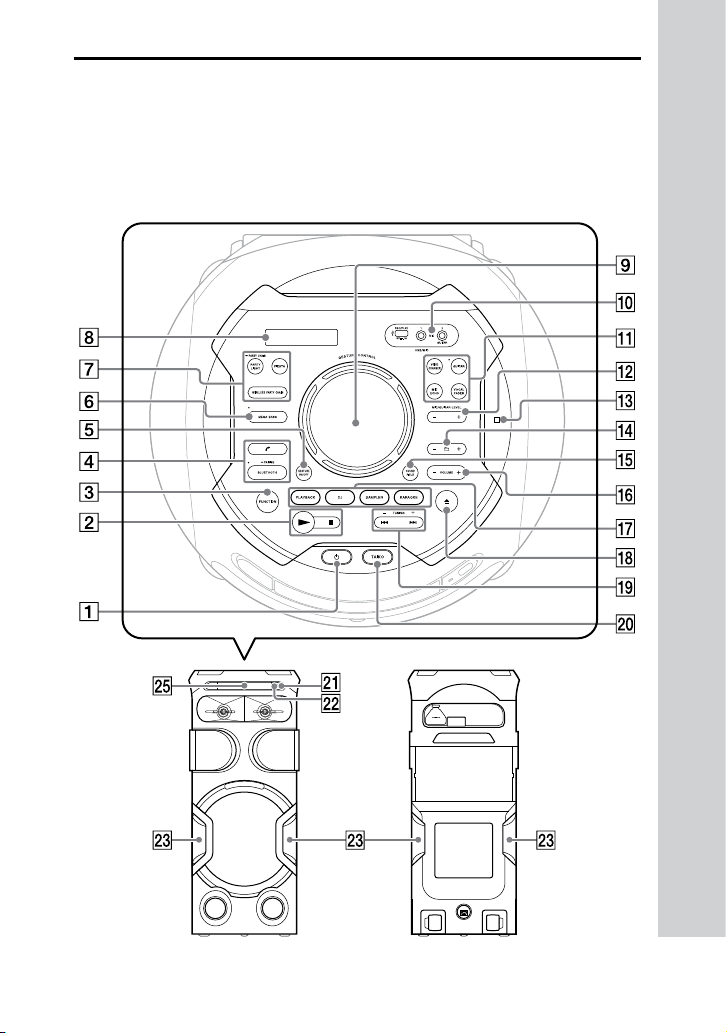
Guide to parts and
controls ................................. 11
Getting Started
Hooking up the system
securely .................................15
Deactivating the
demonstration ......................16
Inserting batteries ................16
Listening to TV sound via the
system ...................................17
Carrying the unit ...................18
Changing the display
mode .....................................18
Disc/USB Playback
Before using the USB
device ....................................19
Basic playback ......................19
Using play mode .................. 20
Viewing information on the
display ..................................20
USB Transfer
Before using the USB
device ....................................21
Transferring music ................21
Tuner
Listening to the radio ........... 24
BLUETOOTH Connection
About the BLUETOOTH
wireless technology ............. 25
Pairing this system with a
BLUETOOTH device .............. 25
Listening to music on a
BLUETOOTH device .............. 26
Connecting this system with
multiple BLUETOOTH devices
(Multi-device connection) ... 27
One Touch BLUETOOTH
Connection by NFC ..............28
Setting the BLUETOOTH
audio codecs ........................29
Setting the BLUETOOTH
standby mode ...................... 29
Turning on or off the
BLUETOOTH signal ............... 30
Controlling the system using
a smartphone or tablet
(Sony | Music Center) ...........30
Getting frenzied parties with
the “Fiestable” app ................31

MHC-V71.US.4-735-851-11(1)
7
US
Achieving and sharing a
Party People ranking and
getting bonus features with
Party King ..............................31
Gesture Control
Enjoying the Gesture
Control ................................. 32
Using the Gesture Control
during playback ................... 33
Creating a party atmosphere
(DJ Effect) ............................. 33
Using the Gesture Control
during Karaoke function ......34
Sound Adjustment
Adjusting the sound ............ 35
Selecting the Virtual Football
mode .................................... 35
Creating your own sound
effect ....................................36
Other Operations
Enjoying wired playback using
multiple systems (Wired
Party Chain function) ........... 36
Enjoying wireless playback
using multiple systems
(Wireless Party Chain
function) ..............................40
Listening to music wirelessly
with two systems (Speaker
Add function) ....................... 42
Enjoying hands-free calls ....44
Using the Voice Assist
function on smartphone ...... 45
Singing along: Karaoke ........ 46
Enjoying sound from a
guitar .................................... 47
Playing the drum (Taiko) ...... 47
Enjoying music with the Party
Light and Speaker Light ....... 49
Using the Sleep Timer ..........49
Using the Voice Guidance .... 49
Using optional equipment ...50
Deactivating the touch panel
on the unit (Child Lock) ........50
Deactivating the touch panel
on the unit for a short time
(Party Lock) ...........................51
Setting the automatic
standby function...................51
Updating the software .......... 51
Additional Information
Troubleshooting .................. 52
Precautions .......................... 58
Specifications .......................60

MHC-V71.US.4-735-851-11(1)
8
US
Unpacking
••
This unit (MHC-V71) (1)
••
Remote control (1)
••
R03 (size AAA) batteries (2)
••
FM lead antenna (1)
••
AC power cord (mains lead) (1)
Note
When unpacking the carton, be sure that
two people handle the unit. Dropping the
unit may cause personal injury and/or
property damage.
Playable discs or files
on discs/USB device
Playable discs
••
AUDIO CD
••
CD-R/CD-RW in AUDIO CD format
Playable files on discs
MP3 files (.mp3)
1)2)
Playable files on USB device
MP3 files (.mp3)
1)2)
, WMA files
(.wma)
2)
, AAC files (.m4a/.mp4/
.3gp)
2)
, WAV files (.wav)
2)
Note
••
The CD-ROM/-R/-RW must be in DATA
CD format that contains the MP3
1)2)
files,
and conforms to ISO 9660
3)
Level 1/
Level 2 or Joliet (extended format).
••
The system will attempt to play back
any data with the extensions above,
even if it is not in the supported format.
Playing this data may generate a
loud noise which could damage your
speaker system.
1)
MP3 (MPEG 1 Audio Layer 3) is a
standard format defined by ISO/
MPEG for compressed audio data. MP3
files must be in MPEG 1 Audio Layer 3
format.
2)
Files with copyright protection (Digital
Rights Management) cannot be played
back by the system.
3)
A logical format of files and folders
on CD-ROMs, defined by ISO
(International Organization for
Standardization).
Discs/files that cannot be played
back
••
You cannot play back the
following discs
•—
Data part of CD-Extra or Mixed
Mode CDs*
•—
CD Graphics disc
•—
Super Audio CDs
•—
DATA CD that is created in Packet
Write format
•—
DATA CD which has not been
correctly finalized
•—
A disc that has a non-standard
shape (e.g., heart, square, star)
•—
A disc that has adhesive tape,
paper, or a sticker attached to it
••
You cannot play back the
following files
•—
A WMA file in WMA DRM, WMA
Lossless, or WMA PRO format.
•—
An AAC file in AAC DRM or AAC
Lossless format.
•—
The AAC files which is encoded
at 96 kHz.
•—
Files that are encrypted or
protected by passwords.
•—
Files with DRM (Digital Rights
Management) copyright
protection.
••
The MP3 PRO audio file can be
played back as MP3 file.
* Mixed Mode CD: This format records
data on the first track and audio (AUDIO
CD data) on the second and subsequent
tracks of a session.

MHC-V71.US.4-735-851-11(1)
9
US
Notes on CD-R/-RW
In some cases, a CD-R/-RW cannot
be played back on this system
due to the recording quality or
physical condition of the disc, or
the characteristics of the recording
device and authoring software.
For more information, refer to
the operating instructions of the
recording device.
Notes on discs
••
This product is designed to play
back discs that conform to the
Compact Disc (CD) standard.
••
DualDisc and some music discs
encoded with copyright protection
technologies do not conform to
the CD standard. Therefore, these
discs may not be compatible with
this product.
Note on multisession disc
••
This system can play back
multisession discs when an
MP3 file is contained in the first
session. Any subsequent MP3 files
recorded in later sessions can also
be played back (If later sessions
contain AUDIO CD format, the
system cannot play back this
multisession discs).
••
If the first session is recorded in
AUDIO CD format, only the first
session will be played back.
Notes on playable files
••
Playback may take a longer time
to start when:
•—
a DATA CD/USB device is
recorded with a complicated
tree structure.
•—
the audio files in another folder
have just been played back.
••
The system can play back a DATA
CD or a USB device in the following
conditions:
•—
up to a depth of 8 folders
•—
up to 300 folders
•—
up to 999 files in a disc
•—
up to 2,000 files in a USB device
•—
up to 650 files in a folder
These numbers may vary
depending on the file or folder
configuration.
••
Folders that have no audio files
are skipped.
••
Files transferred by a device such
as a computer may not be played
back in the order in which they
were transferred.
••
The playback order may not be
applicable depending on the
software used for creating the
audio file.
••
Compatibility with all encoding/
writing software of the supported
formats, recording devices,
and recording media cannot be
guaranteed.
Notes about USB devices
••
This system is not guaranteed to
operate with all USB devices.
••
Although there are a variety
of complex functions for USB
devices, the playable contents
of USB devices connected to the
system are music contents only.
For details, refer to the operating
instructions of the USB device.
••
When a USB device is inserted,
the system reads all the files on
the USB device. If there are many
folders or files on the USB device,
it may take a long time to finish
reading the USB device.

MHC-V71.US.4-735-851-11(1)
10
US
••
Do not connect the system and
the USB device through a USB hub.
••
With some connected USB
devices, there may be a delay
before an operation is performed
by this system.
••
The playback order for the system
may differ from the playback order
of the connected USB device.
••
Before using a USB device, make
sure that no virus-ridden files are
on the USB device.
Websites for
compatible devices
Check the websites below for the
latest information about compatible
USB and BLUETOOTH devices.
For customers in the United States:
<https://esupport.sony.com/US/>
For customers in Canada:
<http://esupport.sony.com/CA/>
Compatible iPhone/iPod models
The compatible iPhone/iPod models
are as follows. Update your iPhone/
iPod with the latest software before
using with the system.
Made for
••
iPhone X
••
iPhone 8
••
iPhone 8 Plus
••
iPhone 7
••
iPhone 7 Plus
••
iPhone SE
••
iPhone 6s
••
iPhone 6s Plus
••
iPhone 6
••
iPhone 6 Plus
••
iPhone 5s
••
iPhone 5c
••
iPhone 5
••
iPhone 4s
••
iPod touch (6th generation)
••
iPod touch (5th generation)

MHC-V71.US.4-735-851-11(1)
12
US
(power) button
Press to turn on the system, or
set it to standby mode.
(play) key
— Touch to start playback.
— Touch and hold for more
than 2 seconds, the built-in
sound demonstration will be
played back. Touch to stop
the demonstration.
• (stop) key
— Touch to stop playback.
When touched twice, resume
playback can be canceled.
— Touch to stop transfer during
music transfer.
— Touch to stop the built-in
sound demonstration.
FUNCTION key
Touch to select a function.
BLUETOOTH indicator
(page25)
BLUETOOTH key (page 26, 27)
PAIRING key
Touch and hold to activate
BLUETOOTH pairing during the
BLUETOOTH function.
(call) key
Touch to receive/end a call
when using the handsfree call
function with your BLUETOOTH-
connected mobile phone
(page 44).
GESTURE ON/OFF key
(page 32)
MEGA BASS indicator
Lights up when MEGA BASS
sound effect is selected.
MEGA BASS key (page 35)
WIRELESS PARTY CHAIN key
(page 41)
PARTY CHAIN key
Touch and hold to activate Wired
Party Chain (page 39)
PARTY LIGHT key (page 49)
FIESTA key (page 35)
Display
GESTURE CONTROL sensor
(page 32)
The jacks/ports are inside a
cover.
Push to open the cover.
(USB) REC/PLAY port
Use to connect a USB device.
This port can be used for both
playback and music transfer.
MIC1 jack
Use to connect the microphone.
MIC2/GUITAR jack
Use to connect the microphone
or guitar.
VOICE CHANGER key
(page 47)
GUITAR indicator
Lights up when guitar mode is
turned on.
GUITAR key (page 47)

MHC-V71.US.4-735-851-11(1)
13
US
VOCAL FADER key (page 46)
MIC ECHO key (page 46)
MIC/GUITAR LEVEL +/– key
(page 46, 47)
(N-Mark) (page 28)
+/– (select folder) key
Touch to select a folder on a
data disc or a USB device.
SOUND FIELD key (page 35)
VOLUME +/– key
Touch to adjust the volume.
PLAYBACK key (page 33)
DJ key (page 33)
SAMPLER key (page 33)
KARAOKE key (page 34)
(open/close) key
Touch to open or close the disc
tray.
/ (go backward/go
forward) key (page 19)
TUNING +/– key (page 24)
TAIKO button (page 48)
Remote control sensor
(page16)
Built-in microphone (page44)
Party Light (page49)
Do not look directly at the light-
emitting part when the Party
Light is turned on.
Disc tray
Remote control
(power)
Turns on the system, or sets it to
standby mode.
PLAY MODE (page 20, 22)
REPEAT/FM MODE (page 20,
24)
PARTY LIGHT (page 18, 49)
LIGHT MODE (page 49)

MHC-V71.US.4-735-851-11(1)
14
US
REC TO USB
Transfers music to the USB
device connected to the
(USB)
port.
TUNER MENU (page 24)
BACK
Returns to the previous display.
OPTIONS
Enters or exits options menu.
/
Selects the menu items.
+/– (select folder)
Selects a folder on a data disc or
a USB device.
(enter)
Enters or confirms the settings.
FUNCTION
Selects a function.
MEGA BASS (page 35)
SOUND FIELD (page 35)
/ (fast reverse/fast
forward) (page 19)
TUNING+/– (page 24)
(play) *
Starts playback.
/ (go backward/go
forward) (page 19)
PRESET+/– (page 24)
(pause)
Pauses playback. To resume
playback, press .
(stop)
— Stops playback.
When pressed twice, resume
playback can be canceled.
— Stops transfer during music
transfer.
— Stops the built-in sound
demonstration.
KEY CONTROL / (page 46)
VOL (volume) +/– *
Adjusts the volume.
MIC ECHO (page 46)
VOCAL FADER (page 46)
SCORE (page 47)
DISPLAY (page 16, 18, 20, 26)
Changes the information on the
display.
SLEEP (page 49)
* The and VOL + buttons have a
tactile dot. Use the tactile dot as a
reference when operating the system.

Getting Started
MHC-V71.US.4-735-851-11(1)
15
US
Getting Started
Hooking up the system securely
Unit (Rear)
Note
The jacks/terminal at the rear panel have cover, open the cover then make the
connection.
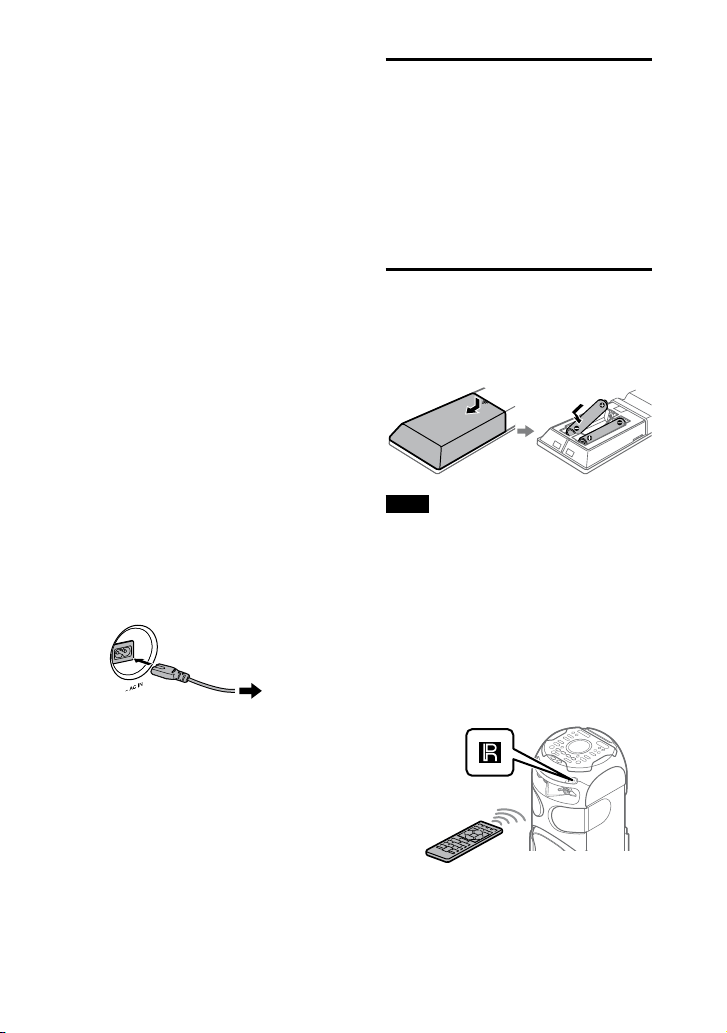
FM ANTENNA terminal
Find a location and an
orientation that provide good
reception when you set up the
antenna.
Keep the antenna away from the
AC power cord (mains lead) and
the USB cable to avoid picking
up noise.
Extend the FM lead
antenna horizontally
MHC-V71.US.4-735-851-11(1)
16
US
Audio input and output jacks
Use an audio cable (not supplied)
to make either connection as
follows:
••
AUDIO/PARTY CHAIN IN L/R
jacks
•—
Connect to the audio output
jacks of a TV or an audio/
video equipment. The
sound is output through this
system.
•—
Connect to another audio
system to enjoy the Wired
Party Chain function
(page36).
••
AUDIO/PARTY CHAIN OUT
L/R jacks
•—
Connect to the audio
input jacks of an optional
equipment.
•—
Connect to another audio
system to enjoy the Wired
Party Chain function
(page36).
AC power cord (mains lead)
Connect the AC power cord
(mains lead) (supplied) to the
unit, then to the wall outlet.
To wall
outlet
The demonstration (page 18)
starts automatically. If you press
(power) to turn on the system,
the demonstration ends.
Deactivating the
demonstration
To deactivate the demonstration
while the system is turned off, press
DISPLAY repeatedly to select the no
display mode (Power Saving Mode)
(page18).
Inserting batteries
Insert the two supplied R03 (size
AAA) batteries, matching the
polarities shown below.
Note
••
Do not mix an old battery with a new
one or mix different types of batteries.
••
If you do not use the remote control
for a long period of time, remove the
batteries to avoid damage from battery
leakage and corrosion.
To operate the system using the
remote control
Point the remote control at the unit’s
remote control sensor.
Getting Started
MHC-V71.US.4-735-851-11(1)
17
US
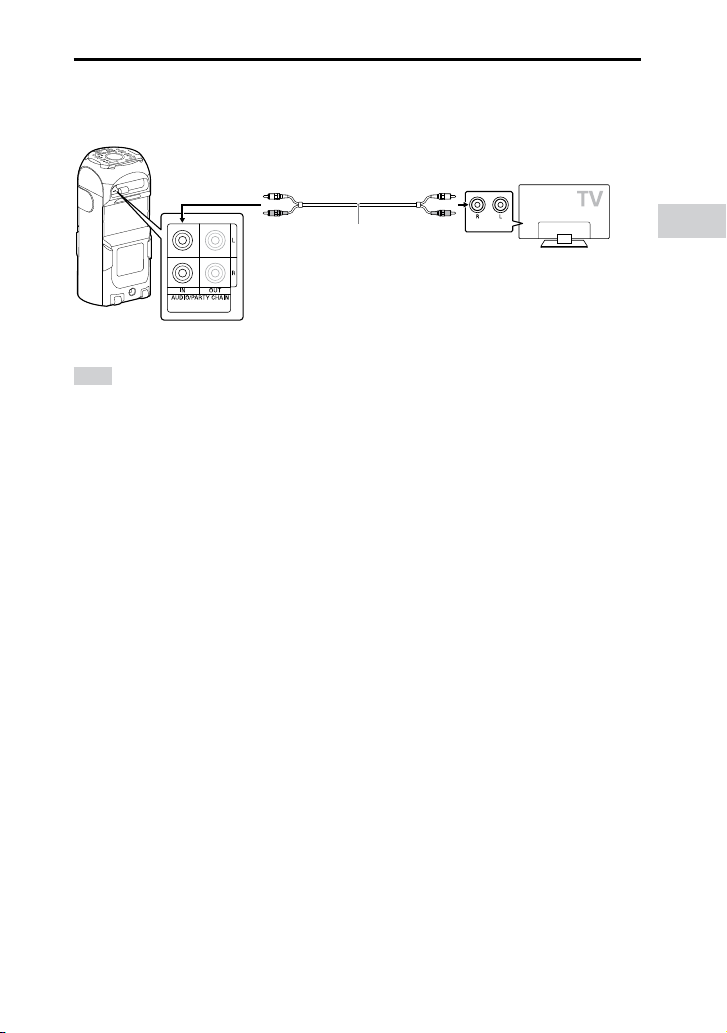
Listening to TV sound via the system
Before connecting cables, be sure to disconnect the AC power cord (mains
lead).
AUDIO OUT
To listen to TV sound, press FUNCTION repeatedly to select “AUDIO IN”.
Hint
••
You can also enjoy the sound of external equipment (DVD players, etc.) via the system
by connecting to the AUDIO/PARTY CHAIN IN L/R jacks. For details, refer to the
operating instructions of your equipment.
••
If the audio output level from the system is low when connecting the external
equipment, try adjusting the audio output settings on the connected equipment. It
may improve the audio output level. For details, refer to the operating instructions of
your equipment.
Audio cable (not supplied)

MHC-V71.US.4-735-851-11(1)
18
US
Carrying the unit
The unit has caster wheels so that
you can roll it easily. Normally,
carrying the unit by this method is
recommended on flat surfaces.
Before carrying the unit, disconnect
all the cables.
Note
••
The caster wheels can be used only on
flat surfaces. Lift the unit by two people
on uneven surfaces. Correct hand
placement while carrying the unit is
very important to avoid personal injury
and/or property damage. Be sure to use
the handle when lifting the unit.
Handle
••
Exercise extreme caution when carrying
the unit on a slope.
••
Do not carry the unit with a person,
luggage, etc. on it.
••
Do not let children or infants be near
when carrying the unit.
Changing the display
mode
Press DISPLAY repeatedly while
the system is turned off.
Each time you press the button, the
display mode changes as follows:
Demonstration
The messages about the main
features of this system scrolls across
the display and the illumination
turns on.
To turn off the illumination, press
PARTY LIGHT.
No display (Power Saving Mode)
The display and the illumination are
turned off to conserve power.
Disc/USB Playback
MHC-V71.US.4-735-851-11(1)
19
US
Disc/USB Playback
Before using the USB
device
For compatible USB devices, see
“Websites for compatible devices”
(page10).
(You can use your iPhone/iPod
with this system via BLUETOOTH
connection only.)
Basic playback
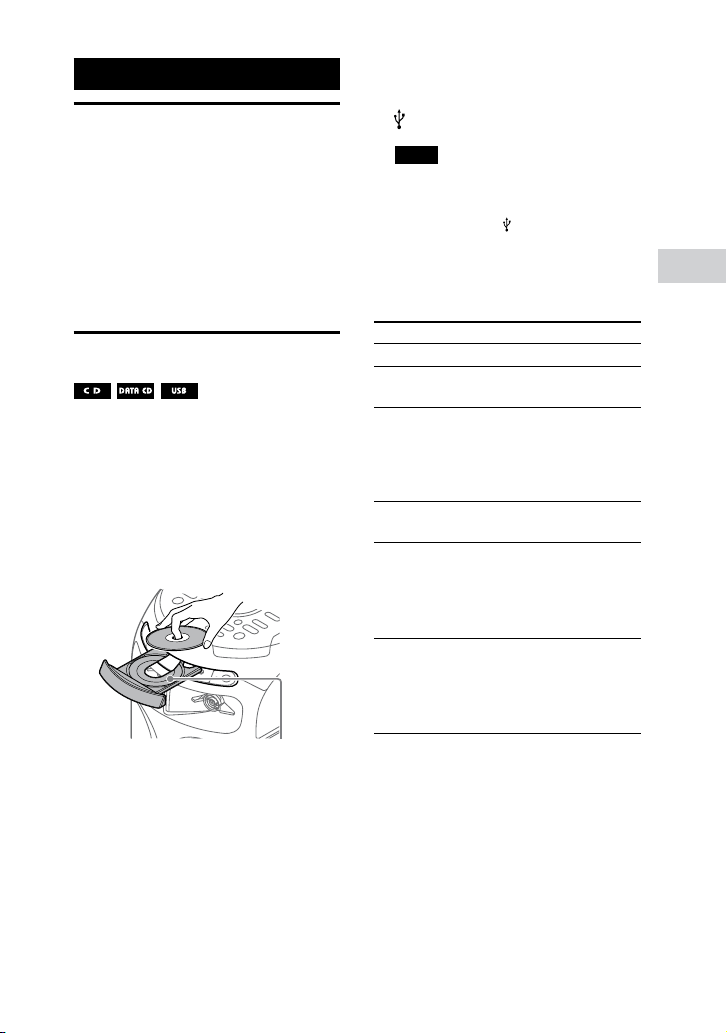
1 Press FUNCTION repeatedly to
select “CD” or “USB”.
2 Prepare the playback source.
For CD function:
Touch on the unit to open the
disc tray and load a disc with the
label facing up on the disc tray.
When you play back an 8 cm disc
such as a CD single, place it on
the inner circle of the tray.
Touch on the unit again to close
the disc tray.
Do not forcibly push the disc tray to
close it as this may cause a
malfunction.
For USB function:
Push to open the USB/MIC cover,
then connect a USB device to the
(USB) port.
Note
You can use a USB adaptor (not
supplied) to connect the USB device
to the unit if the USB device cannot be
plugged into the
(USB) port.
3 Press to start playback.
Other operations
To Do this
Stop playback Press .
Pause
playback
Press .
Resume
playback or
return to
normal
playback
Press .
Cancel the
resume point
Press twice.
Select a track
or file
Press or
during playback.
(Operation might be
prohibited by disc or
USB device.)
Locate a point
quickly in fast
forward or fast
reverse (Lock
Search)
Press or
during playback.
To use the Gesture Control
during playback
See “Using the Gesture Control
during playback” (page33).

MHC-V71.US.4-735-851-11(1)
20
US
Using play mode
Playing in sequential order
(Normal Play)
When playback is stopped, press
PLAY MODE repeatedly.
The following indicator lights up on
the display.
••
(None): plays the disc or USB
device.
••
“FLDR”*: plays all playable files in
the specified folder on the disc or
USB device.
* Cannot be selected for AUDIO CD.
Playing in random order
(Shuffle Play)
When playback is stopped, press
PLAY MODE repeatedly.
The following indicators light up on
the display.
••
“SHUF”: shuffles all playable files
on the disc or USB device.
••
“FLDR SHUF”*: shuffles all playable
files in the specified folder on the
disc or USB device.
* Cannot be selected for AUDIO CD.
Note
••
Shuffle Play is canceled when you:
— open the disc tray.
— perform Synchronized Transfer.
••
Shuffle Play may be canceled when you
select a folder or a track to play back.
Playing repeatedly (Repeat
Play)
Press REPEAT repeatedly.
The following indicators light up on
the display.
••
“ ”: repeats all tracks or audio
files on a folder/disc/USB device.
••
“ ”: repeats a track or audio file.
Note
Repeat Play is canceled when you:
— open the disc tray.
— perform Synchronized Transfer.
Viewing information on
the display
Press DISPLAY repeatedly when
the system is on.
You can view the information as
follows:
•—
playing time/remaining time of
track, file, disc
•—
file name, folder name
•—
title, artist name and album name
Note
••
The disc name or track name may
not be displayed depending on the
characters.
••
Playing time of audio files may not be
displayed correctly.
••
The elapsed playing time for an audio
file encoded using a VBR (variable bit
rate) is not displayed correctly.
USB Transfer
MHC-V71.US.4-735-851-11(1)
21
US
USB Transfer
Before using the USB
device
For compatible USB devices, see
“Websites for compatible devices”
(page10).
(You can use your iPhone/iPod
with this system via BLUETOOTH
connection only.)
Transferring music
You can transfer music from a disc
(AUDIO CD or MP3 disc only) to a
USB device connected to the
(USB)
port.
The audio format of files transferred
by this system is MP3.
Note
••
Do not remove the USB device during
transfer or erase operations. Doing so
may corrupt the data on the USB device
or damage the USB device itself.
••
MP3 files are transferred with the same
bit rate as the original files.
••
When transferring from AUDIO CD,
you may select the bit rate before
transferring.
••
USB transfer and erase operations are
prohibited when the disc tray is opened.
Note on copyright-protected content
The transferred music is limited to private
use only. Use of the music beyond this
limit requires permission of the copyright
holders.
To select the bit rate
You can select a higher bit rate to
transfer music with better quality.
1 Press OPTIONS.
2 Press / repeatedly to select
“BIT RATE”, then press .
3 Press / repeatedly to select
the bit rate you want, then press
.
••
“128 KBPS”: encoded MP3 files
have smaller file size and lower
audio quality.
••
“256 KBPS”: encoded MP3 files
have bigger file size but higher
audio quality.
To exit the options menu, press
OPTIONS.
Transferring music from a disc
You can transfer music to a USB
device connected to
(USB) port as
follows:
••
Synchronized Transfer: Transfer
all tracks or MP3 files from a disc
to USB.
••
REC1 Transfer: Transfer a single
track or MP3 file during playback.
1 Connect a transferable USB
device to the
(USB) port on the
unit.
Note
You can use a USB adaptor (not
supplied) to connect the USB device
to the unit if the USB device cannot be
plugged into the
(USB) port.
2 Press FUNCTION repeatedly to
select “CD”, then load a disc.

MHC-V71.US.4-735-851-11(1)
22
US
3 Prepare the sound source.
Synchronized Transfer:
If the system starts playback
automatically, press twice to stop
the playback fully.
When playback is stopped, press
PLAY MODE repeatedly to select the
play mode you want.
Note
If you start transferring in Shuffle Play
or Repeat Play, the selected play mode
changes to Normal Play automatically.
REC1 Transfer:
Select the track or MP3 file you want
to transfer, then start playback.
4 Press REC TO USB.
“PUSH ENTER” appears on the
display.
5 Press .
The transfer starts, then “DO NOT
REMOVE” appears on the display.
Do not remove the USB device until
the transfer is complete.
When the transfer is complete, the
system performs as follows:
Synchronized Transfer:
The disc stops automatically.
REC1 Transfer:
The disc continues to play the next
track or file.
To stop transfer
Press .
Notes on transfer
••
While transferring, no sound is output.
••
CD-TEXT information is not transferred
to the created MP3 files.
••
The transfer stops automatically if:
— the USB device runs out of space
during transfer.
— the number of audio files or folders
on the USB device reaches the limit
that the system can recognize.
••
If a folder or file that you are trying
to transfer already exists on the
USB device with the same name, a
sequential number is added after the
name without overwriting the original
folder or file.
••
You cannot perform the following
operations during transfer:
— Eject the disc.
— Select another track or file.
— Pause playback or find a point in the
track or file.
— Change the function.
••
When transferring music to a
WALKMAN® using “Media Manager for
WALKMAN”, be sure to transfer in MP3
format.
••
When connecting a WALKMAN® to the
system, be sure to connect after the
display “Creating Library” or “Creating
Database” on the WALKMAN® has
disappeared.
Folder and file generation
rules
Maximum number of MP3 files
that can be generated
••
298 folders
••
650 files in a folder
••
650 files in REC1-CD or REC1-MP3
folder
These numbers may vary depending
on the file or folder configuration.
When transferring to a USB device,
a “MUSIC” folder is created directly
below “ROOT”. Folders and files are
generated within this “MUSIC” folder
according to the transfer method
and source as follows:
USB Transfer
MHC-V71.US.4-735-851-11(1)
23
US
Synchronized Transfer
When transferring all tracks
from an AUDIO CD
Folder name: “CDDA0001”*
File name: “TRACK001”*
When transferring MP3 files
from a disc
Folder name: Same as the source
File name: Same as the source
REC1 Transfer
When transferring a track from
an AUDIO CD
Folder name: “REC1-CD”
File name: “TRACK001”*
When transferring an MP3 file
from a disc
Folder name: “REC1-MP3”
File name: Same as the source
* Folder and file numbers are assigned
serially thereafter.
Erasing audio files or folders
on the USB device
1 Press FUNCTION repeatedly to
select “USB”.
2 When playback is stopped,
press OPTIONS.
3 Press / repeatedly to select
“ERASE”, then press .
4 Press / repeatedly to select a
folder, then press .
5 Press / repeatedly to select
an audio file you want to erase,
then press .
If you want to erase all the audio
files in the folder, select “ALL
TRACKS”.
“FOLDER ERASE” or “TRACK ERASE”
and “PUSH ENTER” appear on the
display.
To cancel erase operations, press .
6 Press .
“COMPLETE” appears on the display.
To exit the options menu, press
OPTIONS.
Note
••
You can erase the supported audio file,
MP4 format file, and 3GP format file
only.
••
You cannot erase audio files or folders
when Shuffle Play has been selected.
Set the play mode to Normal Play
before erasing.
••
Erase operation is prohibited when the
disc tray is opened.

MHC-V71.US.4-735-851-11(1)
24
US
Tuner
Listening to the radio
1
Press FUNCTION repeatedly to
select “TUNER FM”.
2 Tune to a station.
For automatic scanning:
Hold down TUNING+/– until the
frequency begins to change on the
display.
Scanning stops automatically when
a station is tuned in. “ST” (for FM
stereo programs only) lights up on
the display.
If scanning does not stop, press
to stop scanning. Then, perform
manual tuning (below).
For manual tuning:
Press TUNING+/– repeatedly to tune
to the station you want.
Hint
To reduce static noise on a weak FM
stereo station, press FM MODE repeatedly
until “ST” lights off from the display. You
will lose the stereo effect, but reception
will improve.
Presetting radio stations
You can store up to 20 FM stations
as your favorite stations.
1 Tune to the station you want.
2 Press TUNER MENU.
3 Press / repeatedly to select
the preset number you want,
then press .
“COMPLETE” appears on the display
and the station is stored.
If another station is already
assigned to the selected preset
number, that station is replaced by
the new one.
To listen to the preset station
Press PRESET+/– repeatedly to
select the preset number you want.

Tuner / BLUETOOTH Connection
MHC-V71.US.4-735-851-11(1)
25
US
BLUETOOTH Connection
About the BLUETOOTH
wireless technology
BLUETOOTH wireless technology is
a short-range wireless technology
that enables wireless data
communication between digital
devices.
Supported BLUETOOTH version,
profiles and codecs
For details, see “BLUETOOTH
section” (page61).
Compatible BLUETOOTH devices
For details, see “Websites for
compatible devices” (page10).
About the BLUETOOTH
indicator
The BLUETOOTH indicator on the
unit lights up or flashes in blue to
show the BLUETOOTH status.
System status Indicator status
BLUETOOTH
standby
Flashes slowly
BLUETOOTH
pairing
Flashes quickly
BLUETOOTH
connection is
established
Lights up
Pairing this system
with a BLUETOOTH
device
Pairing is an operation where
BLUETOOTH devices register with
each other beforehand. Once a
pairing operation is performed, it
does not need to be performed
again.
If your device is an NFC-compatible
BLUETOOOTH device, the manual
pairing procedure is not necessary.
(See “One Touch BLUETOOTH
Connection by NFC” on page28.)
1 Place the BLUETOOTH device
within 1meter (3.3 feet) from
the unit.
2 Press FUNCTION repeatedly to
select the BLUETOOTH function.
“BLUETOOTH” appears on the
display.
Hint
••
When there is no pairing information
on the system (for example, when
you use the BLUETOOTH function
for the first time after purchase),
“PAIRING” flashes on the display and
the system enters the pairing mode.
Proceed to step 4.
••
If the system is connected to a
BLUETOOTH device, touch
BLUETOOTH on the unit to
disconnect the BLUETOOTH device.
3 Touch and hold PAIRING on
the unit for 2seconds or more.
“PAIRING” flashes on the display.

MHC-V71.US.4-735-851-11(1)
26
US
4 Turn on the BLUETOOTH
function on the BLUETOOTH
device and perform the pairing
procedure.
For details, refer to the operating
instructions of your BLUETOOTH
device.
5 Select “MHC-V71” on the display
of the BLUETOOTH device.
Perform this step within 5 minutes,
otherwise pairing will be canceled.
In this case, repeat from step 3.
Note
If passkey is required on the
BLUETOOTH device, enter “0000”.
“Passkey” may be called “Passcode”,
“PIN code”, “PIN number”, or
“Password”.
6 Establish connection with the
BLUETOOTH device.
When pairing is completed and the
BLUETOOTH connection is
established, BLUETOOTH device
name appears on the display.
Depending on the BLUETOOTH
device, connection may start
automatically after pairing is
completed.
You can check the BLUETOOTH
device address by pressing DISPLAY
repeatedly.
Note
••
You can pair up to 8 BLUETOOTH
devices. If the 9th BLUETOOTH device is
paired, the oldest paired device will be
deleted.
••
If you want to pair with another
BLUETOOTH device, repeat steps 1 to 6.
To cancel the pairing operation
Touch and hold PAIRING on the
unit for 2seconds or more until “BT
AUDIO” appears on the display.
To erase the pairing information
You can erase all pairing information
by resetting the system. See “Resetting
the system” (page 57).
Note
After you reset the system, it may not be
able to connect with your iPhone/iPod. In
this case, delete the pairing information
of the system on your iPhone/iPod, then
perform the pairing operation again.
Listening to music on a
BLUETOOTH device
You can listen to music on the
BLUETOOTH device and control the
playback using the keys on the unit
or the remote control.
Check the following before playing
music:
•—
The BLUETOOTH function of the
BLUETOOTH device is turned on.
•—
Pairing has been completed
(page25).
Once the system and the
BLUETOOTH device are connected,
you can control playback by
pressing , , , / and
/.
1 Touch BLUETOOTH on the unit to
select the BLUETOOTH function.
“BLUETOOTH” appears on the
display.

BLUETOOTH Connection
MHC-V71.US.4-735-851-11(1)
27
US
2 Establish connection with the
BLUETOOTH device.
Touch BLUETOOTH on the unit to
connect to the last connected
BLUETOOTH device.
Perform the BLUETOOTH connection
from the BLUETOOTH device if the
device is not connected.
Once the connection is established,
the BLUETOOTH device name
appears on the display.
3 Touch to start playback.
Depending on the BLUETOOTH
device,
— you may need to touch twice.
— you may need to start playing an
audio source on the BLUETOOTH
device.
4 Adjust the volume.
Adjust the volume of the
BLUETOOTH device first. If the
volume level is still too low, adjust
the volume level on the system.
Note
When the system is not connected to
any BLUETOOTH device, the system
will connect to the last connected
BLUETOOTH device automatically when
you touch BLUETOOTH or on the unit.
To use the Gesture Control
during playback
See “Using the Gesture Control
during playback” (page 33).
To terminate the BLUETOOTH
connection
Touch BLUETOOTH on the unit. “BT
AUDIO” appears on the display.
Depending on the BLUETOOTH
device, the BLUETOOTH connection
may be terminated automatically
when you stop playback.
Connecting this system
with multiple
BLUETOOTH devices
(Multi-device
connection)
You can connect up to three
BLUETOOTH devices to the system
at the same time with A2DP/AVRCP
connection.
Before pairing the next BLUETOOTH
device, be sure that the BLUETOOTH
function on the system is turned on
and the first BLUETOOTH device is
connected to the system.
To pair with the second or third
device
Repeat steps 1 to 6 of “Pairing this
system with a BLUETOOTH device”
(page 25).
To switch the playback source
Start playback on another
connected BLUETOOTH device while
the current device is playing music.
The system will output the sound
from the latest device.
Note
••
Operations may vary depending on
the BLUETOOTH device. A BLUETOOTH
device may not be connected
depending on the combination of
the devices. For details, refer to the
operating instructions of the device.
••
If you try to connect the 4th BLUETOOTH
device, the oldest playback device will
be disconnected.
••
Depending on the BLUETOOTH device,
you may not be able to make three
BLUETOOTH connections at the same
time.
MHC-V71.US.4-735-851-11(1)
28
US
••
You cannot establish the multi-device
connection when using the Wireless
Party Chain function, Speaker Add
function or hands-free call function.
To disconnect any BLUETOOTH
device from the multi-device
connection
Terminate the BLUETOOTH
connection from the BLUETOOTH
device which you want to
disconnect.
To disconnect all BLUETOOTH
devices from the multi-device
connection
Touch BLUETOOTH on the unit.
“BT AUDIO” appears on the display.
One Touch BLUETOOTH
Connection by NFC
NFC (Near Field Communication)
is a technology enabling short-
range wireless communication
between various devices, such as
smartphones and IC tags.
When you touch the system with an
NFC-compatible BLUETOOTH device,
the system automatically:
•—
turns on in the BLUETOOTH
function.
•—
completes the pairing and
BLUETOOTH connection.
Compatible BLUETOOTH devices
BLUETOOTH devices with a built-
in NFC function (OS: Android
TM
2.3.3 or later, excluding Android
3.x)
Note
Depending on your NFC-compatible
BLUETOOTH device, you may need to turn
on the NFC function in advance.
For details, refer to the operating
instructions of the BLUETOOTH device.
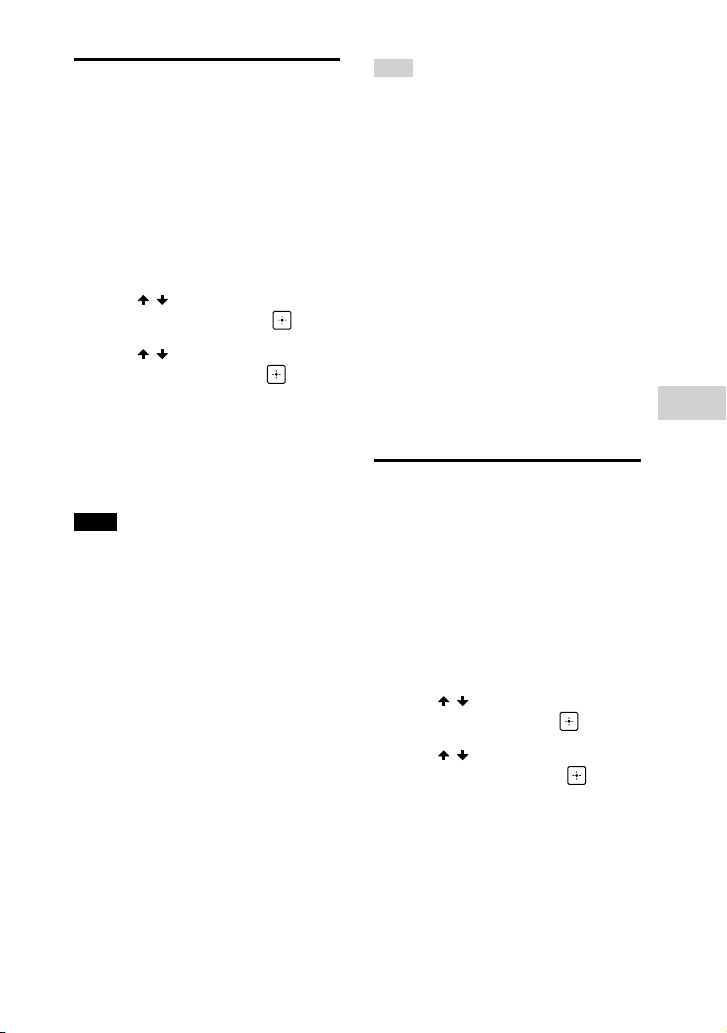
1 Touch the BLUETOOTH device to
the N-Mark on the unit until the
BLUETOOTH device responds to
the system.
Complete the connection by
following the instructions displayed
on the BLUETOOTH device.
When the BLUETOOTH connection is
established, the BLUETOOTH device
name appears on the display.
2 Start playback of an audio
source on the BLUETOOTH
device.
For details, refer to the operating
instructions of your BLUETOOTH
device.
Hint
If pairing and the BLUETOOTH connection
fail, do the following.
— Remove the case from the BLUETOOTH
device if using a commercially
available case.
— Touch the BLUETOOTH device to the
N-Mark on the unit again.
To terminate the BLUETOOTH
connection
Touch the BLUETOOTH device to the
N-Mark on the unit again.
BLUETOOTH Connection
MHC-V71.US.4-735-851-11(1)
29
US
Setting the BLUETOOTH
audio codecs
You can enable AAC, LDAC or SBC
codec reception from BLUETOOTH
device. AAC/LDAC can be selected
only when the BLUETOOTH device
supports AAC/LDAC.
1 Press OPTIONS.
2 Press / repeatedly to select
“BT CODEC”, then press .
3 Press / repeatedly to select
the setting, then press .
••
“AUTO”: Enable reception in AAC
or LDAC codec format.
••
“SBC”: Receive in SBC codec
format.
To exit the options menu, press
OPTIONS.
Note
••
You can enjoy high quality sound if AAC
or LDAC is selected. If you cannot listen
to AAC or LDAC sound from your device
or the sound is interrupted, select “SBC”.
••
If you change this setting while the
system is connected to a BLUETOOTH
device, the BLUETOOTH device will
be disconnected. To connect to the
BLUETOOTH device, perform the
BLUETOOTH connection again.
Hint
LDAC is an audio coding technology
developed by Sony that enables the
transmission of High-Resolution (Hi-Res)
Audio content, even over a BLUETOOTH
connection. Unlike other BLUETOOTH
compatible coding technologies
such as SBC, it operates without any
down-conversion of the Hi-Res Audio
content
1)
, and allows approximately
three times more data
2)
than those
other technologies to be transmitted
over a BLUETOOTH wireless network
with unprecedented sound quality, by
means of efficient coding and optimized
packetization.
1)
Excluding DSD format contents.
2)
In comparison with SBC (Subband
Coding) when the bitrate of 990 kbps
(96/48 kHz) or 909 kbps (88.2/44.1 kHz)
is selected.
Setting the BLUETOOTH
standby mode
The BLUETOOTH standby mode
enables the system to turn on
automatically when you establish
a BLUETOOTH connection from a
BLUETOOTH device.
1 Press OPTIONS.
2 Press / repeatedly to select
“BT STBY”, then press .
3 Press / repeatedly to select
the setting, then press .
••
“ON”: The system turns on
automatically even when the
system is in standby mode.
••
“OFF”: Turns off this function.
To exit the options menu, press
OPTIONS.
MHC-V71.US.4-735-851-11(1)
30
US
Turning on or off the
BLUETOOTH signal
You can connect to the system
from a paired BLUETOOTH device
in all functions when the system’s
BLUETOOTH signal is set to on. The
BLUETOOTH signal is turned on by
default.
Touch and hold
+ and MEGA
BASS on the unit for about
3seconds.
“BT ON” or “BT OFF” appears on the
display.
Note
••
You cannot perform the following
operations when BLUETOOTH signal is
set to off:
— Pair and/or connect with BLUETOOTH
device
— Use “Sony | Music Center”
— Change the BLUETOOTH audio
codecs
••
If you touch the N-Mark on the unit with
an NFC-compatible BLUETOOTH device
or set the BLUETOOTH standby mode to
on, the BLUETOOTH signal will be set to
on automatically.
Controlling the
system using a
smartphone or
tablet (Sony |
Music Center)
“Sony | Music Center” is a dedicated
app for operating “Sony | Music
Center”-compatible audio devices
manufactured by Sony using a
smartphone or tablet. Search for
“Sony | Music Center” on Google
Play or App Store and download it
using your smartphone or tablet.
“Sony | Music Center” allows you to:
•—
change the function of the system,
control the playback of the disc/
USB device and tune to an FM
station.
•—
browse the music content of disc/
USB device.
•—
view the information of disc/USB
device such as playing time and
title.
•—
adjust the volume and change
sound setting.
•—
control multiple systems when
using the Wireless Party Chain
function.
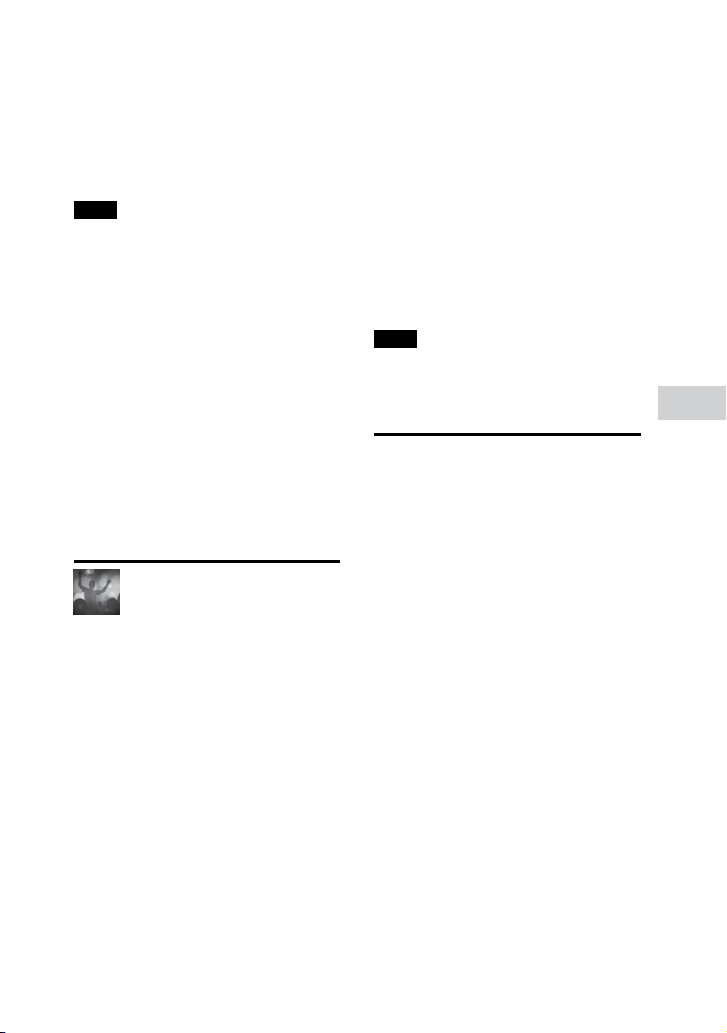
1 Search for “Sony | Music Center”
or scan the two-dimensional
code below.
2 Download “Sony | Music
Center” app on your device.
BLUETOOTH Connection
MHC-V71.US.4-735-851-11(1)
31
US
3 Connect the system and device
via BLUETOOTH connection
(page 25).
4 Launch “Sony | Music Center”
and follow the on-screen
instructions.
Note
••
We recommend you to use the latest
“Sony | Music Center” version.
••
If the “Sony | Music Center” application
does not work properly, touch
BLUETOOTH on the unit to terminate the
BLUETOOTH connection, then perform
the BLUETOOTH connection again
so that the BLUETOOTH connection
functions normally.
••
Available operations via “Sony | Music
Center” may differ depending on the
audio devices.
••
For more details on “Sony | Music
Center”, refer to the following URL.
http://info.vssupport.sony.net/help/
••
Specifications and display design of
“Sony | Music Center” are subject to
change without notice.
Getting frenzied
parties with the
“Fiestable” app
You can control the party features
of Sony’s Home Audio System with
intuitive and fancy user interface
with the “Fiestable” app. “Fiestable”
allows you to control features
such as DJ Effect, illumination and
Karaoke. You can also enjoy the
“Motion Control” function where you
can operate certain features on this
system by shaking your BLUETOOTH
device in different directions.
“Fiestable” is a plug-in application of
“Sony | Music Center”.
1 Search and download “Sony |
Music Center” app on your
device (page 30).
2 Search and download
“Fiestable” app on Google Play
or App Store using your device.
3 Connect the system and device
via BLUETOOTH connection
(page 25).
4 Launch “Sony | Music Center”
and touch the “Fiestable” icon.
Note
For more details on “Sony | Music Center”,
refer to the following URL.
http://info.vssupport.sony.net/help/
Achieving and sharing
a Party People ranking
and getting bonus
features with Party
King
The system has a unique feature
that can automatically record your
system usage.
Based on your usage, the system will
rank you with different Party People
ranking according to predefined
criteria. The more frequent you use
the system, the higher the ranking
you will achieve.
Once you have achieved a certain
Party People ranking, you can share
your achievement through social
media.
The system will also award your
achievements with bonus features.
MHC-V71.US.4-735-851-11(1)
32
US
Note
To use this feature, make sure “Sony|
Music Center” app (page 30) and
“Fiestable” app (page 31) have been
installed on your device.
1 Connect the system and device
via BLUETOOTH connection
(page 25).
2 Launch “Sony | Music Center”
and touch the “Fiestable” icon.
You can check your current ranking,
bonus features and also find out
how to achieve next ranking.
Gesture Control
Enjoying the Gesture
Control
You can control the operations
for PLAYBACK, DJ, SAMPLER and
KARAOKE mode by swiping your
hand over the GESTURE CONTROL
sensor on the unit.
Note
Do not touch or contact to the GESTURE
CONTROL sensor when you perform the
swiping motion.
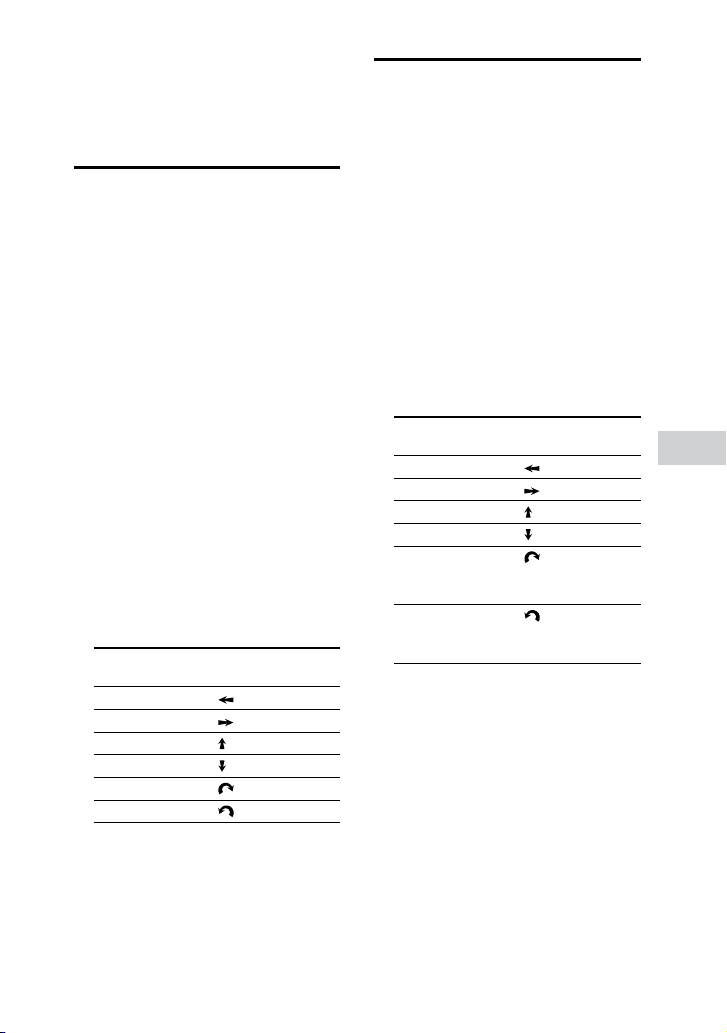
Swipe your hand over the
GESTURE CONTROL sensor in
6directions as follows.
Swiping motion Swipe in this direction
Right to left
Left to right
Bottom to top
Top to bottom
Clockwise
Anticlockwise
To activate the Gesture Control
Touch GESTURE ON/OFF, then touch
the mode you want (PLAYBACK, DJ,
SAMPLER, or KARAOKE).
The GESTURE CONTROL lights up.
Gesture Control
MHC-V71.US.4-735-851-11(1)
33
US
To deactivate the Gesture
Control
Touch GESTURE ON/OFF.
The GESTURE CONTROL lights off.
Using the Gesture
Control during
playback
You can use the Gesture Control to
control basic playback when playing
music from a disc, USB device or
BLUETOOTH device.
Use the keys and GESTURE
CONTROL sensor on the touch panel
of the unit to perform this operation.
1 Touch GESTURE ON/OFF.
The GESTURE CONTROL lights up.
2 Touch PLAYBACK.
The PLAYBACK mode is selected.
3 Touch FUNCTION repeatedly to
select the function you want.
4 Swipe your hand over the
GESTURE CONTROL sensor.
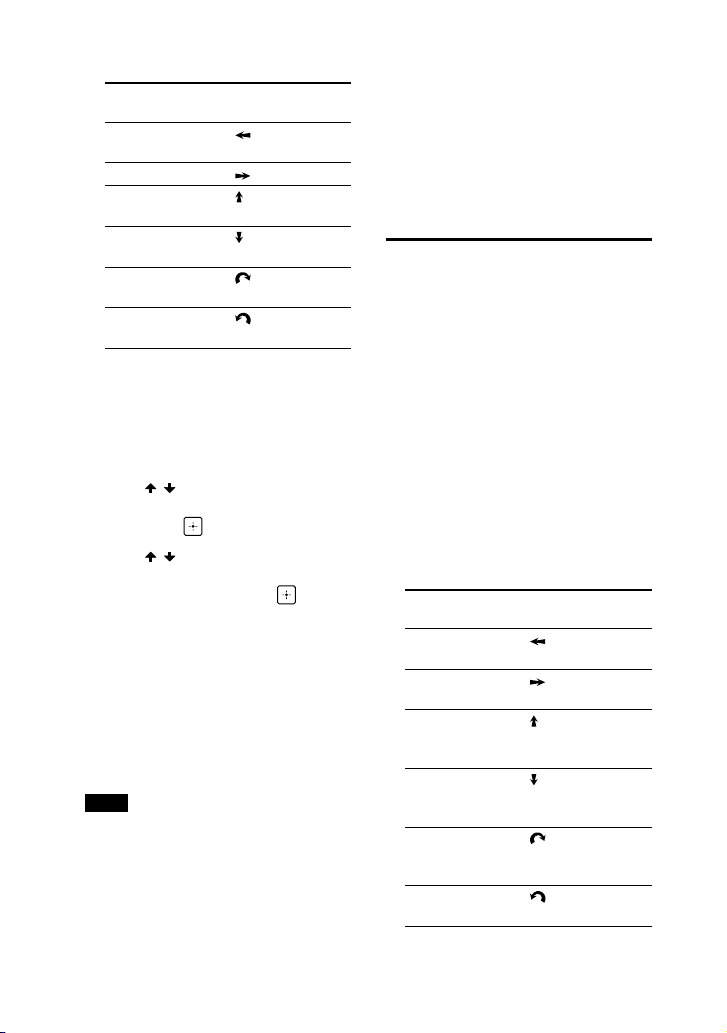
To Swipe in this
direction
Go backward
Go forward
Play
Stop
Increase volume
Reduce volume
Creating a party
atmosphere (DJ Effect)
Use the keys and GESTURE
CONTROL sensor on the touch panel
of the unit to perform this operation.
1 Touch GESTURE ON/OFF.
The GESTURE CONTROL lights up.
2 Touch DJ or SAMPLER.
The DJ or SAMPLER mode is
selected.
3 Swipe your hand over the
GESTURE CONTROL sensor.
For DJ mode:
To Swipe in this
direction
Select FLANGER
1)
Select ISOLATOR
2)
Select WAH
3)
Select PAN
4)
Increase the level
of the selected
effect
Reduce the level
of the selected
effect
1)
Creates a deep flanging effect that
is similar to the roar of a jet plane.
2)
Isolates a specific frequency band
by adjusting the other frequency
bands. For example, when you want
to focus on vocals.
3)
Create a special effect of “Wah-
wah” sound by moving the
frequency of a filter up and down
automatically.
4)
Create a feeling that the sound
is moving around the speakers
between left and right channels.
MHC-V71.US.4-735-851-11(1)
34
US
For SAMPLER mode:
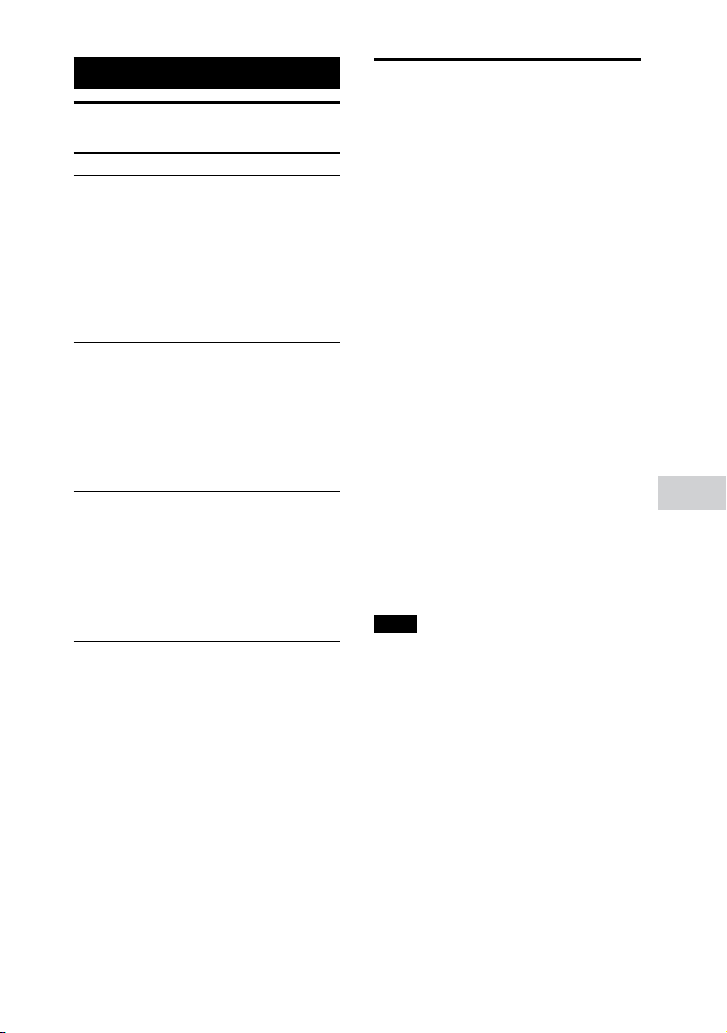
To Swipe in this
direction
Output “Come
On!”
Output “Let’s Go!”
Output Reggae
Horn sound effect
Output Phaser
sound effect
Output Scratch
sound effect
Output Audience
sound effect
To adjust the level of the
sampler sound
1 Press OPTIONS on the remote
control.
2 Press / on the remote control
repeatedly to select “SAMPLER”,
then press .
3 Press / on the remote control
repeatedly to adjust the sampler
sound level, then press .
To exit the options menu, press
OPTIONS.
To turn off the DJ mode
Swipe your hand over the GESTURE
CONTROL sensor in the same
direction as in step 3 of “Creating a
party atmosphere (DJ Effect)” (page
33).
Note
••
The DJ Effect is automatically turned off
when you:
— deactivate the Gesture Control.
— change the mode to PLAYBACK/
SAMPLER/KARAOKE.
— turn off the system.
— change the function.
— activate or deactivate the Wired Party
Chain and Wireless Party Chain
function.
— change the sound field.
— use the Vocal Fader.
— change the key (Key Control).
••
If you activate the DJ Effect during
transferring, the sound effect will not be
transferred onto the USB device.
Using the Gesture
Control during Karaoke
function
Use the keys and GESTURE
CONTROL sensor on the touch panel
of the unit to perform this operation.
1 Touch GESTURE ON/OFF.
The GESTURE CONTROL lights up.
2 Touch KARAOKE.
The KARAOKE mode is selected.
3 Swipe your hand over the
GESTURE CONTROL sensor.
To Swipe in this
direction
Reduce the pitch
of music ()
Increase the
pitch of music ()
Increase the
microphone
volume
Decrease the
microphone
volume
Output hand
clapping sound
effect
Output booing
sound effect
Sound Adjustment
MHC-V71.US.4-735-851-11(1)
35
US
Sound Adjustment
Adjusting the sound
To Do this
Reinforce bass
sound and create
more powerful
sound (MEGA
BASS)
Press MEGA BASS
repeatedly to select
“BASS ON”. The
MEGA BASS
indicator lights up.
To cancel, press
MEGA BASS
repeatedly to select
“BASS OFF”.
Reproduce the
sound effect of a
party hall (Fiesta)
Touch FIESTA on the
unit. Alternatively,
press SOUND FIELD
repeatedly to select
“FIESTA”.
To cancel, touch
FIESTA on the unit
again.
Select a sound
field
Press SOUND FIELD
repeatedly to select
the sound field you
want.
To cancel, press
SOUND FIELD
repeatedly to select
“FLAT”.
Selecting the Virtual
Football mode
You can experience the feeling of
being in the stadium when watching
a football match broadcast.
Note that you can only select Virtual
Football mode during AUDIO IN
function.
Press SOUND FIELD repeatedly
while watching a football match
broadcast.
••
“ON NARRATION”: You can enjoy an
immersive feeling of being in a
football stadium through enhanced
stadium cheers.
••
“OFF NARRATION”: You can enjoy a
more immersive feeling of being in a
football stadium by minimizing the
volume level of narration in addition
to the enhancement of cheers.
To cancel the Virtual Football
mode
Press SOUND FIELD repeatedly to
select “FLAT”.
Note
••
We recommend that you select the
Virtual Football mode when watching a
football match broadcast.
••
If you hear unnatural sounds in the
content when “OFF NARRATION”
is selected, “ON NARRATION” is
recommended.
••
This feature does not support monaural
sound.
MHC-V71.US.4-735-851-11(1)
36
US
Creating your own
sound effect
You can raise or lower the levels
of specific frequency bands, then
store the setting in the memory as
“CUSTOM EQ”.
1 Press OPTIONS.
2 Press / repeatedly to select
“CUSTOM EQ”, then press .
3 Press / repeatedly to adjust
the equalizer level or surround
setting, then press .
4 Repeat step 3 to adjust the level
of other frequency bands and
surround effect.
To exit the options menu, press
OPTIONS.
To select the custom equalizer
setting
Press SOUND FIELD repeatedly to
select “CUSTOM EQ”.
Other Operations
Enjoying wired
playback using
multiple systems
(Wired Party Chain
function)
You can connect multiple audio
systems in a chain to create a more
interesting party environment and
to produce higher sound output.
An activated system in the chain
will be the Party Host and share the
music. Other systems will become
Party Guests and play the same
music as that being played by the
Party Host.
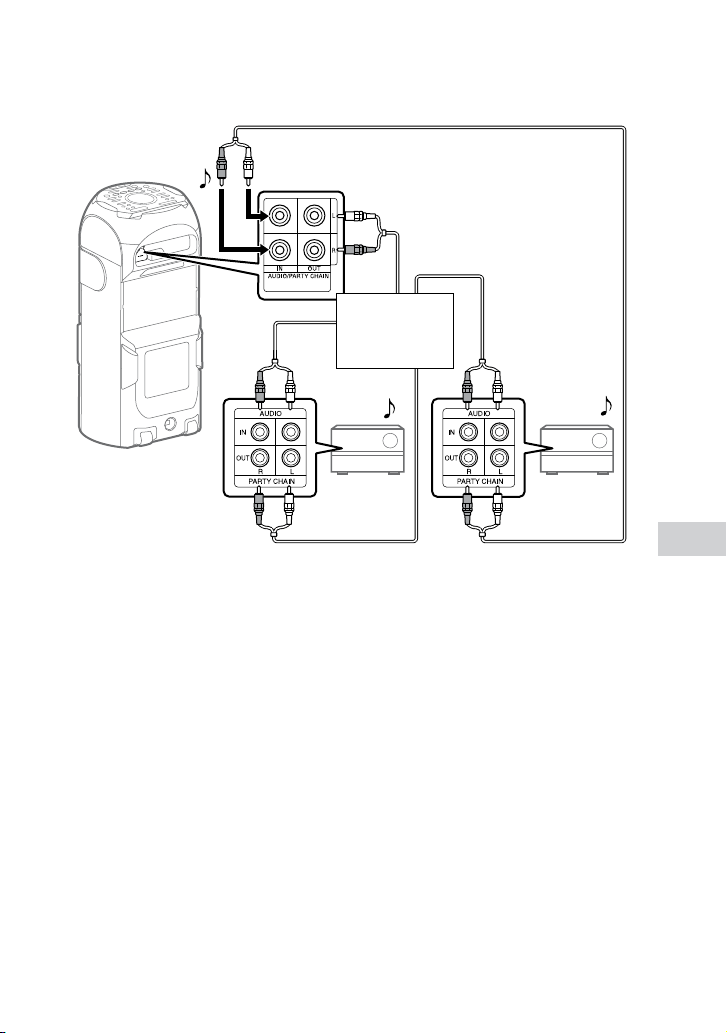
Setting up the Wired Party
Chain
Set up a Wired Party Chain by
connecting all the systems using
audio cables (not supplied).
Before connecting cables, be sure
to disconnect the AC power cord
(mains lead).
MHC-V71.US.4-735-851-11(1)
Other Operations
37
US
If all the systems are equipped with Wired Party Chain function
Example: When connecting using this system as the first system
First system
Second
system
Last system
Continue the
connection until
the last system
••
The last system must be connected to the first system.
••
Any system can become a Party Host.
••
You can change the Party Host to another system in the chain. For details,
see “To select a new Party Host (when all the systems are equipped with the
Wired Party Chain function)” (page39).
••
Make sure that a function other than the AUDIO IN function is selected.
If the AUDIO IN function is selected, this feature cannot be used.
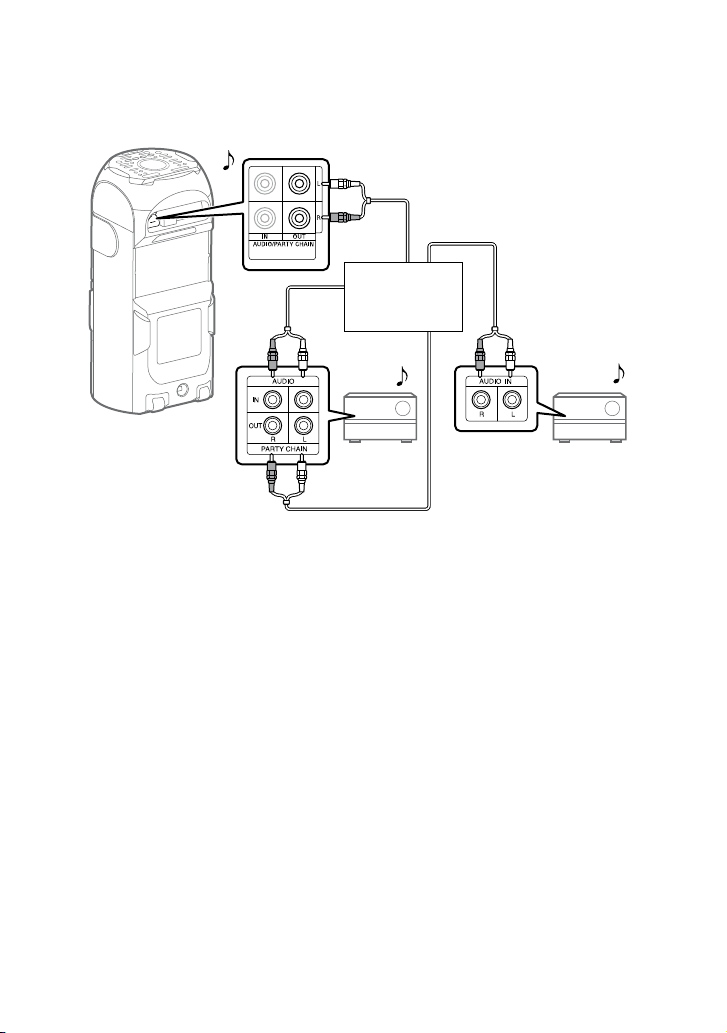
MHC-V71.US.4-735-851-11(1)
38
US
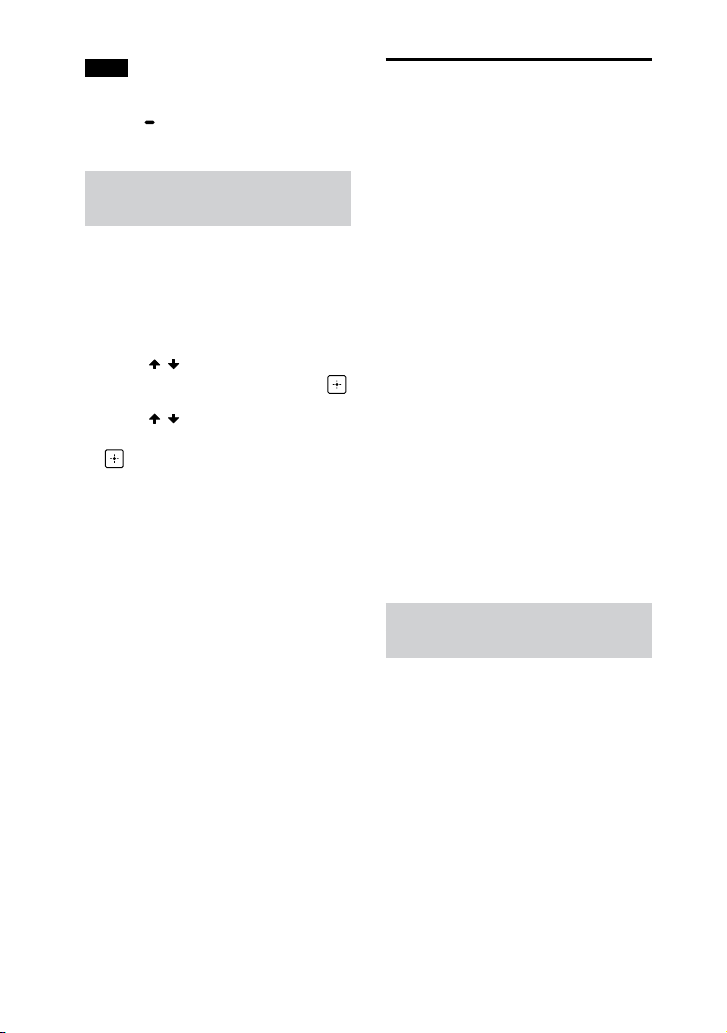
If one of the systems is not equipped with Wired Party Chain
function
Example: When connecting using this system as the first system
Second
system
Last system*
Continue the
connection until
the last system
First system
* Connect the system which is not equipped with Wired Party Chain function at the last
system, otherwise the chain will stop at that system. Be sure to select the Audio In
function on this last system.
••
The last system is not connected to the first system.
••
You must select the first system as Party Host so that all systems are playing
the same music when Wired Party Chain function is activated.

MHC-V71.US.4-735-851-11(1)
Other Operations
39
US
Enjoying the Wired Party Chain
1 Plug in the AC power cord
(mains lead) and turn on all the
systems.
2 Adjust the volume on each
system.
3 Activate the Wired Party Chain
function on the system to be
used as the Party Host.
Example: When using this system
as the Party Host
Touch FUNCTION repeatedly on
the unit to select the function
you want. If you are using
connection (page 37), do
not select the AUDIO IN function.
If you select this function, sound
cannot be output.
Start playing the music, then
touch and hold
PARTY CHAIN
on the unit for 2 seconds or
more.
“PARTY CHAIN” appears on the
display. The Party Host starts the
Wired Party Chain, and other
systems become Party Guests
automatically. All systems play the
same music as that being played by
the Party Host.
“WIRED P.CHAIN” lights up on the
display of Party Host and Party
Guests.
Note
••
Depending on the total unit of systems
you have connected, Party Guests may
take some time to start playing the
music.
••
Changing the volume level and sound
effect on the Party Host will not affect
the output on the Party Guests.
••
The Party Guest continues playing the
music source as Party Host even when
you change the function on Party Guest.
However, you can adjust the volume
and change the sound effect on Party
Guest.
••
When you use the microphone or play
the guitar on Party Host, the sound will
not be output from Party Guests.
••
When one of the systems in the chain
is performing USB transfer, wait for the
system to complete or stop the transfer
before you activate the Wired Party
Chain function.
••
For detailed operation on other
systems, refer to the operating
instructions of the systems.
To select a new Party Host (when
all the systems are equipped
with the Wired Party Chain
function)
Repeat step 3 of “Enjoying the
Wired Party Chain” on the system
to be used as a new Party Host. The
current Party Host becomes Party
Guest automatically. All systems
play the same music as that being
played by the new Party Host.
Note
••
You can select another system as the
new Party Host only after the Wired
Party Chain function of all the systems
in the Chain has been activated.
••
If the selected system does not become
a new Party Host after a few seconds,
repeat step 3 under “Enjoying the Wired
Party Chain”.
To deactivate the Wired Party
Chain
Touch and hold PARTY CHAIN on
the Party Host for 2 seconds or more.
“LEAVE PARTY” appears on the
display.
MHC-V71.US.4-735-851-11(1)
40
US
Note
If the Wired Party Chain function is not
deactivated after a few seconds, touch
and hold
PARTY CHAIN on the Party
Host again for 2 seconds or more.
Setting the Wired Party Chain
sound mode
You can set the sound mode when
the Wired Party Chain function is
activated.
1 Press OPTIONS.
2 Press / repeatedly to select
“P
`
CHAIN MODE”, then press .
3 Press / repeatedly to select
the mode you want, then press
.
••
“STEREO”: outputs the stereo
sound.
••
“RIGHT CH”: outputs the
monaural sound of the right
channel.
••
“LEFT CH”: outputs the monaural
sound of the left channel.
To exit the options menu, press
OPTIONS.
Enjoying wireless
playback using
multiple systems
(Wireless Party Chain
function)
You can connect multiple audio
systems in a chain via BLUETOOTH
connection if all the systems are
equipped with the Wireless Party
Chain function. This function allows
you to create a more exciting party
environment and to produce higher
sound output without a cable
connection.
Note that you can only play back
audio source from a BLUETOOTH
device.
The first system in the chain to be
activated becomes the Party Host
and shares the music. Other systems
become Party Guests and play the
same music as that being played by
the Party Host.
Setting up and enjoying the
Wireless Party Chain
Example: Setting the MHC-V71 as the
first system (Party Host)
1 Turn on all the systems.
2 Set the first system as the Party
Host.
Touch BLUETOOTH on the unit to
select the BLUETOOTH function.
Connect the BLUETOOTH device
to the system via BLUETOOTH
connection.

MHC-V71.US.4-735-851-11(1)
Other Operations
41
US
Touch WIRELESS PARTY CHAIN
on the unit.
“CHAINING” flashes on the
display. The system enters the
Wireless Party Chain mode.
When the system entered Wireless
Party Chain setup mode, connection
to the BLUETOOTH device is
terminated automatically.
3 Set the second system as a Party
Guest.
Touch BLUETOOTH on the unit to
select the BLUETOOTH function.
Touch WIRELESS PARTY CHAIN
on the unit.
The second system becomes a
Party Guest.
“P.CHAIN” lights up on the
display.
Note
The Wireless Party Chain function is
canceled in the following situations.
— There is no operation within
1minute after the Party Host is set
in step 2.
— WIRELESS PARTY CHAIN is touched
again on the Party Host before step
3 is completed.
4 Set the third or more systems as
Party Guests.
Repeat step 3.
Note
Connect the third or later systems
within 30 seconds of connecting the
previous system. “P. CHAIN” flashes
on the display of the Party Host within
30seconds. After 30 seconds, the
system cannot be connected.
5 Wait 30 seconds after the last
Party Guest is connected.
“P.CHAIN” will stop flashing on the
display of the Party Host and the
BLUETOOTH device will reconnect to
the Party Host.
6 Start playback on the connected
BLUETOOTH device.
7 Adjust the volume.
When the volume on the Party Host
is adjusted, the volume on Party
Guests are also adjusted. If you
want to adjust the volume on a
particular Party Guest, adjust the
volume on that Party Guest.
Note
••
You cannot select another system as
the new Party Host while the Wireless
Party Chain is activated.
••
When you use the microphone or play
the guitar on Party Host, the sound will
not be output from Party Guests.
••
Sleep Timer and Auto Standby functions
are not available on Party Guests.
••
For detailed operation on other
systems, refer to the operating
instructions of the systems.
Hint
To add new Party Guests after Wireless
Party Chain has already been established,
touch and hold WIRELESS PARTY CHAIN
on the Party Host , then repeat step 3 of
“Setting up and enjoying the Wireless
Party Chain” (page 40).
To deactivate the Wireless Party
Chain
Touch WIRELESS PARTY CHAIN on
the Party Host.
Note
When you change the function or turn off
the Party Host, the Wireless Party Chain
will be deactivated.

MHC-V71.US.4-735-851-11(1)
42
US
To disconnect the Party Guest
from the Wireless Party Chain
Touch WIRELESS PARTY CHAIN on
the Party Guest which want to leave.
In this case, the rest of the Wireless
Party Chain will remain active.
Note
When you change the function or turn
off a particular Party Guest, that Party
Guest will leave the Wireless Party Chain
connection.
Settings synchronization during
Wireless Party Chain
When the Wireless Party Chain
is established, the following
conditions will be applied:
••
If Mega Bass and Party Light
settings are changed on the Party
Host, the settings on Party Guests
are also changed.
••
DJ Effect and Karaoke settings
such as Vocal Fader and Key
Control are turned off on both
Party Host and Party Guests.
••
Sound field settings return to
default on both Party Host and
Party Guests.
••
When the Party Host is turned off,
the Party Guests are also turned
off.
Listening to music
wirelessly with two
systems (Speaker Add
function)
To use this function, two same
model systems are required.
By connecting two systems via
BLUETOOTH wireless technology,
you can enjoy music in a more
powerful way. You can also select an
audio output between double mode
(in which the two systems play
the same sound) and stereo mode
(stereo sound).
In the following steps, the
two systems are described as
“system” (or Host system) and
“system ” (or Guest system).
Note
••
To use this feature, make sure “Sony |
Music Center” app (page 30) has
been installed to your BLUETOOTH
device.
••
Be sure that the BLUETOOTH device
has paired with both system and
system . For details on the pairing
operation, see “Pairing this system with
a BLUETOOTH device” (page 25) or
“One Touch BLUETOOTH Connection by
NFC” (page 28).
Setting up and enjoying the
Speaker Add
1 Bring two systems of the same
model within 1 meter (3.3 feet)
of each other.
2 Turn on system and system
.

MHC-V71.US.4-735-851-11(1)
Other Operations
43
US
3 Touch BLUETOOTH on system
and system to select the
BLUETOOTH function.
“BLUETOOTH” appears on the
display.
4 Connect system and a
BLUETOOTH device via
BLUETOOTH connection
(page25).
5 Launch “Sony | Music Center”
and follow the on-screen
instructions to setup the
Speaker Add for system and
system .
“HOST” appears on the display of
system , and “GUEST” appears on
the display of system .
6 Set the output mode using
“Sony | Music Center” on your
BLUETOOTH device.
••
Double Mode: outputs the
stereo sound from both
systems.
••
Stereo mode - right: outputs
the monaural sound of the
right channel from system
, and the left channel from
system .
••
Stereo mode - left: outputs
the monaural sound of the left
channel from system , and
the right channel from system
.
7 Start playback on the
BLUETOOTH device, and adjust
the volume.
For details, see “Listening to music
on a BLUETOOTH device”
(page26).
Note
••
When you use the microphone or play
the guitar on system , the sound will
not be output from system .
••
The following operations are not
available on system when using
Speaker Add:
— Sleep Timer
— Auto Standby
— Child Lock
— Gesture Mode
— Party Lock
— Vocal Fader, Key Control & Scoring
— Controlling the system using remote
control
Settings synchronization
during Speaker Add
••
When the Speaker Add connection
is established, the following
settings of system will
synchronized with system :
•—
Volume
•—
Mega Bass
•—
Sound field and Custom EQ
•—
DJ Effect
•—
Party Light and Light Mode
••
When the above settings changed
on either system or system
, the other system settings are
synchronized.
••
When system is turned off,
system also turns off.
To deactivate the Speaker Add
function
Use “Sony | Music Center” and
follow the on-screen instructions.
MHC-V71.US.4-735-851-11(1)
44
US
Note
If you want to reset one of the two
systems while using the Speaker Add
function, make sure to turn off the other
system.
If you do not turn off the other system
before resetting the Speaker Add
function, BLUETOOTH connection or
sound output may be interrupted.
Hint
••
If you do not deactivate the function,
the system will try to re-establish the
most recent connection the next time
you turn on the system.
••
Switch to SBC codec when using the
Speaker Add function. For details, see
“Setting the BLUETOOTH audio codecs”
(page 29).
Enjoying hands-free
calls
You can enjoy hands-free calls with
a BLUETOOTH mobile phone that
supports HFP (Hands-free Profile) or
HSP (Headset Profile).
To use this function, make sure that
a BLUETOOTH connection has been
established.
Use the keys on the touch panel of
the unit to perform this operation.
Note
••
Depending on the model of your
mobile phone, the operation system or
applications installed, some functions
of hands-free calling may not work
correctly.
••
This function is not available when you
connect more than one BLUETOOTH
device to the system at a time.
••
The volume of music playback and call
is different. Adjust the volume during
calling.
••
If the caller cannot hear or can barely
hear your voice, talk more closely into
the built-in microphone of the system.
••
Noise may result if the system and the
BLUETOOTH mobile phone are too
close. Place the BLUETOOTH mobile
phone further if noise is heard.
Receiving a call
1 Touch when a call is
incoming.
When an incoming call arrives,
playback pauses and the system
emits a ring tone.
The caller phone number or name
will appear on the display.
Note
If you touch and hold when a call is
incoming, the call will be rejected.
2 Talk into the system’s built-in
microphone.
3 Touch to end the call.
Making a call
1 Make a call by operating the
connected BLUETOOTH mobile
phone.
When you make a call, playback will
pause and the system will emit a
dial tone.
2 Talk into the system’s built-in
microphone when the other
party answers the call.
3 Touch to end the call.

MHC-V71.US.4-735-851-11(1)
Other Operations
45
US
Switching the phone call
output from the system to the
mobile phone and vice-versa
Touch and hold while talking.
Hints
••
If your BLUETOOTH mobile phone
supports both HFP and HSP, set it to
HFP.
••
If you were listening to music before
the call, playback will resume when the
call ends.
••
Operations may vary depending on the
BLUETOOTH mobile phone. Refer to the
operating instructions for your mobile
phone.
Using the Voice Assist
function on
smartphone
This function can only be operated
using Google™ app on Android
smartphone and Siri on iPhone/
iPod.
You can make a call using voice
command and operate the Android
smartphone or iPhone/iPod with
Voice Assist function by talking into
the system’s built-in microphone.
1 Activate the Google app or turn
on Siri.
Refer to the operating instructions
supplied with the Android
smartphone to activate the Google
app or refer to the operating
instructions supplied with the
iPhone/iPod to turn on Siri.
Note
••
We recommend you to use the latest
app version.
••
The Google app may not be activated
from the system depending on
specifications of the Android
smartphone.
2 Connect the system to the
Android smartphone or iPhone/
iPod via BLUETOOTH
connection.
3 Touch to activate the Google
app or Siri when the Android
smartphone or iPhone/iPod is
in standby or playing music.
The Google app or Siri is activated
and you will hear the start-up
sound.
4 Speak into the system’s built-in
microphone to make a request
to Google app* or Siri.
* If no request is made after a
certain time after activating the
Google app, you will hear a beep
sound and the Google app will be
deactivated.
For details on apps which compatible
with the Google app, refer to the
operating instructions supplied with
the Android smartphone.
For details on apps which compatible
with Siri, refer to the operating
instructions supplied with the iPhone/
iPod.

MHC-V71.US.4-735-851-11(1)
46
US
Singing along: Karaoke
Preparing for Karaoke
1 Touch MIC/GUITAR LEVEL – on
the unit repeatedly to reduce
the microphone volume level.
2 Touch GUITAR on the unit
repeatedly until GUITAR
indicator lights off.
3 Connect an optional
microphone to MIC1 or MIC2/
GUITAR jack on the unit.
Connect another optional
microphone if you want to sing in
duet.
4 Start playing the music and
adjust the microphone volume.
Press MIC ECHO repeatedly to
adjust the echo effect.
5 Start singing along with the
music.
To use the Gesture Control
during karaoke
See “Using the Gesture Control
during Karaoke function”
(page34).
Note
••
If howling occurs:
— move the microphone away from the
system.
— change the direction of the
microphone.
— touch MIC/GUITAR LEVEL – on the
unit repeatedly.
— press MIC ECHO repeatedly to adjust
the echo level.
••
Microphone sound will not be
transferred to the USB device during
USB transfer.
••
You cannot adjust the microphone
volume level using the VOLUME +/–
on the unit or VOL+/– button on the
remote control. Touch MIC/GUITAR
LEVEL +/– on the unit repeatedly to
adjust the microphone volume level.
••
When using the Wireless Party Chain
or Speaker Add function, sound from
the microphone is only output from
the system to which the microphone is
connected.
••
If the sound through the microphone is
extremely loud, it may be distorted.
Touch MIC/GUITAR LEVEL – on the unit
repeatedly to reduce the microphone
volume.
Reducing the vocal sound
(Vocal Fader)
You can reduce the sound of the
vocal in stereo source.
Press VOCAL FADER repeatedly to
select “ON V
FADER”.
To cancel the Vocal Fader
Press VOCAL FADER repeatedly to
select “OFF”.
Changing the key (Key Control)
Press KEY CONTROL /•to suit
your vocal range.
Activating the Karaoke scoring
mode (Score Mode)
You only can use scoring function
when the microphone is connected.
Your score is calculated from a scale
of 0 to 99 by comparing your voice
with the music source.
1 Start playing the music.

MHC-V71.US.4-735-851-11(1)
Other Operations
47
US
2 Press SCORE before singing a
song.
3 After singing for more than a
minute, press SCORE again to
view your score.
Changing your voice
(Voice Changer)
You can change your voice when
you talk or sing into microphone.
Touch VOICE CHANGER on the unit
repeatedly to change your voice
effect.
To turn off the Voice Changer
Touch VOICE CHANGER on the unit
repeatedly to select “OFF”.
Enjoying sound from a
guitar
You can listen to the sound from the
guitar by connecting a guitar to the
MIC2/GUITAR jack on the unit.
You can also play the guitar and sing
along by connecting a microphone
to the MIC1 jack on the unit.
Your guitar sound can be changed
by selecting the guitar effect.
1 Touch MIC/GUITAR LEVEL – on
the unit repeatedly to reduce
the guitar volume level.
2 Use an instrument cable (not
supplied) to connect a guitar
(not supplied) to MIC2/GUITAR
jack on the unit.
3 Touch GUITAR on the unit
repeatedly to select the guitar
effect.
GUITAR indicator lights up.
••
“CLEAN”: original guitar sound.
Recommended for electric guitar
or electro-acoustic guitar.
••
“O
`
DRIVE”: distorted sound
similar to an overdriven guitar
amplifier. Recommended for
electric guitar.
••
“BASS”: original guitar sound.
Recommended for bass guitar.
4 Start playing the guitar and
adjust the guitar volume.
The guitar sound is output from the
system.
Note
••
Howling may occur when using electro-
acoustic guitar with “O
`
DRIVE” effect.
Touch MIC/GUITAR LEVEL – on the unit
repeatedly to reduce the guitar volume.
Otherwise, change to the other guitar
effect.
••
Before disconnecting the guitar from
the system, touch MIC/GUITAR LEVEL–
on the unit repeatedly to reduce the
guitar volume.
To turn off the guitar mode
Touch GUITAR on the unit repeatedly
until the GUITAR indicator lights off.
Playing the drum
(Taiko)
You can play a virtual drum by using
the top panel of the system as a
drum pad.
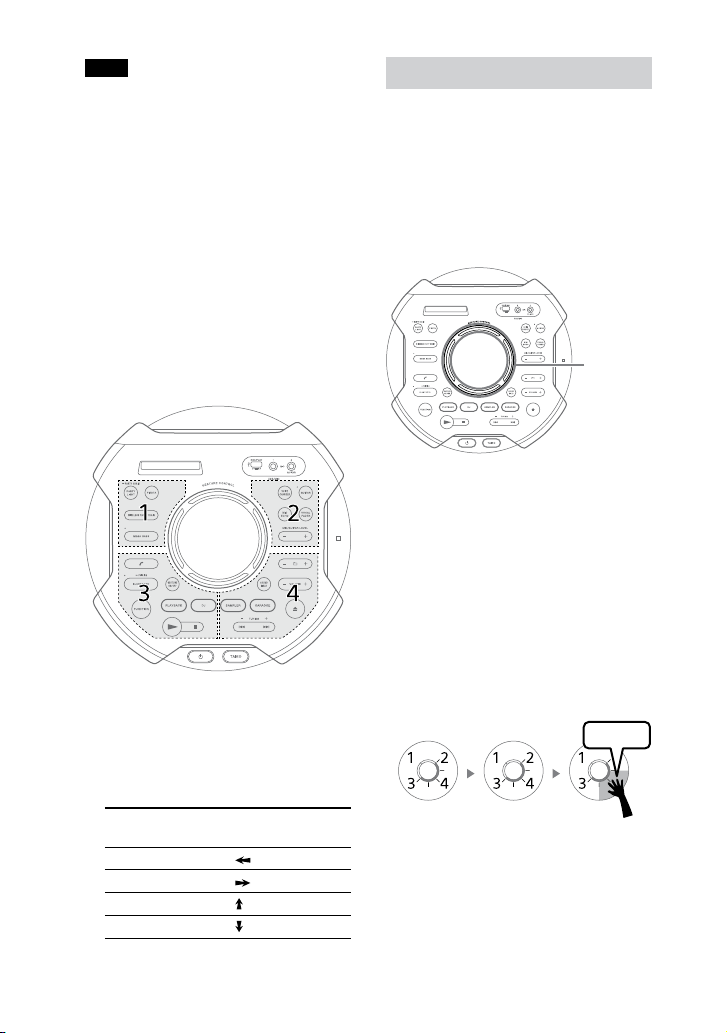
MHC-V71.US.4-735-851-11(1)
48
US
Note
••
Tap the top panel using your hands
gently. Do not use other items, such as a
stick as it will scratch the surface of the
top panel.
••
The pressure you apply when tapping
the top panel will not affect the volume
level in the Taiko mode as it follows the
volume level of the system.
••
During the Taiko mode, the keys on the
touch panel are deactivated except
and TAIKO buttons. Use the buttons
on the remote control to change the
function or volume.
1 Press TAIKO on the unit
repeatedly to select “TAIKO”.
The top panel lights up in 4 different
colors according to zone.
2 Tap on zone 1, 2, 3 or 4 or swipe
your hand over the GESTURE
CONTROL sensor.
The available swiping motions are
as follows:
Swiping motion Swipe in this
direction
Right to left
Left to right
Bottom to top
Top to bottom
Playing the Taiko game
In this game, you need to tap the
top panel according to the lighting
guide pattern that appears on
the surrounding of the GESTURE
CONTROL sensor. Your score is
calculated from a scale of 0 to 100
based on the number of correct
actions performed.
Lighting
guide
1 Press TAIKO on the unit
repeatedly until “GAME 5”
flashes on the display.
The system counts down in
5seconds and the game starts
when “START” flashes on the
display.
2 Tap zone 1, 2, 3 or 4 according to
the lighting guide pattern.
The lighting guide will flash 3 times.
You need to tap the correct zone on
the third time it flashes.
Tap!
1st flash
Green
2nd flash
Green
3rd flash
Blue
Make sure you tap on the correct
zone at the exact moment when the
lighting guide flashes in blue.
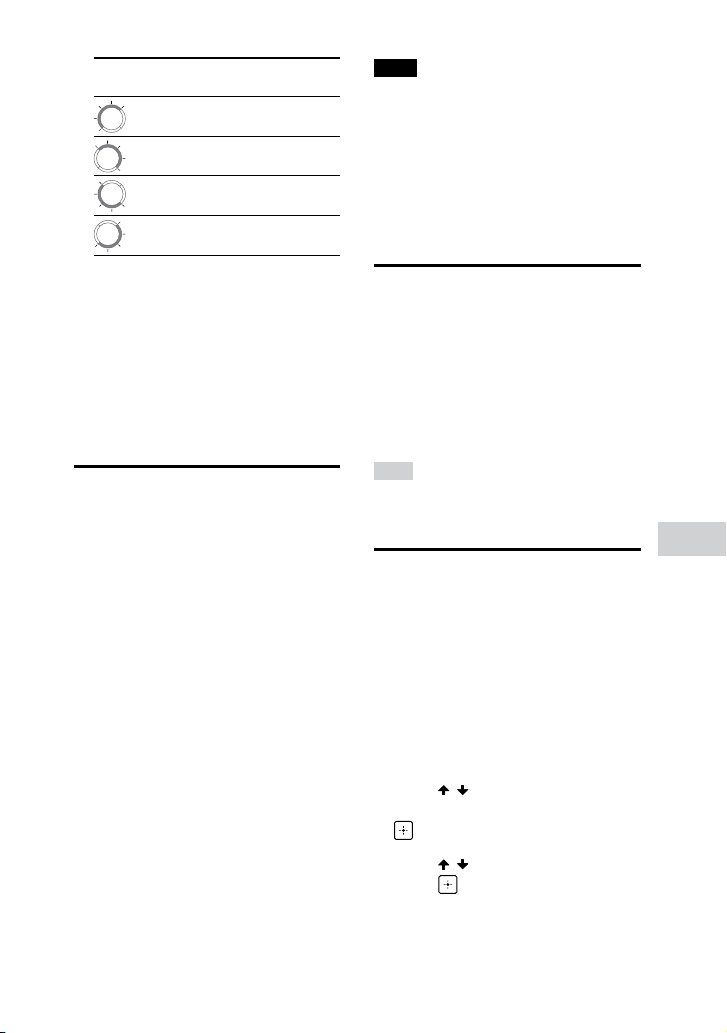
MHC-V71.US.4-735-851-11(1)
Other Operations
49
US
Lighting guide
pattern
Zone you need
to tap
1
2
3
4
3 Continue to play the game for
50 seconds.
The score will appear on the display
after you completed the game.
To deactivate Taiko
Press TAIKO on the unit repeatedly
until the lighting guide lights off.
Enjoying music with the
Party Light and Speaker
Light
1
Press PARTY LIGHT repeatedly
to select “LED ON”.
2 Press LIGHT MODE repeatedly to
select the illumination mode
you want.
The illumination mode is different
when Wireless Party Chain is
activated.
To turn off the Party Light and
Speaker Light
Press PARTY LIGHT repeatedly to
select “LED OFF”.
Note
••
Do not look directly at the light-emitting
part when the Party Light and Speaker
Light are turned on.
••
If the illumination brightness is glaring,
switch on the room lights or turn off the
illumination.
••
You can turn on or off the Party Light
and Speaker Light when demonstration
is turned on.
Using the Sleep Timer
The system turns off automatically
after the preset time.
Press SLEEP repeatedly to select
the time you want.
To cancel Sleep Timer, press SLEEP
repeatedly to select “OFF”.
Hint
To check the remaining time before the
system turns off, press SLEEP.
Using the Voice
Guidance
You can hear Voice Guidance when
the system enters the BLUETOOTH
pairing mode or a BLUETOOTH
device is being connected or
disconnected from the system.
1 Press OPTIONS.
2 Press / repeatedly to select
“VOICE GUIDANCE”, then press
.
3 Press / to select “ON”, then
press .
The Voice Guidance is activated.
To exit the options menu, press
OPTIONS.
MHC-V71.US.4-735-851-11(1)
50
US
To deactivate the Voice Guidance
Select “OFF” in step 3.
To adjust the level of the Voice
Guidance
1 Press OPTIONS.
2 Press / repeatedly to select
“SAMPLER”, then press .
3 Press / repeatedly to adjust
the Voice Guidance level, then
press .
To exit the options menu, press
OPTIONS.
Note
••
The Voice Guidance volume level
change according to the system’s
volume level. However, in some cases,
the Voice Guidance volume level may
not change.
••
In some cases, there may be a delay
in Voice Guidance output or the Voice
Guidance may not work.
Using optional
equipment
1
Press VOL– repeatedly until
“VOL MIN” appears on the
display.
2 Connect an optional equipment
(page15).
3 Press FUNCTION repeatedly to
select “AUDIO IN”.
4 Start playing the connected
equipment.
5 Press VOL+ repeatedly to adjust
the volume.
Note
The system may enter standby mode
automatically if the volume level of the
connected equipment is too low. Adjust
the volume level of the equipment.
To turn off automatic standby function,
see “Setting the automatic standby
function” (page51).
Deactivating the touch
panel on the unit (Child
Lock)
You can deactivate the keys (except
) on the touch panel of the unit to
prevent misoperation, such as child
mischief.
Touch and hold on the unit for
more than 5 seconds.
“CHILD LOCK ON” appears on the
display.
You can only operate the system using
the buttons on the remote control.
To turn off the Child Lock function,
touch and hold on the unit for more
than 5seconds until “CHILD LOCK OFF”
appears on the display.
Note
••
Child Lock function will be turned off
automatically when you disconnect the
AC power cord (mains lead).
••
Child Lock function cannot be activated
when you open the disc tray.
MHC-V71.US.4-735-851-11(1)
Other Operations
51
US
Deactivating the touch
panel on the unit for a
short time (Party Lock)
When you accidentally splash liquid
on the touch panel of the unit during
party, you can deactivate the keys
(except ) on the touch panel of the
unit for 30 seconds and wipe off the
liquid with a cloth.
Hold your hand above GESTURE
CONTROL sensor on the unit for
more than 5 seconds.
“PARTY LOCK ON” appears on the
display.
To turn off the Party Lock function,
hold your hand above GESTURE
CONTROL sensor on the unit for
more than 5 seconds until “PARTY
LOCK OFF” appears on the display.
Note
••
The party lock being applied cancels
automatically in 30 seconds.
••
While the party lock is applied, the
touch panel indications of the unit are
turned off.
Setting the automatic
standby function
The system enters standby mode
automatically in about 15 minutes
when there is no operation or audio
signal output.
By default, the automatic standby
function is turned on.
1 Press OPTIONS.
2 Press / repeatedly to select
“AutoSTBY”, then press .
3 Press / repeatedly to select
“ON” or “OFF”, then press .
To exit the options menu, press
OPTIONS.
Note
••
“AutoSTBY” flashes on the display about
2 minutes before entering standby
mode.
••
The automatic standby function does
not work in the following cases:
— during tuner function.
— when the Sleep Timer is activated.
— when microphone or guitar is
connected.
— when the system is a Party Guest in
the Wireless Party Chain function or
the Guest system in the Speaker Add
function.
Updating the software
The software of this system may be
updated in the future.
You can update your system’s pre-
installed software from the websites
below.
Follow the online instructions to
update the software.
For customers in the United States:
<https://esupport.sony.com/US/>
For customers in Canada:
<http://esupport.sony.com/CA/>

MHC-V71.US.4-735-851-11(1)
52
US
Additional Information
Troubleshooting
Should you encounter a problem
with your system, find your problem
in the troubleshooting checklist
below and take the corrective
action.
If the problem persists, consult your
nearest Sony dealer.
Note that if the service personnel
changes some parts during repair,
these parts may be retained.
If “PROTECTX” (X is a number)
and “CHECK MANUAL” flashes
on the display
Immediately unplug the AC
power cord (mains lead), and
check if anything is blocking the
ventilation openings of the unit.
After you have checked and
found no problems, reconnect
the AC power cord (mains lead),
and turn on the system. If the
issue persists, contact your
nearest Sony dealer.
General
The power does not turn on.
••
Check that the AC power cord
(mains lead) is connected securely.
The system has entered standby
mode.
••
This is not a malfunction. The
system enters standby mode
automatically in about 15 minutes
when there is no operation or
audio signal output (page51).
There is no sound.
••
Adjust the volume.
••
Check the connection of the
optional equipment, if any
(page15).
••
Turn on the connected equipment.
••
Unplug the AC power cord (mains
lead), then plug in the AC power
cord (mains lead) again and turn
on the system.
There is no microphone sound.
••
Adjust the microphone volume
level.
••
Make sure the microphone is
connected to the MIC1 or MIC2/
GUITAR jack on the unit correctly.
••
Make sure the microphone is
turned on.
There is severe hum or noise.
••
Move the system away from
sources of noise.
••
Connect the system to a different
wall outlet.
••
Install a noise filter (not supplied)
to the AC power cord (mains lead).
••
Turn off surrounding electrical
equipment.
••
The noise generated by the
cooling fans of the system may be
heard when the system is turned
on. This is not a malfunction.
••
Move the unit away from the neon
signs or fluorescent light.
The remote control does not
function.
••
Remove the obstacles between
the remote control and the unit.
••
Move the remote control closer to
the unit.
••
Point the remote control at the
unit’s sensor.
••
Replace the batteries (R03/size
AAA).
••
Move the unit away from the
fluorescent light.

MHC-V71.US.4-735-851-11(1)
Additional Information
53
US
There is acoustic feedback.
••
Reduce the volume.
••
Move the microphone and guitar
away from the system or change
the direction of the microphone.
“CHILD LOCK” appears when you
touch any key on the unit.
••
Set the Child Lock function to off
(page50).
A clicking sound is heard when the
system is turned on.
••
This is the operating sound and it
occurs when the system is turned
on or off, for example. This is not a
malfunction.
The sound loses stereo effect
during playback.
••
Turn off the Vocal Fader
(page46).
••
Make sure the system is
connected properly.
Disc player
The disc tray does not open and
“LOCKED” appears on the display.
••
Consult your nearest Sony dealer
or local authorized Sony service
facility.
The disc tray does not close.
••
Load the disc correctly.
The disc does not eject.
••
You cannot eject the disc during
Synchronized Transfer or REC1
Transfer. Press to cancel the
transfer, then touch on the unit
to eject the disc.
••
Consult your nearest Sony dealer.
Playback does not start.
••
Wipe the disc clean (page59).
••
Reload the disc.
••
Load the disc that this system can
play back (page8).
••
Remove the disc and wipe away
the moisture on the disc, then
leave the system turned on for
a few hours until the moisture
evaporates.
The sound skips.
••
Wipe the disc clean (page59).
••
Reload the disc.
••
Move the unit to a place with no
vibration.
Playback does not start from the
first track.
••
Set the play mode to Normal Play
(page20).
••
Resume Play has been selected.
Press twice. Then, press to
start playback.
The MP3 disc cannot be played
back.
••
The data is not stored in the
supported format.
The folder name, track name, file
name and ID3 tag characters do
not appear properly.
••
The ID3 version is not in Version 1
(1.0/1.1) or Version 2 (2.2/2.3).
••
The character codes that can be
displayed by this system are as
follows:
•—
Upper cases (A to Z)
•—
Numbers (0 to 9)
•—
Symbols (< > * +, [ ] \ _)
Other characters appear as “_”.

MHC-V71.US.4-735-851-11(1)
54
US
USB device
Transferring results in an error.
••
You are using an unsupported USB
device. Check the information on
the website about compatible USB
devices (page10).
••
The USB device is not formatted
correctly. Refer to the operating
instructions of the USB device on
how to format.
••
Turn off the system and remove
the USB device. If the USB device
has a power switch, turn the USB
device off and on again after
removing it from the system. Then,
perform the transfer again.
••
If the transfer and erase
operations are repeated multiple
times, the file structure within the
USB device becomes fragmented.
Refer to the operating instructions
of the USB device on how to deal
with this problem.
••
The USB device was disconnected
or the power was turned off
during transfer. Delete the
partially-transferred file, and
perform the transfer again. If this
does not fix the problem, the USB
device may be broken. Refer to the
operating instructions of the USB
device on how to deal with this
problem.
Audio files or folders on the USB
device cannot be erased.
••
Check if the USB device is write-
protected.
••
The USB device was disconnected
or the power was turned off
during the erase operation. Delete
the partially-erased file. If this
does not fix the problem, the USB
device may be broken. Refer to the
operating instructions of the USB
device on how to deal with this
problem.
There is no sound.
••
The USB device is not connected
correctly. Turn off the system and
reconnect the USB device, then
turn on the system and check if
“USB” appears on the display.
There is noise, skipping, or
distorted sound.
••
You are using an unsupported USB
device. Check the information on
the website about compatible USB
devices (page10).
••
Turn off the system and reconnect
the USB device, then turn on the
system.
••
The music data itself contains
noise, or the sound is distorted.
Noise may have entered during
the transfer process. Delete the
file, and try transfer again.
••
The bit rate used in encoding an
audio file was low. Send an audio
file with higher bit rate to the USB
device.
“READING” is displayed for an
extended time, or it takes a long
time before playback starts.
••
The reading process can take a
long time in the following cases.
•—
There are many folders or files
on the USB device (page9).
•—
The file structure is extremely
complex.

MHC-V71.US.4-735-851-11(1)
Additional Information
55
US
•—
The memory capacity is
excessive.
•—
The internal memory is
fragmented.
“NO FILE” appears on the display.
••
The system has entered the
software update mode, and all
keys (except ) are deactivated.
Press on the unit to cancel the
software update.
“OVER CURRENT” appears on the
display.
••
A problem has been detected
with the level of electrical current
from the
(USB) port. Turn off
the system and remove the USB
device from the port. Make sure
there is no problem with the USB
device. If this display pattern
persists, contact your nearest Sony
dealer.
Erroneous display.
••
The data stored in the USB
device may have been corrupted,
perform the transfer again.
••
The character codes that can be
displayed by this system are as
follows:
•—
Upper cases (A to Z)
•—
Numbers (0 to 9)
•—
Symbols (< > * +, [ ] \ _)
Other characters appear as “_”.
The USB device is not recognized.
••
Turn off the system and reconnect
the USB device, then turn on the
system.
••
Check the information on the
website about compatible USB
devices (page10).
••
The USB device is not working
properly. Refer to the operating
instructions of the USB device on
how to deal with this problem.
Playback does not start.
••
Turn off the system and reconnect
the USB device, then turn on the
system.
••
Check the information on the
website about compatible USB
devices (page10).
Playback does not start from the
first file.
••
Set the play mode to Normal Play
(page20).
Files cannot be played back.
••
USB devices formatted with file
systems other than FAT16 or FAT32
are unsupported.*
••
If you use a partitioned USB
device, only files on the first
partition can be played back.
* This system supports FAT16 and FAT32,
but some USB devices may not support
all of these FAT. For details, refer to the
operating instructions of each USB
device or contact the manufacturer.
Tuner*
There is severe hum or noise, or
stations cannot be received.
••
Connect the antenna properly.
••
Change antenna location and
its orientation to obtain good
reception.
••
Turn off nearby electrical
equipment.
* Radio may not be received depending
on the radio wave conditions or the
housing environment in your area.
BLUETOOTH device
Pairing cannot be performed.
••
Move the BLUETOOTH device
closer to the system.

MHC-V71.US.4-735-851-11(1)
56
US
••
Pairing may not be possible if
other BLUETOOTH devices are
present around the system.
In this case, turn off the other
BLUETOOTH devices.
••
Make sure to enter the correct
passkey when selecting the
system’s name (this system) on
the BLUETOOTH device.
The BLUETOOTH device cannot
detect the system, or “BT OFF”
appears on the display.
••
Set the BLUETOOTH signal to “BT
ON” (page30).
Connection is not possible.
••
The BLUETOOTH device you
attempted to connect does not
support the A2DP profile, and
cannot be connected with the
system.
••
Enable the BLUETOOTH function of
the BLUETOOTH device.
••
Establish a connection from the
BLUETOOTH device.
••
The pairing registration
information has been erased.
Perform the pairing operation
again.
The sound skips or fluctuates, or
the connection is lost.
••
The system and the BLUETOOTH
device are too far apart.
••
If there are obstacles between
the system and your BLUETOOTH
device, remove or avoid the
obstacles.
••
If there is equipment that
generates electromagnetic
radiation, such as a wireless LAN,
other BLUETOOTH device, or a
microwave oven nearby, move
them away.
The sound of your BLUETOOTH
device cannot be heard on this
system.
••
Increase the volume on your
BLUETOOTH device first, then
adjust the volume using VOL+/–.
There is severe hum, noise, or
distorted sound.
••
If there are obstacles between
the system and your BLUETOOTH
device, remove or avoid the
obstacles.
••
If there is equipment that
generates electromagnetic
radiation, such as a wireless LAN,
other BLUETOOTH device, or a
microwave oven nearby, move
them away.
••
Turn down the volume of the
connected BLUETOOTH device.
Gesture Control
The Gesture Control cannot be
activated.
••
Touch GESTURE ON/OFF
repeatedly until GESTURE
CONTROL lights up.
••
Make sure the Child Lock function
is not activated (page 50).
The Gesture Control does not
operate properly.
••
Move your hand closer to
GESTURE CONTROL sensor (page
32) when you perform the
swiping motion.
••
Perform the swiping motion at a
slower speed.
••
Select the correct mode
(PLAYBACK, DJ, SAMPLER or
KARAOKE) before you start using
the Gesture Control (page 33,
34).

MHC-V71.US.4-735-851-11(1)
Additional Information
57
US
••
Install a noise filter (not supplied)
to the AC power cord (mains lead).
••
Turn off surrounding electrical
equipment.
“PARTY LOCK” appears when you
touch any key on the unit.
••
Set the Party Lock function to off
(page 51).
Wired Party Chain, Wireless
Party Chain and Speaker Add
Wired Party Chain function cannot
be activated.
••
Check the connections
(page36).
••
Make sure the audio cables are
connected correctly.
“PARTY CHAIN” is flashing on the
display.
••
You cannot select AUDIO IN
function if you make connection
(page 37) during Wired
Party Chain function. Select other
function (page 39).
••
Touch and hold PARTY CHAIN on
the unit.
••
Turn off the system, then turn it
back on again.
Wired Party Chain function does
not work properly.
••
Turn off the system. Then, turn
it back on again to activate the
Wired Party Chain function.
BLUETOOTH device cannot be
connected to the system during
Wireless Party Chain function.
••
After connecting all the systems,
perform the pairing and
connecting operations between
the BLUETOOTH device and the
Party Host.
BLUETOOTH device cannot be
connected to the system during
Speaker Add function.
••
After connecting two same model
systems, perform the pairing and
connecting operations between
the BLUETOOTH device and the
Party Host.
Resetting the system
If the system still does not operate
properly, reset the system to factory
default settings.
Use the keys on the touch panel of
the unit to perform this operation.
1 Unplug the AC power cord (mains
lead), then plug it back in.
2 Press to turn on the system.
3 Touch and hold GUITAR and
MEGA BASS for about 3 seconds.
“RESET” appears on the display.
After the reset completes, the
system automatically reboots. Press
to turn on the system.
All BLUETOOTH pairing information
and user-configured settings, such
as preset radio stations are reset to
factory default setting.
Messages
One of the following messages may
appear or flash on the display during
operation.
CANNOT PLAY
A disc that cannot be played back
was inserted.
DATA ERROR
••
The file is created in unsupported
format.
••
The file extensions does not match
the file format.

MHC-V71.US.4-735-851-11(1)
58
US
DEVICE ERROR
The USB device could not be
recognized or an unknown device is
connected.
DEVICE FULL
The memory of the USB device is
full.
ERASE ERROR
Erase of audio files or folders on the
USB device failed.
FATAL ERROR
The USB device was removed during
transfer or erase operation, and may
have been damaged.
FOLDER FULL
You cannot transfer onto the USB
device because the number of
folders has reached its maximum.
NoDEVICE
No USB device is connected or
unsupported device is connected.
NO DISC
There is no disc in the unit.
NO MUSIC
No supported audio files exist in the
playback source.
NO SUPPORT
An unsupported USB device is
connected, or the USB device is
connected through a USB hub.
NOT USE
You tried to perform a specific
operation under conditions where
that operation is prohibited.
OVER CURRENT
An over current from the
(USB)
port was detected.
PROTECT
The USB device is write-protected.
PUSH STOP
You tried to perform an operation
that can be performed only when
the playback is stopped.
READING
The system is reading information
of the disc or USB device. Some
operations are not available.
REC ERROR
The transfer did not start, stopped
partway, or otherwise could not be
performed.
TRACK FULL
You cannot transfer onto the USB
device because the number of files
has reached its maximum.
Precautions
When carrying the unit
To avoid damaging the disc
mechanism, perform the following
procedure before carrying the unit.
Use the keys on the touch panel of
the unit to perform this operation.
1 Press to turn on the system.
2 Touch FUNCTION repeatedly to
select “CD”.
3 Remove the disc.
Touch to open and close the disc
tray.
Wait until “NO DISC” appears on the
display.
4 Press to turn off the system.
5 Unplug the AC power cord (mains
lead).

MHC-V71.US.4-735-851-11(1)
Additional Information
59
US
Notes on discs
••
Before playing, wipe the disc with a
cleaning cloth from the center outward
to the edge.
••
Do not clean discs with solvents, such
as benzine, thinner, or commercially
available cleaners or anti-static spray
intended for vinyl LPs.
••
Do not expose discs to direct sunlight
or heat sources such as hot air ducts,
nor leave them in a car parked in direct
sunlight.
On safety
••
Completely disconnect the AC power
cord (mains lead) from the wall outlet
(mains) if it is not going to be used
for an extended period of time. When
unplugging the system, always grip the
plug. Never pull the cord itself.
••
Should any solid object or liquid get
into the system, unplug the system, and
have it checked by qualified personnel
before operating it again.
••
AC power cord (mains lead) must be
changed only at the qualified service
shop.
On handling the system
••
Do not splash water on the unit
on purpose. Dust and drip proof
performance is improved by the flat
top structure of the unit, but this is not
guaranteed for all the situations. If you
accidentally splash liquid on the unit,
wipe off immediately.
••
To maintain the dust and drip proof
performance, make sure all the covers
of the jacks/port/terminal are securely
closed.
On placement
••
Do not place the system in an inclined
position or in locations that are
extremely hot, cold, dusty, dirty, or
humid or lacking adequate ventilation,
or subject to vibration, direct sunlight or
a bright light.
••
Be careful when placing the system
on surfaces that have been specially
treated (for example, wax, oil, polish) as
staining or discoloration of the surface
may result.
••
If the system is brought directly from
a cold to a warm location or is placed
in a very damp room, moisture may
condense on the lens inside the unit,
and cause the system to malfunction.
In this situation, remove the disc, and
leave the system turned on for about an
hour until the moisture evaporates.
On heat buildup
••
Heat buildup on the unit during
operation is normal and is not a cause
for alarm.
••
Do not touch the cabinet if it has been
used continuously at a high volume
because the cabinet may have become
hot.
••
Do not obstruct the ventilation holes.
On the speaker system
The built-in speaker system is not
magnetically shielded, and the picture on
nearby TV sets may become magnetically
distorted. In this situation, turn off the
TV, wait 15 to 30 minutes, and turn it back
on. If there is no improvement, move the
system far away from the TV.
Cleaning the cabinet
Clean this system with a soft cloth slightly
moistened with a mild detergent solution.
Do not use any type of abrasive pad,
scouring powder, or solvent, such as
thinner, benzine, or alcohol.
On BLUETOOTH communication
••
BLUETOOTH devices should be used
within approximately 10 meters
(33 feet) (unobstructed distance)
of each other. The effective
communication range may become
shorter under the following conditions.
— When a person, metal object, wall
or other obstruction is between
the devices with a BLUETOOTH
connection
— Locations where a wireless LAN is
installed

MHC-V71.US.4-735-851-11(1)
60
US
— Around microwave ovens that are
in use
— Locations where other
electromagnetic waves are
generated
••
BLUETOOTH devices and wireless LAN
(IEEE 802.11b/g/n) equipment use the
same frequency band (2.4GHz). When
using your BLUETOOTH device near
a device with wireless LAN capability,
electromagnetic interference may
occur. This could result in lower data
transfer rates, noise, or inability to
connect. If this happens, try the
following remedies:
— Use this system at least 10 meters
(33 feet) away from the wireless LAN
equipment.
— Turn off the power of the wireless
LAN equipment when using your
BLUETOOTH device within 10 meters
(33 feet).
— Use this system and BLUETOOTH
device as closer to each other as
possible.
••
The radio waves broadcast by this
system may interfere with the operation
of some medical devices. Since this
interference may result in malfunction,
always turn off the power on this
system and BLUETOOTH device in the
following locations:
— In hospitals, on trains, in airplanes,
at gas stations, and any place where
flammable gases may be present
— Near automatic doors or fire alarms
••
This system supports security
functions that comply with BLUETOOTH
specifications to ensure secure
connections during communication
using BLUETOOTH technology. However,
this security may be insufficient
depending on the setting contents
and other factors, so always be careful
when performing communication using
BLUETOOTH technology.
••
Sony cannot be held liable in any way
for damages or other loss resulting
from information leaks during
communication using BLUETOOTH
technology.
••
BLUETOOTH communication is not
necessarily guaranteed with all
BLUETOOTH devices that have the same
profile as this system.
••
BLUETOOTH devices connected with
this system must comply with the
BLUETOOTH specification prescribed
by the Bluetooth SIG, Inc., and must
be certified to comply. However, even
when a device complies with the
BLUETOOTH specification, there may
be cases where the characteristics or
specifications of the BLUETOOTH device
make it impossible to connect, or may
result in different control methods,
display or operation.
••
Noise may occur or the audio may
cut off depending on the BLUETOOTH
device connected with this system,
the communications environment, or
surrounding conditions.
Specifications
AUDIO POWER
SPECIFICATIONS
POWER OUTPUT AND TOTAL
HARMONIC DISTORTION:
(USA models only)
With 4 ohm loads, both channels
driven, from 400 Hz – 20,000 Hz; rated
60 watts per channel minimum RMS
power at stereo mode, with no more
than 0.7% total harmonic distortion
from 250milliwatts to rated output.
Speaker section
Speaker system:
3-way, Double Bass Reflex
Speaker unit:
Tweeter L/R: 50 mm (2 in), cone
type
Midrange L/R: 120 mm (4 3/4 in),
cone type
Woofer: 300 mm (11 7/8 in), cone
type

MHC-V71.US.4-735-851-11(1)
Additional Information
61
US
Inputs
AUDIO/PARTY CHAIN IN L/R:
Voltage 2 V, impedance
24kilohms
MIC1:
Sensitivity 1 mV, impedance
10kilohms
MIC2/GUITAR:
Sensitivity 1 mV, impedance
10kilohms (When guitar mode is
turned off.)
Sensitivity 200 mV, impedance
250 kilohms (When guitar mode is
turned on.)
Outputs
AUDIO/PARTY CHAIN OUT L/R:
Voltage 2 V, impedance 1kilohm
Disc player section
System:
Compact disc and digital audio
system
Laser Diode Properties
Emission Duration: Continuous
Laser Output*: Less than 44.6 μW
* This output is the value
measurement at a distance of
200 mm from the objective lens
surface on the Optical Pick-up
Block with 7 mm aperture.
Frequency response:
20Hz – 20kHz
USB section
Supported USB device:
Mass Storage Class
Maximum current:
1A
(USB) port:
Type A
FM tuner section
FM stereo, FM superheterodyne tuner
Antenna:
FM lead antenna
Tuning range:
87.5MHz – 108.0MHz (100kHz
step)
BLUETOOTH section
Communication system:
BLUETOOTH Standard version 4.2
Output:
BLUETOOTH Standard Power
Class 2
Maximum number of devices to be
registered:
8 devices
Maximum number of simultaneous
connection (Multipoint):
3 devices
Maximum communication range:
Line of sight approx. 10 m (33 ft)
1)
Frequency band:
2.4 GHz band (2.4000 GHz –
2.4835GHz)
Modulation method:
FHSS (Freq Hopping Spread
Spectrum)
Compatible BLUETOOTH profiles
2)
:
A2DP (Advanced Audio
Distribution Profile)
AVRCP (Audio Video Remote
Control Profile)
SPP (Serial Port Profile)
HFP (Hands-free Profile)
HSP (Headset Profile)
Supported codecs:
SBC (Subband Codec)
AAC (Advanced Audio Coding)
LDAC
1)
The actual range will vary depending
on factors such as obstacles between
devices, magnetic fields around a
microwave oven, static electricity,
reception sensitivity, antenna’s
performance, operating system,
software application, etc.
2)
BLUETOOTH standard profiles
indicate the purpose of BLUETOOTH
communication between devices.

MHC-V71.US.4-735-851-11(1)
62
US
Supported audio formats
Supported bit rate and sampling
frequencies:
MP3:
32/44.1/48kHz, 32 kbps –
320kbps (VBR)
AAC:
44.1 kHz, 48 kbps – 320kbps
(CBR/VBR)
WMA:
44.1 kHz, 48 kbps – 192 kbps
(CBR/VBR)
WAV:
44.1/48 kHz (16 bit)
General
Power requirements:
AC 120 V, 60 Hz
Power consumption:
120 W
Dimensions (W/H/D) (Approx.):
370 mm x 930 mm x 427 mm
(14 5/8 in x 36 5/8 in x 16 7/8 in)
Mass (Approx.):
22 kg (48 lb 9 oz)
Operating temperature:
5 °C to 35 °C (41 °F to 95 °F)
Design and specifications are subject
to change without notice.

MHC-V71.US.4-735-851-11(1)

MHC-V71.US.4-735-851-11(1)
©2018 Sony Corporation Printed in Malaysia
4-735-851-11(1)