User manual Laptop
Set up your Surface
Book Before you start, make sure a wireless network is available and you have the network password.
If you have a Microsoft account, use it to set up your Surface Book. A Microsoft account is an email address and password you use to sign in to other Microsoft services like Xbox, Outlook.com, OneDrive, Skype, or Windows Phone. If you don’t already have a Microsoft account, you can create one during setup.
Charge your Surface Book
- Connect the two parts of the power cord.
- Connect the power cord securely to the charging port on your Surface Book. A light appears at the end of the connector when your Surface is getting power.
- Plug the power supply into an electrical outlet.
Set up Windows
Press the power button to turn on your Surface Book.
Windows starts and guides you through the setup process. During setup you’ll connect to a wireless network and choose a language, color scheme, and name for your Surface.
For more info, see Set up your Surface on Surface.com.
-112470.png)
Choose a mode to work in
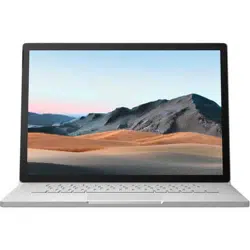
You can configure your Surface Book to suit whatever you’re doing at the moment. With the Clipboard attached to the full-size backlit keyboard, Surface Book is a high-performance laptop.
-347123.png)
The keyboard attaches to the Clipboard with a friction mechanism. You can detach the keyboard and reattach it in the position you want.
To detach the keyboard:
- Press and hold the Detach key
-325787.png) , or select Detach
, or select Detach -611586.png) in the taskbar, until the LED on the key glows red, then green.
in the taskbar, until the LED on the key glows red, then green.
- When the light turns green, pull the Clipboard away from the keyboard.
With the Clipboard detached from the keyboard, Surface Book becomes a thin, light tablet that works perfectly with OneNote and Surface Pen. It even has its own battery, giving you several hours of use with the keyboard detached.
-987214.png)
To reattach the keyboard, align the keyboard and Clipboard and bring them together until they click into place.
-118831.png)
Turn the Clipboard around and reattach it to use Surface Book like a creative canvas. By reconnecting it to the keyboard, you have access to the USB ports and the DisplayPort and you have more battery time.
-77140.png)
Show your screen to other people in the room by attaching the Clipboard to the keyboard so you’re looking at the back of the Clipboard as you type.
-62005.png)
Get to know Windows 10
New to Windows 10? Get acquainted with new features like task view and custom desktops, the improved Start menu, and more. See Get Started with Windows 10 on Windows.com for more info.
Go to Start
Select Start -148312.png) in the taskbar or press the Start key on your keyboard to open the Start menu.
in the taskbar or press the Start key on your keyboard to open the Start menu.
-405785.png)
- In the lower-left corner, you'll find quick links to File Explorer, Settings, Power (shut down, sleep, and restart), and All apps.
- The apps you've used most often appear at the upper left.
- Your name and profile picture appear at the top left. Select them to change your account settings, lock the screen, or sign out.
Tiles on Start act as quick links to apps. You can rearrange, resize, add, and remove tiles whenever you want.
Action center
-842379.png)
Swipe in from the right edge of the screen or select Action center -275479.png) in the taskbar to open the Action center.
in the taskbar to open the Action center.
Here, you can adjust common settings like Wi-Fi connections or screen brightness, open OneNote, create a wireless connection to another screen, and more. If there are notifications waiting for you, they appear at the top of the Action center.
Search
Search is always ready for you. Select the search box in the taskbar. Learn more at Search for anything, anywhere on Windows.com.
Or, go to Start , and select Cortana -727572.png) . For more info, including tips on personalizing Cortana, see What is Cortana? on Windows.com.
. For more info, including tips on personalizing Cortana, see What is Cortana? on Windows.com.
Task view and virtual desktops
Swipe in from the left edge of the screen or select Task view-577963.png) in the taskbar to see all your open apps. Select an app to focus on or close an app by clicking the X in the upper-right corner of the app.
in the taskbar to see all your open apps. Select an app to focus on or close an app by clicking the X in the upper-right corner of the app.
-982651.png)
While you're in Task view, you can create a new virtual desktop by selecting New desktop in the lower-right corner. Each virtual desktop can have its own set of open apps. To switch between desktops, open Task view and select a desktop.
Settings in Windows 10
Go to Start , and select Settings for access to all your settings.
-453786.png)
Keep your Surface Book up to date
Keep your Surface Book performing its best by getting the latest performance and security updates.
Microsoft releases updates to improve Windows software security and reliability, and system and hardware updates (also known as firmware updates) to help improve the stability and performance of your Surface hardware.
When updates become available, they’re installed automatically on your Surface over Wi-Fi. Windows notifies you if you need to restart your Surface to finish installing an update.
Browse the Internet
[image]
Microsoft Edge works with Cortana to help you get the most from the Internet, and you can use your Surface Pen or touch to create Web Notes that you can save or share.
To open Microsoft Edge, select it from Start or the taskbar. Or, go to Start , and select All apps > Microsoft Edge.
The first time you start Microsoft Edge, you’ll see the default start page with the address bar in the center.
Enter a web address or search term in the address bar and press Enter.
Use the arrows in the upper-left corner to return to sites you’ve visited during a browsing session or select the address bar to see sites you visit often.
Select Share -424370.png) to share webpages with friends.
to share webpages with friends.
-850028.png)
Connect devices and accessories
You can make photos, videos, and presentations bigger by connecting your Surface Book to a TV, monitor, or projector. Or, connect to an HDTV and watch movies on a big screen.
You can connect monitors, accessories, and other devices directly to your Surface Book using the USB ports, Mini DisplayPorts, or Bluetooth. Or, connect everything to a Surface Dock (sold separately). Surface Dock lets you transform your Surface Book into a full desktop PC using a single cable.
Set up your workspace with Surface Dock
Surface Dock supports high-speed transfer of video, audio, and data. Its compact design gives you flexibility and keeps your desktop clutter-free. The external power supply recharges your Surface and provides plenty of additional power to charge connected USB devices.
-389382.png)
Here's how to set up your Surface Dock:
- Plug the AC end of the Surface Dock power cord into an electrical outlet or power strip and plug the other end into the power port on your Surface Dock.
- If you want to use a wired network connection, connect a network cable to the Ethernet port on your Surface Dock.
- Connect your computer peripherals to the USB ports on your Surface Dock.
- Connect a cable from your monitor to a Mini DisplayPort on your Surface Dock. If your monitor cable doesn’t have a Mini DisplayPort connector, you’ll need to buy another cable or an adapter. For more info on adapters, see Connect Surface to a TV, monitor, or projector on Surface.com.
- Connect any audio accessories like speakers or headphones. Without external speakers, you may not hear audio when you’re using your Surface. If this is the case, see Troubleshoot Surface Dock on Surface.com to learn how to switch to the builtin speakers on your Surface.
- Unplug the Surface power supply and remove any attached accessories from your Surface. You can leave an SD card in the SD card slot.
- Connect your Surface Dock to the charging port of your Surface, using the cable provided.
Connect a USB accessory (printer, mouse, and more)
You can connect a USB accessory like a printer, camera, music player, smartphone, mouse, or external hard drive directly to your Surface Book.
The USB port is on the side of the keyboard
-253081.png)
The included power supply also has a USB charging port you can use to power other USB devices while you’re charging your Surface.
To install a USB accessory:
- If your USB accessory has a power cord, plug it in to an electrical outlet.
- Plug the USB cable attached to the accessory into your Surface.
- Turn on your accessory (if needed). The first time you plug in a USB accessory, Windows installs any software the accessory requires.
For more info, see Connect a USB mouse, printer
Connect to a TV, monitor, or projector
You can connect your Surface Book to another screen, or connect to an HDTV and watch movies on a big screen. You can even connect to some displays wirelessly. Surface video adapters are available in the Accessories area on Surface.com and in the Microsoft Store.
- HDTV: If your TV has an HDMI port, you’ll need an HDMI cable and a Mini DisplayPort to HD AV adapter or an HDMI to Mini DisplayPort cable. (Both are sold separately on Surface.com.)
- Projector or monitor: If your monitor has a DisplayPort, you can connect it to your Surface using a DisplayPort to Mini DisplayPort cable (sold separately). If your monitor doesn’t have a DisplayPort or HDMI port, use a VGA cable and the Mini DisplayPort to VGA Adapter. A VGA adapter or cable is for video only. Audio will play from your Surface speakers unless you’ve connected external speakers. For more info, see Surface sound, volume, and audio accessories on Surface.com.
- Wireless: You can connect to wireless displays when Windows detects one nearby. Or, use a Microsoft Wireless Display Adapter (sold separately) to connect to a screen using Miracast.
Connect to a wired display
- Connect an HDMI or VGA cable to the HDMI, DisplayPort, or VGA port on your TV, monitor, or projector.
- Connect the other end of the cable to a Surface video adapter or the Mini DisplayPort on your Surface or to your docking station.
- If you’re using an adapter, plug it into the Mini DisplayPort on your Surface or your docking station.
Connect to a wireless display
- On your Surface, swipe in from the right edge of the screen or select Action center in the taskbar.
- Select Connect, and in the list of displays, select the name of the wireless display
Set up your screens
Once you connect to another screen or screens, you can choose what to display on each screen. Here’s how:
- Select the search box in the taskbar, enter project to a second screen, and in the search results, select Project to a second screen.
- Choose one of the following options:
- PC screen only: You’ll see everything on your Surface screen. (When you're connected to a wireless projector, this option changes to Disconnect.)
- Duplicate: You’ll see the same things on all screens.
- Extend: You'll see everything spread over all screens, and you can drag and move items between them.
- Second screen only: You’ll see everything on the connected screen or screens, and your Surface screen will be blank.
For more info, including how to daisy chain monitors and move apps between screens, see Connect Surface to a TV, monitor
Add a Bluetooth accessory
You can also connect devices that use Bluetooth wireless technology to your Surface.
- Turn on the Bluetooth device and make it discoverable. To learn how to do this, check the info that came with your Bluetooth device or go to the manufacturer’s website.
- Go to Start , and select Settings > Devices > Bluetooth.
- Under Manage Bluetooth devices, make sure the slider is set to On and wait while Windows searches for Bluetooth devices.
- In the list of Bluetooth devices, select the device you want to pair with your Surface and select Pair.
- Follow the on-screen instructions to finish pairing your device.
If the accessory requires a pass code, (sometimes called a pairing code), you’ll be prompted for it. If you don’t know the pass code, check the info that came with your device or the manufacturer’s website
Add audio accessories
You can connect external USB speakers, headphones, or a headset to the full-size USB port. Or go wireless by using Bluetooth headphones or speakers with your Surface.
To get the best sound from USB or Bluetooth speakers, turn up the volume on your Surface and in the app, if it has its own sound control, and then adjust the volume on the external USB or Bluetooth speakers.
Clean and care for your Surface Book
To keep your Surface Book looking and working great, follow these simple steps.
Touchscreen care
Scratches, oil, dust, chemicals, and ultraviolet light can affect the performance of your touchscreen. Here are some things you can do to help protect the screen:
- Clean it frequently. The Surface Book touchscreen has been coated to make it easier to clean.
- You don’t need to rub hard to remove fingerprints or oily spots. To avoid scratches, use a soft, lint-free cloth to gently wipe the screen. You can dampen the cloth with water or an eyeglass cleaner, but don’t apply liquids directly to your Surface. Don’t use window cleaner or other chemical cleaners on your Surface.
- Keep it covered. Close the keyboard while you’re in transit or not using your Surface Book.
- Keep it out of the sun. Do not leave your Surface Book in direct sunlight for a long time. Ultraviolet light and excessive heat can damage the display
Cover and keyboard care
The Surface Book keyboard requires minimal care to function well. To clean the keyboard, wipe it with a lint-free cloth dampened in mild soap and water. Don’t apply liquids directly to your Surface.
For more info about safely cleaning and caring for Surface, see Safety and regulatory information.
Power cord care
Power cords, like any other metal wire or cable, can be weakened or damaged if repeatedly twisted or bent in the same spot. Here are some things you can do to keep your power cord from being damaged:
- Avoid twisting or pinching your power cord.
- Don’t wrap your power cord too tightly, especially around the power brick. Instead, wrap it using loose coils rather than tight angles.
- Inspect your power cord regularly, especially where it joins the power brick.
- Avoid pulling on the power cord when unplugging your Surface. Gently removing the connector from the charging connector can help prevent damage.
-733548.png)
-835699.png)