www.philips.com/welcome
EN User manual 1
Customer care and warranty 32
Troubleshooting & FAQs 43
224CL2

1. Important ................................................1
1.1 Safety precautions and maintenance ...1
1.2 Notational Descriptions .............................2
1.3 Disposal of product and packing
material ................................................................3
2. Setting up the monitor .........................4
2.1 Installation ...........................................................4
2.2 Operating the monitor ...............................5
3. Product information .............................8
3.1 SmartImage ........................................................8
3.2 SmartContrast .................................................9
3.3 Philips SmartControl Premium ..............9
3.4 SmartDesktop Guide ................................17
3.5 Philips' Flat Panel Monitors Pixel
Defect Policy ..................................................22
4. Technical Specifications ......................24
4.1 Resolution & Preset Modes...................26
4.2 Automatic PowerSaving ...........................26
5. Regulatory Information ......................27
6. Customer care and warranty ...........32
7. Troubleshooting & FAQs ...................43
7.1 Troubleshooting ...........................................43
7.2 SmartControl Premium FAQs .............45
7.3 General FAQs ...............................................46
Table of Contents

1
1. Important
This electronic user’s guide is intended for
anyone who uses the Philips monitor. Take time
to read this user manual before you use your
monitor. It contains important information and
notes regarding operating your monitor.
The Philips guarantee applies provided the
product is handled properly for its intended use,
in accordance with its operating instructions
and upon presentation of the original invoice
or cash receipt, indicating the date of purchase,
dealer’s name and model and production
number of the product.
1.1 Safety precautions and mainte-
nance
Warnings
Use of controls, adjustments or procedures
other than those specified in this documentation
may result in exposure to shock, electrical
hazards and/or mechanical hazards.
Read and follow these instructions when
connecting and using your computer monitor.
Operation
• Risk of electric shock or fire!
• Keep the monitor out of direct sunlight
and away from stoves or any other heat
source.
• Remove any object that could fall into
ventilation holes or prevent proper cool-
ing of the monitor’s electronics.
• Do not block the ventilation holes on the
cabinet.
• When positioning the monitor, make
sure the power plug and outlet are easily
accessible.
• If turning off the monitor by detaching the
power cable or DC power cord, wait for 6
seconds before attaching the power cable
or DC power cord for normal operation.
• Please use approved power cord provided
by Philips all the time. If your power cord
is missing, please contact with your local
service center. (Please refer to Customer
Care Consumer Information Center.)
• Do not subject the monitor to severe
vibration or high impact conditions during
operation.
• Do not knock or drop the monitor during
operation or transportation.
Maintenance
• To protect your monitor from possible
damage, do not put excessive pressure
on the Monitor panel. When moving your
monitor, grasp the frame to lift; do not lift
the monitor by placing your hand or fingers
on the Monitor panel.
• Unplug the monitor if you are not going to
use it for an extensive period of time.
• Unplug the monitor if you need to clean it
with a slightly damp cloth. The screen may
be wiped with a dry cloth when the power
is off. However, never use organic solvent,
such as, alcohol, or ammonia-based liquids
to clean your monitor.
• To avoid the risk of shock or permanent
damage to the set, do not expose the
monitor to dust, rain, water, or excessive
moisture environment.
• If your monitor gets wet, wipe it with dry
cloth as soon as possible.
• If foreign substance or water gets in
your monitor, please turn the power off
immediately and disconnect the power
cord. Then, remove the foreign substance
or water, and send it to the maintenance
center.
• Do not store or use the monitor in
locations exposed to heat, direct sunlight or
extreme cold.

2
• In order to maintain the best performance
of your monitor and use it for a longer life-
time, please use the monitor in a location
that falls within the following temperature
and humidity ranges.
Temperature: 0-40°C 32-95°F
Humidity: 20-80% RH
• IMPORTANT: Always activate a moving
screen saver program when you leave
your monitor unattended. Always activate
a periodic screen refresh application
if your monitor will display unchanging
static content. Uninterrupted display of
still or static images over an extended
period may cause "burn in", also known as
"after-imaging" or "ghost imaging", on your
screen. "Burn-in", "after-imaging", or "ghost
imaging" is a well-known phenomenon in
Monitor panel technology. In most cases,
the "burned in" or "after-imaging" or "ghost
imaging" will disappear gradually over a
period of time after the power has been
switched off.
Warning
Severe” burn-in” or “after-image” or “ghost
image” symptoms will not disappear and cannot
be repaired. The damage mentioned above is
not covered under your warranty.
Service
• The casing cover should be opened only
by qualified service personnel.
• If there is any need for any document for
repair or integration, please contact with
your local service center. (please refer to
the chapter of "Consumer Information
Center")
• For transportation information, please refer
to "Technical Specifications".
• Do not leave your monitor in a car/trunk
under direct sun light.
Note
Consult a service technician if the monitor
does not operate normally, or you are not sure
what procedure to take when the operating
instructions given in this manual have been
followed.
1.2 Notational Descriptions
The following subsections describe notational
conventions used in this document.
Notes, Cautions and Warnings
Throughout this guide, blocks of text may be
accompanied by an icon and printed in bold or
italic type. These blocks contain notes, cautions
or warnings. They are used as follows:
Note
This icon indicates important information and
tips that help you make better use of your
computer system.
Caution
This icon indicates information that tells you
how to avoid either potential damage to
hardware or loss of data.
Warning
This icon indicates the potential for bodily harm
and tells you how to avoid the problem.
Some warnings may appear in alternate formats
and may not be accompanied by an icon. In such
cases, the specific presentation of the warning is
mandated by the relevant regulatory authority.

3
1.3 Disposal of product and packing
material
Waste Electrical and Electronic Equipment -
WEEE
This marking on the product or on its
packaging illustrates that, under European
Directive 2002/96/EC governing used electrical
and electronic appliances, this product may
not be disposed of with normal household
waste. You are responsible for disposal of
this equipment through a designated waste
electrical and electronic equipment collection.
To determine the locations for dropping off
such waste electrical and electronic, contact
your local government office, the waste disposal
organization that serves your household or the
store at which you purchased the product.
Your new monitor contains materials that can
be recycled and reused. Specialized companies
can recycle your product to increase the
amount of reusable materials and to minimize
the amount to be disposed of.
All redundant packing material has been
omitted. We have done our utmost to make the
packaging easily separable into mono materials.
Please find out about the local regulations on
how to dispose of your old monitor and packing
from your sales representative.
Recycling Information for Customers
There is currently a system of recycling up and
running in the European countries, such as The
Netherlands, Belgium, Norway, Sweden and
Denmark.
In Asia Pacific, Taiwan, the products can be taken
back by Environment Protection Administration
(EPA) to follow the IT product recycling
management process, detail can be found in
web site www.epa.gov.tw
The monitor contains parts that could cause
damage to the nature environment. Therefore, it
is vital that the monitor is recycled at the end of
its life cycle.
For help and service, please contact Consumers
Information Center or F1rst Choice Contact
Information Center in each country.
4
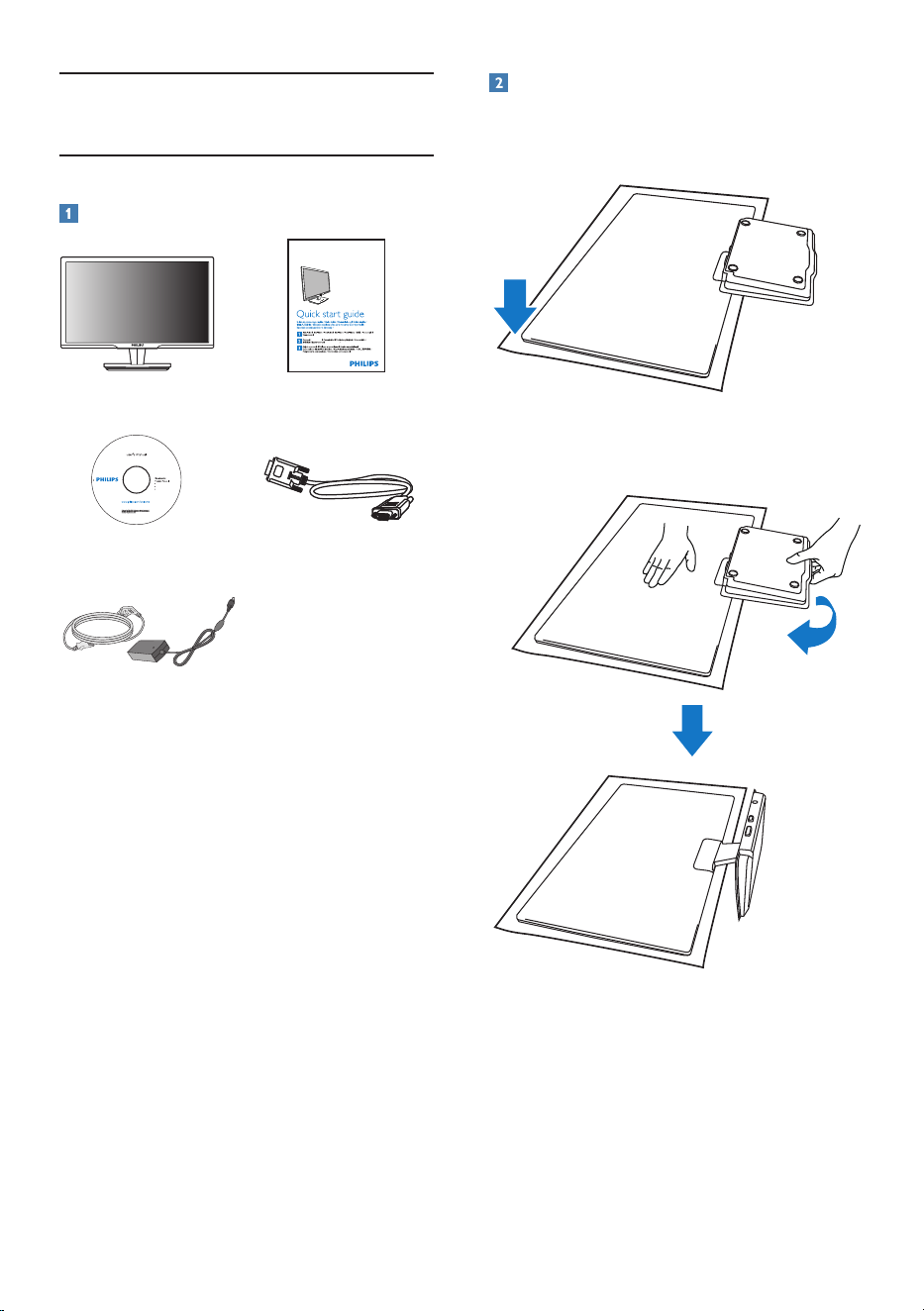
Installation
1. Place the monitor face down on a smooth
surface. Pay attention to avoid scratching or
damaging the screen..
2. Hold the monitor and base with both
hands. Gently bend the base vertically
down to a fixed angle.
2. Setting up the monitor
2.1 Installation
Package contents
EDFU CD
Monitor
Quick start guide
VGA signal cable (optional)
AC/DC Adapter
2
0
1
0
K
o
n
i
n
k
l
i
j
k
e
P
h
i
l
i
p
s
E
l
e
c
t
r
o
n
i
c
s
,
N
.
V
.
A
l
l
r
i
g
h
t
s
r
e
s
e
r
v
e
d
.
U
n
a
u
t
h
o
r
i
z
e
d
d
u
p
l
i
c
a
t
i
o
n
is
a
v
i
o
l
a
t
i
o
n
o
f
a
p
p
l
i
c
a
b
l
e
l
a
w
s
.
M
a
d
e
a
n
d
p
r
i
n
t
e
d
i
n
C
h
i
n
a
.
V
e
r
s
i
o
n
M
2
2
2
4
C
L
E
1
T
Q
7
0
G
2
2
C
1
8
1
3
6
A
Monitor drivers
Quick Setup Guide
SmartControl software
Monitor
224CL2
Подключение
Connexion
5
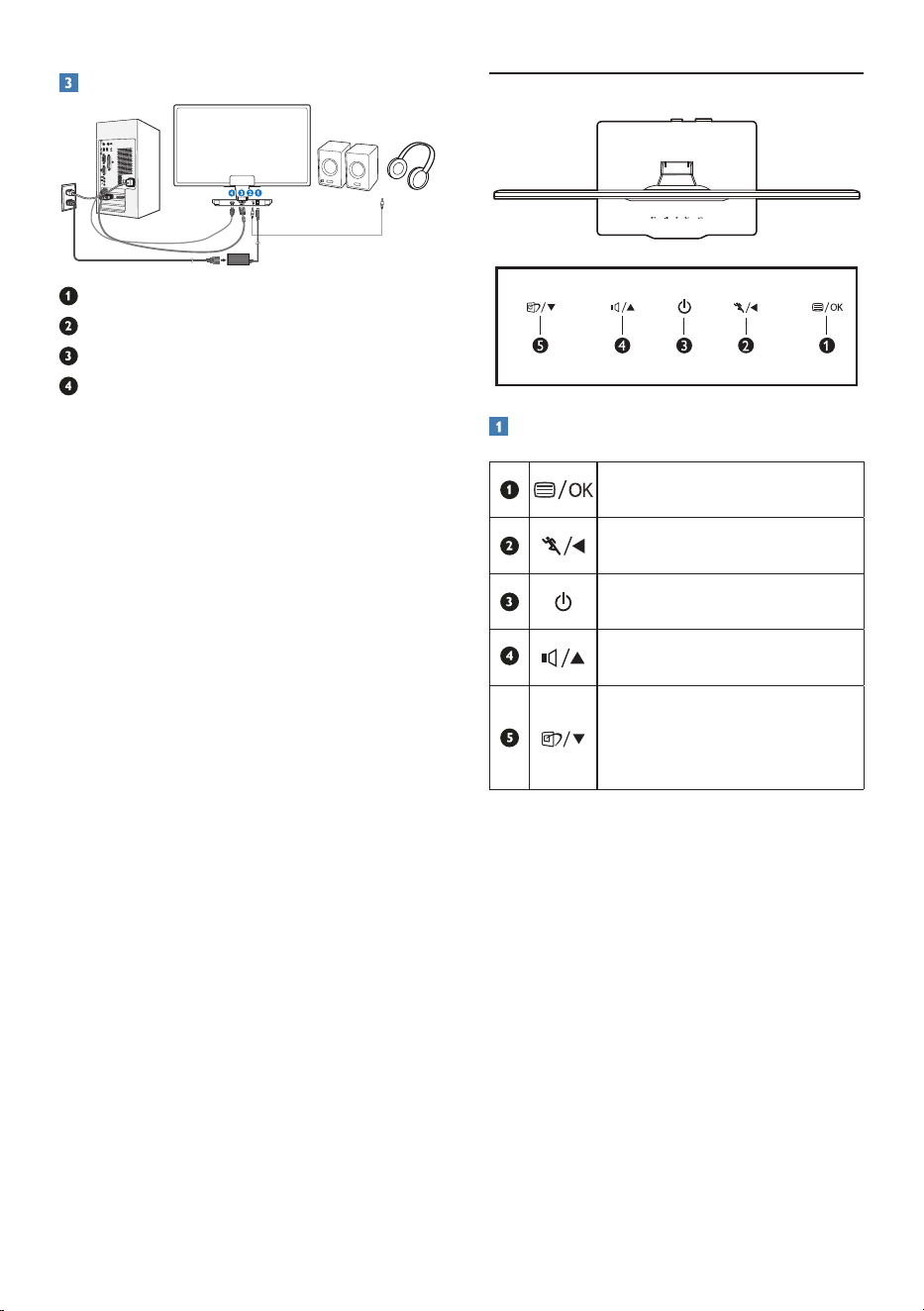
Connecting to your PC
DC power input
HDMI audio output
VGA
input
HDMI input
Connect to PC
1. Turn off your computer and unplug its
power cord.
2. Connect the VGA signal cable or your
HDMI cable for video connection.
3. Connect the HDMI audio output to your
external stereo amplifier if needed.
4. Connect the DC power input to your
monitor.
5. Plug the power cord of the AC/DC adapter
into a nearby AC power outlet.
6. Turn on your computer and monitor. If the
monitor displays images, the installation is
done.
2.2 Operating the monitor
Front view product description
To access OSD menu
/OK.
To use the Turbo function
/Return to previous OSD level.
To switch monitor's power on
and off.
To adjust HDMI audio volume
/To adjust the OSD menu.
SmartImage. There are 6 modes
to be selected: Office, Photo,
Movie, Game, Economy, Off
/To adjust the OSD menu.
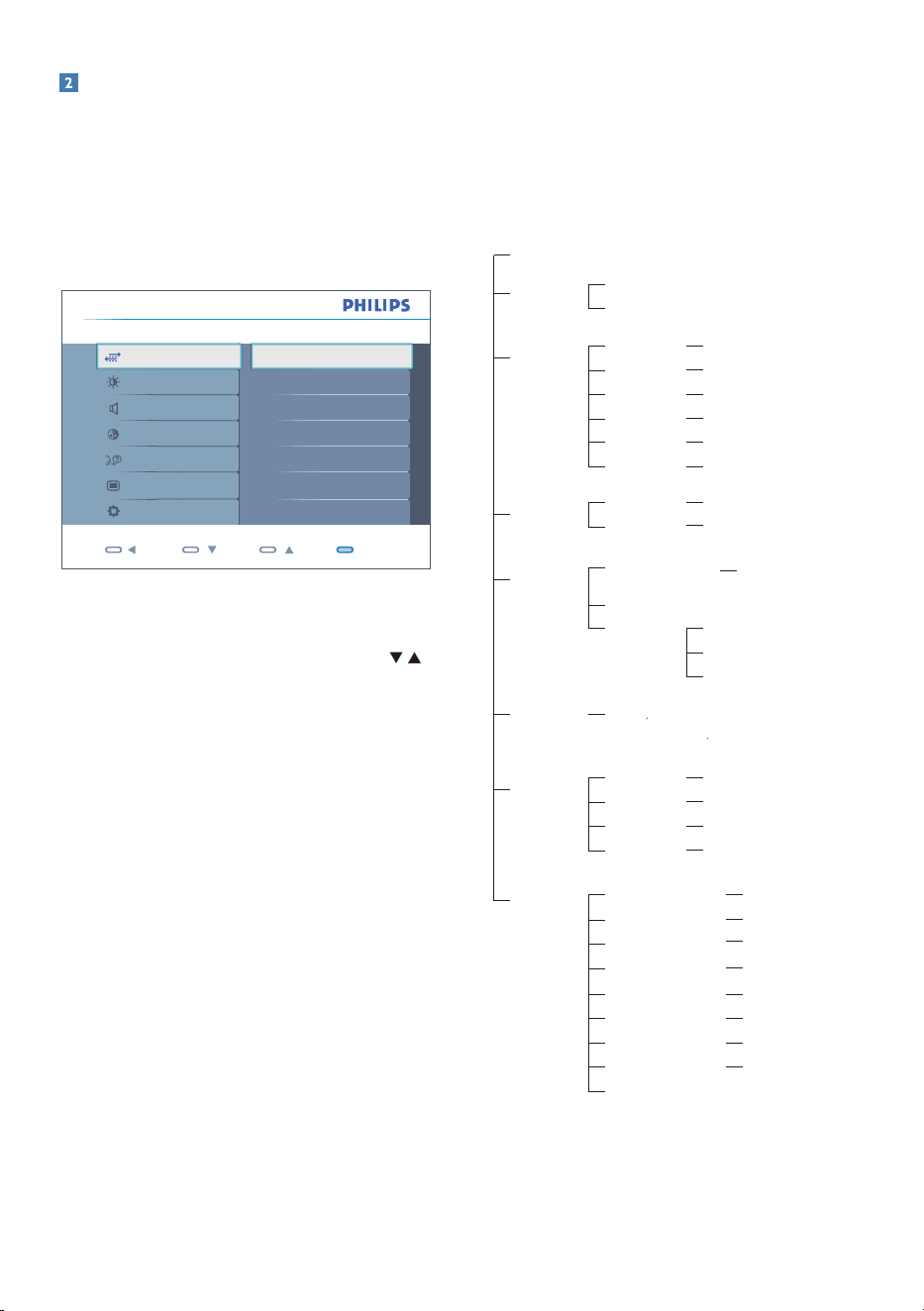
6
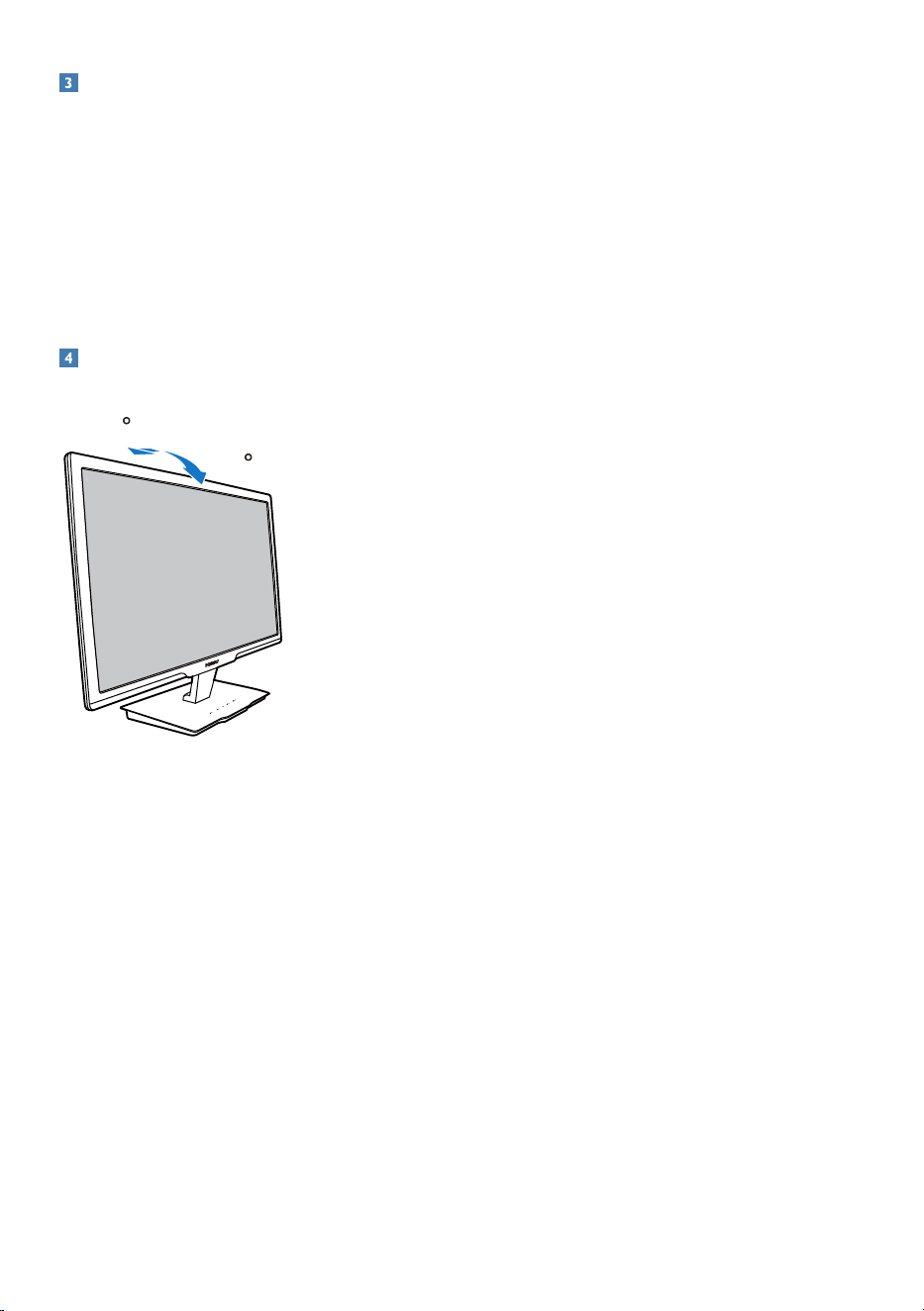
Description of the On Screen Display
What is On-Screen Display (OSD)?
On-Screen Display (OSD) is a feature in all
Philips Monitors. It allows an end user to adjust
screen performance or select functions of
the monitors directly through an on-screen
instruction window. A user friendly on screen
display interface is shown as below:
Back OK
Color
OSD Settings
Audio
Language
Picture
Setup
Monitor Setup Input
HDMI
VGA
Input
Basic and simple instruction on the control
keys
In the OSD shown above, users can press
buttons at the front bezel of the monitor to
move the cursor, or press OK to confirm the
choice or adjustment.
The OSD Menu
Below is an overall view of the structure of
the On-Screen Display. You can use this as a
reference when you want to work your way
around the different adjustments later on.
Main menu Sub menu
Auto
Input
VGA
HDMI
Picture
Wide screen, 4:3
0~100
0~100
On, Off
On, Off
1.8, 2.0, 2.2, 2.4, 2.6
Picture Format
Brightness
Contrast
SmartResponse
SmartContrast
Gamma
OSD Settings
0~100
0~100
Off, 1, 2, 3, 4
5, 10, 20, 30, 60
Horizontal
Vertical
Transparency
OSD Time out
Setup
0~100
On, Off
Yes, No
0~100
0, 1, 2, 3, 4
On, Off
H. Position
V. Position
Power LED
Over Scan
Resolution Notification
Reset
Information
Language
English
Español, Français, Deutsch, Italiano,
Português,
Русский
簡体中文,
Türkçe
Color
5000K, 6500K, 7500K, 8200K,
9300K, 11500K
Red: 0~100
Green: 0~100
Blue: 0~100
Color Temperature
sRGB
User Define
Audio
On, Off
On, Off
Stand Alone
Mute
0~100
0~100
Phase
Clock
7
Resolution notification
This monitor is designed for optimal
performance at its native resolution, 1920 x
1080 at 60 Hz. When the monitor is powered
on at a different resolution, an alert is displayed
on screen: Use 1920 x 1080 at 60 Hz for best
results.
Display of the native resolution alert can be
switched off from Setup in the OSD (On
Screen Display) menu.
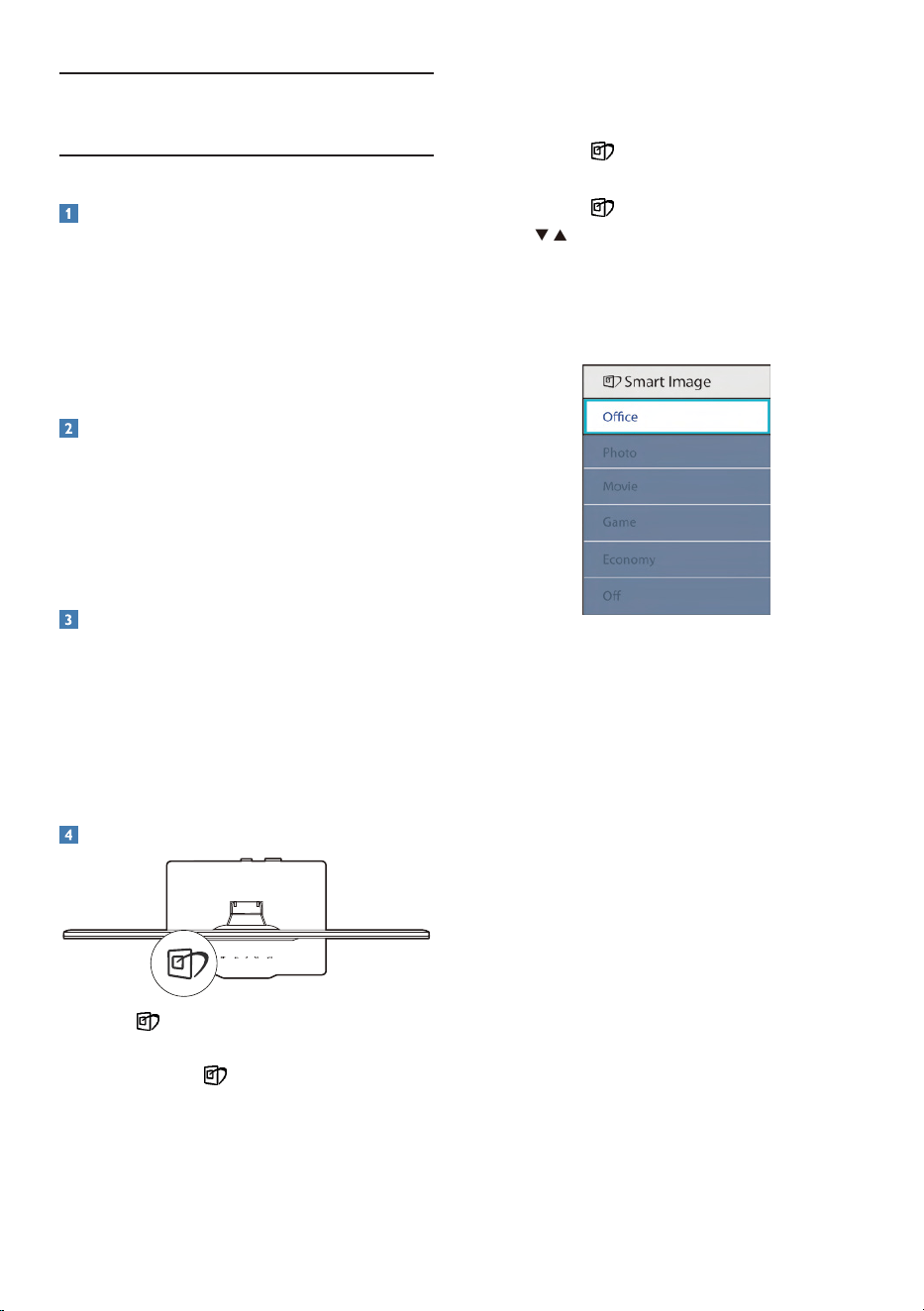
Physical Function
Tilt
14
-3
8
3. Product information
3.1 SmartImage
What is it?
SmartImage provides presets that optimize
display for different types of content, dynamically
adjusting brightness, contrast, color and
sharpness in real time. Whether you're working
with text applications, displaying images or
watching a video, Philips SmartImage delivers
great optimized monitor performance.
Why do I need it?
You want a monitor that delivers optimized
display all your favorite types of content,
SmartImage software dynamically adjust
brightness, contrast, color and sharpness in
real time to enhance your monitor viewing
experience.
How does it work?
SmartImage is an exclusive, leading edge Philips
technology that analyzes the content displayed
on your screen. Based on a scenario you select,
SmartImage dynamically enhances the contrast,
color saturation and sharpness of images to
enhance the contents being displayed - all in
real time with the press of a single button.
How to enable SmartImage?
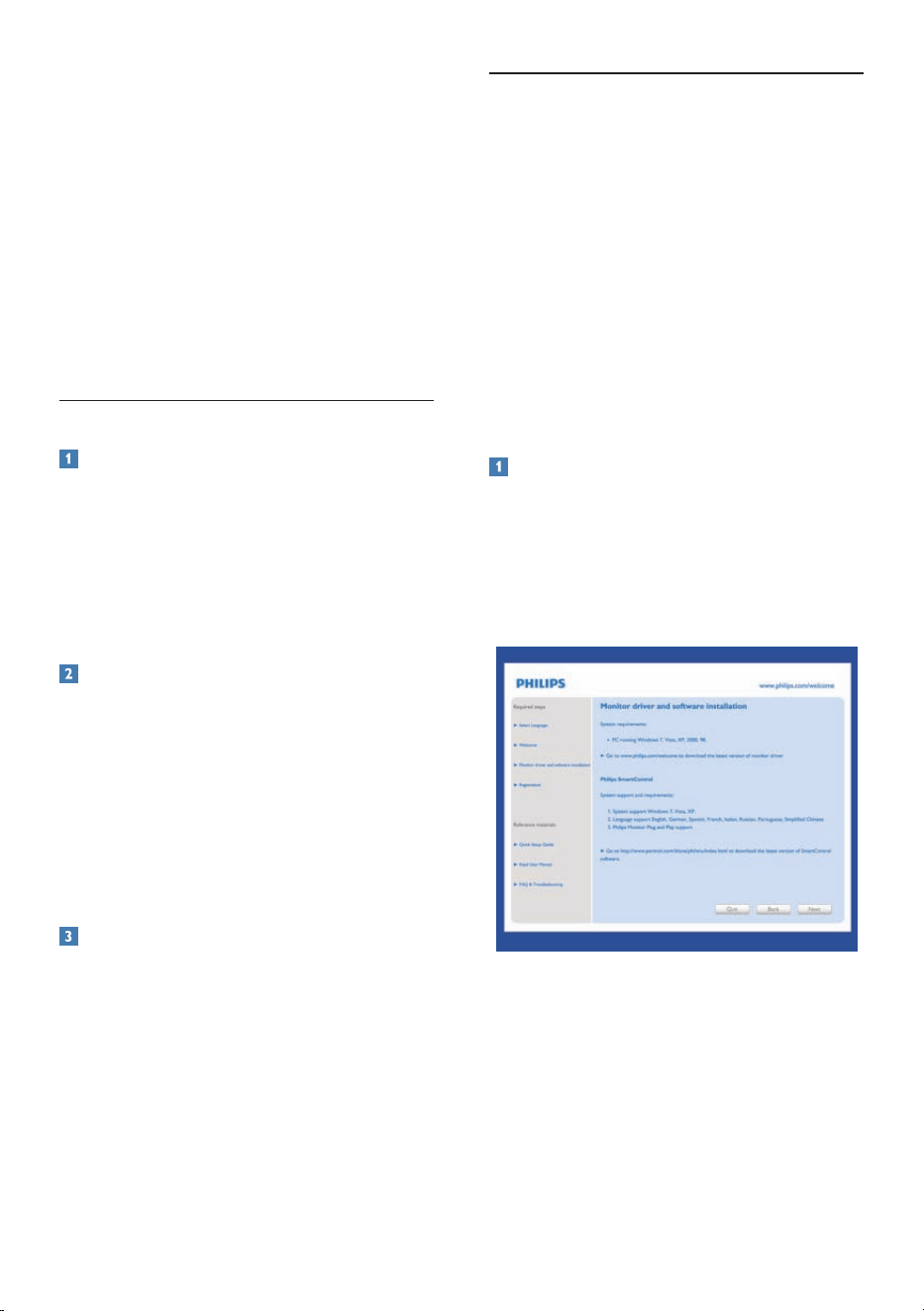
1. Press to launch the SmartImage on
screen display.
2. Keep pressing to toggle between Office,
Photo, Movie, Game, Economy and Off.
3. The SmartImage on screen display will
remain on screen for 5 seconds, or you can
also press "OK" to make confirmation.
4. When SmartImage is enabled, the sRGB
scheme is disabled automatically. To use
sRGB, you need to disable SmartImage
with the button at the front bezel of
your monitor.
Except using key to scroll down, you can also
press buttons to choose and press “OK”
to confirm selection and close the SmartImage
OSD.
There are six modes to select: Office, Photo,
Movie, Game, Economy and Off.
• Office: Enhances text and dampens
brightness to increase readability and
reduce eye strain. This mode significantly
enhances readability and productivity when
you’re working with spreadsheets, PDF files,
scanned articles or other general office
applications.
• Photo: This profile combines color
saturation, dynamic contrast and sharpness
enhancement to display photos and other
images with outstanding clarity in vibrant
colors - all without artifacts and faded
colors.
• Movie: Ramped up luminance, deepened
color saturation, dynamic contrast and
razor sharpness displays every details in
darker areas of your videos without color
washout in brighter areas maintaining a
dynamic natural values for the ultimate
video display.
9
• Game: Turn on over drive circuit for best
response time, reduce jaggy edges for fast
moving objects on screen, enhance contrast
ratio for bright and dark scheme, this
profile delivers the best gaming experience
for gamers.
• Economy: Under this profile, brightness,
contrast are adjusted and backlighting
finetuned for just right display of everyday
office applications and lower power
consumption.
• Off: No optimization by SmartImage.
3.2 SmartContrast
What is it?
Unique technology that dynamically analyzes
displayed content and automatically optimizes
a Monitor's contrast ratio for maximum visual
clarity and viewing enjoyment, stepping up
backlighting for clearer, crisper and brighter
images or dimming backlighting for clear display
of images on dark backgrounds.
Why do I need it?
You want the very best visual clarity and
viewing comfort for every type of content.
SmartContrast dynamically controls contrast
and adjusts backlighting for clear, crisp, bright
gaming and video images or displays clear,
readable text for office work. By reducing your
monitor's power consumption, you save on
energy costs and extend the lifetime of your
monitor.
How does it work?
When you activate SmartContrast, it will analyse
the content you are displaying in real time to
adjust colors and control backlight intensity. This
function will dynamically enhance contrast for a
great entertainment experience when viewing
videos or playing games.
3.3 Philips SmartControl Premium
The new SmartControl Premium software
by Phillips allows you to control your monitor
via an easy to use on-screen graphic interface.
Complicated adjustments are a thing of the
past as this user friendly software guides you
through fine-tuning resolution, Color calibration,
Clock/Phase adjustments, RGB White point
adjustment, etc.
Equipped with latest technology in core
algorithm for fast processing and response, this
Windows 7 compliant eye catching animated
Icon based software is ready to enhance your
experience with Philips monitors!
Installation
• Follow the instruction and complete the
installation.
• You can launch after installation is
completed.
• If you want to launch later, you can either
click the shortcut on desktop or toolbar.
First launch -Wizard
• The first time after installation of Smart-
Control Premium, it will automatically go
to Wizard for first time launch.
• The wizard will guide you through adjust-
ment your monitor performance step by
step.
• You can go to Plug-in menu to launch
wizard later on as well.
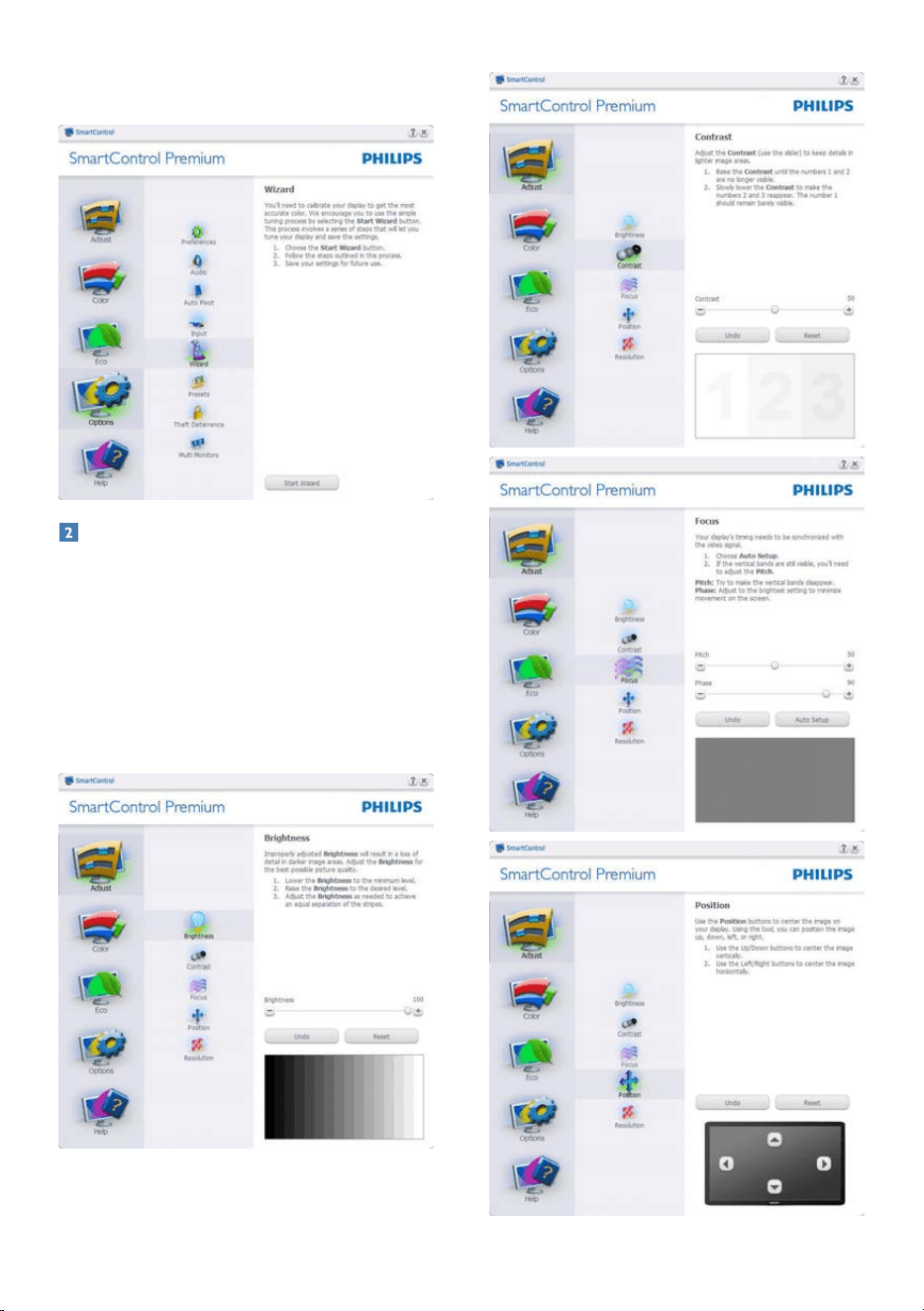
10
• You can adjust more options without
wizard by Standard pane.
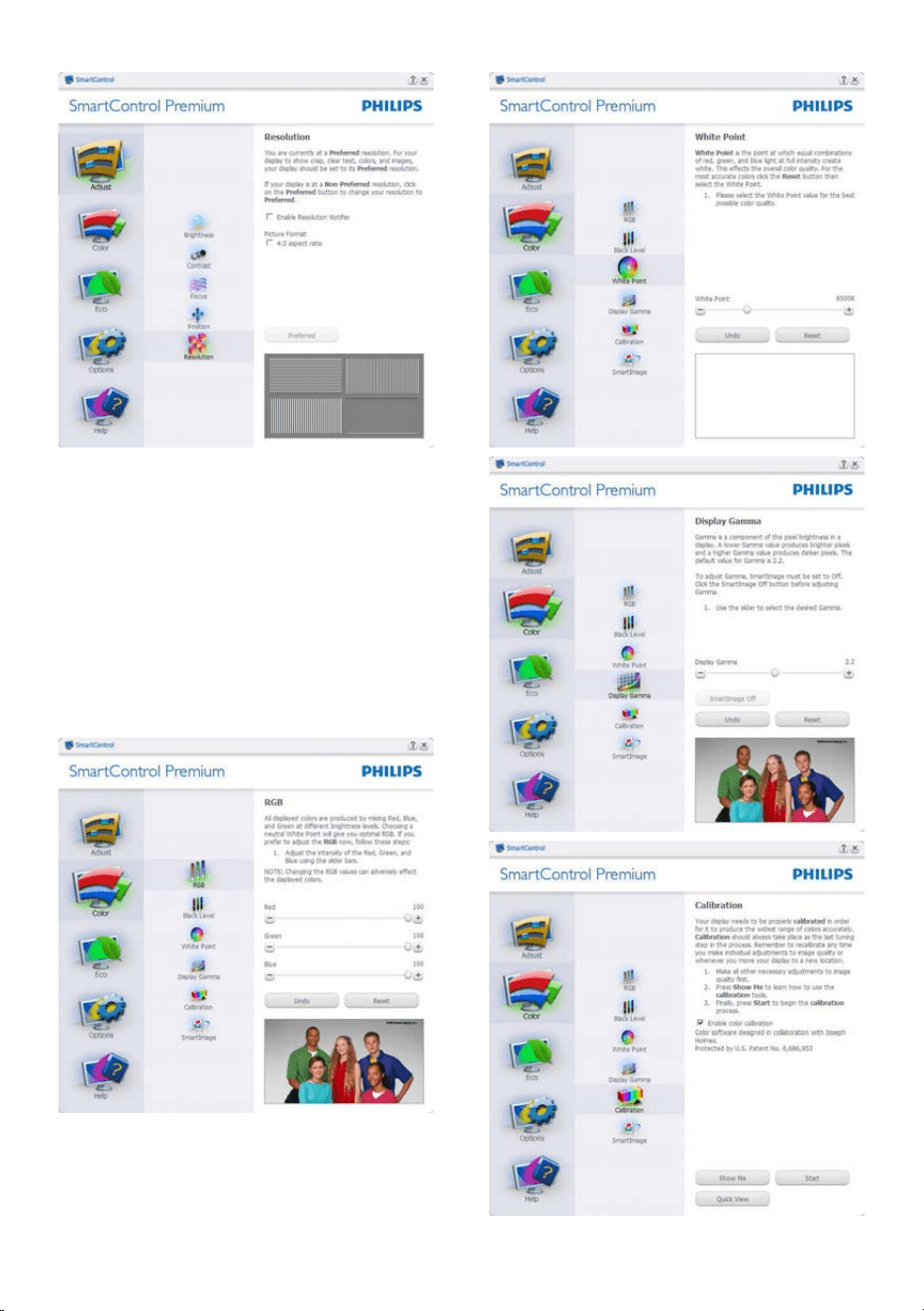
Start with Standard pane:
Adjust menu:
• Adjust Menu allow you to adjust Bright-
ness, Contrast, Focus, Position and Reso-
lution.
• You can follow the instruction and do the
adjustment.
• Cancel prompts user if you want to cancel
installation.
11
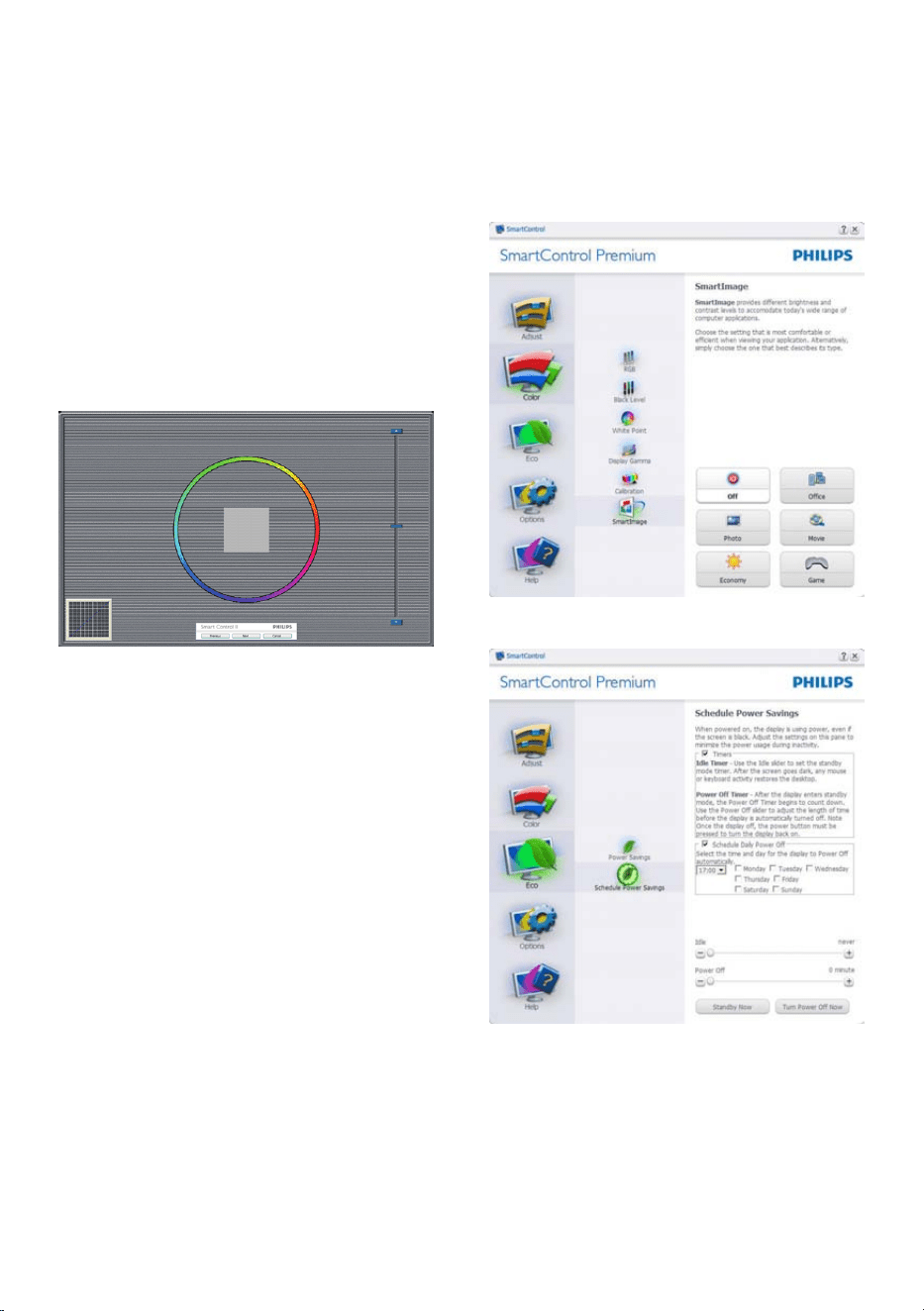
Color menu:
• Color Menu allow you to adjust RGB,
Black Level, White Point, Color Calibra-
tion, and SmartImage (Please refer to
SmartImage section).
• You can follow the instruction and do the
adjustment.
• Refer to below table for sub-menu item
base on your input.
• Example for Color Calibration
12
1. "Show Me" starts color calibration tutorial.
2. Start - starts the 6-step color calibration
sequence.
3. Quick View loads the before/after images.
4. To return to Color home pane, click the
Cancel button.
5. Enable color calibration - by default is on.
If unchecked, does not allow for color
calibration to happen, dimes out start and
quick view buttons.
6. Must have patent info in calibration screen.
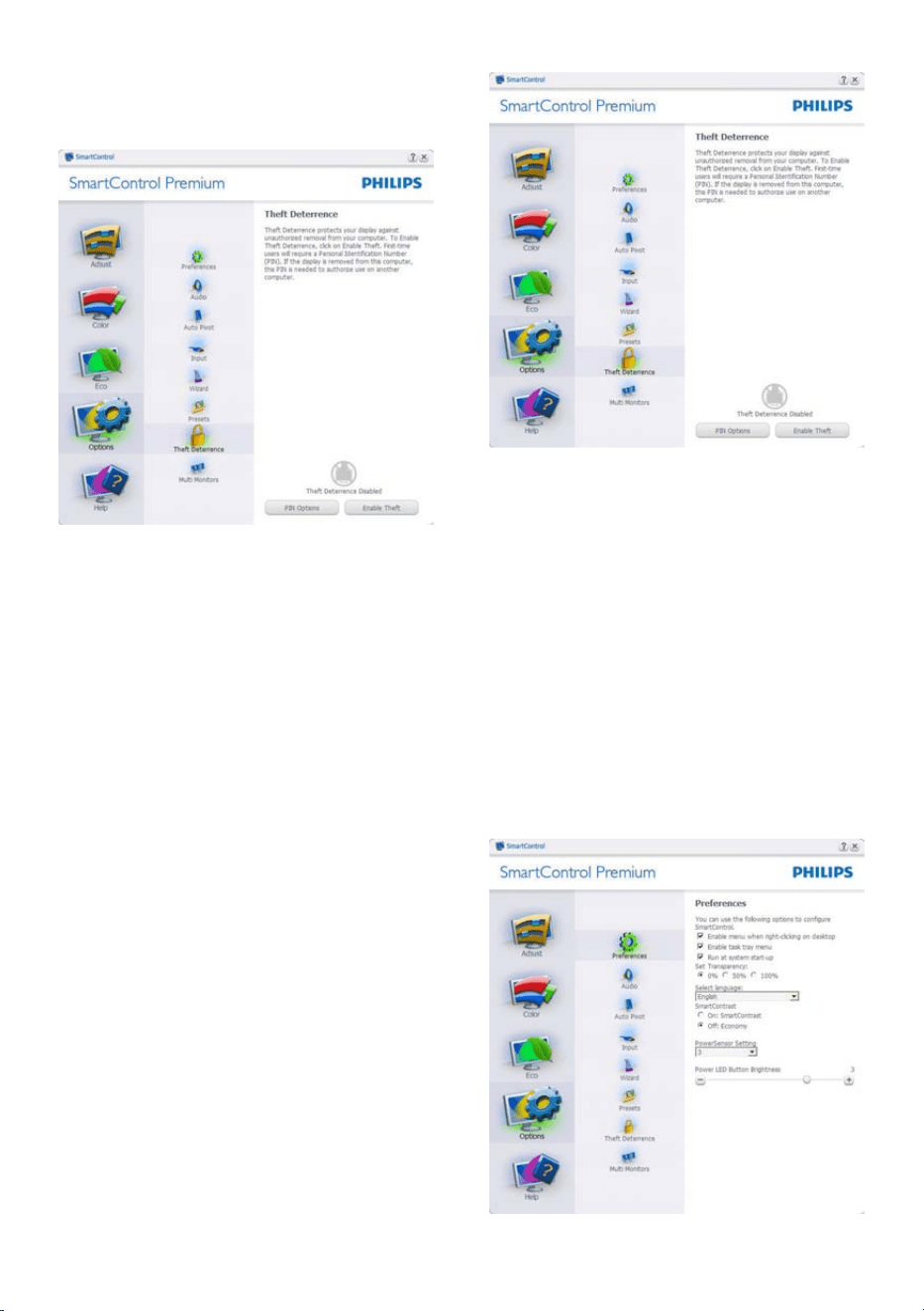
First color Calibration Screen:
• Previous button is disabled until the sec-
ond color screen.
• Next goes to the succeeding target
(6-targets).
• Final next goes File>Presets pane.
• Cancel closes the UI and returns to the
plug in page.
SmartImage
Allows user to change setting for better display
setting based on content.
When Entertainment is set, SmartContrast and
SmartResponse are enabled.
ECO
13
Theft Deterrence Pane will only be active when
selecting Theft Deterrence Mode from the
drop-down Plug Ins menu.
To enable Theft Deterrence, clicking Enable
Theft Deterrence Mode button brings up the
following screen:
• User can enter PIN between 4 and 9 digits
numbers only.
• After entering PIN, Accept button takes
user to the pop-up dialog box on the fol-
lowing page.
• Minimum minutes set to 5. Slider set to 5
by default.
• Does not require the display be attached
to a different host to go into Theft Deter-
rence mode.
After creating PIN, the Theft Deterrence pane
will indicate Theft Deterrence Enabled and
provide PIN Options button:
• Theft Deterrence Enabled is displayed.
• Disable Theft Deterrence Mode opens
pane screen on next page.
• PIN Options button only available after
user creates PIN, button opens secure
PIN web site.
Options>Preferences - Will only be active
when selecting Preferences from the drop-
down Options menu. On a non-supported
display capable of DDC/CI, only the Help and
Options tabs are available.
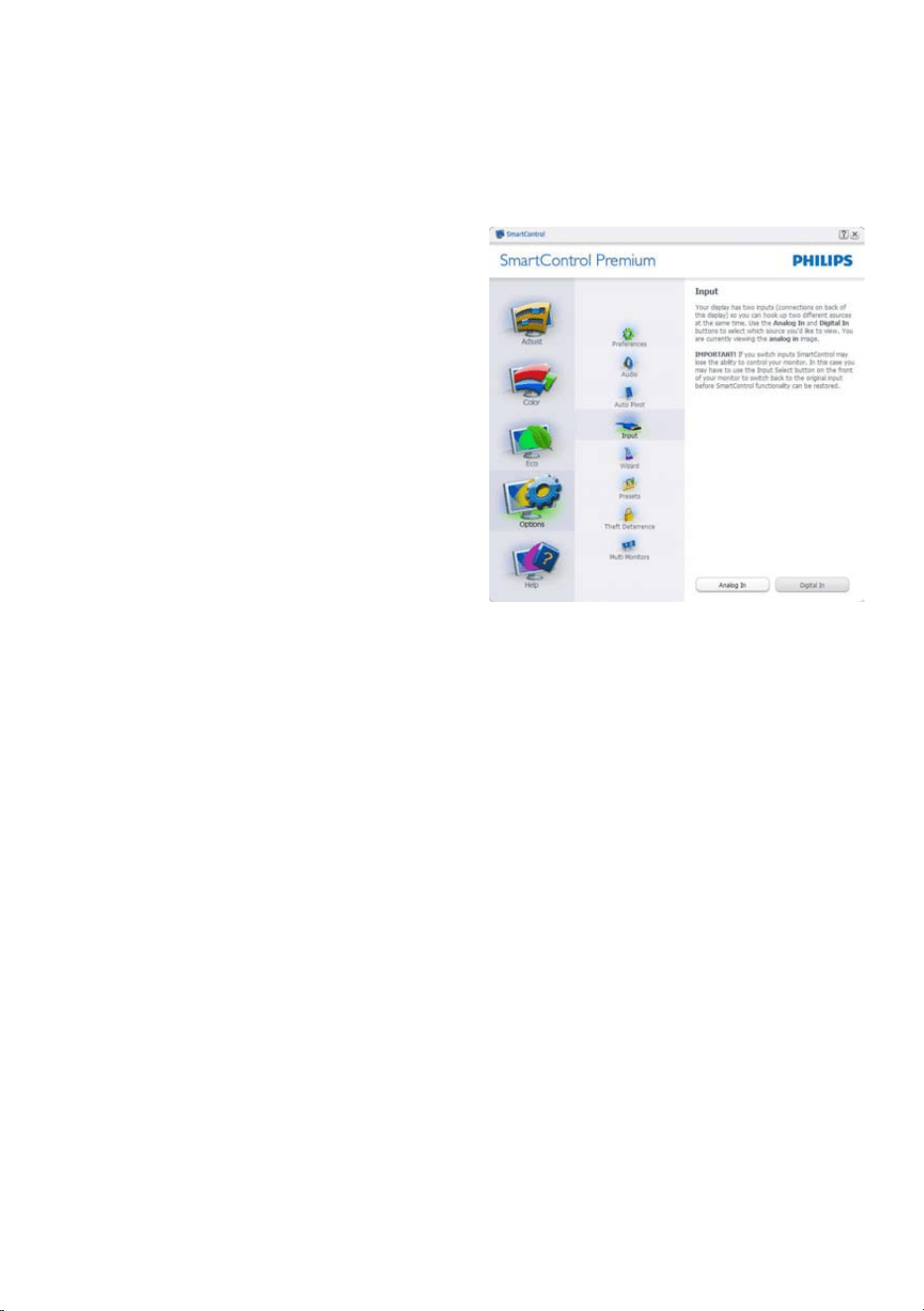
14
• Displays current preference settings.
• A checked box enables the feature. The
check box is a toggle.
• Enable Context Menu on desktop is
checked (On) by default. Enable Context
menu displays SmartControl Premium se-
lections for Select Preset and Tune Display
in the desktop right-click context menu.
Disabled removes SmartControl Premium
from the right click context menu.
• Enable Task Tray icon is checked (On)
by default. Enable context menu shows
the task tray menu for SmartControl
Premium. A right click on the task tray
icon displays the menu options for Help,
Technical Support. Check for Upgrade,
About, and Exit. When Enable task tray
menu is disabled, the task tray icon will
only display EXIT.
• Run at Startup is checked (On) by default.
When disabled, SmartControl Premium
will not launch at start or be in the task
tray. The only way to launch SmartControl
Premium is either from the desktop short
cut or from the program file. Any preset
set to run at startup will not load when
this box is unchecked (Disabled).
• Enable transparency mode (Windows 7,
Vista, XP). Default is 0% Opaque.
Options>Input - Will only be active when
selecting Input from the drop-down Options
menu. On a non-supported display capable of
DDC/CI, only the Help and Options tabs are
available. All other SmartControl Premium tabs
are not available.
• Display the Source instruction pane and
current input source setting.
• On single input displays, this pane will not
be visible.
15
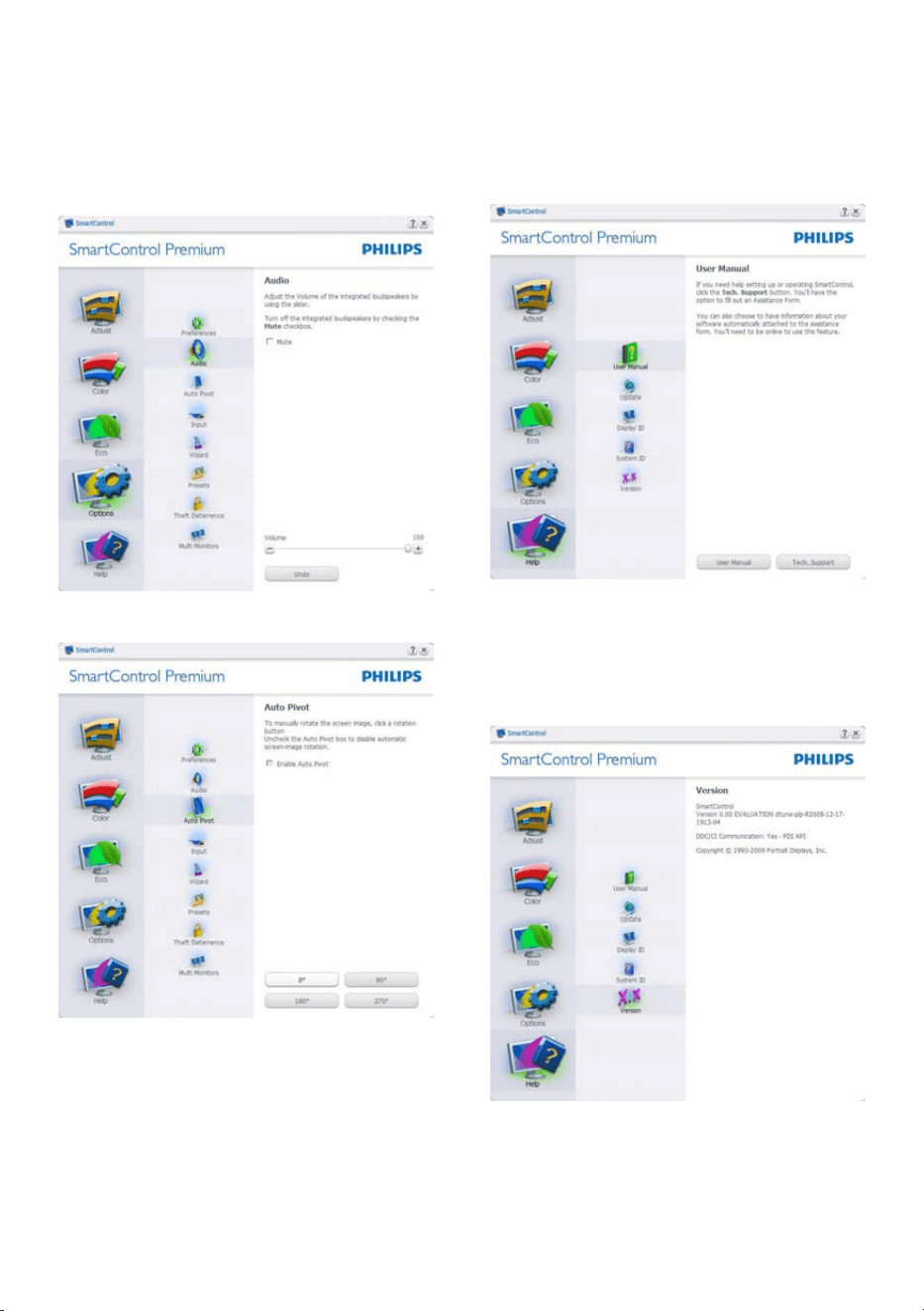
Options>Audio - Will only be active when
selecting Volume from the drop-down Options
menu.
On a non-supported display capable of DDC/
CI, only the Help and Options tabs are available.
Option>Auto Pivot
Help>User Manual - Will only be active when
selecting User Manual from the drop-down
Help menu. On a non-supported display
capable of DDC/CI, only the Help and Options
tabs are available.
Help>Version - Will only be active when
selecting Version from the drop- down Help
menu. On a non-supported display capable of
DDC/CI, only the Help and Options tabs are
available.
16
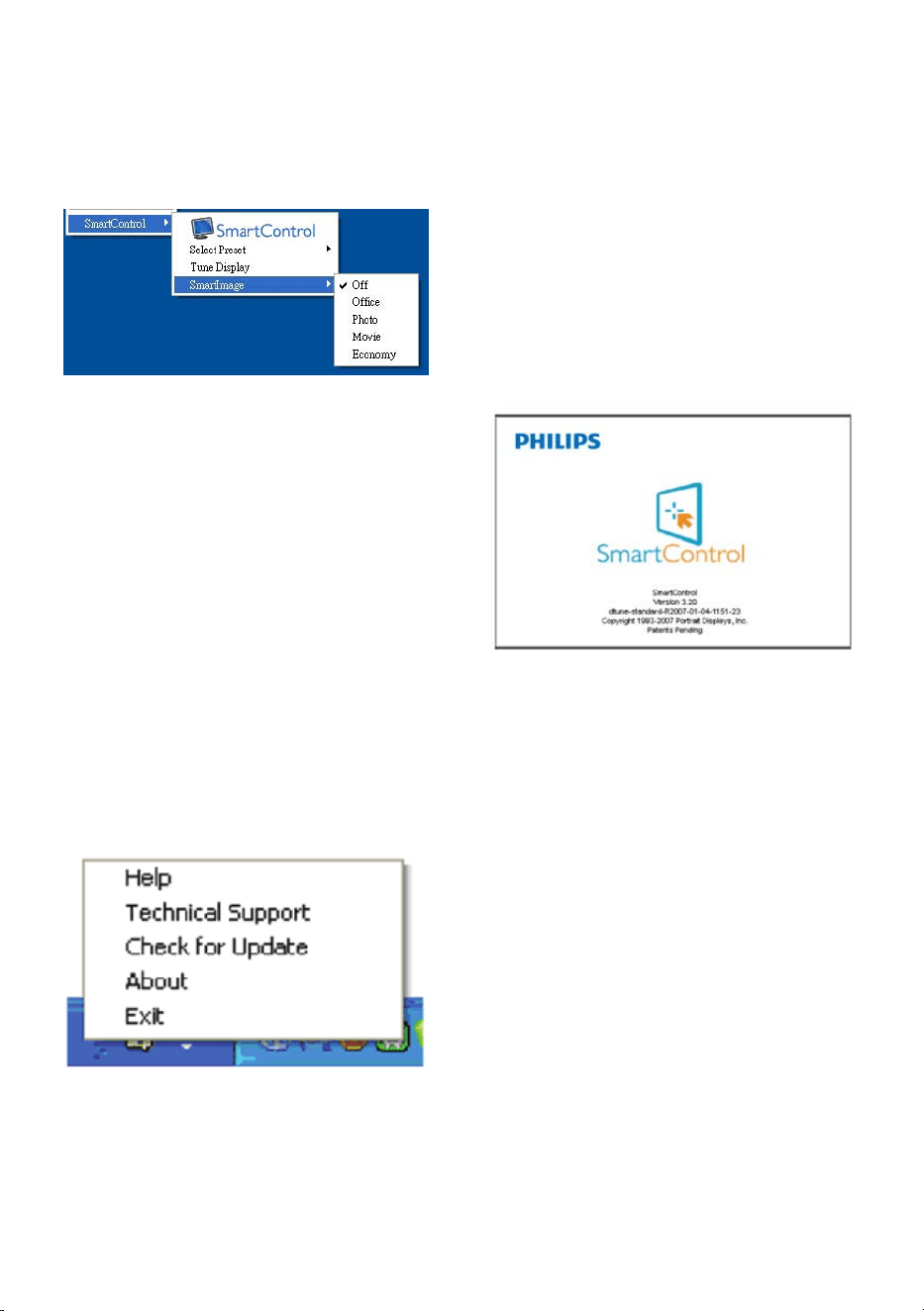
Context Sensitive menu
The Context Sensitive menu is Enabled by
default. If Enable Context Menu has been
checked in the Options>Preferences pane, then
the menu will be visible.
The Context Menu has four entries:
• SmartControl Premium - When selected
the About Screen is displayed.
• Select Preset - Provides a hierarchical
menu of saved presets for immediate
use. A check mark shows the currently
selected preset. Facoty Preset can also be
called from the drop down menu.
• Tune Display - Opens the SmartControl
Premium control panel.
• SmartImage - Check current settings, Of-
fice, Photo, Movie, Game, Economy, Off.
Task Tray Menu Enabled
The task tray menu can be displayed by right-
clicking on the SmartControl Premium icon
from the task tray. Left Click will launch the
application.
The task tray has five entries:
• Help - Access to User Manual file: Open
User Manual file using the default browser
window.
• Technical Support - displays the tech sup-
port page.
• Check for Update - takes the user to PDI
Landing and checks the user's version
against the most current available.
• About - Displays detailed reference infor-
mation: product version, release informa-
tion, and product name.
• Exit - Close SmartControl Premium
To run SmartControl Premium again
either select SmartControl Premium from
Program menu, double-click the desktop
PC icon or restart the system.
Task Tray Menu Disabled
When the Task Tray is disabled in the preference
folder, only the EXIT selection is available. To
completely remove SmartControl Premium
from the task tray, disable Run at Startup in
Options>Preferences.
17
3.4 SmartDesktop Guide
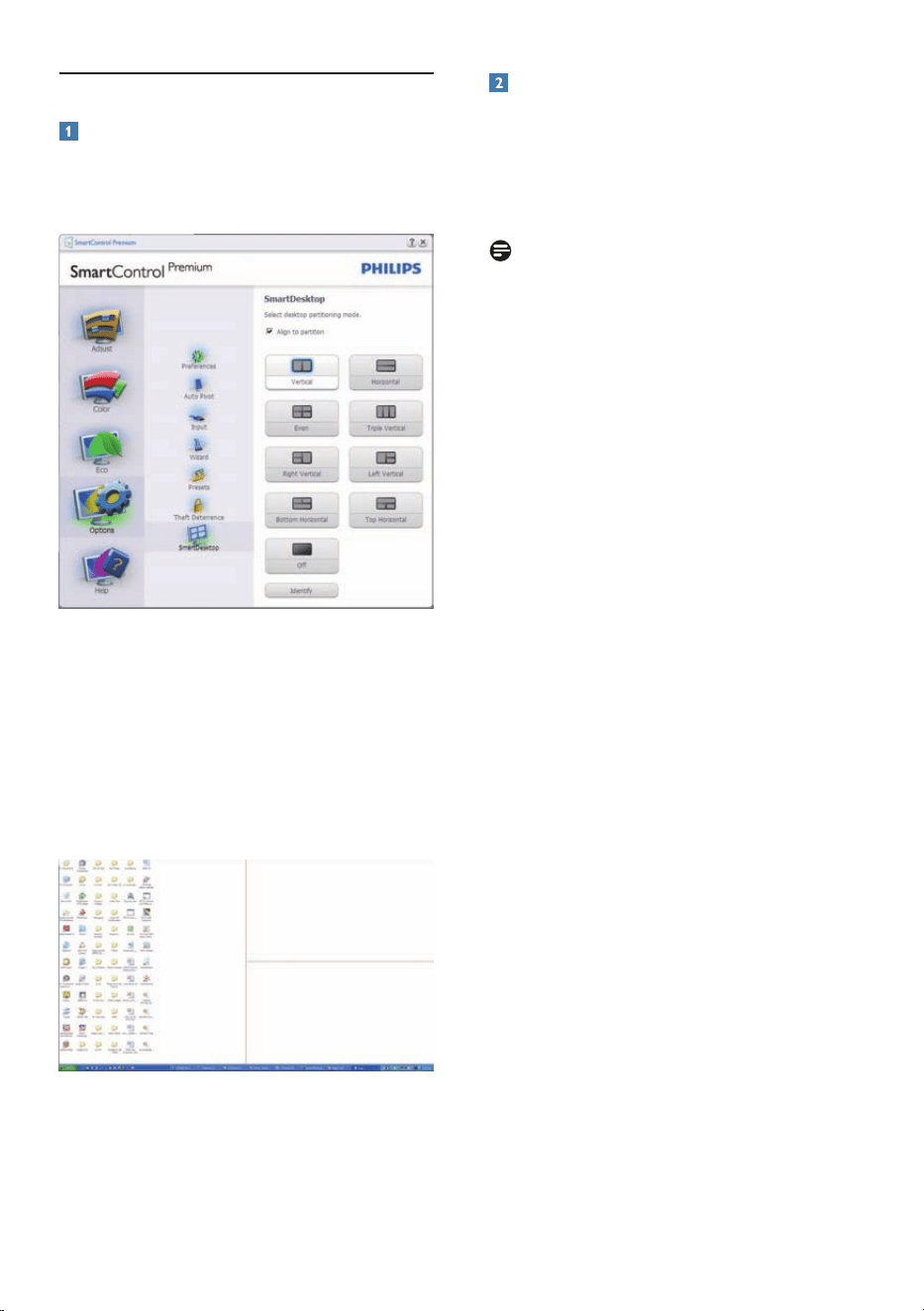
SmartDesktop
SmartDesktop is in SmartControl Premium.
Install SmartControl Premium and select
SmartDesktop from Options.
• Align to partition check box will enable
automatic alignment for the window when
dragged into the defined partition.
• Select the desired partition by clicking on
the icon. The partition will be applied to
the desktop and the icon will be high-
lighted.
• Identify provides a quick way to view the
grid.
Drag and Drop Windows
Once the partitions are configured and Align to
partition is selected a window can be dragged
into the region and it will automatically align.
When the window and mouse cursor are within
the region, the region will become highlighted.
Note
If the outline of the region is not visible when
dragging the window, “Show windows contents
while dragging” is disabled. To enable:
1. In Control Panel, click System.
2. Click Advanced system settings (For Vista
& Win7 OS, this is located on the left
sidebar)
3. In Performance section, click Settings.
4. In the box, check Show window contents
while dragging, and click OK.
Other alternative path:
Vista:
Control Panel > Personalization > Window
Color and Appearance > Click "Open Classic
appearance properties for more color options"
> Click "Effects" button > check Show window
contents while dragging
XP:
Display Properties>Appearance>Effects...>
check Show window contents while dragging
Win 7:
No other alternative path available.
18
Title Bar Options
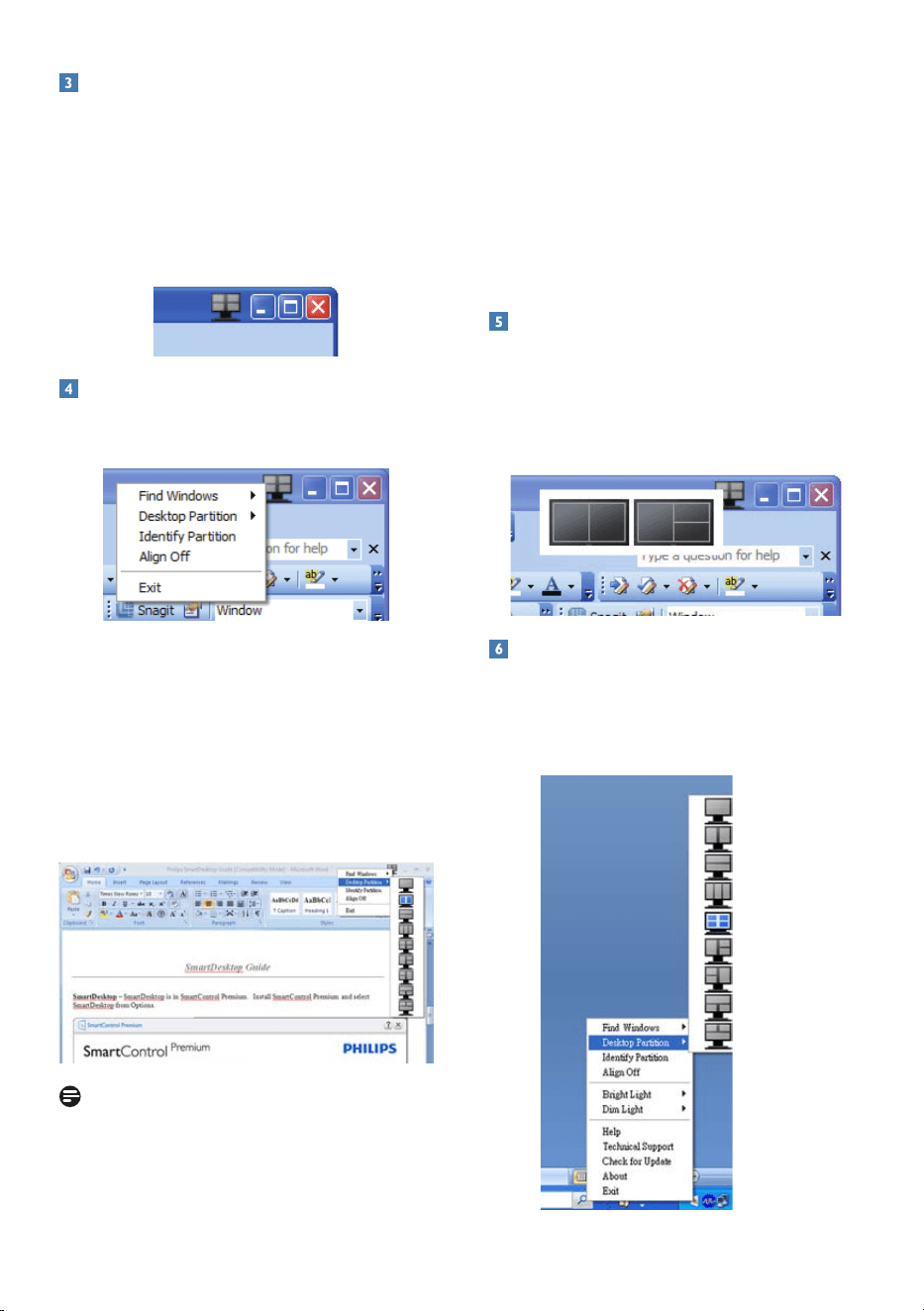
Desktop partition can be accessed from the title
bar of the active window. This provides a quick
and easy way to manage the desktop as well as
sending any window to any partition without
having to drag and drop. Move the cursor into
the active window’s title bar to access the drop
down menu.
Right Click Menu
Right click on the Desktop Partition icon to
view the drop down menu.
1. Find Windows – In some cases, the user
may have sent multiple windows to the
same partition. Find Window will show
all open windows and move the selected
window to the forefront.
2. Desktop Partition – Desktop Partition
shows the current selected partition and
allows the user to quickly change to any of
the partitions shown in the drop down.
Note
If more than one display is attached, the user
can select the targeted display to change the
partition. The highlighted icon represents the
current active partition.
3. Identify Partition – Displays the outline
grid on the desktop for the current
partition.
4. Align On/Align Off – Enables/disables the
drag and drop auto align feature.
5. Exit – Closes Desktop Partition and
Display Tune. To re-initialize, launch Display
Tune from the start menu or short cut on
the desktop.
Left Click Menu
Left click on the Desktop Partition icon to
quickly send the active window to any partition
without having to drag and drop. Releasing the
mouse will send the window to the highlighted
partition.
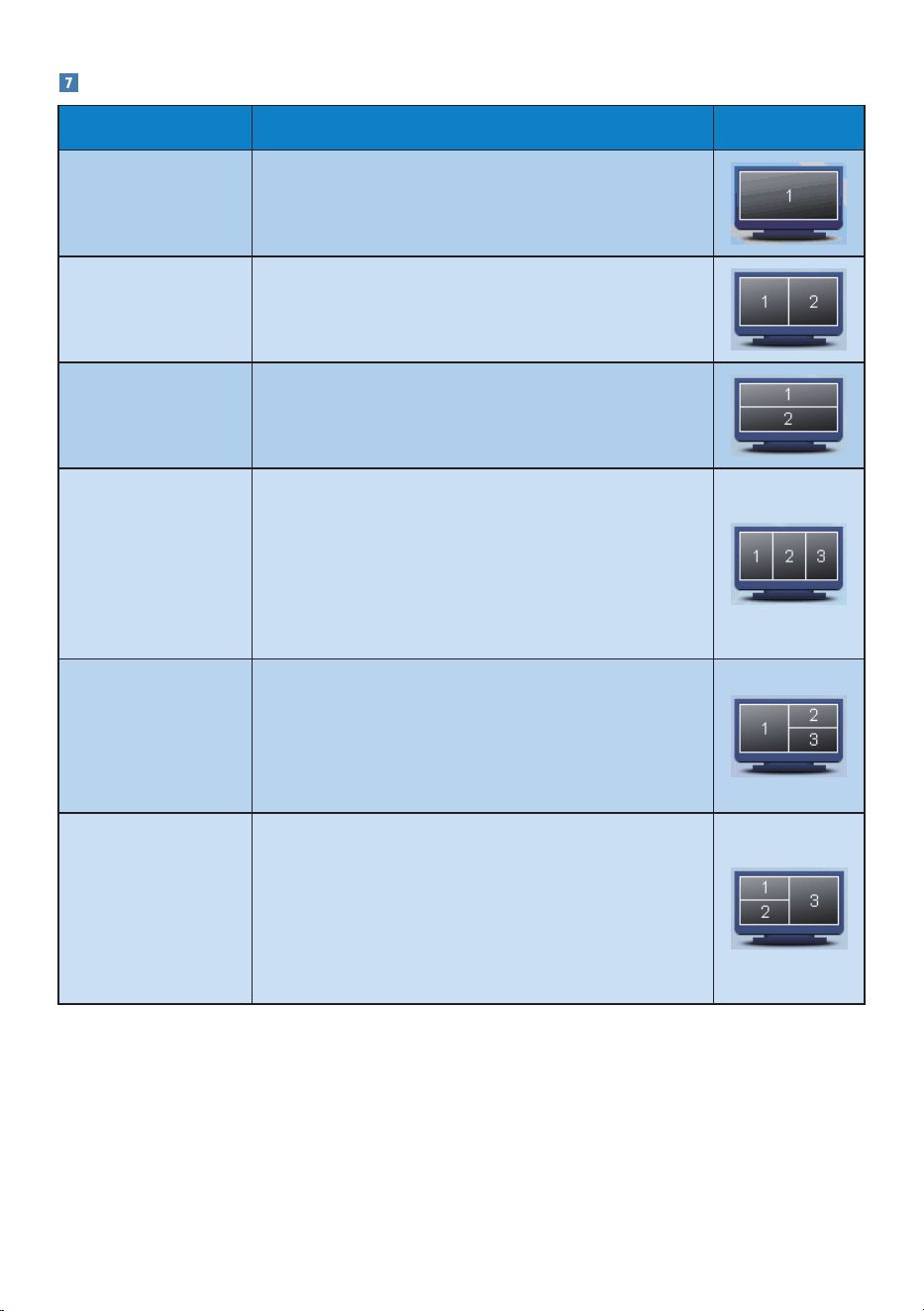
Task Tray Right Click
The task tray also contains most of the features
supported in the title bar (with the exception
of automatically sending a window to any
partition).

19
• Find Windows – In some cases, the user
may have sent multiple windows to the
same partition. Find Window will show
all open windows and move the selected
window to the forefront.
• Desktop Partition – Desktop Partition
shows the current selected partition and
allows the user to quickly change to any of
the partitions shown in the drop down.
• Identify Partition – Displays the outline
grid on the desktop for the current parti-
tion.
• Align On/Align Off – Enables/disables the
drag and drop auto align feature.
20
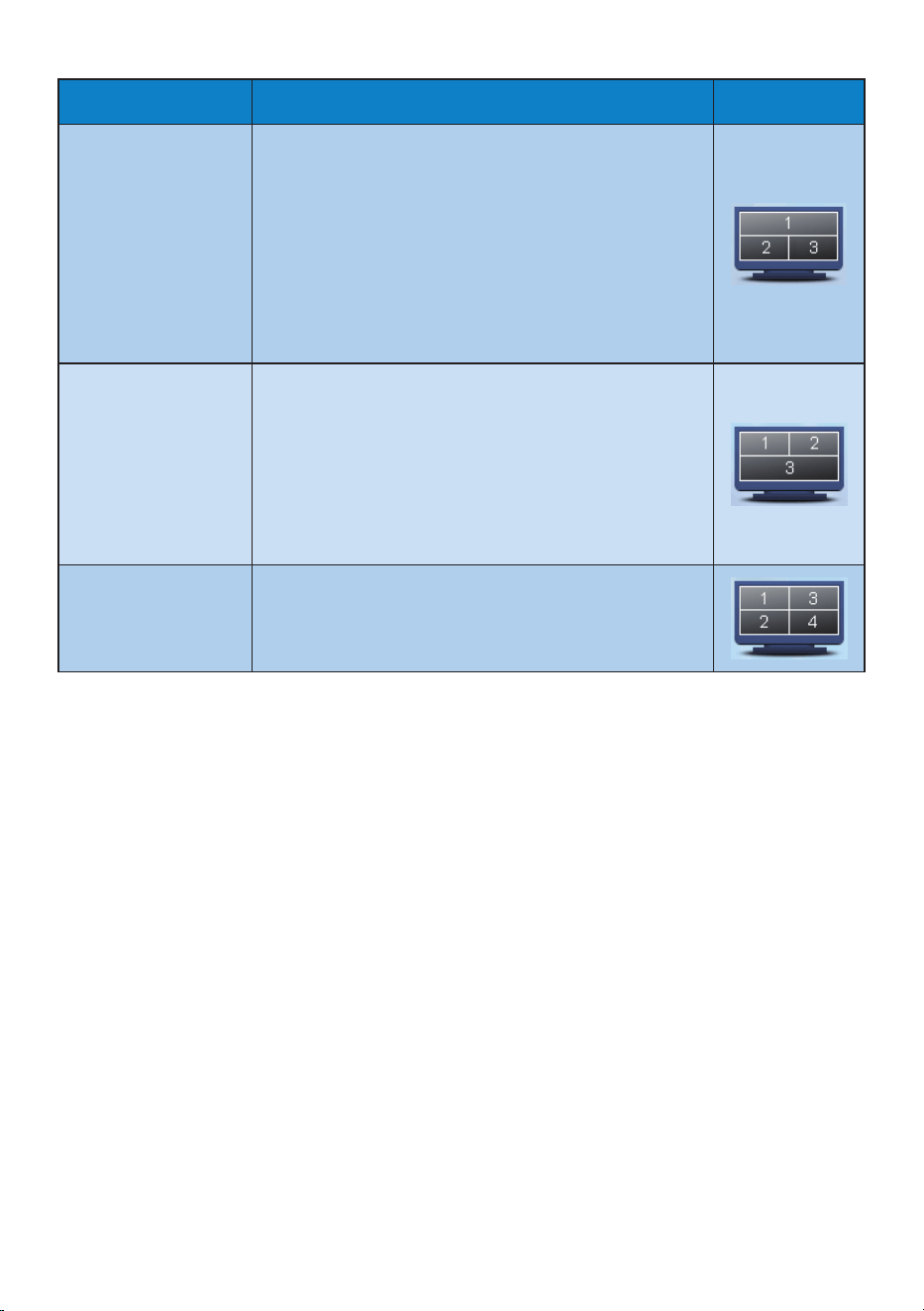
SmartDesktop Partition Definitions
Name Description Image
Full Desktop Applies all settings to the entire desktop.
Vertical Assesses the screen resolution and divides the display
into two evenly sized vertical regions.
For 90/270 maintain vertical configuration.
Horizontal Assesses the screen resolution and divides the display
into two evenly sized horizontal regions.
For 90/270 maintain horizontal configuration.
Vertical Triple Assesses the screen resolution and divides the display
into three evenly sized vertical regions.
For 90 Partition 1 horizontal top Partition 2 horizontal
center Partition 3 horizontal bottom.
For 270 Partition 3 horizontal top Partition 2 horizontal
center Partition 1 horizontal bottom.
Vertical Split Left
Assesses the screen resolution and divides the display into
two vertical regions, the left hand side is a single region,
the right hand side is split into two evenly sized regions
For 90 Partition 1 on top Partition 2&3 on bottomFor
270 Partition 1 on bottom Partition 2&3 on top.
Vertical Split Right Assesses the screen resolution and divides the display
into two vertical regions, the right hand side is a single
region, the left hand side is split into two evenly sized
regions
For 90 Partition 1&2 on top Partition 3 on bottom.
For 270 Partition 3 on top Partition 1&2 on bottom.
21
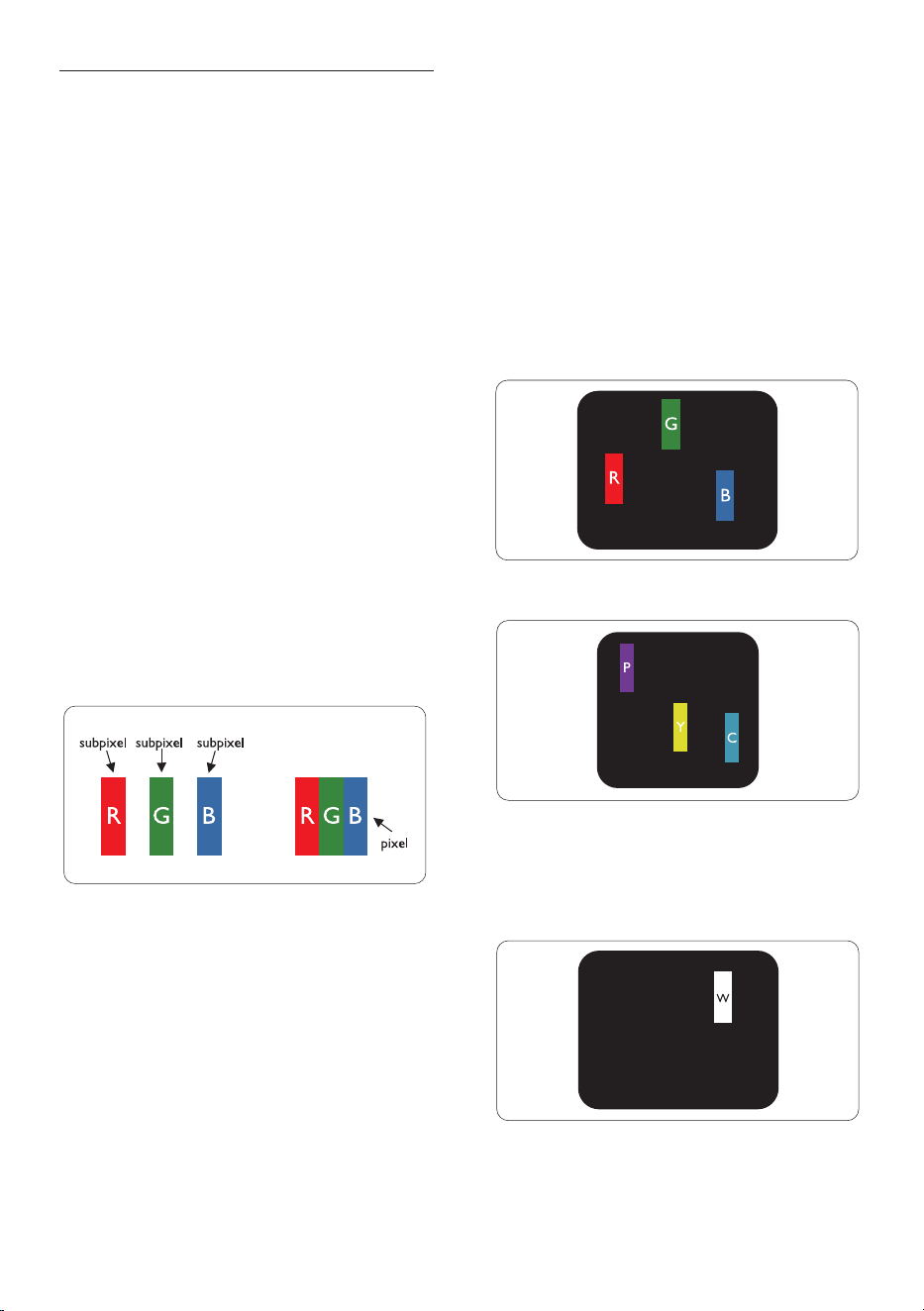
Name Description Image
Horizontal Split Top Assesses the screen resolution and divides the display
into two evenly sized horizontal regions, the top region
is single, the bottom region is spilt into two evenly sized
regions
For 90 Partition 1 on right side Vertical Partition 2&3 on
left side Vertical.
For 270 Partition 1 on left side Vertical Partition 2&3 on
right side Vertical.
Horizontal Split
Bottom
Assesses the screen resolution and divides the display into
two evenly sized horizontal regions, the bottom region is
single, the top region is spilt into two evenly sized regions
For 90 Partition 1&2 on right side Vertical Partition 3 on
left side Vertical.
For 270 Partition 1&2 on left side Vertical Partition 3 on
right side Vertical.
Even Split Assesses the screen resolution and divides the display
into four evenly sized regions.
22
3.5 Philips' Flat Panel Monitors Pixel
Defect Policy
Philips strives to deliver the highest quality
products. We use some of the industry's most
advanced manufacturing processes and practice
stringent quality control. However, pixel or
sub pixel defects on the TFT Monitor panels
used in flat panel monitors are sometimes
unavoidable. No manufacturer can guarantee
that all panels will be free from pixel defects,
but Philips guarantees that any monitor with
an unacceptable number of defects will be
repaired or replaced under warranty. This notice
explains the different types of pixel defects and
defines acceptable defect levels for each type.
In order to qualify for repair or replacement
under warranty, the number of pixel defects
on a TFT Monitor panel must exceed these
acceptable levels. For example, no more than
0.0004% of the sub pixels on a 21.5" XGA
monitor may be defective. Furthermore, Philips
sets even higher quality standards for certain
types or combinations of pixel defects that are
more noticeable than others. This policy is valid
worldwide.
Pixels and Sub pixels
A pixel, or picture element, is composed of
three sub pixels in the primary colors of red,
green and blue. Many pixels together form an
image. When all sub pixels of a pixel are lit, the
three colored sub pixels together appear as a
single white pixel. When all are dark, the three
colored sub pixels together appear as a single
black pixel. Other combinations of lit and dark
sub pixels appear as single pixels of other colors.
Types of Pixel Defects
Pixel and sub pixel defects appear on the screen
in different ways. There are two categories of
pixel defects and several types of sub pixel
defects within each category.
Bright Dot Defects
Bright dot defects appear as pixels or sub pixels
that are always lit or 'on'. That is, a bright dot is
a sub-pixel that stands out on the screen when
the monitor displays a dark pattern. There are
the types of bright dot defects:
One lit red, green or blue sub pixel
Two adjacent lit sub pixels:
- Red + Blue = Purple
- Red + Green = Yellow
- Green + Blue = Cyan (Light Blue)
Three adjacent lit sub pixels (one white pixel)
23
Note
A red or blue bright dot must be more
than 50
percent brighter than neighboring dots while
a green bright dot is 30 percent brighter than
neighboring dots.
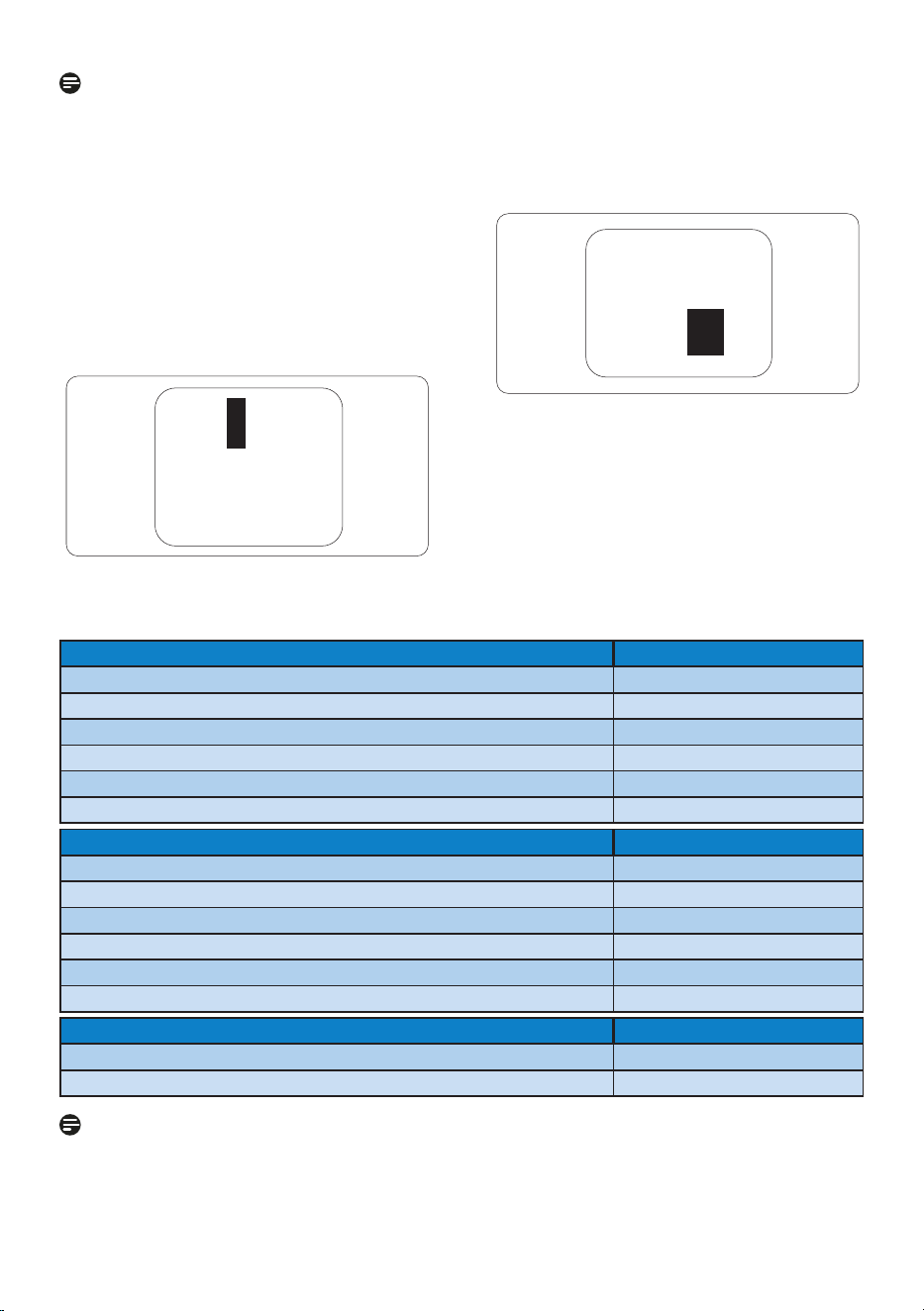
Black Dot Defects
Black dot defects appear as pixels or sub pixels
that are always dark or 'off'. That is, a dark dot is
a sub-pixel that stands out on the screen when
the monitor displays a light pattern. These are
the types of black dot defects:
Proximity of Pixel Defects
Because pixel and sub pixels defects of the
same type that are near to one another may be
more noticeable, Philips also specifies tolerances
for the proximity of pixel defects.
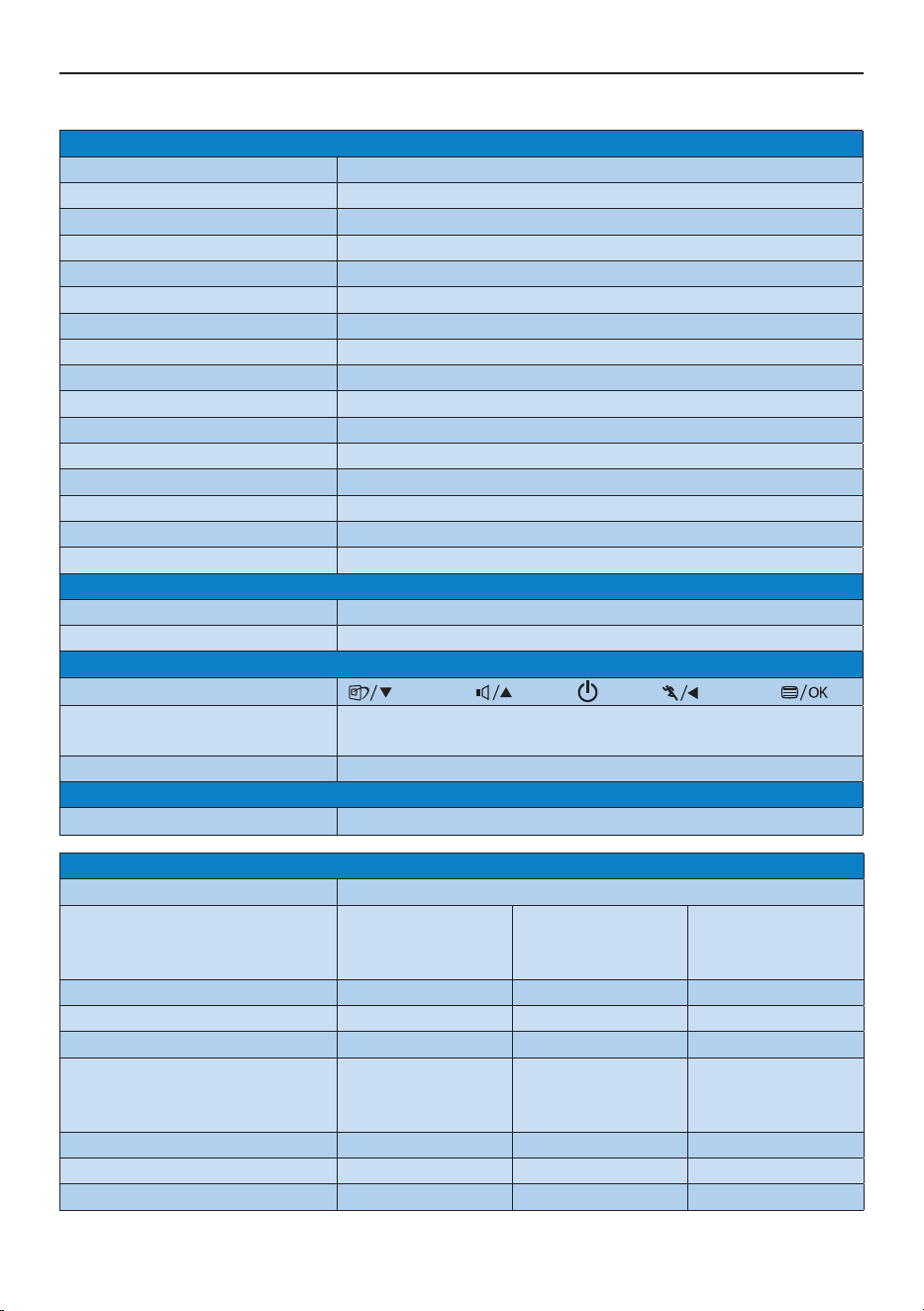
Pixel Defect Tolerances
In order to qualify for repair or replacement
due to pixel defects during the warranty period,
a TFT Monitor panel in a Philips flat panel
monitor must have pixel or sub pixel defects
exceeding the tolerances listed in the following
tables.
BRIGHT DOT DEFECTS ACCEPTABLE LEVEL
MODEL 224CL2
1 lit subpixel 3
2 adjacent lit subpixels 1
3 adjacent lit subpixels (one white pixel) 0
Distance between two bright dot defects* >15mm
Total bright dot defects of all types 3
BLACK DOT DEFECTS ACCEPTABLE LEVEL
MODEL 224CL2
1 dark subpixel 5 or fewer
2 adjacent dark subpixels 2 or fewer
3 adjacent dark subpixels 0
Distance between two black dot defects* >15mm
Total black dot defects of all types 5 or fewer
TOTAL DOT DEFECTS ACCEPTABLE LEVEL
MODEL 224CL2
Total bright or black dot defects of all types 5 or fewer
Note
1 or 2 adjacent sub pixel defects = 1 dot defect
This monitor is ISO9241-307 compliant.
24
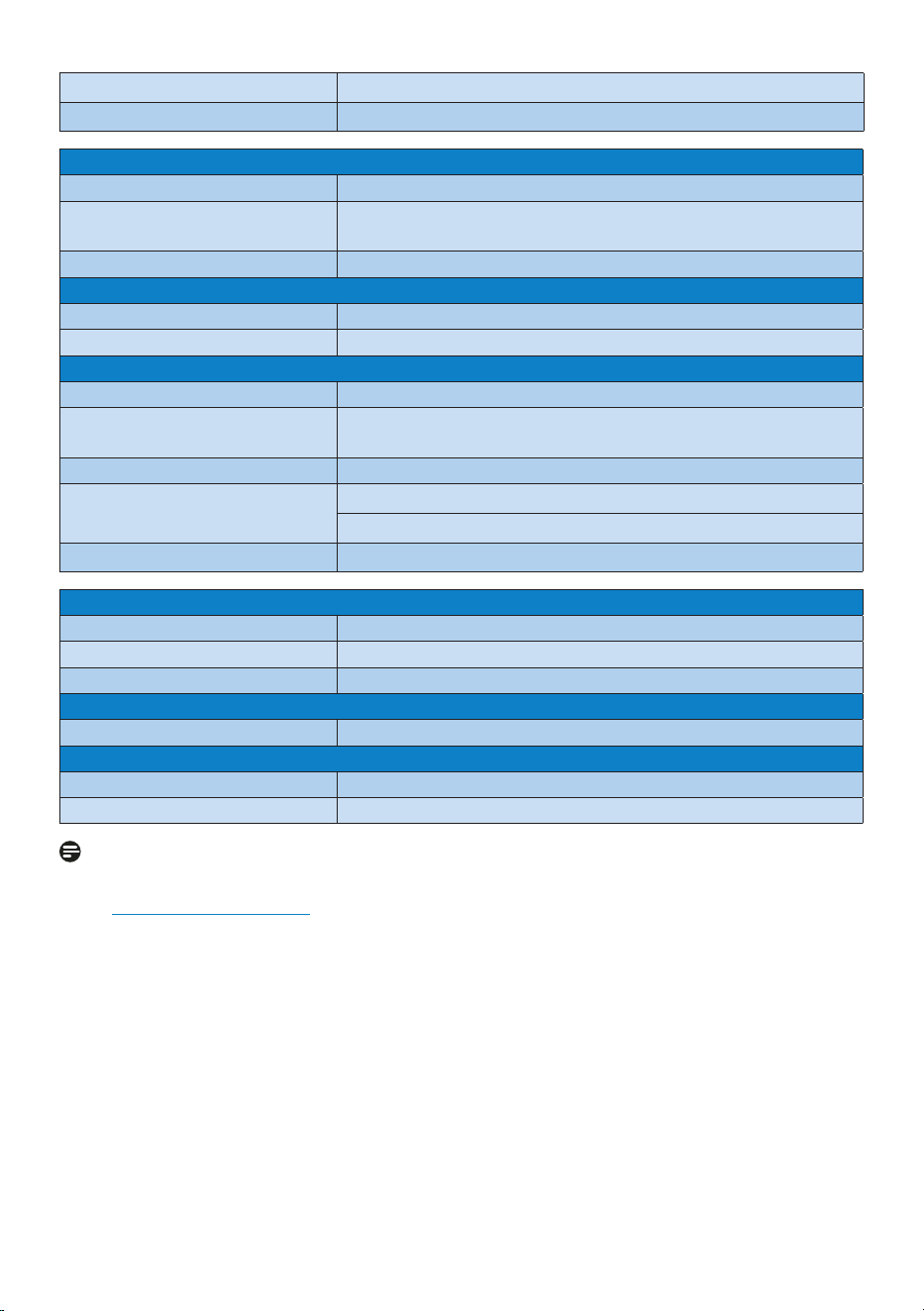
4. Technical Specifications
Picture/Display
Monitor panel type TFT-LCD
Backlight LED
Panel size 21.5" W (54.69 cm)
Aspect ratio 16:9
Pixel Pitch
0.0827 x 0.248 mm
Brightness 250 cd/m²
SmartContrast 20,000,000:1
Contrast ratio (typ.) 1000:1
Response time (typical) 2 ms
Optimum Resolution 1920x1080 @ 60Hz
Viewing angle 176° (H) / 170° (V) @ C/R > 5
Picture Enhancement SmartImage
Display colors 16.7 M
Vertical refresh rate 56Hz -76Hz
Horizontal Frequency 30kHz - 80kHz
sRGB YES
Connectivity
Signal input HDMI (digital), VGA (signal)
Input Signal Separate Sync, Sync on Green
Convenience
User Convenience
OSD Languages English, French, German, Italian, Russian, Spanish, Simplified
Chinese, Portuguese, Turkish
Plug & Play Compatibility DDC/CI, sRGB, Windows 7/Vista/XP, Mac OSX, Linux
Stand
Tilt -3 / +14
Power
On mode < 26W (typ.)
Energy Consumption
(EnergyStar 5.0 test method)
AC Input Voltage at
100VAC +/-5VAC,
50Hz +/- 3Hz
AC Input Voltage at
115VAC +/-5VAC,
60Hz +/- 3Hz
AC Input Voltage at
230VAC +/-5VAC,
50Hz +/- 3Hz
Normal Operation (typcial) 20.38W 20.30W 20.29W
Sleep 0.27W 0.27W 0.29W
Off 0.21W 0.21W 0.22W
Heat Dissipation* AC Input Voltage at
100VAC +/-5VAC,
50Hz +/ -3Hz
AC Input Voltage at
115VAC +/-5VAC,
60Hz +/ -3Hz
AC Input Voltage at
230VAC +/-5VAC,
50Hz +/ -3Hz
Normal Operation 69.56 BTU/hr 69.28 BTU/hr 69.25 BTU/hr
Sleep 0.922 BTU/hr 0.922 BTU/hr 0.99 BTU/hr
Off 0.717 BTU/hr 0.717 BTU/hr 0.751 BTU/hr
25
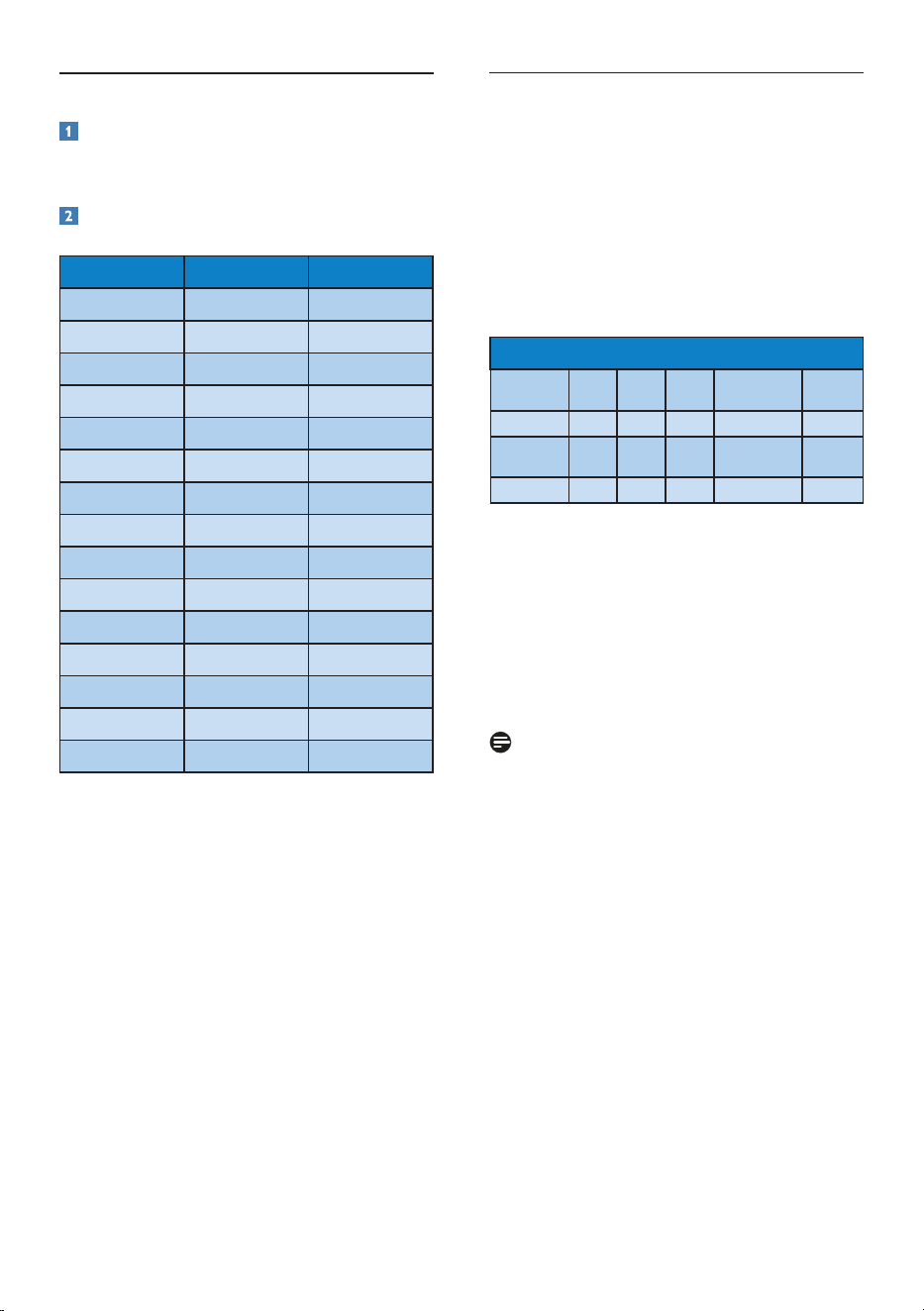
Power LED indicator On mode: Blue, Standby/Sleep mode: Blue (blinking)
Power Supply AC/DC Adapter, 12V==3.0A
Dimension
Product with stand (WxHxD) 514 x 389 x 175 mm
Product without stand
(WxHxD)
514 x 307 x 129 mm
Box dimension (WxHxD) 531 x 389 x 175 mm
Weight
Product with stand 3.175 kg
Product with packaging 4.188 kg
Operating Condition
Temperature range (operation) 0°C to 40 °C
Temperature range (Non-
operation)
-20°C to 60°C
Relative humidity 20% to 80%
Altitude
Operation: + 12,000 ft ( 3,658 m)
Non-operation: + 40,000 ft ( 12,192 m)
MTBF 30,000hrs
Environmental
ROHS YES
EPEAT Silver (www.epeat.net)
Packaging 100% recyclable
Compliance and standards
Regulatory Approvals CE Mark, FCC Class B, SEMKO, UL/cUL, Energy Star 5.0,
Cabinet
Color Black/Black
Finish Glossy/Glossy
Note
This data is subject to change without notice.
Go to www.philips.com/support to download the latest version of leaflet.
26
4.1 Resolution & Preset Modes
Maximum Resolution
1920 x 1080 at 60 Hz (analog input)
1920 x 1080 at 60 Hz (digital input)
Recommended Resolution
1920 x 1080 at 60 Hz (digital input)
H. freq (kHz) Resolution V. freq (Hz)
31.47 720x400 70.09
31.47 640x480 59.94
35.00 640x480 66.67
37.86 640x480 72.81
37.50 640x480 75.00
37.88 800x600 60.32
46.88 800x600 75.00
48.36 1024x768 60.00
60.02 1024x768 75.03
63.89 1280x1024 60.02
79.98 1280x1024 75.03
55.94 1440x900 59.89
70.64 1440x900 74.98
65.29 1680x1050 59.95
67.50 1920x1080 60.00
4.2 Automatic PowerSaving
If you have VESA DPM compliance display card
or software installed in your PC, the monitor
can automatically reduce its power consumption
when not in use. If an input from a keyboard,
mouse or other input device is detected,
the monitor will 'wake up' automatically. The
following table shows the power consumption
and signaling of this automatic power saving
feature:
Power Management Definition
VESA Mode Video H-sync V-sync Power Used
LED
color
Active ON Yes Yes < 26 W (typ.) Blue
Sleep OFF No No < 0.3 W (typ.)
Blue
(blinking)
Switch Off OFF - - < 0.3 W (typ.) OFF
The following setup is used to measure power
consumption on this monitor.
• Native resolution: 1920 x 1080
• Contrast: 50%
• Brightness: 250 nits
• Color temperature: 6500k with full white
pattern
• Audio (Off)
Note
This data is subject to change without notice.

27
5. Regulatory Information
Lead-free Product
Lead free display promotes
environmentally sound recovery
and disposal of waste from electrical
and electronic equipment. Toxic
substances like Lead has been eliminated
and compliance with European community’s
stringent RoHs directive mandating restrictions
on hazardous substances in electrical and
electronic equipment have been adhered to
in order to make Philips monitors safe to use
throughout its life cycle.
EPEAT
(www.epeat.net)
“The EPEAT (Electronic Product
Environmental Assessment Tool)
program evaluates computer
desktops, laptops, and monitors
based on 51 environmental criteria developed
through an extensive stakeholder consensus
process supported by US EPA.
EPEAT system helps purchasers in the public
and private sectors evaluate, compare and
select desktop computers, notebooks and
monitors based on their environmental
attributes. EPEAT also provides a clear and
consistent set of performance criteria for the
design of products, and provides an opportunity
for manufacturers to secure market recognition
for efforts to reduce the environmental impact
of its products.”
Benefits of EPEAT
Reduce use of primary materials
Reduce use of toxic materials
Avoid the disposal of hazardous waste EPEAT’S
requirement that all registered products meet
ENERGY STAR’s energy efficiency specifications,
means that these products will consume less
energy throughout their life.
CE Declaration of Conformity
This product is in conformity with the following
standards
• EN60950-1:2006 (Safety requirement of
Information Technology Equipment)
• EN55022:2006 (Radio Disturbance
requirement of Information Technology
Equipment)
• EN55024:1998+A1:2001+A2:2003
(Immunity requirement of Information
Technology Equipment)
• EN61000-3-2:2006 (Limits for Harmonic
Current Emission)
• EN61000-3-3:1995+A1:2001+A2:2005
(Limitation of Voltage Fluctuation and
Flicker) following provisions of directives
applicable
• 2006/95/EC (Low Voltage Directive)
• 2004/108/EC (EMC Directive)
• 2005/32/EC (EuP Directive, EC No.
1275/2008 mplementing Directive
for Standby and Off mode power
consumption) and is produced by a
manufacturing organization on ISO9000
level.
The product also comply with the following
standards
• ISO9241-307:2008 (Ergonomic
requirement, Analysis and compliance test
methods for electronic visual displays)
• GS EK1-2000:2009 (GS mark requirement)
• prEN50279:1998 (Low Frequency Electric
and Magnetic fields for Visual Display)
• MPR-II (MPR:1990:8/1990:10 Low
Frequency Electric and Magnetic fields)
• TCO Displays 5.0 (Requirement for
Environment Labeling of Ergonomics,
Energy, Ecology and Emission, TCO: Swedish
Confederation of Professional Employees)
for TCO versions
This monitor is equipped with a function for
saving energy which supports the VESA Display
Power Management (DPM) standard. This
28
means that the monitor must be connected to
a computer which supports VESA DPM. Time
settings are adjusted from the system unit by
software.
VESA State LED Indicator Power Consumption
Normal
operation
ON (Active) Blue < 26 W (typ.)
Power Saving
Alternative 2
One step
Sleep
Switch Off
Blue (blinking)
OFF
< 0.3 W (typ.)
< 0.3 W (typ.)
As an ENERGY STAR
®
Partner, we
have determined that this product
meets the ENERGY STAR
®
guidelines for energy efficiency.
Note
We recommend you switch off the monitor
when it is not in use for a long time.
Federal Communications Commission (FCC)
Notice (U.S. Only)
This equipment has been tested and found
to comply with the limits for a Class B
digital device, pursuant to Part 15 of the
FCC Rules. These limits are designed to
provide reasonable protection against
harmful interference in a residential
installation. This equipment generates, uses
and can radiate radio frequency energy
and, if not installed and used in accordance
with the instructions, may cause harmful
interference to radio communications.
However, there is no guarantee that
interference will not occur in a particular
installation. If this equipment does cause
harmful interference to radio or television
reception, which can be determined by
turning the equipment off and on, the
user is encouraged to try to correct
the interference by one or more of the
following measures:
• Reorient or relocate the receiving antenna.
• Increase the separation between the
equipment and receiver.
• Connect the equipment into an outlet on
a circuit different from that to which the
receiver is connected.
• Consult the dealer or an experienced
radio/TV technician for help.
Changes or modifications not expressly
approved by the party responsible for
compliance could void the user's authority
to operate the equipment.
Use only RF shielded cable that was supplied
with the monitor when connecting this monitor
to a computer device.
To prevent damage which may result in fire or
shock hazard, do not expose this appliance to
rain or excessive moisture.
THIS CLASS B DIGITAL APPARATUS MEETS
ALL REQUIREMENTS OF THE CANADIAN
INTERFERENCE-CAUSING EQUIPMENT
REGULATIONS.
FCC Declaration of Conformity
Declaration of Conformity for Products Marked
with FCC Logo,
United States Only
This device complies with Part 15 of the FCC
Rules. Operation is subject to the following
two conditions: (1) this device may not cause
harmful interference, and (2) this device must
accept any interference received, including
interference that may cause undesired
operation.
29
Commission Federale de la Communication
(FCC Declaration)
Cet équipement a été testé et déclaré
conforme auxlimites des appareils
numériques de class B,aux termes de
l'article 15 Des règles de la FCC. Ces
limites sont conçues de façon à fourir
une protection raisonnable contre les
interférences nuisibles dans le cadre d'une
installation résidentielle.
CET appareil produit, utilise et peut
émettre des hyperfréquences qui, si
l'appareil n'est pas installé et utilisé selon
les consignes données, peuvent causer des
interférences nuisibles aux communications
radio.
Cependant, rien ne peut garantir l'absence
d'interférences dans le cadre d'une
installation particulière. Si cet appareil est
la cause d'interférences nuisibles pour
la réception des signaux de radio ou de
télévision, ce qui peut être décelé en
fermant l'équipement, puis en le remettant
en fonction, l'utilisateur pourrait essayer de
corriger la situation en prenant les mesures
suivantes:
• Réorienter ou déplacer l'antenne de
réception.
• Augmenter la distance entre l'équipement
et le récepteur.
• Brancher l'équipement sur un autre circuit
que celui utilisé par le récepteur.
• Demander l'aide du marchand ou d'un
technicien chevronné en radio/télévision.
Toutes modifications n'ayant pas reçu
l'approbation des services compétents
en matière de conformité est susceptible
d'interdire à l'utilisateur l'usage du présent
équipement.
N'utiliser que des câbles RF armés pour
les connections avec des ordinateurs ou
périphériques.
CET APPAREIL NUMERIQUE DE LA CLASSE
B RESPECTE TOUTES LES EXIGENCES DU
REGLEMENT SUR LE MATERIEL BROUILLEUR
DU CANADA.
EN 55022 Compliance (Czech Republic Only)
Polish Center for Testing and Certification
Notice
The equipment should draw power from a
socket with an attached protection circuit (a
three-prong socket). All equipment that works
together (computer, monitor, printer, and so on)
should have the same power supply source.
The phasing conductor of the room's electrical
installation should have a reserve short-circuit
protection device in the form of a fuse with a
nominal value no larger than 16 amperes (A).
To completely switch off the equipment, the
power supply cable must be removed from the
power supply socket, which should be located
near the equipment and easily accessible.
A protection mark "B" confirms that the
equipment is in compliance with the protection
usage requirements of standards PN-93/T-42107
and PN-89/E-06251.
30
North Europe (Nordic Countries) Information
Placering/Ventilation
VARNING:
FÖRSÄKRA DIG OM ATT HUVUDBRYTARE
OCH UTTAG ÄR LÄTÅTKOMLIGA, NÄR
DU STÄLLER DIN UTRUSTNING PÅPLATS.
Placering/Ventilation
ADVARSEL:
SØ RG V ED PL ACERI NG EN FO R, AT
NETLEDNINGENS STIK OG STIKKONTAKT
ER NEMT TILGÆNGELIGE.
Paikka/Ilmankierto
VAROITUS:
SIJOITA LAITE SITEN, ETTÄ VERKKOJOHTO
VOIDAAN TARVITTAESSA HELPOSTI
IRROTTAA PISTORASIASTA.
Plassering/Ventilasjon
ADVARSEL:
NÅR DETTE UTSTYRET PLASSERES, MÅ
DU PASSE PÅ AT KONTAKTENE FOR
STØMTILFØRSEL ER LETTE Å NÅ.
BSMI Notice (Taiwan Only)
Ergonomie Hinweis (nur Deutschland)
Der von uns gelieferte Farbmonitor entspricht
den in der "Verordnung über den Schutz vor
Schäden durch Röntgenstrahlen" festgelegten
Vorschriften.
Auf der Rückwand des Gerätes befindet sich
ein Aufkleber, der auf die Unbedenklichkeit der
Inbetriebnahme hinweist, da die Vorschriften
über die Bauart von Störstrahlern nach Anlage
III¤5Abs.4derRöntgenverordnungerfülltsind.
Damit Ihr Monitor immer den in der Zulassung
geforderten Werten entspricht, ist darauf zu
achten, daß
1. Reparaturen nur durch Fachpersonal
durchgeführt werden.
2. nur original-Ersatzteile verwendet werden.
3. bei Ersatz der Bildröhre nur eine
bauartgleiche eingebaut wird.
Aus ergonomischen Gründen wird empfohlen,
die Grundfarben Blau und Rot nicht auf
dunklem Untergrund zu verwenden (schlechte
Lesbarkeit und erhöhte Augenbelastung bei zu
geringem Zeichenkontrast wären die Folge).
Der arbeitsplatzbezogene Schalldruckpegel
nach DIN 45 635 beträgt 70dB (A) oder
weniger.
ACHTUNG: BEIM AUFSTELLEN
DIESES GERÄTES DARAUF
ACHTEN, DAß NETZSTECKER UND
NETZKABELANSCHLUß LEICHT
ZUGÄNGLICH SIND.
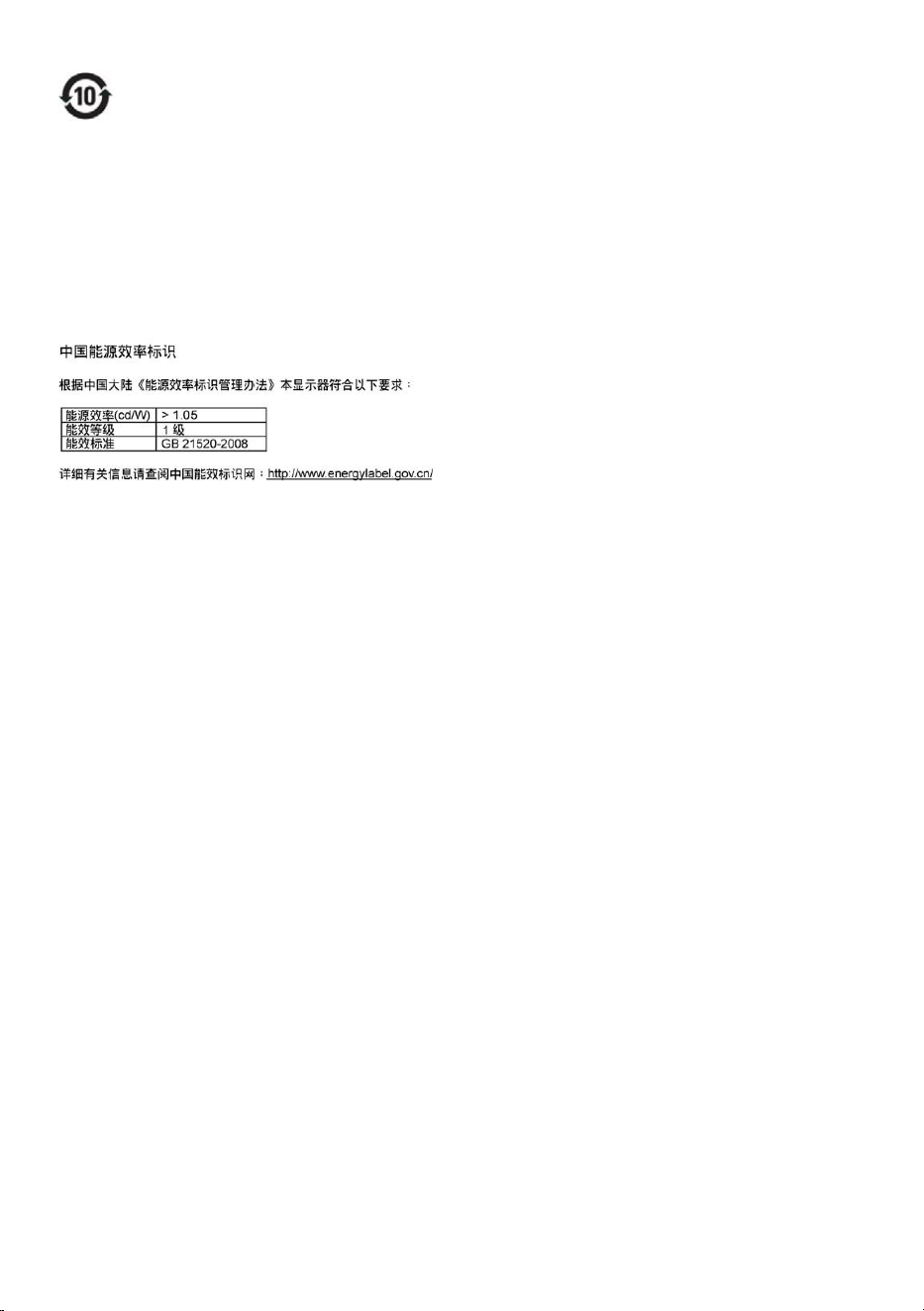
China RoHS
The People's Republic of China released a
regulation called "Management Methods for
Controlling Pollution by Electronic Information
Products" or commonly referred to as China
RoHS. All products including CRT and Monitor
which are produced and sold for China market
have to meet China RoHS request.
31
环保使用期限
此标识指期限(十年),电子信息产品中含有
的有毒有害物质或元素在正常使用的条件
下不会发生外泄或突变, 电子信息产品用户
使用该电子信息产品不会对环境造成严重
污染或对其人身、 财产造成严重损害的期
限.

32
6. Customer care and
warranty
PLEASE SELECT YOUR COUNTRY/AREA TO
REVIEW DETAILS OF YOUR WARRANTY
COVERAGE
WESTERN EUROPE
Austria / Belgium / Denmark / France /
Germany / Greece / Finland / Ireland / Italy /
Luxembourg / the Netherlands / Norway /
Portugal / Sweden / Switzerland / Spain / United
Kingdom / Poland
EASTERN EUROPE
Czech Republic / Hungary / Russia / Slovakia /
Slovenia / Turkey
LATIN AMERICA
Argentina / Brasil
NORTH AMERICA
Canada / USA
PACIFIC
Australia / New Zealand
ASIA
China / Hong Kong / India / Indonesia / Korea
/ Malaysia / Pakistan / Philippines / Singapore /
Taiwan / Thailand / Vietnam
AFRICA
South Africa
MIDDLE EAST
United Arab Emirates
Your Philips F1rst Choice Warranty
Thank you for purchasing this Philips monitor.
All Philips monitors are designed
and manufactured to high
standards and deliver high-quality
performance, ease of use and
ease of installation. Should you
encounter any difficulties while installing or
using this product, please contact the Philips
helpdesk directly to benefit from your Philips
F1rst Choice Warranty. This two-year service
warranty entitles you to a swap model on-site if
your monitor turns out to be faulty or defective.
Philips aims at a swap within 48 hours of your
call being received.
What is covered?
The Philips F1rst Choice Warranty applies within
Andorra, Austria, Belgium, Cyprus, Denmark,
France, Germany, Greece, Finland, Ireland,
Italy, Liechtenstein, Luxembourg, Monaco, the
Netherlands, Norway, Poland, Portugal, Sweden,
Switzerland, Spain and the United Kingdom
and only for monitors originally designed,
manufactured, approved and/or authorized for
usage within these countries.
Warranty coverage begins as from the day you
buy your monitor. For two years thereafter,
your monitor will be swapped by at least an
equivalent monitor in case of defects provided
for under the warranty coverage.
The swap monitor remains yours and Philips
keeps the defective/original monitor. For the
swap monitor the warranty period remains
equal to that of your original monitor, being
24 months as from the purchase date of your
original monitor.

33
What is excluded?
The Philips F1rst Choice Warranty applies
provided the product is handled properly for its
intended use, in accordance with its operating
instructions and upon presentation of the
original invoice or cash receipt, indicating the
date of purchase, dealer's name and model and
production number of the product.
The Philips F1rst Choice Warranty may not
apply if:
• The documents have been altered in any
way or made illegible;
• The model or production number on the
product has been altered, deleted, removed
or made illegible;
• Repairs or product modifications and
alterations have been executed by
unauthorized service organizations or
persons;
• Damage is caused by accidents including
but not limited to lightning, water or fire,
misuse or neglect;
• Reception problems caused by signal
conditions or cable or antenna systems
outside the unit;
• Defects caused by abuse or misuse of the
monitor;
• Product requires modification or adaptation
to enable it to comply with local or
national technical standards, which apply in
countries for which the product was not
originally designed, manufactured, approved
and/or authorized. Therefore always check
whether a product can be used in a specific
country.
• Note that products that are not originally
designed, manufactured, approved and/
or authorized for usage within the Philips
F1rst Choice countries, do not apply to
the Philips F1rst Choice Warranty. In these
cases the Philips global warranty terms are
valid.
Just a click away
In case of any problems, we advise you to read
the operating instructions carefully or go to the
www.philips.com/support website for additional
support.
Just a phone call away
In order to avoid unnecessary inconvenience,
we advise you to read the operating instructions
carefully or go to the www.philips.com/support
website for additional support before contacting
the Philips helpdesk.
To solve your problem quickly, please prepare
the following details before contacting the
Philips helpdesk:
• Philips type number
• Philips serial number
• Purchase date (copy of purchase may be
required)
• PC environment Processor:
• CPUandGraphiccardnameanddriver
version
• Operatingsystem
• Applicationbeingused
• Other cards installed
Having the following information available will
also help speed up the process:
• Your proof of purchase indicating: date of
purchase, dealer name, model and product
serial number.
• The full address to which the faulty
monitor has to be collected and the swap
model should be delivered.
Philips' customer help desks are located
worldwide. Click here to access the F1rst
Choice Contact Information.
Or you can reach us via:
Website: http://www.philips.com/support
34
F1rst Choice Contact Information
Country Code Telephone number Tariff
Austria +43 0810 000206
€
0.07
Belgium +32 078 250851
€
0.06
Denmark +45 3525 8761 Local call tariff
Finland +358 840 320 041
€
0.08
Luxembourg +352 26 84 30 00 Local call tariff
The Netherlands +31 0900 0400 063
€
0.10
Norway +47 2270 8250 Local call tariff
Poland +48 0223491505 Local call tariff
Portugal +351 2 1359 1440 Local call tariff
Spain +34 902 888 785
€
0.10
Sweden +46 08 632 0016 Local call tariff
Switzerland +41 02 2310 2116 Local call tariff
United Kingdom +44 0207 949 0069 Local call tariff

35
Your Guarantee in Central and Eastern Europe
Dear Customer,
Thank you for purchasing this Philips product,
which has been designed and manufactured to
the highest quality standards. If, unfortunately,
something should go wrong with this product
Philips guarantees free of charge labor and
replacement parts during a period of 24 months
from date of purchase.
What is covered?
This Philips Guarantee in Central and Eastern
Europe applies within Czech Republic, Hungary,
Slovakia, Slovenia, Russia and Turkey and only
for monitors originally designed, manufactured,
approved and/or authorized for usage within
these countries.
Warranty coverage begins as from the day you
buy your monitor. For two years thereafter,
your monitor will be serviced in case of defects
provided for under the warranty coverage.
What is excluded?
The Philips guarantee applies provided the
product is handled properly for its intended use,
in accordance with its operating instructions and
upon presentation of the original invoice or cash
receipt, indicating the date of purchase, dealer's
name and model and production number of the
product.
The Philips guarantee may not apply if:
• the documents have been altered in any
way or made illegible;
• the model or production number on the
product has been altered, deleted, removed
or made illegible;
• repairs or product modifications and
lterations have been executed by
unauthorized service organizations or
persons;
• damage is caused by accidents including but
not limited to lightning, water or fire, misuse
or neglect.
• Reception problems caused by signal
conditions or cable or antenna systems
outside the unit;
• Defects caused by abuse or misuse of the
monitor;
• Product requires modification or adaptation
to enable it to comply with local or
national technical standards, which apply in
countries for which the product was not
originally designed, manufactured, approved
and/or authorized. Therefore always check
whether a product can be used in a specific
country.
Please note that the product is not defective
under this guarantee in the case where
modifications become necessary in order for
the product to comply with local or national
technical standards which apply in countries for
which the product was not originally designed
and/or manufactured. Therefore always check
whether a product can be used in a specific
country.
Just a click away
In case of any problems, we advise you to read
the operating instructions carefully or go to the
www.philips.com/support website for additional
support.
Just a phone call away
In order to avoid unnecessary inconvenience,
we advise you to read the operating instructions
carefully before contacting our dealers or
Information Centers
In case your Philips product is not working
correctly or is defective, please contact your
Philips dealer or directly the Philips Service and
Consumer Information Centers
Website: http://www.philips.com/support

36
Consumer Information Centers
Argentina / Australia / Brasil / Canada / New
Zealand / Belarus / Bulgaria / Croatia / Czech
Republic / Estonia / United Arab Emirates /
Hong Kong / Hungary / India / Indonesia /
Israel / Latvia / Lithuania / Malaysia / Middle
East + North Africa / New Zealand / Pakistan
/ Romania / Russia / Serbia & Montenegro /
Singapore / Slovakia / Slovenia / South Africa /
South Korea / Taiwan / Philippines / Thailand /
Turkey / Ukraine / Vietnam
Eastern Europe
BELARUS Technic al Center of JV IBA
M. Bogdanovich str. 155
BY - 220040 Minsk
Tel: +375 17 217 33 86
BELARUS
Service.BY
Petrus Brovky st. 19 – 101-B
220072, Minsk
Belarus
BULGARIA
LAN Service
140, Mimi Balkanska Str.
Office center Translog
1540 Sofia, Bulgaria
Tel: +359 2 960 2360
www.lan-service.bg
CZECH REPUBLIC
General Consumer Information Center
800 142100
Xpectrum
Lu.ná 591/4
CZ - 160 00 Praha 6 Tel: 800 100 697 or 220
121 435
Email:info@xpectrum.cz
www.xpectrum.cz
CROATIA
Renoprom d.o.o.
Ljubljanska 4,
Sv. Nedjelja,10431
Croatia
Tel: +385 1 333 0974
ESTONIA
FUJITSU SERVICES OU
Akadeemia tee 21G
EE-12618 Tallinn
Tel: +372 6519900
www.ee.invia.fujitsu.com
HUNGARY
Serware Szerviz
Vizimolnár u. 2-4
HU - 1031 Budapest
Tel: +36 1 2426331
Email: [email protected]
www.serware.hu
HUNGARY
Profi Service Center Ltd.
123 Kulso-Vaci Street,
H-1044 Budapest (Europe Center)
Hungary
Tel: +36 1 814 8080
m.andras@psc.hu
LATVIA
ServiceNet LV
Jelgavas iela 36
LV - 1055 Riga,
Tel: +371 7460399
Email: serviss@servicenet.lv
LITHUANIA
ServiceNet LT
Gaiziunu G. 3
LT - 3009 KAUNAS
Tel: +370 7400088
Email: servisas@servicenet.lt
www.servicenet.lt

37
ROMANIA
Blue Ridge Int'l Computers SRL
115, Mihai Eminescu St., Sector 2
RO - 020074 Bucharest
Tel: +40 21 2101969
SERBIA & MONTENEGRO
Kim Tec d.o.o.
Viline vode bb, Slobodna zona
Beograd L12/3
11000 Belgrade
Serbia
Tel. +381 11 20 70 684
SLOVAKIA
General Consumer Information Center
0800004551
Datalan Servisne Stredisko
Puchovska 8
SK - 831 06 Bratislava
Tel: +421 2 49207155
Email: ser[email protected]
SLOVENIA
PC HAND
Brezovce 10
SI - 1236 Trzin
Tel: +386 1 530 08 24
Email: ser[email protected]
RUSSIA
CPS
18, Shelepihinskaya nab.
123290 Moscow
Russia
Tel. +7(495)797 3434
Profservice:
14A -3, 2Karacharovskaya str,
109202, Moscow ,
Russia
Tel. +7(095)170-5401
TURKEY
Türk Philips Ticaret A.S.
Yukari Dudullu Org.San.Bolgesi
2.Cadde No:22
34776-Umraniye/Istanbul
Tel: (0800)-261 33 02
UKRAINE
Comel
Shevchenko street 32
UA - 49030 Dnepropetrovsk
Tel: +380 562320045
www.csp-comel.com LLC Topaz Company
Topaz-Service Company,
Mishina str. 3,
Kiev
Ukraine-03151
Tel: +38 044 245 73 31
Latin America
ARGENTINA
Azopardo 1480.
(C1107ADZ) Cdad. de Buenos Aires
Tel: 0800 3330 856
Email: CIC[email protected]
BRASIL
Alameda Raja Gabaglia, 188 - 10°Andar - V.
Olímpia - S. Paulo/SP - CEP 04551-090 -
Brasil
Tel: 0800-7254101
Email: CIC[email protected]
Pacific
AUSTRALIA
Company: AGOS NETWORK PTY LTD
Address: 4/5 Dursley Road, Yenorra, NSW
2161, Australia
Tel: 1300 360 386
Fax: +61-2-80808147
Email: [email protected]
Service hours: Mon.~Fri. 8:00am-7:30pm

38
NEW ZEALAND
Company: Visual Group Ltd.
Address: 28 Walls Rd Penrose Auckland
Phone: 0800 657447
Fax: 09 5809607
E-mail: vai.ravindr[email protected]
Service Hours: Mon.~Fri. 8:30am~5:30pm
Asia
HONG KONG/Macau
Company Name: PHK Service Limited
Address: Flat A, 10/F., Pak Sun Building, 103 - 107
Wo Yi Hop Road, Kwai Chung, New Territories,
Hong Kong
Tel.: (852) 2610-6908 / (852) 2610-6929 for
Hong Kong and (853) 2856-2277 for Macau
Fax: (852) 2485 3574 for Hong Kong and (853)
2856 1498 for Macau
E-mail: enquiry@phkservice.com.hk
Service Hours: Mon.~Sat. 09:00am~06:00pm
India
Company: REDINGTON INDIA LTD
Address: SPL Guindy House, 95 Mount Road,
Chennai 600032, India
Tel: +9144-42243352/353
E-mail: after[email protected].com
Service hours: Mon.~Fri. 9:00AM~5:30PM; Sat.
9:00AM~1:00PM
Indonesia
Company Name: PT. Gadingsari elektronika
Prima
Address: Kompleks Pinang 8, Jl. Ciputat raya No.
8F, Pondok Pinang. Jakarta
Tel: 021-750909053, 021-750909056
Fax: 021-7510982
E-mail: [email protected]
Service hours: Mon.~Fri. 8:30am~4:30pm;
Sat. 8:30am~2:00pm
Additional service points:
1. Philips Building Jl. Buncit Raya Kav 99.
Jakarta Selatan.
Phone: 021-7940040, ext 1722/1724,
98249295, 70980942
2. Jl. Tanah Abang 1 no 12S. Jakarta Pusat.
Phone: 021-3455150, 34835453
Rukan City Home no H31, Gading Square.
3. Jl. Bulevar Barat. Kelapa Gading. Jakarta
Utara.
Phone: 021-45870601, 98131424
South Korea
Company: PCS One Korea Ltd.
Address: 112-2, Banpo-dong, Seocho-ku, Seoul,
137-040, Korea
Call Center Tel: 080-600-6600
Tel: 82 2 591 1528
Fax: 82 2 595 9688
E-mail: [email protected]
Service hours: Mon.~Fri. 9:00AM~ 6:00PM; Sat.
9:00AM~1:00PM
Malaysia
Company: After Market Solutions (CE) Sdn Bhd
Address: Lot 6. Jalan 225/51A, 46100 Petaling
Jaya, Selangor DE, Malaysia.
Phone: 603 7953 3370
Philips Info Line: 1-800-880-180
Fax: 603 7953 3338
E-mail: pceinfo.m[email protected]
Service Hours: Mon.~Fri. 8:15am~5:15pm; Sat.
9:00am~1:00pm
Pakistan
Philips Consumer Service
Address: Mubarak manzil, 39, Garden Road,
Saddar, Karachi-74400
Tel: (9221) 2737411-16
Fax: (9221) 2721167
E-mail: [email protected]
Website: www.philips.com.p
Singapore
Company: Philips Electronics Singapore Pte Ltd
(Philips Consumer Care Center)
Address: 620A Lorong 1 Toa Payoh, TP4 Building
Level 1, Singapore 319762
Tel: (65) 6882 3999
Fax: (65) 62508037
E-mail: consumer.care[email protected]
Service hours: Mon.~Fri. 9:00am~6:00pm; Sat.
9:00am~1:00pm

39
Taiwan
Company: FETEC.CO
Address: 3F, No.6, Lane 205, Sec. 1, Chang Hsing
Rd, Lu Chu Hs, Taoyuan, Taiwan R.O.C 33800
Consumer Care: 0800-231-099
Tel: (03)2120336
Fax: (03)3129184
E-mail: knlin08@xuite.net
Service hours: Mon.~Fri. 8:30am~7:00pm
Thailand
Company: Axis Computer System Co., Ltd.
Address: 1421 Soi Lardprao 94, Srivara Town
In Town Soi 3 Road, Wangthonglang, Bangkok
10310 Thailand
Tel: (662) 934-5498
Fax: (662) 934-5499
E-mail: axis5@axiscomputer.co.th
Service Hours: Mon.~Fri. 08:30am~05:30pm
Glee Electronics Inc
Contact nos. (632) 636-3636 / 7064028 to 29
Fax no. (632) 7064026
Receiving Centers
NEO CARE - Megamall
4th Level Cyberzone, Building B,
SM Megamall, Mandaluyong City
NEO CARE - SM North EDSA
4th Level Cyberzone, Annex Bldg.
SM City North EDSA, Quezon City
441-1610
MDR Microware Sales Inc.
Cebu Branch
N. Escario corner Clavano St., Cebu City Phils.
# 255-4415/ 255-3242/253-9361/4124864 to
67
Sun # 0922-8210045 to 46
Davao Office:
C. Arellano St., Davao City 8000
082- 225-3021/225-3022
Sun# 0922-8210015
CDO Office:
1445 Corrales Ext.,CDO City
088-856-8540/856-8541
Sun # 0922-8210080
Iloilo Office:
C. Lim Comp., Gomez St., Iloilo City
# 033 338-4159/ 033 508-3741
Sun # 0922-8808850
Africa
SOUTH AFRICA
Company name: Sylvara Technologies Pty Ltd
Address: Ho Address Palm Springs Centre
Christoffel Road Van Riebeeck Park Kempton
Park, South Africa
Tel: +27878084456
Fax: +2711 391 1060
E-mail: customercare@philipssupport.co.za
Service hours: Mon.~ Fri. 08:00am~05:00pm
Middle East
Middle East + North Africa
Company: AL SHAHD COMPUTER L.L.C
Address: P.O.BOX: 29024, DUBAI, UNITED
ARAB EMIRATES
TEL: 00971 4 2276525
FAX: 00971 4 2276242
E-mail: [email protected]
Service hours: Sat.~Thur. 9:00am~1:00pm &
4:00pm- 8:00pm
Israel
Company: Eastronics LTD
Address: 13 Rozanis St. P.O.B. 39300, Tel Aviv
61392 Israel
Tel: 1-800-567000 call free in Israel; (972-50-
8353722 after service hours until 20:00)
Fax: 972-3-6458759
E-mail: [email protected]
Service hours: Sun.~Thurs. 08:00 - 18:00

40
Your Philips F1rst Choice Warranty(USA)
Thank you for purchasing this Philips monitor.
All Philips monitors are designed
and manufactured to high
standards and deliver high-quality
performance, ease of use and
ease of installation. Should you
encounter any difficulties while installing or using
this product, please contact Philips directly to
benefit from your Philips F1rst Choice Warranty.
This two-year service warranty entitles you to a
swap model on-site within 48 hours of your call
being received within the first year of purchase.
If you have any problems with your monitor
within the second or third year of purchase, we
will repair it after it has been sent to the service
provider at your expense and returned to you
within five working days, free of charge.
LIMITED WARRANTY (Computer Monitor)
Click here to access the Warranty Registration
Card.
Two Years Free Labor / Two Years Free Service
on Parts / One Year Exchange*
*Product will be exchanged with a new or
renewed to original specifications unit within
two business days for the first year. This product
must be shipped in at your expense for service
during years two.
WHO IS COVERED?
You must have proof of purchase to receive
warranty service. A sales receipt or other
document showing that you purchased the
product is considered proof of purchase. Attach
it to this owner's manual and keep both nearby.
WHAT IS COVERED?
Warranty coverage begins the day you buy your
product. For two years thereafter, all parts will
be repaired or replaced, and labor is free. After
two years from the day of purchase, you pay for
the replacement or repair of all parts, and for all
labor charges.
All parts, including repaired and replaced parts,
are covered only for the original warranty
period. When the warranty on the original
product expires, the warranty on all replaced
and repaired products and parts also expires.
WHAT IS EXCLUDED?
Your warranty does not cover:
labor charges for installation or setup of the
product, adjustment of customer controls on
the product, and installation or repair of antenna
systems outside of the product.
product repair and/or part replacement
because of misuse, accident, unauthorized repair
or other cause not within the control of Philips
Consumer Electronics.
reception problems caused by signal conditions
or cable or antenna systems outside the unit.
a product that requires modification or
adaptation to enable it to operate in any
country other than the country for which it
was designed, manufactured, approved and/or
authorized, or repair of products damaged by
these modifications.
incidental or consequential damages resulting
from the product. (Some states do not allow
the exclusion of incidental or consequential
damages, so the above exclusion may not
apply to you. This includes, but is not limited to,
prerecorded material, whether copyrighted or
not copyrighted.)
the model or production number on the
product has been altered, deleted, removed or
made illegible.
Where IS SERVICE AVAILABLE?
Warranty service is available in all countries
where the product is officially distributed by
Philips Consumer Electronics. In countries
where Philips Consumer Electronics does
not distribute the product, the local Philips
service organization will attempt to provide
service (although there may be a delay if the
appropriate spare parts and technical manual(s)
are not readily available).

41
Where CAN I GET MORE INFORMATION?
For more information, contact the Philips
Customer Care Center by calling (877) 835-
1838 (U.S.A. customers only) or (919) 573-
7855.
Before Requesting Service...
Please check your owner's manual before
requesting service. Adjustments of the controls
discussed there may save you a service call.
TO GET WARRANTY SERVICE IN U.S.A.,
PUERTO RICO OR U.S. VIRGIN ISLANDS...
Contact the Philips Customer Care Center
phone number listed below for product
assistance and procedures for servicing:
Philips Customer Care Center
(877) 835-1838 or (919) 573-7855
(In U.S.A., Puerto Rico and U.S. Virgin Islands, all
implied warranties, including implied warranties
of merchantability and fitness for a particular
purpose, are limited in duration to the duration
of this express warranty. But, because some
states do not allow limitations on how long an
implied warranty may last, this limitation may
not apply to you.)
TO GET WARRANTY SERVICE IN
CANADA...
Please contact Philips at: (800) 479-6696
Two years free parts and two years free labor
will be provided at Philips Canada depot or any
one of its authorized service centers.
(In Canada, this warranty is given in lieu of all
other warranties. No other warranties are
expressed or implied, including any implied
warranties of merchantability or fitness for a
particular purpose. Philips is not liable under
any circumstances for any direct, indirect, special,
incidental or consequential damages, howsoever
incurred, even if notified of the possibility of
such damages.)
REMEMBER... Please record the model and
serial numbers found on the product below.
MODEL # ____________________________
SERIAL # ____________________________
This warranty gives you specific legal rights. You
may have other rights which vary from state/
province to state/province.
Before contacting Philips, please prepare the
following details so we can solve your problem
quickly.
• Philips type number
• Philips serial number
• Purchase date (copy of purchase may be
required)
• PC environment Processor:
• CPU and Graphic card name and driver
version
• Operating system
• Application being used
• Other cards installed
Having the following information available
will also help speed up the process:
• Your proof of purchase indicating: date of
purchase, dealer name, model and product
serial number.
• The full address to which the swap model
should be delivered.
Just a phone call away
Philips’ customer help desks are located
worldwide. Within the U.S. you can contact
Philips customer care Monday-Friday from
8:00 AM-9:00 PM Eastern Time (ET) and on
Saturdays from 10:00 AM-5:00 PM ET hrs by
using one of the contact phone numbers.
For more information on this and more great
Philips products visit our website at:
Website: http://www.philips.com

42
Your International Guarantee
Dear Customer,
Thank you for purchasing this Philips product
which has been designed and manufactured to
the highest quality standards.
If, unfortunately, something should go wrong
with this product Philips guarantees free of
charge labor and replacement parts irrespective
of the country where it is repaired during a
period of 12 months from date of purchase. This
international Philips guarantee complements the
existing national guarantee obligations to you of
dealers and Philips in the country of purchase
and does not affect your statutory rights as a
customer.
The Philips guarantee applies provided the
product is handled properly for its intended use,
in accordance with its operating instructions and
upon presentation of the original invoice or cash
receipt, indicating the date of purchase, dealer's
name and model and production number of the
product.
The Philips guarantee may not apply if:
• the documents have been altered in any
way or made illegible;
• the model or production number on the
product has been altered, deleted, removed
or made illegible;
• repairs or product modifications and
alterations have been executed by
unauthorized service organizations or
persons;
• damage is caused by accidents including but
not limited to lightning, water or fire, misuse
or neglect.
Please note that the product is not defective
under this guarantee in the case where
modifications become necessary in order for
the product to comply with local or national
technical standards which apply in countries for
which the product was not originally designed
and/or manufactured. Therefore always check
whether a product can be used in a specific
country.
In case your Philips product is not working
correctly or is defective, please contact your
Philips dealer. In the event you require service
whilst in another country a dealer address can
be given to you by the Philips Consumer Help
Desk in that country, the telephone and fax
number of which can be found in the relevant
part of this booklet.
In order to avoid unnecessary inconvenience,
we advise you to read the operating instructions
carefully before contacting your dealer. If you
have questions which your dealer cannot
answer or any related question please contact
the Philips Consumer Information Centers or
via:
Website: http://www.philips.com
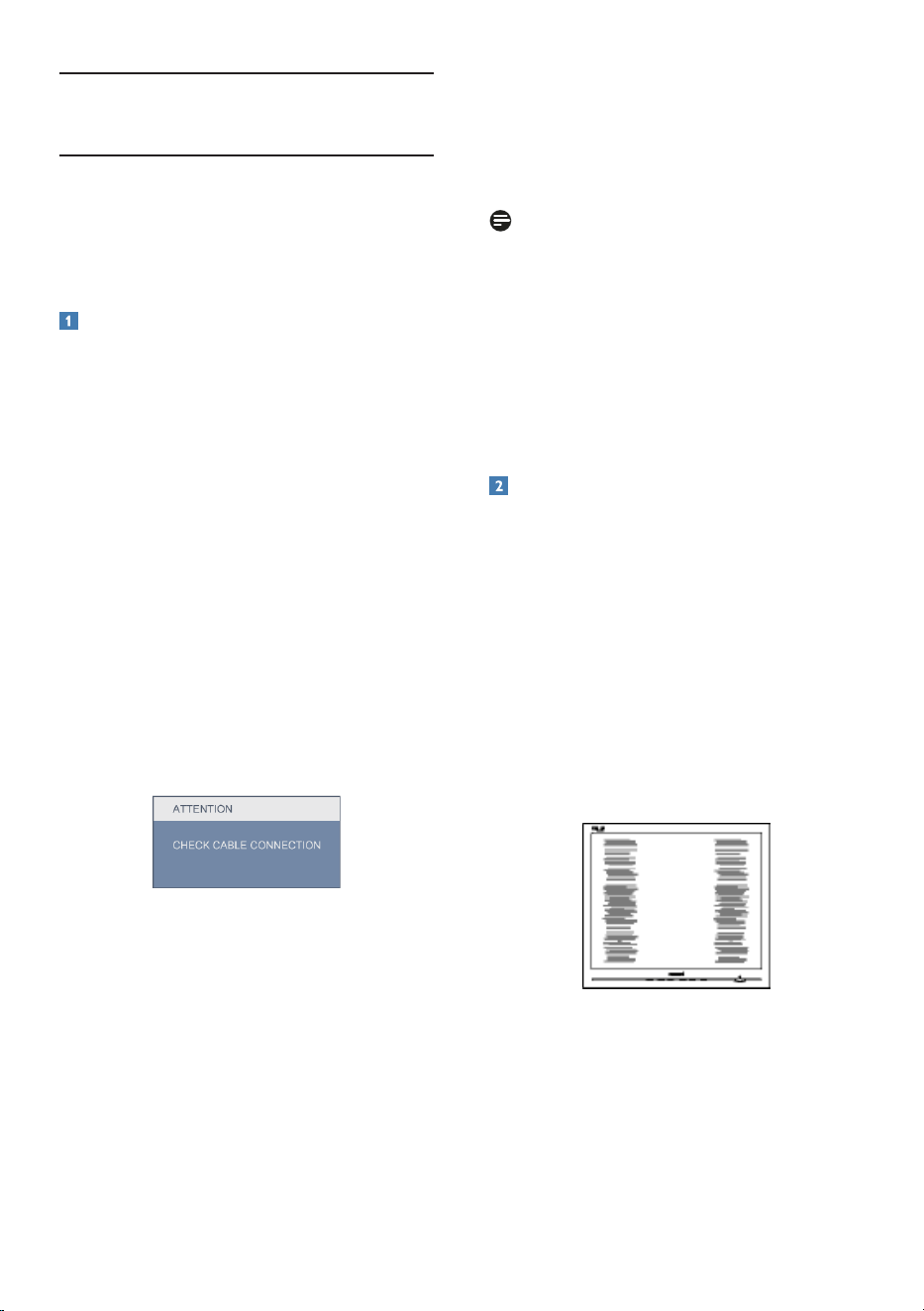
43
7. Troubleshooting & FAQs
7.1 Troubleshooting
This page deals with problems that can be
corrected by a user. If the problem still persists
after you have tried these solutions, contact
Philips customer service representative.
Common Problems
No Picture (Power LED not lit)
• Make sure the power cord is plugged into
the power outlet and into the back of the
monitor.
• First, ensure that the power button on the
front of the monitor is in the OFF position,
then press it to the ON position.
No Picture (Power LED is Blue)
• Make sure the computer is turned on.
• Make sure the signal cable is properly
connected to your computer.
• Make sure the monitor cable has no bent
pins on the connect side. If yes, repair or
replace the cable.
• The Energy Saving feature may be activated.
Screen says
• Make sure the monitor cable is properly
connected to your computer. (Also refer to
the Quick Set-Up Guide).
• Check to see if the monitor cable has bent
pins.
• Make sure the computer is turned on.
AUTO button doesn't function
• The auto function is applicable only in
VGA-Analog mode. If the result is not
satisfactory, you can do manual adjustments
via the OSD menu.
Note
The Auto Function is not applicable in DVI-
Digital mode as it is not necessary.
Visible signs of smoke or sparks
• Do not perform any troubleshooting steps.
• Disconnect the monitor from mains power
source immediately for safety.
• Contact with Philips customer service
representative immediately.
Imaging Problems
Image is not centered
• Adjust the image position using the “Auto”
function in OSD Main Controls.
• Adjust the image position using the Phase/
Clock of Setup in OSD Main Controls. It is
valid only in VGA mode.
Image vibrates on the screen
• Check that the signal cable is properly
securely connected to the graphics board
or PC.
Vertical flicker appears
• Adjust the image using the “Auto” function
in OSD Main Controls.
• Eliminate the vertical bars using the Phase/
Clock of Setup in OSD Main Controls. It is
valid only in VGA mode.

44
Horizontal flicker appears
• Adjust the image using the “Auto” function
in OSD Main Controls.
• Eliminate the vertical bars using the Phase/
Clock of Setup in OSD Main Controls. It is
valid only in VGA mode.
Image appears blurred, indistinct or too dark
• Adjust the contrast and brightness on
On-Screen Display.
An "after-image", "burn-in" or "ghost image"
remains after the power has been turned off.
• Uninterrupted display of still or static
images over an extended period may cause
"burn in", also known as "after-imaging "
or "ghost imaging", on your screen. "Burn-
in", "after-imaging", or "ghost imaging" is a
well-known phenomenon in Monitor panel
technology. In most cases, the "burned in"
or "after-imaging" or "ghost imaging" will
disappear gradually over a period of time
after the power has been switched off.
• Always activate a moving screen saver
program when you leave your monitor
unattended.
• Always activate a periodic screen refresh
application if your Monitor will display
unchanging static content.
• Severe “burn-in” or “after-image” or “ghost
image” symptoms will not disappear and
cannot be repaired. The damage mentioned
above is not covered under your warranty.
Image appears distorted. Text is fuzzy or
blurred.
• Set the PC’s display resolution to the same
mode as monitor’s recommended screen
native resolution.
Green, red, blue, dark, and white dots appears
on the screen
• The remaining dots are normal
characteristic of the liquid crystal used in
today’s technology, Please refer the pixel
policy for more detail.
The "power on" light is too strong and is
disturbing
• You can adjust “power on” light using the
power LED Setup in OSD main Controls.
For further assistance, refer to the Consumer
Information Centers list and contact Philips
customer service representative.
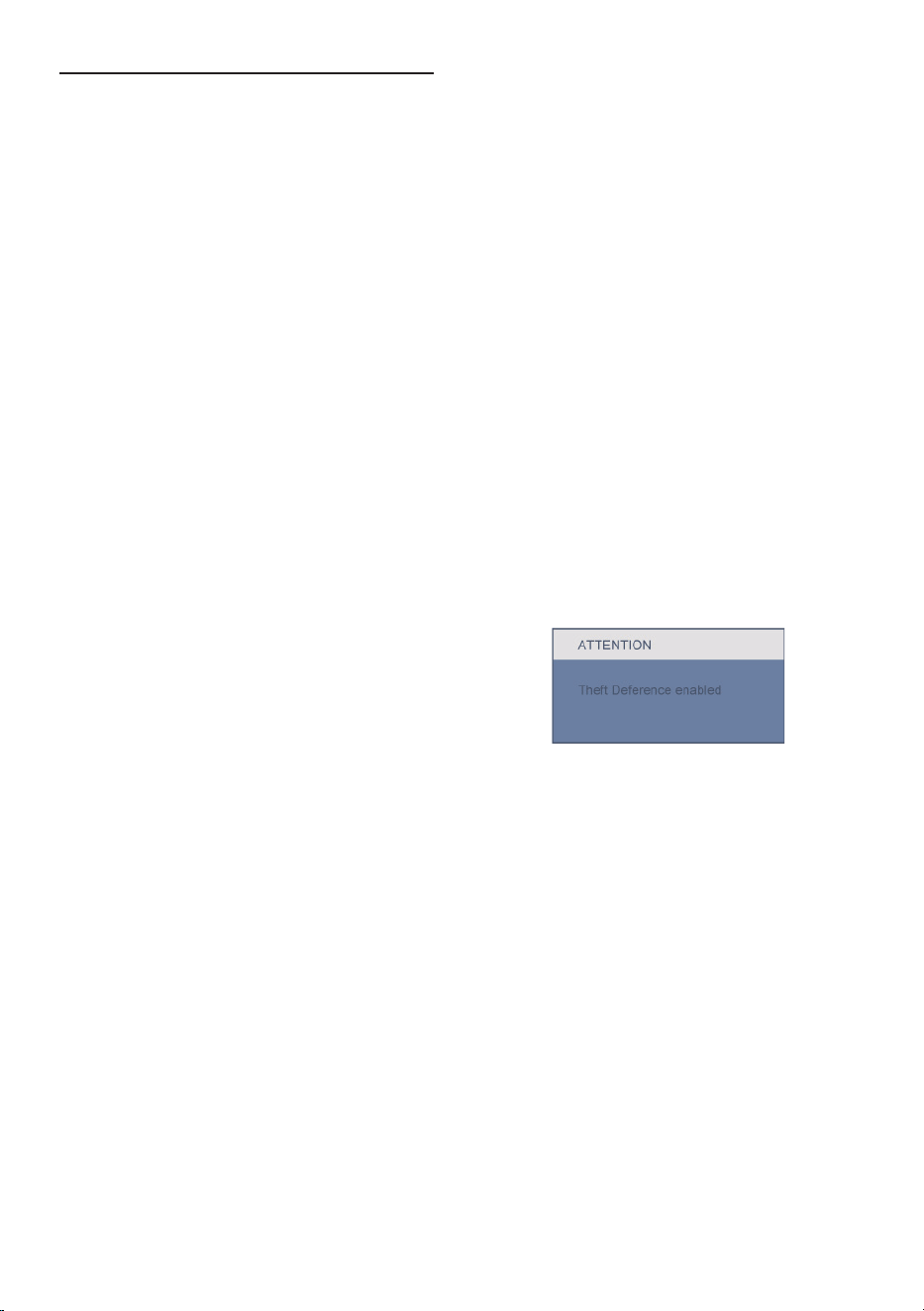
45
7.2 SmartControl Premium FAQs
Q1. I change the monitor on a PC to a
different one and the SmartControl
Premium becomes un-usable, what do
I do?
Ans.: Restart your PC and see if
SmartControl Premium can work.
Otherwise, you will need to remove
and re-install SmartControl Premium to
ensure proper driver is installed.
Q2. The SmartControl Premium functions
worked well before, but it does not
work anymore, what can I do?
Ans.: If the following actions were executed,
the monitor driver may need to be re-
installed.
• Changed video graphic adapter to another
one
• Updated video driver
• Activities on OS, such as service pack or
patch
• Run Windows Update and updated
monitor and/or video driver
• Windows was booted with the monitor
power off or disconnected.
• To find out, please right click My Computer
and click on Properties->Hardware->
Device Manager.
• If you see "Plug and Play Monitor" shows
under Monitor, then you need to re-install.
Simply remove SmartControl Premium and
re-install it.
Q3. After installing SmartControl Premium,
when clicking on SmartControl
Premium tab, nothing shows up after a
while or a failure message shows, what
happened?
Ans.: It might be your graphic adaptor is not
compatible with the SmartControl
Premium. If your graphic adaptor is one
of the above mentioned brands, try to
download the most updated graphic
adaptor driver from corresponding
companies’ web site. Install the driver.
Remove SmartControl Premium, and
re-install it once more.
If it is still not working, we are sorry that
the graphic adaptor is not supported.
Please visit Philips website and check
if an updated SmartControl Premium
driver is available.
Q4. When I click on Product Information,
only partial information is shown, what
happened?
Ans.: It might be your graphic card adaptor
driver is not the most updated
version which fully supporting DDC/
CI interface. Please try to download
the most updated graphic adaptor
driver from corresponding companies’
web site. Install the driver. Remove
SmartControl Premium and re-install it
once more.
Q5. I forgot my PIN for Theft Deterrence
Function. How can I do?
Ans.: Philips Service center has a right to
ask for legitimate identification and
authorization, in order to establish
ownership of the monitor.

46
7.3 General FAQs
Q1: When I install my monitor what should
I do if the screen shows 'Cannot
display this video mode'?
Ans.: Recommended resolution for Philips
21.5": 1920 x 1080 @60Hz.
• Unplug all cables, then connect your PC to
the monitor that you used previously.
• In the Windows Start Menu, select Settings/
Control Panel. In the Control Panel
Window, select the Display icon. Inside the
Display Control Panel, select the 'Settings'
tab. Under the setting tab, in box labeled
'desktop area', move the sidebar to 1920 x
1080 pixels (21.5").
• Open 'Advanced Properties' and set the
Refresh Rate to 60Hz, then click OK.
• Restart your computer and repeat step 2
and 3 to verify that your PC is set at 1920
x 1080 @60Hz (21.5").
• Shut down your computer, disconnect your
old monitor and reconnect your Philips
Monitor.
• Turn on your monitor and then turn on
your PC.
Q2: What does the recommended refresh
rate for Monitor?
Ans.: Recommended refresh rate in Monitors
is 60Hz, In case of any disturbance on
screen, you can set it up to 75Hz to see
if that removes the disturbance.
Q3: What are the .inf and .icm files on the
CD-ROM? How do I install the drivers
(.inf and .icm)?
Ans.: These are the driver files for your
monitor. Follow the instructions in your
user manual to install the drivers. Your
computer may ask you for monitor
drivers (.inf and .icm files) or a driver
disk when you first install your monitor.
Follow the instructions to insert the (
companion CD-ROM) included in this
package. Monitor drivers (.inf and .icm
files) will be installed automatically.
Q4: How do I adjust the resolution?
Ans.: Your video card/graphic driver and
monitor together determine the
available resolutions. You can select the
desired resolution under Windows
®
Control Panel with the "Display
properties".
Q5: What if I get lost when I am making
monitor adjustments via OSD?
Ans.: Simply press the OK button, then select
'Reset' to recall all of the original factory
settings.
Q6: Is the LCD screen resistant to
scratches?
Ans.: In general it is recommended that
the panel surface is not subjected to
excessive shocks and is protected from
sharp or blunt objects. When handling
the monitor, make sure that there is
no pressure or force applied to the
panel surface side. This may affect your
warranty conditions.
Q7: How should I clean the LCD surface?
Ans.: For normal cleaning, use a clean, soft
cloth. For extensive cleaning, please use
isopropyl alcohol. Do not use other
solvents such as ethyl alcohol, ethanol,
acetone, hexane, etc.
Q8: Can I change the color setting of my
monitor?
Ans.: Yes, you can change your color setting
through OSD control as the following
procedures,
• Press "OK" to show the OSD (On
Screen Display) menu
• Press "Down Arrow" to select the
option "Color" then press "OK" to
enter color setting, there are three
settings as below.

47
1. Color Temperature; The six settings are
5000K, 6500K, 7500K, 8200K, 9300K and
11500K. With settings in the 5000K range
the panel appears ‘warm,' with a red-white
color tone, while a 11500K temperature
yields ‘cool, blue-white toning."
2. sRGB; this is a standard setting for ensuring
correct exchange of colors between
different device (e.g. digital cameras,
monitors, printers, scanners, etc)
3. User Define; the user can choose his/her
preference color setting by adjusting red,
green blue color.
Note:
A measurement of the color of light radiated
by an object while it is being heated. This
measurement is expressed in terms of
absolute scale, (degrees Kelvin). Lower Kevin
temperatures such as 2004K are red; higher
temperatures such as 9300K are blue. Neutral
temperature is white, at 6504K.
Q9: Can I connect my Monitor to any PC,
workstation or Mac?
Ans.: Yes. All Philips Monitors are fully
compatible with standard PCs, Macs
and workstations. You may need a cable
adapter to connect the monitor to
your Mac system. Please contact your
Philips sales representative for more
information.
Q10: Are Philips Monitors Plug-and- Play?
Ans.: Yes, the monitors are Plug-and-Play
compatible with Windows 7/Vista/XP/
NT, Mac OSX, Linux
Q11: What kind of wide-angle technology is
available?
Ans.: Currently, the IPS type panels offer the
best Contrast Ratio, compared to MVA,
or PVA technologies. TN panels have
improved over the years, but IPS panel
still gives superior results over TN panel.
Q12: What is Image Sticking, or Image Burn-
in, or After Image, or Ghost Image in
Monitor panels?
Ans.: Uninterrupted display of still or static
images over an extended period
may cause "burn in", also known as
"after-imaging" or "ghost imaging",
on your screen. "Burn-in", "after-
imaging", or "ghost imaging" is a well-
known phenomenon in Monitor panel
technology. In most cases, the "burned
in" or "atter-imaging" or "ghost imaging"
will disappear gradually over a period of
time after the power has been switched
off.
Always activate a moving screen saver
program when you leave your monitor
unattended.
Always activate a periodic screen
refresh application if your Monitor will
display unchanging static content.
Warning
Severe"burn-in" or "after-image" or "ghost image"
symptoms will not disappear and cannot be
repaired. The damage mentioned above is not
covered under your warranty.
Q13: Why is my Display not showing
sharp text, and is displaying jagged
characters?
Ans.: Your Monitor works best at its native
resolution of 1920 x 1080 @60Hz. For
best display please use this resolution.

2010 © Koninklijke Philips Electronics N.V. All rights reserved.
Philips and the Philips Shield Emblem are registered trademarks of
Koninklijke Philips Electronics N.V. and are used under license from
Koninklijke Philips Electronics N.V.
Specifcations are subject to change without notice.
Version: M2224CLE1T