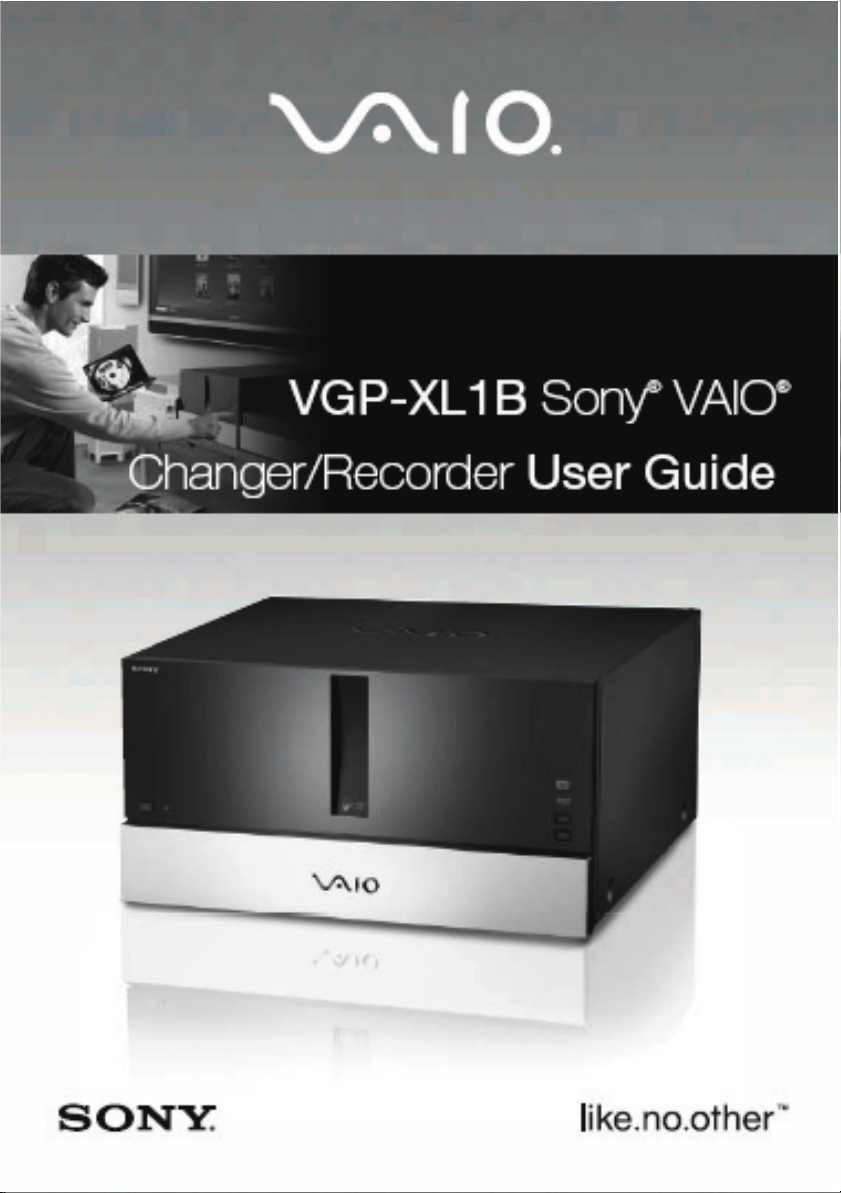
VGP-XL1B User Guide i
Kansas2.book Page i Wednesday, February 1, 2006 8:00 AM

ii VGP-XL1B User Guide
VAIO
®
VGP-XL1B Disclaimers, Notes, Warnings
NOTICE
© 2006 Sony Electronics Inc. Reproduction in whole or in part without written per-
mission is prohibited. All rights reserved. This manual and the software described
herein, in whole or in part, may not be reproduced, translated, or reduced to any
machine readable form without prior written approval.
SONY ELECTRONICS INC. PROVIDES NO WARRANTY WITH REGARD TO
THIS MANUAL, THE SOFTWARE, OR OTHER INFORMATION CONTAINED
HEREIN AND HEREBY EXPRESSLY DISCLAIMS ANY IMPLIED WARRANTIES
OF MERCHANTABILITY OR FITNESS FOR ANY PARTICULAR PURPOSE WITH
REGARD TO THIS MANUAL, THE SOFTWARE, OR SUCH OTHER INFORMA
-
TION. IN NO EVENT SHALL SONY ELECTRONICS INC. BE LIABLE FOR ANY
INCIDENTAL, CONSEQUENTIAL, OR SPECIAL DAMAGES, WHETHER BASED
ON TORT, CONTRACT, OR OTHERWISE, ARISING OUT OF OR IN CONNEC
-
TION WITH THIS MANUAL, THE SOFTWARE, OR OTHER INFORMATION CON-
TAINED HEREIN OR THE USE THEREOF.
SONY CANNOT WARRANT THAT THE FUNCTIONS DESCRIBED IN THIS
GUIDE WILL BE UNINTERRUPTED OR ERROR-FREE. SONY ALSO ASSUMES
NO RESPONSIBILITY, AND SHALL NOT BE LIABLE FOR ANY DAMAGES TO,
OR VIRUSES THAT MAY INFECT, YOUR COMPUTER EQUIPMENT, OR OTHER
PROPERTY ON ACCOUNT OF YOUR ACCESS TO, USE OF, OR BROWSING IN
ANY DESCRIBED WEB SITE, OR YOUR DOWNLOADING OF ANY MATERIALS,
DATA, TEXT, IMAGES, VIDEO, OR AUDIO FROM ANY DESCRIBED WEB SITE.
WEB SITE INFORMATION IS OBTAINED FROM VARIOUS SOURCES AND MAY
BE INACCURATE. COPIES OF COPYRIGHTED INFORMATION MAY ONLY BE
MADE FOR LEGALLY PERMISSIBLE PURPOSES.
Sony Electronics Inc. reserves the right to make any modification to this manual or
the information contained herein at any time without notice. The software described
herein is governed by the terms of a separate user license agreement.
This product contains software owned by Sony and licensed by third parties. Use of
such software is subject to the terms and conditions of license agreements
enclosed with this product. Some of the software may not be transported or used
outside the United States. Software specifications are subject to change without
notice and may not necessarily be identical to current retail versions.
Kansas2.book Page ii Wednesday, February 1, 2006 8:00 AM

VGP-XL1B User Guide iii
Certain product(s) included with this computer may include features such as copy
protection and content management technology. USE OF THE SOFTWARE
PRODUCT(S) REQUIRES AGREEMENT TO APPLICABLE END USER AGREE
-
MENTS AND FULL COMPLIANCE WITH APPLICABLE PRODUCT ACTIVATION
PROCEDURES. Product activation procedures and privacy policies will be detailed
during initial launch of the software product(s), or upon certain reinstallations of the
software product(s), or re configurations of the computer, and may be completed by
Internet or telephone (toll charges may apply). Updates and additions to software
may require an additional charge. Subscriptions to online service providers may
require a fee and credit card information. Financial services may require prior
arrangements with participating financial institutions.
Important information for Canadian customers: Your new Media Changer/
Recorder includes certain software versions or upgrades, and Internet ser-
vices or offers that are available to U.S. customers only.
Sony, VAIO, the VAIO logo, Digital Living System, and iLINK, are trademarks or reg-
istered trademarks of Sony Electronics.
Attention Regarding DualDisc™ media: This product has been engineered to
provide the highest entertainment value while playing standard CD and DVD discs.
DualDisc™ media used with this product may jam in the slots or racks of disc hold
-
ers or in the disc consoles and should not be used with this product.
Microsoft, Windows, and the Windows logo are trademarks or registered trade-
marks of the Microsoft Corporation.
All other trademarks are trademarks or registered trademarks of their respective
owners.
Kansas2.book Page iii Wednesday, February 1, 2006 8:00 AM

iv VGP-XL1B User Guide
Kansas2.book Page iv Wednesday, February 1, 2006 8:00 AM

VGP-XL1B User Guide v
Contents
Introduction 1
What is the VGP-XL1B Changer/Recorder? ............................. .1
VGP-XL1B Features .................................................................. .2
System Requirements ..................................................................... 3
Update Rollup ................................................................... 2 3
Product Specifications .......................................................... 3
Getting Started ................................................................................ 4
Front Panel ................................................................................. 5
Back Panel ................................................................................. 6
Important Changer/Recorder Notes: .......................................... 7
Operating System ........................................................................... 7
Support Resources. ........................................................................ 9
Documentation ........................................................................... 9
User Guide: .......................................................................... 9
VGP-XL1B Legal and Safety Guide: .................................... 9
Installing VGP-XL1B ..................................................................... 10
Step 1: Before You Begin .............................................................. 10
Step 2: Install the Sony Changer Software CD ............................. 11
Important Installation Note ................................................. 11
Step 3: Connect the VGP-XL1B to the Host Computer ................. 18
VGP-XL1B Changer/Recorder Software Features ........................ 19
Manage Discs ............................................................................... 20
Manage Discs Tools: ................................................................ 20
Managing Your Media Library .................................................. 21
Media Disc(s) “Types” ........................................................ 22
Supported Media ................................................................ 23
Unsupported Media ............................................................ 23
Media Disc Warnings ................................................................ 23
Loading & Unloading Discs ........................................................... 24
Loading the VGP-XL1B Changer/Recorder .............................. 24
Scanning New Discs .......................................................... 25
Kansas2.book Page v Wednesday, February 1, 2006 8:00 AM

vi VGP-XL1B User Guide
Unloading the Sony® Changer/Recorder ................................. 26
My Changer ................................................................................... 26
My Changer Music ............................................................. 27
Copy Music ........................................................................ 28
Important Notes .................................................................. 29
Helpful Hints ....................................................................... 30
Archive TV .......................................................................... 31
Important Notes .................................................................. 32
Helpful Hints ....................................................................... 33
Connecting Multiple Changers ...................................................... 34
Multiple Changer Limitations .................................................... 34
Helpful Hint ......................................................................... 36
Disconnecting/Moving the Changer .......................................... 36
Trouble Shooting ........................................................................... 37
Media Issues ............................................................................ 37
Hardware Issues ....................................................................... 37
Software Issues ........................................................................ 41
Kansas2.book Page vi Wednesday, February 1, 2006 8:00 AM
VGP-XL1B User Guide 1
Introduction
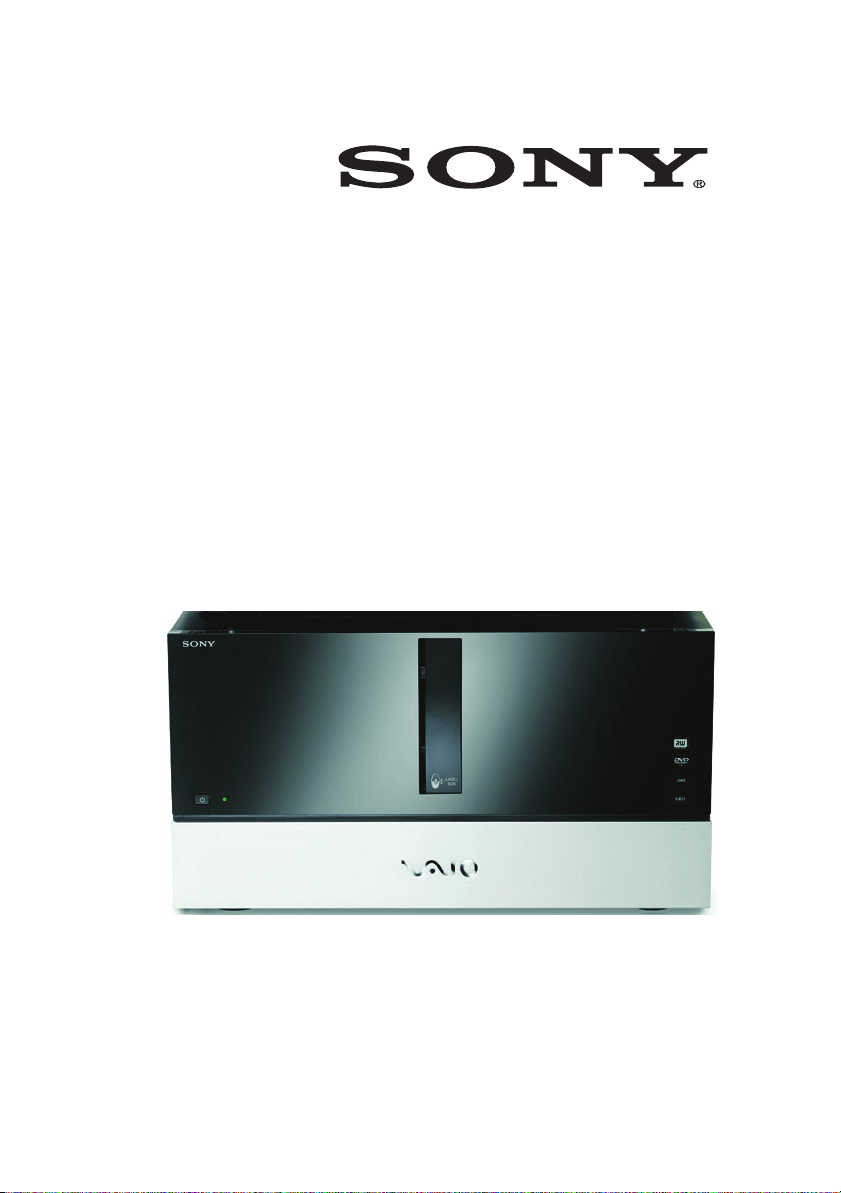
Congratulations on your purchase of the Sony VGP-XL1B
CD/DVD Changer/Recorder.
What is the VGP-XL1B Changer/Recorder?
The VGP-XL1B is a 200 disc CD/DVD Changer/Recorder, which
when added to your home computer/entertainment system will
save you space and time by allowing you to store, archive and
playback your CD/DVD media library.
Kansas2.book Page 1 Wednesday, February 1, 2006 8:00 AM
2 VGP-XL1B User Guide
VGP-XL1B Features
The Sony VGP-XL1B CD/DVD Changer/Recorder and included
application software CD provides you with the following features:
Feature Description
Ease of Use
• Simple i.LINK
®1
(IEEE 1394) connection to
the host computer using a 6-pin i.LINK
®1
cable.
• PC control by keyboard or remote control.
• Automatic download of title, jacket cover,
and other information from your CDs/DVDs
(Internet connection required).
Disc Media
Storage
• Centralized storage for a 200 CD/DVD disc
library. Up to 1000 disc capacity with daisy-
chaining of devices.
• Continuous single-action feed for loading/
unloading discs.
Optical Drive Internal optical drive allows for:
• burning of content to CDs/DVDs.
2
• Automatic and sequential ripping of CDs to
the host computer’s hard drive.
• Multi episode TV program archiving to DVD
disc—NTSC TV tuner required (Non-HD TV
tuner).
1. i.LINK is a trademark of Sony used only to designate that a product
contains an IEEE1394 connection. The i.LINK connection may vary
depending on the software applications, operating system and com
-
patible i.LINK devices. All products with an i.LINK connection may not
communicate with each other. Please refer to the documentation that
comes with any device having an i.LINK connection for information on
compatibility, operating conditions and proper connection. For infor
-
mation on any Sony device having an i.LINK connection, contact
Sony at 1-800-686-7669
2. Please copy responsibly. When using the ripping and burning fea-
tures of your XL1B, please be sure you are not violating copyright law.
Kansas2.book Page 2 Wednesday, February 1, 2006 8:00 AM

VGP-XL1B User Guide 3
System Requirements
To successfully install and operate the VGP-XL1B, the host com-
puter must meet the following minimum system requirements:
• Host computer running Microsoft
®
Windows
®
XP Media Center
Edition (MCE) 2005 with Update Rollup 2.
• Additional operating system software: Microsoft
®
.NET
Framework 1.1 Service Pack 1.
• i.LINK
®
/FireWire (IEEE1394) port
• 500MB
1
of free hard disk space
Update Rollup 2
During the installation of the included Sony
®
Software CD, an auto-
matic check will be made for Windows
®
Update Rollup 2. If found,
the install process will continue. If Update Rollup 2 is not found,
you will need to visit the Windows Update web site to download
this update onto your system.
For additional information on the Update Rollup 2 features, go to
http:// www.microsoft.com/windowsxp/mediacenter/upgrade/
rollup2.mspx.
Product Specifications
For complete hardware specifications, go to:
http://esupport.sony.com and select Manuals / Specs / Warranties.
1. MB means one million bytes when referring to hard drive capacity.
Accessible capacity.
Kansas2.book Page 3 Wednesday, February 1, 2006 8:00 AM

4 VGP-XL1B User Guide
Getting Started
Unpack the VGP-XL1B CD/DVD Changer/Recorder. Make sure
you have the following items:
Keep all packaging material in case you need to move or ship the
changer/recorder at a later time.
VGP-XL1B Changer Power Cord
i.LINK
®
(IEEE1394)
6-pin cable
User Guide Safety Guide
Sony
®
Changer
Software CD
Kansas2.book Page 4 Wednesday, February 1, 2006 8:00 AM
VGP-XL1B User Guide 5
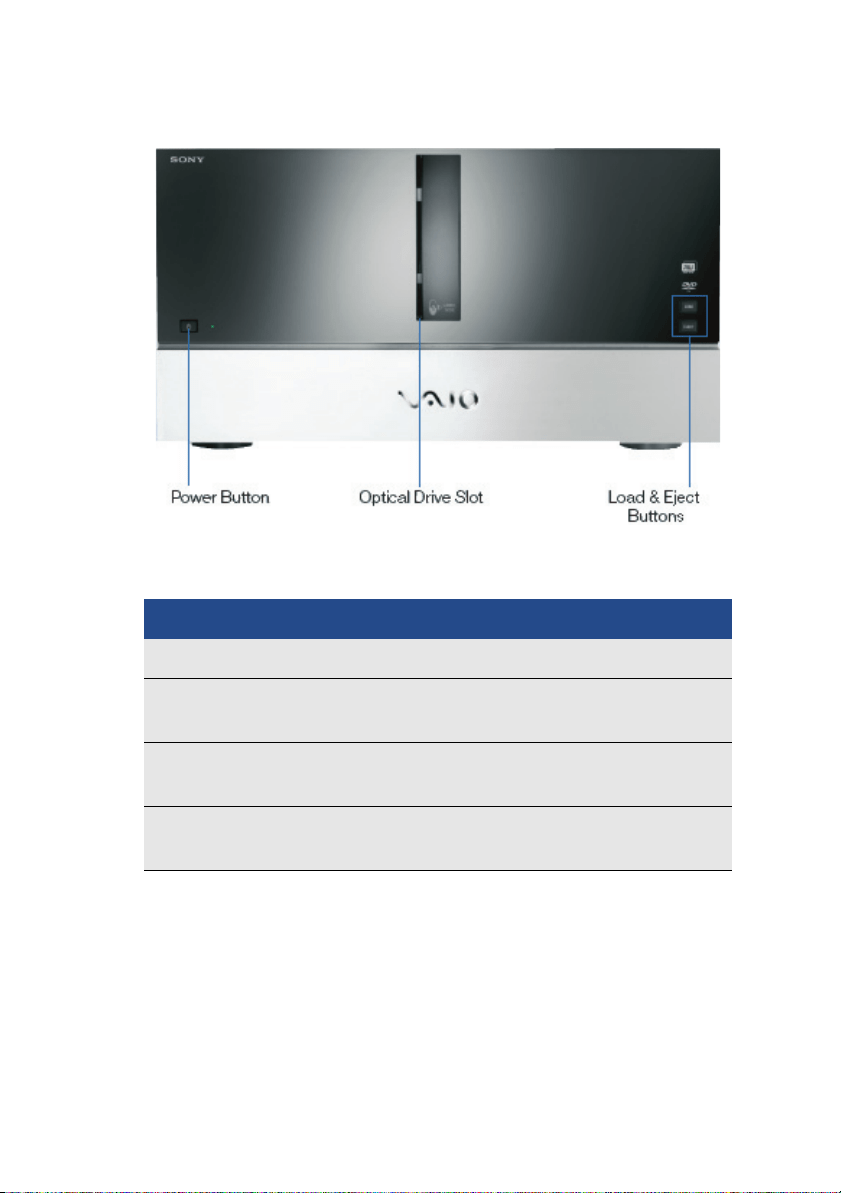
Front Panel
Feature Description
Power Button Turn power on/off to changer/recorder.
Optical Drive Slot See online specifications sheet for optical
drive information.
Load Button Button to load media into the changer/
recorder.
Eject Button Button to eject or unload media from the
changer/recorder
Kansas2.book Page 5 Wednesday, February 1, 2006 8:00 AM
6 VGP-XL1B User Guide
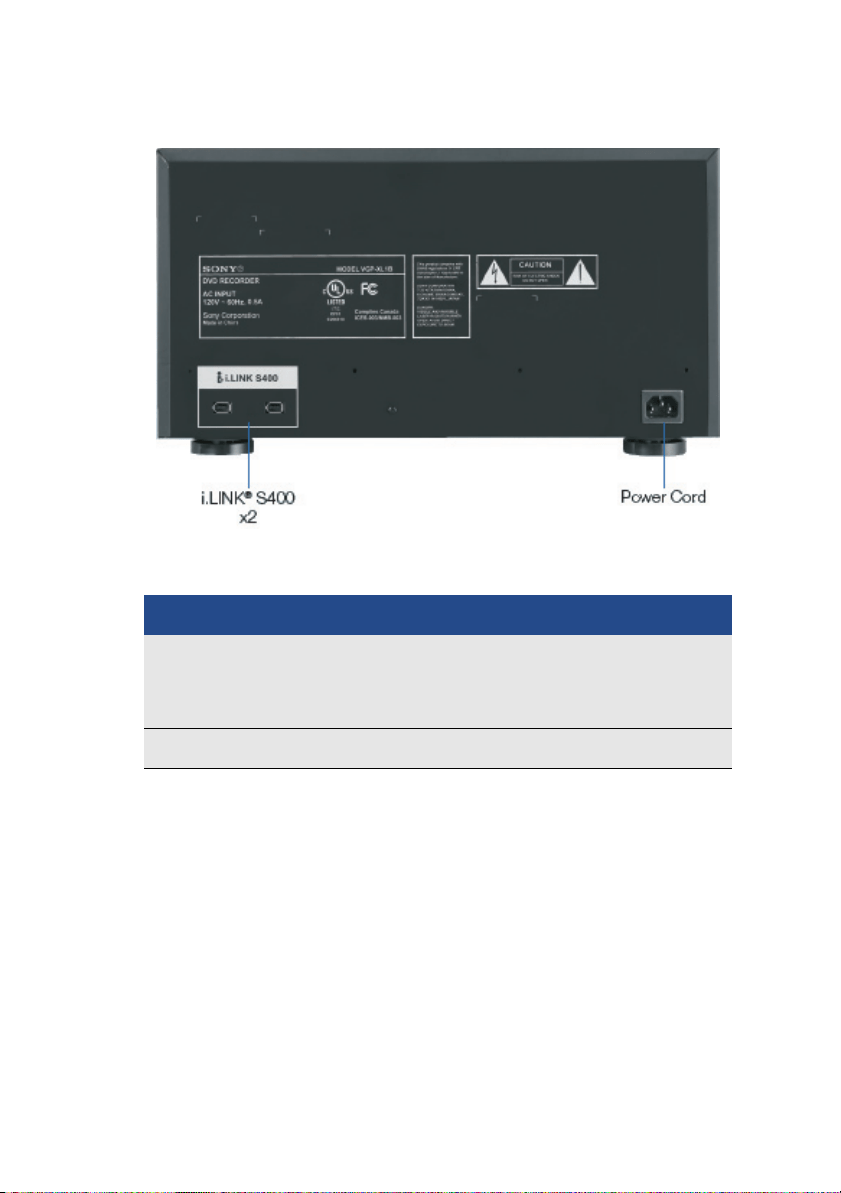
Back Panel
Feature Description
i.LINK
®
S400 (x2)
Your VGP-XL1 CD/DVD Changer/
Recorder is equipped with two 6-pin (back
panel) i.LINK
®
ports.
Power Cord Supply electrical power to the device.
Kansas2.book Page 6 Wednesday, February 1, 2006 8:00 AM

VGP-XL1B User Guide 7
Important Changer/Recorder Notes:
• There are two i.LINK
®
ports on the back of the VGP-XL1B;
however, you cannot connect this device to two different host
computers at the same time.
• The remaining i.LINK
®
port on the back of the VGP-XL1B can
be used to combine or daisy-chain up to four additional VGP-
XL1B changers. This feature allows you to network up to five
changers to the host computer.
• The second i.LINK
®
port functions as a normal 1394 port with
one exception: DO NOT connect/disconnect a second 1394
device on the second port of the changer while the device is
being used (burning, ripping, or playing back any type of discs.)
• Once a new device is plugged into the second i.LINK
®
port of
the VGP-XL1B, both the changer and the second device are re-
enumerated by the operating system, which could interrupt the
current process running on the changer. If you encounter any
problems after connecting a new 1394 device, you might need
to restart the host computer.
Operating System
The operating system for the host computer must be Microsoft
®
Windows
®
XP Media Center Edition 2005 or later.
Note: Sony supports up to five VGP-XL2B Changer/Recorders.
Functionality is limited when multiple Changers are daisy chained
(connected) to the host computer. See
“Connecting Multiple
Changers” on page 34.
Note: The Sony
®
VGP-XL1B CD/DVD Changer/Recorder is a
Class 1 Laser Product.
Note: All features of the CD/DVD Changer/Recorder are controlled
and accessed through Microsoft
®
Windows
®
XP Media Center
Edition 2005. Additional software features have been added to
Media Center to accommodate the CD/DVD Changer/Recorder.
Kansas2.book Page 7 Wednesday, February 1, 2006 8:00 AM
8 VGP-XL1B User Guide
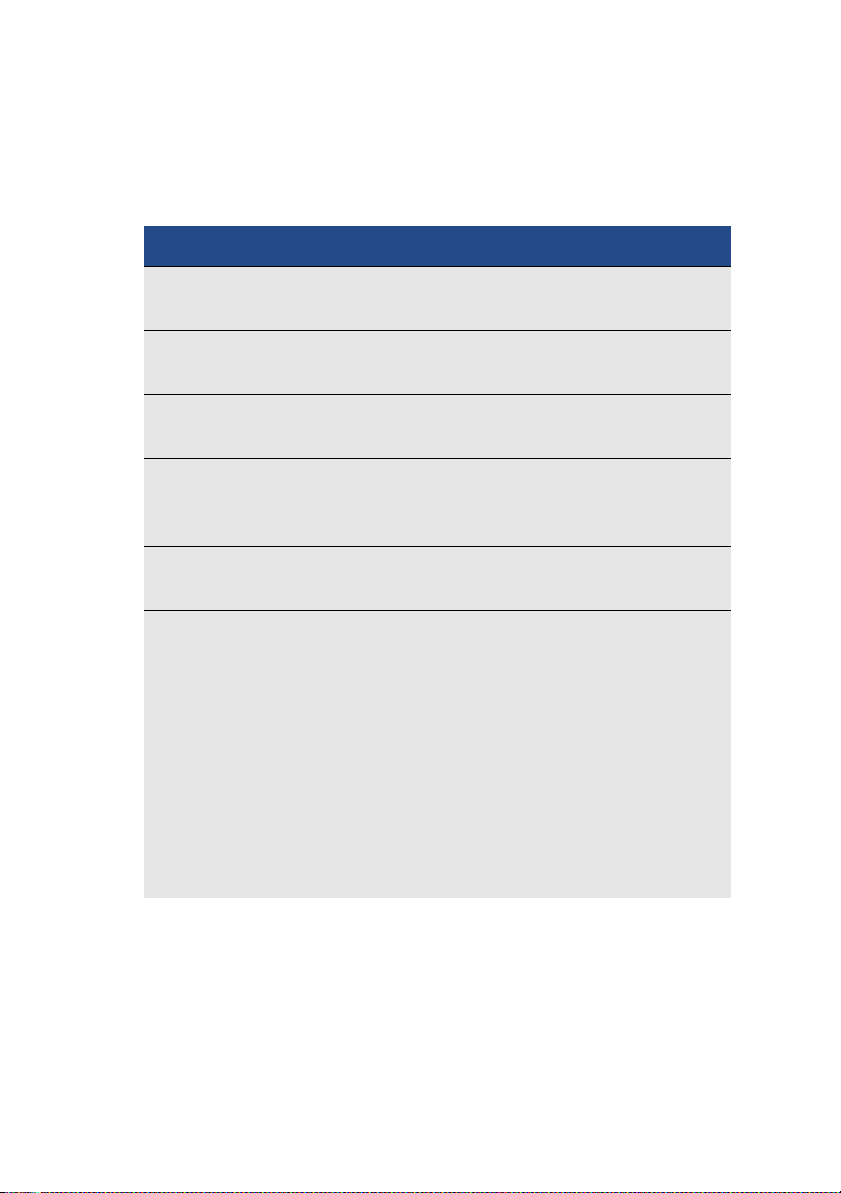
The following list contains a high-level overview of the features
available to you in Media Center. For in-depth information about
each feature, refer to the Media Center documentation that came
with the host computer, or go to the Microsoft
®
Web site.
Feature Description
My DVDs Select and view a DVD from your media
library. Also view programing information.
Online
Spotlight
The Online Spotlight provides Internet access
to the latest entertainment news and events.
My Videos Watch digital videos—select from videos
you’ve previously loaded in a special folder.
My Pictures Categorize your pictures in folders. Then,
select a folder to view a single picture or a
slide show.
My TV Watch live TV or record your favorite show for
later viewing, if your system has a TV tuner.
My Music Enjoy access to all the music stored on your
hard drive. Organize, locate, and play your
favorite music files in Media Center.
More
Programs
To enhance you entertainment experience,
links have been included to additional
programs for your use and enjoyment.
Settings Set your personal preferences for your digital
entertainment experience. Review this section
carefully to get the most out of your digital
entertainment experience.
Kansas2.book Page 8 Wednesday, February 1, 2006 8:00 AM

VGP-XL1B User Guide 9
Support Resources.
Documentation
The following support documents are packaged with the
VGP-XL1B CD/DVD Changer/Recorder.
User Guide:
The user guide is designed to provide you with detailed information
about the installation and operation of the VGP-XL1B CD/DVD
Changer/Recorder.
VGP-XL1B Legal and Safety Guide:
Carefully read the VGP-XL1B Safety Information Guide. The
guide, in printed format, is contained in the packaging materials.
Copy Protection Notice
Please copy responsibly. Whenever using the ripping and burning
features of your XL1B, please be sure you are not violating
copyright law.
Note: In addition to the documentation included with the product,
online help is available for the added Changer/Recorder features
in Media Center. Select Help on the various screens to access this
additional information.
Kansas2.book Page 9 Wednesday, February 1, 2006 8:00 AM

10 VGP-XL1B User Guide
Installing VGP-XL1B
The installation process consists of the following steps.
Step 1: Before You Begin
Before connecting your VGP-XL1B CD/DVD Changer/Recorder to
the host computer, consider the environment in which it will be
placed. Listed below are some general guidelines.
• Do not set up the VGP-XL1B in the following locations:
- in direct sunlight
- near a magnet or a item that generates a magnetic field
- areas with high heat, such as near a heater
- areas with excessive heat, dust, and humidity
- areas with poor ventilation
Please observe the following items to avoid damage.
• Always turn off the power before the Changer/Recorder is
moved. Damage may be caused to the changer if the device is
transferred or moved with the power on.
• Do not move the Changer/Recorder if there are discs inside the
carousel. Remove all discs from the changer before moving.
• Do not tip or hit this device. Even a slight vibration or small
impact may cause a disc to come loose or cause damage to the
discs or carousel.
• Do not set up where it is not physically secure.
• Do not obstruct the ventilation holes or place heavy objects on
top of the device.
• If the host computer and the Changer/Recorder are placed in
an enclosed cabinet, make sure there is sufficient airflow.
Step 1 Review the section titled Before You Begin.
Step 2 Install the Changer Software CD on the host computer.
Step 3 Connect the VGP-XL1B to the host computer.
Kansas2.book Page 10 Wednesday, February 1, 2006 8:00 AM

VGP-XL1B User Guide 11
Step 2: Install the Sony Changer
Software CD
The Sony
®
Changer Software CD contains a software program that
when installed, works with Microsoft
®
Windows
®
XP Media Center
Edition 2005 to control the Changer/Recorder.
Important Installation Note
Before beginning the software CD installation process, go to
Windows Update and make sure you have installed the latest
critical updates for the host computer. You should also visit your
computer manufacturer's Web site to ensure that your system
supports Update Rollup 2 for Microsoft
®
Windows
®
XP Media
Center Edition 2005. We recommend to update any drivers or
firmware that your manufacturer has distributed to ensure
compatibility.
The first part of the installation process is a series of checks to see
if the host computer contains the operating system software
required to properly run the VGP-XL1B Changer/Recorder. During
this process, if a required system software component is outdated
or not found, you will be directed to install the missing operating
system software before continuing.
After all required programs are verified or installed, you will be
presented with a series of basic installations screens. Please read
each screen carefully, then take the appropriate action.
To install the Sony Changer/Recorder Software CD
1 From the host computer, insert the software CD into the optical
drive.
2 Normally, the installation starts automatically. If it does not, from
the Windows taskbar, click the Start button, and then click Run. In
the text box, type: x:\setup.exe (where x is the drive letter of your
optical drive) and click OK.
Note: The following installation procedure must be initiated from
the host computer.
Kansas2.book Page 11 Wednesday, February 1, 2006 8:00 AM
12 VGP-XL1B User Guide
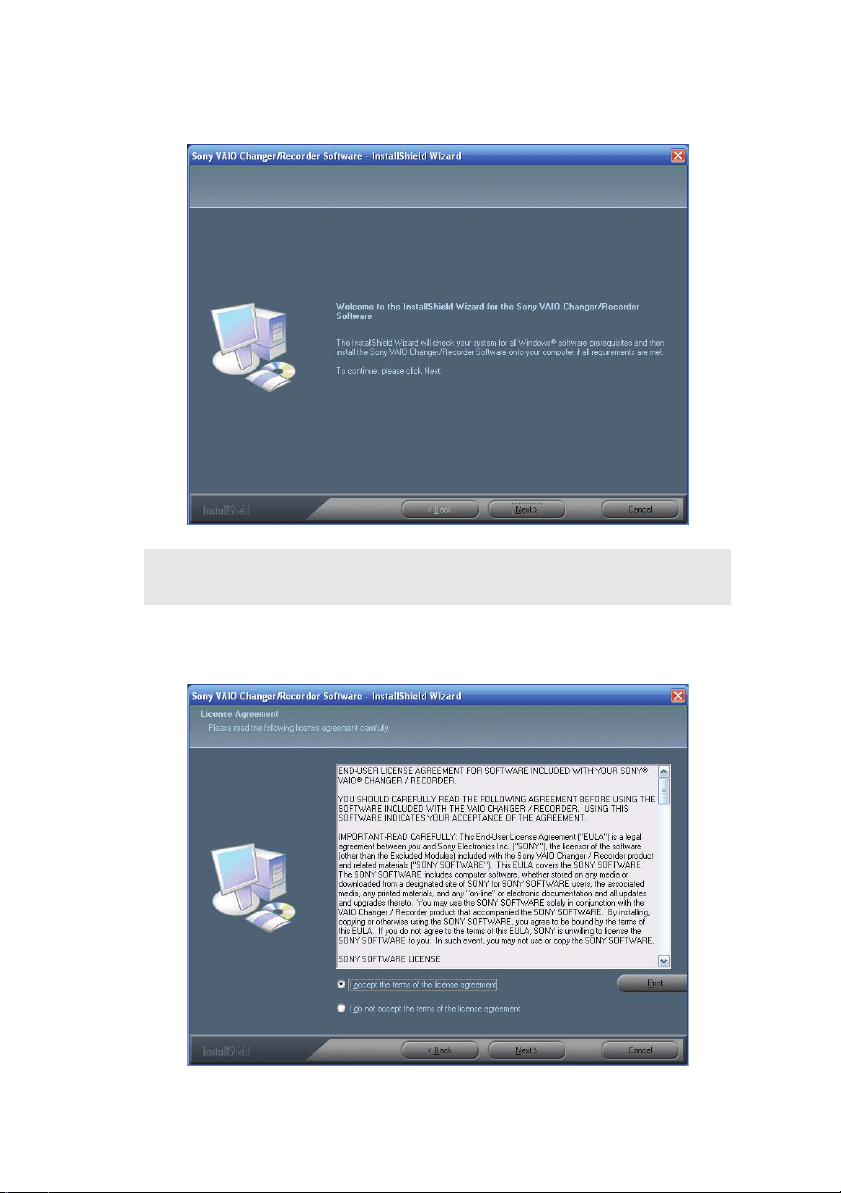
The Welcome dialog box appears.
3 Click Next to continue.
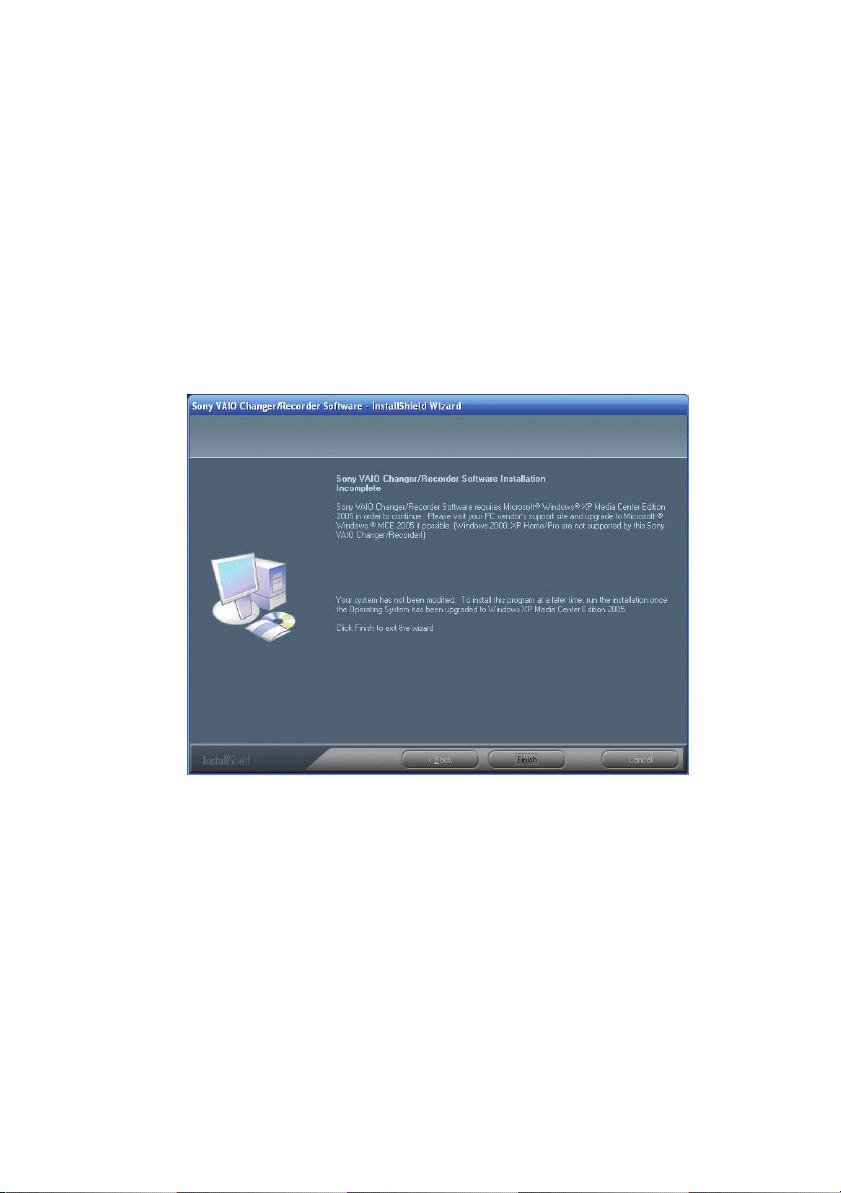
The End User License Agreement dialog box appears.
Note: During the software installation process, please carefully
read the contents of each screen before continuing.
Kansas2.book Page 12 Wednesday, February 1, 2006 8:00 AM
VGP-XL1B User Guide 13
4 Read the license agreement. If you agree to the stated terms,
select the option I accept the terms of the license agreement,
and then click Next.
At this point, the install program checks the host computer for the
required operating system program/utilities and one of the follow
-
ing three events occur.
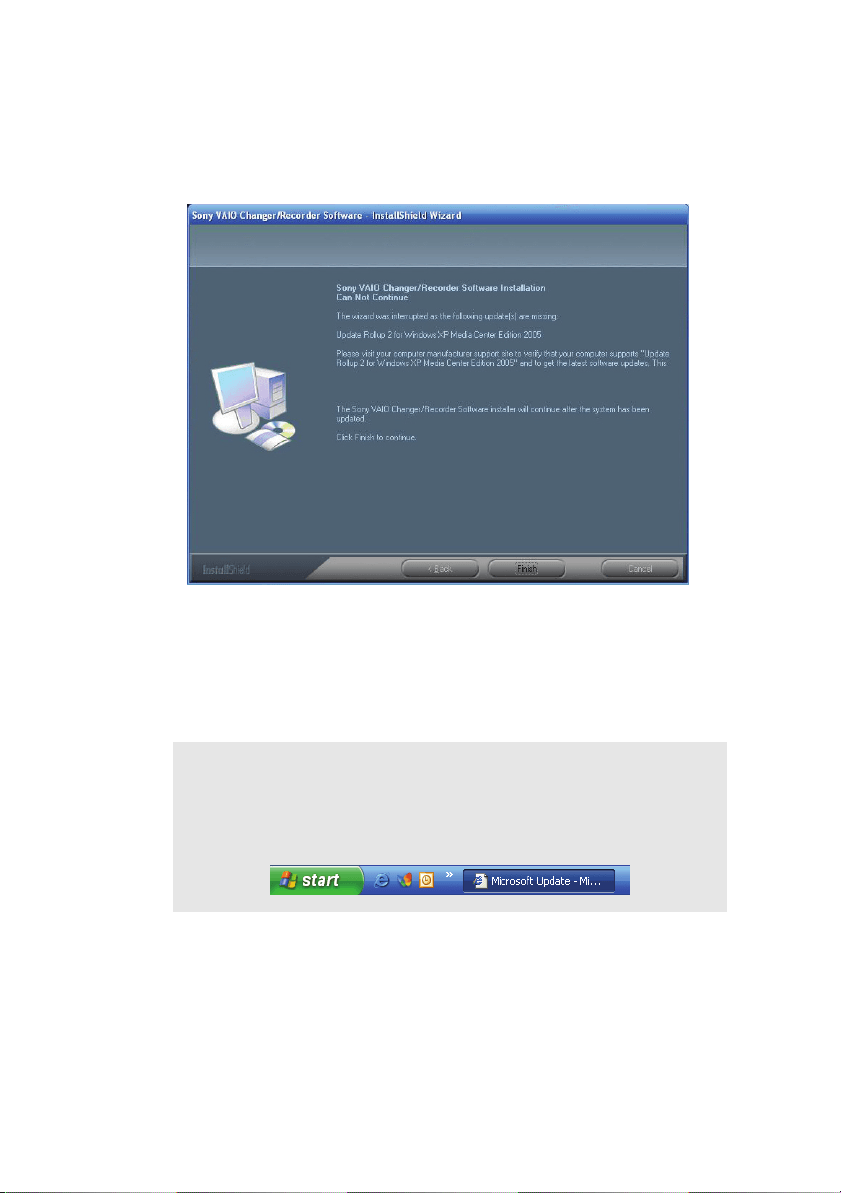
Event 1
• If Microsoft
®
Windows
®
XP Media Center Edition 2005 is not
detected on the host computer the following dialog box
appears.
If this screen appears, the Sony
®
Software CD cannot be
installed on your computer. The operating system on your
computer must be updated to Microsoft
®
Windows
®
XP Media
Center Edition 2005. Click Finish to exit the installation
program.
Once you have updated your operating system, begin the
Sony
®
Software CD installation again.
Kansas2.book Page 13 Wednesday, February 1, 2006 8:00 AM
14 VGP-XL1B User Guide
Event 2
• If the requirements for other system programs/utilities are
not met, the following dialog box appears.
Take note of the required updates listed on this screen. Click
Finish close the Sony
®
Software CD installation program and
access the Microsoft
®
Windows
®
Update Web site. Please
follow all on-screen instructions to download the necessary
Microsoft updates to your computer.
a Click the Microsoft Update button on the taskbar to maximize
Internet Explorer and view the Windows Update screen.
b From the Windows Update screen, click Custom.
c From the left navigation pane, click Software, Optional.
Note: Internet access is required to complete this step.
The Microsoft
®
Windows
®
Update Web site at
www.windowsupdate.com opens in a minimized state
and displays a Windows Update button in the taskbar.
Kansas2.book Page 14 Wednesday, February 1, 2006 8:00 AM
VGP-XL1B User Guide 15
d From the list of available optional software updates, select the
associated check box for each software update you wish to
download and install. Make sure that Update Rollup 2 for
Windows XP Media Center Edition 2005 is selected.
e Click Review and install updates.
f Once all Software updates have been installed, begin the
Sony
®
Software CD installation again.
Event 3
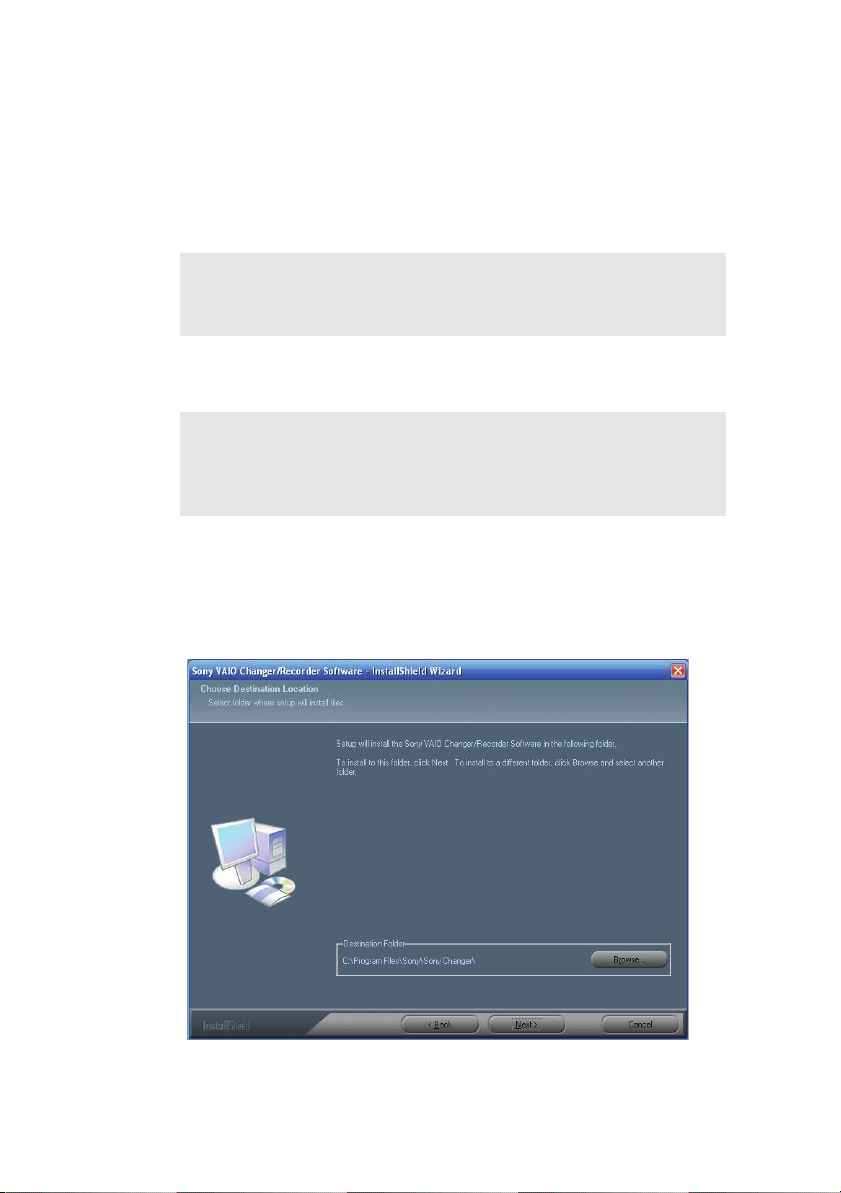
• The installation program has detected all required system
programs/utilities, the Change Destination Folder dialog box
appears.
Note: It is recommended that you return to Windows
®
Update
and select the Custom button again to make sure that all
critical updates have been installed.
Note: It may be necessary to shutdown and then restart your
computer for the updates to take affect. When complete,
insert the Sony Changer/Recorder Software CD into the
optical drive and restart the installer.
Kansas2.book Page 15 Wednesday, February 1, 2006 8:00 AM
16 VGP-XL1B User Guide
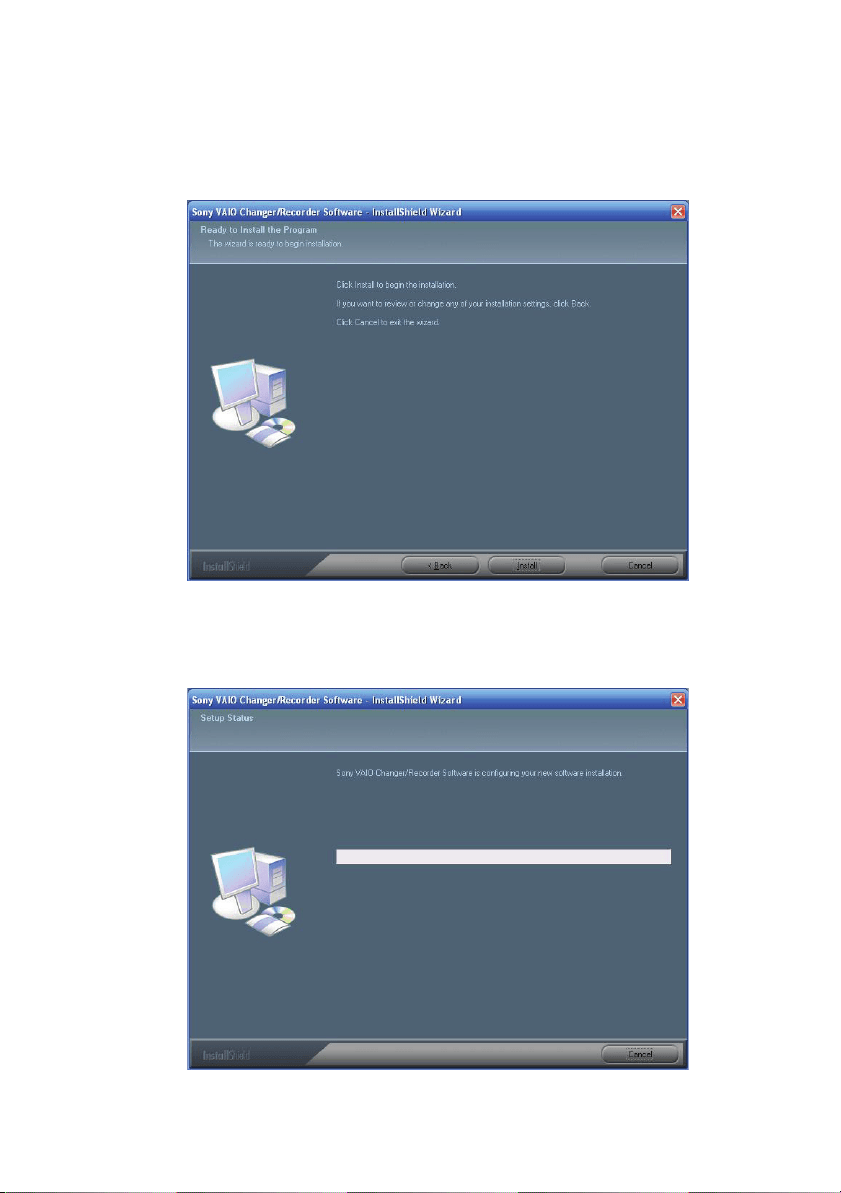
5 Accept the default location and click Next or click Browse and
select a new destination folder location.
The Ready to Install dialog box displays.
6 Click Install to continue.
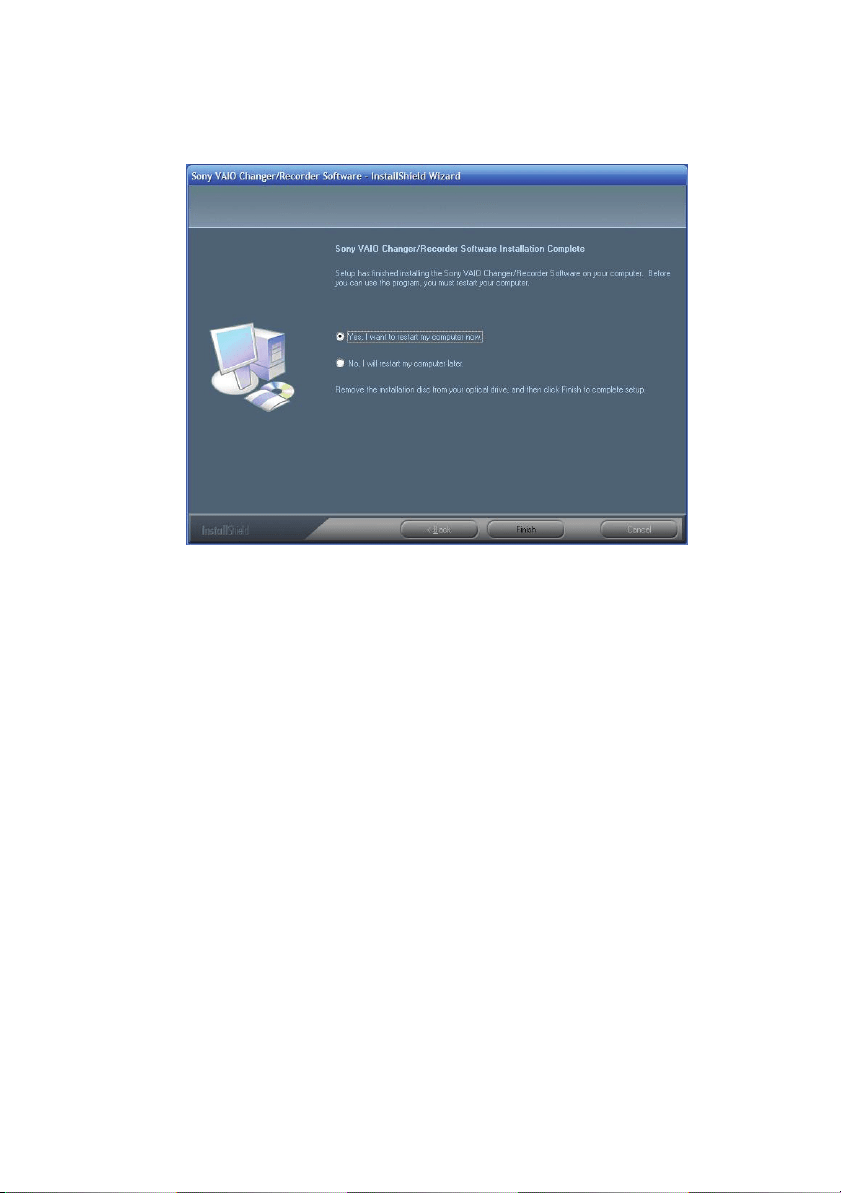
The Setup Status dialog box displays and shows a progress bar as
application program files are copied to your computer.
Kansas2.book Page 16 Wednesday, February 1, 2006 8:00 AM
VGP-XL1B User Guide 17
Once all files have been successfully copied to your computer, the
Installation Complete dialog box displays
.
7 Select the option Yes, I want to restart my computer now and
then click Finish to complete the installation setup.
You are now ready to connect the Sony
®
VGP-XL1B CD/DVD
Changer/Recorder to the host computer.
Kansas2.book Page 17 Wednesday, February 1, 2006 8:00 AM

18 VGP-XL1B User Guide
Step 3: Connect the VGP-XL1B to the
Host Computer
Connecting the VGP-XL1B CD/DVD Changer/Recorder to the your
computer is a simple process requiring only a single cable.
1 Using the supplied i.LINK
®
cable, connect the end without the
ferrite bead (a large node close to one end of the cable) to an
i.LINK
®
connector on the host computer, and connect the cable
end with the ferrite bead to an i.LINK
®
connector on the back
panel of the VGP-XL1B CD/DVD Changer/Recorder.
2 Turn the power to the host computer on before turning the power
on the VGP-XL1B CD/DVD Changer/Recorder.
To verify that the installation was successful, do one of the
following.
To verify using Device Manager
1 Click Start from the Window taskbar, and then click Control
Panel.
2 Double-click System and select the Hardware tab from the
System Properties dialog box.
3 From the Hardware tab page, select Device Manager. Check for
VGP-XL1B under Medium Changers.
To verify using Media Center
1 Start Media Center.
2 From the Start menu, select More Programs and then look for the
Manage Discs option.
Note: Before you begin, make sure that the power has been
turned off to the host computer and any peripheral equipment.
Kansas2.book Page 18 Wednesday, February 1, 2006 8:00 AM

VGP-XL1B User Guide 19
VGP-XL1B Changer/Recorder
Software Features
Once you successfully complete the installation of the Sony
Changer/Recorder Software CD, the following changes occur:
• The More Programs main page will be modified to include a
new option called Manage Discs, which gives you the tools
you need to control the discs stored in the Changer/Recorder.
• Load discs to the Changer/Recorder and then scan and identify
for viewing in Media Center. Unload the disc from the Changer/
Recorder from Media Center or manually.
• The Media Center Start menu will be modified to include a new
menu option titled My Changer.
• Some Media Center shortcuts previously located on the Start
Menu, may have been moved to More Programs to make
room for the My Changer option.
Kansas2.book Page 19 Wednesday, February 1, 2006 8:00 AM
20 VGP-XL1B User Guide
Manage Discs
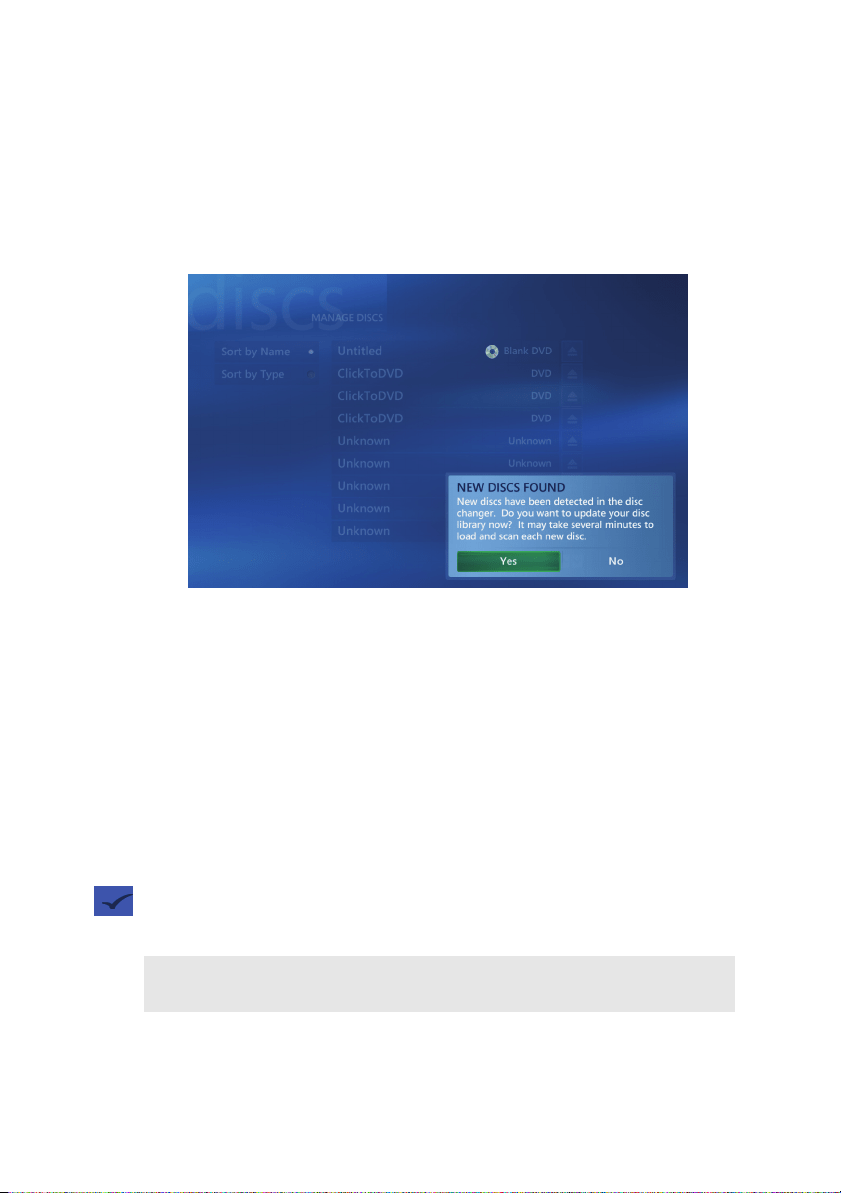
The Manage Discs feature gives you the tools you need to control
the portion of your media library stored in the Changer/Recorder.
The main screen shows a list of all media in the changer sorted by
name or type. If no metadata is found, the volume name displays.
Manage Discs Tools:
• Scan and identify new discs in the changer and update disc
data in the library. The Manage Discs feature will automatically
recognize new media discs loaded into the changer and ask if
you want to update the library with the new disc(s).
• Sort the changer library by name or type. Type allows you to
verify the number of discs in the changer for each type of
media. This is useful when archiving a TV series or creating
other DVDs to determine the number of blank discs available
• Eject discs. Remove media from the changer by selecting the
Eject button.
Note: Any disc in the changer’s optical drive can also be accessed
from Windows Explorer or My Computer.
Kansas2.book Page 20 Wednesday, February 1, 2006 8:00 AM

VGP-XL1B User Guide 21
Managing Your Media Library
After completing the installation of your VGP-XL1B CD/DVD
Changer/Recorder, you are now ready to load your disc library.
You can access and manage that portion of your media library
stored in the Changer/Recorder from the VAIO
®
feature Manage
Discs located on the More Programs main page. This new
feature was added to Media Center during the installation of the
supplied software CD.
The Manage Discs main screen shows a list of all media in the
changer sorted by name or type. If no metadata is found, the
volume name displays.
Note: CD/DVD metadata requires a working Internet connection to
download the information.
Kansas2.book Page 21 Wednesday, February 1, 2006 8:00 AM
22 VGP-XL1B User Guide
Media Disc(s) “Types”
Once new discs are scanned and identified, they appear on the
Manage Discs main page showing the title and type of disc. The
“Types” of media that can be stored in the changer include:
Select this type... To do this...
Audio CD Plays CDs. For additional features, links
directly to Media Center’s My Music by
selecting the viewport window.
Note: Only Redbook Audio Cds are
supported.
DVD-Video Plays DVD movies. For additional
features, links directly to Media Center’s
My DVDs by selecting the viewport
window.
Data CD/DVD Places the data disc in the drive. To
access the disc, go to Windows Explorer
or to My Computer. The changer’s drive
appears as DVD-RAM in My Computer.
Note: Data DVDs show up as Data CDs in
the list on the Manage Discs screen.
Blank CD/DVD Record videos, pictures, recorded TV, or
music to blank discs.
Error Displays if disc is inserted wrong or is
unreadable.
Kansas2.book Page 22 Wednesday, February 1, 2006 8:00 AM

VGP-XL1B User Guide 23
Supported Media
CD-R, CD-RW, DVD+-R/RW, DVD+R DL (Double Layer) media,
Redbook audio CDs, DVD-Video movie discs [Region 1 = U.S./
Canada, Region 0 = All]
Unsupported Media
All other media types (Do not insert, mini-DVDs, odd-shaped
discs, etc.)
.
Media Disc Warnings
• Do not insert discs backwards into the Changer/Recorder.
When inserting a disc, the label goes to the right of the slot.
• Do not insert unsupported media types into the Changer/
Recorder.
• Inserting a nonstandard-sized or -shaped disc into the drive
may cause damage to the drive. The 120 mm round discs are
the only size and shape of discs that are currently supported.
These discs must be between 1.2 and 1.5 mm in thickness.
• Discs that are thicker than 1.5 mm, or thinner than 1.2 mm, are
not supported and any damage caused will not by covered by
your Sony
®
warranty applicable service agreements.
• Identifying information (metadata), may not be available for all
DVDs and CDs.
• Do not attempt to move the Changer/Recorder if there are discs
in the carousel. Remove all discs before moving.
Note: The VGP-XL1B Changer/Recorder does not support
DualDisc™ media.
Kansas2.book Page 23 Wednesday, February 1, 2006 8:00 AM

24 VGP-XL1B User Guide
Loading & Unloading Discs
Loading the VGP-XL1B Changer/Recorder
Before you load discs into the VGP-XL1B Changer/Recorder for
the first time, please do the following:
1 Make sure the Changer/Recorder is properly connected to the host
computer and is turned on.
2 Make sure the system is connected to the Internet and the Internet
connection is working properly.
3 Start Media Center Setup and verify that the correct options were
selected during setup. From the main menu, select Settings |
General | Media Center Setup | Run Media Center Setup Again.
4 Select Yes when asked, “Do you want Media Center to
automatically connect to the Internet to get this information?”
5 Select Yes when asked, “Do you have an always on Internet
connection?”, if this is so.
Once you have completed this procedure, continue with loading
discs into the Changer/Recorder.
To load a single disc
•Press the Load button once and insert the disc in the open slot
of the optical drive located on the front panel.
To load multiple discs
• Press the Load button twice and insert each disc in the open
slot of the optical drive one at a time. The Changer/Recorder
carousal keeps rotating open slots to the drive until all slots are
filled or until no disc is inserted after 15 seconds.
Note: When loading discs, make sure that the label is facing to the
right of the slot.
Kansas2.book Page 24 Wednesday, February 1, 2006 8:00 AM

VGP-XL1B User Guide 25
Scanning New Discs
When loading discs to the Changer/Recorder, the discs must be
identified, scanned, and categorized by Media Center to update
your media library before viewing in My Changer. After new discs
are loaded, do the following.
1 Start Media Center.
2 From the Start menu, select More Programs and then select
Manage Discs. The Found New Discs message appears on
screen.
3 Click Yes to begin scanning the discs to update your media library
with new disc information. It can take up to 60 seconds to scan
each disc. Once the discs have been identified and scanned, they
can be viewed in My Changer.
Important Notes
• If you have multiple user accounts setup on the host computer,
the metadata for audio CDs will display only for the user
account that was logged on at the time the discs were originally
scanned. For other user accounts to view audio CD metadata,
they must unload the discs from the changer, log on to the new
account, and then reload and rescan the audio CDs again.
• My Changer Music (Sony
®
Changer/Recorder) and My Music
(Media Center) are distinct areas in your entertainment system
and offer separate features. My Changer Music does not dis
-
play music discs or files that have been copied to the My Music
or Shared Music folders on the hard disk drive. The only Media
Changer/Recorder audio CD available in My Music is the cur
-
rent disc in the Changer’s drive.
Note: You must have a working Internet connection to download
metadata content to properly recognize the discs and associate
the applicable metadata for each disc.
Note: DVD media can also be identified, scanned, and
categorized by selecting My DVDs from the Media Center Start
menu.
Kansas2.book Page 25 Wednesday, February 1, 2006 8:00 AM

26 VGP-XL1B User Guide
Unloading the Sony
®
Changer/Recorder
Discs should be physically removed from the Changer/Recorder
slot as they emerge and placed in their appropriate carriers for
safe keeping.
To eject discs using Media Center
1 From the Media Center Start menu, go to More Programs and
select Manage Discs.
2 From the list, select the Eject button for each disc you wish to
eject.
To eject discs manually
• Press the Eject button on the Changer/Recorder one time to
eject the last inserted disc.
or
• Press the Eject button on the Changer/Recorder two times to
eject all discs in the changer carousel one disc at a time.
Remember to remove each disc from the optical drive slot
each time a disc is ejected. If the disc is not removed after
approximately 10 seconds, the entire process stops.
My Changer
My Changer is a Sony
®
feature added to Media Center when you
installed the included software CD. The My Changer feature
contains three components:
• My Changer Music
• Copy Music
• Archive TV (Displays only if your system has a TV tuner)
Note: This will not eject the disc in the changer drive. You must go
to Media Center to eject the last disc. See steps 1 and 2 above of
To eject discs using Media Center.
Kansas2.book Page 26 Wednesday, February 1, 2006 8:00 AM
VGP-XL1B User Guide 27
To access the new My Changer features, the host computer and
the VGP-XL1B CD/DVD Changer/Recorder must be connected.
The advanced features of My Changer let you:
• Play your music discs directly from the Changer/Recorder.
• Copy multiple audio CDs from the Changer to your hard drive
(Auto-ripping).
• Create multiple DVDs
1
of your favorite TV Series without inter-
vention, if your system has a TV tuner. Multi episode TV pro-
gram archiving to DVD disc requires a NTSC TV tuner (Non-HD
TV tuner).
• Access a Help file unique to the VGP-XL1B Changer/Recorder.
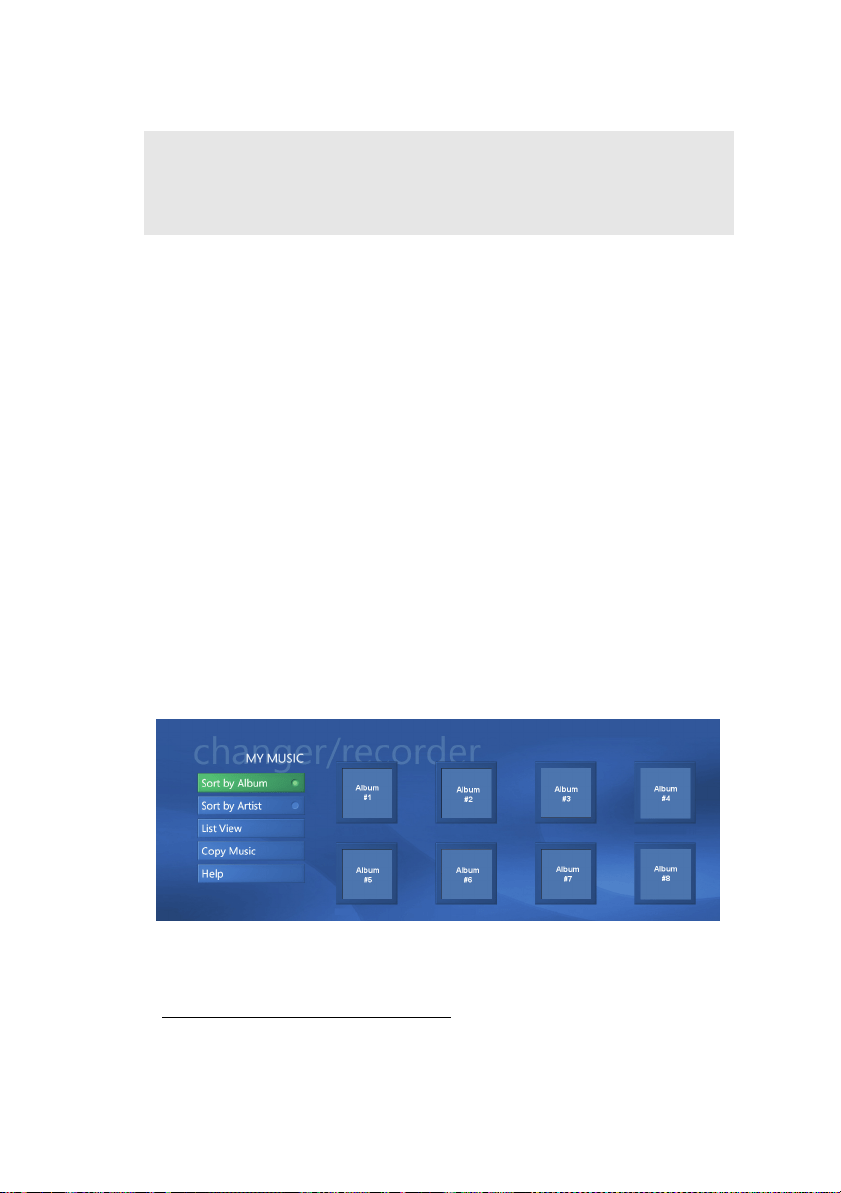
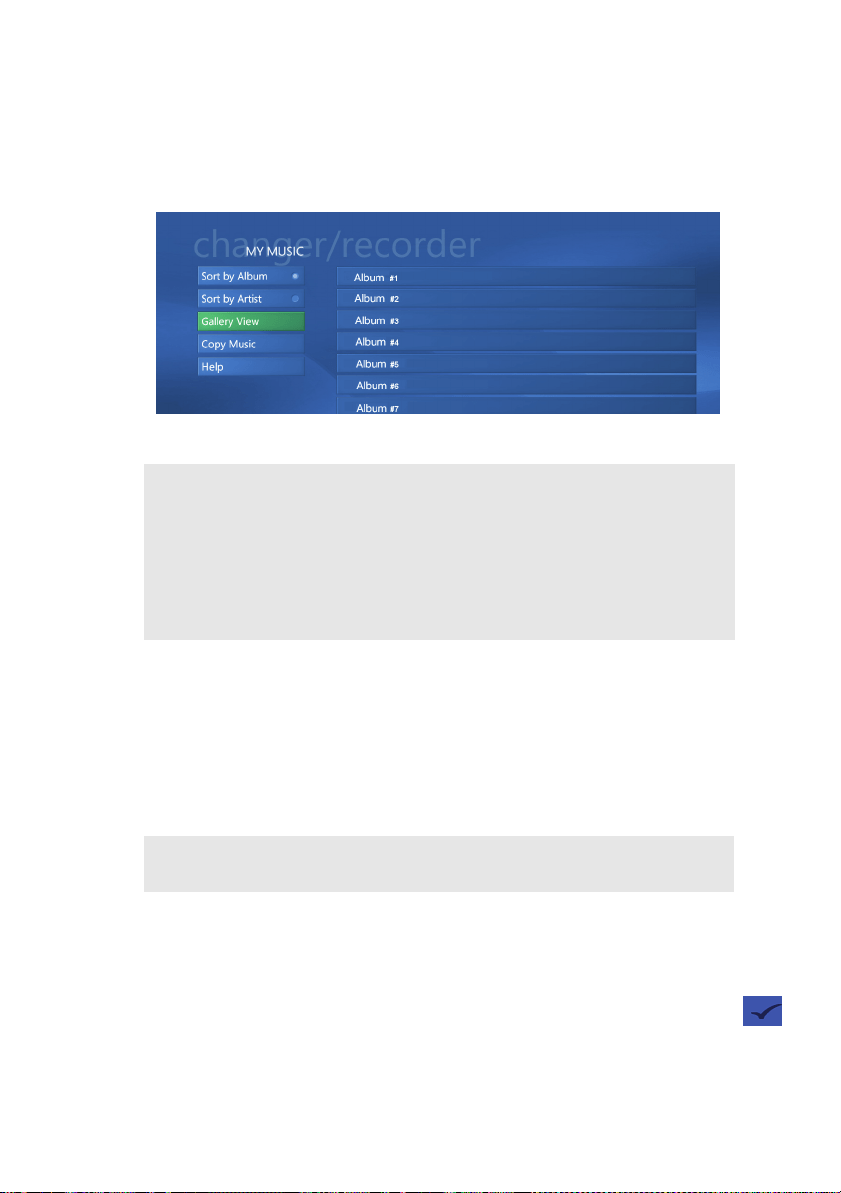
My Changer Music
My Changer Music is a gallery or list of all albums (audio CDs)
that are stored in the Sony
®
Changer/Recorder and that have been
scanned and identified by Media Center.
Note: My Changer functionality requires an Administrator user
account and will not function with a limited user account. Go to
Start | Control Panel | User Accounts to verify current user
accounts and to make changes, if necessary.
1. Please copy responsibly. Whenever using the ripping and burning fea-
tures of your XL1B, please be sure you are not violating copyright law.
Kansas2.book Page 27 Wednesday, February 1, 2006 8:00 AM
28 VGP-XL1B User Guide
From this gallery, play an album, sort the list, change how the list is
viewed, or copy music. To play an album, and view additional infor
-
mation about an album such as artist, title, and cover art. Select
any album to start playback of that CD.
Copy Music
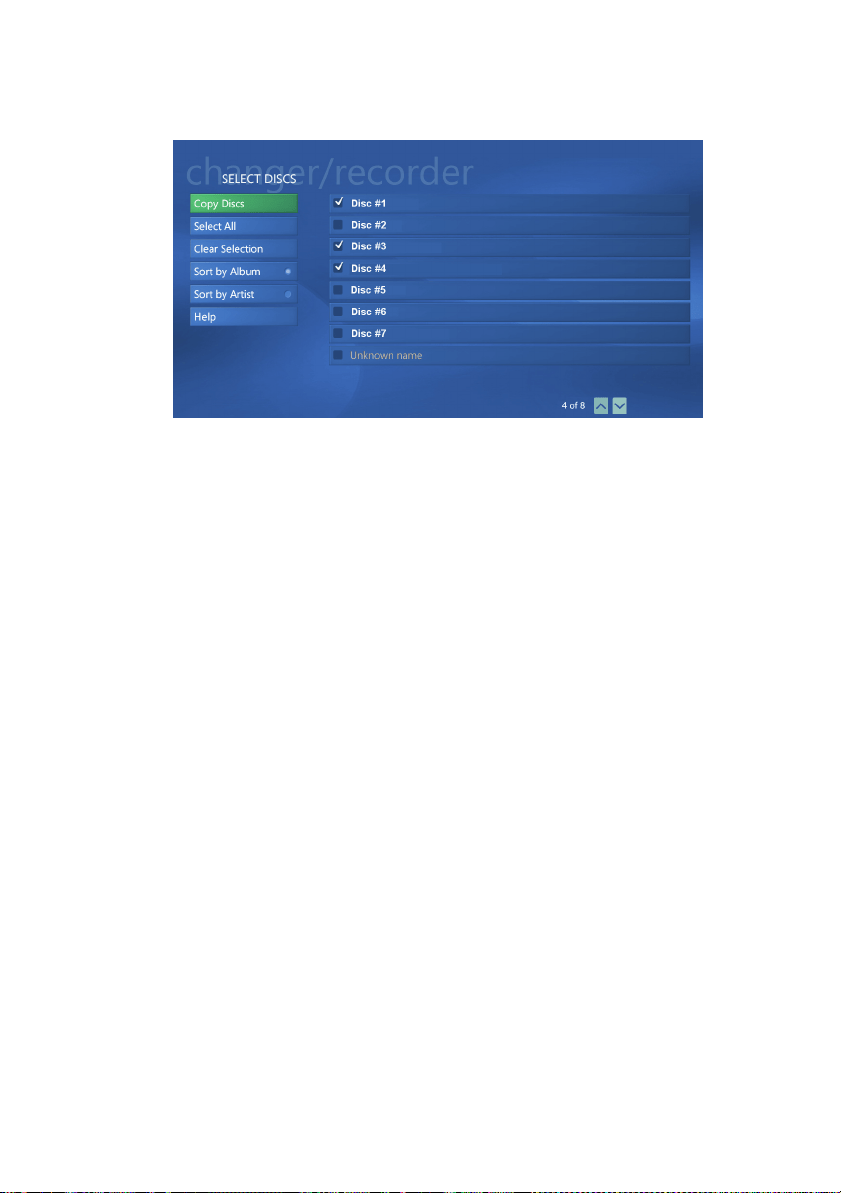
Copy Music is a feature that lets you copy multiple discs to the My
Music folder on the hard disk drive. Once discs are copied, they
will show as gallery albums in My Music where you can access
the files and play the albums as you normally would in Media
Center.
Select albums/discs to copy by selecting them individually, or by
choosing the Select All button. When complete, select the Copy
Music command. The Copy Music screen shows only those
albums selected for you to review. Select Start Copying to begin
the copying process. As each disc is copied, a check mark will
appear next to
each completed album in the list. An “X” appears
next to albums that failed to copy successfully.
Note: My Changer Music (Changer/Recorder) and My Music
(Media Center) are distinct areas in your entertainment system and
offer separate features. My Changer Music does not display
music discs or files that have been copied to the My Music or
Shared Music folders on the hard disk drive. The only Changer/
Recorder audio CD available in My Music is the current disc in the
Changer/Recorder’s drive.
Note: Some audio CDs may use copy protection technology that
will not allow ripping to the host computer’s hard disk drive.
Kansas2.book Page 28 Wednesday, February 1, 2006 8:00 AM
VGP-XL1B User Guide 29
Important Notes
• If you leave the progress screen during the ripping process, it is
recommended that you do not do other MCE related activities
since it can sometimes interfere with the ripping process. Also,
MCE tasks can experience pauses in Video during ripping,
scanning, and metadata activities.
• If you intend to run the Copy Music process overnight, please
make sure that the setting for Automatic Updates is not
activated. From the Windows taskbar select Start, and then
Control Panel. From the Category view, select Security
Center, and then Automatic Updates. From the Automatic
Updates screen, select the option Notify me but don’t
automatically download or install them and select OK.
Kansas2.book Page 29 Wednesday, February 1, 2006 8:00 AM

30 VGP-XL1B User Guide
Helpful Hints
Playing Copied Music
Even though you can play
your music from My
Changer, it is recom
-
mended that you take
advantage of the Copy
Music feature, which
allows you to rip your music
CDs to your hard disk,
where you can take full
advantage of the My Music
features in Media Center.
Eject Copied Discs
Once you have ripped your
selected music CDs to your
hard disk, you might want
to remove the copied discs
from the changer since the
music can now be access
from My Music. Select the
Eject Copied Discs option
to eject all discs that were
successfully copied to the
hard disk.
Multi-tasking During
Ripping
Once the ripping process
begins, a progress bar
appears in the list on the
album currently being cop
-
ied. Since this process can
be time consuming, you
can leave the screen to do
other activities.
You can return by going
back to My Changer and
selecting Copy Music.
Trouble Shooting
If an album does not suc-
cessfully copy, eject the
disc and check for
scratches on the surface of
the disc and then try again.
Warning: During the rip-
ping process, do not try to
access the changer from
My DVDs or Manage
Discs.
Kansas2.book Page 30 Wednesday, February 1, 2006 8:00 AM
VGP-XL1B User Guide 31
Archive TV
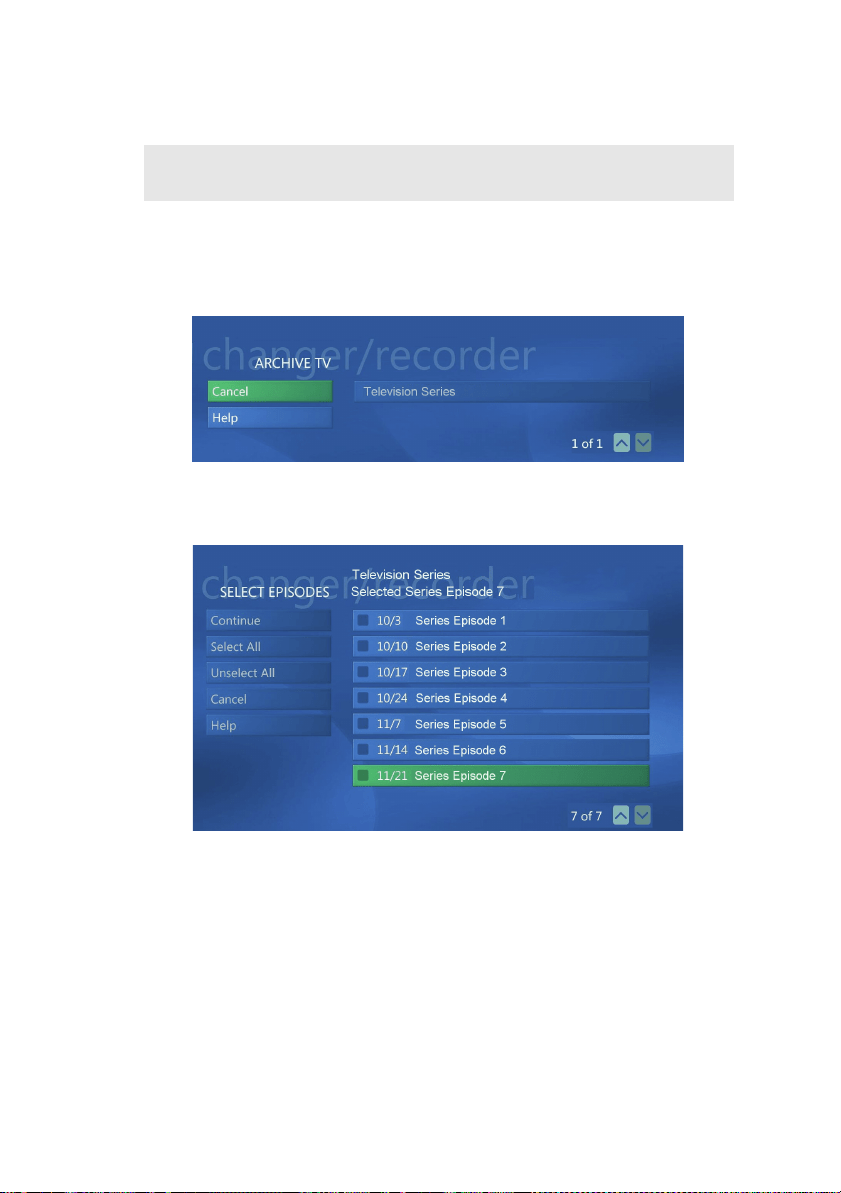
The Archive TV feature, only available on systems with a TV
tuner, is used to create DVDs of an entire recorded TV series or
selected episodes of a series. The Archive TV screen displays a
list of all recorded TV series.
After selecting a series, the Select Episode screen displays a list of
all episodes for the series.
After selecting episodes for archiving, a message appears
informing you of the number of blank discs required and whether
there are enough blank discs in the Changer/Recorder. If
necessary, load blank media into the Changer/Recorder.
(Remember to first go to Manage Discs to scan, identify, and
categorize the new discs.) Click Start to begin the archiving
process.
Note: This feature should not be used to violate third parties
copyrights.
Kansas2.book Page 31 Wednesday, February 1, 2006 8:00 AM

32 VGP-XL1B User Guide
Important Notes
• The Archive TV process can be time consuming. The time
required varies with the number and length of each episode
selected.
• Once you select Start, it is recommended that you do not leave
the Archive TV screen once the archiving process has started.
Leaving the screen could affect the archiving process. How
-
ever, you can access other areas outside of Media Center.
• If you intend to run the Copy Music process overnight, please
make sure that the setting for Automatic Updates is not
activated. From the Windows taskbar select Start, and then
Control Panel. From the Category view, select Security
Center, and then Automatic Updates. From the Automatic
Updates screen, select the option Notify me but don’t
automatically download or install them and select OK.
For High Definition Users: High Definition content cannot be
archived from an ATSC HD Tuner. Please use the MCE feature
Create DVDs when using high definition content to burn/create a
DVD. Please note that when viewing the newly created DVD, the
content will NOT be high definition.
Kansas2.book Page 32 Wednesday, February 1, 2006 8:00 AM

VGP-XL1B User Guide 33
Helpful Hints
Before You Archive
In order not to have your
archiving process inter
-
rupted, insert the required
number of blank DVDs into
the changer before you
begin and then go to My
DVDs or More Programs >
Manage Discs so the blank
discs can by scanned and
identified by Media Center.
Supported Media
(Archiving)
DVD+-R/RW, DVD+R DL
(Double Layer) media.
Copy Protected Shows
You may not be able to
archive some TV shows
because they may be copy
protected. If you select to
archive a show that has
been copy protected, the
following message
appears.
“This show has been
encrypted (protected) by
the broadcaster and can
-
not be copied and played
back on any player other
than the one recorded to.”
Required Blank Discs
When archiving TV shows,
My Changer provides an
estimate of the number of
blank discs needed to
record or archive the epi
-
sodes you have selected to
make sure the archiving
process in not interrupted.
Note: Calculations are
based on the assumption
that all discs used for
archiving are single-
layered.
Trouble Shooting
Please check your media
type. The VGP-XL1B sup
-
ports the following types of
discs: DVD+-R/RW,
DVD+R DL (Double Layer)
media. Note: DualDisc™
media is not supported.
Note: The quality of some
manufacturer’s media may
cause recording issues if
media is not fully compati
-
ble with DVD standards.
Kansas2.book Page 33 Wednesday, February 1, 2006 8:00 AM

34 VGP-XL1B User Guide
Connecting Multiple Changers
The Sony
®
VGP-XL1B Changers/Recorders are IEEE 1394
(FireWire) devices and can be connected together in a network or
daisy-chain configuration to the host computer to increase storage
capacity for your media library.
Multiple Changer Limitations
• When daisy-chaining/connecting additional changers, only
Sony
®
VGP-XL1B Changer/Recorders are supported.
• All other media (Audio CDs, data CDs/DVDs, blank CDs/DVDs
can only be accessed in Media Center from the Changer with
the lowest serial number.
DVD-Video discs in all Changers can be viewed and accessed
from My DVDs located on the Media Center Start menu.
Due to these limitations, it is recommended that you place DVD-
Video discs in the changer(s) with the higher serial numbers and
all other media disc types in the changer with the lowest serial
number, if possible.
Note: Sony supports up to five VGP-XL2B Changer/Recorders.
Functionality is limited when multiple Changers are daisy chained
(connected) to the host computer. (See below.)
Important Note: The Sony
®
VGP-XL1B Changer/Recorder with
the lowest serial number should be connected directly to the host
computer. Then connect (daisy-chain) other Changers to it.
Kansas2.book Page 34 Wednesday, February 1, 2006 8:00 AM
VGP-XL1B User Guide 35
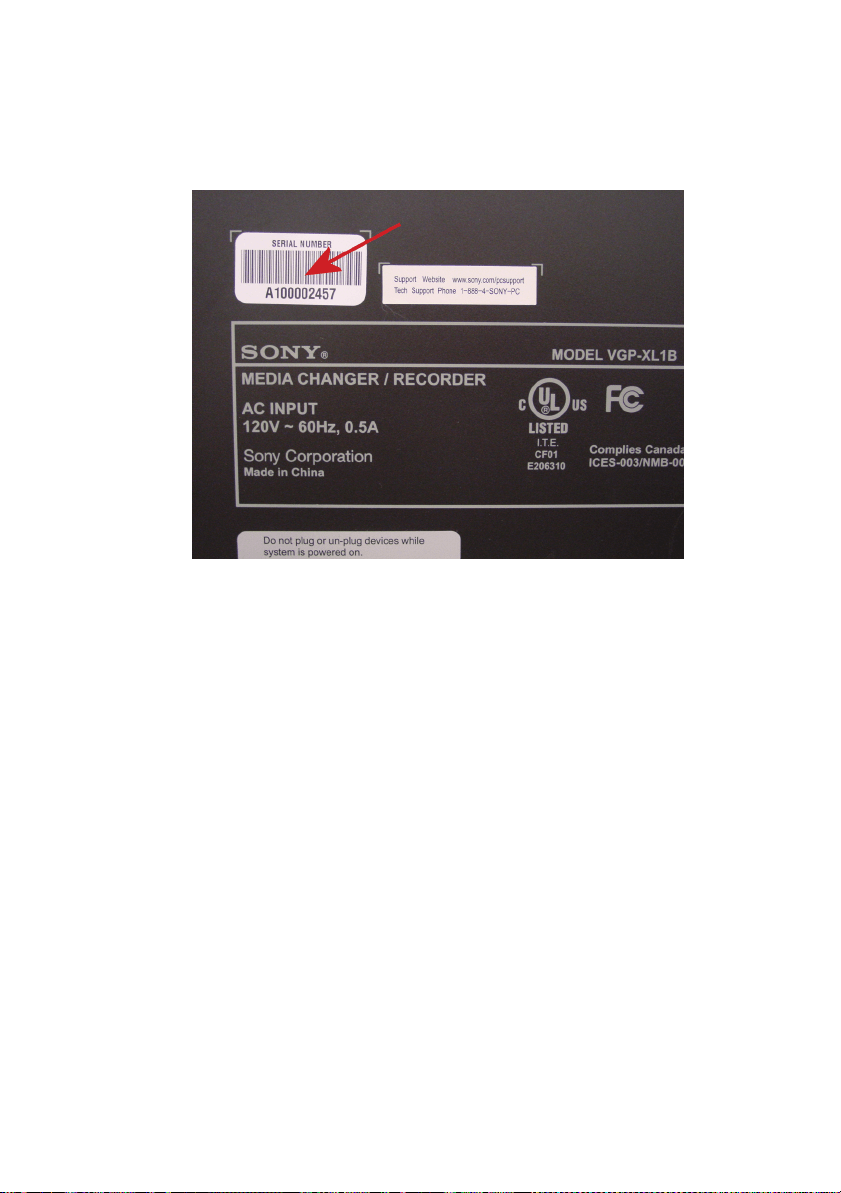
Please see the image below to locate the serial number label on
the back of your Sony
®
Changer/Recorder. The serial number will
be in the format A1000#####.
Kansas2.book Page 35 Wednesday, February 1, 2006 8:00 AM

36 VGP-XL1B User Guide
Helpful Hint
Action:
When more than one Changer is connected (daisy-chained)
together, make sure to connect the Changer with the lowest serial
number to the host computer. Then store your audio CDs, data
CD/DVD media discs, and blank CD/DVDs discs in the Changer
with the lowest serial number, and store your DVD-Video discs in
any other changer.
Result:
In the Media Center features My Changer Music and Manage
Discs, you will be able to access your music, data, and blank CDs.
In the feature My DVDs, you will be able to view and access all
DVD-Video discs in all Changers.
Disconnecting/Moving the Changer
Do not attempt to move the Sony
®
Changer/Recorder if there are
discs inside the changer. Make sure all discs have been removed
prior to moving.
Kansas2.book Page 36 Wednesday, February 1, 2006 8:00 AM

VGP-XL1B User Guide 37
Trouble Shooting
Media Issues
Supported Media Types
CD-R,CD-RW, DVD+/- R, DVD+/- RW, DVD+/- R/RW, DUAL
LAYER, Redbook Audio CDs, Movie DVDs (U.S. is default)
Unsupported Media Types
All other media types (Do not insert Blu-ray, mini-DVDs, odd-
shaped discs, etc.) Note: DualDisc™ media is not supported.
Hardware Issues
Event:
Changer does not function properly after initial installation.
Comment:
• Make sure the i.LINK
®
cable is properly connected to the host
computer and the Changer.
• Make sure your PC is running Microsoft
®
Windows
®
XP Media
Center Edition 2005
• Verify that system program Update Rollup 2 is on the host com-
puter.
• Verify that you have downloaded all critical and optional Win-
dows Updates to the host computer. (http:\\www.windowsup-
date.com) Then restart the installation with the included
software CD.
Kansas2.book Page 37 Wednesday, February 1, 2006 8:00 AM

38 VGP-XL1B User Guide
• Make sure the host computer is running MCE 2005. (Start
MCE, select Settings > General > About Media Center > Soft
-
ware Version. Verify the software version is Microsoft
®
Win-
dows
®
XP Media Center Edition 2005.
• Verify with the computer’s manufacturer that your system sup-
ports Windows MCE Update Rollup 2.
Event:
The Changer can no longer be accessed in Windows.
Comment:
• Make sure that the Changer power cord is properly plugged
into the back panel of the Changer and properly inserted into an
electrical wall outlet.
• Make sure that the 1394 cable is securely inserted to the host
computer and the Changer.
• Make sure the Changer is powered on when starting the host
computer.
• If possible, do not connect other i.LINK
®
1394 devices while
your system is running.
• Restart the host computer and try again.
Note: MCE and your computer may not be completely compatible
with Suspend and Hibernate when using 1394 devices such as
the Sony
®
Changer/Recorder. It is recommended to avoid letting
your system go to Suspend or Hibernate. Go to the Power
Management settings and do the following:
• Open the Control Panel, select Performance and Maintenance,
and then Power Options. Change System Standby and
System Hibernates to “Never” and click OK to save these
settings.
Kansas2.book Page 38 Wednesday, February 1, 2006 8:00 AM

VGP-XL1B User Guide 39
Event:
Working with 1394 ports.
Comment:
• The changer come with two i.LINK
®
ports. One port is used for
connecting to a host computer. The other port can be used to
connect/daisy-chain additional changers. Note: Sony only sup
-
ports connecting four additional changers (for a total of five).
• Do not connect a 1394 device on the second port of the
changer while the changer is in use.
• Once a new 1394 device is plugged into a second i.LINK
®
port
of the VGP-XL1B, both the host computer and the second 1394
device are re-enumerated by the operating system. This could
interrupt the current process running on the Changer drive.
Event:
The Changer carousel will not spin.
Comment:
Reset the power to the Changer. Turn the power off and wait
approximately 6 seconds, then turn the power on. The carousel
should spin one turn every time the power is reset.
Event:
System locks up or freezes after plugging in and/or unplugging the
Changer.
Comment:
Do not unplug or plug in the Changer while the Changer and sys-
tem are on.
Kansas2.book Page 39 Wednesday, February 1, 2006 8:00 AM

40 VGP-XL1B User Guide
Event:
Changer stops functioning after plugging in another 1394 device
into the Changer or host system.
Comment:
• Do not unplug or plug in a 1394 device while the changer is on
and in use.
• Turn off the power to the Changer and shut down the host com-
puter before plugging in or unplugging a 1394 device.
Event:
When adding another Sony
®
Changer/Recorder, I can no longer
access my audio CDs, data CDs, and blank media discs on my
previous Changer.
Comment:
•Microsoft
®
Windows
®
Media Center Edition can only support
reading and controlling audio CDs, data CD/DVD discs and
blank media discs from the Changer with the lowest serial num
-
ber. The serial number is located on the back of the Changer. It
is recommended that you connect the changer with the lowest
serial number directly to the host computer connect (daisy-
chain) the other Changers to it.
• If your current Changer contains audio CDs, data CD/DVD
discs, and blank media discs and is not the Changer with the
lowest serial number, you will need to eject those discs and
load them into the Changer with the lowest serial number. It is
necessary to power off any other changers and to restart Win
-
dows Media Center Edition before ejecting the discs. After
ejecting all audio CDs and data CD/DVD discs, you can power
on the new Changer(s) and load the discs into the changer with
the lowest serial number. Each disc will have to be rescanned
and categorized before it can be accessed in Media Center.
Kansas2.book Page 40 Wednesday, February 1, 2006 8:00 AM

VGP-XL1B User Guide 41
Software Issues
Event:
Problems occur during the installation of Update Rollup2 for
Microsoft
®
Windows
®
XP Media Center Edition 2005.
Comment:
Contact your PC manufacturer for support of Update Rollup2.
Event:
Problems occur with Media Center after installing Update Rollup2
for Microsoft
®
Windows
®
XP Media Center Edition 2005.
Comment:
Contact your PC manufacturer for support of Update Rollup2 for
Microsoft
®
Windows
®
XP Media Center Edition 2005.
Event:
“myFTP.exe” error message appears during identification of discs.
Comment”
“myFTP.exe” is part of the DISCover console.
• The DISCover Console conflicts with the communication
between the changer and the host computer.
• Uninstall or remove the DISCover console before using the
changer.
Event:
Media Center screen minimizes during identification of discs.
Comment:
• The DISCover Console conflicts with the communication
between the changer and the host computer.
• Uninstall or remove the DISCover console before using the
changer.
Kansas2.book Page 41 Wednesday, February 1, 2006 8:00 AM

42 VGP-XL1B User Guide
Event: (Task Times)
The time required to complete “tasks” can be time consuming.
Comment:
Note: All times listed below are approximations.
• Scanning Discs - From the changer, up to 60 seconds. From
the host computer’s optical drive, time varies based on the type
of drive.
• Switching Discs - In the carousel, 30 to 60 seconds.
• Copy Music - From both the changer, up to ten minutes per
disc. From the host computer, time varies based on the type of
drive.
• Archive TV - Per full DVD disc, 90 to 120 minutes.
Event:
MCE does not recognize a disc after burning new content to a
blank disc. (New disc does not appear in Manage Discs)
Comment:
Eject, re-load and re-scan the disc for it to appear correctly in Man-
age Discs in Media Center.
Event:
Duplication of discs when scanning new discs.
Comment:
Eject duplicates and reload the discs.
Event:
Disc(s) show up as “error” in Manage Discs after being identified.
Comment:
Disc(s) may be damaged, inserted incorrectly, or unreadable. Eject
and check the condition of the disc(s) and try again.
Kansas2.book Page 42 Wednesday, February 1, 2006 8:00 AM

VGP-XL1B User Guide 43
Event:
CD/DVD Metadata does not automatically download from the
Internet.
Comment:
• Verify the system is connected to the Internet and the Internet
connection is working properly.
• Run Media Center setup again and verify that the correct
options were selected.
• Select Settings | General | Media Center Setup | Run
Media Center Setup again.
•Select Yes when asked “Do you want Media Center to
automatically connect to the Internet to get this
information?
•Select Yes when asked “Do you have an always on
Internet connection?”
• Metadata is not available for all DVDs and music CDs.
• AMG is the provider for metadata downloads (same as
Microsoft
®
Windows
®
Media Player).
• For CD album art, you may need to leave and then reenter
the My Changer screen.
Event:
Cannot access the features and functionality of My Changer.
Comment:
The problem may be caused by not having the proper access
rights. My Changer functionality requires an Administrator user
account and will not function with a limited user account. Go to
Start | Control Panel | User Accounts to verify current user
accounts and make changes, if necessary.
Kansas2.book Page 43 Wednesday, February 1, 2006 8:00 AM

44 VGP-XL1B User Guide
Event:
Cannot “rip” audio CDs.
Comment:
• The CD(s) may be copy protected. You can also try to access
them directly from Windows Explorer.
• The CDs may not be Redbook Audio CDs. The VGP-XL1B
Changer only supports Redbook Audio CDs. Dual Discs,
SACD, DVD audio, etc. are not supported.
• The CD might be damaged, and therefore unreadable.
• There may not be enough HDD space. The ripped audio CDs
get saved to the location specified in Windows Media Player. If
necessary, change the location to a folder with sufficient space.
Event:
Cannot play back audio CDs in My Changer Music.
Comment:
• CD may be copy protected.
• Enhanced discs may not play back or rip correctly.
• The CD may not be a Redbook Audio CD.
Event:
Cannot “rip” DVDs.
Comment:
This function is not supported since DVD movies are copy
protected.
Kansas2.book Page 44 Wednesday, February 1, 2006 8:00 AM

VGP-XL1B User Guide 45
Event:
MCE pauses during CD ripping, scanning discs, or CD/DVD meta-
data retrieval.
Comment:
It is recommended that you do not do other MCE related activities
while these tasks are in progress. Doing so can sometimes inter
-
fere with the other tasks you are attempting to perform.
MCE can also experience pauses in video-related tasks during rip-
ping, scanning, and metadata retrieval activities.
Event:
Cannot archive selected TV series episodes.
Comment:
• The selected series episodes may be copy protected.
• Make sure the selected series episodes were not recorded
using an ATSC High Definition Tuner.
Event:
Loss of TV Tuner functions after installing software upgrades.
Comment:
Please visit the Windows Update Web site and download all critical
and optional updates. Also visit your computer manufacturer’s
support Web site to download and install any available updates for
your computer.
Contact your PC manufacturer for software support if the above
steps are not successful.
Kansas2.book Page 45 Wednesday, February 1, 2006 8:00 AM

46 VGP-XL1B User Guide
Event:
Some Audio discs do not display metadata when viewed in the
viewport (small) window.
Comment:
This is a known MCE issue. Currently, there is no work around for
this issue. Metadata can be viewed in normal screen mode.
Event:
Archive TV issues.
Comment:
• You cannot archive content that is currently being recorded.
The show will not appear in the Archive TV section.
• After canceling the Archive TV process, the progress bar is not
updated correctly. The percent complete displays, but not the
“X” mark.
Event:
After Archive TV has completed, a confirmation page displays.
Comment:
There is an additional ~ 1 minute delay during which Archive TV
“cleans up” its processes. Click OK when this process is complete.
Note: You can click OK at any time. There will be a delay until the
process completes and the program continues.
This completes the Trouble Shooting section. For issues not listed
in this section or for additional help, go to the Sony
®
VAIO
®
support
Web site at: http://esupport.sony.com/EN/VAIO.
Kansas2.book Page 46 Wednesday, February 1, 2006 8:00 AM