
Connecting Additional Equipment
4-075-501-21
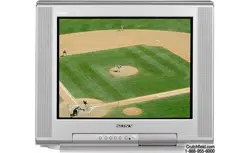
KV-20FV12
KV-24FV12
© 2000 by Sony Corporation
Trinitron
Color TV
®
Operating Instructions

User Guide
Connecting Additional Equipment
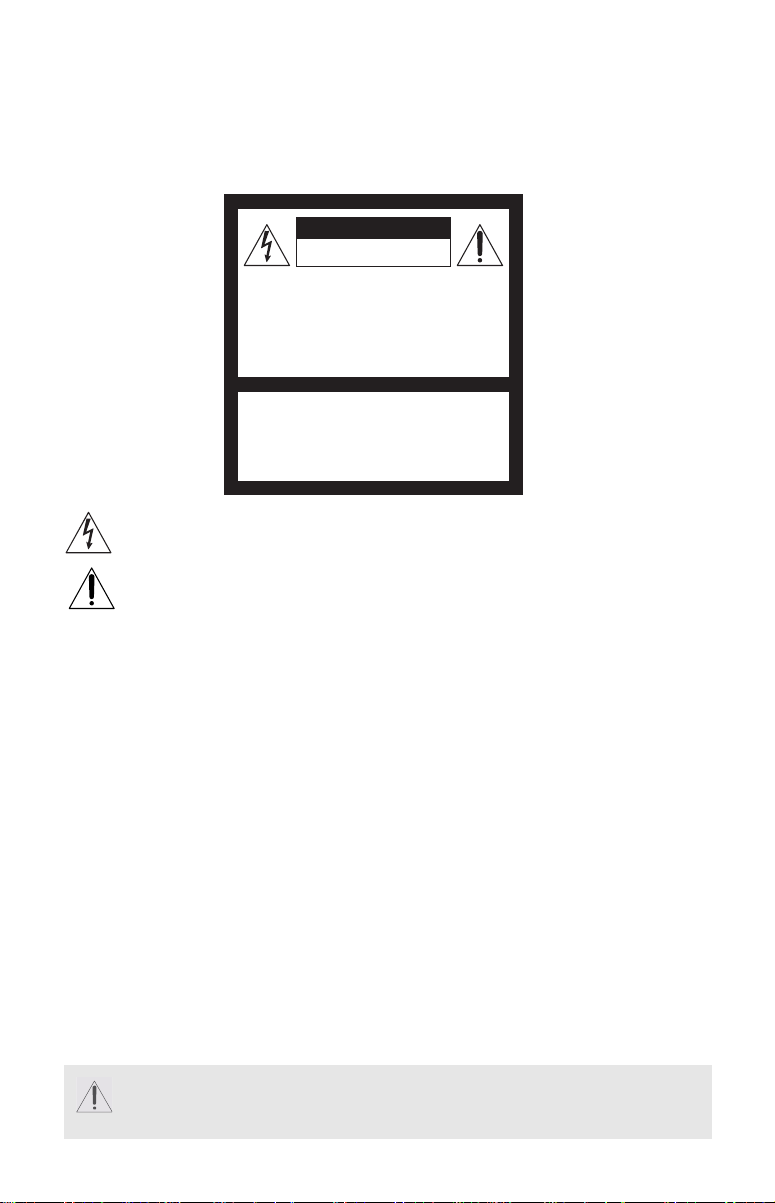
WARNING
To reduce the risk of fire or electric shock, do not expose the TV to rain or moisture.
This symbol is intended to alert the user to the presence of uninsulated
“dangerous voltage” within the product’s enclosure that may be of sufficient
magnitude to constitute a risk of electric shock to persons.
This symbol is intended to alert the user to the presence of important operating
and maintenance (servicing) instructions in the literature accompanying the
appliance.
Note to the CATV Installer
This reminder is provided to call the CATV system installer’s attention to Article 820-40 of
the NEC that provides guidelines for proper grounding and, in particular, specifies that the
cable ground shall be connected to the grounding system of the building as close to the
point of cable entry as practical.
SAFETY PRECAUTIONS
❏ Operate the TV only on 120 V AC.
❏ One blade of the power plug is wider than the other for safety purposes and will fit
into the power outlet only one way. If you are unable to insert the plug fully into the
outlet, contact your dealer.
❏ If any liquid or solid object falls into the TV, unplug it and have it checked by qualified
personnel before operating it further.
CAUTION
When using TV games, computers, and similar products with your TV, keep the brightness
and contrast functions at low settings. If a fixed (non-moving) pattern is left on the screen
for long periods of time at a high brightness or contrast setting, the image can be
permanently imprinted onto the screen. Continuously watching the same channel can cause
the imprint of station logos onto the TV screen. These types of imprints are not covered by
your warranty because they are the results of misuse.
To reduce the risk of electric shock, do not use this polarized plug with an
extension cord, receptacle, or other outlet unless the blades can be fully
inserted to prevent blade exposure.
RISK OF ELECTRIC SHOCK
DO NOT OPEN
RISQUE DE CHOC ELECTRIQUE,
NE PAS OUVRIR
ATTENTION
CAUTION
PRECAUCION
RIESGO DE CHOQUE ELECTRICO
NO ABRIR
CAUTION: TO REDUCE THE RISK OF ELECTRIC SHOCK,
DO NOT REMOVE COVER (OR BACK).
NO USER-SERVICEABLE PARTS INSIDE.
REFER SERVICING TO QUALIFIED SERVICE PERSONNEL.
User Guide
NOTIFICATION
This equipment has been tested and found to comply with the limits for a Class B digital device
pursuant to Part 15 of the FCC Rules. These limits are designed to provide reasonable protection
against harmful interference in a residential installation. This equipment generates, uses, and can
radiate radio frequency energy and, if not installed and used in accordance with the instructions,
may cause harmful interference with radio communications. However, there is no guarantee that
interference will not occur in a particular installation. If this equipment does cause harmful
interference to radio or television reception, which can be determined by turning the equipment
off and on, the user is encouraged to try to correct the interference by one or more of the following
measures:
❏ Reorient or relocate the receiving antennas.
❏ Increase the separation between the equipment and receiver.
❏ Connect the equipment into an outlet on a circuit different from that to which the
receiver is connected.
❏ Consult the dealer or an experienced radio/TV technician for help.
Protecting the TV
❏ To prevent internal heat build-up, do not block the ventilation openings.
❏ Do not install the TV in a hot or humid place, or in a place subject to excessive dust or
mechanical vibration.
Note on Caption Vision
This television receiver provides display of television closed captioning in accordance with
§ 15.119 of the FCC rules.
Use of this television for other than private viewing of programs broadcast on UHF or VHF
or transmitted by cable companies for the use of the general public may require
authorization from the broadcaster-cable company and/or program owner.
Owner’s Record
The model and serial numbers are located on the front cover of this manual and the rear of
your TV.
Trademarks and Copyrights
ENERGY STAR is a registered mark.
For KV-24FV12 only
✍ You are cautioned that any changes or modifications not expressly approved in this
manual could void your authority to operate this equipment.
®
As an ENERGY STAR Partner, Sony has determined that this product or product
model meets the E
NERGY STAR guidelines for energy efficiency.
®
®
Licensed by BBE Sound, Inc. under USP 4638258.4482866. BBE and BBE symbol are trademarks of
BBE Sound, Inc.
()
®
SRS (SOUND RETRIEVAL)
The ( ) SRS (SOUND RETRIEVAL SYSTEM) is manufactured by Sony Corporation under license
from SRS Labs, Inc. It is covered by U.S. Patent No. 4,748,669. Other U.S. and foreing patents pending.
The word ‘SRS’ and the SRS symbol ( ) are registered trademarks of SRS Labs, Inc.
Connecting Additional Equipment
Important Safeguards
For your protection, please read these instructions completely, and keep this manual for
future reference. Carefully observe and comply with all warnings, cautions, and
instructions placed on the set, or described in the operating instructions or service manual.
WARNING
To guard against injury, the following basic safety precautions should be observed in the
installation, use, and servicing of the set.
Use
Power Sources
This set should be operated only from the
type of power source indicated on the
serial/model plate. If you are not sure of
the type of electrical power supplied to
your home, consult your dealer or local
power company. For those sets designed to
operate from battery power, refer to the
operating instructions.
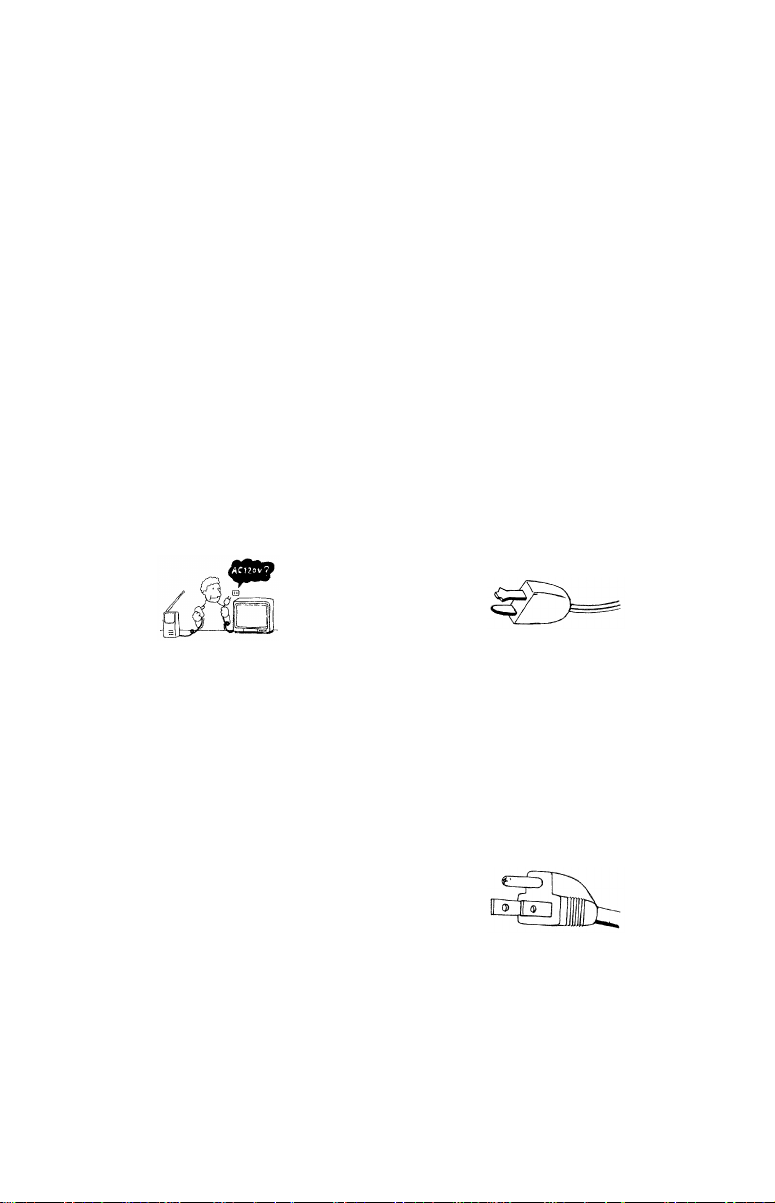
Grounding or Polarization
This set is equipped with a polarized AC
power cord plug (a plug having one blade
wider than the other), or with a three-wire
grounding type plug (a plug having a third
pin for grounding).
Follow the instructions below:
For the set with a polarized AC power
cord plug
This plug will fit into the power outlet only
one way. This is a safety feature. If you are
unable to insert the plug fully into the
outlet, try reversing the plug. If the plug
should still fail to fit, contact your
electrician to have a suitable outlet
installed. Do not defeat the safety purpose
of the polarized plug by forcing it in.
Alternate Warning
For the set with a three-wire
grounding type AC plug
This plug will only fit into a grounding-
type power outlet. This is a safety feature.
If you are unable to insert the plug into the
outlet, contact your electrician to have a
suitable outlet installed. Do not defeat the
safety purpose of the grounding plug.
User Guide
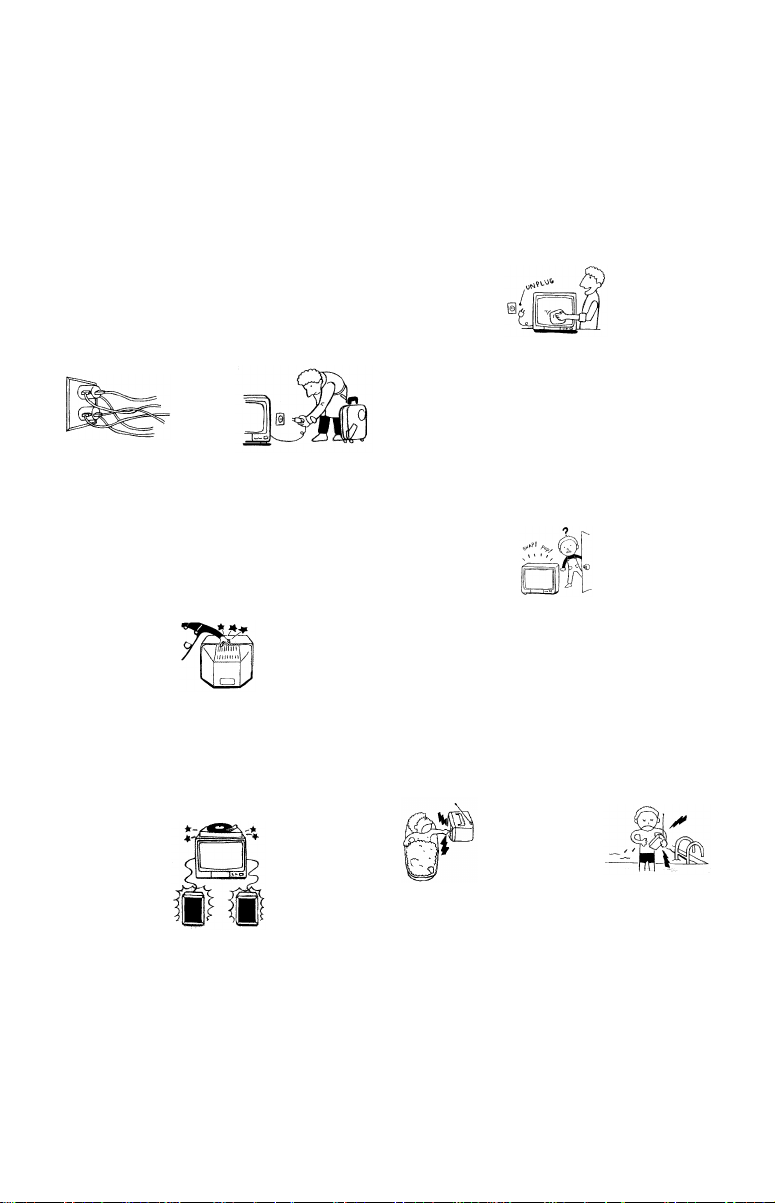
Overloading
Do not overload wall outlets, extension
cords or convenience receptacles beyond
their capacity, since this can result in fire or
electric shock. Always turn the set off
when it is not to be used. When the set is
left unattended and unused for long
periods of time, unplug it from the wall
outlet as a precaution against the
possibility of an internal malfunction that
could create a fire hazard.
Object and Liquid Entry
Never push objects of any kind into the set
through the cabinet slots as they may touch
dangerous voltage points or short out parts
that could result in a fire or electric shock.
Never spill liquid of any kind on the set.
Attachments
Do not use attachments not recommended
by the manufacturer, as they may cause
hazards.
Cleaning
Unplug the set from the wall outlet before
cleaning or polishing it. Do not use liquid
cleaners or aerosol cleaners. Use a cloth
lightly dampened with water for cleaning
the exterior of the set.
If a snapping or popping sound from a TV
set is continuous or frequent while the TV
is operating, unplug the TV and consult
your dealer or service technician. It is
normal for some TV sets to make
occasional snapping or popping sounds,
particularly when being turned on or off.
Installation
Water and Moisture
Do not use power-line operated sets near
water — for example, near a bathtub,
washbowl, kitchen sink, or laundry tub, in
a wet basement, or near a swimming pool,
etc.
Connecting Additional Equipment
Accessories
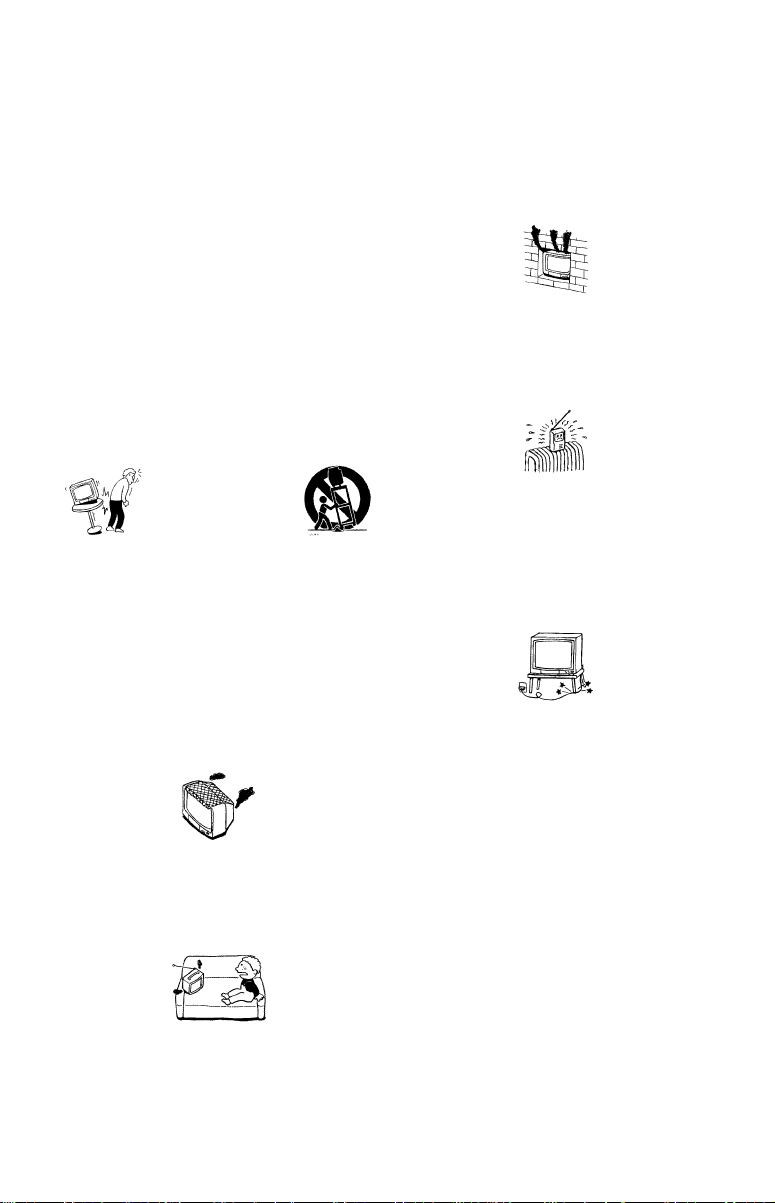
Do not place the set on an unstable cart,
stand, tripod, bracket, table, or shelf. The
set may fall, causing serious injury to a
child or an adult, and serious damage to
the set. Use only a cart or stand
recommended by the manufacturer for the
specific model of TV any mounting of the
product should follow the manufacturer’s
instructions, and should use a mounting
accessory recommended by the
manufacturer. An appliance and cart
combination should be moved with care.
Quick stops, excessive force, and uneven
surfaces may cause the appliance and cart
combination to overturn.
Ventilation
The slots and openings in the cabinet and in
the back or bottom are provided for
necessary ventilation. To ensure reliable
operation of the set, and to protect it from
overheating, these slots and openings must
never be blocked or covered.
• Never cover the slots and openings
with a cloth or other materials.
• Never block the slots and openings
by placing the set on a bed, sofa, rug
or other similar surface.
• Never place the set in a confined
space, such as a bookcase, or built-in
cabinet, unless proper ventilation is
provided.
• Do not place the set near or over a
radiator or heat register, or where it
is exposed to direct sunlight.
Power-Cord Protection
Do not allow anything to rest on or roll
over the power cord, and do not place the
set where the power cord is subject to wear
or abuse.
User Guide
Grounding or Polarization
This set may be equipped with a polarized alternating current line plug (a plug having one
blade wider than other). This plug will fit into the power outlet only one way. This is a
safety feature. If you are unable to insert the plug fully into the outlet, try reversing the
plug. If the plug should still fail to fit, contact you electrician to replace your obsolete outlet.
Do not defeat the safety purpose of the polarized plug.
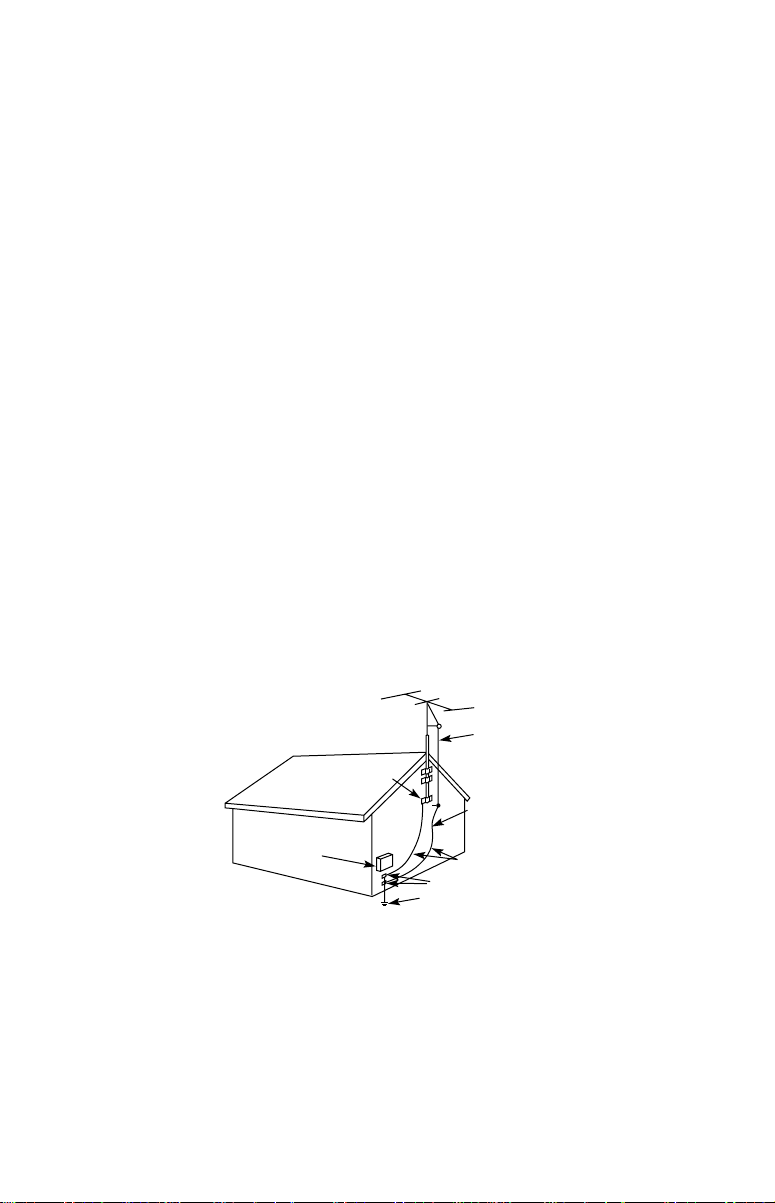
Antennas
Outdoor Antenna Grounding
If an outdoor antenna is installed, follow the precautions below. An outdoor antenna system
should not be located in the vicinity of overhead power lines or other electric light or power
circuits, or where it can come in contact with such power lines or circuits.
WHEN INSTALLING AN OUTDOOR ANTENNA SYSTEM, EXTREME CARE SHOULD
BE TAKEN TO KEEP FROM CONTACTING SUCH POWER LINES OR CIRCUITS AS
CONTACT WITH THEM IS ALMOST INVARIABLY FATAL.
Be sure the antenna system is grounded so as to provide some protection against voltage
surges and built-up static charges. Section 810 of the National Electrical Code (NEC) in USA
and Section 54 of the Canadian Electrical Code in Canada provides information with respect
to proper grounding of the mast and supporting structure, grounding of the lead-in wire to
an antenna discharge unit, size of grounding conductors, location of antenna discharge unit,
connection to grounding electrodes, and requirements for the grounding electrode.
Antenna Grounding According to the NEC
Refer to section 54-300 of Canadian Electrical Code for Antenna Grounding.
Lightning
For added protection for this television receiver during a lightning storm, or when it is left
unattended and unused for long periods of time, unplug it from the wall outlet and
disconnect the antenna. This will prevent damage to the receiver due to lightning and
power-line surges.
GROUND
CLAMP
ELECTRIC
SERVICE
EQUIPMENT
NEC - NATIONAL ELECTRIC CODE
ANTENNA
LEAD IN
WIRE
ANTENNA
DISCHARGE UNIT
(NEC SECTION 810-20)
GROUNDING CONDUCTORS
(NEC SECTION 810-21)
GROUND CLAMPS
POWER SERVICE GROUNDING
ELECTRODE SYSTEM
(NEC ARTICLE 250, PART H)
Connecting Additional Equipment
Service
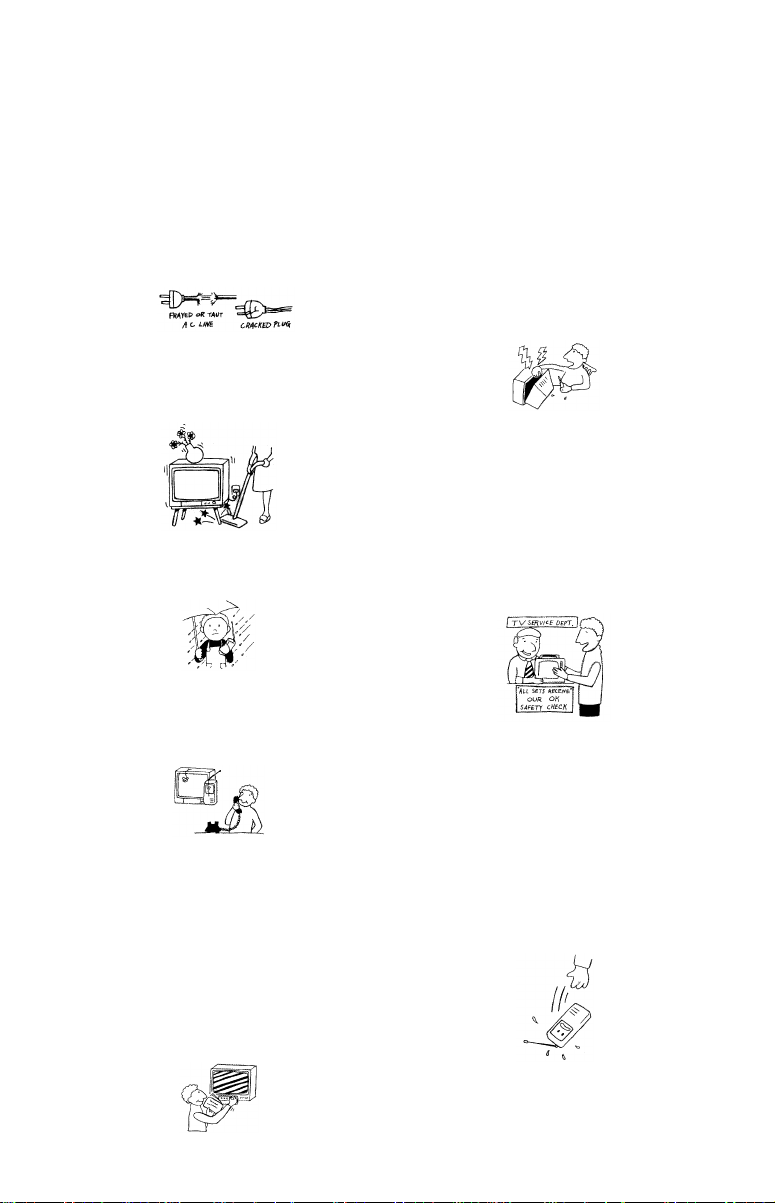
Damage Requiring Service
Unplug the set from the wall outlet and
refer servicing to qualified service
personnel under the following conditions:
• When the power cord or plug is
damaged or frayed.
• If liquid has been spilled into the set
or objects have fallen into the
product.
• If the set has been exposed to rain or
water.
• If the set has been subject to
excessive shock by being dropped, or
the cabinet has been damaged.
• If the set does not operate normally
when following the operating
instructions. Adjust only those
controls that are specified in the
operating instructions. Improper
adjustment of other controls may
result in damage and will often
require extensive work by a
qualified technician to restore the set
to normal operation.
• When the set exhibits a distinct
change in performance — this
indicates a need for service.
Servicing
Do not attempt to service the set yourself
since opening the cabinet may expose you
to dangerous voltage or other hazards.
Refer all servicing to qualified service
personnel.
Replacement Parts
When replacement parts are required, be
sure the service technician certifies in
writing that he has used replacement parts
specified by the manufacturer that have the
same characteristics as the original parts.
Unauthorized substitutions may result in
fire, electric shock, or other hazards.
Safety Check
Upon completion of any service or repairs
to the set, ask the service technician to
perform routine safety checks (as specified
by the manufacturer) to determine that the
set is in safe operating condition, and to so
certify. When the set reaches the end of its
useful life, improper disposal could result
in a picture tube implosion. Ask a qualified
service technician to dispose of the set.

User Guide
Introduction
Trinitron Color TV Features ............................ 1
Batteries for the Remote Control....................... 2
About this Manual .............................................. 2
Connecting Your TV
Basic Connections................................................ 3
Connecting Additional Equipment .................. 4
Using the Remote Control and Basic Functions
Using the Remote Control................................ 11
Setting Up the TV Automatically.................... 13
Quick Start to the Menus.................................. 14
Using the Menus
Using the Video Menu ............................... 18
Using the Audio Menu .............................. 19
Options Menu .................................................... 20
Using the Channel Setup Menu................ 21
Parental Control................................................. 22
Using the Parental Control Menu ............ 25
Using the Timer Menu ............................... 28
Using the Setup Menu................................ 29
Options Menu .................................................... 30
Other Informations
Programming the Remote Control ................. 31
Troubleshooting ................................................ 34
Specifications...................................................... 36
Index.......................................................................... 37
®
Contents

User Guide

Connecting Additional Equipment
1
Introduction
Congratulations on your purchase of the Sony Trinitron Color TV.
Before you begin using this manual, please check the model number
located on the rear of your TV or on the front cover of this manual.
Trinitron Color TV Features
Some of the features you will enjoy include:
❏ FLAT CRT — New technologically advanced screen for optimal
picture quality.
❏ Parental Control — A tool for parents to help monitor what their
children watch on TV by establishing rating limits.
❏ Favorite Channel — Instant access to your favorite channels with the
touch of a button.
❏ Universal Remote Control — Program your remote control to operate
your connected cable box, VCR, digital satellite receiver, or DVD
player.
❏ Energy Star
®
— A recognized symbol of energy efficiency.
❏ S VIDEO — A video input that offers enhanced picture quality.
❏ Direct MTS — Allows direct access to changing your Multi-Channel
TV Sound: Stereo, Mono, or Auto-SAP (Second Audio Program),
with the touch of a button.
❏ Trilingual Menus — Choose between English, French, or Spanish
menus.
❏ Front Panel Controls — Allows access to the on-screen menus
without the use of a remote control.
❏ Front A/V inputs — A quick connection for video games, camcorders,
stereo/mono equipment, or headphones.
®
®
2
Operating Instructions
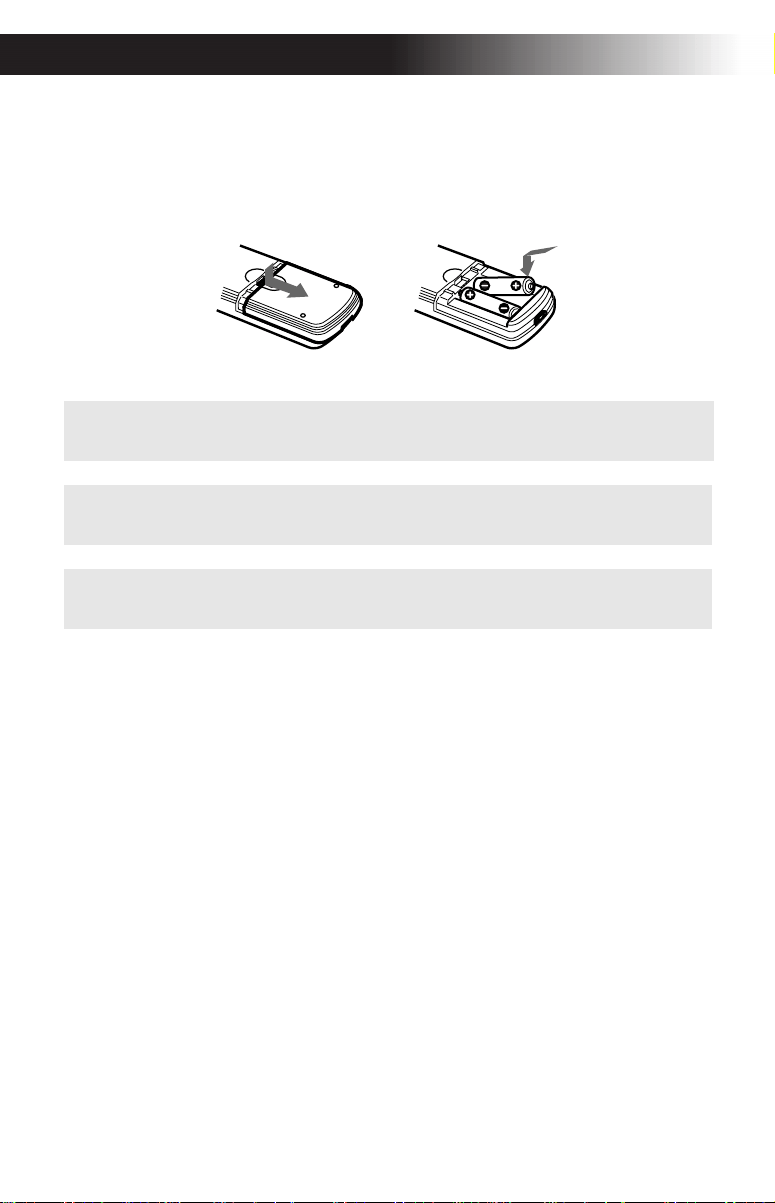
Batteries for the Remote Control
Insert two AA (R6) batteries (supplied) into the remote control using the
following illustration as a guide.
About this Manual
This manual provides instructions to help you enjoy your new TV. It
shows you how to connect to an antenna or cable, cable box, VCR, DVD,
satellite receiver, stereo system, or camcorder. Once you’re connected,
follow the instructions and use the remote control to access the on-screen
menus.
✍ Under normal conditions, batteries will last up to six months. If the remote
control does not operate properly, the batteries might be worn out.
✍ If you will not be using the remote control for an extended period of time,
remove the batteries to avoid possible damage from battery leakage.
✍ Your remote control can be programmed to operate most video equipment,
(see page 31).
Connecting Your TV
3
Connecting Your TV
Read this section before setting up your TV for the first time. This section
covers basic connections in addition to any optional equipment you may
be connecting.
Basic Connections
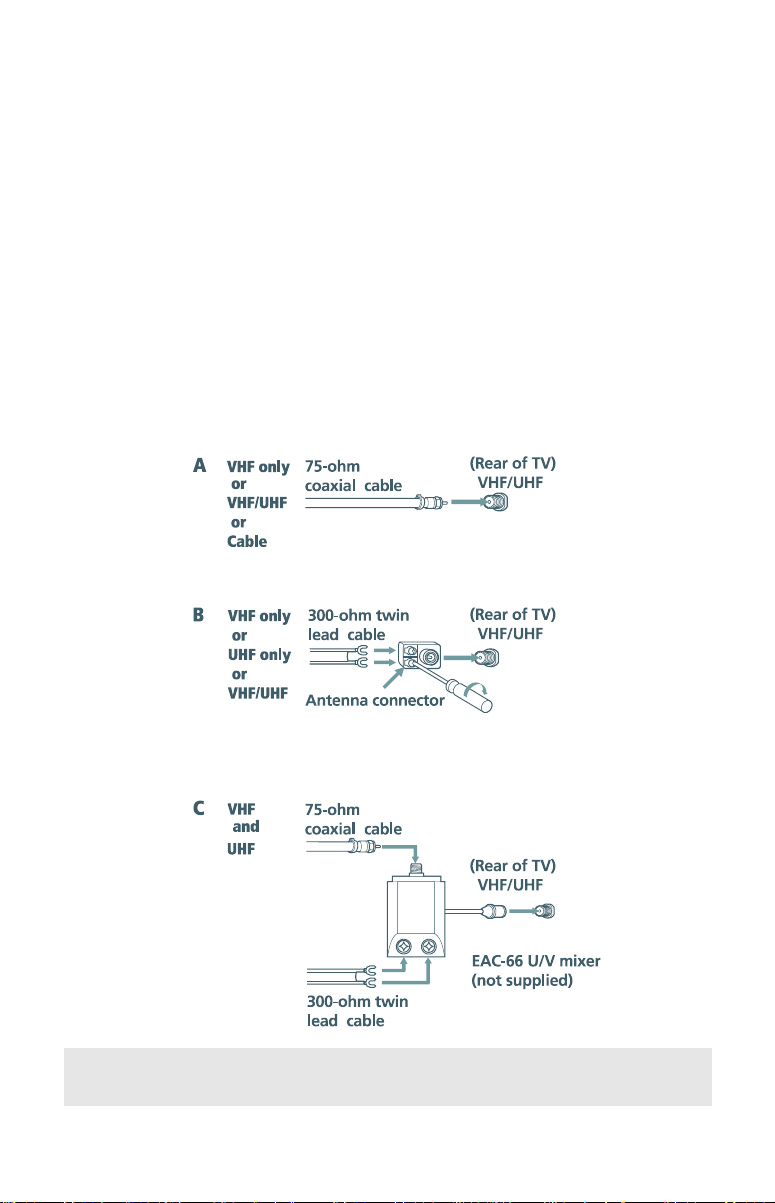
TV with indoor or outdoor antenna, or CATV cable
Depending on the cable available in your home, choose one of the
connections below:
✍ If you are connecting to an indoor or outdoor antenna, you may need to
adjust the orientation of the antenna for best reception.
4
Operating Instructions
Connecting Additional Equipment
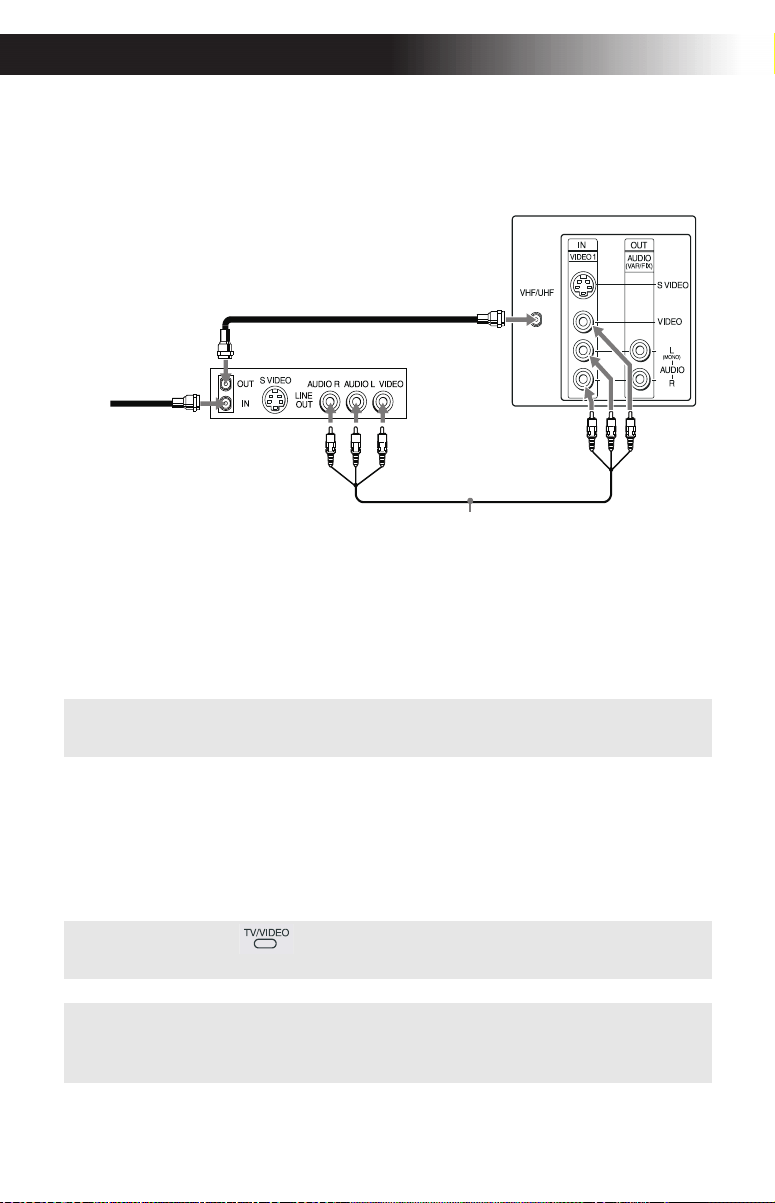
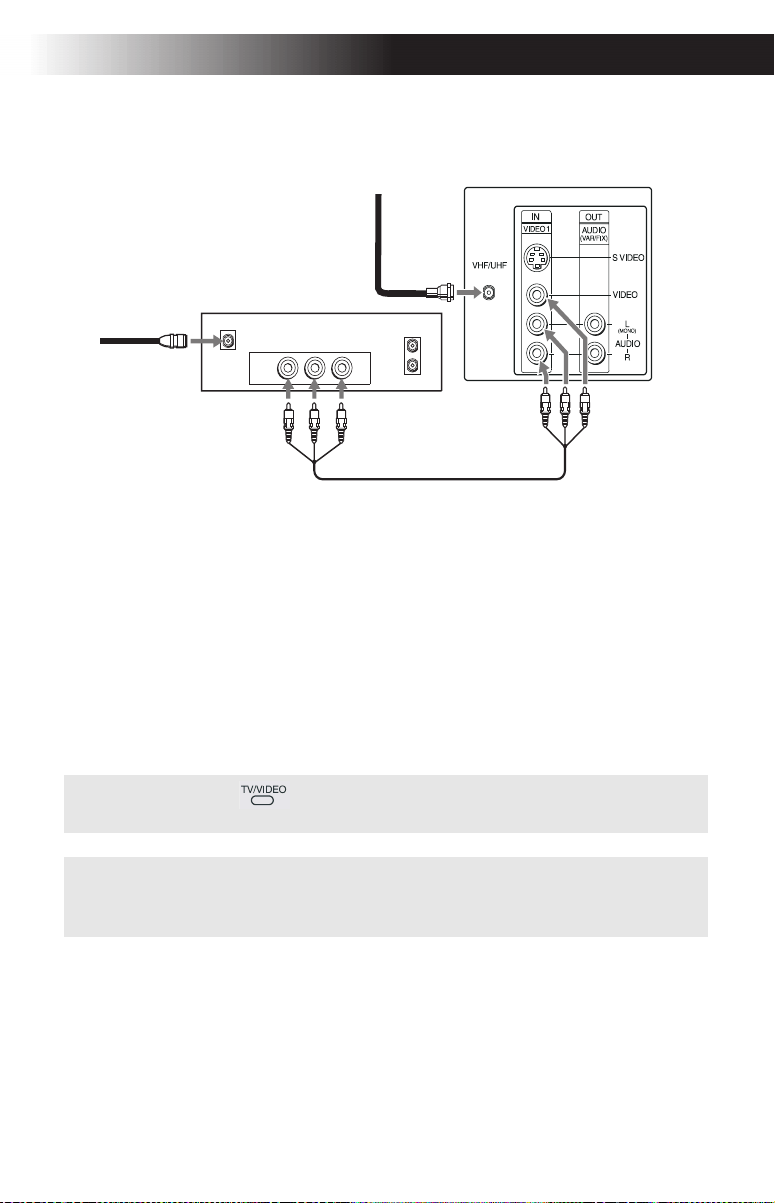
TV and VCR
1 Connect the coaxial cable from your TV antenna or cable service to
the IN jack on your VCR.
2 Connect a coaxial cable (not supplied) from the OUT jack on your
VCR to the VHF/UHF jack on the TV.
(Optional connection)
3 If your VCR is equipped with video outputs, you can get better
picture quality by connecting A/V cables (not supplied) from
AUDIO and VIDEO OUT on your VCR to AUDIO/VIDEO IN on
your TV.
✍ To watch video programs from your VCR, tune your TV to channel 3 or 4 (as
set on the rear of your VCR).
✍ You can use the button to switch between the VHF/UHF and VIDEO
inputs.
✍ For optimum picture quality, use S VIDEO (if your VCR is equipped with the
S VIDEO connection) instead of the yellow A/V cable. S VIDEO does not
provide sound, the audio cables must still be connected.
(Optional connection)
From
VCR
2
3
Rear of TV
cable/
Coxial
Cable
1
antenna
Connecting Your TV
5
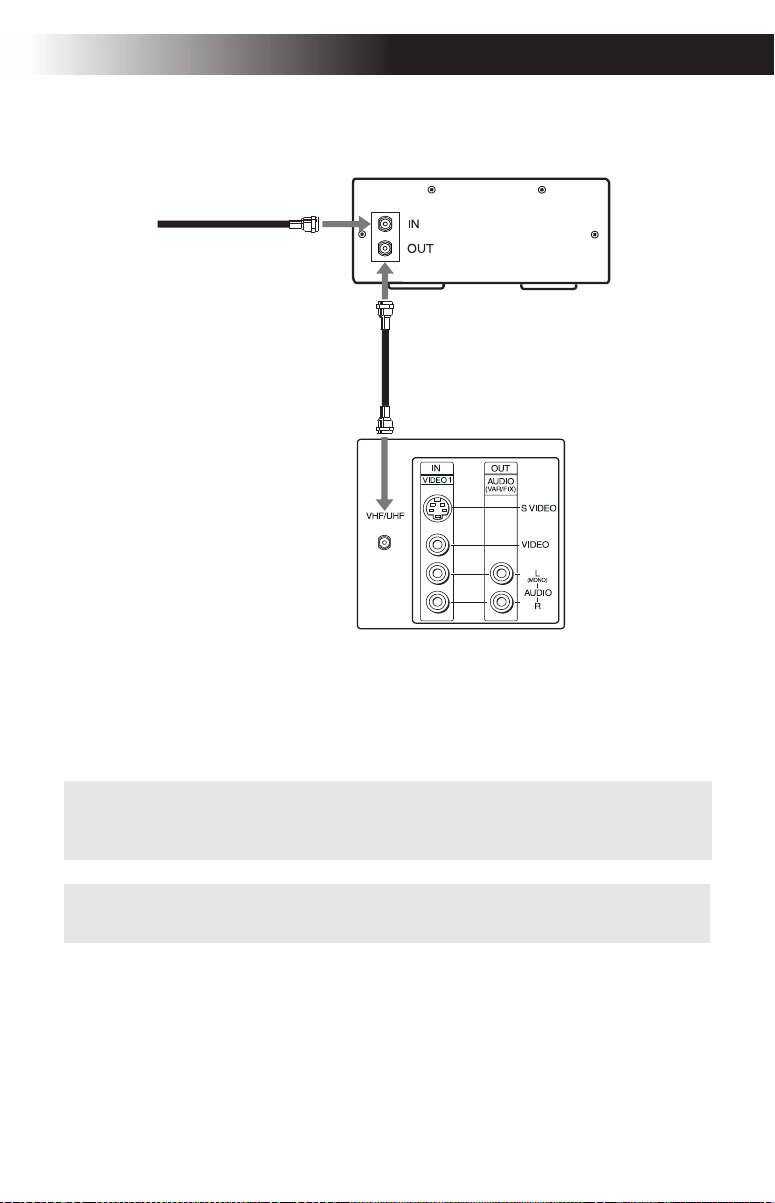
TV and Cable Box
1 Connect the coaxial cable from your cable service to the IN jack on
your cable box.
2 Connect a coaxial cable (not supplied) from the OUT jack on your
cable box to the VHF/UHF jack on the TV.
✍ To view channels from your cable box, tune your TV to channel 3 or 4 (as set
on the rear panel of your cable box) and use the cable box’s remote control to
change channels.
✍ If you will be controlling all channel selection through your cable box, you
should consider using the Channel Fix feature, (see page 21).
1
From
cable
2
Coaxial
Cable
Cable Box
Rear of TV
Coaxial
Cable
6
Operating Instructions
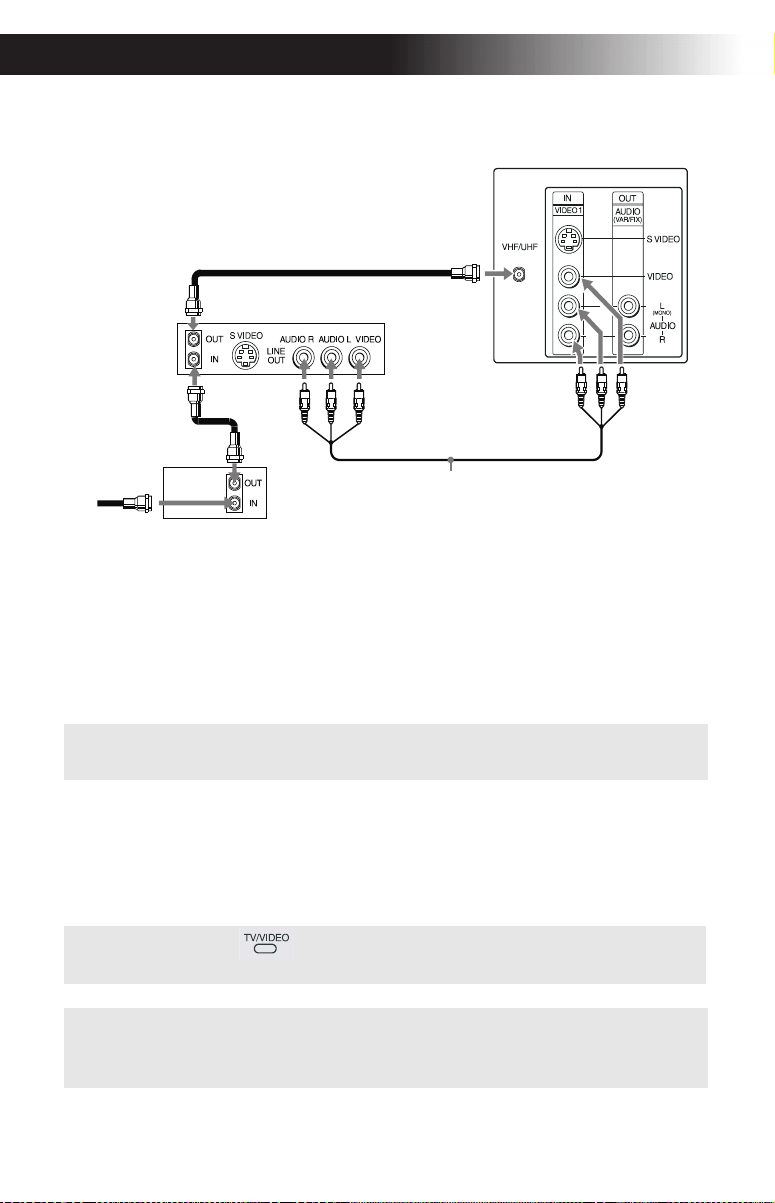
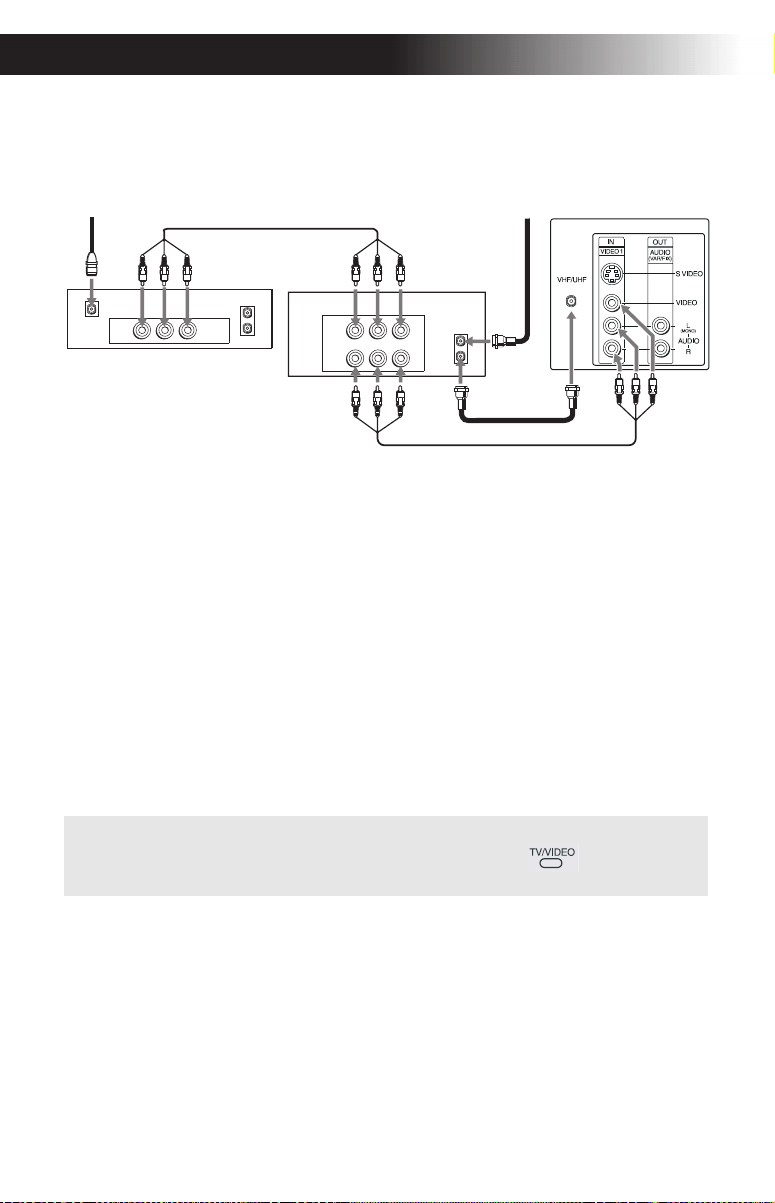
TV, VCR, and Cable box
1 Connect the coaxial cable from your cable service to the IN jack on
your cable box.
2 Connect a coaxial cable (not supplied) from the OUT jack on your
cable box to the IN jack on your VCR.
3 Connect a coaxial cable (not supplied) from the OUT jack on your
VCR to the VHF/UHF jack on the TV.
(Optional connection)
4
If your VCR is equipped with video outputs, you can get better
picture quality by connecting A/V cables (not supplied) from AUDIO
and VIDEO OUT on your VCR to AUDIO/VIDEO IN on your TV.
✍ If you will be controlling all channel selection through your cable box, you
should consider using the Channel Fix feature, (see page 21).
✍ You can use the button to switch between the VHF/UHF and VIDEO
inputs.
✍ For optimum picture quality, use S VIDEO (if your VCR is equipped with the
S VIDEO connection) instead of the yellow A/V cable. S VIDEO does not
provide sound, the audio cables must still be connected.
3
From cable
4
(Optional connection)
Cable box
1
VCR
2
Rear of TV
Coaxial
Cable
Connecting Your TV
7
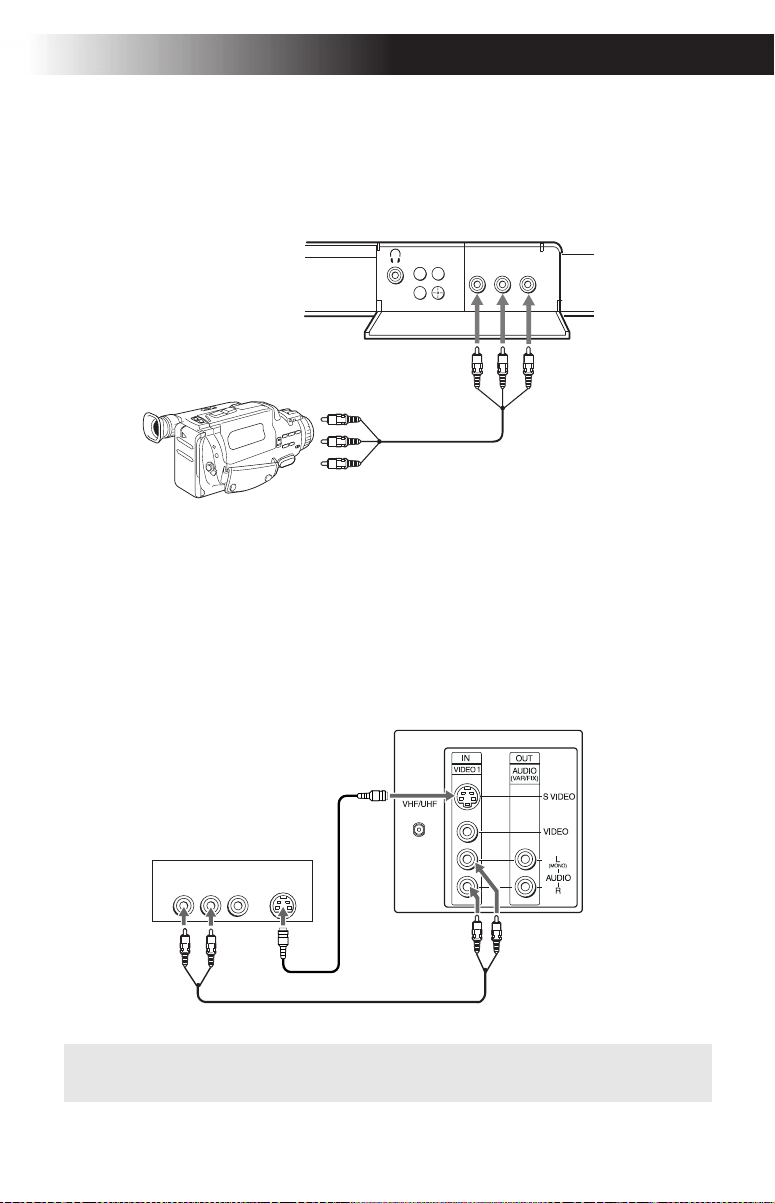
TV and Satellite Receiver
1 Connect the cable from your satellite antenna to SATELLITE IN on
your satellite receiver.
2 Connect the coaxial cable from your cable service or antenna to
the VHF/UHF jack on your TV.
3 Using A/V cables, connect AUDIO and VIDEO OUT on your
satellite receiver to AUDIO and VIDEO IN on your TV.
✍ You can use the button to switch between the VHF/UHF and VIDEO
inputs.
✍
For optimum picture quality, use S VIDEO (if your Satellite Receiver is equipped
with the S VIDEO connection) instead of the yellow A/V cable. S VIDEO does
not provide sound, the audio cables must still be connected.
VHF/UHF
OUT
IN
LINE OUT
SATELLITE IN
AUDIO R AUDIO L VIDEO
Satellite receiver
Satellite
antenna
cable
1
2
3
From
cable/
antenna
Rear of TV
8
Operating Instructions
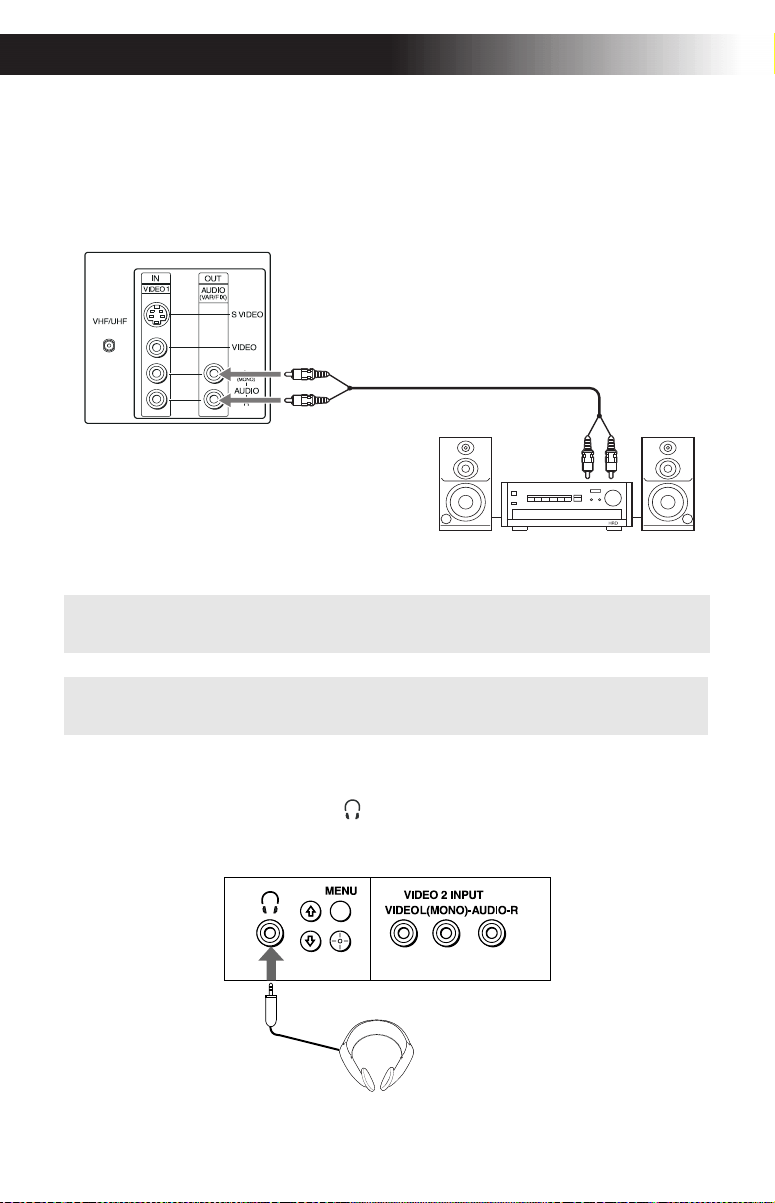
TV, Satellite Receiver, and VCR
1 Connect the cable from your satellite antenna to SATELLITE IN on
the satellite receiver.
2 Connect the coaxial cable from your cable service or antenna to the
IN jack on your VCR.
3 Using a coaxial cable, connect the OUT jack on your VCR to the
VHF/UHF jack on your TV.
4 Using A/V cables, connect AUDIO and VIDEO OUT on your
satellite receiver to AUDIO and VIDEO IN on your VCR.
5 Using A/V cables, connect AUDIO and VIDEO OUT on your VCR to
AUDIO and VIDEO IN on your TV.
✍ To view from the satellite receiver or VCR, select the video input to which
your satellite receiver or VCR is connected by pressing on the remote
control.
AUDIO R AUDIO L VIDEO
AUDIO R AUDIO L VIDEO
SATELLITE IN
VHF/UHF
OUT
IN
LINE OUT
LINE IN
VHF/UHF
OUT
IN
LINE OUT
Satellite receiver
4
5
2
3
1
Rear of TV
VCR
Satellite
antenna
From
antenna
cable/
cable
Connecting Your TV
9
Connecting a Camcorder
Using A/V cables, connect AUDIO and VIDEO OUT on your camcorder
to AUDIO and VIDEO IN on your TV.
Connecting a DVD Player
1 Using audio A/V cables, connect AUDIO OUT on your DVD player
to AUDIO IN on your TV.
2 Using a S VIDEO cable, connect S VIDEO OUT on your DVD player
to S VIDEO IN on your TV.
✍ For optimum picture quality, use S VIDEO instead of the yellow A/V cable.
S VIDEO does not provide sound, the audio cables must still be connected.
Front A/V Panel
VIDEO 2 INPUT
MENU
L(MONO)-AUDIO-RVIDEO
F
F
A/V output
AUDIO R AUDIO L VIDEO
SVIDEO
LINE OUT
Rear of TV
Rear of DVD player
2
1
10
Operating Instructions
Connecting an Audio System
Using A/V cables, connect AUDIO OUT on your TV to one of the unused
line inputs (e.g. TV, AUX, TAPE 2) on your stereo.
Connecting Headphones
Connect the headphones to the jack on the front of your TV.
✍ To change the level of audio output on your TV can be changed between
Fixed and Variable modes, (see page 20).
✍ Set your stereo to the chosen line input. See page 19 for additional audio
setup instructions.
AUDIO-L
AUDIO-R
Line
input
Rear of TV
Front A/V Panel
Using the Remote Control and Basic Functions
11
Using the Remote Control and
Basic Functions
This section shows you how to use the more advanced buttons on the
remote control and how to use the on-screen menus.
Using the Remote Control
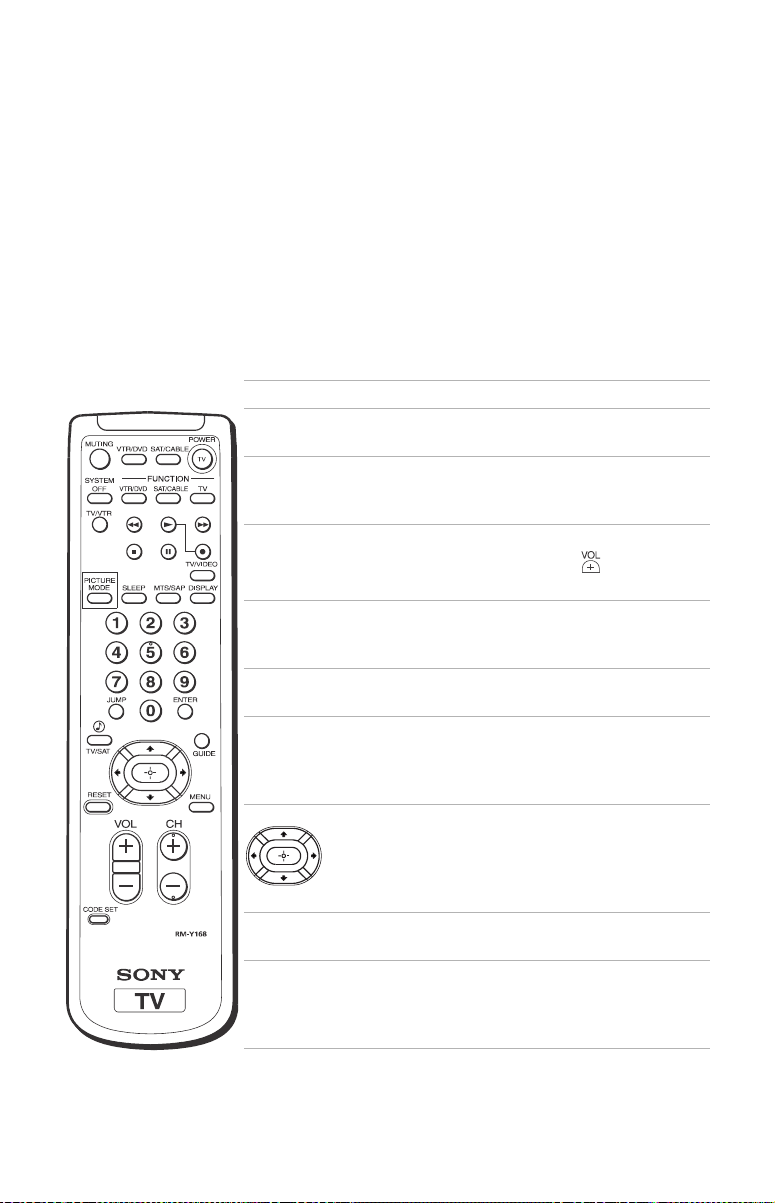
Button Description
POWER Press when you want to turn
connected equipment on and off.
FUNCTION Press when you want to control
connected equipment with your
remote control.
MUTING Instantly turns off the sound.
Press again or press to restore
sound.
SYSTEM OFF Powers off all Sony equipment at
once, (may not work with older
equipment).
TV/VIDEO Cycles through available video
inputs.
TV/VTR Press when you are finished
using a VCR and you want to
switch to the TV input. Your VCR
power will remain on.
Moves the cursor in the on-screen
menus. Press the arrow buttons to
move the cursor, press the center
button to select or access an
option.
PICTURE MODE Cycles through the available
Video Mode settings.
SLEEP Turns the TV off automatically in
approximately 15, 30, 45, 60, or 90
minutes. Cancel by pressing until
SLEEP OFF appears.
(continued)
12
Operating Instructions
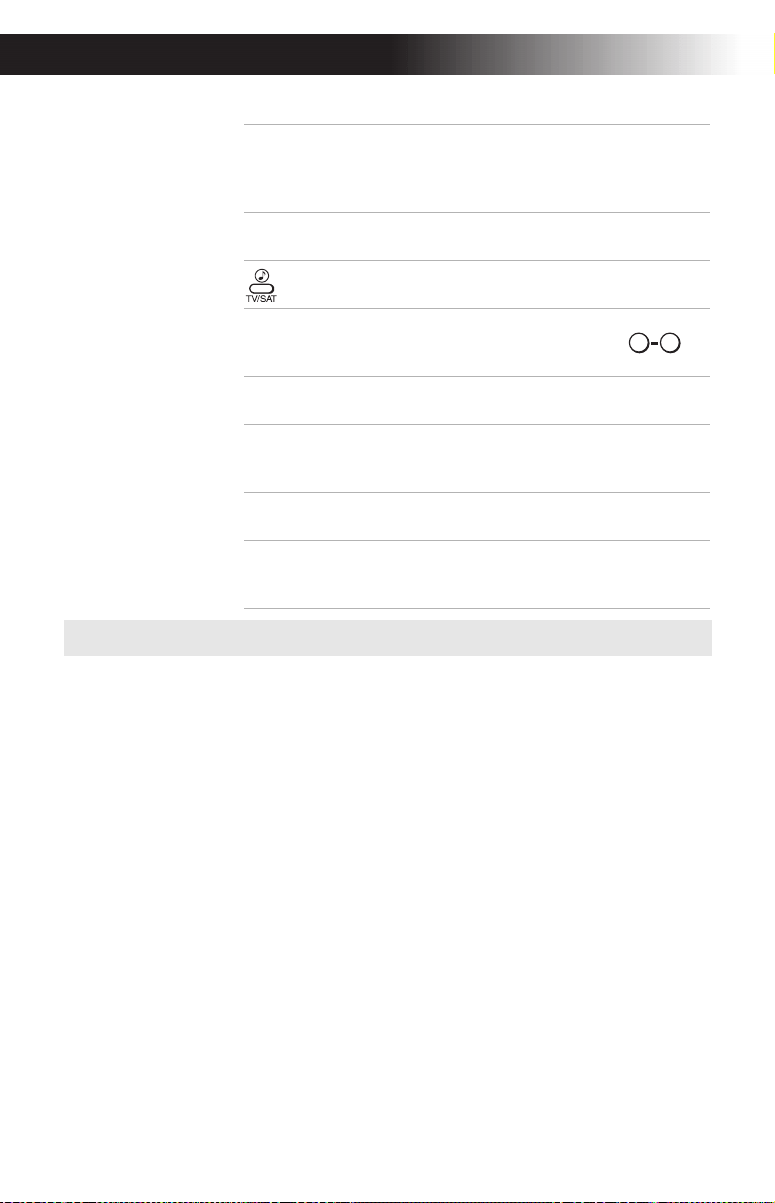
MTS/SAP Cycles through the Multi-channel
TV Sound (MTS) options: Stereo,
Mono, and Auto-SAP (Second
Audio Programming).
DISPLAY Press to display the current time,
(if set) and channel number.
Cycles through available Steady
Sound settings, (see page 19).
JUMP Alternates between the last two
channels selected with the
buttons.
GUIDE Brings up the custom guide of
your satellite receiver.
MENU Displays the on-screen menu.
Press again to exit the menu at
any time.
RESET Press to return to factory settings
while in an on-screen menu.
CODE SET Use to program your remote
control to operate connected
video equipment, (see page 31).
✍ If you lost your remote control, see page 35.
0 9
Using the Remote Control and Basic Functions
13
Setting Up the TV Automatically
After you have finished connecting your TV, you can perform Auto
Program to set up your channels.
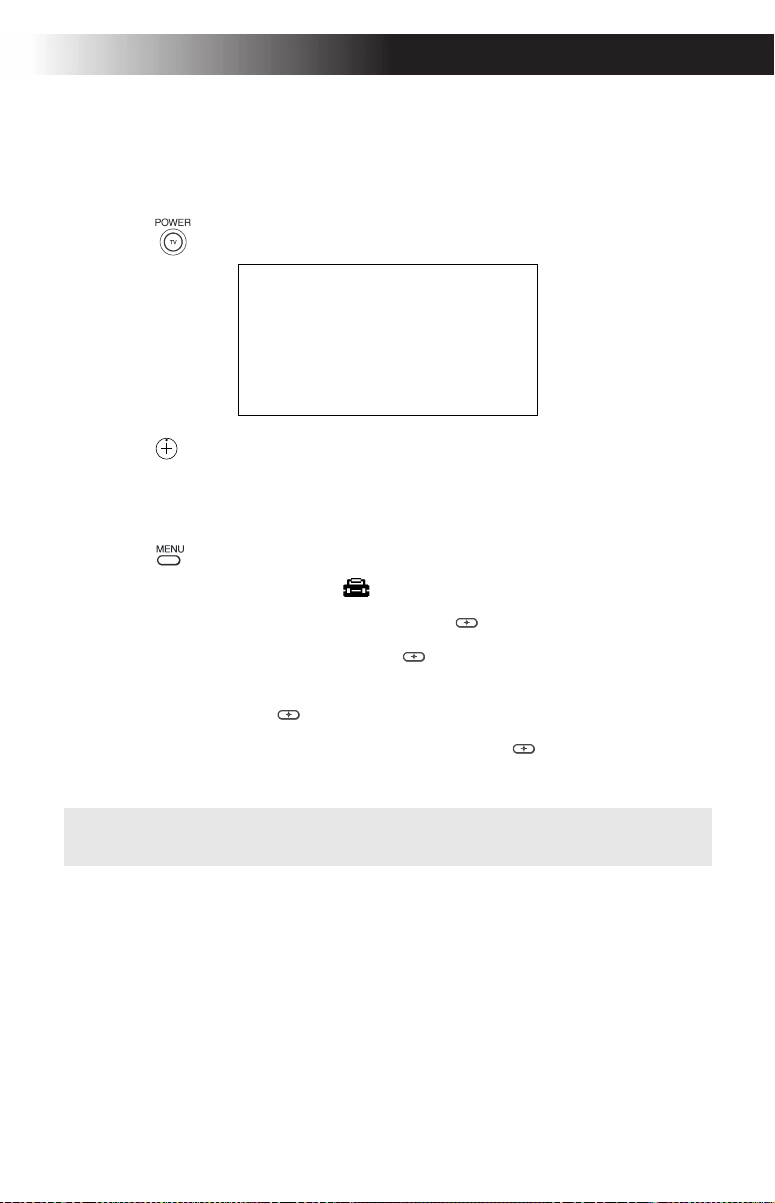
1 Press to turn on the TV. The Initial Setup screen appears.
2 Press on the remote control or in the TV front panel to perform
Auto Program.
To perform Auto Program again
1 Press .
2 Press g to highlight setup ( ).
3 Press f to highlight Options. Press g or to select.
4 Press f to select Cable. Press g or to select.
5 Press F or to select ON or OFF according to how you connected
your TV. Press G or .
6 Press f to highlight Auto Program. Press g or to search for
channels.
✍ The Initial Setup screen appears each time you turn on the TV until you
perform Auto Program.
Auto Program
Exit
[CH+]
[CH-]
First please connect
cable/antenna
CH
F
14
Operating Instructions
Quick Start to the Menus
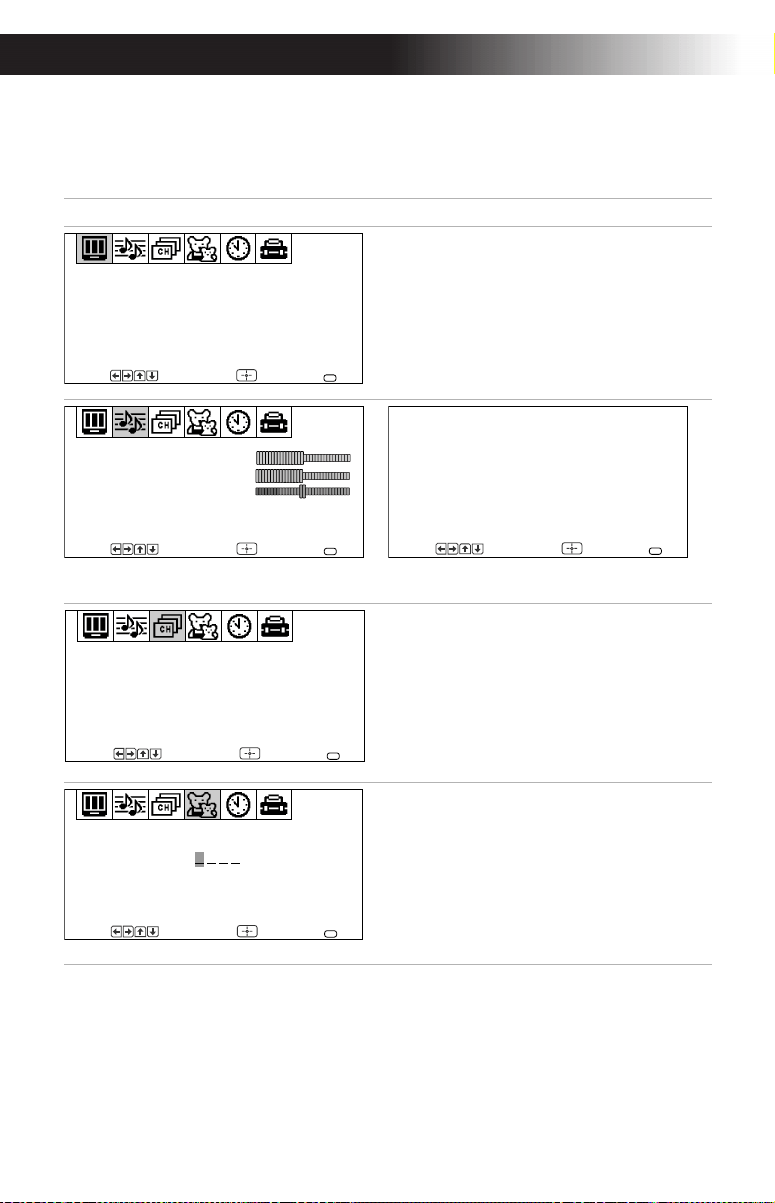
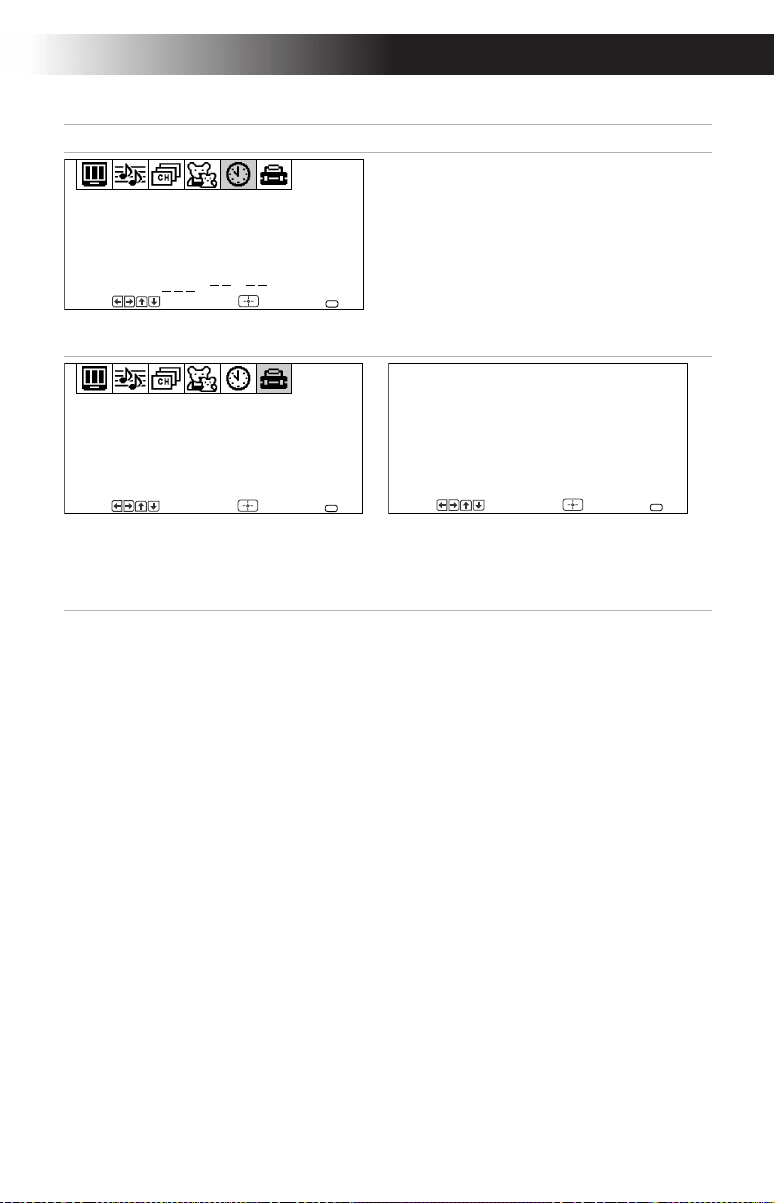
The following settings are available in your on-screen menus:
Menu Allows you to
Make adjustments to your picture
settings.
Change your audio settings.
Customize your channel settings.
Set rating limits on your TV based on
a program’s rating or content.
Video
Picture Controls
Mode: Vivid
VM: High
Move Select End
MENU
Treble
Bass
Balance
Steady Sound: OFF
Effect: OFF
Audio
Options
Move Select End
MENU
MTS: Auto-SAP
Options
Speaker: OFF
Audio Out: Variable
Move Select End
MENU
Favorite Channel
Channel Fix: OFF
Channel Skip/Add
Channel Label
Channel Setup
Move Select End
MENU
Password:
Parental Control
Move Select End
MENU
Using the Remote Control and Basic Functions
15
Set the clock on your TV and program
scheduled viewing using Timer 1 and
Timer 2.
Program your channels, lable video
inputs, select menu languages, or run
a demo of the menus.
The Options menu offers other setup
options.
Menu Allows you to
Timer 1: Set
Timer 2: Set
Current Time
Daylight Saving: NO
:
AM
Timer
Move Select End
MENU
Caption Vision: CC1
Demo
Video Label
Language: English
Options
Setup
Move Select End
MENU
Tilt Correction: 0
Cable: ON
Auto Program
Options
Move Select End
MENU


Using the Menus
17
Using the Menus
This section shows the options available for setting up and adjusting
your TV.
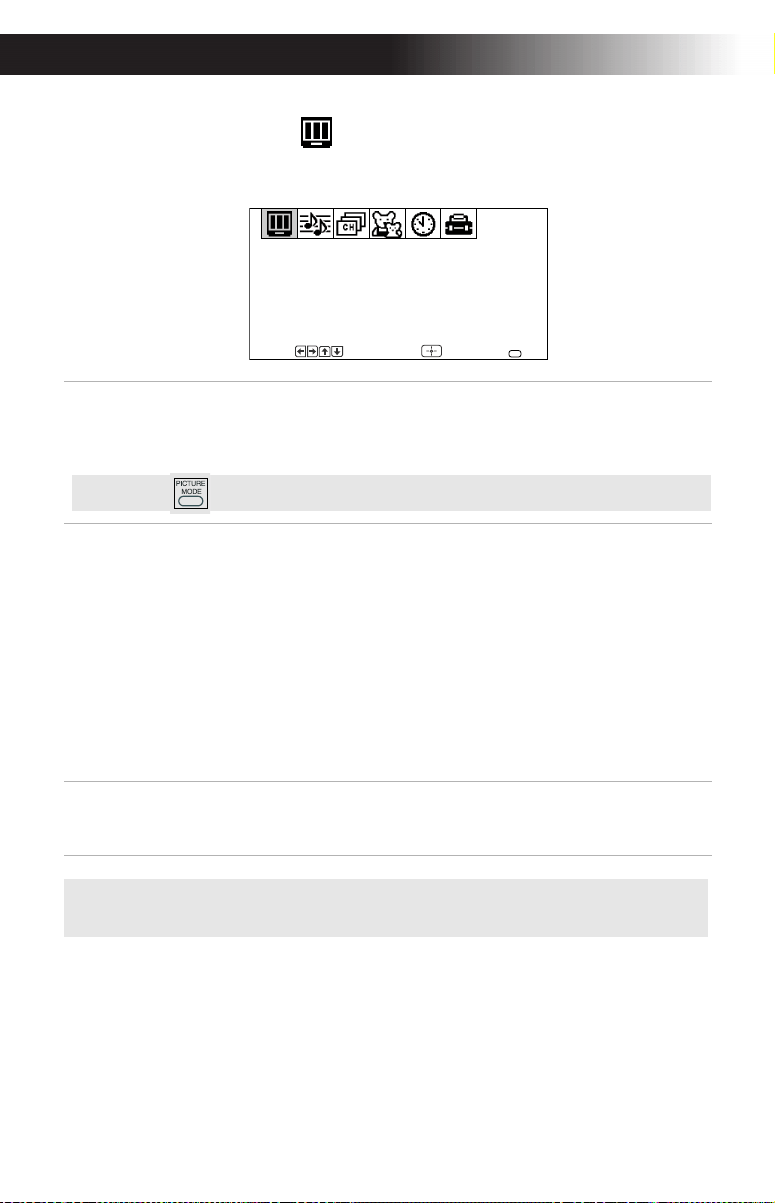
To access a menu
1 Press .
2 Use the G or g buttons to move through the menus.
3 Use the F or buttons to highlight an option.
4 Press g or to select or access an option.
5 After adjusting or selecting an option, press g or to complete the
adjustment.
6 Press G to go to the previous menu, or press to close the menu.
F
18
Operating Instructions
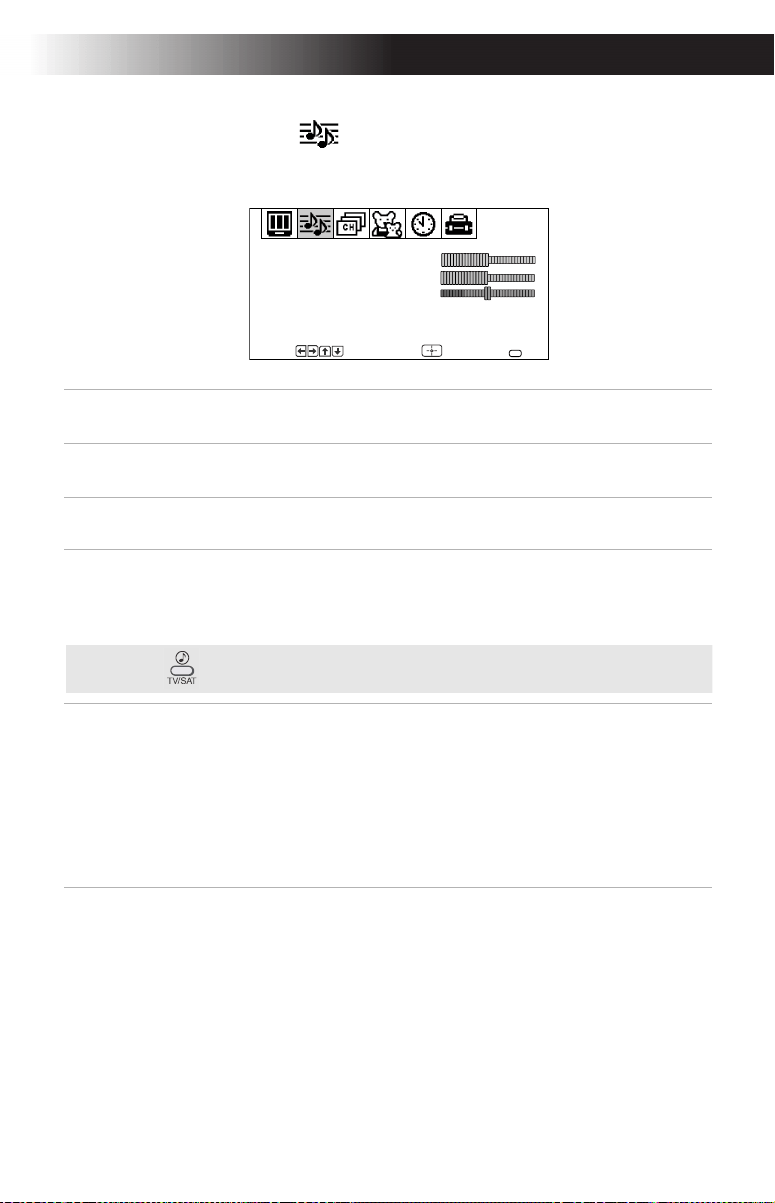
Using the Video Menu
To access the Video menu, see “To access a menu” on page 17.
Mode
Customized
picture viewing
Vivid: Select for enhanced picture contrast and sharpness.
Movie: Select for a finely detailed picture.
Sports: Select for a bright picture.
Standard: Select for a standard picture.
Picture
Controls
With the Picture Controls menu open:
Picture: Press G or f to decrease the contrast. Press g or F
to increase contrast.
Brightness: Press G or
f to darken the picture. Press g or
F to brighten the picture.
Color: Press G or f to decrease color saturation. Press g or
F to increase color saturation.
Hue: Press G or f to decrease the red tones. Press g or F to
increase the green tones.
Sharpness: Press G or
f to soften the picture. Press g or F
to sharpen the picture.
VM
Velocity
Modulation
Sharpens picture definition to give objects a sharp, clean
edge.
Use the F or buttons to select from one of the
following options: OFF, High, Low.
✍ When you change the Mode setting the VM setting may also change
automatically.
Video
Picture Controls
Mode: Vivid
VM: High
Move Select End
MENU
✍ Press for direct Mode settings, (Vivid, Movie, Sports, Standard).
F
Using the Menus
19
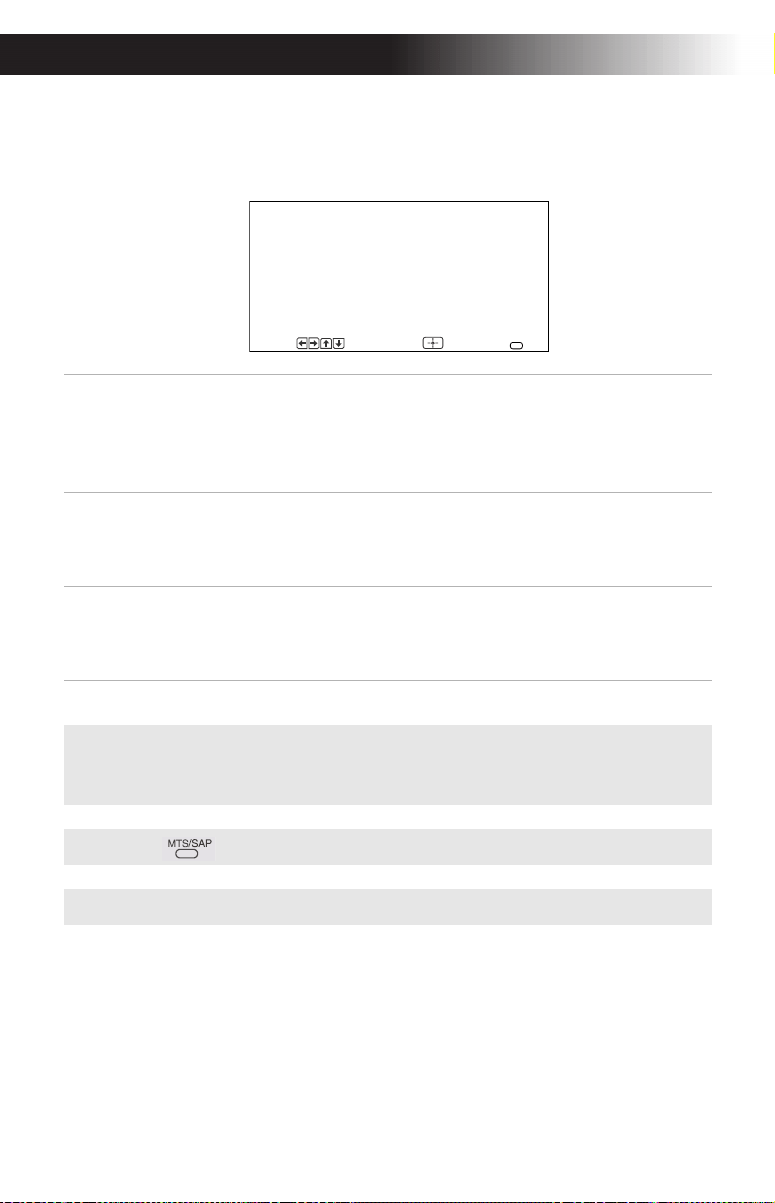
Using the Audio Menu
To access the Audio menu, see “To access a menu” on page 17.
Treble
Press G or to decrease the higher pitched sound. Press g
or F to increase the higher pitched sound.
Bass
Press
G or to decrease the lower pitched sound. Press g
or F to increase the lower pitched sound.
Balance
Press
G or to emphasize the left speaker. Press g or F to
emphasize the right speaker.
Steady Sound
Stabilizes volume
Press F or to select one of the following options:
ON: Select to stabilize the volume when changing
channels.
OFF: Select to turn Steady Sound off.
Effect
Press F or
to select one of the following options:
SRS: Produces a dynamic three dimensional sound for
stereo audio signals
, (KV-24FV12 only)
.
Simulated: Simulates theater quality sound for stereo
programs,
(KV-24FV12 only)
.
Surround: Add a surround-like effect to mono programs
,
(KV-20FV12 only).
OFF: Normal stereo or mono reception.
Treble
Bass
Balance
Steady Sound: OFF
Effect: OFF
Audio
Options
Move Select End
MENU
F
F
F
F
✍ Press for direct Steady Sound settings.
F
20
Operating Instructions
Options Menu
To access the Options menu, see “To access a menu” on page 17.
MTS
Multi-Channel
Sound
Press
F or to select one of the following options:
Stereo: Select when viewing a broadcast in stereo.
Mono: Select to reduce noise in areas of poor reception.
Auto-SAP: Select to have the TV automatically to a Second
Audio Program (SAP) when a signal is received.
Speaker
Custom selection
of audio output
source
ON: Select to listen to the sound from the TV speakers with
or without a separate stereo system.
OFF: Select to turn off the TV speakers and listen to the
TV’s sound only through external audio system speakers.
Audio Out
Use to control the
TV’s volume
through a stereo
Audio Out can only be set when speakers are set to OFF.
Variable: Adjust the volume through your TV.
Fixed: Adjust the TV volume through a connected stereo.
✍ If your TV is set to Auto-SAP, some programs may be muted or distorted. If
your TV does not output sound, change your Audio setting to Stereo or
Mono.
✍ Press for direct MTS settings (Stereo, Mono, Auto-SAP).
✍ Audio Out can only be set when Speaker is set to OFF.
MTS: Auto-SAP
Options
Speaker: OFF
Audio Out: Variable
Move Select End
MENU
F
Using the Menus
21
Using the Channel Setup Menu
To access the Channel Setup menu, see “To access a menu” on page 17.
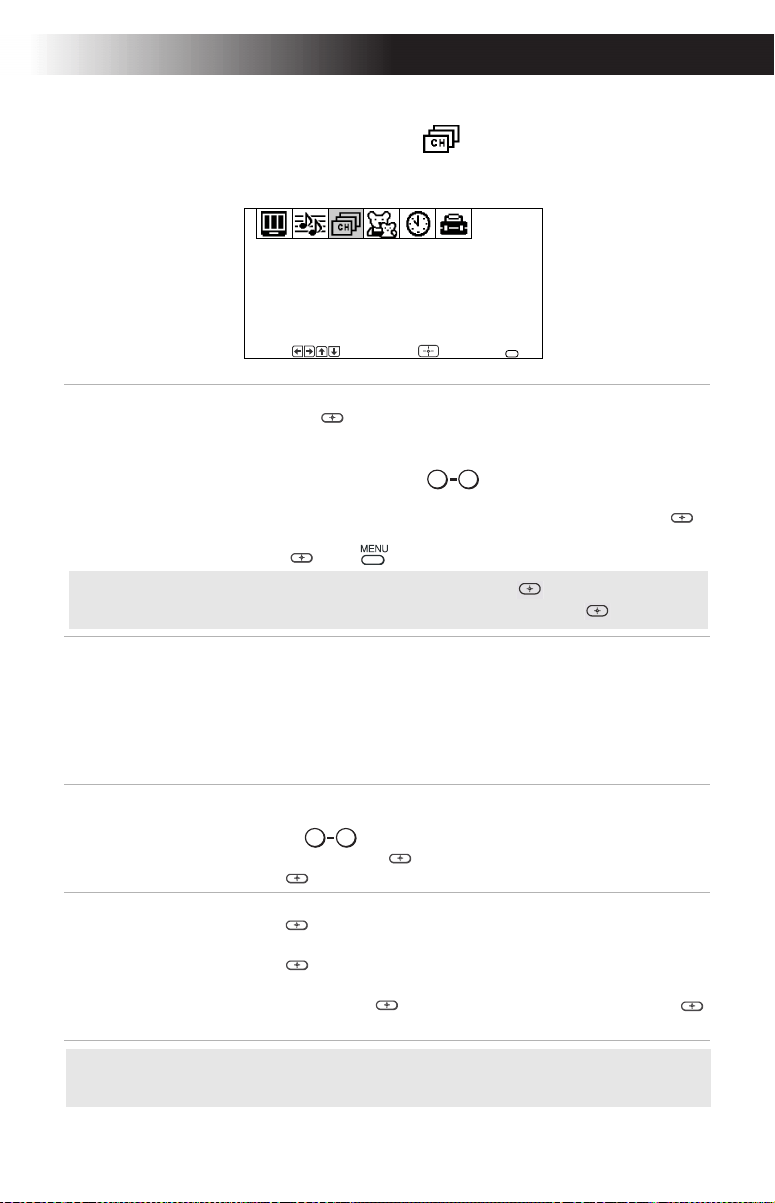
Favorite
Channel
Quick access
to favorite
channels
With the Favorite Channel menu open:
1
Press
g
or to select.
2
Use the
F
or
buttons to select Auto or Manual
(selecting Auto will display in gray the last five
channels accessed by the buttons).
3
When in Manual, press
G
then to select the position (1-5)
where you want to set a favorite channel. Then press
g
or .
4
Using the
F
or
buttons, select the desired channel.
5
Press
then
, the TV will change to the channel entered.
Channel Fix
2-6:
Select when you want to control all channel selection through a
cable box or VCR. Select the appropriate channel (usually 3 or 4) and
use the cable box’s or VCR’s remote control for channel selection.
Video
: Select from available video inputs when you have
connected video equipment (e.g. satellite receiver) and you want
your TV fixed to it.
OFF:
Channel Fix is not set.
Channel
Skip/Add
Use this feature after you run Auto Program to skip unwanted
channels or add new ones.
1
Use the buttons or the [CH +/-] buttons to select the
channel, then press .
2
Press to Skip or Add (only one option will be available).
Channel
Label
Label up to 40
channels with their
call letters
With the Channel Label window open:
1
Press , then press
F
or
until you reach the desired channel
number.
2
Press to activate the channel.
3
Press
F
or
to display the first call letter or number of the
caption and press to select it. When finished,
press
g
or
to activate.
Favorite Channel
Channel Fix: OFF
Channel Skip/Add
Channel Label
Channel Setup
Move Select End
MENU
F
0 9
F
F
✍ To use Favorite Channel: Exit all menus and press . Press F or to
move the cursor to the desired channel number and press .
F
0 9
F
F
✍ Favorite Channel,Channel Skip/Add, and Channel Label cannot be used
when Channel Fix is set.
22
Operating Instructions
Parental Control
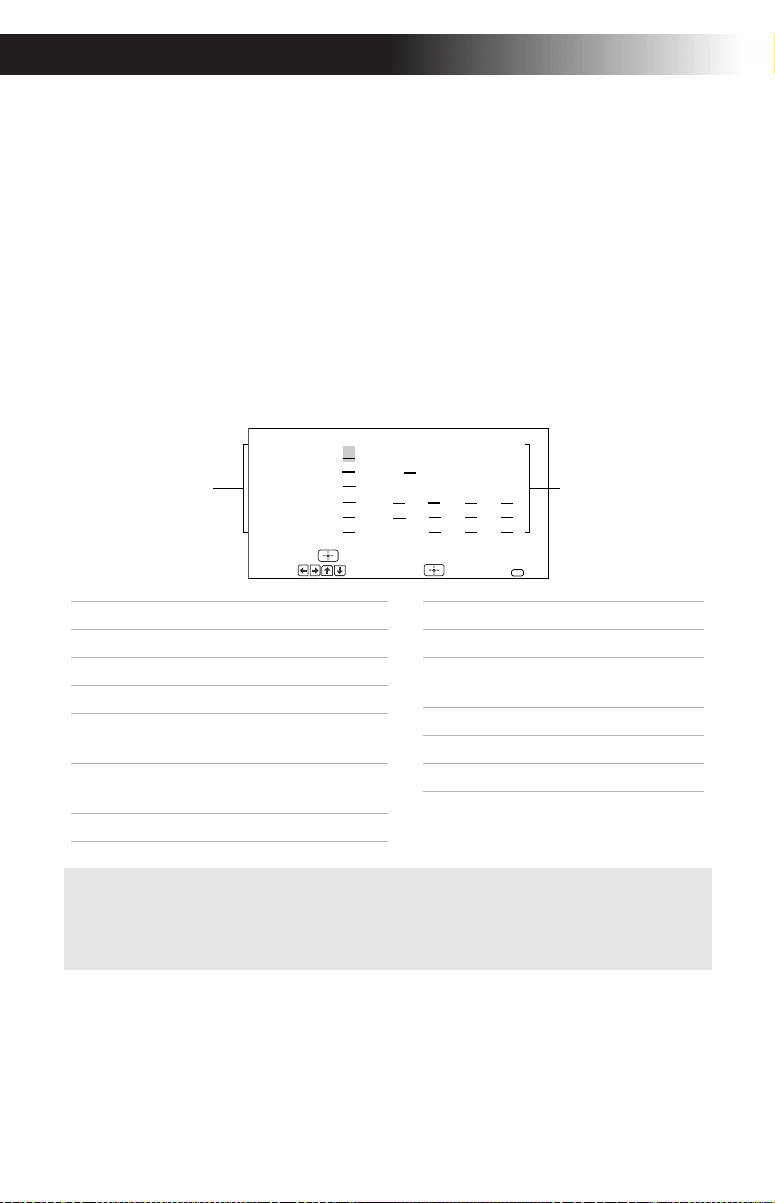
The Parental Control feature is designed to help parents monitor what
their children watch on television. This section shows you the different
rating systems available and how to set your TV’s rating limit.
Overview of the Ratings
Once you have become familiar with these rating systems, you should be
ready to set your TV’s rating limit.
TV Ratings
The TV ratings are divided into two groups: age-based and
content-based.
✍
The content ratings will increase depending on the level of the age-based
rating. For example, a program with a TV-PG V (Violence) rating may contain
moderate violence, while a TV-14 V (Violence) rating may contain intense
violence.
TV-G:
TV-PG
TV-14:
TV-MA
TV-Y:
TV-Y7:
:
:
TV Ratings
D
D
FV
L
L
L
S
S
S
V
V
V
Press to block
Move Select End
MENU
Age
Content
Age Defined as
TV-Y All children
TV-Y7 Directed to older children
TV-G General audience
TV-PG Parental Guidance
suggested
TV-14 Parents Strongly
cautioned
TV-MA Mature Audience only
Contents Defined as
FV Fantasy Violence
D Suggestive
dialogue
L Strong language
S Sexual situations
V Violence
Using the Menus
23
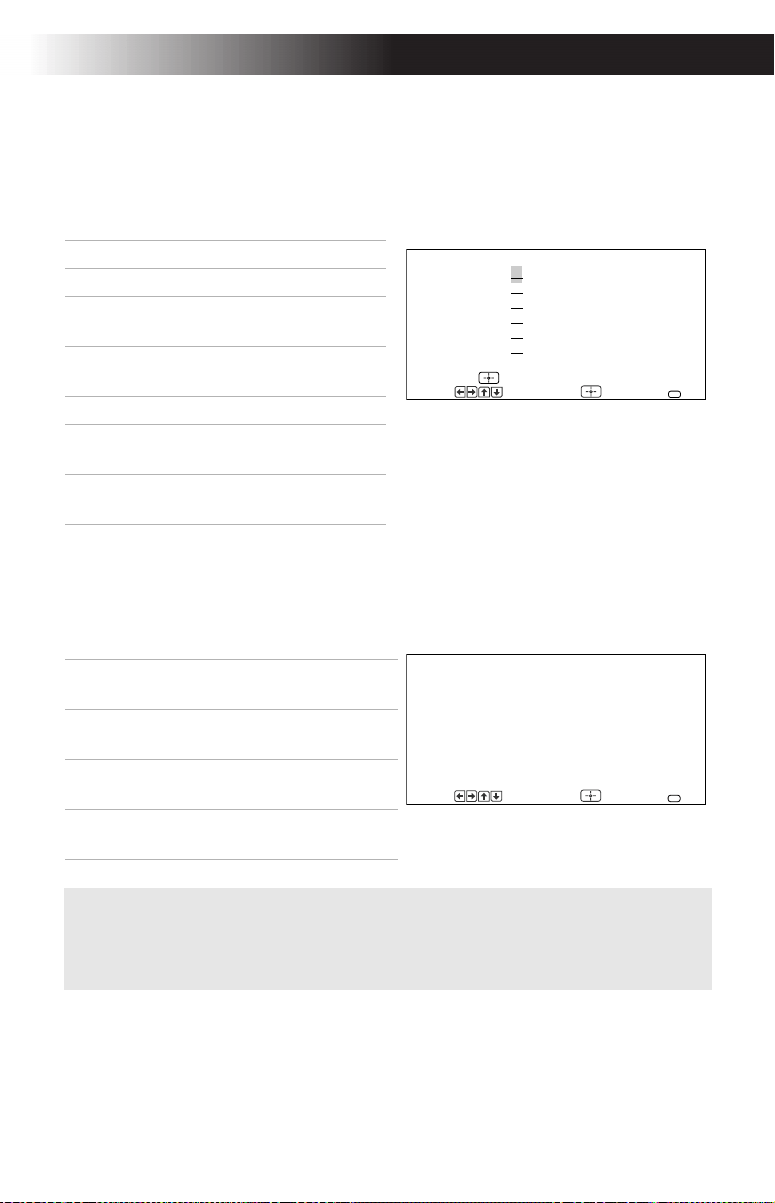
Movie Ratings
(U.S. models only)
This system defines the rating levels of movies shown in theaters and on
prime cable channels.
Unrated
(U.S. models only)
You have the option of blocking TV programs or movies that are not
rated.
✍ If you choose to block unrated TV programs, please be aware that the
following programs may be blocked: emergency broadcasts, political
programs, sports, news, public service announcements, religious
programs, and weather.
R:
NC-17:
X:
PG-13:
G:
PG:
Movie Rating
Press to block
Move Select End
MENU
Rating Defined as
G General audience
PG Parental Guidance
suggested
PG-13 Parents strongly
cautioned
R Restricted
NC-17 No one 17 and under
admitted
X No one 17 and under
admitted
View All Allows all unrated
programs
Block All Blocks all unrated
programming
Block TV Blocks all unrated TV
Programs
Block Movies
Blocks all unrated
movies
Movie Ratings
TV Ratings
Unrated: View All
Allows all unrated
Programming
Custom Ratings
Move Select End
MENU
24
Operating Instructions
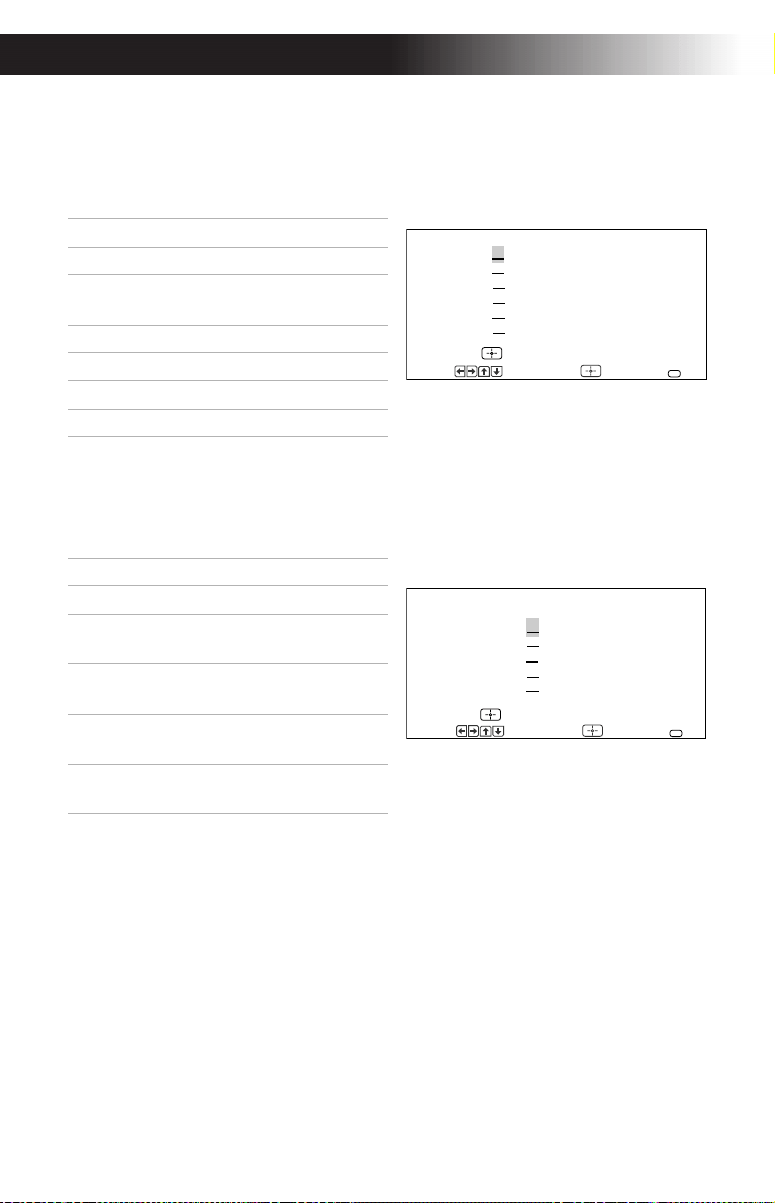
English Ratings
(Canadian models only)
These ratings are for Canadian programs that are broadcast in English.
French Ratings
(Canadian models only)
These ratings are for Canadian programs that are broadcast in French.
U.S.A. Ratings
(Canadian models only)
For programs from the United States. Please see “TV Ratings” on
page 22.
Rating Defined as
C Children
C8+ Children 8 years and
older
G General programming
PG Parental Guidance
14+ Viewers 14 and older
18+ Adult programming
G:
PG:
14+
18+
Press to block
C:
C8+
:
:
:
English Ratings
Move Select End
MENU
Rating Defined as
G General
8 ans+ Not recommended for
younger children
13
ans+
Not recommended for
children under age 13
16
ans+
Not recommended for
ages under 16
18
ans+
This program is restricted
to adults
8
13
16
18
ans+:
ans+:
ans+:
ans+:
Press to block
G:
French Ratings
Move Select End
MENU
Using the Menus
25
Using the Parental Control Menu
To access the Parental Control menu, see “To access a menu” on page 17.
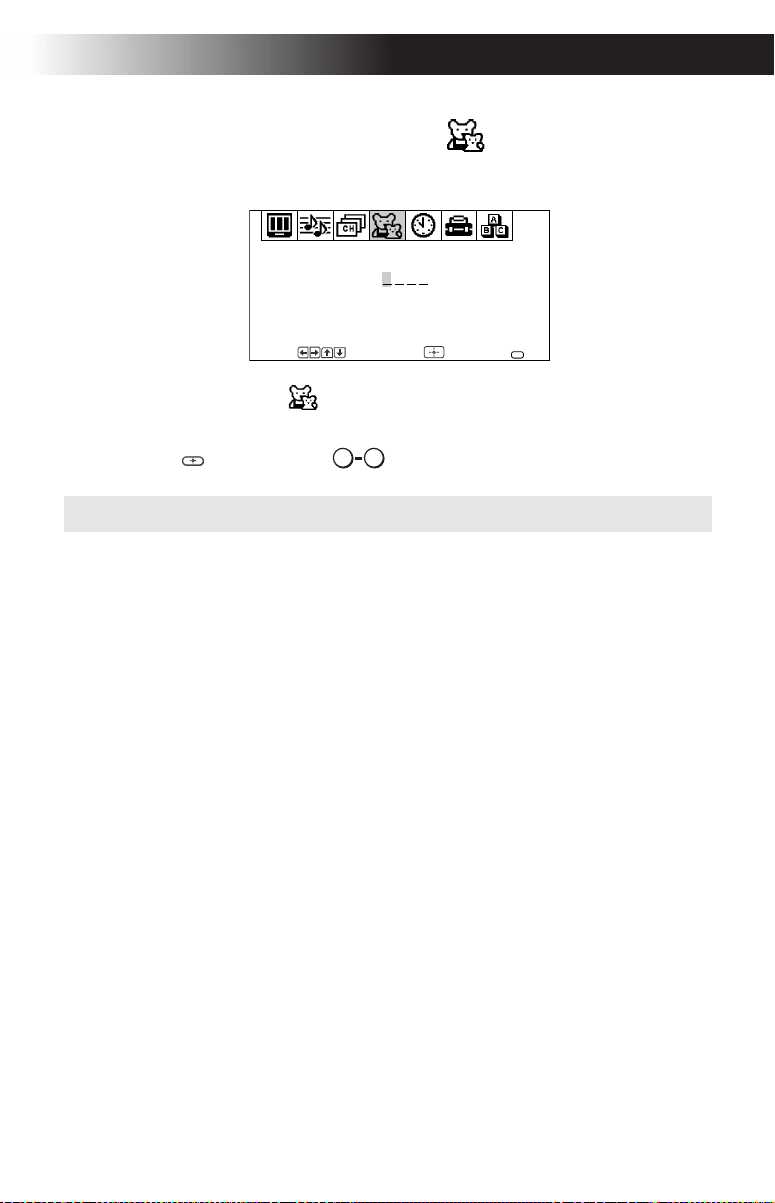
In the Parental Control
menu, you will be asked to set a 4-digit
password for any further access into Parental Control.
1
Press
or
, then use the buttons to enter a 4-digit password.
2 Confirm your password by entering it again.
Once your password is set correctly, the next Parental Control menu
appears.
✍ Keep this manual in a safe place. If you forget your password, see page 37.
Use [0-9] buttons to
enter new four-digit
Password
Parental Control
Password:
Move Select End
MENU
F
0 9
26
Operating Instructions
Setting the rating
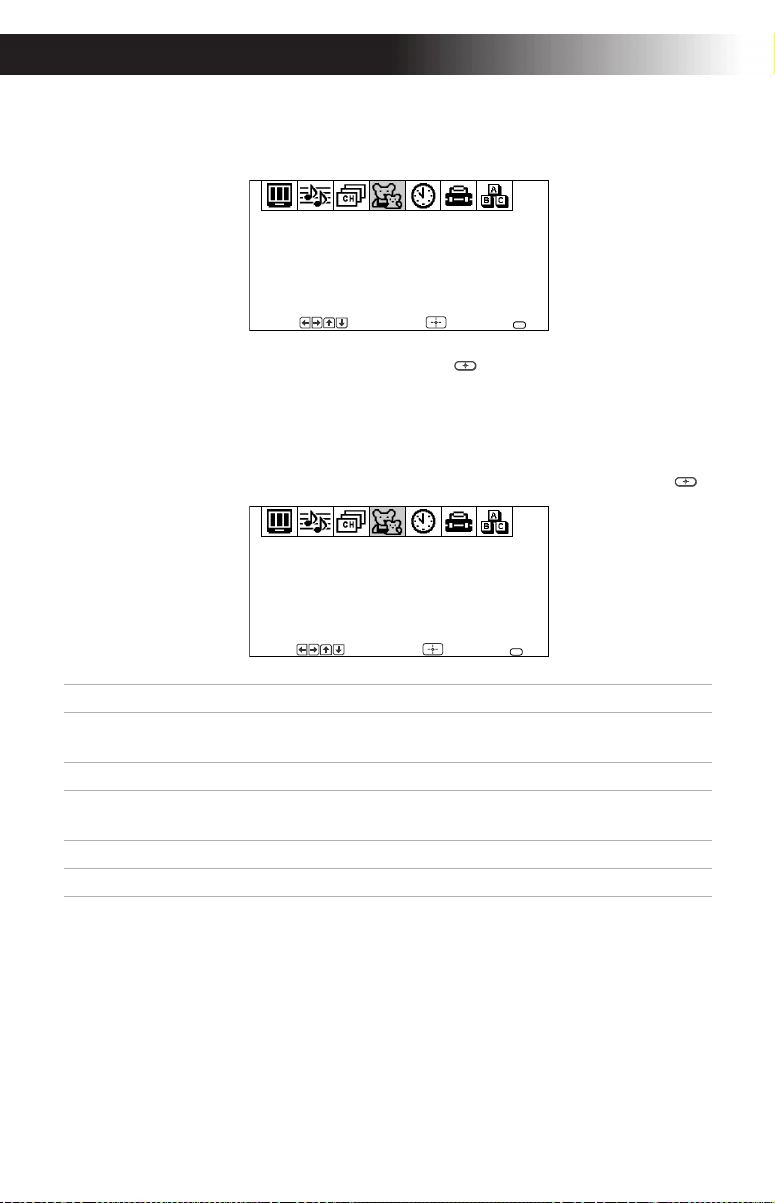
You can change the Rating by selecting one of the Lock options.
1 Move the cursor to Lock and press g or .
If you are not familiar with the Parental Guidelines rating system, use
one of the following preselected categories to simplify the rating
selections: OFF, Child, Youth, Young Adult, or Custom.
2 Use the F or buttons to select the desired rating and press g or .
Rating TV will allow a maximum rating of:
Child TV-Y, TV-G, G (U.S. models only), G (Canadian models
only)
Youth TV-PG, PG (U.S. models only), PG (Canadian models only)
Young Adult TV-14, PG-13 (U.S. models only), 14+ (Canadian models
only)
Custom Select to set more restrictive ratings, (see next section)
OFF No rating limit
Parental Control
Lock: OFF
Change Password
Move Select End
MENU
F
Lock: Young Adult
Parental Control
Change Password
Move Select End
MENU
Using the Menus
27
Using the Custom menu
Before setting Custom ratings, see page 22-24, “Overview of the Ratings,”
for a description of the available rating systems.
Follow the instructions on the screen to make your custom settings. See
page 23 for U.S. models and page 24 for Canadian models for more
information.
Changing your Password
1 Use the F or buttons to move the cursor to Change Password and
press g or .
2 Follow step 2 and 3 for “Using the Parental Control menu” on
page 25.
Information for Parents
To view a program that exceeds the TV rating
❏ Press , then use the buttons to enter your password.
✍
Once you have blocked a rating or content, all higher ratings or content will
be automatically blocked.
✍
Entering your password to view a blocked program will temporarily turn Lock to
OFF. To reactivate your Lock settings, turn the TV off then back on. The TV will
return to the settings that you have selected.
F
0 9
28
Operating Instructions
Using the Timer Menu
To access the Timer menu, see “To access a menu” on page 17.
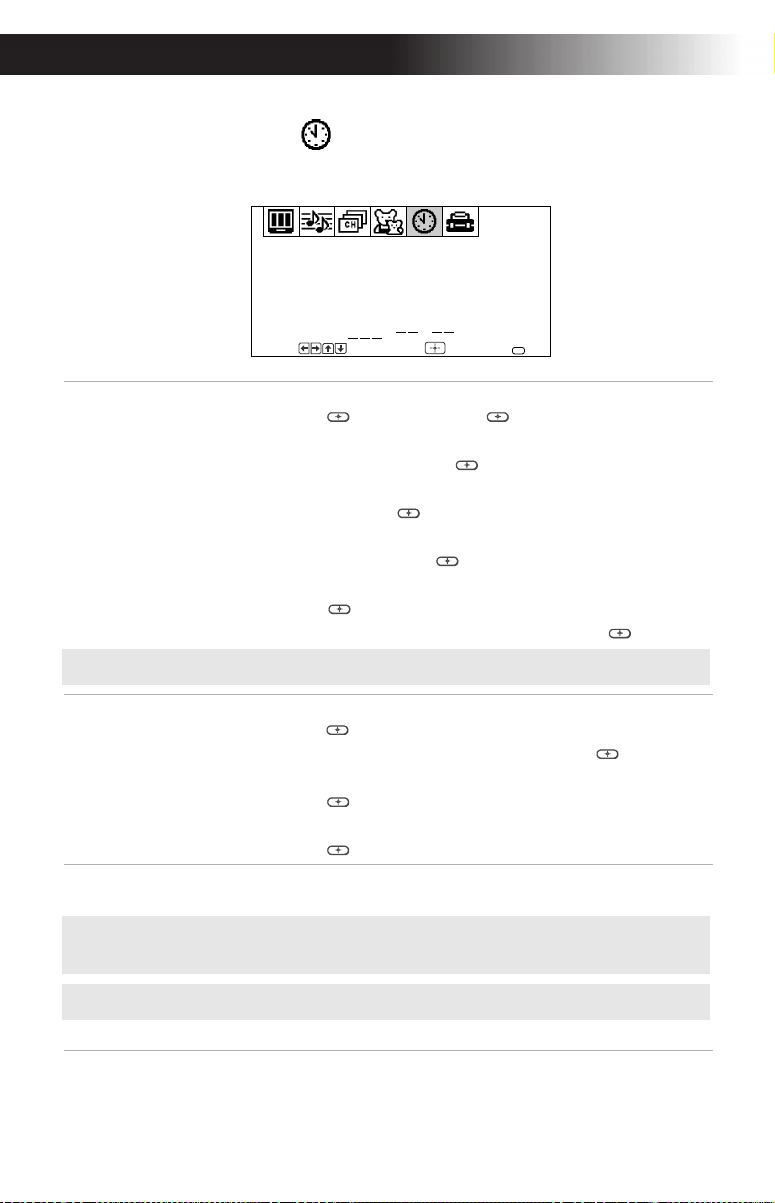
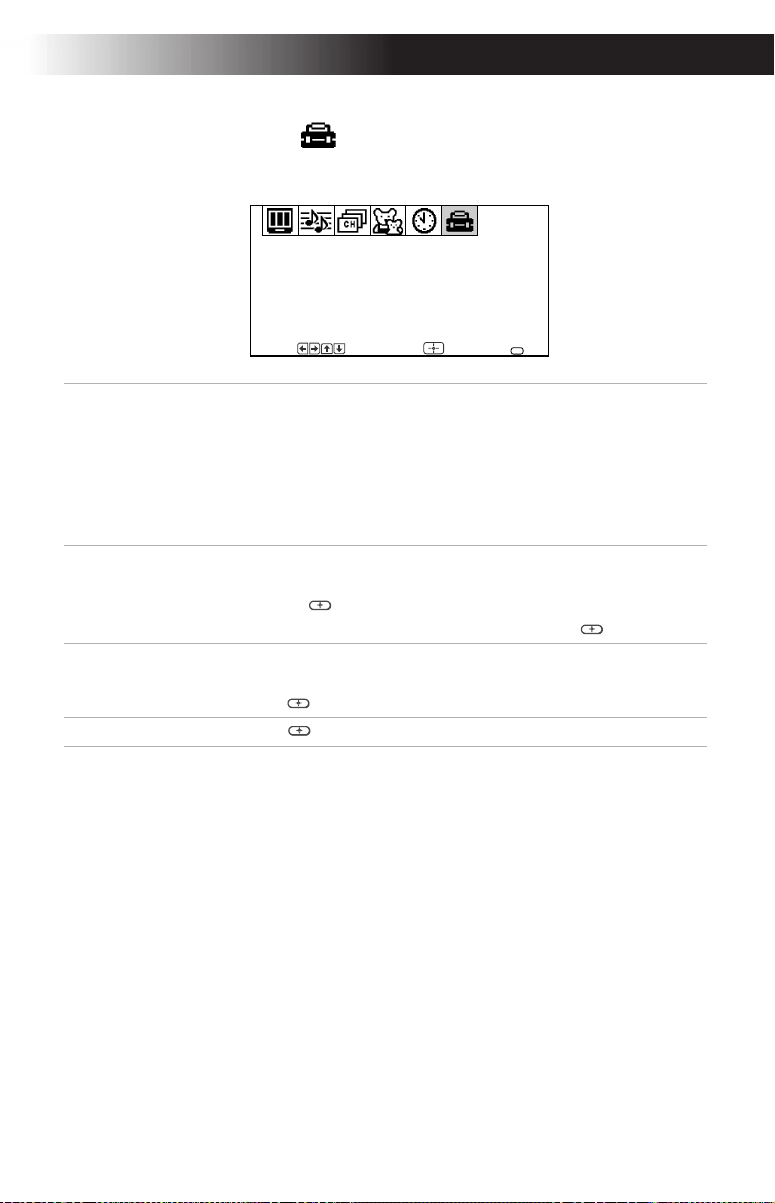
Timer 1 and
Timer 2
Scheduled
viewing
With the menu open, highlight Timer 1 or Timer 2:
1 Press g or , then press g or again.
2 Press F or until the desired day or range of days is
displayed, then press g or .
3 Press F or to select the hour you want the TV to turn
on, then press g or .
4 Press F or to select the minute you want the TV to
turn on, then press g or .
5 Press F or to set the duration (up to 6 hours) then
press g or .
6 Press F or to set the channel and press g or .
Current
Time
With the menu open:
1
Press
g
or .
2 Press F or to select the day and press g or .
3 Press F or until the current hour is displayed, then
press g or .
4 Press F or until the current minute is displayed, then
press g or .
Daylight
Saving
YES: Select in spring to compensate for Daylight Saving.
NO: Select in fall at the end of Daylight Saving.
Timer 1: Set
Timer 2: Set
Current Time
Daylight Saving: NO
:
AM
Timer
Move Select End
MENU
F
F
F
F
F
✍ You must set the Current Time before you can use Timer 1 and Timer 2.
F
F
F
✍ When you perform Auto Program, all Timer 1 and Timer 2 settings will be
cleared.
✍
Any loss of power will cause the Timer 1 and Timer 2 settings to be cleared.
Using the Menus
29
Using the Setup Menu
To access the Setup menu, see “To access a menu” on page 17.
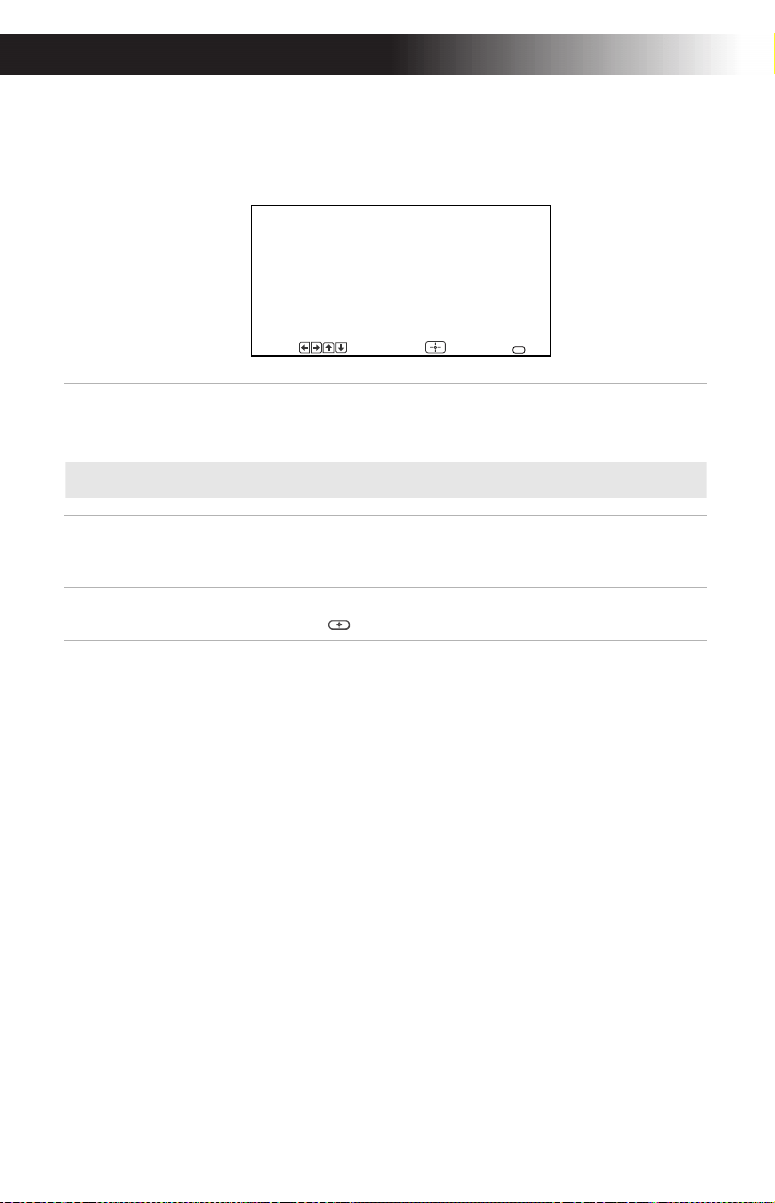
Caption
Vision
Closed-
Captioning
Press F or to select one of the following options:
CC1, 2, 3, 4: Displays printed dialogue and sound effects of a
program.
TEXT1, 2, 3, 4: Displays network/station information.
XDS (Extended Data Services): Displays information about
the network and current program, if available.
OFF: Caption vision is not activated.
Video Label
Label connected
equipment
With the Video Label window open:
1 Press F or to access the input you want to label and
press g or .
2 Press F or to choose a label and press g or .
Language Display all menus in your language of choice.
Use the F or buttons to select desired language and
press g or .
Demo
Press g or to run a demonstration of the on-screen menus.
Caption Vision: CC1
Demo
Video Label
Language: English
Options
Setup
Move Select End
MENU
F
F
F
F
30
Operating Instructions
Options Menu
To access the Options menu, see “To access a menu” on page 17.
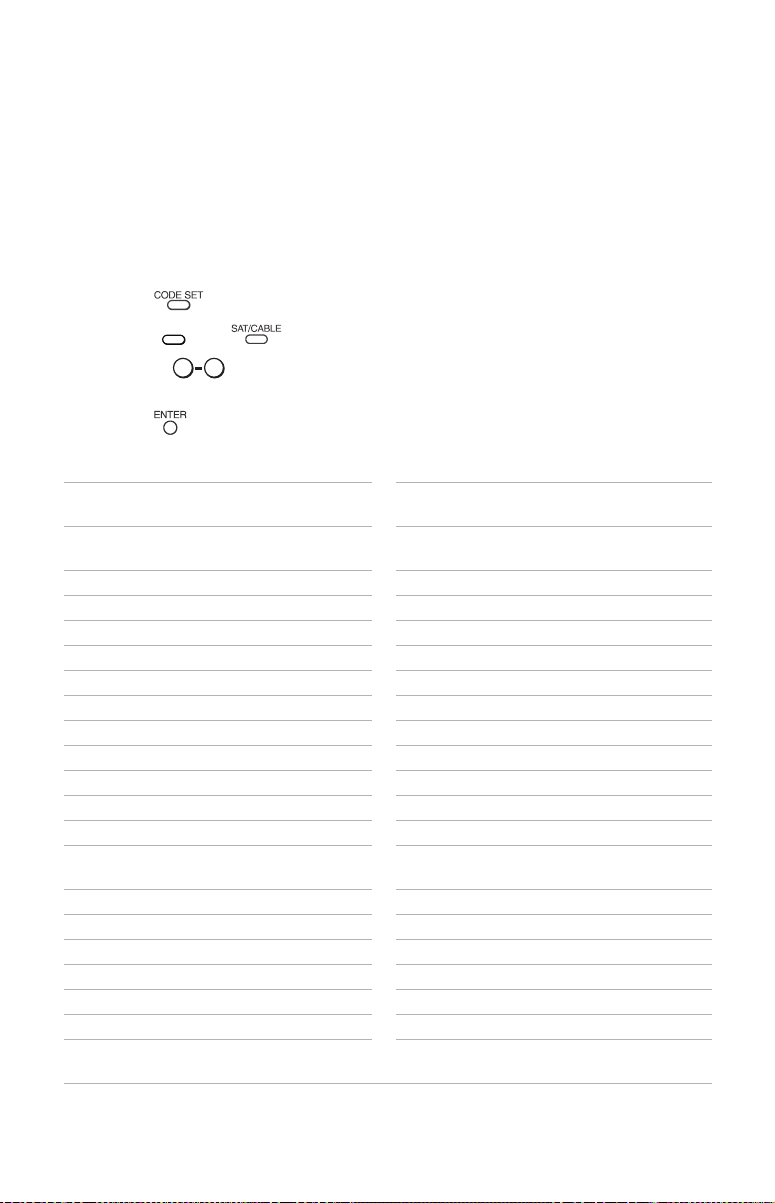
Cable ON: Select if you are receiving cable channels with a CATV
cable.
OFF: Select if you are using a TV antenna.
Auto Program Perform Auto Program whenever setting up your TV.
It will cycle through all available channels and program
receivable channels.
Tilt Correction
Press F or
to correct any tilt of the picture from –5 to +5,
then press g or to activate.
Tilt Correction: 0
Cable: ON
Auto Program
Options
Move Select End
MENU
✍ After changing your cable settings, you will need to perform Auto Program.
F
Other Information
31
Other Information
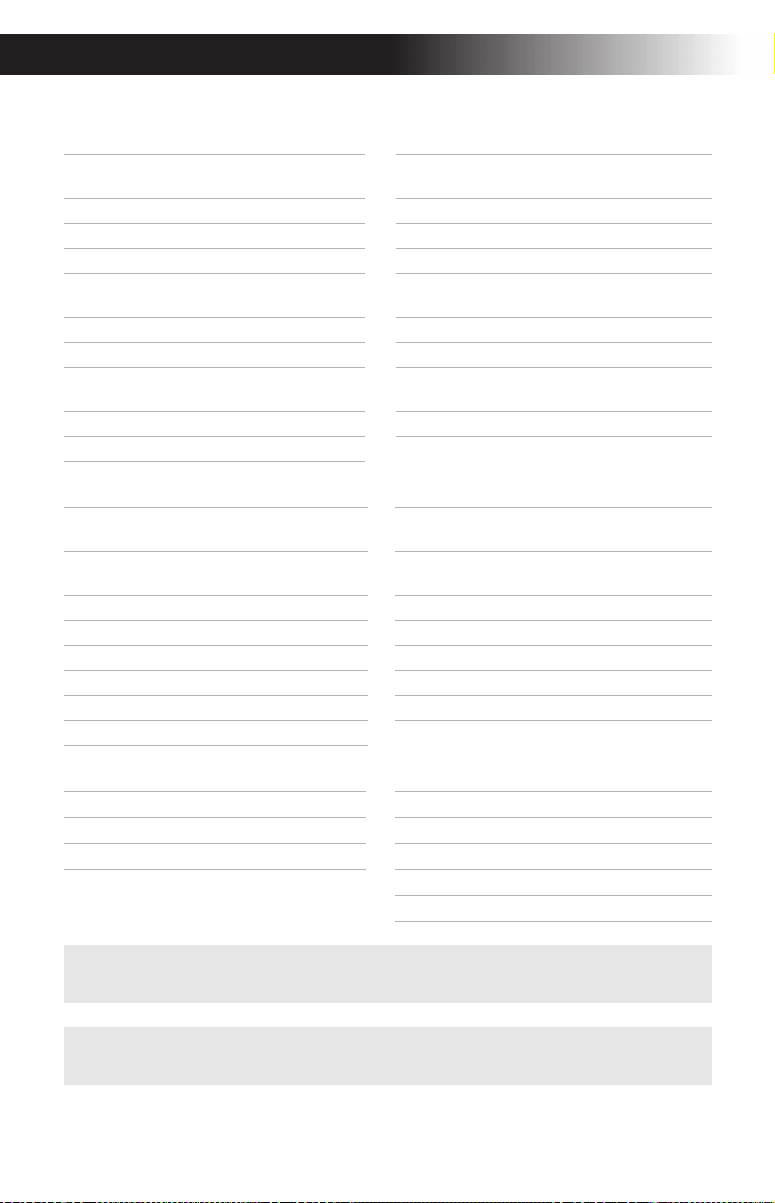
Programming the Remote Control
You can use the supplied remote control to operate Sony and non-Sony
video equipment.
1 Press .
2 Press or (FUNCTION).
3 Use the buttons to key in the code number from the following
chart.
4 Press .
VCR codes
Sony 301, 302, 303 JCPenney 309, 305, 304, 330, 314,
336, 337
Admiral
(M.Ward)
327 JVC 314, 336, 337, 345, 346,
347
Aiwa 338, 344 Kenwood 314, 336, 332, 337
Audio Dynamic 314, 337 LXI (Sears) 332, 305, 330, 335, 338
Broksonic 319, 317 Magnavox 308, 309, 310
Canon 309, 308 Marantz 314, 336, 337
Citizen 332 Marta 332
Craig 302, 332 Memorex 309, 335
Criterion 315 Minolta 305, 304
Curtis Mathis 304, 338, 309 Mitsibishi/MGA 323, 324, 325, 326
Daewoo 341, 312, 309 Multitech 325, 338, 321
DBX 314, 336, 337 NEC 314, 336, 337
Dimensia 304 Olympic 309, 308
Emerson 319, 320, 316, 317, 318,
341
Optimus 327
Fisher 330, 335 Panasonic 308, 309, 306, 307
Funai 338 Pentax 305, 304
General Electric 329, 304, 309 Philco 308, 309
Go Video 322, 339, 340 Philips 308, 309, 310
Goldstar 332 Pioneer 308
Hitachi 306, 304, 305, 338 Quasar 308, 309, 306
Instant Replay 309, 308 RCA/PROSCAN 304, 305, 308, 309, 311,
312, 313, 310, 329
VTR/DVD
0 9
32
Operating Instructions
Realistic 309, 330, 328, 335, 324,
338
Symphonic 338
Sansui 314 Tashiro 332
Samsung 322, 313, 321 Tatung 314, 336, 337
Sanyo 330, 335 Teac 314, 336, 338, 337
Scott 312, 313, 321, 335, 323,
324, 325, 326
Technics 309, 308
Sharp 327, 328 Toshiba 312, 311
Shintom 315 Wards 327, 328, 335, 331, 332
Signature 2000
(M.Ward)
338, 327 Yamaha 314, 330, 336, 337
SV2000 338 Zenith 331
Sylvania 308, 309, 338, 310
Cable Box codes Satellite Receiver codes
Hamlin/Regal 222, 223, 224, 225, 226 Sony 801 (preset code for
remote control)
Jerrold/G. I. 201, 202, 203, 204, 205,
206, 207, 208, 218
General Electric 802
Oak 227, 228, 229 Hitachi 805
Panasonic 219, 220, 221 Hughes 804
Pioneer 214, 215 Panasonic 803
Scientific Atlanta 209, 210, 211 RCA/PROSCAN 802, 808
Tocom 216, 217 Toshiba 806, 807
Zenith 212, 213
Laser Disc Player codes DVD codes
Sony 701 Sony 751
Panasonic 704, 710 Panasonic 753
Pioneer 702 Pioneer 752
RCA 755
Toshiba 754
✍ If more than one code number is listed, try entering them one by one until
you come to the correct code for your equipment.
✍ Whenever you remove the batteries, the code numbers may revert to the
factory setting and must be reset.
VCR codes
Other Information
33
Operating a VCR
Operating a DVD
Operating a Laser Disc
✍ In some rare cases, you may not be able to operate your equipment with the
supplied remote control. In this case, use the equipment’s supplied remote
control.
Press To
Power on the VCR
Select channels directly
Change channels
B Play video tape
x Stop
m or M Search forward or backward
X Pause
z
and B
at the same time
Record
Change between VCR and TV inputs
Press To
Power on the DVD
Select chapters directly
Search chapters forward or backward
B Play DVD
x Stop
X Pause
F, , G,
Move the cursor in the menu
Display the DVD menu
Press To
Power on the laser disc
Search chapters forward or backward
B Play disc
x Stop
X Pause
VTR/DVD
0 9
TV/VTR
VTR/DVD
0 9
G
G
VTR/DVD
34
Operating Instructions
Troubleshooting
If you are having a problem with your TV, try the suggestions below. If
the problem persists, contact your nearest Sony dealer.
No picture, no
sound
❏ Make sure the power cord is plugged in.
❏ If a red light is flashing on the front of your TV for
more than a few minutes, disconnect and reconnect
the power cord to restore the TV. If the problem
continues, call your local service center.
❏ Check the TV/VIDEO settings: when watching TV, set
to TV; when watching video equipment, set to VIDEO
(page 11).
❏ Make sure the batteries have been inserted correctly
into the remote control (page 2).
❏ Try another channel, it could be station trouble.
Poor or no
picture, good
sound
❏ Adjust Picture in the Video menu (page 18).
❏ Adjust Brightness in the Video menu (page 18).
❏ Check the antenna and/or cable connections (page 3).
Good picture,
no sound
❏ Press
so that MUTING disappears from the
screen (page 11).
❏ Check your Audio settings. Your TV may be set to
Auto-SAP (page 20).
No color ❏ Adjust Color in the Video menu (page 18).
Only snow
appears on the
screen
❏ Check the Cable setting in the Options menu under
Setup (page 30).
❏ Check the antenna and/or cable connections (page 3).
❏ Make sure the channel selected is currently
broadcasting.
Dotted lines or
stripes
❏ Adjust the antenna.
❏ Move the TV away from other electronic equipment.
Some electronic equipment can create electrical noise,
which can interfere with TV reception.
Double images
or ghosts
❏ Check your outdoor antenna or call your cable service.
Other Information
35
If, after reading these Operating Instructions, you have additional questions related to the use of your
Sony television, please call our Direct Response Center at 1-800-222-SONY (7669) (U.S. residents
only) or (416) 499-SONY (7669) (Canadian residents only).
Cannot receive
higher number
channels (UHF)
when using an
antenna
❏ Make sure Cable is set to OFF in the Options menu
under Setup (page 30).
❏ Perform Auto Program to add channels that are not
presently in the memory (page 13).
Cable stations
don’t seem to
work
❏ Make sure Cable is set to ON in the Options menu
under Setup (page 30).
❏ Perform Auto Program to add channels that are not
presently in the memory (page 13).
Remote control
does not
operate
❏ Batteries could be weak. Replace them (page 2).
❏ Move the TV 3-4 or more feet away from fluorescent
lights.
The TV needs
to be cleaned
❏ Clean the TV with a soft dry cloth. Never use strong
solvents such as thinner or benzine, which might
damage the finish of the cabinet.
Lost password
for Parental
Control
❏ In the password screen, enter the following master
password: 4357. After using the master password, you
must create a new password, it cannot be used to
unlock currently blocked channels.
You lost your
remote control
❏ You can use the front A/V panel controls to access the
menu.
Press to open the menu. Use the and
buttons on the front A/V panel instead of the F
and buttons on the remote control. Use the
button on the front A/V panel instead of the
G, g, and
buttons on the remote control.
Press again
when the setting or adjustment is complete. Contact
your nearest Sony dealer to order a replacement.
Should you require further assistance, please call the
Sony Technical Support number for your country. One
of Sony’s Technical Support professionals will be
happy to assist you.
MENU
F
MENU
36
Operating Instructions
Specifications
For all models (except as noted)
Design and specifications are subject to change without notice.
Television system American TV standard/NTSC
Channel coverage VHF: 2-13/UHF: 14-69/CATV: 1-125
Antenna 75-ohm external antenna terminal for VHF/UHF
Picture tube
FD Trinitron
®
tube
Power requirements 120V, 60 Hz
Supplied Accessories Size AA (R6) batteries (2)
Remote Control RM-Y168 (1)
Optional Accessories Connecting cables VMC-810S/820S, VMC-720M,
YC-YC-15V/30V, RK74A
EAC-66 U/V mixer
Inputs/outputs 2 video, 2 audio
1 S VIDEO
1 AUDIO OUT
1 headphone jack
KV-20FV12
Screen size Visible screen size: 20 inches (508.0 mm)
measured diagonally
Actual tube size: 21 inches (533.4 mm) measured
diagonally
Speaker output 5 W x 2
Dimensions (W/H/D)
562 x 466 x 503 mm (22
1
/
4
x 18
3
/
8
x 19
7
/
8
in.)
Mass 27 kg (59 lbs. 8 oz.)
Power Consumption 115 W in use
1 W in standby
KV-24FV12
Screen size Visible screen size: 24 inches (598.0 mm)
measured diagonally
Actual tube size: 25 inches (623.4 mm) measured
diagonally
Speaker output 10 W x 2
Dimensions (W/H/D)
652 x 524.3 x 467.3 mm (25
3
/
4
x 20
3
/
4
x 18
3
/
8
in.)
Mass 37 kg (81 lbs. 9 oz.)
Power Consumption 170 W in use
1 W in standby
Index
37
Index
A
Audio menu 19
Audio out 20
Auto Program 13, 30
Auto-SAP 20
B
Balance 19
Bass 19
Battery Installation 2
Brightness 18
C
Cable 30
Cable box code number 32
Caption Vision 29
Channel Fix 21
Channel Label 21
Channel Setup menu 21
Channel Skip/Add 21
Color 18
Code numbers
Cable box
32
DVD 32
Laser Disc Player 32
Satellite Receiver 32
VCR 31, 32
Connections
Cable and antenna
3
Connecting an Audio
System
10
Connecting a Camcorder 9
Connecting a DVD player 9
Connecting Headphones 10
TV and Cable Box 5
TV and VCR 4
TV and Satellite
Receiver
7
TV, Satellite
Receiver, and VCR
8
TV, VCR, and Cable box 6
Current Time 28
D
Daylight Saving 28
Demo 29
DVD code number 32
Satellite Receiver code
number
32
E
Effect 19
OFF 19
Simulated 19
SRS 19
F
Favorite Channel 21
H
Hue 18
L
Language 29
Laser Disc Player code number 32
M
Menus
Audio
19
Channel Setup 21
Bloqueo de Canal 25
Setup 29
Timer 28
Video 18
Mode 18
Vivid 18
Movie 18
Sports
18
Standard 18
MTS 20
Auto-SAP 20
Main 20
Mono 20
O
Options (Audio) 20
Options (Setup) 30
P
Parental Control Menu 25
Picture 18
38
User Guide
Operating Instructions
R
Remote Control 11
S
Setting up the TV
Automatically
13
Setup menu 29
Sharpness 18
Speaker 20
Specifications 38
Steady Sound 19
T
Timer menu 28
Timer 1 and Timer 2 28
Treble 19
Troubleshooting 34
TV Features 1
Tilt Correction 30
V
VCR code number 31, 32
Video menu 18
Video Label 29
VM 18


Connecting Additional Equipment
Sony Corporation Printed in U.S.A.