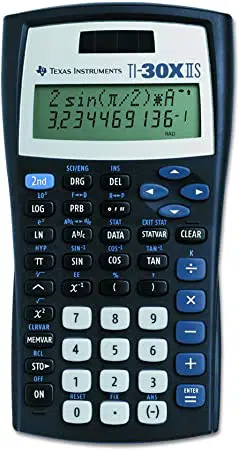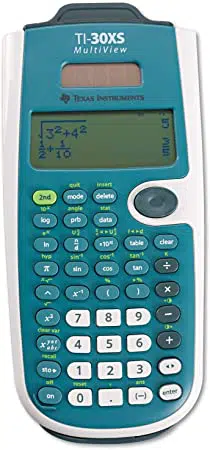

TI-30XS MultiView™
A Guide for Teachers
Developed by
Texas Instruments Incorporated
Activities developed by
Gary Hanson, Aletha Paskett, and Margo Lynn Mankus
Illustrated by
Jay Garrison and David Garrison

ii TI-30XS MultiView: A Guide For Teachers © 2006 TEXAS INSTRUMENTS INCORPORATED
About the authors
Gary Hanson
and
Aletha Paskett
are math teachers in the Jordan Independent School District
in Sandy, Utah. They developed several of the activities and assisted in evaluating the
appropriateness of the examples in the How to use the
TI-30XS MultiView™
section of this
guide.
Margo Lynn Mankus
currently works in Mathematics and Technology Education at the State
University of New York at New Paltz. She has reviewed and updated the materials for the
TI-30XS MultiView
and developed several activities for this guide.
Important notice regarding book materials
Texas Instruments makes no warranty, either express or implied, including but not limited to any
implied warranties of merchantability and fitness for a particular purpose, regarding any programs or
book materials and makes such materials available solely on an “as-is” basis. In no event shall Texas
Instruments be liable to anyone for special, collateral, incidental, or consequential damages in
connection with or arising out of the purchase or use of these materials, and the sole and exclusive
liability of Texas Instruments, regardless of the form of action, shall not exceed the purchase price of
this product. Moreover, Texas Instruments shall not be liable for any claim of any kind whatsoever
against the use of these materials by any other party.
Permission is hereby granted to teachers to reprint or photocopy in classroom, workshop, or seminar
quantities the pages in this work that carry a Texas Instruments copyright notice. These pages are
designed to be reproduced by teachers for use in their classes, workshops, or seminars, provided
each copy made shows the copyright notice. Such copies may not be sold, and further distribution is
expressly prohibited. Except as authorized above, prior written permission must be obtained from
Texas Instruments Incorporated to reproduce or transmit this work or portions thereof in any other
form or by any other electronic or mechanical means, including any information storage or retrieval
system, unless expressly permitted by federal copyright law. Send inquiries to this address:
Texas Instruments Incorporated
7800 Banner Drive, M/S 3918
Dallas, TX 75251
Attention: Manager, Business Services
Copyright © 1999, 2000, 2006 Texas Instruments Incorporated. Except for the specific rights
granted herein, all rights are reserved.
Printed in the United States of America.
MultiView, MathPrint, Automatic Power Down, APD, and EOS are trademarks of Texas Instruments
Incorporated.

Table of contents
© 2006 TEXAS INSTRUMENTS INCORPORATED TI-30XS MultiView: A Guide For Teachers iii
CHAPTER PAGE CHAPTER PAGE
About the teacher guide v
About the TI-30XS MultiView™
calculator vi
Activities
Star voyage
Scientific notation 3
Heart rates
1-variable statistics 7
At the movies
Data formulas at the box office 13
Name that rule
Algebraic expressions 21
How to use the TI-30XS MultiView
calculator
1 TI-30XS MultiView basic operations 29
2 Clearing and correcting 41
3 Basic math 45
4 Order of operations and
parentheses 49
5 Numeric notation 55
6 Fractions 59
7 Decimals and decimal places 65
8 Constant 67
9 Memory and stored variables 71
10 Data editor and list formulas 79
How to use the TI-30XS MultiView
calculator
(Continued)
11 Statistics 83
12 Probability 89
13 Function table 97
14 Powers, roots, and reciprocals 101
15 Logarithms and
exponential functions 109
16 Pi 113
17 Angle settings and conversions 117
18 Polar and rectangular
conversions 121
19 Trigonometry 123
20 Hyperbolics 131
Appendix A
Quick reference to keys A-1
Appendix B
Display indicators B-1
Appendix C
Error messages C-1
Appendix D
Support and service information D-1
Appendix E
Battery information E-1

iv TI-30XS MultiView: A Guide For Teachers © 2006 TEXAS INSTRUMENTS INCORPORATED
About the teacher guide
© 2006 TEXAS INSTRUMENTS INCORPORATED TI-30XS MultiView: A Guide For Teachers v
How the teacher guide is organized
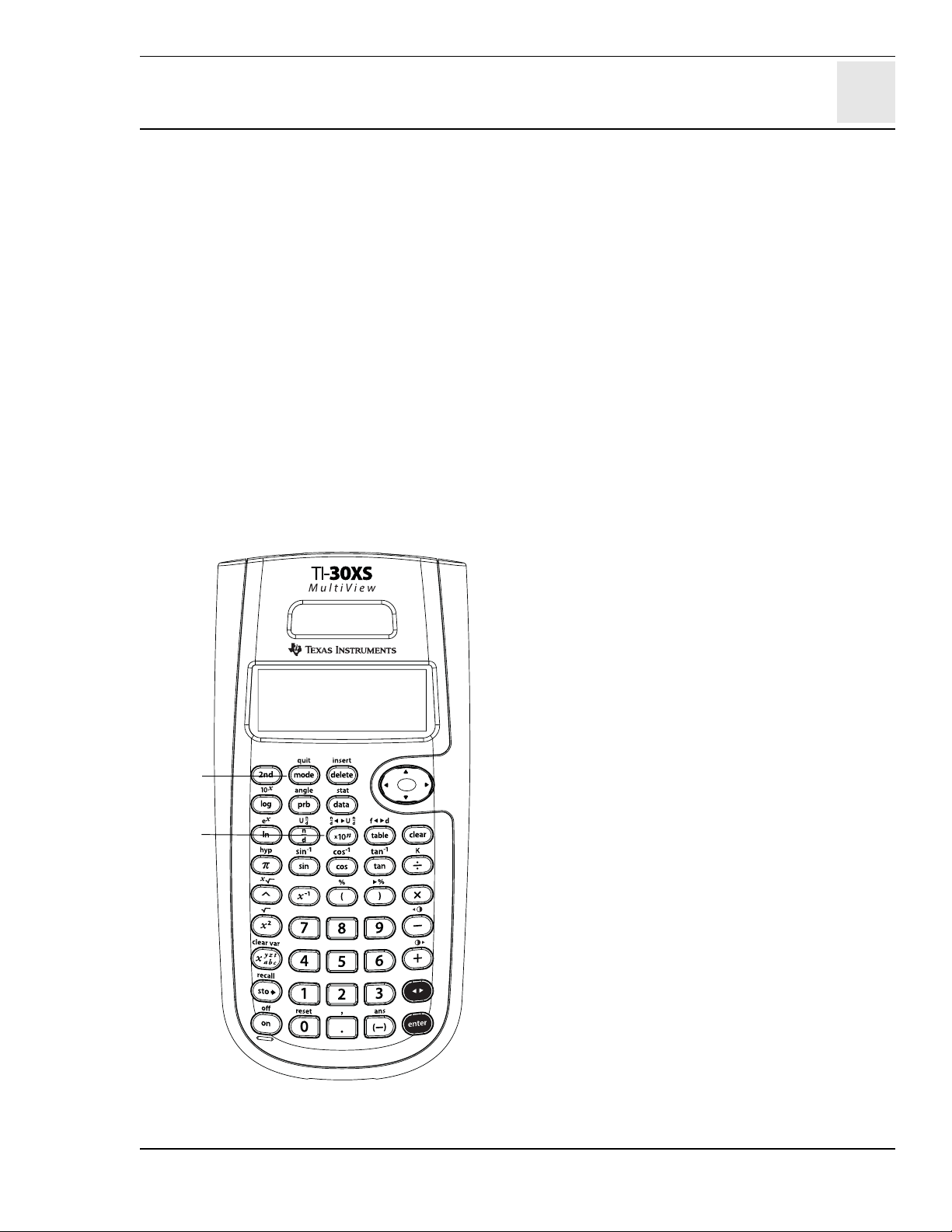
This guide is for the TI-30XS MultiView™ and
TI-30XB MultiView scientific calculators. All
subsequent references in this guide refer to the
TI-30XS MultiView, but are also applicable for the
TI-30XB MultiView.
This guide consists of two sections: Activities
and How to use the TI-30XS MultiView
calculator. The Activities section is a collection
of activities for integrating the
TI-30XS MultiView into mathematics instruction.
The How to use the TI-30XS MultiView
calculator section is designed to help you teach
students how to use the calculator.
Each section uses the default settings, including
the MathPrint™ mode, unless indicated
otherwise.
Activities
Each activity is self-contained and includes the
following:
• An overview of the mathematical purpose of
the activity.
• The mathematical concepts being developed.
• The materials needed to perform the activity.
• The detailed procedure, including step-by-
step TI-30XS MultiView key presses.
• A student activity sheet.
How to use the TI-30XS MultiView
This section contains examples on transparency
masters. Chapters are numbered and include the
following.
• An introductory page describing the
calculator keys presented in the example, the
location of those keys on the
TI-30XS MultiView, and any pertinent notes
about their functions.
• Transparency masters following the
introductory page provide examples of
practical applications of the key(s) being
discussed. The key(s) being discussed are
shown in black on the TI-30XS MultiView
keyboard. The mode settings for the example
are also shown.
Reset the TI-30XS MultiView
• You can ensure that everyone starts at the
same point by having students reset the
calculator: Press & and -
simultaneously or press % and then
select 2 (Yes).
Conventions used in the teacher guide
• In the text, brackets [ ] around a key's
symbol/name indicate that the key is a
second, or alternate, function.
For example: %Z
How to order additional teacher guides
To place an order or to request information about
Texas Instruments (TI) calculators, use our
e-mail address: [email protected], visit our home
page: education.ti.com, or call our toll-free
number:
1-800-TI-CARES (1-800-842-2737)
vi TI-30XS MultiView: A Guide For Teachers © 2006 TEXAS INSTRUMENTS INCORPORATED
Home screen
On the Home screen, you can enter mathematical
expressions and functions, along with other
instructions. The answers are displayed on the
Home screen. The TI-30XS MultiView screen can
display a maximum of four lines with a maximum
of 16 characters per line. For entries and
expressions of more than 16 characters, you can
scroll left and right (! and ") to view the entire
entry or expression.
When you press %Q, the TI-30XS MultiView
calculator returns you to a blank Home screen.
Press # and $ to view and reuse previous
entries. (See Previous Entries, page vii.)
In the MathPrint™ mode, you can enter up to
four levels of consecutive nested functions and
expressions, which include fractions, square
roots, exponents with ^, , e
x
, and 10
x
.
When you calculate an entry on the Home screen,
depending upon space, the answer is displayed
either directly to the right of the entry or on the
right side of the next line.
Display indicators
Refer to Appendix B for a list of the display
indicators.
Order of operations
The TI-30XS MultiView uses the Equation
Operating System (EOS™) to evaluate
expressions. The operation priorities are listed on
the transparency master in Chapter 4, Order of
operations and parentheses.
Because operations inside parentheses are
performed first, you can use D E to change the
order of operations and, therefore, change the
result.
Mode
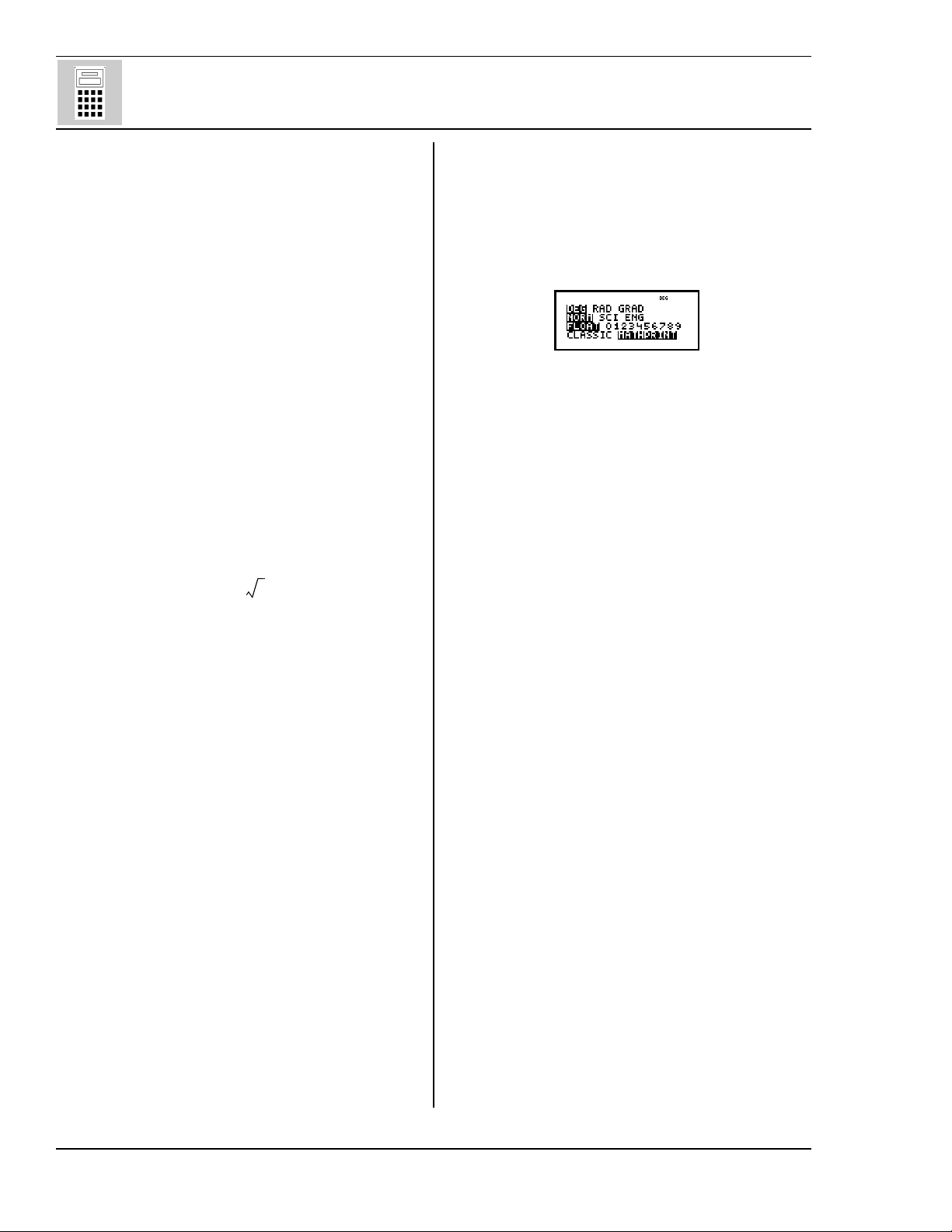
Use pto choose modes. Press $ # ! " to
choose a mode, and < to select it. Press -
or %Q to return to the Home screen and
perform your work using the chosen mode
settings. Default settings are shown.
Classic mode displays inputs and outputs in a
single line.
MathPrint mode displays most inputs and
outputs in textbook format. Use MathPrint mode
for better visual confirmation that math
expressions have been entered correctly and to
better reinforce the correct math notation.
Note: Switching the mode between Classic and
MathPrint clears calculator history and the
Constant value.
2nd functions
Pressing % displays the 2nd indicator, and
then accesses the function printed above the
next key pressed. For example, %b 25 <
calculates the square root of 25 and returns the
result, 5.
y
x
About the TI-30XS MultiView™ calculator
© 2006 TEXAS INSTRUMENTS INCORPORATED TI-30XS MultiView: A Guide For Teachers vii
Menus
Certain keys display menus: H, %I, v,
%t, %, %h, and %{.
Press " or $ to scroll and select a menu item,
or press the corresponding number next to the
menu item. To return to the previous screen
without selecting the item, press -. To exit a
menu or application and return to the Home
screen, press %Q.
Previous entries # $
After an expression is evaluated, use # and $
to scroll through previous entries, which are
stored in the TI-30XS MultiView history. You can
reuse a previous entry by pressing < to paste
it on the bottom line, and then editing and
evaluating a new expression.
Answer toggle n
The toggle key displays the last calculated result
into different output formats, where possible.
Press n to toggle between fraction and decimal
answers, exact square root and decimal, and
exact pi and decimal.
Last answer (Ans)
The most recently calculated result is stored to
the variable Ans. Ans is retained in memory, even
after the TI-30XS MultiView is turned off. To
recall the value of Ans:
•Press % i (Ans displays on the screen),
or
• Press any operation key (T, U, and so forth)
as the first part of an entry. Ans and the
operator are both displayed.
Resetting the TI-30XS MultiView
Pressing & and - simultaneously or
pressing % and then selecting 2 (Yes)
resets the calculator.
Resetting the calculator:
• Returns settings to their defaults —
standard notation (floating decimal) and
degree (DEG) mode.
• Clears memory variables, pending operations,
entries in history, statistical data,
constants, and Ans (Last answer).
Note: The examples on the transparency
masters assume all default settings.
Automatic Power Down™ (APD™)
If the TI-30XS MultiView remains inactive for
about 5 minutes, the APD feature turns it off
automatically. Press & to restore power. The
display, pending operations, settings, and
memory are retained.
Error messages
Refer to Appendix C for a listing of the error
messages.
About the TI-30XS MultiView™ (Continued)

viii TI-30XS MultiView: A Guide For Teachers © 2006 TEXAS INSTRUMENTS INCORPORATED

© 2006 TEXAS INSTRUMENTS INCORPORATED TI-30XS MultiView: A Guide For Teachers 1
Activities
Star Voyage —
Scientific notation 3
Heart Rates —
1-variable statistics 7
At the movies —
Data formulas at the box office 13
Name that rule —
Algebraic expressions 21

2 TI-30XS MultiView: A Guide For Teachers © 2006 TEXAS INSTRUMENTS INCORPORATED

© 2006 TEXAS INSTRUMENTS INCORPORATED TI-30XS MultiView: A Guide For Teachers 3
Overview
Students investigate scientific notation by changing
numbers into scientific notation, and then using them in
calculations.
Math Concepts
• scientific notation
•addition
• division
Materials
• TI-30XS MultiView™
• pencil
• student activity
Introduction
Set up the activity by telling your students:
The standard form for scientific notation is
a
aa
a
¿
10
1010
10
n
nn
n
,where a
aa
a is greater than or equal to 1 and
less than 10, and n
nn
n is an integer.
1. Have students practice writing the following
numbers in scientific notation using pencil and
paper.
a. 93 000 000
9.3
¿
10
7
b. 384 000 000 000
3.84
¿
10
11
c. 0.00000000000234
2.34
¿
10
-12
d. 0.0000000157
1.57
¿
10
-8
2. Have students change the following numbers into
scientific notation (SCI) using the
TI-30XS MultiView scientific calculator.
a. 12 000 000
1.2
¿
10
7
b. 974 000 000
9.74
¿
10
8
c. 0.0000034
3.4
¿
10
-6
d. 0.000000004
4
¿
10
-9
Note:
Note:Note:
Note: Answers assume the default floating decimal setting.
3. Have students change the following numbers into
standard (NORM) notation.
a. 5.8
¿ 10
7
58 000 000
b. 7.32 ¿ 10
5
732 000
c. 6.2 ¿ 10
-6
0.0000062
d. 3 ¿ 10
-8
0.00000003
Note:
Note:Note:
Note: To enter a negative number, press M and then enter
the number.
³ Follow these steps:
1. Enter the first number, 12000000.
2. Press
p.
3. Press
$ " < - <to
display the number in scientific
notation.
1.2Ã
ÃÃ
Ã10
7
³ Follow these steps:
1. Enter 5.8; press
C.
2. Enter 7; press
p.
3. Press
$ < - <.
58000000
Star voyage — scientific notation

4 TI-30XS MultiView: A Guide For Teachers © 2006 TEXAS INSTRUMENTS INCORPORATED
³ Students can learn more about this
topic by visiting NASA web sites
on the Internet.
Activity
Present the following problem to students:
You are a captain of a starship in the distant
future. You have been assigned to go to Alpha
Centauri and you have 5 years to get there. The
distance from our sun to Alpha Centauri is
2.5 x 10
13
miles. The distance from the earth to our
sun is approximately 9.3 x 10
7
miles.
Although we have not yet discovered how to travel
at the speed of light, you live in a time where your
ship can travel at the speed of light.
Light travels the approximate distance of 6 x 10
12
miles in 1 light year. You will take a path from
earth by our sun and then on to Alpha Centauri.
Will you be able to get to Alpha Centauri on time?
Procedure
1. Using the TI-30XS MultiView™ calculator, find
the total distance you need to travel.
2.5
¿
10
13
+ 9.3
¿
10
7
= 2.5000093
¿
10
13
miles
2. Next, find out how long it will take you to travel
the distance. (Distance traveled
¾ 1 light year)
years
3. Can you make the trip in the allotted time of
5years?
Yes, if your ship really could travel at the speed of
light.
Extension
Light travels at 186,000 miles per second. A light
year is the distance that light can travel in a year.
Have students convert one light year to miles
traveled per light year.
We approximate this value using 6x10
12
miles in 1
light year in this activity.
Answer to student extension: It will take the starship
approximately 15 years to get to Delta Centauri.
2.5000093 10
13
×
610
12
×
---------------------------------------------
4.1666821672
=
186 000miles,
1sec
-------------------------------------
60sec
1min
--------------
60min
1hr
----------------
××
24hrs
1day
--------------
×
365days
1year
---------------------
×
5.87 10
12
miles×
1year
------------------------------------------
≈
Hint: Make sure the TI-30XS MultiView
calculator is in MathPrint™ mode to work
this problem.
Hint:
The Earth is approximately 9.3 x 10
7
miles from the Sun.
³ Follow these steps:
1. Press 2.5
C13 " T 9.3 C
7
<.
2.5000093Ã
ÃÃ
Ã10
13
2. Press %i q 6 C
12
<.
4.166682167
Star voyage — scientific notation (Continued)
³ Depending on the problem, remind
students to include parentheses
where needed to ensure the intended
order of operations.
Example:
(2.5000093 x 10
13
) ¾ (6 x 10
12
)
must include the parentheses in
order to get the correct result.

Name ___________________________
Date ___________________________
© 2006 TEXAS INSTRUMENTS INCORPORATED TI-30XS MultiView: A Guide For Teachers 5
Problems
1. Write the following numbers in scientific notation.
Standard Notation Scientific Notation
a. 93 000 000 __________________________
b. 384 000 000 000 __________________________
c. 0.00000000000234 __________________________
d. 0.0000000157 __________________________
2. Using the TI-30XS MultiView™ calculator, change the following numbers into
scientific notation using SCI mode.
Standard Notation Scientific Notation
a. 12 000 000 __________________________
b. 974 000 000 __________________________
c. 0.0000034 __________________________
d. 0.000000004 __________________________
3. Using the TI-30XS MultiView calculator, change the following numbers into
standard decimal notation using NORM mode.
Scientific Notation Standard Notation
a. 5.8 ¿ 10
7
_________________________
b. 7.32 ¿ 10
5
_________________________
c. 6.2 ¿ 10
-6
_________________________
d. 3 ¿ 10
-8
_________________________
Star voyage —
scientific notation
Name ___________________________
Date ___________________________
6 TI-30XS MultiView: A Guide For Teachers © 2006 TEXAS INSTRUMENTS INCORPORATED
Problem
You are a captain of a starship in the distant future. You have been assigned to go to
Alpha Centauri and you have 5 years to get there. The distance from our sun to
Alpha Centauri is 2.5 x 10
13
miles. The distance from the earth to our sun is
approximately 9.3 x 10
7
miles.
Although we have not yet discovered how to travel at the speed of light, you live in a
time where your ship can travel at the speed of light.
Light travels the approximate distance of 6 x 10
12
miles in 1 light year. You will take
a path from earth by our sun and then on to Alpha Centauri. Will you be able to get
to Alpha Centauri on time?
Procedure
1. Using the TI-30XS MultiView™ calculator, find the total distance that you need
to travel. For this rough estimate, assume that you are measuring the distance as
a straight line from the earth to our sun and then on to Alpha Centauri.
____________________________________________________________________________
Hint: Make sure your calculator is in scientific notation mode before you begin the calculation.
Next, find out how long it will take you to travel the distance.
(Distance traveled ¾ 1 light year)
Hint: Make sure you use parentheses if needed in order to get the correct result for this division problem.
_________________________________________________________________
_________________________________________________________________
2. Can you make the trip in the allotted time of 5 years?
_________________________________________________________________
Extension
Now that you have been successful, you have been asked to make another trip. The
distance from the Sun to Delta Centauri is 9 x 10
13
miles. How long will it take you to
get there from Earth?
Hint: The Earth is approximately 9.3 ¿ 10
7
miles from the Sun.
Your trip on this starship is fictitious. If you are
interested in finding out more about the nearest
star and cosmic distances, visit NASA web sites on
the Internet.
Star voyage —
scientific notation
© 2006 TEXAS INSTRUMENTS INCORPORATED TI-30XS MultiView: A Guide For Teachers 7
Overview
Students use the data editor and statistics function
of the TI-30XS MultiView™ calculator to investigate
the effect of exercise on heart rate.
Math Concepts
• mean, minimum,
maximum, and
range
Materials
• TI-30XS MultiView
• stopwatch or a
watch with a
second hand
• student activity
Introduction
Students may be placed in smaller groups for this
activity to minimize the amount of data to be
entered. Ask students:
• What do you think the average heart rate is for
someone your age?
• What about after exercising?
Activity
Have students complete the following investigation
to check their estimations.
1. Have students check their resting heart rate by
timing their pulse for 1 minute. (You could have
them time for 10 seconds and then multiply by 6,
but this could be the quietest minute of your day!)
2. Collect data on the chart. Enter each student’s
heart rate and a mark in the frequency column.
As other students have the same heart rate, add
another tally mark in the frequency column.
3. Enter the heart rate data into the
TI-30XS MultiView scientific calculator.
a. Enter the first heart rate on the chart in L1,
and the number of tallies for that heart rate
in L2. You will use L2 as the frequency.
b. You must press
$ between entries. For
example, enter the first heart rate, and then
press
$.
c. For example, assume a class of 22 students:
Rate Students Rate Students
603633
615641
626654
³ Follow these steps:
1. Press
v to enter the heart rates
and frequencies. Enter the heart
rates in L1 and the frequencies in
L2. Press
$ between entries, and
" to get from L1 to L2.
2. Continue entering until you have
entered all the heart rates and
frequencies.
3. Press
% t.
4. Press 1 to choose 1-var stats.
5. Choose L1 for the data, and L2 for
the frequency.
6. Press
$< to view the data.
Heart rates — 1-variable statistics

8 TI-30XS MultiView: A Guide For Teachers © 2006 TEXAS INSTRUMENTS INCORPORATED
4. Check the statistics calculations. After students
display
Òx (Sigma x), explain that Òx is the sum
of all the heart rates. Ask students:
• How many heartbeats were entered from all
of the student in one minute? This is
Òx
.
• How many students were entered? This is n
nn
n.
• How can we calculate the average heart rate?
This is
Ï
.
• Is the average heart rate higher or lower than
you expected?
5. Now we will see the effect of some exercise on
heart rate. To accommodate various student's
needs, pair students with other students who will
be able to complete the task. Also consider
designing some task that an individual student
can safely undertake to raise their heart rate. Tell
students:
If at any point during this portion of the activity
you experience pain, weakness, or shortness of
breath, stop immediately.
6. Have the students run in place for 2 minutes and
then give them these instructions:
a.
Time your pulse for 1 minute.
b.
Record your heart rate as before.
c. Enter the data into the calculator.
d. Compare the average heart rate after running
with the resting heart rate.
7. Now have the students do jumping jacks for 2
minutes. Instruct them to time their pulse for 1
minute again and record as before. Have them
enter the data into the calculator again and
calculate the average heart rate after jumping
jacks. Compare to the other 2 averages.
8. Instruct students to make a bar graph of the 3
sets of data they collected. Ask students:
• How are the bar graphs the same?
• How are they different?
• Is the data grouped the same, or is it more
spread out in one graph compared to another?
Σx
n
------
62.27272727=
³ Follow these steps:
1. View the statistical data.
n should equal the total number of
students sampled. For this example,
n = 22.
2. Press
$ to Ï to see the average
heart rate.
Ï = 62.27272727
3. Press
$ until you see Òx.
Òx = 1370
Note: The numbers show the results
for the example described in this
activity. Your students’ results will
vary depending on the size of the
group and the heart rate readings.
Heart rates — 1-variable statistics (Cont.)

Name ___________________________
Date ___________________________
© 2006 TEXAS INSTRUMENTS INCORPORATED TI-30XS MultiView: A Guide For Teachers 9
Problem
What do you think the average heart rate is for someone your age? What about after
exercising?
Procedure
1. Use this table to record your class or group data (resting).
2. What is the class (group) average? ________________________________________
3. Answer the following questions from the data:
a. What is the total number of heartbeats for the minute? Write the symbol and
the number from the calculator. ________________________________________
b. What is the total number of student’s heartbeats entered? Write the symbol
and the number from the calculator. ___________________________________
c. How would you compute the average heart rate? ________________________
Is your answer the same as in question 2? _______________________________
Heartbeats per minute
(resting)
Frequency
Heart rates —
1-variable statistics
Name ___________________________
Date ___________________________
10 TI-30XS MultiView: A Guide For Teachers © 2006 TEXAS INSTRUMENTS INCORPORATED
4. Use this table to record your class or group data (running).
5. What is the class (group) average? _______________________________________
6. Answer the following questions from the data:
a. What is the total number of heartbeats for the minute? Write the symbol and
the number from the calculator. ______________________
b. What is the total number of student’s heartbeats entered? Write the
symbol and the number from the calculator.
___________________________________________________
c. How would you compute the average heart rate?
___________________________________________________
Is your answer the same as in question 5? _____________
Heartbeats per minute
(running)
Frequency
Heart rates —
1-variable statistics
Name ___________________________
Date ___________________________
© 2006 TEXAS INSTRUMENTS INCORPORATED TI-30XS MultiView: A Guide For Teachers 11
7. Use this table to record your class or group data (jumping).
8. What is the class (group) average? _______________________________________
9. What is the total number of heartbeats for the minute? ____________________
10.Answer the following questions from the data:
a. What is the total number of heartbeats for the minute? Write the symbol and
the number from the calculator. ______________________________________
b. What is the total number of student’s heartbeats entered? Write the symbol
and the number from the calculator. __________________________________
c. How would you compute the average heart rate? _______________________
Is your answer the same as in question 8? ______________________________
Heartbeats per minute
(jumping)
Frequency
Heart rates —
1-variable statistics

Name ___________________________
Date ___________________________
12 TI-30XS MultiView: A Guide For Teachers © 2006 TEXAS INSTRUMENTS INCORPORATED
11. Make a bar graph for each of the 3 sets of data you collected.
Resting Running Jumping
12.How are the bar graphs the same? How are they different? _________________
_______________________________________________________________________
_______________________________________________________________________
13.Is the data grouped the same or is it more spread out in one graph compared to
another? _______________________________________________________________
_______________________________________________________________________
_______________________________________________________________________
Heart rates —
1-variable statistics
© 2006 TEXAS INSTRUMENTS INCORPORATED TI-30XS MultiView: A Guide For Teachers 13
Overview
Students investigate a table of values and observe
patterns in the table. Students use v on the
TI-30XS MultiView™ calculator to enter data into a list
and test their generalizations.
Math Concepts
• patterns
•algebraic
expressions
• linear functions
•variables
Materials
• TI-30XS MultiView
• pencil
• graph paper
• student activity
Introduction
The warm up question is given to help you launch the
student sheet activity. You can skip the warm up
activity but you will have to provide more guidance
during the investigation of the problem on the
student sheet.
Warm up
Guide students in the use of tables and v to see a
pattern and write a generalization. Present the
following story problem.
Every Wednesday, Keisha gets home from work too
late to walk her dog, Max. She asked her neighbor
Kyle to walk her dog after he comes home from
school. Kyle is happy to help! Keisha pays Kyle $4
each week to walk Max. Kyle likes to save his money.
Create a table of how much money Kyle has each
week for 5 weeks.
Guide students to create the following table on their
papers. You can think of this table as a data list of
two numbers which depend on each other. It is
important to have students write their calculation
and outcome in the Money (output) column in order
to see any patterns. This helps them to write
algebraic sentences from the words and to make
generalizations using inductive reasoning.
Use these columns for different
learning styles if needed.
Week Money Repeated addition Adding on
11x4=4 4=4 4=4
2 2x4=8 4+4=8 4+4=8
3 3x4=12 4+4+4=12 8+4=12
4 4x4=16 4+4+4+4=16 12+4=16
5 5x4=20 4+4+4+4+4=20 16+4=20
At the movies — data formulas at the box office

14 TI-30XS MultiView: A Guide For Teachers © 2006 TEXAS INSTRUMENTS INCORPORATED
Point out that the Money column looks like the
multiplication table for the number 4. This connects
them back to something familiar. Remind the
students that they know that Kyle earns $4 per
week. This is the rate of Kyle's savings and it can be
written in fractional form as
Ask the students to fill in more of the table
describing how much Kyle will save. Have them fill
in the table for weeks 6 and 7, and then ask if they
can determine the amount of money for 10 weeks, 25
weeks, and 100 weeks. Finally, ask them if they could
fill in the amount of money after some number of
weeks. Call the unknown number of weeks a variable
and use the letter W to represent weeks. Use the
variable M to represent money.
All of this investigation should be done
without
the
calculator for these basic multiplication facts. If
students need support with their multiplication,
encourage looking up facts in a chart rather than
using the calculator, to promote mental math and
appropriate calculator use.
Ask students to write the expression for the
calculation using W,
x
, and 4.*
(Answer: W x 4)
Week (W) Money (M)
11x4=4
22x4=8
33x4=12
44x4=16
55x4=20
66x4=24
77x4=28
10 10x4=40
25 25x4=100
WWx4*
At the movies (Continued)
$4
rate =
1 week
© 2006 TEXAS INSTRUMENTS INCORPORATED TI-30XS MultiView: A Guide For Teachers 15
Ask the students the following:
"If you calculate W weeks times $4, you get a
number. What does that number mean to Kyle?" You
are prompting the student to say Money (M) and lead
them into writing the formula or sentence in two
variables, M = W x 4. Typically, you write the number
and then the letter with implied multiplication.
Remind students that multiplication is commutative
so M = W x 4 = 4 x W = 4W.
Support the investigation using the data editor
( v) on the TI-30XS MultiView™ calculator by
having the students look at many values of their
algebraic expression to see if they match the table
they created.
1. Have students enter their table into the data list.
Notice there are three lists available: L1, L2, and
L3.
Discuss that they will enter the Week (W) values
in L1.
2. Have the students enter the first three values of
W from their table, {1, 2, 3}.
3. Enter a formula to validate the work: L2 = 4 x L1.
Notice that W = L1 and M = L2.
4. Add input to L1 to see L2 update automatically
with the output value of the formula. Scroll to an
open entry space in L1. Ask them to check their
table for 4 weeks and then 100 weeks.
Before starting the group investigation on the
student sheet, have the students clear the data in the
lists.
(Continued)
³ Make sure all students have their
calculator mode set as shown:
To return to the Home screen, press
-.
1. Enter the first three values of W:
v 1 $ 2 $ 3 $.
2. Enter the formula:
" v " 1
4 V v 1 <.
3. Add input to L1:
! $ $ $
4 <
100 <.
4. To view the formula in L2 again,
press
" v " 1.
5. Edit the formula, if desired, and
press < to set the formula again.
6. To clear data, press
v 4.
At the movies (Continued)
³ Hint: Remember that pressing %Q
takes you back to the Home screen.
³ Remind students that for this
activity they are using the
features in vand not o.
³ If students are not familiar with the
TI-30XS MultiView calculator, have
them turn on the calculator and press
p.
16 TI-30XS MultiView: A Guide For Teachers © 2006 TEXAS INSTRUMENTS INCORPORATED
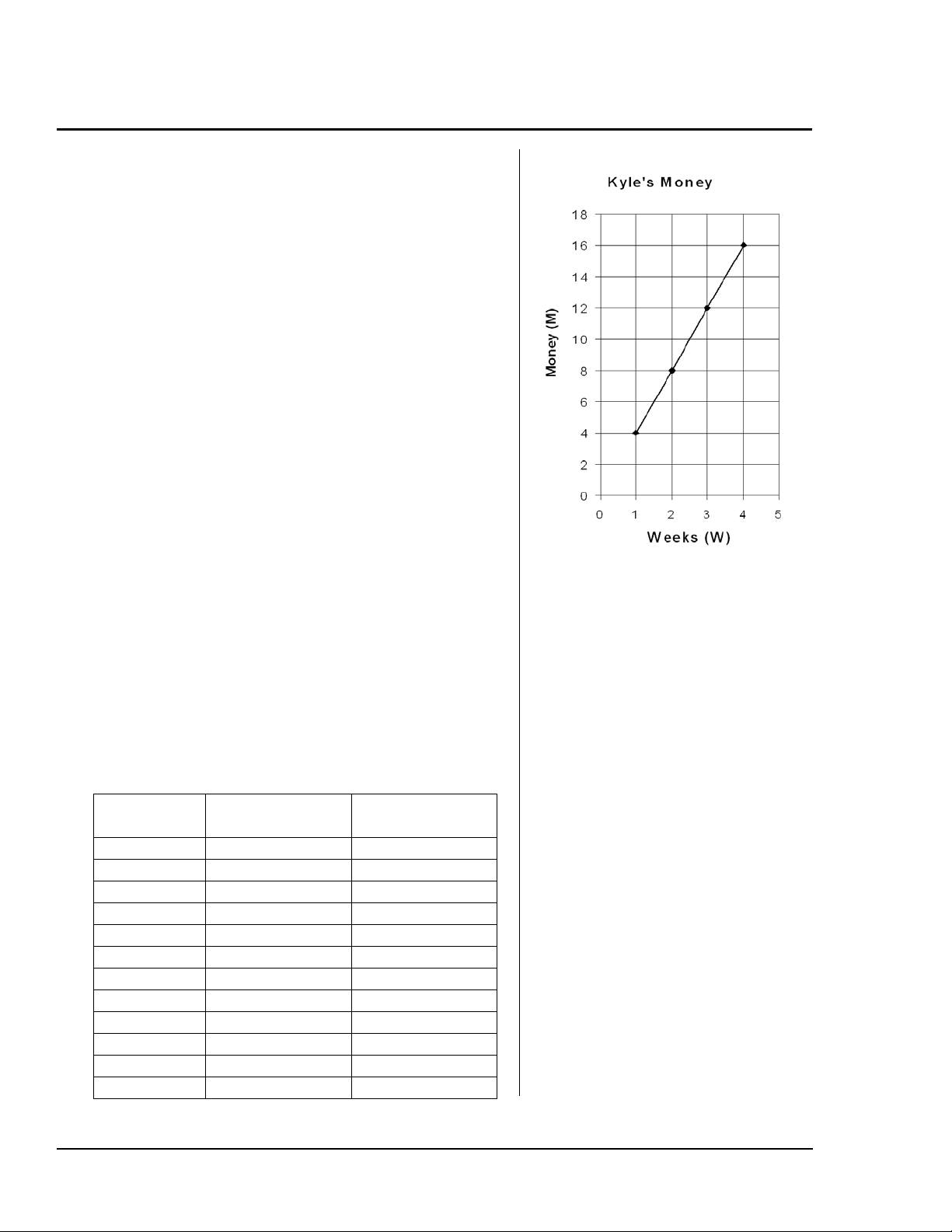
The students now have taken data from words to a
table of values, to a pattern they can view, to writing
an algebraic expression. The next step is to show
them a view of how the number pattern plots on a
graph. What is the shape of M = 4W? Have students
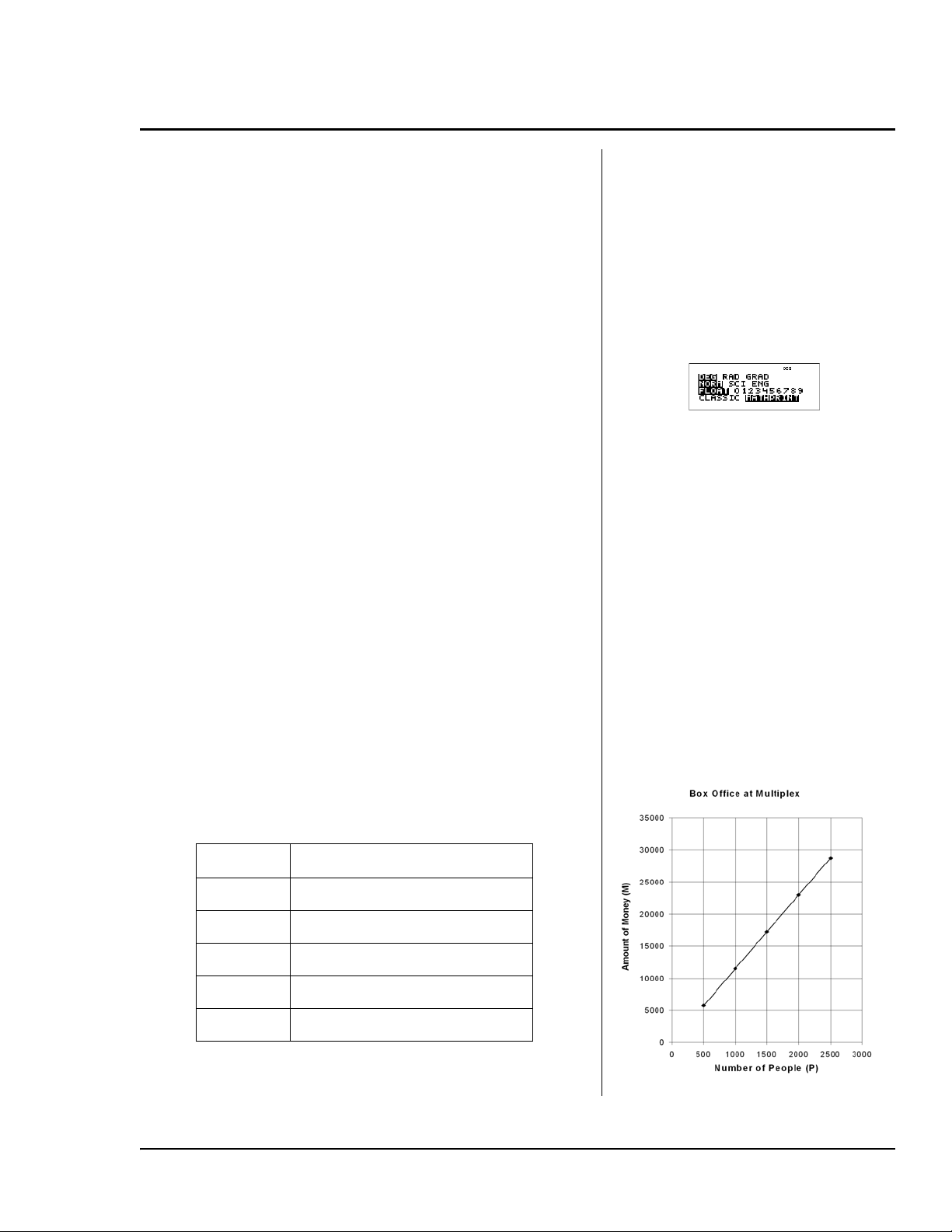
plot the first 4 points in the table. Notice the points
fall on a straight line. You can mention that they can
describe the increase of Money (M) as "for every 1
week (W) Kyle works, his amount of money (M)
increases by $4." This is an obvious statement but
sets the foundation for talking about rates and how
they affect the tilt of a line (slope).
The number of weeks and amount of money are both
positive so the graph makes sense in the first
quadrant. Have your students use graph paper to
make the graphs of their data.
Activity
Students repeat a similar investigation in groups
looking at patterns to write algebraic expressions
and sentences. They also create a graph of the values
in the table. Have students read the problem on the
student sheet before breaking up into groups so they
understand their task.
Students fill in the table using mental math. They
write all calculations to help them see the formula.
They are encouraged to use mental math as much as
they can
before
using the calculator to find the
results for the amount of money.
Number of
People (P)
Calculation Amount of Money
(M)
1 1 x 11.50 $11.50
2 2 x 11.50 $23.00
3 3 x 11.50 $34.50
4 4 x 11.50 $46.00
...
10 10 x 11.50 $115.00
...
100 100 x 11.50 $1150.00
...
1000 1000 x 11.50 $11500.00
...
P P x 11.50 M = P x 11.50
At the movies (Continued)
© 2006 TEXAS INSTRUMENTS INCORPORATED TI-30XS MultiView: A Guide For Teachers 17
Procedure
Students should write the algebraic equation from
the pattern showing in their table: M = P x 11.50 or
using implicit multiplication, M = 11.50 P.
Students check their formula using the data editor
(
v) on the TI-30XS MultiView™ calculator, as in
the warm up example.
1. Have the students check to see how the calculator
is set up.
2. Enter the first three values in L1 {1, 2, 3}.
3. Translate your formula to the calculator formula
and enter the formula into L2.
Your formula: M = ____________________________
The calculator formula: L2 = ___________________
4. Enter more values into L1 to check the table of
values and the formula. This activity validates
the formula for several values.
5. Enter 7500 in L1 to find the amount of money in
L2. Write the math as
M = 11.50 x 7500 = $86,250.
6. Create a report by filling in a table of values and
a graph. Write a paragraph describing the work
for the presentation.
Answers in the paragraph will vary. Make sure
that the students explain the table, graph, and
algebraic sentence (formula) in the paragraph.
PM
500 $5750
1000 $11500
1500 $17250
2000 $23000
2500 $28750
³ Make sure the calculator mode is set as
shown.
1. Press p.
2. Press v 1 $ 2 $ 3 $.
3. Enter the formula in L2.
" v " 1
11 8 50 V v 1 <.
4. Press ! $ $ $ 4 <
5 < 6 < 10 <
100 < 1000 <.
5. Press 7500 <.
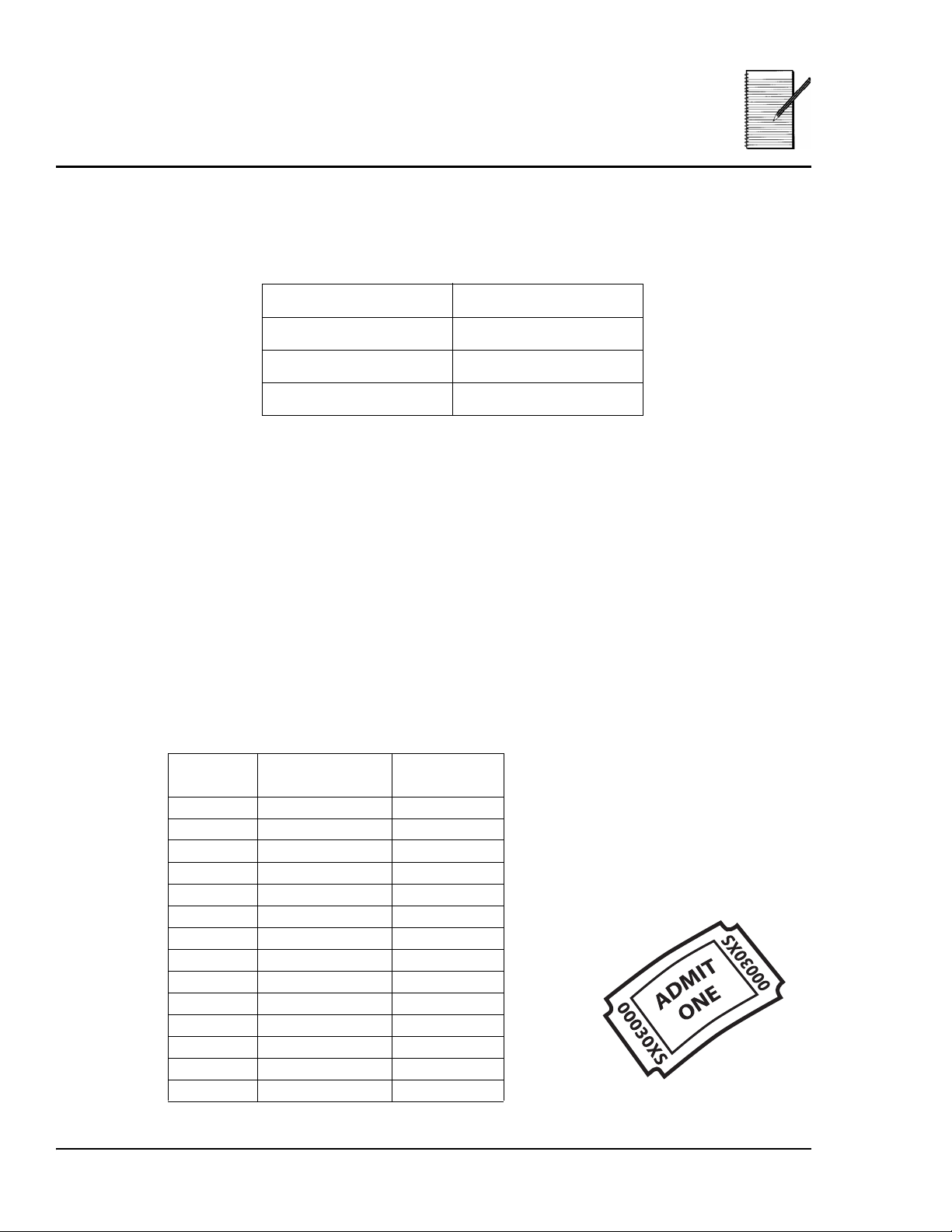
At the movies (Continued)
Name ___________________________
Date ___________________________
18 TI-30XS MultiView: A Guide For Teachers © 2006 TEXAS INSTRUMENTS INCORPORATED
Problem
A blockbuster movie is opening this weekend. On the news, you hear that tickets will be
$11.50 per person. The reporter says that a family of two will spend $23 and a family of three
will spend $34.50. They show a graphic with this information in a table format.
The reporter also mentions that the local theater, MultiPlex, has twenty-five screens and
can seat 7,500 people. This blockbuster will open on all screens at the theater. The owners
predict that all seats will be sold out on the first day!
The owners of MultiPlex want to know how much money they can expect to take in at the
ticket office. They would like a general formula so they can quickly find out the amount of
money for any amount of people that buy tickets.
Your job: You have been hired as the accountant for MultiPlex! Congratulations! Your boss
wants a formula that will tell her how much money will be taken in at the box office,
depending on how many people buy tickets.
Procedure
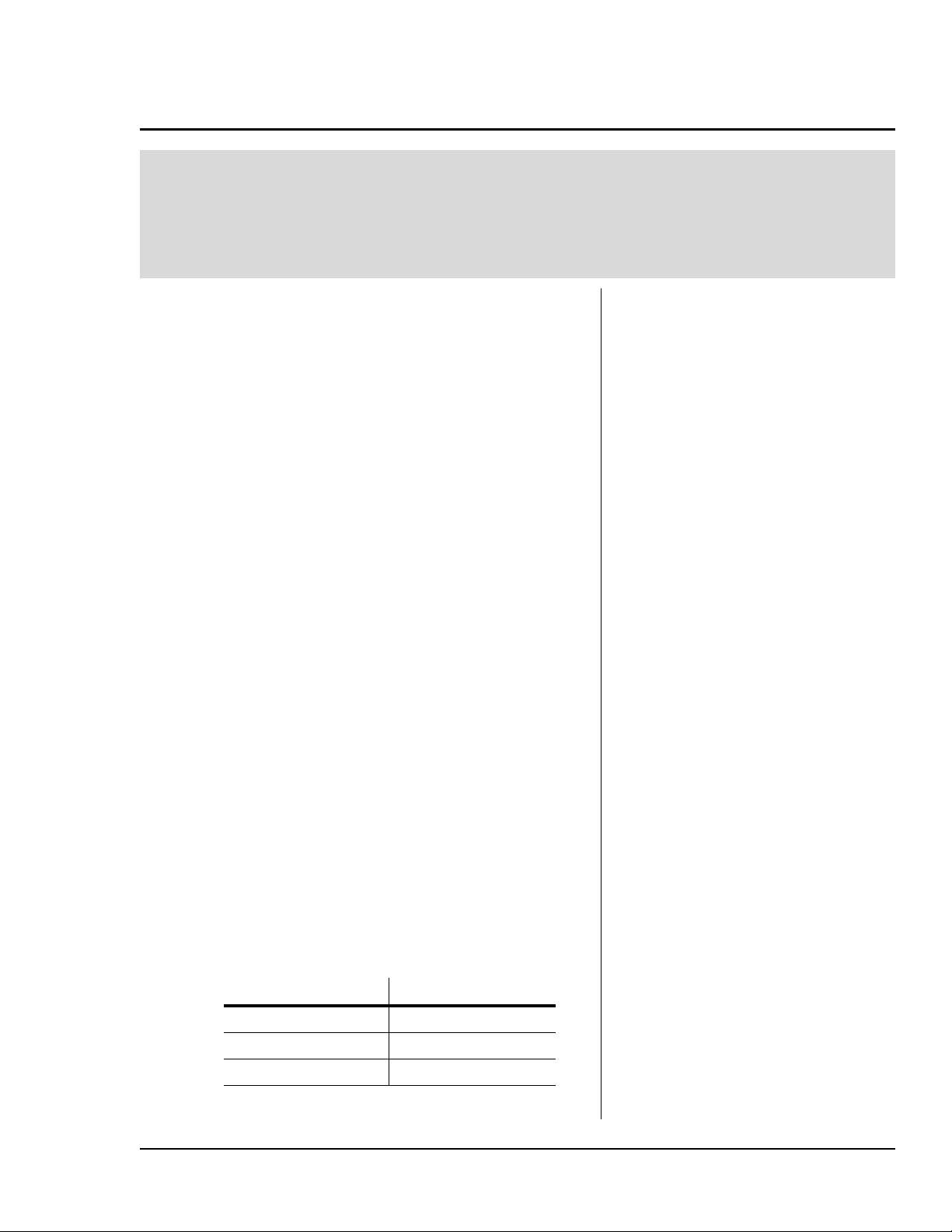
1. Use the table to investigate the amount of money taken in at the ticket office depending
on the number of people going to the movie. Fill in the following table. Write all of your
calculations at each step. Use mental math as much as you can
before
using the
calculator to find the results for the amount of money.
Number of People Amount of Money
1$11.50
2 $23.00
3 $34.50
Number of
People (P)
Calculation Amount of
Money (M)
1 1 x 11.50 $11.50
2 2 x 11.50 $23.00
3 3 x 11.50 $34.50
4
5
6
...
10
...
100
...
1000
...
At the movies

Name ___________________________
Date ___________________________
© 2006 TEXAS INSTRUMENTS INCORPORATED TI-30XS MultiView: A Guide For Teachers 19
2. What pattern do you see from your table? Using the information in your table, write a
formula (an algebraic expression) which describes the amount of money (M) depending
on the number of people (P) that buy a ticket to the show.
M = ___________________________
3. Check your formula using the data list editor (
v) on the TI-30XS MultiView™
calculator.
a. In column L1, enter only the first three entries in the number of people (P) list from
the table above. (Enter {1, 2, 3}.)
b. Enter your formula from part 2 in L2. Be careful: to use the calculator, you have to
translate your variables (letters). The letter P is now L1 and M is L2.
Rewrite your formula here in terms of L1 and L2 so you can enter the formula in your
calculator.
Your formula: M = _________________________
The calculator formula: L2 = ________________________
c. Check the numbers in L2 with the numbers in your table above. Do they match?
d. Enter more values from the number of people list from your table into L1. Check the
values in L2 against your table above. Do they match? Does your formula work?
4. Use the data editor on the calculator to find the amount of money (M) that the owners
will take in at the ticket office if the entire theater is filled during one showing with 7500
people (P). Write how you would find this answer by hand using your formula.
At the movies

Name ___________________________
Date ___________________________
20 TI-30XS MultiView: A Guide For Teachers © 2006 TEXAS INSTRUMENTS INCORPORATED
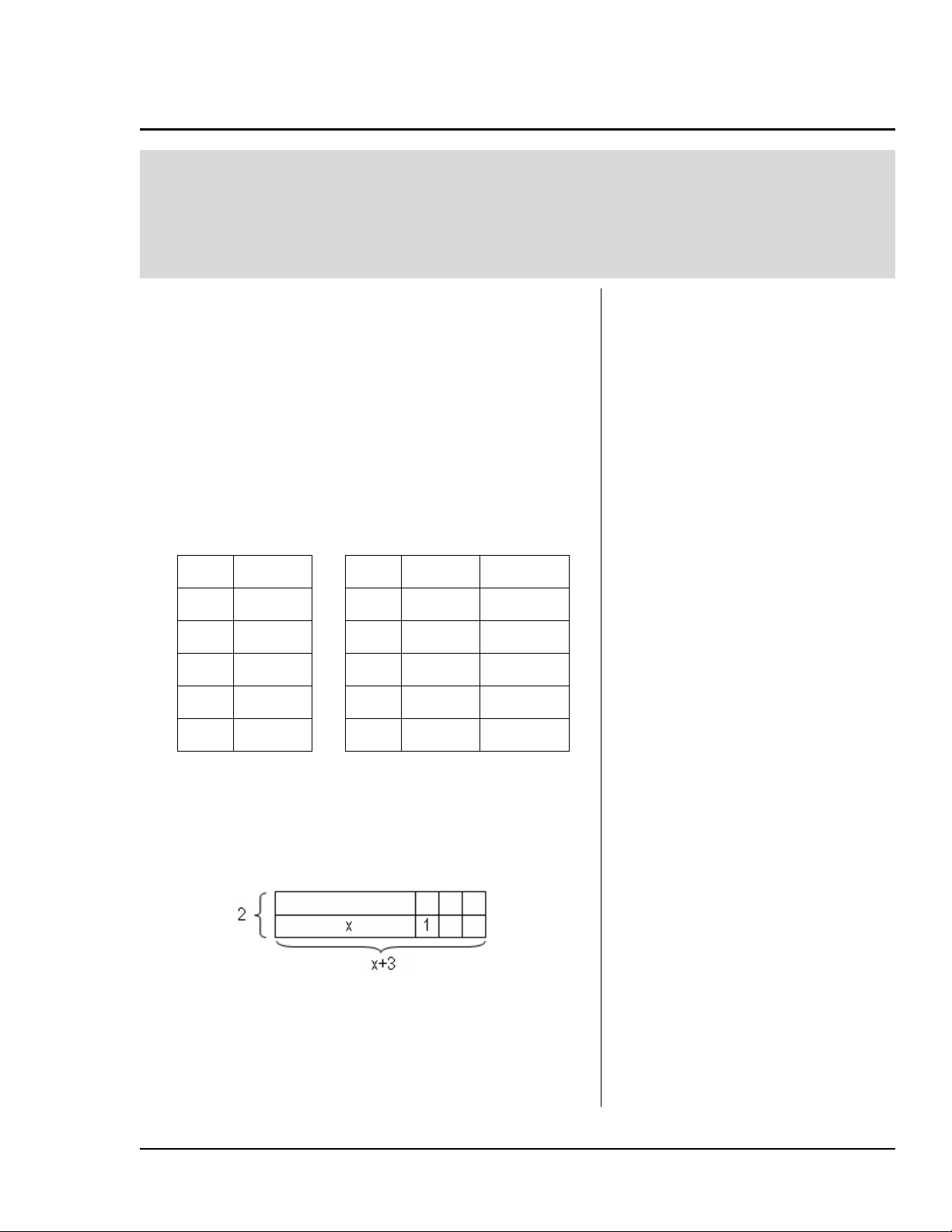
5. Your boss wants you to make a presentation to the people who invest money in
MultiPlex. The investors want to see numbers and graphs in your presentation! Fill in
the table below using the data editor on your calculator. Graph the points from this table.
This is another way that an accountant can show how the amount of money (M) depends
on the number of people (P). This gives a picture of the data!
6. Write a paragraph below about what you would say to your boss and the investors about
your work. Include how you determined the formula for the amount of money and what
the table and graph tell them about the amount of money that will be taken in at the box
office.
PM
500
1000
1500
2000
2500
At the movies
Amount of Money (M)
Number of People (P)
© 2006 TEXAS INSTRUMENTS INCORPORATED TI-30XS MultiView: A Guide For Teachers 21
Overview
Students guess the algebraic expression (function)
from a table of values in a game format. Students use
o on the TI-30XS MultiView™ calculator to enter an
expression as a function (y=) in order to play the game.
Math Concepts
•algebraic
expressions
• functions
Materials
• TI-30XS MultiView
• pencil
• student activity
• strips of paper
and paper bag
Introduction
Students will warm up for this activity by evaluating
expressions and filling out a table of values. They
then play a game, "Name that rule!" The game uses
the TI-30XS MultiView calculator to create a table of
values.
Have students fill out the following tables which
appear on the student sheet.
Note
NoteNote
Note: Consider varying the variable letter in the
warm up. The variable on the calculator, however,
will always be x.
*The students should notice that the tables for 2x + 6
and 2(x + 3) are the same. Discuss why these are
equivalent expressions and verify this by using the
Distributive Property of Multiplication over
Addition. You can also have students use tiles to
display the area model, 2(x + 3) = 2x + 6.
Show the students how to enter the expression in
o on the TI-30XS MultiView. They enter the
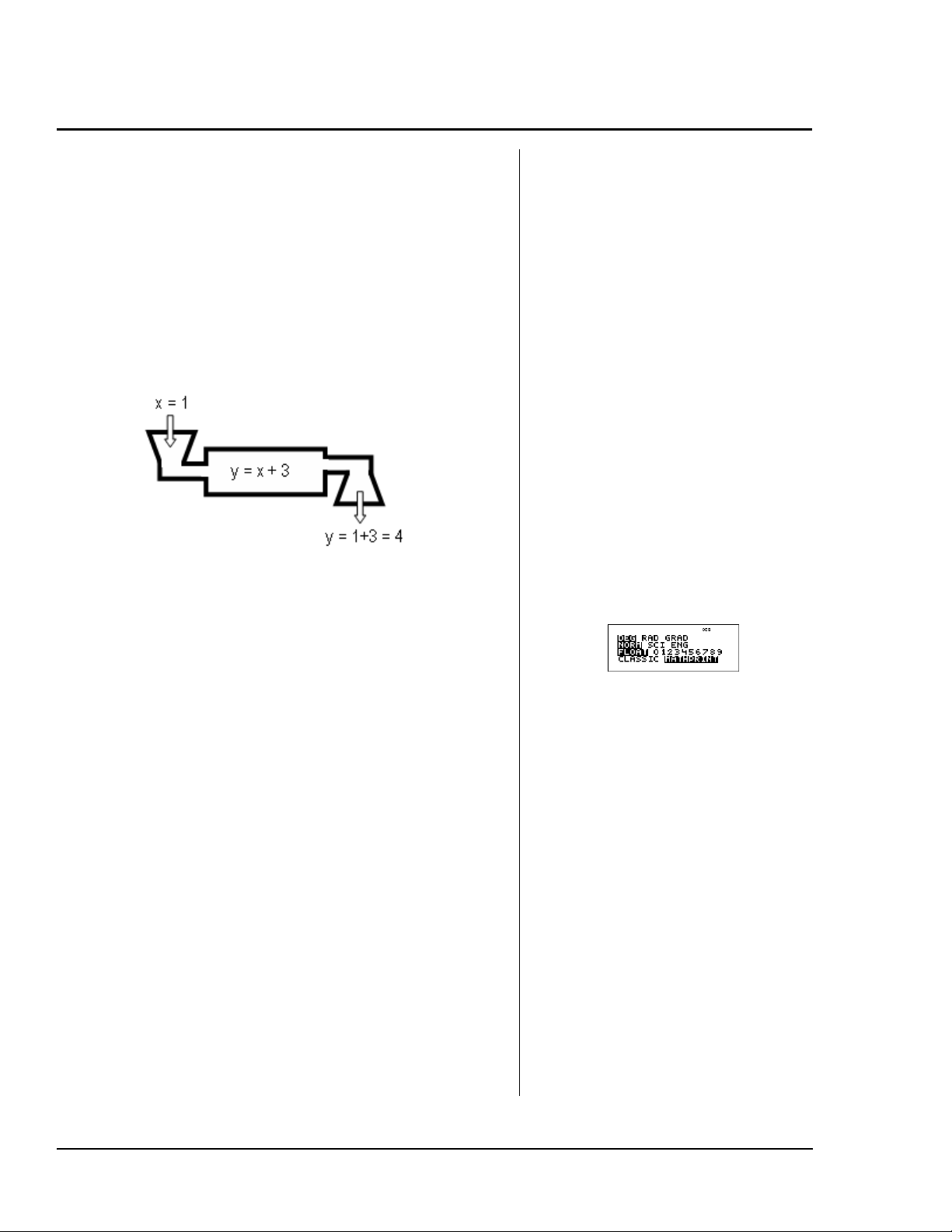
expression as a function. This may be a new concept
for your students. If needed, use a function machine
xx
+ 3
x
2
x
+ 6 2(
x
+ 3)*
-2 1 -2 2 2
-1 2 -1 4 4
03 06 6
14 18 8
25 210 10
Name that rule!
22 TI-30XS MultiView: A Guide For Teachers © 2006 TEXAS INSTRUMENTS INCORPORATED
to provide an alternate way of thinking about
evaluating an expression for different values of
x
.
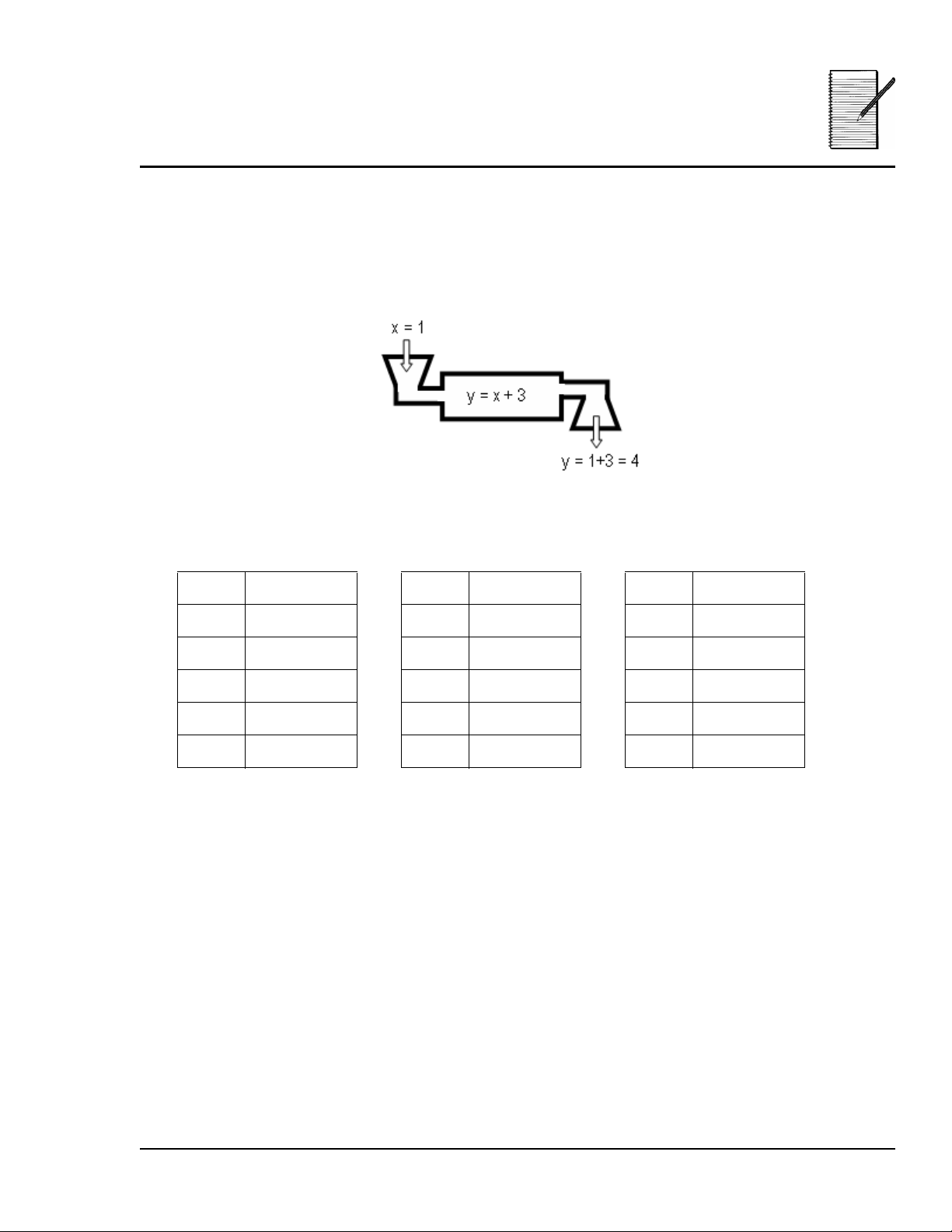
Here, an input of
x
= 1 gives an output of
y
= 1 + 3 = 4. Discuss that the expression,
x
+3, can
be thought of as the rule to find
y
. Later in the game,
the students will think backwards to guess the
"rule." If needed, discuss how students follow the
rules to their favorite board games. They need to
follow the rules in order to play. When they evaluate
an expression, they follow a rule to change one
number to another.
Set up the table on the calculator using the Auto
feature in o. Auto automatically sets up a table of
values to start at a given value and increment by a
value. To have the calculator create the same table of
values as above, set start at -2 and increment the
x
values by the step size of 1. Have students compare
their table done by hand against the calculator table.
Activity
Play one or two games of “Name that rule!” with the
whole class, using the rules on the next page. For the
whole class introduction of the game, the teacher
plays the role of the Ruler. This game uses o
and
the Ask-
x
feature on the TI-30XS MultiView™
calculator.
³ Hint: Copy the game sheets from the
student activity section for as many
games as needed.
Name that rule! (Continued)
³ Follow these steps:
1. Press p and set mode as shown.
2. Enter the expression y=x+3:
o z T 3 <.
3. Enter table setup values: M 2 $
$ $ <.
4. Use # and $ to scroll through
values of x and y = x + 3.

© 2006 TEXAS INSTRUMENTS INCORPORATED TI-30XS MultiView: A Guide For Teachers 23
Rules for group play
• Form groups of three to four students.
• Assign one student to be the Ruler of the game.
• The Ruler is in charge of the calculator for the game.
• The Ruler picks an algebraic expression from a paper
bag (or any container) and keeps it hidden from the
other players, or the Ruler writes an algebraic
expression on a piece of paper for the game and gets
approval to use the expression from the teacher.
• The Ruler enters the algebraic expression into o
and selects the Ask-
x
feature.
Note
NoteNote
Note: The Ruler may have to delete each line in the
Ask-
x
table before playing a new rule. (See keystroke
instructions.)
• Each player other than the Ruler takes turns saying
a value for
x
. The Ruler enters that value and tells
the players the
y
value output.
• Each player keeps a table of values as a record of
play.
• A player can guess the expression or rule only during
the player's turn.
• Once a rule is guessed by a player, every player must
check if the rule is true for all values already played,
or challenge the rule by trying to find a value that
does not work.
• If the guessed rule is shown to be incorrect by a
player or the Ruler, the player who guessed the rule
loses his or her next turn.
• If the algebraic expression guessed by a player is not
in the same form as the expression entered by the
Ruler, for example, 2(
x
+1) and 2
x
+2, and all players
agree that the guessed expression is correct, the
Ruler reveals the expression on the calculator and
the player who guessed the rule must explain why
the two expressions are the same.
• The first player to guess the rule correctly and
defend their rule wins.
• The role of Ruler then rotates to another player for
the next round of play.
Name that rule! (Continued)
³ To play again:
1. Clear the old expression, pick the
next expression, and enter it:
o -z T q1 $ 2.
2. Enter the desired table setup values,
highlight OK, and press <.
Notice that only 3 guesses show on
the screen. Students can overwrite a
number to see a new output.
³ Follow these steps:
1. Press p and set mode as shown.
2. Enter the function y = 2x + 5:
- o 2 z T 5 <.
Note: If a function is already
entered on the y= screen, press
- before entering a new
function.
3. Enter table setup values: $ $ "
< $ <.
4. Enter x-values: 5 < 6 < 10
<.
³ Hint: To enter more values, highlight
any of the three lines in the x column,
enter the number, and press <.
5. To review the y= screen, press
o. You will have to cycle
through the setup screen again to
see the table of values.

24 TI-30XS MultiView: A Guide For Teachers © 2006 TEXAS INSTRUMENTS INCORPORATED
Algebraic expression list
Copy these or other expressions on pieces of paper so
the Ruler of each team of players can pick the
expression to play. You can also have the Ruler write
an expression which you can approve before the start
of a game. Having the student write an expression
gives them ownership and is an assessment of their
knowledge.
Pick a list or mix the lists depending on the level of
your students. Expand the lists depending on your
students' level. Students should document all work
on their student sheet.
Modifications of the game
• Include expressions that would need to be simplified
by the players such as 2
x
+ 4 + 3
x
- 6. If a player
guesses 5x - 2, they will have to justify the expression
is equivalent to 2
x
+ 4 + 3
x
- 6 which adds another
assessment layer to the game.
• Include expressions in words such as "four less than
twice a number." Have the Rulers pick the expression
from the container and change the words to an
expression for your approval before they return to
their group to play the game.
Example: Four less than twice a number is picked.
The Ruler translates this to 2
x
- 4, you indicate if
they are correct, and then they return to their group
to play.
Examples of
one-step expressions
Examples of
two-step expressions
x
+ 3 2
x
+ 3
x
– 9 -4
x
+ 5
2
x
+ 6 or 2 (
x
+ 3)
x
– 2.5
x
+ 15 1.5
x
+ 2.5
x
1
2
---+
1
2
---
x
4–
x
1
5
---
–
Name that rule! (Continued)
Name ___________________________
Date ___________________________
© 2006 TEXAS INSTRUMENTS INCORPORATED TI-30XS MultiView: A Guide For Teachers 25
Problem
We follow rules every day. Can you follow the rules to your favorite board game? Do you have
to carefully follow the rules to play? We also follow rules when we work with numbers and
expressions.
Example: If
x
= 1, then
x
+ 3 = 1 + 3 = 4
The expression
x
+ 3 has one variable,
x
. Depending on the value of
x
,
x
+ 3 will be equal to
different numbers. You can think of
x
+ 3 as a rule. Fill out the following table to warm up.
The values of
x
have been picked for you.
1. What do you notice about the table for 2
x
+ 6 and 2(
x
+3)?
2. Check the tables above using o on the TI-30XS MultiView™ calculator.
3. Play the game "Name that rule!", using the game sheet on the next page. In this game,
you will not know the expression (rule). You will have to guess the rule by thinking
backwards! Your teacher will give you the instructions to play.
xx
+ 3
x
2
x
+ 6
x
2(
x
+ 3)
-2 -2 -2
-1 -1 -1
000
111
222
Name that rule!

26 TI-30XS MultiView: A Guide For Teachers © 2006 TEXAS INSTRUMENTS INCORPORATED
Player names: Ruler:
Your teacher will give you the instructions on how to play. Use the table to keep track of the
x
and
y
values for every player’s turn during the game. Use the Guess columns to check the
rule. If a player's rule is not correct, continue playing.
Name That Rule!
Think backwards!
Guess the rule from a table of values!
x
Calculator
y
value
Guess 1
y
= _______________________
Check every
x
value!
Is this guess correct? _______
Guess 2
y
= _______________________
Check every
x
value!
Is this guess correct? _______
x
Calculator
y
value
Guess 3
y
= _______________________
Check every
x
value!
Is this guess correct? _______
Guess 4
y
= _______________________
Check every
x
value!
Is this guess correct? _______
?
?
?
?
© 2006 TEXAS INSTRUMENTS INCORPORATED TI-30XS MultiView: A Guide For Teachers 27
How to use the
TI-30XS MultiView™
calculator
TI-30XS MultiView basic operations 29
Clearing and correcting 41
Basic math 45
Order of operations and parentheses 49
Numeric notation 55
Fractions 59
Decimals and decimal places 65
Constant 67
Memory and stored variables 71
Data editor and list formulas 79
Statistics 83
Probability 89
Function table 97
Powers, roots, and reciprocals 101
Logarithms and exponential functions 109
Pi 113
Angle settings and conversions 117
Polar and rectangular conversions 121
Trigonometry 123
Hyperbolics 131

28 TI-30XS MultiView: A Guide For Teachers © 2006 TEXAS INSTRUMENTS INCORPORATED
1
© 2006 TEXAS INSTRUMENTS INCORPORATED TI-30XS MultiView: A Guide For Teachers 29
TI-30XS MultiView™ basic operations
Keys
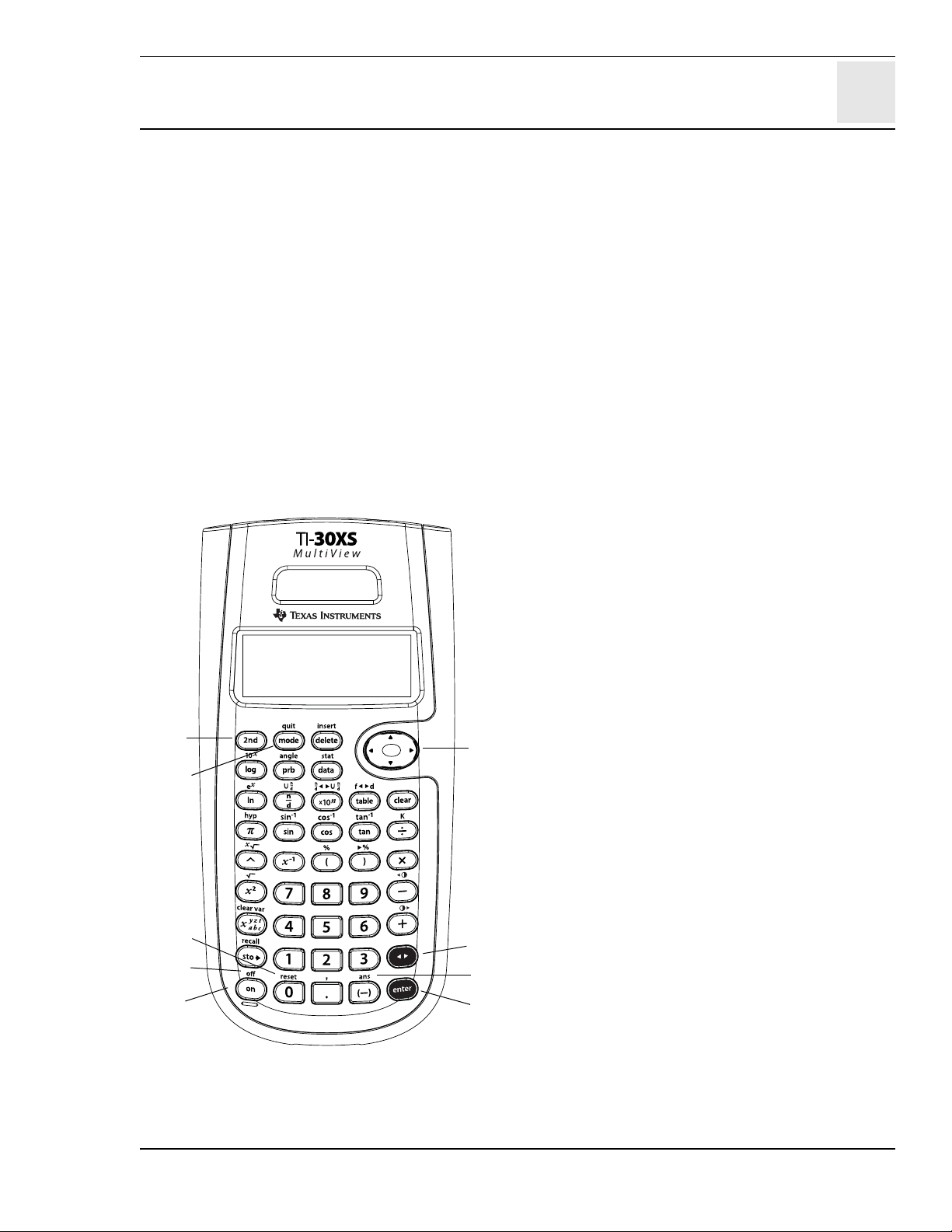
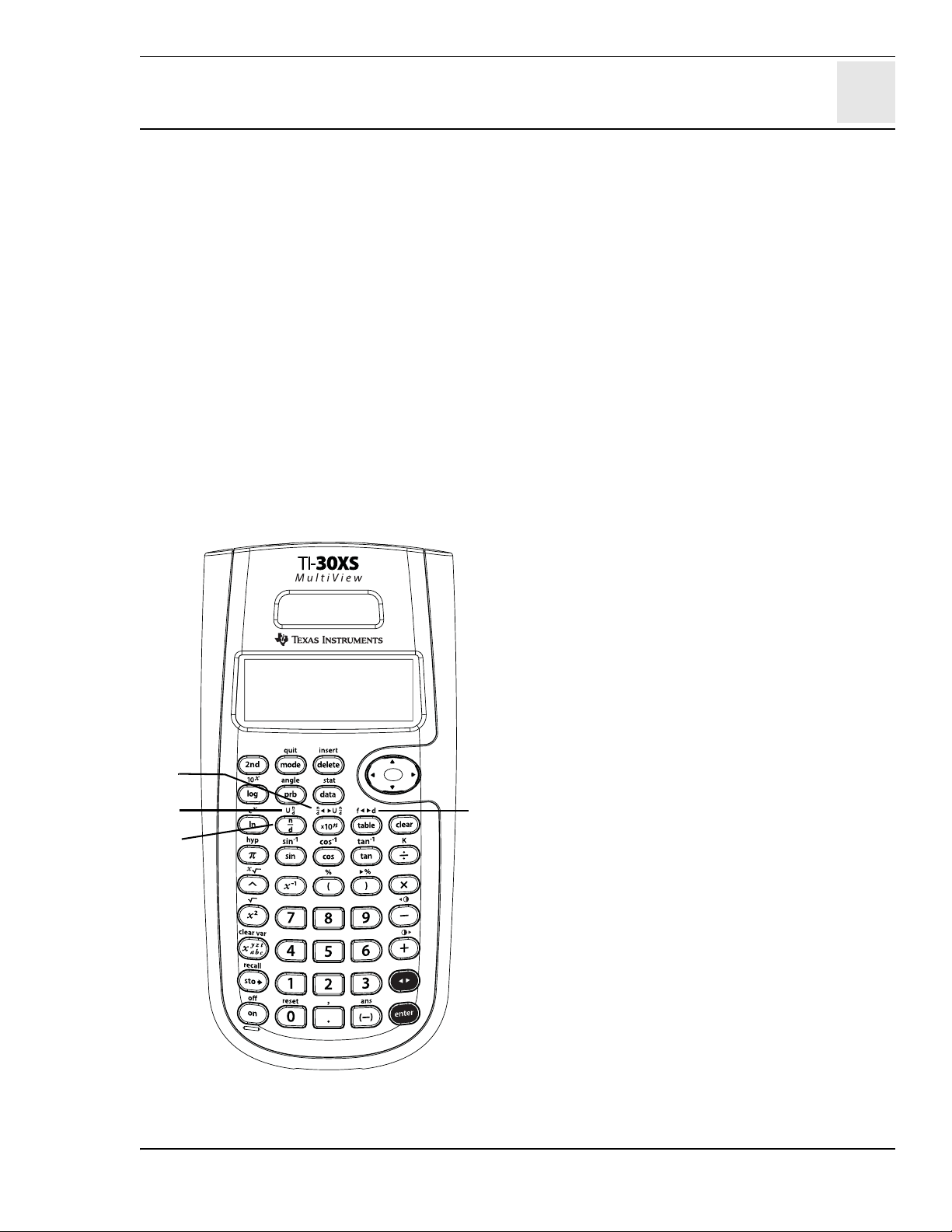
1. & turns on the calculator.
2. % turns on the 2nd indicator and
accesses the function shown above the next
key you press.
3. % ' turns off the calculator and clears
the display.
4. < completes the operation or executes
the command.
5. % i recalls the most recently calculated
result and displays it as Ans.
6. n toggles the answer between fraction and
decimal, exact square root and decimal, and
exact pi and decimal formats.
7. ! and " move the cursor left and right to
scroll entries on the Home screen and to
navigate in menus.
%! or % " scrolls to the beginning or
end of a current entry.
# and $ move the cursor up and down
through menu items, previous entries on the
Home screen, and entries in Data editor and
Function table.
% # moves the cursor to the top entry of
the active column in Data editor, or to the
previous entry on the Home screen. Press
% # again to move the cursor to the
oldest entry on the Home screen.
In fractions, press % # to paste a
previous entry to the denominator. (See
Chapter 6, Fractions, for more information.)
% $ moves the cursor to the first blank
row of the active column in Data editor, or
below the last entry on the Home screen.
8. p lets you set the angle, numeric, decimal,
and display modes. Press $# ! " to
choose a mode, and < to select it. Press
- or %Q to exit the mode menu.
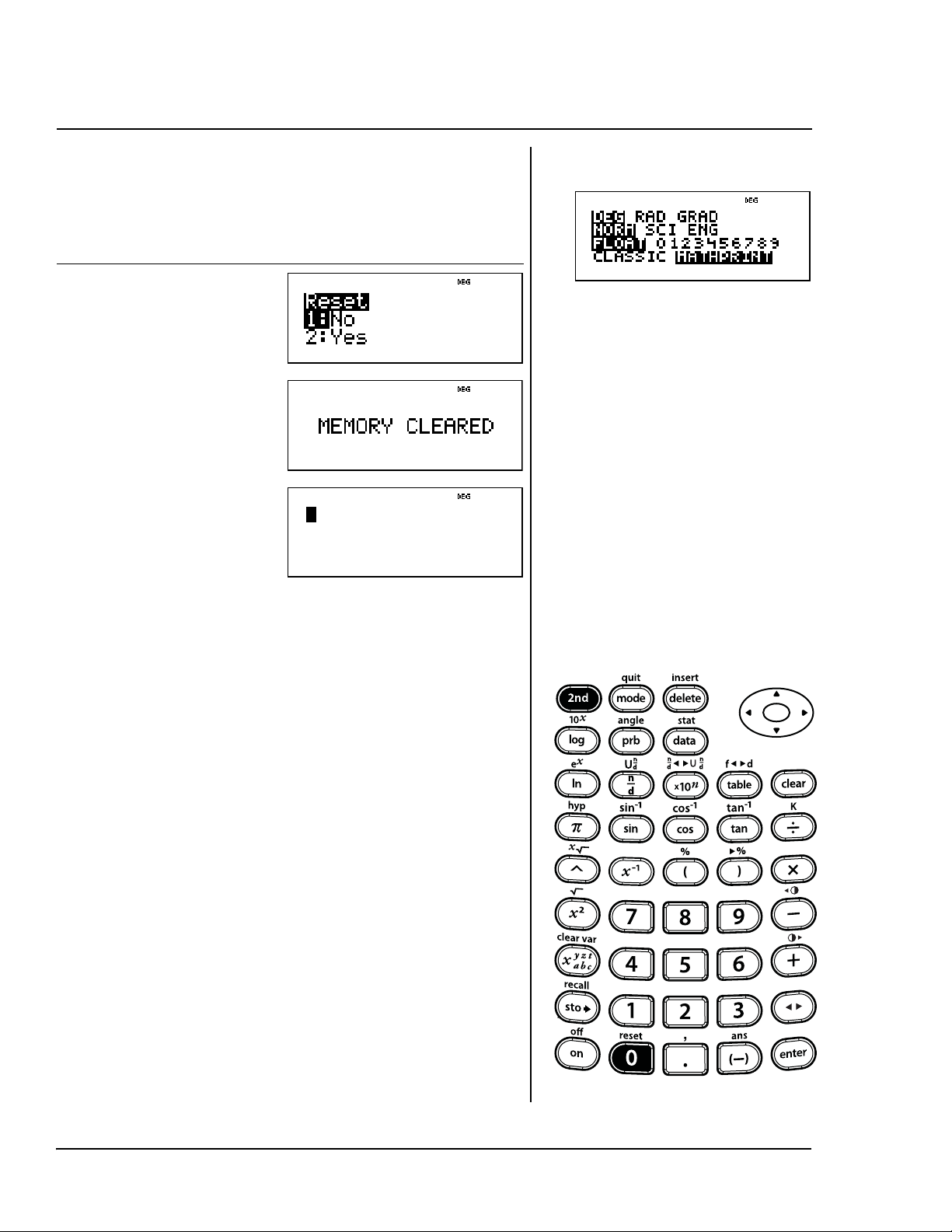
9. % displays the Reset menu.
• Press 1 (No) to return to the previous
screen without resetting the calculator.
• Press 2 (Yes) to reset the calculator. The
message
MEMORY CLEARED
is displayed.
Note: Pressing & and - simultaneously
resets the calculator immediately. No menu or
message is displayed.
• Resetting the calculator:
– Returns settings to their defaults:
degree (DEG) angle mode, normal numeric
notation (NORM), floating decimal
notation (FLOAT) and MathPrint™
display mode.
– Clears memory variables, pending
operations, entries in history, statistical
data, constants, and Ans (Last answer).
6
4
5
9
1
3
2
7
8

30 TI-30XS MultiView: A Guide For Teachers © 2006 TEXAS INSTRUMENTS INCORPORATED
TI-30XS MultiView™ basic operations (Continued)
Notes
• The examples on the transparency masters
assume all default settings (See page vi).
• n can be used in an entry before pressing
<. Pressing
n more than once in a
current entry may result in a Syntax error.
To achieve the desired result, you can:
– Enter the expression, press
n <, and
then press
n again after the result is
displayed.
– Enter the expression and press <, and
then press
n as many times as desired
to toggle the display and view the
alternate format of the answer.
• When ³ or ´ appears in the display, the entry
line contains more characters to the left or
right.
•Press & after the Automatic Power Down™
(APD™) feature activates to restore power.
The display, pending operations, settings, and
memory are retained.
© 2006 TEXAS INSTRUMENTS INCORPORATED TI-30XS MultiView: A Guide For Teachers 31
%' ! "
# $ <
Second, off, arrows, enter
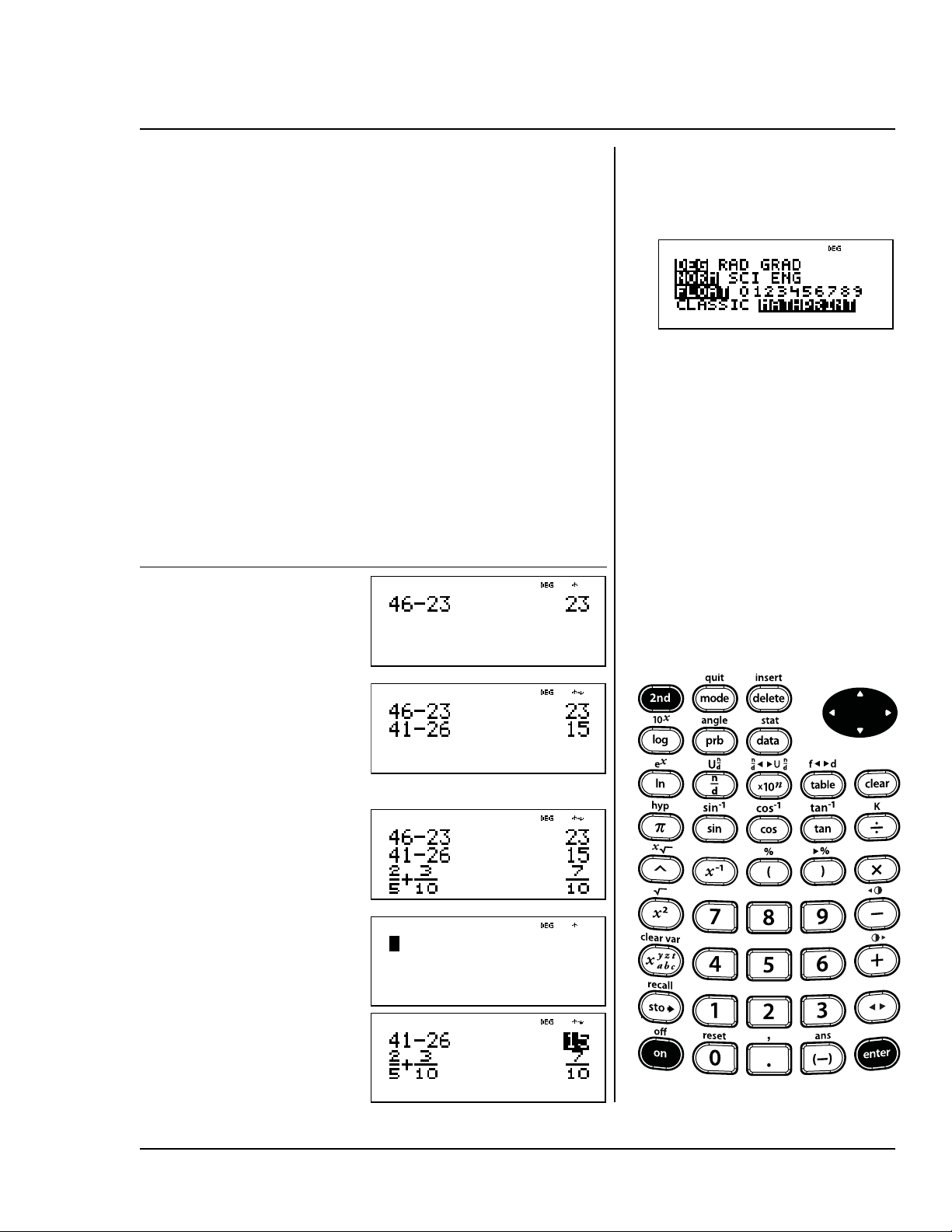
• Enter 46 – 23.
• Change 46 to 41. Change 23 to
26 and complete the operation.
• Enter 2/5 + 3/10 and complete
the operation.
• Turn the TI-30XS MultiView™
calculator off and back on. The
Home screen is blank; scroll up
to view history.
Press Display
46 U
23 <
# # <
!!!! 1
"" 6 <
2 q 5 " T 3
q 10 <
%' &
# # #
32 TI-30XS MultiView: A Guide For Teachers © 2006 TEXAS INSTRUMENTS INCORPORATED
Reset the calculator.
Pressing & and - at the same
time also resets the calculator
immediately. No menu or message is
displayed.
Using % or & and -
returns all settings to their defaults
and clears the memory.
Press Display
%
2
-
Reset
%
© 2006 TEXAS INSTRUMENTS INCORPORATED TI-30XS MultiView: A Guide For Teachers 33
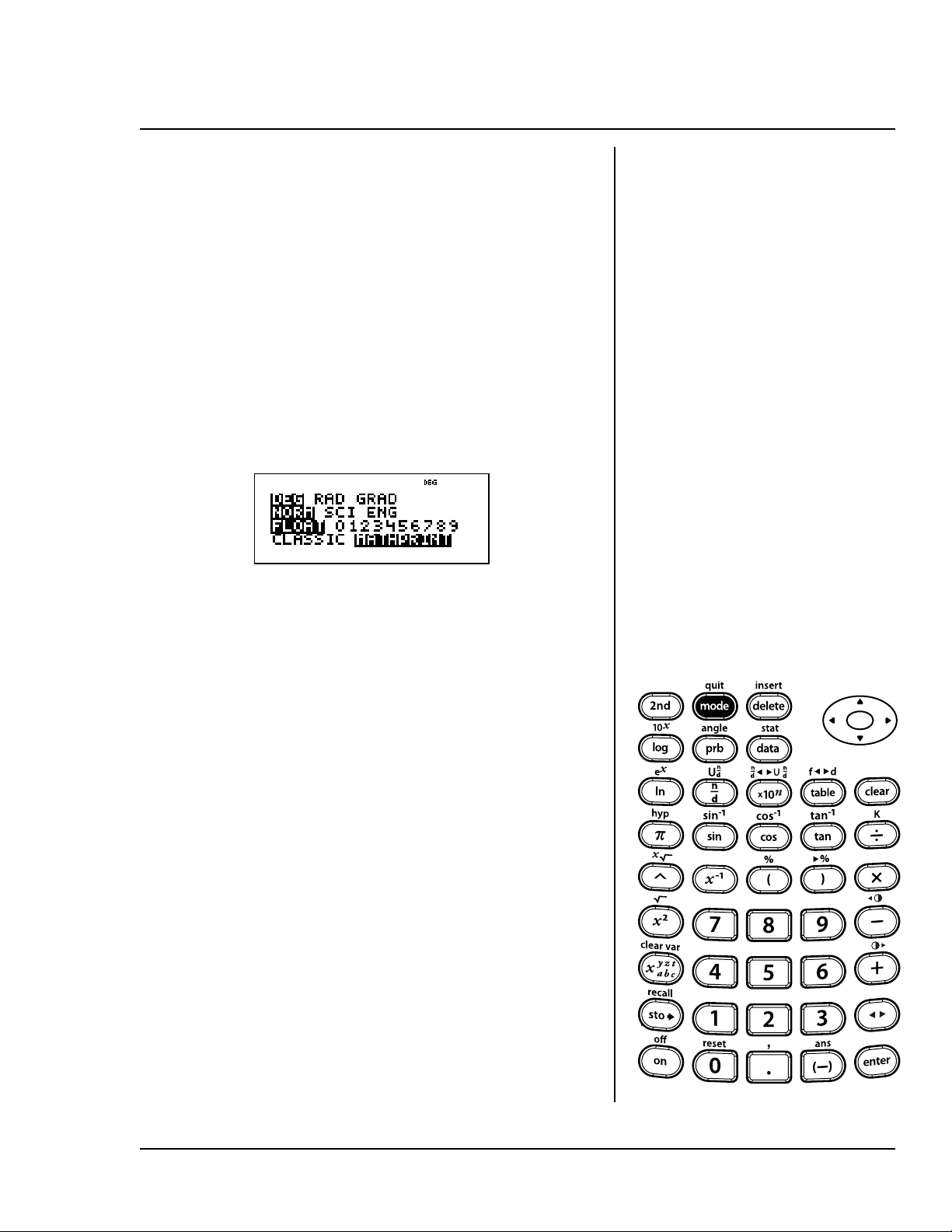
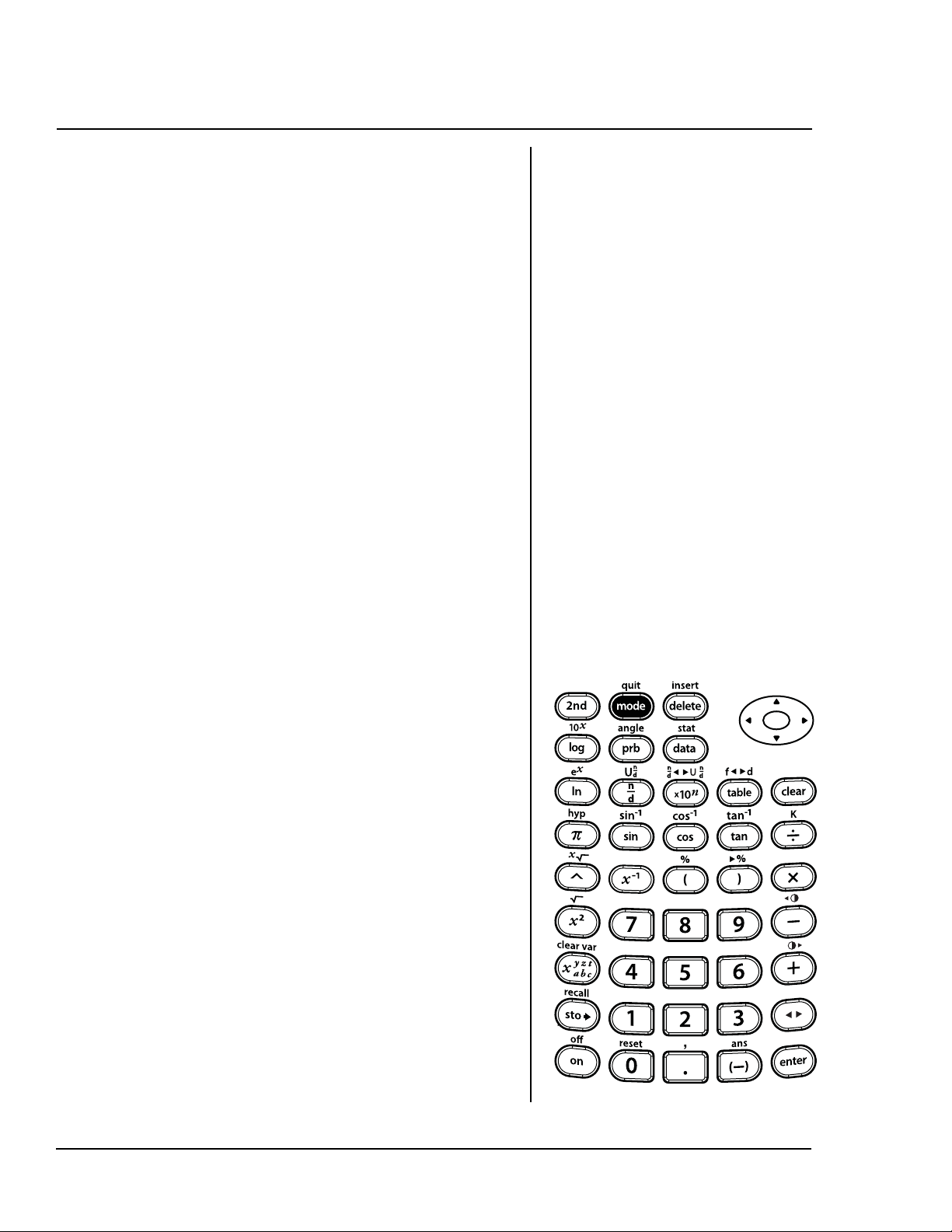
p
Use pto choose modes. Press $
# ! " to choose a mode, and <
to select it. Press - or %Q
to return to the Home screen and
perform your work using the chosen
mode settings.
Default mode settings are shown
highlighted.
DEG RAD GRAD Sets the
angle mode to degrees, radians, or
gradians.
NORM SCI ENG Sets the
numeric notation mode. Numeric
notation modes affect only the
display of results, and not the
accuracy of the values stored in the
calculator, which remain maximal.
Mode
p
34 TI-30XS MultiView: A Guide For Teachers © 2006 TEXAS INSTRUMENTS INCORPORATED
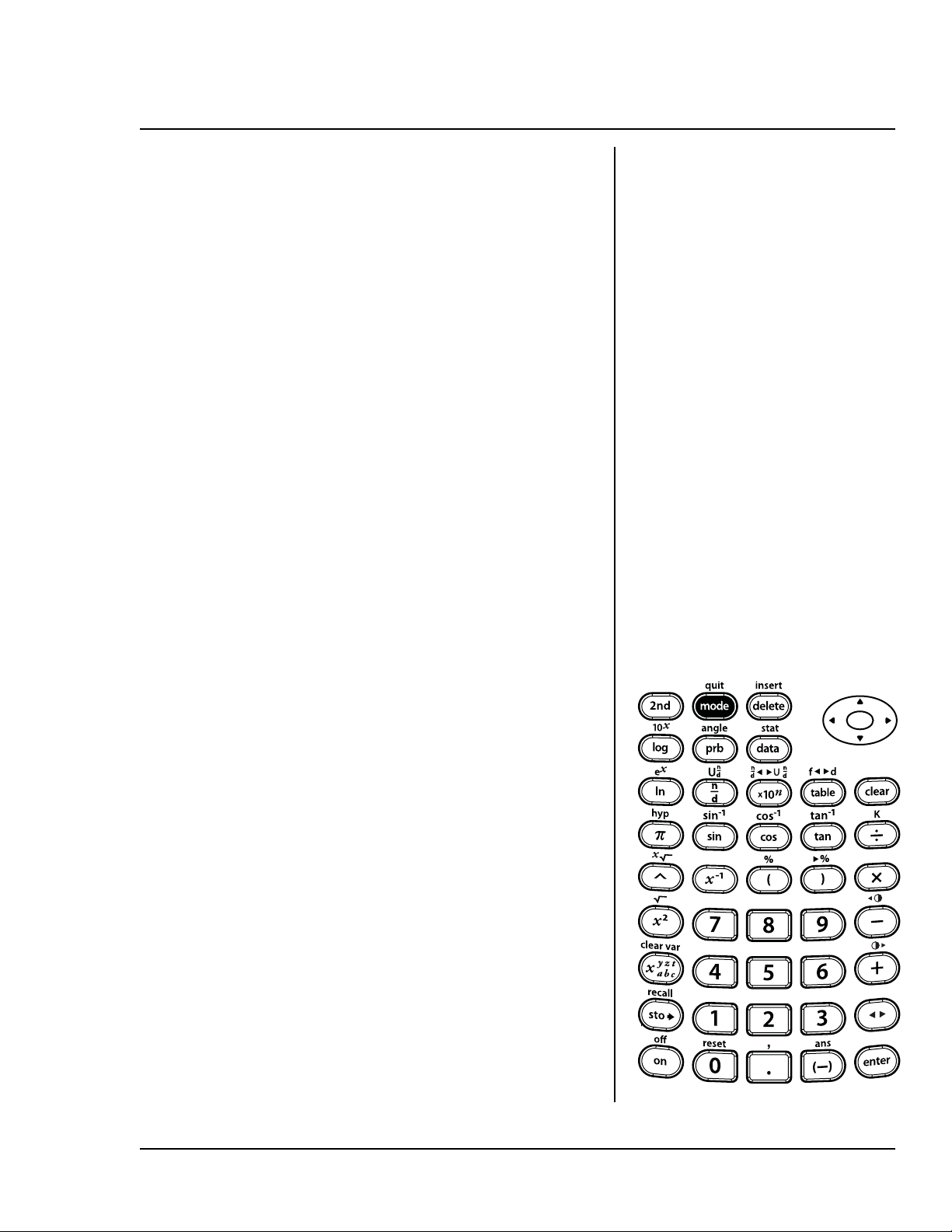
NORM displays results with digits
to the left and right of the
decimal, as in 123456.78.
SCI expresses numbers with one
digit to the left of the decimal and
the appropriate power of 10, as in
1.2345678x10
5
(which is the same
as 123456.78).
ENG displays results as a number
from 1 to 1000 times 10 to an
integer power. The integer power is
always a multiple of 3.
Note: C is a shortcut key to enter
a number in scientific notation
format. The result displays in the
numeric notation format set in mode.
FLOAT 0 1 2 3 4 5 6 7 8 9
Sets the decimal notation mode.
FLOAT (floating decimal point)
displays up to 10 digits, plus the
sign and decimal.
Mode (continued)
p
© 2006 TEXAS INSTRUMENTS INCORPORATED TI-30XS MultiView: A Guide For Teachers 35
0 1 2 3 4 5 6 7 8 9 (fixed decimal
point) specifies the number of
digits (0 through 9) to display to
the right of the decimal.
CLASSIC MATHPRINT sets the
display input and output.
CLASSIC displays inputs and
outputs in a single line.
MATHPRINT displays most inputs
and outputs in textbook format.
Use MathPrint mode for better
visual confirmation that math
expressions have been entered
correctly and to better reinforce
the correct math notation.
Note: Switching the mode between
Classic and MathPrint clears
calculator history and the Constant
value.
Mode (continued)
p

36 TI-30XS MultiView: A Guide For Teachers © 2006 TEXAS INSTRUMENTS INCORPORATED
Certain keys display menus: H,
%I, v, %t, %,
%h, and %{. Some
keys may display more than one
menu.
Press " and $ to scroll and select a
menu item, or press the
corresponding number next to the
menu item. To return to the previous
screen without selecting the item,
press -. To exit a menu or
application and return to the Home
screen, press %Q. The Home
screen is blank; scroll up to view
history.
Some sample menus:
H % I
PRB RAND DMS R ¶
¶¶
¶P
1: nPr 1: rand 1: Ä 1: R ´Pr(
2: nCr 2: randint( 2: Å 2: R ´PÁ(
3: ! 3: Æ 3: P ´ Rx(
4: r 4: P ´Ry(
5: g
6: ´DMS
Menus

© 2006 TEXAS INSTRUMENTS INCORPORATED TI-30XS MultiView: A Guide For Teachers 37
v
(Press v once to display the Data
editor screen. Press again to display
the menu.)
Press v while you are in the Add/
Edit Frmla option of the FORMULA
menu to display this menu:
%t
CLEAR FORMULA
1: Clear L1 1: Add/Edit Frmla
2: Clear L2 2: Clear L1 Frmla
3: Clear L3 3: Clear L2 Frmla
4: Clear ALL 4: Clear L3 Frmla
5: Clear ALL
Ls
1: L1
2: L2
3: L3
STATS
1: 1-Var Stats
2: 2-Var Stats
3: StatVars
This menu option displays after you
calculate 1-var or 2-var stats.
StatVars menu:
1: n
2:
Ï
3: Sx
Etc. See Chapter 11, Statistics, for a
full list.
Menus (Continued)
38 TI-30XS MultiView: A Guide For Teachers © 2006 TEXAS INSTRUMENTS INCORPORATED
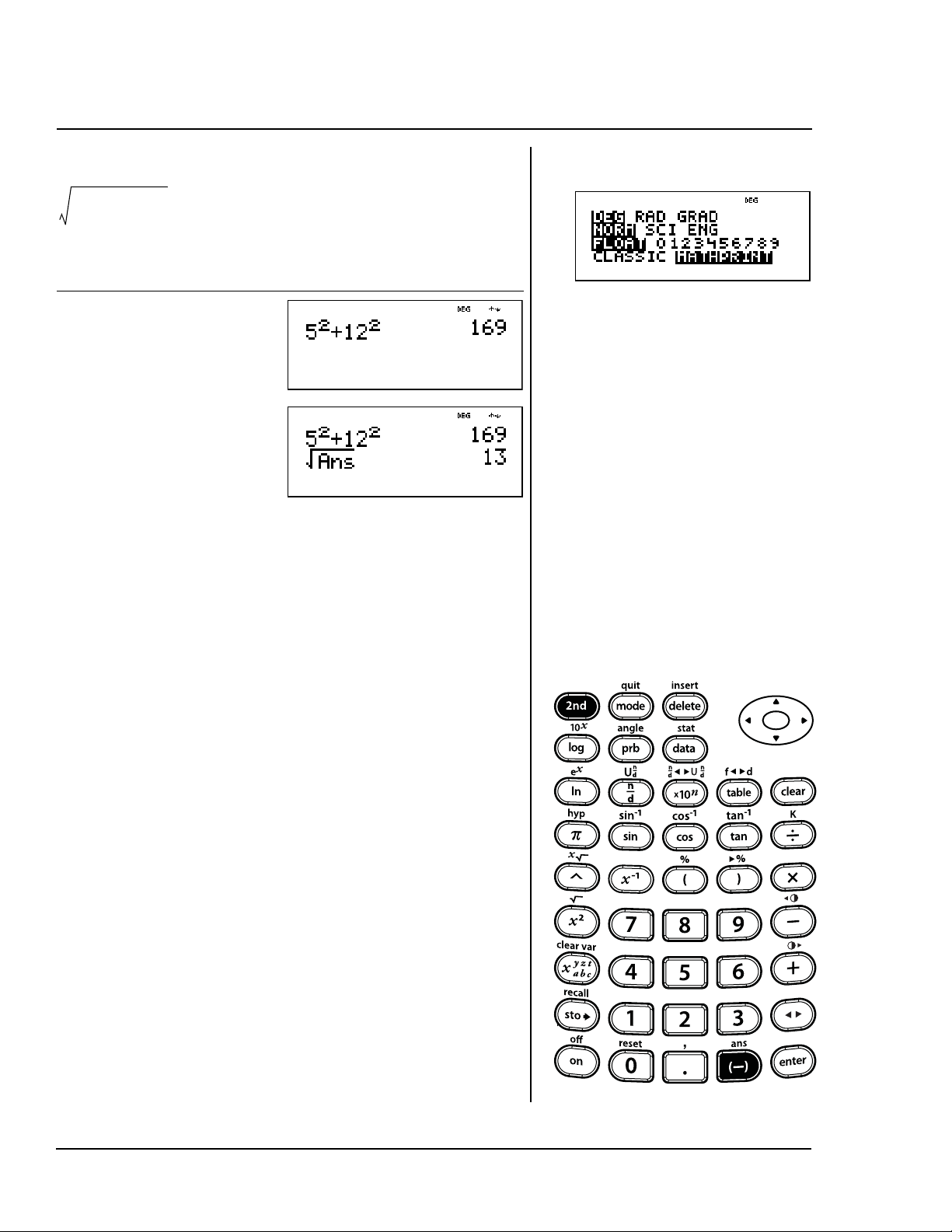
Use Last answer (Ans) to calculate
.
Press Display
5 FT12
F<
%b%
i<
5
2
12
2
+
Last answer (Ans)
%i
© 2006 TEXAS INSTRUMENTS INCORPORATED TI-30XS MultiView: A Guide For Teachers 39
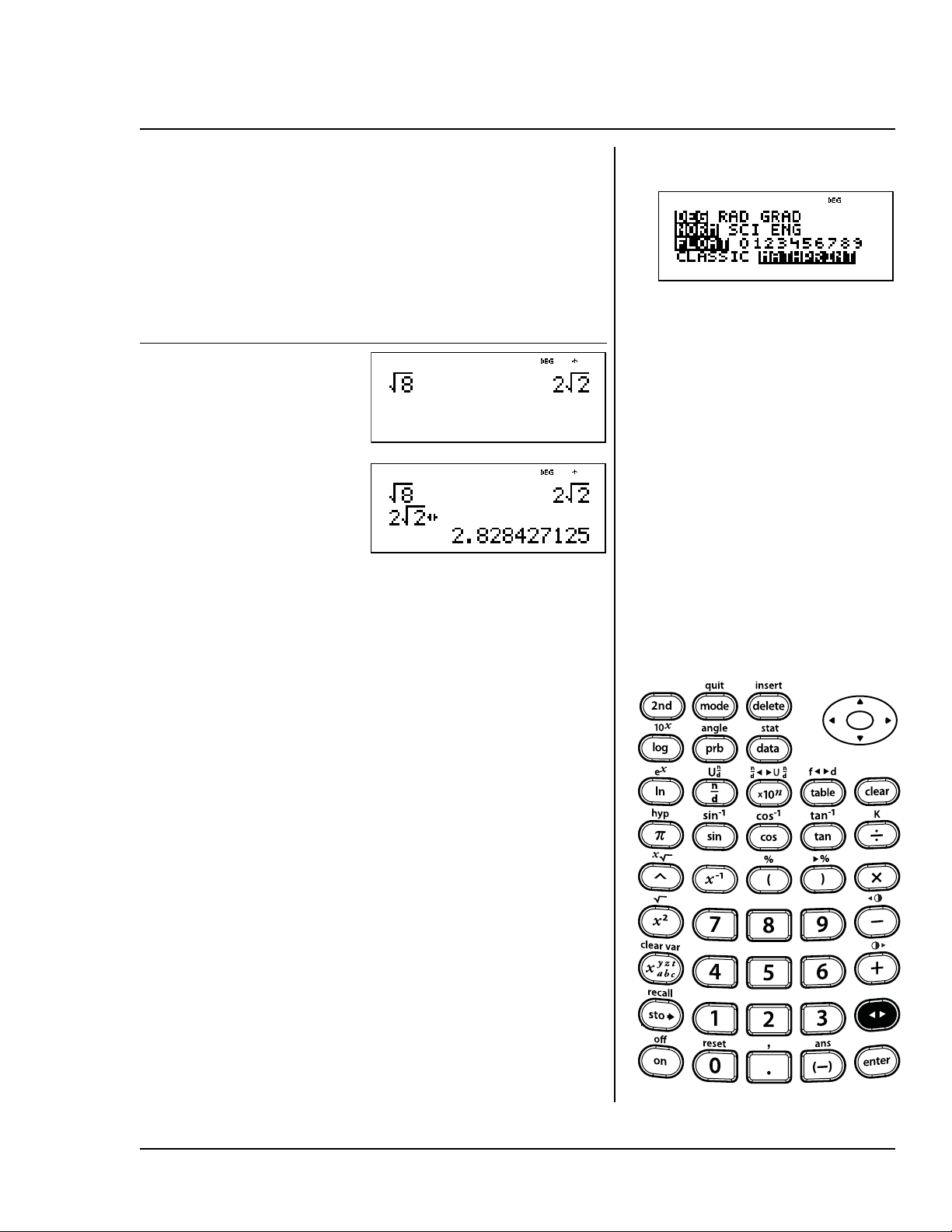
Press n to toggle the display result
between fraction and decimal
answers, exact square root and
decimal, and exact pi and decimal.
Press Display
% b
8 <
n
Answer toggle
n

40 TI-30XS MultiView: A Guide For Teachers © 2006 TEXAS INSTRUMENTS INCORPORATED
2
© 2006 TEXAS INSTRUMENTS INCORPORATED TI-30XS MultiView: A Guide For Teachers 41
Clearing and correcting
Keys
1. - clears characters and error messages.
Press - once to clear an uncompleted
entry; press it again to clear the display.
You can scroll up and use - to clear
entries in history. - backs up one screen
in applications.
2. % f lets you insert a character at the
cursor.
3. J deletes the character at the cursor.
Then, each time you press J, it deletes 1
character to the left of the cursor.
Notes
• The examples on the transparency
masters assume all default settings.
• Pressing - does not affect the
memory, statistical registers, angle
units, or numeric notation.
2
3
1
42 TI-30XS MultiView: A Guide For Teachers © 2006 TEXAS INSTRUMENTS INCORPORATED
J
%f
Delete and insert
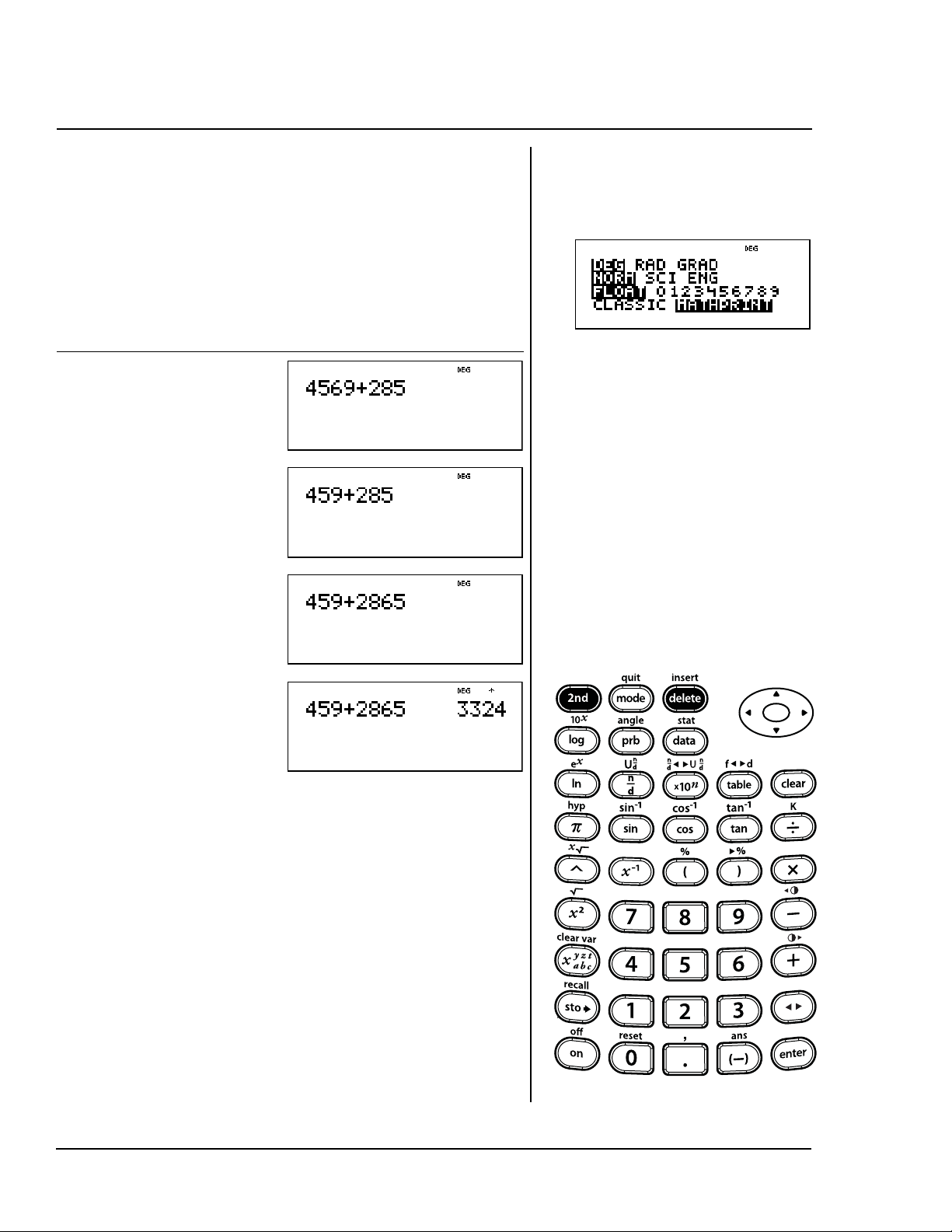
Enter 4569 + 285, and then change
it to 459 + 2865. Complete the
problem.
Press Display
4569 T 285
! ! ! ! !
! J
" " " "
%f 6
<
© 2006 TEXAS INSTRUMENTS INCORPORATED TI-30XS MultiView: A Guide For Teachers 43
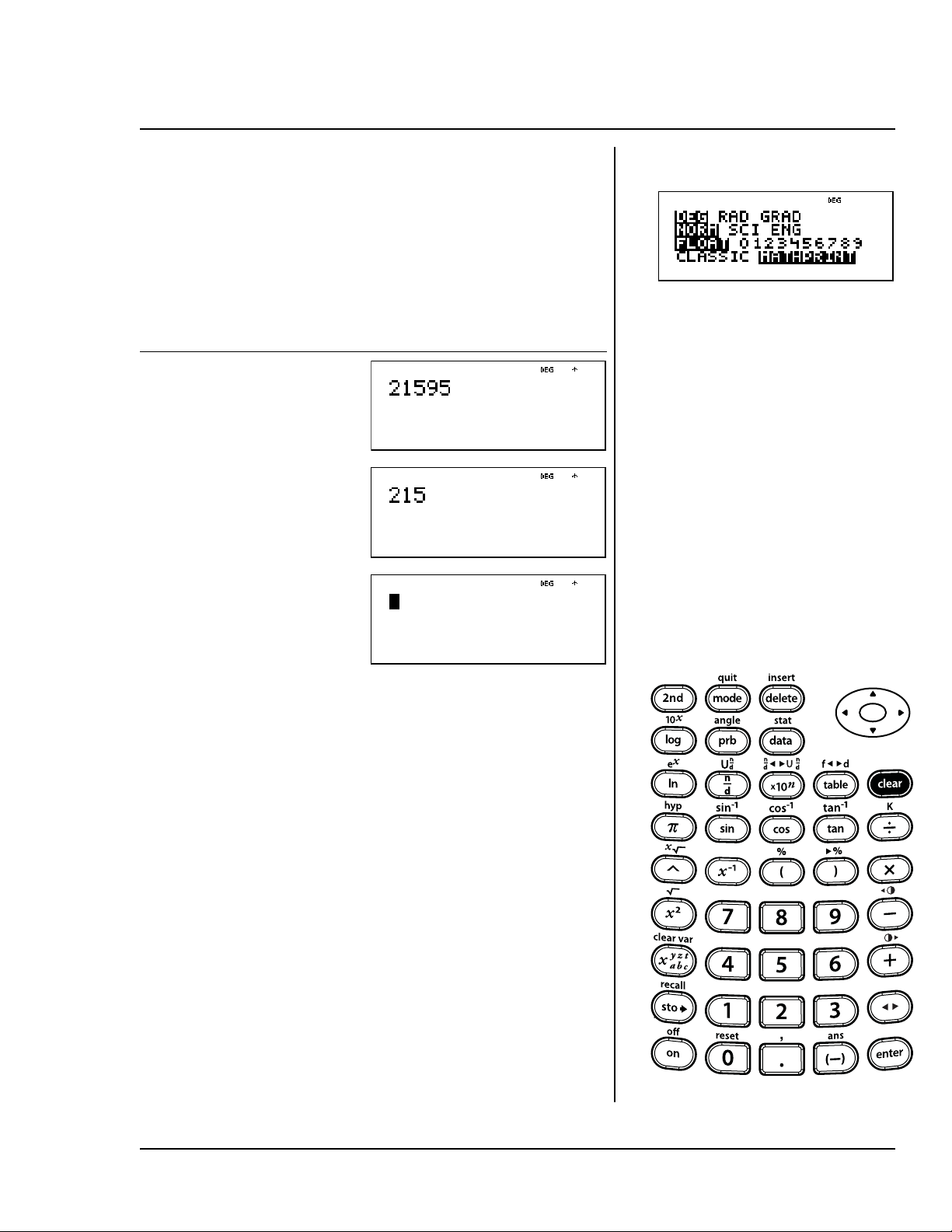
Enter 21595.
Clear the 95.
Clear the entry.
Press Display
21595
! ! -
(Clear to right)
-
(Clear entry)
Clear
-

44 TI-30XS MultiView: A Guide For Teachers © 2006 TEXAS INSTRUMENTS INCORPORATED
3
© 2006 TEXAS INSTRUMENTS INCORPORATED TI-30XS MultiView: A Guide For Teachers 45
Basic math
Keys
1. T adds.
2.
U subtracts.
3. V multiplies.
4.
W divides.
5. < completes the operation or executes
the command.
6.
M lets you enter a negative number.
7. % _ appends the % sign to a number.
Notes
• The examples on the transparency
masters assume all default settings.
• The TI-30XS MultiView™ allows implied
multiplication.
Example: 3 (4+3) = 21
• Do not confuse
M with U. U allows
subtraction.
• Use parentheses to group the negation
sign with the number if needed.
Example: M2
2
= M4, and (M2)
2
= 4.
• Results of percent calculations display
according to the decimal notation mode
setting.
4
3
2
1
5
6
7
46 TI-30XS MultiView: A Guide For Teachers © 2006 TEXAS INSTRUMENTS INCORPORATED
T U V W
<
Add, subtract, multiply, divide, equals
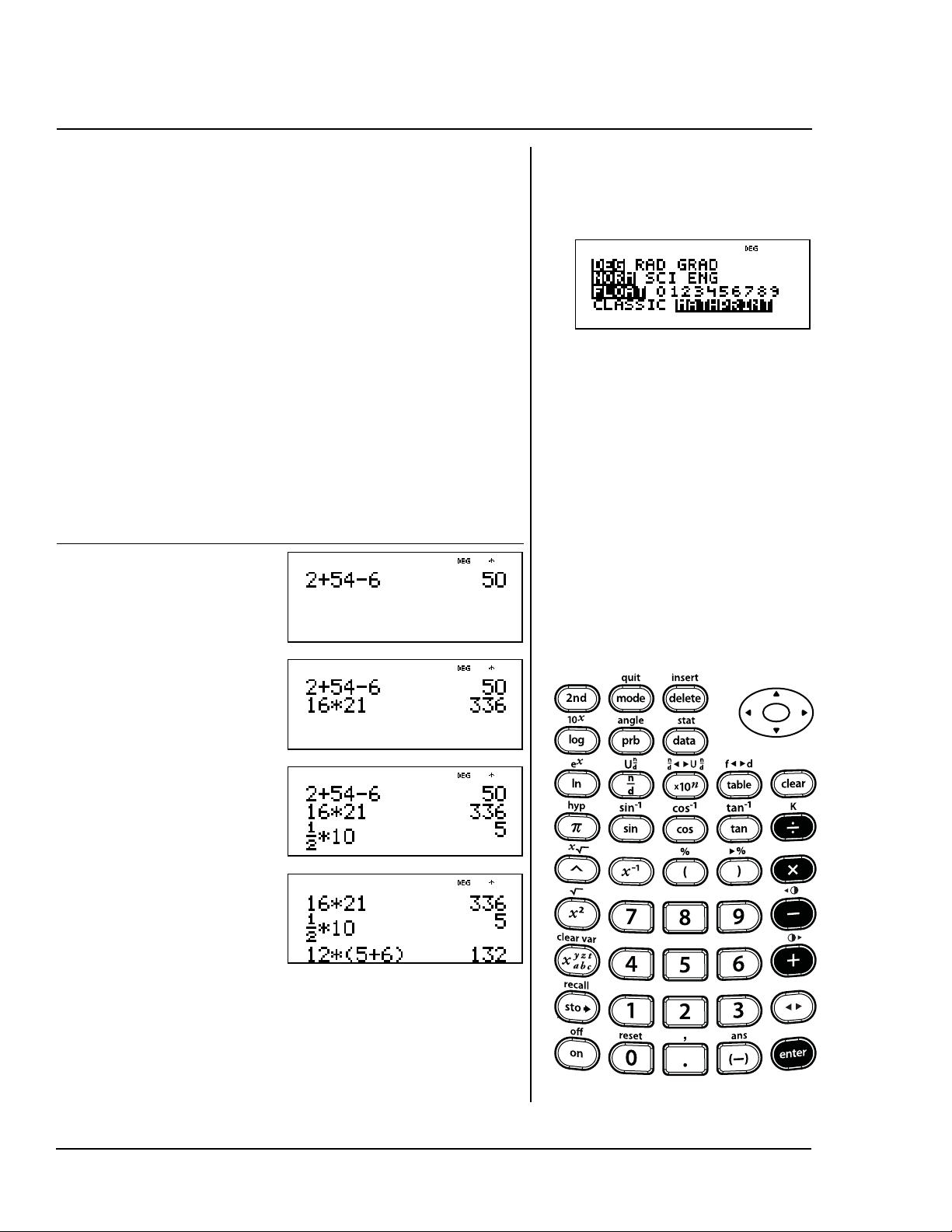
Find:
2 + 54
½ 6 =
16 x 21 =
x 10 =
12 x (5 + 6) =
Press Display
2 T 54 U
6 <
16 V 21 <
1 q 2 " V
10 <
12 V D 5 T
6 E <
1
2
---
© 2006 TEXAS INSTRUMENTS INCORPORATED TI-30XS MultiView: A Guide For Teachers 47
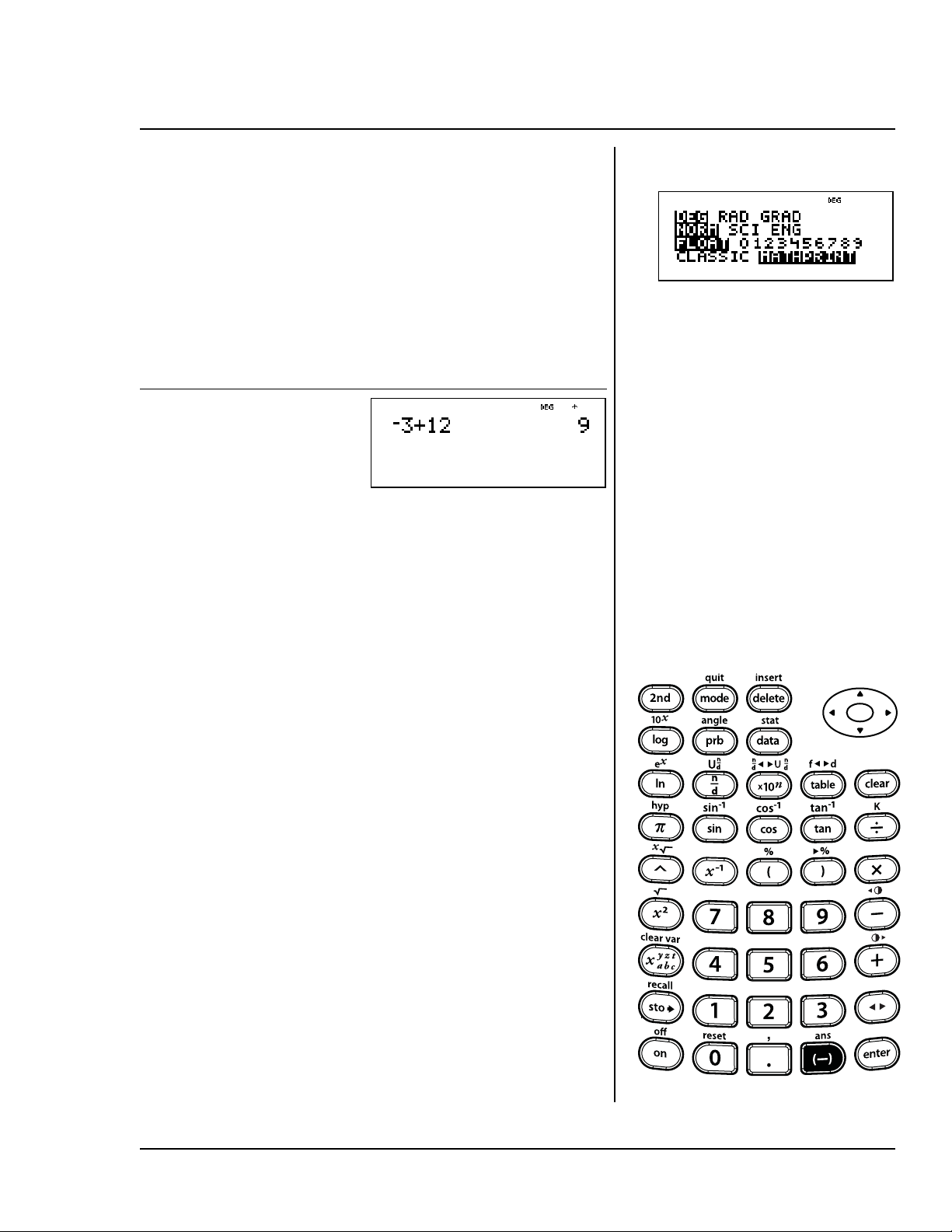
The temperature in Utah was
M3Ä C at
6:00 a.m. By 10:00 a.m. the
temperature had risen 12Ä C. What
was the temperature at 10:00 a.m.?
The temperature at 10:00 a.m. was
9Ä C.
Press Display
M 3 T
12 <
Negative numbers
M
48 TI-30XS MultiView: A Guide For Teachers © 2006 TEXAS INSTRUMENTS INCORPORATED
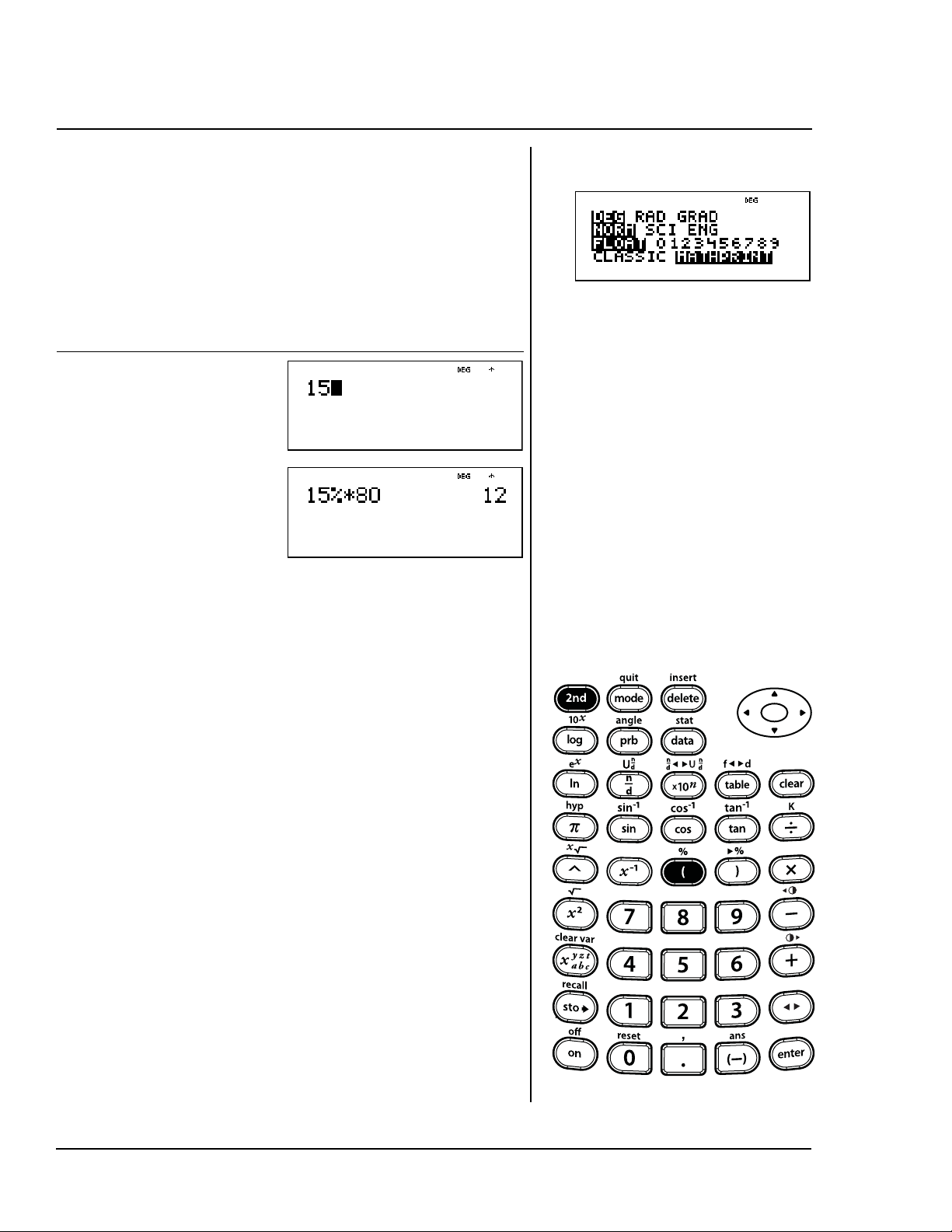
Mike makes $80 per week. He saves
15% of his earnings. How much does
Mike save per week?
Mike saves $12 per week.
Press Display
15
% _ V
80 <
Pe r c e n t
% _
4
© 2006 TEXAS INSTRUMENTS INCORPORATED TI-30XS MultiView: A Guide For Teachers 49
Order of operations and parentheses
Keys
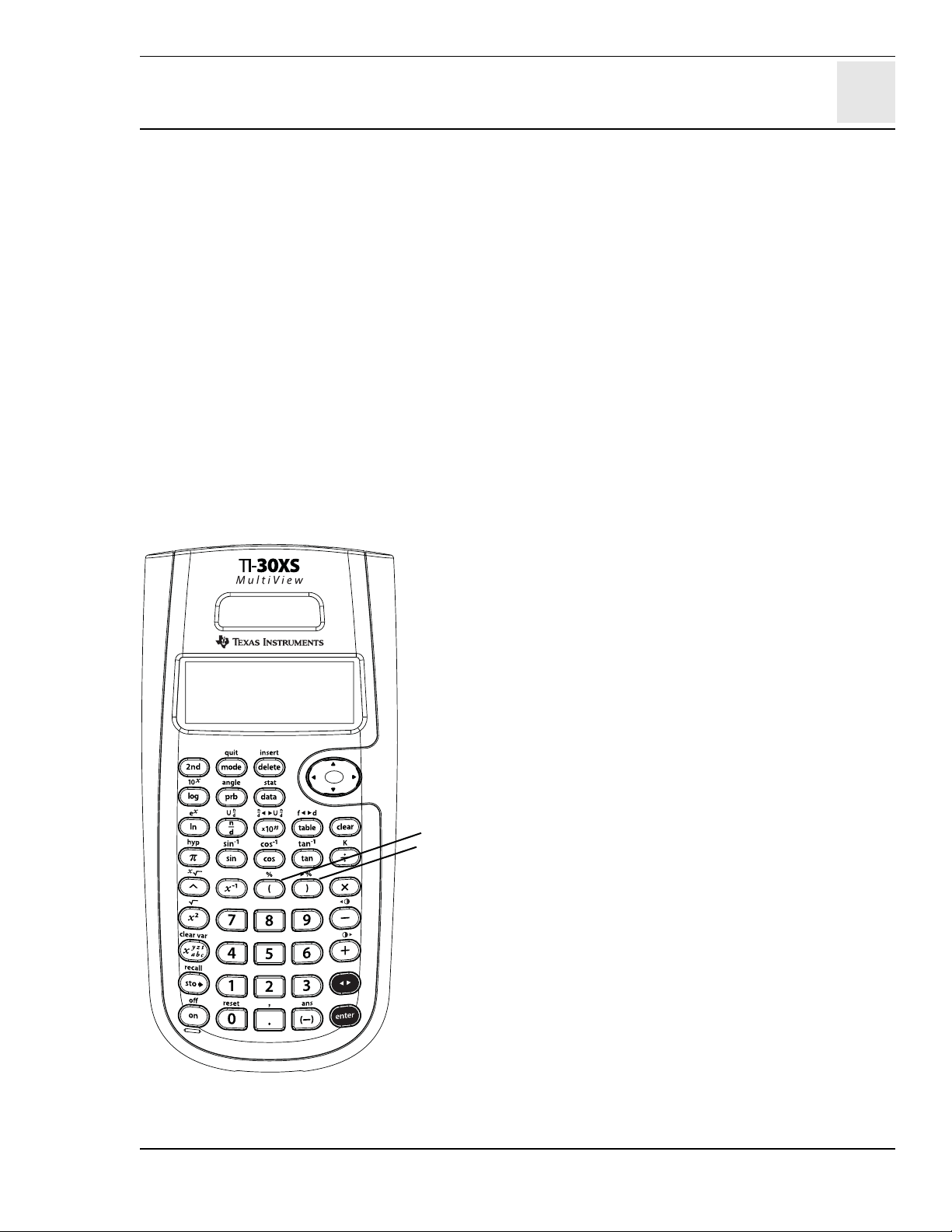
1. D opens a parenthetical expression.
2. E closes a parenthetical expression.
Notes
• The examples on the transparency
masters assume all default settings.
• The transparency master showing the
Equation Operating System (EOS™)
demonstrates the order in which the
TI-30XS MultiView™ calculator completes
calculations.
• Operations inside parentheses are
performed first. Use D E to change the
order of operations and, therefore,
change the result.
Example: 1 + 2 x 3 = 7
(1 + 2) x 3 = 9
2
1

50 TI-30XS MultiView: A Guide For Teachers © 2006 TEXAS INSTRUMENTS INCORPORATED
Equation Operating System (EOS™)
1 (first) Expressions inside D E
2 Functions that need a E and precede the
expression, such as >, A, and some menu
items
3 Fractions
4 Functions entered after the expression, such as
F and angle unit modifiers (
¡, ¢, £, r, g)
5 Exponentiation (G) and roots (%c)
Note: In Classic mode, exponentiation using the
G key is evaluated from left to right. The
expression 2^3^2 is evaluated as (2^3)^2, with
a result of 64.
In MathPrint™ mode, exponentiation using the
G key is evaluated from right to left. Pressing
2 G 3 G 2 displays as , with the result of
512.
The TI-30XS MultiView™ scientific calculator
evaluates expressions entered with F and a
from left to right in both Classic and MathPrint
modes. Pressing 3 F F displays as . This is
calculated as (3
2
)
2
= 81.
2
3
2
3
22

© 2006 TEXAS INSTRUMENTS INCORPORATED TI-30XS MultiView: A Guide For Teachers 51
6 Negation (M)
7 Permutations (nPr) and combinations (nCr)
8 Multiplication, implied multiplication, and division
9 Addition and subtraction
10 Conversions (%O, %j, %R,
and ´DMS)
11 (last) < completes all operations and closes all open
parentheses.
Equation Operating System (EOS™) (Continued)
52 TI-30XS MultiView: A Guide For Teachers © 2006 TEXAS INSTRUMENTS INCORPORATED
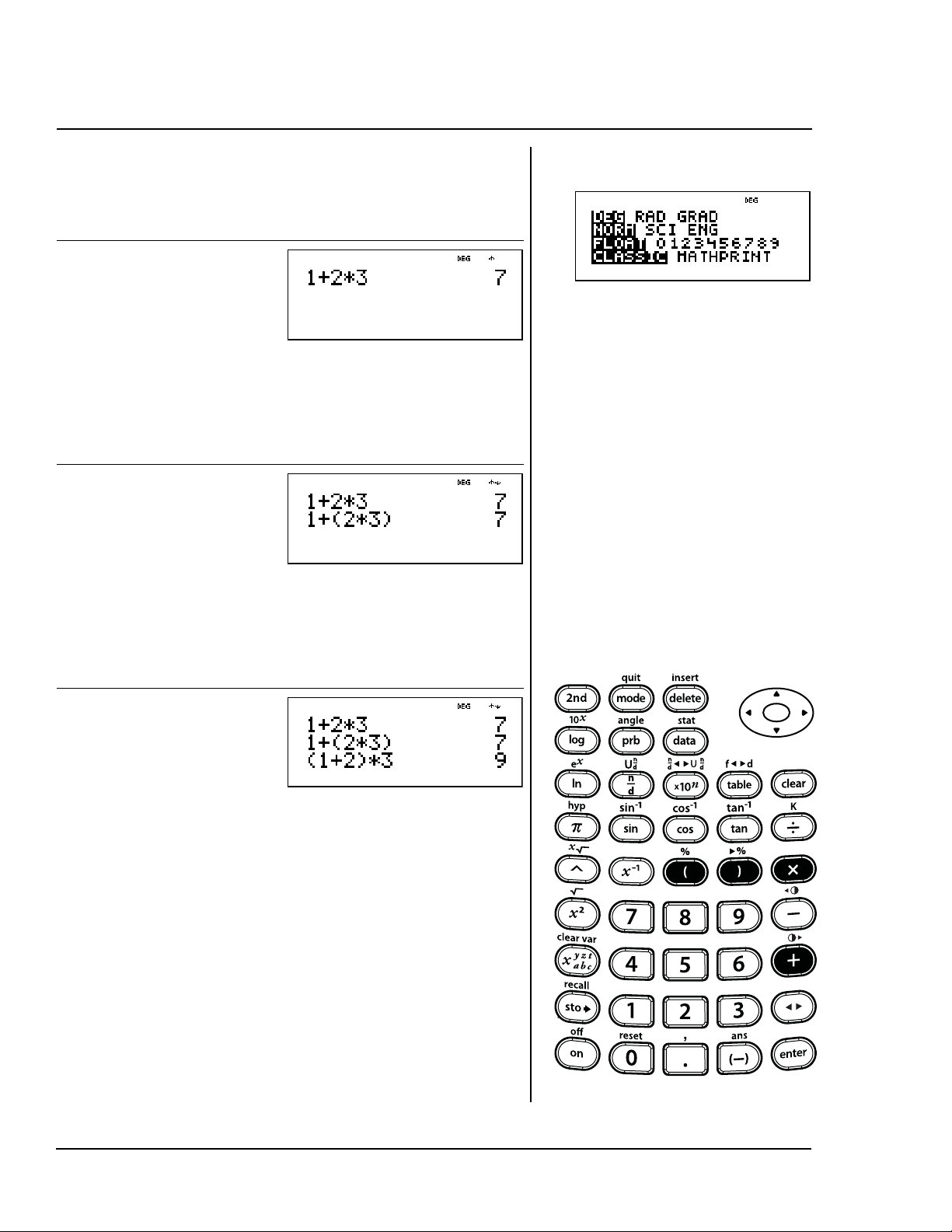
1 + 2 x 3 =
1 + (2 x 3) =
(1 + 2) x 3 =
Press Display
1 T 2 V
3 <
Press Display
1 T D 2 V 3
E <
Press Display
D 1 T 2 E
V 3 <
Order of operations
T V D E
© 2006 TEXAS INSTRUMENTS INCORPORATED TI-30XS MultiView: A Guide For Teachers 53
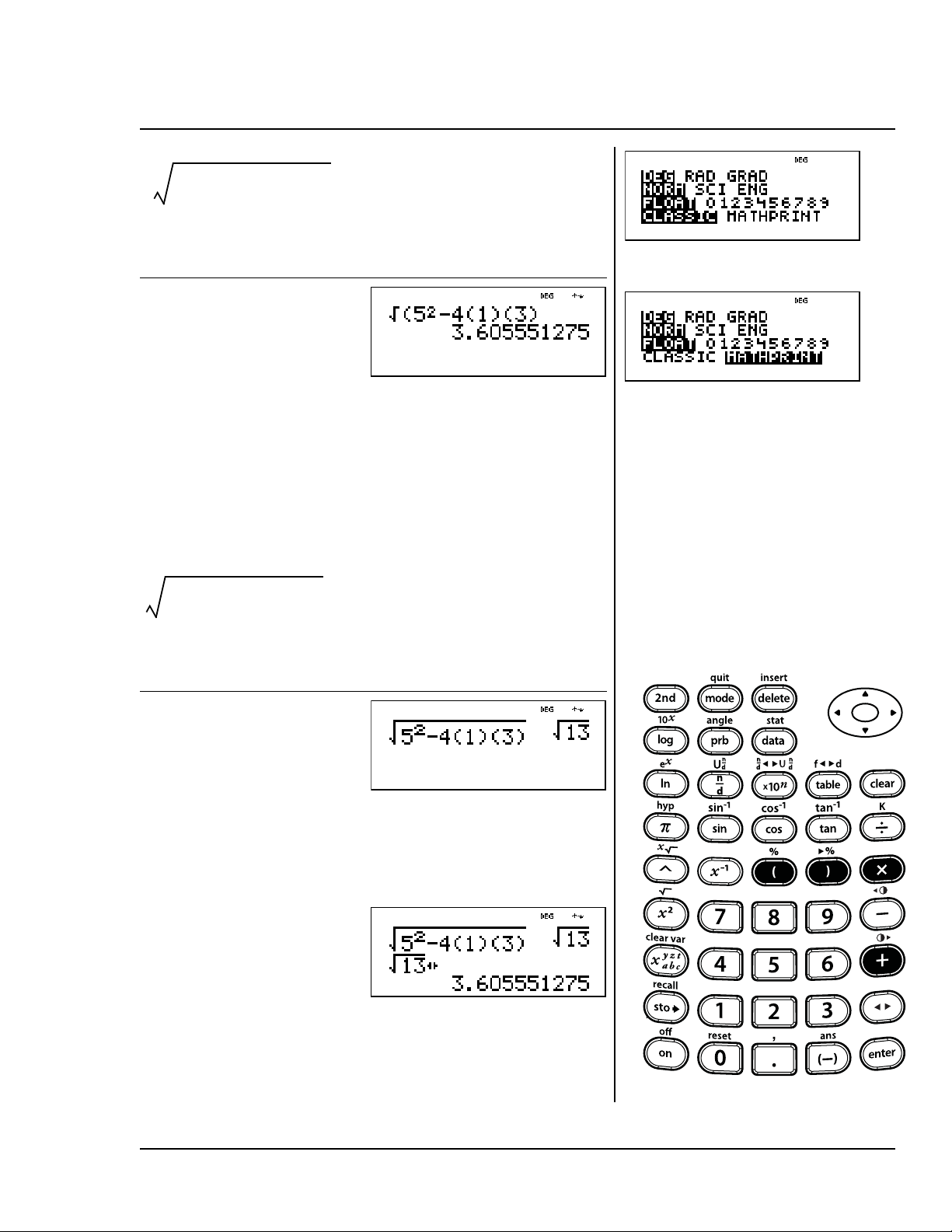
= (Classic mode)
=
(MathPrint™ mode)
Press Display
p$$$
<-
% b 5 F
U 4 D 1 E
D 3 E <
Press Display
p$$$
"<-
% b 5 F
U 4 D 1 E
D 3 E <
n
5
2
41()3()–
5
2
41()3()–
Order of operations (Continued)

54 TI-30XS MultiView: A Guide For Teachers © 2006 TEXAS INSTRUMENTS INCORPORATED
5
© 2006 TEXAS INSTRUMENTS INCORPORATED TI-30XS MultiView: A Guide For Teachers 55
Numeric notation
Keys
1. p lets you choose from the following
numeric notation menu.
NORM Restores standard mode (floating
decimal).
SCI Turns on scientific mode and displays
results as a number from 1 to 10
(1 { n < 10) times 10 to an integer
power.
ENG Turns on engineering mode and
displays results as a number from 1
to 1000 (1 { n < 1000) times 10 to
an integer power. The integer power is
always a multiple of 3.
2. C is a shortcut key to enter a number in
scientific notation format.
Notes
• The examples on the transparency masters
assume all default settings.
• You can enter a value in scientific notation
regardless of the numeric notation mode
setting. For a negative exponent, press M
before entering it.
• Results requiring more than 10 digits are
automatically displayed in scientific
notation.
• For the decimal notation mode, refer to
Chapter 7, Decimals and decimal places.
• These modes (NORM, SCI, and ENG) affect
only the display of results.
1
2
56 TI-30XS MultiView: A Guide For Teachers © 2006 TEXAS INSTRUMENTS INCORPORATED
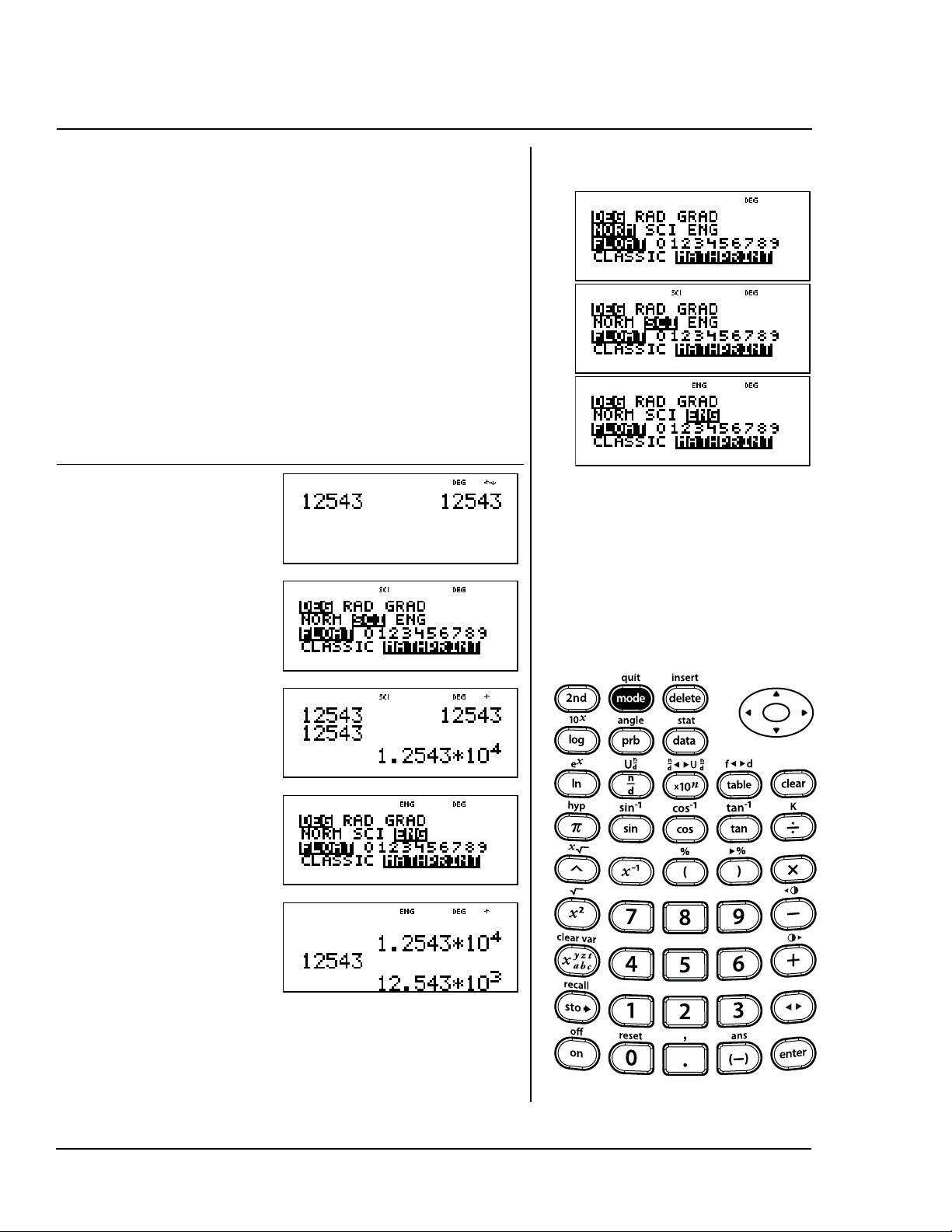
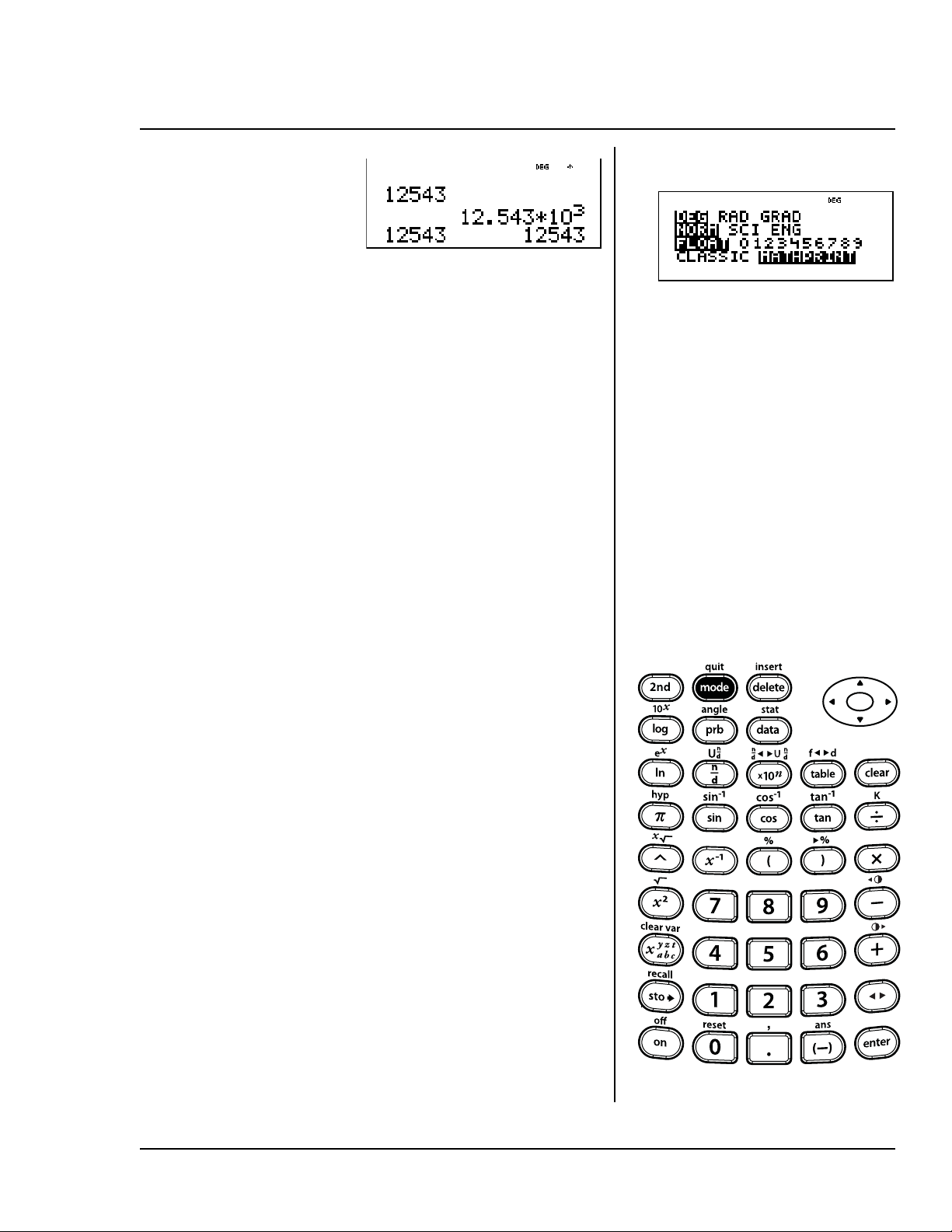
Enter 12543, which will be in floating
decimal notation and normal numeric
notation (both default settings in
p). Alternate the display result
between normal, scientific, and
engineering notations by changing
settings on the mode screen.
Press Display
12543 <
p$"
<
-<
p$"
"<
-<
Engineering, scientific, floating decimal
p
© 2006 TEXAS INSTRUMENTS INCORPORATED TI-30XS MultiView: A Guide For Teachers 57
p$<
-<
Engineering, scientific, floating decimal (Continued)
p
58 TI-30XS MultiView: A Guide For Teachers © 2006 TEXAS INSTRUMENTS INCORPORATED
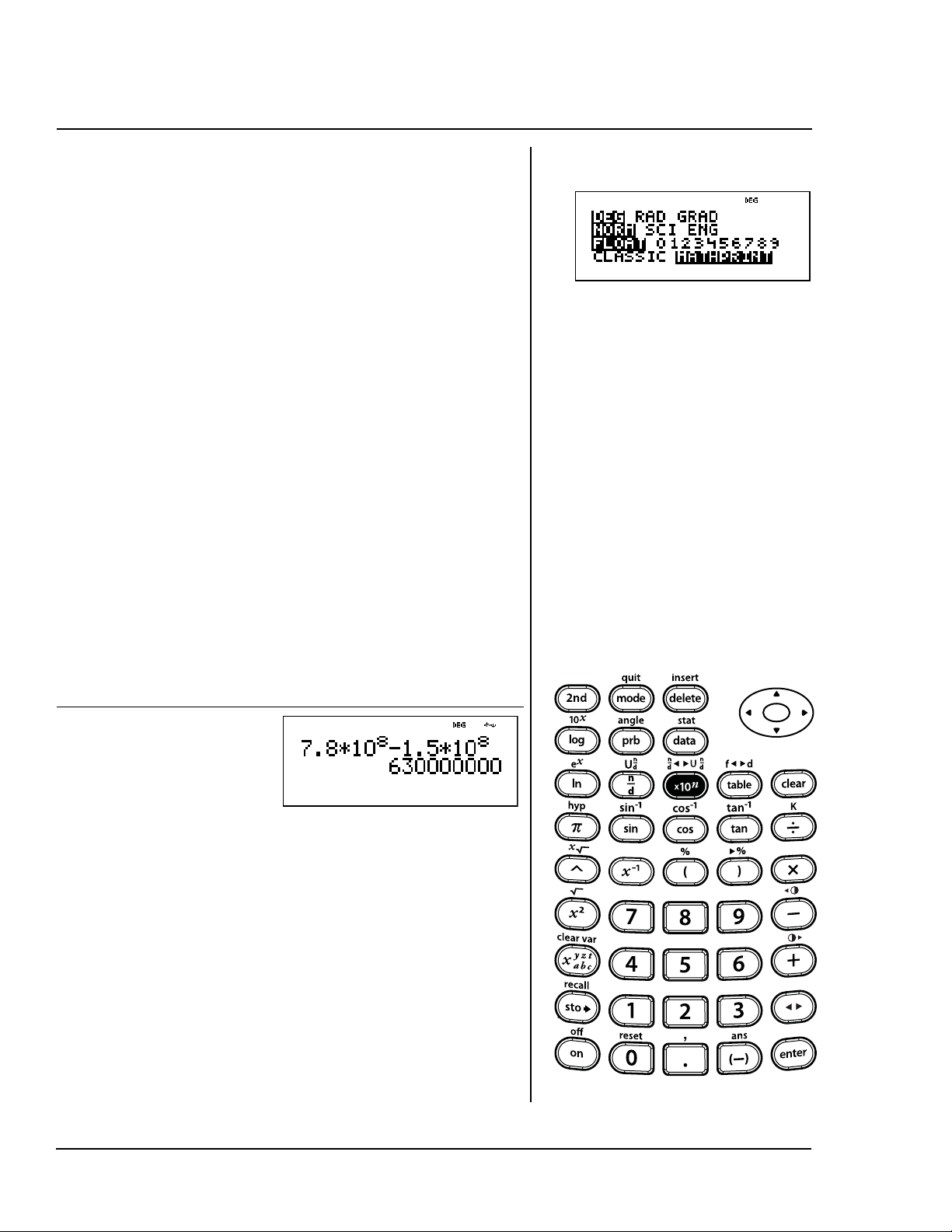
With the TI-30XS MultiView™
calculator in Norm and MathPrint™
modes (both defaults), enter the
following problem in scientific
notation using the C
key.
The Earth is approximately 1.5 x 10
8
kilometers from the Sun. Jupiter is
approximately 7.8 x 10
8
kilometers
from the Sun. Assuming the orbits of
the planets are circular and the
planets are on the same side of the
sun, how close will Jupiter come to
Earth?
Jupiter and Earth could be
approximately
630,000,000 = 6.3 x 10
8
kilometers apart.
Press Display
7 8 8
C 8 "
U 1 8 5 C
8 <
Scientific notation
C
6
© 2006 TEXAS INSTRUMENTS INCORPORATED TI-30XS MultiView: A Guide For Teachers 59
Fractions
Keys
1. %N lets you enter mixed numbers and
fractions. The unit must be an integer. The
numerator and denominator can contain
decimals.
To enter a mixed number, enter an integer for
the unit, and then press %N to enter a
numerator.
In MathPrint™ mode, pressing %N before
entering an integer displays a fraction
template, and allows only one digit to be
entered for the unit.
2. q lets you enter a simple fraction. Pressing
q before or after a number can result in
differing behavior. In MathPrint™ mode,
entering a number before pressing q usually
makes that number the numerator.
q in MathPrint mode can also be used for
more complex fractional or formula
computations that include operators and
other functions
by pressing
q
before you
enter the numerator.
In MathPrint™ mode, press $ between the
entry of the numerator and the denominator.
In Classic mode, press q between the entry
of the numerator and the denominator.
3. % O converts a simple fraction to a
mixed number or a mixed number to a simple
fraction.
4. % j converts a fraction to its decimal
equivalent or changes a decimal to its
fractional equivalent, if possible.
Notes
• The examples on the transparency masters
assume all default settings.
• In MathPrint mode, fractions with q can
include operation keys (T, V, etc.) and most
function keys (F, %_, etc.). In Classic
mode, fractions with q do not allow
operation keys, functions, or complex
fractions in the numerator or denominator.
• In MathPrint mode, you can enter variables (x,
y, z, t, a, b, and c) in the numerator and
denominator of a fraction. In Classic mode,
fractions with q do not allow variables.
• In Classic mode, data editor, and table, use
W along with D and E where needed to
perform complex division problems.
1
2
3
4

60 TI-30XS MultiView: A Guide For Teachers © 2006 TEXAS INSTRUMENTS INCORPORATED
Fractions (Continued)
• To paste a previous entry in the denominator,
place the cursor in the denominator, press
% # to scroll to the desired entry, and
then press < to paste the entry to the
denominator.
• To paste a previous entry in the numerator or
unit, place the cursor in the numerator or
unit, press # or % # to scroll to the
desired entry, and then press < to paste
the entry to the numerator or unit.
• Fractional results and entries are
automatically simplified to their lowest
terms.
• Calculations using fractions can display
fraction or decimal results, depending on
input.
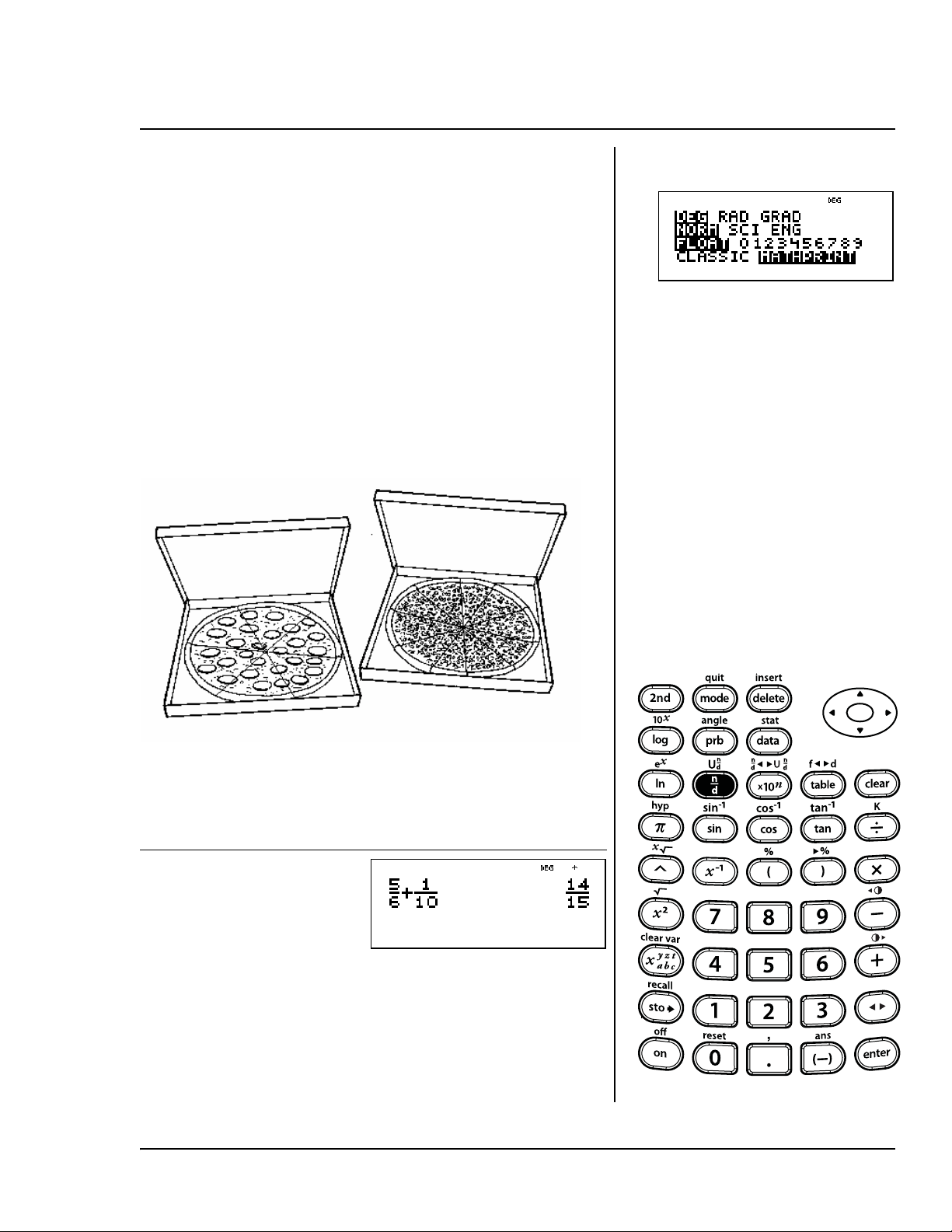
© 2006 TEXAS INSTRUMENTS INCORPORATED TI-30XS MultiView: A Guide For Teachers 61
At the party, you ate of the
pepperoni pizza and of the
sausage pizza. The pizzas are the
same size. If you put the pieces
together, how much of one whole
pizza did you eat?
You ate of the size of one whole
pizza. That is almost an entire pizza!
Press Display
5 q 6 " T1
q 10 <
5
6
---
1
10
-----
14
15
----
Fractions
q
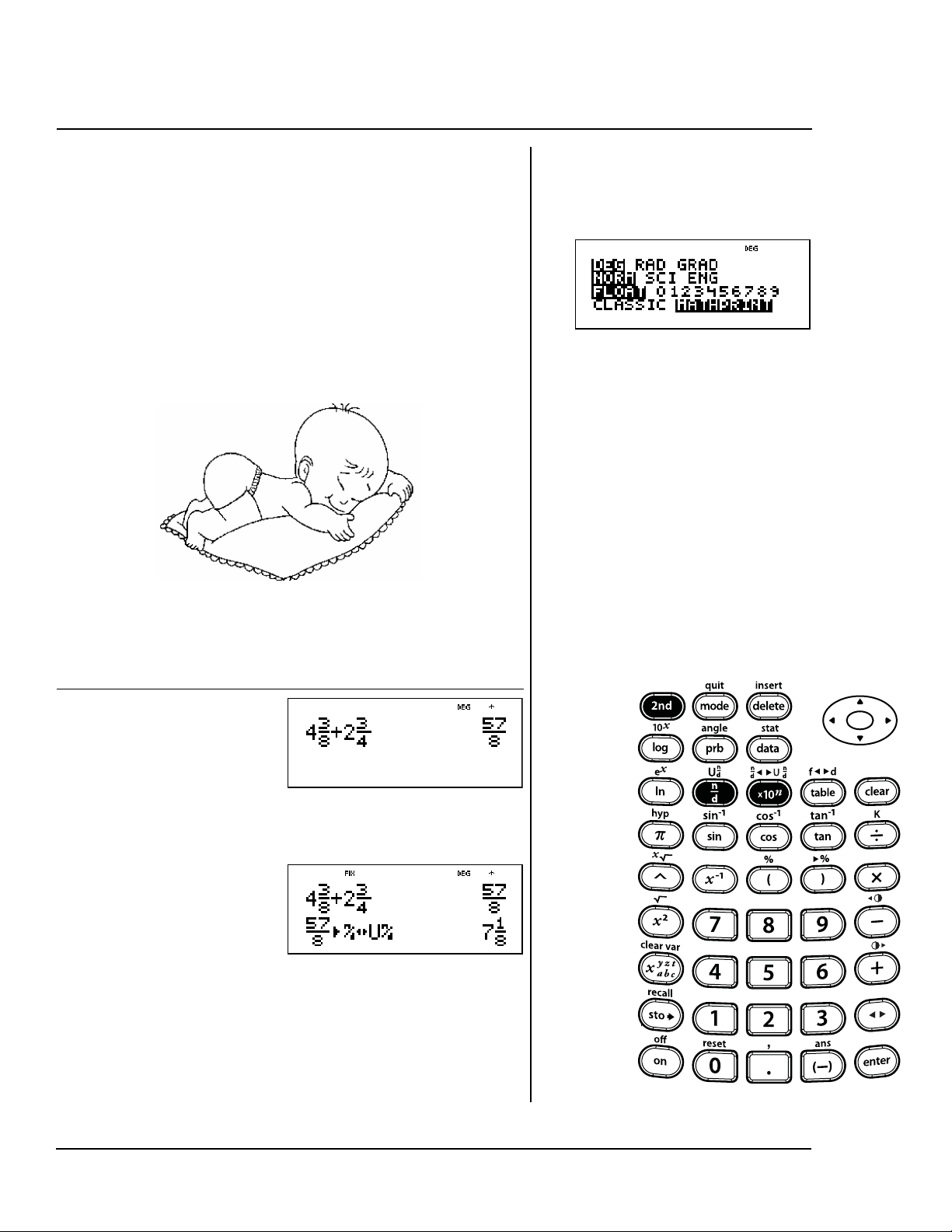
62 TI-30XS MultiView: A Guide For Teachers © 2006 TEXAS INSTRUMENTS INCORPORATED
A baby weighed 4 pounds at birth.
In the next 6 months, she gained
2 pounds. How much does she
weigh?
After 6 months, the baby weighs
7 pounds.
Press Display
4 %N 3
$ 8 " T 2
%N 3 $
4 <
%O
<
3
8
---
3
4
---
1
8
---
Mixed numbers
%N
%O
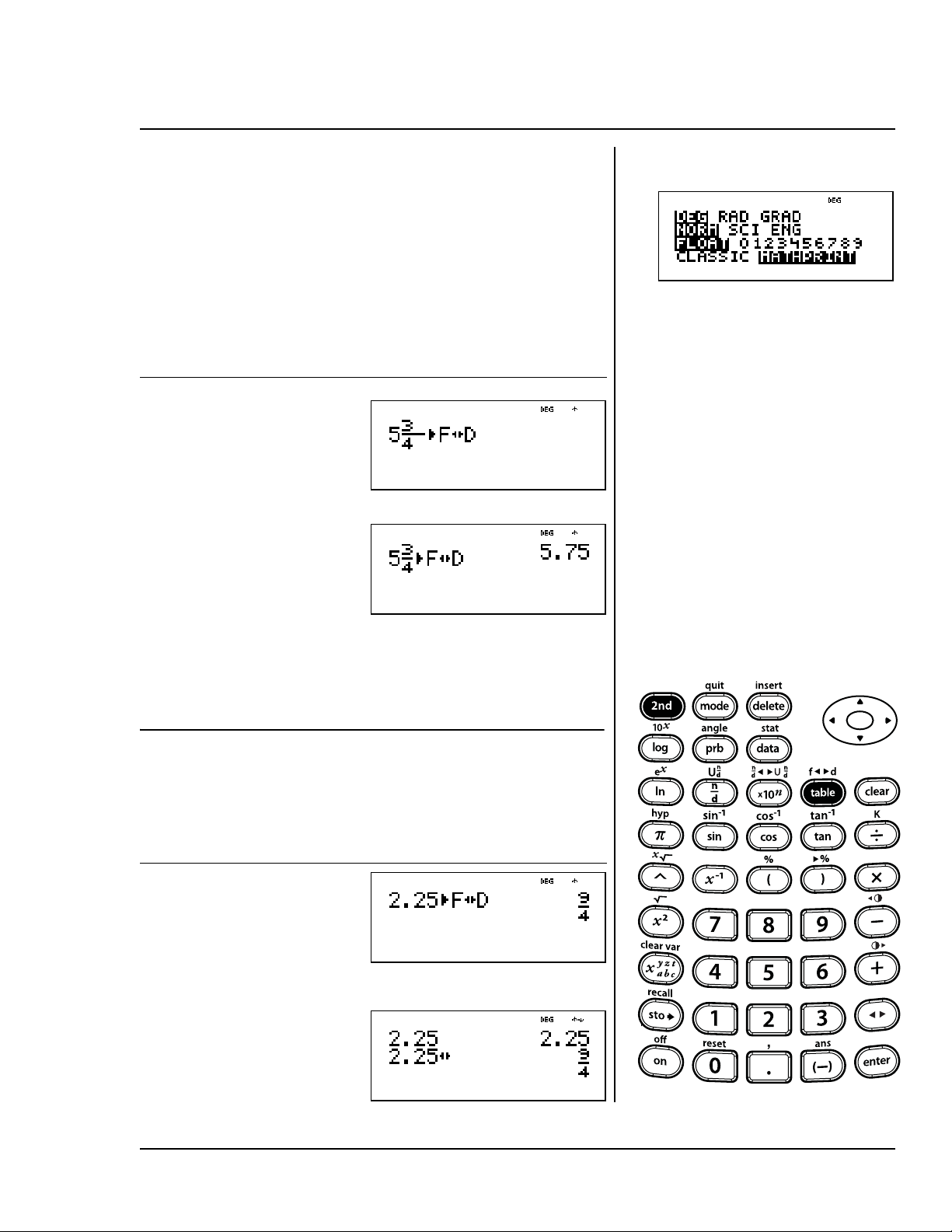
© 2006 TEXAS INSTRUMENTS INCORPORATED TI-30XS MultiView: A Guide For Teachers 63
Juan swims 20 laps in 5.72 minutes.
Mary swims 20 laps in 5 minutes.
Change Mary's time to a decimal to
determine who swims faster.
Juan swims faster than Mary since
he swims 20 laps in 5.72 minutes.
Change 2.25 to its fractional
equivalent.
Press Display
5 %N 3
$ 4 "
%j
<
Press Display
2 8 25 %
j
<
or
2 8 25 <
n
3
4
---
Converting fractions and decimals
%j

64 TI-30XS MultiView: A Guide For Teachers © 2006 TEXAS INSTRUMENTS INCORPORATED
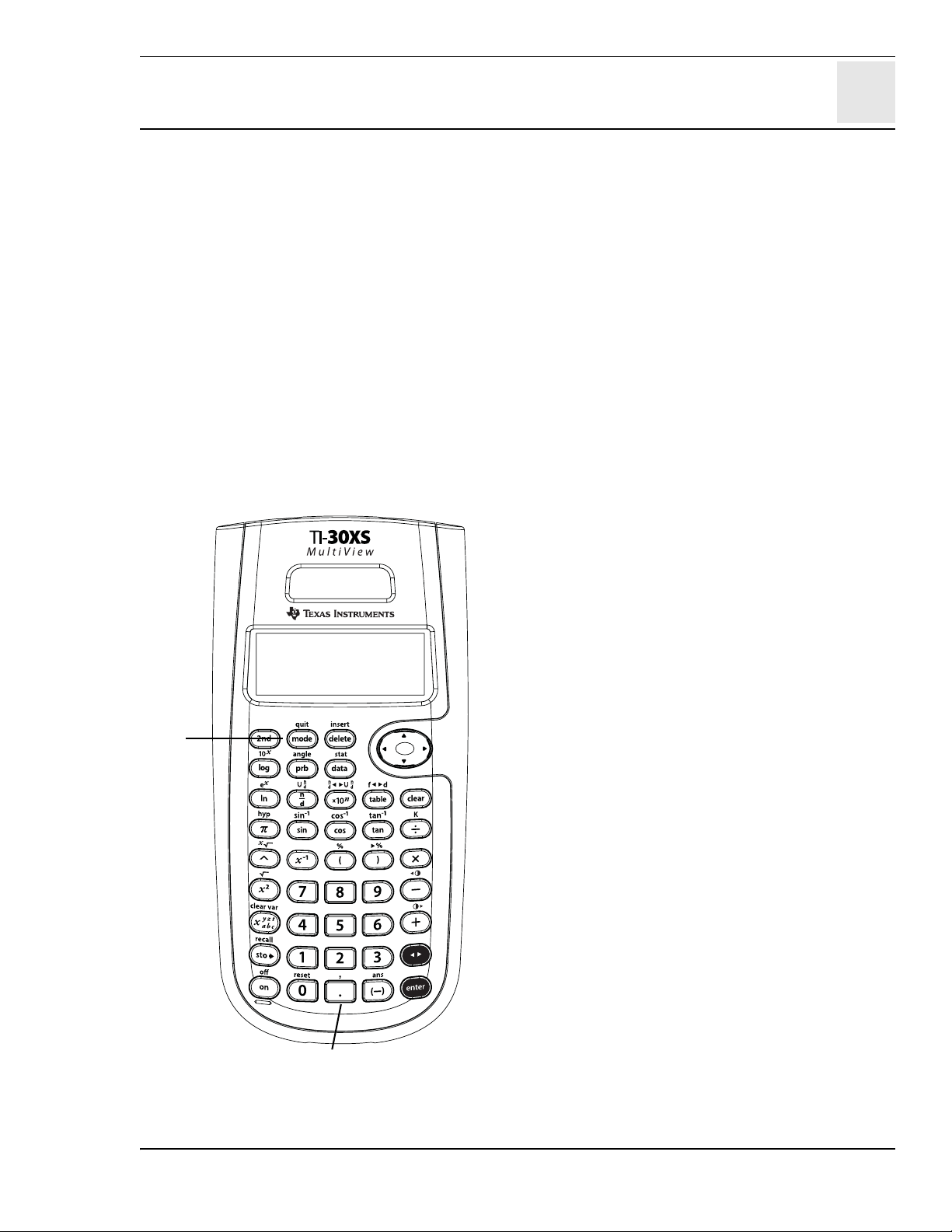
7
© 2006 TEXAS INSTRUMENTS INCORPORATED TI-30XS MultiView: A Guide For Teachers 65
Decimals and decimal places
Keys
1. 8 enters a decimal point.
2.
p lets you set the number of decimal
places. Press $ $ and then " to the
choice of decimal desired. Press < to
select it.
FLOAT Sets floating decimal (standard)
notation.
0-9 Sets the number of decimal places
displayed. FIX displays when a
decimal mode is set from 0-9.
Notes
• The examples on the transparency masters
assume all default settings.
• Press p $ $ < to return to
standard notation (floating decimal).
• The decimal mode setting affects most
decimal results and the mantissa of
scientific and engineering notation results.
• The TI-30XS MultiView™ calculator
automatically rounds the result to the
number of decimal places selected. For
example, when the decimal is set to 2 places,
0.147 becomes 0.15 when you press <. The
TI-30XS MultiView calculator also rounds or
pads resulting values with trailing zeros to fit
the selected setting. For example, when the
decimal is set to 5 places, 0.147 becomes
0.14700 when you press <.
• Resetting the calculator clears the decimal
setting and resets to the default, FLOAT.
• The decimal setting does not affect the
internal precision of results. It affects only
the way results are displayed.
1
2
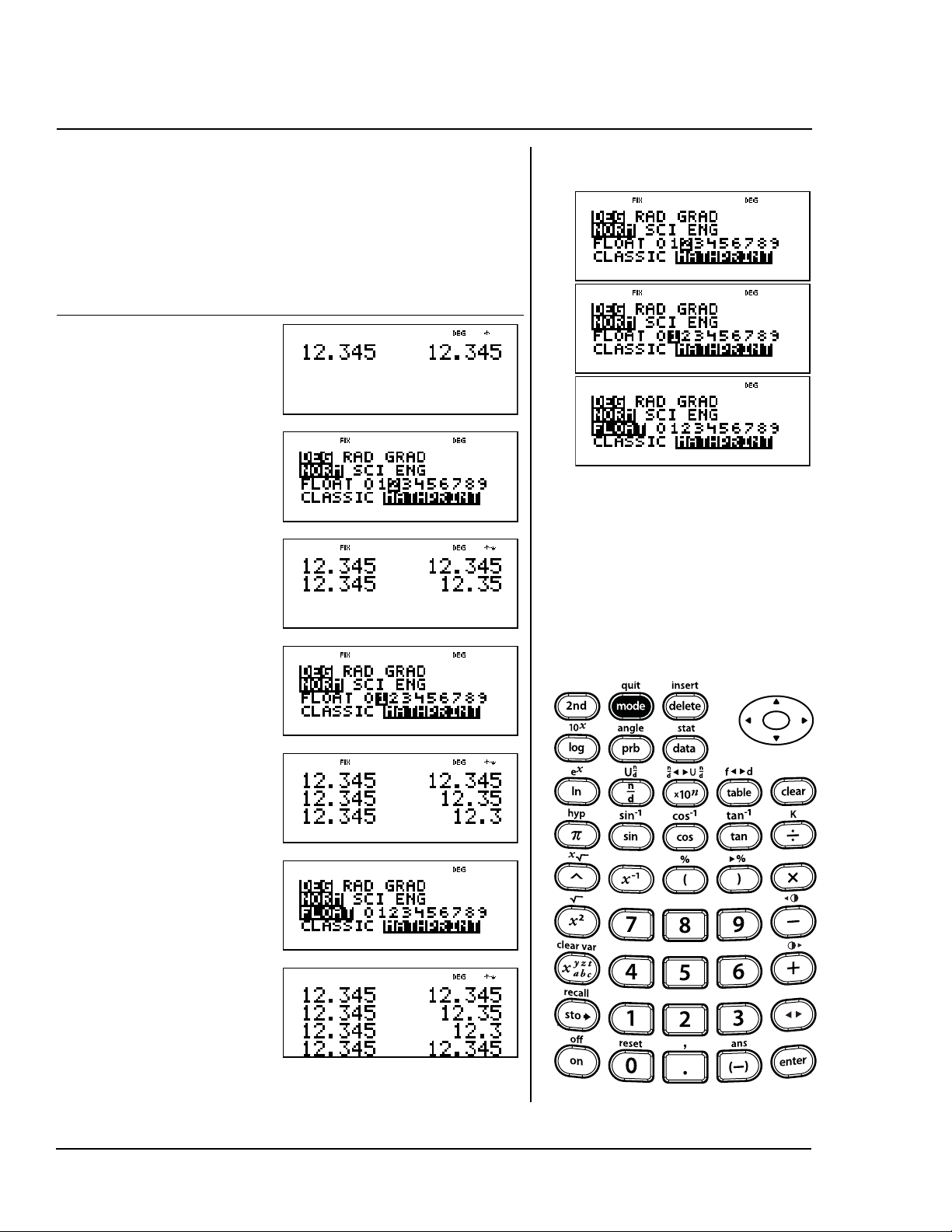
66 TI-30XS MultiView: A Guide For Teachers © 2006 TEXAS INSTRUMENTS INCORPORATED
Round 12.345 to the hundredths
place, to the tenths place, and then
to floating notation.
Press Display
12 8
345 <
p
$ $ "
""<
-<
p
$$"
"<
-<
p
$$
<
-<
Decimal
p
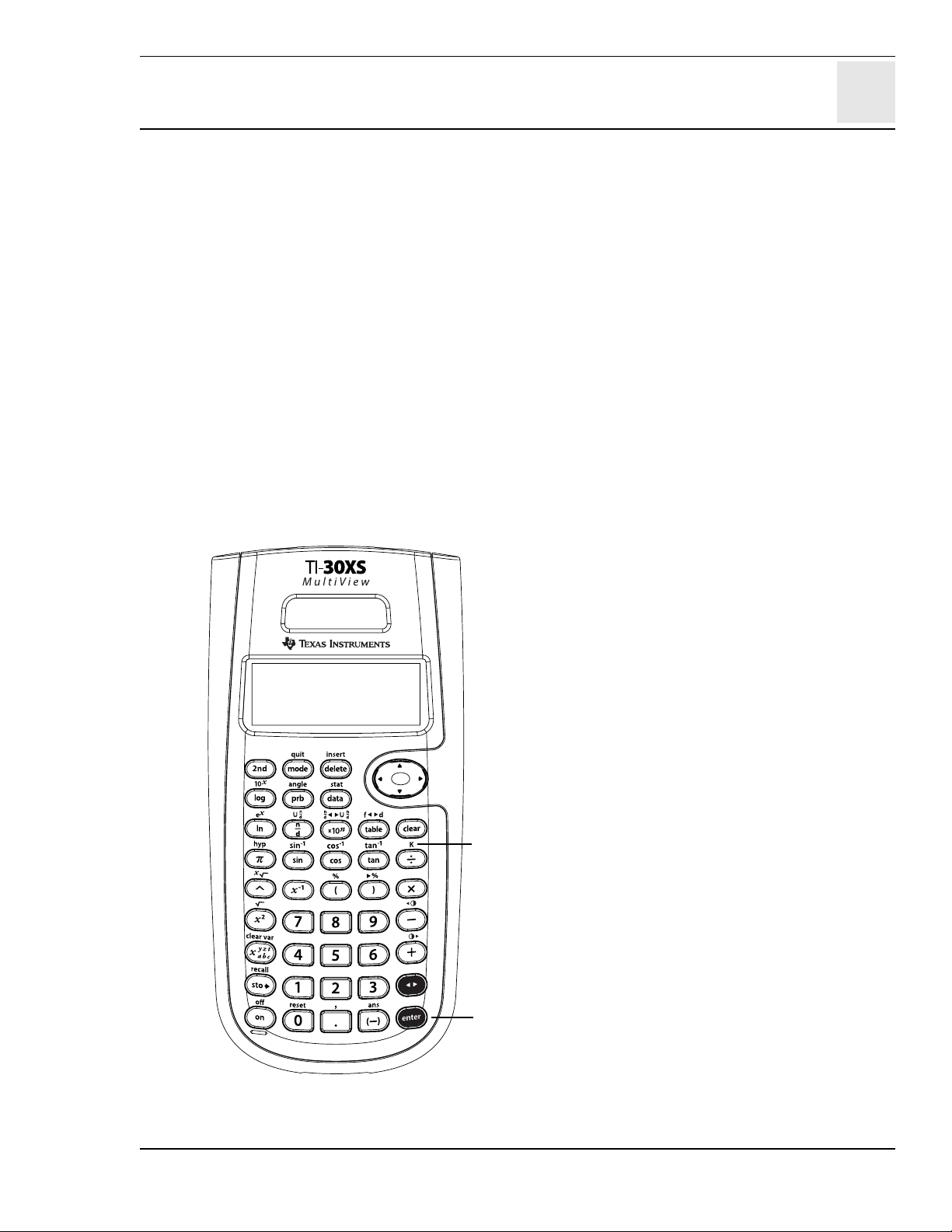
8
© 2006 TEXAS INSTRUMENTS INCORPORATED TI-30XS MultiView: A Guide For Teachers 67
Constant
Keys
1. % l turns the constant feature on and
off, and lets you define a constant number,
operation, or expression for a shortcut when
repeating a set of keystrokes. K displays
when the constant mode is on.
2. < places the contents of K at the end of
the expression in the display.
Notes
• The examples on the transparency masters
assume all default settings.
• All operations, functions, and values work in
constant mode.
• To enter a constant:
1. Press % l. If a constant is already
stored, press - to clear it.
2. Enter the constant (any set of
operations, functions, and values).
3. Press < to turn on the constant
feature. K appears in the display to
indicate the constant feature is on.
4. Press - to clear the display.
5. Enter an initial value. If you do not enter a
value, 0 is assumed, and Ans will appear
in the display.
6. Press < to place the contents of K at
the end of the expression and evaluate it.
7. Continue pressing < to repeat the
constant.
8. Press % l again to turn off the
constant feature.
2
1
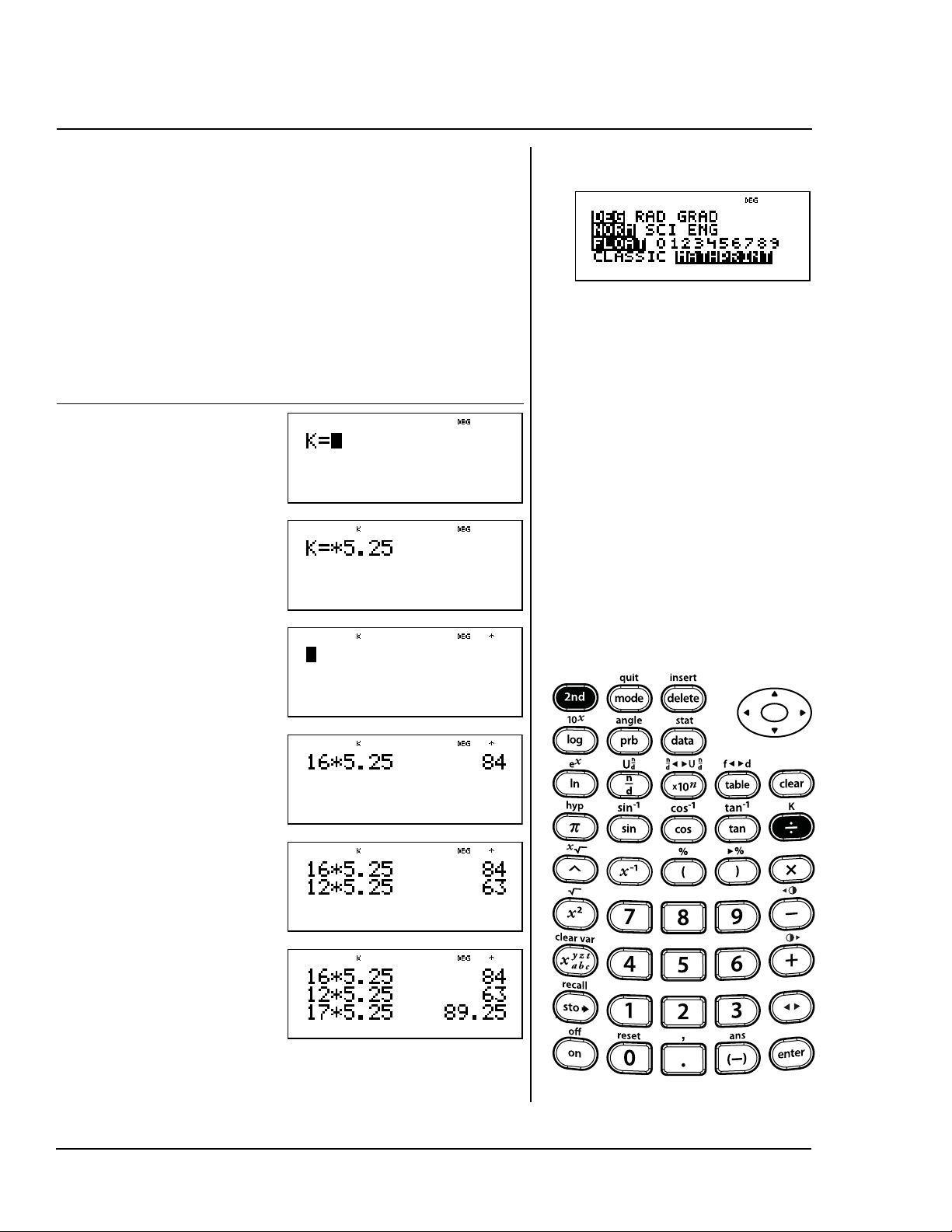
68 TI-30XS MultiView: A Guide For Teachers © 2006 TEXAS INSTRUMENTS INCORPORATED
Three people babysit for $5.25 each
per hour. The first person works 16
hours. The second person works 12
hours. The third person works 17
hours. How much did each person
earn?
Press Display
%l
V 5.25 <
-
16 <
12 <
17 <
Constant
%l
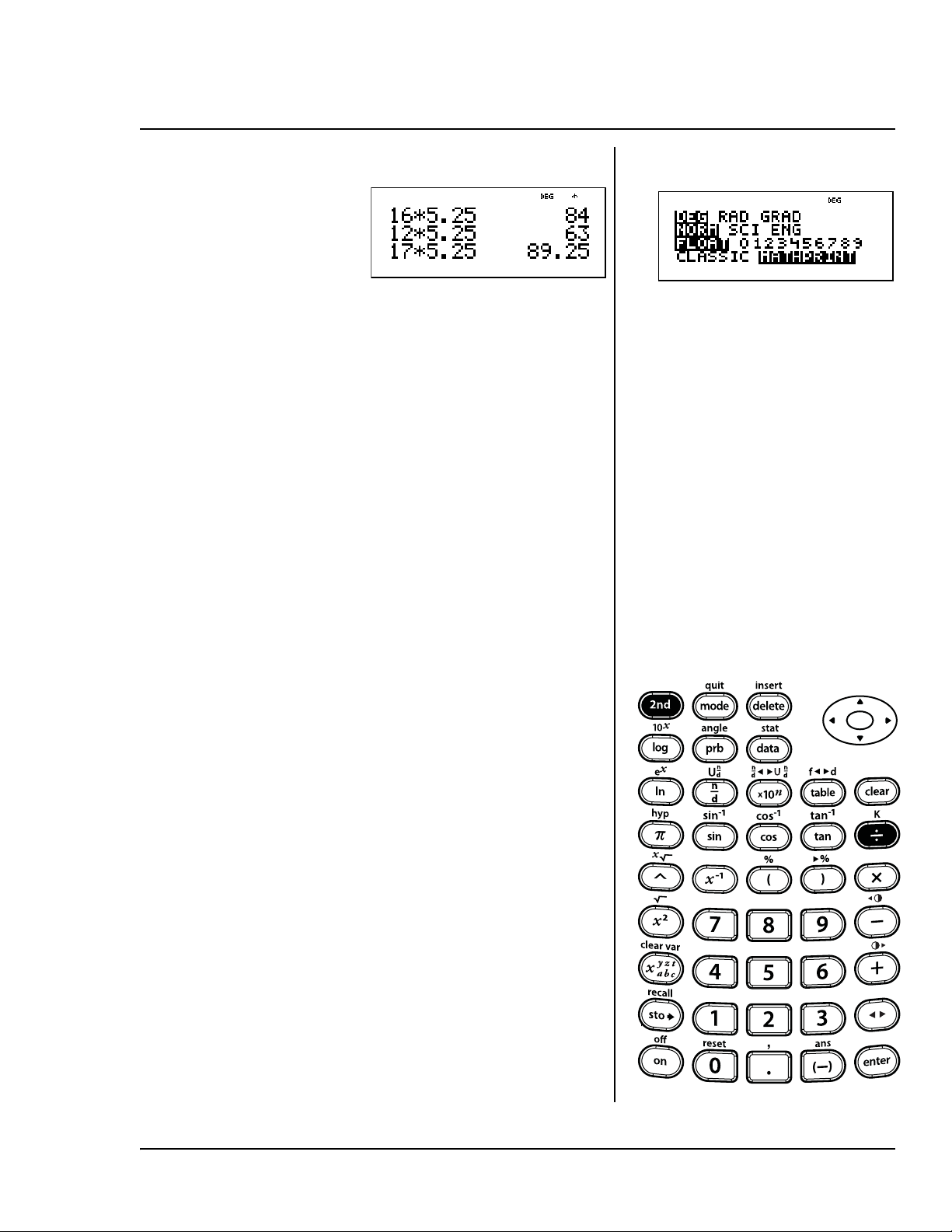
© 2006 TEXAS INSTRUMENTS INCORPORATED TI-30XS MultiView: A Guide For Teachers 69
(Constant mode is off.)
%l
Constant (Continued)
%l

70 TI-30XS MultiView: A Guide For Teachers © 2006 TEXAS INSTRUMENTS INCORPORATED
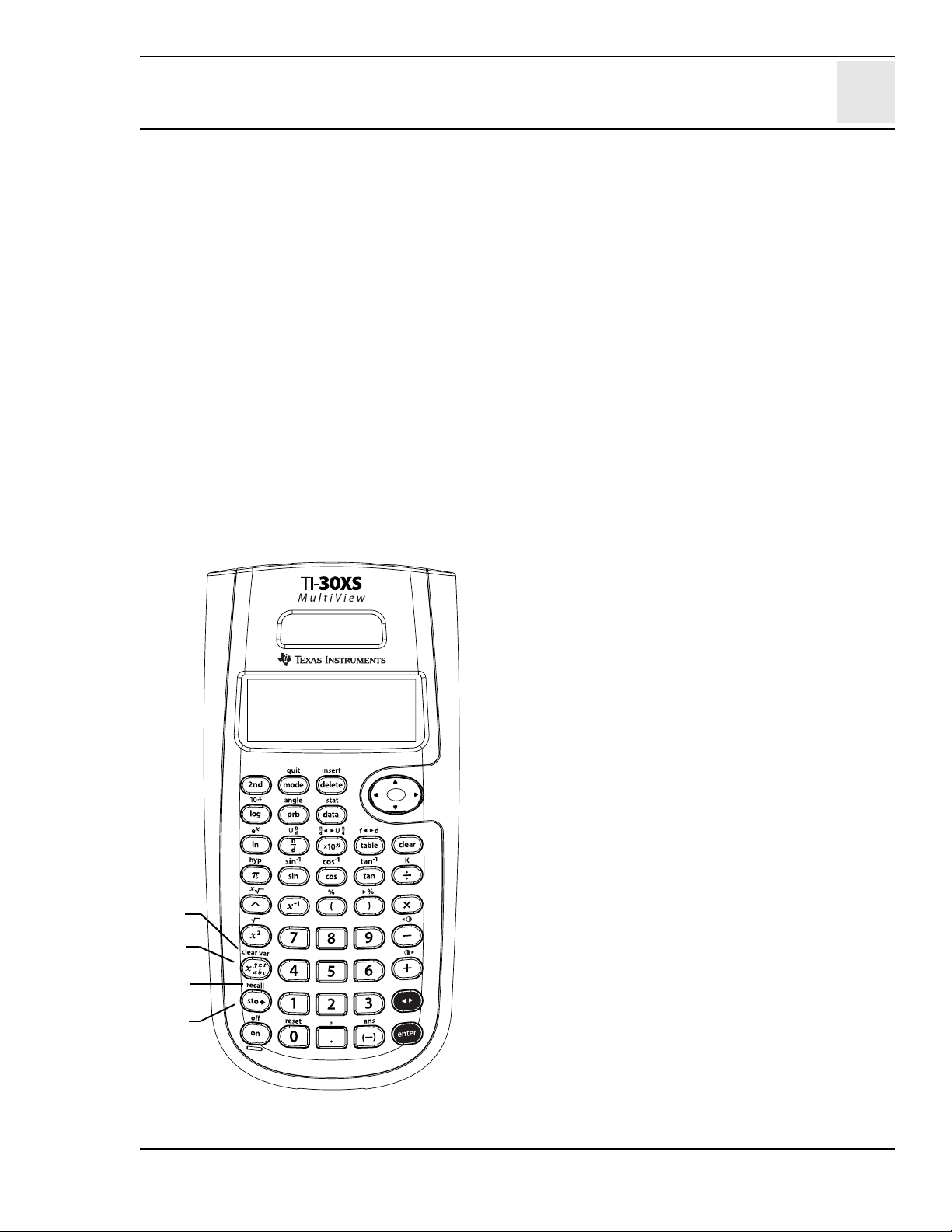
9
© 2006 TEXAS INSTRUMENTS INCORPORATED TI-30XS MultiView: A Guide For Teachers 71
Memory and stored variables
Keys
1. L lets you store values to variables. Press
Lto store a variable, and press z to
select the variable to store. Press < to
store the value in the selected variable. If this
variable already has a value, that value is
replaced by the new one.
2. z accesses variables. Press this key
multiple times to choose x, y, z, t, a, b, or c.
You can also use z to recall the stored
values for these variables.
3. % { clears all variables.
4. % h displays a menu of the variables x,
y, z, t, a, b, and c, and lets you view their
stored values before pasting to the display.
Notes
• The examples on the transparency masters
assume all default settings.
• You can store a number or an expression that
results in a number to a memory variable.
• When you select a variable using z, the
variable name (x, y, z, t, a, b, or c) is displayed.
The variable name is inserted into the current
entry, but the value assigned to the variable
is used to evaluate the expression.
• When you select a variable using % h, a
menu is displayed showing the value of the
stored variables. Select the variable by
pressing the corresponding menu number. The
value assigned to the variable is inserted into
the current entry and used to evaluate the
expression.
• Resetting the calculator clears all memory
variables.
4
1
2
3
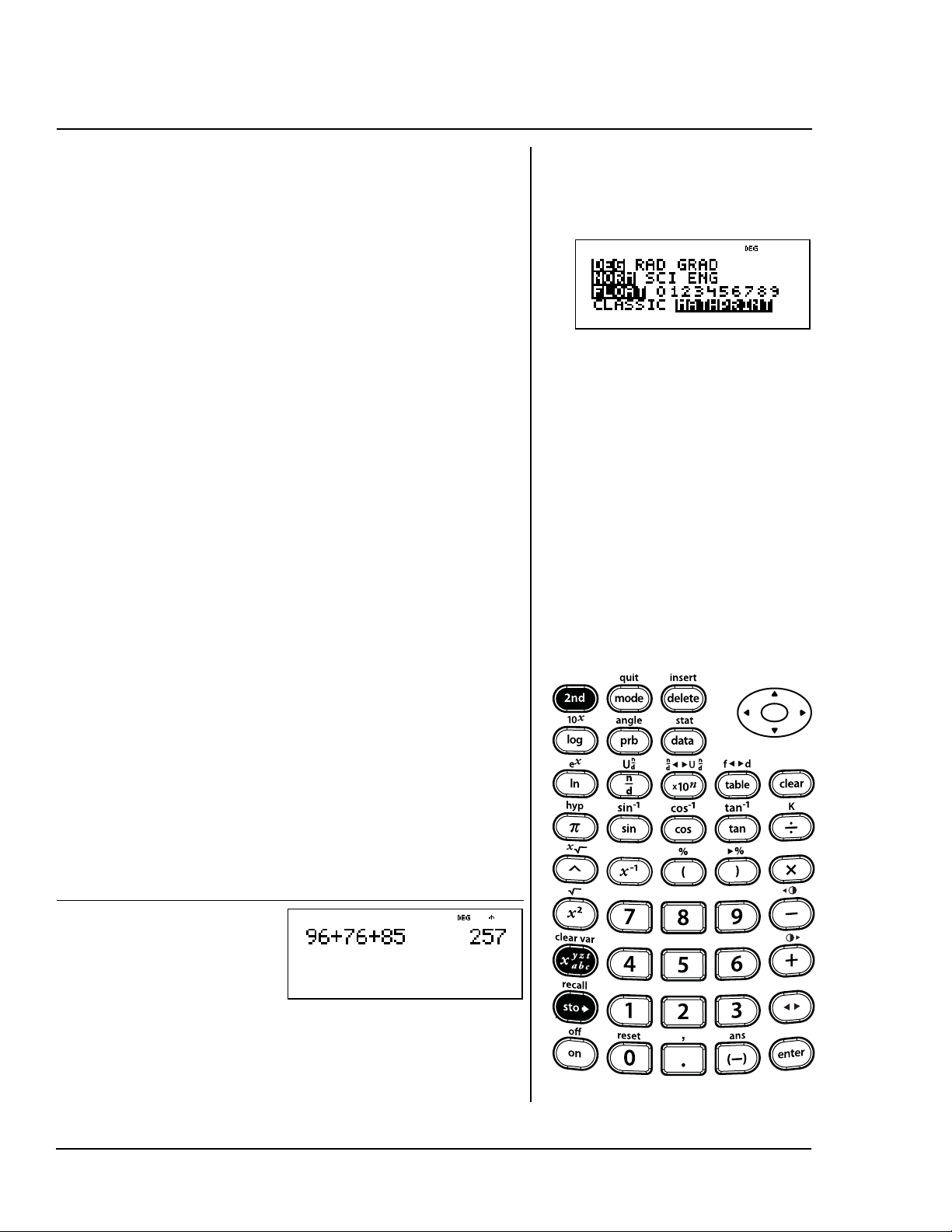
72 TI-30XS MultiView: A Guide For Teachers © 2006 TEXAS INSTRUMENTS INCORPORATED
Following are your scores for tests
and homework in your math class.
Test scores: 96, 76, 85.
Homework scores: 92, 83, 97, 86.
1. Find your test grade as the
average of your test scores.
2. Find your homework grade as the
average of your homework
scores.
3.Your teacher will compute your
final grade as the average of
your test grade and your
homework grade. What is your
final grade? Your teacher will
round to the nearest whole
number if needed.
Press Display
96 T 76 T
85 <
Store, variables
Lz
%h
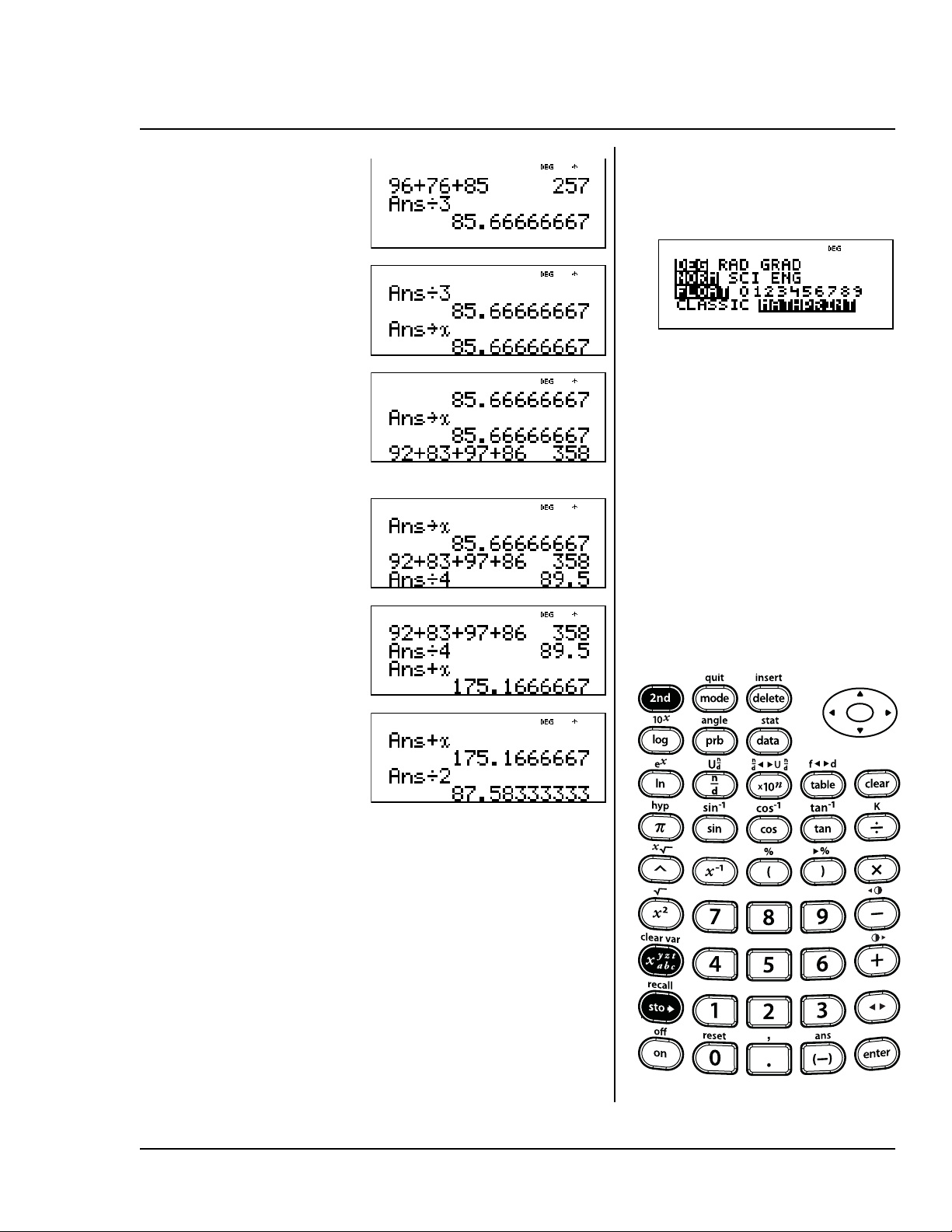
© 2006 TEXAS INSTRUMENTS INCORPORATED TI-30XS MultiView: A Guide For Teachers 73
Your final grade is 88 rounded to the
nearest whole number.
W 3 <
L z
<
92 T 83 T
97 T 86
<
W 4 <
T z <
W 2 <
Store, variables (Continued)
Lz
%h
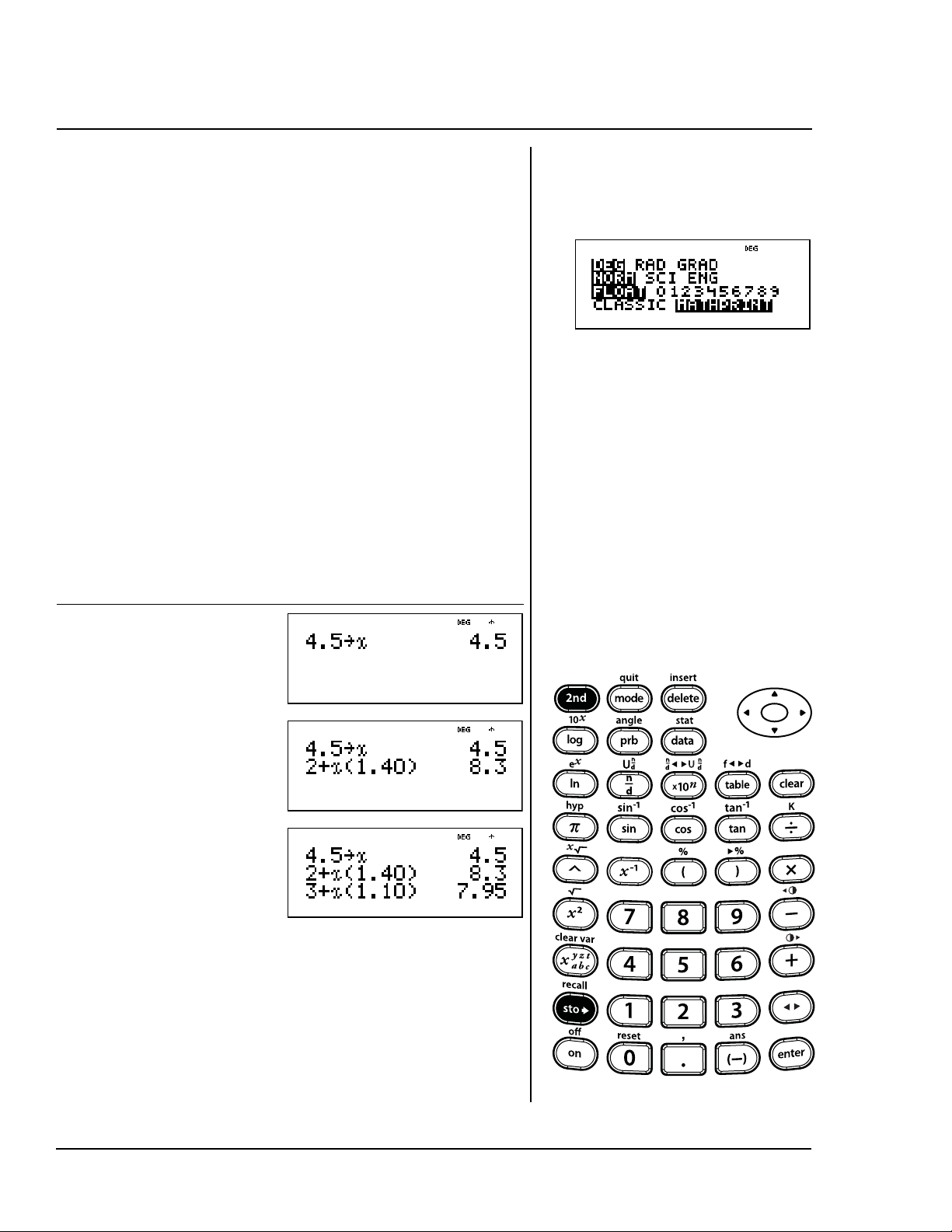
74 TI-30XS MultiView: A Guide For Teachers © 2006 TEXAS INSTRUMENTS INCORPORATED
You are going to ship a gift to each of
two friends. You see the gifts at two
web sites for the same price. The
shipping charges are different at
each site. The packages weigh 4.5
pounds and 3.2 pounds. Store A will
ship a package for €2 plus €1.40 per
pound. Store B will ship the package
for €3 plus €1.10 per pound. Which
store will charge the least for
shipping each gift?
Store A charges €8.30 and store B
charges €7.95. Store B charges less
to ship the gift that weighs 4.5
pounds.
Press Display
4 8 5 L
z <
2 T
z D1
8 40 E
<
3 T
z D1
8 10 E
<
Store, recall
L
%h
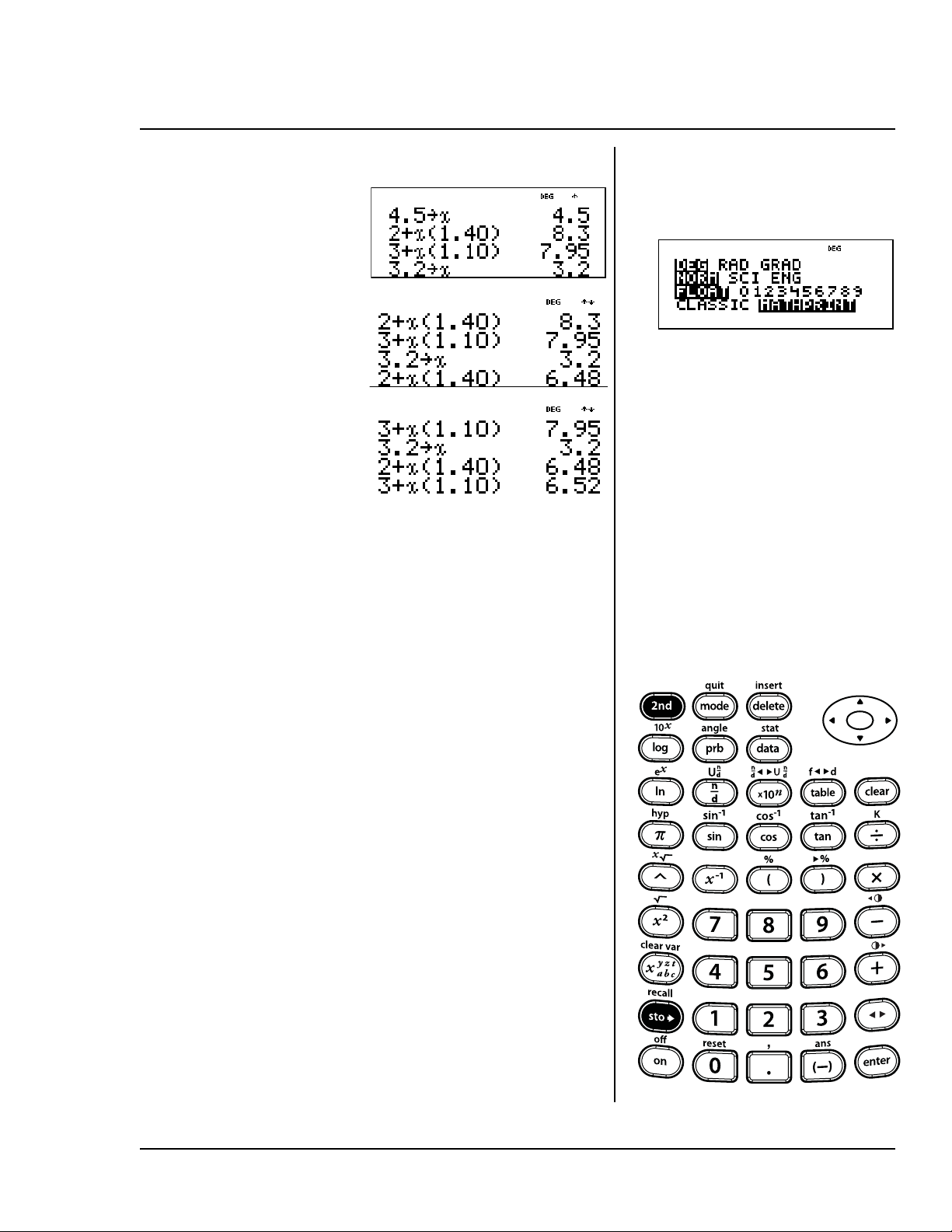
© 2006 TEXAS INSTRUMENTS INCORPORATED TI-30XS MultiView: A Guide For Teachers 75
Store A charges €6.48 and store B
charges €6.52. Store A charges less
to ship the gift that weighs 3.2
pounds.
3 8 2 L
z <
#####
#<<
#####
#<<
Store, recall (Continued)
L
%h
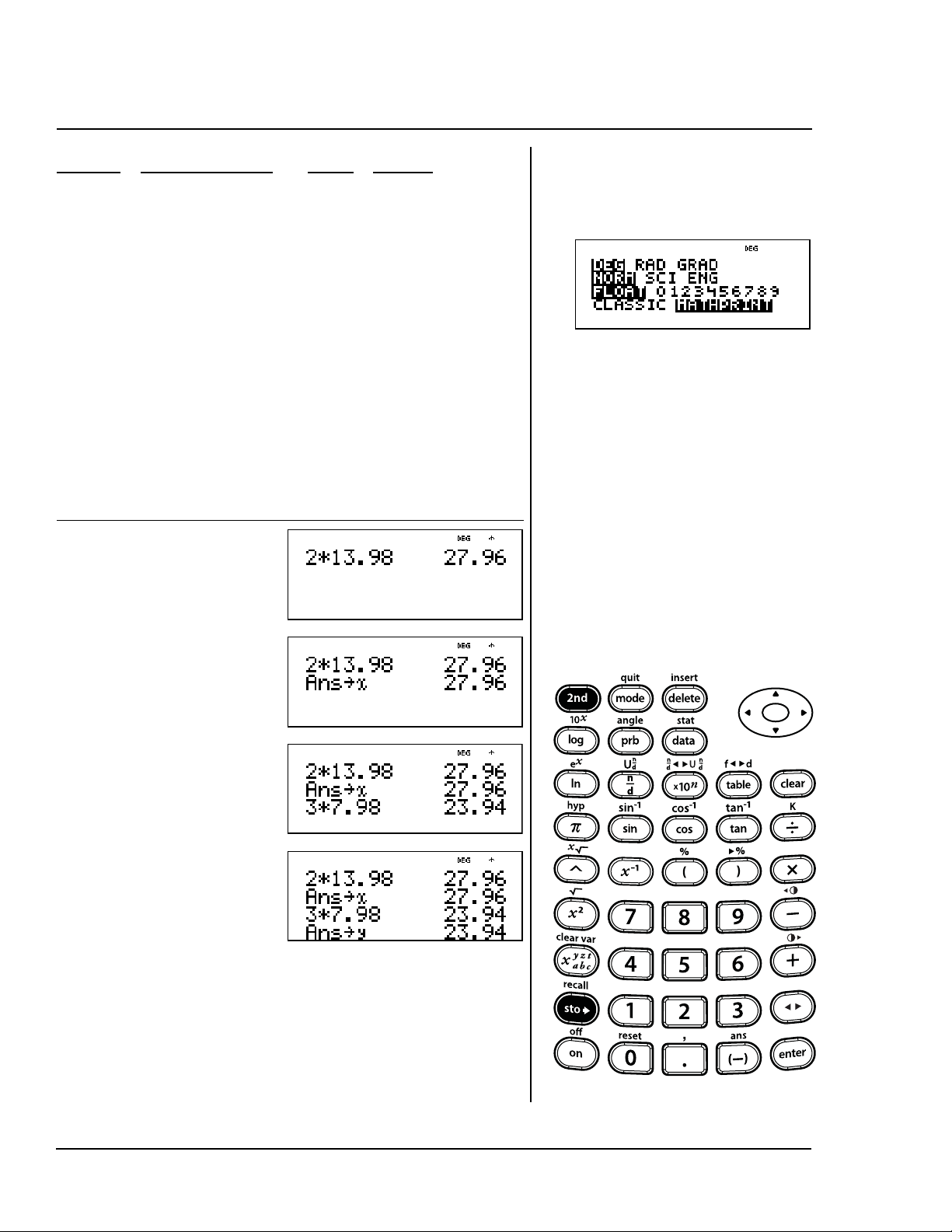
76 TI-30XS MultiView: A Guide For Teachers © 2006 TEXAS INSTRUMENTS INCORPORATED
Shop Purchases Qty Cost
Ashirts 2€13.98 ea.
Bties 3€7.98 ea.
Cbelt 1€6.98
suspenders 1 €9.98
How much did you spend at each
shop, and how much did you spend
altogether?
Press Display
2 V 13 8
98 <
Lz<
3 V 7 8
98 <
L z
z <
Store, recall (Continued)
L
%h
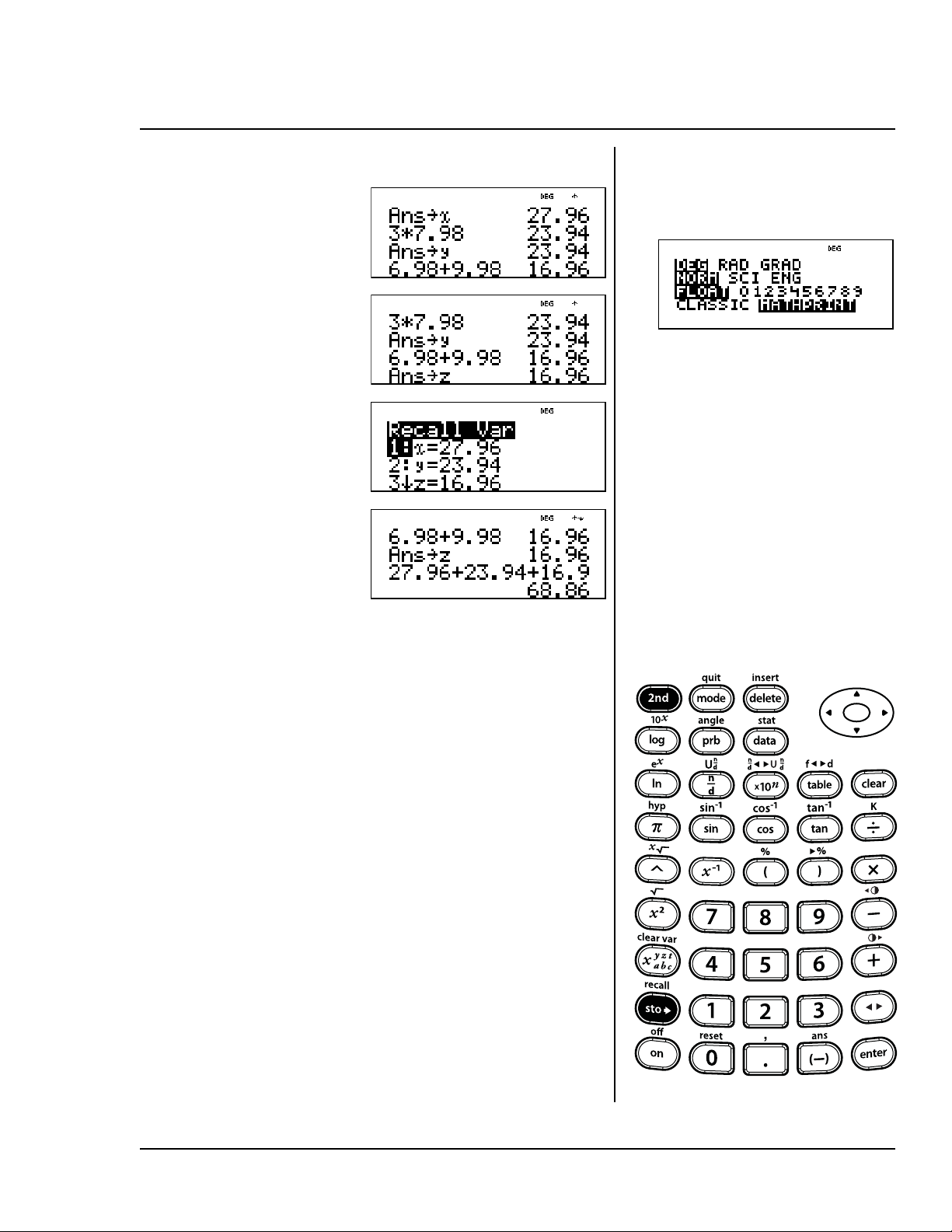
© 2006 TEXAS INSTRUMENTS INCORPORATED TI-30XS MultiView: A Guide For Teachers 77
You spent:
€27.96 at shop A,
€23.94 at shop B,
€16.96 at shop C.
You spent €68.86 at all three shops.
6 8 98 T
9 8 98 <
L z
zz<
% h
1 T% h
2 T %
h 3 <
Store, recall (Continued)
L
%h

78 TI-30XS MultiView: A Guide For Teachers © 2006 TEXAS INSTRUMENTS INCORPORATED
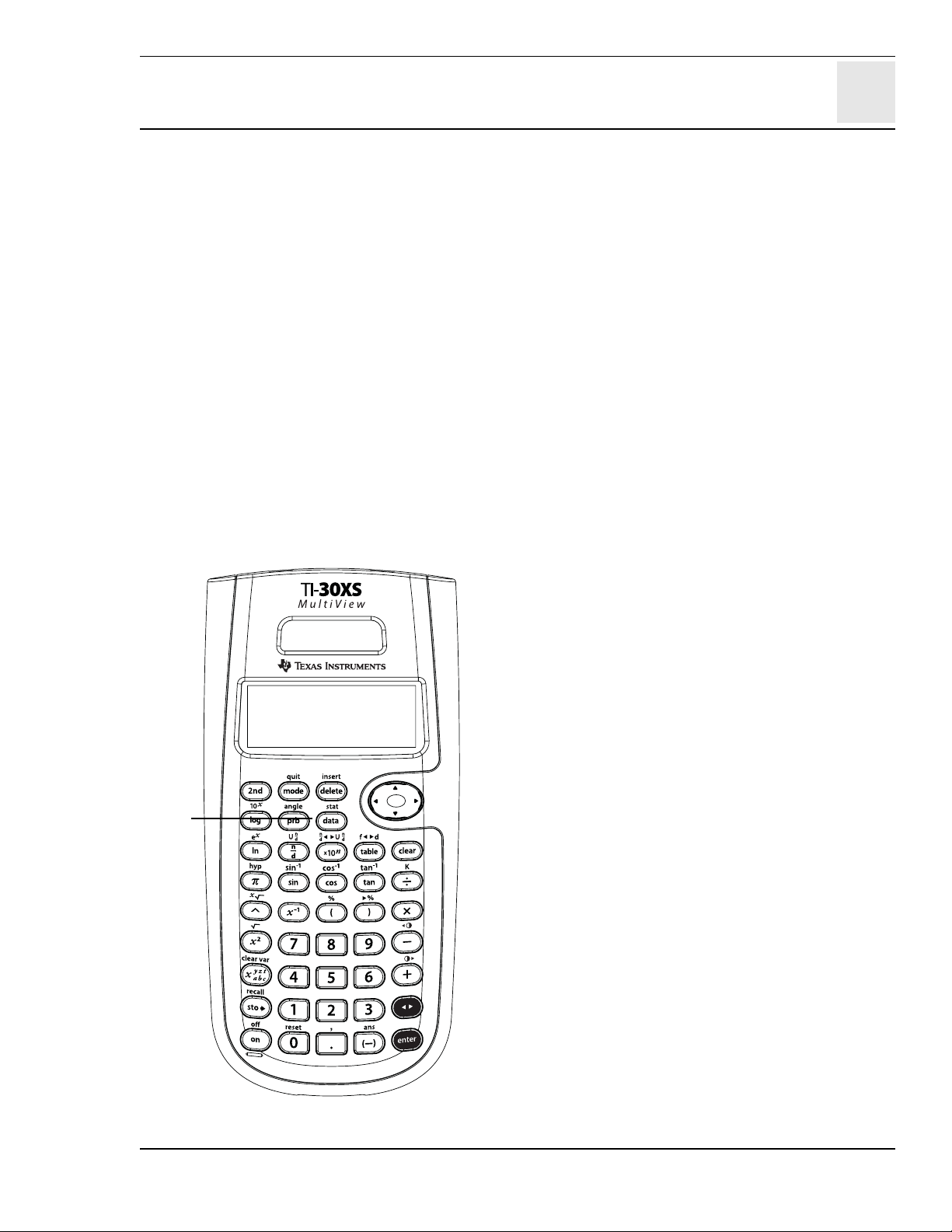
10
© 2006 TEXAS INSTRUMENTS INCORPORATED TI-30XS MultiView: A Guide For Teachers 79
Data editor and list formulas
Keys
1. v displays a data editor with three lists.
Each list can contain up to 42 items. To
enter data, navigate to a list and enter a
number. Press the arrow keys to navigate list
elements.
Notes
• The examples on the transparency masters
assume all default settings.
• List formulas accept all calculator functions.
• In formulas, use D and E around variables
or list names to ensure the desired order of
operations.
• If a formula is entered to a list, the formula
list automatically updates if a referenced list
element is updated.
Note: Pressing < in a formula list
automatically deletes the formula. No
message is displayed.
• When a formula is deleted, the data remains
for use. The data is no longer updated.
• Pressing v again from the data editor
screen opens menus with options to clear
lists or to enter and manage formulas.
• Pressing v again when in “Add/edit
formula” option opens a menu containing list
names you can use when adding or editing
formulas.
• Pressing - backs up screens within the
data editor.
• Pressing % Q exits the data editor and
returns you to the Home screen.
• In the data editor, scientific notation
displays as
E to conserve space but still
show the magnitude of a number.
Example: 2 x 10
3
appears as 2E3.
1
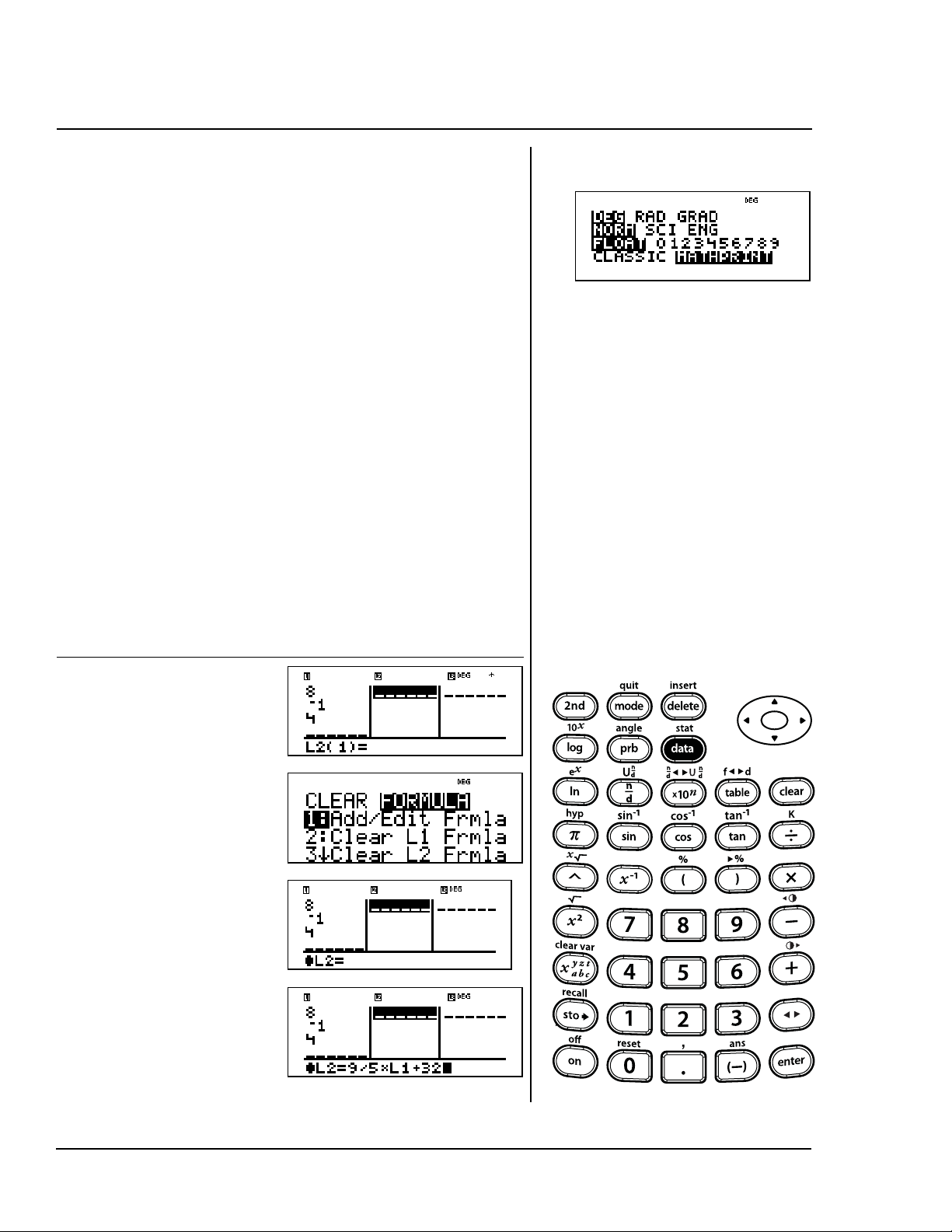
80 TI-30XS MultiView: A Guide For Teachers © 2006 TEXAS INSTRUMENTS INCORPORATED
On a November day, a weather report
on the Internet listed the following
temperatures.
Paris, France 8ÄC
Moscow, Russia
½1ÄC
Montreal, Canada 4ÄC
Convert these temperatures from
degrees Celsius to degrees
Fahrenheit.
Reminder: F= C+32.
Press Display
v 8 $ M
1
$ 4 $ "
v "
1
9
W 5 V v
1 T 32
9
5
---
Entering data and formulas
v
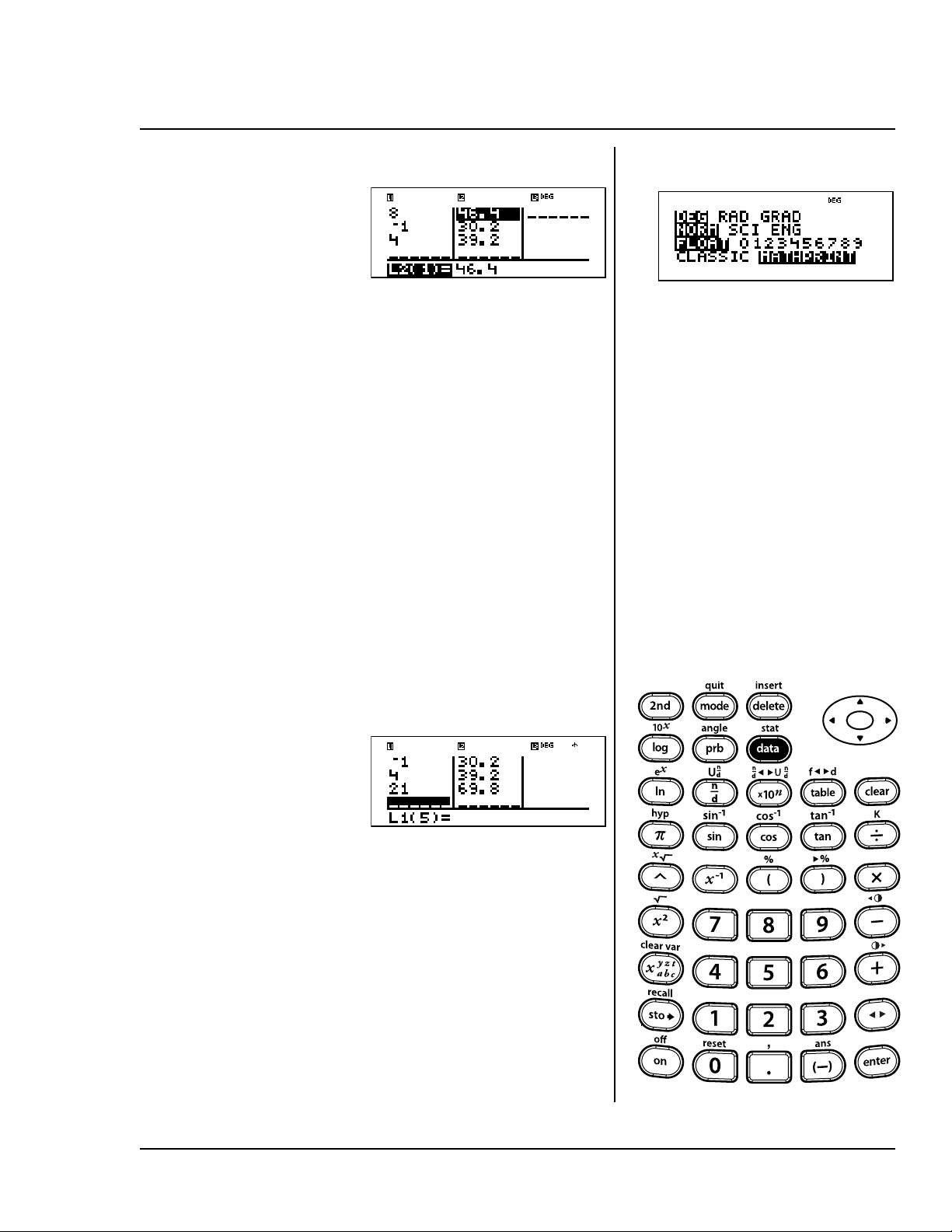
© 2006 TEXAS INSTRUMENTS INCORPORATED TI-30XS MultiView: A Guide For Teachers 81
Notice L2 is highlighted, since it is
the result of a formula.
The degrees Fahrenheit are:
Paris, France 46.4ÄF
Moscow, Russia 30.2ÄF
Montreal, Canada 39.2ÄF
If Sydney, Australia is 21ÄC, find the
temperature in degrees Fahrenheit.
The temperature in Sydney, Australia
is 69.8ÄF.
<
! $ $ $
21
<
Entering data and formulas (Continued)
v

82 TI-30XS MultiView: A Guide For Teachers © 2006 TEXAS INSTRUMENTS INCORPORATED
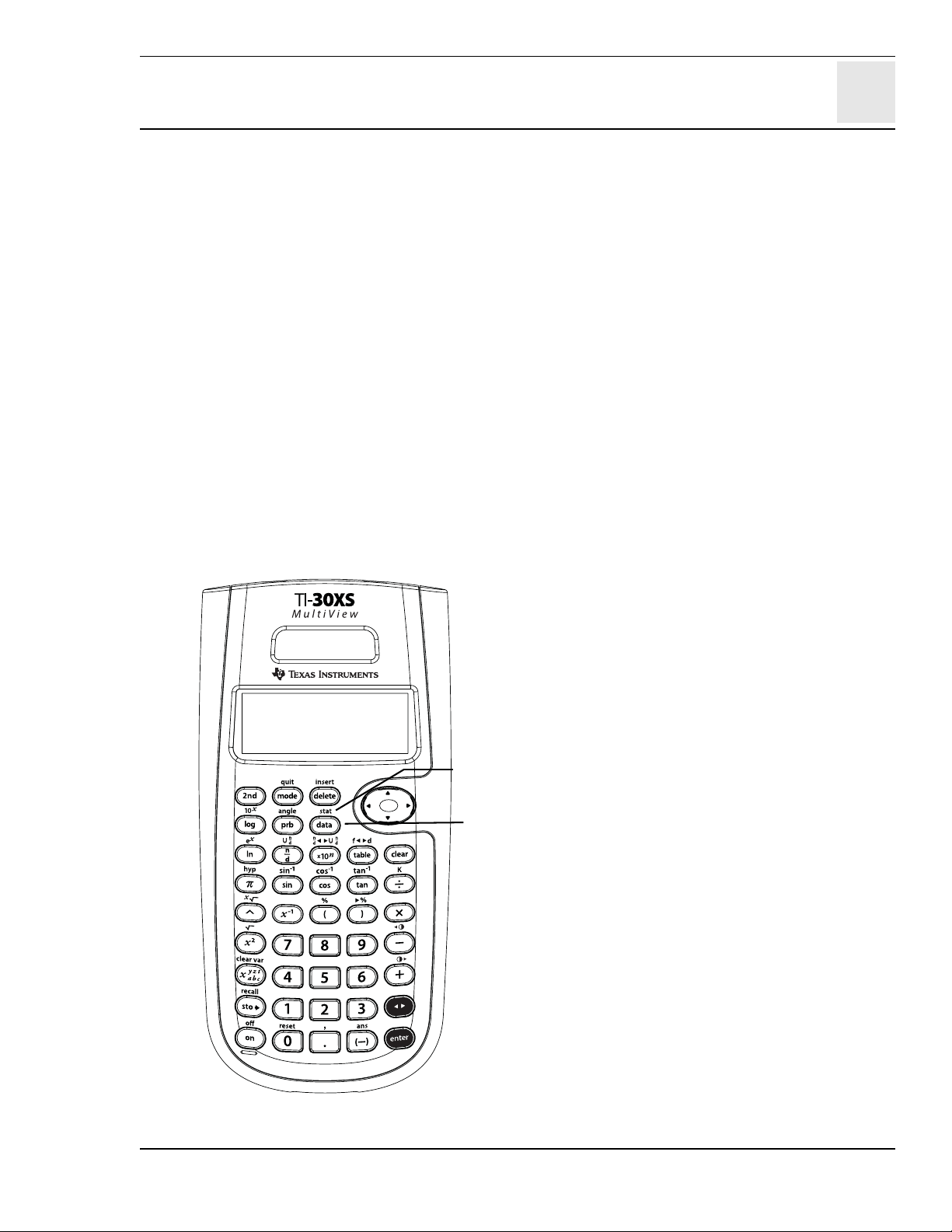
11
© 2006 TEXAS INSTRUMENTS INCORPORATED TI-30XS MultiView: A Guide For Teachers 83
Statistics
Keys
1. v lets you enter data points (
x
for 1-Var
stats;
x
and
y
for 2-Var stats). (See Chapter
10, Data editor and list formulas, for more
details on v.)
2. %t displays a menu from which you can
select 1-Var, 2-Var or StatVars.
1-Var Analyzes data from 1 set of data
with 1 measured variable—x.
2-Var Analyzes paired data from 2 sets
of data with 2 measured
variables—x, the independent
variable, and y, the dependent
variable.
StatVars This option appears only after you
have calculated 1-var or 2-var
stats. Displays the menu of
variables with their current values.
StatVars menu:
n Number of x (or x,y) data
points.
v or w Mean of all x or y values.
Sx or Sy Sample standard deviation of x
or y.
sx or sy Population standard deviation
of x or y.
Gx or Gy Sum of all x values or y values.
Gx
2
or Gy
2
Sum of all x
2
values or y
2
values.
Gxy Sum of the product of x and y
for all x-y pairs in the 2 lists.
a Linear regression slope.
b Linear regression y-intercept.
r Correlation coefficient.
x
Å
ÅÅ
Å (2-var) Uses a and b to calculate
predicted x value when you input
a y value.
y
Å
ÅÅ
Å (2-var) Uses a and b to calculate
predicted y value when you
input an x value.
minX Minimum of x values.
Q1 (1-var) Median of the elements
between minX and Med (1st
quartile).
Med Median of all data points.
Q3 (1-var) Median of the elements
between Med and maxX (3rd
quartile).
maxX Maximum of x values.
Notes
• The examples on the transparency masters
assume all default settings.
• You can change data points by going to the
Data editor, navigating to the data element,
and changing the value entered.
Note: You must then recalculate 1-var or
2-var stats to display the StatVars option.
2
1
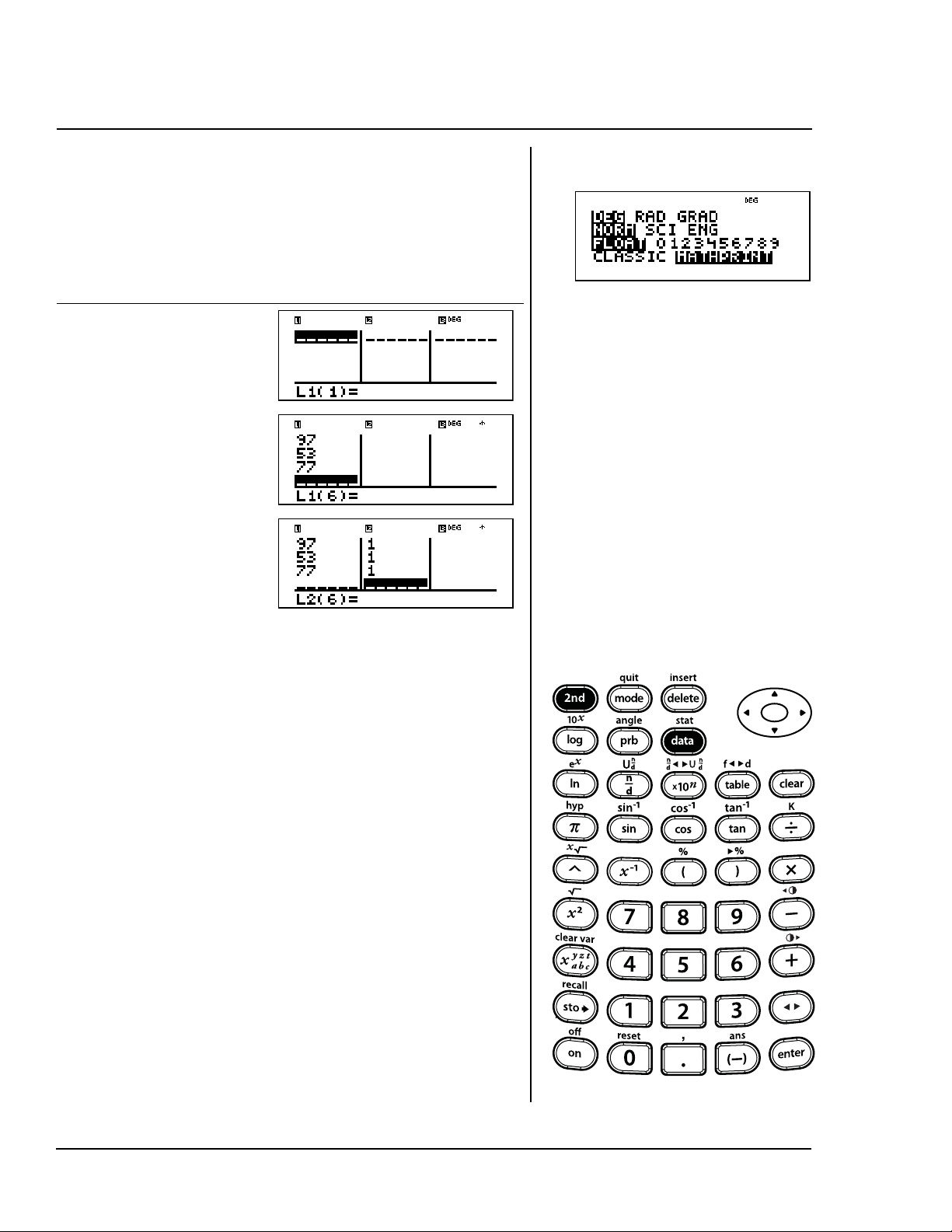
84 TI-30XS MultiView: A Guide For Teachers © 2006 TEXAS INSTRUMENTS INCORPORATED
Five students took a math test.
Using their scores, enter the data
points—85, 85, 97, 53, 77.
Continued
Press Display
v
85 $ 97 $ 53
$ 77 $
" 2 $1 $1
$1 $
Entering 1-Var stat data
%t v
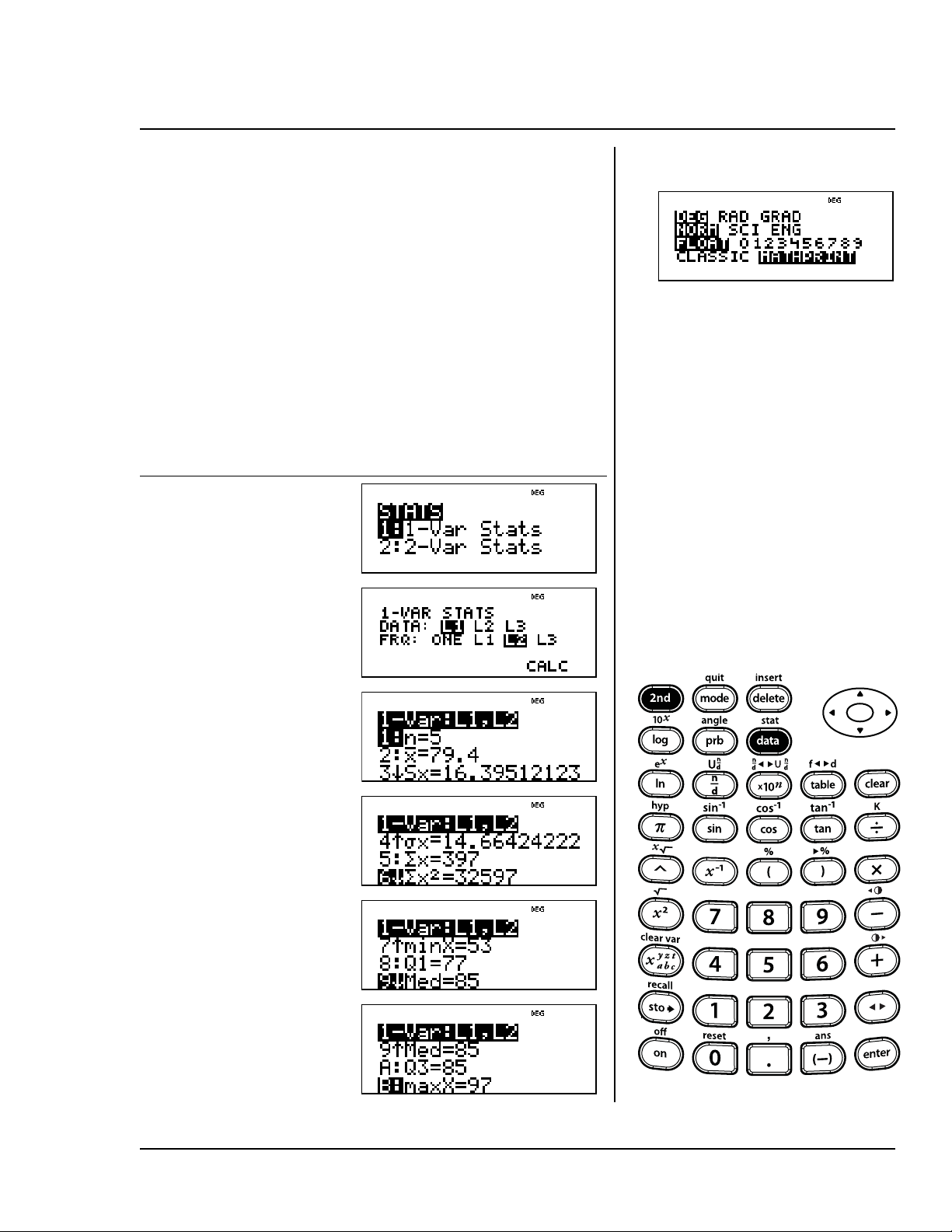
© 2006 TEXAS INSTRUMENTS INCORPORATED TI-30XS MultiView: A Guide For Teachers 85
Find the number of data points (n),
the mean (
v), the sample standard
deviation (Sx), the population
standard deviation (
sx), the sum of
the scores (
Gx), the sum of the
squares (
Gx
2
), and the five-number
summary of the data, minX, Q1, Q2,
and maxX.
Press Display
%t
1 $ " "
< $
<
$ $ $ $ $
$ $ $
$ $
Viewing the statistics
%t v
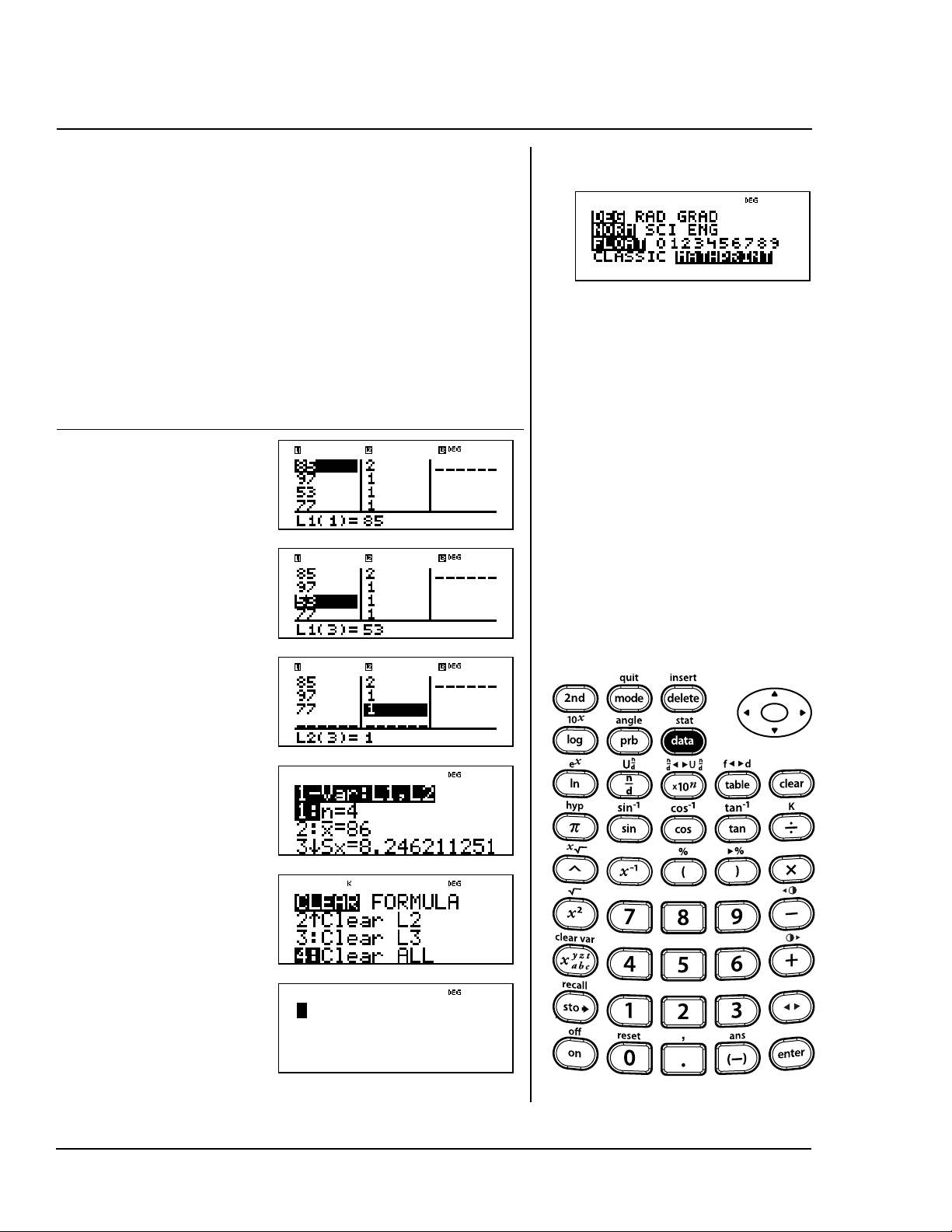
86 TI-30XS MultiView: A Guide For Teachers © 2006 TEXAS INSTRUMENTS INCORPORATED
Drop the lowest test score by editing
the data in L1 in the data editor.
Make sure you update the frequency
list, L2, if needed. Find the new mean
(
v). Finally, clear the data from all of
the lists.
Press Display
v
$ $
J " J
%t
1
$$<
vv 4
%Q
Removing data points
v
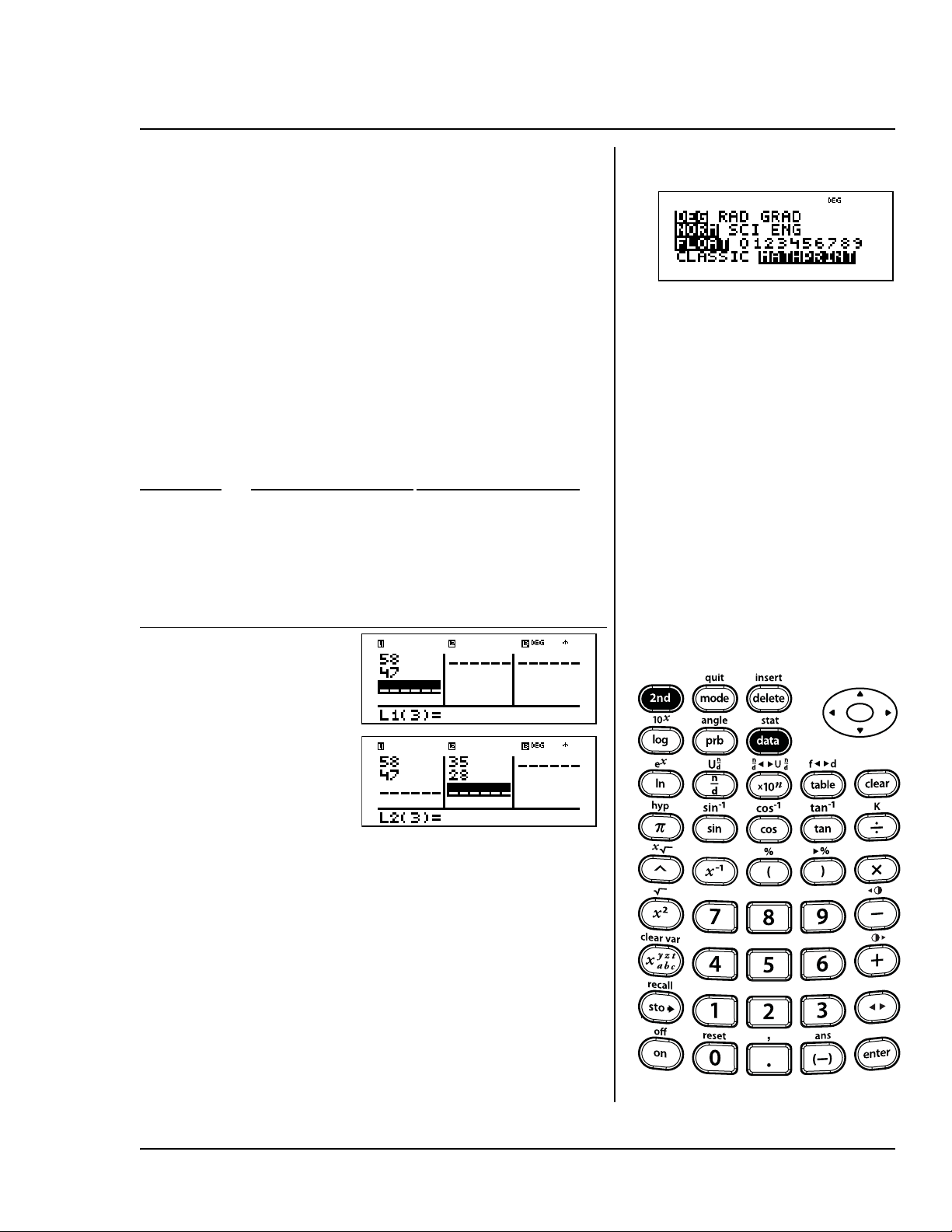
© 2006 TEXAS INSTRUMENTS INCORPORATED TI-30XS MultiView: A Guide For Teachers 87
The table below shows the number of
pairs of athletic shoes sold by a small
shoe store. The table shows the total
number of pairs of shoes sold for two
months and the total number of pairs
of Brand A shoes sold during the
same months. Enter this data in the
data editor.
Month
Total No. (x) Brand A (y)
April 58 35
May 47 28
Press Display
v58 $
47 $
"35 $28 $
Entering 2-Var stat data
%t v
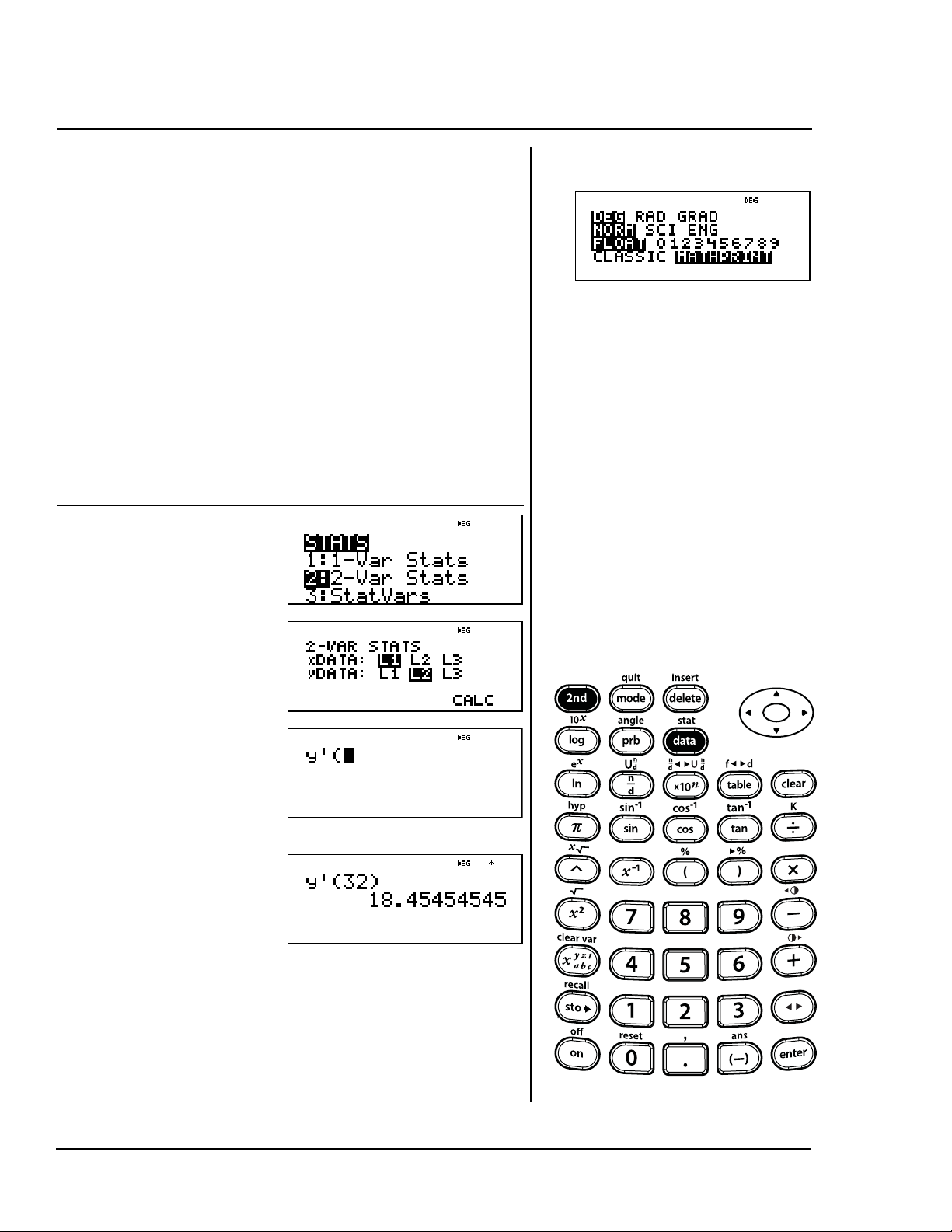
88 TI-30XS MultiView: A Guide For Teachers © 2006 TEXAS INSTRUMENTS INCORPORATED
Assuming that the rate of shoe sales
is a constant, you can use two data
points to predict the June sales of
Brand A if we know the total June
sales. Use a line of best fit to find the
June sales of Brand A if the store
sells a total of 32 pairs in June.
Hint: Find y
'(32).
18 pairs of Brand A will be sold in June
if the total sales are 32 pairs.
Press Display
%t
2 $ $
<
$ (scroll
down to y')
<
32 E <
Viewing the statistics
%t
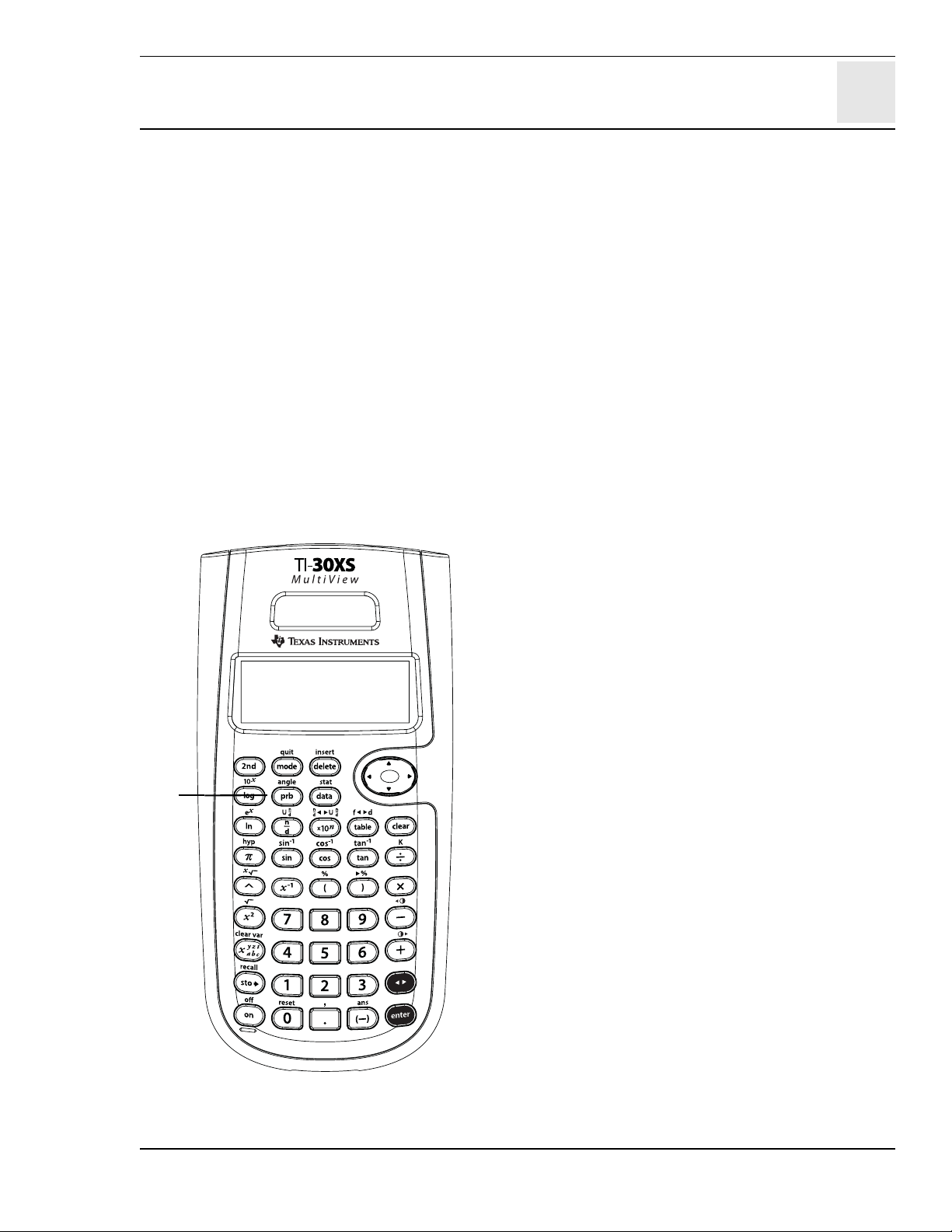
12
© 2006 TEXAS INSTRUMENTS INCORPORATED TI-30XS MultiView: A Guide For Teachers 89
Probability
Keys
1. H displays the following menu of functions.
nPr Calculates the number of
possible permutations.
nCr Calculates the number of
possible combinations.
! Calculates the factorial of a
number.
Rand Generates a random number
between 0 and 1.
Randint( Generates a random integer
between 2 integers,
A
and
B
,
where
A
Randint
B
.
Notes
• The examples on the transparency masters
assume all default settings.
• A combination is an arrangement of objects
in which the order is not important, as in a
hand of cards.
• A permutation is an arrangement of objects
in which the order is important, as in a race.
• A factorial is the product of all the positive
integers from 1 to
n
, where
n
is a positive
whole number 69.
• You can store (L) an integer to Rand just
as you would store values to memory
variables. If you wish to control the random
numbers generated by all calculators in your
class, have all students store the same
number to Rand; the sequence of random
numbers is then the same on all of the
calculators.
•For Randint, use a comma to separate the 2
numbers that you specify.
1
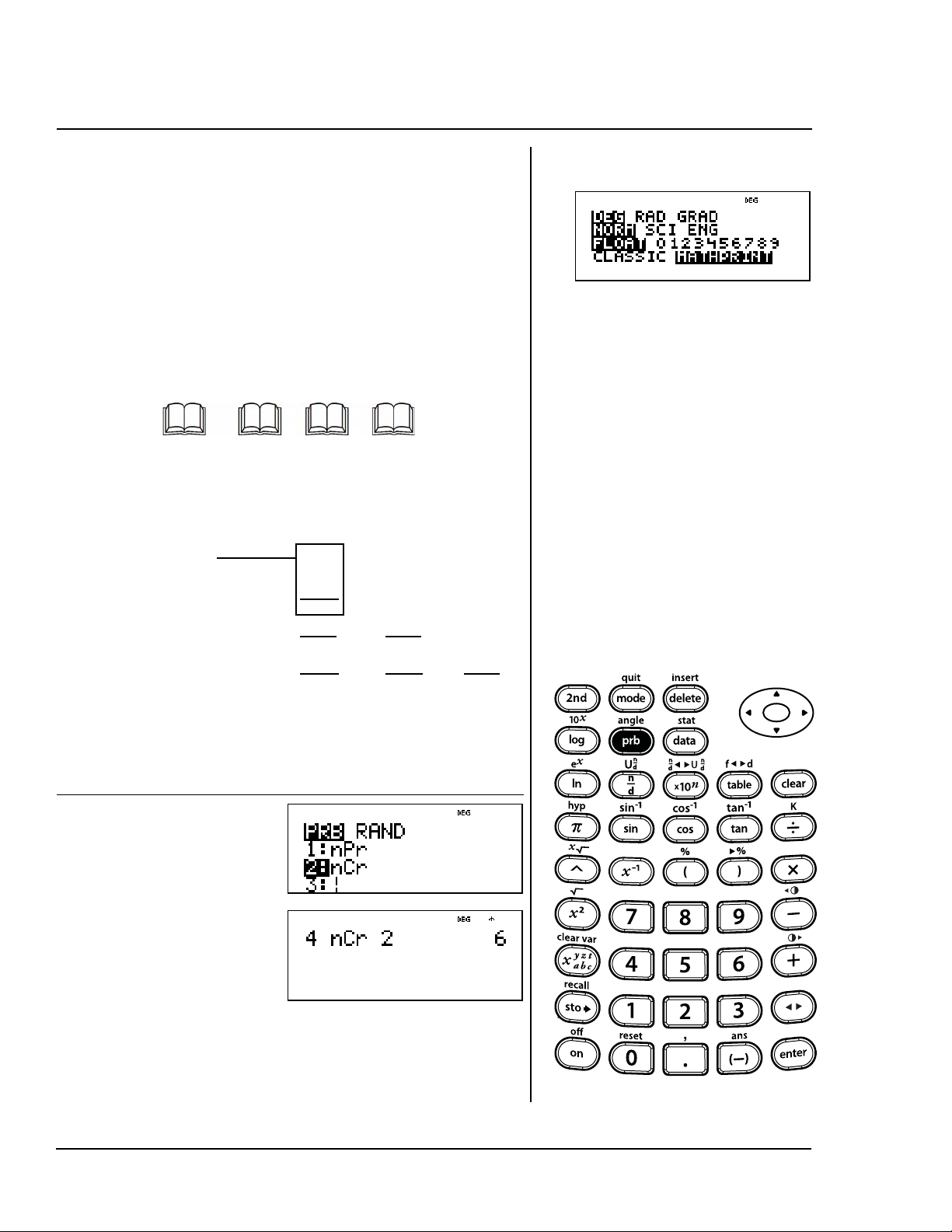
90 TI-30XS MultiView: A Guide For Teachers © 2006 TEXAS INSTRUMENTS INCORPORATED
You have space for 2 books on your
bookshelf. You have 4 books to put on
the shelf. Use this formula to find how
many ways you could place the 4
books in the 2 spaces.
4 nCr 2
ABCD
There are 6 unique combinations of 2
books chosen from 4 different books.
Press Display
4 H $
< 2 <
AB and BA
count as only 1
combination
AB AC AD
BA
BC BD
CA
CB CD
DA
DB DC
Combination (nCr)
H
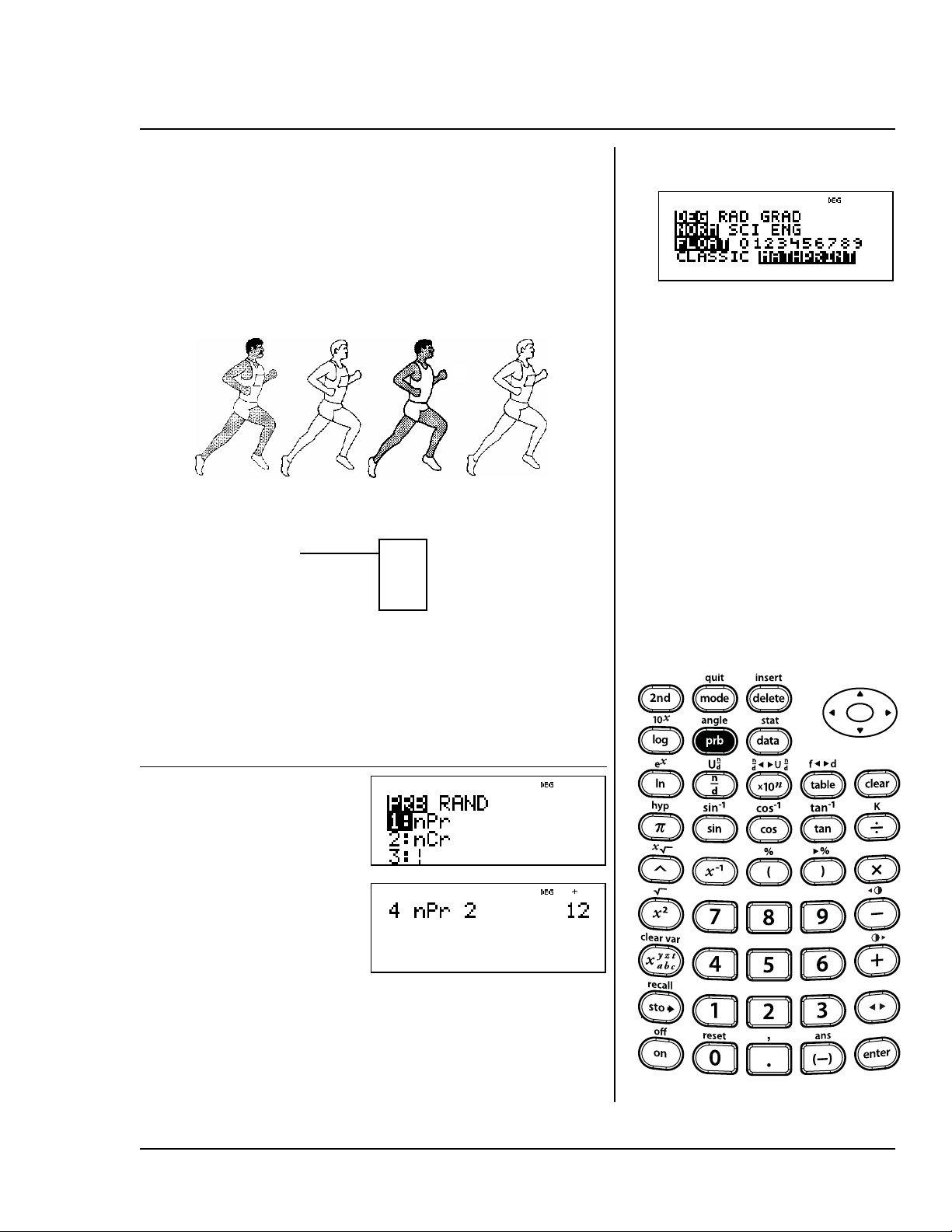
© 2006 TEXAS INSTRUMENTS INCORPORATED TI-30XS MultiView: A Guide For Teachers 91
Four different people are running in a
race. Use this formula to find how
many different ways they can place
1st and 2nd.
4 nPr 2
ABC D
There are 12 different permutations
for the 1st and 2nd place results of
the race.
Press Display
4 H
<2 <
AB and BA
count as 2
permutations
AB AC AD
BA BC BD
CA CB CD
DA DB DC
Permutation (nPr)
H
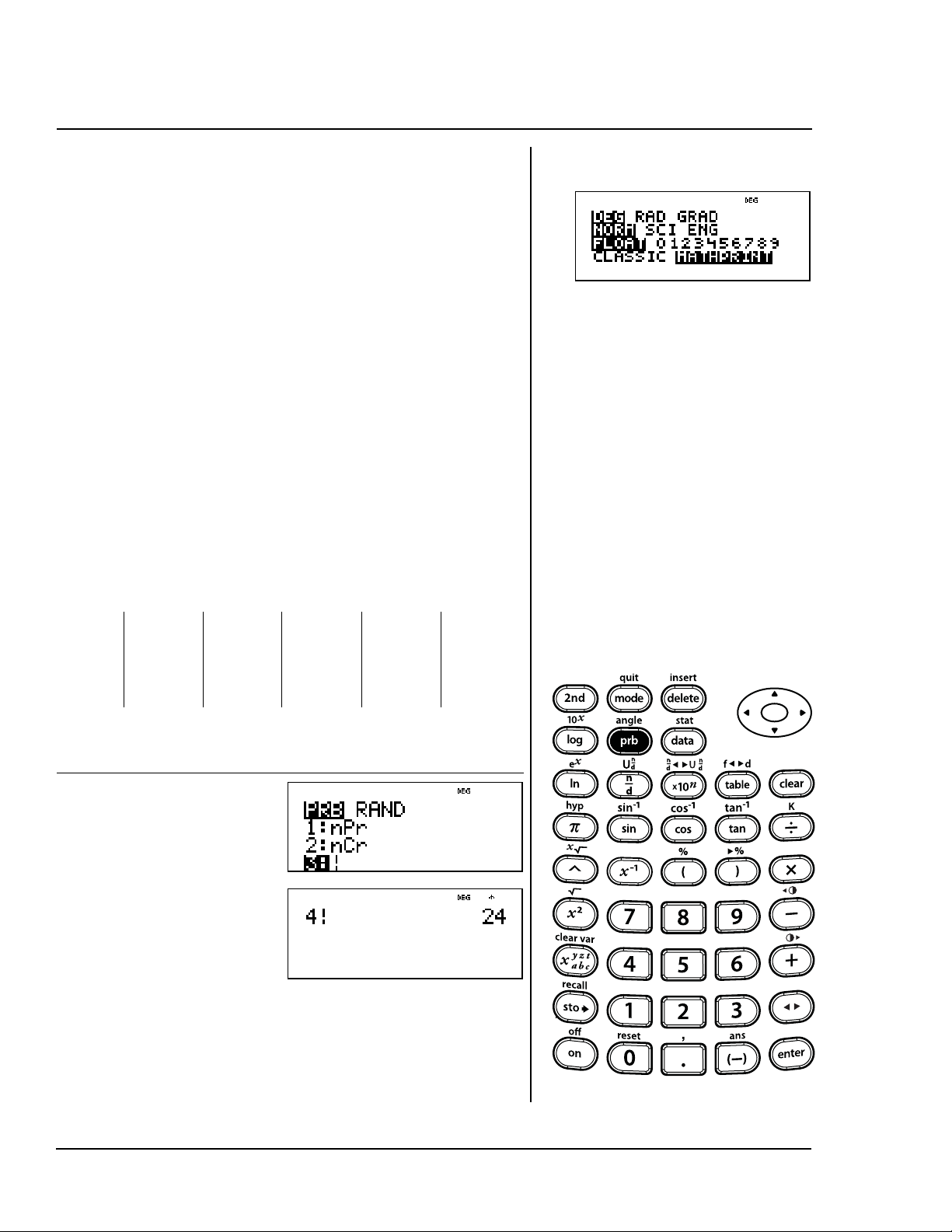
92 TI-30XS MultiView: A Guide For Teachers © 2006 TEXAS INSTRUMENTS INCORPORATED
State license plates contain
different numbers and letters to
create a unique identification number
for each car. Make your own license
plates each containing a 4-digit
number. Using the digits 1, 3, 7, and 9
without repetition, how many 4-digit
numbers can you form?
You can use a tree diagram to create
the following list of license plates. Are
you sure you found them all?
Hint: Find 4!
You can make 24 unique license
plates using 1, 3, 7 and 9 without
repetition.
Press Display
4 H $ $
< <
1379
3179
7139
9137
1397
3197
7193
9173
1739
3719
7319
9317
1793
3791
7391
9371
1937
3917
7913
9713
1973
3971
7931
9731
Factorial (!)
H
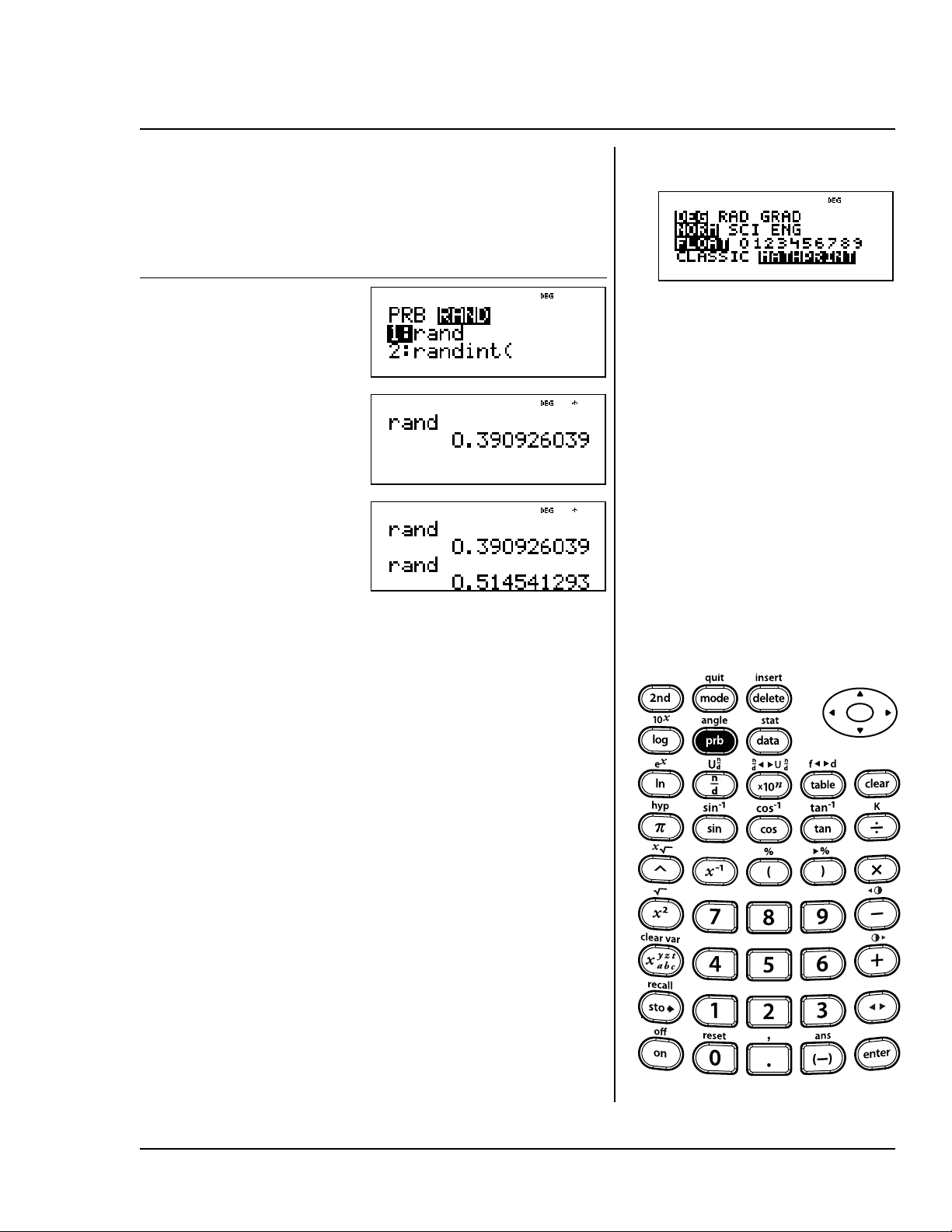
© 2006 TEXAS INSTRUMENTS INCORPORATED TI-30XS MultiView: A Guide For Teachers 93
Generate a sequence of random
numbers.
Results will vary.
Press Display
H "
< <
<
Random (rand)
H
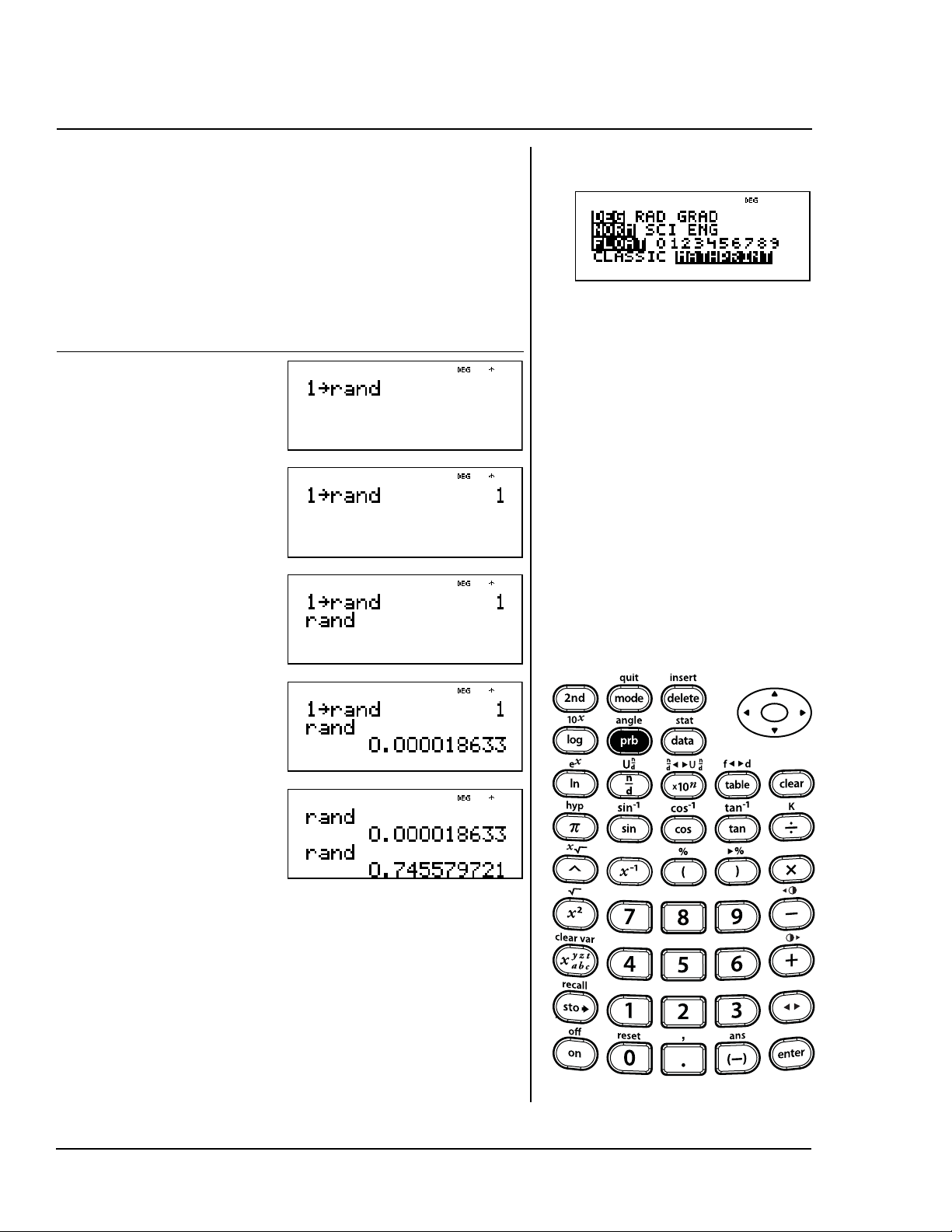
94 TI-30XS MultiView: A Guide For Teachers © 2006 TEXAS INSTRUMENTS INCORPORATED
Set 1 as the current seed and
generate a sequence of random
numbers.
Note: Your results will be the same
as this example if you use the same
number to store to random seed.
Press Display
1 L H
" <
<
H"<
<
<
Setting a random (rand) seed
H
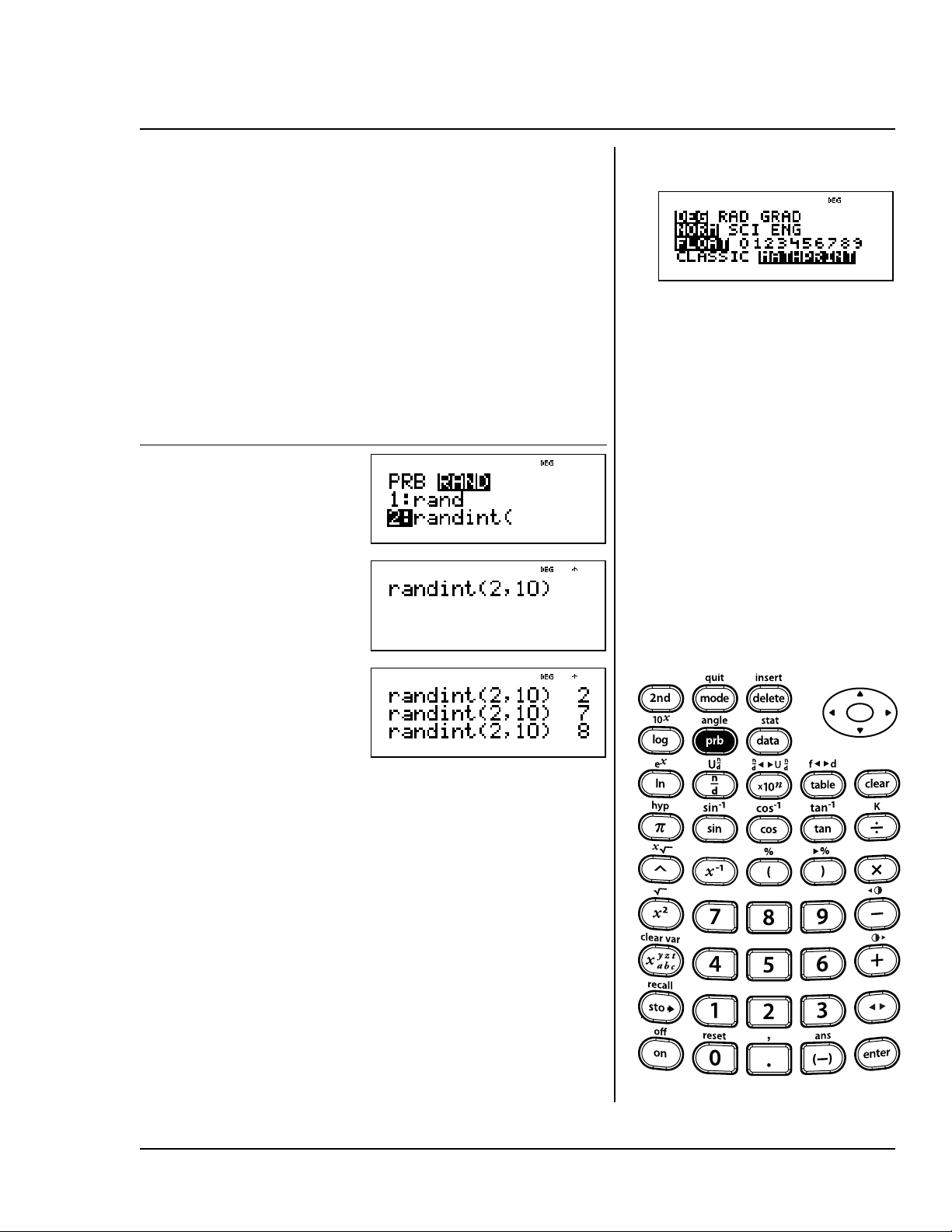
© 2006 TEXAS INSTRUMENTS INCORPORATED TI-30XS MultiView: A Guide For Teachers 95
Create your own calculator spinner.
Your spinner will pick numbers from 2
through 10.
Hint: Generate a random integer
from 2 through 10.
Results will vary.
Press Display
H "$
< 2 %`
10 E
<<<
Random integer (randint)
H

96 TI-30XS MultiView: A Guide For Teachers © 2006 TEXAS INSTRUMENTS INCORPORATED
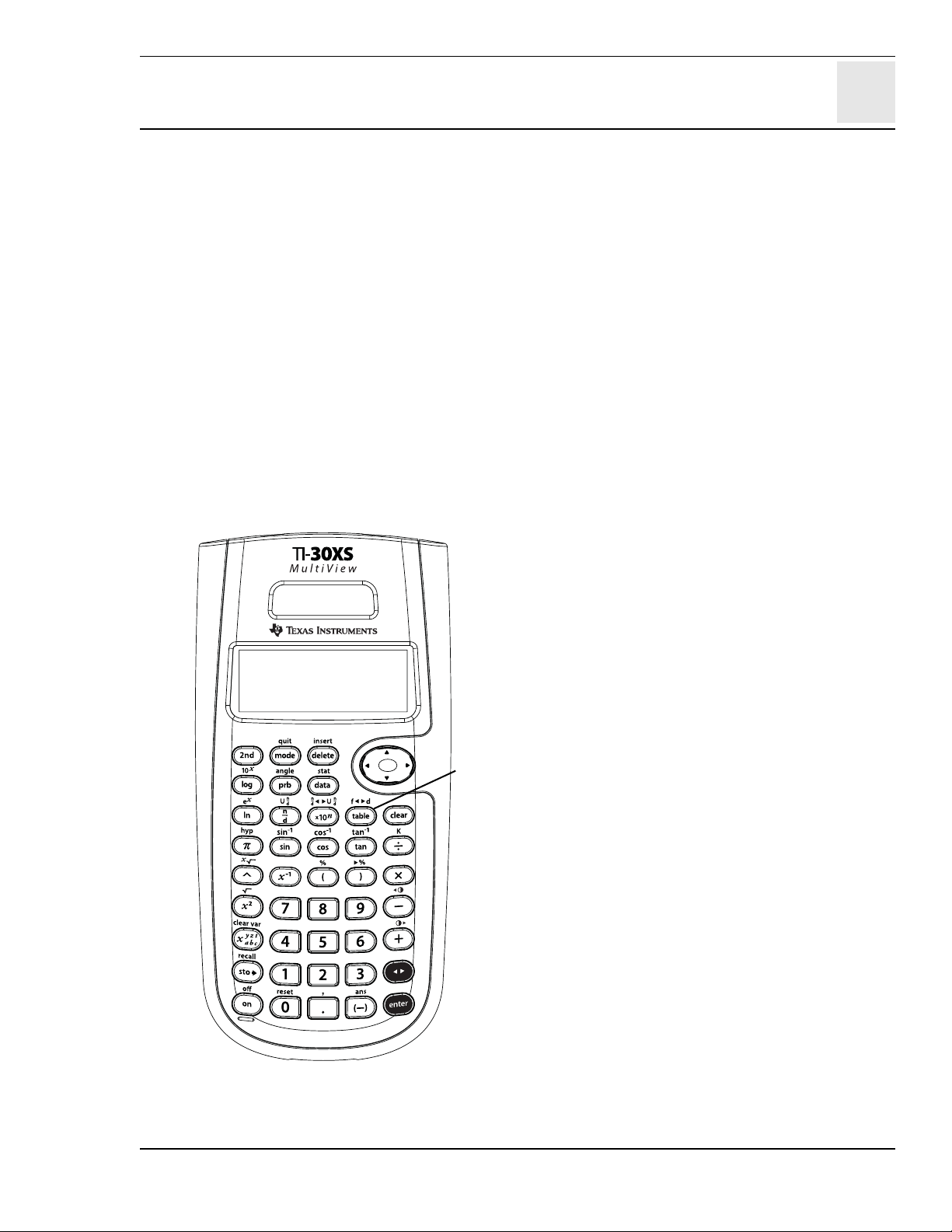
13
© 2006 TEXAS INSTRUMENTS INCORPORATED TI-30XS MultiView: A Guide For Teachers 97
Function table
Keys
1. o allows you to display a defined function
in a tabular form. To set up a function table:
a. Press o.
b. Enter a function in terms of
x
and
press <.
c. Select the start and step values, and
auto or ask-
x
options, and press
<.
The table is displayed using the specified
values.
Notes
• The examples on the transparency masters
assume all default settings.
• Enter the function (expression) at the y=
prompt. Functions can contain stacked
fractions and most built-in functions such as
sine, cosine, e
x
, and so forth. Functions can
not contain n or the functions rand and
randint.
• To change a value on the table setup screen,
press - and then enter a new value.
• Depending on the function and the step
values, you may be able to affect the format
(decimal or fraction) of the y values. When a
decimal number (like 2.0) is used in the
function or the step values, answers can be
forced to decimal.
• To clear the table in ask-x, press J on
each entry.
• In ask-
x
, if you input a decimal, the
x
-value
displays as a decimal. For example, if you
enter 2À, the
x
-value displays 2À. If you enter
2.0À, the
x
-value displays 6.28319.
If you enter a fraction using q, the x-value
displays as a fraction.
• Press - to back up screens within the
function table.
• The TI-30XS MultiView™ calculator retains
the last entered function in memory when you
quit the function table application (%Q).
1
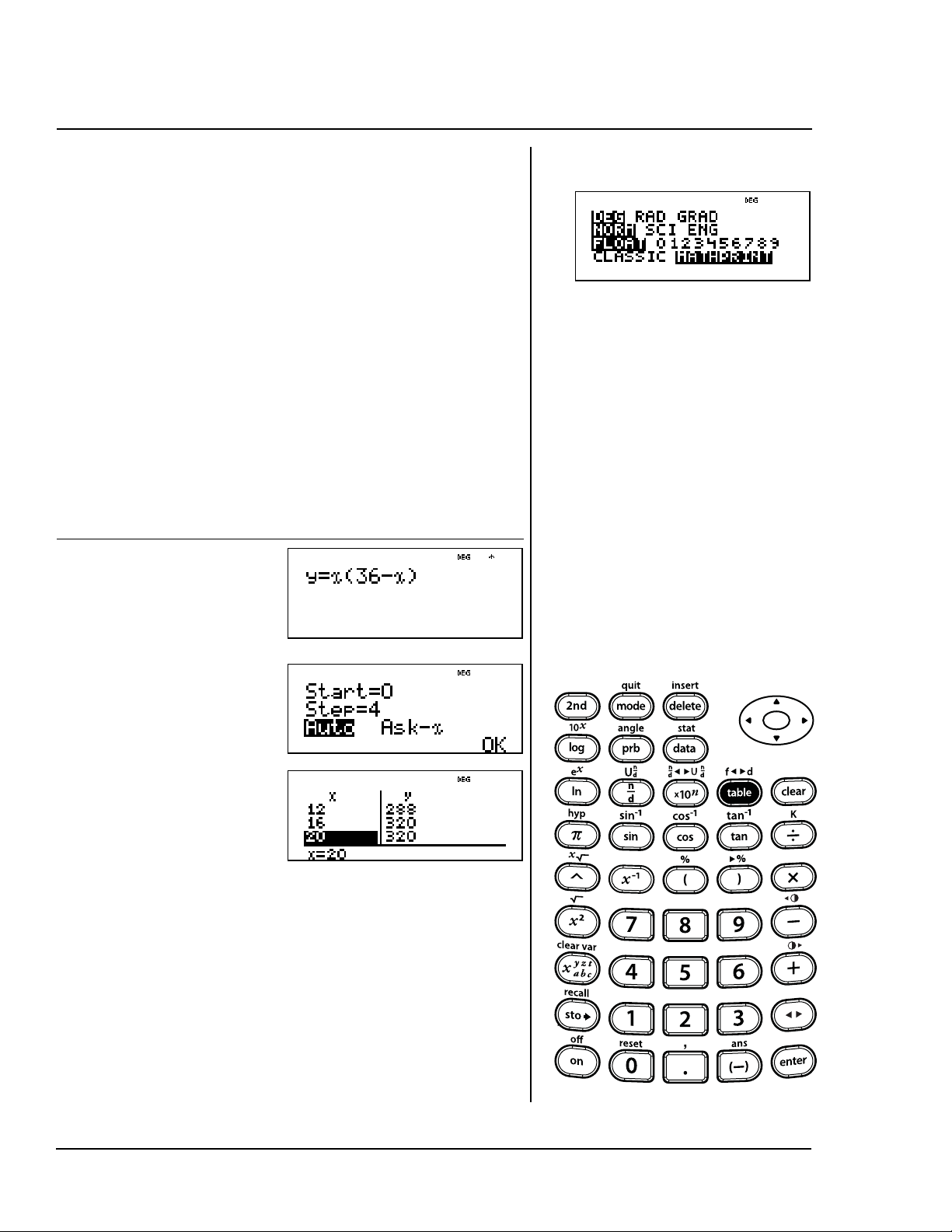
98 TI-30XS MultiView: A Guide For Teachers © 2006 TEXAS INSTRUMENTS INCORPORATED
Find the vertex of the parabola
y
=
x
(36 -
x
) using a table of values.
Reminder: The vertex of the parabola
is a point on the line of symmetry of
the parabola. Notice that (0, 0) and
(36, 0) are
x
-intercepts and the
parabola is open (concave) down. The
vertex will be between
x
=0 and
x
=36.
Notice that the vertex must be
between
x
= 16 and
x
= 20 since the
y
-values are the same. The
y
-values
must be increasing and decreasing
for
x
=16 to
x
=20.
Press Display
ozD
36 U z
E <
0
$ 4 $
< $
<
$ $ $
$
$
Using auto
o
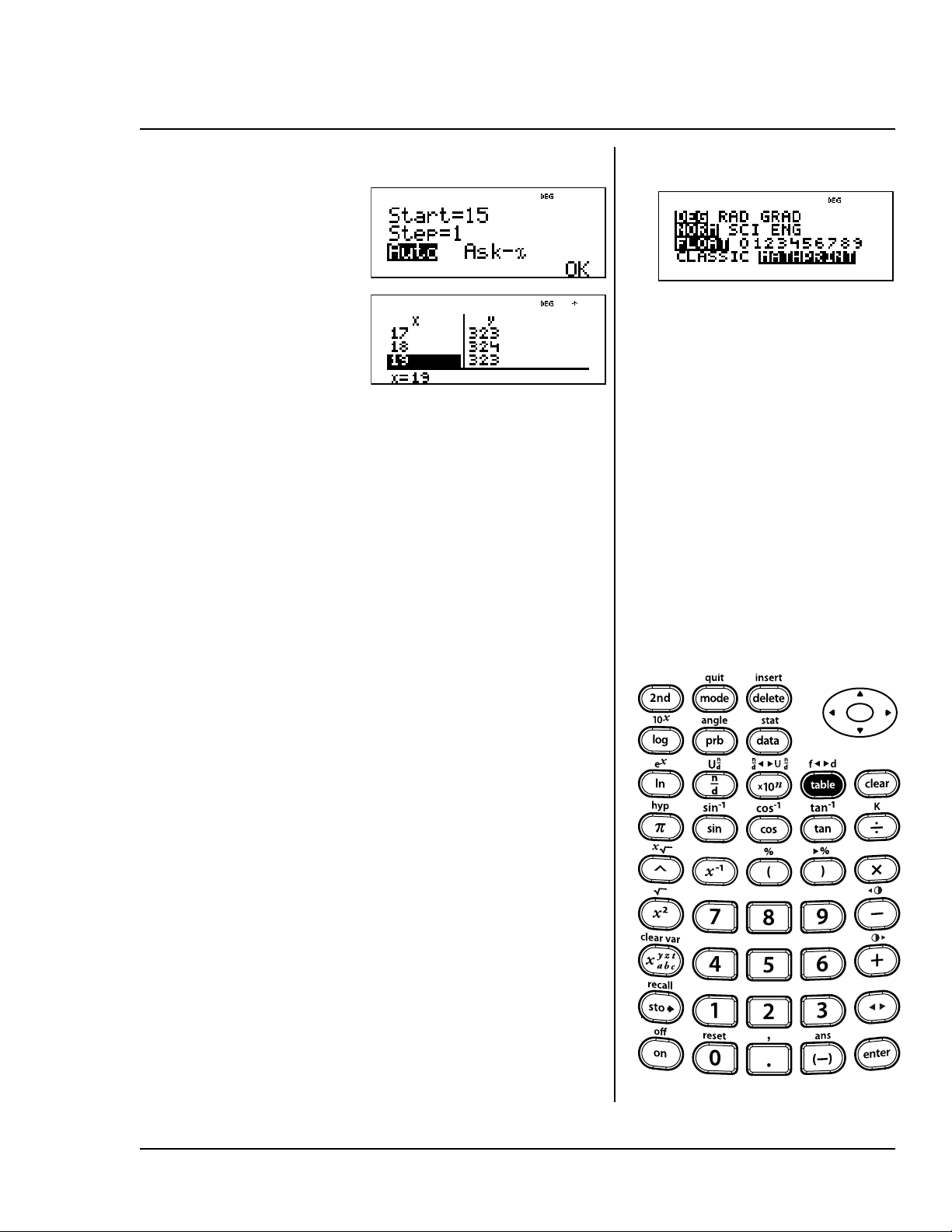
© 2006 TEXAS INSTRUMENTS INCORPORATED TI-30XS MultiView: A Guide For Teachers 99
On your own:
Start at 17 and change the step size
to 0.25. What happens around
x
= 18? Can you locate the vertex?
Why?
After searching close to
x
= 18, the
point (18, 324) appears to be the
vertex of the parabola since it
appears to be the turning point of the
set of points of this function.
-15 $ 1
$ $
<$ $
$ $
Using auto (Continued)
o
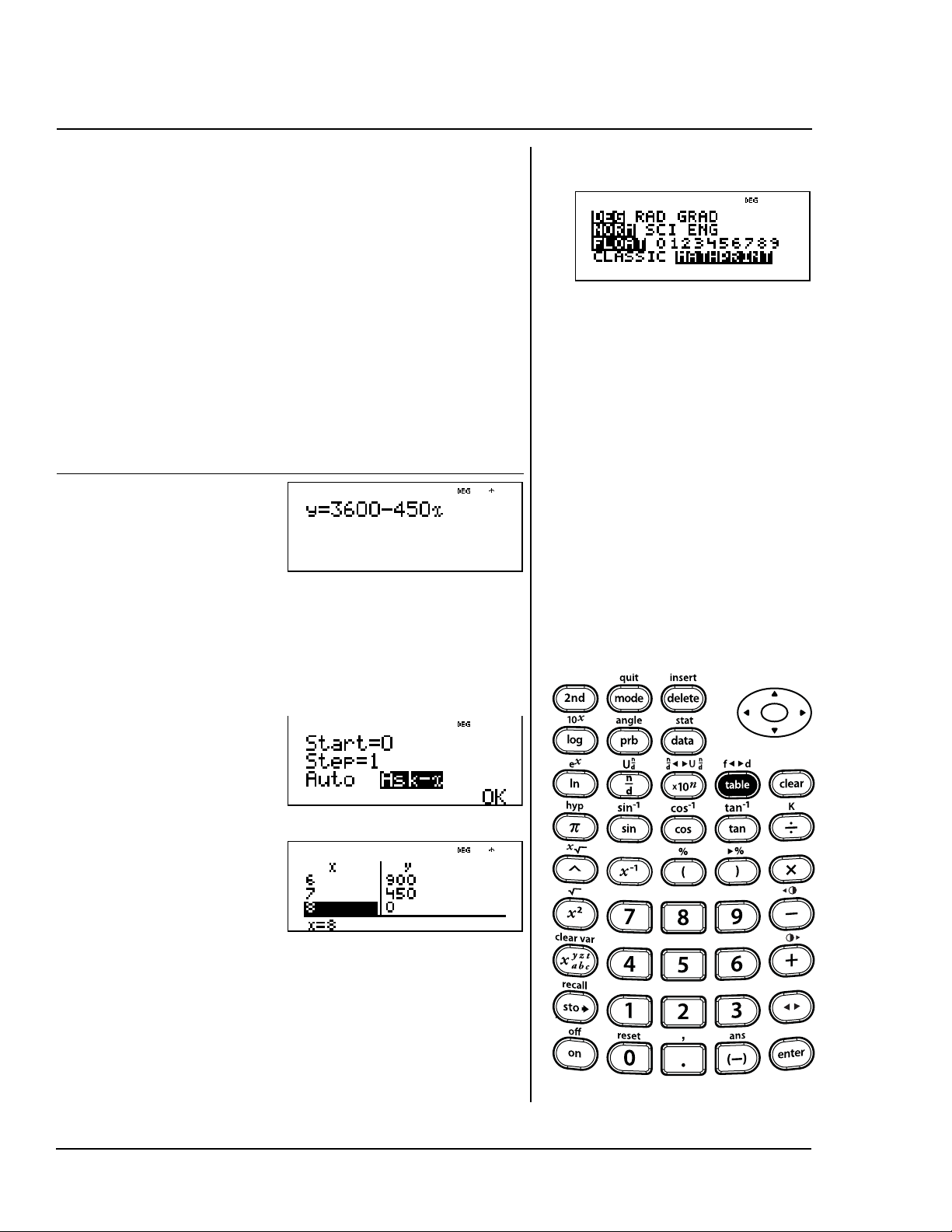
100 TI-30XS MultiView: A Guide For Teachers © 2006 TEXAS INSTRUMENTS INCORPORATED
A charity collected $3,600 to help
support a local food kitchen. $450
will be given to the food kitchen every
month until the funds run out. How
many months will the charity support
the kitchen?
Reminder: If
x
= months and
y
= money left, then
y
=3600-450
x.
The charity will be able to support
the food kitchen at this rate for
8months.
Press Display
o
Press - if
necessary to
clear a previous
function.
3600 U450
z<
-0
$
-1 $ "
<$<
Input good
guesses for the
number of
months,
x.
<
Using ask-x
o
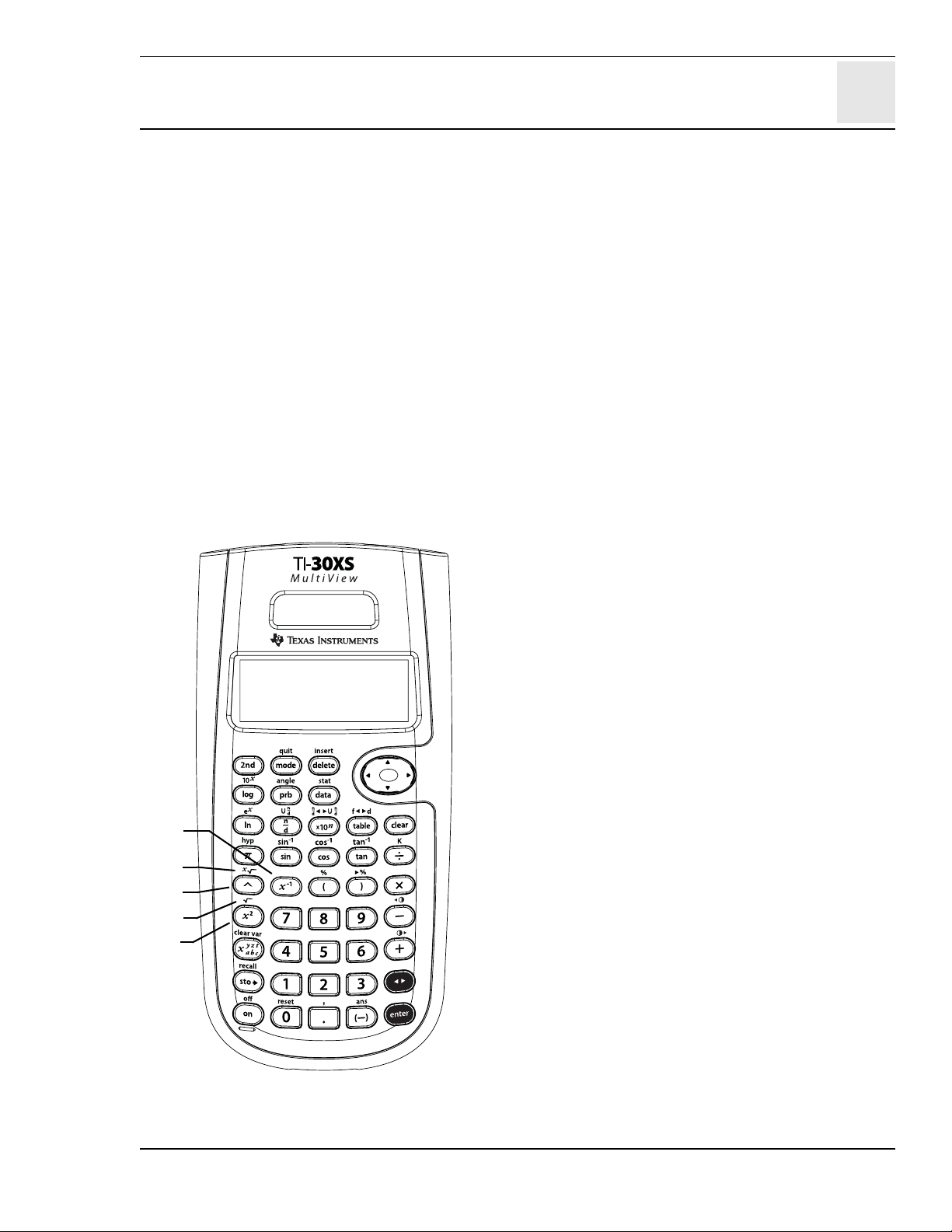
14
© 2006 TEXAS INSTRUMENTS INCORPORATED TI-30XS MultiView: A Guide For Teachers 101
Powers, roots, and reciprocals
Keys
1. F squares the value.
2. % b calculates the square root.
3. % c calculates the specified root (x) of
the value.
4. a calculates the reciprocal.
5. G raises a value to a specified power.
Notes
• The examples on the transparency masters
assume all default settings.
•To use G, enter the base, press G, and then
enter the exponent.
• In Classic mode, exponentiation using the G
key is evaluated from left to right. The
expression 2^3^2 is evaluated as (2^3)^2,
with the result of 64.
In MathPrint™ mode, exponentiation using
the G key is evaluated from right to left.
Pressing 2 G 3 G 2 displays as , with
the result of 512.
• The result of calculations with G must be
within the range of the TI-30XS MultiView™
calculator.
• The TI-30 MultiView calculator evaluates
expressions entered with F and a from
left to right in both Classic and MathPrint
modes. Pressing 3 F F displays as .
This is calculated as (3
2
)
2
= 81.
• The base and the exponent may be either
positive or negative. Refer to Domain under
Error Messages in Appendix C for
restrictions.
• Use parentheses where needed to obtain the
desired results.
Example:
L5
2
= L25
(L5)
2
= 25
4
1
2
3
5
2
3
2
3
22
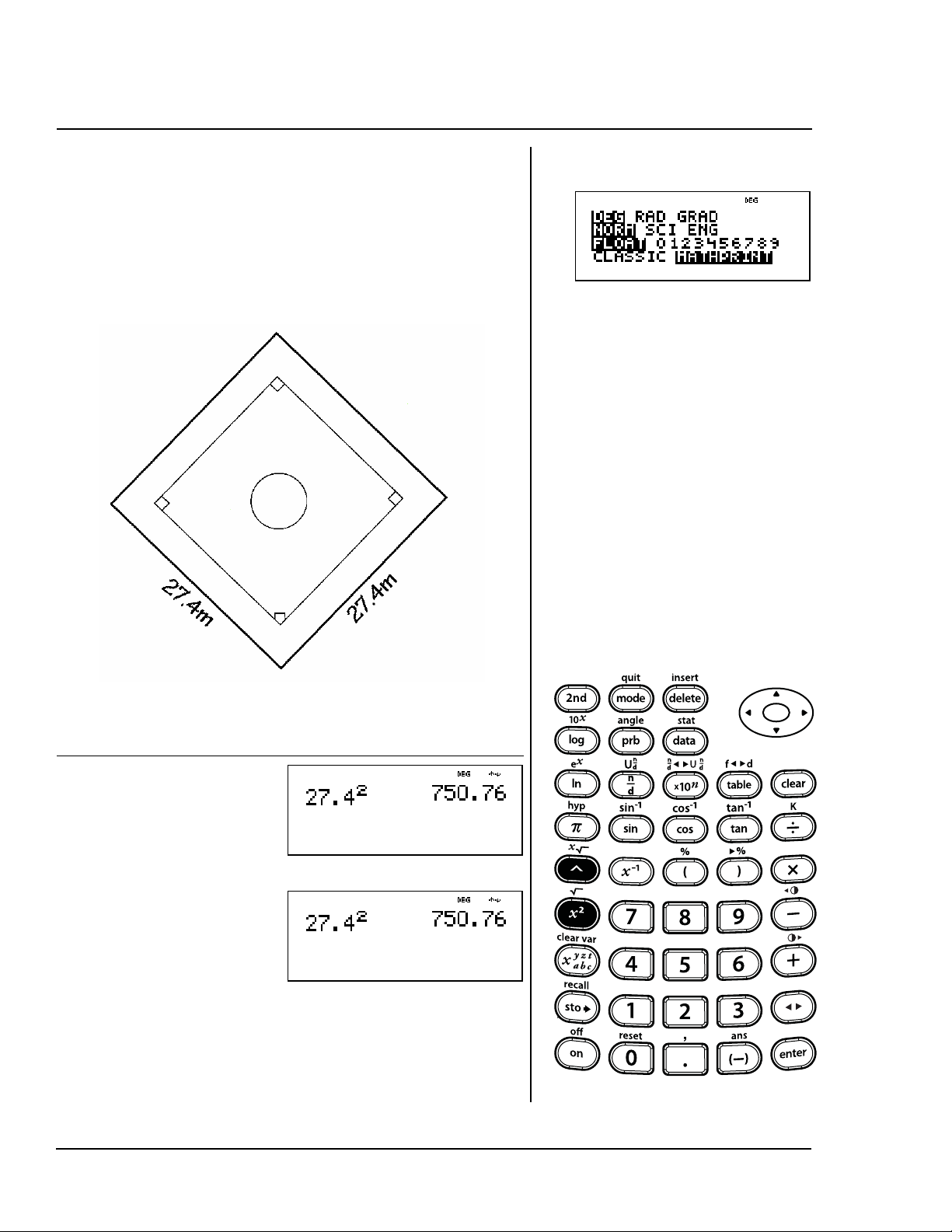
102 TI-30XS MultiView: A Guide For Teachers © 2006 TEXAS INSTRUMENTS INCORPORATED
Use this formula to find the size of
the tarpaulin needed to cover the
entire baseball infield.
A = x
2
= 27.4
2
square meters
The area of the tarpaulin is 750.76
square meters.
Press Display
27 8 4
F <
or
27 8 4 G
2 <
Squares
F G
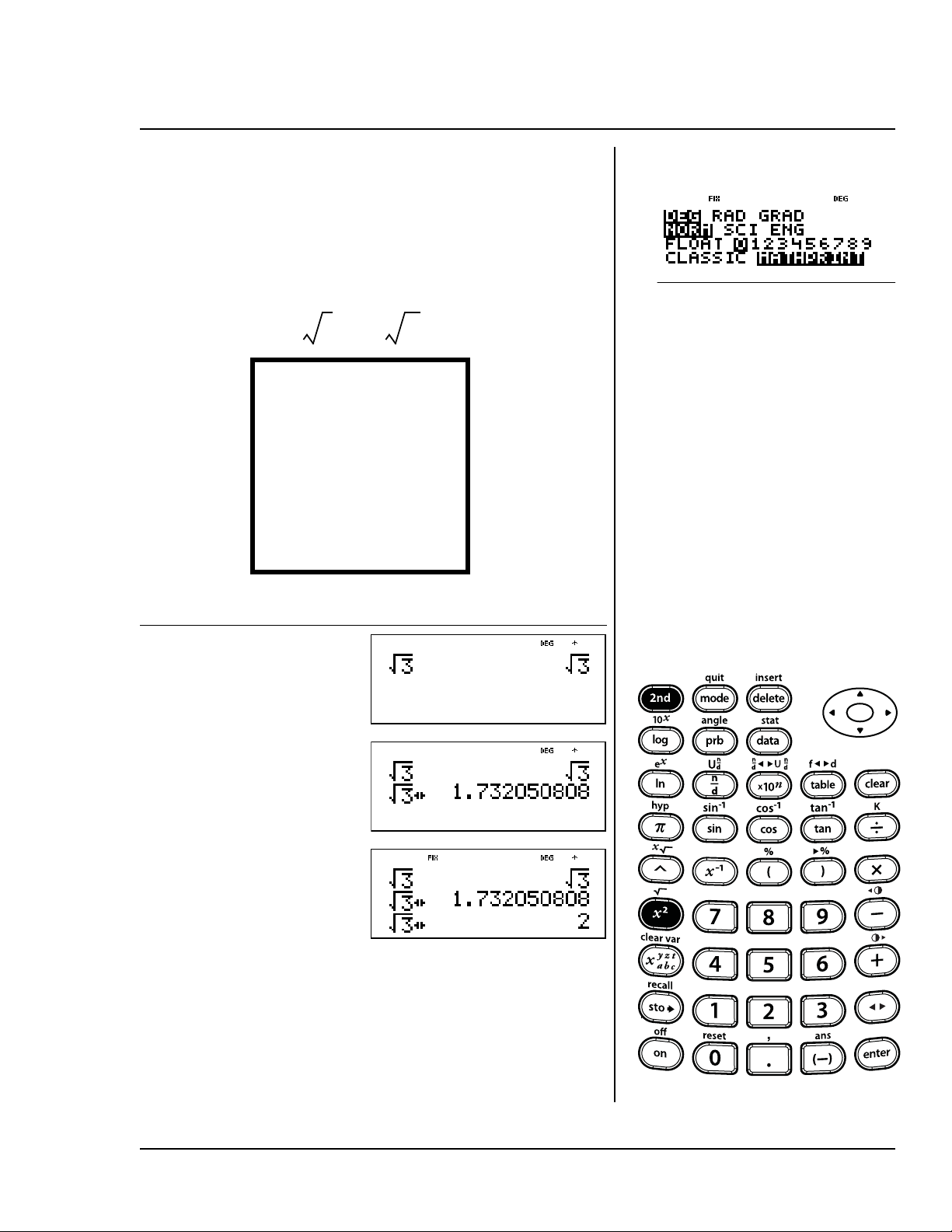
© 2006 TEXAS INSTRUMENTS INCORPORATED TI-30XS MultiView: A Guide For Teachers 103
Use this formula to find the length of
the side of a square clubhouse if 3m
2
of carpet would cover the floor. Round
your answer to 0 decimal places.
meters
The length of a side of the square
clubhouse is 2 meters rounded to 0
decimal places.
Press Display
%b3 <
n
p $ $
" <
- <
L
x
3==
3m
2
of carpet
Square roots
%b
x
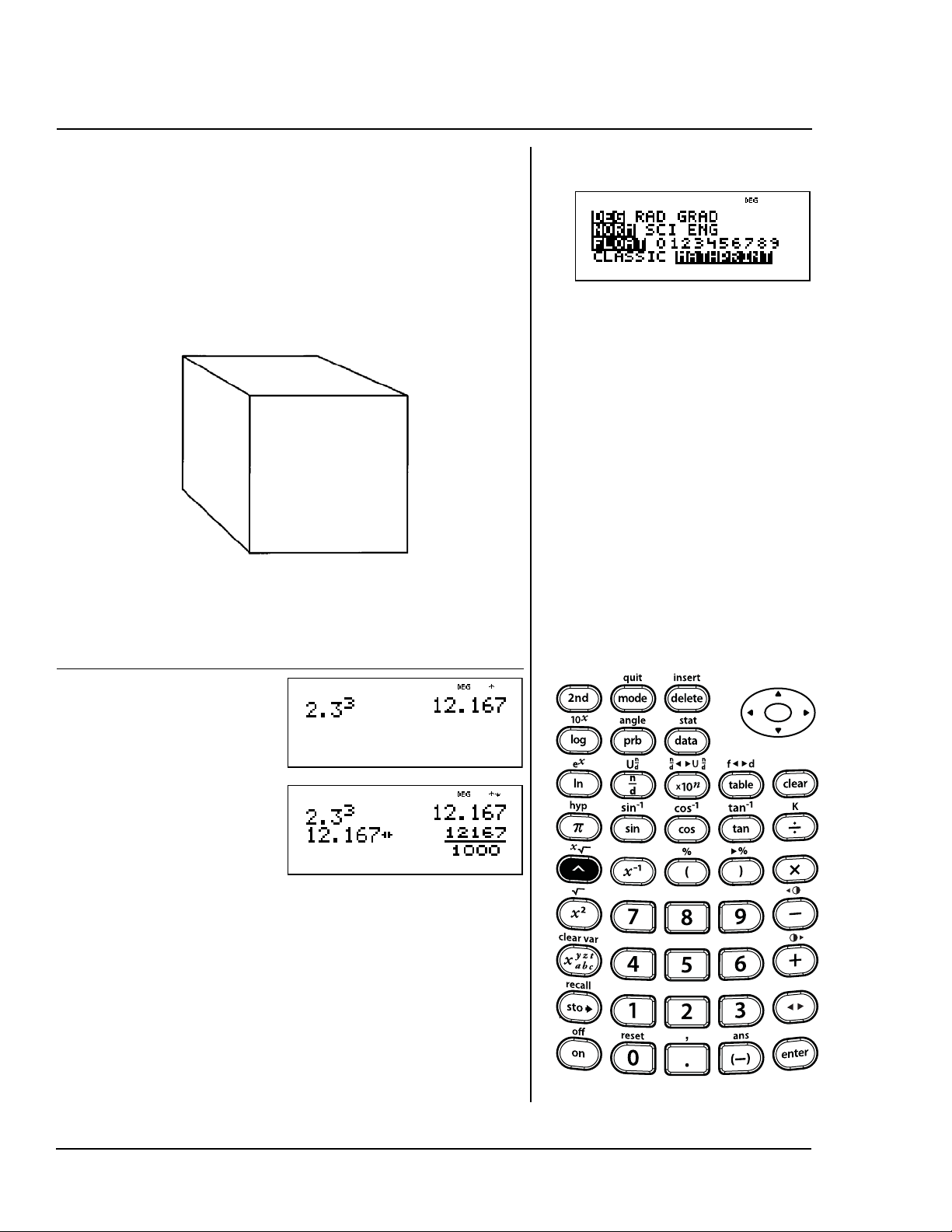
104 TI-30XS MultiView: A Guide For Teachers © 2006 TEXAS INSTRUMENTS INCORPORATED
Use this formula to find the volume of
a cube with sides 2.3 meters long.
Change your answer to a fraction.
V = L
3
= 2.3
3
cubic meters
The volume of the cube is 12.167 cubic
meters.
Press Display
2 8 3 G
3 <
n
Cubes
G
L
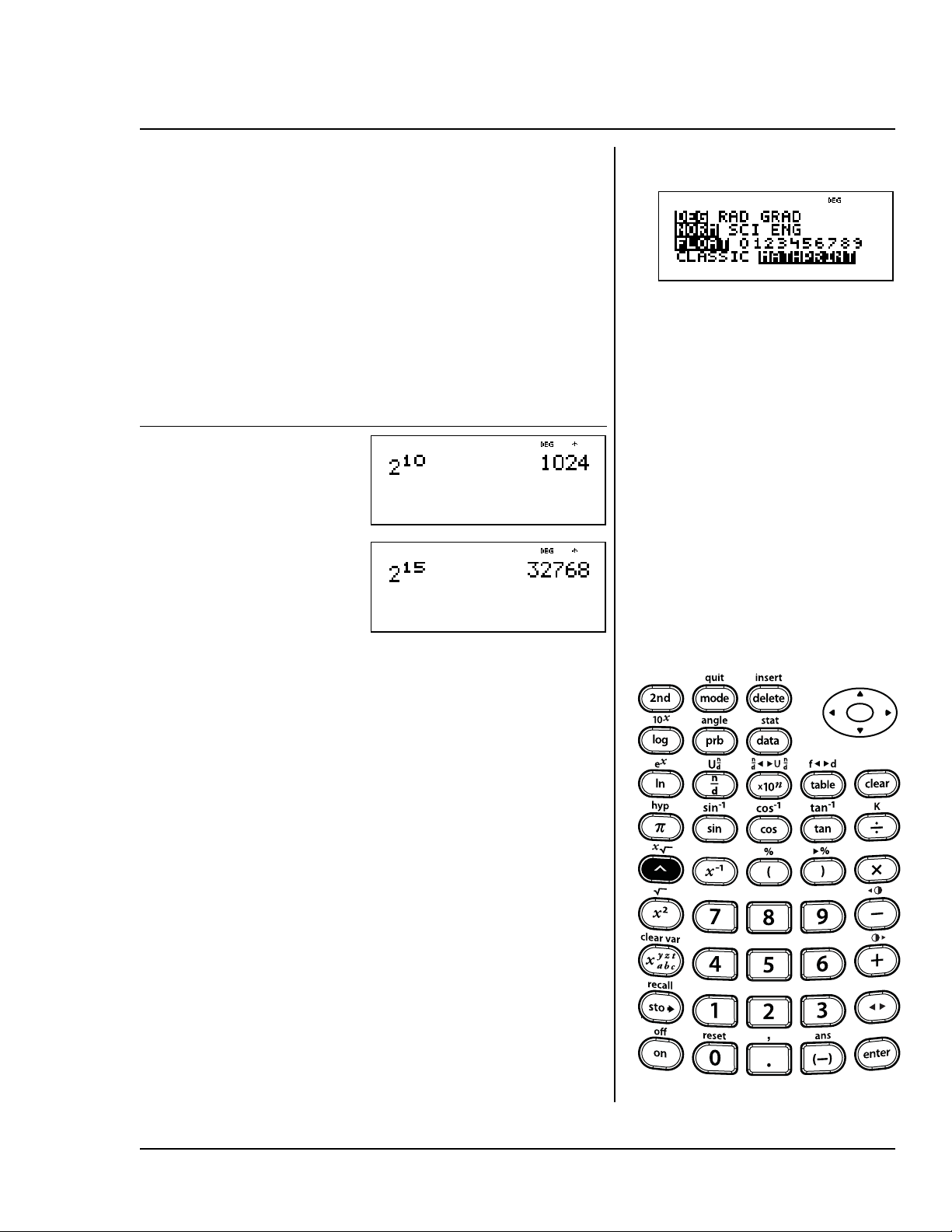
© 2006 TEXAS INSTRUMENTS INCORPORATED TI-30XS MultiView: A Guide For Teachers 105
Fold a piece of paper in half, in half
again, and so on until you cannot
physically fold it in half again. How
many sections would there be after
10 folds? After 15 folds?
Fold the paper in half once and you will
see two sections. Fold the paper in
half again and you will see four
sections. Folding again yields 8
sections, and so on. After 10 folds
there will be 1,024 sections. After 15
folds, there will be 32,768 sections!
Press Display
2 G 10 <
2 G 15 <
Po w e r s
G
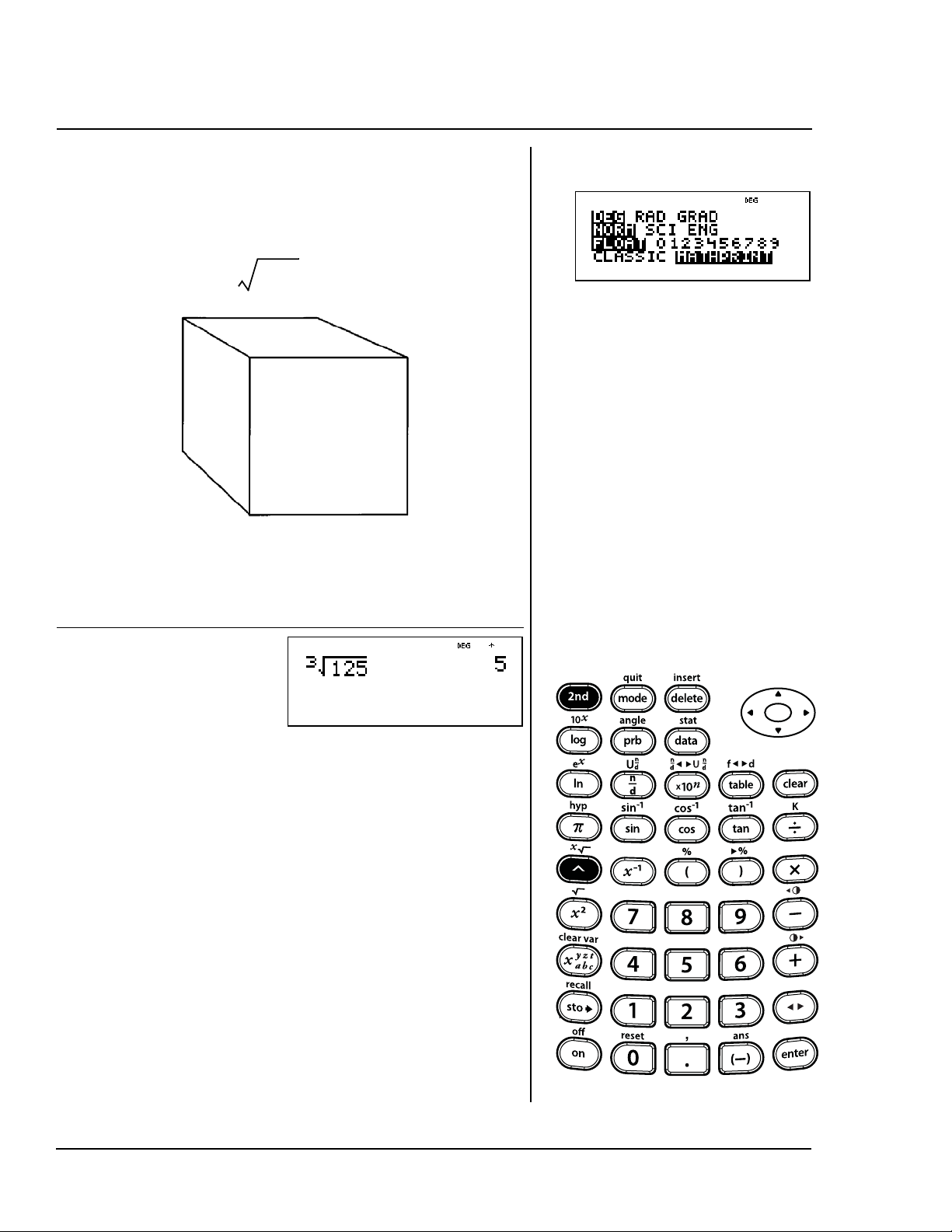
106 TI-30XS MultiView: A Guide For Teachers © 2006 TEXAS INSTRUMENTS INCORPORATED
If the volume of a cube is 125 cm
3
,
what is the length of each side?
L = cm
The length of each side is 5 cm.
Press Display
3 %c
125 <
125
3
Roots
%c
L
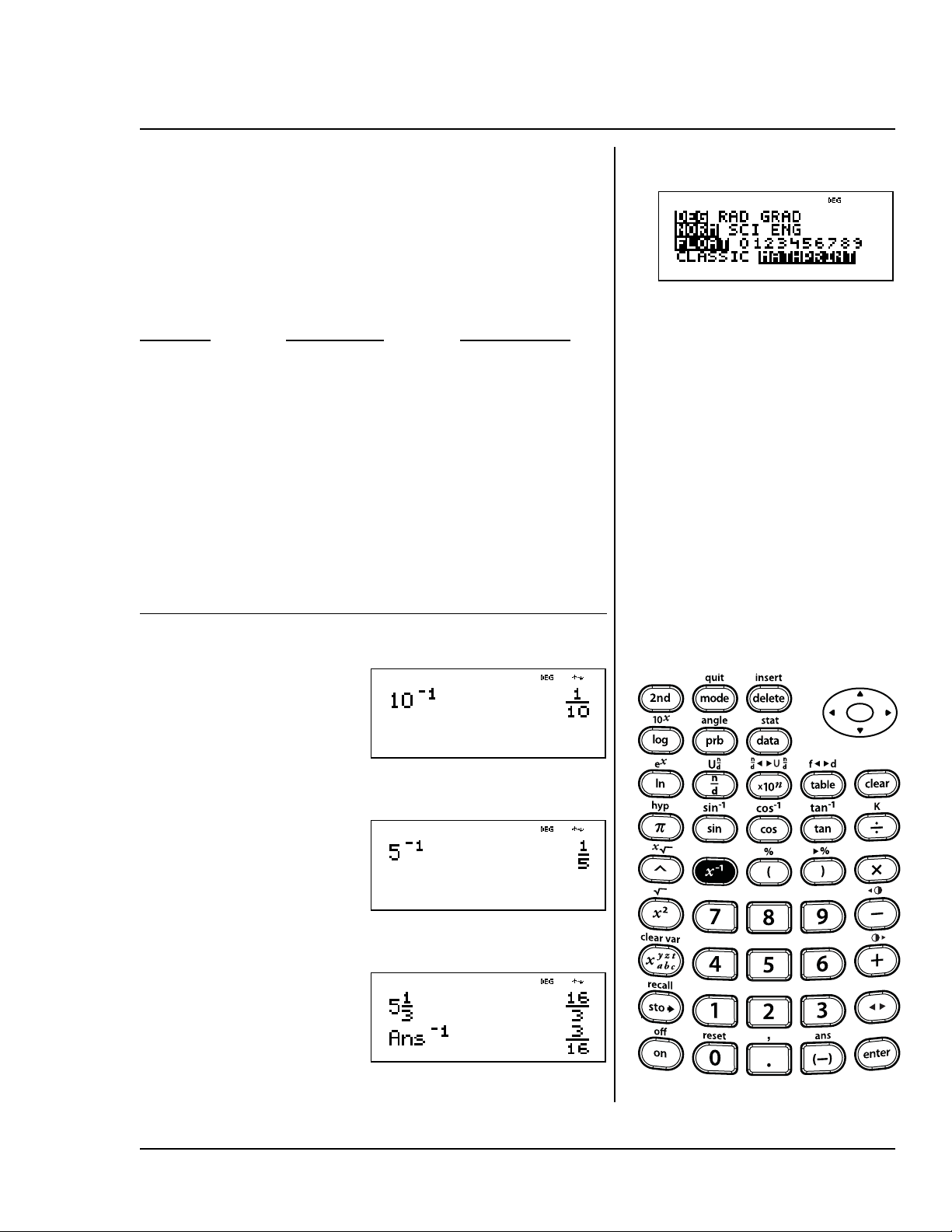
© 2006 TEXAS INSTRUMENTS INCORPORATED TI-30XS MultiView: A Guide For Teachers 107
The chart below shows the amount of
time spent building model ships.
Time Portion
Spent Completed
Ships
Building Per Hour
Sailing 10 hrs. ?
Steam 5 hrs. ?
Luxury 5 1/3 hrs. ?
How much of each model was
completed per hour?
Press Display
Sailing ship:
10 a <
Steam ship:
5 a <
Luxury liner:
5 % N 1 $
3 " <
a <
Reciprocals
a

108 TI-30XS MultiView: A Guide For Teachers © 2006 TEXAS INSTRUMENTS INCORPORATED
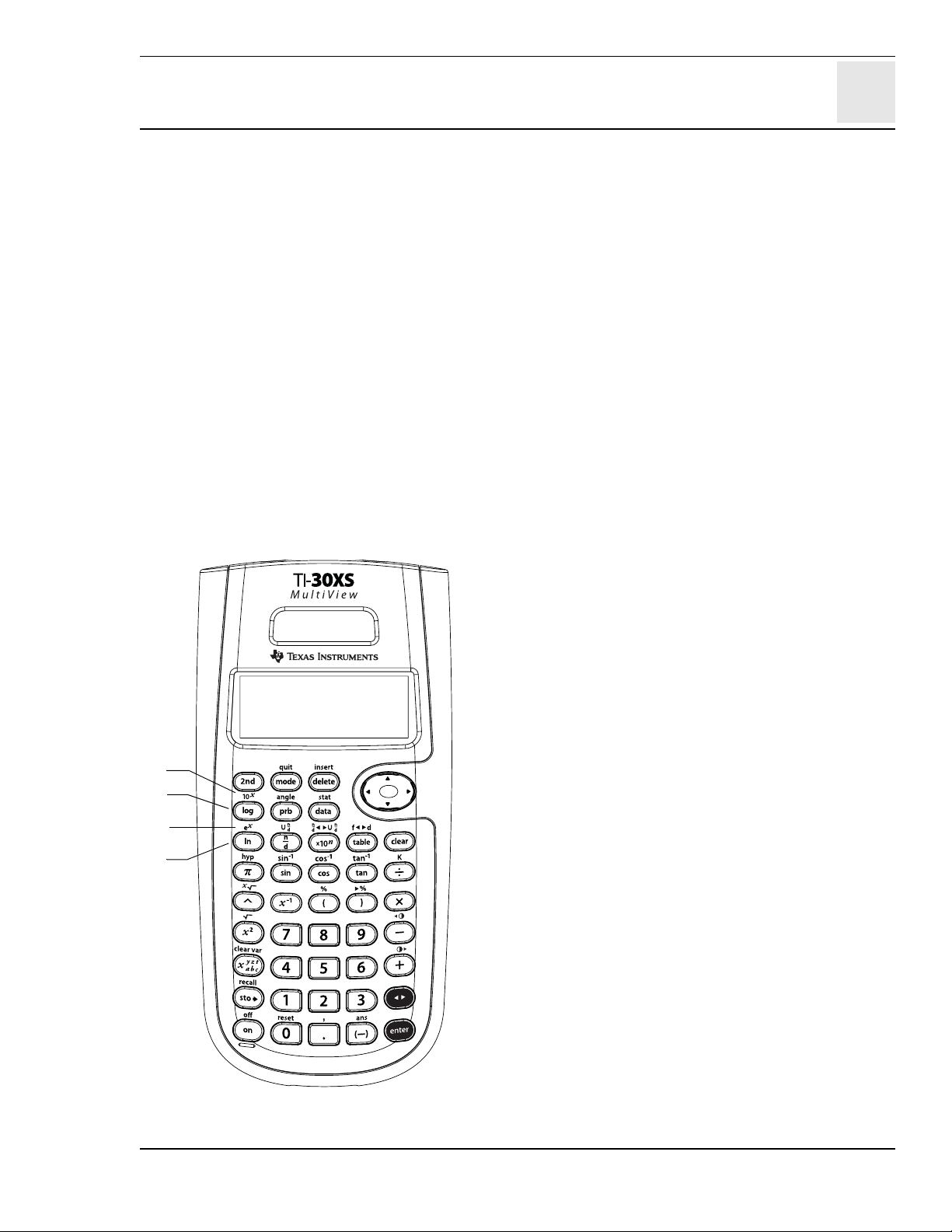
15
© 2006 TEXAS INSTRUMENTS INCORPORATED TI-30XS MultiView: A Guide For Teachers 109
Logarithms and exponential functions
Keys
1. A calculates the common logarithm
(base 10).
2. % ] calculates 10 raised to the power of
the value entered as the exponent (common
antilogarithm).
3. B calculates the natural logarithm (base e,
where e 2.718281828459).
4. % ^ calculates e raised to the power of
the value entered as the exponent (natural
antilogarithm).
Notes
• The examples on the transparency masters
assume all default settings.
• E ends a logarithmic function.
• In MathPrint™ mode, press " to exit the
exponent function.
≈
4
1
2
3
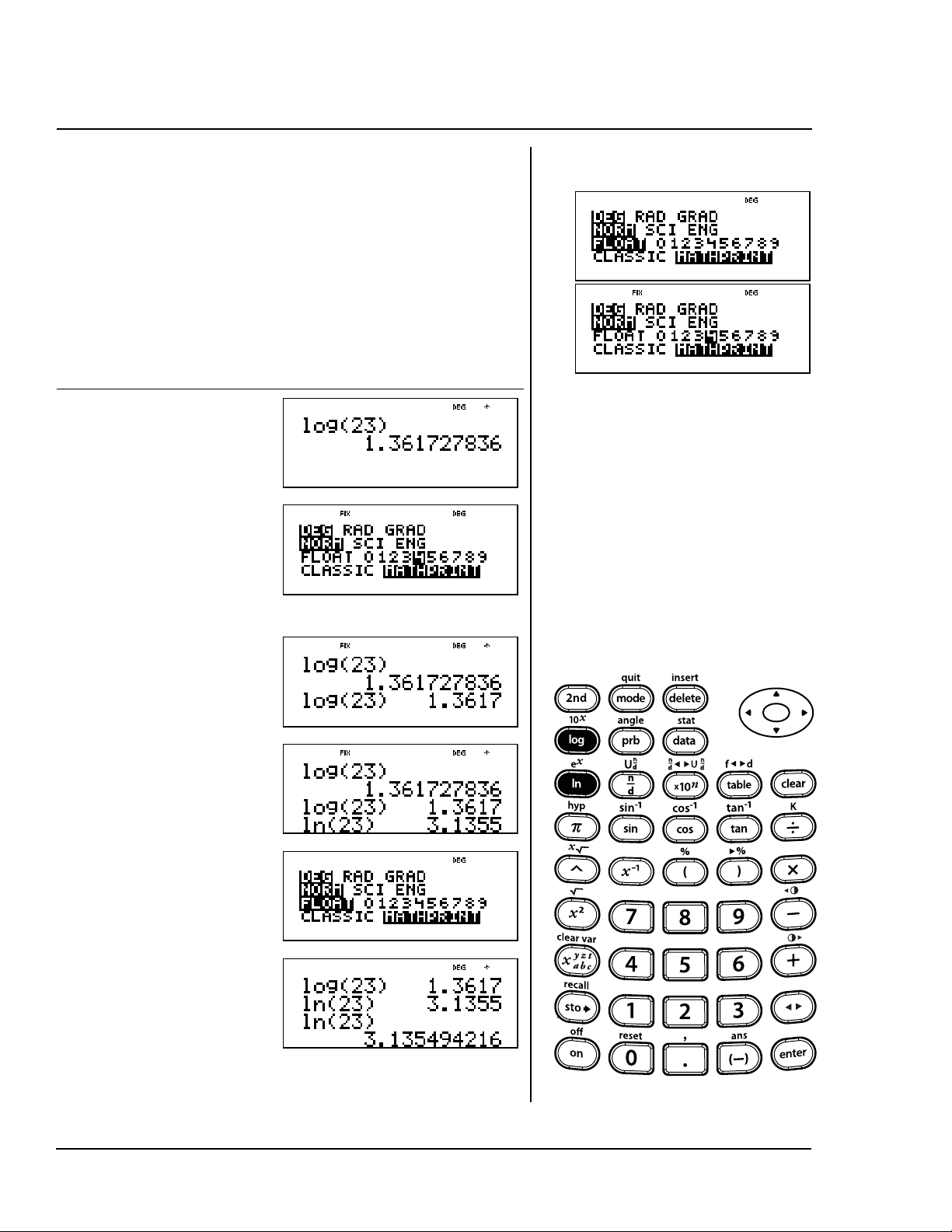
110 TI-30XS MultiView: A Guide For Teachers © 2006 TEXAS INSTRUMENTS INCORPORATED
Find log 23 rounded to 4 decimal
places. Then find ln 23 rounded to
4 decimal places and return to
floating decimal notation.
Press Display
A 23
E <
p
$ $
" " " "
" <
- <
B 23 E <
p
$
$ <
- <
Common logarithm, natural logarithm
AB
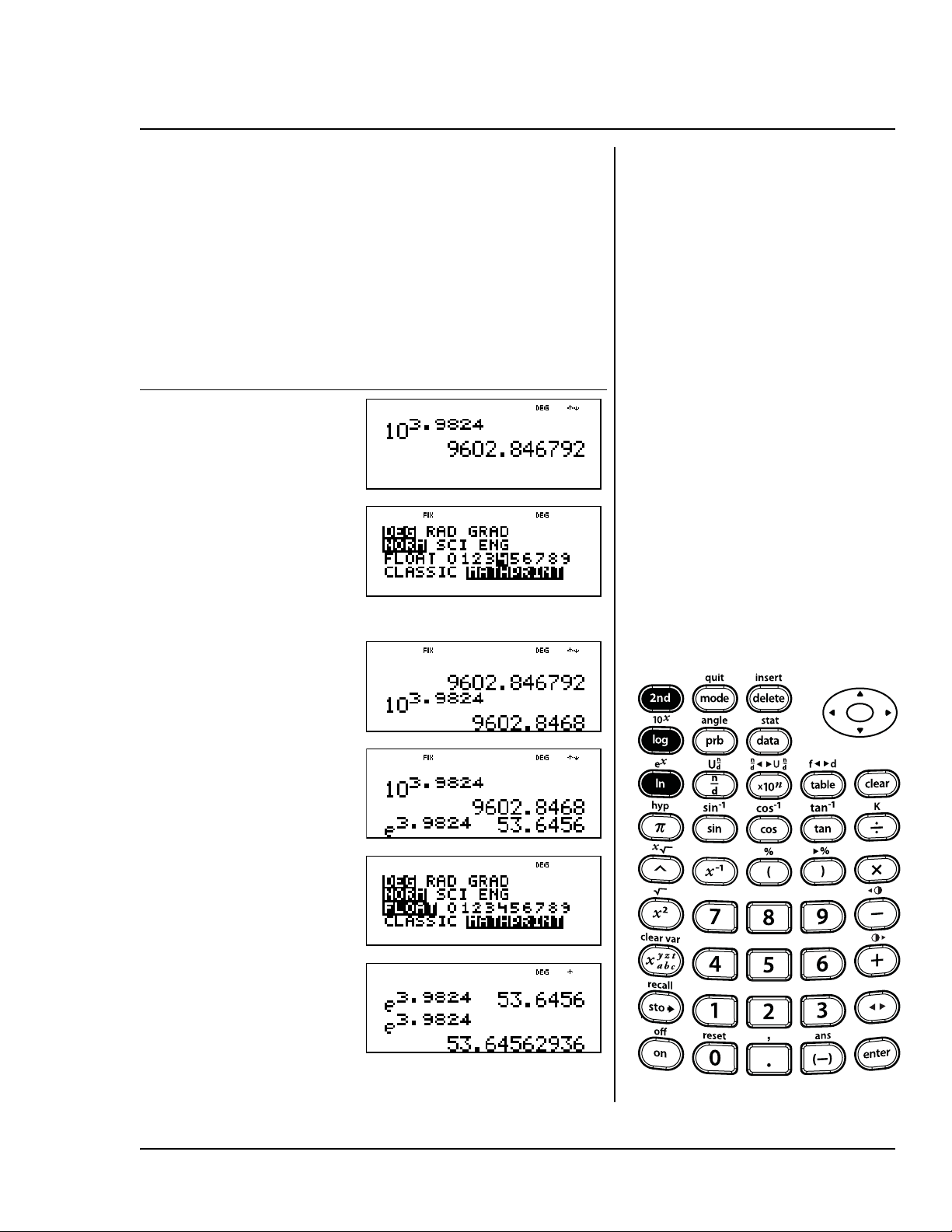
© 2006 TEXAS INSTRUMENTS INCORPORATED TI-30XS MultiView: A Guide For Teachers 111
Find antilog 3.9824 rounded to
4 decimal places. Then find antiln
3.9824 rounded to 4 decimal places.
When finished, return to floating
decimal notation.
Press Display
% ] 3 8
9824 <
p
$ $
" " " "
" <
- <
% ^ 3 8
9824 <
p
$
$ <
- <
Common antilogarithm, natural antilogarithm
%]
%^

112 TI-30XS MultiView: A Guide For Teachers © 2006 TEXAS INSTRUMENTS INCORPORATED
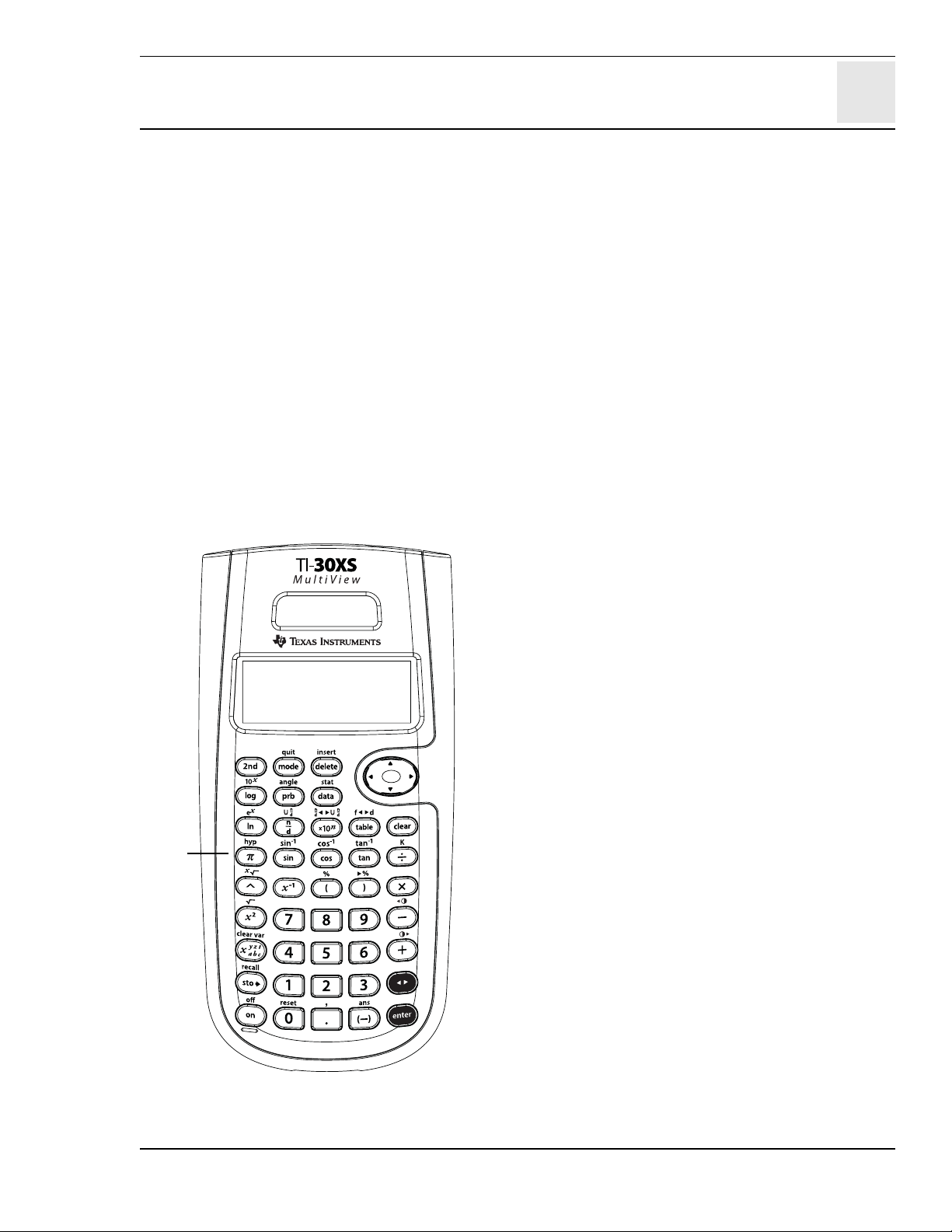
16
© 2006 TEXAS INSTRUMENTS INCORPORATED TI-30XS MultiView: A Guide For Teachers 113
Pi
Keys
1. g displays the value of pi rounded to 10
digits (3.141592654).
Notes
• The examples on the transparency masters
assume all default settings.
• In MathPrint™ mode, include a decimal
number inside the expression with pi to
receive a decimal output. For example, if you
enter 2À, the TI-30XS MultiView™ calculator
displays 2
À. If you enter 2.0À, the calculator
displays the decimal version, 6.28319.
• You can use
n to toggle the answer
between decimal and pi formats.
• Internally, pi is stored to 13 digits
(3.141592653590).
• You can select the number of decimal places
from the mode menu.
1
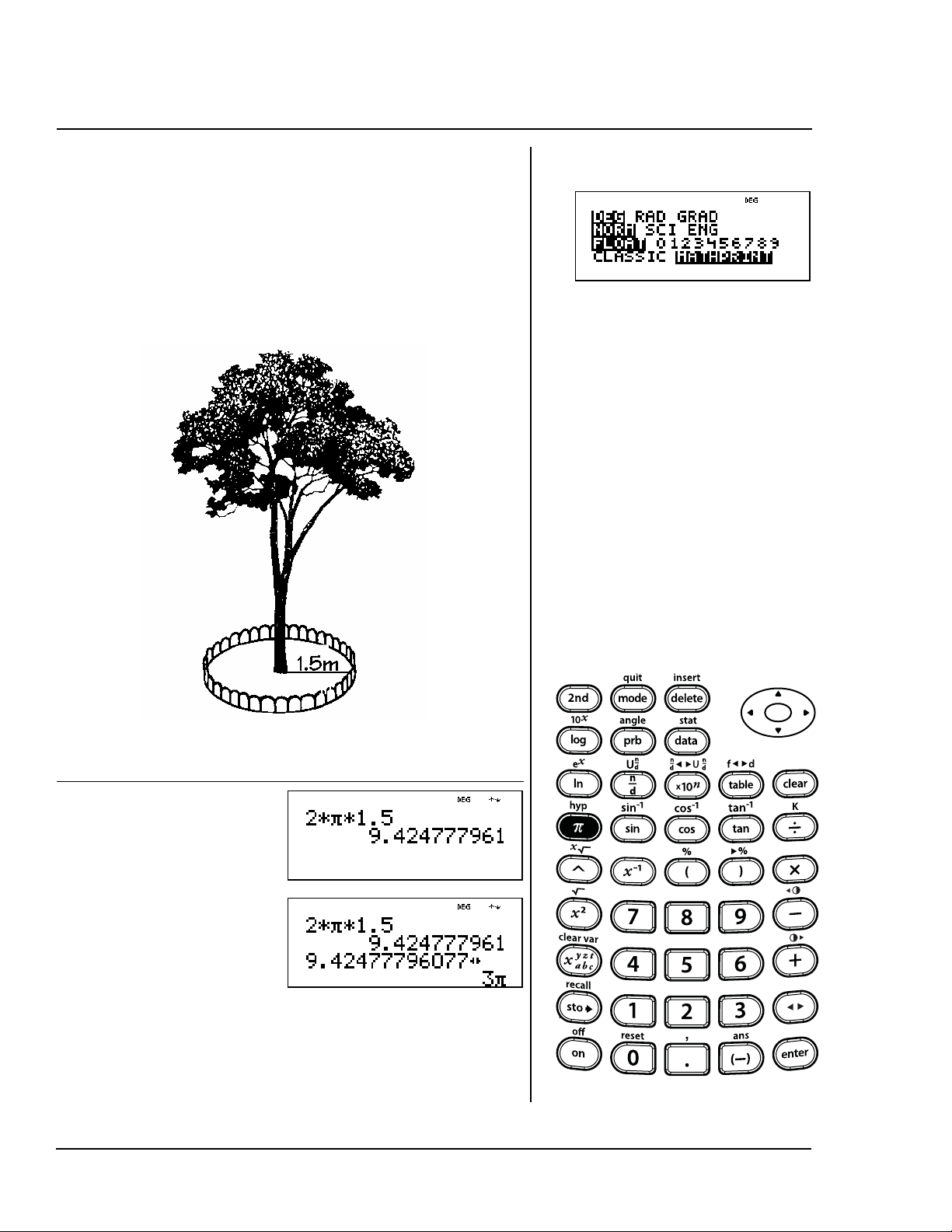
114 TI-30XS MultiView: A Guide For Teachers © 2006 TEXAS INSTRUMENTS INCORPORATED
Use this formula to find the amount
of border you need if you want to put
a circular border all the way around
the tree.
C = 2Àr = 2 x À x 1.5m
The border length is 3
À m. You will
need approximately 9.4 m for the
border.
Press Display
2 V g V
1 8 5 <
n
Circumference
g
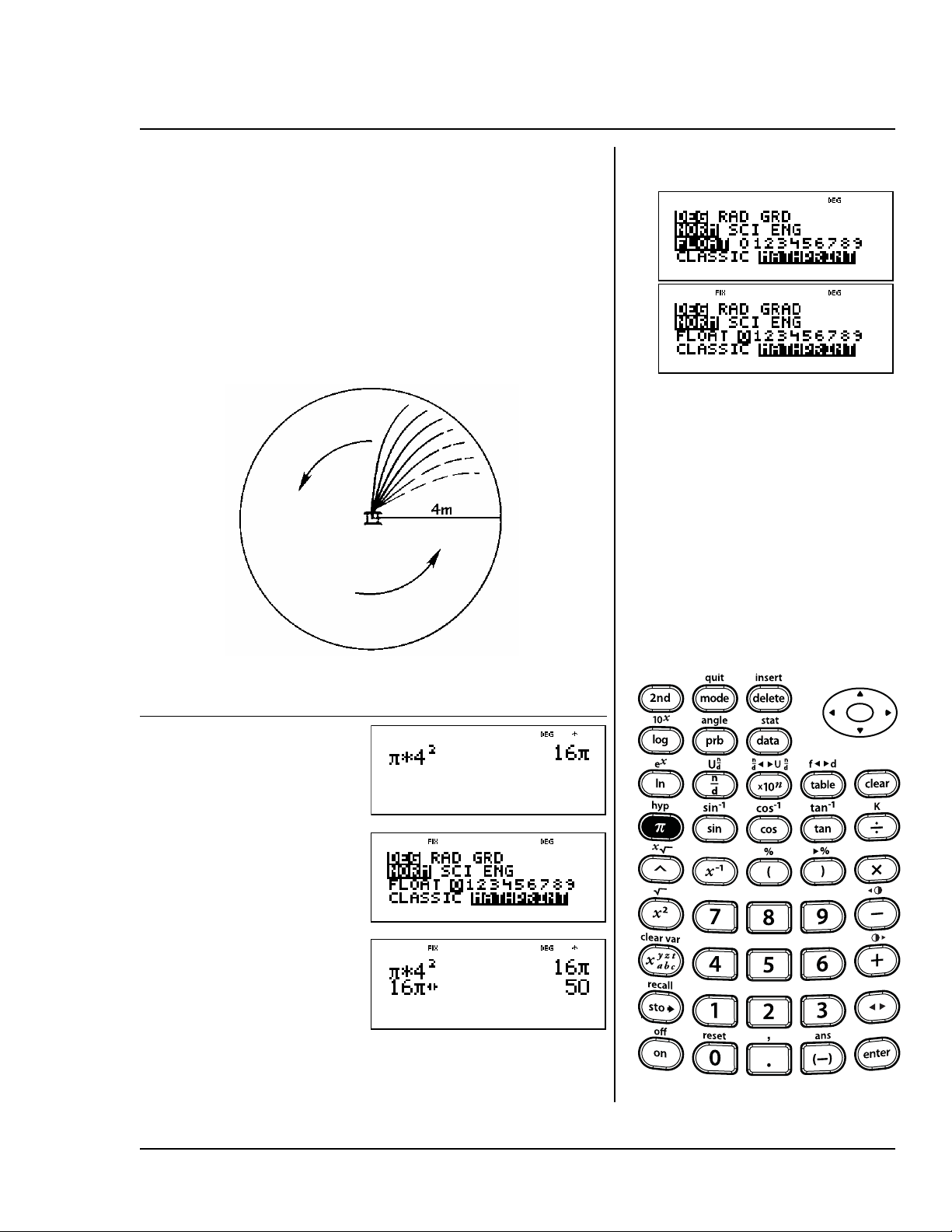
© 2006 TEXAS INSTRUMENTS INCORPORATED TI-30XS MultiView: A Guide For Teachers 115
Use this formula to find how much of
a lawn would be covered by the
sprinkler. Round your answer to the
nearest whole number, and then
return to floating decimal mode.
A = À
ÀÀ
Àr
2
= À
ÀÀ
À x 4
2
square meters
Press Display
g V 4
F <
p$$"
<-
n
Area
g
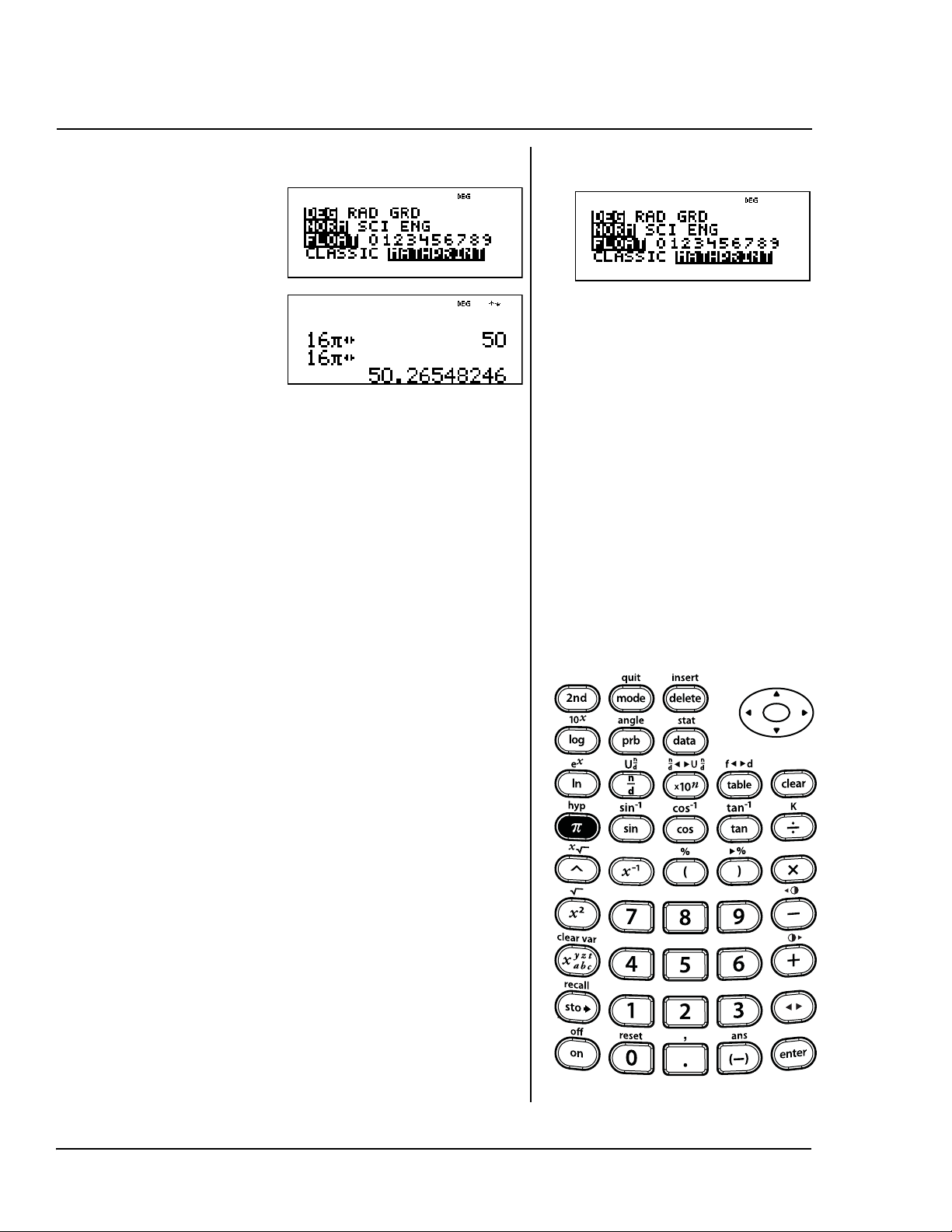
116 TI-30XS MultiView: A Guide For Teachers © 2006 TEXAS INSTRUMENTS INCORPORATED
The area that will be covered by the
sprinkler is approximately 50 square
meters.
p$$
<-
<
Area (Continued)
g
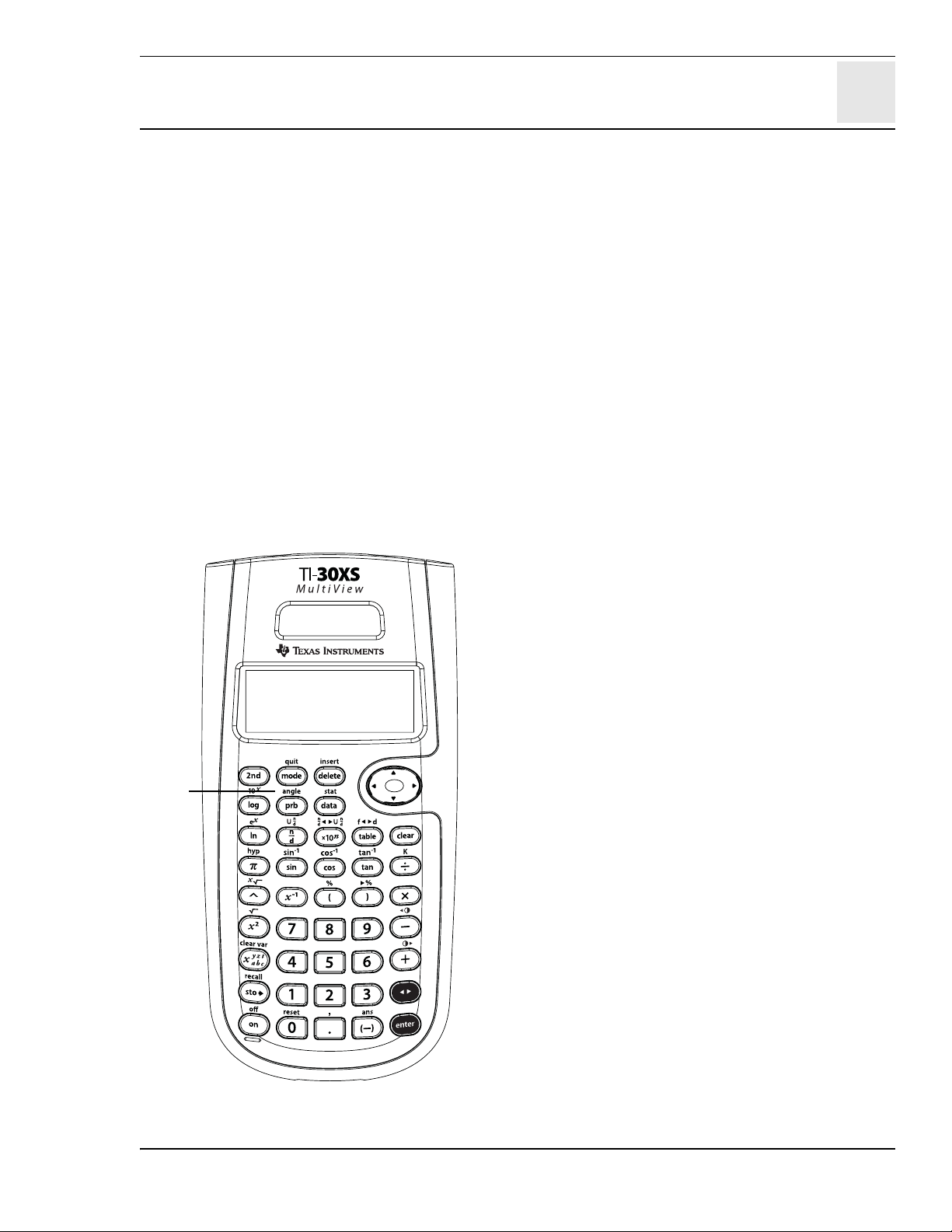
17
© 2006 TEXAS INSTRUMENTS INCORPORATED TI-30XS MultiView: A Guide For Teachers 117
Angle settings and conversions
Keys
1. %I displays a choice of two submenus
that enable you to specify the angle unit
modifier as degrees (º), minutes ('), seconds
("); radian (r); gradian (g), or convert units
using
´DMS. You can also convert between
rectangular coordinate form (R) and polar
coordinate form (P). (See Chapter 18, Polar
and rectangular conversions, for more
information.)
Choose an angle mode from the mode screen.
You can choose from DEG (default), RAD, or
GRAD. Entries are interpreted and results
displayed according to the angle mode
setting without the need to enter an angle
unit modifier.
If you specify an angle unit modifier from the
Angle menu, the calculation is performed in
that angle type, but the result will be given in
the angle mode setting.
Notes
• The examples on the transparency masters
assume all default settings.
• DMS angles are entered as Ä (degrees),
Å (minutes), and Æ (seconds).
1
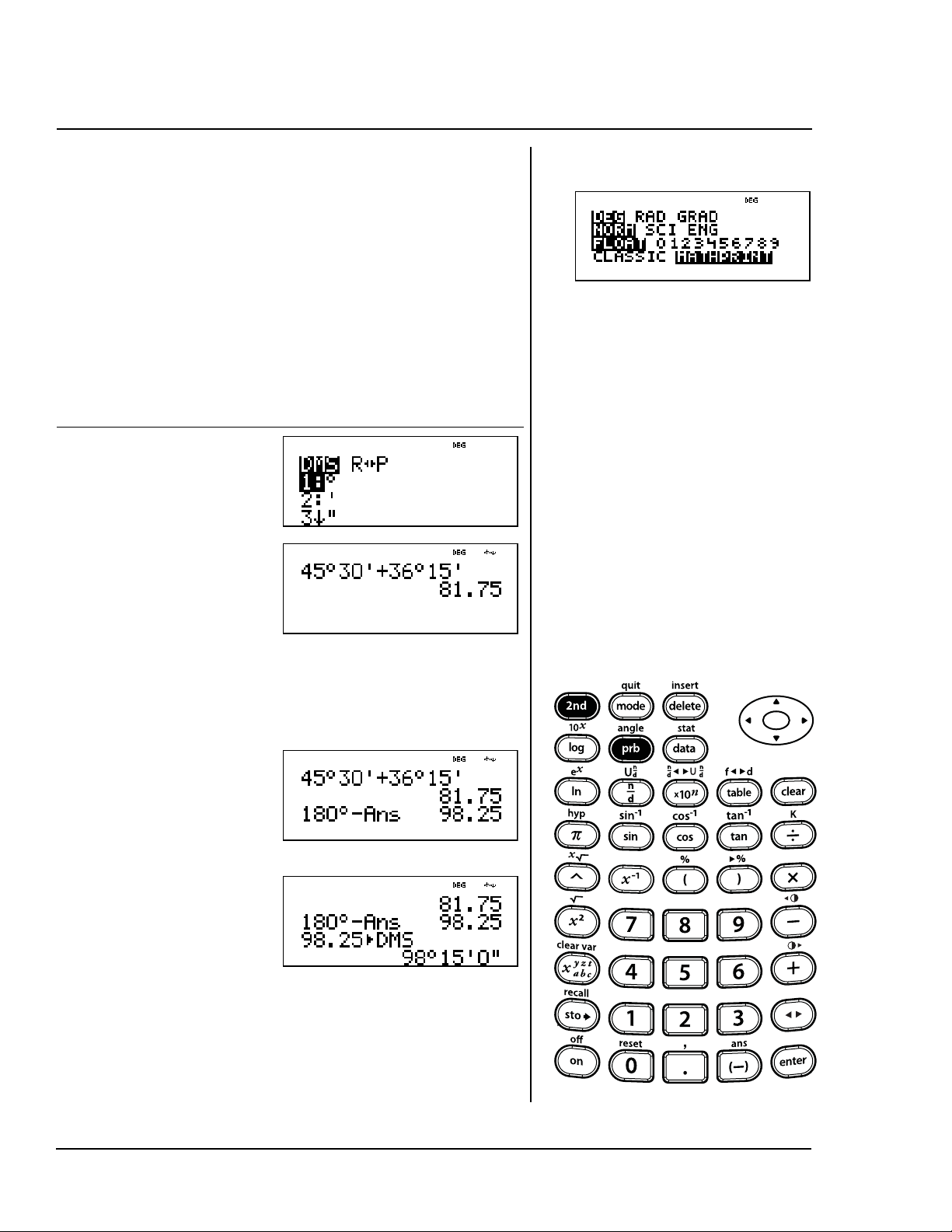
118 TI-30XS MultiView: A Guide For Teachers © 2006 TEXAS INSTRUMENTS INCORPORATED
Find the measure of the third angle of
a triangle if one angle measures
45
Ä 30Å and the other angle
measures 36
Ä 15Å. Express the angle
measure in degrees, minutes, and
seconds.
The measure of the third angle
is 98
Ä 15Å.
Press Display
45 % I
1
30 % I
2 T 36 %
I1
15 % I
2 <
180 % I
1 U % i
<
% I 6
<
Degrees, minutes, and seconds to decimal
%I
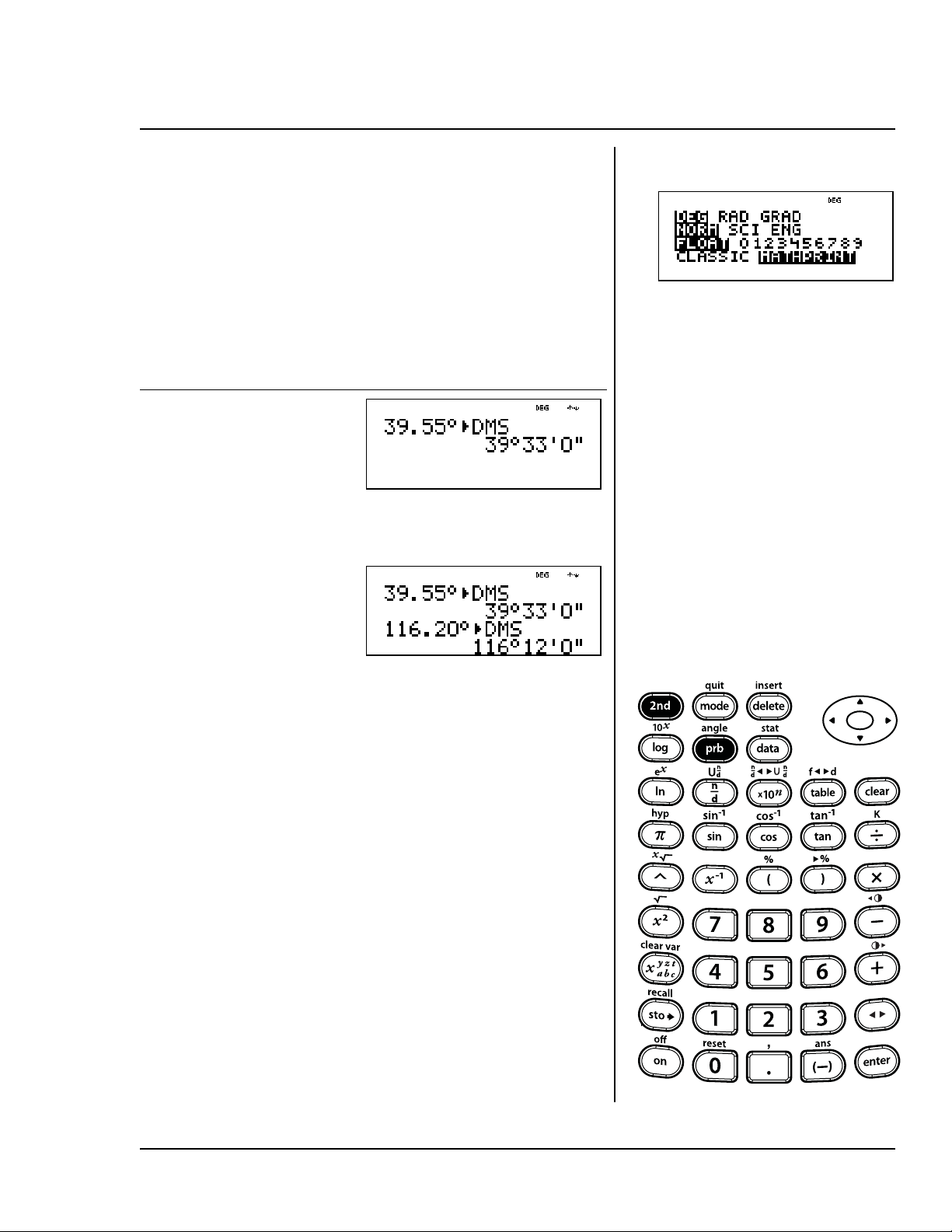
© 2006 TEXAS INSTRUMENTS INCORPORATED TI-30XS MultiView: A Guide For Teachers 119
You are visiting Beijing, China. Your
GPS gives your location (latitude and
longitude) as 39.55
Ä N 116.20Ä E.
Change your location information to
degrees, minutes and seconds.
Your location in Beijing, China is
39
Ä 33Å N 116Ä 12Å E.
Press Display
39.55 %
I <
% I #
<<
116.20 %
I <
% I #
<<
Decimal to degrees, minutes, and seconds
%I
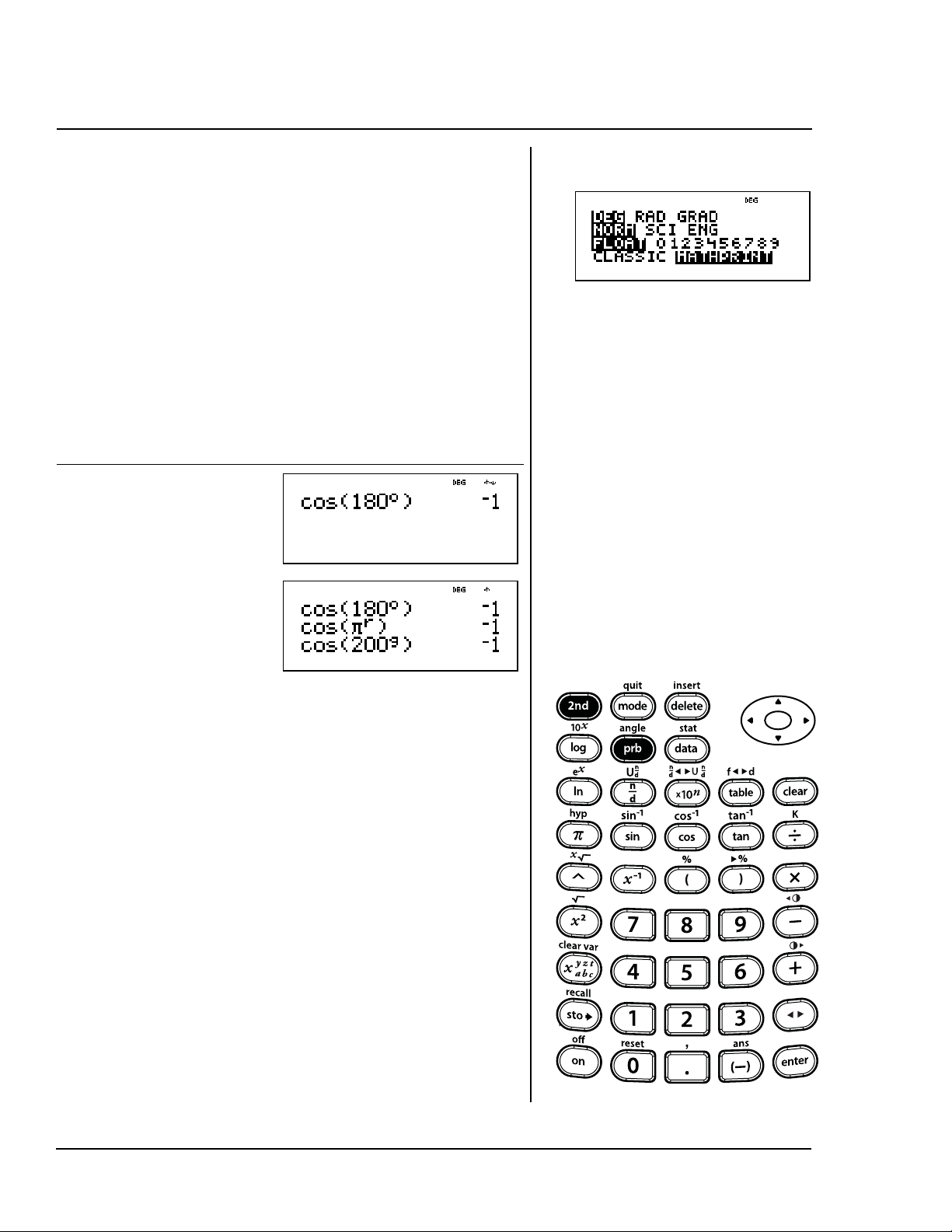
120 TI-30XS MultiView: A Guide For Teachers © 2006 TEXAS INSTRUMENTS INCORPORATED
Calculate the following:
cos(180 degrees)
cos(À
radians)
cos(200 grad)
Remember:
180 degrees = À
radians = 200 grad.
Press Display
?180 %
I1 E <
? g %
I4 E
< ? 200
% I 5
E <
Degrees, radians, and gradians
%I
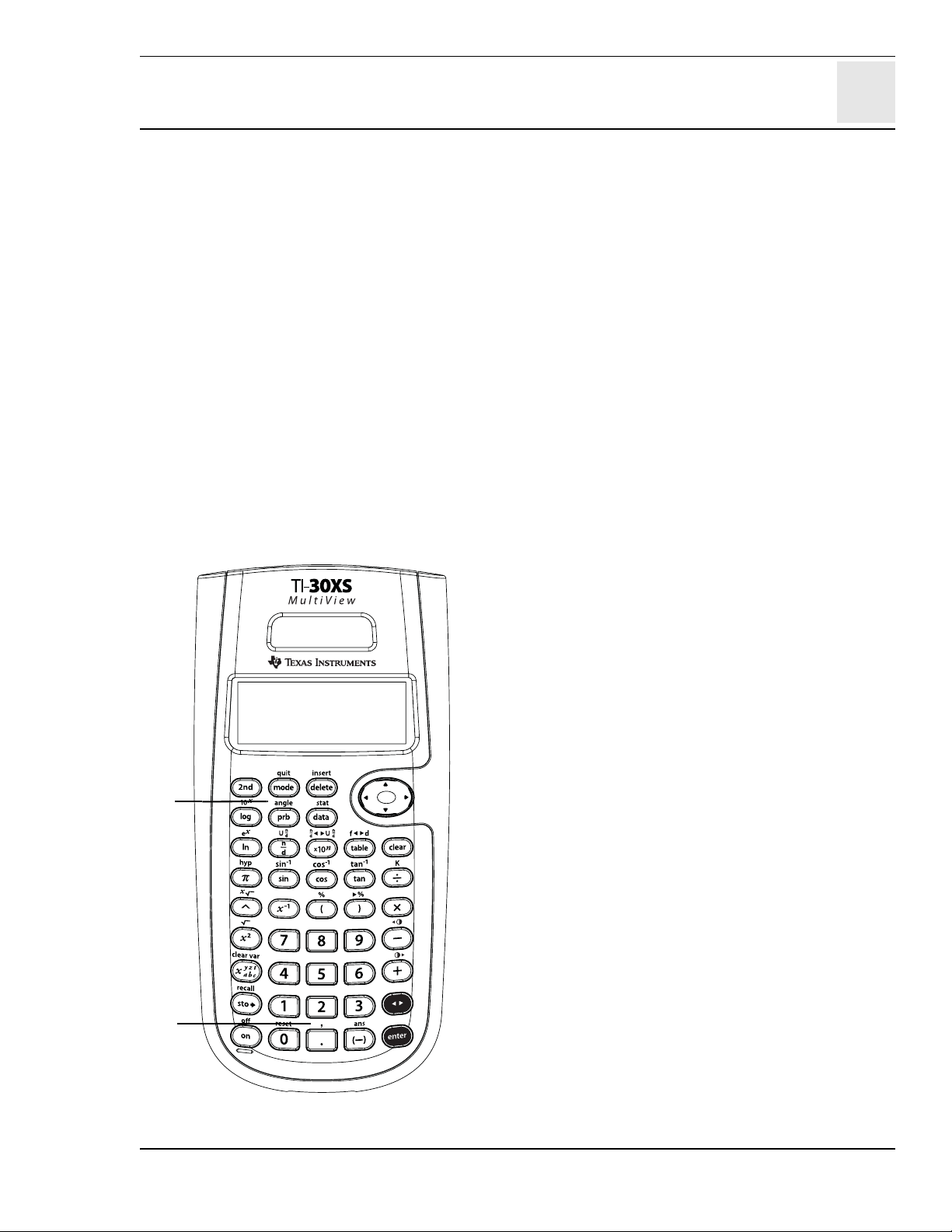
18
© 2006 TEXAS INSTRUMENTS INCORPORATED TI-30XS MultiView: A Guide For Teachers 121
Polar and rectangular conversions
Keys
1. %I displays the choice of two
submenus that let you convert rectangular
coordinates (x,y) to polar coordinates (r,q) or
vice versa. You can also specify the angle unit
modifier. (See Chapter 17, Angle settings and
conversions, for more information.)
R
μPr( Converts rectangular coordinate to
polar coordinate r.
R μPq( Converts rectangular coordinate to
polar coordinate
q.
P μRx( Converts polar coordinate to
rectangular coordinate x.
P μRy( Converts polar coordinate to
rectangular coordinate y.
2. % ` enters a comma.
Notes
• The example on the transparency master
assumes all default settings.
• Before starting calculations, set the angle
mode as necessary.
2
1
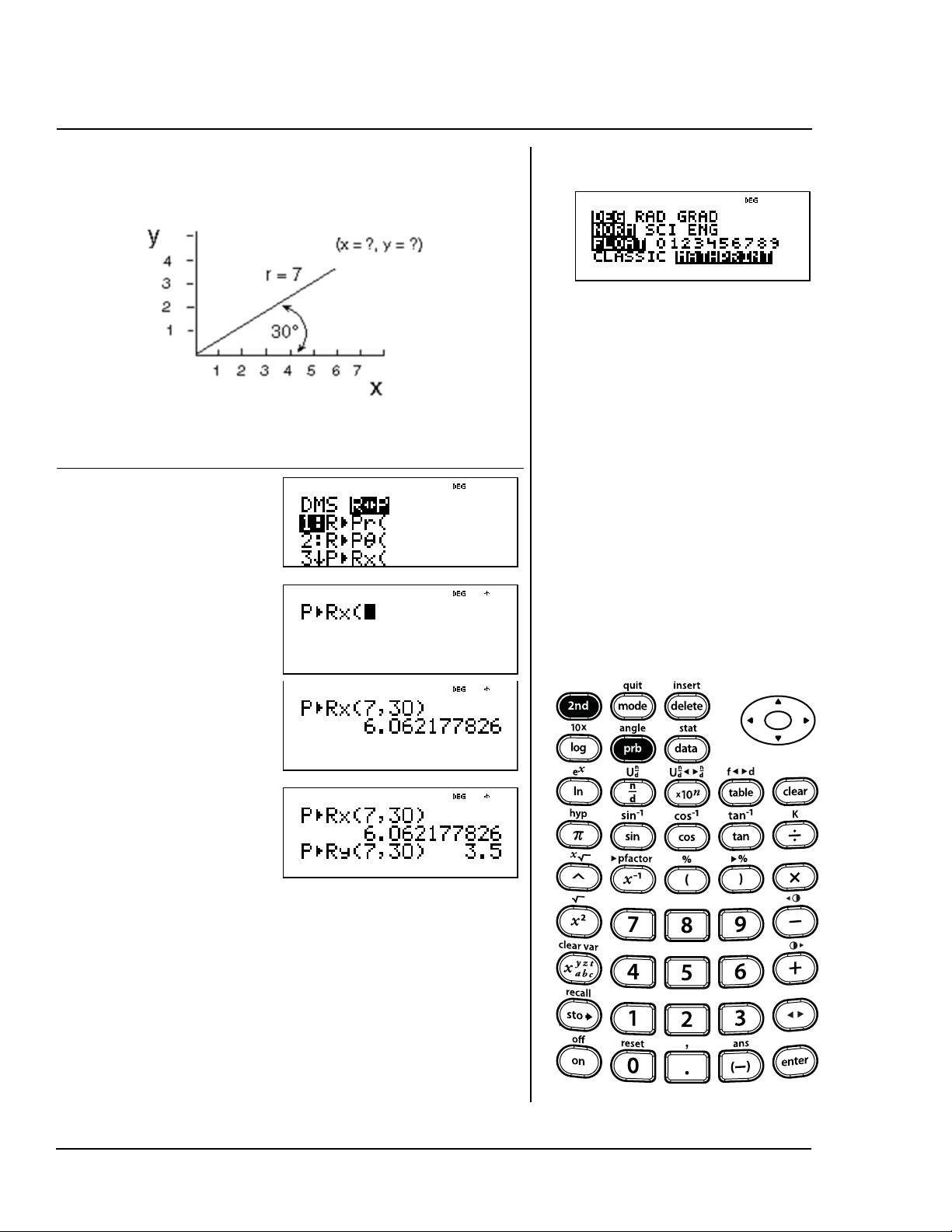
122 TI-30XS MultiView: A Guide For Teachers © 2006 TEXAS INSTRUMENTS INCORPORATED
Convert the polar ordered pair
(7, 30Ä) to rectangular coordinates.
The rectangular ordered pair is
(
x
,
y
) = (6.062177826, 3.5.)
Press Display
%I "
$ $
< 7 %`
30 E <
%I "
$ $ $ <
7 %` 30
E <
Polar to rectangular
%I
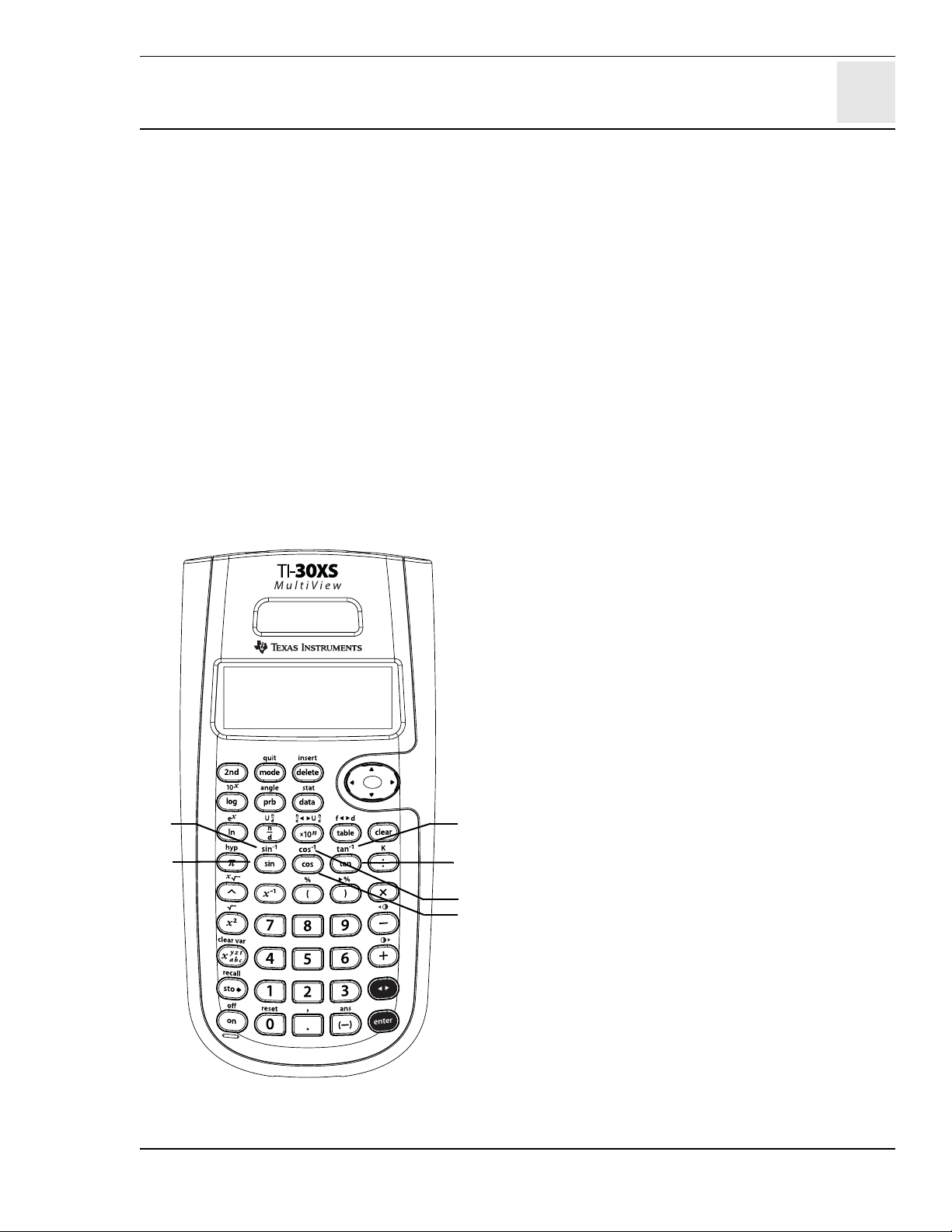
19
© 2006 TEXAS INSTRUMENTS INCORPORATED TI-30XS MultiView: A Guide For Teachers 123
Trigonometry
Keys
1. > calculates the sine of an angle.
2. % Z calculates the inverse sine.
3. ? calculates the cosine of an angle.
4. % [ calculates the inverse cosine.
5. @ calculates the tangent of an angle.
6. % \ calculates the inverse tangent.
Notes
• The examples on the transparency masters
assume all default settings.
• Before starting a trigonometric calculation,
be sure to select the appropriate angle mode
setting (DEG, RAD, or GRAD—See Chapter
17, Angle settings and conversions). The
calculator interprets values according to the
current angle-unit mode setting.
• In MathPrint™ mode and the corresponding
mode setting of DEG or RAD, evaluating
trigonometric functions at multiples of 15
degree or pi/12 increments yields exact
radical output in many cases.
• E closes the argument of a trigonometric
function.
4
5
6
3
1
2
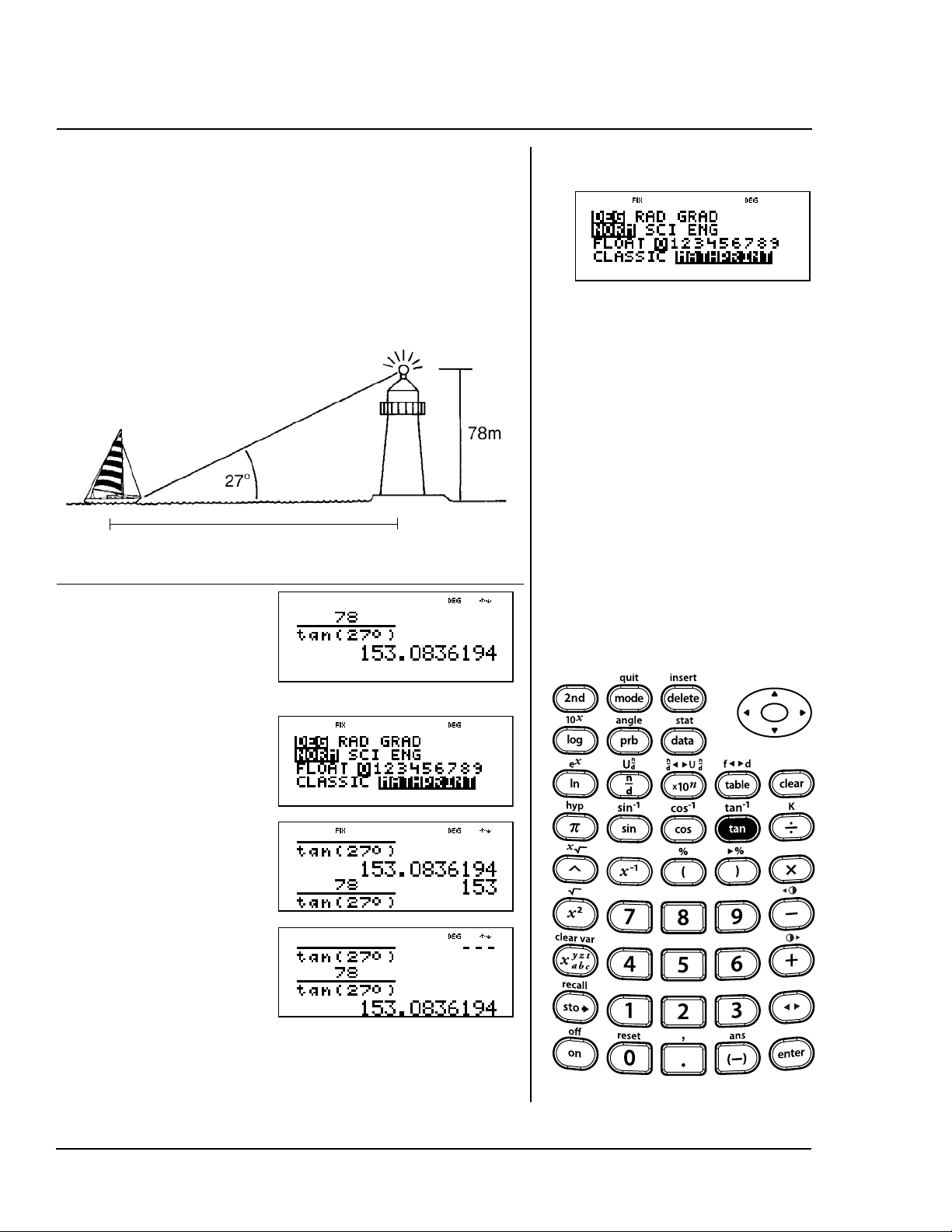
124 TI-30XS MultiView: A Guide For Teachers © 2006 TEXAS INSTRUMENTS INCORPORATED
Use this formula to find the distance from the
lighthouse to the boat. Round your answer to
the nearest whole number, and then return to
floating decimal mode.
D =
The distance from the lighthouse to
the boat is approximately 153 m.
Press Display
78 q @27
%I<
E<
p$ $
"<
-<
p$$<
-<
78
TAN
27
----------------
D
Tangent
@
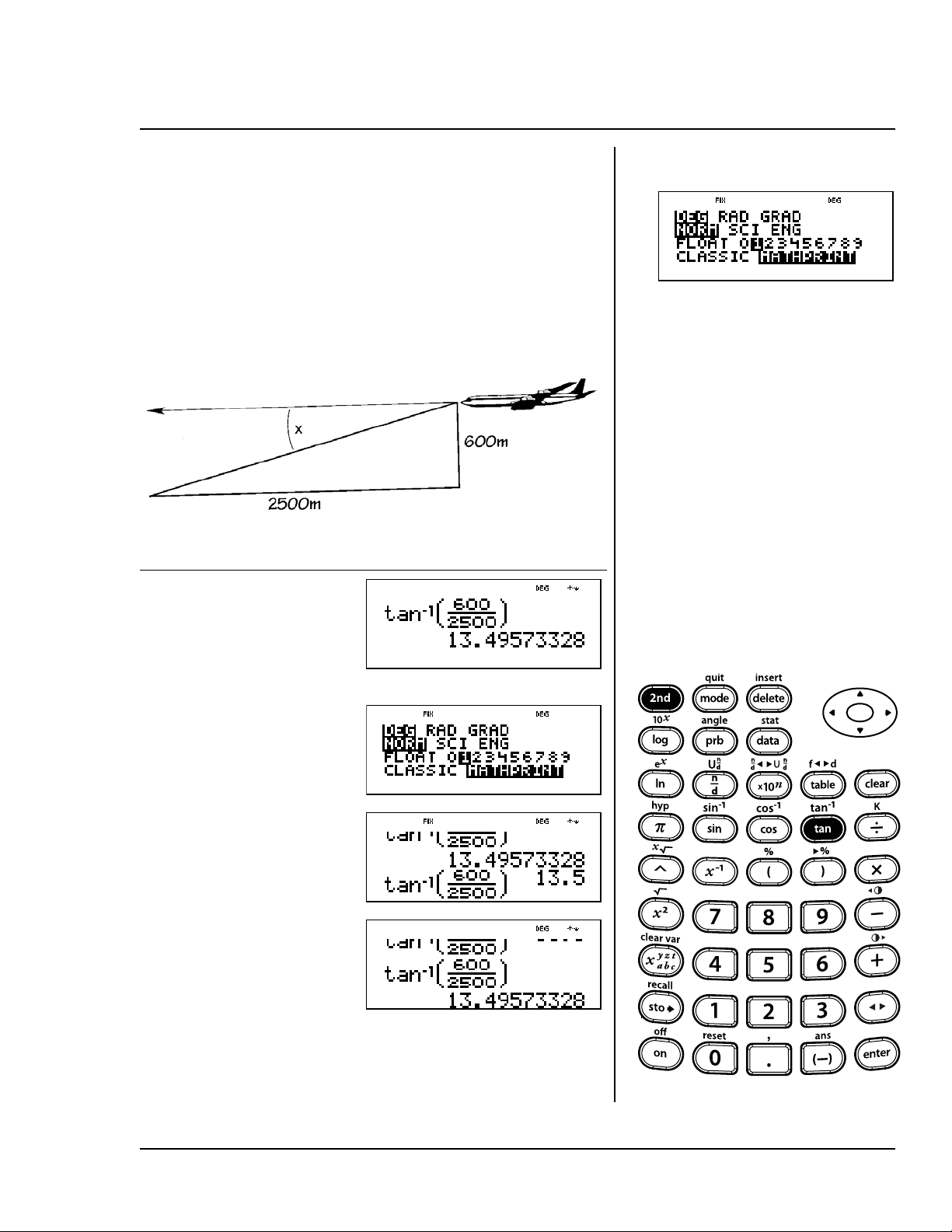
© 2006 TEXAS INSTRUMENTS INCORPORATED TI-30XS MultiView: A Guide For Teachers 125
Use this formula to find the angle of
depression,
x
. Round your answer to
the nearest tenth, and then return
to floating decimal mode.
x
= TAN
-1
The angle of depression is
x
=13.5Ä
rounded to the nearest tenth.
Press Display
%\ 600
q 2500 "
E <
p$ $ "
"<
-<
p$ $
<-<
600
2500
-------------
Inverse tangent
%\
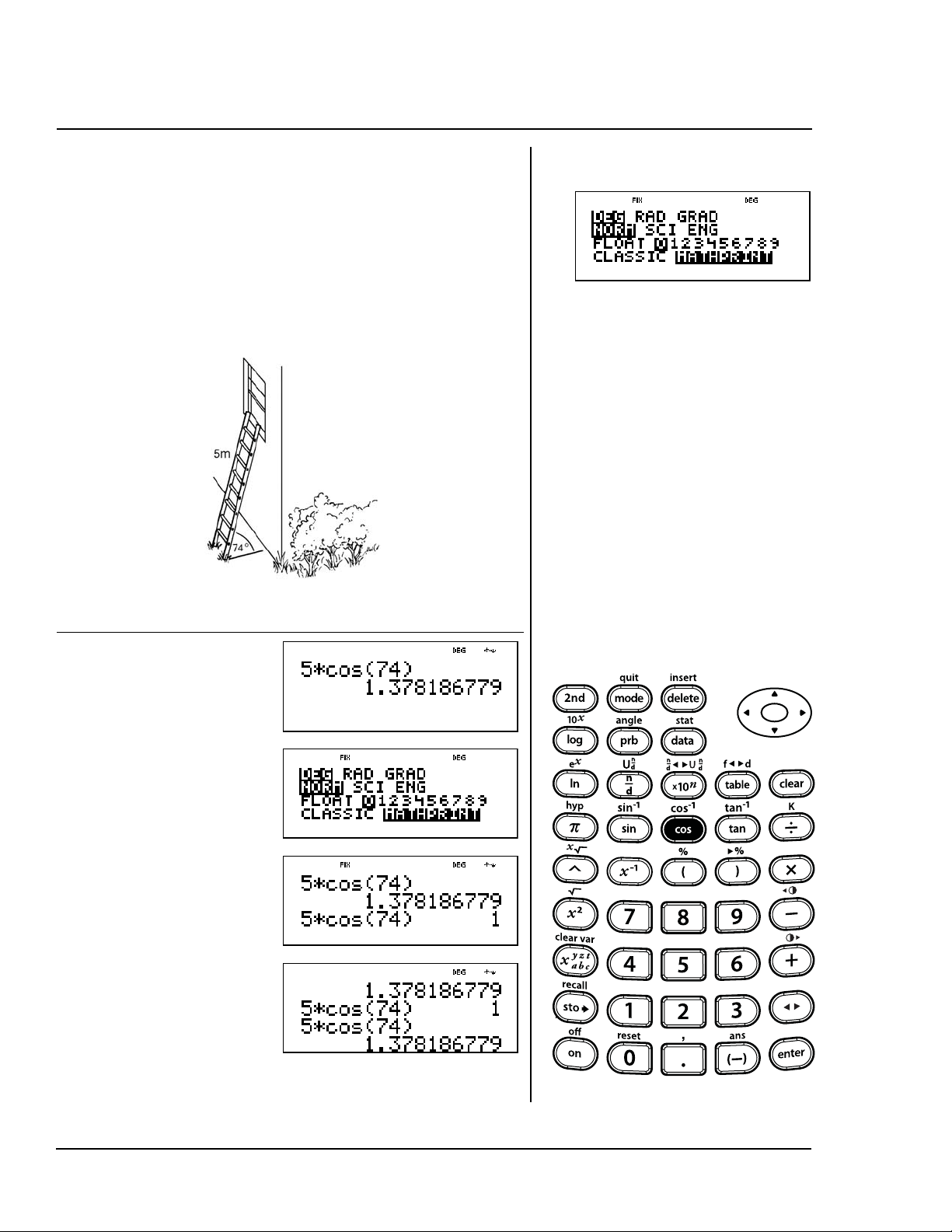
126 TI-30XS MultiView: A Guide For Teachers © 2006 TEXAS INSTRUMENTS INCORPORATED
Use this formula to find the distance,
D, from the base of the ladder to the
house. Round your answer to the
nearest whole number, and then
return to floating decimal mode.
D = 5 x COS(74) meters
The distance is approximately 1 meter.
Press Display
5 V ? 74
E <
p$ $
"<
-<
p$ $
<-<
D
Cosine
?
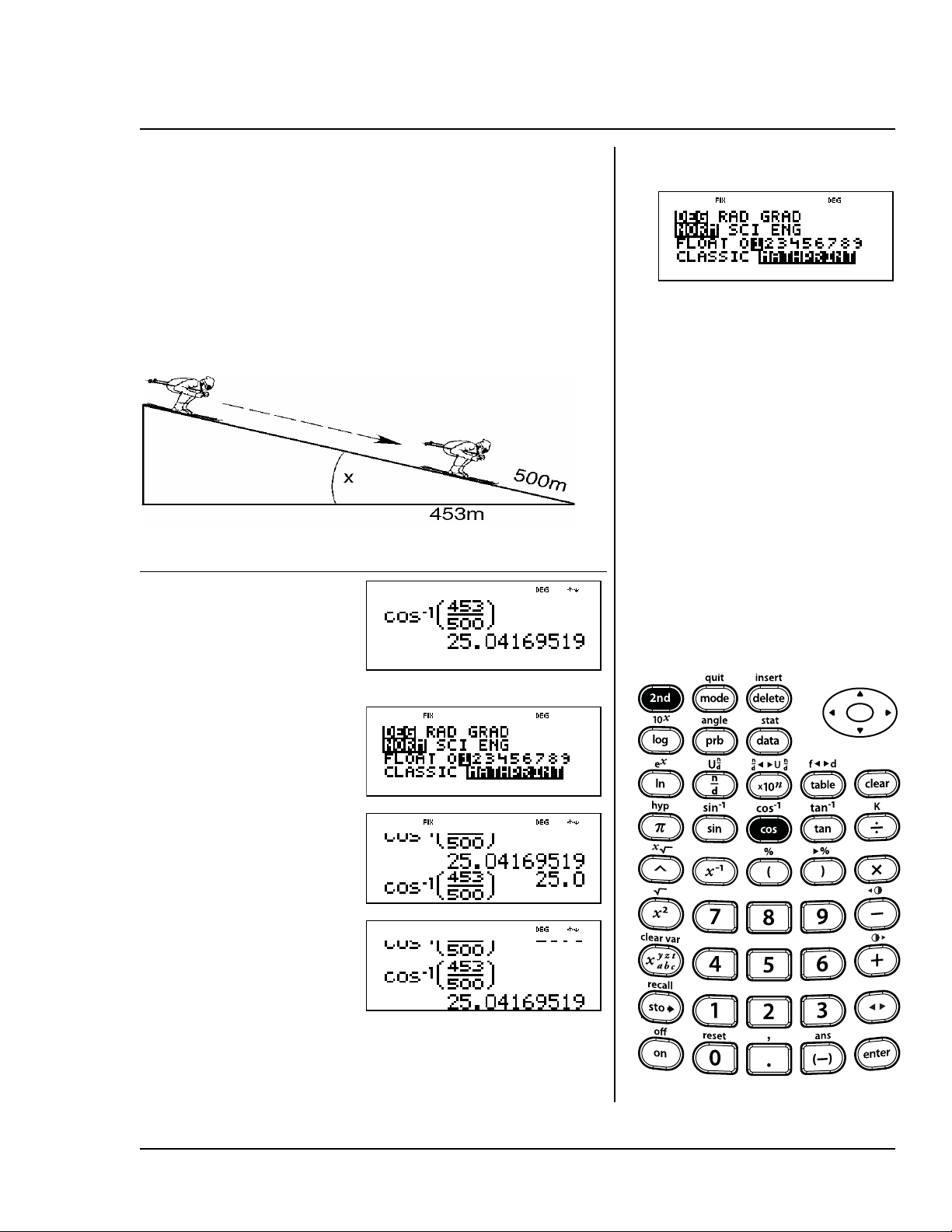
© 2006 TEXAS INSTRUMENTS INCORPORATED TI-30XS MultiView: A Guide For Teachers 127
Use this formula to find the angle of
the ski jump,
x
. Round your answer to
the nearest tenth, and then return
to floating decimal mode.
x = COS
-1
The angle of the ski jump is
x
=25.0Ä
rounded to the nearest tenth.
Press Display
%[ 453
q 500 "
E <
p$ $ "
"<
-<
p$ $
<-<
453
500
----------
Inverse cosine
%[
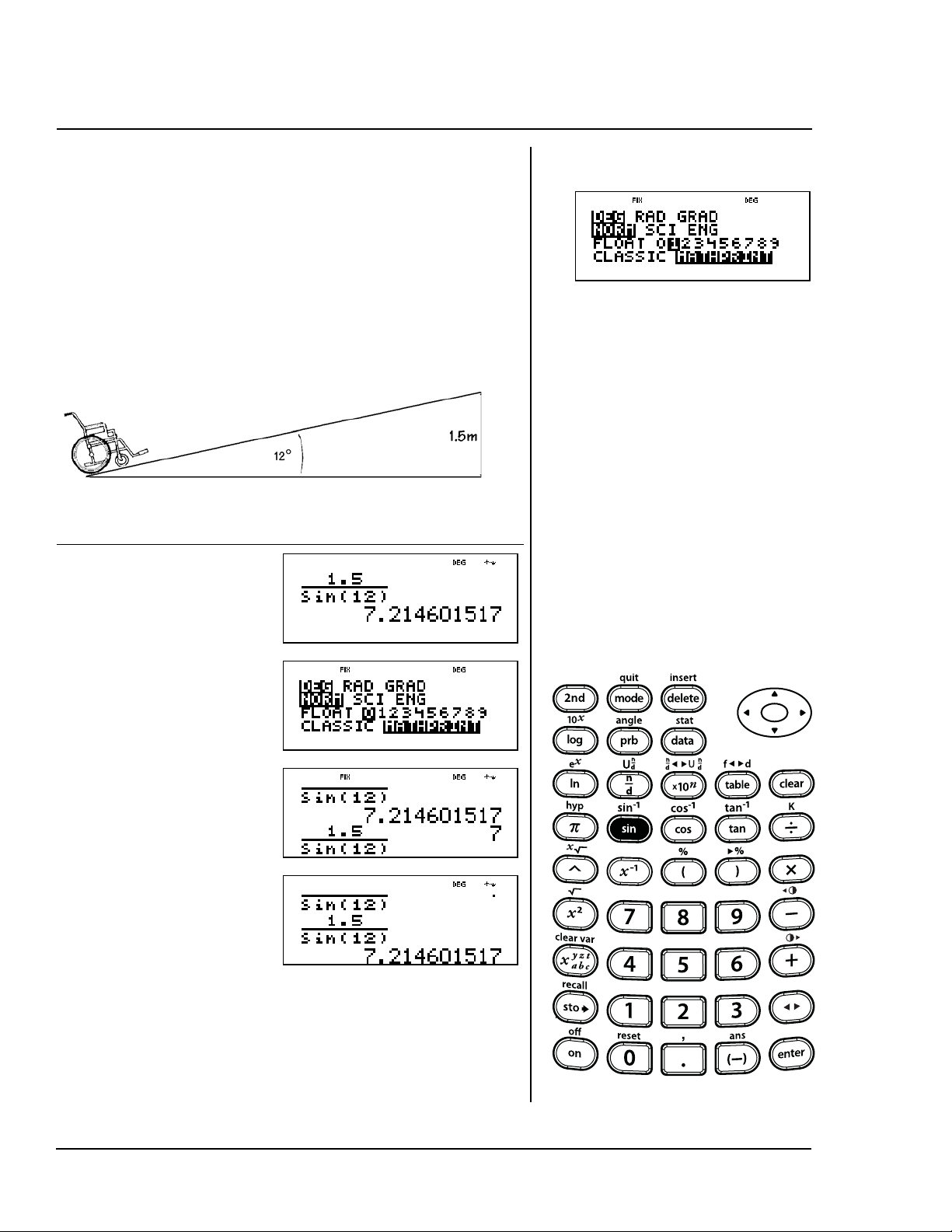
128 TI-30XS MultiView: A Guide For Teachers © 2006 TEXAS INSTRUMENTS INCORPORATED
Use this formula to find the length of
the ramp, D. Round your answer to
the nearest whole number, and then
return to floating decimal mode.
D = meters
The length of the ramp is D = 7 m
rounded to the nearest whole
number.
Press Display
1 8 5 q >
12 E <
p$ $
"<
-<
p$ $
<-<
1.5
12°()sin
--------------------
D
Sine
>
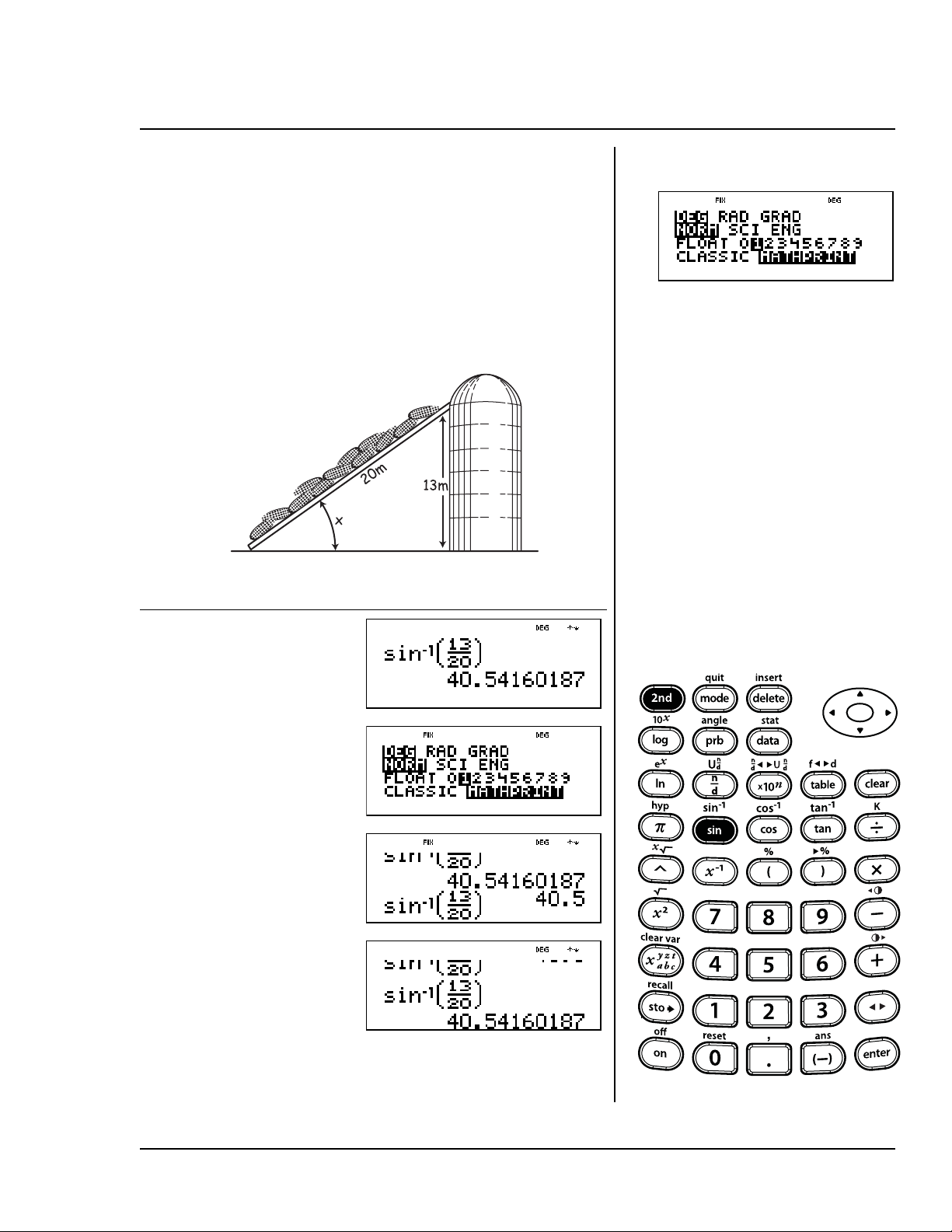
© 2006 TEXAS INSTRUMENTS INCORPORATED TI-30XS MultiView: A Guide For Teachers 129
Use this formula to find the angle of
the conveyor belt,
x
. Round your
answer to the nearest tenth, and
then return to floating decimal mode.
x = SIN
-1
meters
The angle of the conveyer belt is
x=40.5
Ä
rounded to the nearest tenth.
Press Display
%Z 13 q
20 " E <
p$ $ "
"<
-<
p$ $
<-<
13
20
------
Inverse sine
%Z

130 TI-30XS MultiView: A Guide For Teachers © 2006 TEXAS INSTRUMENTS INCORPORATED
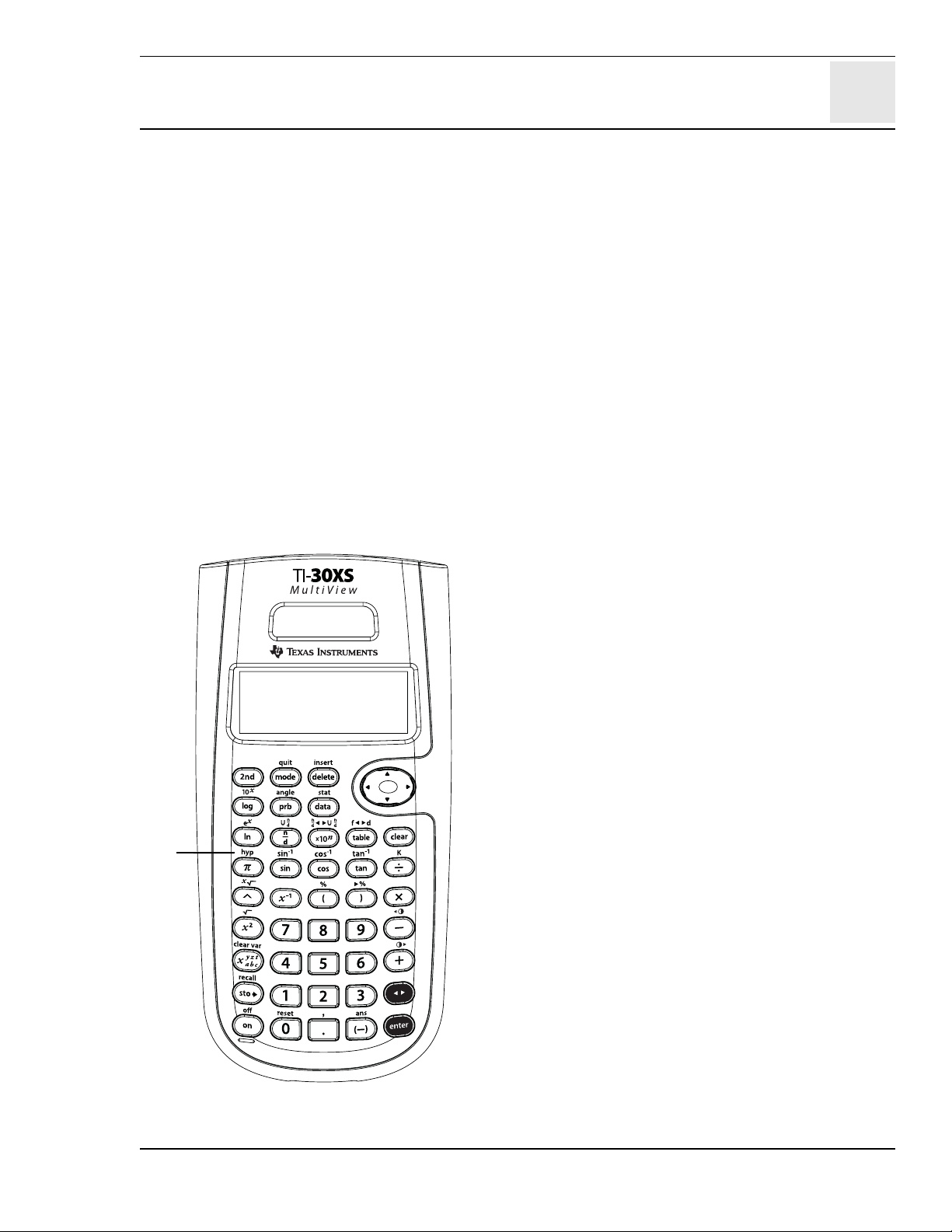
20
© 2006 TEXAS INSTRUMENTS INCORPORATED TI-30XS MultiView: A Guide For Teachers 131
Hyperbolics
Keys
1. % Y accesses the hyperbolic function
(sinh, cosh, tanh; and sinh
-1
, cosh
-1
,
tanh
-1
)of the next trig key that you press.
Notes
• The example on the transparency masters
assumes all default settings.
• Hyperbolic calculations are not affected by
the angle mode setting-whether or not the
calculator is in RAD (radian), GRAD
(gradian), or DEG (degree) modes.
1
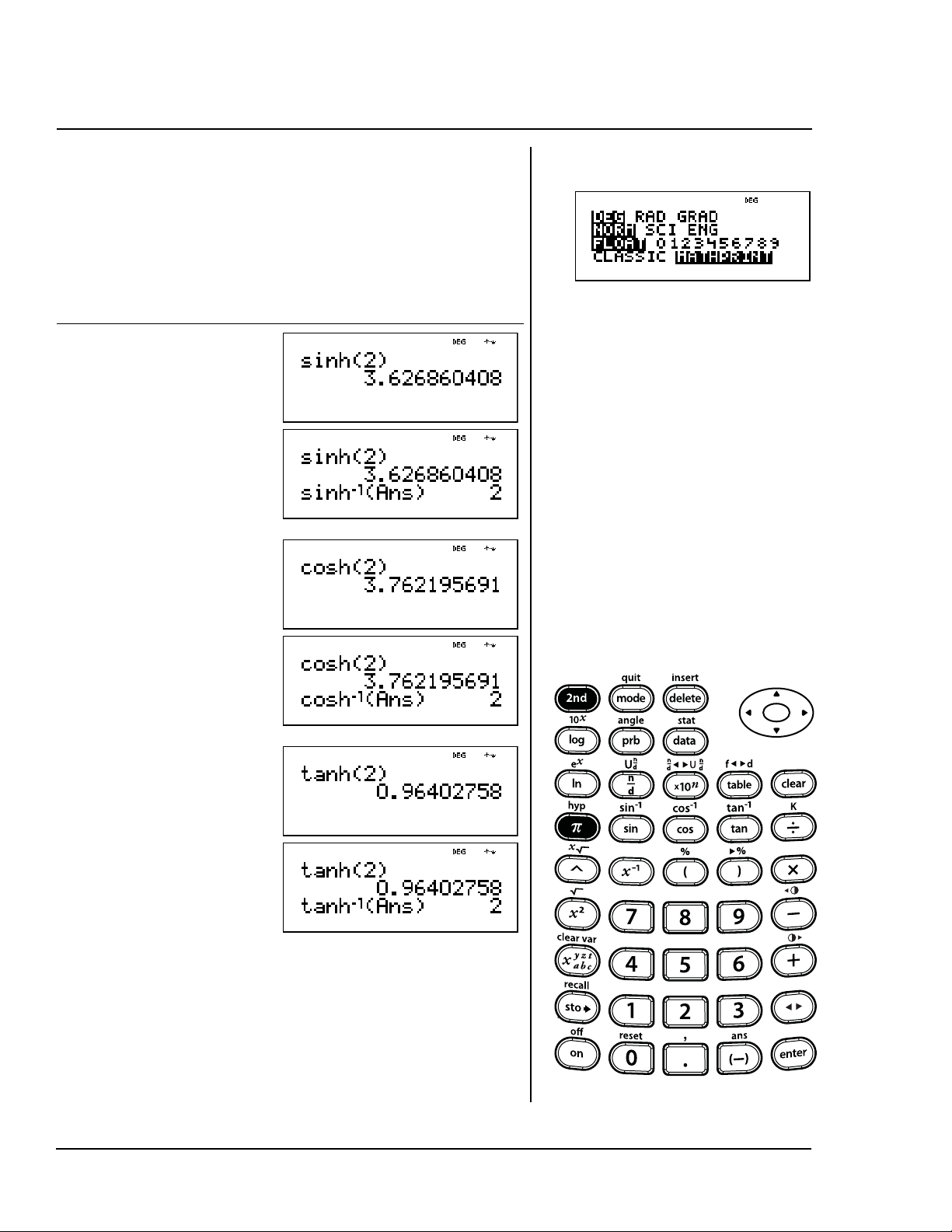
132 TI-30XS MultiView: A Guide For Teachers © 2006 TEXAS INSTRUMENTS INCORPORATED
Find the sinh(2) and the sinh
-1
(2).
Repeat for cosh and tanh. What do
you notice?
Press Display
%Y> 2
E<
%Y%
Z%i
E<
%Y? 2
E <
%Y%
[%i
E<
%Y@ 2
E<
%Y%
\%i
E<
Sinh, cosh, and tanh
%Y

A
© 2006 TEXAS INSTRUMENTS INCORPORATED TI-30XS MultiView: A Guide For Teachers A-1
Quick reference to keys
KEY FUNCTION
! "
# $
! " move the cursor left and right so you can scroll an entry on the
Home screen.
Press % ! or % " to scroll to the beginning or end of a current
entry.
# $ move the cursor up and down to navigate menu items, view entries
in the data editor and function table, and view previous entries on the
Home screen.
% # moves the cursor to the oldest entry on the Home screen, and to
the top entry of the active column in Data editor.
% $ moves the cursor below the last entry on the Home screen, and
to the bottom entry of the active column in Data editor.
T U V W Adds, subtracts, multiplies, and divides.
7 – 6 Enters the digits 0 through 9.
D
E
Opens a parenthetical expression.
Closes a parenthetical expression.
a Calculates the reciprocal.
F Squares the value.
g Enters the value of pi rounded to 10 digits (3.141592654).
8 Enters a decimal point.
M Indicates the value is negative.
G Raises a value to a specified power.
% Turns on the 2nd indicator and accesses the function shown above the
next key that you press.

A-2 TI-30XS MultiView: A Guide For Teachers © 2006 TEXAS INSTRUMENTS INCORPORATED
A
Quick reference to keys (Continued)
% I
Displays the following menus.
DMS lets you specify the unit of an angle.
R
¶P lets you convert rectangular coordinates to polar coordinates, or
vice versa.
DMS R ¶P
1: Ä 1: R ´Pr(
2: Å 2: R ´PÁ(
3: Æ 3: P ´
´´
´Rx(
4: r 4: P ´
´´
´Ry(
5: g
6: ´DMS
CC
is a shortcut key to enter a number in scientific notation format.
% b Calculates the square root.
% _ Appends the % sign to a number. Results display according to the
decimal notation mode setting.
% ` Enters a comma.
% c Calculates the specified root (x) of the value.
% N Lets you enter mixed numbers and fractions. Press %N between the
entry of the unit, and the numerator.
q Lets you enter a simple fraction. In MathPrint™ mode, press $ between
the entry of the numerator and the denominator. In Classic mode, press
q between the entry of the numerator and the denominator.
% O Converts a simple fraction to a mixed number or a mixed number to a
simple fraction.
% i Recalls the most recently calculated result, displaying it as Ans.
- Clears characters and error messages on the entry line.
% { Clears all memory variables.
> Calculates the sine of an angle.
% Z Calculates the inverse sine.
? Calculates the cosine of an angle.
KEY FUNCTION

A
© 2006 TEXAS INSTRUMENTS INCORPORATED TI-30XS MultiView: A Guide For Teachers A-3
Quick reference to keys (Continued)
% [ Calculates the inverse cosine.
@ Calculates the tangent of an angle.
% \ Calculates the inverse tangent.
v Lets you enter the statistical data points for 1-Var stats and 2-Var
stats.
vv Press v once to display the data editor screen. Press again to display
the Clear and Formula menus. Lets you access list names when in the
Formula menu.
J Deletes the character at the cursor.
% ^ Calculates the natural antilogarithm (e raised to the power of the value).
% j Converts a fraction to its decimal equivalent or converts a decimal to its
fractional equivalent, if possible.
% Y
Accesses the hyperbolic function (sinh, cosh, tanh; and sinh
-1
, cosh
-1
,
tanh
-1
) of the next trig key that you press.
% f Lets you insert a character at the cursor.
% l Turns on the constant mode and lets you define a constant.
B Calculates the natural logarithm (base e, where e 2.718281828459).
A Calculates the common logarithm (base 10).
z Accesses variables. Press this key multiple times to choose x, y, z, t, a, b,
or c. You can also use z to recall the stored values for these variables.
% ' Turns off the calculator and clears the display.
& Turns on the calculator.
H Displays the following menu of functions.
nPr Calculates the number of possible permutations.
nCr Calculates the number of possible combinations.
! Calculates the factorial.
rand Generates a random number between 0 and 1.
randint( Generates a random integer between 2 integers,
A
and
B
,
where
A
Randint
B
.
% h Recalls the stored values to the display.
KEY FUNCTION
≈
A-4 TI-30XS MultiView: A Guide For Teachers © 2006 TEXAS INSTRUMENTS INCORPORATED
A
Quick reference to keys (Continued)
% t Displays the following menu from which you can select 1-Var, 2-Var, or
StatVars.
1-Var Analyzes data from 1 set of data with 1 measured
variable–x.
2-Var Analyzes paired data from 2 sets of data with 2
measured variables–x, the independent variable, and y,
the dependent variable.
StatVars After choosing 1-var or 2-var stats, displays data
values.
StatVars displays the following menu of stat variables with their current
values.
n Number of x (or x,y) data points.
v or w Mean of all x or y values.
Sx or Sy Sample standard deviation of x or y.
sx or sy Population standard deviation of x or y.
Gx or Gy Sum of all x values or y values.
Gx
2
or Gy
2
Sum of all x
2
values or y
2
values.
Gxy Sum of the product of x and y for all xy pairs in 2 lists.
a Linear regression slope.
b Linear regression y-intercept.
r Correlation coefficient.
xÅ
ÅÅ
Å (2-Var) Uses a and b to calculate predicted x value when you
input a y value.
yÅ
ÅÅ
Å (2-Var) Uses a and b to calculate predicted y value when you
input an x value.
minX Minimum of x values.
Q1 (1-Var) Median of the elements between minX and Med (1st
quartile).
Med Median of all data points.
Q3 (1-Var) Median of the elements between Med and maxX (3rd
quartile).
maxX Maximum of x values.
KEY FUNCTION

© 2006 TEXAS INSTRUMENTS INCORPORATED TI-30XS MultiView: A Guide For Teachers A-5
A
Quick reference to keys (Continued)
% Displays the RESET menu.
RESET
1: No
2: Yes
Press 1 (No) to return to the previous screen without resetting the
calculator.
Press 2 (Yes) to reset the calculator. The message MEMORY
CLEARED is displayed.
You can press & and - simultaneously to reset the calculator
immediately. No menu or message is displayed.
L Lets you store values to variables. Press Lto store a variable, and
press z to select the variable to store.
z displays the following menu of variables: x y z t a b c.
Press < to store the value in the selected variable. If this variable
already has a value, that value is replaced by the new one.
< Completes the operation or executes the command.
KEY FUNCTION

A-6 TI-30XS MultiView: A Guide For Teachers © 2006 TEXAS INSTRUMENTS INCORPORATED
B
© 2006 TEXAS INSTRUMENTS INCORPORATED TI-30XS MultiView: A Guide For Teachers B-1
Display indicators
INDICATOR MEANING
2nd 2nd function.
HYP Hyperbolic function.
FIX Fixed-decimal setting. (See the Mode section in Chapter 1,
TI-30XS MultiView™ basic operations, and Chapter 7, Decimals and
decimal places.)
SCI, ENG Scientific or engineering notation. (See the Mode section in Chapter 1,
TI-30XS MultiView basic operations.)
DEG, RAD, GRAD Angle mode (degrees, radians, or gradians). (See the Mode section in
Chapter 1, TI-30XS MultiView basic operations.)
K Constant feature is on.
L1, L2, L3 Displays above the lists in data editor.
The TI-30XS MultiView calculator is performing an operation.
' (
An entry is stored in memory before and/or after the active screen.
Press # and $ to scroll.
% & An entry or menu displays beyond 16 digits. Press ! or " to scroll.

B-2 TI-30XS MultiView: A Guide For Teachers © 2006 TEXAS INSTRUMENTS INCORPORATED

C
© 2006 TEXAS INSTRUMENTS INCORPORATED TI-30XS MultiView: A Guide For Teachers C-1
Error messages
When the TI-30XS MultiView™ calculator detects an error, it returns an error message with the type
of error.
To correct the error, note the error type and determine the cause of the error. If you cannot recognize
the error, use the following list, which describes error messages in detail.
Press - to clear the error message. The previous screen is displayed with the cursor at or near
the error location. Correct the expression.
MESSAGE MEANING
ARGUMENT A function does not have the correct number of arguments.
DIVIDE BY 0 You attempted to divide by 0.
In statistics, n = 1.
DOMAIN You specified an argument to a function outside the valid range. For
example:
For
x
‡— x = 0 or y < 0 and x is not an odd integer.
For y
x
— y and x = 0; y < 0 and x is not an integer.
For ‡x — x < 0.
For LOG or LN — x 0.
For TAN — x = 90Ä, M90Ä, 270Ä, M270Ä, 450Ä, etc.
For SIN
-1
or COS
-1
— |x| > 1.
For nCr or nPr — n or r are not integers | 0.
For x! — x is not an integer between 0 and 69.
EQUATION LENGTH
ERROR
An entry exceeds the available space (80 digits for statistics entries or
47 for constant entries); for example, combining an entry with a
constant that exceeds the limit.
FRQ DOMAIN FRQ value (in 1-variable statistics) < 0 or >99.
OVERFLOW
|q| | 1x10
n
, where q is an angle in a trig, hyperbolic, or R4Pr function.
STAT Attempting to calculate 1-var or 2-var stats with no defined data
points, or attempting to calculate 2-var stats when the data lists are
not of equal length.
DIM MISMATCH Attempting to create a formula when the lists are not of equal length.
FORMULA The formula does not contain a list name (L1, L2, or L3), or the formula
for a list contains its own name; for example, a formula for L1 contains L1.

C-2 TI-30XS MultiView: A Guide For Teachers © 2006 TEXAS INSTRUMENTS INCORPORATED
SYNTAX The command contains a syntax error—entering more than 23 pending
operations, 8 pending values, or having misplaced functions, arguments,
conversions, variables, parentheses, or commas. If using q, try using W.
INVALID FUNCTION You entered an invalid function in the function table.
LOW BATTERY Replace the battery.
Note: This message displays briefly and then disappears. Pressing
-
does not clear this message.
MESSAGE MEANING
Error messages (Continued)

D
© 2006 TEXAS INSTRUMENTS INCORPORATED TI-30XS MultiView: A Guide For Teachers D-1
Texas Instruments support and service
For general information
For technical support
For product (hardware) service
Home Page:
education.ti.com
KnowledgeBase and
e-mail inquiries:
education.ti.com/support
Phone:
(800) TI-CARES / (800) 842-2737
For U.S., Canada, Mexico, Puerto Rico, and
Virgin Islands only
International
Information:
education.ti.com/international
KnowledgeBase and
e-mail inquiries:
education.ti.com/support
Phone (not toll-free):
(972) 917-8324
Customers in the U.S.,
Canada, Mexico,
Puerto Rico and Virgin
Islands:
Always contact Texas Instruments Customer
Support before returning a product for service.
All other customers:
Refer to the leaflet enclosed with this product
(hardware) or contact your local Texas
Instruments retailer/distributor.

D-2 TI-30XS MultiView: A Guide For Teachers © 2006 TEXAS INSTRUMENTS INCORPORATED

E
© 2006 TEXAS INSTRUMENTS INCORPORATED TI-30XS MultiView: A Guide For Teachers E-1
Battery information
Battery
precautions
• Do not leave batteries within the reach of children.
• Do not mix new and used batteries. Do not mix brands (or types
within brands) of batteries.
• Do not mix rechargeable and non-rechargeable batteries.
• Install batteries according to polarity (+ and -) diagrams.
• Do not place non-rechargeable batteries in a battery recharger.
• Properly dispose of used batteries immediately.
• Do not incinerate or dismantle batteries.
• Seek Medical Advice immediately if a cell or battery has been
swallowed. (In the USA, contact the National Capital Poison
Center at 1-800-222-1222.)
Battery
disposal
Do not mutilate, puncture, or dispose of batteries in fire. The batteries
can burst or explode, releasing hazardous chemicals. Discard used
batteries according to local regulations.
Remove or
replace the
battery
Remove the protective cover and turn the TI-30XS MultiView™ face
downwards.
• With a small screwdriver, remove the screws from the back of the
case.
• From the bottom, carefully separate the front from the back. BE
CAREFUL not to damage any of the internal parts.
• With a small screwdriver (if required), remove the battery.
• To replace the battery, check the polarity (+ and -) and slide in a
new battery. Press firmly to snap the new battery into place.
Important: When replacing the battery, avoid any contact with
the other components of the TI-30XS MultiView calculator.
• If necessary, press & and - simultaneously to reinitialize
the calculator (erases the memory and all the settings and
displays a MEM DELETED message).
• Dispose of the dead batteries immediately and in accordance
with local regulations.
Type of battery
The TI-30XS MultiView calculator uses one 3 volt CR2032 lithium
battery.
Per CA Regulation 22 CCR 67384.4, the following applies to the button
cell battery in this unit:
Perchlorate Material - Special handling may apply.
See www.dtsc.ca.gov/hazardouswaste/perchlorate

E-2 TI-30XS MultiView: A Guide For Teachers © 2006 TEXAS INSTRUMENTS INCORPORATED