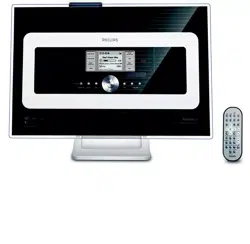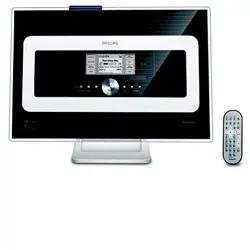
User manual
Manuel d'utilisation
User manual
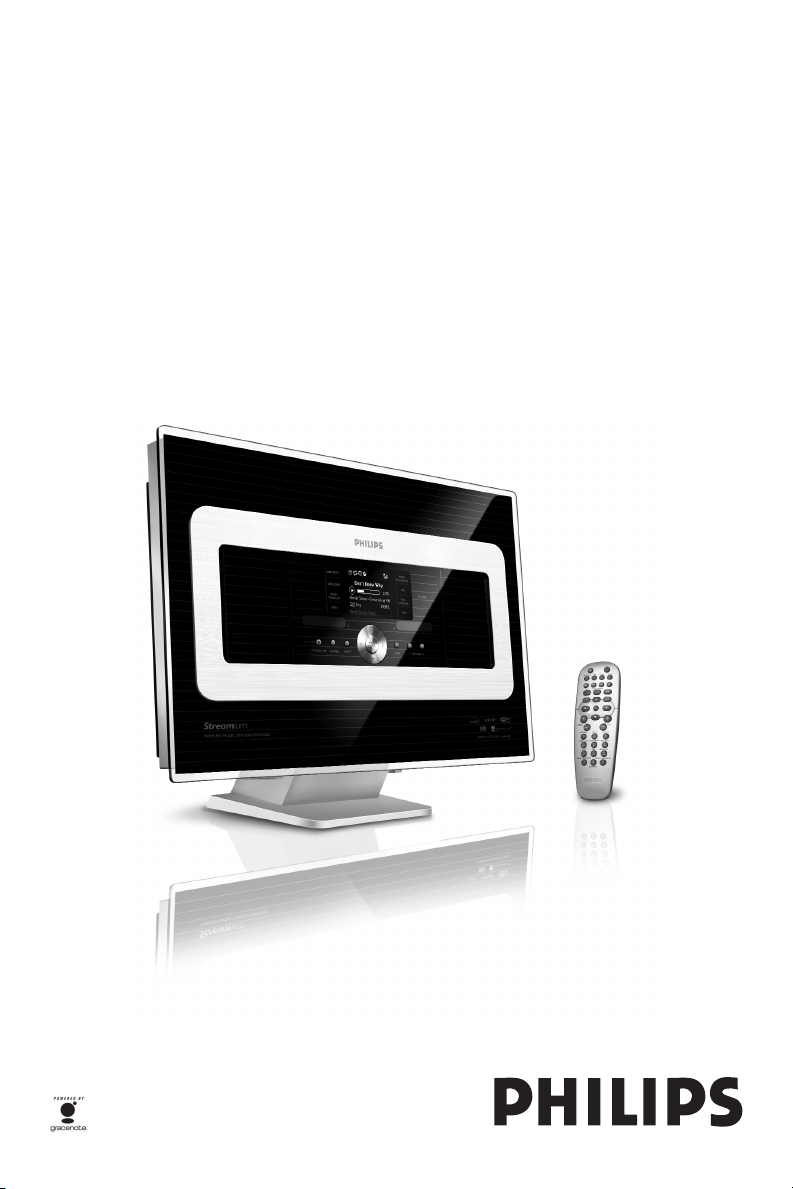
Wireless Music Station WAS7000
pg001-043_was7000_UK 2006.12.6 6:16 PM Page 1
2
English
pg001-043_was7000_UK 2006.12.4 6:11 PM Page 2
3
English
Important notes for users in the
U.K.
Mains plug
This apparatus is fitted with an approved 13-
Amp plug.To change a fuse in this type of
plug, proceed as follows:
1 Remove fuse cover and fuse.
2
Fix the new fuse which should be a BS1362 5-
Amp,A.S.T.A. or BSI approved type.
3 Refit the fuse cover.
If the fitted plug is not suitable for your socket
outlets, it should be cut off and an appropriate
plug should be fitted in its place.
If the mains plug contains a fuse, it should have
a value of 5 Amp. If a plug without a fuse is
used, the fuse at the distribution board should
not be greater than 5 Amp.
Note:The severed plug must be disposed, so as
to avoid a possible shock hazard due to it being
inserted into another 13-Amp socket.
How to connect a plug
The wires in the mains lead are coloured
using the following codes: blue = neutral (N),
brown = live (L).
● As these colours may not correspond with
the colour markings identifying the terminals
in your plug, proceed as follows:
– Connect the blue wire to the terminal
marked N or coloured black.
– Connect the brown wire to the terminal
marked L or coloured red.
– Do not connect either wire to the earth
terminal in the plug, marked E (or e) or
coloured green (or green and yellow).
Before replacing the plug cover, make sure
that the cord grip is clamped over the sheath
of the lead and not simply over the two
wires.
Copyright in the U.K.
Recording and playback of any materials may
require consent. See Copyright Act 1956 and
The PerformerbØ Protection Acts 1958 to
1972.
Norge
Typeskilt finnes på apparatens bakside.
Observer: Nettbryteren er
sekundert innkoplet. Den innebygde
netdelen er derfor ikke frakoplet
nettet så lenge apparatet er
tilsluttet nettkontakten.
For å redusere faren for brann eller
elektrisk støt, skal apparatet ikke
utsettes for regn eller fuktighet.
pg001-043_was7000_UK 2006.12.4 6:11 PM Page 3

4
English
LGPL Library written offer
This product contains Linux 2.4.27-vrsl, that is
made available under the GNU LGPL license
version 2.1 (hereafter called “the Library”).
Philips Electronics Hong Kong Ltd. hereby offers
to deliver or make available, upon request, for a
charge no more than the cost of physically
performing source distribution, a complete
machine-readable copy of the corresponding
source code of the Library on a medium
customarily used for software interchange.
Please contact:
Head of Development
BLC Audio PDCC Development
5/F., Philips Electronics Building
5 Science Park East Avenue
Hong Kong Science Park
Shatin Hong Kong
This offer is valid for a period of three years after
the date of purchase of this product.
GPL Package written offer
This product contains Linux 2.4.27-vrsl, that is
made available under the GNU GPL license
version 2 (hereafter called “the Program”).
Philips Electronics Hong Kong Ltd. hereby offers
to deliver or make available, upon request, for a
charge no more than the cost of physically
performing source distribution, a complete
machine-readable copy of the corresponding
source code of the Program on a medium
customarily used for software interchange.
Please contact:
Head of Development
BLC Audio PDCC Development
5/F., Philips Electronics Building
5 Science Park East Avenue
Hong Kong Science Park
Shatin Hong Kong
This offer is valid for a period of three years after
the date of purchase of this product.
pg001-043_was7000_UK 2006.12.4 6:11 PM Page 4

5
English
1. General information
1.1 About WAS7000
_______________
7
1.2 Supplied accessories
_____________
7
1.3 Philips on-line support
____________
8
1.4 Environmental information
________9
1.5 Maintenance
___________________
9
1.6 Safety information
______________
10
2. Controls
2.1
Controls on the Station
_______
11-12
2.2 Station’s remote control _______13-14
2.3 Icons on LCD display ____________14
3. Installation
3.1 Placing Station
__________________
15
3.2 Setting up Wi-Fi connection between
Center and Station
_________________
15
3.3 Rear connections
_____________
16-17
3.3.1 Connecting antennas
3.3.2 Connecting a USB mass storage
device
3.3.3 Connecting other additional device
3.4 Using AC power ________________17
4. Preparation
4.1 Setting clock ___________________18
4.1.1 Viewing clock
4.2 Using the remote control
________
19
4.2.1 Inserting batteries into the remote
control
4.3 Using navigation controls
________
19
4.4 Using alphanumeric keys
_________
19
5. Basic functions
5.1 Switching to standby/on and selecting
functions
________________________
20
5.2 Switching to power-saving mode
___
20
5.3 Auto-standby __________________21
5.4 Volume control _________________21
5.5 MUTE ________________________21
5.6 Sound control _______________21-22
5.7 Display adjustment
______________
22
5.8 Selecting languages
______________
22
6. HD
6.1 Playing Harddisk (HD)
__________
23
6.2 Selecting and searching ________24-25
6.2.1 Selecting a different option
6.2.2 Searching by key words
6.2.3 Selecting tracks of a particular
artist
6.2.4 Selecting tracks of a particular
genre
6.2.5 Selecting a track in current album
during playback
6.2.6 Finding a passage within current
track during playback
6.3 Different play modes:
REPEAT, SHUFFLE _________________25
6.4 SMART EQUALIZER ____________25
6.5 Viewing track information ________26
6.6 Moving music playback between Center
and Stations
__________________26-27
6.6.1 MUSIC FOLLOWS ME
6.6.2 MUSIC BROADCAST
6.7 Viewing system information _______27
7.0 FM radio
7.1 Tuning to radio stations
_________
28
7.2 Storing preset radio stations
___
28-29
7.2.1 Autostore: automatic programming
7.2.2 Manual programming
7.2.3 To listen to a preset station
7.3 RDS
________________________
29
7.4 NEWS
______________________
29
7.4.1 Activating NEWS
7.4.2 Deactivating NEWS
8. External sources
8.1 Playing or recording to USB mass
storage device __________________30-31
8.1.1 About the USB device
8.1.2 Playing music from the USB device
8.2 Playing other external sources
____
31
Contents
pg001-043_was7000_UK 2006.12.4 6:11 PM Page 5

6
English
9. UPnP (Universal Plug and Play)
9.1 About UPnP
_________________
32
9.1.1 About the UPnP-enabled device
9.2 Connecting to the UPnP device
__
32
9.3 UPnP playback
________________
32
9.3.1 Playing music from the UPnP
device
10. Sleep _______________________ 33
11.Alarm
11.1 Setting alarm
_________________
34
11.1.1 Setting alarm time
11.2 Activating/ deactivating alarm
____
34
11.2.1 Stopping alarm sound
11.2.2 Activating/ deactivating alarm
12. Network setting
12.1 Adding Additional Station to the Wi-Fi
network on the Center
_____________
35
12.2 Connecting to external Wi-Fi network
_______________________________
36
12.2.1 Network setting on Station
12.3 Connecting to external wired network
_______________________________
37
12.3.1 Network setting on Station
12.4 Viewing the connection with
external network
____________
38
13. Reset _______________________ 39
14. Firmware Upgrade __________ 40
14.1. Firmware upgradeing
_______
40
15. Troubleshooting __________ 41-42
16. Appendix
How to mount your Station onto walls
________________________________43
Contents
pg001-043_was7000_UK 2006.12.4 6:11 PM Page 6

7
English
1.1 About WAS7000
Up to 5 WAS7000 Stations can be
connected to a WAC7000 Center.
You can centrally store up to 1500 audio
CDs in the 80GB hard disk on WAC7000.
All stored music will then be wirelessly
streamed from the Center to the
connected Stations via Wi-Fi**.Your music
enjoyment will no longer be restricted by
the location of your CD player or PC, nor
the messy wiring. With WAS7000, you will
have the freedom to enjoy your favorite
music anywhere at home.
** Wi-Fi, or IEEE802.11 b/g, is the
international leading industry standard for
wireless broadband networking. Digital data
will be transferred with wider range and
bandwidth.
1.2 Supplied accessories
– Remote control with 2 x AA batterys
–1 x FM wire antenna
–1 x Ethernet cable
–1 x PC Suite CD
–1 x Mounting kit
This set complies with the radio
interference requirements of the
European Community.
Philips Consumer Electronics, BG
Entertainment Solutions, hereby
declares that this product WAS7000 is
in compliance with the essential
requirements and other relevant
provisions of Directive 1999/5/EC.
The making of unauthorized copies of
copy-protected materials, including
computer programs, files, broadcasts
and sound recordings, may be an
infringement of copyrights and
constitutes as a criminal offence.
This equipment should not be used for
such purposes.
1. General information
pg001-043_was7000_UK 2006.12.4 6:11 PM Page 7

8
English
1. General information
1.3 Philips on-line support
Products from Philips have been designed and manufactured to the highest quality
standards. If your Philips “Connected Planet” product is not working correctly, we
recommend that you check the User Manual to verify that your product has been
properly connected and configured.
To enhance your home entertainment experience, our Connected Planet support
website (www.philips.com/support) offers you all the information you need to fully
enjoy your product as well as the new additions to our exciting range of products.
Please visit: www.philips.com/support and enter your product name (WAS7000) to
view:
● FAQ (Frequently Asked Questions)
● Latest user manuals and PC software manuals
● Firmware upgrade files for WAS7000
● Latest PC software downloads
● Interactive troubleshooting
As it is possible for you to upgrade your product, we recommend that you register
your product on www.club.philips.com so that we can inform you as soon as new
and free upgrades are available.
Enjoy your WAS7000!
pg001-043_was7000_UK 2006.12.4 6:11 PM Page 8
9
English
1. General information
1.4 Environmental information
All redundant packaging material has been
omitted.We have done our utmost to
make the packaging easily separable into
three mono materials: cardboard (box),
polystyrene foam (buffer) and polyethylene
(bags, protective foam sheet).
The set consists of materials which can be
recycled if disassembled by a specialised
company. Please observe the local
regulations regarding the disposal of
packaging materials, exhausted batteries and
old equipment.
Disposal of your old product
Your product is designed
and manufactured with
high quality materials
and components, which
can be recycled and
reused.
When this crossed-out wheeled bin
symbol is attached to a product it
means the product is covered by the
European Directive 2002/96/EC
Please inform yourself about the
local separate collection system for
electrical and electronic products.
Please act according to your local
rules and do not dispose of your old
products with your normal
household waste.The correct
disposal of your old product will help
prevent potential negative
consequences for the environment
and human health.
1.5 Maintenance
Cleaning the Set
● Use a soft cloth slightly moistened with a
mild detergent solution. Do not use any
solutions that contain alcohol, spirits,
ammonia or abrasives.
pg001-043_was7000_UK 2006.12.4 6:11 PM Page 9

10
English
1.6 Safety information
● Place the set on a flat, firm and stable surface.
● Keep the system, batteries or discs away from
excessive moisture, rain, sand or any heat
sources, such as heating equipment or direct
sunlight.
● Place the set in a location with adequate
ventilation to prevent internal heat build-up in
your system.Allow at least 10 cm (4 inches)
clearance from the rear and the top of the unit
and 5 cm (2 inches) from each side.
● Never cover the ventilation openings with items
such as newspapers, table-cloths, curtains, etc as
this will impede ventilation.
● Never expose the set to water dripping or
splashing.
● Never place objects filled with liquids, such as
vases, on the set.
● Never place sources of naked flame, such as
lighted candles on the set.
● The mechanical parts of the set contain self-
lubricating bearings and must not be oiled or
lubricated.
CAUTION
Visible and invisible laser radiation.
If the cover is open, do not look at
the laser beam.
High voltage! Do not open.You run
the risk of getting an electric shock.
The set does not contain any user-
serviceable parts.
Modification of the product could
result in hazardous EMC radiation
or other unsafe operations.
Use of controls or adjustments or
performance of procedures other
than herein may result in
hazardous radiation exposure or
other unsafe operation.
1. General information
pg001-043_was7000_UK 2006.12.4 6:11 PM Page 10
11
English
9
!
0
8
12
3
4
5 6 7
2. Controls
pg001-043_was7000_UK 2006.12.4 6:11 PM Page 11

12
English
2. Controls
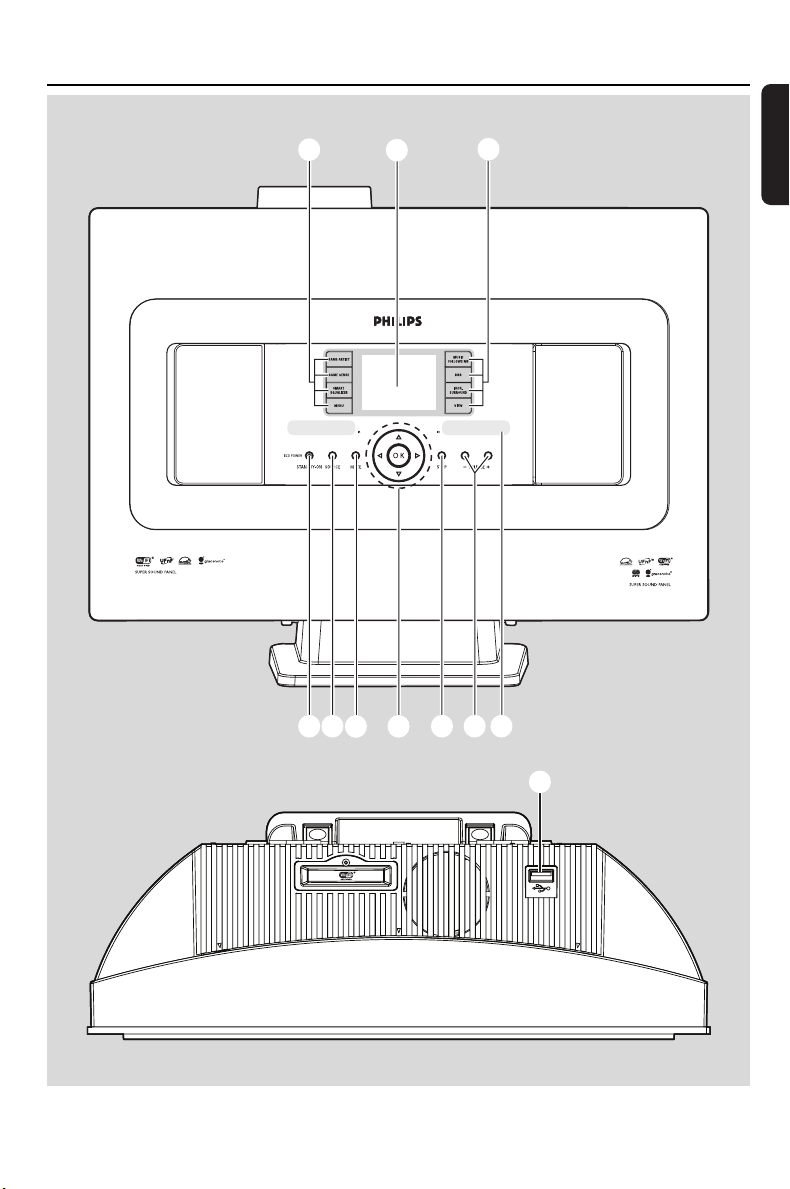
2.1 Controls on the Station
(Top and front panels)
1
STANDBY-ON/ ECO POWER
– press briefly to switch the set on or to standby
mode;
– press and hold to switch the set to power-
saving mode or on
– Green indicator: lights up green when the
set is on
– Red indicator: lights up red when the set is
switched to standby mode or power-saving
mode
2 SOURCE
– selects sound source HD(hard disk), Radio,
USB, UPnP or AUX
– In standby mode: switches the set on and
selects sound source HD, Radio, USB,
UPnP or AUX
3 MUTE
– switches the sound off temporarily
4 1 / 2 / 3 / 4
–navigation controls (left, right, up, down) to
scroll through the option list
1
– HD/USB/UPnP: returns to previous option
lists
– Radio: enters the list of preset stations
3 / 4
– HD/USB/UPnP: skips/searches tracks/passage
backward/forward (in playback screen); fast
scrolls the option list
– Radio: tunes to radio stations
OK
– confirms selection
5 STOP
– stops playback
6 VOLUME -, +
– adjusts the volume level
7 IR
– sensor for the infrared remote control
Helpful hints:
– Always point the remote control towards this
sensor.
8 MUSIC FOLLOWS ME
– HD: moves music playback between Center
and Station or between Station and Station
MUSIC BROADCAST
– HD: broadcasts music from the Center to the
Station
DBB (Dynamic Bass Boost)
– turns the bass enhancement on
(DBB1, DBB2, DBB3) or off
INCR. SURROUND
– selects surround sound effect
VIEW
– toggles playback display and previous option list
– press and hold to view clock
9 SAME ARTIST
– HD: plays all the tracks of current Artist
– HD: enable Wireless Range Extender (refer to
Extender’s manual for details)
SAME GENRE
– HD: plays all the tracks of current Genre
SMART EQUALIZER
– HD: selects the matched sound setting for
current Genre
MENU
– enters or exits setup menu
0 Display
– shows status of the set
!
– jack for the external USB mass storage device
pg001-043_was7000_UK 2006.12.4 6:11 PM Page 12
13
English
2.2 Station’s remote control
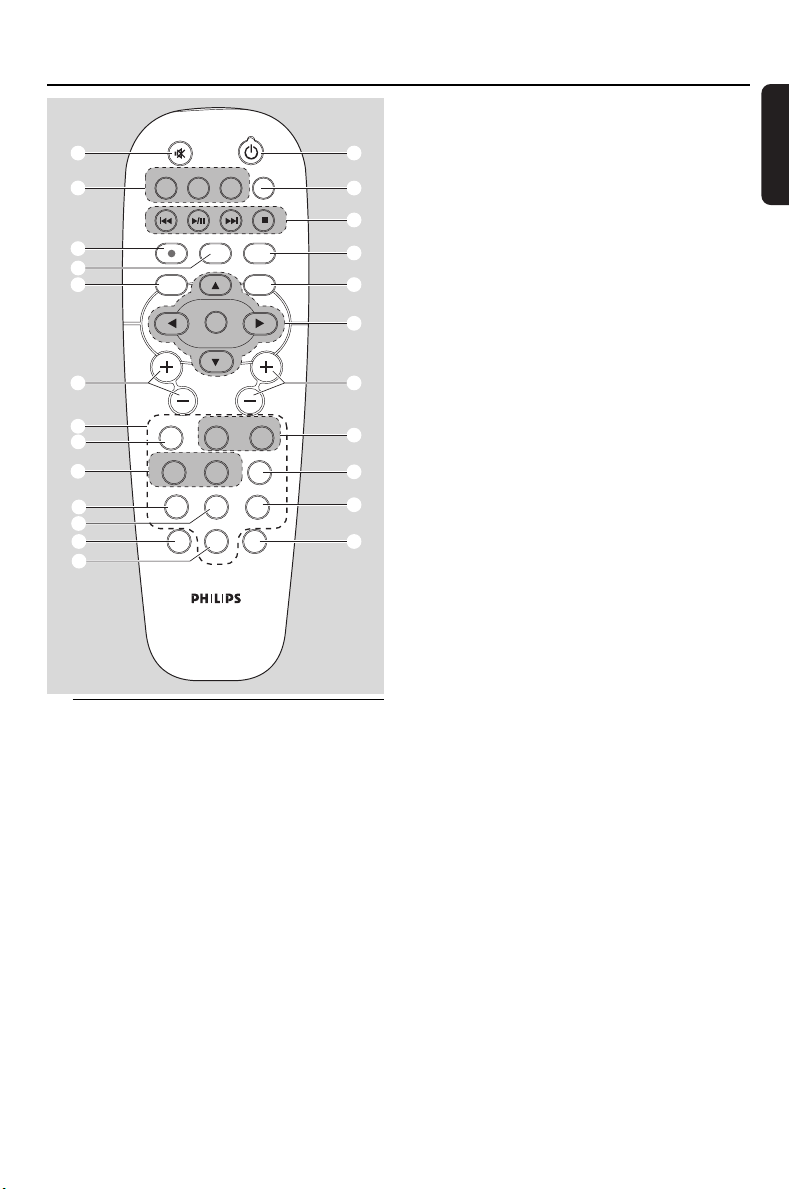
1
y
–– press briefly to switch on the set or to put it
on standby mode;
– press and hold to switch the set to power-
saving mode
2 SEARCH
– searches by keywords
3 4 / ¢
– skips/searches tracks/passage backward/forward
(in playback screen)
4
– Text input: deletes the input before cursor
É/Å
– starts or pauses playback
Ç
– stops playback
4 DBB (Dynamic Bass Boost)
– turns the bass enhancement on (DBB1, DBB2,
DBB3) or off
5 VIEW
– toggles playback screen and previous option list
6 1 / 2 / 3 / 4
–navigation controls (left, right, up, down) to
scroll through the option list
1
– HD/USB/UPnP: returns to previous option
lists
– Radio: enters the list of preset stations
– Te xt input: moves the cursor backward
3 / 4
– HD/USB/UPnP: skips/searches tracks/passage
backward/forward (in playback screen); fast
scrolls the option list
– Radio: tunes to radio stations
2
– confirms selection
– Text input: confirms input and moves the
cursor forward
OK
– Confirm selection
– Starts playing
7 VOL +, -
– adjusts the volume level
8 REPEAT
– selects continuous playback
SHUFFLE
– selects random playback
9 INCR. SURR.
– selects surround sound effect
0 RDS/NEWS
– Radio: selects RDS information
– HD/UPnP/AUX: turns NEWS function on or
off
! MUSIC FOLLOWS ME
– HD: moves music playback between Center
and Station
@ MUTE
– switches the sound off temporarily
2. Controls
REC
MENU
PROGRAM
INCR.SURR.
SLEEP
MUSIC BROADCAST
SMART EQ
MUSIC FOLLOWS ME
DIM RDS/NEWS
SCROLL VOL
VIEW
OK
1
0
6
mno
9
wxyz
7
pqrs
8
tuv
MARK/UNMARK
DBB
SEARCH
1
#
@
$
^
¡
£
™
)
2
CD/MP3-CD HD SOURCE
REPEAT SHUFFLE
2
abc
3
SAME GENRE SAME ARTIST
5
jkl
4
ghi
3
5
6
8
!
7
*
&
OK
4
%
0
≤
9
(
pg001-043_was7000_UK 2006.12.4 6:11 PM Page 13
14
English
# CD/MP3-CD
(works with WAC7000 Center only)
HARDDISK (HD)
– selects HD (hard disk) source
– In standby mode: switches the set on and
selects HD source
SOURCE
– selects Radio source, UPnP source, USB source
or AUX from an additional connected
appliance
– In standby mode: switches the set on and
selects Radio source, USB source, UPnP source
or the audio input from an additional
connected appliance
$ REC(works with WAC7000 Center only)
% MARK/UNMARK
(works with WAC7000 Center only)
^ MENU
– enters or exits setup menu
& SCROLL + -
– scrolls the display screen upward or downward
* Alphanumeric keys
–for text input
( PROGRAM
– Radio: manually programs preset radio stations
) SAME GENRE
– HD: plays all the tracks of current Genre
SAME ARTIST
– HD: plays all the tracks of current Artist
– HD: enable Wireless Range Extender (refer to
Extender’s manual for details)
¡ SLEEP
– adjusts/displays/switches off sleep timer
™ DIM
– changes the brightness of display illumination
£ MUSIC BROADCAST
(works with WAC7000 Center only)
≤ SMART EQ
– HD: selects the sound settings that matches the
current Genre
2. Controls
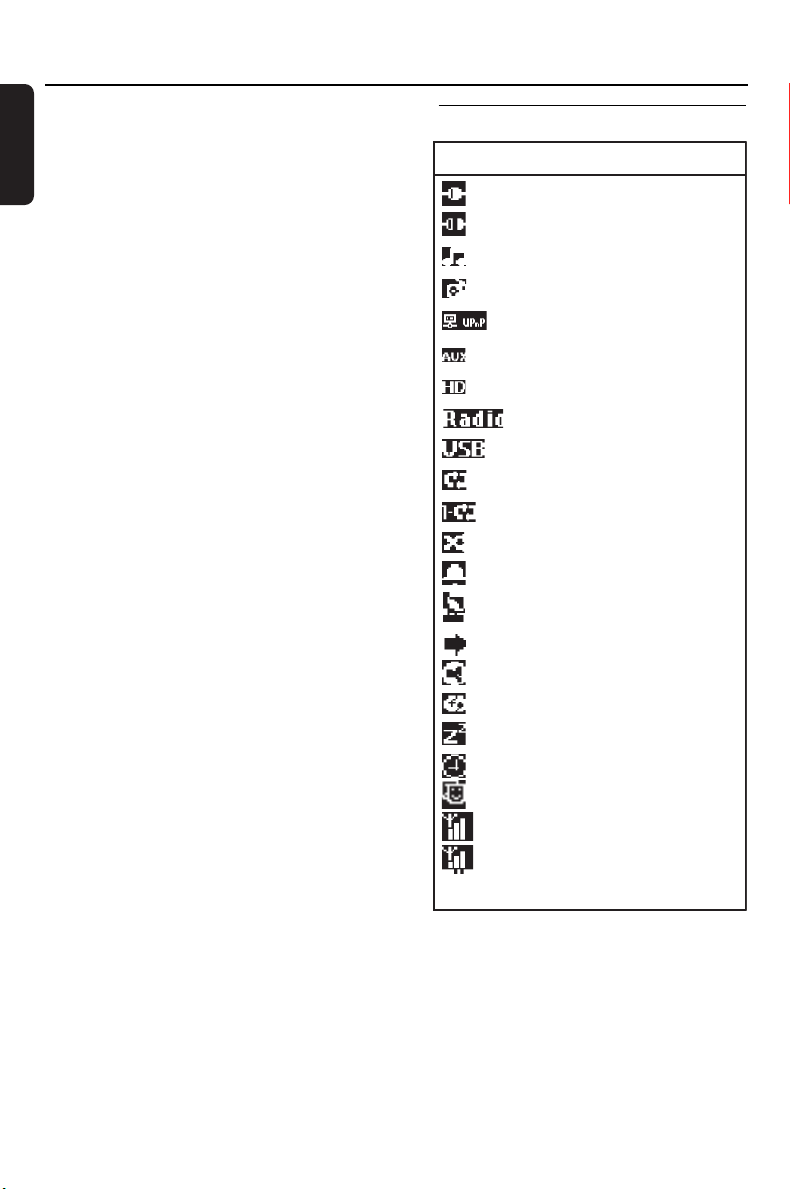
Icon Description
Client connected
Client not connected
Music
Radio
UPnP
Aux mode
HD mode
Radio mode
USB mode
Repeat all
Repeat 1
Shuffle
Alarm
Music Broadcast
Music follow me
Mute
RDS
Sleep
Timer
Smart EQ
WiFi connected
Both WiFi and
Ethernet connected
2.3 Icons on LCD display
pg001-043_was7000_UK 2006.12.4 6:11 PM Page 14
15
English
3. Installation
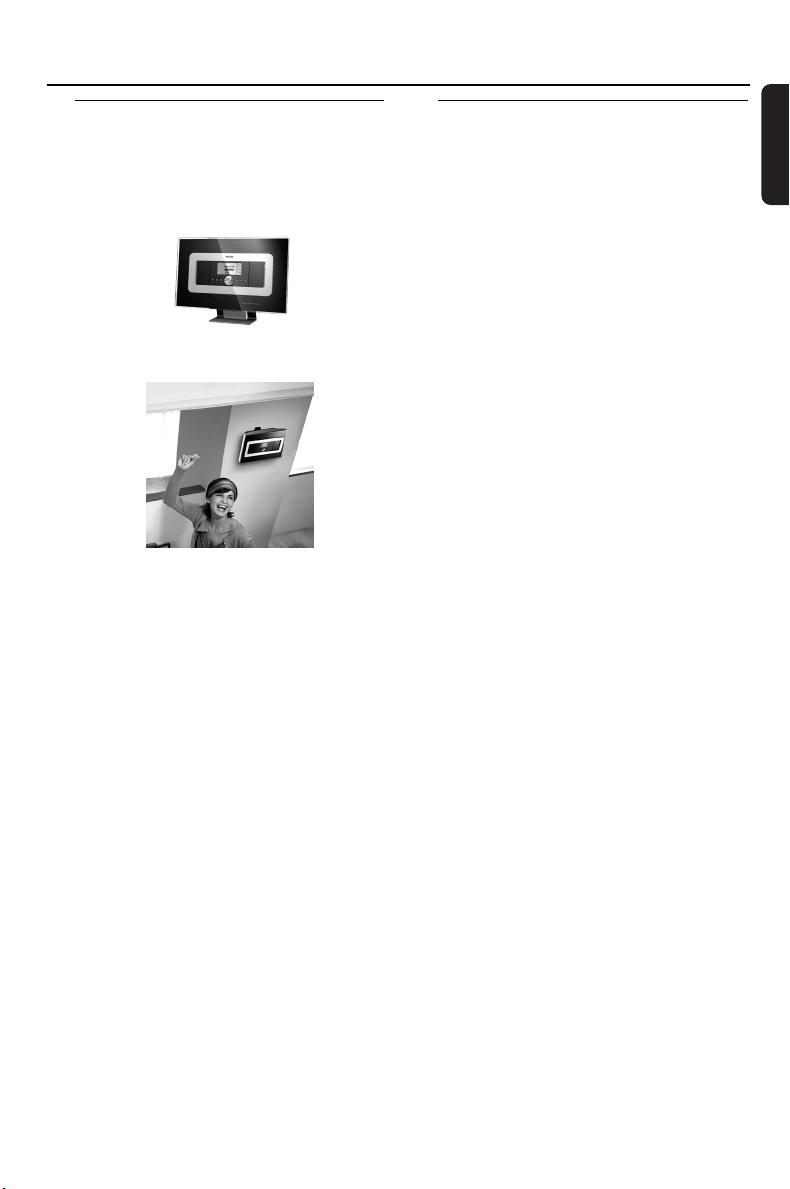
3.1 Place Station
With detachable stand and by-packed wall
mounting kits,WAS7000 Station allow you to
place them in two ways: on desktops with stand
or on wall without stand.
(on desktop with stand)
or
(on wall without stand)
To learn more about wall mounting, see
16. How to mount your Station onto wall.
IMPORTANT!
– Before you decide where and how to
place your Station,try the Wi-Fi
connection and rear connections to find
a suitable location.
3.2 Setting up Wi-Fi connection
between Center and Station
You can add a station to an existing Wi-Fi
network of Center and Station. Up to 5
WAS7000 stations can be connected to a
WAC7000 Center.
1 The first time you set up a Wi-Fi connection,
place the Center and Station side by side on a
flat and firm surface.
2 a. Connect the Center to power supply
b. Connect the Station to power supply
➜ Auto installation/connection starts
➜ HD screen appears on the Center
➜ HD screen appears on the Station when the
Station is connected to the Center
3 Unplug the Center and Station. Relocate as
desired.
IMPORTANT!
– Make sure that you have already
powered up the Center before powering
up the Station.
– Avoid installing between thick walls.
The Center and Station should never be
blocked by 2 or more walls.
– Avoid placing the system near to large
metal objects.
– For better Wi-Fi reception, turn the
Wi-Fi antenna, or adjust the location of
the Center and Station.
– Always press and hold STANDBY-ON2
to switch the set to ECO POWER
(power-saving mode) before removing its
power plug.
pg001-043_was7000_UK 2006.12.4 6:11 PM Page 15
16
English
3. Installation
3.3 Rear connections
Warning:
–Never make or change the connections
when the mains is switched on.
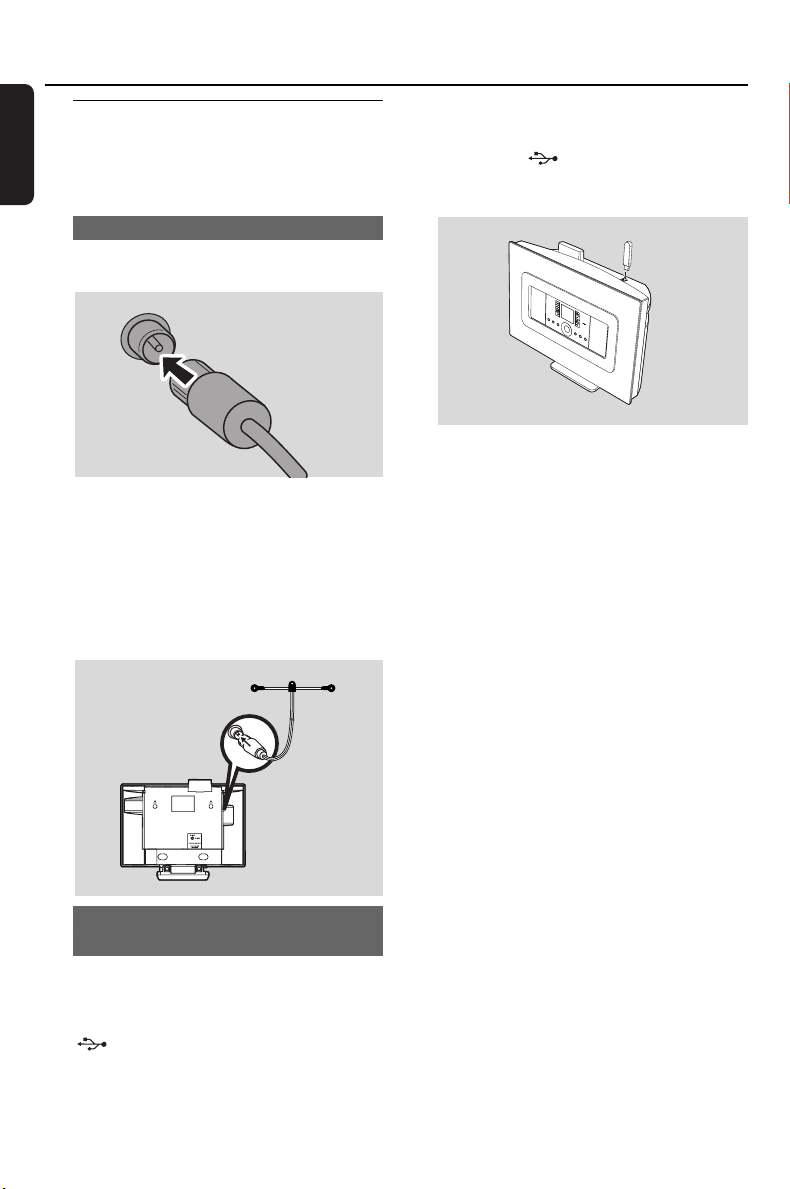
3.3.1 Connecting antennas
1 Extend the wire antenna and fit it to the FM
ANTENNA as shown below
2 (Optional) To improve FM reception, fit the plug
of the wire antenna into the plug of the
extension line (sold separately) as shown below
3 Extend the extension line and move it in
different positions for optimal reception (as far
away as possible from the TV,VCR or other
radiation sources)
4 Fix end of the extension line to the ceiling
3.3.2 Connecting a USB mass storage
device
On Station, you can playback music from a USB
mass storage device.
1 Insert the USB device’s USB plug into the socket
on the Station
For the devices with USB cable:
● Insert one plug of the USB cable (not supplied)
to the socket on the Station
● Insert the other end of the USB cable into the
USB output terminal of the USB device
3 To playback music from the USB device, press
SOURCE once or more times to select USB
source (see 8. External source)
Helpful hints:
The Station only supports USB devices that adhere
to the following standards:
– USB MSC ( Type ‘0’ )
– File system in FAT12/ FAT16/ FAT32
– Operations based on simple folder based
navigation (also known as a normal FAT file
system), and not based on proprietary track
database.
The following USB devices will not be supported by
the Station:
– MTP based or Dual mode (adhering to both the
MSC and MTP standards) devices, as the
Station does not support browse, play and
export functions using the MTP protocol.
–Products with database based UI (Artists,
Albums and Genre based navigation) as these
products normally store music files in a specific
hidden folder and uses embedded proprietary
track database that the Station is unable to
read properly.
pg001-043_was7000_UK 2006.12.4 6:11 PM Page 16
17
English
3. Installation
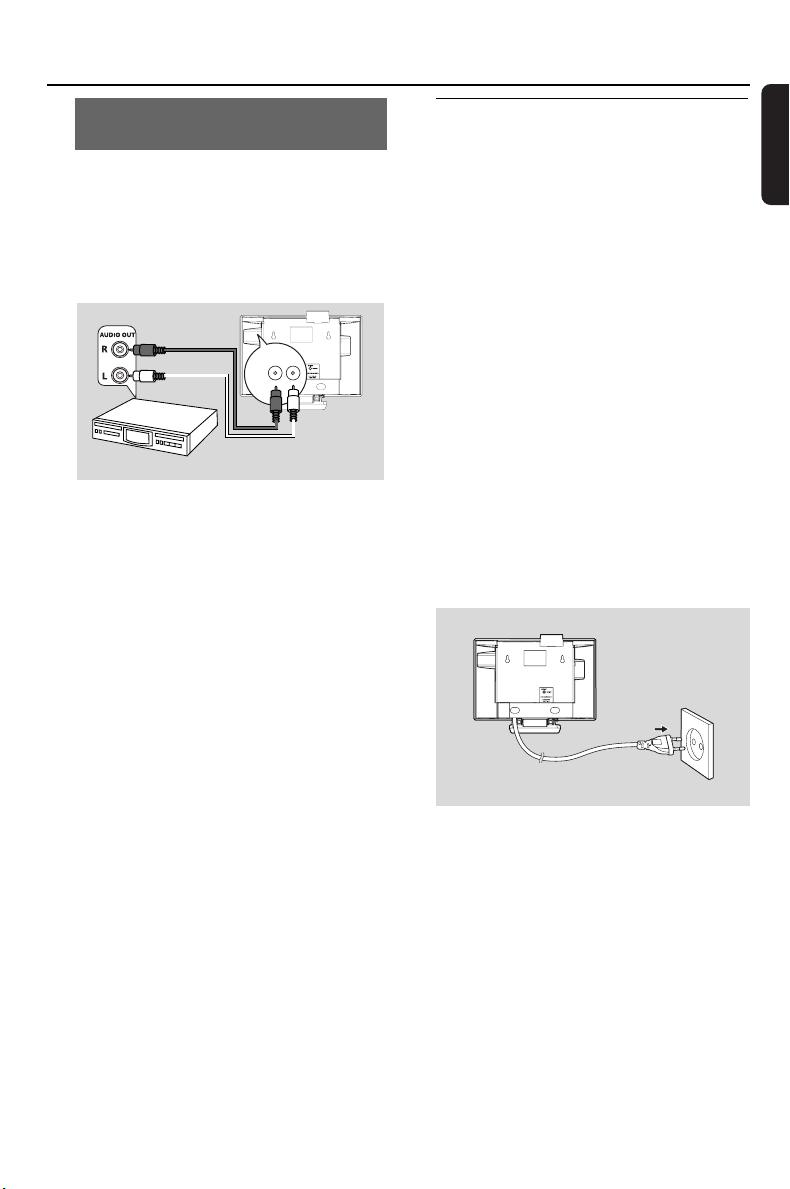
3.3.3 Connecting to other additional
devices
It is possible to play audio output from an
external source, e.g.TV,VCR, Laser Disc player,
DVD player on the Station.
On the additional device
1 Connect one end of the audio cable (not
supplied) to the AUDIO OUT terminals on the
additional device
On the Station
2 Connect the other end of the audio cables to the
AUX IN terminals on the Station
3 To playback audio output from the additional
device, press SOURCE to select AUX mode on
the Station (see 8. External source)
Helpful hints:
– If the connected device has only a single audio
out terminal, connect it to the AUX IN left terminal.
Alternatively, you can use a “single to double” cinch
cable, but the output sound still remains as mono.
– Always refer to the owner’s manual of the other
equipment for complete connection.
3.4 Using AC power
1
Make sure that all connections have been made
before switching on the power supply
2 Connect the AC power cord to the wall socket.
This switches on the power supply
When the Station is switched to standby mode,
they will still be consuming some power. To
disconnect the system from the power
supply completely, remove the power plug
from the wall socket.
Helpful hint:
– Always press and hold STANDBY-ON to switch
the set to power-saving mode before removing its
power plug.
The rating label is located on the backside
of the set.
For users in the U.K.: please follow the
instructions on page 2.
AUX
IN
R L
pg001-043_was7000_UK 2006.12.4 6:11 PM Page 17
18
English
4. Preparation
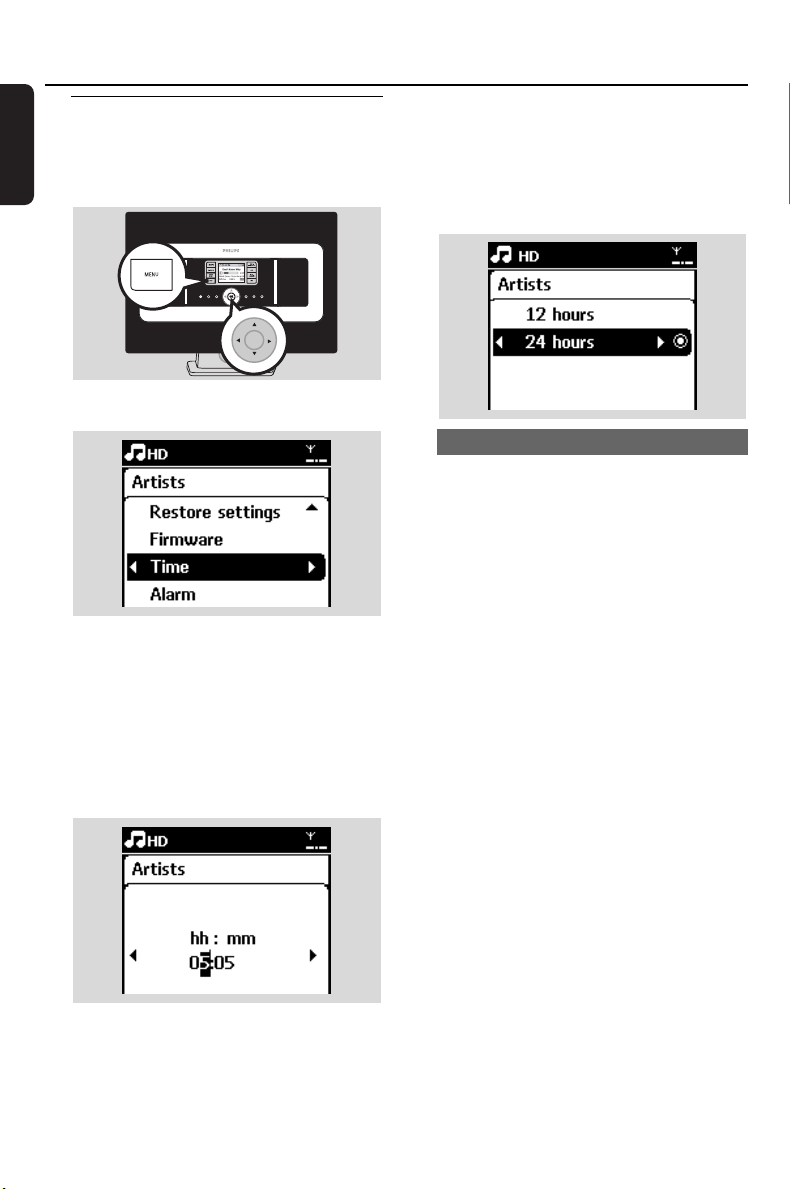
4.1 Setting clock
The time can be displayed in 24-hour or 12-hour
format.
1 Press MENU to enter the menu screen.
2 Use the navigation controls 3 or 4 and 2
to select Settings followed by Time
3 To set clock time,
a. Press the navigation controls 3 , 4 or
Numeric Keypad (0-9) and 2 to select Set
Time
➜ The display shows current clock setting
(00:00 by default)
b. Press the navigation controls 3 , 4 or
Numeric Keypad (0-9) repeatedly to set the
hour followed by the minute.
c. Press OK to confirm the clock setting.
Helpful hints:
To change to 12-hour or 24-hour format
– In the Time menu, select Time Format (see the
above Step 2)
–Press 3 or 4 and 2 to select your option.
– The clock setting will not be saved when the set
is disconnected from the power supply.
4.1.1 Viewing clock
Press and hold VIEW button for about 5
seconds.
➜ Clock will be shown briefly on the display.
Helpful hint:
– In standby mode, you may press View
button briefly to turn on the LCD backlight
so as to view clock clearly.
– Reset clock if the power cord is plugged
off.
OK
pg001-043_was7000_UK 2006.12.4 6:11 PM Page 18
19
English
4. Preparation
4.2 Using the remote control
IMPORTANT!
– The remote control might not be able to
operate the other wireless music systems
from Philips (e.g.WACS700,WACS5)
– Always point the remote control directly
towards the IR sensor on the Station you
wish to operate.
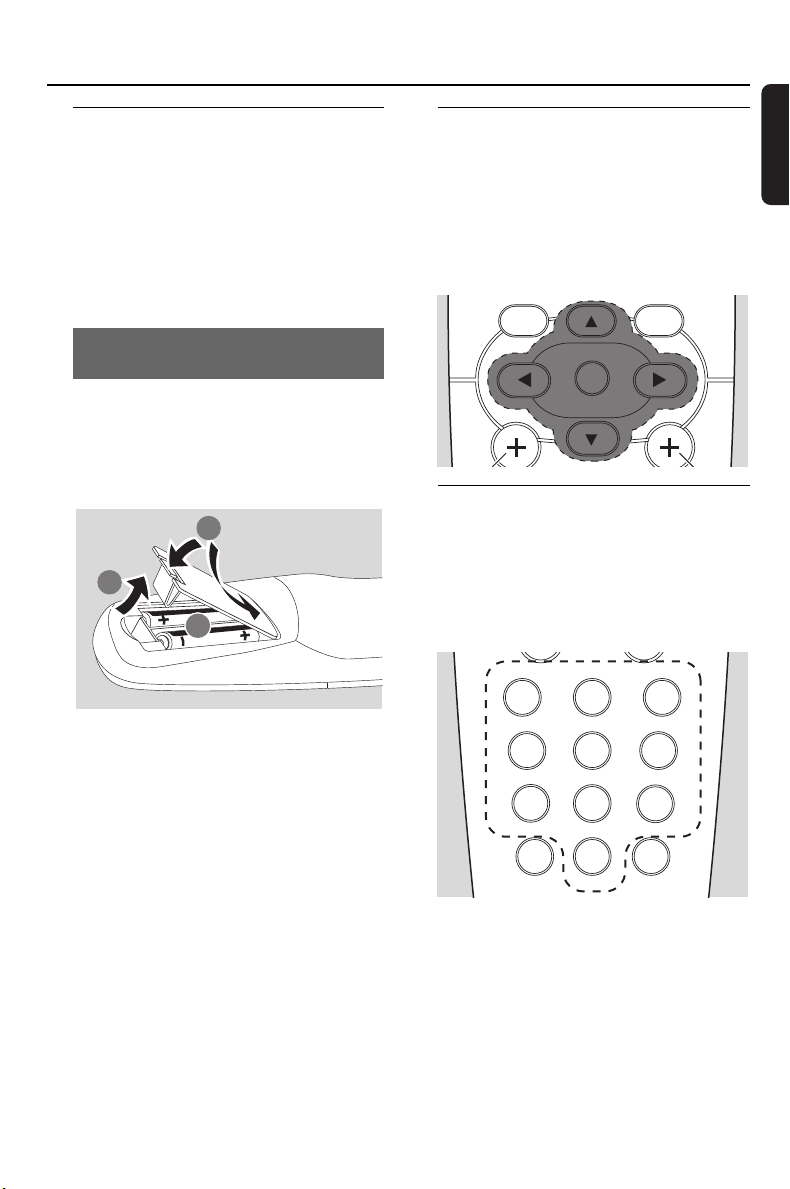
4.2.1 Inserting batteries into the remote
control
1 Open the battery compartment
2 Insert 2 batteries (type R06 or AA) into
the remote control with the correct
polarity (as indicated by the “+” and “-”
symbols inside the battery compartment)
3 Replace the compartment door
CAUTION!
– Remove the batteries when they are
exhausted or when the remote control will
not be used for a long time.
– Do not use old and new or different
types of batteries together.
– Batteries contain chemical substances,
hence they should be disposed of properly.
4.3 Using navigation controls
When selecting options on the set, you often
need to use the navigation controls 1 / 2 / 3 / 4
1 Press 3 / 4 to highlight an option.
2 Enter its submenu by pressing 2
3 Press 1 to return to the previous option list
4 Press OK or 2 to confirm
4.4 Using alphanumeric keys
Use the alphanumeric keys to input letters or
numbers.
1 When the text box appears, press the
alphanumeric keys repeatedly until the
desired letter/number appears (maximum 8
characters)
2 Press 1 / 2 to move the cursor backward /
forward
Helpful hint:
–You will enter the previous/next option list if the
cursor reaches the beginning or end of the text box.
3 Press 4 to delete the entry before the cursor.
4 Press OK to close the text box and move to the
next option list.
PROGRAM
INCR.SURR.
SLEEP
MUSIC BROADCAST
SMART EQ
MUSIC FOLLOWS ME
DIM RDS/NEWS
1
0
6
mno
9
wxyz
7
pqrs
8
tuv
REPEAT SHUFFLE
2
abc
3
SAME GENRE SAME ARTIST
5
jkl
4
ghi
MENU VIEW
OK
OK
1
3
2
pg001-043_was7000_UK 2006.12.4 6:11 PM Page 19
20
English
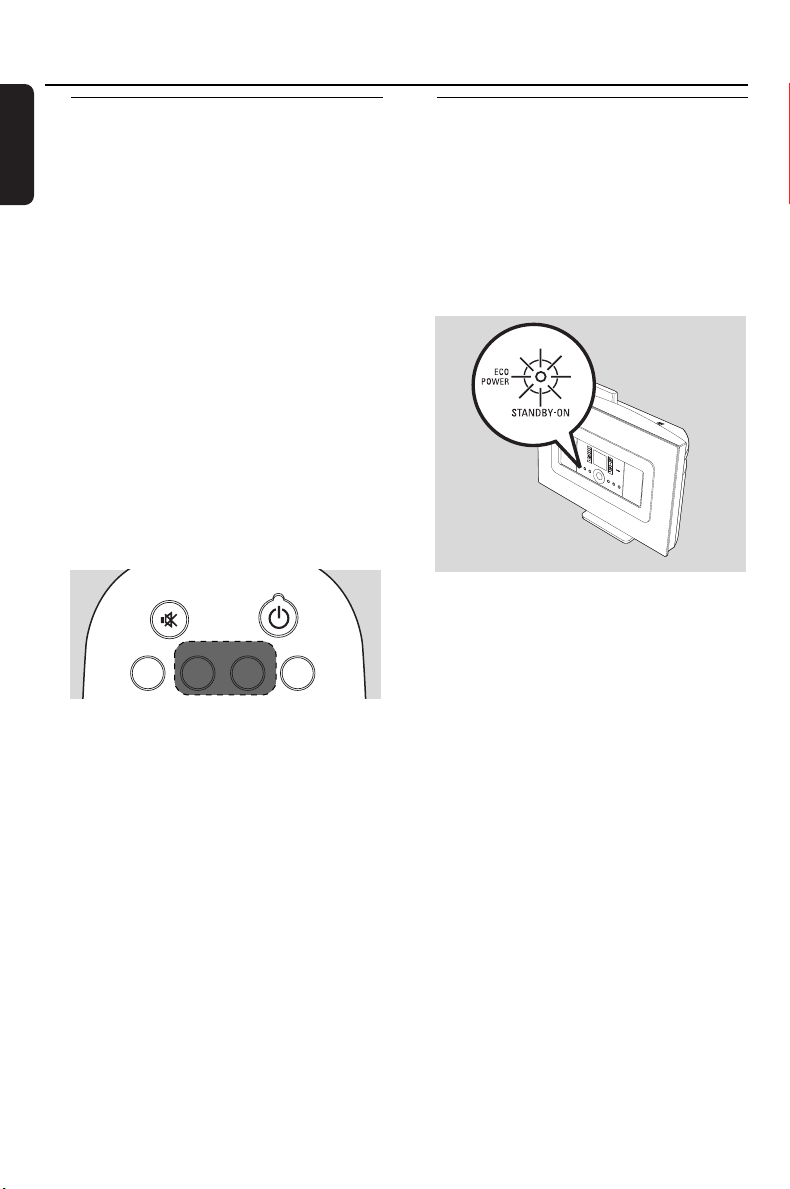
5.1 Switching to standby/on and
selecting functions
1
When the set is switched on, press STANDBY-
ON/ ECO POWER to switch it to standby
mode (or press y on the remote control)
➜ The Red indicator lights up
➜ Display shows the connected or previously
connected Center
– The screen will remain empty if no Center is
found
➜ The time will be displayed.—:— appears if
you have not set the clock
2 To switch on, press STANDBY-ON/ ECO
POWER on the set
➜ The set switches to the last source selected
➜ The Green indicator lights up
OR
Press the source button on the remote control
(e.g. HD, SOURCE)
3 To select functions, press SOURCE once or
more times (or press HD, SOURCE on the
remote control)
Helpful hint:
– CD/MP3-CD source is only available on the
Center.
5.2 Switching to power-saving
mode
In power-saving mode, the set’s display and Wi-Fi
connection are turned off
1 When the set is on, press and hold STANDBY-
ON/ ECO POWER to switch it to power-
saving mode (or press and hold y on the remote
control).
➜ The Red indicator lights up
➜ The display is switched off
2 To switch on, press STANDBY-ON/ ECO
POWER.
➜ The set switches to the last source selected
Helpful hints:
– In power-saving mode, the networking, sound,
display, language, the tuner presets, and the
volume level (maximum: the moderate level) will be
retained in the set’s memory.
SEARCHCD/MP3-CD HD SOURCE
5. Basic functions
pg001-043_was7000_UK 2006.12.4 6:11 PM Page 20
21
English
5.3 Auto-standby
When the set has reached the end of playback
and remains in the stop position for more than
20 minutes, the set will switch to standby mode
automatically to save power.
5.4 Volume control
1
Check that playback has started
2 Adjust the volume with VOL +/- buttons
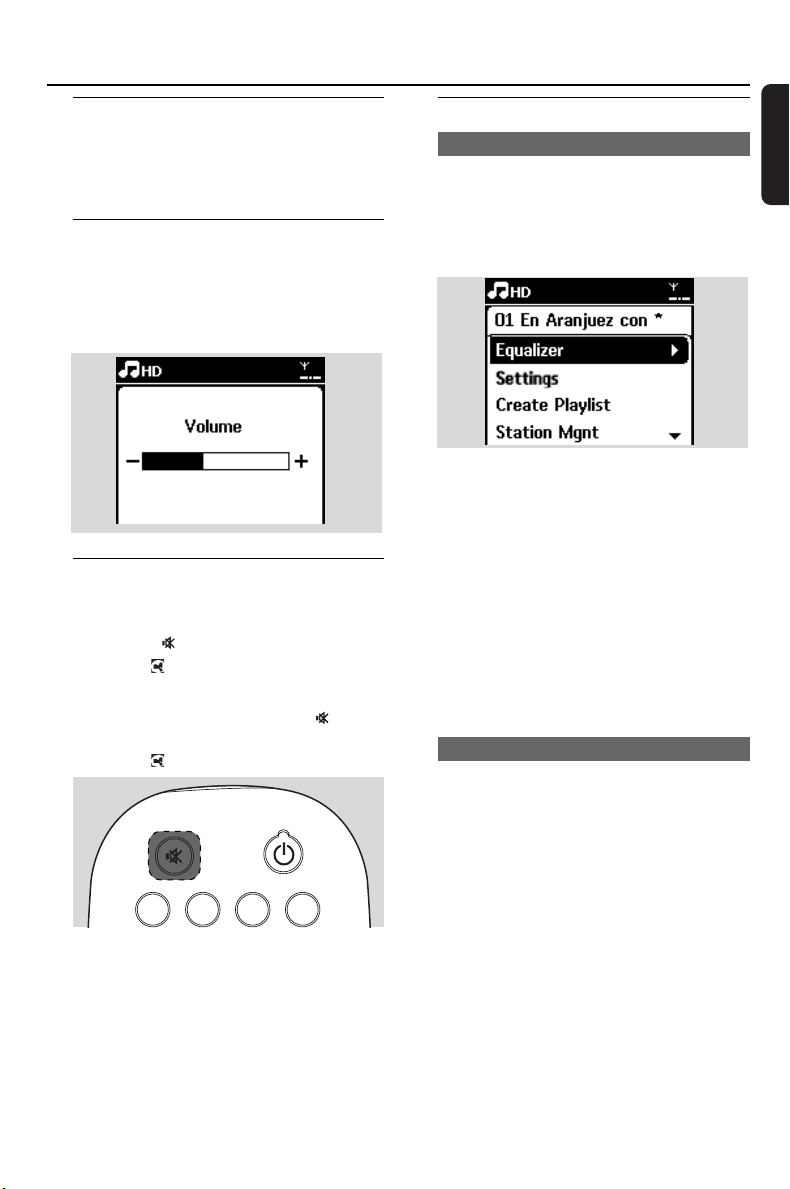
➜ Display shows the volume bar, indicating the
volume level
5.5 MUTE
During playback, you can temporarily switch off
the sound without switching off the set.
1 Press MUTE to switch off the sound.
➜ The icon appears. Playback continues
without sound.
2 To switch on the sound, press MUTE again
or adjust the volume with VOL +.
➜ The icon disappears
5.6 Sound control
5.6.1 Equalizer
Equalizer enables you to select predefined sound
settings.
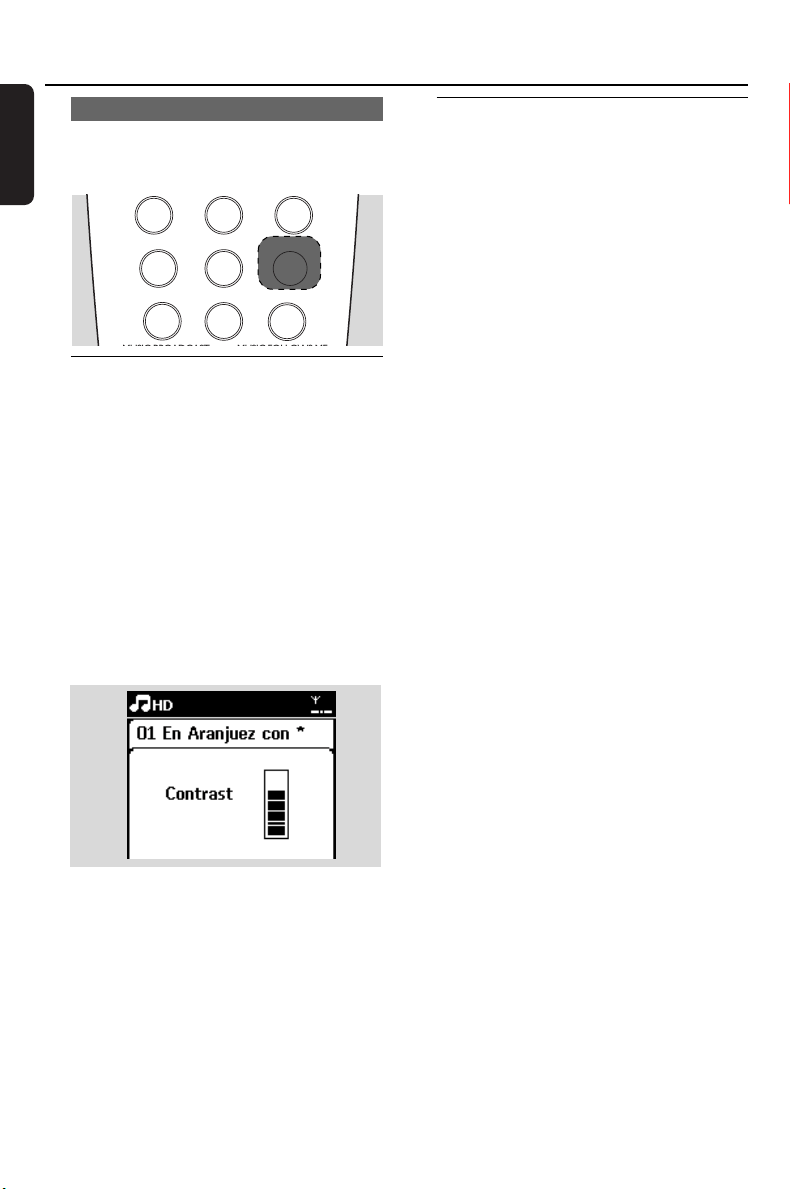
1 Press MENU to enter the menu screen
2 Use the navigation controls 3 or 4 and 2 to
select Equalizer.
3 Press 3 or 4 and 2 to select Rock, Pop (default),
Jazz, Neutral,Techno, Classical or Bass/Treble
4 Press OK (or 2) to confirm
To set Bass/Treble:
1 Press MENU to enter the menu screen
2 Use the navigation controls 3 or 4 and 2 to
select Settings
3 Press 3 or 4 and 2 to select Treble/Bass
4 Press 1 / 2 / 3 / 4 to select your option: Treble
(+3 to -3), Bass (+3 to -3)
5.6.2 Bass adjustment
● Press DBB (Dynamic Bass Boost) once or more
times to select your option: DBB OFF (by
default), DBB 1, DBB 2 or DBB 3.
5. Basic functions
SEARCHCD/MP3-CD HD SOURCE
pg001-043_was7000_UK 2006.12.4 6:11 PM Page 21
22
English
5.6.3 Incredible surround
● Press INCR. SURR. once or more times to
toggle the surround sound effect on or off
➜ Display shows IS ON or IS OFF
5.7 Display adjustment
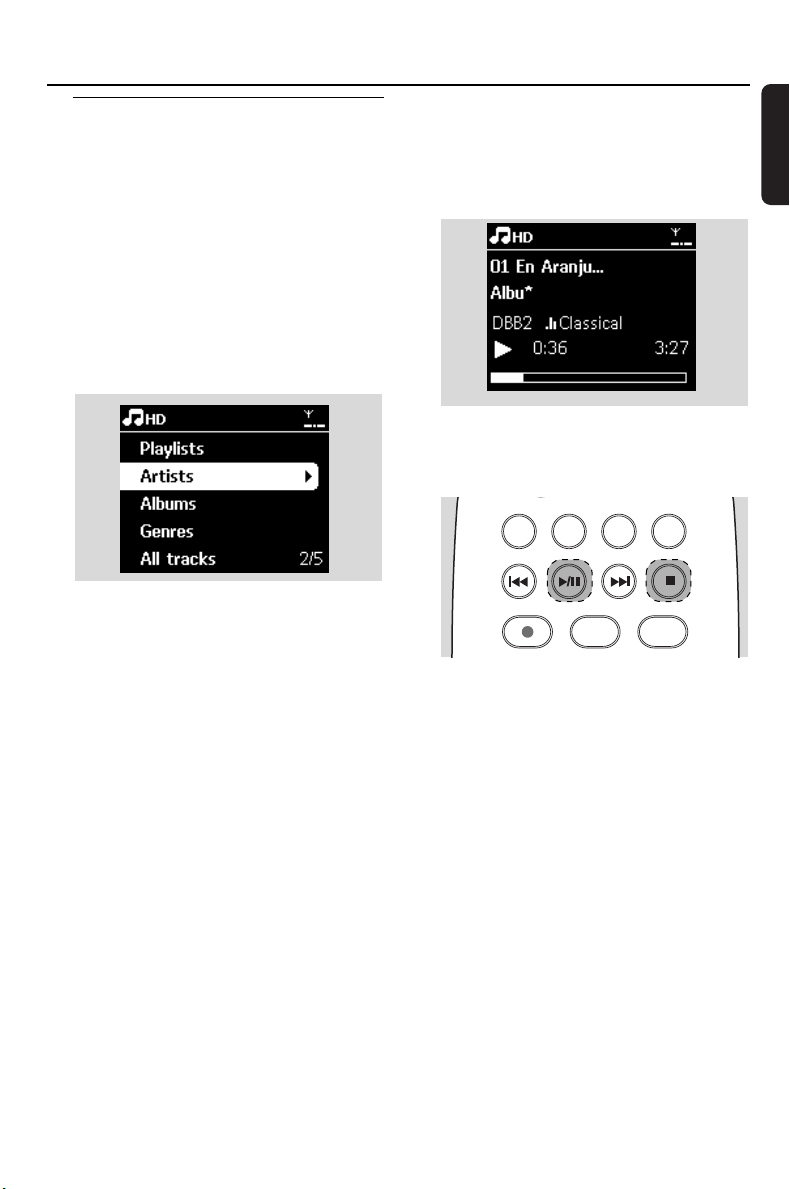
You can adjust the backlight and contrast settings
of the display.
1 Press MENU to enter the menu screen
2 Use the navigation controls 3 or 4 and 2
to select Settings.
3 Press 3 or 4 and 2 to select Display
4 Press 1 / 2 / 3 / 4 to select your option:
Backlight
Press 3 or 4 and 2 to select On or Off
Contrast:
Press 3 or 4 to increase or reduce the contrast
Helpful hint:
–You can also toggle the Backlight on or off by
pressing DIM on the remote control.
5.8 Selecting languages
1 Press MENU to enter the menu screen
2 Use the navigation controls 3 or 4 and 2
to select Settings
3 Press 3 or 4 and 2 to select Language
4 Press 3 or 4 and 2 to select from:
English, Français, Español, Nederlands, Italiano or
Deutsch.
5. Basic functions
SLEEP
MUSIC BROADCAST MUSIC FOLLOWS ME
DIM RDS/NEWS
1
9
wxyz
7
pqrs
8
tuv
INCR.SURR.
6
mno
2
abc
1
SAME GENRE SAME GENRE
5
jkl
4
ghi
pg001-043_was7000_UK 2006.12.4 6:11 PM Page 22
23
English
6.1 Playing Hard Disk (HD)
Music is centrally stored in the 80GB hard disk
on the WAC7000 Center. All the stored music
can be streamed and played on the Station via
Wi-Fi.
1 Check that the set is switched on
IMPORTANT: also check that the Center is
switched on or in standby mode
2 Press SOURCE once or more times to select
HD (or press HD on the remote control)
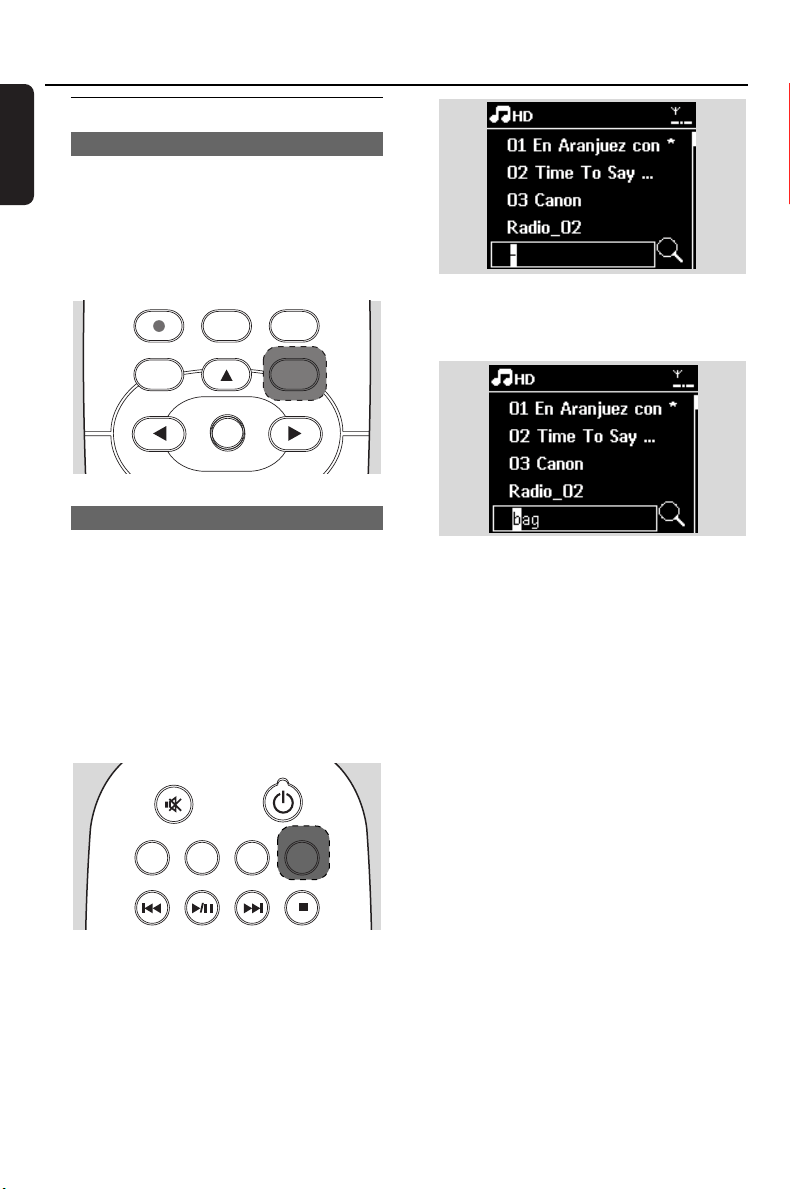
➜ Display shows HD and the categories of your
music library: Playlists, Artists, Albums, Genres,
All tracks.
Playlists: collection of your favorite tracks
sorted by the name of the playlists in
alphanumeric order
Artists: collection of albums sorted by artist
name in alphanumeric order
Albums: collection of albums sorted by album
name in alphanumeric order
Genres: collection of albums sorted according
to music style
All tracks: tracks sorted by track name in
alphanumeric order
3 Press the navigation controls 3 or 4 and 2 to
select your option
4 PressÉÅ to start playback
● Press ÉÅ on a highlighted artist, genre or album
to start playback from the beginning of the item
➜ The playback screen appears:
on the top: HD
in the middle: current track name and some
track information
at the bottom: elapsed playing time and total
playing time
5 To pause playback, press ÉÅ..To resume
playback, press the button again
6 To stop playback, press STOPÇ
REC MARK/UNMARK
DBB
SEARCHCD/MP3-CD HD SOURCE
6.HD(Located on Center)
pg001-043_was7000_UK 2006.12.4 6:11 PM Page 23
24
English
6.2 Selecting and searching
6.2.1 Selecting a different option
1 If necessary, press 1 repeatedly to enter previous
option lists
2 Press the navigation controls 3 or 4 repeatedly
and 2 to select the option
3 Press VIEW to return to the playback screen, if
necessary
6.2.2 Searching by keywords
The keyword should be the first letter or word
of the title of the track you wish to search for. By
inputting a keyword, you can quickly find all the
items containing the word (note that it is case
sensitive)
1 Use the navigation controls 1 / 2 / 3 / 4
to enter the desired option list of tracks, albums,
artists or playlists
2 On the remote control, press SEARCH
➜ A text box appears on the display
3 Use the alphanumeric keys to input the key
words (maximum 8 characters) (see 4.4 : Using
Alphanumeric Keys )
4 Press OK to start searching
➜ Display shows: Searching ... Searching starts
from the beginning of current option list
➜ The matched items appear at the top of the
list
➜ The option list remains unchanged if no
match is found. Searching ... disappears
5 Press STOPÇto stop searching
Helpful hints:
– The searching will also stop when:
– you select another source
– you switch off the set
– If no match is found during the keyword search,
press
4
or
¢
on the remote control to find
close matches.
– In HD mode, please enter the second level (any
folder) to search.
CD/MP3-CD HD SOURCE SEARCH
REC
MENU
OK
MARK/UNMARK
DBB
OK
VIEW
6.HD(Located on Center)
pg001-043_was7000_UK 2006.12.4 6:11 PM Page 24
25
English
6.2.3 Selecting tracks of a particular
artist
1 During playback, press SAME ARTIST
➜ Playback of tracks by the current artist
continues after current track.
6.2.4 Selecting tracks of a particular
genre
1 During playback, press SAME GENRE
➜ Playback of tracks with the same genre as the
current track continues after the current track.
6.2.5 Selecting a track in the current album
during playback
1 In the playback screen, press the navigation
controls 3 or 4 briefly and repeatedly to select
previous or next tracks (or 4 or ¢ on the
remote control)
6.2.6 Finding a passage within the current
track during playback
1 In the playback screen, press and hold the
navigation controls 3 or 4 (or 4 or ¢ on
the remote control)
➜ The track plays at a high speed
2 When you recognize the passage you want,
release 3 or 4 (or 4 or ¢ on the remote
control)
➜ Normal playback resumes.
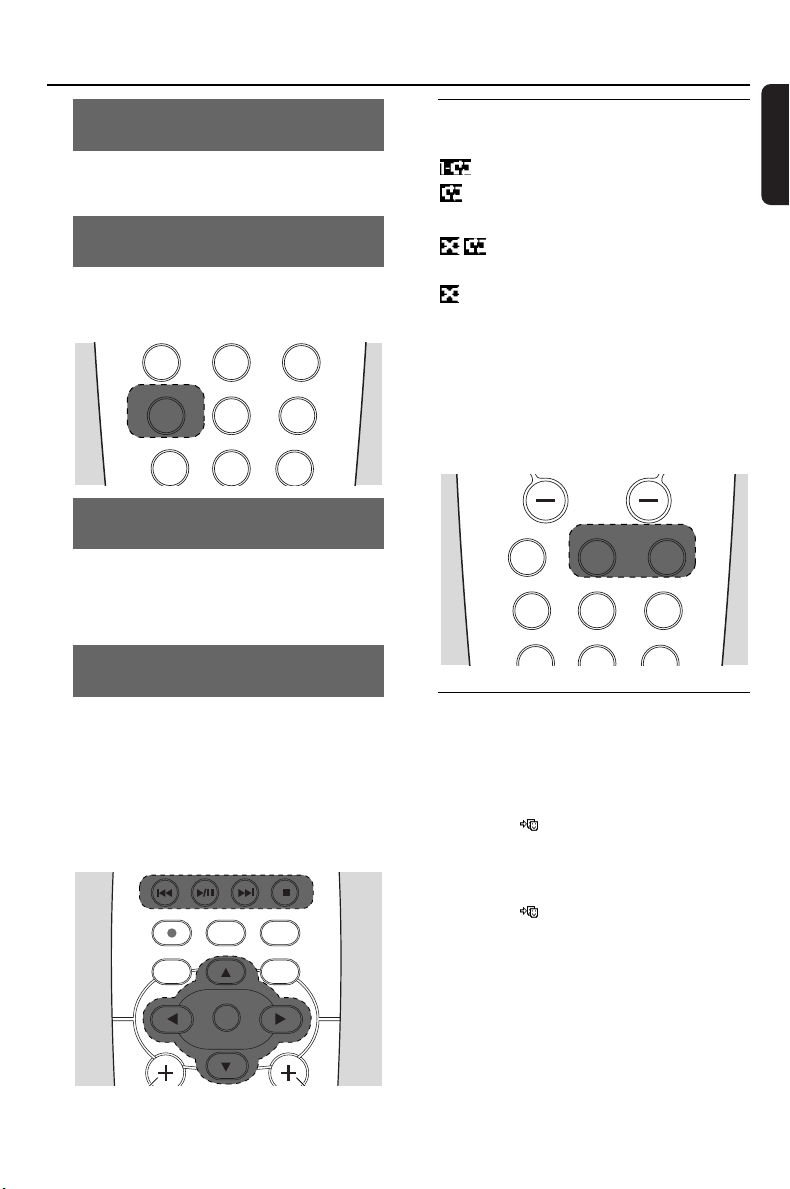
6.3 Different play modes:
REPEAT, SHUFFLE
– plays the current track continuously
– repeats all the tracks (under current
Artist, Genre or Album)
– repeats all the tracks (under current
artist, genre or album) in random order
– tracks (under current artist, genre or
album) are played in random order
1 During playback, press REPEAT or/and
SHUFFLE once or more times to select play
modes
2 To return to normal playback, press REPEAT
or/and SHUFFLE repeatedly until the various
modes are no longer displayed
6.4 SMART EQUALIZER
This function enables you to playback music of
the current genre with the matched sound
settings.
● During playback, press SMART EQUALIZER
➜ The icon appears if SMART EQUALIZER
is activated
● To deactivate SMART EQUALIZER, adjust the
sound settings (DBB, Incr. Surr. or Equalizer)
➜ The icon disappears
PROGRAM
INCR.SURR.
SLEEP DIM RDS/NEWS
SCROLL VOL
1
6
mno
9
7
8
t
REPEAT SHUFFLE
2
abc
3
SAME GENRE SAME ARTIST
5
jkl
4
ghi
REC
MENU VIEW
OK
MARK/UNMARK
DBB
OK
INCR.SURR.
SLEEP DIM RDS/NEWS
1
6
mno
9
wxyz
7
pqrs
8
tuv
2
abc
3
SAME GENRE SAME ARTIST
5
jkl
4
ghi
6.HD(Located on Center)
pg001-043_was7000_UK 2006.12.4 6:11 PM Page 25
26
English
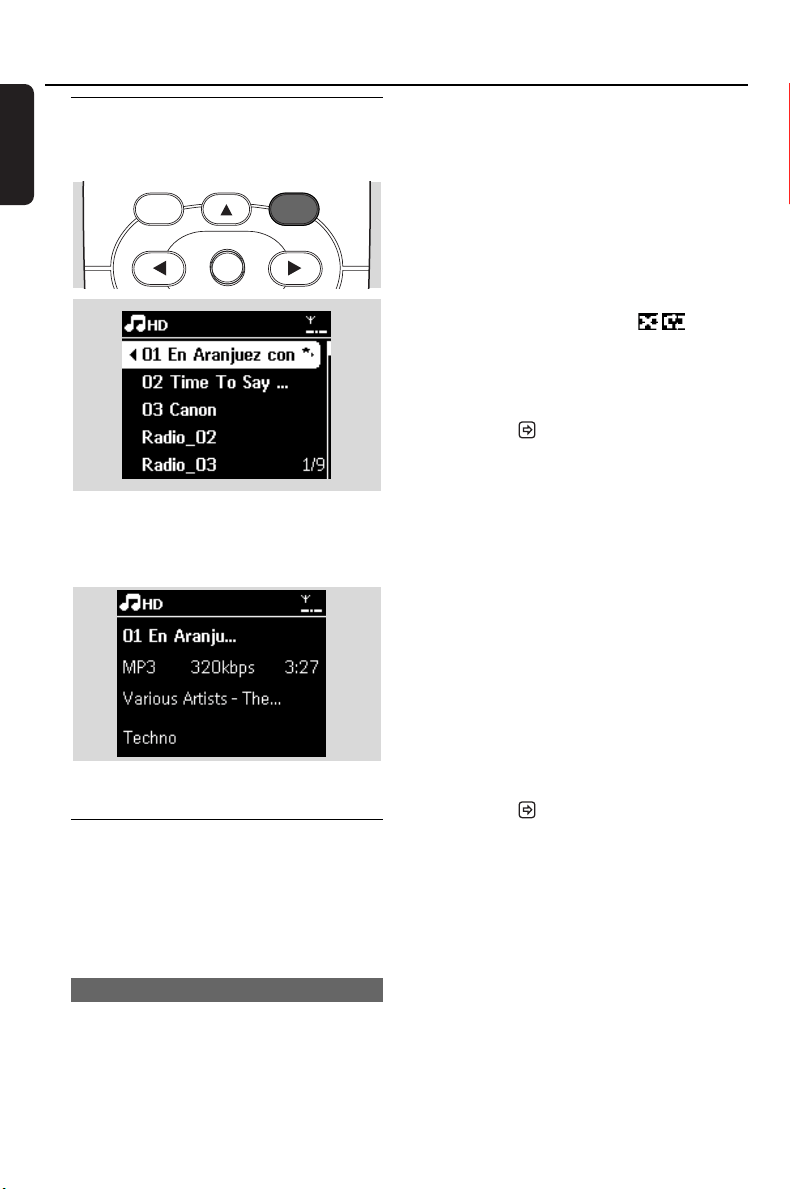
6.5 Viewing track information
1
Press VIEW on the remote control once or
more times to enter the playback screen.
2 Press 2
➜ The display shows the track information (e.g.
track name, file type, file size, bit rate of
mp3/wma files)
3 Press VIEW once or more times to return to
the playback screen
6.6 Moving music playback
between Center and Stations
Via Wi-Fi, music playback can be moved between
the Center and Stations. Even in different parts of
your home, you and your family will still be able
to enjoy and share music with ease.
6.6.1 MUSIC FOLLOWS ME
As you move around at home, let the music
move with you between the Center and Station
or between Stations.
On the source unit (Center or Station)
where music is playing:
1 In HD source, select and play the album or
playlist you wish to play on the destination unit
(see 6.2 : Selecting and searching)
Helpful hints:
–Press ÉÅ to interrupt playback if you want
the playback to continue from where it has paused
on the destination unit.
– The selected play modes (e.g. ) will be
retained on the destination unit (see 6.3 Different
play modes: REPEAT, SHUFFLE).
2 Press MUSIC FOLLOWS ME to activate
➜ The icon appears
Helpful hints:
– MUSIC FOLLOWS ME will be automatically
deactivated if you do not activate MUSIC
FOLLOWS ME on the destination unit within 5
minutes
–To deactivate MUSIC FOLLOWS ME, press
MUSIC FOLLOWS ME again or press other
function keys (e.g. SLEEP or 1 / 2 / 3 / 4)
On the destination unit (Center or
Station), where the music will continue:
3 Check that the destination unit is switched on or
is already in standby mode
4 Press MUSIC FOLLOWS ME
➜ Playback of selected music stops on the
source unit and continues on the destination unit
➜ The icon disappears
5 To stop MUSIC FOLLOWS ME, press
STOPÇon the destination unit
Helpful hints:
After activating MUSIC FOLLOWS ME on the
destination unit:
– make sure that the source unit is switched on or
is already in standby mode.
– you can select other tracks or source for
playback.
MENU VIEW
OK
OK
6.HD(Located on Center)
pg001-043_was7000_UK 2006.12.4 6:11 PM Page 26
27
English
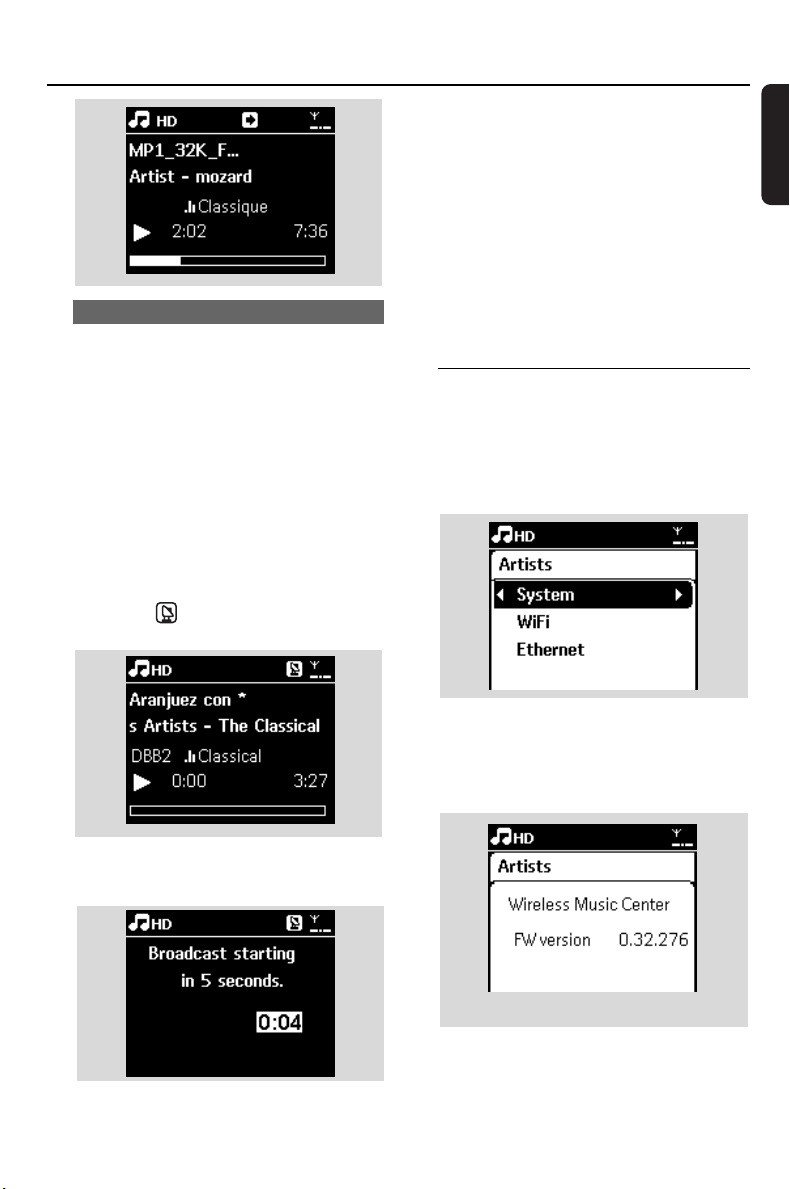
6.6.2 MUSIC BROADCAST
MUSIC BROADCAST allows you to broadcast
music from Center to Stations.
On the Stations
1 Check that the Station is switched on or is
already in standby mode (see 5. Basic functions)
On the Center
2 In HD source, select and play the album or
playlist that you wish to broadcast to the Stations
(see 6.2: Selecting and searching)
3 Press MUSIC BROADCAST to activate
➜ The icon appears on the Center and
Stations. A 5-second countdown starts.
➜ On the Center and Stations: The selected
music starts to play simultaneously after the 5-
second countdown.
4 To stop MUSIC BROADCAST, press STOPÇ
on the Center
Helpful hints:
–To exit MUSIC BROADCAST on a Station, press
STOP
Ç
on the Station.To broadcast music to the
Station again, press STOP
Ç
on the Center, and
then activate MUSIC BROADCAST on the Center
again.
– MUSIC BROADCAST will also stop when:
– the Center is put to standby mode or
power-saving mode;
– the selected album or playlist has reached
the end.
6.7 Viewing system information
1
Select Information on the Station
a. Press MENU to enter the menu screen
b. Press the navigation controls 3 or 4 and 2 to
enter Information menu
➜ The display shows: System,WiFi and Ethernet
2 Press the navigation controls 3 or 4 and 2 to
select System
➜ The following information will be shown on
the display: the name of the Station, firmware
version
6.HD(Located on Center)
for illustration only
pg001-043_was7000_UK 2006.12.4 6:11 PM Page 27
28
English
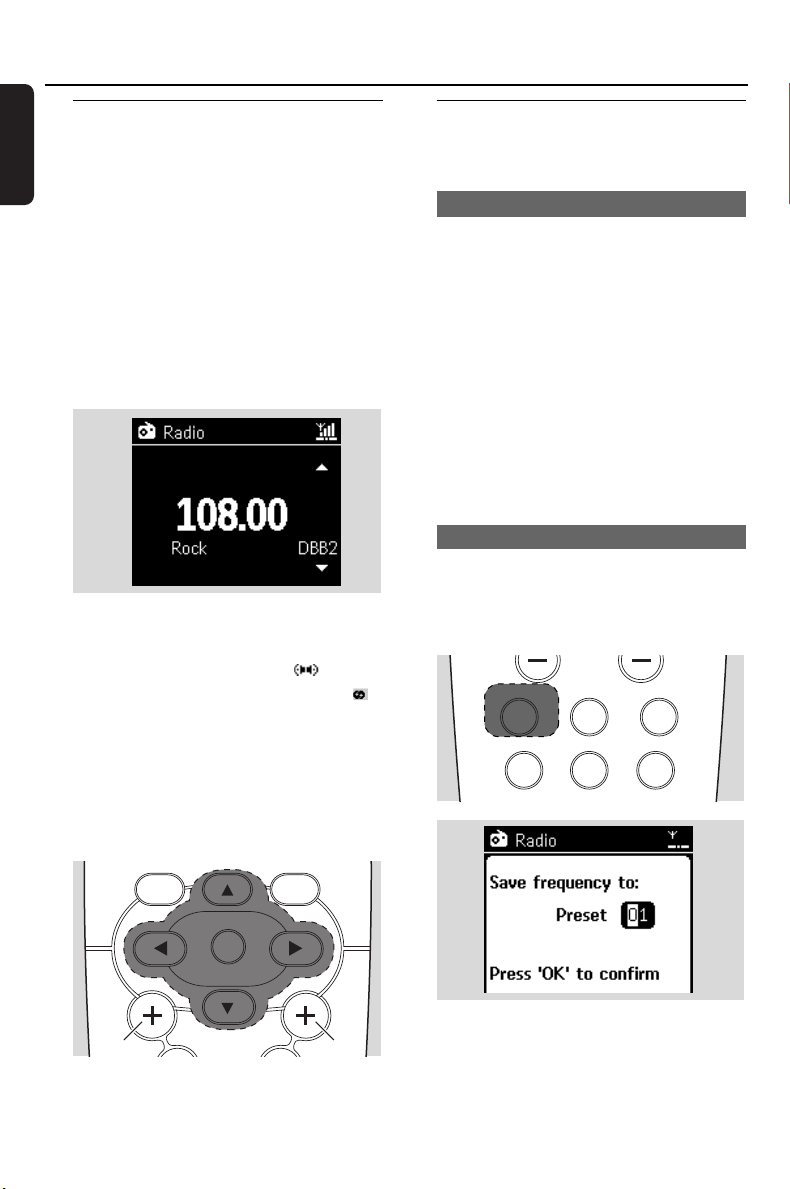
7.1 Tuning to radio stations
1
Connect the supplied FM wire antenna to the
Station (see 3. Installation)
2 Check that the set is switched on or in standby
mode (see 5. Basic functions)
3 Press SOURCE once or more times to select
Radio
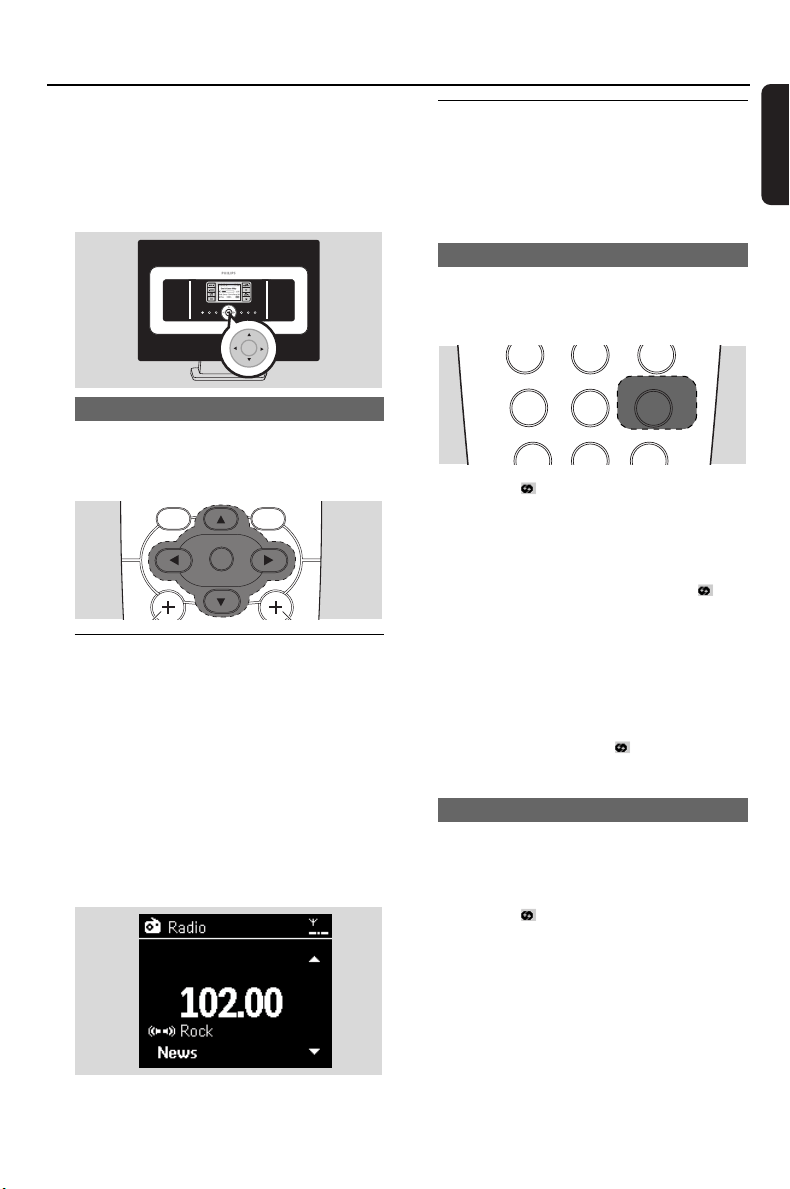
➜ Playback screen appears. Display shows:
Radio, the radio station frequency and a preset
number (if already programmed)
4 Press and hold 3 or 4 until the frequency in the
display starts running.
➜ The radio automatically tunes to a station of
sufficient reception. Display shows Searching
during automatic tuning
➜ If a station is received in stereo, is shown
➜ When you are receiving an RDS station,
is shown
5 Repeat Step 3 if necessary until you find the
desired radio station
● To tune to a weak station, press 3 or 4 briefly
and repeatedly until optimal reception is
detected.
7.2 Storing preset radio stations
You can store up to 60 preset radio stations in
the memory.
7.2.1 Autostore: automatic programming
Autostore automatically starts programming
radio stations from Preset 1. Available stations
are programmed in the order of radio
frequencies: RDS stations followed by FM
stations. A maximum of 10 RDS stations will be
stored (from Preset 01 to Preset 10).
1 To select Autostore radio,
a. Press MENU
b. Use the navigation controls 3 or 4 and 2 to
select Autostore radio
➜ Display shows:Autostore Please wait...
➜ After all the stations are stored, the first
autostored preset station will then play
automatically.
7.2.2 Manual programming
1 Tune to your desired radio station (see 7.1
Tuning to radio stations).
2 Press PROGRAM on the remote control.
➜ The display shows:
INCR.SURR.
SLEEP DIM RDS/NEWS
6
mno
REPEAT SHUFFLE
2
abc
3
SAME GENRE SAME ARTIST
5
jkl
4
ghi
PROGRAM
1
MENU
SCROLL VOL
VIEW
OK
OK
7. FM radio
pg001-043_was7000_UK 2006.12.4 6:11 PM Page 28
29
English
7. FM radio
3 On the Station, press 3 or 4 or the Numeric
Keypad (0-9) to select your desired preset
number.
4 Press OK
➜ Current radio station is stored to that preset
location.
7.2.3 To listen to a preset station
1 Press 1 to enter the list of preset stations
2 Use the navigation controls 3 or 4 followed by
2 to select the desired station.
7.3 RDS
RDS (Radio Data System) is a service that
allows FM stations to send additional information
along with FM radio signal.
1 Tune to the desired RDS radio station (see 7.2.1
Autostore: automatic programming).
➜ The display shows the following information (if
available):
– name of the radio station
– radio frequency
– program type (for example: News, Pop Music)
– RDS radio text
7.4 NEWS
You can activate NEWS while listening to HD,
USB, UPnP, or AUX source on WAS7000.The set
will tune to the news radio station if the related
signals are received from a RDS station.
7.4.1 Activating NEWS
● During playback in HD, USB, UPnP, or AUX
source, press RDS/NEWS on the remote
control.
➜ The icon appears and NEWS ON is
displayed briefly
➜ Playback continues when the set scans the
first 10 preset stations
➜ When news transmission is detected, the set
will switch to the news station.The icon
starts flashing
Helpful hints:
– Make sure that you have stored RDS stations in
the first 10 preset locations (see 7.2.1 Autostore:
automatic programming).
– If no news transmission is detected during the
scanning of the set, the icon disappears and
NO RDS NEWS is displayed.
7.4.2 Deactivating NEWS
● Press RDS/NEWS again on the remote
control.
● Switch the set to Radio source
➜ The icon disappears and NEWS OFF is
displayed briefly.
SLEEP
MUSIC BROADCAST MUSIC FOLLOWS ME
DIM
0
6
mno
7
pqrs
8
tuv
5
jkl
4
ghi
RDS/NEWS
9
wxyz
MENU VIEW
OK
OK
OK
pg001-043_was7000_UK 2006.12.4 6:11 PM Page 29
30
English
8.1 Playing USB mass storage
device
You can playback music from a USB mass storage
device on the Station.
8.1.1 About the USB device
Compatible USB mass storage devices:
The following devices can be used on the Station:
– USB flash memory (USB 2.0 or USB1.1)
– USB flash players (USB 2.0 or USB1.1)
– Memory cards (requires an additional card
reader to work with the Station)
IMPORTANT!
– In some USB flash players (or memory
devices), the stored contents are
recorded using copyright protection
technology. Such protected contents
cannot be played on any other devices
(such as the Station).
– MTP (Media Transfer Protocol) USB
devices are not supported.
Supported formats:
– USB or memory file format FAT12, FAT16,
FAT32 (sector size: 512 - 65,536 bytes)
– MP3 bit rate (data rate): 32-320 Kbps and
variable bit rate
– WMA v9 or earlier versions
– Directory nesting up to a maximum of 8 levels
– Number of albums/folders: maximum 99
– Number of tracks/titles: maximum 999
– File name in Uicode UTF8 (maximum length:
256 bytes)
The Station will not play or support the
following:
– Empty albums: an empty album is an album that
does not contain any MP3/WMA files, and
hence will not be shown on the display.
– Non-supported file formats are skipped.This
means that e.g., Word documents or MP3 files
with .doc and .dlf extension are ignored and
will not be played.
– WAV, PCM audio files
– DRM protected WMA files
– WMA files in Lossless format and VBR format
How to transfer music files from your PC
to a USB mass storage device
You can easily transfer your favorite music from
your PC to a USB mass storage device just by
dragging and dropping your music files.
For a flash player, you will be able to use its music
management software for the music transfer.
However,WMA files cannot be played due to
compatibility reasons.
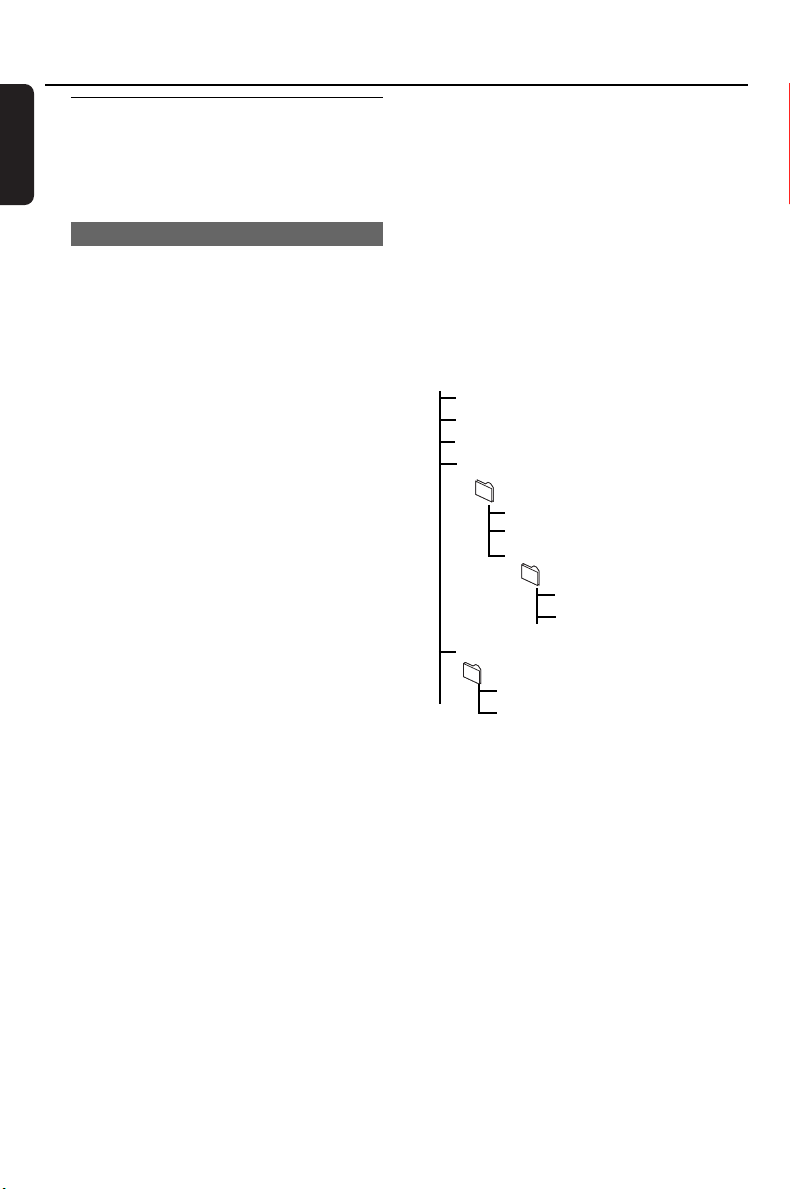
How to organize your MP3/WMA files on
the USB mass storage device
Root
all titles
Title 001
Title 002
Album 01
Title 001
Title 002
Album 02
Title 001
Title 002
Album 03
Title 001
Title 002
Organize your MP3/WMA files in different
folders or sub-folders as needed.
Helpful hints:
– “Others” is shown as an album if you have not
organized your MP3/WMA files into any albums on
your disc.
– Make sure that the file names of MP3 files end
with .mp3. and the file names of WMA files end
with .wma.
–For DRM protected WMA files, use Windows
Media Player 10 (or later) for CD burning/
conversion.Visit www.microsoft.com for details about
Windows Media Player and WM DRM (Windows
Media Digital Rights Management)
8. External sources
pg001-043_was7000_UK 2006.12.4 6:11 PM Page 30
31
English
8.1.2 Playing music from the USB device
1 Check that the USB device is properly connected
to the Station (see 3.3.2: Connecting a USB
mass storage device )
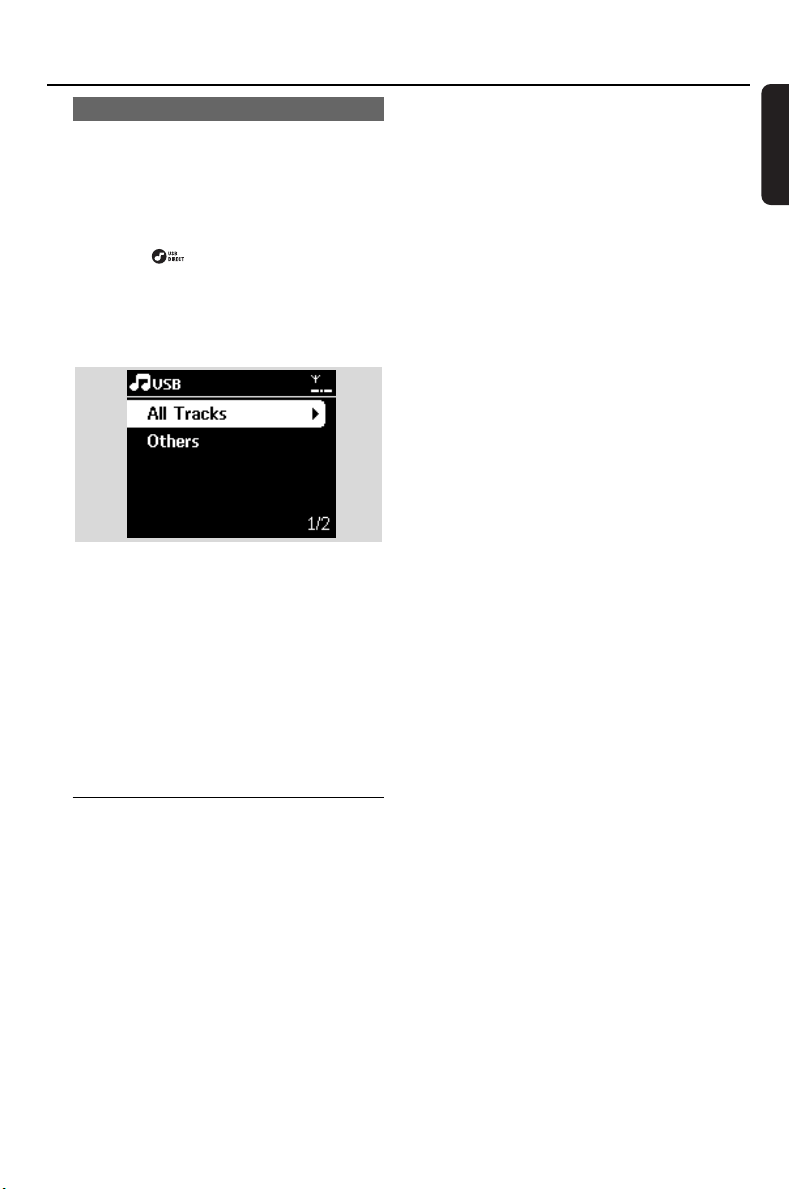
2 Press SOURCE once or more times to select
USB
➜ The icon appears
– No USB Device Present appears if the USB
device is not supported by the Station
– File system not supported appears if
unsupported file formats are used on the USB
device
➜ Empty Folder appears if no audio file is found
on the USB device
3 Press the navigation controls 3 or 4 and 2 to
select your option
4 PressÉÅto start playback
Helpful hint:
– Due to compatibility reasons, the album/track
information may differ from what will be displayed
through the flash player’s music management
software.
8.2 Playing other external
sources
It is possible to play from an external source on
the Station after connecting the audio output, e.g.
TV,VCR, Laser Disc player, DVD player.
1 Check that the external device is properly
connected (see 3.3.3: Connecting other
additional devices)
2 Check that the Station is switched on or is
already in standby mode (see 5. Basic functions).
3 On the Station: press SOURCE once or more
times to select AUX.
4 External hard disk audio player:
a. turn down the volume to avoid noise
distortion.
b. press the PLAY key to start playback.
5 To adjust the sound and volume, use the sound
controls on your external device or on
WAS7000.
8. External sources
pg001-043_was7000_UK 2006.12.4 6:11 PM Page 31
32
English
9.1 About UPnP* (Universal Plug
and Play)
The music collection on the UPnP-enabled
device can be played on the Station, wirelessly or
through an Ethernet cable (supplied).
*Universal Plug and Play (UPnP
TM
) builds on
standard networking technologies and provides
standardized protocols for a wide variety of
home and small business devices. It allows easy
interoperability of all the devices supporting the
networking technologies.
9.1.1 About the UPnP-enabled device
The UPnP device can be a PC or other devices
running UPnP software.To use the UPnP device
with the Station,
1 Connect the Station to the UPnP device’s
network (see 9.2 Connecting to the UPnP
device)
2 To play the music library of your UPnP device on
the Station, check that the UPnP server software
is properly installed and enabled on the device
(e.g. Philips Media Manager in the by-packed PC
Suite CD, Musicmatch
®
,Window Media
Connect
®
)
9.2 Connecting to the UPnP
device
When connecting to the UPnP device’s network,
you have the following options:
1 Connect wirelessly or through an Ethernet cable
2 Connect both the Center and Station, Center
only or Station only
For more information on the connection, see
12.2/12.3: Connecting to external Wi-Fi
network and Connecting to external wired
network.
9.3 UPnP playback
In the external Wi-Fi or wired network, music is
streamed between devices via UPnP.
9.3.1 Playing music from the UPnP
device
1 Check that the UPnP device is switched on.
– Switch off the firewall running on the UPnP-
enabled PC
2 Check that the Station is connected to the UPnP
device’s network (see 12.4:Viewing connection
status)
3 On the Station, press SOURCE on the remote
control to select UPnP mode
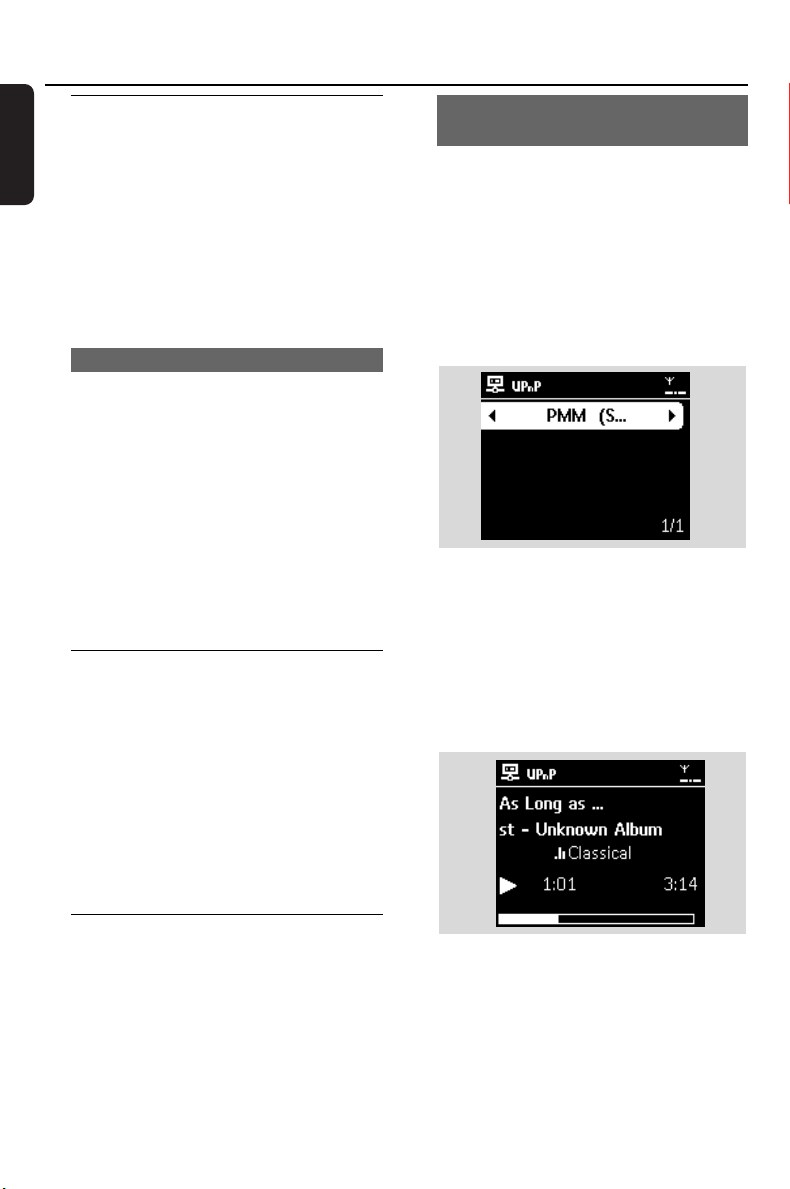
➜ The display on the set shows a list of
connected UPnP devices (up to 4 UPnP devices).
➜ Server not found appears if there is no UPnP
device found in the network
4 Use the navigation controls 3 or 4 and 2 to
select your desired UPnP device
➜ The music library of the UPnP device appears
on the Station as it does on the UPnP device
5 On the Station, play UPnP device’s music library
in the same way as you play Hard Disk (HD)
(see 6. HD).
9. UPnP
pg001-043_was7000_UK 2006.12.4 6:11 PM Page 32
33
English
10. Sleep
10.1 SLEEP
You can preset a certain period of time after
which the Station will switch to standby mode..
1 On the remote control, press SLEEP repeatedly
to select the desired time period (in minutes):
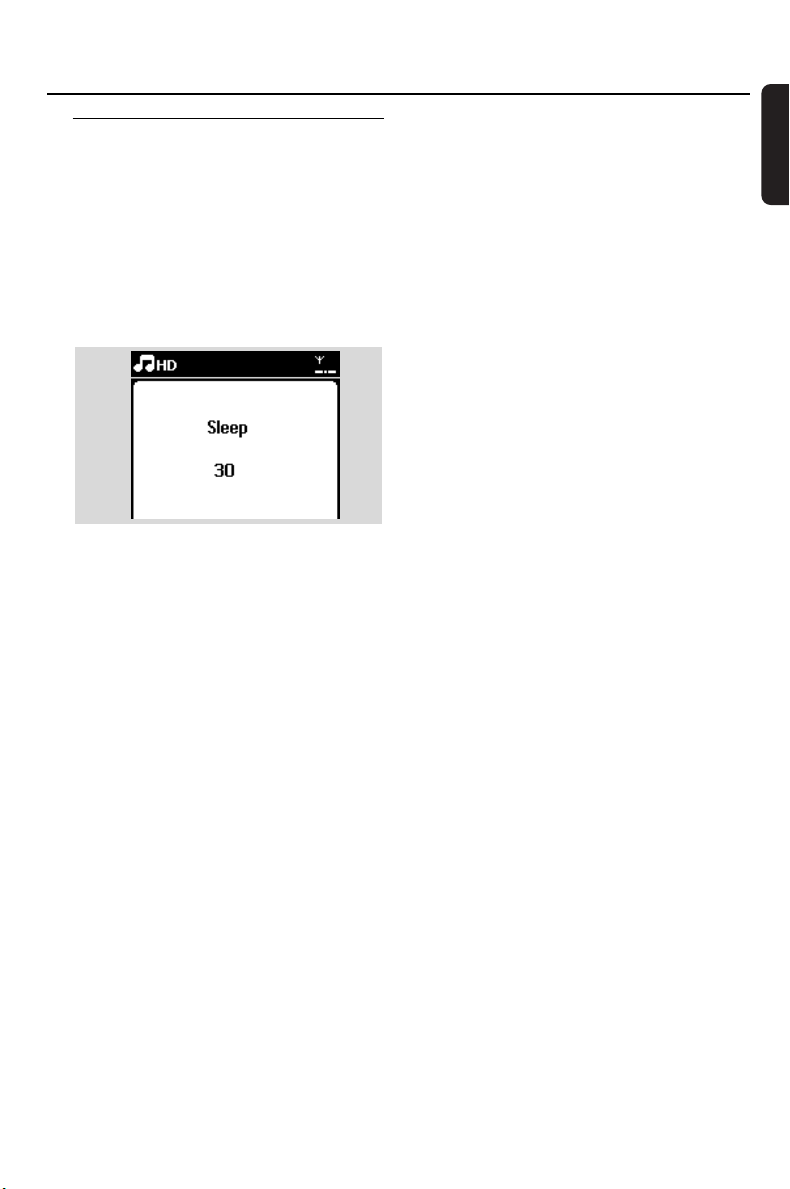
➜ The display shows in sequence: Sleep 15, 30,
45, 60, 90, 120, Off.
➜ Display shows the selected option briefly and
returns to its previous status.The icon Z
Z
appears.
2 To view the countdown time to standby mode,
press SLEEP again
● To deactivate the sleep timer, press SLEEP
repeatedly until Sleep Off is displayed
● Press STANDBY-ON/ ECO POWER to
switch the set to standby (or y on the remote
control)
pg001-043_was7000_UK 2006.12.4 6:11 PM Page 33
34
English
11.1 Setting alarm
IMPORTANT!
Before setting the alarm, check that the
clock setting is correct.
11.1.1 Setting alarm time
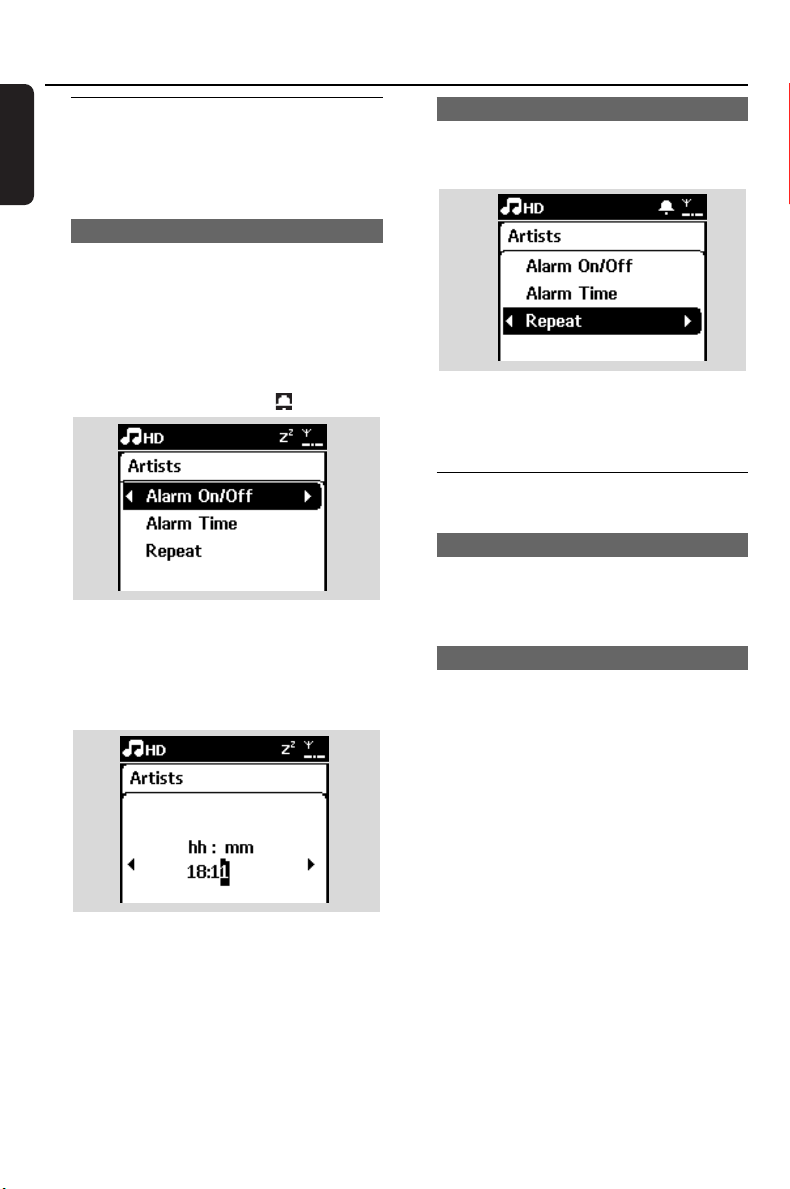
1 Enter the alarm setting menu
a. Press MENU
b. Use the navigation controls 3 or 4 and 2 to
select Settings followed by Alarm
2 To turn on the alarm
a. Press 3 or 4 and 2 to select Alarm On/Off
b. Press 3 or 4 and 2 to select On
➜ Alarm On appears.The icon appears.
3 In Alarm Time menu, set the alarm time
a. Press the navigation controls 3 or 4
repeatedly to set the hour followed by the
minute
b. Press OK to confirm
11.1.2 Setting repeat mode
1 To set repeat mode for the alarm sound.
a. In the alarm setting menu, press 3 or 4 and 2
to select Repeat.
b. Press 3 or 4 and 2 to select the desired
repeat mode.
➜ Once: activates the alarm only once.
➜ Daily: repeats the alarm every day.
11.2 Activating/de-activating
alarm
11.2.1 Stopping alarm tone
1 When the alarm tone is heard, press any button
➜ The alarm tone will be stopped
➜ Your alarm settings remain unchanged
11.2.2 Activating/de-activating alarm
1 Enter the alarm setting menu.
a. Press MENU
b. Use the navigation controls 3 or 4 and 2 to
select Settings followed by Alarm
2 To toggle the alarm on/off
a. Press 3 or 4 and 2 to select Alarm On/Off
b. Press 3 or 4 and 2 to select On or Off.
11.Alarm
pg001-043_was7000_UK 2006.12.4 6:11 PM Page 34
35
English
12. Network setting
12.1 Adding Additional Station to
the Wi-Fi network on the Center
Up to 5 Stations can be connected to the
WAC7000 Center.When adding a Station to the
Center’s Wi-Fi network, you can play the Center’s
music library on the Station or move music
playback between the Center and Stations (see
6. HD). To add a Station to the Center’s Wi-Fi
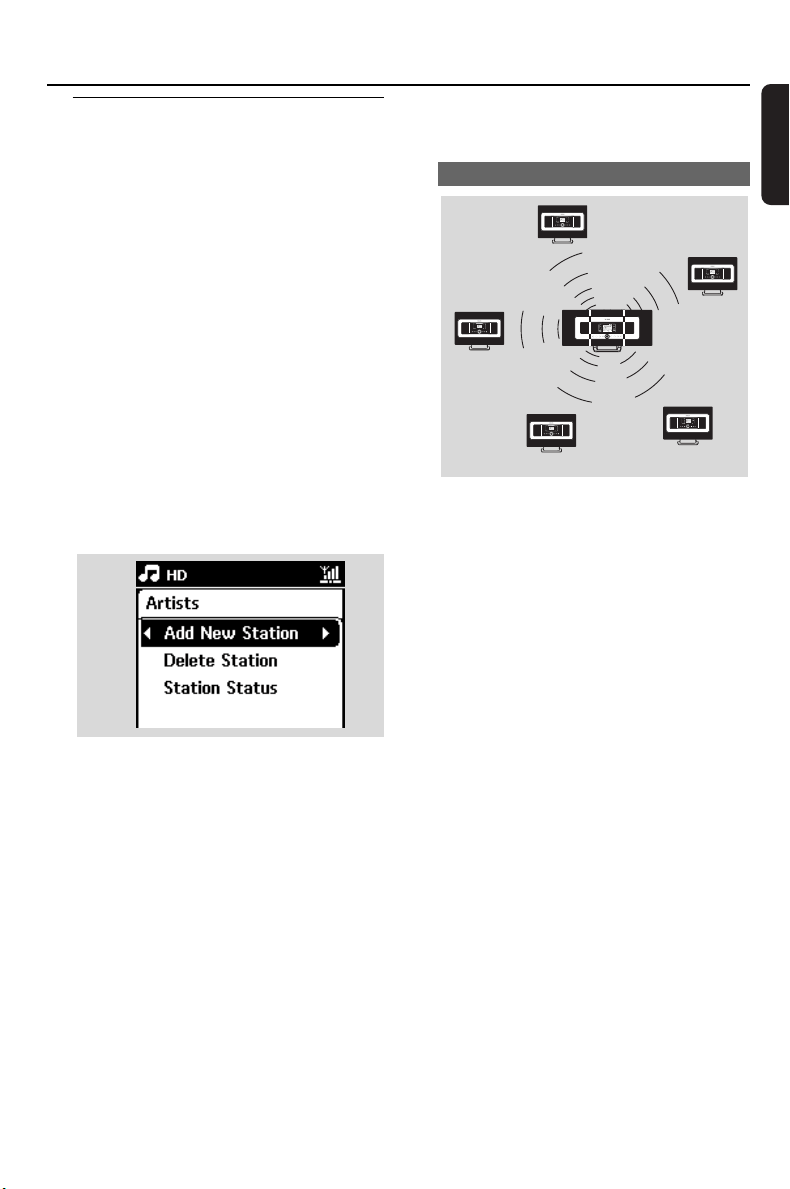
network, proceed as follows:
On the Center
1 Check that WAC7000 Center is in HD source
2 Select Add New Station
a. Press MENU to enter the menu screen
b. Press the navigation controls 3 or 4 and 2 to
enter Station Mgnt menu
c. Press 3 or 4 and 2 to select Add New
Station
➜ You will enter Installation Mode. Searching for
the new station starts
➜ Playback stops on the previously associated
Station if you are playing the HD source
Helpful hints:
– If there are 5 stations connected, Add New
Station option will not present. In this case, please
delete a station first, and then to add new stations
On Stations
3 Enter Installation Mode
a. Remove the power plug of the Stations, and
then connect them to the power supply again
➜ Connecting to Center appears
b. On the remote control, press MENU to
enter Installation Mode
➜ HD screen appears if the Station is connected
to the Center
➜ The Center and the Stations are now in the
same Wi-Fi network
On the Center
4 Press STOPÇ when all the Stations are found.
12.1.1 Deleting a Station
1 Check that the WAC7000 Center is in HD
source
2 Select Delete Station.
a. Press MENU to enter the menu screen.
b. Press the navigation controls 3 or 4 and 2 to
enter Station Mgnt menu.
c. Press 3 or 4 and 2 to select Delete Station
➜ The list of connected Stations will be
displayed on the Center
3 Press 3 or 4 and 2 to select the Station you
wish to delete.
4 Press 3 or 4 and 2 to select Yes.
Center’s
Wi-Fi
network
for illustration only
pg001-043_was7000_UK 2006.12.4 6:11 PM Page 35
36
English
12. Network setting
12.2 Connecting to external Wi-
Fi network
The external Wi-Fi network can be a single PC
or a PC network
For music playback within the external network,
see 9.3: UPnP playback.
12.2.1 Network setting on Station
1 Check that the PC is switched on and the
firewall is switched off
2 On the Station, search for networks
a. Press MENU to enter the menu screen
b. Press the navigation controls 3 or 4 and 2 to
enter Settings, followed by Network and
Wireless
c. Press 2 to continue
➜ The display shows: Searching for Networks
➜ The list of networks appears
➜ The display shows: Network Not Found if no
network is found
3 a. Select the network where your desired UPnP
device is located.
b. Press 2 to continue
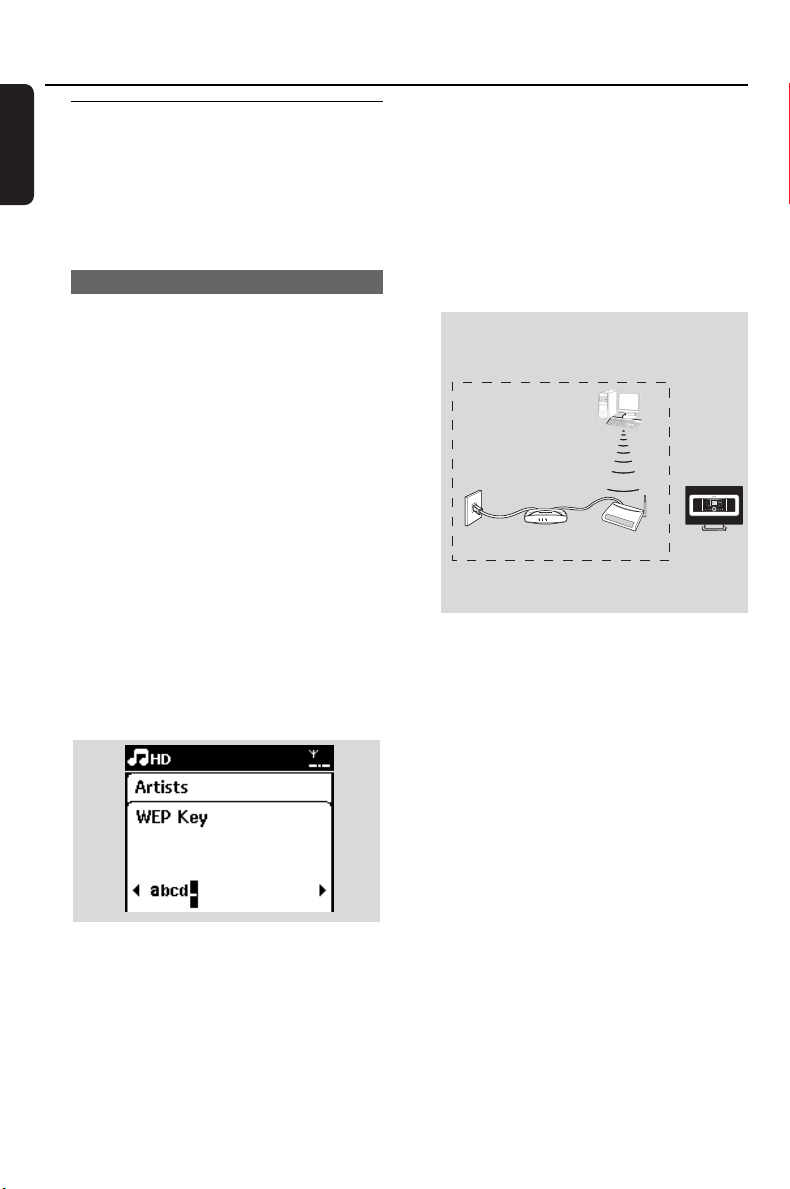
4 If you have already set a WEP/WPA key for the
UPnP device network:
a. Enter the WEP or WPA key by using the
alphanumeric keys (see 4.4: Using
Alphanumeric Keys)
b. Press OK to confirm
If there is no WEP/WPA key for the
UPnP device network:
Press OK to skip
Helpful hint:
–For WEP/WPA key setting, always refer to the
Access Point’s user manual.
5 Select Automatic.
Helpful hint:
You can also select Static and assign an IP address
as prompted using the alphanumeric keys.
6 As prompted, select Yes to apply the settings
➜ The Station is connected to the external Wi-Fi
network
➜ The Station will be disconnected from the
Center’s Wi-Fi network
Wireless Base Station 11g T
Wireless Base Station 11g T
rue T
rue T
urbo
urbo
Wireless
Wireless
Modem PC
Modem PC
Power
Power
Internet
External Wi-Fi network
Access Point
PC
(UPnP device)
DSL modem
for illustration only
pg001-043_was7000_UK 2006.12.4 6:11 PM Page 36
37
English
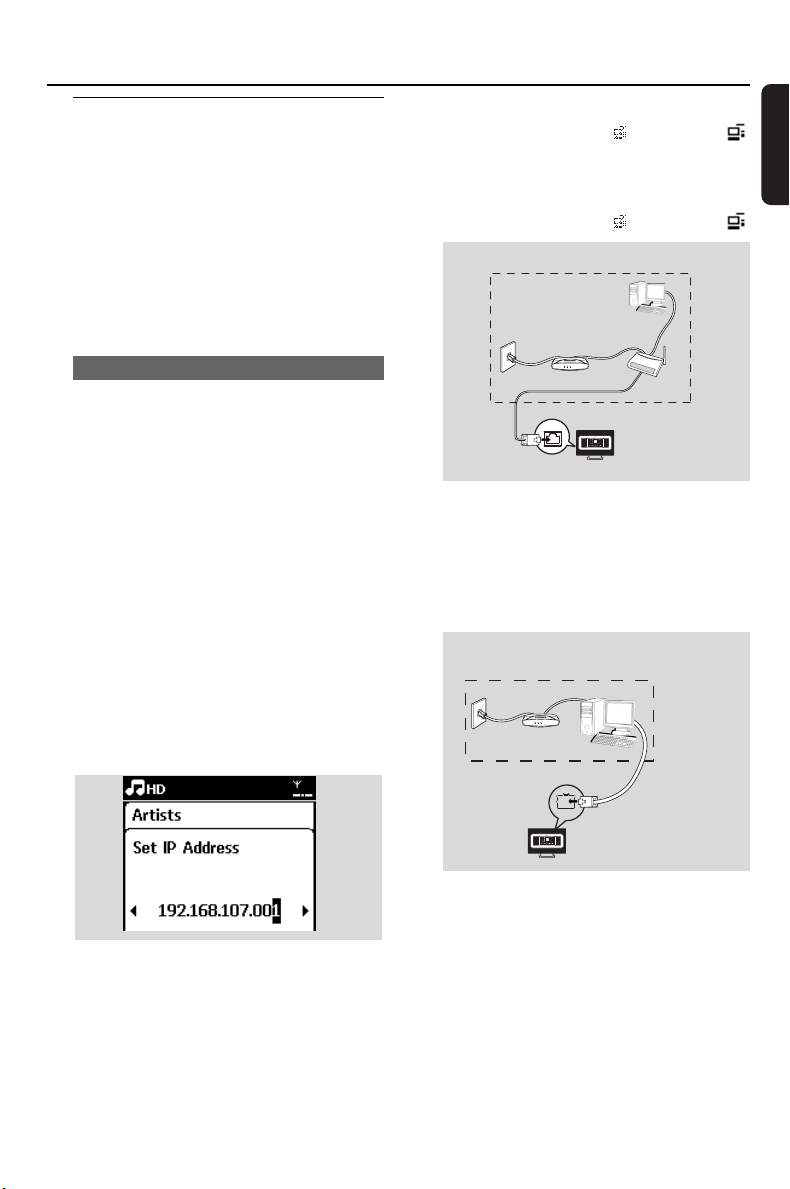
12.3 Connecting to external
wired network
The external wired network can be a single PC, a
PC network, or a Station
The Station can access the wired and wireless
network at the same time. Using the supplied
Ethernet cable, you can connect the a Station
separately to a wired network while maintaining
its Wi-Fi connection (e.g. the Wi-Fi connection
between the Center and Stations or the Wi-Fi
connection with an external network).
12.3.1 Network setting on Station
1 Check that the device is switched on and the
firewall (if available) is switched off
2 Connect the supplied Ethernet cable to the
Ethernet ports on the device and the Station
3 On the Station, search for networks
a. Press MENU to enter the menu screen
b. Press the navigation controls 3 or 4 and 2
and 2 to enter Settings, followed by Network
and Wired
c. Press 2 to continue.
4 If you are using a DHCP*-enabled Access Point
select Automatic
*DHCP stands for Dynamic Host Configuration
Protocol. It is a protocol for assigning dynamic IP
addresses to devices on a network.
If there is no DHCP
Select Static and assign an IP address and subnet
mask as prompted using the alphanumeric keys
(see 4.4: Using Alphanumeric Keys).
5 As prompted, select Yes to apply the settings
➜ On the display, the icon is changed to
6 As prompted, select Yes to apply the settings
➜ The Station is connected to the external
wired network
➜ On the display, the icon is changed to
Helpful hint:
You can connect the Center or Station directly to
your PC using the supplied Ethernet cable and the
Wireless Audio Device Manager (WADM) in the
bypacked PC Suite CD. For details, see the manual
Connect to your PC.
12. Network setting
ETHERNET
Wireless Base Station 11g T
Wireless Base Station 11g T
rue T
rue T
urbo
urbo
Wireless
Wireless
Modem PC
Modem PC
Power
Power
Internet
External wired network
Access Point
PC
(UPnP device)
DSL modem
for illustration only
ETHERNET
Wireless Base Station 11g T
Wireless Base Station 11g T
rue T
rue T
urbo
urbo
Wireless
Wireless
Modem PC
Modem PC
Power
Power
PC (with WADM installed)
for illustration only
External wired network
pg001-043_was7000_UK 2006.12.4 6:11 PM Page 37
38
English
12. Network setting
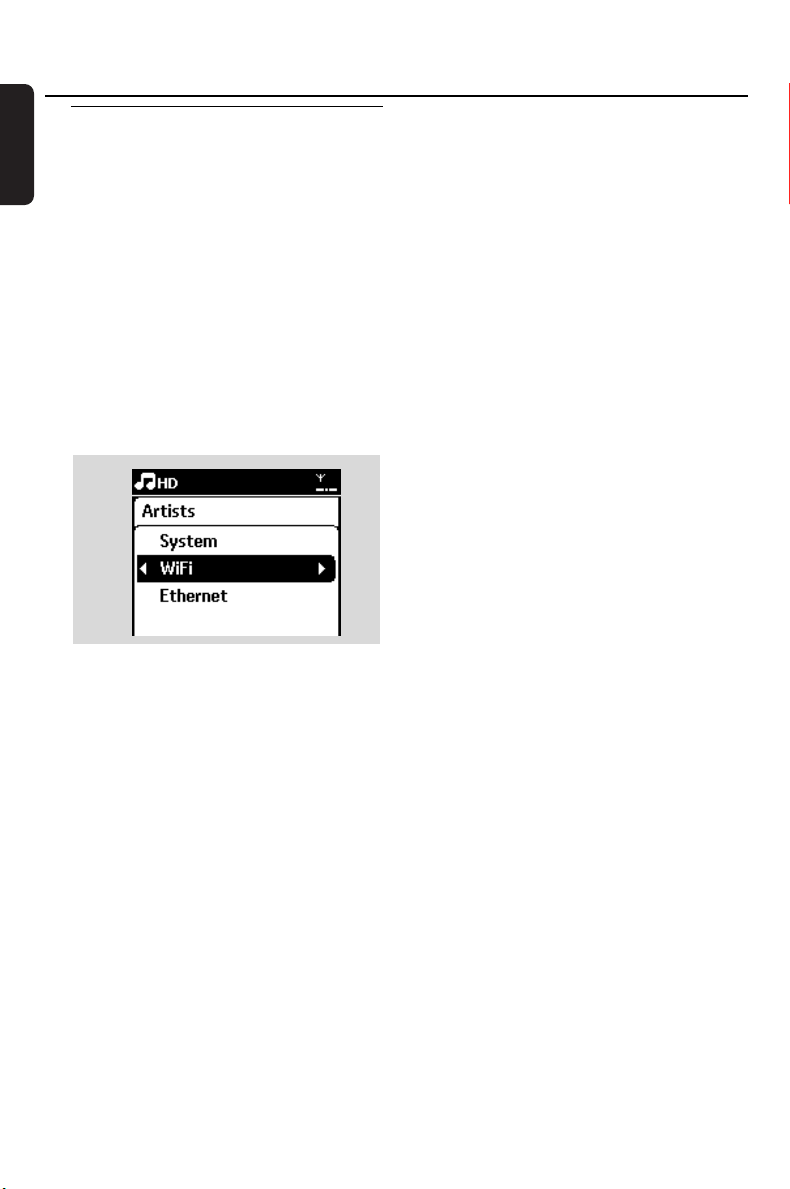
12.4 Viewing the connection
with external network
1
Check that the Station is in HD source
2 Select Information on the Station
a. Press MENU to enter the menu screen
b. Press the navigation controls 3 or 4 and 2 to
enter Information menu.
➜ The display shows: System,WiFi and Ethernet
3 Press the navigation controls 3 or 4 and 2 to
select WiFi or Ethernet
➜ The display shows:
In Wi-Fi: information about the Wi-Fi settings on
the set.
In Ethernet: information about the Ethernet
settings on the set.
pg001-043_was7000_UK 2006.12.4 6:11 PM Page 38
39
English
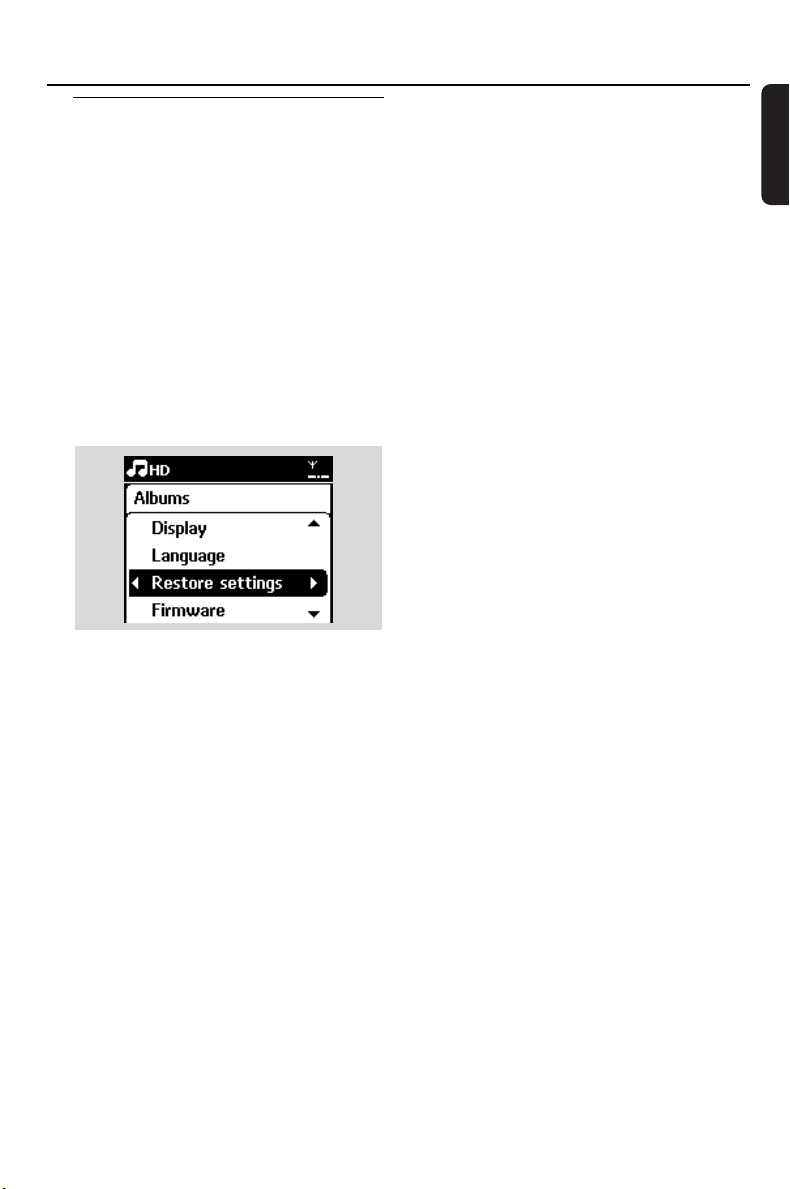
13.1 Reset
If desired, you can restore the Station to their
default settings (including the network settings).
When to reset the Station:
– Resetting the Station helps to re-establish the
Wi-Fi connection between the Center and
Station.
– Change the way the Station connects to an
external Wi-Fi/wired network.
1 Check that the set is switched on (see 5. Basic
functions).
2 Press MENU to enter the menu screen
3 Press the navigation controls 3 or 4 and 2 to
enter Settings followed by Restore settings.
4 Press 2 to select Yes
➜ The set is rebooted. Language selection
screen appears.
5 Select your desired language: English, Français,
Español, Nederlands, Italiano or Deutsch
➜ The set enters Installation Mode
➜ The search for Station starts.The Wi-Fi
connection is being re-established
13. Reset
pg001-043_was7000_UK 2006.12.4 6:11 PM Page 39
40
English
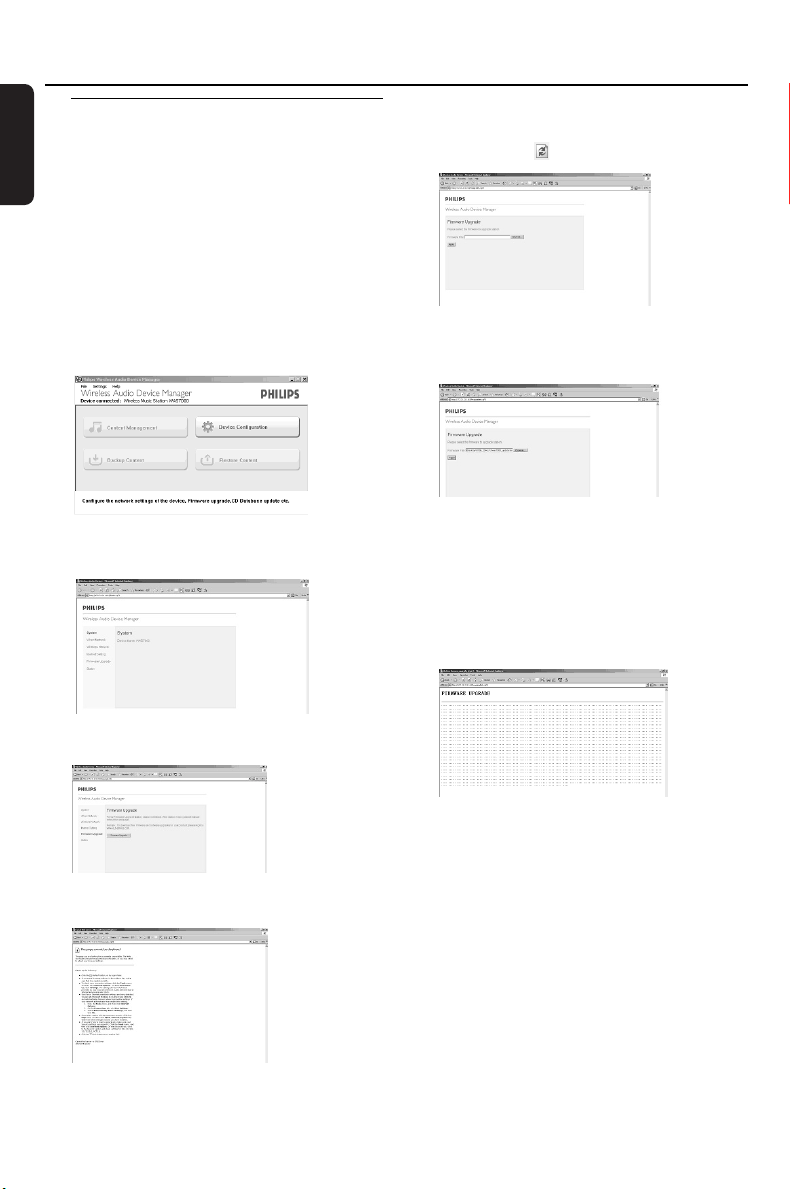
14.1 Firmware upgrade
You can upgrade your WAS7000 Station with the
supplied PC Installer CD Wireless Audio Device
Manager (WADM).
1 Register your WAS7000 on www.club.philips.com
2 Download the firmware upgrade file and store it
on your PC
3 Connect your WAS7000 to power supply
4 Connect your WAS7000 to PC via the supplied
ethernet cable
5 Install and launch WADM.The PC shows as
below:
6 Click Device Configuration.The PC shows as
below:
7 Click to enter the Firmware Upgrade
sub-menu
8 Click Firmware upgrade.The PC shows as
below:
9 Wait until "wait for firmware" shows on the
WAS7000 display
0 Click Refresh icon.The PC shows as below:
! Click Browse and find the location where you
kept the firmware upgrade file on your PC
" Click Apply to start upgrading firmware
On Philips Wireless Music Station:
➜ The display shows "Updating firmware,
please wait..."
➜ WAS7000 will reboot itself during the
installation process
➜ When the installation is completed, the PC
shows as below, and the WAS7000 will return
to UPnP mode.
IMPORTANT!
– Never interrupt the firmware upgrading
before its completion
– Before finishing the installation, never
operate other functions
14. Firmware Upgrade
pg001-043_was7000_UK 2006.12.4 6:11 PM Page 40

41
English
WARNING
Never try to repair the system yourself as this will invalidate the warranty. Do not open the
system as there is a risk of electric shock.
If a fault occurs, first check the points listed below before taking the system for repair. If you are
unable to resolve a problem by following these hints, consult your dealer or Philips for help.
Problem Solution
15.Troubleshooting
During the first-time setup, the display
on the Station shows “Searching for
Center”.
I get interference on my wireless (Wi-Fi)
link between the Center and Station.
The WACS7000 operates in the 2.4GHz radio
frequency spectrum. Many other household/IT
devices also operate in this frequency spectrum,
for example: microwave ovens, Dect phones,
bluetooth devices like bluetooth headphones,
computer mouse, wireless routers, cordless
phones,Wi-Fi compatible printers, PDAs.These
devices can interfere with the Wi-Fi link
between the Center and Station, resulting in
interference such as pause during playback, slow
response to your operation, etc.The severity of
interference varies depending on the extent of
radiation from the device and the strength of
Wi-Fi signals in that position.
✔ Check that you have placed the Center and
Station side by side on a flat and firm surface.
✔ Check that you have connected the Center to
the power supply.
✔ When adding a new station, check that the
center is in Installation mode (see 12.1: Adding
Additional Station to the Wi-Fi network on the
Center).
✔ Tu rn off the wireless Access Point nearby if you
encounter difficulty connecting the Center and
Station.
If you are playing the set, stop playback and
take the appropriate measures as follows:
✔ Keep the Center or Station at least 3 meters
away from such devices.
✔ Use the WEP/WPA key when connecting the
Center and Station to an existing wireless PC
network.To set WEP/WPA key, connect
Center/Station to your PC using Philips
Wireless Audio Device Manager (WADM) in
the by-packed PC Suite CD. In WADM’s
Device configuration, enter the Wireless
Network sub-menu, and in Device Wireless
Authentication Type, select WEP or WPA.
✔ Change the operating channel of the Center
and Station when connecting them to an
existing wireless PC network.To change
channels, connect the Center/Station to your
PC using Philips Wireless Audio Device
Manager (WADM) in the by-packed PC Suite
CD. In WADM’s Device configuration, enter
the SSID of your Wireless Network, and select
Ad-hoc mode. See the manual Connect to
your PC and the WADM help file.
✔ If possible, change the operating channels of
the other Wi-Fi devices at your home.
✔ Tu rn the devices in different directions to
minimize interference.
pg001-043_was7000_UK 2006.12.4 6:11 PM Page 41

42
English
Problem Solution
Stations react when you operate the
Center’s remote control
The remote control does not function
properly
Sound cannot be heard or is of poor
quality.
Some files on the USB device are not
displayed
Radio reception is poor
There is interference on the radio
reception whenever the Station is near my
PC
How do I mount the Station
onto walls?
Upgrading Station wirelessly failed.
15.Troubleshooting
✔ The remote control for the Center is powerful
enough to operate several Stations within a certain
distance or angle. Check that you have placed the
Stations in different rooms or place them at
different angles
✔ Use the remote control for the Station or the
controls on the set.
✔ Reduce the distance between the remote control
and the set.
✔ Insert the batteries with their polarities (+/– signs)
aligned as indicated.
✔ Replace the batteries.
✔ Point the remote control directly towards the IR
sensor.
✔ Adjust the volume.
✔ Disconnect the headphones.
✔ Switch off MUTE.
✔ Check if the number of folders exceeds 99 or the
number of titles exceeds 999.
✔ Only completely recorded MP3/WMA files can be
found and played by WAS7000. Check if the file
has been completely recorded.
✔ DRM-protected WMA files cannot be played on
WAS7000.
✔ If the signal is too weak, adjust the antenna or
connect an external antenna for better reception.
✔ Increase the distance between the set and your TV
or VCR.
✔ Install the supplied FM wire antenna for better
reception.
✔ Keep the Station at least 1 meter away from your
PC.
✔ Use the by-packed wall mounting kits. It is
recommended that you get a qualified personnel
to fix the mounting brackets safely onto your walls
before you mount the or Station. For details, refer
to
16.1:How to mount your Station onto Walls.
✔ Upgrade the Station via ethernet cable following
steps below:
1. Connect the Station to your PC via the supplied
ethernet cable and power on the Station.
2. Download the firmware upgrade file specified
for station.
3. Launch WADM and click Firmware upgrade.
4. Follow the on-screen information to complete
the rest steps.
pg001-043_was7000_UK 2006.12.4 6:11 PM Page 42
43
English
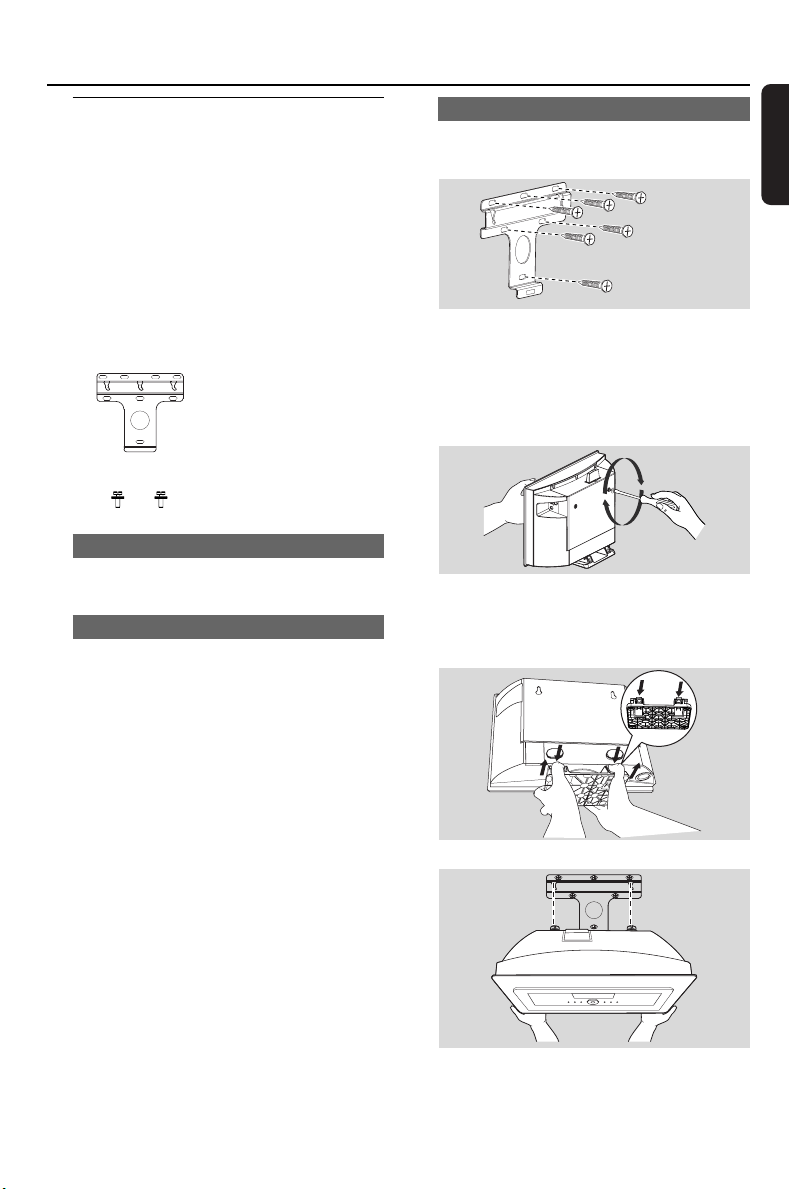
16.1 How to mount your Station
onto wall
IMPORTANT!
– The wall mounting instructions are for
the use of the qualified wall mounting
person only!
– Ask a qualified person to help you
with the wall mounting, which includes
drilling holes on the wall, fixing the
mounting brackets to the wall, and
mounting the sets onto the brackets.
16.1.2 What else you’ll need
– 6 x screws for fixing the Station’s bracket
– Drilling tools (e.g. electric drill)
16.1.2 Preparation
● To find a suitable location for mounting, try your
necessary rear connections and the Wi-Fi
connection (see 3. Installation).
● The qualified wall mounting personnel should:
– learn about the piping, wiring and other
relevant information inside your walls to avoid
unexpected damages;
– according to the materials of your walls, decide
what type of screws you need to fix the
mounting brackets that is able to withstand the
weight of a Station;
– according to the drilling requirements, choose
suitable drilling tools;
– take other precautions necessary for the wall
mounting work
16.1.3 Mounting your Station
1 Align the bracket in the chosen location on a
wall. Use a pencil to mark the drilling positions.
2 Drill holes as marked.
3 Fix the brackets to the wall using suitable screws
(not supplied).
4 As shown, fasten the supplied screws to your
Station using a screwdriver.
5 To detach the stand from Station,
a. As shown, hold down the Lock•unlock
button(s).
b. Move out the stand to detach.
6 Hook and mount Station in place as shown
16.Appendix
1 x mounting bracket
2 x screws (for Station
mounting)
pg001-043_was7000_UK 2006.12.4 6:11 PM Page 43
Printed in China
PDCC-2006
C Royal Philips Electronics N.V. 2006
Need help?
Online
Go to www.philips.com/support
CLASS 1
LASER PRODUCT
Meet Philips at the Internet
http://www.philips.com
WAS 7000
3141 075 21831
6.11.21 14:550020007SCAW_revoC kcaB