
This device complies with Part 15 of the FCC Rules. Operation is subject to the
following two conditions: (1) This device may not cause harmful interference, and
(2) this device must accept any interference received, including interference that
may cause undesired operation.
WARNING FCC Regulations state that any unauthorized changes or modifications
to this equipment not expressly approved by the manufacturer could void the user's
authority to operate this equipment.
Note: This equipment has been tested and found to comply with the limits for a
Class B digital device, pursuant to Part 15 of the FCC Rules.
These limits are designed to provide reasonable protection against harmful
interference in a residential installation. This equipment generates, uses, and can
radiate radio frequency energy and, if not installed and used in accordance with
the instructions, may cause harmful interference to radio communications.
However, there is no guarantee that interference will not occur in a particular
installation. If this equipment does cause harmful interference to radio or television
reception, which can be determined by turning the equipment off and on, the user
is encouraged to try to correct the interference by one or more of the following
measures:
– Reorient or relocate the receiving antenna.
– Increase the separation between the equipment and receiver.
– Connect the equipment into an outlet on a circuit different from that to which the
receiver is connected.
– Consult the dealer or an experienced radio/TV technician for help.
Note: A shielded interface cable is required to ensure compliance with FCC
regulations for Class B certification.
FOR YOUR RECORDS....
For your assistance in reporting this product in case of loss or theft, please record
the model number and serial number (located on the bottom of the case) below.
Please retain this information.
Model Number
Serial Number
Date of Purchase
Place of Purchase

SHARP ELECTRONICS CORPORATION warrants to the first consumer purchaser
that this Sharp brand product (the "Product"), when shipped in its original container,
will be free from defective workmanship and materials and agrees that it will, at its
option, either repair the defect or replace the defective Product or part thereof at no
charge to the purchaser for parts or labor for the time period(s) set forth below.
This warranty does not apply to any appearance items of the Product nor to the
additional excluded item(s) set forth below nor to any product the exterior of which
has been damaged or defaced, which has been subjected to misuse, abnormal
service or handling or which has been altered or modified in design or construction.
In order to enforce the rights under this limited warranty, the purchaser should follow
the steps set forth below and provide proof of purchase to the servicer.
The limited warranty described herein is in addition to whatever implied warranties
may be granted to purchasers by law. ALL IMPLIED WARRANTIES INCLUDING
THE WARRANTIES OF MERCHANTABILITY AND FITNESS FOR USE ARE
LIMITED TO THE PERIOD(S) FROM THE DATE OF PURCHASE SET FORTH
BELOW. Some states do not allow limitations on how long an implied warranty
lasts, so the above limitation may not apply to you.
Neither the sales personnel of the seller nor any other person is authorized to make
any warranties other than those described herein or to extend the duration of any
warranties beyond the time period described herein on behalf of Sharp.
The warranties described herein shall be the sole and exclusive warranties granted
by Sharp and shall be the sole and exclusive remedy available to the purchaser.
Correction of defects, in the manner and for the period of time described herein,
shall constitute complete fulfillment of all liabilities and responsibilities of Sharp to
the purchaser with respect to the Product and shall constitute full satisfaction of all
claims, whether based on contract, negligence, strict liability or otherwise. In no
event shall Sharp be liable, or in any way responsible, for any damages or defects in
the Product which were caused by repairs or attempted repairs performed by anyone
other than an authorized servicer. Nor shall Sharp be liable, or in any way responsible,
for any incidental or consequential economic or property damage. Some states do
not allow the exclusion of incidental or consequential damages, so the above
exclusion may not apply to you.
THE WARRANTY GIVES YOU SPECIFIC LEGAL RIGHTS. YOU MAY ALSO HAVE
OTHER RIGHTS WHICH VARY FROM STATE TO STATE.
Your Product : Electronic Organizer
Warranty Period for this One (1) year parts and labor from date of purchase.
Product :
Additional items excluded Any consumable items such as paper, maintenance
cartridge, ink cartridges supplied with the Product
or to any equipment or any hardware, software,
firmware, fluorescent lamp, power cords, covers,
rubber parts, or peripherals other than the Product.
Where to obtain service : At a Sharp Authorized Servicer located in the United
States. To find out the location of the nearest Sharp
Authorized Servicer, call Sharp toll free at
800-BE-SHARP.
What to do to obtain service : Ship (prepaid) or carry in your Product to a Sharp
Authorized Servicer. Be sure to have proof of
purchase available. If you ship or mail the Product,
be sure it is packaged carefully.
from warranty coverage :
LIMITED WARRANTY
TO OBTAIN SUPPLY, ACCESSORY OR PRODUCT INFORMATION, CALL 1-800-BE-SHARP.
1
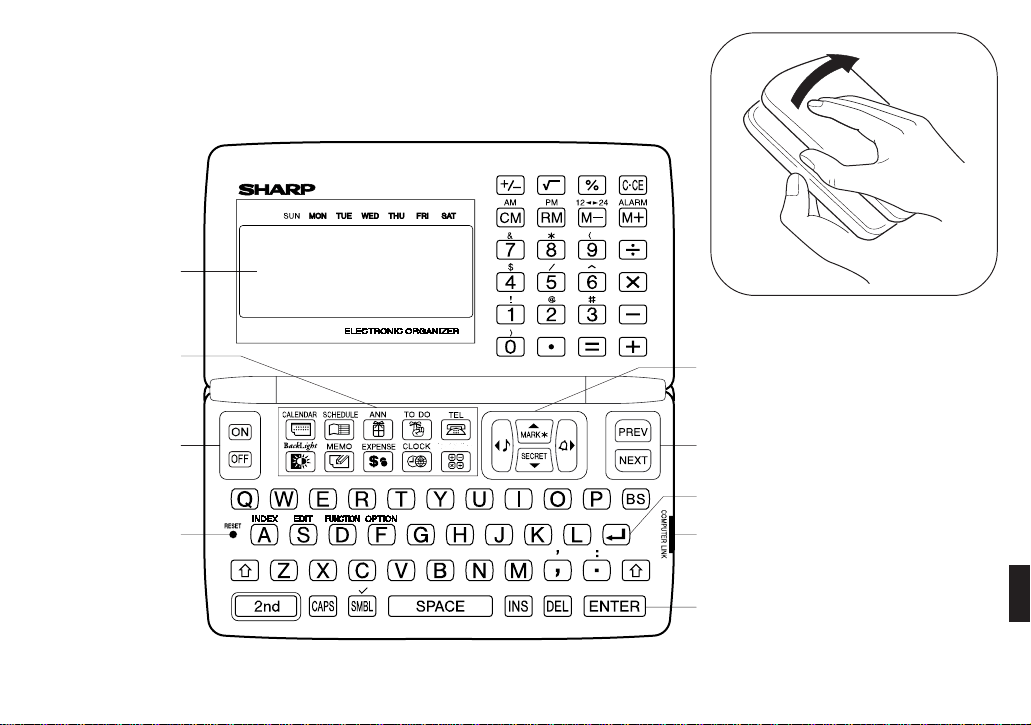
PARTS NAMES
Power on/off keys
Reset switch
Display
Command center
Cursor movement keys
Search keys
Return key
Option port
(4-pin option jack)
Enter key
PB
INTRODUCTION
Congratulations on purchasing the YO-470 Electronic Organizer.
Please read this operation manual carefully to familiarize yourself with
all the features of the Organizer and to ensure years of reliable
operation. For quick reference, keep this operation manual on hand.
NOTE: Some of the accessories described in this manual may not be
available at the time you purchase this product.
Check with your local SHARP dealer concerning availability.
The functions such as Calendar and Schedule in this
product can handle dates from January 1, 1901 to
December 31, 2099.
NOTICE
• SHARP strongly recommends that you keep separate permanent
written records of all important data. Data may be lost or altered in
virtually any electronic memory product under certain circum-
stances. Therefore, SHARP assumes no responsibility for data lost
or otherwise rendered unusable whether as a result of improper
use, repairs, defects, battery replacement, use after the specified
battery life has expired, or any other case.
• SHARP assumes no responsibility, directly or indirectly, for financial
losses or claims from third persons resulting from the use of this
product and any of its functions, such as stolen credit card
numbers, the loss or alteration of stored data, etc.
• The information provided in this manual is subject to change
without prior notice.

3
TABLE OF CONTENTS
INTRODUCTION .................................................................................... 2
BEFORE USE ......................................................................................... 3
GETTING STARTED ............................................................................... 4
BASIC ENTRY PROCEDURES ............................................................... 5
USING THE HOME AND WORLD CLOCKS .......................................... 6
USING THE CALENDAR FUNCTION ..................................................... 9
USING THE SCHEDULE FUNCTION ................................................... 10
USING THE ANNIVERSARY FUNCTION ............................................. 15
USING THE TELEPHONE DIRECTORY ............................................... 17
USING THE MEMO FUNCTION ........................................................... 20
USING THE TO DO FUNCTION ........................................................... 22
USING THE EXPENSE FUNCTION ...................................................... 24
USING THE CALCULATOR FUNCTION .............................................. 26
USING THE CONVERSION FUNCTION .............................................. 27
USING THE SECRET FUNCTION ........................................................ 27
USING THE MISCELLANEOUS FUNCTION ........................................ 30
USING THE OPTION FUNCTION ........................................................ 32
APPENDIX ............................................................................................ 35
BEFORE USE
Using the Organizer for the first time
Be sure to perform the following procedures before using the Organizer
for the first time.
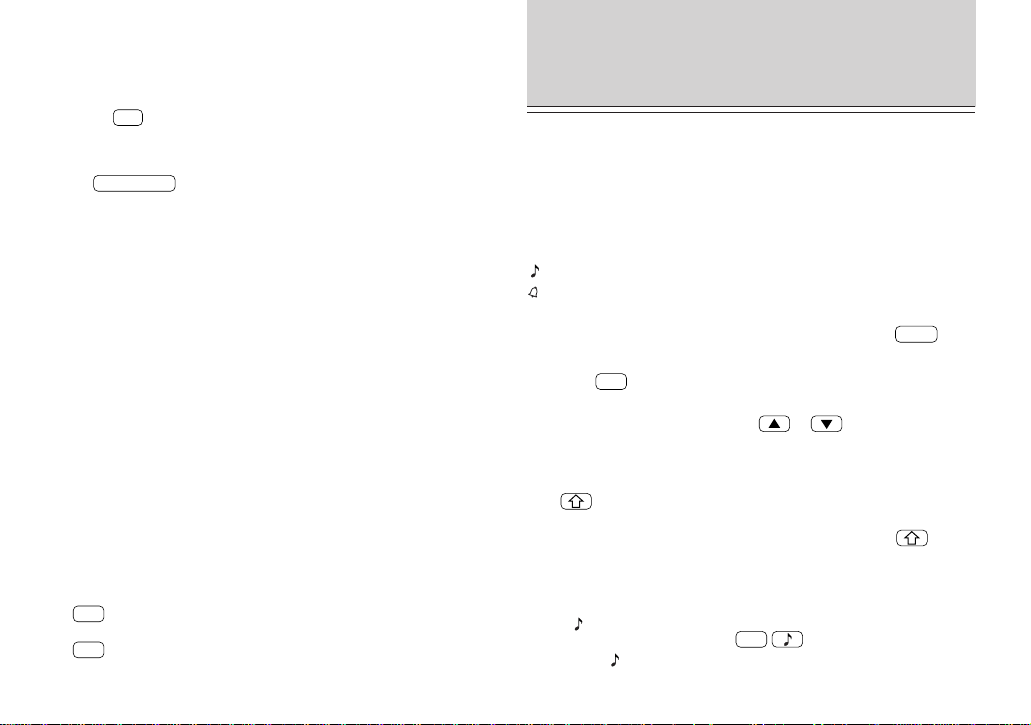
1. Open the Organizer.
2. Initialize the Organizer.
While holding
ON
, press the RESET switch. Release the RESET
switch and then release
ON
. The following display will appear:
CLEAR ALL DATA
OK
(
Y/N
)
?
ON
OFF
RESET
ON
NOTE: Under certain conditions the message may appear as “Data
has been impaired! Press [Y] to CLEAR ALL memory”. Proceed to the
next step in either case.
3. Press
Y
.
The Organizer is initialized and the TEL1 directory is displayed.
PB
AUTO POWER OFF function
When none of the keys have been pressed for approximately 7
minutes, the Organizer automatically turns the power off to save the
batteries. (The actual time may vary depending on the conditions of
use.) Press
ON
to resume operation.
Backlight
Pressing
BACKLIGHT
once illuminates the display and the Backlight
will remain on for as long as you continue to use the Organizer, or when
none of the keys have been pressed for fifteen seconds.
The Backlight may remain on for less than fifteen seconds if the battery
level is very low.
The length of time to turn on the Backlight can be changed. (Refer to
page 31.)
NOTES:
Do not use the Backlight unnecessarily.
• Since the Backlight drains power from the operating batteries,
excessive use of the Backlight will significantly reduce your battery life.
• Continuous use of the Backlight will, over time, lead to gradual loss
of brightness.
If the Backlight is on for 10 minutes per day (for example 15 seconds
40 times a day), the brightness will be reduced by half after 10* years
(at an ambient temperature of 25°C/77°F and 65% humidity).
* This figure may vary depending on the surrounding environment.
Freeing up memory
When you turn the power on, the following message may be displayed,
asking you to free up memory by deleting unnecessary space:
“DO YOU WANT TO FREE UP MEMORY? (Yes/No)”
Press
Y
to delete them. Freeing up memory requires maximum one
minute.
Press
N
when you wish to start the operation soon.
For more information, refer to page 31, “Freeing up memory”.
GETTING STARTED
Display symbols
BATT This symbol appears when the operating battery level is low.
Åñ The data appearing on the display is secret data accessible
only by password.
S The secret function is in effect.
A “beep” will sound when a key is pressed.
The specified schedule alarm(s) will sound.
CAPS Capital (uppercase) letters will be entered. To enter small
(lowercase) letters, turn “CAPS” off by pressing
CAPS
.
EDIT The entry on the display may be edited.
2nd
2nd
has been pressed.
řŴ There is more data which is not on the display. The data can
be displayed by pressing
or .
NOTE: The symbol “★” shown by setting the LCD contrast to DARK is
not used in this product.
The keys
These keys are used to select capital or small letters or to access the
symbols marked in white above keys. While holding down
, press
the desired key to be entered.
Turning the “beep” on and off
While “ ” is displayed, a “beep” will sound when a key is pressed. To
turn the “beep” on and off, press
2nd
. The “beep” will not
sound after “
” goes off. To turn the “beep” back on, repeat the
process.
5
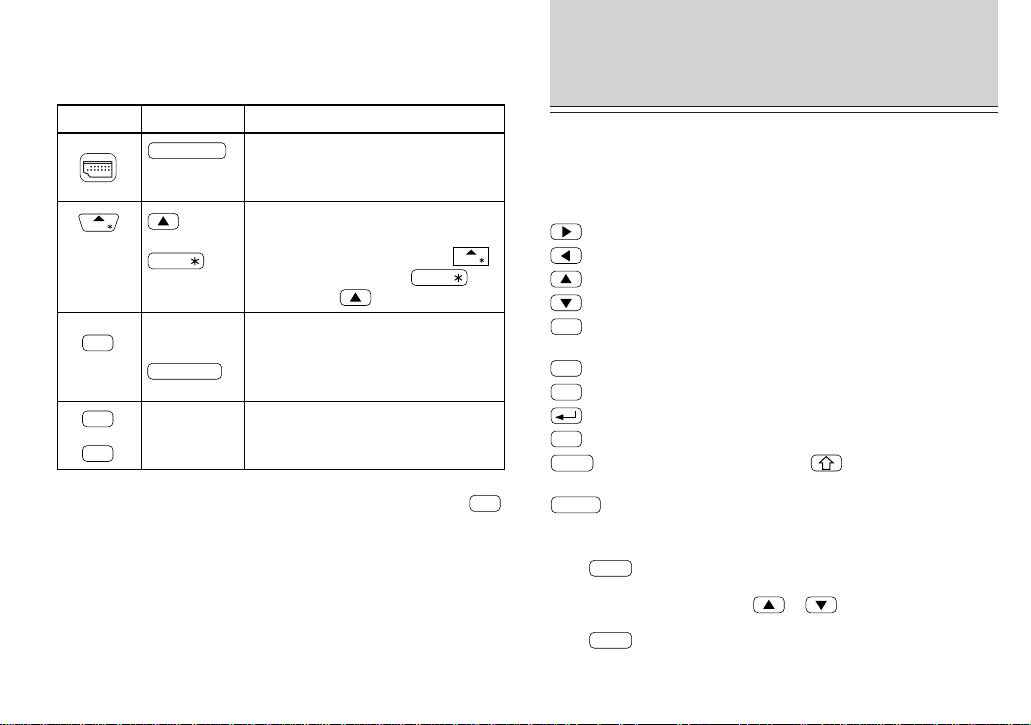
Key notations
This manual uses the following notations for key operations and
functions:
Key Notation Note
CALENDAR
MARK
CALENDAR
Keys with only one function always
appear in the manual with the
function enclosed in a box.
Alphabetical keys with multiple
functions appear sometimes as
unboxed letters and sometimes as the
boxed function name.
Numerical keys and alphabetical keys
are noted only with unboxed numbers
and letters.
Keys with multiple functions appear in
the manual with only the contextually
appropriate function boxed; i.e.,
will sometimes appear as and
sometimes as .
MARK
MARK
MARK
or
or
FUNCTION
D
7
D
7
N
N
FUNCTION
NOTE: The blue functions and symbols are operated by pressing
2nd
and the appropriate keys.
BASIC ENTRY
PROCEDURES
Entering characters and numbers
To practice entering characters and numbers, select the MEMO mode.
Keys and their functions
: Moves the cursor to the right.
: Moves the cursor to the left.
: Moves the cursor up to the previous line.
: Moves the cursor down to the next line.
INS
: Puts the Organizer into insert mode. Pressing this key again
exits the insert mode.
DEL
: Deletes the character at the cursor.
BS
: Deletes the character to the left of the cursor (“backspace”).
: Moves the cursor to the beginning of the next line (new line).
C
•
CE
: Clears the data being entered.
CAPS
: Functions as a capslock key. ( functions in the same
way.)
ENTER
: Stores the data being displayed.
Entering graphic symbols and special characters
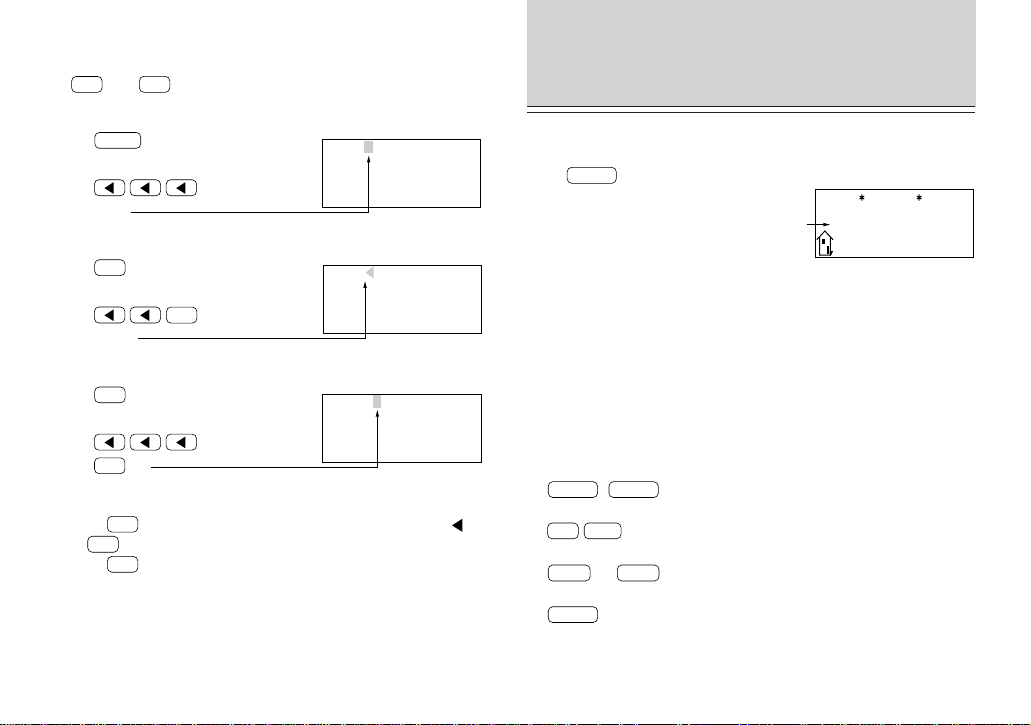
Press
SMBL
to select the symbol entry mode. A total of 90 symbols
can be selected. To select the symbol display containing the desired
symbol/special character, press
or , then press the number
corresponding to it.
Press
SMBL
to exit the symbol entry mode.
PB
Making corrections
Misspellings and incorrect entries can be corrected using the cursor
keys,
INS
, and
DEL
as follows:
Correcting misspellings
1. Press
MEMO
.
2. Enter “NEW YARK”.
3. Press
.
4. Enter “O”.
Inserting missing letters
1. Press
C
•
CE
.
2. Enter “NEW YRK”.
3. Press
INS
.
4. Enter “O”.
Deleting unwanted characters
1. Press
C
•
CE
.
2. Enter “NEW YOARK”.
3. Press
.
4. Press
DEL
.
NOTES:
• Pressing
INS
sets the insert mode and changes the cursor to “ ”.
Press
INS
again to exit the insert mode.
• Pressing
C
•
CE
deletes the data currently being entered.
NEW YRK
NEW YOARK
NEW YARK
USING THE HOME AND
WORLD CLOCKS
Day of the week
month/day/year
Displaying the HOME time
Press
CLOCK
to display the HOME time.
HOME
NEW YORK
12:00
AM
FRI JAN 1,1999
NOTE: The date format can be changed. Refer to page 31.
Setting the HOME clock
Setting and changing the HOME city
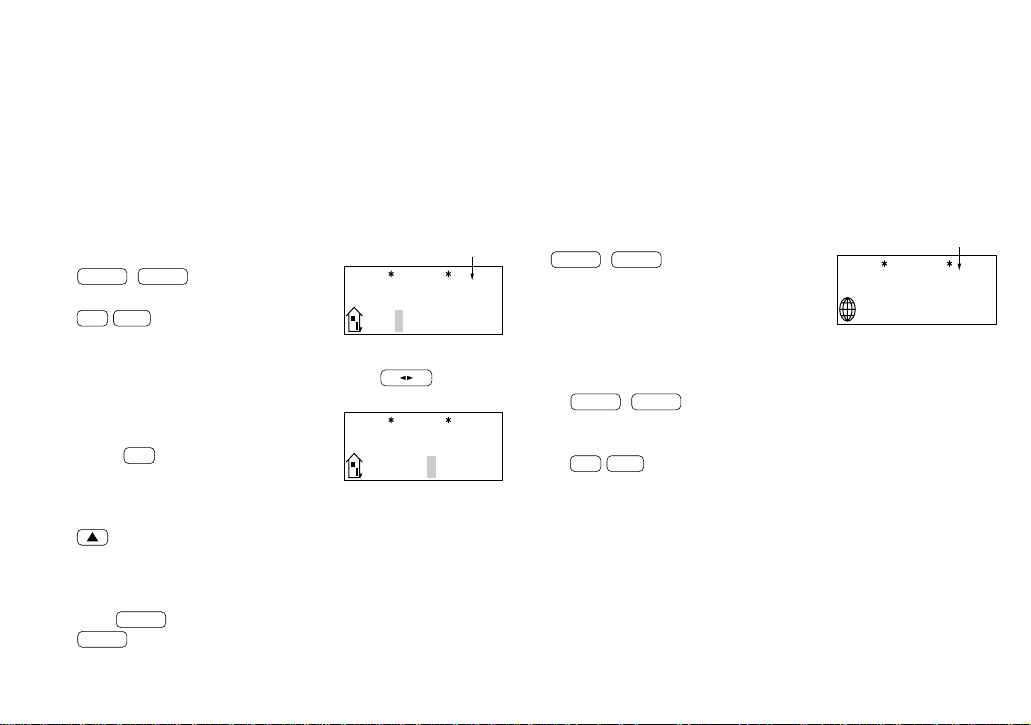
Set your local city as the HOME city by selecting its zone number.
Zone numbers are based on the distance of the zones from the
international date line (zone number zero). For example, there is a 13-
hour difference between the date line and London (London is 13 hours
behind), so the zone number for London is 13. (Refer to page 36.)
1. Display the HOME clock.
CLOCK
(
CLOCK
)
2. Enter the edit mode.
2nd
EDIT
3. Display the desired city name from the cities stored in the Organizer.
NEXT
(or
PREV
)
4. Set the HOME city.
ENTER
7
NOTES:
• Between step 2 and step 4, the Organizer stops the clock. Be sure to
set the correct time after setting or changing the HOME or WORLD city.
• Some city names are abbreviated on the display as follows:
HONG KONG ........... HONGKONG
NEW DELHI .............. DELHI
RIO DE JANEIRO ..... RIO
LOS ANGELES ......... L.A.
ANCHORAGE ........... ANC.
• For zone numbers 0, 14, and 15, the city name display is blank.
Setting the clock
1. Display the HOME clock.
CLOCK
(
CLOCK
)
2. Enter the edit mode.
2nd
EDIT
3. Select the time system.
The time can be displayed using either the conventional 12-hour
AM/PM system or the 24-hour system. Pressing
12 24
switches
between them.
4. Set the time. (The date in the example
below is January 10, 1999, 1:30 PM.)
01 30
PM
The hours and minutes must be entered using two digits each.
5. Enter the date.
01 10 1999
Enter the month and day using 2 digits and the year using 4 digits. For
single digit months or days, enter “0” before the single digit.
6. Press
ENTER
to start the clock from 0 seconds of the specified time.
ENTER
HOME
NEW YORK
[
18.0
]
12:00
AM
FRI JAN 1,1999
HOME
NEW YORK
[
18.0
]
1:30
PM
FRI JAN 1,1999
When the time is set on the 12-hour basis, noon and midnight changes
are displayed as below:
11:59AM → 12:00PM (noon) → 12:59PM → 1:00PM
11:59PM → 12:00AM (midnight) → 12:59AM → 1:00AM
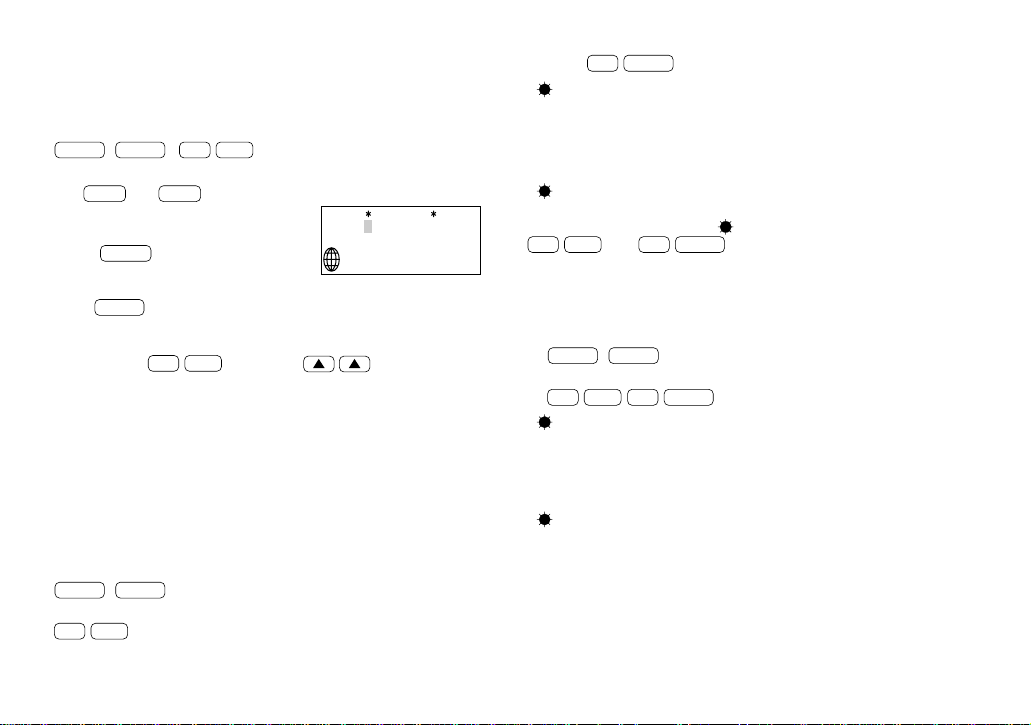
Using the WORLD clock
The time in any place in the world can be checked by selecting its
zone number. The default city for the WORLD time is London.
Displaying the WORLD time
Display the WORLD clock.
CLOCK
(
CLOCK
)
(The initial WORLD city setting is London.)
Changing the city for the WORLD time
1. Display the WORLD clock.
CLOCK
(
CLOCK
)
The current city setting appears on the display.
2. Enter the edit mode.
2nd
EDIT
3. Follow the procedure for “Setting and changing the HOME city” (from
step 3) on page 6 to select the city name you want.
Changing the time
If you wish to change the current HOME time and date, follow the
procedure under “Setting the clock” mentioned above. Skip step 4 if
you do not want to change the time. Skip step 5 if you do not want to
change the date.
WORLD
LONDON
(
+ 5:00
)
6:30
PM
SUN JAN 10,1999
The time differences from the HOME city
Zone number
PB
Registering a city name not found in the
list
For example, if you wish to set the city for the WORLD time to Rome
(which is in zone number 12, but is not included in the city list):
1. Display the WORLD clock and enter the edit mode.
CLOCK
(
CLOCK
)
2nd
EDIT
The cursor flashes on the city name line.
2. Use
NEXT
and
PREV
to set the zone
number to 12 (initially, the city is Paris.)
3. Enter the city name (up to 8 characters).
ROME
SPACE
4. Press
ENTER
to store the name.
NOTE: To register a city name for the HOME clock, first display the
HOME clock then
2nd
EDIT
followed by to move the
cursor to the city name line.
Setting daylight saving time/summer time
If DST (daylight saving time/summer time) is used, the local time is
advanced once hour during the summer. The HOME clock and the
WORLD clock can be set for DST as follows:
HOME clock:
To set
1. Display the HOME clock.
CLOCK
(
CLOCK
)
2. Enter the edit mode.
2nd
EDIT
WORLD
ROME
[
12.0
]
7:30
PM
SUN JAN 10,1999
3. Enter the correct DST time.
4. Press
2nd
ENTER
.
“ ” appears on the display and DST is set.
To clear
Perform the steps above except for step 3. To clear the DST, set time
other than the DST in step 3.
“
” disappears and DST is cleared.
NOTE: For HOME clock, the “ ” display is turned on or off whenever
2nd
EDIT
then
2nd
ENTER
are pressed, even if the time setting is
not changed. After this operation, the clock starts from 0 seconds.
WORLD clock:
To set
1. Display the WORLD clock.
CLOCK
(
CLOCK
)
2. Enter the edit mode and change the setting.
2nd
EDIT
2nd
ENTER
“ ” appears on the display and DST is set. Setting DST in the
WORLD clock automatically sets the time one hour ahead.
To clear
Perform the same steps as those used to set the DST.
“ ” disappears and the time for all WORLD cities is one hour back.
NOTES:
• When DST is set for one WORLD city, it is used for all cities displayed
in the WORLD clock.
• DST can be set independently in the HOME and WORLD clocks. For
example, if DST is set for the HOME clock, it does not have to be set
for the WORLD clock.

9
3. Display the calendar for two months prior
to the month presently on the display.
PREV
PREV
NOTES:
• When
NEXT
or
PREV
is pressed continuously, the calendar will
scroll forward or backward.
• A “ ’ ” is attached to the years 1901 to 1999 while no mark is
attached to the years 2000 to 2099.
4. Press
2nd
CALENDAR
to return the calendar to the current date.
Recalling a month by designating the date
For example, to display the month of February 1999, perform the steps
below:
1. Select the CALENDAR mode.
2nd
CALENDAR
2. Enter the date entry mode.
C
•
CE
To change the date, move the cursor with the cursor movement keys.
To clear the displayed date, press
C
•
CE
.
3. Enter the date.
02 01 1999
To enter a single-digit date or month, enter zero and the digit (that is
“02” or “01").
4. Recall the calendar.
ENTER
The specified monthly calendar will be displayed.
USING THE CALENDAR
FUNCTION
Displaying and changing the monthly
calendar
In the CALENDAR mode, the month can be changed by using
NEXT
and
PREV
, or designating the year and month.
Operations of
NEXT
and
PREV
during the monthly
calendar display
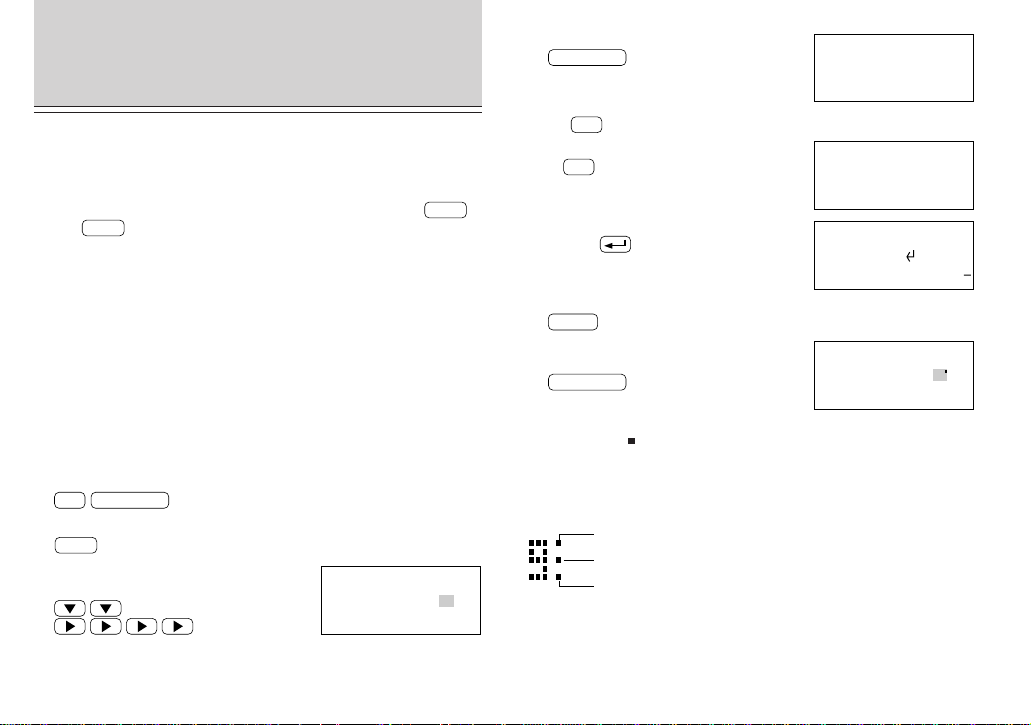
The Organizer has a five-line display. The monthly calendar is
displayed occasionally in two separate displays. In this instance,
symbol “
” appears on the display and the last week will be displayed
by pressing
several time.
Changing the month with
NEXT
and
PREV
In the CALENDAR mode, the month can be changed by pressing
NEXT
(to display the upcoming months) and
PREV
(to display past months) as
follows:
1. Select the CALENDAR mode.
CALENDAR
“ ” indicates that the last week of the
month is hidden below. To display the
last week, press
until the cursor
scrolls into the next screen.
If the display above does not appear, press
2nd
CALENDAR
. (In this
example, January 1999 is displayed.)
2. Display the calendar for the next month.
NEXT
’9 9
1
1 2
3 4 5 6 7 8 9
10 11 12 13 14 15 16
17 18 19 20 21 22 23
24 25 26 27 28 29 30
’9 8
12
@
1 2 3 4 5
6 7 8 9 10 11 12
13 14 15 16 17 18 19
20 21 22 23 24 25 26
27 28 29 30 31
MM/DD/YYYY
MONTH :01
DAY :10
YEAR :1999
MM/DD/YYYY
MONTH :02
DAY :01
YEAR :1999
10
USING THE SCHEDULE
FUNCTION
Entering data in the SCHEDULE mode
The date of a schedule item can be selected:
1. By selecting the desired date in the CALENDAR mode.
2. By selecting the desired date in the SCHEDULE mode with
NEXT
and
PREV
.
3. By recalling the desired date directly in the SCHEDULE mode.
Once the date has been selected, actual entry of the schedule item is
the same for all three methods.
NOTE: Multiple items may be scheduled on the same date. If other
items have been previously scheduled for a given date, simply enter
the new appointment over the old one. The Organizer’s display will
clear upon recognition of the new entry.
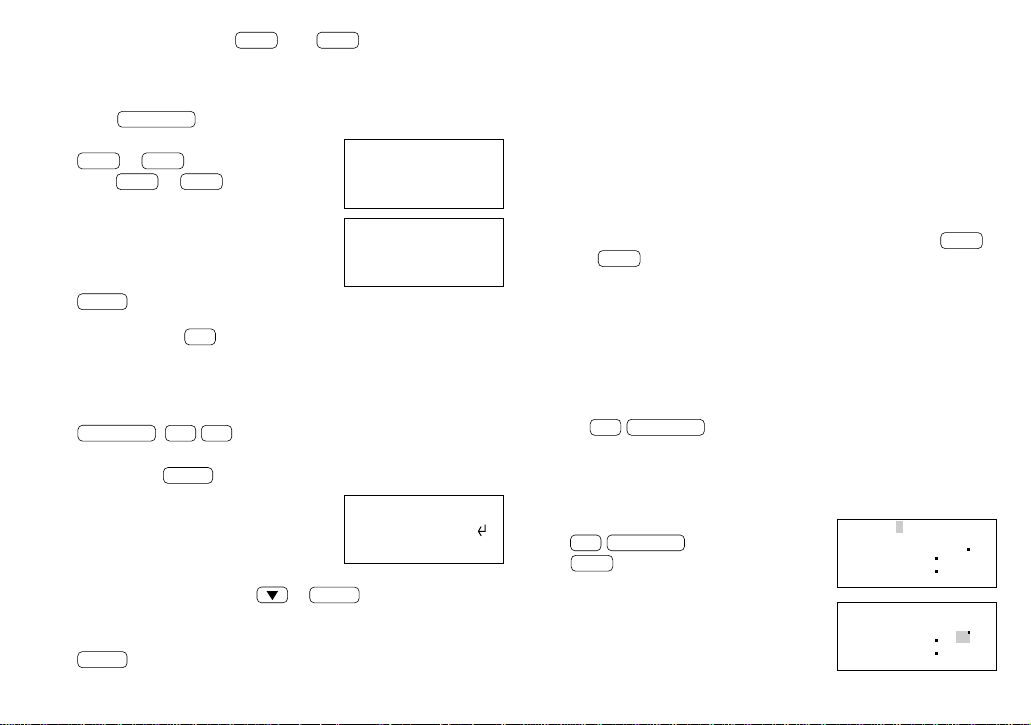
Entering items from the CALENDAR mode
To enter an item from the CALENDAR mode, such as, “February 19,
1999 10:00AM - 2:00PM ABC Project meeting in room 23”:
1. Select the CALENDAR mode.
2nd
CALENDAR
2. Change the calendar to February 1999.
NEXT
3. Move the cursor to the 19th of February,
using the cursor movement keys.
4. Change to the SCHEDULE mode.
SCHEDULE
5. Enter the starting time.
10
AM
(“:00AM” will be entered automatically.)
6. Enter the finishing time.
2
PM
7. Enter the schedule detail.
Use the
(Return) key to change the
line.
8. Store the scheduled meeting in the memory.
ENTER
9. Now check to see if the data was
registered in the memory.
CALENDAR
Notice the tag ( ) next to “February 19”. It indicates a scheduled item
for that date. Items beginning in the morning result in a tag at the
upper right of the date, while those beginning in the afternoon result in
a tag appearing at the lower right of the date.)
If an anniversary has been set, the tag will appear in the center.
Entering items from the SCHEDULE mode
There are two methods of selecting the date depending on which is
more convenient.
FRI FEB 19,1999
TIME ?
FRI FEB 19,1999
10:00AM~ 2:00PM
DESCRIPTION ?
FRI FEB 19,1999
10:00AM~ 2:00PM
ABC Project
meeting in room 23
’9 9
2
1 2 3 4 5 6
7 8 9 10 11 12 13
14 15 16 17 18 19 20
21 22 23 24 25 26 27
28
Schedule item beginning in the morning
Anniversary item
Schedule item beginning after the noon
’9 9
2
1 2 3 4 5 6
7 8 9 10 11 12 13
14 15 16 17 18 19 20
21 22 23 24 25 26 27
28
11
Selecting the date with
NEXT
and
PREV
This method is convenient for entering data into a nearby date. For
example, to enter an item such as, “February 17, 3:00PM - 5:00PM
Sales meeting”:
1. Press
SCHEDULE
.
2. Recall “February 17”.
PREV
or
NEXT
Press
PREV
or
NEXT
until “February
17” is recalled.
3. Enter the starting and finishing times,
and detail.
4. Store the scheduled meeting in the
memory.
ENTER
Scheduling with
C
•
CE
and the numerical keys
This method is convenient for entering data into a date that is not close
to the displayed date. For example, to schedule, “February 24, 1999
1:30PM Dr. Wilson visit at Guest room”:
1. Enter the date entry mode.
SCHEDULE
C
•
CE
C
•
CE
2. Enter the scheduled date. (February 24, 1999)
02 24 1999
ENTER
3. Enter the starting and finishing times,
and detail.
NOTE: If you don’t know what time a scheduled item, such as a
meeting, will finish, press either
or
ENTER
following the starting
time, then enter the schedule item.
4. Store the scheduled meeting in the memory.
ENTER
WED FEB 17,1999
TIME ?
Scheduling items without times
After selecting the schedule date as outlined above, schedule items
can be entered directly without a specified time, except in instances
when the date begins with a number. Simply begin by entering the
letters in the item.
Recalling scheduled data
Scheduled items can be displayed by:
1. Recalling today’s agenda.
2. Recalling scheduled items from the CALENDAR mode.
3. Recalling scheduled items from the SCHEDULE mode with
NEXT
and
PREV
.
4. Recalling only scheduled dates (skip empty dates).
5. Recalling scheduled items from SCHEDULE mode by entering the
date numerically.
6. Recalling scheduled items using the first letter(s) of the item.
7. Recalling scheduled items with a keyword search.
8. Recalling scheduled items using the index display.
Recalling today’s agenda
Press
2nd
SCHEDULE
.
If nothing has been entered for the day, only the date will be displayed.
Recalling scheduled items from the CALENDAR mode
For example, to recall the schedule for February 19, 1999:
1. Select the CALENDAR mode.
2nd
CALENDAR
NEXT
2. Select the 19th with the cursor
movement keys.
WED FEB 17,1999
3:00PM~ 5:00PM
Sales meeting
_
WED FEB 24,1999
1:30PM~
Dr. Wilson visit
at Guest room_
’9 9
2
1 2 3 4 5 6
7 8 9 10 11 12 13
14 15 16 17 18 19 20
21 22 23 24 25 26 27
28
’9 9
2
1 2 3 4 5 6
7 8 9 10 11 12 13
14 15 16 17 18 19 20
21 22 23 24 25 26 27
28

12
You may also recall February 19 in the CALENDAR mode by
pressing
C
•
CE
, entering the date, and pressing
ENTER
.
3. Recall the schedule display.
SCHEDULE
Recalling scheduled items from the SCHEDULE mode with
NEXT
and
PREV
For example, to recall the schedule for January 10, 1999 (today):
1. Select the SCHEDULE mode to display today’s schedule.
2nd
SCHEDULE
2. Recall the schedule for the next day.
NEXT
The agenda for the next day will be displayed. If there are several items
on the same day, use
NEXT
to recall them in chronological order.
Recalling only scheduled dates (skip empty dates)
1. Search for all days containing scheduled items.
SCHEDULE
2nd
NEXT
2. Press
2nd
NEXT
to recall the next scheduled items.
NOTES:
• After the last scheduled item has been found, “NOT FOUND!” is
displayed, then the previous display reappears. Pressing
2nd
PREV
references scheduled items in reverse.
• Pressing
SCHEDULE
C
•
CE
C
•
CE
and
2nd
NEXT
displays the
oldest past scheduled item. If you press
2nd
PREV
, the most
distant future scheduled item is displayed.
Recalling scheduled items from SCHEDULE mode by
entering the date numerically
This method is handy for recalling scheduled items which are far away.
For example, to recall the schedule for February 17, 1999:
1. Enter the date entry mode.
SCHEDULE
C
•
CE
C
•
CE
2. Enter the date.
02 17 1999
3. Recall the agenda for that date.
ENTER
Recalling scheduled items using the first letter(s) of the item
For example, to recall the “Dr.”-related items scheduled after January
10, 1999 (today):
1. Select the SCHEDULE mode to display today’s schedule.
2nd
SCHEDULE
2. Enter the first letter(s) and begin the search.
DR.
NEXT
NOTES:
• This search is not case sensitive.
• When
NEXT
is pressed, a forward search from the displayed date
will begin for scheduled items beginning with the word “Dr.”
• If
PREV
is pressed, a reverse search will take place for items
scheduled before the date presently appearing on the display.
Recalling scheduled items with a keyword search
To search for scheduled items containing the word “meeting” after
January 1, 1999, for example:
1. Recall the schedule for January 1, 1999.
SCHEDULE
C
•
CE
C
•
CE
01 01 1999
ENTER
2. Enter the keyword for the search and begin the search.
MEETING
2nd
NEXT
The first scheduled item containing the word “meeting” after January 1,
1999 will appear on the display.
13
2. Display the index.
2nd
INDEX
Items scheduled for the specified and any subsequent dates will be
displayed. If there is no scheduled item on the specified or subsequent
dates, the last item will be displayed. If you did not enter the date in step
1 above, the index display will start at the earliest scheduled item.
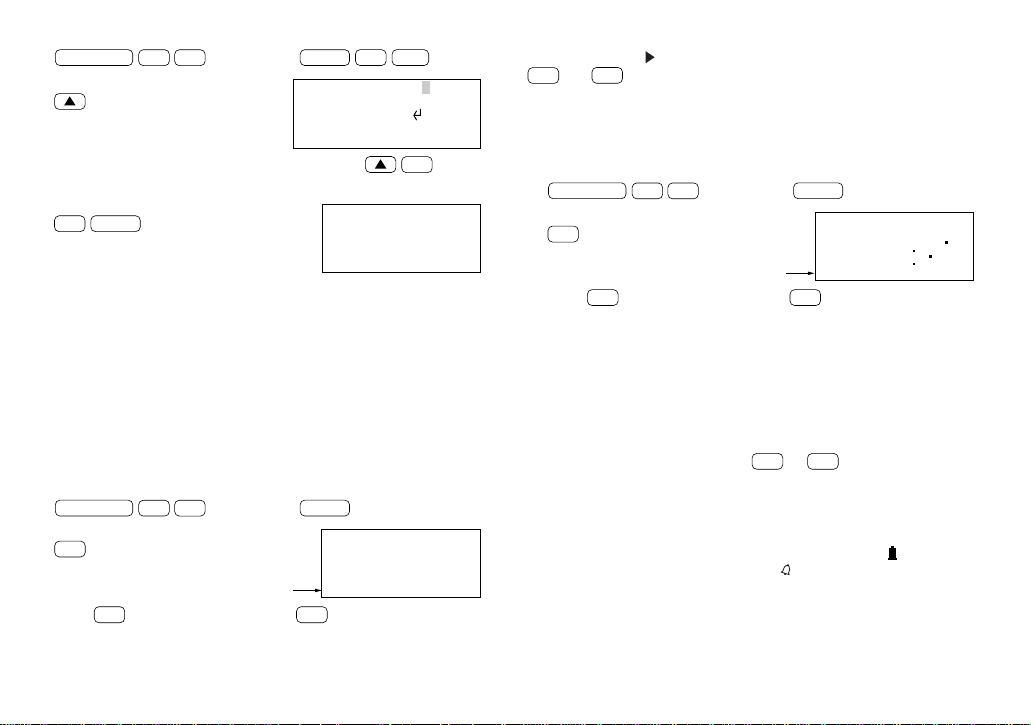
Editing scheduled data
Press
2nd
EDIT
to enter the edit mode, then use , , ,
,
INS
,
DEL
or
BS
to edit the data. For example, to change
“Guest room” within a scheduled item on February 24, to “Meeting room”:
1. Recall the schedule data to be changed.
SCHEDULE
C
•
CE
C
•
CE
02 24 1999
ENTER
2. Enter the edit mode.
2nd
EDIT
3. Move the cursor to the section to be
edited and correct it.
4. Store the edited data.
ENTER
Copying scheduled data
The copy function operates similarly to the edit mode, instead of
pressing
ENTER
to store the data,
2nd
ENTER
are pressed. For
example, if the “ABC Project meeting in room 23” scheduled on
February 19 is also to be held at the same time on March 5, you may
copy it onto the new date as follows:
WED FEB 24,1999
1:30PM~
Dr. Wilson visit
at Meeting room
EDIT
NOTES:
• The keyword search is not case sensitive.
• To search for additional items containing the word “meeting”, press
2nd
NEXT
. When no more items containing the word “meeting”
are scheduled, “NOT FOUND!” will appear on the display.
• To browse back through the list of entries containing the keyword,
press
2nd
PREV
.
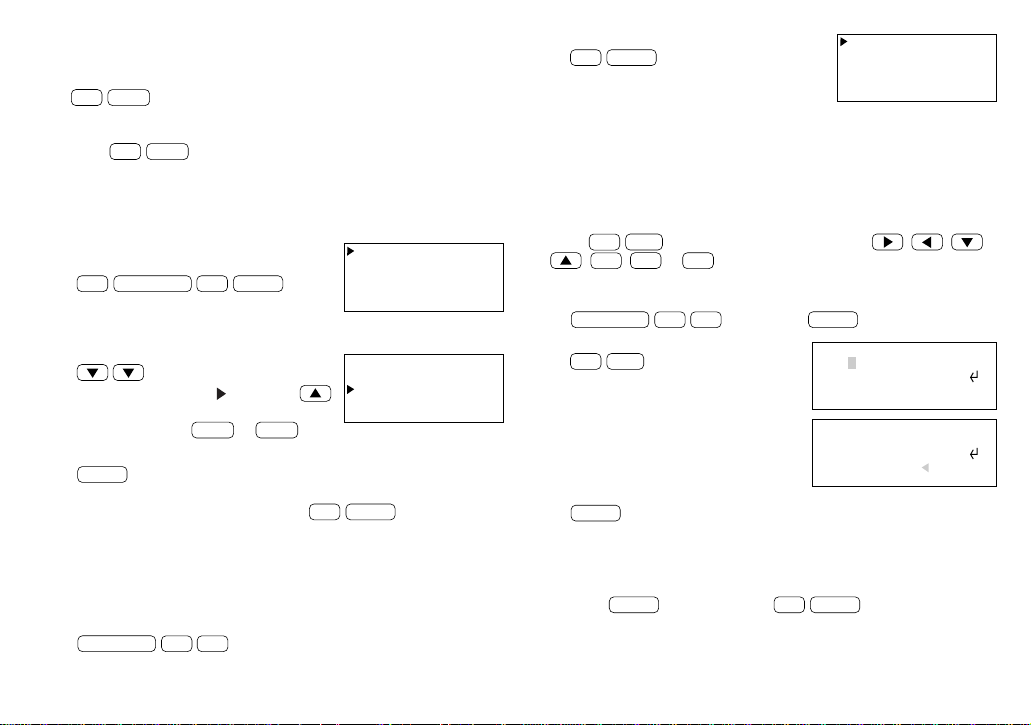
Recalling scheduled items using the index display
An index of your scheduled entries is available, sorted in chronological
order.
1. Select the SCHEDULE mode and display
the index.
2nd
SCHEDULE
2nd
INDEX
(Up to five entries are displayed at a time.)
The first 12 characters of the first line of each entry are displayed.
2. Select the entry you want to check.
(To move the pointer “ ” up, press .
To step to the next or previous page of
five entries, press
NEXT
or
PREV
.)
3. Display the details.
ENTER
NOTE: The entry being displayed when
2nd
INDEX
is pressed will
appear at the top of the list. If you are at the initial entry display, the
first entry for the day will be at the top of the list. If no entry exists on
that day, the next or the last entry will be at the top.
You can also display an index of entries for a desired date.
1. Select the SCHEDULE mode and enter the date you want to check.
SCHEDULE
C
•
CE
C
•
CE
02 24 1999
2/17 Sales meetin
2/19 ABC Project
2/24 Dr. Wilson v
2/25 New products
2/17 Sales meetin
2/19 ABC Project
2/24 Dr. Wilson v
2/25 New products
2/24 Dr. Wilson v
2/25 New products
WED FEB 24,1999
1:30PM~
Dr. Wilson visit
at Guest room
EDIT
14
1. Recall the items scheduled for February 19 and enter the edit mode.
SCHEDULE
C
•
CE
C
•
CE
02 19 1999
ENTER
2nd
EDIT
2. Change the date.
03 05
(You can also change the entire date by pressing
C
•
CE
at this
point and re-entering the entire date.)
3. Copy the data.
2nd
ENTER
Deleting scheduled data
Scheduled data can be erased by:
1. Deleting one agenda item at a time.
2. Deleting the agenda for an entire month.
3. Deleting all of the data in the schedule memory.
Deleting one agenda item at a time
For example, to delete the “ABC Project meeting in room 23” scheduled
for March 5:
1. Recall the schedule for that day.
SCHEDULE
C
•
CE
C
•
CE
03 05 1999
ENTER
2. Delete the schedule.
DEL
3. Press
Y
. (To retain the data, press
N
.)
After deletion, the next agenda item for that day of that date alone will
be displayed.
NOTE: You can also delete individual entries from the index display.
Move the pointer “
” to select the entry you want to delete and press
DEL
and
Y
.
Deleting the agenda for an entire month
For example, to delete the agenda for February 1999:
1. Select the CALENDAR mode and display the calendar for the month
you would like to delete.
CALENDAR
C
•
CE
C
•
CE
02 01 1999
ENTER
2. Delete the agenda for an entire month.
DEL
3. Press
Y
. (To retain the data, press
N
.)
Deleting all of the data in the schedule memory
Refer to “Deleting all of the data in each function” on page 30.
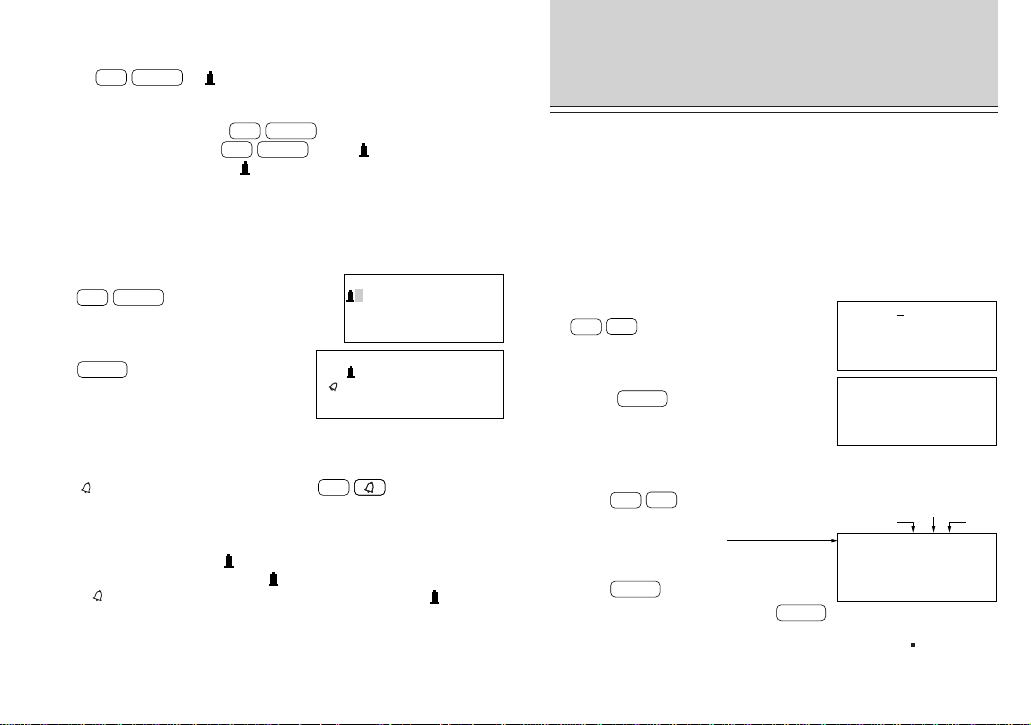
Using the schedule alarm
The Organizer schedule alarm sounds when the time for a scheduled
appointment or other item on the agenda arrives. To stop the alarm
after it starts beeping, simply press
C
•
CE
. If
C
•
CE
is not pressed, the
alarm will stop automatically after approximately 20 seconds.
Setting the alarm to ring
The schedule alarm can be set for a scheduled appointment.
1) Select an agenda item and mark it for the alarm with “
”.
2) Activate the alarm for that item with “
”.
Once an agenda item has been selected for an alarm and the alarm has
been turned on, the alarm will sound automatically and the relevant item
will be displayed even if the Organizer has been turned off. The alarm
can also be set to sound for secret items without displaying the item.
FRI MAR 5,1999
10:00AM~ 2:00PM
ABC Project
DELETE ? Y/N
meeting in room 23
Flashing
Flashing
M/D/Y=03/05/1999
10:00AM~ 2:00PM
ABC Project
meeting in room 23
EDIT
FRI MAR 5,1999
10:00AM~ 2:00PM
ABC Project
meeting in room 23
’9 9
2
1 2 3 4 5 6
7 8 9 10 11 12 13
14 15 16 17 18 19 20
21 22 23 24 25 26 27
DELETE ? Y/N
15
Setting the schedule alarm
First display the schedule item for which you wish to set the alarm and
press
2nd
ALARM
. “ ” appears to the left of the starting time for
the scheduled item on the display, to indicate that the alarm has been
set for that item. You can also set the alarm while you schedule an item
on the agenda by pressing
2nd
ALARM
.
However, when you press
2nd
ALARM
while “ ” is displayed, the
alarm will be canceled and “
” will disappear from the display.
For example, to set an alarm for a meeting scheduled on December 17
(“December 17, 1999, 10:00AM - 11:00AM Meeting”) while entering the
schedule item:
1. Enter the date, time, and schedule detail.
2. Set the alarm.
2nd
ALARM
3. Store the item.
ENTER
The alarm will sound at the starting time of the meeting.
NOTES:
•“ ” appears or disappears each time
2nd
are pressed.
• If the alarm time you attempt to enter has already passed, the
message “ALARM TIME ELAPSED!” appears briefly. Enter the
correct alarm time.
• After the alarm sound, “
” will disappear and the scheduled item
will remain in memory without “
”.
• If “
” is turned off and the set alarm time has passed, “ ” will
remain in front of the scheduled item.
• The schedule alarm may not sound when the time for a schedule
appointment or other item on the agenda arrives while you are
transferring data or freeing up memory.
USING THE ANNIVERSARY
FUNCTION
Anniversaries can be stored in the Organizers by specifying the month
and date (such as wedding anniversaries and birthdays), or month,
week, and day of the week (such as Mother’s Day (second Sunday in
May)). Once a date is designated as an anniversary, the date will be
an anniversary for every year from 1901 to 2099.
Entering anniversaries
For example, to enter “Nancy’s birthday” on February 12:
1. Select the ANNIVERSARY mode.
ANN
1
(MONTH/DAY)
2. Enter the date and label.
02 12
ENTER
3. Enter the description.
To enter an anniversary specifying the month, week, and day of the week:
1. Press
ANN
2
(MONTH/WEEK) to select ANN2.
2. Enter the month, week,
and day of the week.
05 2 0
3. Press
ENTER
.
4. Enter the description, then press
ENTER
.
Anniversaries are also automatically marked with the tag (
) in the
center of the monthly calendar. (Refer to page 10.)
FRI DEC 17,1999
10:00AM~11:00AM
Meeting
FRI DEC 17,1999
10:00AM~11:00AM
Meeting
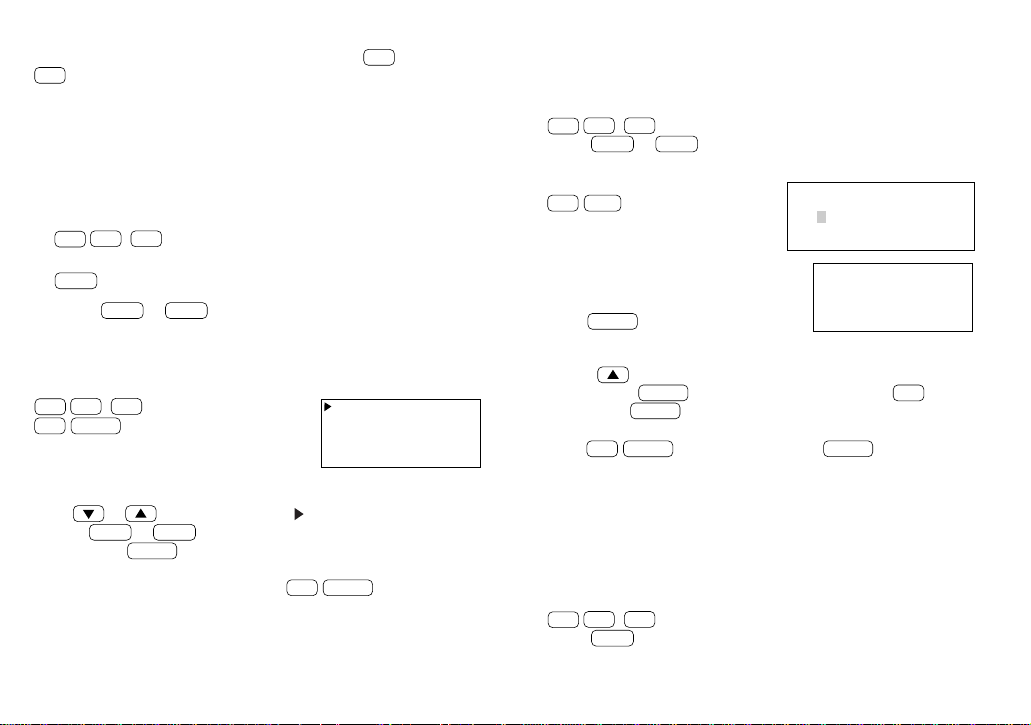
FEB 12
–ANN–
Nancy’s birthday
M/W/D=05/2/0
M=MONTH W=WEEK
D=DAY 0:S 1:M 2:T
3:W 4:T 5:F 6:S
MAY SUN
WEEK:2
M/D= /
M=MONTH D=DAY
16
NOTE: To recall, edit, or delete anniversaries entered in ANN2 (with
month, week, and day of the week specified), select
2
instead of
1
in the procedures below.
Recalling anniversaries
In the ANNIVERSARY mode, anniversaries can be recalled with the
sequential search or in the index display.
Sequential search
1. Select the ANNIVERSARY mode.
ANN
1
(
2
)
2. Recall the anniversary.
NEXT
Each time
NEXT
or
PREV
is pressed, the next entry will be recalled
in calendar sequence (forward or backward).
Index display
Select the ANNIVERSARY mode and display the index.
ANN
1
(
2
)
2nd
INDEX
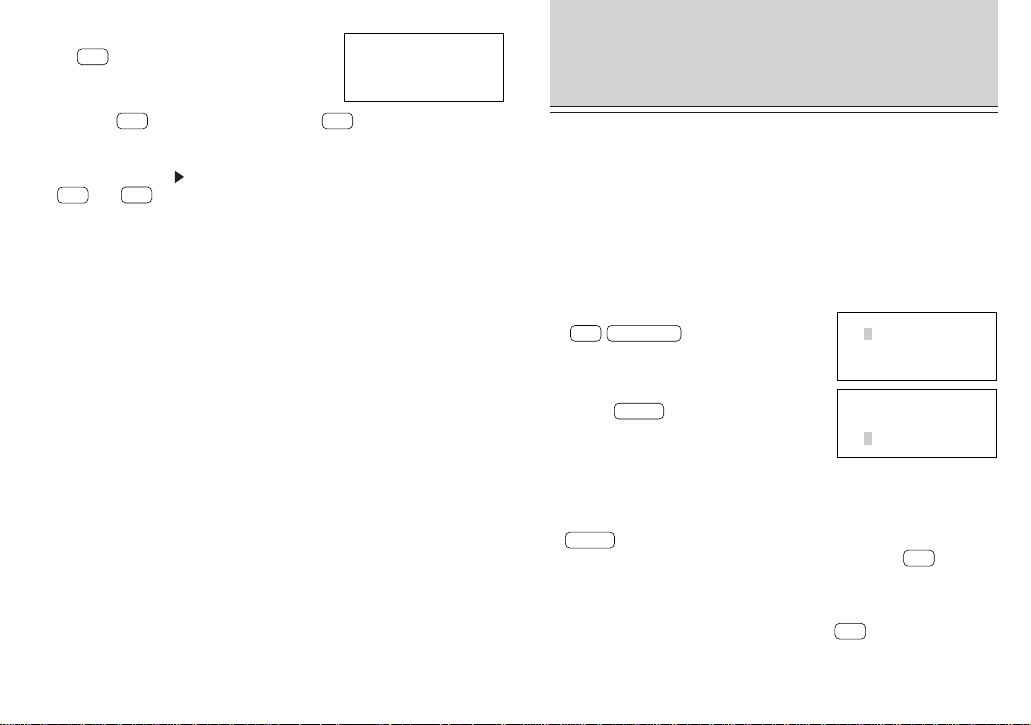
Up to five entries are displayed at a time.
The first 12 characters of the first line of each entry are displayed.
Press
or to move the pointer “ ” down or up to select an
entry, or
NEXT
or
PREV
to step to the next or previous page of five
entries. Press
ENTER
to display details of the entry.
NOTE: The entry being displayed when
2nd
INDEX
is pressed will
appear at the top of the list.
Editing anniversaries
To edit an anniversary entry, for example, such as changing “Nancy’s
birthday” to “Cathy’s birthday”:
1. Recall the entry to be changed.
ANN
1
(
2
)
(Press
NEXT
or
PREV
repeatedly until “Nancy’s birthday”
appears.)
2. Enter the edit mode.
2nd
EDIT
3. Move the cursor to the letter you wish
to change and change it.
4. Press
ENTER
To change the date, week, or day of the week, first enter the edit mode,
then press
until it flashes. Enter the new date, week, or day of the
week, then press
ENTER
. To cancel any changes, press
C
•
CE
twice
before pressing
ENTER
.
NOTE: If
2nd
ENTER
are pressed instead of
ENTER
after making
changes, data can be copied. (Refer to “Copying scheduled data” on
page 13.)
Deleting anniversaries
Deleting one entry
To delete the “Cathy’s birthday” entry, for example:
1. Recall the entry to be deleted.
ANN
1
(
2
)
(Press
NEXT
repeatedly until the entry is displayed.)
FEB 12
–ANN–
Nancy’s birthday
EDIT
FEB 12
–ANN–
Cathy’s birthday
2/12 Nancy’s birt
4/ 7 Founding of
7/ 1 Wedding anni
10/10 Mr. Brown’s
17
2. Delete the entry.
DEL
3. Press
Y
. (To retain the entry, press
N
.)
NOTE: You can also delete individual entries from the index display.
Move the pointer “
” to select the entry you want to delete and press
DEL
and
Y
.
Deleting all entries
Refer to “Deleting all of the data in each function” on page 30.
USING THE TELEPHONE
DIRECTORY
The telephone directory can store names, telephone numbers,
addresses, and so on. The Organizer’s telephone directory consists of
TEL1, TEL2, and TEL3 for keeping business, private, and other listings
separately.
Designating the filenames
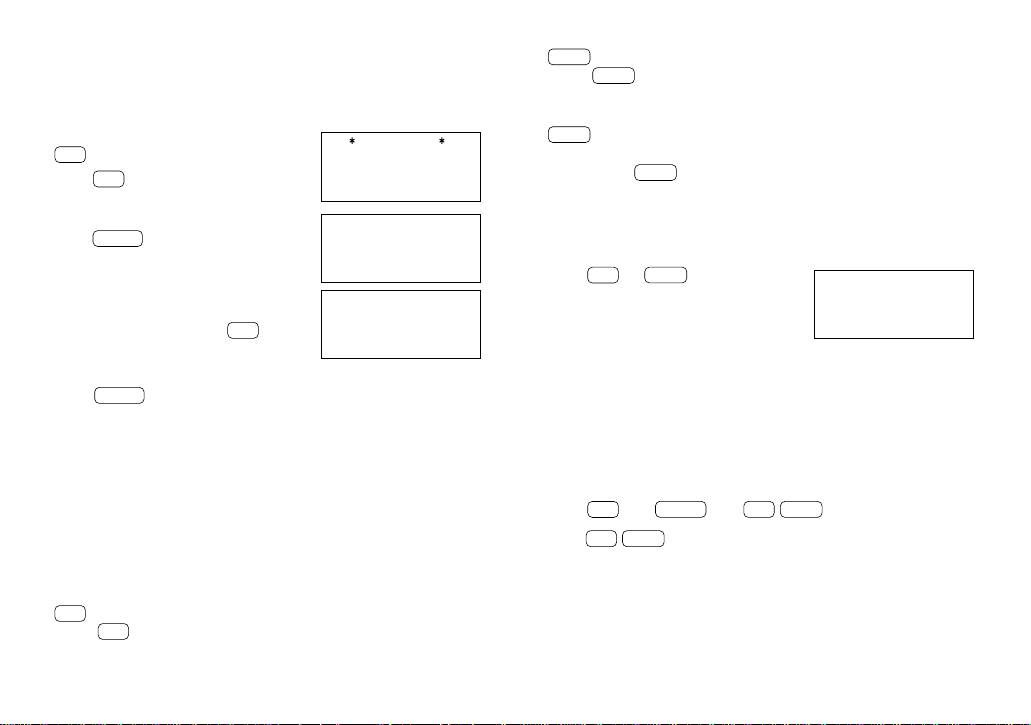
Filenames for the directories can be input in the miscellaneous function
mode.
1. Recall the miscellaneous function menu.
2nd
FUNCTION
4
2. Store the directory filenames.
(Press
ENTER
to determine the
filename.)
NOTES:
• Use up to 10 letters for designating a filename.
• Not to assign a filename to a directory, skip this step by pressing
ENTER
.
• To discontinue the entry of a directory filename, press
C
•
CE
twice.
Entering entries
The directories are cycled through each time
TEL
is pressed:
TEL1 → TEL2 → TEL3 → TEL1 → ...
< TEL FILE NAME >
1:
[
TEL 1
]
2:
[
TEL 2
]
3:
[
TEL 3
]
FEB 12
–ANN–
Cathy’s birthday
DELETE ? Y/N
< TEL FILE NAME >
1:
[
Business
]
2:
[
Private
]
3:
[
TEL 3
]
18
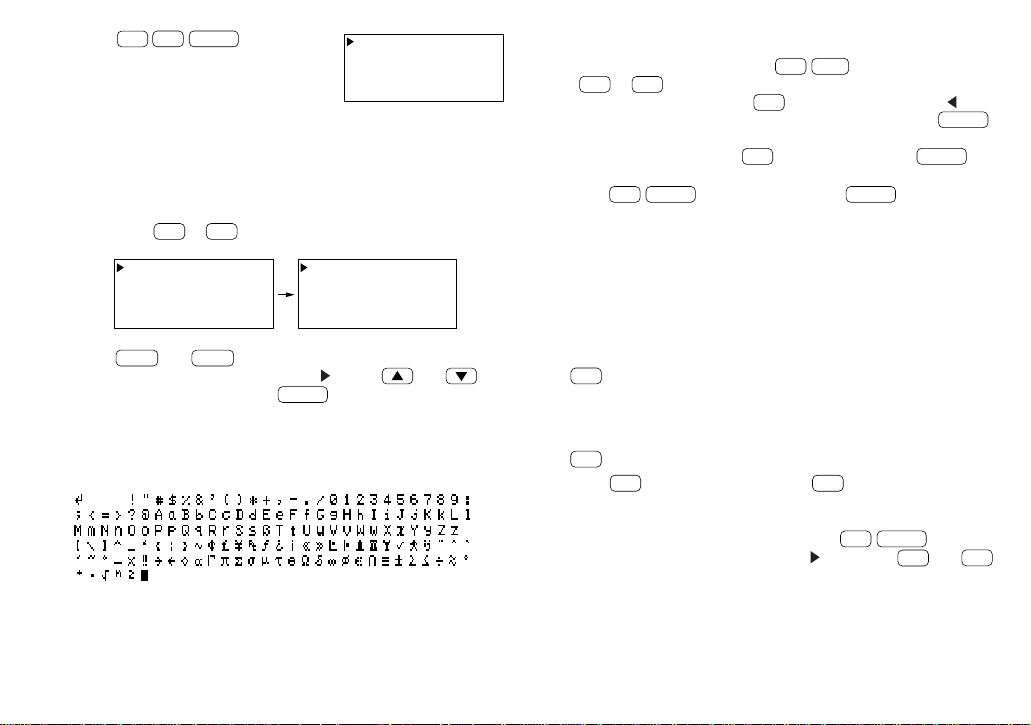
Entering telephone entries into the TEL1 directory
To enter the following sample entry into the TEL1 directory, follow steps
1 to 4 below:
Edwards Bob 201-555-5600 FAX 555-1869
President, ABC Co.
1. Select the TEL mode.
TEL
Press
TEL
repeatedly until the TEL1
directory name appears.
2. Enter the name of the first party, then
press
ENTER
.
3. Enter the party’s telephone number and
fax number.
(To enter hyphen “–”, press
–
.)
4. Enter the person’s position and company name, etc.
5. Press
ENTER
.
Recalling entries
Telephone entries can be recalled using the following four methods:
1. Sequential search, which retrieves the entries in alphabetical order
2. Direct search using the first letter(s) of the party’s name
3. Keyword search, for any word contained in the entry
4. Index display
Recalling an entry with a sequential search
1. Select the directory.
TEL
(Press
TEL
repeatedly until the desired directory name appears.)
2. Recall the first entry.
NEXT
(When
NEXT
is pressed, a search of the entries begins in
alphabetical order.)
3. Recall subsequent entries.
NEXT
NOTE: Pressing
PREV
recalls the entries in reverse order.
Recalling an entry with a direct search
To recall an entry which starts with “E” in the TEL1 directory, for example:
1. First select the TEL mode (TEL1 directory).
2. Press
C
•
CE
E
NEXT
.
Subsequent entries will be recalled in sequential order. If there is no
matching entry which starts with the character you entered, the
subsequent entry found is displayed. This search is not case sensitive.
Recalling an entry with a keyword search
To recall an entry containing the word “ABC Co.” in the TEL1 directory,
for example:
1. Select the TEL mode (TEL1 directory).
2. Press
C
•
CE
ABC
SPACE
CO.
2nd
NEXT
.
Pressing
2nd
NEXT
displays successive entries containing the word
“ABC Co.”. This search is not case sensitive.
Recalling an entry with index search
Entries of a directory can be displayed alphabetically in an index. For
example, to display the index of the TEL1 directory entries:
Business
NAME ?
Edwards Bob
NUMBER ?
Edwards Bob
201-555-5600
FAX 555-1869
President,ABC Co.
Edwards Bob
201-555-5600
FAX 555-1869
President,ABC Co.
19
1. Press
TEL
2nd
INDEX
.
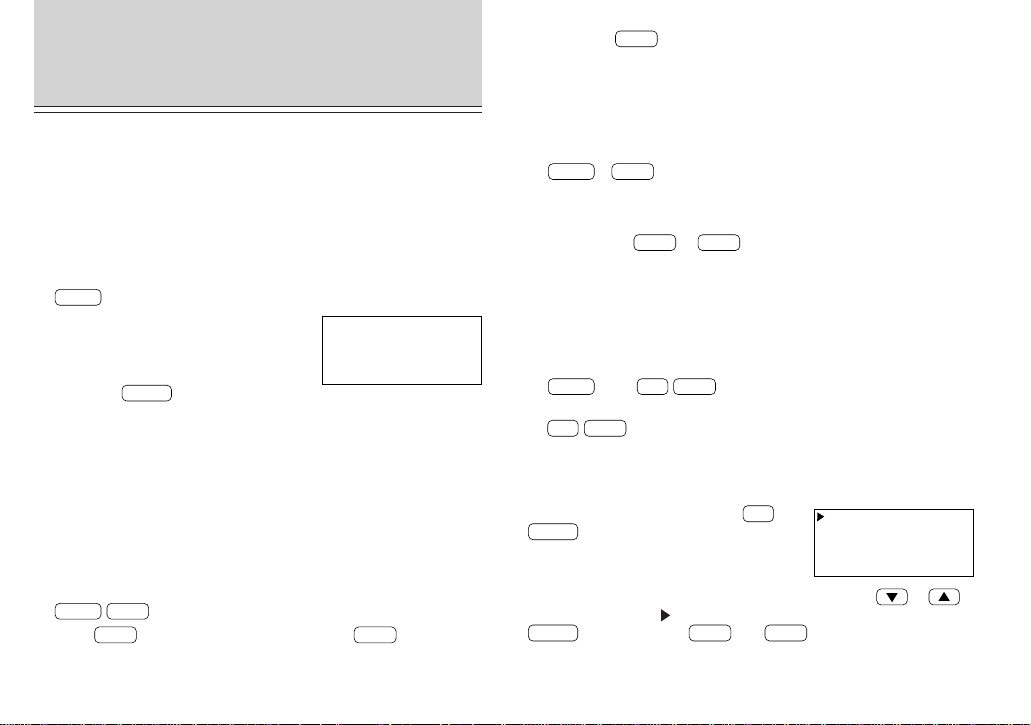
Up to five names can be displayed at a
time.
The first 18 characters of the first line of each entry are displayed.
To display the first entry beginning with a particular character, press the
desired character key. If there is no entry for that character, the first
subsequent entry will be displayed.
For example, if
S
or
P
is pressed at the left display below:
Pressing
NEXT
and
PREV
scrolls the page forward and backward.
To see the whole entry, move the pointer “
” using and to
select the desired entry, and press
ENTER
.
NOTES:
• This search is not case sensitive.
• The characters are sorted in the following order:
Editing entries
To edit an entry, recall it, then press
2nd
EDIT
to enter the edit mode.
Use
DEL
or
BS
to delete characters. With the cursor “■” you may
type over the characters. Press
INS
to change the cursor to “ ” and
you may insert new characters. After making changes, press
ENTER
to store the new entry.
To cancel any changes, press
C
•
CE
twice before pressing
ENTER
.
NOTE: If
2nd
ENTER
are pressed instead of
ENTER
after making
changes, data can be copied. (Refer to “Copying scheduled data” on
page 13.)
Deleting entries
Either a single entry or an entire directory can be deleted.
Deleting a single entry
1. Select the directory containing the entry to be deleted.
TEL
(Repeatedly)
2. Recall the entry to be deleted.
Use any of the methods (1 to 3) mentioned above (page 18).
3. Delete the entry.
DEL
4. Press
Y
. (To retain the data, press
N
.)
NOTE: You can also delete individual entries from the index display.
Display the index of the desired directory with
2nd
INDEX
, select the
entry you want to delete with the pointer “
” and press
DEL
and
Y
.
Deleting entire directories (TEL1, TEL2, or TEL3)
Refer to “Deleting all of the data in each function” on page 30.
Hamilton Olivia
Louis Greg
MacDonald Edith
Scott Teresa
Smith Robert
Scott Teresa
Smith Robert
Weiner Mike
Space
Davis Mike
Edwards Bob
20
USING THE MEMO
FUNCTION
The Organizer’s memo function conveniently stores notes or other bits
of information not appropriate for the schedule or other directories.
Entering memos
For example, to enter “X’mas presents list, Sweater for Jill, Ring for
Mother”:
1. Select the MEMO mode.
MEMO
2. Store the data.
Always press
ENTER
to store the memo.
Recalling memos
Memos can be recalled using:
1. Sequential search in the order of entry
2. Direct search for the first letter(s) of the entry
3. Keyword search for a specified letter(s)
4. Index display
Recalling memos with a sequential search
1. Select the MEMO mode and recall the entry.
MEMO
NEXT
2. Press
NEXT
to display the next memo. (Press
PREV
to search
memos in the reverse direction.)
NOTE: When
NEXT
is pressed after the last entry is displayed, “NOT
FOUND” is displayed.
Recalling memos with a direct search
For example, to search for a memo beginning with the letter “A”:
1. Select the MEMO mode, then search for a memo starting with the
letter “A”.
MEMO
A
NEXT
When the first some letters of the memo are matched with those you
entered, the matched memo is displayed.
NOTE: Pressing
NEXT
or
PREV
after the matched data is displayed
searches in the same direction as in the sequential search.
This search is not case sensitive.
Recalling memos with a keyword search
For example, to search memos containing the word “Jill”:
1. Enter the keyword in the MEMO mode.
MEMO
JILL
2nd
NEXT
2. To search subsequent memos containing the keyword, press:
2nd
NEXT
.
This search is not case sensitive.
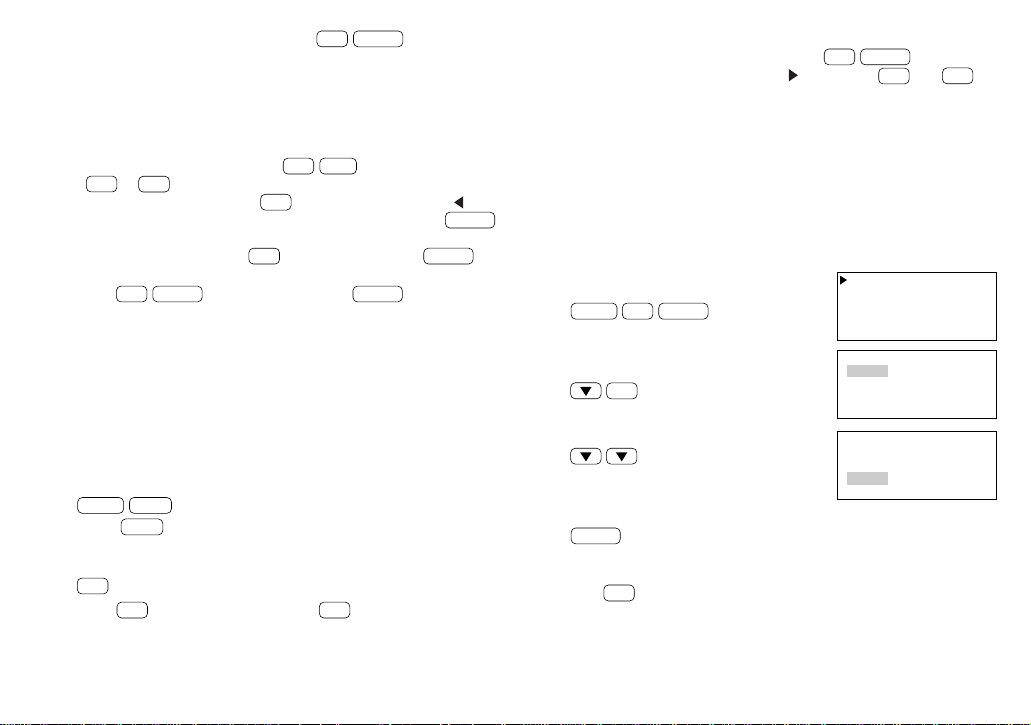
Recalling memos using the index display
To view an index of memos, press
2nd
INDEX
in the MEMO mode.
The first lines of up to five memos are displayed. Press
or
to move the pointer “ ” down or up to select the memo, and press
ENTER
to view it. Press
NEXT
and
PREV
to step through your list of
memos a page at a time.
Price list
Sales figure
Time table-1
Time table-2
How to use new PC
X’mas presents list
Sweater for Jill
Ring for Mother
21
NOTE: You can also delete individual entries from the index display.
Display the index of the desired memo with
2nd
INDEX
, select the
memo to be deleted with the pointer “
”, and press
DEL
and
Y
.
Deleting entire memos
Refer to “Deleting all of the data in each function” on page 30.
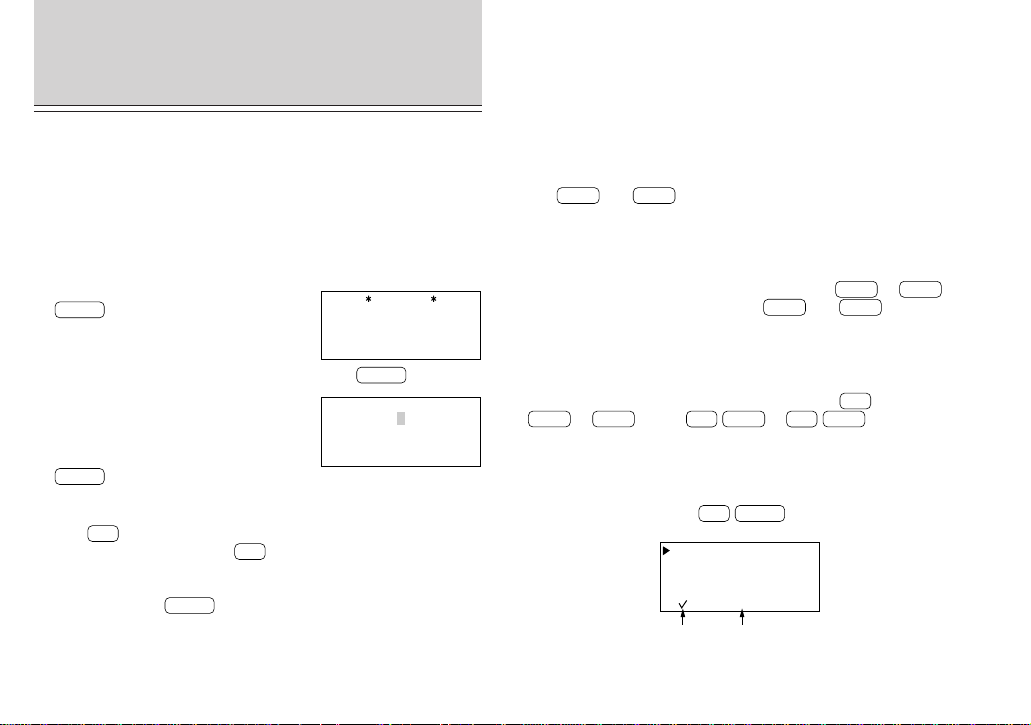
Rearranging memos
In the index display the order in which memos are recalled can be
changed.
For example, when there are five memos stored in the order of
“memo1” through “memo5”, to place “memo2” after “memo4”:
1. Select the MEMO mode and go to the
index display.
MEMO
2nd
INDEX
2. Move the pointer to the entry you want to
move and specify it.
INS
(“memo2” is blinking.)
3. Move “memo2” after “memo4”.
(“memo2” is blinking.)
4. Store the new order.
ENTER
NOTES:
• Press
C
•
CE
to cancel any changes.
• If there is any secret entry between “memo4” and “memo5” which is
hidden from view by the SECRET function, “memo2” will be stored
before “memo5” but not immediately after “memo4”. (Refer to
“USING THE SECRET FUNCTION” on page 27.)
memo1
memo2
memo3
memo4
memo5
memo1
memo2
memo3
memo4
memo5
memo1
memo3
memo4
memo2
memo5
NOTE: The memo being displayed when
2nd
INDEX
is pressed will
appear at the top of the list. Otherwise, the first memo will be
displayed at the top.
Editing memos
Memo editing capabilities are similar to those in the SCHEDULE mode.
To edit a memo, recall it, then press
2nd
EDIT
to enter the edit mode.
Use
DEL
or
BS
to delete characters. With the cursor “■” you may
type over the characters. Press
INS
to change the cursor to “ ” and
you may insert new characters. After making changes, press
ENTER
to store the new entry.
To cancel any changes, press
C
•
CE
twice before pressing
ENTER
.
NOTE: If
2nd
ENTER
are pressed instead of
ENTER
after making
changes, data can be copied. (Refer to “Copying scheduled data” on
page 13.)
Deleting memos
Either a single memo or the entire memo list can be deleted.
Deleting a single memo
For example, to delete the memo “X’mas presents list”:
1. Select the MEMO mode and recall the data.
MEMO
NEXT
(Press
NEXT
repeatedly until the memo item “X’mas presents list”
appears.)
2. Delete the MEMO.
DEL
3. Press
Y
. (To retain the data, press
N
.)
After the deletion, the next item will appear.
22
Recalling TO DO entries
TO DO entries can be recalled using:
1. Sequential search in the order of priority
2. Direct search for the first letter(s) contained in the entry
3. Keyword search for word(s) contained in the entry
4. Index display
Sequential search
Use
NEXT
and
PREV
to step sequentially through the entries in the
TO DO mode. If there are no more entries, “NOT FOUND!” is
displayed.
Direct search
In the TO DO mode, enter the letter(s) and press
NEXT
or
PREV
to
search up or down for the entry. Use
NEXT
and
PREV
to recall other
entries sequentially. If there is no matching entry, “NOT FOUND!” is
displayed. This search is not case sensitive.
Keyword search
In the TO DO mode, enter the keyword and press
2nd
followed by
NEXT
or
PREV
. Press
2nd
NEXT
or
2nd
PREV
to recall
subsequent entries containing the keyword. If there is no matching
entry, “NOT FOUND!” is displayed. This search is not case sensitive.
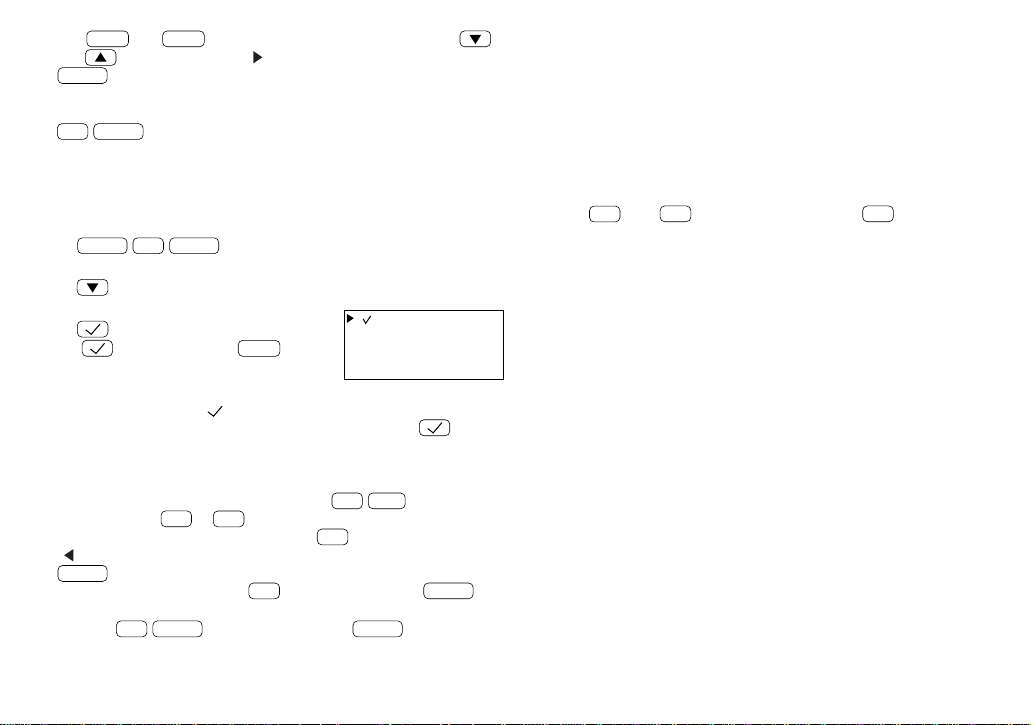
Using the index display
To display the index, press
2nd
INDEX
in the TO DO mode.
[
2
]
Call Frank abo
[
2
]
Prepare sales
[ ]
Go to bank!
[
]
Mail a bill to
[
]
Call Smith
Priority Item
USING THE TO DO
FUNCTION
The TO DO function is a very convenient and efficient way to keep
track of things you have to do. You can easily recall a list of all the
things you have to do in order of priority.
Entering things to do
For example, if you have to “call Frank about a sales meeting”, but it is
not the most important thing (priority 2), perform the steps below:
1. Select the TO DO mode.
TO DO
2. Enter a description about the activity, then press
ENTER
.
3. Enter the priority.
2
4. Store the entry.
ENTER
NOTES:
• Press
C
•
CE
twice to cancel the entry.
• To begin another entry, press
C
•
CE
or simply begin entering the
description for the new entry.
• The priority can be set to any number 0-9 or letter A-Z or just left
blank by pressing
ENTER
. Small letters cannot be entered.
• Order of priority is from 0-9, A-Z, then space.
TO DO
DESCRIPTION ?
Call Frank about a
PRIORITY:2
23
Use
NEXT
and
PREV
to step through pages of entries. Press
and to move the pointer “ ” to select an entry, then press
ENTER
to display the details of the entry.
NOTE: The listing starts from the entry being displayed when you press
2nd
INDEX
, or from the first entry if you are at the initial entry display.
Checking off completed items
For example, to check off the sales meeting preparation:
1. Select the TO DO mode and go to the index display.
TO DO
2nd
INDEX
2. Move the pointer to select the “Prepare ...” entry.
3. Mark it as done.
( is the same key as
SMBL
.)
NOTES:
• Entries marked with “ ” have the lowest priority.
• You can check the entry off by recalling it and pressing
.
Editing TO DO items
Recall the entry you want to edit, and press
2nd
EDIT
to enter the
edit mode. Use
DEL
or
BS
to delete characters. With the cursor “■”
you may type over the characters. Press
INS
to change the cursor to
“
” and you may insert new characters. After making changes, press
ENTER
to store the new entry.
To cancel any changes, press
C
•
CE
twice before pressing
ENTER
.
NOTE: If
2nd
ENTER
are pressed instead of
ENTER
after making
changes, data can be copied. (Refer to “Copying scheduled data” on
page 13.)
Deleting TO DO items
TO DO items can be deleted in three ways.
1. A single entry at a time
2. All checked entries only
3. All entries
Deleting a single entry
Entries can be deleted one at a time either directly or through the index
display. Recall the whole entry, or select the entry in the index display.
Press
DEL
, then
Y
. (To retain the data, press
N
.)
Deleting checked entries or all of the entries
Refer to “Deleting all of the data in each function” on page 30.
[
]
Prepare sales

24
The EXPENSE function is an easy-to-use method of tracking personal
and business expense information. The expense summaries allow you
to see the total expenses for a single day or for a certain period.
Creating expense records
For example, to create an Expense record, supposing the date is
March 9, 1999, and you have just bought flight tickets for a business
trip for $1,200:
1. Select the EXPENSE mode.
EXPENSE
2. Store the expense date.
03 09 1999
ENTER
The month and the day must be entered using two digits and the year
using four digits. For single digit months or days, enter “0” before the
single digit.
The date can be changed by pressing either
or .
Numerical values can be input in up to 10 digits including 2 decimal
places.
3. Enter the expense amount.
1200
ENTER
4. Enter the description.
5. Press
ENTER
.
NOTES:
• Press
C
•
CE
to cancel the entry.
• The description field can be skipped by pressing
ENTER
.
Recalling expense records
EXPENSE records are sorted and stored in chronological order.
Records can be recalled by:
1. Sequential search by date
2. Specifying the expense date
3. Using the index display
Sequential search by date
In the EXPENSE mode, press
NEXT
or
PREV
to recall records
sequentially. Pressing
C
•
CE
NEXT
or
C
•
CE
PREV
recalls the first or
the last record, respectively.
Specifying the expense date
Enter the date for which you want to check the expense in the
EXPENSE mode, then press
NEXT
(do not press
ENTER
). The first
record for the specified date will be displayed. Press
NEXT
to recall
subsequent items.
Using the index display
Expense records are listed with dates and sorted in chronological order
in the index display.
Press
2nd
INDEX
in the EXPENSE mode
to display the index.
Up to five records can be displayed at a
time.
TUE MAR 9,1999
1,200.00
DESCRIPTION ?
TUE MAR 9,1999
1,200.00
Flight tickets for
inspection abroad
USING THE EXPENSE
FUNCTION
EXPENSE
DATE ?
M/D/Y= 1/10/1999
TUE MAR 9,1999
AMOUNT ?
3/ 9 Flight ticke
3/10 Parking
3/10 Gas
3/11 Rental car
3/12 Taxi
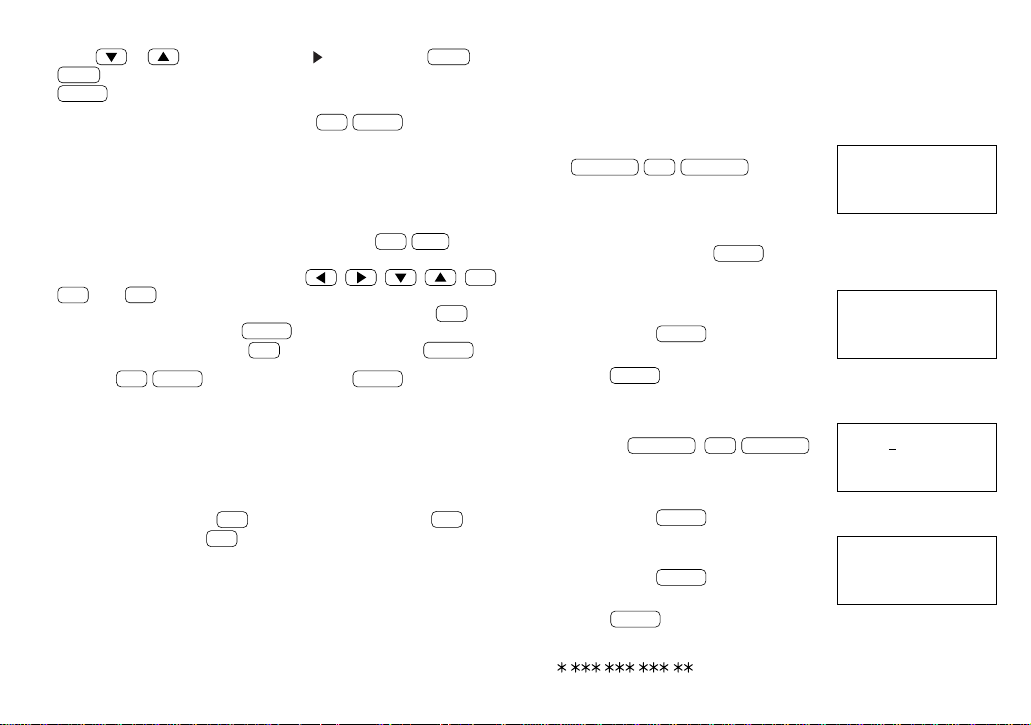
25
–PERIOD–
FROM: / /
–PERIOD–
FROM:MAR 9,1999
TO :MAR 15,1999
1
,
415.25
–DAILY–
1,200.00
DATE:MAR 9,1999
The first 12 characters of the first line of each record are displayed.
Press
or to move the pointer “ ” down or up, or
NEXT
or
PREV
to step to the next or previous page of five records. Press
ENTER
to display details of the record.
NOTE: The record being displayed when
2nd
INDEX
is pressed will
appear at the top of the list. If you are at the initial entry display, the first
entry for the current date will be at the top of the list. If no entry exists
for that day, the closest entry after or before the day will be at the top.
Editing expense records
Recall the expense record to be edited, and press
2nd
EDIT
to edit
the record.
To edit the record in the edit mode, use
, , , ,
BS
,
INS
, and
DEL
.
To clear a field data, move the cursor to the field, then press
C
•
CE
.
After making changes, press
ENTER
to store the new entry.
To cancel any changes, press
C
•
CE
twice before pressing
ENTER
.
NOTE: If
2nd
ENTER
are pressed instead of
ENTER
after making
changes, data can be copied. (Refer to “Copying scheduled data” on
page 13.)
Deleting expense records
Deleting a single expense record
To delete a single expense record, recall the record or select it in the
index display, then press
DEL
. To delete the record, press
Y
. To
retain the record, press
N
.
Deleting entire expense records
Refer to “Deleting all of the data in each function” on page 30.
Expense summaries
A summary is a collection of records in the Expense memory. Expense
summaries for a specific day and for a certain period can be displayed.
NOTES:
• If the secret function (refer to page 27) is turned on, secret records
are invisible and not included in summaries.
• If an inappropriate date is input, no calculation will be made.
Summarizing an expense report for a specific day
1. Display the “EXPENSE REPORT”.
EXPENSE
2nd
EXPENSE
2. Select “1:DAILY”.
The date specified by the CLOCK mode will be displayed. If that date
is the date desired, press
ENTER
. Otherwise, enter a date with the
specified format.
3. Enter a date (March 9, 1999, for
example).
03 09 1999
ENTER
4. Press
ENTER
to return to the date input display.
Summarizing an expense report for a certain period
1. Display the “EXPENSE REPORT” by
pressing
EXPENSE
2nd
EXPENSE
,
then select “2:PERIOD”.
2. Enter the start date (March 9, 1999, for example).
03 09 1999
ENTER
3. Enter the end date (March 15, 1999, for
example).
03 15 1999
ENTER
4. Press
ENTER
to return to the date input display.
NOTE: If the integer section in the calculation result exceeds 12 digits,
“
, , , .
”
is displayed.
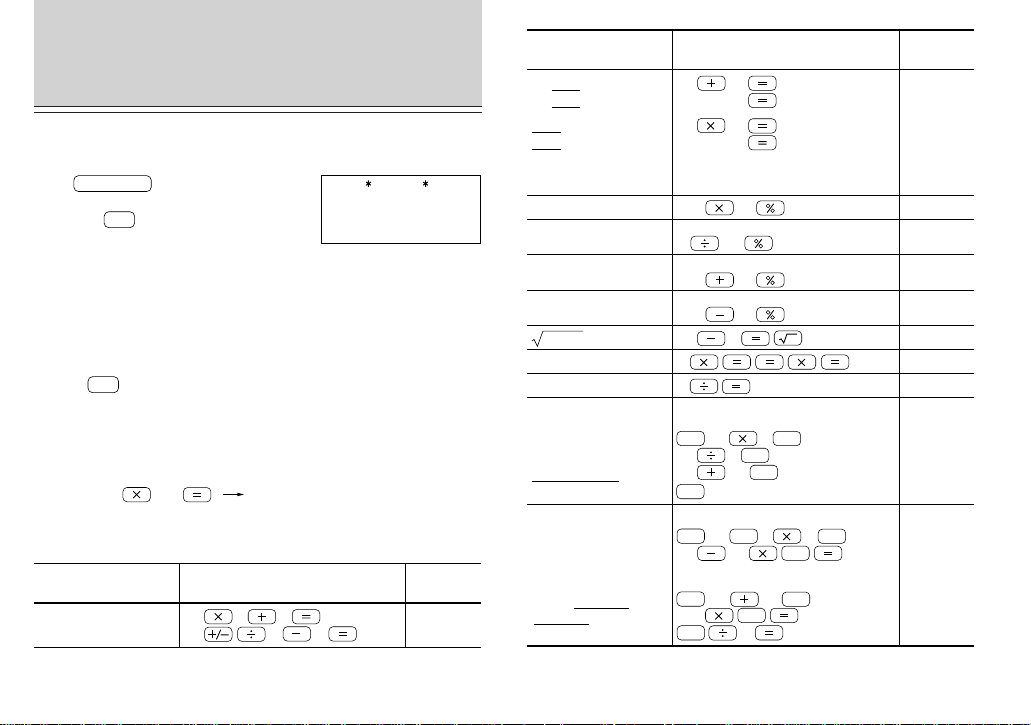
< EXPENSE REPORT >
1:DAILY
2:PERIOD
26
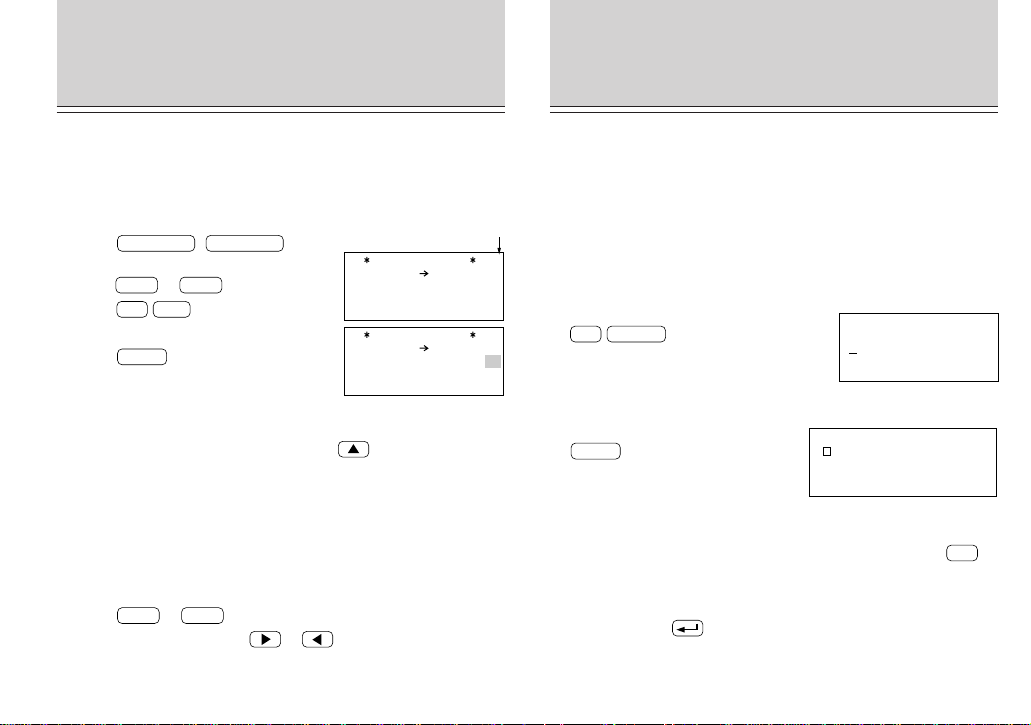
The Organizer’s built-in calculator can perform the four arithmetic
calculations with up to 12 digits.
Press
CALC/CONV
to use the calculator
function. Before performing any calcula-
tion, press
C
•
CE
twice to clear the display.
NOTES:
• Non-zero numbers in the memory cause “-M-” to appear on the
display.
• An error occurs when the integer section of the calculation result
exceeds 12 digits, integer section in the memory exceeds 12 digits,
or a number is divided by zero. (“-E-” is displayed.)
Press
C
•
CE
to cancel the error.
When the integer section of the calculation is between 13 digits and
24 digits, a round number is displayed as follows:
Example of a round number
USING THE CALCULATOR
FUNCTION
CALC
0.
41.
–8.
12 3 5
24 4 2
12
×
3 + 5 =
(–24) ÷ 4 – 2 =
Example Operation
Display
(answer)
456789012345
789
-E-
360.406530740
(360.406530740
× 10
12
= 360406530740000)
91.
102.
34 57
45
The addend
becomes a constant.
34 + 57 =
45 + 57 =
Example Operation
Display
(answer)
1,700.
2,720.
68 25
200 10
40
The multiplicand
becomes a constant.
68 × 25 =
68
× 40 =
20.
200 10
500 20
220.
400.
25 9
4.
25.
936
What is 10% of 200?
What percentage is
9 of 36?
What results from a
10% increase of 200?
What is 500 after a
20% discount?
25 – 9 =
For subtractions, the subtrahend
becomes a constant. For division,
the divisor becomes a constant.
84 3
25 5
68 17
4,096.
4(4
3
)
2
=
0.125
125.-M-
-M-
-M-
-M-
28.
85.
182.
81/8
25 × 5 =
–) 84 ÷ 3 =
+) 68 + 17 =
(Total) =
(14 – 3
× 2) ×
(52 – 35) =
(Summation)
(Temporary memory)
Clear the memory before performing
any calculations
52 35
14 3 2
6.-M-
-M- 136.
135
× (12 + 14) =
(Constant memory)
135
12 14
26.-M-
(12 + 14) ÷ 5 =
5
5.2-M-
-M- 3,510.
M+
M–
CM
RM
M+
RM
M+
M+
M–
CM
RM
RM
CM
27
USING THE SECRET
FUNCTION
The Secret function allows you to protect confidential data with a
password so that no unauthorized person can access it. You may mark
certain entries as private; displaying or modifying such data requires
the password. Data can also be classified from the SCHEDULE, TEL,
MEMO, TO DO, ANNIVERSARY, and EXPENSE modes.
Registering a password
To register “1234” as the password, for example:
1. Display the password entry prompt.
2nd
SECRET
2. Enter “1234” as the password.
1234
3. Store the password in the memory.
ENTER
Make sure it is right!
This is the last time you will ever see
the password.
After the password is registered, the secret function is set to operate
and “ S ” will appear. After rechecking the password, press
C
•
CE
.
NOTES:
• The password can contain up to 7 letters, numbers, spaces, or
symbols (except
).
• If you forget the password, you will have to erase all your secret data.
SET PASSWORD
[
]
[
1234
]
PASSWORD
IS NOW SET
S
USING THE CONVERSION
FUNCTION
The Organizer supports functions to convert denominations and units
into others.
Setting the currency rate
1. Press
CALC/CONV
(
CALC/CONV
).
2. To select the desired conversion display,
press
NEXT
or
PREV
repeatedly.
3. Press
2nd
EDIT
.
4. Enter the conversion rate.
5. Press
ENTER
NOTES:
• To change the denomination or unit, press after step 3 above,
then enter the new denomination or unit. Up to 7 characters can be
entered for an entry.
• Up to 10 digits can be entered for a conversion rate.
• Up to 12 digits can be used for a calculation.
• Setting the currency rate is allowed only for 3 conversion displays
(No.1, 2 and 3).
Performing a conversion
1. Press
NEXT
or
PREV
to select the desired conversion display.
2. Enter the amount, then use
or to convert between these
denominations or units.
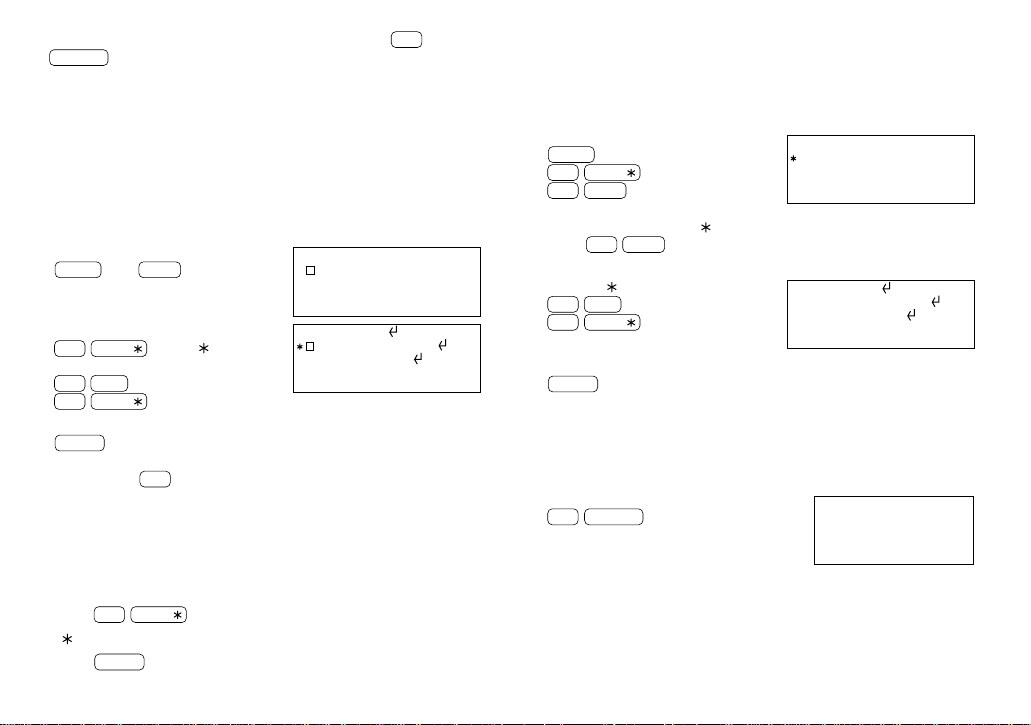
CONVERSION
0.
$ DM
2
CONVERSION
0.
0.
$ £
1
Conversion display number
28
• If a password has been already registered, after press
2nd
SECRET
“ALLOW ACCESS TO SECRET DATA” will be displayed
instead. Refer to “What to do if you forget the password” on page
29, and delete the previous password and all secret data.
Encoding data as secret data and
declassifying secret data
Coding previously stored data as secret data
For example, to convert the “ABC BANK” entry in the MEMO mode to
secret data:
1. Recall “ABC BANK”.
MEMO
ABC
NEXT
2. Enter the edit mode, then press
2nd
MARK
to put “ ” on the
display.
2nd
EDIT
2nd
MARK
3. Store this data as secret data.
ENTER
When you press
C
•
CE
or any one of the other mode keys, “ABC BANK”
will disappear from the display. This data is invisible unless the secret
function is turned off. (Refer to “Turning off the secret function” on
page 29.)
Encoding new data as secret data
1. Enter new data.
2. Press
2nd
MARK
before storing the data.
3. “
” is displayed.
4. Press
ENTER
to store the data.
ABC BANK
Account No.
272-0011223
Chicago Branch
S
ABC BANK
Account No.
272-0011223
Chicago Branch
S
EDIT
Declassifying secret data by removing the secret code
Perform the steps below to declassify “ABC BANK” for example.
However, note that before declassifying secret data, the secret function
must be turned off. (Refer to “Turning off the secret function” described
later.)
1. Recall the secret data.
MEMO
2nd
MARK
2nd
NEXT
Only data marked with “ ” will be displayed.
Press
2nd
NEXT
repeatedly until the entry to be declassified
appears.
2. Turn off “
”.
2nd
EDIT
2nd
MARK
3. Store the data as non-secret.
ENTER
Turning on the secret function
The secret function turns on automatically whenever the power is
turned off and back on again. To turn the secret function on manually:
1. Recall the secret function menu.
2nd
SECRET
2. Select “1:HIDE SECRET”.
1
3. “SECRET DATA IS HIDDEN!” is displayed and “ S ” appears.
ABC BANK
Account No.
272-0011223
Chicago Branch
ABC BANK
Account No.
272-0011223
Chicago Branch
EDIT
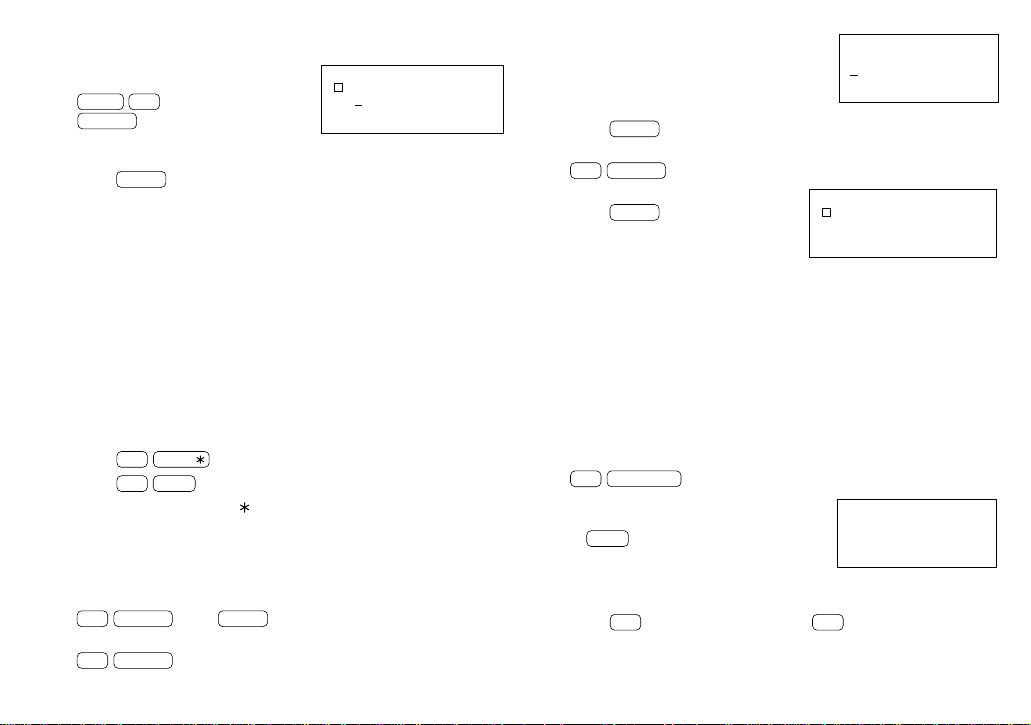
1:HIDE SECRET
2:DELETE THE
PASSWORD
29
Turning off the secret function
1. Recall the prompt to turn off the
secret function.
MEMO
2nd
SECRET
2. Enter the password. (“1234” is an instance used in the previous
example.)
1234
ENTER
3. “SECRET DATA ACCESSIBLE!” appears and the secret function is
turned off.
NOTES:
• Entering an incorrect password displays “INCORRECT PASSWORD!”
and initial mode screen is displayed.
• The secret function remains on after manual or automatic power off.
Recalling secret data
Before recalling secret data, turn off the secret function. After the
secret function is turned off, secret data can be recalled in the same
manner as non-secret data.
To recall secret data only, perform the following steps:
1. Press
2nd
MARK
.
2. Press
2nd
NEXT
.
3. Secret data is recalled. (“
” is used as a keyword.)
Deleting and changing the password
For example, to change the password “1234” to “9876”:
1. Turn off the secret function.
2nd
SECRET
1234
ENTER
2. Recall the secret function menu.
2nd
SECRET
3. Select “2:DELETE THE PASSWORD”.
2
4. Enter the old password and delete it.
1234
ENTER
5. To register the new password, recall the password entry prompt.
2nd
SECRET
6. Enter the new password, “9876”.
9876
ENTER
Make sure it is right!
This is the last time you will ever see
the password.
What to do if you forget the password
If you forget the password for the secret function, you have to delete
the password. Follow the procedure below to delete the password.
NOTE: When you delete the password, all your secret data is also
deleted.
1. Recall the miscellaneous function menu.
2nd
FUNCTION
2. Select “3:DATA DELETION” then display
the second list.
3
NEXT
3. Select “2:SECRET DATA”.
2
4. Press
Y
. (To retain the data, press
N
.)
< DATA DELETION >
1:TO DO
2:SECRET DATA
[
9876
]
PASSWORD
IS NOW SET
S
SECRET DATA
ALLOW ACCESS TO
[
]
S
PASSWORD ?
[
]

30
USING THE MISCELLANEOUS
FUNCTION
The miscellaneous function menu supports functions for MEMORY
CHECK, LCD CONTRAST, DATA DELETION, TEL FILE NAME,
BACKLIGHT SETUP, DATE FORMAT, and FREE UP MEMORY.
NOTE: The menu screen is displayed occasionally in two separate
displays. Press
NEXT
to display the second screen. Press
PREV
to
return to the initial screen.
Checking the memory capacity
The memory check function indicates how much of the memory is in
use and also the number of entries stored in the respective functions.
To check the memory capacity:
1. Recall the miscellaneous function menu.
2nd
FUNCTION
2. Select “1:MEMORY CHECK”.
1
The number of entries in each function and the memory capacity graph
(including unnecessary space) will be displayed. To scroll the screen,
press
or . To return to the menu, press
C
•
CE
.
NOTES:
• When the memory capacity graph indicates almost 100% usage, delete
unnecessary data and free up memory to make room for new entries.
< FUNCTION >
1:MEMORY CHECK
2:LCD CONTRAST
3:DATA DELETION
4:TEL FILE NAME
TEL 1 :52
TEL 2 :30
TEL 3 :15
E F
• The names “TEL1”, “TEL2”, and “TEL3” may be altered according to
the names you specified. (Refer to “Designating the filenames” on
page 17.)
Adjusting the contrast
1. Recall the miscellaneous function menu.
2nd
FUNCTION
2. Select “2:LCD CONTRAST”.
2
3. Press
or to darken or lighten the display.
4. After adjustment, press
C
•
CE
.
Deleting all of the data in each function
All of the data in each mode can be deleted using the miscellaneous
function. For example, to delete all data for TEL1:
1. Recall the miscellaneous function menu.
2nd
FUNCTION
2. Select “3:DATA DELETION”.
3
3. Select “1:TEL”.
1
4. Select “1:TEL1”.
1
The names “TEL1”, “TEL2”, and “TEL3” may be altered according to
the names you specified.
5. Press
Y
. (To retain the data, press
N
.)
< LCD CONTRAST >
–DARK
–LIGHT
< DATA DELETION >
1:TEL
2:SCHEDULE
3:MEMO
4:EXPENSE
< DATA DELETION >
1: TEL 1
2: TEL 2
3: TEL 3
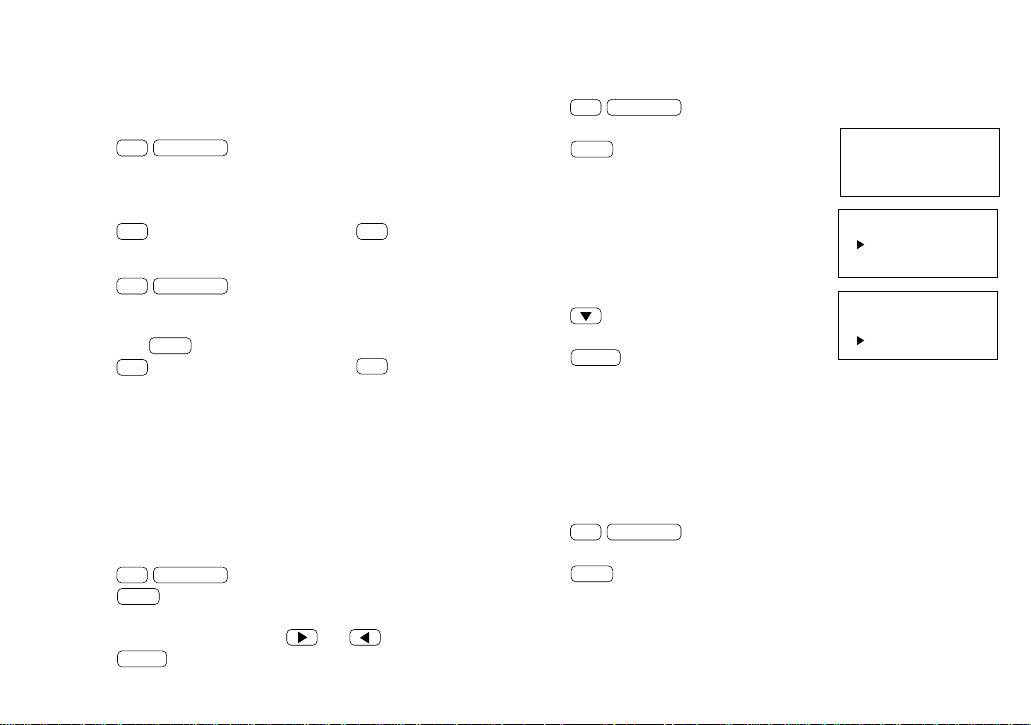
31
Setting the date format
To change the default date format to “day. month. year”:
1. Recall the miscellaneous function menu.
2nd
FUNCTION
.
2. Recall the second list of functions.
NEXT
3. Select “2:DATE FORMAT”.
2
4. Change the date format.
5. Store the new setting.
ENTER
Freeing up memory
Deleting or modifying data during operation can leave unnecessary
space in the memory of the Organizer.
Delete unnecessary data when the memory is full and then free up
memory.
1. Display the function menu.
2nd
FUNCTION
2. Display the function list on the second display.
NEXT
3. Select “3:FREE UP MEMORY”.
3
The message “WORKING...” is displayed indicating that the
memory will be freed up.
< FUNCTION >
1:BACKLIGHT SETUP
2:DATE FORMAT
3:FREE UP MEMORY
< DATE FORMAT >
MONTH/DAY/YEAR
DAY.MONTH.YEAR
< DATE FORMAT >
MONTH/DAY/YEAR
DAY.MONTH.YEAR
NOTE: When the secret function is turned on, “SECRET ON MODE”
will be displayed. To delete all data relating to a function, be sure to
turn off the secret function. (Refer to “Turning off the secret function”
on page 29.)
SCHEDULE and ANNIVERSARY
1. Press
2nd
FUNCTION
.
2. Select “3:DATA DELETION”.
3. Select “2:SCHEDULE”.
4. Select “1:SCHEDULE”, “2:ANN1”, or “3:ANN2”.
5. Press
Y
to delete all relating data. Press
N
to cancel.
MEMO/EXPENSE/TO DO
1. Press
2nd
FUNCTION
.
2. Select “3:DATA DELETION”.
3. Select “3:MEMO”, “4:EXPENSE”, or “1:TO DO”. (To select “1:TO
DO”, press
NEXT
)
4. Press
Y
to delete all relating data. Press
N
to cancel. (For
TO DO, deletion of all entries or all checked (done) entries can be
selected.)
SECRET
Refer to “What to do if you forget the password” on page 29.
Determining the backlight setup
To determine the time to turn the backlight off automatically, perform
the following steps:
1. Press
2nd
FUNCTION
.
2. Press
NEXT
to display the following screen.
3. Select “1:BACKLIGHT SETUP”.
4. Select the desired seconds using
and .
5. Press
ENTER
to determine the setup.
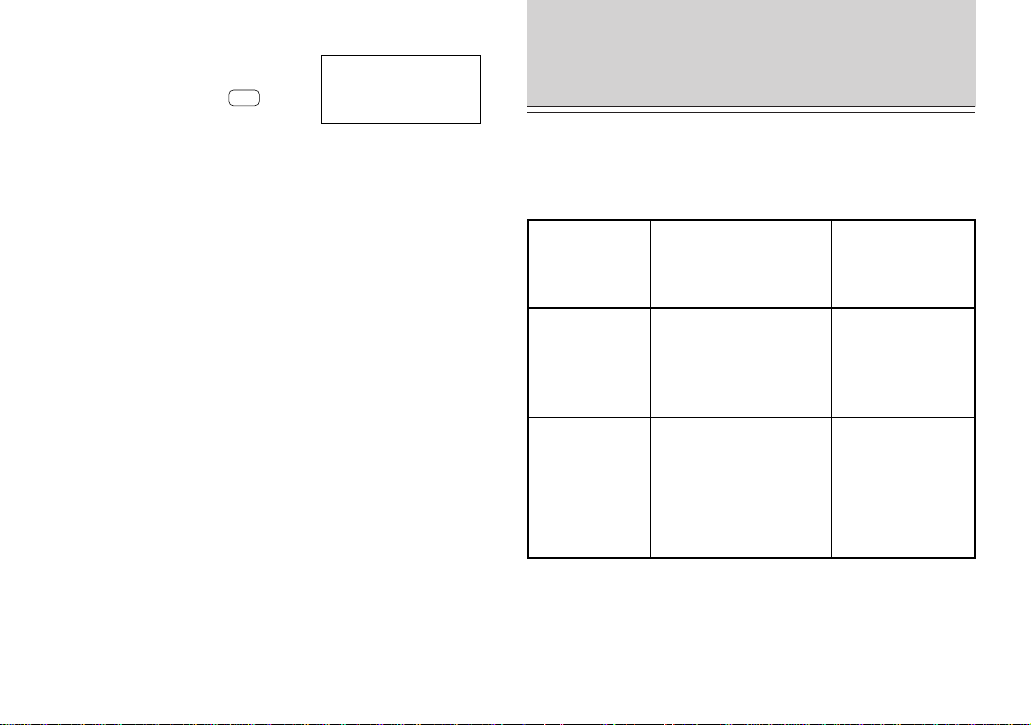
32
USING THE OPTION
FUNCTION
The Organizer can transfer data to/from SHARP Organizers and
personal computers. The table below shows the models that can be
connected with the Organizer, and data transfer allowed between the
Organizer and model
Model connected
Direction of data transfer
→ : Data transferred to
YO-470
← : Data transferred from
YO-470
Remarks
YO-150/170/470
Data can be transferred
by entry or mode (file).
→
←
PC
Data can be transferred
by mode (file).
→
←
When the Organizers
are the same model,
data can be trans-
ferred to make
backup data and it
can be restored.
Data can be trans-
ferred to make
backup data in a PC
and it can be restored.
Data can be trans-
ferred by entry from
the PC to the
Organizer.
NOTES:
• The following situations may display the
message shown on the right.
(It is recommended to press
Y
to free
up memory.)
– When the power is turned on (except
that the power is automatically turned
on with the Schedule alarm).
– When “DATA DELETION” in FUNCTION menu is selected.
• The indication “WORKING...” shown on the side of the receiving
Organizer at the beginning or end of the data transmission means
that the memory has begun to be freed up automatically.
• The indication “Replace the OPERATING batteries!” shown at the
time of freeing up memory means that the operating batteries are
almost exhausted. Replace them with new ones then try again to
free up memory.
• The backlight function does not work while the memory is being
freed up.
DO YOU WANT TO
FREE UP MEMORY ?
(
Yes/No
)
NOTES:
• To connect between SHARP Organizers (YO-150/170/470), the cable
CE-300L (optionally available) is required. To connect the Organizer
with a PC, communication software CE-490W (optionally available) is
required.
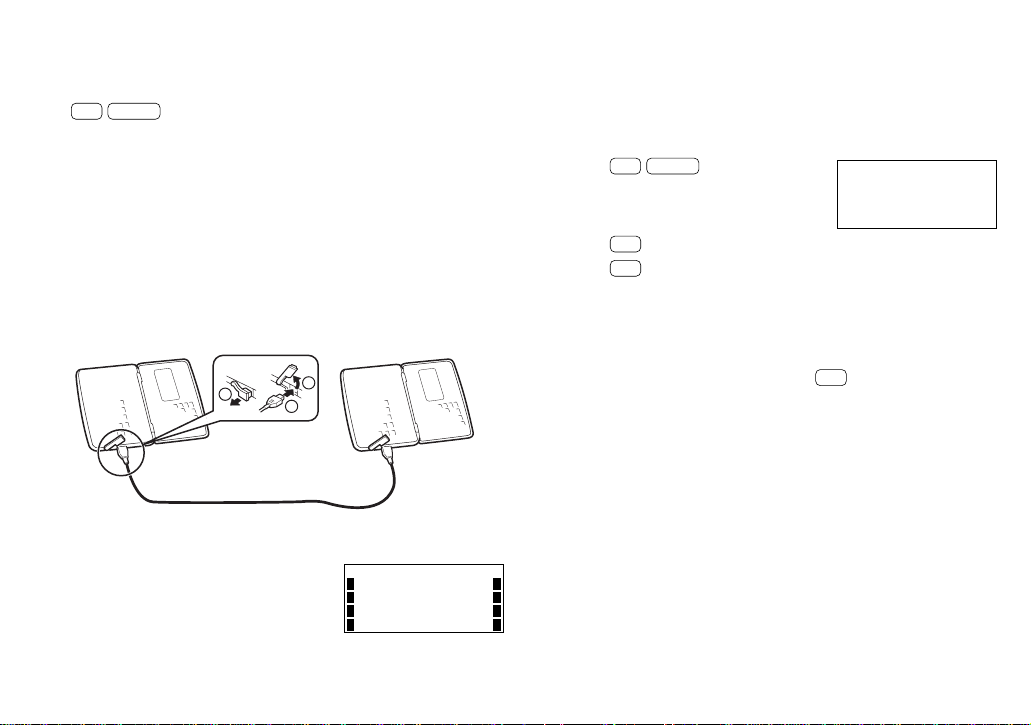
33
Transferring data by entry
To transfer an entry in a mode :
1. Display the entry to be transferred to the other Organizer on the
transmitting Organizer.
2. Set the receiving Organizer to the mode in which the transmitting
Organizer is entered.
3. Press
2nd
OPTION
on both the
Organizers.
The following OPTION menu is
displayed.
4. Press
2
on the receiving Organizer (to select “RECEIVE”).
5. Press
1
on the transferring Organizer (to select “SEND”).
6. Data transfer is started.
Messages are displayed on the respective Organizers while data is
being transferred. When these messages are no longer displayed,
the data transfer is completed.
To verify data while it is transferred, select
3
(VERIFY) on the
receiving Organizer in step 4.
Transferring data by mode
To transfer all data in a mode:
1. Enter the mode from which data is to be transferred to the other
Organizer on the transmitting Organizer.
Perform steps 2 to 6 described in “Transferring data by entry”.
NOTE: When the secret function is turned on, an error message is
displayed on the receiving or transmitting Organizer, or both the
Organizers. Be sure to turn off the secret function before transferring
data by mode.
< UNIT TO UNIT >
I/O DEVICE
ERROR !
• The indication “WORKING...” shown on the side of the receiving
Organizer at the beginning or end of the data transmission means
that the memory has begun to be freed up automatically.
• The indication “Replace the OPERATING batteries!” shown when
2nd
OPTION
are pressed means that the operating batteries are
almost exhausted. Replace them with new ones then try again to
transfer data.
Transferring data between Organizers
A single data entry or entire data in a mode (TEL1, 2, 3/SCHEDULE/
MEMO/TO DO/EXPENSE/ANN1, 2) can be transferred between
Organizers.
NOTES:
• Turn both of the Organizers off first before connecting them with the
SHARP-specific cable (CE-300L, optionally available).
< UNIT TO UNIT >
1:SEND 4:BACKUP
2:RECEIVE 5:RESTORE
3:VERIFY
1
2
3
• The following descriptions assume connections between the same
models.
• When an error occurs, the following error
message is displayed on the receiving or
transmitting unit, or both the units.

34
Transferring data to make backup
All data in the Organizer can be transferred to another Organizer. (The
Organizers must be the same model.) To do this, perform the following
steps:
1. Press
2nd
OPTION
on both the Organizers.
The OPTION menu is displayed.
2. Press
5
(or
2nd
2
) on the receiving Organizer (to select
“RESTORE”).
3. Press
4
(or
2nd
1
) on the transmitting Organizer (to select
“BACKUP”).
A confirmation message is displayed.
4. Press
Y
to the confirmation on the transmitting Organizer.
Backup data transfer is started. Messages are displayed on the
respective Organizers while the data is being transferred. When
these messages are no longer displayed, the backup data transfer
is completed.
NOTES:
• Press
ON
to abort data transmission. When backup data transfer is
aborted, data already transferred to the receiving Organizer is cleared.
• When an error occurs during data transfer, press
C
•
CE
to clear the
error.
• Turn off the secret function before transferring data by mode. If the
secret function is turned on, data cannot be transferred by mode.
• The Backlight is turned off during data transfer. (When the Backlight
is turned on, it is automatically turned off at the beginning of data
transfer.)
• When “MEMORY FULL” is displayed and data transfer is aborted,
delete unnecessary data on the receiving Organizer, then start the
steps from the beginning.
• When the Organizers are not in the same mode before transferring
data by entry or mode, “DATA ERROR!” is displayed and no data
transfer is allowed.
However, directories in the TEL mode are excluded from this rule.
For example, data in the TEL1 directory can be transferred to the
TEL3 directory.
• When the communication cable is disconnected during data transfer,
“I/O DEVICE ERROR!” is displayed. Check that the Organizers are
connected correctly, then start the steps again.
Transferring data between the
Organizer and PC
Use SHARP’s Organizer Link software CE-490W (including the specific
cable) for Windows 95. It enables you to transfer data between your
Organizer and a PC, make a backup copy, or restore the backup into
your Organizer. Use CE-490W to secure your important data or share
data in the Organizer with a PC.
NOTE: SHARP’s CE-490W may not be available when you purchase
the Organizer. Please contact an authorized SHARP dealer for more
information or call SHARP at 800-BE-SHARP.

35
Caring for your Organizer
Do not carry the Organizer around in your back
pocket, because sitting on it may break it. The
display is made of glass and is particularly
vulnerable.
Keep the Organizer away from heat (on a car
dashboard or near a heater, for example),
humidity, and dust - these may cause
malfunction.
Do not drop it or allow anything to hit it.
Clean it with a soft, dry cloth and use no
solvents (no paint thinner or benzine, etc.).
Do not press the keys with a sharp pointed
object.
• This product is not waterproof. Do not use it or store it where fluids,
for example water, can splash onto it. Raindrops, water spray, juice,
coffee, steam, perspiration, etc. will also cause malfunction.
• Do not carry the Organizer in your pocket or bag together with sharp
or hard objects, because they may scratch the Organizer.
APPENDIX
When trouble occurs
RESET procedure
An impact or a strong external electrical field may disable the keys.
The impact or external electrical field may also erase some or all of
data in the Organizer’s memory. In such a case, press the RESET
switch with the tip of a ball-point pen or similar object, but not anything
breakable (like a pencil point or needle).
ALL RESET procedure
If a problem occurs after replacing the batteries, or if the Organizer
does not function properly even after the RESET procedure above,
perform the following steps:
1. While holding
ON
, press the RESET switch. Release the RESET
switch first, then
ON
. The message below is displayed.
2. Press
N
.
CAUTION: Do not press
Y
in step 2. Pressing
Y
deletes all
data and resets the clock.
CLEAR ALL DATA
OK
(
Y/N
)
?
ON
OFF
RESET
ON
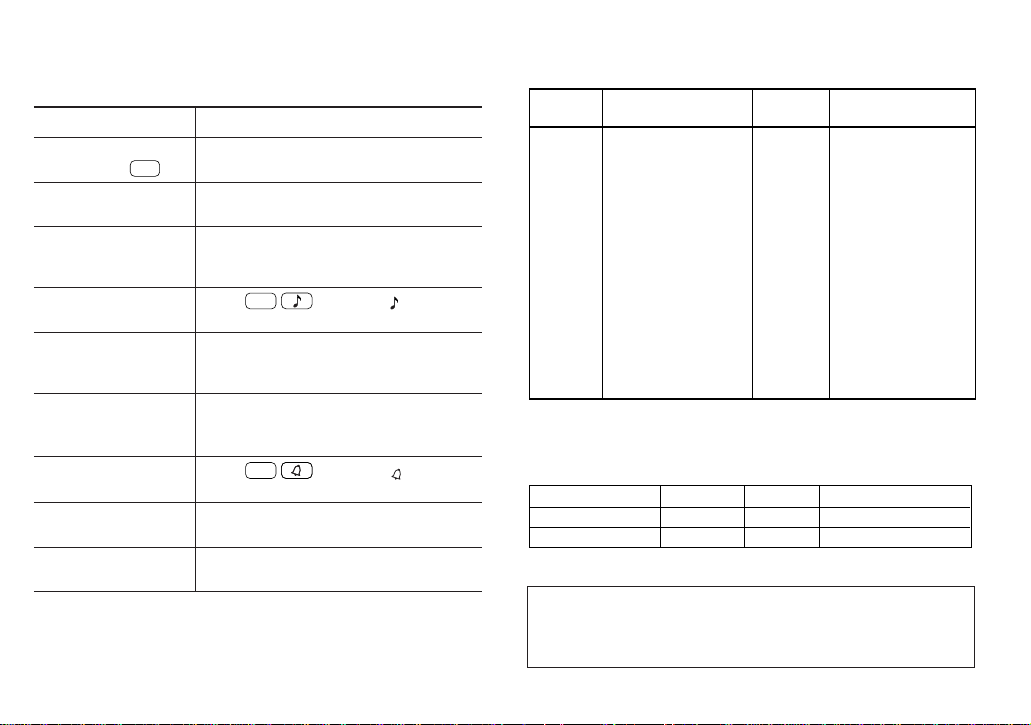
36
Replacing batteries
Batteries used in the Organizer:
The standard built-in clock is powered by the operating batteries.
• Do not remove both the operating and memory backup batteries
simultaneously. Data in the memory is cleared.
• Be sure to write down any important information stored in memory
before replacing the batteries.
Lithium battery CR2032 2 Unit operation
Lithium battery CR2032 1 Memory backup
Model Qty. UseType
Nothing is displayed
after pressing
ON
.
Display contrast is
insufficient.
The display is too dark
(symbols are
displayed faintly).
Keys do not beep
when pressed.
The Organizer turns on
but the keyboard is
frozen.
“MEMORY FULL” is
displayed.
Alarm does not sound
at the set time.
Display dims while
pressing keys.
The Backlight does not
function.
• Adjust the display contrast (page 30)
• Replace the batteries (page 36).
• Adjust the display contrast (page 30).
• Replace the batteries (page 36).
Adjust the display contrast (page 30).
Press
2nd
to display “ ” (page 4).
Reset the Organizer (page 35).
There is no room for the data you want to
store. Delete all unnecessary data first and
then free up memory (Page 31).
Press
2nd
to display “ ” (page
14).
The operating batteries are becoming
weak. Replace the batteries (page 36).
The operating batteries are becoming
weak. Replace the batteries (page 36).
Zone
number
City
Zone
number
City
1 AUCKLAND
2 NOUMEA
3 SYDNEY
3.3 ADELAIDE
4 TOKYO
5 HONG KONG
6 BANGKOK
6.3 YANGON
7 DHAKA
7.3 NEW DELHI
8 KARACHI
8.3 KABUL
9 DUBAI
9.3 TEHRAN
10 MOSCOW
11 CAIRO
12 PARIS
13 LONDON
16 RIO DE JANEIRO
17 CARACAS
18 NEW YORK
19 CHICAGO
20 DENVER
21 LOS ANGELES
22 ANCHORAGE
23 HONOLULU
24 MIDWAY
The names and zone numbers of the
cities in the WORLD clock
Troubleshooting
If the Organizer malfunctions, go through the following checklist before
sending it for repair.
Problem Remedy
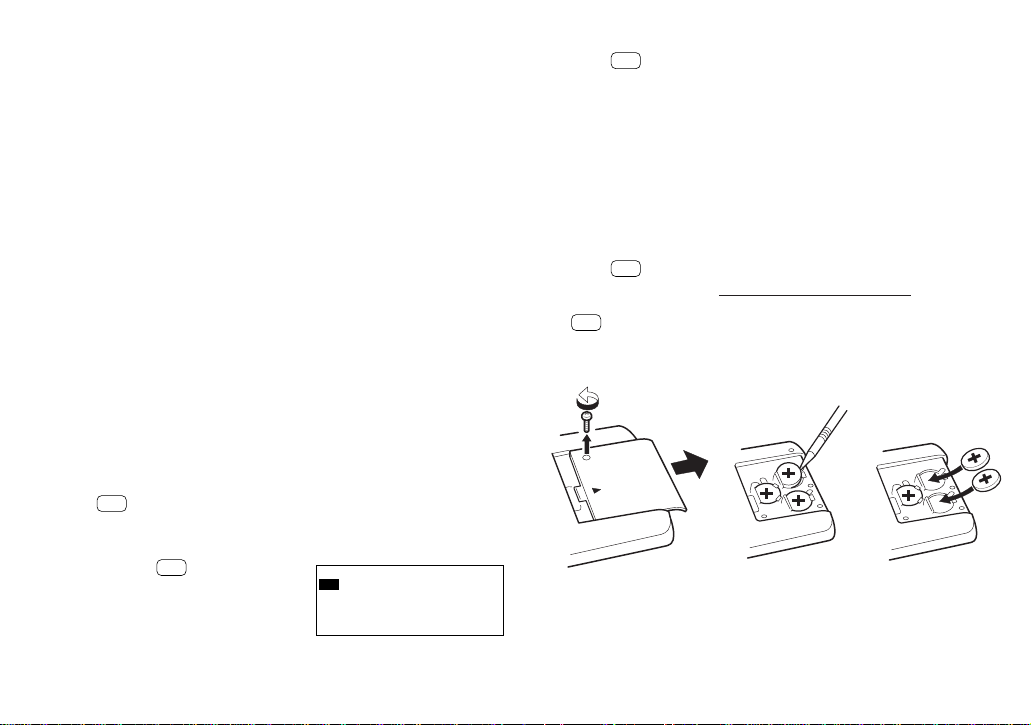
37
Replacing the operating batteries
1. Press
OFF
to turn the power off.
2. Loosen the screw and remove the battery holder cover on the back
of the unit. (Fig. 1)
3. Remove the used batteries by prying them out with a ball-point pen.
(Fig. 2)
Do not use a mechanical pencil or sharp pointed object. This may
break and cause damage to the mechanical pencil and/or the
Organizer.
4. Install two new batteries with the (+) sides facing up. (Fig. 3)
5. Replace the holder cover and secure it with the screw.
6. Press
ON
.
The display will appear after approximately 3 seconds. If nothing is
displayed, press the RESET switch on the front of the unit and press
ON
again.
7. Set the clock (refer to page 6) and adjust the display contrast (refer
to page 30).
If the batteries become weaker (the alarm or the key beep does not
sound), the power may go off during operation or the Organizer may
fail to turn on. The memory contents will still be retained by the
memory backup battery. Replace the operating batteries to avoid loss
or alteration of data.
Precautions on battery use
Always replace both operating batteries at the same time. Do not use
an old battery and a new one together. Use only the specified lithium
batteries.
Replace the memory backup battery at lease every 5 years. The
original batteries were installed in the factory at the time of shipment
and might be depleted before satisfying the operating time indicated in
the specifications.
Battery precautions
• Keep the batteries out of the reach of children.
• When batteries become weak, remove them from the Organizer
immediately. If depleted batteries are left in the Organizer for any length
of time, they might leak and cause corrosion inside the Organizer.
• Do not dispose of batteries by fire as they may explode.
Operating batteries:
Replacement intervals for the power source batteries
When “ BATT ” is displayed, the operating batteries are depleted.
Press
OFF
to turn the power off, then turn the power back on. If the
following display appears when the power is turned on, replace both
operating batteries immediately:
• Do not press
ON
until the battery
replacement procedure is com-
pleted.
< CAUTION >
OPERATING
batteries !
Replace the
BATT
(Fig. 1)
(Fig. 2) (Fig. 3)
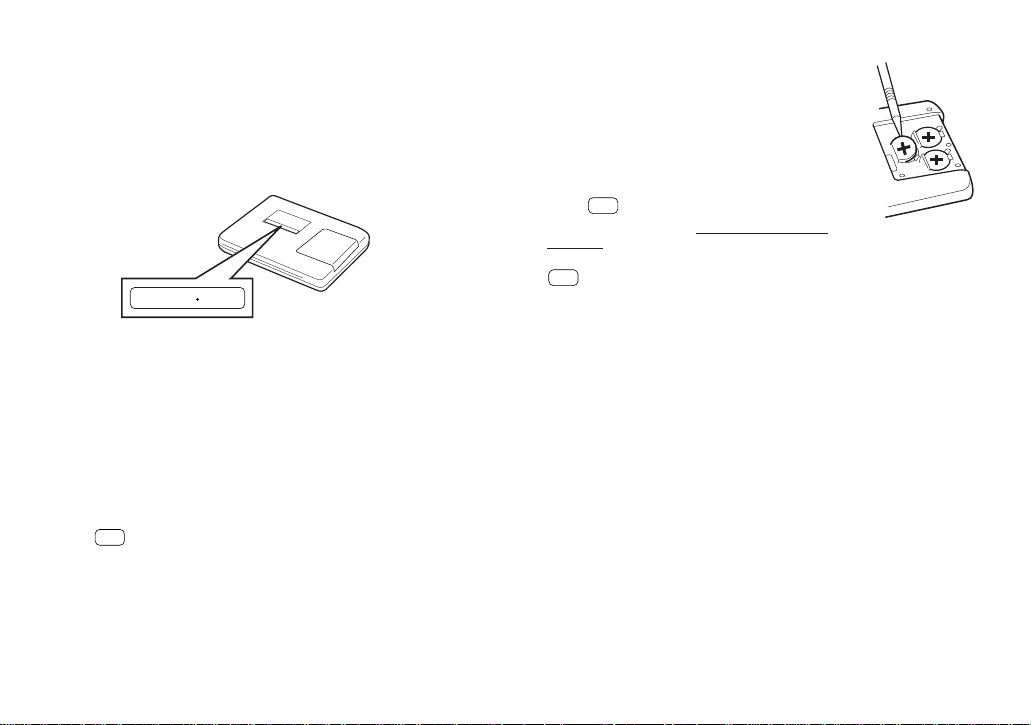
38
4. Remove the used battery by prying it out with a
ball-point pen. (Fig. 4)
Do not use a mechanical pencil or sharp pointed
object.
5. Install the new battery with the (+) side facing up.
6. Return the seal in place.
7. Replace the battery holder cover and secure it
with the screw.
8. Press
ON
.
The display will appear after approximately 3
seconds. If nothing is displayed, press the
RESET switch on the front of the unit and press
ON
again.
Memory backup battery:
The life of the memory backup battery
The memory backup battery in your Organizer has an effective life of
about 5 years under normal operating conditions. Thus, replace the
memory backup battery every 5 years. After replacement, write down
the date on the label of the Organizer so you know when to replace the
battery next time.
For example, if you replace the battery in January 2005, write:
NOTE: Extremes of temperature will shorten battery lift and endanger
the memory information.
Replacing the memory backup battery
When replacing the memory backup battery, make sure that the
operating batteries are not depleted. If the operating batteries are
depleted, replace these batteries before replacing the memory backup
battery. If you replace the memory backup battery while the operating
batteries are depleted, all of the data in the memory will be lost.
1. Press
OFF
to turn the power off.
2. Loosen the screw and remove the battery holder cover on the back
of the unit.
3. Remove the memory backup battery seal.
MONTH
•YEAR
1 2005
(Fig. 4)
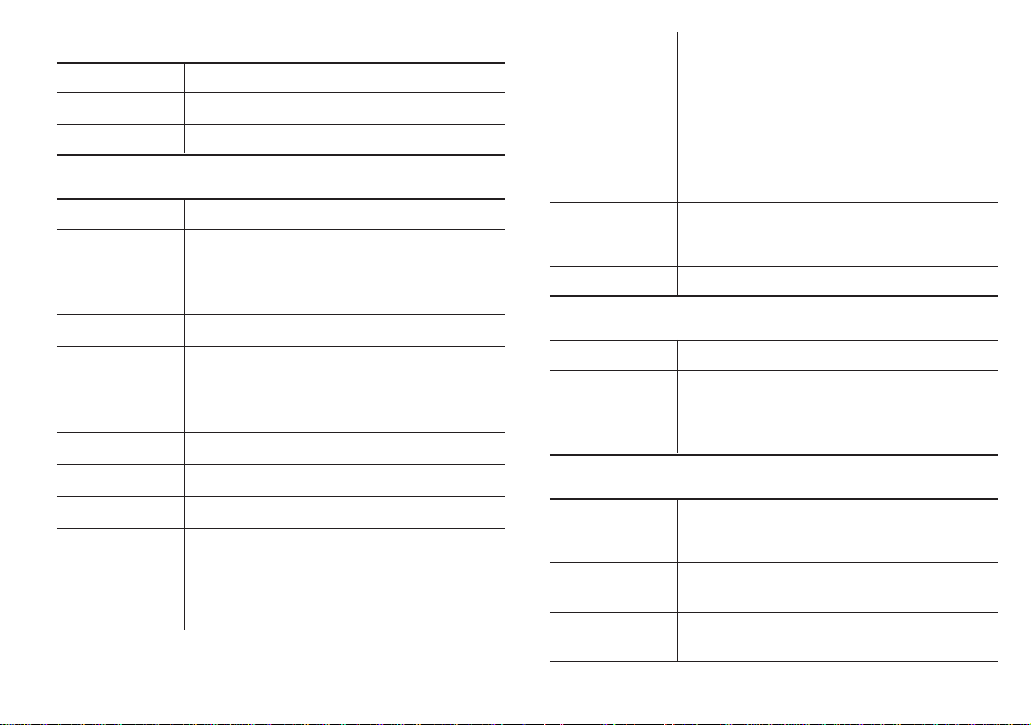
39
• The approximate entry capacities above
assume the following average entry size when
all memory is used by a single mode.
The size below is available when the memory
is freed up.
SCHEDULE Description 32 characters/entry
TEL Name 16 characters/entry
Number 12 characters/entry
MEMO 128 characters/entry
Maximum
character string 512 characters
length per entry
Other features Secret function, data transfer, index display
Calculator
Digits 12
Functions Addition, subtraction, multiplication, division,
constant, square root, percent, memory
calculation, etc.
(With currency conversion function)
Clock:
Crystal
oscillation 32,768 Hz
frequency
Clock accuracy Average variance ± 30 seconds per month (at
25°C/77°F)
Display contents Year, month, day, day of week, hours, minutes,
AM/PM, city names, time zone
Specifications
Model YO-470
Product name Electronic Organizer
Display 19 columns × 5 lines
Electronic notebook section
TEL mode Names, phone numbers, and addresses
SCHEDULE
mode Dates, appointment times, and details of
appointments
Automatic day-forward function, schedule alarm
function
ANN mode Dates and details of anniversaries
CALENDAR
mode From January 1901 to December 2099
Schedule mark function distinguishing between
morning and afternoon appointments
Anniversary mark function
MEMO mode Everyday memos
TO DO mode Items, priority assignment
EXPENSE mode Expense date, amount, description and summary
Memory capacity YO-470
128 Kbytes (User area: Approx. 126 Kbytes)
SCHEDULE mode capacity: Approx. 1990 entries
TEL mode capacity: Approx. 3080 entries
MEMO mode capacity: Approx. 920 entries

40
Memory backup battery
• Approx. 5 years (if operating batteries are
replaced promptly when exhausted)
• Approx. 1 years (if operating batteries are
exhausted or not installed)
Operating
0°C to 40°C (32°F to 104°F)
temperature
Exterior
dimensions
Open 138 (W) × 146 (D) × 9.9 (H) mm
5 -7/16” (W) × 5 -3/4” (D) × 3/8” (H)
Closed 138 (W) × 77.5 (D) × 19.4 (H) mm
5 -7/16” (W) × 3 -1/16” (D) × 3/4” (H)
Weight Approx. 145g ( 0.32lb.)
(including batteries)
Accessories Lithium batteries (CR2032 × 3: installed in the
factory at the time of shipment), Operation
manual
Time system 12-hour or 24-hour
World clock Display of date and time for the world cities
function
Enable/disable control for daylight saving time
display function
Common
Power Main power supply:
6V
(DC) lithium batteries (CR2032 × 2)
Memory backup power:
3V (DC) lithium battery (CR2032 × 1)
Power
0.1W
consumption
Battery life Operating batteries
• Approx. 1200 hours
When data is continuously displayed without
Backlight (at 25°C/77°F).
• Approx. 300 hours
When data is continuously displayed with
Backlight for 2 minutes per hourly use (at
25°C/77°F).
• Approx. 270 hours
When data is searched for 5 minutes, and
displayed for 55 minutes per hourly use and
Backlight is on for 2 minutes per hourly use (at
25°C/77°F).
• Approx. 1.5 years
When turned off, and the clock is running (at
25°C/77°F).

41
INDEX
A
Alarms
Schedule 14
Turning off 15
All reset 35
Anniversary function 15
Auto power off 4
B
Backlight 4, 31
BATT symbol 4, 37
Batteries
Memory backup 38
Operating 37
Precautions 37
Replacement 36
C
Calculation examples 26
Calculator function 26
Calendar function 9
Caring for the Organizer 35
Changing
City for World time 7
Clock time 7
Home city 6
Monthly calendar 9
Password 29
Character sorting order 19
Checking the memory capacity
30
Clock 6
Contrast adjustment 30
Conversion function 27
Correcting entries 6
(See also Editing)
D
Data transfer 32
DATA DELETION function 14,
16, 19, 21, 23, 25, 29, 30
DATE FORMAT function 31
Daylight saving time 8
Deleting
All of the data in each
function 30
Anniversaries 16
Expense records 25
Letters 6
Memos 21
Password 29
Scheduled data 14
Telephone entries 19
To do items 23
Designating TEL directory file
names 17
Direct search 18, 20
Directory file names 17
Display
Contrast adjustment 30
Symbols 4
Displaying
Home time 6
Monthly calendar 9
World time 7
E
Editing
Anniversaries 16
Expense records 25
Memos 21
Scheduled data 13
Telephone entries 19
Entering
Anniversaries 15
Characters 5
Expense records 24
Letters 5
Memos 20
Schedule items 10
Symbols 5
Telephone entries 17
Error symbol 26
Expense function 24
F
Freeing up memory 4, 31
H
Home city 6
Home time clock 6
I
Index display 13, 16, 18, 20,
22, 24
Initializing the Organizer 3
Inserting letters 6
K
Key beep 4
Key functions 5
Key notations 5
Keyword search 18, 20
L
LCD CONTRAST function 30
M
Memo function 20
MEMORY CHECK function 30
Miscellaneous functions 30
Monthly calendar 9
O
Opening the Organizer 1
Option function 32
P
Password
Changing 29
Deleting 29
Registering 27
What to do if forgotten 29

42
R
Rearranging memos 21
Recalling
Anniversaries 16
Expense records 24
Memos 20
Scheduled data 11
Telephone entries 18
Registering
City names 8
Password 27
Replacing batteries 36
Memory backup batteries
38
Operating batteries 37
Reset procedure 35
S
Schedule alarm 14
Schedule function 10
Secret function 27
Sequential search 16, 18, 20,
22, 24
Setting
Currency rate 27
Date format 31
Daylight saving time 8
Home city 6
Home clock 7
Home time and date 7
Schedule alarm 15
Specifications 39
Summarizing expense records
25
T
TEL FILE NAME function 17
Telephone Directory function
17
TO DO function 22
Transferring data 32, 33, 34
Backup data 34
Between Organizers 33
Between the Organizer and
PC 34
Troubleshooting 36
Turning on/off
Key beep 4
Secret function 28, 29
W
When trouble occurs 35
World time clock 7

43
MEMO

44
PRODUCT SUPPORT
Sharp Electronics Corporation is dedicated to serving Customer needs. Please fill out
and send the enclosed registration card so that we can keep you up-to-date as new
products and services become available.
If you have read the ORGANIZER operation manual, but you still require product support,
you can:
Call a Sharp Representative
800-BE-SHARP
Visit our Web Site
http://www.sharp-usa.com
Call our Fax-On-Demand Service
630-378-9853
Send an E-mail
CompuServe account: 75300, 3260
America OnLine account: SHARPWIZ
Internet account: [email protected]
Engage in forum discussions
CompuServe (type Go Sharp)
America Online (type Keyword Sharp)
Fax your questions or comments
630-378-9987
Write to our Customer Assistance Center
1300 Naperville Drive
Romeoville, Illinois 60446
To: Wizard Help