VIZIO GV47L FHDTV20A User Manual
Version 10/16/2007 1
www.VIZIO.com
Dear VIZIO Customer,
Congratulations on your new VIZIO GV47L
FHDTV20A LCD Television purchase. Thank you
for your support. For maximum benefit of your set,
please read these instructions before making any
adjustments, and retain them for future reference.
We hope you will experience many years of
enjoyment from your new VIZIO GV47L
FHDTV20A Television.
For assistance, please call 877-MYVIZIO (877-
698-4946or e-mail us at
To purchase or inquire about accessories and
installation services for your VIZIO LCD HDTV,
please visit our website at
www.vizio.com or call
toll free at 888-VIZIOCE (888-849-4623).
We recommend you register your VIZIO GV47L
FHDTV20A either at our website
www.vizio.com
or fill in your registration card and mail it in. For
peace of mind and to protect your investment
beyond the standard warranty, VIZIO offers on-
site extended warranty service plans. These
plans give additional coverage during the
standard warranty period. Visit our website or call
us to purchase a plan.
Write down the serial number located on the back
of your GV47L FHDTV20A.
__
__ __ __ __ __ __ __ __ __ __ __ __ __
Purchase Date _____________________
VIZIO is a registered trademark of V, Inc.
HDMI logo and “High Definition Multimedia Interface” are registered trademarks of HDMI Licensing LLC.
Manufactured under license from Dolby Laboratories
Dolby and the double-D symbol are trademarks of Dolby Laboratories

VIZIO GV47L FHDTV20A User Manual
Version 10/16/2007 2
www.VIZIO.com
THIS PRODUCT HAS BEEN DESIGNED AND TESTED FOR COMPLIANCE WITH REGULATORY SAFETY CERTIFICATIONS
This product is designed and manufactured to operate within defined design limits, and misuse may result in electric
shock or fire. To prevent the product from being damaged, the following rules should be observed for the installation,
use and maintenance of the product. Read the following safety instructions before operating the display. Keep these
instructions in a safe place for future reference.
• To avoid the risk of electric shock or component damage, switch off the power before connecting other components to the GV47L
FHDTV20A.
• Unplug the power cord before cleaning the GV47L FHDTV20A LCD. A damp cloth is sufficient for cleaning the GV47L FHDTV20A. Do
not use a liquid or a spray cleaner for cleaning the product. Do not use abrasive cleaners.
• Always use the accessories recommended by the manufacturer to insure compatibility.
• When moving the GV47L FHDTV20A from an area of low temperature to an area of high temperature, condensation may form on the
housing. Do not turn on the GV47L FHDTV20A immediately after this to avoid causing fire, electric shock or component damage.
• Do not place the GV47L FHDTV20A on an unstable cart, stand, or table. If the GV47L FHDTV20A falls, it can injure a person and
cause serious damage to the appliance. Use only a cart or stand recommended by the manufacturer or sold with the GV47L
FHDTV20A.
• A distance of at least 3 feet should be maintained between the GV47L FHDTV20A and any heat source, i.e. radiator, heater, oven,
amplifier etc. Do not install the product close to smoke. Operating the product close to smoke or moisture may cause fire or electric
shock.
• Slots and openings in the back and bottom of the cabinet are provided for ventilation. To ensure reliable operation of the GV47L
FHDTV20A and to protect it from overheating, be sure these openings are not blocked or covered. Do not place the GV47L
FHDTV20A in a bookcase or cabinet unless proper ventilation is provided.
• Never push any object into the slot on the GV47L FHDTV20A cabinet. Do not place any objects on the top of the product. It could short
circuit parts causing a fire or electric shock. Never spill liquids on the GV47L FHDTV20A.
• The GV47L FHDTV20A should be operated only from the type of power source indicated on the label. If you are not sure of the type of
power supplied to your home, consult your dealer or local power company.
• The power cable must be replaced when using different voltage from that specified in the User Manual. For more information, contact
your dealer.
• The GV47L FHDTV20A is equipped with a three-pronged grounded plug, a plug with a third (grounding) pin. This plug will fit only
into a grounded power outlet as a safety feature. If your outlet does not accommodate the three-wire plug, have an electrician install
the correct outlet, or use an adapter to ground the appliance safely.
Do not defeat the safety purpose of the
grounded plug.
• Do not overload power strips and extension cords. Overloading can result in fire or electric shock.
• The wall socket shall be installed near the equipment and shall be easily accessible.
• Only the marked power source can be used for the product. Any power source other than the specified one may cause fire or electric
shock.
• Do not touch the power cord during lightning. To avoid electric shock, avoid handling the power cord during electrical storms.
• Unplug the unit during a lightening storm or when it will not be used for long period of time. This will protect the GV47L FHDTV20A
from damage due to power surges.
• Do not attempt to repair or service the product yourself. Opening or removing the back cover may expose you to high voltages, the risk
of electric shock, and other hazards. If repair is required, please contact your dealer and refer all servicing to qualified service
personnel.
• Keep the product away from moisture. Do not expose this appliance to rain or moisture. If water penetrates into the product, unplug
the power cord and contact your dealer. Continuous use in this case may result in fire or electric shock.
• Do not use the product if any abnormality occurs. If any smoke or odor becomes apparent, unplug the power cord and contact your
dealer immediately. Do not try to repair the product yourself.
• Avoid using dropped or damaged appliances. If the product is dropped and the housing is damaged, the internal components may
function abnormally. Unplug the power cord immediately and contact your dealer for repair. Continued use of the product may cause
fire or electric shock.
• Do not install the product in an area with heavy dust or high humidity. Operating the product in environments with heavy dust or high
humidity may cause fire or electric shock.
• Follow instructions for moving the product. Ensure that the power connector and any other cables are unplugged before moving the
product.
• Hold the power connector when removing the power cable. Pulling the power cable itself may damage the wires inside the cable and
cause fire or electric shock. When the product will not be used for an extended period of time, unplug the power connector.
• To avoid risk of electric shock, do not touch the connector with wet hands.
• Insert batteries in accordance with instructions. Incorrect polarities may cause damage and leakage of the batteries, operator injury
and contamination the remote controller.
• If any of the following occurs please contact the dealer:
o The power connector fails or frays.
o Liquid sprays or any object drops into the GV47L FHDTV20A.
o The Display is exposed to rain or other moisture.
o The Display is dropped or damaged in any way.
o The performance of the Display changes substantially.
• Operating environment. Temperature: 40˚F ~ 95˚F, Humidity: 10% ~ 90% non-condensing, Altitude: 0 ~ 6500ft (0 ~ 2000m)
VIZIO GV47L FHDTV20A User Manual
Version 10/16/2007 3
www.VIZIO.com
Television Antenna Connection Protection
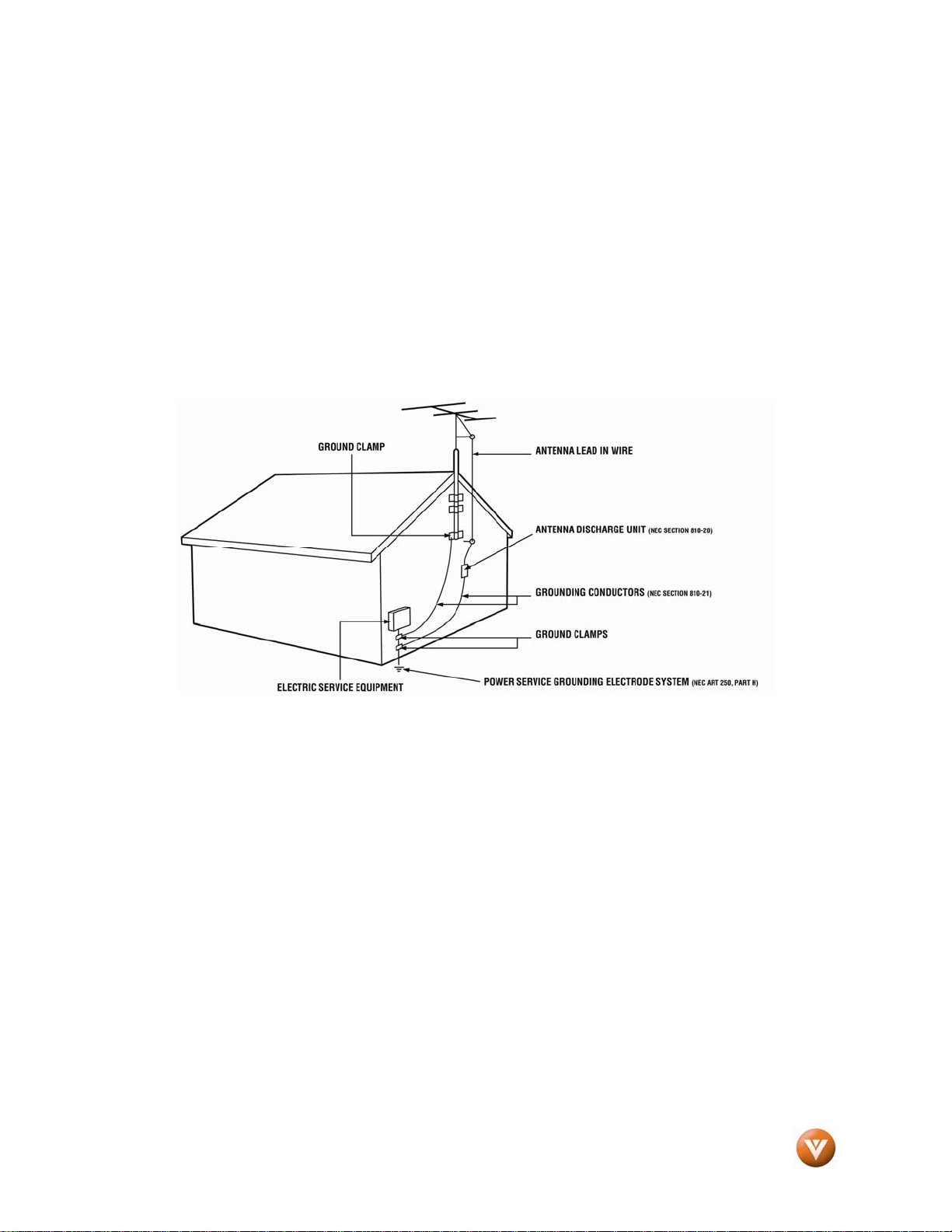
External Television Antenna Grounding
If an outside antenna/satellite dish or cable system is to be connected to the TV, make sure that the
antenna or cable system is electrically grounded to provide some protection against voltage surges and
static charges.
Article 810 of the National Electrical Code, ANSI/NFPSA 70, provides information with regard to proper
grounding of the mast and supporting structure, grounding of the lead-in wire to an antenna discharge
unit, size of the grounding conductors, location of antenna discharge unit, connection to grounding
electrodes, and requirements of the grounding electrode.
Lightning Protection
For added protection of the TV during a lightning storm or when it is left unattended or unused for long
periods of time, unplug the TV from the wall outlet and disconnect the antenna or cable system.
Power Lines
Do not locate the antenna near overhead light or power circuits, or where it could fall into such power
lines or circuits.
Remember, the screen of the coaxial cable is intended to be connected to earth in the building
installation.
VIZIO GV47L FHDTV20A User Manual
Version 10/16/2007 4
www.VIZIO.com
Opening the Package
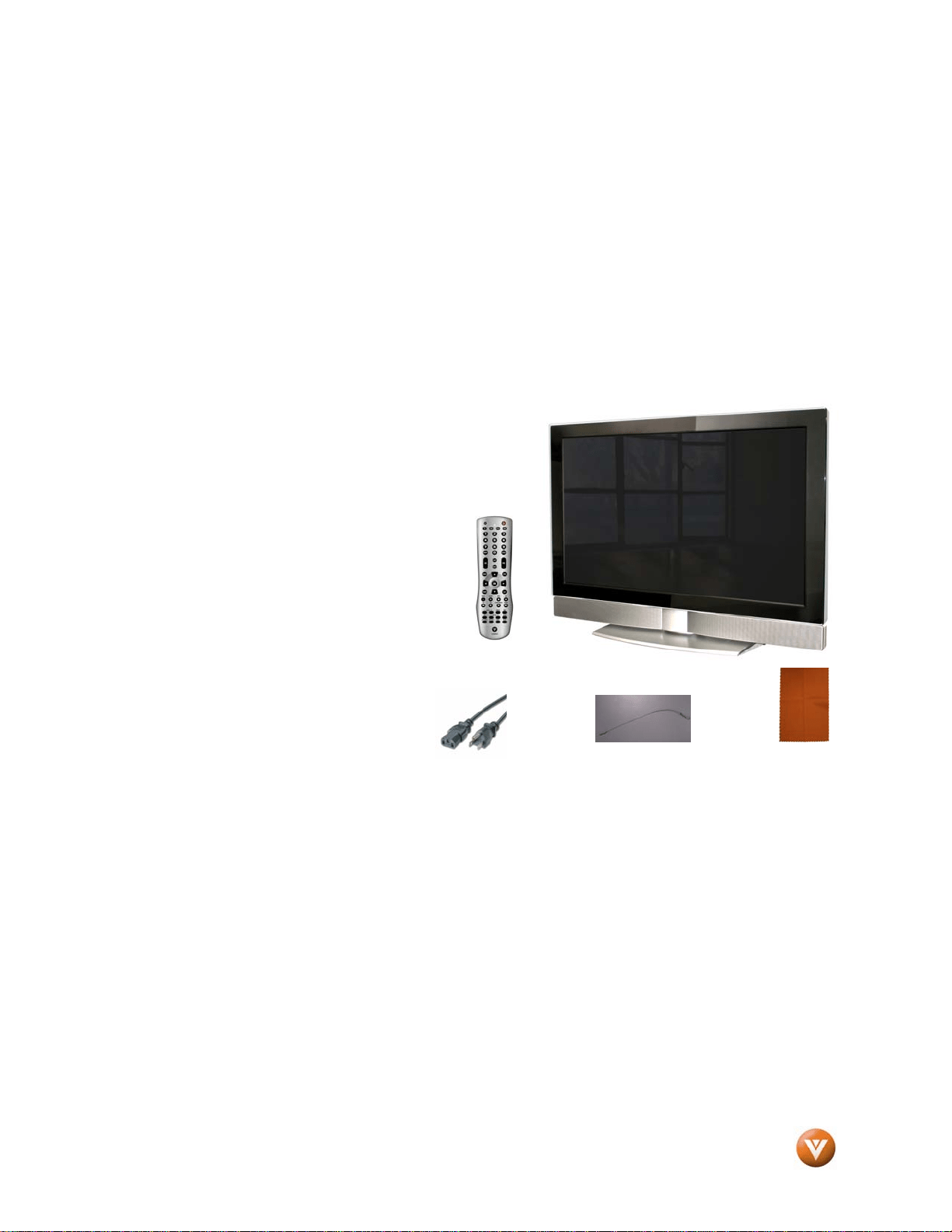
Your VIZIO GV47L FHDTV20A and it accompanying accessories are carefully packed in a cardboard
carton that has been designed to protect it from transportation damage. Now you have opened the carton
check that the GV47L FHDTV20A is in good condition and that all of the accessories are included.
The GV47L FHDTV20A weighs approximately 86lbs and about 44.53” wide x 31.42” tall we strongly
advise that you have at least 2 people to unpack and install the HDTV.
The glass surface can easily be scratched or broken so please handle the product gently and never place
the HDTV with the glass facing downwards on a surface without protective padding.
IMPORTANT: Save the carton and packing material for future shipping.
Package Contents
VIZIO GV47L FHDTV20A
VIZIO Remote Control by Universal Electronics
Power Cord
Safety Strap
VIZIO Bezel and Screen Cleaning Cloth
This User Manual
Quick Setup Guide
Registration Card
VIP Services Brochure
2 (Double A) Batteries for the Remote Control
Warranty Card and Repair Information
VIZIO GV47L FHDTV20A User Manual
Version 10/16/2007 5
www.VIZIO.com
Additional Certified Accessories for the VIZIO
GV47L FHDTV20A are sold separately
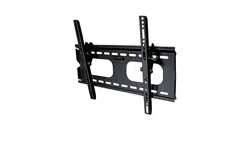
Wall Mounts
High Definition Cables
Extra or replacement Remote
VIZIO also offers Installation Services and Extended Warranty Services for your VIZIO GV47L
FHDTV20A
To purchase or inquire about additional accessories and services for your VIZIO product, visit our web
site at www.vizio.com
or call us toll free at 888-VIZIOCE (888-849-4623)
Installation Preparation
Please read this user manual carefully before installing your VIZIO HDTV.
The power consumption of the TV is about 400W; please use the power cord designated for TV. When
an extension cord is required, use one with the correct power rating. The cord must be grounded and the
grounding feature must not be defeated.
The TV should be installed on a flat surface to avoid tipping. For proper ventilation, you must allow space
between the back of the TV and the wall. If you would like to mount your TV on the wall, please see
below ‘Preparing Your LCD HDTV for Wall Mounting’ for additional information. Avoid installing the TV in
places with high humidity, dust or smoke so as not to shorten the service life of the electronic components.
Install the TV in landscape orientation; any 90˚ clockwise or counter-clockwise installation may induce
poor ventilation and excessive component damage.
VIZIO offers professional installation services. Please contact VIZIO for more information on these
services at 888-VIZIOCE (888-849-4623) or www.vizio.com
.
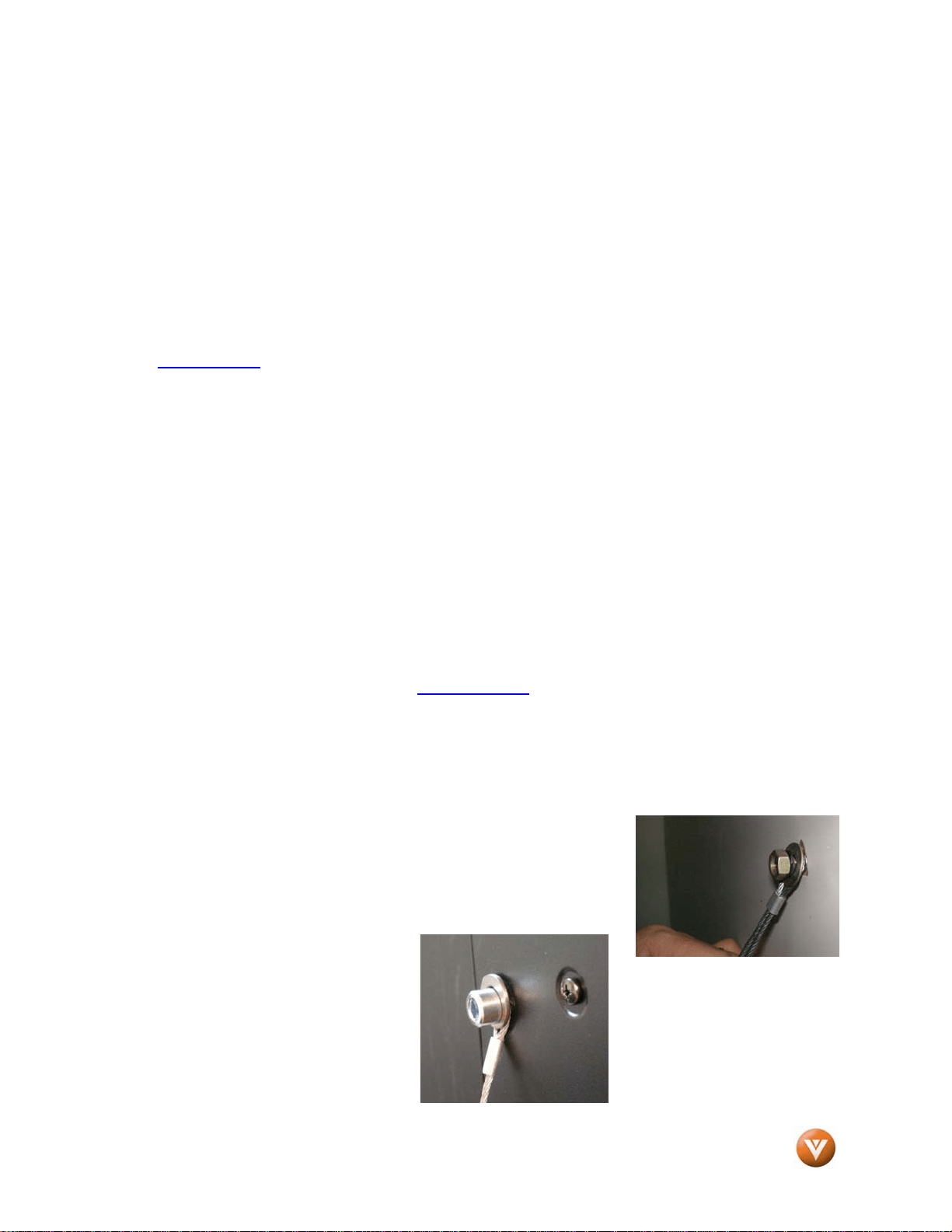
Attaching the Safety Strap
For when the GV47L FHDTV20A is not mounted on the wall with a Wall Mount, a Safety Strap has been
included to attach the HDTV to the wall to reduce the chance of the HDTV being pulled over. The Safety
Strap should be used with common sense practice such as ensuring that children (or adults) do not climb
up, grabbing the top of the HDTV and pulling it onto themselves.
1. Fix one end of the strap to the wall. If you have a drywall
finish it is preferable to fix it to a stud, using a washer
underneath the screw head. If you have a solid wall you
should use a lag bolt, again using a washer under the nut.
2. Fix the other end of the Safety
Strap to one of the upper wall
mounting holes on the back of
the HDTV, using a washer
under the screw head.
VIZIO GV47L FHDTV20A User Manual
Version 10/16/2007 6
www.VIZIO.com
Preparing Your LCD HDTV for Wall Mounting
The VIZIO GV47L FHDTV20A can either be kept on the stand base or mounted on the wall for viewing. If
you choose to mount the GV47L FHDTV20A on the wall, please follow the instructions below for
removing the stand base.
To find the perfect mount for the VIZIO GV47L FHDTV20A, browse VIZIO’s certified mount selection at
www.VIZIO.com
or call directly 888-VIZIOCE (888-849-4623).
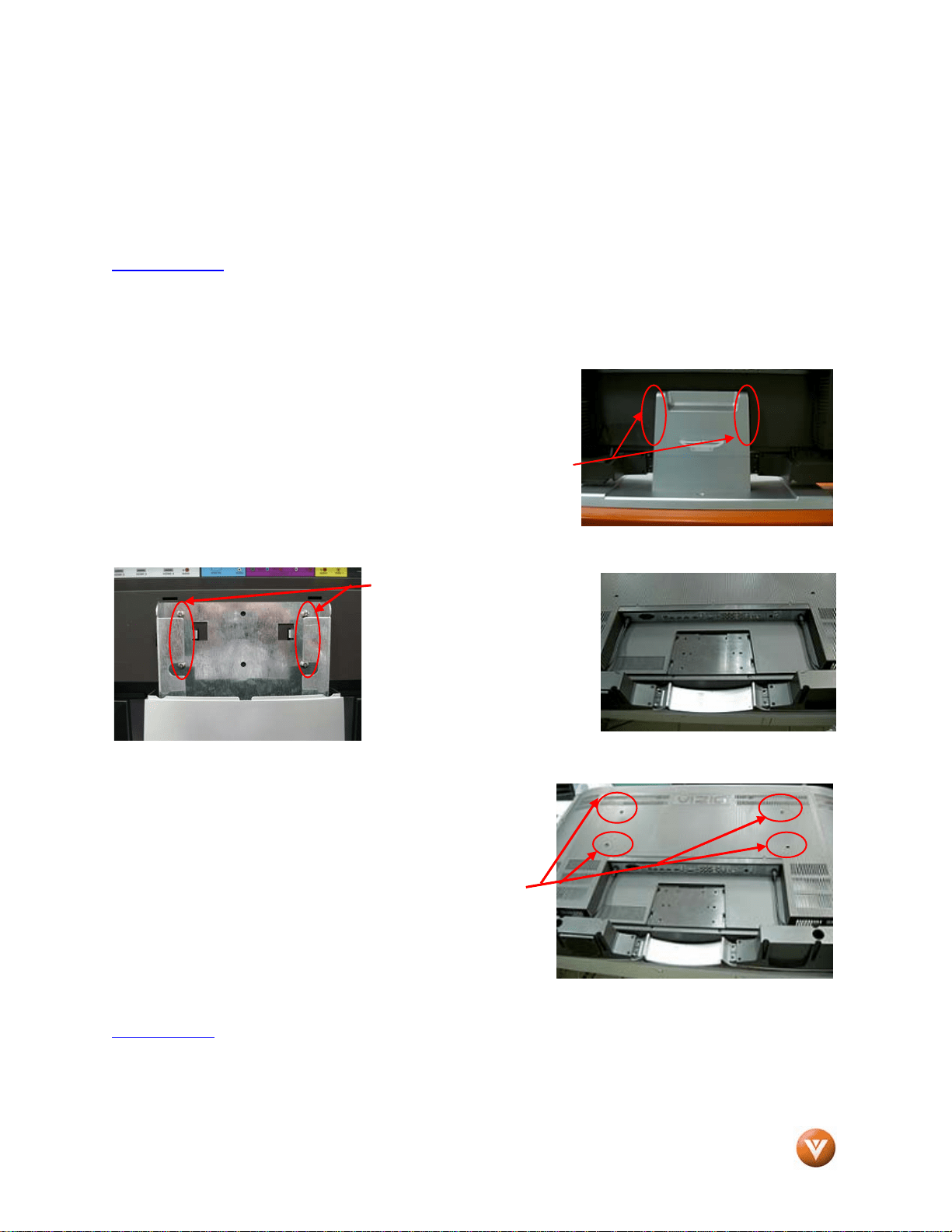
To remove the stand base
Unplug all of the cables and cords from your GV47L FHDTV20A.
Place the GV47L FHDTV20A face down on a soft and flat surface
(blanket, foam, cloth, etc) to prevent any damage to the TV.
Pull the stand cover off by squeezing the sides to release the
retaining plastics tabs.
Remove the six (4) screws
(screws’ specs: M5, 1.0 Pitch,
15mm) so that the stand base
can be removed.
Gently remove the stand base.
Now, the GV47L FHDTV20A can fit securely to a mount (sold
separately) by utilizing the mounting holes in the center of the
back panel of the TV. Please make sure to read the
instructions of your specific mount to properly hang the GV47L
FHDTV20A.
The pitch of the mounting holes is 630mm horizontally and
200mm vertically.
The screw type required is metric M8, 1.25mm pitch. The
maximum length of the screws will be 18mm.
To find the perfect mount for the VIZIO GV47L FHDTV20A, browse VIZIO’s certified mount selection at
www.vizio.com
or call directly 888-VIZIOCE (888-849-4623).
VIZIO GV47L FHDTV20A User Manual
Version 10/16/2007 7
www.VIZIO.com
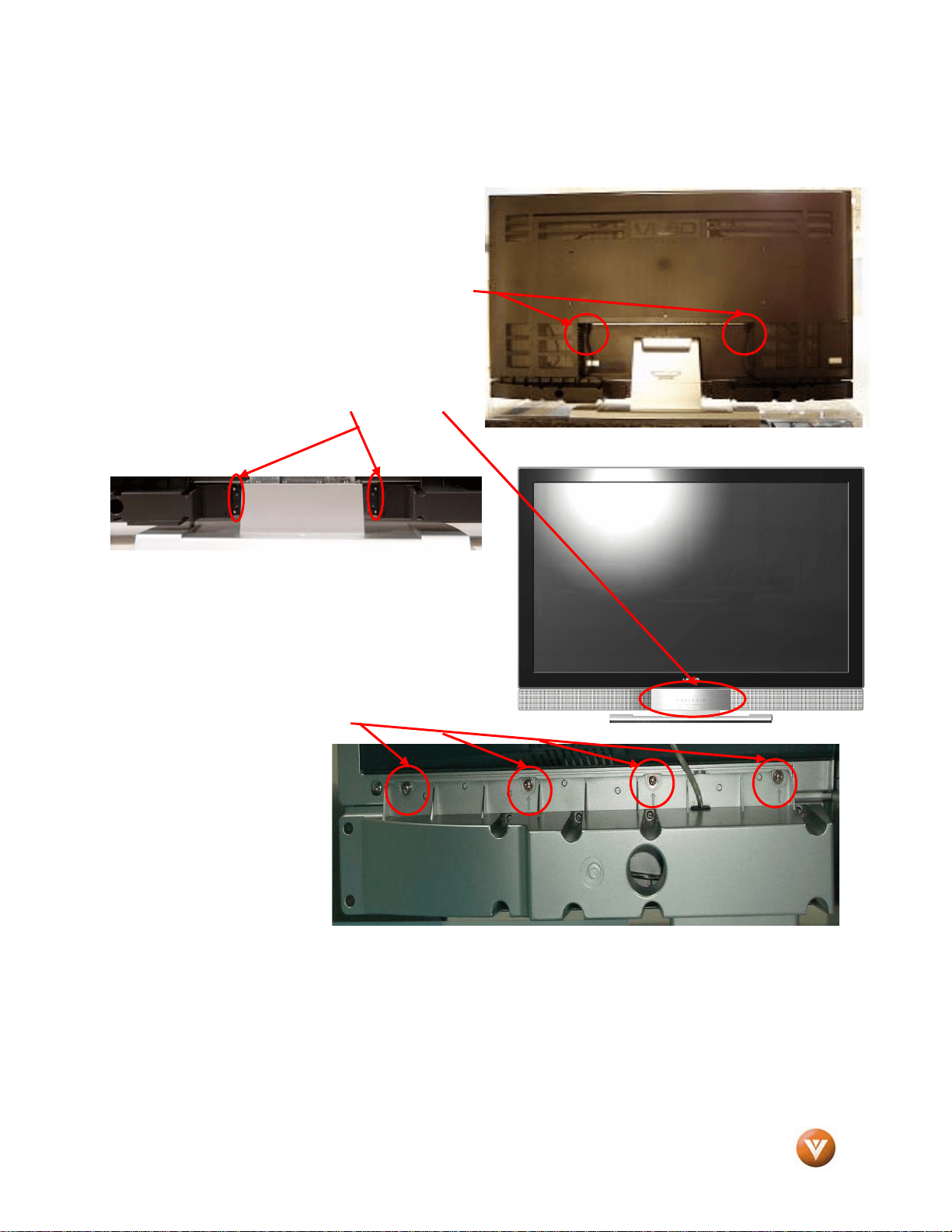
To remove the speakers
If you wish to remove the attached speakers as well and use your Home Theatre System for the audio,
please follow the procedure below.
1. Unplug the speaker wires from the GV47L
FHDTV20A at the rear of the TV set by
carefully pulling down on these two 5-DIN
pin connectors, one at a time.
2. To remove the nameplate; make sure that
these four screws (T3, 8mm long, self
tapping) are removed. These screws are
located behind the plate.
3. Remove the four (4) screws that hold the right
speaker in place and remove the speaker. The
screws are identified by arrows molded into the
plastic. After removing speaker, the screws
could be left in place for future use if speaker
needs to be reinstalled.
4. Repeat step 3 for the
left speaker. After
removing speaker, the
screws could be left in
place for future use if
speaker needs to be
reinstalled.
Note: Do not attempt to remove speaker assembly without removing nameplate beforehand; plate will
be easily removed after step 2 is done.
VIZIO GV47L FHDTV20A User Manual
Version 10/16/2007 8
www.VIZIO.com
Relocate Detachable Speakers
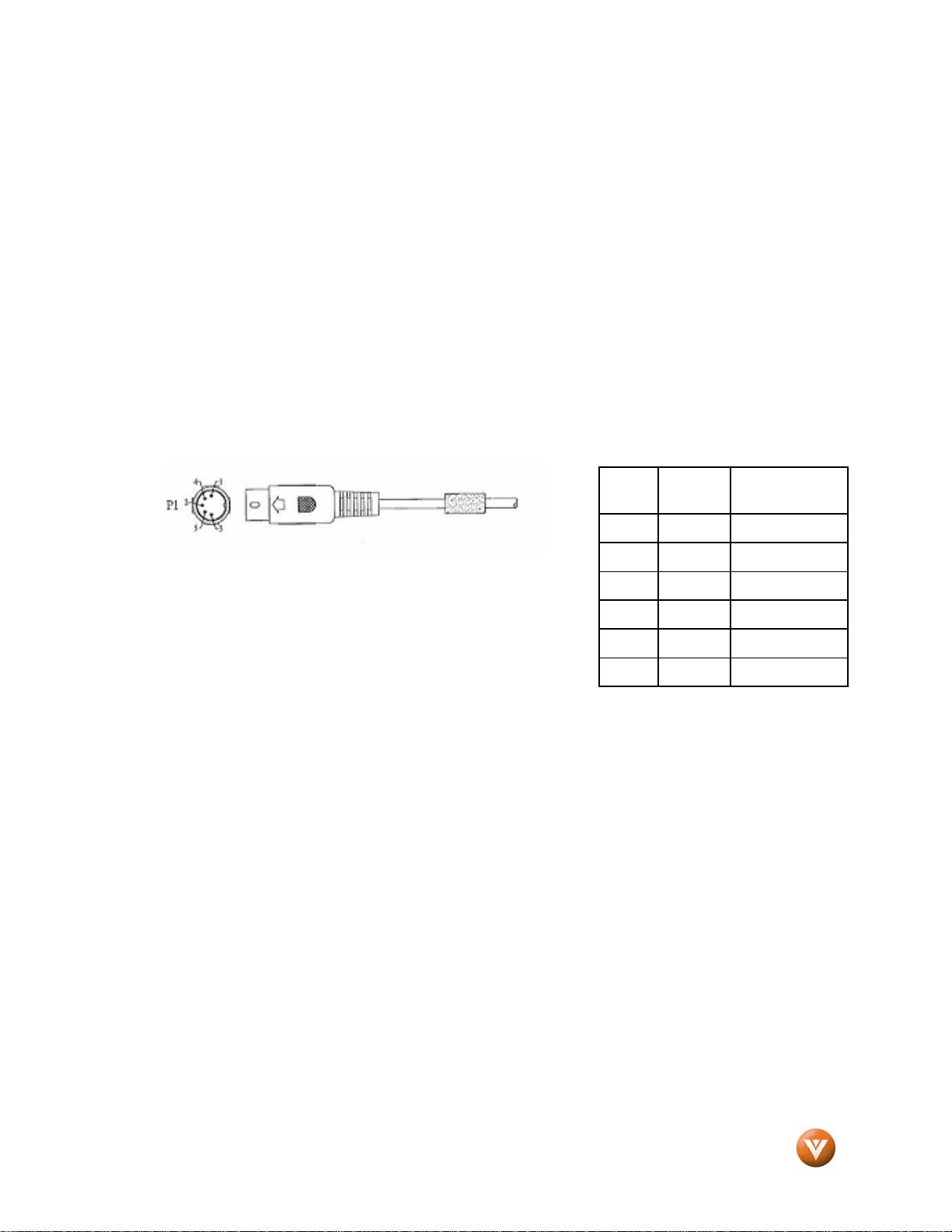
If you decide to relocate or place speaker’s assemblies away from the TV set, it is recommendable to
follow the procedure or steps shown below.
1. Select the place and then measure the distance from new location to the TV set.
2. Make sure that the extension cables follow the pattern shown below.
3. Please notice that you will need a female (5-pin) connector at one end and a male (5-pin)
connector at the other end to make the speaker’s cable extensions.
WIRING TABLE
4. Make sure that each color of the wire matches to the designated pin and hole’s patterns.
Note: This section is exclusive for TV owners who want to place the speakers away from the TV set.
PLUG
P1
WIRE
COLOR
CONNECTOR
1 Red P2
2 NC
3 Black P3
4 NC
5 NC
Shell Drain

VIZIO GV47L FHDTV20A User Manual
Version 10/16/2007 9
www.VIZIO.com
Table of Contents
Chapter 1 Basic Controls and Connections ................................................................ 11
1.1 Front Bezel........................................................................................................................................................11
1.2 Sensor Touch Controls......................................................................................................................................11
1.3 Rear Panel Connections ...................................................................................................................................12
1.4 VIZIO Universal Remote Control.......................................................................................................................14
1.4.1 Insertion of Batteries in the Remote Control..............................................................................................17
1.4.2 Remote Control Range..............................................................................................................................17
1.4.3 VIZIO Universal Remote Control Precautions ...........................................................................................17
Chapter 2 Connecting Equipment ..................................................................................18
2.1 Which Video Connection Should I Use?............................................................................................................18
2.2 Connecting Your Cable or Satellite Box............................................................................................................19
2.2.1 Using HDMI...............................................................................................................................................19
2.2.2 Using Component Video............................................................................................................................21
2.3 Connecting Coaxial (RF)...................................................................................................................................22
2.3.1 Using Your Antenna or Digital Cable for DTV............................................................................................22
2.3.2 Using Your Antenna or Cable for TV .........................................................................................................23
2.3.3 Using the Antenna or Cable through your VCR.........................................................................................23
2.4 Connecting Your DVD Player............................................................................................................................24
2.4.1 Using HDMI...............................................................................................................................................24
2.4.2 Using Component Video............................................................................................................................26
2.4.3 Using S-Video (AV1)..................................................................................................................................27
2.4.4 Using Composite (AV) Video.....................................................................................................................28
2.4.5 Connecting Your VCR or Video Camera ...................................................................................................29
2.5 Connecting an external Receiver/Amp..............................................................................................................30
2.6 Connecting a PC Computer ..............................................................................................................................31
2.6.1 Preset PC Resolutions...............................................................................................................................32
2.6.2 Resolution (1920x1080) through RGB (15-Pin VGA) Input........................................................................32
Chapter 3 Setting Up to Watch Television...................................................................33
3.1 Basic LCD HDTV Start Up ................................................................................................................................33
3.2 Watching a TV Program....................................................................................................................................36
3.3 Adjusting Basic LCD HDTV Settings.................................................................................................................36
3.4 Program Information..........................................................................................................................................37
Chapter 4 Advanced Adjustment of HDTV...................................................................38
4.1 Using the On Screen Display (OSD).................................................................................................................38
4.2 DTV / TV Input Picture Adjustment....................................................................................................................39
4.2.1 Picture Mode .............................................................................................................................................39
4.2.2 Backlight....................................................................................................................................................39
4.2.3 Contrast.....................................................................................................................................................40
4.2.4 Brightness..................................................................................................................................................40
4.2.5 Color..........................................................................................................................................................40
4.2.6 Tint.............................................................................................................................................................40
4.2.7 Sharpness .................................................................................................................................................41
4.2.8 Color Temperature.....................................................................................................................................41
4.3 Advanced Video................................................................................................................................................42
4.3.1 DNR...........................................................................................................................................................42
4.3.2 Black Level Extender.................................................................................................................................42
4.3.3 White Peak Limiter.....................................................................................................................................42
4.3.4 CTI (Color Transient Intensity)...................................................................................................................42
4.3.5 Flesh Tone.................................................................................................................................................42
4.3.6 Adaptive Luma...........................................................................................................................................42
4.3.7 DCR (Dynamic Contrast Ratio)..................................................................................................................42
4.4 DTV / TV Input Audio Adjustment......................................................................................................................43
4.4.1 Volume ......................................................................................................................................................43
4.4.2 Bass...........................................................................................................................................................43
4.4.3 Treble ........................................................................................................................................................43
4.4.4 Balance......................................................................................................................................................43
4.4.5 Surround....................................................................................................................................................44
4.4.6 Speakers ...................................................................................................................................................44
4.5 DTV / TV Tuner Setup.......................................................................................................................................44

VIZIO GV47L FHDTV20A User Manual
Version 10/16/2007 10
www.VIZIO.com
4.5.1 Tuner Mode ...............................................................................................................................................44
4.5.2 Auto Search..............................................................................................................................................44
4.5.3 Skip Channel.............................................................................................................................................44
4.5.4 Digital Audio Out........................................................................................................................................45
4.5.5 Time Zone .................................................................................................................................................45
4.5.6 Daylight Saving..........................................................................................................................................45
4.6 DTV / TV Input Setup........................................................................................................................................46
4.6.1 Language...................................................................................................................................................46
4.6.2 Sleep Timer...............................................................................................................................................46
4.6.3 Analog Closed Caption..............................................................................................................................46
4.6.4 Digital Closed Caption...............................................................................................................................46
4.6.5 Digital Closed Caption Style......................................................................................................................47
4.6.6 PIP (Picture-in-Picture)..............................................................................................................................47
4.6.7 H/V Position...............................................................................................................................................47
4.6.8 Reset All Settings ......................................................................................................................................47
4.7 DTV / TV Input Parental Control........................................................................................................................48
4.7.1 Channel Block ...........................................................................................................................................48
4.7.2 TV Rating...................................................................................................................................................49
4.7.3 Movie Rating..............................................................................................................................................50
4.7.4 Check for New DTV Rating........................................................................................................................50
4.7.5 Blocked Unrated Programming..................................................................................................................51
4.7.6 Change the Password ...............................................................................................................................51
4.8 HDMI Input Picture Adjustment.........................................................................................................................52
4.9 HDMI Input Audio Adjustment...........................................................................................................................52
4.10 HDMI Input Setup............................................................................................................................................52
4.11 Video Input Picture Adjustment.......................................................................................................................53
4.12 Video Input Audio Adjustment.........................................................................................................................53
4.13 Video Input Setup............................................................................................................................................53
4.14 Video Input Parental Control ...........................................................................................................................54
4.15 PC Input Picture Adjustment ...........................................................................................................................54
4.15.1 Auto Adjust..............................................................................................................................................54
4.15.2 Backlight..................................................................................................................................................54
4.15.3 Brightness................................................................................................................................................55
4.15.4 Contrast...................................................................................................................................................55
4.15.5 Color Temperature...................................................................................................................................56
4.15.6 H-SIZE.....................................................................................................................................................56
4.15.7 H. Position...............................................................................................................................................56
4.15.8 V. Position ...............................................................................................................................................56
4.15.9 Fine Tune ................................................................................................................................................56
4.16 PC Input Audio Adjustment.............................................................................................................................57
4.17 PC Input Setup................................................................................................................................................57
4.18 Understanding Viewing Modes........................................................................................................................58
4.18.1 Picture-In-Picture (PIP) Mode..................................................................................................................59
4.18.2 Adjusting Basic PIP/POP Settings...........................................................................................................60
4.19 Programming the VIZIO Universal Remote Control.........................................................................................61
4.19.1 Programming for VCR .............................................................................................................................61
4.19.2 Programming for Cable Set-Top Box.......................................................................................................61
4.19.3 Programming for DVD Player..................................................................................................................62
4.19.4 Searching for Component Codes ............................................................................................................62
4.20 Using a Cable or Satellite Remote ..................................................................................................................62
Chapter 5 Maintenance and Troubleshooting.............................................................63
5.1 Maintenance......................................................................................................................................................63
5.2 Troubleshooting Guide......................................................................................................................................63
5.3 Telephone & Technical Support........................................................................................................................65
5.4 Compliance .......................................................................................................................................................66
5.5 FCC Class B Radio Interference Statement......................................................................................................66
Chapter 6 Miscellaneous Information ...........................................................................67
6.1 Specifications....................................................................................................................................................67
6.2 Glossary – Standard Definitions........................................................................................................................68
6.3 Index .................................................................................................................................................................69
6.4 Component Program Codes..............................................................................................................................71
VIZIO GV47L FHDTV20A User Manual
Version 10/16/2007 11
www.VIZIO.com
Chapter 1 Basic Controls and Connections
1.1 Front Bezel
POWER LIGHT – The VIZIO name lights white when
powered on and orange when powered off.
REMOTE CONTROL SENSOR – This is the window
through which all of the remote control signals pass to
the sensor. Point the remote control directly at this
window for the best response to the remote signal.
1.2 Sensor Touch Controls
The GV47L FHD TV is equipped with Sensor Touch Controls that are hidden behind the bezel and
remain asleep until you need to use them. From right to left; the keys are as follows:
POWER (
) – Switch the GV47L FHDTV20A on by
pressing the Sensor Touch area to activate the
Controls and power up the TV. Press again to turn the
GV47L FHDTV20A off.
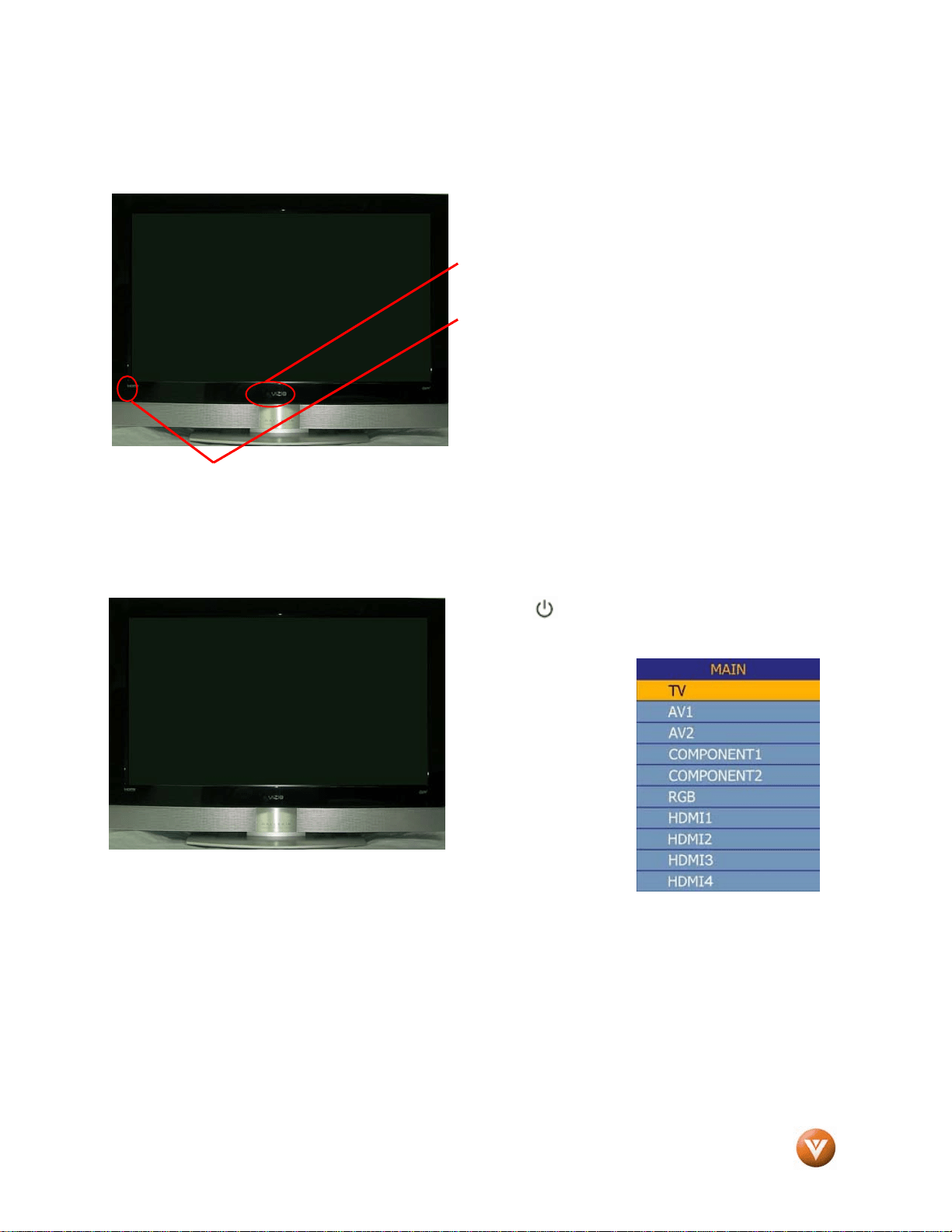
SOURCE – Repeated
pressing of this Control
steps through the input
sources in the following
sequence: TV, AV1,
AV2, Component1,
Component2, RGB,
HDMI1, HDMI2, HDMI3
and HDMI4, after you
stepped through the whole sequence you will return to the beginning.
Additionally, when the OSD is active, this Control confirms the menu
function to be adjusted. When the OSD is not active, pressing this button will display the current input
mode.
CHANNEL +/- – Use these Controls to step up or down the TV channels. While the OSD is active, these
function as up and down controls in the OSD menus.
VOLUME +/- – Use these Controls to increase or decrease to the speaker volume. While the OSD is
active, these function as left and right controls in the OSD menus.
MENU – This Control activates the On Screen Display (OSD). If a sub-menu is active, pressing this
Control will return to the previous menu level.
VIZIO GV47L FHDTV20A User Manual
Version 10/16/2007 12
www.VIZIO.com
1.3 Rear Panel Connections
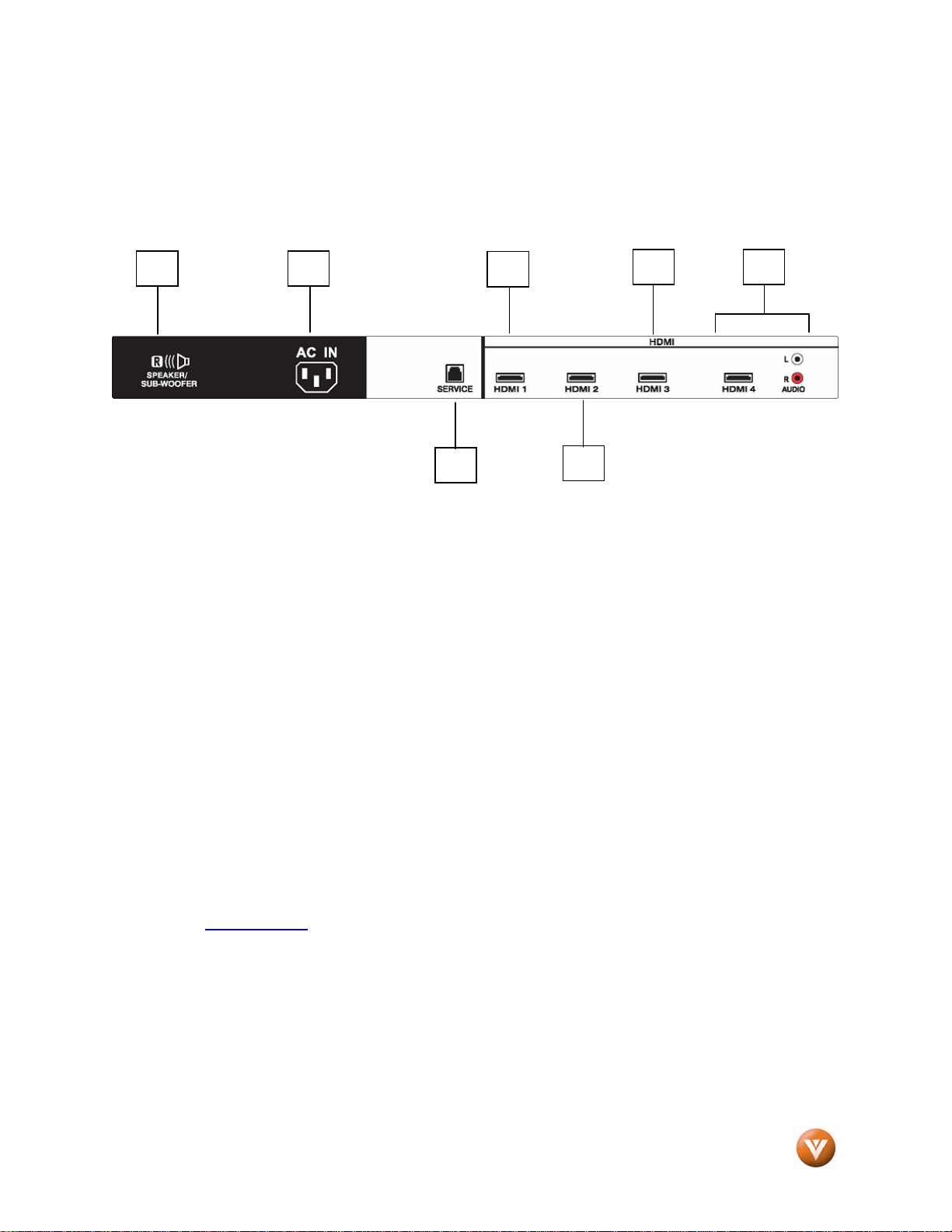
Left Hand Side Portion
1. SPEAKER – Connection for right speaker.
2. AC IN – Plug-in the supplied AC Power Cord here.
3. SERVICE – This custom communication port is for factory service only. Use of this input
for any purpose other than factory authorized service will void the manufacturer’s
warranty of this equipment.
4. HDMI 1 – Connect the primary source for digital video such as a DVD multimedia player or
set top box through this all digital connector. The white color band on the rear of the TV
indicates this connection.
5. HDMI 2 – Connect the primary source for digital video such as a DVD multimedia player or
set top box through this all digital connector. The white color band on the rear of the TV
indicates this connection.
6. HDMI 3 – Connect the primary source for digital video such as a DVD multimedia player or
set top box through this all digital connector. The white color band on the rear of the TV
indicates this connection.
7. HDMI 4 – Connect the secondary source for digital video such as a DVD multimedia player
or set top box through this all digital connector. The white color band on the rear of the TV
indicates this connection. For users who want to connect to a DVI enabled device, use a
DVI-HDMI cable and connect the Analog Audio output of the device to the L+R AUDIO
here. . Your VIZIO Certified HDMI and HDMI-DVI cables are available for purchase from
www.vizio.com
or by calling 888-VIZIOCE (888-849-4623).
1
6
2
7
4
3
5
VIZIO GV47L FHDTV20A User Manual
Version 10/16/2007 13
www.VIZIO.com
Right Portion
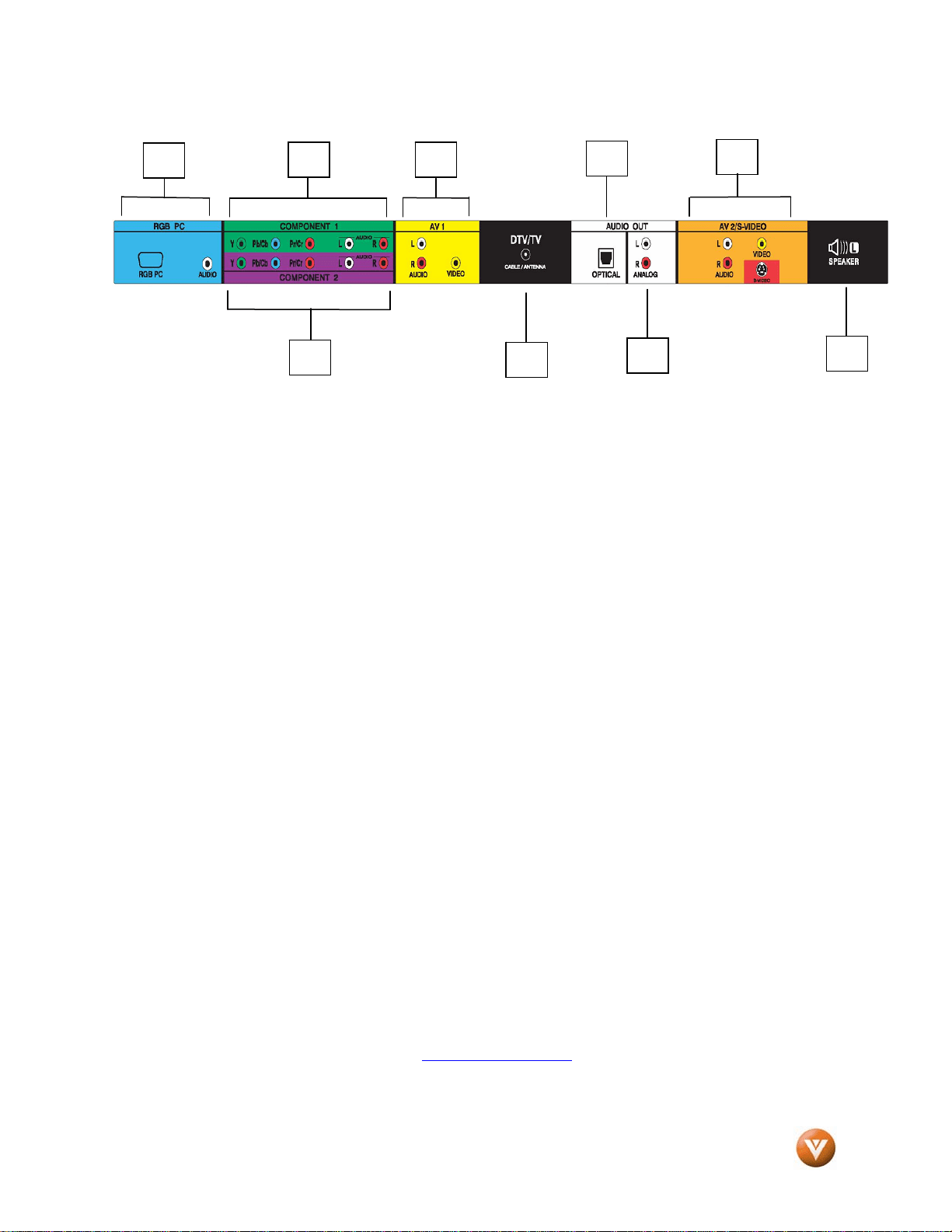
8. RGB PC – Connect the video and audio from a computer here. The blue color band on the
rear of the TV indicates this connection. To supply the audio signal either a straight 1/8” to
1/8” stereo cable or a Y-adapter cable (L+R audio to 1/8” stereo plug) is needed. Please
consult your computer manual before to find out what is your choice.
9. COMPONENT 1 (YPb/CbPr/Cr with Audio L/R) – Connect the primary source for
component video devices such as a DVD Player or set top box here. From left to right, use
green for Y, blue for Pb (or Cb), red for Pr (or Cr), white for left audio and red for right audio
inputs. The green color band on the rear of the TV indicates this connection.
10. COMPONENT 2 (YPb/CbPr/Cr with Audio L/R) – Connect the secondary source for
component video devices such as a DVD Player or set top box here. From left to right, use
green for Y, blue for Pb (or Cb), red for Pr (or Cr), white for left audio and red for right audio
inputs. The purple color band on the rear of the TV indicates this connection.
11. AV1 IN – Connect the secondary source for composite video devices, such as a DVD or
video game. Connect the audio output of the source into L+R audio connectors (red and
white connectors). The yellow color band on the rear of the TV set indicates this connection.
12. DTV/TV – Connect to an antenna or digital cable (out-of-the-wall, not from Cable Box) for
Digital TV.*
13. OPTICAL DIGITAL AUDIO OUT – When the DTV input is selected for viewing, the digital
audio associated with digital programming will be available on this SPDIF Optical connector
for connection to your home theatre system. The white color band on the rear of the TV
indicates this connection.
14. ANALOG AUDIO OUT – Connect the audio from the LCD HDTV to an external device,
such as a home theatre system, external amplifier or stereo. Speakers cannot be
connected directly to here. The white color band on the rear of the TV indicates this
connection.
15. AV2/S-VIDEO IN – Connect the secondary source for composite video devices, such as a
DVD or video game. Connect the audio output of the source into L+R audio connectors (red
and white connectors). Keep in mind that S-Video connections are only images signals;
therefore, a set of audio cables is needed to hear the sound. The S-Video, if connected, will
take priority over this input. The orange/red color area on the rear of the TV set indicates
this connection.
16. SPEAKER – Connection for left speaker.
* For digital TV stations in your area visit www.antennaweb.org
9
12
13
8
15
10
11
14
15
VIZIO GV47L FHDTV20A User Manual
Version 10/16/2007 14
www.VIZIO.com
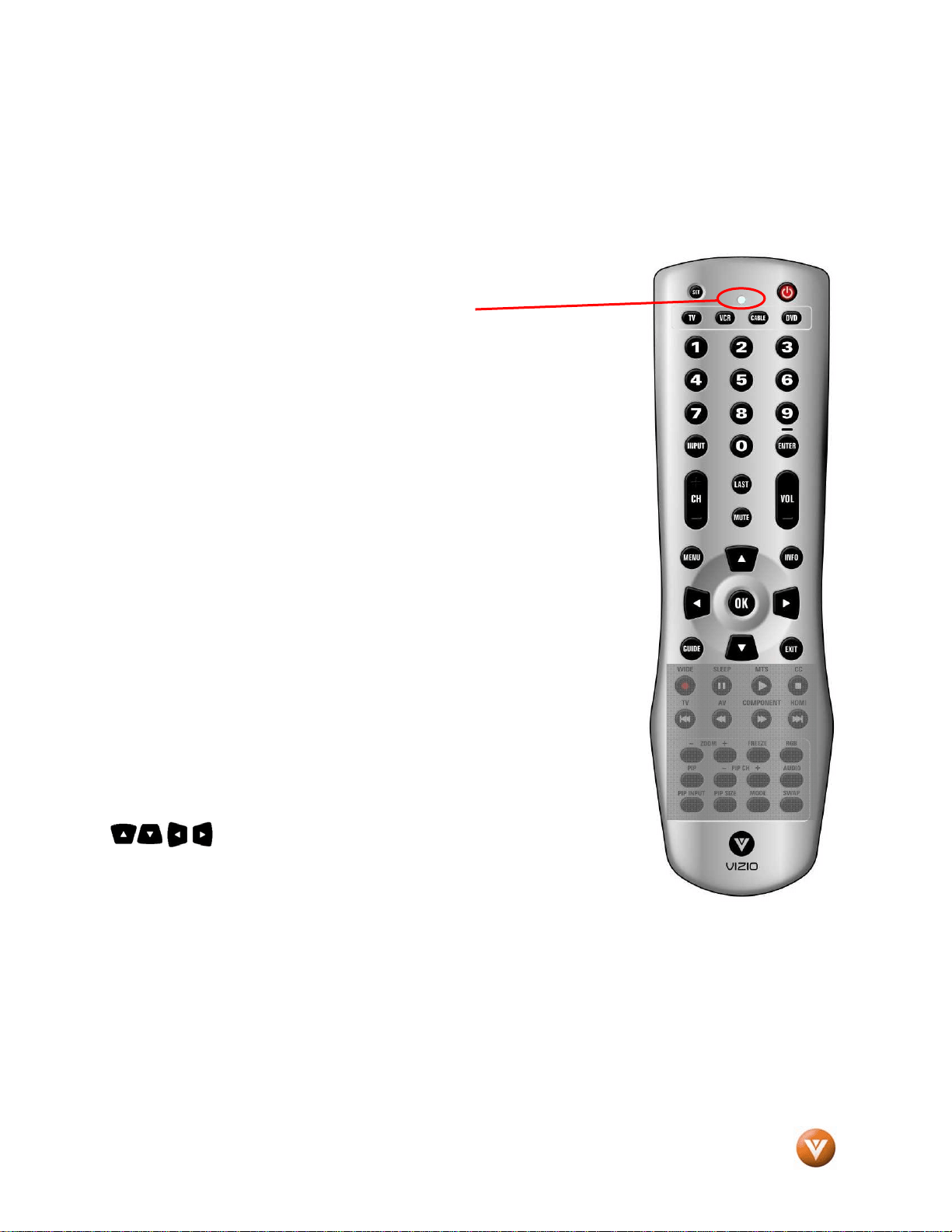
1.4 VIZIO Universal Remote Control
The VIZIO Universal Remote Control is a comprehensive remote that can be used to control up to four
different components. The remote control button functions are explained on the following pages.
VIZIO Remote Control Button Description
SET – This button starts all programming of the Remote Control.
REMOTE LED – Blinks when the remote operates.
POWER – Press this button to turn the TV on from the Standby mode.
Press it again to return to the Standby mode.
TV – This button has been pre-programmed to select the codes to operate
the GV47L FHDTV20A.
VCR – This button selects a programmed VCR.
CABLE – This button selects a programmed cable TV set-top box or a
satellite TV set-top box.
DVD – This button selects a programmed DVD player.
NUMBER BUTTON PAD – Use these buttons to select a channel or enter
a password.
INPUT – This button allows the user to cycle through the inputs.
- / ENTER – This button works as a DASH button in the DTV mode. When
selecting a digital channel directly use this button for the separation of
main and sub-channels. For example, channel 28-2 would be selected by
the button sequence 2 8 ENTER 2.
CH (+ or -) – These buttons change the channels up or down.
LAST – This button recalls the previously viewed channel.
MUTE – This button turns the sound on and off.
VOL (+ or -) – These buttons turn the volume up or down.
MENU – Use this button for the On-Screen Display (OSD) menus.
INFO – This button displays the image and system information display.
GUIDE – This button displays program information. Note: this button is
only functional for DTV.
EXIT – This button exits the On-Screen Display (OSD) menus.
- These buttons navigate the On-Screen Display (OSD).
OK – Use this button to select your chosen option in On-Screen Display
(OSD) menus.
NOTE: This is a programmable remote supporting
up to 4 devices (see TV, VCR, CABLE, DVD buttons
at the top of the remote). If the remote is not
working with your VIZIO TV, press the TV button
on the remote to set the functions back to TV.
VIZIO GV47L FHDTV20A User Manual
Version 10/16/2007 15
www.VIZIO.com
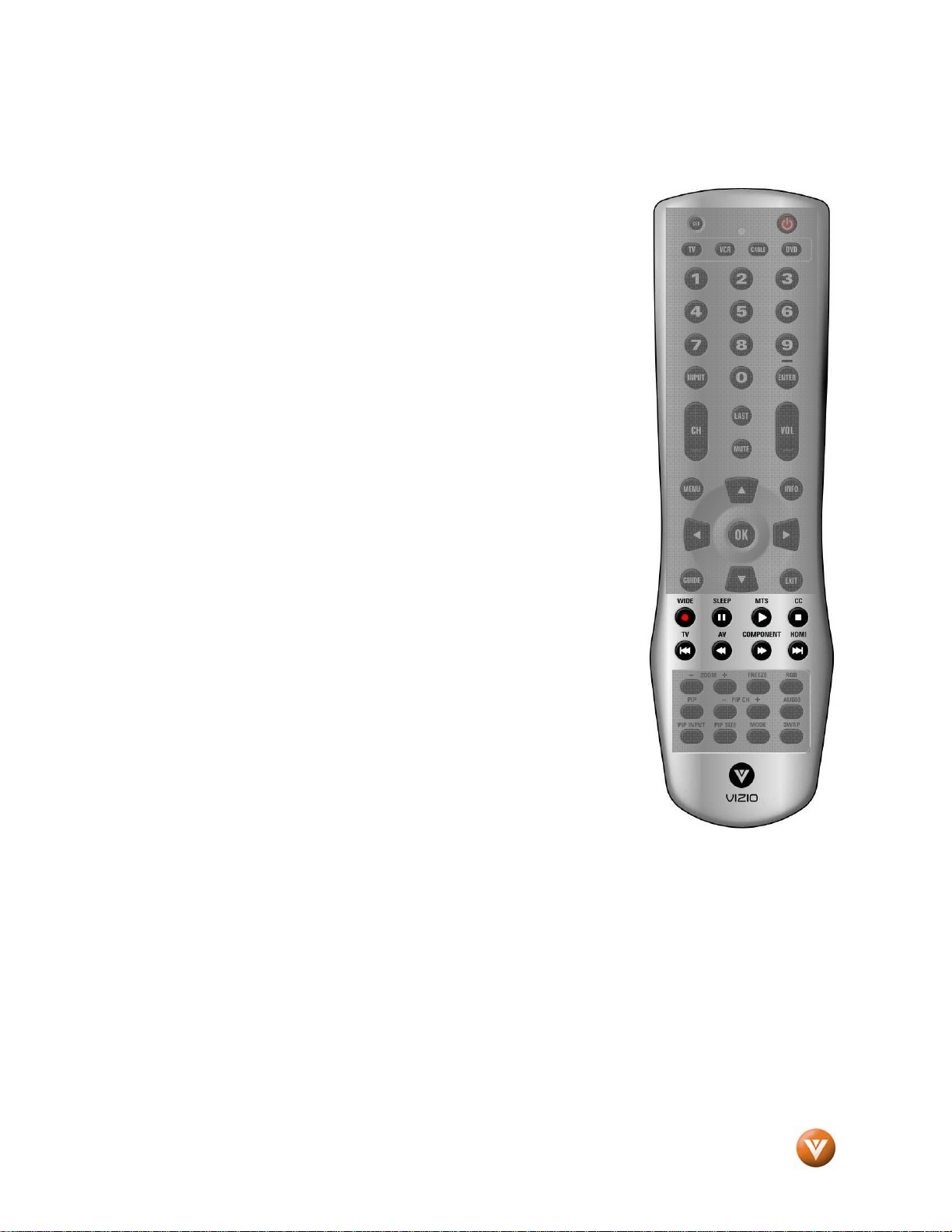
WIDE/Record – This button cycles through the available screen formats.
The options are Wide, Normal, Zoom, Panoramic. Note: in RGB/PC mode
the options are 4:3 and 16:9. This button also functions as VCR Record
when the component is activated with the remote control.
SLEEP/Pause – This button allows the user to select the sleep options by
adjusting the timer in 30 minute increments up to 120 minutes. Additionally,
this button pauses the CD, DVD or VCR when the component is activated
with the remote control.
MTS/Play – This button will select the MTS options of Stereo, SAP or
Mono in TV mode and alternate audio channels, where available, in DTV
mode. Additionally, this button plays the CD, DVD or VCR when the
component is activated with the remote control.
CC/Stop – This button will select the Closed Caption mode. The options
are OFF, CC1, CC2, CC3, CC4. Additionally, this button stops the CD,
DVD or VCR when the component is activated with the remote control.
TV/Previous Chapter – Repeated pressing of this button switches between
DTV and TV programming. Note: this button has been pre-programmed
for the VIZIO GV47L FHDTV20A. This button also functions as a DVD
Previous Chapter when the DVD player is activated with the remote control.
AV/Reverse – Repeated pressing of this button with switch between AV1
and AV2 inputs. Additionally, this button rewinds the CD, DVD or VCR
when the component is activated with the remote control.
COMPONENT/Forward – Repeated pressing of this button with switch
between Component 1 and Component 2 inputs. Additionally, this button
forwards the CD, DVD or VCR when the component is activated with the
remote control.
HDMI/ Next Chapter – Repeated pressing of this button will switch
between HDMI 1, HDMI 2, HDMI 3 and HDMI 4. Additionally, this button
functions as a DVD Next Chapter when the component is activated with
the remote control.
VIZIO GV47L FHDTV20A User Manual
Version 10/16/2007 16
www.VIZIO.com
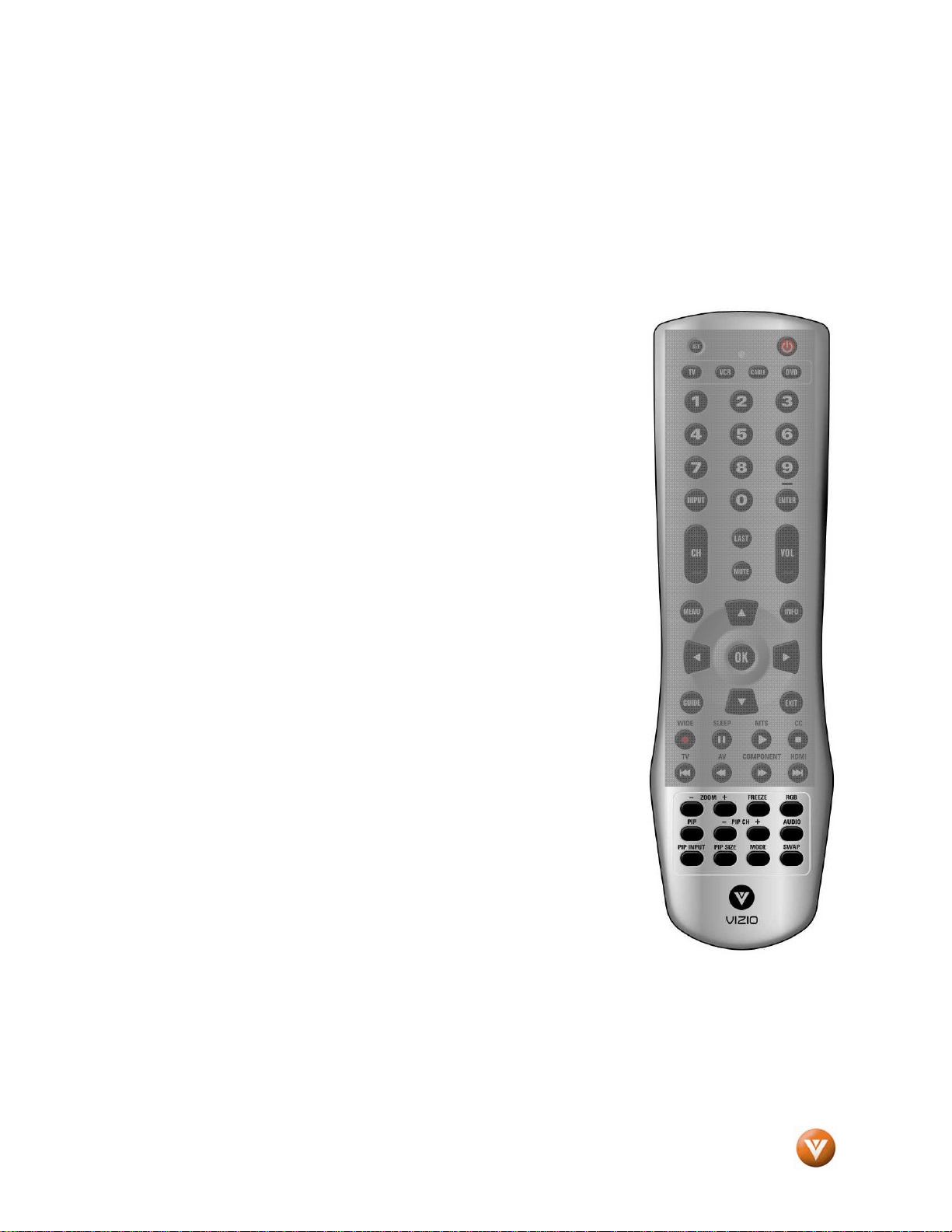
ZOOM (- and +) – Use these buttons to increase or decrease the size of
the picture. Note that in the zoom mode parts of the picture will not be
visible because they extend beyond the edges of the screen.
FREEZE – Press this button to “Freeze-Frame” the current screen. Press
this button again the continue playing.
RGB – This button selects an RGB Analog component such as a PC.
PIP – Use this button to activate the Picture-In-Picture mode.
PIP CH (- and +) – These buttons are used to select the channels within
the PIP screen when DTV/TV is the PIP input selected.
AUDIO – Press this button to switch the audio from the main screen to the
sub-screen while in PIP or POP mode.
PIP INPUT – Press the button to choose the PIP input. Note: The TV must
be in PIP/POP mode for this button to be functional. For additional
information regarding the PIP/POP options, see section Error! Reference
source not found. - Picture-In-Picture (PIP)/Picture-by-Picture (POP)
Mode, page Error! Bookmark not defined.9.
PIP SIZE – Press this button to select the size of the PIP screen from one
of the following: small, medium or large.
MODE – Use this button to change the picture mode from Custom,
Standard, Movie and Game.
SWAP – Used to swap the inputs from the main screen and the sub-
screen while in PIP/POP mode.
VIZIO GV47L FHDTV20A User Manual
Version 10/16/2007 17
www.VIZIO.com
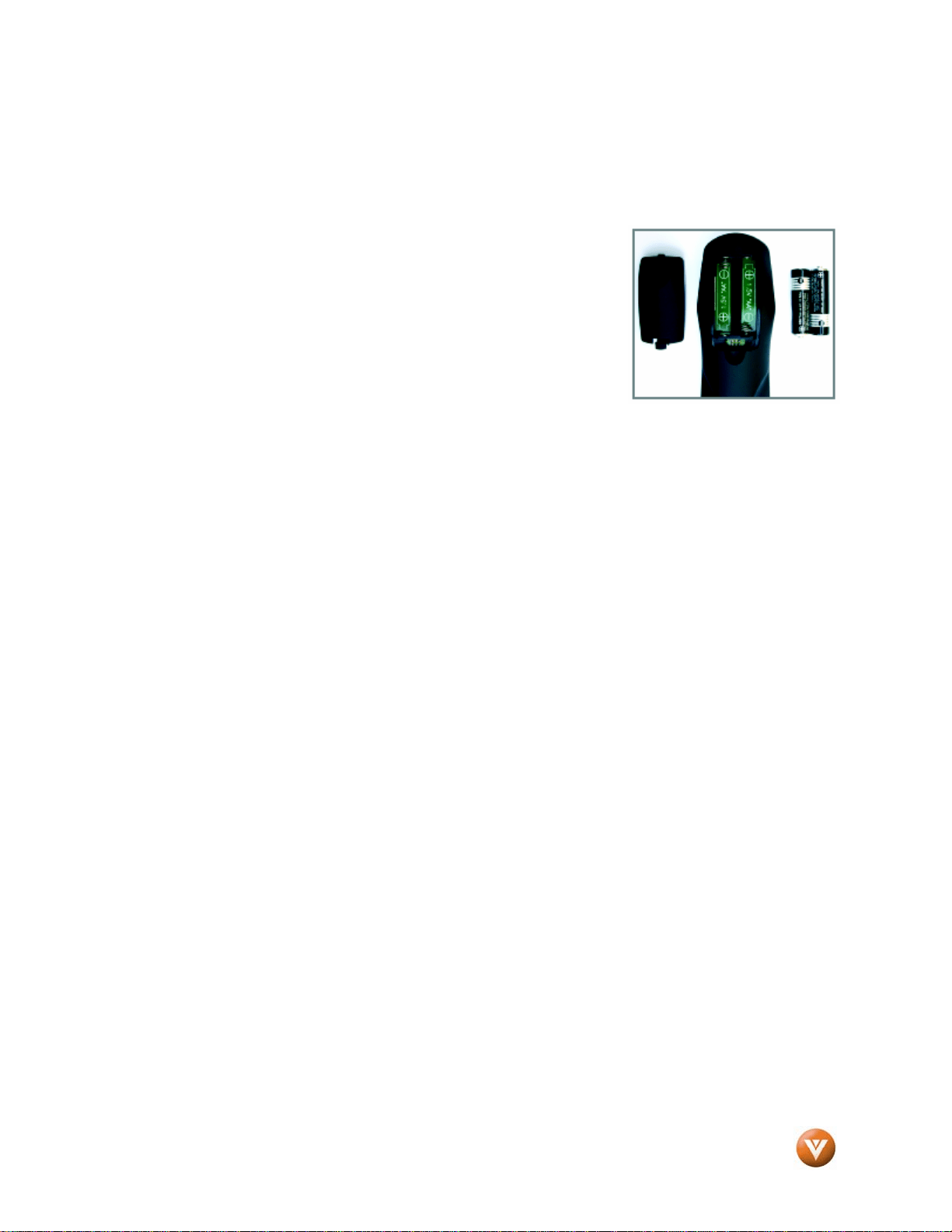
1.4.1 Insertion of Batteries in the Remote Control
Insert two AA batteries into the remote control. Make sure that you match the (+) and (-) symbols on the
batteries with the (+) and (-) symbols inside the battery compartment. Re-attach the battery cover.
Precautionary Tips for Inserting the Batteries:
Only use the specified AA batteries.
Do not mix new and old batteries. This may result in cracking or leakage
that may pose a fire risk or lead to personal injury.
Inserting the batteries incorrectly may also result in cracking or leakage
that may pose a fire risk or lead to personal injury.
Dispose of the batteries in accordance with local laws and regulations.
Keep the batteries away from children and pets.
1.4.2 Remote Control Range
Point the remote control at the remote control sensor to transmit the commands.
Do not place any obstacles between the remote control and the receiver window.
The effective range of the remote control is approximately 30 feet (10 meters) from the front of the
receiver window, 30° to the left and right, 20° up and down.
1.4.3 VIZIO Universal Remote Control Precautions
The remote control should be kept dry and away from heat sources. Avoid humidity.
If the TV responds erratically to the remote control or does respond at all, check the batteries. If the
batteries are low or exhausted, replace them with fresh batteries.
When not using the remote control for a long period of time, remove the batteries.
Do not take the batteries apart, heat them, or throw them into a fire.
VIZIO GV47L FHDTV20A User Manual
Version 10/16/2007 18
www.VIZIO.com
Chapter 2 Connecting Equipment
2.1 Which Video Connection Should I Use?
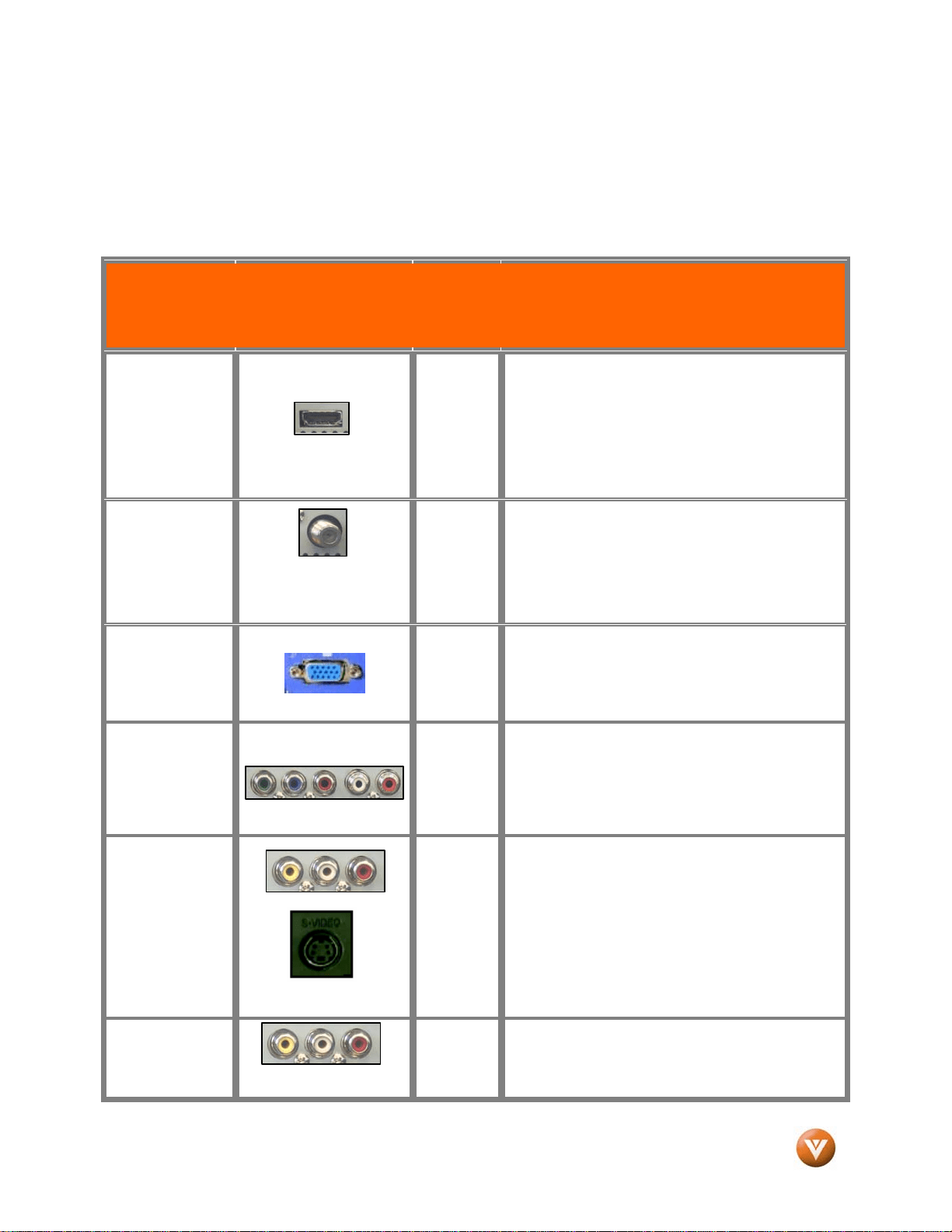
The VIZIO GV47L FHDTV20A has six different ways to connect your video equipment from a basic
connection to the most advanced for digital displays.
Connection
Quality
(type)
Connector
Rear
Panel
Color
Codes
Description
Best
(digital)
White
HDMI (High-Definition Multimedia Interface) - It is the
first and only industry-supported, uncompressed, all-
digital audio/video interface. HDMI provides an
interface between any audio/video source, such as a
set-top box, DVD player, or A/V receiver and an
audio and/or video monitor, such as a digital
television (DTV), over a single cable.
Best
(digital)
- - - - - - - - - - - -
Good
(analog)
Black
DTV Coaxial RF. When used for MPEG2 encoded
bit streams from ATSC broadcast programming, this
input takes advantage of the High Definition content.
- - - - - - - - - - - - - - - - - - - - - - - - - - - - - - - - - - - - - -
TV Coaxial RF. This is the connection for standard
NTSC TV using antenna or cable.
Best
(analog)
Blue
RGB PC (VGA) – This video input has separate red,
green and blue color components. The signal
carries horizontal and vertical sync information on
the green signal. This is most commonly used for
PC input.
Better
(analog)
Green
and
Purple
Component 1/2 - The video signal is separated into
three signals, one containing the black-and-white
information and the other two containing the color
information. This enhancement over S-Video takes
advantage of the superior picture provided by
progressive scan DVD players and HDTV formats.
Good
(analog)
Orange
and
Red
Composite (AV2) - The complete video signal is
carried through this single (yellow) pin connector.
This is the most commonly used video connection.
S-Video (AV2) - The video signal is separated into
two signals, one containing the black-and-white
information and the other containing the color
information. Separating the color in this way avoids
‘cross color’ effects where closely spaced black and
white lines are erroneously displayed in color. It also
enables text to be displayed more sharply.
Good
(analog)
Yellow
AV1 (Composite) - The complete video signal is
carried through this single pin connector. This is the
most commonly used video connection.
VIZIO GV47L FHDTV20A User Manual
Version 10/16/2007 19
www.VIZIO.com
Note: For more info refer to the Quick Start Guide
2.2 Connecting Your Cable or Satellite Box
2.2.1 Using HDMI
Cable and Satellite Boxes that have a HDMI digital interface should be connected to the HDMI input of
the LCD HDTV for optimal results.
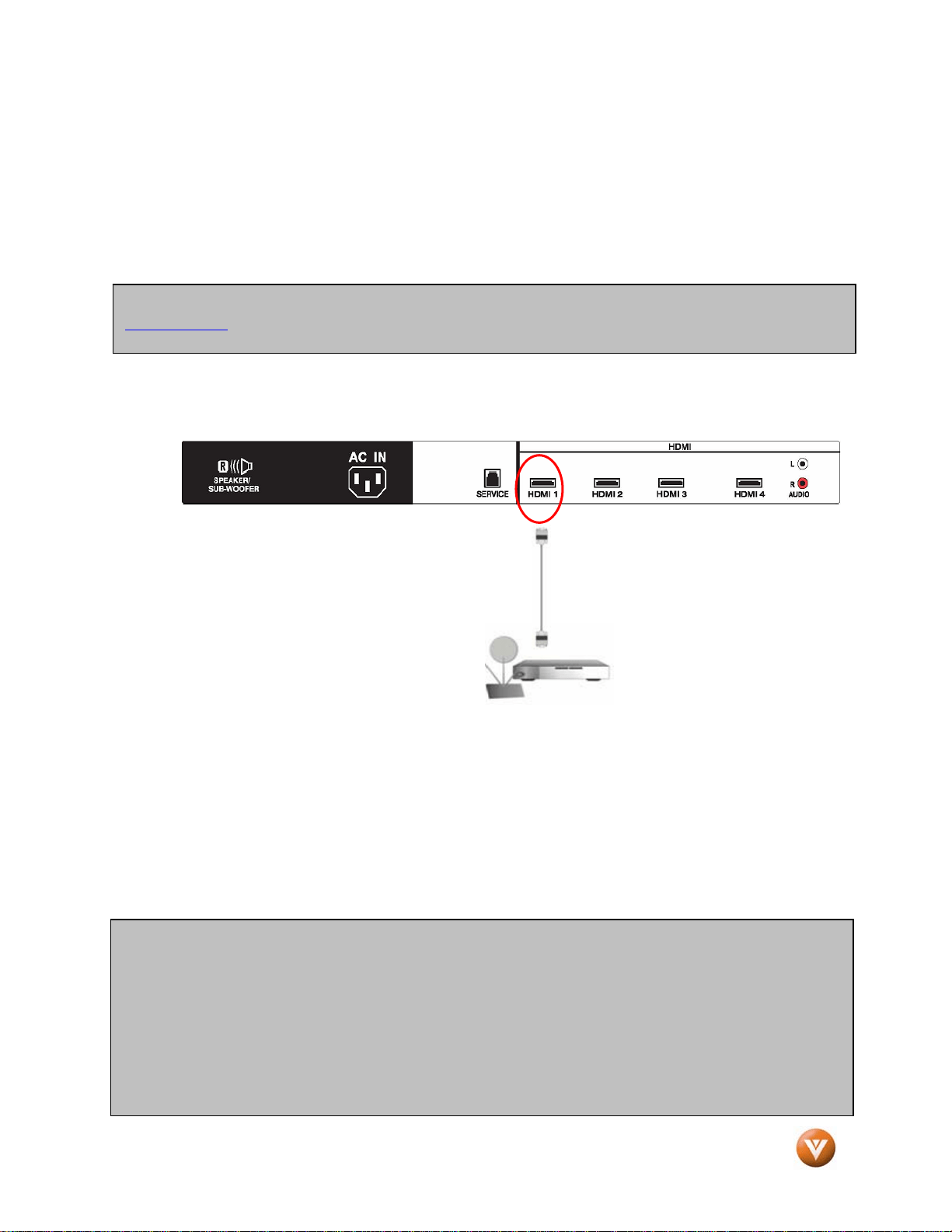
Connecting your Cable or Satellite Box (Best)
1. Turn off the power to the LCD HDTV and HDTV Set-Top Box.
2. Connect a HDMI cable to the HDMI output of your HDTV Set-Top Box and the other end to
the HDMI Input (white color area) at the rear of the LCD HDTV.
3. Turn on the power to the LCD HDTV and HDTV Set-Top Box.
4. Select HDMI using the INPUT button on the remote or touch sensor on front right hand side
of the LCD HDTV, or directly by pressing the HDMI button on the Remote Control.
5. If HDMI 1 input is already being used for a different component, follow Step 1 through 3 for
HDMI 2 or HDMI 3 or HDMI 4, and then select the corresponding input in Step 4.
Note: To maintain the display quality, use a VIZIO certified HDMI cable that is 10 meters or less. See
www.vizio.com
or call 1-888-VIZIOCE (1-888-849-4623) for details.
Note:
a) The HDMI input on the LCD TV supports High-bandwidth Digital Content Protection (HDCP).
HDCP encrypts the transmission between the video source and the digital display for added
security and protection.
c) If you are already using the HDMI 1 input for another component, or you do not want to use
the HDMI 1 input for the Set-Top Box, you can connect the Set-Top Box to the HDMI2,
HDMI3 or HDMI4 connection.
d) Refer to your HDTV Set-Top Box user manual for more information about the video output
requirements of the product or consult your cable or satellite operator.
VIZIO GV47L FHDTV20A User Manual
Version 10/16/2007 20
www.VIZIO.com
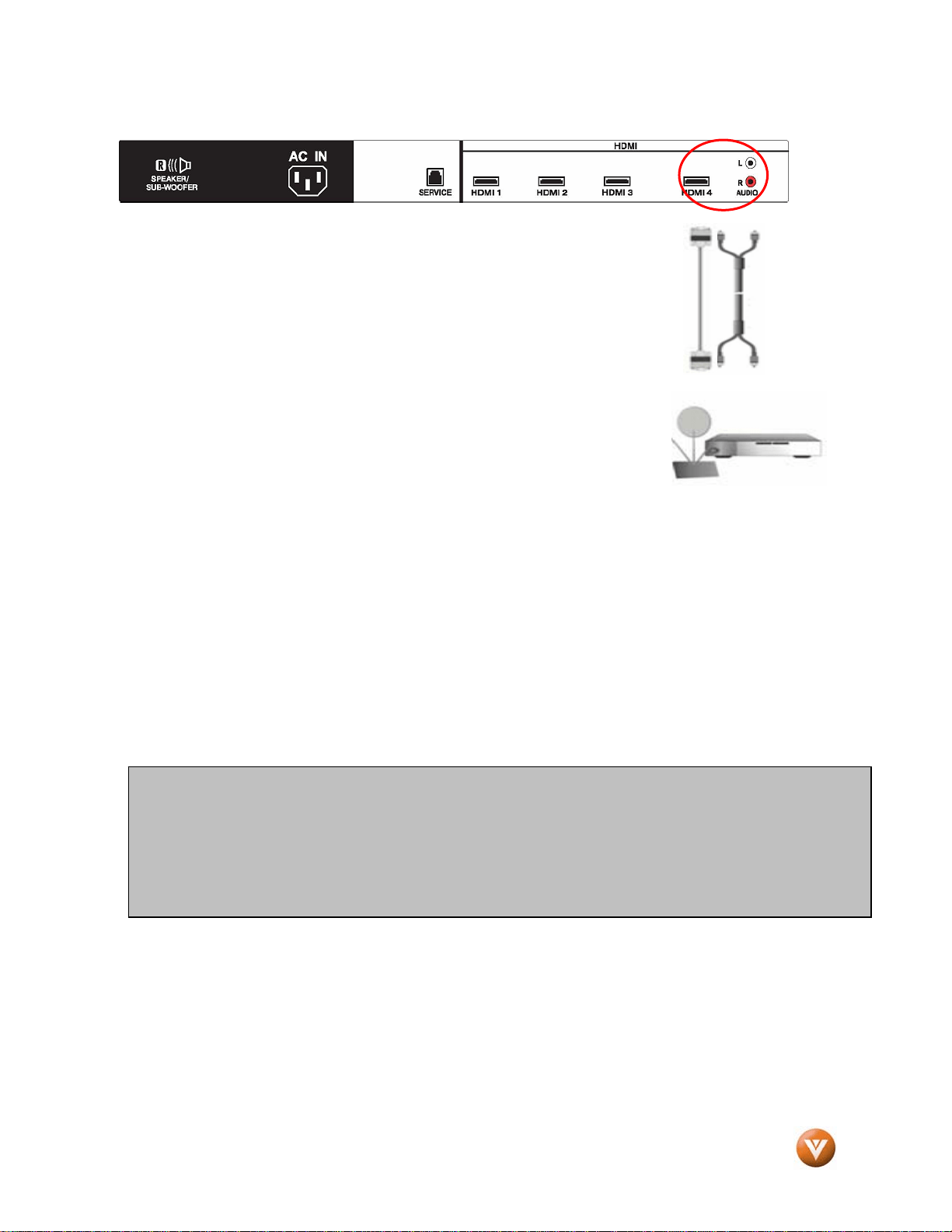
For Cable or Satellite Boxes with DVI:
1. Turn off the power to the LCD HDTV and HDTV Set-Top Box.
2. Using a HDMI-DVI cable, connect the DVI end to your HDTV Set-
Top Box and the HDMI end to the HDMI Input (white color area) at
the rear of the LCD HDTV.
3. Using an audio cable (white and red connectors), connect the cable to the audio output
connectors associated with the DVI output on your HDTV Set-Top Box and connect the other
end to the audio connectors associated with the HDMI input (white area) at the rear of the
LCD HDTV.
4. Turn on the power to the LCD HDTV and HDTV Set-Top Box.
5. Select HDMI using the INPUT button on the remote or touch sensor on front right hand of the
LCD HDTV, or directly by pressing the HDMI button on the Remote Control.
Note: The HDMI Input is for HD Video and will support 1920x1080 at 60Hz from a PC for best quality
picture.
Note:
a) The HDMI input on the LCD TV supports High-bandwidth Digital Content Protection
(HDCP). HDCP encrypts the transmission between the video source and the digital display
for added security and protection.
b) Refer to your HDTV Set-Top Box user manual for more information about the video output
requirements of the product or consult your cable or satellite operator.
VIZIO GV47L FHDTV20A User Manual
Version 10/16/2007 21
www.VIZIO.com
2.2.2 Using Component Video
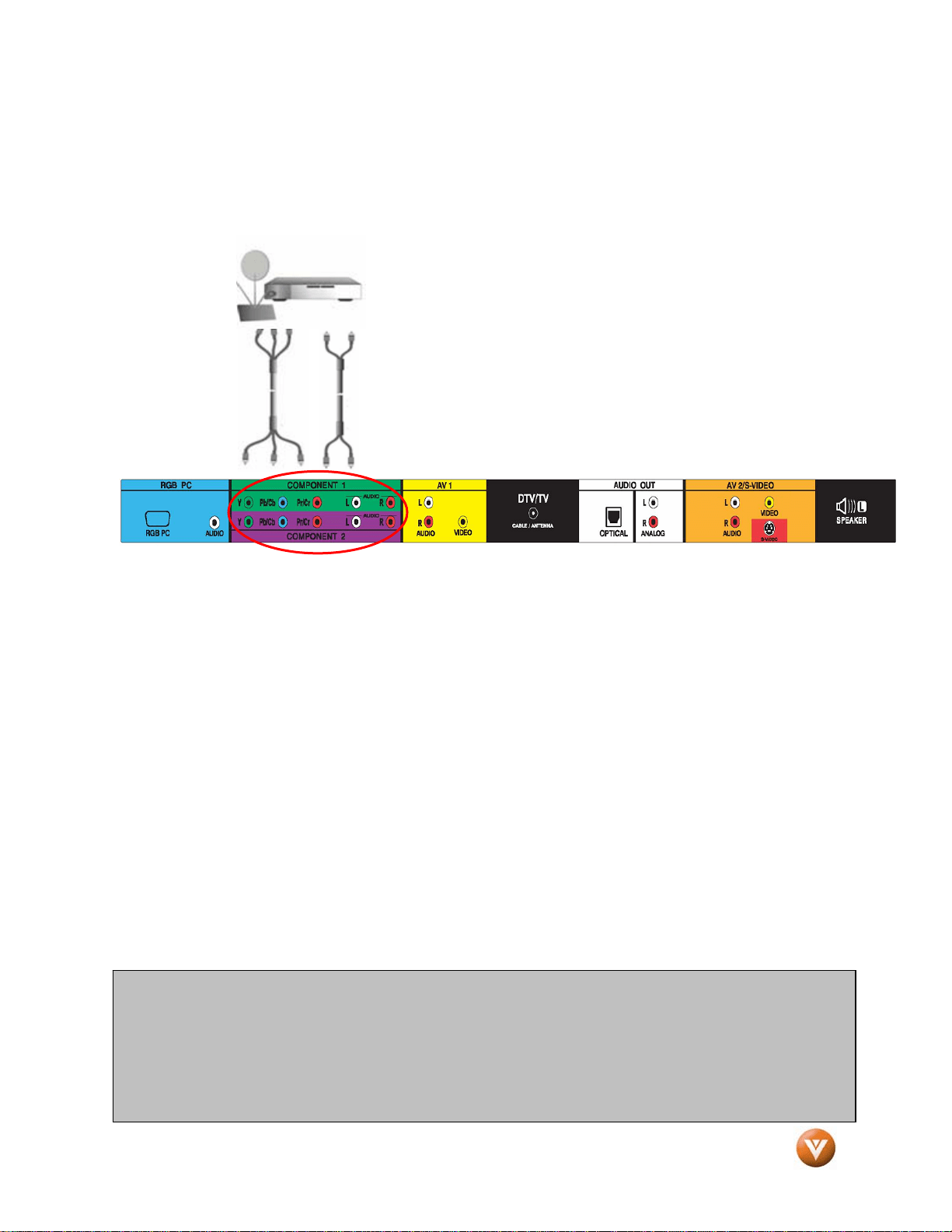
Connecting your Cable or Satellite Box (Better)
1. Turn off the power to the LCD HDTV and HDTV Set-Top Box.
2. Connect the Y (green color) connector on your HDTV Set-Top Box to the corresponding Y
(green color) connector in the Component 1 group (green color area - row of connectors
nearest to you when viewing from the rear of the TV) at the rear of the LCD HDTV.
3. Connect the PbCb (blue color) connector on your HDTV Set-Top Box to the corresponding
Pb (blue color) connector in the Component 1 group (green color area - row of connectors
nearest to you when viewing from the rear of the TV) at the rear of the LCD HDTV.
4. Connect the PrCr (red color) connector on your HDTV Set-Top Box to the corresponding Pr
Cr (red color) connector in the Component 1 group (green color area - row of connectors
nearest to you when viewing from the rear of the TV) at the rear of the LCD HDTV.
5. Using an audio cable (white and red connectors), connect the cable to the audio output
connectors associated with the Component output on your HDTV Set-Top Box and connect
the other end to the audio connectors associated with the Component 1 input (green color
area) at the rear of the LCD HDTV.
6. Turn on the power to the LCD HDTV and HDTV Set-Top Box.
7. Select Component 1 using the INPUT button on the remote or touch sensor on front right
hand side of the LCD HDTV, or directly by pressing the Component button on the Remote
Control.
Note:
a) If you are already using the Component 1 input for another component, or you do not want
to use the Component 1 input for the Set-Top Box, you can connect the Set-Top Box to the
Component 2 connections coded by the purple area.
b) Refer to your HDTV Set-Top Box user manual for more information about the video output
requirements of the product or consult your cable or satellite operator.
VIZIO GV47L FHDTV20A User Manual
Version 10/16/2007 22
www.VIZIO.com
2.3 Connecting Coaxial (RF)
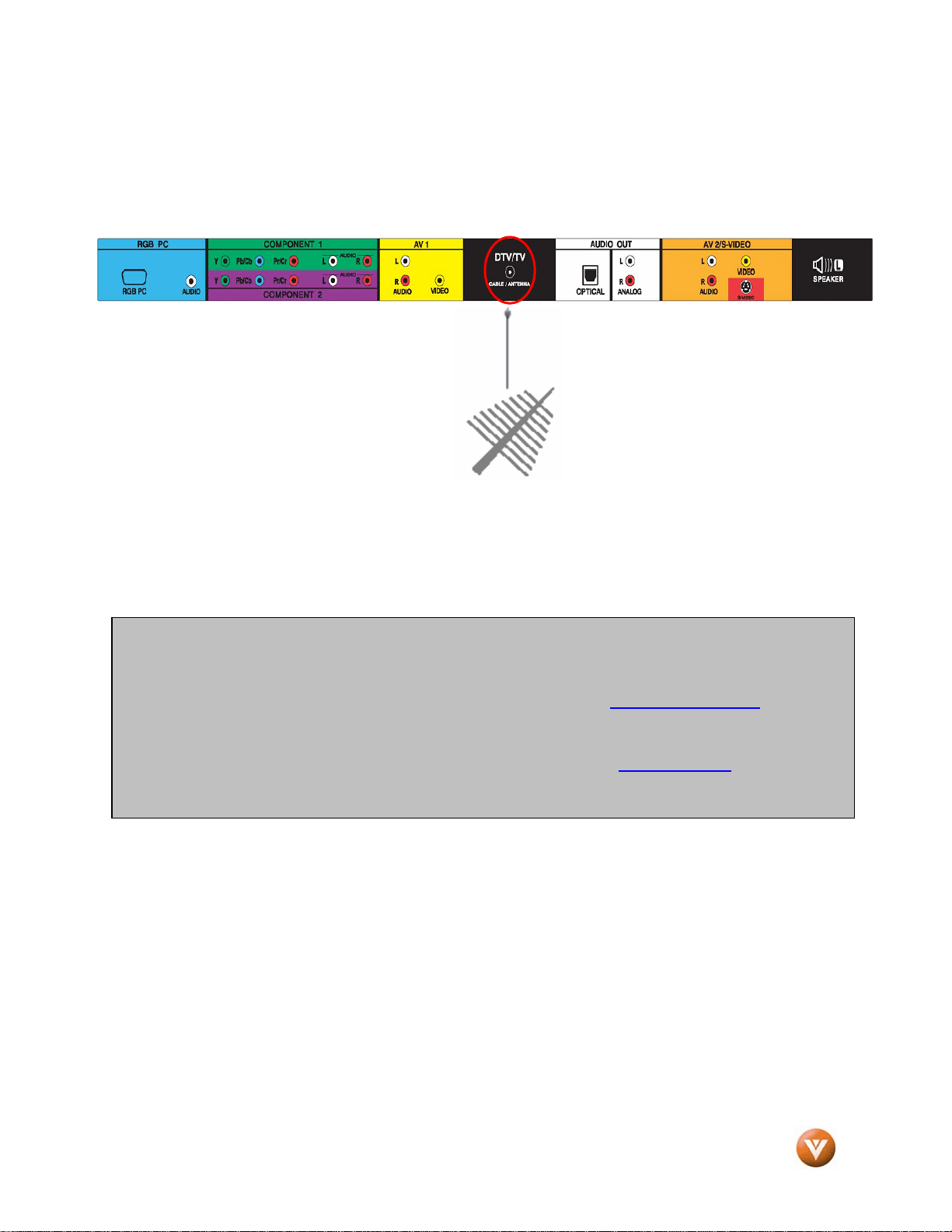
2.3.1 Using Your Antenna or Digital Cable for DTV
1. Turn off the power to the LCD
HDTV.
2. Connect the coaxial (RF)
connector from your antenna or
digital cable to the DTV/TV
CABLE/ANTENNA connector at
the rear of the LCD HDTV.
3. Turn on the power to the LCD HDTV.
4. Select DTV using the INPUT button on the remote or touch sensor on front right hand side of
the LCD HDTV, or directly by pressing the TV button on the Remote Control.
Note:
a) Not all digital TV broadcasts are High Definition (HD). Refer to the program guides, or
consult your cable, satellite or TV station operator.
b) Digital broadcasts are not available in all areas. Refer to www.antennaweb.org
for detailed
information.
c) Make sure the antenna and coaxial cable are correctly grounded.
d) For Professional antenna installation contact VIZIO at www.VIZIO.com
or call 1-888-
VIZIOCE (1-888-849-4623).
VIZIO GV47L FHDTV20A User Manual
Version 10/16/2007 23
www.VIZIO.com
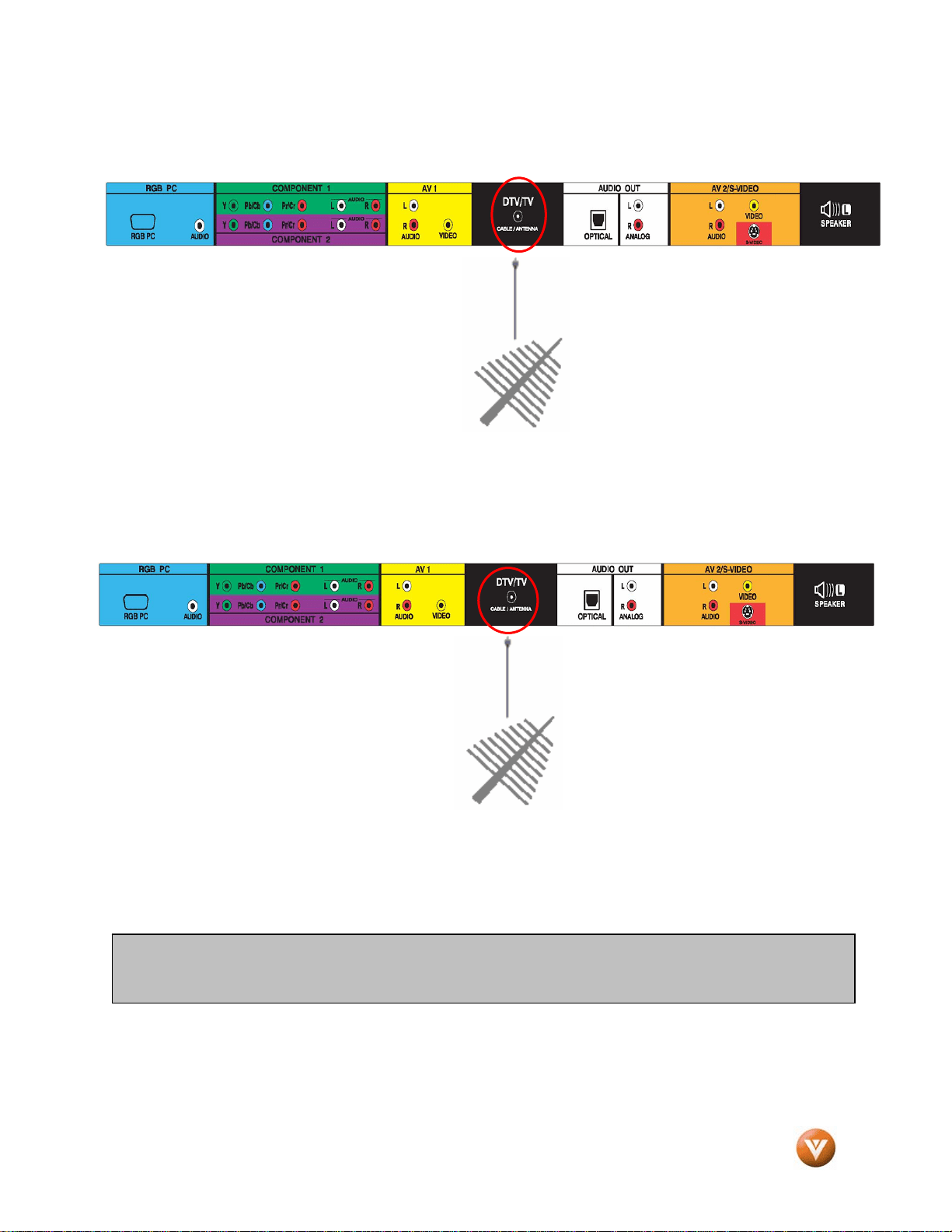
2.3.2 Using Your Antenna or Cable for TV
1. Turn off the power to the LCD HDTV.
2. Connect the coaxial (RF) connector
from your antenna or cable to the
DTV/TV CABLE/ANTENNA
connector at the rear of the LCD
HDTV
3. Turn on the power to the LCD HDTV.
4. Select TV using the INPUT button on the remote or touch sensor on front right hand side of
the LCD HDTV, or directly by pressing the TV button on the Remote Control.
2.3.3 Using the Antenna or Cable through your VCR
1. Turn off the power to the LCD
HDTV and VCR.
2. Connect the “Output to TV”, “RF
Out” or “Antenna Out” connector
on the rear of your VCR to the
DTV/TV CABLE/ANTENNA
connector at the rear of the LCD
HDTV.
3. Turn on the power to the LCD HDTV and VCR.
4. Select TV using the INPUT button on the remote or touch sensor on front right hand side of
the LCD HDTV, or directly by pressing the TV button on the Remote Control.
Note: If you have an off-air antenna or cable TV, connect it to the “Antenna In” connector on the rear of
your VCR.
VIZIO GV47L FHDTV20A User Manual
Version 10/16/2007 24
www.VIZIO.com
2.4 Connecting Your DVD Player
You have several options for connecting your DVD player to your GV47L FHDTV20A – HDMI,
Component, S-Video and Composite (AV) inputs. Based on your home theater configuration, you can
decide which option is the right one for you.
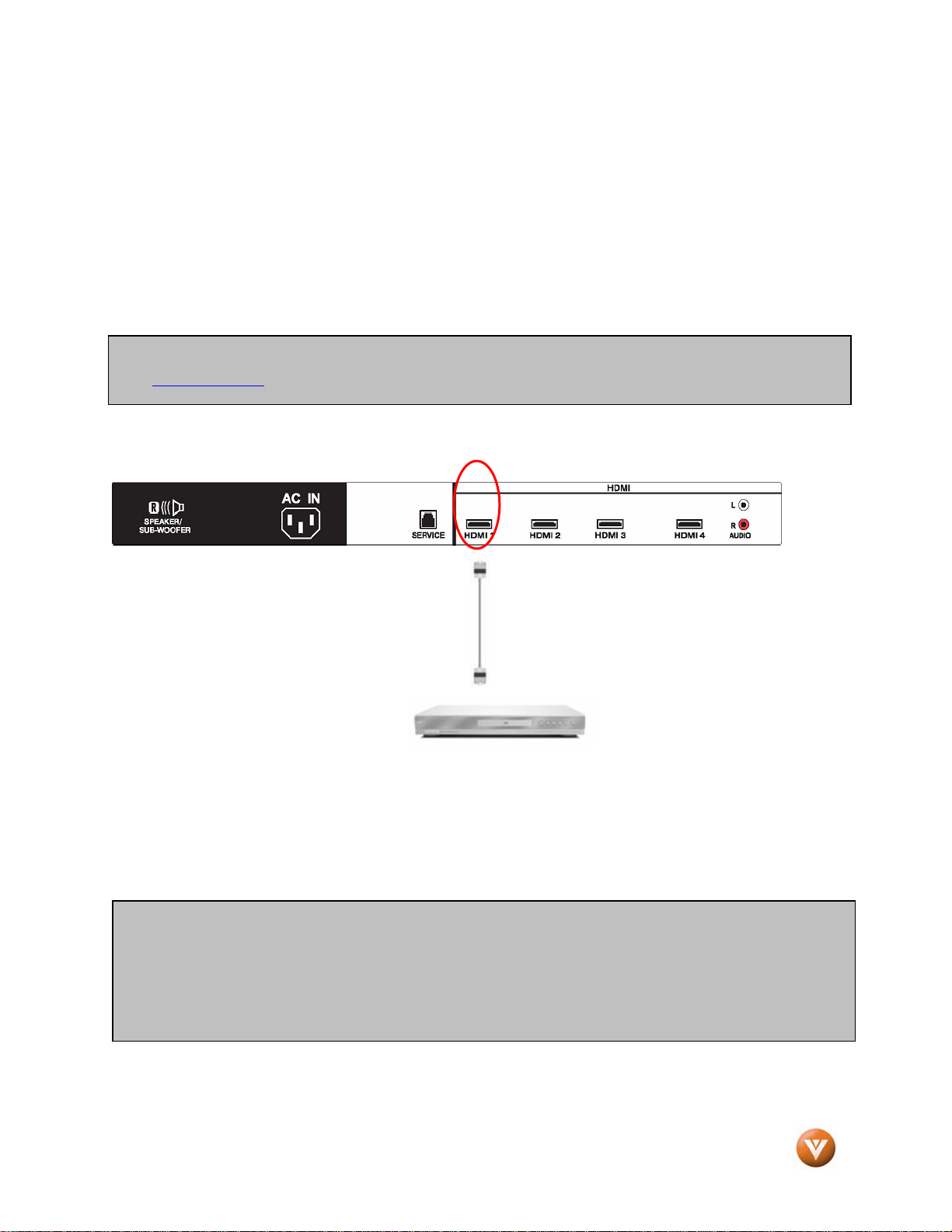
2.4.1 Using HDMI
DVD players that have a digital interface such as HDMI (High Definition Multimedia Interface) should be
connected to the HDMI input of the VIZIO GV47L FHDTV20A for optimal results.
Connecting your DVD Player (Best):
1. Turn off the power to the LCD HDTV and DVD player.
2. Connect a HDMI cable to the HDMI output of your DVD player and the other end to the HDMI
Input (white color area) at the rear of the LCD HDTV.
3. Turn on the power to the LCD HDTV and your DVD player.
4. Select HDMI using the INPUT button on the remote or touch sensor on front right hand side
of the LCD HDTV, or directly by pressing the HDMI button on the Remote Control.
Note: To maintain the display quality, use a VIZIO certified HDMI cable available up to 10 meters or less.
See www.VIZIO.com
or call 1-888-VIZIOCe (1-888-849-4623) for details.
Note:
a) If you are already using the HDMI1 input for another component, or you do not want to use
the HDMI 1 input for the DVD player, you can connect the DVD player to the HDMI2, HDMI3
or HDMI4 connection.
b) Refer to your DVD player user manual for more information about the video output
requirements of the product.

VIZIO GV47L FHDTV20A User Manual
Version 10/16/2007 25
www.VIZIO.com
For DVD Players with DVI:
1. Turn off the power to the LCD HDTV and DVD player.
2. Using a HDMI-DVI cable, connect the DVI end to your DVD player and the HDMI end to the
HDMI Input (white color area) at the rear of the LCD HDTV.
3. Using an audio cable (white and red connectors), connect the cable to the audio output
connectors associated with the DVI output on your DVD player and connect the other end to
the audio connectors associated with the HDMI input (white area) at the rear of the LCD
HDTV.
4. Turn on the power to the LCD HDTV and your DVD player.
5. Select HDMI using the INPUT button on the remote or touch sensor on front right hand side
of the LCD HDTV, or directly by pressing the HDMI button on the Remote Control.
Note: Refer to your DVD player user manual for more information about the video output requirements of
the product.
VIZIO GV47L FHDTV20A User Manual
Version 10/16/2007 26
www.VIZIO.com
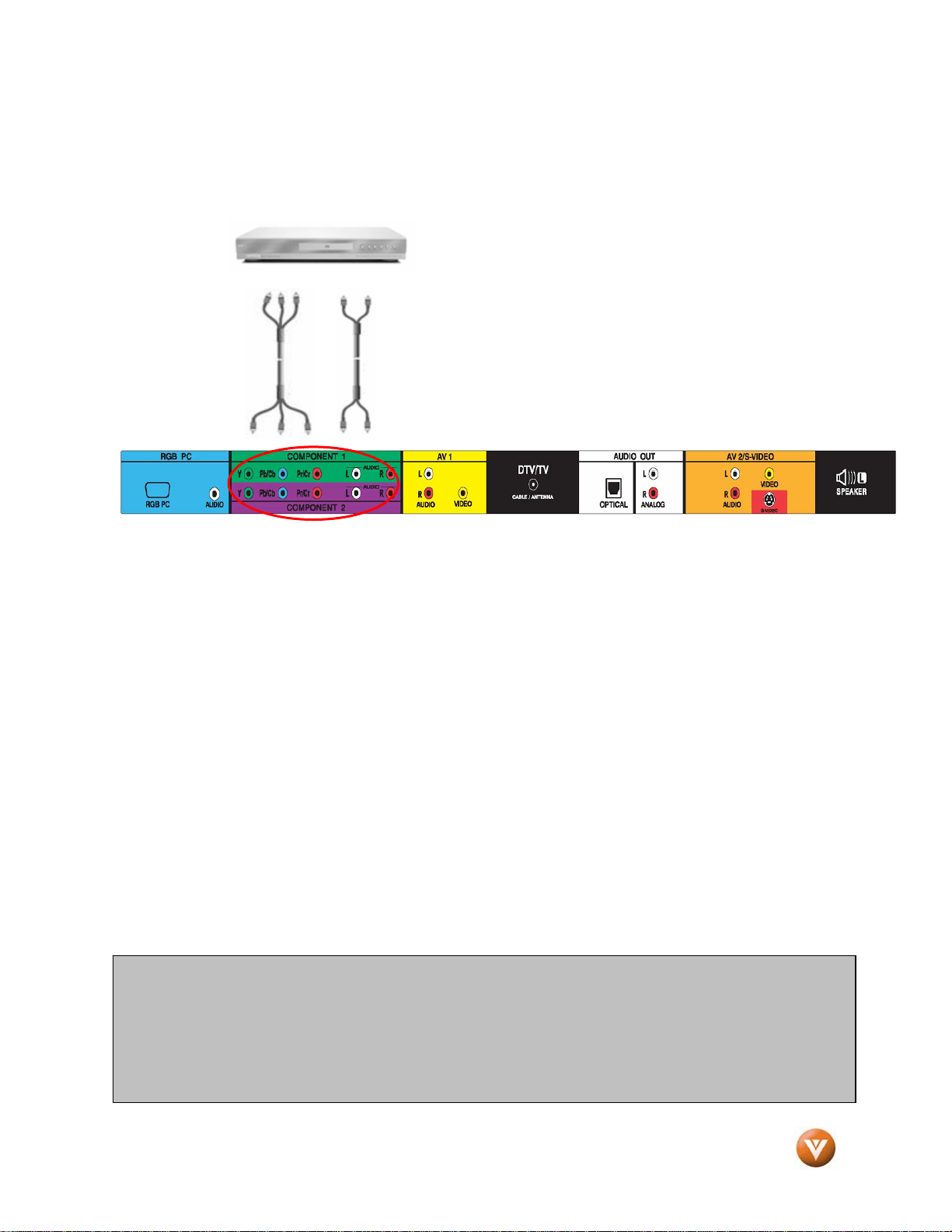
2.4.2 Using Component Video
Connecting your DVD Player (Better):
1. Turn off the power to the LCD HDTV and DVD player.
2. Connect the Y (green color) connector on your DVD player to the corresponding Y (green
color) connector in the Component 1 group (green color area - row of connectors nearest to
you when viewing from the rear of the TV) at the rear of the LCD HDTV.
3. Connect the PbCb (blue color) connector on your DVD player to the corresponding PbCb
(blue color) connector in the Component 1 group (green color area - row of connectors
nearest to you when viewing from the rear of the TV) at the rear of the LCD HDTV.
4. Connect the PrCr (red color) connector on your DVD player to the corresponding PrCr (red
color) connector in the Component 1 group (green color area - row of connectors nearest to
you when viewing from the rear of the TV) at the rear of the LCD HDTV.
5. Using an audio cable (white and red connectors), connect the cable to the audio output
connectors associated with the Component output on your DVD player and connect the other
end to the audio connectors associated with the Component 1 input (green color area) at the
rear of the LCD HDTV.
6. Turn on the power to the LCD HDTV and DVD player.
7. Select Component 1 using the INPUT button on the remote or touch sensor on front right
hand side of the LCD HDTV, or directly by pressing the Component button on the Remote
Control.
Note:
a) If you are already using the Component 1 input for another component, or you do not want
to use the Component 1 input for the DVD player, you can connect the DVD player to the
Component 2 connections coded by the purple area.
b) Refer to your DVD player user manual for more information about the video output
requirements of the product.
VIZIO GV47L FHDTV20A User Manual
Version 10/16/2007 27
www.VIZIO.com
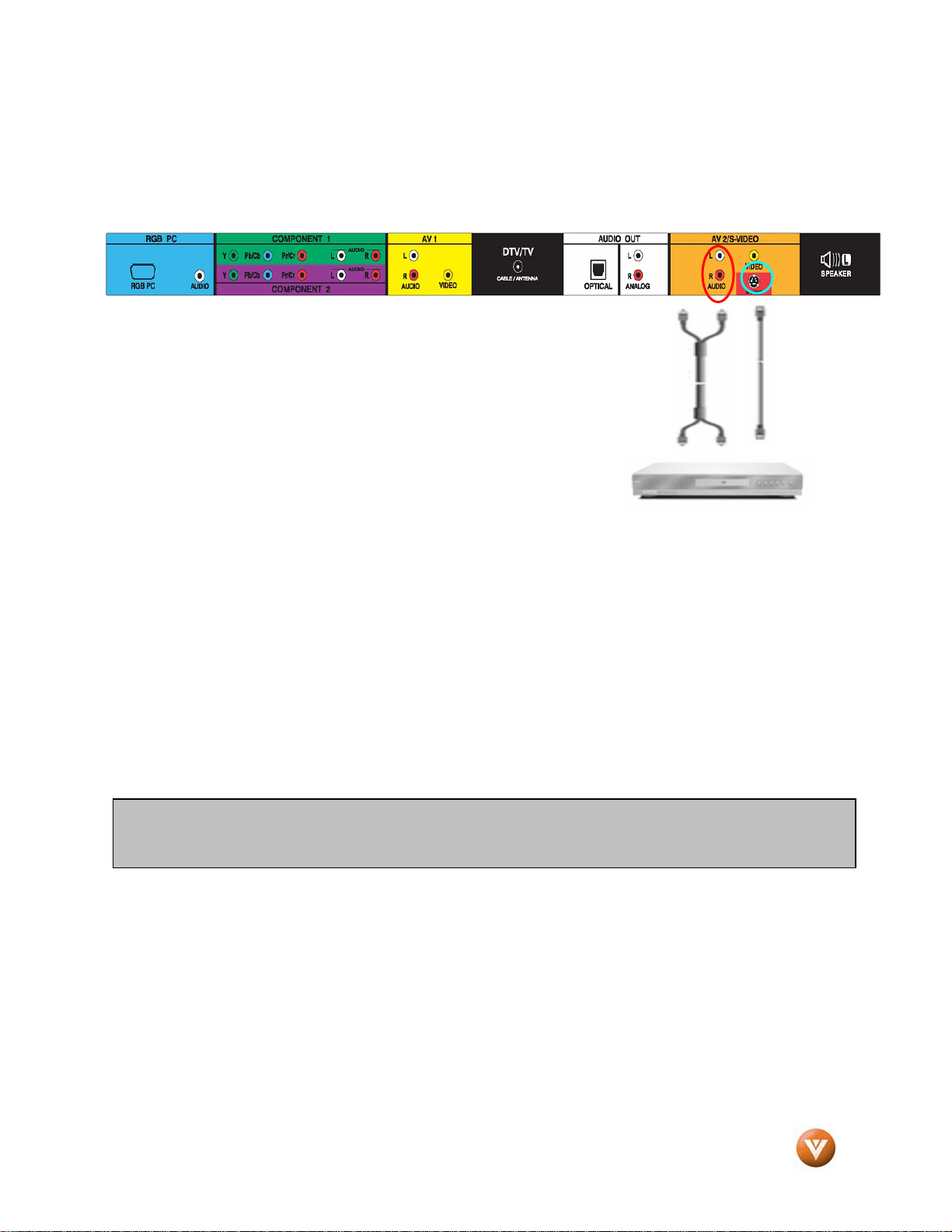
2.4.3 Using S-Video (AV1)
Connecting your DVD Player (Good):
1. Turn off the power to the LCD HDTV and DVD player.
2. Connect the S-Video jack on the rear of your DVD player to the S-Video jack in the AV2 on
the rear side of the LCD HDTV.
3. Using an audio cable (white and red connectors), connect the cable to the audio output
connectors associated with the S-Video output on your DVD player and connect the other
end to the audio connectors associated with the AV2 input on the rear side of the LCD HDTV.
4. Turn on the power to the LCD HDTV and DVD player.
5. Select AV2 using the INPUT button on the remote or touch sensor on front right hand side of
the LCD HDTV, or directly by pressing the AV button on the Remote Control.
Note: Refer to your DVD player user manual for more information about the video output requirements of
the product.
VIZIO GV47L FHDTV20A User Manual
Version 10/16/2007 28
www.VIZIO.com
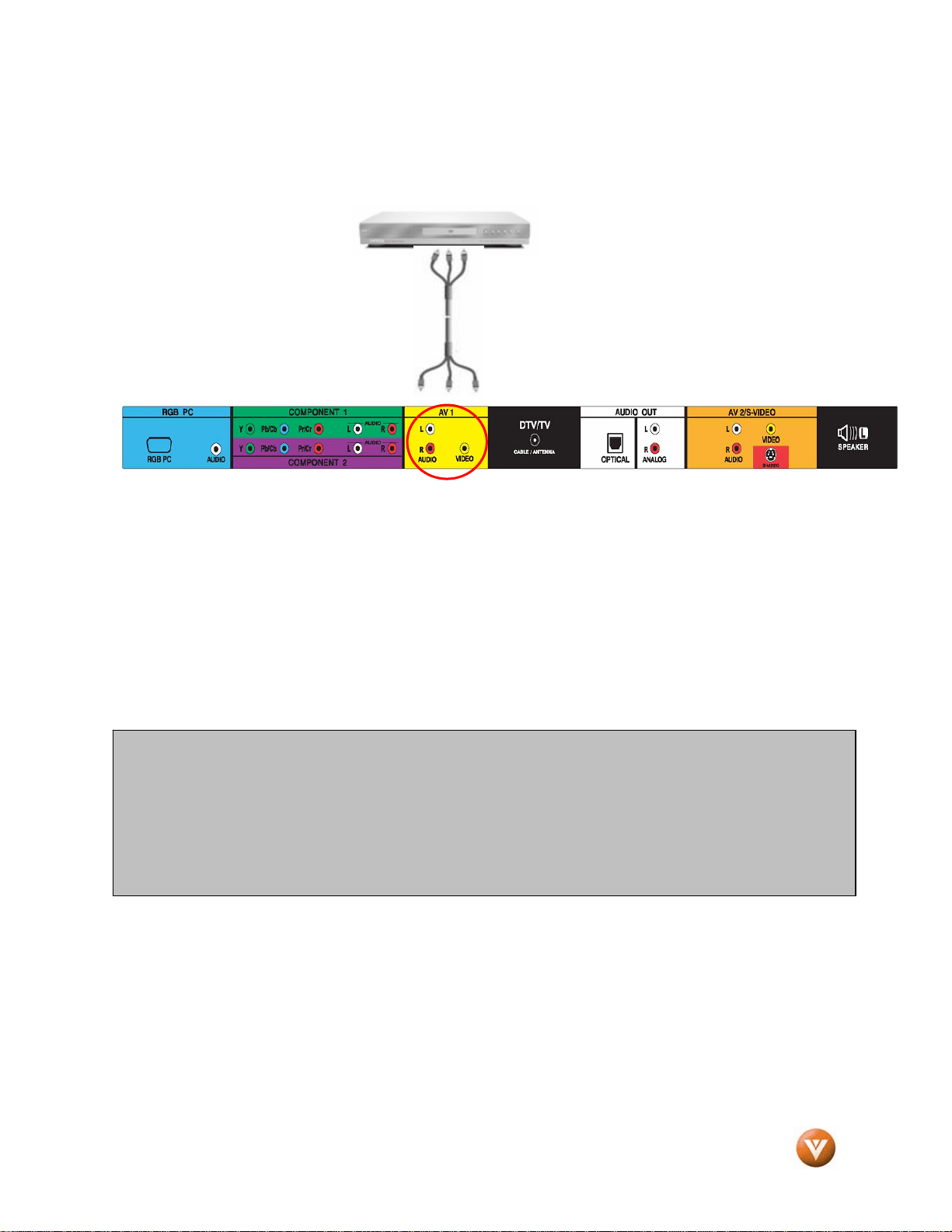
2.4.4 Using Composite (AV) Video
Connecting your DVD Player (Good):
1. Turn off the power to the LCD HDTV and DVD player.
2. Connect the Video (yellow color) connector on your DVD player to the Video (yellow color)
connector in the AV1 input (yellow color area) row of connectors at the rear of the LCD HDTV.
3. Connect the R (red color) and L (white color) audio connectors on your DVD player to the
corresponding R (red color) and L (white color) audio input connectors in the AV input (yellow
color area) row of connectors at the rear of the LCD HDTV.
4. Turn on the power to the LCD HDTV and DVD Player.
5. Select AV1 using the INPUT button on the remote or touch sensor on front right hand side of
the LCD HDTV, or directly by pressing the AV button on the Remote Control.
Note:
a) If you are already using the AV2 input for another component, or you do not want to use the AV2
input for the DVD player, and you are not using the S-Video input for another component, you
can connect the DVD player to the AV1 connections on the side of the LCD HDTV.
b) Refer to your DVD player user manual for more information about the video output requirements
of the product.
VIZIO GV47L FHDTV20A User Manual
Version 10/16/2007 29
www.VIZIO.com
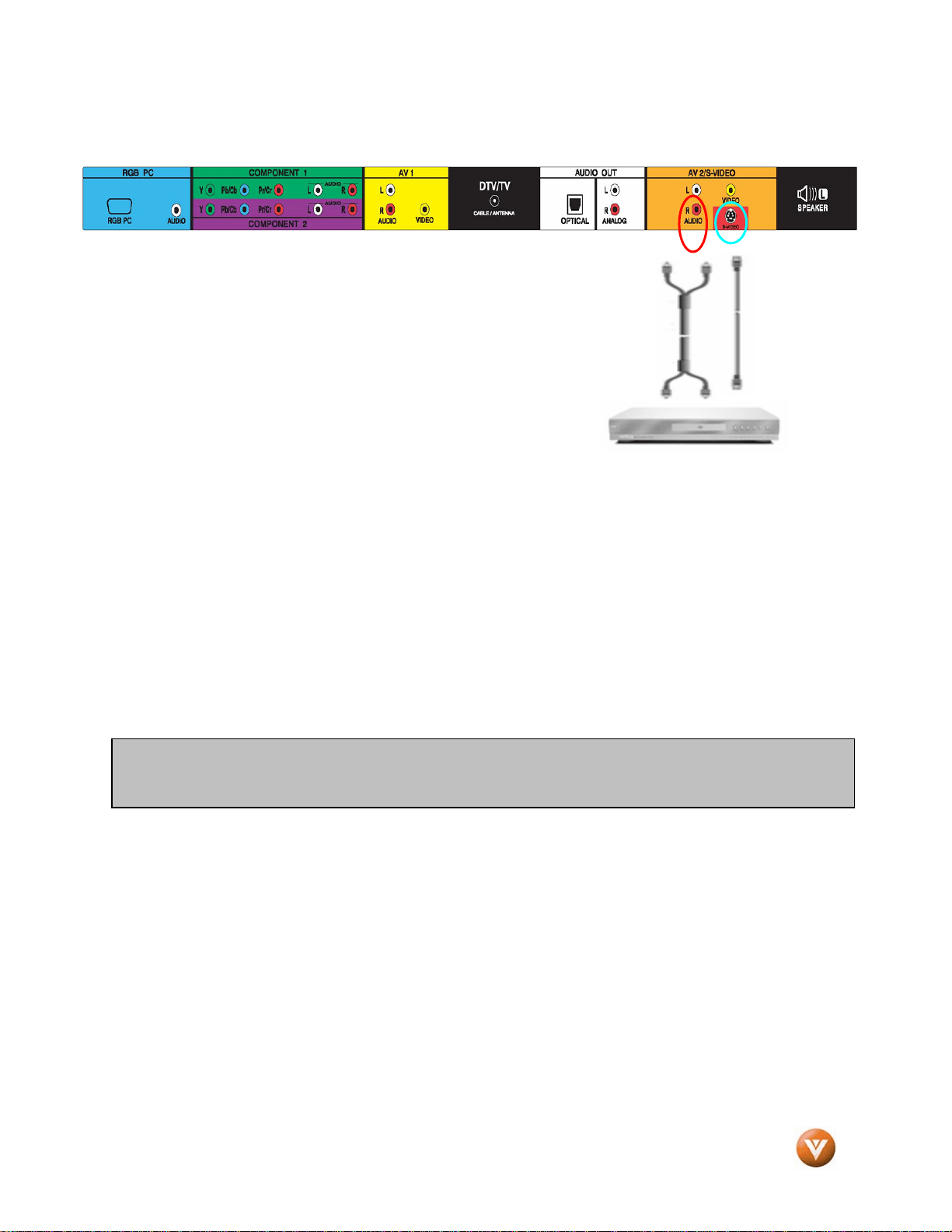
2.4.5 Connecting Your VCR or Video Camera
1. Turn off the power to the LCD HDTV and VCR or Video Camera.
2. Connect the S-Video jack on the rear of your VCR or Video Camera to the S-Video jack in the
AV2 group at the rear side of the LCD HDTV.
3. Using an audio cable (white and red connectors), connect the cable to the audio output
connectors associated with the S-Video output on your VCR or Video Camera and connect
the other end to the audio connectors associated with the AV2 input at the rear side of the
LCD HDTV.
4. Turn on the power to the LCD HDTV and VCR or Video Camera.
5. Select AV2 using the INPUT button on the remote or touch sensor on front right hand side of
the LCD HDTV, or directly by pressing the AV button on the Remote Control.
Note: Refer to your VCR or Video Camera user manual for more information about the video output
requirements of the product.
VIZIO GV47L FHDTV20A User Manual
Version 10/16/2007 30
www.VIZIO.com
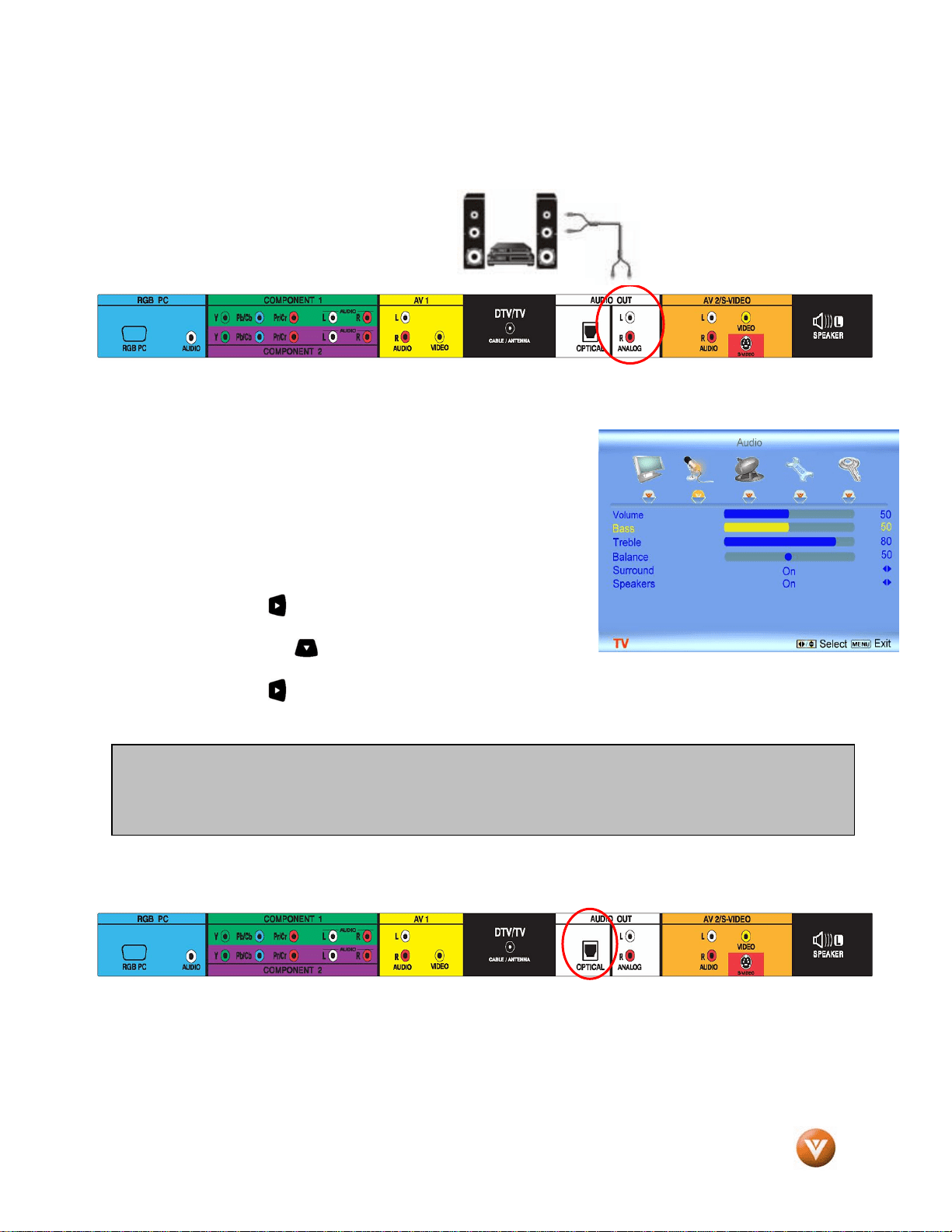
2.5 Connecting an external Receiver/Amp
1. Turn off the power to the LCD HDTV and Receiver/Amp.
2. Using an audio cable (white and red connectors),
connect the cable to the audio input connectors on the
Receiver/Amp and connect the other end to the
ANALOG OUT (white area) audio connectors at the rear
of the LCD HDTV.
3. Turn on the power to the LCD HDTV and Receiver/Amp.
4. Then press the MENU button on the remote control to
open the On-Screen Display (OSD) menu.
5. Press the on the remote control to select the Audio
menu.
6. Press the on the remote control to select
SPEAKERS.
7. Press the on the remote control to select OFF so that the sound from the LCD HDTV will
now be routed through your Receiver/Amp system.
Optical Output of Audio received with HD Program
If your sound system has a SPDIF (optical) digital audio input you can connect it to the optical
DIGITAL AUDIO OUT (white area) at the rear of the LCD HDTV. This is active when receiving digital
audio with the programs from the DTV/TV CABLE/ANTENNA input.
Note:
a) Refer to your Receiver/Amp user manual to select the corresponding audio input.
b) The audio output is not amplified and cannot be connected directly to external speakers.
VIZIO GV47L FHDTV20A User Manual
Version 10/16/2007 31
www.VIZIO.com
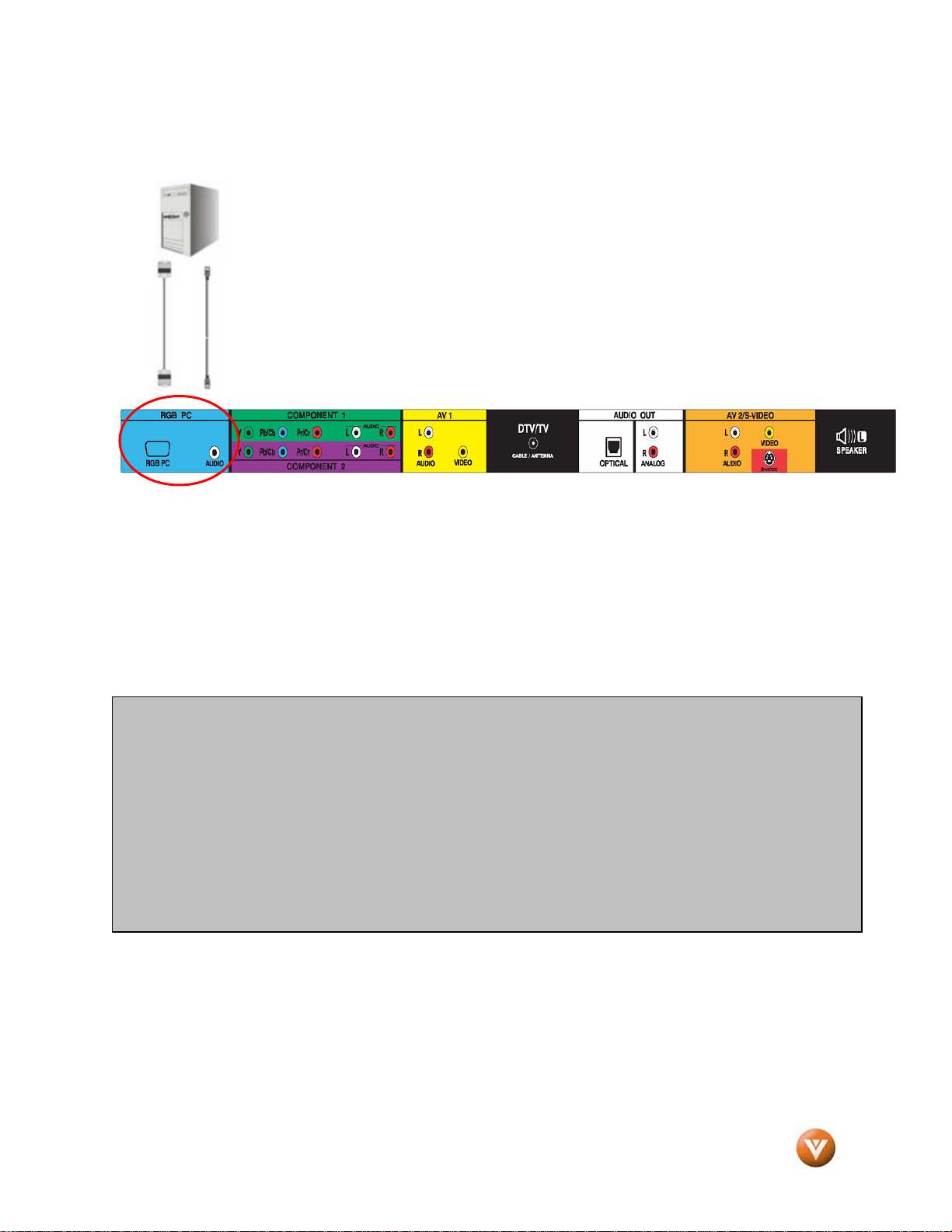
2.6 Connecting a PC Computer
1. Turn off the power to the LCD HDTV and PC Computer.
2. Connect a 15-pin D-Sub RGB (VGA) cable to the RGB output of your pc computer and the
other end to the RGB PC input (blue area) at the rear of the LCD HDTV.
3. Connect the Audio Out on your pc computer to the RGB PC Audio input (blue area) at the
rear of the LCD HDTV.
4. Turn on the power to the LCD HDTV and PC Computer.
5. Select RGB using the INPUT button on the remote or touch sensor on front right hand side of
the LCD HDTV, or directly by pressing the RGB button on the Remote Control.
Note:
a) For a better picture quality when connecting a pc computer through RGB PC, set your pc
computer timing mode to VESA 1360x768 at 60Hz. For the best picture quality, please refer
to the pc or graphic card’s user guide to find out if it is capable of an output of 1920x1080 at
60Hz resolution when using the parameters and values given to you on Section 2.6.2 of this
User’s Manual by way of VESA Reduce Blanking timing.
b) Refer to your pc computer user manual for more information about the video output
requirements of the product.
c) A RGB (VGA) cable and stereo mini jack cable are not included and can be purchased at an
electronics store.
VIZIO GV47L FHDTV20A User Manual
Version 10/16/2007 32
www.VIZIO.com
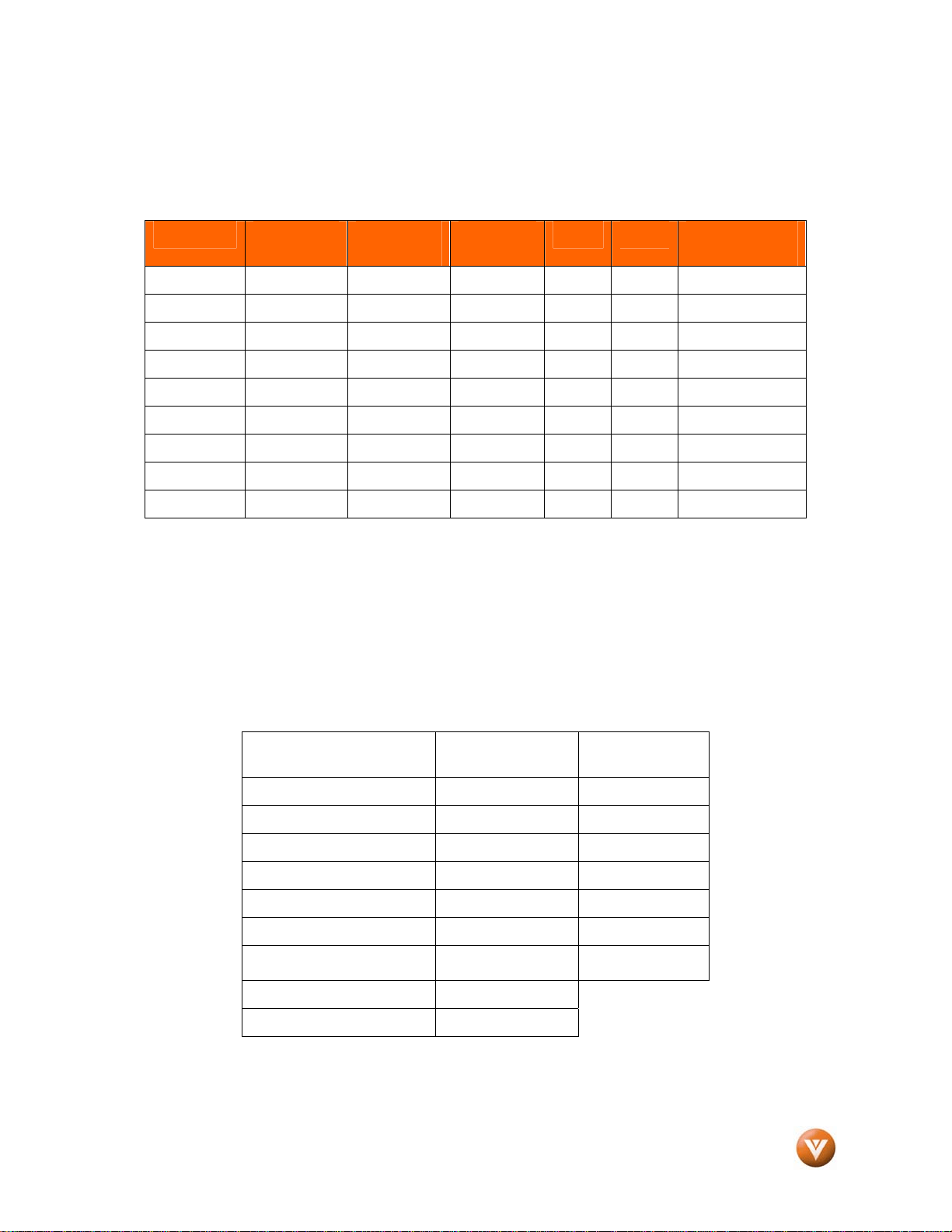
2.6.1 Preset PC Resolutions
If connecting to a PC through the RGB PC input, set the TV timing mode to VESA. Please see the
table below for the factory preset resolutions. Also see chart in Section 2.6.2, for the best resolution
that can be obtained through RGB PC input when video card supports 1920x1080 resolution.
Resolution Refresh
(Hz)
H.Freq
(kHz)
V.Freq
(Hz)
H.Sync V.Sync Pixel Freq
(MHz)
640x480 60 31.5 59.94 N N 25.175
640x480 75 37.5 75.00 N N 31.500
720x400 70 31.46 70.08 N P 28.320
800x600 60 37.9 60.317 P P 40.000
800x600 75 46.9 75 P P 49.500
800x600 85 53.7 85.06 P P 56.250
1024x768 60 48.4 60.01 N N 65.000
1024x768 75 60.0 75.03 P P 78.750
*1920x1080 60 66.7 60.00 N N 136.5
NOTES: N = Negative, P = Positive, * = Primary Mode
2.6.2 Resolution (1920x1080) through RGB (15-Pin
VGA) Input
If your PC supports VESA Reduce Blanking timing via the VGA card drive program (usually offered
by the VGA Card Manufacturer), your TV set is equipped to have the 1920X1080 resolution display
through this connection using the following timing 136.5MHz. The following parameters are often the
values required by the software or programs to set up the display:
Parameters Horizontal Values
(Pixels)
Vertical Values
(Lines)
Address 1920 1080
Front Porch 32 1
Sync Width 32 3
Back Porch 64 27
Total 2048 1111
Frequency 66.7 kHz 60 Hz
Sync Polarity
N
N
Pixel Rate (MHz) 136.5
Refresh Rate (Hz) 60
VIZIO GV47L FHDTV20A User Manual
Version 10/16/2007 33
www.VIZIO.com
Chapter 3 Setting Up to Watch Television
For ‘Preparing Your LCD HDTV for Wall Mounting’, see page 6.
3.1 Basic LCD HDTV Start Up
1. Connecting the Power Cable
Connect the power cord to the power cord connector on the back of the LCD HDTV, and then
plug the power cord into an AC wall socket.
2. Connect Audio and Video Cables to the LCD HDTV
(see pages 18 ~ 31 for detailed steps)
3. Turning Po
wer On
Once all the components are connected, press the Power ON button
on the side of the LCD HDTV, or press the Power ON (Red) button
on the remote control.
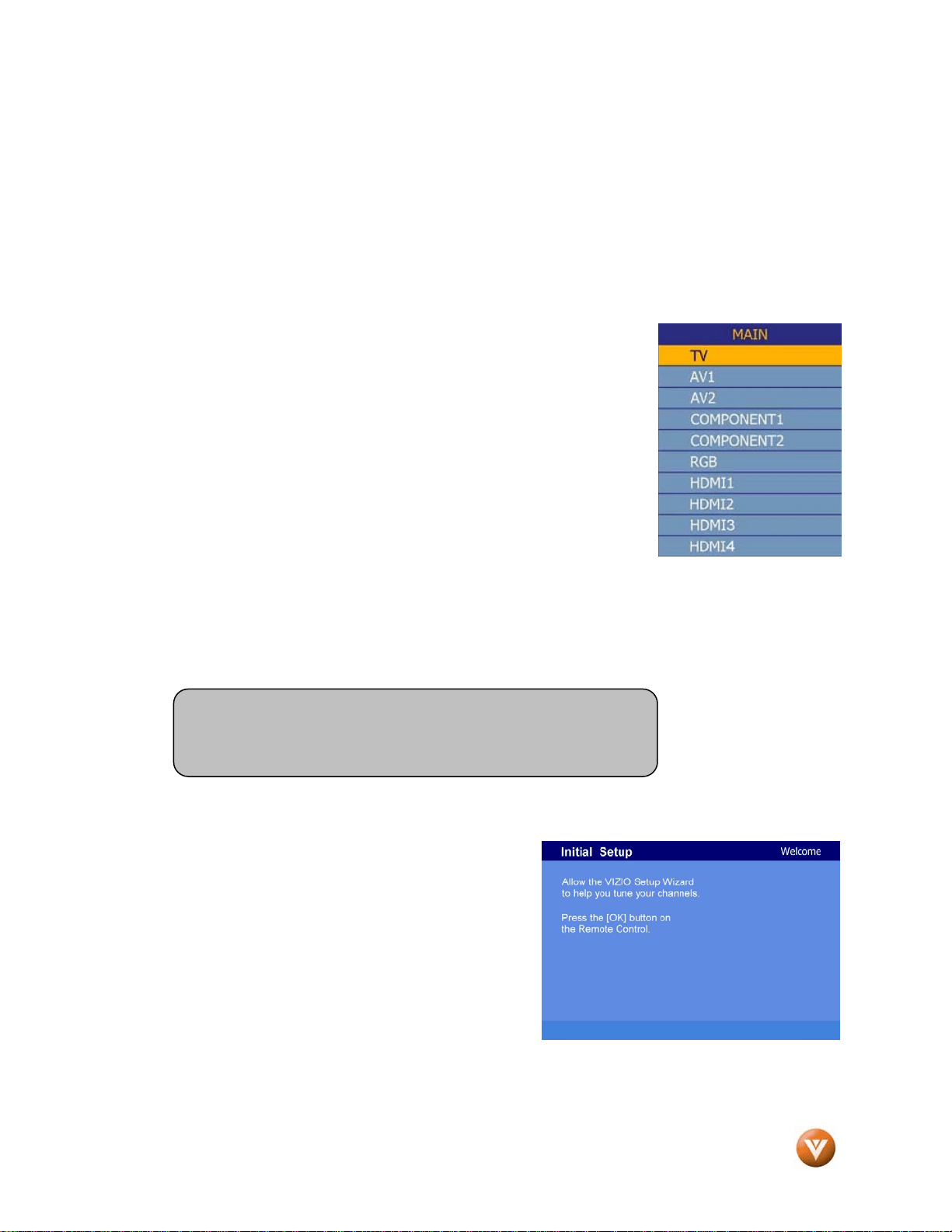
4. Select Input Source
Select the Input Source for the LCD HDTV by pressing the INPUT
button on the side of the TV or using the Input button on the remote
control. Pressing this button will cycle you through the following
options: TV, AV1, AV2, Component 1, Component 2, RGB, HDMI1,
HDMI2, HDMI3 and HDMI4.
5. Using DTV and TV with an Antenna or Cable
If an antenna or cable source is connected to the DTV/TV input, you will need to select TV using
the INPUT button on the remote control or touch sensor on front right hand side of the LCD HDTV,
or directly by pressing the TV button on the remote control, and Auto Scan for the available TV
channels.
a. The screen will show ‘snow’ and the first
Initial Setup OSD panel.
Press the OK button on the remote
control.
Note: If you do not see this option within the OSD, you might
have selected the wrong input in the previous steps and you will
need to repeat step 4 (above) to select the correct input source.
VIZIO GV47L FHDTV20A User Manual
Version 10/16/2007 34
www.VIZIO.com
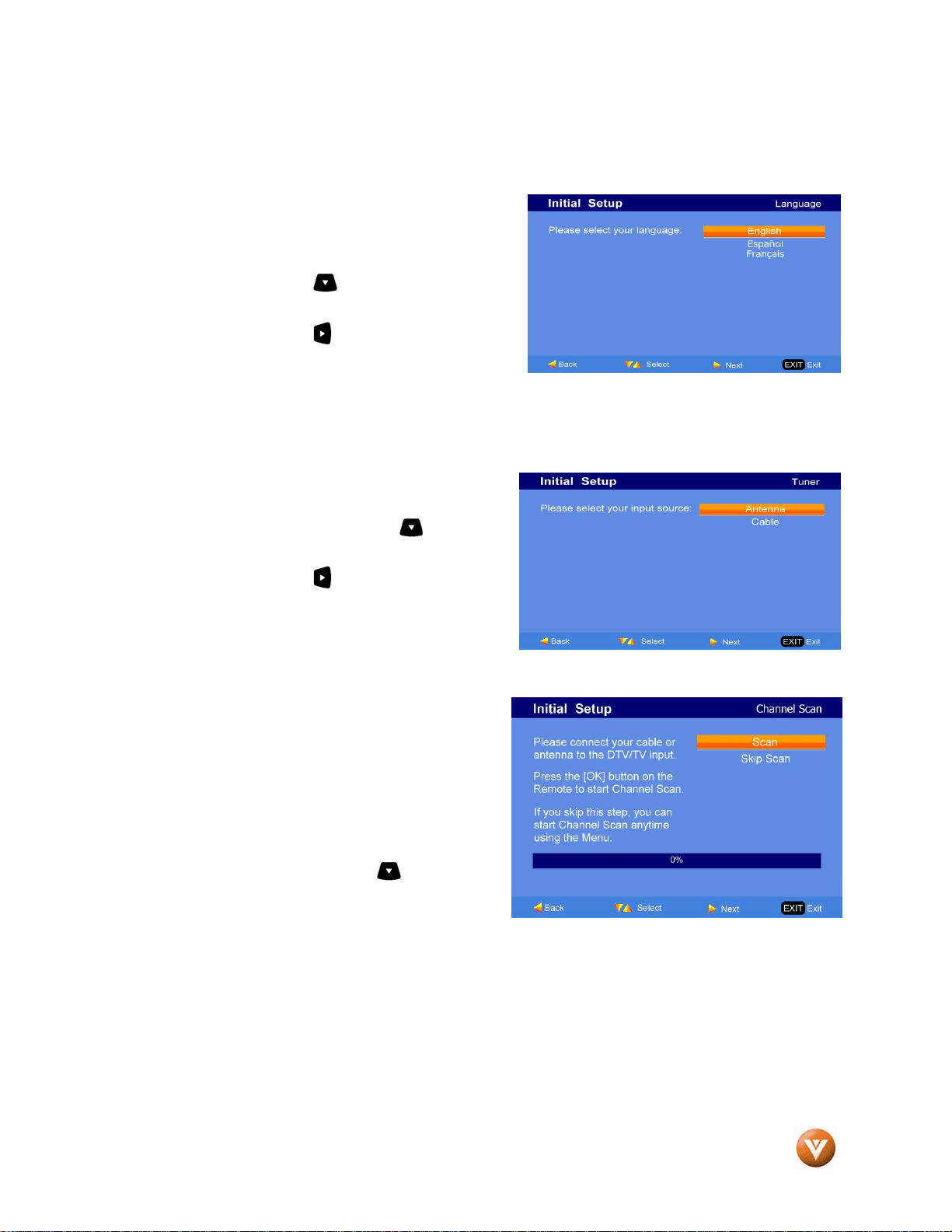
b. The Language choice screen will be
displayed; the default English option is
highlighted. If you wish to change the
OSD language to Español or Français ,
press the button on the remote
control to select the language you want.
Press the button on the remote to
go to the next screen.
c. The Tuner screen will be displayed;
default choice is Antenna. If you are
using Cable, press the button to
highlight CABLE.
Press the button on the remote to
go to the next screen.
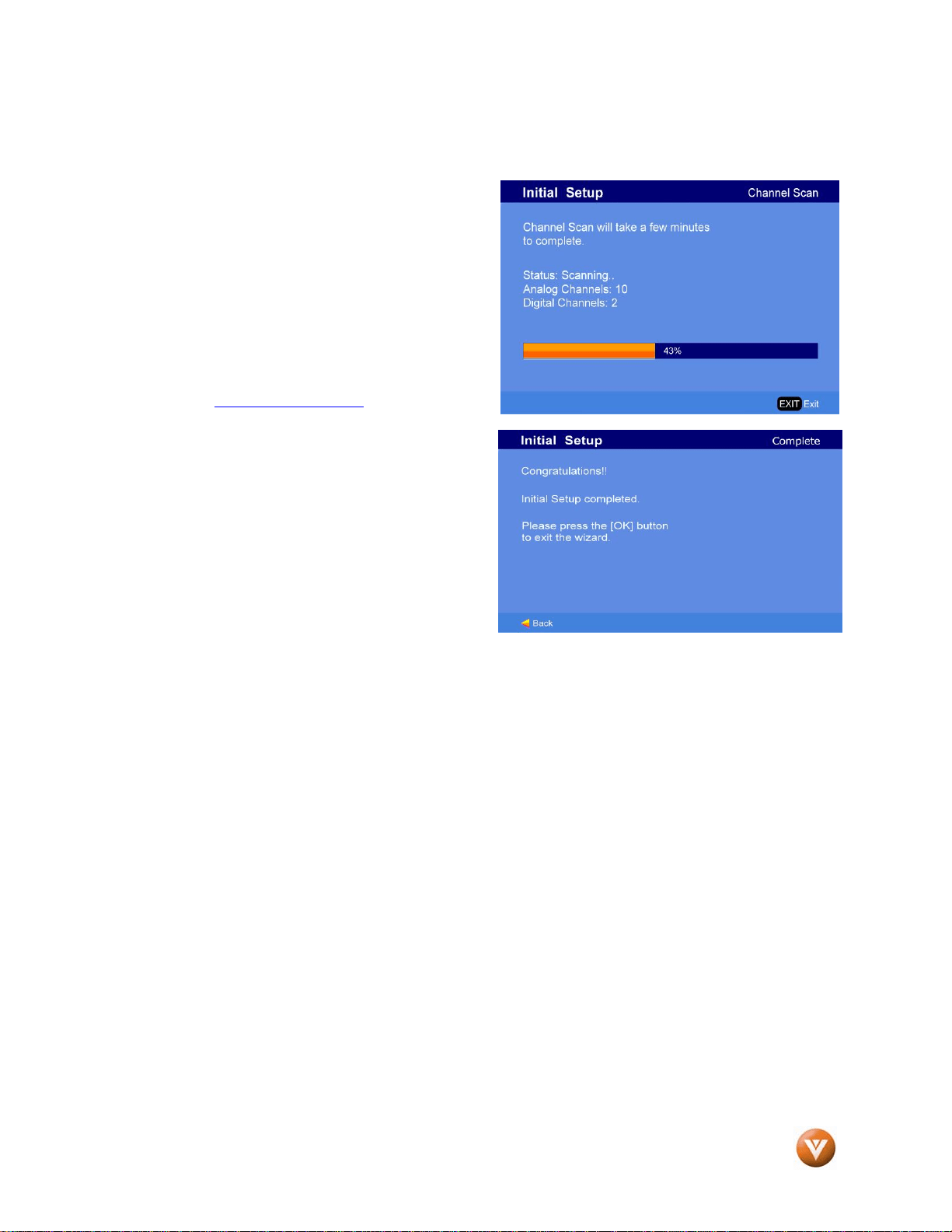
d. The Channel Scan screen will be
displayed; default choice is Scan.
Press the OK button on the remote
control to commence the search for
available channels to be stored into
memory.
If you do not want to scan for channels
at this time, press the button on the
remote to highlight Skip Scan and then
press the OK button.
VIZIO GV47L FHDTV20A User Manual
Version 10/16/2007 35
www.VIZIO.com
e. Press the OK button to start the
search. An information panel will
be displayed showing the progress
of the search for analog (NTSC)
and Digital (ATSC) channels.
Note: DTV digital broadcast is not
available in all areas. Refer to
www.antennaweb.org
to get
information about availability in your
area, type of antenna and in which
direction to point your antenna. The
channel availability through cable
depends upon which channels your
cable operator supplies in Clear QAM;
consult your cable operator for more
information.
f. When finished, the Complete screen
will be displayed to informed that the
HDTV has completed the Initial Setup.
Press the OK button on the remote control to exit and begin watching TV.

VIZIO GV47L FHDTV20A User Manual
Version 10/16/2007 36
www.VIZIO.com
3.2 Watching a TV Program
Before you start watching TV, please make sure that any cable, satellite or off-air antenna connections
are secure. Also, verify that the power cord is plugged into a correctly grounded electrical outlet or surge
protector.
1. Press the power button on the remote or on the side of the LCD HDTV. The status of the
VIZIO the front will change from orange to white. When changing the color will be bright for a
second or two and then dim to a lower light level.
2. There are 3 options for selecting your programming:
a. If you are using an antenna or cable connected through the DTV/TV CABLE/ANTENNA
input, you can select TV directly by pressing the TV button on the remote, or by pressing
the INPUT button on the remote or on touch sensor on front right hand side of the LCD
HDTV.
b. If you are watching broadcasts through a cable or satellite set-top box connected by an
HDMI cable, select HDMI1, HDMI2, HDMI3 or HDMI4 directly by pressing the HDMI
button on the remote, or by pressing the INPUT button on the remote or on touch sensor
on front right hand side of the LCD HDTV.
c. If you are watching broadcasts through a cable or satellite set-top box connected by a
Component (YPbPr) cable, select Component 1 or Component 2 directly by pressing the
Component button on the remote, or by pressing the INPUT button on the remote or
touch sensor on front right hand side of the LCD HDTV.
3. When using option 2a, press the Channel buttons on the remote or the CH +/- buttons touch
sensor on front right hand side of the LCD HDTV to change the channel. Note: The Channel
buttons, touch sensor on front right hand side of the LCD and on the remote, control will not
work if you are watching a program using HDMI, Component 1, Component 2, AV1 and AV2
inputs.
3.3 Adjusting Basic LCD HDTV Settings
Volume
To increase the volume, press and hold the VOL+ or VOL- button touch sensor on front right hand side of
the LCD HDTV or remote control until the desired level is reached.
TV Channels
To step up or down through the available TV channels, press the CH+ or CH- button on touch sensor on
front right hand side of the LCD HDTV or remote control once for the next or previous channel, or hold it
depressed until the desired channel is reached. Note: Channel up and down will only operate in DTV and
TV modes.
Wide
Using this feature, you can watch video content in different size modes on the TV. Press the WIDE
button on the remote control to switch among the modes.
Fore more information see Section 4.18 – Viewing Modes, on page 58.
Note: You should be able to see a picture. If you do not, make sure that all of the LCD HDTV
connections are secure and you have selected the correct video input source.
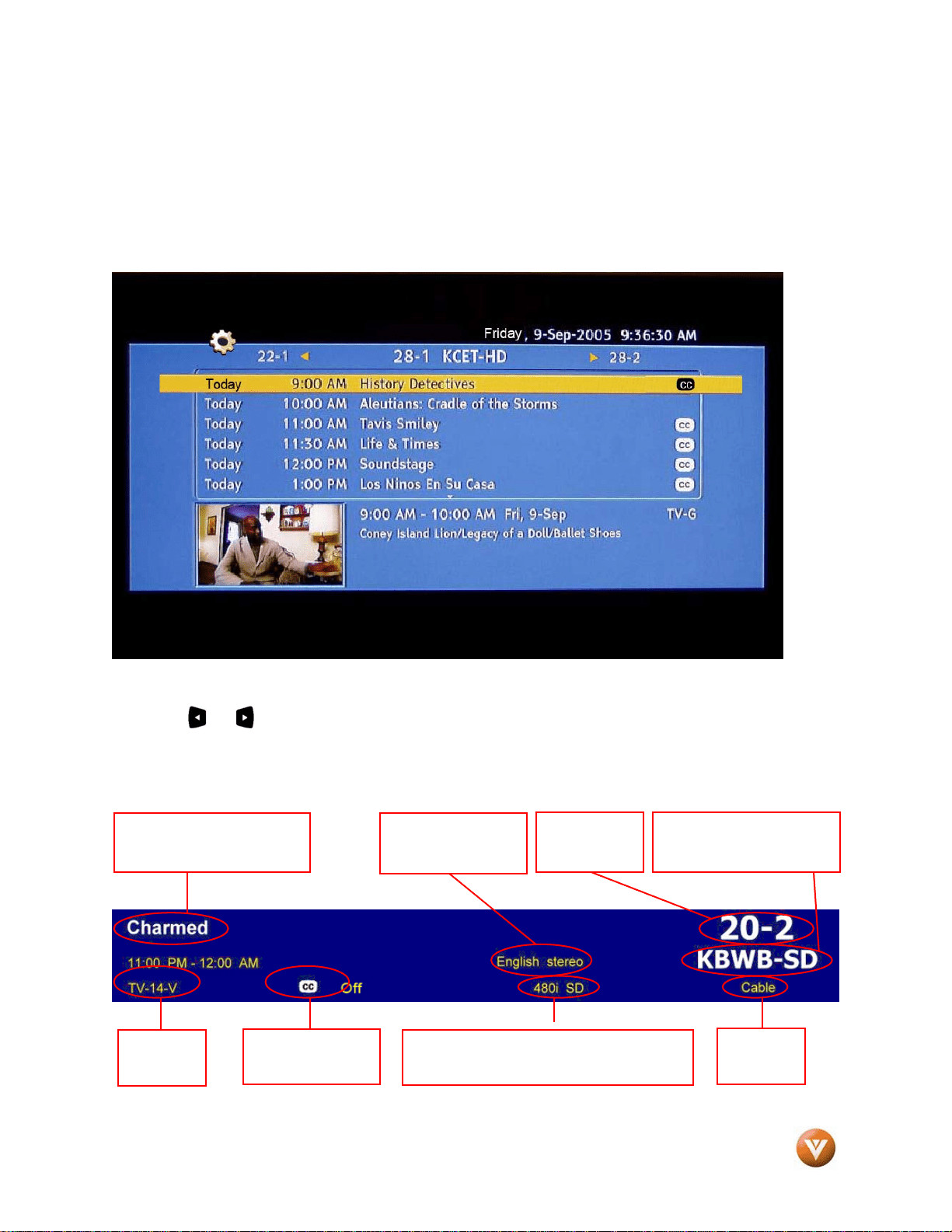
VIZIO GV47L FHDTV20A User Manual
Version 10/16/2007 37
www.VIZIO.com
3.4 Program Information
Press the GUIDE button on the remote and program information for the channel you are watching will be
displayed on the screen with the live program content in a small window in the lower left corner of the
panel.
Press the or button to scroll up or down the channels. Each time you pause at a channel, the
program list will update with the program schedule for the channel and the window will show the live
program for that channel. Press the GUIDE button to exit this feature. Information on HDTV Status
When you change TV channels or inputs, or press the INFO button on the remote, an Information Banner
is displayed for a few seconds to tell you the status of the LCD HDTV.
TV Channel
Number
Audio is Stereo Program Information:
Provided by Broadcaster
Station Name: provided
by Broadcaster
Program
Rating
Closed Caption
is available
NTSC SDTV (Standard Definition TV)
Source
is Cable
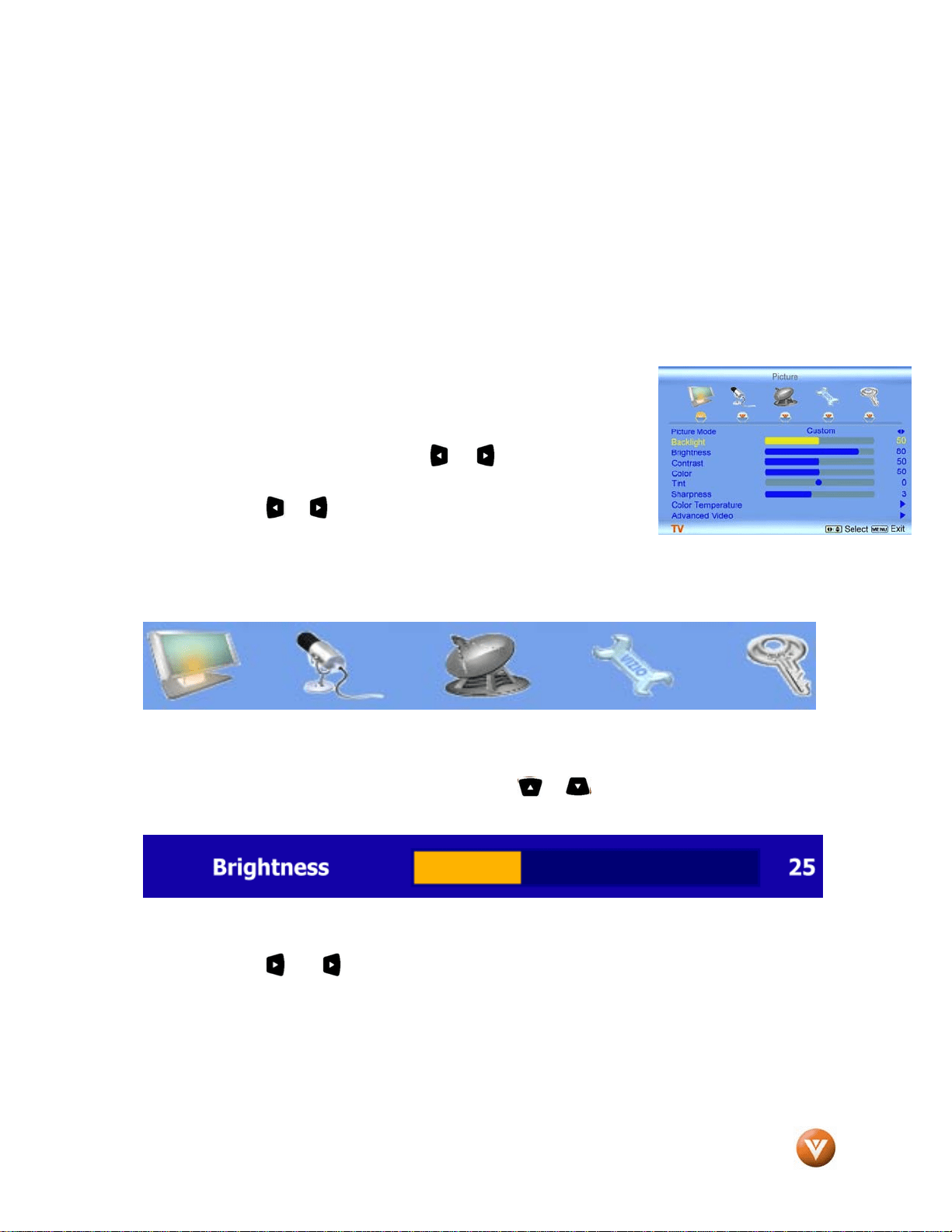
VIZIO GV47L FHDTV20A User Manual
Version 10/16/2007 38
www.VIZIO.com
Chapter 4 Advanced Adjustment of HDTV
4.1 Using the On Screen Display (OSD)
The remote control or the control buttons on touch sensor on front right hand of the TV can control all the
function settings. The On Screen Display (OSD) allows you to adjust the save contrast, brightness and
other settings. The TV will save changes made to the settings, even if the TV is turned off.
The OSD consists of several menu options: Picture, Audio, Setup, TV and Parental. The main menu
options may very depending on your selected input source.
Note: Some of the main menu options may have additional submenus, i.e. the TV Rating submenu for
Parental.
1. Press the MENU button on the remote control or touch sensor on
front right hand side of the TV and the Picture menu will be
shown on the screen. Press the or button on the remote
control or the VOL + or VOL – button on touch sensor on front
right hand side of the TV to select one of the other menu options.
2. Press the or button on the remote control or the VOL + or
VOL – button on touch sensor on front right hand side of the
HDTV to select one of the other menu options.
Picture Audio TV Setup Parental
3. Once the menu option is displayed, press the or button on the remote control or the
CH + or CH – button on touch sensor on front right hand side of the TV to select one of the
items to adjust.
4. Press the or button on the remote control or the VOL + or VOL - button on touch
sensor on front right hand side of the HDTV to begin adjustment of the item.
5. Press OK when finished.
6. Repeat steps 2 through 5 to adjust additional options within this menu.
7. Once the adjustments are completed press the MENU button repeatedly to exit the OSD
completely.
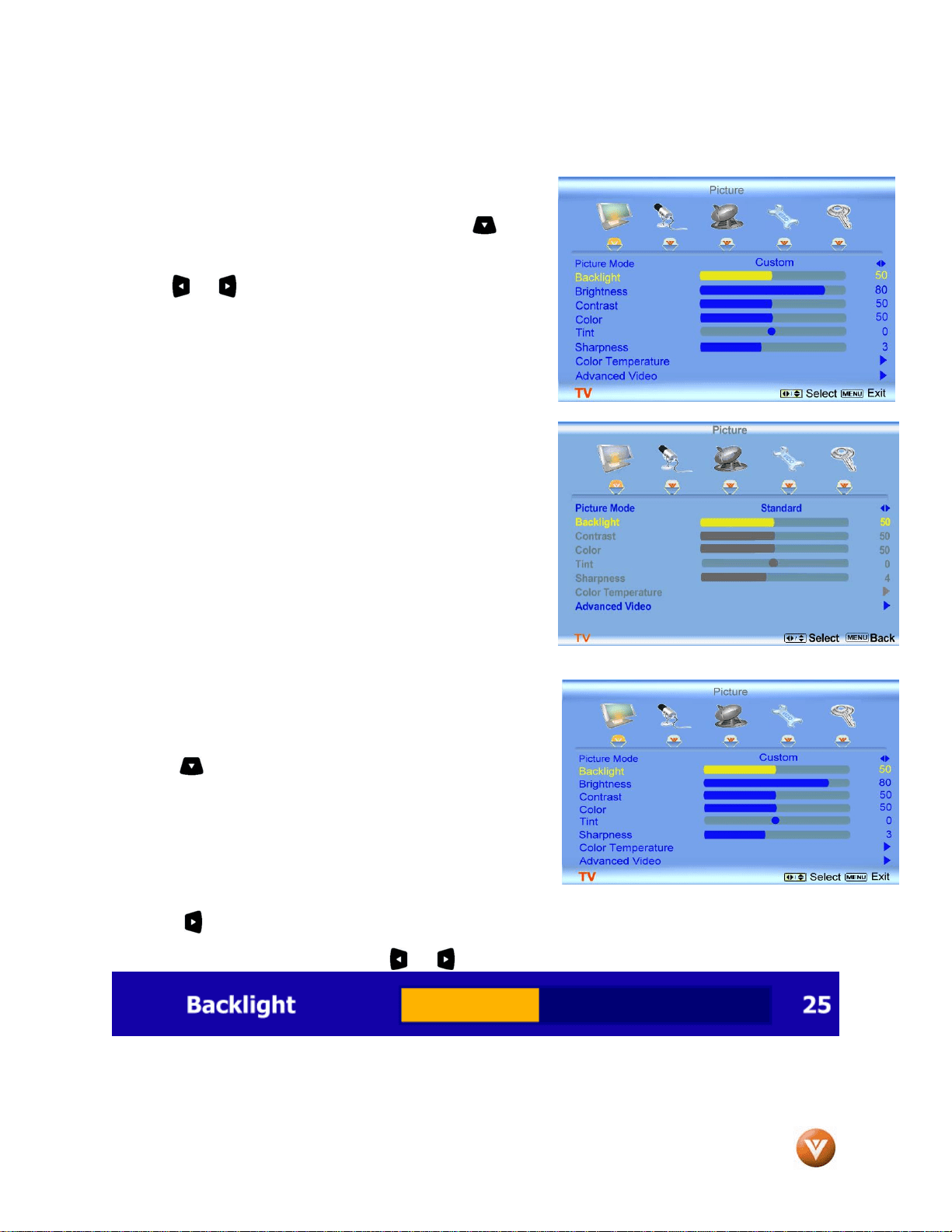
VIZIO GV47L FHDTV20A User Manual
Version 10/16/2007 39
www.VIZIO.com
4.2 DTV / TV Input Picture Adjustment
4.2.1 Picture Mode
When the MENU button is pressed, the On Screen Display
(OSD) appears on the PICTURE menu. Press the button
to highlight the Picture Mode selection.
Use the or button to choose from Custom, Standard,
Movie and Game.
If Standard, Movie or Game is chosen for the Picture Mode,
still the Picture adjustments are available for you to set or
adjust them to your preferred settings.
4.2.2 Backlight
Press the button to highlight the Backlight selection.
Press the button to start adjusting the brightness of the Backlight and the menu page will disappear
and be replaced by a small Backlight Indicator Bar so you can see the light level between the minimum
and maximum available levels. Use the or button to adjust the level.
The Backlight level does not affect the Brightness (black level) or Contrast (white level) of the picture, it
adjusts the lamp current and this affects the overall brilliance of the picture.
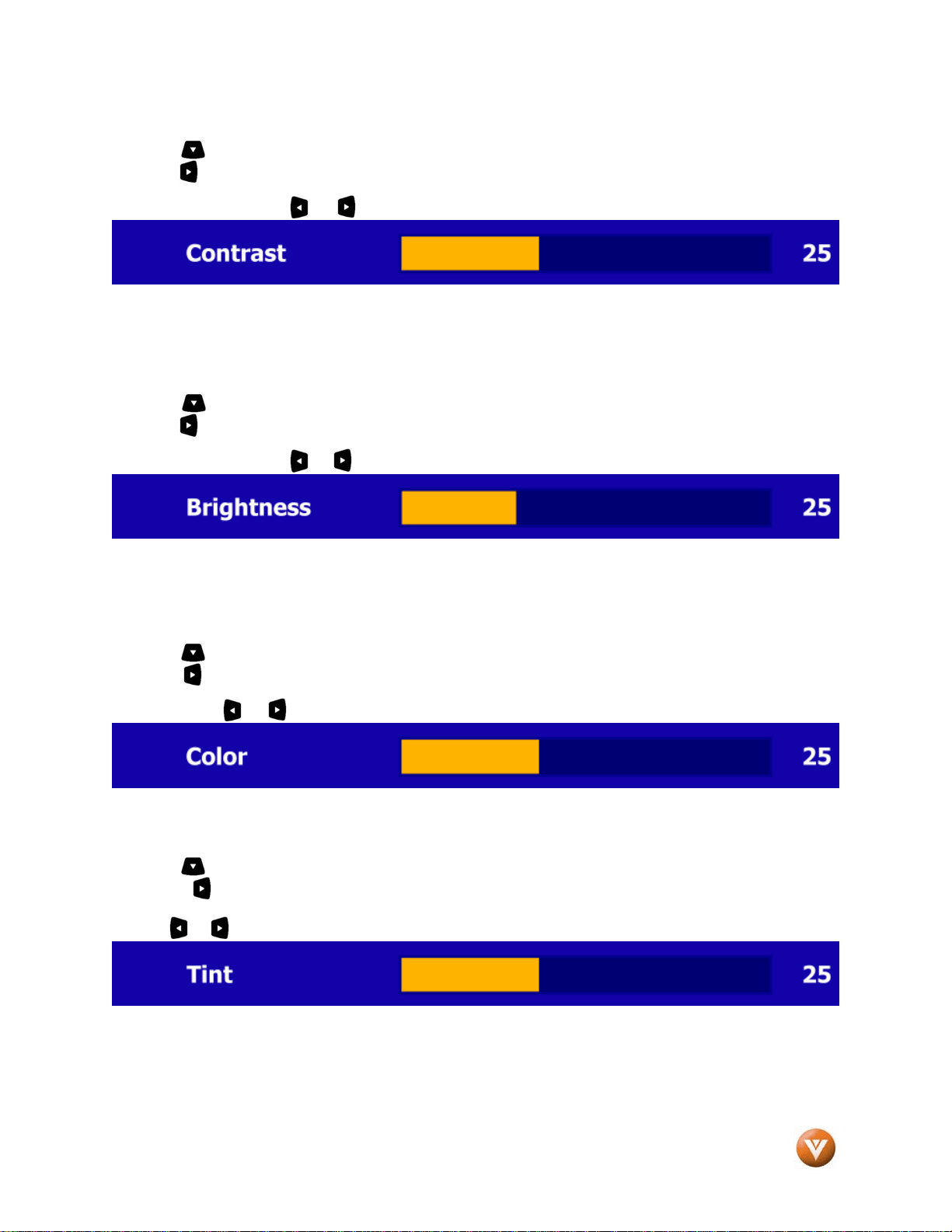
VIZIO GV47L FHDTV20A User Manual
Version 10/16/2007 40
www.VIZIO.com
4.2.3 Contrast
Press the button to highlight the Contrast selection.
Press the button to start adjusting the contrast and the menu page will disappear and be replaced by a
small Contrast Indicator Bar so you can see the contrast level between the minimum and maximum
available levels. Use the or button to adjust the level.
The Contrast adjusts the white levels in the picture. If the contrast is too low the picture will look washed
out and if the contrast is too high you will not be able to see any detail in the bright parts of a picture.
4.2.4 Brightness
Press the button to highlight the Brightness selection.
Press the button to start adjusting the brightness and the menu page will disappear and be replaced by
a small Brightness Indicator Bar so you can see the brightness level between the minimum and maximum
available levels. Use the or button to adjust the level.
The Brightness adjusts the black levels in the picture. If the brightness is too low you will not be able to
see the detail in darker parts of the picture and if the brightness is too high the picture will look washed
out.
4.2.5 Color
Press the button to highlight the Color selection.
Press the button to start adjusting the color and the menu page will disappear and be replaced by a
small Color Indicator Bar so you can see the color level between the minimum and maximum available
levels. Use the or button to adjust the level.
The Color adjusts the amount of color in the picture.
4.2.6 Tint
Press the button to highlight the Tint selection.
Press the button to start adjusting the tint and the menu page will disappear and be replaced by a
small Tint Indicator Bar so you can see the tint adjustment to the left or right of the nominal position.
Use the or button to adjust the level.
The Tint adjusts the hue of the picture. The easiest way to set tint is to look at flesh tones and adjust for
a realistic appearance. In most cases, the default middle position is correct. If people’s faces look too
orange try reducing the level of color first as the case of this is often too much color.
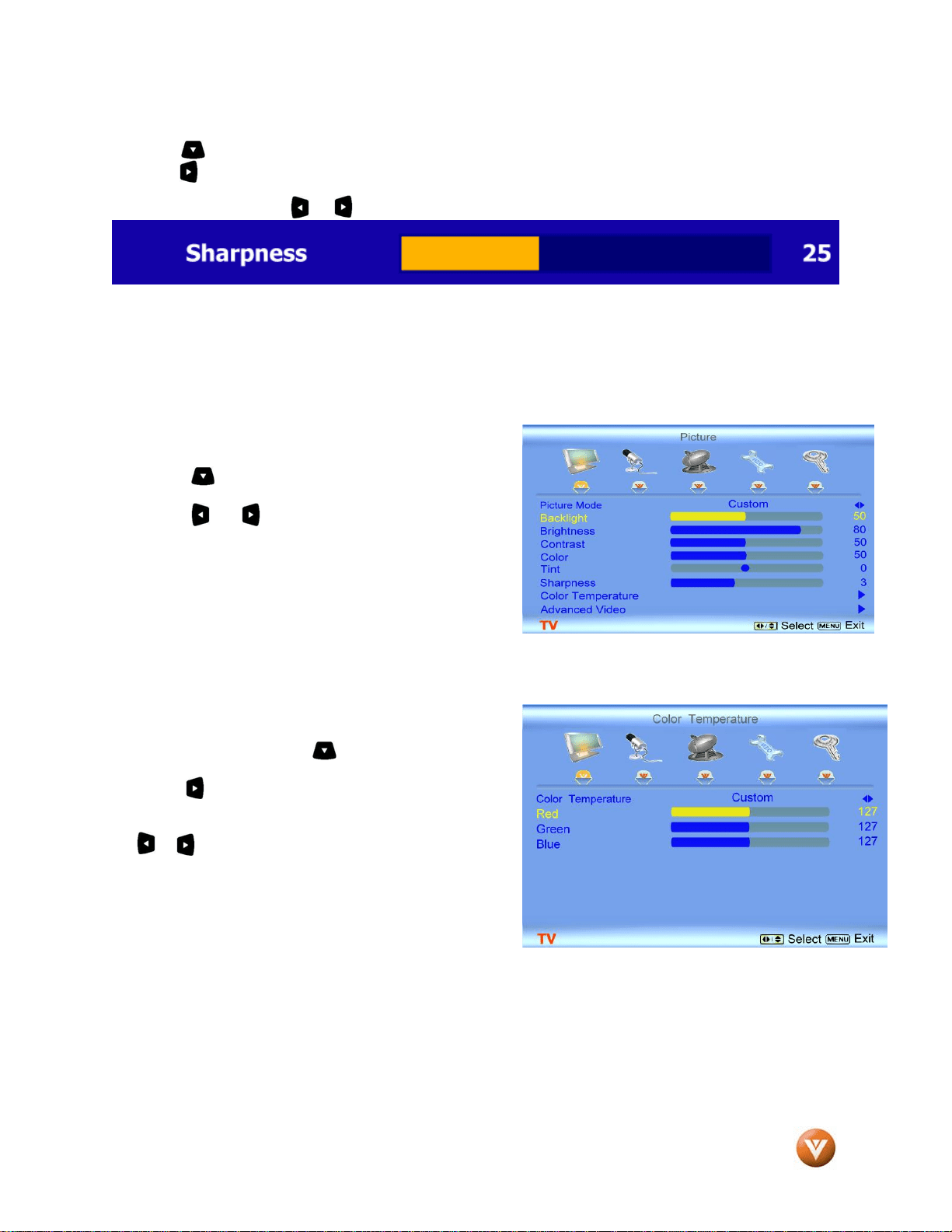
VIZIO GV47L FHDTV20A User Manual
Version 10/16/2007 41
www.VIZIO.com
4.2.7 Sharpness
Press the button to highlight the Sharpness selection.
Press the button to start adjusting the sharpness and the menu page will disappear and be replaced by
a small Sharpness Indicator Bar so you can see the sharpness level between the minimum and maximum
available levels. Use the or button to adjust the level.
The Sharpness adjusts the sharpness of the picture.
4.2.8 Color Temperature
Press the button to highlight the option for Color
Temperature selection.
Press the or button if you want to choose the
Custom, Cool, Normal or Warm option.
The default is Cool which has a 9300k value setting.
If you choose the Custom option, then a new menu will
be displayed showing the primary color items, Red,
Green and Blue. Press the button to highlight the
color you wish to adjust.
Press the button to start adjusting the color and the
menu page will disappear and be replaced by a small
Color (Red, Green or Blue) Indicator Bar as before. Use
the or button to adjust the color.
Press the OK button when finished. Repeat the
procedure to adjust the other colors if desired.
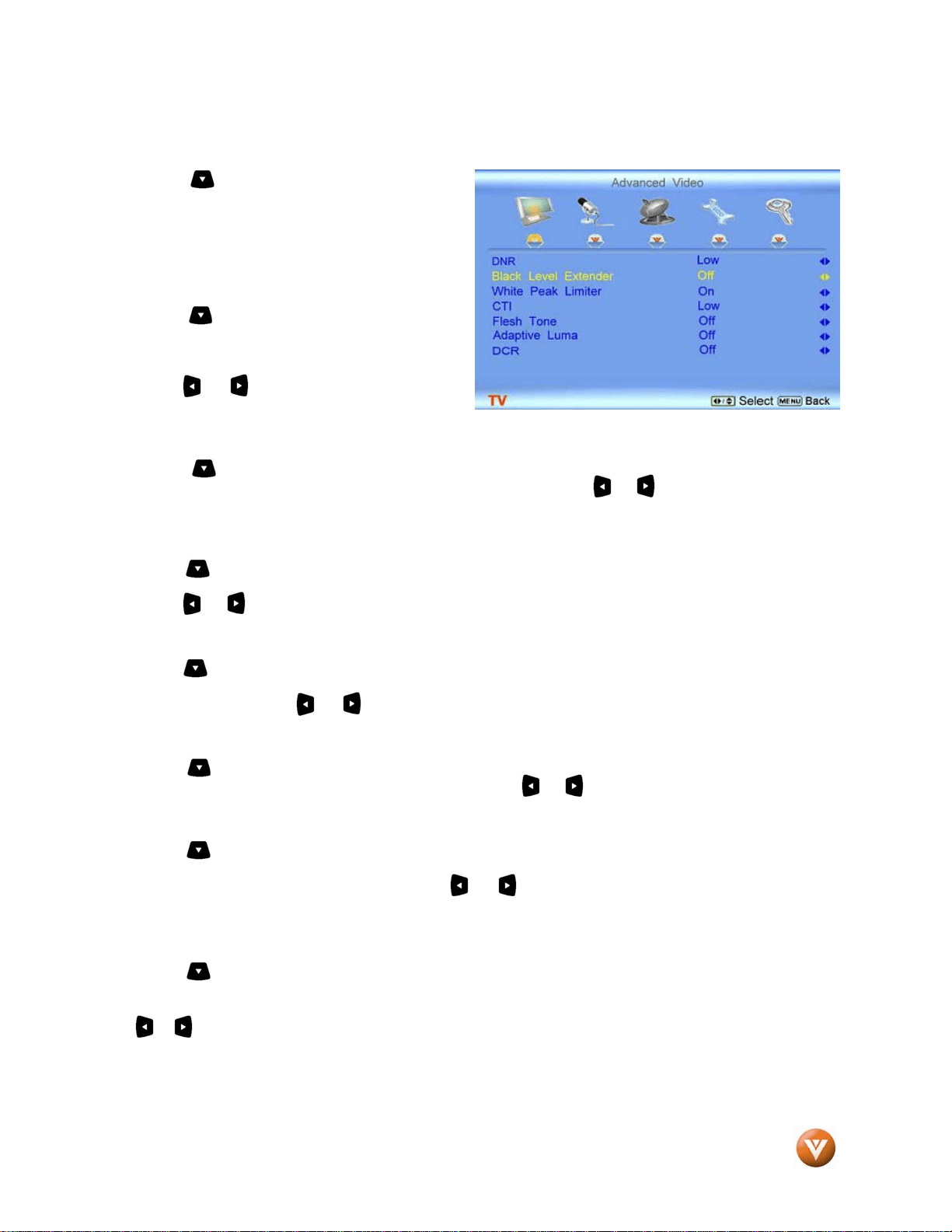
VIZIO GV47L FHDTV20A User Manual
Version 10/16/2007 42
www.VIZIO.com
4.3 Advanced Video
Press the button to highlight the option for
Advanced Video selection and press the OK
button. A new menu will be displayed showing the
advanced functions available for fine tuning of the
picture.
4.3.1 DNR
Press the button to highlight DNR (Dynamic
Noise Reduction). Use this feature to diminish
picture artifacts caused by the digitizing of image
motion content that may be present in the picture.
Press the or button to choose from the Off,
Low, Medium or Strong setting.
4.3.2 Black Level Extender
Press the button to highlight Black Level Extender. Use this feature to increase the picture
reproduction performance in the dark areas of the picture. Press the or button to turn this feature
On or Off.
4.3.3 White Peak Limiter
Press the button to highlight White Peak Limiter. Use this feature to limit excessive white in bright
areas of the picture, caused by a lower sync level for a channel being received from the antenna or cable.
Press the or button to turn this feature On or Off.
4.3.4 CTI (Color Transient Intensity)
Press the button to highlight CTI (Color Transient Intensity). This feature can be used to reduce the
time taken to transition from one color to another. The effect will be seen as sharpening the border
between colors. Press the or button to choose from the Off, Low, Medium or Strong setting.
4.3.5 Flesh Tone
Press the button to highlight Flesh Tone. In some cases, activation of this feature can result in a
more pleasing production of sky and flesh color. Press the or button to turn this feature On or Off.
4.3.6 Adaptive Luma
Press the button to highlight Adaptive Luma. Large areas of darkness in a picture will result in a
lower Average Picture Level (APL) and the overall picture will look too dark; activation of this feature will
raise the APL to counteract this effect. Press the or button to turn this feature On or Off.
4.3.7 DCR (Dynamic Contrast Ratio)
Press the button to highlight the DCR (Dynamic Contrast Ratio). This feature can be set to On or Off
to allow the TV set to display the supplied image, dark and bright scenes; with a more vivid or intense
quality. ON implies that the dark would be accentuated and OFF would intensify the brightness. Press
the or button to turn this On or Off.
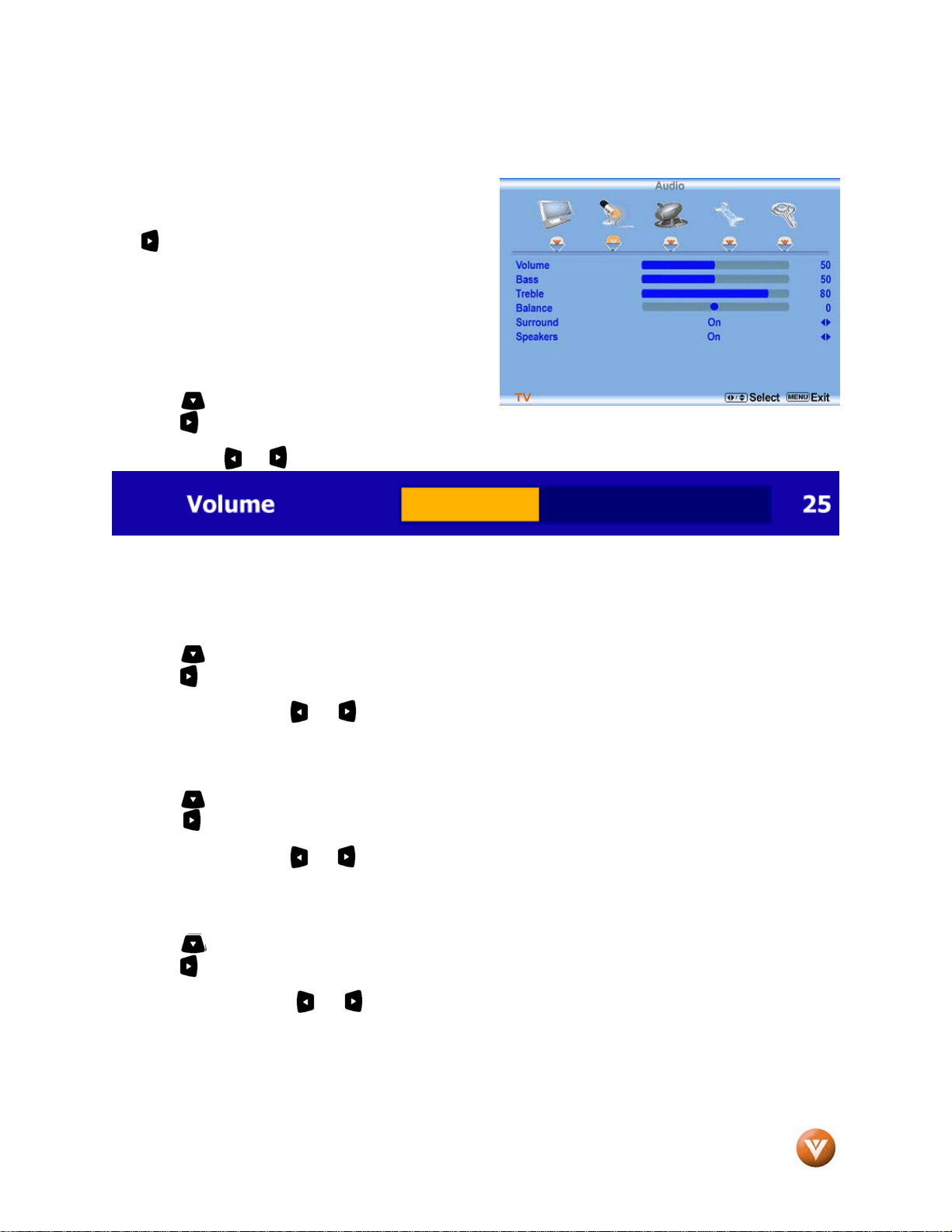
VIZIO GV47L FHDTV20A User Manual
Version 10/16/2007 43
www.VIZIO.com
4.4 DTV / TV Input Audio Adjustment
4.4.1 Volume
When the MENU button is pressed, the On Screen
Display (OSD) shows the PICTURE menu page.
Press the button to display the AUDIO Menu page.
Press the button to highlight the Volume selection.
Press the button to start adjusting the volume and the menu page will disappear and be replaced by a
small Volume Indicator Bar so you can see the volume level between the zero and maximum available
levels. Use the or button to adjust the level.
The Volume Indicator Bar will also appear when watching a program on your TV is the Volume button on
the remote or the side of the TV is pressed.
4.4.2 Bass
Press the button to highlight the Bass selection.
Press the button to start adjusting the bass and the menu page will disappear and be replaced by a
small Bass Indicator Bar, as before, so you can see the bass level between the zero and maximum
available levels. Use the or button to adjust for bass boost or attenuation.
4.4.3 Treble
Press the button to highlight the Treble selection.
Press the button to start adjusting the treble and the menu page will disappear and be replaced by a
small Treble Indicator Bar, as before, so you can see the treble level between the zero and maximum
available levels. Use the or button to adjust for treble boost or attenuation.
4.4.4 Balance
Press the button to highlight the Balance selection.
Press the button to start adjusting the balance and the menu page will disappear and be replaced by a
small Balance Indicator Bar, as before, so you can see the balance adjustment to the left or right of the
nominal position. Use the or button to adjust the left/right balance.
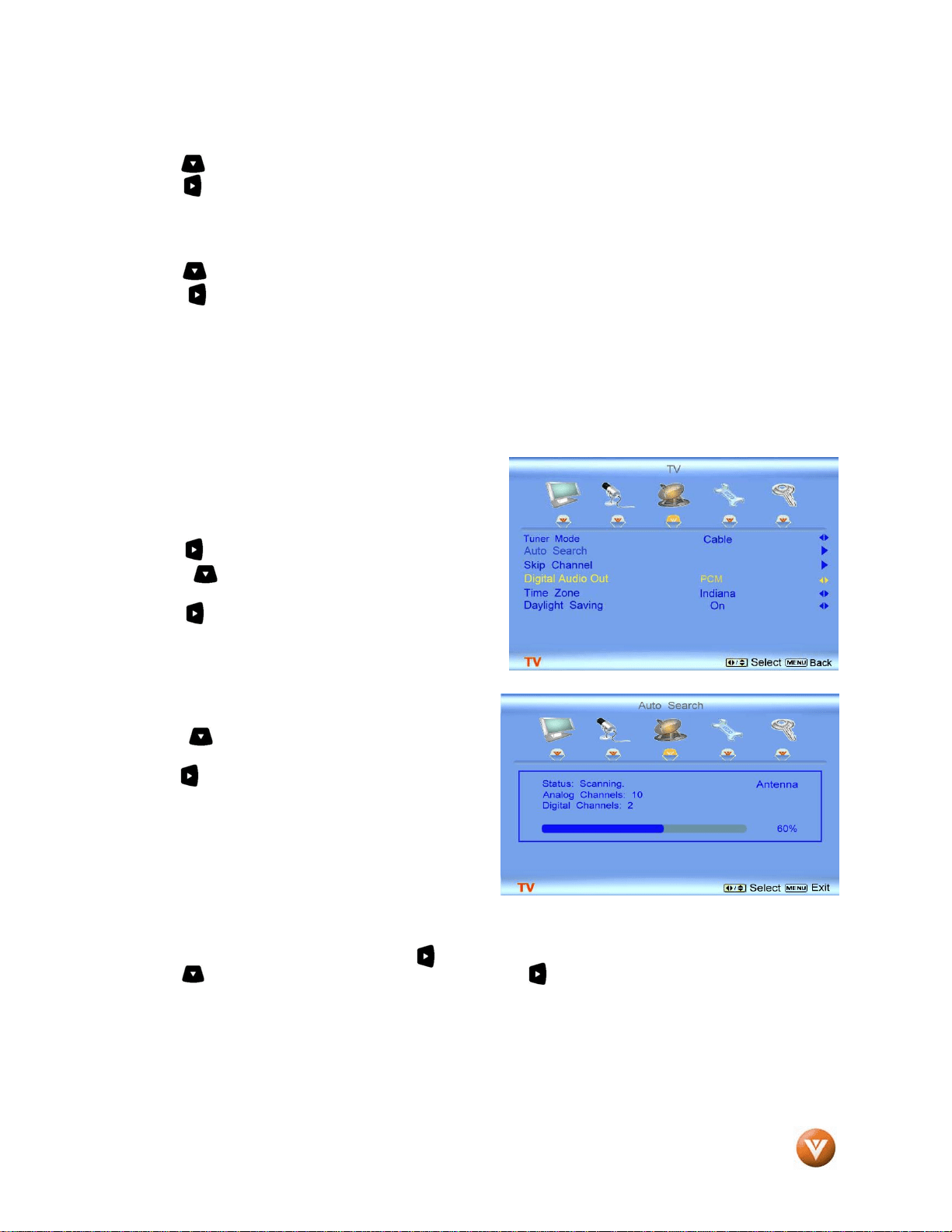
VIZIO GV47L FHDTV20A User Manual
Version 10/16/2007 44
www.VIZIO.com
4.4.5 Surround
Press the button to highlight the Surround selection.
Press the button to select for the simulated surround sound feature to be On or Off.
4.4.6 Speakers
Press the button to highlight the Speakers selection.
Press the button to turn the internal speakers On or Off. You may want to turn-off the internal
speakers when listening to the audio through your Home Theatre System.
4.5 DTV / TV Tuner Setup
When you first used your GV47L FHDTV20A you will have setup your TV for DTV / TV channels using the
Initial Setup screens. If you did not do this or if your setup has changed, you can do this from the TV
TUNER SETUP menu.
4.5.1 Tuner Mode
When the MENU button is pressed, the On Screen
Display (OSD) appears on the PICTURE menu page.
Press the button to display the TV page.
Press the button to highlight the Tuner Mode
selection.
Press the button to choose Cable or Antenna
depending upon which equipment you have attached to
the DTV / TV Input.
4.5.2 Auto Search
Press the button to highlight the Auto Search
selection.
Press the button to Auto Search for TV channels
available. The TV will automatically search for analog
and digital channels.
4.5.3 Skip Channel
After the TV has stored all of the available DTV channels in memory you will find that some channels will
be too weak to watch comfortably or they may be channels you do not want to see. Select the channel
you wish to remove, press the MENU and buttons to open the TV TUNER SETUP menu and then
press the button to highlight SKIP CHANNEL. Press the button to select this channel to be skipped
when using the CH+ or CH- button. You will still be able to select this channel using the number buttons
on the remote control.
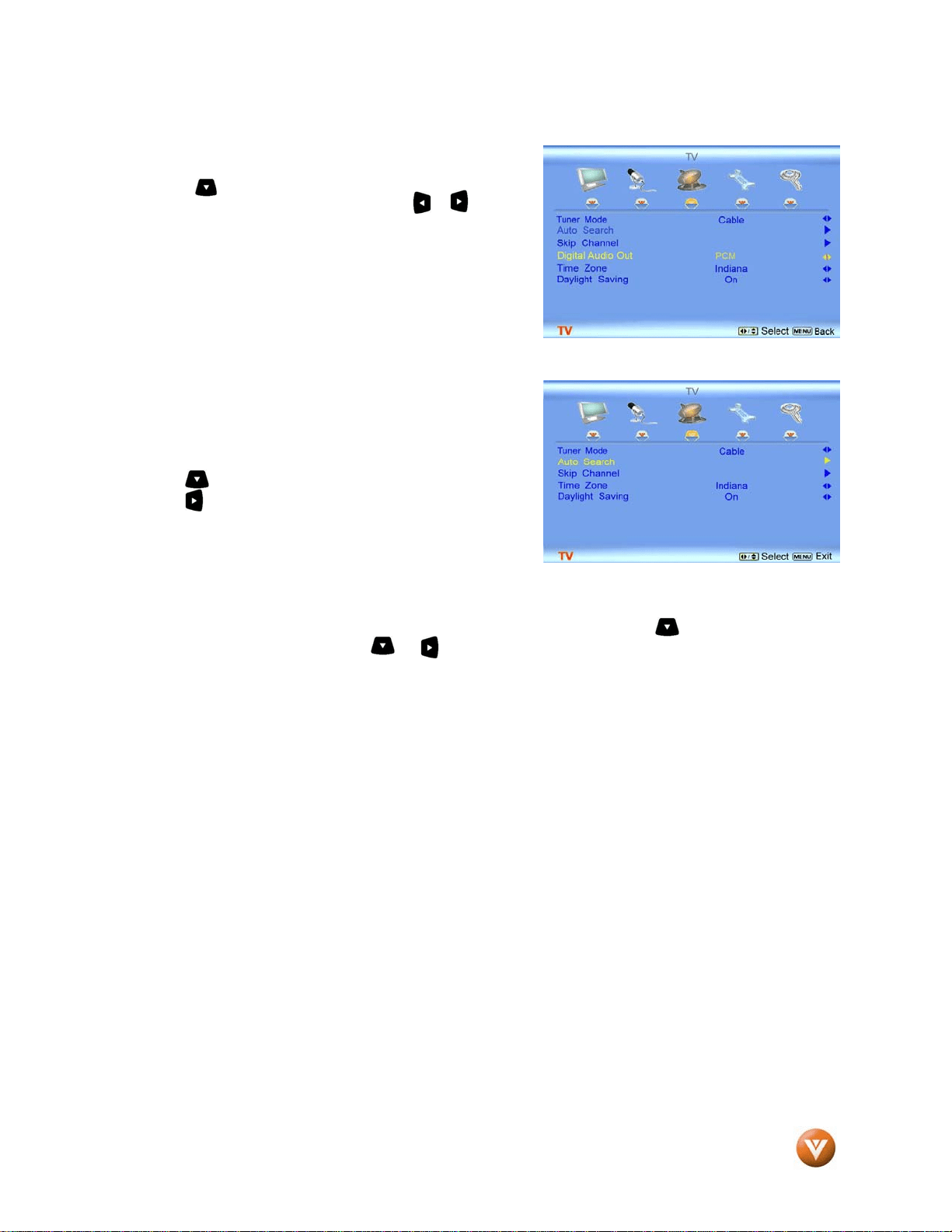
VIZIO GV47L FHDTV20A User Manual
Version 10/16/2007 45
www.VIZIO.com
4.5.4 Digital Audio Out
Press the button to select this feature. The options
are Off, Dolby Digital and PCM. Press the or button
to select the desired output when an external sound
system is used.
4.5.5 Time Zone
Setting the correct Time Zone for your area will ensure that
the correct program times are shown after pressing the
GUIDE button on the remote control.
Press the button to highlight the Time Zone selection.
Press the button to select your area.
4.5.6 Daylight Saving
As for Time Zone, setting the daylight saving time for your area will ensure that the correct program times
are shown after pressing the GUIDE button on the remote control. Press the button to highlight the
Daylight Saving selection. Press the or button to select On or Off.
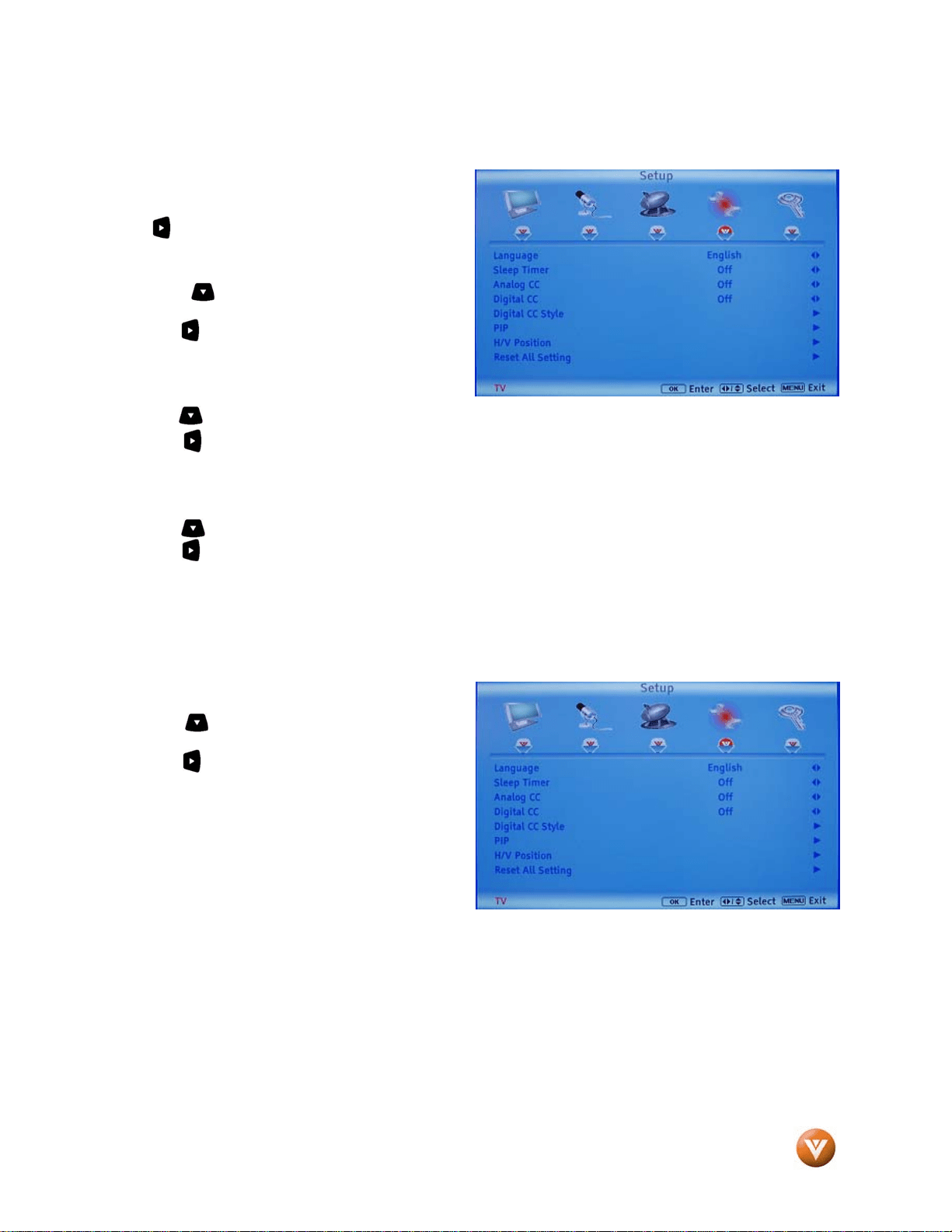
VIZIO GV47L FHDTV20A User Manual
Version 10/16/2007 46
www.VIZIO.com
4.6 DTV / TV Input Setup
4.6.1 Language
When the MENU button is pressed, the On
Screen Display (OSD) shows the PICTURE menu
page. Press the button until the SETUP page is
displayed.
Press the button to highlight the Language
selection. The default is English.
Press the button to select Español or Français.
4.6.2 Sleep Timer
Press the button to highlight the Sleep Timer selection.
Press the button to select the timer to turn-off the TV in 30, 60, 90 or 120 minutes.
4.6.3 Analog Closed Caption
When watching regular analog (NTSC) TV, the Analog CC feature is available in the Setup menu.
Press the button to highlight the Analog CC selection.
Press the button to select Off, CC1, CC2, CC3 or CC4.
Note: Closed Caption for regular TV is usually CC1 or CC2.
4.6.4 Digital Closed Caption
When watching DTV, the Digital CC feature is
available in the Setup menu.
Press the button to highlight the Digital CC
selection.
Press the button to select Off or Service 1 thru
Service 6.
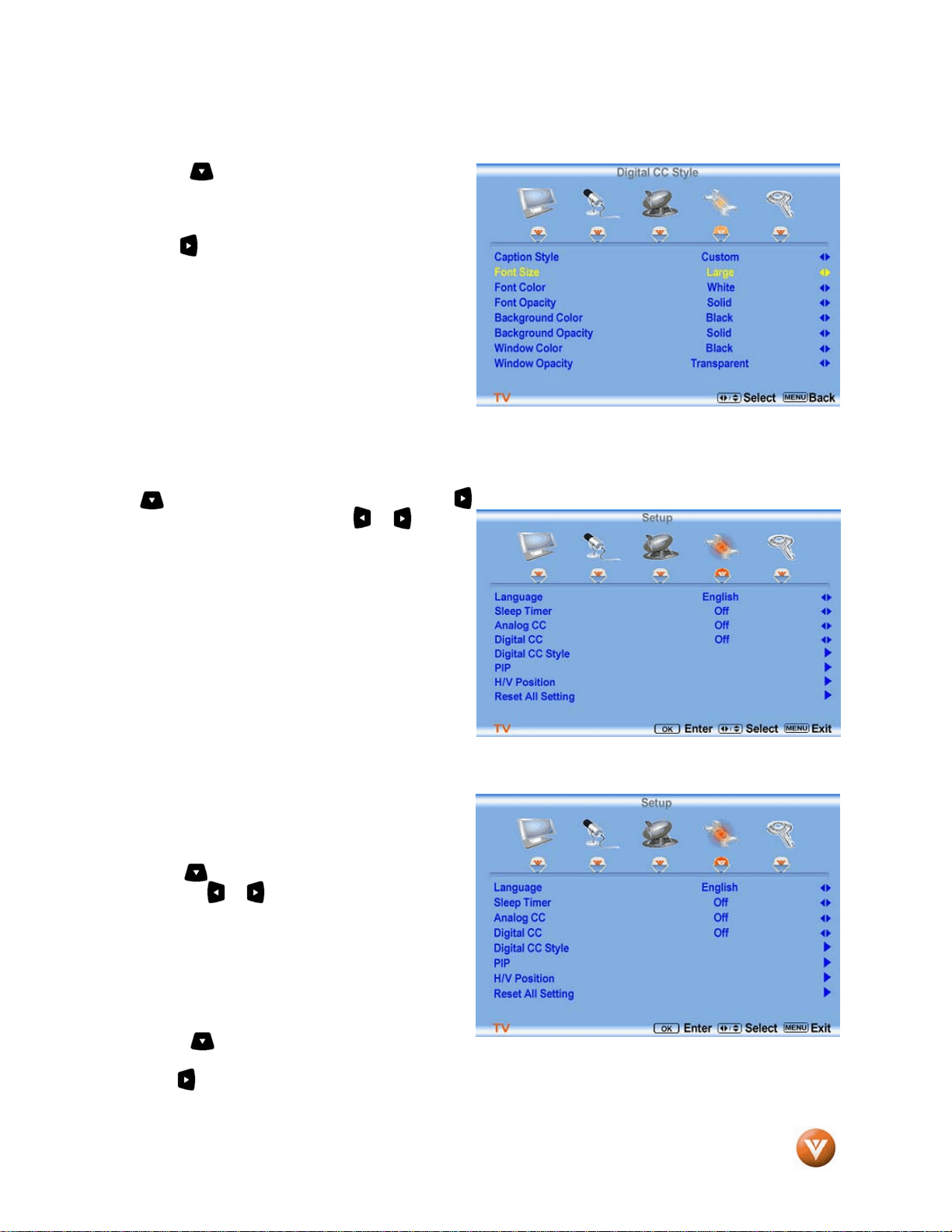
VIZIO GV47L FHDTV20A User Manual
Version 10/16/2007 47
www.VIZIO.com
4.6.5 Digital Closed Caption Style
When selecting Digital Closed Caption you are also able to customize the look of the Closed Caption.
Press the button to highlight the Digital CC
Style selection. The default is Broadcast which
means the style is the same as the broadcast
channel has chosen for transmission.
Press the button to select Custom.
The Custom menu allows you to change the seven
different parameters shown on the screen; Font
Size, Font Color, Font Opacity, Background Color,
Background Opacity, Window Color and Window
Opacity; to the quality of display of the Closed
Caption you desire. The combinations are multiple;
that is the reason to have Broadcast selected as
default.
4.6.6 PIP (Picture-in-Picture)
Picture-in-Picture is a feature which allows you to watch two different signal inputs simultaneously. Press
the button and highlight the option. Press the button to activate the PIP feature, which will bring up
a display showing Style. Press the or button
to select PIP, POP or OFF.
If PIP is selected, then you will have the option of
selecting the Input (Refer to PIP mode on page 57
of this manual for different combinations), Size
(The size of the little box to watch the second
signal) and Position (Where you want to place the
little box with the second signal).
If POP (Regularly called Picture-by-Picture) is
selected, you will only have the option to select the
Input as the screen will display the two different
signals side by side, each one occupying half of
the screen.
4.6.7 H/V Position
Press the button to select this feature. Press
to select the or button to make the desired
adjustment on your display.
4.6.8 Reset All Settings
Press the button to highlight the Reset All
Settings selection.
Press the button to reset the TV to the default factory settings.
Note: This does NOT reset the Parental Control Password.
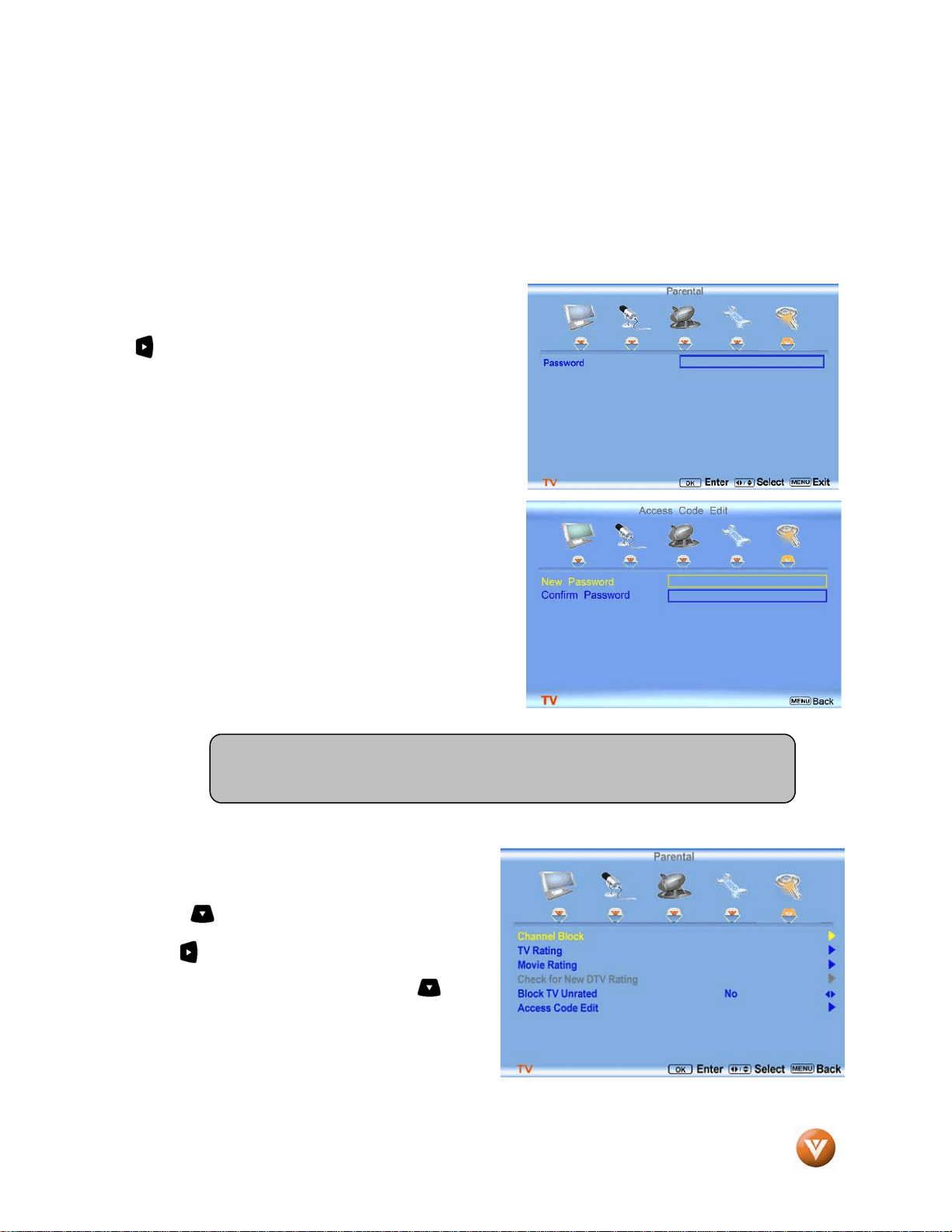
VIZIO GV47L FHDTV20A User Manual
Version 10/16/2007 48
www.VIZIO.com
4.7 DTV / TV Input Parental Control
4.7.1 Channel Block
If you want to restrict certain channel and program viewing, you can do this by turning on the Parental
Control. Selected programs, movies and channels can then be made available only after an authorized
password has been entered and accepted by the TV.
When the MENU button is pressed, the On Screen
Display (OSD) shows the PICTURE menu page. Press
the button to display the PARENTAL menu page.
The Password must be entered before the TV will
continue with Parental settings. The default password set
in the factory is 0 0 0 0. If you are going to use the
Parental Control feature you should change the password.
Press the button to highlight the Channel Block
selection.
Press the button and a table shows up displaying
scanned channels numbers in sequence with a figure
of a padlock to the right hand side.Press the button
to select the channel to be locked or unlocked and
then press the OK key to execute your choice.
Note: Make sure you write down and store the new password in a secure place.
The Reset All Settings feature (see page 47) does NOT reset the password.
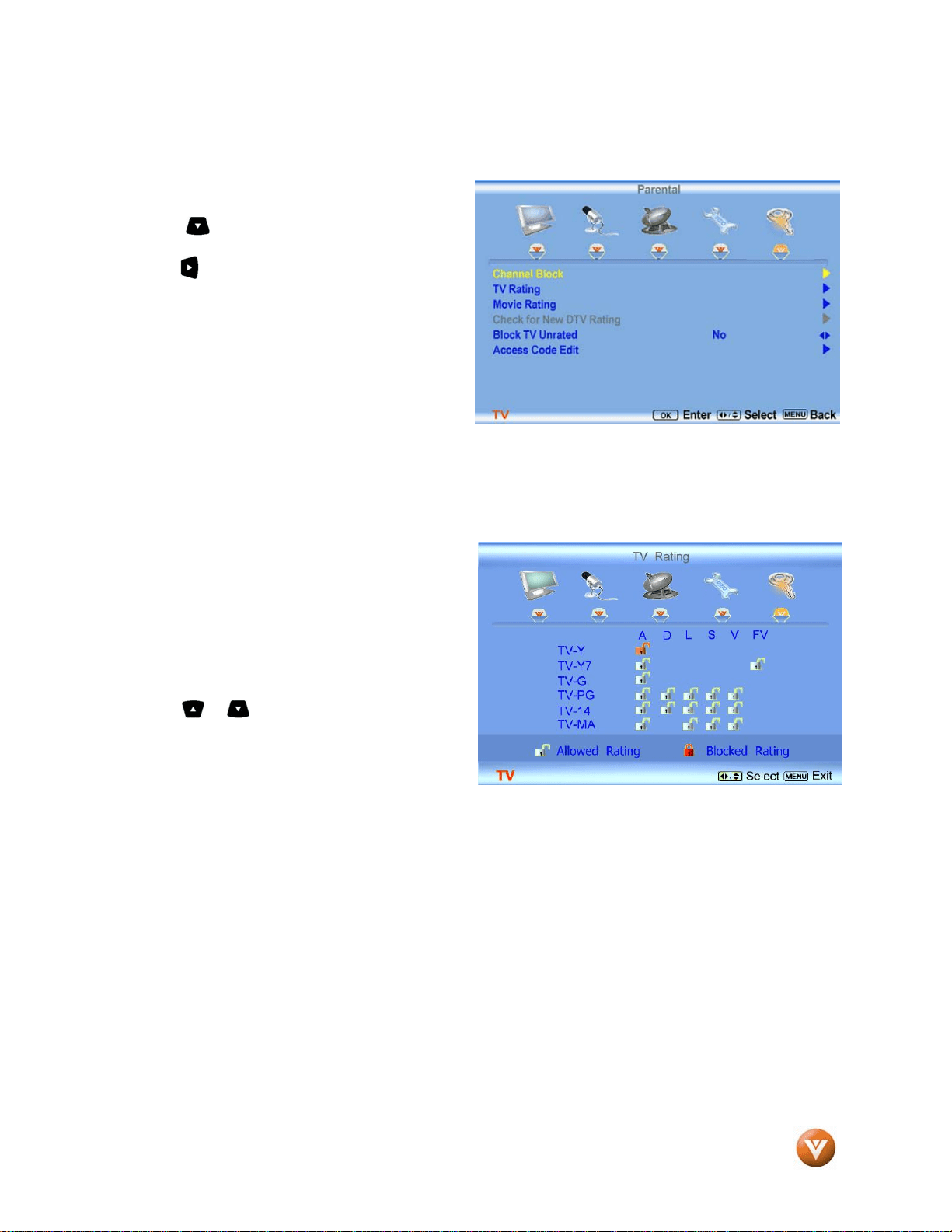
VIZIO GV47L FHDTV20A User Manual
Version 10/16/2007 49
www.VIZIO.com
4.7.2 TV Rating
Follow the procedure in the previous section 4.7.1
to display the Parental Control menu and then
press the button to highlight the TV Rating
selection.
Press the button and the Block TV Rating panel
will be displayed.
In the Block TV Rating panel you can customize
the program blocking of the following TV ratings:
Y – All children
Y7 – Older children
G – General audience
PG – Guidance suggested
14 – Strongly cautioned
MA – Mature audience
You can also customize the TV ratings for the following content:
A – Sexual dialog
D – Sexual dialog
L – Adult language
S – Sexual situations
V - Violence
FV – Fantasy violence
Press the or button to navigate through the
TV rating options. Press the button to block
(locked) or allow (unlocked).
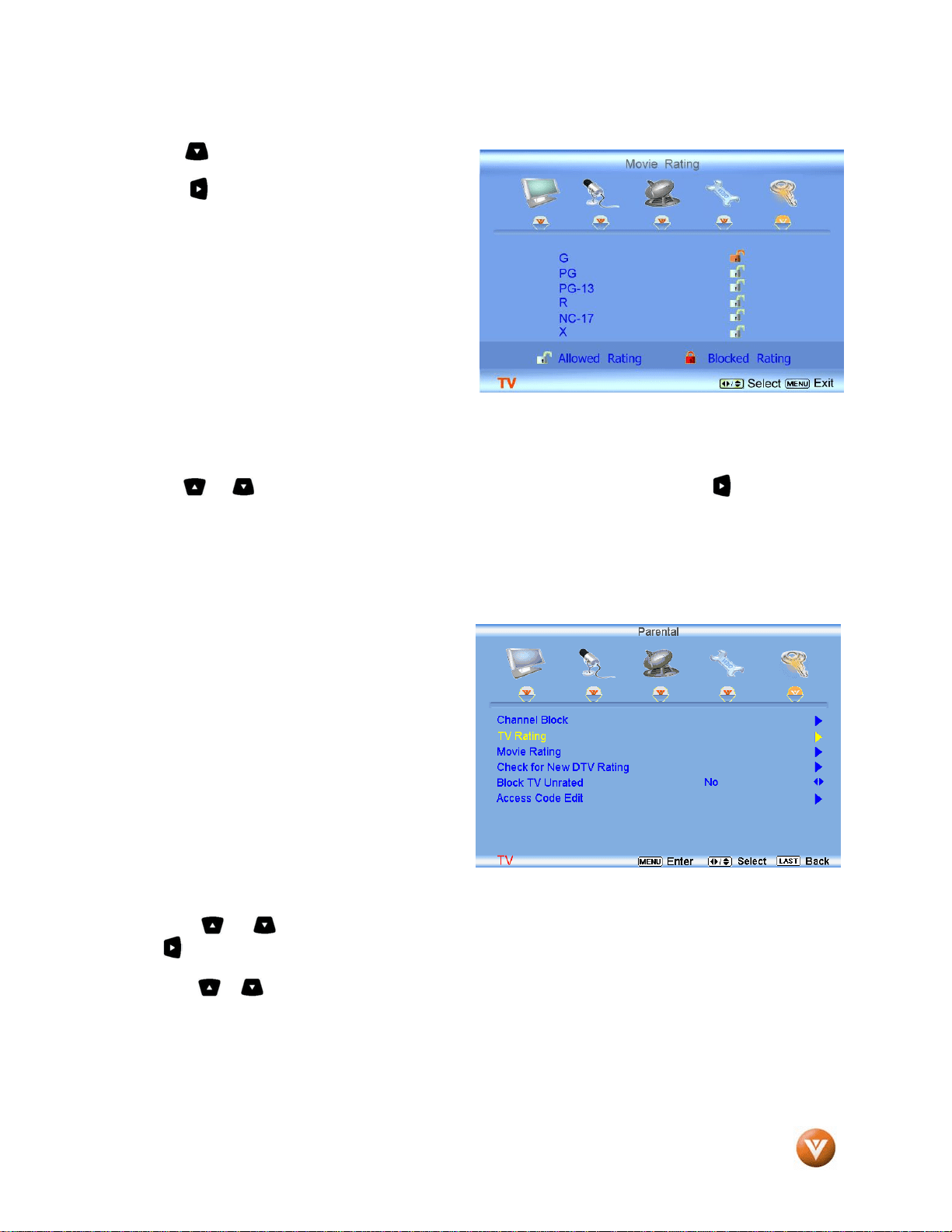
VIZIO GV47L FHDTV20A User Manual
Version 10/16/2007 50
www.VIZIO.com
4.7.3 Movie Rating
Press the button to highlight the Movie Rating
selection.
Press the button and the Block Movie Rating
panel will be displayed.
In the Block Movie Rating panel you can customize
the program blocking of the following Movie
ratings:
G – General audience
PG – Parental guidance suggested
PG-13 – Recommended for children 13 years of
age or older
R – Mature audience
NC-17 – No one under 17 years of age
X – No one under 17 years of age
Press the or button to navigate through the Movie rating options. Press the button to block
(locked) or allow (unlocked).
4.7.4 Check for New DTV Rating
This option is designed to update the TV or Movie table of different ratings for programs being viewed in
your local or regional area. It will allow the
parental guidance control feature in your TV to
have the most current parental control database
for a digital signal. This option may be available in
the future for activation. This option works as
follows: Whenever you decide to use the Parental
Control feature and this option has been activated
in your area, the Check for New DTV Rating will
be a solid color indicating that an update is
available for the TV Rating or Movie Rating table.
After entering the password, the Parental menu
will appear on the screen, and then do the
following.
Observe the status of the Check for New DTV
Rating. If option is faded out, no update is available (the option is not activated in your area). If it is not
faded out,
press either or button to select this option.
Press button to execute this operation. Please follow the on screen instructions to complete this
procedure.
Press either or button to select and then adjust any other option in this menu.
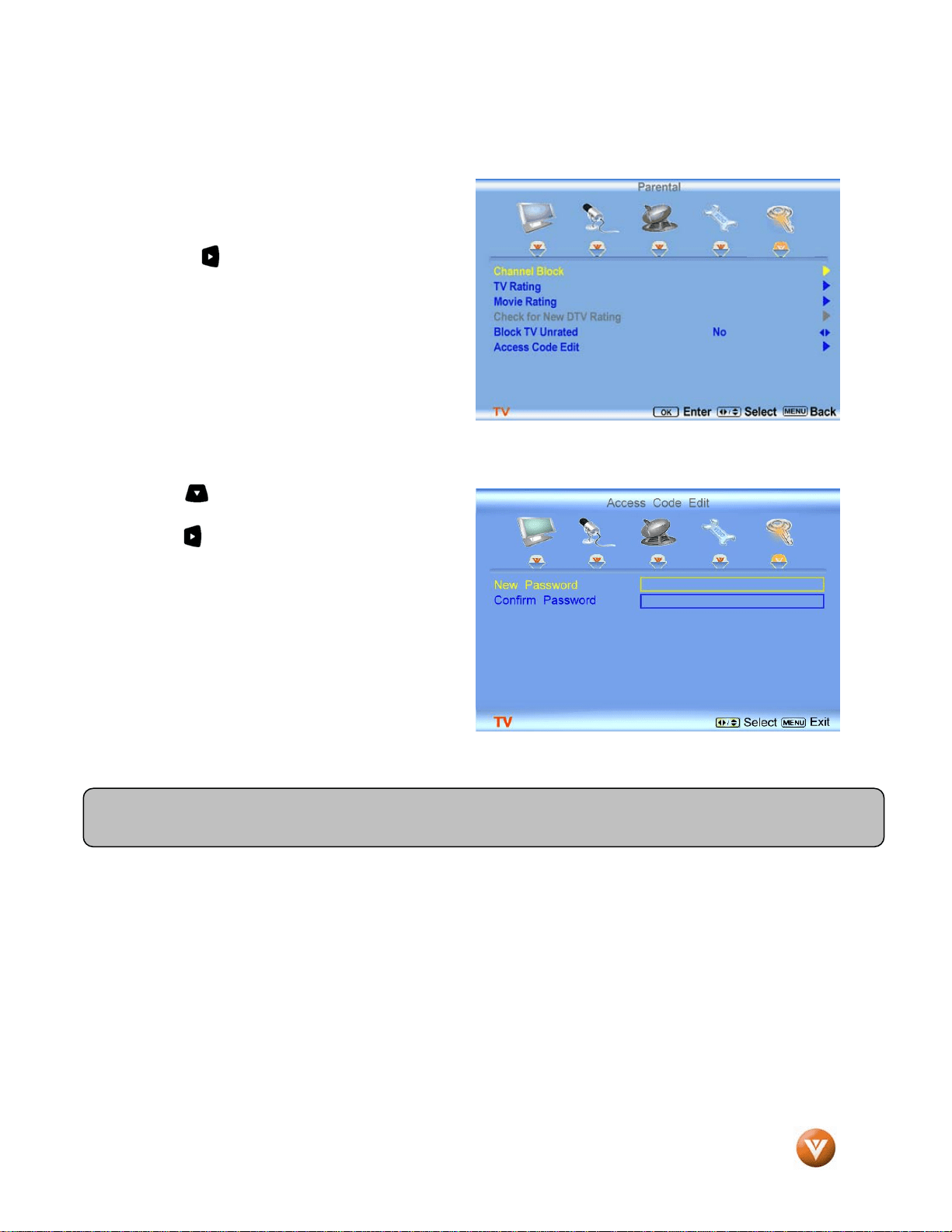
VIZIO GV47L FHDTV20A User Manual
Version 10/16/2007 51
www.VIZIO.com
4.7.5 Blocked Unrated Programming
Follow the procedure in the previous section 4.7.1
to display the Parental Control menu and then
press the button to highlight the Block Unrated
TV selection.
Press the button to turn-on or turn-off the
blocking of programming that does not have a
rating.
4.7.6 Change the Password
Press the button to highlight the Access Code
Edit selection.
Press the button and the new Password panel
will be displayed.
Enter the new, 4-digit password using the number
buttons on the remote. Enter it a second time to
confirm you entered it correctly.
Note: Make sure you write down and store the new password in a secure place. The Reset All Settings feature
(see page 47) does NOT reset the password.
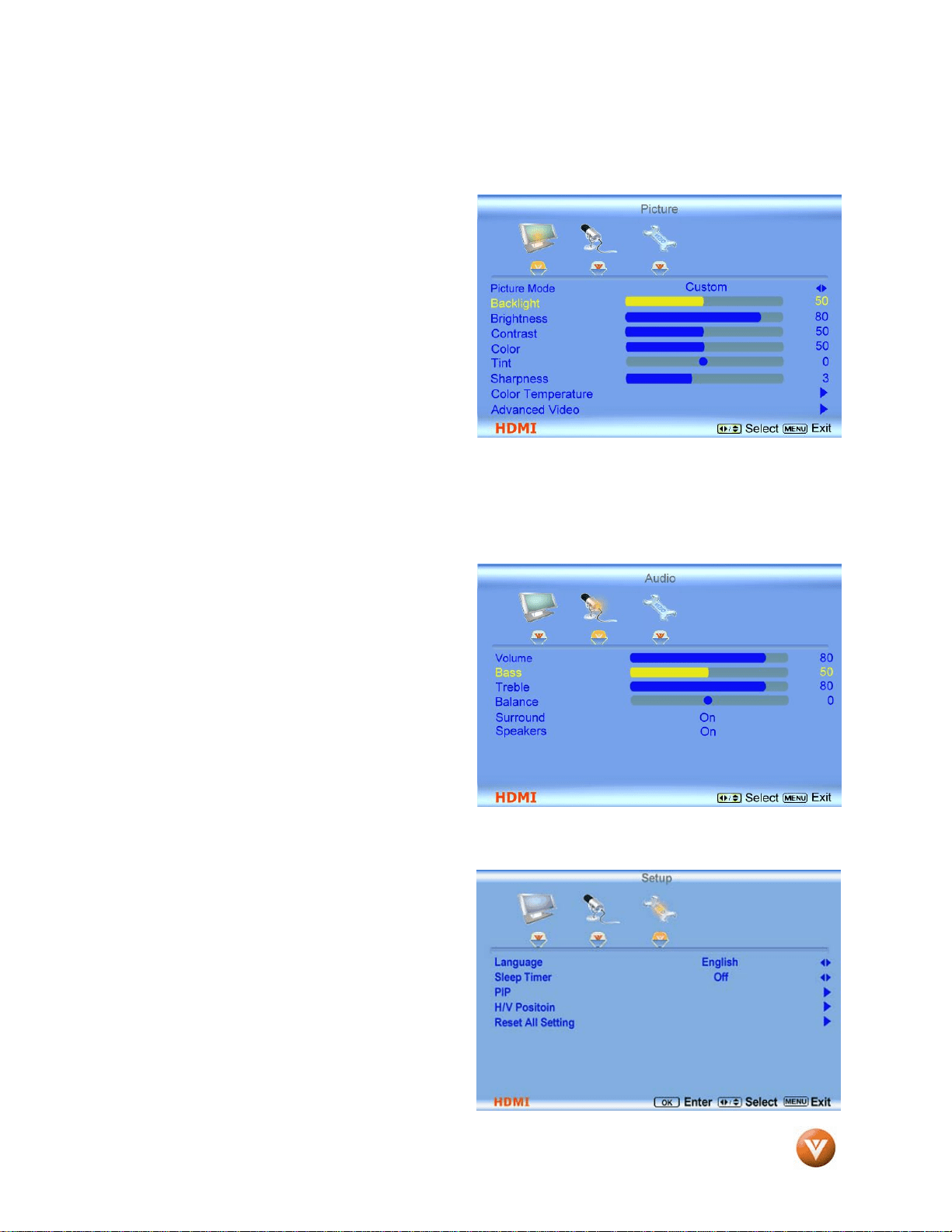
VIZIO GV47L FHDTV20A User Manual
Version 10/16/2007 52
www.VIZIO.com
4.8 HDMI Input Picture Adjustment
The Picture Adjust menu operates in the same
way for the HDMI Input as for the DTV / TV input in
section 4.2. The menu difference is that there is
no icon
along the top for DTV / TV or Parental
Control adjustments.
4.9 HDMI Input Audio Adjustment
The Audio Adjust menu operates in the same way
for the HDMI Input as for the DTV / TV input in
section 4.4. The menu difference is that there is
no icon al
ong the top for DTV / TV or Parental
Control adjustments.
4.10 HDMI Input Setup
The Setup menu operates in the same way for the
HDMI Input as for the TV input in section 4.2. The
menu difference is that there is no icon along the
top for DTV / TV or Parental Control adjustments.
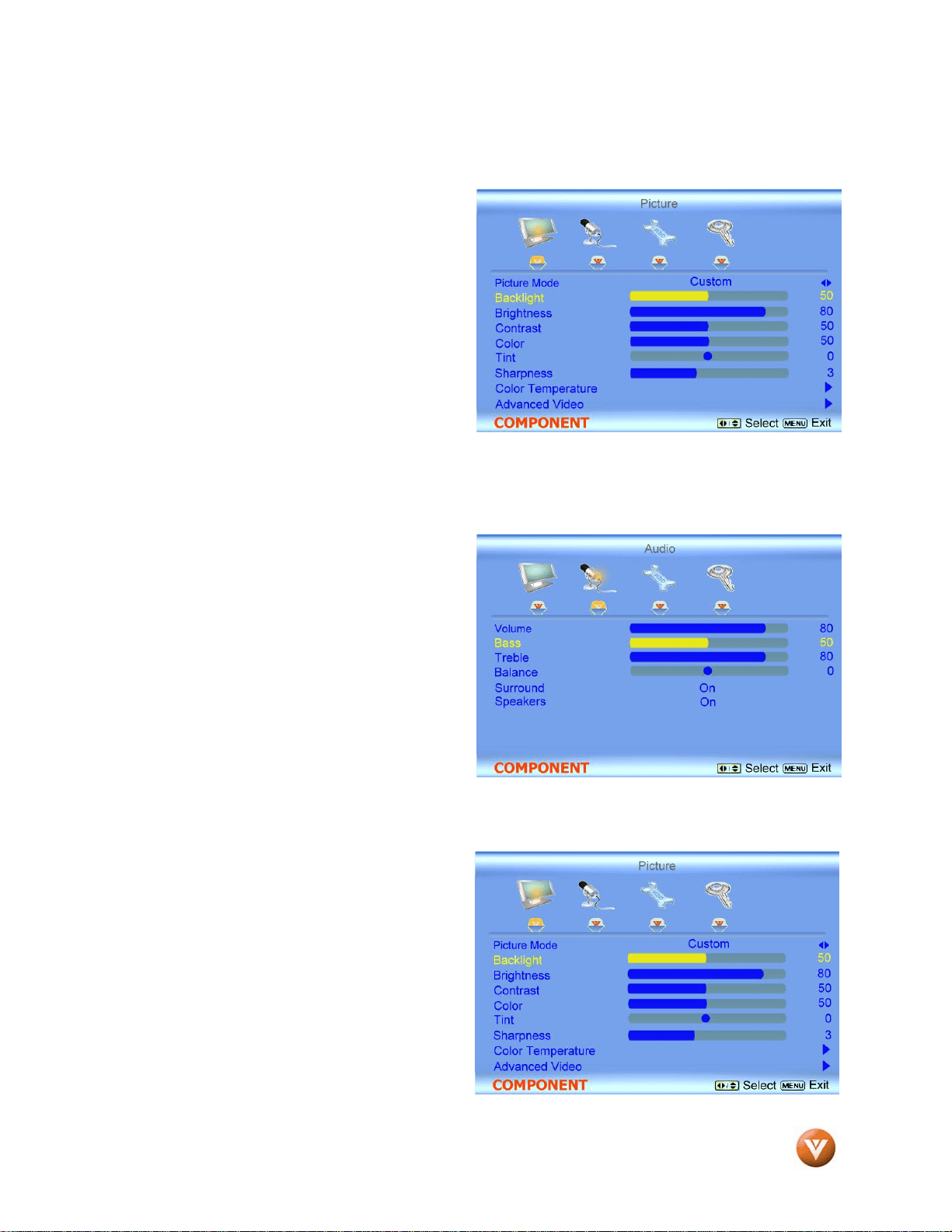
VIZIO GV47L FHDTV20A User Manual
Version 10/16/2007 53
www.VIZIO.com
4.11 Video Input Picture Adjustment
The Picture Adjust menu operates in the same
way for Video Inputs (Component and AV) as for
the DTV / TV input in section 4.2. The menu
differen
ce is that there is no icon along the top for
DTV / TV adjustments.
4.12 Video Input Audio Adjustment
The Audio Adjust menu operates in the same way
for Video Inputs (Component and AV) as for the
DTV / TV input in section 4.4. The menu
differen
ce is that there is no icon along the top for
DTV / TV adjustments.
4.13 Video Input Setup
The Setup menu operates in the same way for
Video Inputs (Component and AV) as for the TV
input in section 4.2. The menu difference is that
there is no icon along the top for TV adjustments.
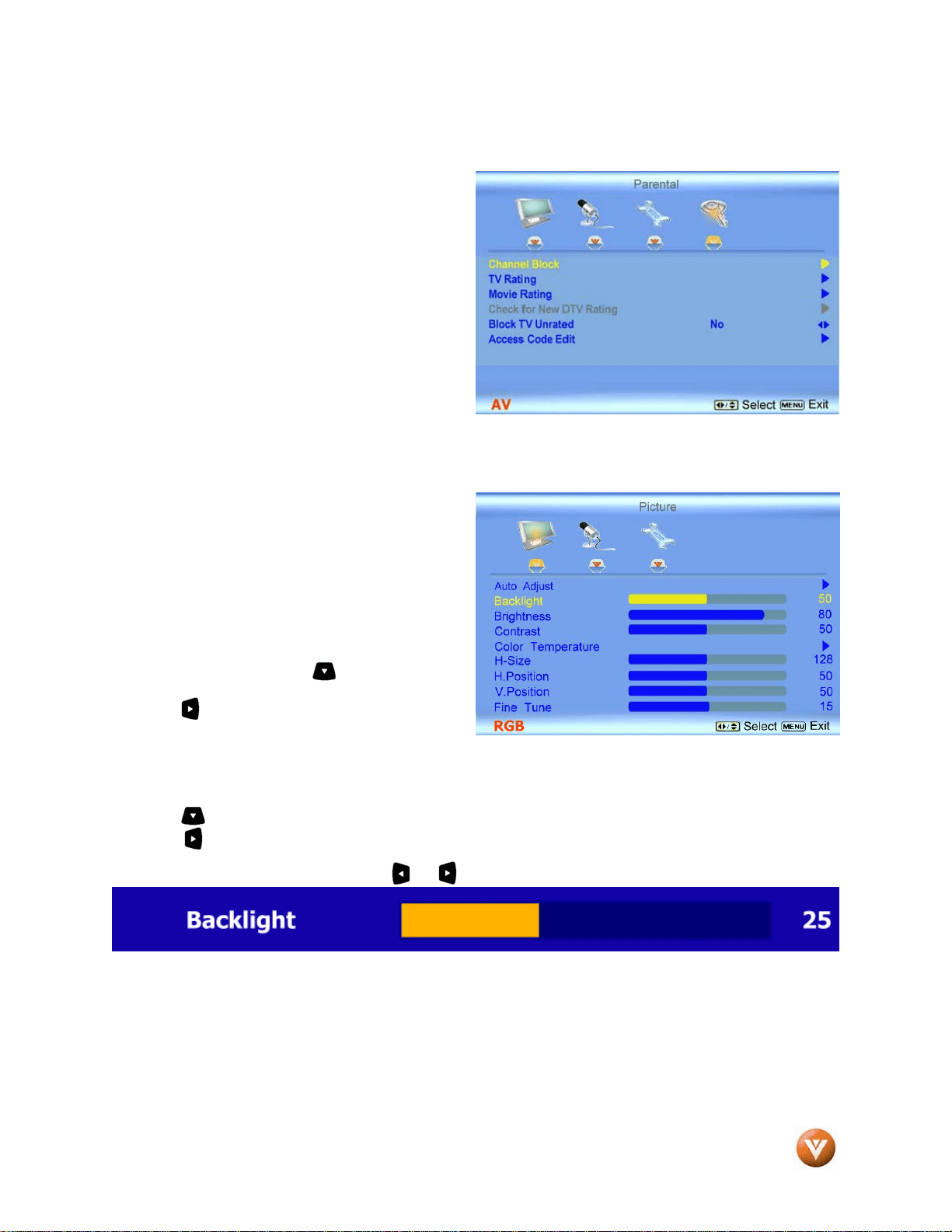
VIZIO GV47L FHDTV20A User Manual
Version 10/16/2007 54
www.VIZIO.com
4.14 Video Input Parental Control
The Parental Control menu operates in the same
way for Video Inputs (Component and AV) as for
the DTV / TV input in section 4.7. The menu
differen
ce is that there is no icon along the top for
DTV / TV adjustments.
4.15 PC Input Picture Adjustment
The Picture Adjust menu operates in the same
way for the PC Input as for the DTV / TV input in
section 4.2 for Backlight, Contrast, Brightness and
Colo
r Temperature.
4.15.1 Auto Adjust
When the MENU button is pressed, the On Screen
Display (OSD) appears on the PICTURE
adjustment page. Press the button to highlight
the Auto Adjust selection.
Press the button for the LCD HDTV to adjust to
the PC signal timing automatically.
4.15.2 Backlight
Press the button to highlight the Backlight selection.
Press the button to start adjusting the brightness of the Backlight and the menu page will disappear
and be replaced by a small Backlight Indicator Bar so you can see the light level between the minimum
and maximum available levels. Use the or button to adjust the level.
The Backlight level does not affect the Brightness (black level) or Contrast (white level) of the picture, it
adjusts the lamp current and this affects the overall brilliance of the picture.
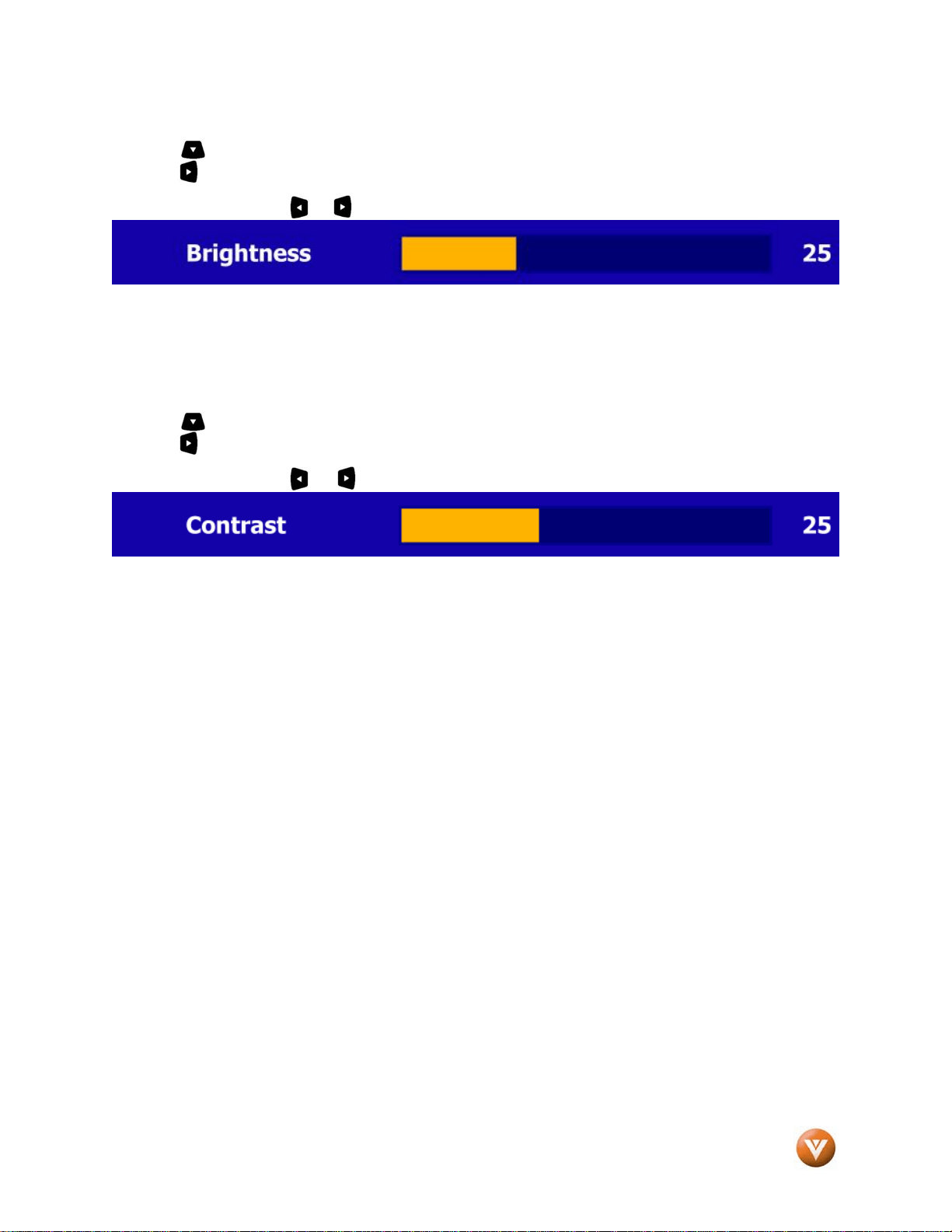
VIZIO GV47L FHDTV20A User Manual
Version 10/16/2007 55
www.VIZIO.com
4.15.3 Brightness
Press the button to highlight the Brightness selection.
Press the button to start adjusting the brightness and the menu page will disappear and be replaced by
a small Brightness Indicator Bar so you can see the brightness level between the minimum and maximum
available levels. Use the or button to adjust the level.
The Brightness adjusts the black levels in the picture. If the brightness is too low you will not be able to
see the detail in darker parts of the picture and if the brightness is too high the picture will look washed
out.
4.15.4 Contrast
Press the button to highlight the Contrast selection.
Press the button to start adjusting the contrast and the menu page will disappear and be replaced by a
small Contrast Indicator Bar so you can see the contrast level between the minimum and maximum
available levels. Use the or button to adjust the level.
The Contrast adjusts the white levels in the picture. If the contrast is too low the picture will look washed
out and if the contrast is too high you will not be able to see any detail in the bright parts of a picture.
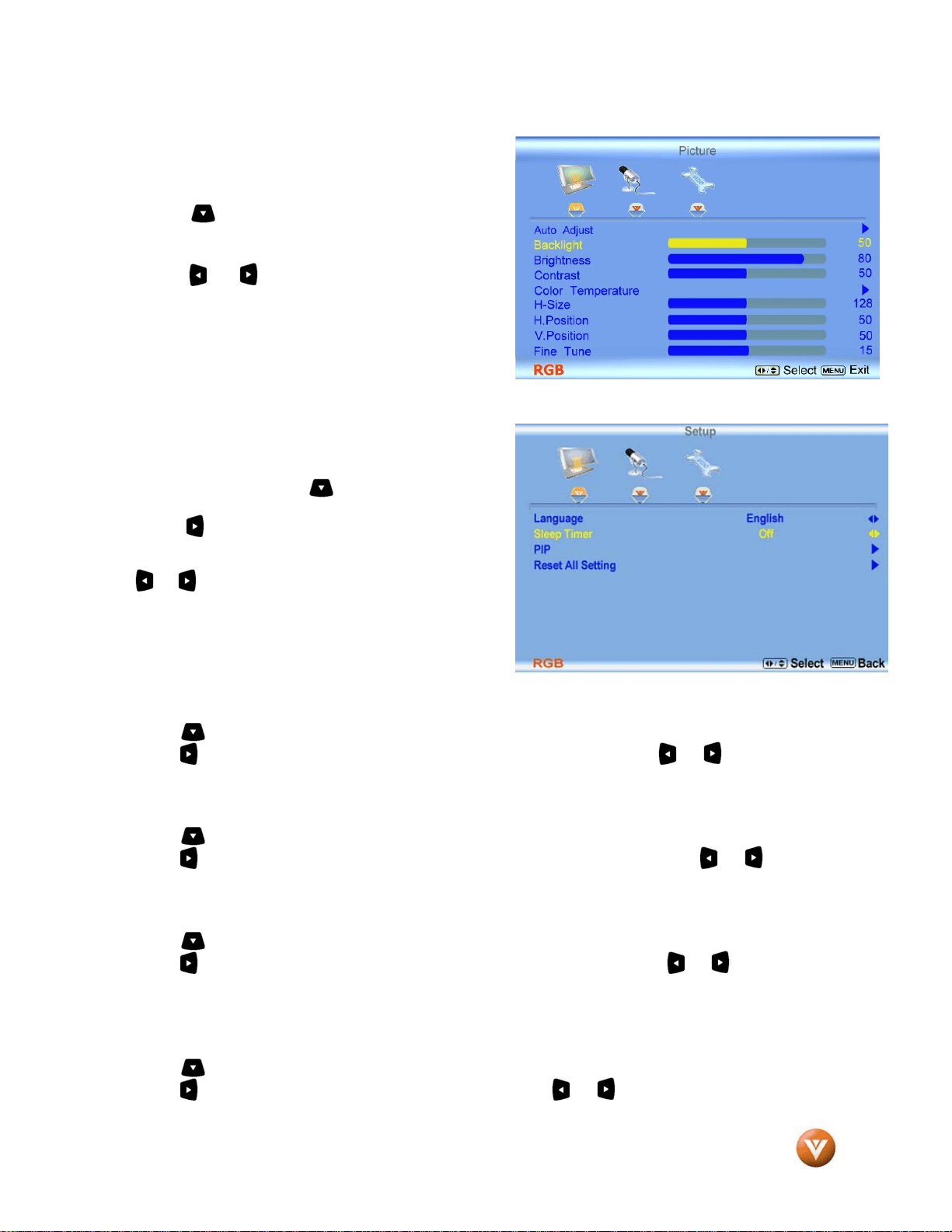
VIZIO GV47L FHDTV20A User Manual
Version 10/16/2007 56
www.VIZIO.com
4.15.5 Color Temperature
Press the button to highlight the option for Color
Temperature selection.
The default is COOL; this is the 9300K setting.
Press the or button if you want to choose the
Normal or Custom option.
If you choose the Custom option, then a new menu will
be displayed showing the primary color items, Red,
Green and Blue. Press the button to highlight the
color you wish to adjust.
Press the button to start adjusting the color and the
menu page will disappear and be replaced by a small
Color (Red, Green or Blue) Indicator Bar as before. Use
the or button to adjust the color.
Press the OK button when finished. Repeat the
procedure to adjust the other colors if desired.
4.15.6 H-SIZE
Press the button to highlight the H-Size selection.
Press the button to start adjusting the horizontal size of the picture. Use the or button to adjust
the horizontal size.
4.15.7 H. Position
Press the button to highlight the Horizontal Shift selection.
Press the button to start adjusting the horizontal position of the picture. Use the or button to
adjust the horizontal position.
4.15.8 V. Position
Press the button to highlight the Vertical Shift selection.
Press the button to start adjusting the vertical position of the picture. Use the or button to adjust
the vertical position.
4.15.9 Fine Tune
Press the button to highlight the Fine Tune selection.
Press the button to start tuning the to the PC signal. Use the or button to adjust the tuning.
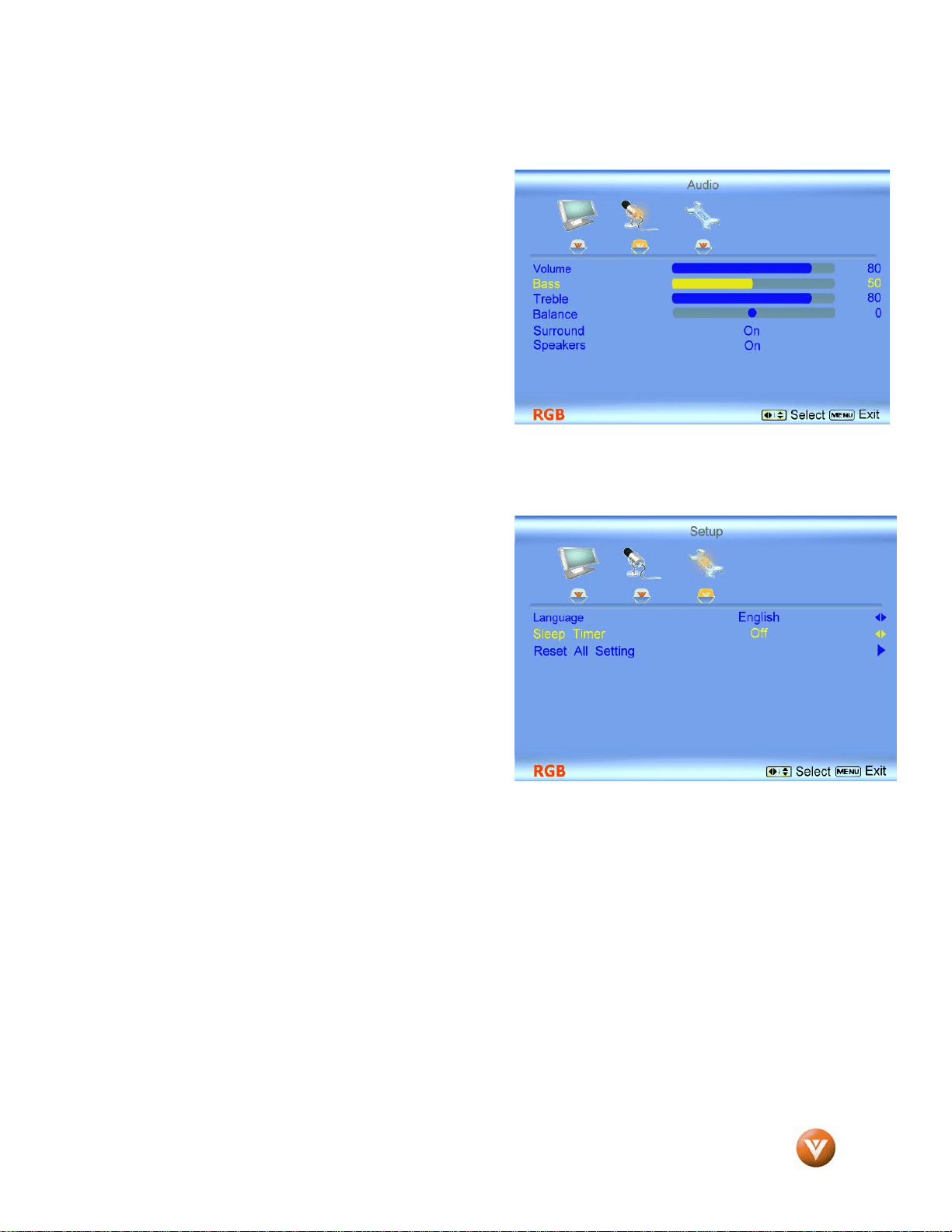
VIZIO GV47L FHDTV20A User Manual
Version 10/16/2007 57
www.VIZIO.com
4.16 PC Input Audio Adjustment
The Audio Adjust menu operates in the same way for
the PC Input as for the DTV / TV input in section 4.4.
The me
nu difference is that there are no icons along the
top for DTV / TV and Parental Control adjustments.
4.17 PC Input Setup
The Setup menu operates in the same way for the PC
Input as for the DTV / TV input in section 4.2. The menu
difference is that there is no icon along the top for TV
adjustments and no Closed Caption.
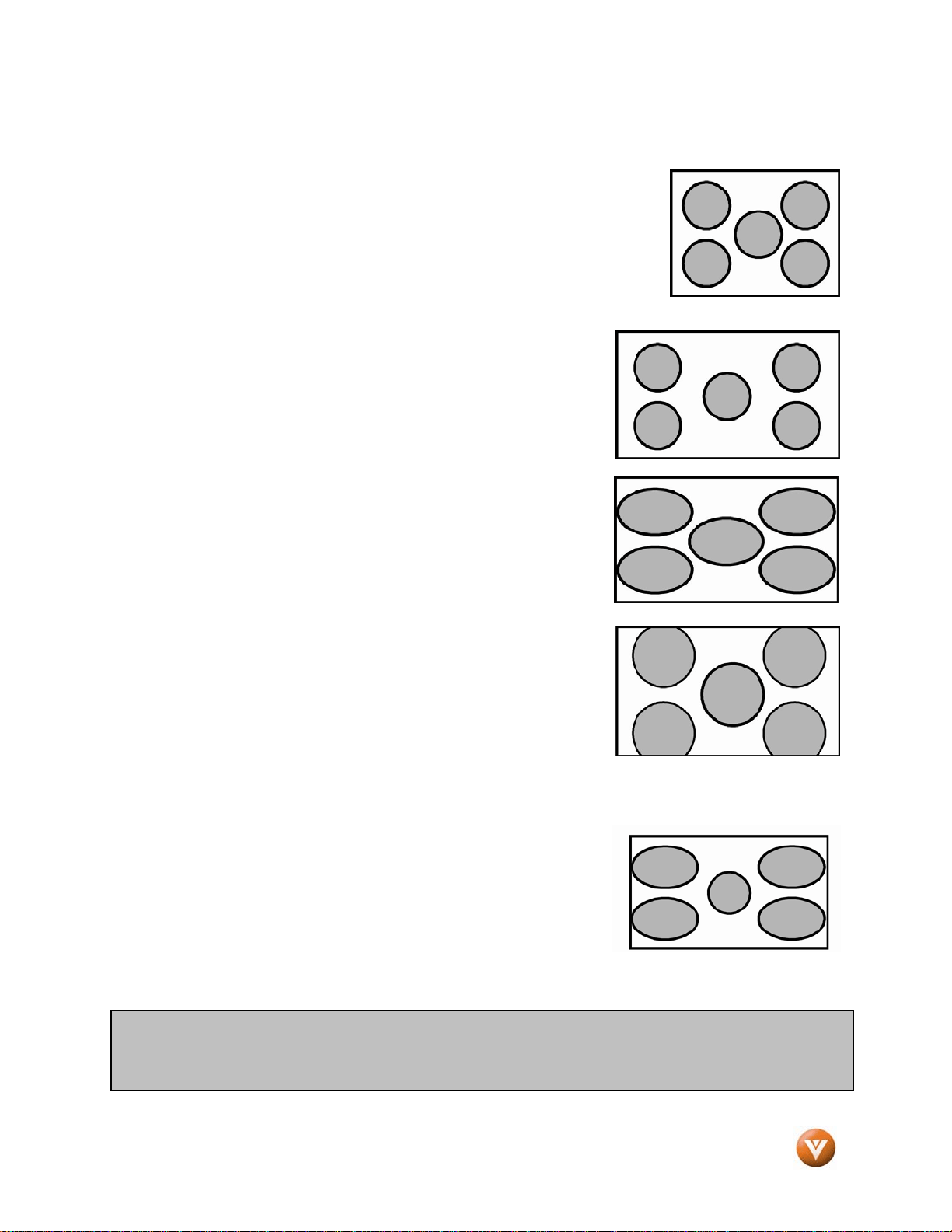
VIZIO GV47L FHDTV20A User Manual
Version 10/16/2007 58
www.VIZIO.com
4.18 Understanding Viewing Modes
Normal Mode
The original 4:3 aspect ratio (1.33:1 source) is preserved, so black bars are
added to the left and right of the display image. Standard TV broadcasts are
displayed with a 4:3 Aspect Ratio. Movies in 4:3 Aspect Ratio may be referred
to as pan-and-scan or full frame. These movies were originally filmed in 16:9
(widescreen), and then modified to fit a traditional TV screen (4:3).
Wide Mode
When watching a standard broadcast or full-frame movie in this mode,
the display image is stretched proportionately to fill the TV screen.
When watching a widescreen (1.78:1 source) program or movie, the
display image fills the TV screen. If you are watching a widescreen
(1.85:1 or 2.35:1 source) program or movie, there will still be black
bars at the top and bottom.
When watching a standard definition 4:3 aspect ratio (1.33:1 source)
the picture will fill the screen but will be stretched horizontally; people
will look fatter than they are.
Zoom Mode
When watching a widescreen (1.78:1, 1.85:1, or 2.35:1 source)
program or movie, the display image is zoomed proportionally to fill the
width of the screen. The top and bottom are cut off to remove most of
the source material’s black bars. This mode is good for programs or
movies with sub-titles.
Panoramic Mode
When watching a standard broadcast or full frame movie in this mode,
the 4:3 Aspect Ratio (1.33:1 source) display image is stretched
horizontally on the left and right sides to fill the TV screen. The center
of the image is not stretched.
Note: Viewing modes are saved based on input. For example, you lasted watched a DVD in widescreen
mode and then watched TV in standard mode. When you switch back to DVD input, the viewing mode
will return to widescreen.
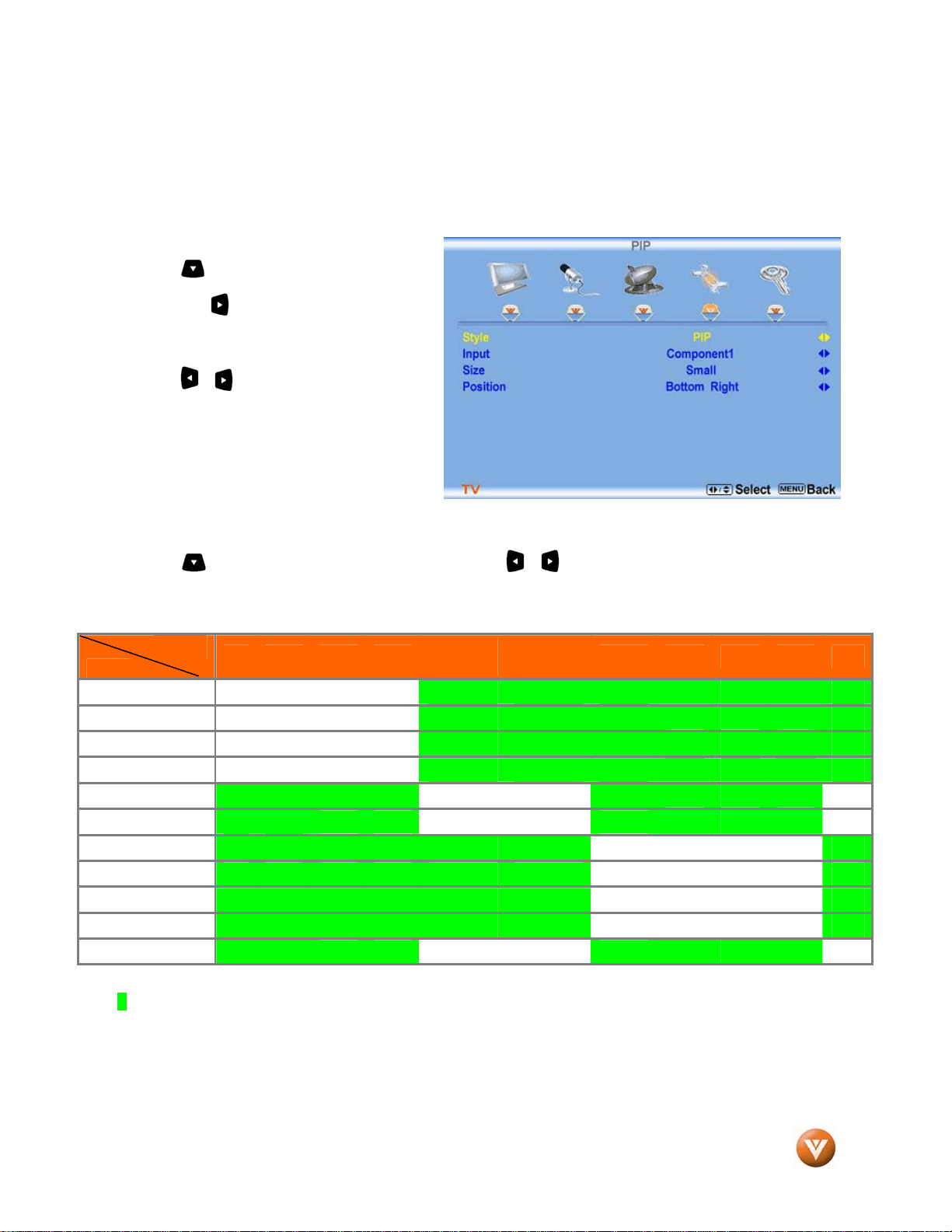
VIZIO GV47L FHDTV20A User Manual
Version 10/16/2007 59
www.VIZIO.com
4.18.1 Picture-In-Picture (PIP) Mode
Your TV features PIP mode so you can watch two pictures at the same time. When PIP is turned on, you
can display two pictures at one time. One picture is displayed as the full screen (main screen) and the
other picture is displayed in a small window (sub screen). The sub-screen can be set to three different
sizes.
Press the button to highlight the PIP
selection
and press the button. A new menu will be
displayed which allows you to configure the
PIP function.
Style
Press the or button to choose from the
Off,
PIP, POP. In the Off mode the HDTV will
display the main screen. In the PIP mode a
smaller sub screen will be displayed on top of
the main screen.
For the POP mode the main screen and sub
screen will of equal size and be positioned
side by side.
Input
Press the button to highlight Input and then press the or button to choose the input source for
the sub screen. The input sources available will vary according to which input is used for the main screen;
see the table below to find which inputs can PIP/POP with each other.
See below for detailed information regarding the PIP sources.
SUB
MAIN
DTV TV AV1 AV2
Component
1
Component
2
HDMI1 HDMI2 HDMI3 HDMI4 RGB
DTV
9 9 9
9 9 9
9
TV
9 9 9
9 9 9
9
AV1
9 9 9
9 9 9
9
AV2
9 9 9
9 9 9
9
Component 1 9 9
9 9
9
9 9 9
Component 2 9 9
9 9
9
9 9 9
HDMI 1 9 9
9 9 9 9
9
HDMI 2
9 9 9 9 9 9
9
HDMI 3
9 9 9 9 9 9
9
HDMI 4
9 9 9 9 9 9
9
RGB 9 9
9 9
9
9 9 9
“9” – Indicates which inputs are available for PIP and POP modes.
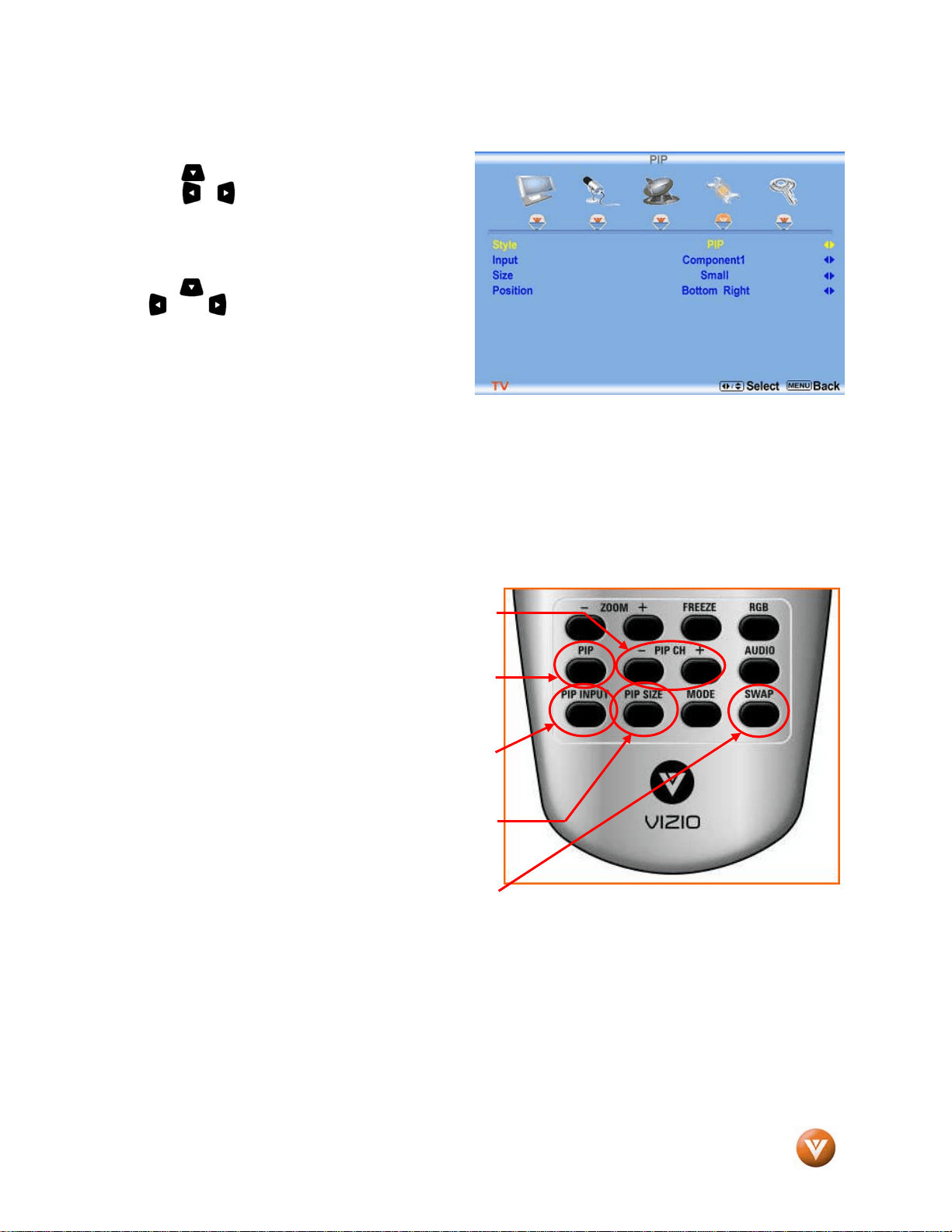
VIZIO GV47L FHDTV20A User Manual
Version 10/16/2007 60
www.VIZIO.com
Size
Press the button to highlight Size function and
press the or button to choose Small, Medium
or Large.
Position
Press the button to highlight Position and press
the or button to choose where on the
picture you want the PIP screen positioned over
the main screen.
See section 1.5, page 16 for the button AUDIO which you can use to switch the audio source from the
main screen (default) to the sub screen, and the button SWAP which you use to switch the main screen
input source to the sub-screen and vice-versa.
4.18.2 Adjusting Basic PIP/POP Settings
The PIP channel is independent of the main TV
channel. To change the PIP channel, press the PIP
CH + or - button on the remote control.
Repeated pressing of the PIP button will cycle through
PIP, POP and Off.
Repeated pressing of the PIP INPUT button will cycle
through the inputs for PIP. This button has no effect
when PIP is off.
Press the PIP SIZE button to alternate between Small
and Large PIP sizes.
You can swap the program that is in the main picture
with the program in the PIP sub-picture. To swap the main picture program with the PIP sub-picture
program, press SWAP on the remote control. If you press SWAP again, it will return the program to the
main picture. This works the same if you are in the Picture-by-Picture (POP) mode.
.

VIZIO GV47L FHDTV20A User Manual
Version 10/16/2007 61
www.VIZIO.com
4.19 Programming the VIZIO Universal Remote Control
You can program the remote control to work with up to four different pieces of equipment including your
VIZIO GV47L FHDTV20A. Listed below are the steps for programming your VCR, Cable Box and DVD
Player.
4.19.1 Programming for VCR
1. Manually turn on the VCR.
2. Press the VCR button on the remote control.
3. Press and hold the SET button until the LED LIGHT flashes twice.
4. Find the programming code for your VCR in the code list in the back of this book and enter it using
the Number Buttons. If the code is accepted, the LED flashes twice after the last digit is entered.
If the LED does not flash twice, repeat Steps 2 through 4 with the next code listed for the component
and manufacturer.
5. Point the remote control at the VCR and press the POWER button. The VCR will turn off.
4.19.2 Programming for Cable Set-Top Box
1. Manually turn on the Cable Box.
2. Press the CBL button on the remote control.
3. Press and hold the SET button until the LED LIGHT flashes twice.
4. Find the programming code for your Cable Box in the code list in the back of this book and enter it
using the Number Buttons. If the code is accepted, the LED flashes twice after the last digit is
entered.
If the LED does not flash twice, repeat Steps 2 through 4 with the next code listed for the component and
manufacturer.
5. Point the remote control at the Cable Box and press the POWER button. The Cable Box will turn off.
If the LED does not flash twice, repeat Steps 2 through 4 with the next code listed for the component and
manufacturer.
Note:
a) If your VCR does not respond, try all the codes for your VCR brand. If the codes do not
work, or your brand is not listed, see “Searching for Component Codes.”
b) Sometimes a code listed will only include limited functions. Try other codes that may
include more functionality.
Note:
a) If your Cable Set-Top Box does not respond, try all the codes for your brand. If the codes
do not work, or your brand is not listed, see “Searching for Component Codes.”
b) Sometimes a code listed will only include limited functions. Try other codes that may
include more functionality.

VIZIO GV47L FHDTV20A User Manual
Version 10/16/2007 62
www.VIZIO.com
4.19.3 Programming for DVD Player
1. Manually turn on the DVD Player.
2. Press the DVD button on the remote control.
3. Press and hold the SET button until the LED LIGHT flashes twice.
4. Find the programming code for your DVD player in the code list in the back of this book and enter it
using the Number Buttons. If the code is accepted, the LED flashes twice after the last digit is
entered.
If the LED does not flash twice, repeat Steps 2 through 4 with the next code listed for the component
and manufacturer.
5. Point the remote control at the DVD Player and press the POWER button. The DVD Player will turn
off.
4.19.4 Searching for Component Codes
If you cannot find the manufacturer in the component list or the program code does not work, you can use
the remote control to search for the correct component code.
To search for a component code:
1. Turn on the component.
2. Press the matching component button on the remote control.
3. Press and hold the SET button until the LED flashes twice.
4. Press 9 9 1. The LED flashes twice.
5. Point the remote control at the component and then alternate between pressing the POWER
button and the component button on the remote control until the component turns off.
If the component still does not respond, clear the component button, then repeat the search
procedure.
4.20 Using a Cable or Satellite Remote
Your VIZIO remote uses codes 11758 and 10178 to work your LCD HDTV. To use a cable or satellite
remote to work the LCD HDTV, refer to your cable or satellite remote user guide for more information on
how to program the remote. If your cable or satellite remote uses a 5-digit code (like most Direct TV
units), first try 11758 and then, if that does not work, 10178. If your cable or satellite remote uses a 4-
digit code, try 1758 and then 0178 as an alternative. If your cable or satellite remote uses a 3-digit code
(Echostar or Dish Network for example), use code 627.
Note:
a) If your DVD player does not respond, try all the codes for your brand. If the codes do not
work, or your brand is not listed, see “Searching for Component Codes.”
b) Sometimes a code listed will only include limited functions. Try other codes that may
include more functionality.
VIZIO GV47L FHDTV20A User Manual
Version 10/16/2007 63
www.VIZIO.com
Note: Some buttons may not function as expected on your cable or satellite remote. Typically power,
volume and mute will work.
Chapter 5 Maintenance and Troubleshooting
5.1 Maintenance
Important
1. Make sure that the power cable is removed from the socket before cleaning the TV.
2. Do not use volatile solvent (such as toluene, rosin and alcohol) to clean the TV. Such
chemicals may damage the housing, screen glass and remote control, and cause paint to
peel.
Cleaning the Housing and Remote Control
1. Use the VIZIO soft cloth (included) for cleaning.
2. If the housing or remote control is seriously contaminated, use a soft cloth moistened with
diluted neutral cleaner to clean the display. Wring water out of the cloth before cleaning to
prevent water from penetrating into the housing. Wipe the display with a dry cloth after
cleaning.
Cleaning the Screen
1. Use the VIZIO soft cotton cloth (included) to gently clean the screen.
2. The screen glass is very fragile. Do not scrape it with any sharp object. Do not press or tap
the screen to avoid cracking. When the screen is seriously contaminated, use a soft cloth
moistened with diluted neutral cleaner to clean the display. Wring water out of the cloth
before cleaning to prevent water from penetrating into the housing. Wipe the display with a
dry cloth after cleaning.
5.2 Troubleshooting Guide
If the TV fails or the performance changes dramatically, check the display in accordance with the
following instructions. Remember to check the peripherals to pinpoint the source of the failure. If the
display still fails to perform as expected, contact the VIZIO for assistance by calling 1-949-428-2525 or e-
mail us at
Problem Solution
No power. Make sure the power button is ON (White VIZIO Logo).
Make sure AC power cord is securely connected to the AC socket.
Plug another electrical device (like a radio) to the power outlet to verify that the
outlet is supplying the proper voltage.
No sound. Check your audio connection
Press MUTE on the remote control again, so that MUTE disappears from the screen
Check your audio settings, your TV audio may be set to SAP, min or speakers off.
VIZIO GV47L FHDTV20A User Manual
Version 10/16/2007 64
www.VIZIO.com
Problem Solution
Press the Volume + (Up) key on your remote control
Make sure that headphones are not connected
If the screen is black. Check your input connections.
Power is ON but no screen
image.
Make sure the video cable supplied with the TV is secured to the correct video
output port on the back of the VCR and the TV. Make any cable you have attached
to the TV is secured to the correct output your Set-Top Box, DVD, etc.
Adjust brightness and contrast.
Check Source settings.
Wrong or abnormal colors
appear.
If any colors (red, green, or blue) are missing, check the video cable to make sure it
is securely connected.
Control buttons do not work. Press only one button at a time.
Remote Control does not
work.
Make sure batteries are inserted correctly
Batteries could be weak.
Make sure you have selected TV on the remote.
There appears to be image
quality issues.
For best image quality, view HD wide screen programs where possible. If HD
content is not available view “Standard Definition” from a digital source. Standard,
analog TV will always be noticeably inferior to HD because your digital flat panel TV
has video that is many times better than old TV’s and so you can see interference
and deficiencies you did not know you had.
You cannot see a picture. Make sure that the power cord is plugged into a grounded electrical outlet.
Make sure that the power button is turned on.
Make sure that the selected input source is connected to a working input source.
If your TV is connected to your computer in RGB or HDMI mode, press any key on
your keyboard to “wake” your computer.
You see a distorted picture or
hear unusual sound.
You may be getting interference from electrical appliances, cars, motorcycles, or
fluorescent lights. If you have not mounted it on the wall, try moving your TV to
another location to see if this is the cause of the problem.
The picture has abnormal
patterns.
Make sure that the input source cable is attached securely and correctly to the back
of your TV.
Make sure that the video input source is within the range of your TV. Compare the
video input source’s specifications with your TV specifications.
The display image does not
cover the entire screen.
If you are using RGB mode, make sure that H Size and V Position in the On Screen
Display (OSD) are set correctly.
If you are using TV, AV1, AV2 or Component with 480i input, use the WIDE button
on the remote control to scroll through various screen modes.
You can see a picture but you
cannot hear sound.
Make sure that the volume is not turned down.
Make sure that the sound is not muted.
Make sure that your audio input source cables are connected securely and correctly.
The TV has pixels that are
always dark or colored.
Your LCD HDTV is manufactured using an extremely high level of precision
technology, however, sometimes some pixels of your LCD HDTV may not display.
Pixel defects within industry specifications are inherent to this type of product and do
not constitute a defective product.
You see “noise” or “trash” on
the screen.
When your LCD HDTV’s digital capabilities exceed a digital broadcast signal, the
signal is up-converted (increased) to match your TV’s display capabilities. Up-
converting can cause noise or trash.
You switch to a different input
and the volume changes.
The TV remembers the volume level from the last time you adjusted it. If the sound
level is higher or lower from another source, then the loudness will change.
VIZIO GV47L FHDTV20A User Manual
Version 10/16/2007 65
www.VIZIO.com
Problem Solution
You switch to a different input
and the screen size changes.
The TV remembers the viewing mode from the last time you used a particular input
(AV1, AV2, Component 1, Component 2, HDMI 1, HDMI 2, HDMI 3, HDMI 4 and
TV).
Tips for High-Definition Users. The LCD HDTV is an ideal platform for viewing High Definition Content.
Best Image Quality will be achieved by the HDMI Input, then YPbPr, then RGB.
However, due to variances in broadcast practices, it is possible some image
distortions can occur.
Tips for Letterbox Content
Users.
Letterboxed (or “Widescreen”) versions of DVD movies are most commonly
formatted for standard 4:3 Televisions. The LCD HDTV has the capability of
expanding this content so the entire screen is filled at the expense of image
accuracy. To use this function, press the “ZOOM” key on the remote control and
cycle among the available options.
5.3 Telephone & Technical Support
Products are often returned due to a technical problem rather than a defective product that may result in
unnecessary shipping charges billed to you. Our trained support personnel can often resolve the problem
over the phone. For more information on warranty service or repair, after the warranty period, please
contact our Support Department at the number below.
Customer support and quality service are integral parts of VIZIO’s commitment to service excellence.
For technical assistance contact our VIZIO Technical Support Department via e-mail or phone.
E-mail: techsupport@vizio.com
Tel: (877) 698-4946
Hours of operations:
6:00am – 6:00pm PST Monday – Friday
10:00am – 2:00pm PST Saturday – Sunday
Please have your VIZIO model number, serial number and date of purchase available before you call.
VIZIO
39 Tesla
Irvine CA 92618
Tel: (949) 428-2525 Fax: (949) 585-9563
Web:
www.VIZIO.com

VIZIO GV47L FHDTV20A User Manual
Version 10/16/2007 66
www.VIZIO.com
5.4 Compliance
Caution: Always use a power cable that is properly grounded. Please use the AC cords listed below for
each area.
USA UL
Canada CSA
Germany VDE
UK BASE/BS
Japan Electric Appliance Control Act
5.5 FCC Class B Radio Interference Statement
NOTE: This equipment has been tested and found to comply with the limits for a Class B digital device,
pursuant to Part 15 of the FCC Rules. These limits are designed to provide reasonable protection against
harmful interference in a residential installation. This equipment generates, uses and can radiate radio
frequency energy, and if not installed and used in accordance with the instructions, may cause harmful
interference to radio communications. However, there is no guarantee that interference will not occur in a
particular installation. If this equipment does cause harmful interference to radio or television reception,
which can be determined by turning the equipment off and on, the user is encouraged to try to correct the
interference by one or more of the following measures:
1. Reorient or relocate the receiving antenna.
2. Increase the separation between the equipment and receiver.
3. Connect the equipment into an outlet on a circuit different from that to which the receiver is
connected.
4. Consult the dealer or an experienced radio/TV technician for help.
Notice:
1. The changes or modifications not expressly approved by the party responsible for compliance
could void the user’s authority to operate the equipment.
2. Shielded interface cables and AC power cord, if any, must be used in order to comply with
the emission limits.
3. The manufacturer is not responsible for any radio or TV interference caused by unauthorized
modification to this equipment. It is the responsibilities of the user to correct such
interference.
VIZIO GV47L FHDTV20A User Manual
Version 10/16/2007 67
www.VIZIO.com
Chapter 6 Miscellaneous Information
6.1 Specifications
Specifications
Panel 47” Diagonal, 16:9 Aspect Ratio
Resolution 1920 x 1080
Pixel (Dot) Pitch 0.5415 mm (H) x 0.5415 mm (V)
Display/Signal
Compatibility
1080P (Full HDTV) , 1080i (HDTV) , 720P (HDTV) , 480P (EDTV) 480i (SDTV)
Colors 16.77 Million
Brightness 500 cd/m
2
(typical)
Contrast 1000 :1 (typical); 2000 : 1 with Dynamic Contrast Ratio
Viewing Angle Horizontal and Vertical 178° (typical)
Inputs 1x Co-axial RF (ATSC/QAM/NTSC)
4x HDMI™** with HDCP (1 with Stereo
Audio RCA)
2x Component YPbPr plus Stereo Audio
1x RGB PC plus Stereo Audio
1x S-Video plus Stereo Audio (shared in
AV2)
2x Composite Video plus Stereo Audio (AV1
& AV2)
Outputs 1x Optical Audio (SPDIF Optical), 1x Stereo Audio (RCA)
Features FULL HD, PIP, POP, Noise Reduction, CC, V-Chip, 3D Comb Filter, Zoom, Freeze, Motion
Adaptive De-Interlace, Picture Enhancement, MPEG-2 Decoding via DTV input, NTSC Video
decoding via Video (AV, S-Video or Component), Progressive Scan Video via HDMI™**,
Component or RGB, HDTV via HDMI™**, Component or RGB (Set-Top Box required),
Computer 640x480, 800x600, 1024x768, 1280x1024, 1920x1080(VESA reduced blanking
mode) via VGA or 1920x1080 via HDMI, Color Temperature of 6500K, 5400K and 9300K,
Independent Red, Green and Blue adjustment for user fine tuning of color temperature,
Sound Enhancement
Speakers 2 Removable [10W Left + 10W Right + Tweeters + Subwoofer] speaker assemblies
Panel Life 50,000 hours to half the original brightness
Power
Input IEC Connector for direct power line connection
Voltage Range 100 ~ 240Vac at 50/60Hz
Power Consumption 400W
Environmental Conditions
Operating Temperature: 5°C~35°C, Relative Humidity: 20~80%, Altitude: 0~14,000 ft
Non-Operating Temperature: -20°C~50°C, Relative Humidity: 10~90%, Altitude: 0~40,000 ft
Dimensions 44.53”W x 31.42” H x 10.63” D with stand; 44.53” W x 29.76” H x 4.53” D without stand;
44.53”W x 30.19” H x 4.0” D w/o stand and speakers
Net Weight 88.85lbs with stand ; 77.82lbs w/o stand; 70.77lbs w/o stand & speaker
Gross Weight 104lbs
Certifications CSA, CSA-us, FCC Class B

VIZIO GV47L FHDTV20A User Manual
Version 10/16/2007 68
www.VIZIO.com
*Product specifications may change without notice or obligation.
6.2 Glossary – Standard Definitions
Analog TV: Today’s TV system using radio frequency waves to transmit and display pictures and sound.
Aspect Ratio (4x3): Traditional TV “aspect ratio”, that is, the screen’s width as compared to its height.
For example, a “32 inch TV screen” would be 25 inches wide and 19 inches tall.
Aspect Ratio (16x9): “Wide screen TV” aspect ratio which is more like a movie screen than a traditional
TV. For example, a “32 inch TV screen” would be 28 inches wide and 16 inches tall.
Digital TV (DTV): Television delivered and displayed using radio frequency waves that contain
information that is digitally encoded for improved quality and efficiency.
Enhanced Definition TV (EDTV): A better digital television transmission than SDTV with at least 480P,
in a 16x9 or 4x3 display and Dolby digital surround sound. 480P is the quality used by most DVD players.
EDTV provides 300-400,000 pixels.
HDTV Monitor (sometimes called HDTV Ready): A set that can display HDTV programming if you have
a separate HDTV tuner, HD Cable Set-Top Box or HD Satellite Set-Top-Box Receiver.
HDTV Tuner (also decoder, receiver, set-top box): A device capable of receiving and outputting HDTV
signals for display. It may be stand-alone or integrated in the set.
High-Definition Television (HDTV): The best quality picture, wide screen (16x9) display with at least
720 progressively scanned lines (720P) or 1080 interlaced lines (1080i) and Dolby digital surround sound.
HDTV provides 900,000-2.1 million pixels.
Integrated HDTV: An HDTV that has the digital tuner built into the set. It does not need a separate set-
top box to receive over-the-air DTV signals.
Interlace Scan: A way to scan vertical lines onto a TV picture by scanning all the odd lines first, then
filling the in the even lines (this happens instantaneously).
Plug-and-Play or Digital Cable Ready: A DTV or other device for digital cable consumers that plugs
directly into the cable jack and does not require a separate set-top box. Plug-and-Play TV owners must
obtain a CableCARD from their cable company in order to view scrambled programming services.
Progressive Scan: A way to scan vertical lines onto a TV picture by scanning all the lines consecutively
(progressively).
Standard Definition TV (SDTV): Basic digital television transmission that may be displayed with fewer
than 480 progressively scanned lines (480P) in 16 x 9 or 4 x 3 format. 480 interlaced (480i) is the quality
of today’s analog TV system.
Source: Buying a Digital Television, CEA, HDTV Guide, 2005
Note: The Federal Communications Commission (FCC), the Consumer Electronics Association (CEA)
and the Consumer Electronics Retailers Coalition (CERC) have made a new tip sheet available for digital
television (DTV) retailers to reproduce and distribute to consumers on the sales floor. The file may be
downloaded online at www.dtv.gov
. While you’re there, check out the other useful information in the FCC
is making available to consumers interested in learning more about the analog to digital transition.

VIZIO GV47L FHDTV20A User Manual
Version 10/16/2007 69
www.VIZIO.com
6.3 Index
A
Accessories, 5
Adjustments
Closed Caption, 15
Selecting the Screen Size, 15, 36, 58, 68
Stepping through TV Channels, 36
Volume, 11, 36, 63
Advanced Picture Adjustments
Adaptive Luma, 42
Black Level Extender, 42
Color Transient Intensity (CTI), 42
Digital Noise Reduction (DNR), 42
Flesh Tones, 42
White Peak Limiter, 42
C
Cleaning your VIZIO TV, 63
Co-axial RF
Connecting for DTV, 22
Connecting for TV, 23
Component
Connecting your Cable Box, 21
Connecting your DVD Player, 26
Connecting your Satellite Box, 21
Composite (AV)
Connecting your DVD Player, 27, 28
Connecting your VCR, 29
Connecting your Video Camera, 29
Controls, 11
D
DTV
Audio Adjustment, 43
Parental Control, 48
Picture Adjustment, 39
Special Features, 46
Tuner Setup, 44
DTV Audio Adjust
Balance, 43
Bass, 43
Simulated Surround Sound, 44
Speakers On/Off, 44
Treble, 43
Volume, 43
DTV Picture Adjust
Advanced Picture Adjustments, 42
Backlight, 39, 54
Brightness, 40, 55
Color, 40
Color Temperature, 41, 56
Contrast, 40, 55
Picture Mode, 39
Sharpness, 41
Tint, 40
DTV Special Features
Closed Caption, 45, 46
Closed Caption Style, 45, 47
Language, 44
Reset, 47
Sleep Timer, 46
DTV Tuner Setup
Auto Search, 46
DVI
Connecting your Cable Box, 20
Connecting your DVD Player, 25
Connecting your Satellite Box, 20
G
Glossary, 68
H
HDMI
Connecting your Cable Box, 19
Connecting your DVD Player, 24
Connecting your Satellite Box, 19
HDMI Input
Audio Adjustment, 52
Picture Adjustment, 52
Setup, 52
I
Inputs
Antenna, 3
Connectors, 18
Rear Label, 12
Rear Label, 13
Installation
Base removal, 6
Preparation, 5
Safetey Strap, 5
Safety Instructions, 2
Speaker Removal, 7
Wall Mounting, 5, 6, 33
O
OSD
Brightness Adjustment, 67
Closed Caption Selection, 15
Color Adjustment, 18
Contrast Adjustment, 67
Outputs
Using 5.1 Surround with a Home Theatre System, 30
Using an external Receiver/Amp, 30
P
Parental Control

VIZIO GV47L FHDTV20A User Manual
Version 10/16/2007 70
www.VIZIO.com
Block Unrated Programming, 51
Movie Rating, 50
Parental Lock Enable, 48
Password change, 51
TV Rating, 49
PC Input
Audio Adjustment, 54, 57
Picture Adjustment, 53, 54
Setup, 57
PIP
Position, 60
Size, 60
PIP and POP Inputs, 59
R
Remote
Batteries, 17
Range, 17
Remote Control
Codes for other devices., 73
Programming to work your DVD Player, 62
Programming to work your Set-Top Box, 61
Programming to work your VCR, 61
Using your Cable or Satellite Remote to Operate your
VIZIO TV, 62
RGB
Connecting your PC, 31
S
Sensor Touch Controls, 11
S-Video
Connecting your DVD Player, 27, 28
T
Technical Specifications, 67
Troubleshooting Guide, 63
TV
Audio Adjustment, 43
Parental Control, 48
Picture Adjustment, 39
Special Features, 46
TV Audio Adjust
Balance, 43
Bass, 43
Simulated Surround Sound, 44
Speakers On/Off, 44
Treble, 43
Volume, 43
TV Picture Adjust
Advanced Picture Adjustments, 42
Backlight, 39, 54
Brightness, 40, 55
Color, 40
Color Temperature, 41, 56
Contrast, 40, 55
Picture Mode, 39
Tint, 40
TV Special Features
Language, 44
Reset, 47
Sleep Timer, 46
TV Tuner Setup, 44
V
Video Input
Audio Adjustment, 52, 53
Parental Control, 53, 54
Picture Adjustment, 53
Setup, 53
W
Watching TV
Basic Adjustments, 36
Basic connections, 33
First Startup, 33
Getting your Programs, 36
Program Information, 37
Status Information, 37
VIZIO GV47L FHDTV20A User Manual
Version 10/16/2007 71
www.VIZIO.com
6.4 Component Program Codes
Setup Code for VCR’s
ABS 21972
Admiral 20048, 20209,
20060, 20039,
20047, 20104,
20020, 20062
Aiko 20278
Aiwa 20037, 20479,
20000, 20124,
20307
Alienware 21972
America Action 20278, 10180
American High 20035, 20081
Amoisonic 20479
Anam 20162, 20037,
20240, 20278
Anam National 20162
Asha 20240
Audiovox 20037, 20278,
10180
Beaumark 20240
Bell & Howell 20104
Broksonic 20184, 20121,
20209, 20002,
20479, 11929
Calix 20037
Canon 20035
Carver 20081
CCE 20072, 20278
Changhong 20048, 20081
Citizen 20037, 20278,
11928
Colt 20072
Craig 20037, 20047,
20240, 20072
Curtis Mathes 20060, 20035,
20162, 11919
Cybernex 20240
CyberPower 21972
Daewoo 20045, 20104,
20278, 11928
Dell 21972
Denon 20042
DirecTV 20739
Setup Code for VCR’s
Durabrand 20039, 20038
Electrohome 20037
Electrophonic 20037
Emerex 20032
Emerson 20035, 20037,
20184, 20240,
20045, 20121,
20043, 20209,
20002, 20278,
20479, 10236,
11928, 11929
Fisher 20047, 20104
Fuji 20035, 20033
Fujitsu 20045
Gateway 21972
GE 20060, 20035,
20240
General 20045
Go Video 20432
GoldStar 20037, 20209,
20038, 20225
Haojie 20240
Harman/Kardon 20081, 20038
Harwood 20072
Hewlett Packard 21972
HI-Q 20047
Hitachi 20037, 20042,
20055
Howard Computers 21972
HP 21972
Hughes Network
Systems
20042, 20739
iBUYPOWER 21972
JVC 20045, 20067
KEC 20037, 20278
Kenwood 20067, 20038
KLH 20072
Kodak 20035, 20037
Kolin 20043
LG 20037, 20045,
20042, 20209,
20038
Setup Code for VCR’s
Logik 20072
LXI 20037
Magnavox 20035, 20039,
20081
Magnin 20240
Marantz 20035, 20081
Marta 20037
Matsushita 20035, 20162
Media Center PC 21972
MEI 20035
Memorex 20035, 20162,
20037, 20048,
20039, 20047,
20240, 20104,
20209, 20479
MGA 20240, 20043
MGN Technology 20240
Microsoft 21972
Mind 21972
Minolta 20042
Mitsubishi 20067, 20043
Motorola 20035, 20048
MTC 20240
Multitech 20072
NEC 20035, 20037,
20048, 20104,
20067, 20038
Newave 20037
Nikko 20037
Noblex 20240
Northgate 21972
Olympus 20035
Optimus 21062, 20162,
20037, 20048,
20104, 20432
Orion 20184, 20209,
20002, 20479
Panasonic 21062, 20035,
20162, 20616,
20225
Penney 20035, 20037,
20240, 20042,
20038
VIZIO GV47L FHDTV20A User Manual
Version 10/16/2007 72
www.VIZIO.com
Setup Code for VCR’s
Pentax 20042
Philco 20035, 20479
Philips 20035, 20081,
20739, 20618
Pilot 20037
Pioneer 20042, 20067
Polk Audio 20081
Profitronic 20240
Proscan 20060
Protec 20072
Pulsar 20039
Qisheng 20060
Quasar 20035, 20162
Radix 20037
Randex 20037
RCA 20060, 20035,
20240, 20042,
20880
Realistic 20035, 20037,
20048, 20047,
20104
ReplayTV 20616
Runco 20039
Sampo 20037, 20048
Samsung 20240, 20045,
20432
Sanky 20048, 20039
Sansui 20067, 20209,
20479
Sanyo 20047, 20240,
20104
Scott 20184, 20045,
20121, 20043
Sears 20035, 20037,
20047, 20042,
20104
Sharp 20048, 20209
Shintom 20072
Shogun 20240
Singer 20072
Sonic Blue 20616
Sony 20035, 20032,
20033, 20636,
21972
STS 20042
Setup Code for VCR’s
Sylvania 20035, 20081,
20043
Systemax 21972
Tagar Systems 21972
Tashiko 20037
Tatung 20045, 20067
Technics 20035, 20162
Teco 20035, 20037,
20048, 20038
Teknika 20035, 20037
Tivo 20636, 20618,
21503, 20739
TMK 20240
Toshiba 20045, 20042,
20067, 20043,
21503, 21008,
21972
Totevision 20037, 20240
Touch 21972
Unitech 20240
Vector 20045
Vector Research 20038
Victor 20067
Video Concepts 20045
Videomagic 20037
Videosonic 20240
Viewsonic 21972
Wards 20060, 20035,
20048, 20047,
20081, 20240,
20042, 20072
White
Westinghouse
20209, 20072
XR-1000 20035, 20072
Yamaha 20038
Zenith 20039, 20033,
20209, 20479
ZT Group 21972
Setup Code for Cable
Converters
ABC 00003, 00008,
00014
Americast 00899
Bell & Howell 00014
Setup Code for Cable
Converters
Bell South 00899
Clearmaster 00883
ClearMax 00883
Coolmax 00883
Daeryung 01877, 00877,
00477, 00008
Digi 00637
Director 00476
Dumont 00637
Gehua 00476
General
Instrument
00476, 00810,
00276, 00003,
00014
GoldStar 00144
Hamlin 00009, 00273
Hitachi 00014
Jerrold 00476, 00810,
00276, 00003,
00012, 00014
KNC 00008
LG 00144
Memorex 00000
Motorola 00476, 00810,
00276, 01254,
01376
MultiVision 00012
Pace 01877, 00237
Panasonic 00000, 00008,
00107
Panther 00637
Paragon 00000
Philips 00317, 01305
Pioneer 01877, 00877,
00144, 00533
Pulsar 00000
Quasar 00000
RadioShack 00883
Regal 00279, 00273
Runco 00000
Samsung 00000, 00144
Scientific Atlanta 01877, 00877,
00477, 00008
Sony 01006
VIZIO GV47L FHDTV20A User Manual
Version 10/16/2007 73
www.VIZIO.com
Setup Code for Cable
Converters
Starcom 00003, 00014
Supercable 00276
Supermax 00883
Tocom 00012
Torx 00003
Toshiba 00000
Trans PX 00276
Tristar 00883
TS 00003
V2 00883
Viewmaster 00883
Vision 00883
Vortex View 00883
Zenith 00000, 00525,
00899
Setup Code for Satellite
Receivers
AlphaStar 00772
Chaparral 00216
Crossdigital 01109
DirecTV 00392, 00566,
00639, 01142,
00247, 00749,
01749, 00724,
00819, 01856,
01076, 01109,
00099, 01392,
01640, 01442,
01414, 01108
Dish Network
System
01005, 00775,
01505
Dishpro 01005, 00775,
01505
Echostar 01005, 00775,
01505
Expressvu 00775
GE 00566
General
Instrument
00869
GOI 00775
Goodmans 01246
Hisense 01535
Hitachi 00819, 00222,
01250
Setup Code for Satellite
Receivers
HTS 00775
Hughes Network
Systems
01142, 00749,
01749, 01442
I-Lo 01535
JVC 00775
LG 01414, 01226
Magnavox 00724, 00722
Memorex 00724
Mitsubishi 00749
Motorola 00869
NEC 01270
Next Level 00869
Panasonic 00247, 00701
Paysat 00724
Philips 01142, 00749,
01749, 00724,
01076, 00722,
00099, 01442
Proscan 00392, 00566
Proton 01535
RadioShack 00869
RCA 00392, 00566,
00855, 00143,
01392
Samsung 01276, 01109,
01108
Sanyo 01219
SKY 00856
Sony 00639, 01640
Star Choice 00869
Tivo 01142, 01442
Toshiba 00749, 01749,
00790, 01285
UltimateTV 01640, 01392
Uniden 00724, 00722
US Digital 01535
USDTV 01535
Voom 00869
Zenith 00856, 01856
Setup Code for DVD Players
Aiwa 20641, 21912
Setup Code for DVD Players
Akai 20770
Allegro 20869
Apex Digital 20672, 20717,
20797, 21061,
20796, 21056,
21937, 20794,
21020, 21915
Blaupunkt 20717
Blue Parade 20571
Broksonic 20695
Changhong 20627, 21061
CineVision 20869
Coby 21086
Curtis Mathes 21087
CyberHome 21024, 21023,
21129, 20816,
21117
Daewoo 20833, 21172,
20869
Denon 20490
DVD2000 20521
Emerson 20591, 20675
Enterprise 20591
Fisher 21919
Funai 20675
Gateway 21158, 21073
GE 20522, 20717
Go Video 20744, 20833,
21099, 20783,
21075, 20869,
21730
Greenhill 20717
Harman/Kardon 20582, 20702
Hitachi 20573, 20664,
21919
Hiteker 20672
Initial 20717
Integra 20627, 21924
JBL 20702
JVC 20558, 20623,
20867
Kenwood 20490, 20534
KLH 20717, 21020,
21149
Koss 20651, 21980
VIZIO GV47L FHDTV20A User Manual
Version 10/16/2007 74
www.VIZIO.com
Setup Code for DVD Players
Lasonic 20798
LG 20591, 20869,
20801
Liquid Video 21980
Lite-On 21158, 21058
Loewe 20511
Magnavox 20503, 20539,
21976, 21914,
20675
Marantz 20539
Memorex 20695
Microsoft 20522
Mintek 20717
Mitsubishi 21521, 20521
Nesa 20717
Norcent 21003
Onkyo 20503, 20627,
21924, 20792
Oritron 20651, 21980
Panasonic 20490, 21762,
21990
Philips 20503, 20539,
20646, 21914
Pioneer 20525, 20571
Polaroid 21086, 21061
Polk Audio 20539
Portland 20770
Proscan 20522
Qwestar 20651
RCA 20522, 20571,
20717, 20822
Rio 20869
Rotel 20623
Sampo 20752, 20698
Samsung 20490, 20573,
21932, 21075,
20820
Sansui 20695
Sanyo 20695
Sharp 20630, 20752
Sharper Image 21117
Sherwood 20770
Shinco 20717
Setup Code for DVD Players
Shinsonic 20533
Sonic Blue 20869, 21099
Sony 20533, 20864,
21033, 21904,
21903
SVA 20717
Sylvania 20675
Symphonic 20675
Teac 20717, 21984,
20809
Technics 20490
Theta Digital 20571
Toshiba 20503, 20695
V, Inc. 20123, 20124
Urban Concepts 20503
Xbox 20522
Yamaha 20490, 20539,
20545
Zenith 20503, 20591,
20869
Setup Code for CD Players
Aiwa 30157
Burmester 30420
California Audio
Labs
30029
Carver 30157, 30179
Denon 30873
DKK 30000
DMX Electronics 30157
Dynamic Bass 30179
Fisher 30179
Garrard 30420
Genexxa 30032
Harman/Kardon 30157, 30173
Hitachi 30032
Integra 30101
JVC 30072
Kenwood 30826, 30626,
30028, 30037,
30036, 30190
Krell 30157
Linn 30157
Setup Code for CD Players
Magnavox 30157
Marantz 30626, 30029,
30157
MCS 30029
Miro 30000
Mission 30157
MTC 30420
NSM 30157
Onkyo 30868, 30101
Optimus 31063, 30000,
30032, 30037,
30420, 30179,
31075, 30145
Panasonic 30029
Parasound 30420
Philips 30626, 30157
Pioneer 31063, 31062,
30032
Polk Audio 30157
Proton 30157
QED 30157
Quad 30157
Quasar 30029
RadioShack 31075
RCA 31062, 30032,
30420, 30179,
30053
Realistic 30420, 30179
Rotel 30157, 30420
SAE 30157
Sansui 30157
Sanyo 30179
SAST 30157
Sharp 30861, 30037
Silsonic 30888, 30036
Sonic Frontiers 30157
Sony 30490, 30000,
30100
Soundesign 30145
TAG McLaren 30157
Tascam 30420
Teac 30420
Technics 30029
VIZIO GV47L FHDTV20A User Manual
Version 10/16/2007 75
www.VIZIO.com
Setup Code for CD Players
Victor 30072
Wards 30157, 30053
Yamaha 30888, 30036
Zonda 30157
Setup Code for Audio
Amplifiers
Bose 30674
GE 30078
JVC 30331
Marantz 30321
Nakamichi 30321
NEC 30264
Optimus 30395
Realistic 30395
Sansui 30321
Shure 30264
Sony 30689
Soundesign 30078
Victor 30331
Wards 30078
Yamaha 30354, 30133
Setup Code for Audio
Amp/Tuners
ADC 30531
Aiwa 31405, 31243,
30121
Anam 31609, 31074
Audiotronic 31189
Bose 31229
Capetronic 30531
Carver 31189
Coby 31263
Denon 31360, 31142,
30904
Fonmix 31360
Glory Horse 31263
Harman/Kardon 30110
Hitachi 31273
Setup Code for Audio
Amp/Tuners
Inkel 30027
Integra 30135
JBL 30110
JVC 30074, 31263
Kenwood 31313, 31570,
30027
KLH 31428
Magnavox 31189, 31269,
30531
Marantz 31189, 31269,
30039
MCS 30039
Onkyo 30842, 30135
Optimus 31023, 30670,
30531, 31074
Panasonic 31518, 30039
Philips 31189, 31269
Pioneer 31023, 30150,
30014, 30630,
30531
Proscan 31254
Qisheng 31609
Quasar 30039
RadioShack 31263
RCA 31023, 31609,
31254, 30531,
31074
Sharper Image 31263
Silsonic 30176
Sony 31058, 31441,
31258, 31759
Soundesign 30670
Stereophonics 31023
Sunfire 31313
Teac 31074, 31267
Technics 31308, 31518,
30039
Thorens 31189
Victor 30074
Wards 30014
Yamaha 30176, 31276,
31176
Setup Code for TV’s
Addison 10092
Admiral 10093, 10463
Advent 10761, 10842
Aiko 10092
Aiwa 11914
Akai 10812, 10702,
10030, 10672,
11903
Albatron 10700, 10843
America Action 10180
Anam 10250, 10180,
10700
Anam National 10250, 10650
Anhua 10051
AOC 10451, 10093,
10180, 10060,
10030, 10178,
10092
Apex Digital 10748, 10765,
10879, 10767,
11943
Audiovox 10451, 10180,
10875, 10092,
10623
Baile 10661
Beijing 10812, 10661
Bell & Howell 10154
BenQ 11032
Bradford 10180
Broksonic 10236, 10463,
11911, 11938,
11905, 11935,
11929
Cailing 10748
Candle 10030
Carnivale 10030
Carver 10054
Celebrity 10000
Celera 10765
Changcheng 10051, 10661
Changhong 10156, 10765,
11156, 10767
Ching Tai 10092
Chun Yun 10000, 10180,
10700, 10092,
10843
VIZIO GV47L FHDTV20A User Manual
Version 10/16/2007 76
www.VIZIO.com
Setup Code for TV’s
Chung Hsin 10180, 10053
Cinema 10672
Citizen 10060, 10030,
11928, 10092
Clarion 10180
Commercial
Solutions
11447, 10047
Conrowa 10156, 10145,
11156
Contec 10180
Craig 10180
Crosley 10054
Crown 10180
Curtis Mathes 10047, 10054,
10154, 10451,
10093, 10060,
10702, 10030,
10145, 10166
CXC 10180
Daewoo 10154, 10451,
10180, 10030,
10178, 10672,
11928, 10092,
10661, 11909,
10623, 10700
Dayu 10661
Dell 11080
Denon 10145
Dumont 10017
Durabrand 10463, 10180,
10178, 10171,
11034
Electroband 10000
Emerson 10154, 10236,
10463, 10180,
10178, 10171,
11944, 11909,
11929, 11905,
11928, 10623,
11911
Envision 10030
Ether 10030
Firstar 10236
Fisher 10154
Fortress 10093
Fujitsu 10809, 10853
Funai 10180, 10171,
11904
Setup Code for TV’s
Furi 10145
Futuretech 10180
Gateway 11756, 11755
GE 11447, 10047,
11454, 10051,
10451, 10180,
10030, 10178,
11917, 10092,
11907, 11922
Gibralter 10017, 10030
GoldStar 10154, 10030,
10178, 11926
Grunpy 10180
Haier 11034
Hallmark 10178
Hankook 10180, 10030,
10178
Harley Davidson 11904
Harman/Kardon 10054
Harvard 10180
Havermy 10093
Helios 10865
Hello Kitty 10451
Hisense 10156, 10748,
10145, 11156
Hitachi 10156, 10030,
10178, 11145,
10145, 10092,
11904, 11156
Hongmei 10093
Huafa 10145
Huari 10145
Huodateji 10051
Imperial Crown 10661
Infinity 10054
Inteq 10017
JBL 10054
JCB 10000
Jean 10156, 10051,
10236, 10092
Jensen 10761
Jiahua 10051
Jinfeng 10051
Jinxing 10054, 10156,
10145
Setup Code for TV’s
JVC 10053, 11923,
11253
Kangli 10661
KEC 10180
Kenwood 10030
KLH 10765, 10767
Kolin 10180, 10150,
10053
KTV 10180, 10030
Kunlun 10051, 10661
LG 10060, 10030,
10178, 10856,
10700, 10025
Lloyd's 11904
LXI 10047, 10054,
10154, 10156,
10178
Magnasonic 11928, 11913
Magnavox 11454, 10054,
10030, 10706,
11931, 11254,
11913, 11904,
11944
Magnin 11907
Marantz 10054, 10030,
10704
Matsushita 10250, 10650
Maxent 11755
Megapower 10700
Megatron 10178, 10145
Memorex 10154, 10463,
10150, 10178,
11911, 11926,
11924, 11920,
11927
MGA 10150, 10030,
10178, 11907
Midland 10047, 10017,
10051
Mitsubishi 10154, 10250,
10093, 10236,
10180, 11250,
10150, 10030,
10178, 11917,
10836
Monivision 10843, 10700
Motorola 10093
MTC 10060, 10030
Mudan 10051
VIZIO GV47L FHDTV20A User Manual
Version 10/16/2007 77
www.VIZIO.com
Setup Code for TV’s
Multitech 10180
NAD 10156, 10178,
10866
National 10051
NEC 10154, 10156,
10051, 10053,
10030, 10178,
11704
Newave 10093, 10178,
10092
Nikko 10030, 10178,
10092
Norcent 10748, 10824
NTC 10092
Onwa 10180
Optimus 10154, 10250,
10166, 10650,
11927, 11924,
11913
Optonica 10093
Orion 10236, 10463,
11929, 11911,
11905
Panasonic 10054, 10250,
10051, 10650,
11941, 11927,
11924
Panda 10051, 10706
Penney 10047, 10156,
10051, 10060,
10030, 10178,
11926, 11907
Philco 10054, 10180,
10030, 10178
Philips 11454, 10054,
10000, 10051,
10030, 10178,
10092, 10690
Pilot 10030
Pioneer 10166, 10866,
10679
Portland 10092
Prima 10761
Princeton 10700
Prism 10051
Proscan 11447, 10047,
11922
Proton 10030, 10178
Pulsar 10017
Setup Code for TV’s
Qingdao
Quasar 10250, 10051,
11924, 10650
RadioShack 10047, 10154,
10180, 10030,
10178, 11920,
11904
RCA 11447, 10047,
11454, 10000,
10030, 10178,
11547, 11922,
11917, 10092,
11907, 11948,
10090, 10679
Realistic 10154, 10180,
10030, 10178
Rowa 10748
Runco 10017, 10030
Sampo 10154, 10093,
10030, 10178,
10171, 10700,
10650, 11755,
10092
Samsung 10154, 10156,
10060, 10812,
10702, 10030,
10178, 11060,
10814, 10092,
11903, 10090,
10766
Sansui 10463, 11904,
11935, 11929,
11911
Sanyo 10154, 10156,
10180, 10145,
11907
Sanyuan 10093
Scotch 10178
Scott 10236, 10180,
10178
Sears 10047, 10054,
10154, 10156,
10178, 10171,
11926, 11904
Shaofeng 10145
Sharp 10093, 10030,
10650, 11917
Shen Ying 10092
Shencai 10145
Sheng Chia 10093, 10236
Skygiant 10180
Skyworth 10748
Setup Code for TV’s
Sony 11100, 10000,
10650, 11925,
11904
Soundesign 10180, 10178
Sowa 10156, 10051,
10060, 10178,
10092
Squareview 10171
SSS 10180
Starlite 10180
Studio Experience 10843
Supreme 10000
SVA 10748, 10865
Sylvania 10054, 10030,
10171, 11944,
11931
Symphonic 10180, 10171,
11913, 11904
Synco 10000, 10451,
10093, 10060,
10178, 10092
Tacico 10178, 10092
Tandy 10093
Tashiko 10092, 10650
Tatung 10054, 10154,
10156, 10051,
10060, 11156,
11756, 11254
Technics 10250, 10051
Techwood 10051
Teco 10051, 10093,
10178, 10092
Teknika 10054, 10180,
10150, 10060,
10092
Telefunken 10702
Tera 10030
Thomas 11904
Tiane 10093
TMK 10178
TNCi 10017
Tobo 10748
Toshiba 10154, 10156,
10060, 10145,
11945, 11704,
11936, 11156,
11935, 10650,
11918
VIZIO GV47L FHDTV20A User Manual
Version 10/16/2007 78
www.VIZIO.com
Setup Code for TV’s
Tuntex 10030, 10092
TVS 10463
VIZIO 11758, 11756,
10885, 10864
Vector Research 10030
Victor 10250, 10053,
10650
Vidikron 10054
Setup Code for TV’s
Vidtech 10178
Viewsonic 11755, 10885,
10864
Wards 10054, 10030,
10178, 10866,
11156
Warumaia 10661
Waycon 10156
White 10463, 11909,
Setup Code for TV’s
Westinghouse 10623
Yamaha 10030
Yapshe 10250
Zenith 10017, 10463,
10178, 11904,
11929, 11911,
11909,
100920