Help guide
Getting Started
Basic Operations
Connection
Preinstalled Applications
Supplied Software
Important Product
Information
Specifications
Troubleshooting
Contents list
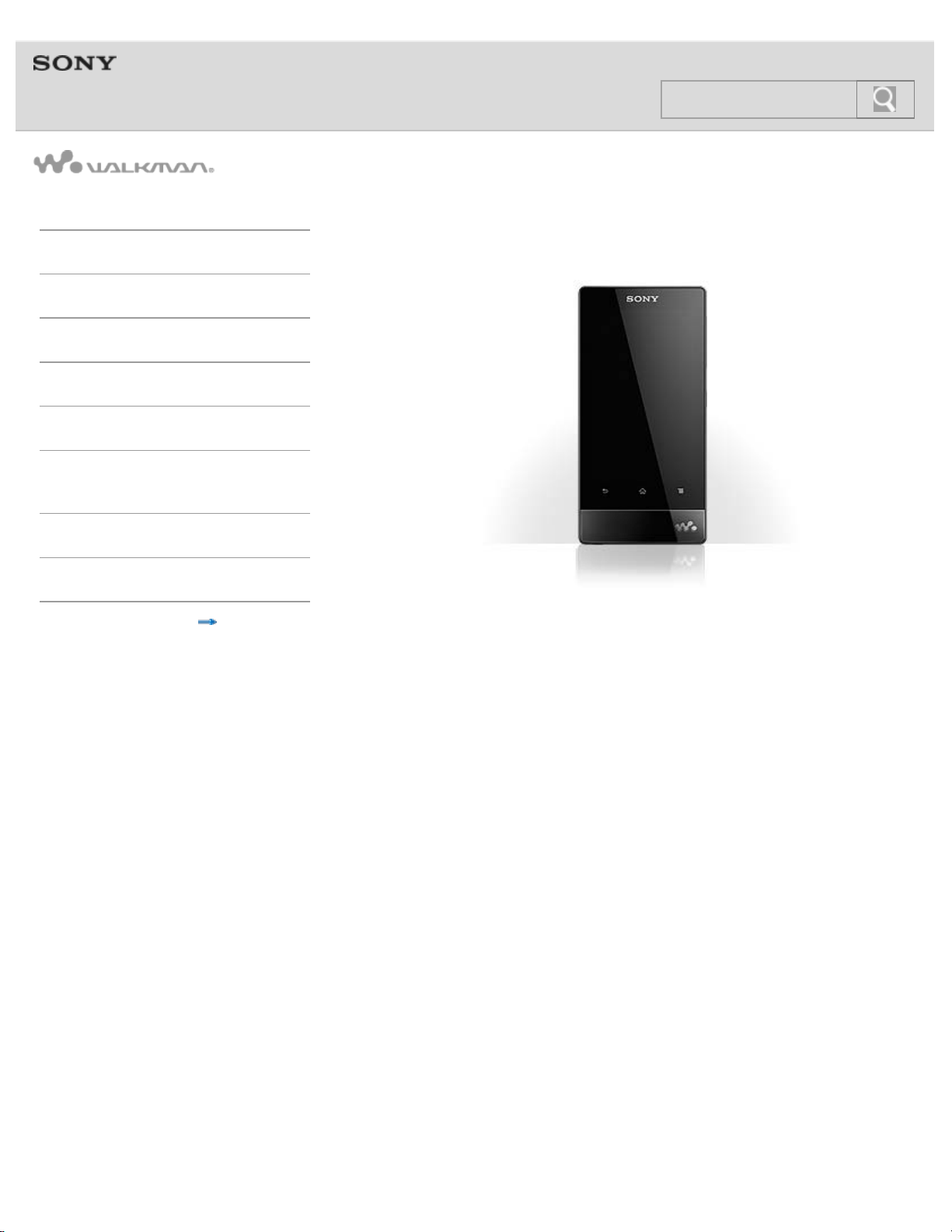
NWZ-F804/F805/F806
Use this manual if you encounter any problems, or have any questions about your Walkman.
4-432-446-11(1)
© 2012 Sony Corporation
1
Search
Help guide
NWZ-F804/F805/F806 Top >
Getting Started
Basic Operations
Connection
Preinstalled Applications
Supplied Software
Important Product
Information
Specifications
Troubleshooting
Contents list
Getting Started
Before First Use
Before first use
About the Manuals
About the “WALKMAN“ manuals
Notation in explanations of operations
Starting the Help guide
Parts and Controls/Contents
Contents
Parts and controls
Replacing the headphone earbuds
Using the speaker
Using the microphone
Turning on the Power/Charging
Turning the power on and off
Turning the screen on and off
Charging the battery
Extending the battery life
Notes on charging the battery
© 2012 Sony Corporation
2
Search
Help guide
NWZ-F804/F805/F806 Top >
Getting Started
Basic Operations
Connection
Preinstalled Applications
Supplied Software
Important Product
Information
Specifications
Troubleshooting
Contents list
Basic Operations
How to Use the Buttons
Using the Home, Menu, and Back buttons
Using the W.button
Using the VOL (Volume) +/- button
Using the RESET button
How to Use the Touch Screen
How to use the touch screen
Notes on the touch screen
Caring for the touch screen
Home Screen
Home screen
Main notification icons
About notification panel
Google Account
Setting up a Google account
Deleting a Google account
Location Information
About the location information
Enabling/disabling use of location information
Setting to search for your current position with a wireless network
Setting
Changing the language settings
Setting the screen lock
Customizing the volume settings
Limiting the volume [AVLS (Volume Limit)]
Initializing/Updating
Initializing
Updating the system
© 2012 Sony Corporation
3
Search
Help guide
NWZ-F804/F805/F806 Top >
Getting Started
Basic Operations
Connection
Preinstalled Applications
Supplied Software
Important Product
Information
Specifications
Troubleshooting
Contents list
Connection
Wi-Fi (Wireless LAN)
About Wi-Fi communications
Turning Wi-Fi on and off
Selecting a method for setting up a Wi-Fi connection
Connecting to a Wi-Fi network from the list
Connecting to a Wi-Fi network using the WPS button
Connecting to a Wi-Fi network using a PIN
Adding Wi-Fi networks manually
Checking Wi-Fi network status
Notes on Wi-Fi
Bluetooth
About the Bluetooth function
Turning the Bluetooth function on and off
Enabling other Bluetooth devices to discover your “WALKMAN”
Pairing (registering) with a Bluetooth device
Connecting with a Bluetooth device
Disconnecting from a Bluetooth device
Unpairing from a Bluetooth device
Notes on the Bluetooth function
USB
Connecting by USB
Changing the USB computer connection method
Dragging and dropping data to a computer with USB connection
Disconnecting the USB cable
Notes on USB connection
© 2012 Sony Corporation
4
Search
Help guide
NWZ-F804/F805/F806 Top >
Getting Started
Basic Operations
Connection
Preinstalled Applications
Supplied Software
Important Product
Information
Specifications
Troubleshooting
Contents list
Preinstalled Applications
List of Preinstalled Applications
Preinstalled applications
Starting an application
© 2012 Sony Corporation
5
Search
Help guide
NWZ-F804/F805/F806 Top >
Getting Started
Basic Operations
Connection
Preinstalled Applications
Supplied Software
Important Product
Information
Specifications
Troubleshooting
Contents list
Supplied Software
Supplied Software
About Media Go
Importing music from CDs using Media Go
Transferring content using Media Go
© 2012 Sony Corporation
6
Search
Help guide
NWZ-F804/F805/F806 Top >
Getting Started
Basic Operations
Connection
Preinstalled Applications
Supplied Software
Important Product
Information
Specifications
Troubleshooting
Contents list
Important Product Information
Important Product Information
Important product information
Warning
Caution
Notice for users
Notes on the headphones
Storing data
Sample data
Notes on the supplied software
License and Trademark Notice
License and trademark notice
© 2012 Sony Corporation
7
Search
Help guide
NWZ-F804/F805/F806 Top >
Getting Started
Basic Operations
Connection
Preinstalled Applications
Supplied Software
Important Product
Information
Specifications
Troubleshooting
Contents list
Specifications
Specifications
Specifications
About battery life
Maximum recordable number of songs and time (Approx.)
Maximum recordable time of videos (Approx.)
System requirements
Supported formats
© 2012 Sony Corporation
8
Search
Help guide
NWZ-F804/F805/F806 Top >
Getting Started
Basic Operations
Connection
Preinstalled Applications
Supplied Software
Important Product
Information
Specifications
Troubleshooting
Contents list
Troubleshooting
Dealing with Troubles
What can I do to solve a problem?
Customer support websites
Operation
Your Walkman does not operate (does not respond to button
operations).
Your Walkman does not work properly.
Your Walkman gets warm.
The date and time have been reset.
Playback has stopped suddenly.
An application does not operate.
Sound
Volume cannot be turned up.
There is no sound.
There is no sound from the right channel of the headphones. Or the
right channel sound is heard from both sides of the headphones.
Noise is generated.
Noise can be heard when plugging in or unplugging the headphones.
Screen
The screen turns off.
The touch screen does not operate properly.
Power
Battery life is short.
Your Walkman cannot charge the battery.
Charging completes very quickly.
Connection to a Computer
Your Walkman is not recognized as USB storage.
The computer does not recognize your Walkman even if connected by
USB cable.
Data cannot be transferred.
The transfer takes too much time.
Only a small amount of data can be transferred to your Walkman.
Your Walkman becomes unstable while it is connected to the
computer.
9
Search

Supplied Software
Software cannot be installed on the computer.
The progress bar on the install screen does not proceed while
installing software. Or, the access lamp of the hard drive does not light
for several minutes.
Bluetooth
You cannot register a Bluetooth device (cannot complete pairing).
A Bluetooth connection cannot be established.
You cannot hear the sound even if a Bluetooth connection has been
made.
Volume cannot be changed when a Bluetooth connection is made.
The sound distorts or breaks when a Bluetooth connection is made.
The sound tends to break when a Bluetooth connection is made.
Sound skips during music playback when a Bluetooth connection is
made.
Noise is generated when a Bluetooth connection is made.
Video sound is delayed when a Bluetooth connection is made.
The screen to enter the passkey appears when a Bluetooth
connection is made.
© 2012 Sony Corporation
10
Search
Help guide
NWZ-F804/F805/F806 Top >
Getting Started
Basic Operations
Connection
Preinstalled Applications
Supplied Software
Important Product
Information
Specifications
Troubleshooting
Contents list
Contents list
Getting Started
Before First Use
Before first use
About the Manuals
About the “WALKMAN“ manuals
Notation in explanations of operations
Starting the Help guide
Parts and Controls/Contents
Contents
Parts and controls
Replacing the headphone earbuds
Using the speaker
Using the microphone
Turning on the Power/Charging
Turning the power on and off
Turning the screen on and off
Charging the battery
Extending the battery life
Notes on charging the battery
Basic Operations
How to Use the Buttons
Using the Home, Menu, and Back buttons
Using the W.button
Using the VOL (Volume) +/- button
Using the RESET button
How to Use the Touch Screen
How to use the touch screen
Notes on the touch screen
Caring for the touch screen
Home Screen
Home screen
Main notification icons
About notification panel
11
Search

Google Account
Setting up a Google account
Deleting a Google account
Location Information
About the location information
Enabling/disabling use of location information
Setting to search for your current position with a wireless network
Setting
Changing the language settings
Setting the screen lock
Customizing the volume settings
Limiting the volume [AVLS (Volume Limit)]
Initializing/Updating
Initializing
Updating the system
Connection
Wi-Fi (Wireless LAN)
About Wi-Fi communications
Turning Wi-Fi on and off
Selecting a method for setting up a Wi-Fi connection
Connecting to a Wi-Fi network from the list
Connecting to a Wi-Fi network using the WPS button
Connecting to a Wi-Fi network using a PIN
Adding Wi-Fi networks manually
Checking Wi-Fi network status
Notes on Wi-Fi
Bluetooth
About the Bluetooth function
Turning the Bluetooth function on and off
Enabling other Bluetooth devices to discover your “WALKMAN”
Pairing (registering) with a Bluetooth device
Connecting with a Bluetooth device
Disconnecting from a Bluetooth device
Unpairing from a Bluetooth device
Notes on the Bluetooth function
USB
Connecting by USB
Changing the USB computer connection method
Dragging and dropping data to a computer with USB connection
Disconnecting the USB cable
Notes on USB connection
12
Search

Preinstalled Applications
List of Preinstalled Applications
Preinstalled applications
Starting an application
Supplied Software
Supplied Software
About Media Go
Importing music from CDs using Media Go
Transferring content using Media Go
Important Product Information
Important Product Information
Important product information
Warning
Caution
Notice for users
Notes on the headphones
Storing data
Sample data
Notes on the supplied software
License and Trademark Notice
License and trademark notice
Specifications
Specifications
Specifications
About battery life
Maximum recordable number of songs and time (Approx.)
Maximum recordable time of videos (Approx.)
System requirements
Supported formats
Troubleshooting
Dealing with Troubles
What can I do to solve a problem?
Customer support websites
Operation
Your Walkman does not operate (does not respond to button
operations).
Your Walkman does not work properly.
Your Walkman gets warm.
The date and time have been reset.
Playback has stopped suddenly.
An application does not operate.
13
Search

Sound
Volume cannot be turned up.
There is no sound.
There is no sound from the right channel of the headphones. Or the
right channel sound is heard from both sides of the headphones.
Noise is generated.
Noise can be heard when plugging in or unplugging the headphones.
Screen
The screen turns off.
The touch screen does not operate properly.
Power
Battery life is short.
Your Walkman cannot charge the battery.
Charging completes very quickly.
Connection to a Computer
Your Walkman is not recognized as USB storage.
The computer does not recognize your Walkman even if connected by
USB cable.
Data cannot be transferred.
The transfer takes too much time.
Only a small amount of data can be transferred to your Walkman.
Your Walkman becomes unstable while it is connected to the
computer.
Supplied Software
Software cannot be installed on the computer.
The progress bar on the install screen does not proceed while
installing software. Or, the access lamp of the hard drive does not light
for several minutes.
Bluetooth
You cannot register a Bluetooth device (cannot complete pairing).
A Bluetooth connection cannot be established.
You cannot hear the sound even if a Bluetooth connection has been
made.
Volume cannot be changed when a Bluetooth connection is made.
The sound distorts or breaks when a Bluetooth connection is made.
The sound tends to break when a Bluetooth connection is made.
Sound skips during music playback when a Bluetooth connection is
made.
Noise is generated when a Bluetooth connection is made.
Video sound is delayed when a Bluetooth connection is made.
The screen to enter the passkey appears when a Bluetooth
connection is made.
14
Search

© 2012 Sony Corporation
15
Search
Help guide
NWZ-F804/F805/F806 Top > Getting Started > Before First Use >
Getting Started
Basic Operations
Connection
Preinstalled Applications
Supplied Software
Important Product
Information
Specifications
Troubleshooting
Contents list
Before first use
Thank you for purchasing this Walkman.
This Help guide explains how to operate your Walkman. Browse this Help guide for
necessary information.
Before you start using your Walkman, be sure to read “Important product information”
[Details] for details on the use of the Walkman.
The printed manuals supplied with your Walkman, such as “Quick Start Guide,” also contain
important information for you.
For information about the customer support Web site, see “Customer support websites.“
[Details]
About model names mentioned in this Help guide
Depending on the country/region in which you have purchased your Walkman, some models
may not be available.
About Windows operating system
For details about the operating system, see “System requirements.” [Details]
About battery charging
The battery might not be charged at time of purchase. See “Charging the battery“ [Details] on
how to charge the battery.
© 2012 Sony Corporation
16
Search
Help guide
NWZ-F804/F805/F806 Top > Getting Started > About the Manuals >
Getting Started
Basic Operations
Connection
Preinstalled Applications
Supplied Software
Important Product
Information
Specifications
Troubleshooting
Contents list
About the “WALKMAN“ manuals
The operation of your Walkman is explained in the following manuals.
Quick Start Guide (supplied)
This covers topics such as initial settings, basic operations, how to install the supplied
software, how to install and use the Help guide, etc.
Help guide
This includes descriptions of the operation of your Walkman. It can be viewed both on the
Walkman and on a computer screen. [Details]
Hint
At time of purchase, the content of the Help guide is the same, whether viewed on your
Walkman or on a computer screen.
Help for applications
Help for some of the applications, such as FM radio and Music player, is available. You can
start the relevant help from within the application, or from the applications screen. Help for
Music player, Video player, and Photo viewer can be viewed by tapping
from the Home
screen, and then [Help guide (Media Player)].
Related topic
Starting the Help guide
© 2012 Sony Corporation
17
Search
Help guide
NWZ-F804/F805/F806 Top > Getting Started > About the Manuals >
Getting Started
Basic Operations
Connection
Preinstalled Applications
Supplied Software
Important Product
Information
Specifications
Troubleshooting
Contents list
Notation in explanations of operations
In this Help guide, the buttons on your Walkman are shown as illustrations such as
(Back) button, (Home) button, and (Menu) button. Items such as screen icons and
menus are noted as
, [Bluetooth], etc.
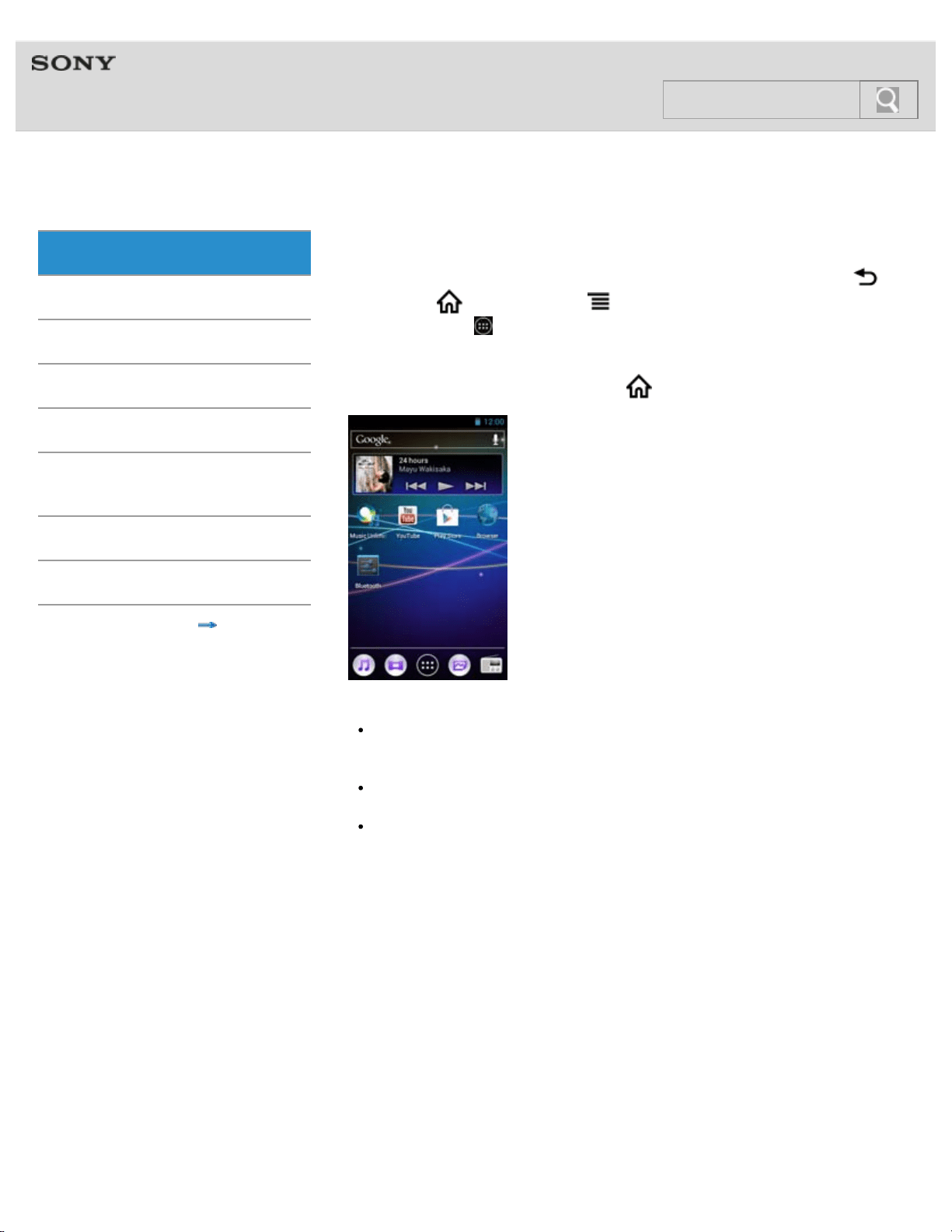
Home screen
The Home screen is displayed by tapping the
(Home) button.
Note
Explanations of operations are made assuming that you will start from the Home screen.
In cases such as when a different application is used, operation procedures may differ
from the explanation.
The screens and illustrations herein are for descriptive purposes, and they may differ
from the actual product or screen.
If there are multiple ways to use a function or make a setting, the method that is easiest
to understand is described.
© 2012 Sony Corporation
18
Search
Help guide
NWZ-F804/F805/F806 Top > Getting Started > About the Manuals >
Getting Started
Basic Operations
Connection
Preinstalled Applications
Supplied Software
Important Product
Information
Specifications
Troubleshooting
Contents list
Starting the Help guide
This Help guide covers detailed operations for your Walkman.
Items such as operating procedures are separated into topics for easy searching.
Starting the Help guide on your “WALKMAN”
1. Tap
from the Home screen then [ Help guide].
Note
The Help guide on your Walkman is provided only in some languages.
The screens shown are for descriptive purposes only, and they may differ from the
actual screen.
Starting the Help guide on a computer
The Help guide for use on a computer can be viewed after installing the WALKMAN Guide
on your computer.
1. Double click the
(WALKMAN Guide) icon on the desktop.
2. Click on the Help guide to open it.
Hint
For details on how to install the WALKMAN Guide, refer to the supplied “Quick Start
Guide.”
Related topic
About the “WALKMAN“ manuals
© 2012 Sony Corporation
19
Search
Help guide
NWZ-F804/F805/F806 Top > Getting Started > Parts and Controls/Contents >
Getting Started
Basic Operations
Connection
Preinstalled Applications
Supplied Software
Important Product
Information
Specifications
Troubleshooting
Contents list
Contents
“WALKMAN” (1)
Headphones (1)
Earbuds (Size S, L) (1)
At purchase, M size earbuds are installed.
USB cable (1)
Attachment (1)
Use when connecting your Walkman to a peripheral device, such as a cradle (not
supplied).
Quick Start Guide
Software
The software is stored in the built-in flash memory of the player, and includes the
following items. For details on how to install, refer to “Quick Start Guide.”
Media Go
WALKMAN Guide
Help guide, etc.
Related topic
Replacing the headphone earbuds
© 2012 Sony Corporation
20
Search
Help guide
NWZ-F804/F805/F806 Top > Getting Started > Parts and Controls/Contents >
Getting Started
Basic Operations
Connection
Preinstalled Applications
Supplied Software
Important Product
Information
Specifications
Troubleshooting
Contents list
Parts and controls
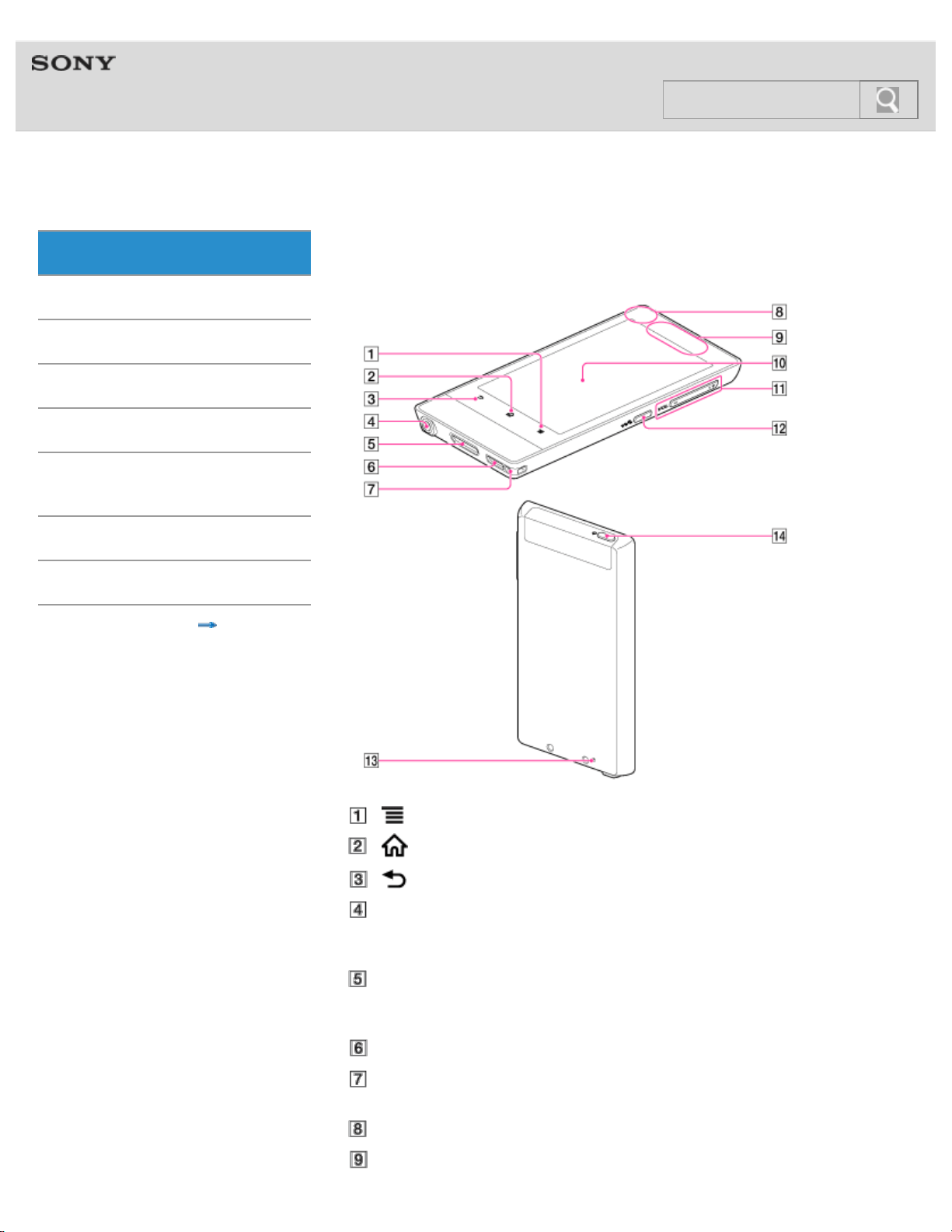
Functions of buttons, jacks, and other parts on your Walkman are explained here.
(Menu) button [Details]
(Home) button [Details]
(Back) button [Details]
Headphone jack
Insert the headphone plug until it clicks into place. If the headphones are connected
improperly, the sound from the headphones will be impaired.
WM-PORT jack
Connect the USB cable (supplied) or other accessories that support WM-PORT (not
supplied).
Speaker [Details]
Strap hole
This is used to attach a strap (not supplied).
Built-in microphone
Built-in antenna
21
Search
Wi-Fi, Bluetooth, and GPS antennas are built-in.
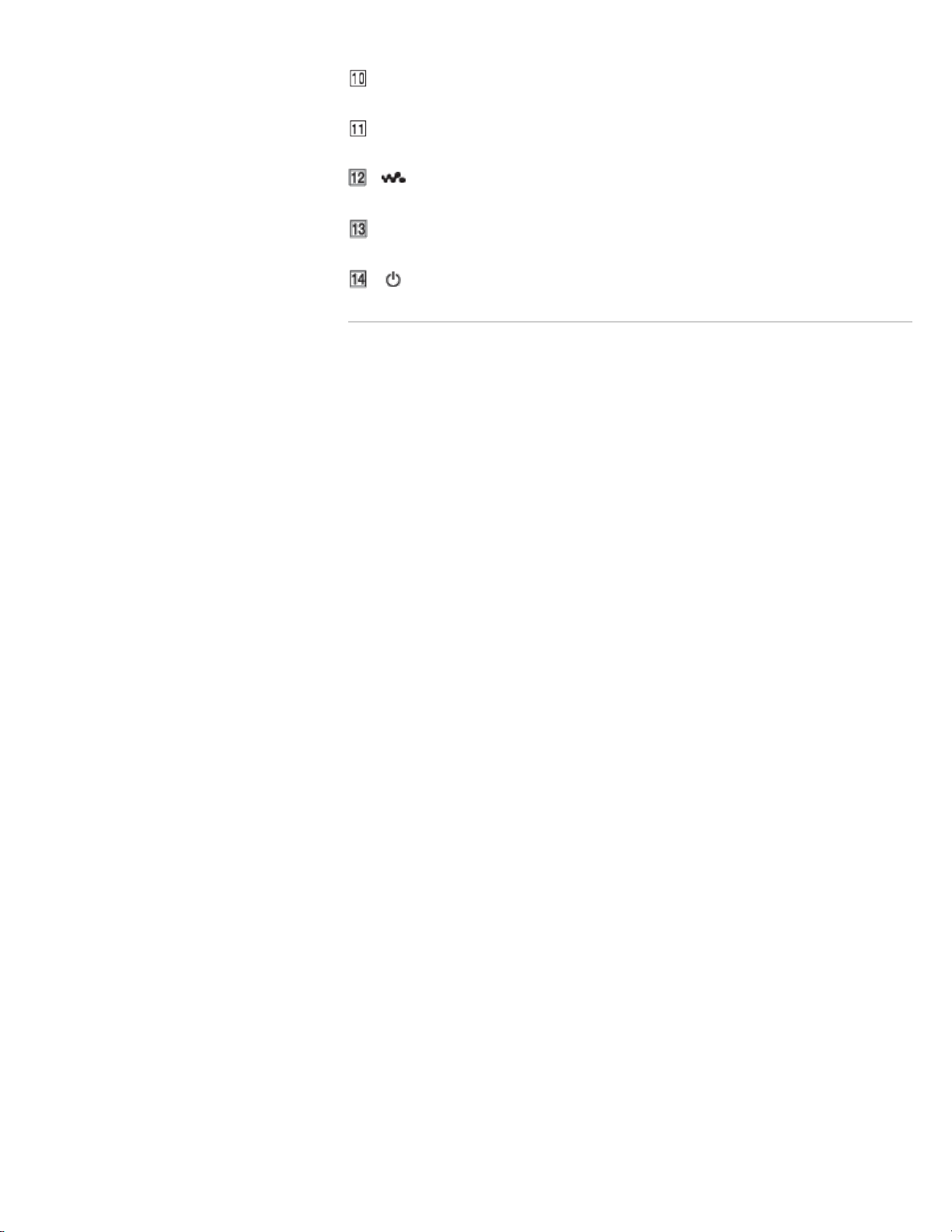
Screen (touch screen) [Details]
Touch (tap) icons, items, control buttons, etc., on the screen to operate your Walkman.
VOL (Volume) +/- button
There is a tactile dot on the + button. Use it to help with button operations.
(Double-u Dot) button [Details]
This is used to display the W.control, on which you can control music playback directly.
RESET button [Details]
Press the RESET button with a small pin, etc., to reset your Walkman.
(Power) button [Details]
Related topic
Using the speaker
Using the microphone
Using the Home, Menu, and Back buttons
Using the W.button
Using the VOL (Volume) +/- button
Using the RESET button
© 2012 Sony Corporation
22
Search
Help guide
NWZ-F804/F805/F806 Top > Getting Started > Parts and Controls/Contents >
Getting Started
Basic Operations
Connection
Preinstalled Applications
Supplied Software
Important Product
Information
Specifications
Troubleshooting
Contents list
Replacing the headphone earbuds
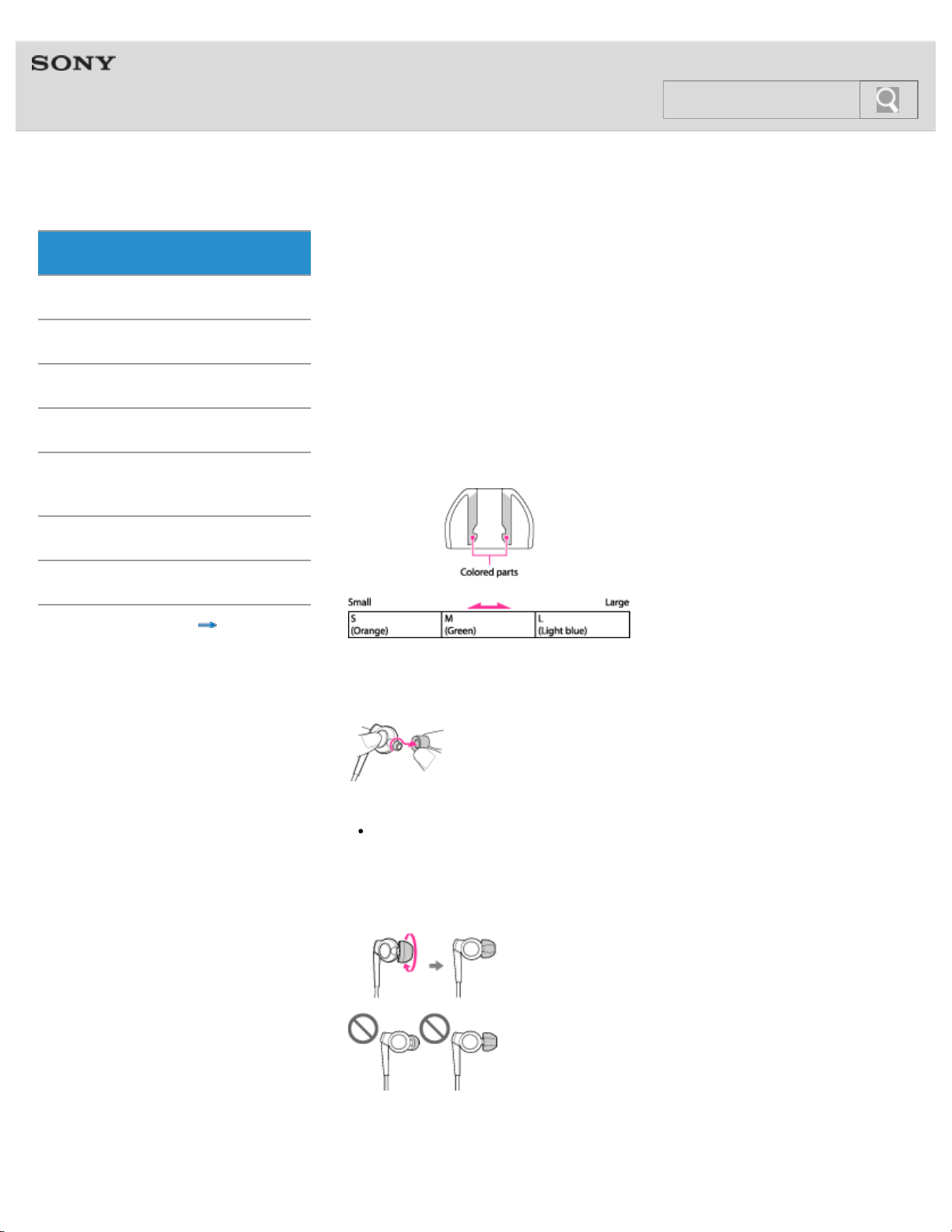
To enjoy better sound quality, change the earbuds to another size, or adjust the earbud
position to fit your ears comfortably and snugly.
The M size earbuds are attached to the headphones before shipment. If you feel the M size
earbuds do not suit your ears, replace them with the S or L size earbuds (supplied). Confirm
the size of the earbuds by checking the color inside.
When you change the earbuds, turn them to install firmly on the headphones and prevent the
earbud from detaching and remaining in your ear.
In addition to the supplied earbuds, SS size earbuds that are smaller than S size ones are
also available (not supplied).
Earbud sizes (inside color)
To detach an earbud
While holding the headphone, twist and pull the earbud off.
Hint
If the earbud slips and cannot be detached, wrap it in a soft, dry cloth.
To attach an earbud
Twist and push the colored part of the earbud into the headphone until the projecting part of
the headphone is fully covered.
If the earbuds should become damaged, please purchase replacement earbuds (EP-EX10).
Four types of earbuds are sold separately by size.
23
Search

Caring for earbuds
Remove the earbuds from the headphones, and clean them by hand with dilute neutral
detergent. Wipe off excess moisture before using the earbuds.
© 2012 Sony Corporation
24
Search
Help guide
NWZ-F804/F805/F806 Top > Getting Started > Parts and Controls/Contents >
Getting Started
Basic Operations
Connection
Preinstalled Applications
Supplied Software
Important Product
Information
Specifications
Troubleshooting
Contents list
Using the speaker
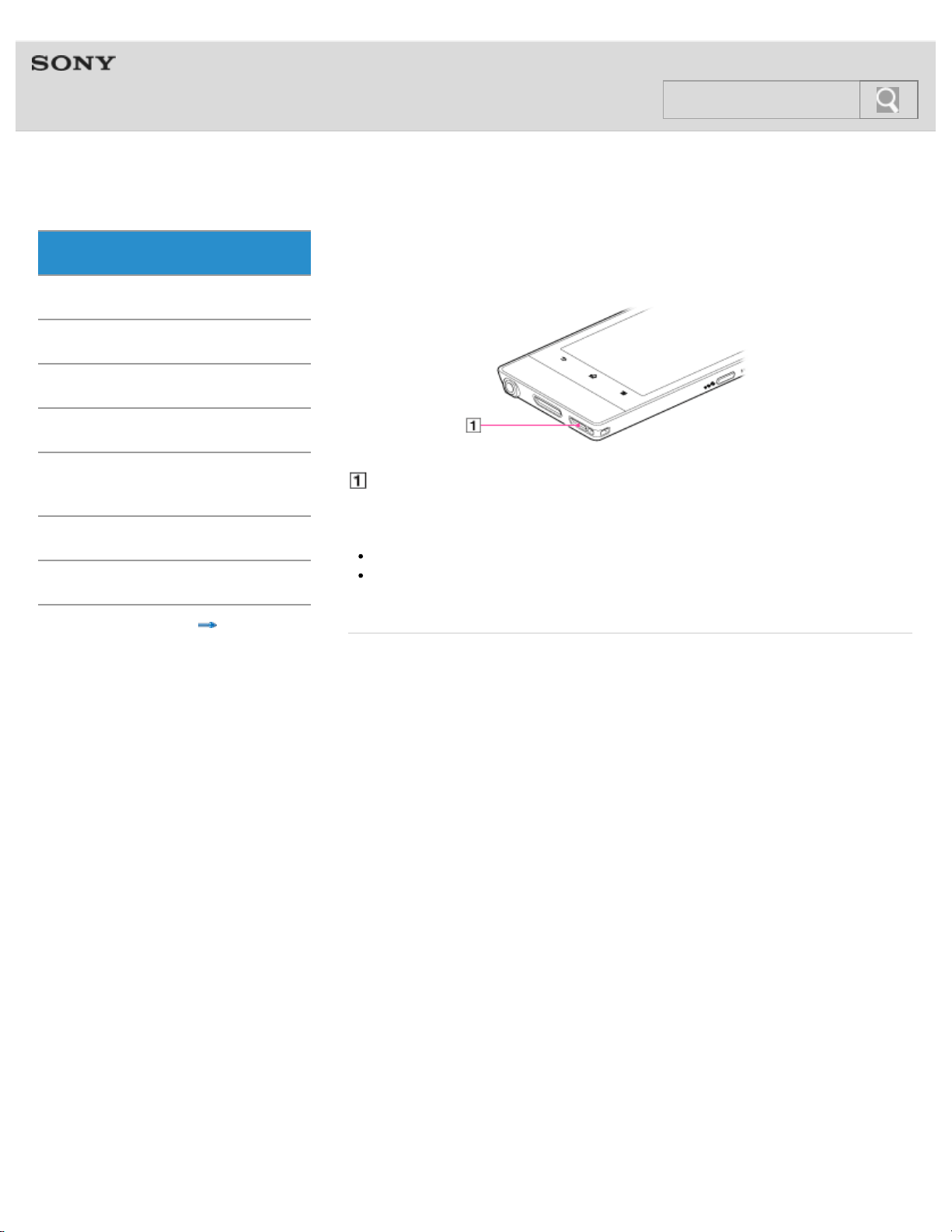
Sound can be played from the built-in speaker of your Walkman.
Speaker
Sound will be emitted from the speaker if headphones are not connected.
Note
Sound will not be emitted from the speaker when using Bluetooth headphones.
Sound may not be emitted from the speaker when accessories are connected to the
WM-PORT jack.
Related topic
Parts and controls
Using the VOL (Volume) +/- button
Customizing the volume settings
© 2012 Sony Corporation
25
Search
Help guide
NWZ-F804/F805/F806 Top > Getting Started > Parts and Controls/Contents >
Getting Started
Basic Operations
Connection
Preinstalled Applications
Supplied Software
Important Product
Information
Specifications
Troubleshooting
Contents list
Using the microphone
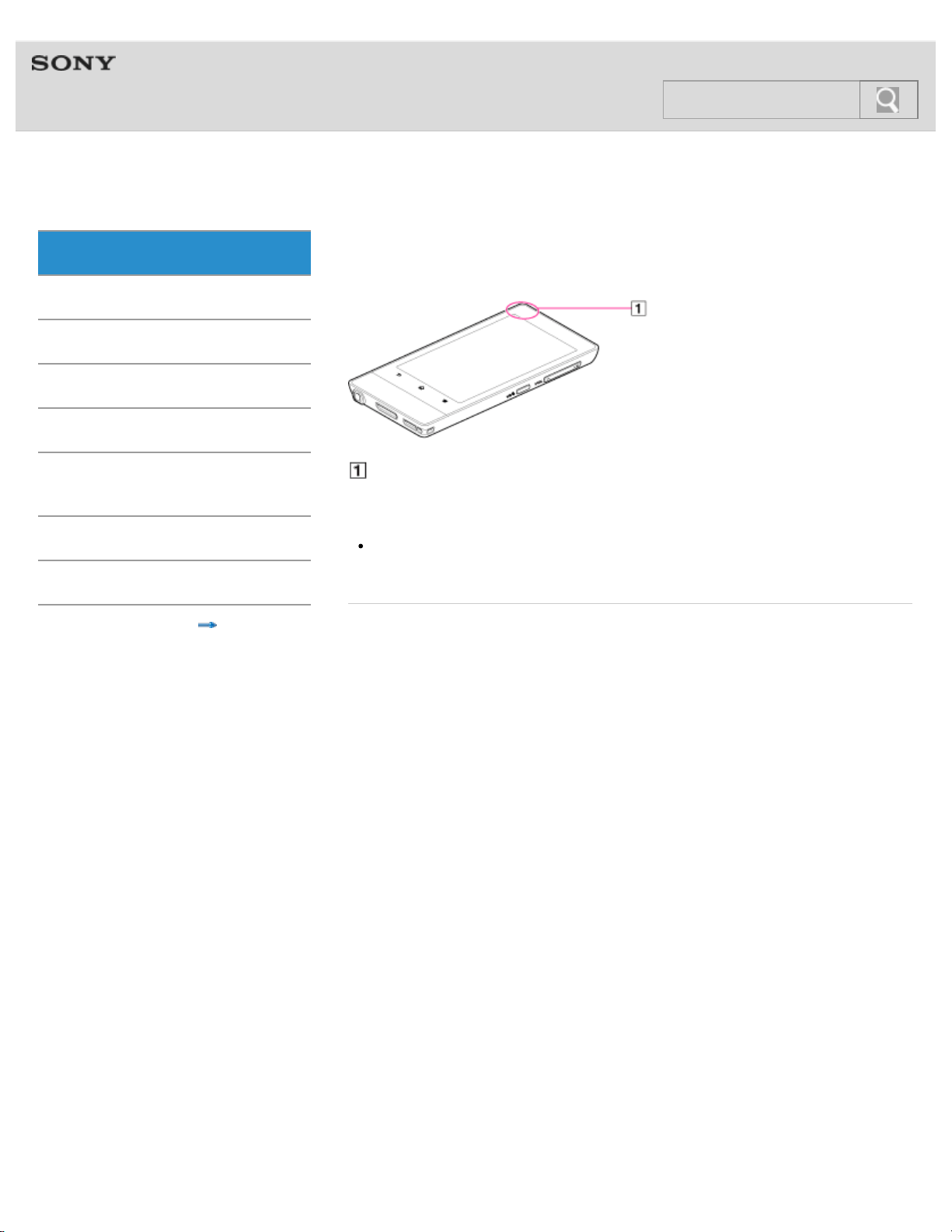
The built-in microphone of your Walkman can be used to input sound.
Built-in microphone
Do not cover the microphone when using it for functions such as voice recognition.
Note
The microphone and FM radio cannot be used at the same time. To use the
microphone, stop FM radio. Do not use FM radio while using the microphone.
Related topic
Parts and controls
© 2012 Sony Corporation
26
Search
Help guide
NWZ-F804/F805/F806 Top > Getting Started > Turning on the Power/Charging >
Getting Started
Basic Operations
Connection
Preinstalled Applications
Supplied Software
Important Product
Information
Specifications
Troubleshooting
Contents list
Turning the power on and off
Turn on the power and start your Walkman. Turn off the power if you do not intend to use the
Walkman for a long period of time.
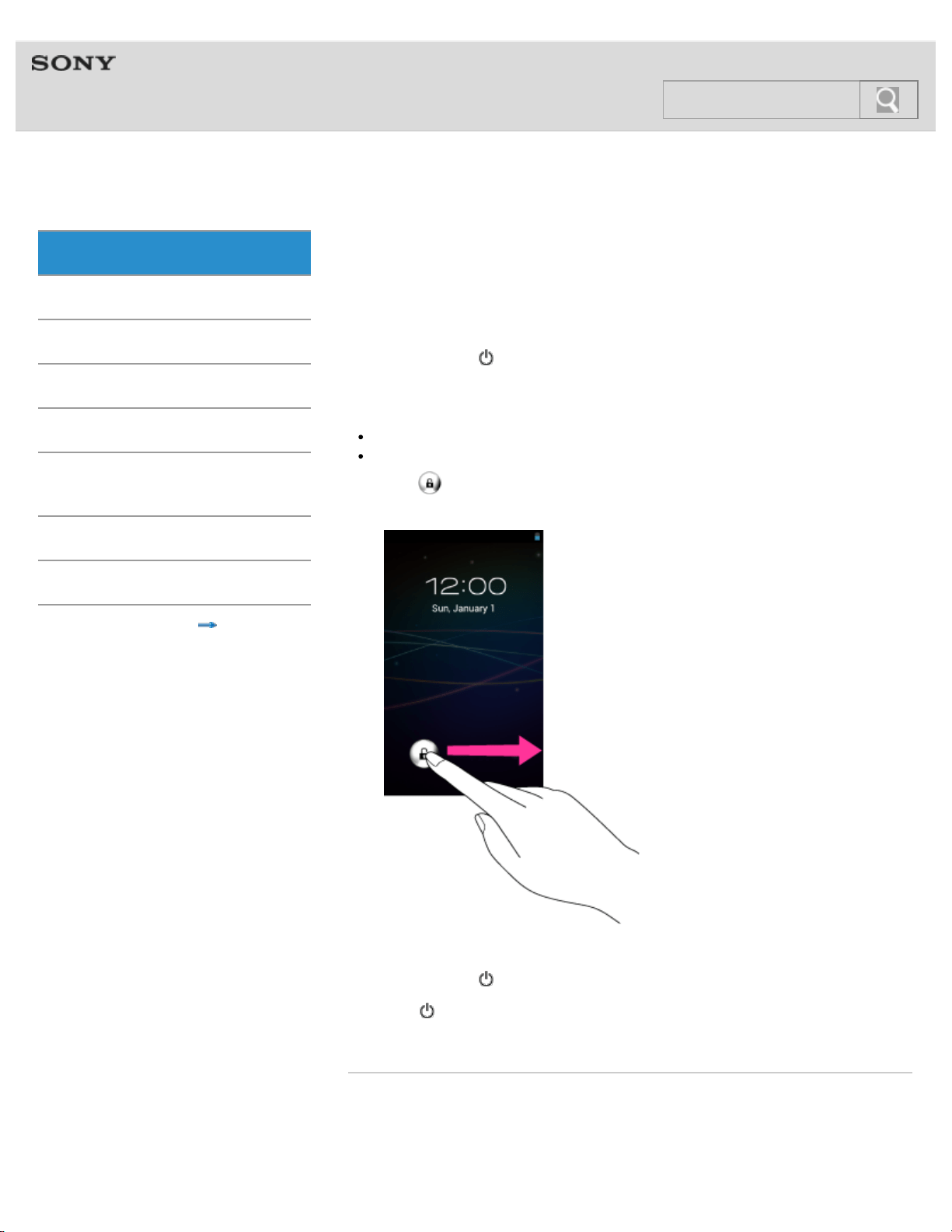
Turning on the power
1. Hold down the
(Power) button.
When you start your Walkman it is locked, and the lock screen will be displayed.
Hint
It may take some time before the lock screen is displayed.
Charge the battery if your Walkman cannot be turned on. [Details]
2. Drag
from left to right.
Your Walkman is then unlocked, and the Home screen will be displayed.
Turning off the power
1. Hold down the
(Power) button.
2. Tap [
Power off] - [OK].
The power will then turn off.
Related topic
Parts and controls
Turning the screen on and off
Extending the battery life
27
Search

© 2012 Sony Corporation
28
Search
Help guide
NWZ-F804/F805/F806 Top > Getting Started > Turning on the Power/Charging >
Getting Started
Basic Operations
Connection
Preinstalled Applications
Supplied Software
Important Product
Information
Specifications
Troubleshooting
Contents list
Turning the screen on and off
You can turn off the screen when not using your Walkman in order to prevent the touch
screen from being operated accidentally.
1. Press the
(Power) button.
The screen will turn off. Press the button again to turn the screen on.
Hint
You can set the time that elapses before the screen turns off automatically.
Related topic
Parts and controls
Turning the power on and off
© 2012 Sony Corporation
29
Search
Help guide
NWZ-F804/F805/F806 Top > Getting Started > Turning on the Power/Charging >
Getting Started
Basic Operations
Connection
Preinstalled Applications
Supplied Software
Important Product
Information
Specifications
Troubleshooting
Contents list
Charging the battery
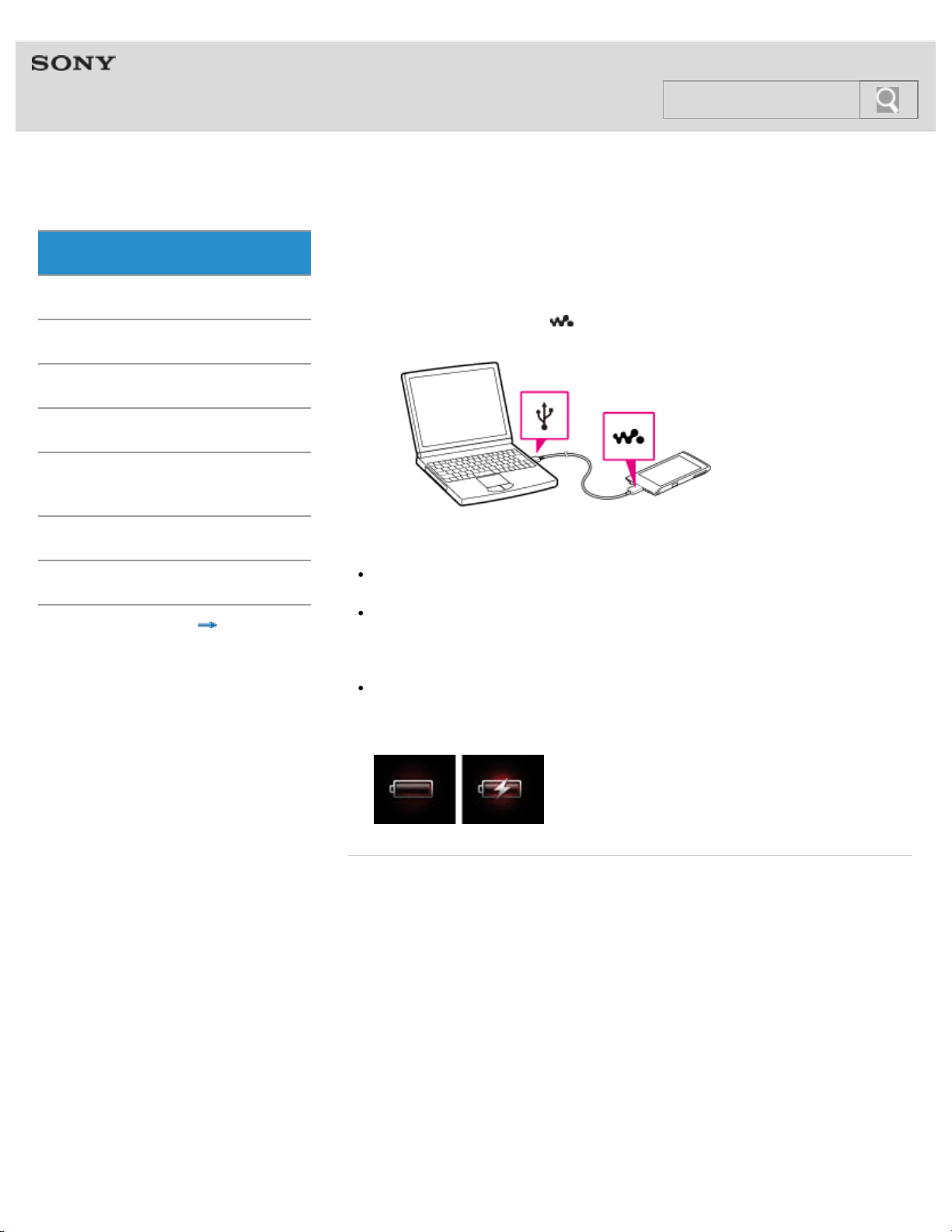
Charge your Walkman by connecting it to a computer.
1. Use the supplied USB cable to connect your Walkman to a running computer.
Plug in the USB cable with
facing upward.
Hint
You can also charge the battery with an AC adapter (not supplied) compatible with your
Walkman.
When you use your Walkman for the first time, or if you have not used the Walkman for
a long time, it is best to charge the battery fully.
Note
If a large battery symbol is displayed while you are charging your Walkman, the
remaining charge is still too low for the Walkman to operate. Charge it continuously for
about 10 minutes before attempting any operations, and then the Walkman will start
automatically.
Related topic
Extending the battery life
© 2012 Sony Corporation
30
Search
Help guide
NWZ-F804/F805/F806 Top > Getting Started > Turning on the Power/Charging >
Getting Started
Basic Operations
Connection
Preinstalled Applications
Supplied Software
Important Product
Information
Specifications
Troubleshooting
Contents list
Extending the battery life
You can reduce battery consumption by using your Walkman as follows.
Adjust screen brightness.
Set for a shorter time before the screen turns off.
Turn off the screen when not using your Walkman. [Details]
Turn off the power when not using your Walkman for an extended period of time.
[Details]
Turn off Wi-Fi when not using that function. [Details]
Turn off the Bluetooth function when not using that function. [Details]
Turn off GPS when not using that function. [Details]
© 2012 Sony Corporation
31
Search
Help guide
NWZ-F804/F805/F806 Top > Getting Started > Turning on the Power/Charging >
Getting Started
Basic Operations
Connection
Preinstalled Applications
Supplied Software
Important Product
Information
Specifications
Troubleshooting
Contents list
Notes on charging the battery
The following are notes regarding charging.
Charging time differs depending on battery usage conditions.
If the battery life is reduced to about half of its normal life even if sufficiently charged, it
has probably worn out. Please contact your nearest Sony dealer.
If you charge your Walkman when it has not been used for a long period of time, your
computer may not recognize it, or nothing may appear on the display. Charge the
Walkman for about 10 minutes, after which it should start operating normally again.
Charge the battery in an ambient temperature of between 5 °C to 35 °C.
The number of times the battery can be recharged from complete discharge is
approximately 500 times. This number may vary depending on the conditions under
which you use your Walkman.
Charge the battery at least once every six months to a year if you do not use your
Walkman for a long period of time.
Charging is not guaranteed with homebuilt or modified computers.
Do not leave your Walkman connected for extended periods of time to a laptop
computer that is not connected to AC power. Doing so may discharge the computer’s
battery.
Do not turn on, restart, wake up from sleep mode, or shut down the computer with your
Walkman connected to the computer by USB cable. Doing so may cause the Walkman
to malfunction. Disconnect the Walkman from the computer before conducting those
operations.
Heat may build up in your Walkman while charging. This is not a malfunction.
© 2012 Sony Corporation
32
Search
Help guide
NWZ-F804/F805/F806 Top > Basic Operations > How to Use the Buttons >
Getting Started
Basic Operations
Connection
Preinstalled Applications
Supplied Software
Important Product
Information
Specifications
Troubleshooting
Contents list
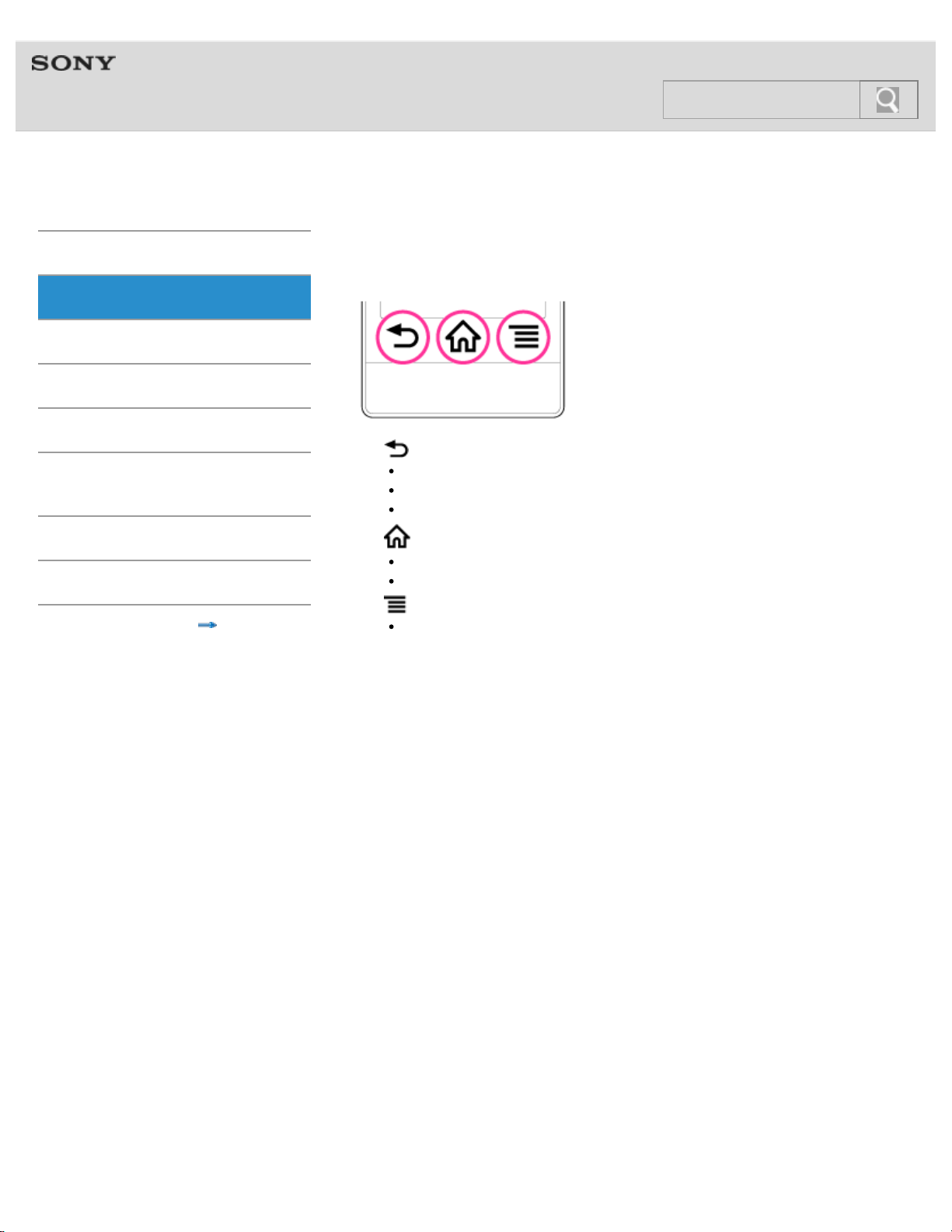
Using the Home, Menu, and Back buttons
The following explains the physical buttons on your Walkman.
1. (Back) button
Returns to the previous screen.
Closes dialog boxes, option menu, etc.
Closes the onscreen keyboard if it is displayed.
2.
(Home) button
Returns to the Home screen.
Displays thumbnail images of recently used applications when pressed and held.
3.
(Menu) button
Opens the option menu.
© 2012 Sony Corporation
33
Search
Help guide
NWZ-F804/F805/F806 Top > Basic Operations > How to Use the Buttons >
Getting Started
Basic Operations
Connection
Preinstalled Applications
Supplied Software
Important Product
Information
Specifications
Troubleshooting
Contents list
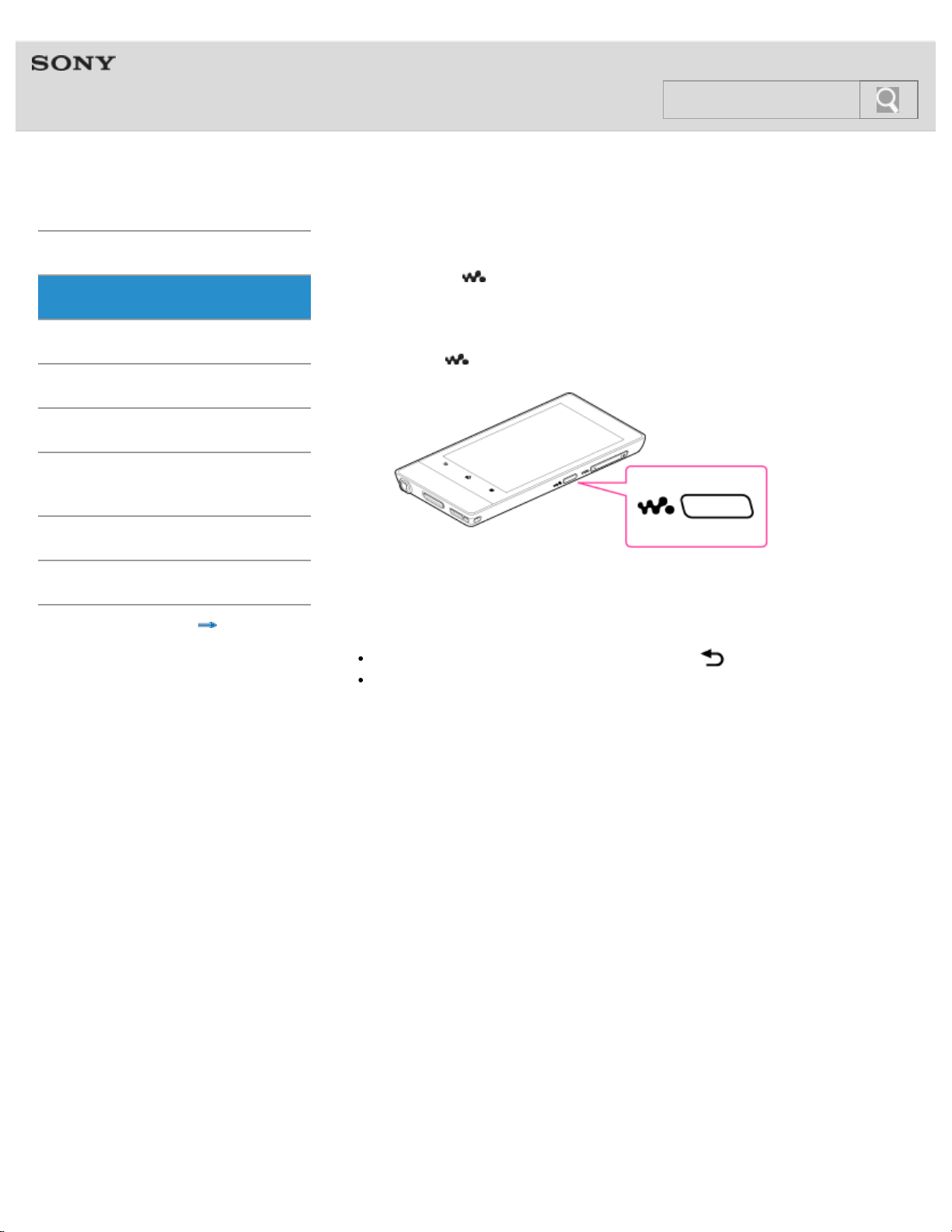
Using the W.button
You can press the (Double-u Dot) button to control music playback without starting the
Music player application, even in situations such as when using other applications or when
the screen is locked. The display (element) screen for that playback control is called
W.control.
1. Press the
(Double-u Dot) button.
The W.control is displayed on the screen.
Press the button again to turn off the W.control.
Hint
You can also turn off the control panel by tapping the (Back) button.
The W.control may not be displayed while using some of the applications (games etc.).
© 2012 Sony Corporation
34
Search
Help guide
NWZ-F804/F805/F806 Top > Basic Operations > How to Use the Buttons >
Getting Started
Basic Operations
Connection
Preinstalled Applications
Supplied Software
Important Product
Information
Specifications
Troubleshooting
Contents list
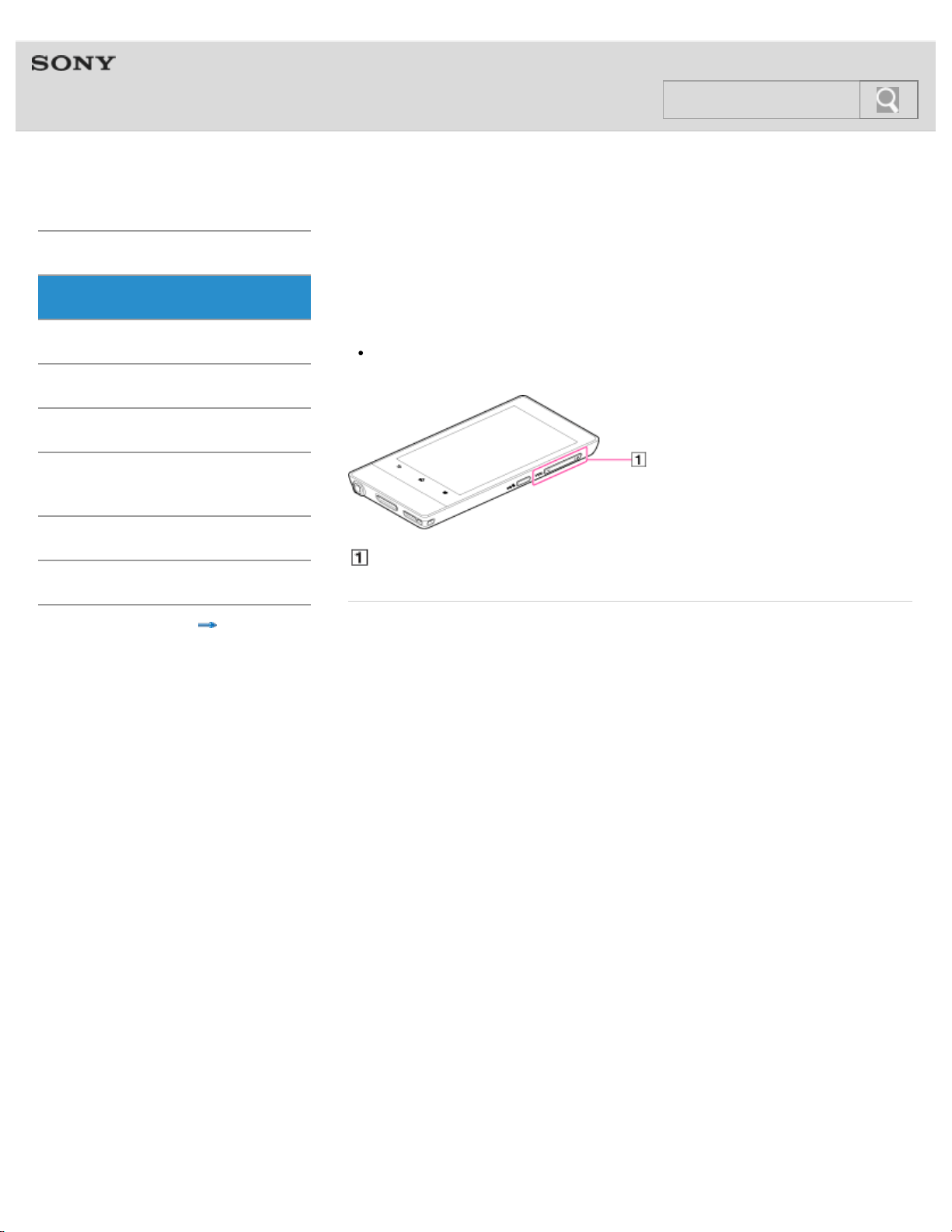
Using the VOL (Volume) +/- button
Adjust the master volume quickly using the VOL (Volume) +/- button on your Walkman. For
more customized volume control, see “Customizing the volume settings.“
Hint
If there is no sound even if you press the VOL (Volume) + button, turn up the [Music,
video, games, & other media] volume. [Details]
VOL (Volume) +/- button
Related topic
Customizing the volume settings
Limiting the volume [AVLS (Volume Limit)]
© 2012 Sony Corporation
35
Search
Help guide
NWZ-F804/F805/F806 Top > Basic Operations > How to Use the Buttons >
Getting Started
Basic Operations
Connection
Preinstalled Applications
Supplied Software
Important Product
Information
Specifications
Troubleshooting
Contents list
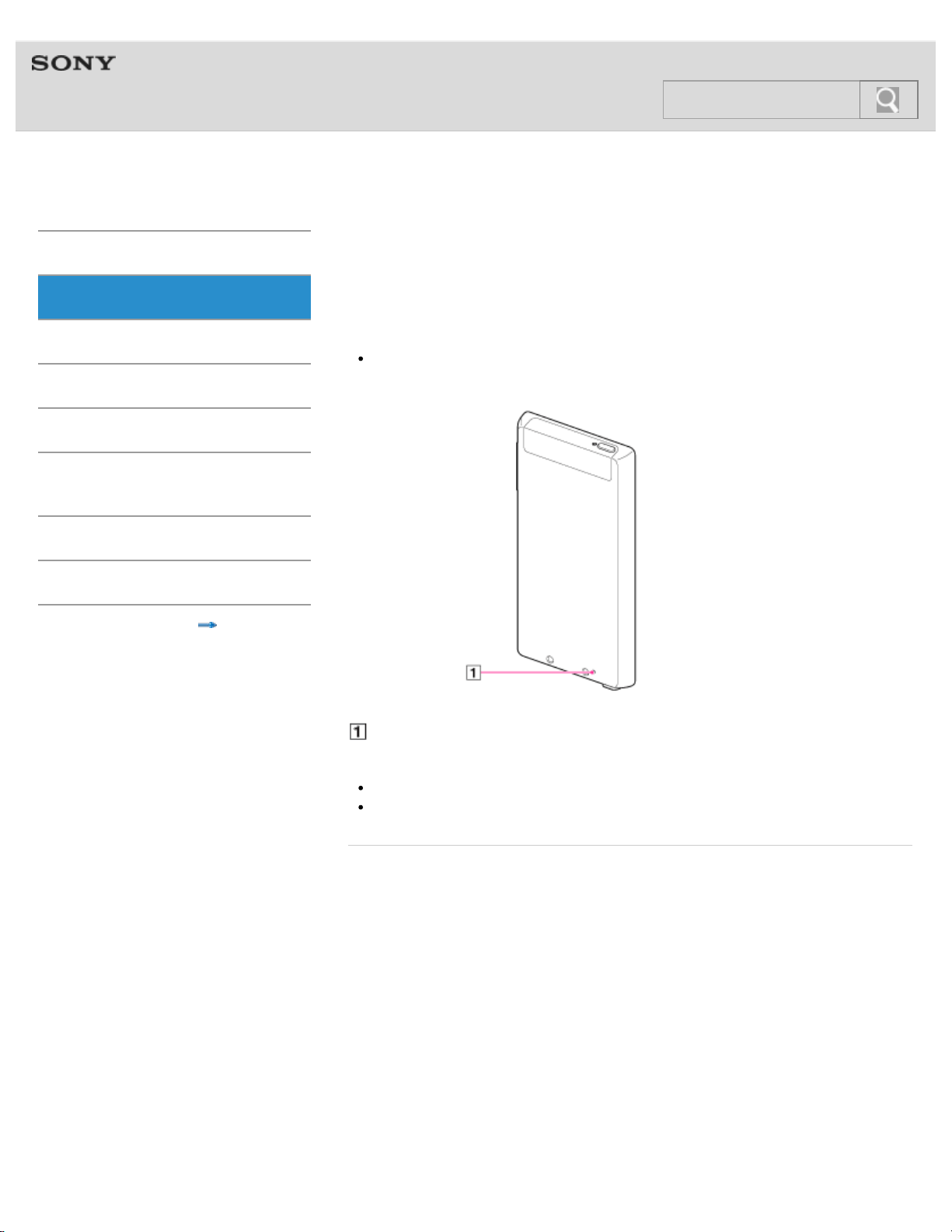
Using the RESET button
You can reset your Walkman if operations become unstable.
1. Press the RESET button with the end of a pin or other narrow object.
Note
To reset your Walkman safely, make sure that a song or a video is not being played
before pressing the RESET button.
RESET button
Note
No data or settings will be deleted by pressing the RESET button.
Data and settings in use may not be saved when you press the RESET button.
Related topic
Initializing
Updating the system
© 2012 Sony Corporation
36
Search
Help guide
NWZ-F804/F805/F806 Top > Basic Operations > How to Use the Touch Screen >
Getting Started
Basic Operations
Connection
Preinstalled Applications
Supplied Software
Important Product
Information
Specifications
Troubleshooting
Contents list
How to use the touch screen
The display of your Walkman is a touch screen. Make operations by directly touching the
screen. The basic operations are explained as follows.
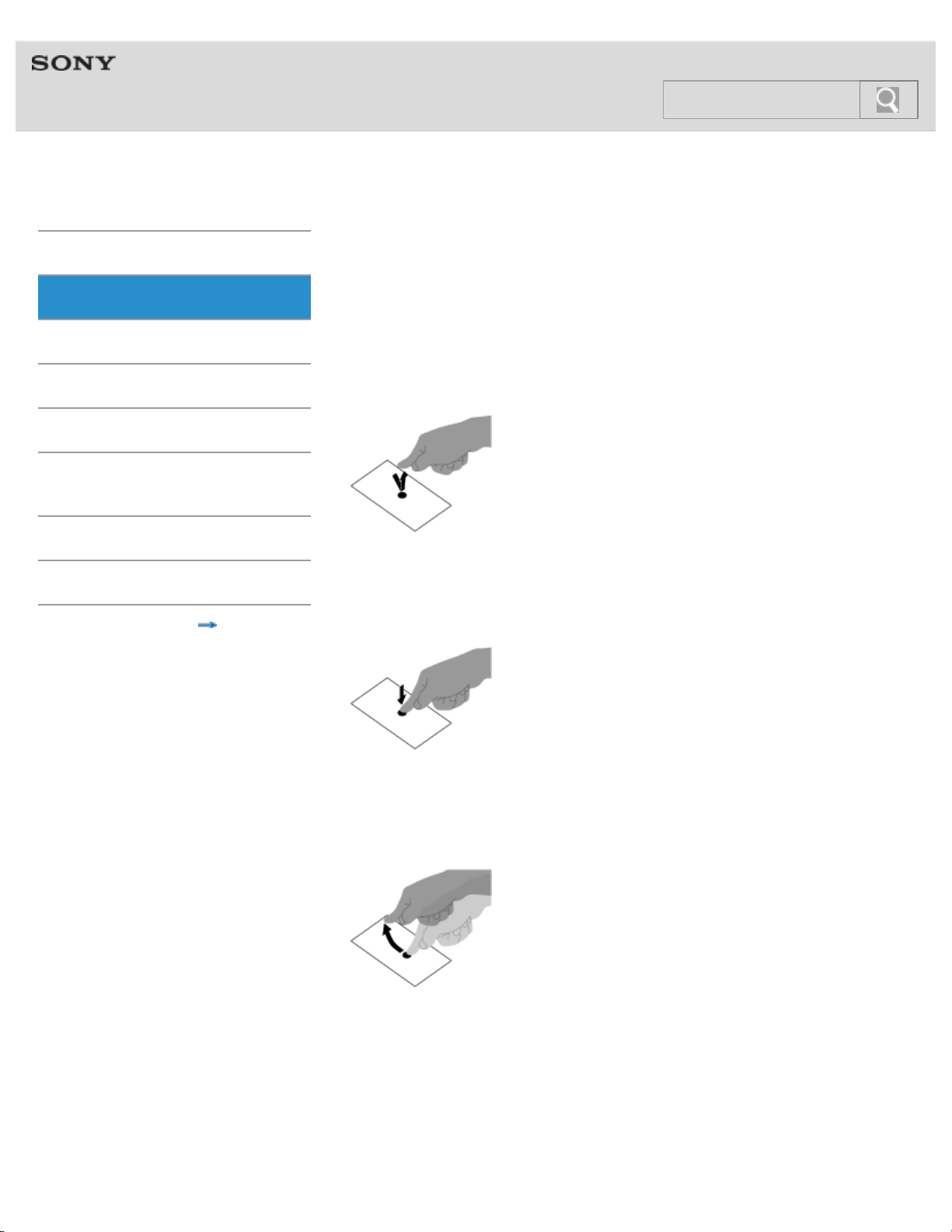
Tap
Lightly touch an item such as an icon or menu with your finger and immediately remove your
finger.
Tapping twice quickly is called “double tapping.”
Press and Hold
Keep pressing an item such as an icon or menu.
Flick
Lightly move your finger across the touch screen.
This switches screens or quickly scrolls through a page.
Drag
Keeping your finger on the touch panel, move to the desired point and release.
This moves icons, etc. and scrolls the screen.
37
Search
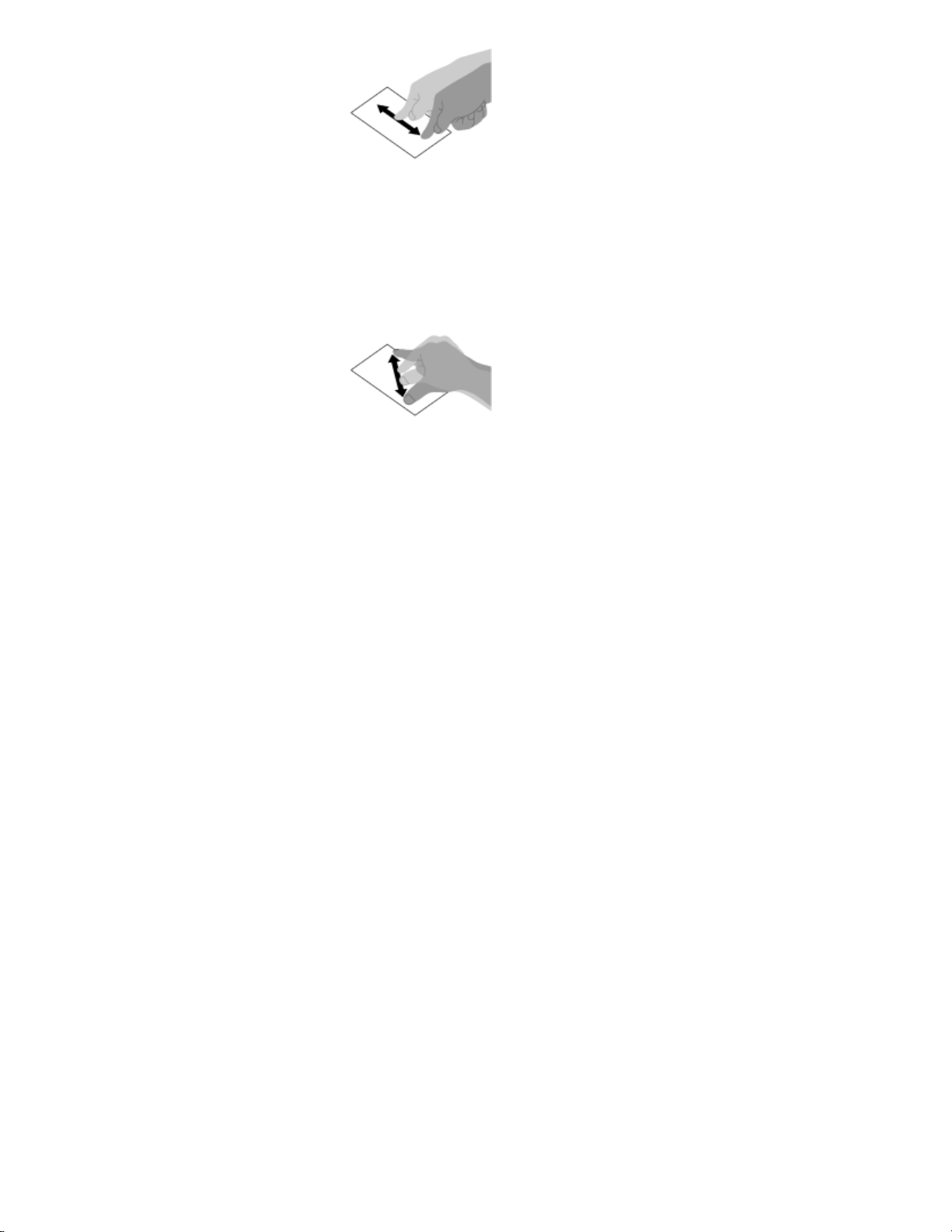
Pinch in/pinch out
Touch the screen with two fingers, and move the fingers apart (pinch out) or together (pinch
in).
On some screens, pinching out zooms in and pinching in zooms out.
© 2012 Sony Corporation
38
Search
Help guide
NWZ-F804/F805/F806 Top > Basic Operations > How to Use the Touch Screen >
Getting Started
Basic Operations
Connection
Preinstalled Applications
Supplied Software
Important Product
Information
Specifications
Troubleshooting
Contents list
Notes on the touch screen
The following are notes regarding the touch screen and LCD screen.
Notes regarding the touch screen
Your Walkman uses a capacitive touch screen. Tap the screen directly with your
fingertip. Do not scratch it or tap it with sharp objects such as a needle, pen, or
fingernail. You cannot operate the touch screen with a stylus.
If you touch the touch screen with gloved fingers, it may operate incorrectly or may not
operate at all.
Do not operate your Walkman with objects on the touch screen.
If the touch screen is touched by objects other than your fingertip, it may not react
correctly.
Do not put the touch screen close to other electrical devices. Electrostatic discharges
can make the touch screen malfunction.
If there are water droplets on the touch screen, or if you touch it with wet fingertips, the
touch screen may not react correctly.
Do not put the touch screen close to water. The touch screen may malfunction in humid
conditions or when exposed to water.
Notes regarding the LCD screen
Do not press hard on the LCD screen. Doing so may cause unevenness or damage.
Do not leave the LCD screen in direct sunlight. Be sure to block direct sunlight when
using your Walkman near a window.
Using your Walkman in low temperature conditions may produce a residual image on
the LCD screen. This does not indicate a malfunction. The screen will return to normal
when the Walkman returns to normal temperature.
A residual image may appear on the LCD screen if the same image is displayed for an
extended period of time. The residual image will eventually disappear.
The LCD screen becomes warm during operation. This is normal and does not indicate
a malfunction.
The LCD screen is manufactured using high-precision technology. You may, however,
see tiny black points and/or bright points on the LCD screen. This is a normal result of
the manufacturing process and does not indicate a malfunction.
The LCD screen is made of glass. If the glass is damaged (cracked, etc.), do not touch
the touch screen nor try to repair it by yourself. Handle the LCD screen carefully as it is
vulnerable to dropping or mechanical shock. The warranty does not cover any damages
caused by customers due to incorrect handling.
© 2012 Sony Corporation
39
Search

Help guide
NWZ-F804/F805/F806 Top > Basic Operations > How to Use the Touch Screen >
Getting Started
Basic Operations
Connection
Preinstalled Applications
Supplied Software
Important Product
Information
Specifications
Troubleshooting
Contents list
Caring for the touch screen
The following explains care for the Walkman body and touch screen.
Wipe with a soft cloth (eyeglasses cleaning cloth, etc.).
If excessively dirty, wipe with a cloth moistened with diluted neutral detergent.
Do not use chemicals such as thinner, benzine, or alcohol, as they may damage the
surface finish.
Be careful not to get water inside.
© 2012 Sony Corporation
40
Search
Help guide
NWZ-F804/F805/F806 Top > Basic Operations > Home Screen >
Getting Started
Basic Operations
Connection
Preinstalled Applications
Supplied Software
Important Product
Information
Specifications
Troubleshooting
Contents list
Home screen
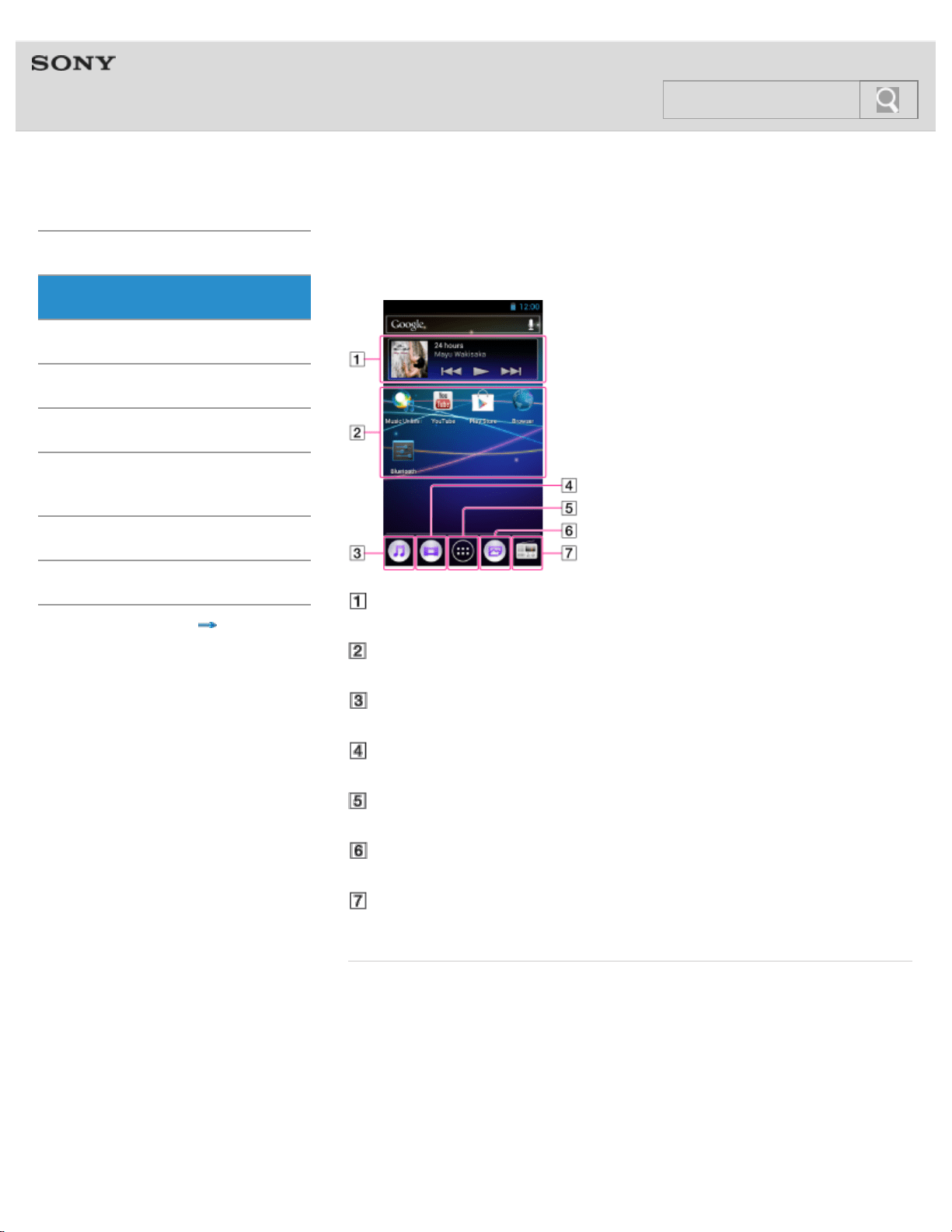
Application widgets, shortcuts, folders, and more are displayed on the Home screen.
[Music player] widget
Play back music.
Application shortcut
Starts application individually.
[Music player] shortcut
Play back music files transferred by Media Go or drag and drop.
[Video player] shortcut
Play back video files by intuitive operations.
Apps
Displays all your applications and widgets.
[Photo viewer] shortcut
View photos and slide shows.
[FM radio] shortcut
Starts FM radio.
Related topic
Starting an application
Main notification icons
About notification panel
© 2012 Sony Corporation
41
Search
Help guide
NWZ-F804/F805/F806 Top > Basic Operations > Home Screen >
Getting Started
Basic Operations
Connection
Preinstalled Applications
Supplied Software
Important Product
Information
Specifications
Troubleshooting
Contents list
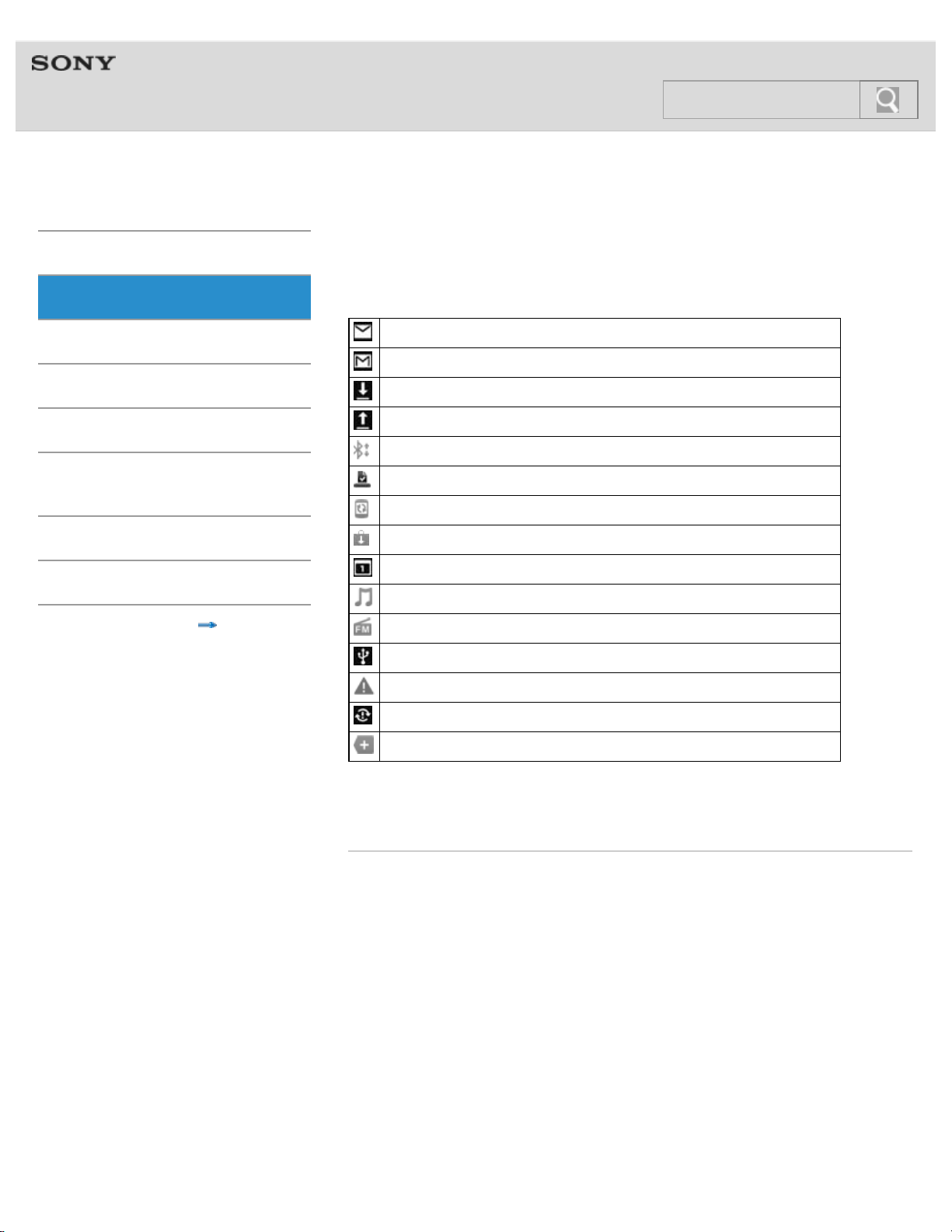
Main notification icons
The main notification icons that are displayed on the screen are as follows.
New mail
New mail (Google application)
Receiving/downloading data
Sending/uploading data
Transferring data using Bluetooth function
Installation complete (when application installed via Google Play, etc.)
System update notification
Application update (when update for installed market application available)
Event scheduled on calendar
Song playing back
FM radio in use
USB connection active
Error message
Login/sync error
Notification not displayed by other icons
Items displayed differ in some countries/regions.
The design of icons is subject to change without notice.
Related topic
Home screen
About notification panel
© 2012 Sony Corporation
42
Search
Help guide
NWZ-F804/F805/F806 Top > Basic Operations > Home Screen >
Getting Started
Basic Operations
Connection
Preinstalled Applications
Supplied Software
Important Product
Information
Specifications
Troubleshooting
Contents list
About notification panel
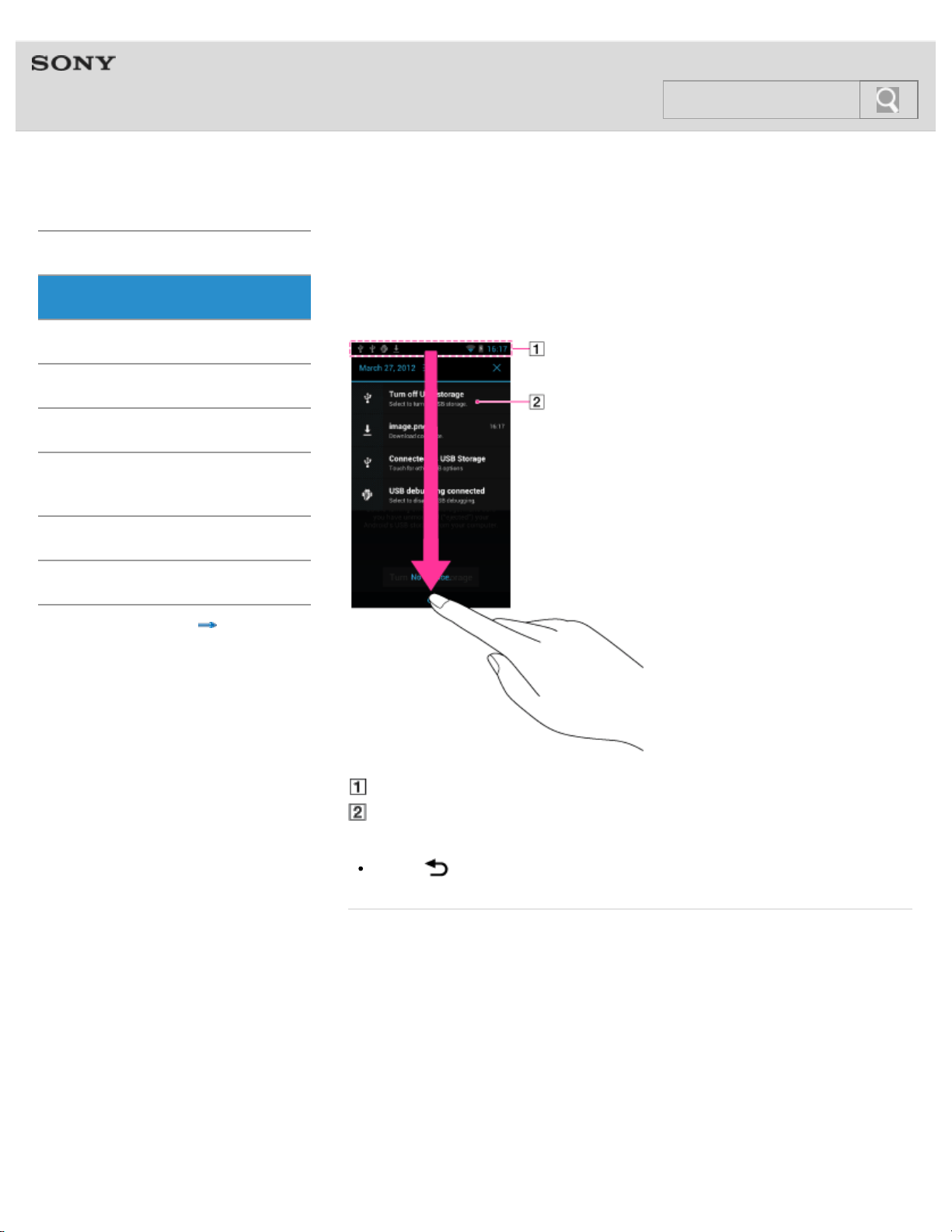
Swipe the status bar to display the notification panel on which you can check the notification
details.
You can also start the relevant application directly by tapping a notification on the panel.
Notification panel
Notification
Hint
Tap the (Back) button to close the notification panel.
Related topic
Home screen
Main notification icons
© 2012 Sony Corporation
43
Search
Help guide
NWZ-F804/F805/F806 Top > Basic Operations > Google Account >
Getting Started
Basic Operations
Connection
Preinstalled Applications
Supplied Software
Important Product
Information
Specifications
Troubleshooting
Contents list
Setting up a Google account
Set up your Google account to use services provided by Google. Multiple accounts can be
registered on your Walkman.
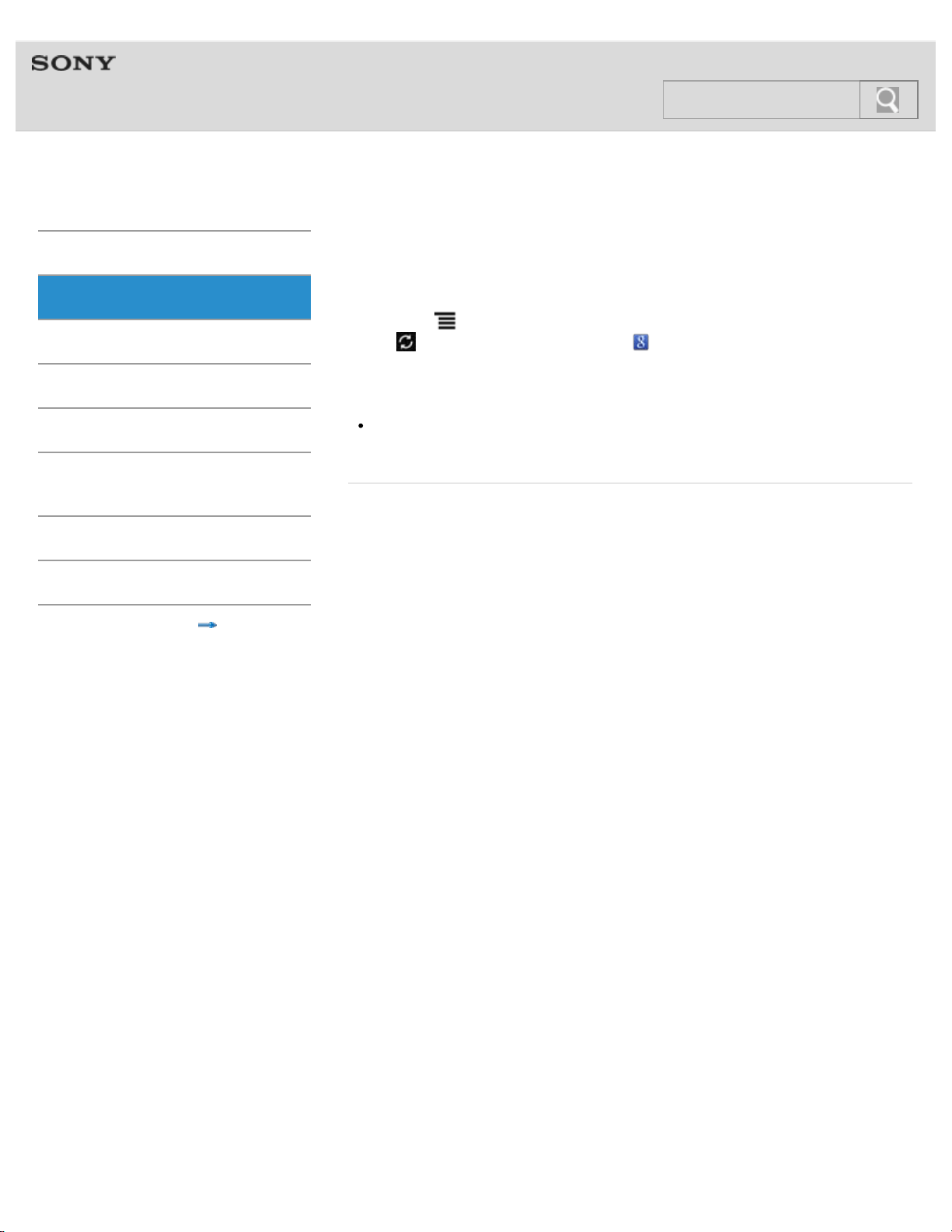
1. Tap the
(Menu) button with the Home screen displayed, then tap [System settings]
- [
Accounts & sync] - [Add account] - .
2. Follow the onscreen instructions to set up the account.
Note
Make sure your Walkman is connected to the Internet through a Wi-Fi connection when
setting up or logging in to your Google account. [Details]
Related topic
Deleting a Google account
Selecting a method for setting up a Wi-Fi connection
© 2012 Sony Corporation
44
Search
Help guide
NWZ-F804/F805/F806 Top > Basic Operations > Google Account >
Getting Started
Basic Operations
Connection
Preinstalled Applications
Supplied Software
Important Product
Information
Specifications
Troubleshooting
Contents list
Deleting a Google account
You can delete accounts by following the procedures below.
1. Tap the
(Menu) button with the Home screen displayed, then tap [System settings]
- [
Accounts & sync].
2. Tap the account to delete from the list.
3. Tap the
(Menu) button and then [Remove account] - [Remove account].
Related topic
Setting up a Google account
© 2012 Sony Corporation
45
Search
Help guide
NWZ-F804/F805/F806 Top > Basic Operations > Location Information >
Getting Started
Basic Operations
Connection
Preinstalled Applications
Supplied Software
Important Product
Information
Specifications
Troubleshooting
Contents list
About the location information
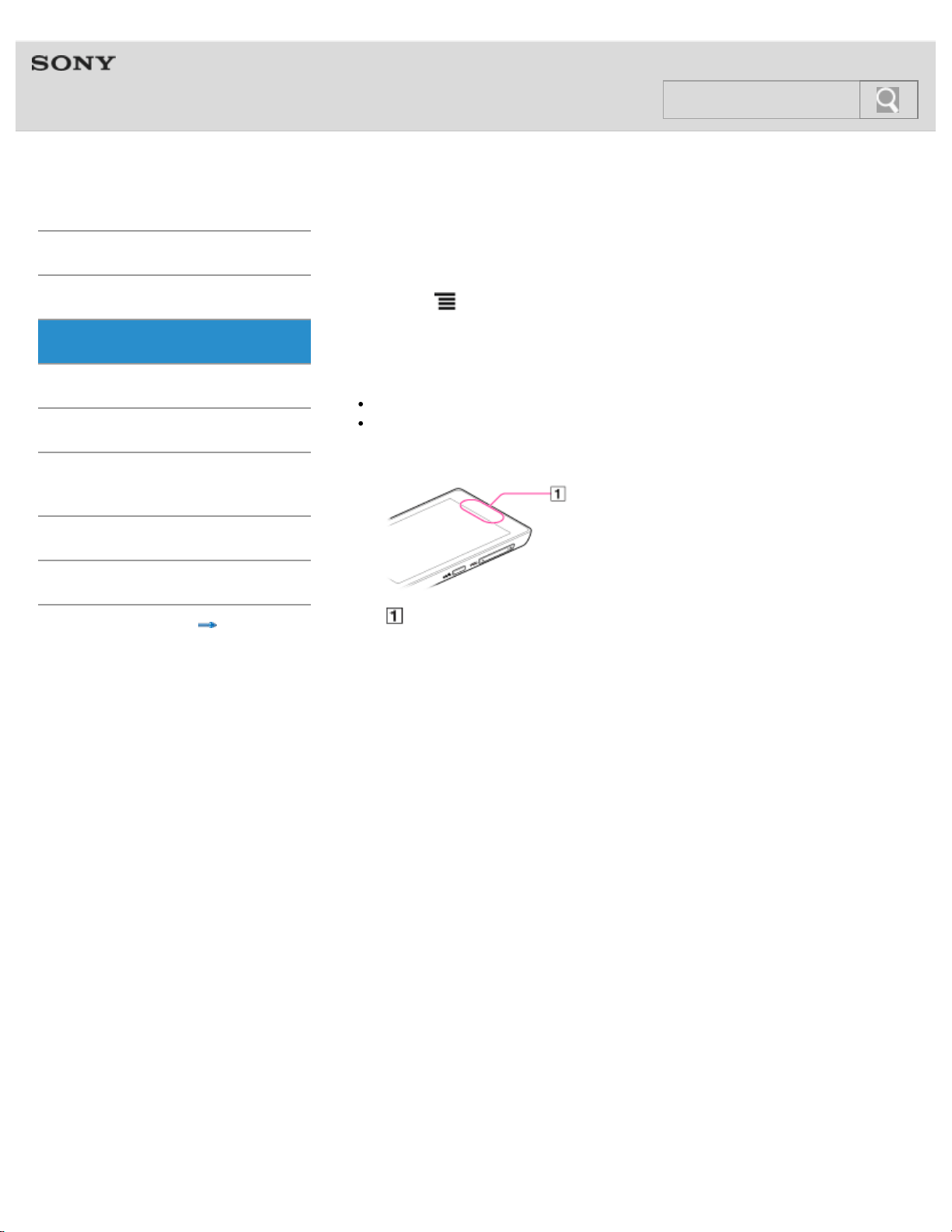
The location information function finds your current position using GPS (*1) or a wireless
network (Wi-Fi).
Using GPS allows you to find your position accurately, even if the process does take some
time. Using a wireless network allows you to find your position quickly, but accuracy may
vary.
Using GPS and a wireless network together allows you to make the most of the merits of
both methods.
(*1) GPS stands for Global Positioning System. GPS satellites emit positioning signals
toward the earth, and your Walkman uses those to display your current position.
Notes on the GPS function
Move your Walkman as little as possible in an area where there are no tall buildings and
trees around until the present location is displayed by the GPS function. The present
location can be displayed quicker when stationary than while moving. If the present
location is not displayed or if the wrong location is displayed, check the following notes
as well.
When other electronic devices are near your Walkman, electromagnetic waves or
magnetic interference from those may prevent the Walkman from providing accurate
location information. Keep electronic devices away from the Walkman.
When in an area with poor reception of GPS signals, you may encounter positioning
errors. To receive more accurate information, avoid using your Walkman in the following
locations.
Inside buildings and in vehicles such as cars and trains
In tunnels or underground
Under elevated tracks
Between tall buildings
In dense trees
In valleys
In case the wrong location is displayed, turn off the wireless network once. See if the
location information improves before turning on the wireless network again.
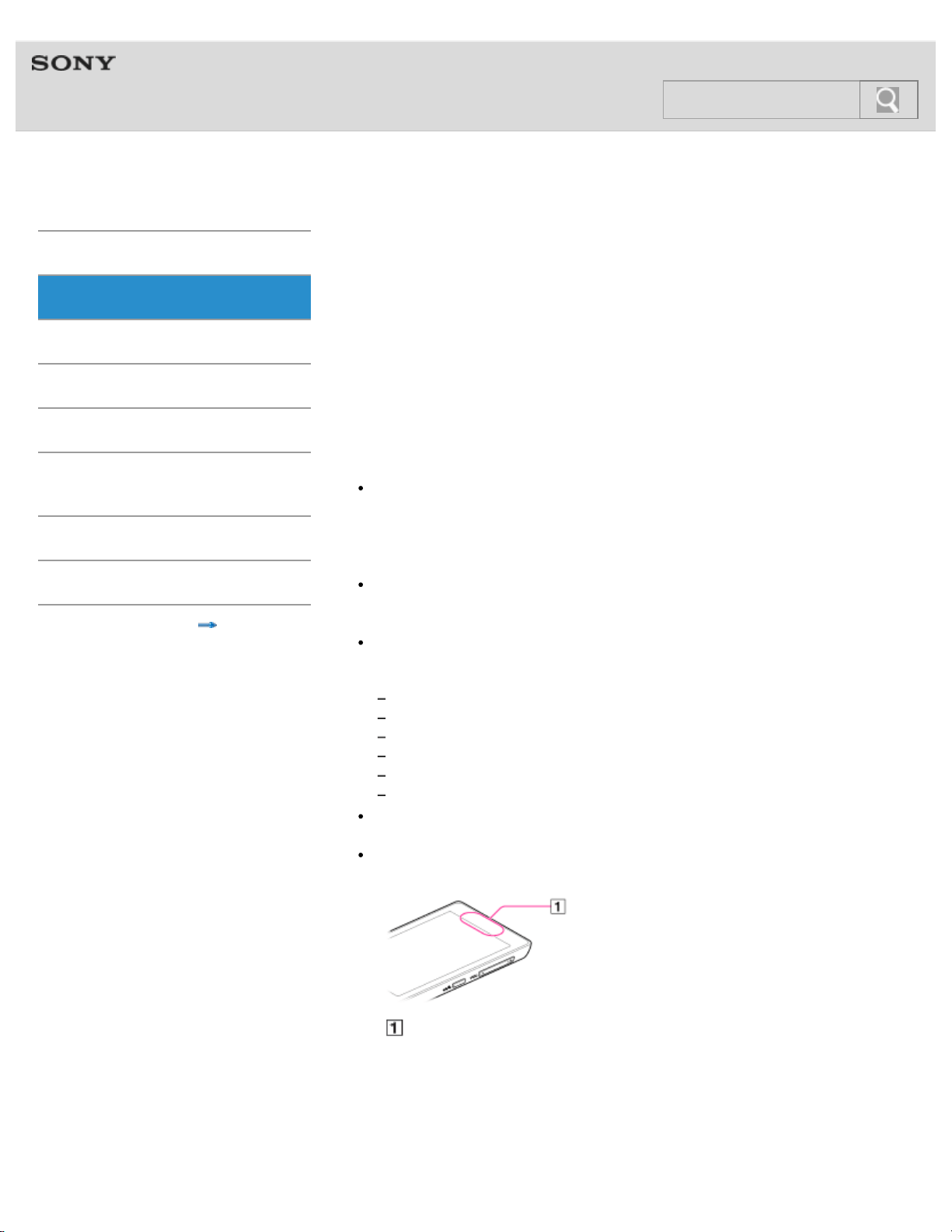
The GPS antenna is built in to your Walkman. If you cover the antenna with your hands
or other objects while using the GPS function, the positioning accuracy may deteriorate.
Built-in antenna
© 2012 Sony Corporation
46
Search
Help guide
NWZ-F804/F805/F806 Top > Basic Operations > Location Information >
Getting Started
Basic Operations
Connection
Preinstalled Applications
Supplied Software
Important Product
Information
Specifications
Troubleshooting
Contents list
Enabling/disabling use of location information
Set permission to use your current position information from the GPS function or wireless
network (Wi-Fi) with applications that use location information (Google Maps, etc.).
1. Tap the
(Menu) button with the Home screen displayed, then tap [System settings]
- [
Location services].
2. To set the wireless network, tap [Google’s location service]. To set the GPS function,
tap [GPS satellites].
Use of location information is enabled/disabled each time you tap the setting.
Note
You can reduce battery consumption by turning off the GPS function when not using that
function.
Related topic
About the location information
Setting to search for your current position with a wireless network
© 2012 Sony Corporation
47
Search
Help guide
NWZ-F804/F805/F806 Top > Basic Operations > Location Information >
Getting Started
Basic Operations
Connection
Preinstalled Applications
Supplied Software
Important Product
Information
Specifications
Troubleshooting
Contents list
Setting to search for your current position with a
wireless network
Set to search for your current position with a wireless network.
1. Tap the
(Menu) button with the Home screen displayed, then tap [System settings]
- [
Location services] - [Google’s location service].
2. Read the cautions about location information and agree.
Note
Location information is collected without identifying the individual user. Also, location
information may be collected even if the application is not running.
Related topic
About the location information
Enabling/disabling use of location information
© 2012 Sony Corporation
48
Search
Help guide
NWZ-F804/F805/F806 Top > Basic Operations > Setting >
Getting Started
Basic Operations
Connection
Preinstalled Applications
Supplied Software
Important Product
Information
Specifications
Troubleshooting
Contents list
Changing the language settings
You can change the language used for screen display etc. on your Walkman.
1. Tap the
(Menu) button with the Home screen displayed, then tap [System settings]
- [
Language & input] - [Language].
2. Tap the desired language.
© 2012 Sony Corporation
49
Search
Help guide
NWZ-F804/F805/F806 Top > Basic Operations > Setting >
Getting Started
Basic Operations
Connection
Preinstalled Applications
Supplied Software
Important Product
Information
Specifications
Troubleshooting
Contents list
Setting the screen lock
If you activate the screen lock function, the screen is locked automatically when the screen is
turned off. You can choose how to lock the screen of your Walkman from [Slide], [Pattern],
and [Passwords]. If you should forget the pattern, password etc., it will be considered as a
repair item not covered by warranty and you will be liable for the cost of repairs.
1. Tap the
(Menu) button with the Home screen displayed, then tap [System settings]
- [
Security] - [Screen lock].
2. Tap the desired setting.
Follow the instructions displayed on the screen to complete the settings.
Hint
If [Attention] is displayed, read the warning given about the screen lock feature and tap
[I understand and agree] - [OK].
Note
It is highly recommended that you make a note of the unlocking code that you have
specified and keep it as a reminder for yourself. If you should forget the pattern,
password etc., it will be considered as a repair item not covered by warranty and you will
be liable for the cost of repairs.
Related topic
Turning the power on and off
Turning the screen on and off
© 2012 Sony Corporation
50
Search
Help guide
NWZ-F804/F805/F806 Top > Basic Operations > Setting >
Getting Started
Basic Operations
Connection
Preinstalled Applications
Supplied Software
Important Product
Information
Specifications
Troubleshooting
Contents list
Customizing the volume settings
You can control the volume of content playback, notifications, and alarms separately. The
[Master] volume controls the volume for all those sounds together, without changing the
relative balance among them.
1. Tap the
(Menu) button with the Home screen displayed, then tap [System settings]
- [
Sound] - [Volumes].
2. Drag the slider to adjust the individual volumes, then tap [OK].
Note
If the sound of music, a video, or a game cannot be heard, turn up the volume by
dragging the [Music, video, games, & other media] slider.
If you set the volume level of [Music, video, games, & other media], [Notifications], or
[Alarms] to zero (silent), the sound will remain silent even if you increase the [Master]
volume. [Details]
Related topic
Using the VOL (Volume) +/- button
Limiting the volume [AVLS (Volume Limit)]
© 2012 Sony Corporation
51
Search
Help guide
NWZ-F804/F805/F806 Top > Basic Operations > Setting >
Getting Started
Basic Operations
Connection
Preinstalled Applications
Supplied Software
Important Product
Information
Specifications
Troubleshooting
Contents list
Limiting the volume [AVLS (Volume Limit)]
You can set [AVLS (Volume Limit)] (Automatic Volume Limiter System) to limit the maximum
volume to prevent auditory issues or distraction.
With [AVLS (Volume Limit)], you can reduce noise leakage from high-volume playback, as
well as reduce risk of ear discomfort or the risk of danger when unable to hear outside
sounds.
1. Tap the
(Menu) button with the Home screen displayed, then tap [System settings]
- [
Sound] - [AVLS (Volume Limit)].
Related topic
Using the VOL (Volume) +/- button
Customizing the volume settings
© 2012 Sony Corporation
52
Search
Help guide
NWZ-F804/F805/F806 Top > Basic Operations > Initializing/Updating >
Getting Started
Basic Operations
Connection
Preinstalled Applications
Supplied Software
Important Product
Information
Specifications
Troubleshooting
Contents list
Initializing
Delete data such as Google account information and downloaded applications, and reset
your Walkman to factory default.
1. Tap the
(Menu) button with the Home screen displayed, then tap [System settings]
- [
Backup & reset] - [Factory data reset] - [Reset device].
2. Tap [Erase everything].
Your Walkman restarts automatically after being initialized.
Note
If you put a check in the checkbox by tapping [Erase USB storage], the following data will
be erased: Music and photo data transferred to your Walkman; Preinstalled content; the
Setup.exe file stored in Walkman memory, for installation on your computer. Be careful
because the preinstalled content and the Setup.exe file will not be offered again. It is
best to back up such data to a computer before initializing the Walkman. [Details]
Related topic
Using the RESET button
Updating the system
© 2012 Sony Corporation
53
Search
Help guide
NWZ-F804/F805/F806 Top > Basic Operations > Initializing/Updating >
Getting Started
Basic Operations
Connection
Preinstalled Applications
Supplied Software
Important Product
Information
Specifications
Troubleshooting
Contents list
Updating the system
Updating your Walkman to the latest version of the system software allows you to use the
most recent functions in the optimal environment.
You will be notified of system updates by means such as the network.
Note
It is best to back up data before updating your Walkman.
Related topic
Using the RESET button
Initializing
© 2012 Sony Corporation
54
Search
Help guide
NWZ-F804/F805/F806 Top > Connection > Wi-Fi (Wireless LAN) >
Getting Started
Basic Operations
Connection
Preinstalled Applications
Supplied Software
Important Product
Information
Specifications
Troubleshooting
Contents list
About Wi-Fi communications
Wi-Fi (*1) is a communications technology that allows for connection with wireless network
devices bearing the Wi-Fi logo and use of public wireless networks.
You can use Wi-Fi to browse the Internet on your Walkman or connect to other
communications devices.
(*1) “Wi-Fi” indicates certification of compatibility with wireless network devices.
© 2012 Sony Corporation
55
Search
Help guide
NWZ-F804/F805/F806 Top > Connection > Wi-Fi (Wireless LAN) >
Getting Started
Basic Operations
Connection
Preinstalled Applications
Supplied Software
Important Product
Information
Specifications
Troubleshooting
Contents list
Turning Wi-Fi on and off
To use Wi-Fi communications with your Walkman, first turn on the Wi-Fi function.
1. Tap the
(Menu) button with the Home screen displayed, then tap [System
settings].
2. Slide the Wi-Fi switch on or off.
Note
To reduce battery consumption, turn off the Wi-Fi function when not in use.
The Wi-Fi antenna is built in to your Walkman. If you cover the antenna with your hands
or other objects while connecting to the Internet using the Wi-Fi function, the
communications quality may deteriorate. [Details]
Built-in antenna
© 2012 Sony Corporation
56
Search
Help guide
NWZ-F804/F805/F806 Top > Connection > Wi-Fi (Wireless LAN) >
Getting Started
Basic Operations
Connection
Preinstalled Applications
Supplied Software
Important Product
Information
Specifications
Troubleshooting
Contents list
Selecting a method for setting up a Wi-Fi
connection
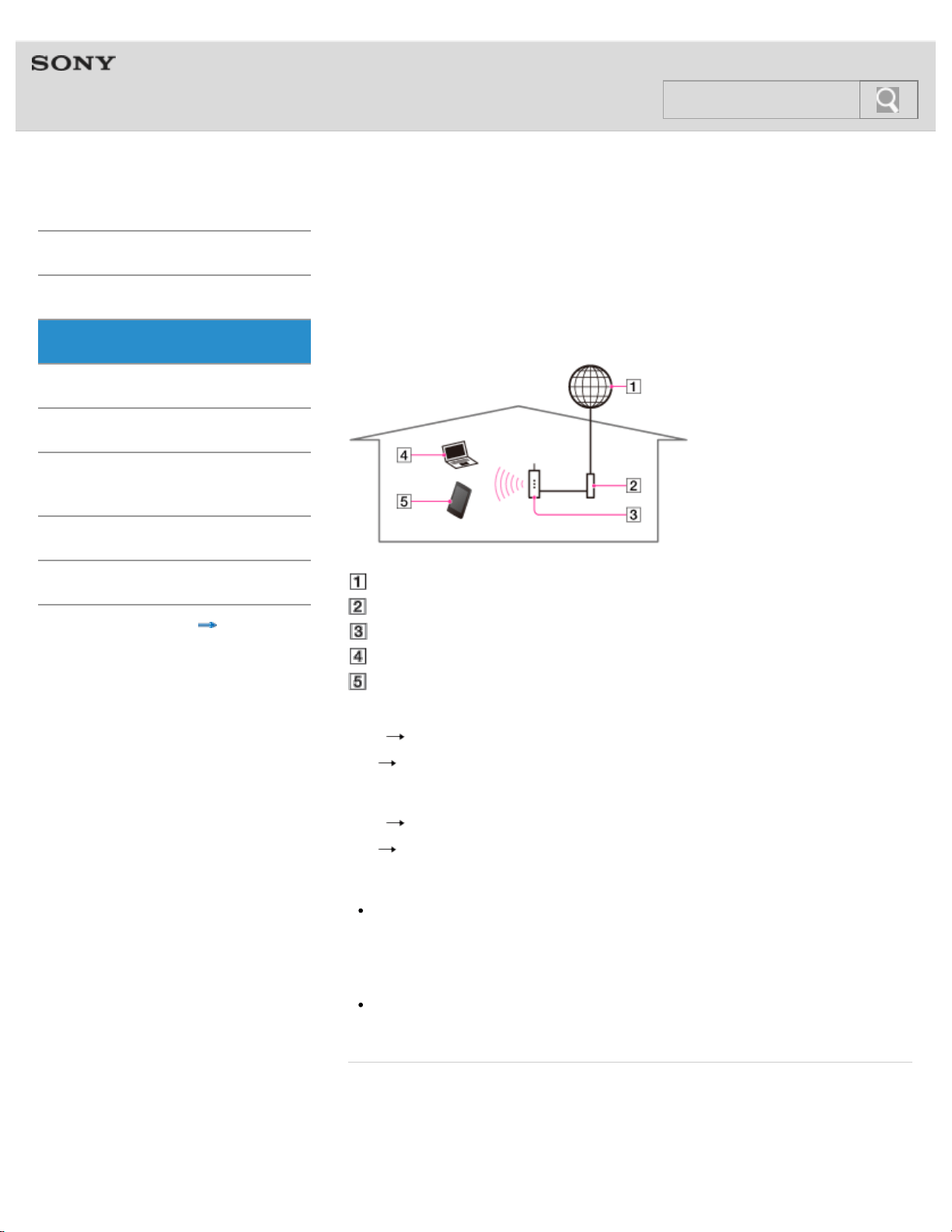
There are several ways of making a Wi-Fi connection, depending on what type of Wi-Fi
router you use. Follow the checklist below to find out how to set up a Wi-Fi connection with
your Wi-Fi router.
Internet
Modem
Wi-Fi router
Computer
Walkman
Question 1: Is your Wi-Fi router WPS (Wi-Fi Protected Setup) compatible?
Yes.
Go on to Question 2.
No.
Go to “Connecting to a Wi-Fi network from the list.”
Question 2: Does your Wi-Fi router have a WPS button?
Yes.
Go to “Connecting to a Wi-Fi network using the WPS button.”
No.
Go to “Connecting to a Wi-Fi network using a PIN.”
Note
For information about your wireless LAN environment, please contact the manufacturer
of your Wi-Fi device, the wireless LAN service provider that you subscribe to, or the
person who set up your Wi-Fi device.
Hint
If the network SSID of the access point that you want to use is not shown in the network
list, add the network manually. [Details]
Related topic
Connecting to a Wi-Fi network from the list
Connecting to a Wi-Fi network using the WPS button
Connecting to a Wi-Fi network using a PIN
57
Search

© 2012 Sony Corporation
58
Search
Help guide
NWZ-F804/F805/F806 Top > Connection > Wi-Fi (Wireless LAN) >
Getting Started
Basic Operations
Connection
Preinstalled Applications
Supplied Software
Important Product
Information
Specifications
Troubleshooting
Contents list
Connecting to a Wi-Fi network from the list
If your Wi-Fi router does not support WPS (Wi-Fi Protected Setup), make a Wi-Fi connection
by selecting a network from the list of available networks.
Hint
Turn on the Wi-Fi function if it is turned off. [Details]
1. Tap the
(Menu) button with the Home screen displayed, then tap [System settings]
- [
Wi-Fi].
2. Tap the network you want to use from the list.
3. Enter a password, if needed, and tap [Connect].
Hint
If you are connecting to a Wi-Fi network for the first time, select a method for setting up
a Wi-Fi connection. [Details]
When you are in range and [Wi-Fi] is on, your Walkman will automatically reconnect to a
network to which you have connected before.
To check the MAC address of your Walkman or other Wi-Fi details, tap the (Menu)
button when in [
Wi-Fi] and tap [Advanced].
Note
Please contact the manufacturer of your Wi-Fi device for information such as how to set
the access point.
Related topic
Selecting a method for setting up a Wi-Fi connection
Turning Wi-Fi on and off
© 2012 Sony Corporation
59
Search

Help guide
NWZ-F804/F805/F806 Top > Connection > Wi-Fi (Wireless LAN) >
Getting Started
Basic Operations
Connection
Preinstalled Applications
Supplied Software
Important Product
Information
Specifications
Troubleshooting
Contents list
Connecting to a Wi-Fi network using the WPS
button
If your Wi-Fi router has a WPS (Wi-Fi Protected Setup) button, you can make a Wi-Fi
connection easily by using the button.
Hint
Turn on the Wi-Fi function if it is off. [Details]
1. Tap the
(Menu) button with the Home screen displayed, then tap [System settings]
- [
Wi-Fi].
2. Tap the access point you want to use from the network list.
3. Flick up the panel and tap [Show advanced options].
A checkmark will be added in the check box.
4. Flick up again to show the advanced options.
5. Tap the WPS options, then tap [Push button] from the option list and tap [Save].
6. Press the WPS button on the Wi-Fi router within 2 minutes.
Hint
When you first connect to a Wi-Fi network, check how to set up a Wi-Fi connection.
[Details]
When you are in range and [Wi-Fi] is on, your Walkman will reconnect to available
networks to which you have connected before.
To check the MAC address of your Walkman or other Wi-Fi details, tap the (Menu)
button when in [
Wi-Fi] and tap [Advanced].
Note
Please contact the manufacturer of your Wi-Fi device for information such as how to set
the access point.
Related topic
Selecting a method for setting up a Wi-Fi connection
Turning Wi-Fi on and off
© 2012 Sony Corporation
60
Search

Help guide
NWZ-F804/F805/F806 Top > Connection > Wi-Fi (Wireless LAN) >
Getting Started
Basic Operations
Connection
Preinstalled Applications
Supplied Software
Important Product
Information
Specifications
Troubleshooting
Contents list
Connecting to a Wi-Fi network using a PIN
If your Wi-Fi router supports WPS (Wi-Fi Protected Setup) but is not equipped with a WPS
button, you can make a Wi-Fi connection by entering the PIN of the Wi-Fi router.
Hint
Turn on the Wi-Fi function if it is off. [Details]
1. Tap the
(Menu) button with the Home screen displayed, then tap [System settings]
- [
Wi-Fi].
2. Tap the access point you want to use from the network list.
3. Flick up the panel and tap [Show advanced options].
A checkmark will be added in the check box.
4. Flick up again to show the advanced options.
5. Tap the WPS options, then tap [PIN from access point] from the option list.
6. Enter the PIN of the Wi-Fi router using the onscreen keyboard.
7. Tap [Connect].
Hint
When you first connect to a Wi-Fi network, check how to set up a Wi-Fi connection.
[Details]
When you are in range and [Wi-Fi] is on, your Walkman will reconnect to available
networks to which you have connected before.
To check the MAC address of your Walkman or other Wi-Fi details, tap the (Menu)
button when in [
Wi-Fi] and tap [Advanced].
Note
Please contact the manufacturer of your Wi-Fi device for information such as how to set
the access point.
Related topic
Selecting a method for setting up a Wi-Fi connection
Turning Wi-Fi on and off
© 2012 Sony Corporation
61
Search
Help guide
NWZ-F804/F805/F806 Top > Connection > Wi-Fi (Wireless LAN) >
Getting Started
Basic Operations
Connection
Preinstalled Applications
Supplied Software
Important Product
Information
Specifications
Troubleshooting
Contents list
Adding Wi-Fi networks manually
You can add a Wi-Fi network manually if the Wi-Fi network you want to use is not detected
automatically when Wi-Fi is on.
Hint
Turn on the Wi-Fi function if it is off. [Details]
1. Tap the
(Menu) button with the Home screen displayed, then tap [System settings]
- [
Wi-Fi] - [Add network].
2. Enter the network SSID of the network to use.
3. Enter a password if needed, and tap [Save].
Hint
To check the MAC address of your Walkman or other Wi-Fi details, tap the (Menu)
button when in [
Wi-Fi] and tap [Advanced].
Related topic
Turning Wi-Fi on and off
© 2012 Sony Corporation
62
Search
Help guide
NWZ-F804/F805/F806 Top > Connection > Wi-Fi (Wireless LAN) >
Getting Started
Basic Operations
Connection
Preinstalled Applications
Supplied Software
Important Product
Information
Specifications
Troubleshooting
Contents list
Checking Wi-Fi network status
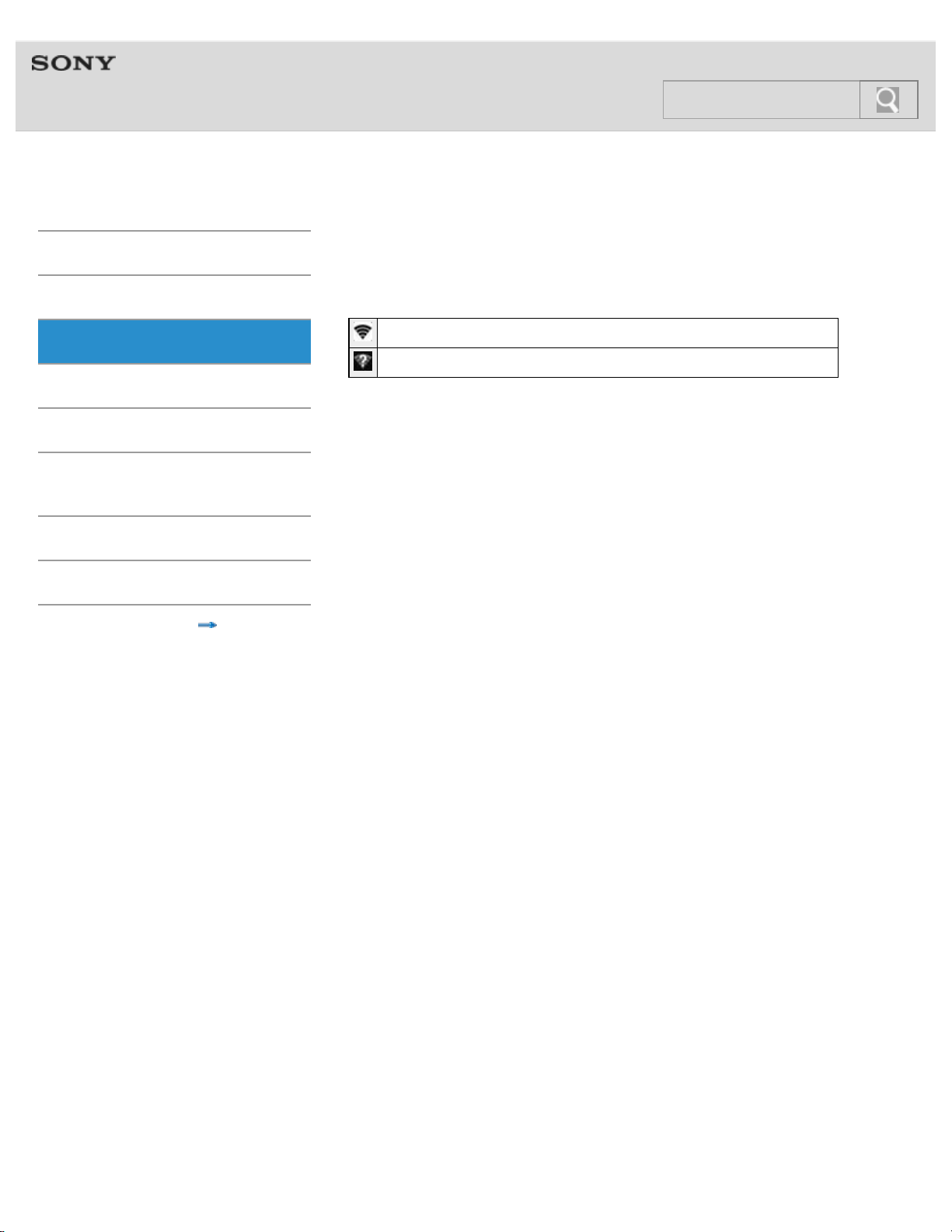
You can check the status of a Wi-Fi network by icons shown in the status bar.
Connected to a Wi-Fi network.
An open network is detected (when Wi-Fi network notification is set to on).
© 2012 Sony Corporation
63
Search
Help guide
NWZ-F804/F805/F806 Top > Connection > Wi-Fi (Wireless LAN) >
Getting Started
Basic Operations
Connection
Preinstalled Applications
Supplied Software
Important Product
Information
Specifications
Troubleshooting
Contents list
Notes on Wi-Fi
The following are notes regarding use of Wi-Fi.
Use of Wi-Fi products may be restricted by local regulations in some countries or
regions.
Wi-Fi devices work on the 2.4 GHz band, which is used by a variety of devices. Wi-Fi
devices use technology to minimize radio interference from other devices that use the
same band. However, radio interference may still cause slower data transfer rates,
reduce communications range, or cause communications failure.
If both the Wi-Fi function and the Bluetooth function of your Walkman are enabled,
interference may occur and cause slower data transfer rates or other problems.
To communicate via Wi-Fi while traveling, you may need to contract with a Wi-Fi
connection service provider.
Data transfer rate and communications range may vary depending on the following
conditions.
Distance between devices
Presence of obstacles between devices
Device configuration
Signal conditions
Surrounding environment (wall material, etc.)
Software in use
Communications may be cut off depending on signal conditions.
The data transfer rate specified in the specifications is the theoretical maximum, and it
may not reflect actual data transfer rate.
Actual data transfer rate may not be as fast as the rate displayed on the screen.
Communications is not available with 5 GHz Wi-Fi as it uses a different frequency band.
The data transfer rate for IEEE 802.11g and IEEE 802.11n (2.4 GHz) devices may be
affected by interference when used with IEEE 802.11b products. Also, products using
IEEE 802.11g and IEEE 802.11n automatically lower the transfer rate to maintain
compatibility with IEEE 802.11b products. The normal transfer rate may be regained by
changing the channel settings of your access point.
When the data transfer rate is not as fast as expected, changing the wireless channel on
the access point may increase the rate.
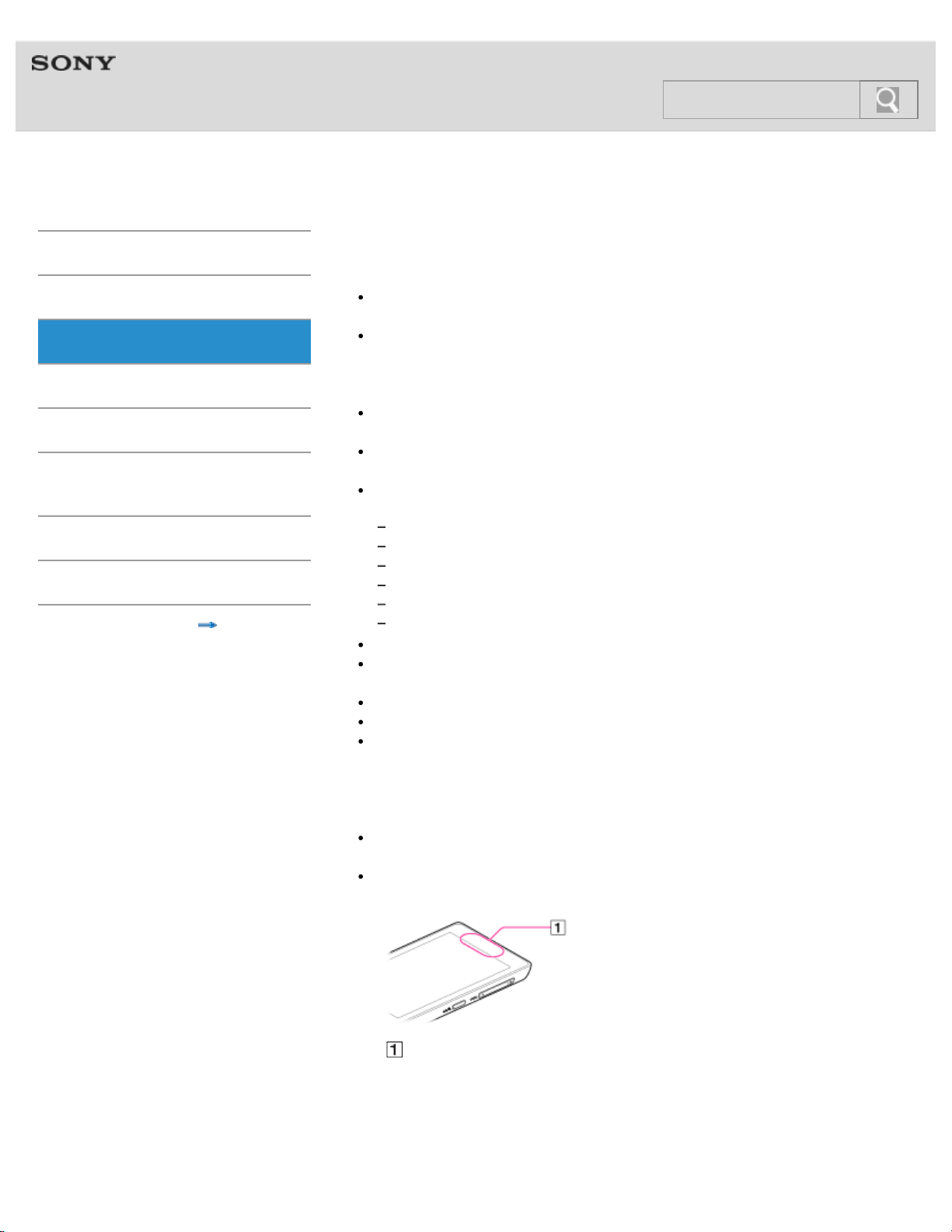
The Wi-Fi antenna is built in to your Walkman. If you cover the antenna with your hands
or other objects while using the Wi-Fi function, the Wi-Fi connection may deteriorate.
Built-in antenna
© 2012 Sony Corporation
64
Search
Help guide
NWZ-F804/F805/F806 Top > Connection > Bluetooth >
Getting Started
Basic Operations
Connection
Preinstalled Applications
Supplied Software
Important Product
Information
Specifications
Troubleshooting
Contents list
About the Bluetooth function
The Bluetooth function enables wireless data transfer between devices that support
Bluetooth communication technology.
You can transfer data between these devices at a range of up to 10 meters in an open area.
Bluetooth devices need to be “paired” with each other the first time a wireless connection is
made.
Once paired, the Bluetooth device and your Walkman can subsequently be connected with a
simple operation. [Details]
© 2012 Sony Corporation
65
Search
Help guide
NWZ-F804/F805/F806 Top > Connection > Bluetooth >
Getting Started
Basic Operations
Connection
Preinstalled Applications
Supplied Software
Important Product
Information
Specifications
Troubleshooting
Contents list
Turning the Bluetooth function on and off
To connect Bluetooth devices with your Walkman, you first have to turn on the Bluetooth
function.
Depending on the device, the procedure to establish connection may vary. Refer to the
operating instructions of the Bluetooth device.
For details on Bluetooth communications, see “About the Bluetooth function.”
1. Tap the
(Menu) button with the Home screen displayed, then tap [System
settings].
2. Slide the Bluetooth switch on or off.
Note
To reduce battery consumption, turn off the Bluetooth function when not in use.
The Bluetooth communications antenna is built in to your Walkman. If you cover the
antenna with your hands or other objects while using Bluetooth communications, the
communications quality may be affected. [Details]
© 2012 Sony Corporation
66
Search
Help guide
NWZ-F804/F805/F806 Top > Connection > Bluetooth >
Getting Started
Basic Operations
Connection
Preinstalled Applications
Supplied Software
Important Product
Information
Specifications
Troubleshooting
Contents list
Enabling other Bluetooth devices to discover your
“WALKMAN”
You can allow other Bluetooth devices to discover your Walkman.
Depending on the device, the procedure to establish a connection may vary. Refer to the
operating instructions of the Bluetooth device.
For details on Bluetooth communications, see “About the Bluetooth function.”
Hint
Turn on the Bluetooth function if it is off. [Details]
1. Tap the
(Menu) button with the Home screen displayed, then tap [System settings]
- [
Bluetooth].
2. Tap the name of your Walkman.
Your Walkman will be discoverable by other Bluetooth devices for 120 seconds.
Related topic
Turning the Bluetooth function on and off
© 2012 Sony Corporation
67
Search
Help guide
NWZ-F804/F805/F806 Top > Connection > Bluetooth >
Getting Started
Basic Operations
Connection
Preinstalled Applications
Supplied Software
Important Product
Information
Specifications
Troubleshooting
Contents list
Pairing (registering) with a Bluetooth device
To connect with a new Bluetooth device, you need to pair with it while the Bluetooth function
of your Walkman is turned on. You only need to do this once for the Walkman and the new
Bluetooth device. Just turn on the device the next time. [Details]
Hint
Turn on the Bluetooth function if it is off. [Details]
1. Put the Bluetooth device you want to connect with in discoverable mode.
Refer to the operating instructions supplied with the Bluetooth device for details on
procedures for putting it in discoverable mode.
2. Tap the
(Menu) button with the Home screen displayed, then tap [System settings]
- [
Bluetooth].
3. Tap the device to set pairing for from the list, and make sure the same number is
displayed on the screen of your Walkman and that device.
The pairing and connection status will be displayed under the Bluetooth device name.
With some devices, a connection is established after pairing.
Note
A passkey (*1) input screen is displayed with some devices. Check the passkey of the
other device, and input the passkey.
(*1) “Passkey” is also called “Pass code,” “PIN code,” “PIN number,” or “Password.” For
the passkey of the other device, see the manual for that device.
Related topic
Turning the Bluetooth function on and off
© 2012 Sony Corporation
68
Search
Help guide
NWZ-F804/F805/F806 Top > Connection > Bluetooth >
Getting Started
Basic Operations
Connection
Preinstalled Applications
Supplied Software
Important Product
Information
Specifications
Troubleshooting
Contents list
Connecting with a Bluetooth device
Connect a paired Bluetooth device with your Walkman.
Hint
Turn on the Bluetooth function if it is off. [Details]
1. Tap the
(Menu) button with the Home screen displayed, then tap [System settings]
- [
Bluetooth].
2. Tap the name of the device you want to connect with in the [Paired devices] list.
[Connected] will be displayed under the name of the device as long as the device is
connected.
If the [Paired devices] list is not displayed, or the device you want to connect with is
not displayed in the [Paired devices] list, pair the devices first. [Details]
Related topic
Turning the Bluetooth function on and off
© 2012 Sony Corporation
69
Search
Help guide
NWZ-F804/F805/F806 Top > Connection > Bluetooth >
Getting Started
Basic Operations
Connection
Preinstalled Applications
Supplied Software
Important Product
Information
Specifications
Troubleshooting
Contents list
Disconnecting from a Bluetooth device
Disconnect from the Bluetooth device you are connected to. Pairing will not end, even if you
disconnect.
Hint
Turn on the Bluetooth function if it is off. [Details]
1. Tap the
(Menu) button with the Home screen displayed, then tap [System settings]
- [
Bluetooth].
2. Tap the name of the device you want to disconnect from in the list.
3. Tap [OK].
Hint
To reduce battery consumption, turn off the Bluetooth function when not in use.
Related topic
Turning the Bluetooth function on and off
© 2012 Sony Corporation
70
Search

Help guide
NWZ-F804/F805/F806 Top > Connection > Bluetooth >
Getting Started
Basic Operations
Connection
Preinstalled Applications
Supplied Software
Important Product
Information
Specifications
Troubleshooting
Contents list
Unpairing from a Bluetooth device
Unpair from a Bluetooth device while the Bluetooth function is turned on.
Hint
Turn on the Bluetooth function if it is off. [Details]
1. Tap the
(Menu) button with the Home screen displayed, then tap [System settings]
- [
Bluetooth].
2. Tap
displayed on the right of the name of the device you want to unpair from in the
list.
3. Tap [Unpair].
Pairing ends.
Related topic
Turning the Bluetooth function on and off
© 2012 Sony Corporation
71
Search
Help guide
NWZ-F804/F805/F806 Top > Connection > Bluetooth >
Getting Started
Basic Operations
Connection
Preinstalled Applications
Supplied Software
Important Product
Information
Specifications
Troubleshooting
Contents list
Notes on the Bluetooth function
The following are notes regarding use of the Bluetooth function.
Bluetooth wireless technology allows connection at as distance of up to about 10
meters. However, the effective range may vary depending on obstacles (people, metals,
wall, etc.) or signal status.
The following conditions may cause noise, sound break or playback speed change with
a Bluetooth connection.
Using inside a metal case
Using inside a backpack or other bag held on the back or shoulder
Using in locations where a wireless network is in place, microwave oven is in use, or
other electromagnetic waves are produced
Because Bluetooth and wireless LAN (IEEE802.11b/g) devices use the same frequency
(2.4 GHz), signal interference may occur that results in communication speed
deterioration, noise, or inability to connect if Bluetooth communications is used near a
wireless LAN device. In such a case, perform the following.
Perform Bluetooth communications at least 10 meters away from the wireless LAN
device when connecting your Walkman and a Bluetooth device.
Place your Walkman and the Bluetooth device as close together as possible.
Turn off the wireless LAN device when performing Bluetooth communications within
about 10 meters of a wireless LAN device.
Due to a characteristic of Bluetooth wireless technology, the sound played on the
receiving Bluetooth device is slightly delayed from the sound of the sending device.
Radio waves emitting from a Bluetooth device may affect the operation of equipment
such as electronic medical devices. Turn off your Walkman and other Bluetooth device
in the following locations, as failure to do so may cause an accident.
In hospitals, near priority seats on trains, in airplanes, in places such as gasoline
stations where flammable gases are present, near automatic doors or fire alarms
Your Walkman supports security functions that comply with the Bluetooth standard to
provide a secure connection when Bluetooth technology is used, but security may not be
sufficient depending on the settings. Be careful when connecting using Bluetooth
technology.
Sony bears no responsibility whatsoever for information leaks as a result of using
Bluetooth technology.
Your Walkman is not guaranteed to connect with all Bluetooth devices.
Bluetooth devices you connect to must conform to the Bluetooth standard specified
by Bluetooth SIG and be certified.
Even if the connected device conforms to the above-mentioned Bluetooth standard,
some devices may not be connected or work correctly depending on the features or
specifications of the device.
Depending on the device to be connected, the Bluetooth connection may take some time
to establish.
Notes on the built-in antenna
Your Walkman is equipped with an antenna. The sensitivity of the Bluetooth connection
will improve by facing the antenna part towards the connected Bluetooth device. The
effective range of the connection will differ if obstacles are between the Walkman and
the Bluetooth device.
Do not cover the antenna with your hand or other object when connected with the
72
Search
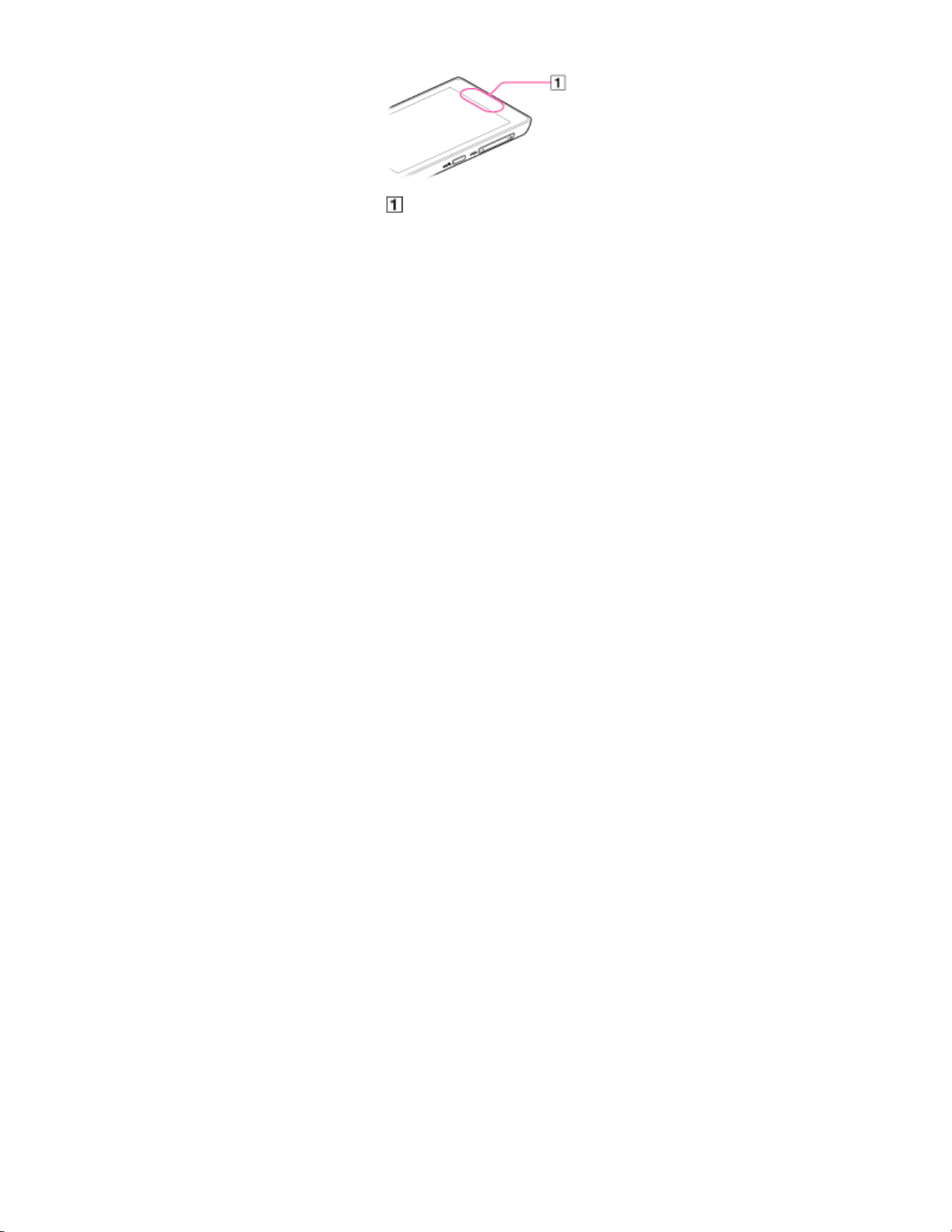
Bluetooth connection. Doing so may obstruct the Bluetooth connection.
Built-in antenna
© 2012 Sony Corporation
73
Search
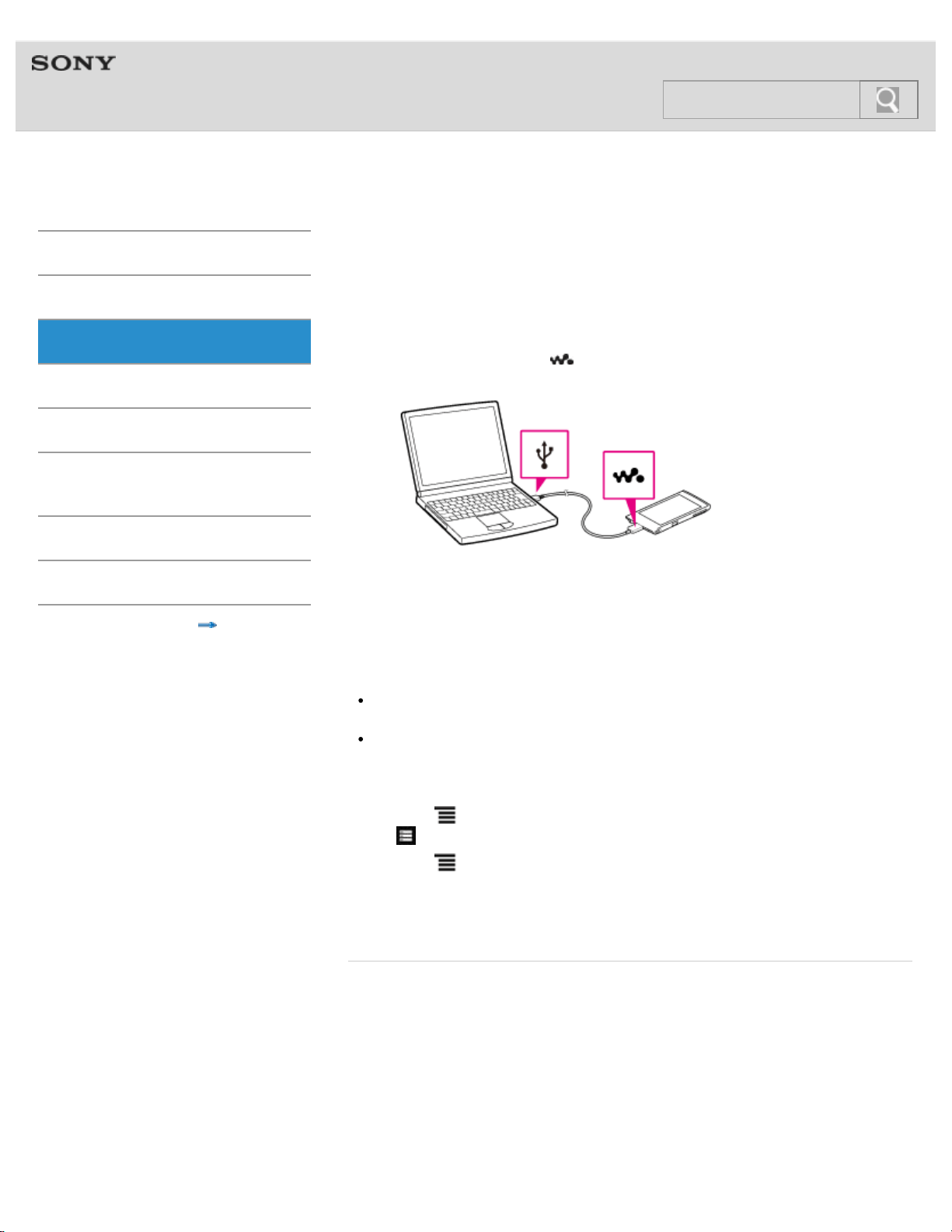
Help guide
NWZ-F804/F805/F806 Top > Connection > USB >
Getting Started
Basic Operations
Connection
Preinstalled Applications
Supplied Software
Important Product
Information
Specifications
Troubleshooting
Contents list
Connecting by USB
USB connection is a method of connecting your Walkman and a USB device using the WM-
PORT jack. For example, you can connect the Walkman with a computer to exchange data
between them.
1. Use the supplied USB cable to connect your Walkman to a running computer.
Plug in the USB cable with
facing upward.
The [USB storage in use] screen will be displayed. Your Walkman will be connected
automatically as a mass storage (MSC mode) device.
Your Walkman will then be accessible by clicking [Computer] (or [My Computer]) from
the Windows [Start] menu.
Hint
If [USB connected] is displayed on the screen, tap [Turn on USB storage] to complete
the connection.
You can change the method of USB connection.
Setting your “WALKMAN“ to connect automatically as a USB storage
device
1. Tap the
(Menu) button with the Home screen displayed, then tap [System settings]
- [
Storage].
2. Tap the
(Menu) button, then tap [USB computer connection] - [Connection
settings] - [USB auto connection].
A checkmark will be added, and your Walkman will be connected automatically as a
USB storage device when connected to a USB device using the WM-PORT jack.
Related topic
Disconnecting the USB cable
© 2012 Sony Corporation
74
Search
Help guide
NWZ-F804/F805/F806 Top > Connection > USB >
Getting Started
Basic Operations
Connection
Preinstalled Applications
Supplied Software
Important Product
Information
Specifications
Troubleshooting
Contents list
Changing the USB computer connection method
You can change the method of USB connection between your Walkman and a computer,
depending on how you use the connection.
1. Tap the
(Menu) button with the Home screen displayed, then tap [System settings]
- [
Storage].
2. Tap the
(Menu) button, then tap [USB computer connection].
The [USB computer connection] screen will be displayed.
3. Tap the desired mode.
A checkmark will be added to the selected mode.
Hint
The [USB computer connection] screen can also be displayed by tapping [Connected as
USB Storage], [Connected as a media device], or [Connected as a camera] on the
notification panel, while your Walkman is connected to a computer.
© 2012 Sony Corporation
75
Search
Help guide
NWZ-F804/F805/F806 Top > Connection > USB >
Getting Started
Basic Operations
Connection
Preinstalled Applications
Supplied Software
Important Product
Information
Specifications
Troubleshooting
Contents list
Dragging and dropping data to a computer with
USB connection
You can exchange data between your Walkman and a computer connected using USB by
dragging and dropping.
1. Use the supplied USB cable to connect your Walkman and a computer.
Your Walkman will be recognized by the computer, and you will be able to drag and
drop data.
Drag and drop music data to the [Music] folder, video data to the [Video] folder, and
photo data to the [Picture] or [DCIM] folder.
Note
Content may not be played back if you change the name of folders such as [Music],
[Video], [Picture] and [DCIM].
Hint
Music, video and picture files in the data hierarchy levels 1 to 8 can be played.
Related topic
Connecting by USB
© 2012 Sony Corporation
76
Search
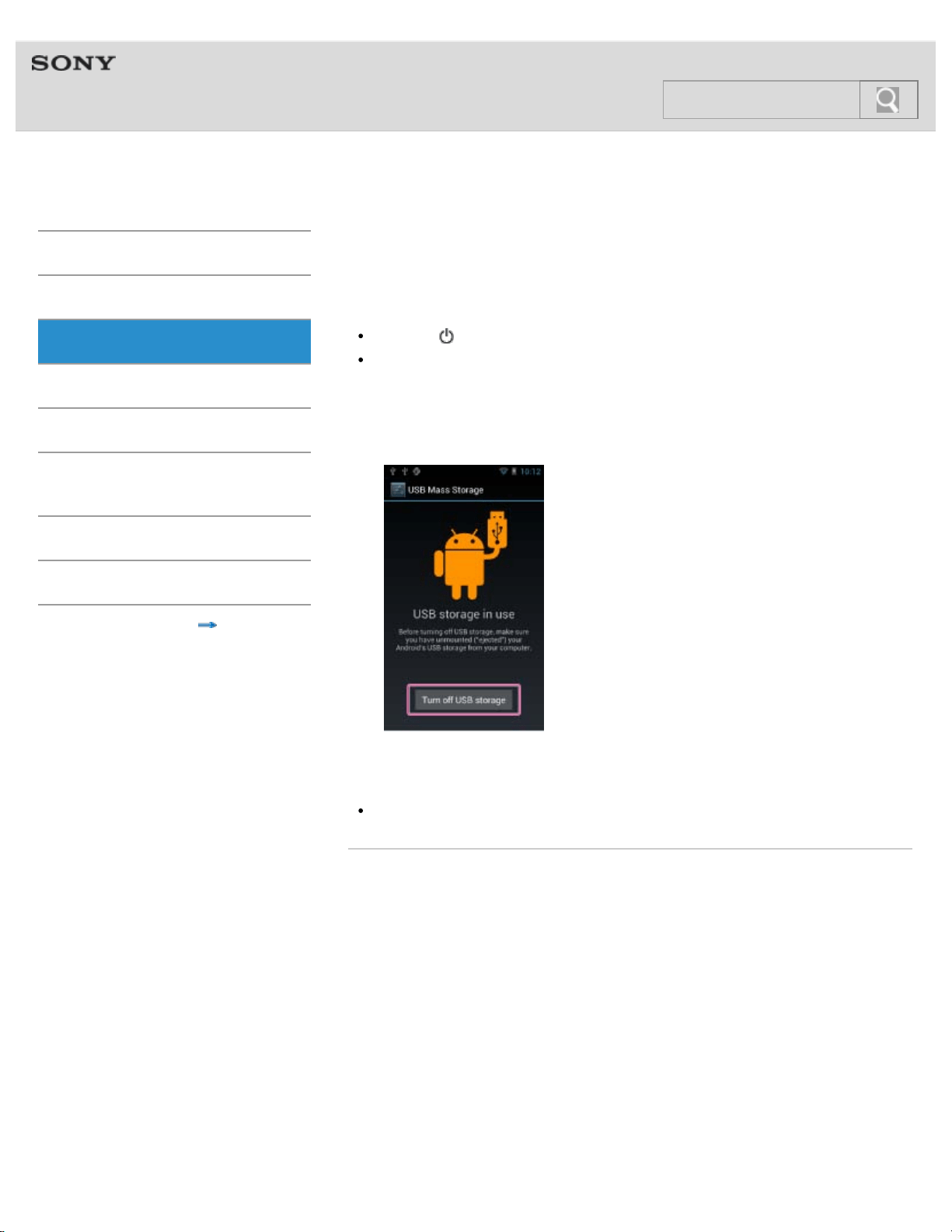
Help guide
NWZ-F804/F805/F806 Top > Connection > USB >
Getting Started
Basic Operations
Connection
Preinstalled Applications
Supplied Software
Important Product
Information
Specifications
Troubleshooting
Contents list
Disconnecting the USB cable
Follow the procedures below when disconnecting the USB cable to prevent damage to data.
Hint
Press the (Power) button if the screen of your Walkman is off.
If your Walkman is connected to a computer in MTP or PTP mode, you do not need to
follow the procedures below. Just disconnect the USB cable.
1. Tap [Turn off USB storage] displayed on the screen of your Walkman.
If that message is not displayed on the screen, swipe the status bar, then tap [Turn off
USB storage] on the notification panel.
2. Disconnect the USB cable.
Note
Do not disconnect the USB cable while transferring data.
Related topic
Connecting by USB
© 2012 Sony Corporation
77
Search
Help guide
NWZ-F804/F805/F806 Top > Connection > USB >
Getting Started
Basic Operations
Connection
Preinstalled Applications
Supplied Software
Important Product
Information
Specifications
Troubleshooting
Contents list
Notes on USB connection
The following are notes regarding use of USB connections.
Do not turn off the power of your Walkman when reading or writing data.
Do not remove the USB cable when transferring data between your Walkman and the
computer. Doing so may result in loss of the data being transferred and data on the
Walkman.
Do not turn on, restart, wake up from sleep mode, or shut down the computer with your
Walkman connected to the computer by USB cable. Doing so may cause the Walkman
to malfunction. Disconnect the Walkman from the computer before conducting those
operations.
© 2012 Sony Corporation
78
Search
Help guide
NWZ-F804/F805/F806 Top > Preinstalled Applications > List of Preinstalled Applications >
Getting Started
Basic Operations
Connection
Preinstalled Applications
Supplied Software
Important Product
Information
Specifications
Troubleshooting
Contents list
Preinstalled applications
The following apps are preinstalled on your Walkman at time of purchase. You can start
individual applications by tapping on their icons. The types of the preinstalled applications
vary depending on countries/regions.
A Wi-Fi connection is required to use applications marked with (*1).
Applications provided by Google, such as Browser, Google Search, and Calendar, are
preinstalled. For details on the preinstalled applications, search the Internet. The application
names may be changed without notice.
Music player
Play back music files transferred by Media Go or drag and drop.
Video player
Play back video files by intuitive operations.
Photo viewer
View photos and slide shows.
FM radio
Listen to FM radio on your Walkman.
W.control
Configure various settings for the W.control displayed by pressing the
(Double-u Dot)
button.
Original apps
Display a list of Sony applications.
Wi-Fi checker (*1)
Check the Wi-Fi connection status of your Walkman when problems occur with the Wi-Fi
connection.
Walkman Classics
Listen to your music on classic Walkman skins.
79
Search

Help guide
NWZ-F804/F805/F806 Top > Preinstalled Applications > List of Preinstalled Applications >
Getting Started
Basic Operations
Connection
Preinstalled Applications
Supplied Software
Important Product
Information
Specifications
Troubleshooting
Contents list
Starting an application
The applications screen displays the icons of all applications currently installed on your
Walkman. You can start an application simply by tapping the icon on the applications screen.
1. From the Home screen, tap
.
The applications screen will be displayed.
2. Tap the icon of the desired application.
Hint
To close the applications screen, tap the (Back) button or the (Home) button.
To display applications not shown on the applications screen, flick the screen left or
right.
© 2012 Sony Corporation
81
Search
Help guide
NWZ-F804/F805/F806 Top > Supplied Software > Supplied Software >
Getting Started
Basic Operations
Connection
Preinstalled Applications
Supplied Software
Important Product
Information
Specifications
Troubleshooting
Contents list
About Media Go
Media Go is software that allows you to copy (import) music from your CDs to your computer
and to manage the stored content on your computer.
You can transfer content stored on your computer to your Walkman using Media Go. If you
have already managed music with iTunes, etc., you can use Media Go to transfer content to
the Walkman. You can also use the Windows Explorer to drag-and-drop content to Media
Go.
© 2012 Sony Corporation
82
Search
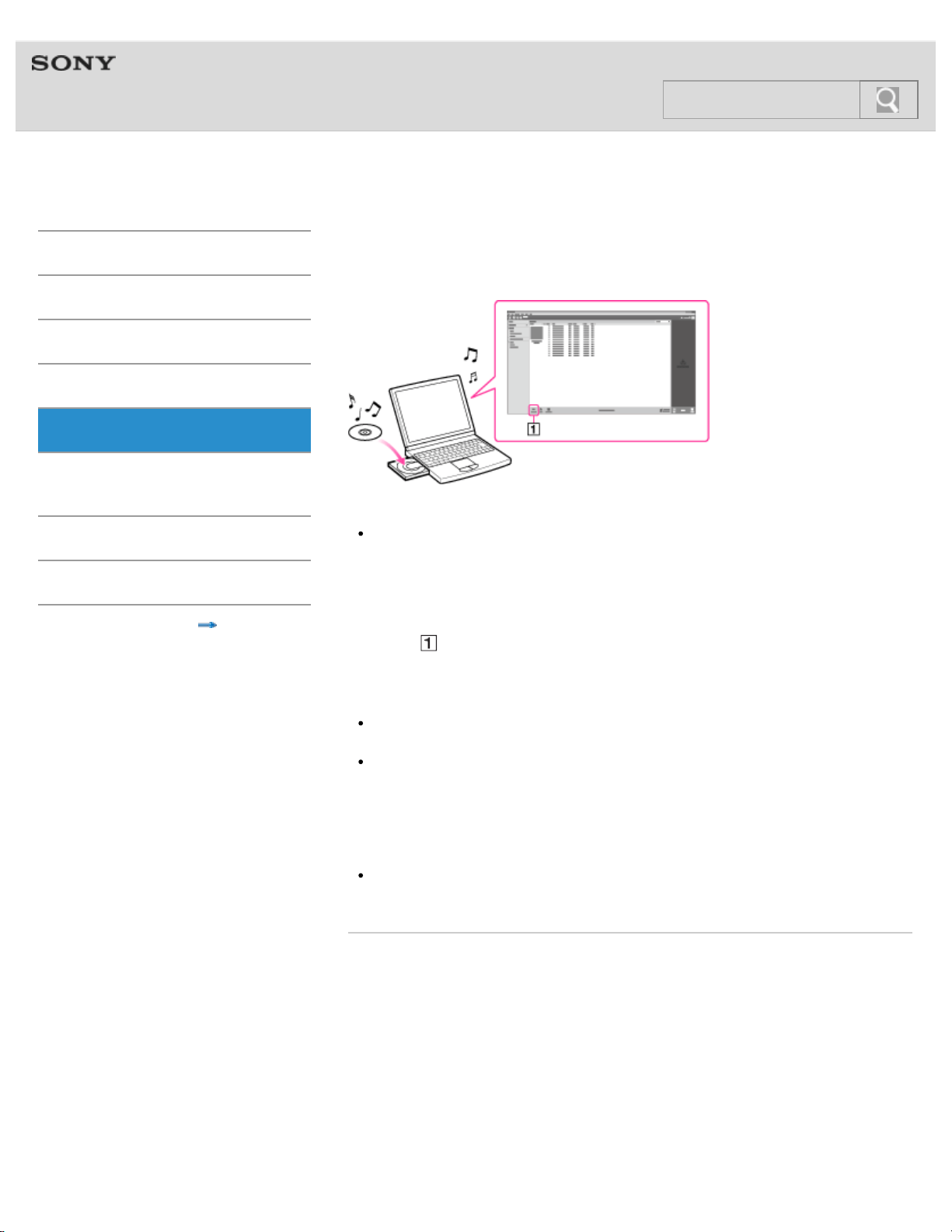
Help guide
NWZ-F804/F805/F806 Top > Supplied Software > Supplied Software >
Getting Started
Basic Operations
Connection
Preinstalled Applications
Supplied Software
Important Product
Information
Specifications
Troubleshooting
Contents list
Importing music from CDs using Media Go
Use Media Go to copy (import) music from your CDs.
Hint
For details about how to use Media Go, refer to the help guide of Media Go.
1. Start up Media Go, and then insert an audio CD.
Media Go detects the CD and displays a window for CD information. When Media Go
obtains the CD information (CD title, song name, artist name, etc.), it is displayed in
the window.
2. Click
.
Wait until all songs have been imported.
Hint
Recommended file formats for ripping CDs are AAC (.mp4) and MP3 (.mp3). You can
transfer music more effectively to your Walkman using those formats.
Media Go obtains the CD information from a database on the Internet. However,
depending on the CD, information may not be available in the database. If a CD’s
information is missing, you can add it after importing. For information about adding and
editing CD information, refer to the help guide of Media Go.
Note
Imported songs are limited to private use only. Use of a song beyond this limitation
requires permission of the copyright holders.
Related topic
Connecting by USB
© 2012 Sony Corporation
83
Search
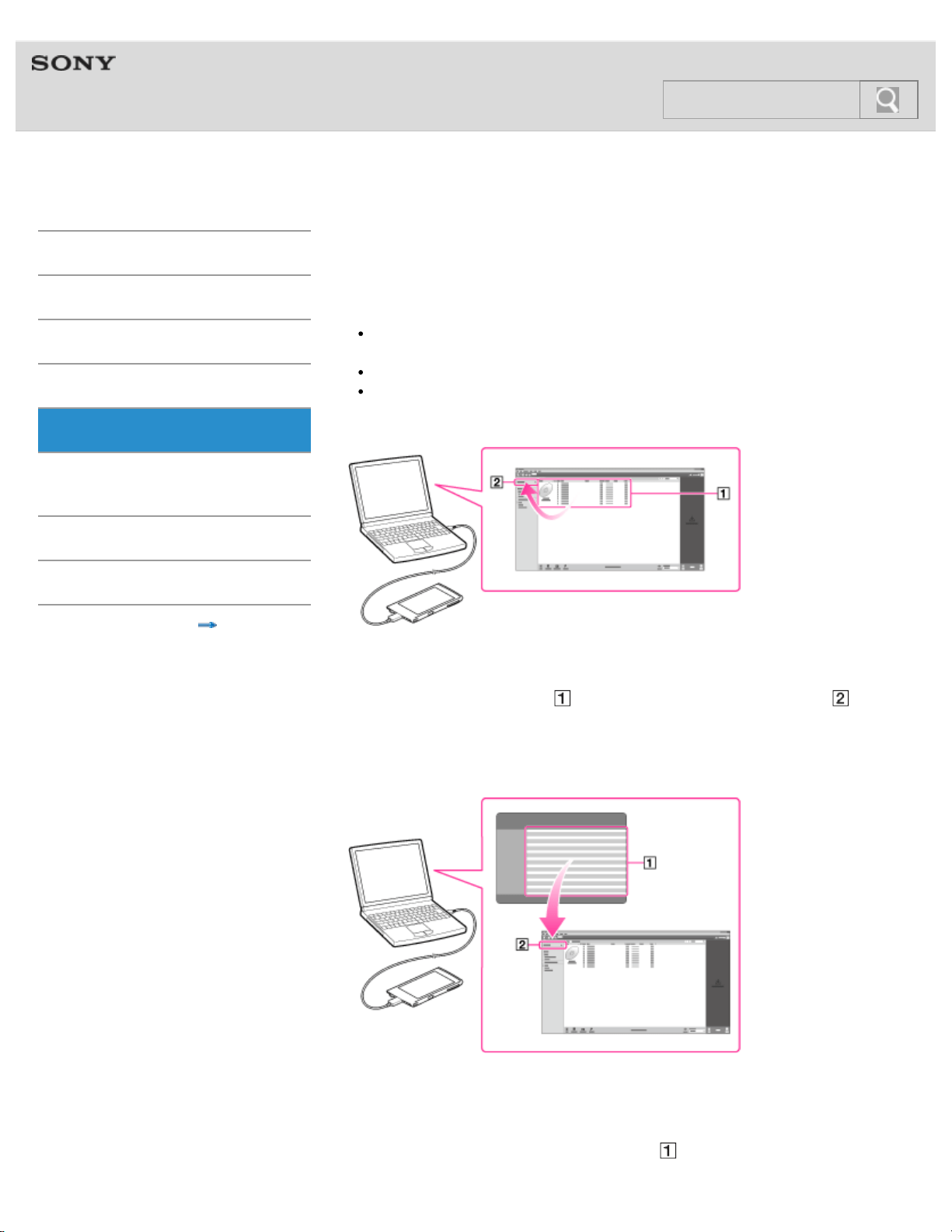
Help guide
NWZ-F804/F805/F806 Top > Supplied Software > Supplied Software >
Getting Started
Basic Operations
Connection
Preinstalled Applications
Supplied Software
Important Product
Information
Specifications
Troubleshooting
Contents list
Transferring content using Media Go
Transfer content stored on your computer to your Walkman using Media Go.
Note
Media Go does not support content that uses digital rights management technology
(“WM-DRM”) for Windows Media.
Content with copyright protection cannot be transferred.
Media Go supports data transferred from iTunes to your Walkman.
Transferring content managed with Media Go
1. Connect your Walkman and your computer using the USB cable (supplied) [Details],
and then start Media Go.
2. Select the desired content (
), and drag-and-drop it to your Walkman ( ).
Media Go recognizes the type of data by filename extension, and sends it to the
appropriate folder of your Walkman.
Transferring content managed with iTunes, etc.
1. Connect your Walkman and your computer using the USB cable (supplied) [Details],
and then start Media Go.
2. Start iTunes, etc.
3. Select the desired content from iTunes, etc. (
), and drag-and-drop it to your
84
Search

Help guide
NWZ-F804/F805/F806 Top > Important Product Information > Important Product Information >
Getting Started
Basic Operations
Connection
Preinstalled Applications
Supplied Software
Important Product
Information
Specifications
Troubleshooting
Contents list
Important product information
“FOR UNITED STATES CUSTOMERS. NOT APPLICABLE IN CANADA, INCLUDING IN
THE PROVINCE OF QUEBEC.
POUR LES CONSOMMATEURS AUX ÉTATS-UNIS. NON APPLICABLE AU CANADA, Y
COMPRIS LA PROVINCE DE QUÉBEC.”
The following FCC statement applies only to the version of this model manufactured for sale
in the USA. Other versions may not comply with FCC technical regulations.
NOTE:
This equipment has been tested and found to comply with the limits for a Class B digital
device, pursuant to Part 15 of the FCC Rules. These limits are designed to provide
reasonable protection against harmful interference in a residential installation. This
equipment generates, uses and can radiate radio frequency energy and, if not installed and
used in accordance with the instructions, may cause harmful interference to radio
communications.
However, there is no guarantee that interference will not occur in a particular installation. If
this equipment does cause harmful interference to radio or television reception, which can
be determined by turning the equipment off and on, the user is encouraged to try to correct
the interference by one or more of the following measures:
Reorient or relocate the receiving antenna.
Increase the separation between the equipment and receiver.
Connect the equipment into an outlet on a circuit different from that to which the
receiver is connected.
Consult the dealer or an experienced radio/TV technician for help.
You are cautioned that any changes or modifications not expressly approved in this manual
could void your authority to operate this equipment.
If you have any questions about this product:
Visit: www.sony.com/walkmansupport
Contact: Sony Customer Information Service Center at 1-(866)-456-7669
Write: Sony Customer Information Service Center 12451 Gateway Blvd., Fort Myers, FL
33913
Declaration of Conformity
Trade Name:
SONY
Model No.:
NWZ-F804/NWZ-F805/NWZ-F806
Responsible Party:
Sony Electronics Inc.
Address:.
16530 Via Esprillo, San Diego, CA 92127 U.S.A
Telephone Number:
858-942-2230
This device complies with Part 15 of the FCC Rules. Operation is subject to the following
two conditions: (1) this device may not cause harmful interference, and (2) this device must
86
Search
accept any interference received, including interference that may cause undesired
operation.
Notice for customers: the following information is only applicable to
equipment sold in countries applying EU directives
The manufacturer of this product is Sony Corporation, 1-7-1 Konan Minato-ku Tokyo, 108-
0075 Japan. The Authorized Representative for EMC and product safety is Sony
Deutschland GmbH, Hedelfinger Strasse 61, 70327 Stuttgart, Germany. For any service or
guarantee matters please refer to the addresses given in separate service or guarantee
documents.
At high volume, prolonged listening to the personal audio player can damage the
user’s hearing.
Disposal of Old Electrical & Electronic Equipment (Applicable in the
European Union and other European countries with separate collection
systems)
This symbol on the product or on its packaging indicates that this product shall not be treated
as household waste. Instead it shall be handed over to the applicable collection point for the
recycling of electrical and electronic equipment. By ensuring this product is disposed of
correctly, you will help prevent potential negative consequences for the environment and
human health, which could otherwise be caused by inappropriate waste handling of this
product. The recycling of materials will help to conserve natural resources. For more detailed
information about recycling of this product, please contact your local Civic Office, your
household waste disposal service or the shop where you purchased the product.
Applicable accessories: Headphones
Disposal of waste batteries (applicable in the European Union and other
European countries with separate collection systems)
This symbol on the battery or on the packaging indicates that the battery provided with this
product shall not be treated as household waste.
On certain batteries this symbol might be used in combination with a chemical symbol. The
chemical symbols for mercury (Hg) or lead (Pb) are added if the battery contains more than
0.0005% mercury or 0.004% lead.
By ensuring these batteries are disposed of correctly, you will help prevent potentially
negative consequences for the environment and human health which could otherwise be
caused by inappropriate waste handling of the battery. The recycling of the materials will
help to conserve natural resources.
In case of products that for safety, performance or data integrity reasons require a
permanent connection with an incorporated battery, this battery should be replaced by
qualified service staff only.
To ensure that the battery will be treated properly, hand over the product at end-of-life to the
applicable collection point for the recycling of electrical and electronic equipment.
For all other batteries, please view the section on how to remove the battery from the
87
Search

product safely. Hand the battery over to the applicable collection point for the recycling of
waste batteries.
For more detailed information about recycling of this product or battery, please contact your
local Civic Office, your household waste disposal service or the shop where you purchased
the product.
For users in Canada
Listening for a Lifetime
Selecting fine audio equipment such as the unit you’ve just purchased is only the start of
your musical enjoyment. Now it’s time to consider how you can maximize the fun and
excitement your equipment offers. This manufacturer, the Consumer Electronics Association
(CEA)® and the American Speech-Language-Hearing Association (ASHA) want you to get
the most out of your equipment by playing it at a safe level; a level that lets the sound come
through clearly without annoying blaring or distortion and, most importantly, without
damaging your sensitive hearing.
Sound can be deceiving. Over time your hearing “comfort level” adapts to higher volumes of
sound. So what sounds “normal” can actually be loud and harmful to your hearing. Guard
against this by setting your equipment at a safe level BEFORE your hearing adapts.
TO ESTABLISH A SAFE LEVEL:
Set your volume control to the lowest level where you can hear the music comfortably
and clearly. Prolonged exposure to anything over 85 decibels can cause gradual
hearing loss.
Once you have established a sound level where you can hear the audio comfortably,
clearly and without distortion, set the dial and leave it there.
See if your music player has a volume limiter that allows you to set a safe listening level
by establishing a maximum volume level on your player. This is a great solution for
parents to ensure their children listen at a safe level.
Limit listening time to give your hearing “quiet breaks.”
BE SURE TO OBSERVE THE FOLLOWING GUIDELINES WHEN WEARING
YOUR HEADPHONES OR EARBUDS:
Do not turn up the volume so high that you can’t hear sounds around you.
Do not use headphones or earbuds while operating a motorized vehicle; it may create a
traffic hazard and is illegal in many areas.
Used wisely, your new sound equipment will provide years of fun and enjoyment.
Since hearing damage from loud noise is often undetectable until it is too late, this
manufacturer, CEA and ASHA recommend that you avoid prolonged exposure to excessive
noise. The following list of sound levels is included for your information so that you can better
protect your hearing.
DECIBEL LEVEL EXAMPLES:
30 Whisper
40 Quiet room
50 Moderate rainfall
60 Normal conversation
70 Busy traffic, vacuum cleaner
80 Alarm clock
CONSTANT EXPOSURE TO THESE NOISES CAN BE DANGEROUS:
90 Lawn mower, motorcycle
100 Chain saw
110 Rock concert
120 Jet plane takeoff
130 Jackhammer
140 Firecrackers
This information courtesy of the American Speech-Language-Hearing Association (ASHA),
88
Search

the national professional, scientific and credentialing association for more than 135,000
audiologists, speech-language pathologists, and speech, language and hearing scientists.
For information on protection against noise-induced hearing loss, call the ASHA Action
Center (800-638-8255), Monday through Friday, 8:30 a.m. to 5 p.m. To find an audiologist in
your area, visit www.asha.org/findpro. Parents can find helpful information about how to
protect their children’s hearing and how to teach them about safe listening at
www.listentoyourbuds.org, an ASHA award-winning public education campaign sponsored in
part by CEA.
A safety tip from the Consumer Electronics Association, 1919 South Eads Street, Arlington,
VA 22202 and the American Speech-Language-Hearing Association, 2200 Research
Boulevard, Rockville, MD 20850.
This equipment must not be co-located or operated in conjunction with any other antenna or
transmitter.
This device complies with Industry Canada licence-exempt RSS standard(s). Operation is
subject to the following two conditions: (1) this device may not cause interference, and (2)
this device must accept any interference, including interference that may cause undesired
operation of the device.
Under Industry Canada regulations, this radio transmitter may only operate using an antenna
of a type and maximum (or lesser) gain approved for the transmitter by Industry Canada. To
reduce potential radio interference to other users, the antenna type and its gain should be so
chosen that the equivalent isotropically radiated power (e.i.r.p.) is not more than that
necessary for successful communication.
The following FCC/IC statement applies only to the version of this model manufactured for
sale in the USA and Canada. Other versions may not comply with FCC/IC technical
regulations.
The available scientific evidence does not show that any health problems are associated
with using low power wireless devices. There is no proof, however, that these low power
wireless devices are absolutely safe. Low power Wireless devices emit low levels of radio
frequency energy (RF) in the microwave range while being used. Whereas high levels of RF
can produce health effects (by heating tissue), exposure of low-level RF that does not
produce heating effects causes no known adverse health effects. Many studies of low-level
RF exposures have not found any biological effects. Some studies have suggested that
some biological effects might occur, but such findings have not been confirmed by additional
research. These models have been tested and found to comply with FCC/IC radiation
exposure limits set forth for an uncontrolled environment and meet the FCC radio frequency
(RF) Exposure Guidelines in Supplement C to OET65 and RSS-102 of the IC radio
frequency (RF) Exposure rules.
Important information is also noted in the supplied “Quick Start Guide,” etc.
© 2012 Sony Corporation
89
Search
Help guide
NWZ-F804/F805/F806 Top > Important Product Information > Important Product Information >
Getting Started
Basic Operations
Connection
Preinstalled Applications
Supplied Software
Important Product
Information
Specifications
Troubleshooting
Contents list
Warning
The following descriptions are important for using your Walkman. Be sure to follow the
instructions below.
Be sure not to short-circuit the terminals of your Walkman with metallic objects.
Do not pour water or put any foreign object in your Walkman. Doing so may cause fire or
electric shock.
If this occurs, turn off the Walkman immediately, disconnect the USB cable from the
Walkman, and consult your nearest Sony dealer or Sony Service Center.
Do not place your Walkman in fire.
Do not take apart or remodel your Walkman. Doing so can result in electric shock.
Consult your nearest Sony dealer or Sony Service Center for exchange of rechargeable
batteries, internal checks or repair.
Do not put any heavy object on top of your Walkman or apply a strong shock to the
Walkman. It may cause a malfunction or damage.
© 2012 Sony Corporation
90
Search
Help guide
NWZ-F804/F805/F806 Top > Important Product Information > Important Product Information >
Getting Started
Basic Operations
Connection
Preinstalled Applications
Supplied Software
Important Product
Information
Specifications
Troubleshooting
Contents list
Caution
Notes on use
The following descriptions are important for using your Walkman. Be sure to follow the
instructions below.
Do not touch the rechargeable battery with bare hands if it is leaking. Since battery liquid
may remain in your Walkman, consult your nearest Sony dealer if the battery has
leaked. If the liquid gets into your eyes, do not rub your eyes as it may lead to blindness.
Wash out your eyes with clean water, and consult a doctor.
Also, if the liquid gets on to your body or clothes, wash it off immediately. If you do not, it
may cause burns or injury. If you get burned or injured by the liquid from the battery,
consult a doctor.
If your Walkman causes interference to radio or television reception, turn the Walkman
off and move it away from the radio or television.
In particularly dry air conditions, mild tingling may be felt on your ears. This is a result of
static electricity accumulated in the body, and not a malfunction of your Walkman.
The effect can be minimized by wearing clothes made from natural materials.
When using a strap (not supplied), be careful to avoid catching it on objects you pass
by. Furthermore be careful not to swing your Walkman by the strap to avoid bumping
people.
Refrain from using your Walkman as requested by in-flight announcements during
takeoff or landing in an aircraft.
If you see lightning or hear thunder, take off the headphones immediately and refrain
from using your Walkman.
If you experience an allergic reaction to the supplied headphones, stop using them at
once and contact a doctor.
Notes on usage environment
Never use your Walkman where it will be subjected to extremes of light, temperature,
moisture or vibration. For example, never leave the Walkman in a car parked in the sun
or under direct sunlight. It may become discolored, distorted or damaged.
Do not leave your Walkman in a place subject to excessive dust.
Do not leave your Walkman on an unstable surface or in an inclined position.
Notes on handling your “WALKMAN”
When you unplug the headphones from your Walkman, make sure to hold the
headphone plug to unplug it. Pulling by the headphone cord itself may damage it.
Do not apply strong force to the surface of the LCD. This may cause a distortion in
colors or brightness, or cause a malfunction of the LCD.
When using your Walkman, remember to follow the precautions below in order to avoid
warping the cabinet or causing the Walkman to malfunction.
Make sure not to sit down with your Walkman in your back pocket.
Make sure not to put your Walkman into a bag with the headphones/earphones cord
91
Search
wrapped around it and then subject the bag to strong impact.
Notes on protecting your “WALKMAN” from getting wet
Do not expose your Walkman to water. The Walkman is not waterproof. Remember to
follow the precautions below.
Be careful not to drop your Walkman into a sink or other container filled with water.
Do not use your Walkman in humid locations or bad weather, such as in the rain or
snow.
Do not get your Walkman wet.
If you touch your Walkman with wet hands, or put the Walkman in a damp article of
clothing, the Walkman may get wet, which may cause a malfunction.
© 2012 Sony Corporation
92
Search
Help guide
NWZ-F804/F805/F806 Top > Important Product Information > Important Product Information >
Getting Started
Basic Operations
Connection
Preinstalled Applications
Supplied Software
Important Product
Information
Specifications
Troubleshooting
Contents list
Notice for users
The recorded song is limited to private use only. Use of the song beyond this limit
requires permission of the copyright holders.
Sony is not responsible for incomplete recording/downloading or damaged data due to
problems of your Walkman or computer.
Some types of characters and symbols may not be displayed correctly on your Walkman
in the following cases:
A language which the Walkman does not support is used in the text.
User-defined characters or special symbols are used in the text.
Heat may build up in your Walkman while charging if it is used for an extended period of
time.
Note that condensation may form temporarily in cases such as when your Walkman is
moved quickly from a low-temperature environment to a high temperature environment,
or used in a room that has a heater just turned on. Condensation creates a
phenomenon where moisture in the air adheres to surfaces such as metal panels, etc.,
and then changes to liquid.
If condensation forms in your Walkman, leave it turned off until the condensation
disappears. If you use the Walkman with condensation present, a malfunction may
result.
If you use your Walkman in a cold location, images may appear with black bands around
them. This is not a malfunction of the Walkman.
© 2012 Sony Corporation
93
Search
Help guide
NWZ-F804/F805/F806 Top > Important Product Information > Important Product Information >
Getting Started
Basic Operations
Connection
Preinstalled Applications
Supplied Software
Important Product
Information
Specifications
Troubleshooting
Contents list
Notes on the headphones
Road safety
Avoid listening with your headphones in situations where hearing must not be impaired.
Preventing hearing damage
Avoid using the headphones at a high volume. Hearing experts advise against continuous,
loud and extended play. If you experience a ringing in your ears, reduce the volume or
discontinue use.
Do not turn the volume up high all at once, especially when using headphones. Turn up the
volume gradually to avoid excessive levels hurting your ears.
Caring for others
Keep the volume at a moderate level. This will allow you to hear outside sounds and to be
considerate to the people around you.
© 2012 Sony Corporation
94
Search
Help guide
NWZ-F804/F805/F806 Top > Important Product Information > Important Product Information >
Getting Started
Basic Operations
Connection
Preinstalled Applications
Supplied Software
Important Product
Information
Specifications
Troubleshooting
Contents list
Storing data
You can store computer data into the built-in flash memory of your Walkman by transferring
the data from your computer using Windows Explorer, or other transfer-capable software. If
the Walkman is connected to the computer, the built-in flash memory appears in Windows
Explorer as [WALKMAN].
Note
Do not use the supplied software while using Windows Explorer to interact with the built-
in flash memory of your Walkman.
Do not disconnect the USB cable (supplied) during data transfer. Otherwise, the data
being transferred or the data stored in your Walkman may be damaged.
Do not rename the [MUSIC], [MP_ROOT], [MPE_ROOT], [VIDEO], [DCIM], [PICTURE],
[PICTURES], [PODCASTS], [RECORD], [RECEIVED] and [VOICE] folders. Also, do not
rename files and folders under them. Otherwise, they will not be displayed on your
Walkman.
© 2012 Sony Corporation
95
Search
Help guide
NWZ-F804/F805/F806 Top > Important Product Information > Important Product Information >
Getting Started
Basic Operations
Connection
Preinstalled Applications
Supplied Software
Important Product
Information
Specifications
Troubleshooting
Contents list
Sample data
This product is preinstalled with music, video, and photo sample data.
Once deleted, the sample data cannot be restored. Please note that Sony will not provide
replacement sample data.
© 2012 Sony Corporation
96
Search
Help guide
NWZ-F804/F805/F806 Top > Important Product Information > Important Product Information >
Getting Started
Basic Operations
Connection
Preinstalled Applications
Supplied Software
Important Product
Information
Specifications
Troubleshooting
Contents list
Notes on the supplied software
The following are notes regarding use of the supplied software.
Copyright laws prohibit reproducing the supplied software or the accompanying manuals,
in whole or in part, or renting the software without the permission of the copyright holder.
In no event will Sony be liable for any financial damage, loss of profits, or claims made
by third parties arising out of the use of the supplied software.
The supplied software cannot be used with equipment other than that for which it is so
designated.
Please note that, due to continued efforts to improve quality, specifications of the
supplied software may be changed without notice.
Operation of software other than that supplied is not guaranteed.
The ability to display the languages on supplied software will depend on the installed OS
on your computer. For better results, please ensure that the installed OS is compatible
with the desired language you want to display.
We do not guarantee all the languages will be able to be displayed properly on the
supplied software.
User-created characters and some special characters may not be displayed.
If the data is initialized, all data (song, video, and photo data transferred to your
Walkman as well as preinstalled sample data and software) will be erased. Be sure to
verify the data stored in memory prior to initializing, and save necessary data to your
computer.
© 2012 Sony Corporation
97
Search
Help guide
NWZ-F804/F805/F806 Top > Important Product Information > License and Trademark Notice >
Getting Started
Basic Operations
Connection
Preinstalled Applications
Supplied Software
Important Product
Information
Specifications
Troubleshooting
Contents list
License and trademark notice
“WALKMAN” and “WALKMAN” logo are registered trademarks of Sony Corporation.
12 TONE ANALYSIS and its logo are trademarks of Sony Corporation.
Media Go is registered trademarks of Sony Electronics Inc.
”LCMIR” and the ”LCMIR” logo are trademarks of Sony Corporation.
SensMe and the SensMe logo are trademarks or registered trademarks of Sony Mobile
Communications AB.
“PlayStation” and “PSP” are registered trademarks of Sony Computer Entertainment Inc.
Microsoft, Windows, Windows Vista and Windows Media are either trademarks or
registered trademarks of Microsoft Corporation in the United States and/or other
countries.
IBM is a registered trademark of International Business Machines Corporation.
Apple, Macintosh and iTunes are trademarks of Apple Inc., registered in the U.S. and
other countries.
Pentium is a trademark or a registered trademark of Intel Corporation.
Wi-Fi, the Wi-Fi CERTIFIED logo, WPA, WPA2 and Wi-Fi Protected Setup are
trademarks or registered trademarks of Wi-Fi Alliance.
The Bluetooth word mark and logos are owned by the Bluetooth SIG, Inc. and any use
of such marks by Sony Corporation is under license. Other trademarks and trade names
are those of their respective owners.
Google, the stylized Google logo, Android, the stylized Android logo, Android Market,
the stylized Android Market logo, Gmail, Google Calendar, Google Checkout, Google
Latitude, Google Maps, Google Talk, Picasa, and YouTube are trademarks of Google
Inc.
Reader and the Reader logo are trademarks of Sony.
“Sony Entertainment Network logo” and “Sony Entertainment Network” are trademarks
of Sony Corporation.
All other trademarks and registered trademarks are trademarks or registered trademarks
of their respective holders. In this manual, TM and ® marks are not specified.
© 2012 Sony Corporation
98
Search
Help guide
NWZ-F804/F805/F806 Top > Specifications > Specifications >
Getting Started
Basic Operations
Connection
Preinstalled Applications
Supplied Software
Important Product
Information
Specifications
Troubleshooting
Contents list
Specifications
Specifications of your Walkman are as follows.
Platform
Android™ Version 4.0
Display
Size/resolution:
3.5-inch (8.8 cm)/WQVGA (800 × 480 Pixels)
Panel type:
TFT color display with white LED-backlight
Interface
USB:
Hi-Speed USB (USB 2.0 compliant)
Headphone:
Stereo mini-jack
WM-PORT:
WM-PORT (multiple connecting terminal): 22 pins
FM radio
FM Frequency range:
87.5 MHz to 108.0 MHz
Antenna:
Headphone cord antenna
Wireless LAN
IEEE 802.11b/g/n
Bluetooth
Bluetooth Version 3.0
Profile: AVRCP1.0, A2DP1.2, OPP1.1, HID
Sensor
GPS receiver
Accelerometer
Built-in Speaker
Monaural
Microphone
Monaural
Output (headphones)
Frequency response
20 Hz to 20,000 Hz (when playing data file, single signal measurement)
Sound Effects
S-Master MX
99
Search

DSEE (On/Off)
5 Band equalizer (None/Heavy/Pop/Jazz/Unique/Custom 1/Custom 2) & Clear Bass
VPT (None/Studio/Live/Club/Arena/Matrix)
Clear Stereo (On/Off)
Dynamic Normalizer (On/Off)
Clear Phase™ (On/Off)
xLOUD™ (On/Off)
Power Source
Built-in Rechargeable lithium-ion Battery
USB power (from a computer via a USB connector of the player)
Charging Time
USB-based charging
Approx. 3.5 hours
Operating temperature
5 °C to 35 °C (41 ºF to 95 ºF)
Dimensions
w/h/d, projecting parts not included
56.8 mm × 114.5 mm × 8.9 mm (2 1/4 inches × 4 5/8 inches × 3/8 inches)
w/h/d
57.0 mm × 114.6 mm × 8.9 mm (2 1/4 inches × 4 5/8 inches × 3/8 inches)
Mass
100 g (3.6 oz)
Capacity (User available capacity) (*1)
Actual available memory for other contents (*1):
NWZ-F804 (8 GB): approx. 4.84 GB=5,207,982,080 bytes
NWZ-F805 (16 GB): approx. 12.1 GB=13,080,887,296 bytes
NWZ-F806 (32 GB): approx. 26.7 GB=28,711,321,600 bytes
Actual available memory for application software (*2):
NWZ-F804 (8 GB): approx. 1.00 GB=1,073,741,824 bytes
NWZ-F805 (16 GB): approx. 1.00 GB=1,073,741,824 bytes
NWZ-F806 (32 GB): approx. 1.00 GB=1,073,741,824 bytes
(*1) Available capacity may vary. A portion of the memory is used for data management
functions.
(*2) Actual available memory for application software includes the memory space which is
used for factory-preinstalled applications.
Walkman specifications and designs are subject to change without notice.
© 2012 Sony Corporation
100
Search
Help guide
NWZ-F804/F805/F806 Top > Specifications > Specifications >
Getting Started
Basic Operations
Connection
Preinstalled Applications
Supplied Software
Important Product
Information
Specifications
Troubleshooting
Contents list
About battery life
The time below may differ depending on ambient temperature or the status of use.
Battery Life (continuous playback)
Actual battery life may vary depending on settings. The estimated battery usage hours
shown below are based on typical usage conditions with “Settings for battery life
measurement” as shown below.
Music
Bluetooth ON
MP3 128 kbps:
Approx. 15 Hrs
Linear PCM 1,411 kbps:
Approx. 15 Hrs
Bluetooth OFF
MP3 128 kbps:
Approx. 25 Hrs
Linear PCM 1,411 kbps:
Approx. 25 Hrs
Video
Bluetooth ON
AVC Baseline 384 kbps:
Approx. 4.5 Hrs
Bluetooth OFF
AVC Baseline 384 kbps:
Approx. 5 Hrs
FM
Approx. 22 Hrs
Note
Even if the player is turned off for an extended period, a small amount of battery power
is still consumed.
Battery life may vary depending on volume setting, conditions of use and ambient
temperature.
Settings for battery life measurement
Display Settings
Brightness (*1)
Default
Music Settings
Equalizer (*2)
None
101
Search

VPT(Surround)
(*2)
None
DSEE(Sound Enhance) (*2)
Off
Clear Stereo
Off
Dynamic Normalizer (*3)
Off
Clear Phase™ (*4)
Off
xLOUD™ (*2)
Off
(*1) The longer the waiting time, the shorter the battery life for continuous music playback.
(*2) Setting [Equalizer] to other than [None], [VPT(Surround)] to other than [None],
[DSEE(Sound Enhance)] to [On] and [xLOUD™] to [On] shortens the battery life for
continuous music playback by about 15 % compared with setting them to [None] or [Off].
(*3) Setting [Dynamic Normalizer] to [ON] shortens the battery life for continuous music
playback by about 10 % compared with setting it to [Off].
(*4) Setting [Clear Phase™] to [ON] shortens the battery life for continuous music playback
by about 20 % compared with setting it to [Off].
© 2012 Sony Corporation
102
Search
Help guide
NWZ-F804/F805/F806 Top > Specifications > Specifications >
Getting Started
Basic Operations
Connection
Preinstalled Applications
Supplied Software
Important Product
Information
Specifications
Troubleshooting
Contents list
Maximum recordable number of songs and time
(Approx.)
The approximate times are based on the case in which you transfer or record only 4 minute
songs (not including videos and photos) in the MP3 format. Other playable audio file format
song numbers and times may differ from MP3 format.
Number
NWZ-F804 (8 GB)
128 kbps
Approx. 1,300 songs
1,411 kbps (Linear PCM)
Approx. 120 songs
NWZ-F805 (16 GB)
128 kbps
Approx. 3,300 songs
1,411 kbps (Linear PCM)
Approx. 300 songs
NWZ-F806 (32 GB)
128 kbps
Approx. 7,300 songs
1,411 kbps (Linear PCM)
Approx. 660 songs
Time
NWZ-F804 (8 GB)
128 kbps
Approx. 86 hr. 40 min.
1,411 kbps (Linear PCM)
Approx. 8 hr. 00 min.
NWZ-F805 (16 GB)
128 kbps
Approx. 220 hr. 00 min.
1,411 kbps (Linear PCM)
Approx. 20 hr. 00 min.
NWZ-F806 (32 GB)
128 kbps
Approx. 486 hr. 40 min.
1,411 kbps (Linear PCM)
Approx. 90 hr. 00 min.
© 2012 Sony Corporation
103
Search
Help guide
NWZ-F804/F805/F806 Top > Specifications > Specifications >
Getting Started
Basic Operations
Connection
Preinstalled Applications
Supplied Software
Important Product
Information
Specifications
Troubleshooting
Contents list
Maximum recordable time of videos (Approx.)
The approximate times are estimated in the case where only videos are transferred.
The time may differ, depending on the conditions under which the player is used.
Time
NWZ-F804 (8 GB)
Video: 384 kbps/Music: 128 kbps
Approx. 19 hr. 40 min.
NWZ-F805 (16 GB)
Video: 384 kbps/Music: 128 kbps
Approx. 49 hr. 40 min.
NWZ-F806 (32 GB)
Video: 384 kbps/Music: 128 kbps
Approx. 109 hr. 20 min.
© 2012 Sony Corporation
104
Search
Help guide
NWZ-F804/F805/F806 Top > Specifications > Specifications >
Getting Started
Basic Operations
Connection
Preinstalled Applications
Supplied Software
Important Product
Information
Specifications
Troubleshooting
Contents list
System requirements
We do not guarantee operation for all computers even if they meet the following system
requirements.
Computer
IBM PC/AT or compatible computer preinstalled with the following Windows operating
systems (*1):
Windows® XP Home Edition (*2) (Service Pack 3 or later)
Windows® XP Professional (*2) (Service Pack 3 or later)
Windows® Vista Home Basic (Service Pack 2 or later)
Windows® Vista Home Premium (Service Pack 2 or later)
Windows® Vista Business (Service Pack 2 or later)
Windows® Vista Ultimate (Service Pack 2 or later)
Windows® 7 Starter (Service Pack 1 or later)
Windows® 7 Home Basic (Service Pack 1 or later)
Windows® 7 Home Premium (Service Pack 1 or later)
Windows® 7 Professional (Service Pack 1 or later)
Windows® 7 Ultimate (Service Pack 1 or later)
Not supported by OSs other than above
[Compatibility mode] for Windows® XP (included with Windows® Vista and Windows®
7) is not supported.
(*1) Excluding OS Versions not supported by Microsoft.
(*2) Excluding 64-bit OS versions.
CPU
CPU: 1 GHz processor (2.6 GHz recommended for video playback)
RAM
RAM: 1 GB or more
Hard Disk Drive (SSD)
Hard Disk Drive/Solid State Drive: 600 MB or more of available space
Web Browser
Internet Explorer 7 or later
Internet
Internet connection (for Gracenote® MusicID® service, podcast features, Store access,
and online help)
Guarantee operation
We do not guarantee operation for all computers even if they meet the above System
Requirements.
Not supported by the following environments:
Personally constructed computers or operating systems
An environment that is an upgrade of the original manufacturer-installed operating
system
Multi-boot environment
Mac OS
Design and specifications are subject to change without notice.
© 2012 Sony Corporation
105
Search
Help guide
NWZ-F804/F805/F806 Top > Specifications > Specifications >
Getting Started
Basic Operations
Connection
Preinstalled Applications
Supplied Software
Important Product
Information
Specifications
Troubleshooting
Contents list
Supported formats
The following file formats are supported by your Walkman.
Music (Music player)
Audio Formats (Codec)
MP3
Media File format: MP3 (MPEG-1 Layer3) file format
File extension: .mp3
Bit rate: 32 to 320 kbps (Supports variable bit rate (VBR))
Sampling frequency (*2): 32, 44.1, 48 kHz
WMA (*1)
Media File format: ASF file format
File extension: .wma
Bit rate: 32 to 192 kbps (Supports variable bit rate (VBR))
Sampling frequency (*2): 44.1 kHz
FLAC
Media File format: FLAC file format
File extension: .flac
Sampling frequency (*2): 44.1 kHz
Linear PCM
Media File format: Wave-Riff file format
File extension: .wav
Bit rate: 1,411 kbps
Sampling frequency (*2): 44.1 kHz
AAC (*3)
Media File format: MP4 file format
File extension: .mp4, .m4a, .3gp
Bit rate: 16 to 320 kbps (Supports variable bit rate (VBR)) (*4)
Sampling frequency (*2): 8, 11.025, 12, 16, 22.05, 24, 32, 44.1, 48 kHz
HE-AAC
Media File format: MP4 file format
File extension: .mp4, .m4a, .3gp
Bit rate: 32 to 144 kbps
Sampling frequency (*1): 8, 11.025, 12, 16, 22.05, 24, 32, 44.1, 48 kHz
Video
Video Formats (Codec)
AVC (H.264/AVC)
Media File format: MP4 file format, “Memory Stick” video format
File extension: .mp4, .m4v
Profile: Baseline Profile
Level: 3.1
Bit rate: Max 18 Mbps
Frame rate: Max 30 fps
Resolution: Max 1,920 × 1,080 (*5)
Media File format: MP4 file format, “Memory Stick” video format
106
Search

File extension: .mp4, .m4v
Profile: Main Profile
Level: 3
Bit rate: Max 2 Mbps
Frame rate: Max 30 fps
Resolution: Max 720 × 480 (*5)
MPEG-4
Media File format: MP4 file format, “Memory Stick” video format
File extension: .mp4, .m4v
Profile: Simple Profile/Advanced Simple Profile
Bit rate: Max 10 Mbps
Frame rate: Max 30 fps
Resolution: Max 1,920 × 1,080 (*5)
Windows Media Video 9 (*1) (*6)
Media File format: ASF file format
File extension: .wmv
Bit rate: Max 20 Mbps
Frame rate: Max 30 fps
Resolution: Max 1,920 × 1,080 (*5)
Audio Formats (Codec)
AAC-LC (AVC, MPEG-4 )
Channel number: Max 2 channels
Sampling frequency (*2): 24, 32, 44.1, 48 kHz
Bit rate: Max 288 kbps/channel
WMA (Windows Media Video 9)
Bit rate: 32 to 192 kbps (Supports variable bit rate (VBR))
Sampling frequency (*2): 44.1 kHz
Photo (*7) (Photo Viewer)
Photo Format (Codec)
JPEG
Media File format: Compatible with DCF 2.0/Exif 2.21 file format
File extension: .jpg, .jpeg
Profile: Baseline Profile
Number of pixels: Max. 6,048 × 4,032 pixels (24,000,000 pixels)
(*1) Copyright protected WMA/WMV files cannot be played back.
(*2) Sampling frequency may not correspond to all encoders.
(*3) Copyright protected AAC-LC files cannot be played back.
(*4) Non-standard bit rates or non-guaranteed bit rates are included depending on the
sampling frequency.
(*5) These numbers indicate the maximum resolution of playable video, and do not indicate
the player’s display resolution. The display resolution is 800 × 480.
(*6) Some WMV files can be played back only by transferring using Windows Media Player.
(*7) Some photo files cannot be played back, depending on their file formats.
© 2012 Sony Corporation
107
Search
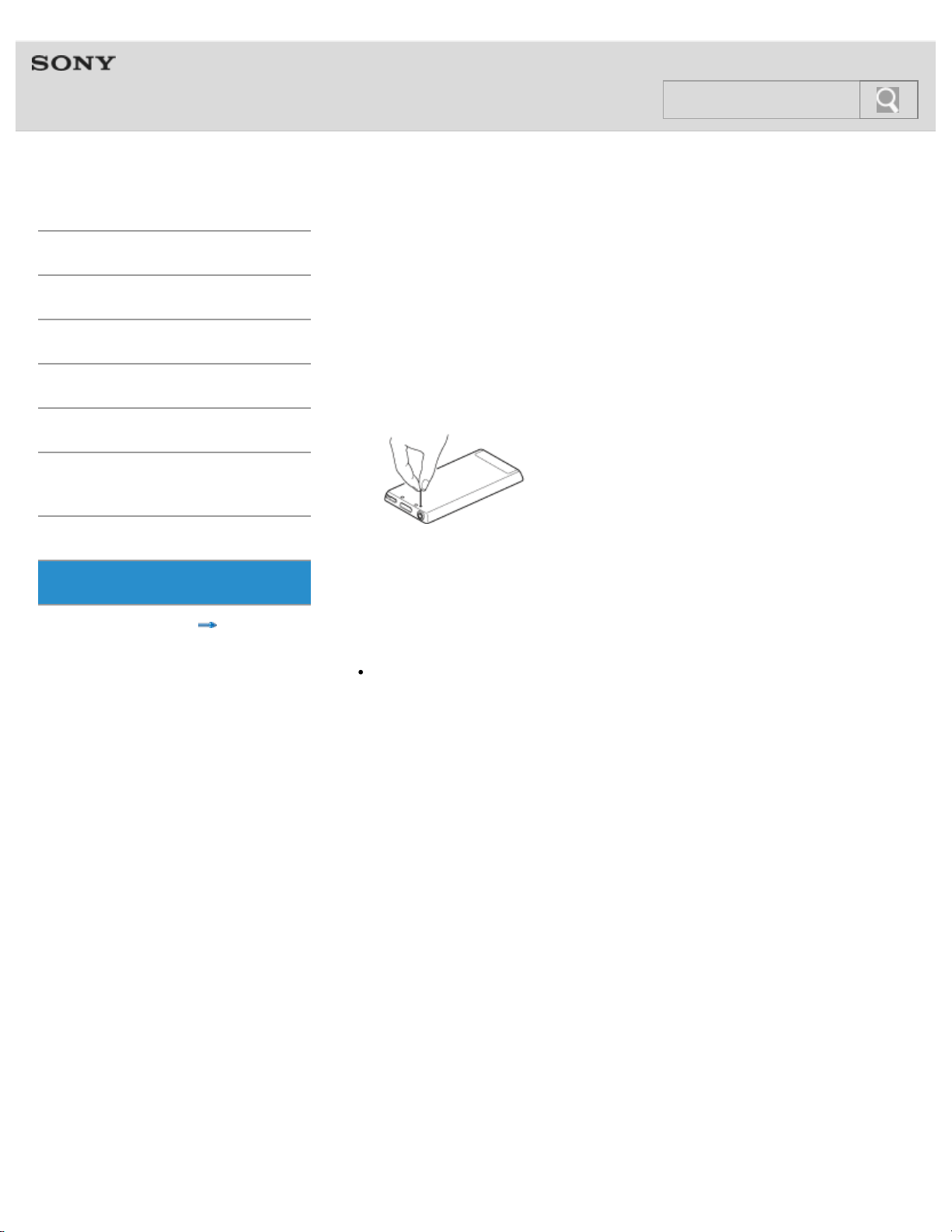
Help guide
NWZ-F804/F805/F806 Top > Troubleshooting > Dealing with Troubles >
Getting Started
Basic Operations
Connection
Preinstalled Applications
Supplied Software
Important Product
Information
Specifications
Troubleshooting
Contents list
What can I do to solve a problem?
If your Walkman does not function as expected, try the following steps to resolve the issue.
1. Find the symptoms of the issue in this manual, and try any corrective actions listed.
2. Connect your Walkman to your computer to charge the battery.
You may be able to resolve some issues by charging the battery. [Details]
3. Press the RESET button with the end of a pin or other narrow object.
Before resetting your Walkman, check that no music, video, etc. is being played back.
You can then reset the Walkman safely.
4. Check information on the issue in the help of the individual software.
5. Look up information on the issue on one of the customer support web sites. [Details]
6. If the approaches listed above fail to resolve the issue, consult your nearest Sony
dealer.
Note
No data will be deleted and no settings will be changed by resetting your Walkman.
© 2012 Sony Corporation
108
Search

Help guide
NWZ-F804/F805/F806 Top > Troubleshooting > Dealing with Troubles >
Getting Started
Basic Operations
Connection
Preinstalled Applications
Supplied Software
Important Product
Information
Specifications
Troubleshooting
Contents list
Customer support websites
If you have any questions or issues with this product, or would like information on compatible
items with this product, visit the following websites.
For customer in the USA:
http://www.sony.com/walkmansupport
For customers in Canada:
http://esupport.sony.com/ca/
For customers in Europe:
http://support.sony-europe.com/DNA
For customers in Latin America:
http://www.sony-latin.com/index.crp
For customers in other countries/regions:
http://www.sony-asia.com/support
For customers who purchased the overseas models:
http://www.sony.co.jp/overseas/support/
© 2012 Sony Corporation
109
Search
Help guide
NWZ-F804/F805/F806 Top > Troubleshooting > Operation >
Getting Started
Basic Operations
Connection
Preinstalled Applications
Supplied Software
Important Product
Information
Specifications
Troubleshooting
Contents list
Your Walkman does not operate (does not
respond to button operations).
The power is not on.
Press and hold the (Power) button. [Details]
Your Walkman contains condensation.
Let your Walkman sit for a few hours.
The remaining battery power is low or depleted.
Charge the battery by means such as connecting your Walkman to a running
computer. [Details]
If you charge the battery and nothing changes, press the RESET button to reset your
Walkman. [Details]
© 2012 Sony Corporation
110
Search
Help guide
NWZ-F804/F805/F806 Top > Troubleshooting > Operation >
Getting Started
Basic Operations
Connection
Preinstalled Applications
Supplied Software
Important Product
Information
Specifications
Troubleshooting
Contents list
Your Walkman does not work properly.
The device connected by USB (computer, etc.) was turned on or off with your Walkman
connected to it.
Reset your Walkman by pressing the RESET button of your Walkman. [Details]
Be sure to disconnect your Walkman before you turn on or off the USB device.
© 2012 Sony Corporation
111
Search
Help guide
NWZ-F804/F805/F806 Top > Troubleshooting > Operation >
Getting Started
Basic Operations
Connection
Preinstalled Applications
Supplied Software
Important Product
Information
Specifications
Troubleshooting
Contents list
Your Walkman gets warm.
Your Walkman may become warm when the battery is being charged and just after
charging. The Walkman also may get warm temporarily when a large amount of data is
transferred. Set the Walkman aside for a while to allow it to cool down.
© 2012 Sony Corporation
112
Search
Help guide
NWZ-F804/F805/F806 Top > Troubleshooting > Operation >
Getting Started
Basic Operations
Connection
Preinstalled Applications
Supplied Software
Important Product
Information
Specifications
Troubleshooting
Contents list
The date and time have been reset.
If you left your Walkman with the battery charge depleted, the date and time may be
reset. This is not a malfunction. Wait for about 10 minutes [Details], then set the date and
time again.
© 2012 Sony Corporation
113
Search
Help guide
NWZ-F804/F805/F806 Top > Troubleshooting > Operation >
Getting Started
Basic Operations
Connection
Preinstalled Applications
Supplied Software
Important Product
Information
Specifications
Troubleshooting
Contents list
Playback has stopped suddenly.
The remaining battery power is low or depleted.
Charge the battery by means such as connecting your Walkman to a running
computer. [Details]
There is a problem with connection to a Bluetooth device that has caused playback to
stop.
Check the connection to the Bluetooth device.
© 2012 Sony Corporation
114
Search
Help guide
NWZ-F804/F805/F806 Top > Troubleshooting > Operation >
Getting Started
Basic Operations
Connection
Preinstalled Applications
Supplied Software
Important Product
Information
Specifications
Troubleshooting
Contents list
An application does not operate.
You cannot use some of the applications while your Walkman is connected to a
computer in MSC mode (default setting) and USB storage is active.
Swipe the status bar, then tap [Turn off USB storage] on the notification panel. Tap
[Turn off USB storage] displayed on the screen of your Walkman.
© 2012 Sony Corporation
115
Search
Help guide
NWZ-F804/F805/F806 Top > Troubleshooting > Sound >
Getting Started
Basic Operations
Connection
Preinstalled Applications
Supplied Software
Important Product
Information
Specifications
Troubleshooting
Contents list
Volume cannot be turned up.
You are listening via a Bluetooth connection.
Turn up the volume on the Bluetooth device.
Media volume level is set to zero.
Increase the media volume. [Details]
[AVLS (Volume Limit)] is enabled.
Disable [AVLS (Volume Limit)]. [Details]
About volume operation (Only for countries/areas complying with European
Directives)
An alarm (beep)* and warning [Check the volume level] are meant to protect your ears when
you raise the volume setting beyond a specific level for the first time. You can cancel the
alarm and warning by tapping [OK] button on the alert dialog.
* The alarm (beep) does not sound when connecting a Bluetooth audio device.
Note
You can turn up the volume beyond the specific level after canceling the alarm and
warning.
After the initial warning, the alarm and warning repeat for every 20 cumulative hours
that the volume is set beyond the specific level; when this happens, the volume is
changed to the initial setting automatically.
If the volume is set beyond the specific level and you turn off your Walkman, the volume
returns to the specific level automatically.
© 2012 Sony Corporation
116
Search
Help guide
NWZ-F804/F805/F806 Top > Troubleshooting > Sound >
Getting Started
Basic Operations
Connection
Preinstalled Applications
Supplied Software
Important Product
Information
Specifications
Troubleshooting
Contents list
There is no sound.
The volume level is set to zero.
Turn the volume up. [Details]
Media volume level is set to zero.
Increase the media volume. [Details]
The headphone plug is not inserted firmly into the headphone jack.
If the headphones are connected improperly, the sound from the headphones will be
impaired. Insert the headphone plug until it clicks into place. [Details]
The headphone plug is dirty.
Clean the headphone plug with a soft dry cloth.
The song that you want to play back is not selected.
Select the song on your Walkman.
A Bluetooth connection is active.
Sound is not emitted from the headphones when a Bluetooth connection is active.
Deactivate the Bluetooth connection.
Accessories are connected to the WM-PORT jack.
Disconnect accessories from the WM-PORT jack.
If the problem still persists after performing the remedies above, press the RESET button
to reset your Walkman. [Details]
© 2012 Sony Corporation
117
Search
Help guide
NWZ-F804/F805/F806 Top > Troubleshooting > Sound >
Getting Started
Basic Operations
Connection
Preinstalled Applications
Supplied Software
Important Product
Information
Specifications
Troubleshooting
Contents list
There is no sound from the right channel of the
headphones. Or the right channel sound is heard
from both sides of the headphones.
The headphone plug is not fully inserted into the jack.
If the headphones are not connected correctly, sound will not be output properly. Insert
the headphone plug into the jack until it clicks. [Details]
© 2012 Sony Corporation
118
Search
Help guide
NWZ-F804/F805/F806 Top > Troubleshooting > Sound >
Getting Started
Basic Operations
Connection
Preinstalled Applications
Supplied Software
Important Product
Information
Specifications
Troubleshooting
Contents list
Noise is generated.
A mobile phone or other device emitting radio signals is being used nearby.
When using devices such as mobile phones, keep them away from your Walkman.
Songs imported from CDs, etc. are damaged.
Connect your Walkman to a computer, and use the software you used to transfer the
songs or the Windows Explorer to delete the damaged songs. Then import songs from
CDs, etc., and transfer them again. When importing data to your computer, close any
other applications to avoid data damage.
Transferred files are not in a format that can be played on your Walkman.
For information on the playable files, see “Supported formats.” [Details] Some files
may not be played back, depending on their file specifications.
The headphone plug is dirty.
Clean the headphone plug with a soft dry cloth.
© 2012 Sony Corporation
119
Search
Help guide
NWZ-F804/F805/F806 Top > Troubleshooting > Sound >
Getting Started
Basic Operations
Connection
Preinstalled Applications
Supplied Software
Important Product
Information
Specifications
Troubleshooting
Contents list
Noise can be heard when plugging in or
unplugging the headphones.
If you plug in or unplug the headphones while playing music, noise may be generated
from the headphones. This is not a malfunction.
Remove the headphones from your ears when plugging in or unplugging.
© 2012 Sony Corporation
120
Search
Help guide
NWZ-F804/F805/F806 Top > Troubleshooting > Screen >
Getting Started
Basic Operations
Connection
Preinstalled Applications
Supplied Software
Important Product
Information
Specifications
Troubleshooting
Contents list
The screen turns off.
There was no operation made within the time selected in [Sleep].
Press the (Power) button.
© 2012 Sony Corporation
121
Search
Help guide
NWZ-F804/F805/F806 Top > Troubleshooting > Screen >
Getting Started
Basic Operations
Connection
Preinstalled Applications
Supplied Software
Important Product
Information
Specifications
Troubleshooting
Contents list
The touch screen does not operate properly.
Fingers other than those performing operations are touching the screen.
Operations may not be recognized properly if other fingers touch the screen while
making operations. Make sure other fingers do not touch the screen while making
operations.
© 2012 Sony Corporation
122
Search
Help guide
NWZ-F804/F805/F806 Top > Troubleshooting > Power >
Getting Started
Basic Operations
Connection
Preinstalled Applications
Supplied Software
Important Product
Information
Specifications
Troubleshooting
Contents list
Battery life is short.
The operating temperature is below 5 °C.
Battery life becomes shorter as a result of battery characteristics. This is not a
malfunction.
Battery charging time is not sufficient.
Charge the battery until the entire battery icon becomes green.
You are using the Bluetooth function.
More battery charge is consumed because the Bluetooth function transfers data
wirelessly. The battery life will be longer if you turn off the connection whenever you
are not using it. [Details]
You are using the Wi-Fi function.
More battery charge is consumed because the Wi-Fi function transfers data wirelessly.
The battery life will be longer if you turn off the connection whenever you are not using
it. [Details]
Display is too bright.
The battery life will be longer by adjusting the brightness of the screen.
You have not used your Walkman for more than a year.
Depending on the conditions under which your Walkman is used, the battery may
have been deteriorated. Consult your nearest Sony dealer.
Usable battery life is half that when new, even after sufficiently charging the battery.
Your battery may be deteriorated. Consult your nearest Sony dealer.
© 2012 Sony Corporation
123
Search
Help guide
NWZ-F804/F805/F806 Top > Troubleshooting > Power >
Getting Started
Basic Operations
Connection
Preinstalled Applications
Supplied Software
Important Product
Information
Specifications
Troubleshooting
Contents list
Your Walkman cannot charge the battery.
The USB cable is not connected to a USB connector on your computer properly.
Disconnect the USB cable, and then reconnect it.
Use the supplied USB cable.
The battery is charged outside the temperature range of 5 °C to 35 °C.
Charge the battery in a temperature range of 5 °C to 35 °C.
The computer is not on.
Turn on the computer.
Your computer is in standby (sleep) or hibernation mode.
Exit from standby (sleep) or hibernation mode.
An AC adapter not compatible with your Walkman is being used.
Use an AC adapter (not supplied) compatible with your Walkman.
A USB hub is being used.
Your Walkman may not charge via a USB hub. Connect the Walkman directly to the
computer’s USB port.
Your Walkman is connected to a computer running an operating system that is not
supported.
Check the system requirements of your computer, and charge with a computer
running an operating system that is supported. [Details]
You have not used your Walkman for more than a year.
Depending on the conditions under which your Walkman is used, the battery may be
deteriorated. Consult your nearest Sony dealer.
If the problem still persists after performing the remedies above, press the RESET button
to reset your Walkman. [Details]
© 2012 Sony Corporation
124
Search
Help guide
NWZ-F804/F805/F806 Top > Troubleshooting > Power >
Getting Started
Basic Operations
Connection
Preinstalled Applications
Supplied Software
Important Product
Information
Specifications
Troubleshooting
Contents list
Charging completes very quickly.
If the battery is already almost fully charged when charging begins, little time is needed to
reach full charge.
© 2012 Sony Corporation
125
Search
Help guide
NWZ-F804/F805/F806 Top > Troubleshooting > Connection to a Computer >
Getting Started
Basic Operations
Connection
Preinstalled Applications
Supplied Software
Important Product
Information
Specifications
Troubleshooting
Contents list
Your Walkman is not recognized as USB storage.
The USB connection is turned off.
If your Walkman is in MSC mode, swipe the status bar, then tap [Turn on USB
storage] on the notification panel followed by [Turn on USB storage] then [OK].
USB debugging is enabled.
Some devices or software may not recognize your Walkman when USB debugging is
enabled. Tap the
(Menu) button, then tap [System settings] - [ Developer
options] - [USB debugging] and uncheck the box.
© 2012 Sony Corporation
126
Search
Help guide
NWZ-F804/F805/F806 Top > Troubleshooting > Connection to a Computer >
Getting Started
Basic Operations
Connection
Preinstalled Applications
Supplied Software
Important Product
Information
Specifications
Troubleshooting
Contents list
The computer does not recognize your Walkman
even if connected by USB cable.
The USB cable is not connected to a USB connector on your computer properly.
Disconnect the USB cable, and then reconnect it.
Use the supplied USB cable.
USB debugging is enabled.
Some devices or software may not recognize your Walkman when USB debugging is
enabled. Tap the
(Menu) button, then tap [System settings] - [ Developer
options] - [USB debugging] and uncheck the box.
A USB hub is being used.
Your Walkman may not be recognized by the computer if using a USB hub. Connect
your Walkman directly to the computer’s USB port.
The USB connector on your computer may have a problem.
Connect your Walkman to another USB connector on your computer.
When you use your Walkman for the first time, or when the battery is low, the battery
symbol may be displayed and you may not be able to use the Walkman. This is not a
malfunction. Wait for about 10 minutes before attempting operations.
Software authentication may take some time. Wait for a while.
Software installation failed.
Reinstall the software using the installer. Imported data will remain unchanged.
If the problem still persists after performing the remedies above, press the RESET button
to reset your Walkman. [Details]
© 2012 Sony Corporation
127
Search
Help guide
NWZ-F804/F805/F806 Top > Troubleshooting > Connection to a Computer >
Getting Started
Basic Operations
Connection
Preinstalled Applications
Supplied Software
Important Product
Information
Specifications
Troubleshooting
Contents list
Data cannot be transferred.
The USB cable is not connected to a USB connector on your computer properly.
Disconnect the USB cable, and then reconnect it.
USB debugging is enabled.
Some devices or software may not recognize your Walkman when USB debugging is
enabled. Tap the
(Menu) button, then tap [System settings] - [ Developer
options] - [USB debugging] and uncheck the box.
There is not enough free memory space on your Walkman.
Delete any unnecessary data to increase free space.
See “Maximum recordable number of songs and time (Approx.) [Details]” and
“Maximum recordable time of videos (Approx.) [Details].”
Data with errors is present on your Walkman.
Back up necessary data, and format your Walkman. [Details]
You are not using compatible software.
Install compatible software, and then transfer data.
The data is damaged.
Delete the data that cannot be transferred from your computer, then import it to your
computer again. When importing data to your computer or transferring data to your
Walkman, stop other work to avoid data damage.
You may be attempting to transfer a file in a format that cannot be played by your
Walkman.
For information on files that can be transferred, see “Supported formats.” [Details]
Some files may not be transferred, depending on their file specifications.
You have exceeded the maximum number of files that can be transferred to your
Walkman.
Delete unnecessary songs.
© 2012 Sony Corporation
128
Search
Help guide
NWZ-F804/F805/F806 Top > Troubleshooting > Connection to a Computer >
Getting Started
Basic Operations
Connection
Preinstalled Applications
Supplied Software
Important Product
Information
Specifications
Troubleshooting
Contents list
The transfer takes too much time.
You transferred a large file to your Walkman.
It may take a long time to transfer a large file.
© 2012 Sony Corporation
129
Search
Help guide
NWZ-F804/F805/F806 Top > Troubleshooting > Connection to a Computer >
Getting Started
Basic Operations
Connection
Preinstalled Applications
Supplied Software
Important Product
Information
Specifications
Troubleshooting
Contents list
Only a small amount of data can be transferred to
your Walkman.
There is not enough free memory space on your Walkman.
Delete any unnecessary data to increase free space.
Data that cannot be played on your Walkman is stored on the Walkman.
If data that cannot be played on your Walkman is stored on the Walkman, fewer
songs, videos, and photos can be transferred. Transfer back to the computer data
other than that which you will play on the Walkman to increase the available space on
the Walkman.
© 2012 Sony Corporation
130
Search
Help guide
NWZ-F804/F805/F806 Top > Troubleshooting > Connection to a Computer >
Getting Started
Basic Operations
Connection
Preinstalled Applications
Supplied Software
Important Product
Information
Specifications
Troubleshooting
Contents list
Your Walkman becomes unstable while it is
connected to the computer.
A USB hub or USB extension cable is being used.
Your Walkman may be unstable if using a USB hub or USB extension cable. Connect
the Walkman directly to the computer’s USB port.
© 2012 Sony Corporation
131
Search
Help guide
NWZ-F804/F805/F806 Top > Troubleshooting > Supplied Software >
Getting Started
Basic Operations
Connection
Preinstalled Applications
Supplied Software
Important Product
Information
Specifications
Troubleshooting
Contents list
Software cannot be installed on the computer.
Your computer is using an operating system that is not supported by your Walkman.
Check the system requirements of your computer. [Details]
Other software is running on Windows.
If other software is running, it may interfere with installation. Particularly, be sure to
quit security software as it can put a heavy load on the computer. To prevent infection
by viruses, disconnect your computer from the Internet before quitting security
software.
There is not enough free space for the hard drive.
Check the amount of free hard drive space required to install the application, and
delete unnecessary files.
Your account has no administrator privileges, or you have not logged in as the
computer’s administrator.
To install the software, log in with an account with administrator privileges or log in as
the computer’s administrator.
A message dialog is hidden by the install screen, making the install process seem
stopped.
Press and hold the [Alt] key while pressing the [Tab] key several times until the
message dialog appears. Then follow instructions in the message.
© 2012 Sony Corporation
132
Search
Help guide
NWZ-F804/F805/F806 Top > Troubleshooting > Supplied Software >
Getting Started
Basic Operations
Connection
Preinstalled Applications
Supplied Software
Important Product
Information
Specifications
Troubleshooting
Contents list
The progress bar on the install screen does not
proceed while installing software. Or, the access
lamp of the hard drive does not light for several
minutes.
Wait until the installation is completed, because it is progressing properly. Installation may
take 30 minutes or more depending on the computer used.
© 2012 Sony Corporation
133
Search
Help guide
NWZ-F804/F805/F806 Top > Troubleshooting > Bluetooth >
Getting Started
Basic Operations
Connection
Preinstalled Applications
Supplied Software
Important Product
Information
Specifications
Troubleshooting
Contents list
You cannot register a Bluetooth device (cannot
complete pairing).
Your Walkman and the Bluetooth device are far apart.
Register (pair) them within the range in which Bluetooth connections can be made.
[Details]
The profile of the Bluetooth device to register (pair) differs from that of your Walkman.
Registration (pairing) cannot be performed if the profiles are different.
© 2012 Sony Corporation
134
Search
Help guide
NWZ-F804/F805/F806 Top > Troubleshooting > Bluetooth >
Getting Started
Basic Operations
Connection
Preinstalled Applications
Supplied Software
Important Product
Information
Specifications
Troubleshooting
Contents list
A Bluetooth connection cannot be established.
The Bluetooth device to connect with is not turned on.
Turn on the Bluetooth device, and make sure the Bluetooth function is activated.
Registering (pairing) the Bluetooth device failed or was not completed.
Your Walkman cannot connect with devices that are not registered (paired). Register
(pair) the Bluetooth device(s). [Details]
Your Walkman or the Bluetooth device to connect with is in sleep mode.
Exit from sleep mode.
The remaining battery power is low or depleted.
Charge the battery by means such as connecting your Walkman to a running
computer. [Details]
The registration (pairing) information on your Walkman or the Bluetooth device to connect
with has been deleted as a result of initializing settings, formatting memory, etc.
Register (pair) your Walkman and the Bluetooth device to connect with again. [Details]
The Bluetooth audio device profile does not support A2DP.
Make sure the Bluetooth audio device profile supports A2DP.
© 2012 Sony Corporation
135
Search
Help guide
NWZ-F804/F805/F806 Top > Troubleshooting > Bluetooth >
Getting Started
Basic Operations
Connection
Preinstalled Applications
Supplied Software
Important Product
Information
Specifications
Troubleshooting
Contents list
You cannot hear the sound even if a Bluetooth
connection has been made.
The volume of the connected Bluetooth device is muted.
Unmute the connected Bluetooth device.
The volume is set to zero.
It may not be possible to adjust the volume of certain connected Bluetooth devices.
Turn up the volume on the Bluetooth device or your Walkman.
Playback of the file has not started.
Start playing back the file on your Walkman.
The connected Bluetooth device is not turned on.
Turn on the connected Bluetooth device and make sure the Bluetooth function is
activated.
Bluetooth connection was severed.
Establish a Bluetooth connection. [Details]
The profile of the connected Bluetooth audio devices does not support AVRCP.
Make operations on your Walkman.
© 2012 Sony Corporation
136
Search
Help guide
NWZ-F804/F805/F806 Top > Troubleshooting > Bluetooth >
Getting Started
Basic Operations
Connection
Preinstalled Applications
Supplied Software
Important Product
Information
Specifications
Troubleshooting
Contents list
Volume cannot be changed when a Bluetooth
connection is made.
You cannot adjust the volume with certain Bluetooth devices.
Adjust the volume on your Walkman.
© 2012 Sony Corporation
137
Search
Help guide
NWZ-F804/F805/F806 Top > Troubleshooting > Bluetooth >
Getting Started
Basic Operations
Connection
Preinstalled Applications
Supplied Software
Important Product
Information
Specifications
Troubleshooting
Contents list
The sound distorts or breaks when a Bluetooth
connection is made.
A transceiver, wireless LAN device, or another Bluetooth device using the 2.4 GHz
frequency or a microwave oven or other device that is emitting electromagnetic waves is
in use near your Walkman or the connected Bluetooth device.
Use your Walkman or the connected Bluetooth device away from the above devices.
Obstacles (metal, people, walls, etc.) are between your Walkman and the connected
Bluetooth device.
Avoid or remove any obstacles between your Walkman and the connected Bluetooth
device.
© 2012 Sony Corporation
138
Search
Help guide
NWZ-F804/F805/F806 Top > Troubleshooting > Bluetooth >
Getting Started
Basic Operations
Connection
Preinstalled Applications
Supplied Software
Important Product
Information
Specifications
Troubleshooting
Contents list
The sound tends to break when a Bluetooth
connection is made.
A transceiver, wireless LAN device, or another Bluetooth device using the 2.4 GHz
frequency or a microwave oven or other device that is emitting electromagnetic waves is
in use near your Walkman or the connected Bluetooth device.
Use your Walkman or the connected Bluetooth device away from the above devices.
Obstacles (metal, people, walls, etc.) are between your Walkman and the connected
Bluetooth device.
Avoid or remove any obstacles between your Walkman and the connected Bluetooth
device.
The bit rate setting is improper for the usage environment.
The connection may become unstable depending on the bit rate setting at which you
are sending to the connected Bluetooth device or the usage environment.
© 2012 Sony Corporation
139
Search
Help guide
NWZ-F804/F805/F806 Top > Troubleshooting > Bluetooth >
Getting Started
Basic Operations
Connection
Preinstalled Applications
Supplied Software
Important Product
Information
Specifications
Troubleshooting
Contents list
Sound skips during music playback when a
Bluetooth connection is made.
Sound may skip depending on the usage environment or settings.
Place your Walkman and the Bluetooth device closer together. That may reduce
skipping.
© 2012 Sony Corporation
140
Search
Help guide
NWZ-F804/F805/F806 Top > Troubleshooting > Bluetooth >
Getting Started
Basic Operations
Connection
Preinstalled Applications
Supplied Software
Important Product
Information
Specifications
Troubleshooting
Contents list
Noise is generated when a Bluetooth connection
is made.
The Bluetooth connection may be broken.
End the Bluetooth connection and reestablish it.
You may hear noise in certain usage environments.
Change the location, end the Bluetooth connection, and reestablish it.
You may hear noise from only one side of the headphones, depending on the connection
status.
End the Bluetooth connection and reestablish it.
© 2012 Sony Corporation
141
Search
Help guide
NWZ-F804/F805/F806 Top > Troubleshooting > Bluetooth >
Getting Started
Basic Operations
Connection
Preinstalled Applications
Supplied Software
Important Product
Information
Specifications
Troubleshooting
Contents list
Video sound is delayed when a Bluetooth
connection is made.
The sound may slightly lag behind the video with certain Bluetooth devices.
© 2012 Sony Corporation
142
Search
Help guide
NWZ-F804/F805/F806 Top > Troubleshooting > Bluetooth >
Getting Started
Basic Operations
Connection
Preinstalled Applications
Supplied Software
Important Product
Information
Specifications
Troubleshooting
Contents list
The screen to enter the passkey appears when a
Bluetooth connection is made.
A passkey may need to be entered when establishing a connection with certain Bluetooth
devices.
Enter the same passkey on your Walkman and the Bluetooth device. [Details] See the
manual for your Bluetooth device for instructions on how to enter the passkey on the
Bluetooth device.
© 2012 Sony Corporation
143
Search